




















Premium
Support - Every Step

We stand behind every purchase with hands-on, expert support from day one - and for life.

|
|
Free 1-Hr Pre-Sales Demo
|
|
See the module live before you commit. Our team walks you through every feature, answers your questions, and confirms the fit. |
 sales@softhealer.com
|

|
|
Free 2-Hr Post-Purchase Setup
|
|
After purchase, get up to 2 hour of free hands-on configuration support - instance connected, authentication configured, and fully verified. |
|
support@softhealer.com
|

|
|
Lifetime Free Support & Updates
|
|
Every purchase includes lifetime free support and updates for your version - no subscriptions, no hidden fees. Just email us anytime. |
 support@softhealer.com
|
Key
Features
Analytics Dashboard
Monitor synchronization activities, integration performance, and key metrics through a centralized analytics dashboard.
Watch VideoXero Connector Dashboard
Monitor synchronization status, connected organizations, transaction summaries, and integration performance from a centralized Xero Connector dashboard.
Watch VideoXero Connector Credentials
Configure OAuth 2.0 credentials and connect Odoo with Xero for secure data synchronization.
Watch VideoWebhook Events Integration
Maintain real-time data accuracy with automatic webhook event synchronization for contacts, invoices, and credit notes updates.
Watch VideoSync Source Indicators
Quickly identify record origins with intuitive color-coded tags indicating import (green) and export (yellow) status.
Watch VideoXero Projects Sync (Import & Export)
Keep your project data aligned by effortlessly synchronizing Xero projects directly with your Odoo management system.
Watch VideoXero Tasks Sync (Import & Export)
Improve task alignment by synchronizing Xero tasks directly alongside your associated ongoing project records.
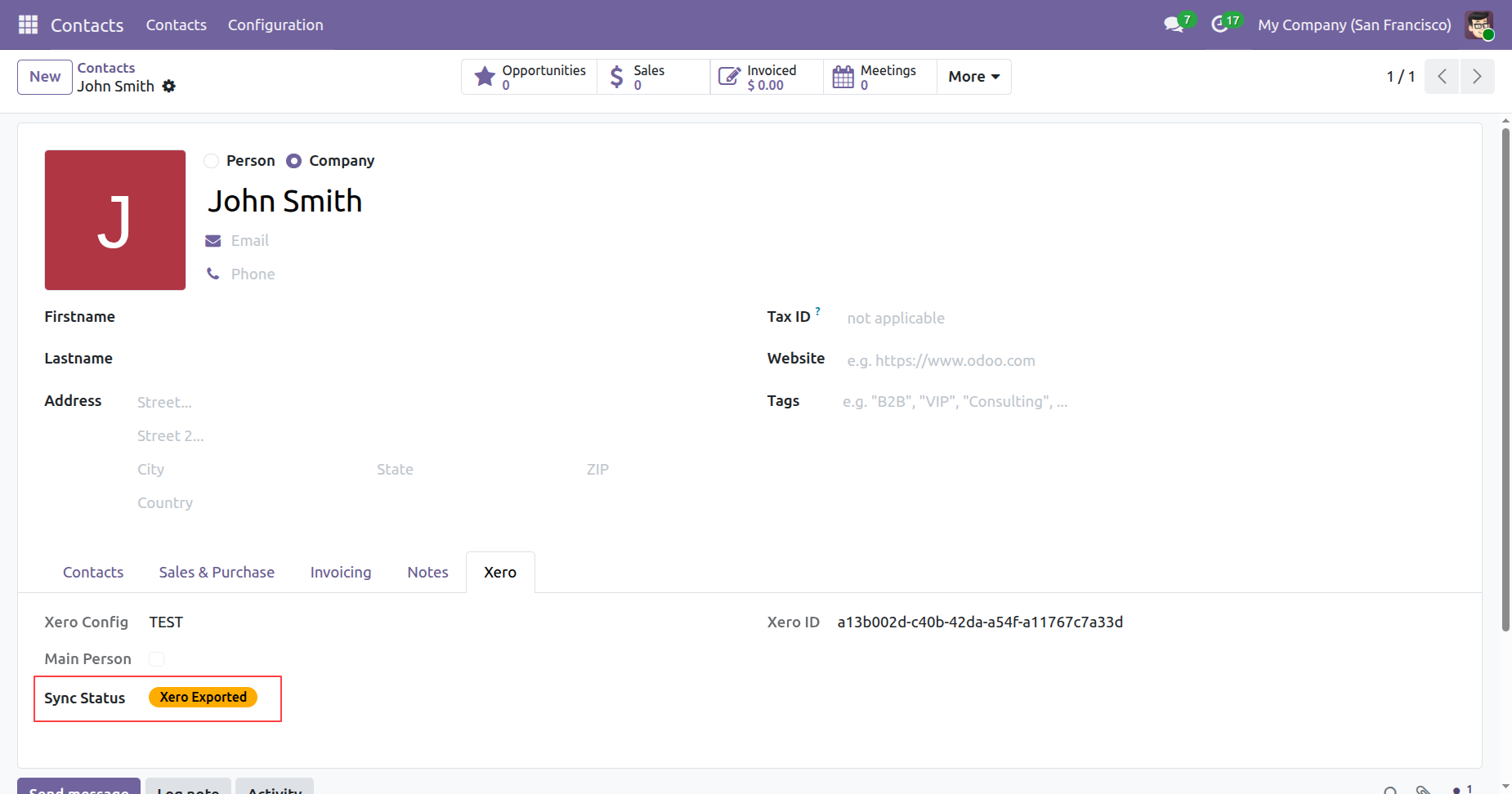
Watch VideoBank Transactions Sync
Automatically import bank transactions for spend and receive money, ensuring your accounts remain perfectly synchronized and accurate.
Watch VideoLog History Record Views
Easily access and view detailed synced record information directly from the log history with a dedicated button.
Watch VideoMulti-Company Management
Configure and manage multiple companies with separate Xero connections, ensuring accurate data synchronization.
Watch VideoDebit Notes/Refunds Sync (Import & Export)
Vendor refund debit notes synced separately from standard credit notes.
Watch VideoCredit Notes Sync (Import & Export)
Import and export credit notes to maintain correct balances in both systems.
Watch VideoCustomer Invoices Sync (Import & Export)
Import invoices from Xero and export Odoo invoices to Xero for financial tracking.
Watch VideoVendor Bills Sync (Import & Export)
Synchronize vendor bills between Odoo and Xero for payable management.
Watch VideoInvoice/Bills Discount Line in Xero (Import & Export)
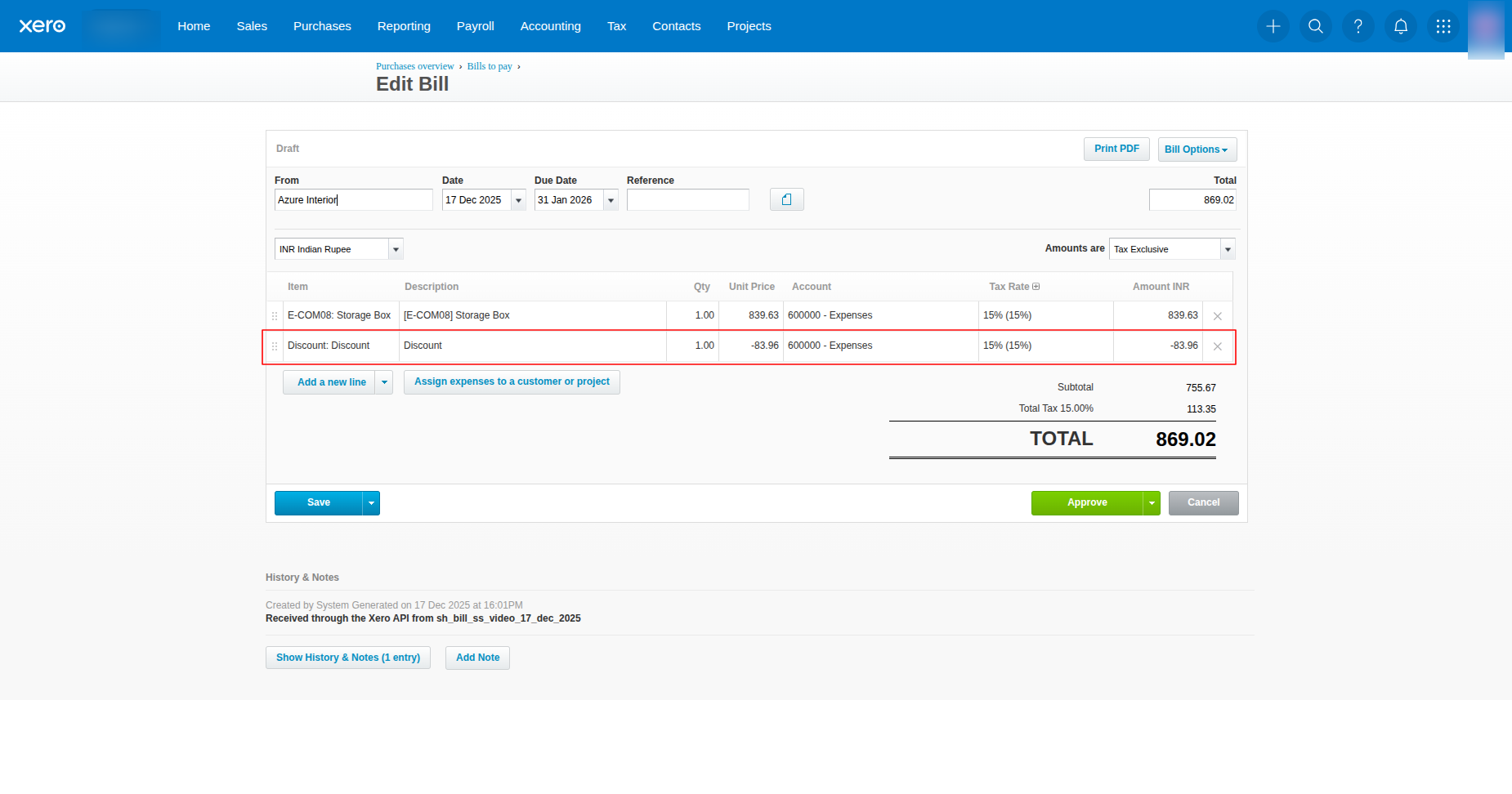
When an invoice/bill line in Odoo includes a discount, the connector creates a corresponding discount line in Xero during sync.
Watch VideoAttachments Sync (Import & Export)
Send document attachments from Odoo to Xero along with related records.
Watch VideoTaxes Sync (Import & Export)
Keep tax configurations synchronized between Odoo and Xero.
Watch VideoPurchase Orders Sync (Import & Export)
Sync purchase orders across Odoo and Xero to maintain vendor and expense visibility.
Watch VideoSales Orders Sync (Import & Export)
Transfer sales orders between Odoo and Xero for accurate sales and accounting records.
Watch VideoProducts Sync (Import & Export)
Import products from Xero and export Odoo products to Xero for unified item management.
Watch VideoChart of Accounts Sync (Import & Export)
Synchronize charts of accounts between Odoo and Xero to keep accounting structures consistent.
Watch VideoContacts Sync (Import & Export)
Import customers from Xero into Odoo and export Odoo contacts back to Xero.
Watch VideoPayments Sync (Import & Export)
Sync payment transactions including ACCRECPAYMENT, ACCPAYPAYMENT, and credit/debit payment types.
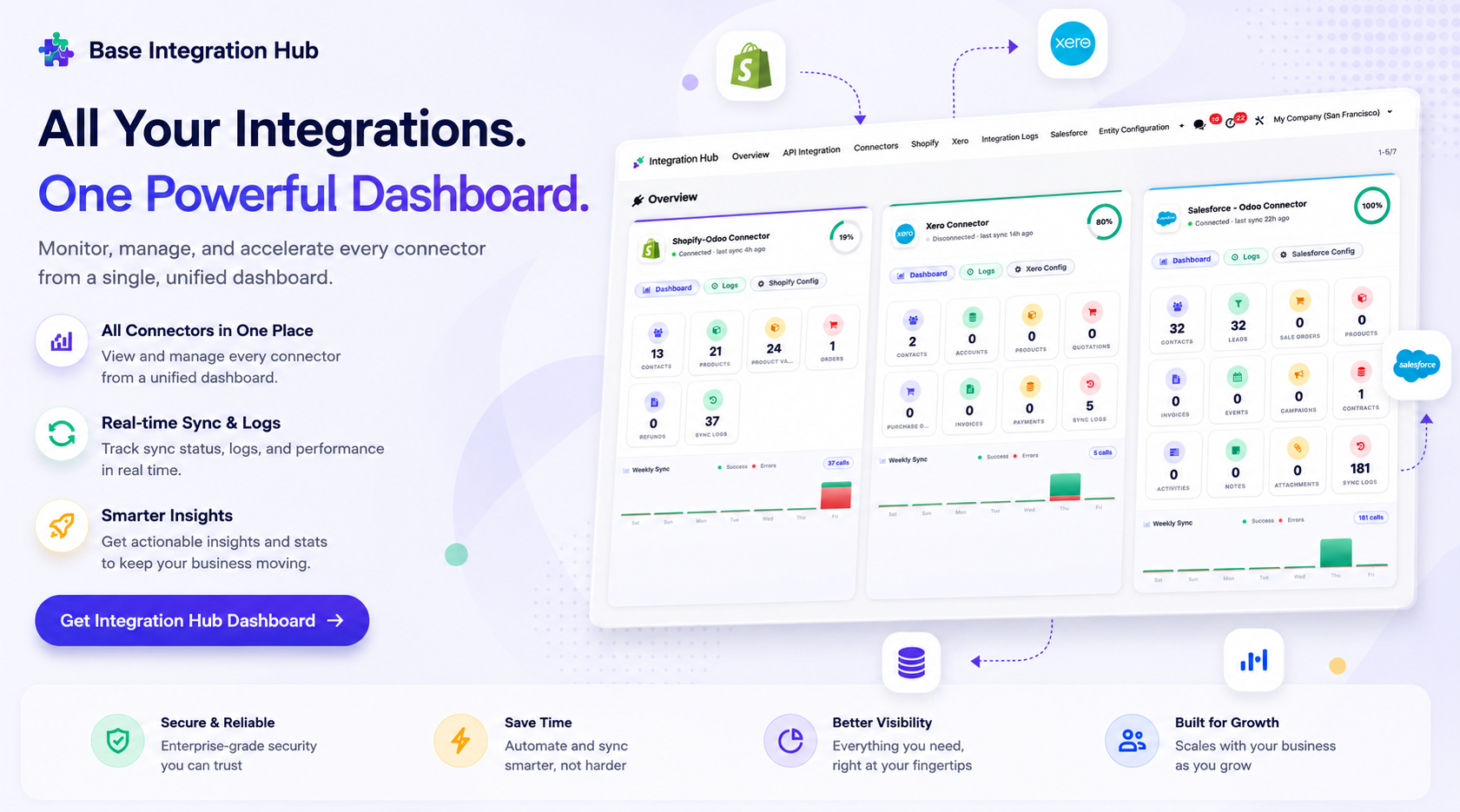
Watch VideoIntegration HUB Dashboard
Seamlessly connect and manage Xero operations using the advanced Integration HUB dashboard for better workflow management.
Per-Record Xero Export Button
Individual export button directly on contact, invoice, sale order, purchase order, and product forms.
Last Sync Timestamp Tracking
Each configuration stores last sync datetime for incremental future imports
Queue-Based Async Processing
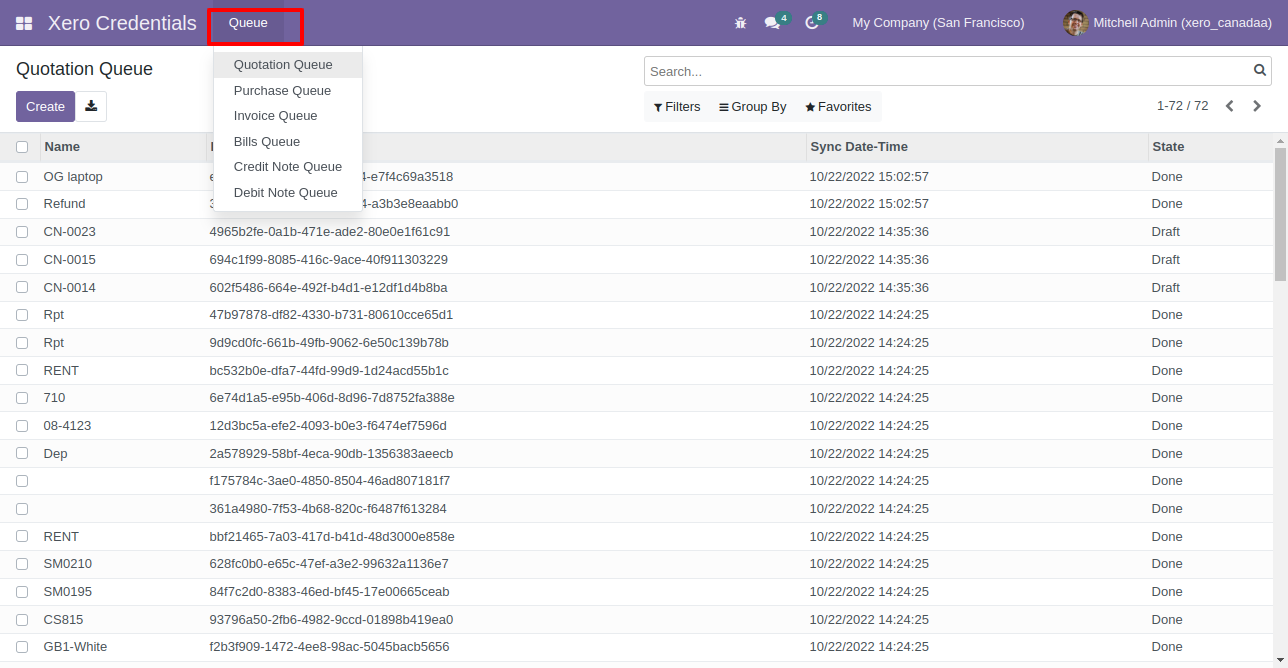
Quotations, purchase orders, invoices, bills, credit notes, and journals processed via a queue model.
Failure Reason Tracking
Per-record failure reason stored on partners, invoices, and orders for easier error diagnosis.
Overpayment/Prepayment Sync (Import & Export)
Import and export overpayments and prepayments so they are reflected in both Odoo and Xero accounting.
Bank Account Sync (Import & Export)
Bank account details on contacts synced between Odoo and Xero.
Pre-Export Product Search
Search and filter products before exporting to ensure correct Xero item mapping.
Native Discount Support
Full discount percentage handling on invoice and bill lines during export.
Token Refresh Support
Automatic OAuth2 token refresh for uninterrupted sync without re-authentication.
Dynamic Tax Validation
Ensures accurate Xero exports by validating tax-inclusive and tax-exclusive invoice lines and alerting users when mixed tax types are detected.
Selective Sync Control
Choose specific records for import or export instead of syncing everything.
Scheduled Automatic Sync
Automate data synchronization using cron jobs.
Sync Log & History Tracking
View detailed logs for each sync process with success or failure status.
Mass Data Sync
Import or export multiple records in bulk for faster operations.
Record Exclusion Configuration
 LATEST
Exclude Contacts, Products, Invoices, Sales Orders, Purchase Orders, Credit Notes, Bills, Accounts, Manual Journals, Payments, Taxes, Projects, and Tasks from synchronization or export.
Automatic Master Data Export
LATEST
Automatically export Products, Accounts, Projects, Taxes, and other configured master records to the connected system.
 Setup & Configuration
 Release Notes
 Support
 FAQ's
FAQ's
-
 Xero Dashboard
-
 Analytics Dashboard
-
 Connection Setup
-
 Taxes Synchronization
-
 Chart of Accounts
-
 Contacts Management
-
 Product Synchronization
-
 Sales Integration
-
 Purchase Integration
-
 Accounting Documents
-
 Manual Journal Entries
-
 Sync Logs & History
-
 Import/Export With Attachments
-
 Dynamic Tax Validation
-
 Native Discount Support
-
 Bill Discount Line In Xero
-
 Log History Record Views
-
 Sync Source Indicators
-
 Bank Transactions Sync
-
 Xero Projects Sync
-
 Xero Tasks Sync
-
 Webhook Auto Sync
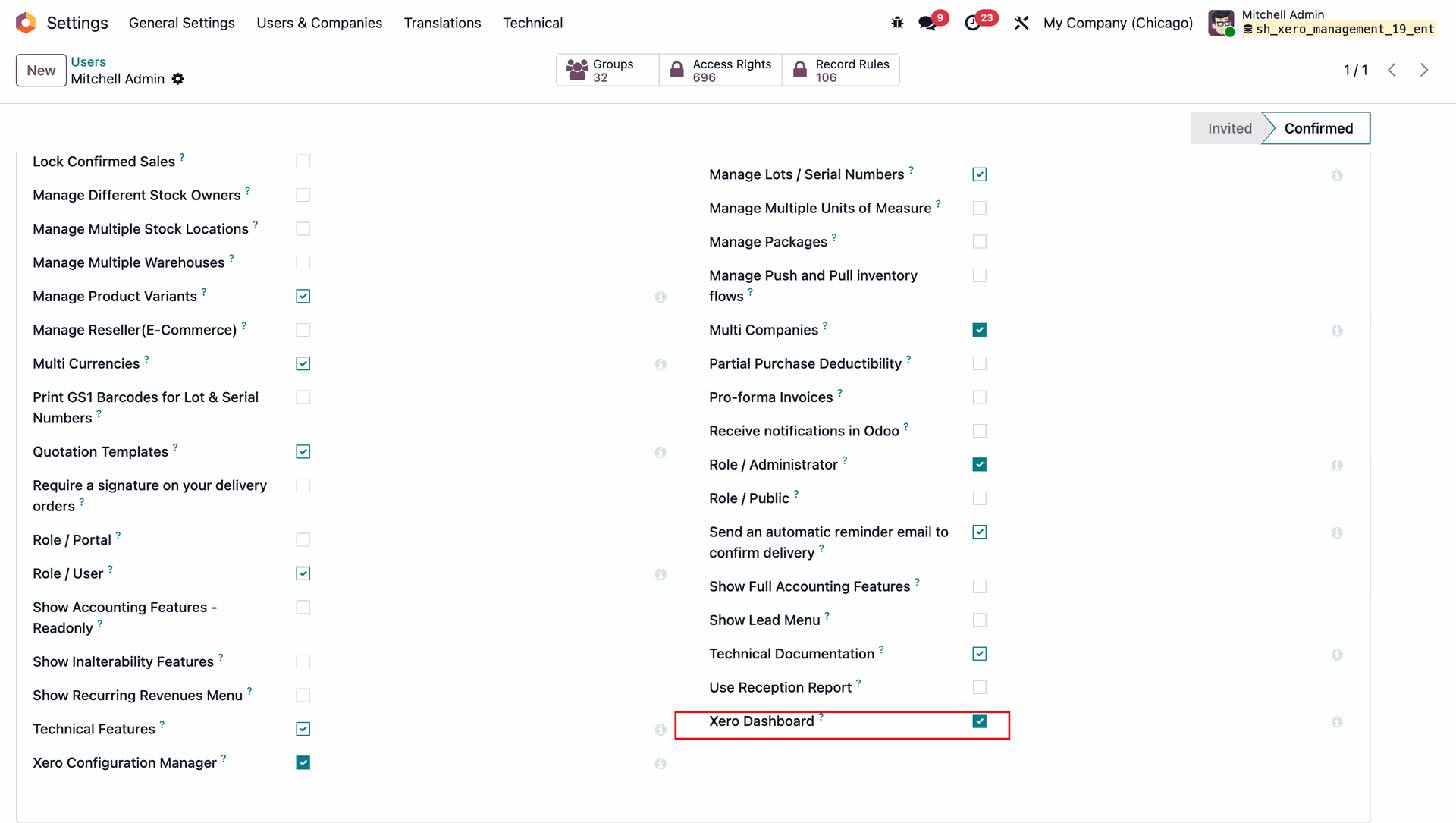
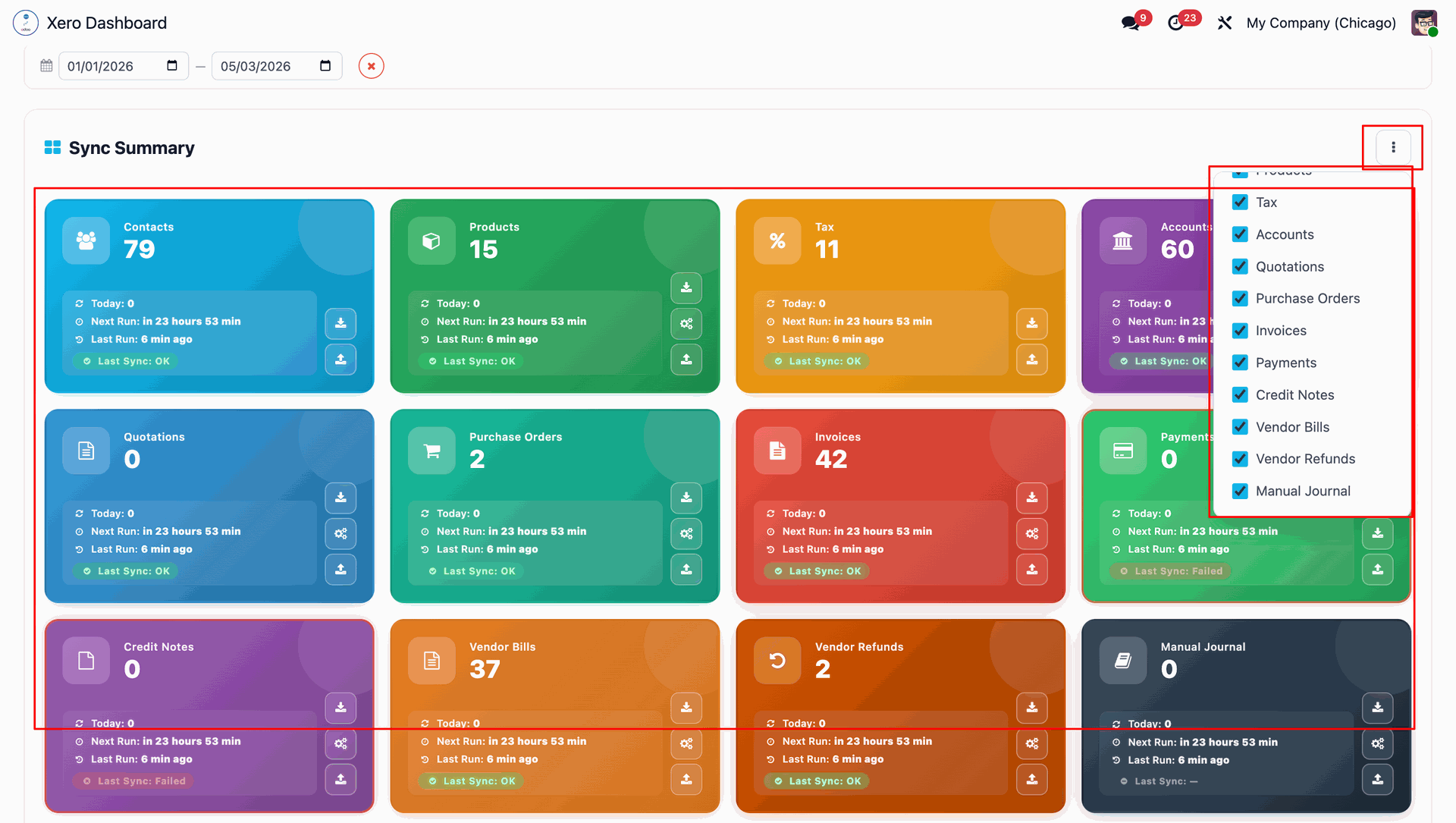
Enable 'Xero Dashboard'.
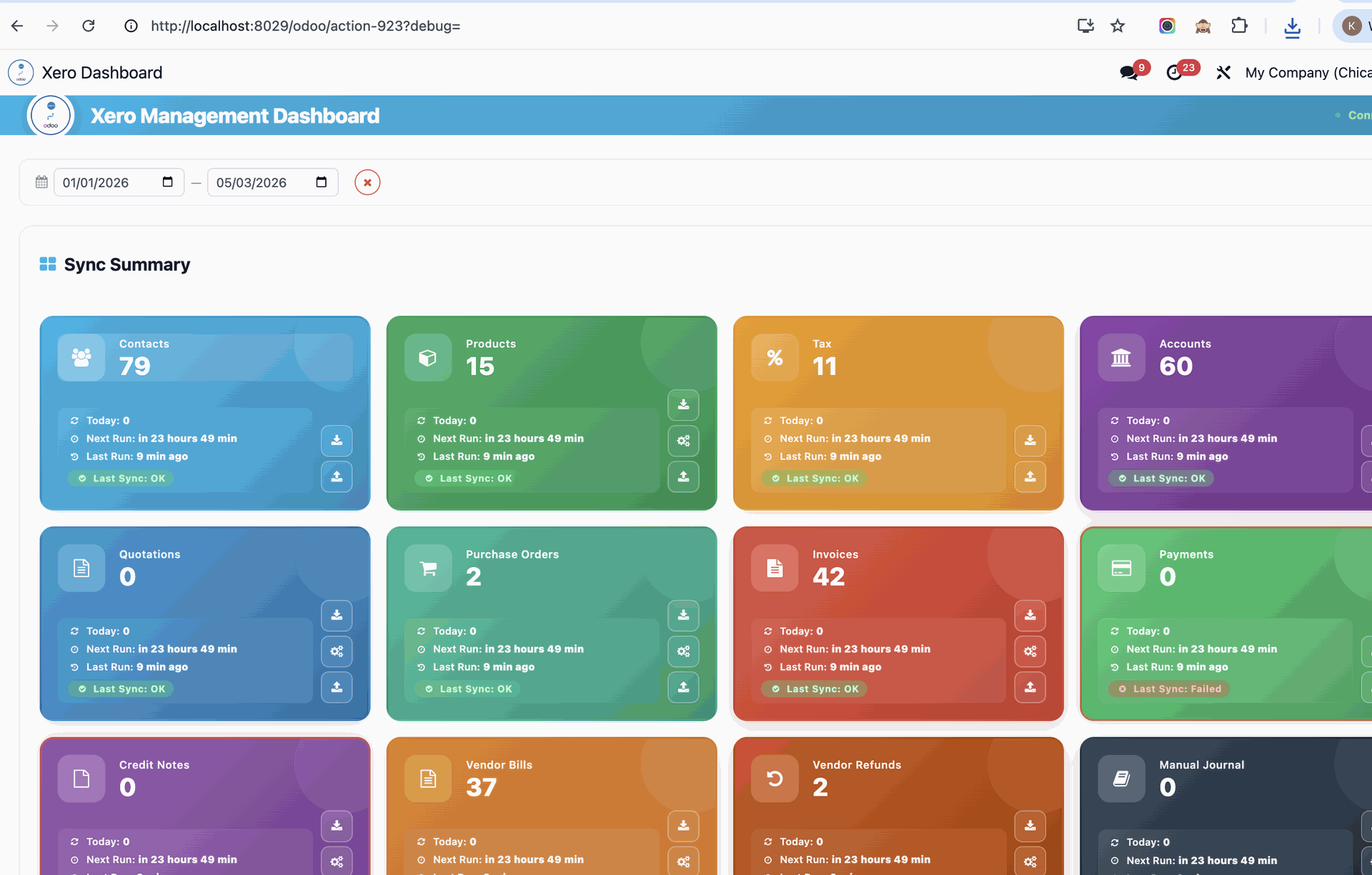
Dashboard view.
You can select a date range, and you can perform operations from the dashboard.
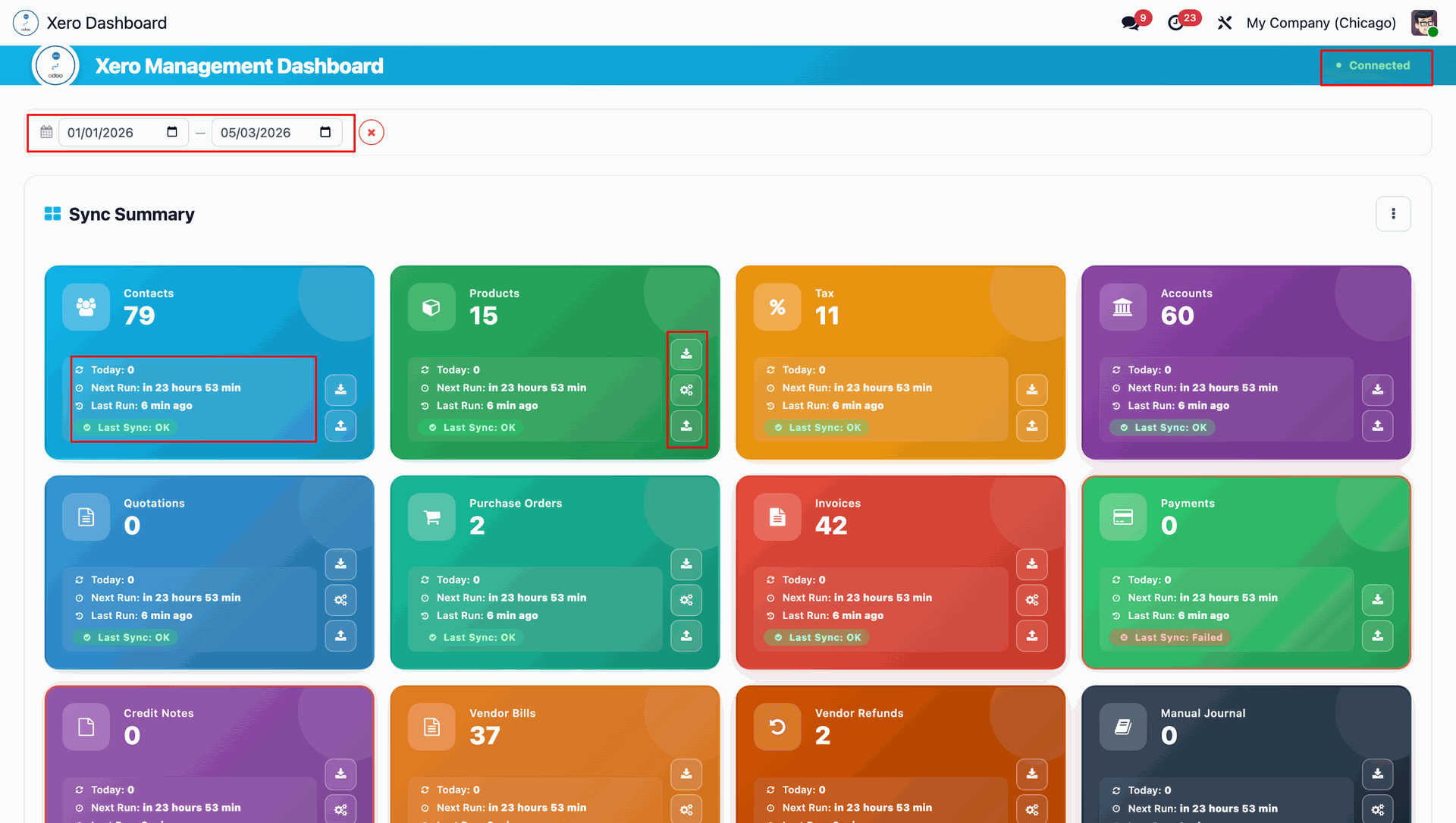
You can choose models by enabling/disable option.
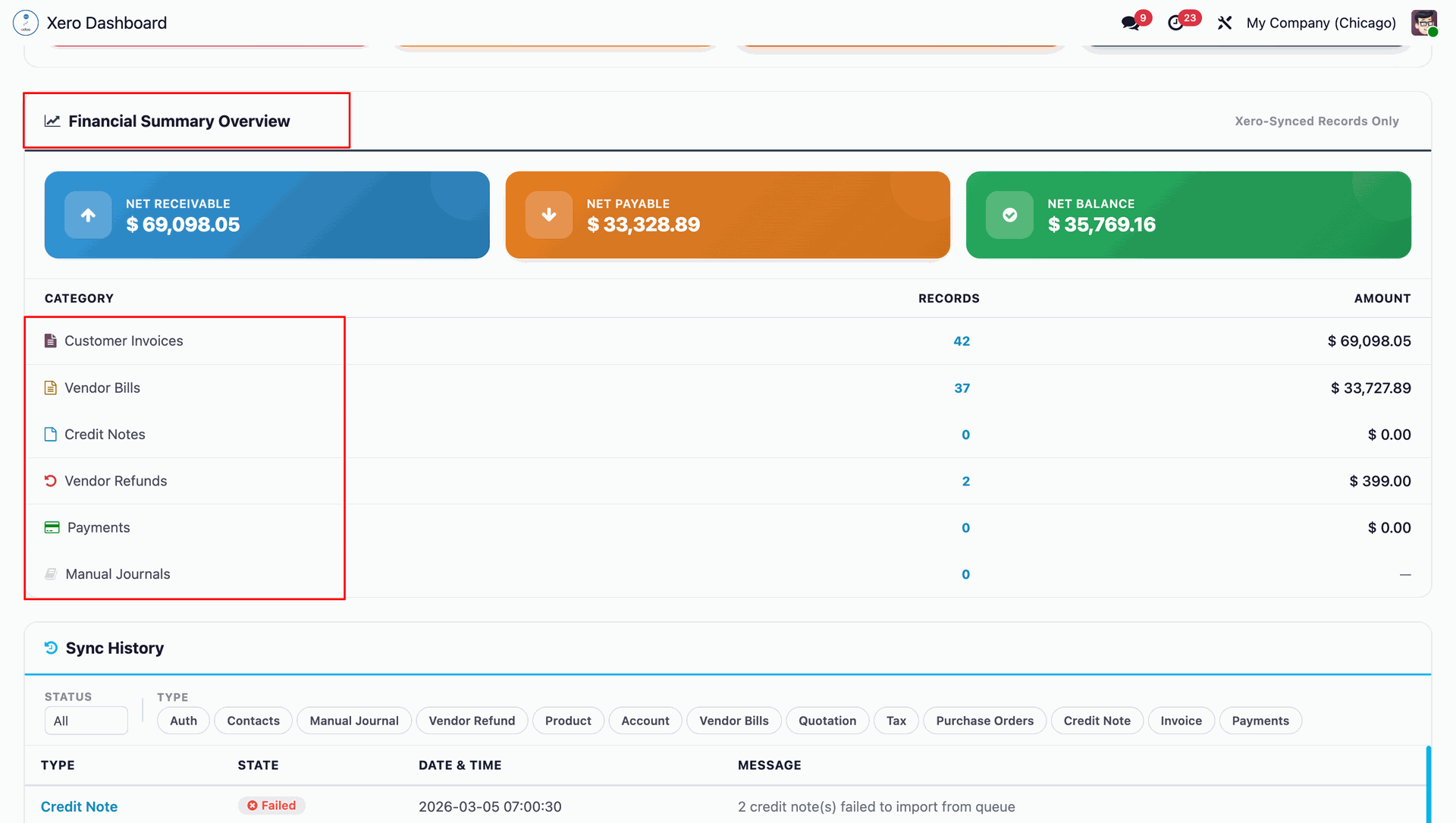
Financial summary overview in the dashboard.
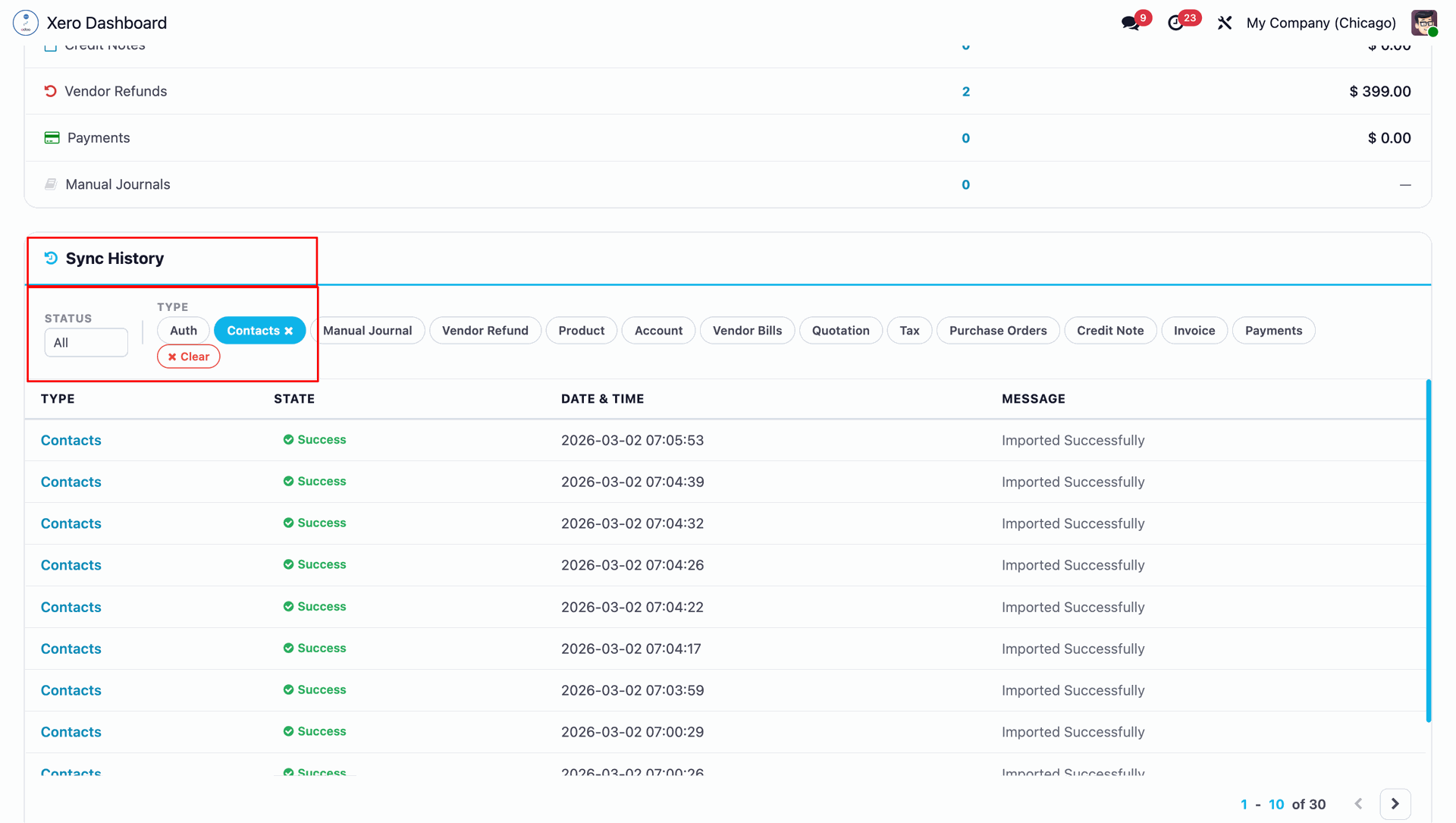
Sync history in the dashboard.
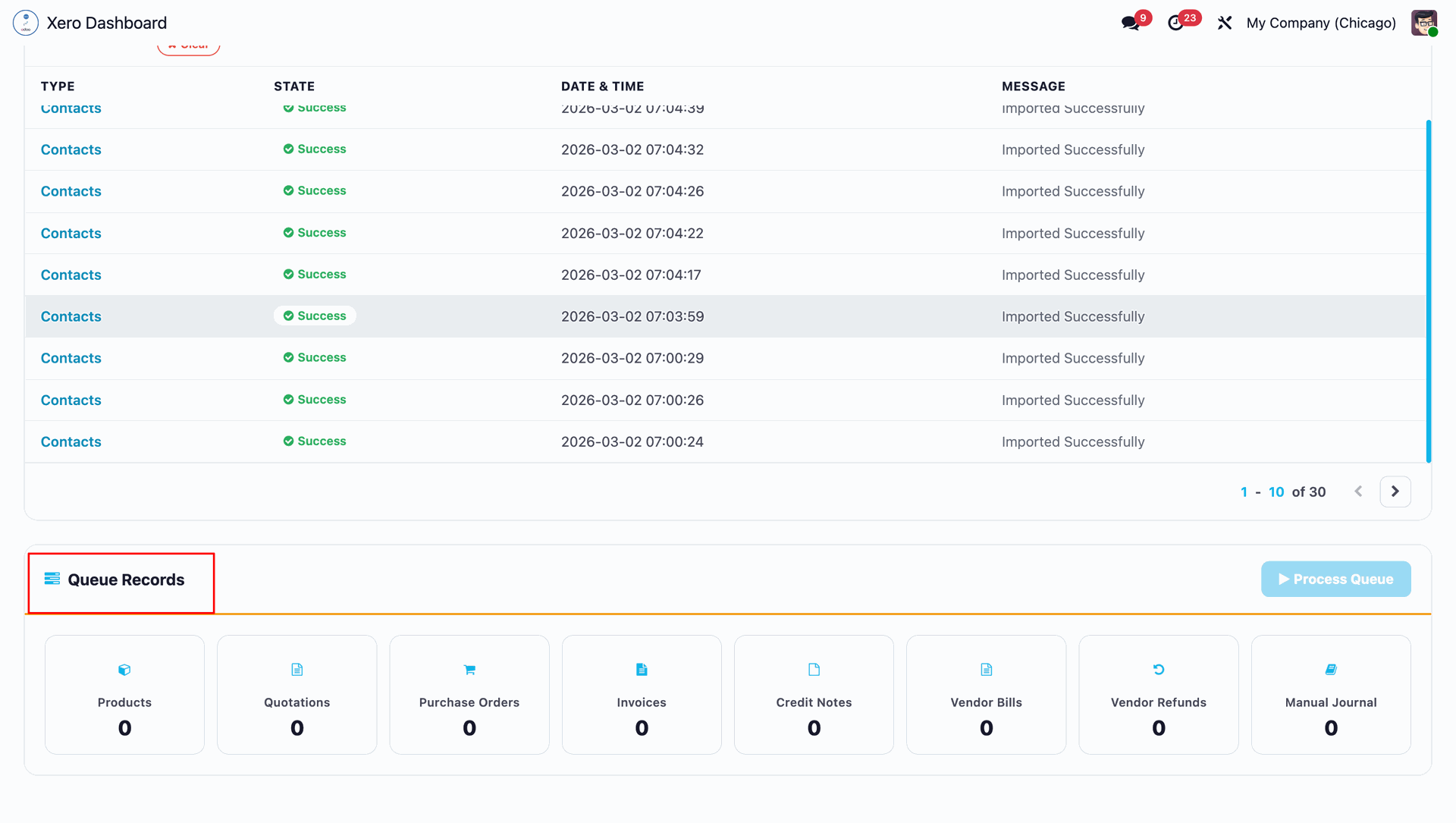
Queue records in the dashboard.
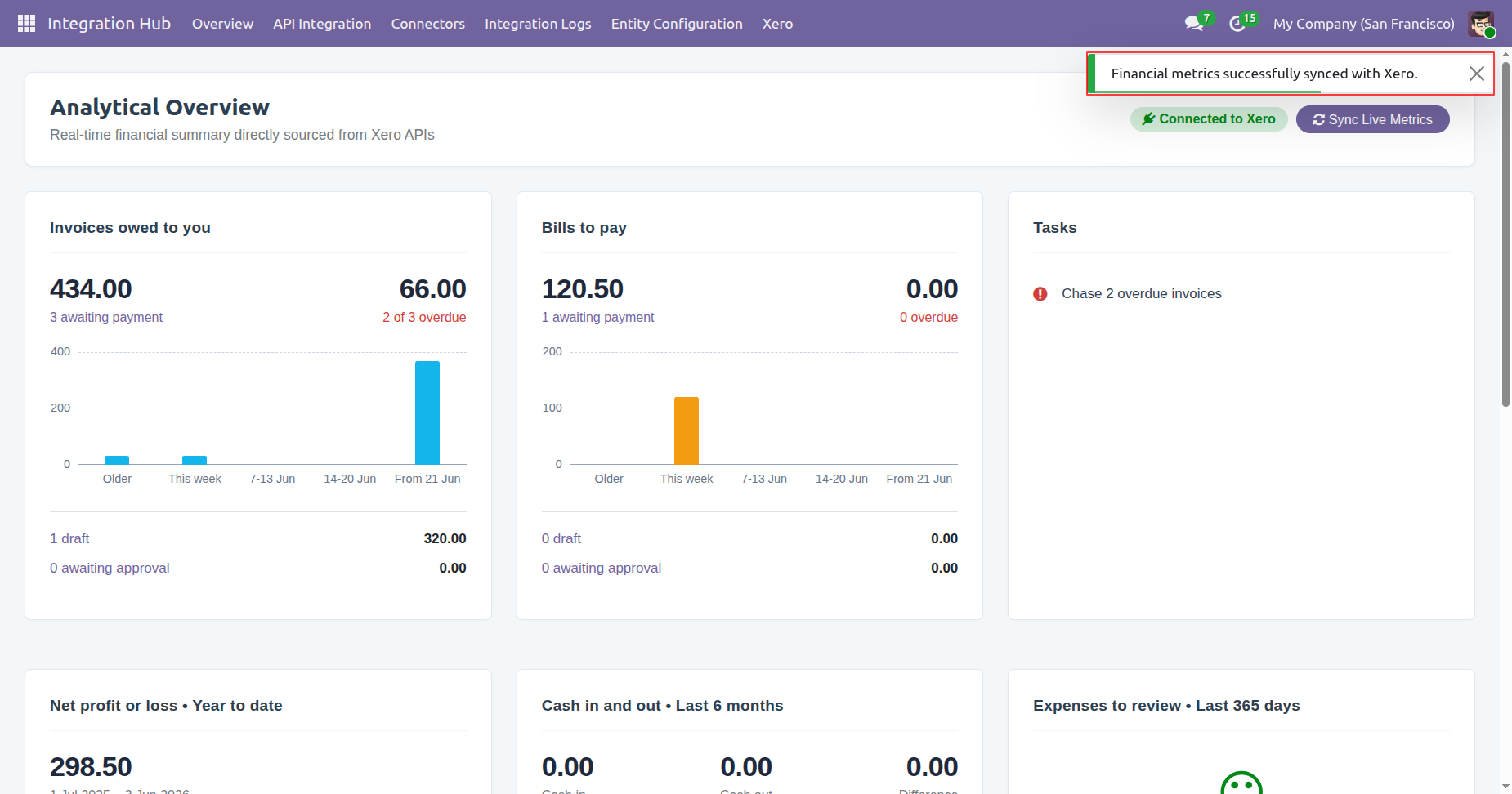
Go to the Xero menu from the Integration Hub and select the Analytics Dashboard submenu to view synchronization statistics, financial insights, and integration-related analytics.
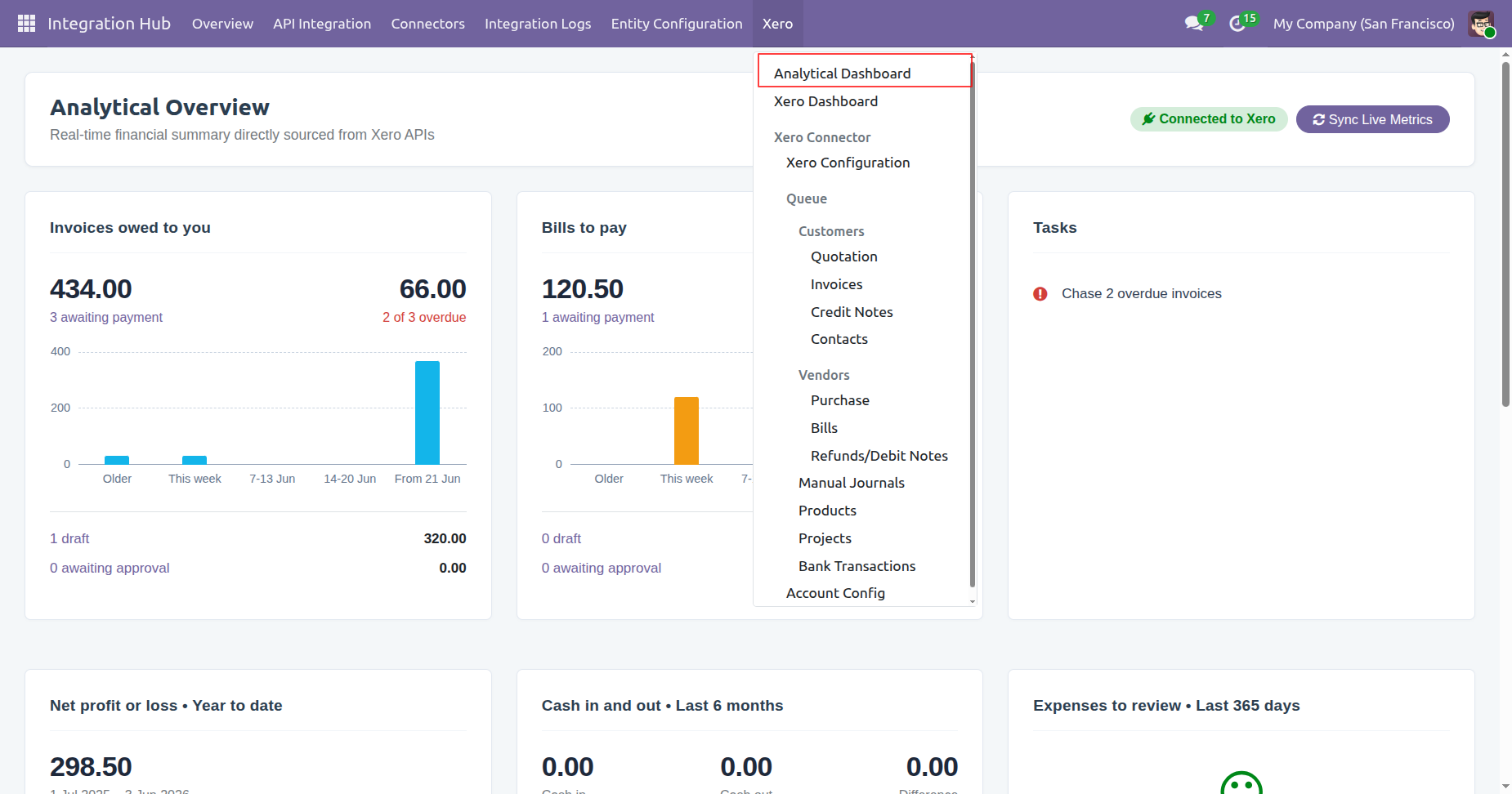
The Analytics Overview Dashboard provides a summary of transaction statistics and key performance.
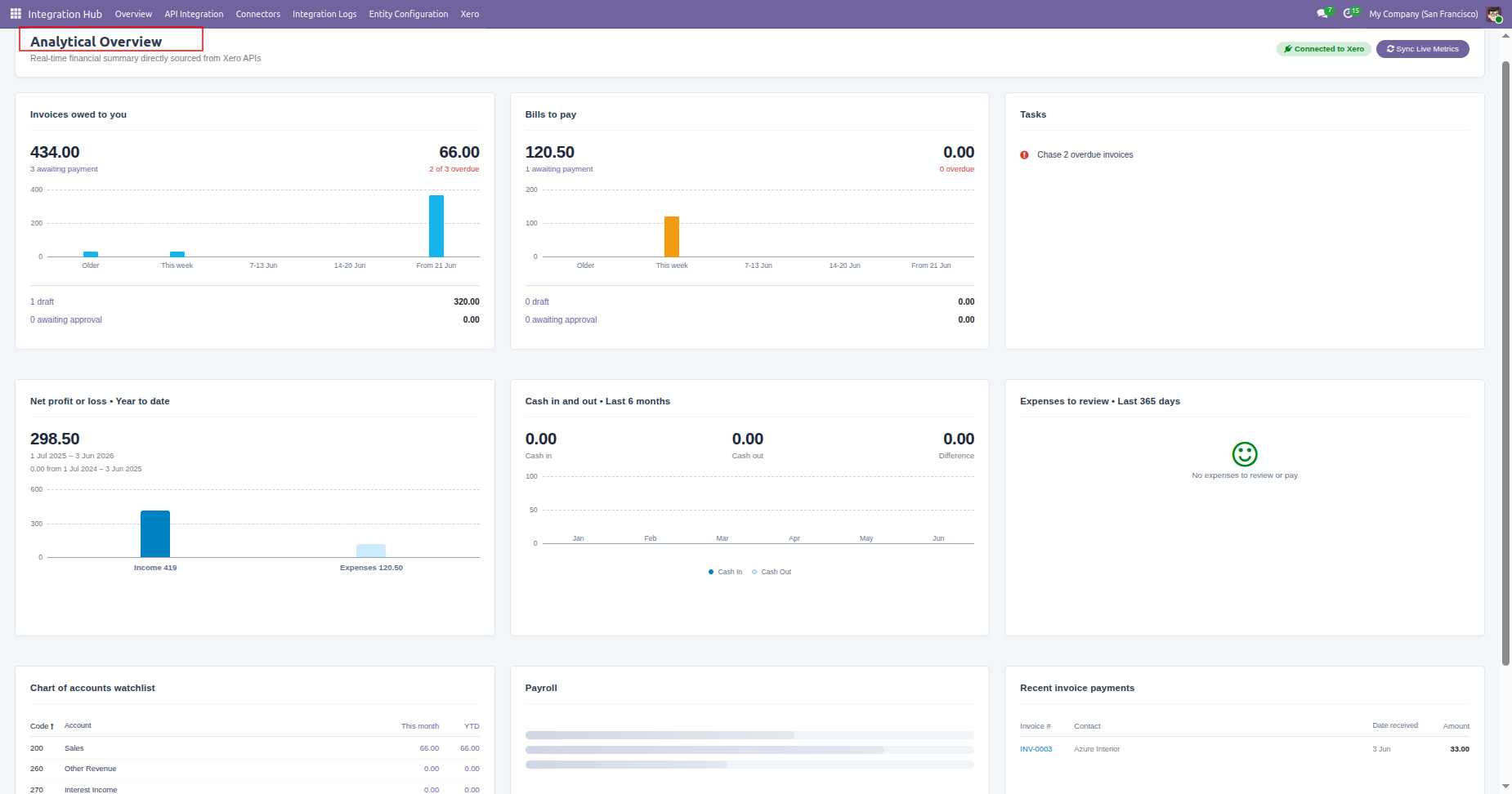
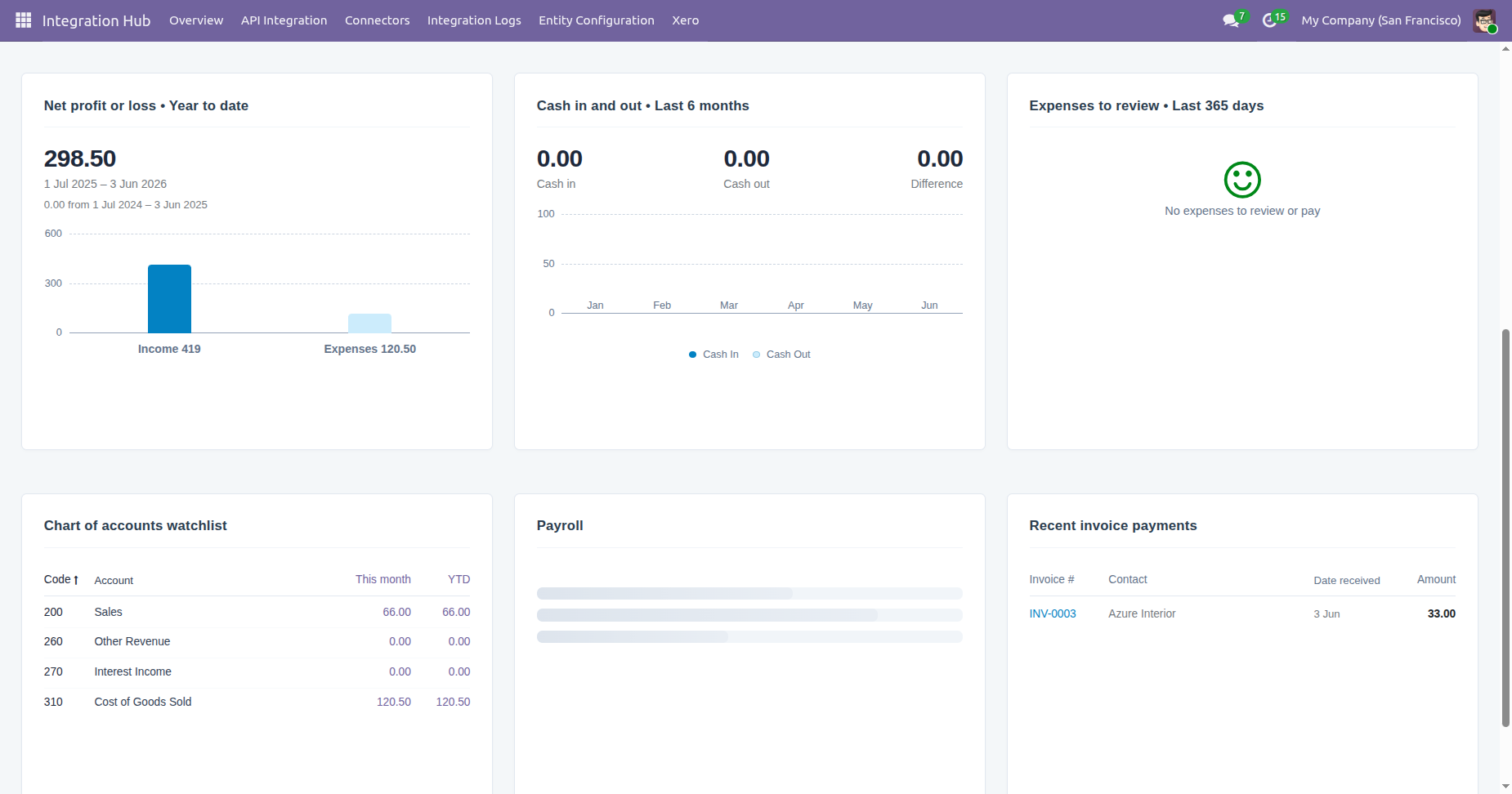
To check the live metrics, users can click the Sync Live Metrics button from the Analytics Dashboard.
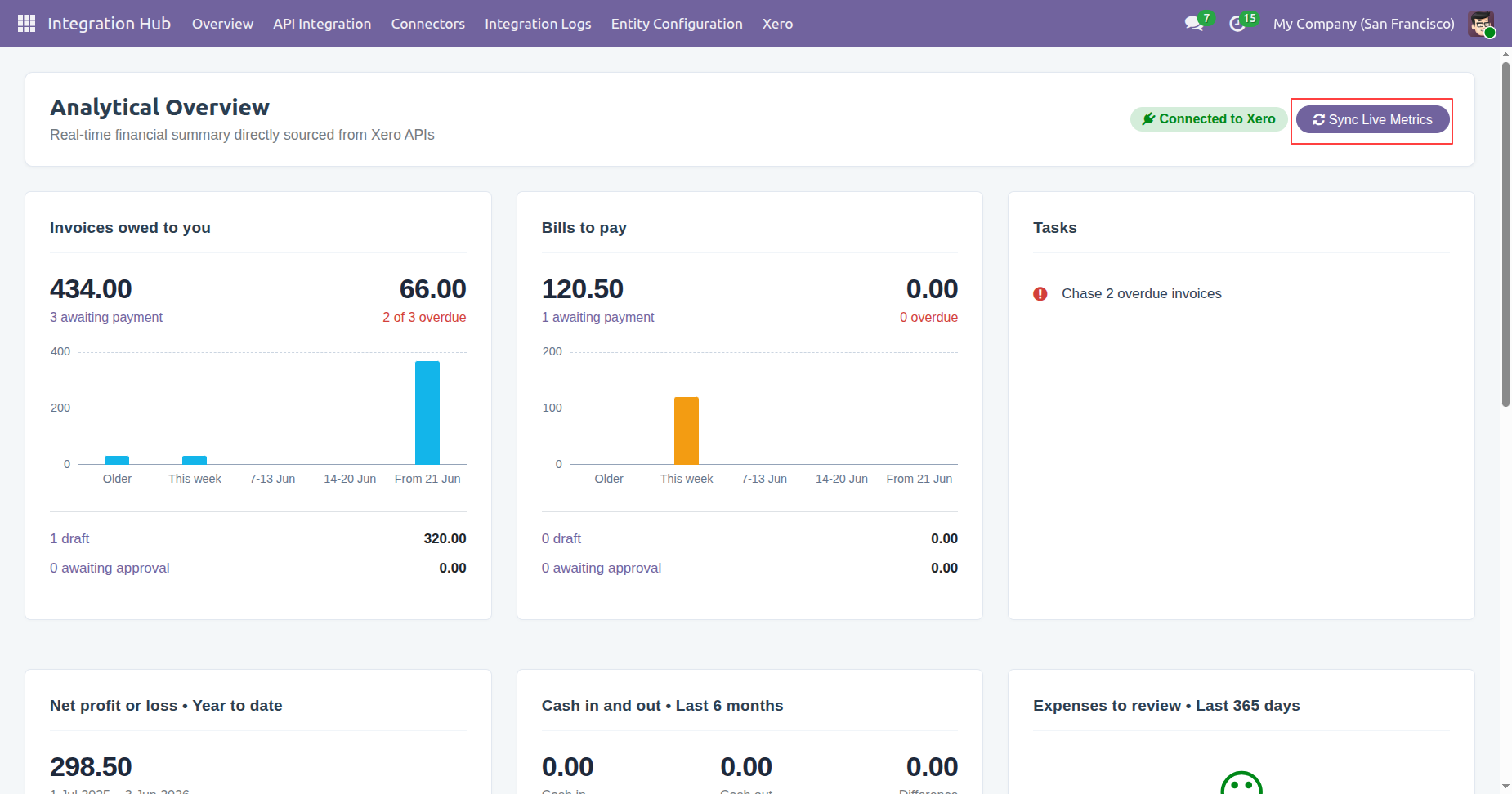
Once the synchronization is completed, a notification will be displayed indicating that the Financial Metrics have been synchronized successfully.
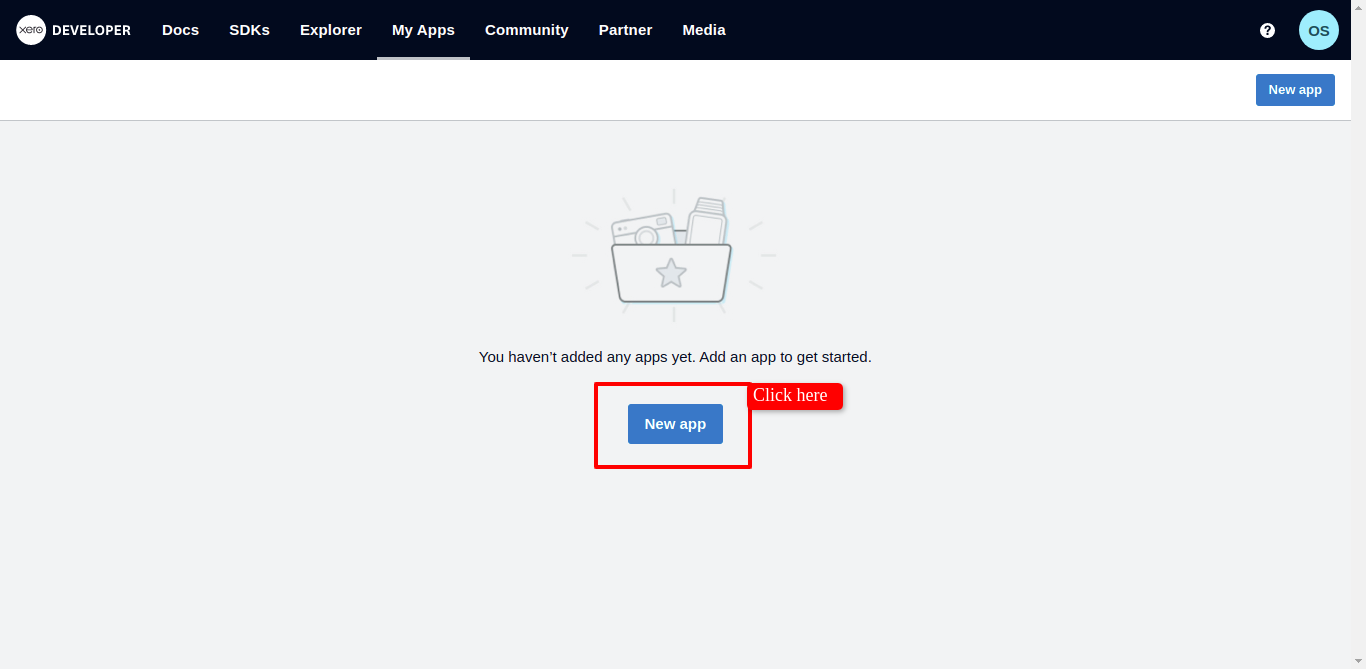
Goto Xero Console and register your application. Just click on 'New App'.
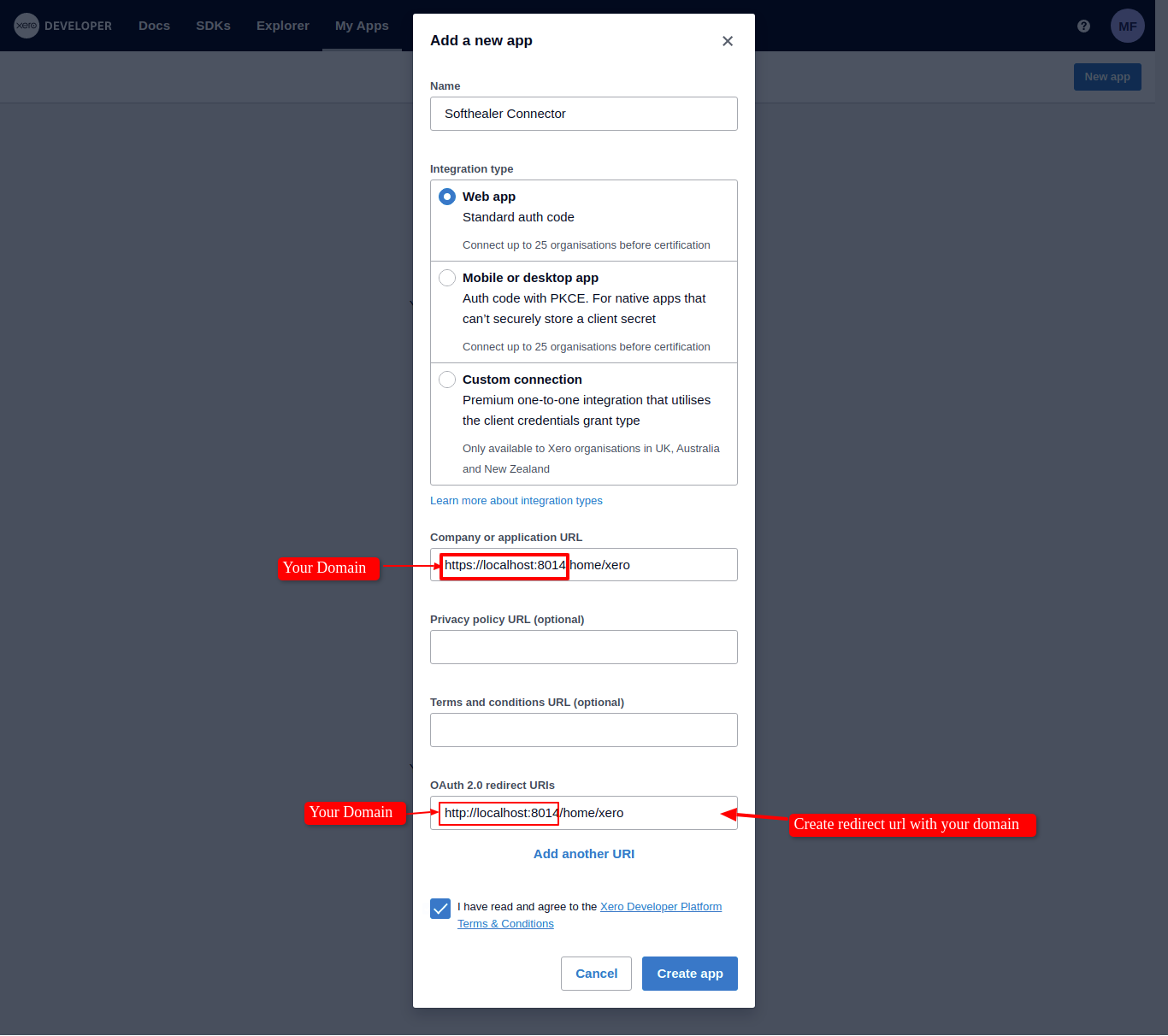
Now fill related data and click 'Create App'.
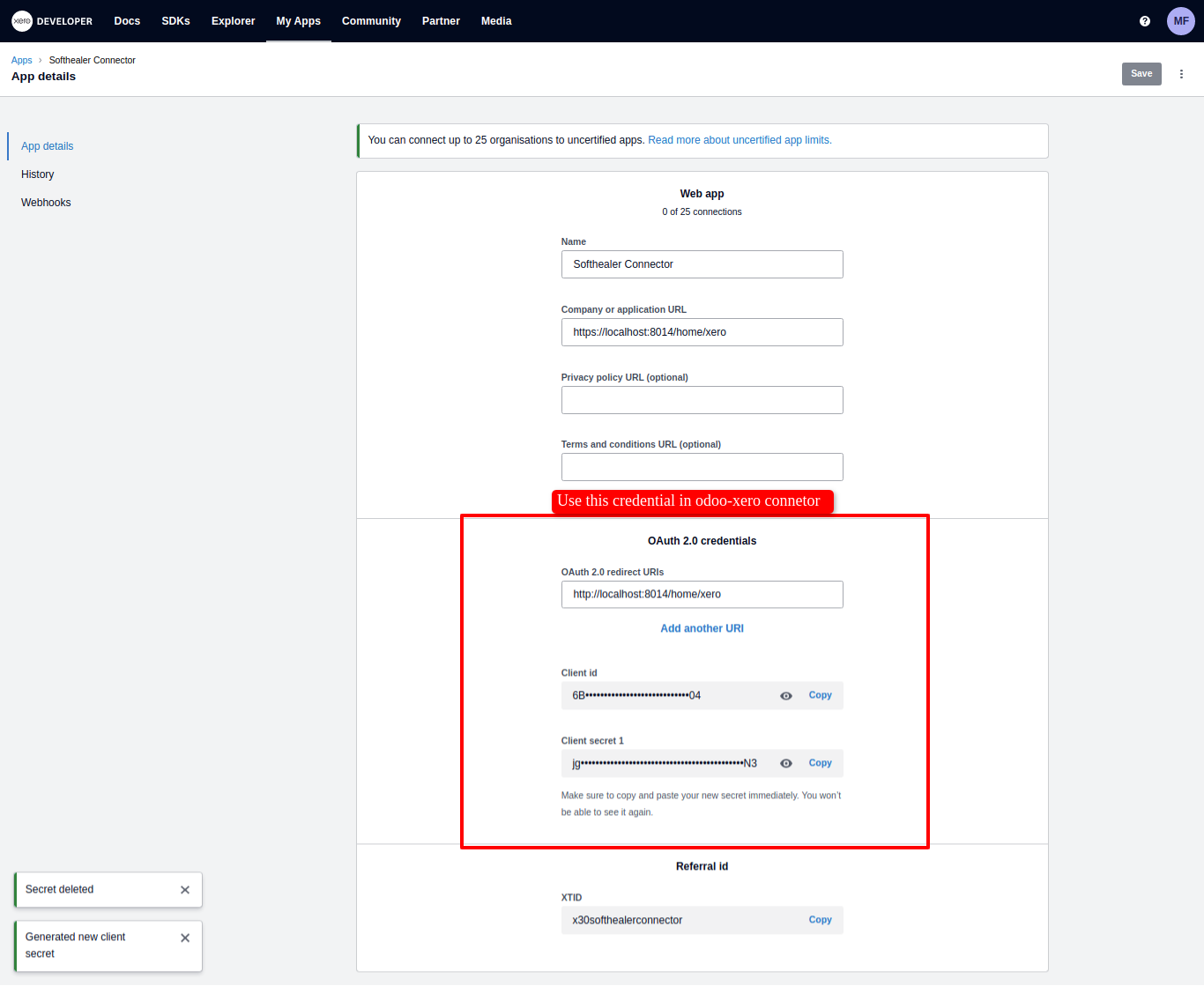
After successfully create an app, just copy the client id, client secret 1, and OAuth2.0 redirect URLs.
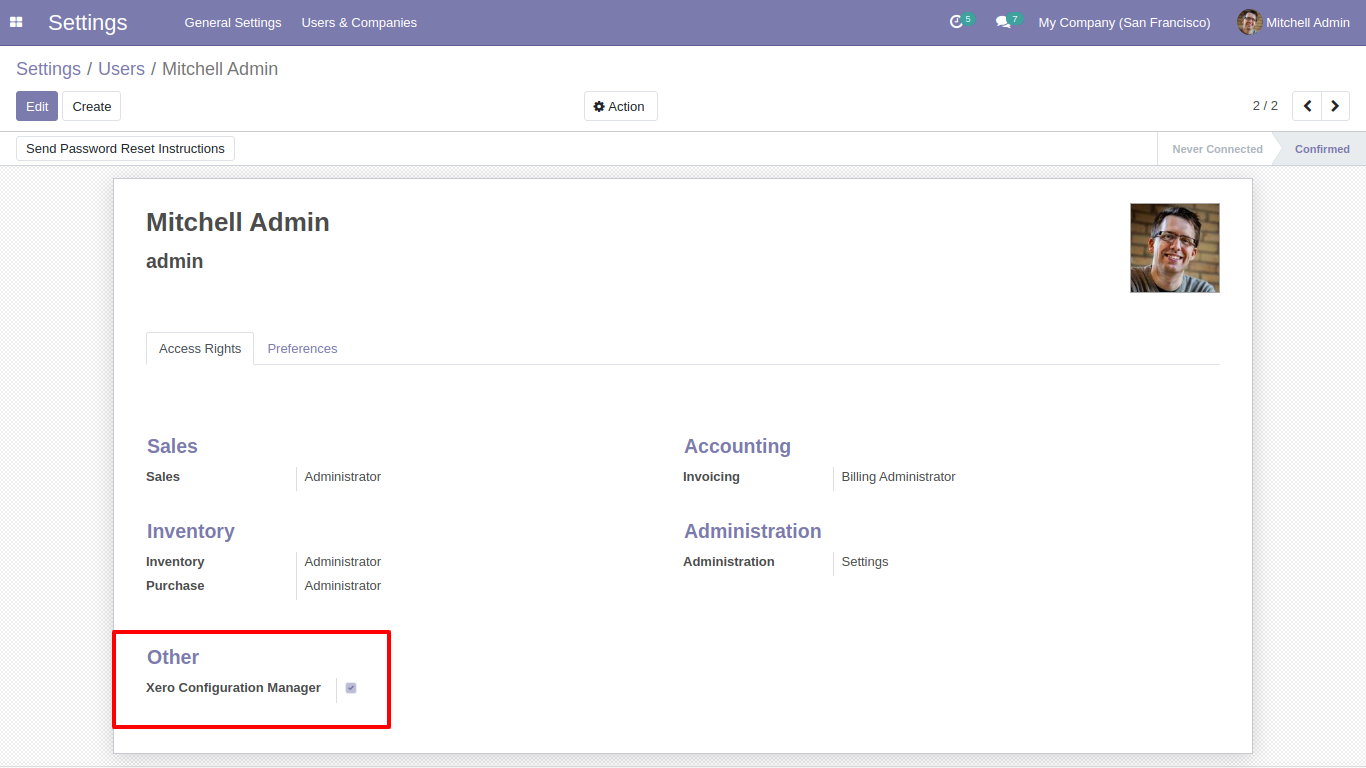
Now go to odoo and enable 'Xero Configuration Manager'.
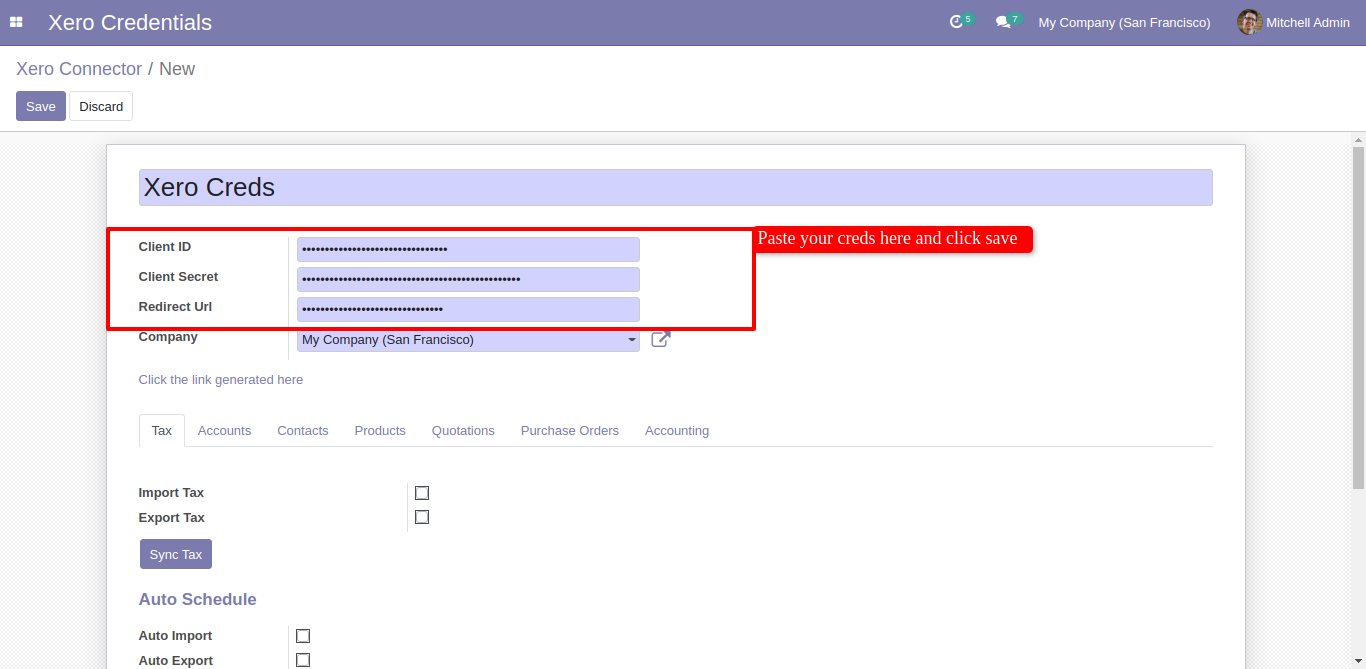
Add your xero credentials and click 'Save'.
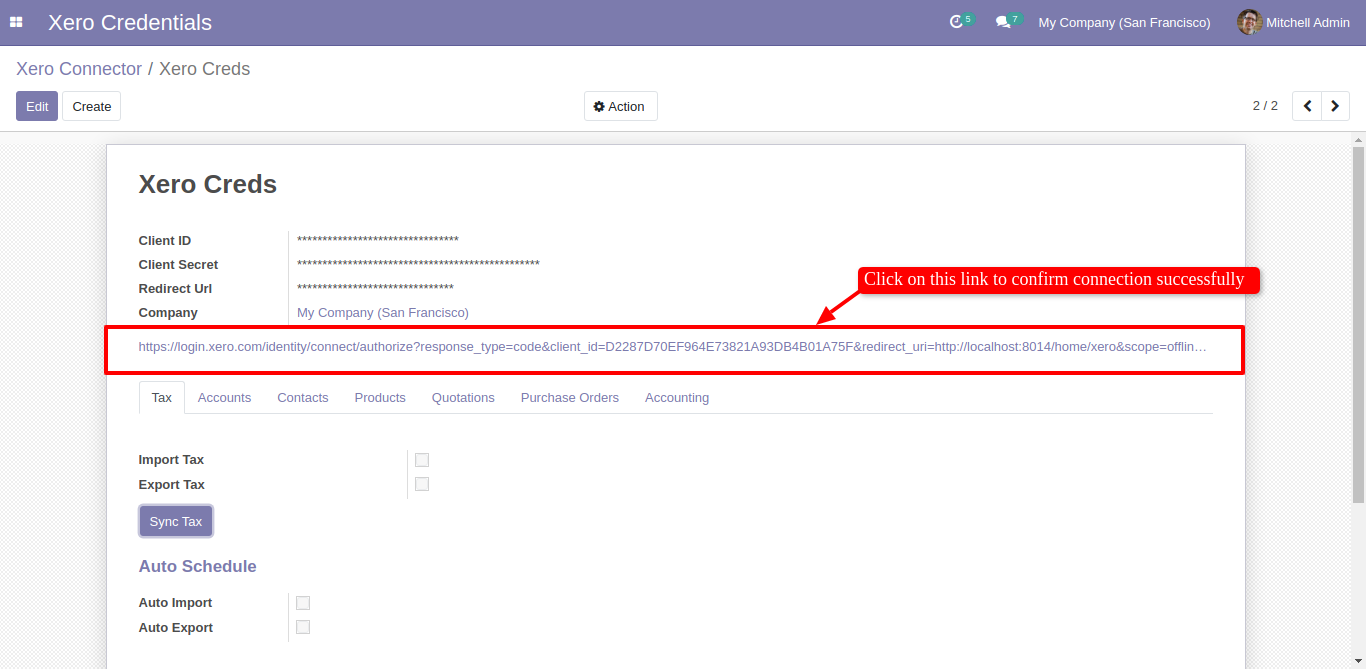
After save it generate a link. Just click on the link , It will redirect to xero OAuth view.
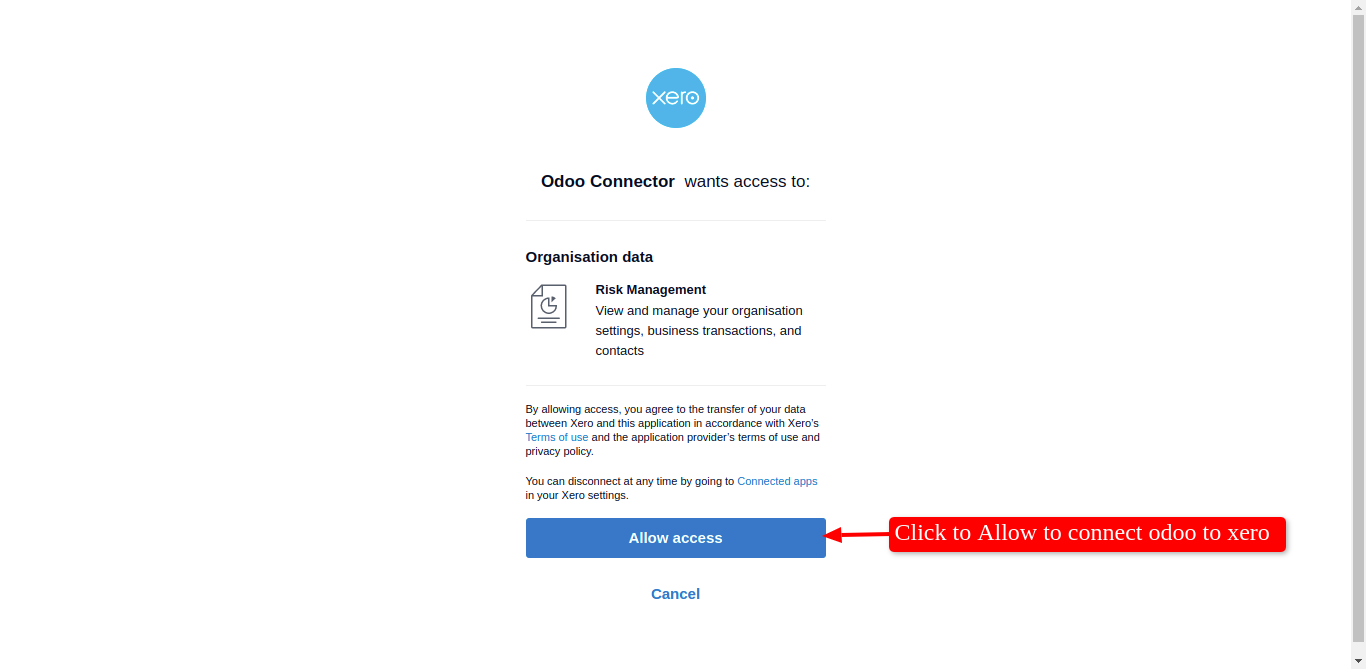
Here just allow and go for it.
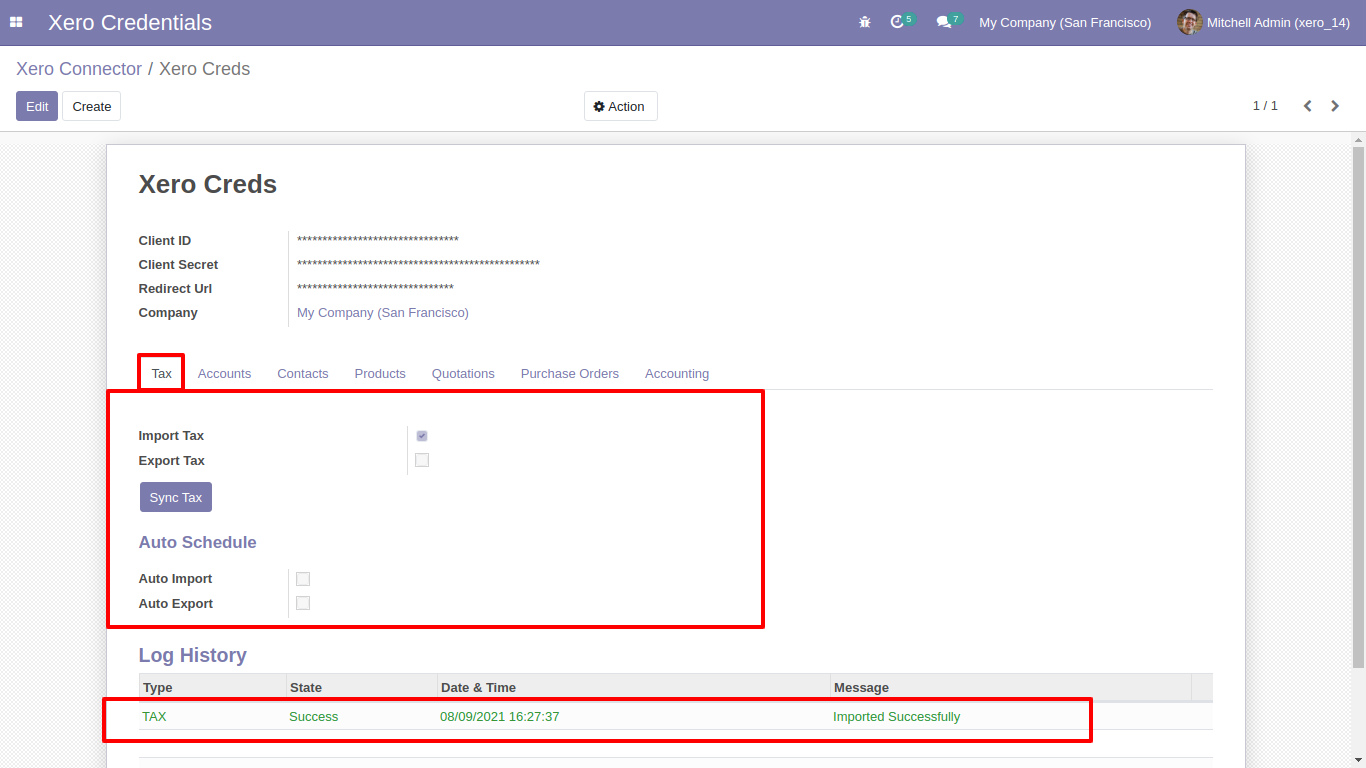
For Sync Tax, Just go to the tax tab and enable import/export. After Successfully execution, it will display a success message in the log history.
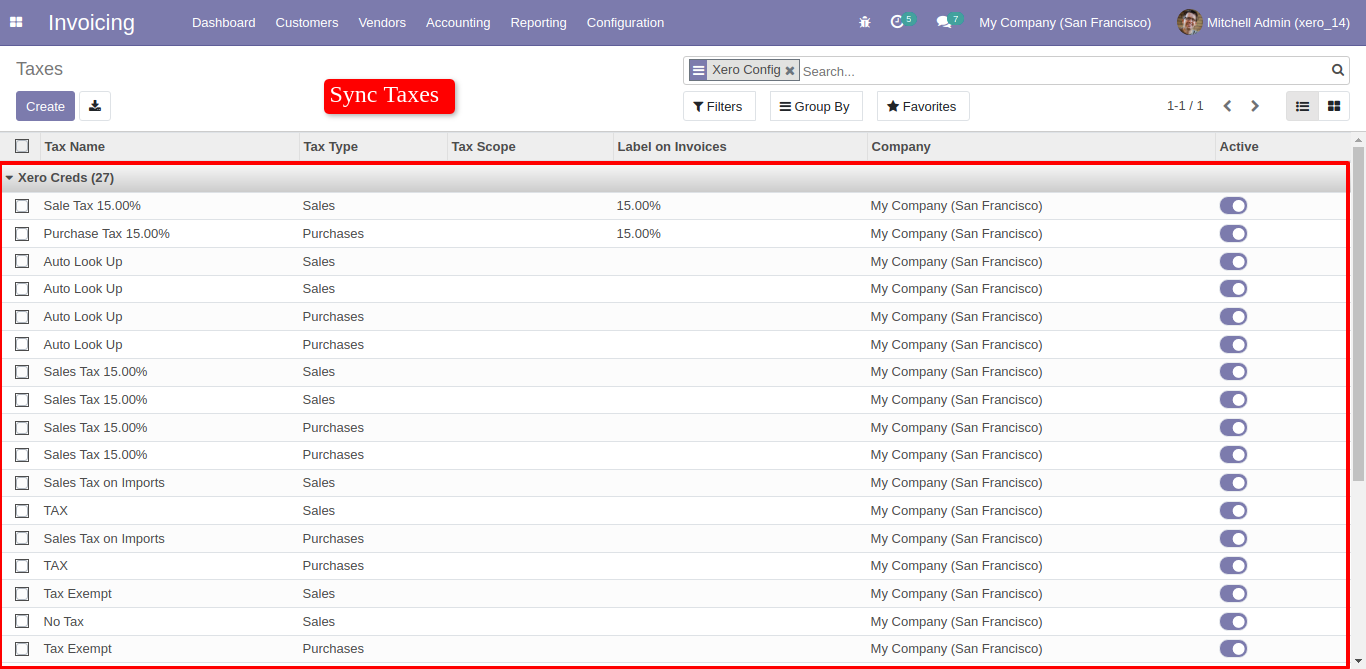
Synced Taxes with group by 'Xero Config'.
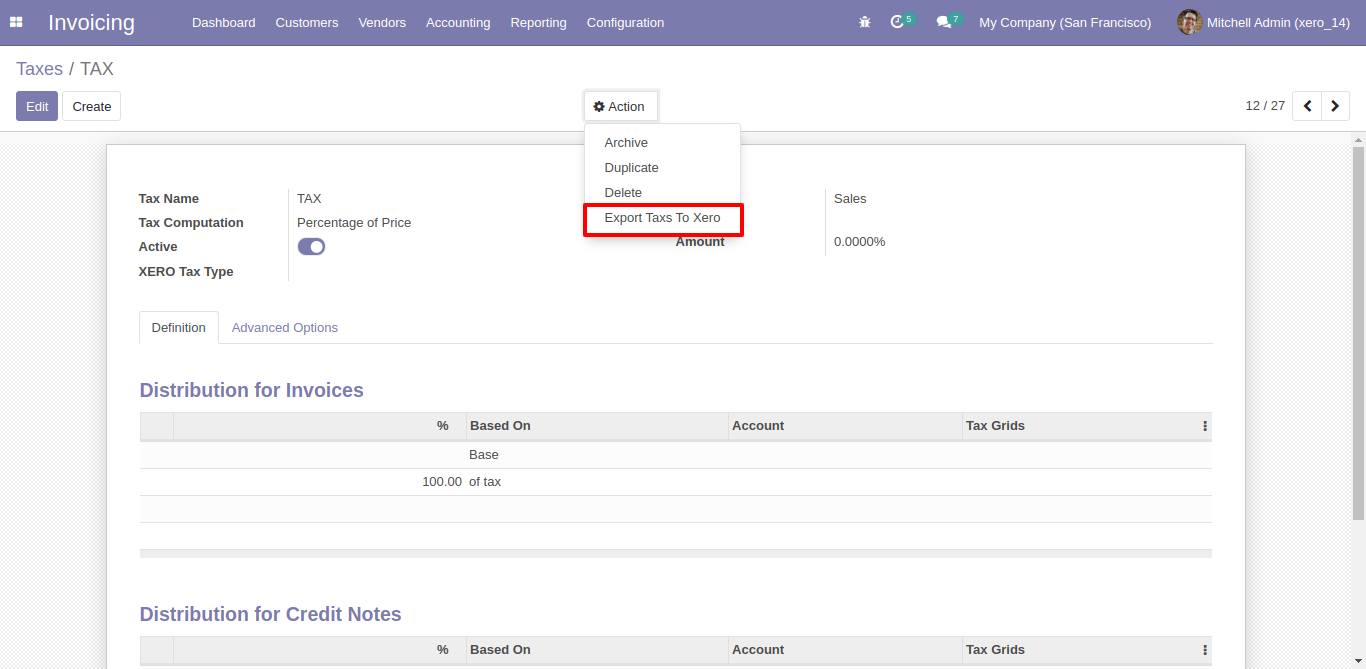
Easy to export particular taxes, just go in specific tax and click 'Action', and click 'Export Tax to Xero'
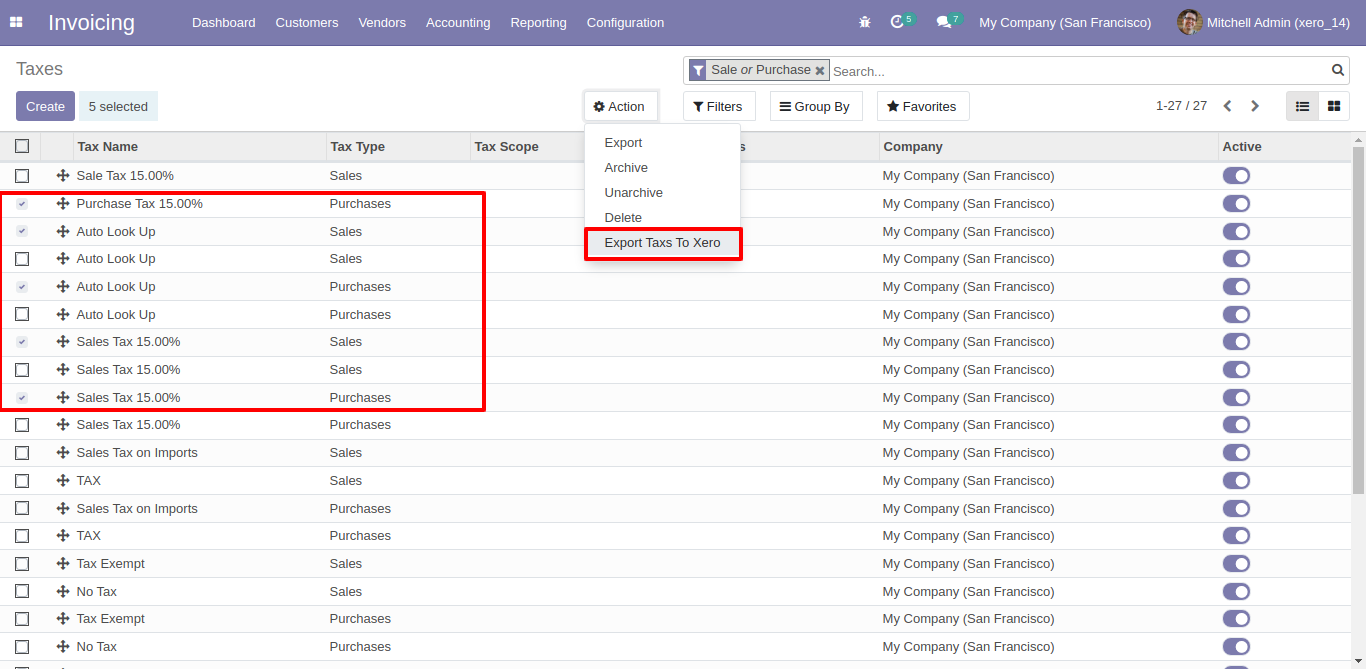
Or export more than one but selected taxes, just select list of taxes and click 'Action' and click 'Export to Xero'.
Enable auto link new tax boolean from xero config, click on sync tax button from xero config.
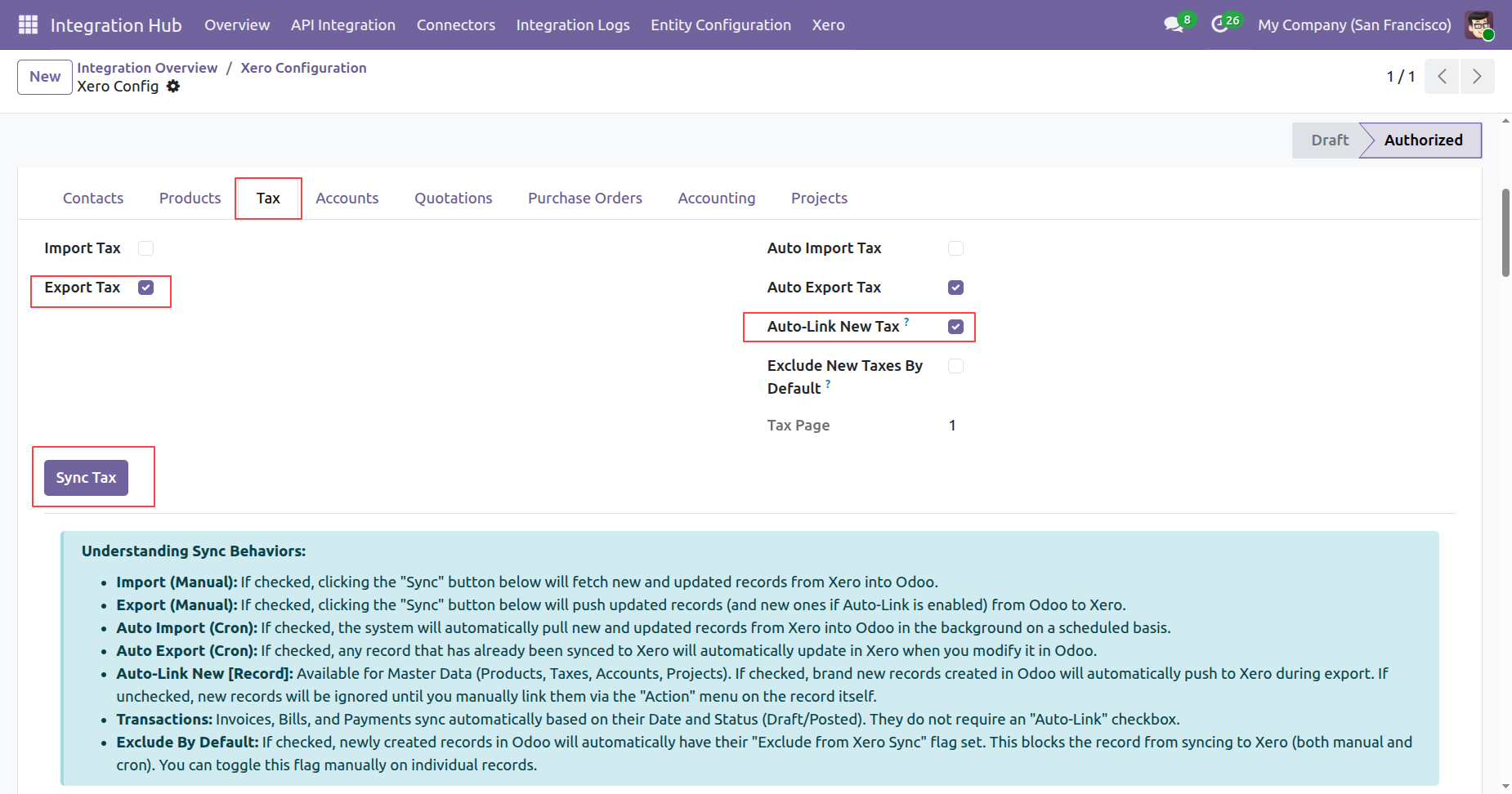
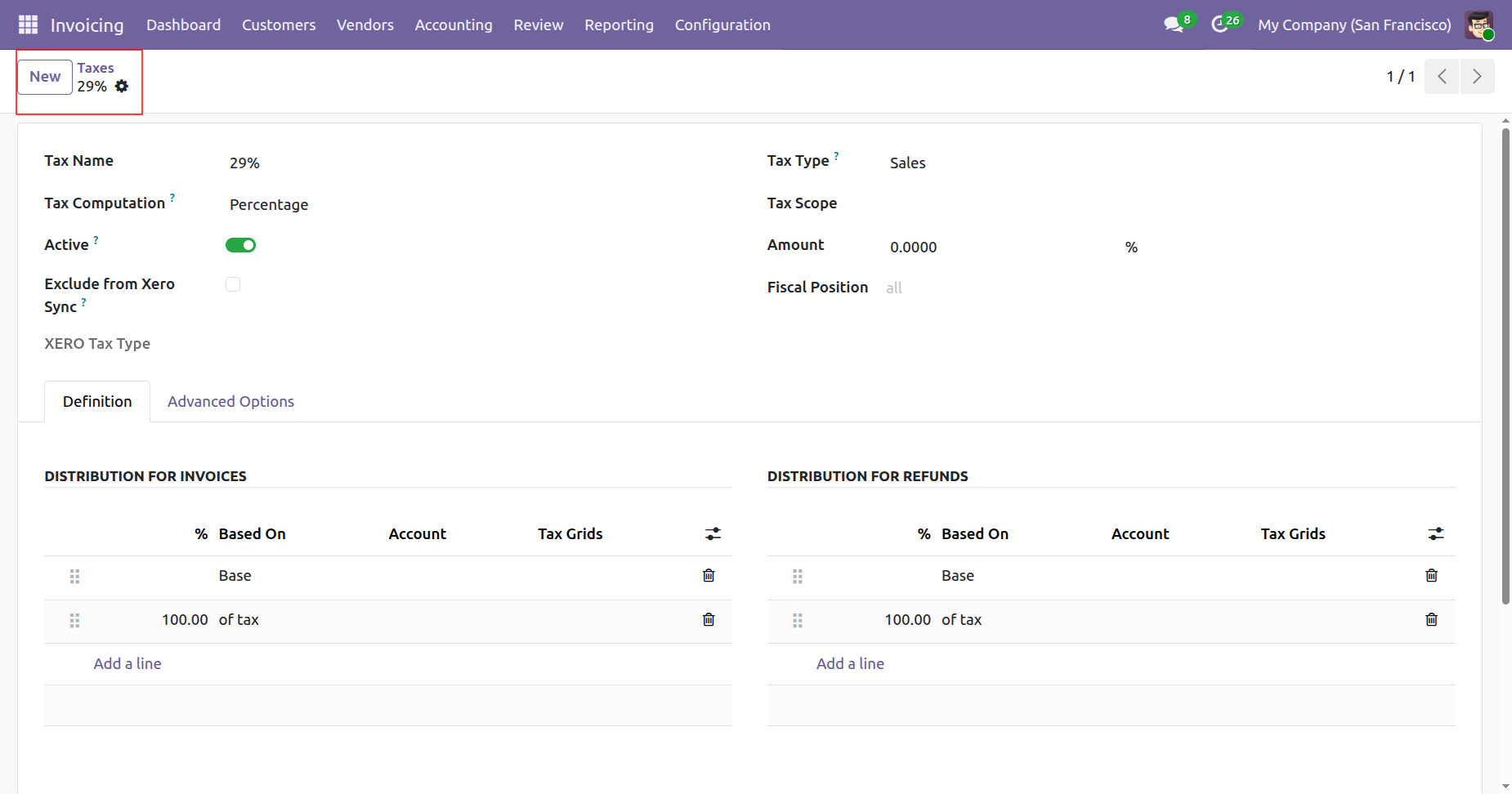
Create a new tax in odoo.
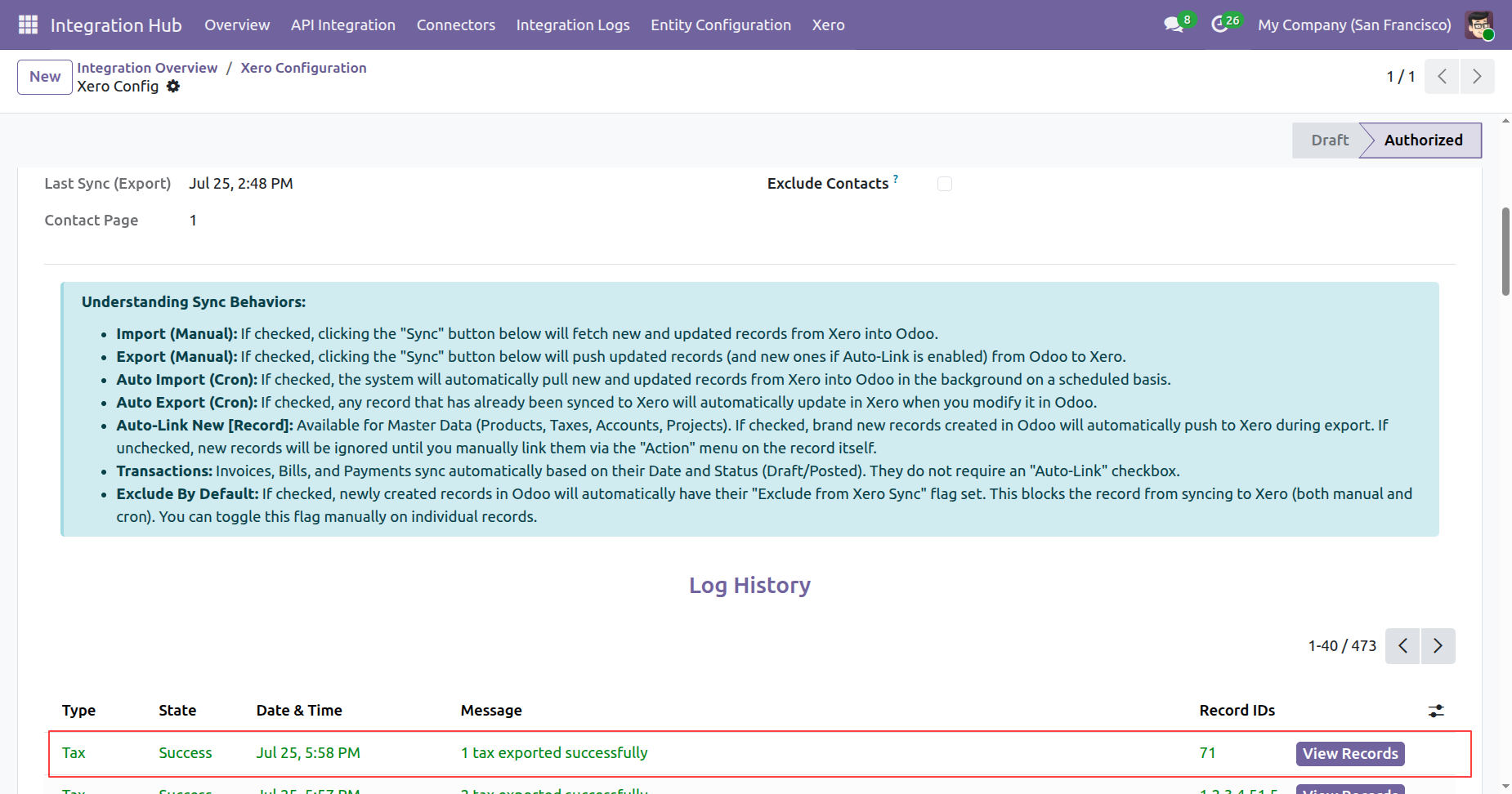
Tax Synced Successfully in xero click on view records from log history.
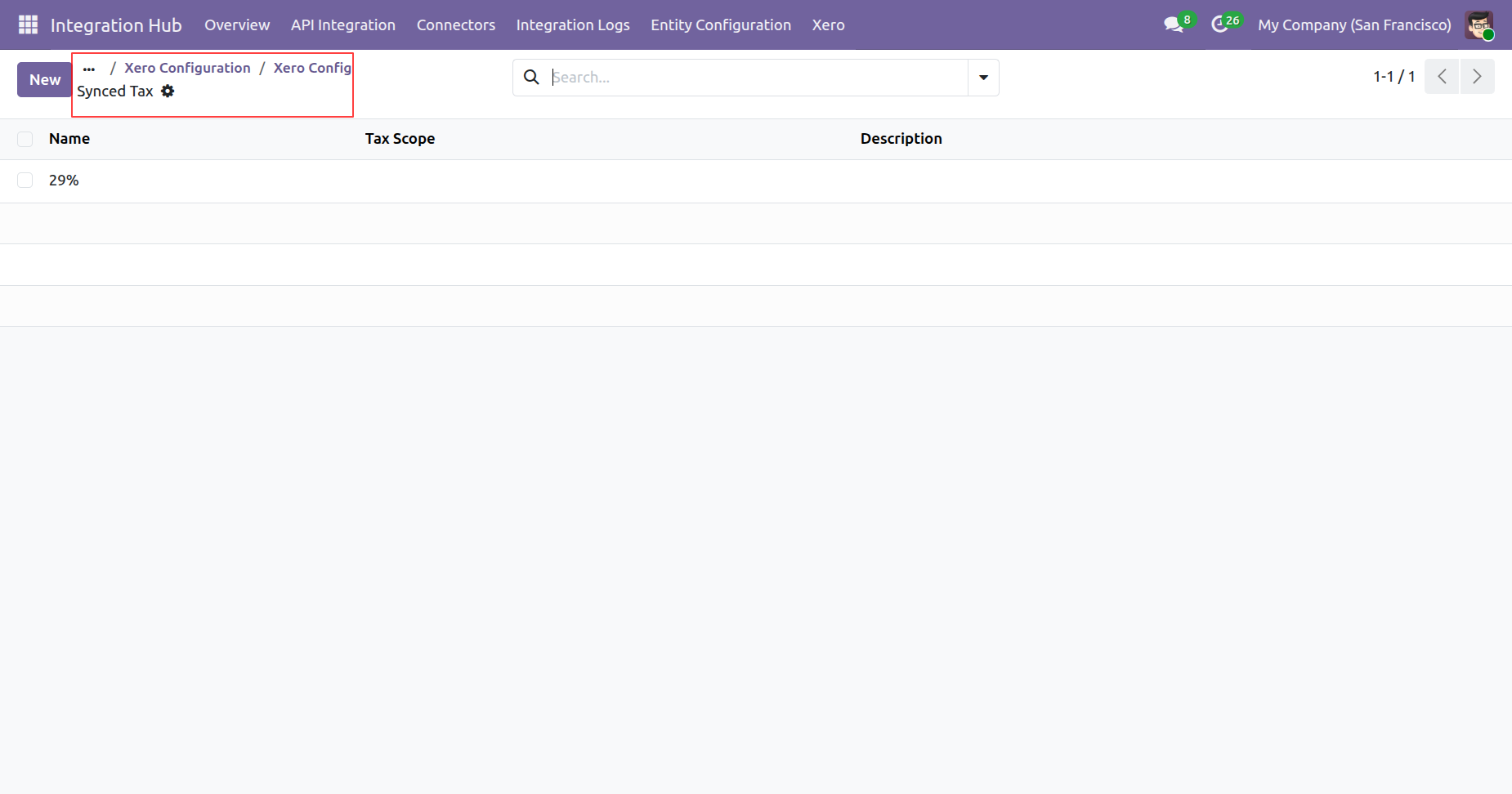
Synced tax details will be visible in odoo.
Enable exclude new taxes by default boolean from xero config.
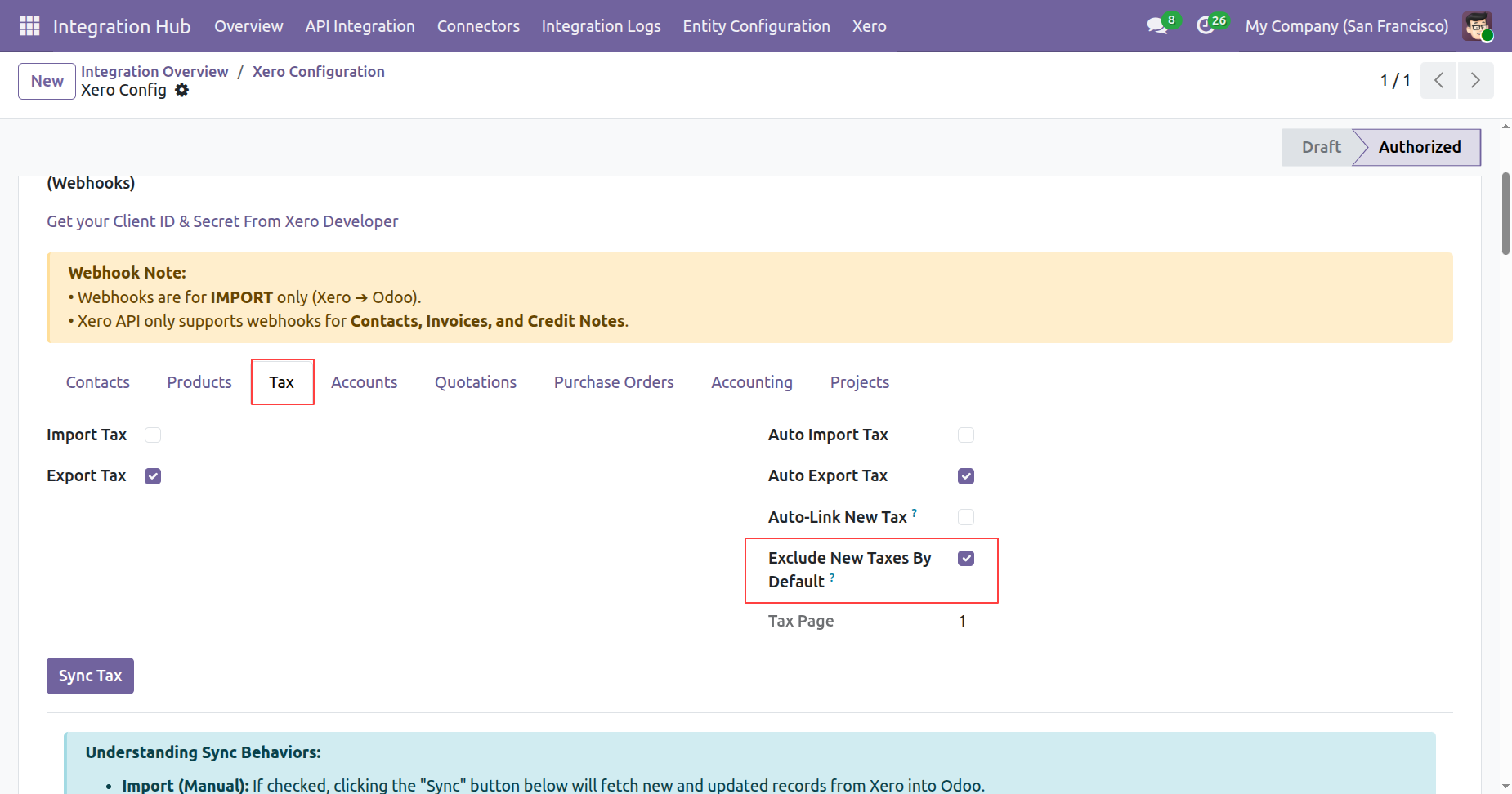
Create a new tax in odoo.
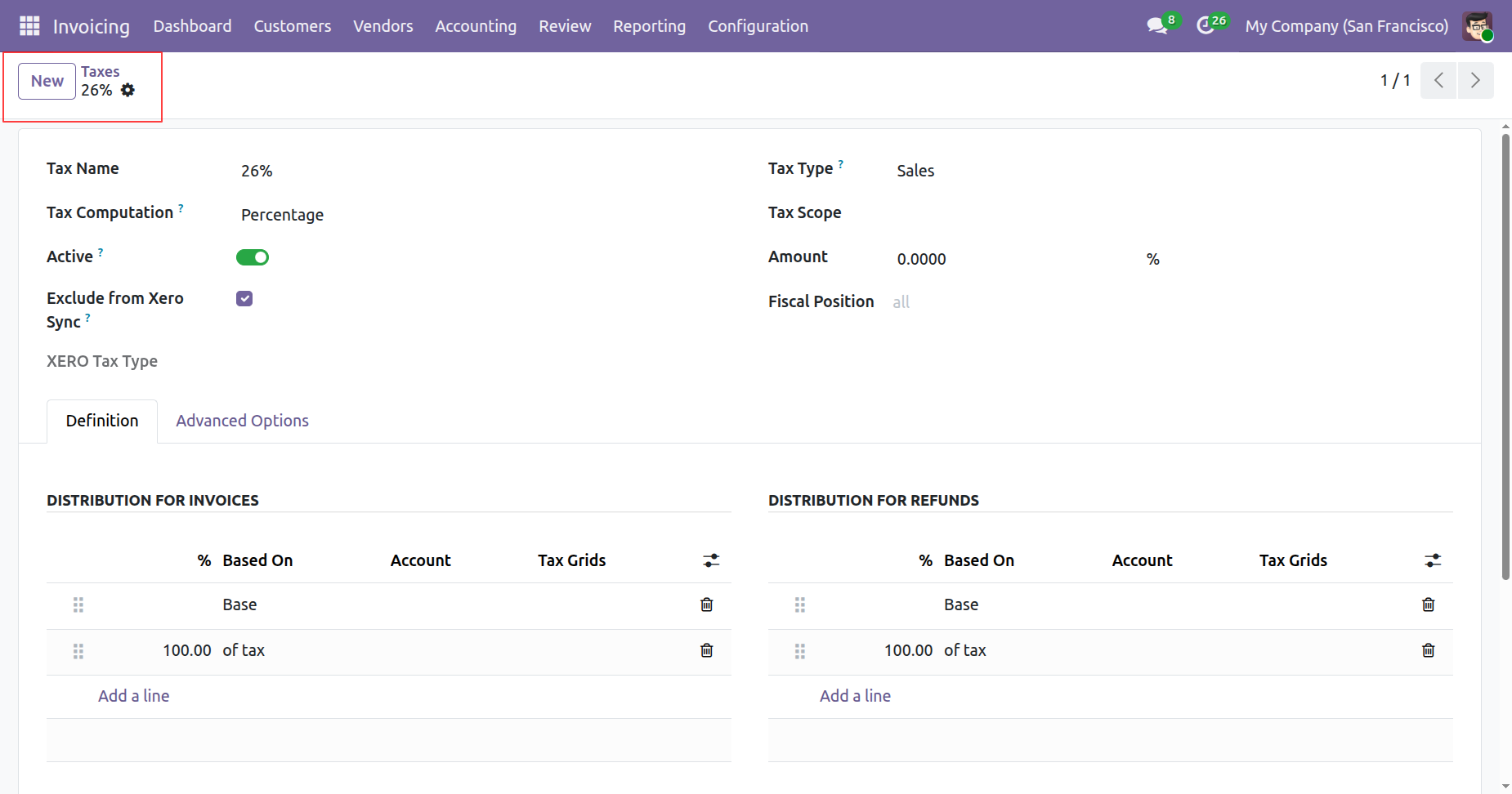
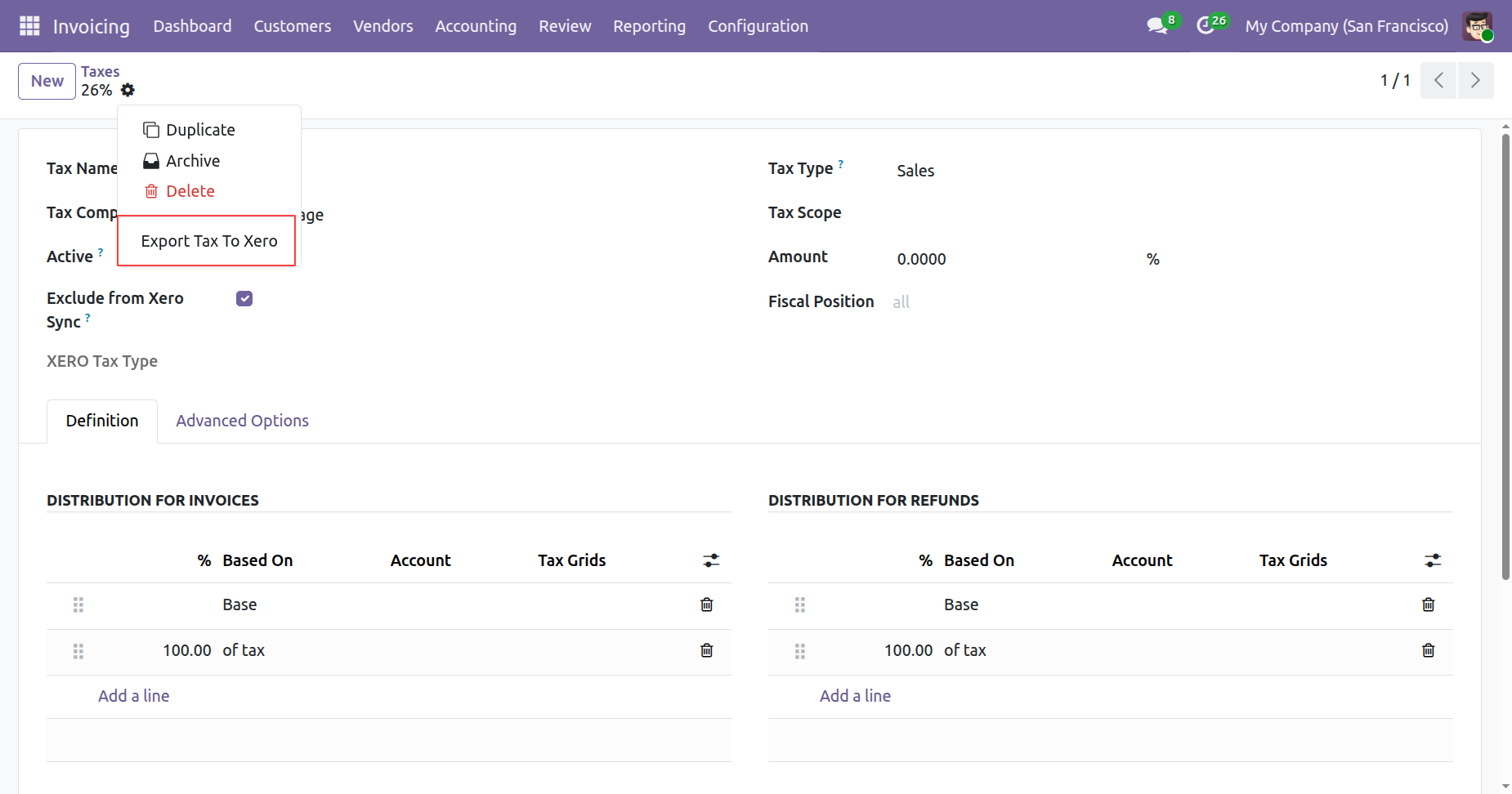
Click on export to xero from taxes form view.
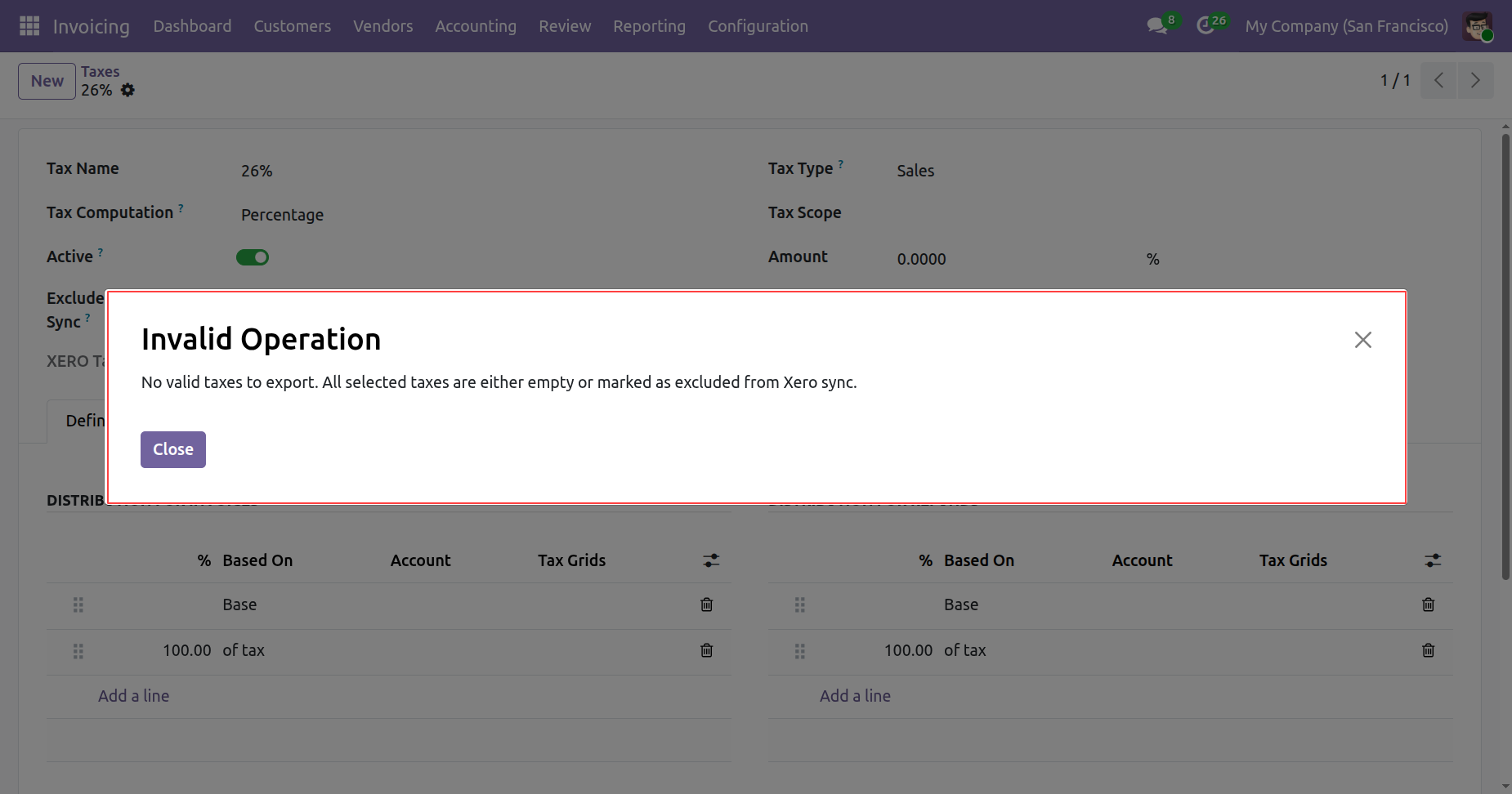
On exporting the tax to xero, it will check the exclude new tax by default boolean from xero config. If it is true then it will not export the tax to xero and shows warning.
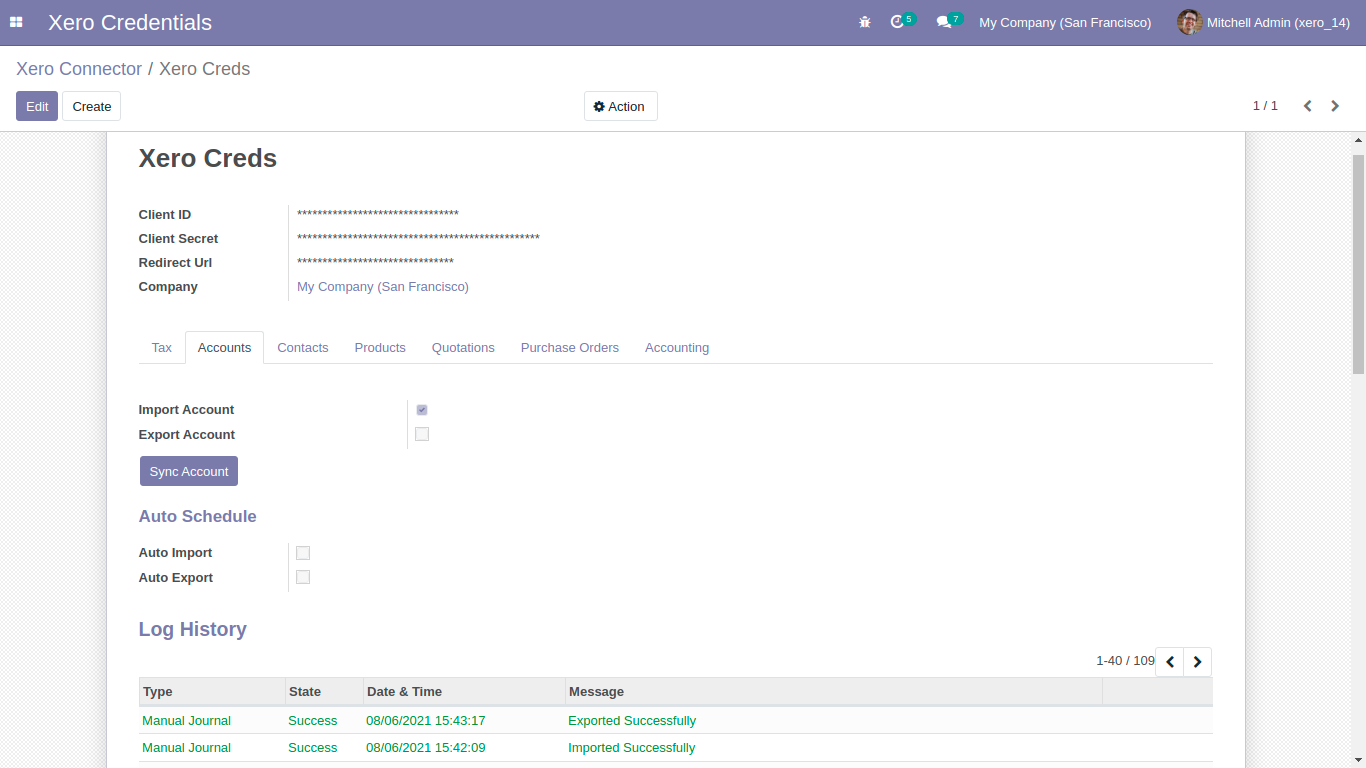
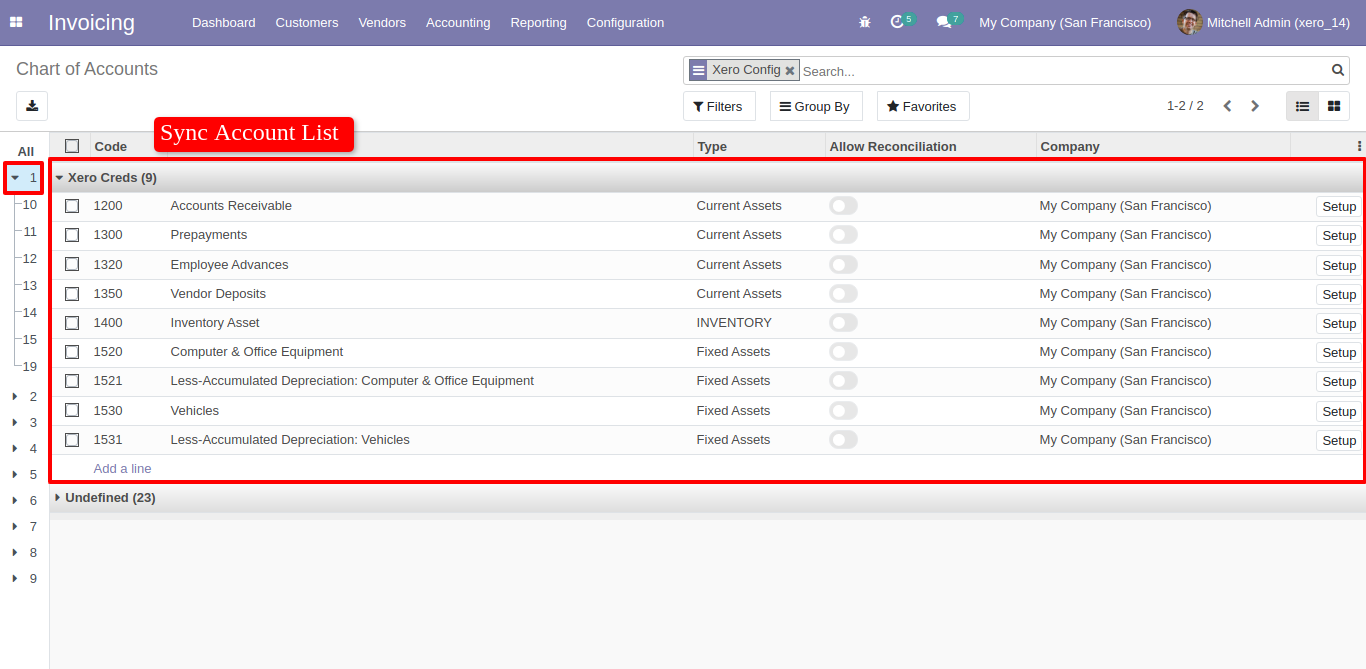
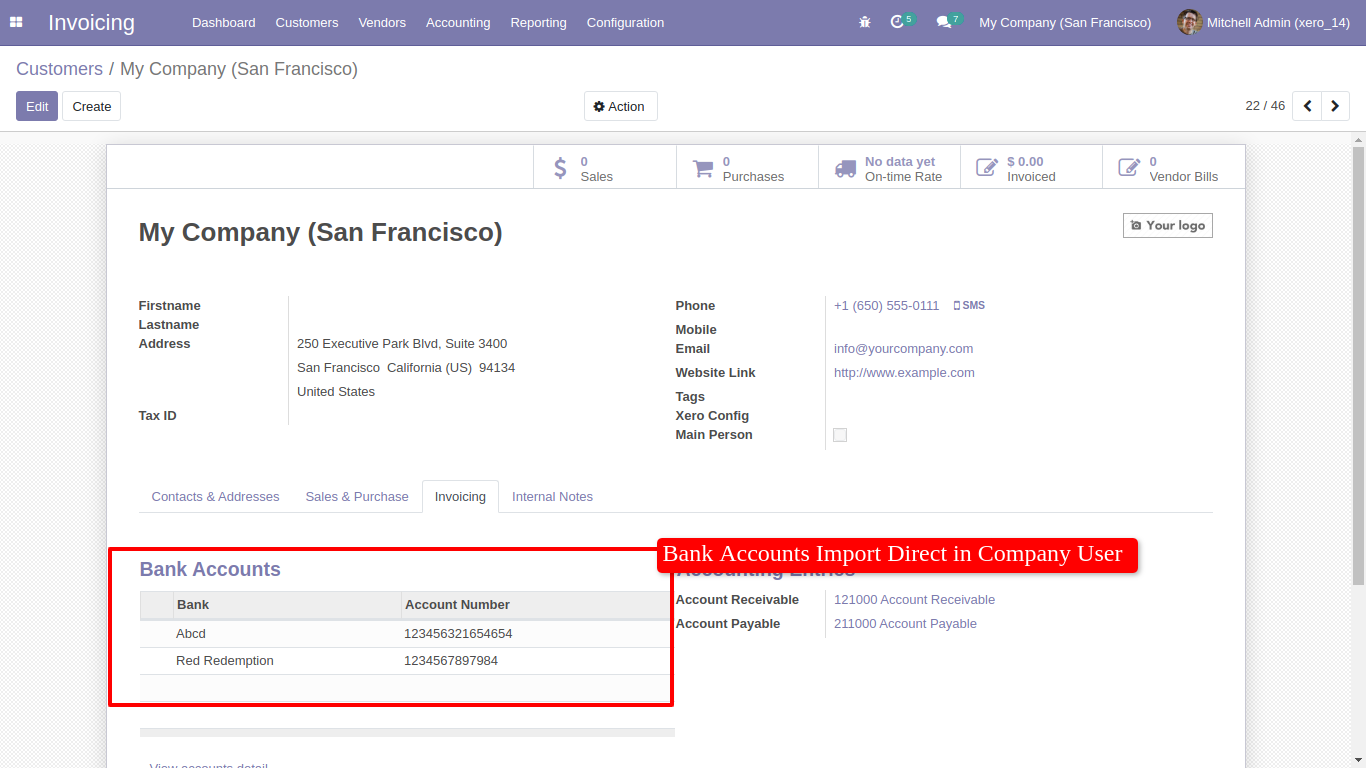
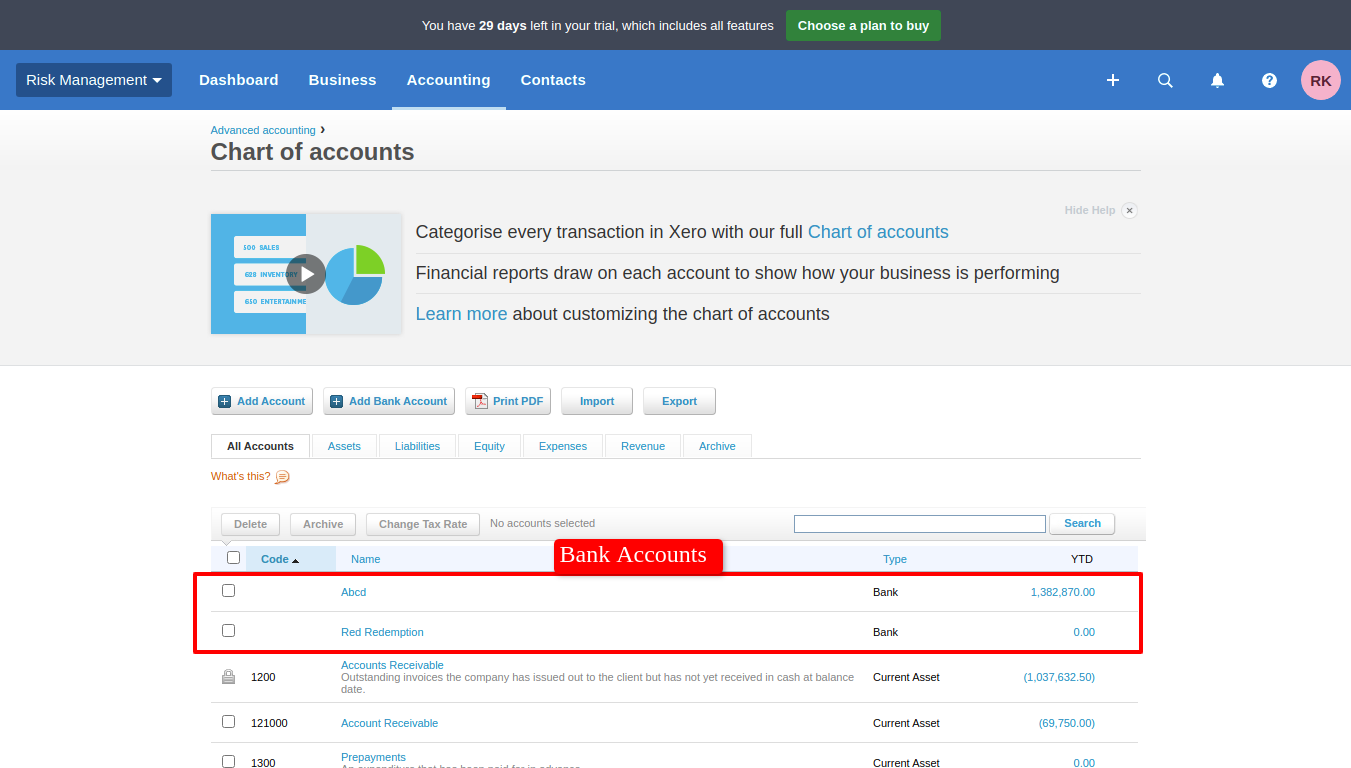
For Sync Accounts, Just go to the account tab and enable import/export. After Successfully execution, it will display a success message in log history. It will sync bank account as well.
Sync account (chart of account) list with group by 'Xero Config'.
Bank account sync automatically in company user.
Bank accounts in xero.
Enable auto link new account boolean from xero config.
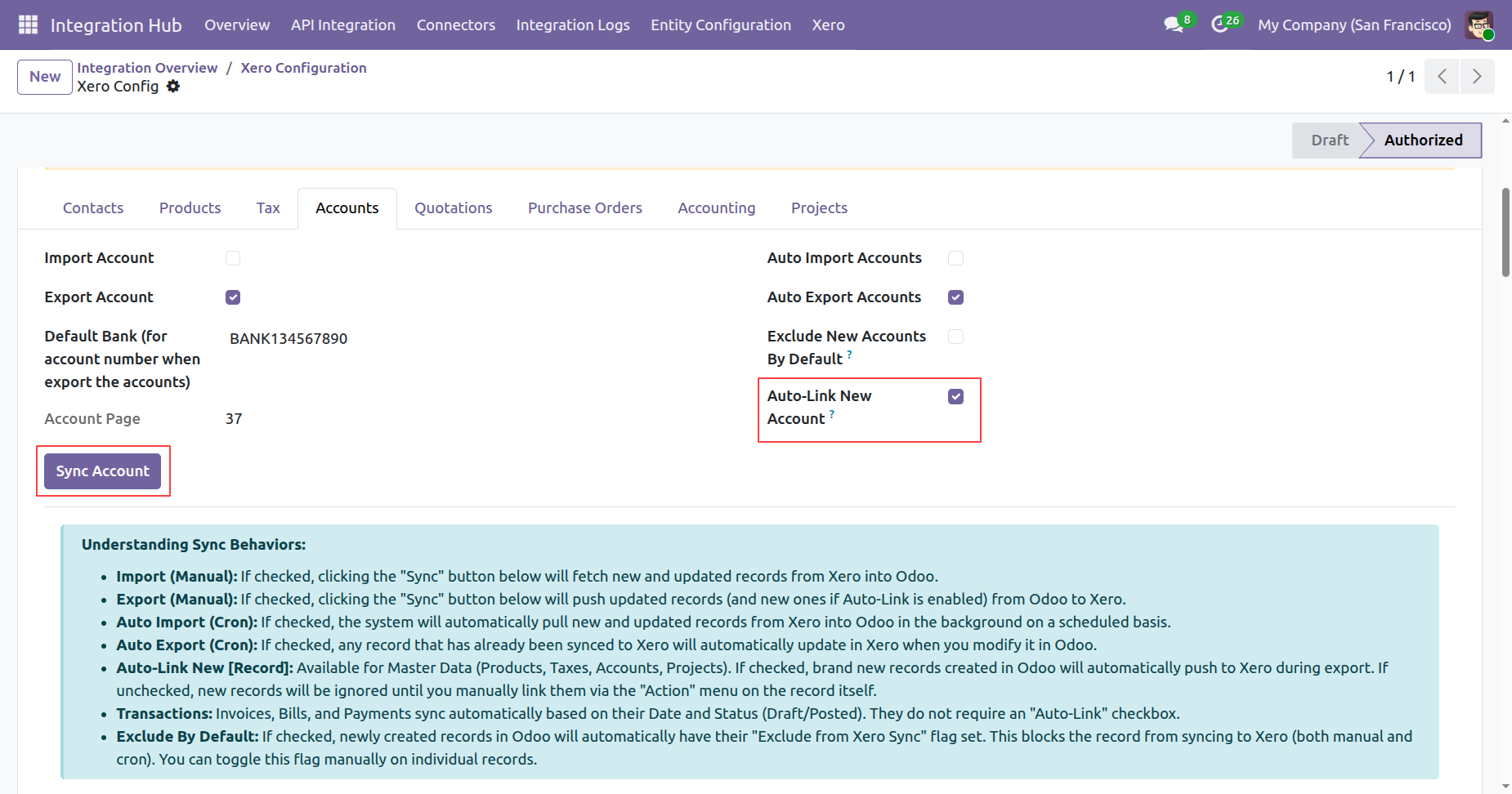
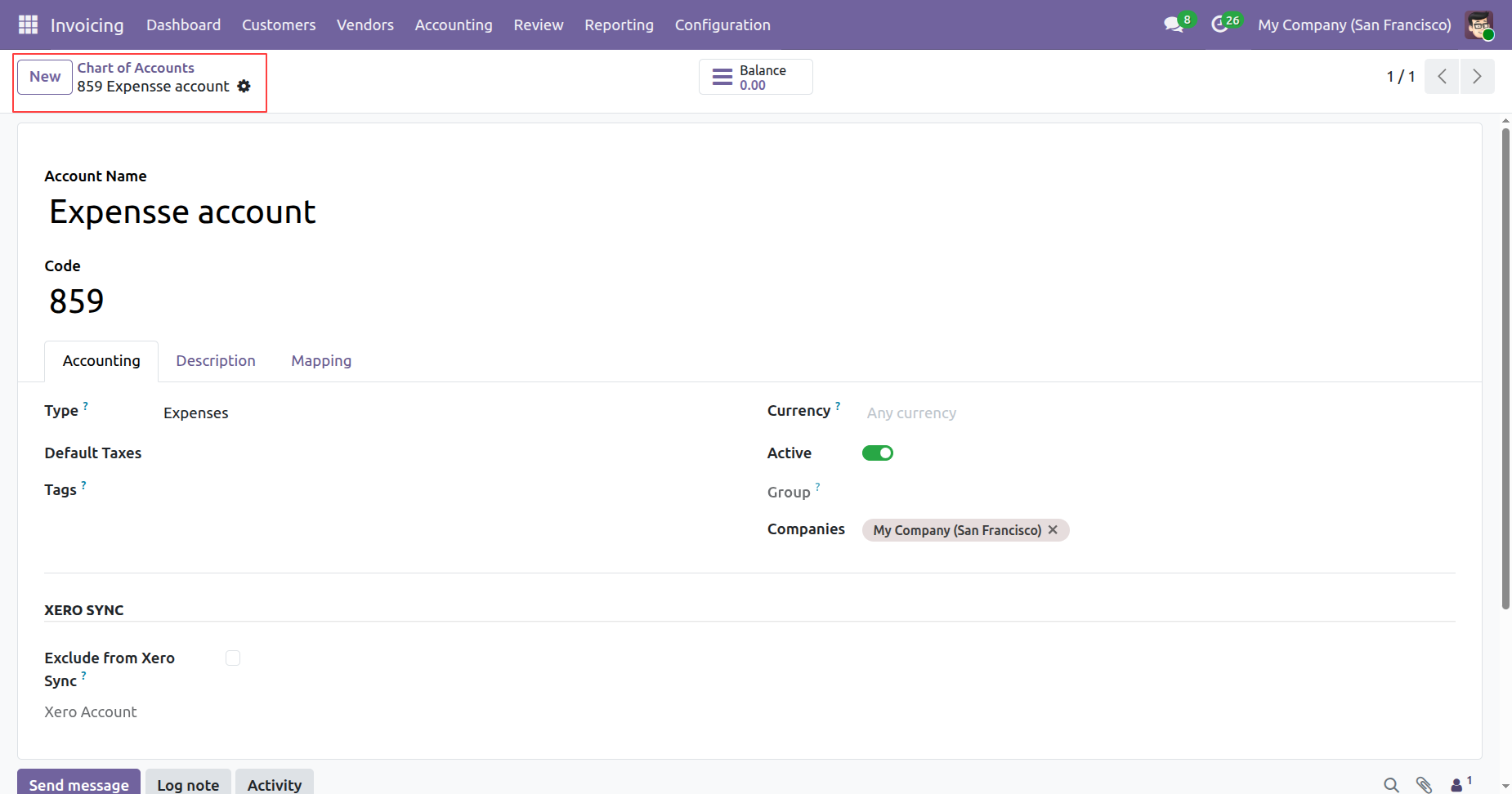
Create a new account in odoo.
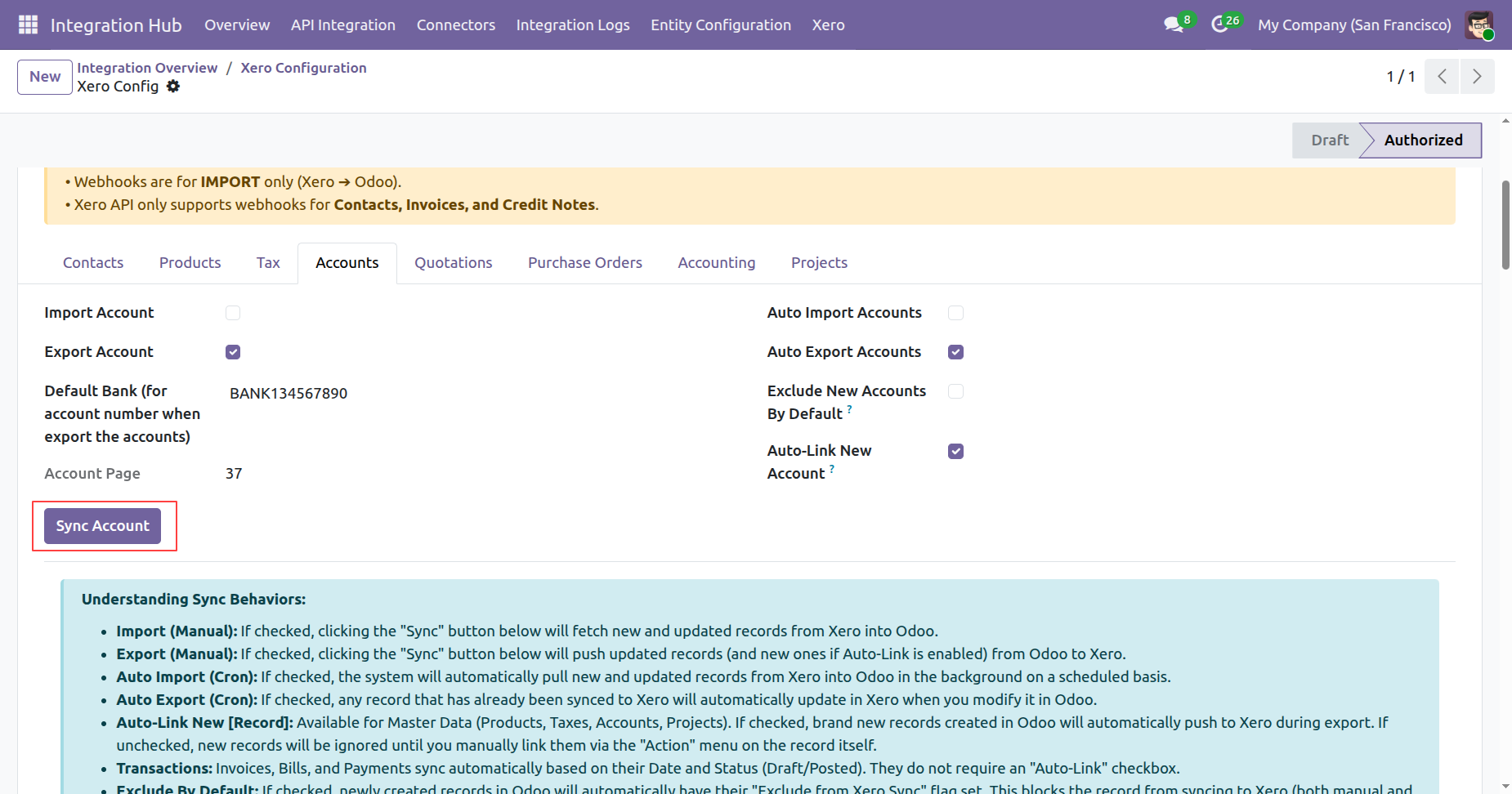
Click on sync account button from xero config.
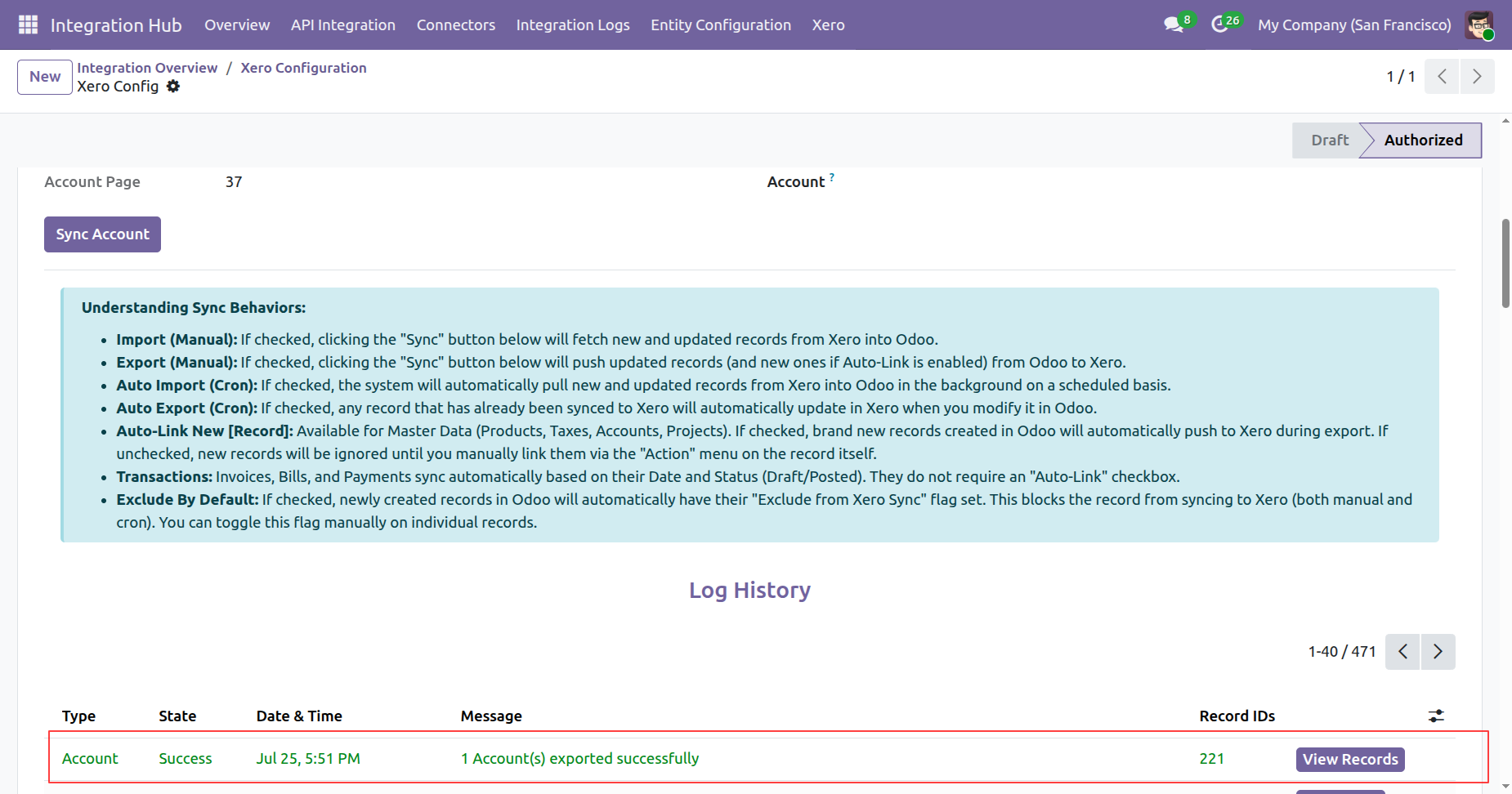
Account Synced Successfully in xero click on view records from log history.
Synced account details will be visible in odoo.
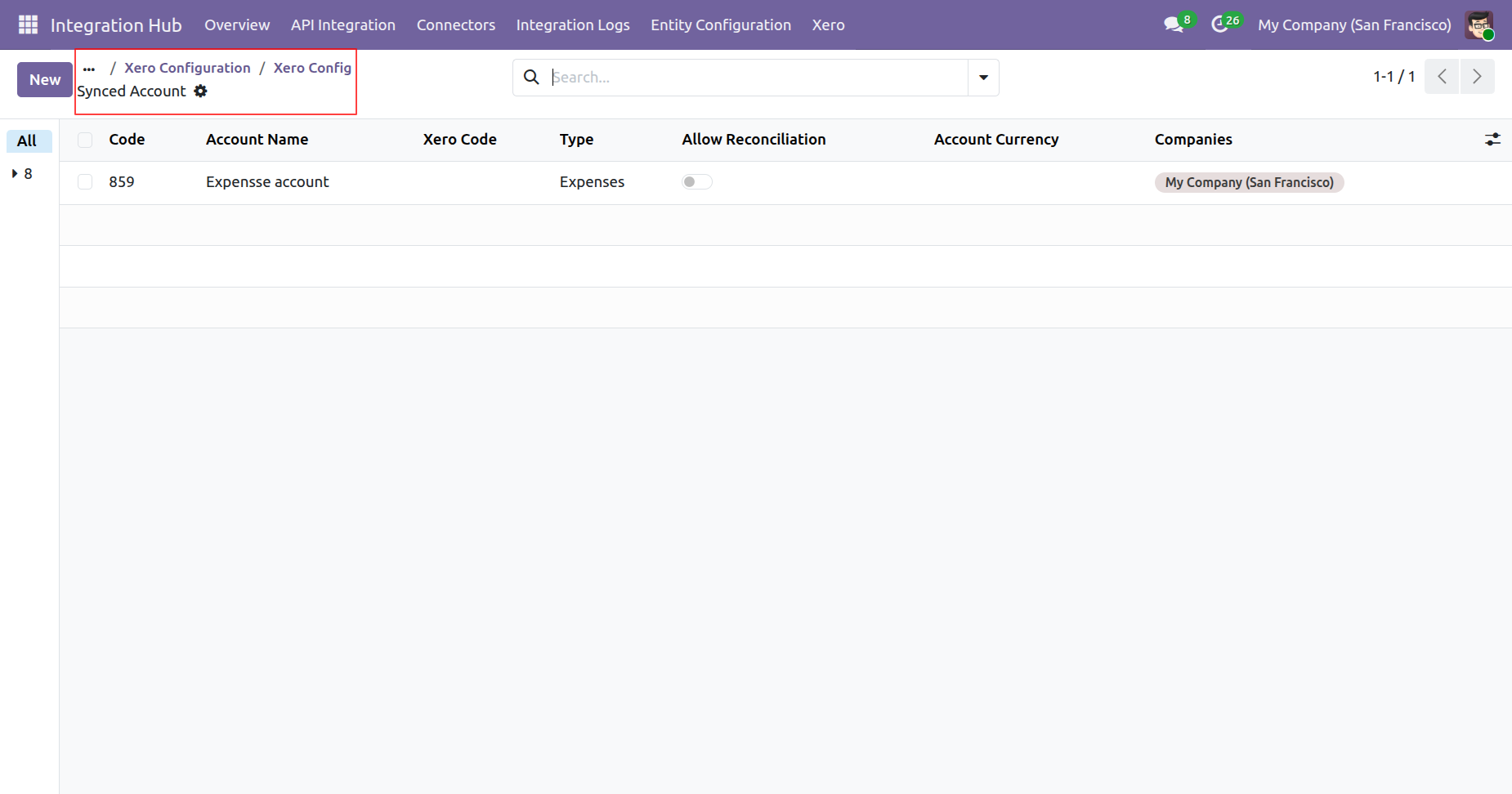
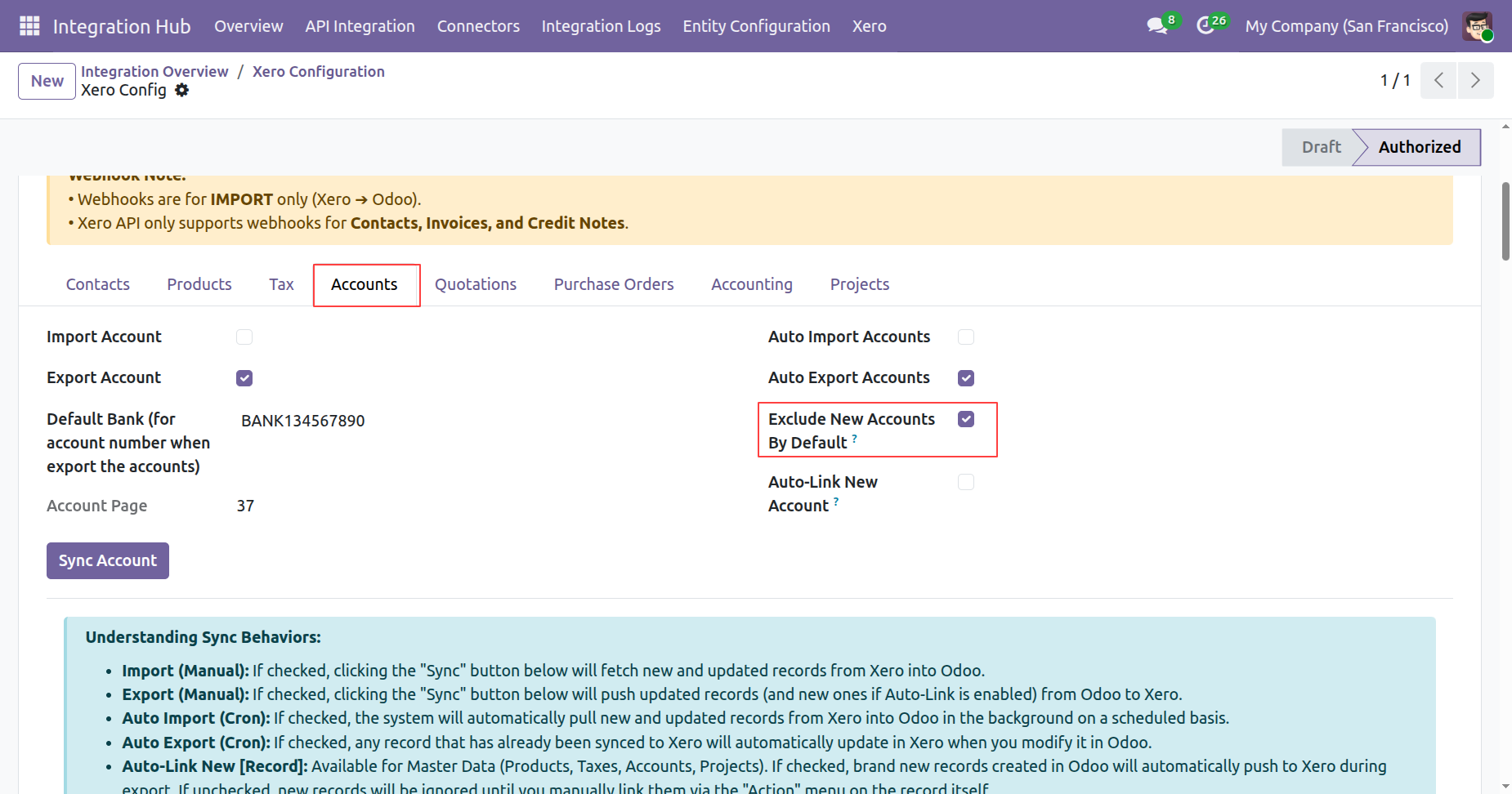
Enable exclude new account by default boolean from xero config.
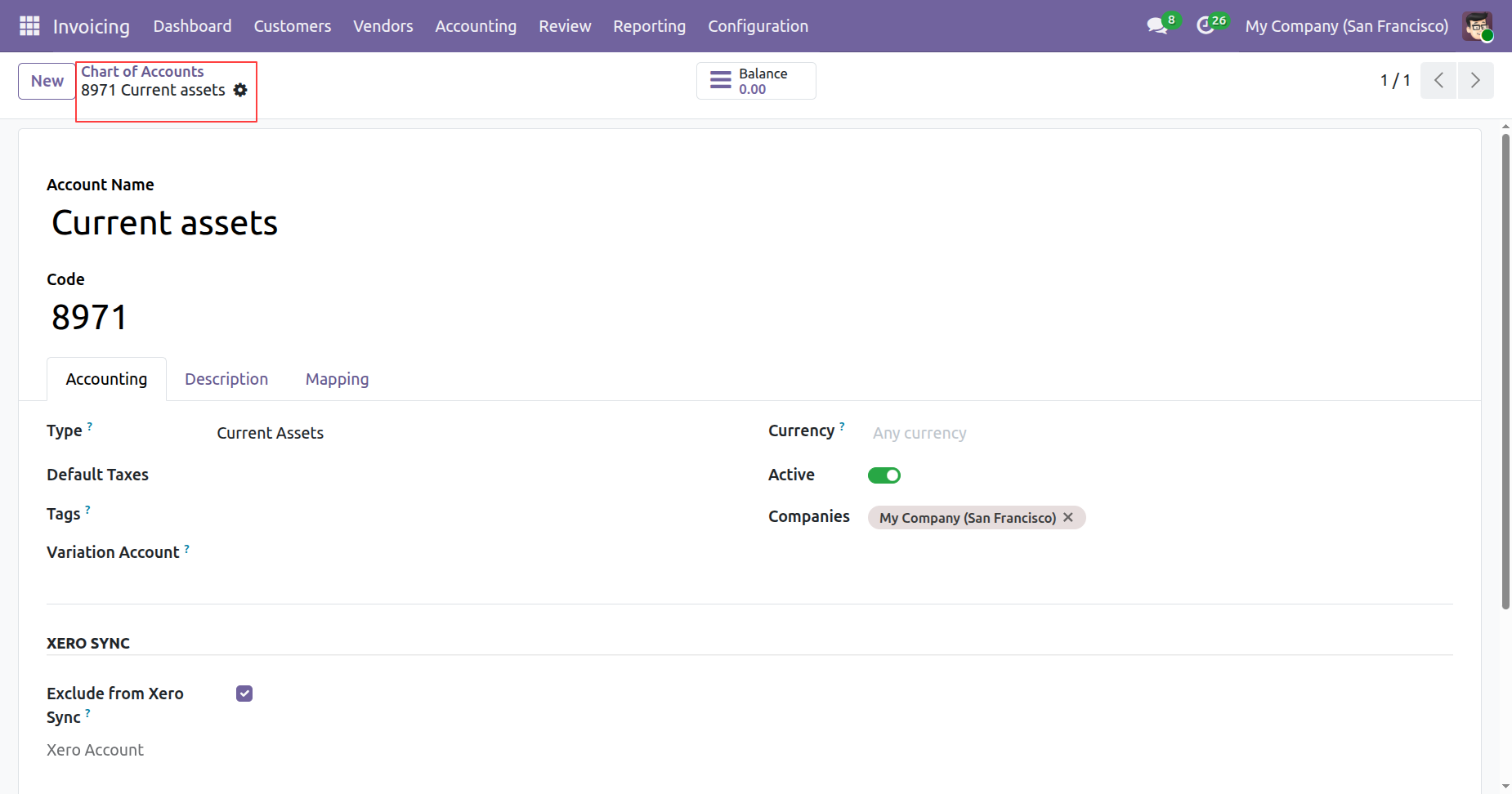
Create a new account in odoo.
Click on export to xero from accounts form view.
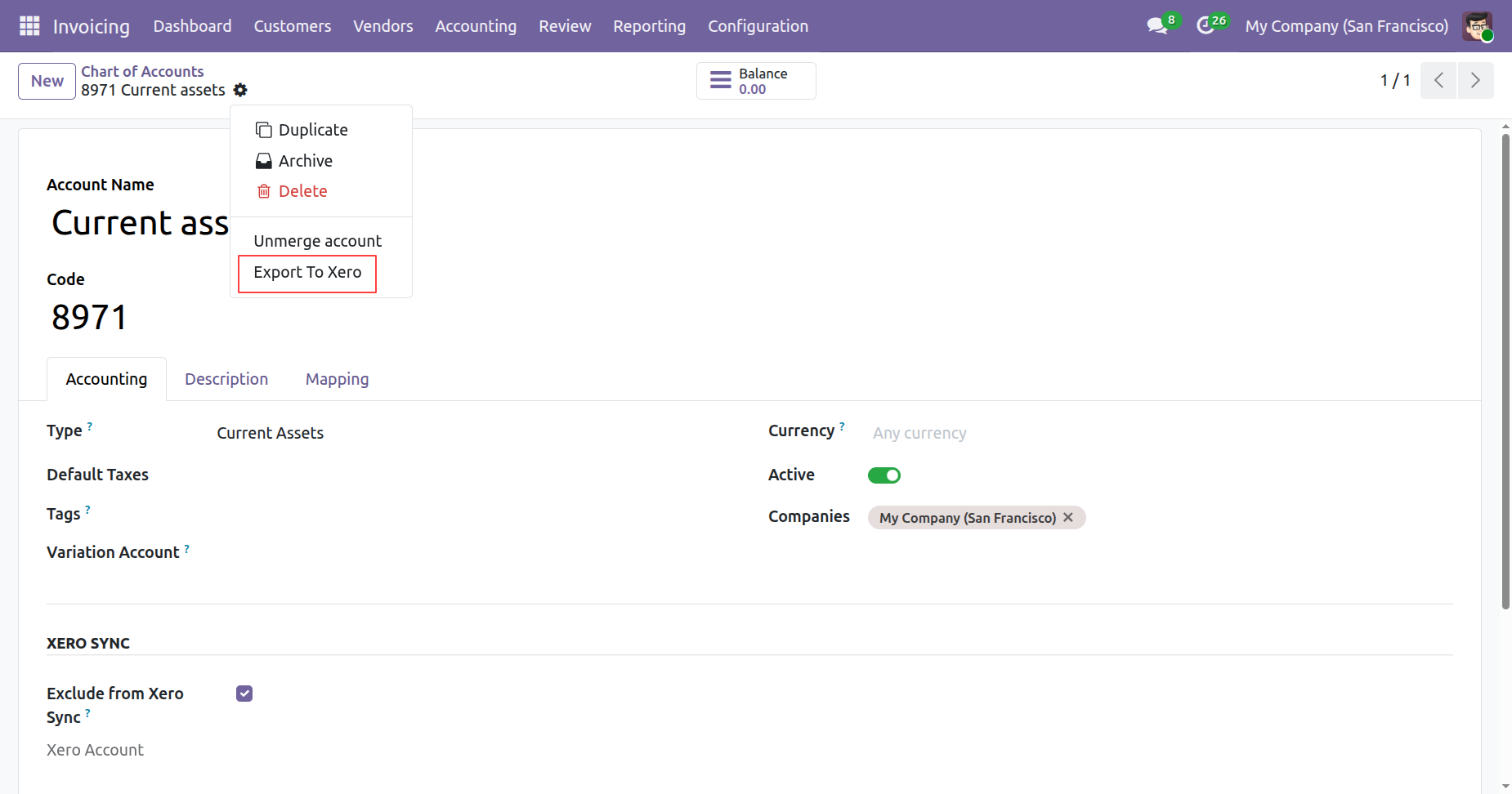
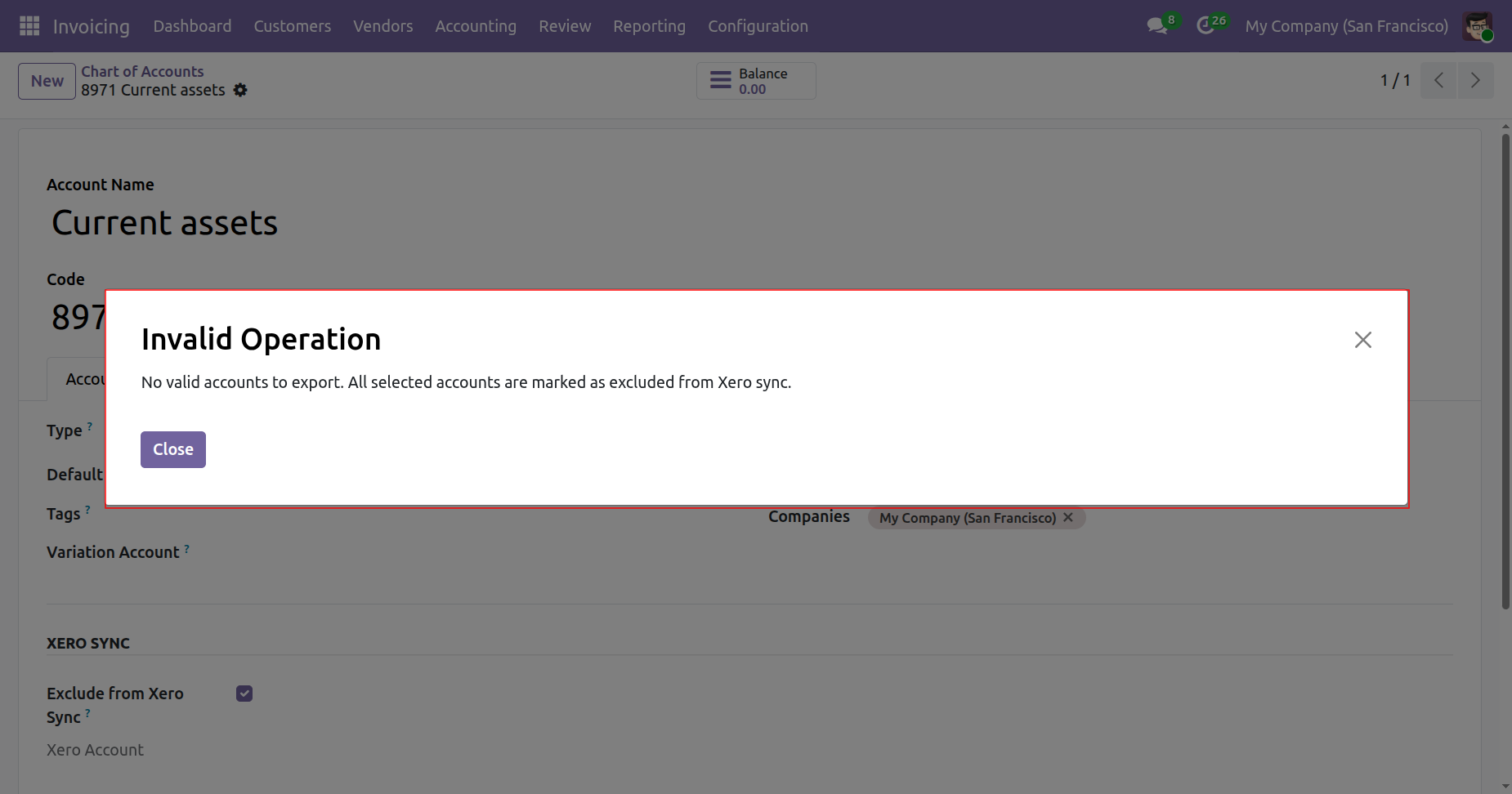
On exporting the account to xero, it will check the exclude new account by default boolean from xero config. If it is true then it will not export the account to xero and shows warning.
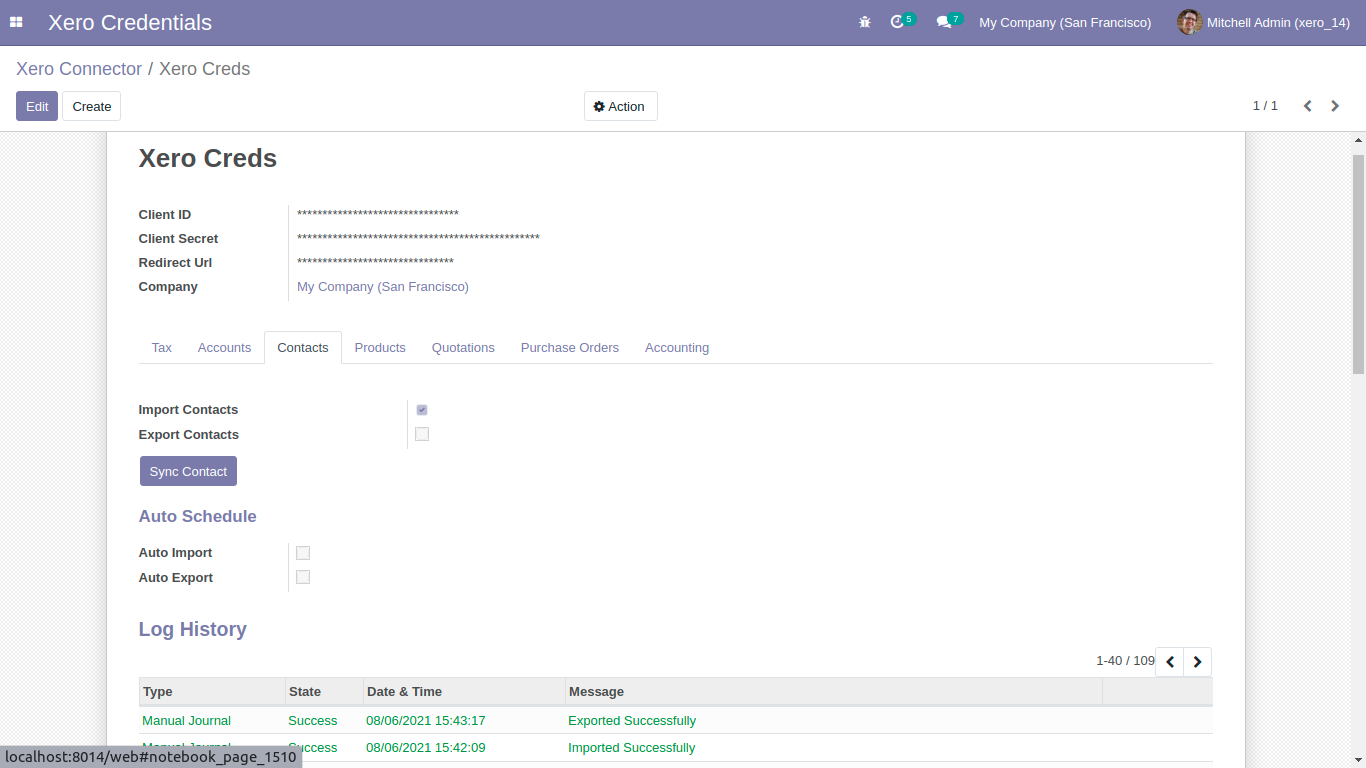
For Sync Contacts, Just goto contacts tab and enable import/export. After Successfully execution it will display success message in log history. It will auto define primary person in contacts while you export contacts.
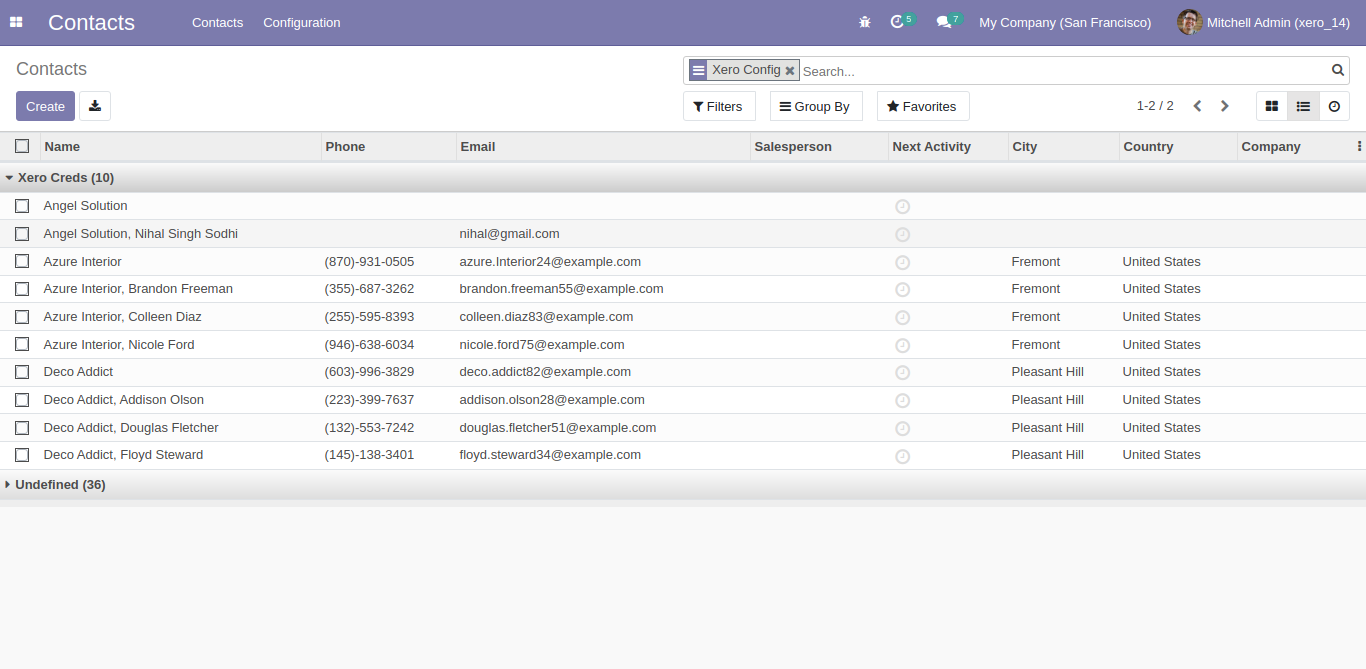
Sync contact list with group by 'Xero Config'.
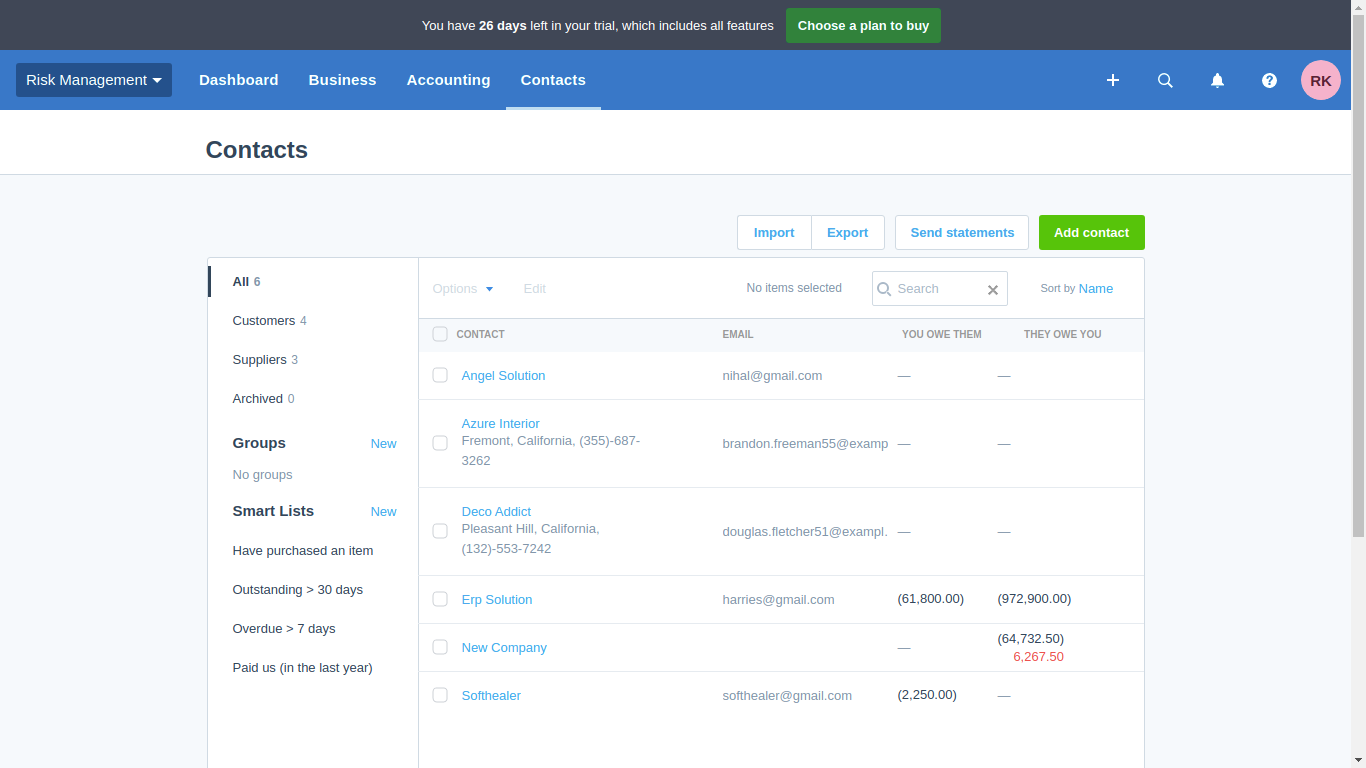
Xero config details in contacts form view.
For export mass contacts list to xero.
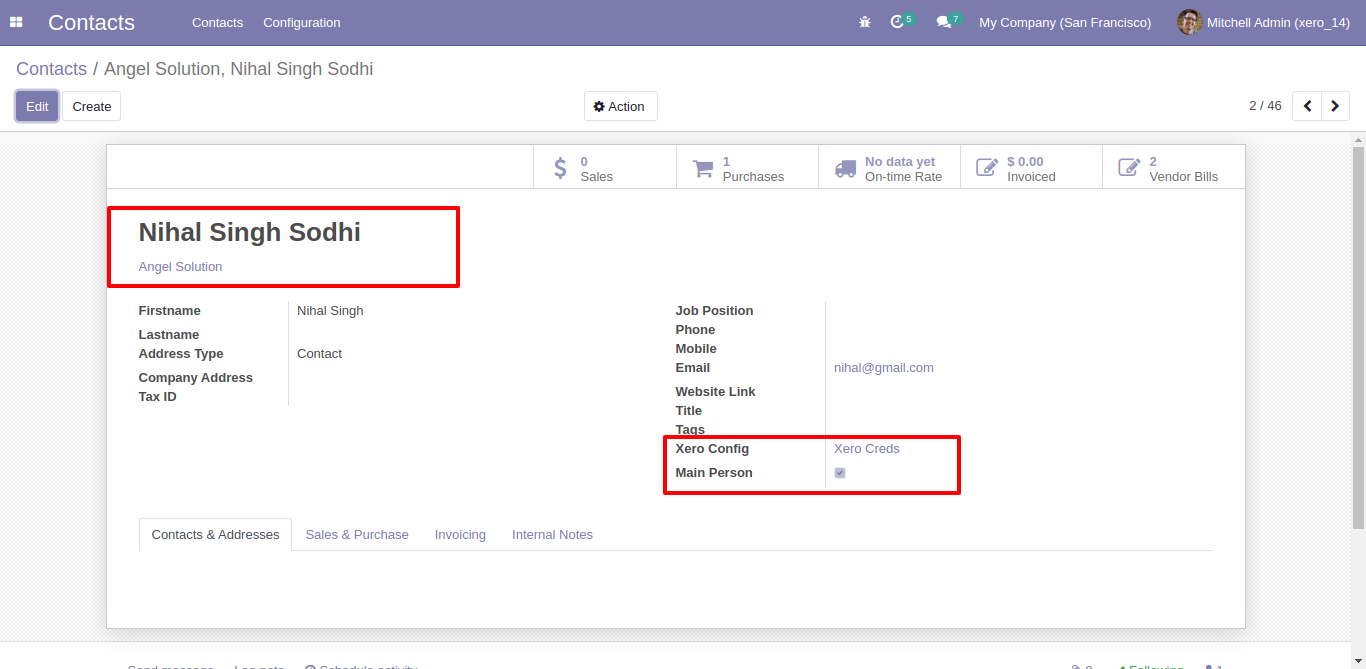
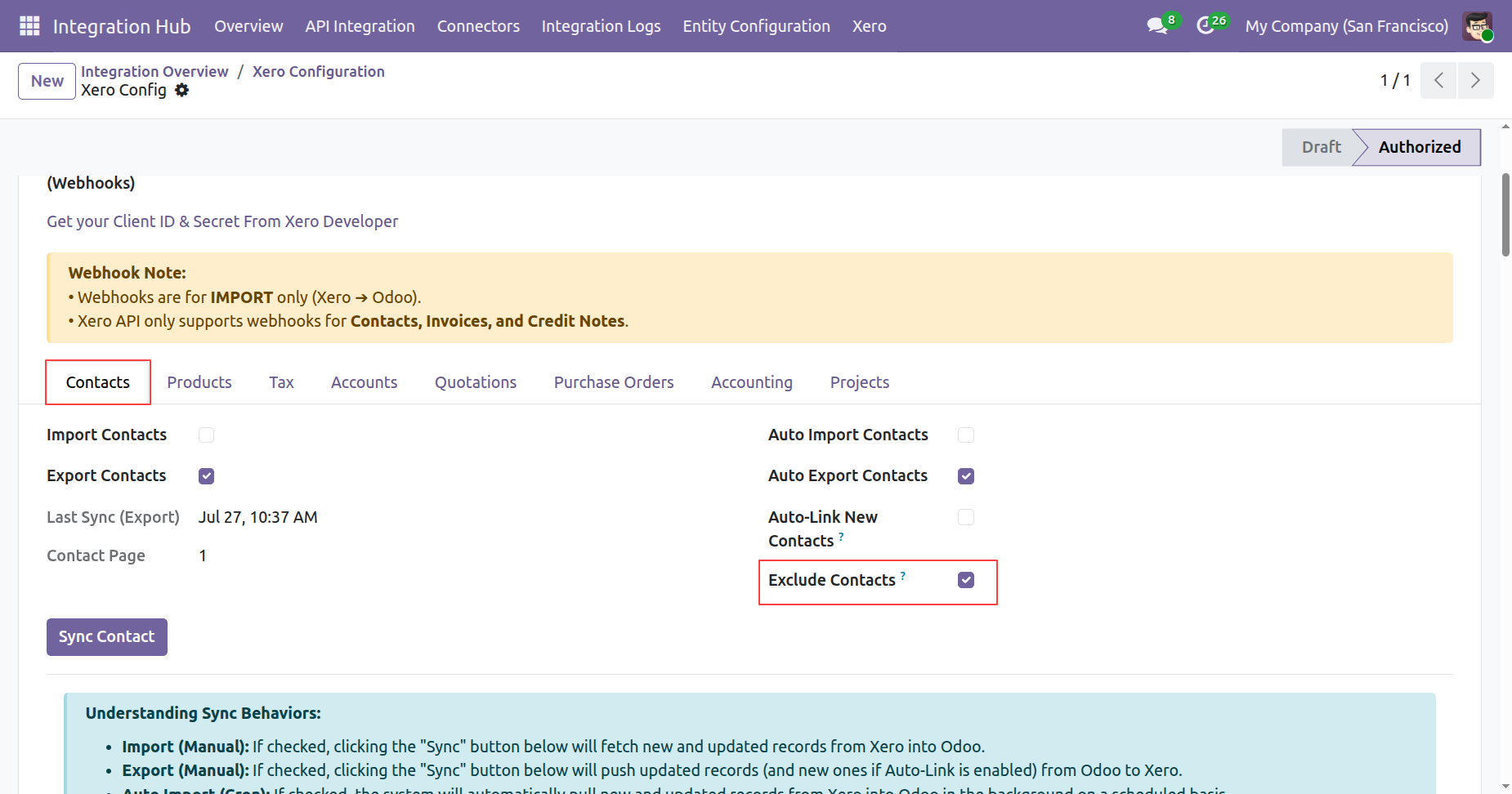
Enable exclude contacts boolean from xero config.
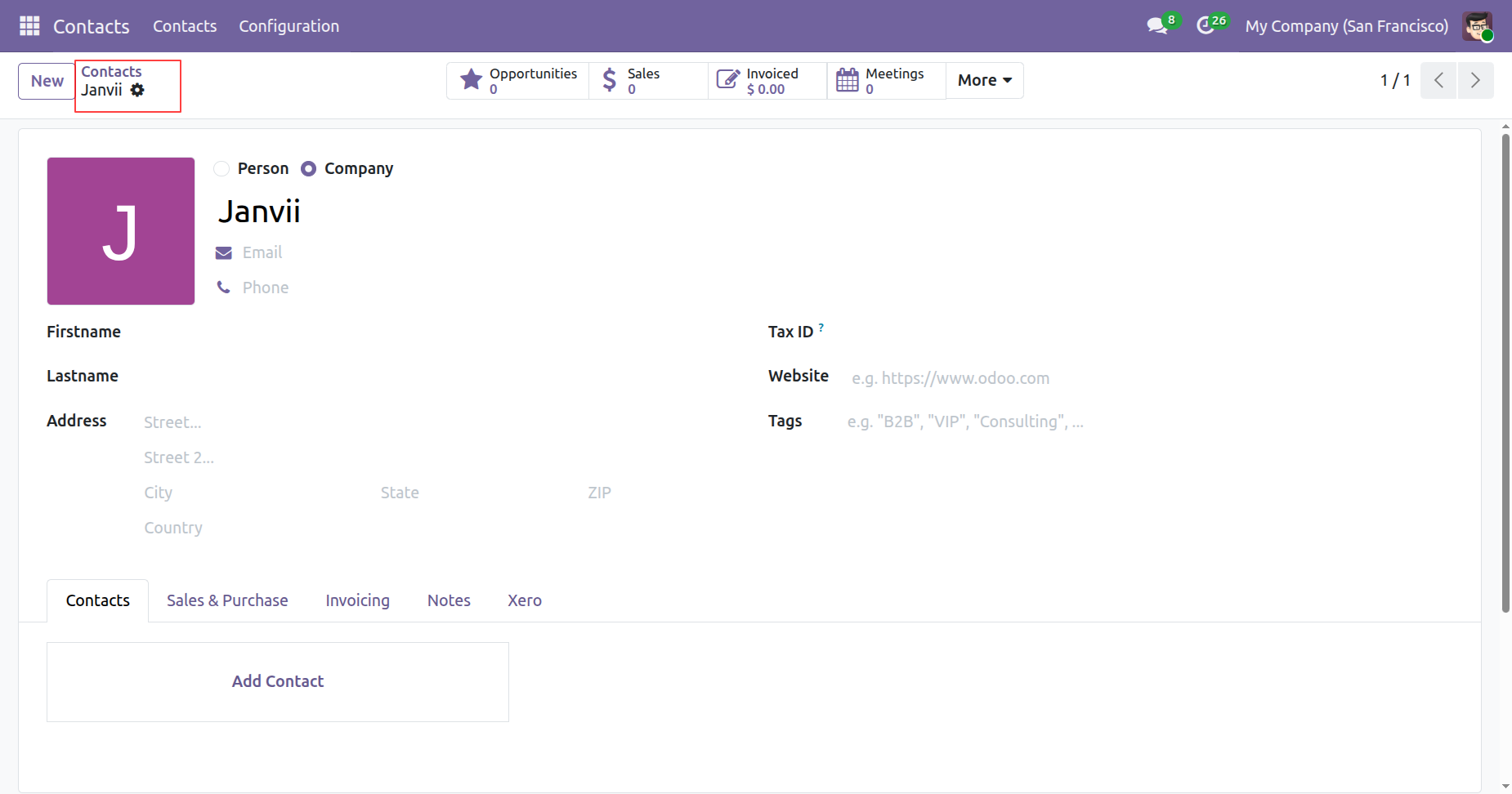
Create a new contact in odoo.
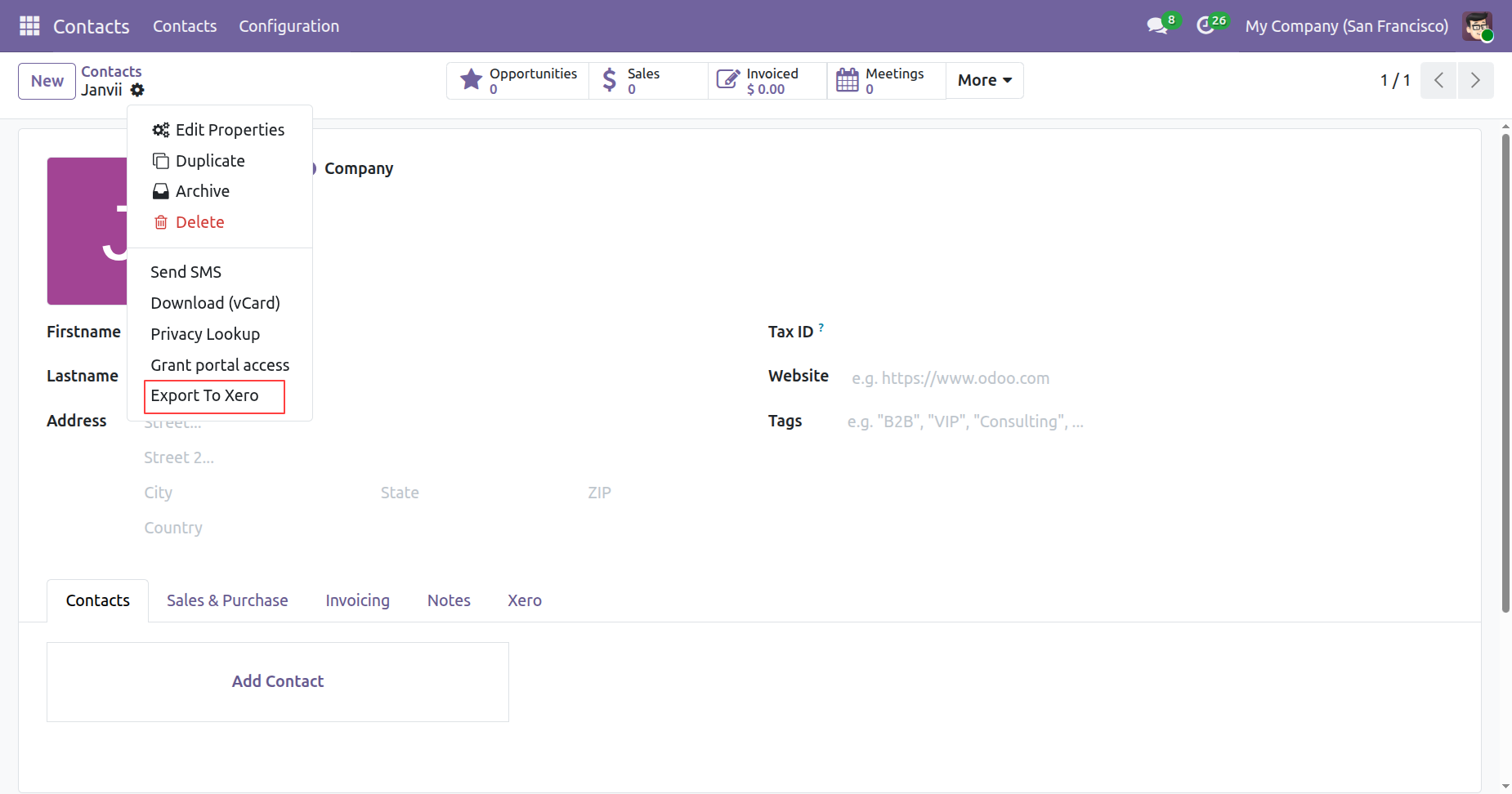
Click on export to xero from contacts form view.
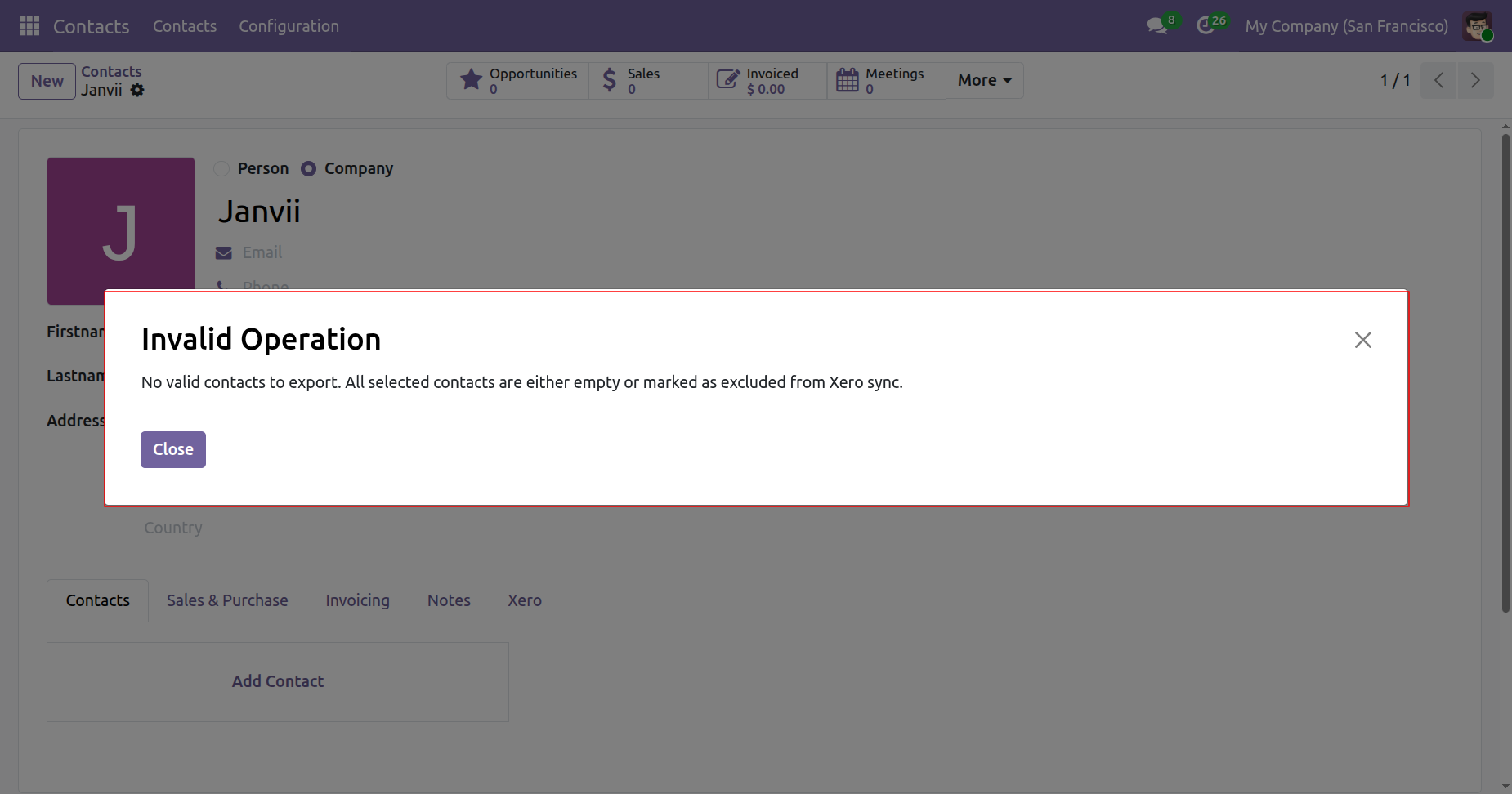
On exporting the contact to xero, it will check the exclude new contact by default boolean from xero config. If it is true then it will not export the contact to xero and shows warning.
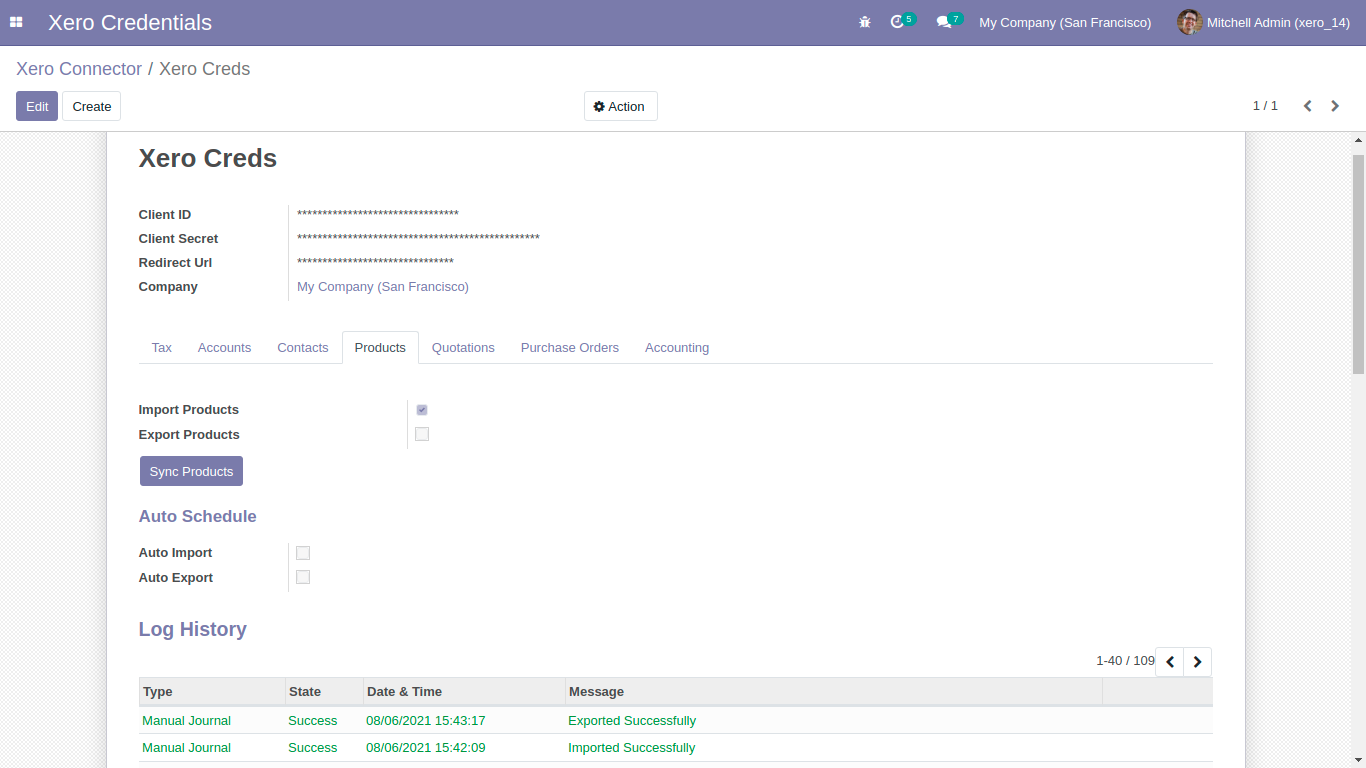
For Sync Products, Just goto products tab and enable import/export. After Successfully execution it will display success message in log history.
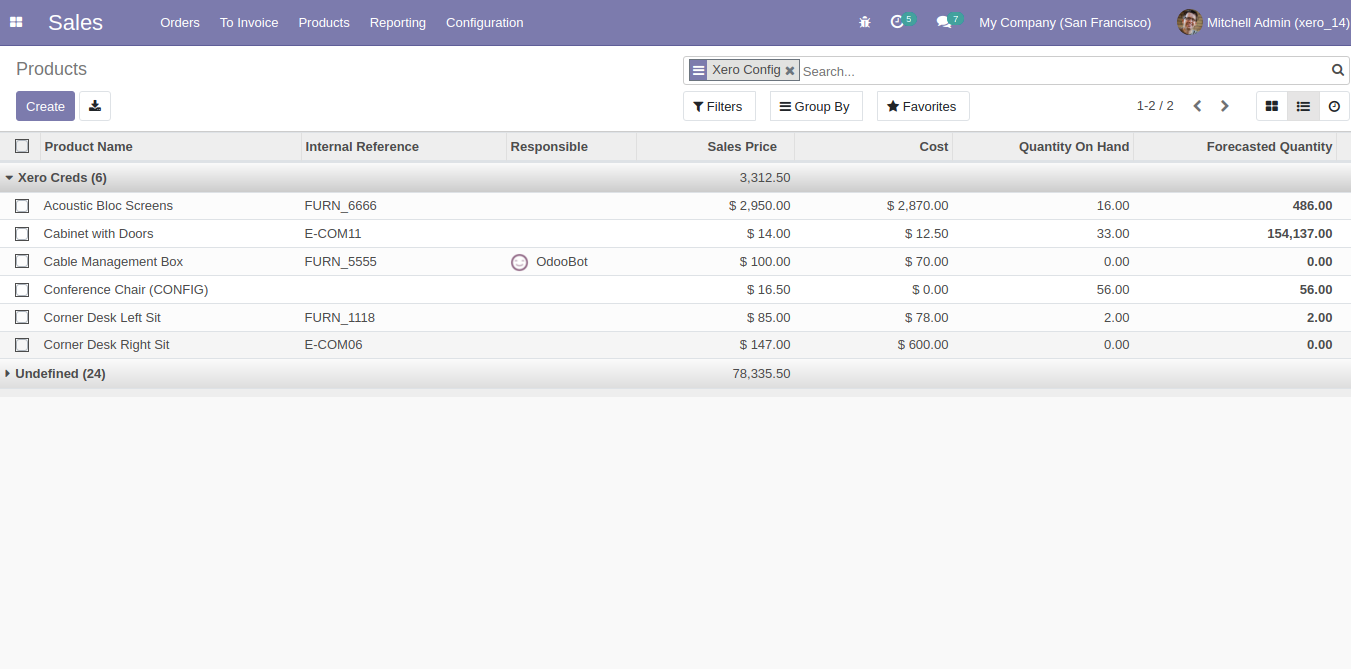
Sync products with group by 'Xero config'.
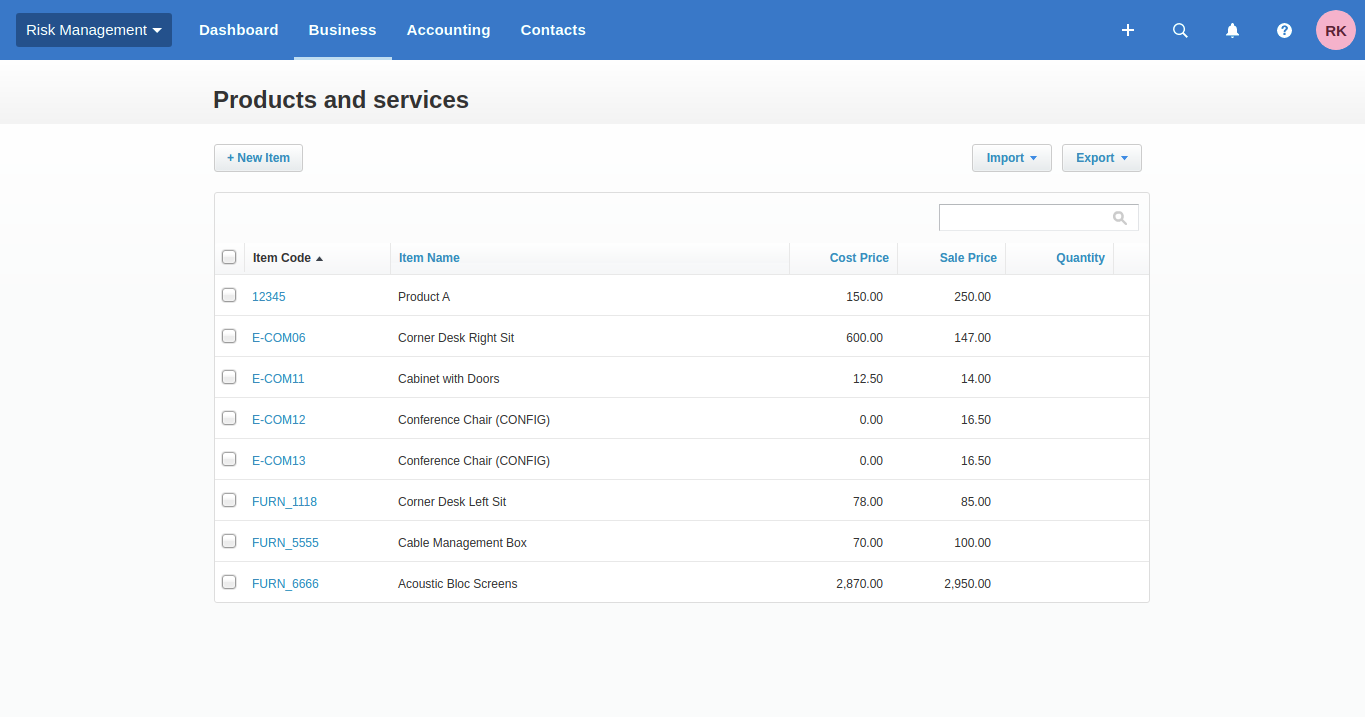
Product list in xero.
xero config details in product details.
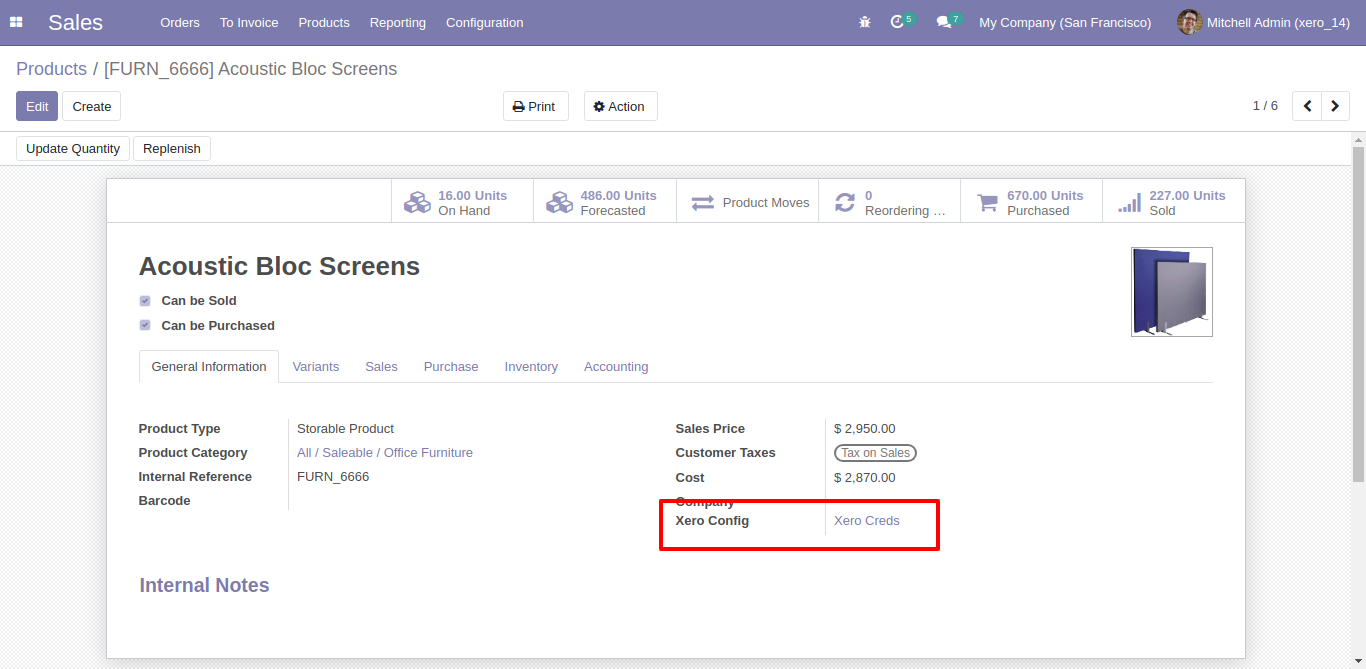
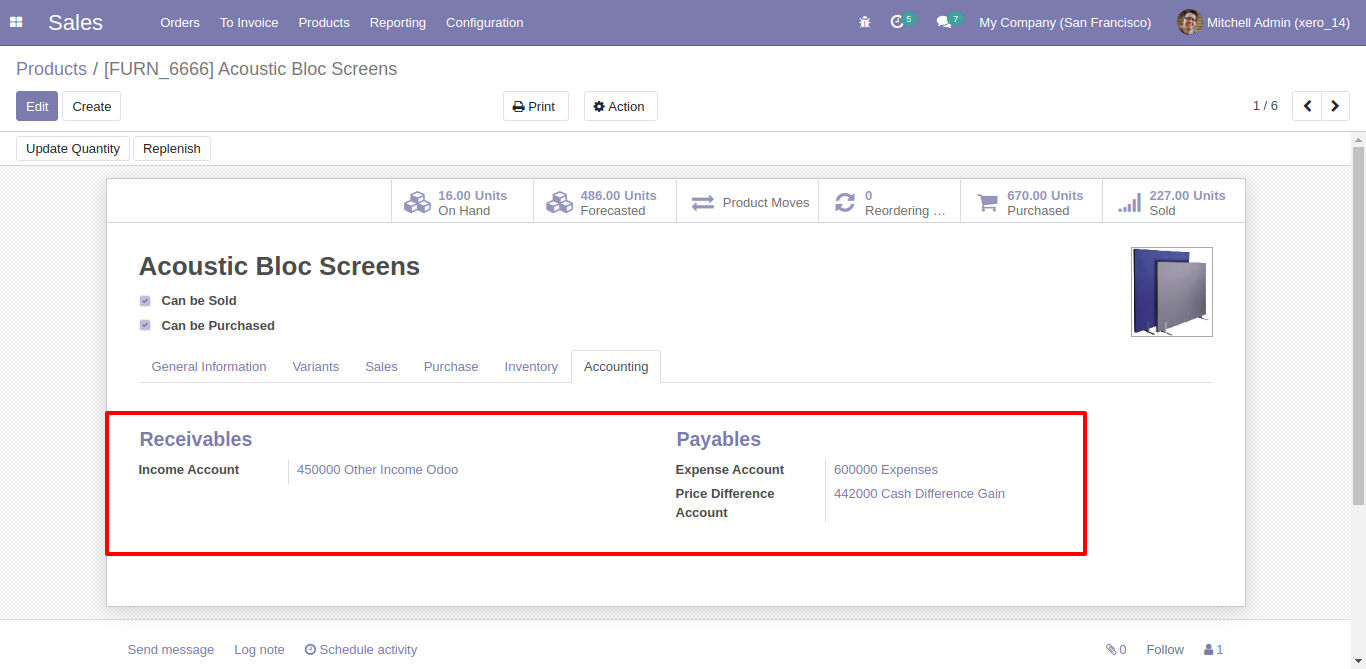
Before export just make sure product accounts are exported to xero. Otherwise this product will not export to xero.
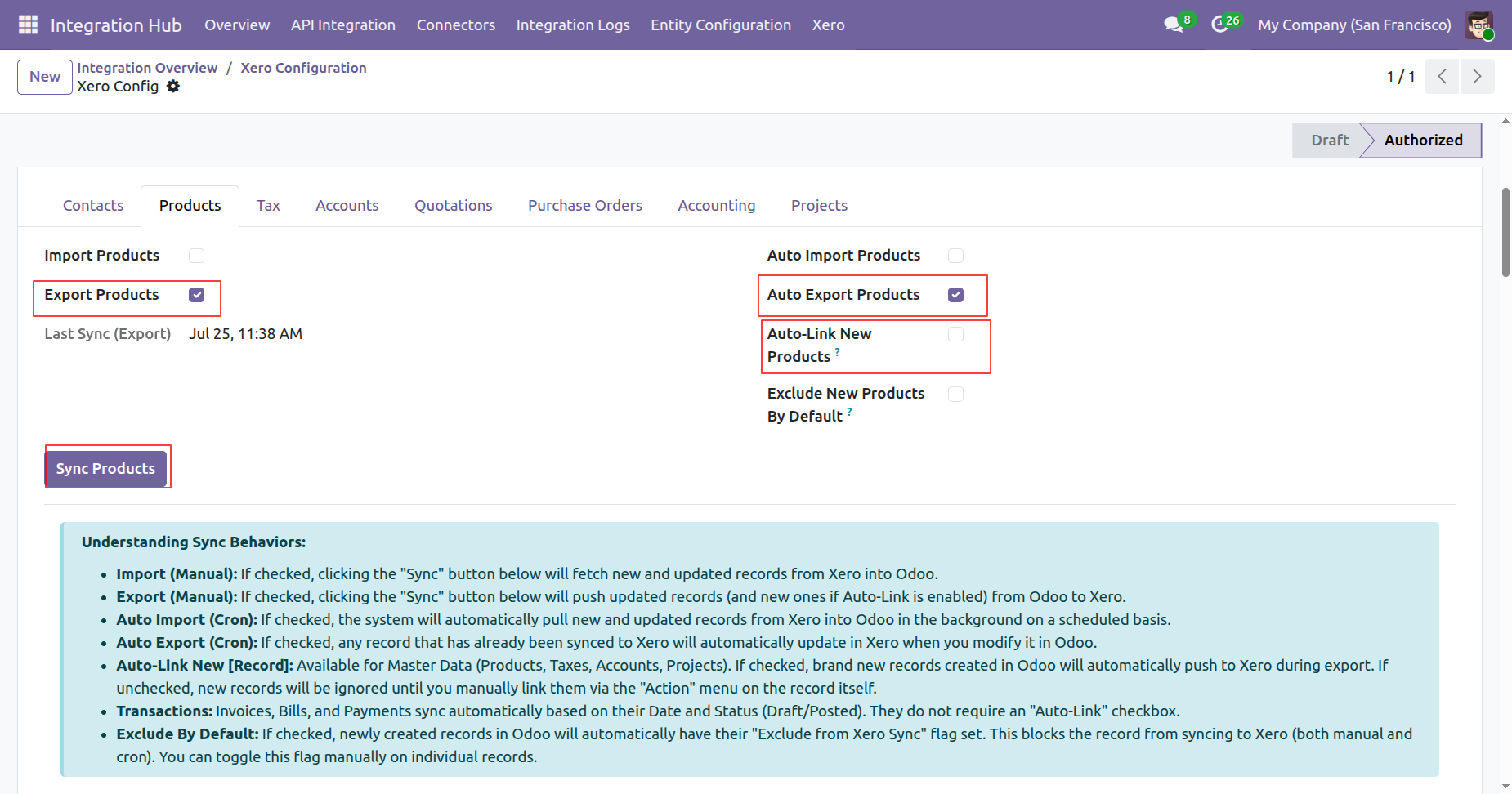
Enable auto link new products boolean from xero config.
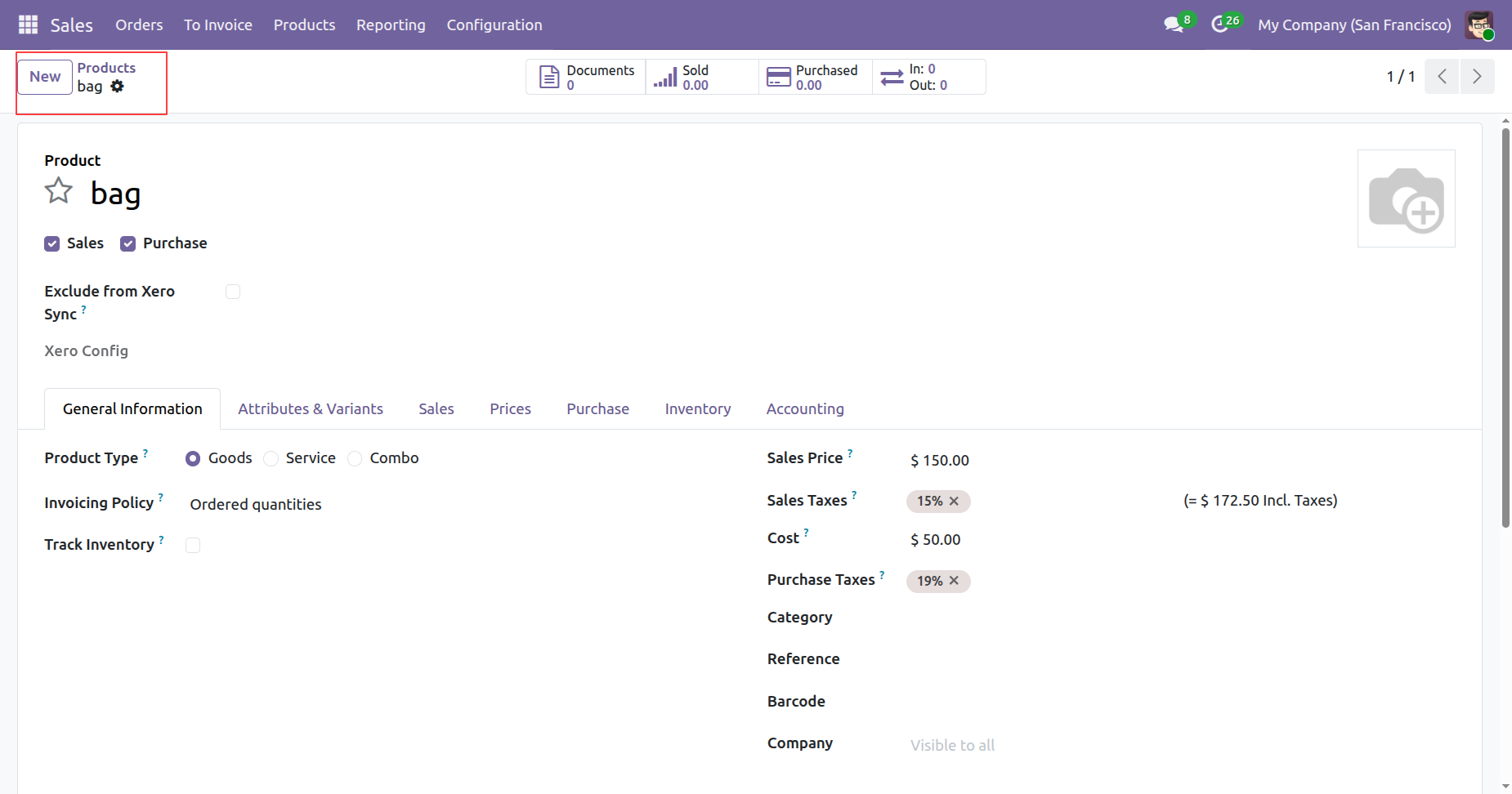
Create a new product in odoo.
Click on sync products button from xero config.
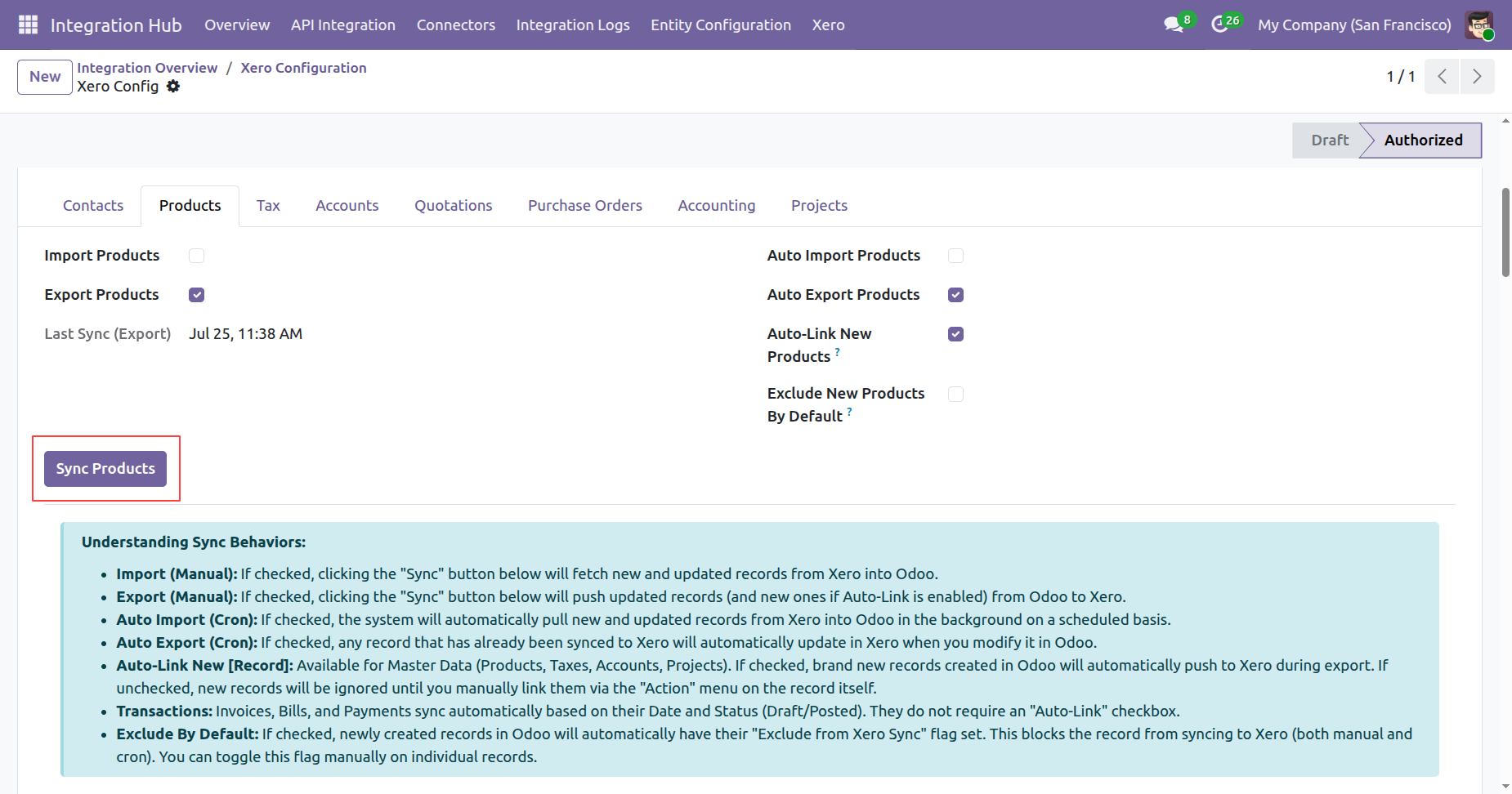
Products Synced Successfully in xero click on view records from log history.
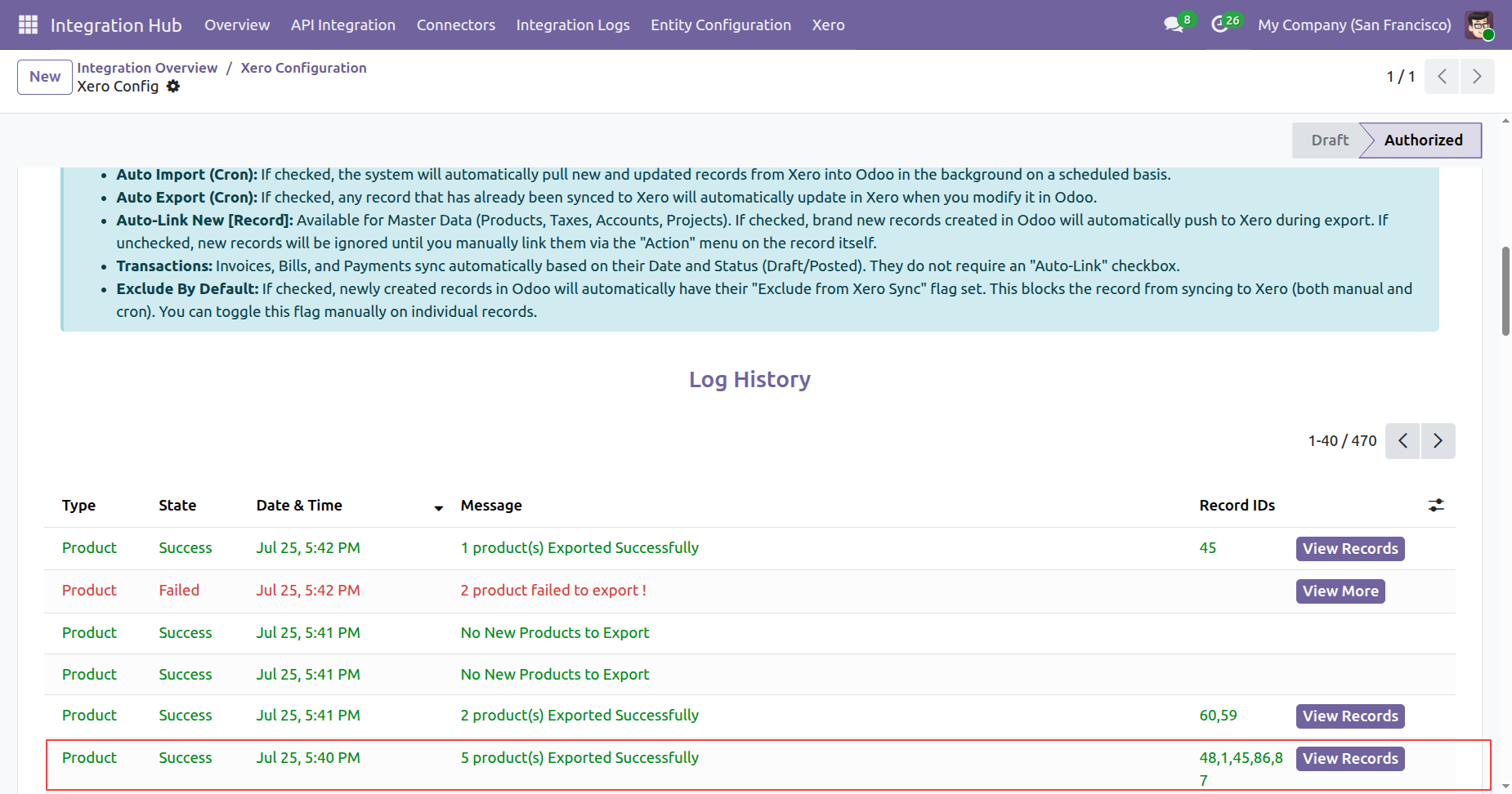
Synced product details will be visible in odoo.
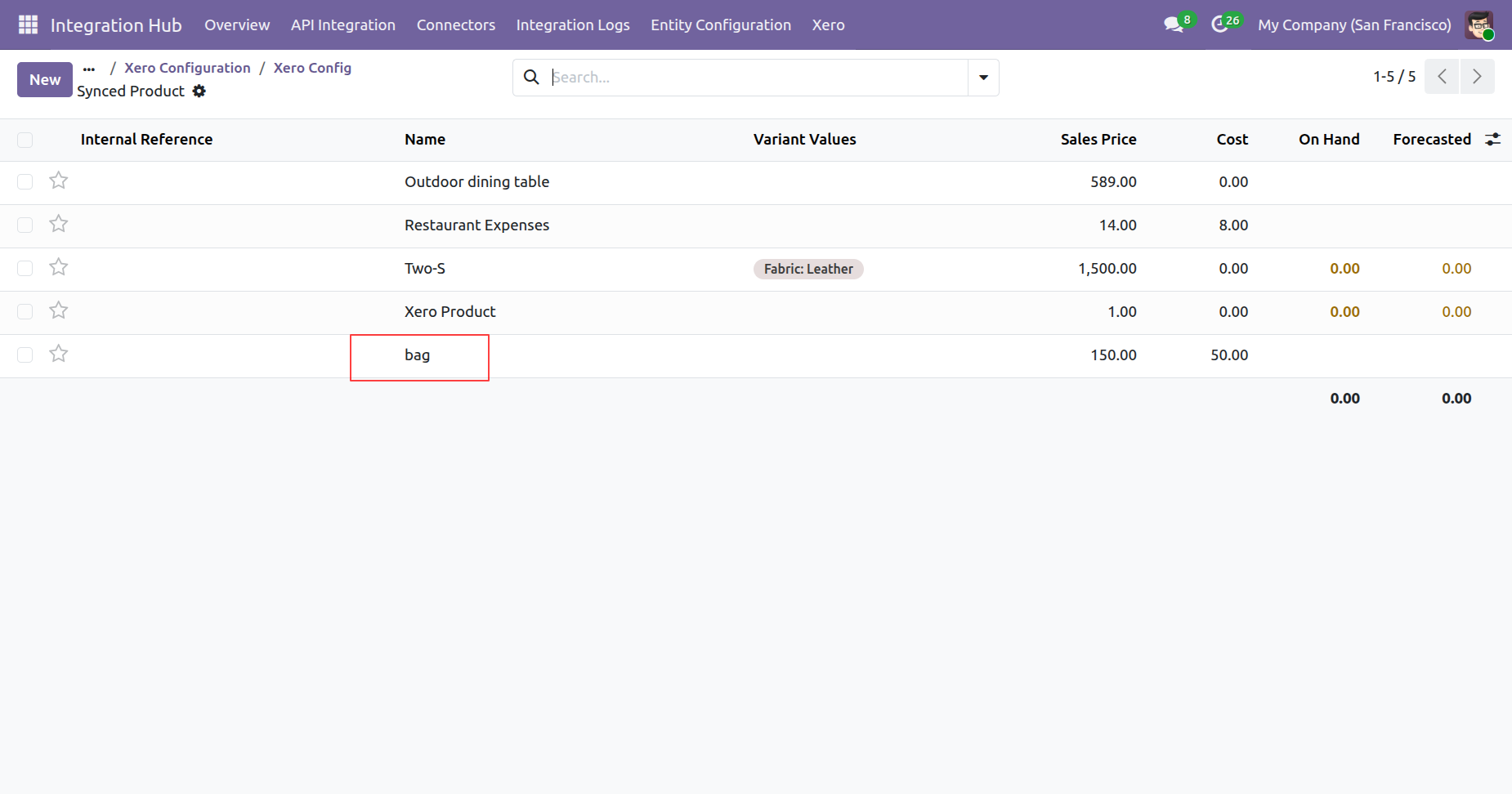
Enable exclude new products by default boolean from xero config.
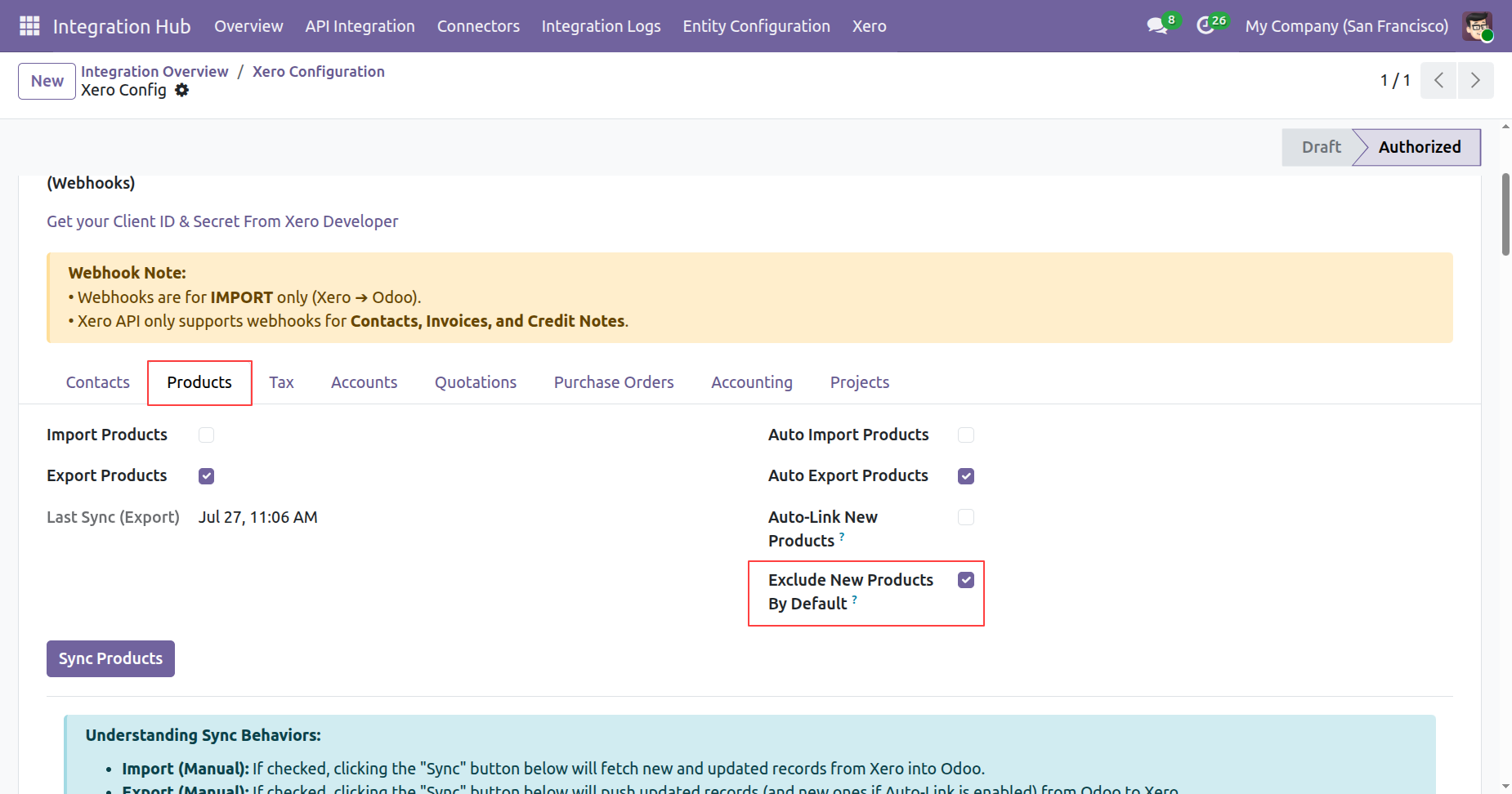
Create a new product in odoo.
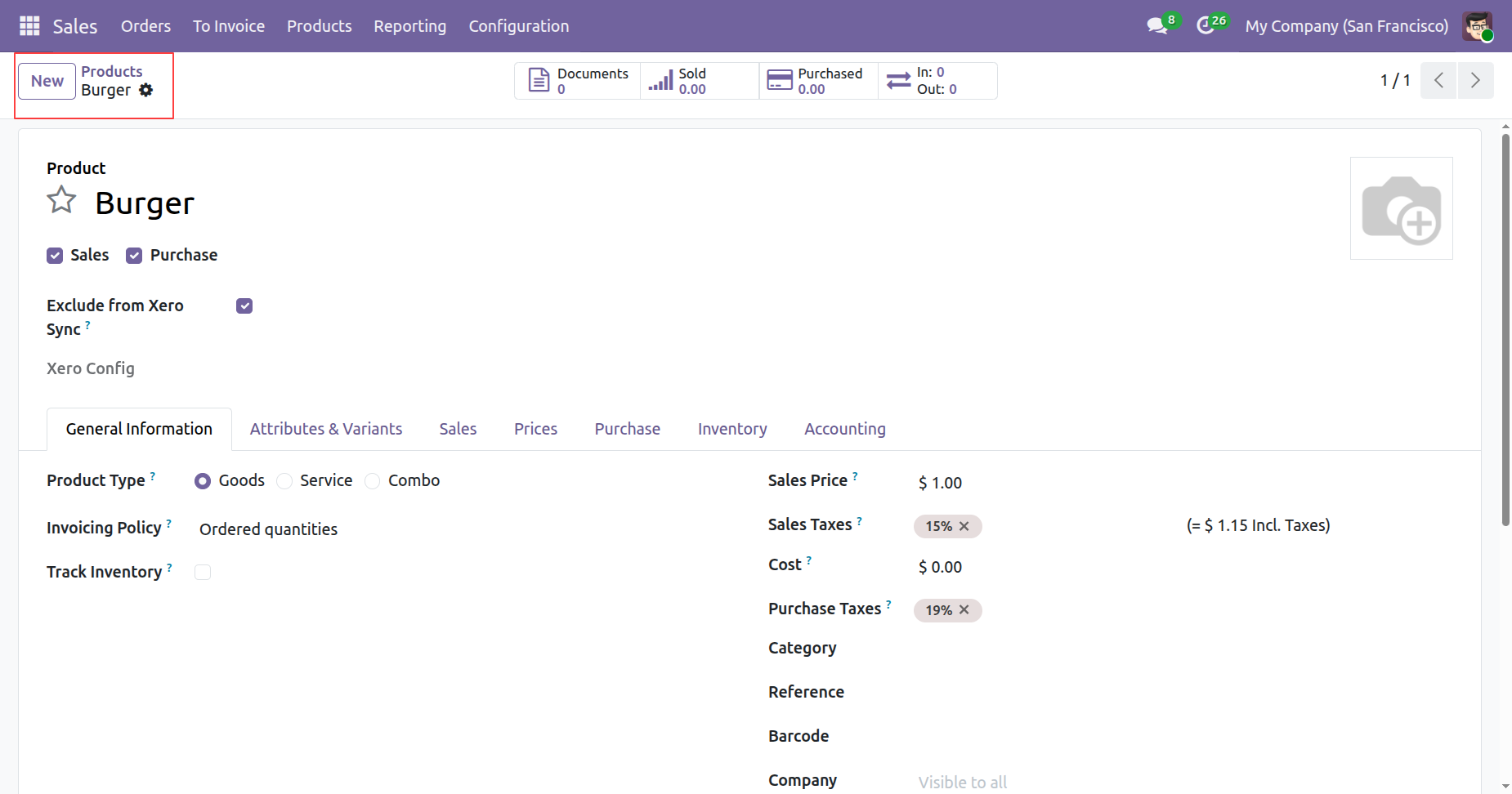
Click on export to xero from product form view.
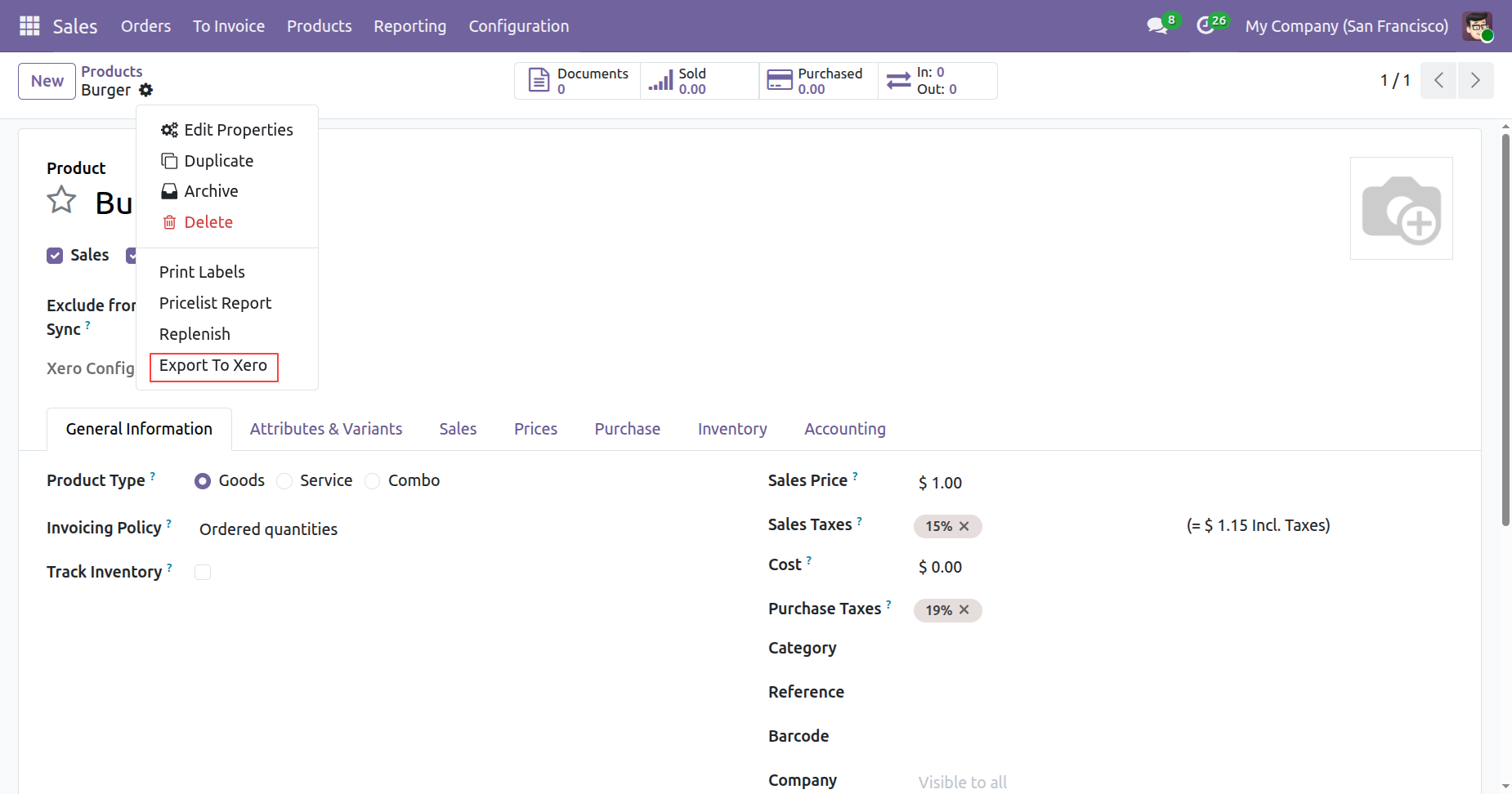
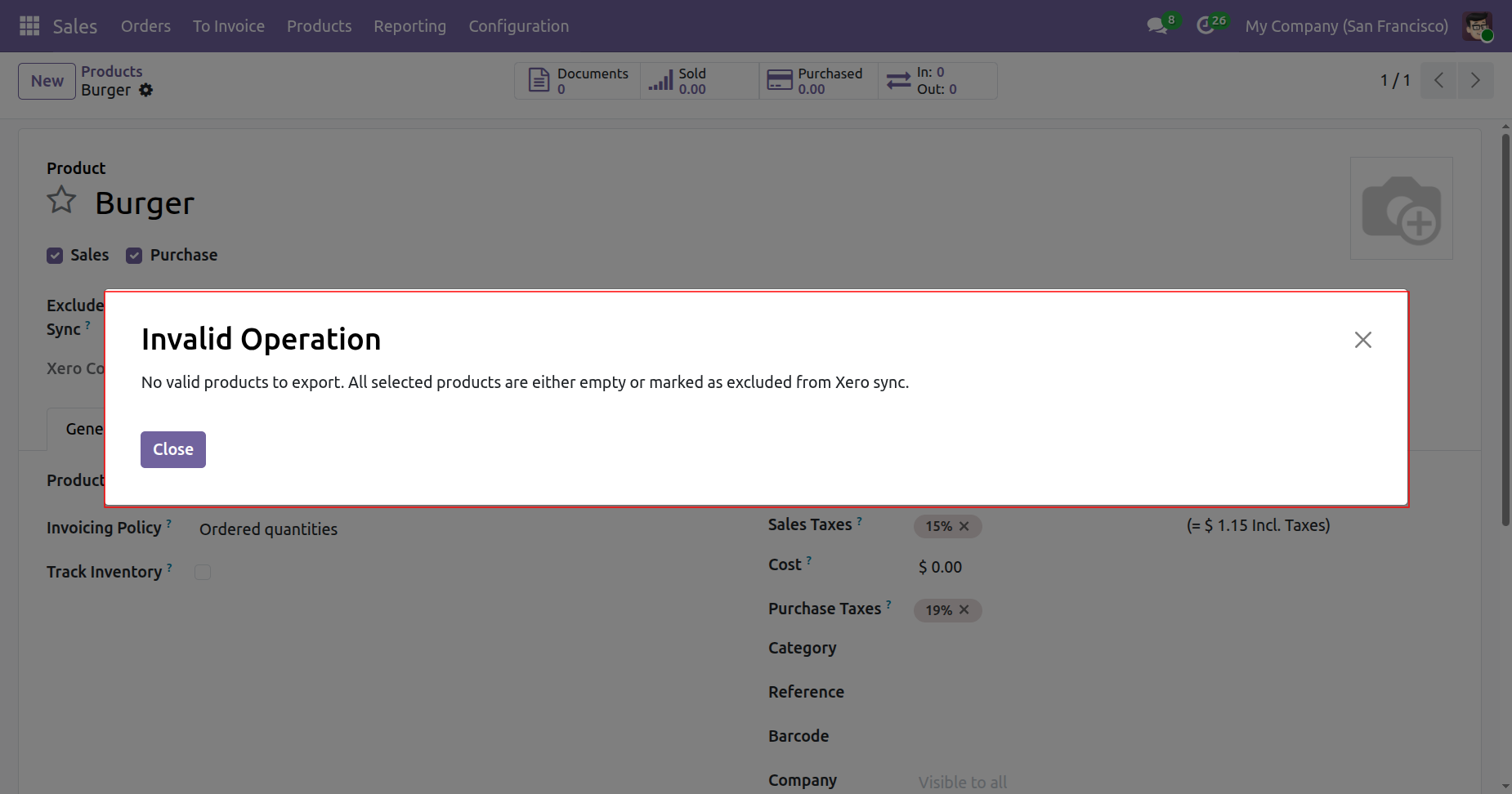
On exporting the product to xero, it will check the exclude new product by default boolean from xero config. If it is true then it will not export the product to xero and shows warning.
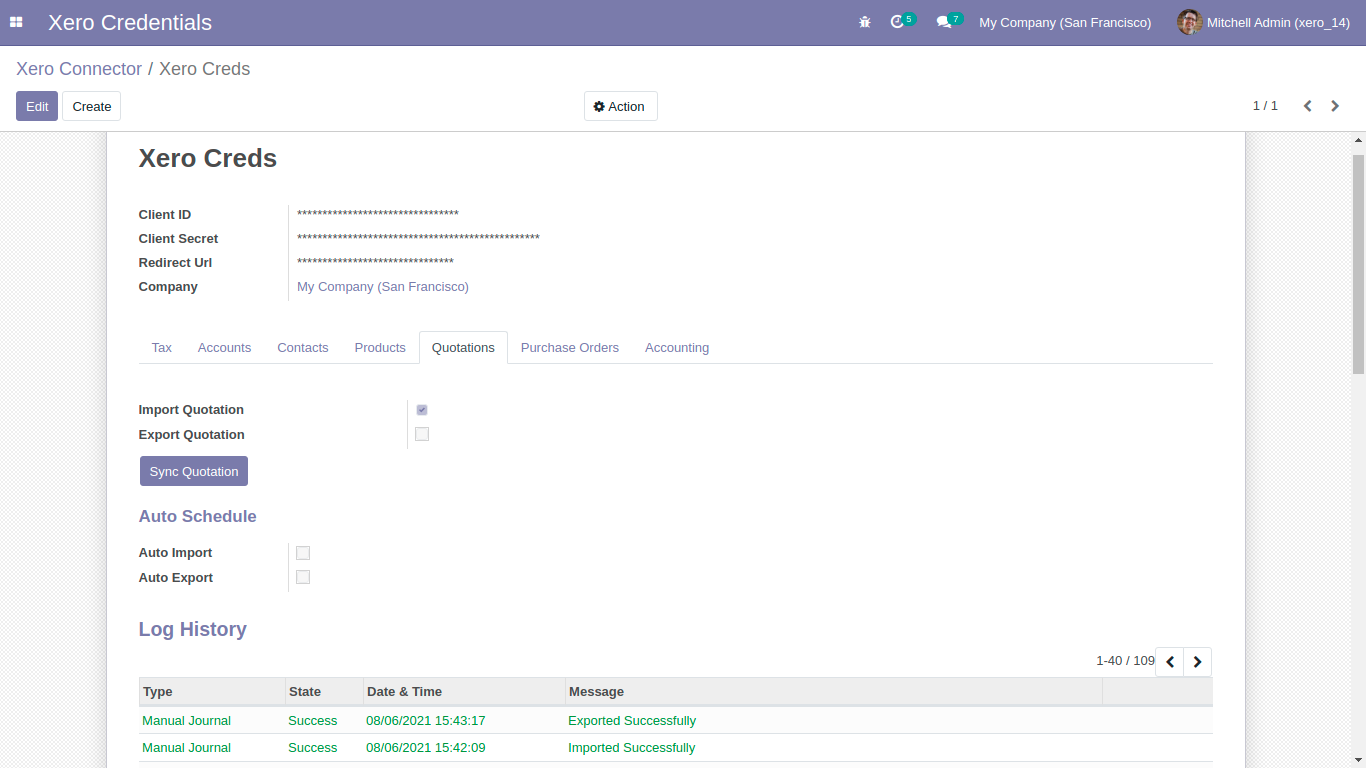
For Sync Sales-Quotations, Just goto quotation tab and enable import/export. After Successfully execution it will display success message in log history.
After sync sales-quotation you can see the xero config details in that particular order.
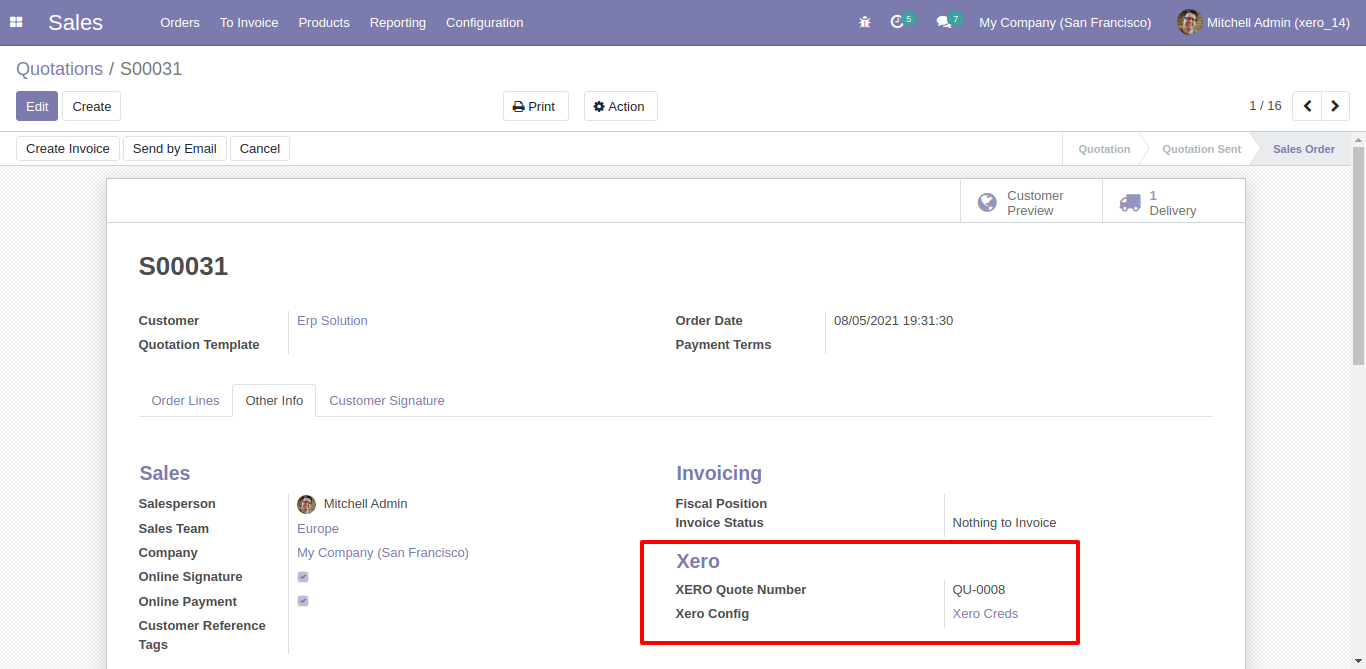
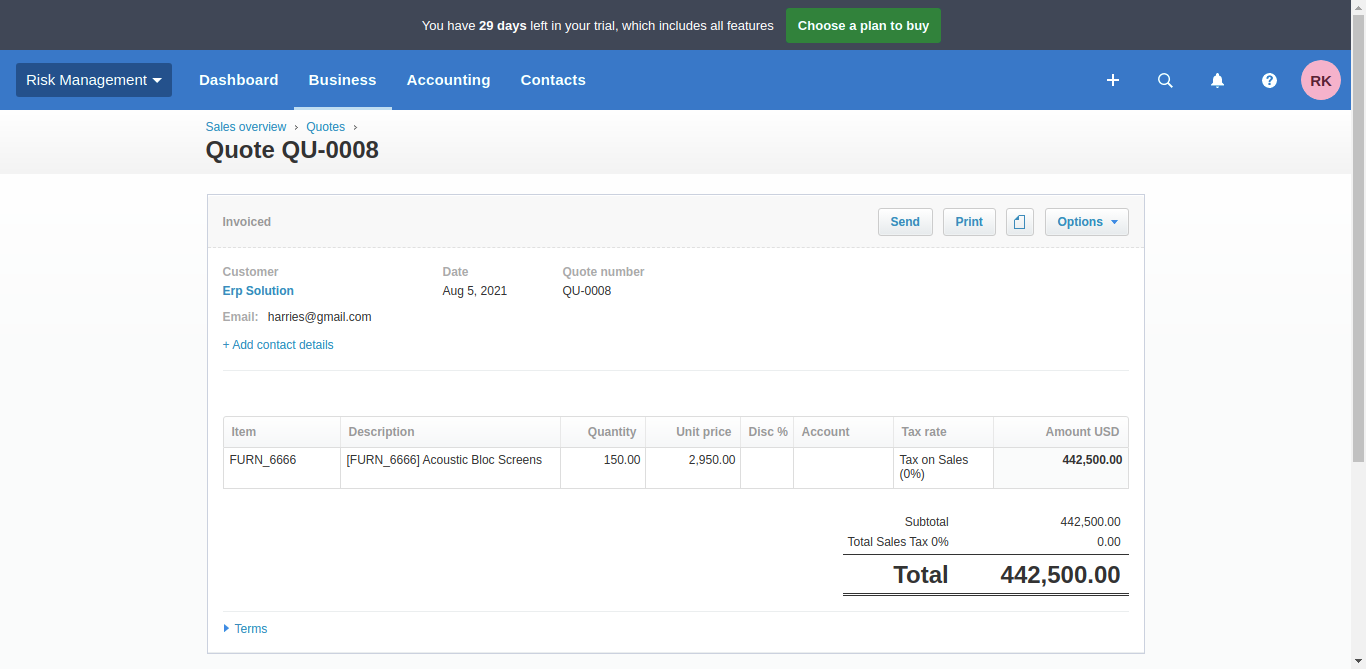
Sale-Quotation in xero.
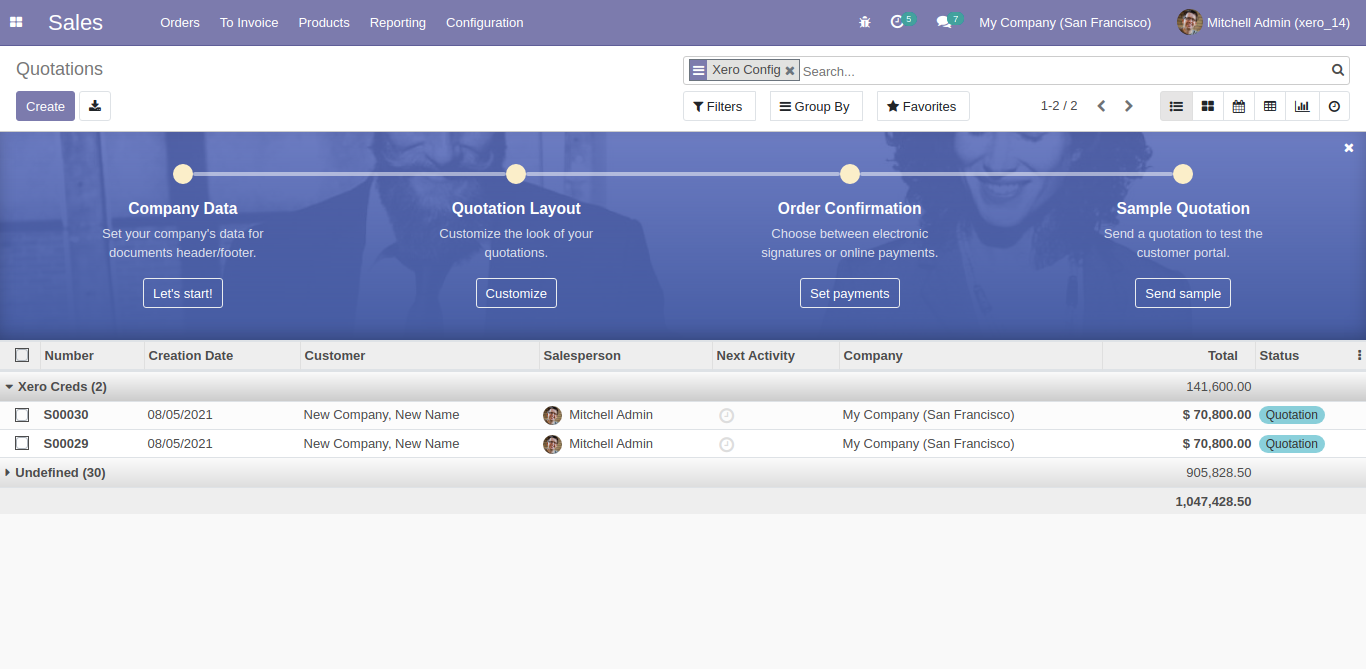
Synced quotation list with group by 'Xero Config'. make sure all products are synced with xero other wise those quotations will not synced.
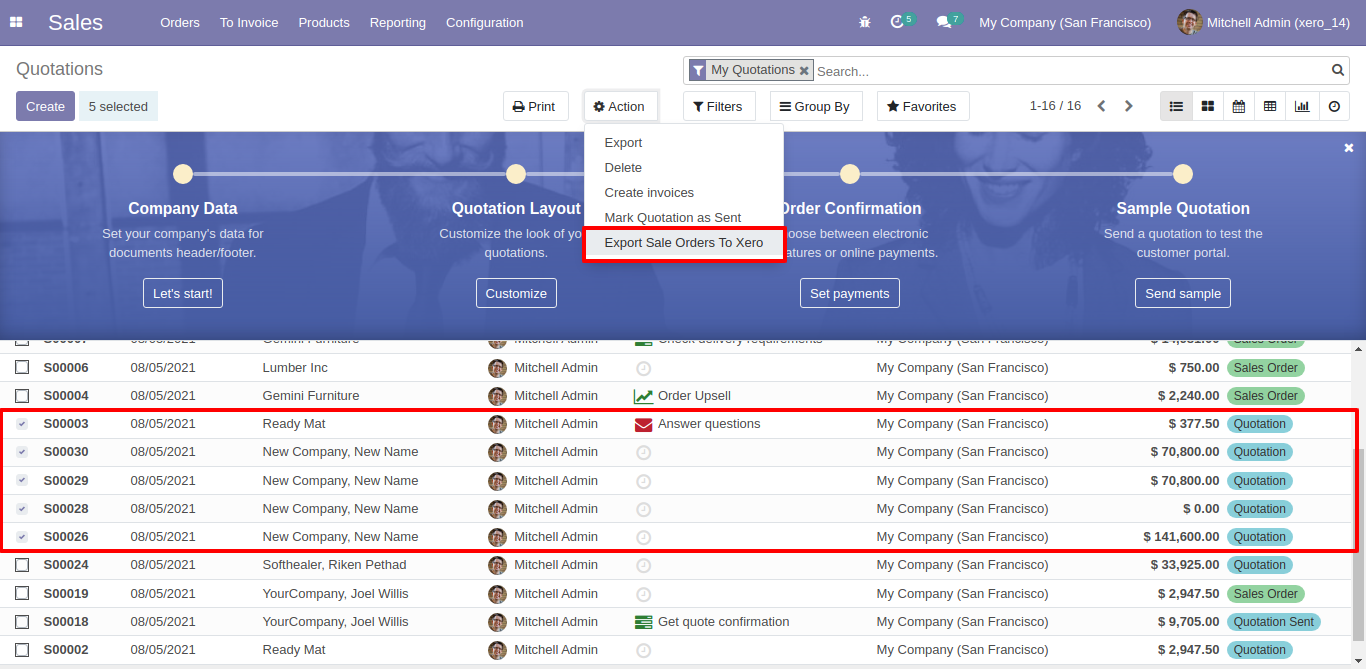
For export multiple quotation, just select quotation list and click 'Action' and 'Export Sale Order to Xero'.
Enable exclude new sales orders by default boolean from xero config.
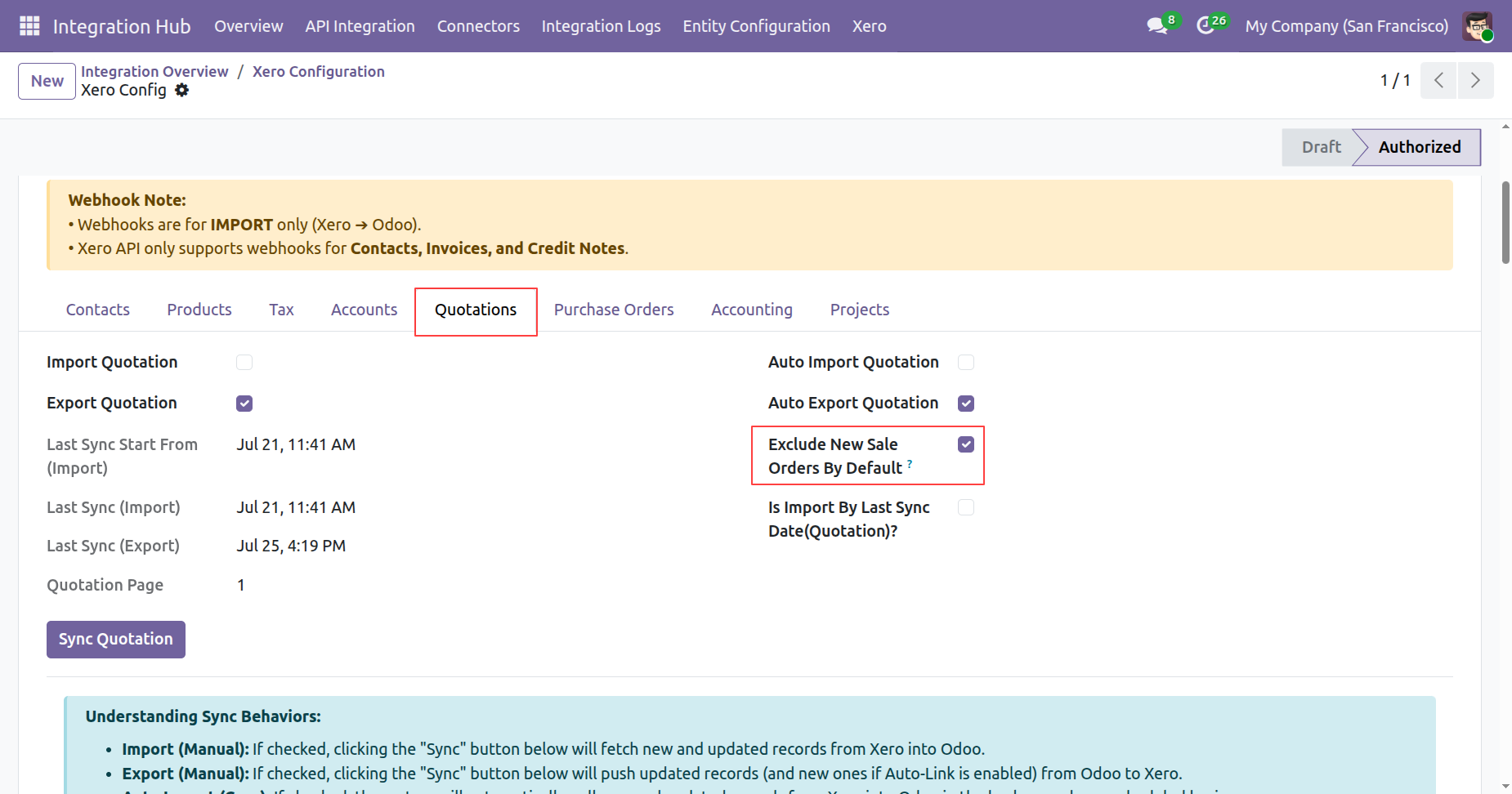
Create a new sales order in odoo.
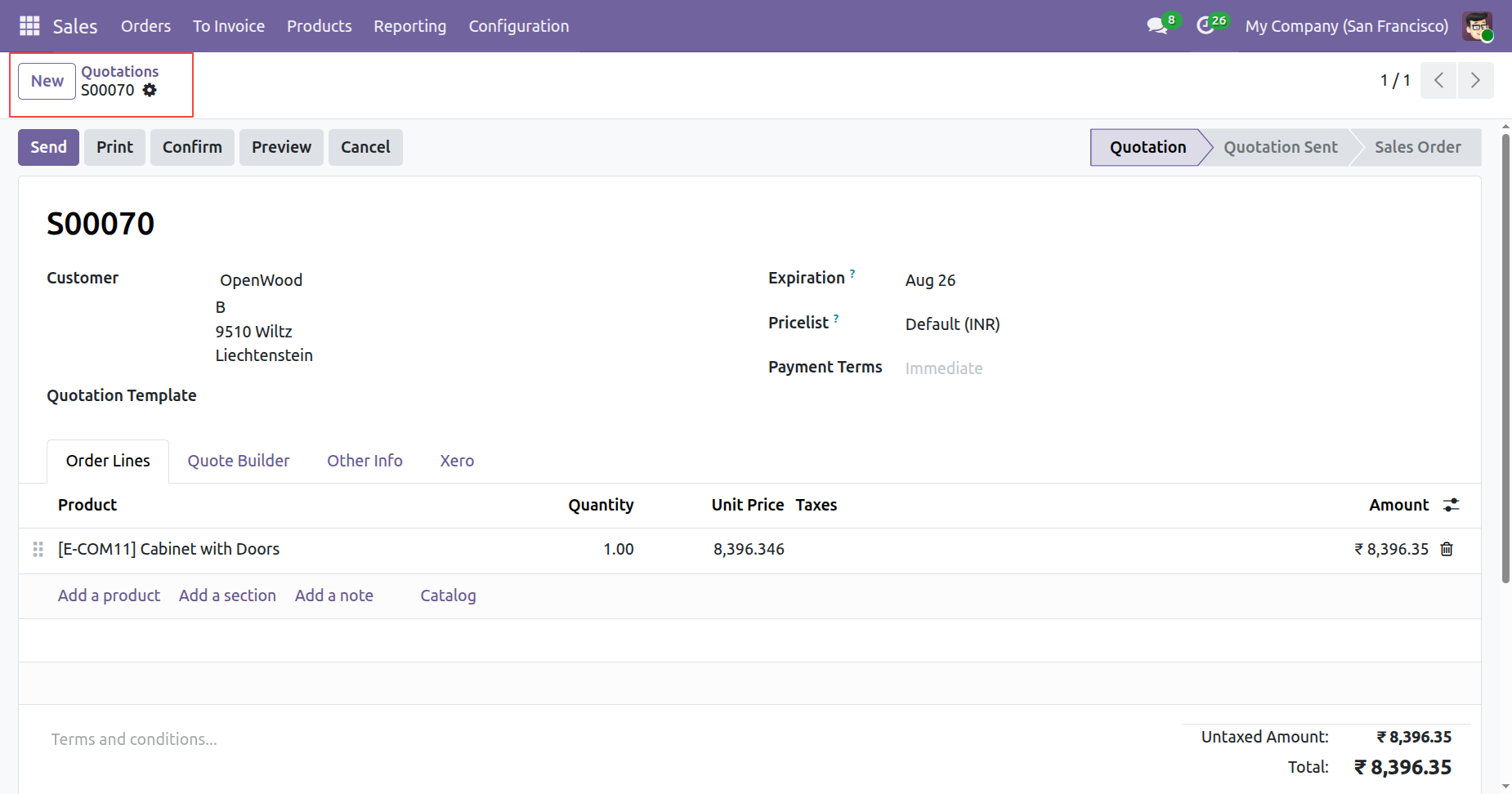
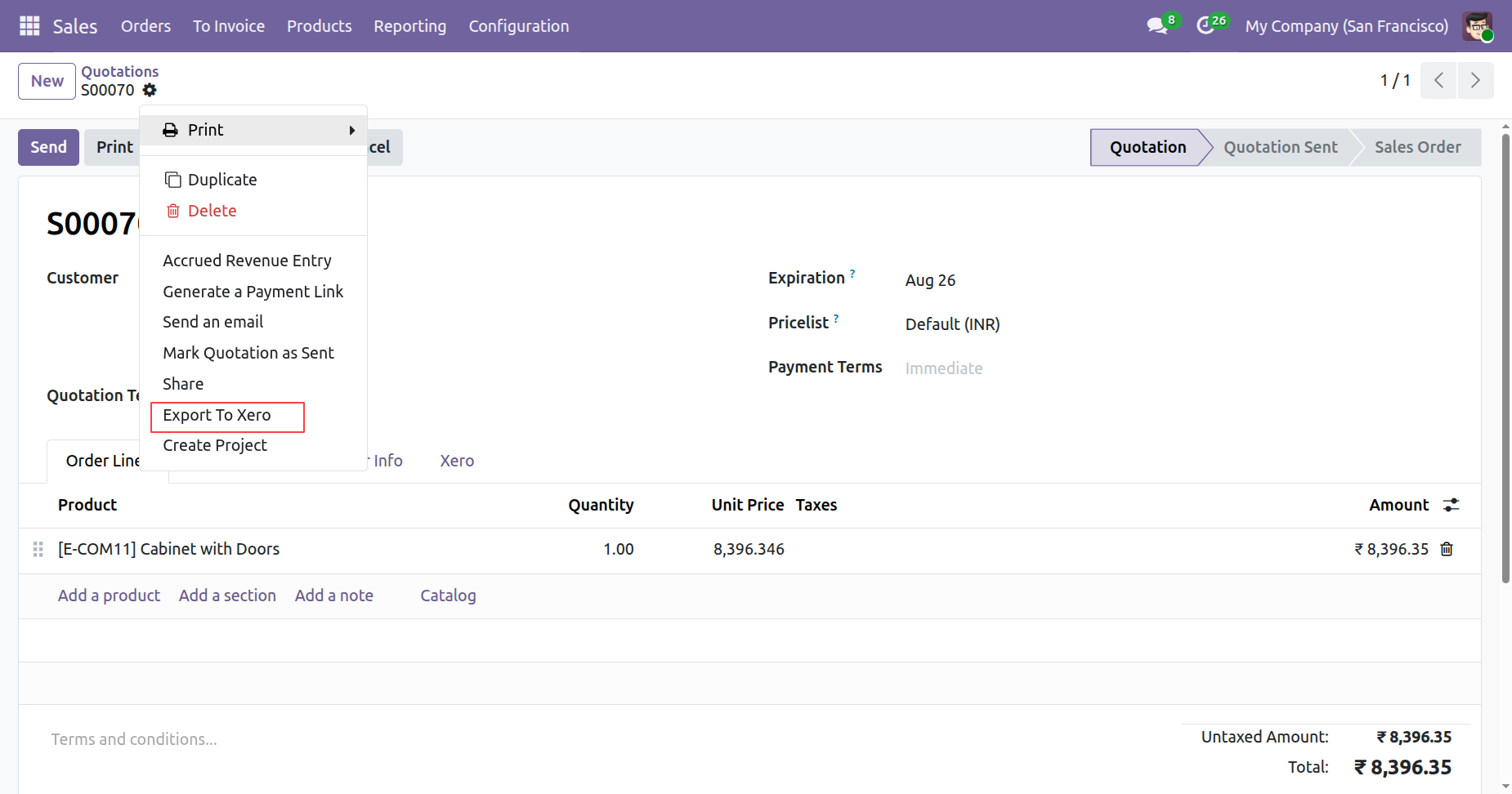
Click on export to xero from sales orders form view.
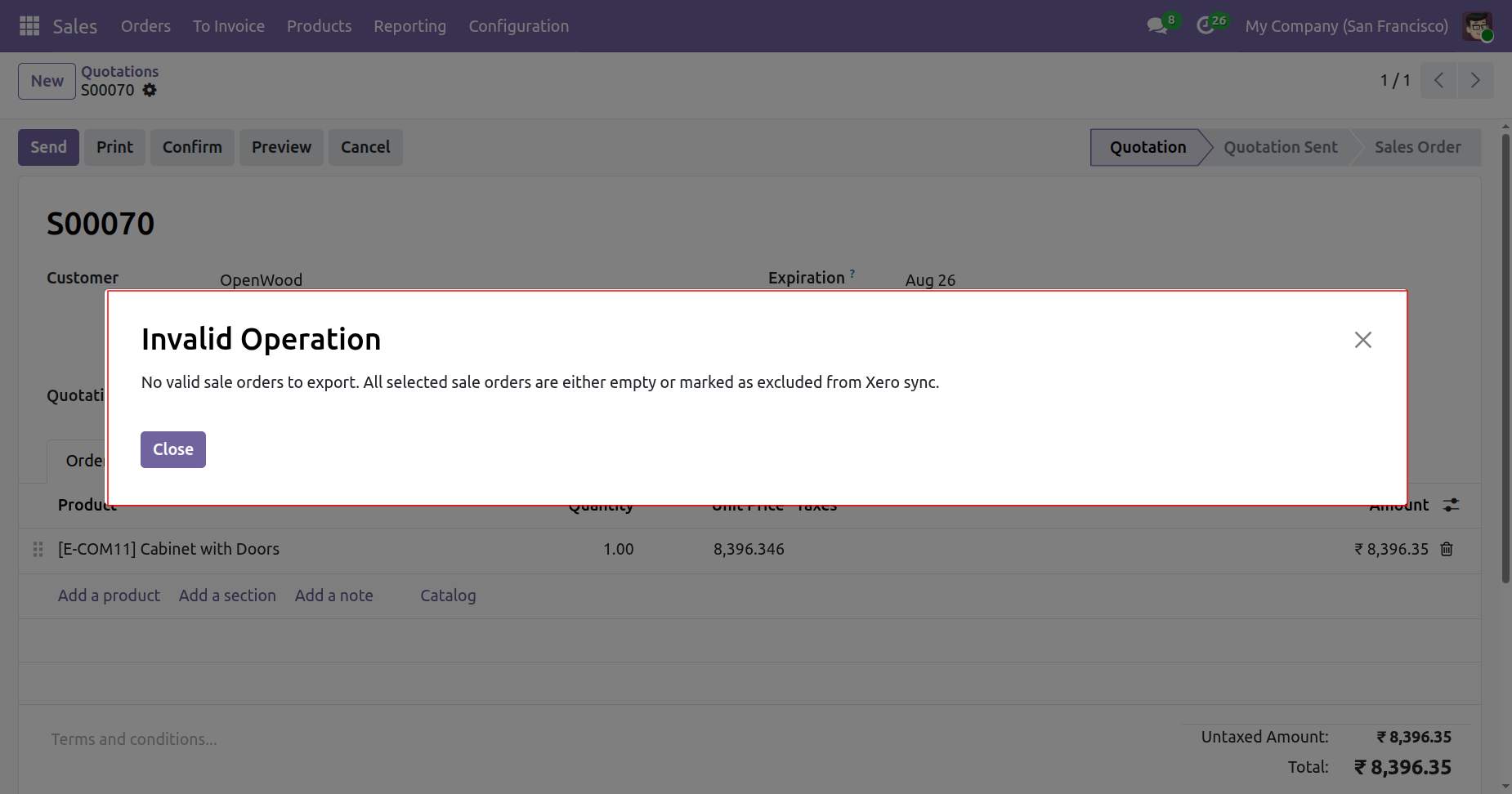
On exporting the sales order to xero, it will check the exclude new sales order by default boolean from xero config. If it is true then it will not export the sales order to xero and shows warning.
For Sync Purchase, Just goto purchase order tab and enable import/export. After Successfully execution it will display success message in log history.
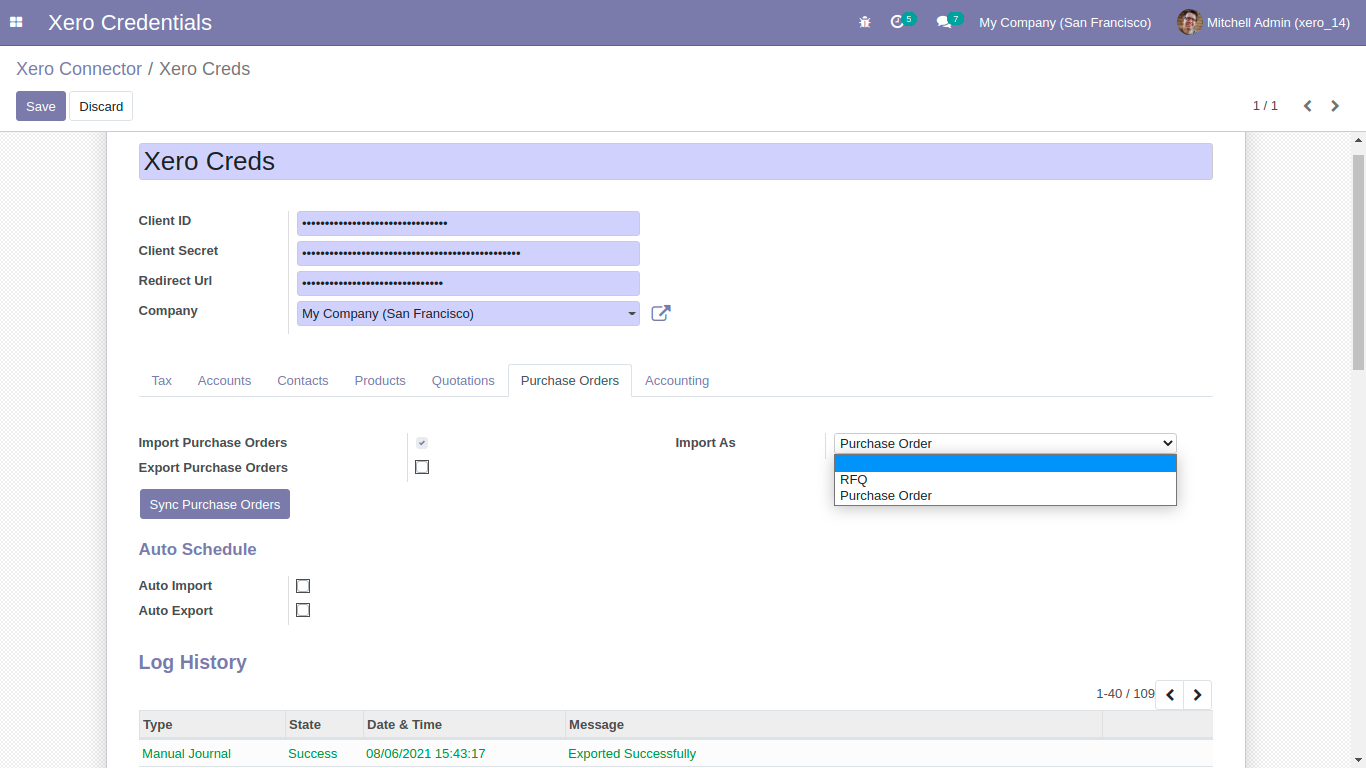
Xero config details in purchase order.
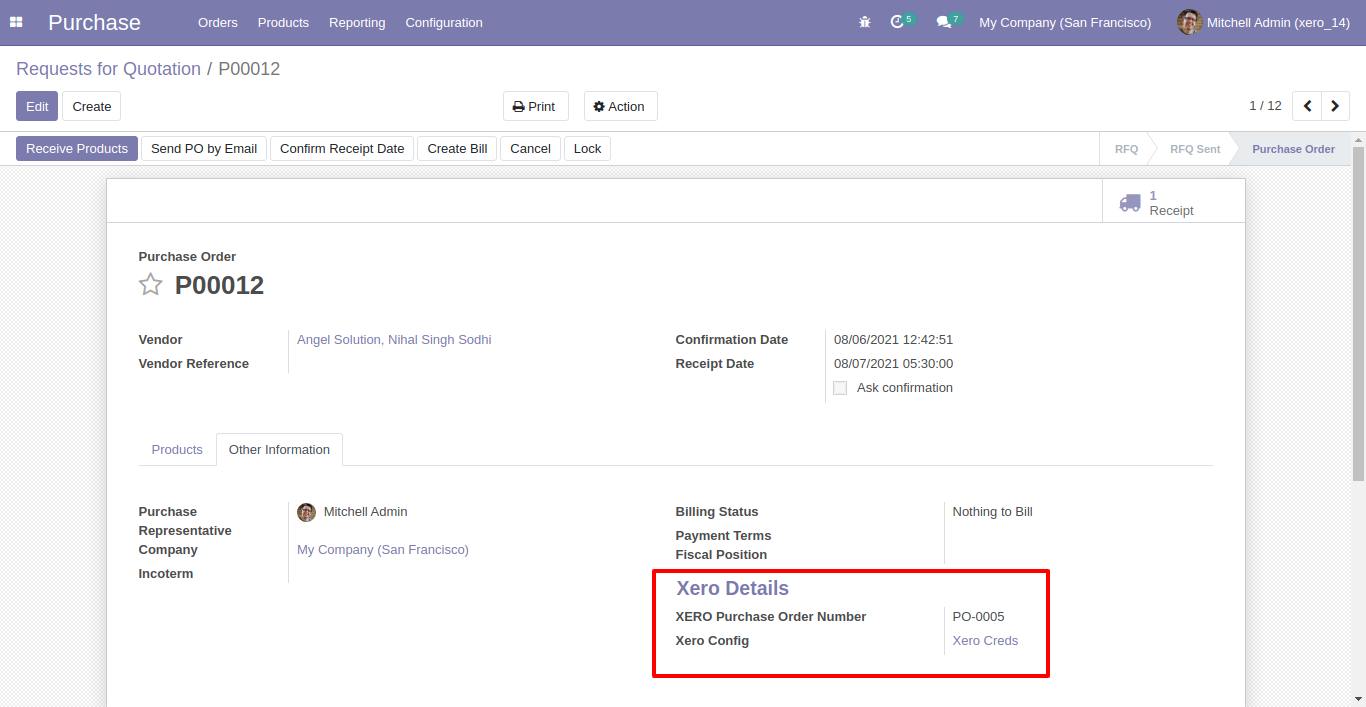
Synced purchase order with group by 'Xero Config'.
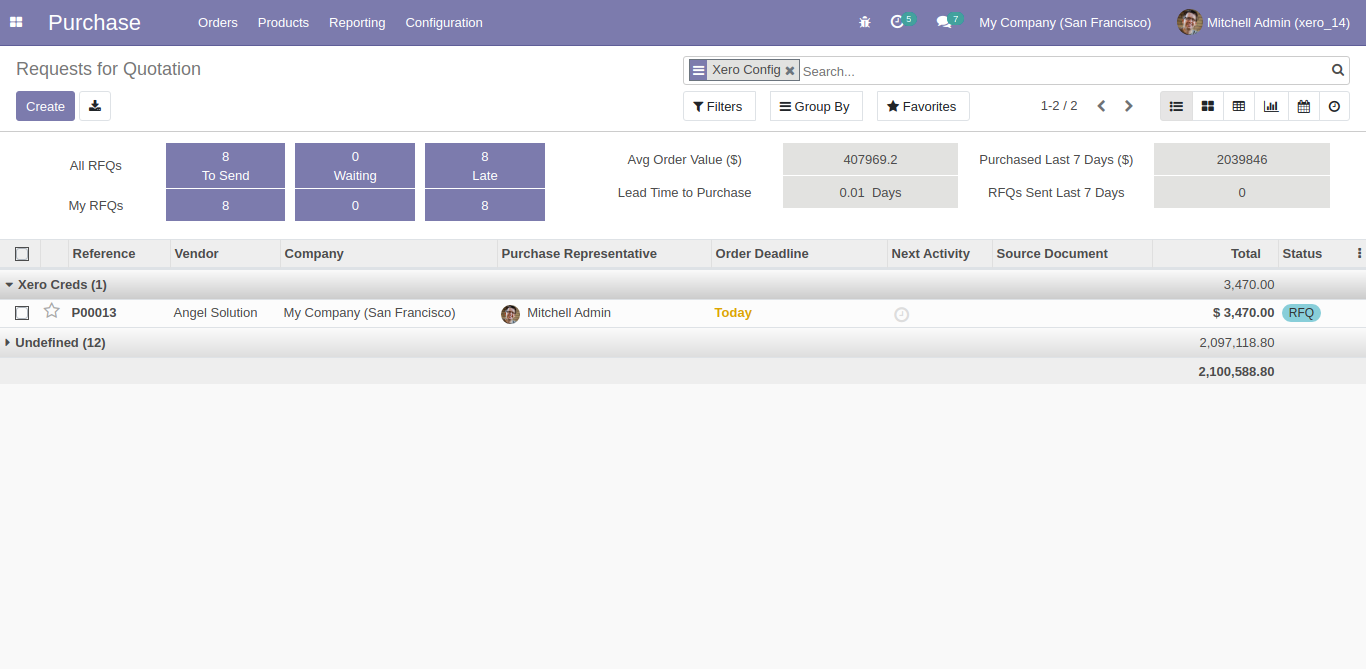
For Export multiple purchase order, just select purchase orders and click 'Export Purchase Order to Xero'.
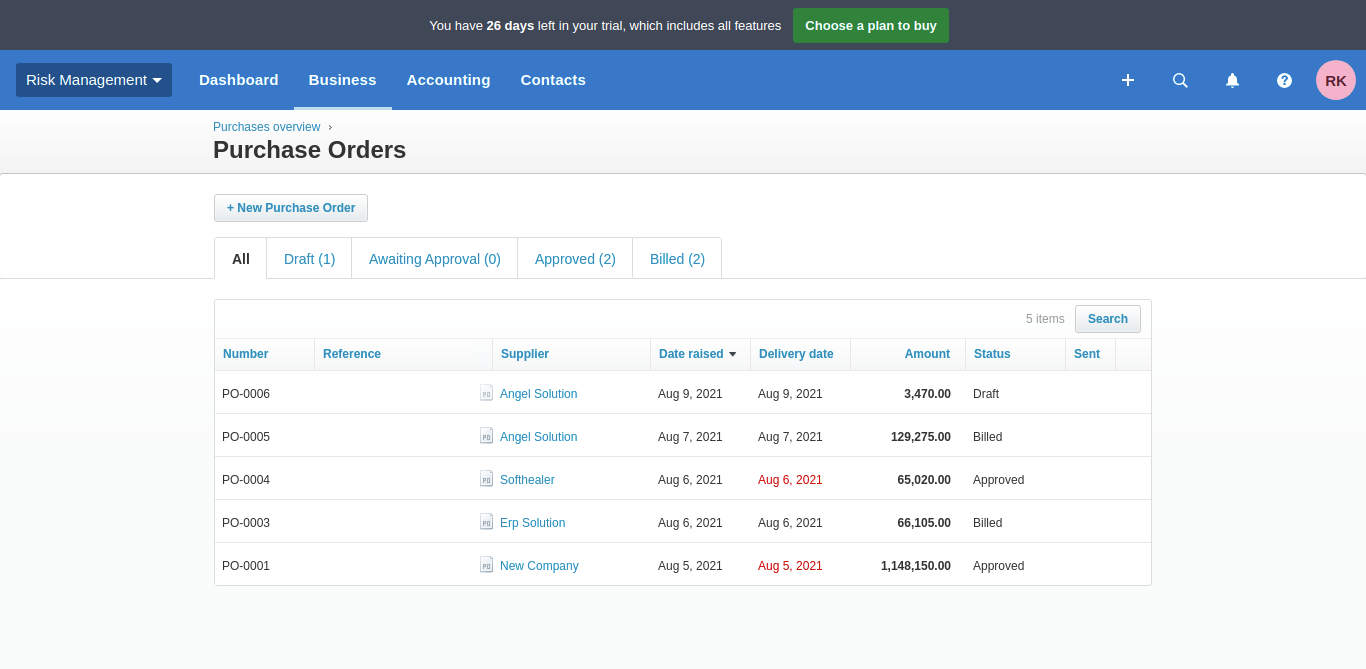
Enable exclude new purchase orders by default boolean from xero config.
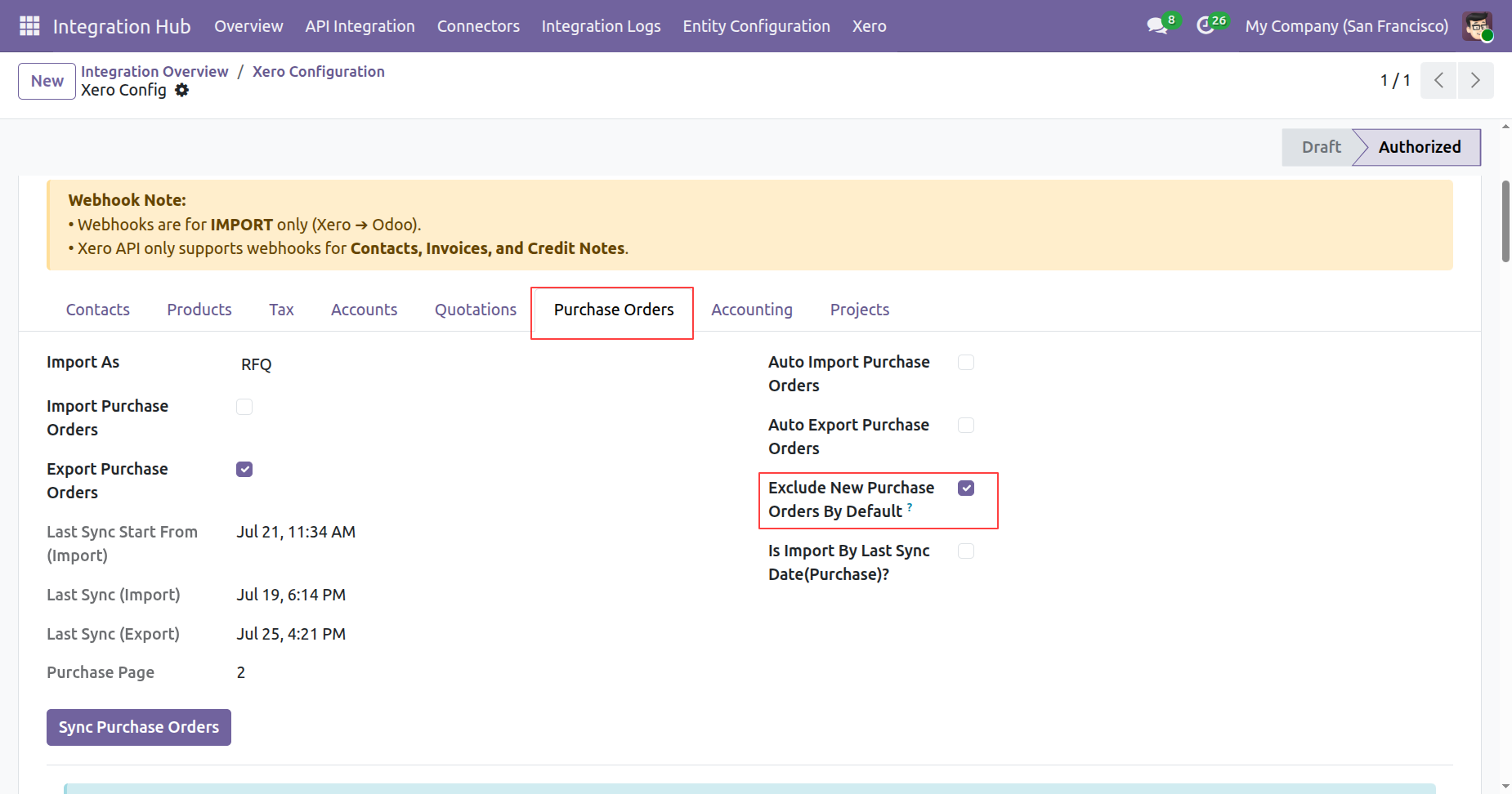
Create a new purchase order in odoo.
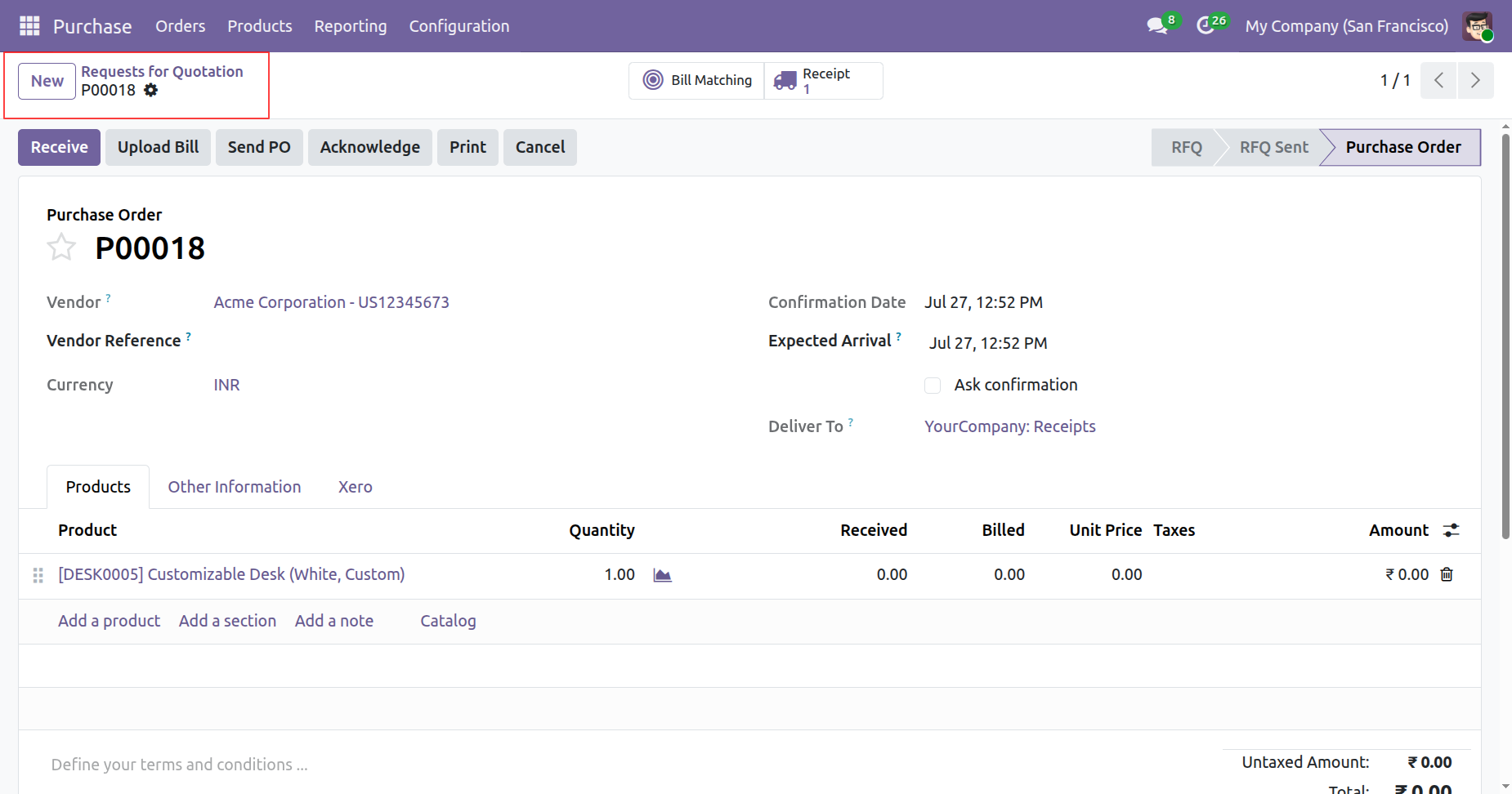
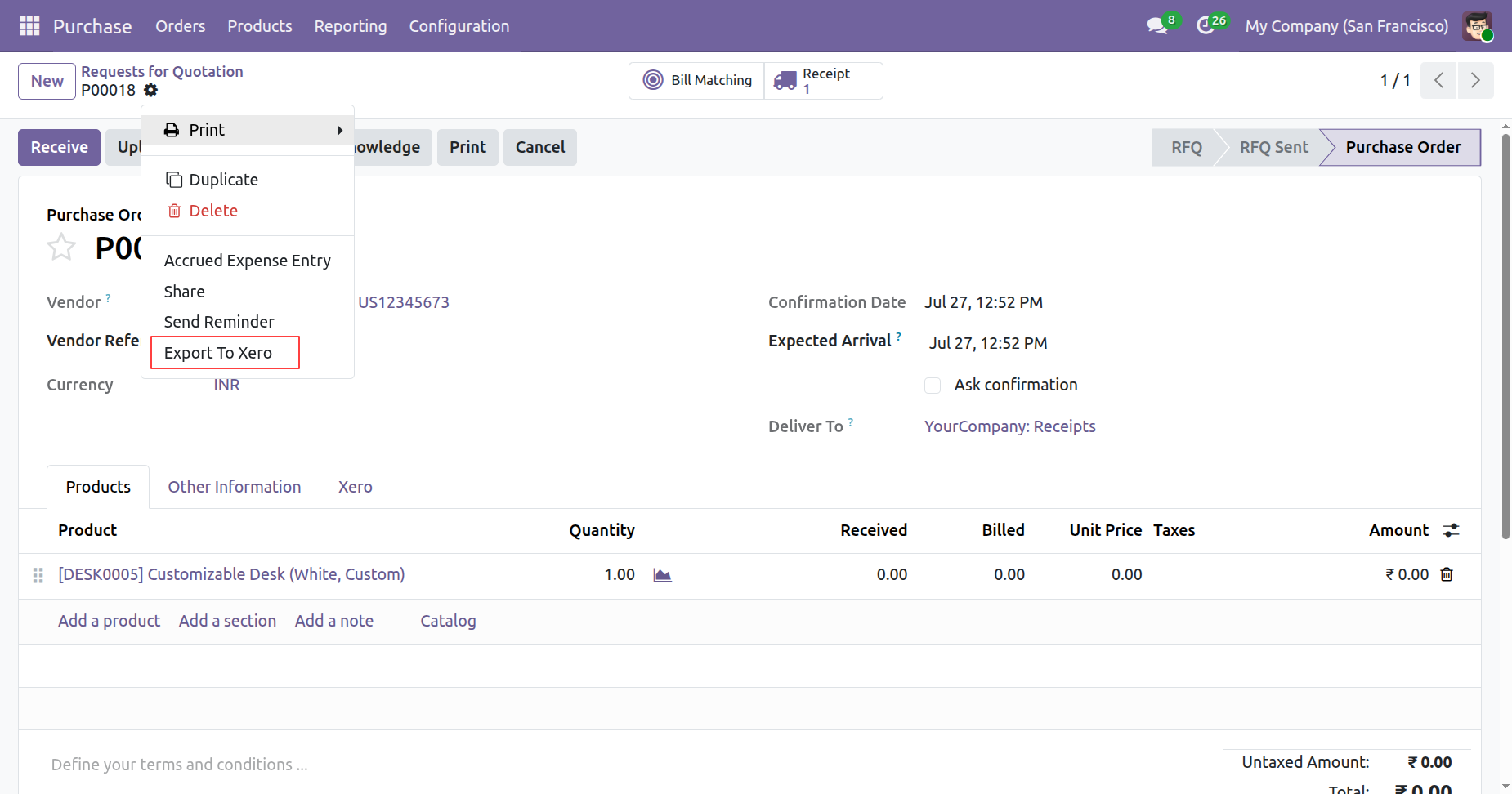
Click on export to xero from purchase orders form view.
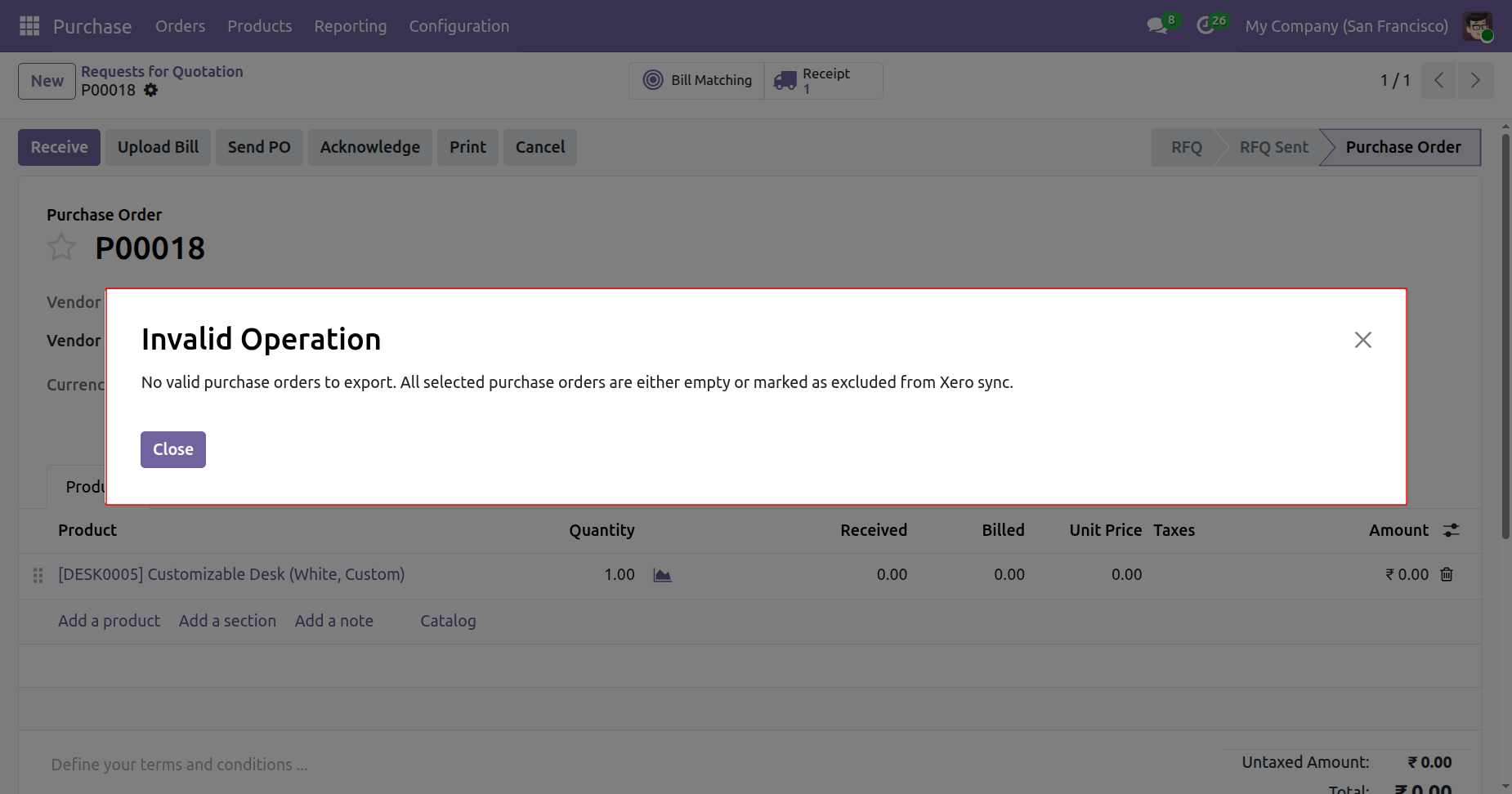
On exporting the purchase order to xero, it will check the exclude new purchase order by default boolean from xero config. If it is true then it will not export the purchase order to xero and shows warning.
Invoice:
For Sync invoices, bills, credit notes, refunds, payments, journals. Just goto invoice tab and enable import/export. After Successfully execution it will display success message in log history.
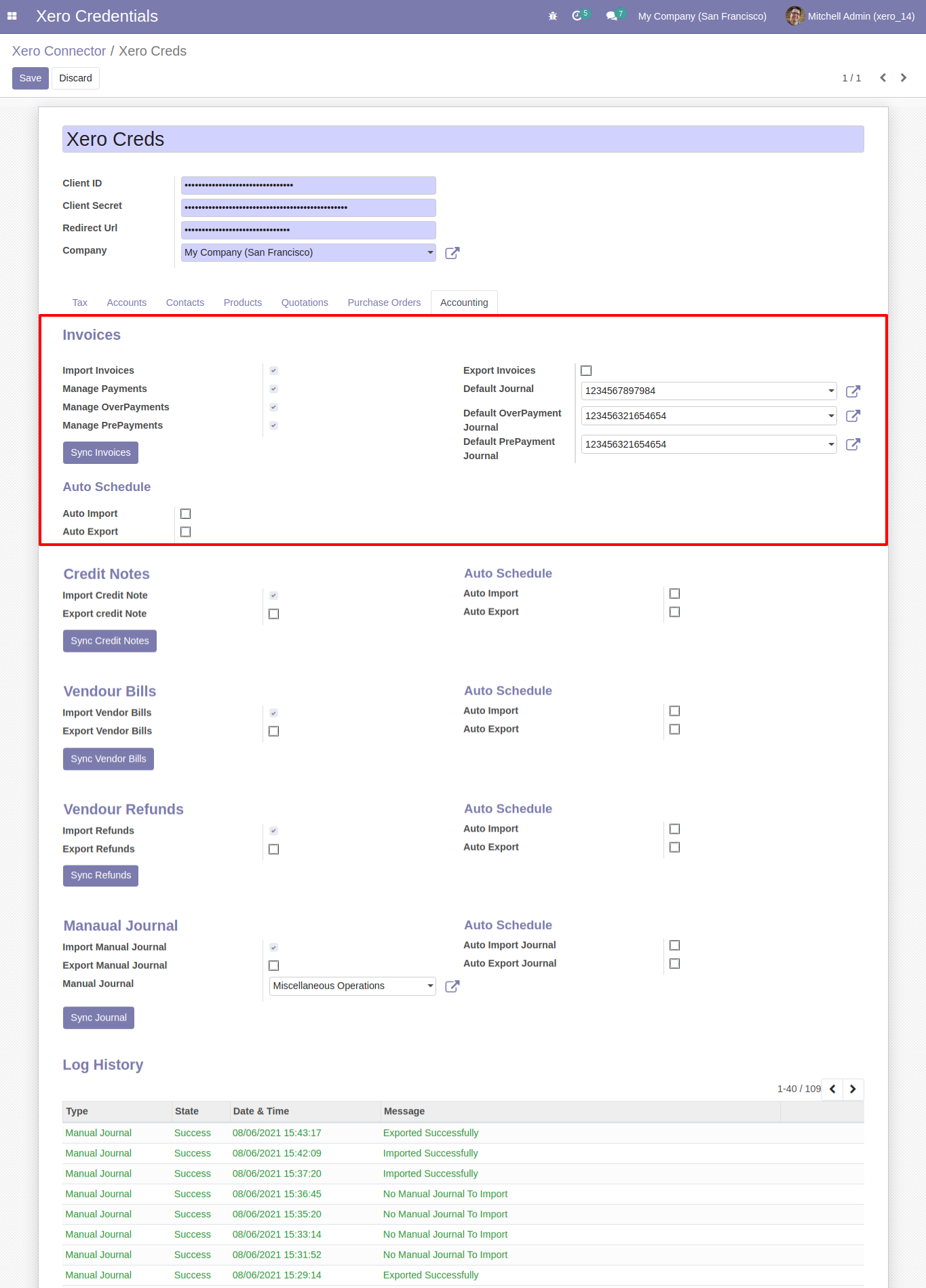
Odoo invoice form view.
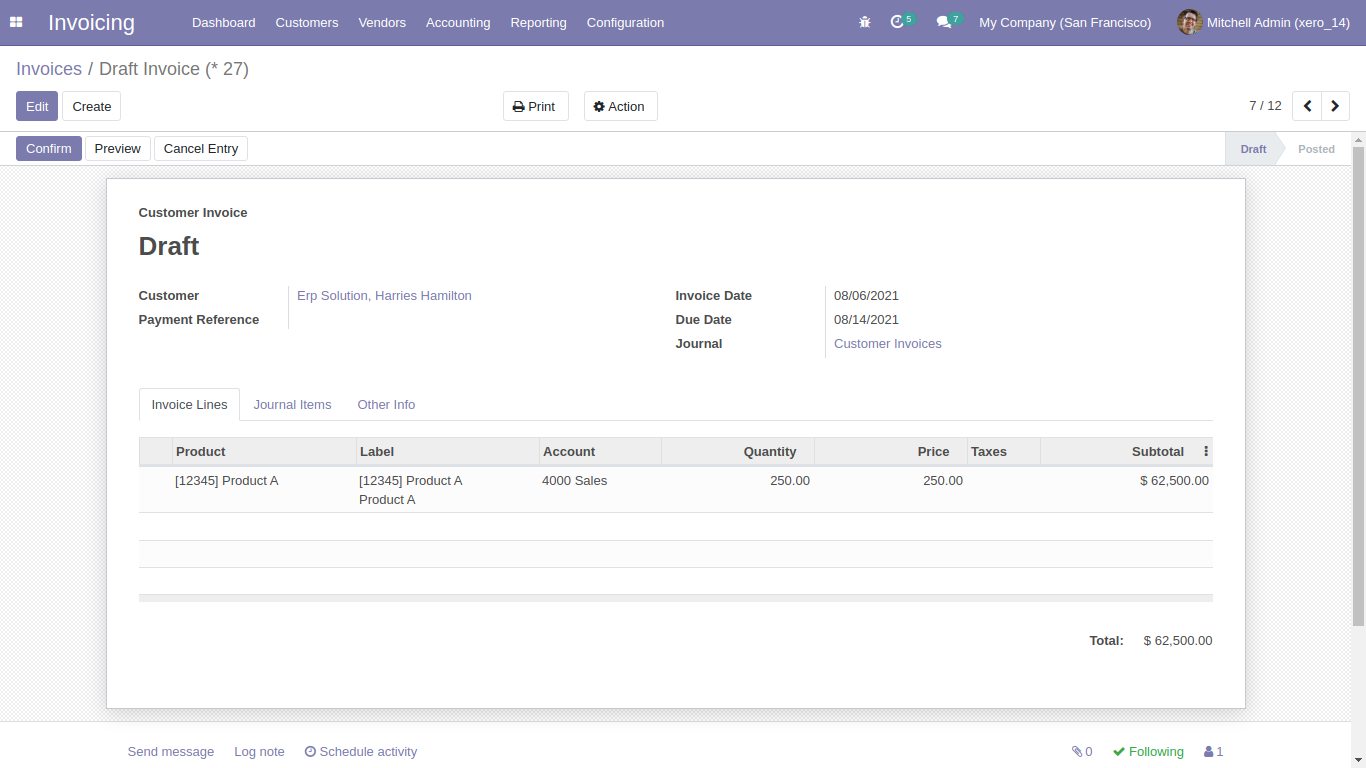
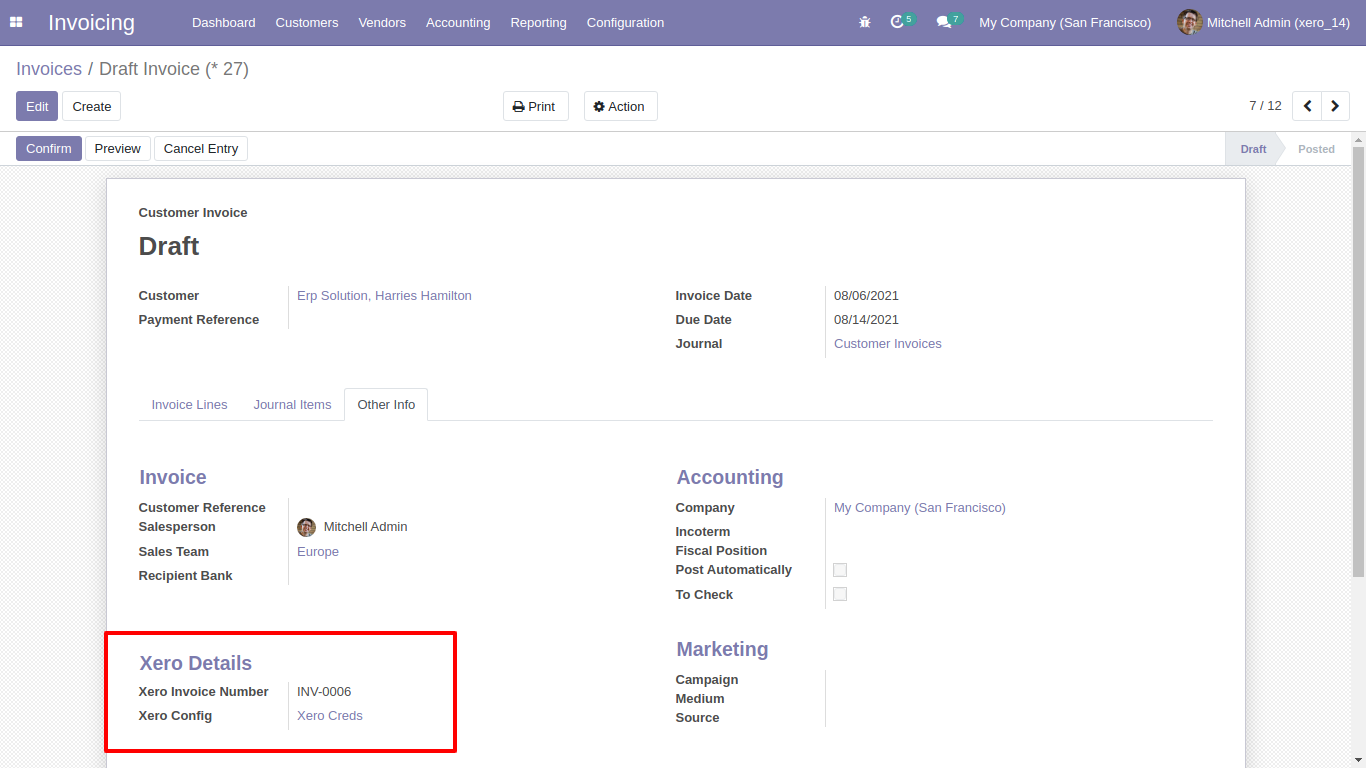
Sync invoice with xero config details.
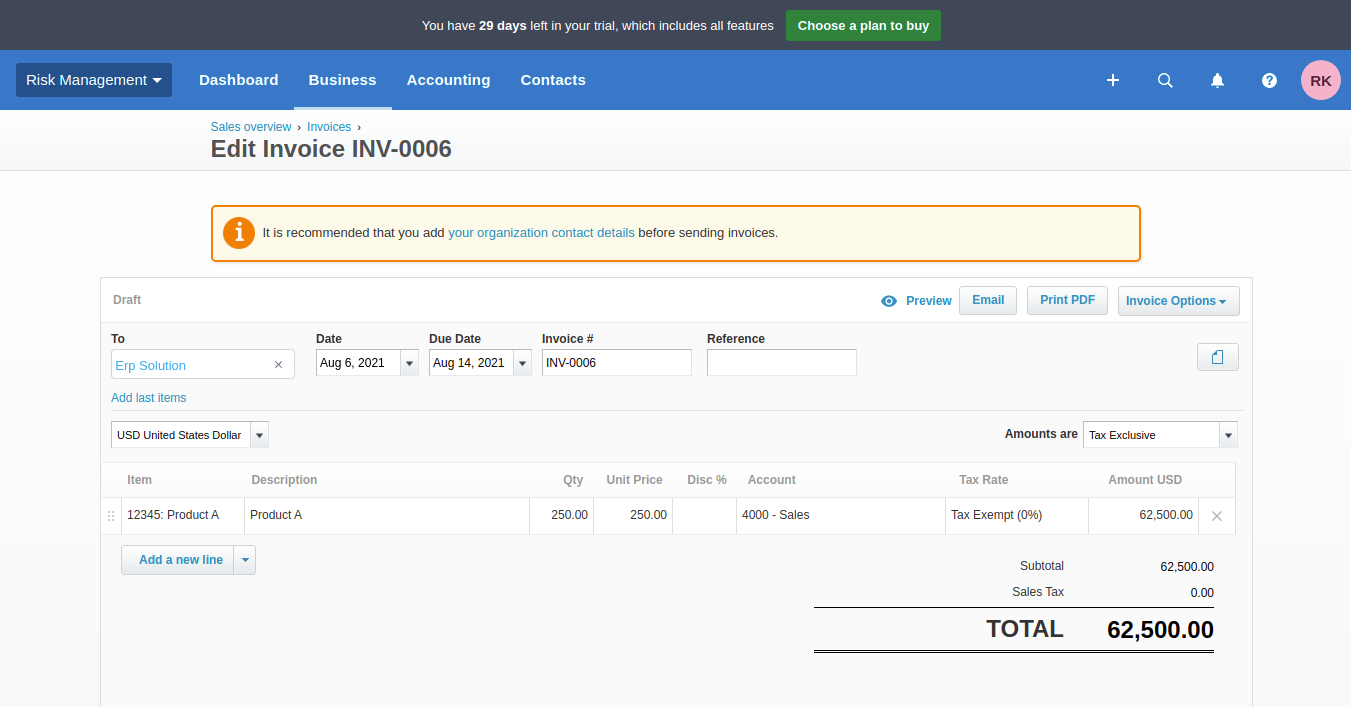
Synced invoice in xero.
Enable exclude new invoices/bills by default boolean from xero config.
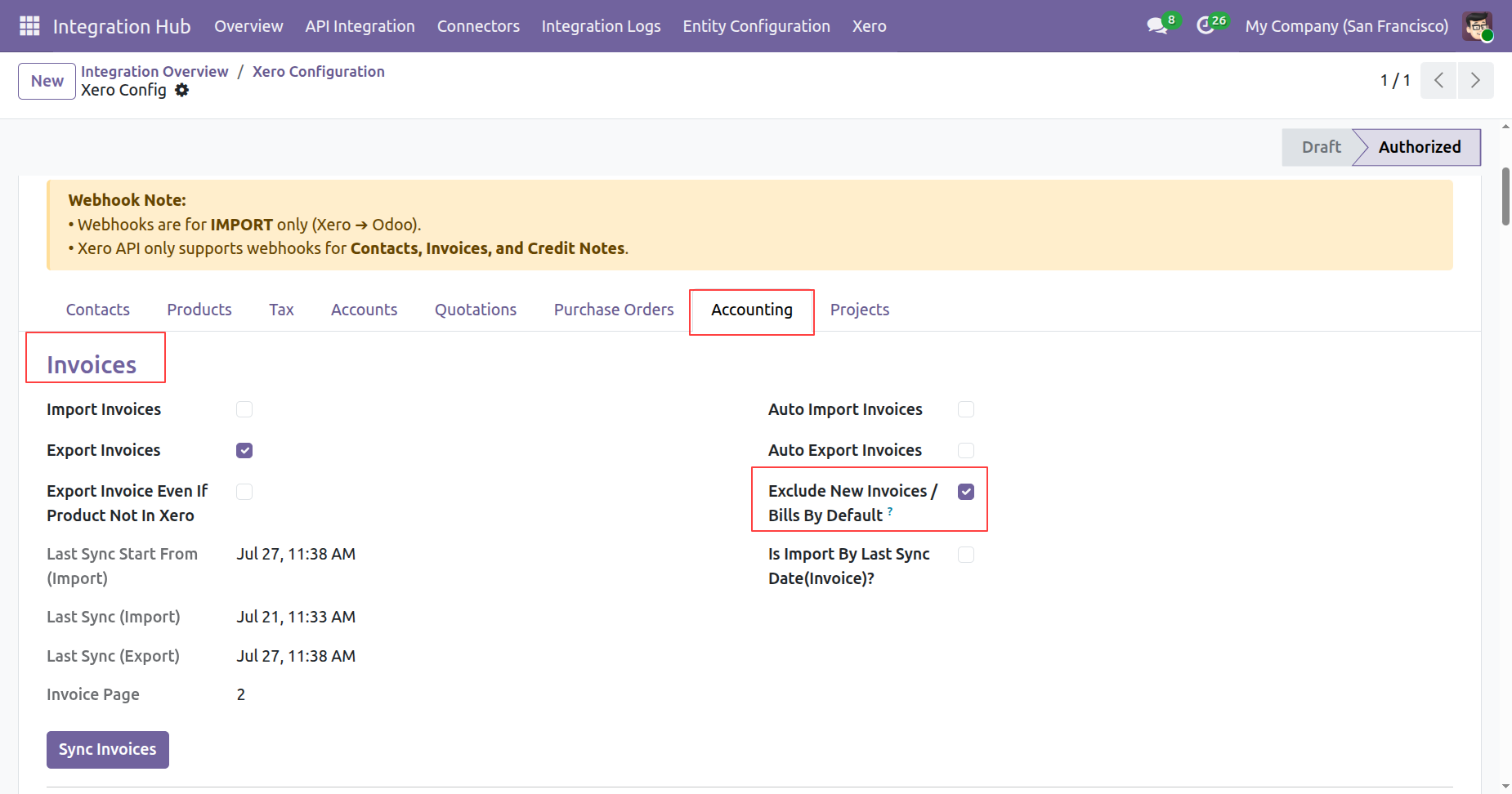
Create a new invoice in odoo.
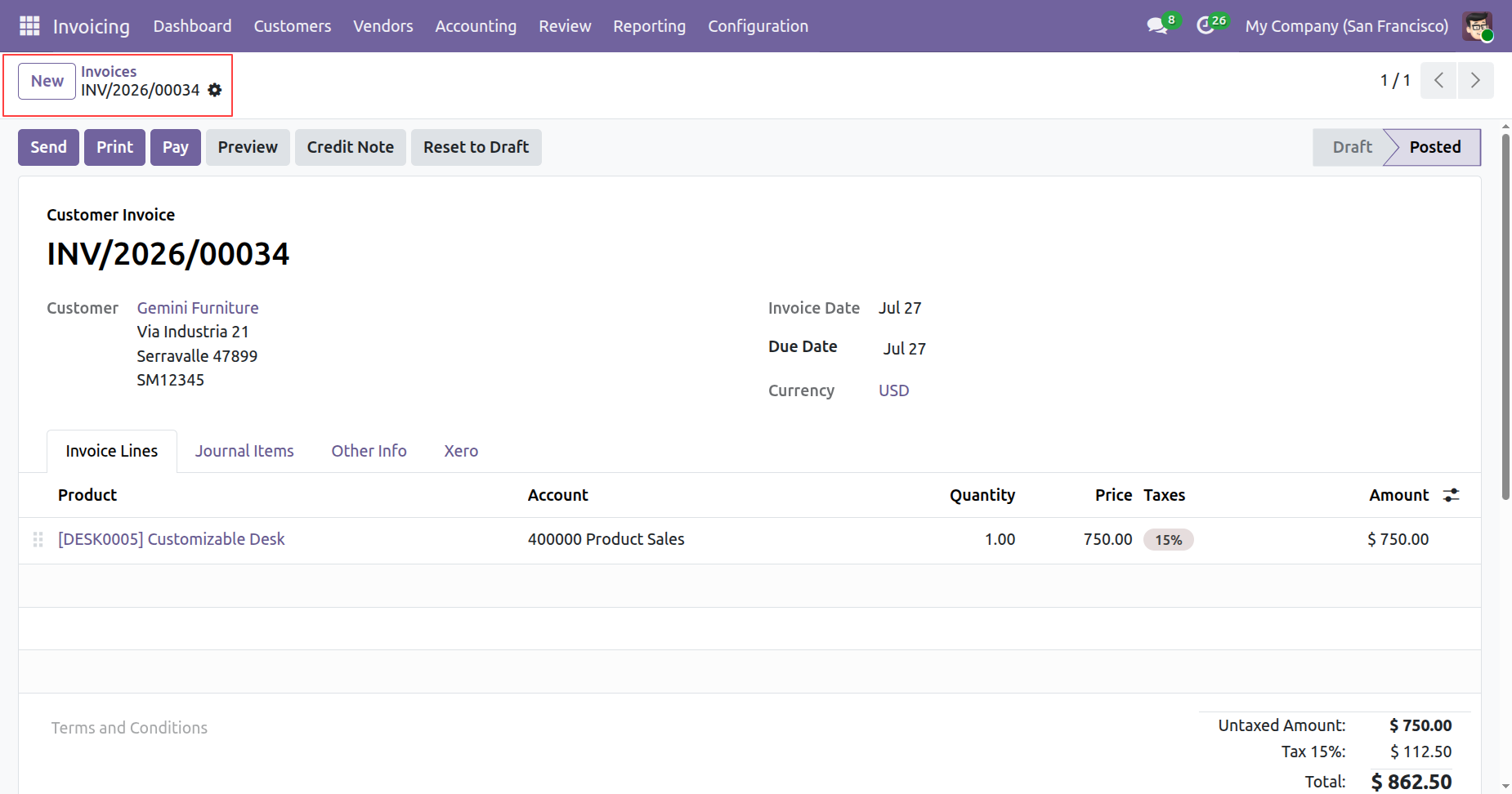
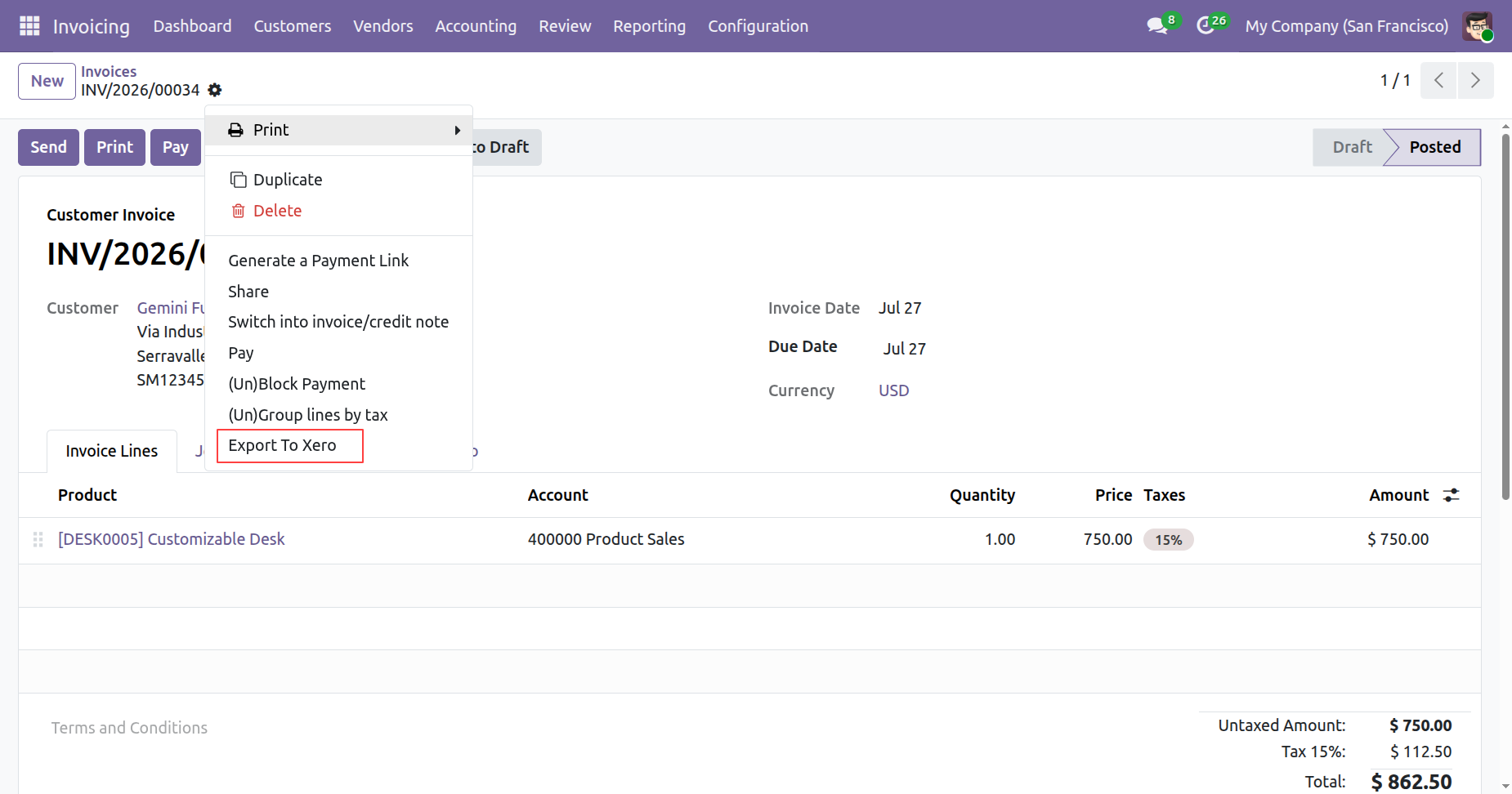
Click on export to xero from invoices form view.
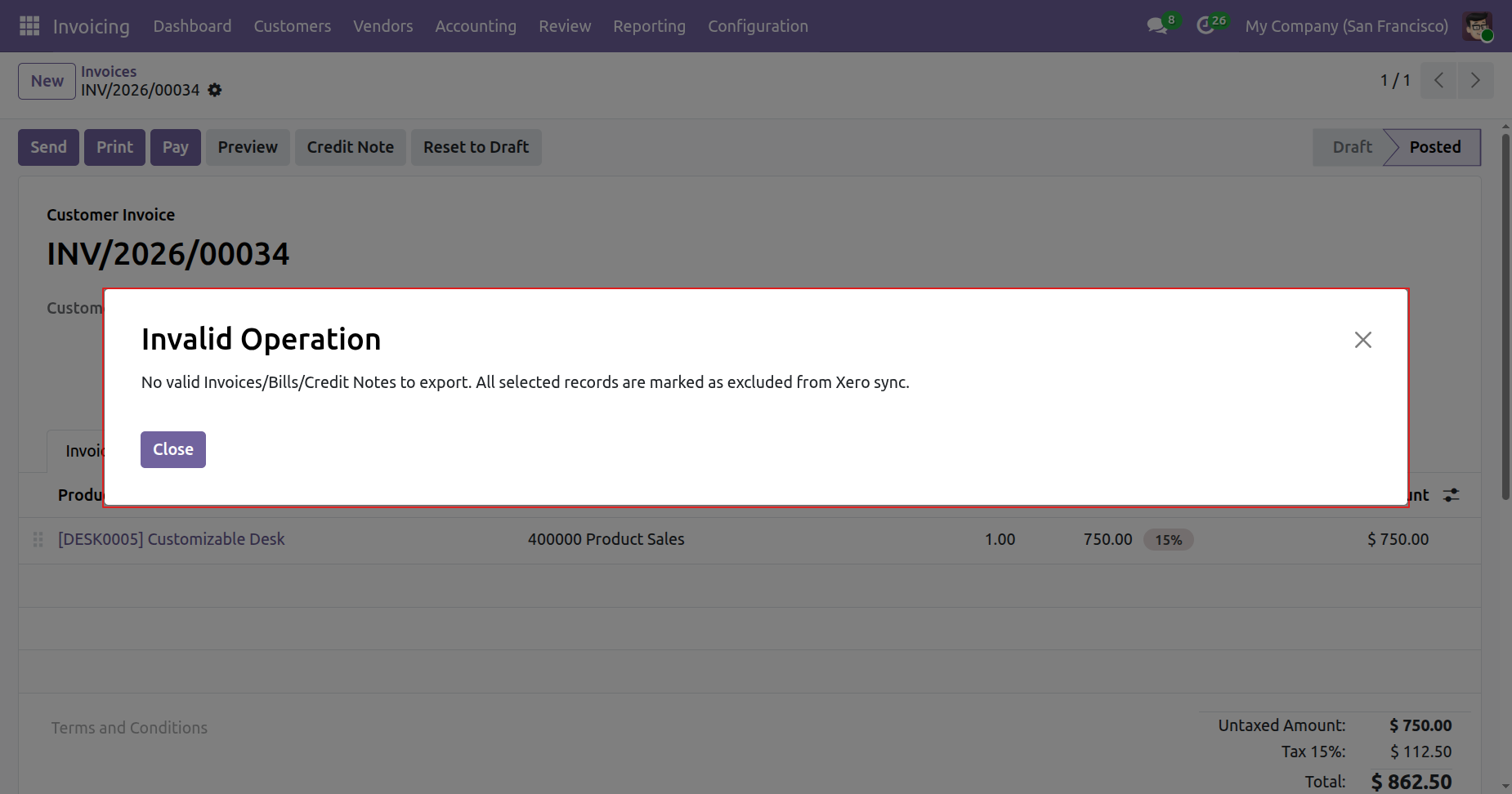
On exporting the invoice to xero, it will check the exclude new invoice by default boolean from xero config. If it is true then it will not export the invoice to xero and shows warning.
Credit Note:
Odoo credit note form view.
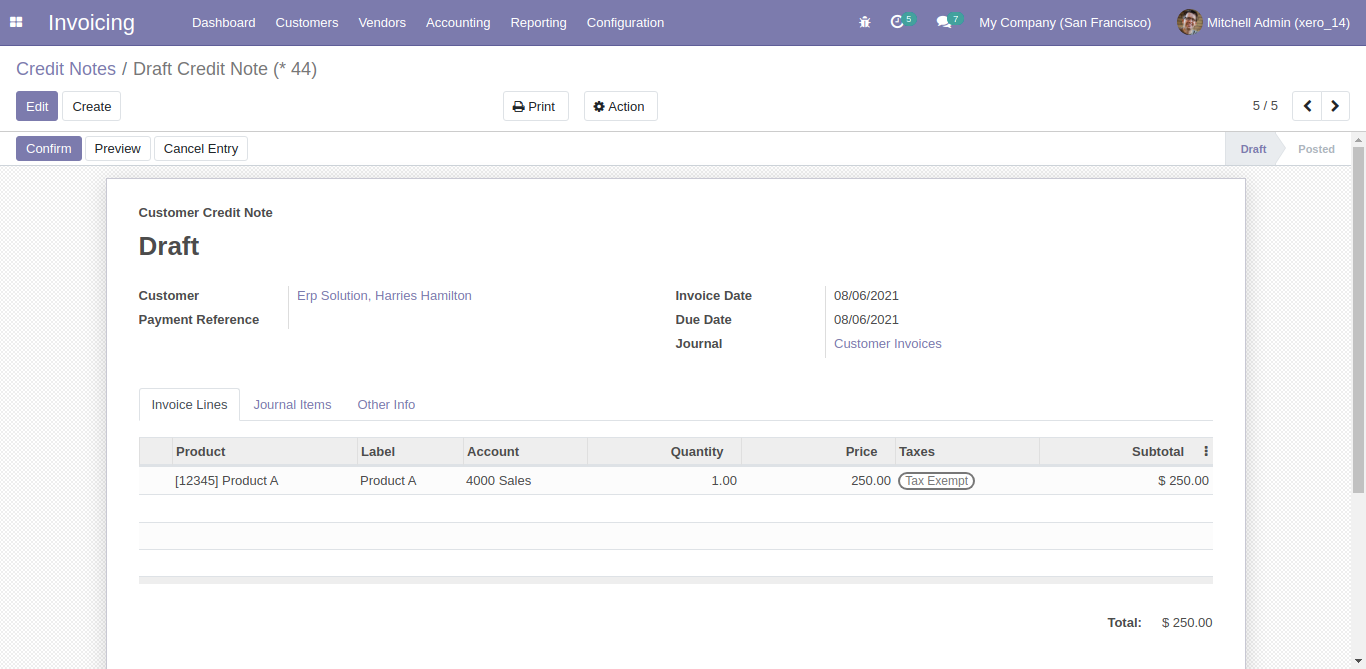
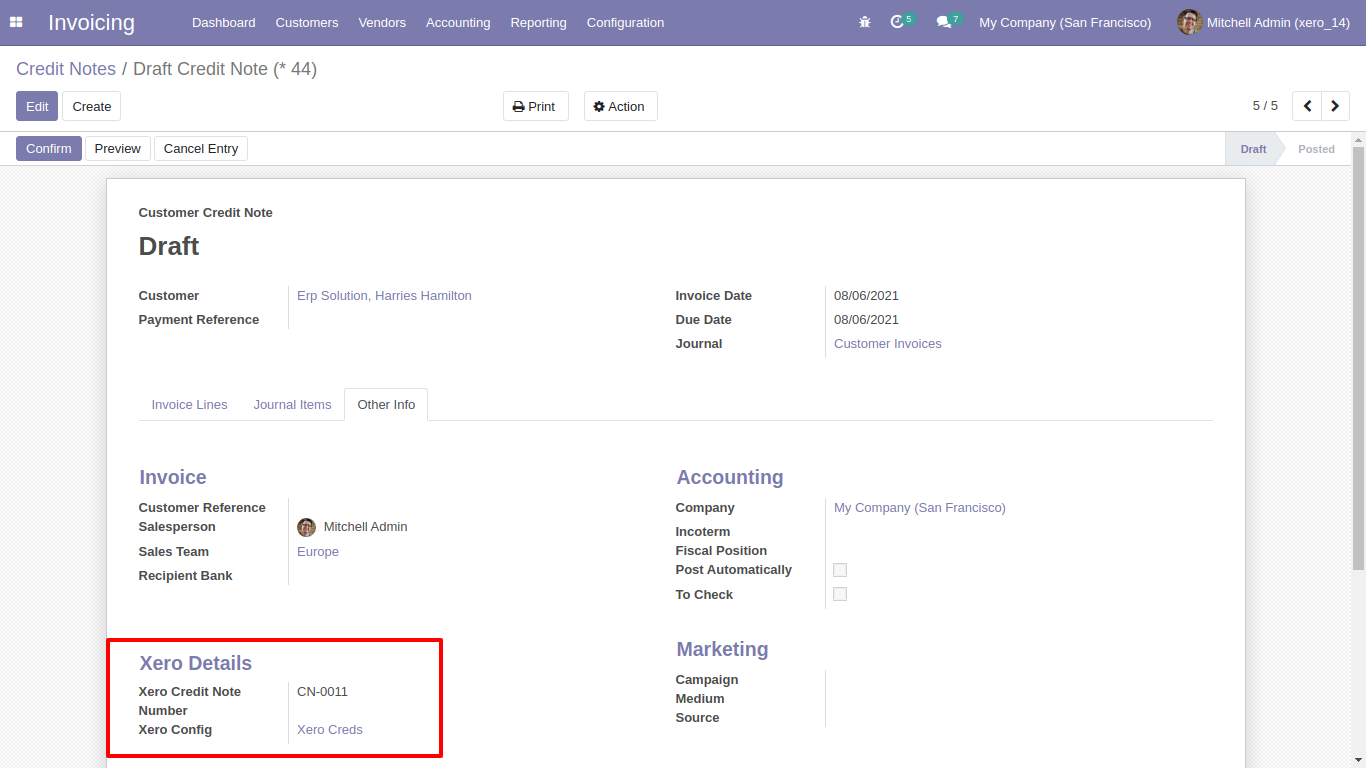
Sync credit notes with xero config details.
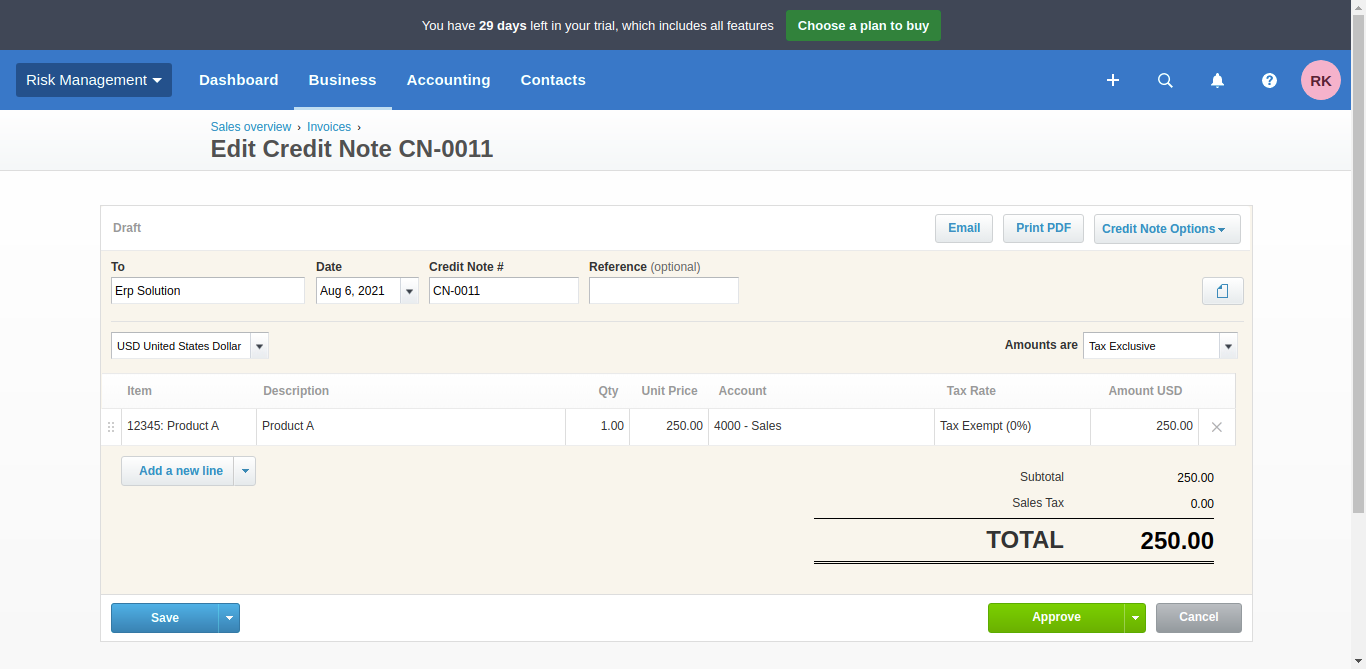
Synced credit notes in xero.
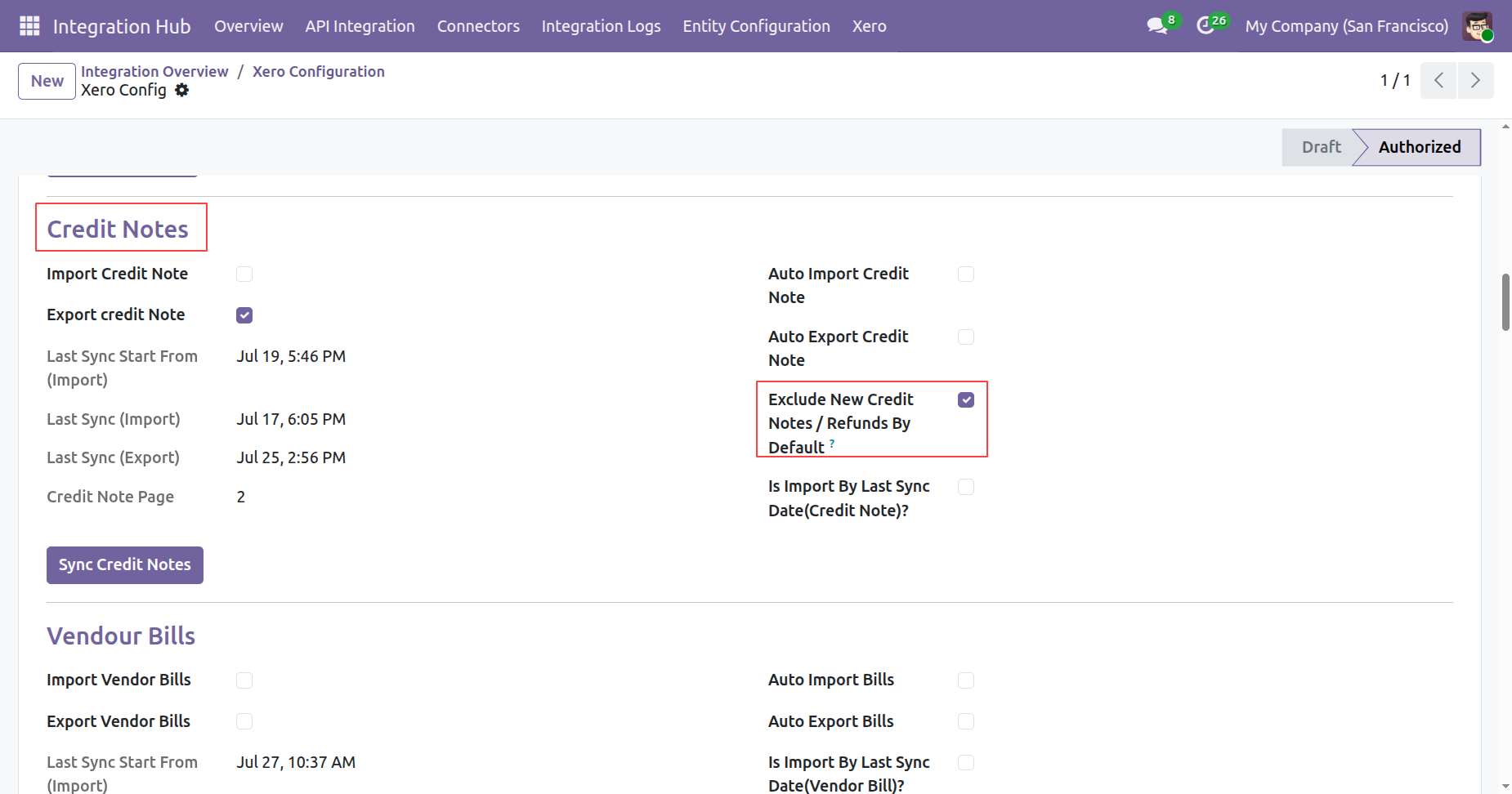
Enable exclude new credit notes/refunds by default boolean from xero config.
Create a new credit note in odoo.
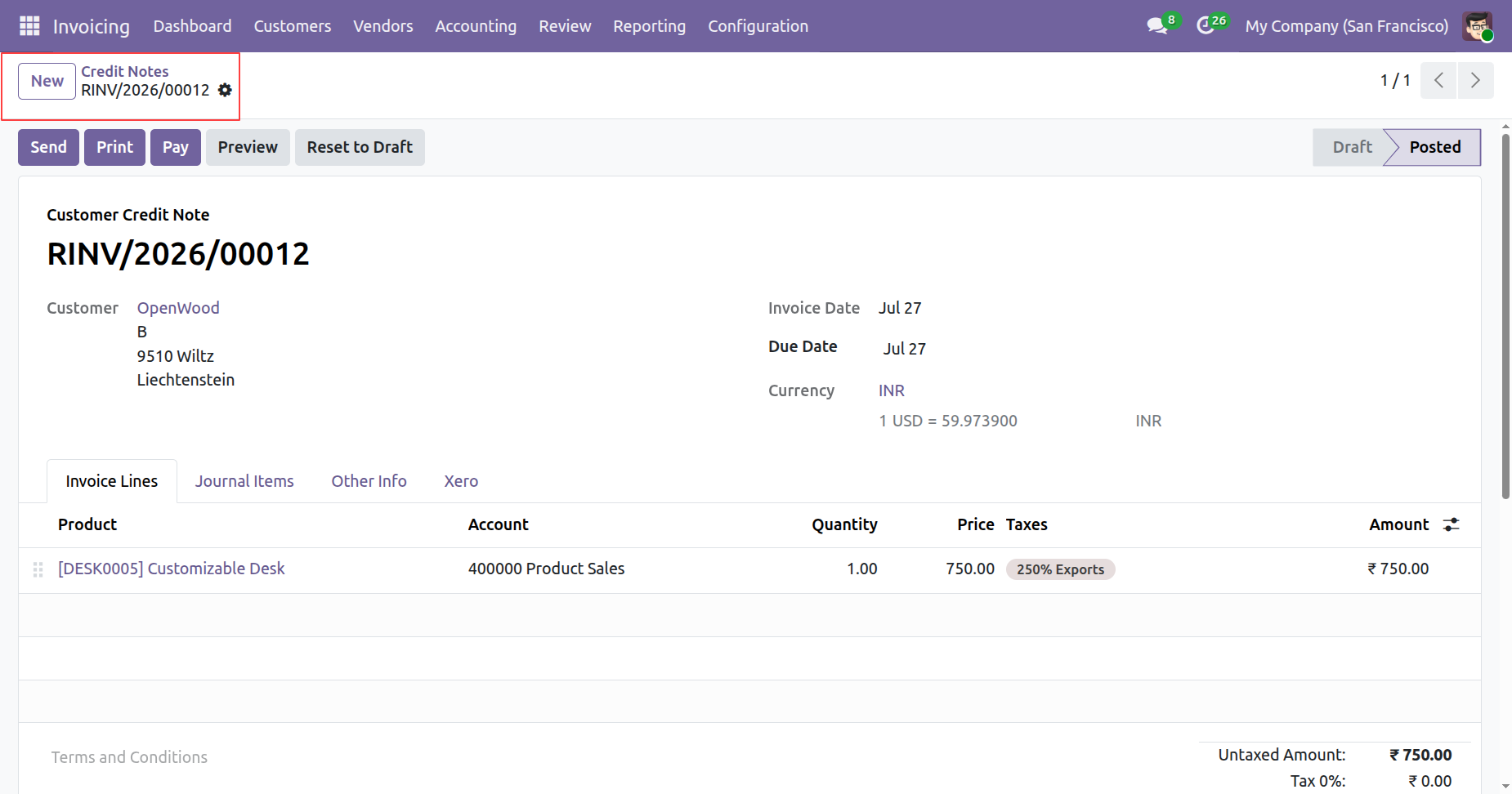
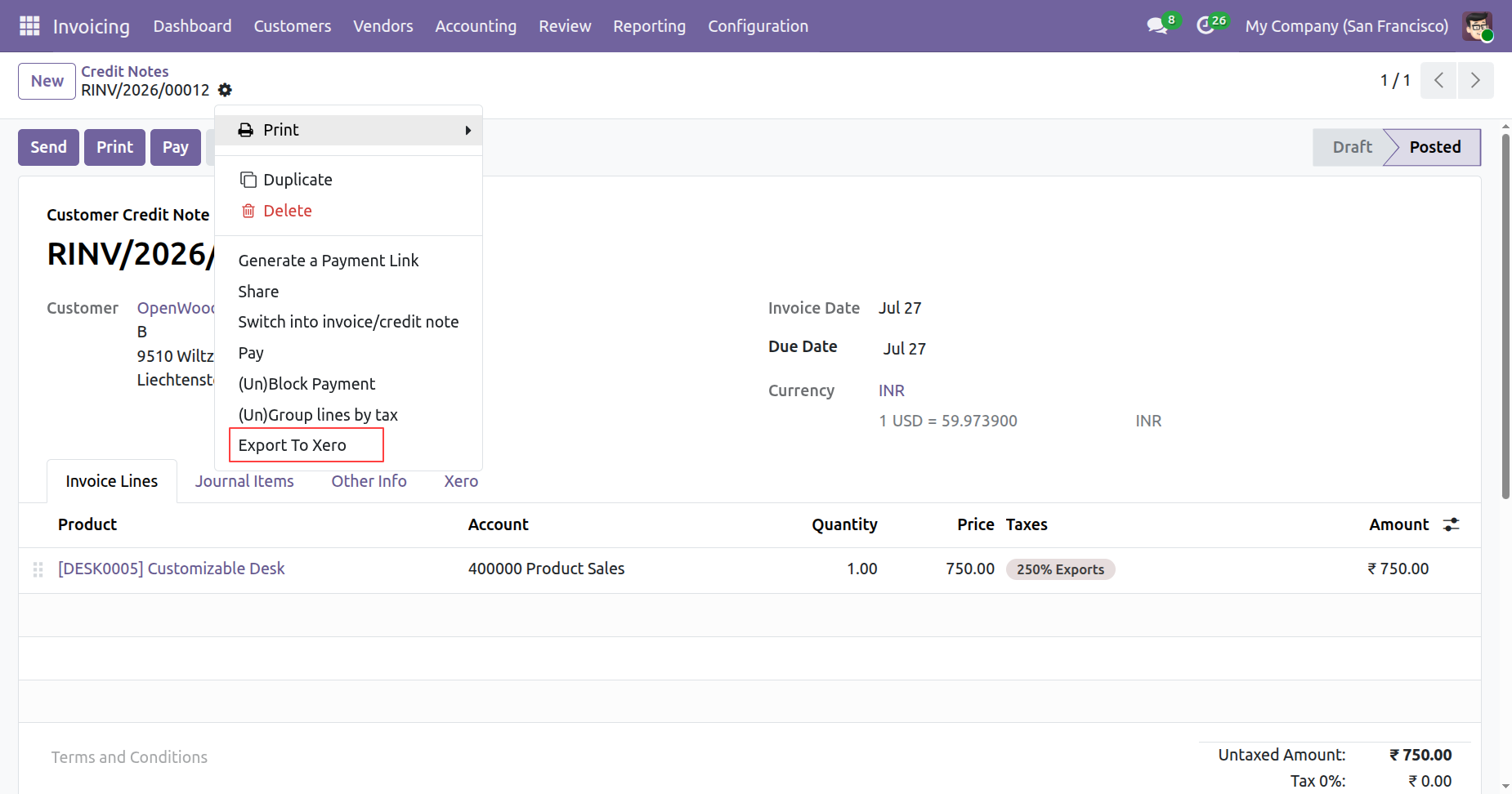
Click on export to xero from credit notes form view.
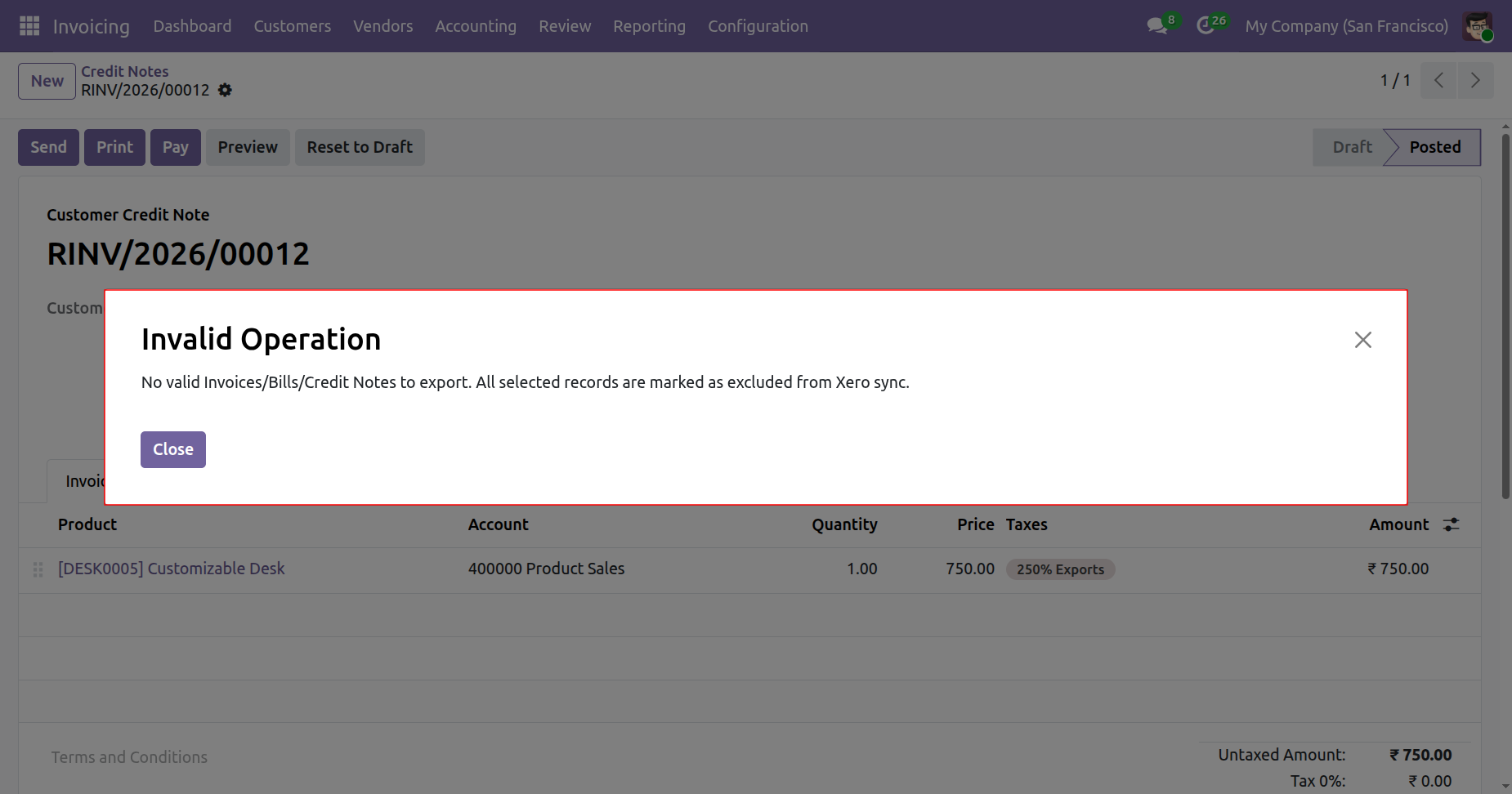
On exporting the credit note to xero, it will check the exclude new credit note by default boolean from xero config. If it is true then it will not export the credit note to xero and shows warning.
Bills:
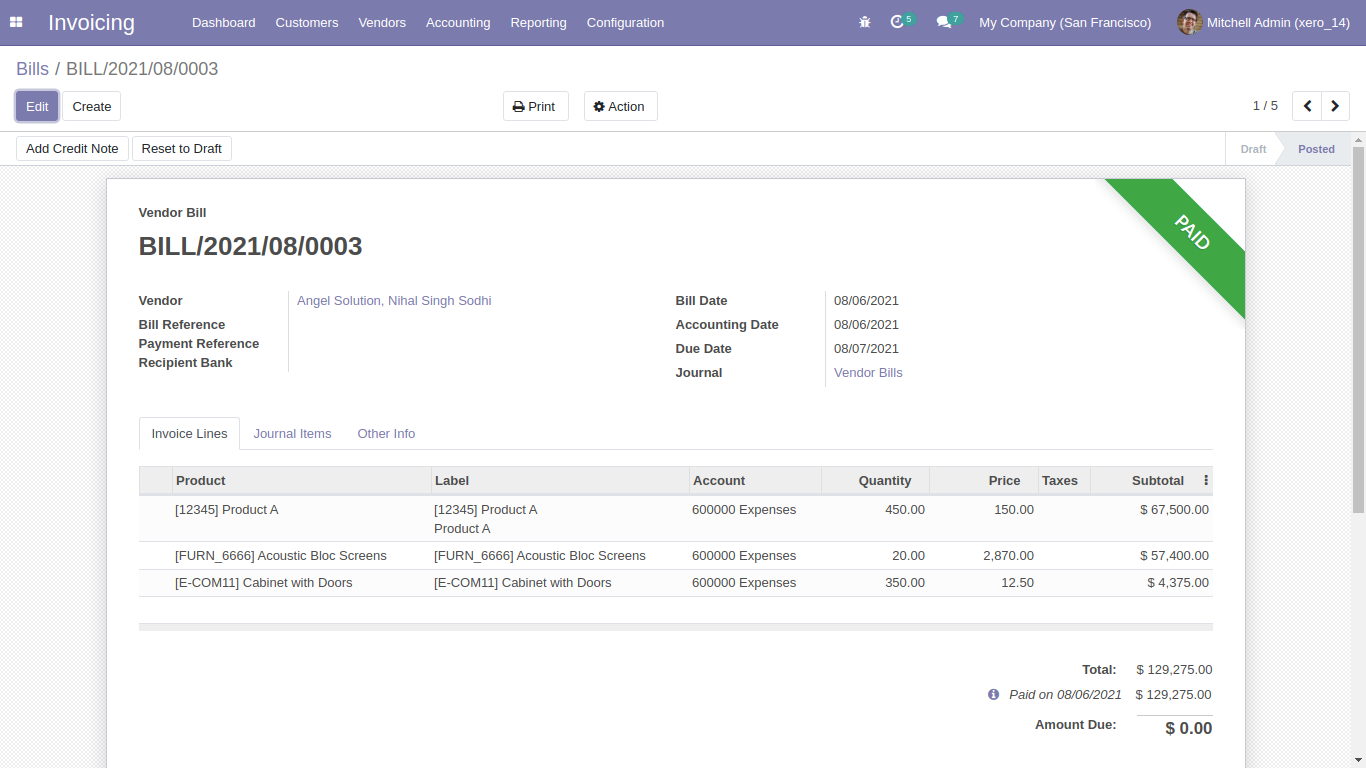
Odoo bills form view.
Sync bills with xero config details.
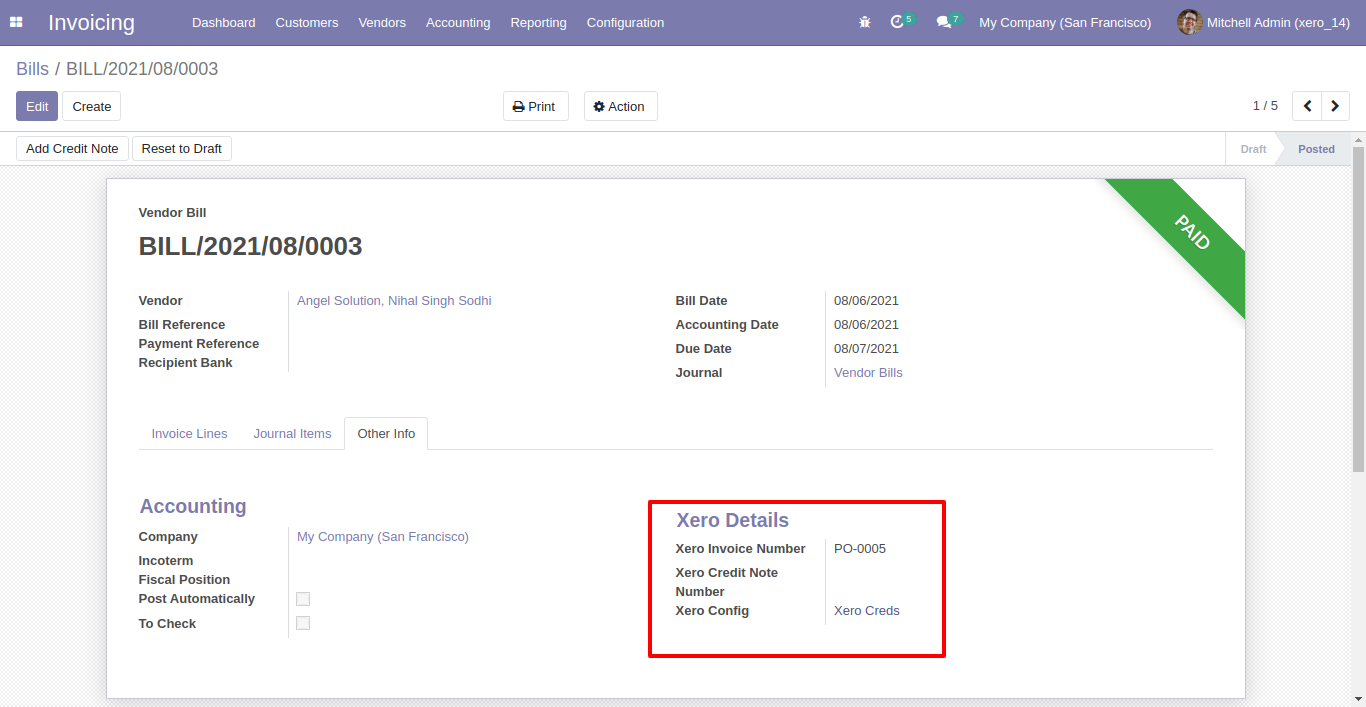
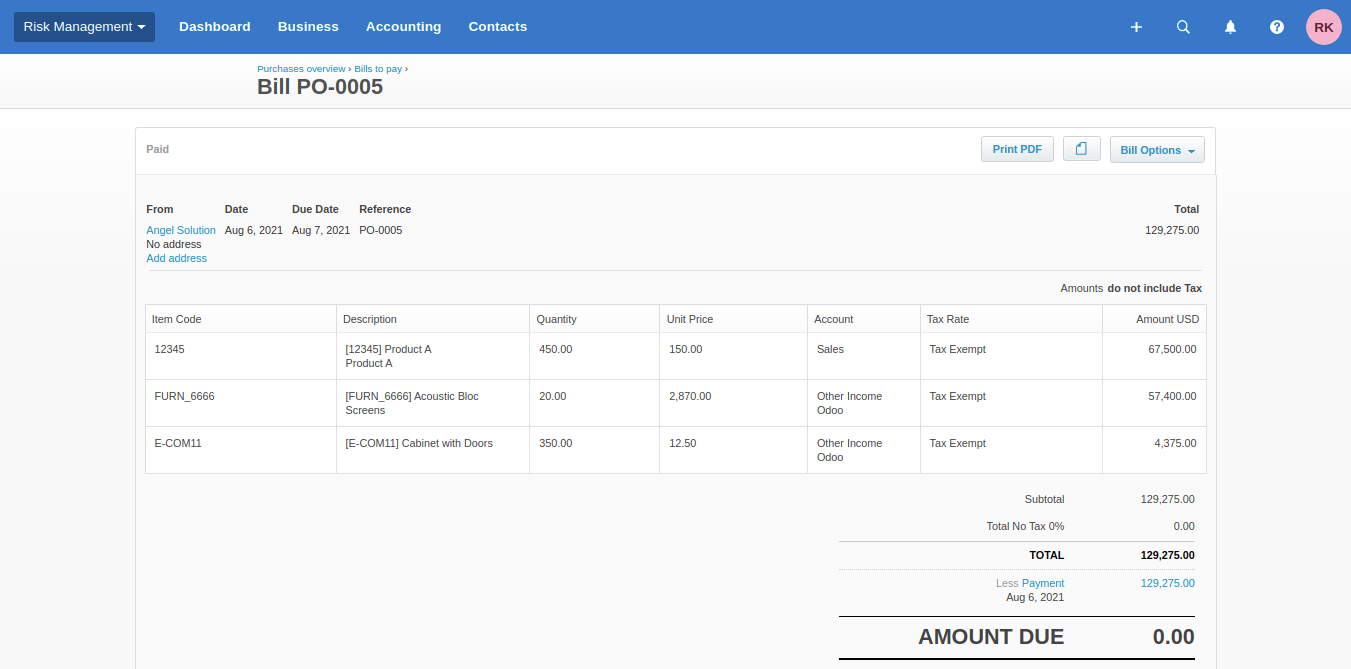
Synced bill in xero.
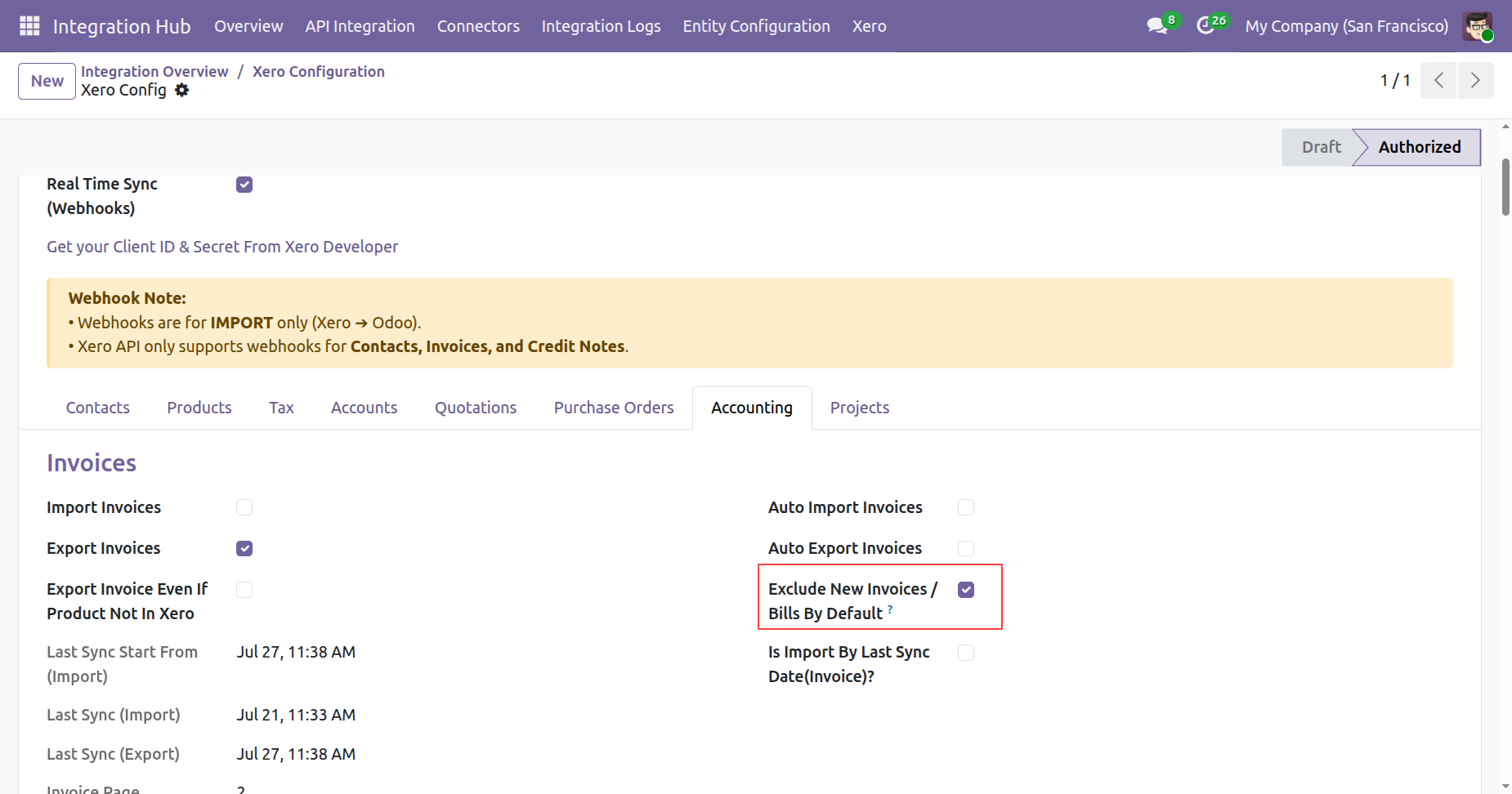
Enable exclude new invoices/bills by default boolean from xero config.
Create a new bill in odoo.
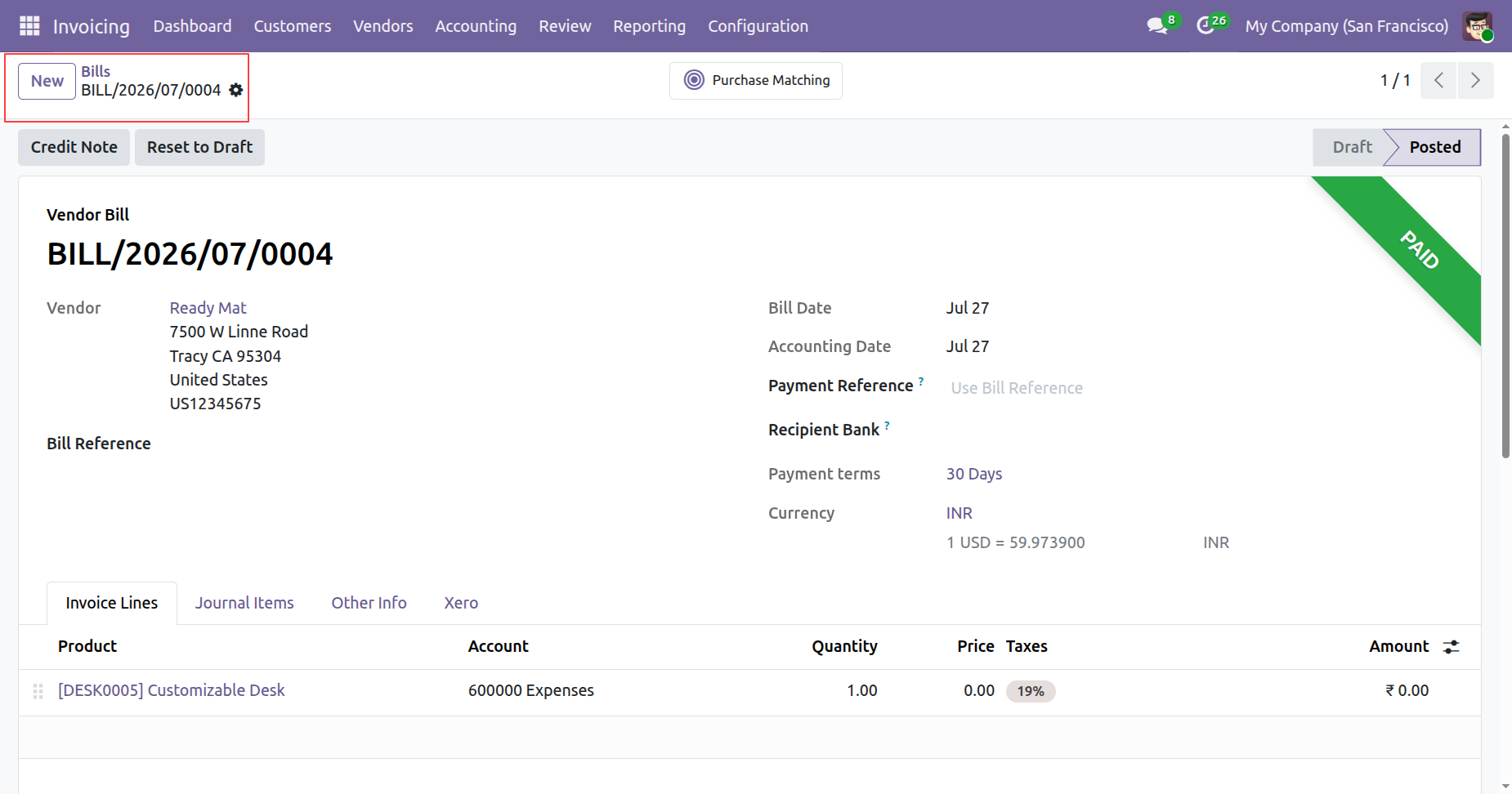
Click on export to xero from bills form view.
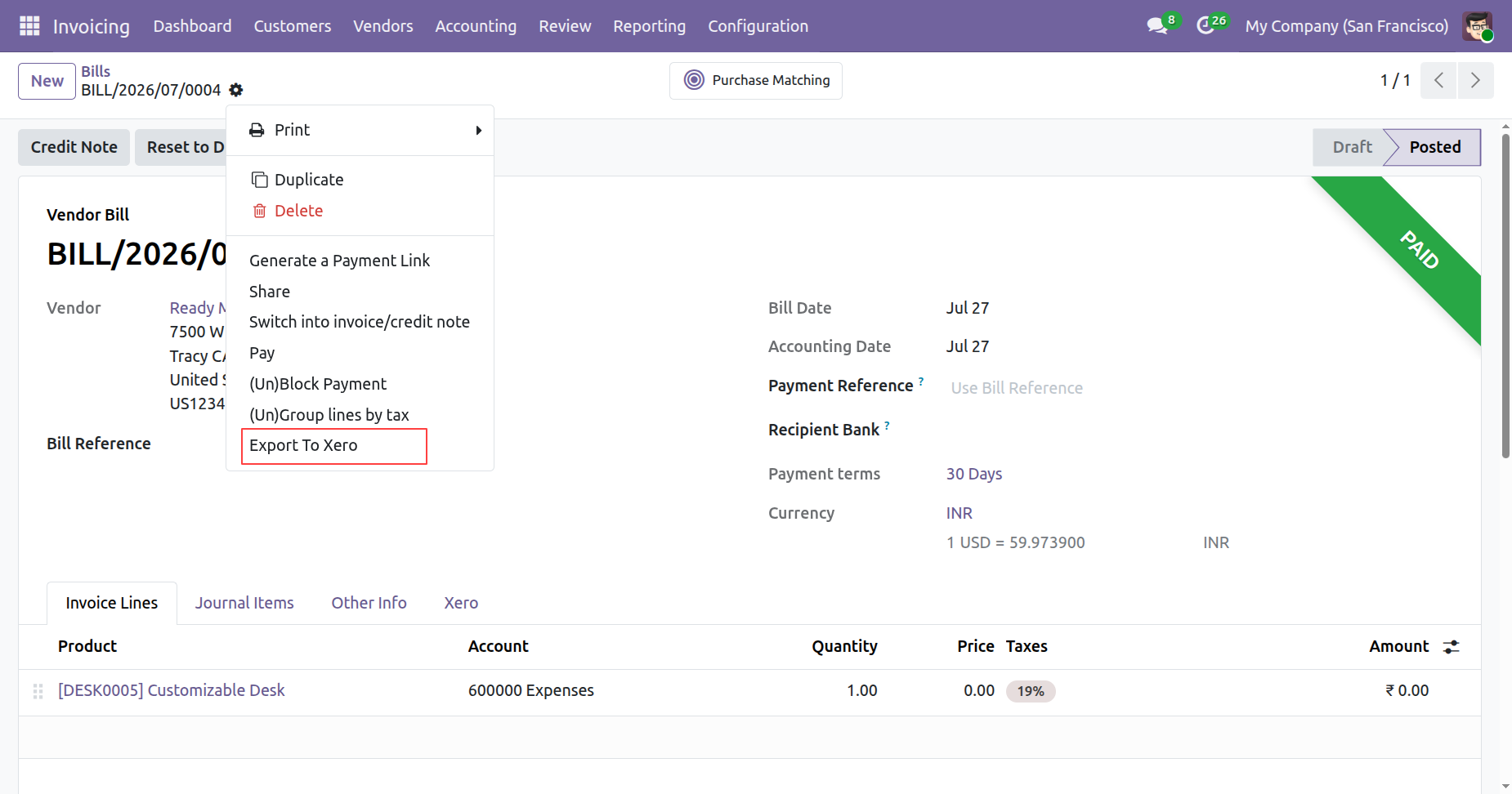
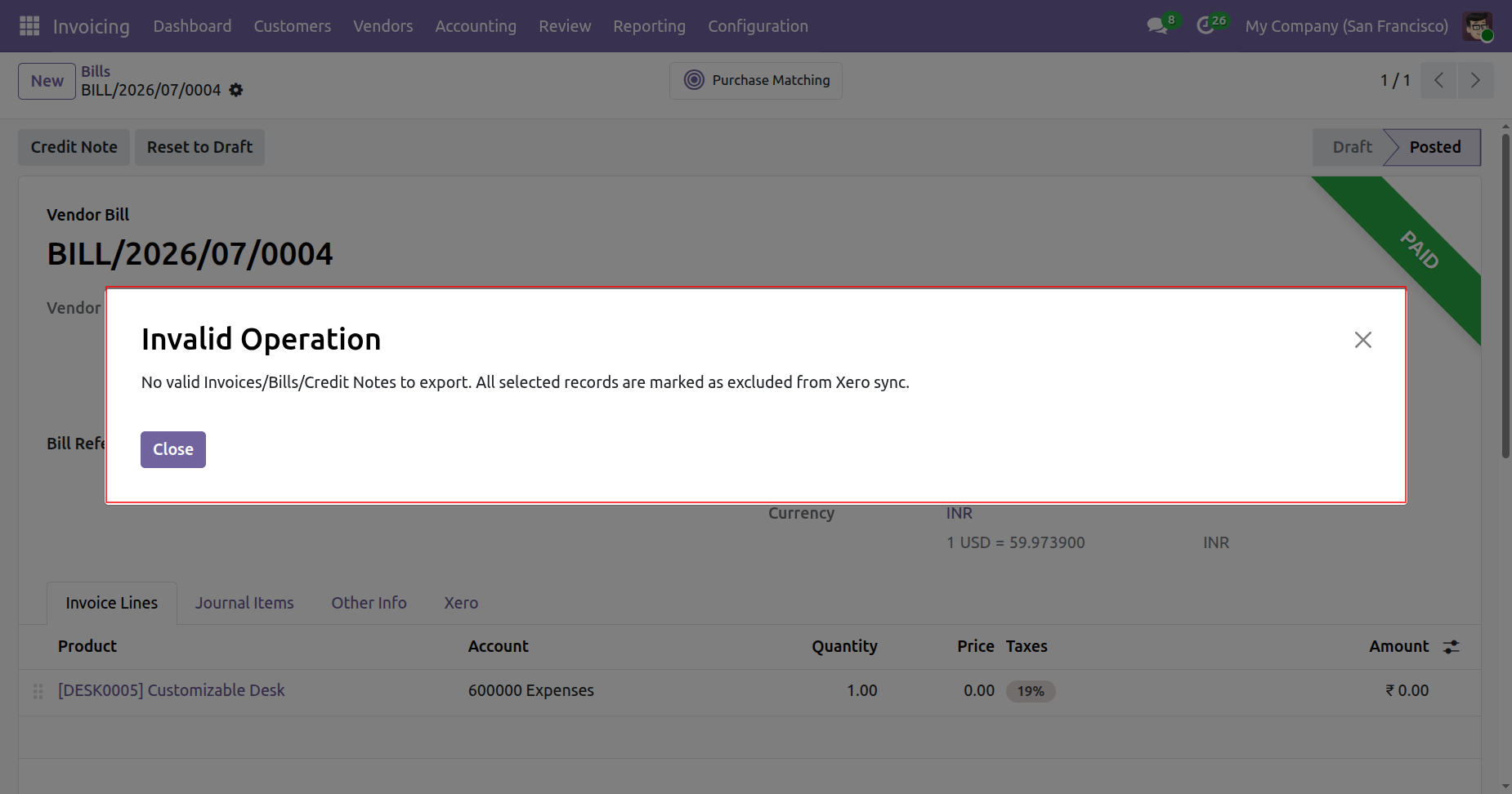
On exporting the bill to xero, it will check the exclude new bill by default boolean from xero config. If it is true then it will not export the bill to xero and shows warning.
Refund:
Odoo refund form view.
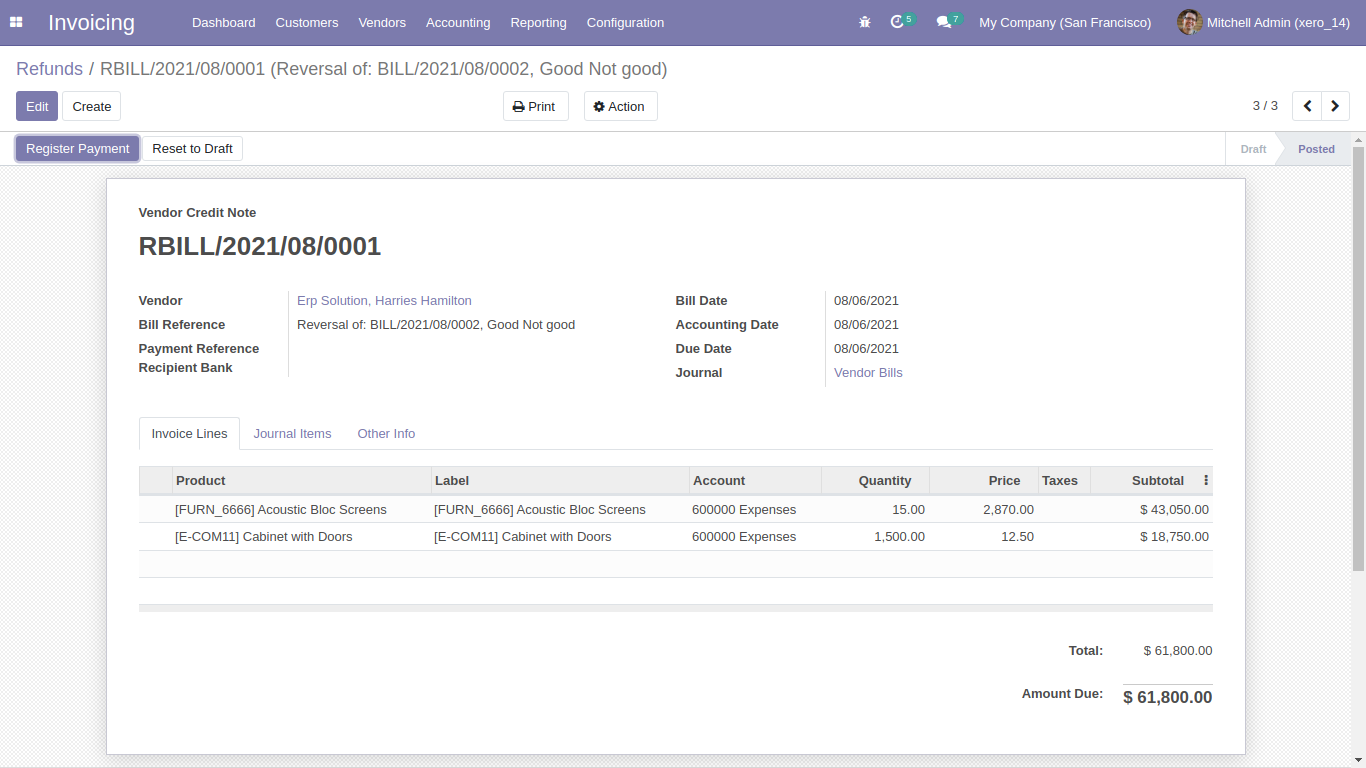
Sync refund with xero config details.
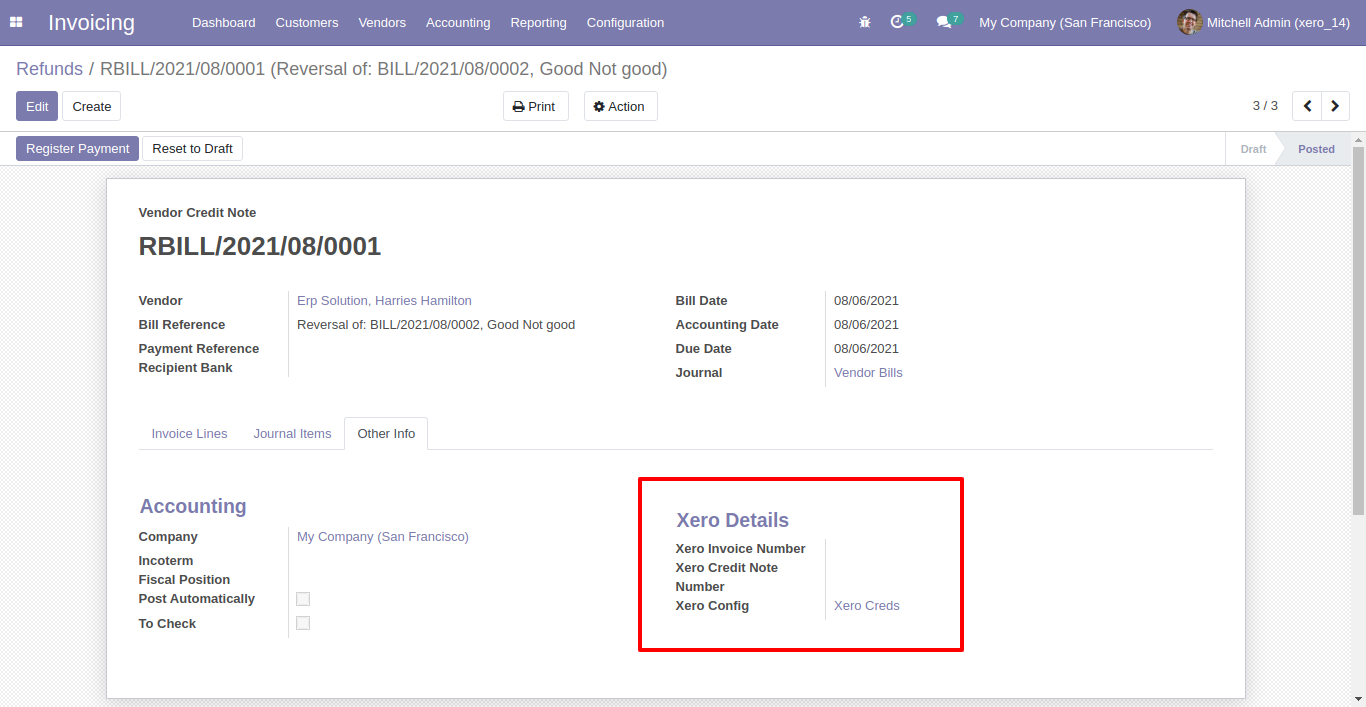
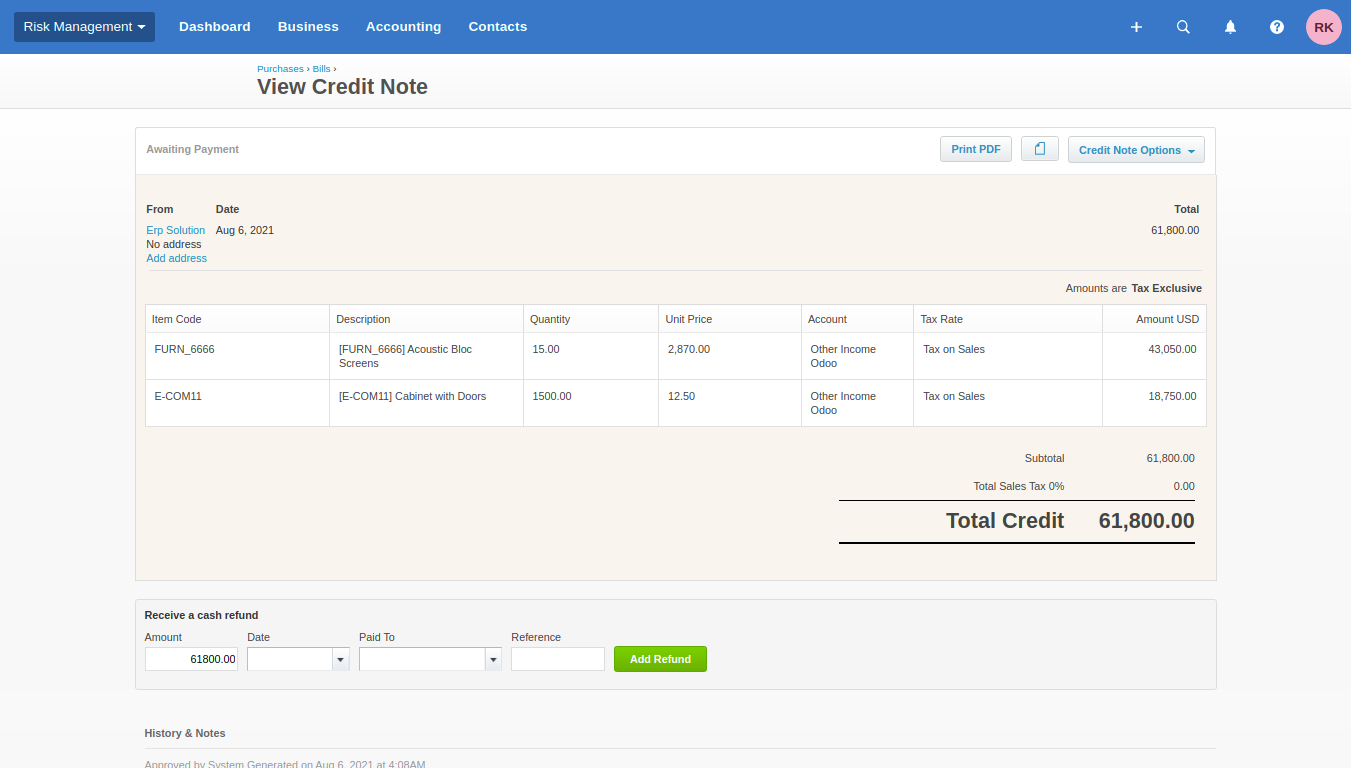
Synced refund in xero.
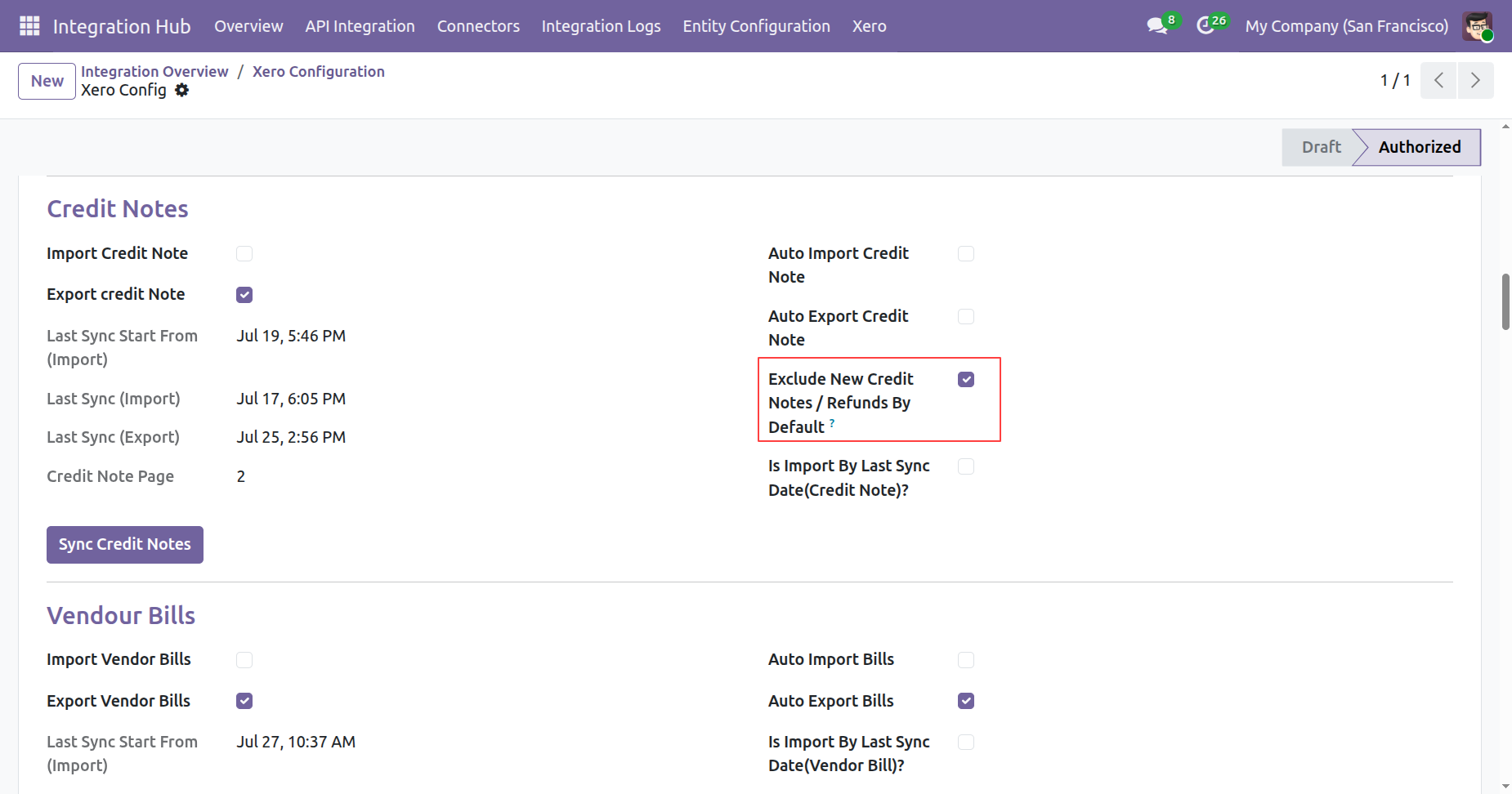
Enable exclude new credit notes/refunds by default boolean from xero config.
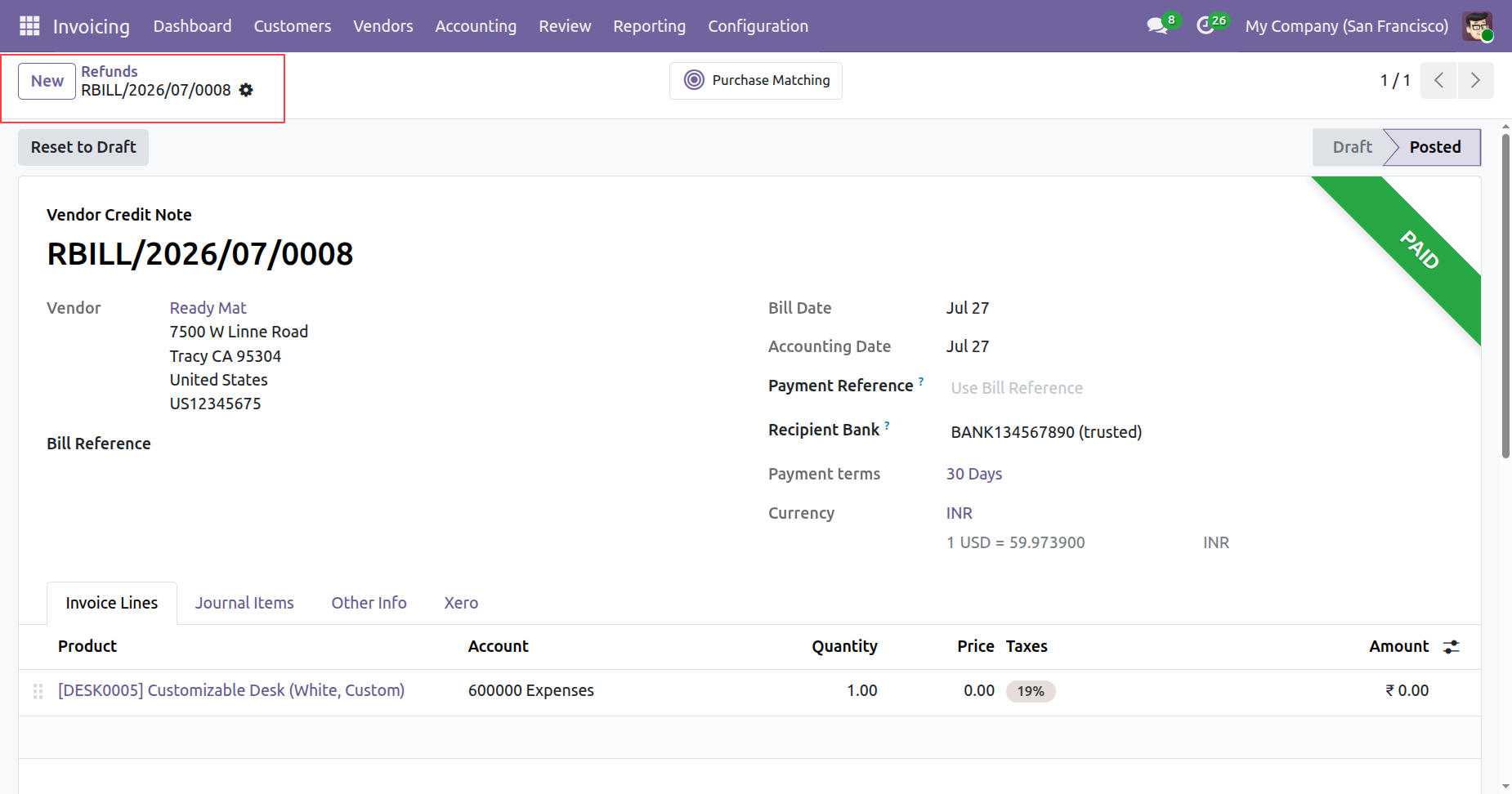
Create a new refunds in odoo.
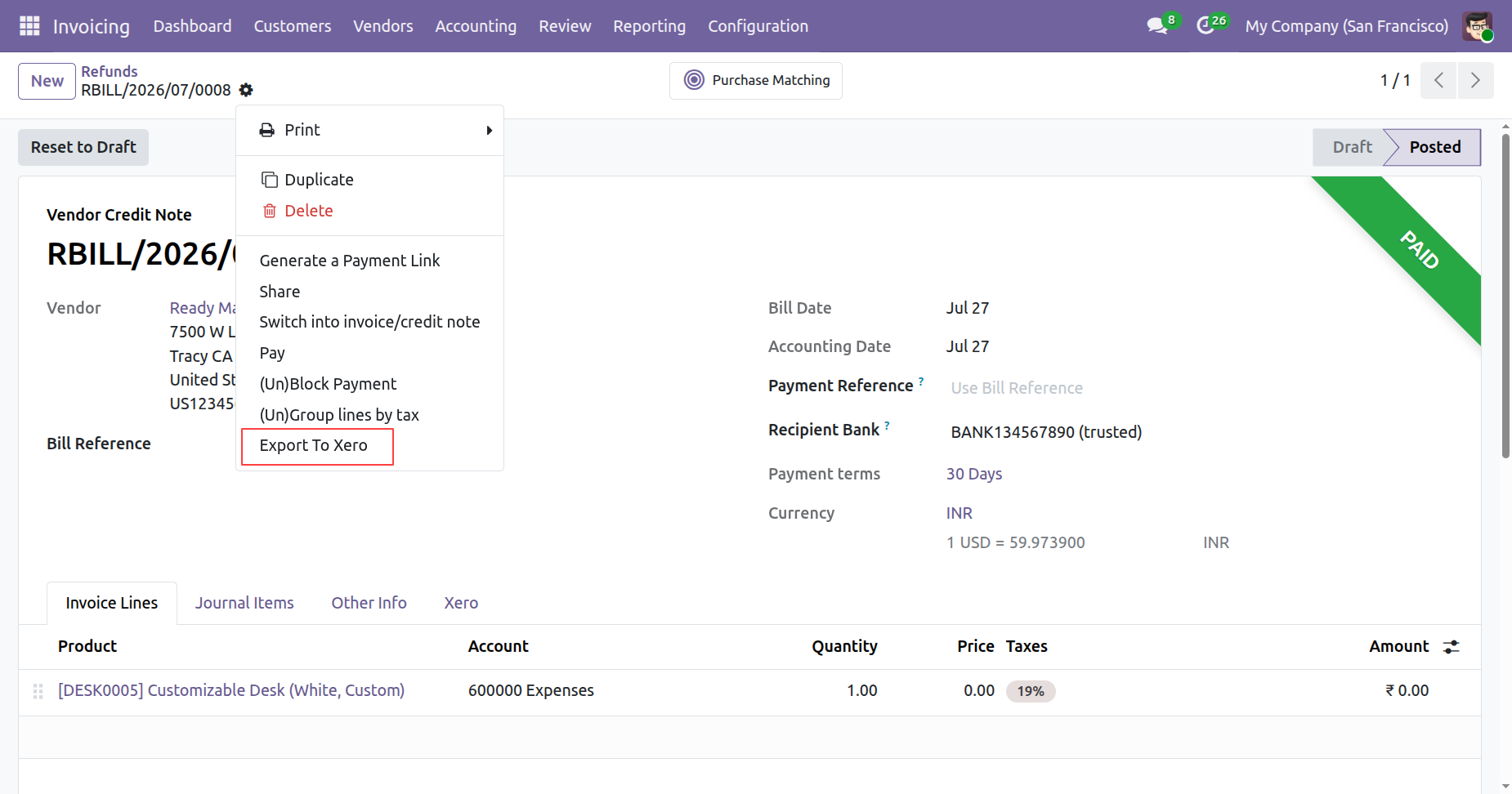
Click on export to xero from refunds form view.
On exporting the refund to xero, it will check the exclude new refund by default boolean from xero config.
If it is true then it will not export the refund to xero and shows warning.
Payments:
Enable exclude new payments by default boolean from xero config.
Enable 'Auto Export Payments' to make auto-export payments.
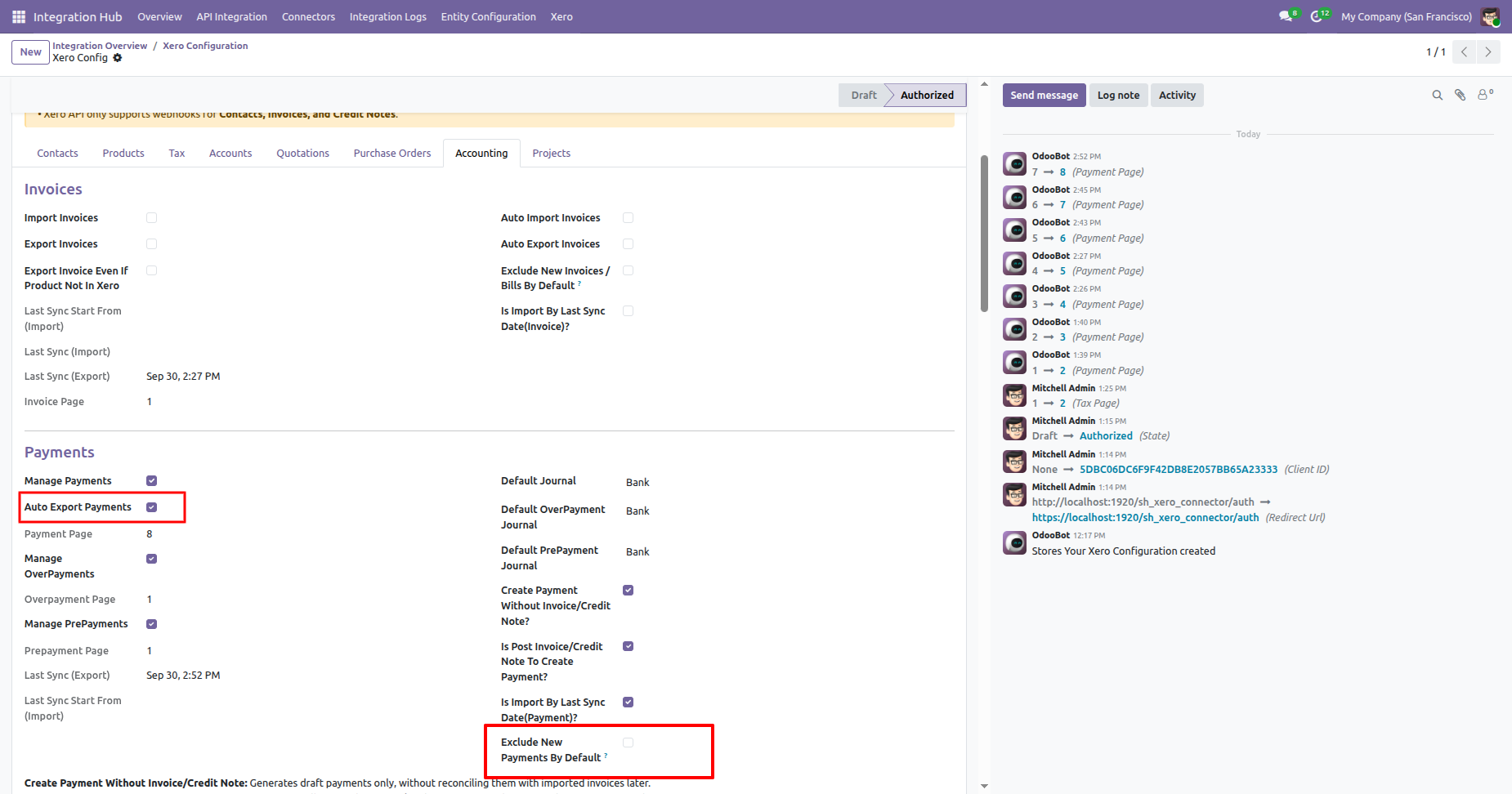
Create a new payment in odoo.
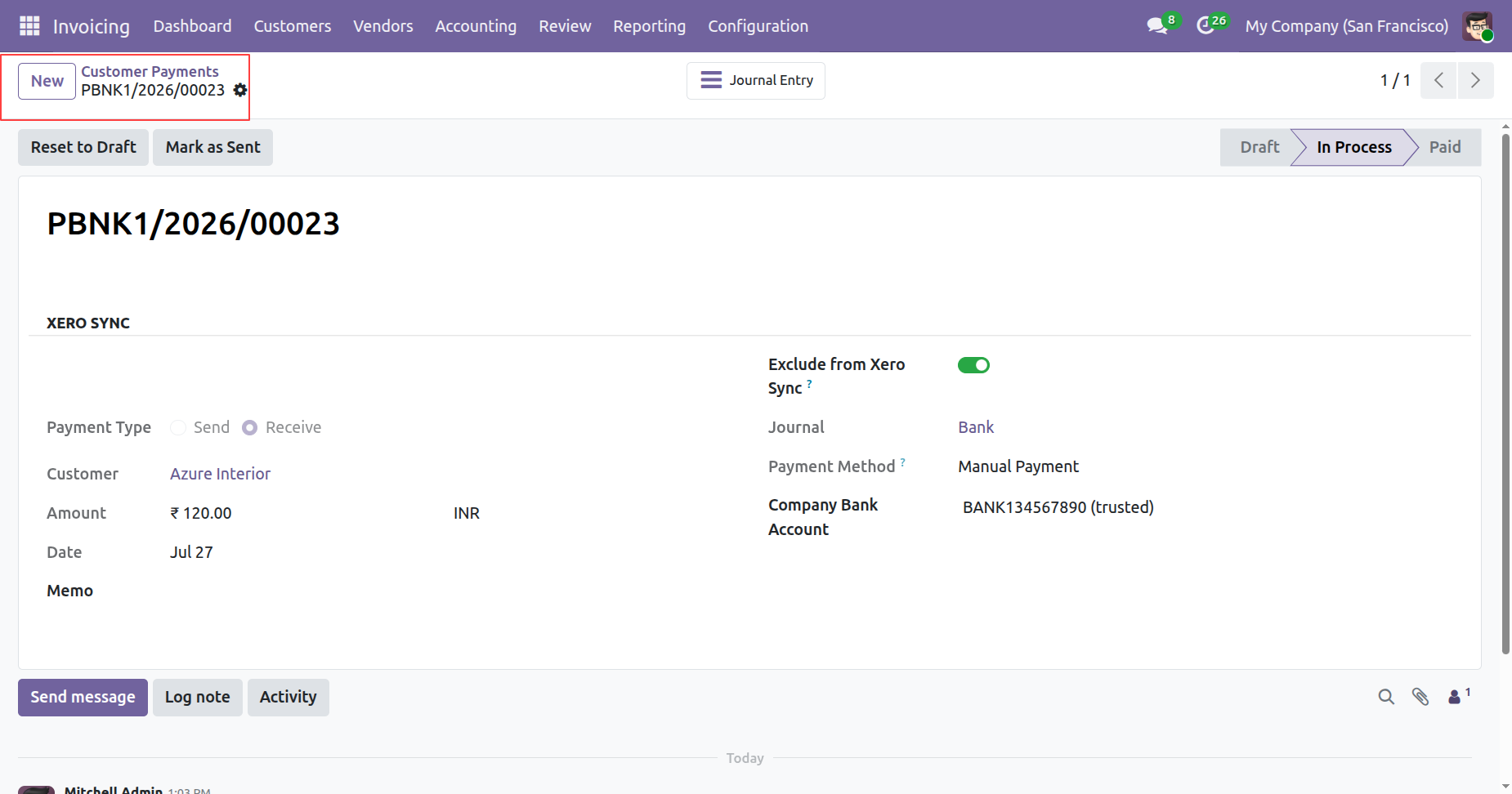
Click on export to xero from payments form view.
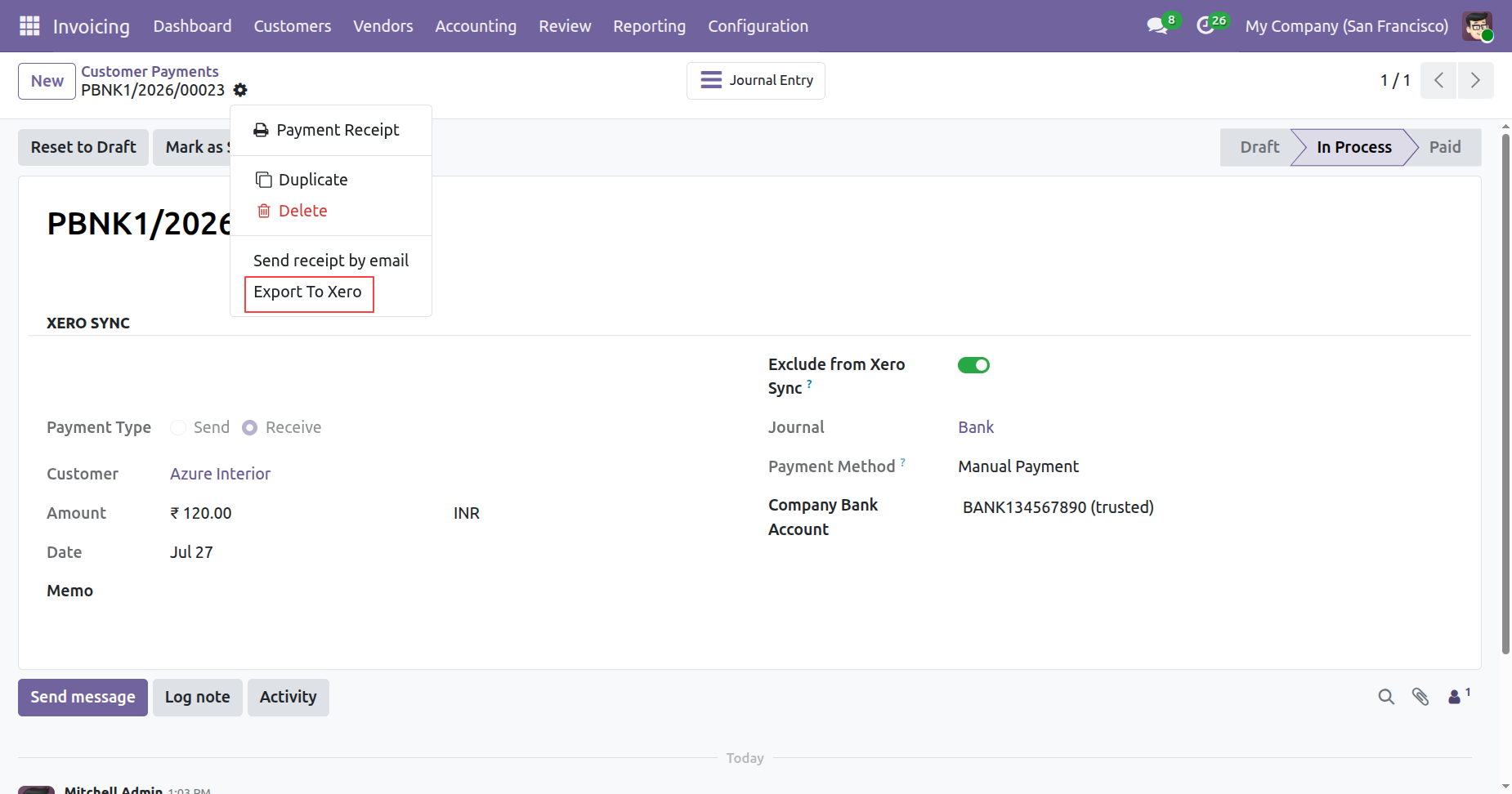
On exporting the payment to xero, it will check the exclude new payment by default boolean from xero config. If it is true then it will not export the payment to xero and shows warning.
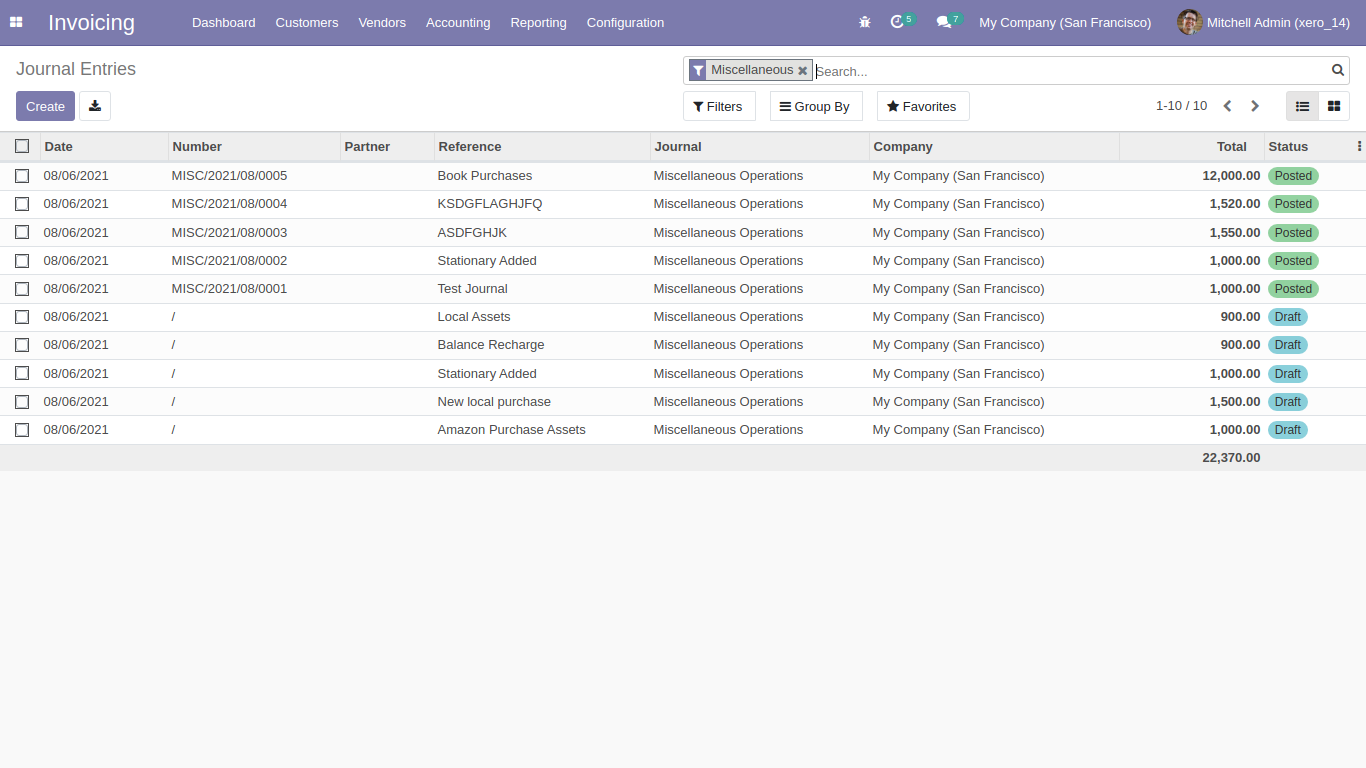
Odoo synced journals.
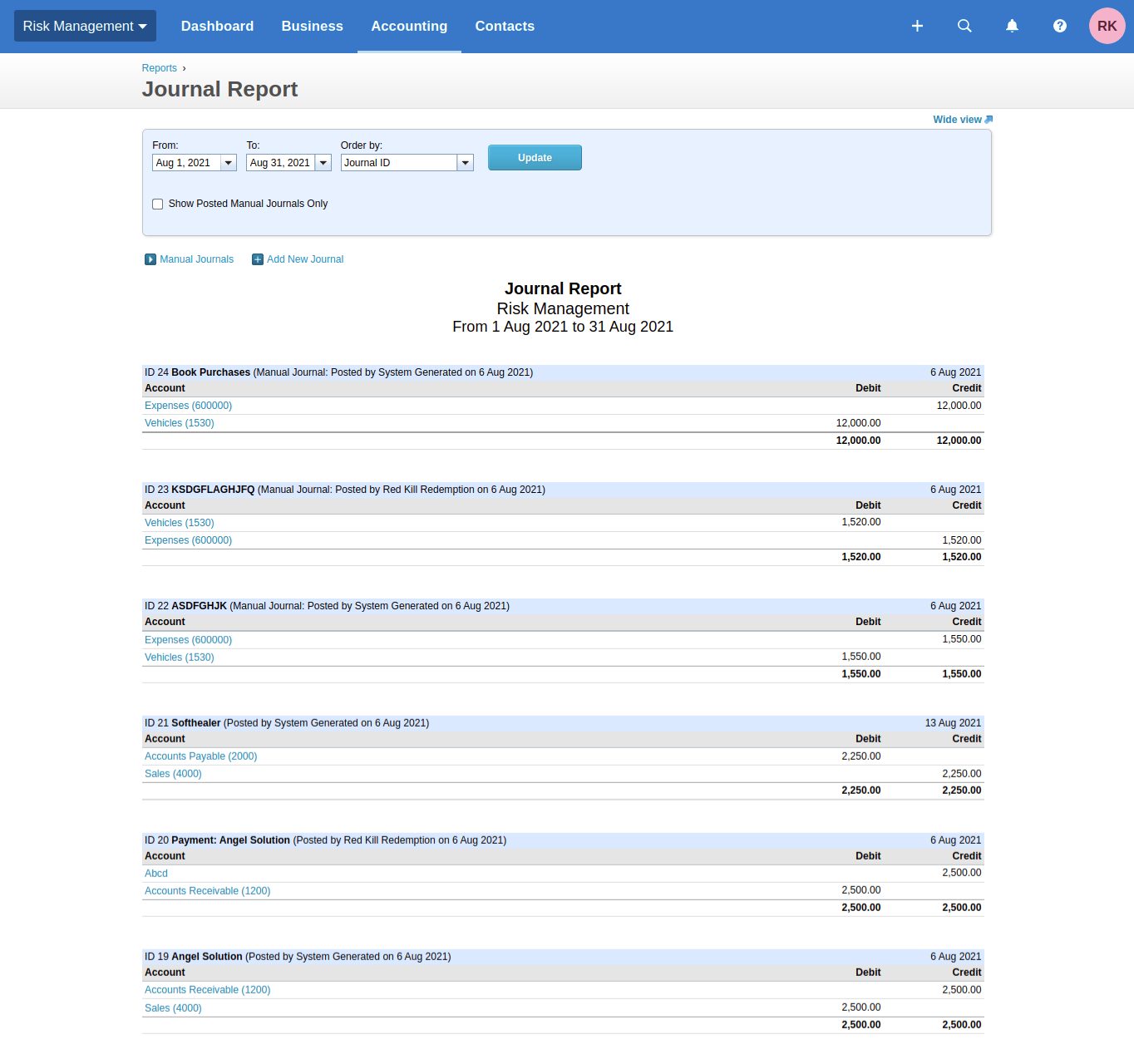
Xero synced manuall journal.
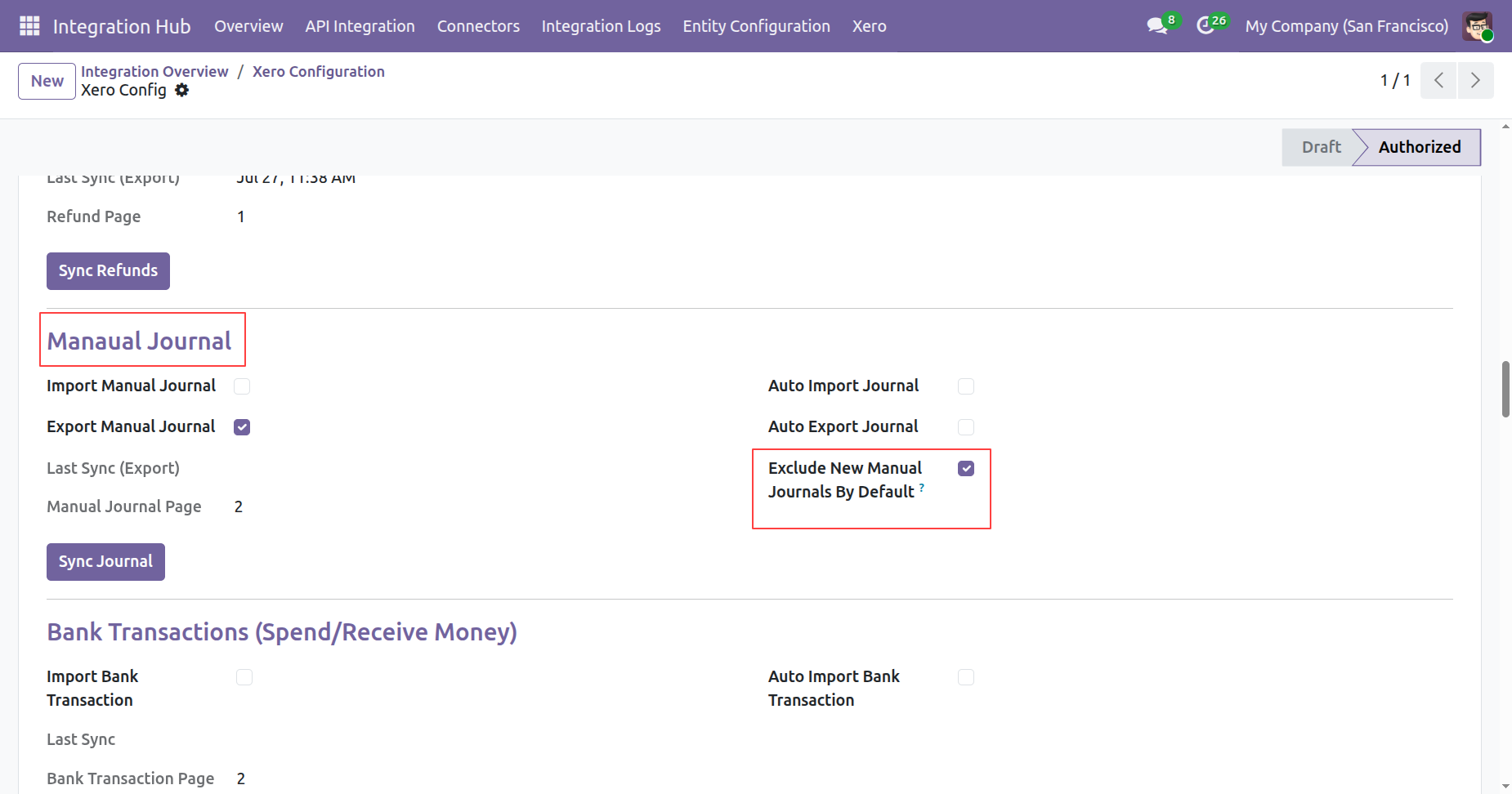
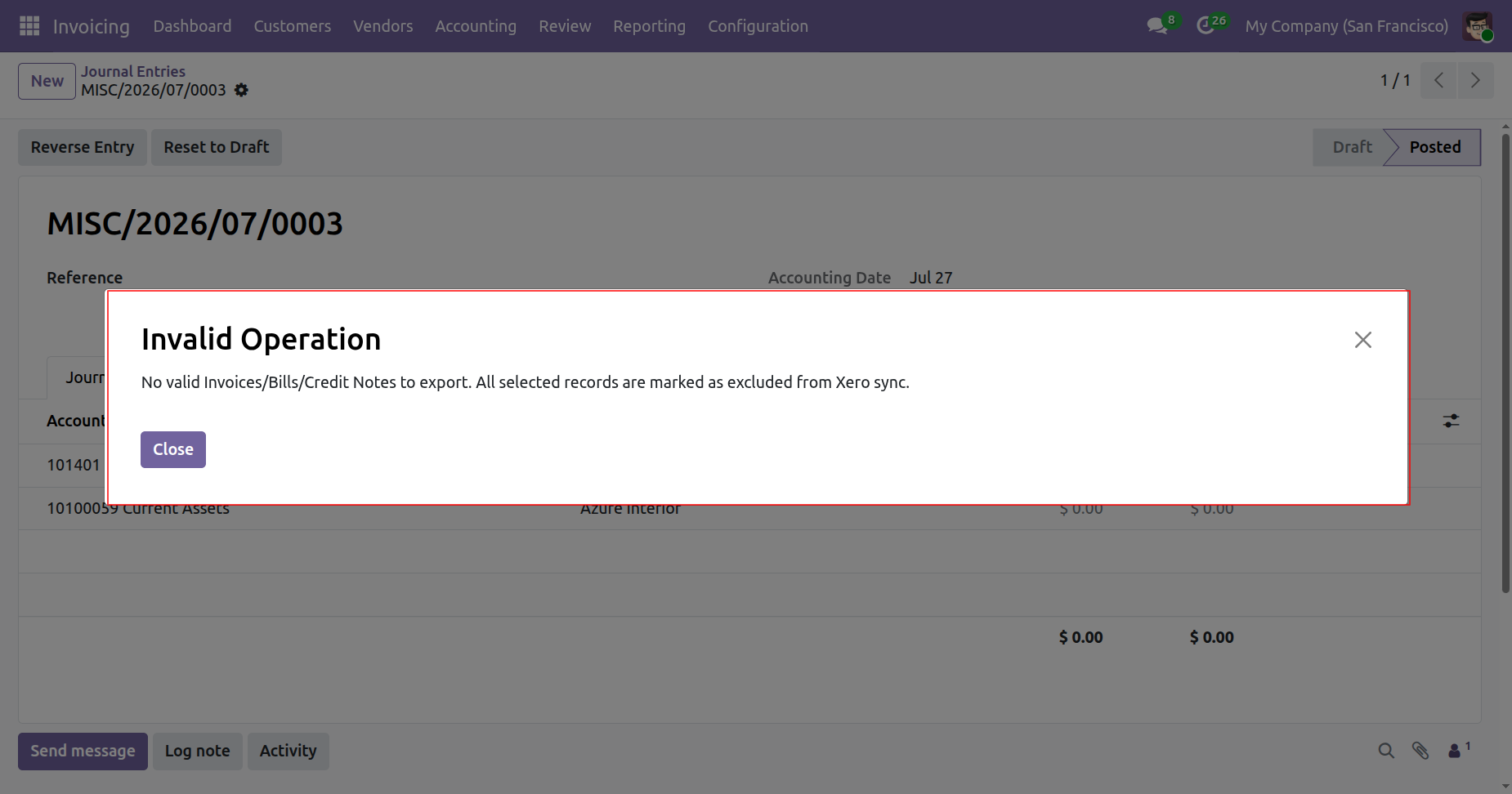
Enable exclude new manual journals by default boolean from xero config.
Create a new journal in odoo.
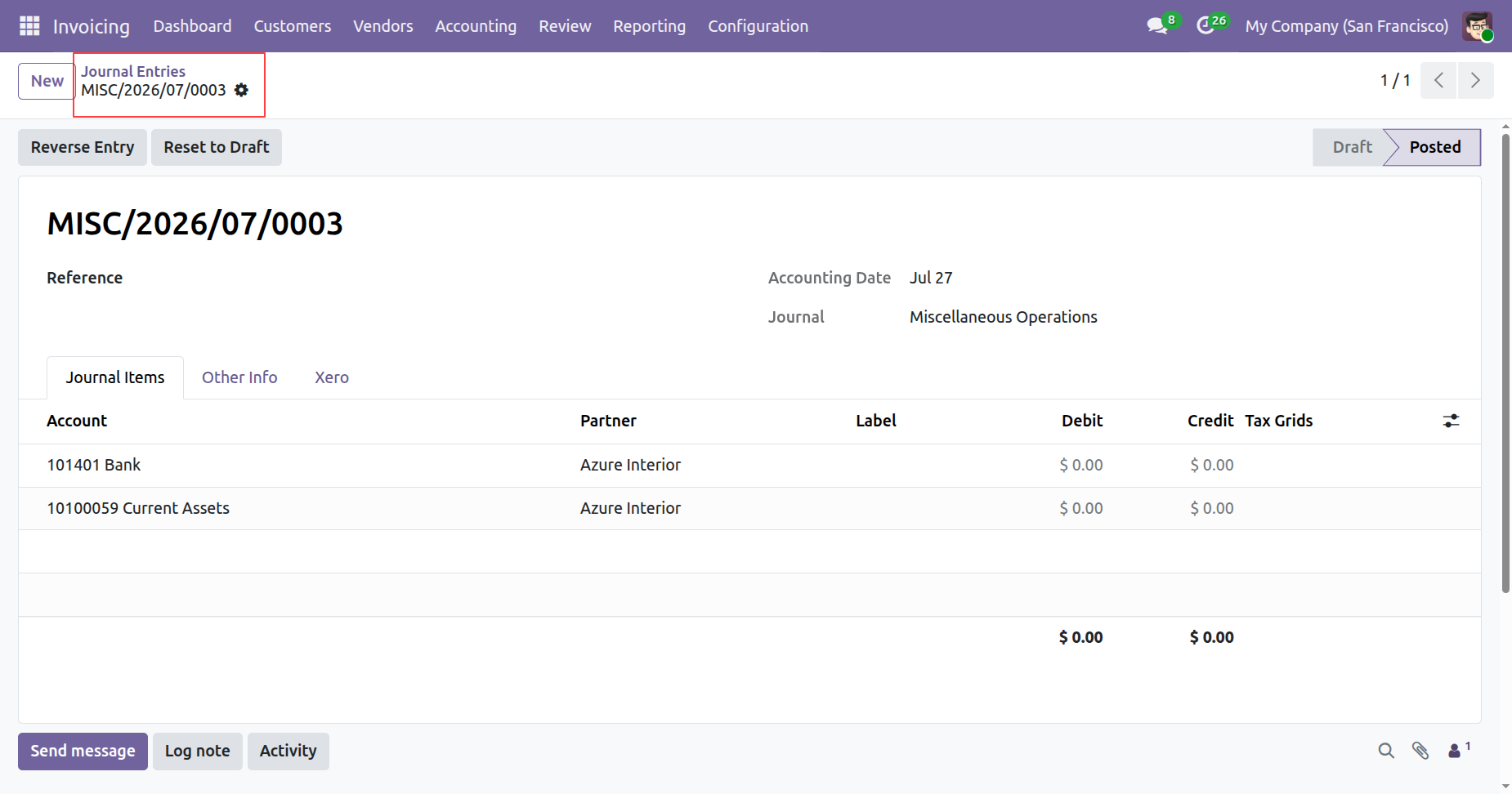
Click on export to xero from journals form view.
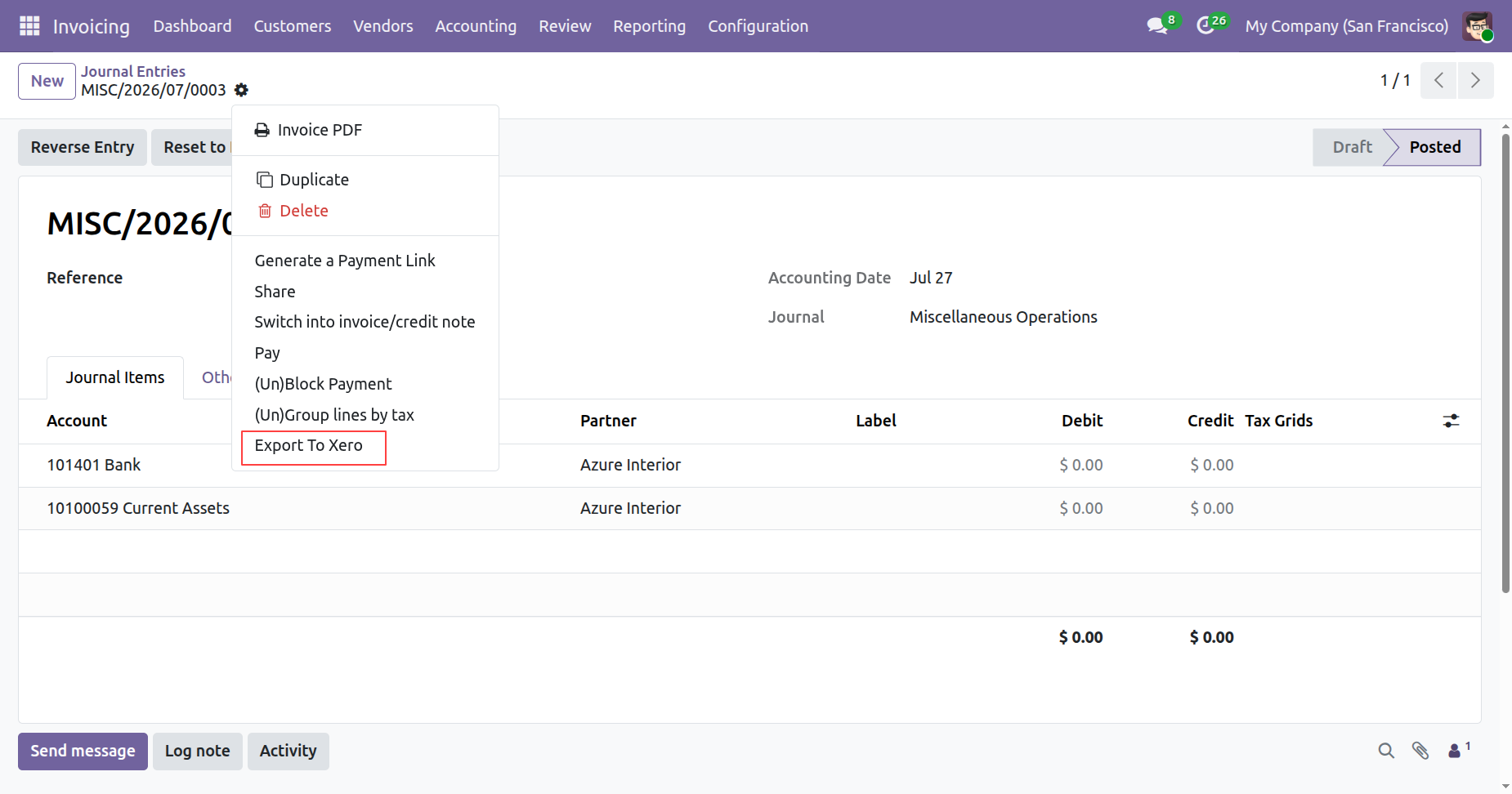
On exporting the journal to xero, it will check the exclude new journal by default boolean from xero config. If it is true then it will not export the journal to xero and shows warning.
Queue management.
Import & Export Contact and chart of account with the attchement.
Import & Export bill, invice, purchase order, payment, manual journal, credit note and refund with attchement
In the tax form view, set 'Included in price: Tax Excluded' under the Advanced Options tab.
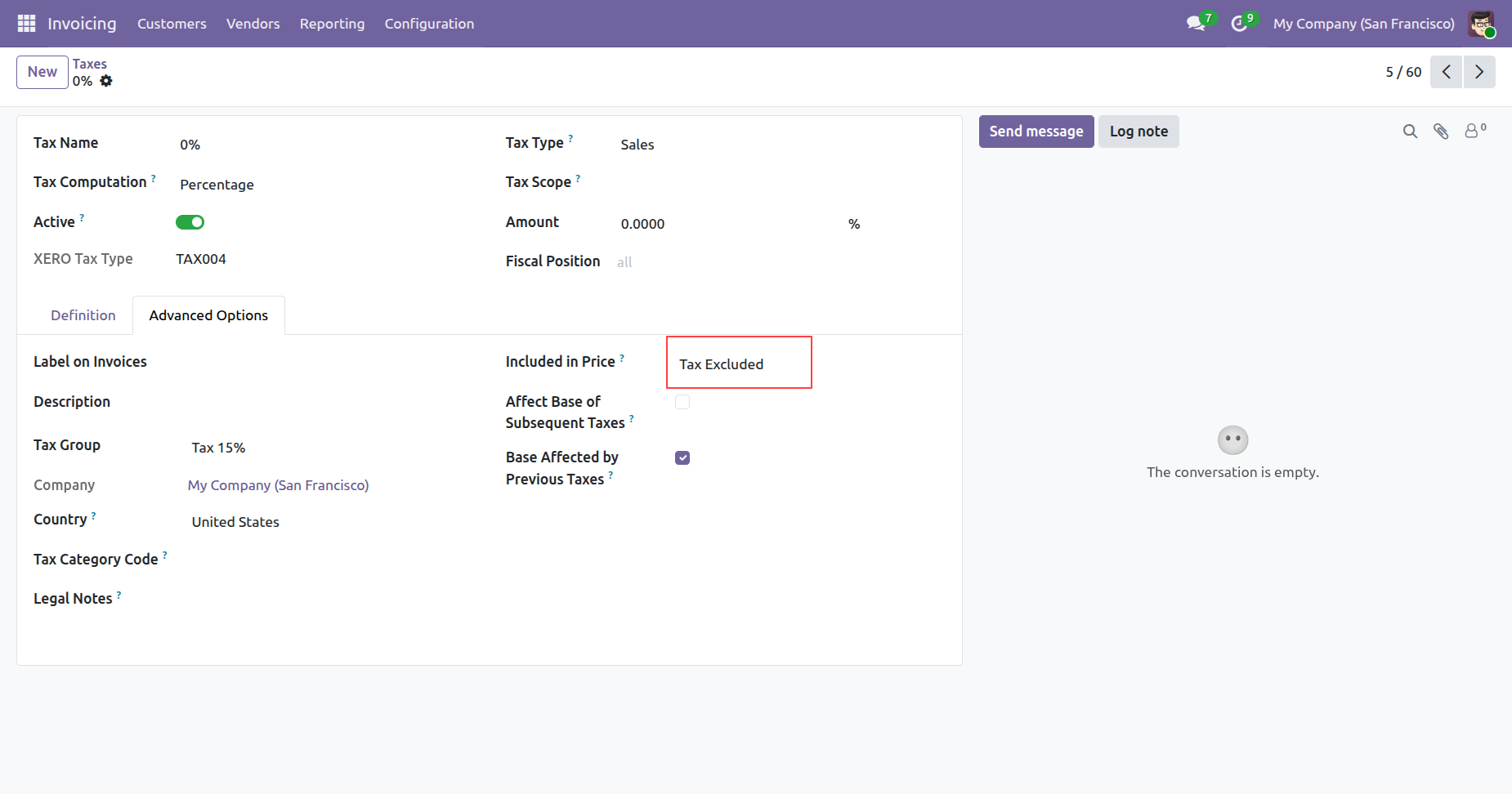
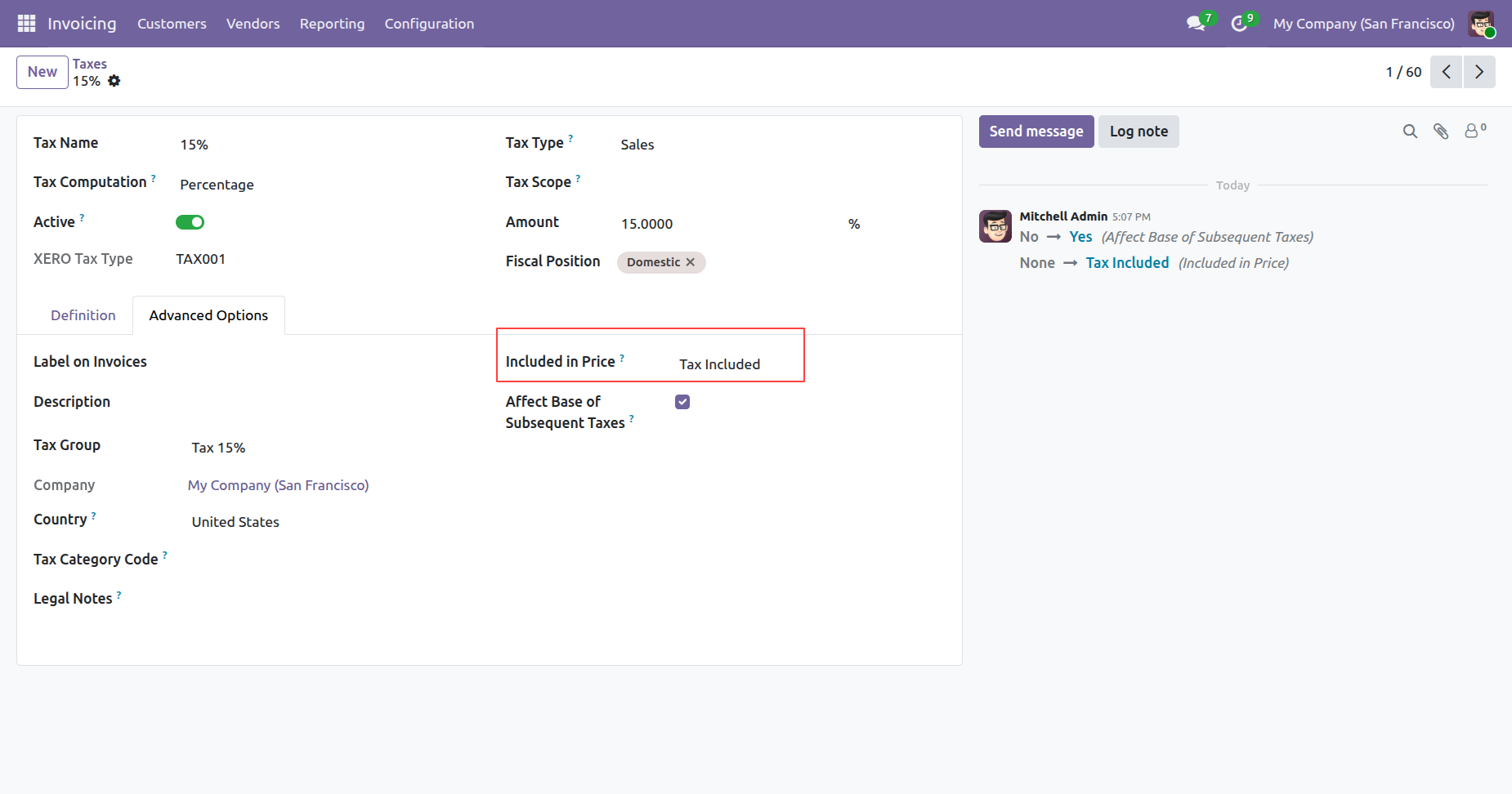
In the tax form view, set 'Included in price: Tax Included' under the Advanced Options tab.
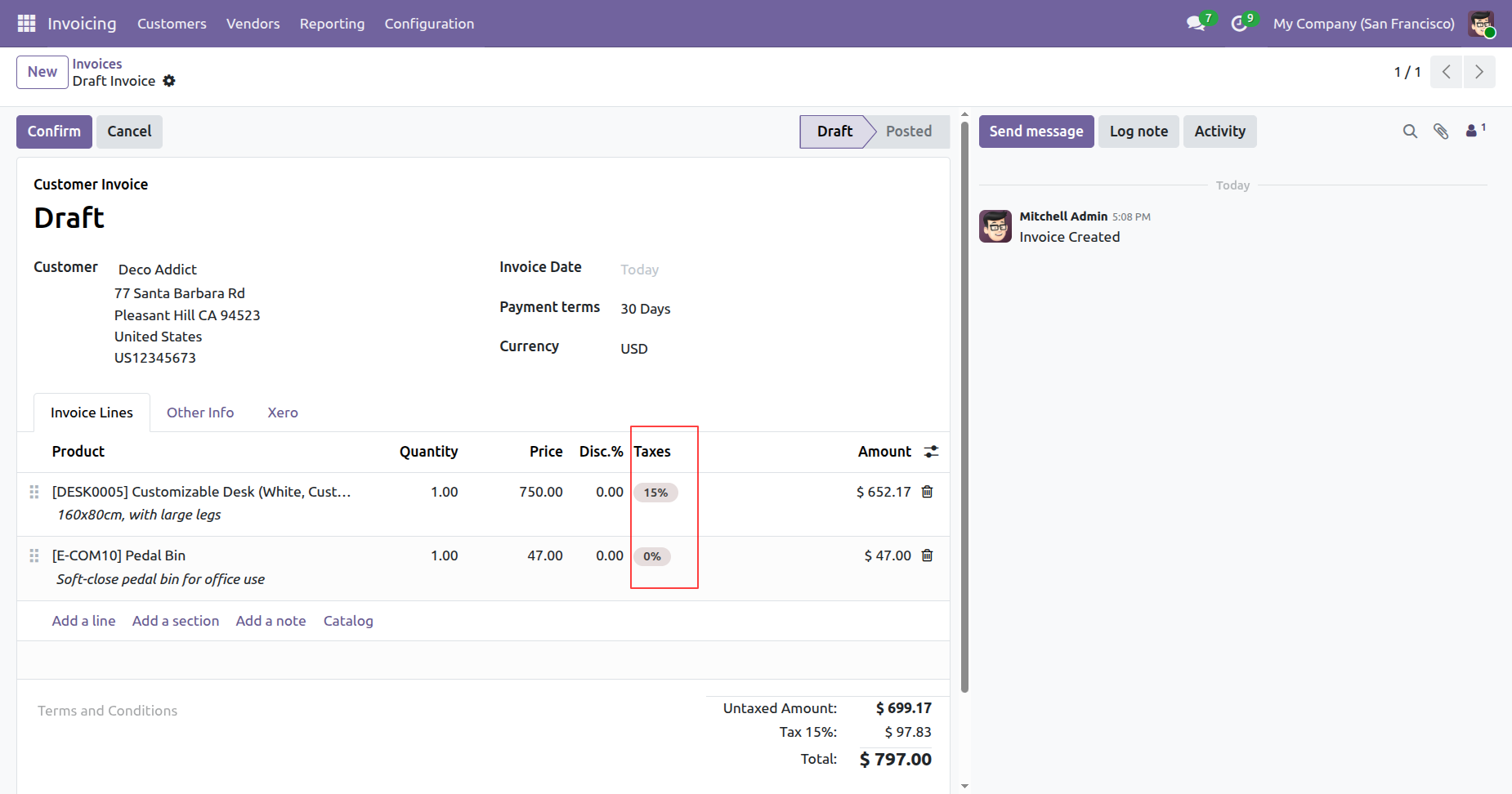
Create an invoice.
Here you can see the added taxes.
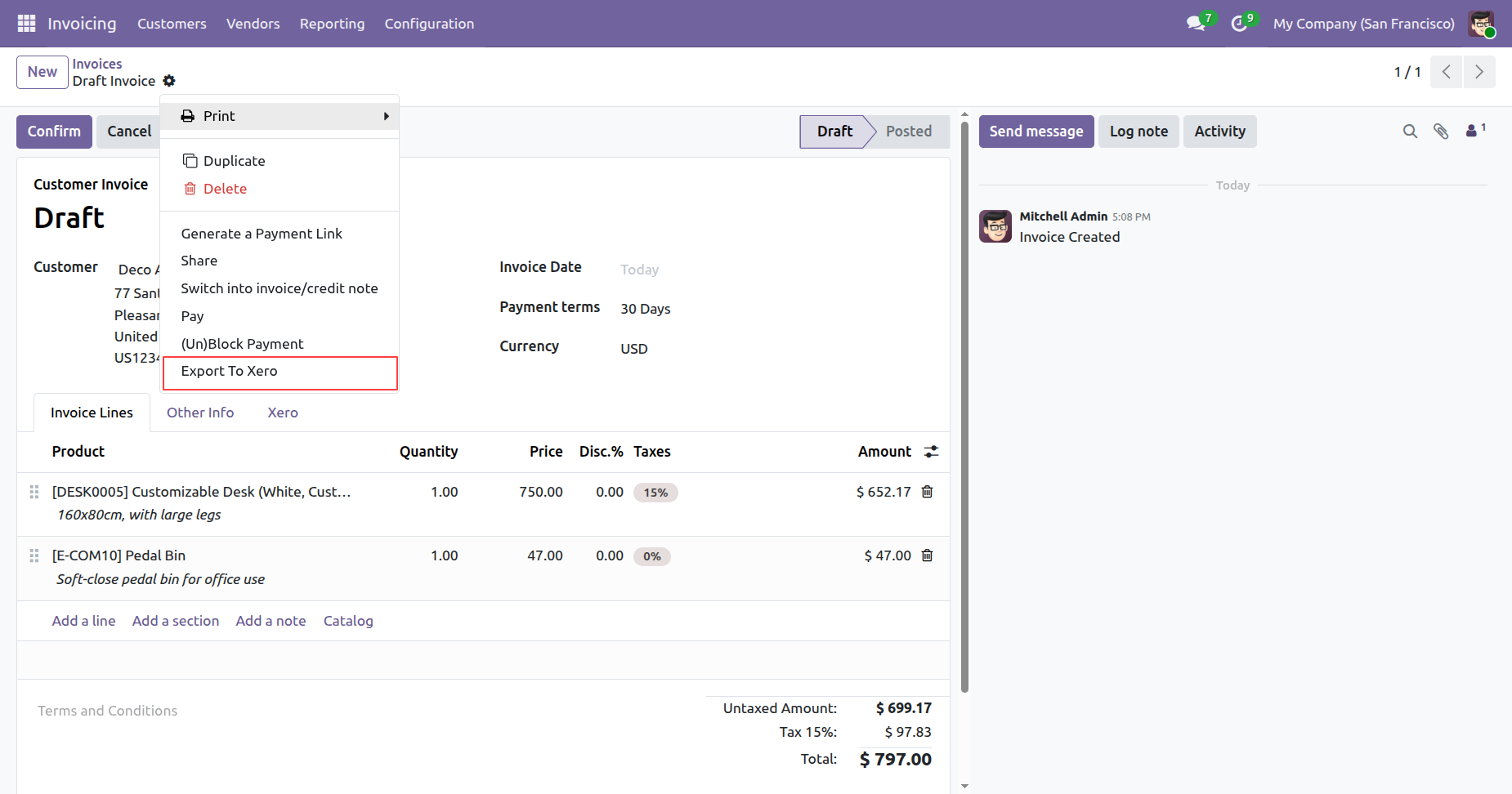
Click on the 'Export To Xero' from the action.
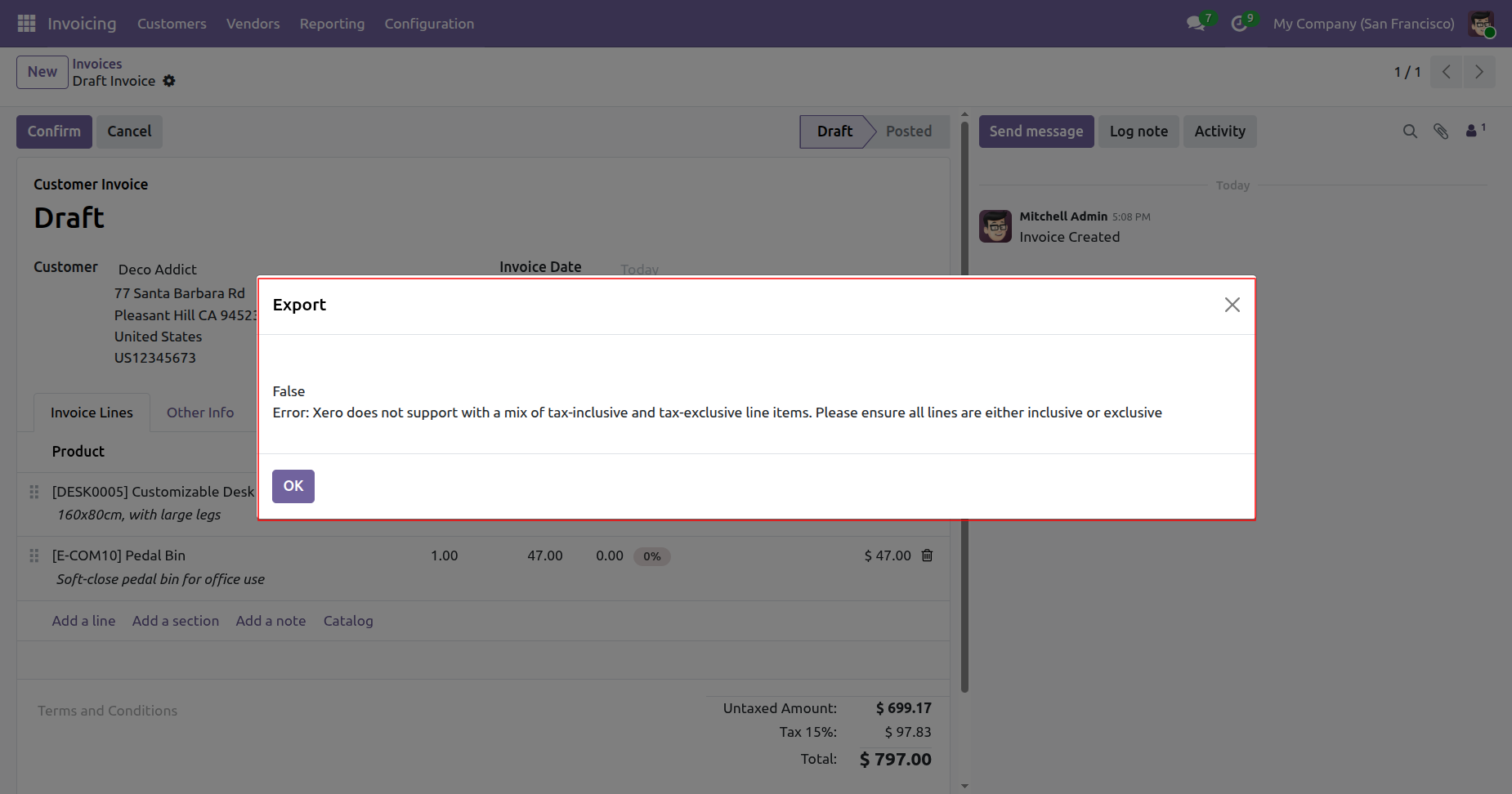
If you add a mix of tax-inclusive and tax-exclusive line items, this warning will occur.
Create an invoice.
Here you can see the added discount.
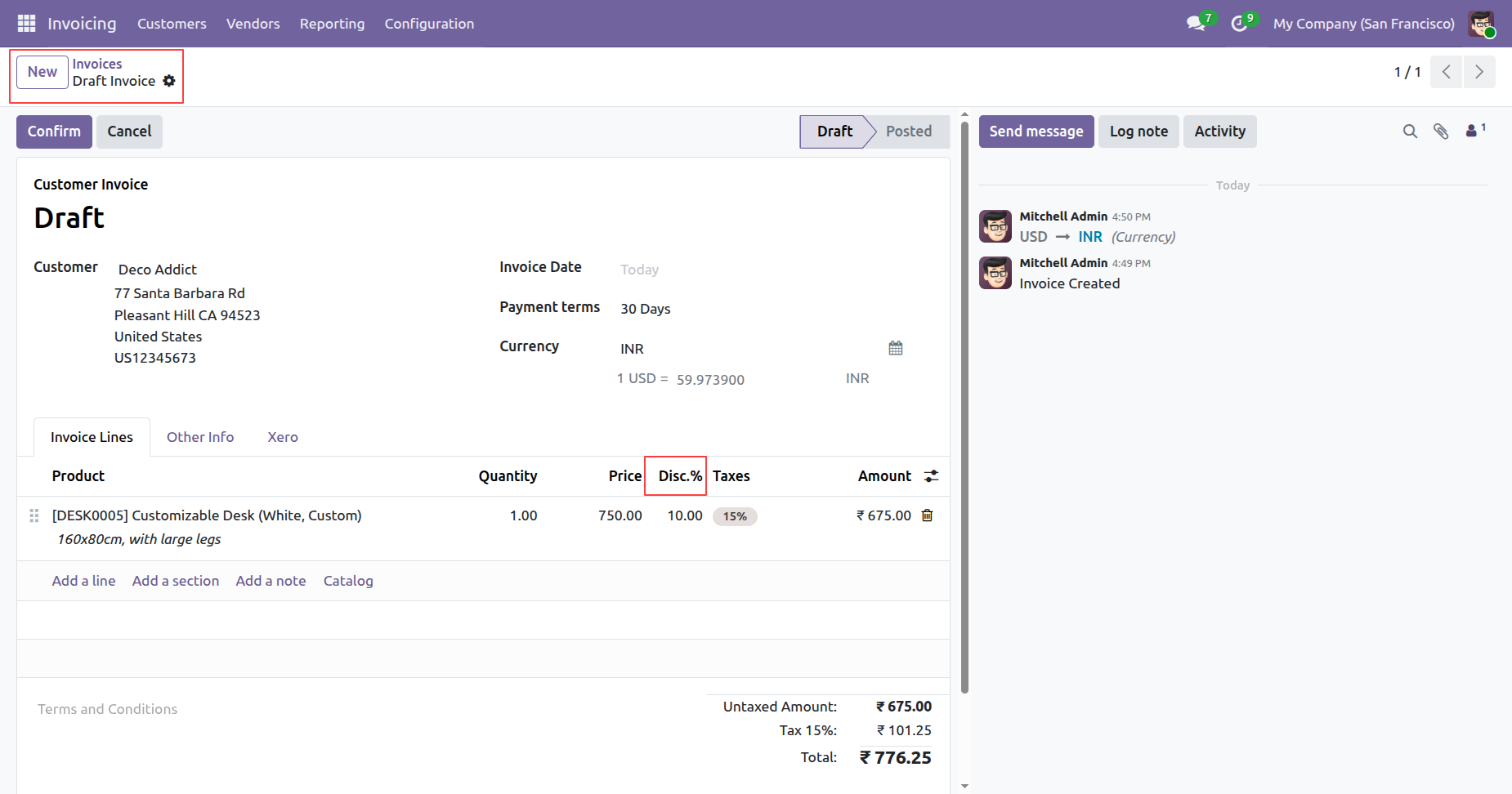
Click on the 'Export To Xero' from the action.
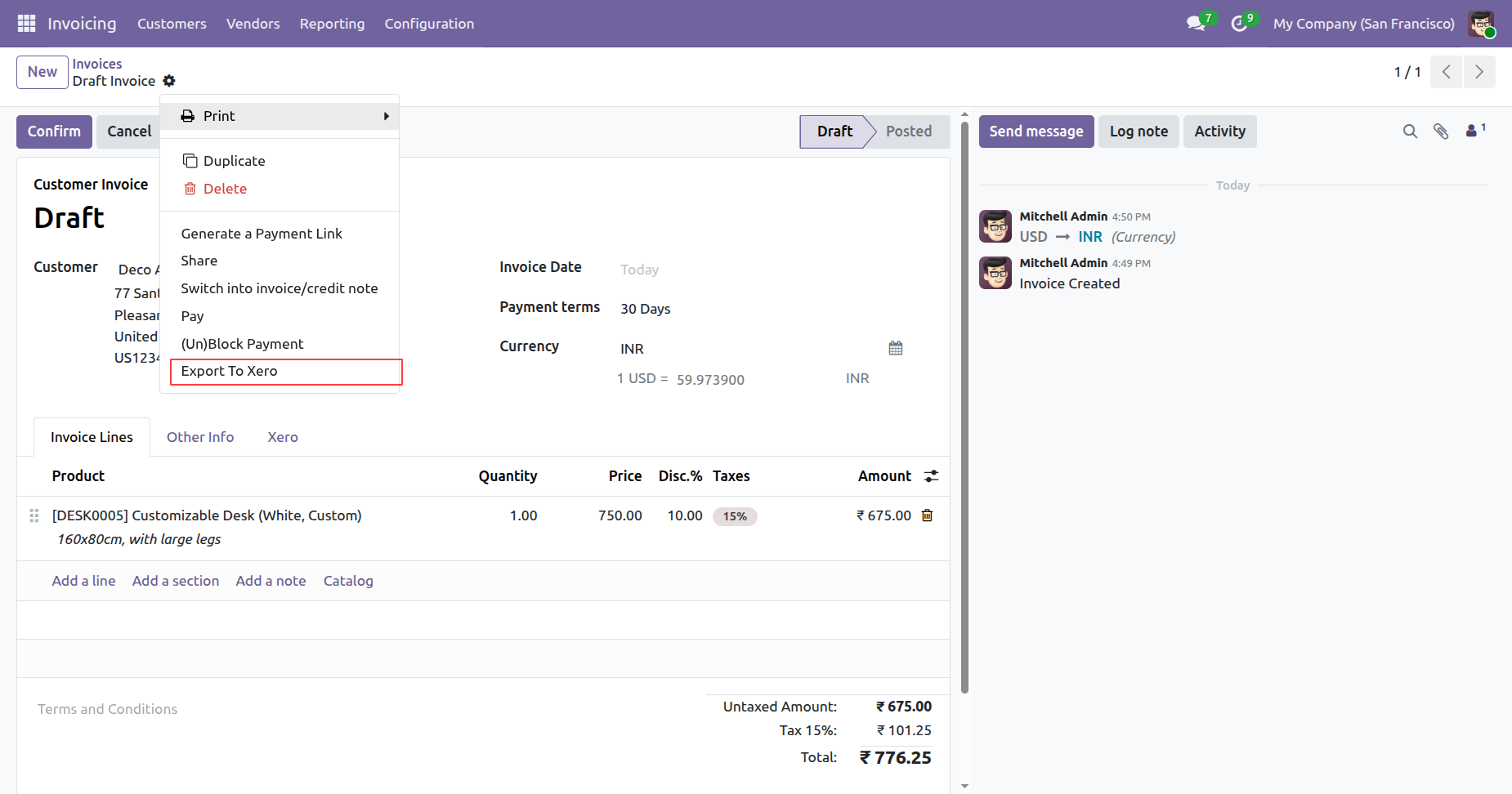
You can view the Xero details under the Xero tab.
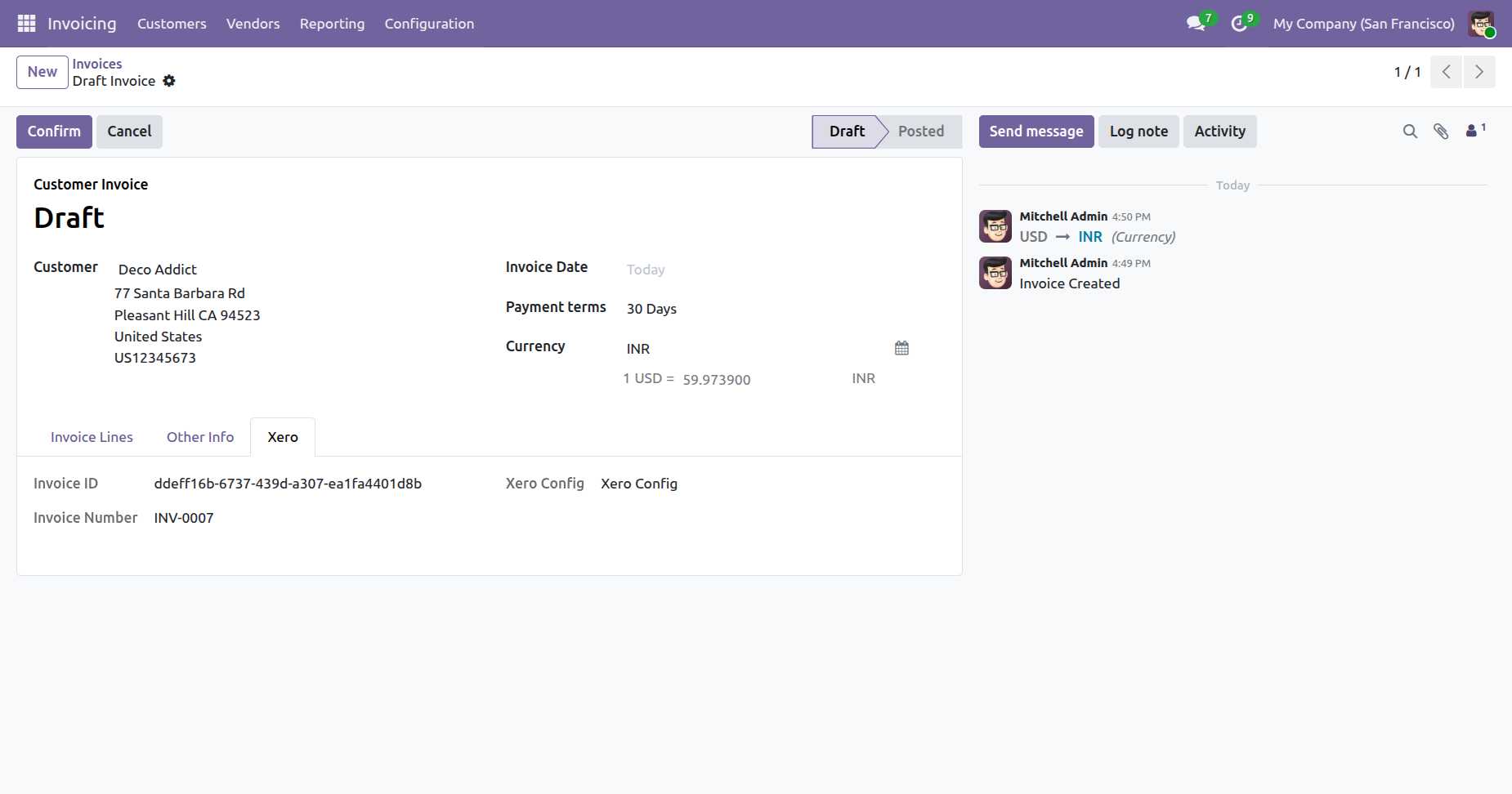
The exported invoice is shown in Xero with the discount line.
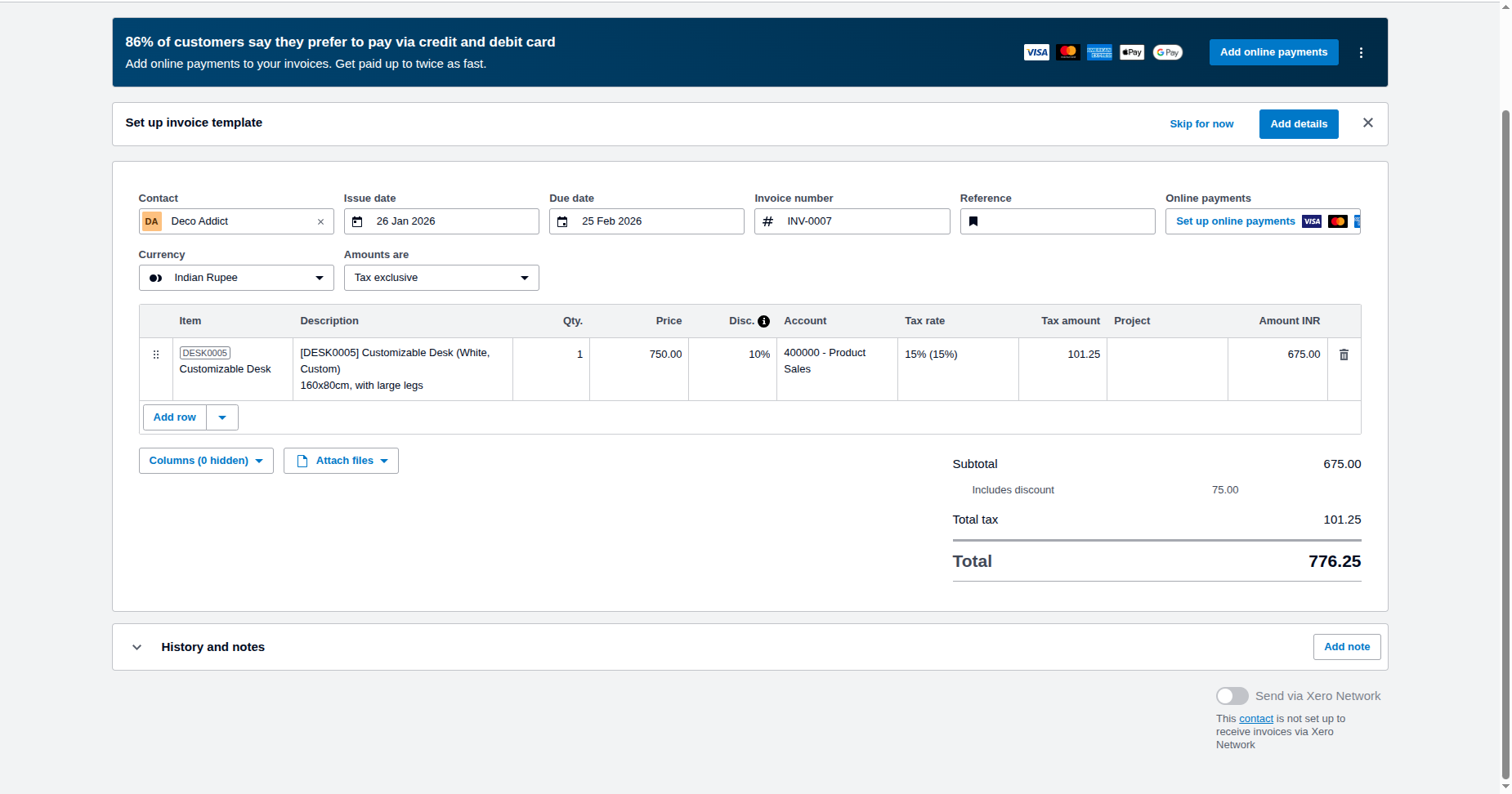
'Bills' menu.
Create a bill.
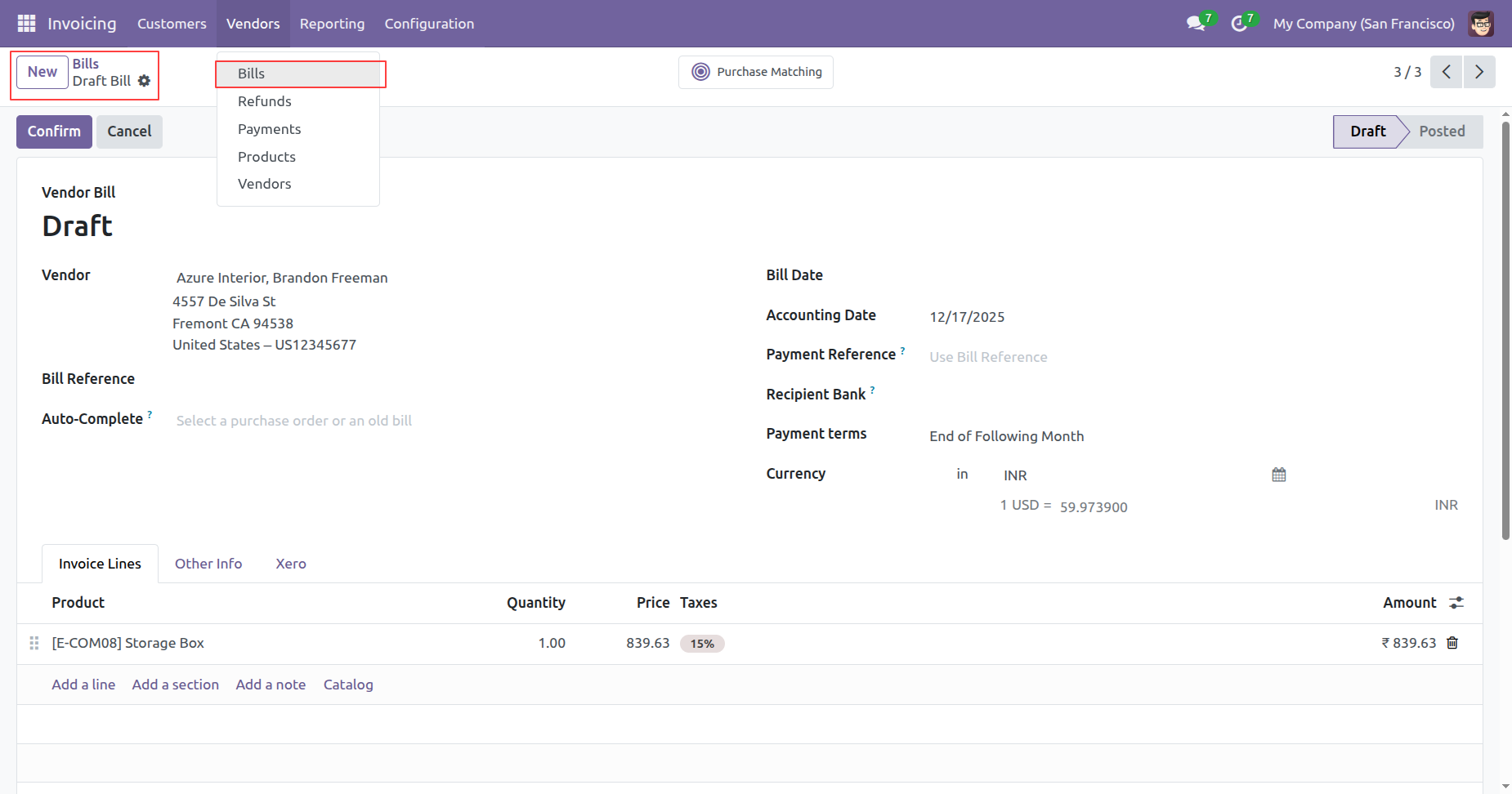
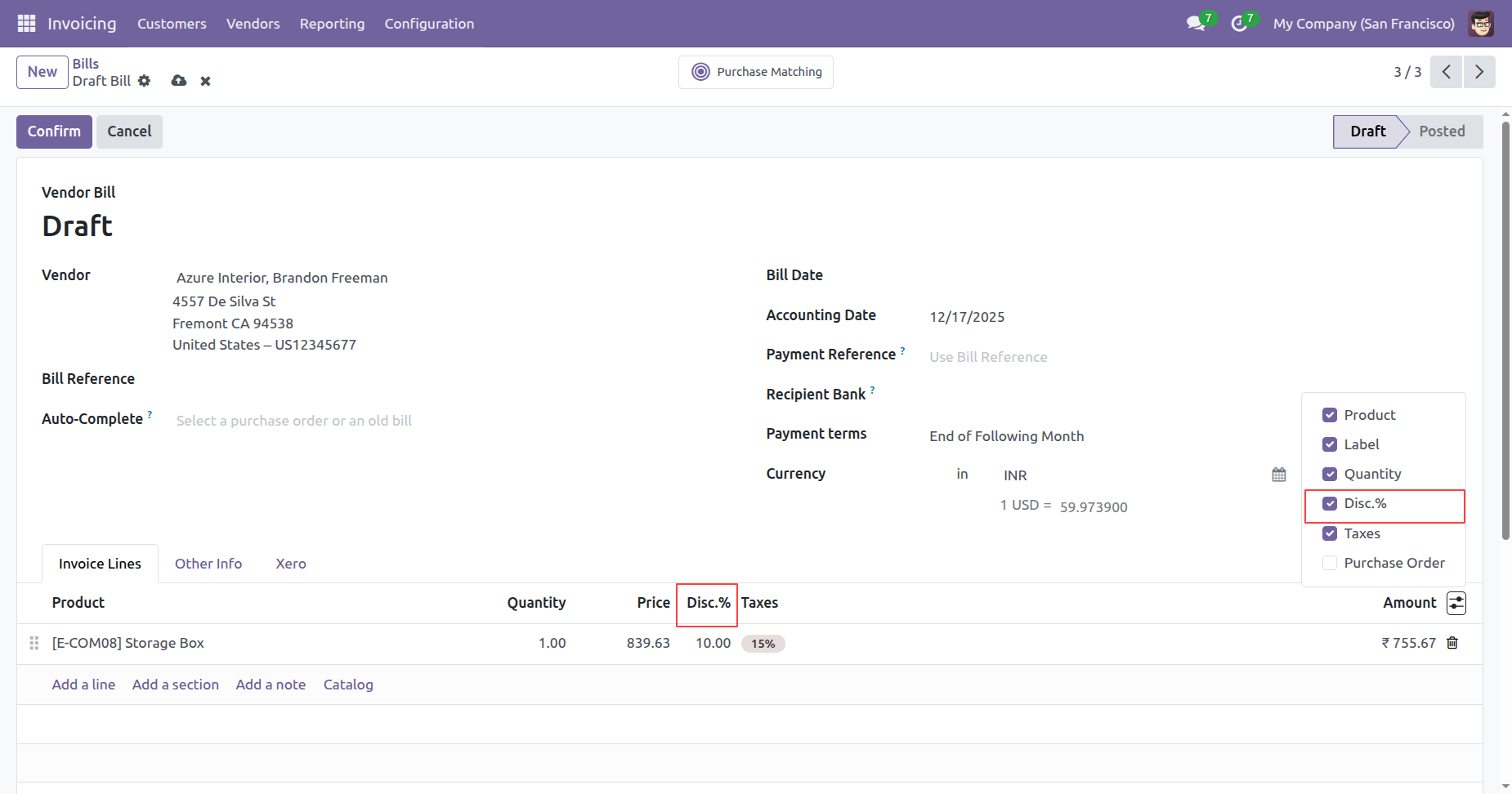
Here you can see the added discount.
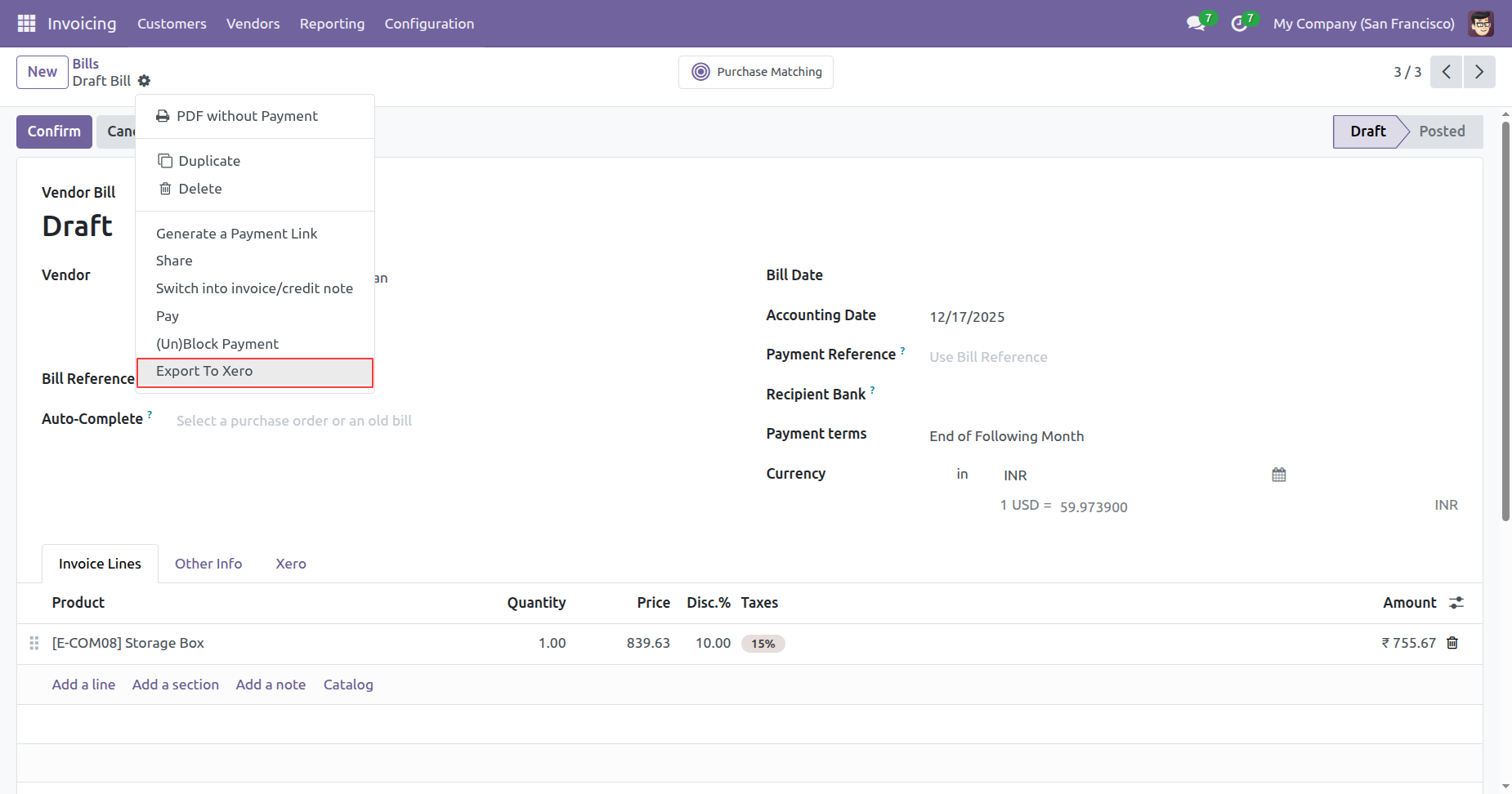
Click on the 'Export To Xero' from the action.
If any issues occur during export, the error is displayed in the 'Export' wizard.
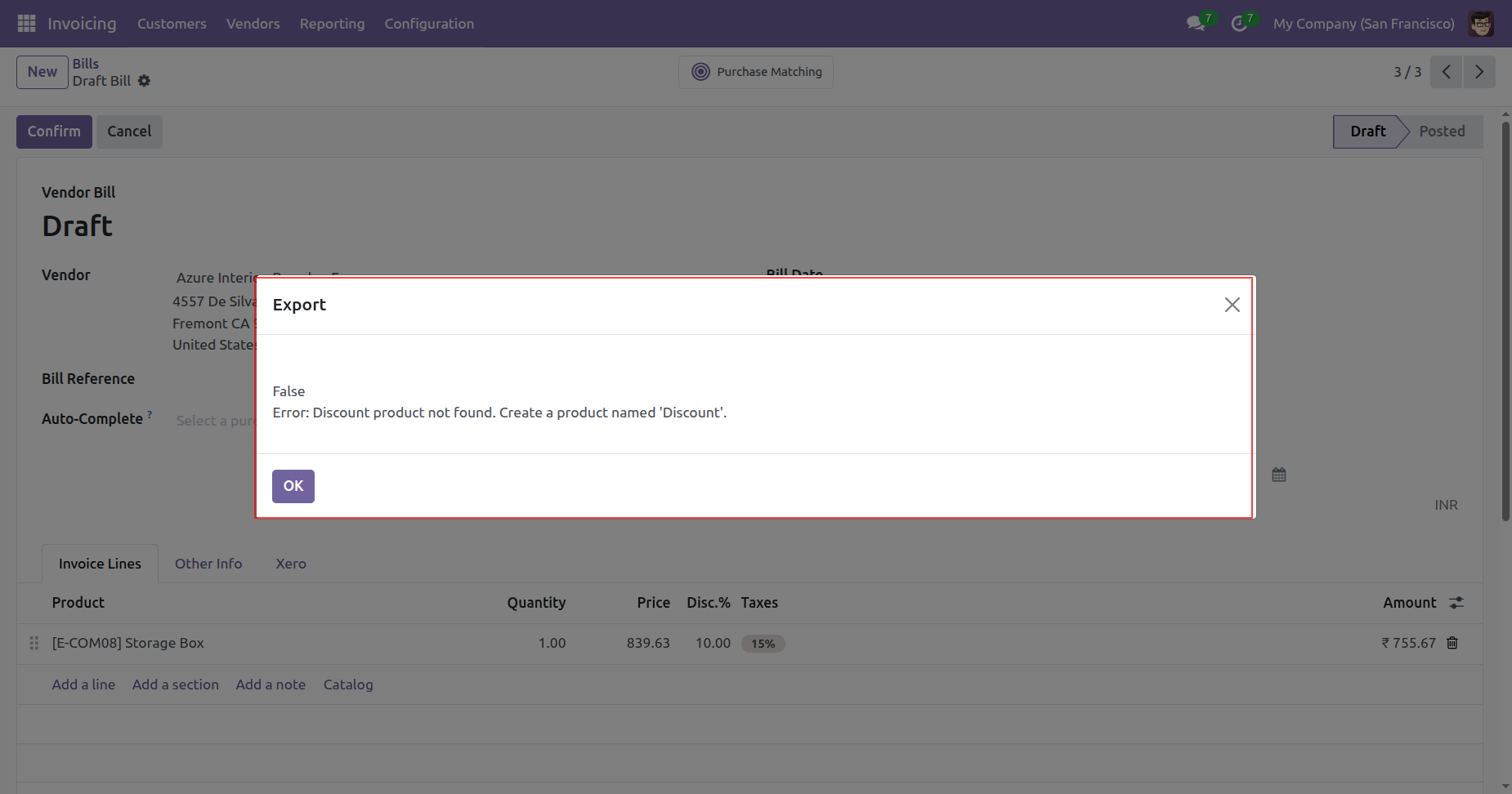
Create a 'Discount' product that is displayed in the above wizard.
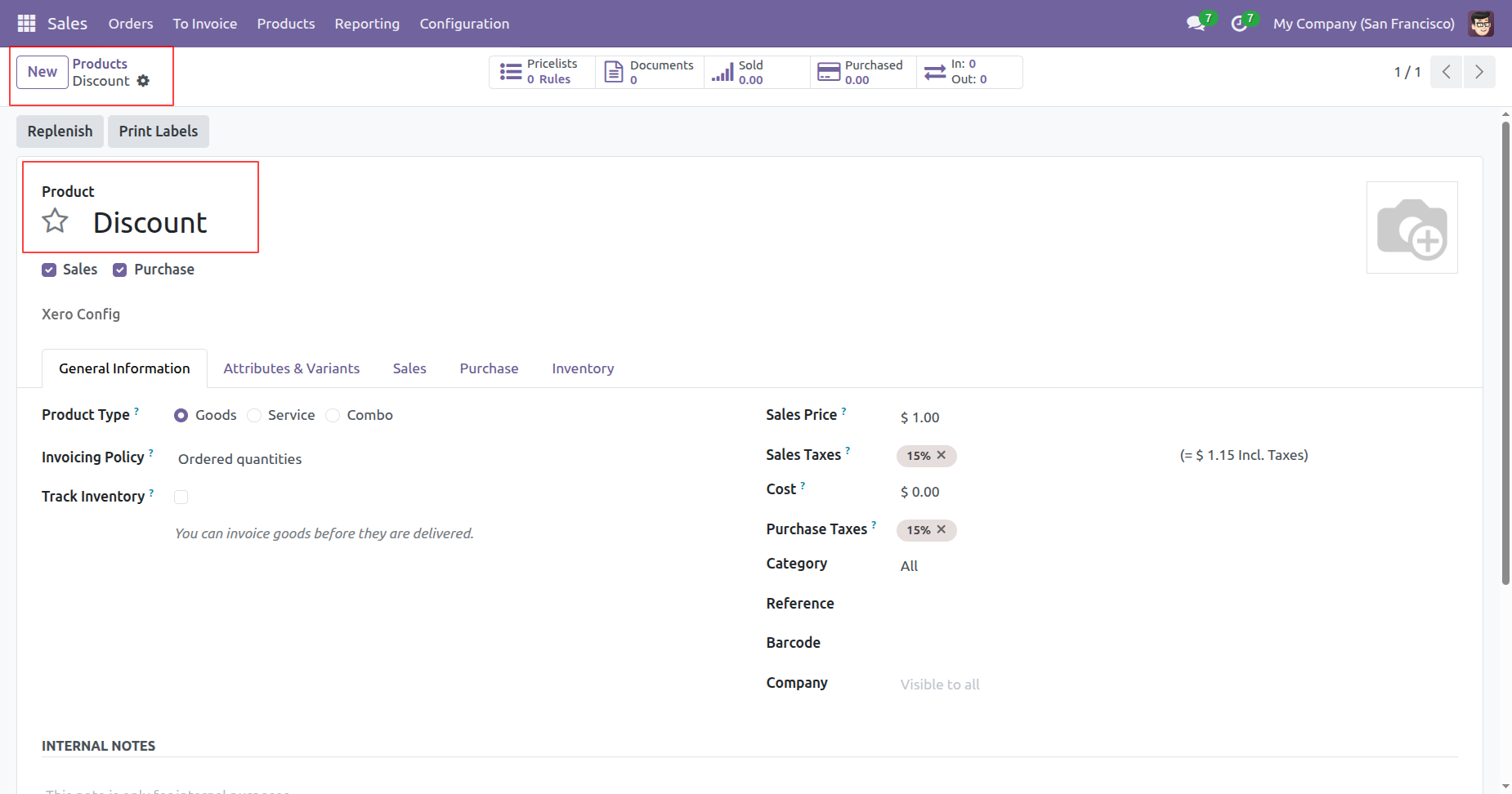
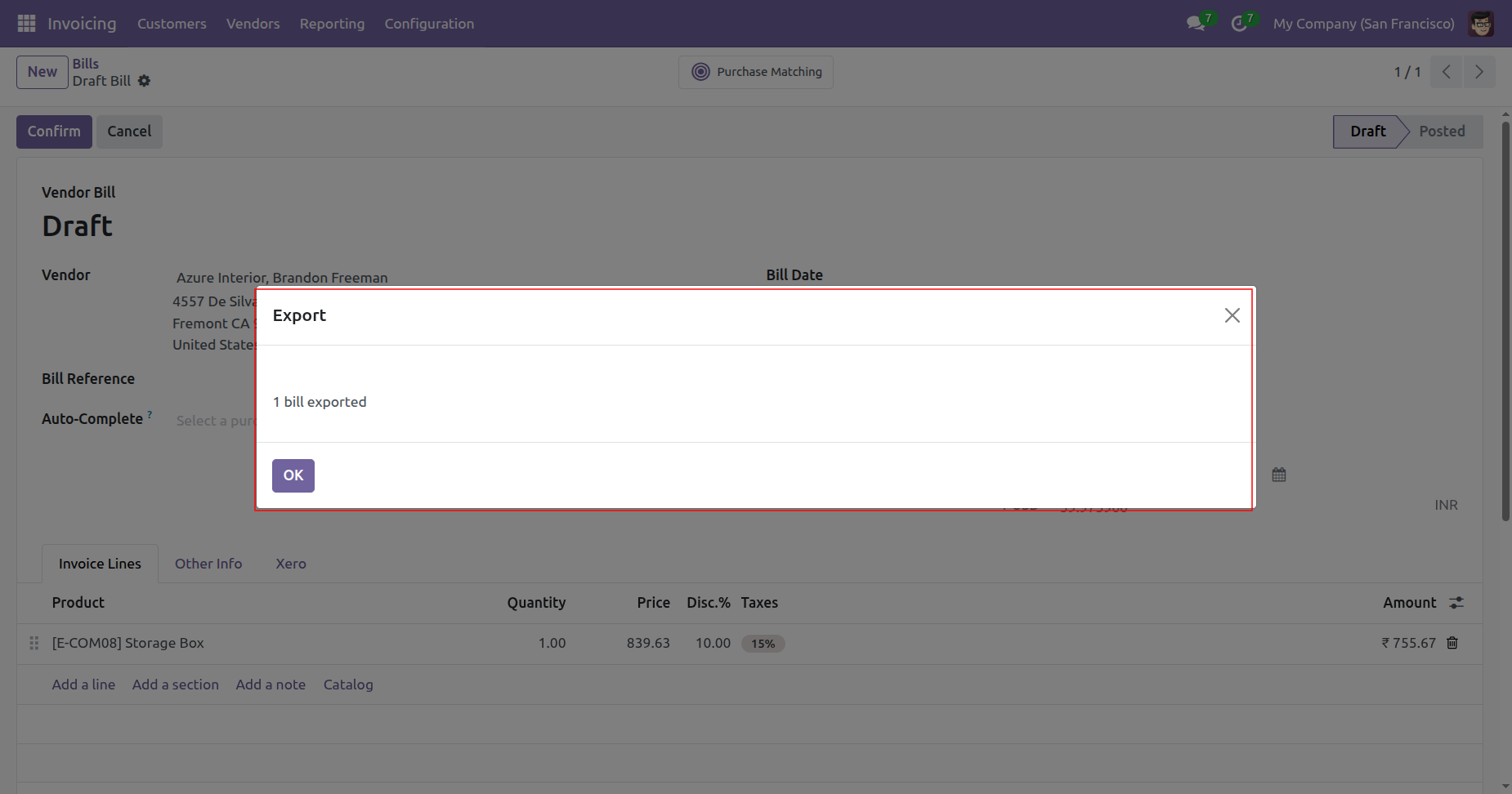
Click on the 'Export To Xero' from the action.
Here, you can see that the bill has been exported successfully.
The exported bill is shown in Xero with the discount line.
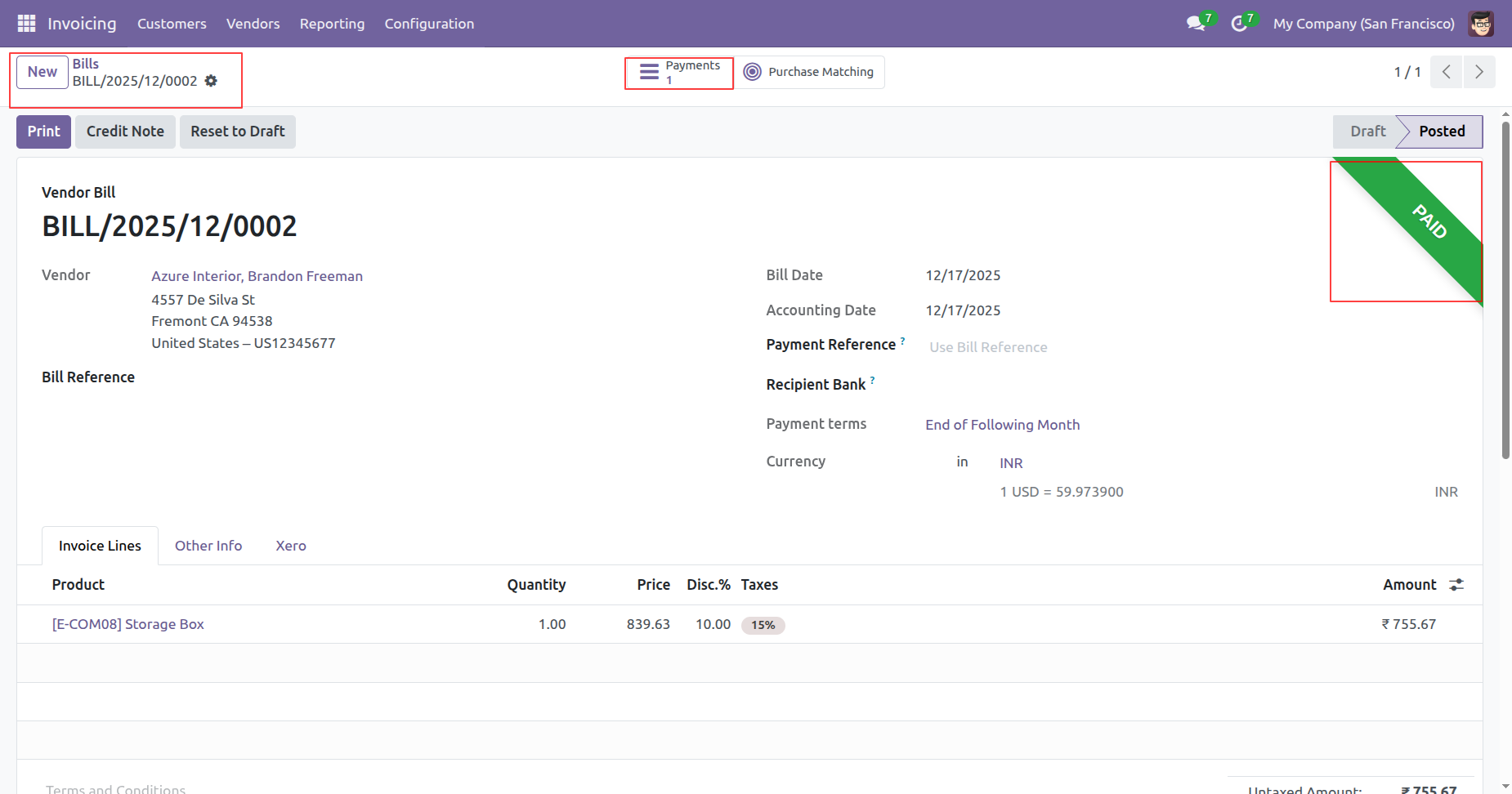
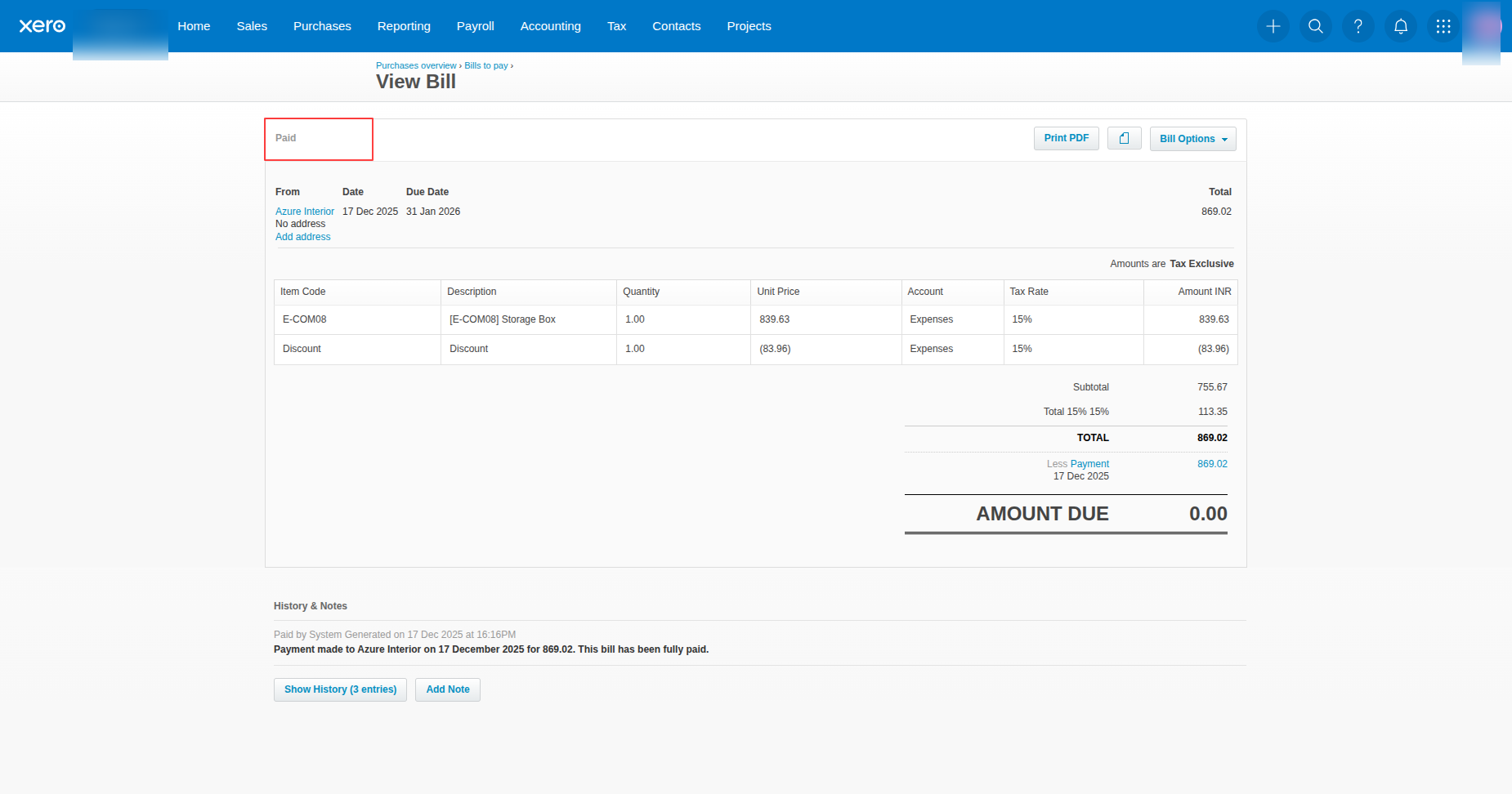
The bill is in the Paid state.
The bill is in the Paid state in Xero.
View the detailed synchronization history directly from the logging interface for complete operational transparency.
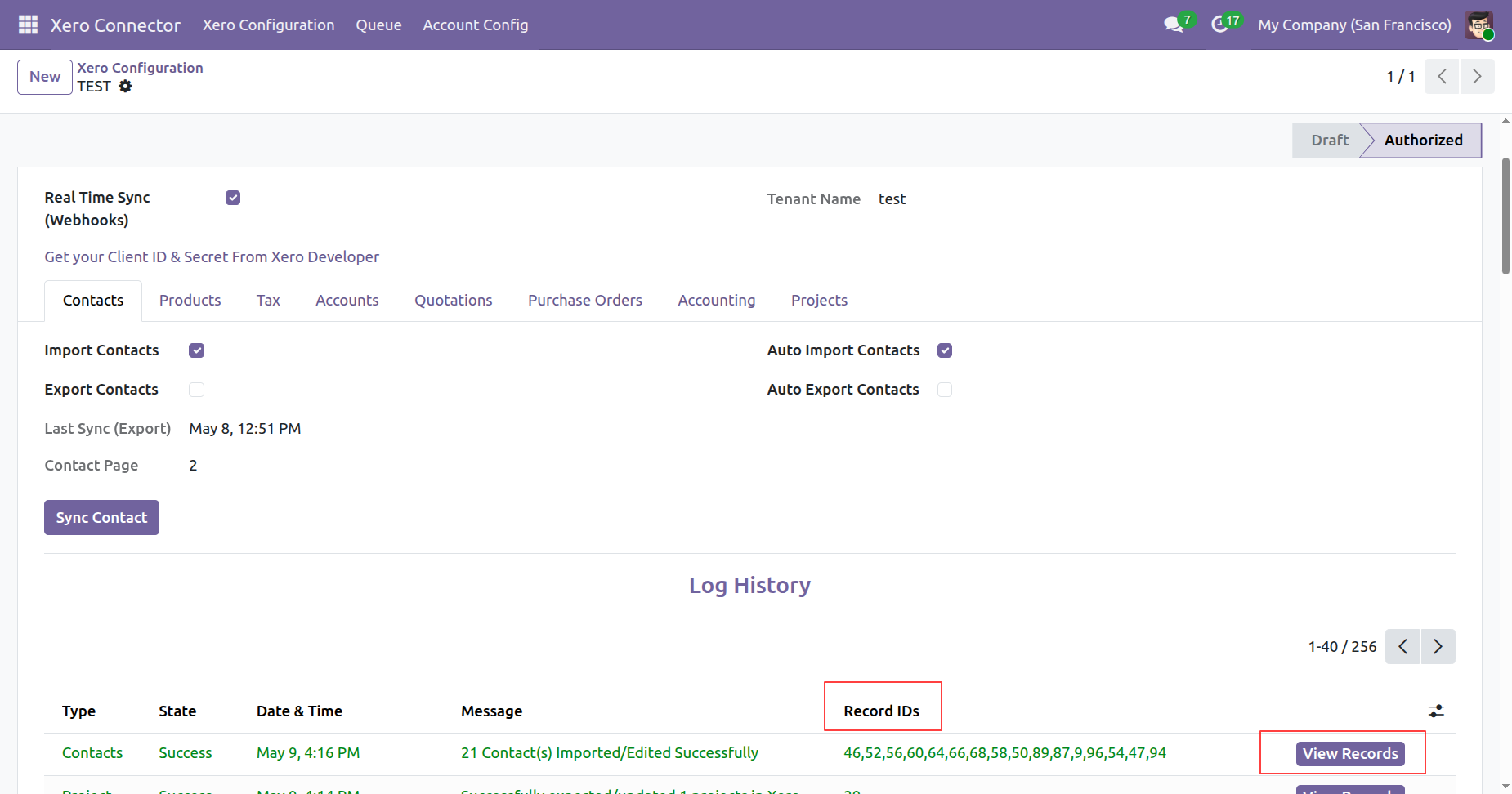
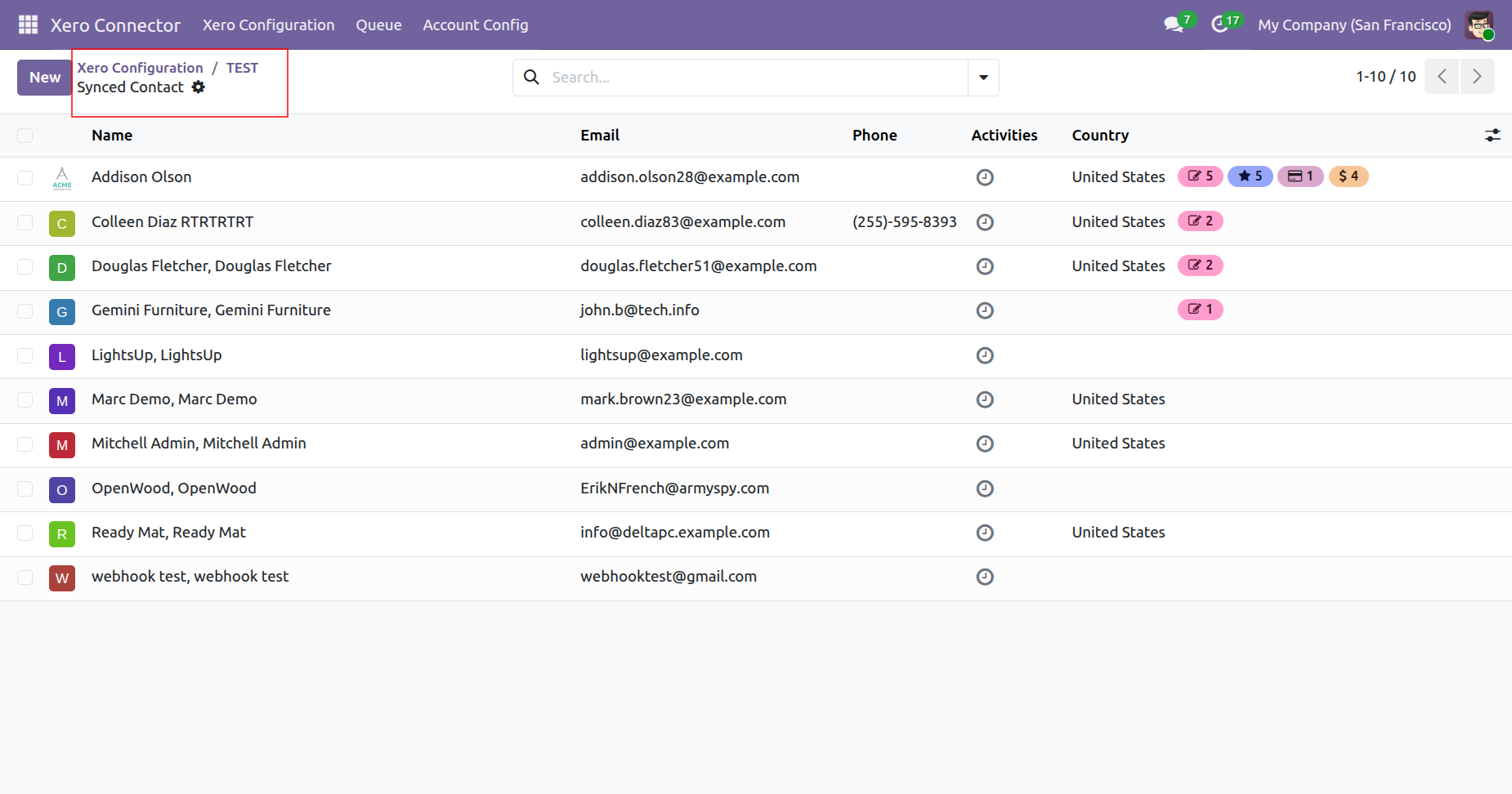
Click the 'View Records' button to quickly open and review the specific synchronized record within Odoo.
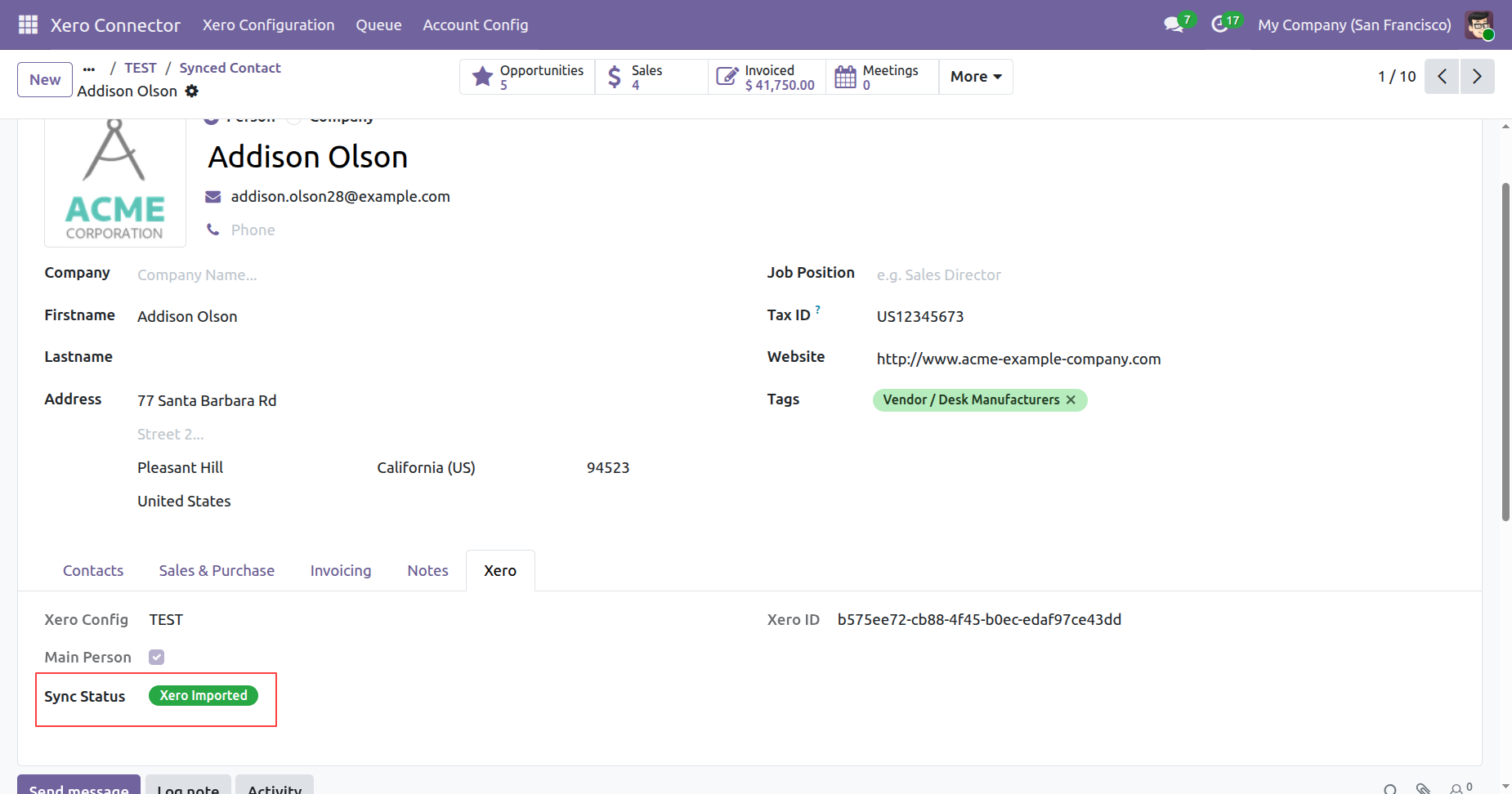
Identify the imported records efficiently with bright green tag.
Track exported data using distinctive yellow tags that signify successfully exported data entries.
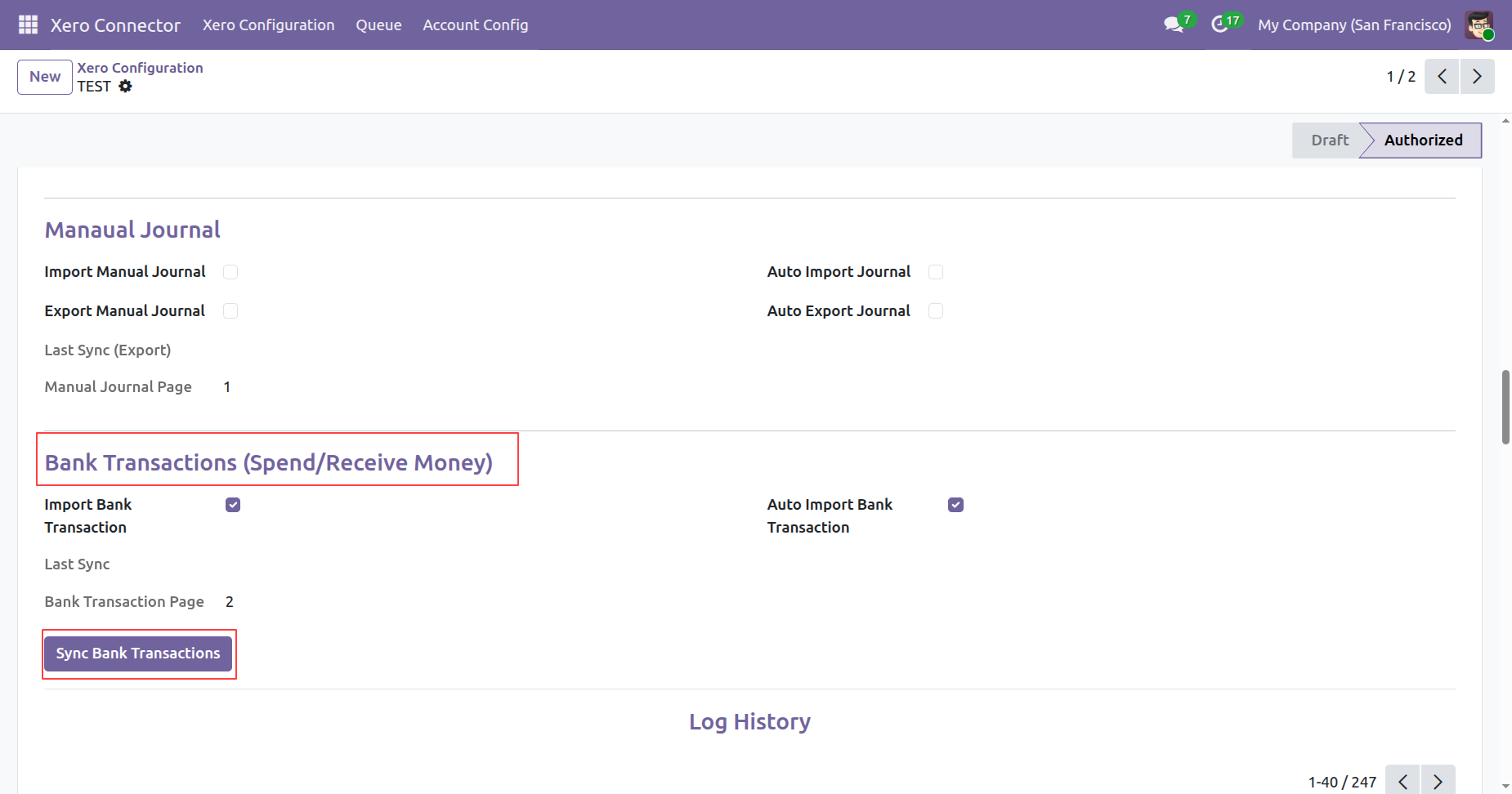
Enable the import bank transactions feature to automate financial data imports.
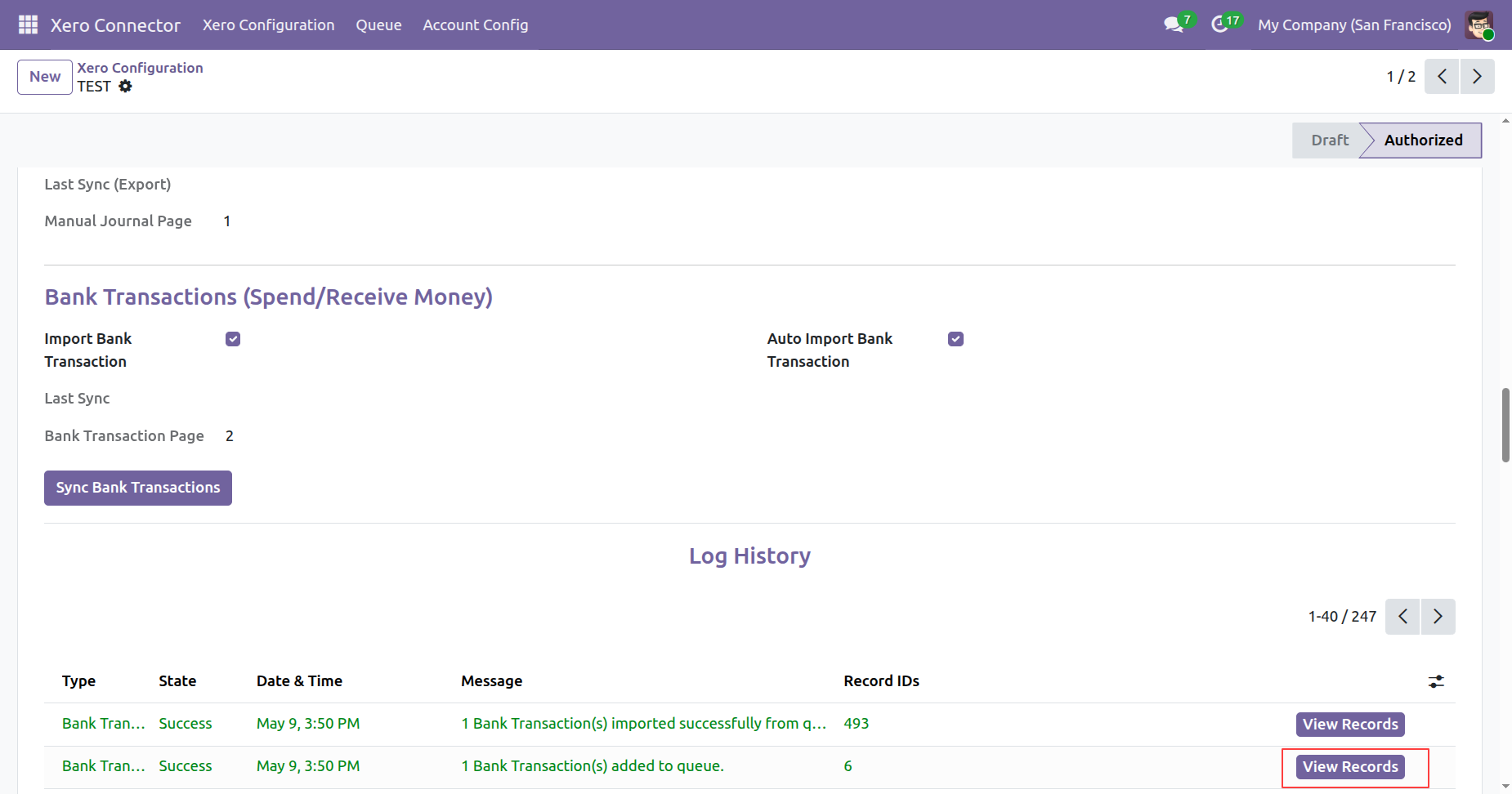
Verify successfully imported spend and receive money transactions.
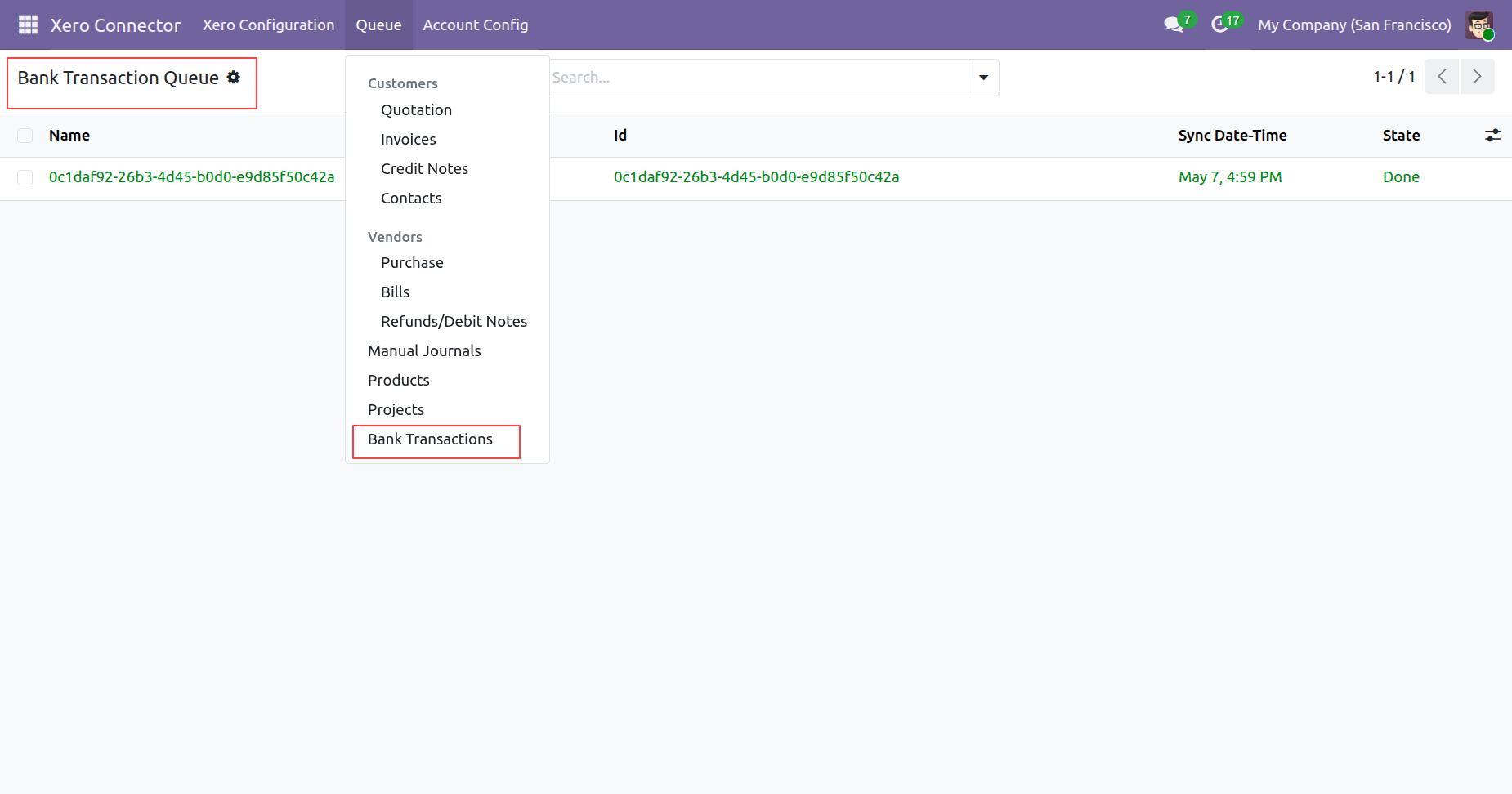
Go to the bank transactions queue to check queue records.
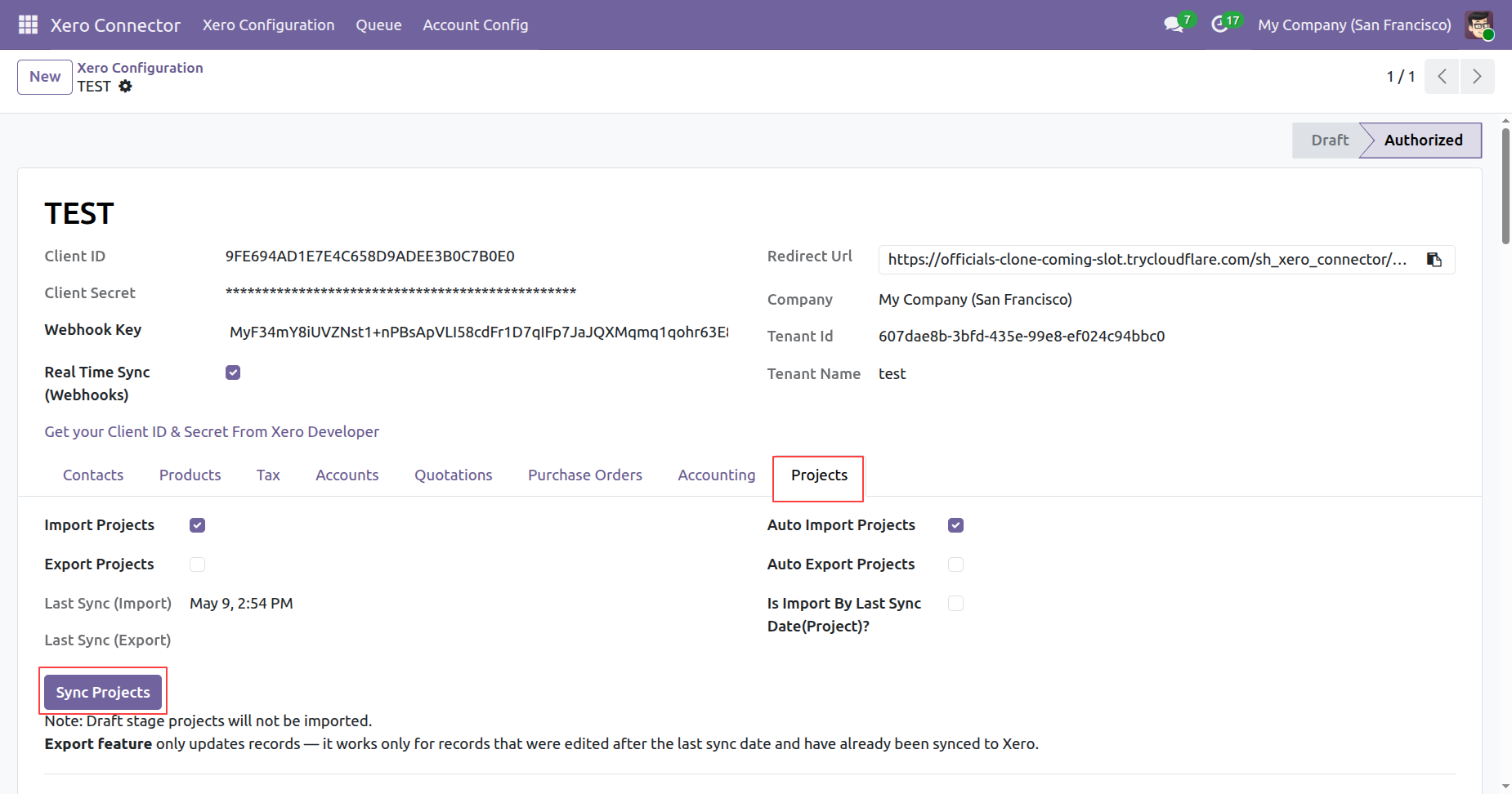
Activate the project synchronization settings.
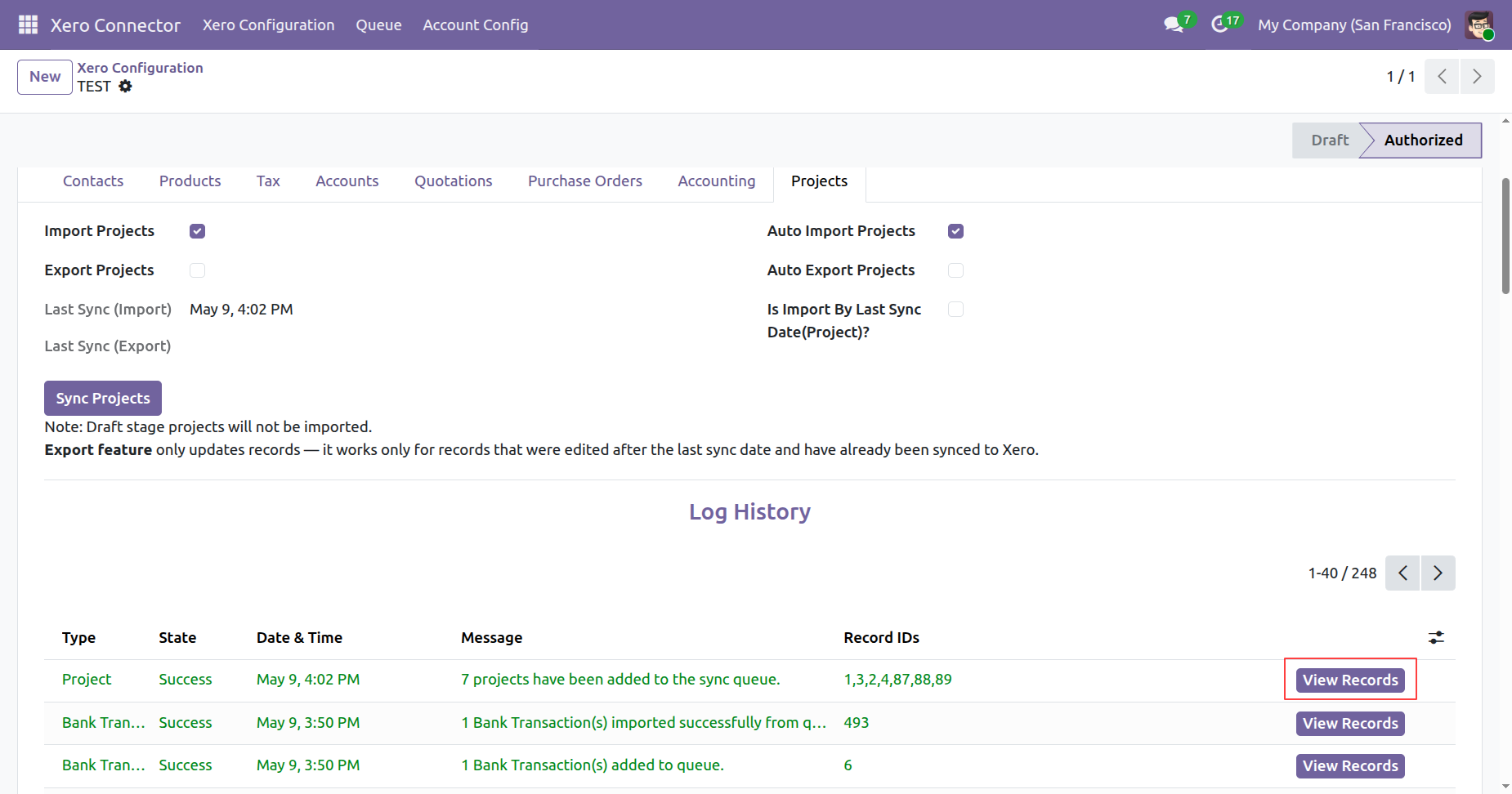
Review the comprehensive list of actively synced projects available in your unified project overview interface.
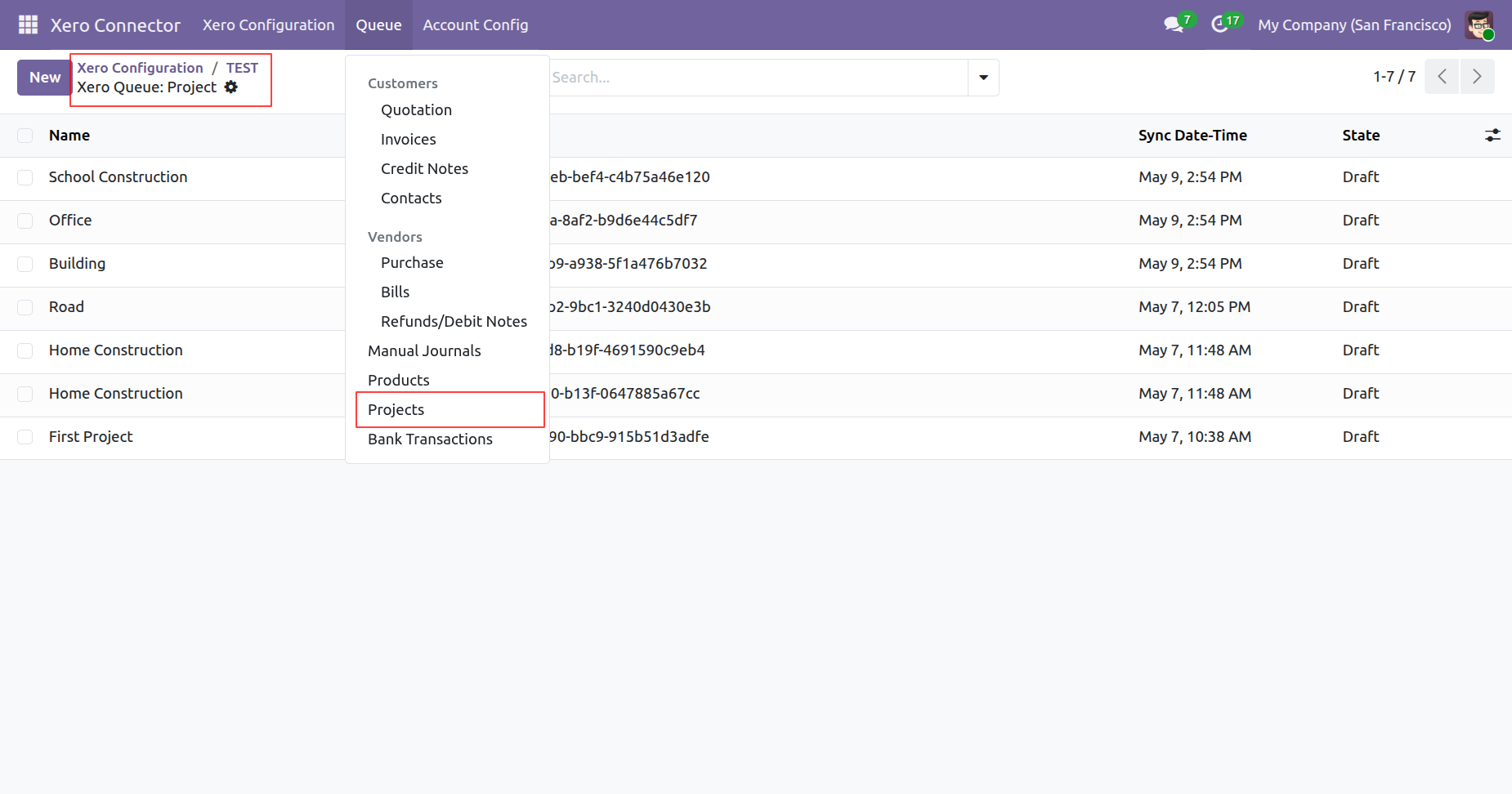
Analyze the synchronized projects, associated customer details, and overall completion status.
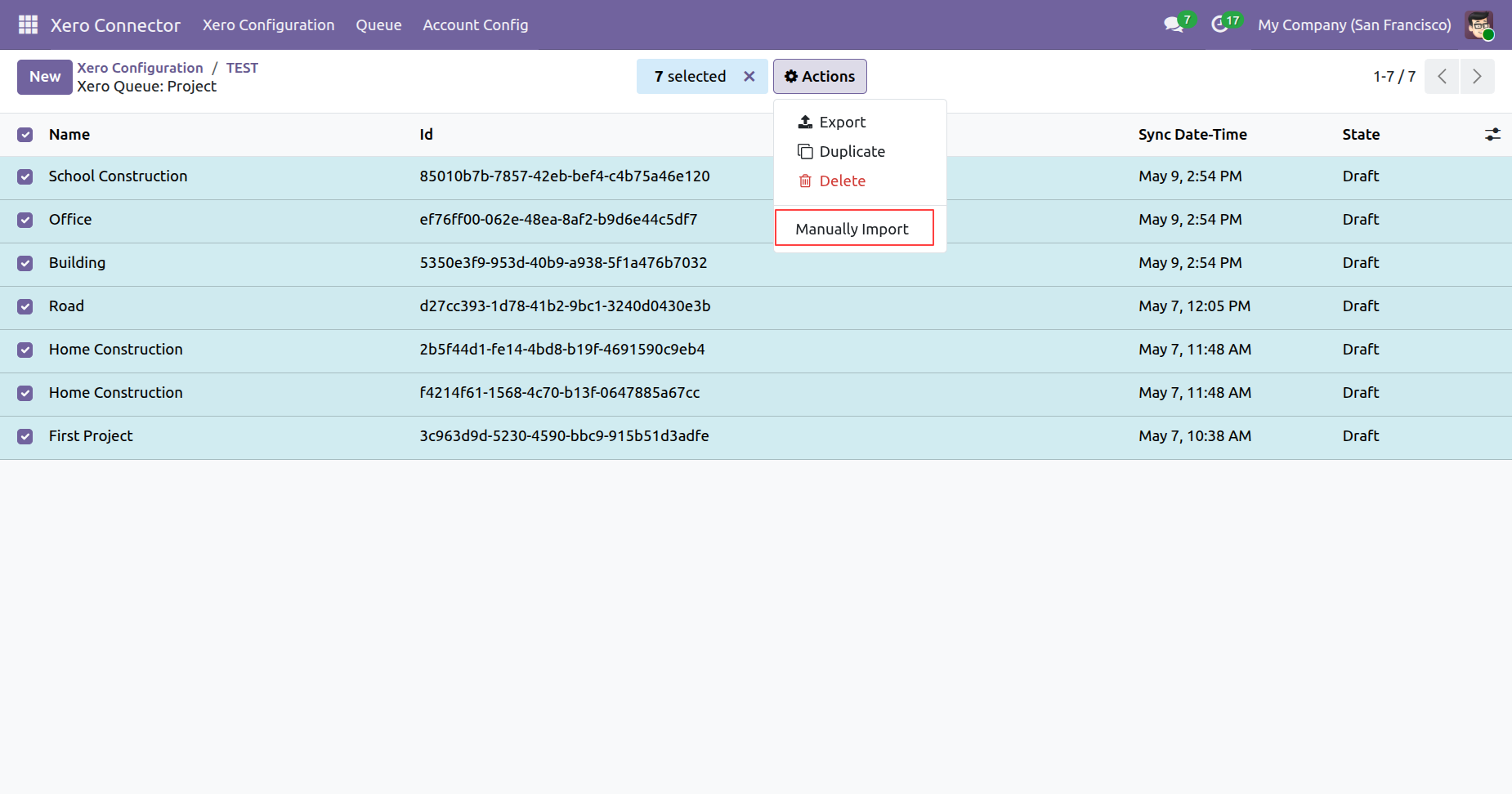
Initiate manual project imports directly from Xero to ensure immediate data availability when required.
Monitor synchronization success through the dedicated import wizard confirming correctly processed project records.
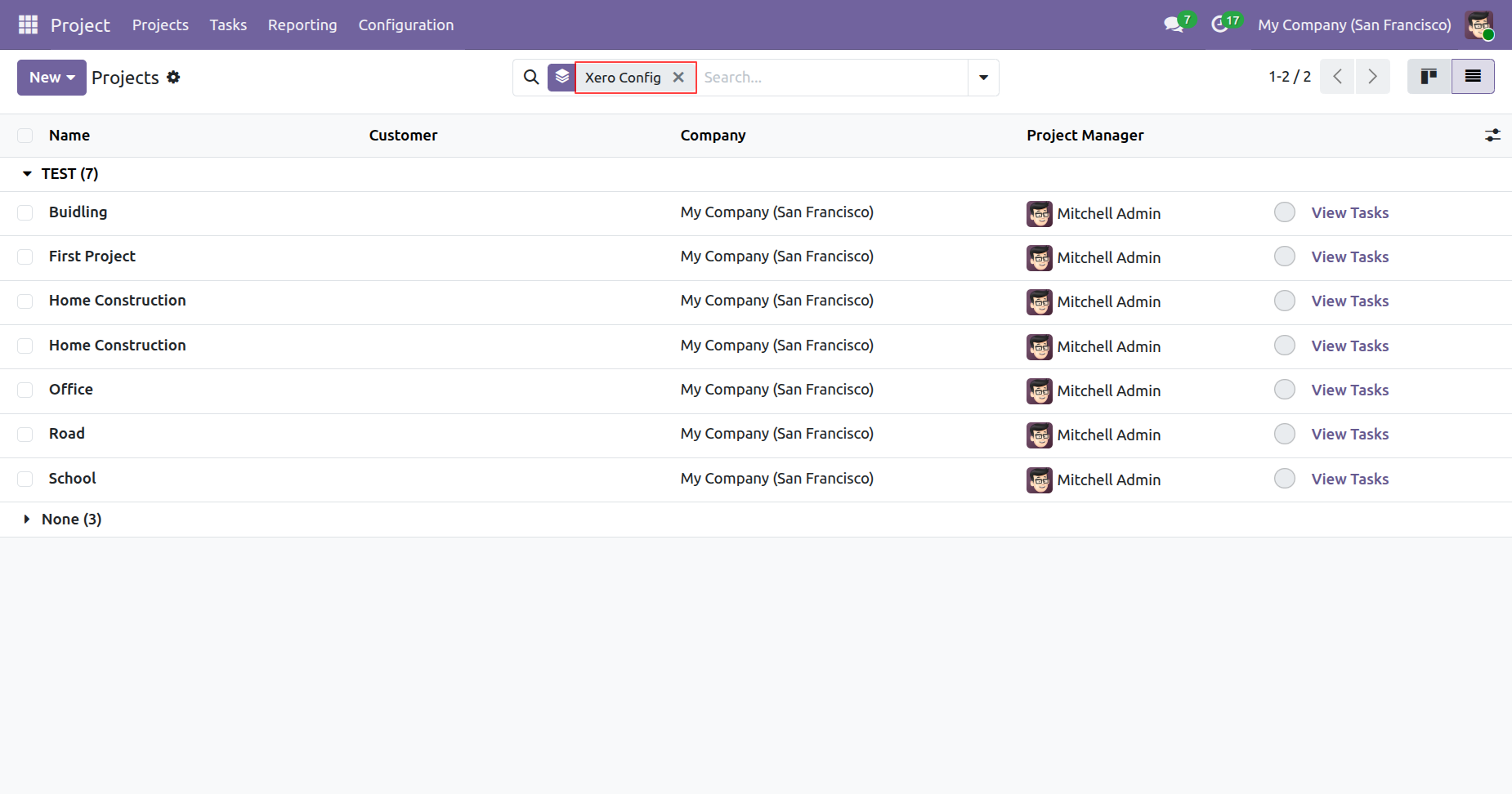
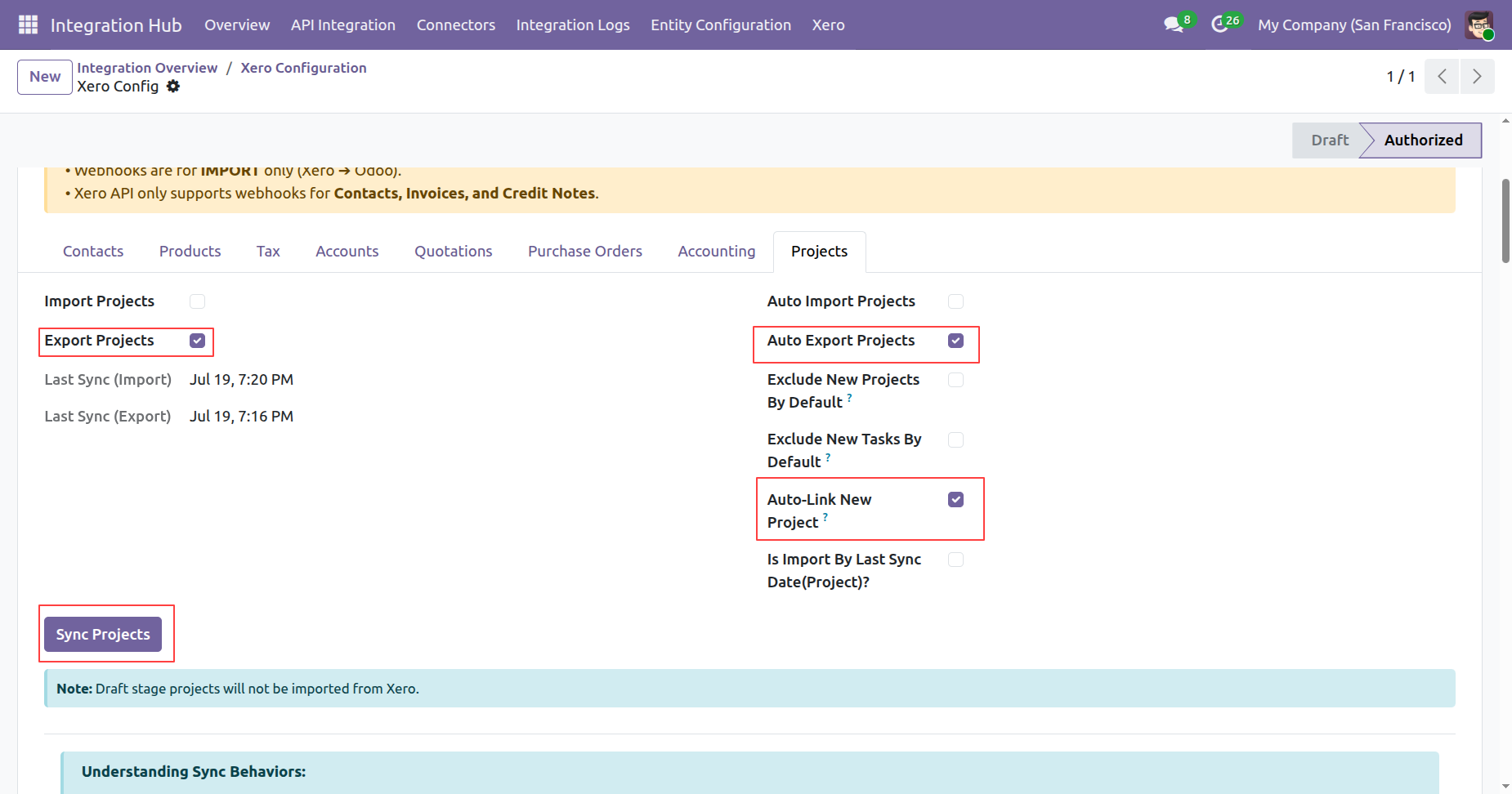
Enable auto link new project boolean from xero config, click on sync project button to auto link new project.
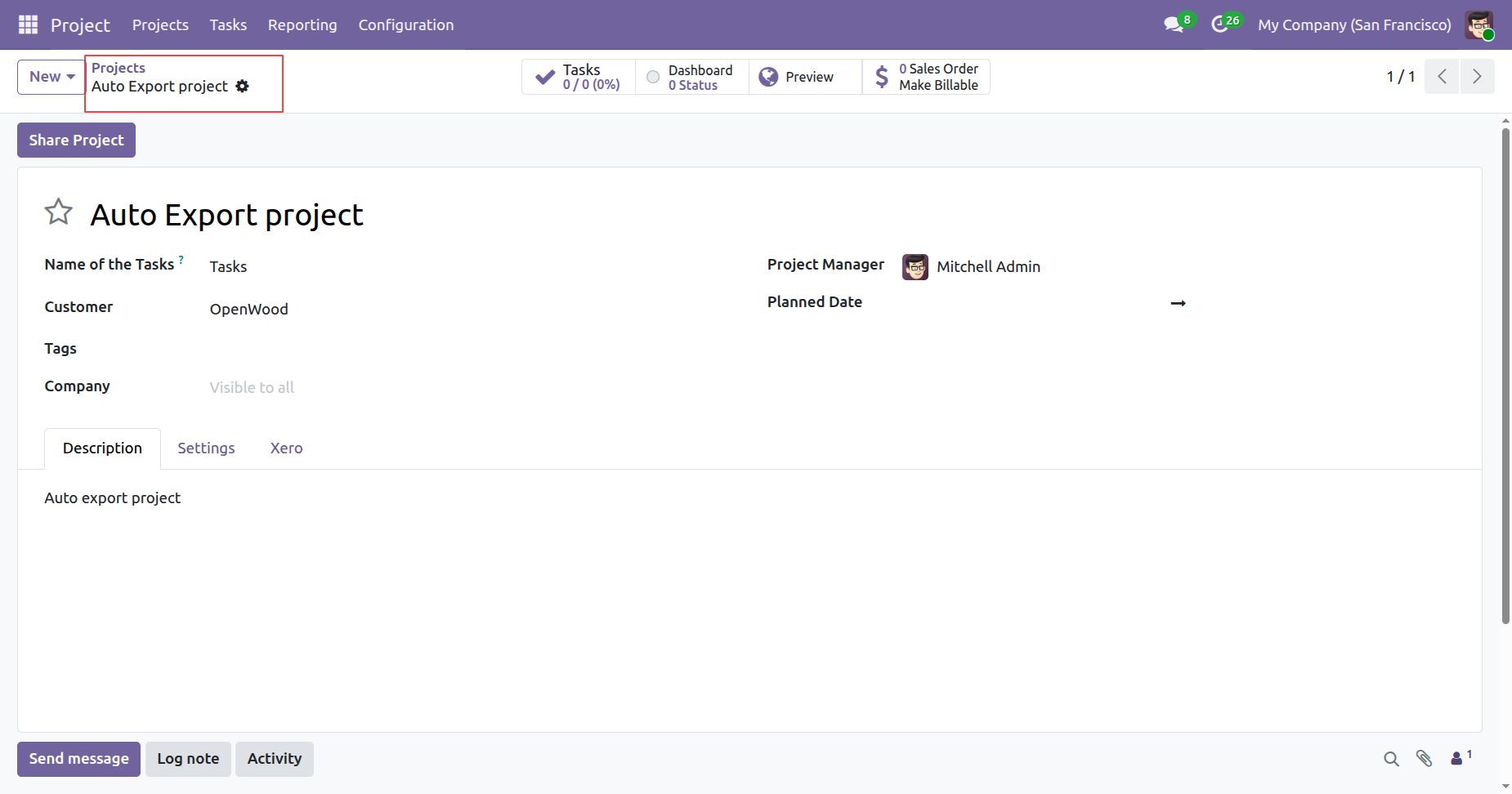
Create a new project in odoo.
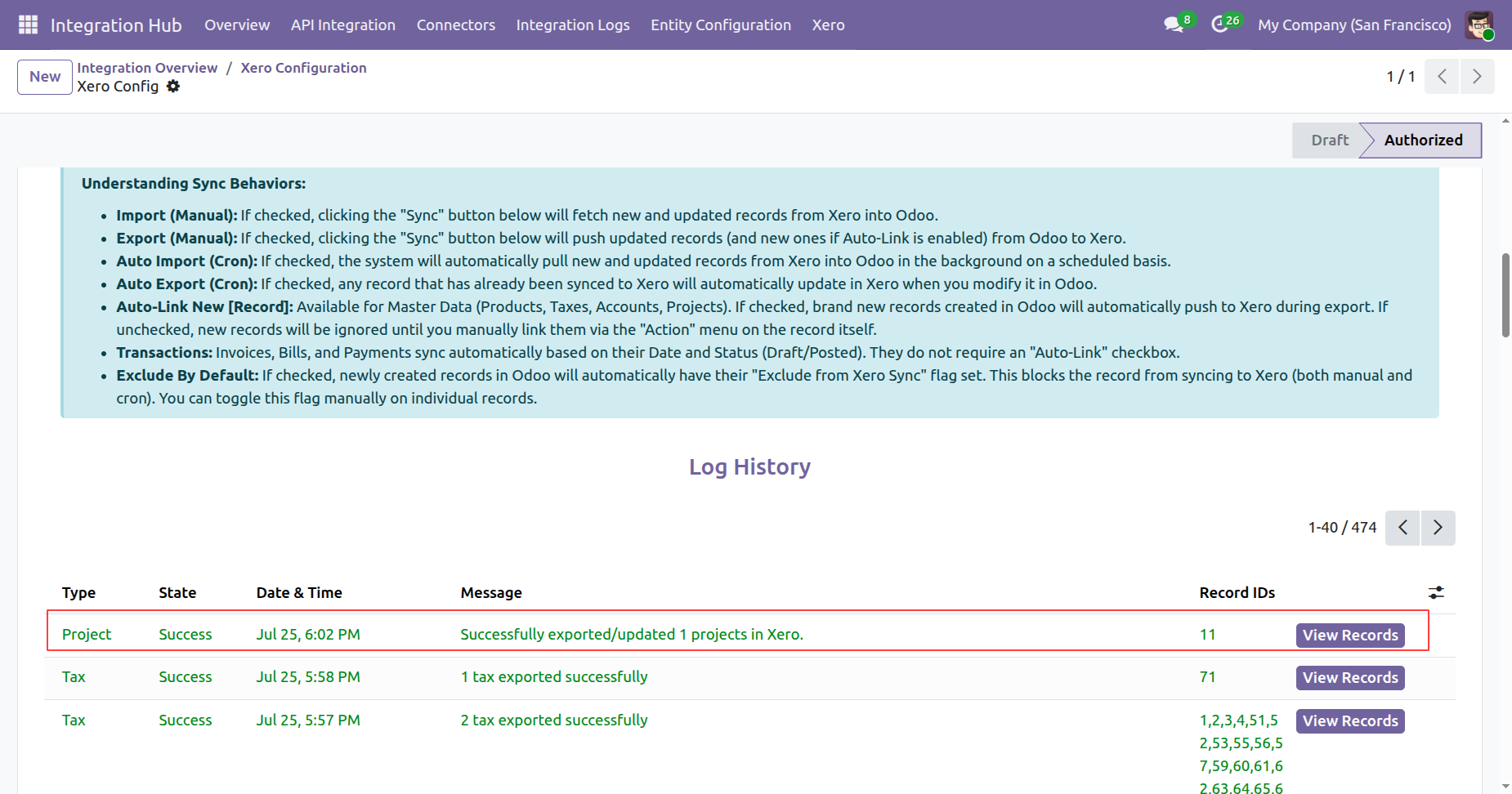
Project Synced Successfully in xero click on view records from log history.
Synced project details will be visible in odoo.
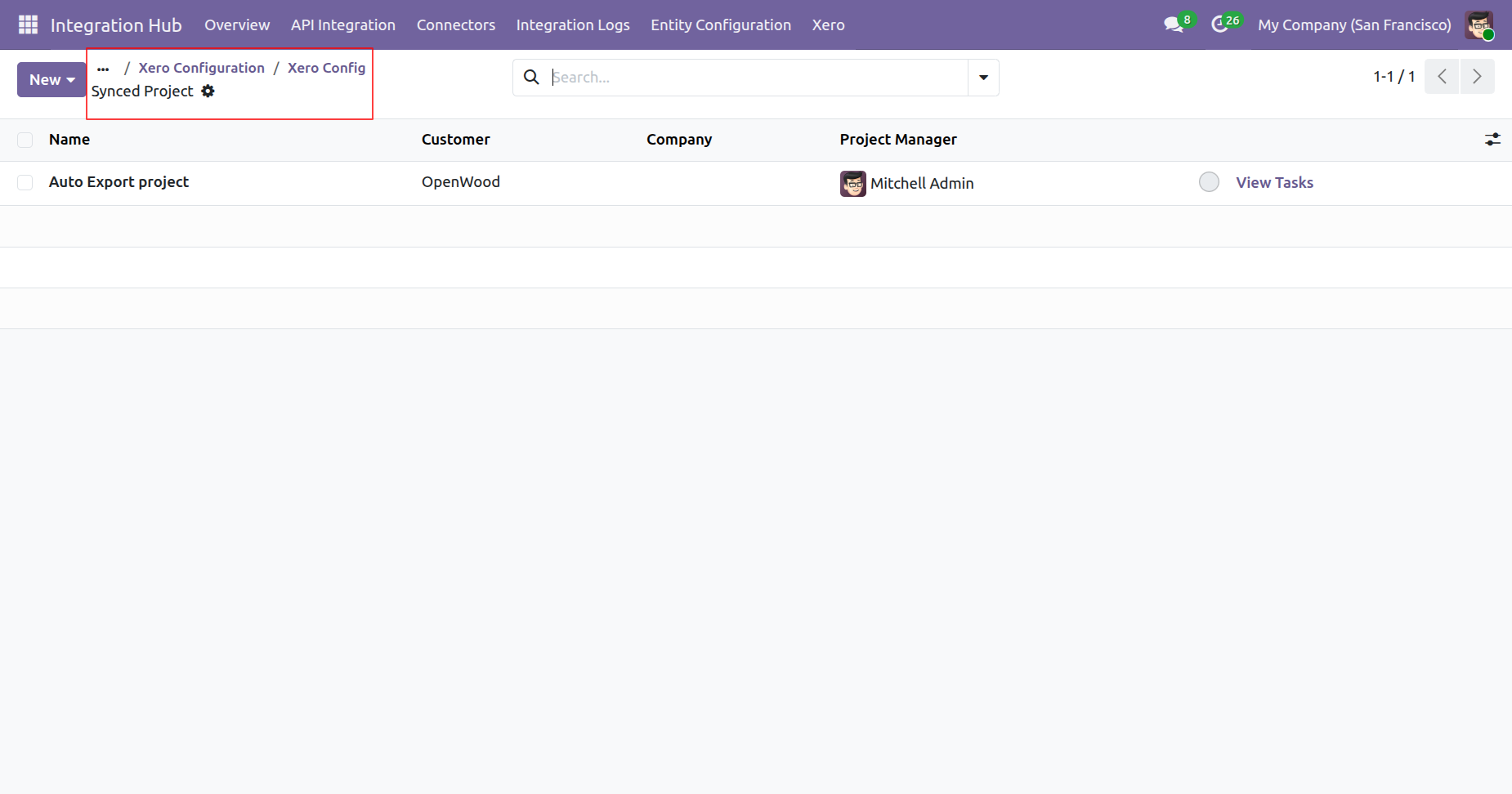
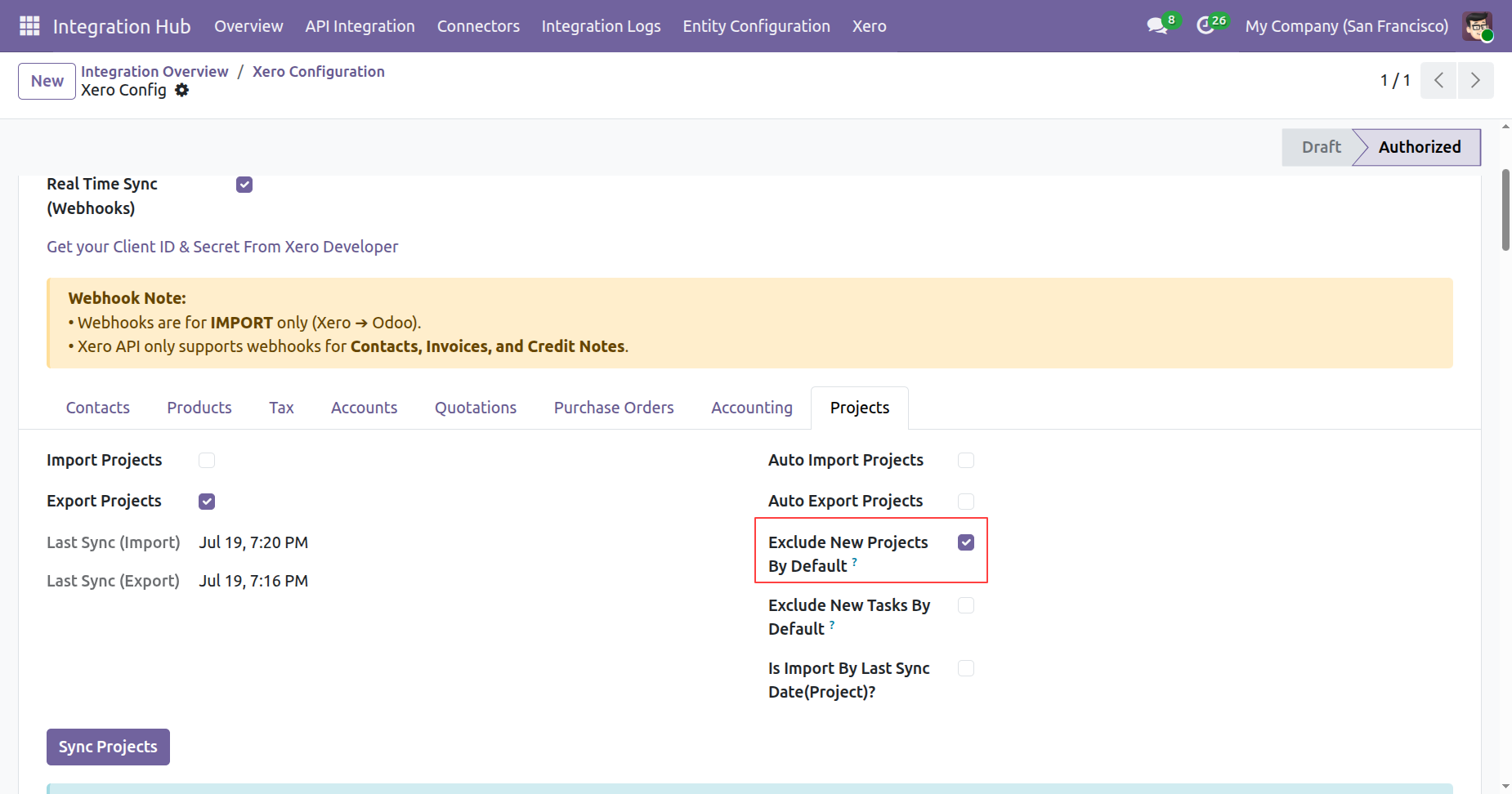
Enable exclude new projects by default boolean from xero config.
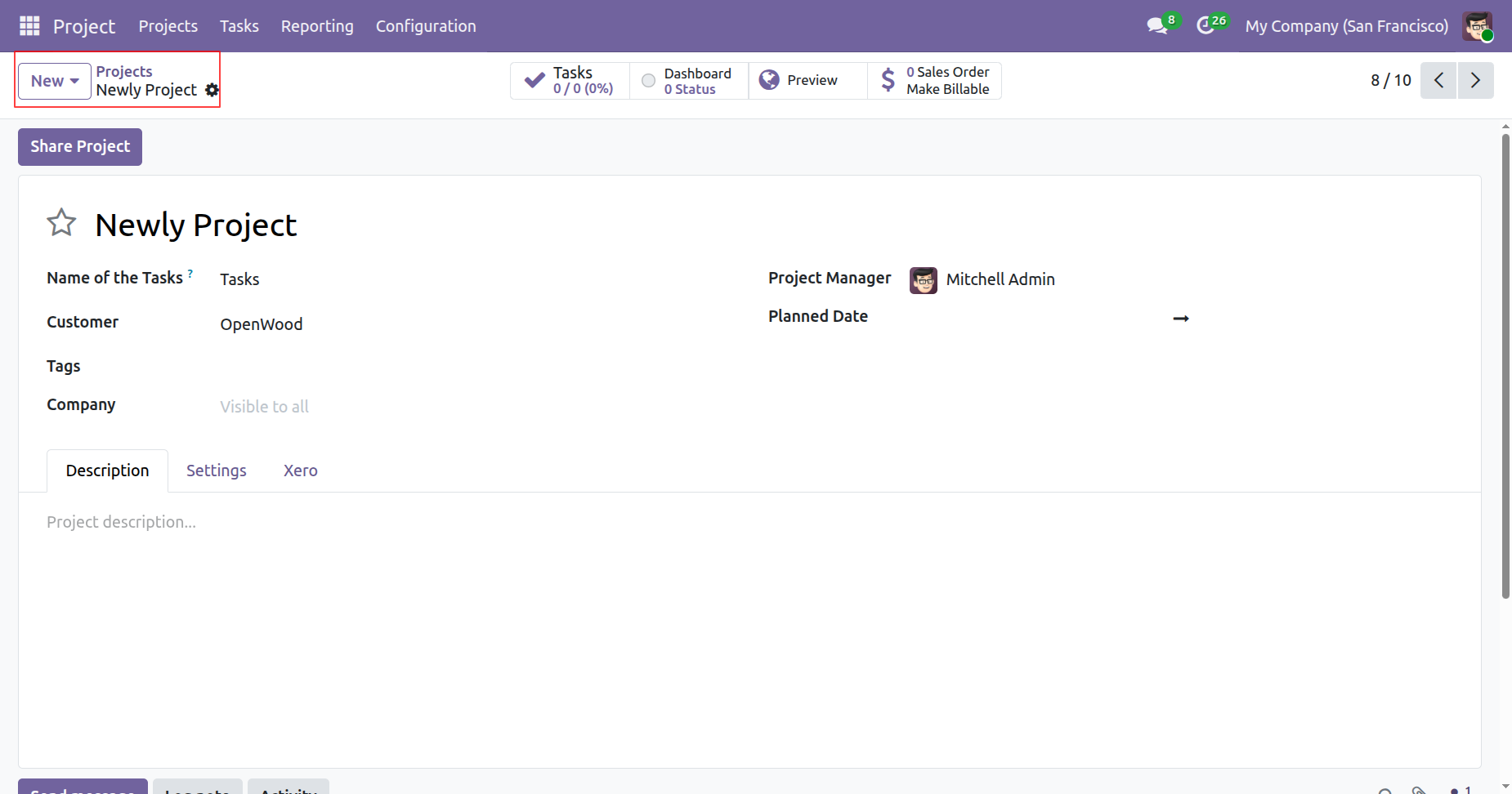
Create a new project in odoo.
Click on export to xero from projects form view.
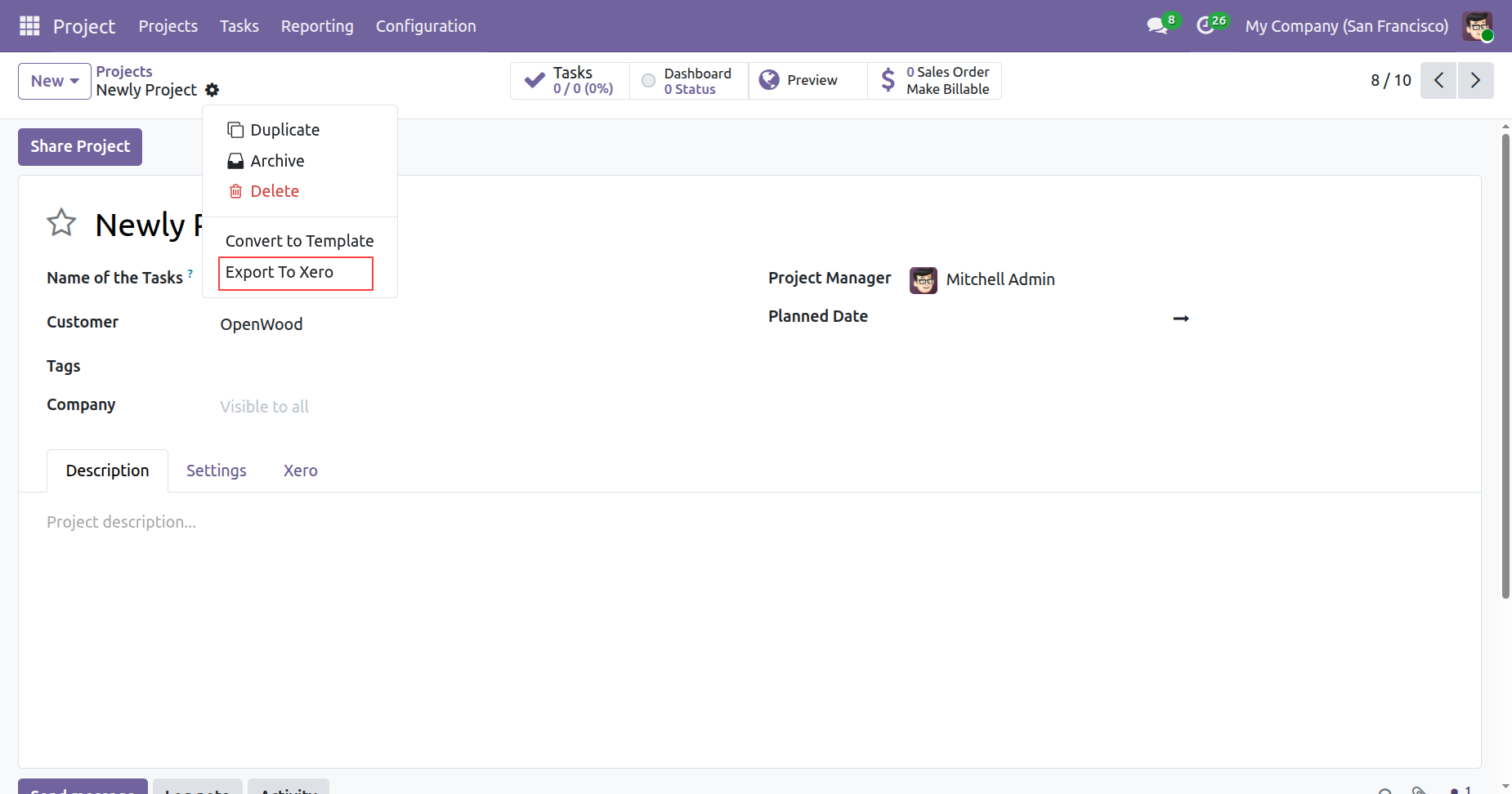
On exporting the project to xero, it will check the exclude new project by default boolean from xero config. If it is true then it will not export the project to xero and shows warning.
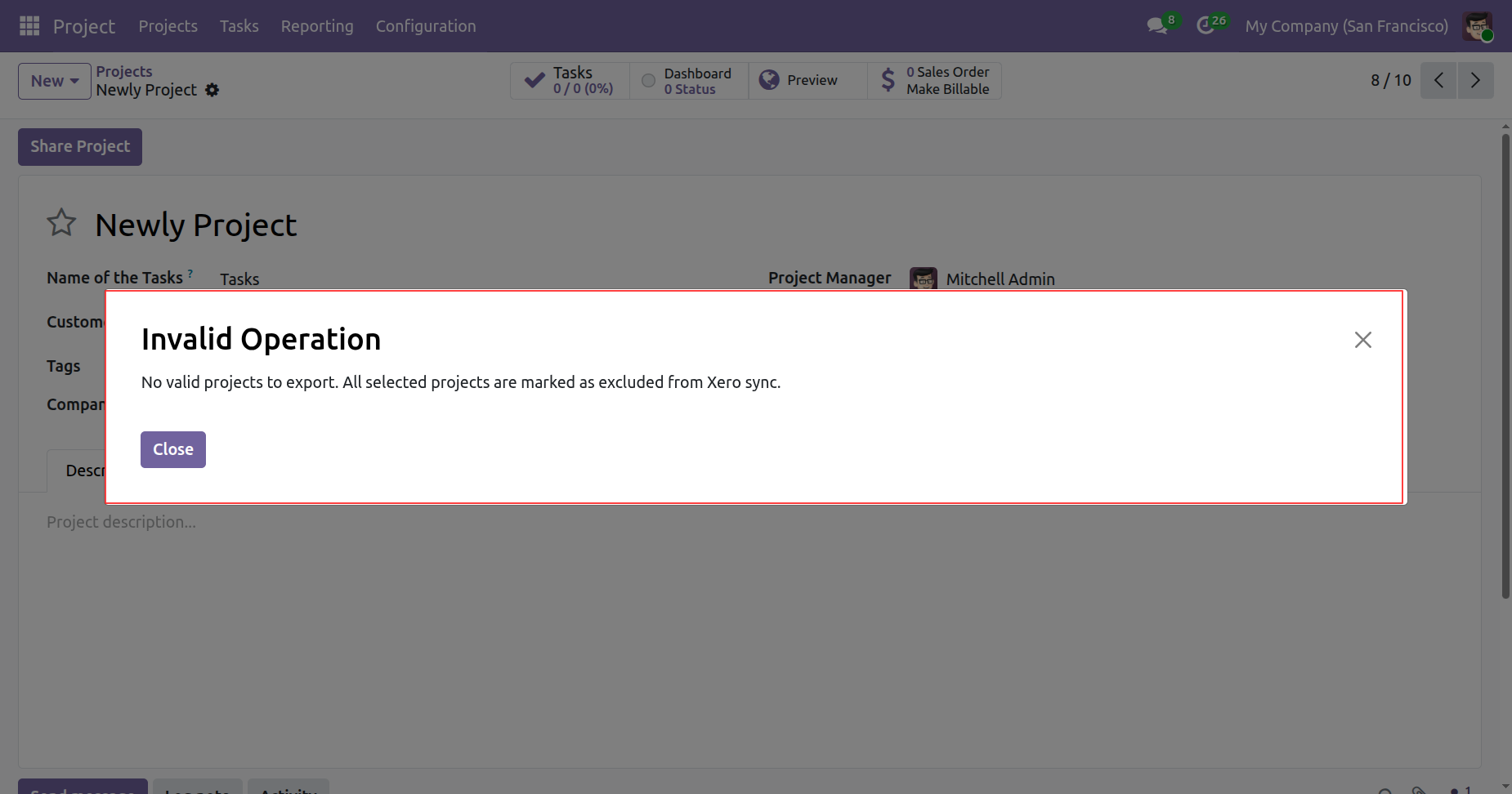
Navigate to the assigned tasks view directly from the parent project.
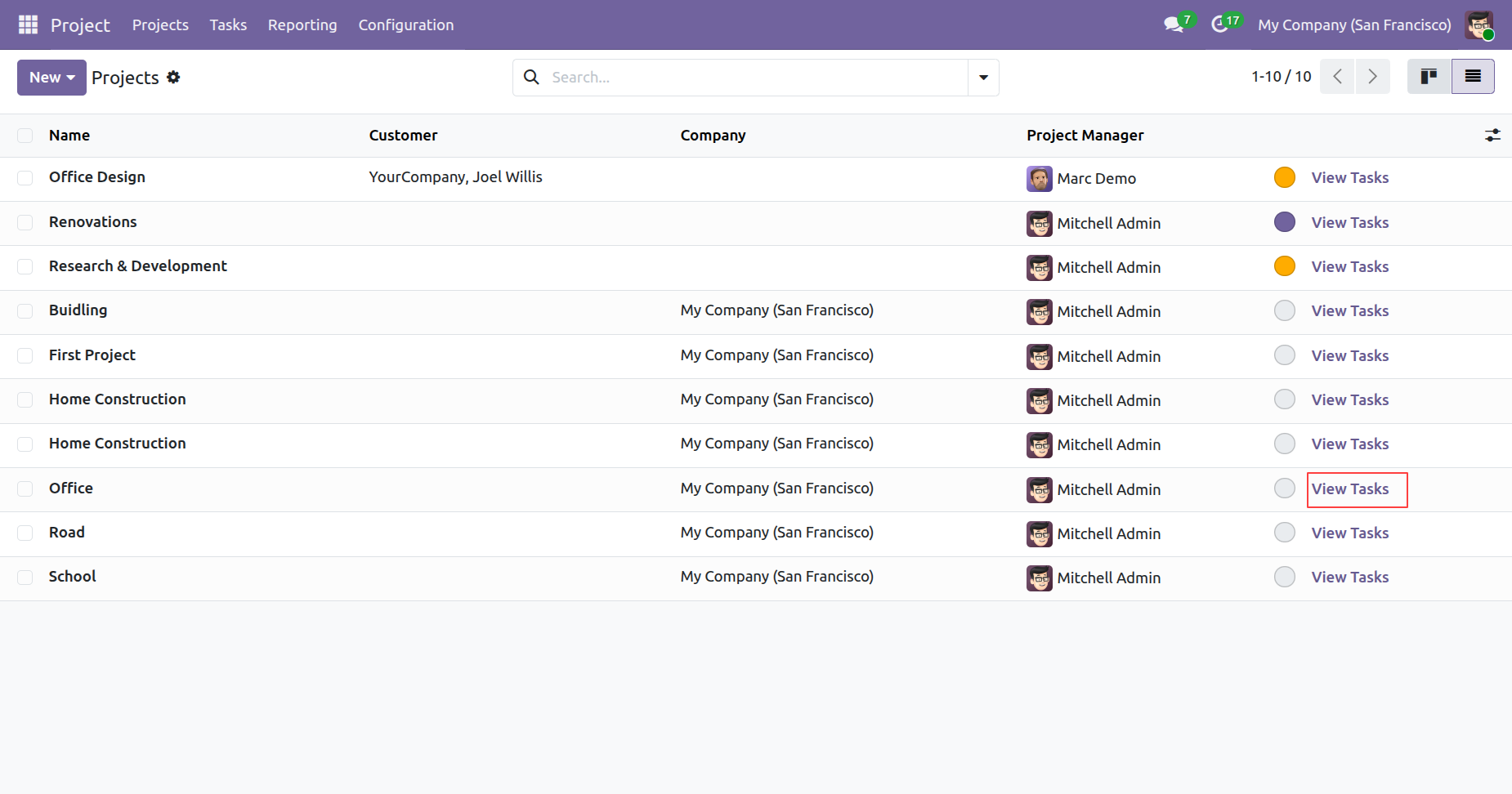
Evaluate individually synchronized tasks.
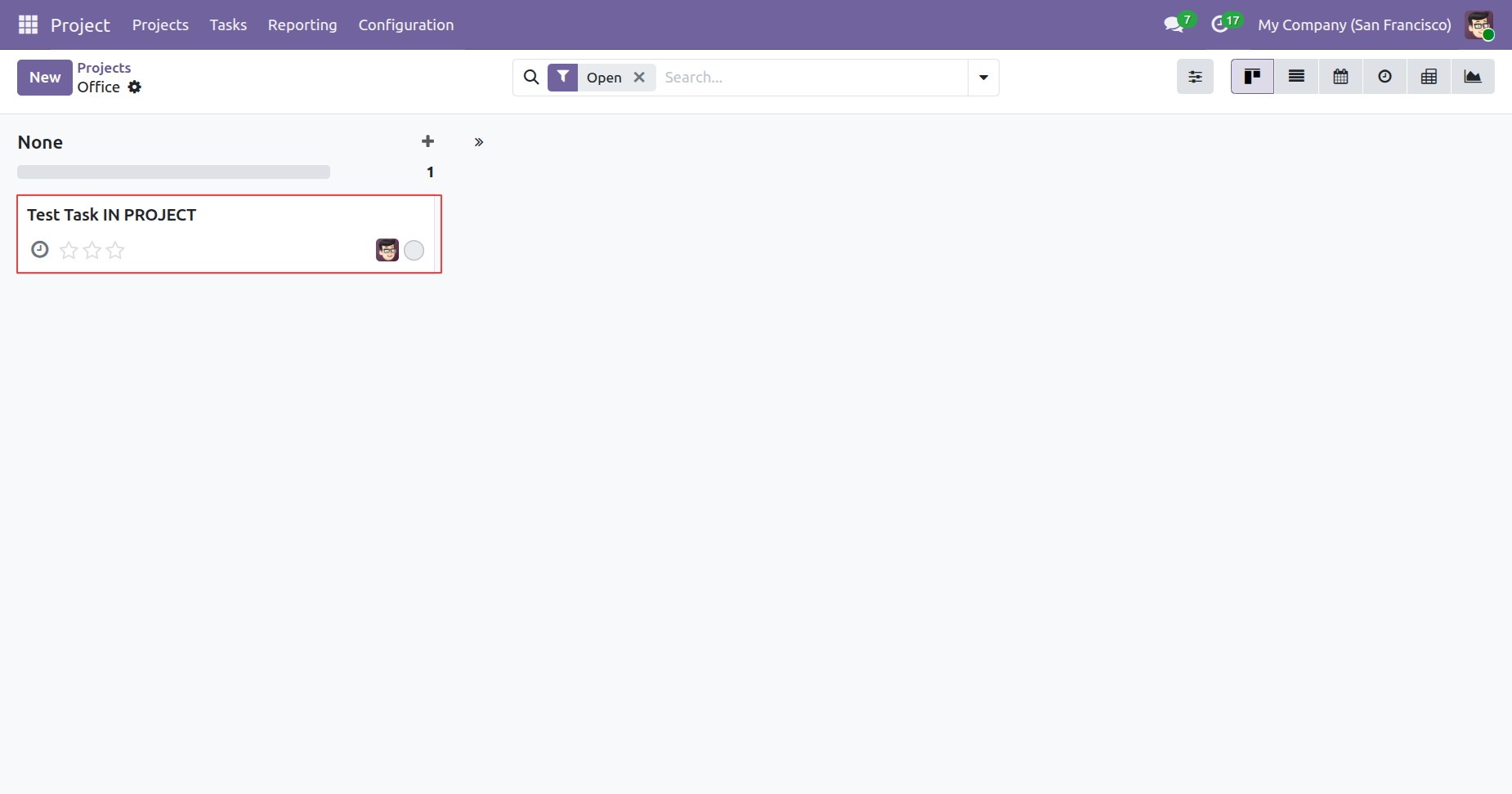
Manage task seamlessly while maintaining an accurate connection with corresponding Xero records.
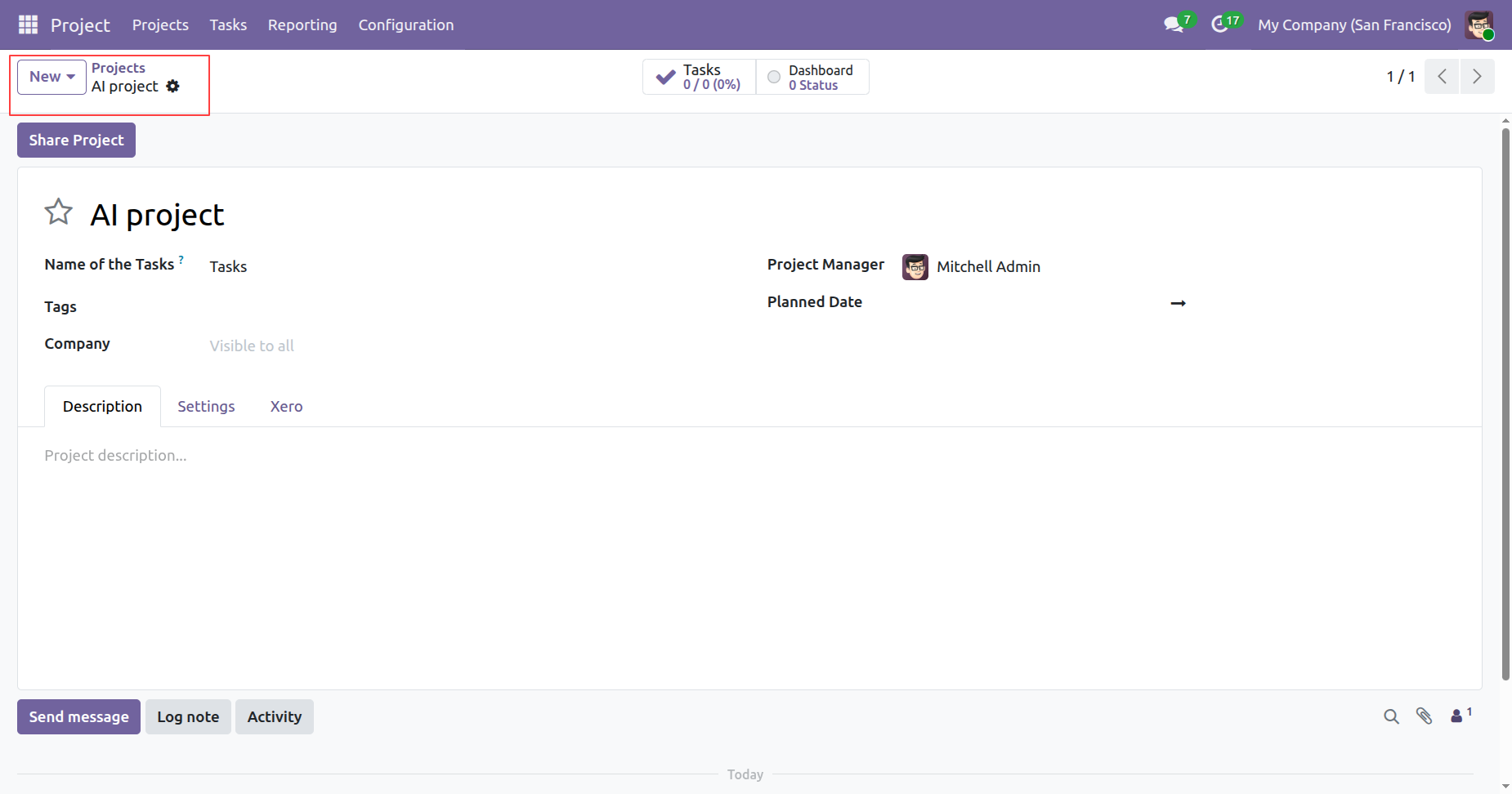
Trigger 'Export to Xero' to keep workflow priorities perfectly aligned.
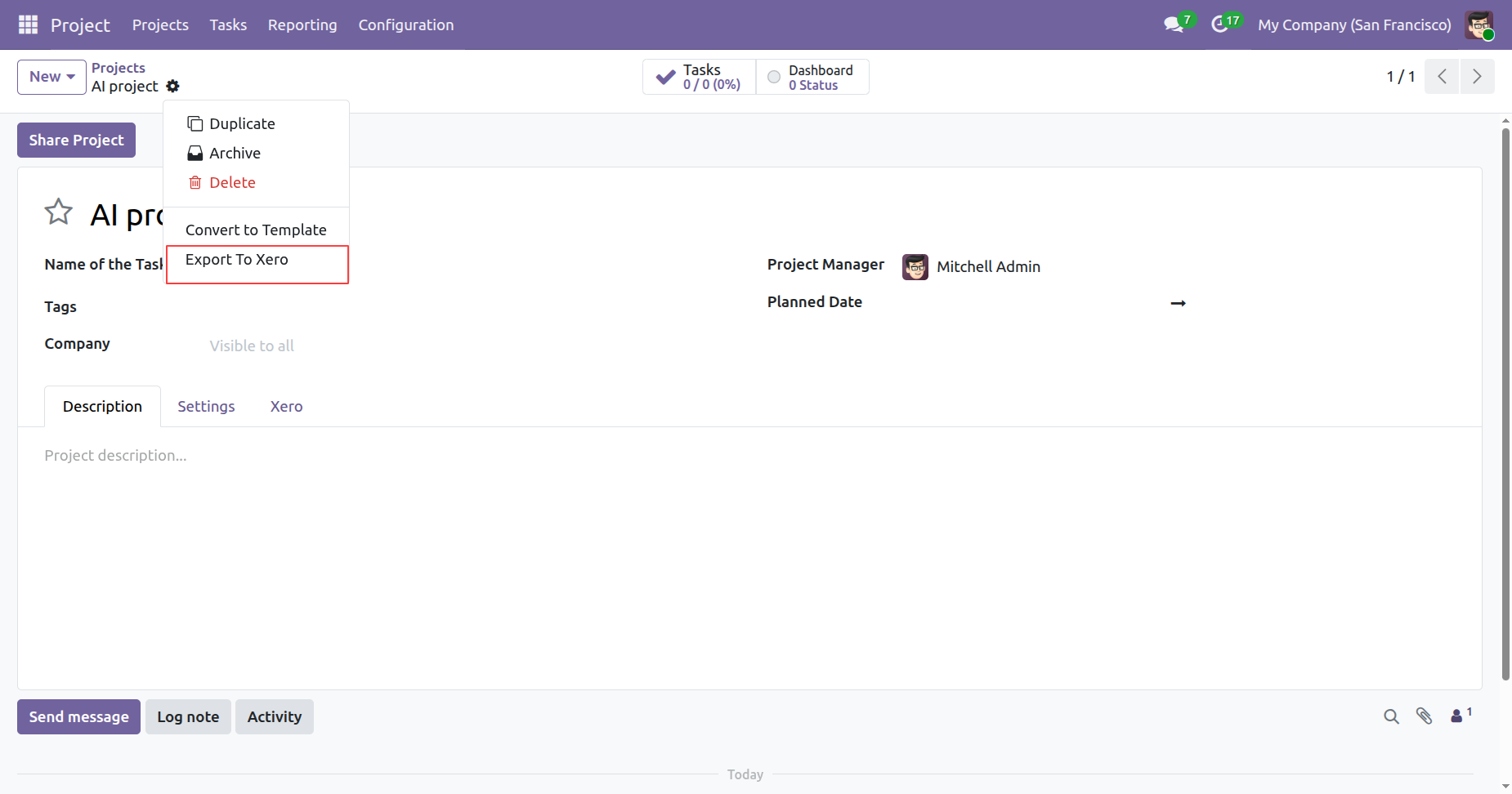
Track exported task using distinctive yellow tags that signify successfully exported data entries.
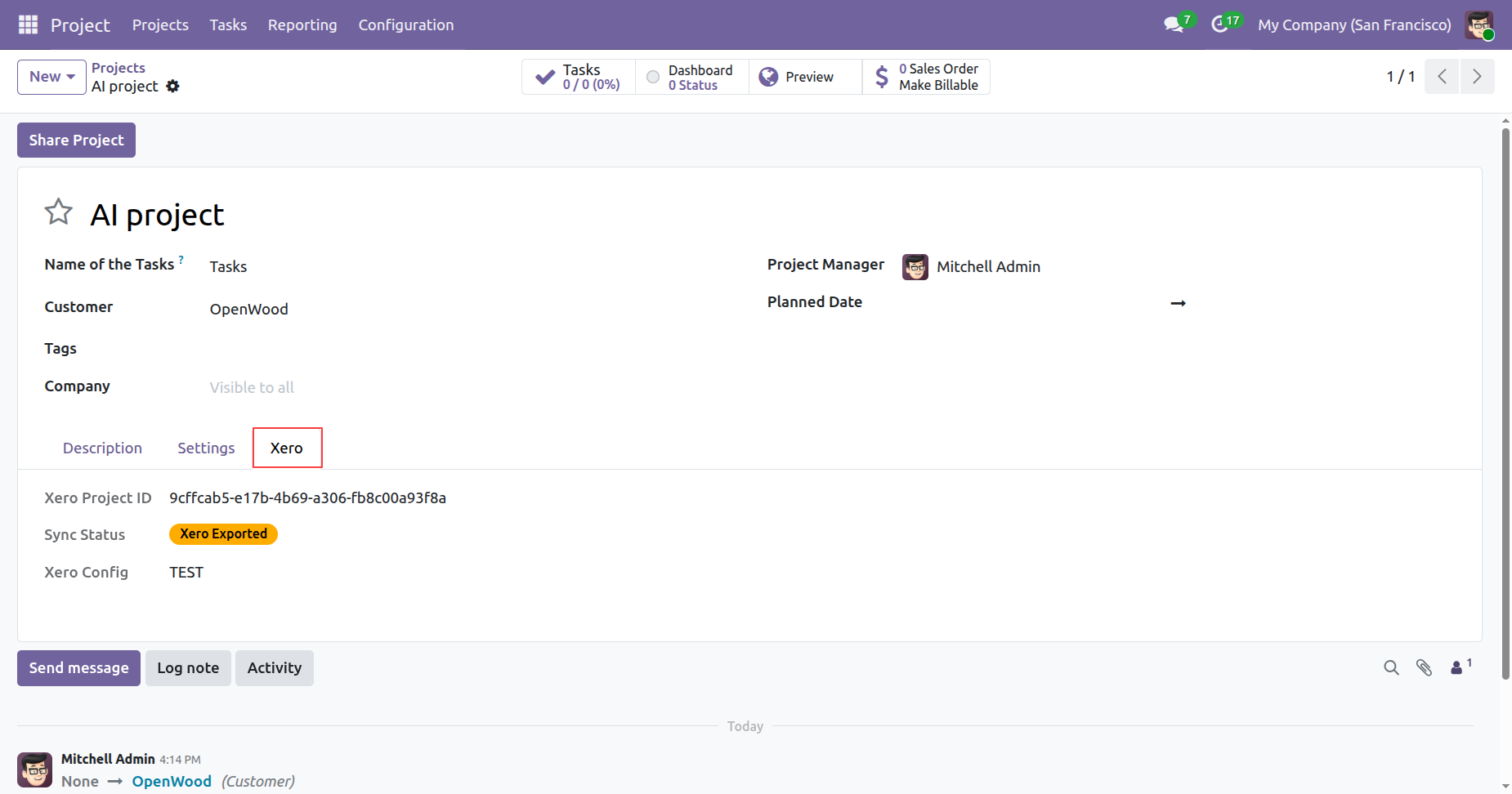
Access the dedicated webhook settings and copy webhook key.
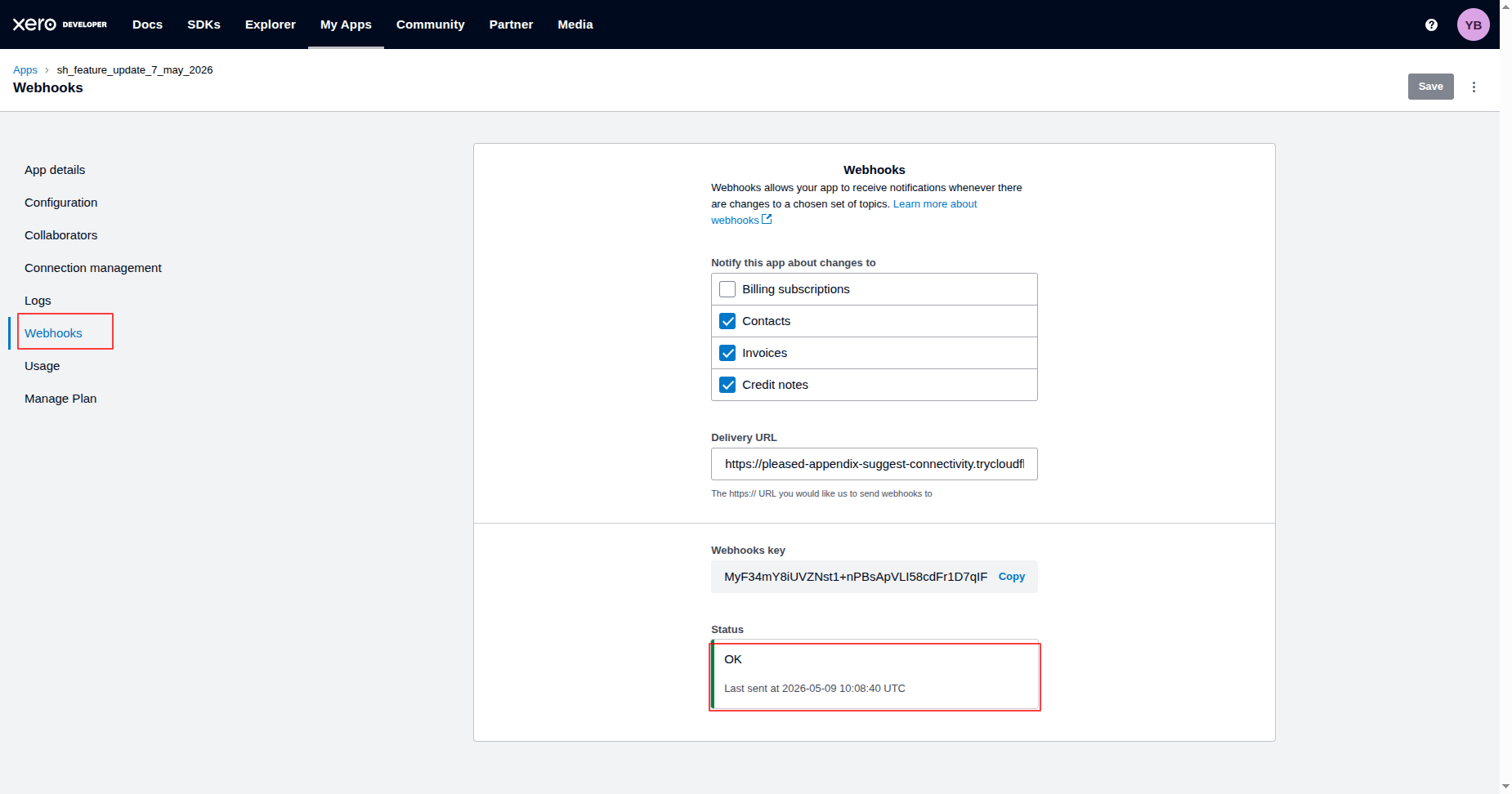
Add the webhook key directly into odoo and enable real-time sync.
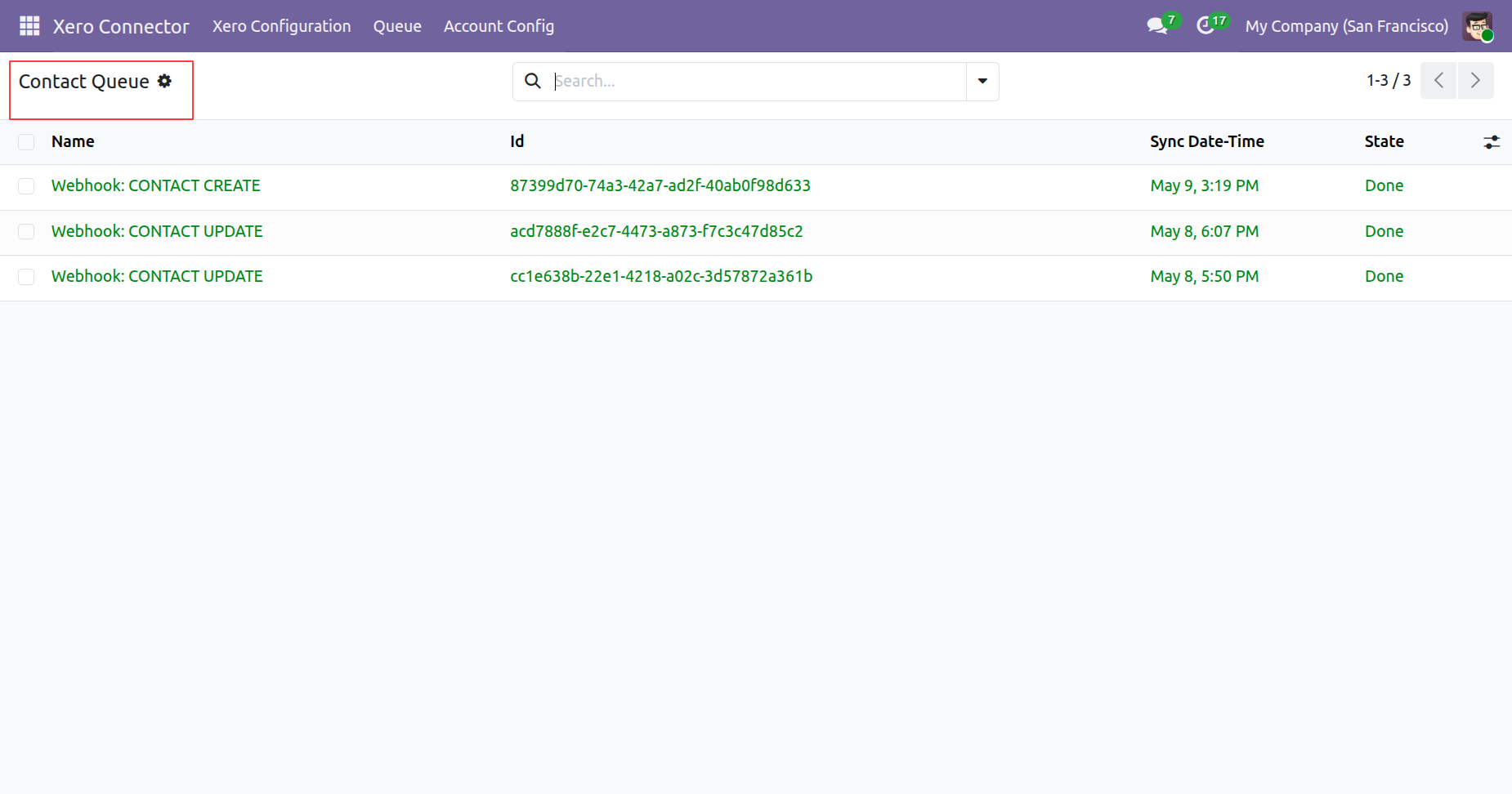
Contact queue, synced via webhook.
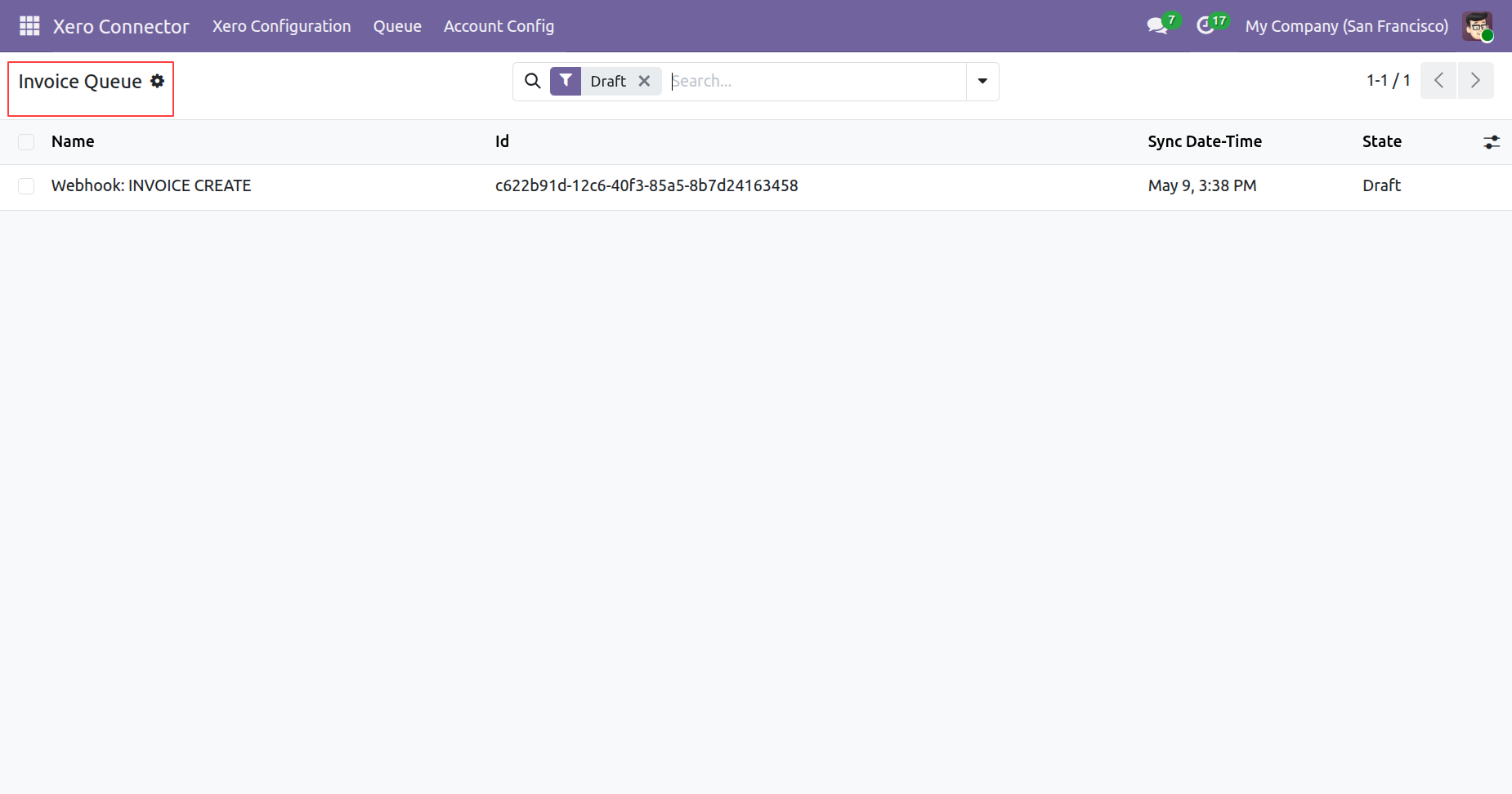
Invoice queue, synced via webhook.
Release Notes
Track every update, enhancement, and new feature across all versions.
Version 19.0.9.0.0 | Released on : 8th October 2026
Version 19.0.8.0.0 | Released on : 05th August 2026
Version 19.0.7.0.0 | Released on : 17th July 2026
Version 19.0.6.0.0 | Released on : 12th June,2026
Version 19.0.5.0.0 | Released on : 19th May 2026
Version 19.0.4.0.0 | Released on : 13th March 2026
Version 19.0.3.0.0 | Released on : 19th January 2026
Version 19.0.2.0.0 | Released: 13th November 2025
Version 19.0.1.0.0 | Released: 11th September 2025


 Buy Once, Supported Forever

 Scan to email sales



 Your Ideas Shape Our Roadmap
 Got an Idea? We'll Build It
Frequently Asked Questions
Everything you need to know before getting started.
Trusted by Businesses Worldwide


Abdulhamid Abdulwaheed
Best module for our online store. Highly adaptable, exceptional customer service, and very advanced modules.
Factura Venta POS
They have everything you need. Technical support is excellent, responds quickly, and keeps the module updated. 100% recommended!
Mehmet Muhanna
Great company and support team. Had a problem in my local Odoo server - they solved it in 5 minutes. Highly recommend.
Billy Jeffs
Customised an Odoo app for me which works perfectly. Many requirements, got it right every time. Very confident in their ability.
HP
Consistently excellent service over years of working together. Knowledge and commitment to keeping clients informed truly sets them apart.
Michal Kolasinski
Multiple addons + two custom modules. Communication always friendly and precise. Delivered on time, worked out of the box. Highly recommended!

Multi-Language
8 built-in translations







You May Also Like
Discover more Softhealer modules that integrate seamlessly with your Odoo environment.







Most Demanded Apps
The Softhealer modules our customers reach for most — trusted across 100+ countries.
Activities Management
Manage, schedule, and automate Odoo activities across all departments from one view.
View Module
Access Management
Granular access control over menus, fields, buttons, and records for every user role.
View Module
Backdate Advanced
Backdate any transaction across invoices, journals, pickings, and more with full audit.
View Module
All-in-One Helpdesk
Full-featured customer support with tickets, SLA, and customer portal built for Odoo.
View Module
All-in-One Mobile Backend
Access your full Odoo backend from any mobile device with an optimized interface.
View Module
All-in-One Import
Import any Odoo model data from CSV, Excel, and JSON files with mapping and validation.
View Module
Our Services
End-to-end Odoo expertise - from setup to scale.

AI & Business Integration

Odoo Implementation

Odoo Customization

Support & Maintenance

Mobile Apps

Migration Service

Third-Party Integration

Odoo Training
Ready to integrate with Xero Odoo Connector?
Join 10,000+ businesses - Softhealer, 11+ years of Odoo gold partnership expertise across 100+ countries.

