

















PrestaShop Odoo Connector
The Odoo PrestaShop Connector module seamlessly integrates your PrestaShop store with Odoo to enable complete synchronization of products, product categories, contacts, and sales orders. Featuring a metadata import, a powerful interactive dashboard, queue management, and log history.
Key Features
Import Operations (PrestaShop → Odoo)

Import Product
-
 Attributes
-
Images
-
Description
-
Categories
-
Price
-
Stock

Import Customer
-
Email
-
Address
-
Phone
-
Tags

Import Sales Order
-
Customer
-
Invoice
-
Shipping
Details
-
Order
Lines
Export Operations (Odoo → PrestaShop)

Export Product
-
Attributes
-
Description
-
Price

Export Inventory
-
On-hand
product stock quantities
-
Sales
price

Order Shipment Export
-
Export
order fulfillment details from Odoo to PrestaShop in real time upon
delivery.

Order Invoice Export
-
Export
customer invoices from Odoo to PrestaShop automatically as soon as an invoice is
posted or payment is registered in Odoo.
Automation, Dashboards & Core Infrastructure

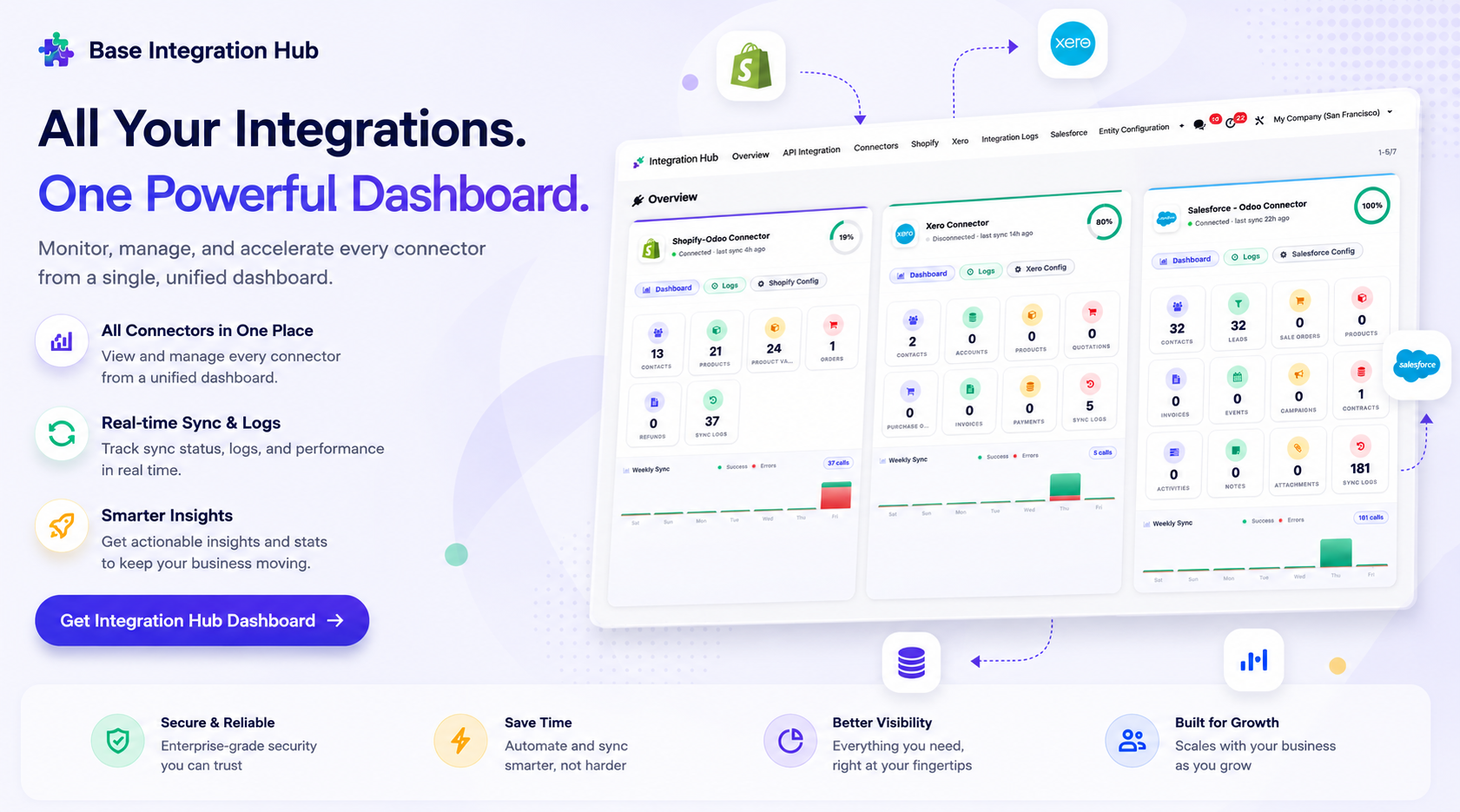
Integration Hub Dashboard
-
A
centralized view to track the status of all connectors, recent activities, and
synchronization stats.

PrestaShop Dashboard
-
Monitor
overall connector metrics, mapped record counters, and active integration
statuses.

Financial Analysis Dashboard
-
Track
total sales revenue, top selling products, recent invoice payments and revenue
by payment gateway for PrestaShop orders.

Incoming PrestaShop Webhooks
-
Receive
authenticated PrestaShop order, product, customer, and category events and place
them in processing queues.

Queue-Based Processing
-
Track,
monitor, and manage asynchronous data synchronization and execution state
logs.

Synchronization Logs
-
Track
successful and failed synchronization activities with detailed log history for
easy monitoring and troubleshooting.

Auto Workflow
-
Auto-create
invoice (Draft or Post)
-
Auto-validate
delivery
-
Default
payment journal

Metadata Mappings
-
Customer
& Customer Group Mappings
-
Country,
Currency & Language Mappings
-
Product
& Category Mappings
-
Order
Mappings
-
State
Mappings
-
Tax
Mappings
-
Carrier
Mappings
-
Manufacturer
& Supplier Mappings
-
Specific
Price Mappings
 Setup & Configuration
 Release Notes
 Support
 FAQ's
FAQ's
Frequently Asked Questions
Everything you need to know before getting started.
 Configuration
 Integration Hub Dashboard
 Financial Analysis Dashboard
 Product Synchronization
 API Configuration
Video
Log History Video
API Configuration
Video
Log History Video
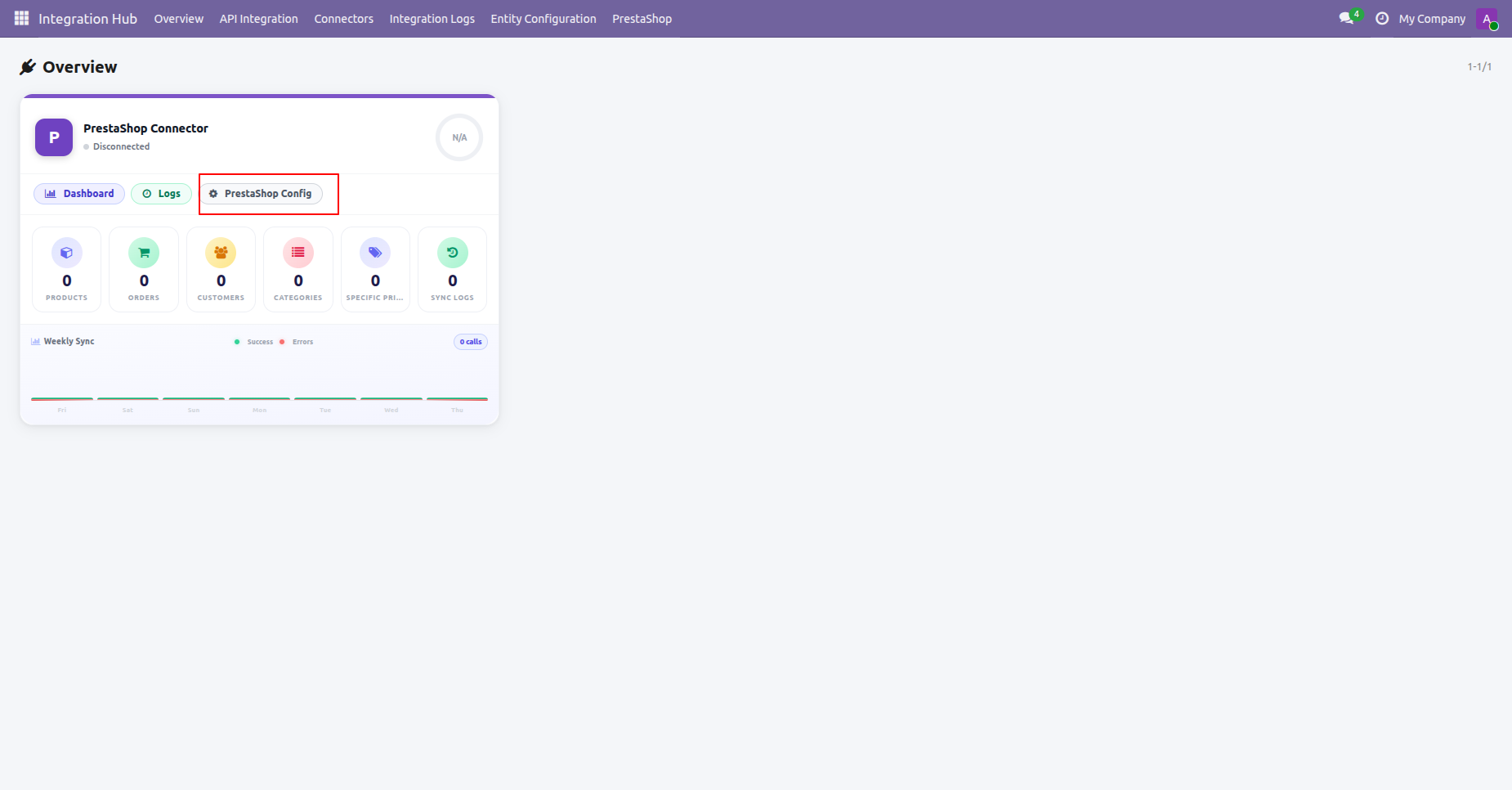
Click PrestaShop Config on the connector card to open instance configuration settings.
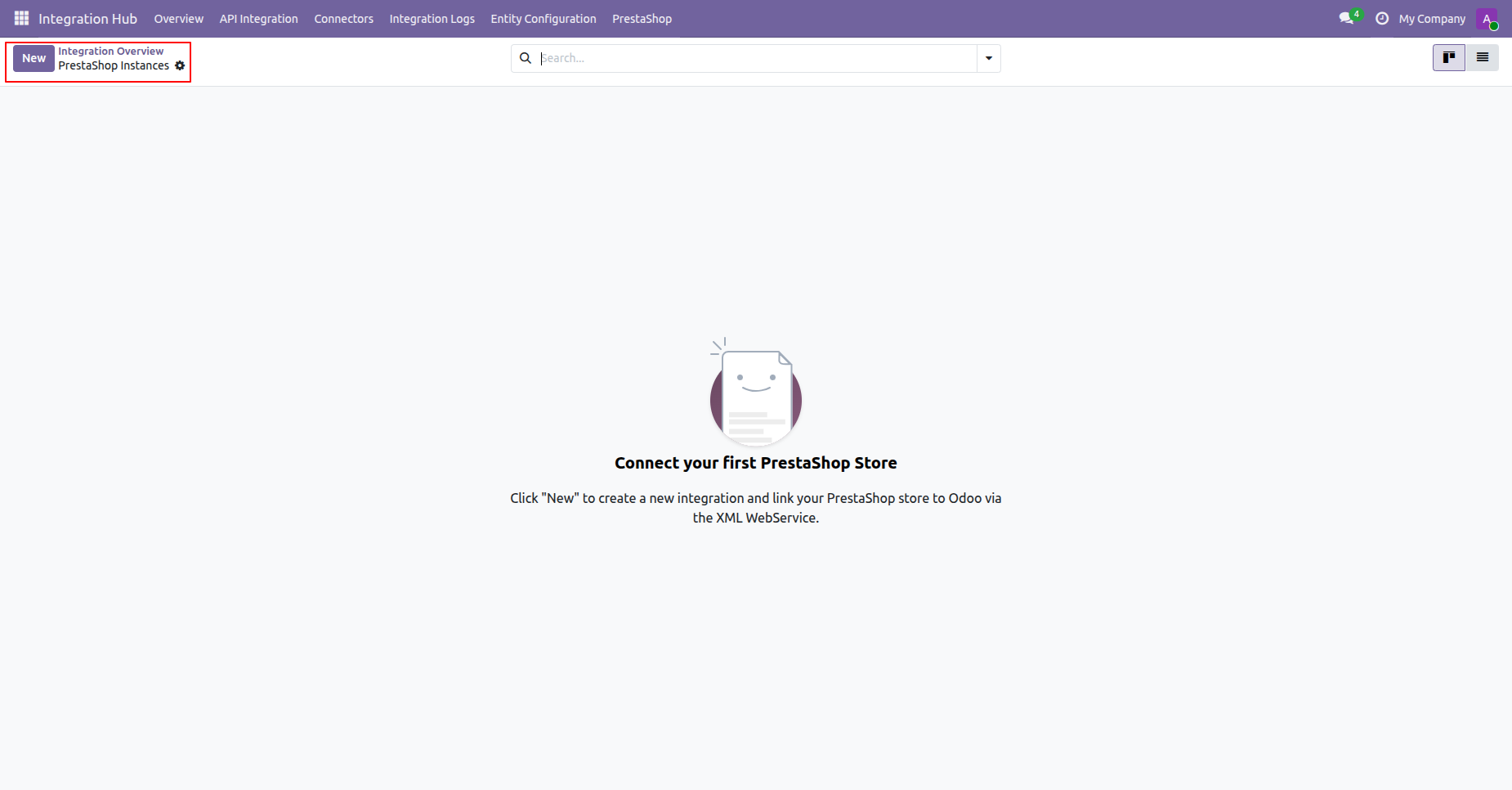
Click New on the PrestaShop Instances view to configure a store integration.
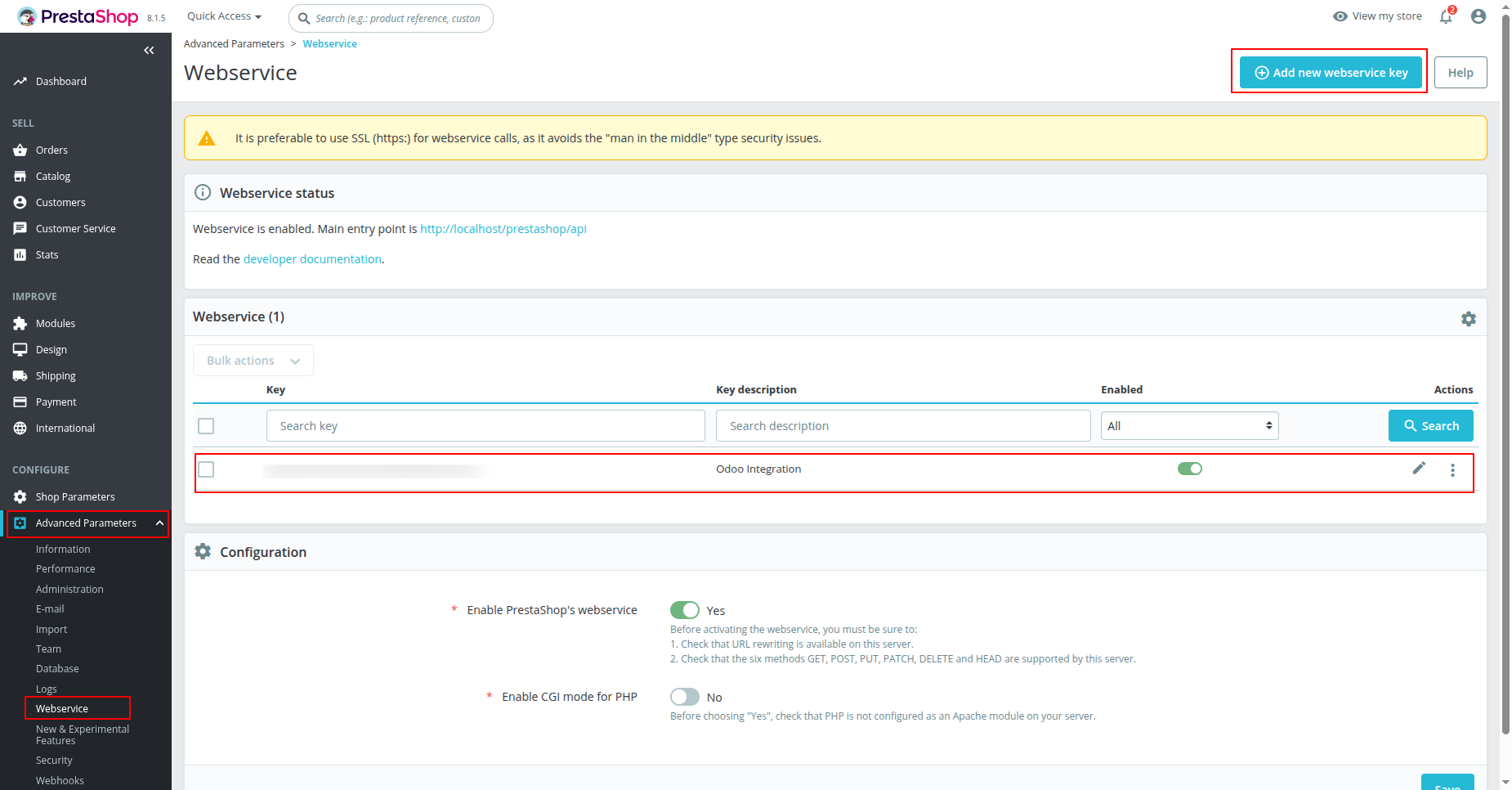
Click Add new webservice key under Webservice settings in PrestaShop to generate an API key.
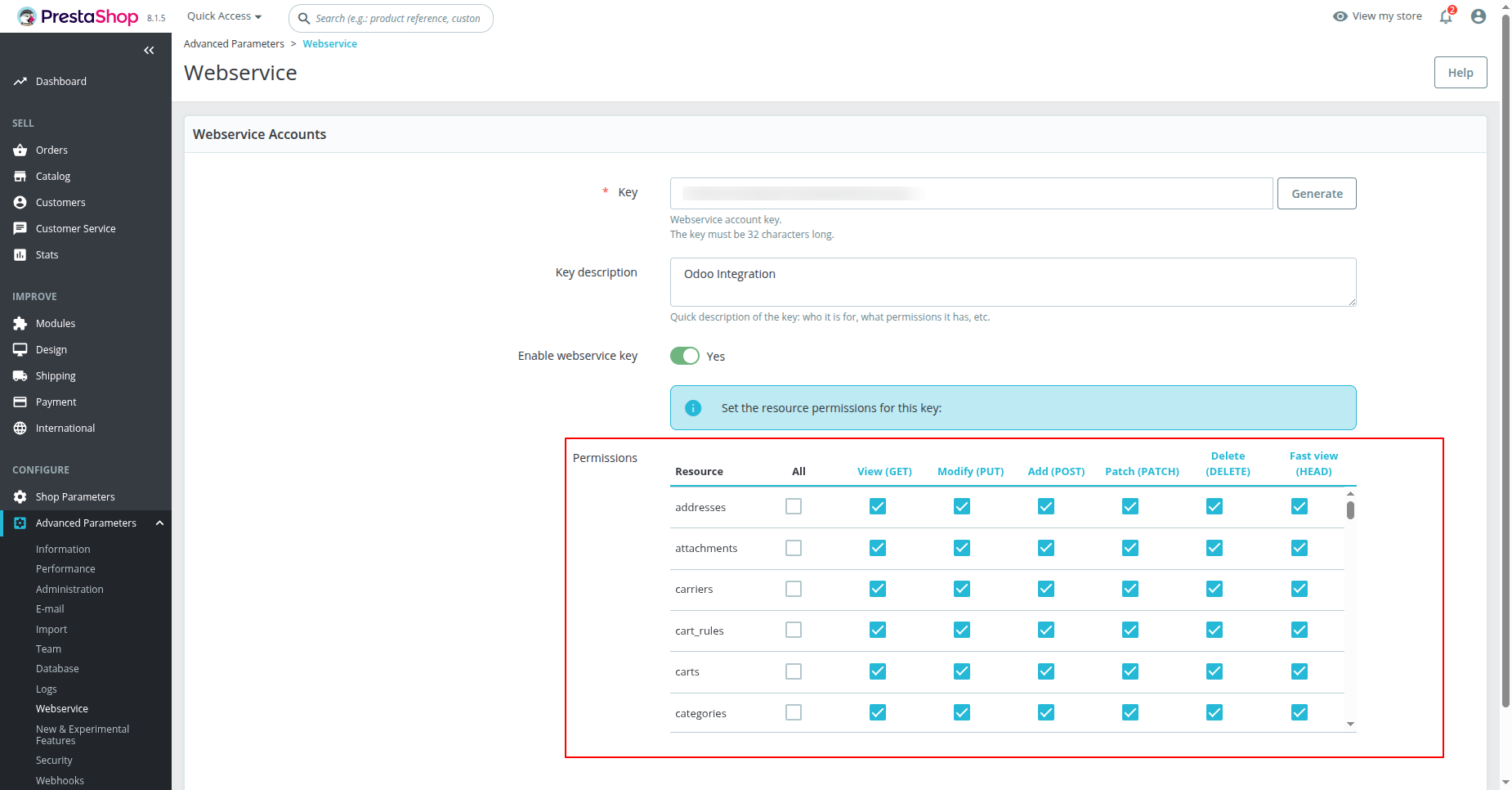
Grant required resource permissions for the webservice key and press Save to apply changes.
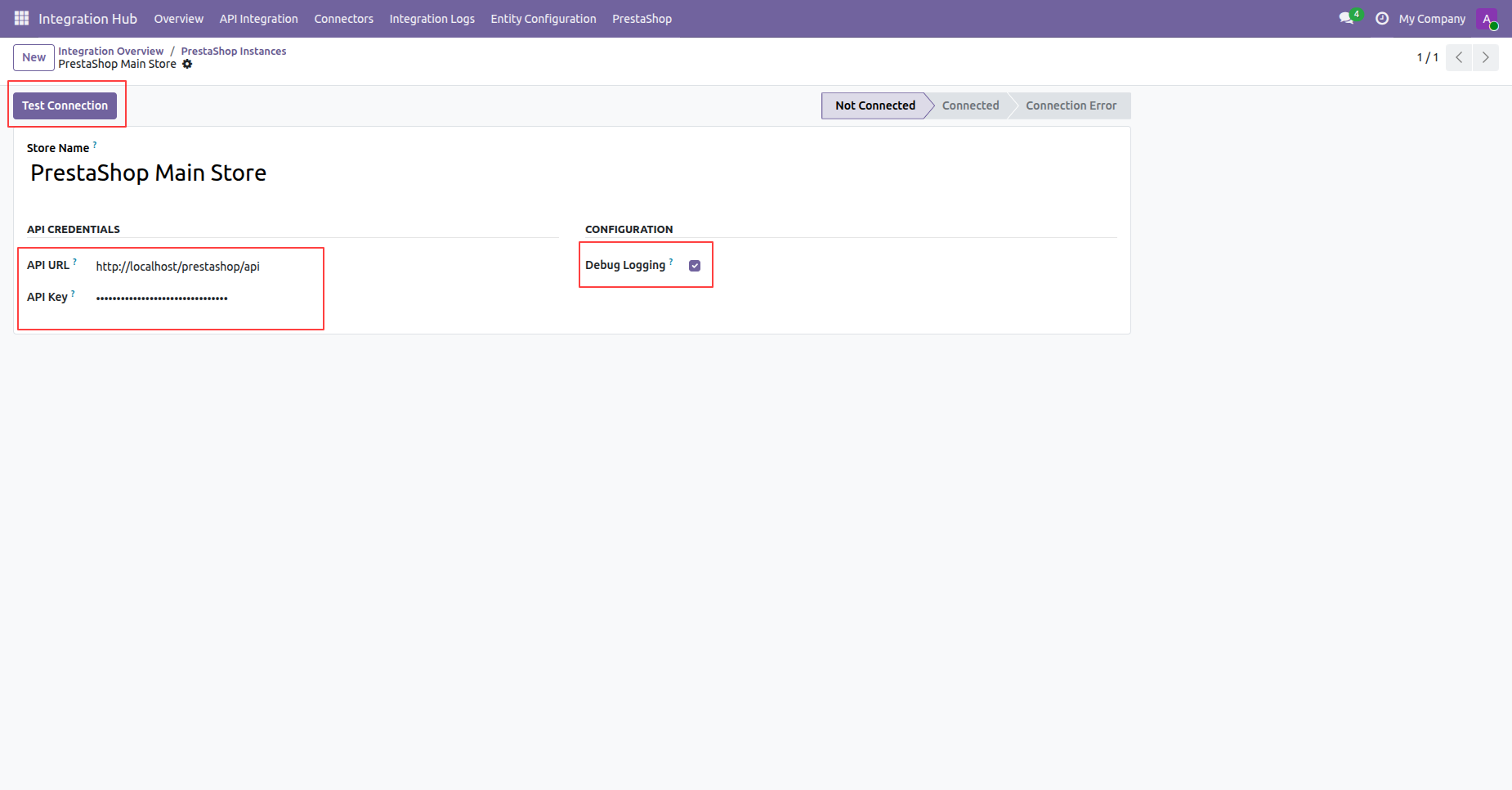
Enter API URL and API Key details and then press Test Connection to verify connectivity.
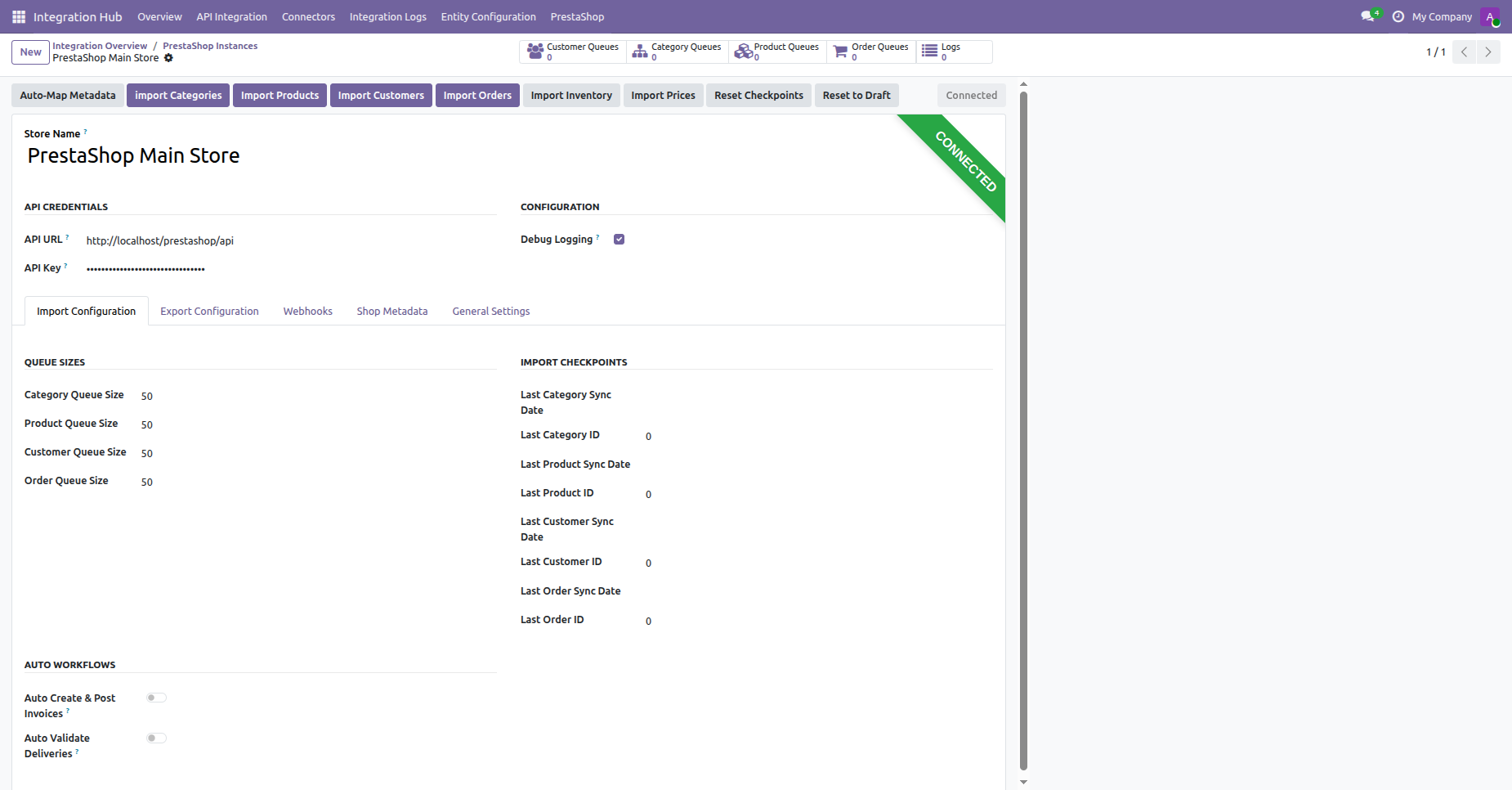
View connected instance status and configure import queue sizes, checkpoints, and auto workflows.
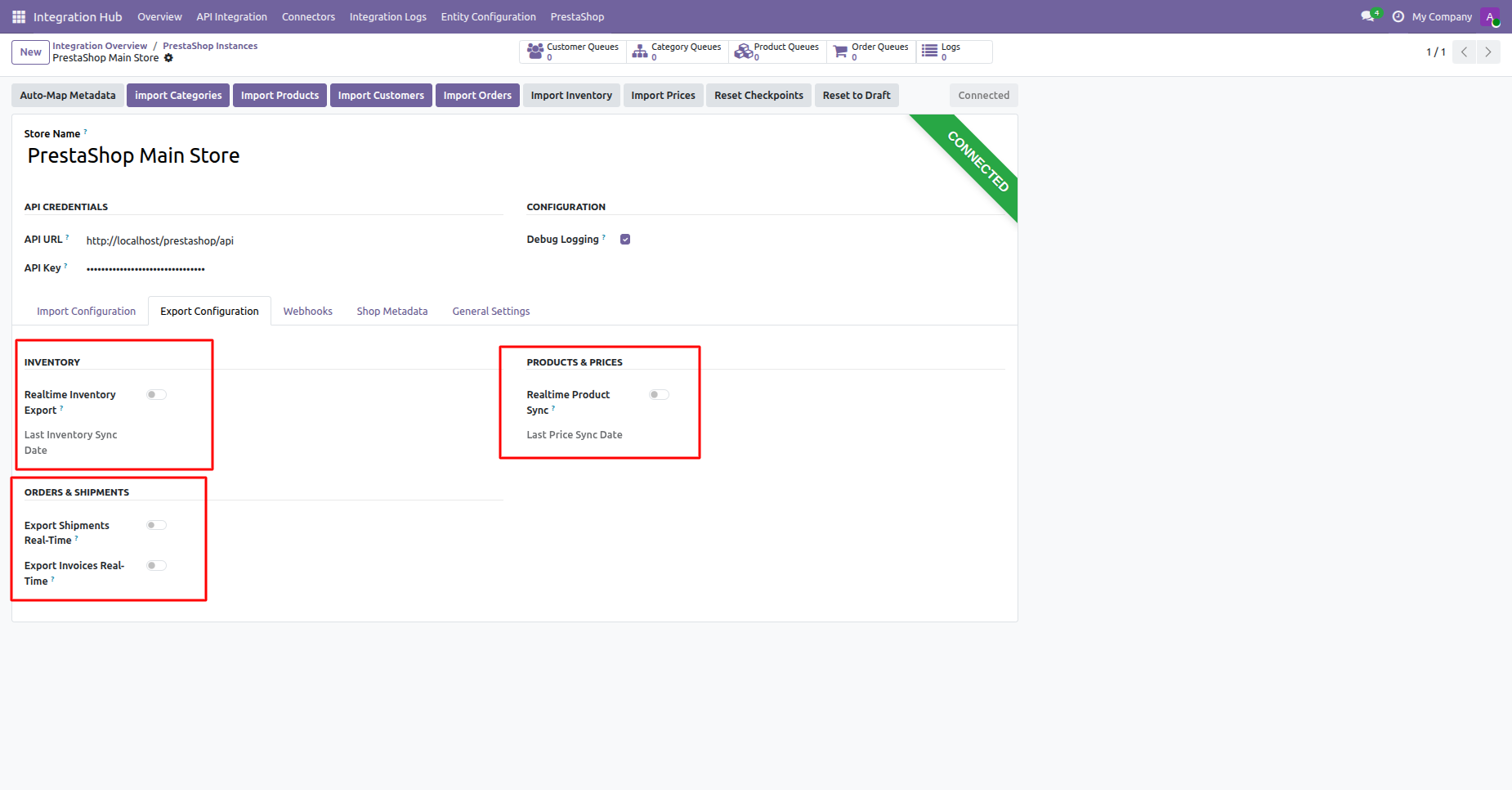
Configure real-time export options for inventory, products, prices, shipments, and invoices in Export Configuration.
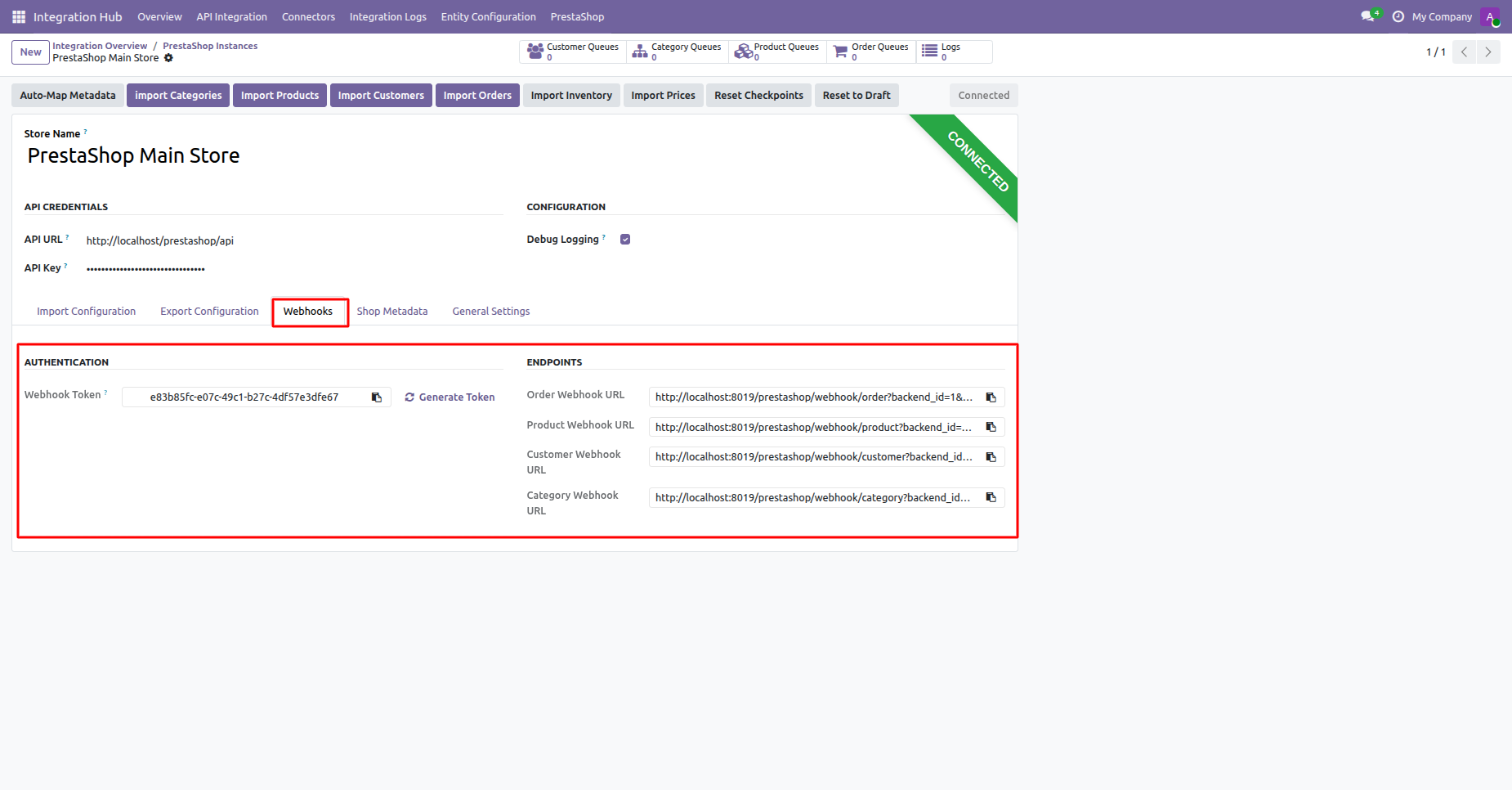
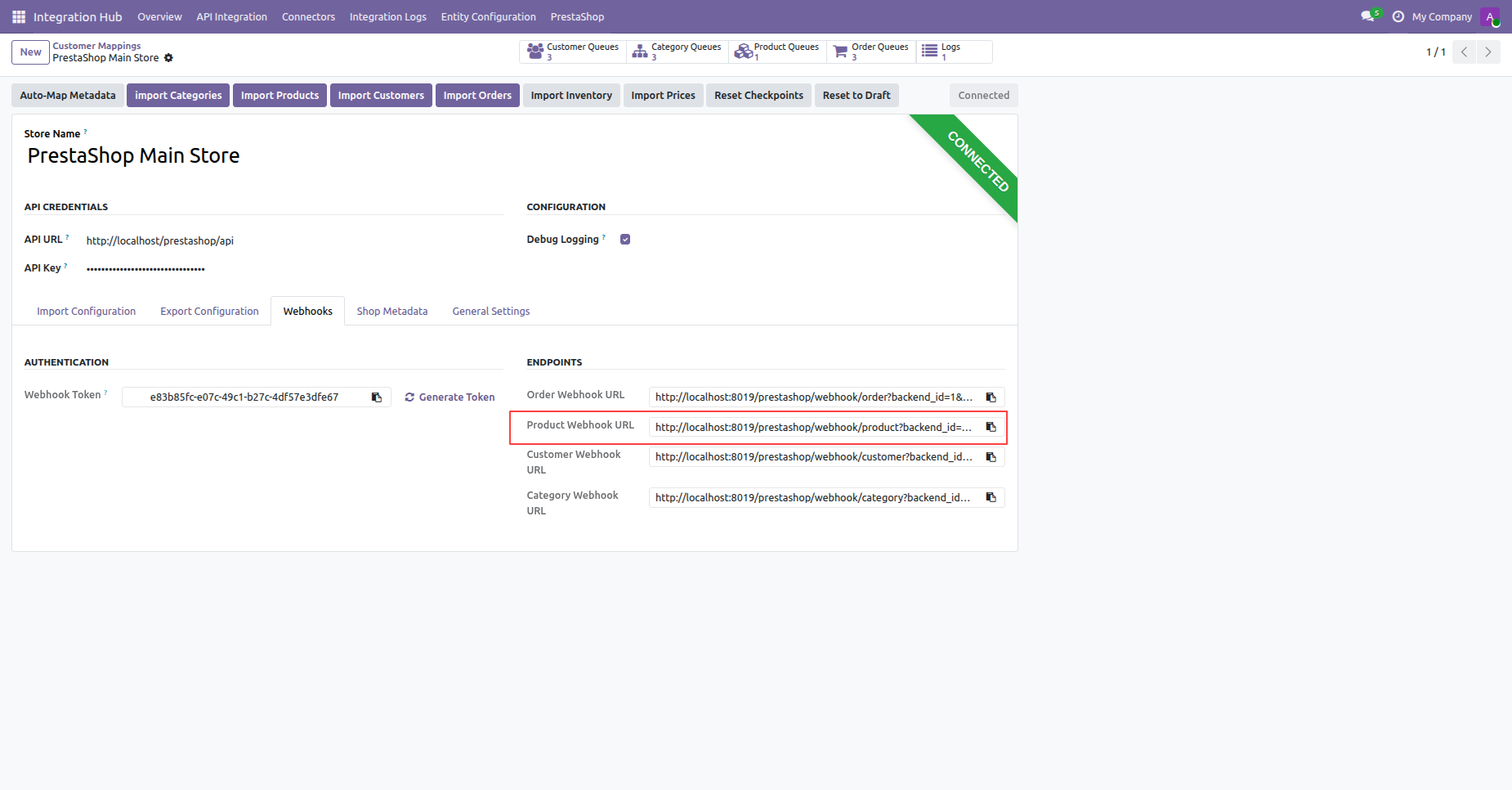
Access Webhooks tab to view generated endpoint URLs and copy authentication tokens for real-time updates.
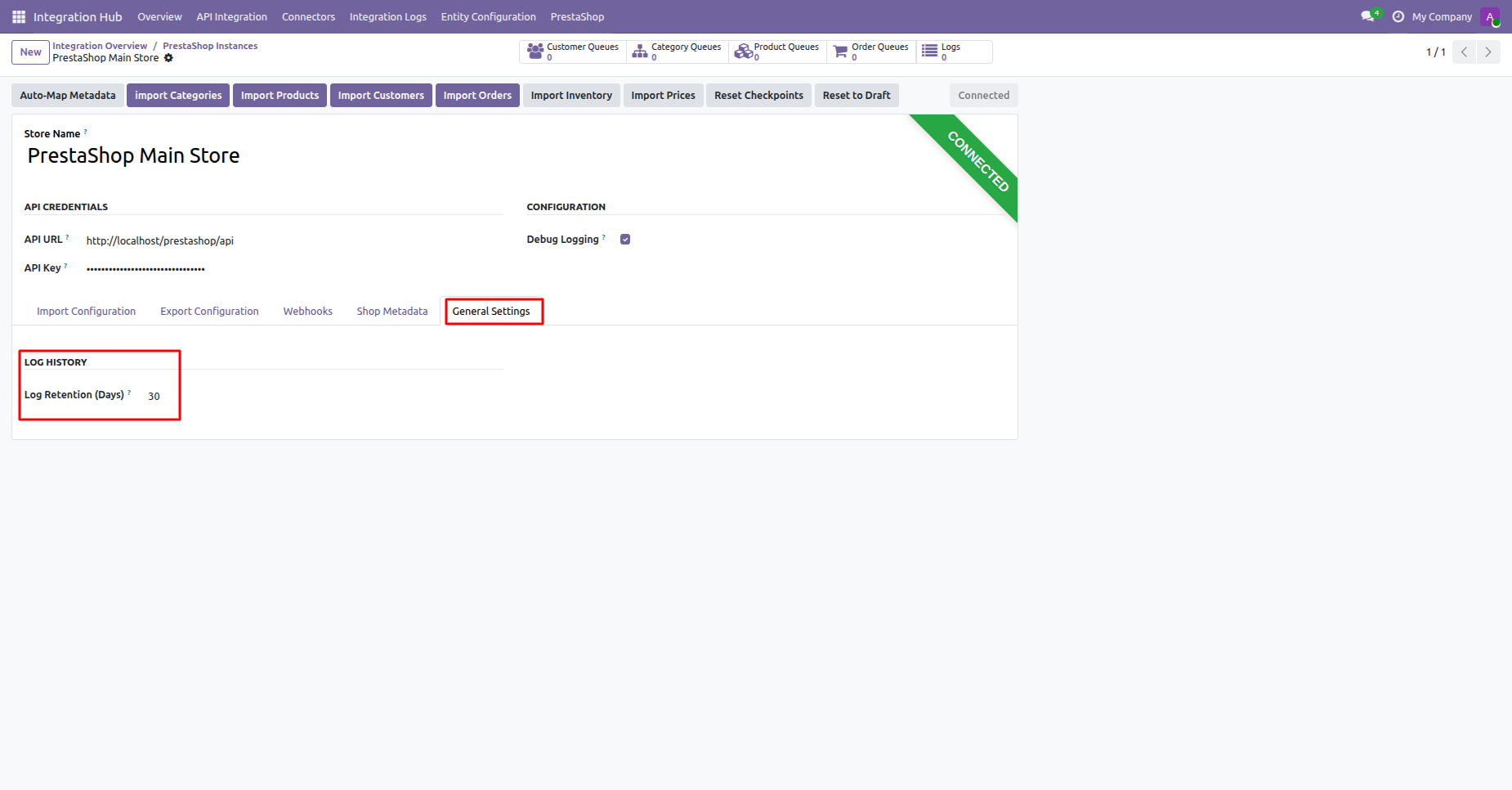
Navigate to General Settings tab to configure log history retention period in days.
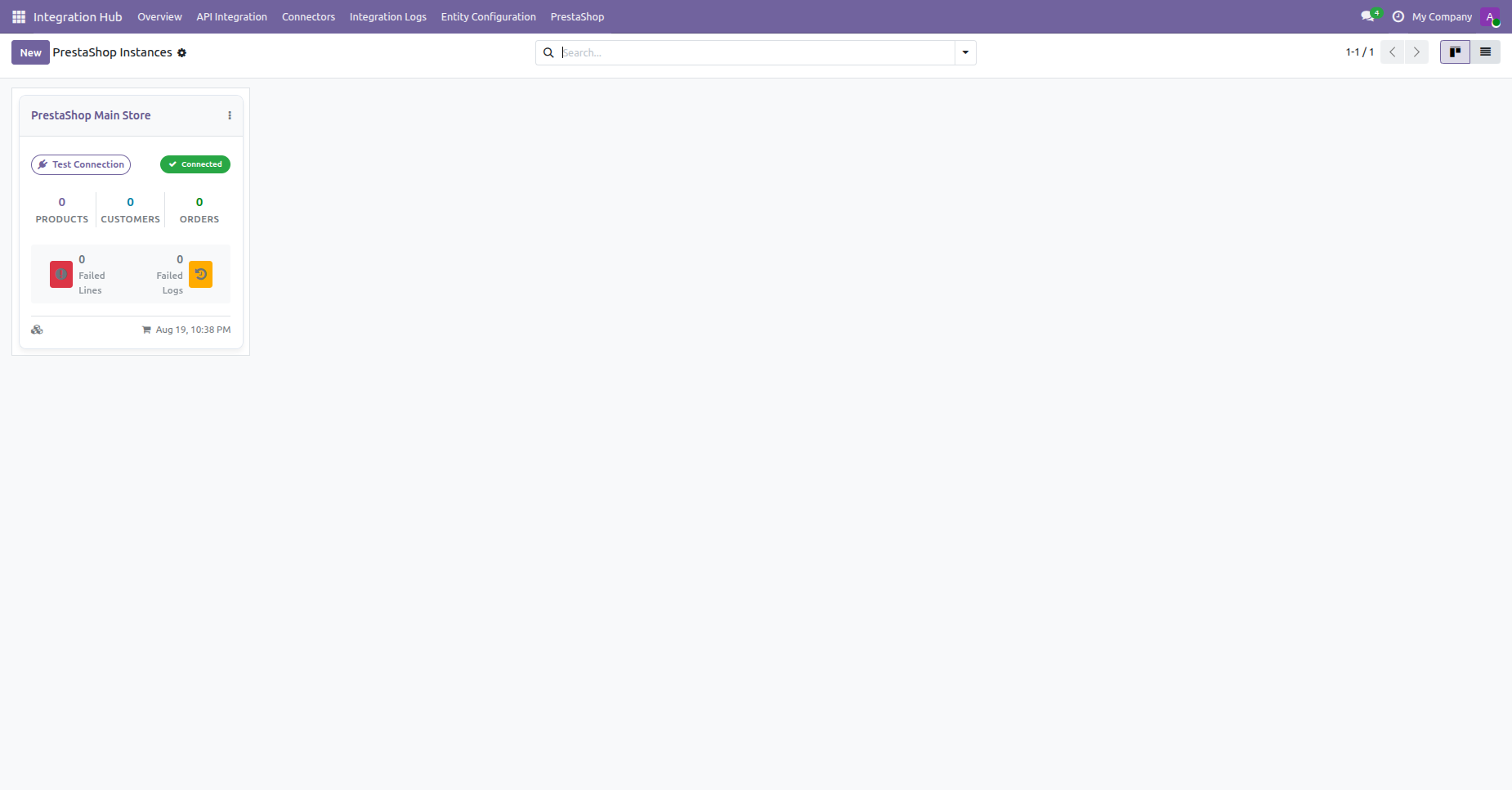
View configured store instance card displaying connection status and synchronized record counters in Kanban view.
Centralized dashboard to manage and monitor all connectors from one place. Quickly access sync summary, activity logs, and configuration controls with improved visibility.
How it works?
Watch Video
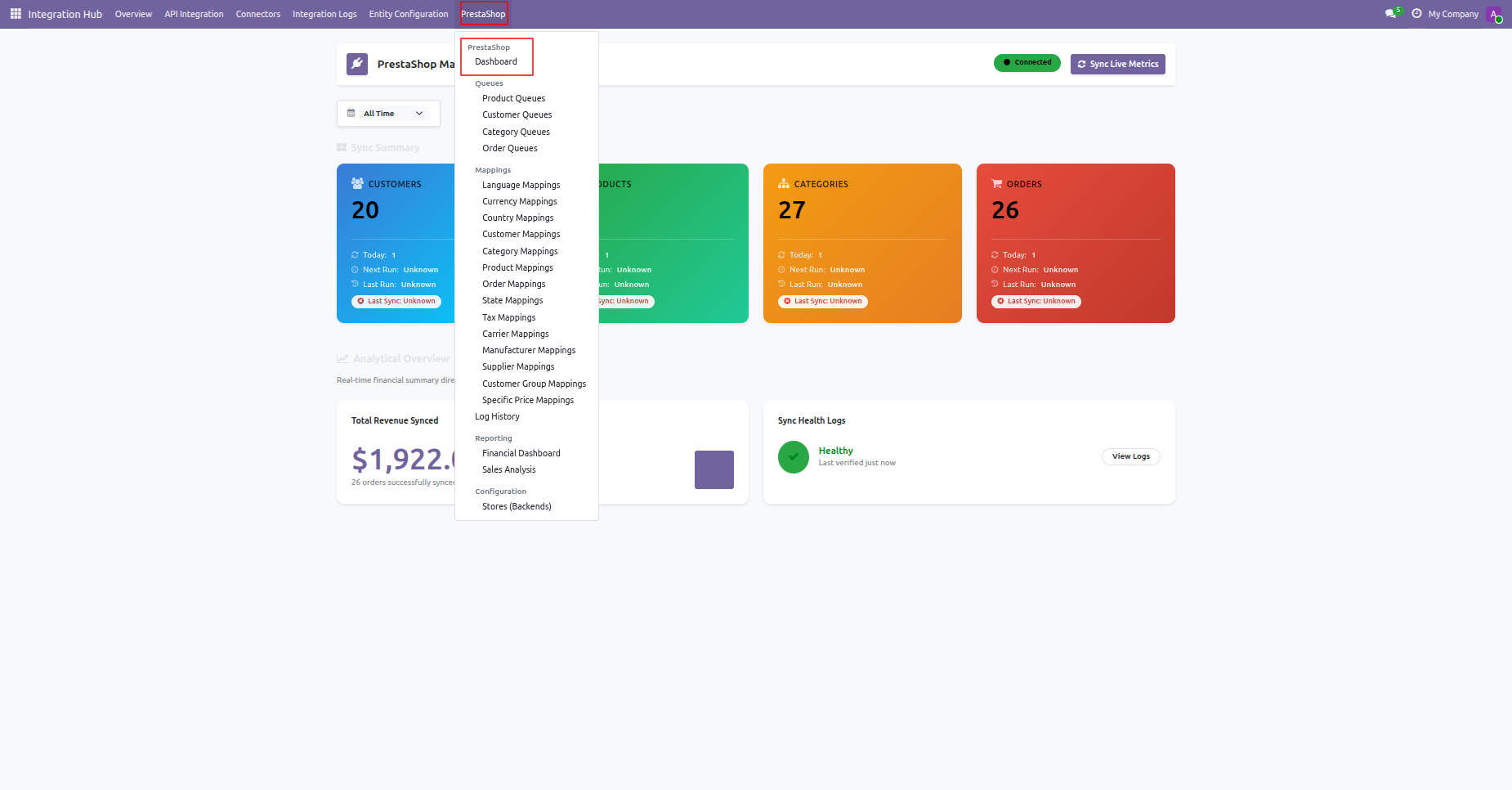
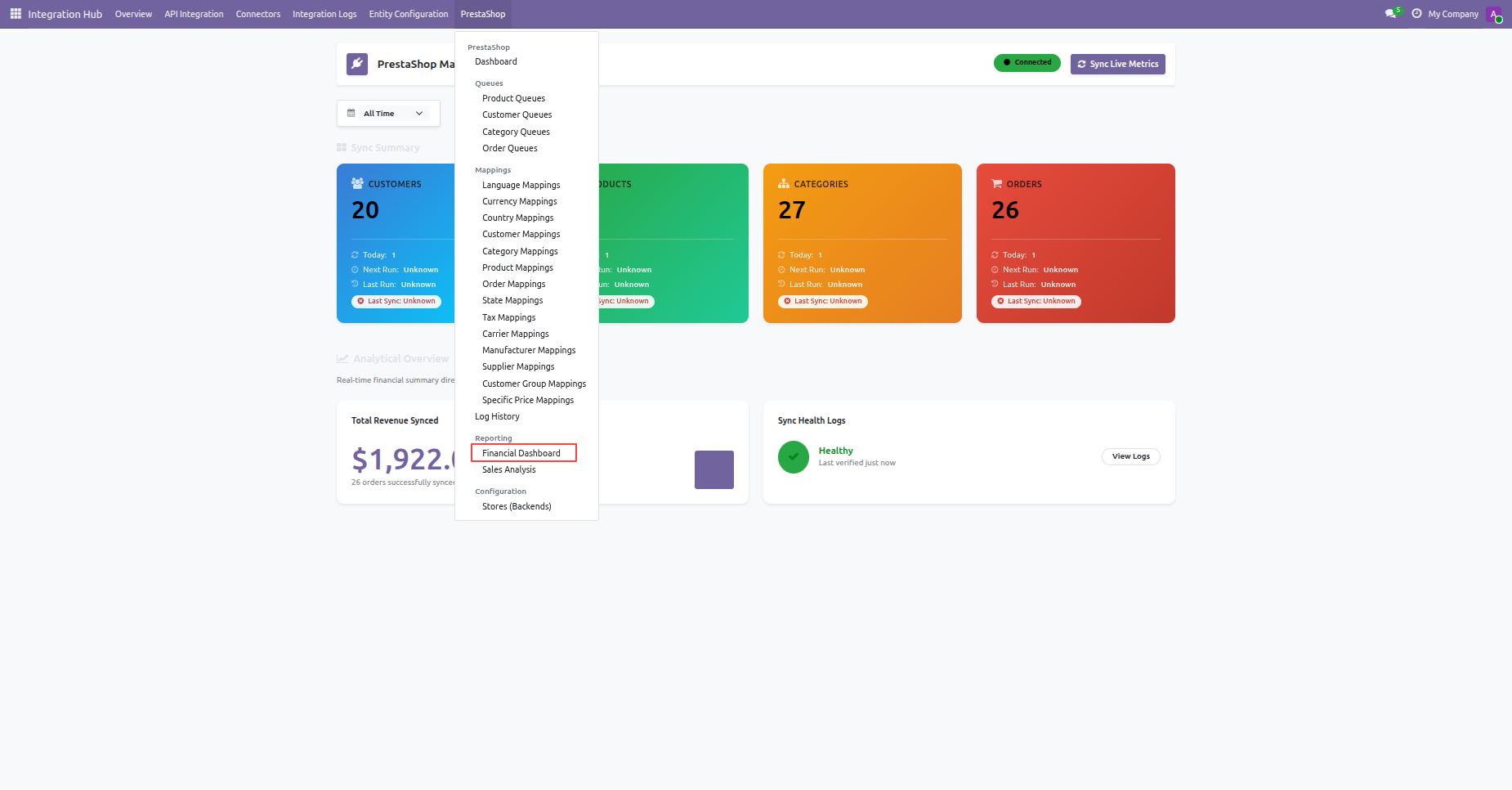
Select Dashboard from the PrestaShop menu dropdown to open the main integration dashboard view.
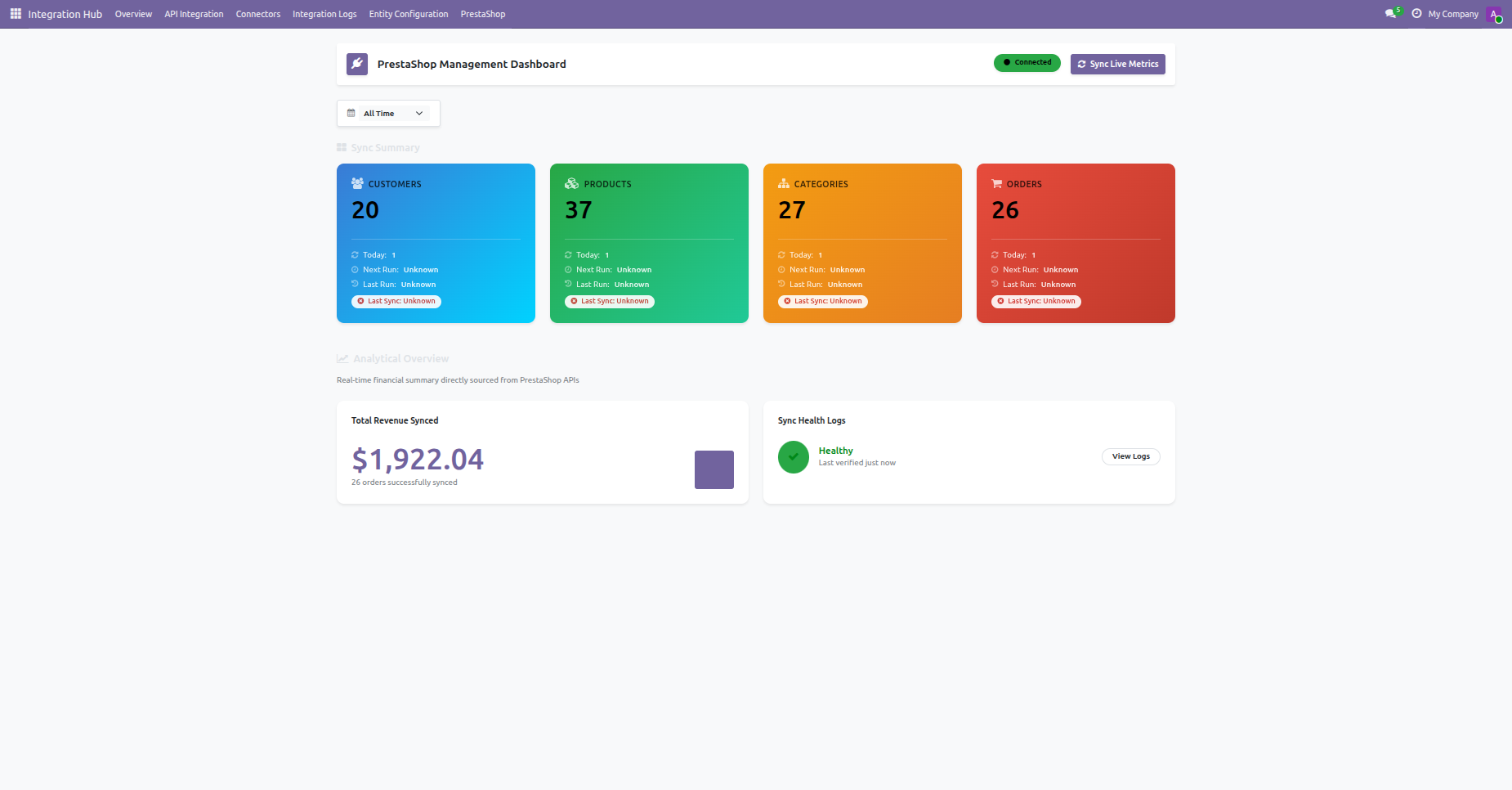
Monitor real-time synchronization stats, total revenue synced, and sync health logs on the PrestaShop dashboard.
 How it works?
Watch Video
How it works?
Watch Video
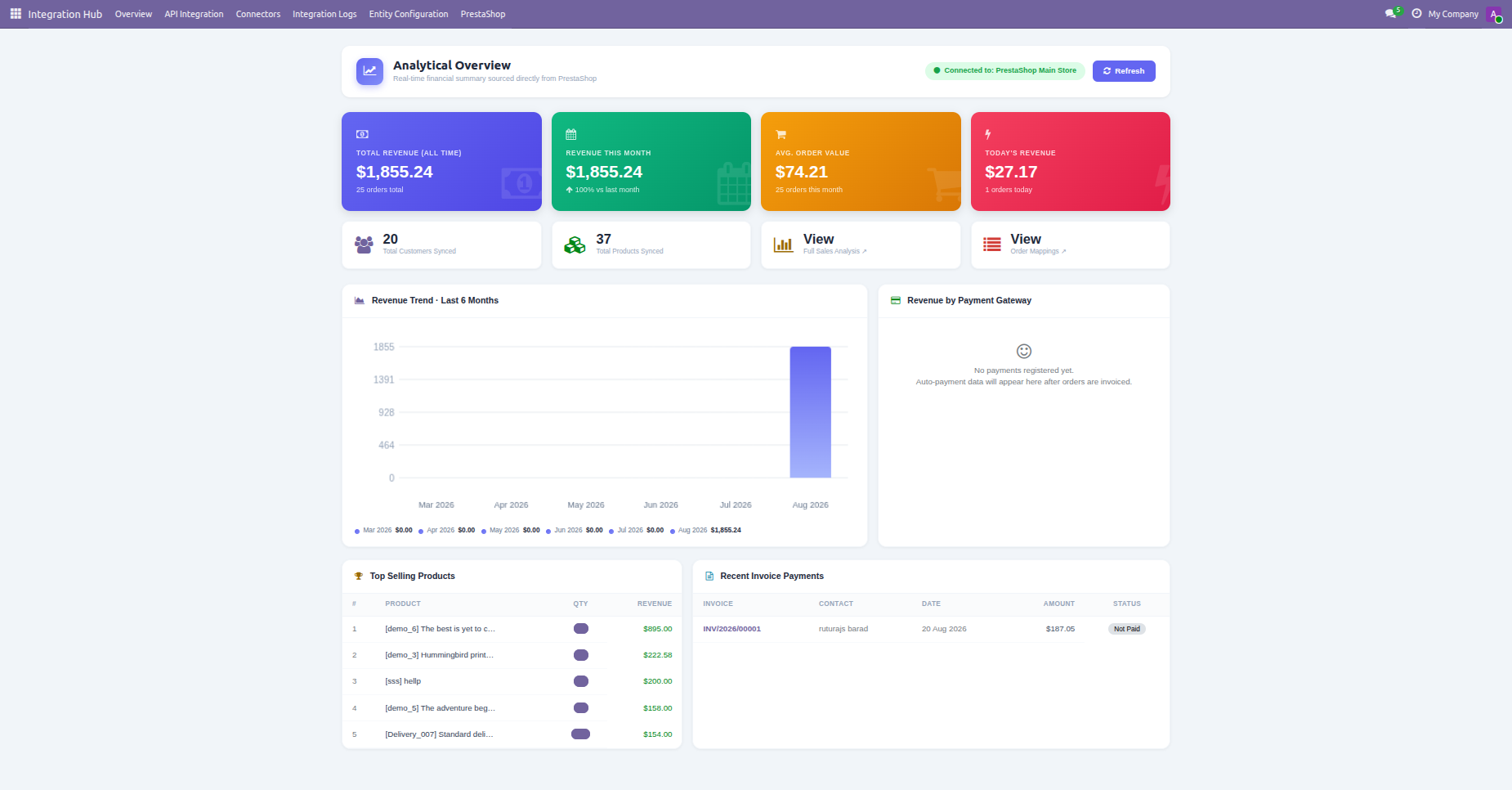
Select Financial Dashboard under Reporting from the PrestaShop menu to access financial analytics.
Analyze financial performance charts, revenue trends, average order value, and top-selling products in Analytical Overview.
 How Import Product
works? Watch Video
Export Product
Sync Price & Inventory Video
How Import Product
works? Watch Video
Export Product
Sync Price & Inventory Video
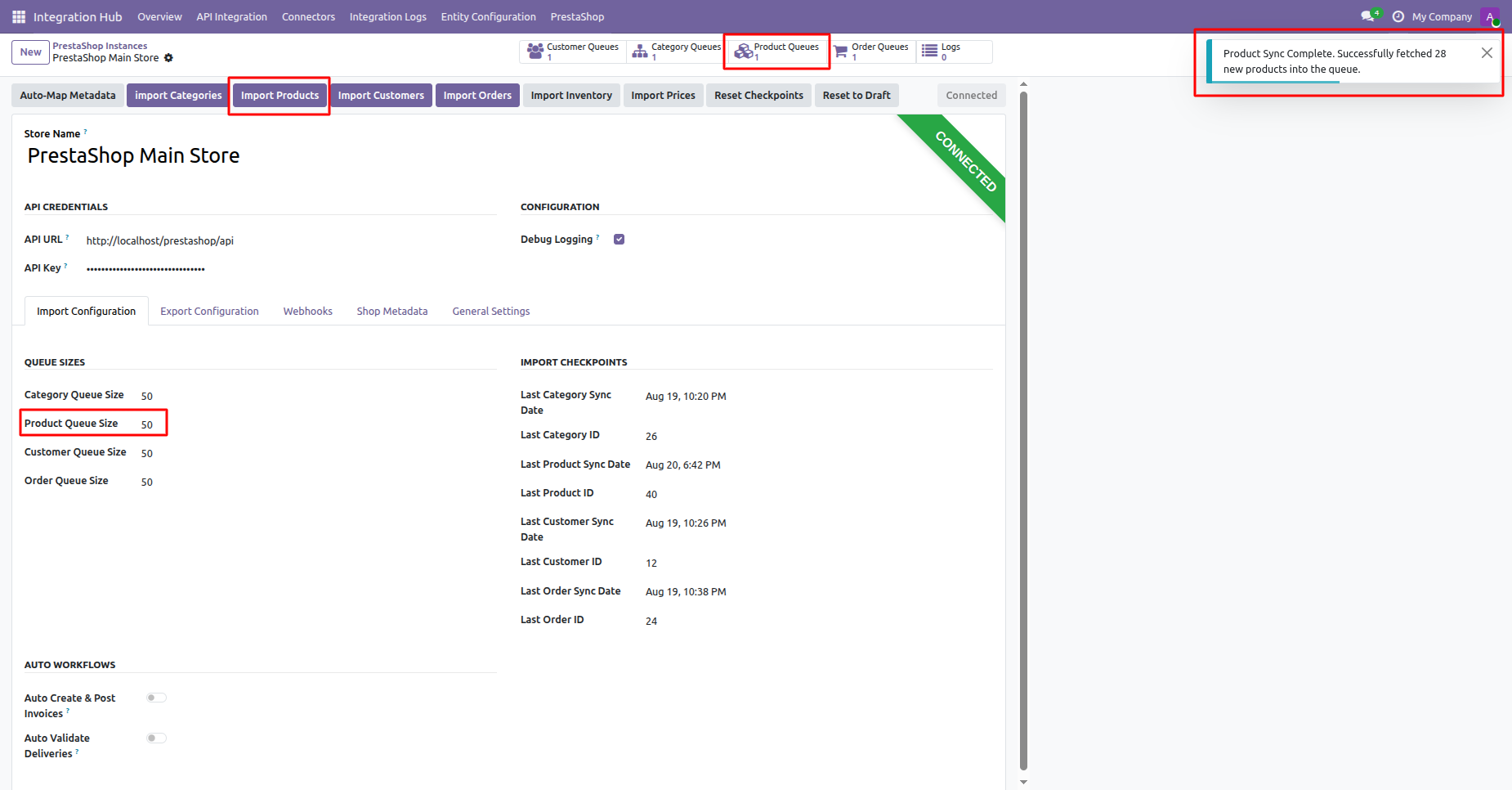
Click Import Products to fetch product records from PrestaShop into the product queue.
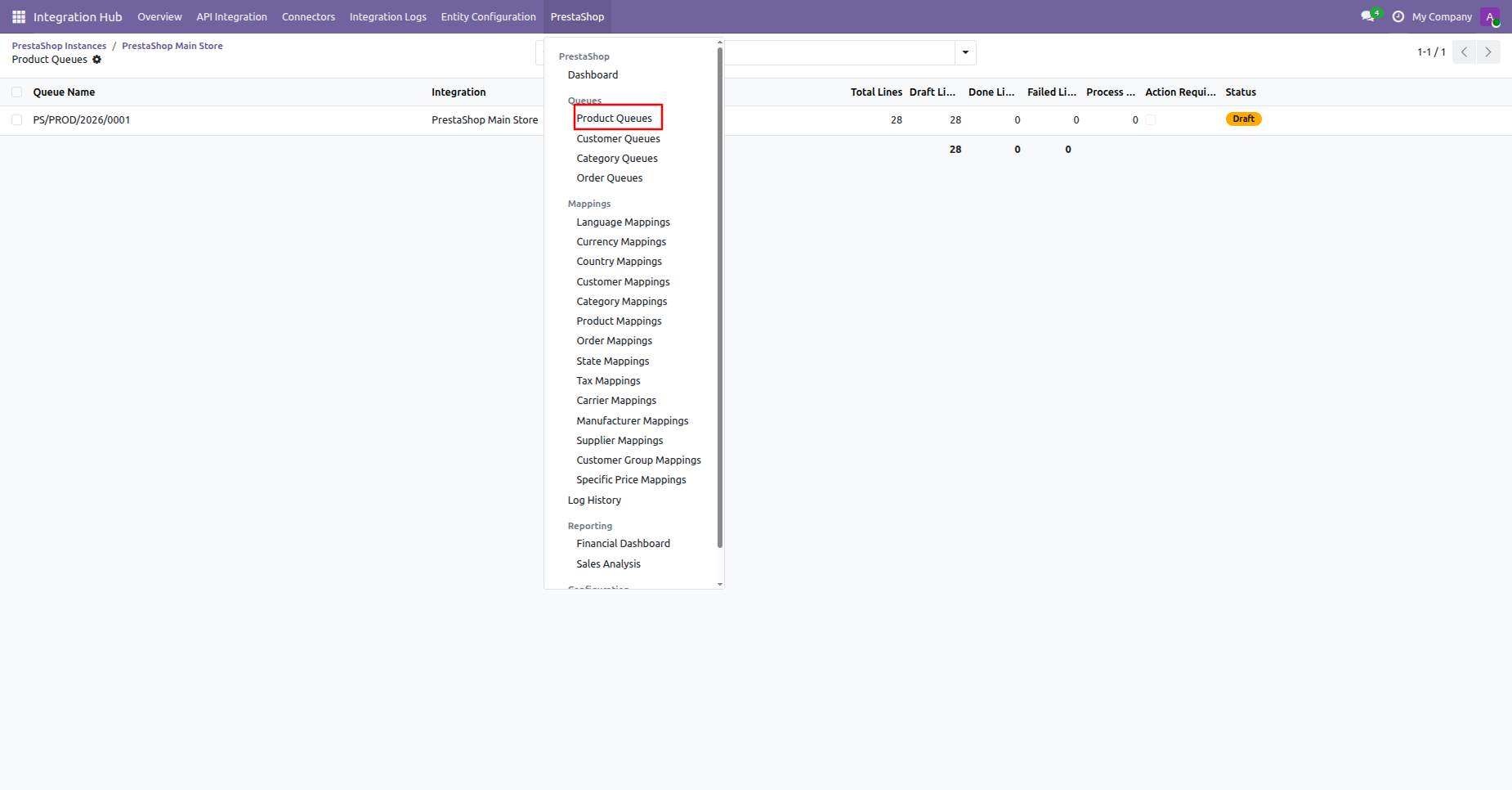
Select Product Queues from the PrestaShop menu to view synchronization queue records.
Click the product queue entry from the list view to open queue batch details.
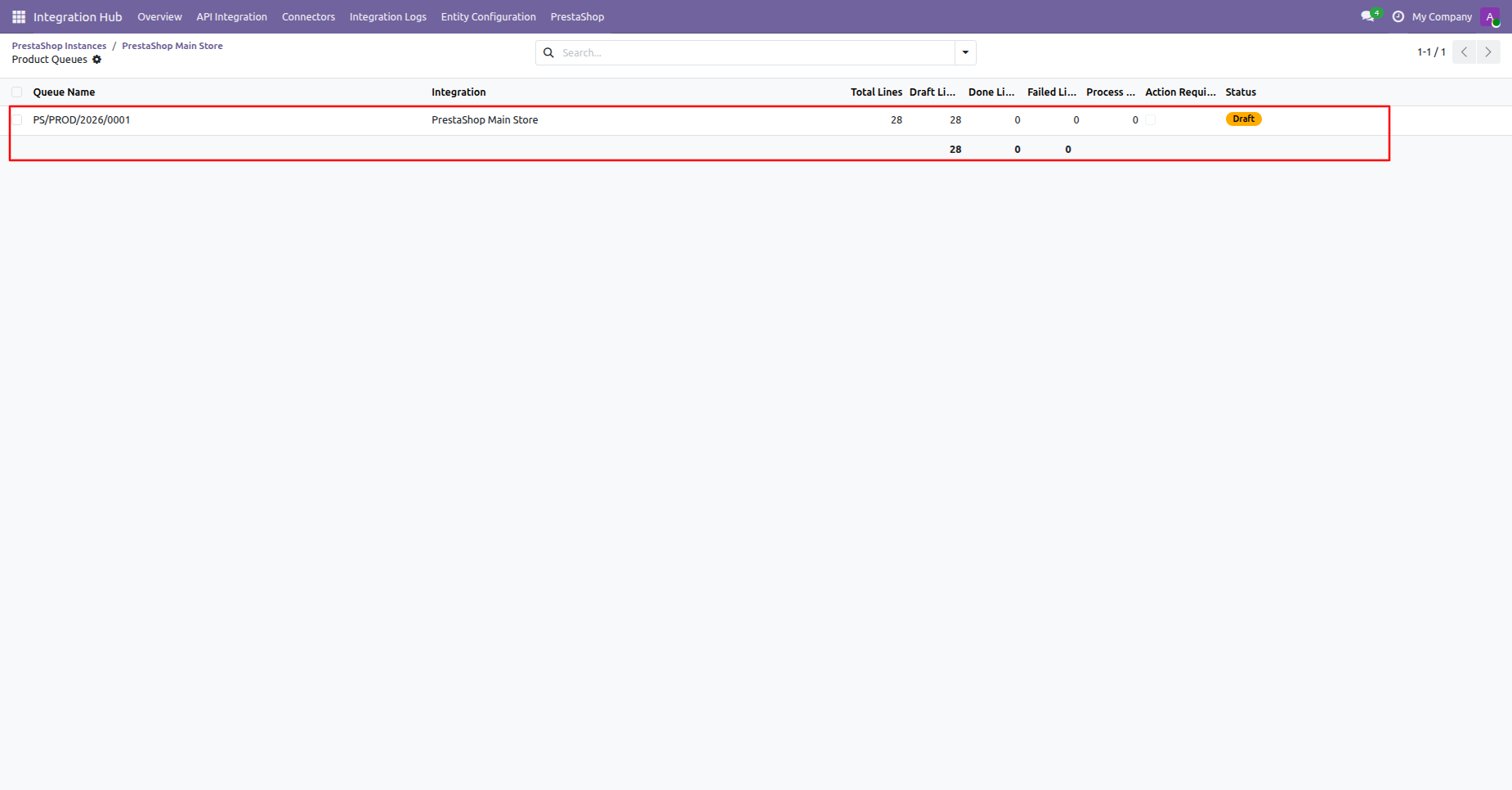
Select queue records and choose Process Selected Queues under Actions to execute import.
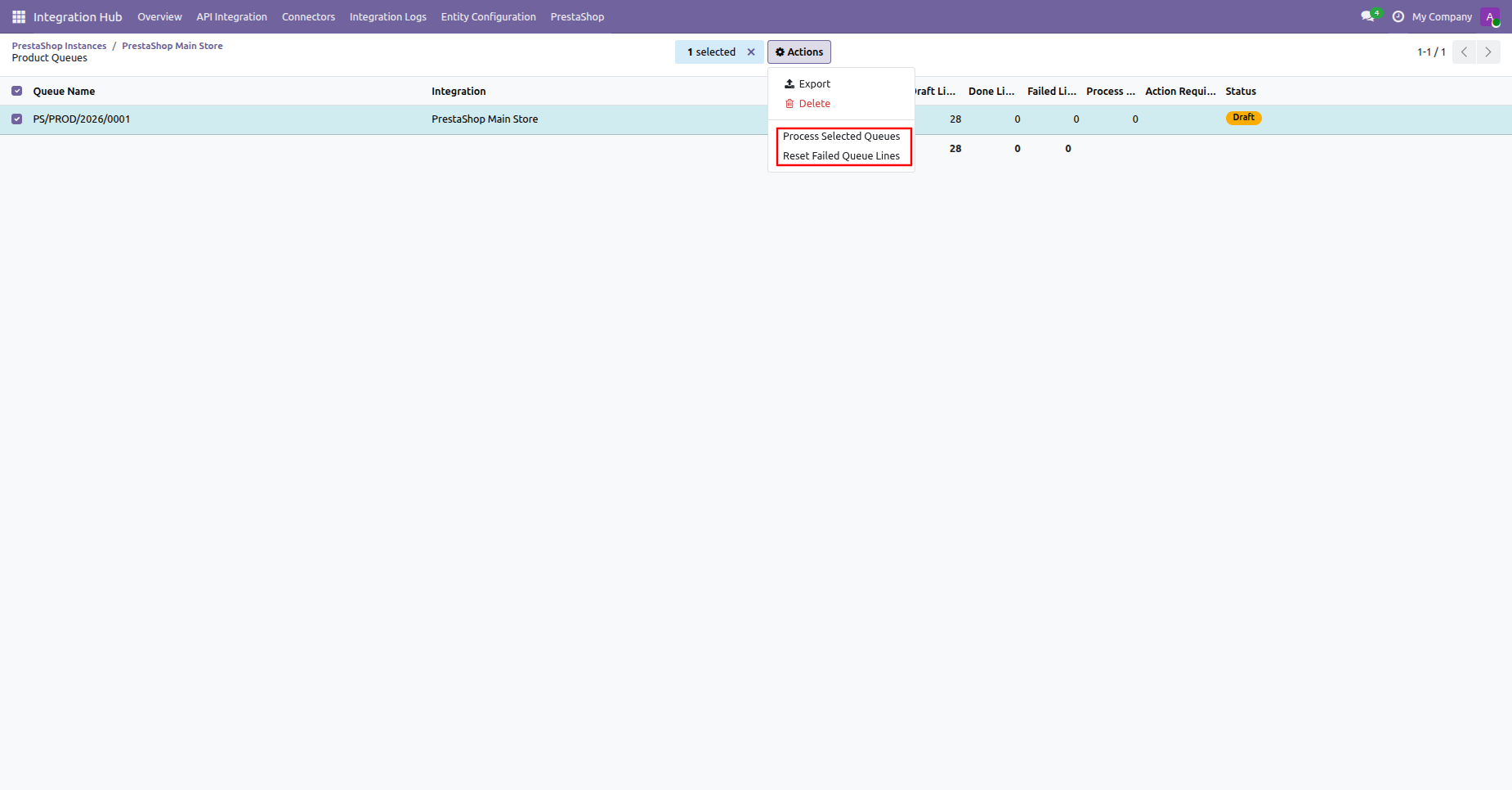
Click Process Queue on the queue form view to start processing individual product lines.
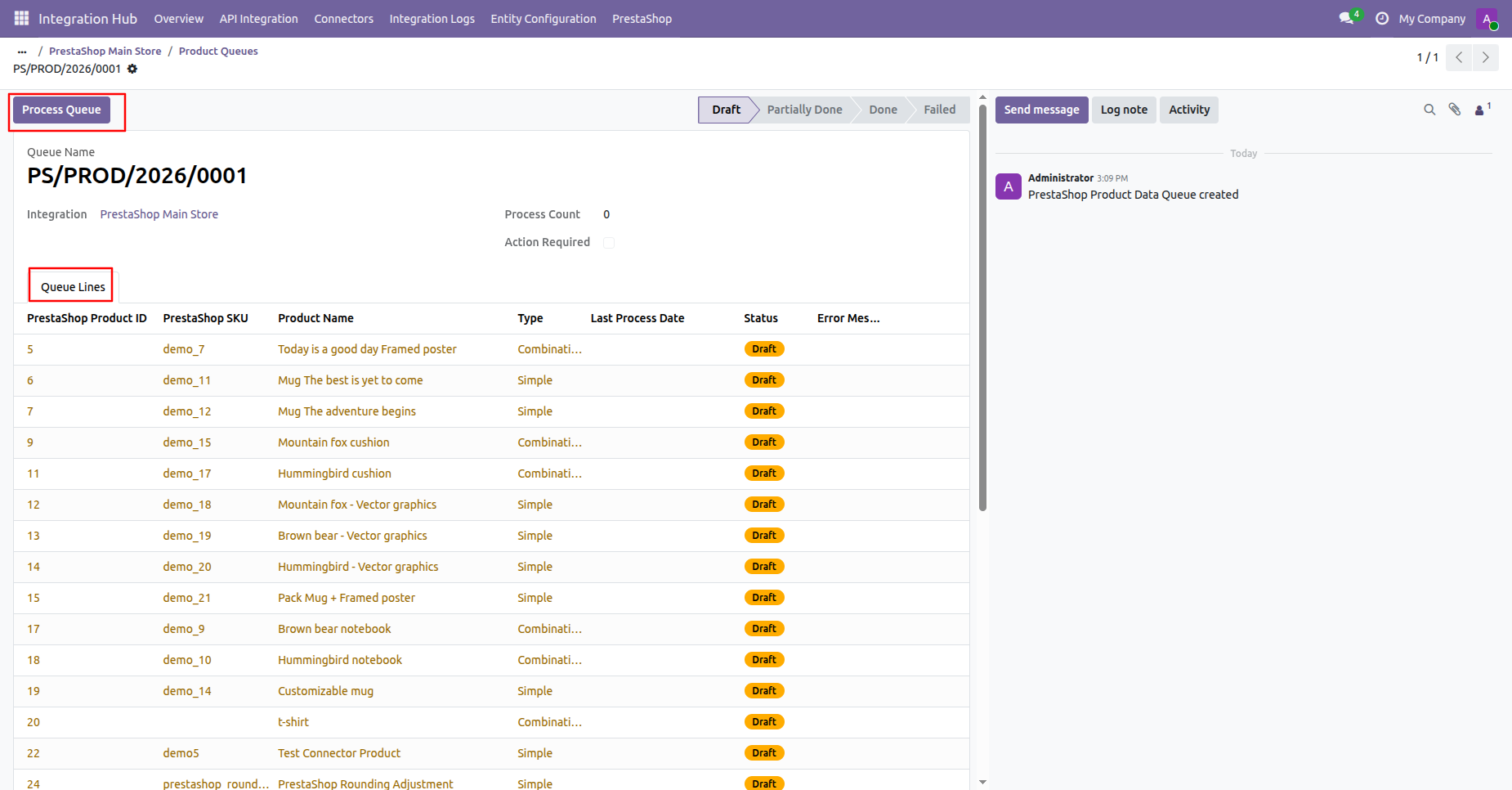
Verify the toast notification confirming successful processing of product queue lines with zero errors.
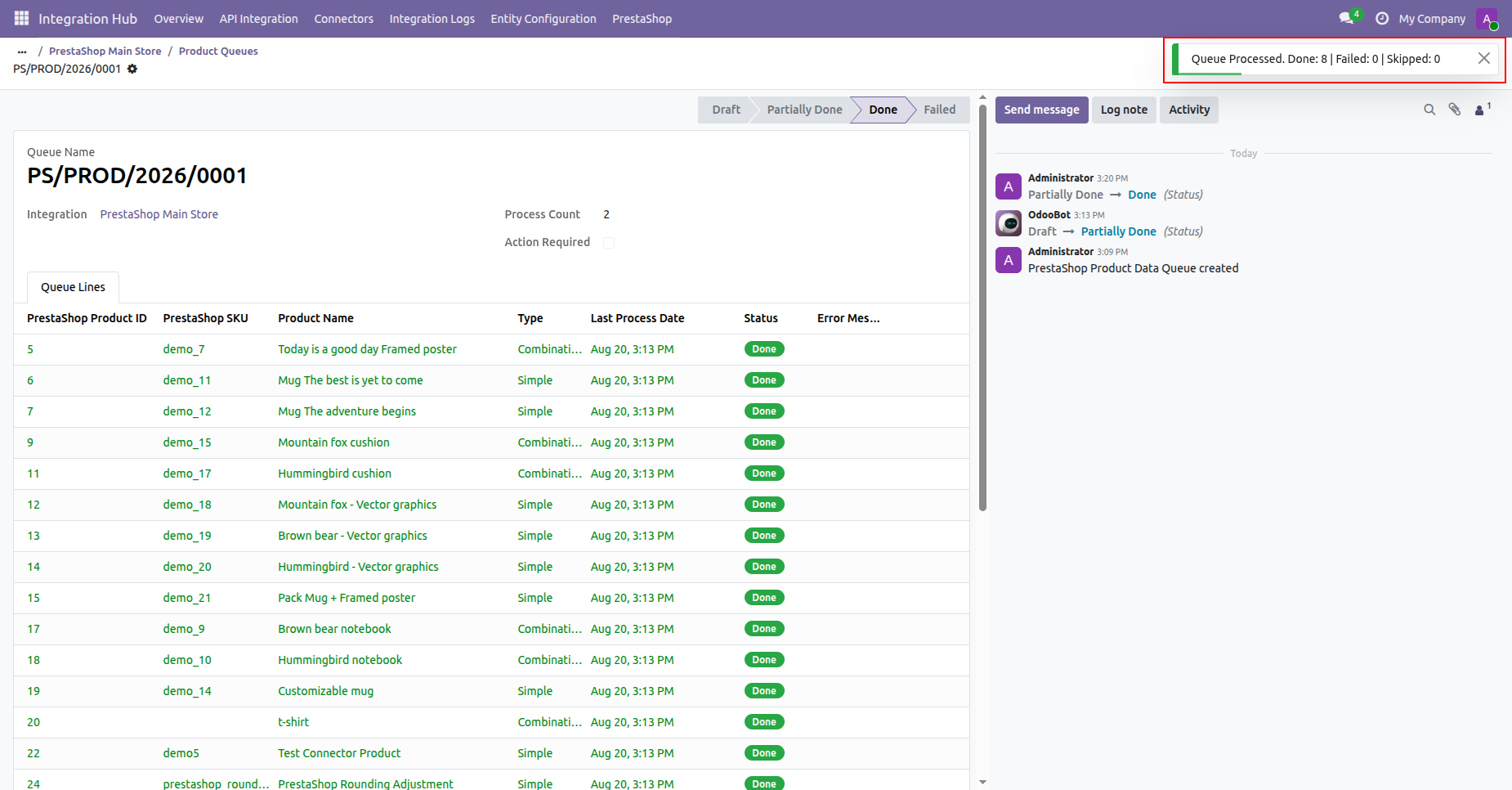
Select Product Mappings under PrestaShop menu to view all mapped product variants.
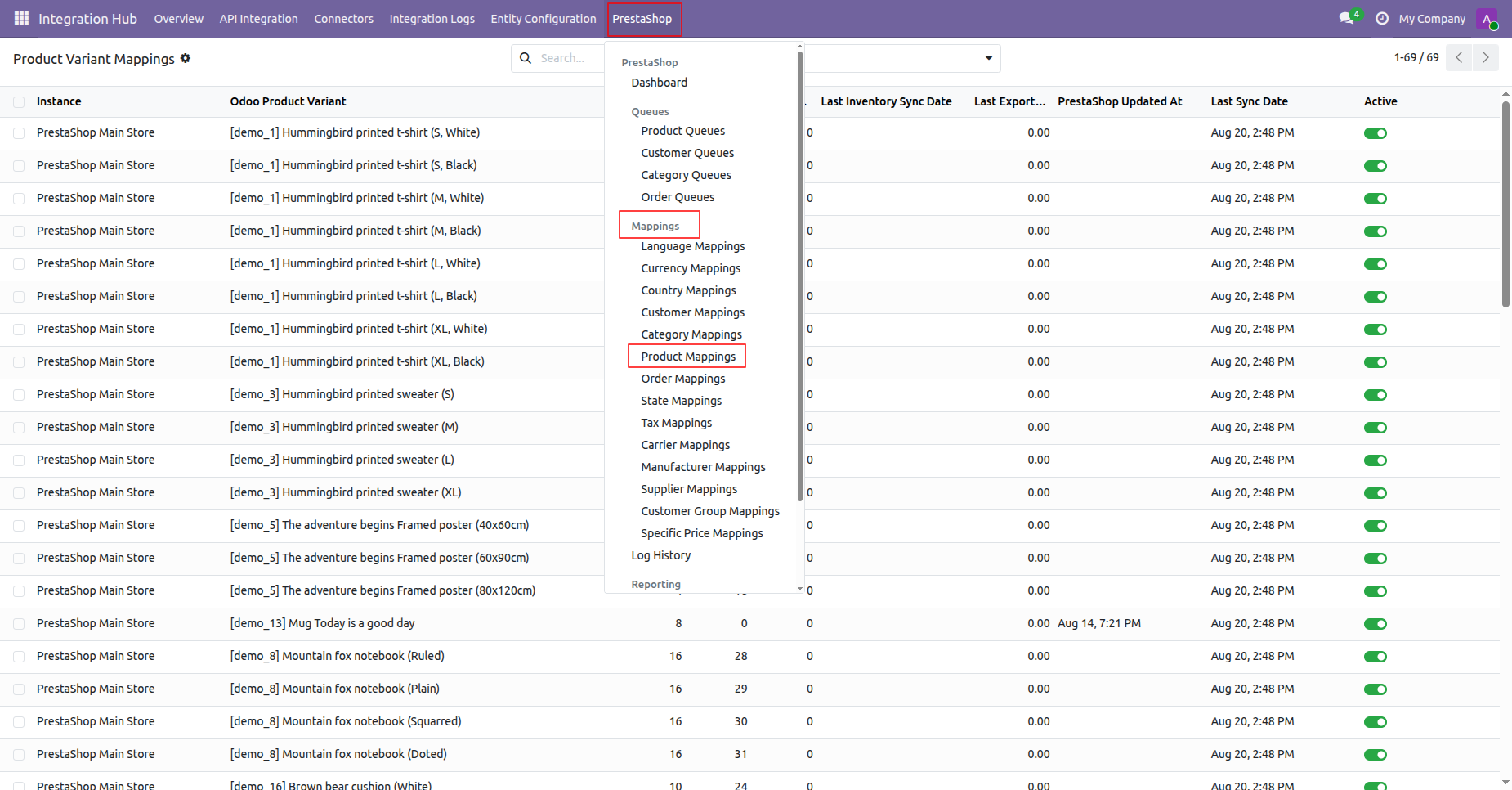
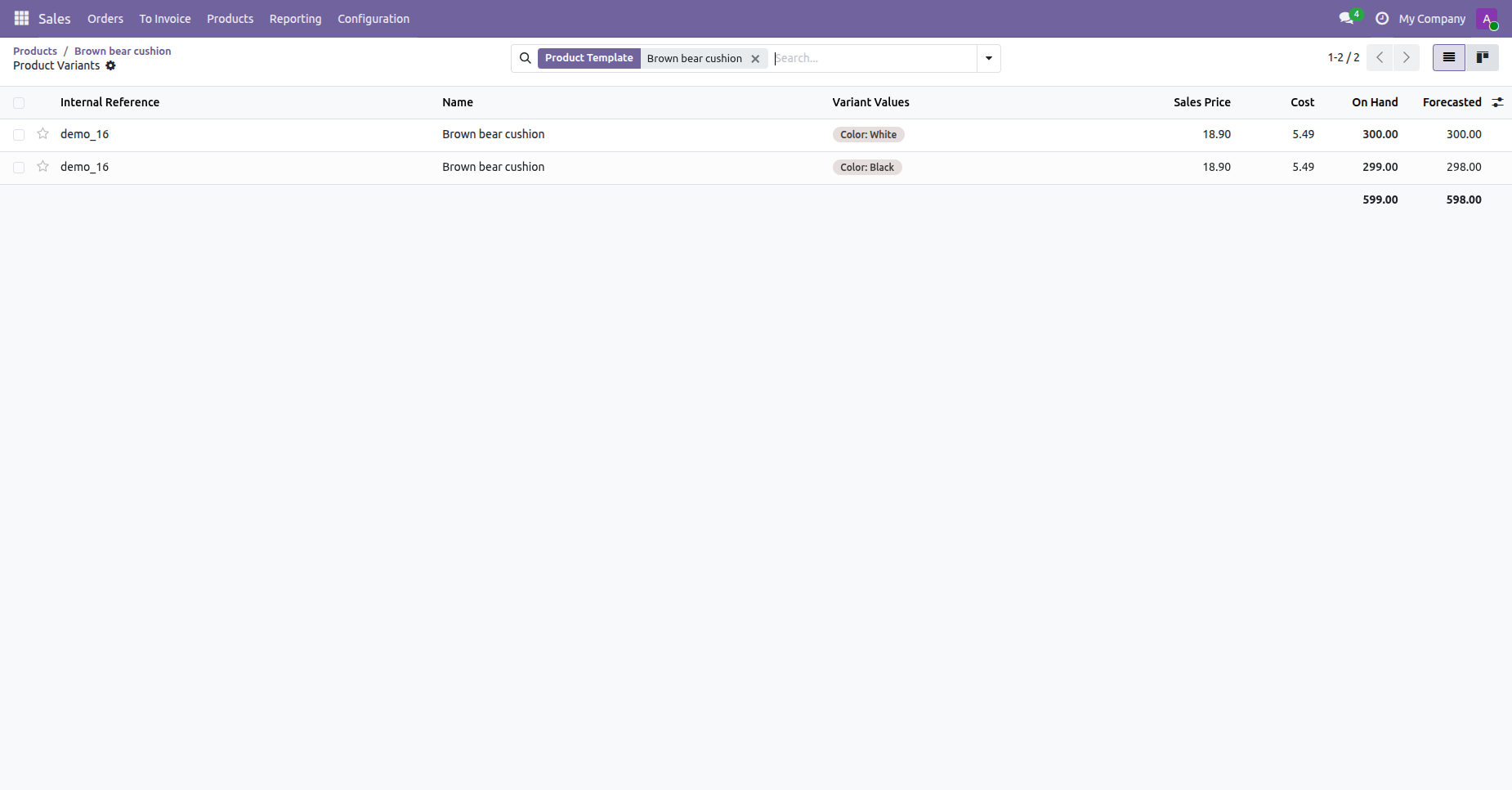
View imported product variants in Odoo displaying synchronized prices, stock levels, and variant values.
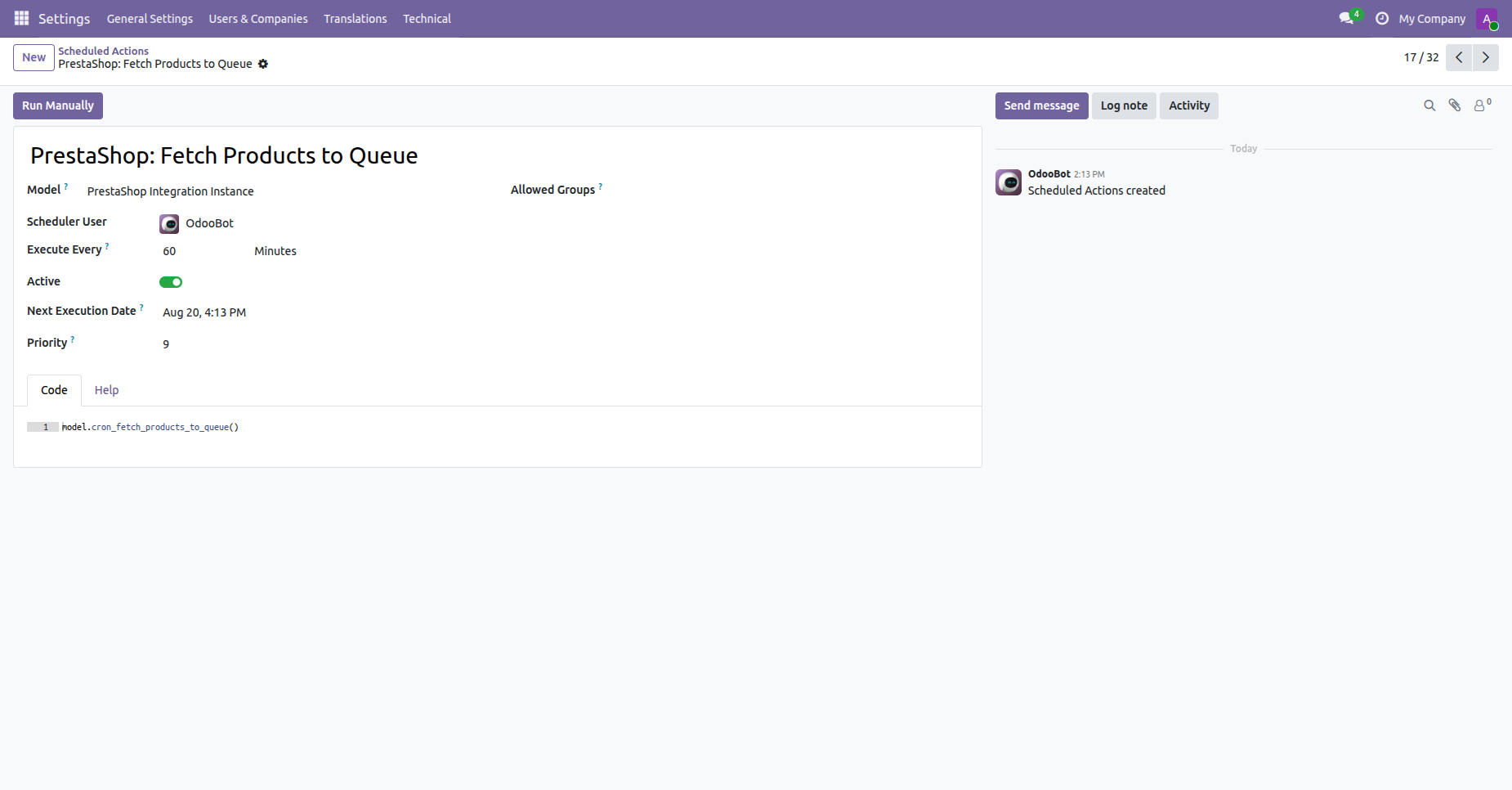
Configure scheduled action cron settings to automatically fetch PrestaShop products into the queue.
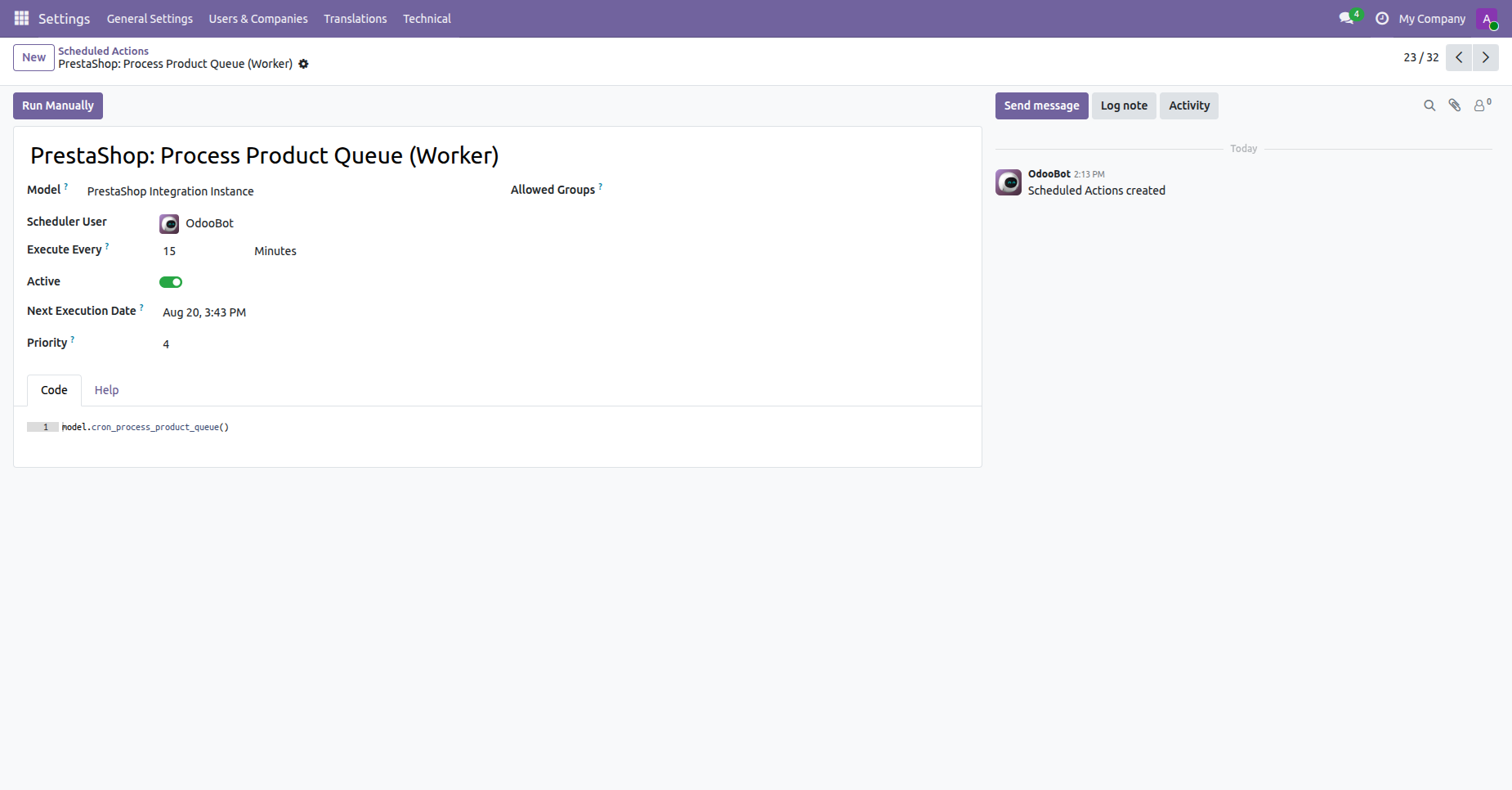
Configure scheduled action crons to automate product queue processing at scheduled background intervals.
 How it works?
Watch Video
How it works?
Watch Video
Click Import Categories to fetch product category records from PrestaShop into the queue.
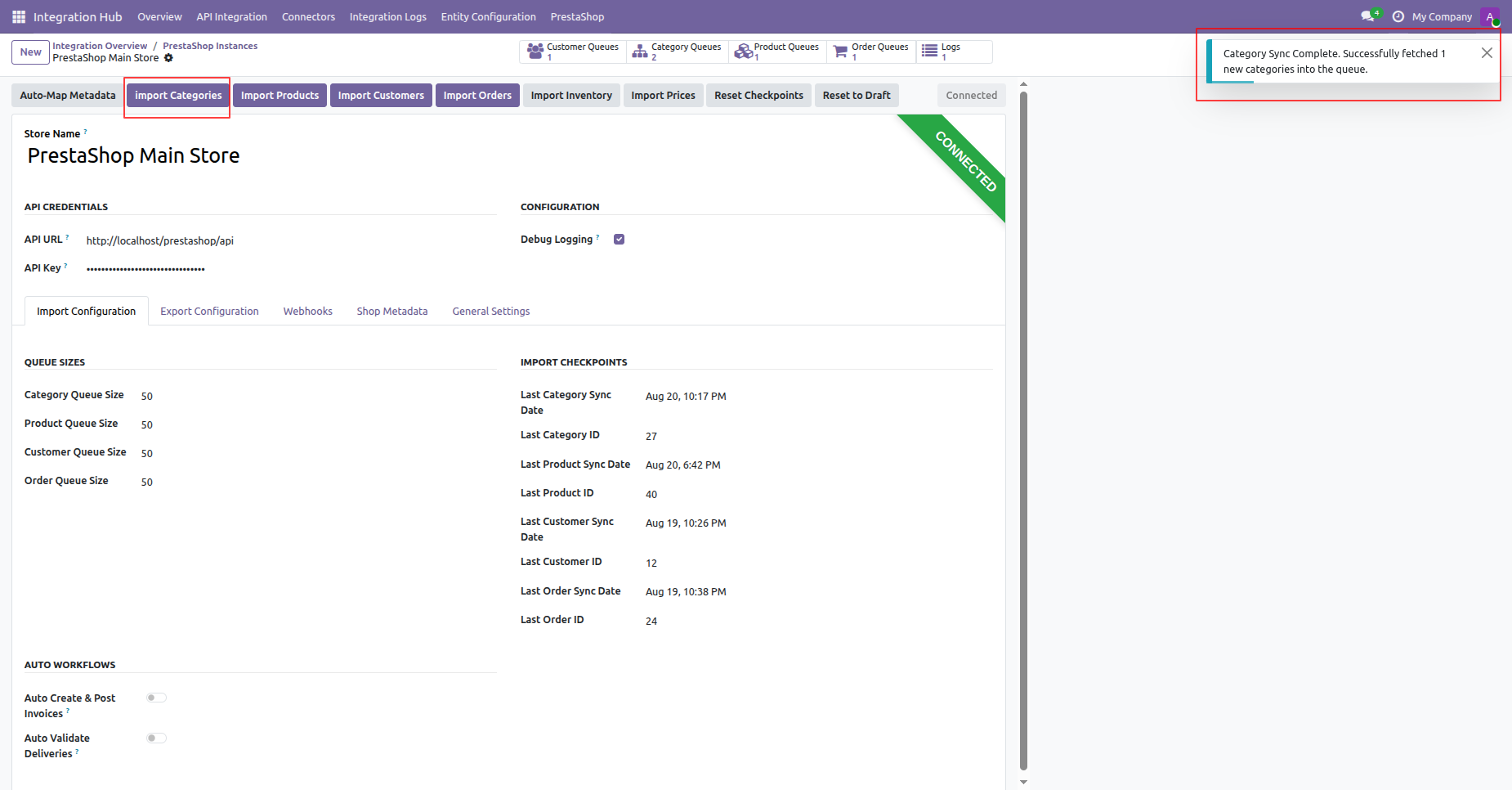
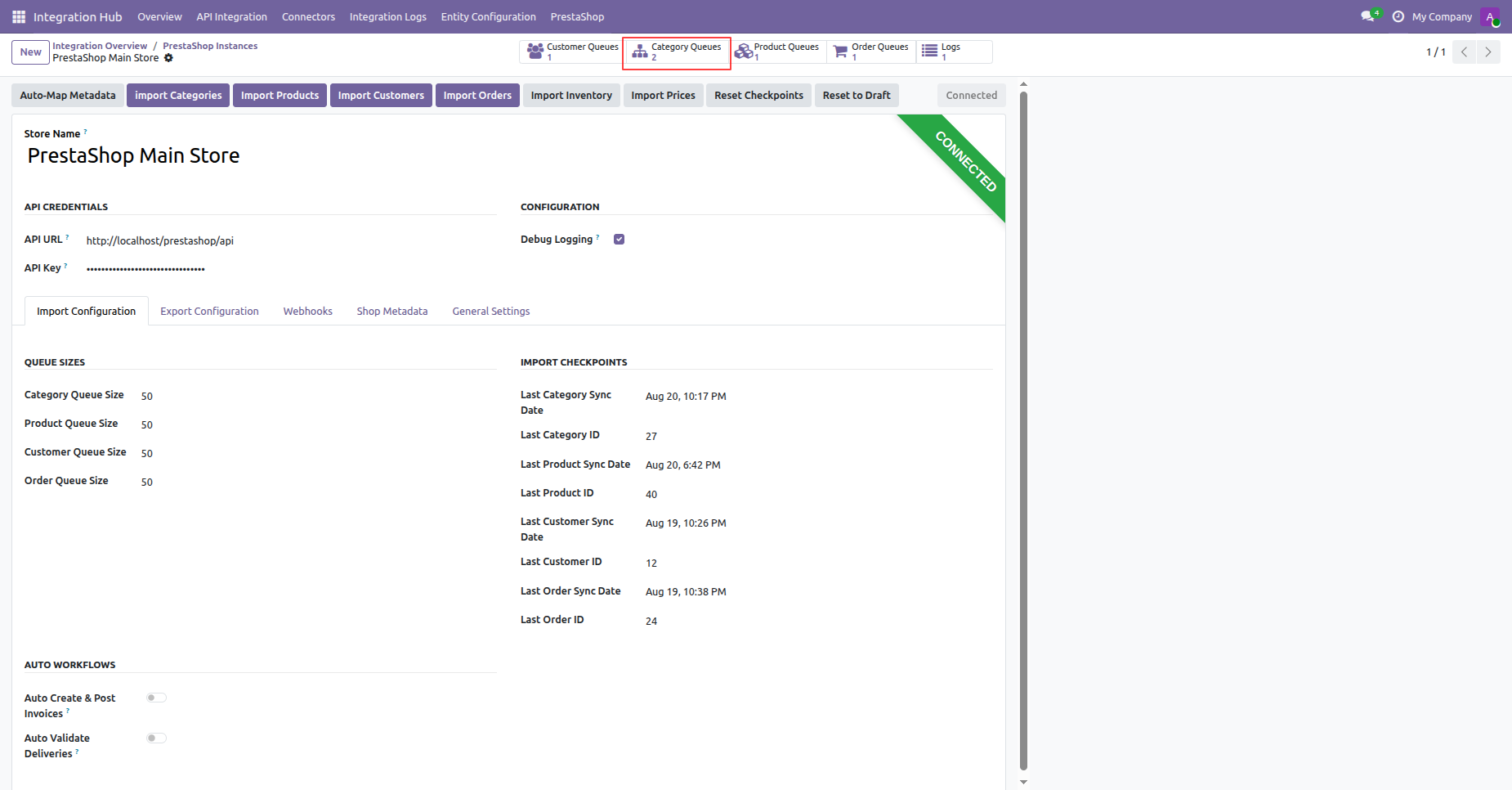
Click the Category Queues smart button to view generated category synchronization queue records.
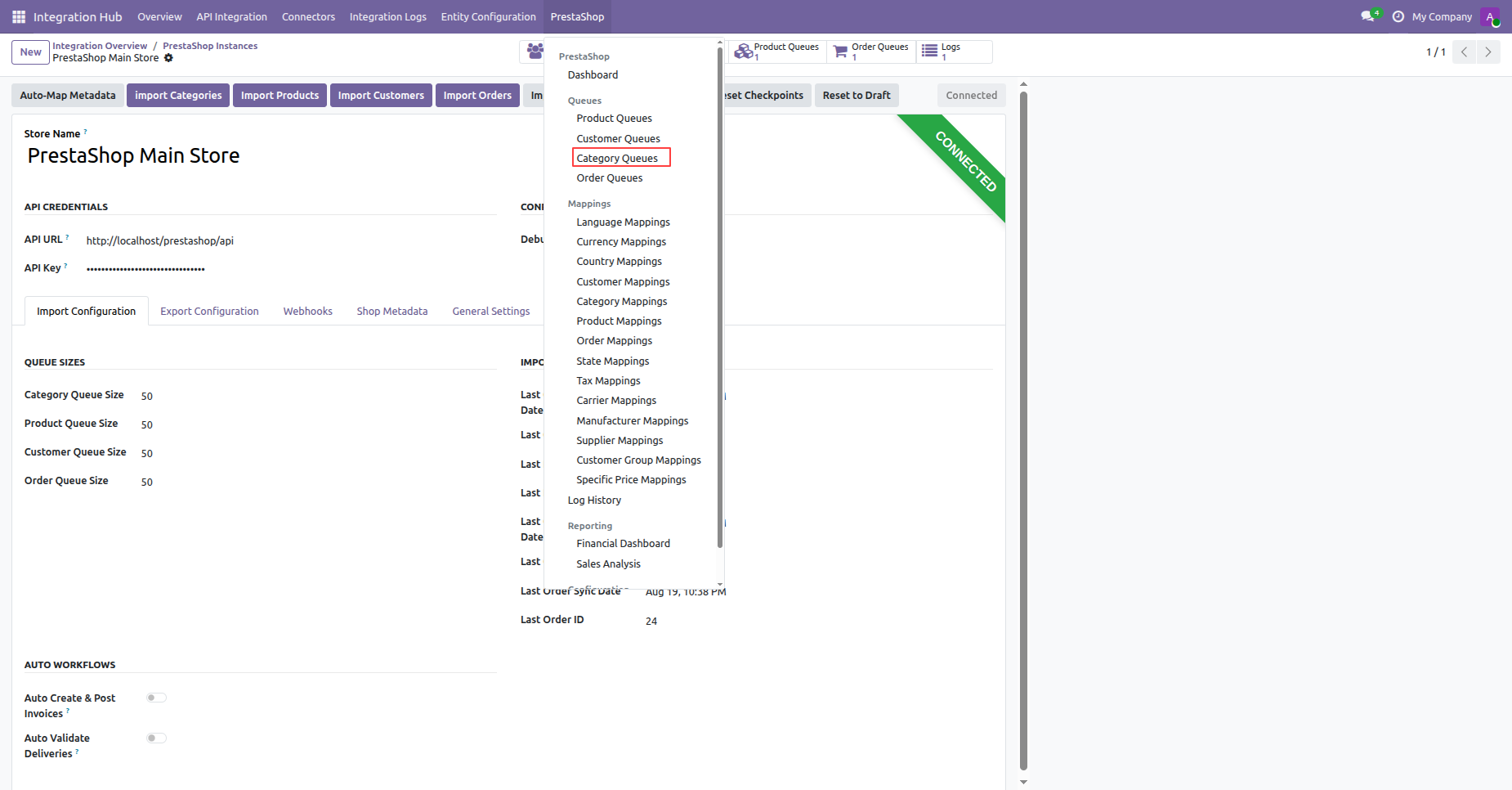
Select Category Queues under PrestaShop menu to access category queue batch list.
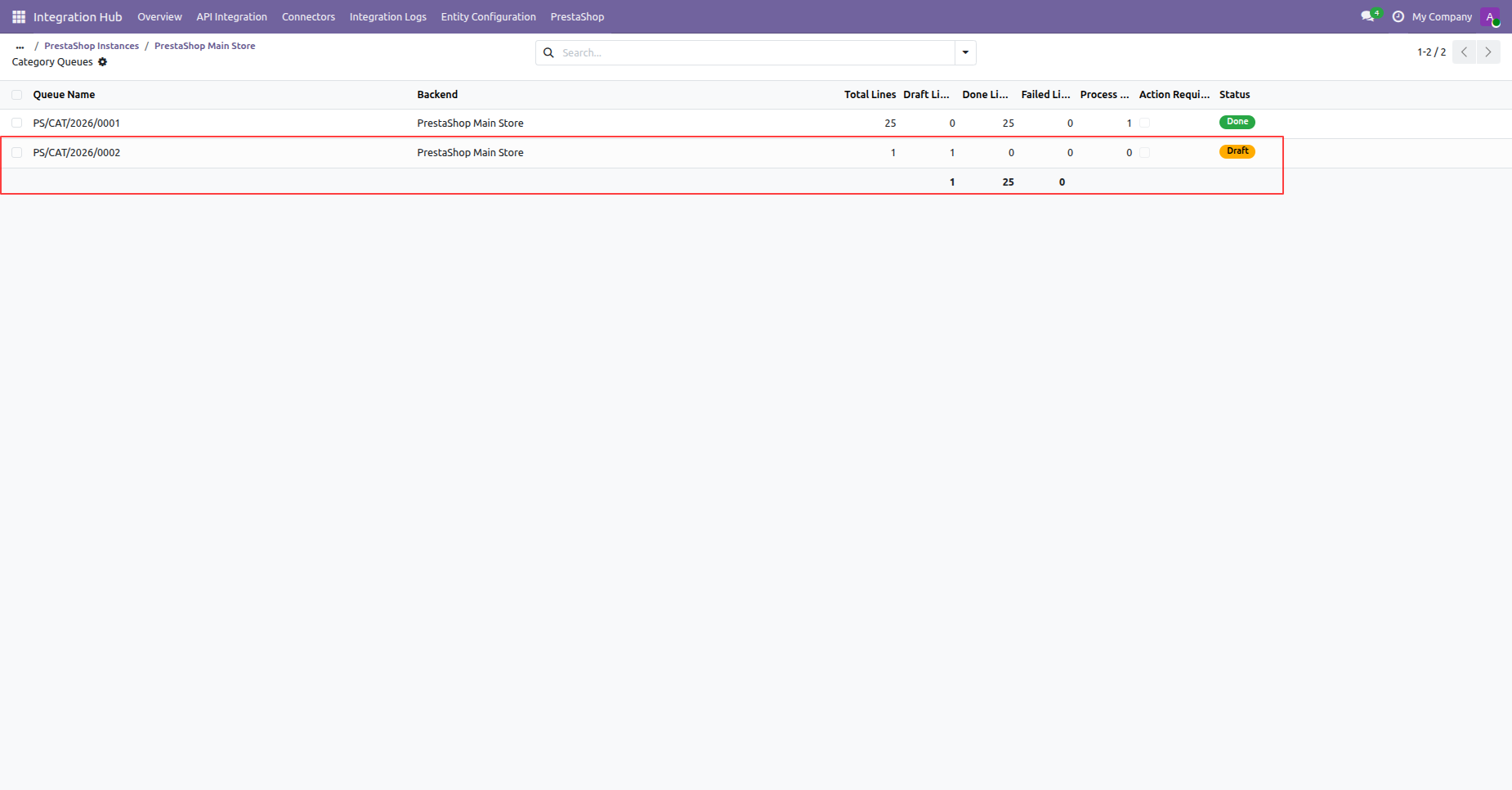
Click a category queue record from the list view to review pending draft categories.
Click Process Queue on the category queue form view to import category lines.
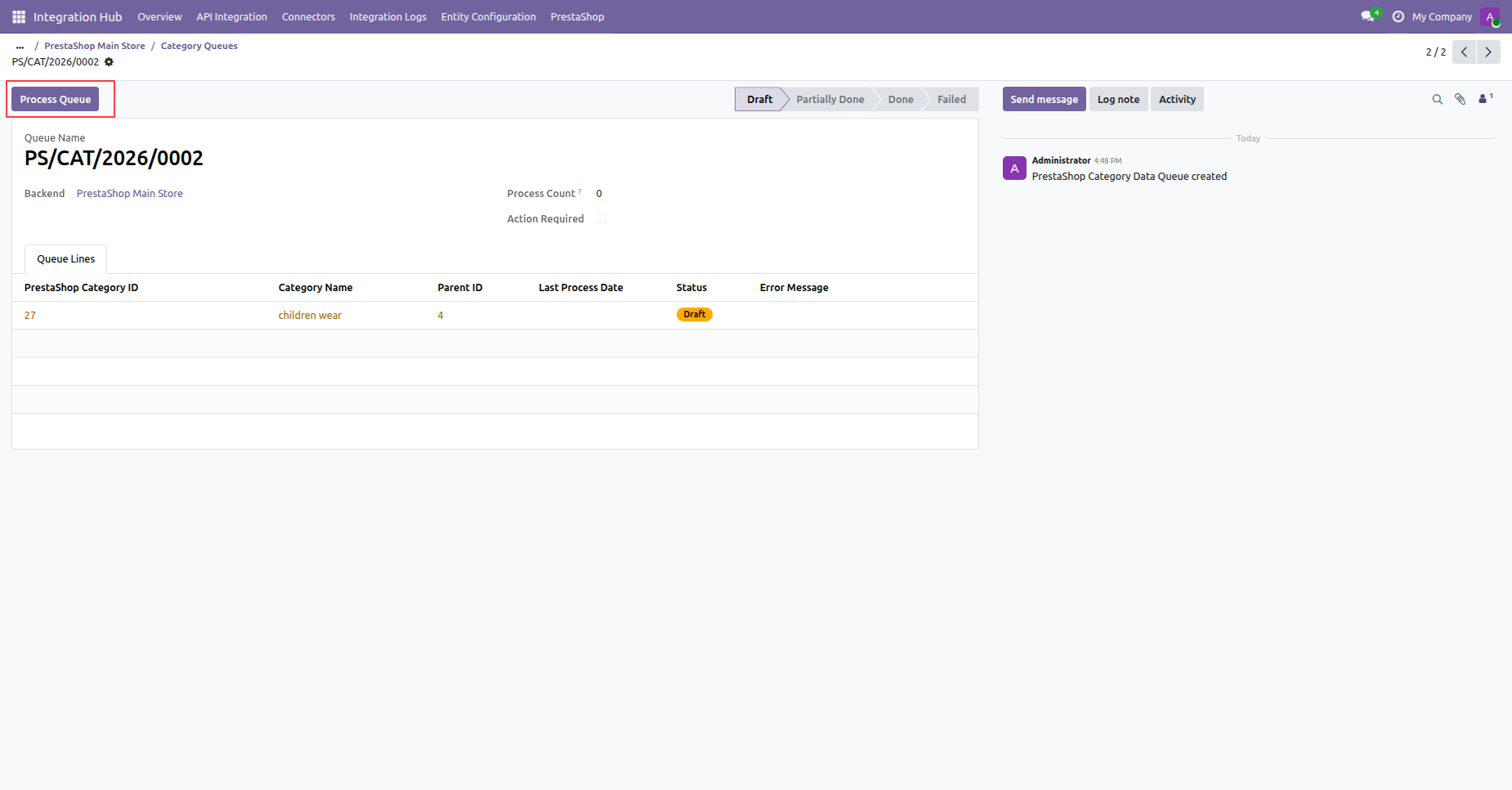
Review the toast notification confirming successful processing of category queue lines.
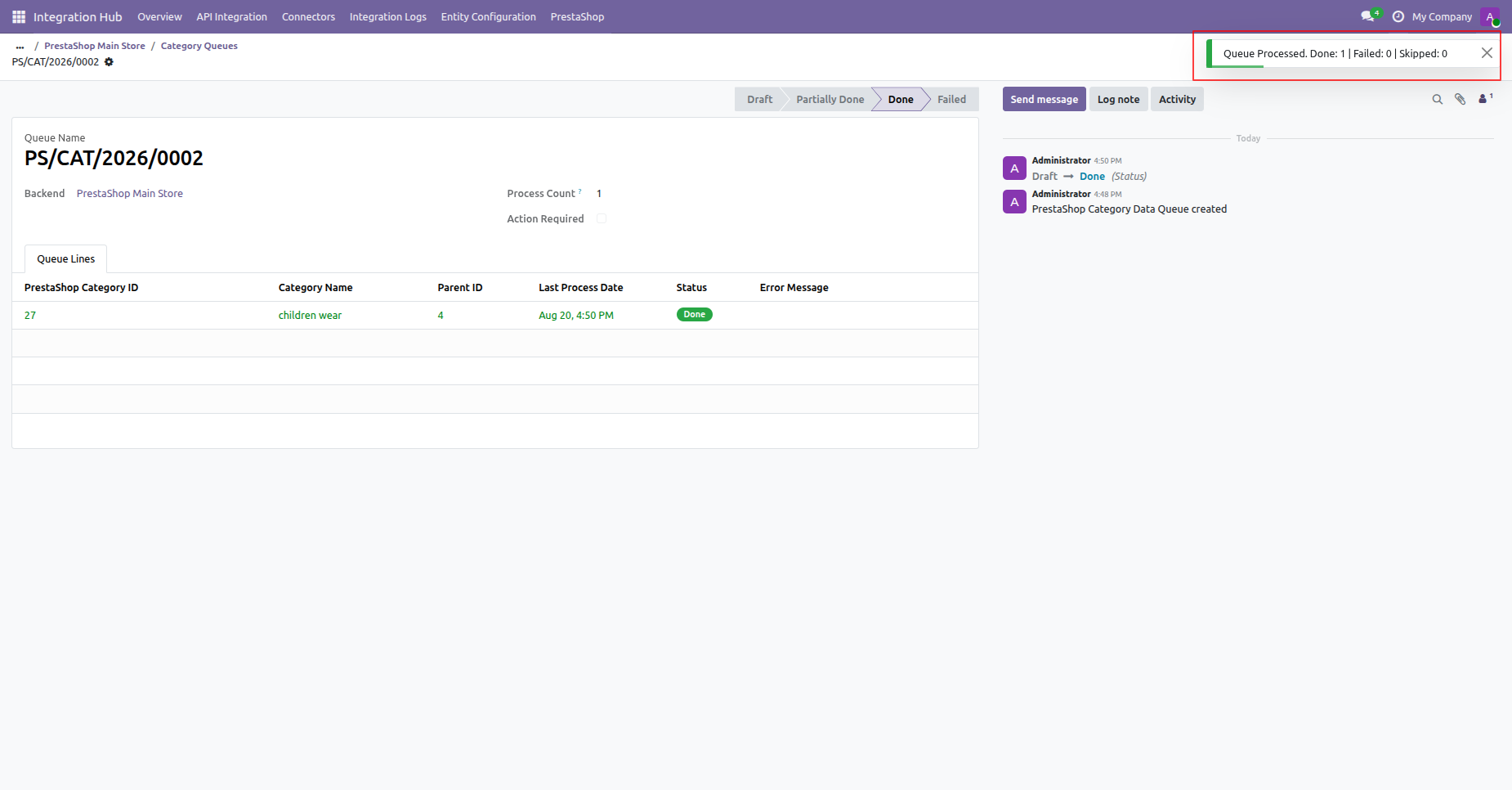
Select Category Mappings from the PrestaShop menu dropdown to view mapped category entries.
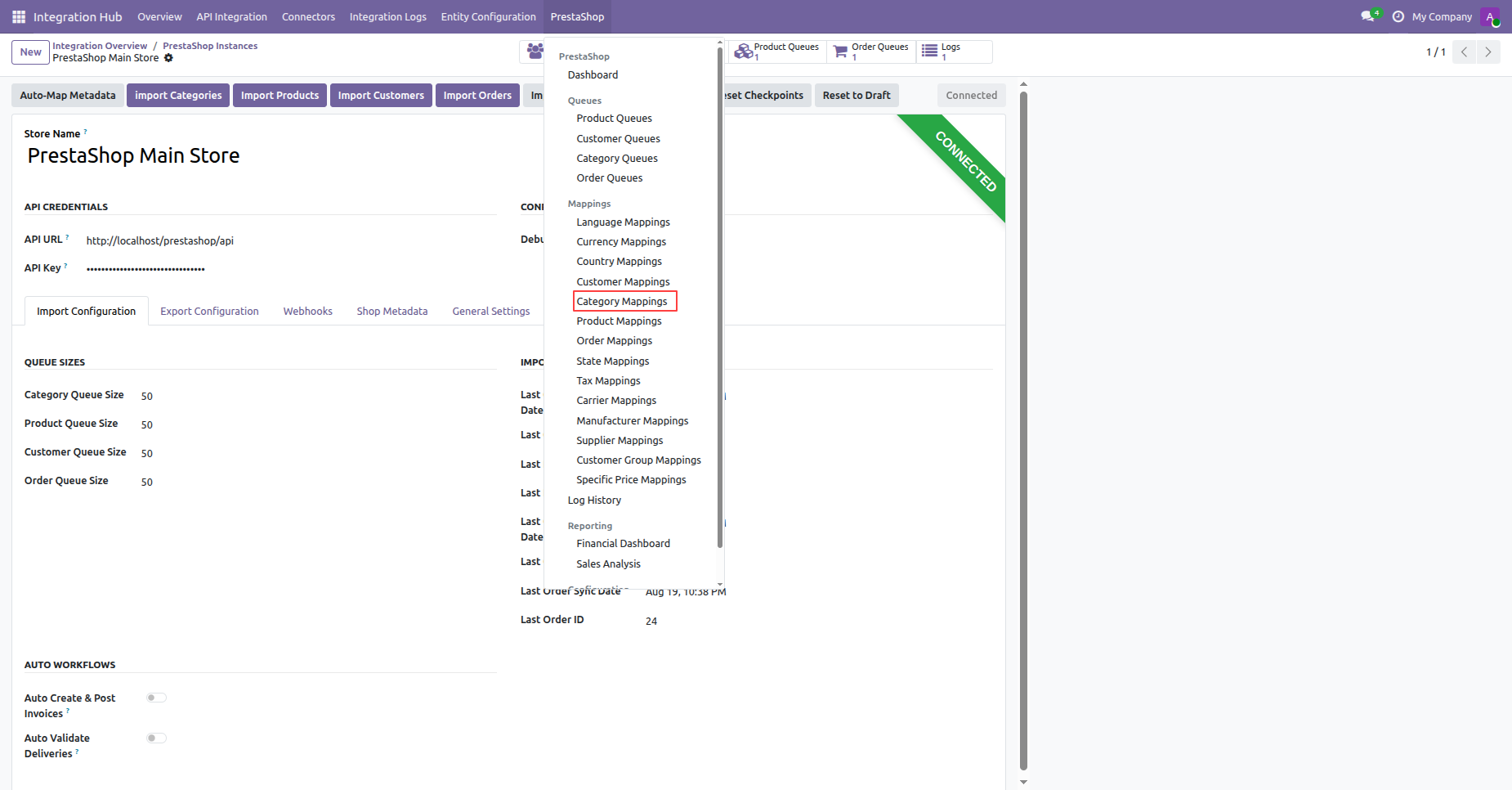
Inspect the category mapping record showing linked Odoo product category hierarchy and PrestaShop ID.
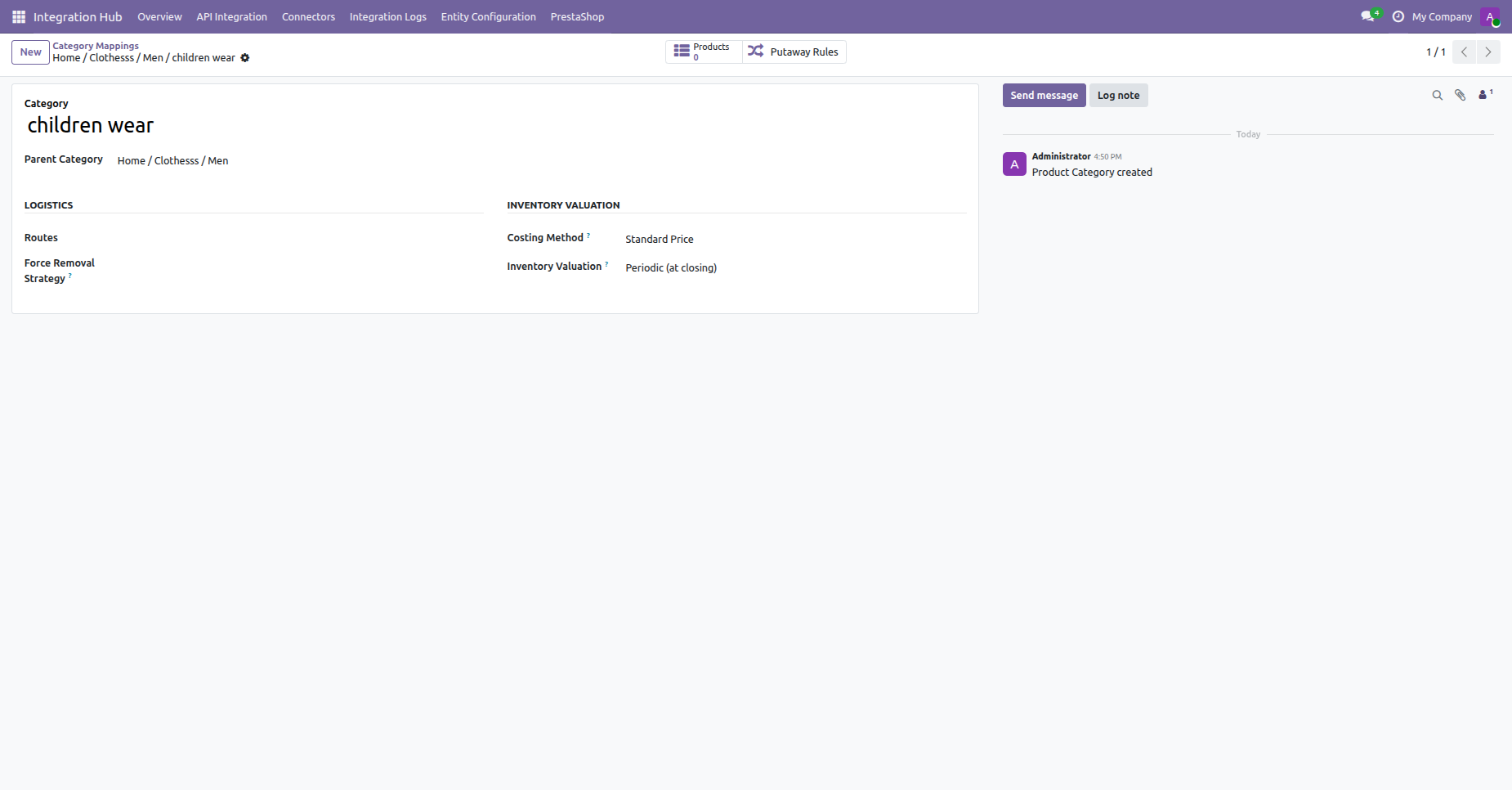
View the imported product category form showing assigned parent category and valuation parameters.
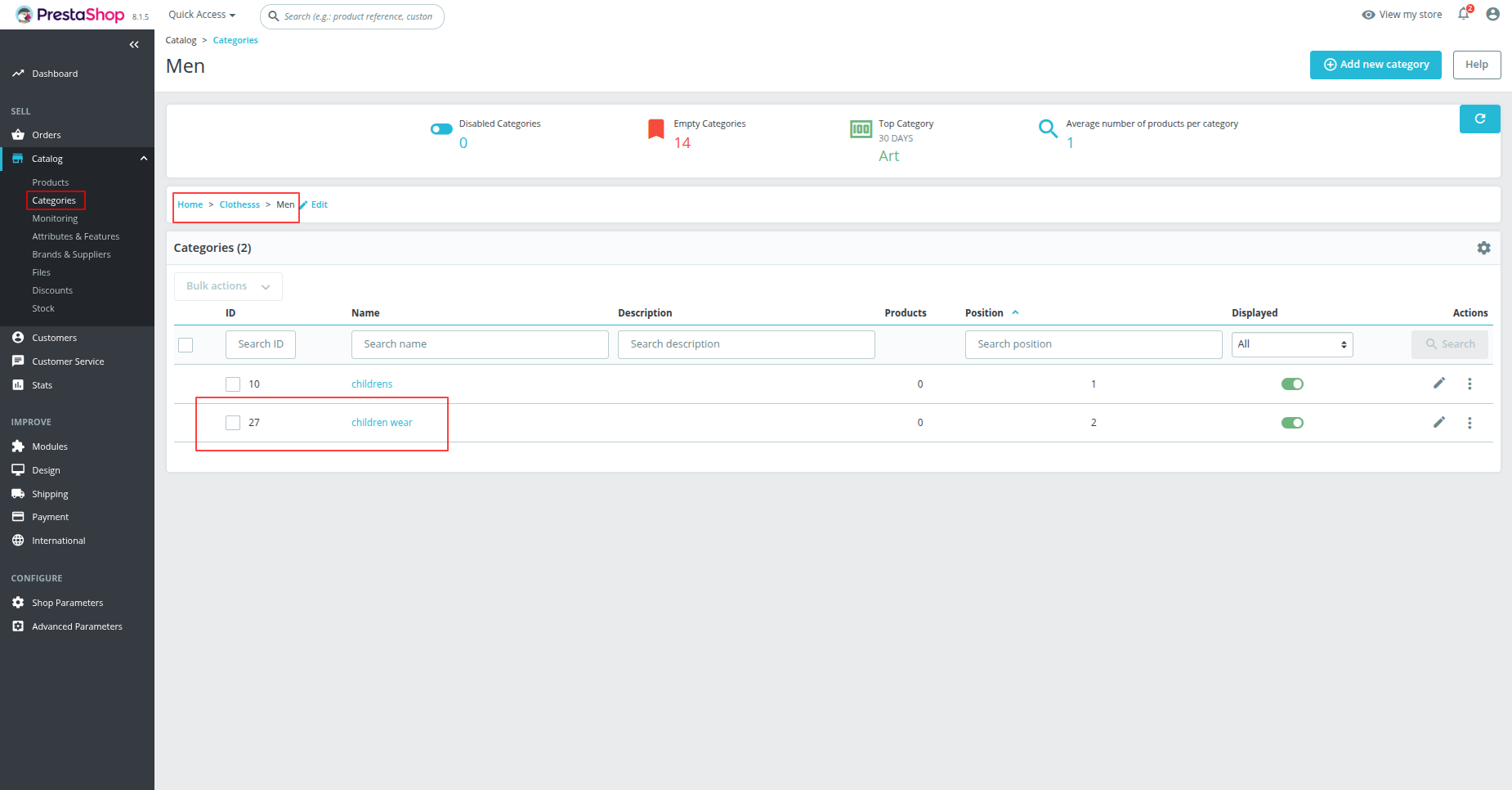
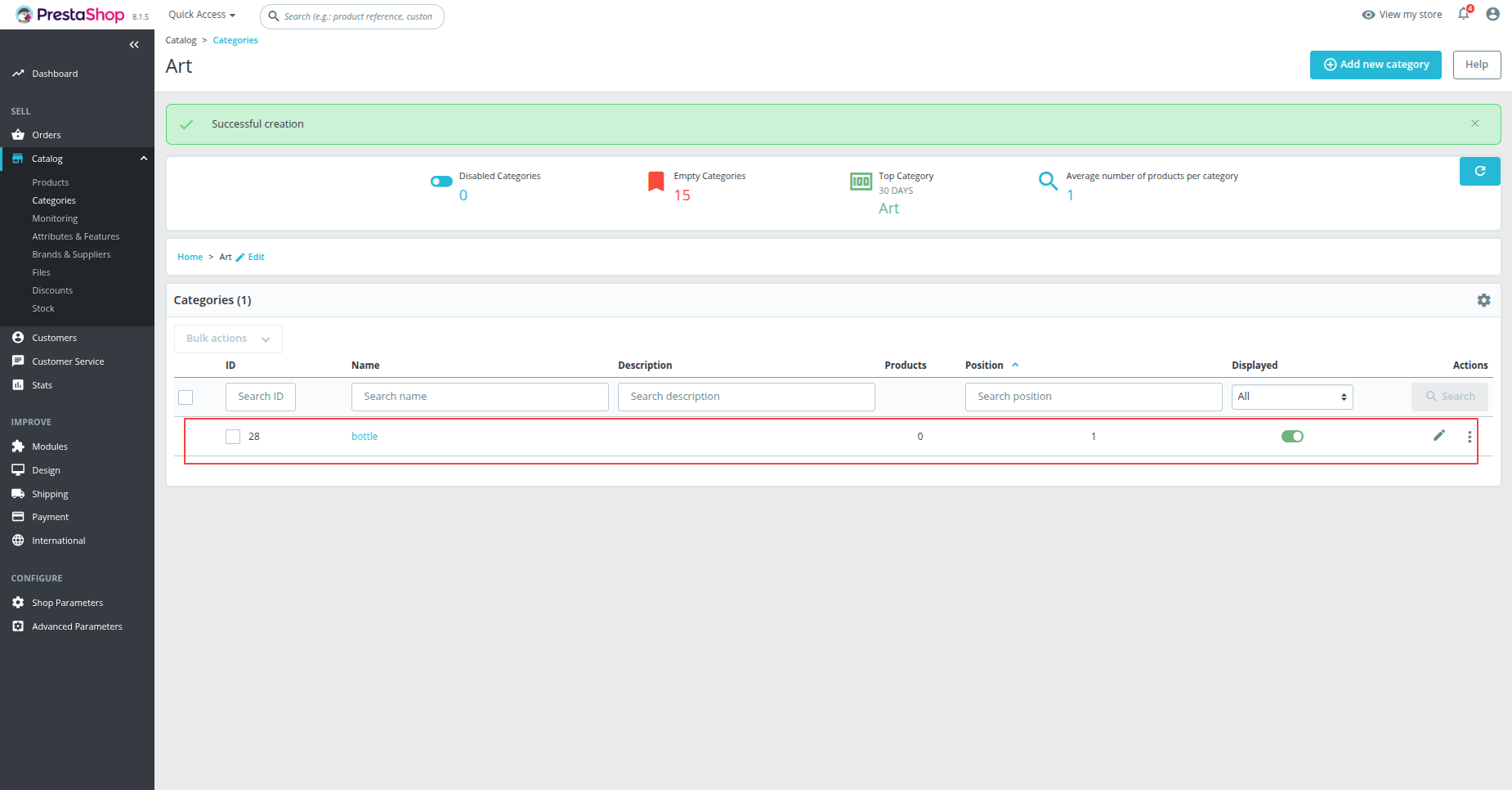
View corresponding category details and position in PrestaShop store backend under Catalog Categories.
 How it works?
Watch Video
How it works?
Watch Video
Click Import Customers on the instance form to fetch customer records into the queue.
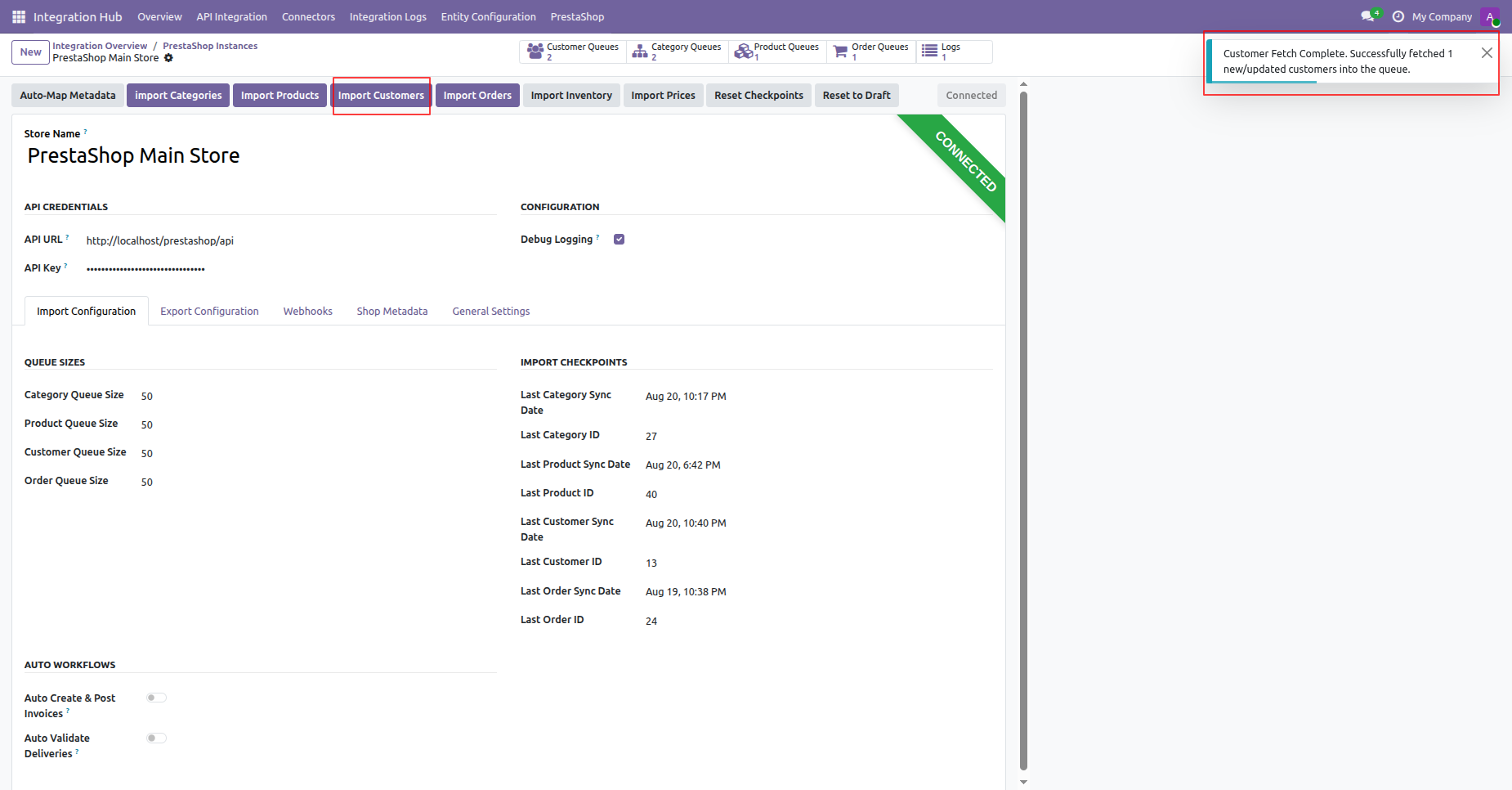
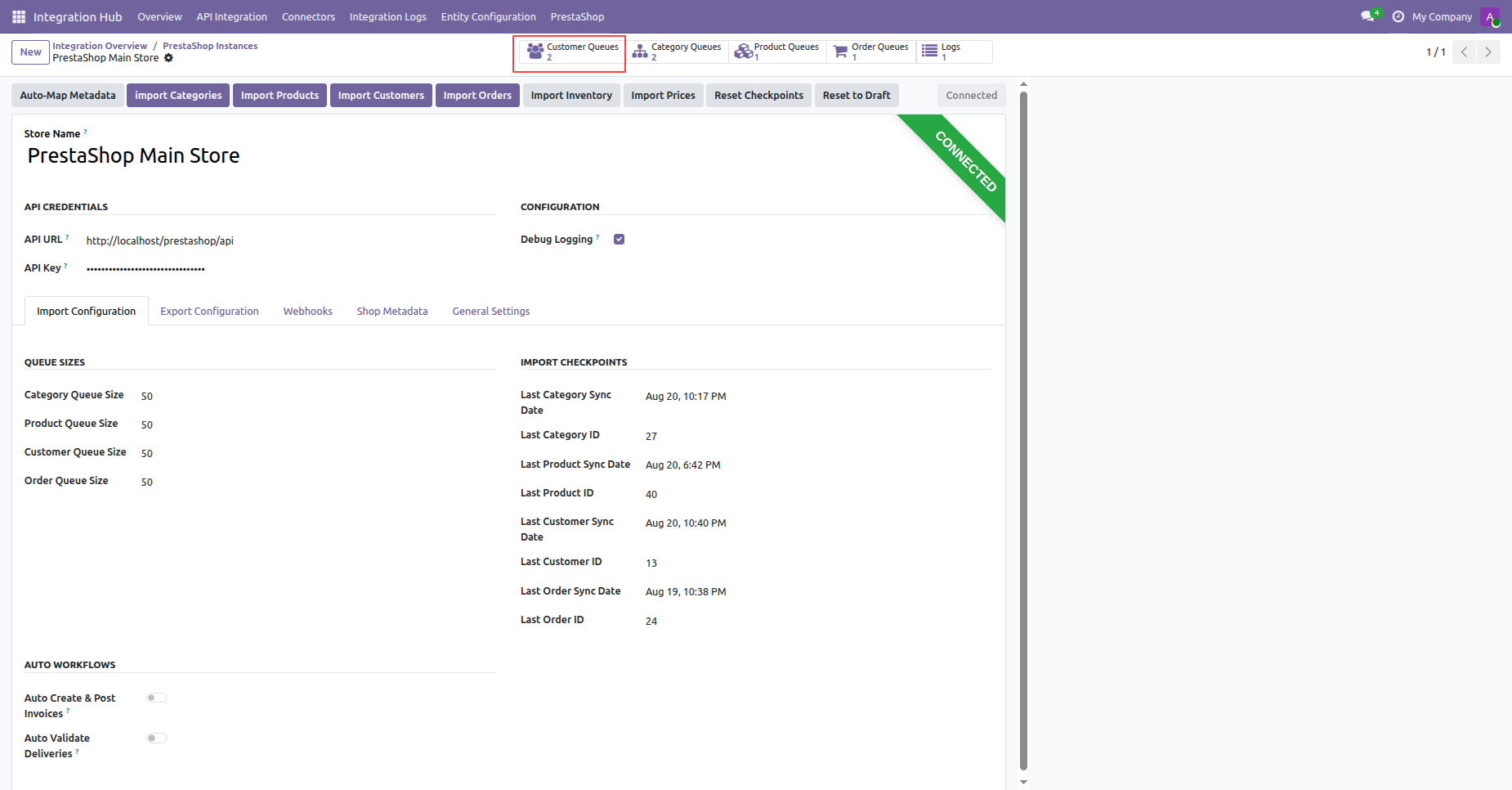
Click Customer Queues smart button to view all customer synchronization queue records.
Select Customer Queues under PrestaShop menu dropdown to access customer queue list.
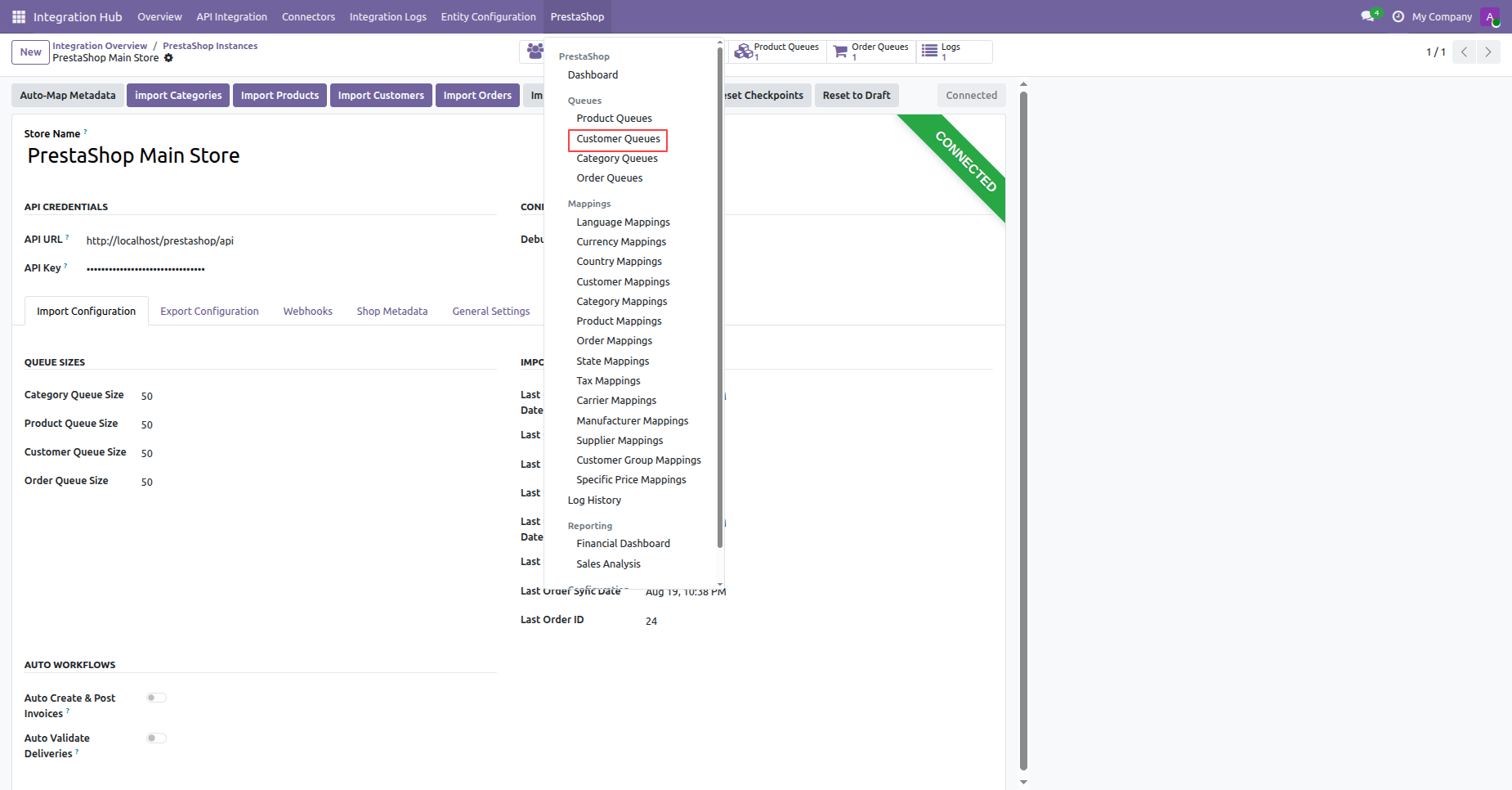
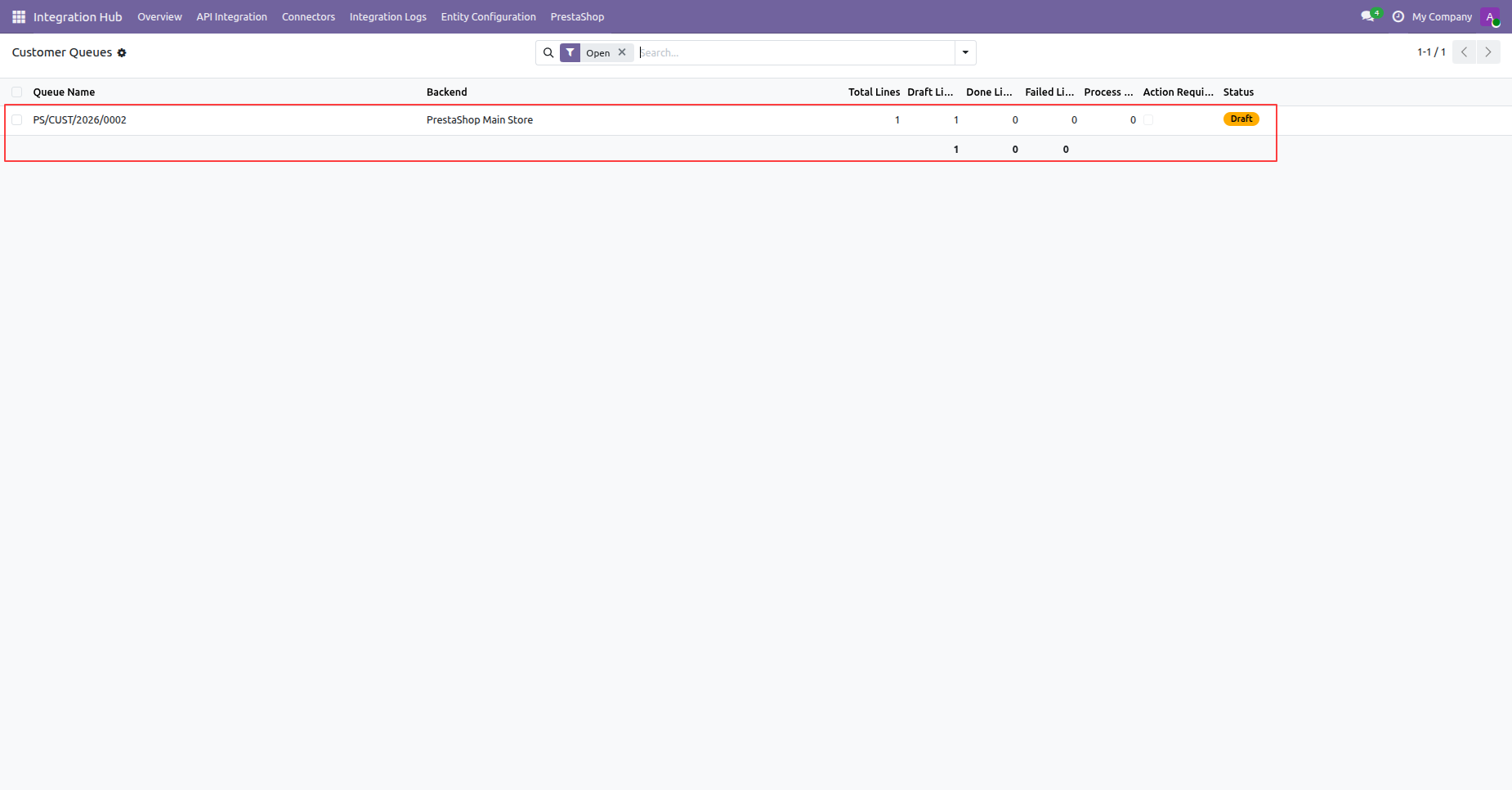
Click a customer queue entry from the list view to inspect individual draft customer lines.
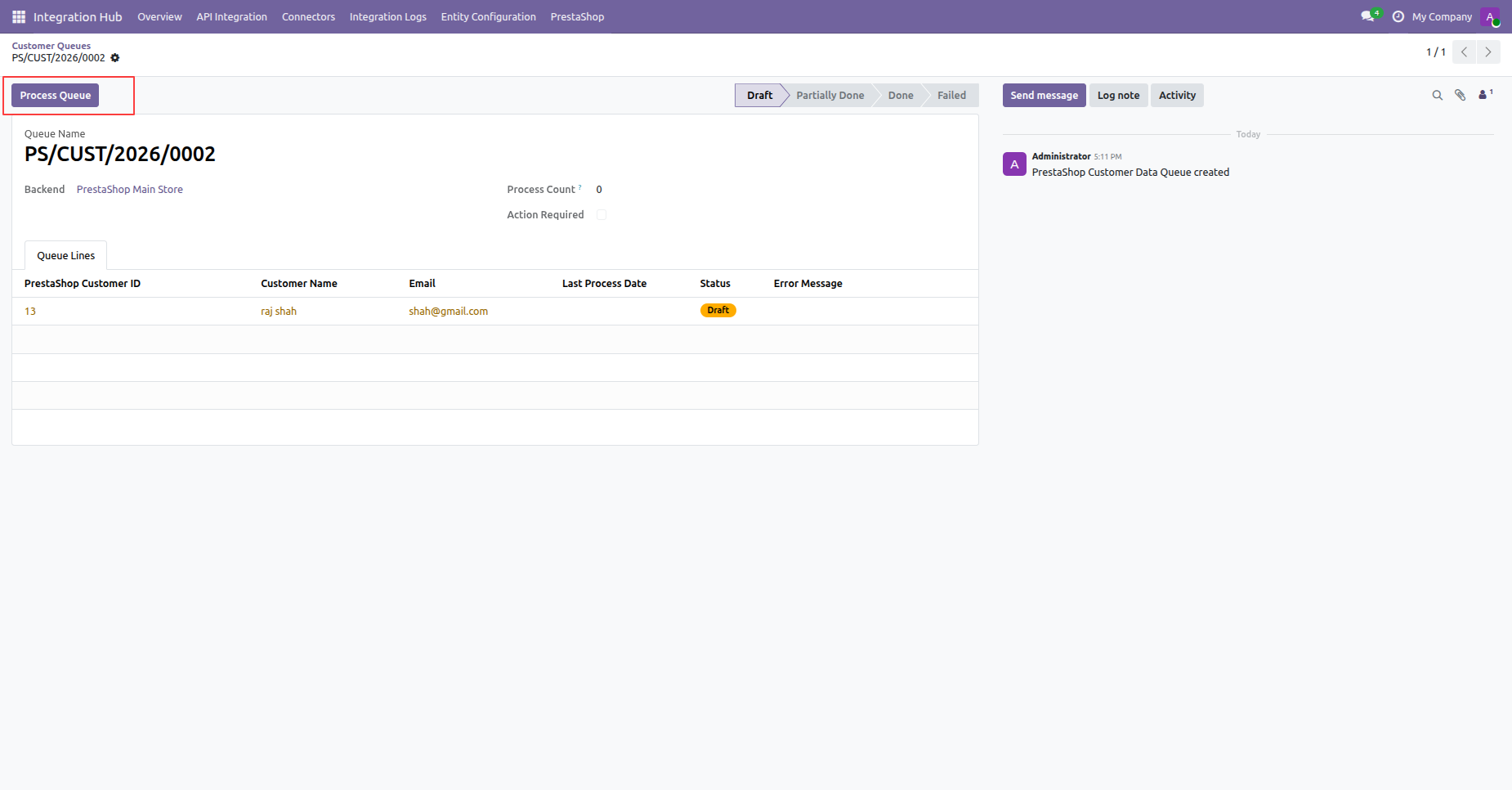
Click Process Queue on the customer queue form view to create Odoo contact records.
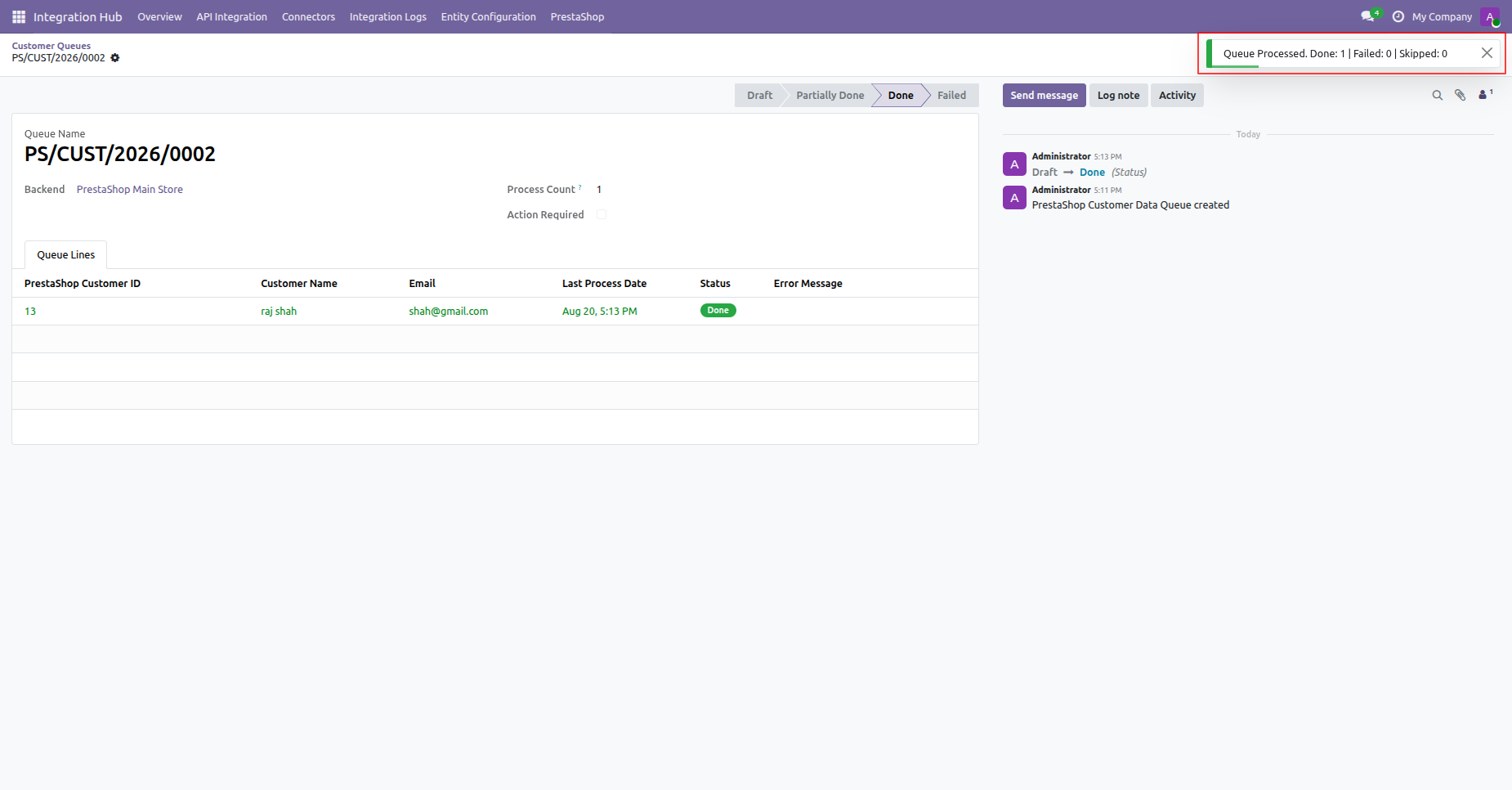
Verify the toast notification confirming successful processing of customer queue records.
Select Customer Mappings from the PrestaShop menu dropdown to view customer mapping entries.
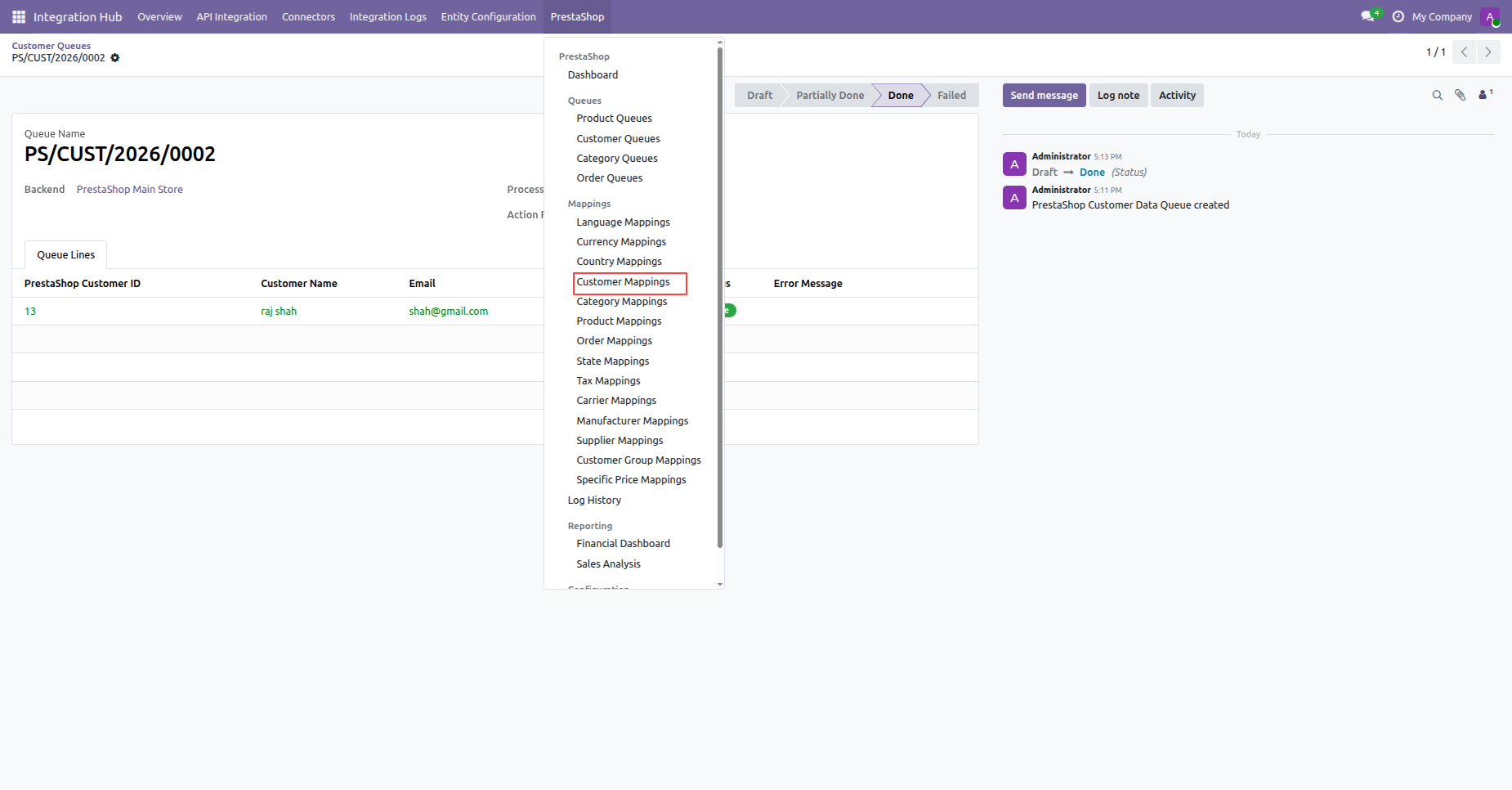
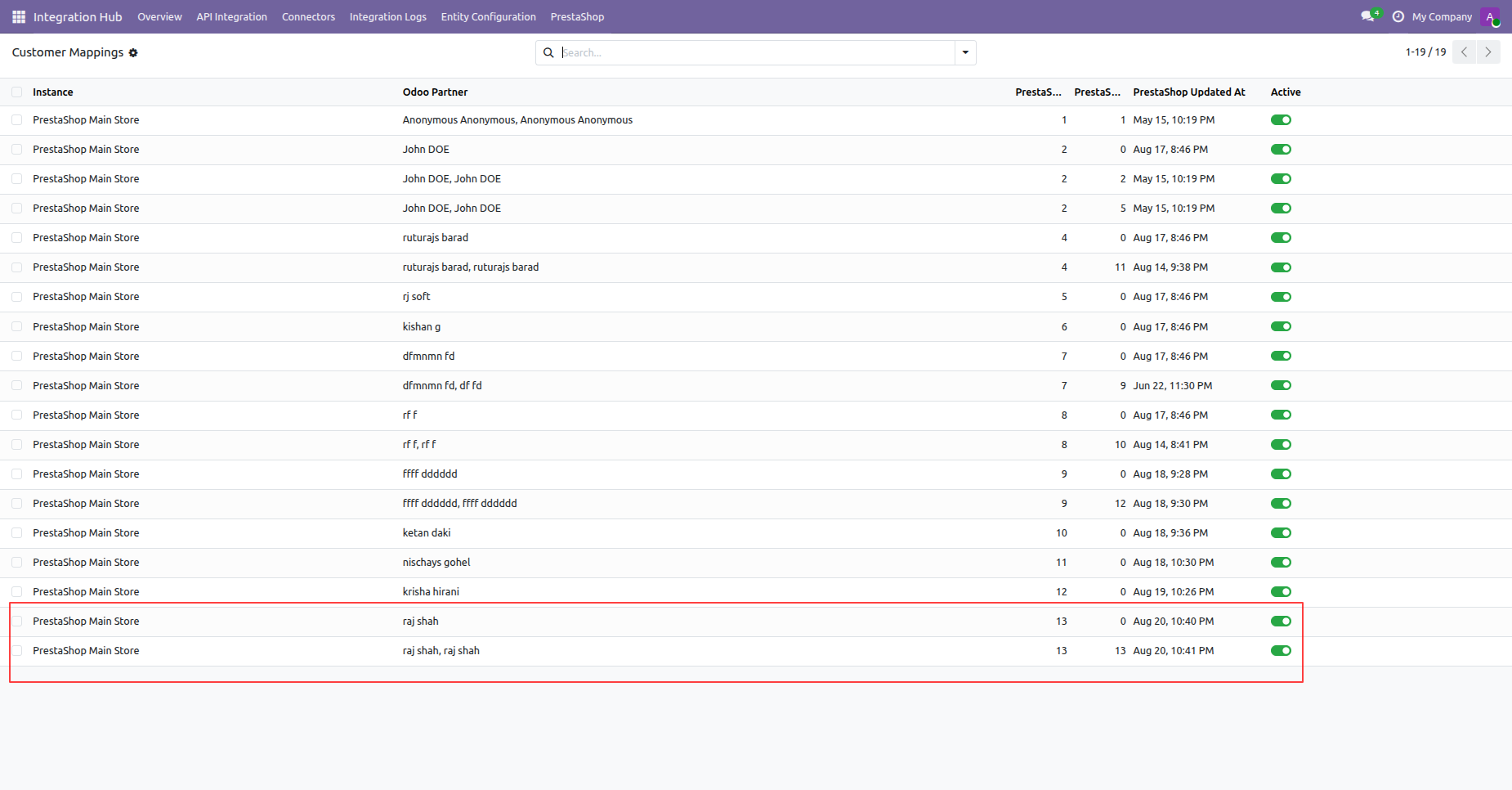
Inspect the customer mapping list showing linked Odoo partner records and PrestaShop customer IDs.
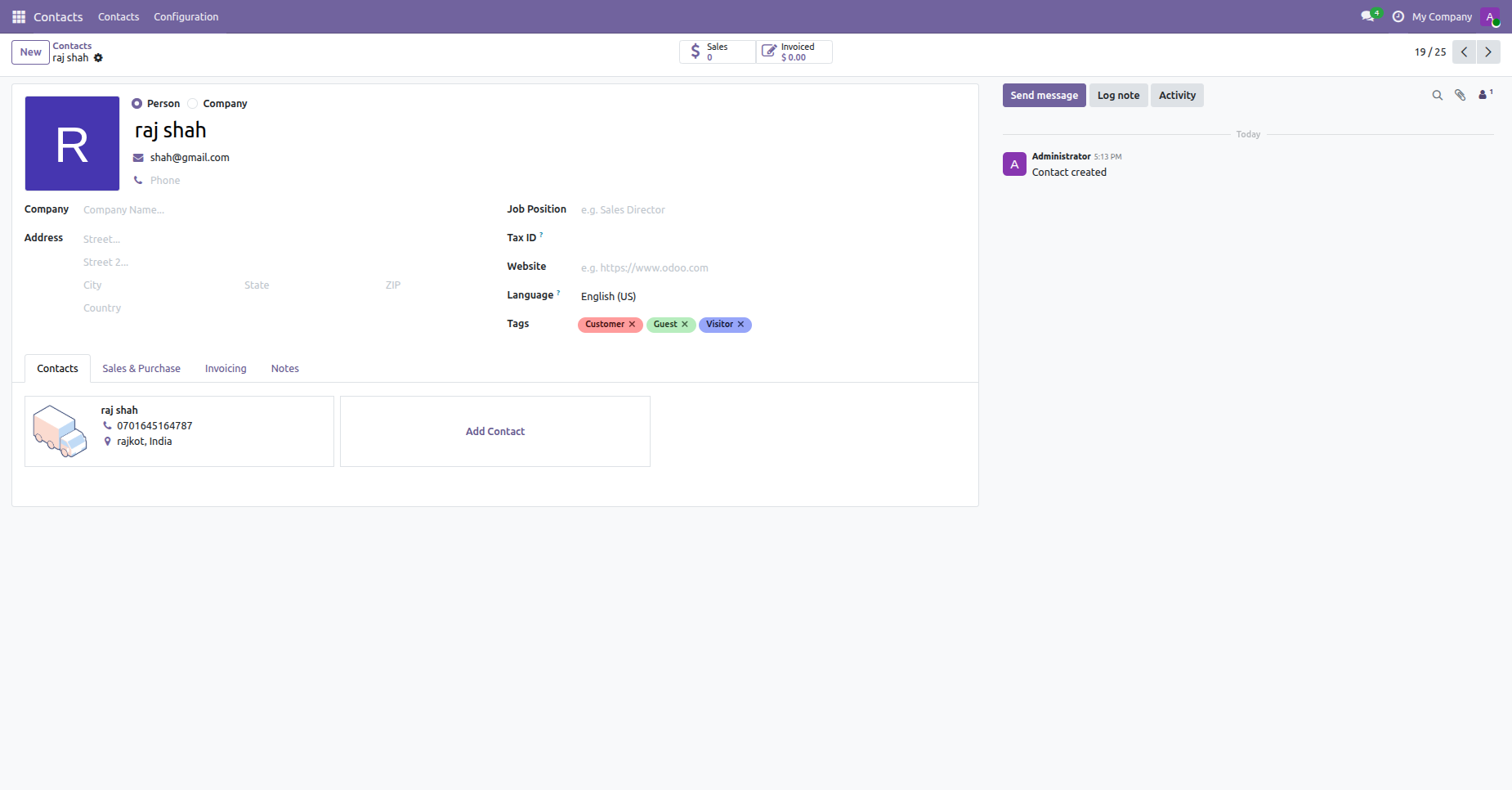
View the imported contact form in Odoo showing customer details, email, tags, and address.
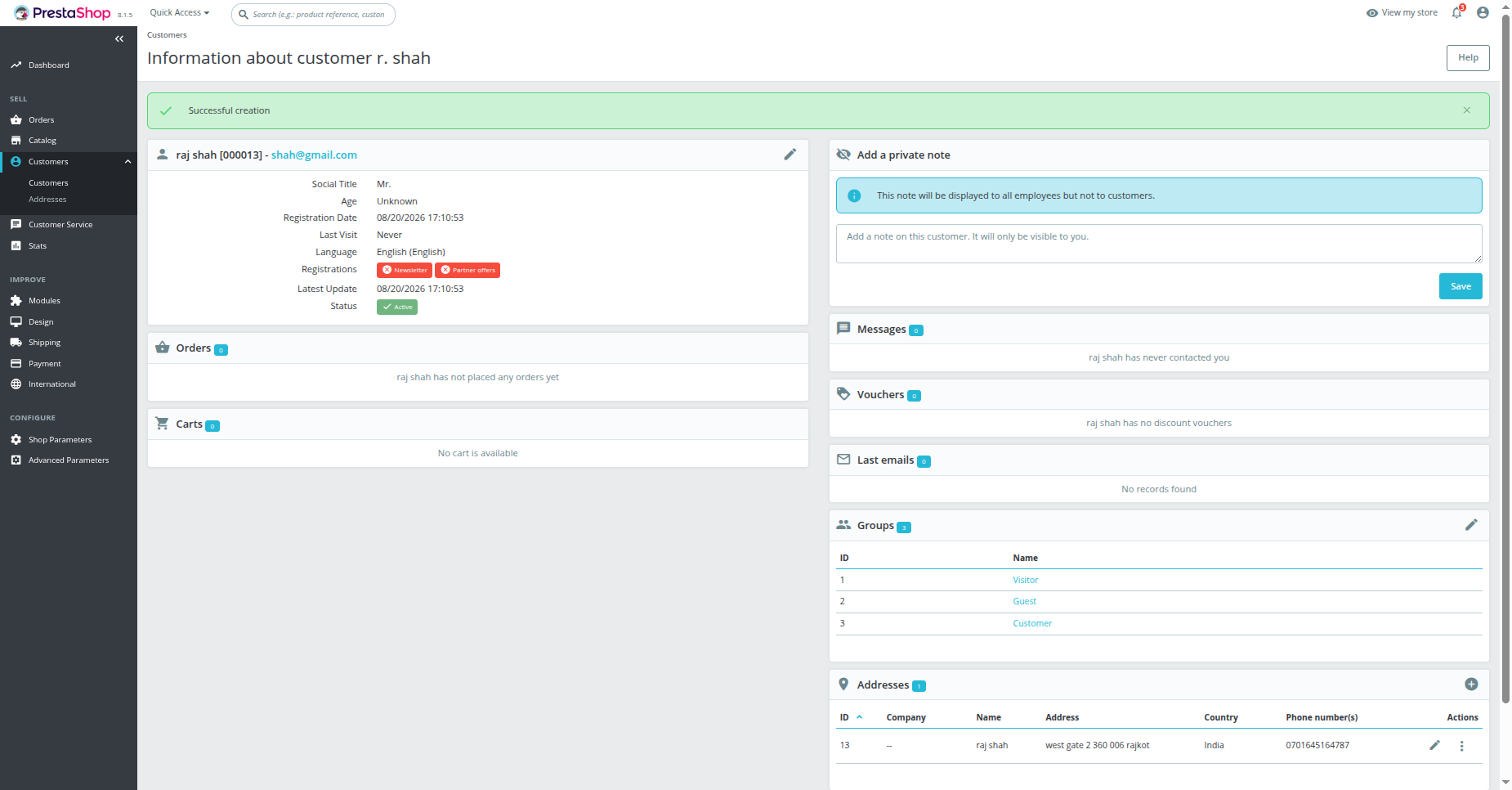
View customer profile in PrestaShop backend displaying registration details, groups, and assigned addresses.
 How Import Orders
works? Watch Video
How Export Order
Stage works? Watch Video
How Import Orders
works? Watch Video
How Export Order
Stage works? Watch Video
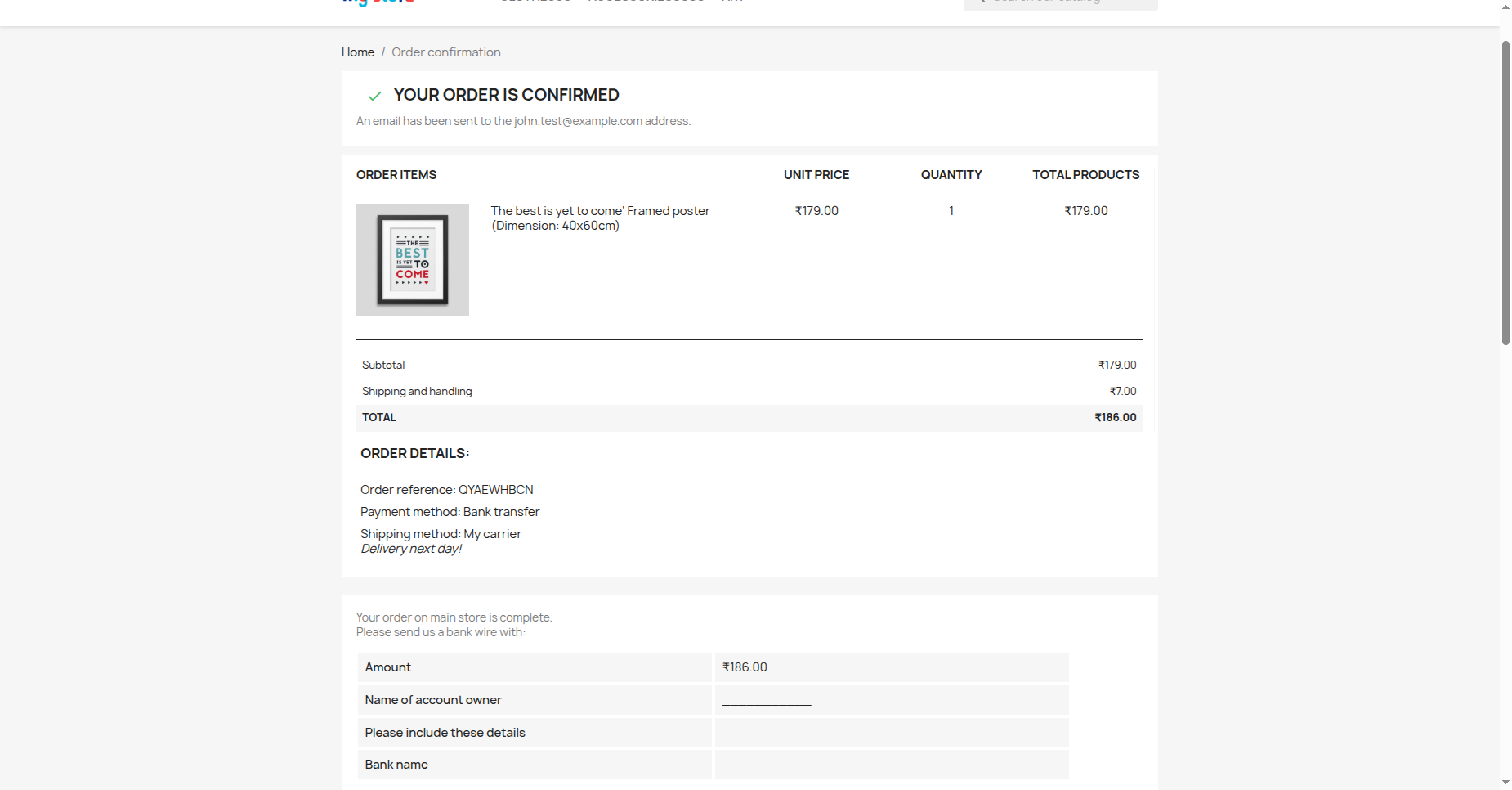
Place a test order on PrestaShop webstore and review the order confirmation details.
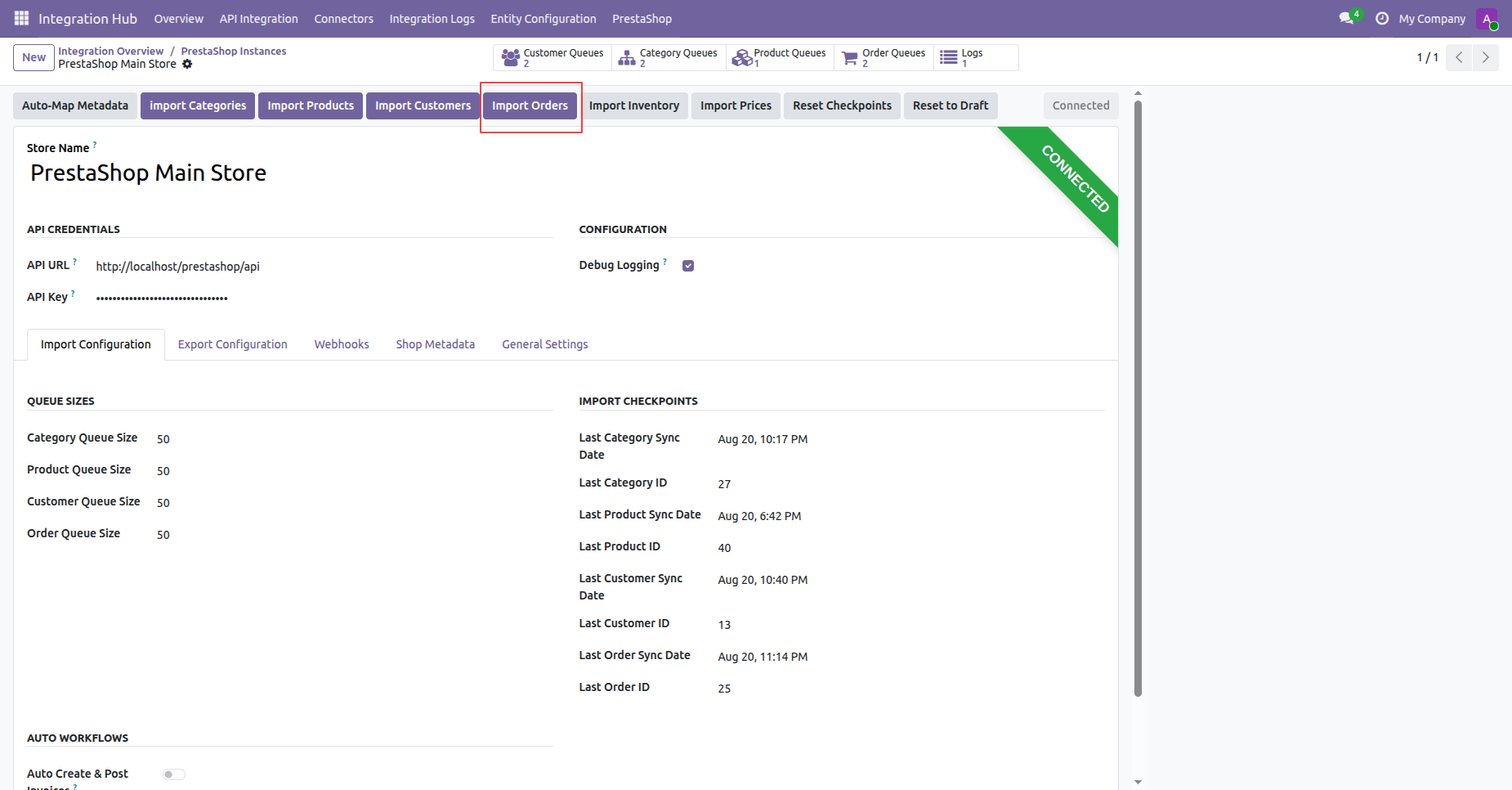
Click Import Orders on the instance action bar to fetch sales orders from PrestaShop.
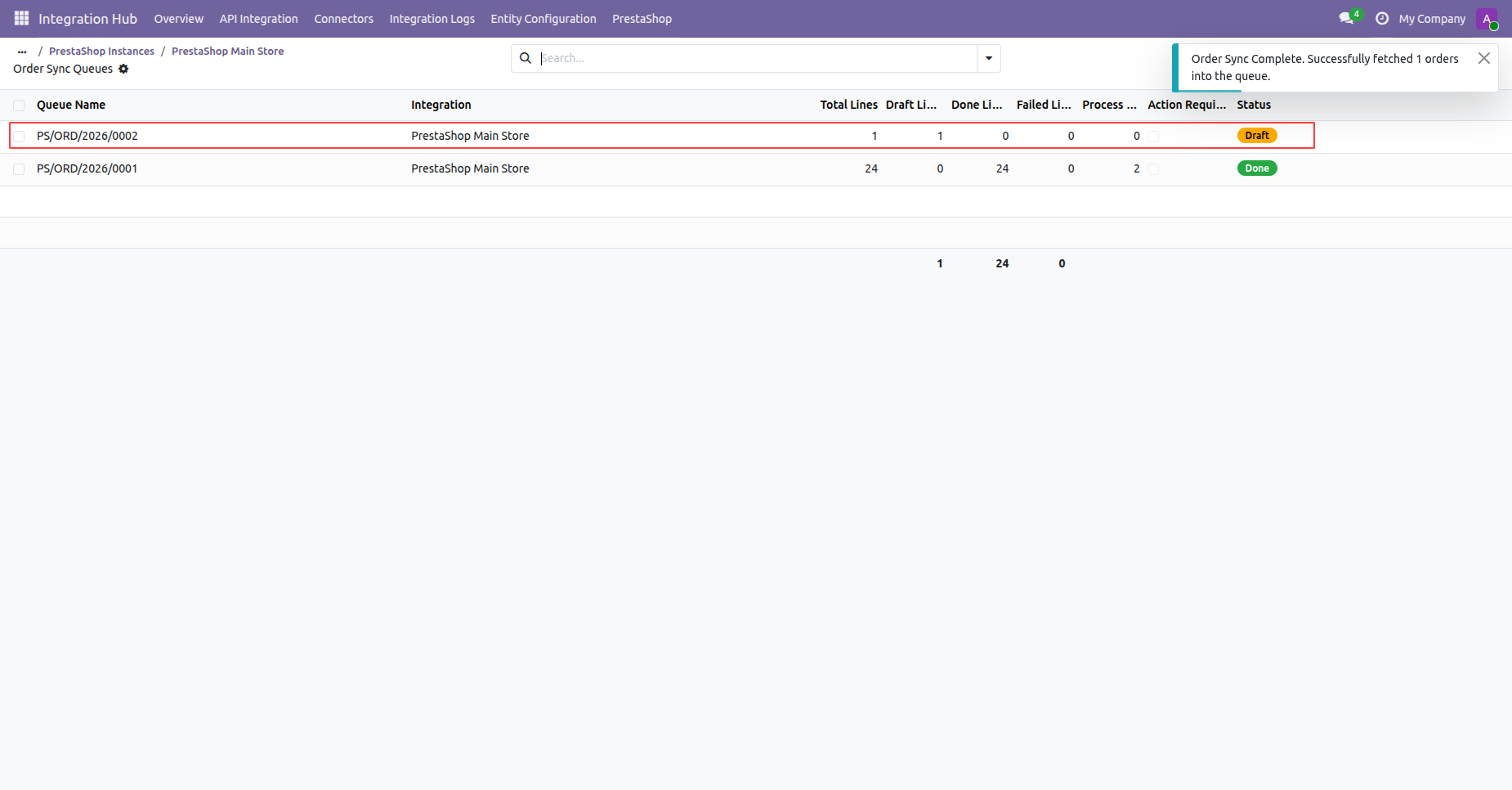
Click the order queue entry from the list view to open queue details.
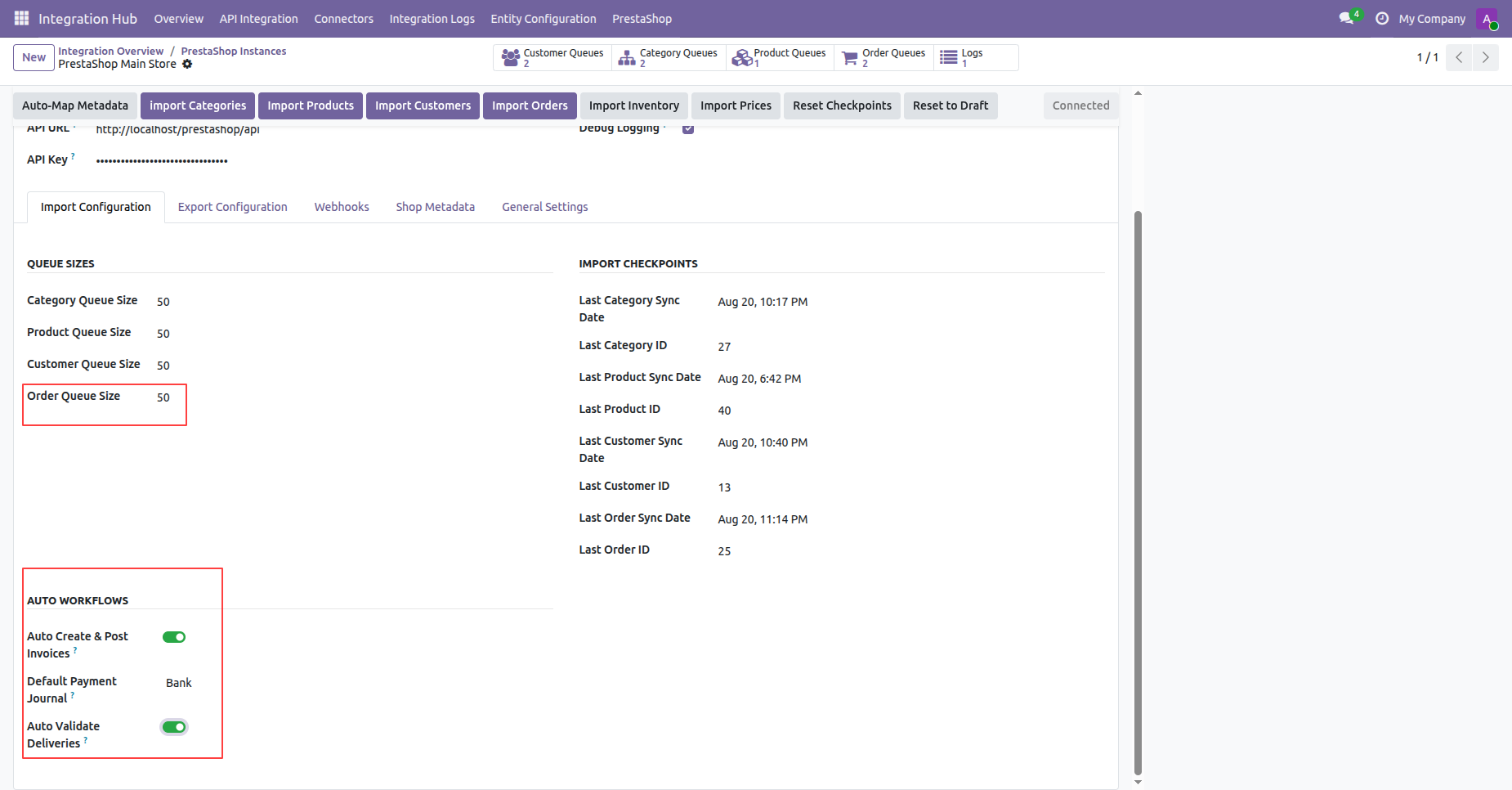
Configure Order Queue Size and auto workflow options for invoices and delivery validation.
Click Order Queues smart button to view all order synchronization queue batches.
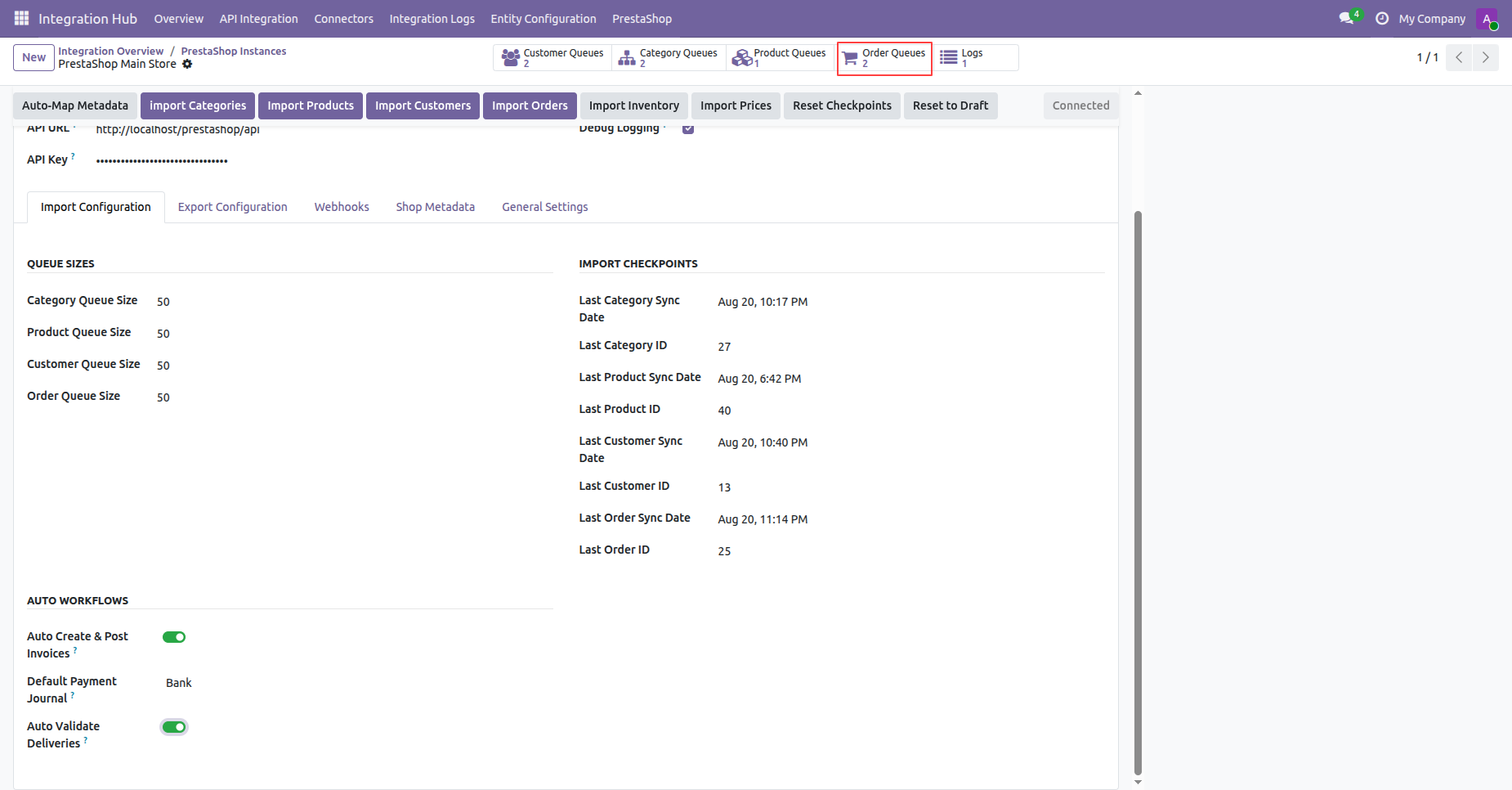
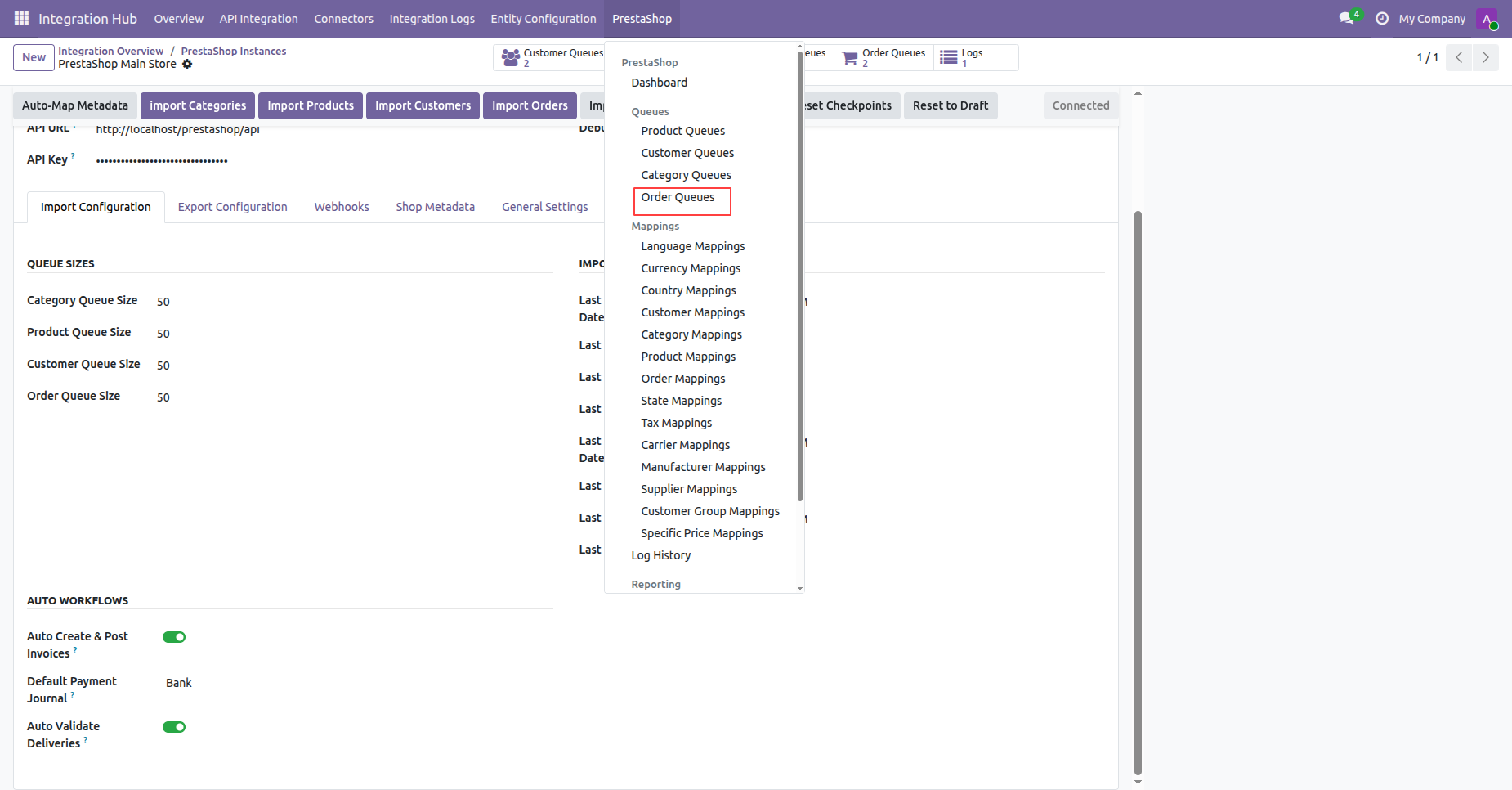
Select Order Queues under PrestaShop menu dropdown to access order queue records.
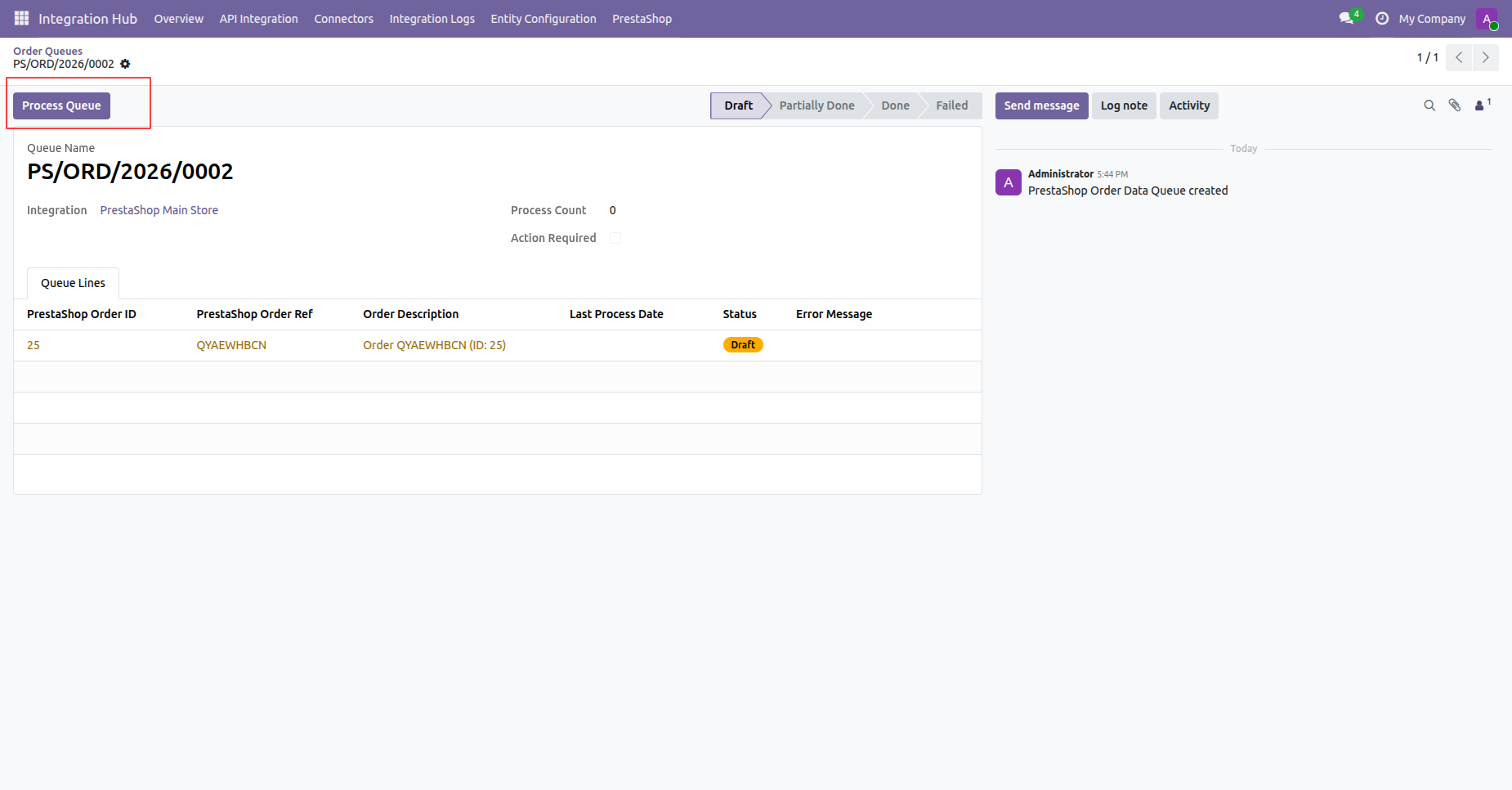
Click Process Queue on the order queue form view to convert draft orders into sales orders.
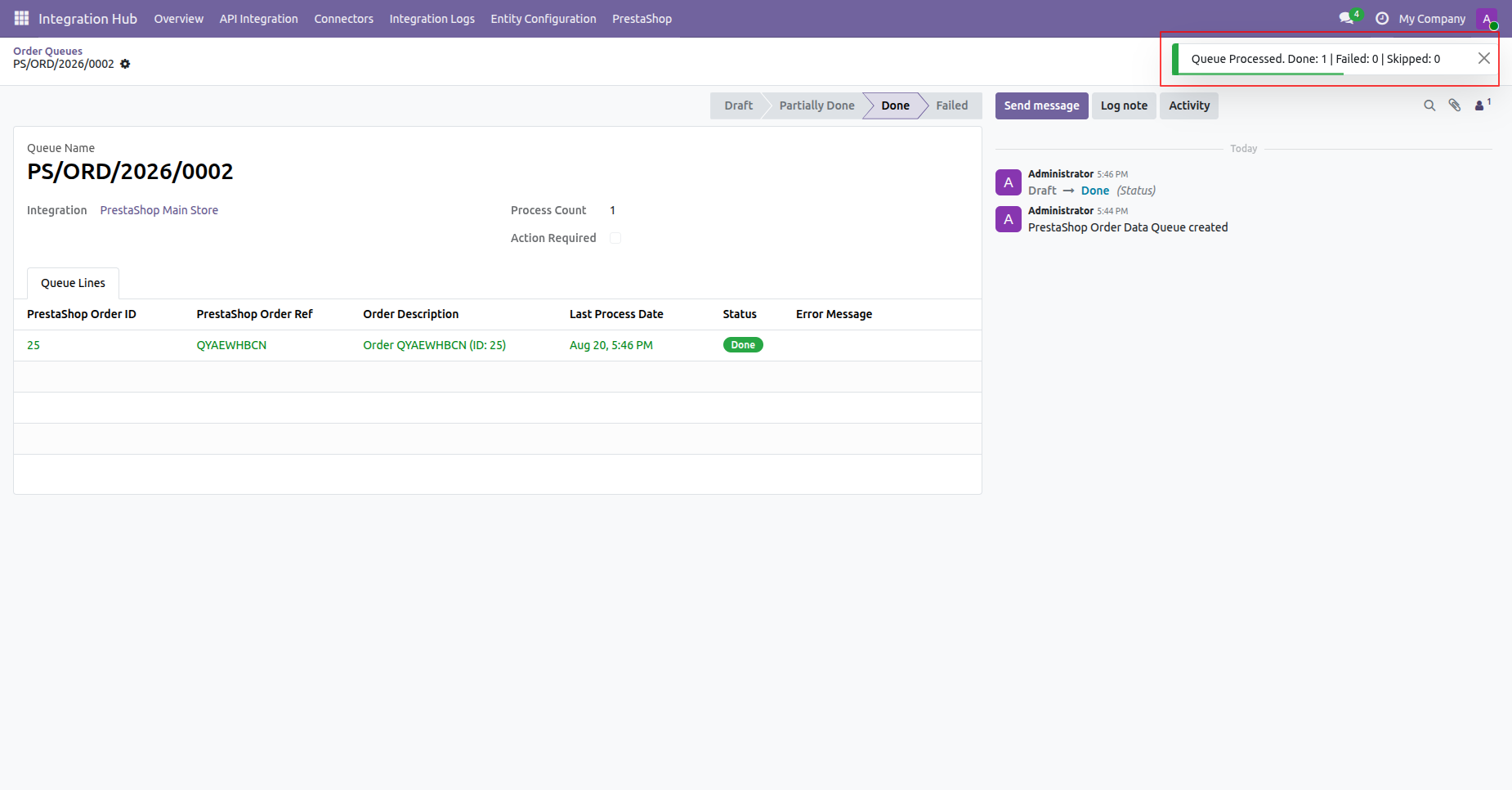
Check the toast notification confirming successful processing of order queue lines with zero errors.
Select Order Mappings under PrestaShop menu dropdown to view mapped order records.
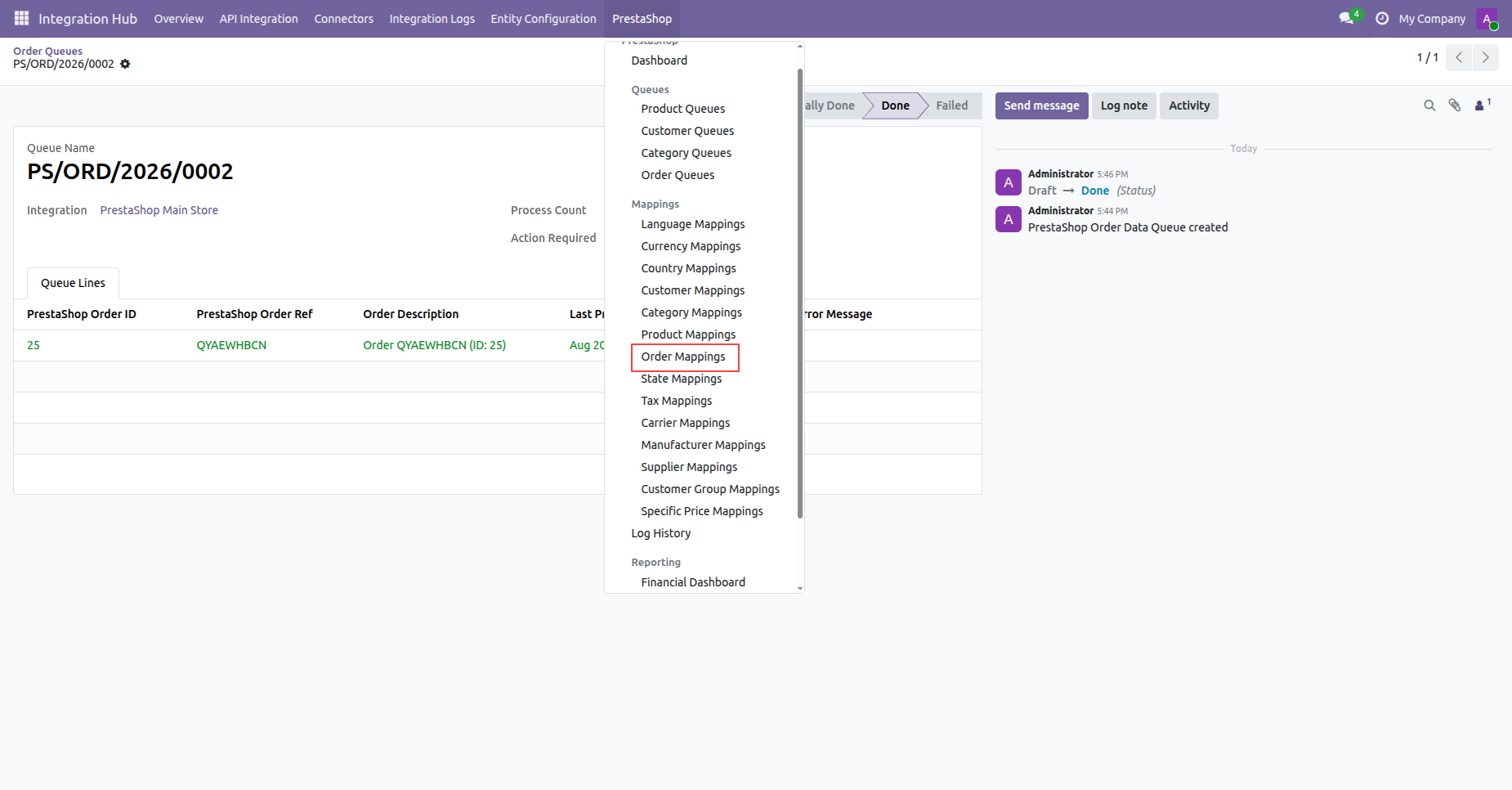
Inspect order mapping entry linking PrestaShop order ID with Odoo sale order S00025.
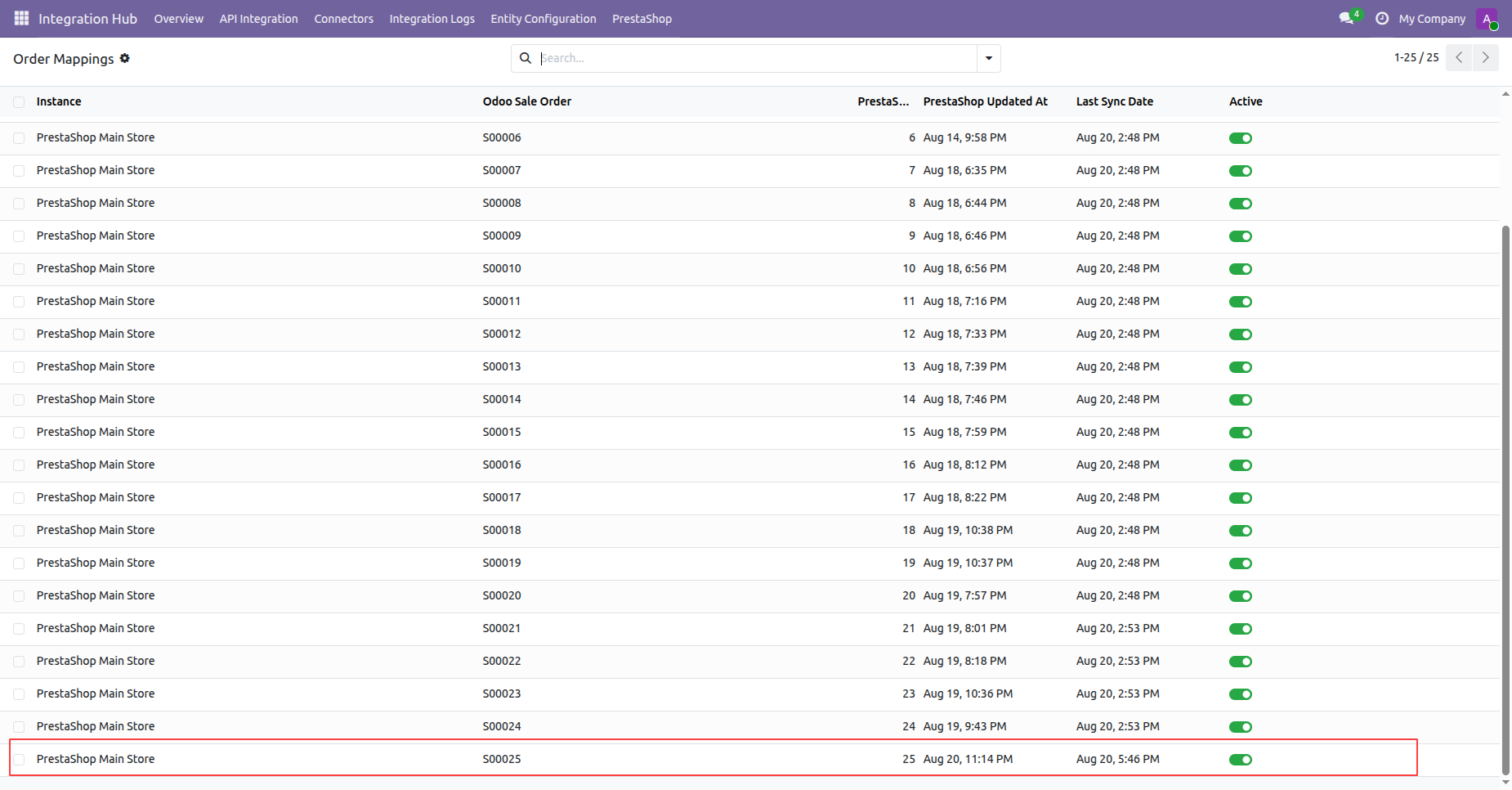
View imported sales order S00025 showing order lines, totals, delivery smart button, and action buttons.
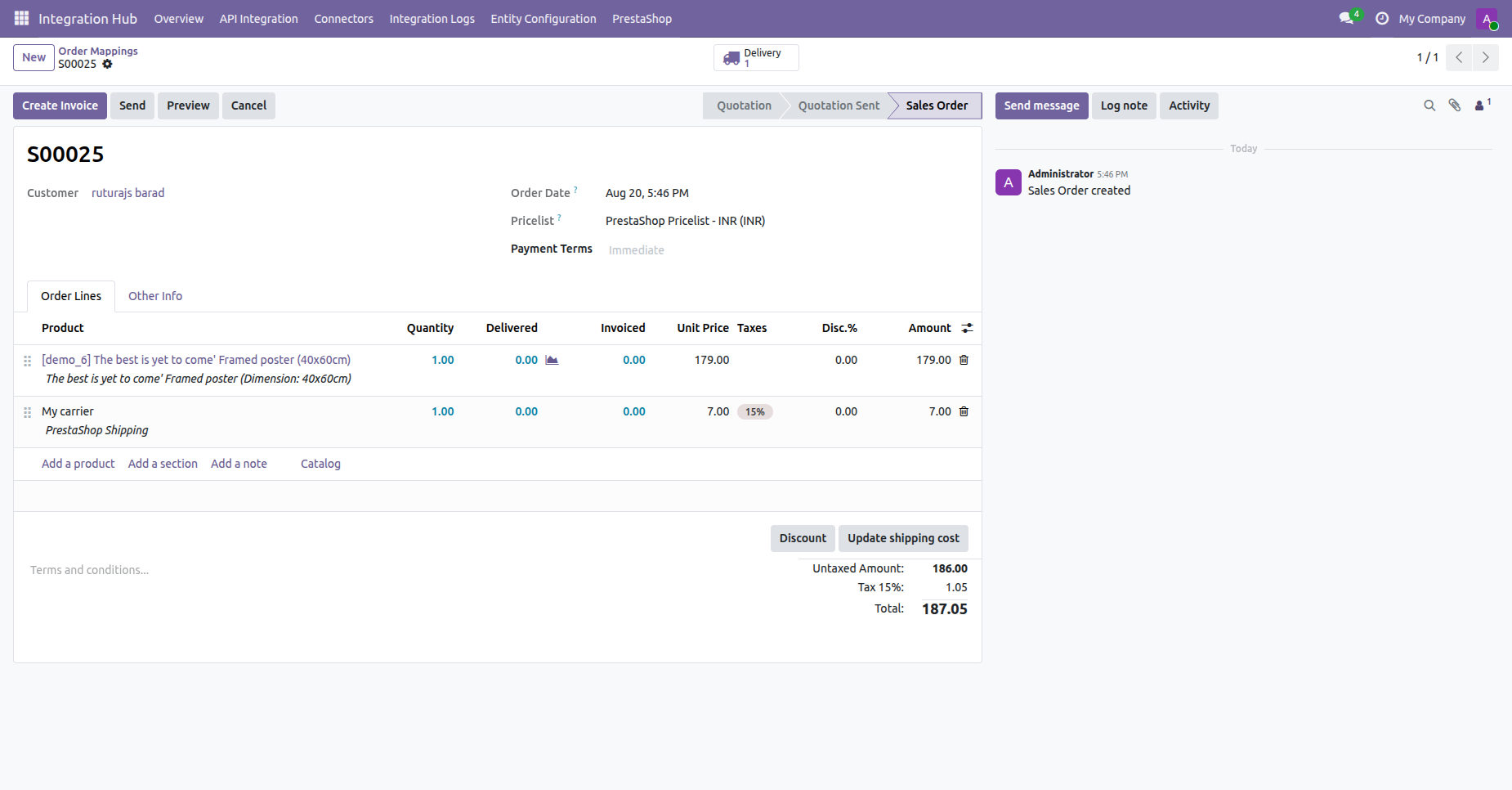
Enable Export Shipments Real-Time and Export Invoices Real-Time options under Export Configuration.
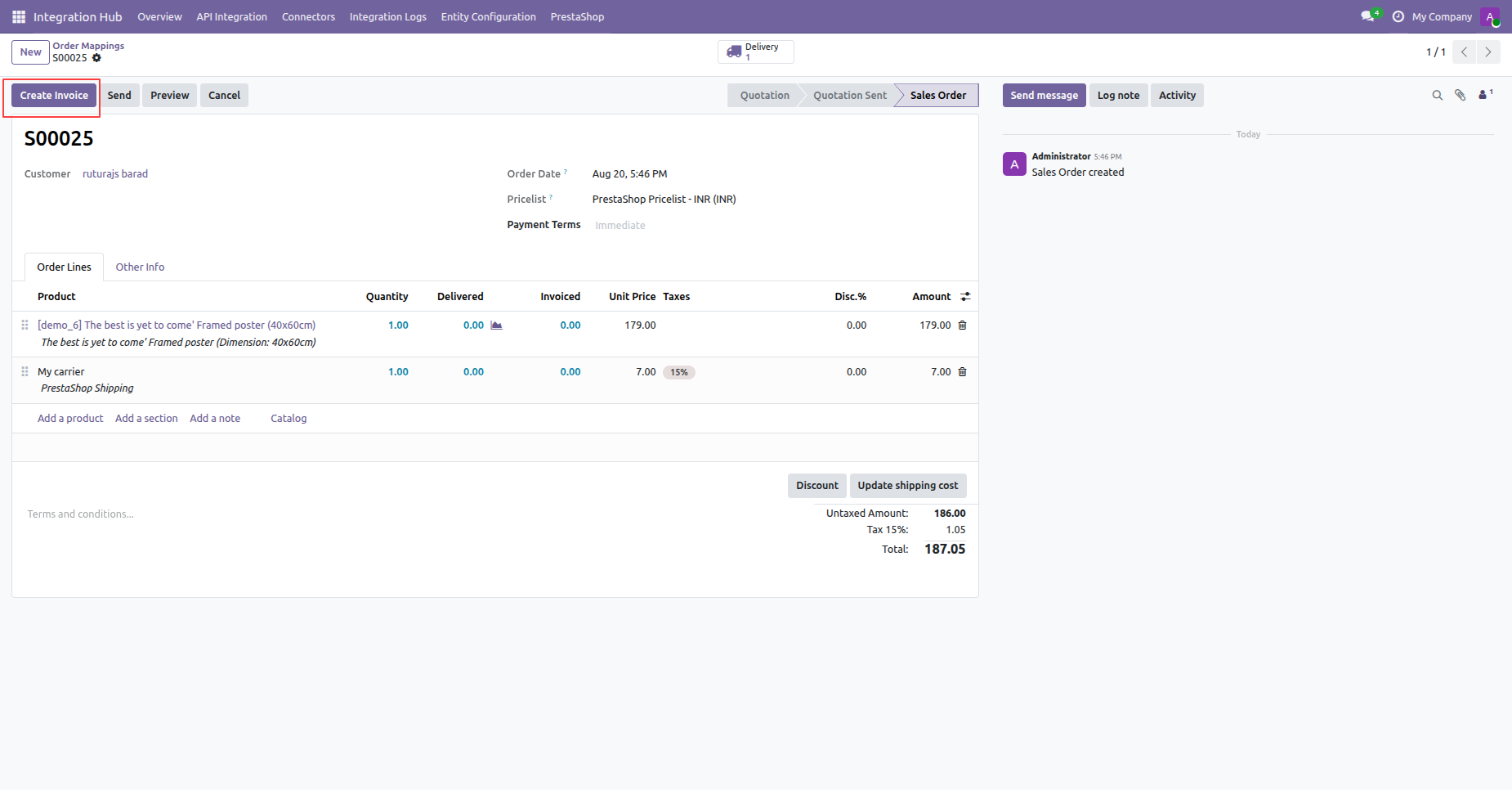
Click Create Invoice on the sales order form view to initiate invoice generation.
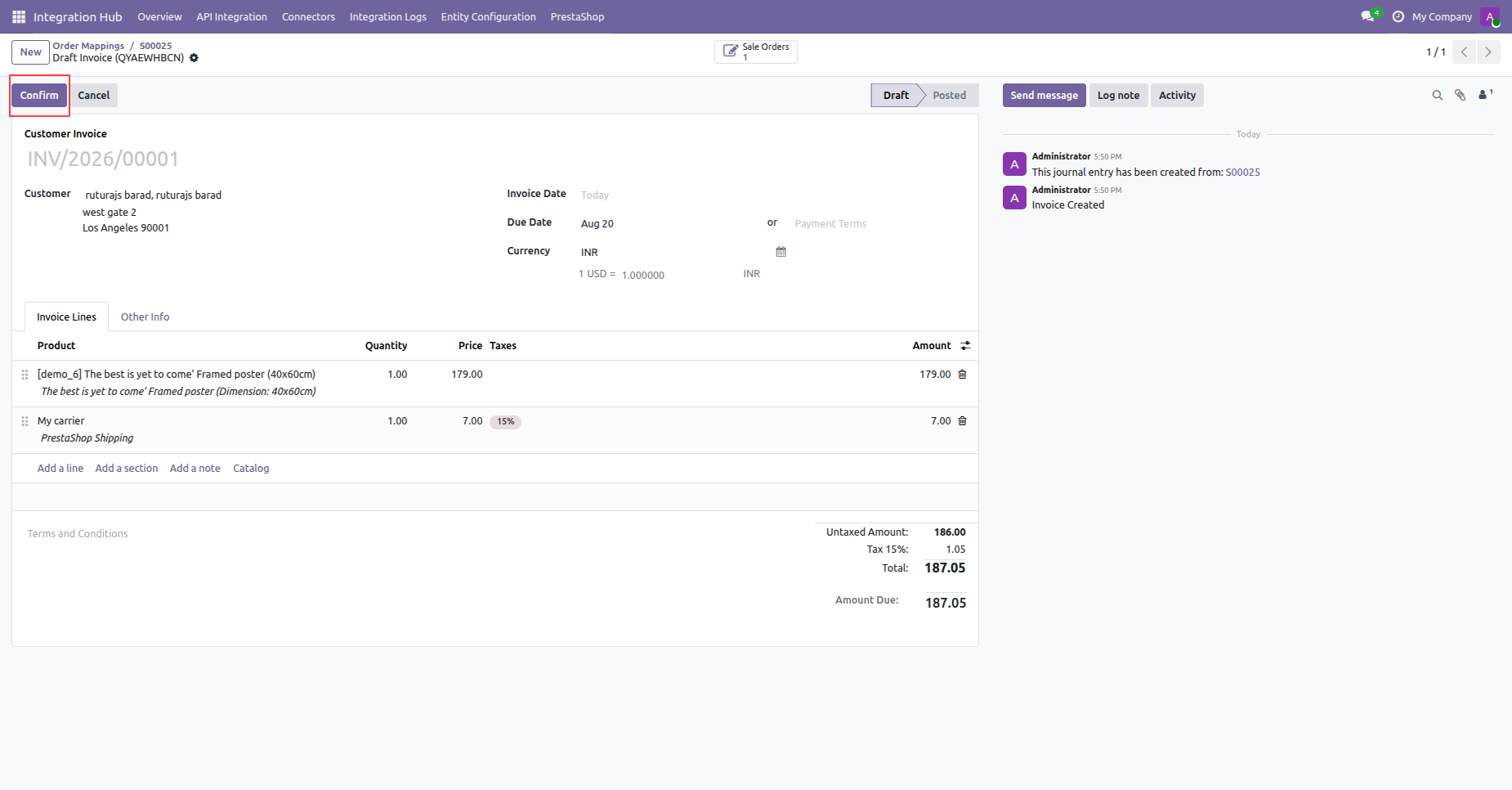
Click Confirm on the draft customer invoice to post the invoice record.
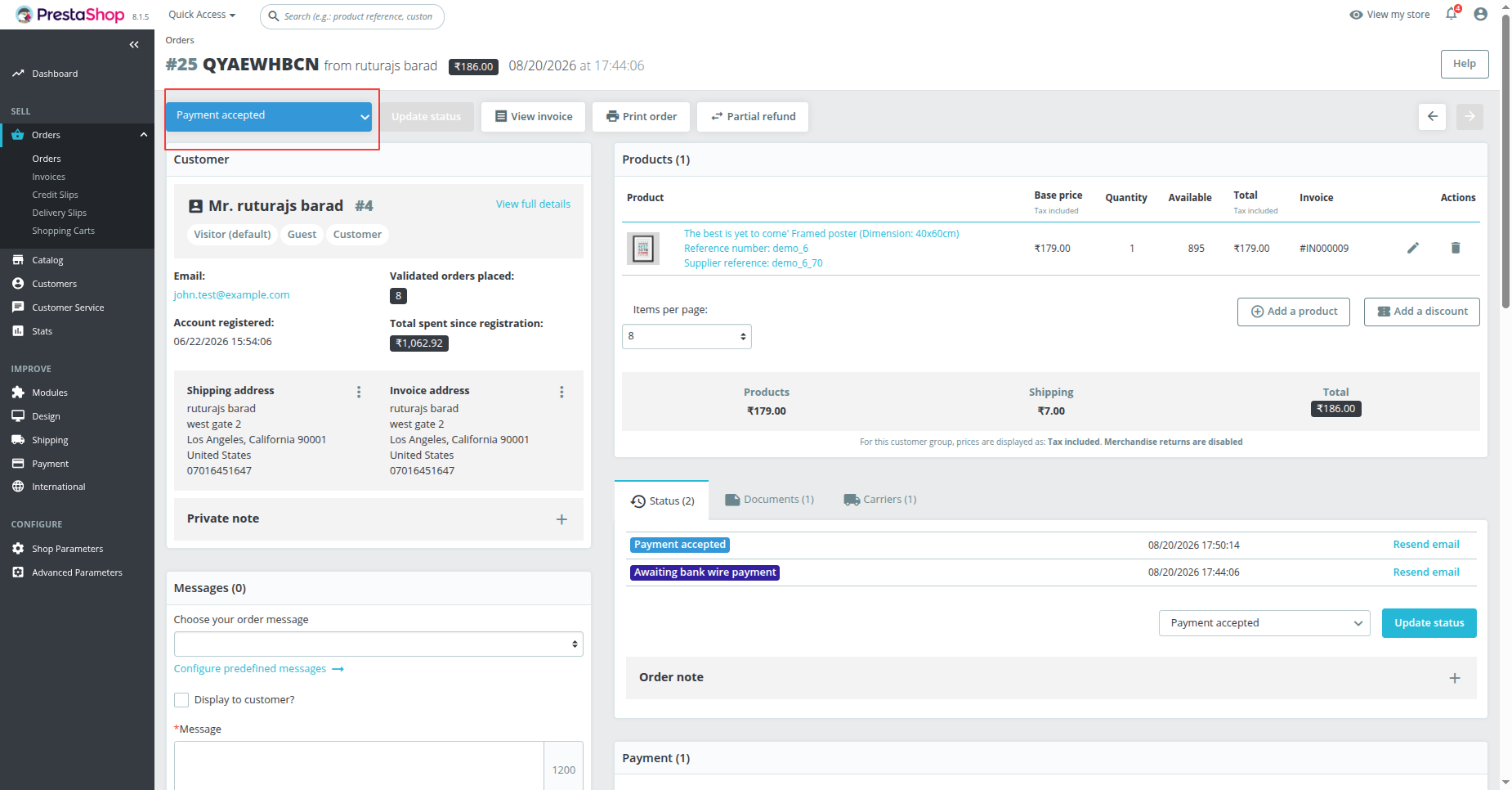
Verify updated order status showing Payment accepted in PrestaShop backend order view.
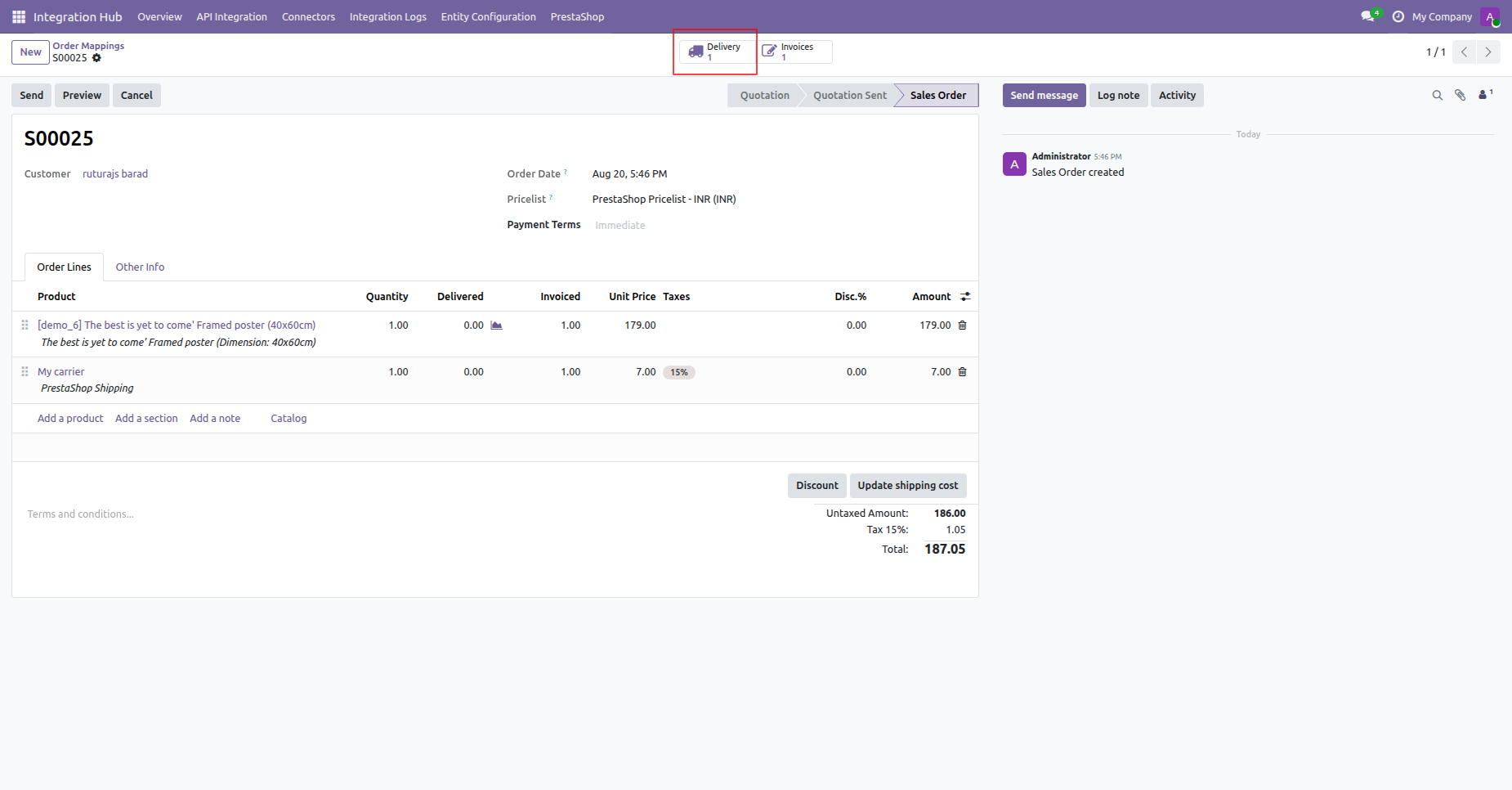
Click the Delivery smart button on the sales order form to access delivery transfer details.
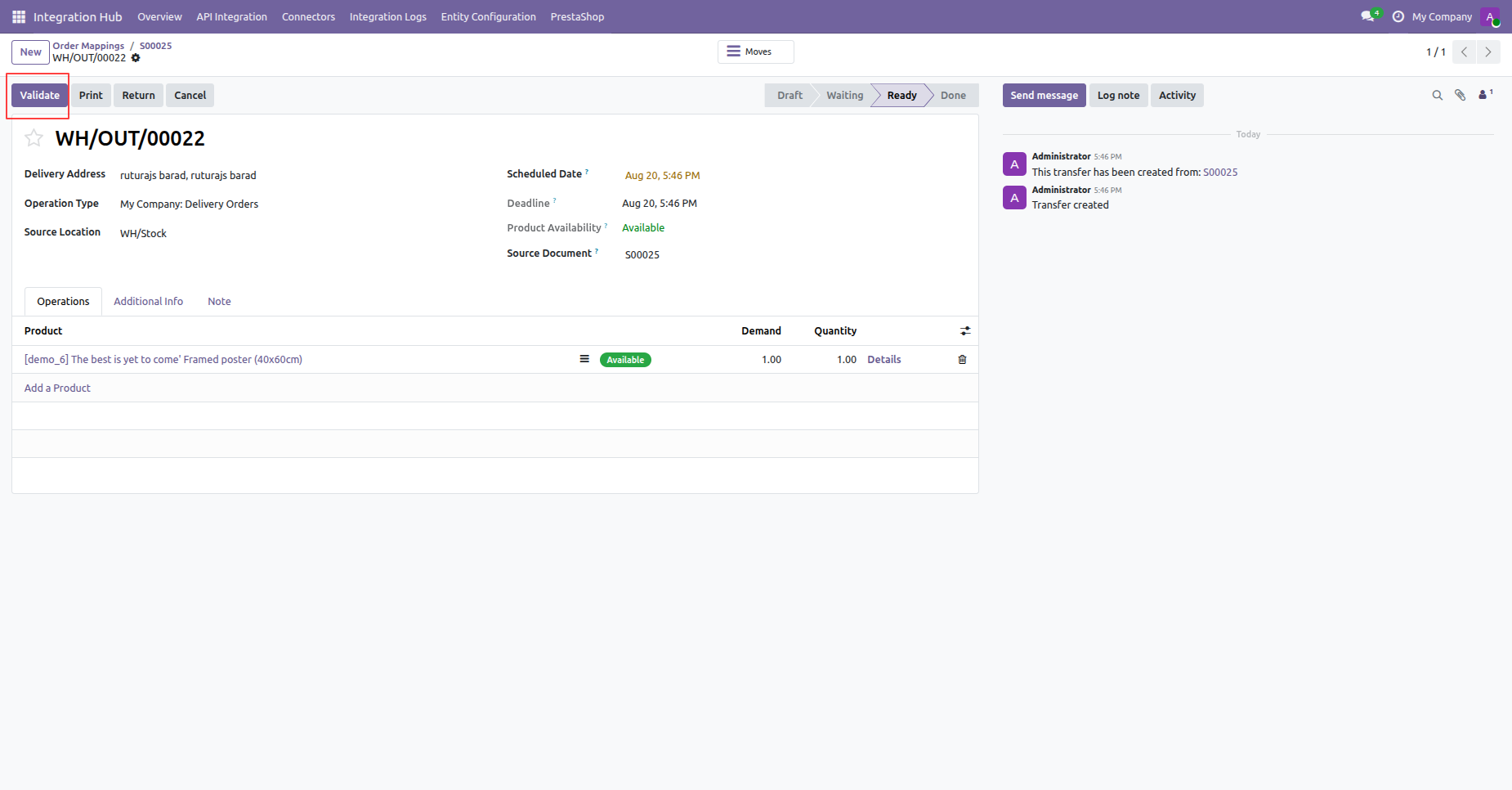
Click Validate on the delivery transfer form to complete shipment processing for the order.
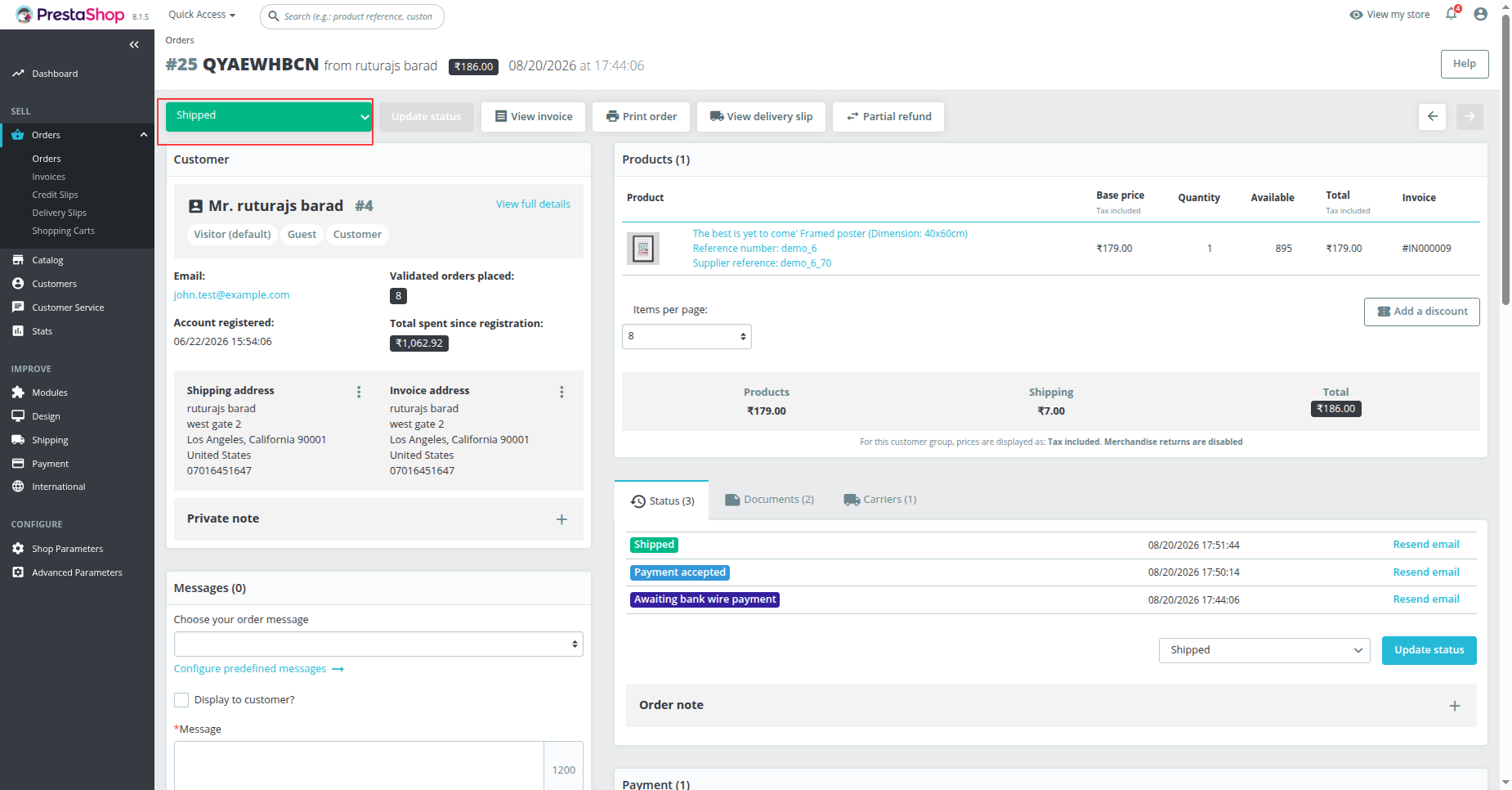
Verify updated order status showing Shipped in PrestaShop backend order detail view.
 How it works?
Watch Video
How it works?
Watch Video
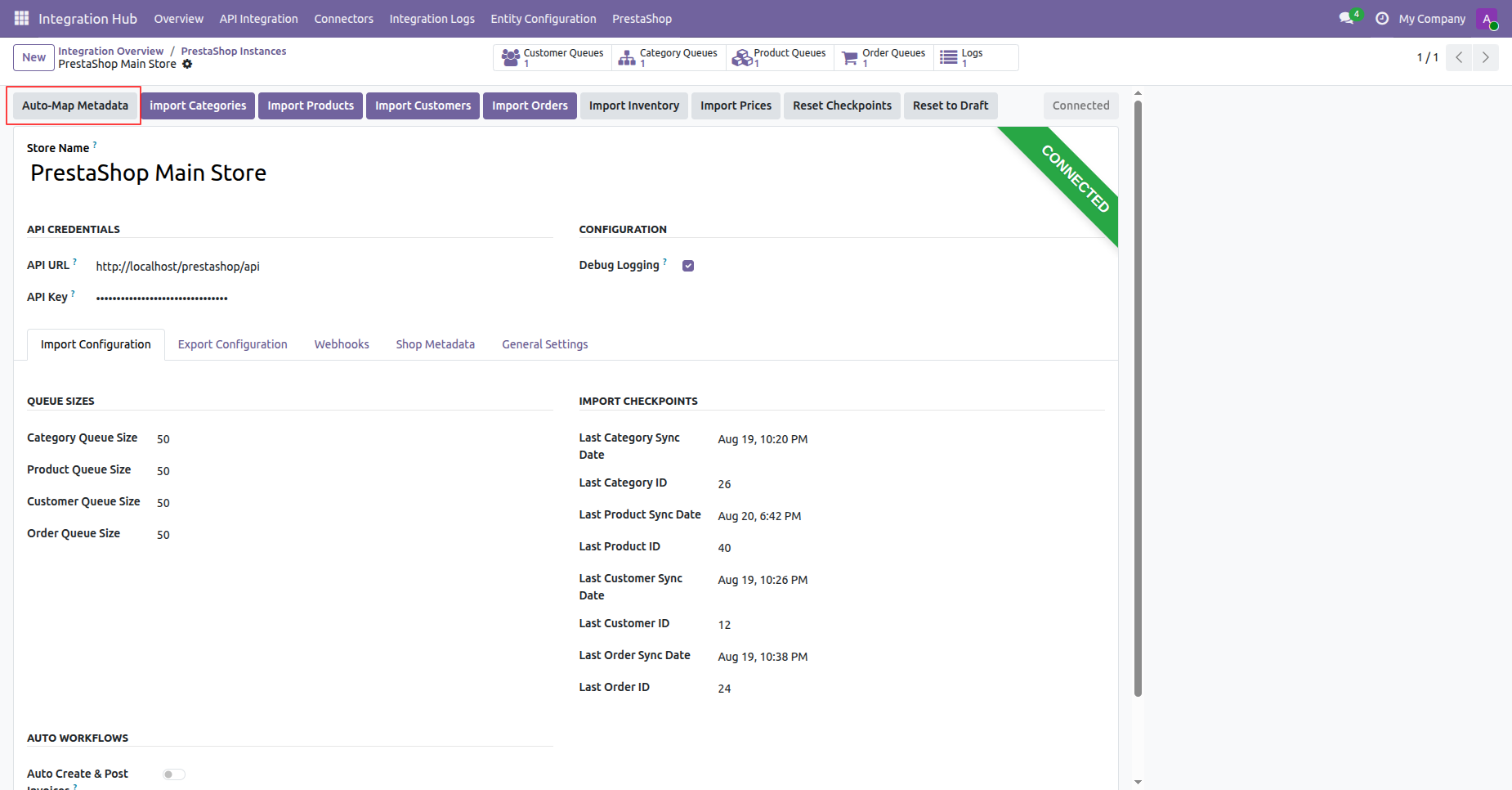
Click Auto-Map Metadata button on the PrestaShop instance form to map store metadata automatically.
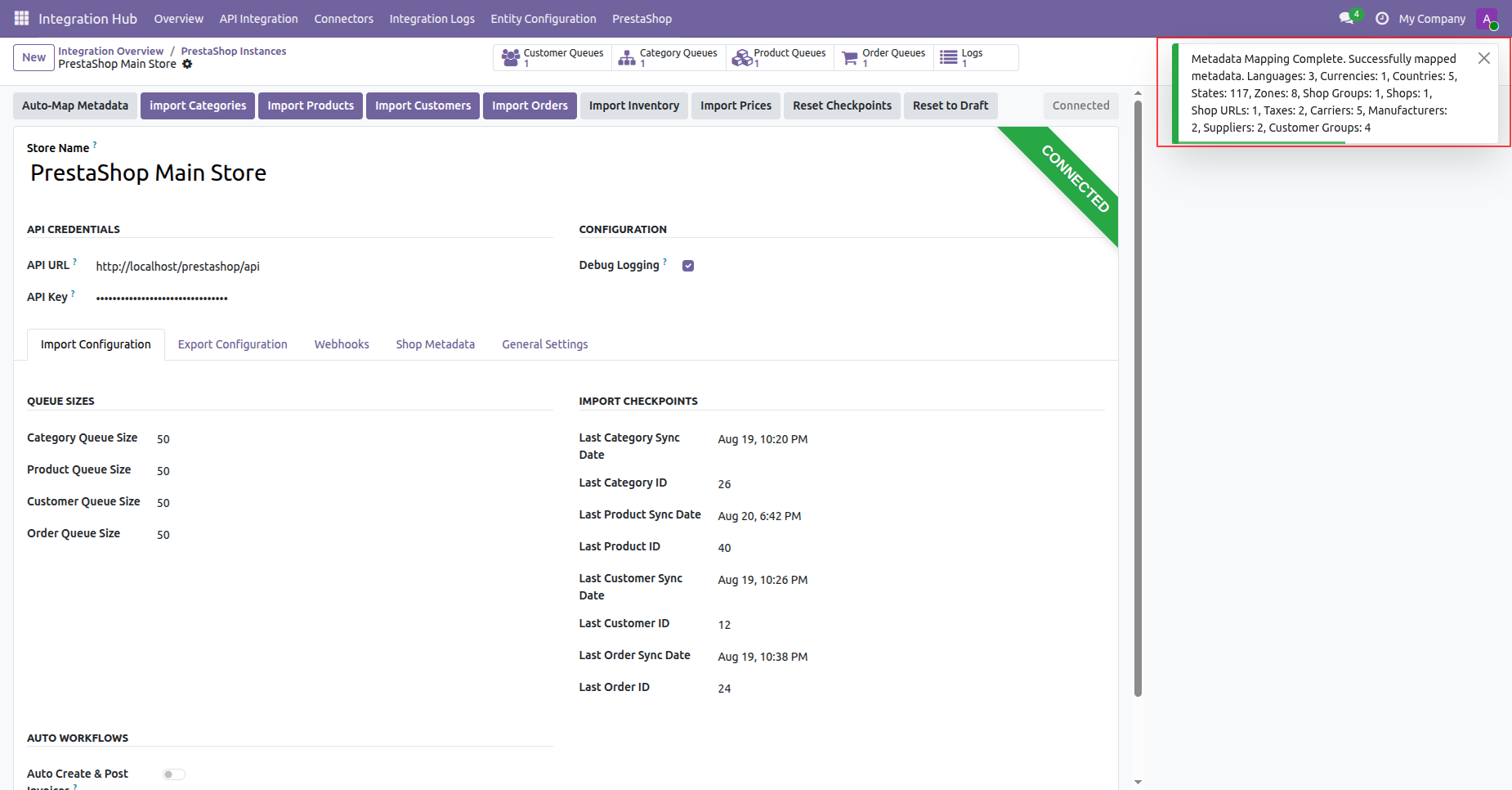
Review the notification message confirming that store metadata items were mapped successfully without issues.
Navigate to PrestaShop menu and select Mappings to access language, currency, and country and all mapping options.
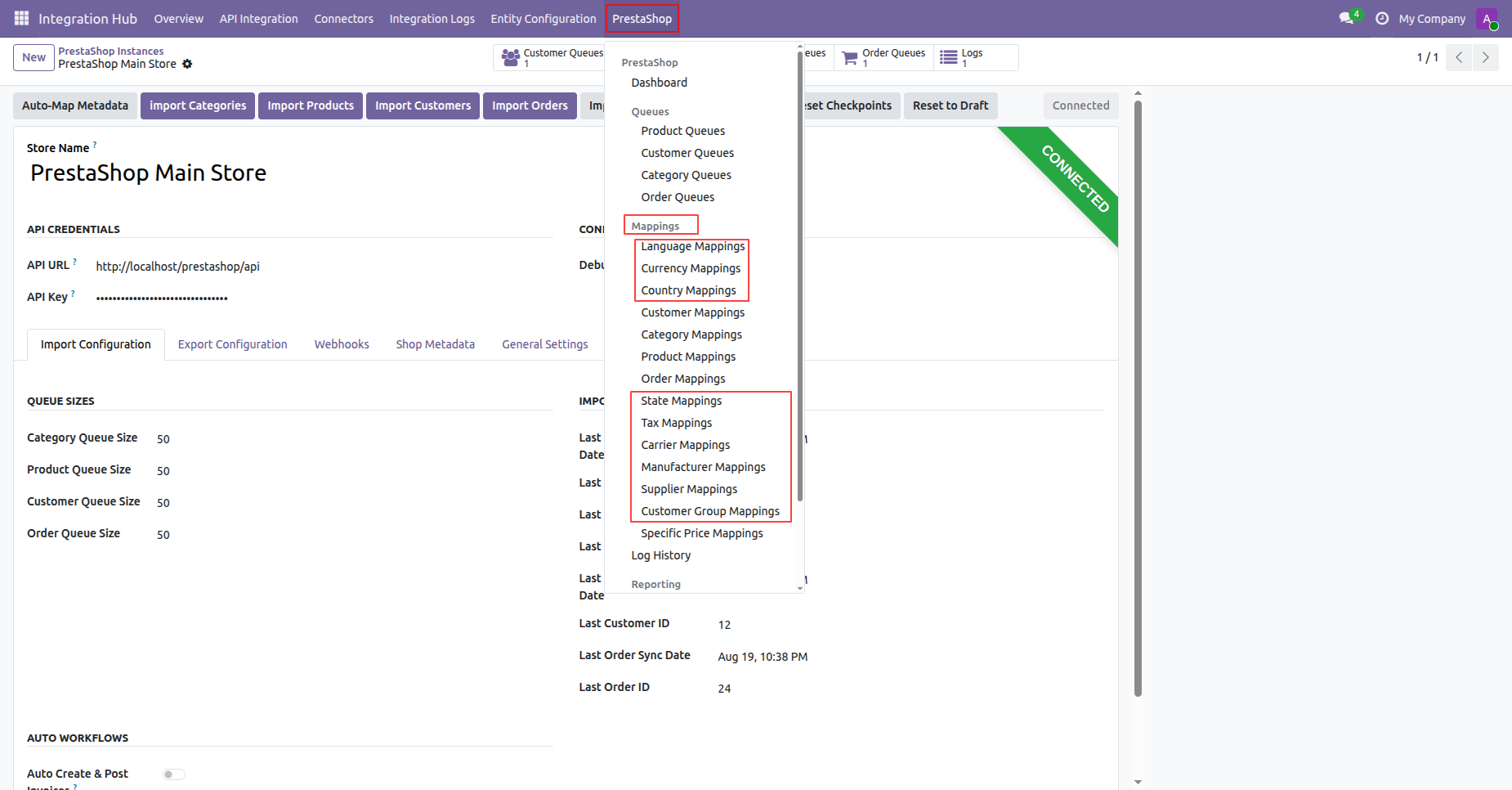
View imported language mappings showing Odoo languages and synchronized PrestaShop language details.
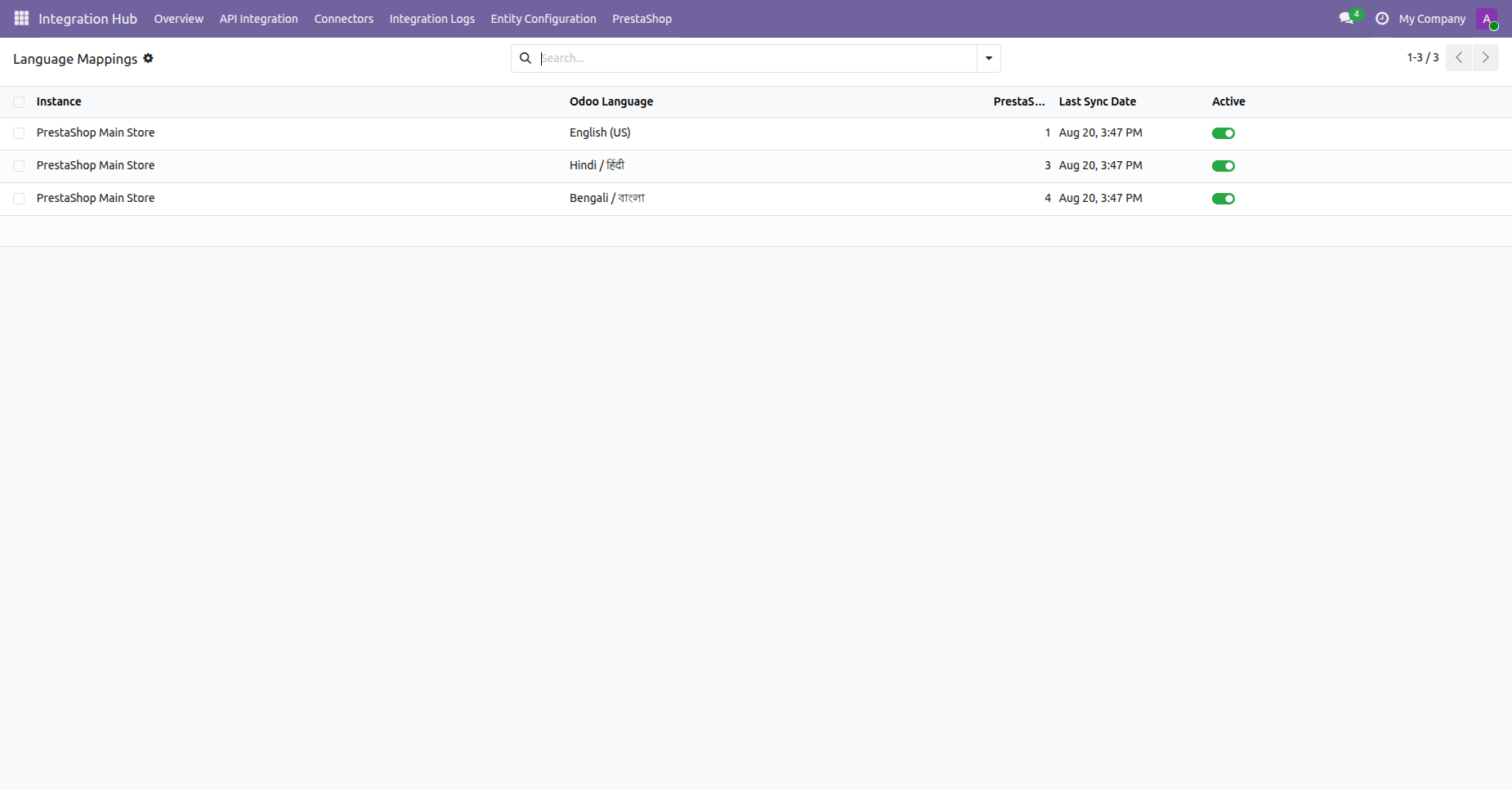
Check the currency mappings list displaying synchronized PrestaShop currencies and matched Odoo currency entries.
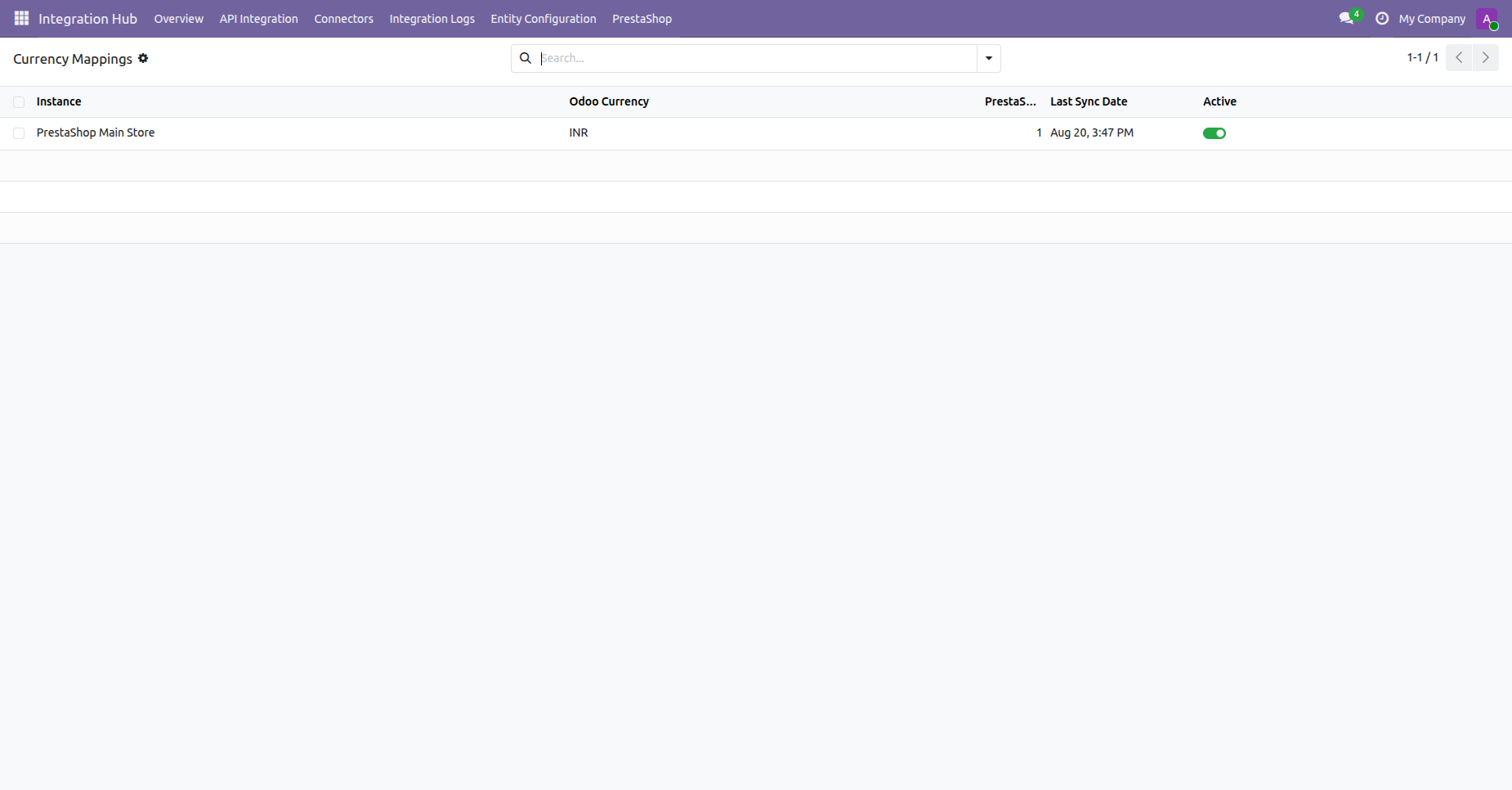
Inspect country mappings displaying imported PrestaShop countries mapped with Odoo country records.
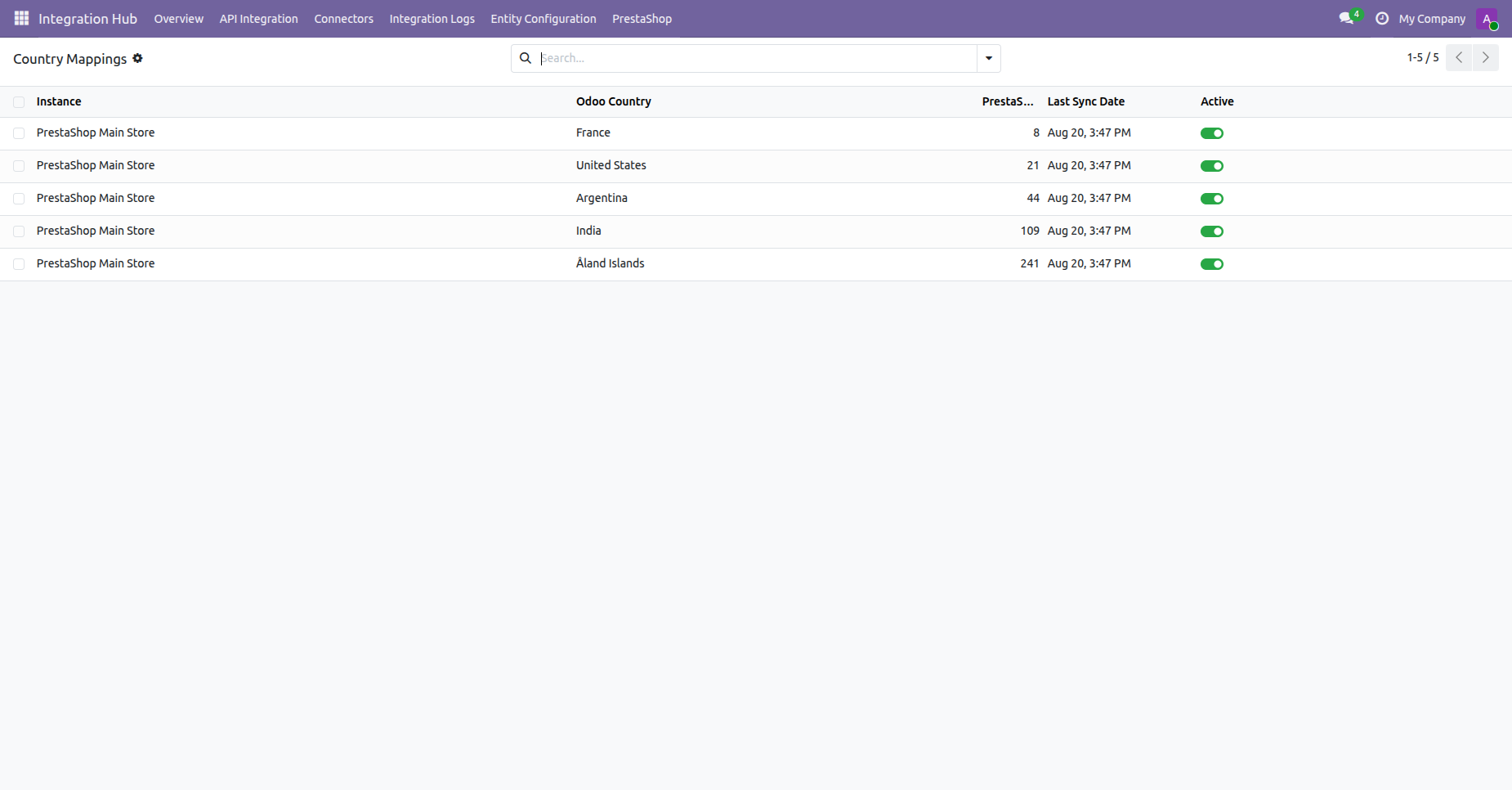
View state mappings table linking PrestaShop region states to corresponding Odoo state records.
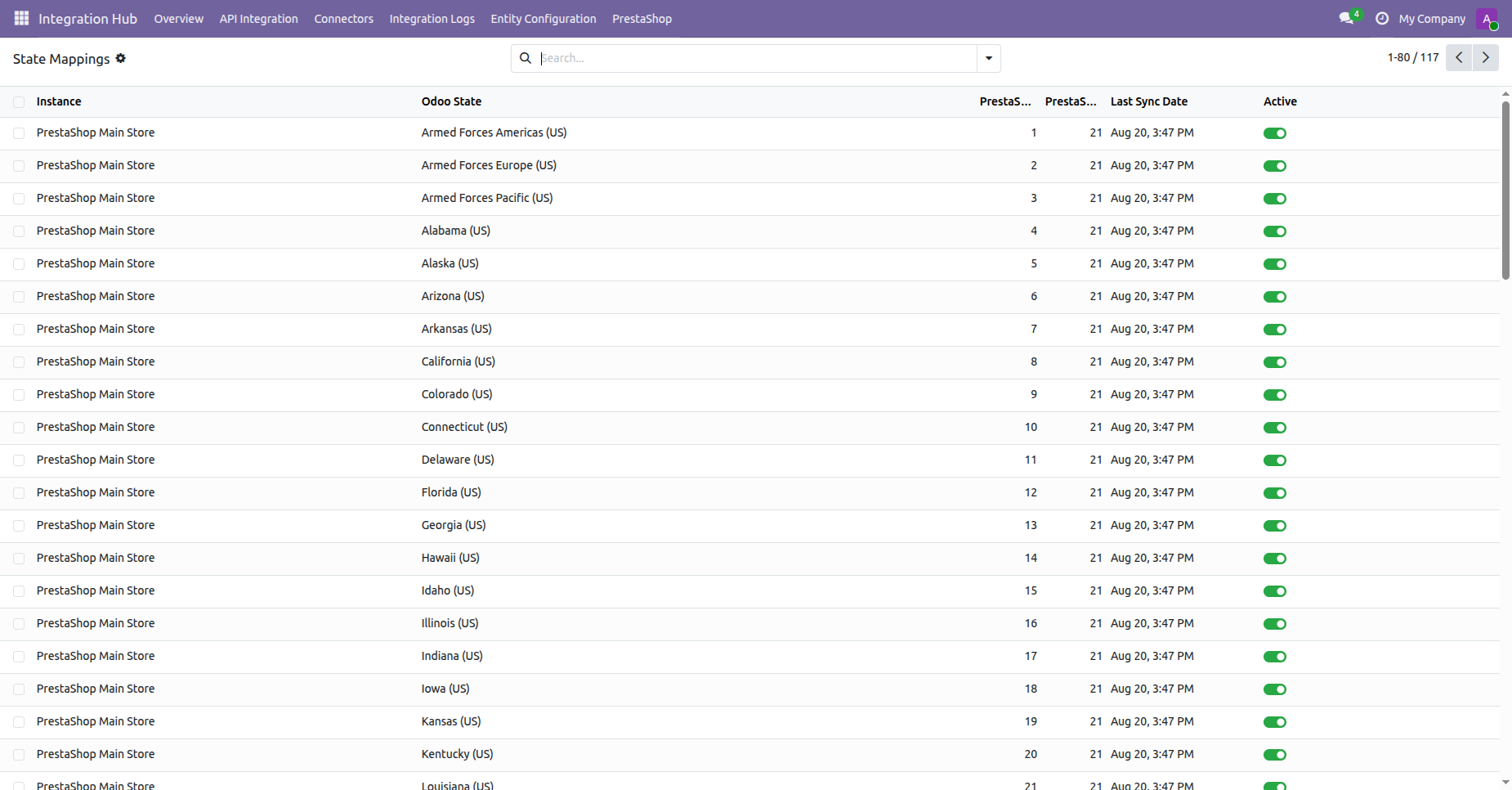
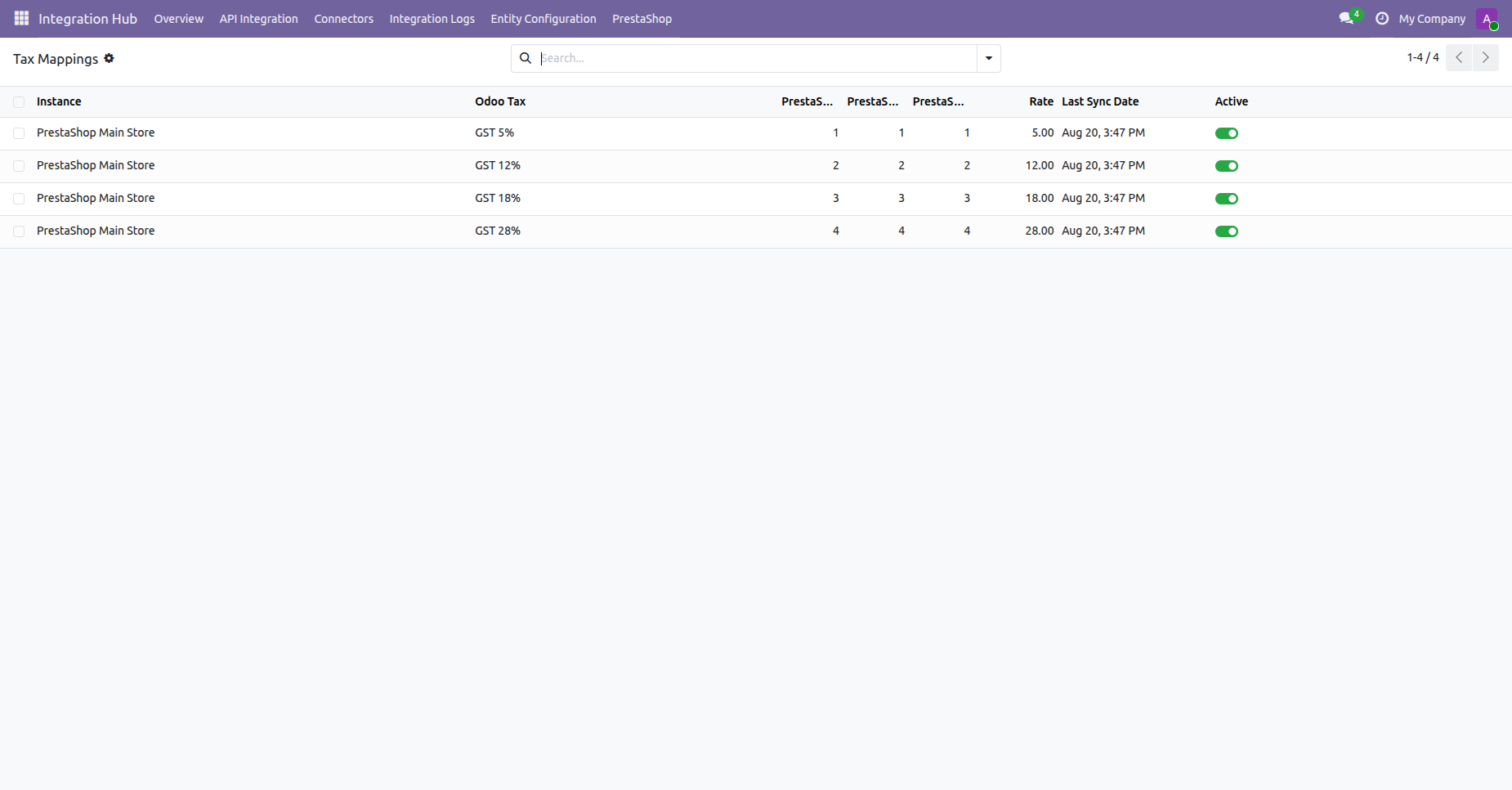
Review tax mappings aligning PrestaShop tax rates with configured Odoo tax rates.
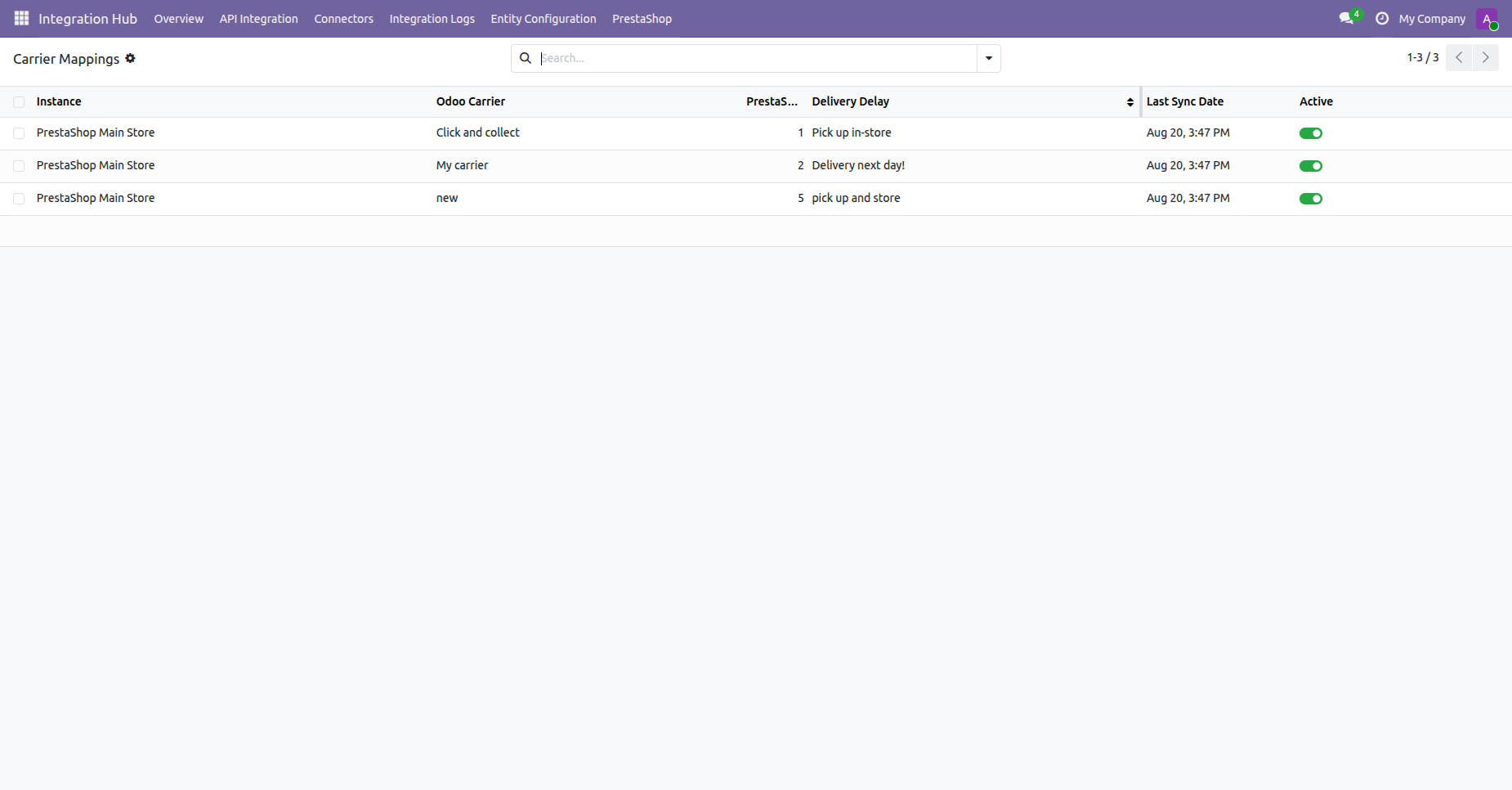
Inspect carrier mappings linking PrestaShop shipping methods to configured Odoo delivery carriers.
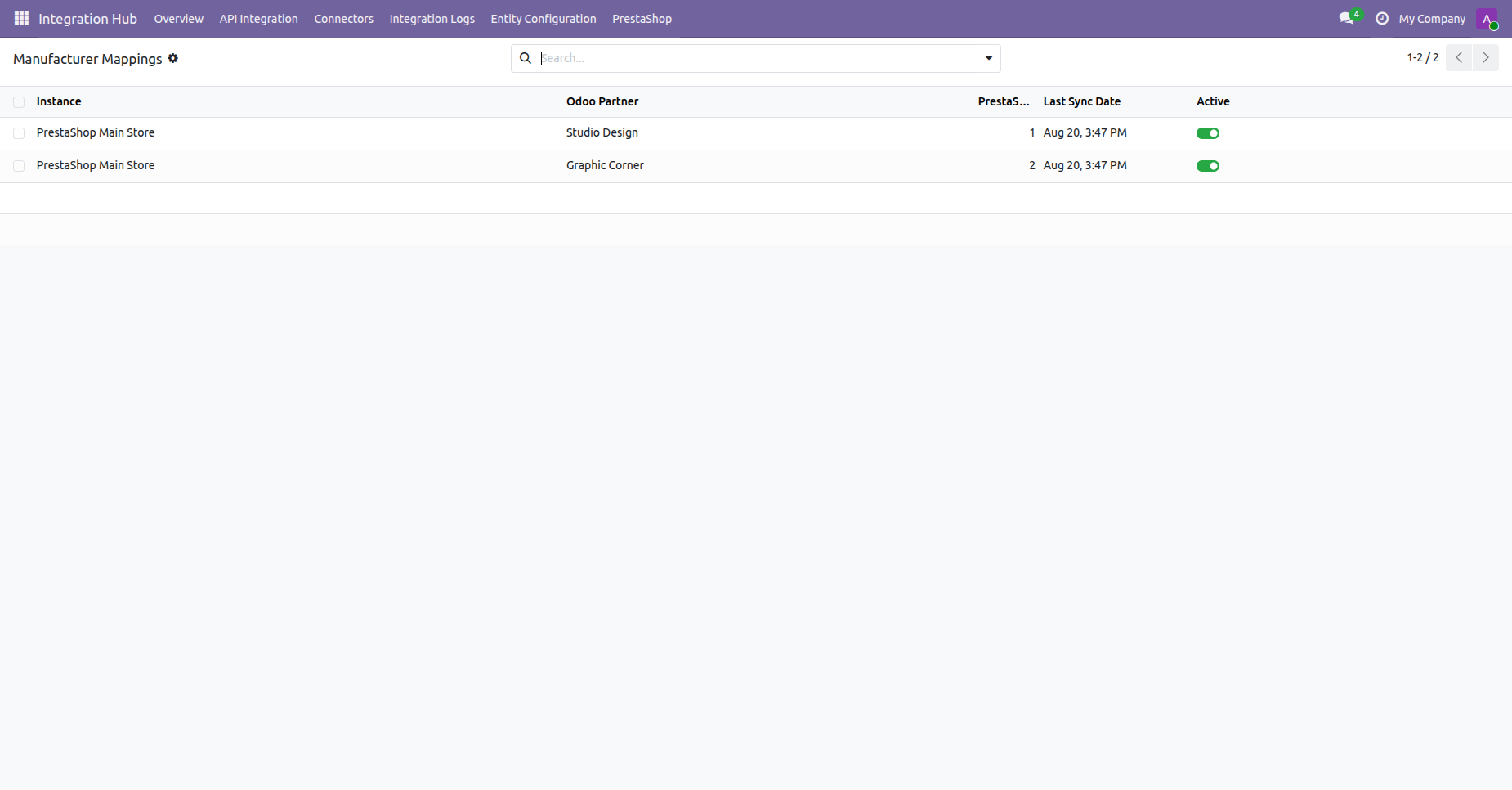
Check manufacturer mappings connecting PrestaShop brand manufacturers with Odoo partner records.
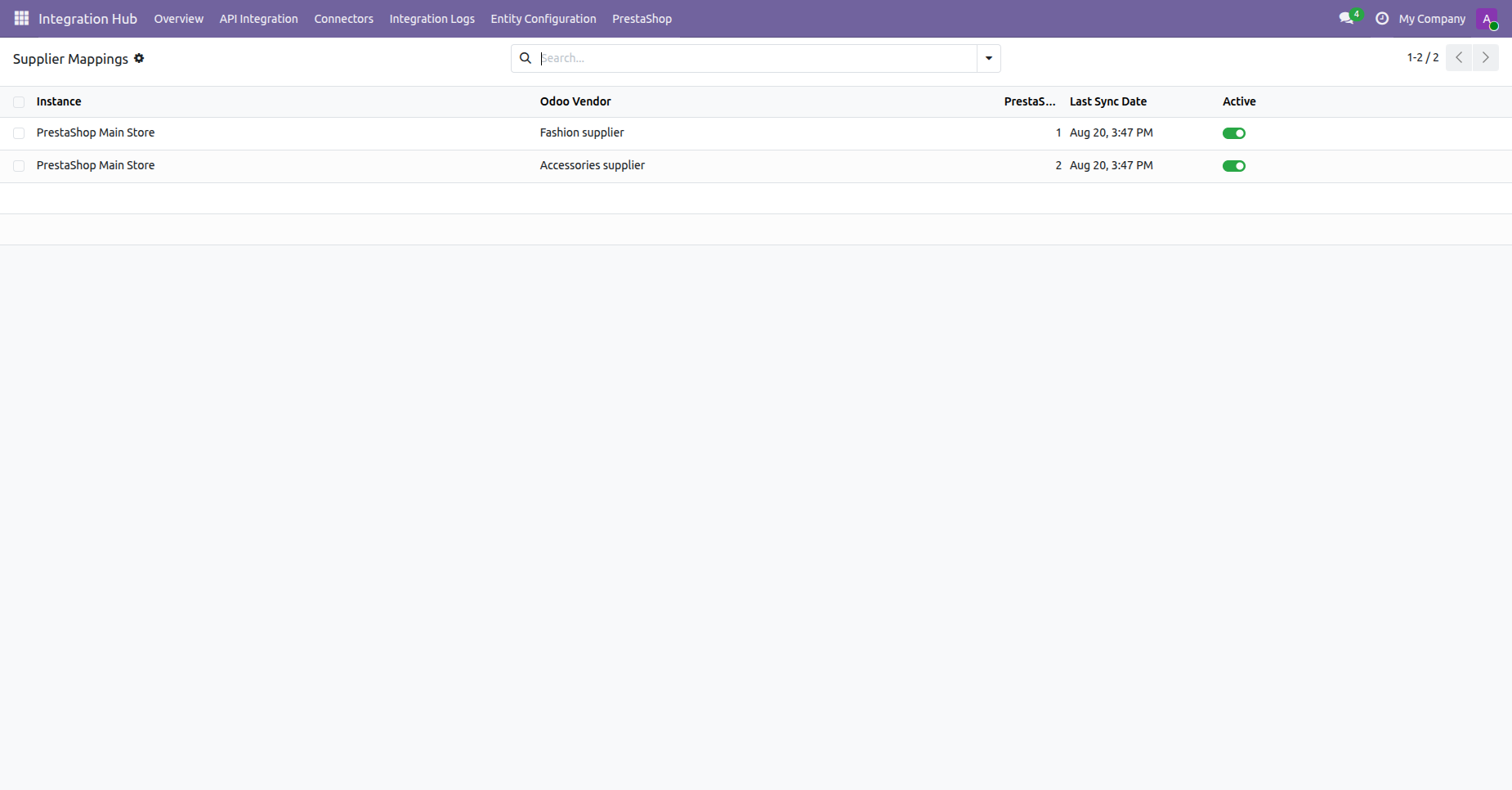
View supplier mappings associating PrestaShop vendor suppliers with corresponding Odoo partner profiles.
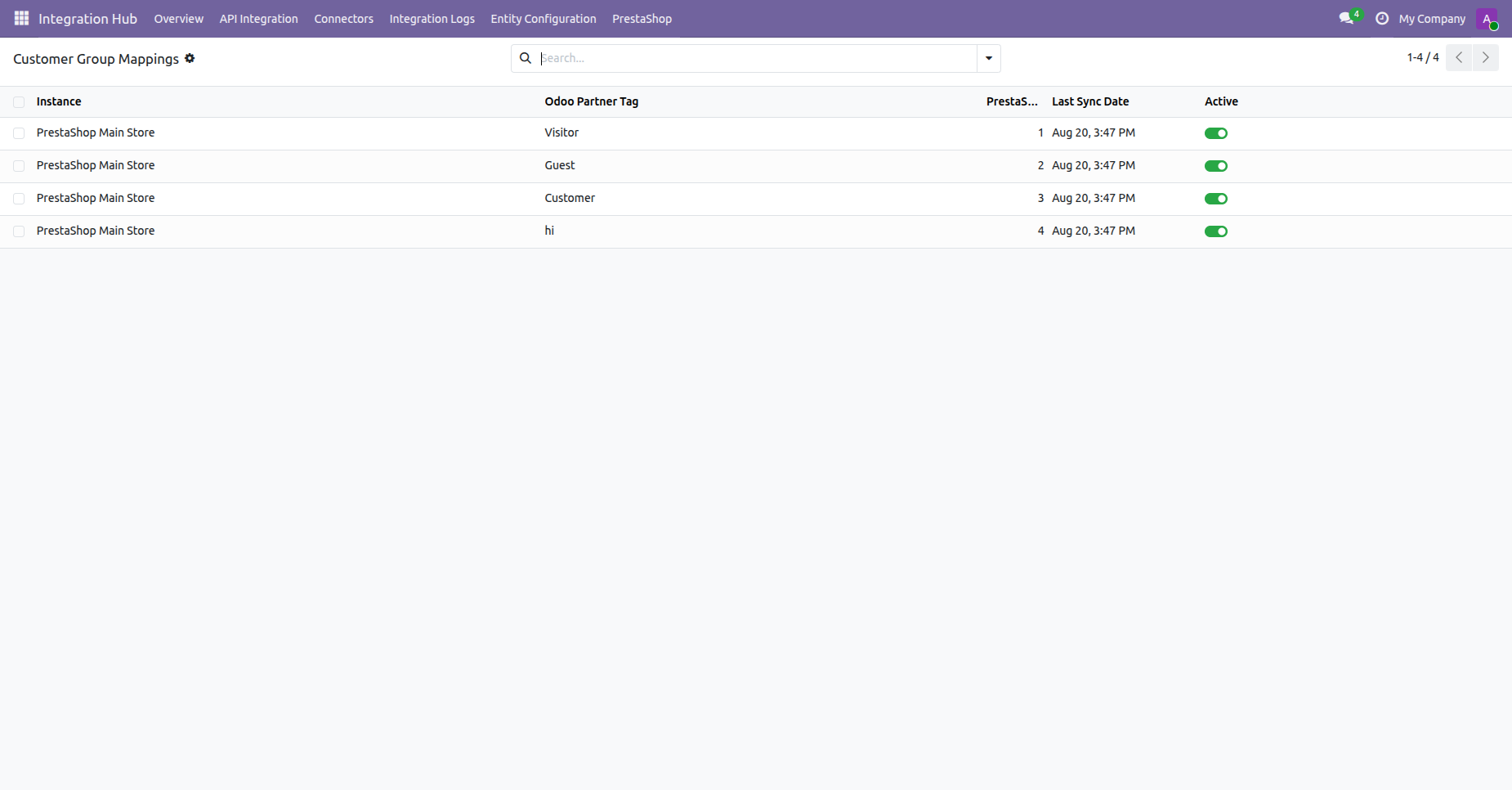
Inspect customer group mappings matching PrestaShop customer groups with Odoo partner tags.
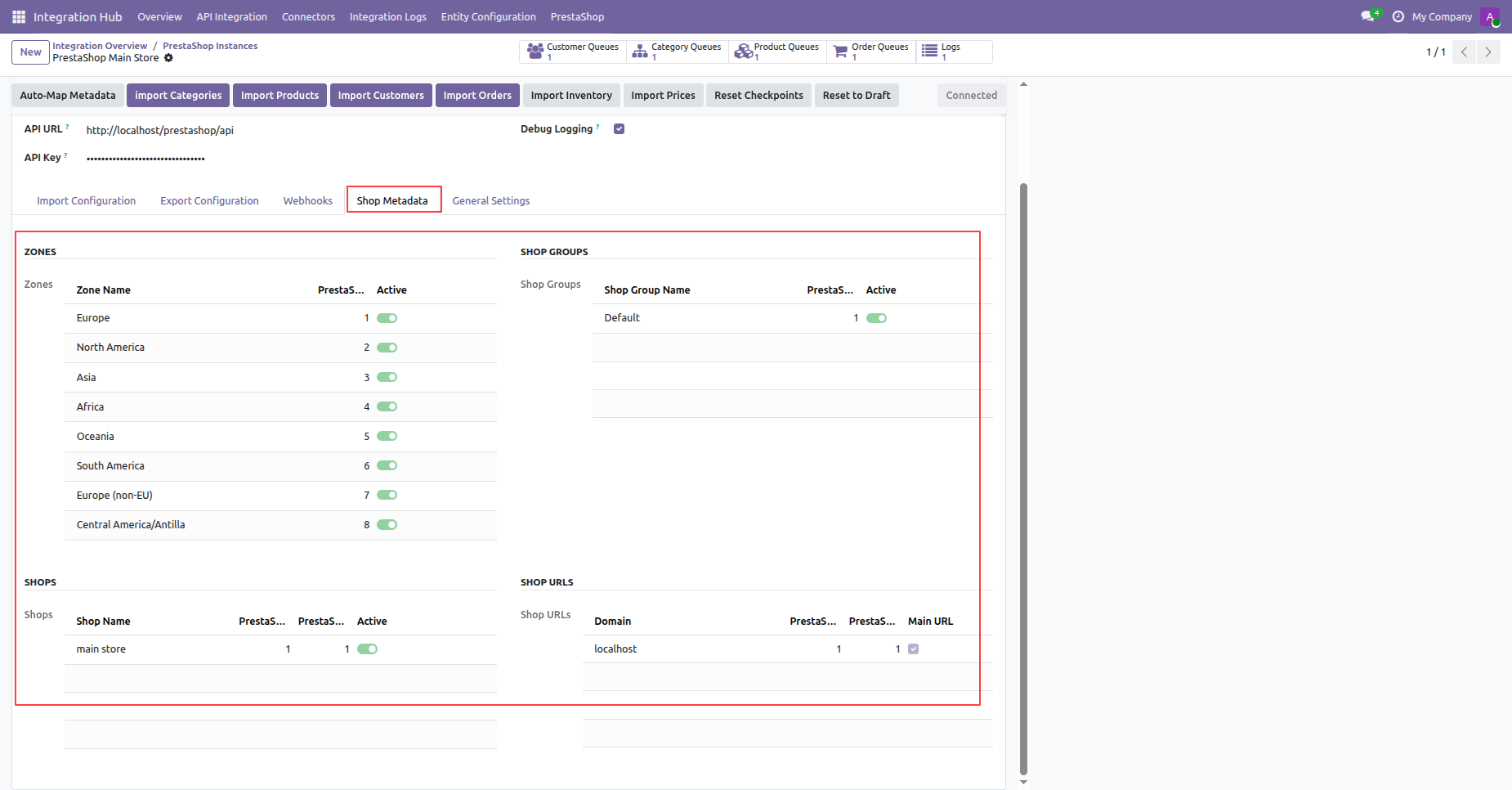
Open the Shop Metadata tab to view imported zones, shop groups, shops, and store URLs.
 Webhook
Configuration Video
How Product
Webhook works? Watch Video
Webhook
Configuration Video
How Product
Webhook works? Watch Video
Copy the Product Webhook URL from the Webhooks configuration tab in the Odoo PrestaShop instance.
Navigate to PrestaShop Advanced Parameters Webhooks menu to add or inspect product webhook endpoints.
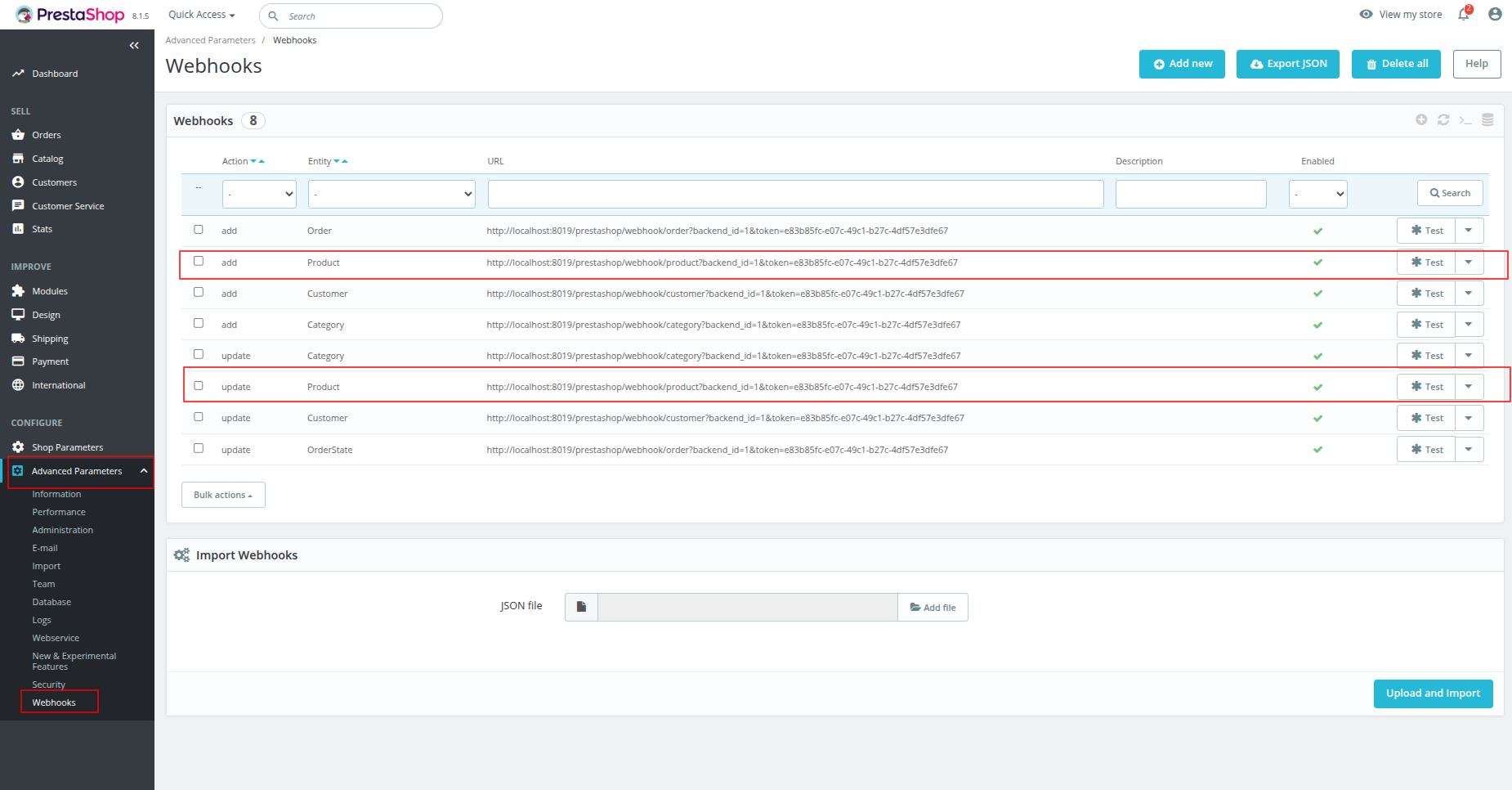
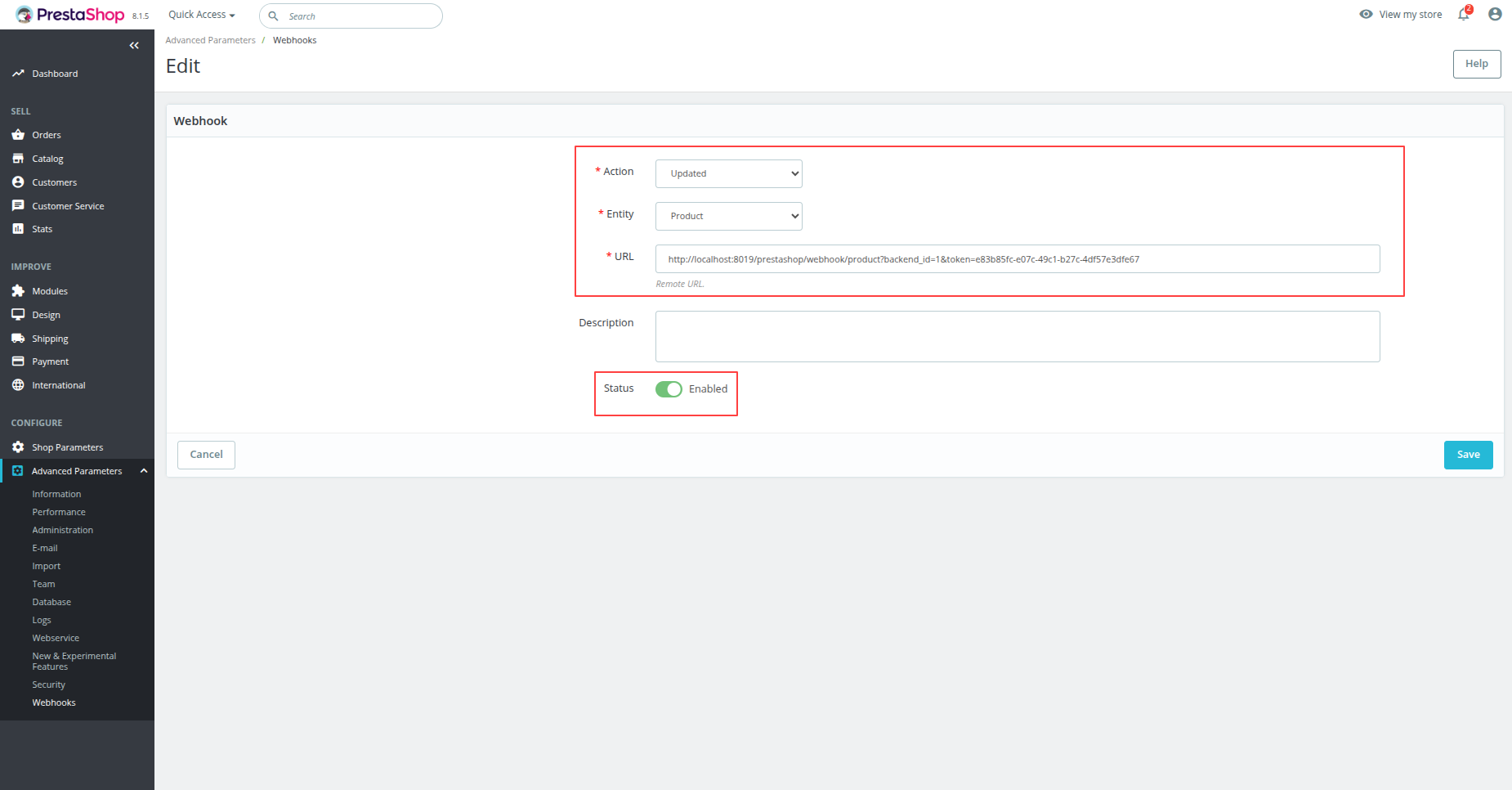
Configure a new PrestaShop webhook for product creation by setting action, entity, URL, and status.
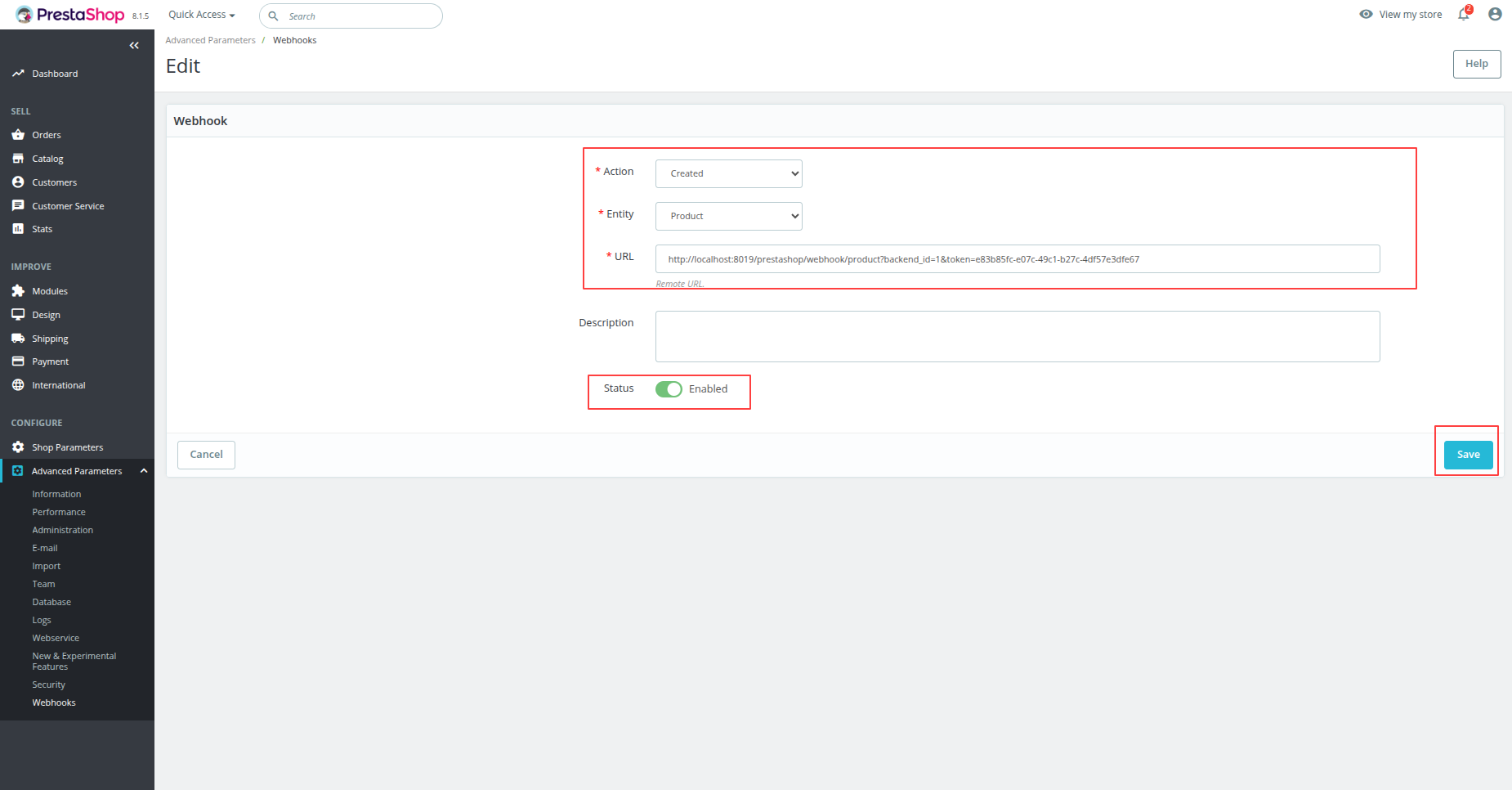
Set up a PrestaShop webhook for product updates by specifying the updated action and target URL.
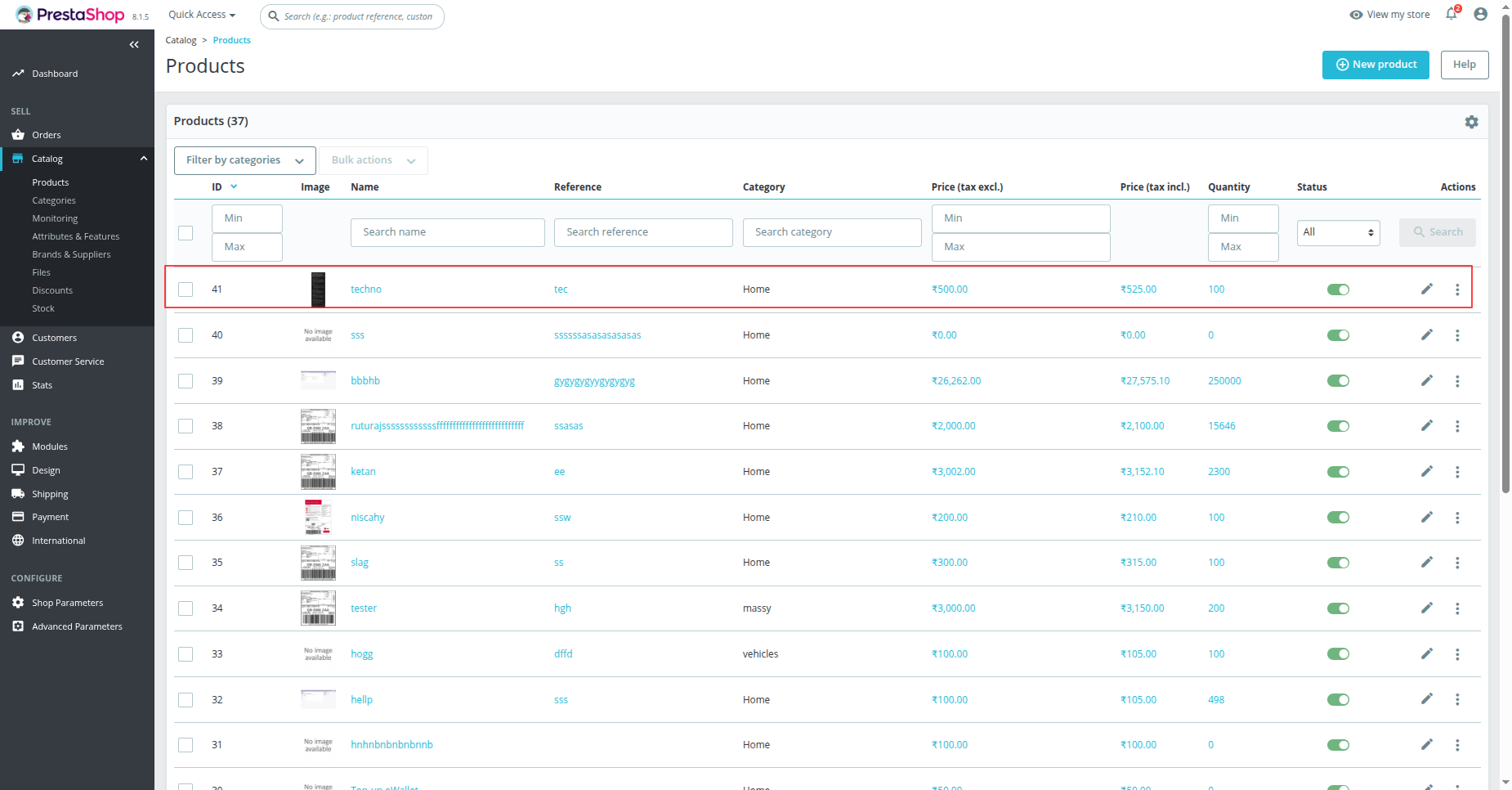
Create or update a product in PrestaShop to automatically trigger the configured product webhook notification.
Click the Product Queues smart button on the instance form to inspect newly created webhook queue records.
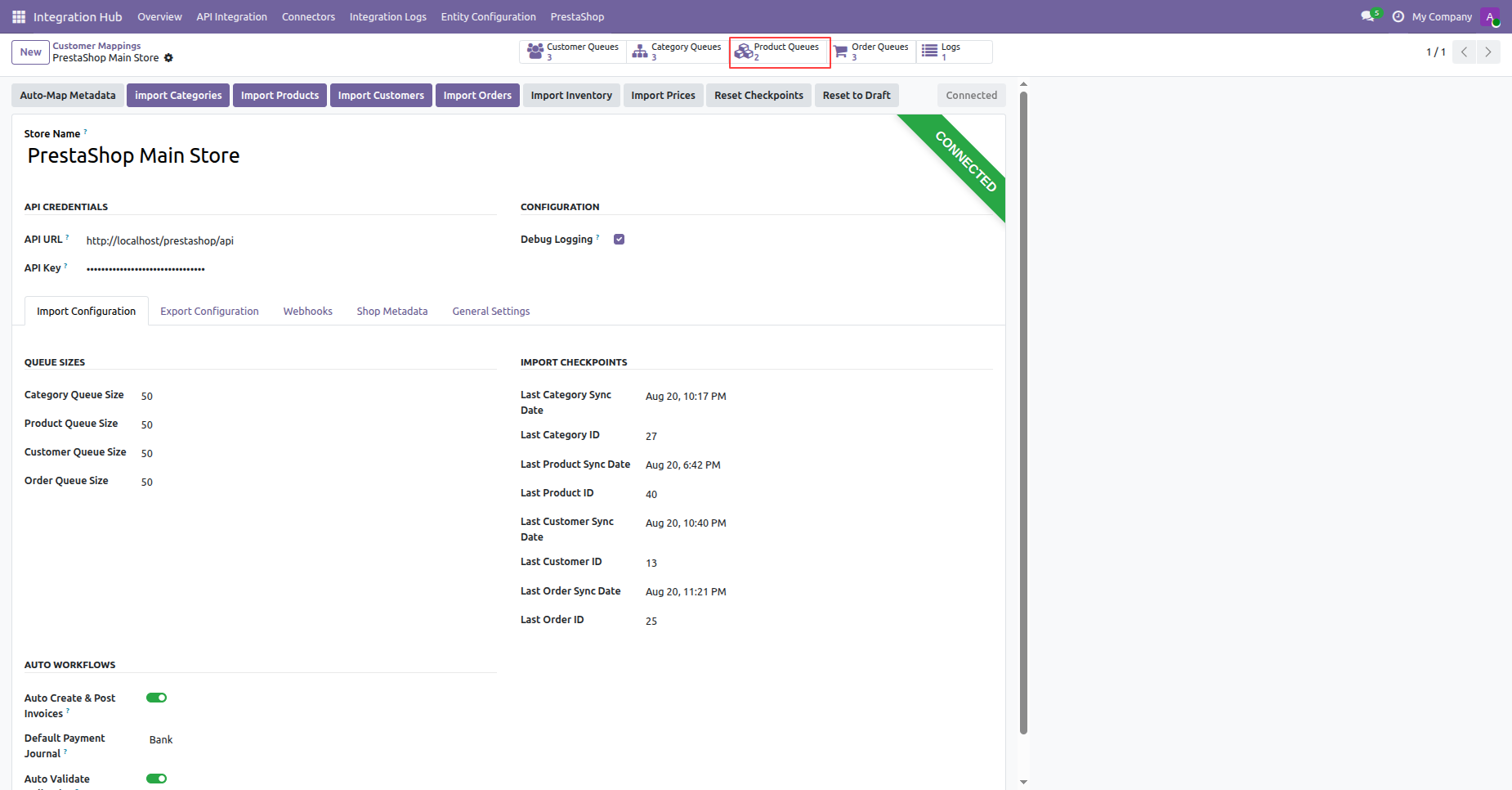
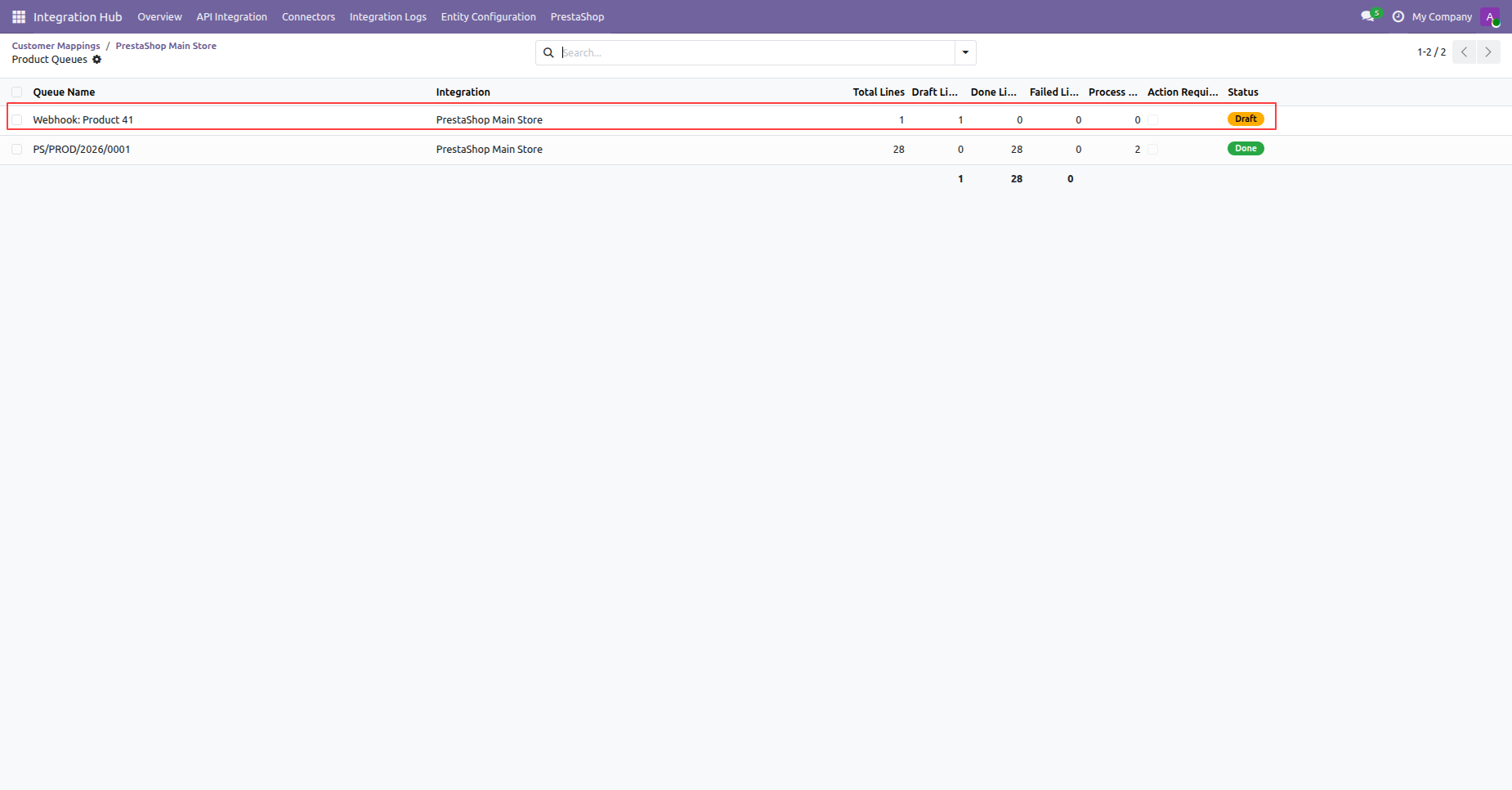
Select the product queue record created via webhook from the product queues list view.
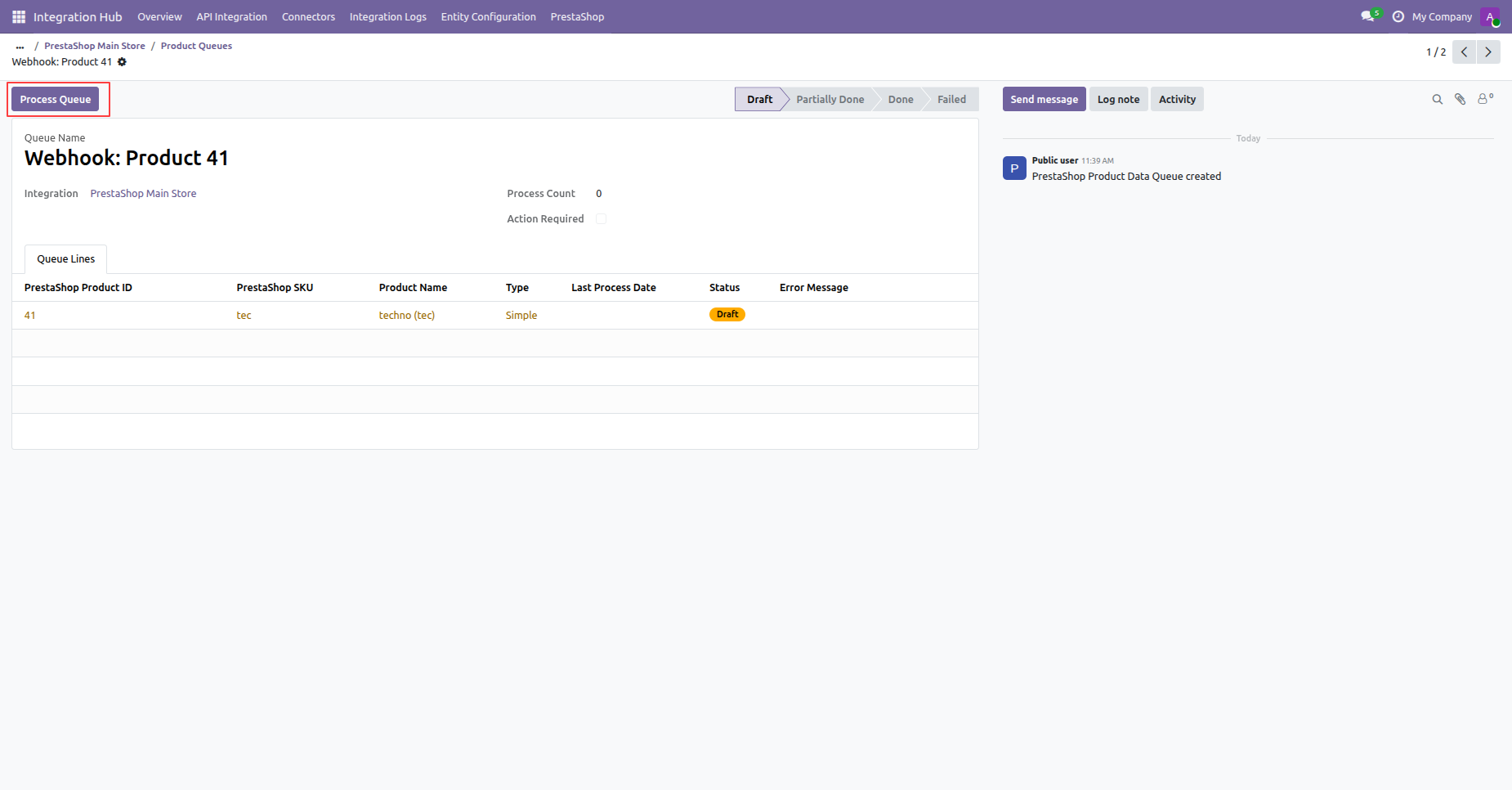
Click the Process Queue button to manually process the received product webhook record.
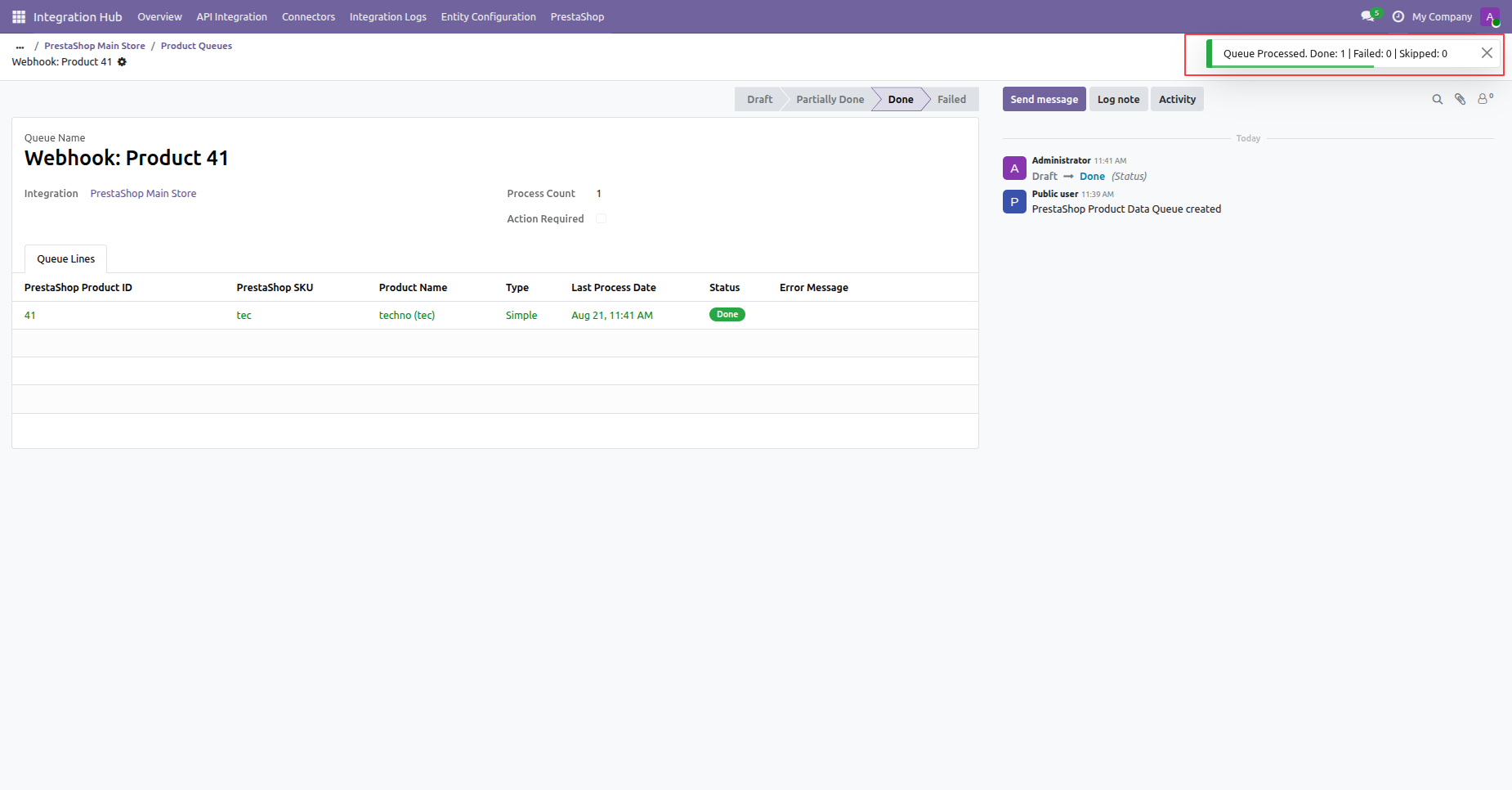
Review the completion notification showing that the product webhook queue was processed successfully.
 How it works?
Watch Video
How it works?
Watch Video
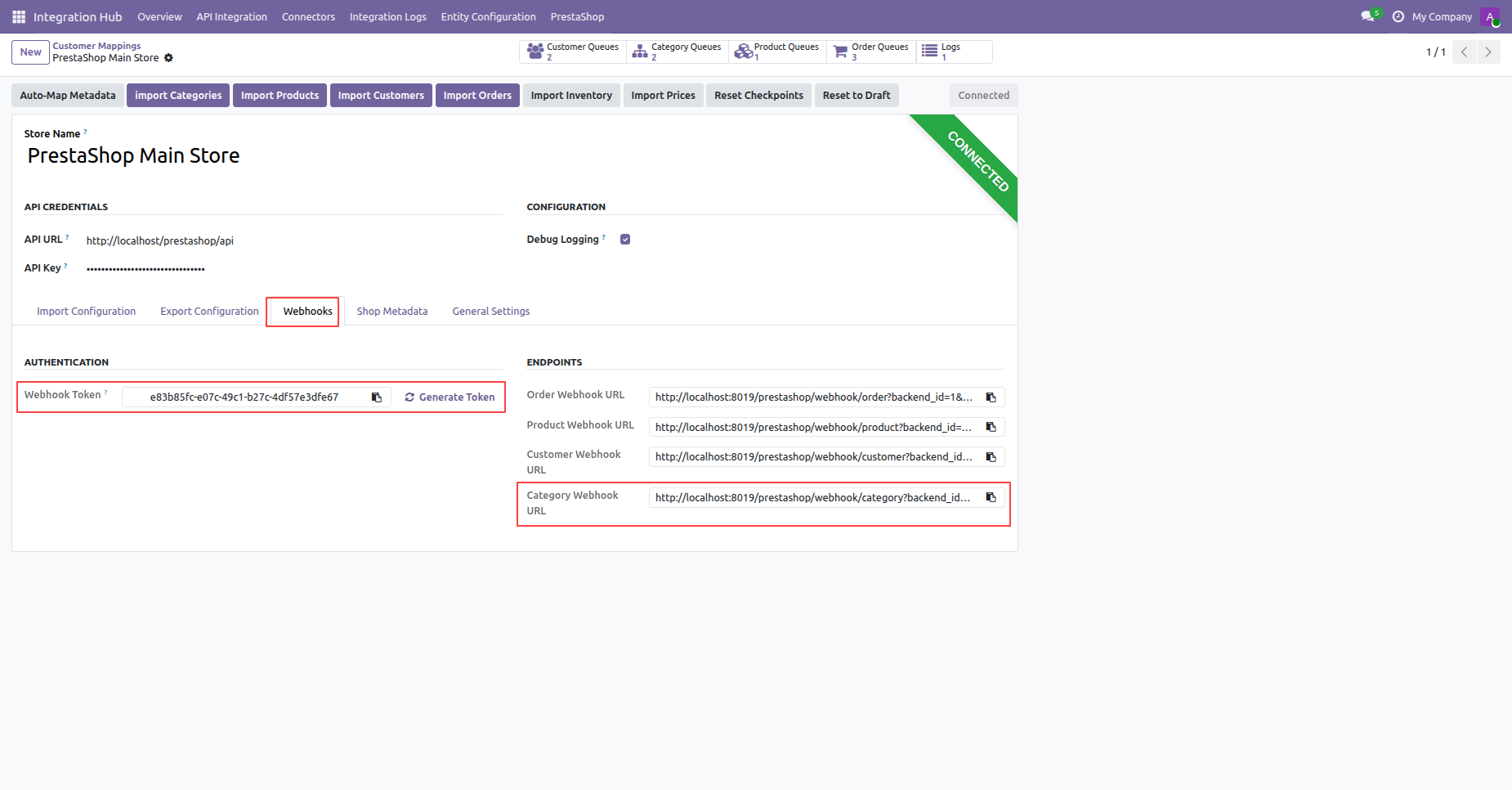
Copy the Category Webhook URL from the Webhooks setup tab in your PrestaShop instance.
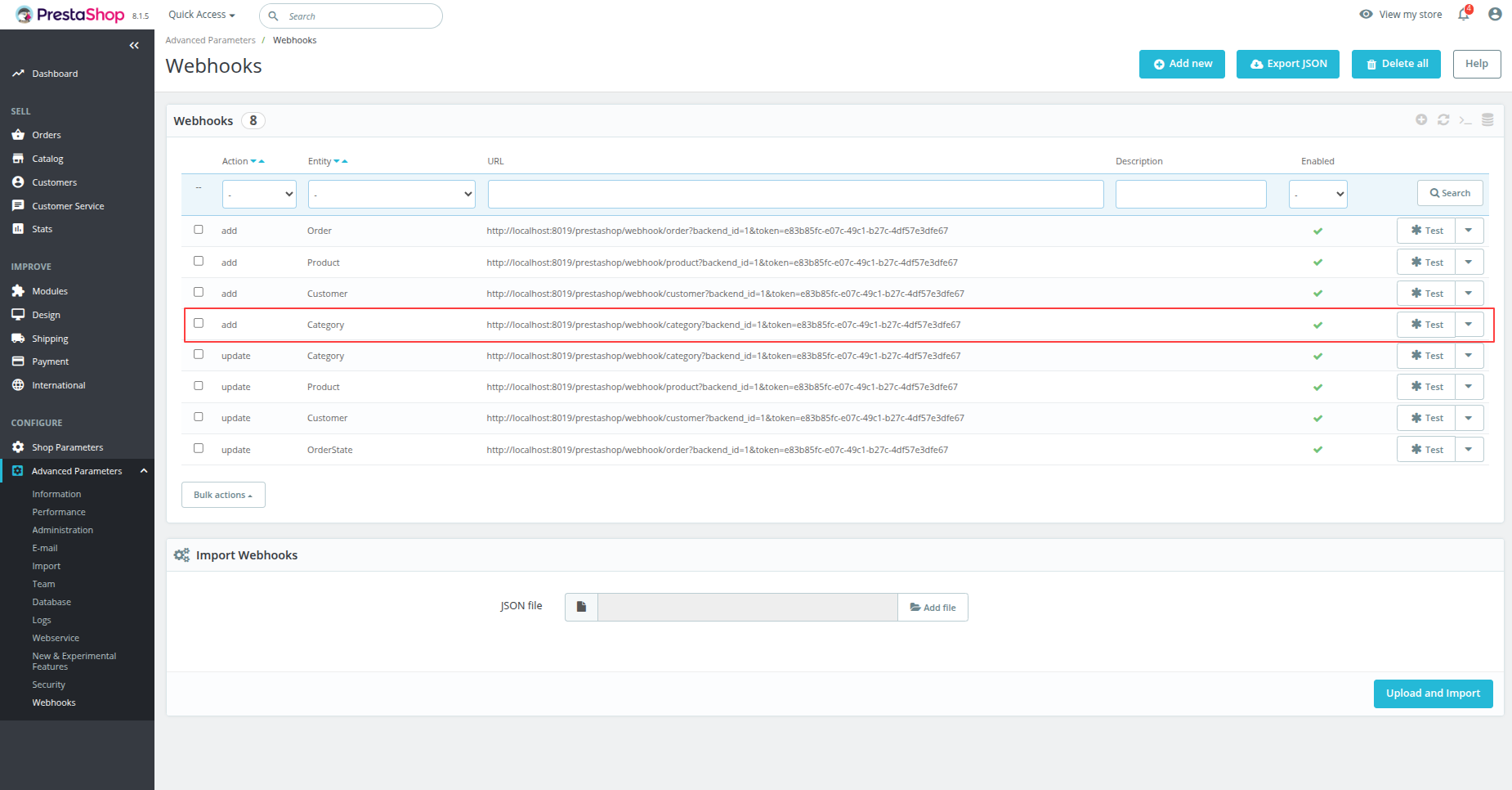
Locate the category creation webhook entry under PrestaShop Advanced Parameters Webhooks menu.
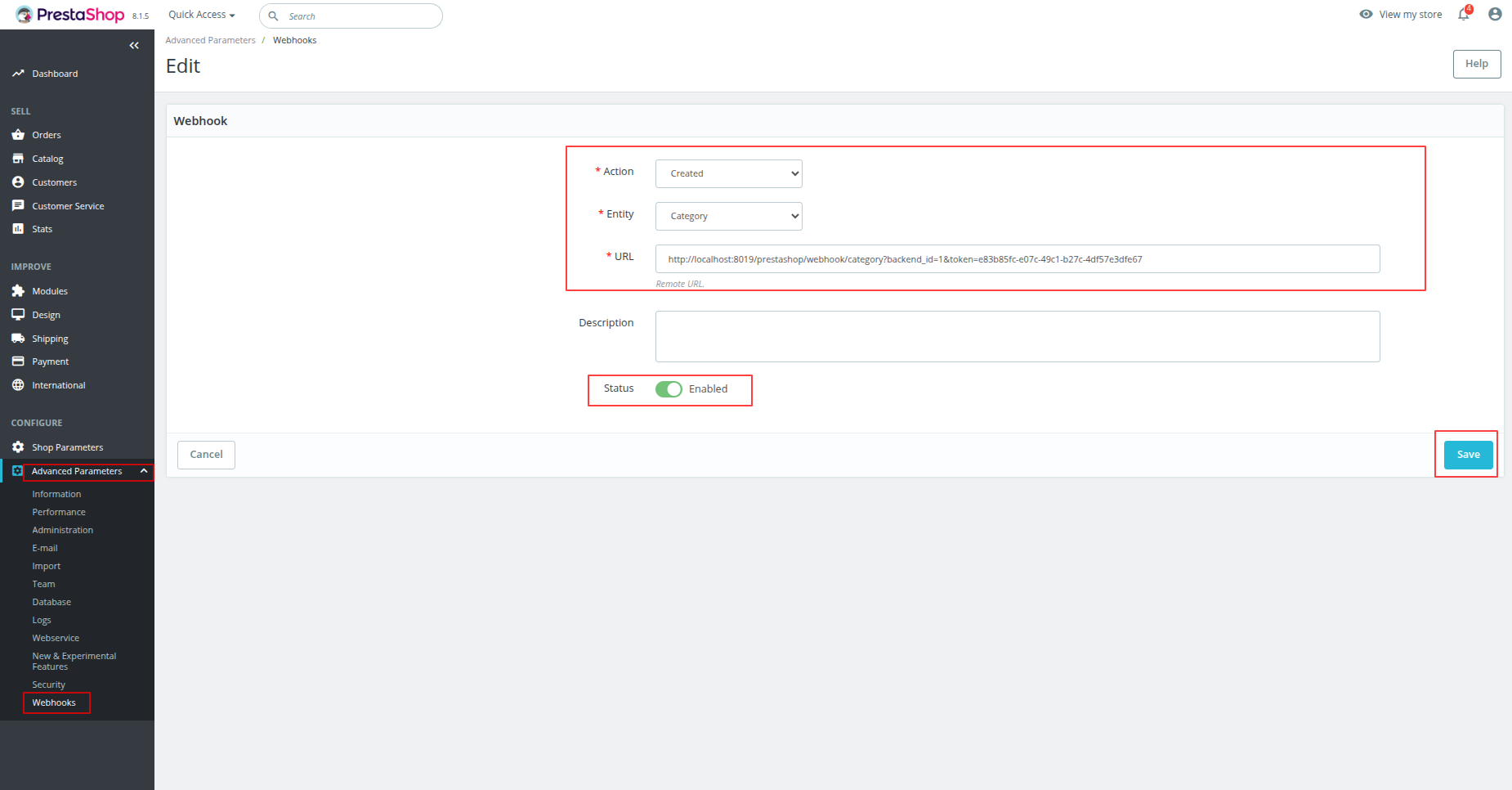
Set up a PrestaShop webhook for category creation with action, entity, URL, and enabled status.
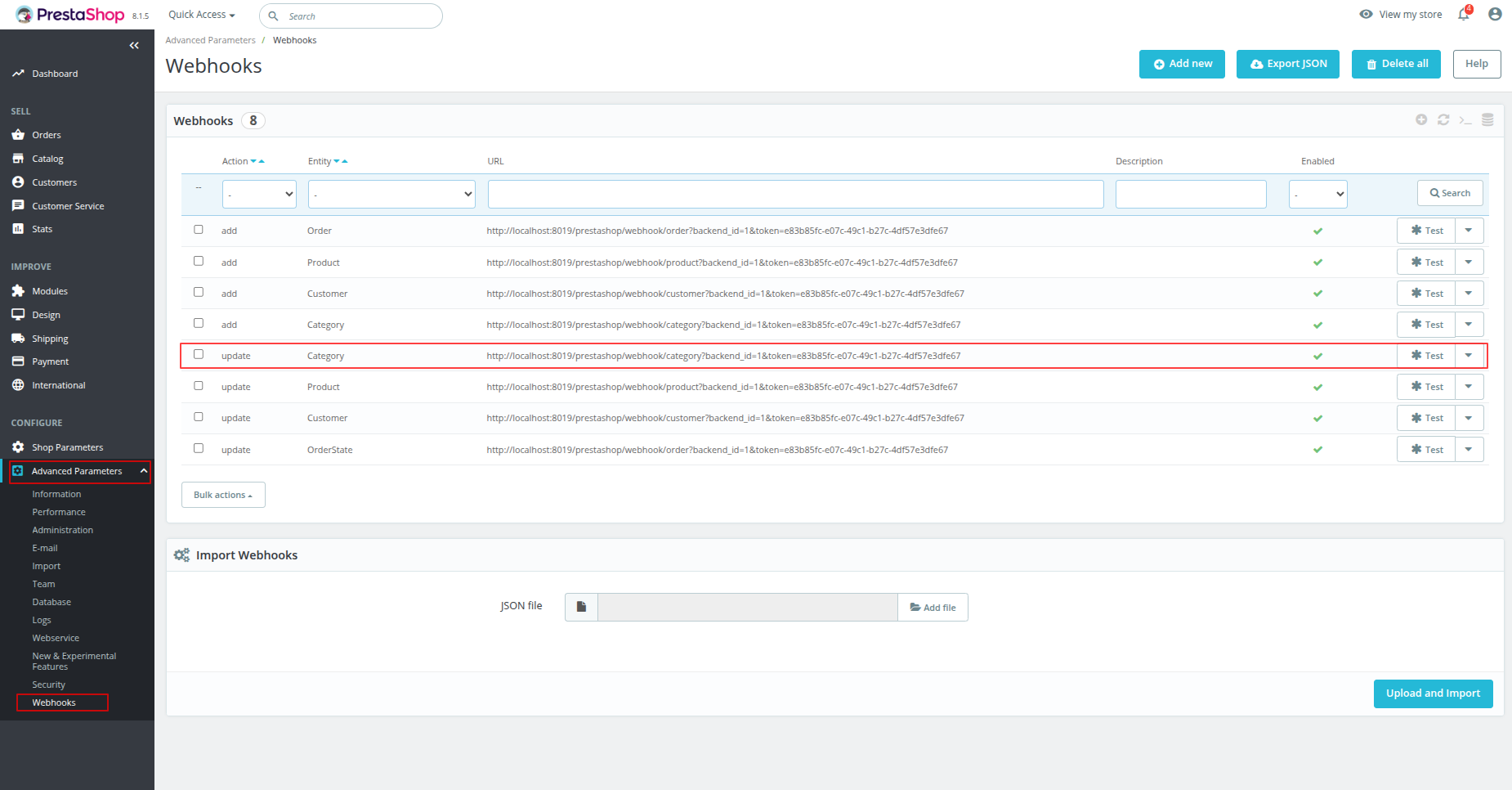
Select the category update webhook entry from the PrestaShop webhooks management list view.
Configure a PrestaShop webhook for category updates with updated action and target endpoint URL.
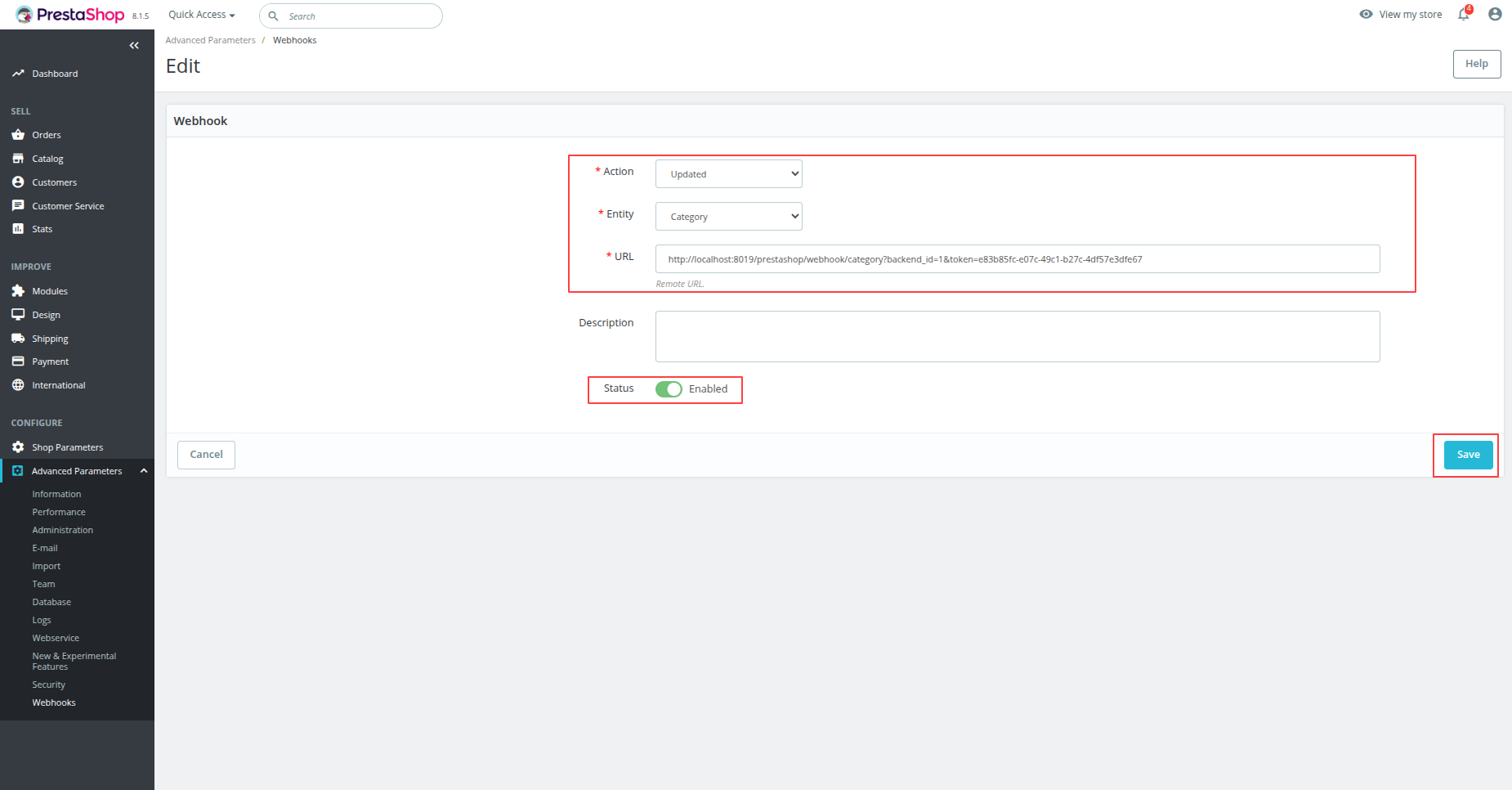
Create or update a category in PrestaShop to trigger real-time category webhook events.
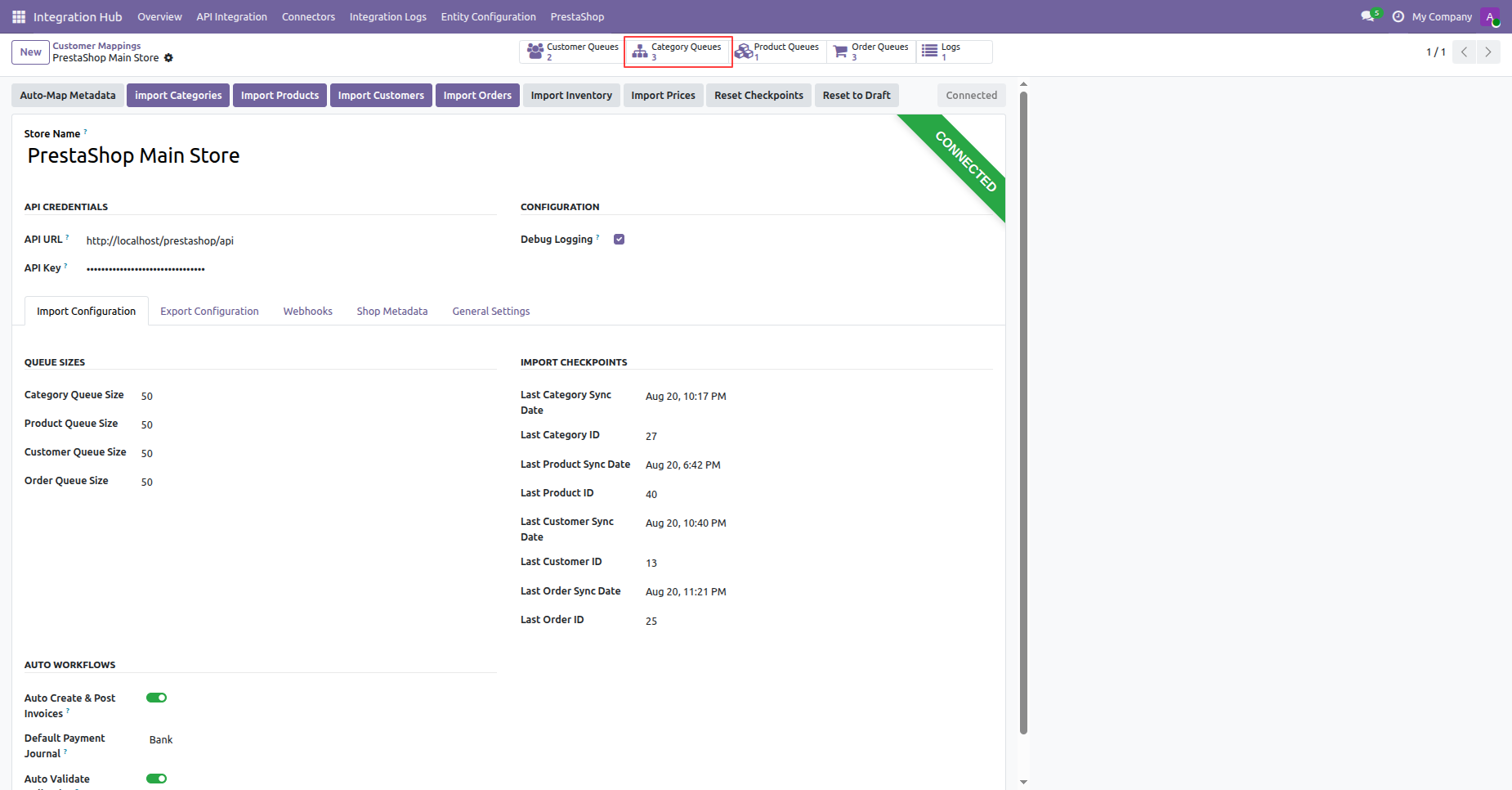
Click the Category Queues smart button on the instance header to open category queue records.
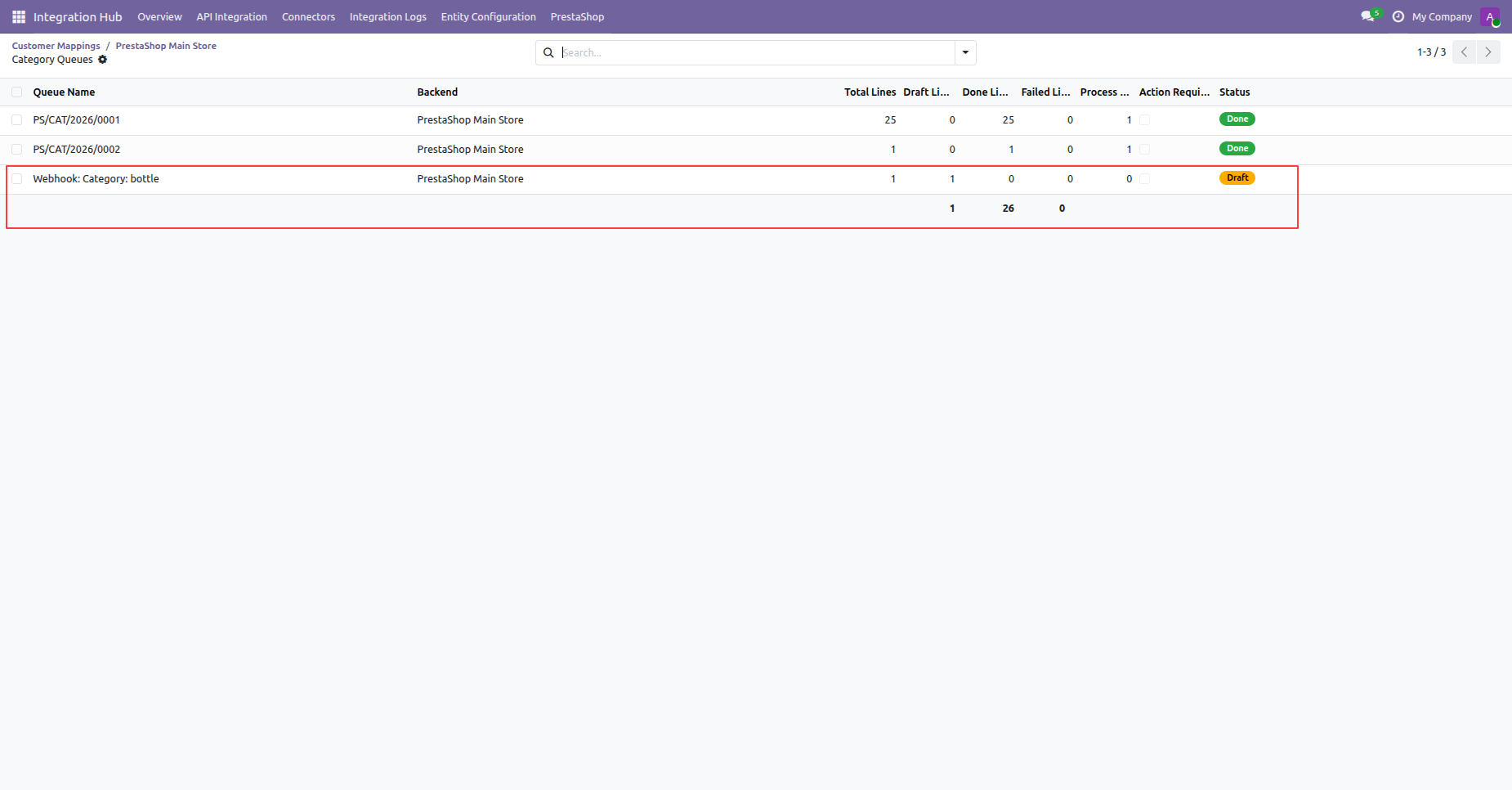
View the received category webhook record listed in draft status under category queues.
Check the success notification displayed after processing the category webhook queue in Odoo.
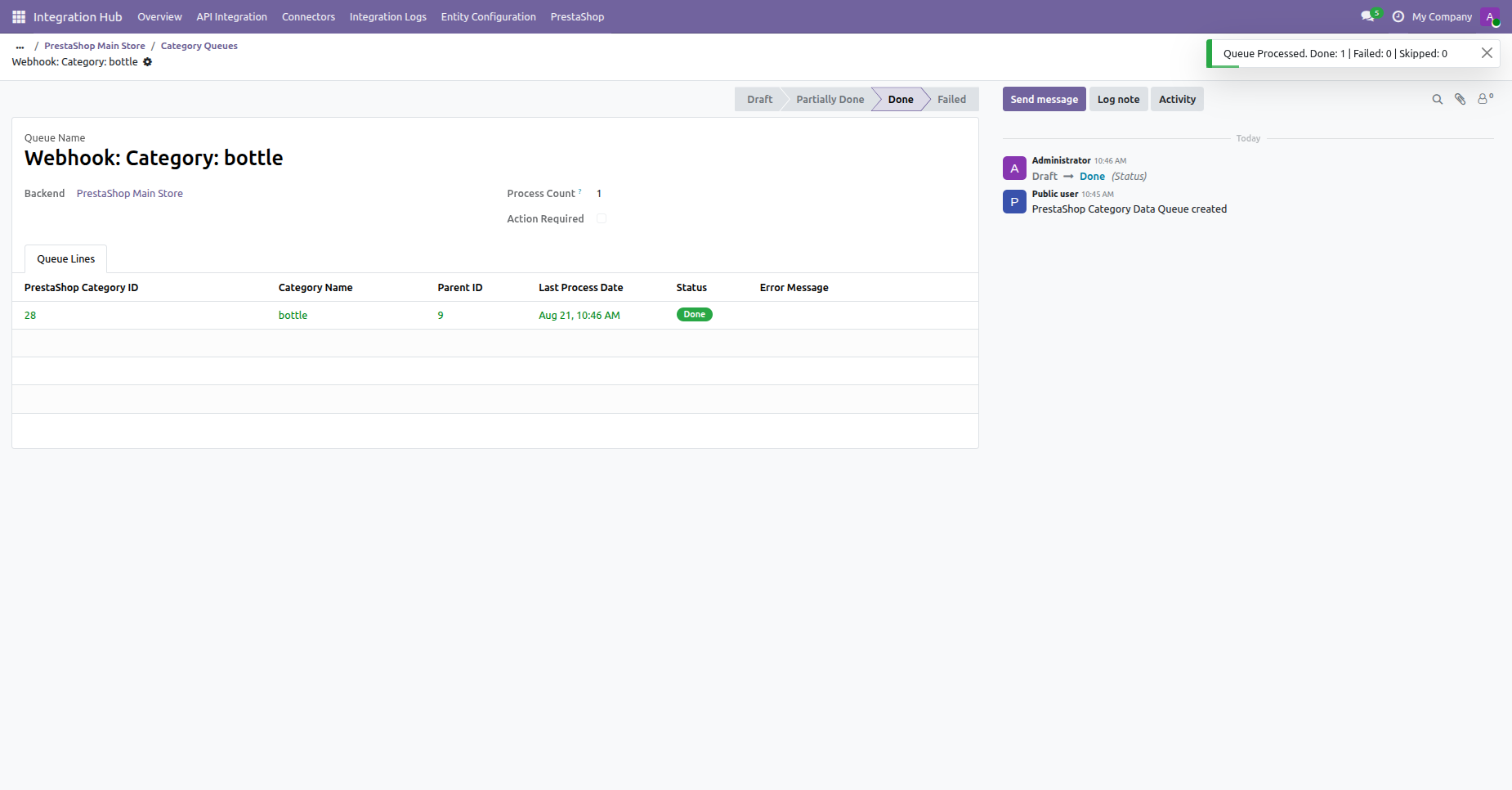 How it works?
Watch Video
How it works?
Watch Video
Copy the Customer Webhook URL from the Webhooks endpoint settings in your PrestaShop instance.
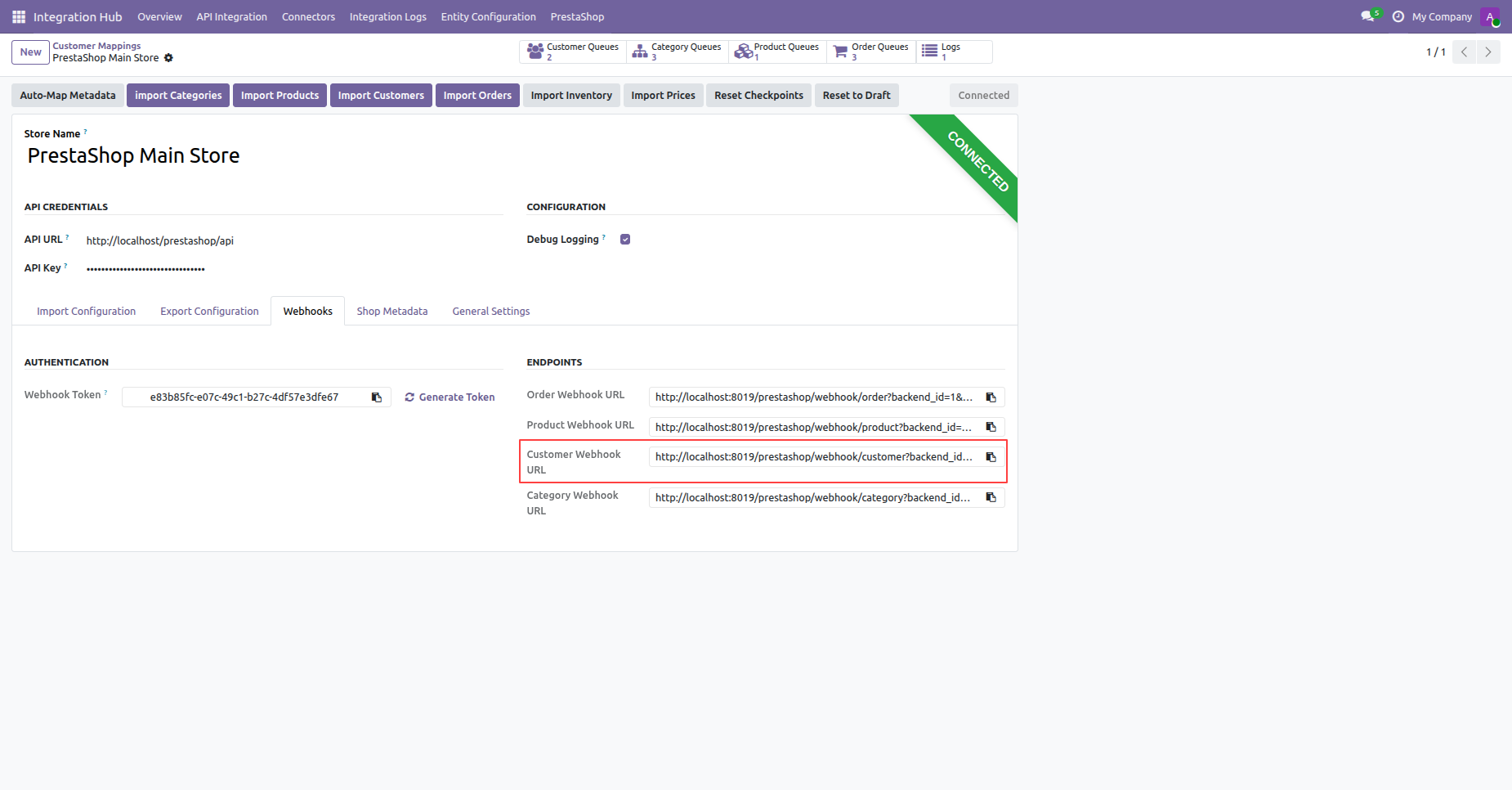
Locate customer webhook event rows listed under PrestaShop Advanced Parameters Webhooks table view.
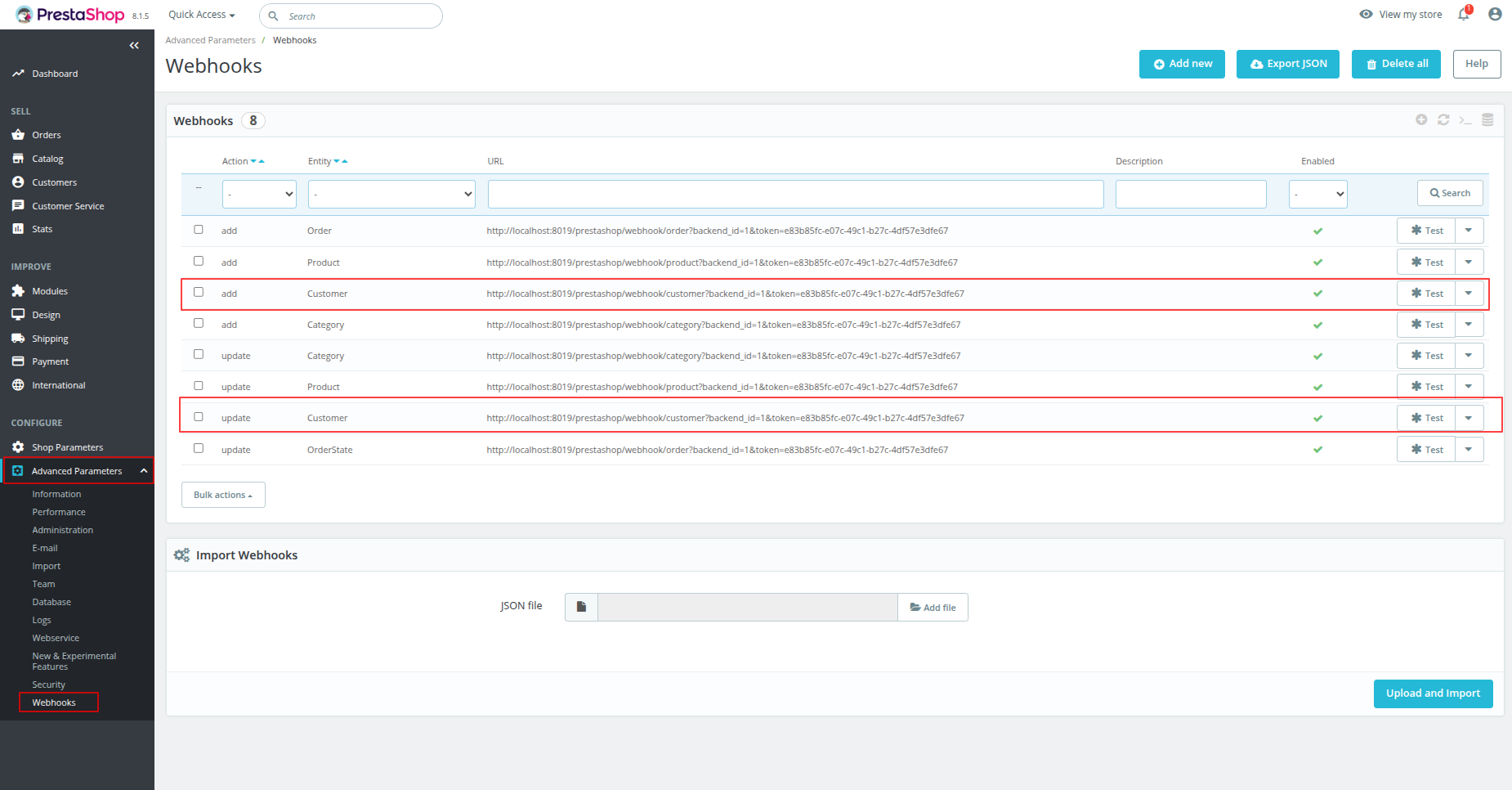
Set up a PrestaShop webhook for customer creation with action, entity, target URL, and enabled status.
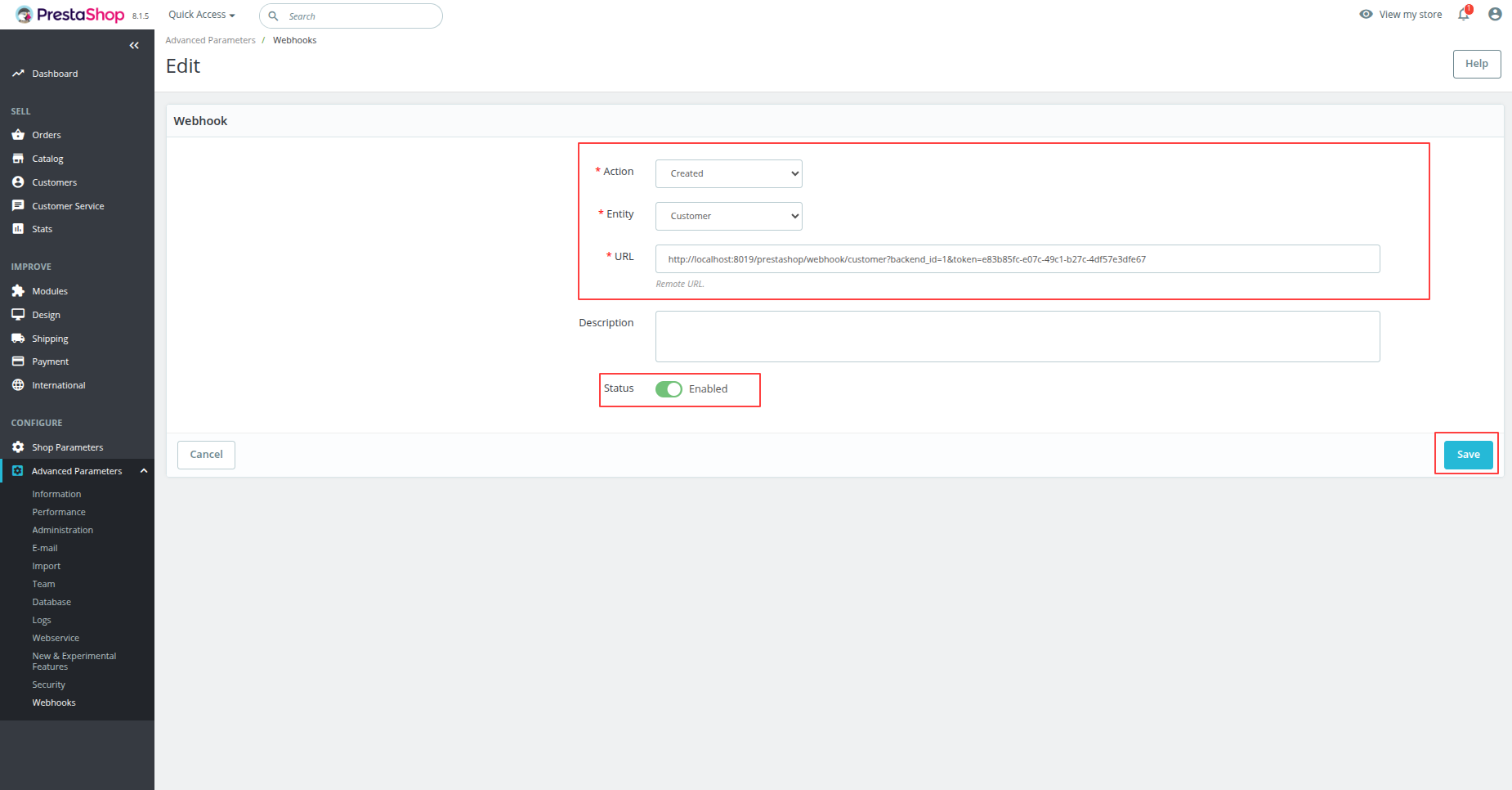
Configure a PrestaShop webhook for customer updates specifying updated action and target URL endpoint.
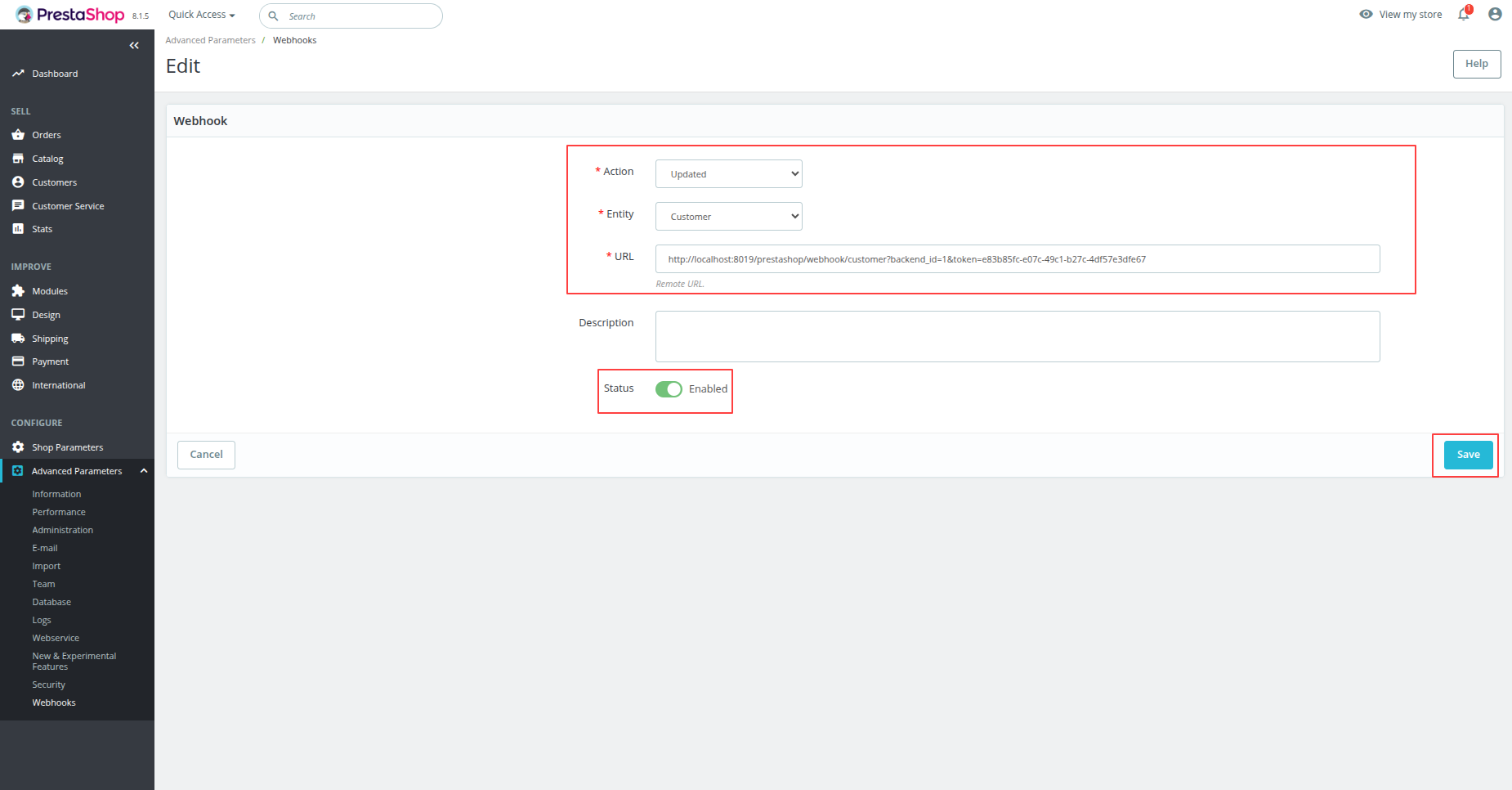
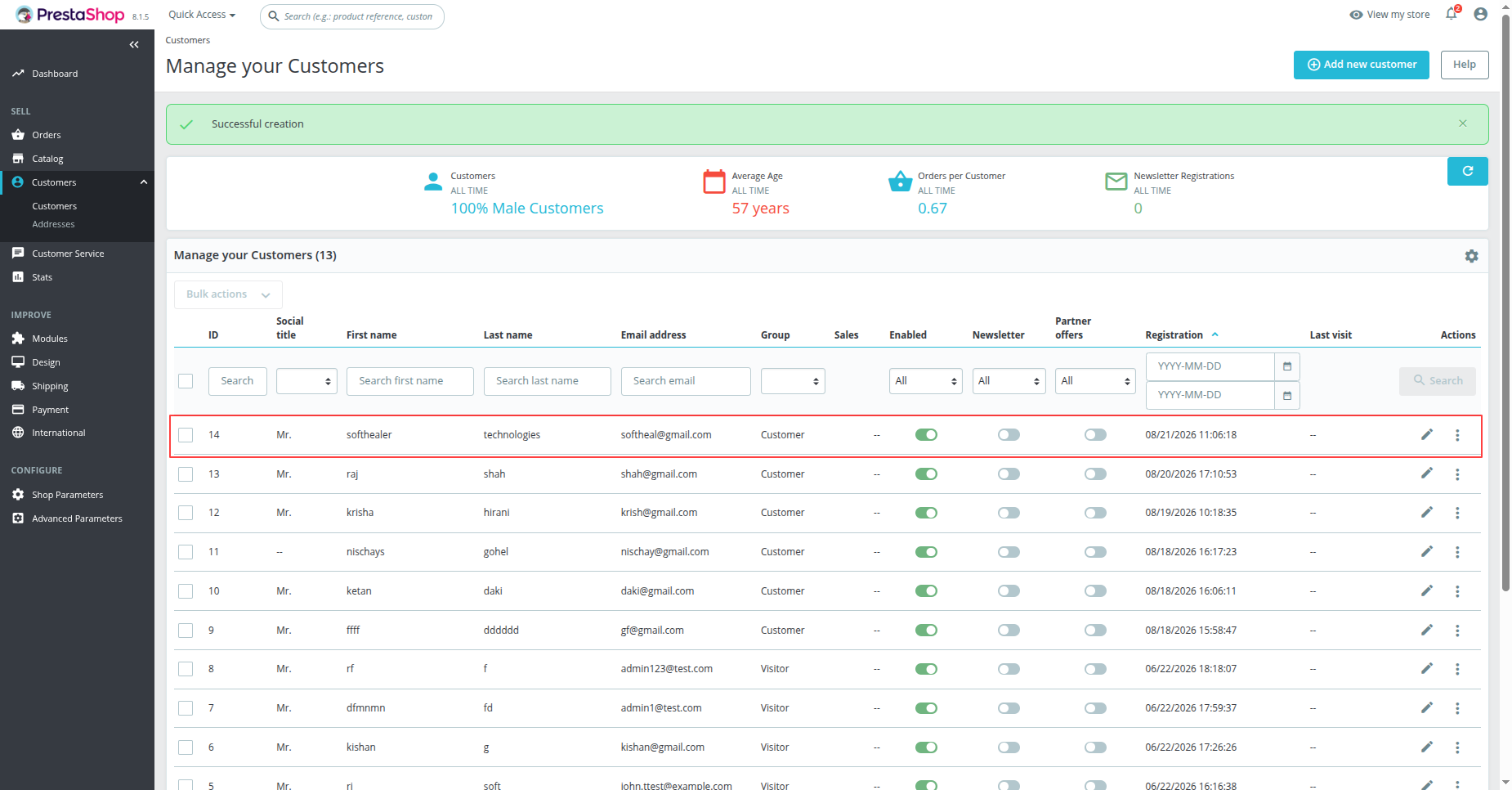
Create or update a customer profile in PrestaShop to trigger real-time customer webhook events.
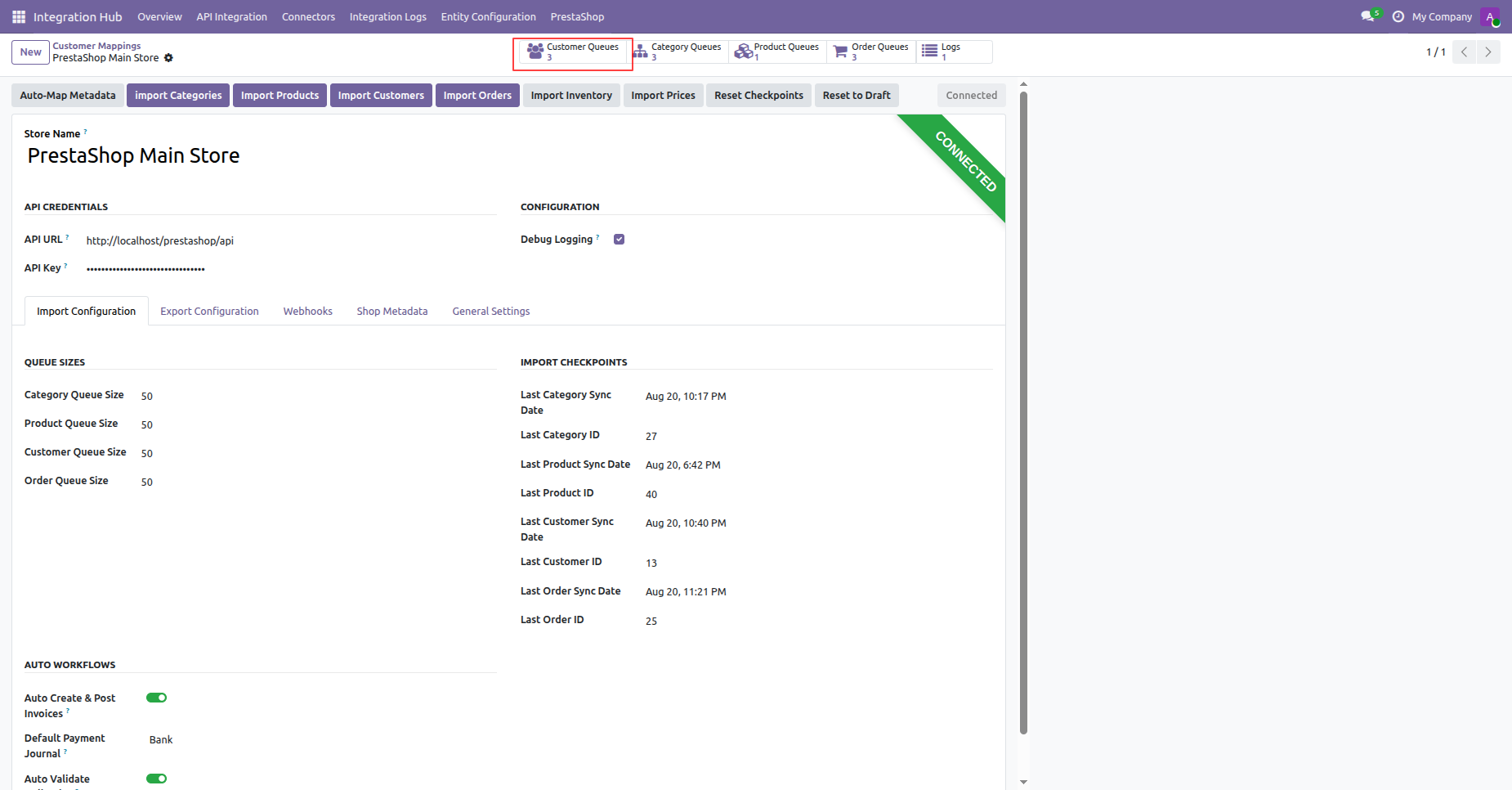
Click the Customer Queues smart button on the instance header to access customer queue entries.
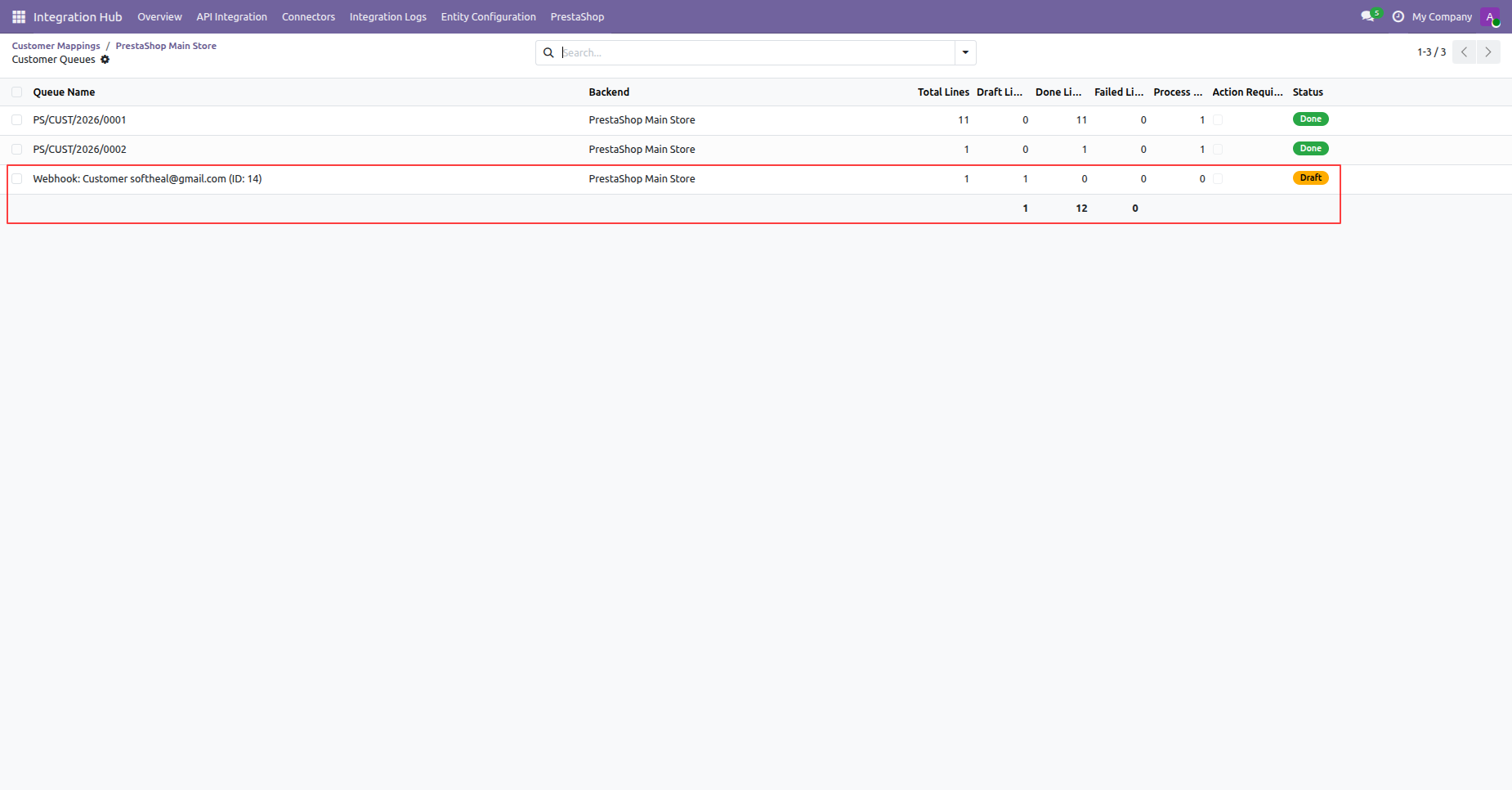
Select the customer queue record received via webhook from the customer queues list view.
Click the Process Queue button to execute processing for the customer webhook queue item.
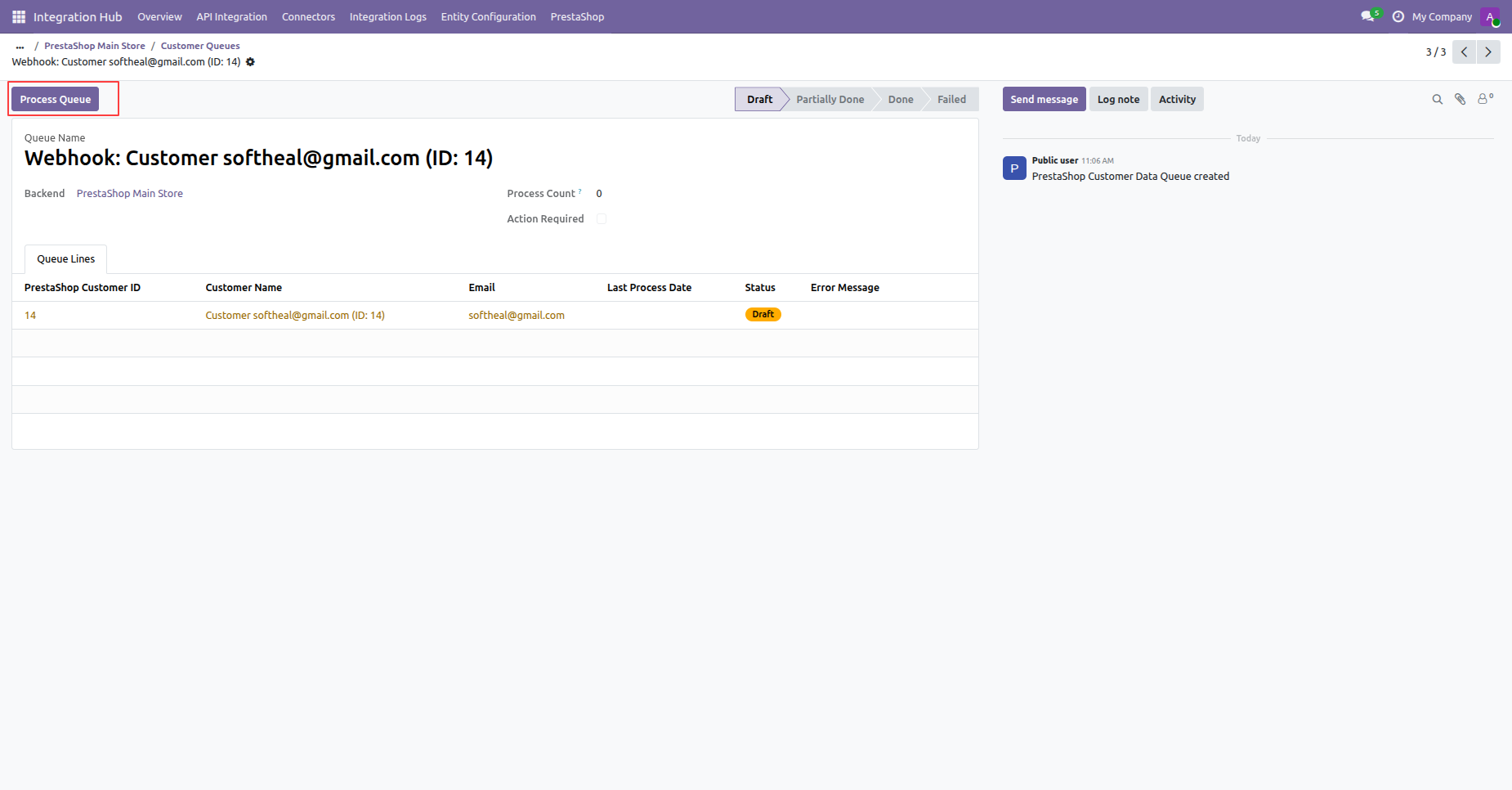
Review the completion notification confirming that the customer webhook queue processed without errors.
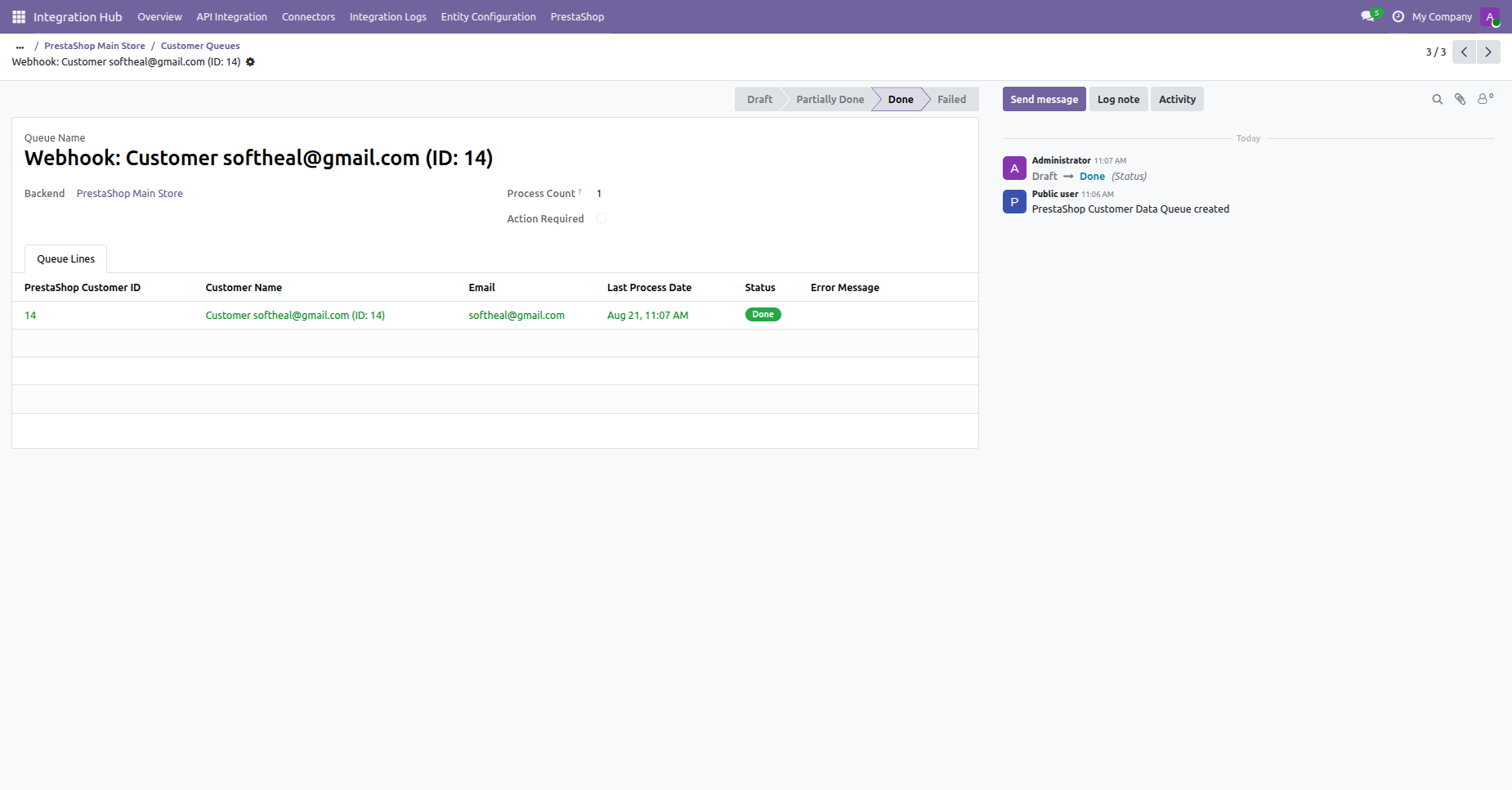 How it works?
Watch Video
How it works?
Watch Video
Copy the Order Webhook URL endpoint from the Webhooks configuration tab in Odoo.
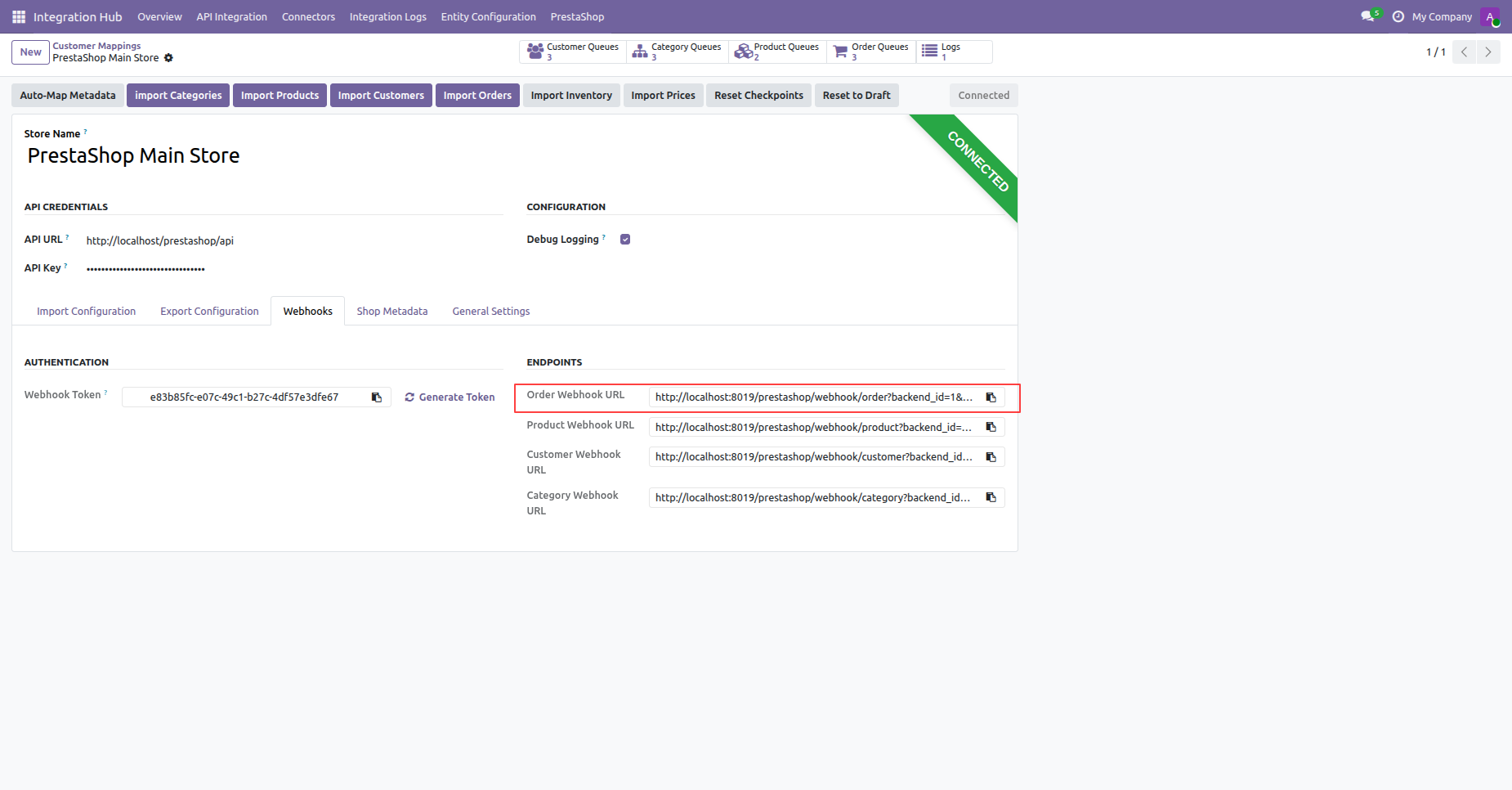
Select the order creation webhook row under PrestaShop Advanced Parameters Webhooks menu.
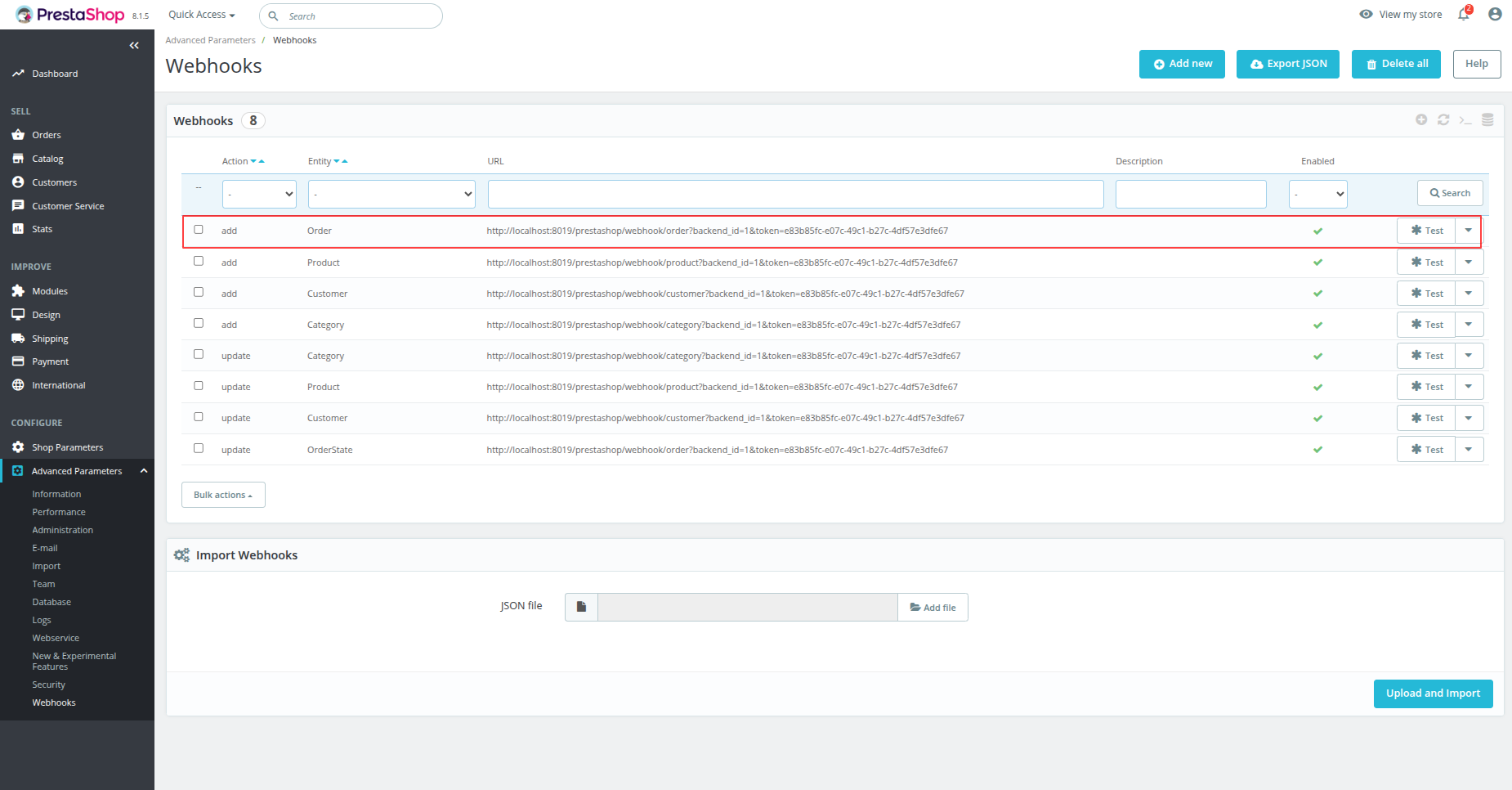
Configure a PrestaShop webhook for order creation with action, entity, endpoint URL, and enabled status.
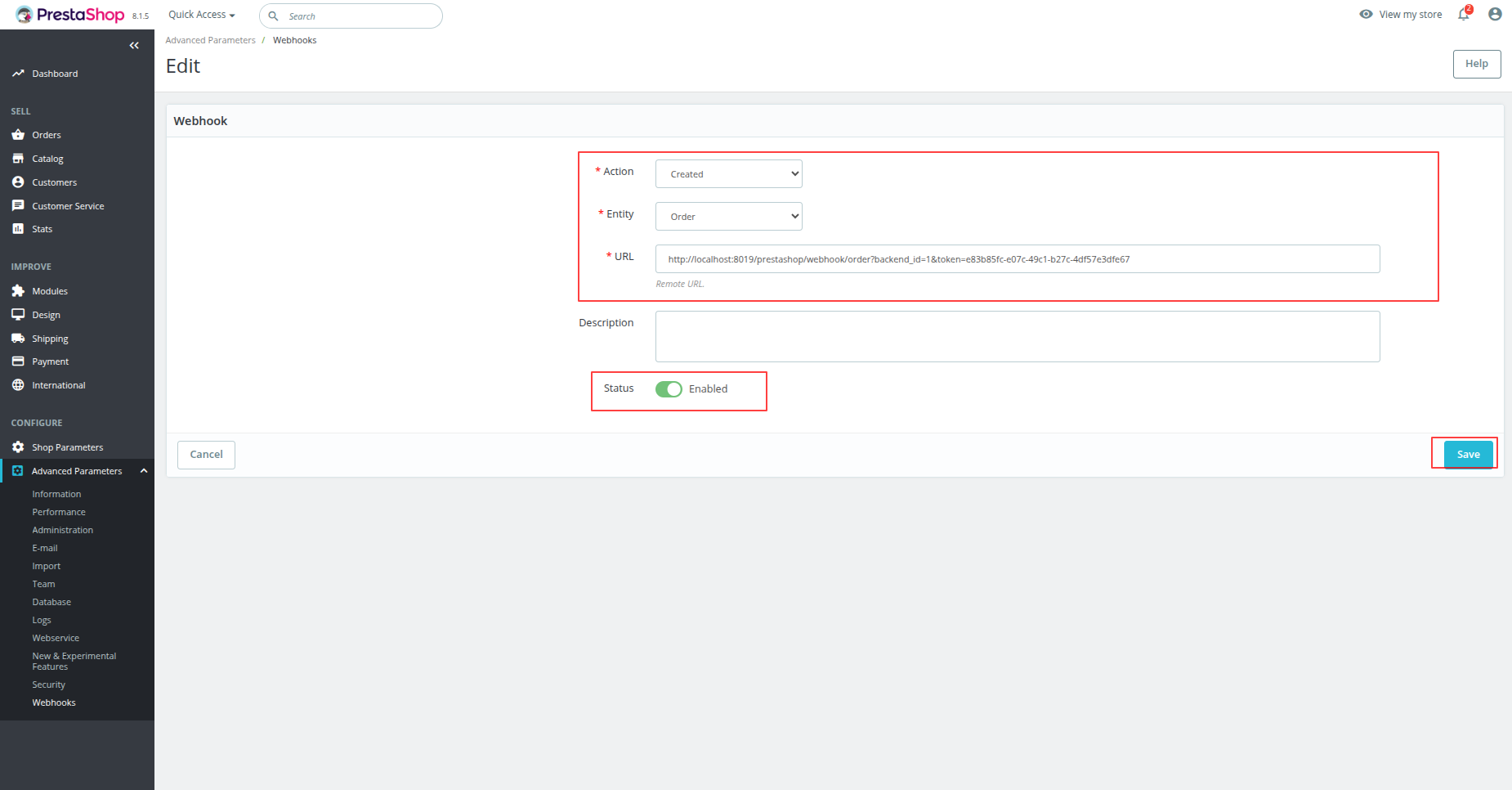
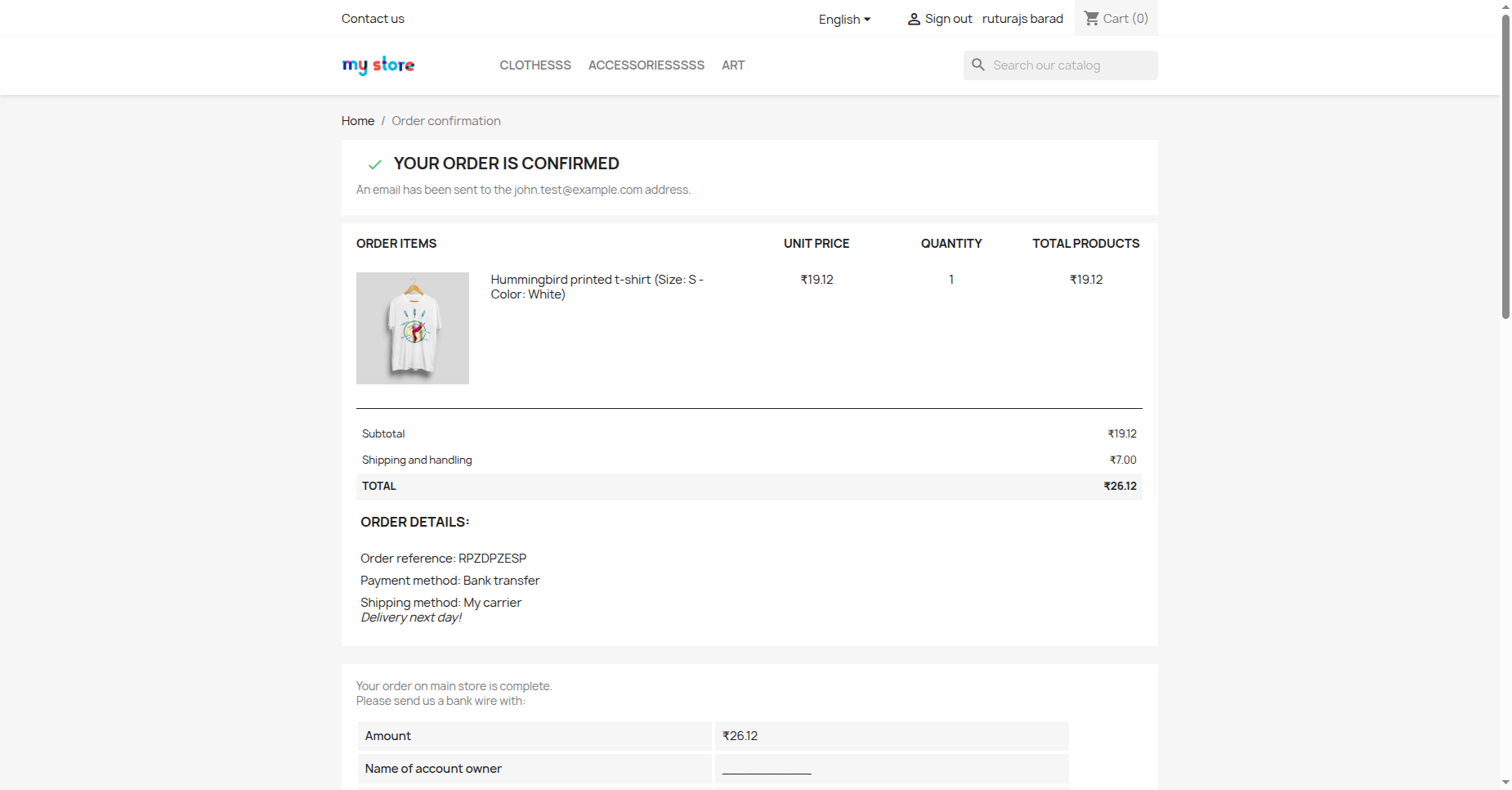
Place a new order on the PrestaShop store to automatically trigger order webhook notifications.
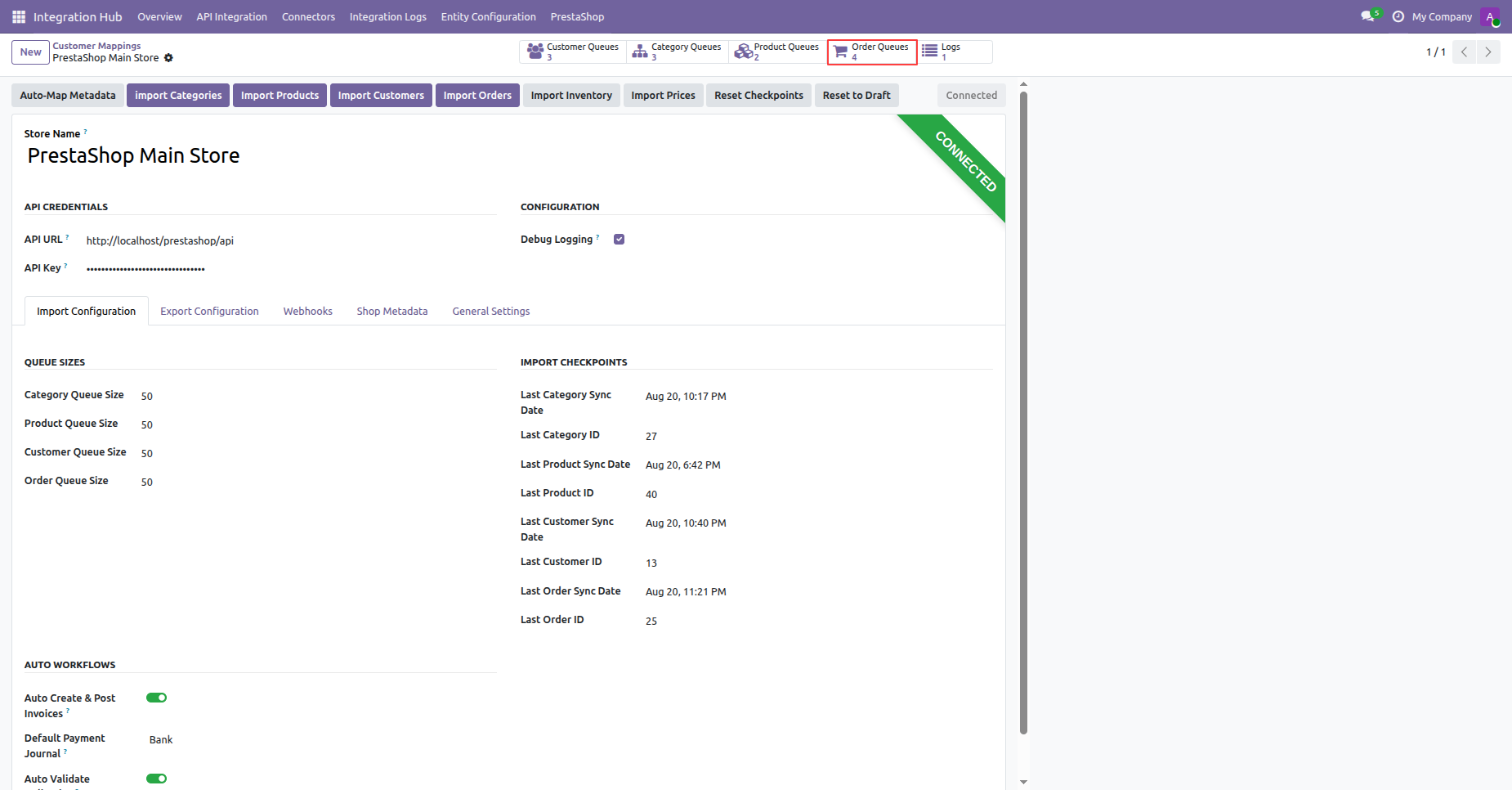
Click the Order Queues smart button on the instance header to inspect created order queue records.
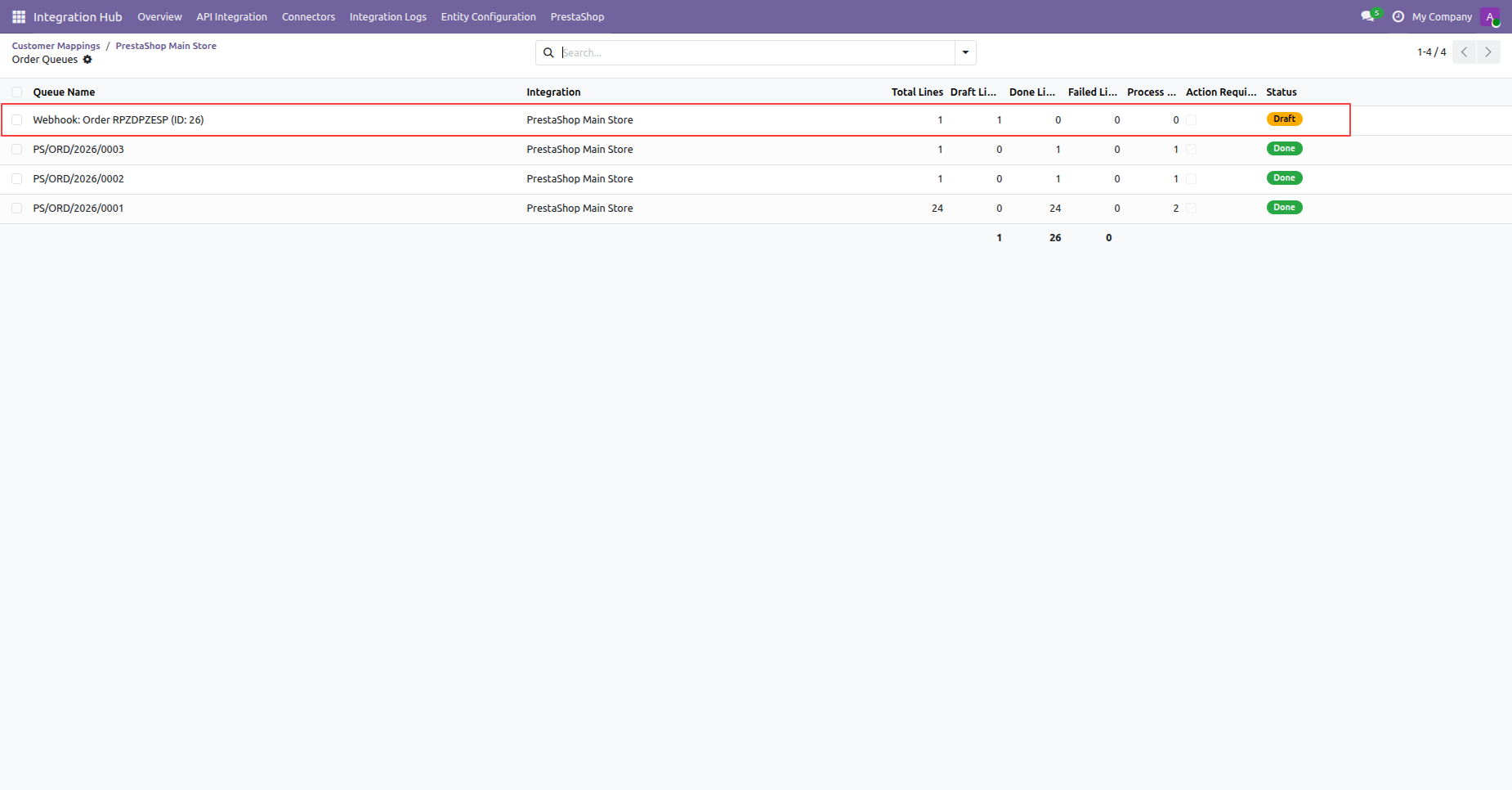
Select the order queue item received via webhook from the order queue management list.
Click the Process Queue button to execute processing for the received order webhook queue record.
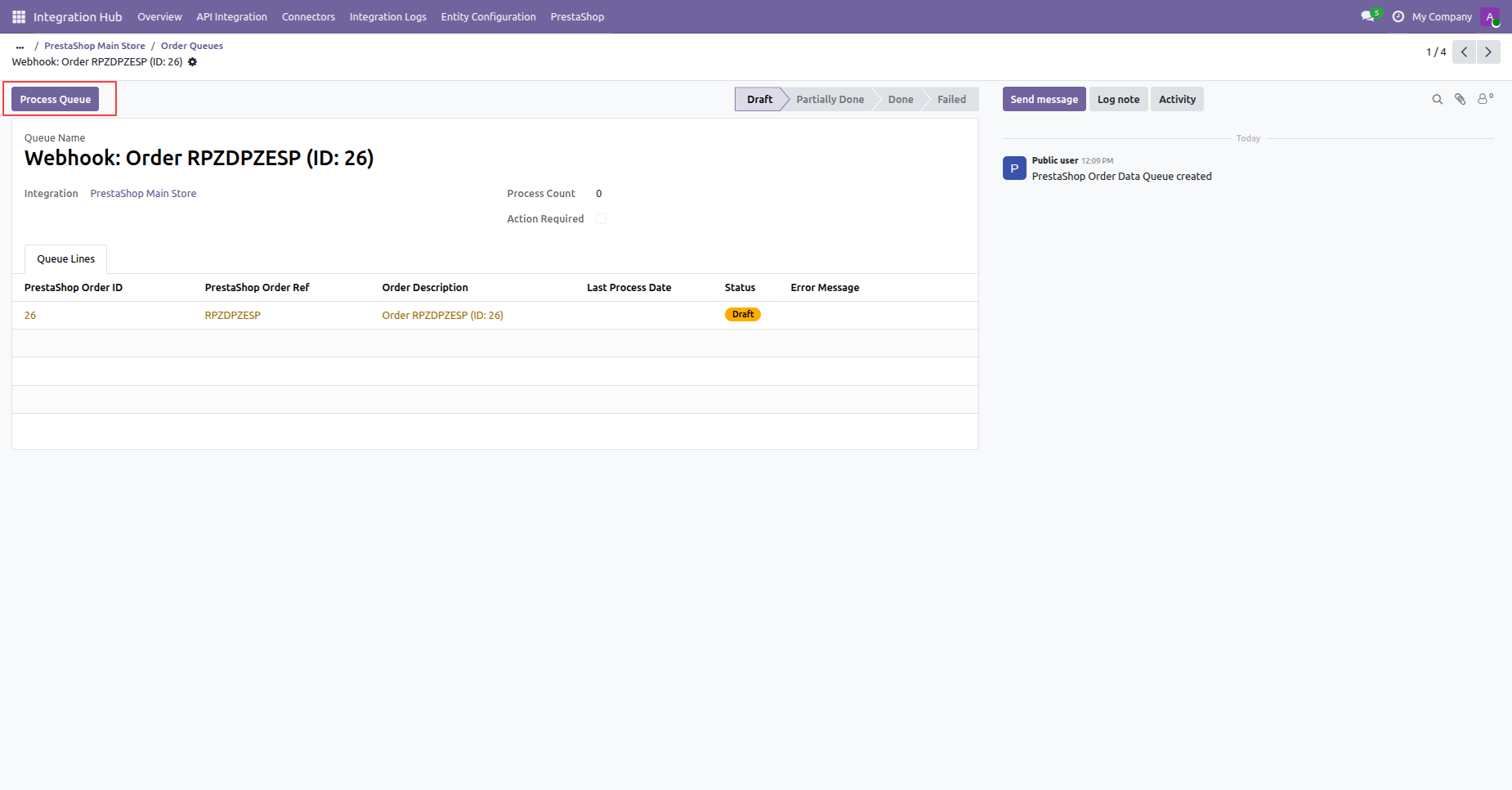
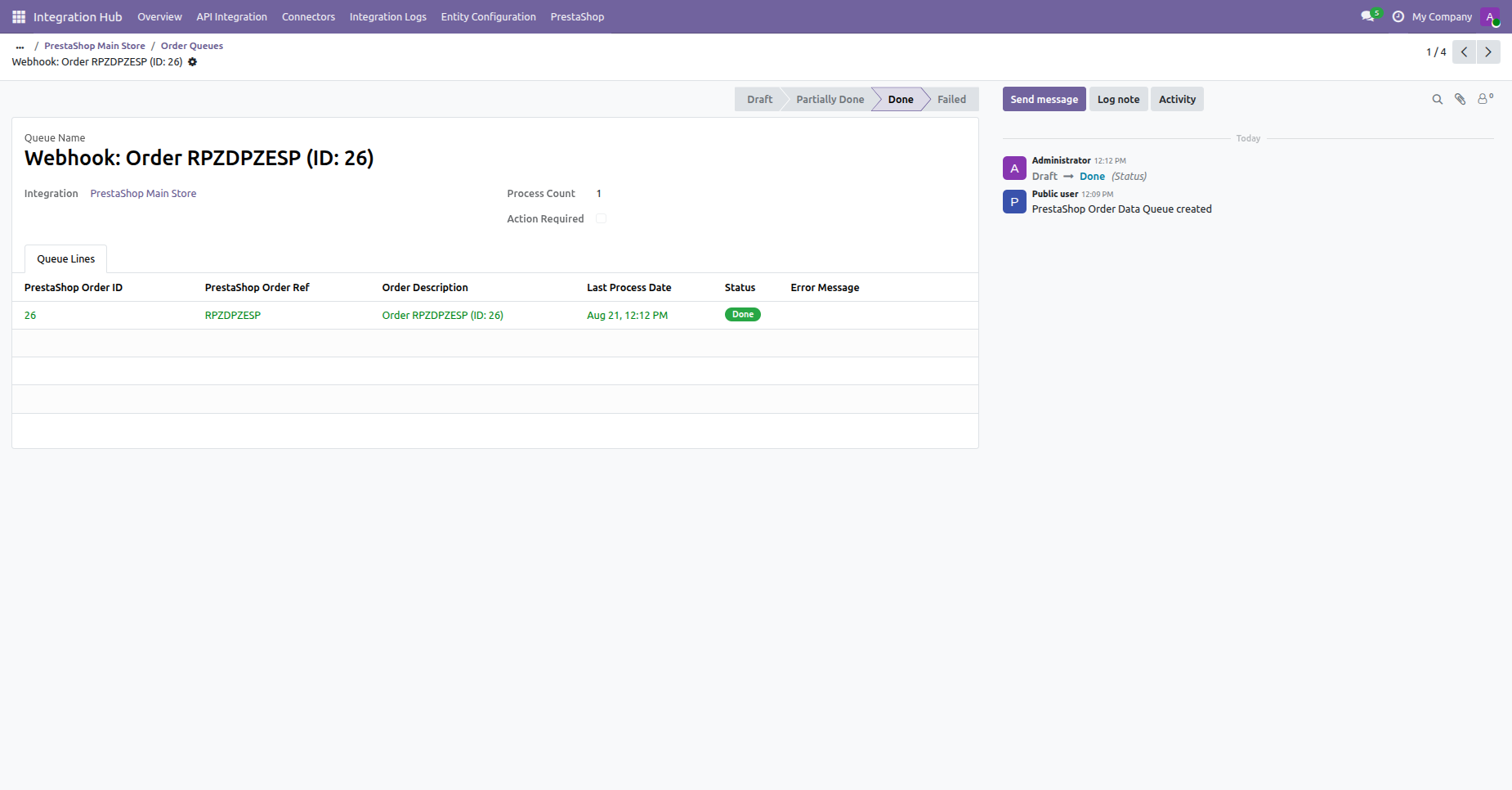
Verify that the order webhook queue record status changes to Done after successful processing.
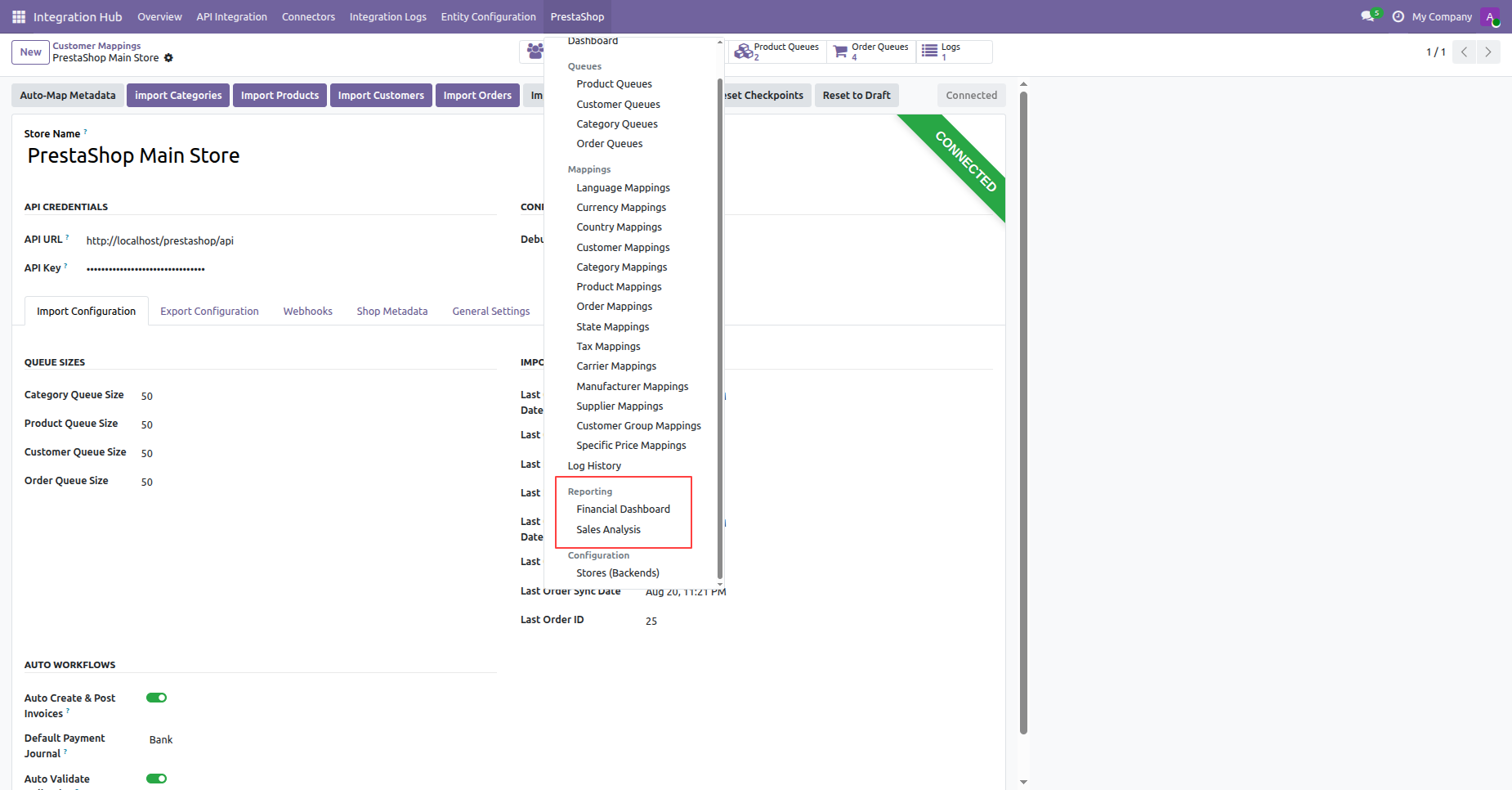
Access PrestaShop reporting menu to open financial dashboards and detailed sales analysis reports.
Changelog
Track every update and new feature released for this module.
Initial Release.

 Buy Once,
Supported Forever
Buy Once,
Supported Forever


 Scan to email sales




 Your Ideas Shape
Our Roadmap
Your Ideas Shape
Our Roadmap

 Got an Idea?
We'll Build It
Got an Idea?
We'll Build It
Trusted by Businesses Worldwide


Abdulhamid Abdulwaheed
Best module for our online store. Highly adaptable, exceptional customer service, and very advanced modules.
Factura Venta POS
They have everything you need. Technical support is excellent, responds quickly, and keeps the module updated. 100% recommended!
Mehmet Muhanna
Great company and support team. Had a problem in my local Odoo server - they solved it in 5 minutes. Highly recommend.
Billy Jeffs
Customised an Odoo app for me which works perfectly. Many requirements, got it right every time. Very confident in their ability.
HP
Consistently excellent service over years of working together. Knowledge and commitment to keeping clients informed truly sets them apart.
Michal Kolasinski
Multiple addons + two custom modules. Communication always friendly and precise. Delivered on time, worked out of the box. Highly recommended!

Multi-Language
8 built-in translations







You May Also Like
Discover more Softhealer modules that integrate seamlessly with your Odoo environment.

Shopify-Odoo Connector
Connect Shopify with Odoo to synchronize products, orders, customers, inventory, and more.
View Module

Xero Connector with OAuth2.0 for Odoo
Securely synchronize contacts, products, orders, invoices, payments, and accounting data between Odoo and Xero.
View Module

Odoo QuickBooks Connector
Connect Odoo with QuickBooks to synchronize essential business and accounting data.
View Module

Hubspot Odoo Connector
Synchronize contacts, companies, leads, opportunities, tasks, emails, and meetings between Odoo and HubSpot.
View Module


Most Demanded Apps
The Softhealer modules our customers reach for most - trusted across 100+ countries.

Activities Management
Manage, schedule, and automate Odoo activities across all departments from one view.
View Module

Access Management
Granular access control over menus, fields, buttons, and records for every user role.
View Module

Backdate Advanced
Backdate any transaction across invoices, journals, pickings, and more with full audit.
View Module

All-in-One Helpdesk
Full-featured customer support with tickets, SLA, and customer portal built for Odoo.
View Module

All-in-One Mobile Backend
Access your full Odoo backend from any mobile device with an optimised interface.
View Module

All-in-One Import
Import data from Excel or CSV files into any Odoo model with smart field mapping.
View Module
Our Services
End-to-end Odoo expertise - from setup to scale.

AI & Business Integration
Odoo Implementation
Odoo Customization

Support & Maintenance
Mobile Apps
Migration Service
Third-Party Integration

Odoo Training
Ready to connect your AI to Odoo?
Join 10,000+ businesses - Softhealer, 11+ years of Odoo expertise across 100+ countries.

