





















Key
Features

POS Product Modifier
Customize POS products with flexible modifiers, topping options, and quantity controls through a responsive Odoo interface.
Watch VideoResponsive POS Product Modifier
Use product modifiers smoothly across desktop, tablet, and mobile POS screens with a responsive interface.
Watch VideoTopping Quantity Limits
 LATEST
Set minimum and maximum quantities for each product topping.
Product-Specific Toppings
Manage different toppings for the same product to offer customized product variations.
Topping Groups & Products
Create topping groups and add multiple topping products for easy selection.
Multiple Toppings in Cart
Add multiple toppings to a product directly from the cart.
Global Toppings
Apply global topping options to cart products for quick and flexible customization.
Mass Topping Update
Change toppings for multiple cart products at once using mass action.
Mandatory & Optional Toppings
Define toppings as mandatory or optional based on product requirements.
Toppings on Receipt
Print selected toppings and their details directly on the POS receipt.
Top-Used Toppings Report
Generate a report showing the most frequently used toppings.
 Setup & Configuration
 Release Notes
 Support
 FAQ's
FAQ's
 Topping Configurations
 Product Topping
 Enable Topping
 Product-Specific Toppings
 Optional & Mandatory Toppings
 Top Used Topping Report
 Topping Quantity Limits
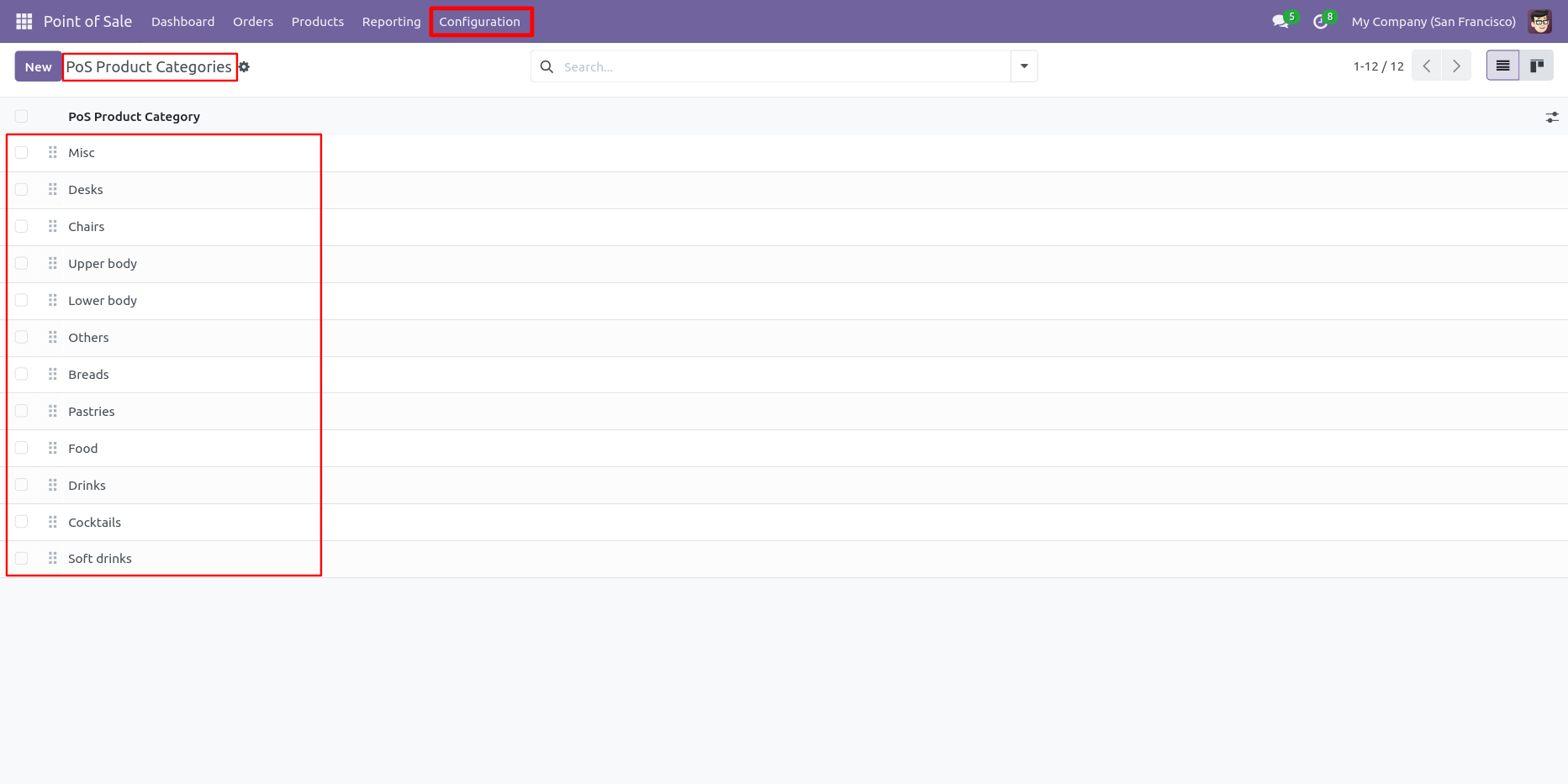
Select "POS Product Category" from the POS configuration.
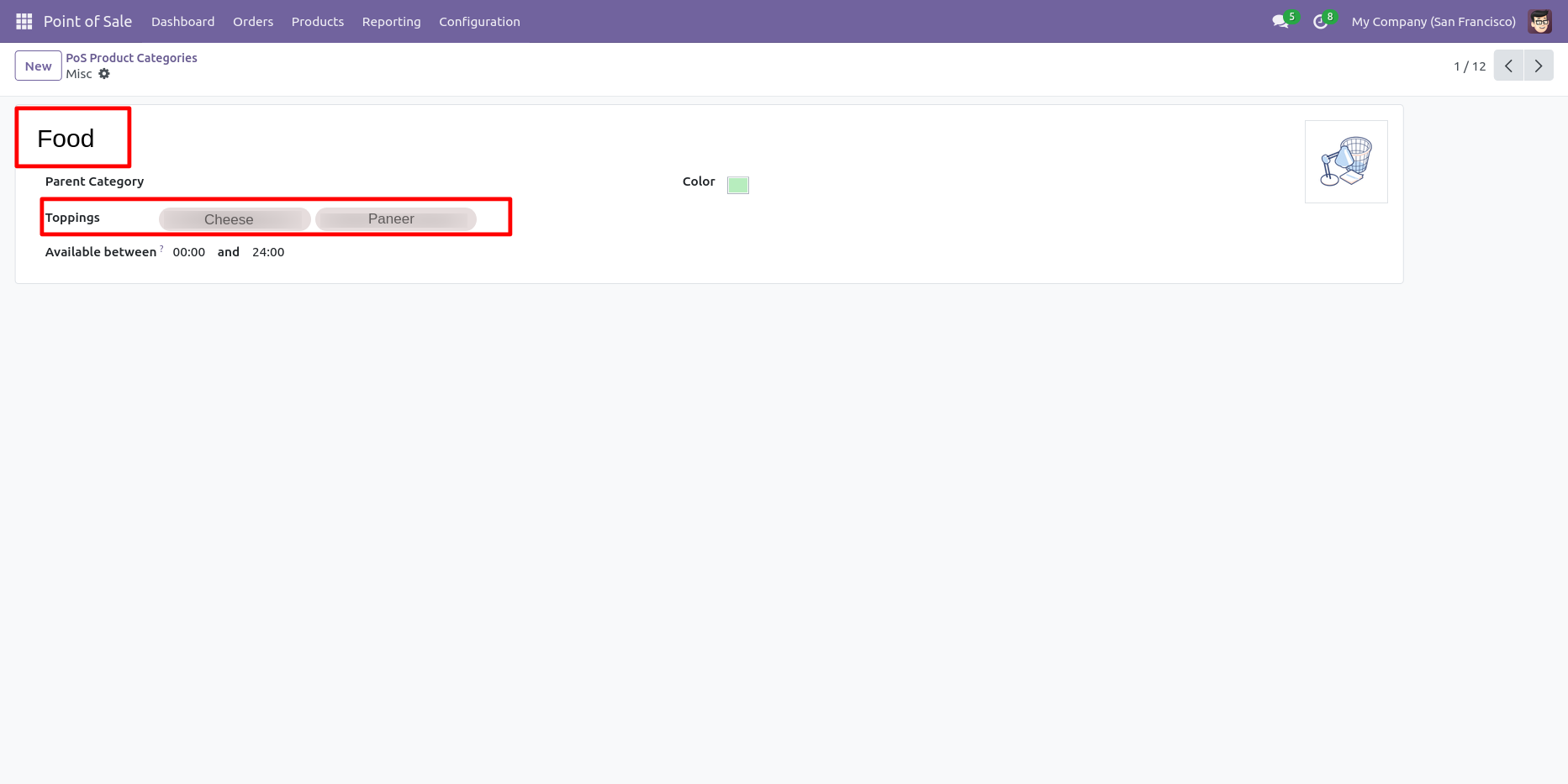
Select toppings for category.
See toppings group inside product menu.
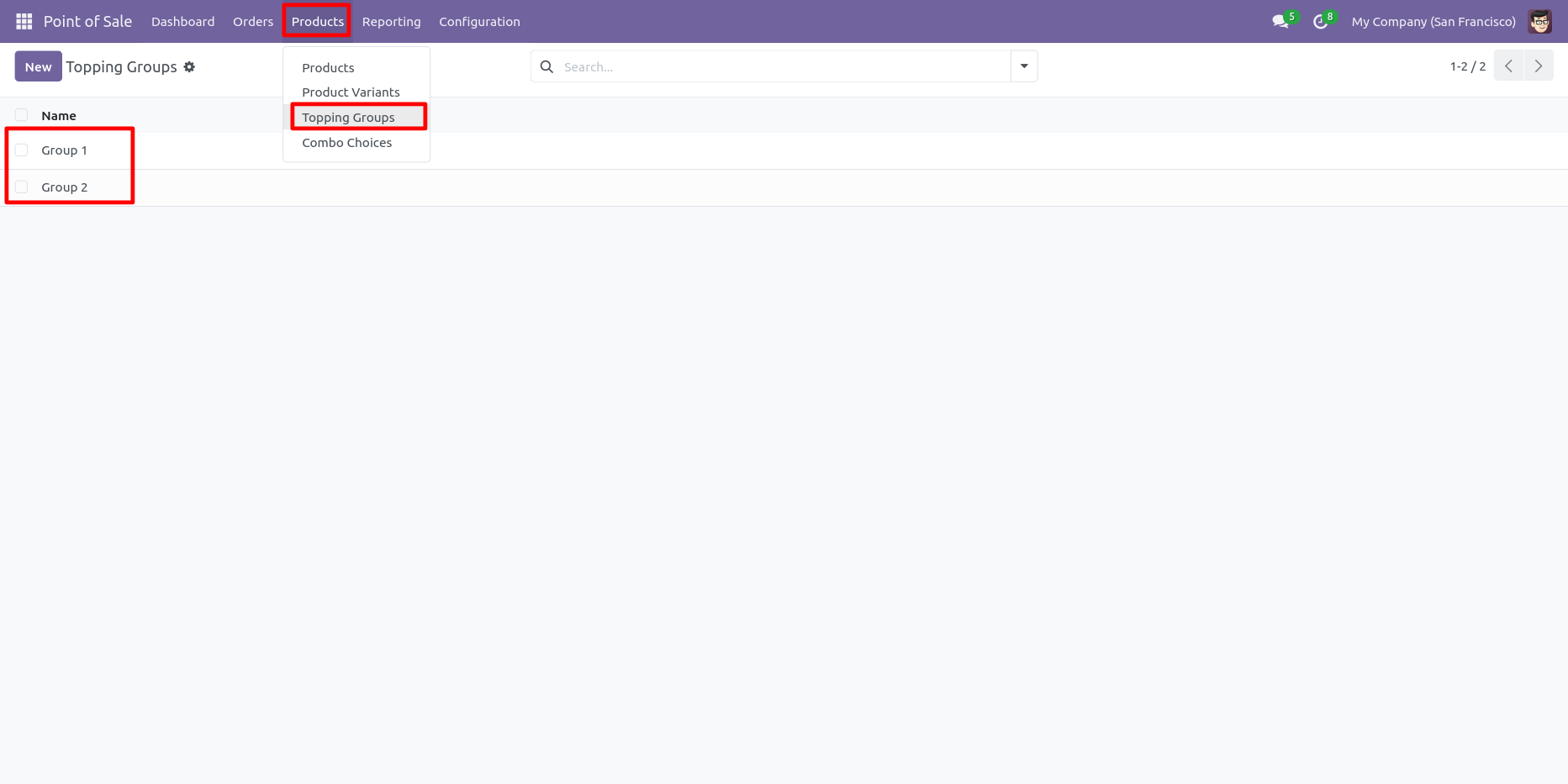
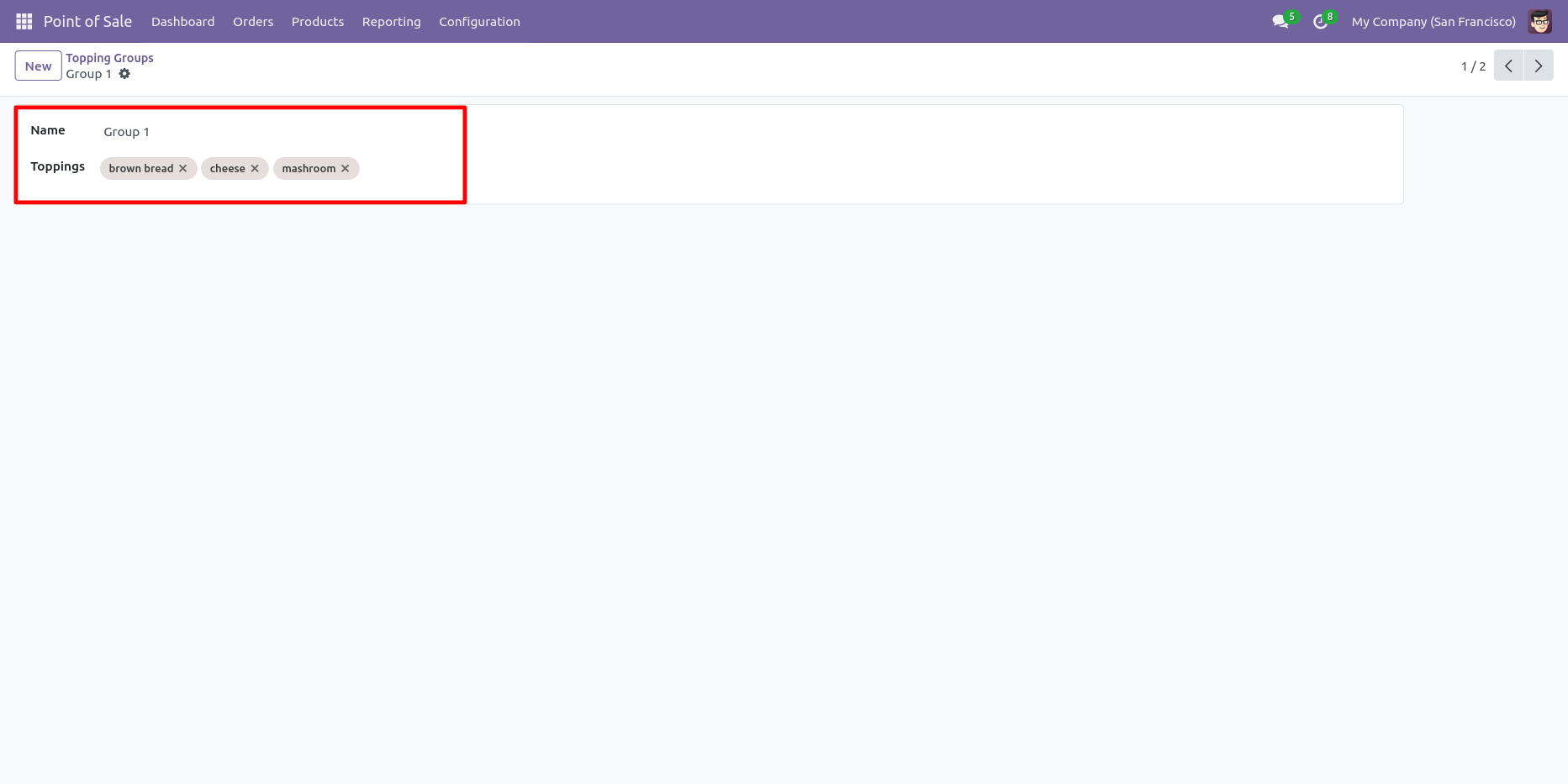
Create a topping group with topping names.
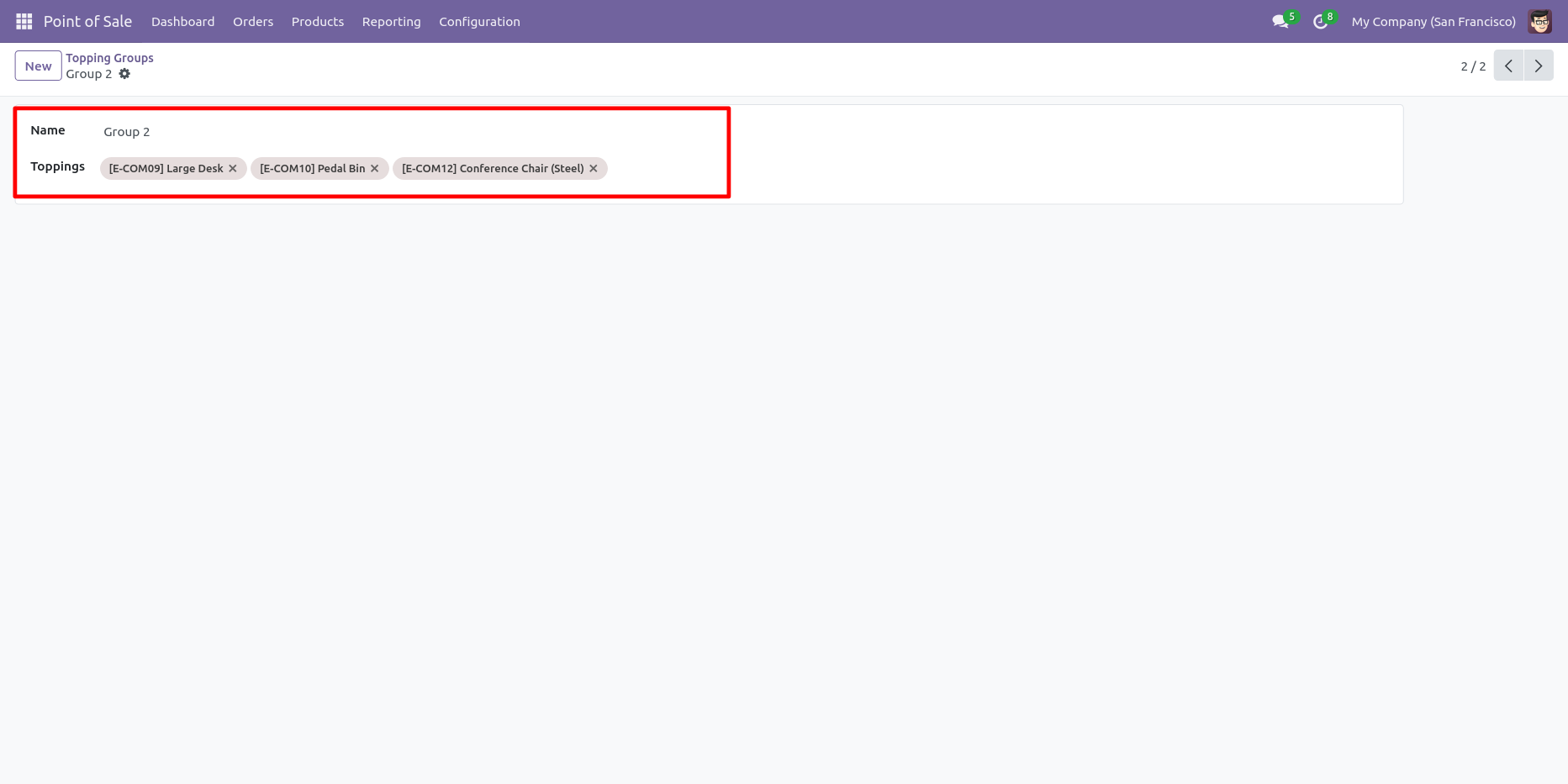
Create group 2 with different types of toppings.
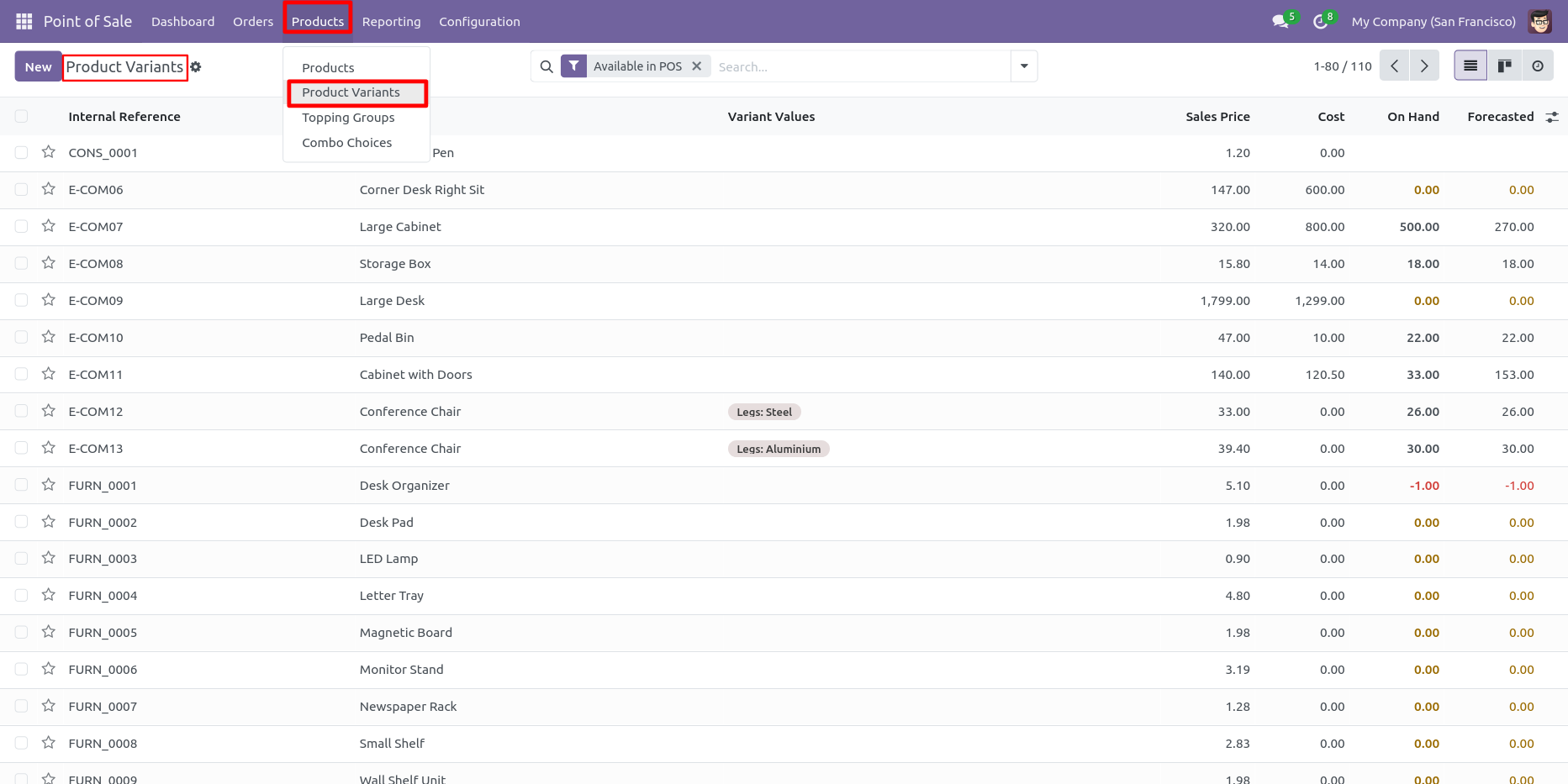
Go to => product variants.
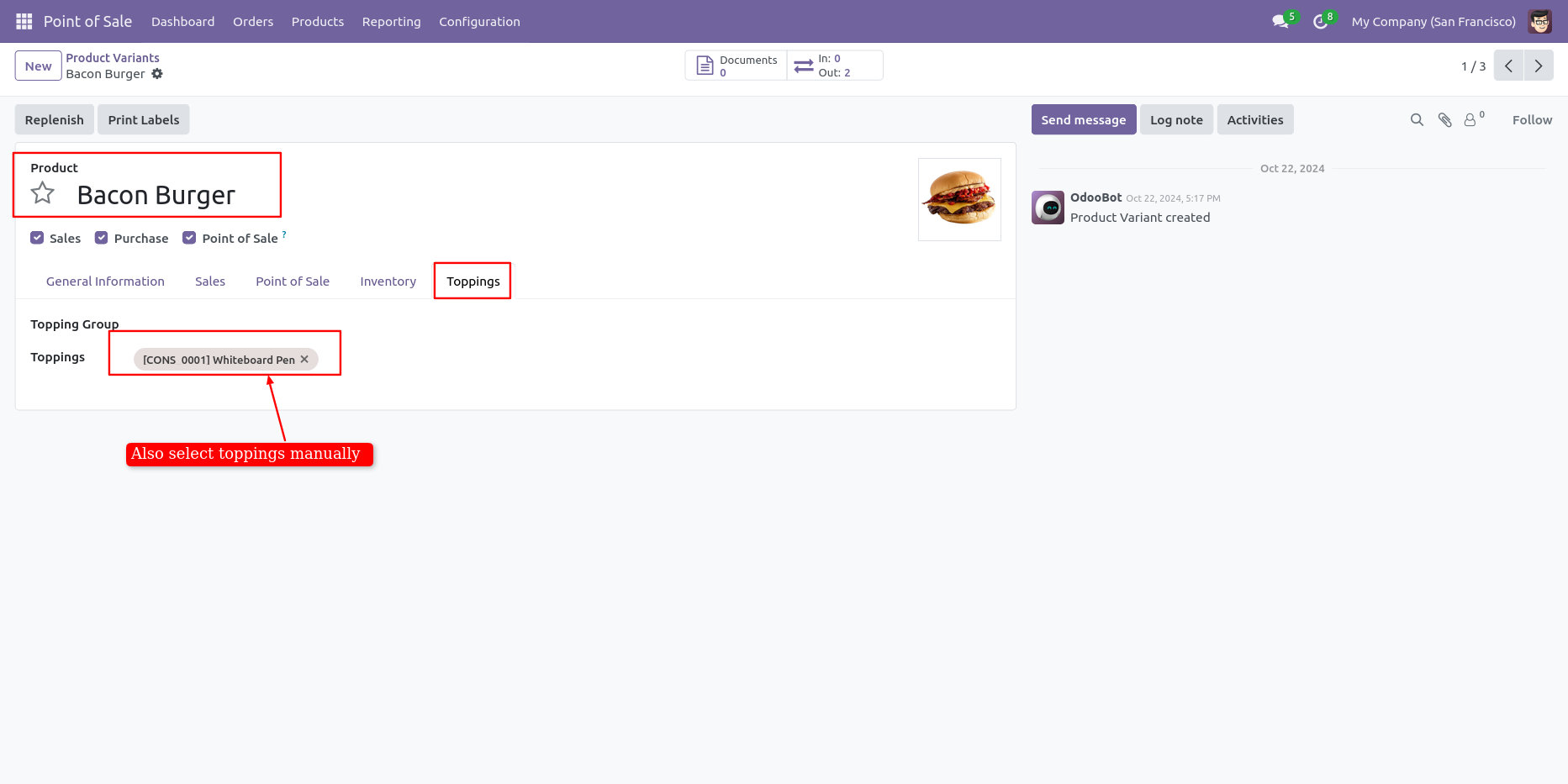
Now go to bacon burger product and see the tab name toppings add topping group and their related toppings automatically added.
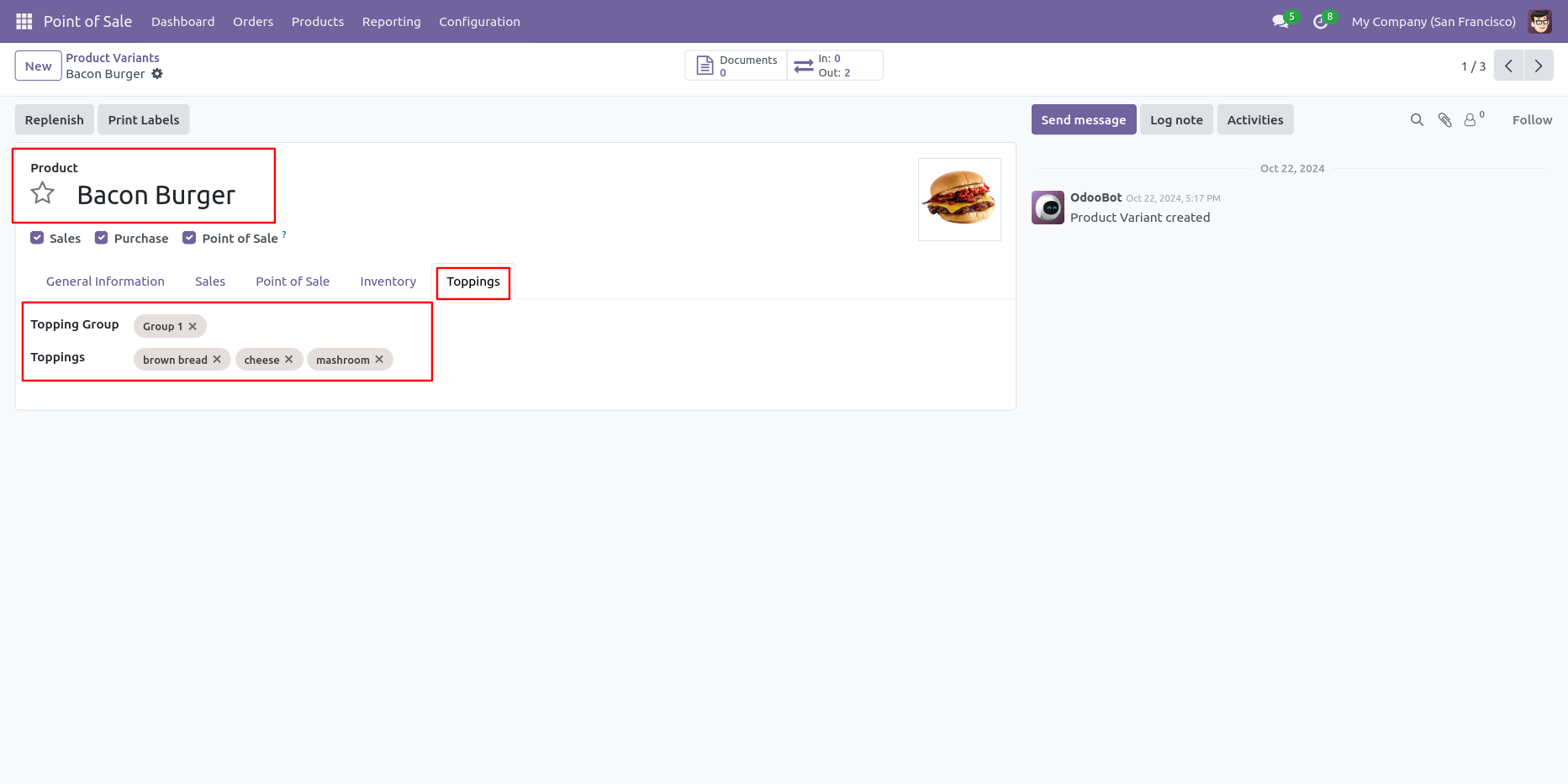
Also able to change or add the topping manually.
You can update topping by mass action, Select record go to => action button select update topping.
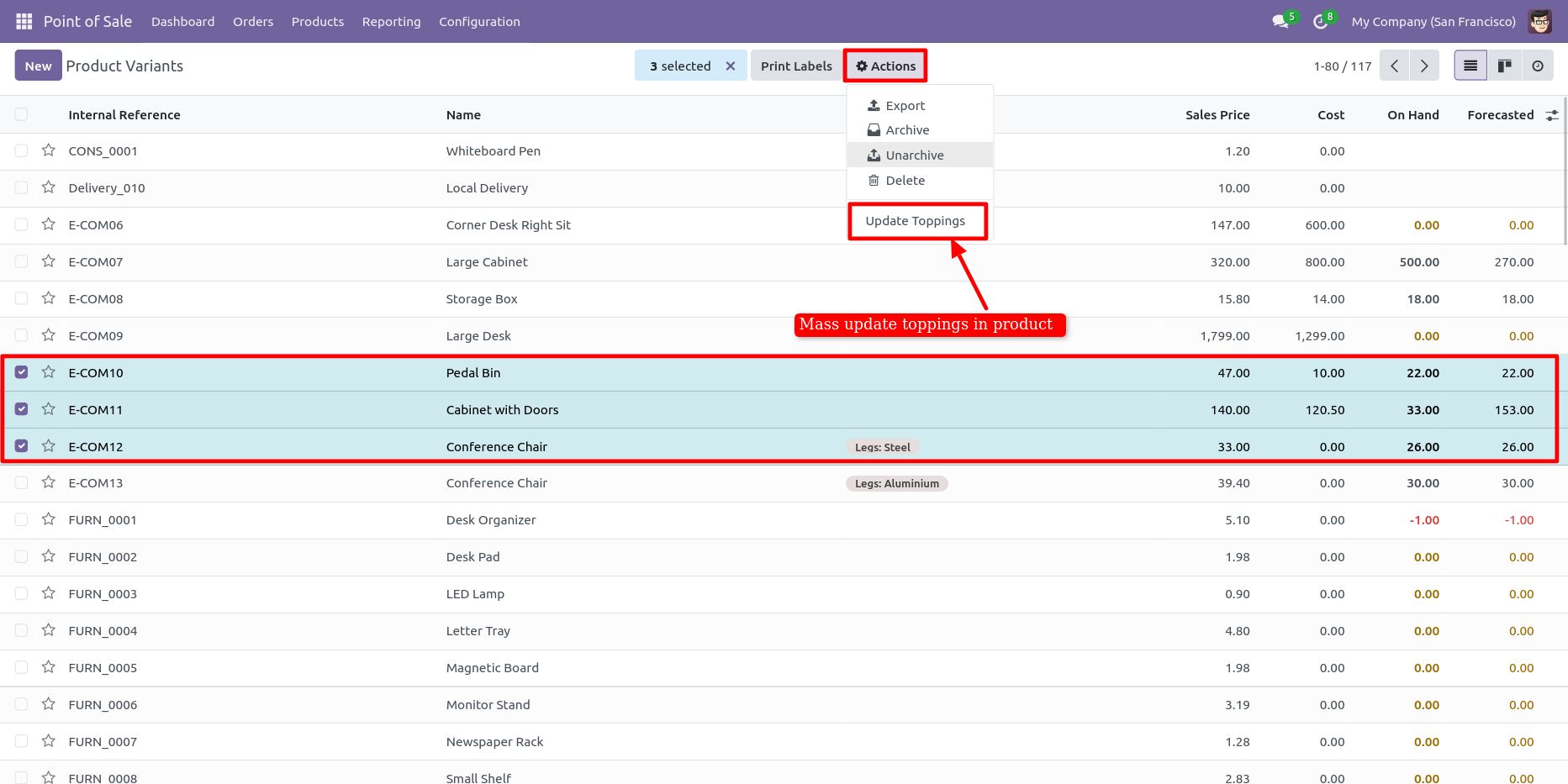
After that one wizard opens add group and toppings and confirm it.
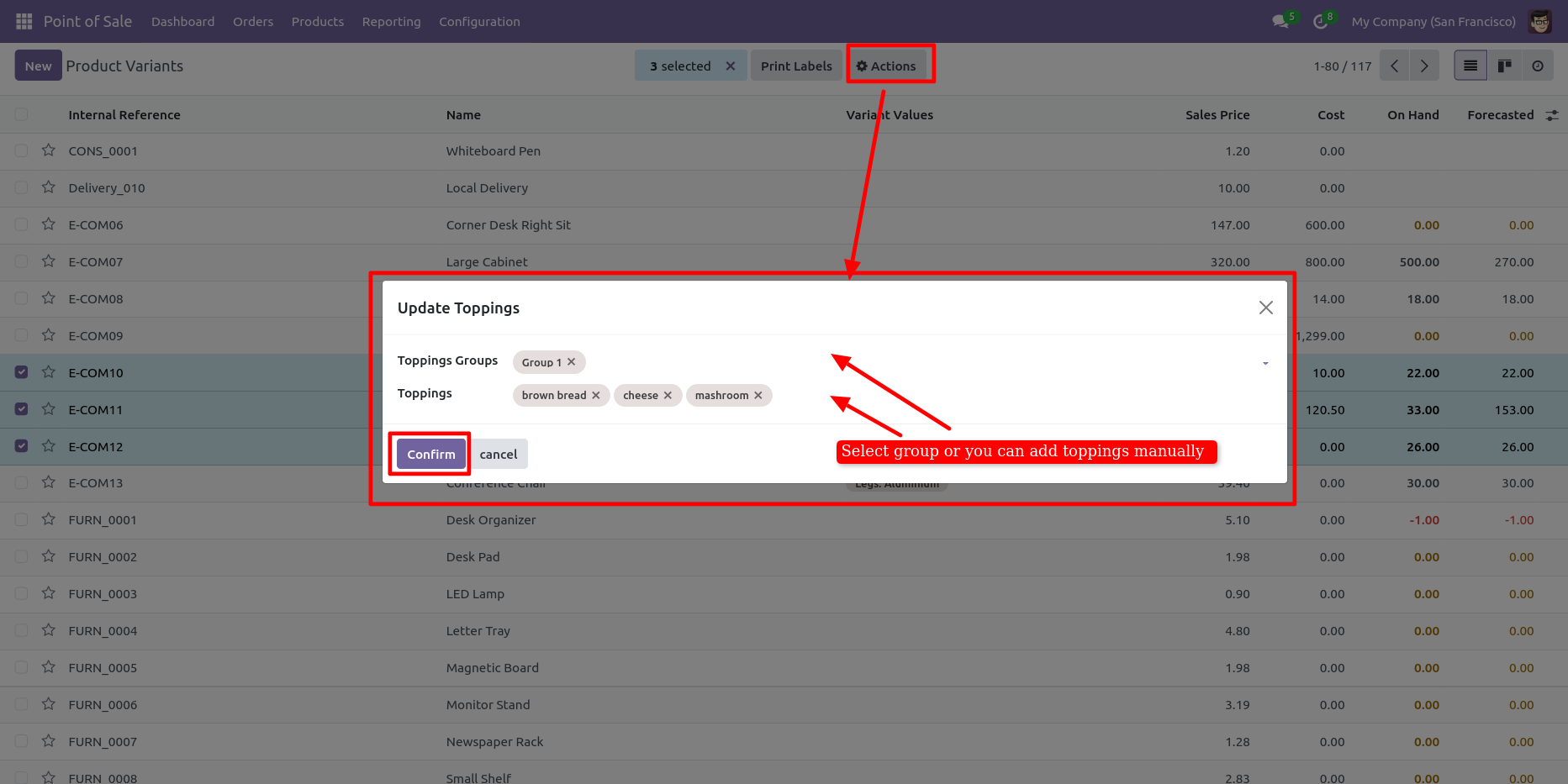
See that updated toppings group and topping in curry sandwich.
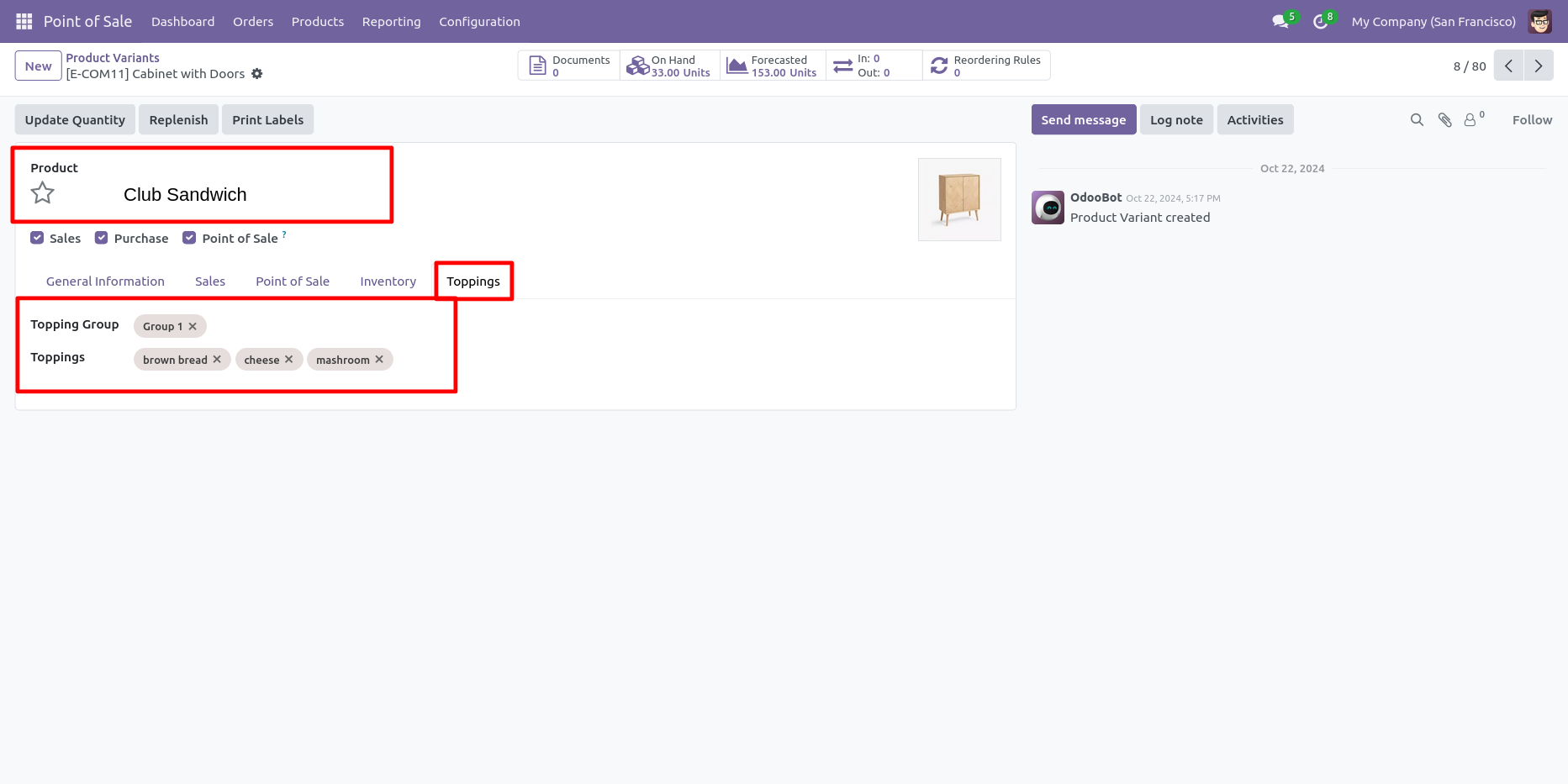
See that updated toppings group and topping in club sandwich.
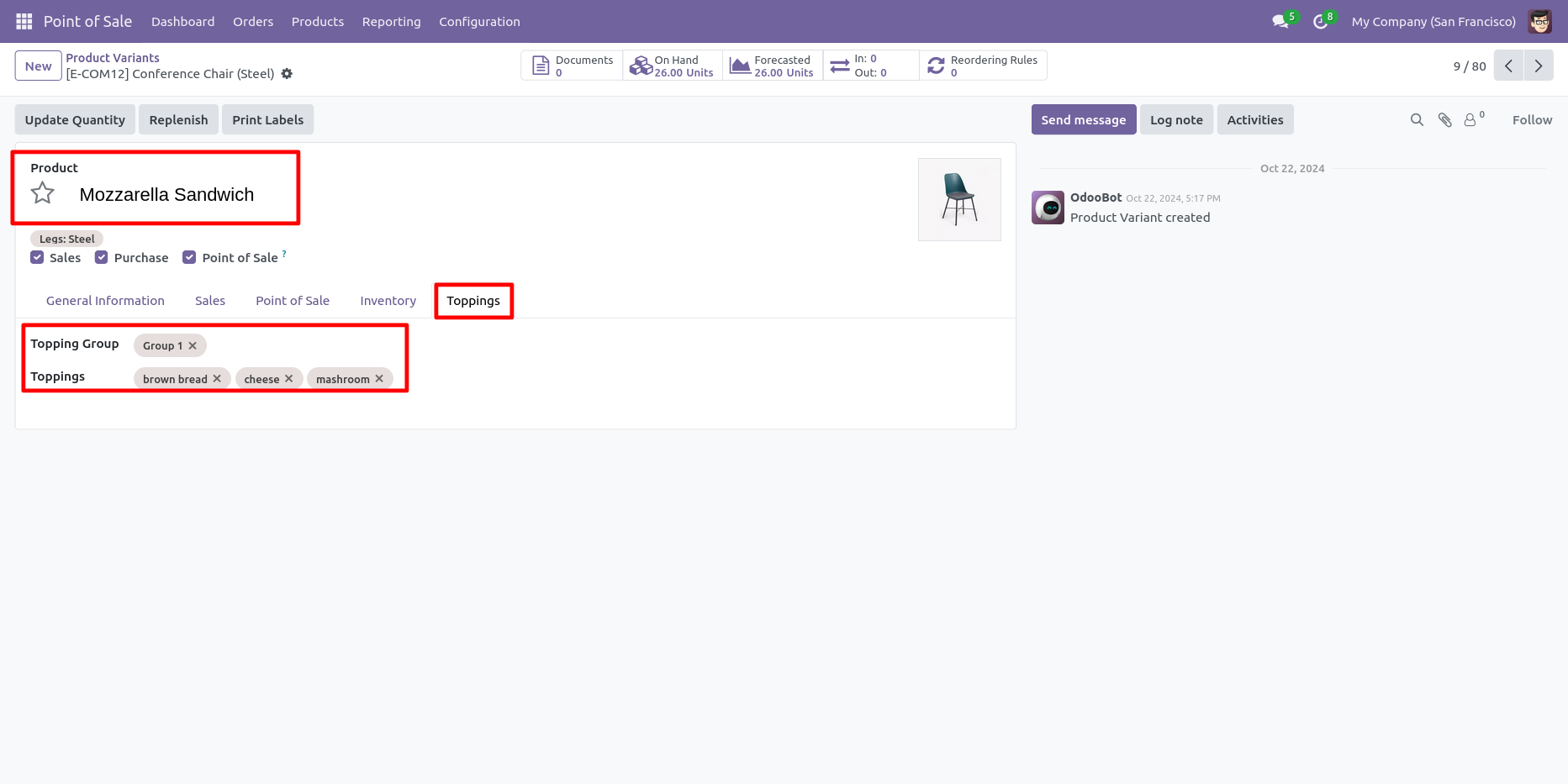
See that updated toppings group and topping in mozzarella sandwich.
Enable global topping in product.
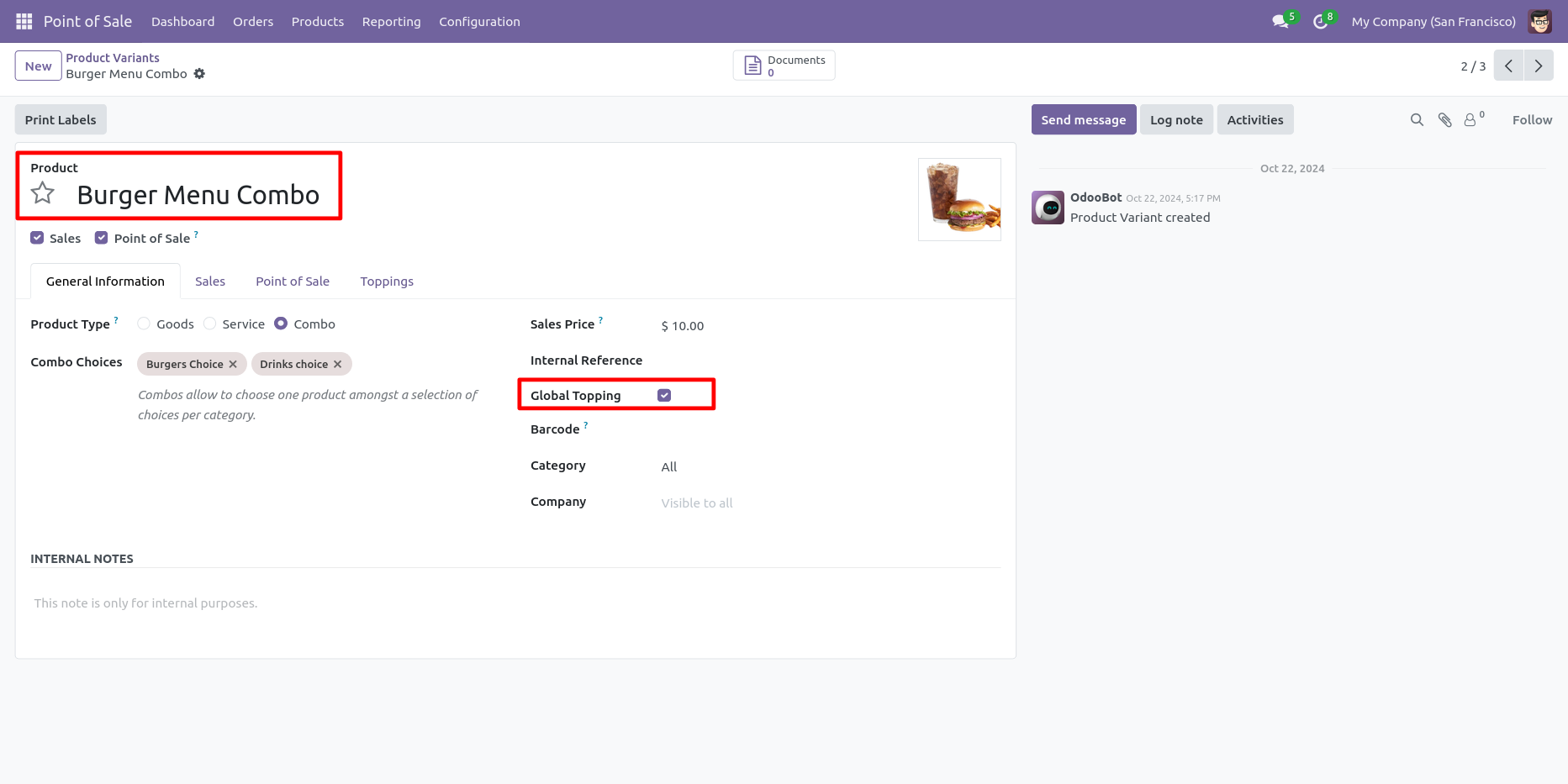
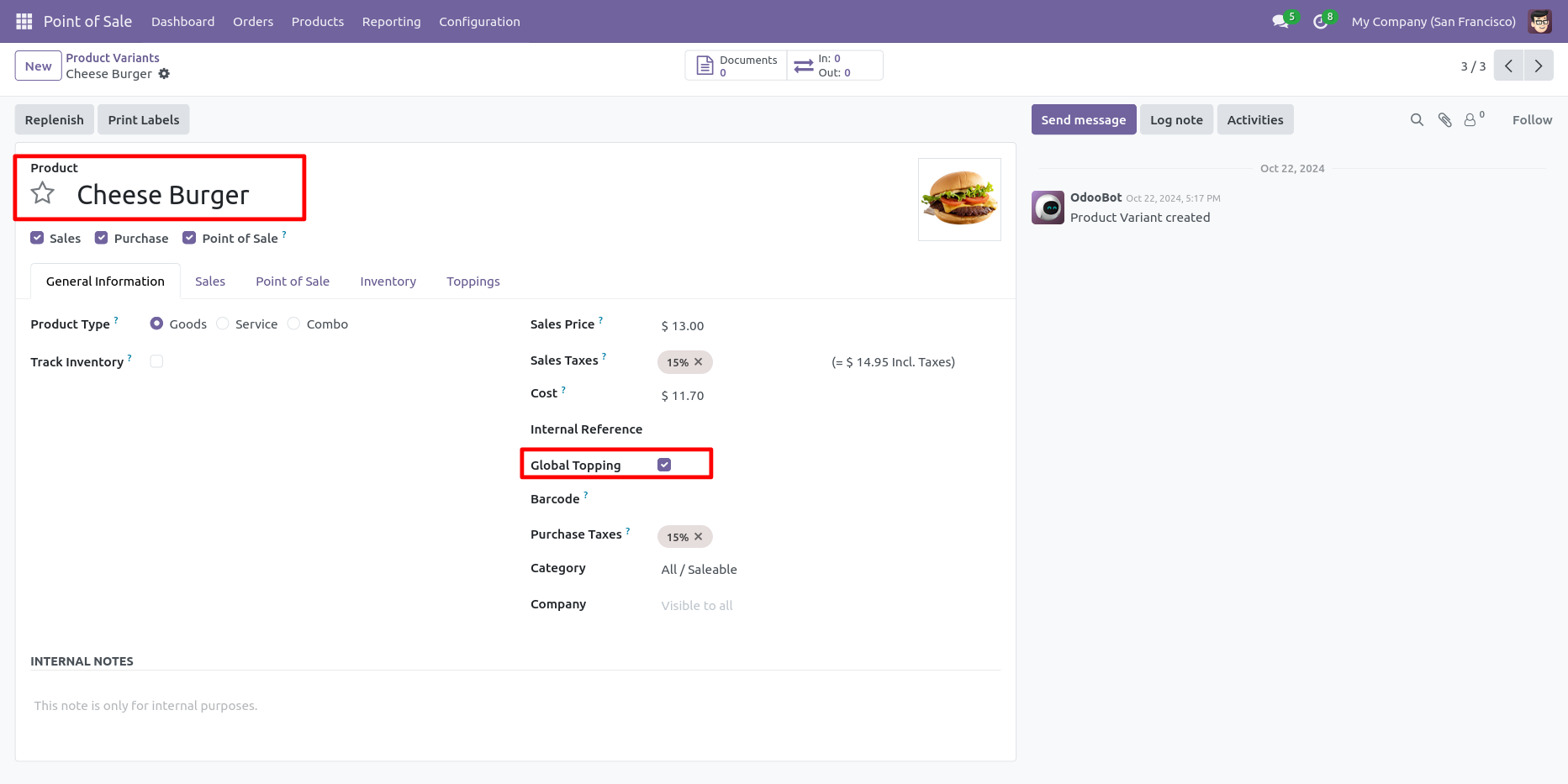
See the "Global Topping" checkbox inside the product variant. Tick the checkbox for add global toppings.
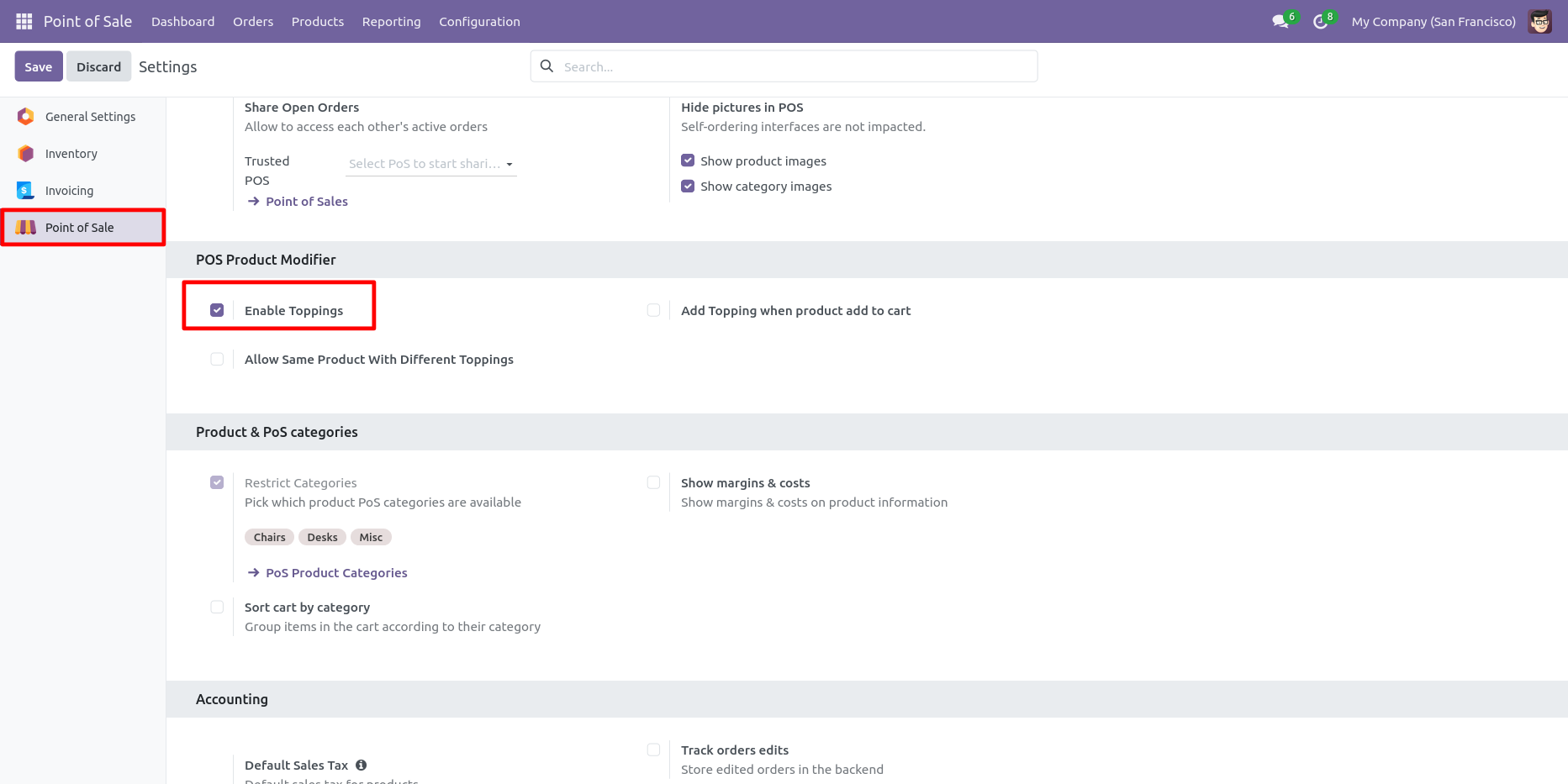
Enable topping checkbox in POS shop setting.
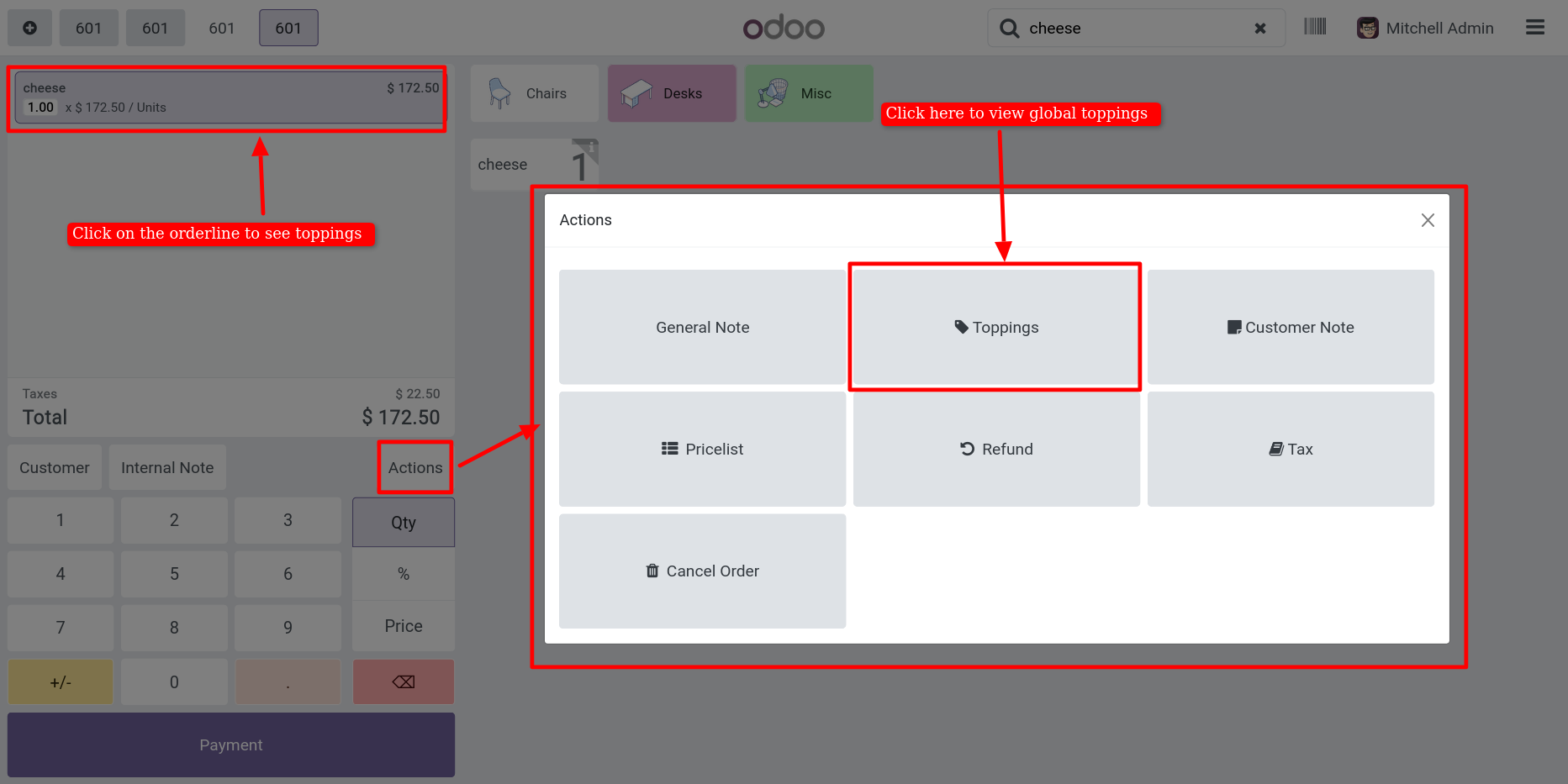
When click on order line then toppings menu will appear in the action menu. Click on topping button.
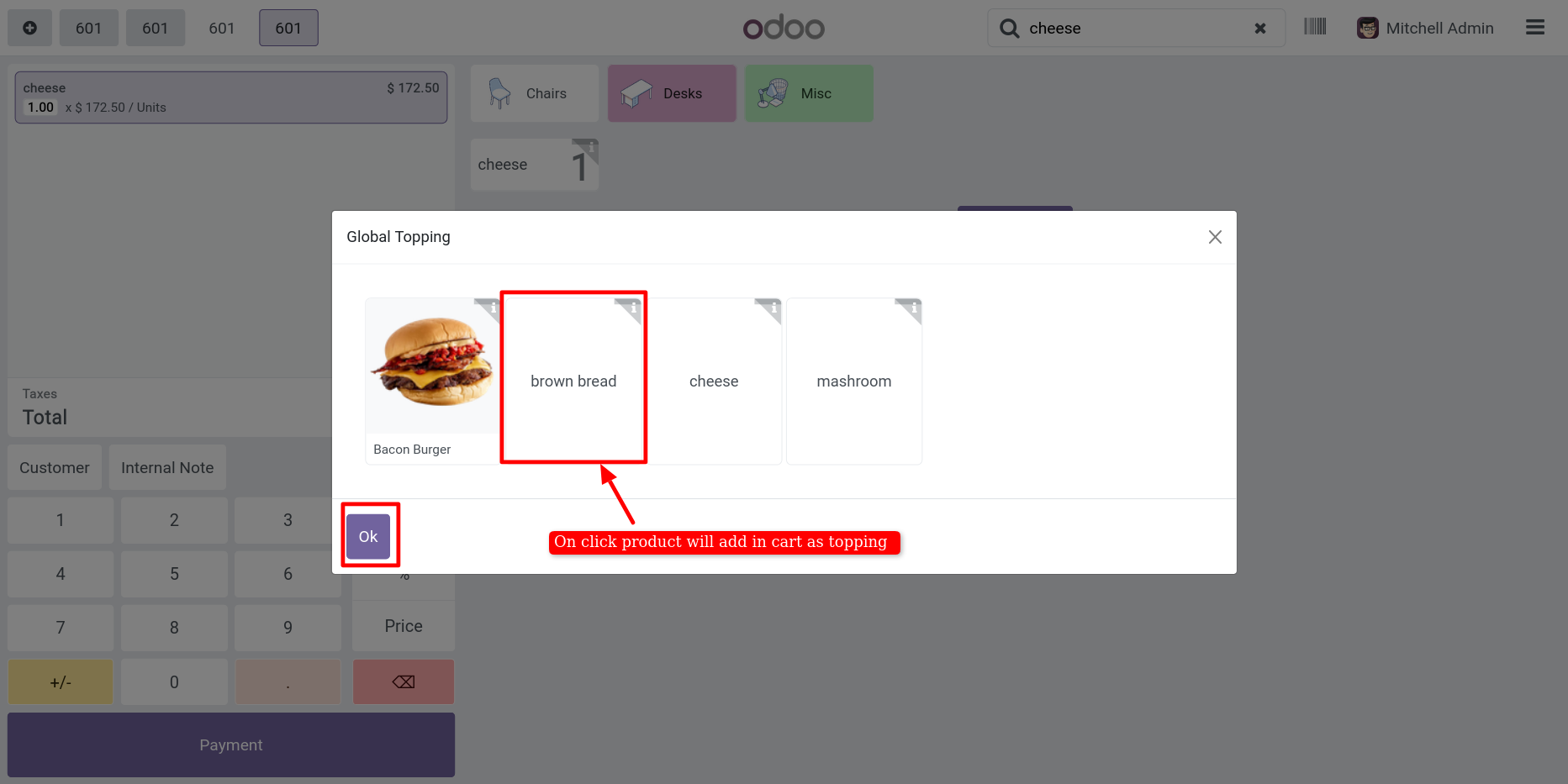
After that one wizard is open select the product it will add as toppings press ok to confirm.
Selected topping add in order line as a topping.
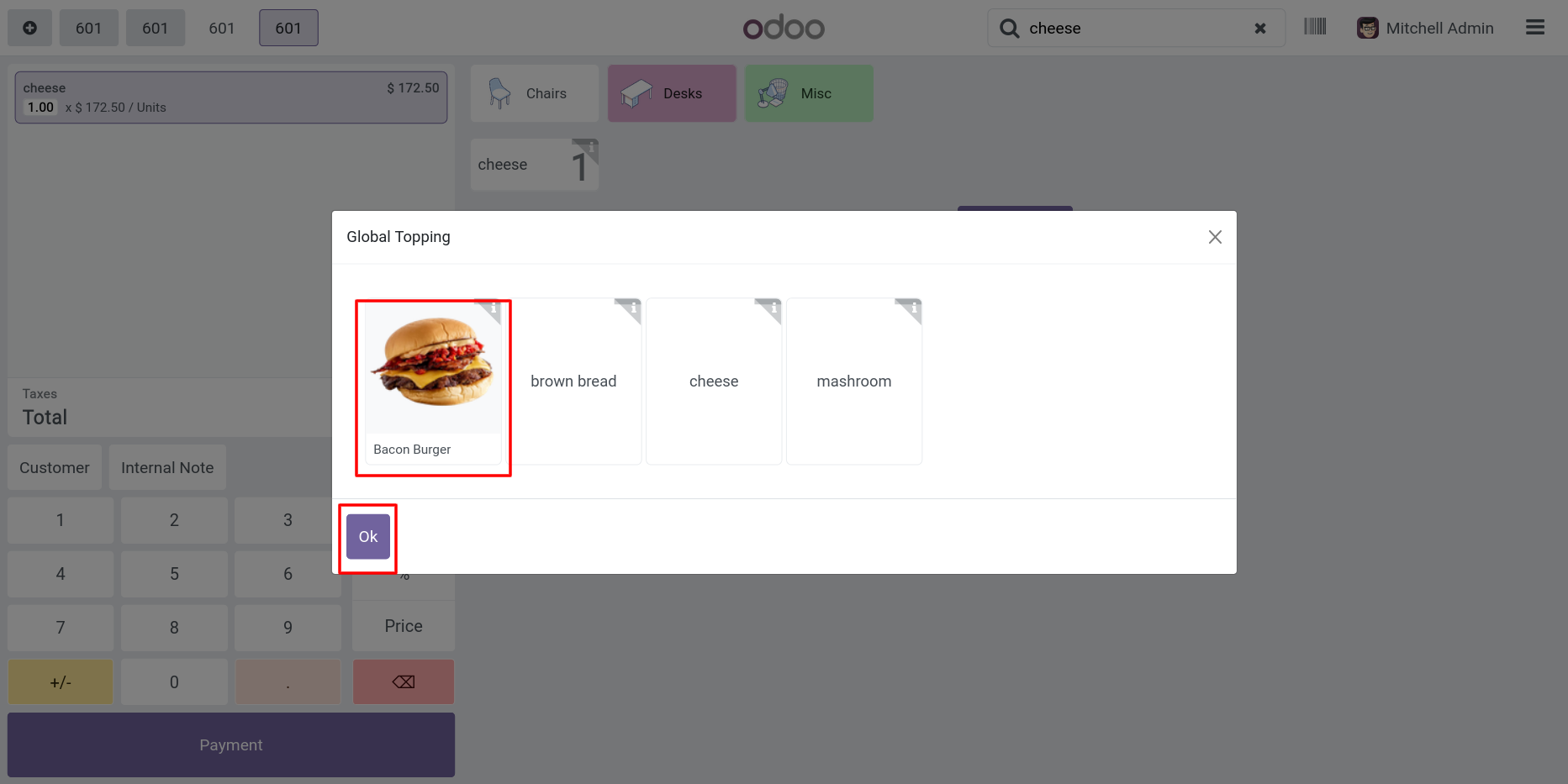
You can add more than one toppings.
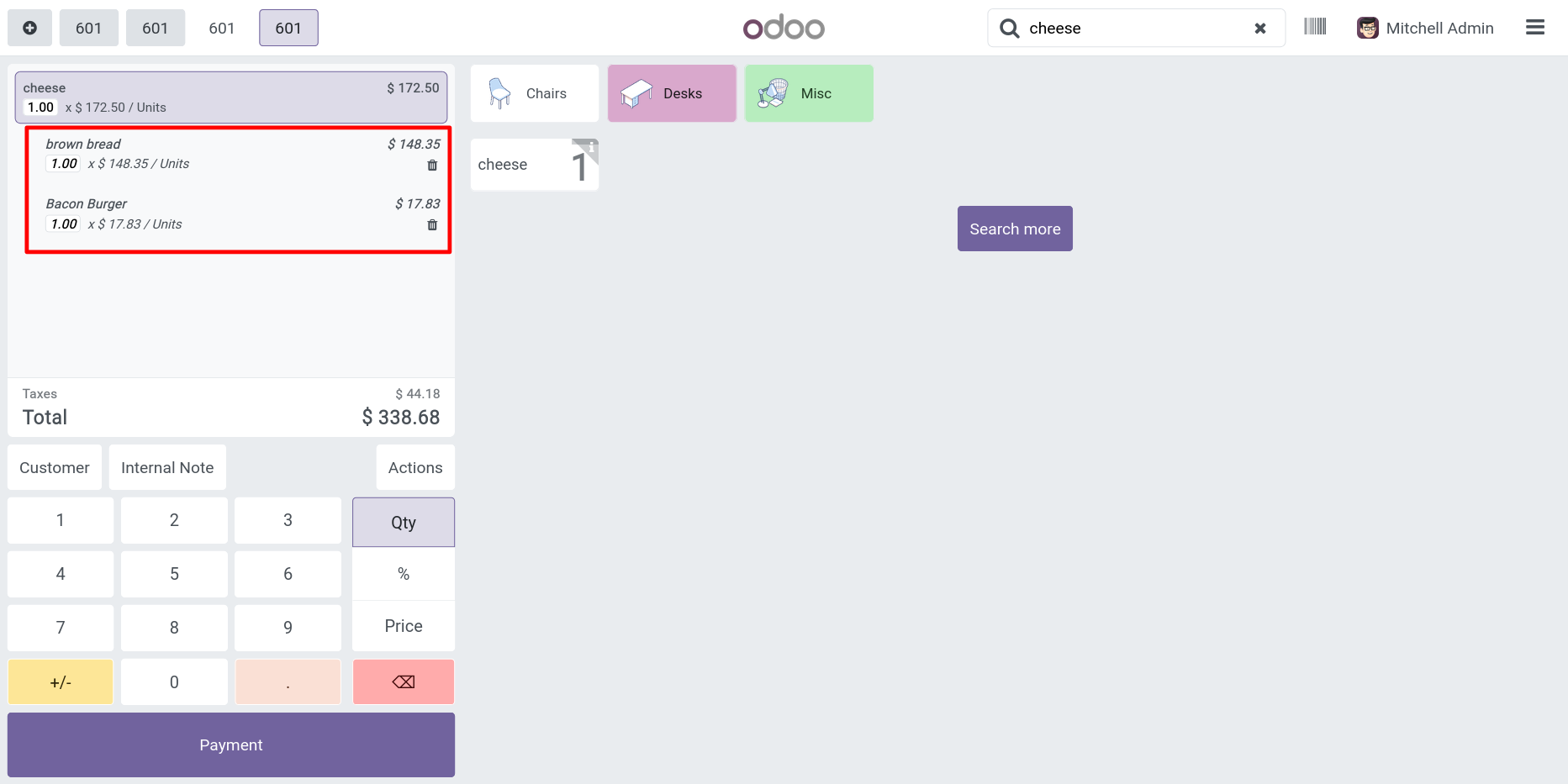
Also, easy to remove from the order line only needs to press the remove icon in order line.
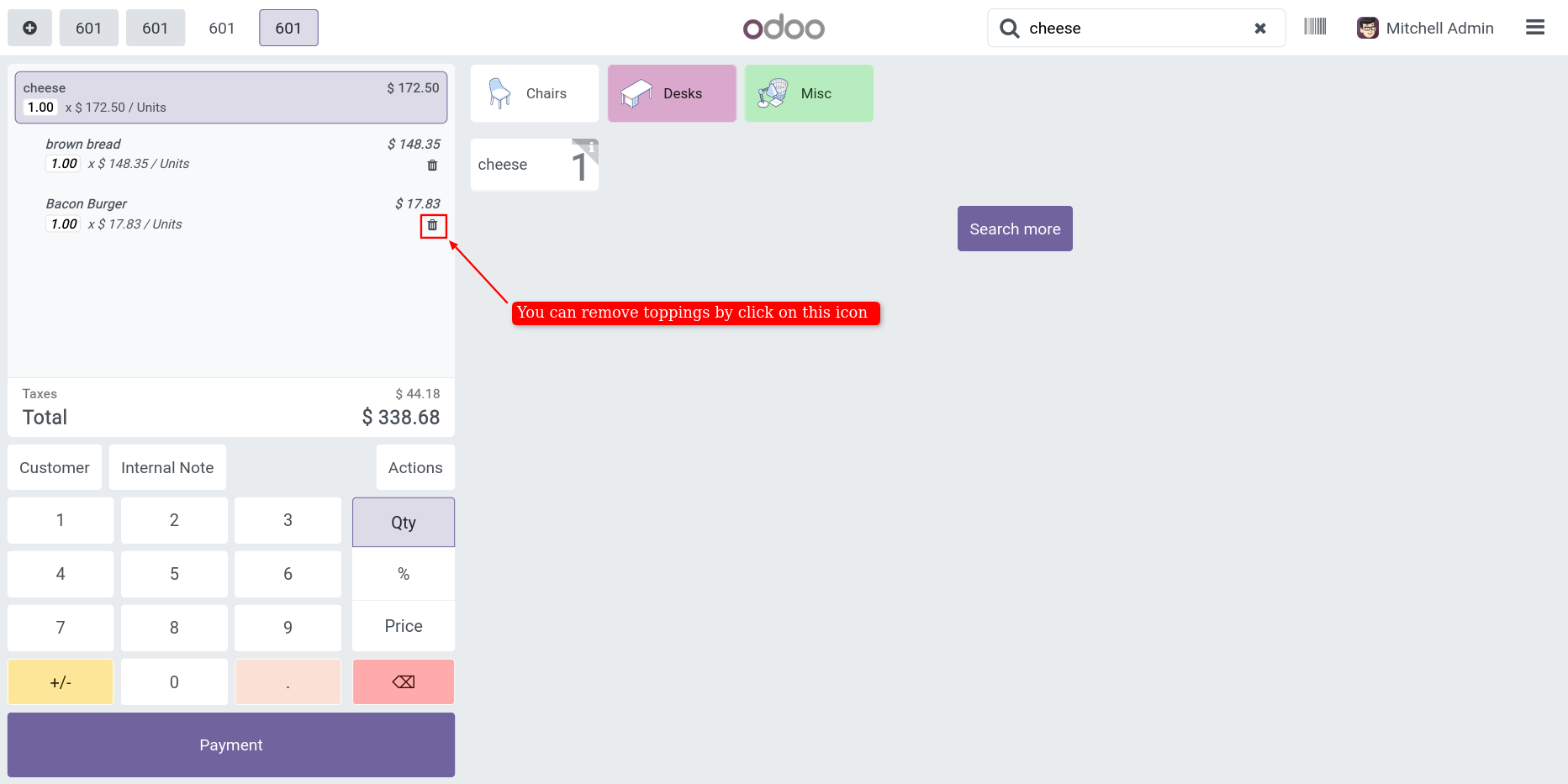
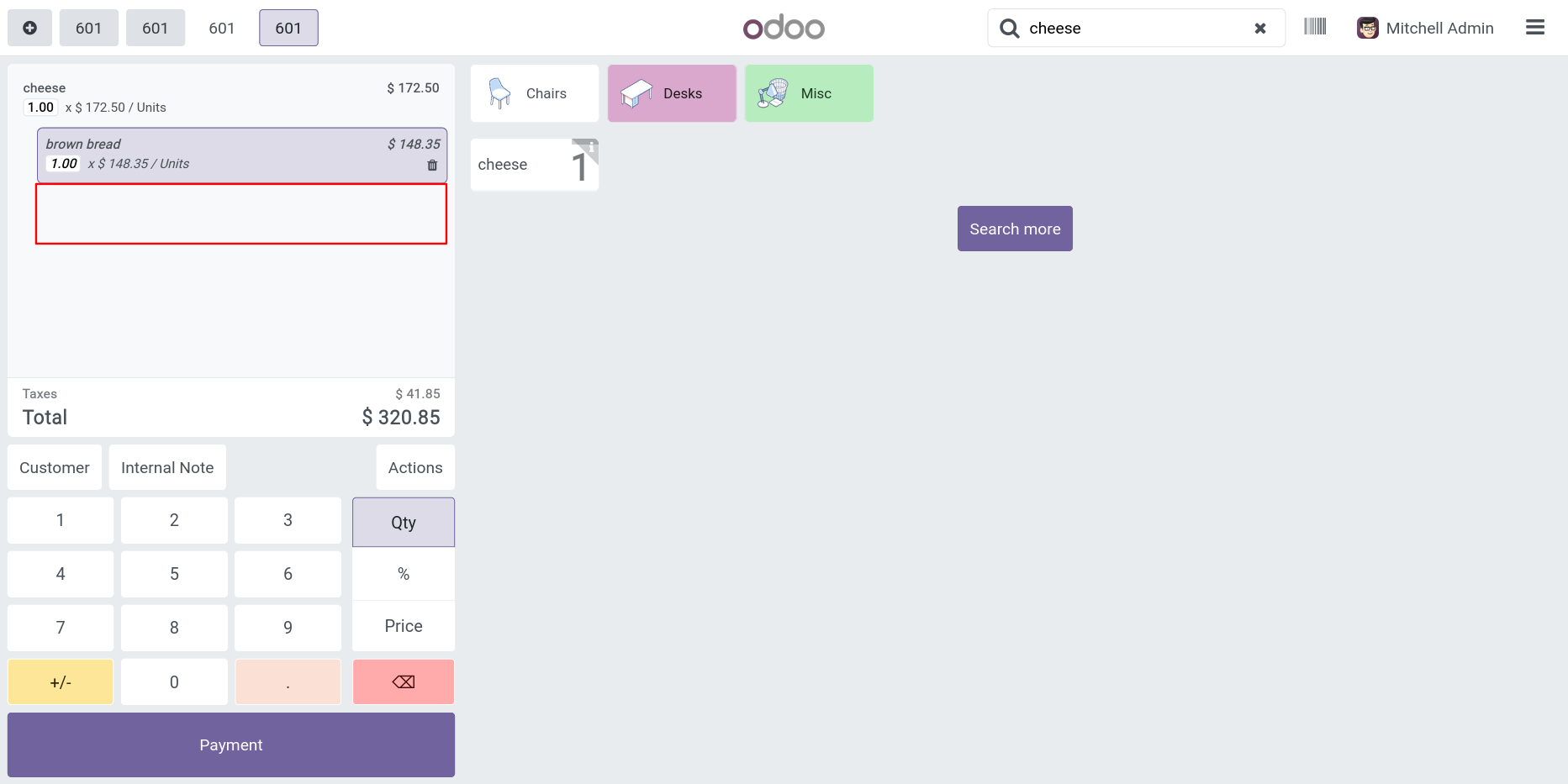
Here you can see the topping is removed.
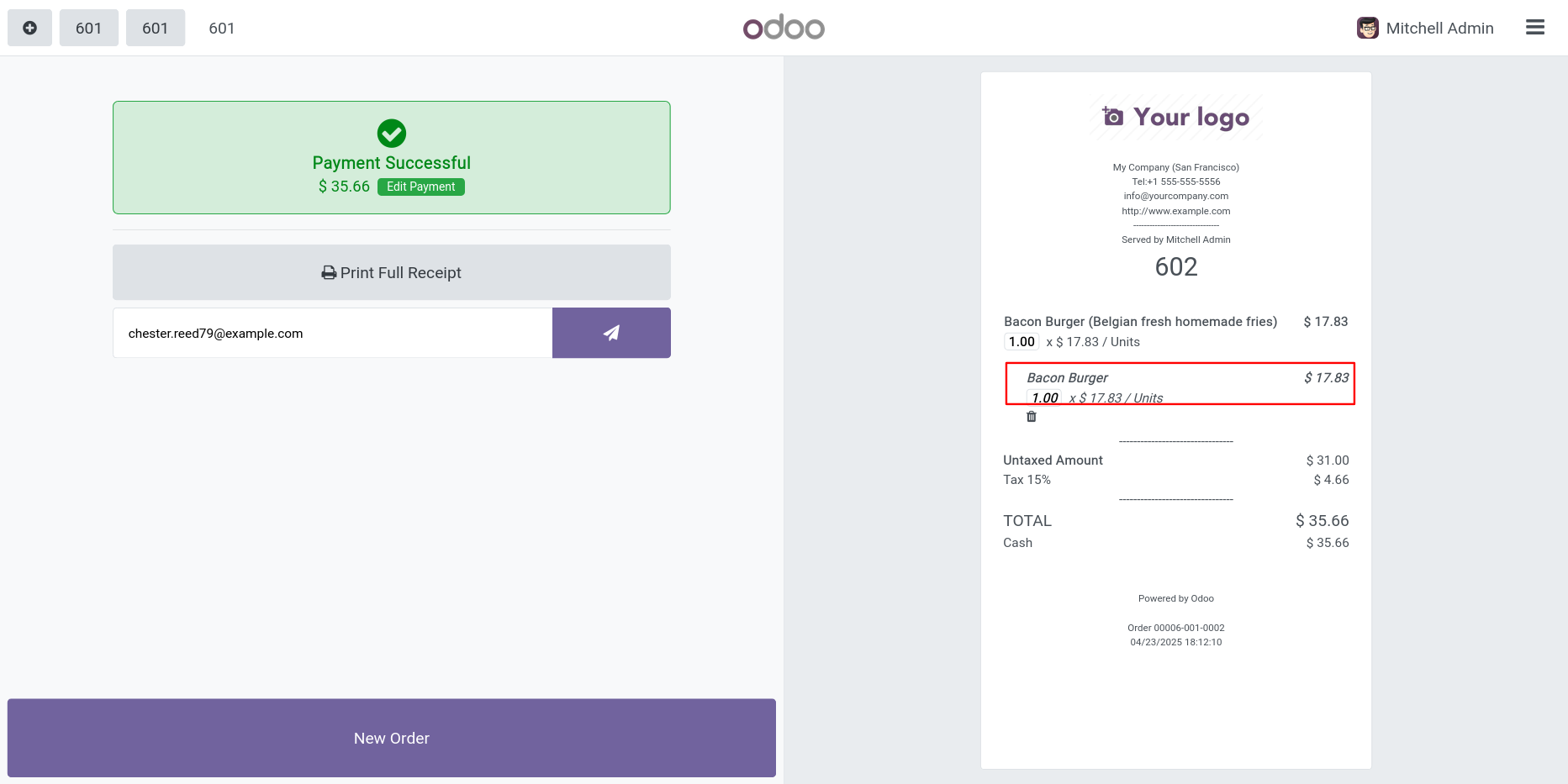
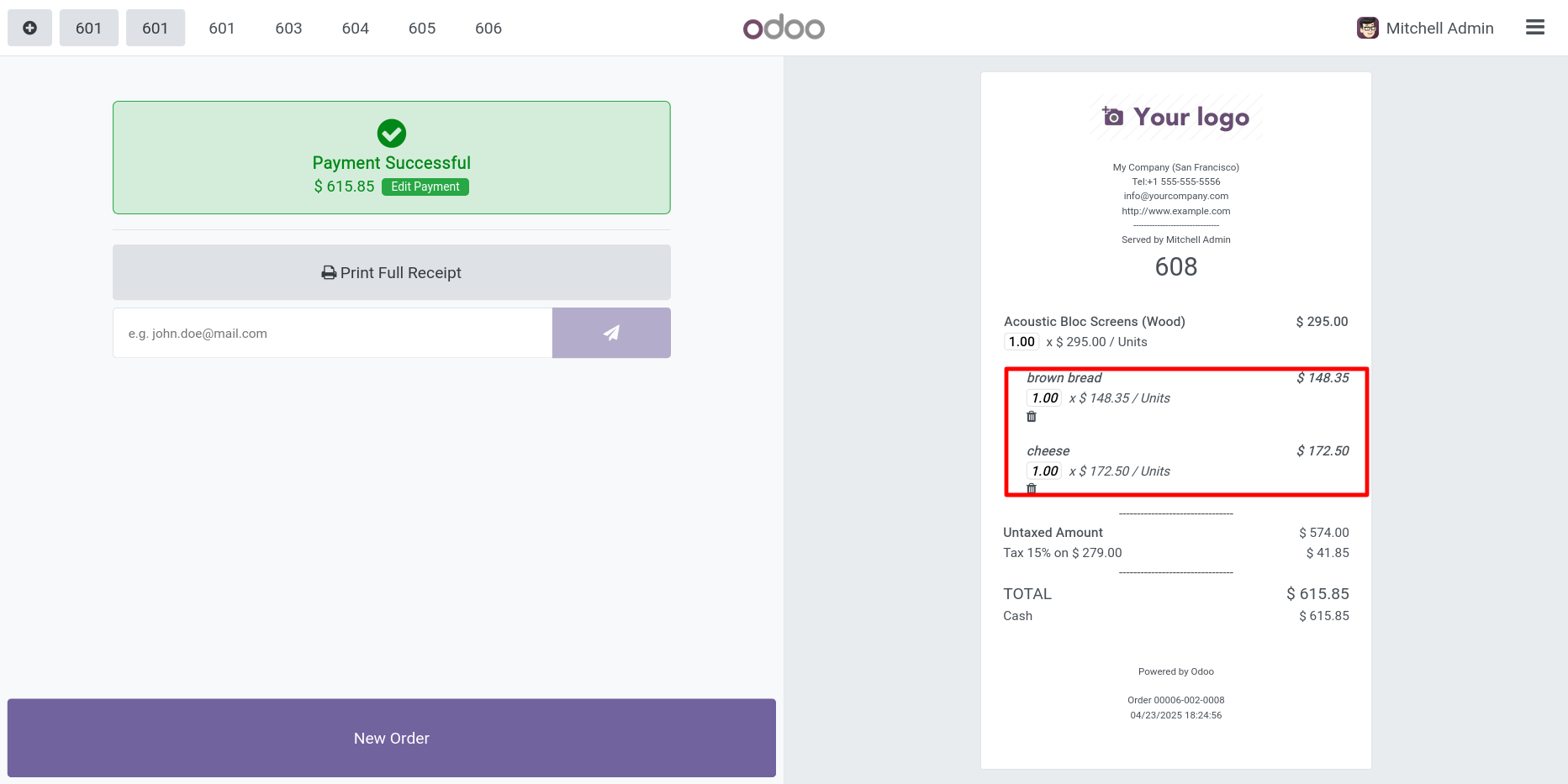
All toppings product added in receipt.
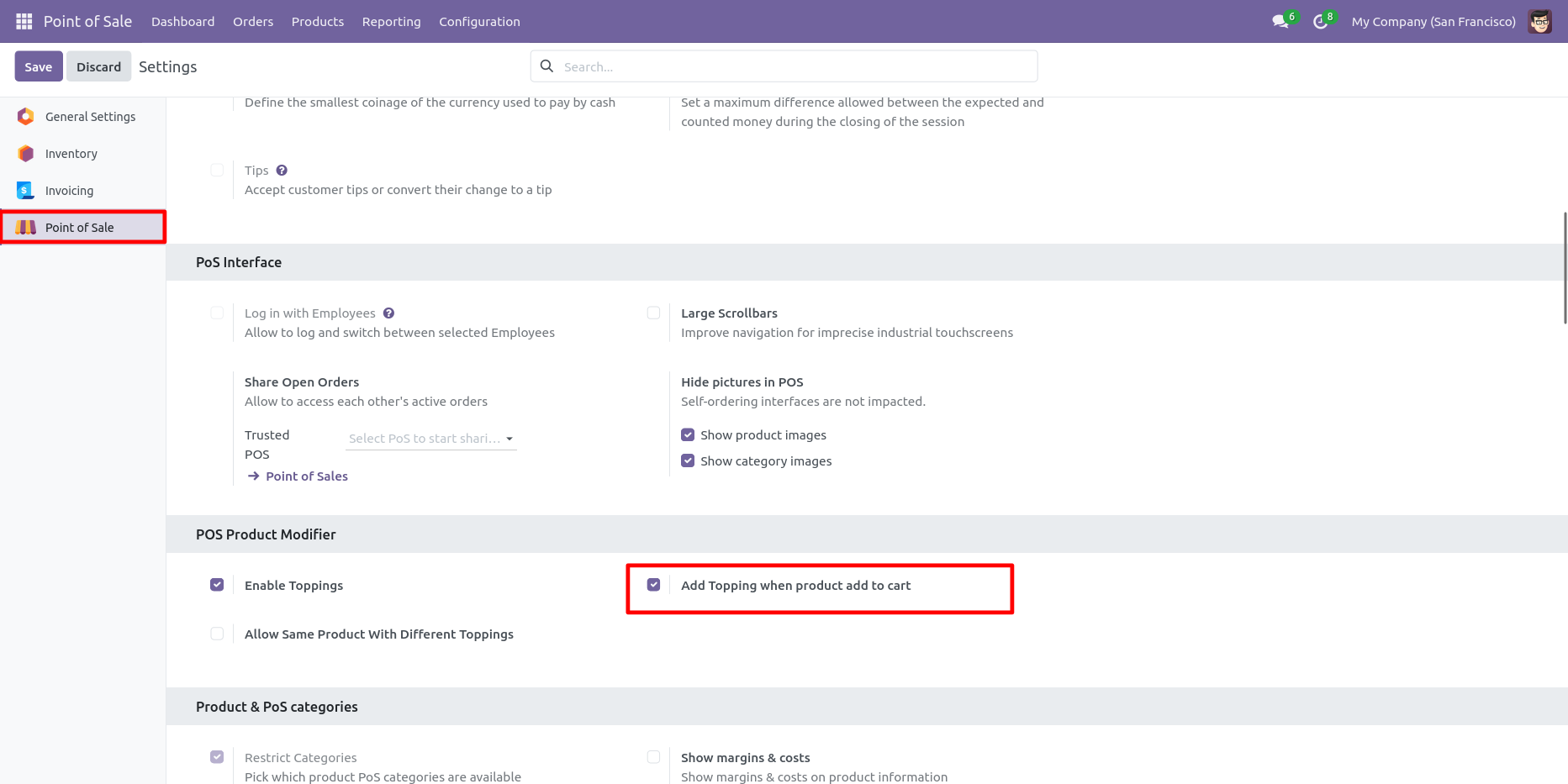
Tick the box "Add Topping When Product Add to cart", it enables when any product add there topping also added in the cart.
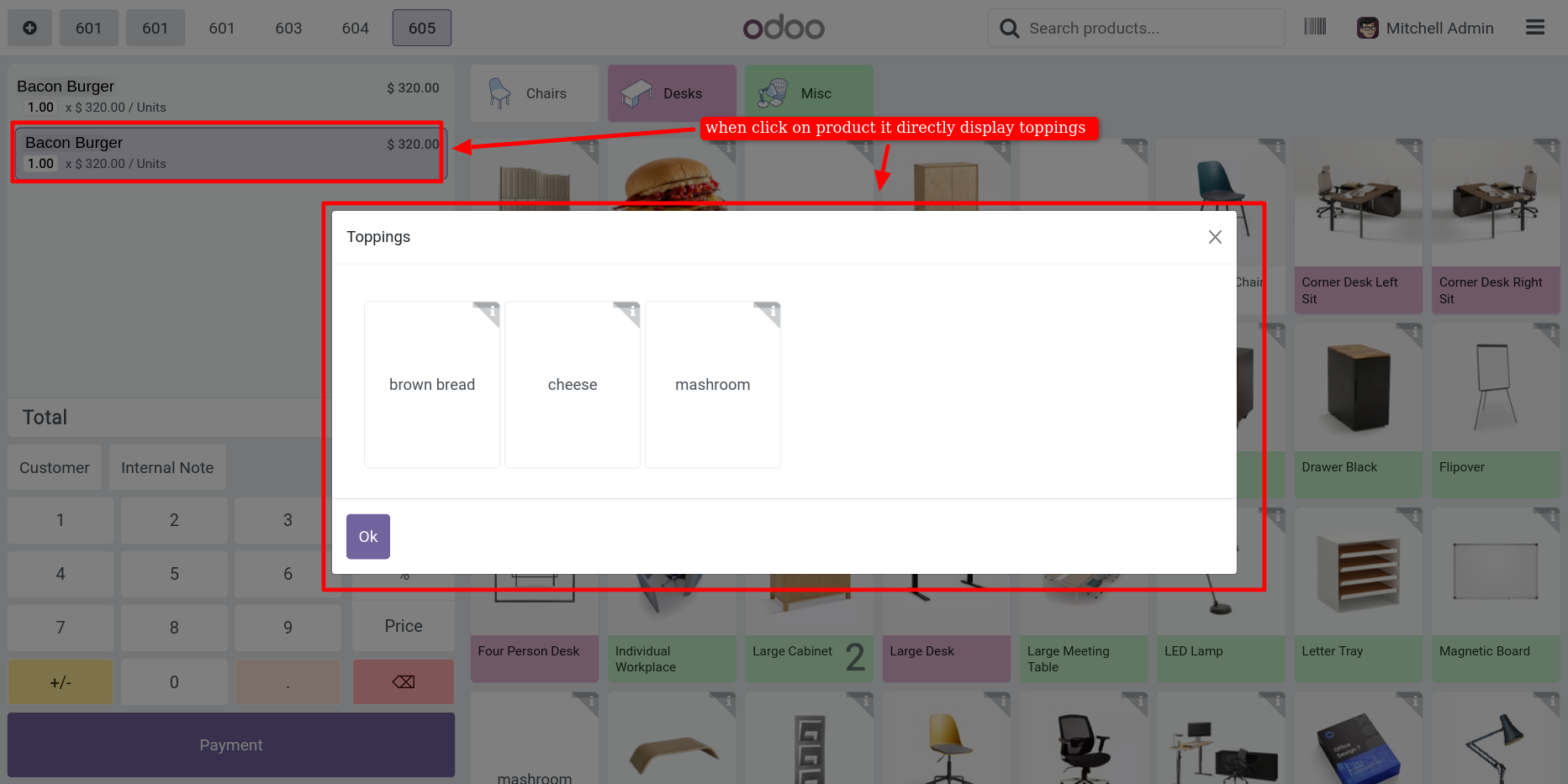
See all bacon burger topping in wizard.
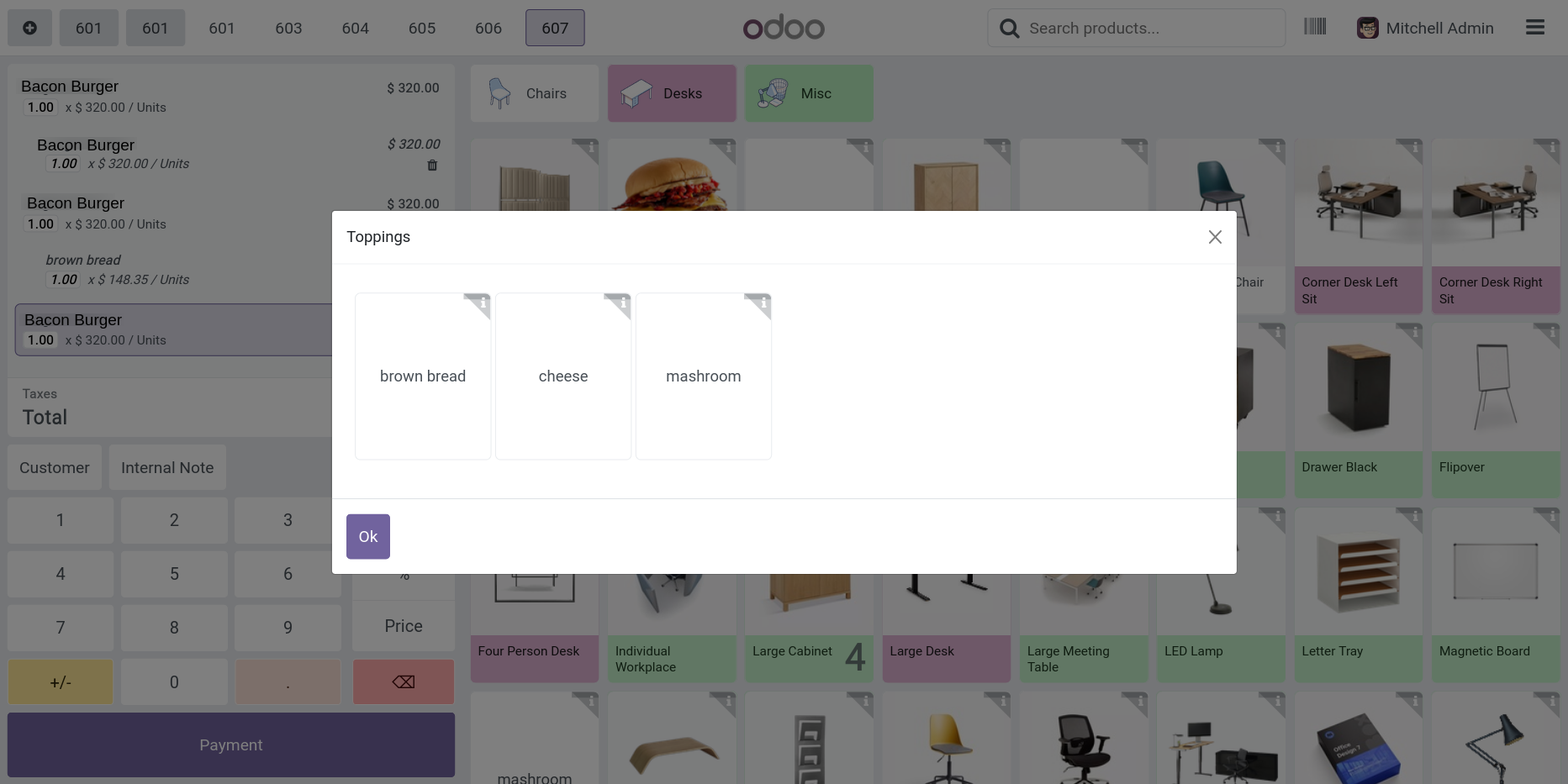
When the product add to the cart then toppings of that product will be added to the cart.
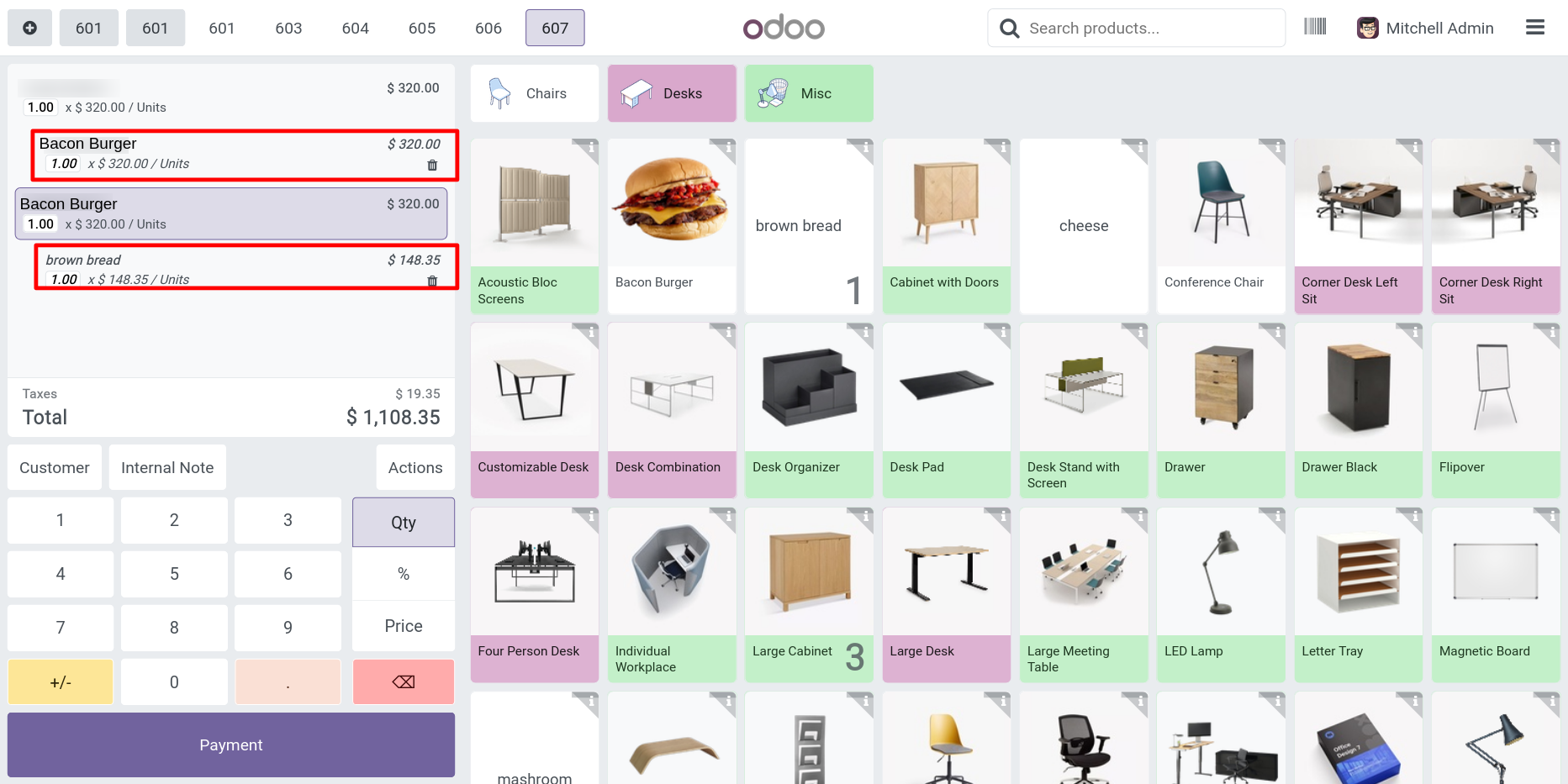
See the cart with 2 products or their toppings.
See the product with toppings in the receipt.
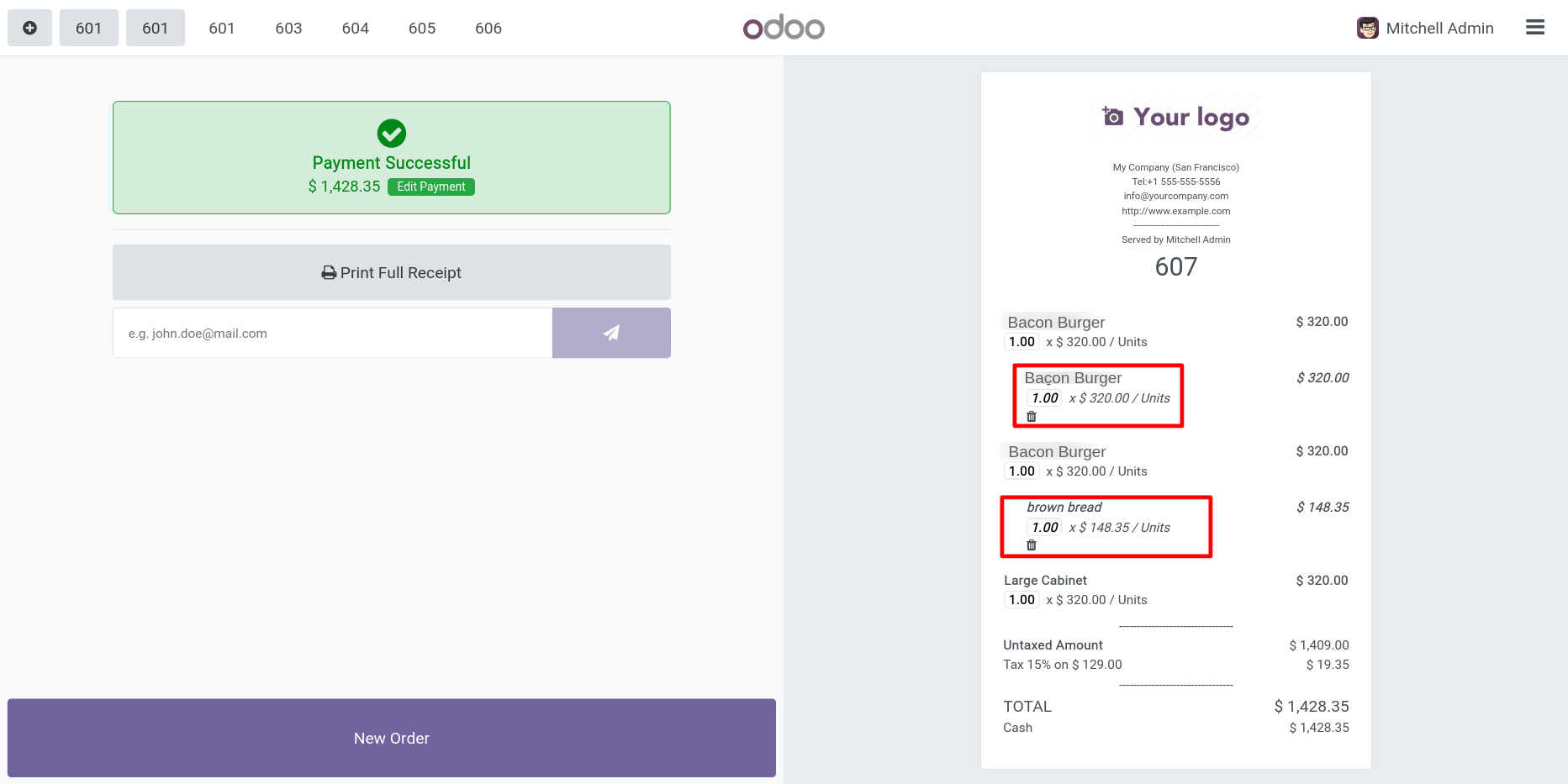
When press in topping button it will show all global topping.
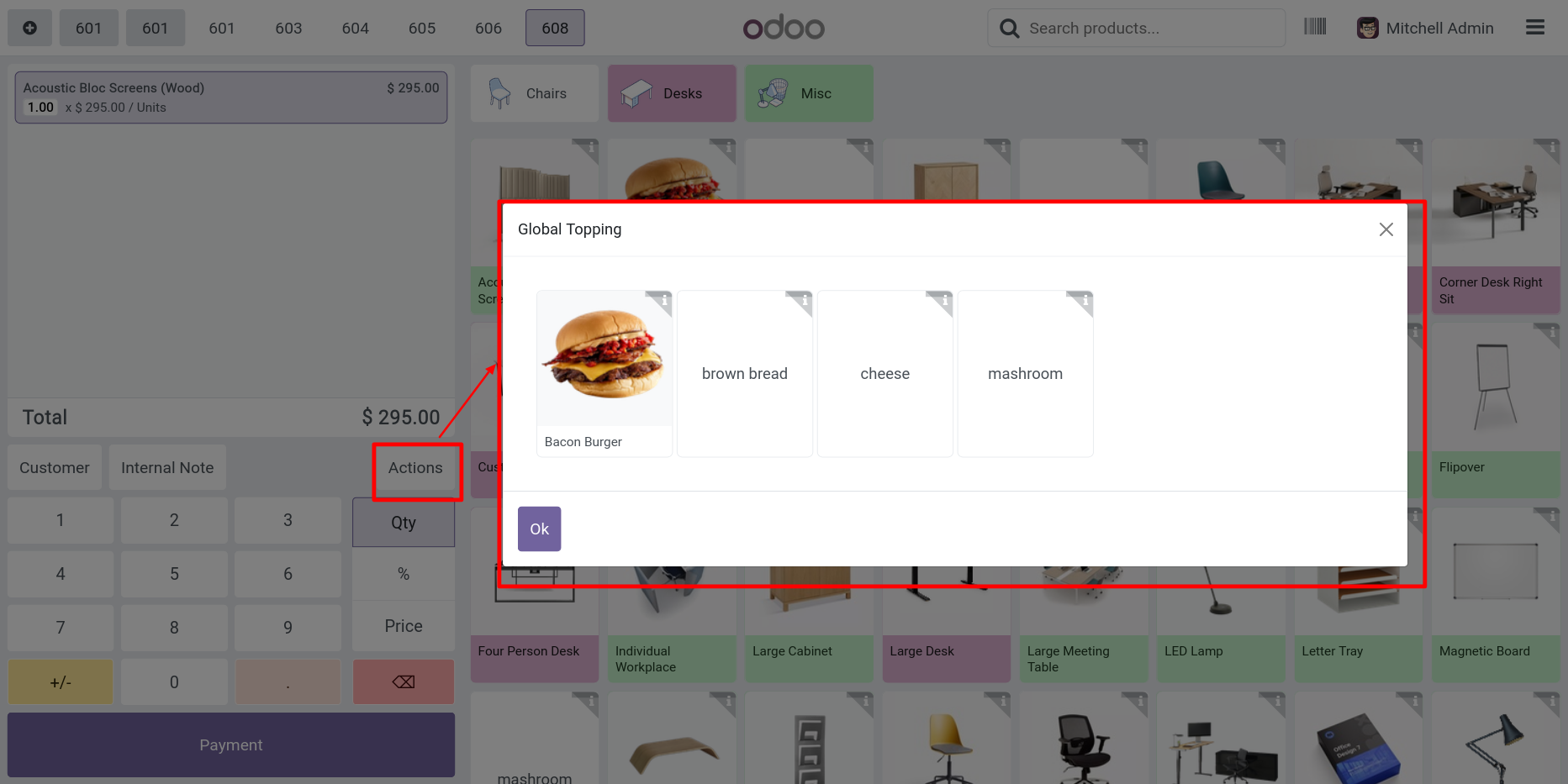
Select the toppings press "ok" to add to the cart.
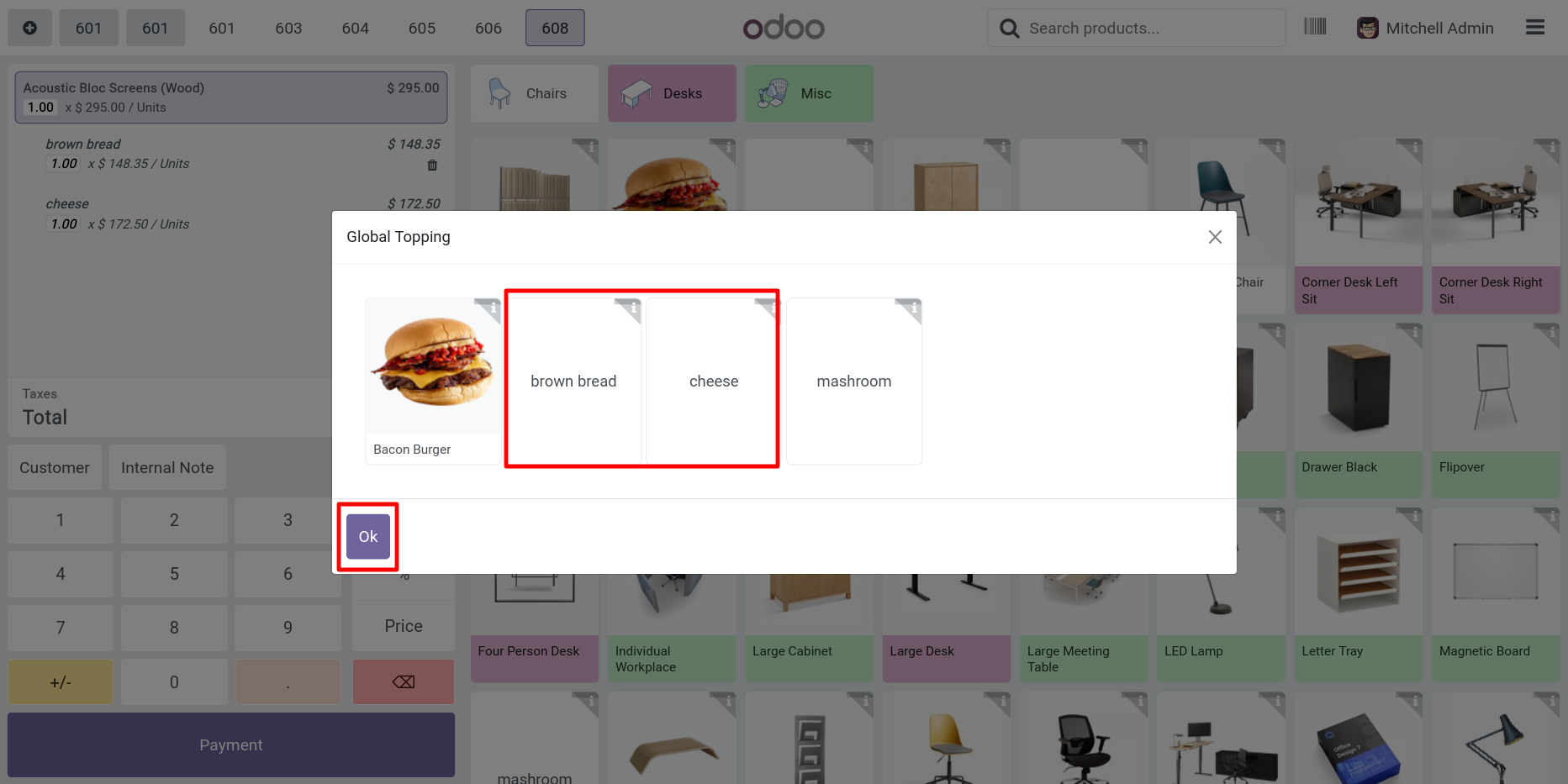
Selected topping added in selected product in the order line.
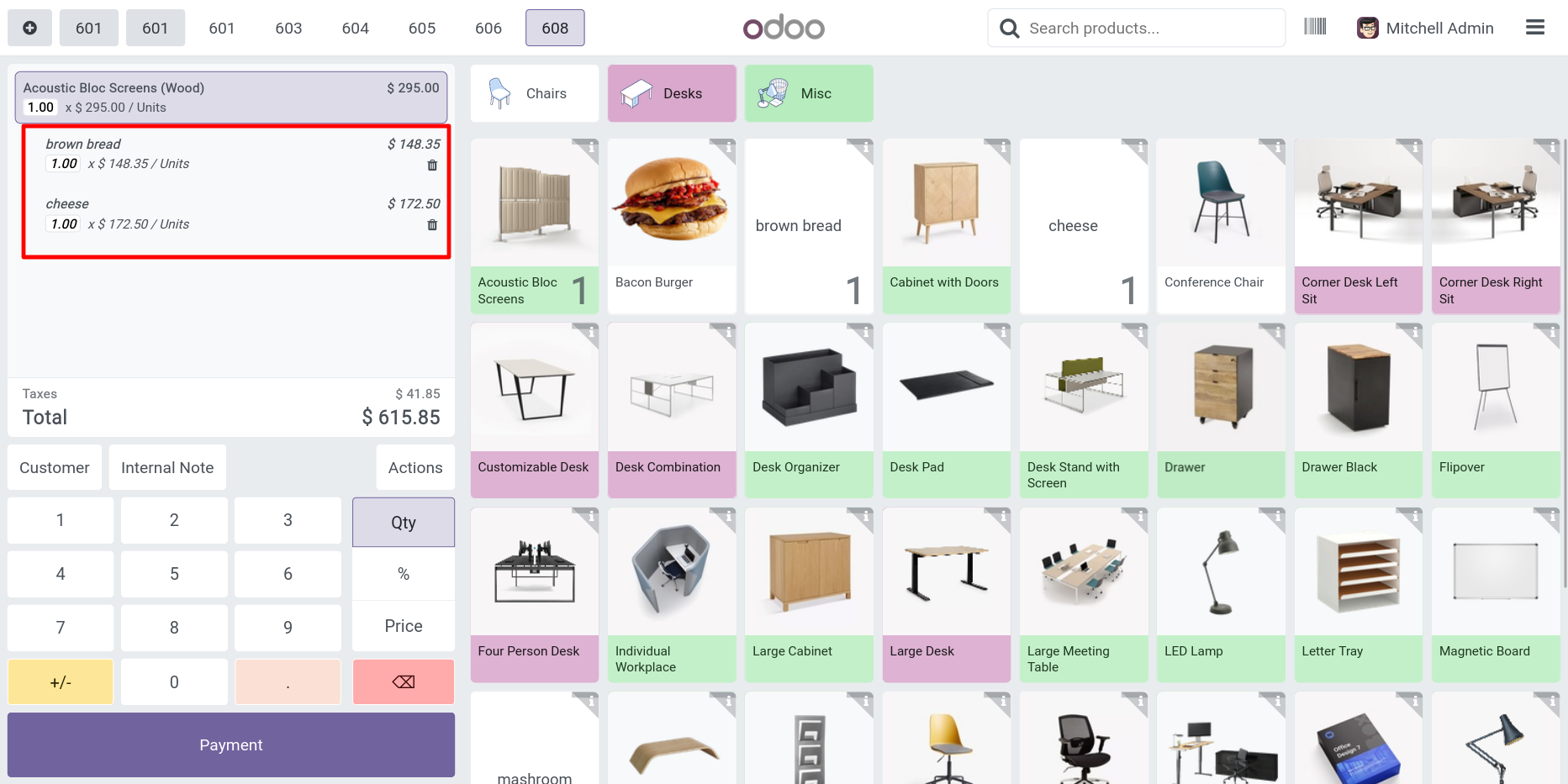
See this in topping in receipt.
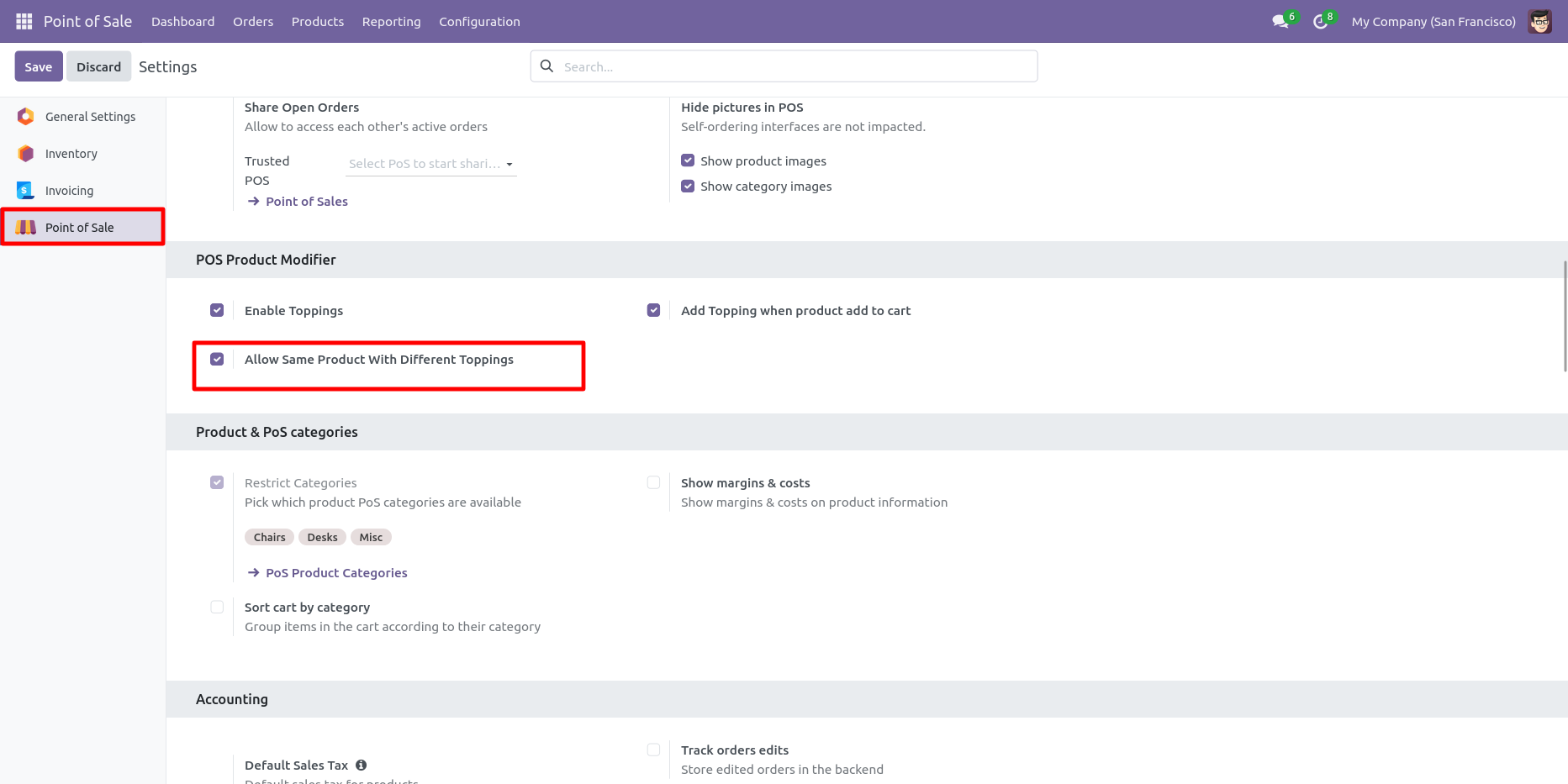
Enable "Allow Same Product With Different Toppings".
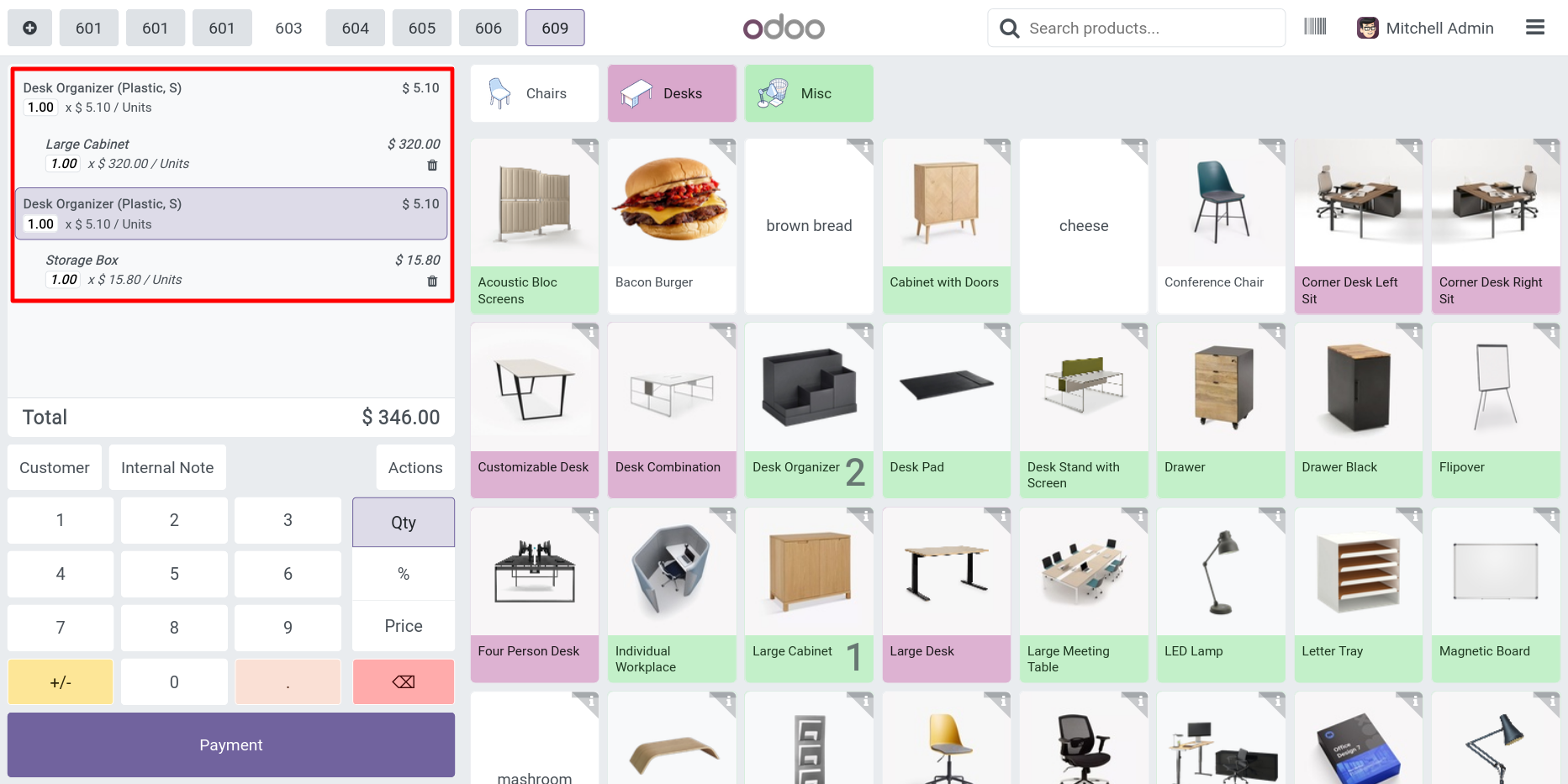
Cart with same product & different toppings.
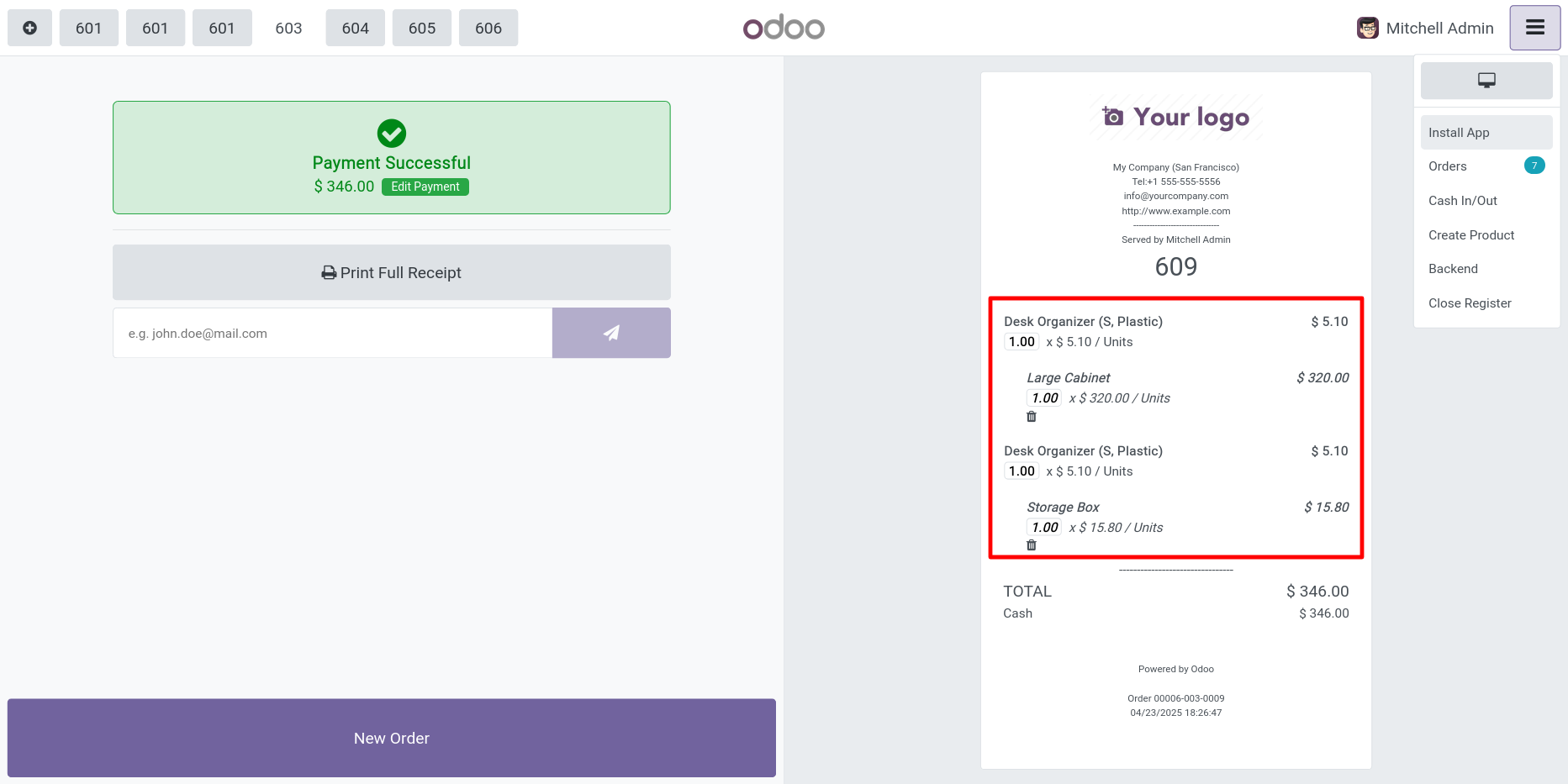
Receipt with same product & different toppings.
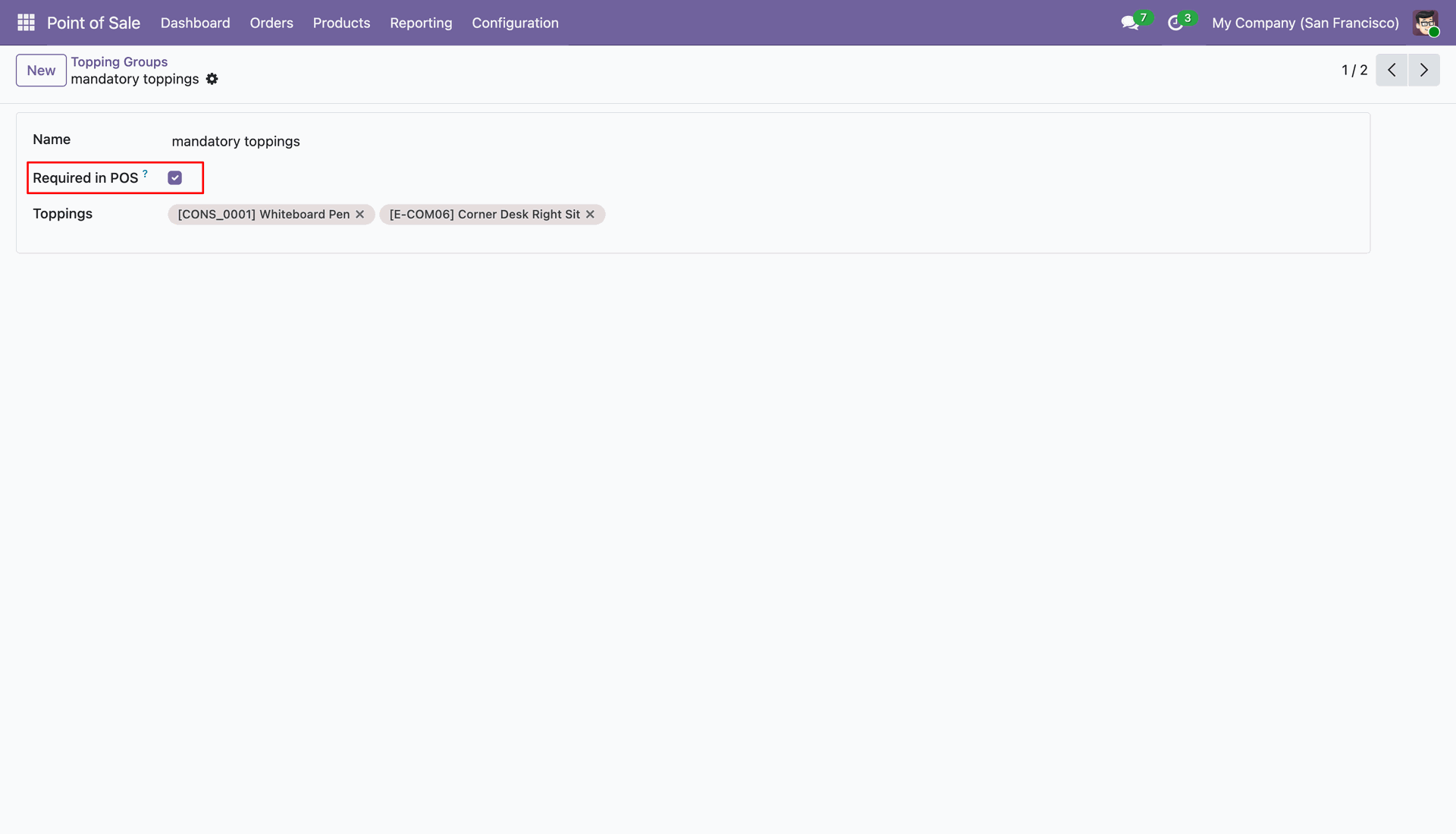
Enable the Required in POS boolean under the Toppings Group.
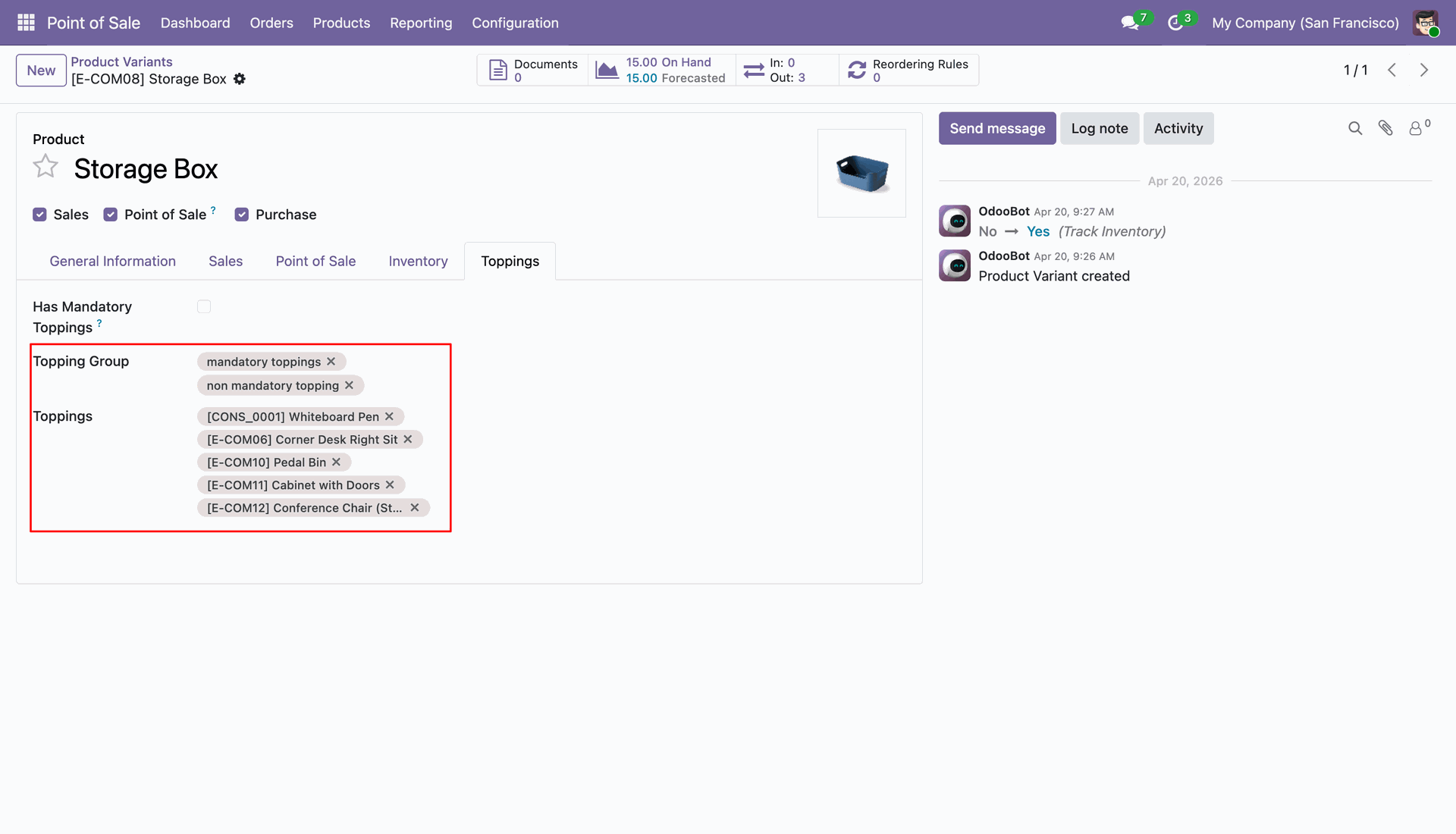
Set the topping group under the Toppings tab in the product variant.
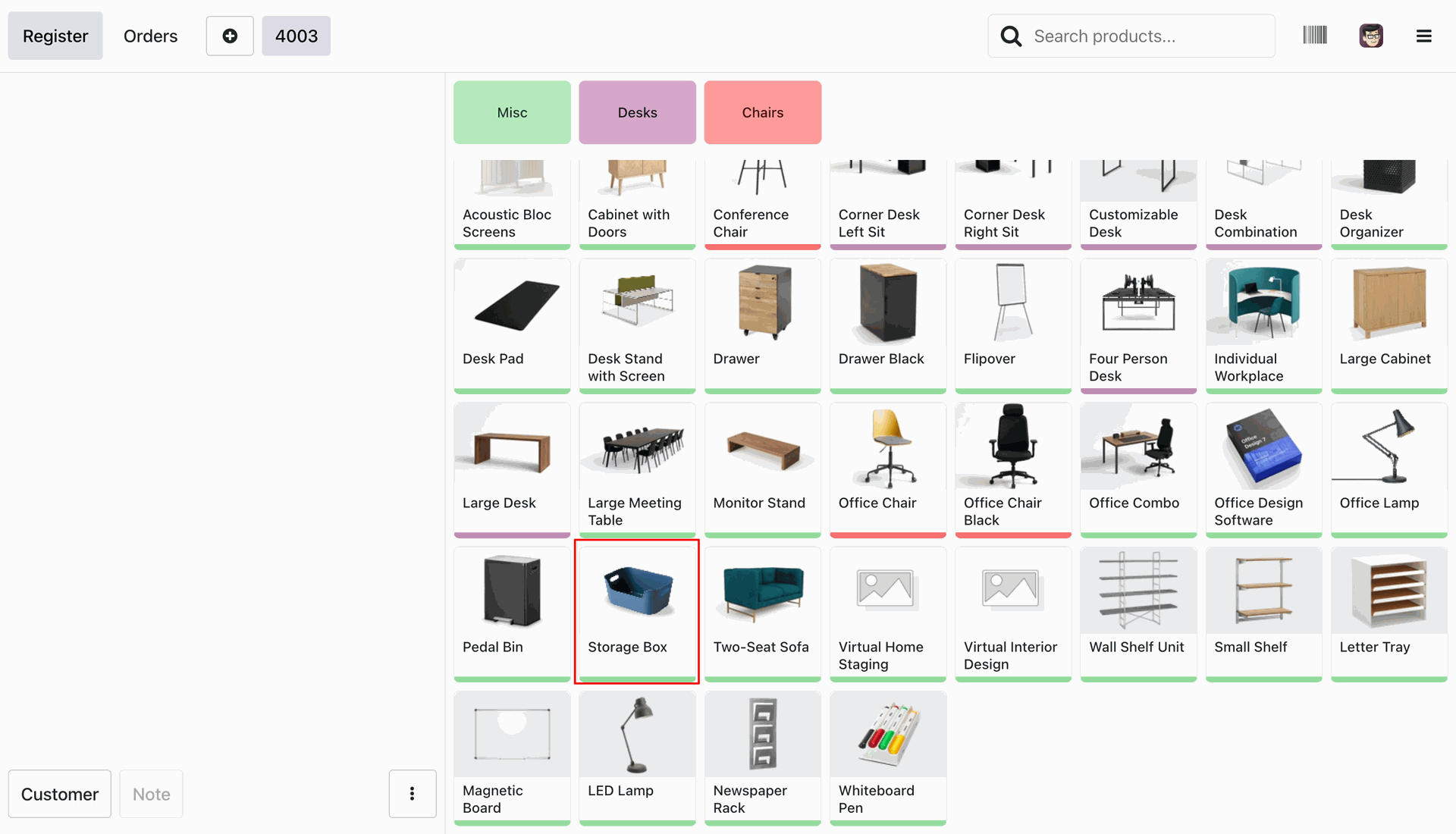
Go to the POS shop and select the product with the Mandatory topping boolean disabled.
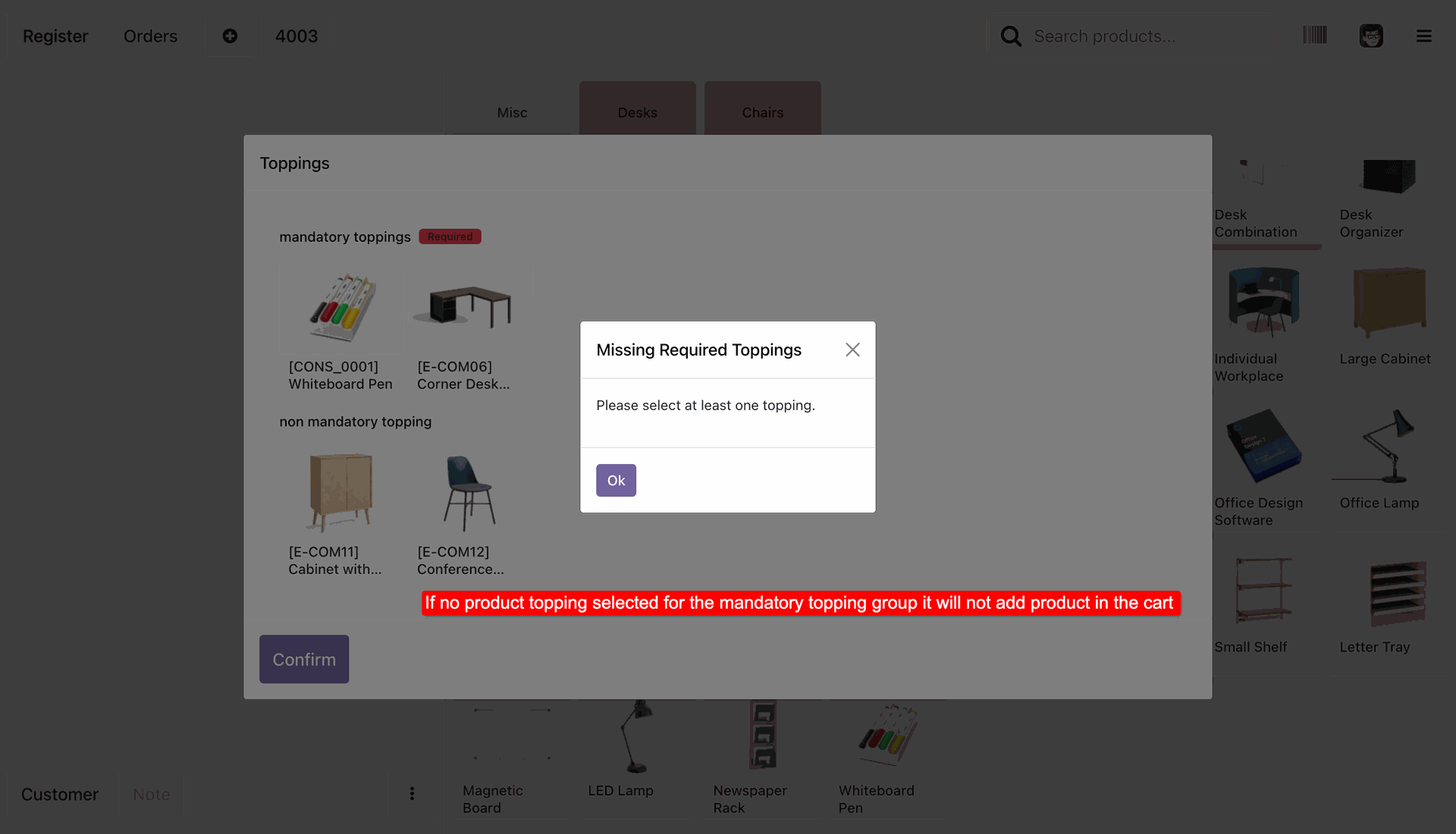
If no toppings are selected for a mandatory topping group, the product will not be added to the cart.
Set the topping group under the Toppings tab in the product variant and enable the Has Mandatory Topping boolean.
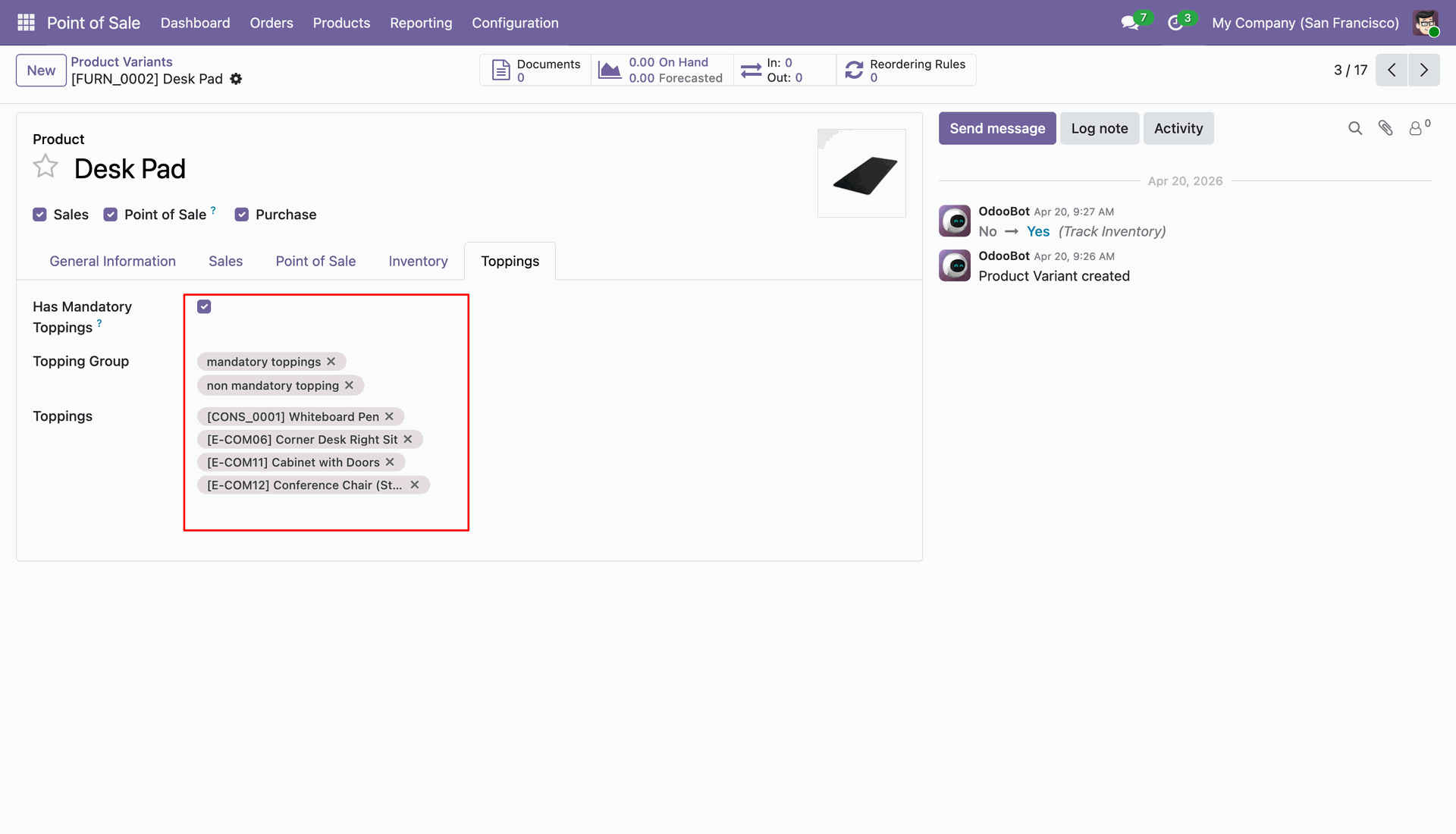
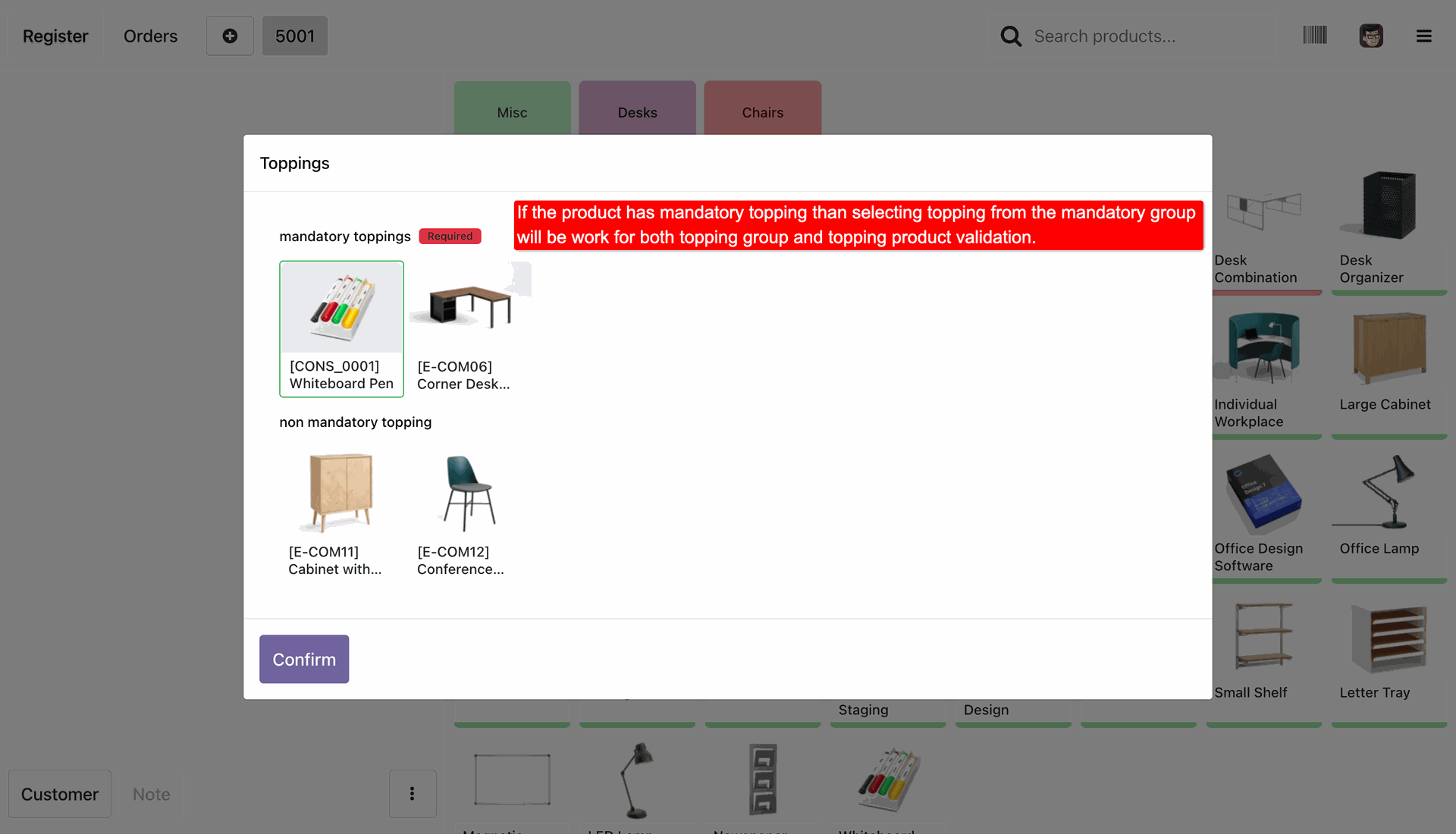
If a product has mandatory toppings, selecting a topping from the mandatory group will trigger validation for both the topping group and the topping product.
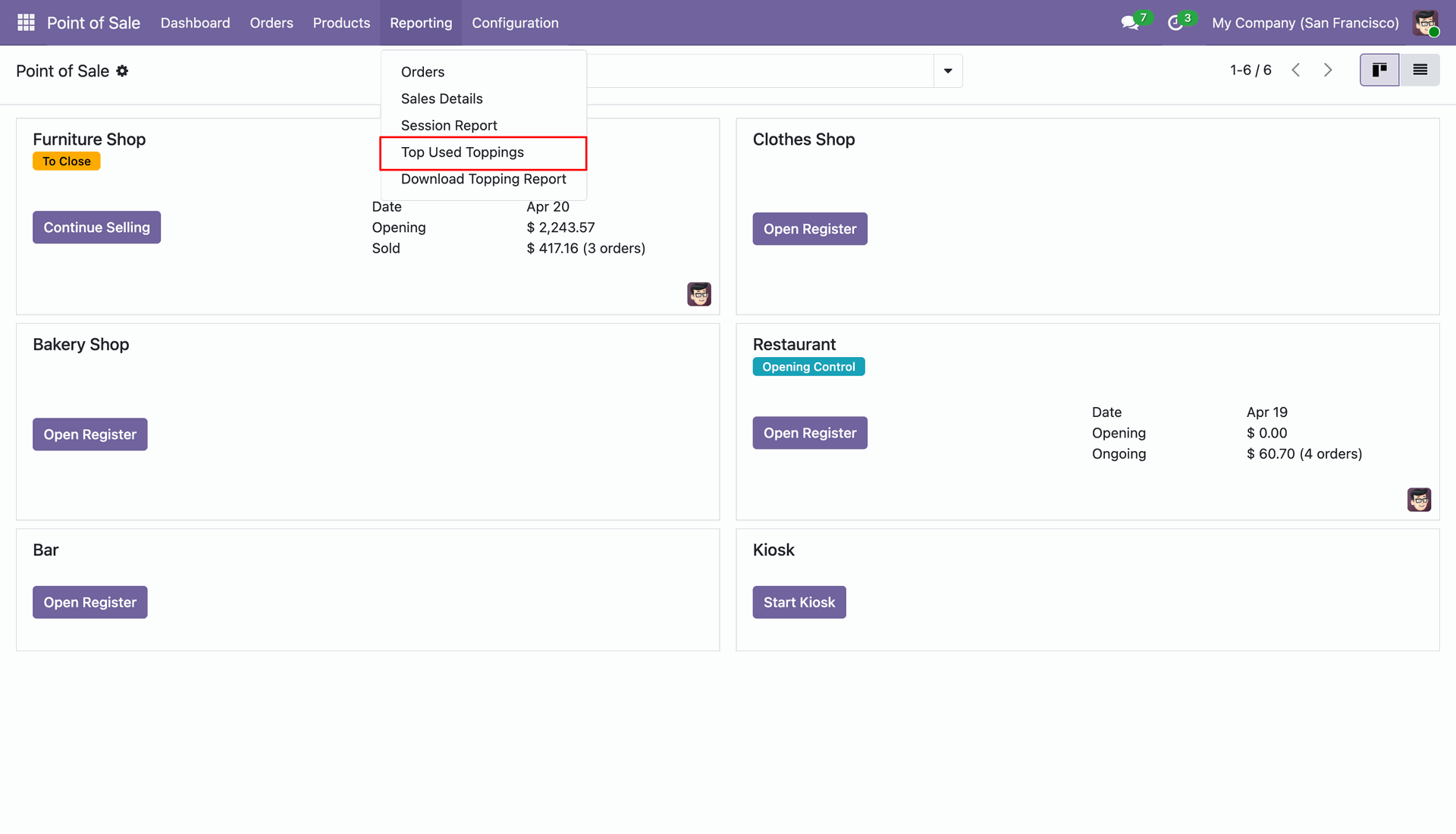
Users can view the top used toppings from the Reporting menu.
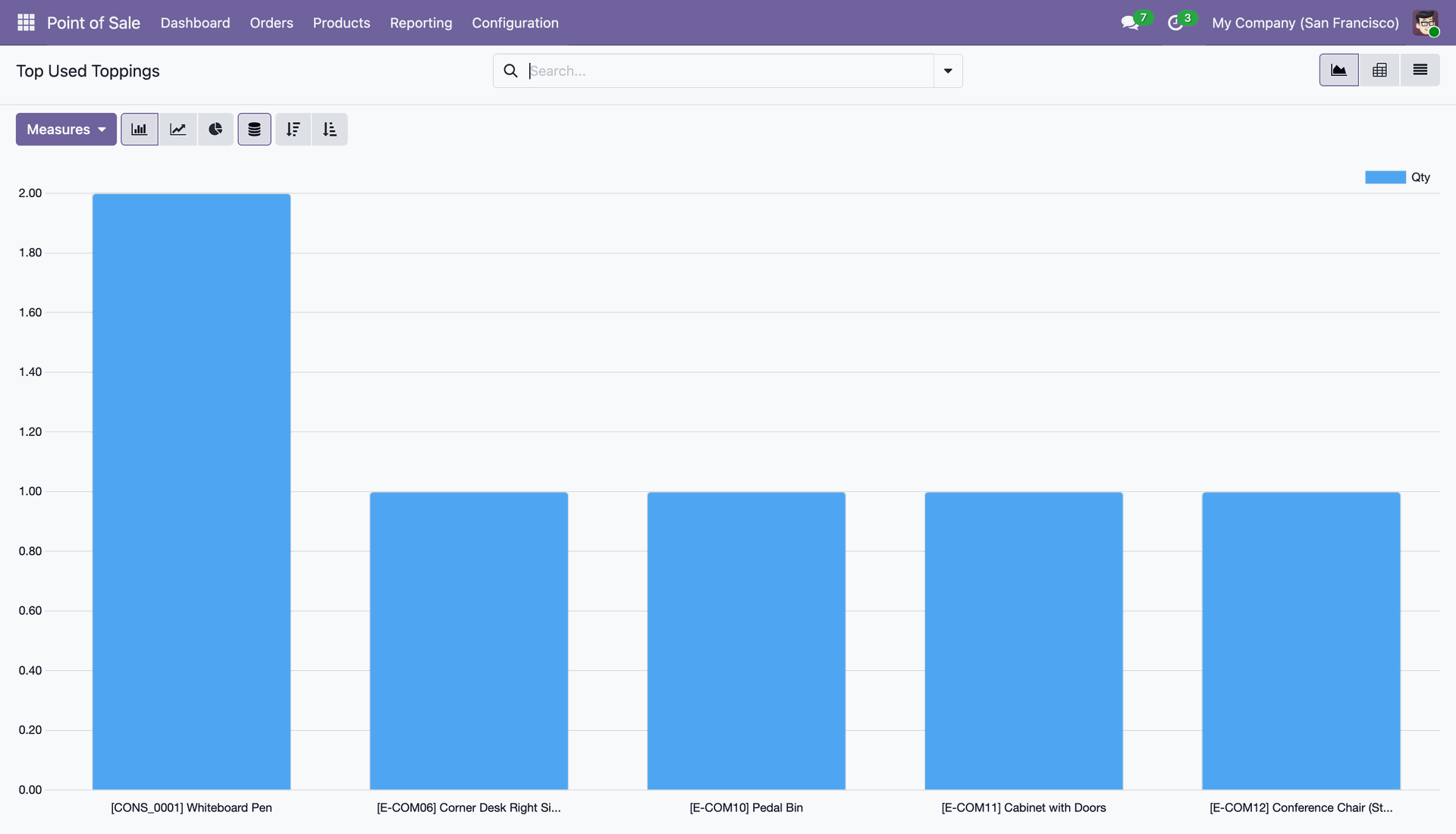
Top Used Toppings report Graph View.
Users can download topping reports from the Reporting menu.
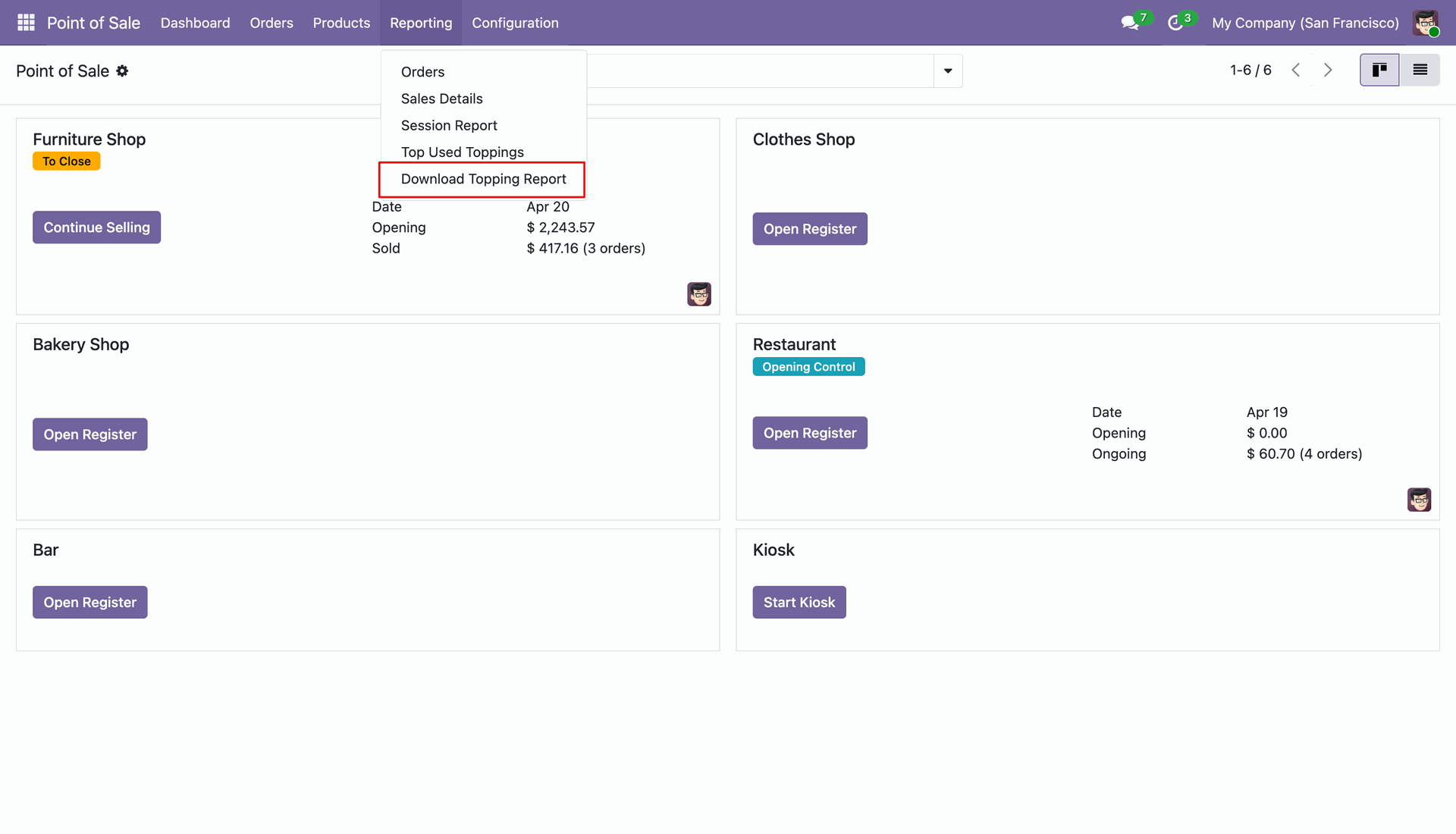
Download the Top Used Toppings report in PDF format.
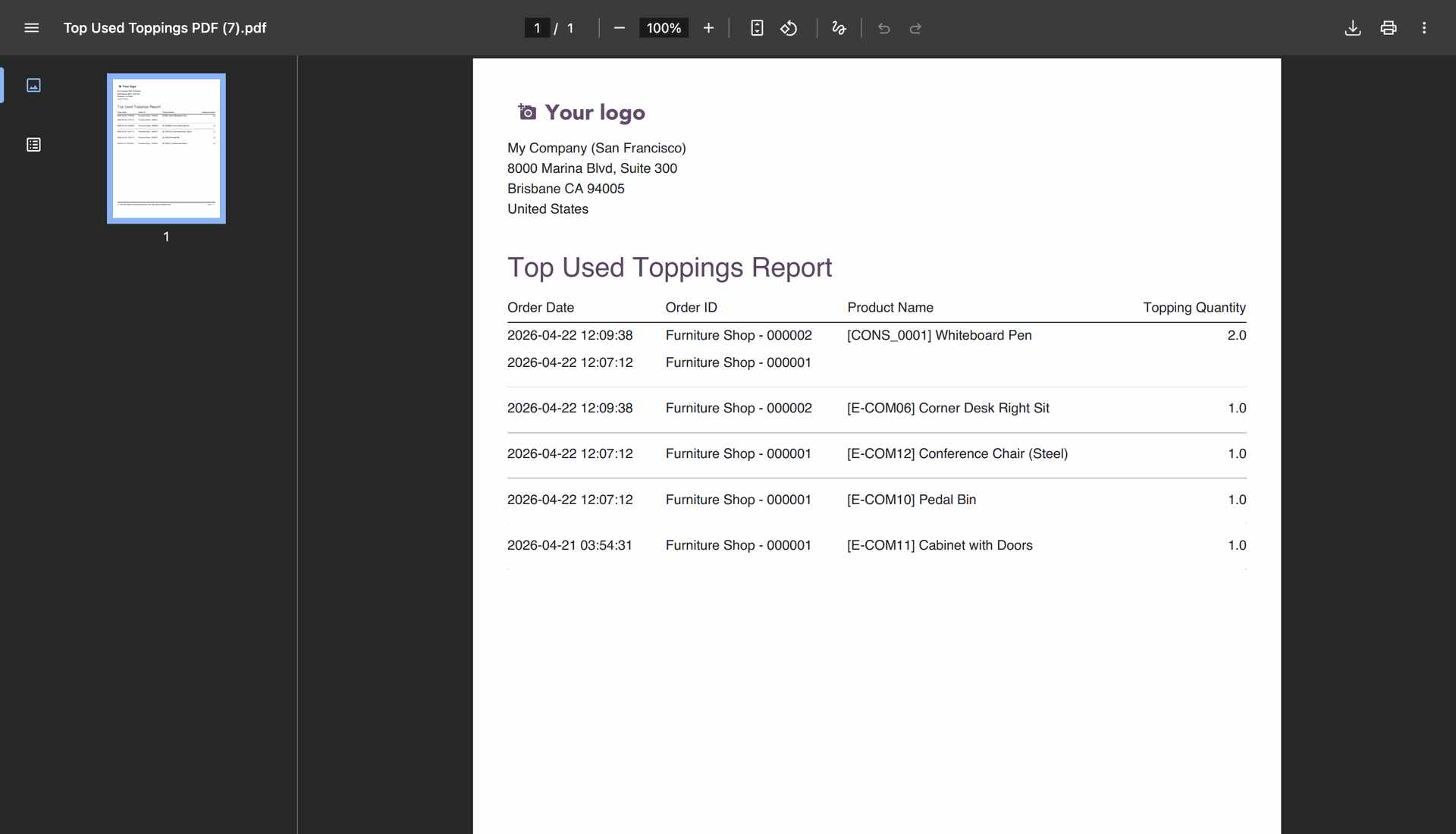
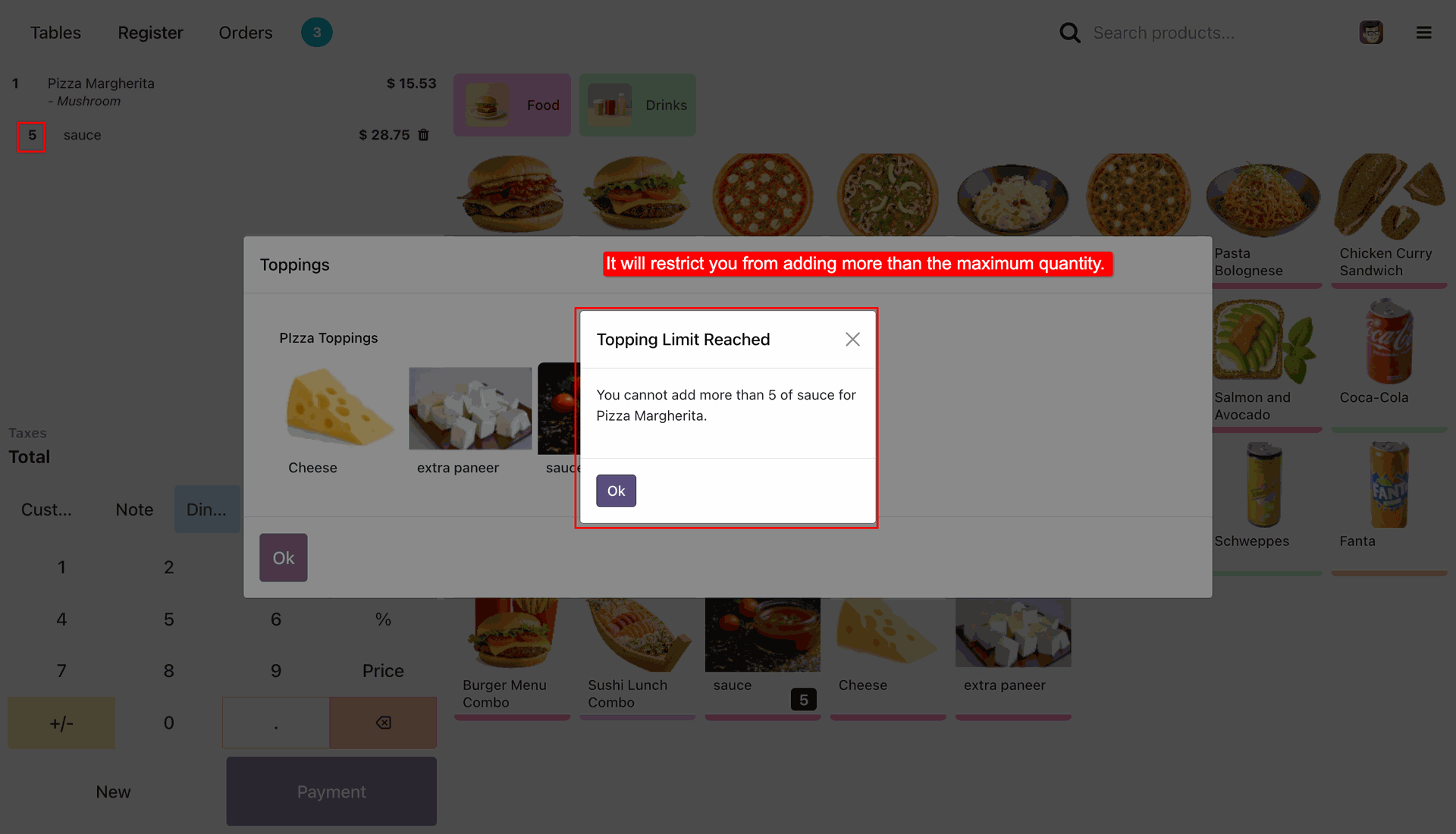
Go to product variant -> Toppings Tab -> Set minimum and maximum quantity for product topping.
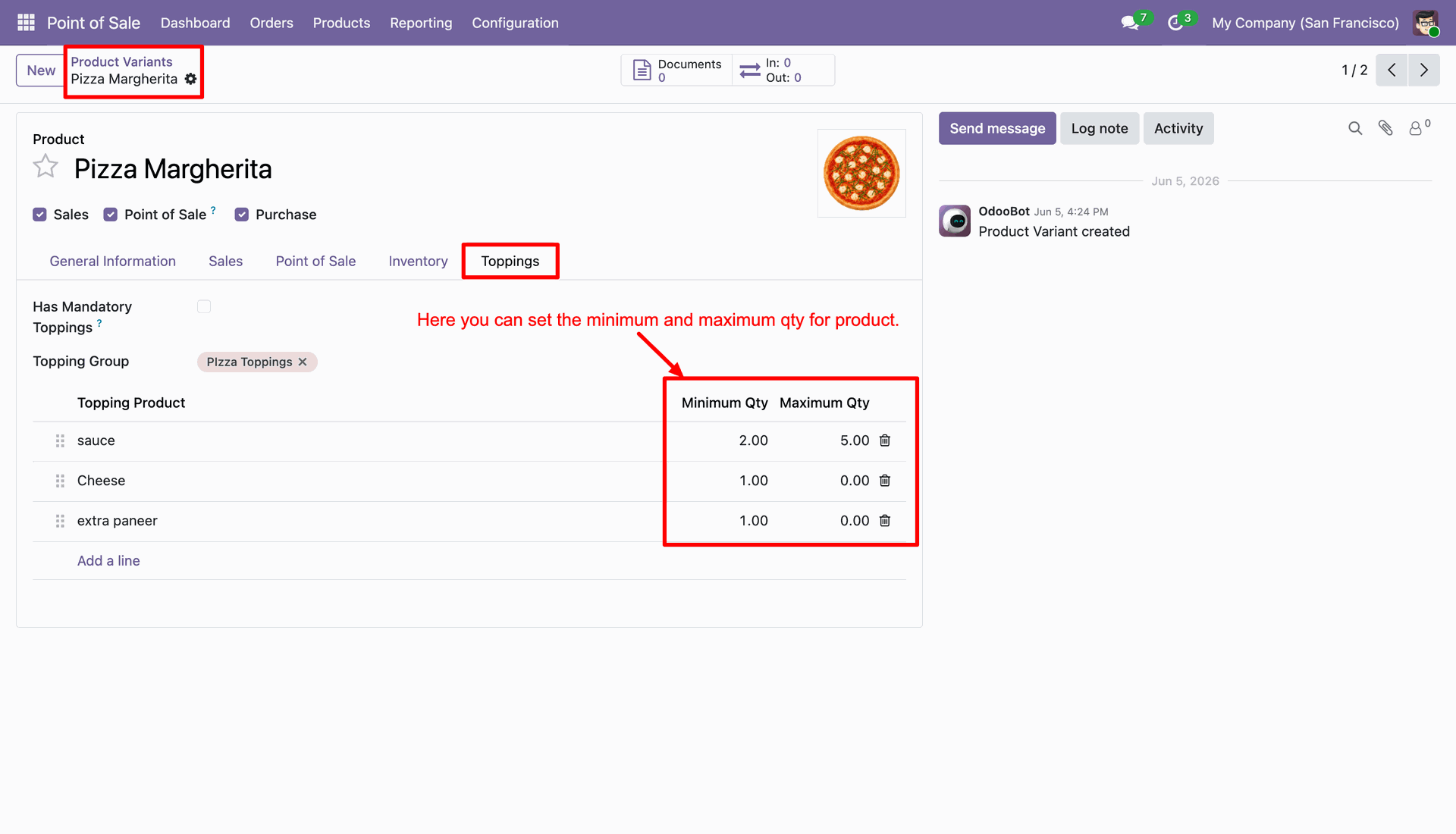
When a topping is added for the first time, its minimum quantity is automatically set in the cart.
The system restricts adding a topping beyond its maximum allowed quantity and displays a warning message.
Release Notes
Track every update, enhancement, and new feature across all versions.
Version 19.0.3.0.0 | Released on : 01st October 2026
Version 19.0.2.0.0 | Released: 25th May 2025
Version 19.0.1.0.0 | Released: 23th September 2025


 Buy Once, Supported Forever


 Scan to email sales






 Your Ideas Shape Our Roadmap
 Got an Idea? We'll Build It
Frequently Asked Questions
Everything you need to know before getting started.
Trusted by Businesses Worldwide


Abdulhamid Abdulwaheed
Best module for our online store. Highly adaptable, exceptional customer service, and very advanced modules.
Factura Venta POS
They have everything you need. Technical support is excellent, responds quickly, and keeps the module updated. 100% recommended!
Mehmet Muhanna
Great company and support team. Had a problem in my local Odoo server - they solved it in 5 minutes. Highly recommend.
Billy Jeffs
Customised an Odoo app for me which works perfectly. Many requirements, got it right every time. Very confident in their ability.
HP
Consistently excellent service over years of working together. Knowledge and commitment to keeping clients informed truly sets them apart.
Michal Kolasinski
Multiple addons + two custom modules. Communication always friendly and precise. Delivered on time, worked out of the box. Highly recommended!

Multi-Language
8 built-in translations







You May Also Like
Discover more Softhealer modules that integrate seamlessly with your Odoo environment.







Most Demanded Apps
The Softhealer modules our customers reach for most — trusted across 100+ countries.
Activities Management
Manage, schedule, and automate Odoo activities across all departments from one view.
View Module
Access Management
Granular access control over menus, fields, buttons, and records for every user role.
View Module
Backdate Advanced
Backdate any transaction across invoices, journals, pickings, and more with full audit.
View Module
All-in-One Helpdesk
Full-featured customer support with tickets, SLA, and customer portal built for Odoo.
View Module
All-in-One Mobile Backend
Access your full Odoo backend from any mobile device with an optimized interface.
View Module
All-in-One Import
Import any Odoo model data from CSV, Excel, and JSON files with mapping and validation.
View Module
Our Services
End-to-end Odoo expertise - from setup to scale.

AI & Business Integration

Odoo Implementation

Odoo Customization

Support & Maintenance

Mobile Apps

Migration Service

Third-Party Integration

Odoo Training
Ready to automate POS Product Modifier?
Join 10,000+ businesses - Softhealer, 11+ years of Odoo gold partnership expertise across 100+ countries.

