

















Odoo WooCommerce Connector
The Odoo WooCommerce Connector module seamlessly integrates your WooCommerce store with Odoo to enable complete, bidirectional synchronization of products, categories, tags, customers, sale orders, taxes, coupons, and inventory levels. Featuring a powerful interactive dashboard, multi-store support, real-time WooCommerce webhooks, automated cron synchronization, queue management, flexible auto-workflow rules for instant order invoicing, and product-wise stock sync overrides, this app streamlines e-commerce operations and eliminates manual data entry between Odoo and WooCommerce.
Key Features
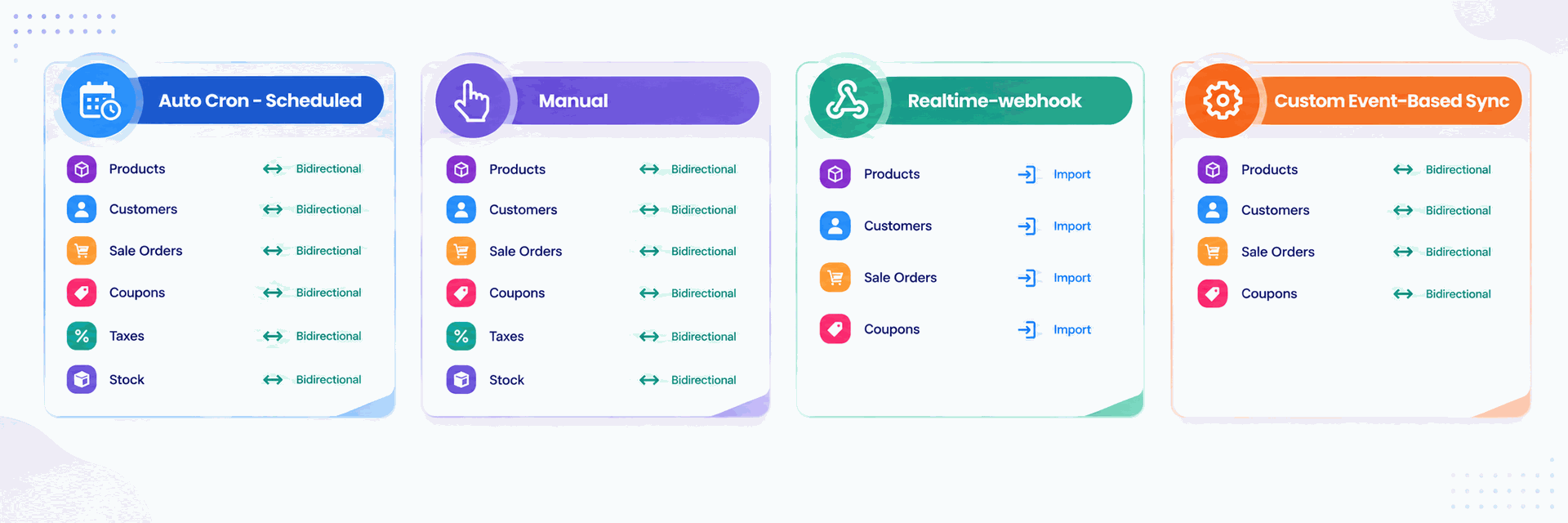
Import/Export Operations

Products Synchronization (Import & Export)
-
 Price
Price
-
Product Variants and Attributes
-
Product Image
-
Product description
-
Stock Level
-
SKU based product mapping
-
Categories and Subcategories
-
Tags

Customer Synchronization (Import & Export)
-
Email
-
Phone Number
-
Address
-
Import as Company or Individual

Sale Orders Synchronization (Import & Export)
-
Status Sync
-
Import From Specific Date
-
Order Numbering – use Odoo or WooCommerce order reference
-
Auto-Assign Sales Team
-
Payment Term Mapping & Auto Invoice Payment Registration

Coupons Synchronization (Import & Export)
-
Loyalty Coupons
-
Usage Limits & Expiry Dates

Taxes Synchronization (Import & Export)
-
Import & Map WooCommerce Tax Rates (with Tax Class Support)
-
Map Tax Rates to Odoo Account Taxes
-
Export Odoo Account Taxes to WooCommerce
-
Sync Tax Rates, Names & Class Mappings

Stock Synchronization (Import & Export)
-
Stock warehouse selection
-
Product Stock quantity (Free, on-hand, forecasted)
Automation, Dashboards & Core Infrastructure

WooCommerce Dashboard
-
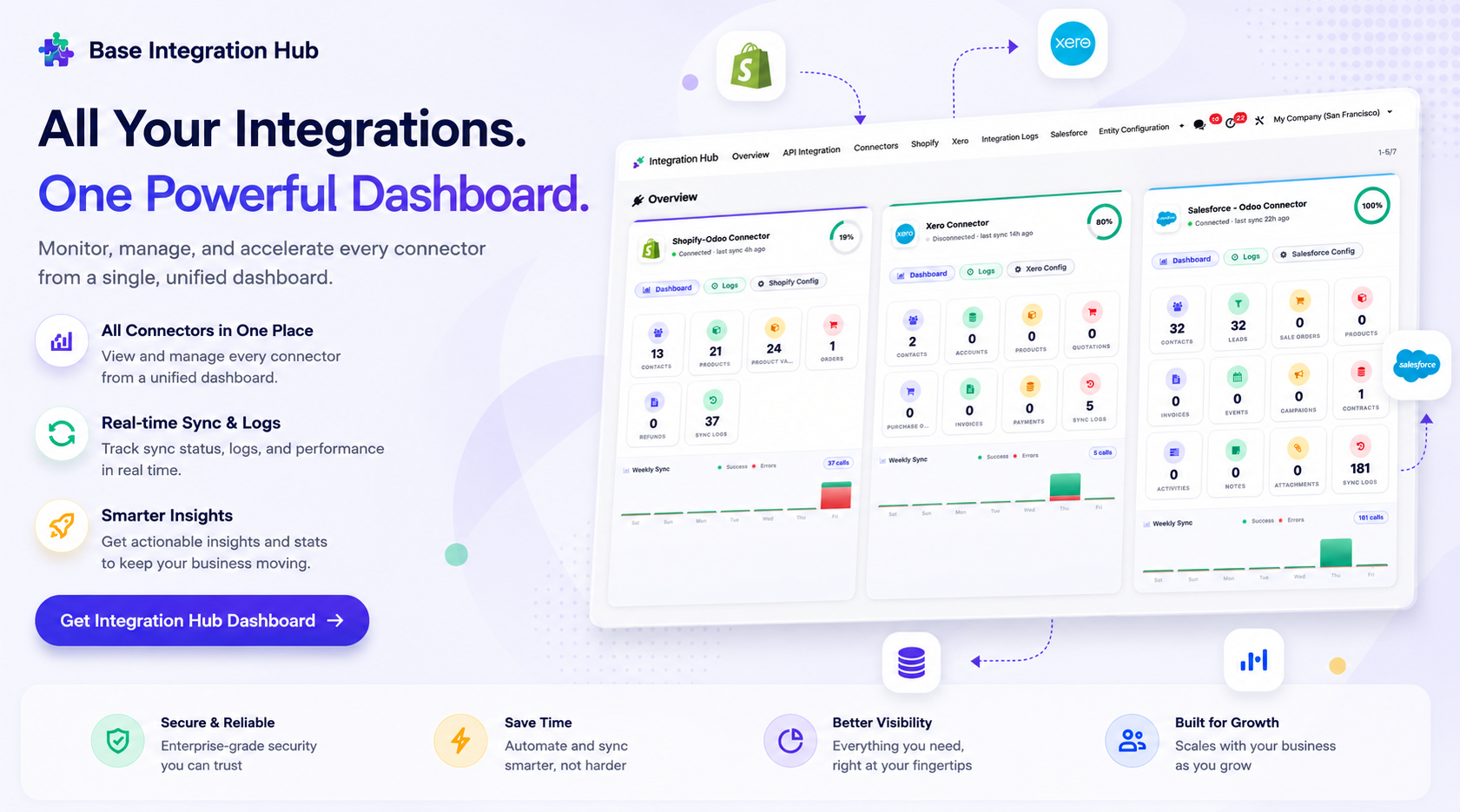
Monitor synchronization status, statistics, and integration activities from a centralized dashboard.

Integration Hub
-
A centralized view to track the status of all connectors, recent activities, and synchronization stats.

Record Exclusion Control
-
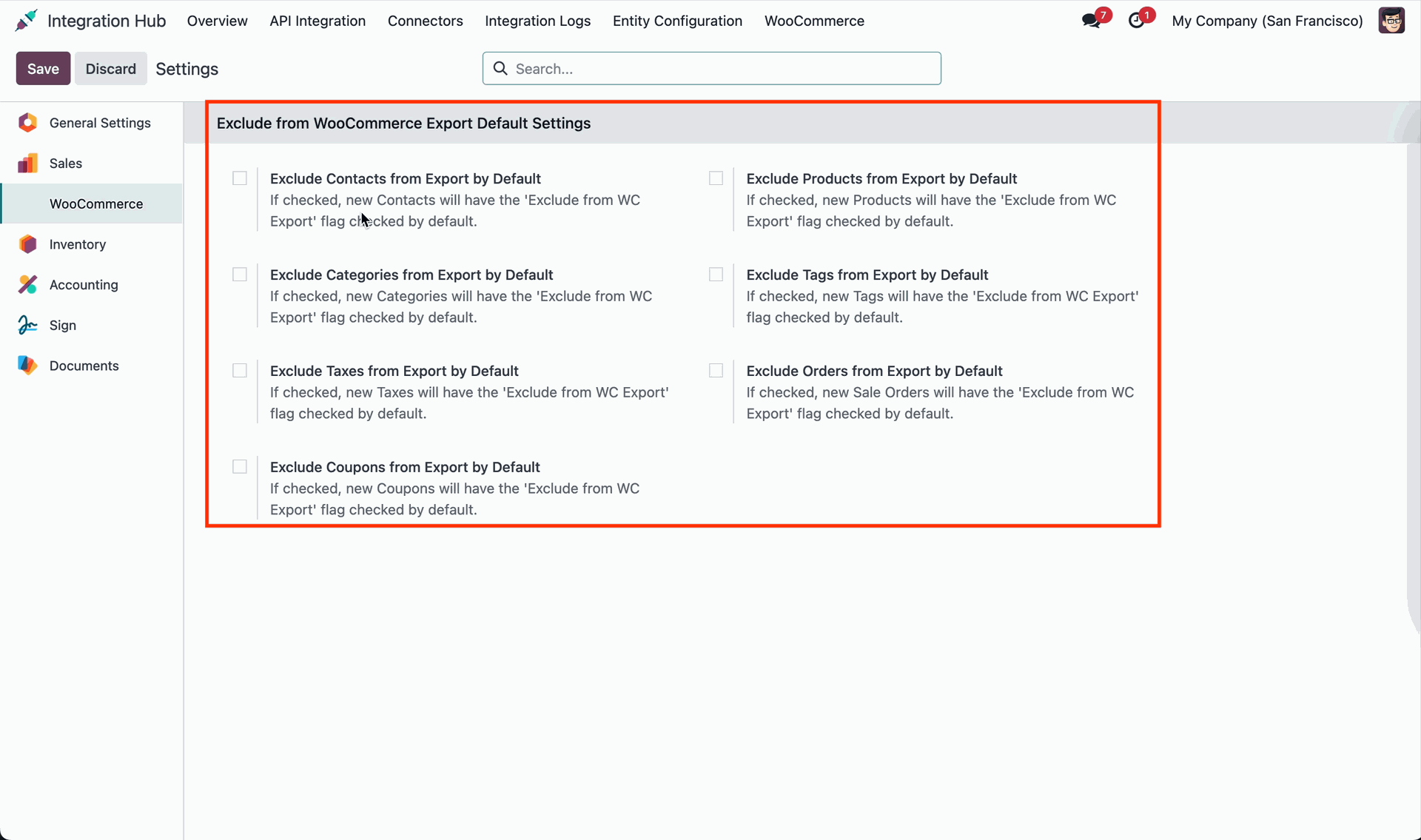
Exclude any products, categories, tags, contact, orders, tax, coupons from export from odoo.

Multi Store & Warehouse
-
Connect and manage multiple WooCommerce stores from a single Odoo instance with store-specific settings and configurations.

Queue Dashboard Framework
-
Track, monitor, and manage asynchronous data synchronization and execution state logs.

Synchronization Logs
-
Track successful and failed synchronization activities with detailed log history for easy monitoring and troubleshooting.

Auto Workflow
-
Auto-confirm sale order
-
Auto-create invoice (Draft or Post)
-
Auto-validate delivery
-
Auto-register payment
 Setup & Configuration
 Release Notes
 Support
 FAQ's
FAQ's
Frequently Asked Questions
Everything you need to know before getting started.
-
 Configuration
-
 Integration Hub Dashboard
-
Dashboard
-
 Product Synchronization
-
 Product Categories Synchronization
-
Product Tags Synchronization
-
Customer Synchronization
-
Sale Orders Synchronization
-
Coupons Synchronization
-
Taxes Synchronization
-
Stock Synchronization
-
Exclude Record Configuration
-
Webhooks & Real-time Synchronization
 How it Works? Watch Video
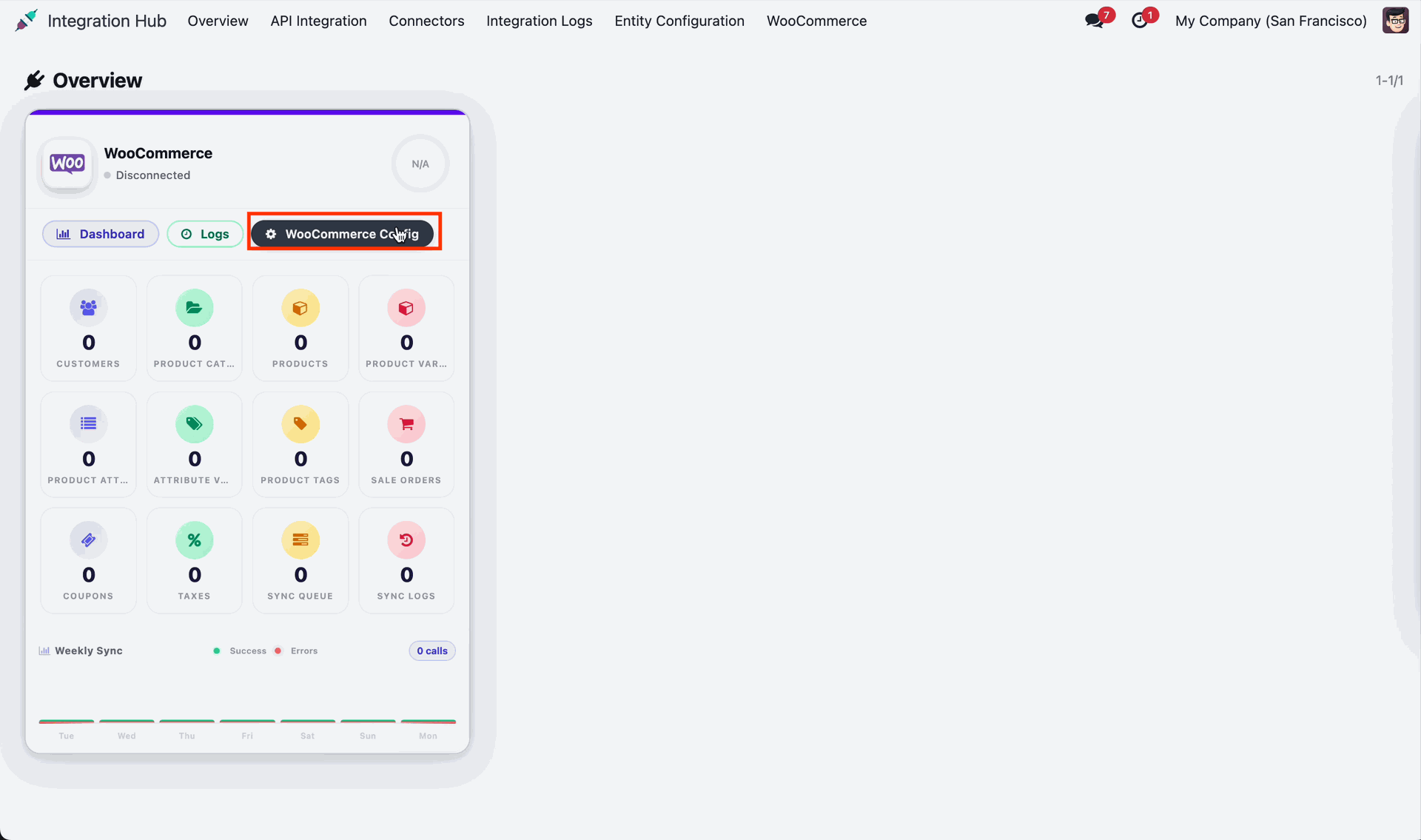
Click WooCommerce Config on the instance card to configure WooCommerce store settings.
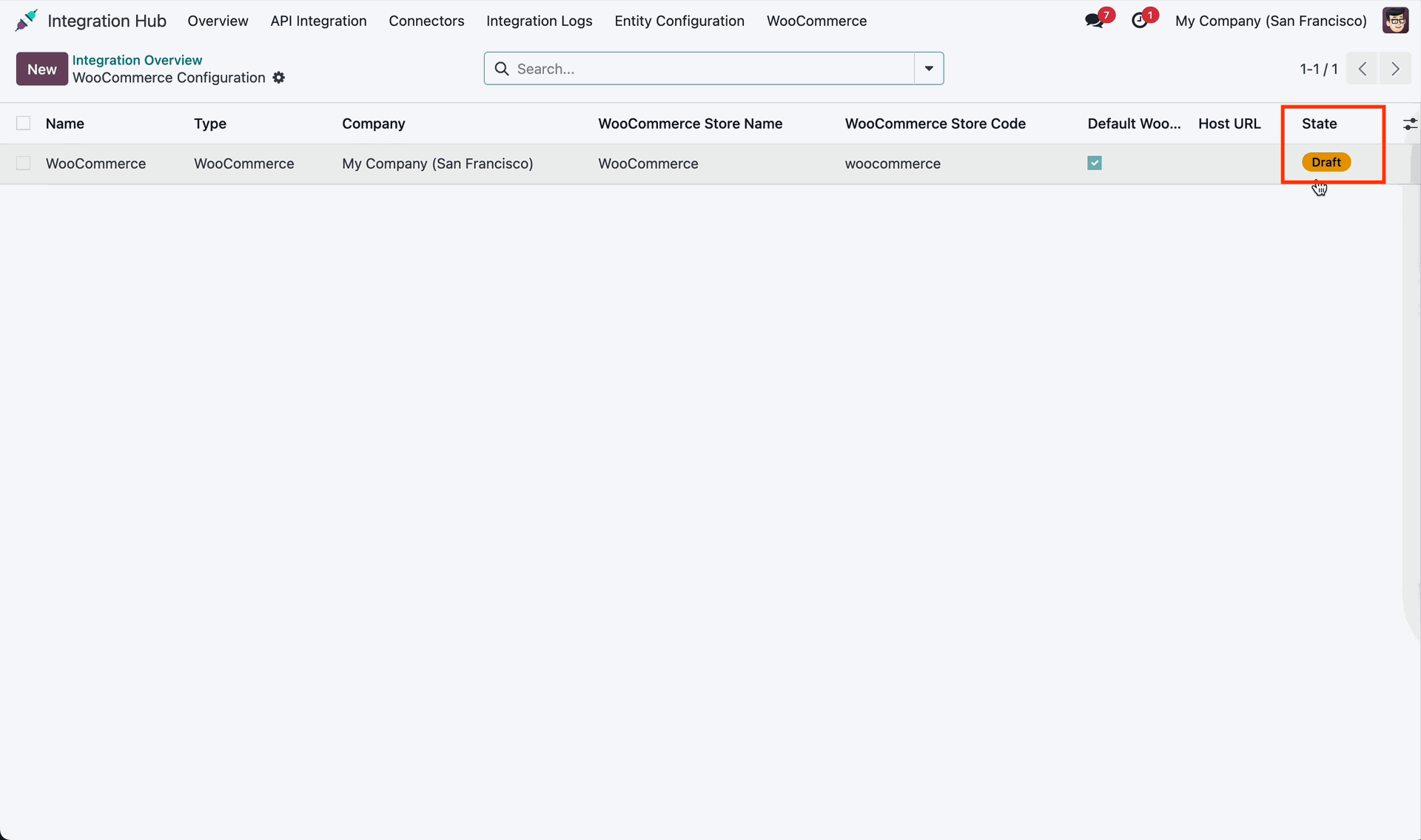
Check the WooCommerce store connection status.
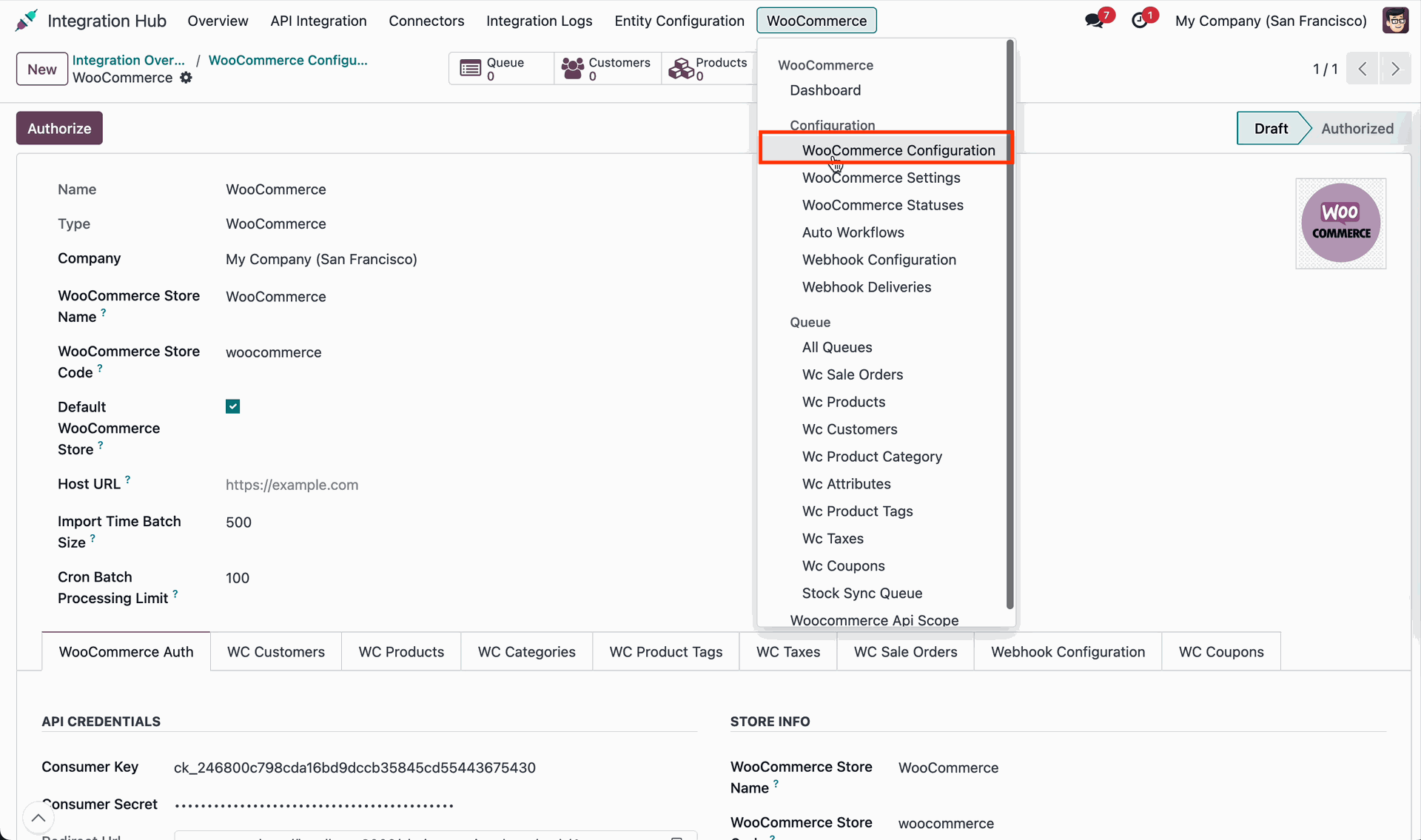
Go to the WooCommerce Configuration menu.
Enter credentials.
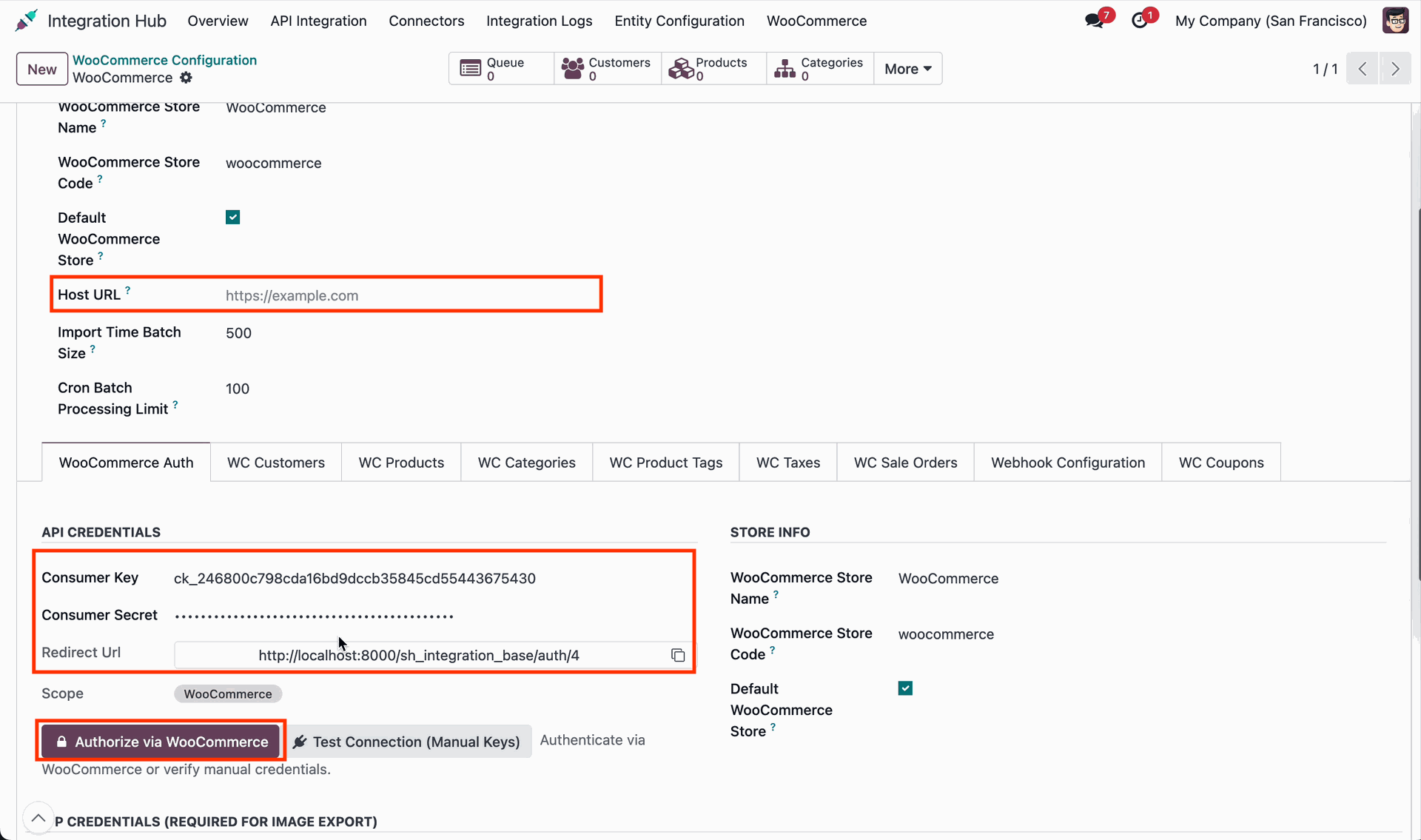
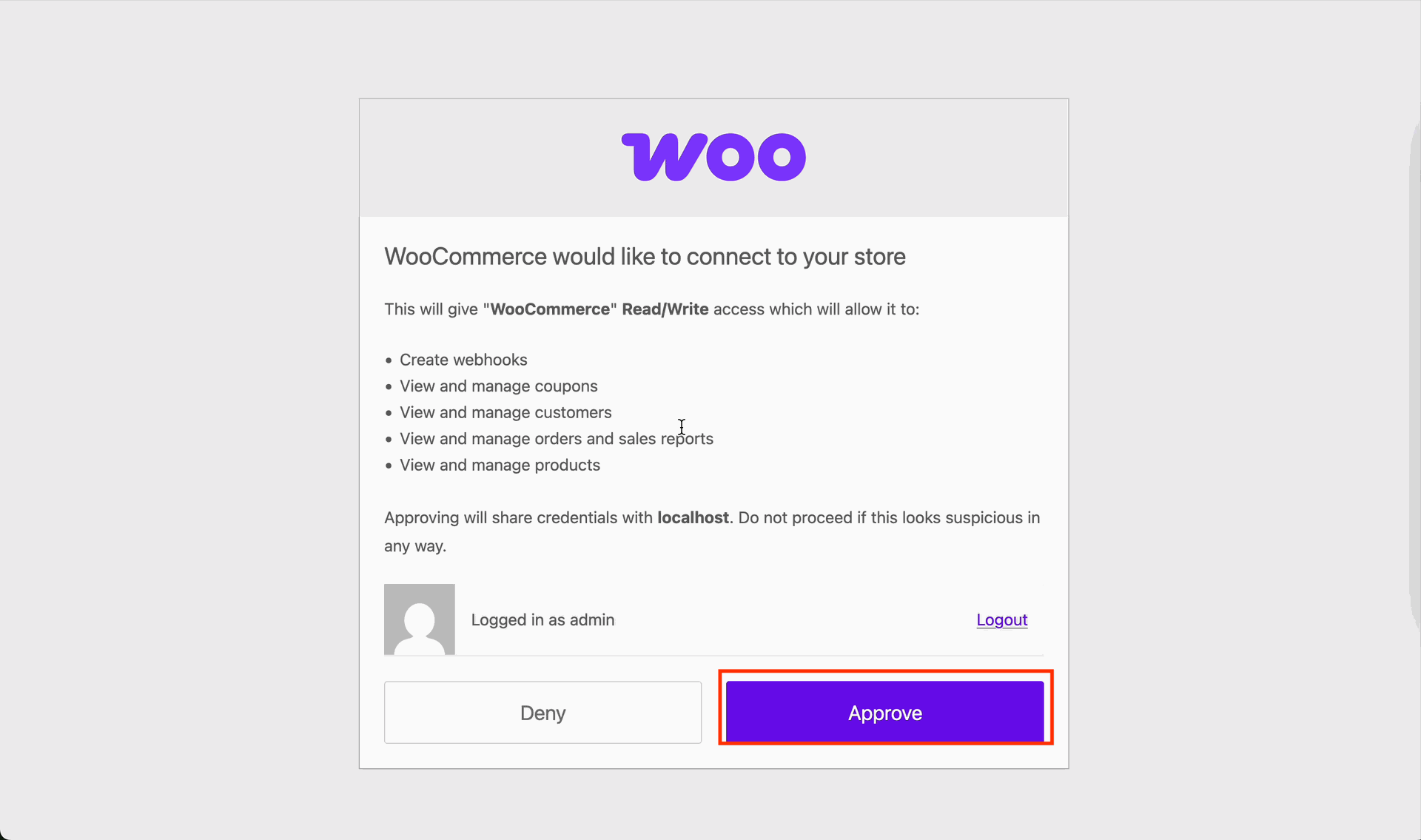
Click Approve to authorize authentication and grant API permissions for the WooCommerce store.
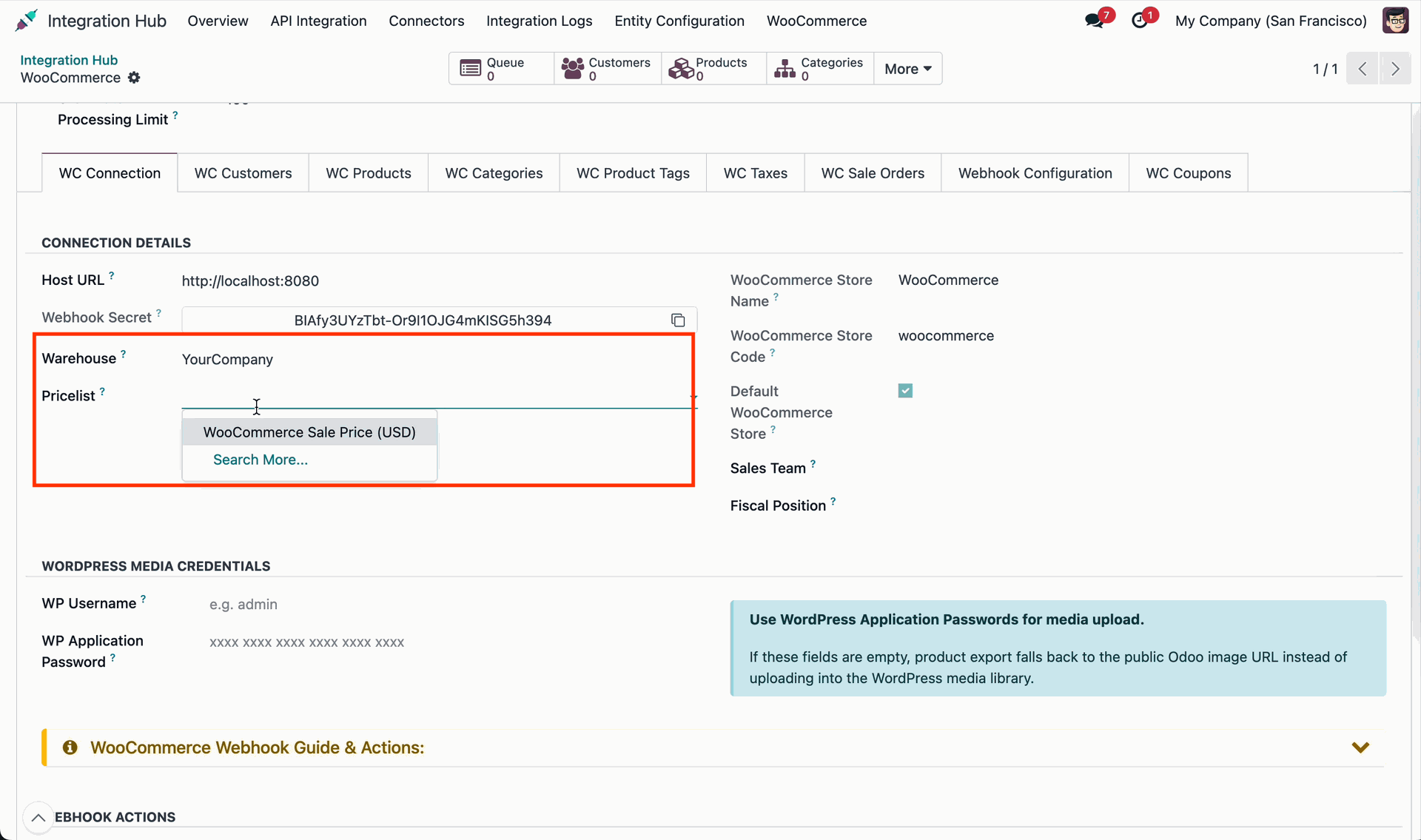
Select the target warehouse and configure stock synchronization settings for inventory updates.
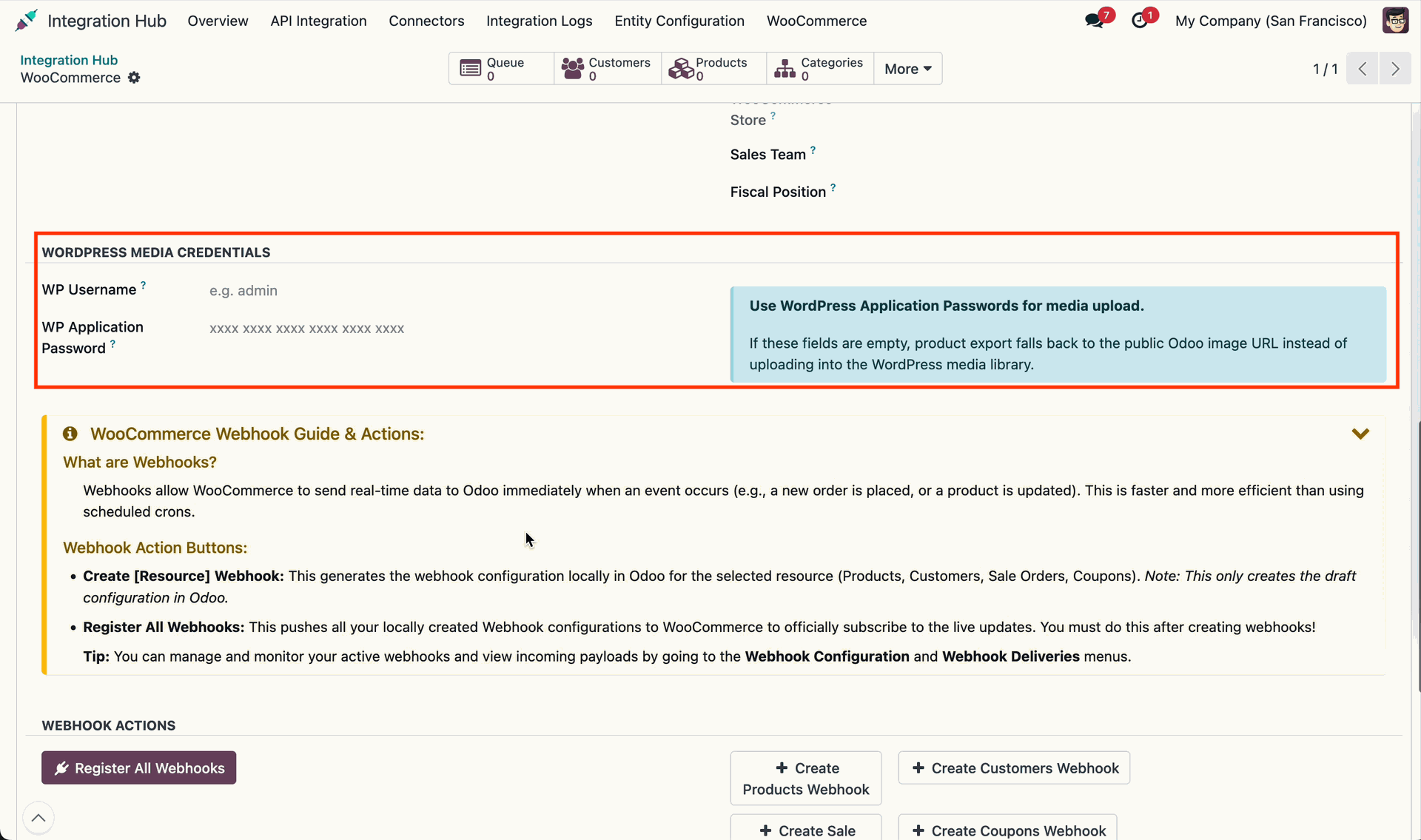
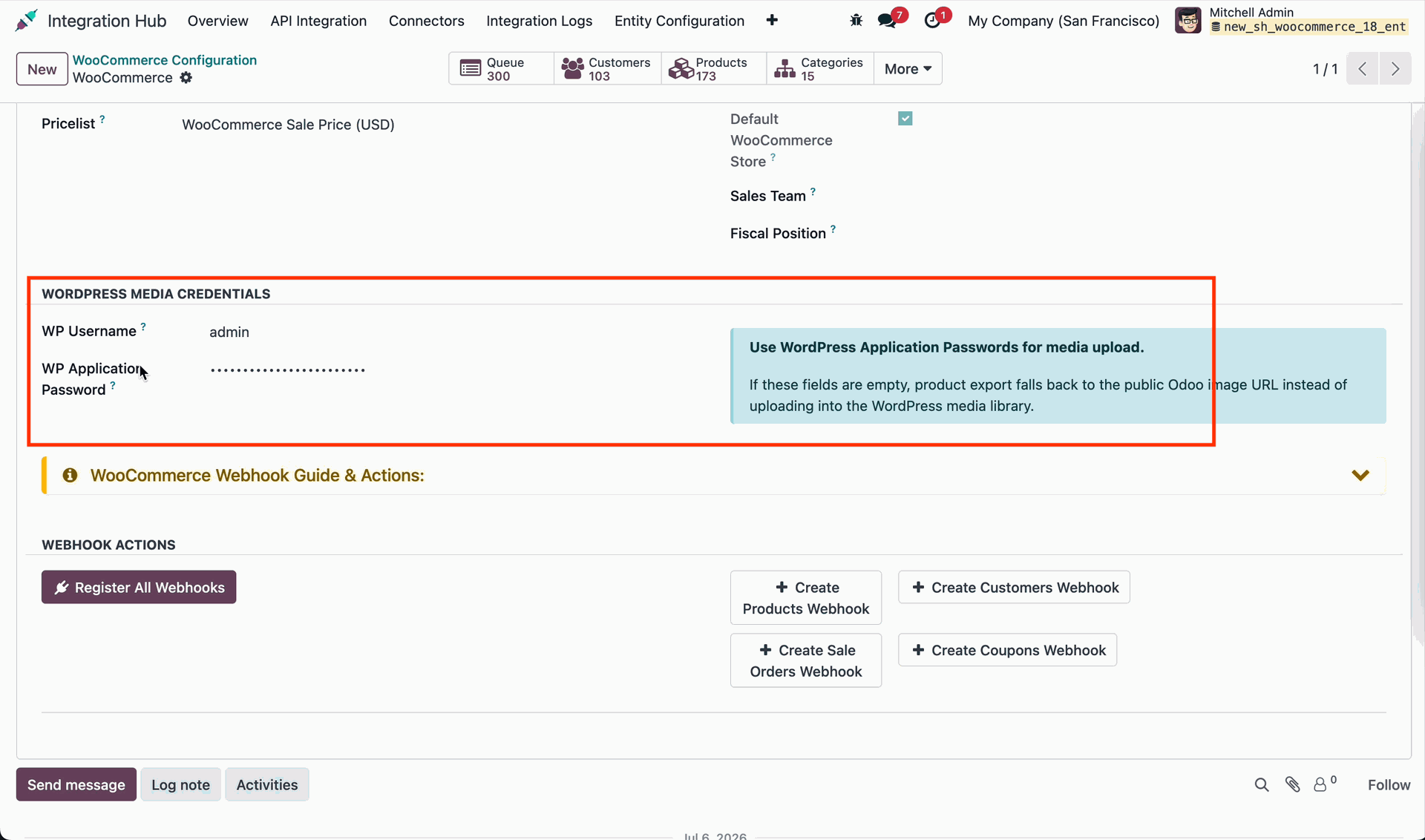
Enter media credentials.
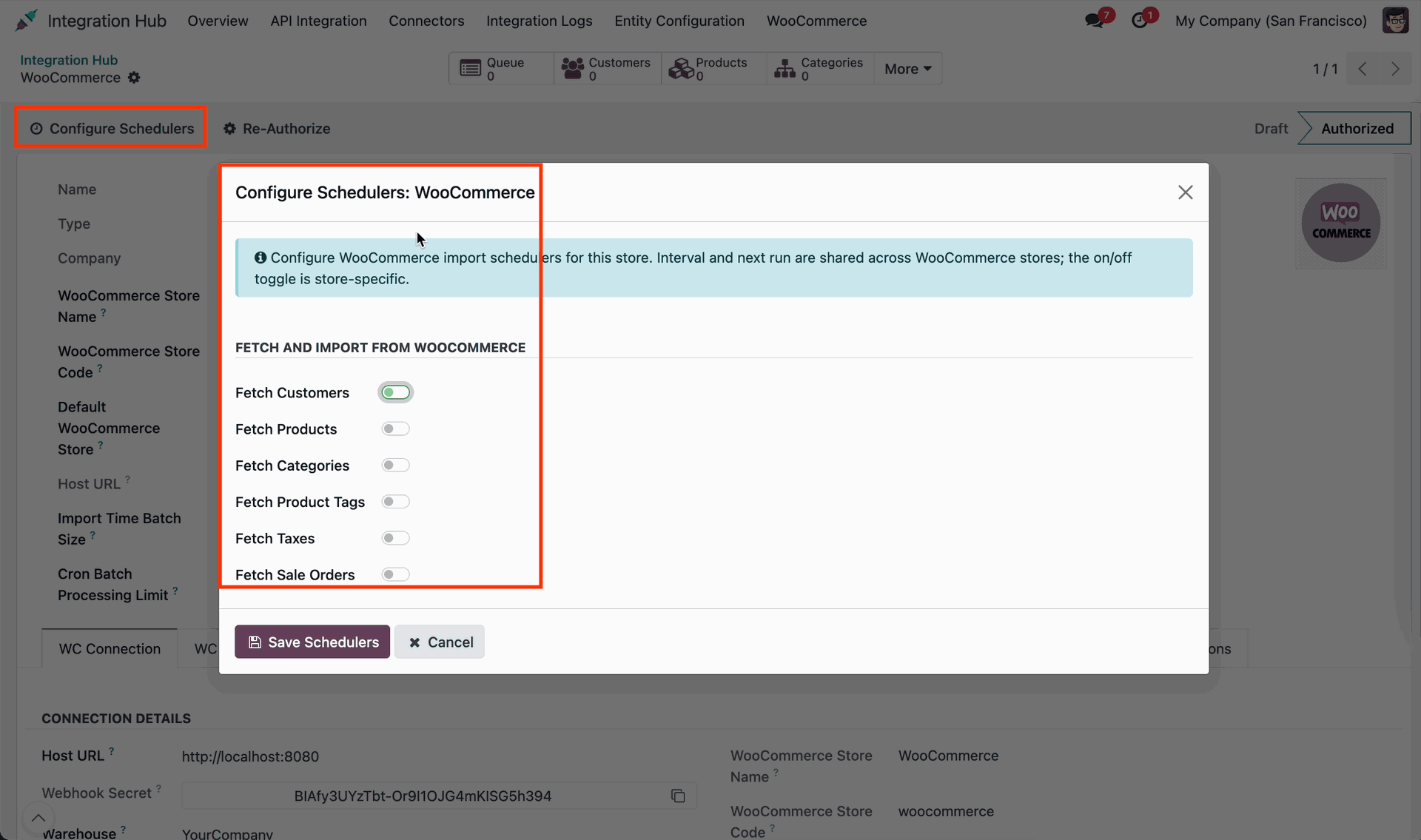
Click Configure Schedulers to set up automated cron synchronization intervals for WooCommerce.
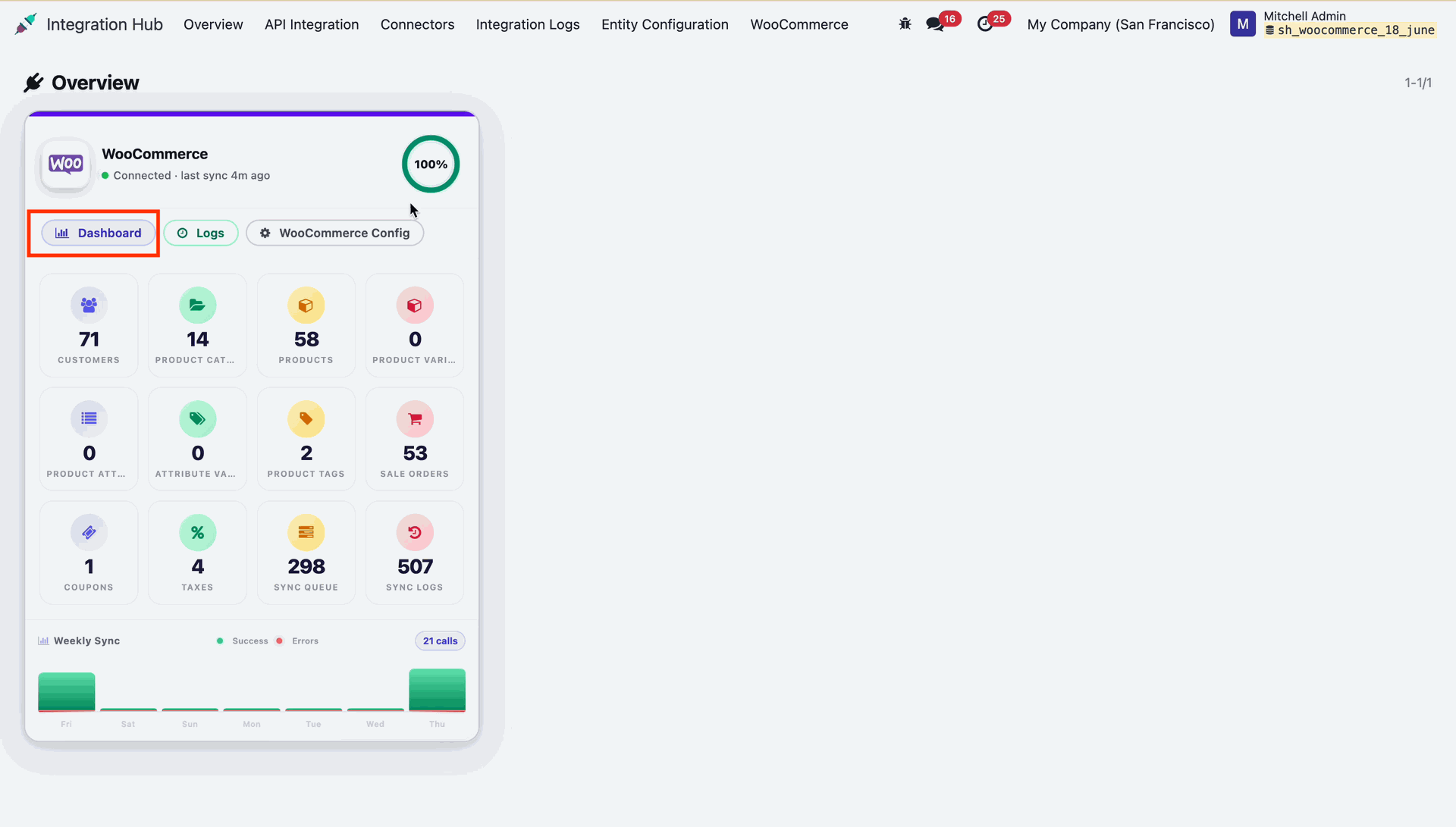
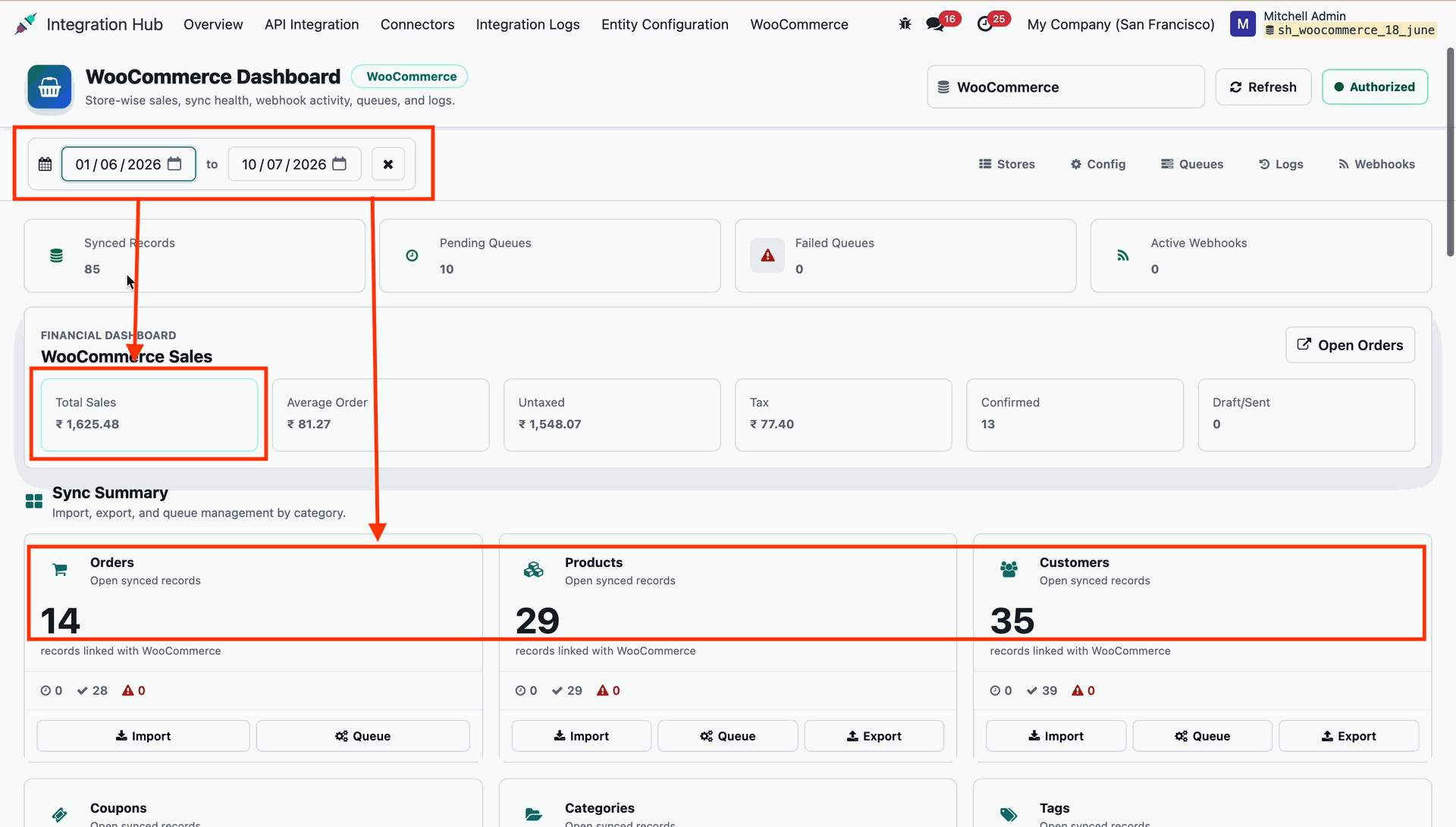
Centralized dashboard to manage and monitor all connectors from one place. Quickly access sync summary, activity logs, and configuration controls with improved visibility.
View the Integration Hub dashboard to monitor WooCommerce connection status and overall metrics.
 How it Works? Watch Video
Review product queue status metrics to track draft, pending, done, and failed records.
Check customer and order queue cards to monitor queue processing status across entities.
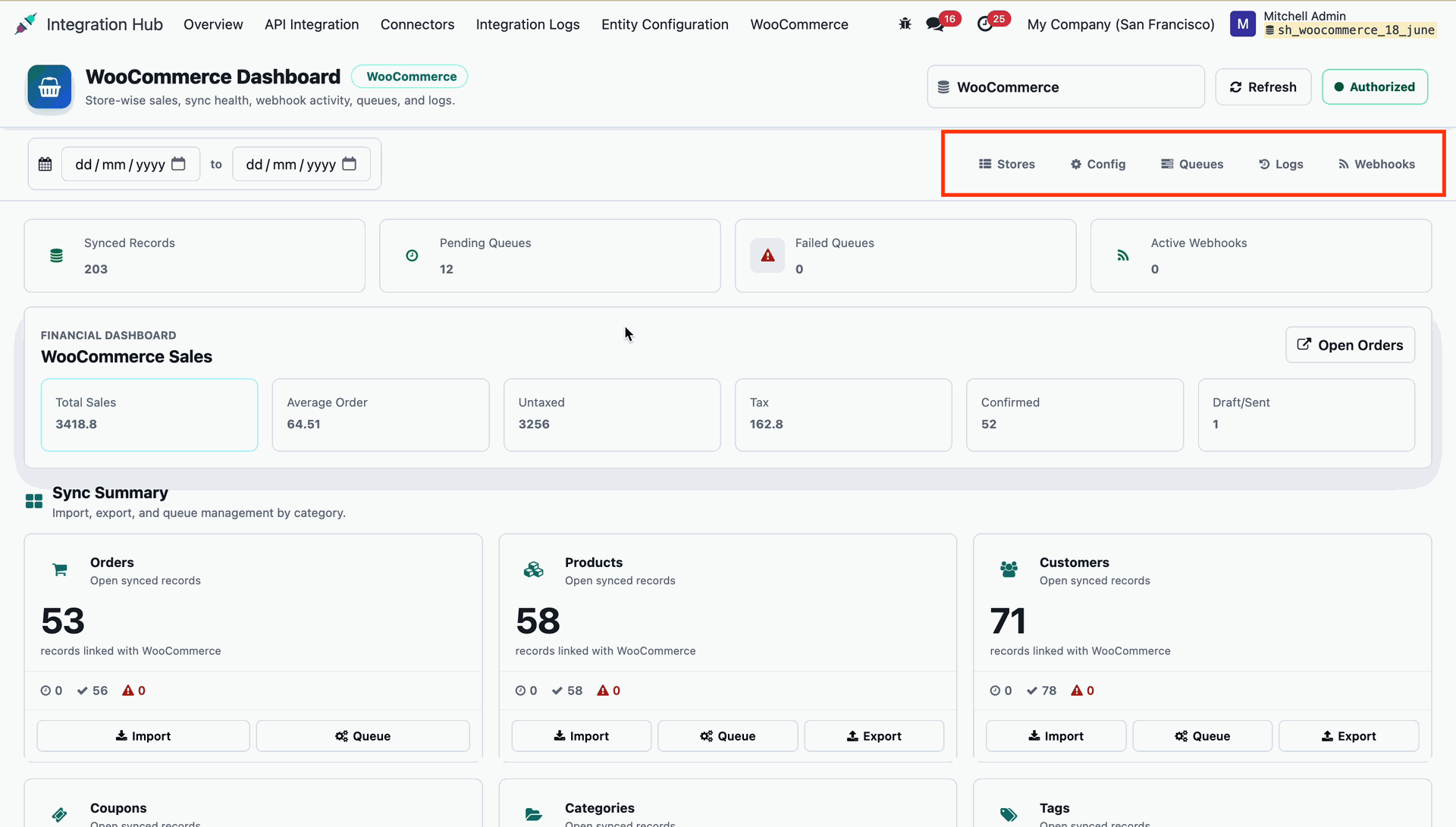
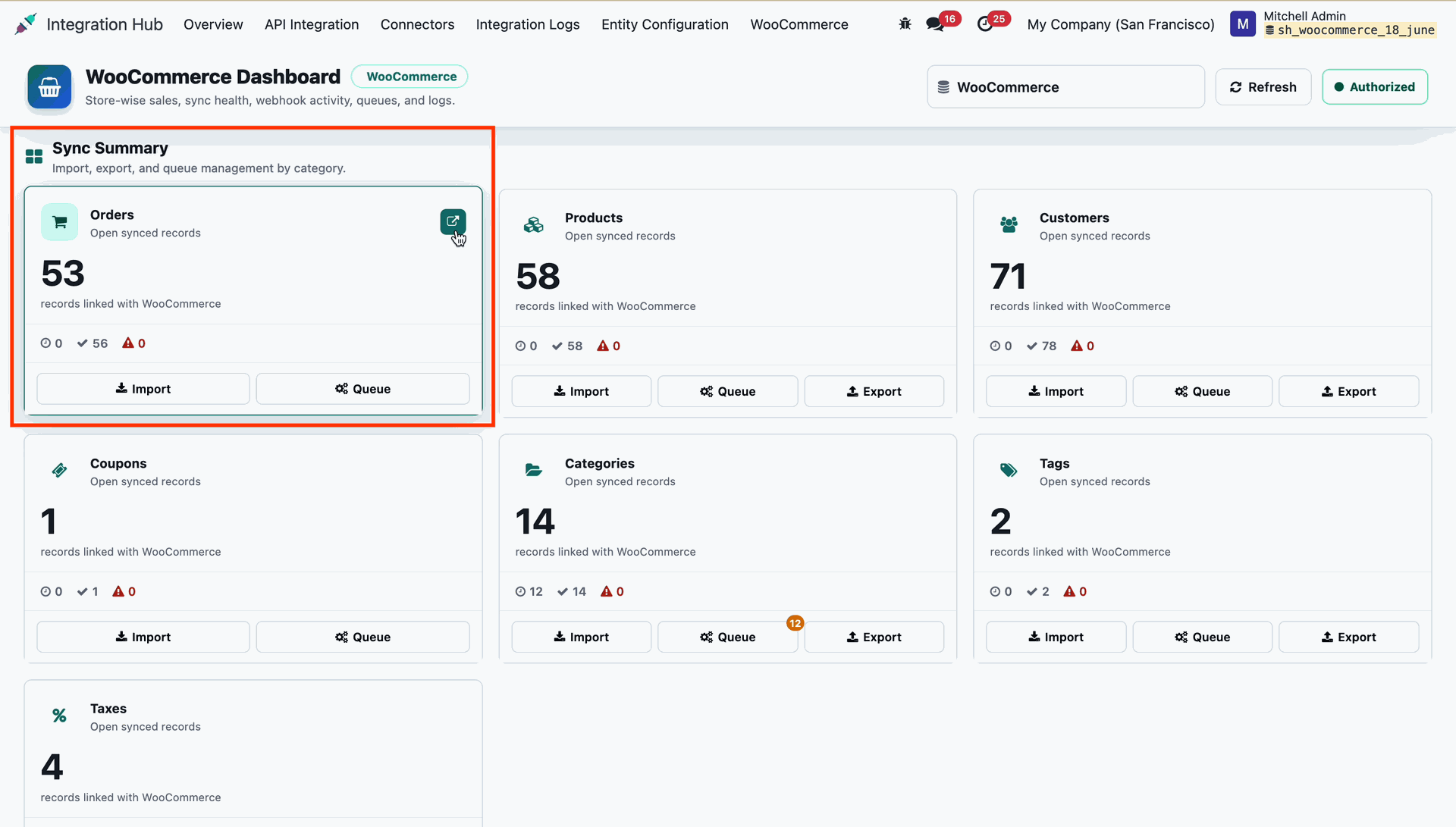
Click quick action buttons to import, export, or manage queues directly from dashboard.
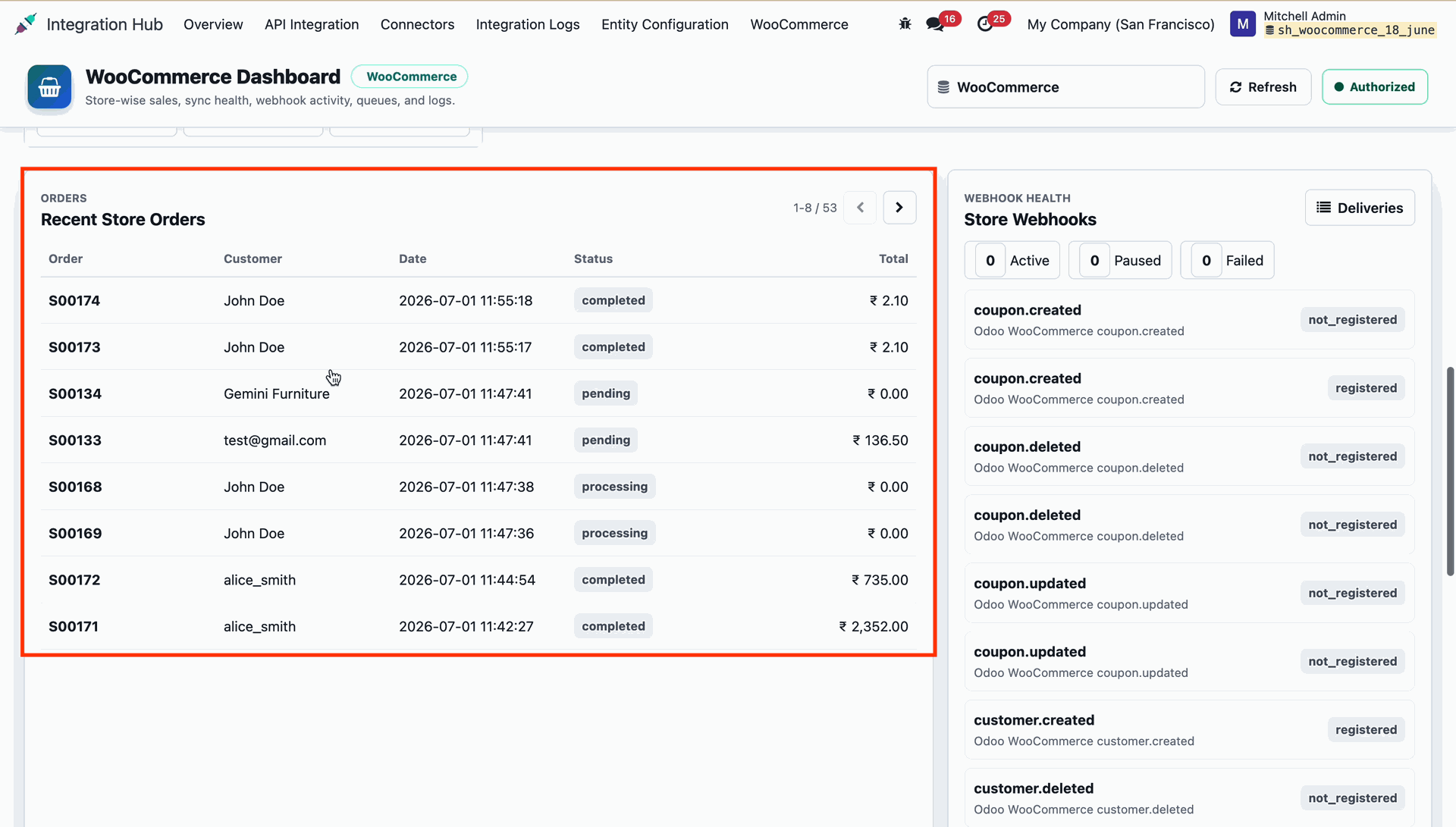
Review the recent store orders list to monitor order numbers, customers, and totals.
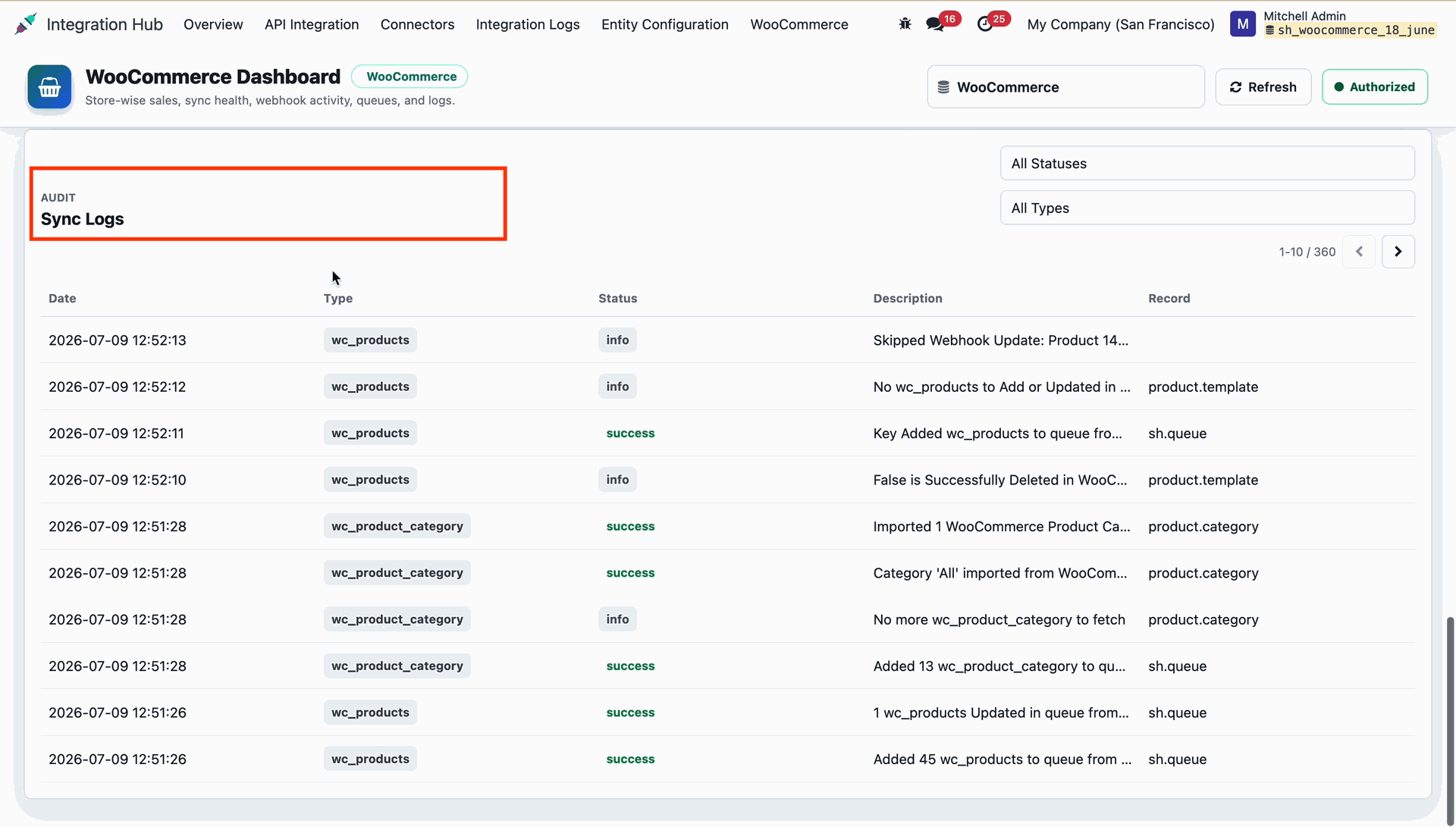
Open recent sync logs from the dashboard widget to inspect execution history details.
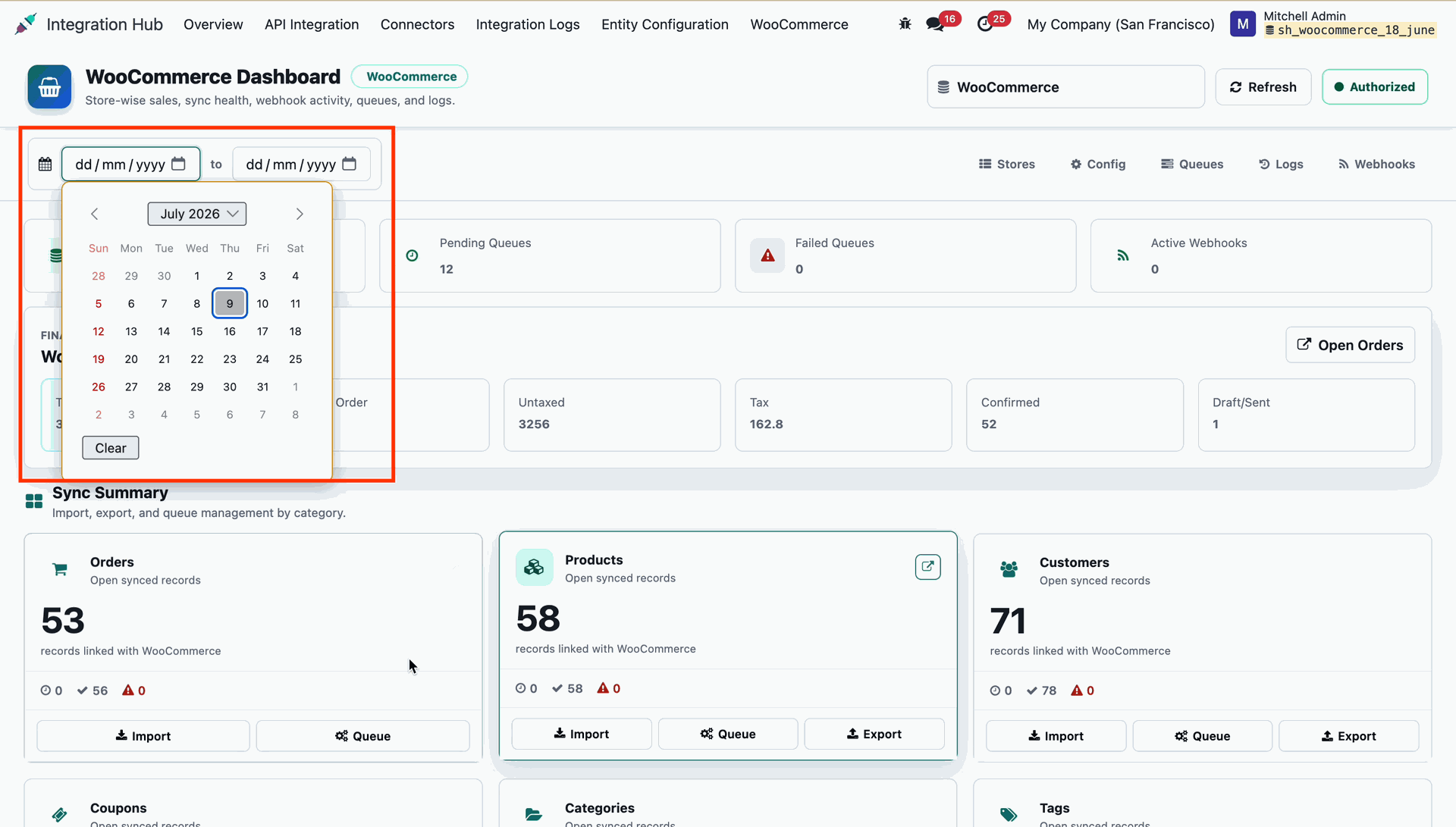
Select a date range filter to view WooCommerce dashboard statistics for specific periods.
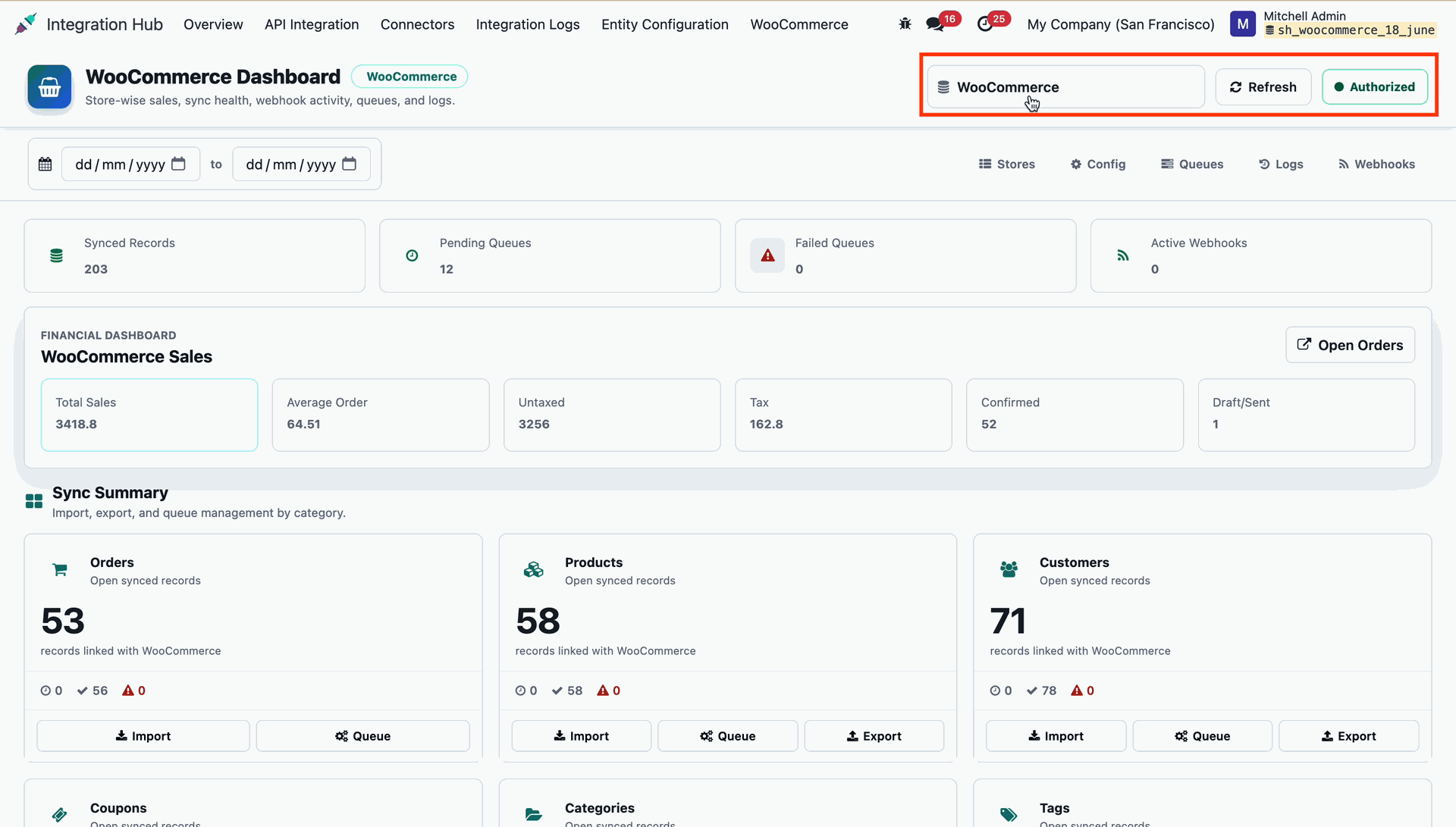
Select a WooCommerce store instance from the filter menu to view store-specific metrics.
 How it Works? Watch Video
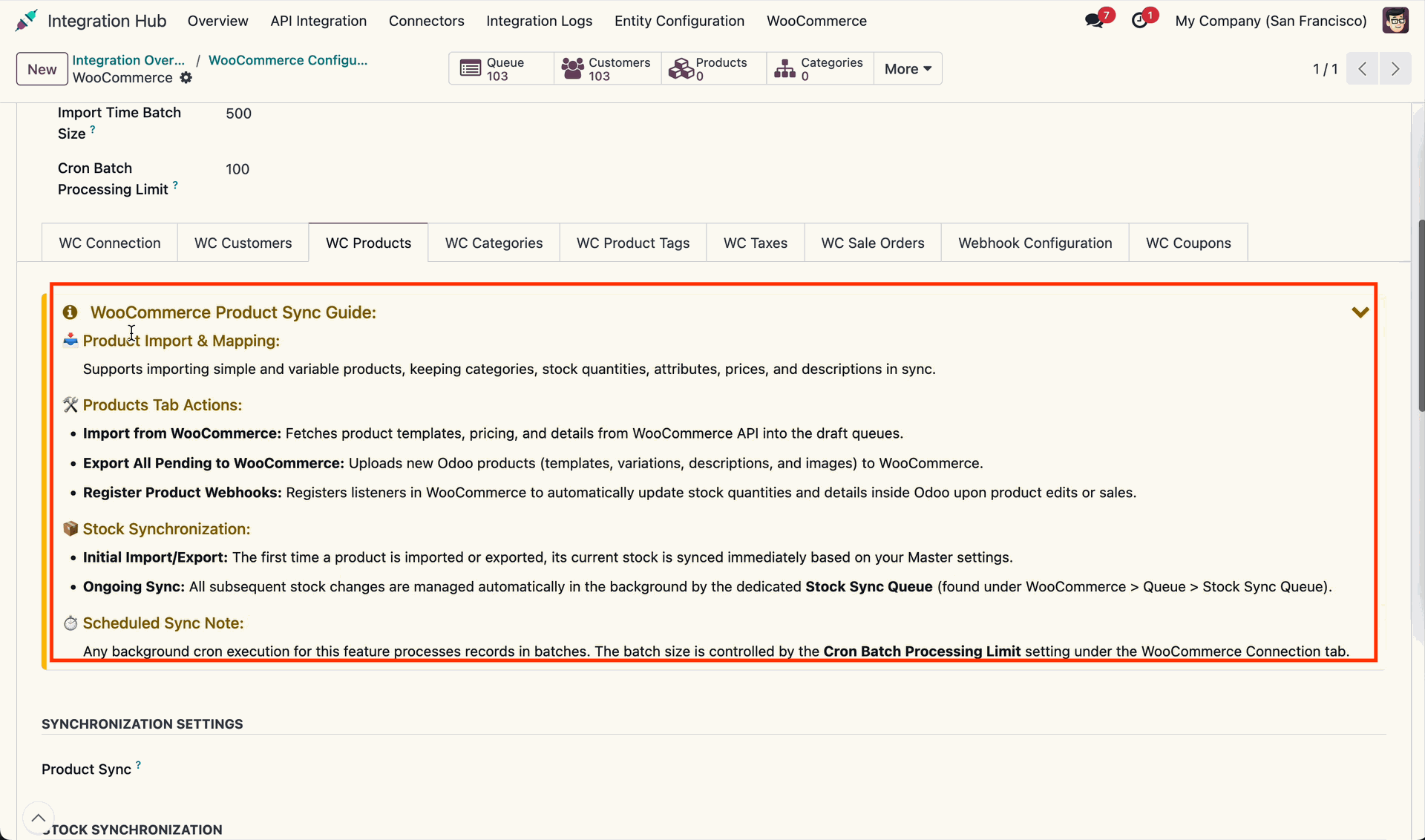
Open the WooCommerce configuration page to review product synchronization guidelines and options.
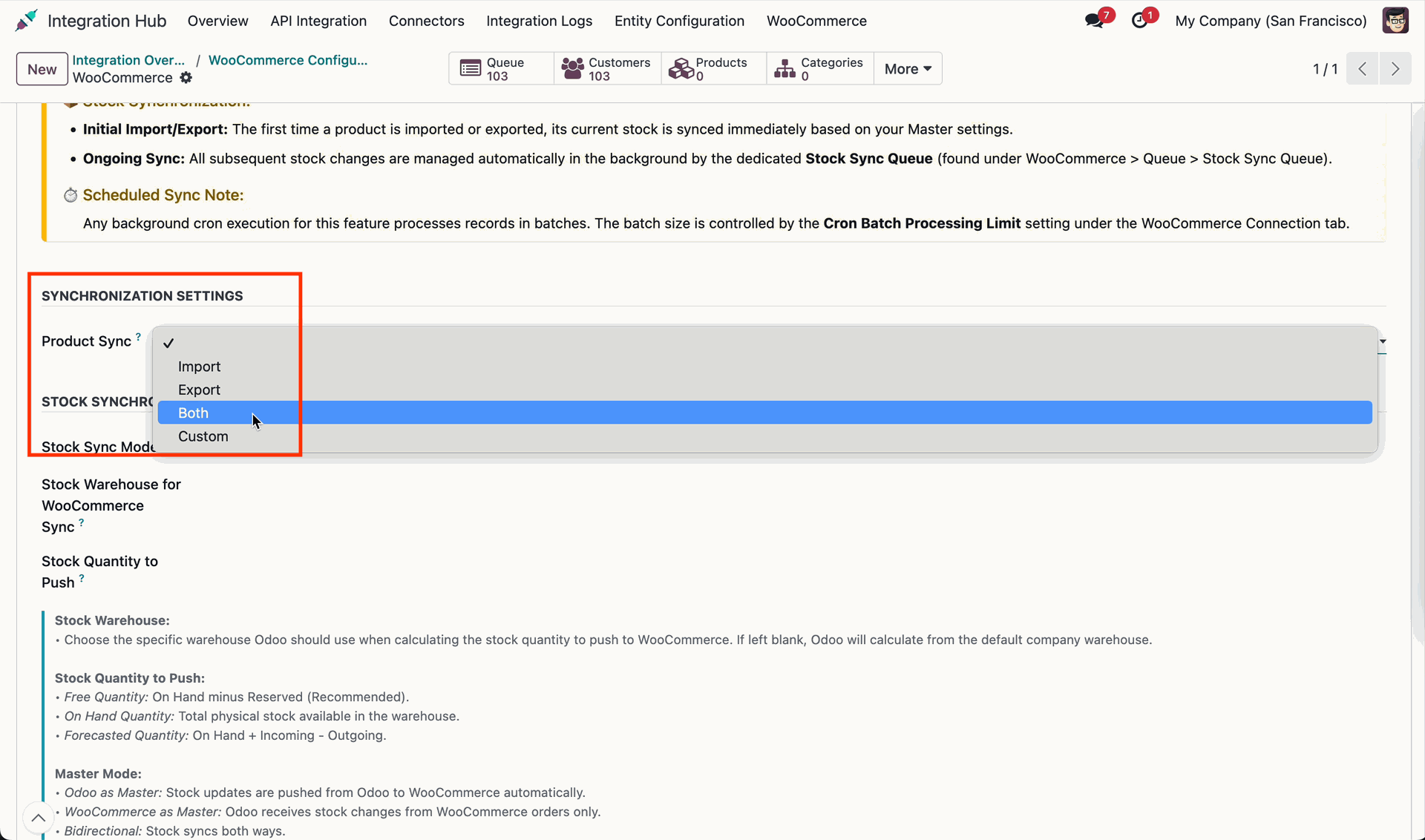
Configure product synchronization settings and select the desired import or export mode.
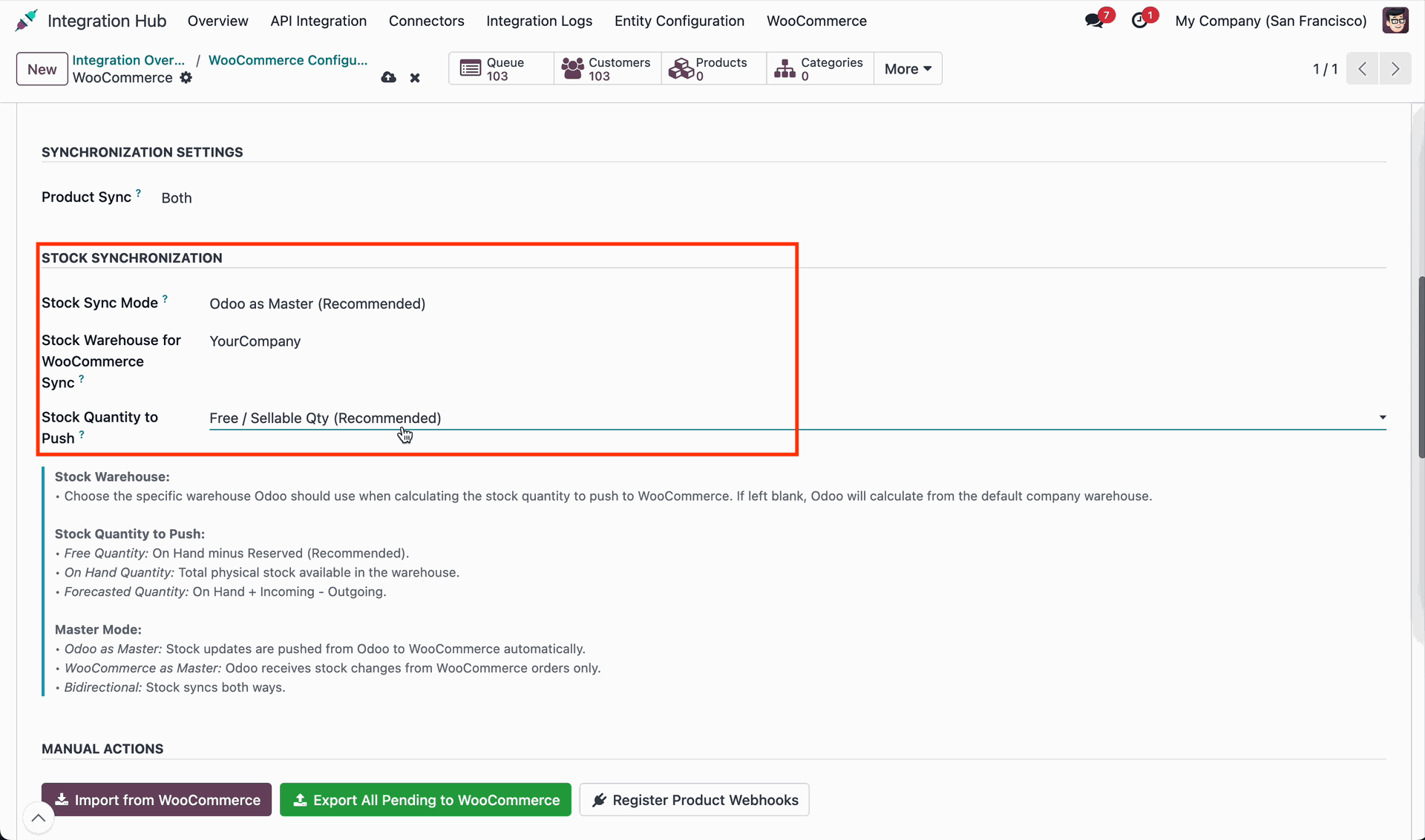
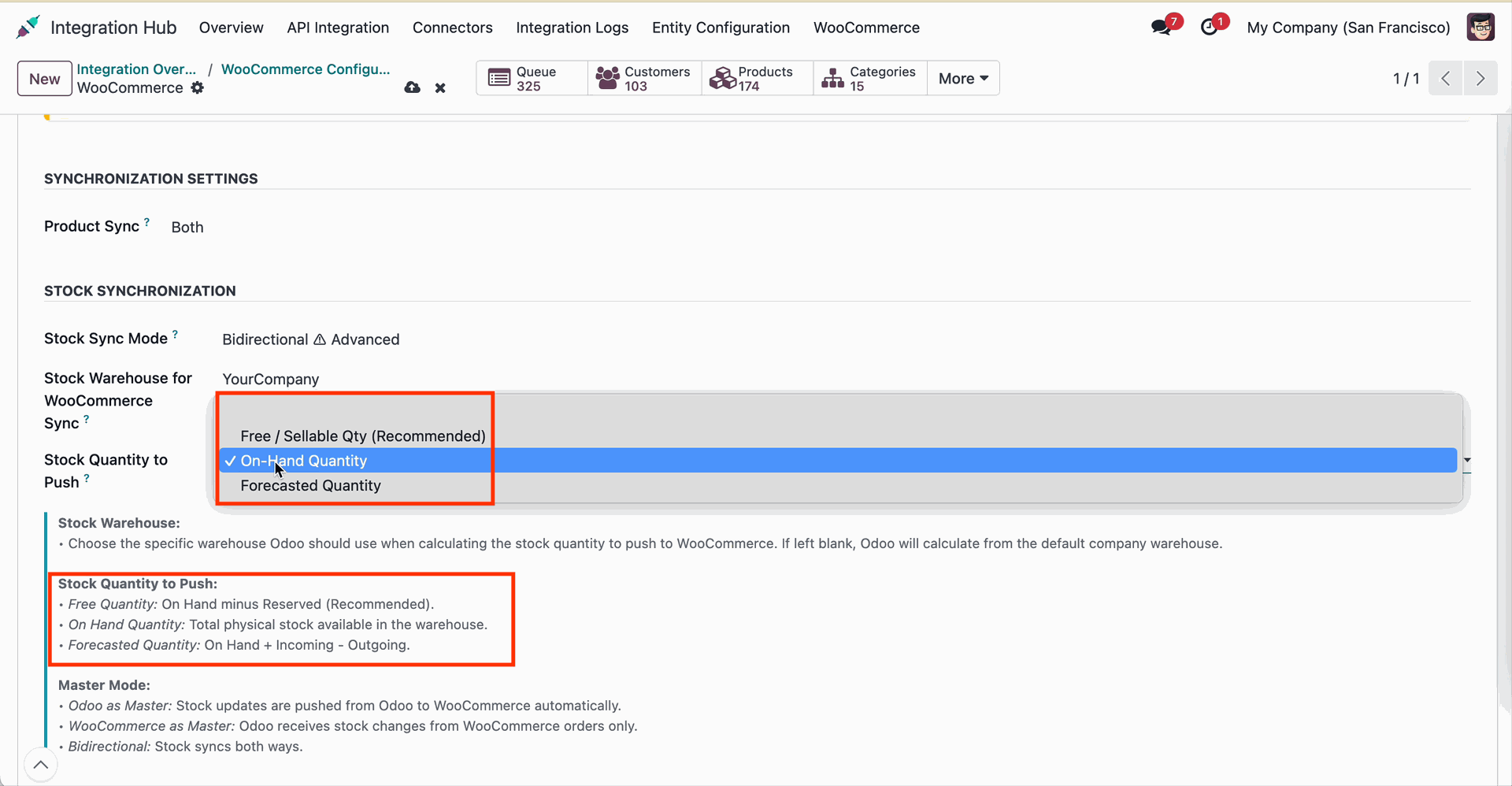
Select the stock warehouse and configure stock quantity push parameters for products.
Review the import notification banner showing product queue creation details and count.
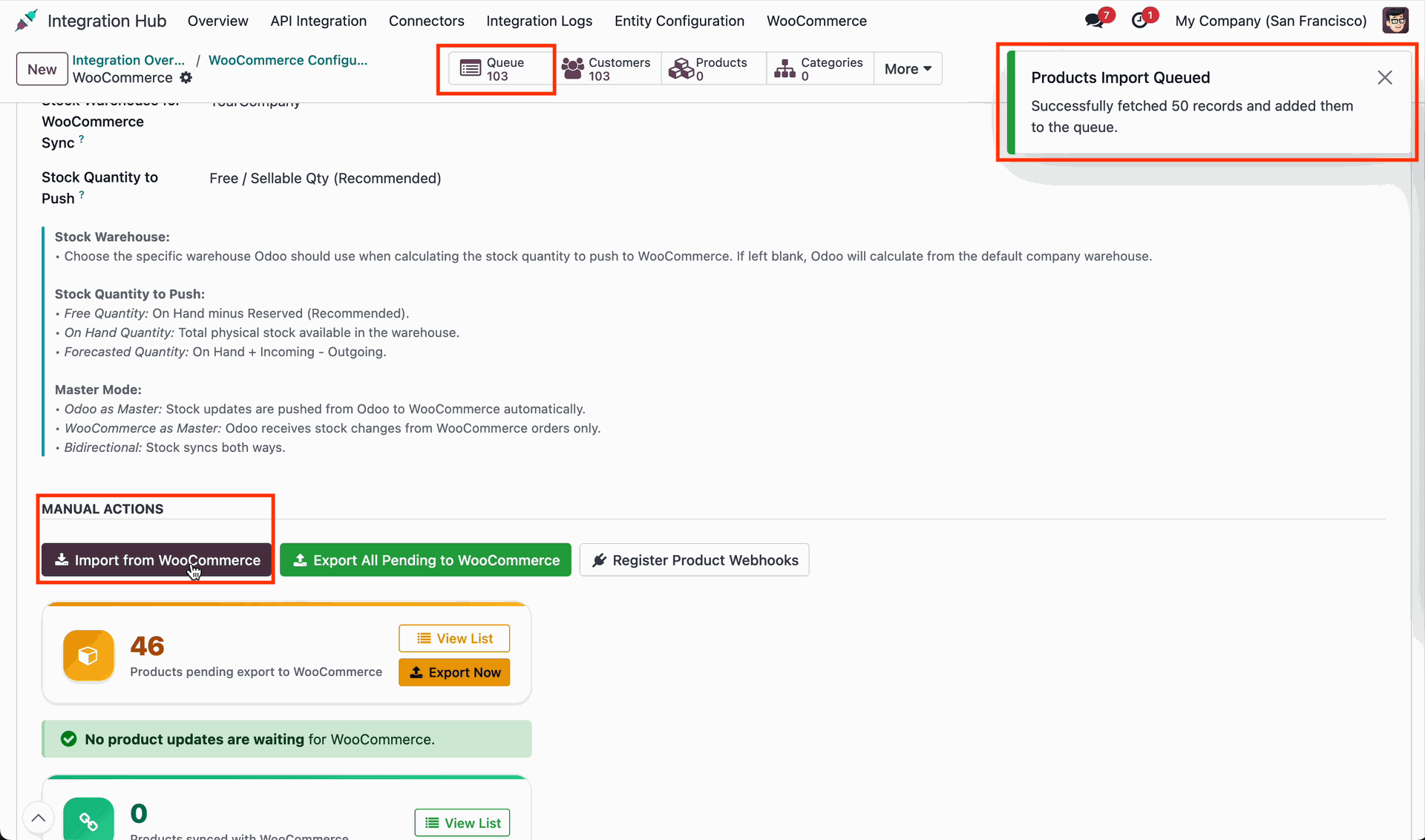
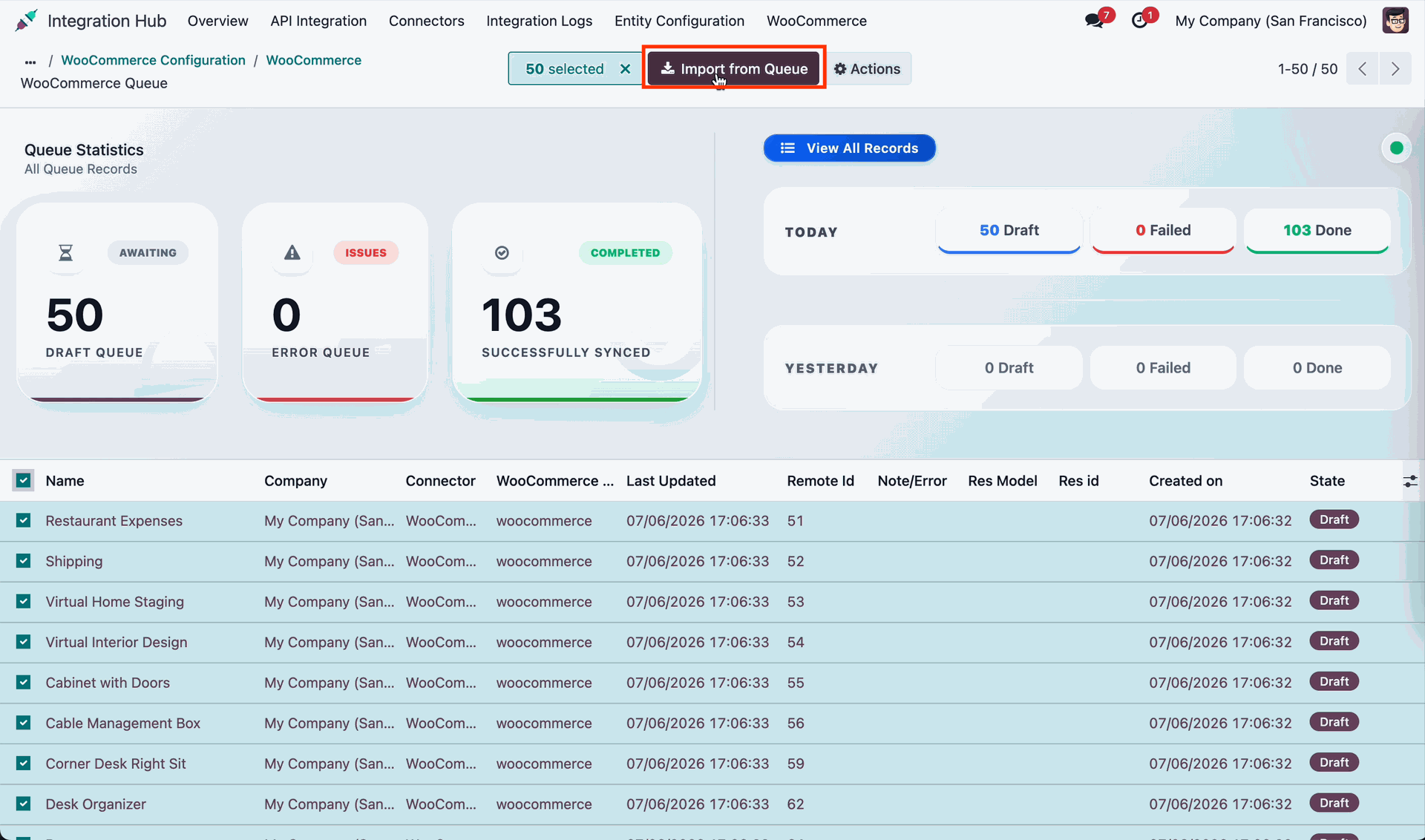
Open the product queue list to inspect imported draft records and processing status.
Click Import from WooCommerce to fetch product catalog records into Odoo.
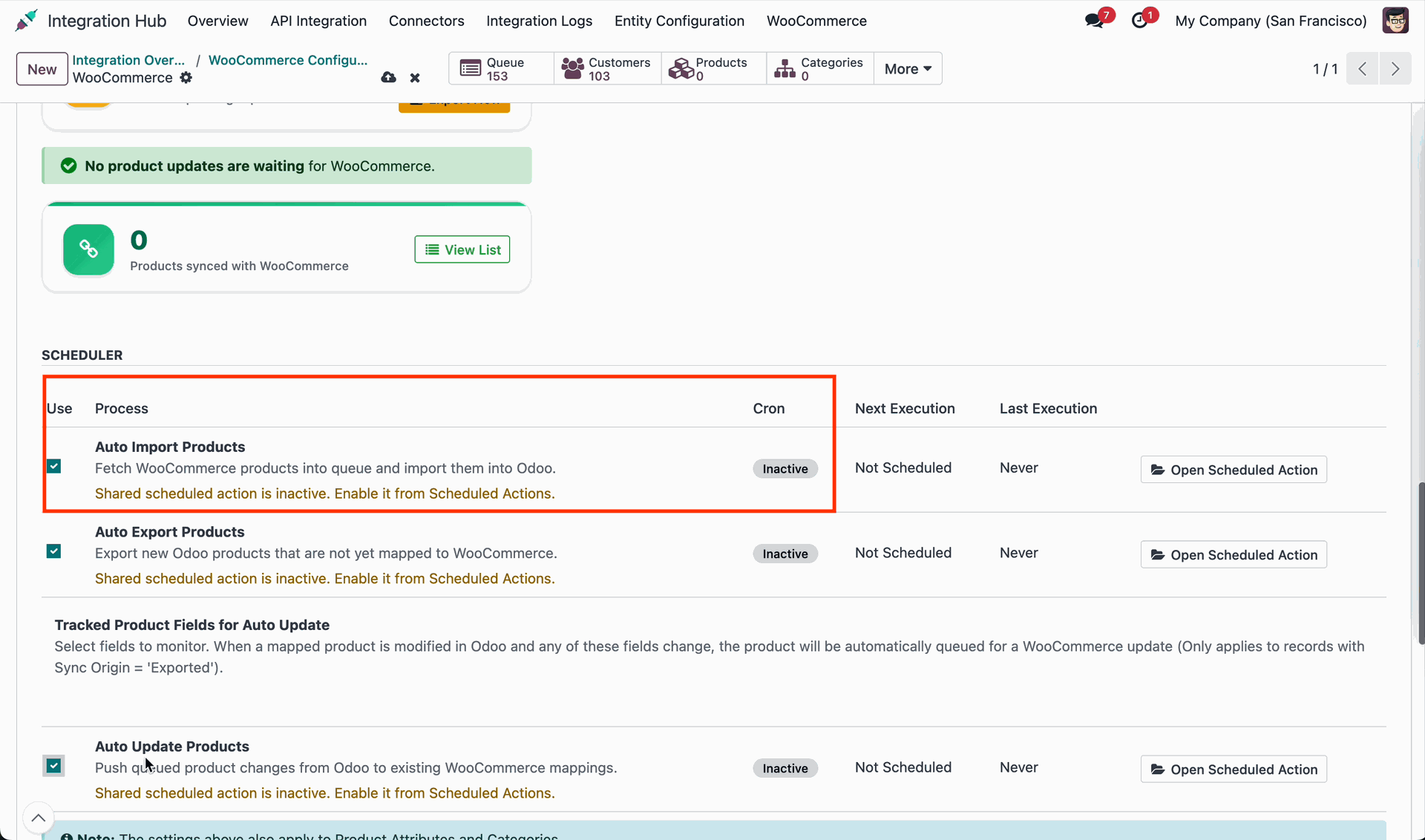
Enable the scheduled action to automatically import WooCommerce products into Odoo queues.
Click Run Manually to trigger immediate background import of WooCommerce product records.
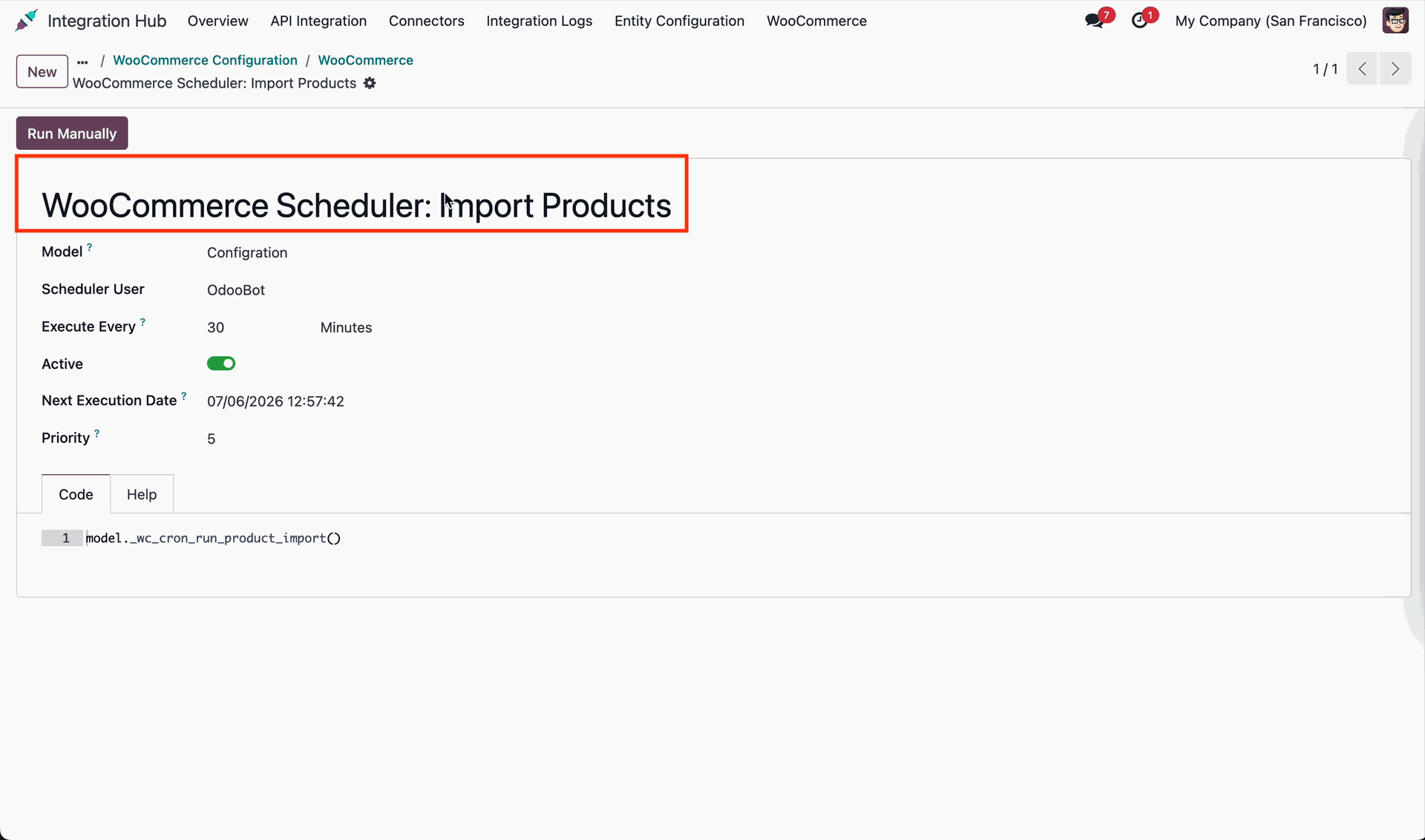
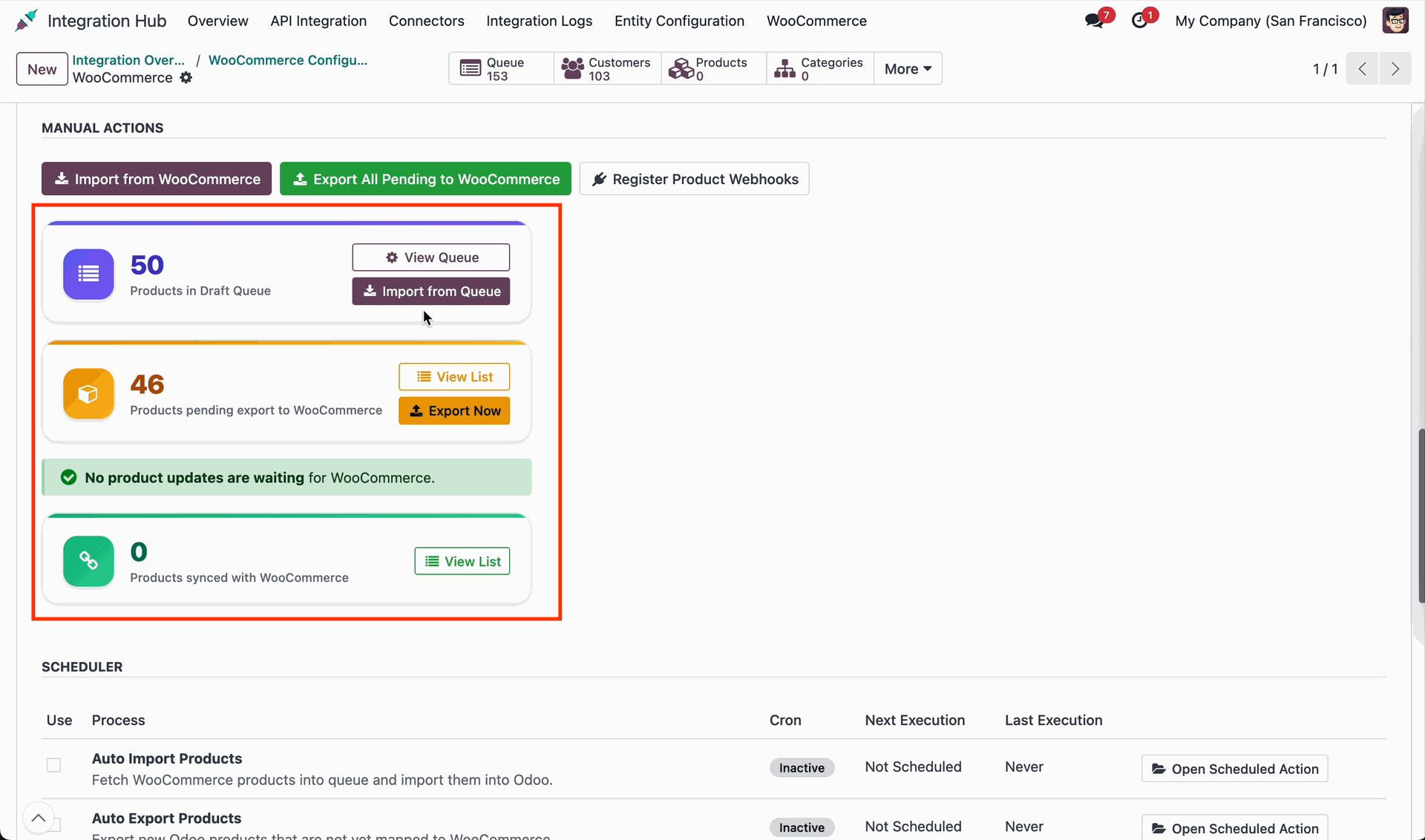
Click Import from Queue to process draft queue records into Odoo product templates.
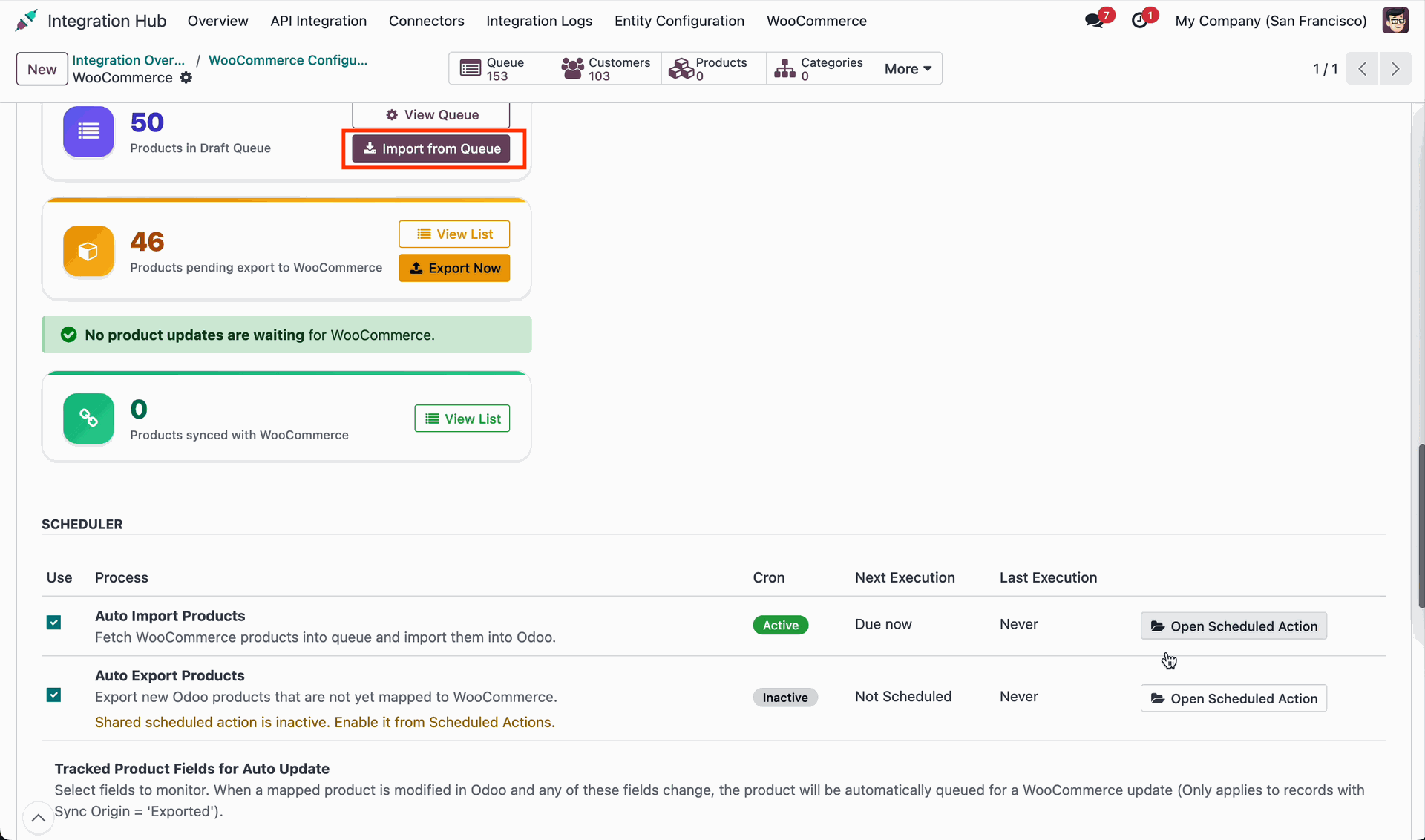
Review pending export products and click Export Now to update WooCommerce store inventory.
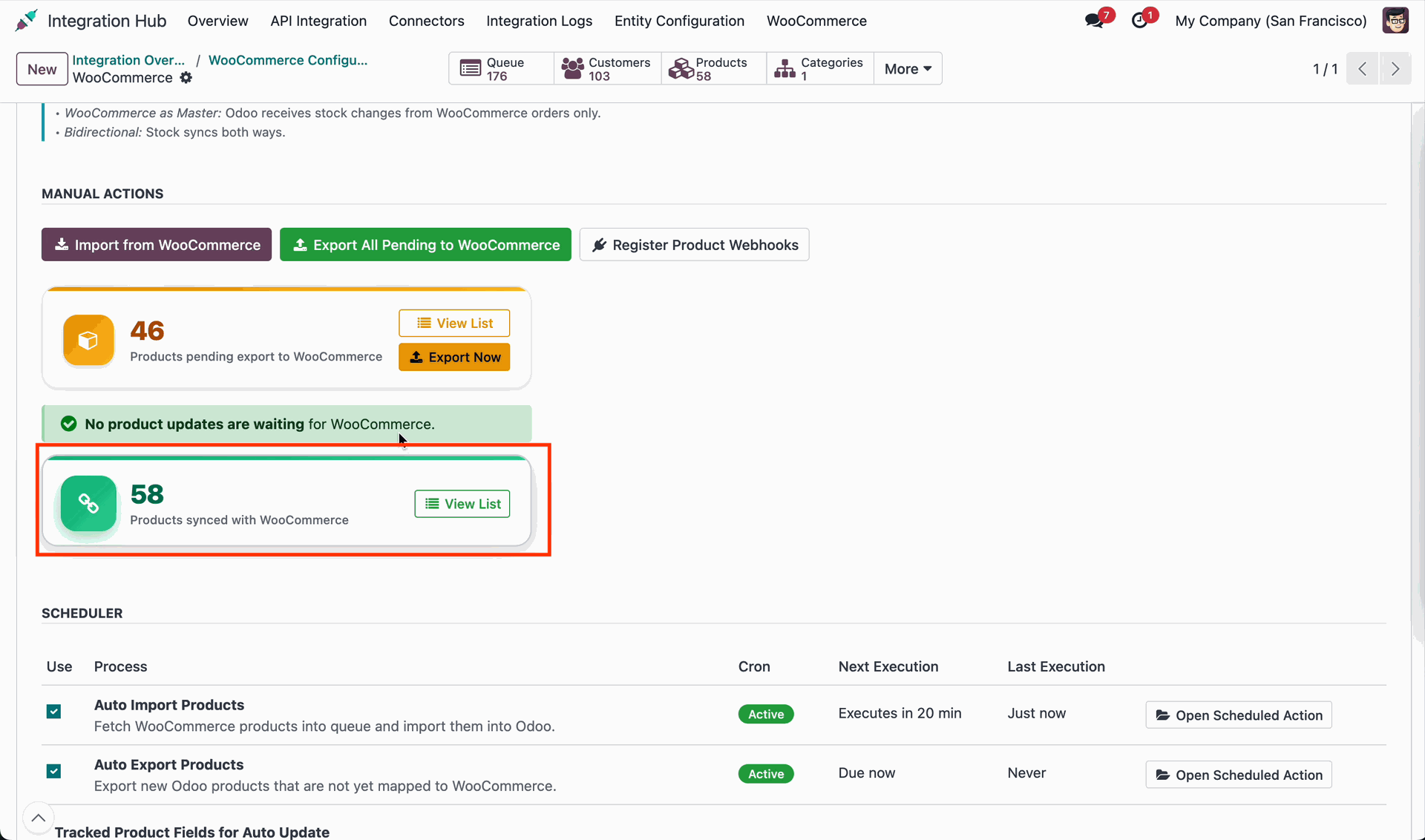
Select On-Hand Quantity as the stock push parameter for WooCommerce inventory synchronization.
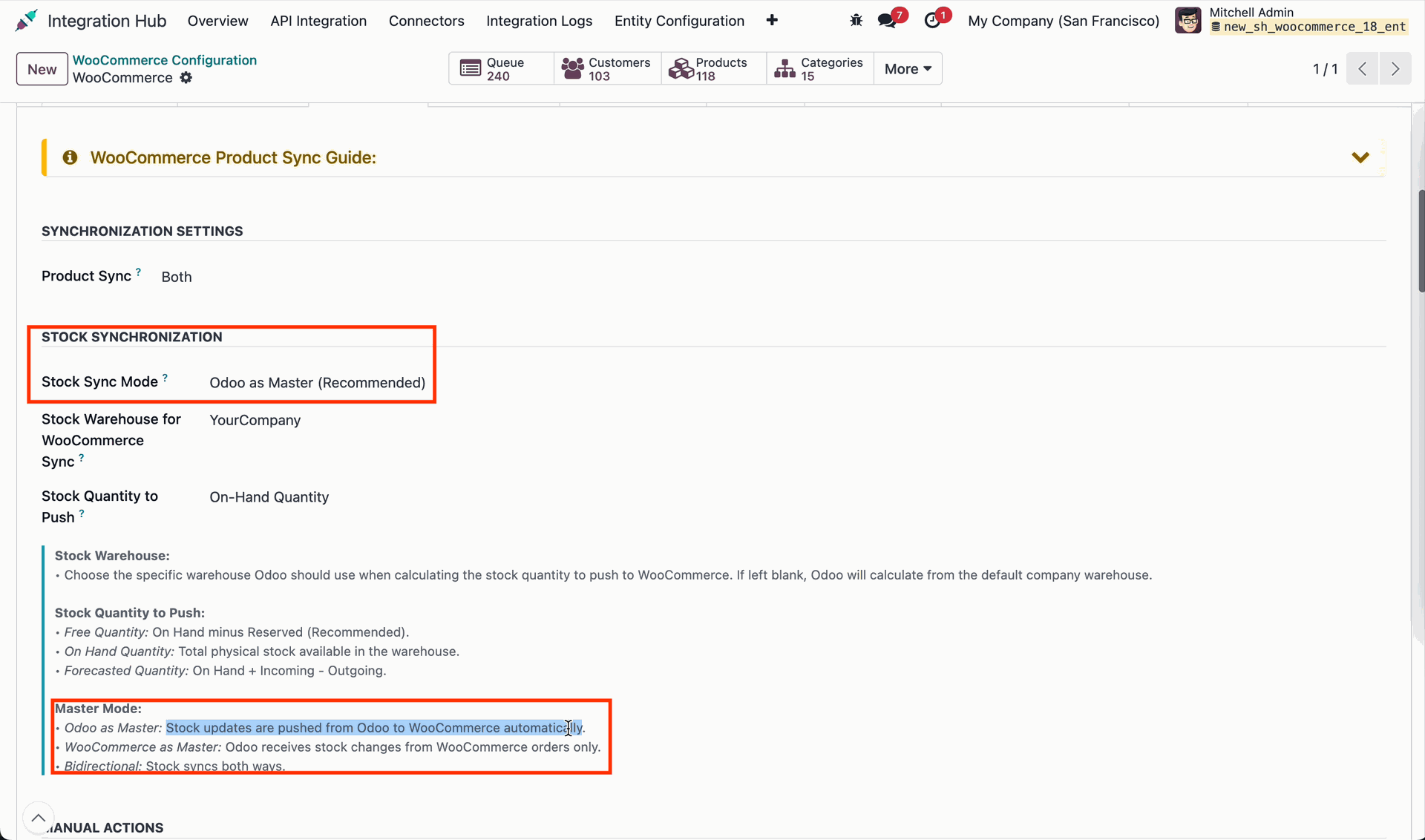
Open the product template form to check available inventory and product details.
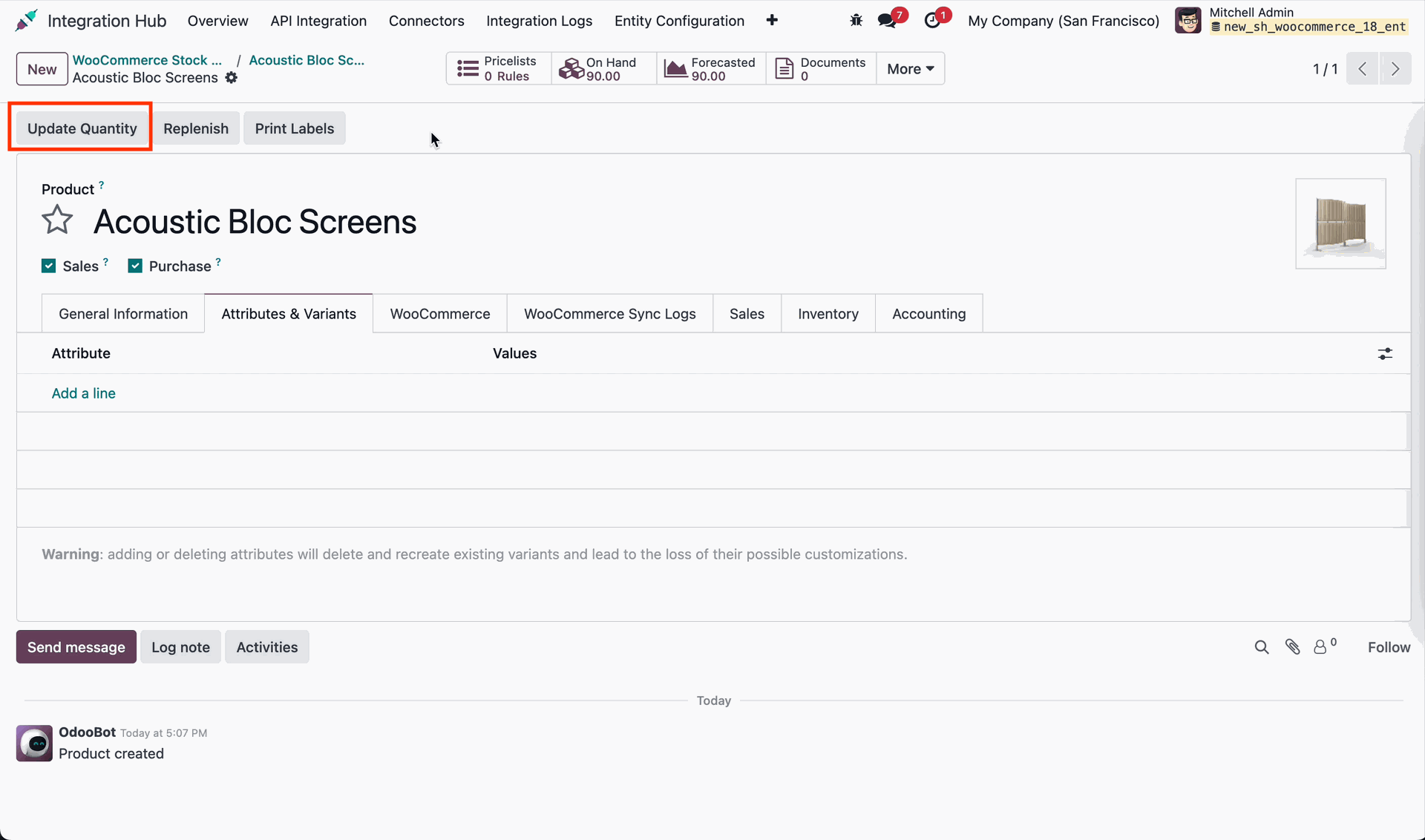
Enter the new quantity on hand and click Apply to update product inventory.
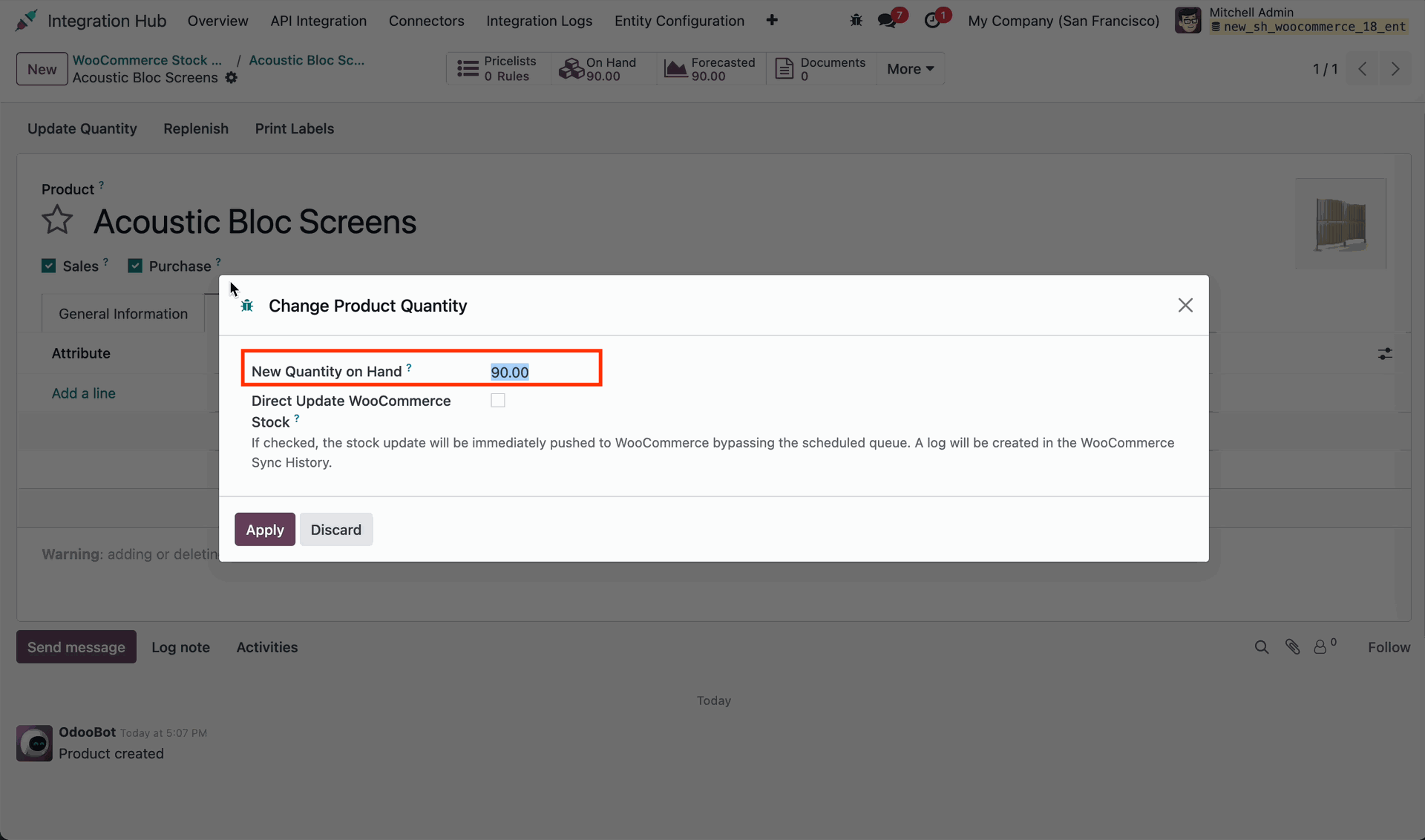
Enter the updated stock quantity and click Apply to change on-hand inventory count.
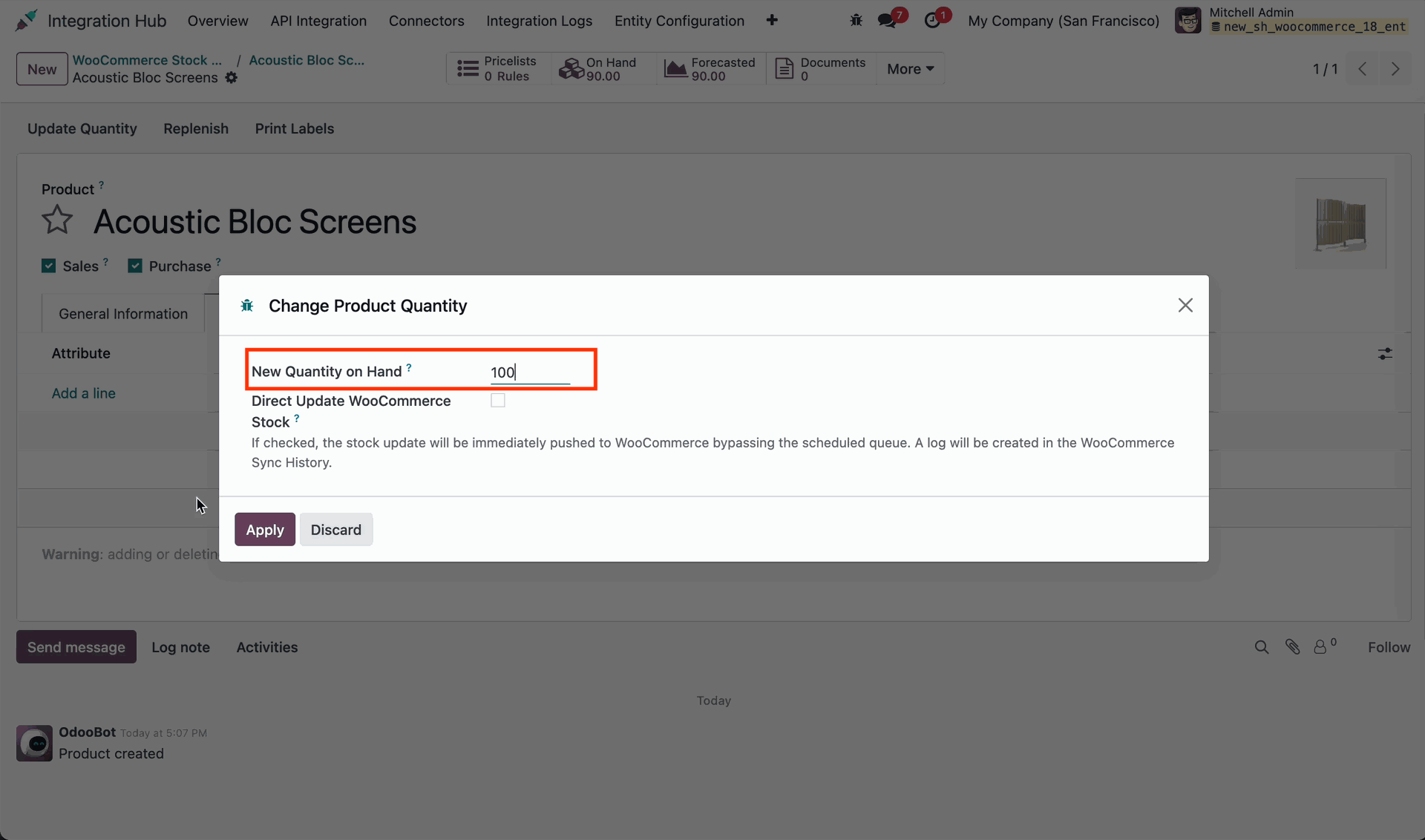
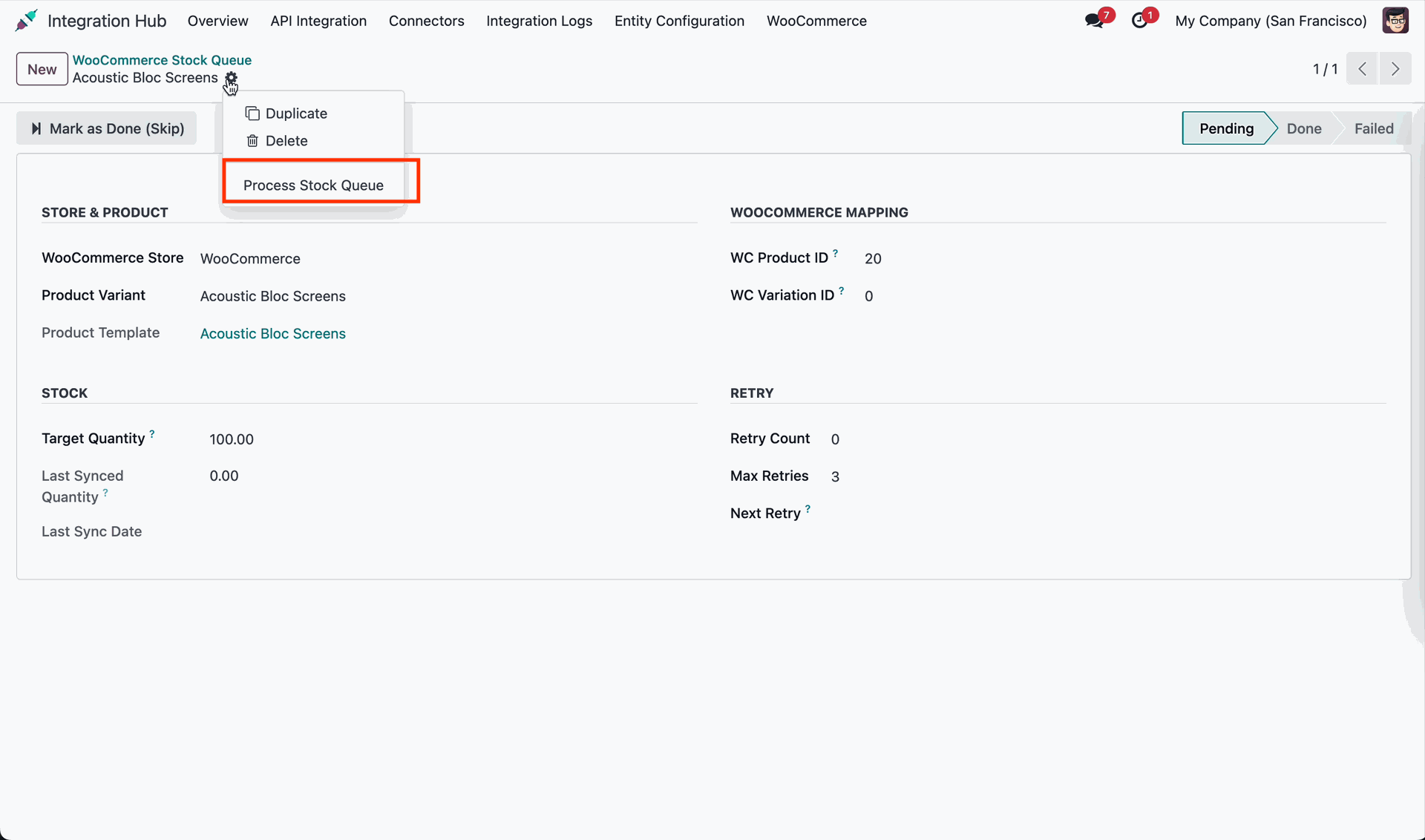
Open the Stock Sync Queue menu to view pending inventory update queue items.
Click Process Stock Queue to push inventory level changes to WooCommerce store.
Verify the updated product stock level on WooCommerce store backend inventory page.
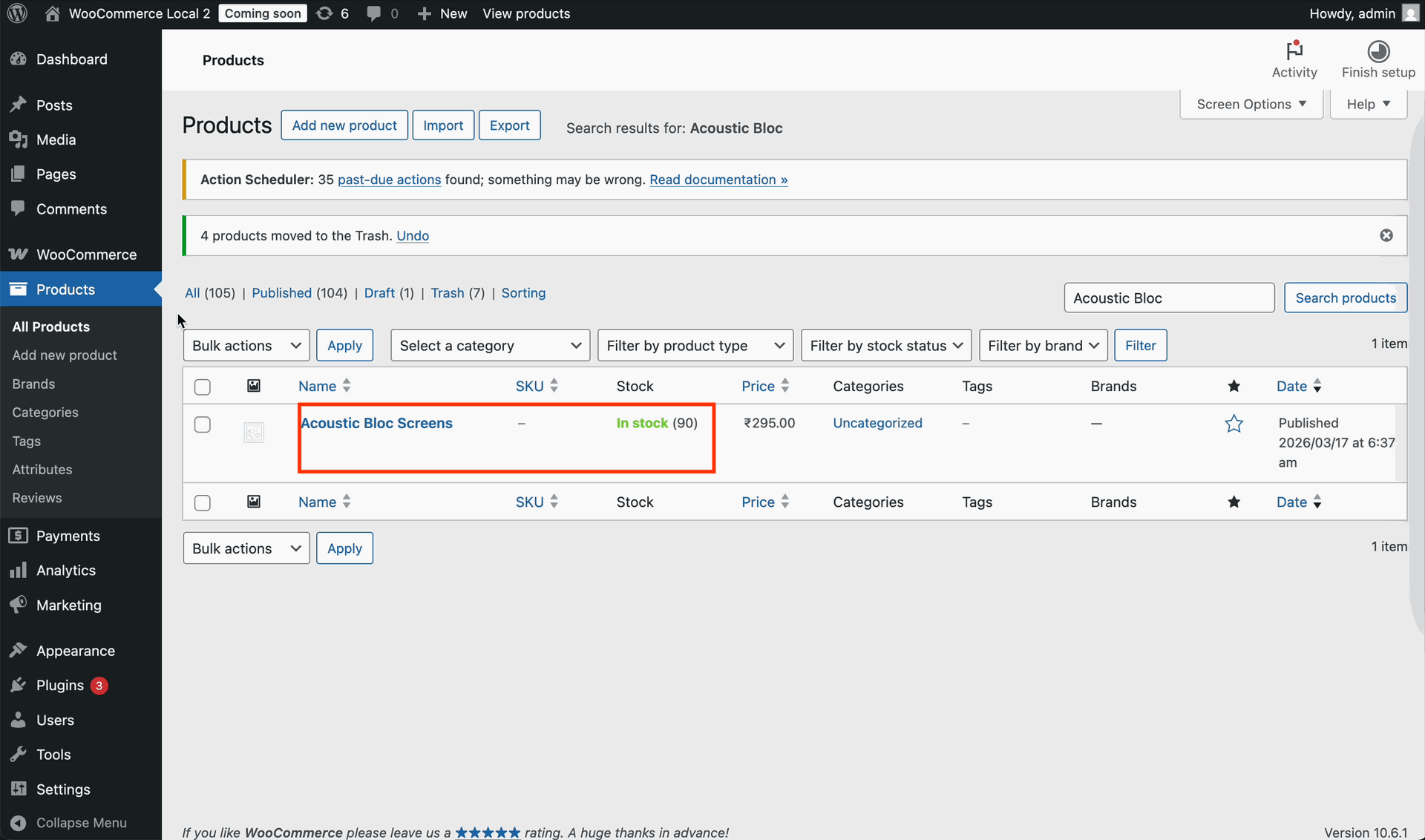
Review updated inventory count on WooCommerce store backend after processing stock queue.
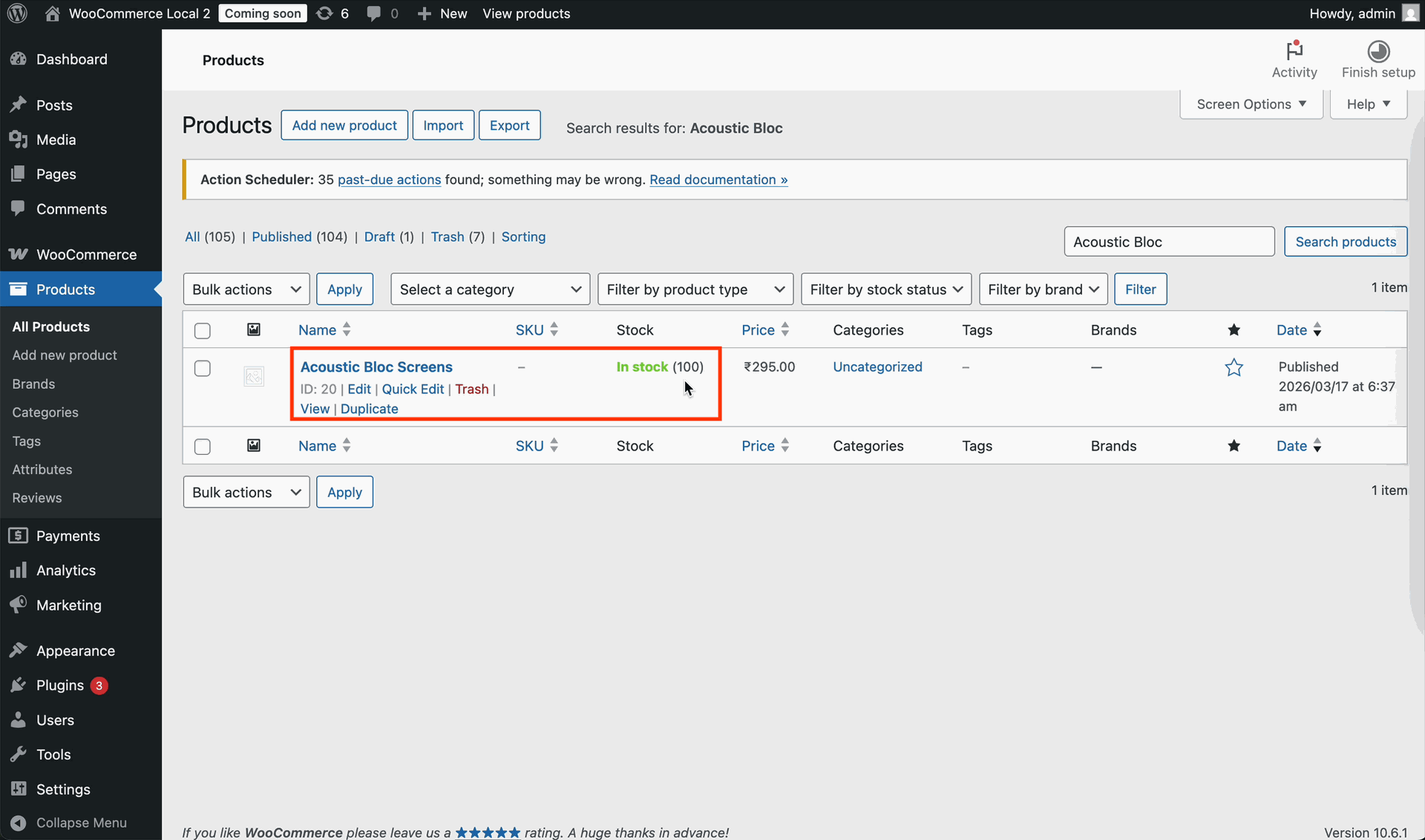
Enable Direct Update WooCommerce Stock and enter the revised inventory count value.
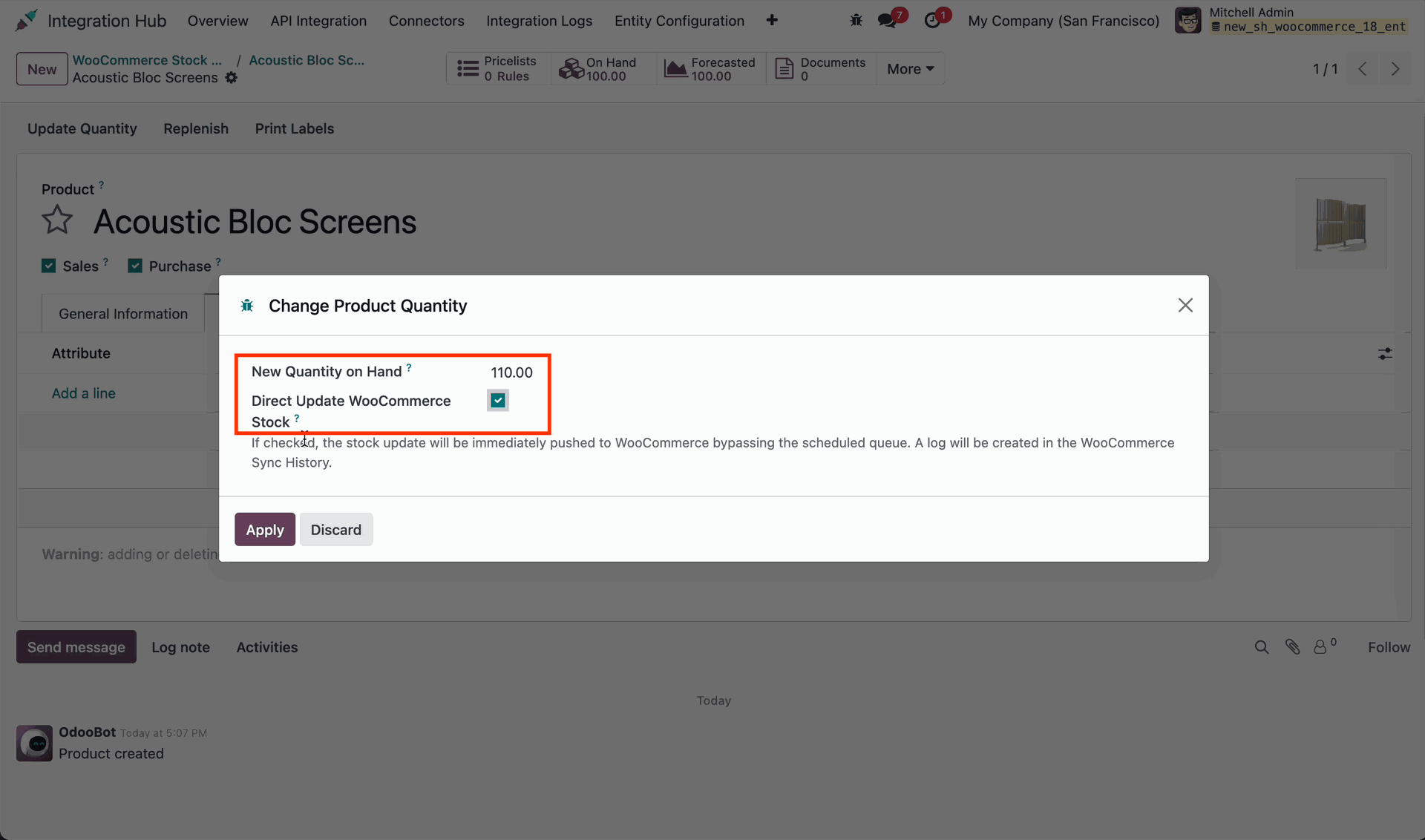
Verify the updated stock quantity on the WooCommerce store admin products listing page.
Review WordPress media credentials and settings on the WooCommerce configuration setup page.
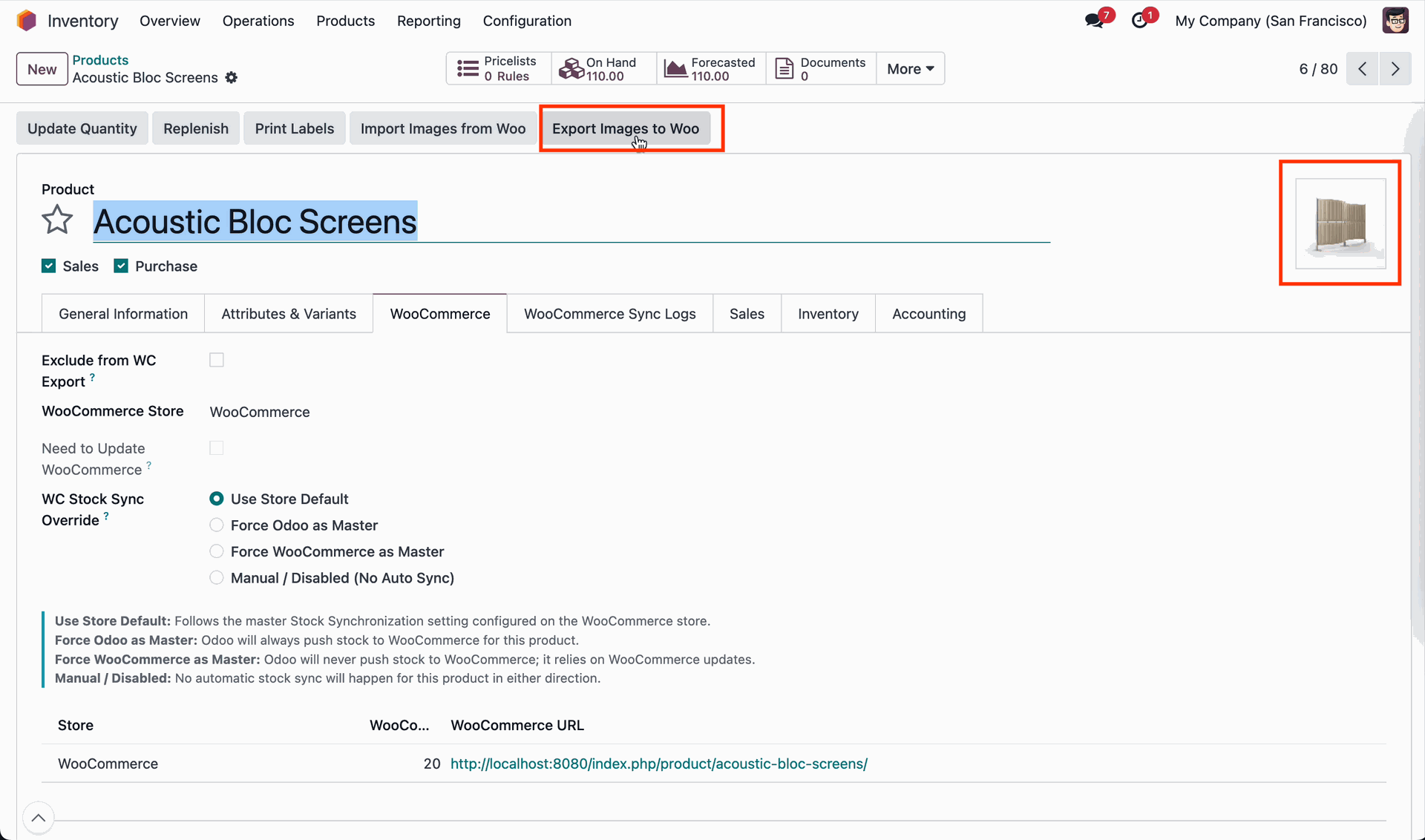
Click Export Images to Woo on product form to synchronize product media catalog.
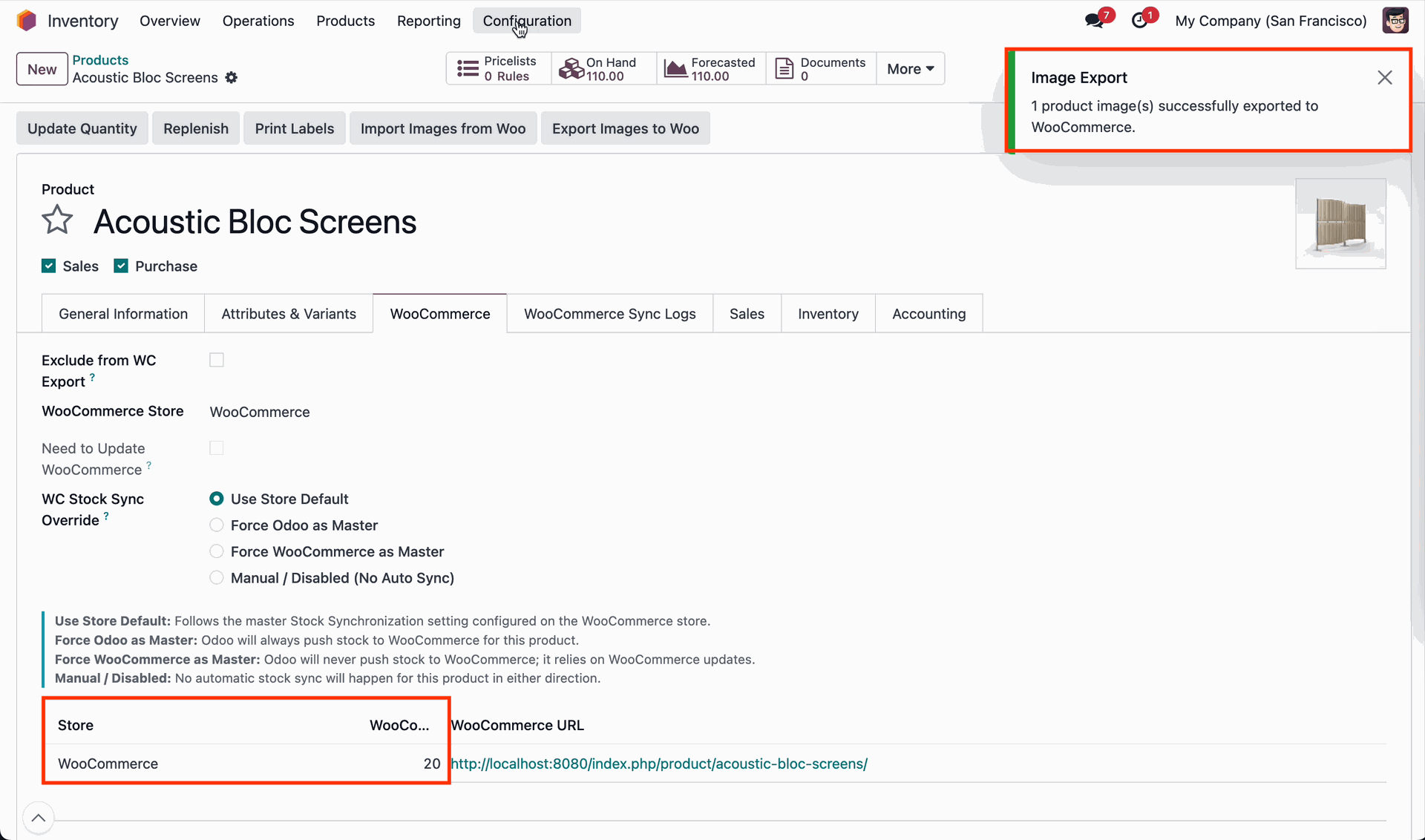
Review the image export confirmation message and configure product WooCommerce sync options.
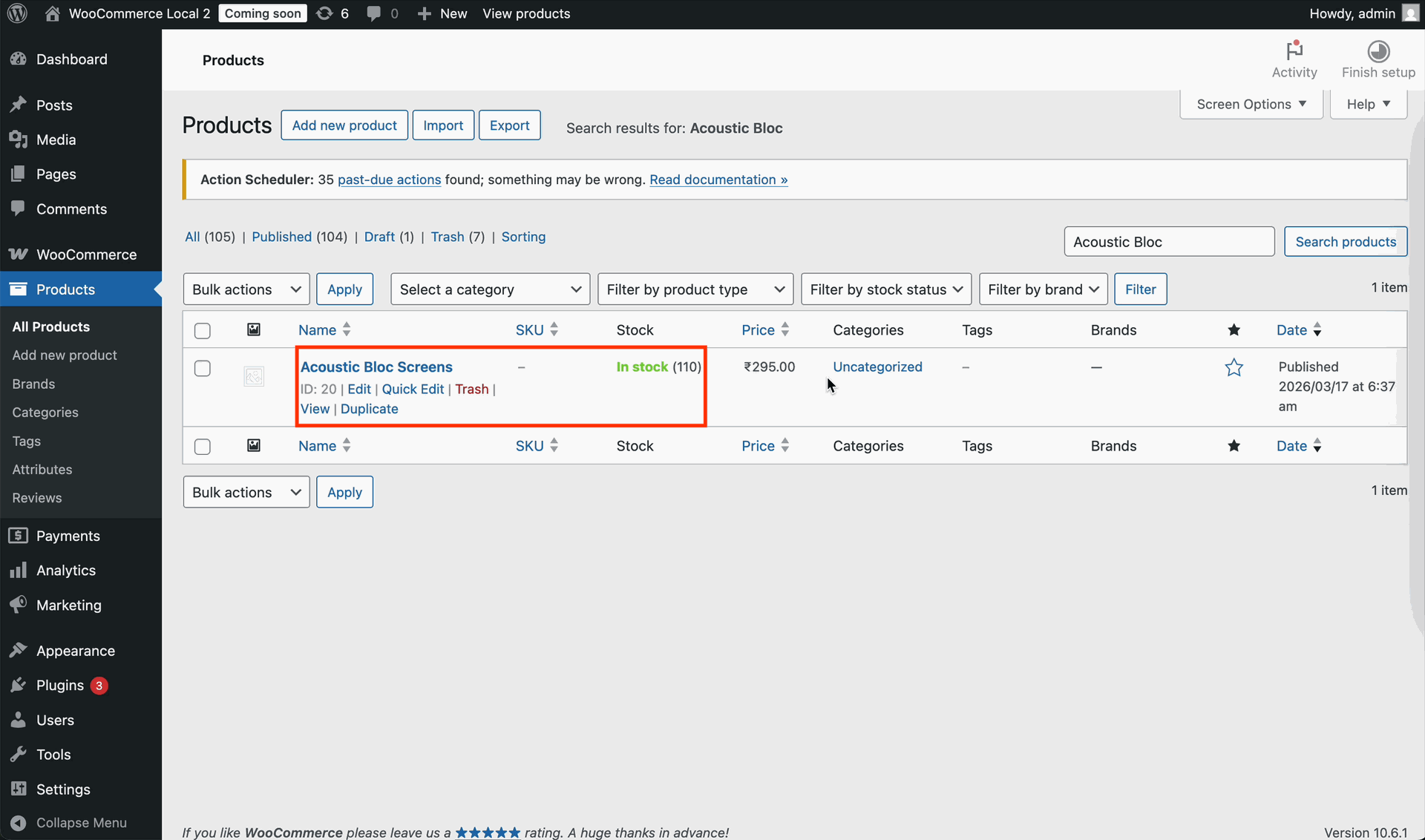
Check the WooCommerce admin products table to confirm newly published product listing.
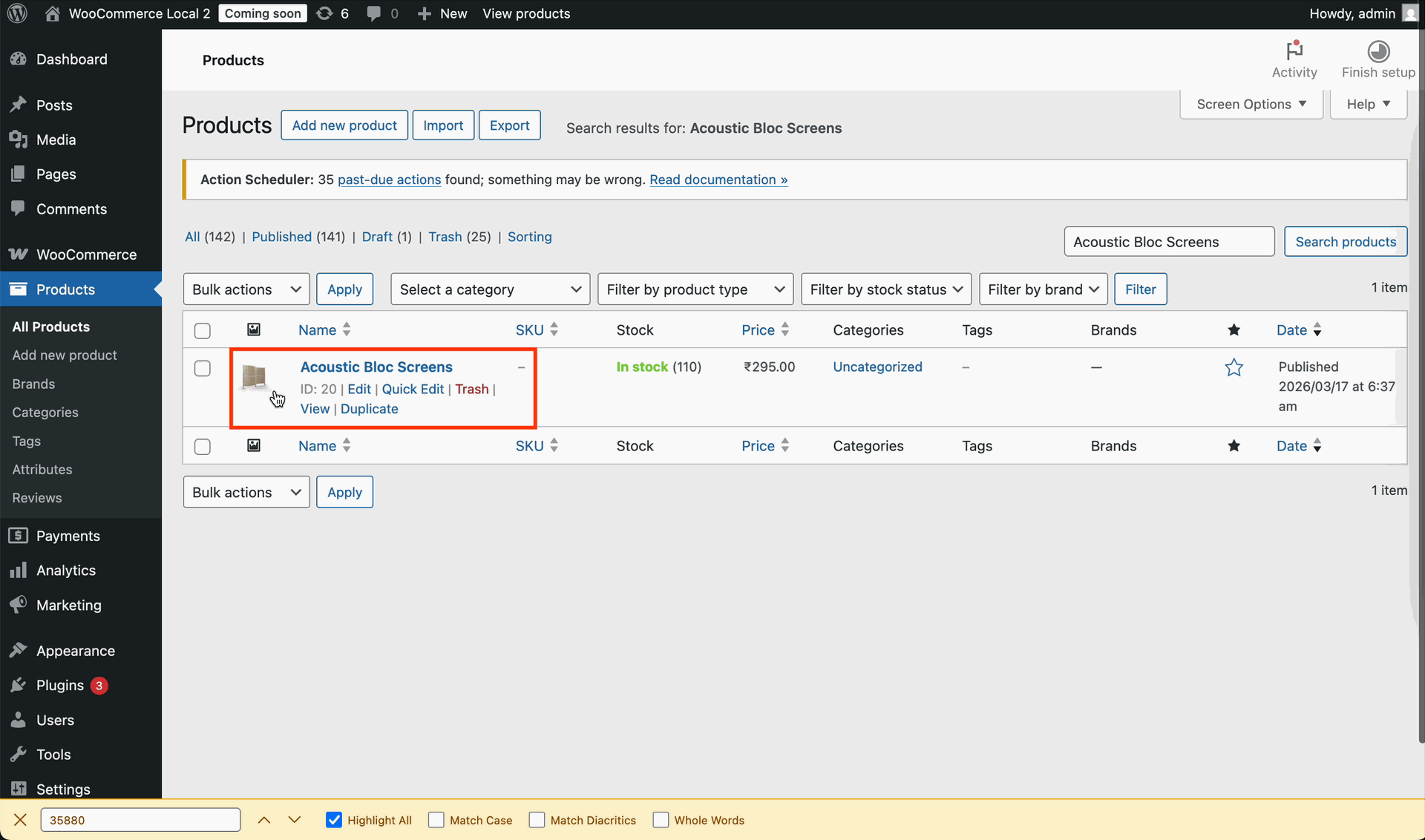 How it Works? Watch Video
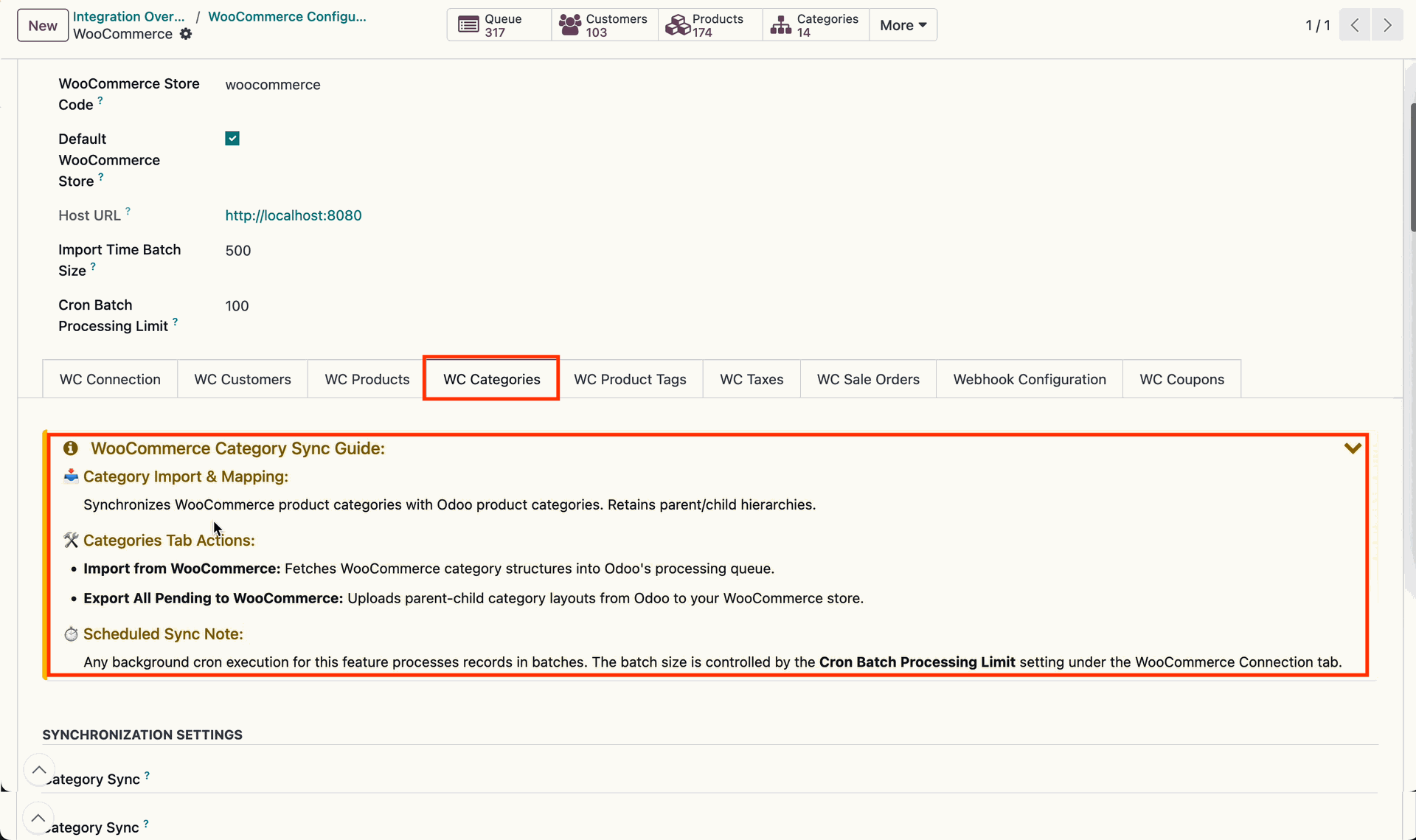
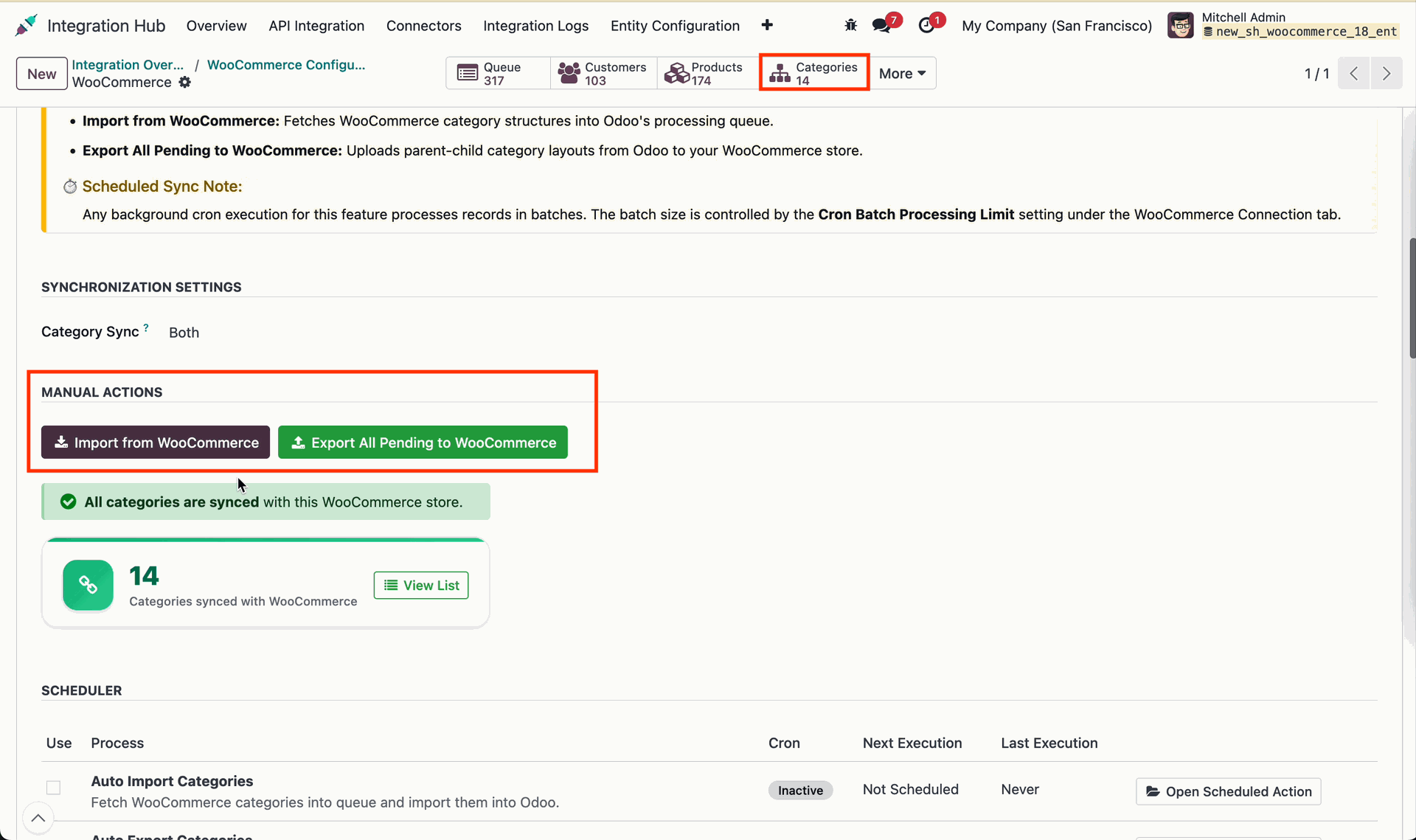
Review the WooCommerce category sync guide to understand category mapping and workflow rules.
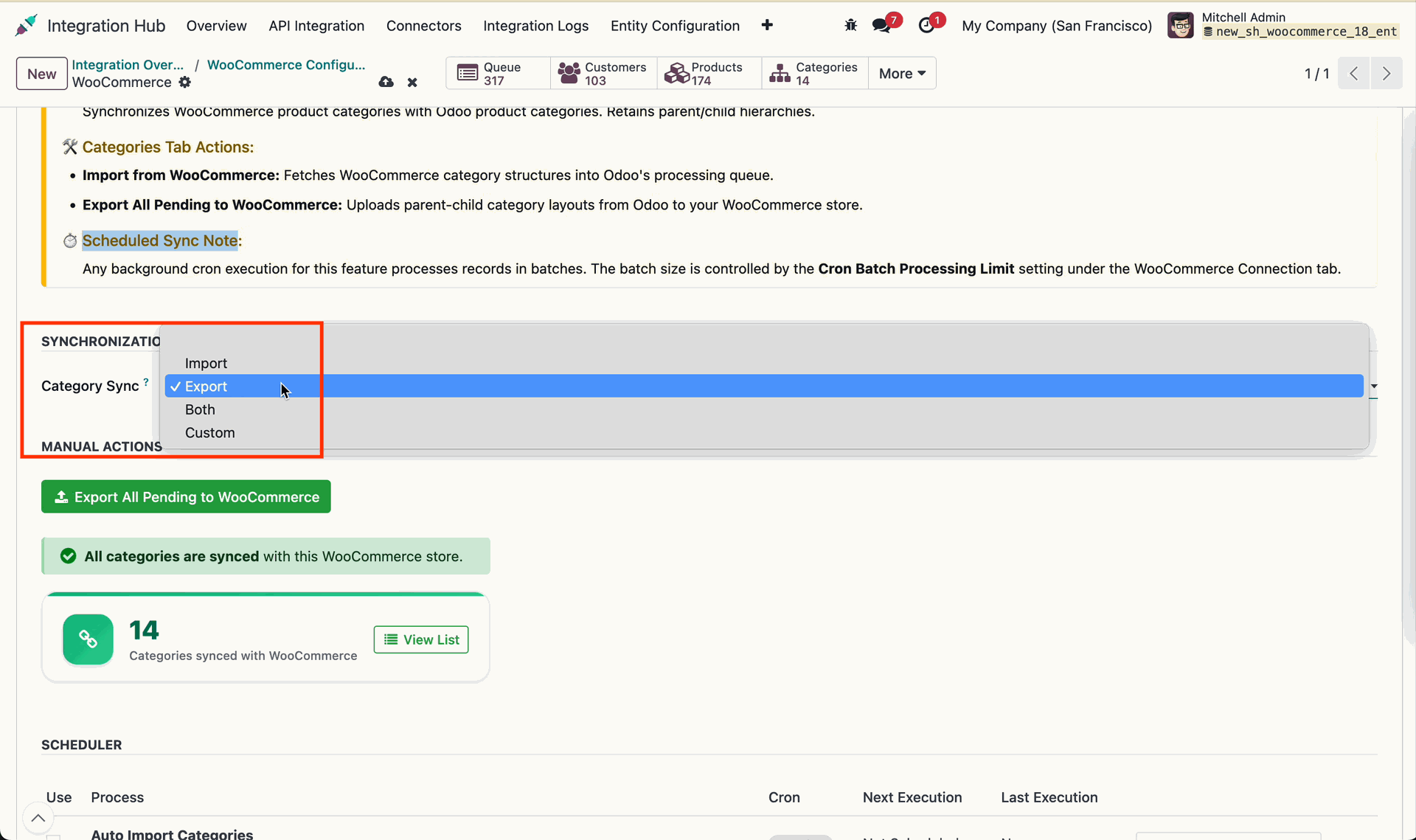
Select the Category Sync mode.
Click Import from WooCommerce to fetch product category structures into Odoo.
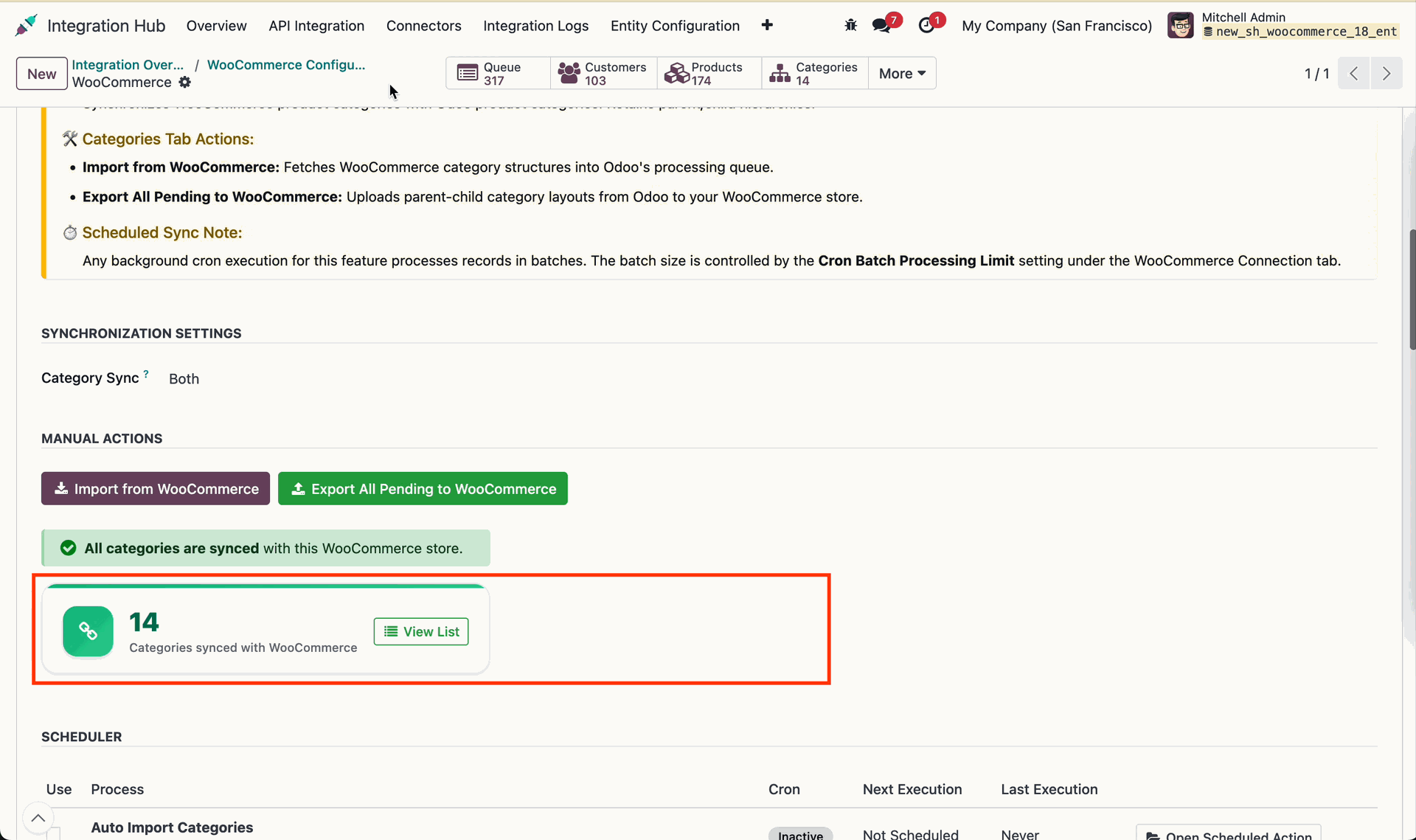
Click Export All Pending to WooCommerce to push local product categories to store.
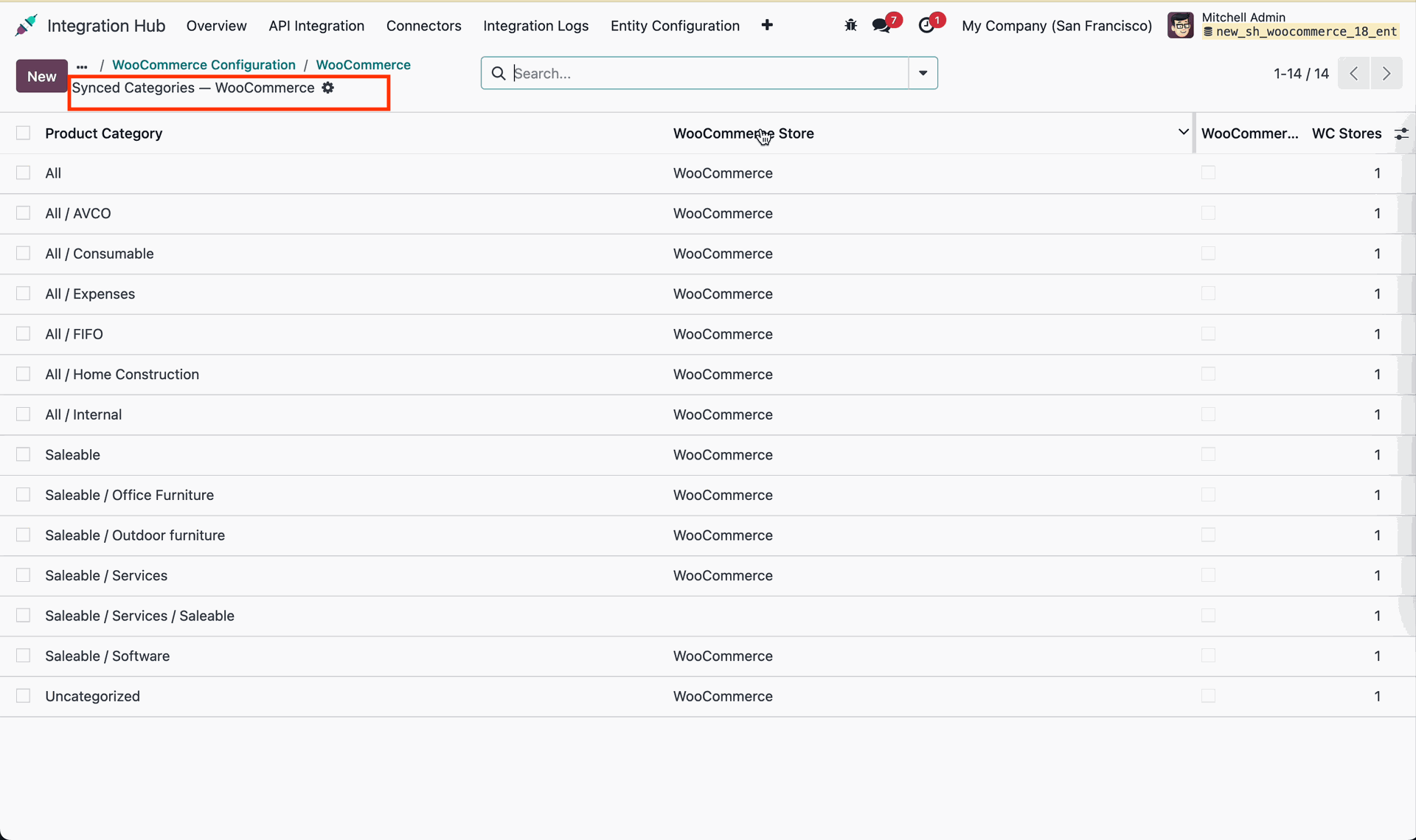
Open the Synced Categories list view to search and inspect mapped category records.
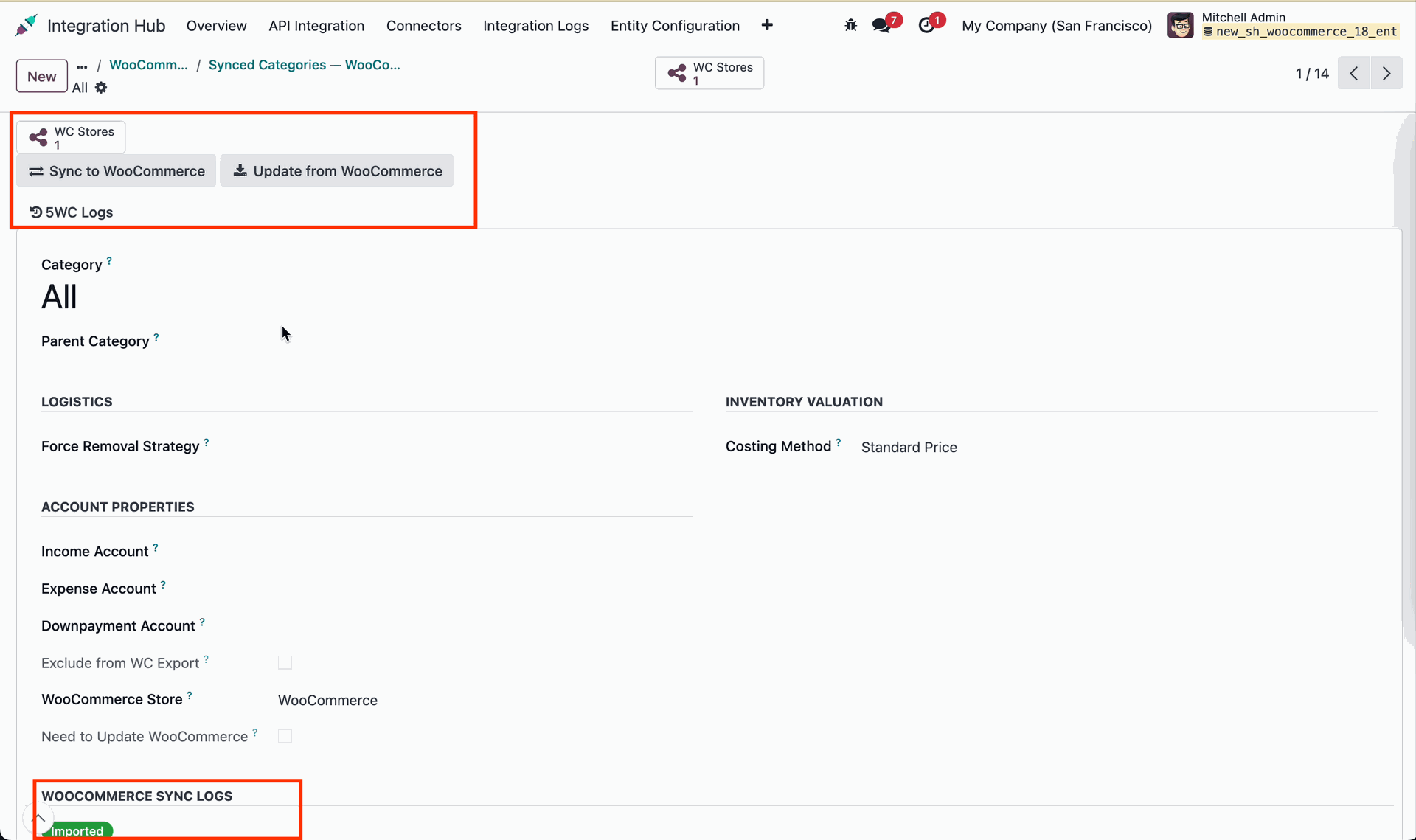
Click Sync to WooCommerce on category form to export category details manually.
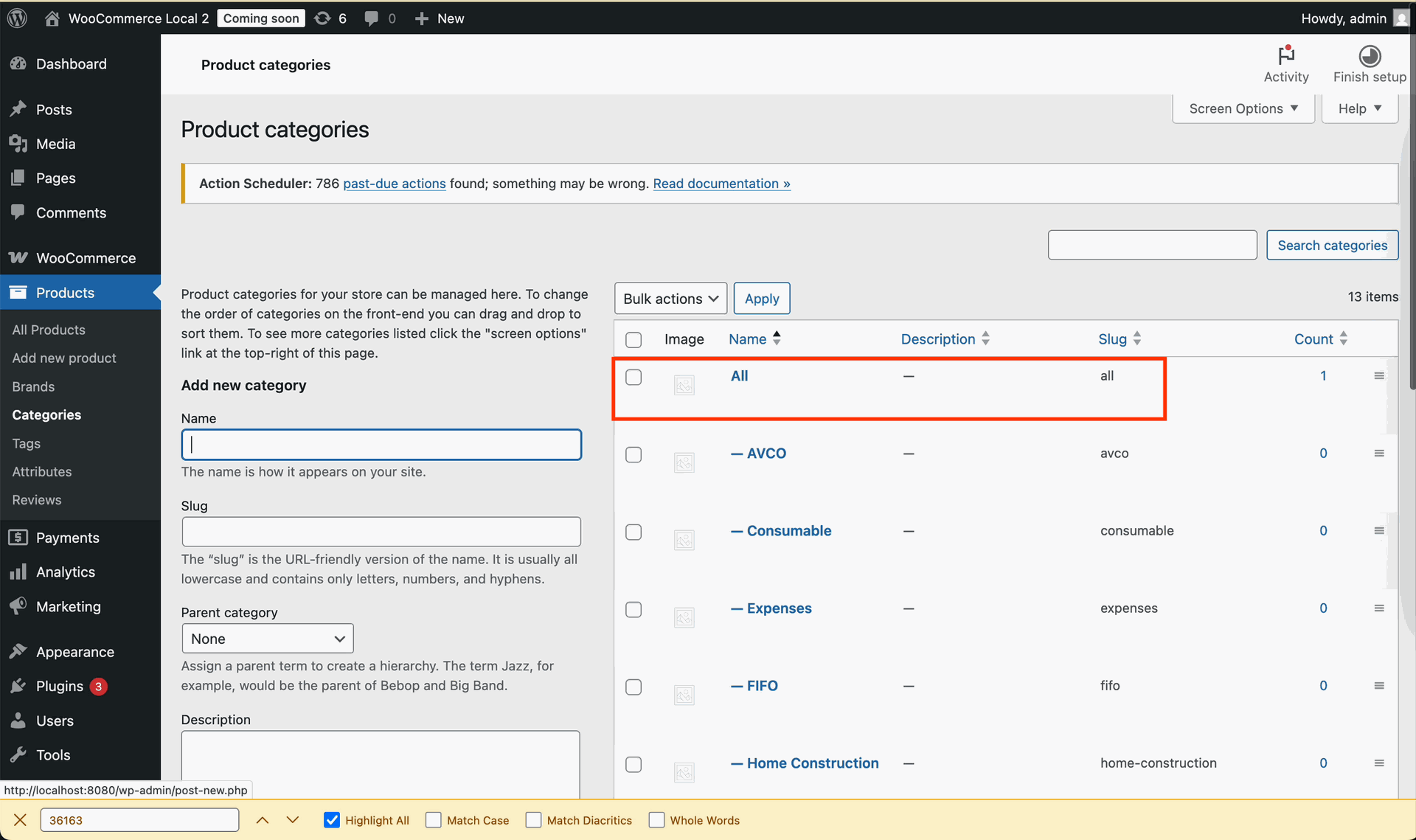
Review published product categories on the WooCommerce store administrative panel backend.
Inspect WooCommerce sync logs on the category form to verify execution details.
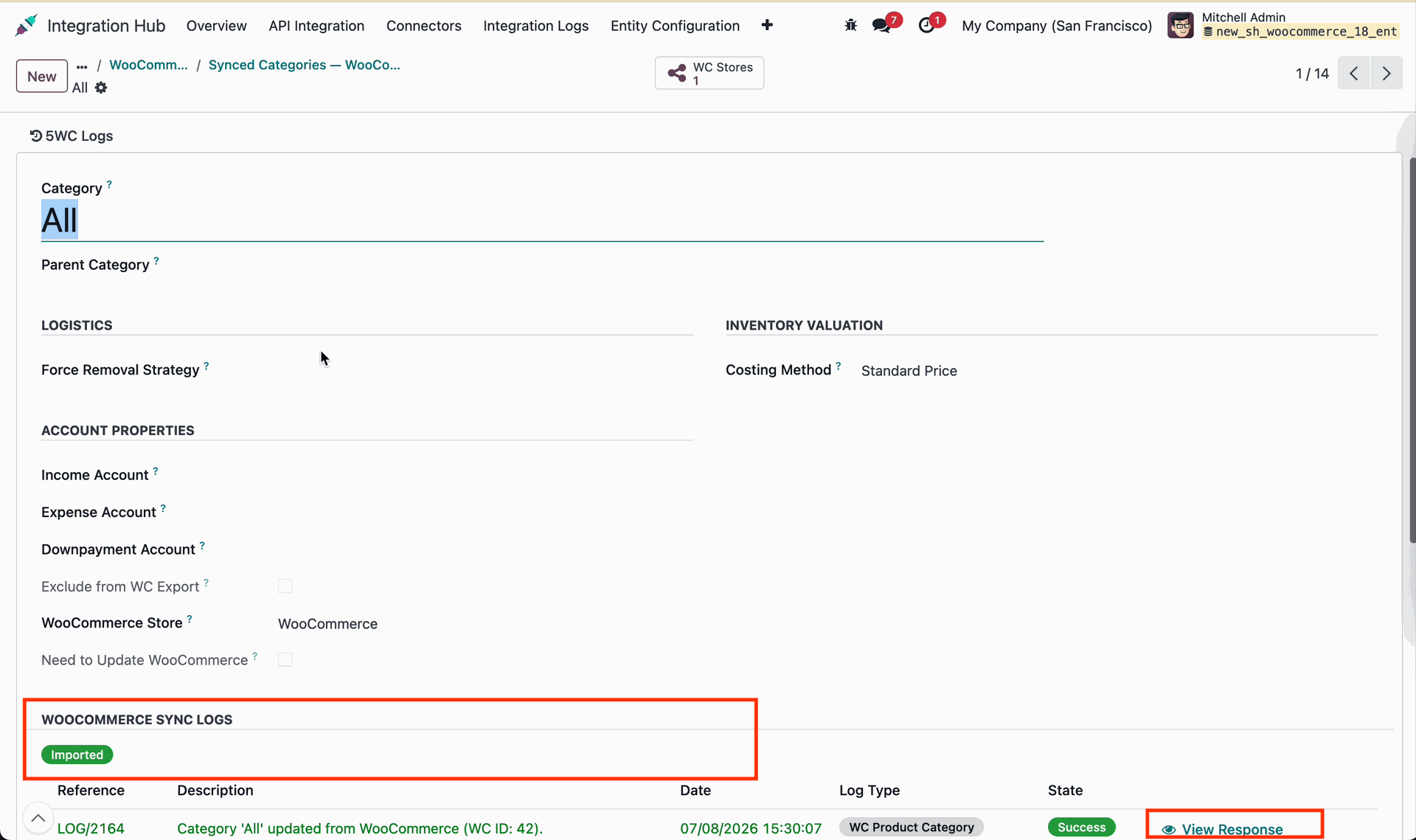
Detailed Log.
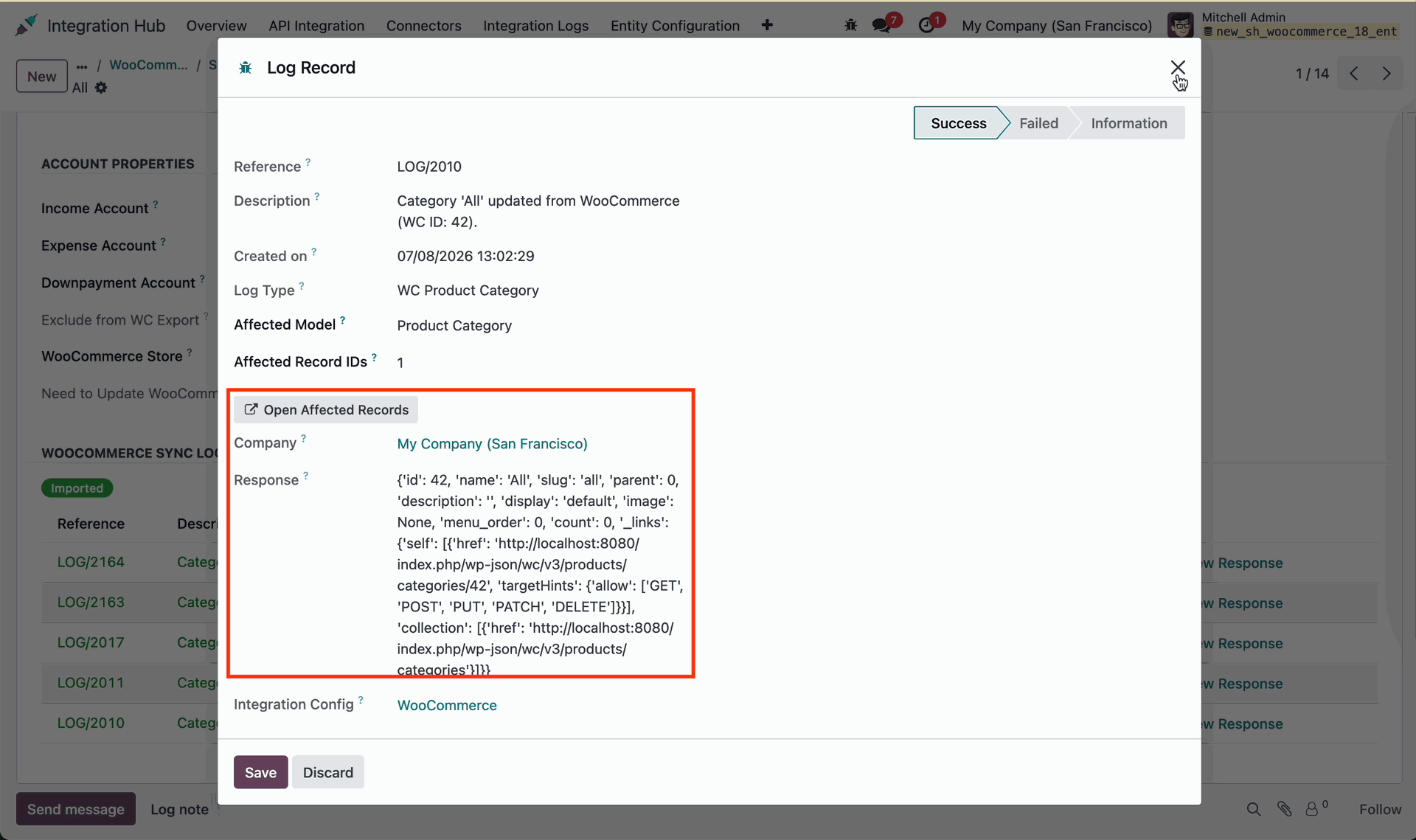
Click custom to initiate custom actions.
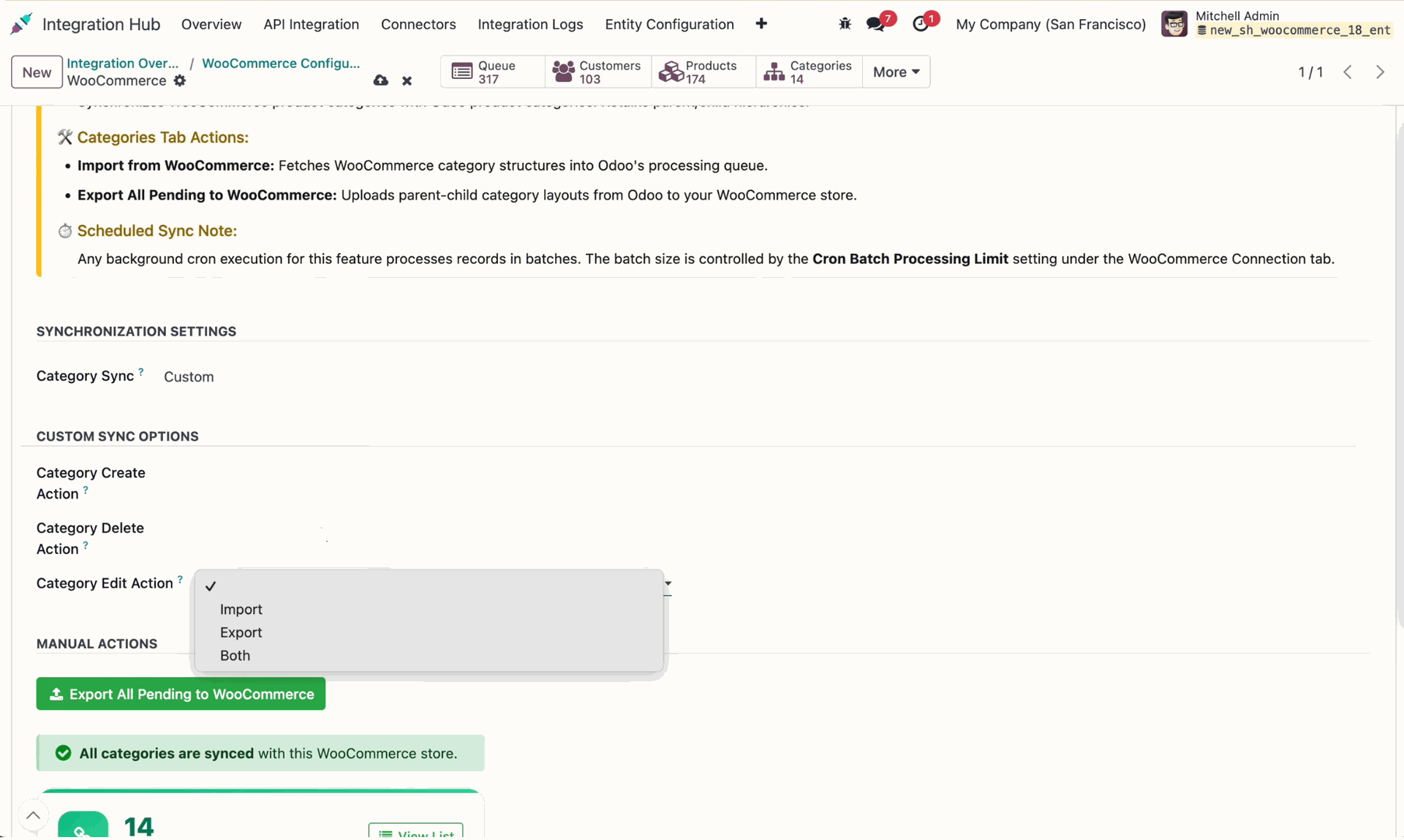
Click Export to WooCommerce on the category form to initiate category export process.
Check the category sync state to confirm successful export to WooCommerce store.
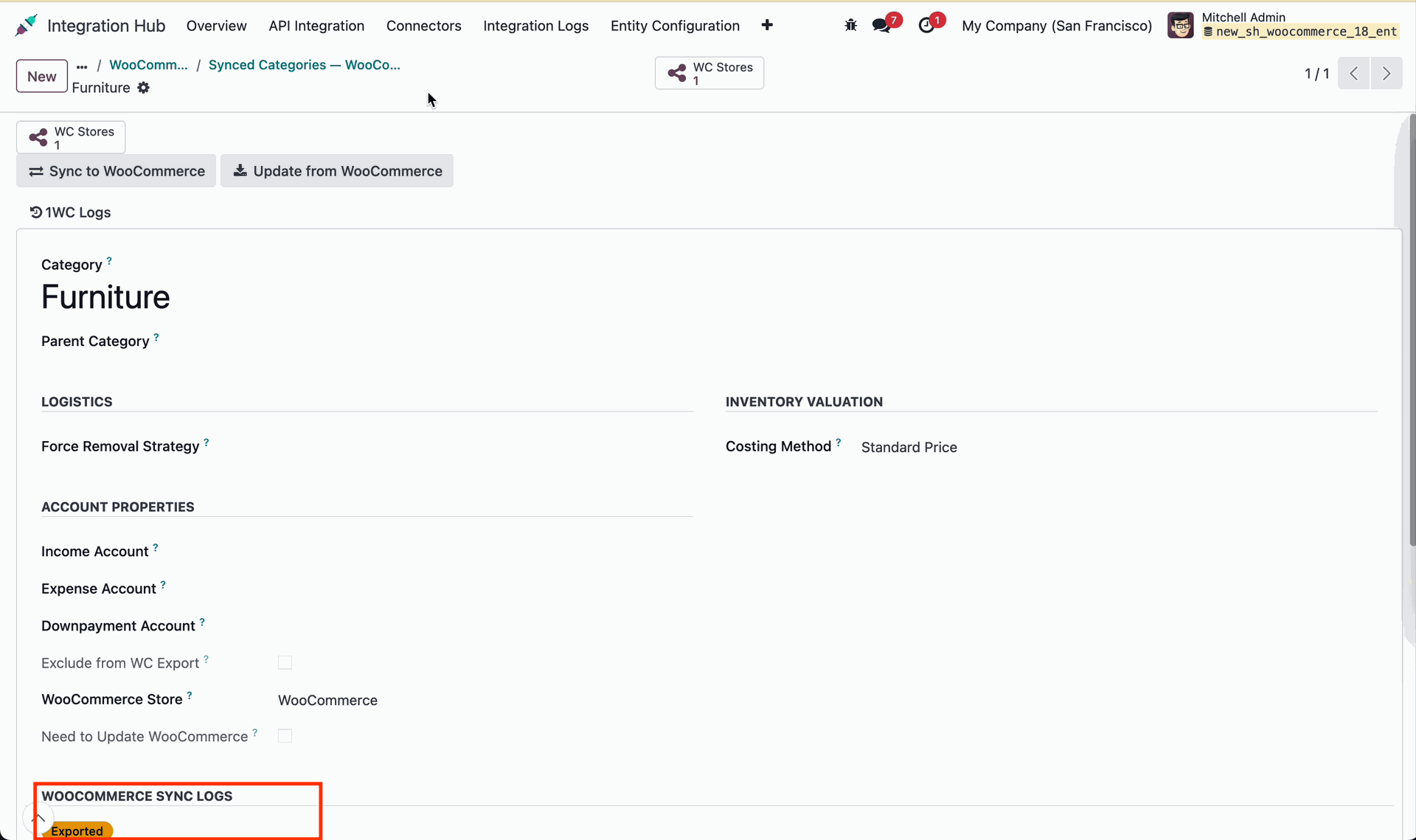
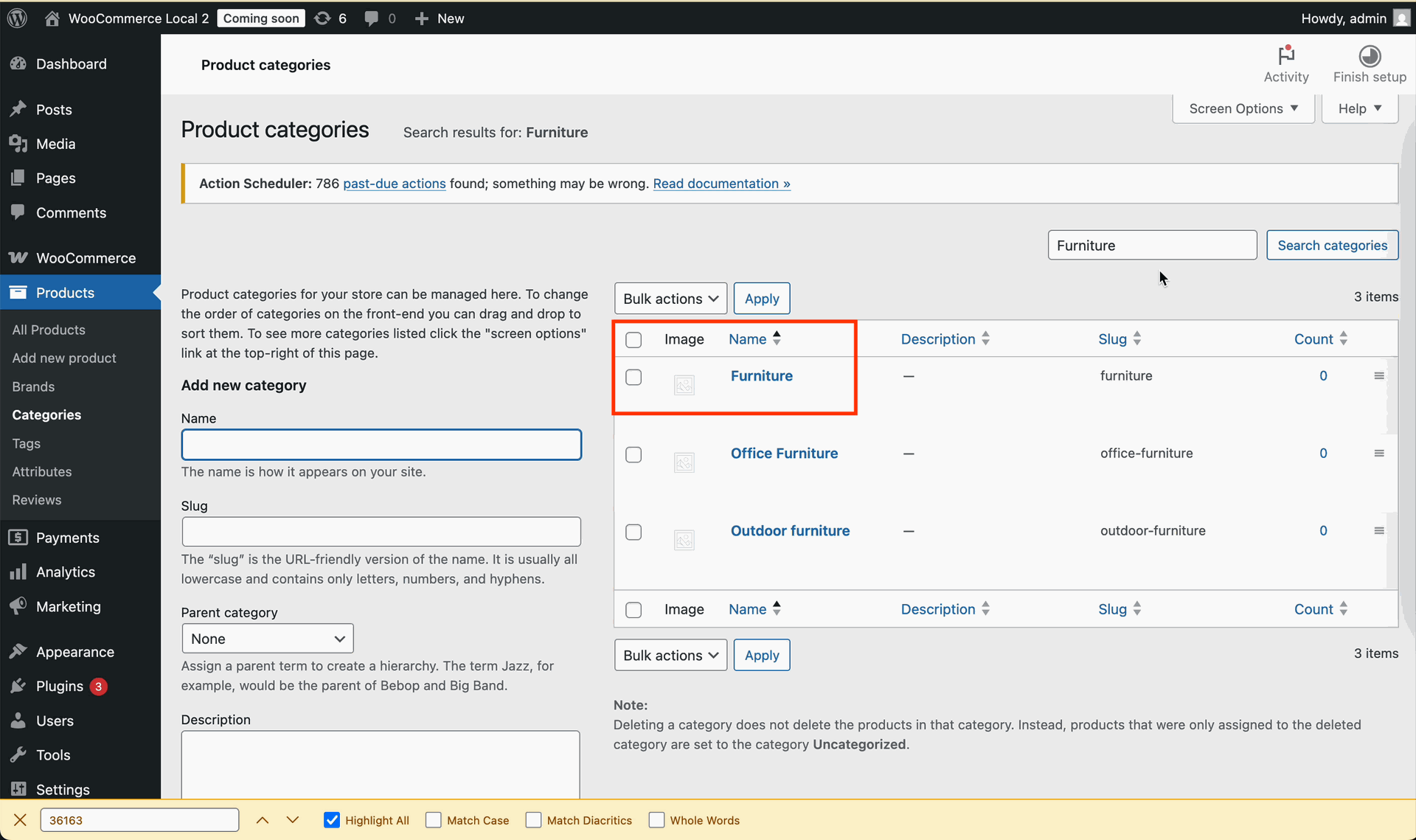
Verify that the Furniture category is updated on the WooCommerce store admin page.
Click the WC Stores smart button to view connected WooCommerce store mappings.
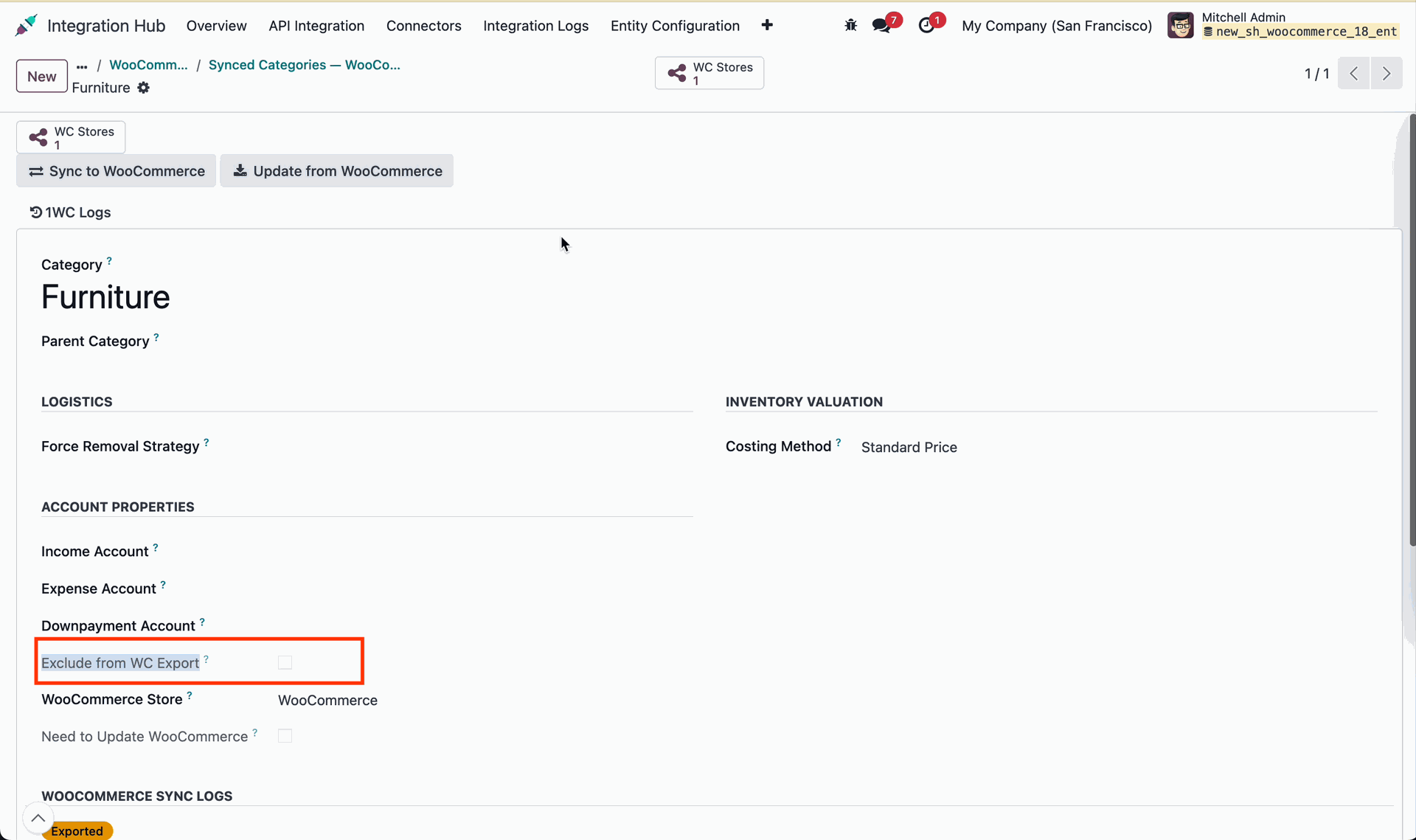
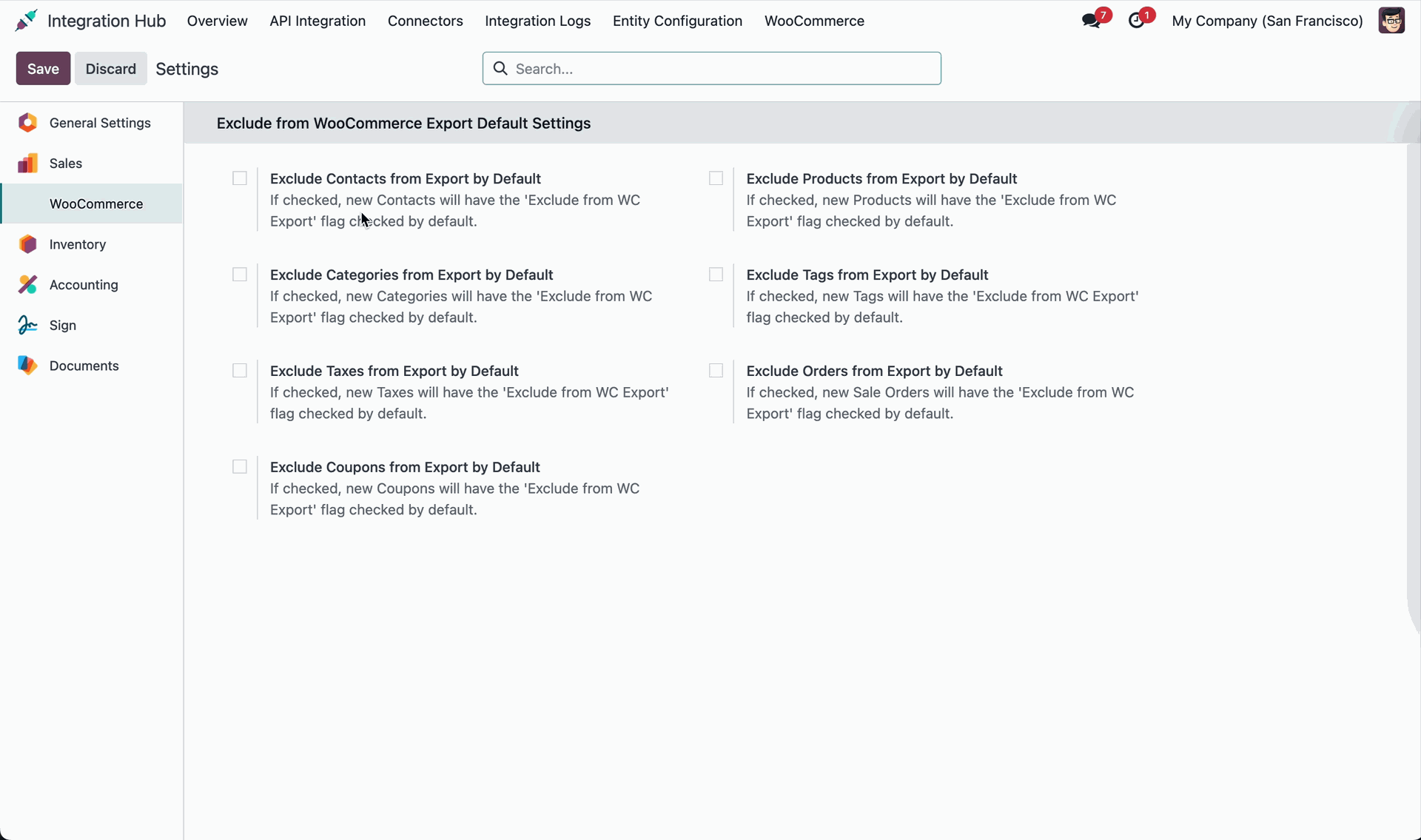
Configure default export exclusion settings to control automatic category sync behavior.
 How it Works? Watch Video
Review the product tags sync guide to configure WooCommerce tag synchronization rules.
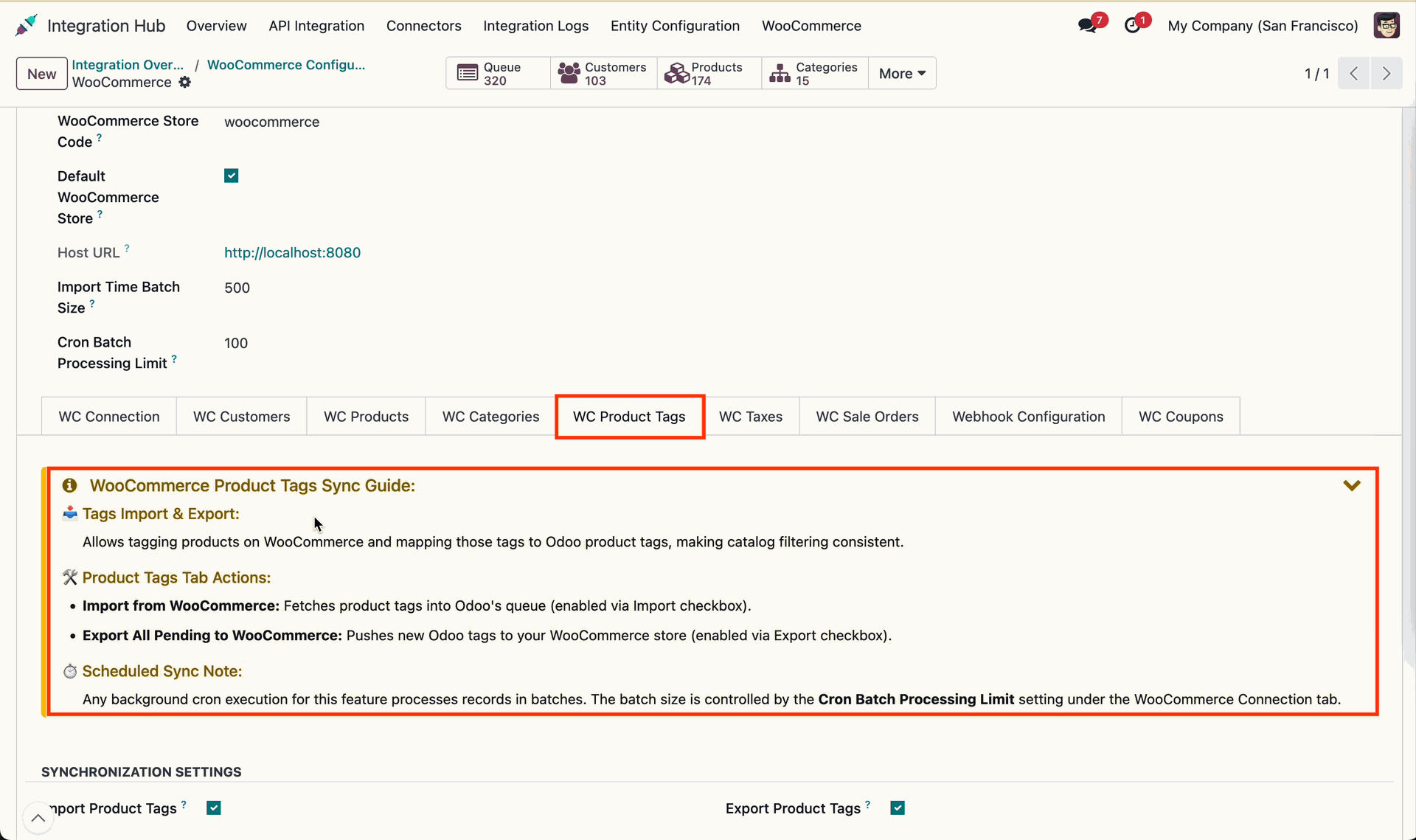
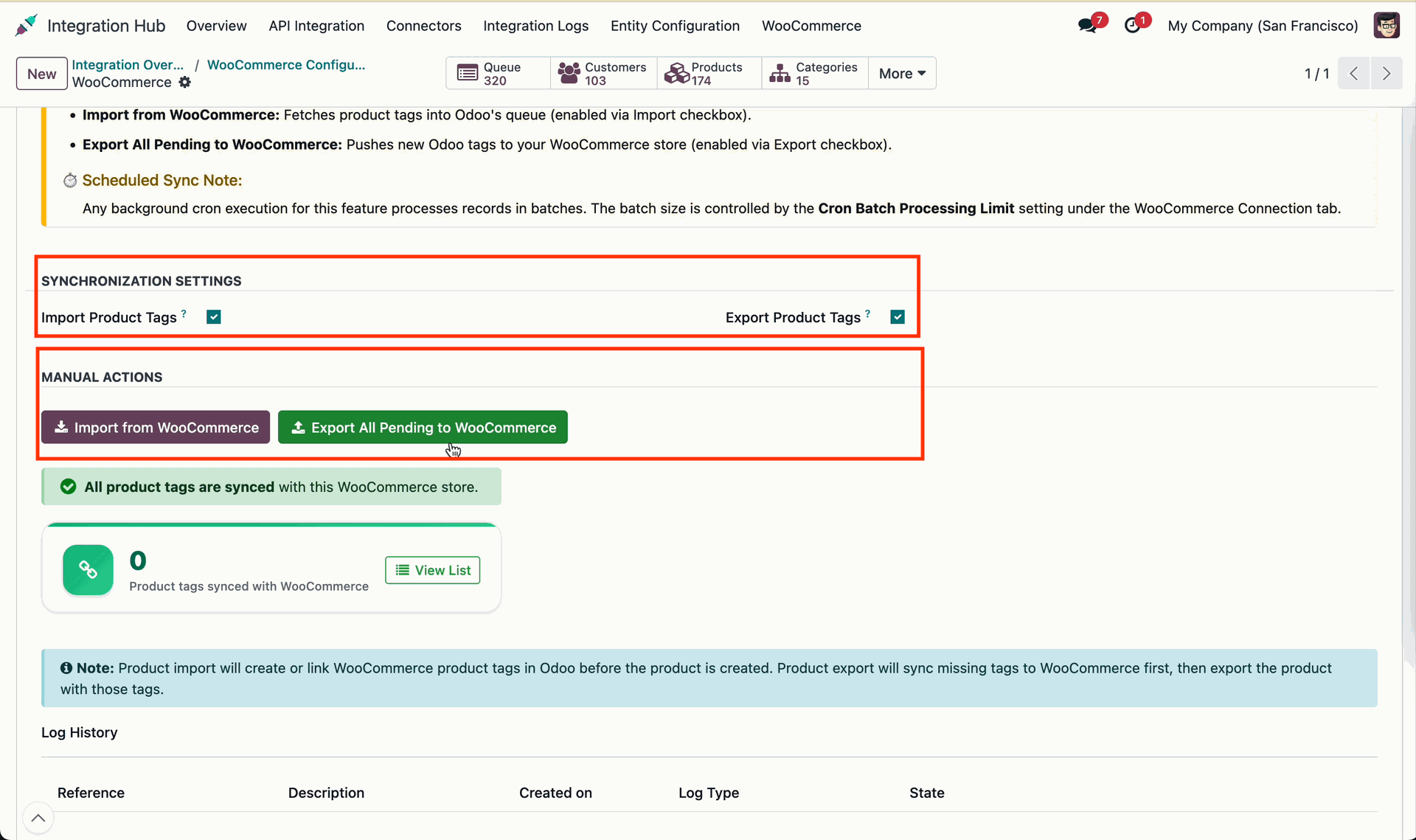
Configure Product Tag Sync options and select import or export synchronization modes.
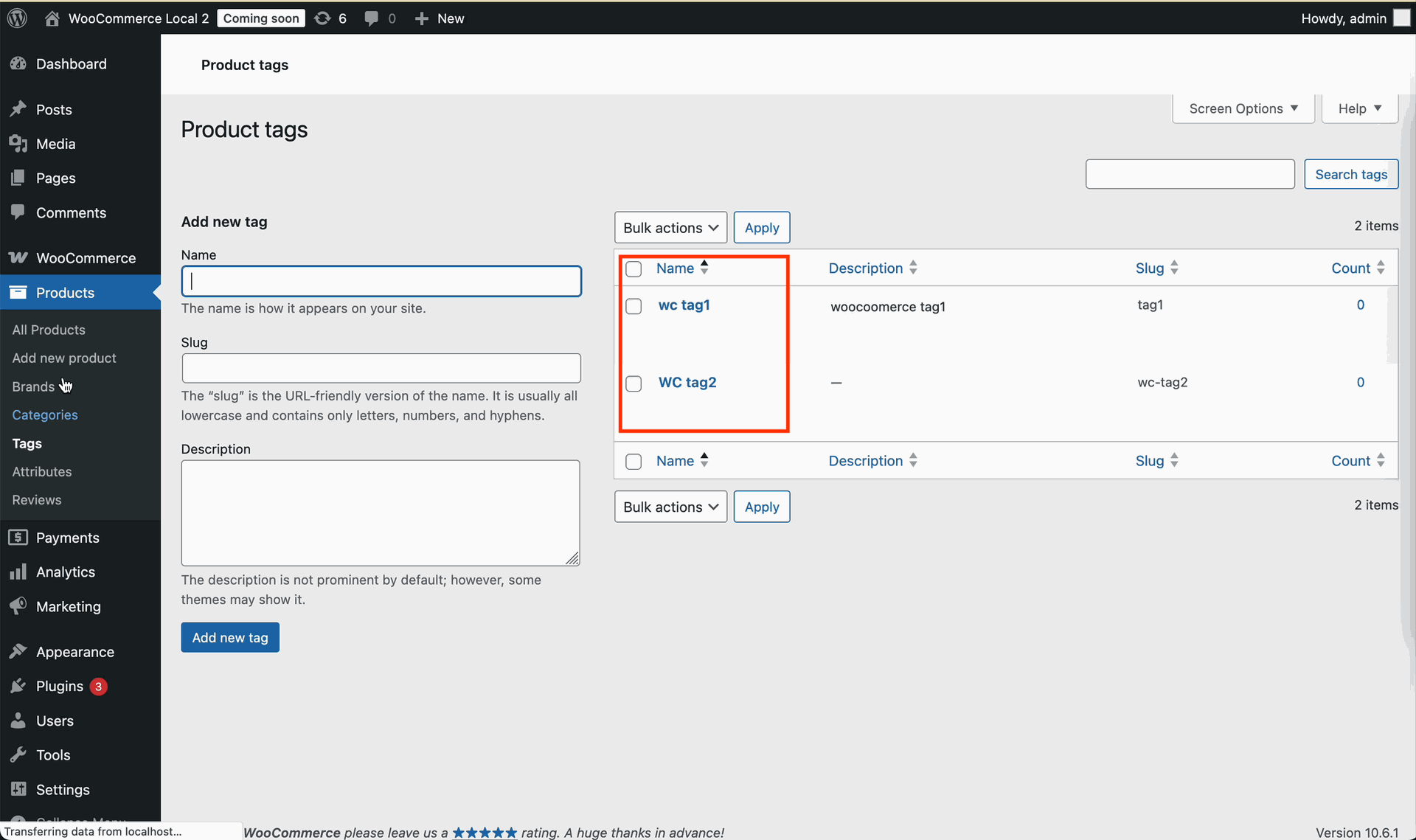
Review the product tags table on WooCommerce store admin to check existing tags.
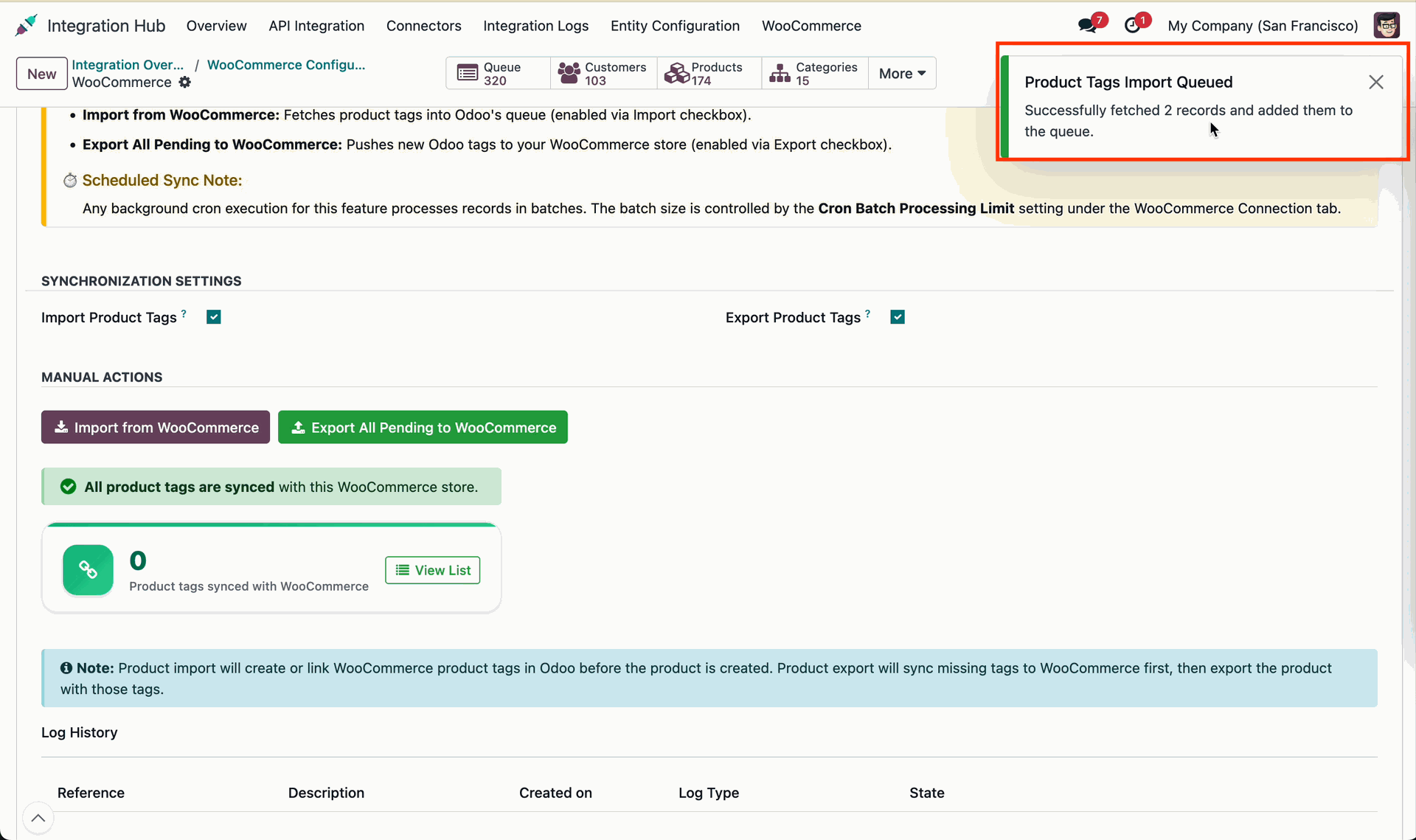
Review the product tags import notification banner to confirm queue creation details.
Open the product tag queue list to review draft queue records and status.
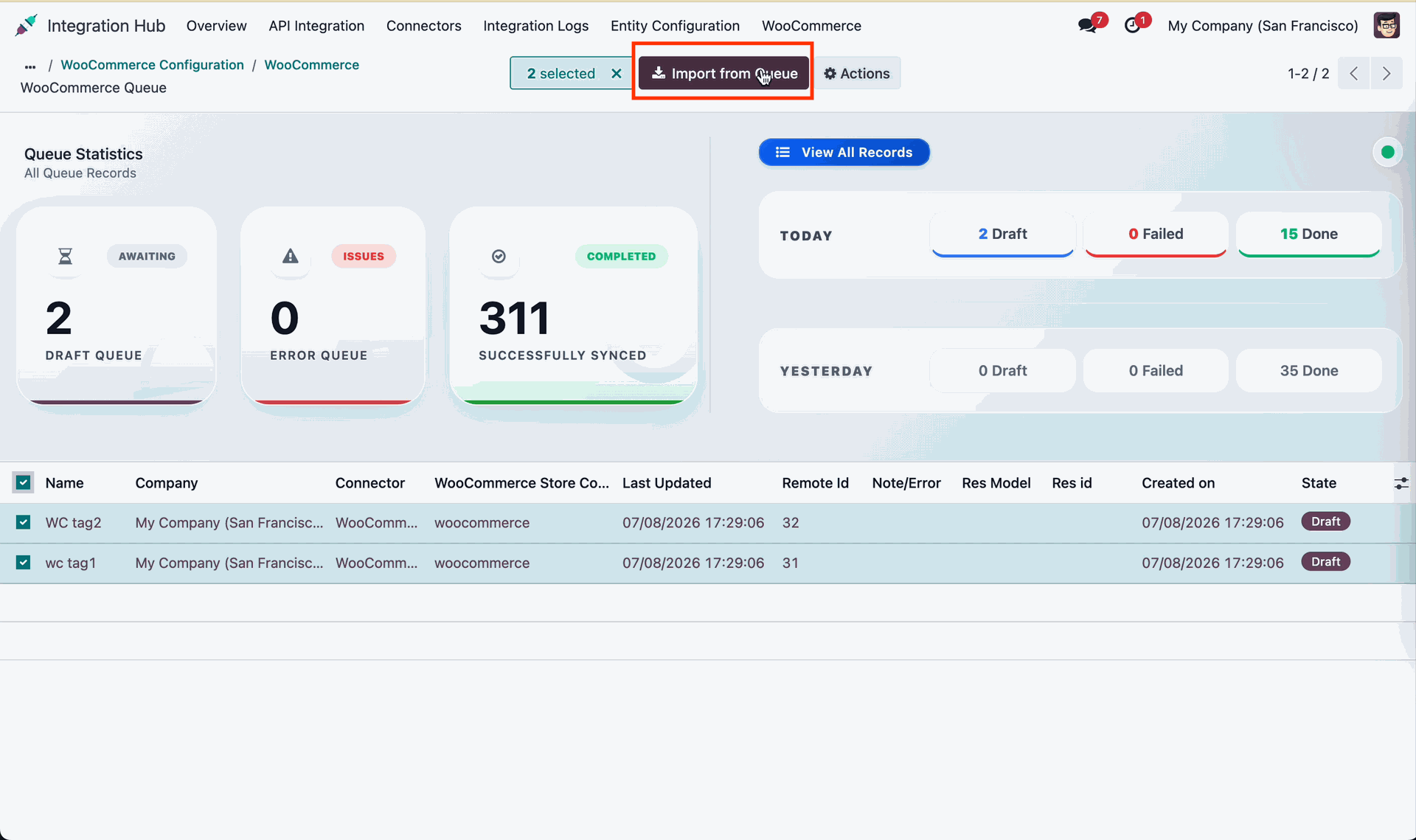
Open the Synced Categories and Tags menu to view mapped product tags.
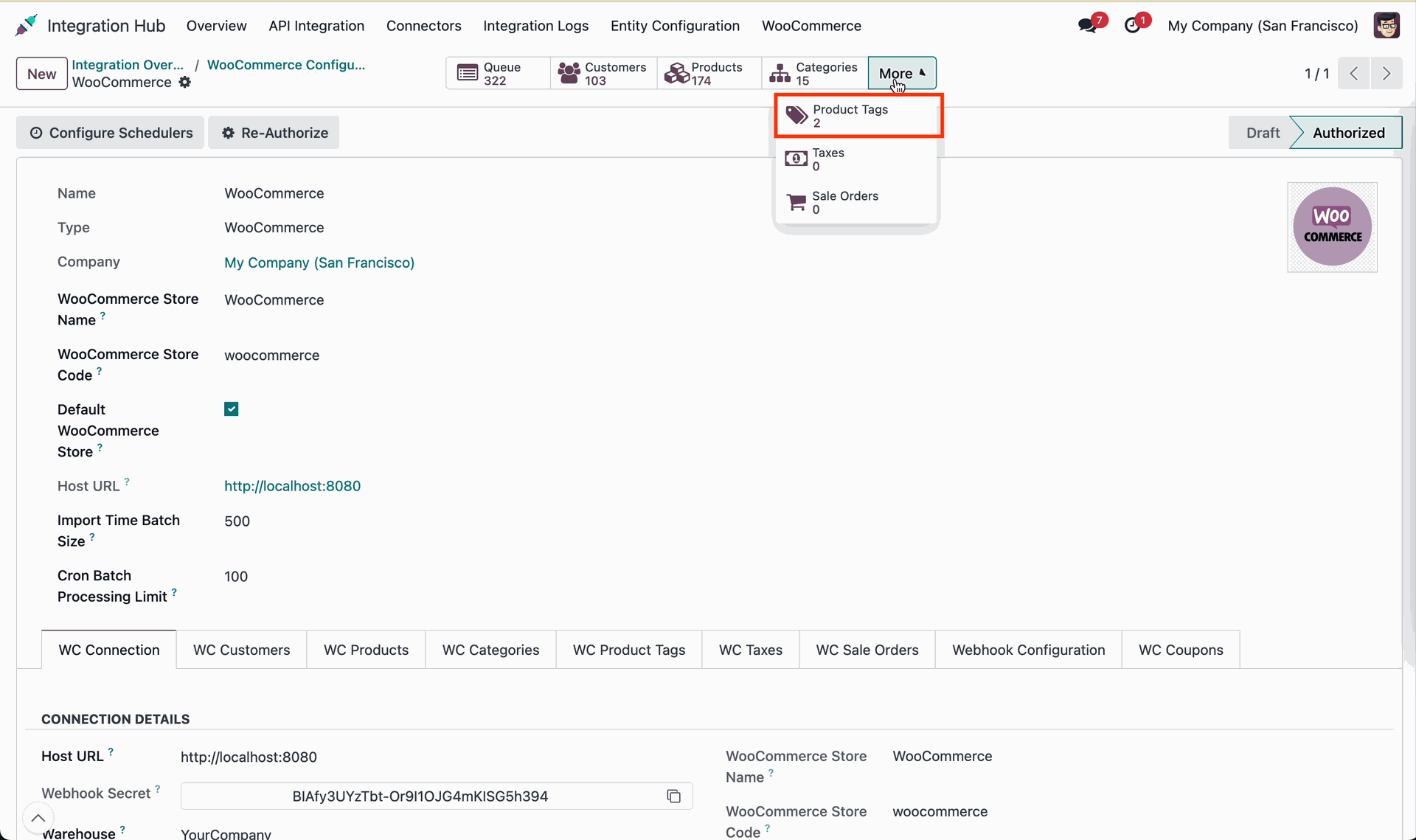
Select a product tag and enter the tag name in the configuration form.
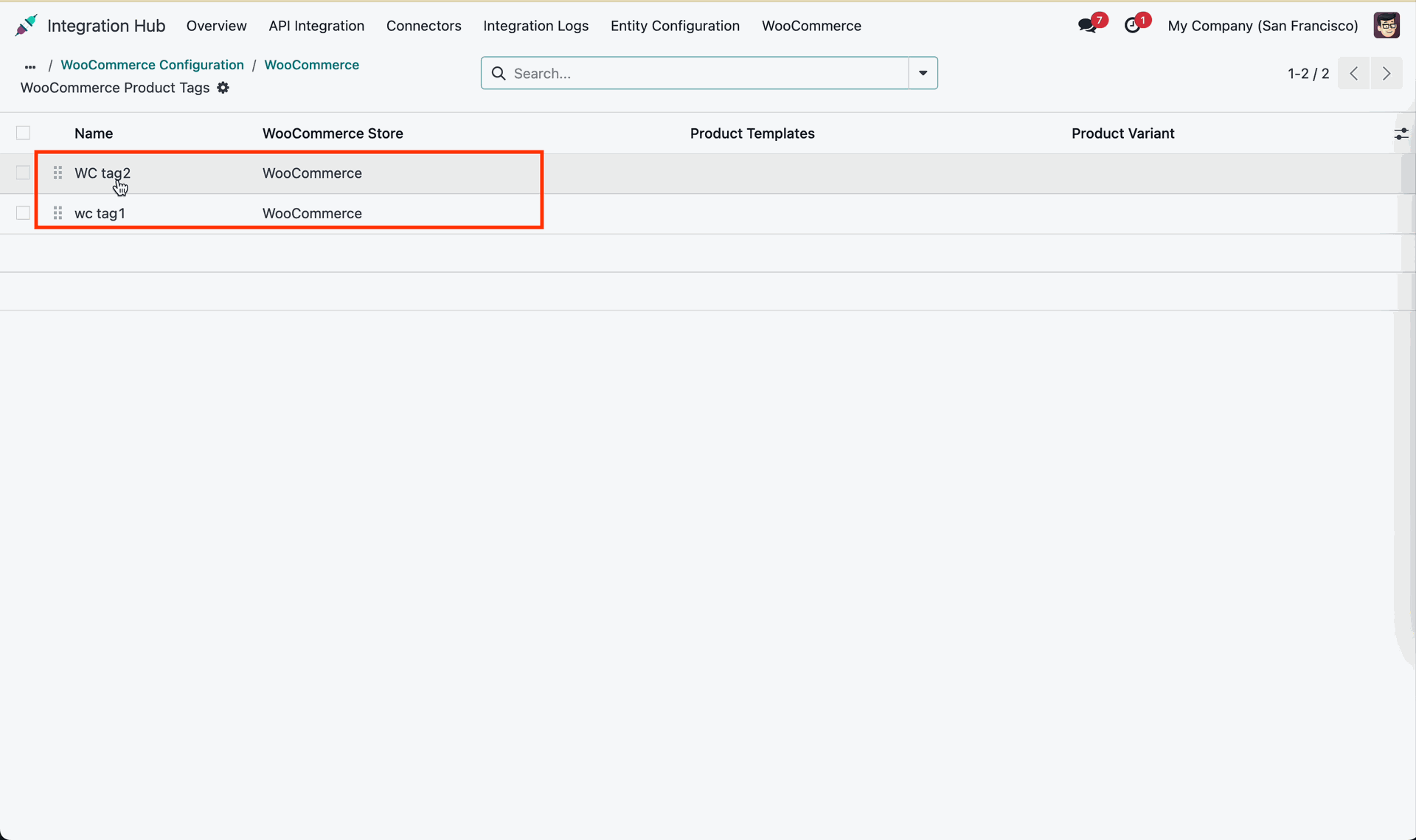
Click Sync to WooCommerce on tag form to push tag updates manually.
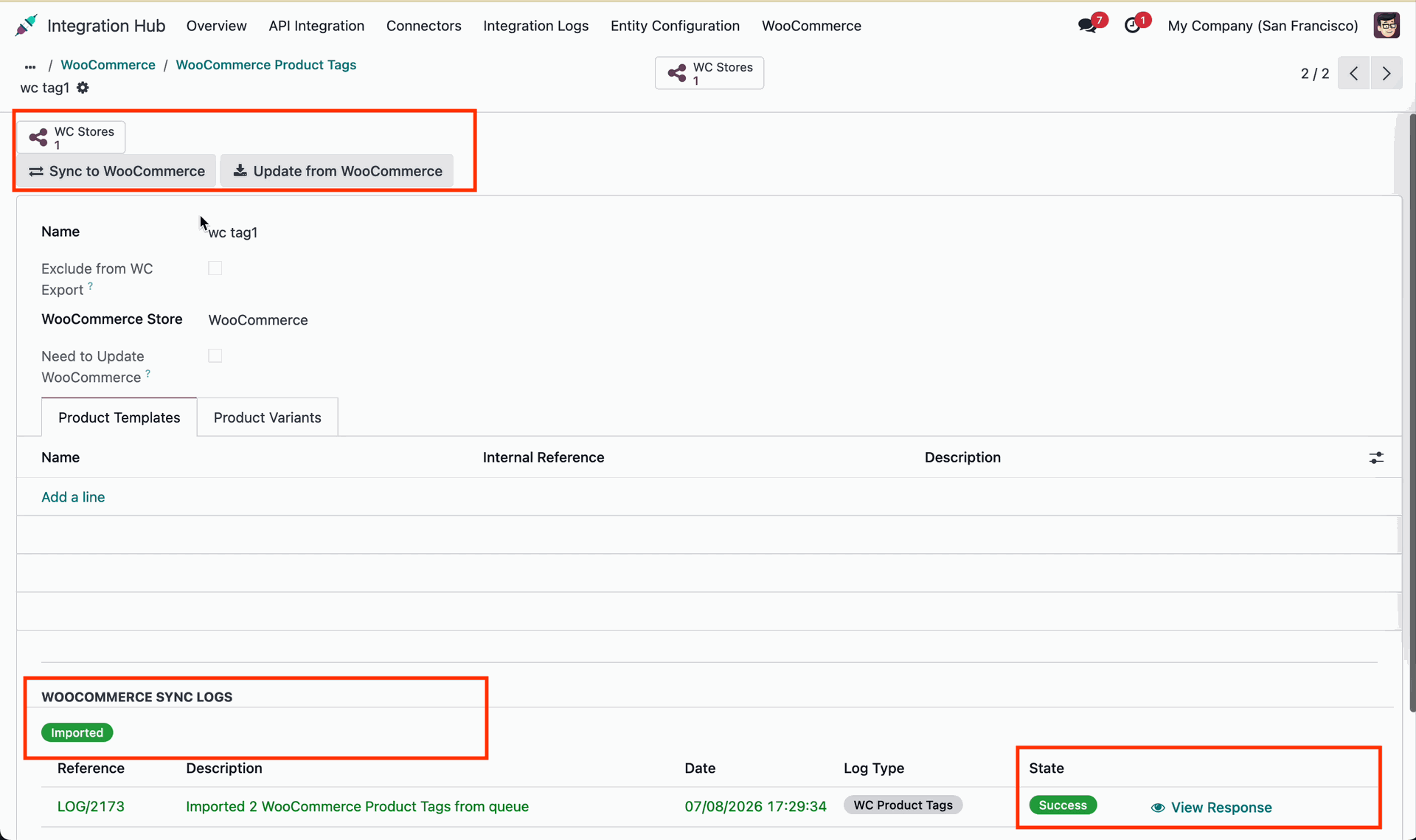
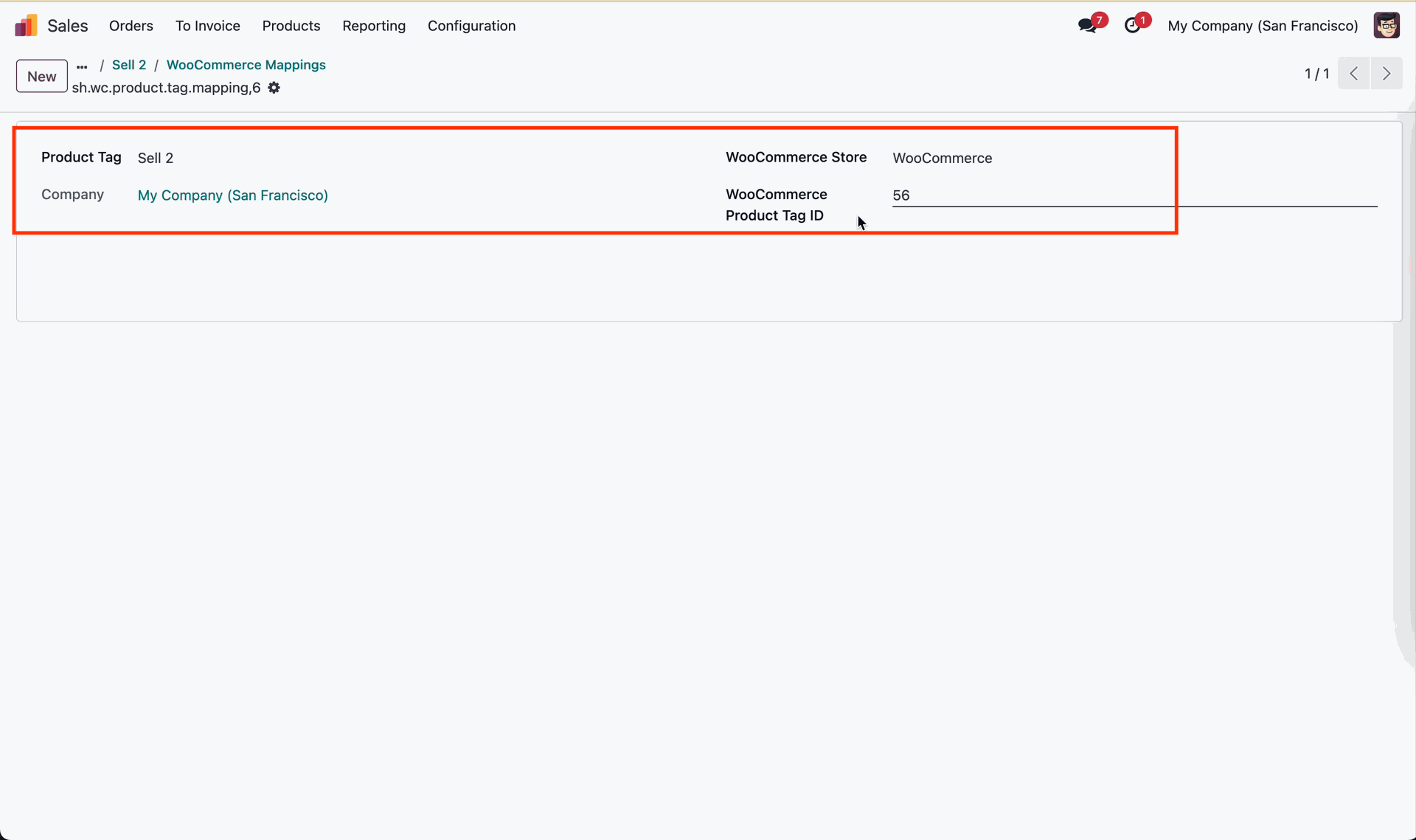
Click Open Affected Records to review product tag mapping details and logs.
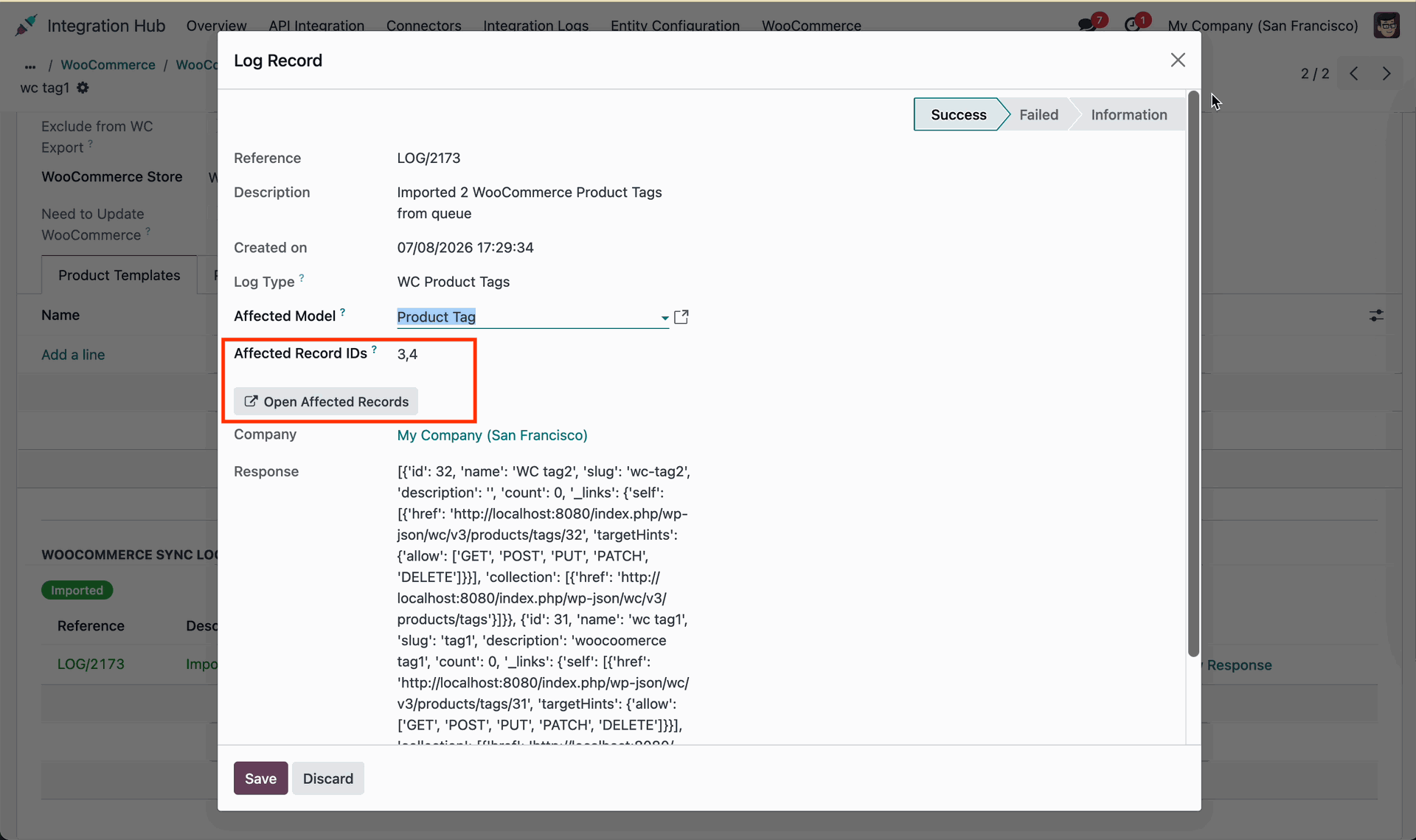
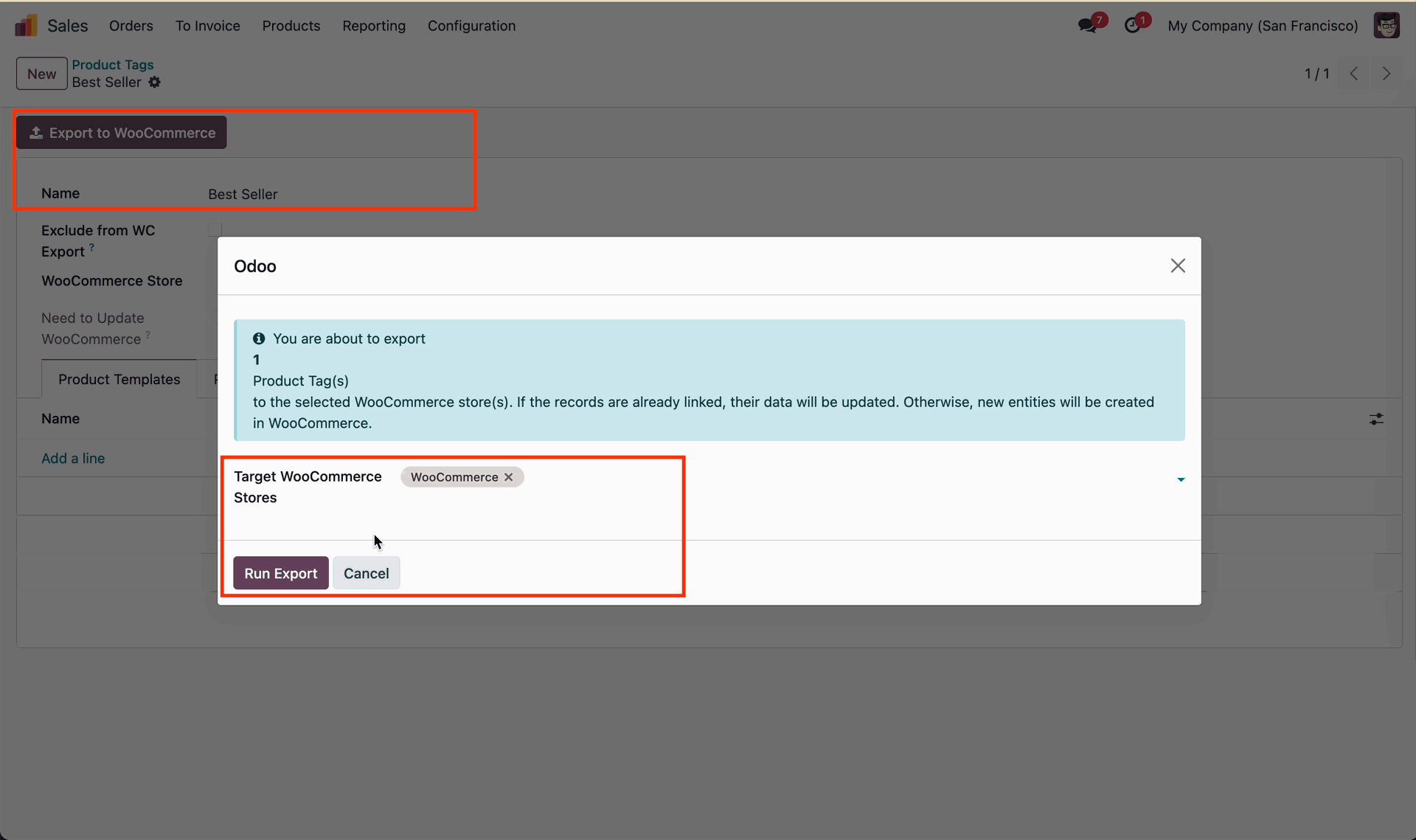
Click Run Export on the confirmation dialog to export product tags to WooCommerce.
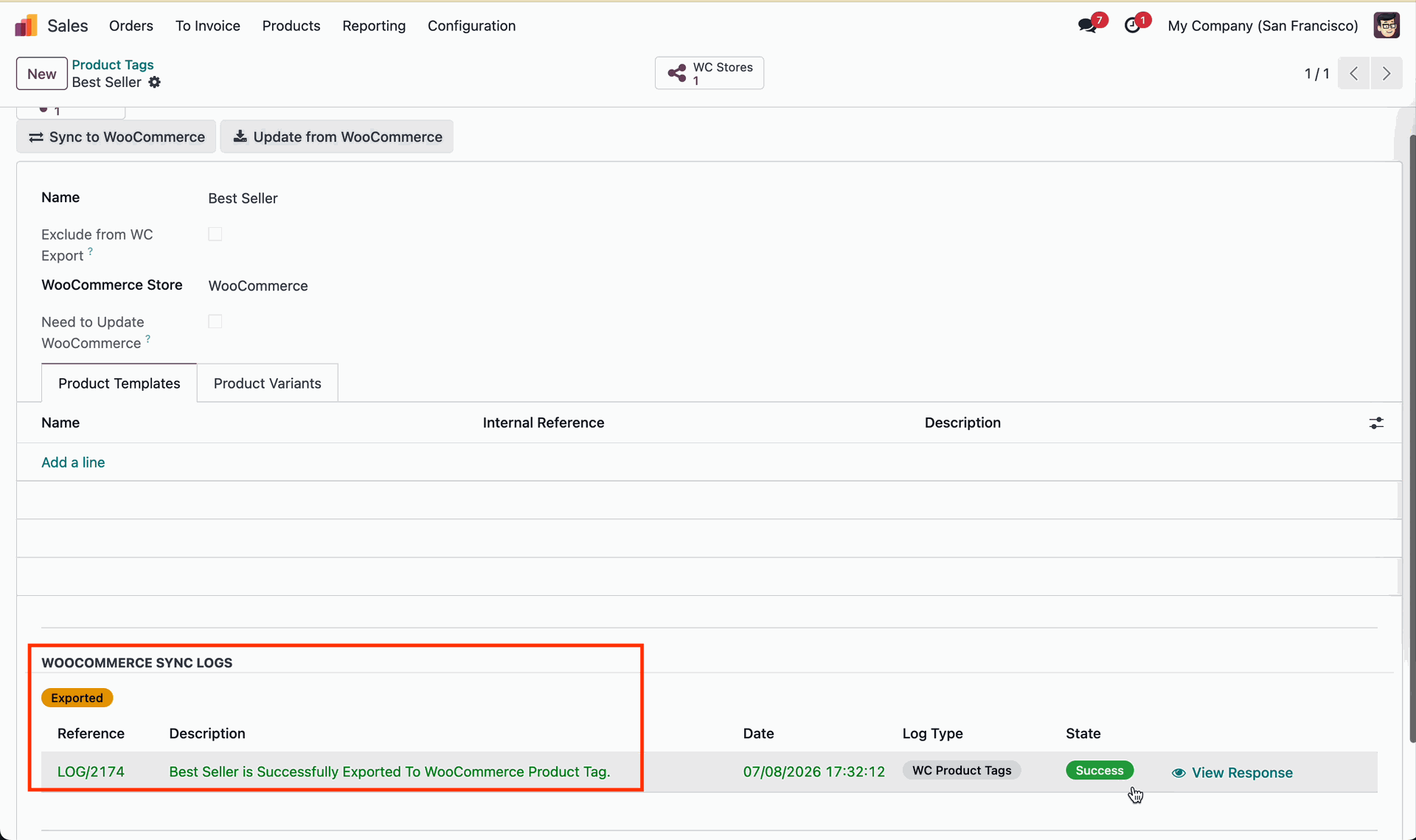
Review the export log entry to confirm successful product tag creation in store.
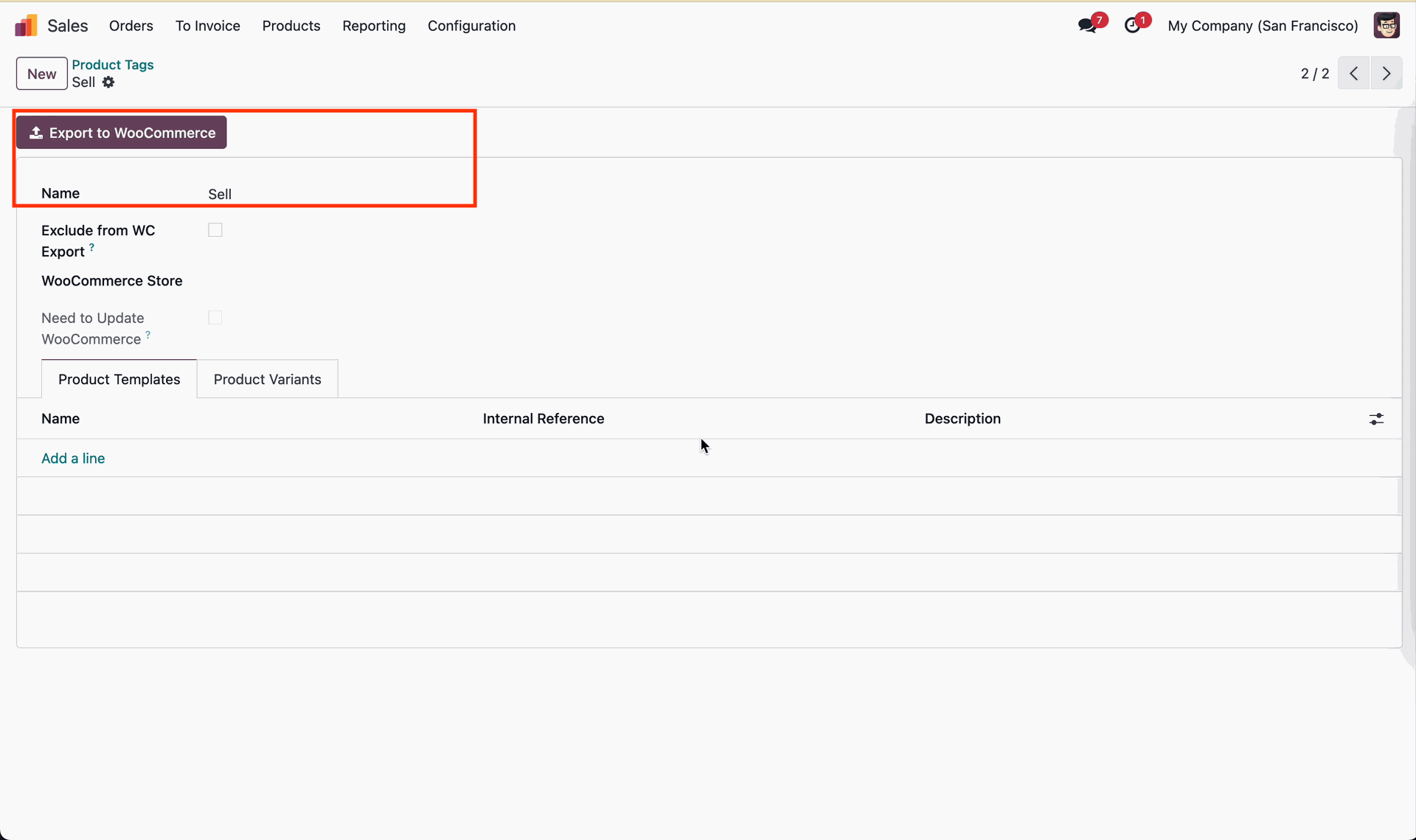
Enter the tag name and click Export to WooCommerce to create new tag.
Click WC Stores smart button to view connected WooCommerce store instances.
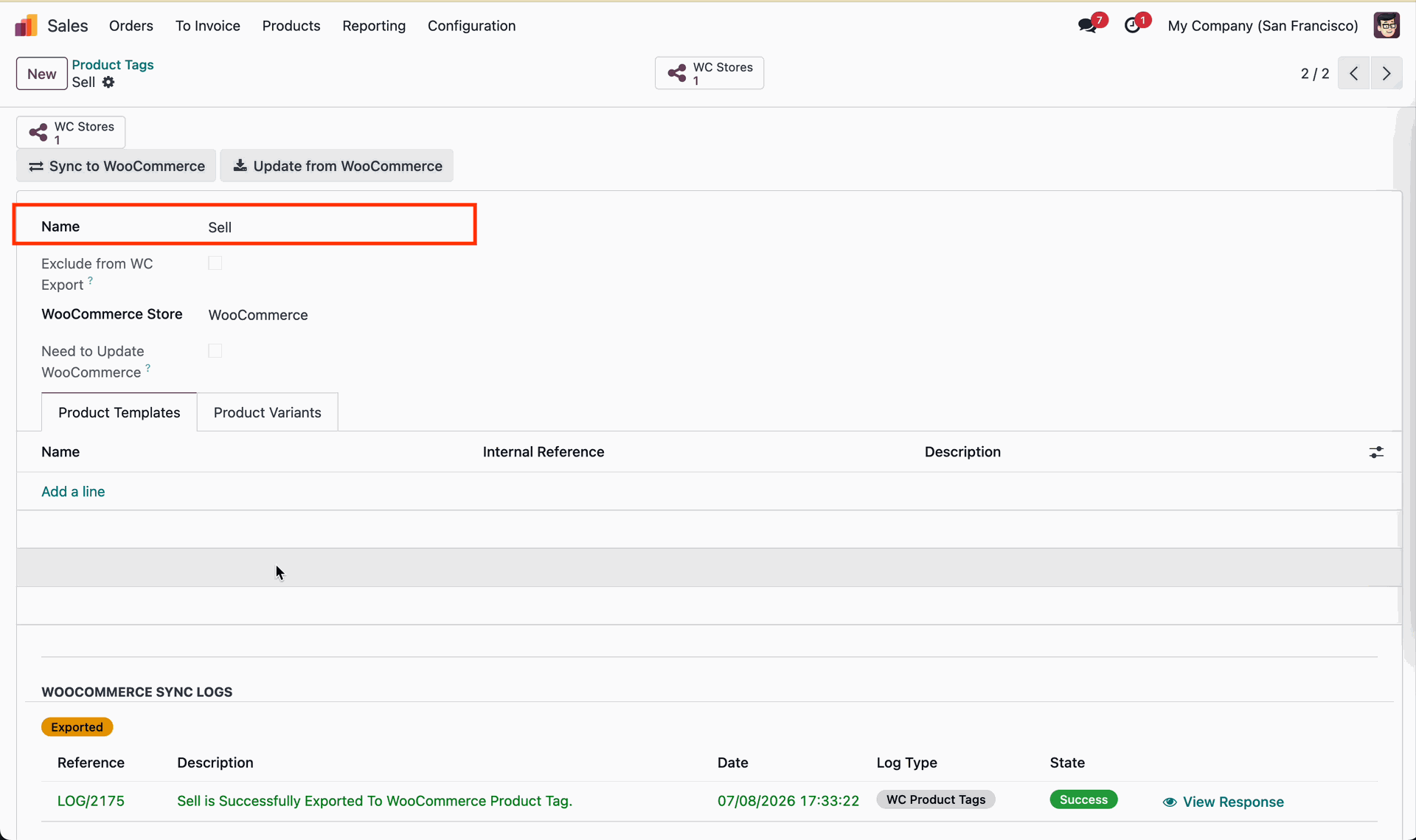
Review the updated product tag list on WooCommerce store admin after export.
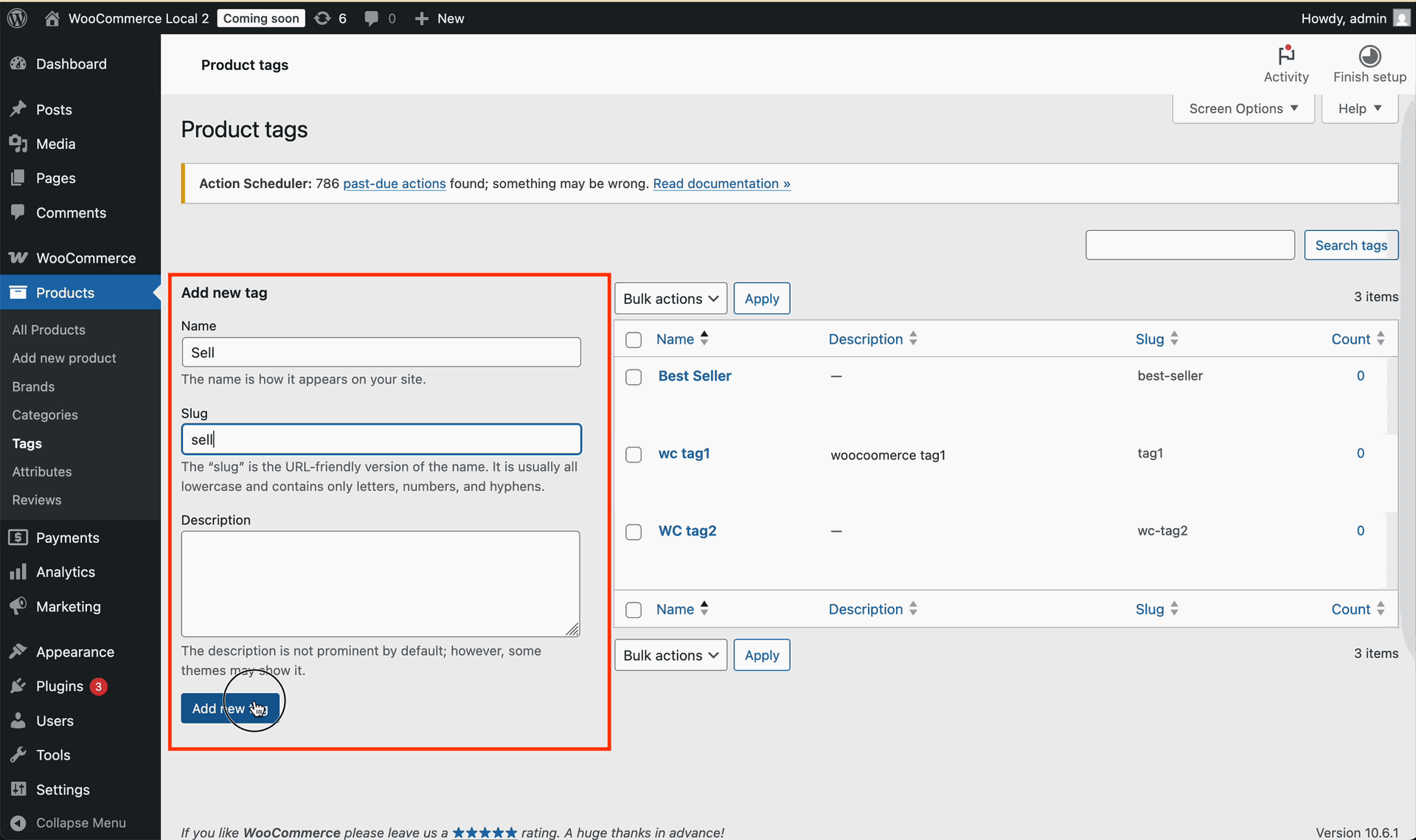
Click Update from WooCommerce on tag form to fetch tag updates.
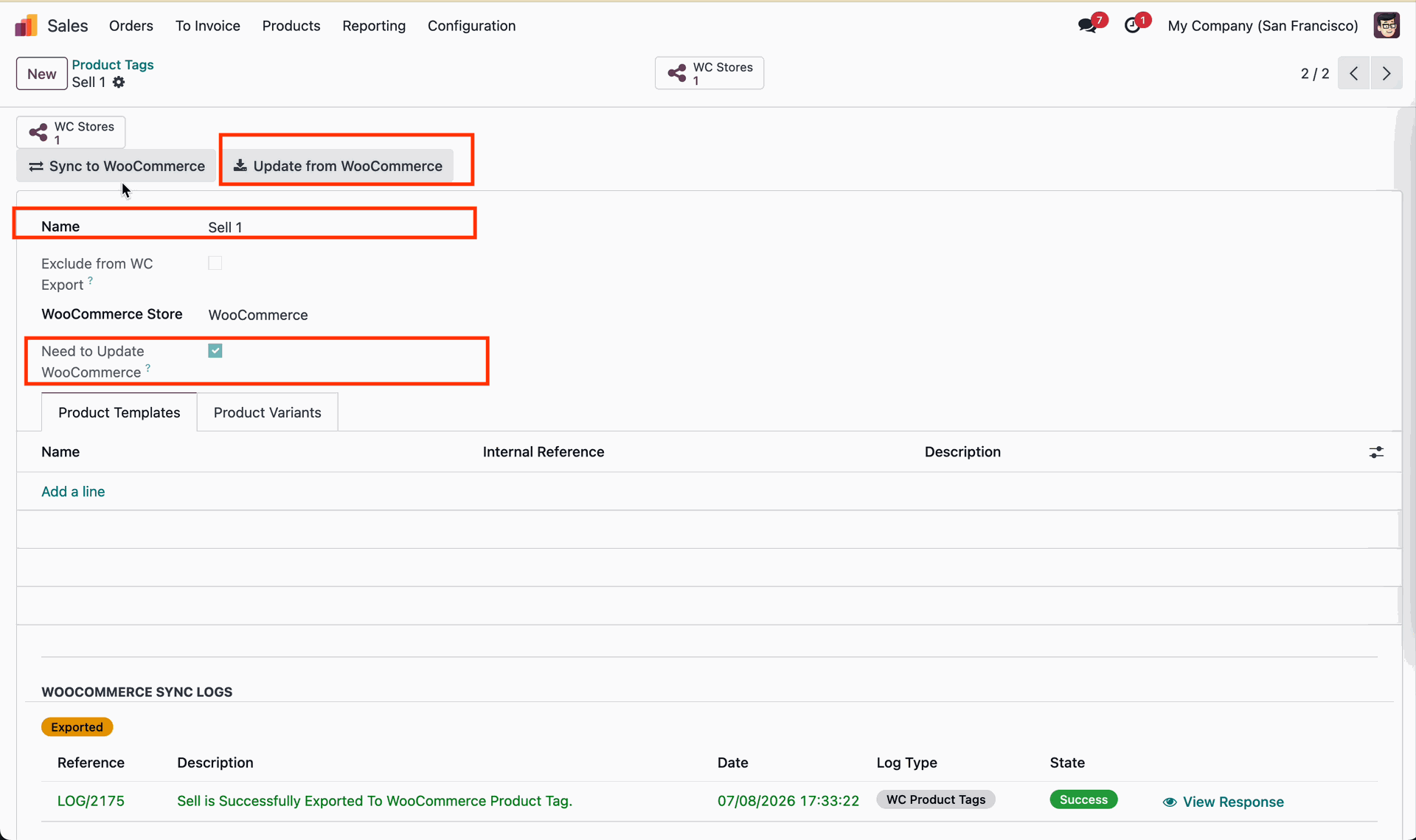
Select Edit from the WooCommerce tag menu to modify tag slug and details.
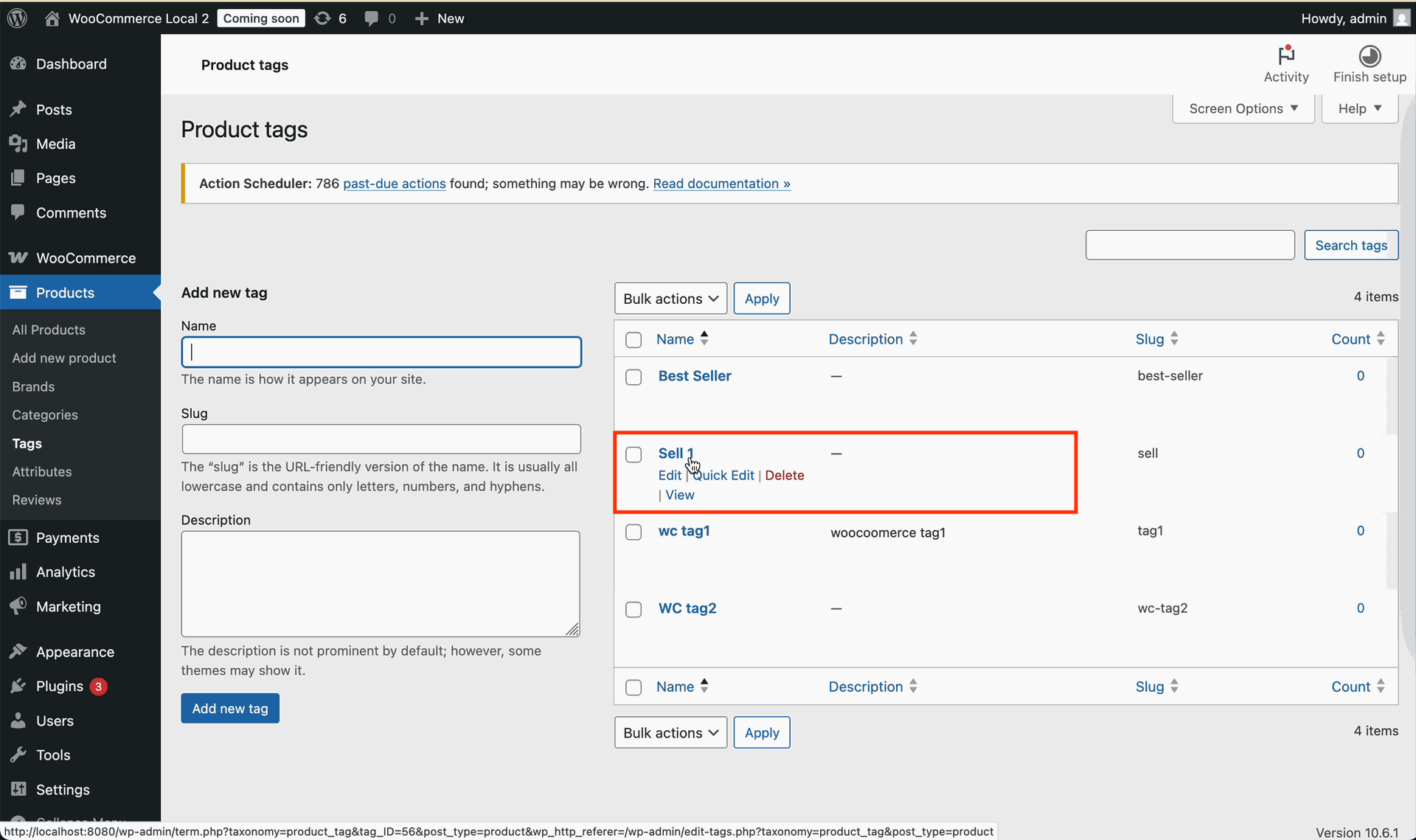
Click Update from WooCommerce to fetch revised tag information into Odoo record.
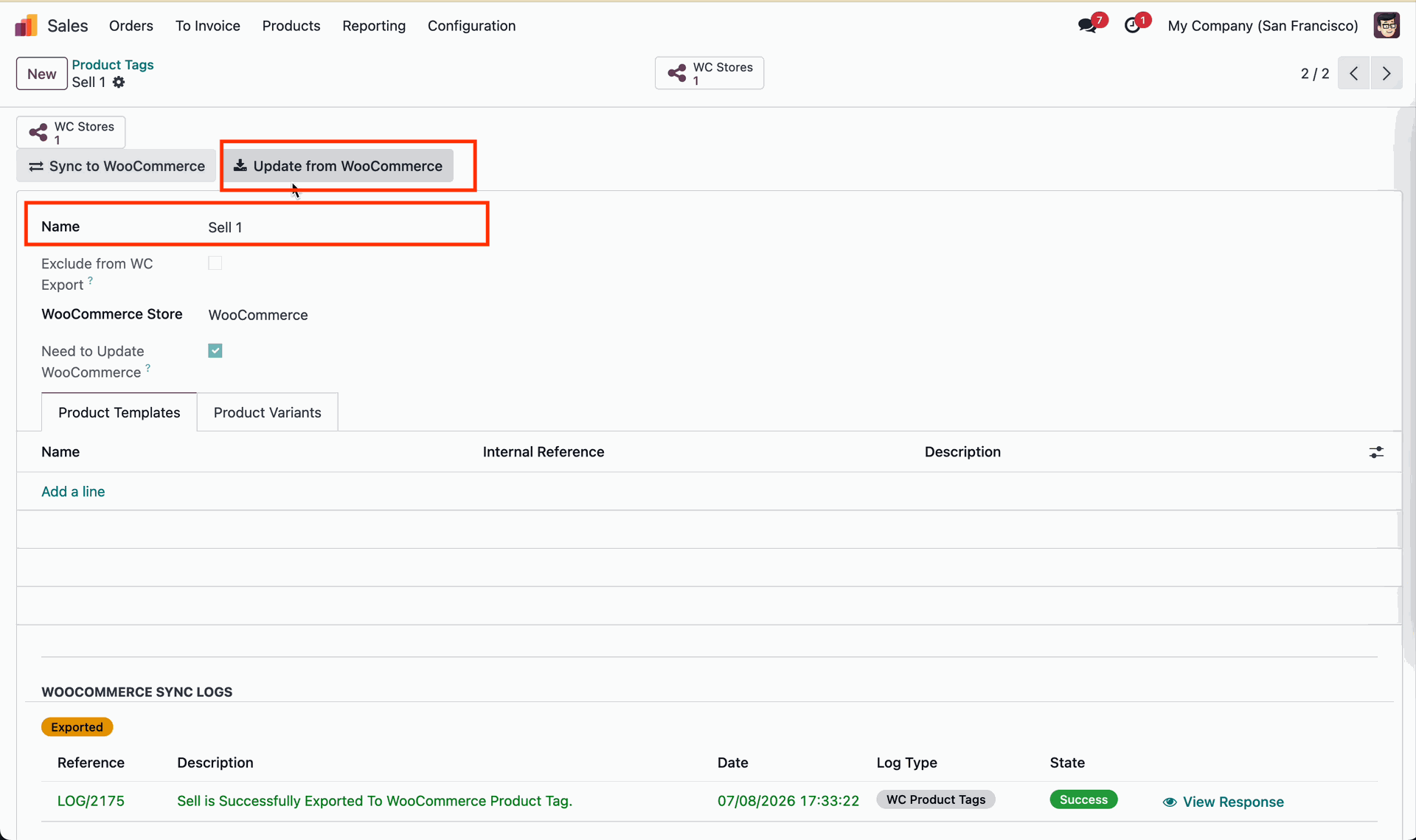
Review product tag synchronization log details to verify sync execution history.
 How it Works? Watch Video
Review the WooCommerce customer sync guide to configure customer import and export rules.
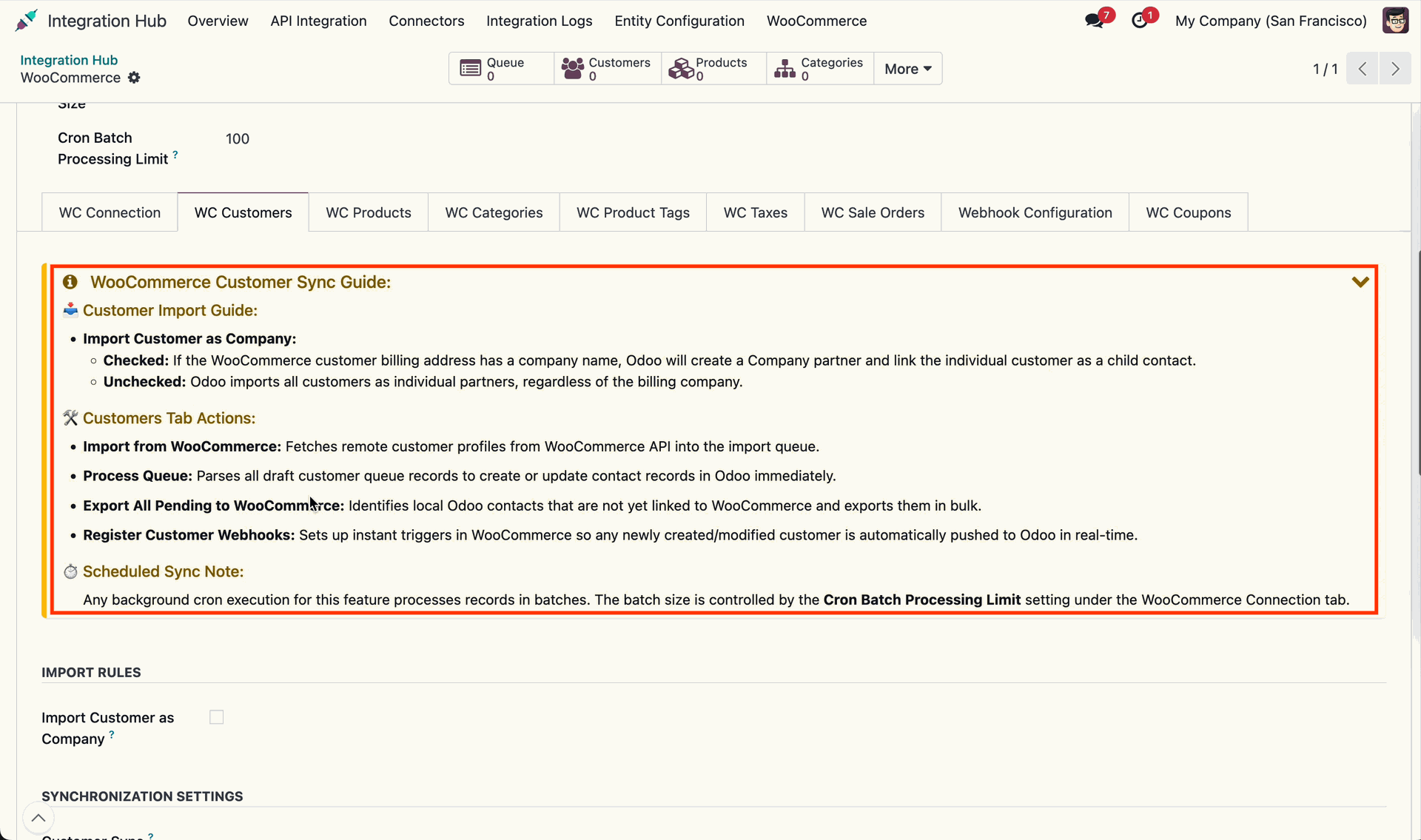
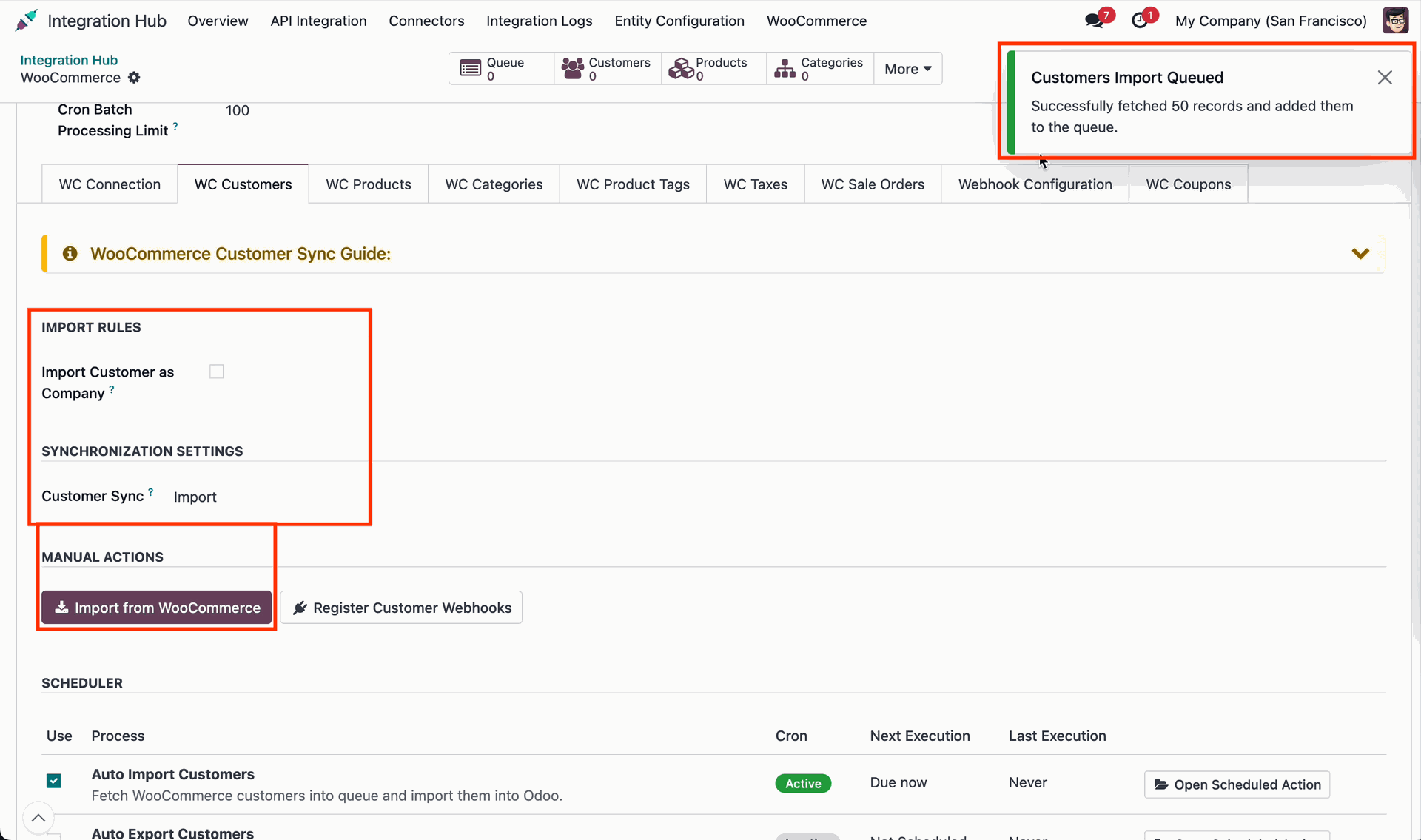
Configure Import Customer as Company setting and click Import from WooCommerce button.
Open the Customer Sync Schedulers menu to view automated customer import cron actions.
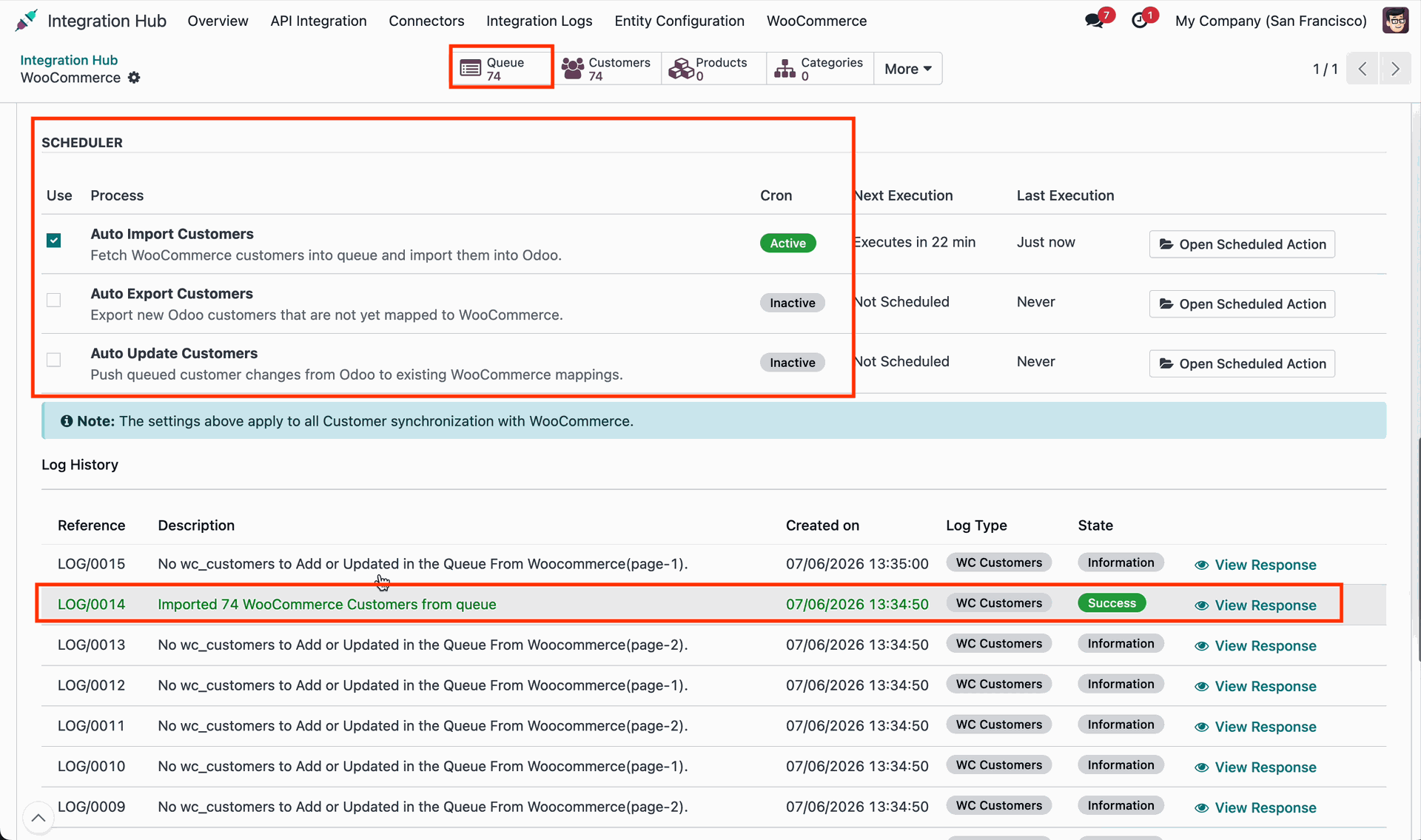
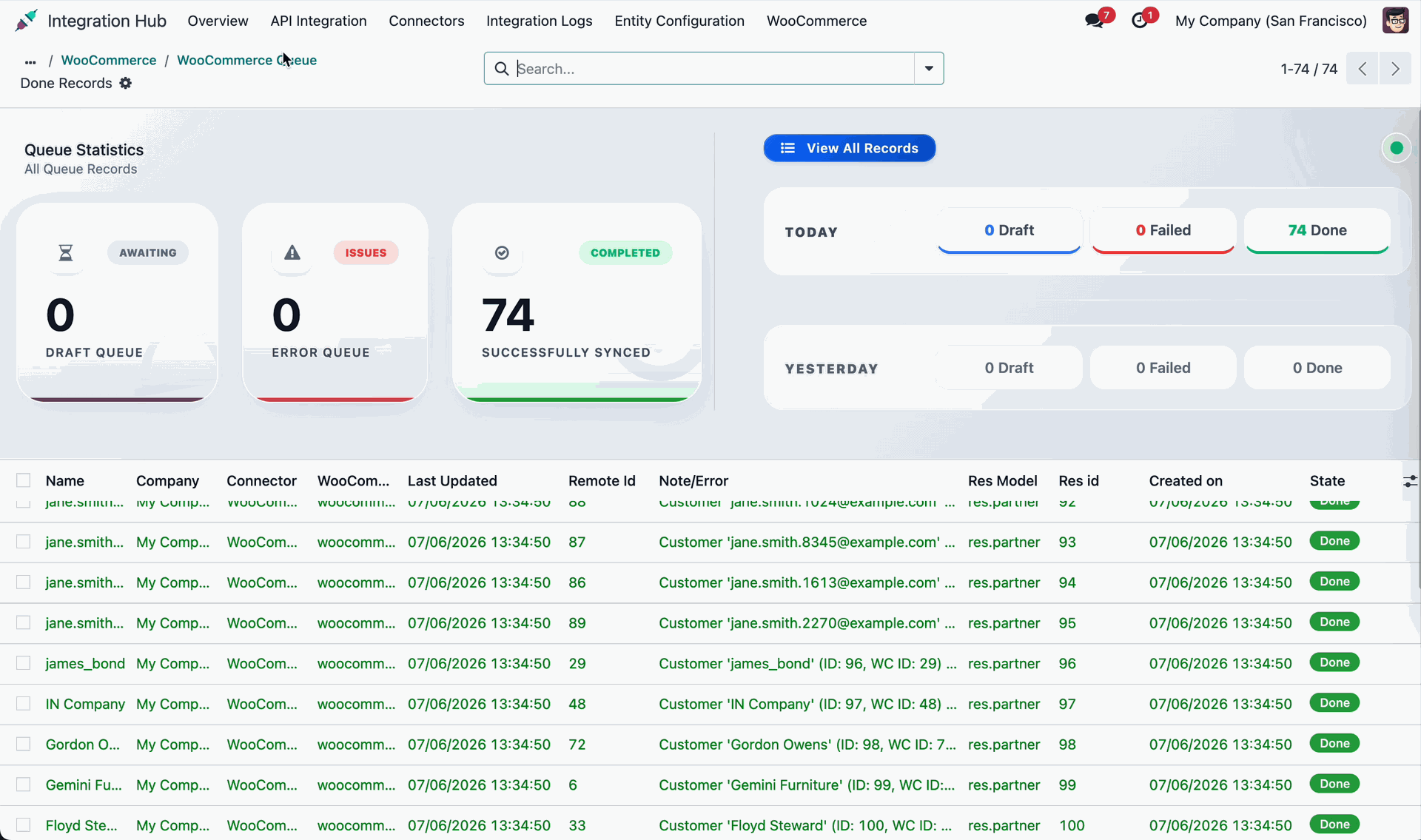
Open the customer queue list to review draft customer queue records and processing state.
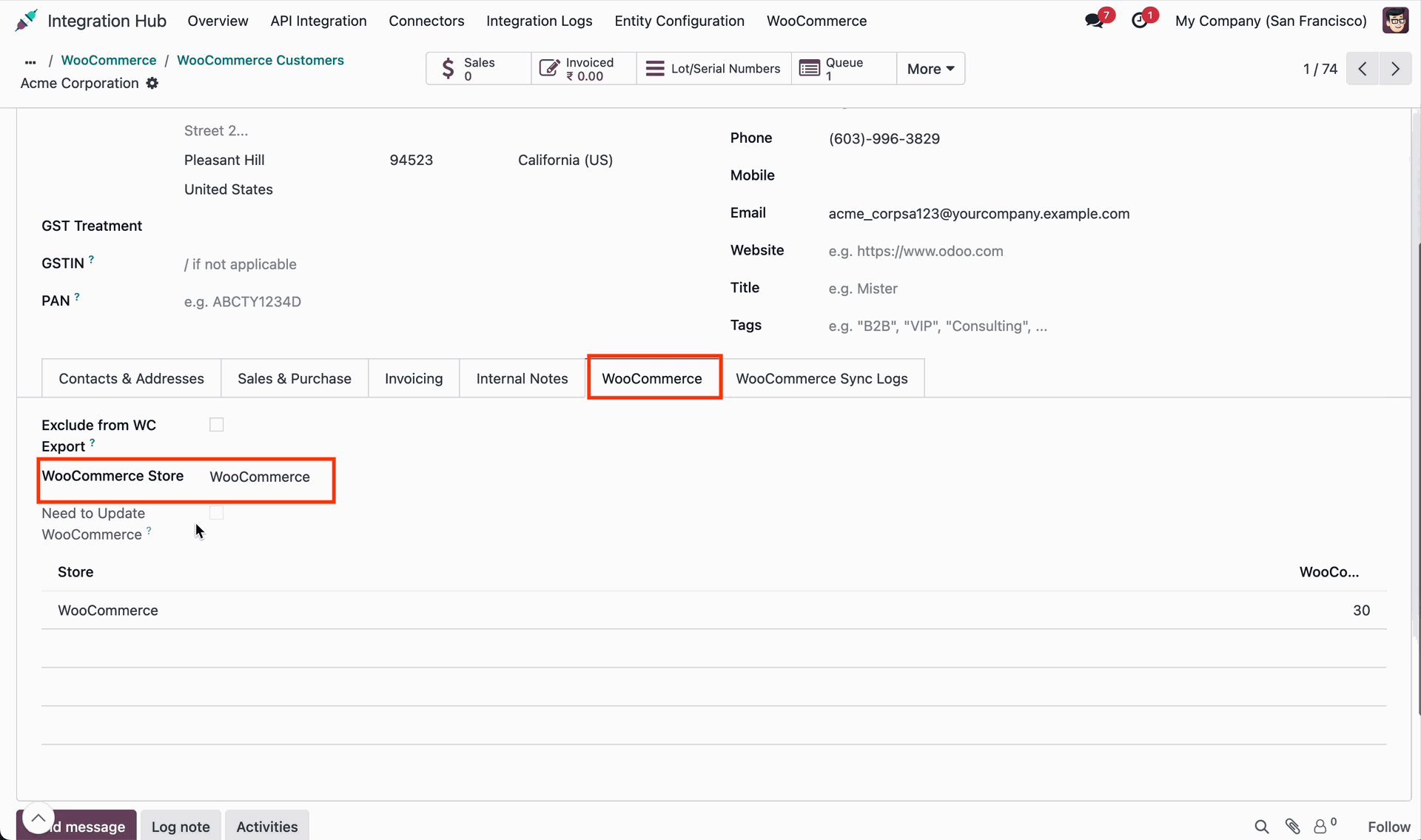
Open the customer form view to inspect imported partner details and contact addresses.
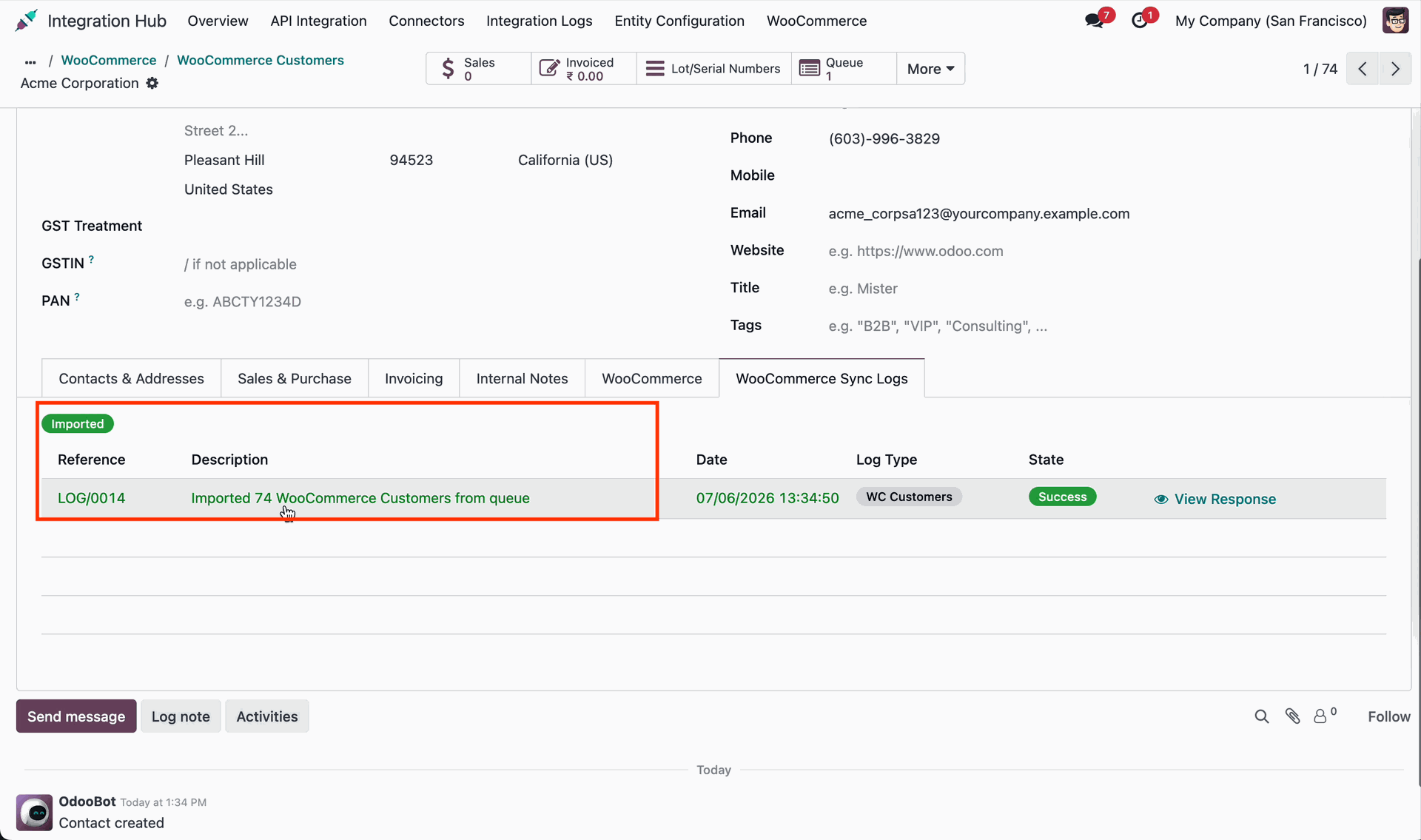
Review WooCommerce sync logs on customer form to verify successful partner import record.
Click Register Customer Webhooks to set up real-time customer update listeners in store.
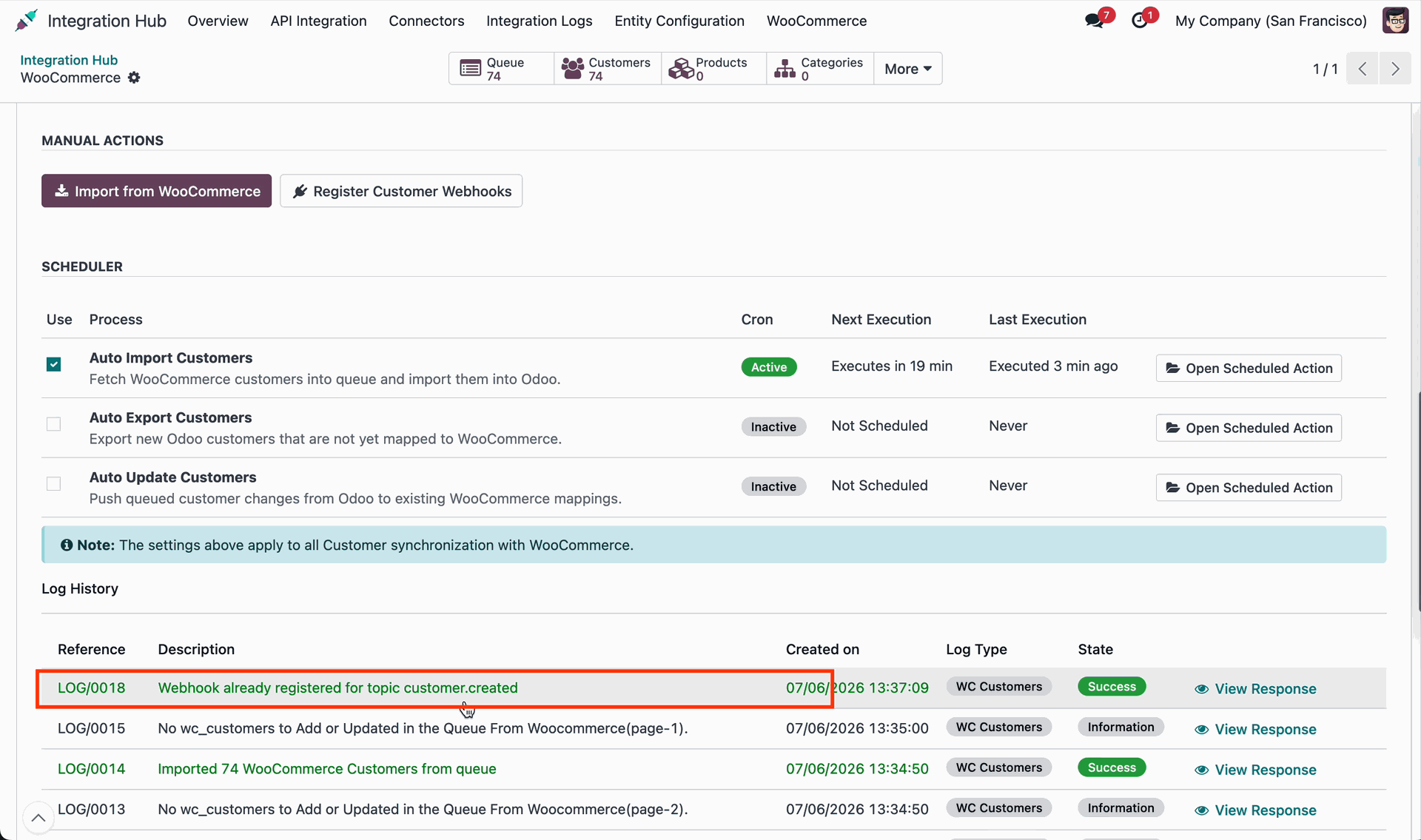
Select WC Customers menu to view all imported WooCommerce customer records in Odoo.
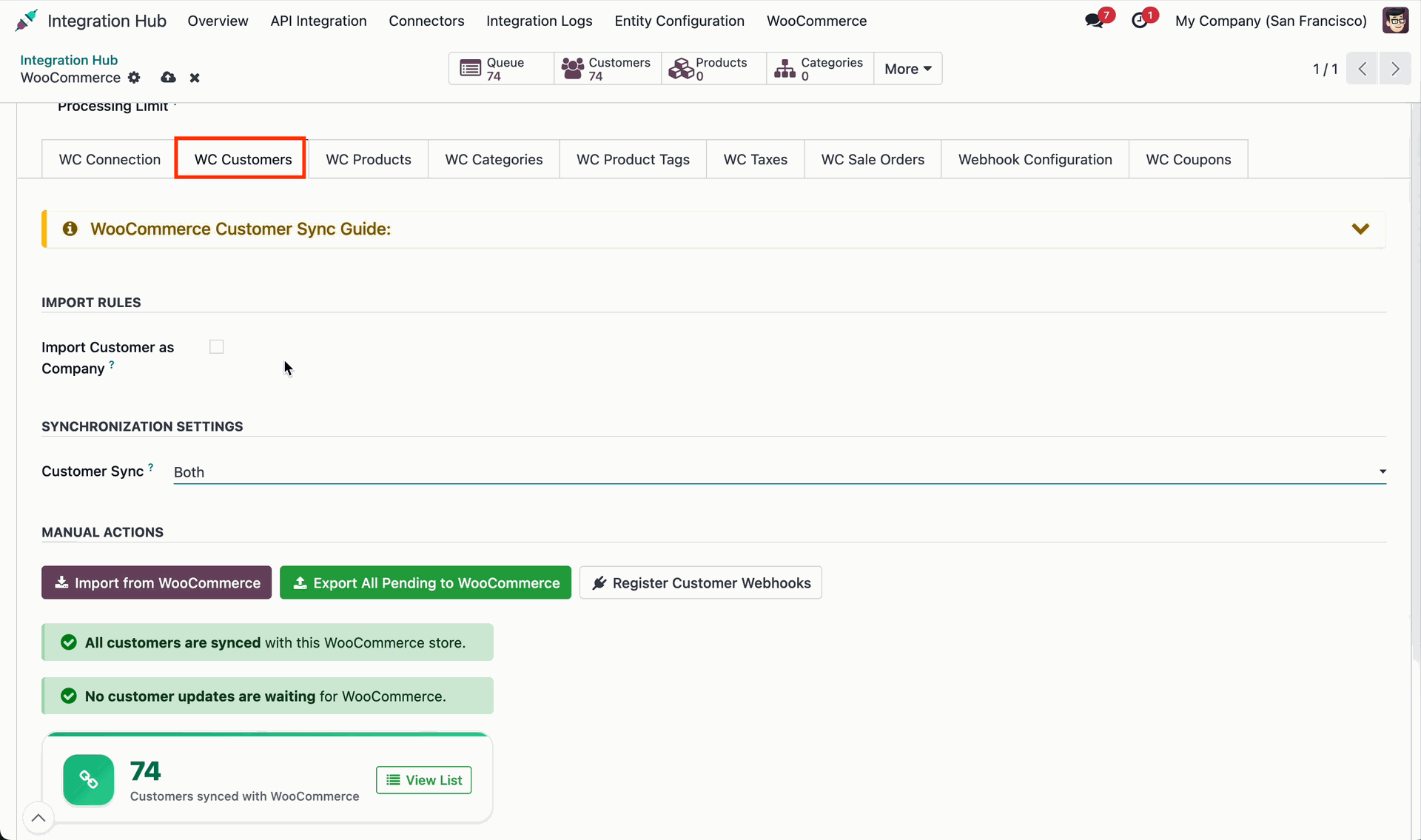
Click Export All Pending to WooCommerce to push unmapped Odoo customers to store.
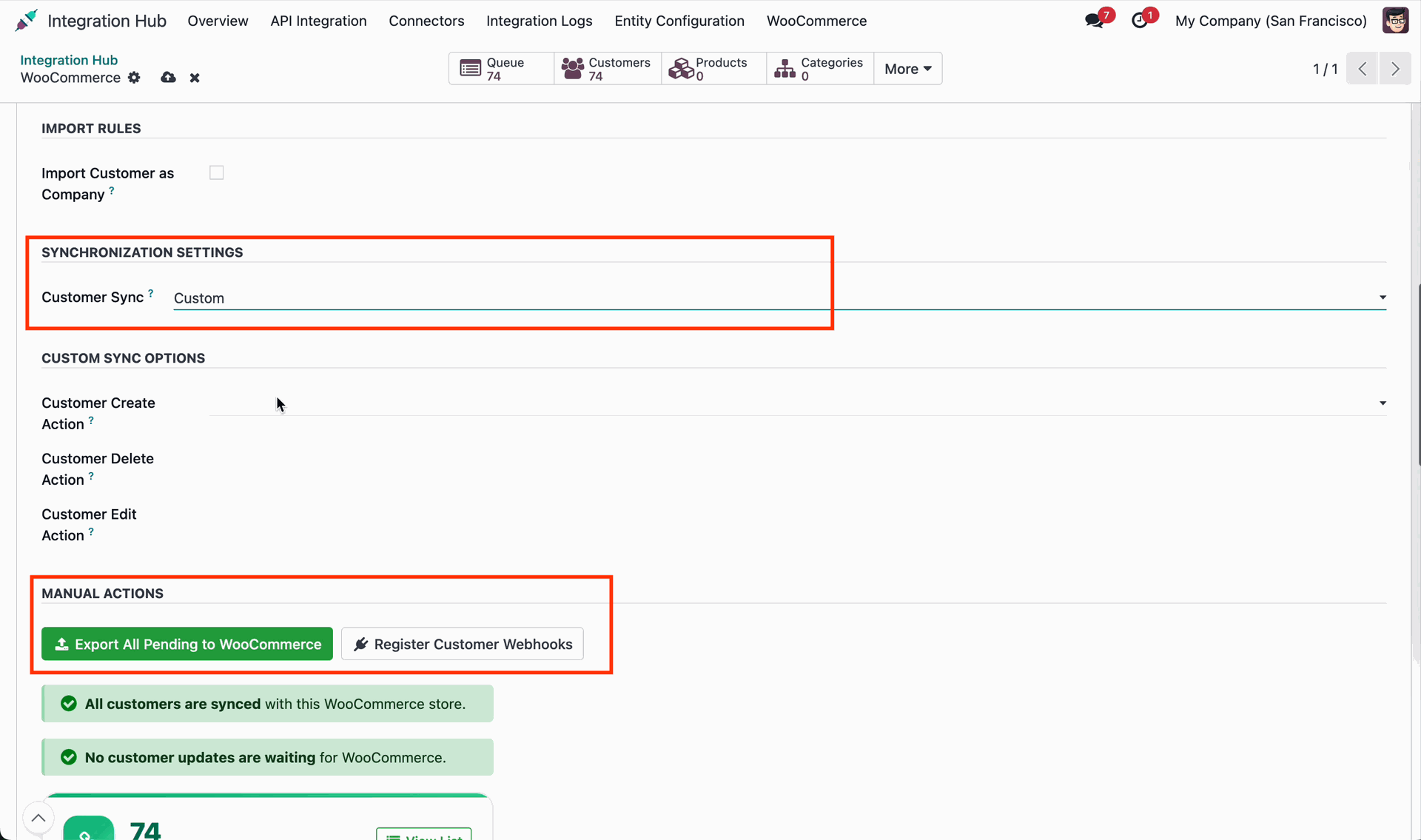
Open customer queue detail view to inspect payload data and execution log messages.
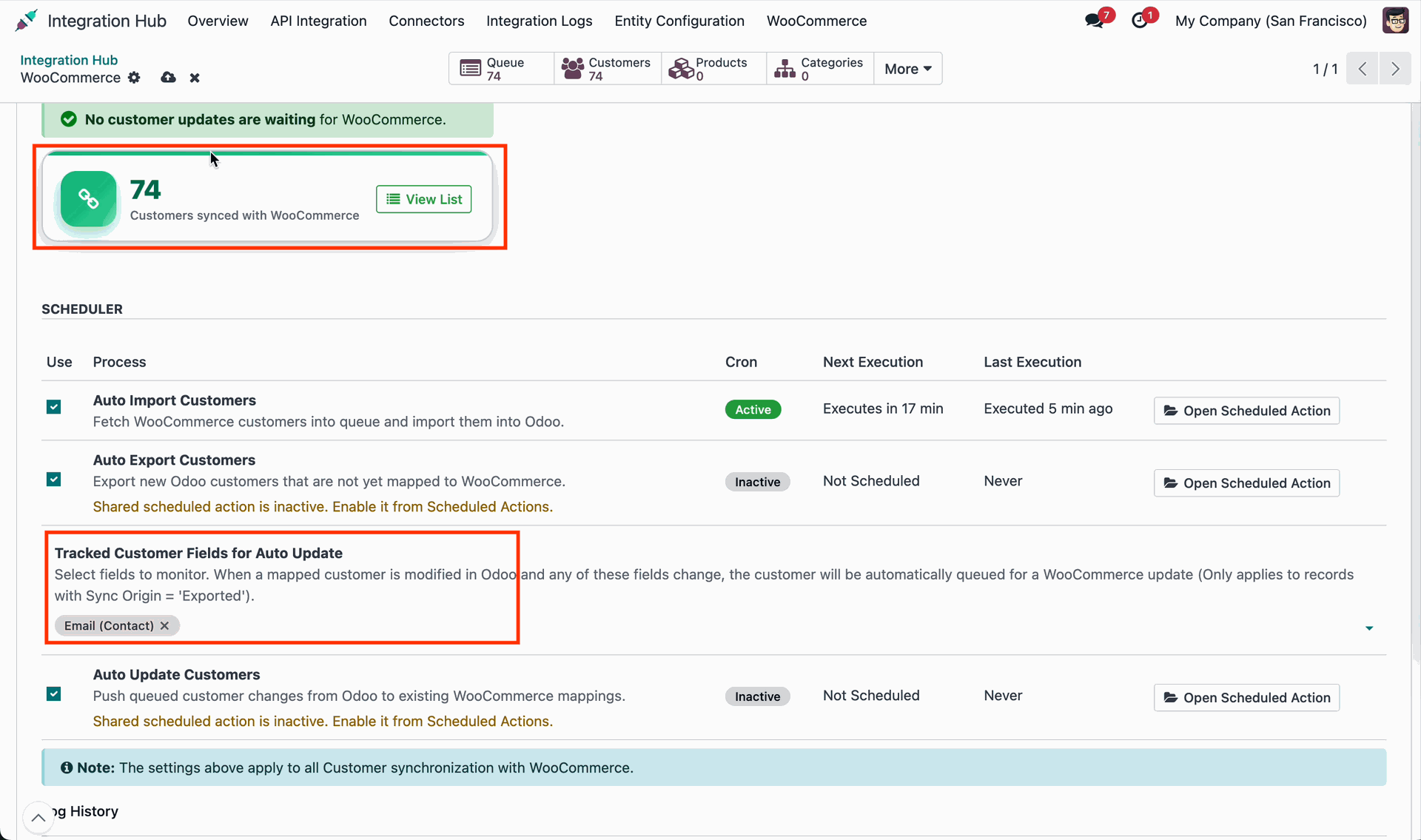
Review the customer edit form on WooCommerce store admin to verify customer profile details.
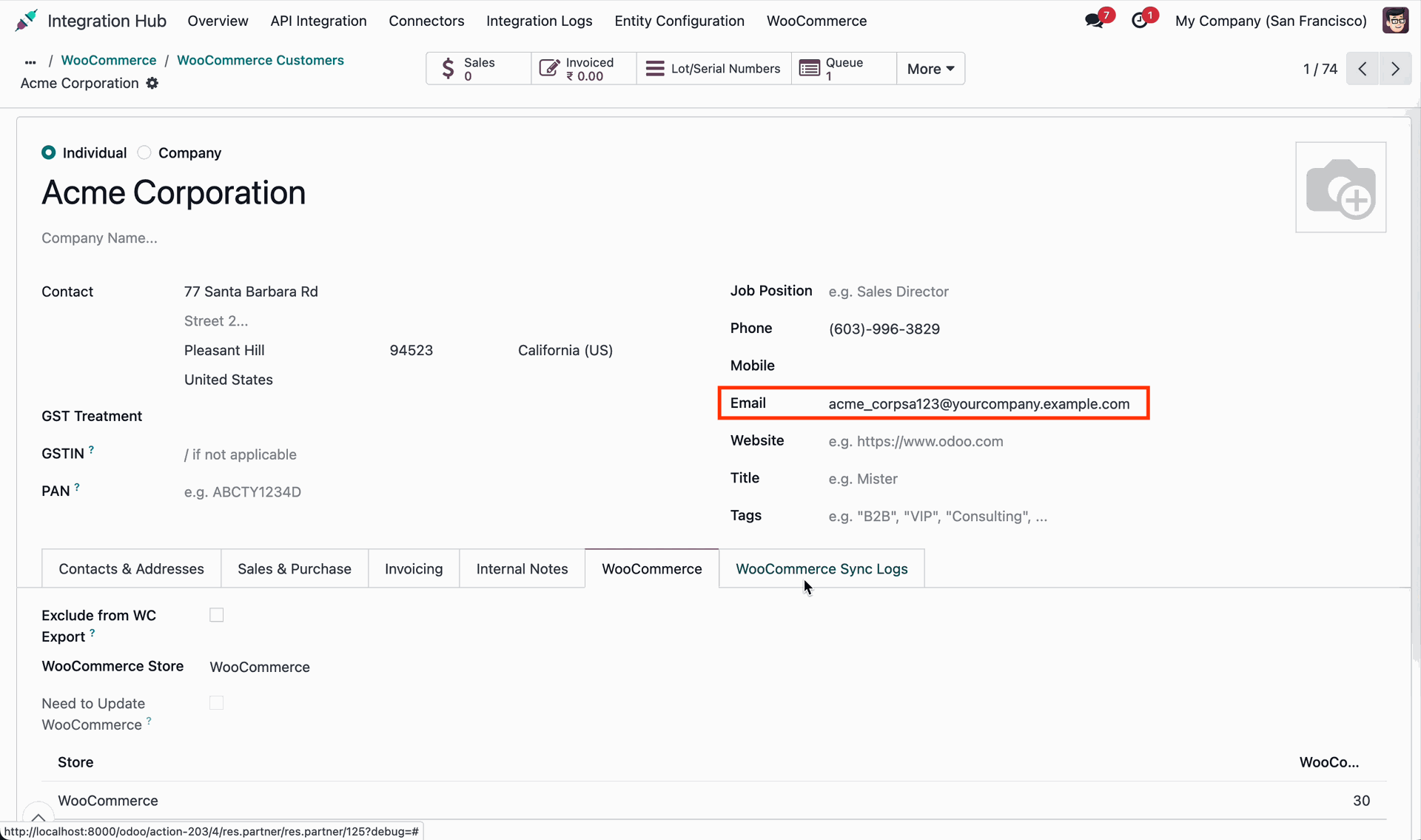
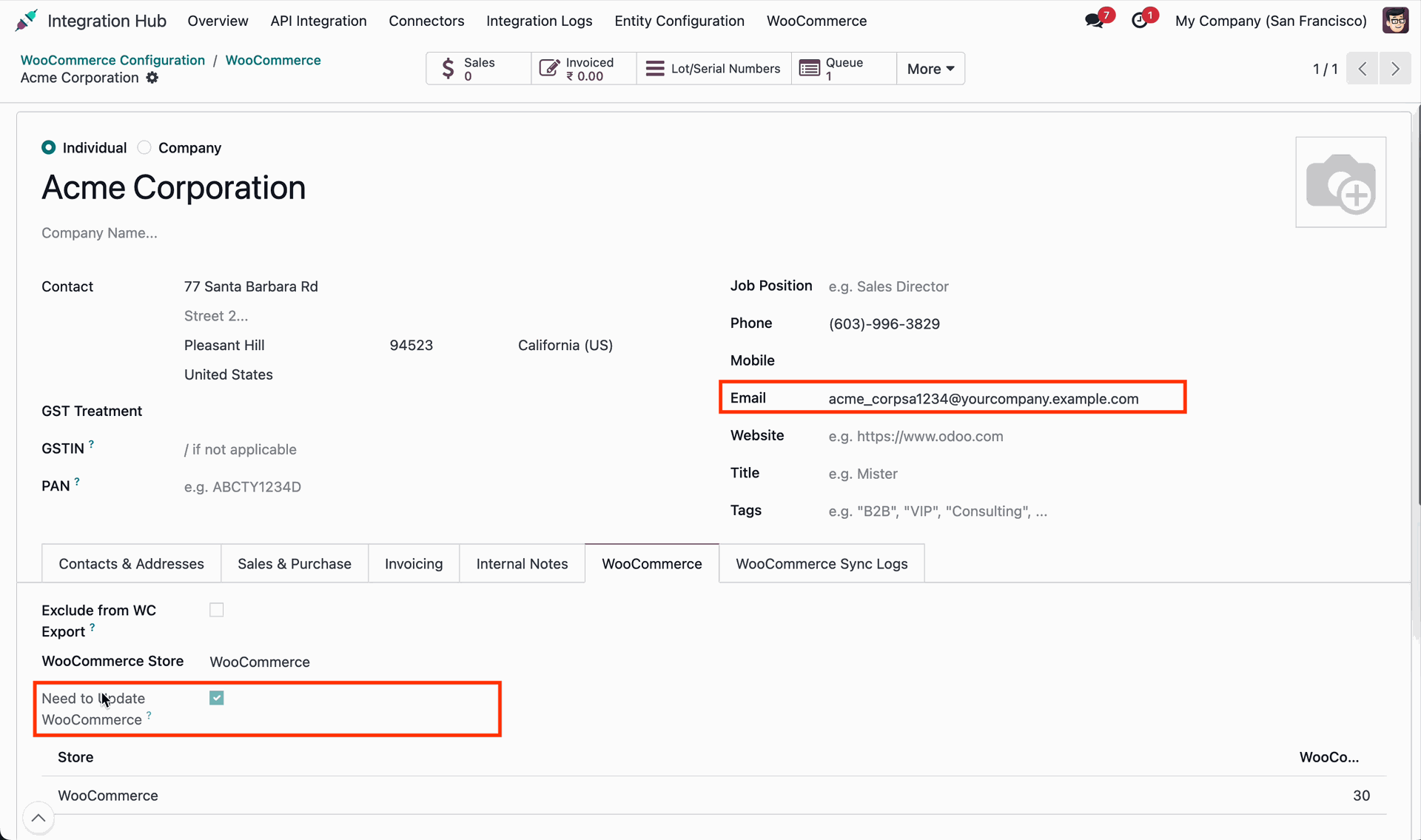
Click Update to WooCommerce on customer form to update customer profile details.
 How it Works? Watch Video
Review the sale order sync guide to configure order import and automated workflows.
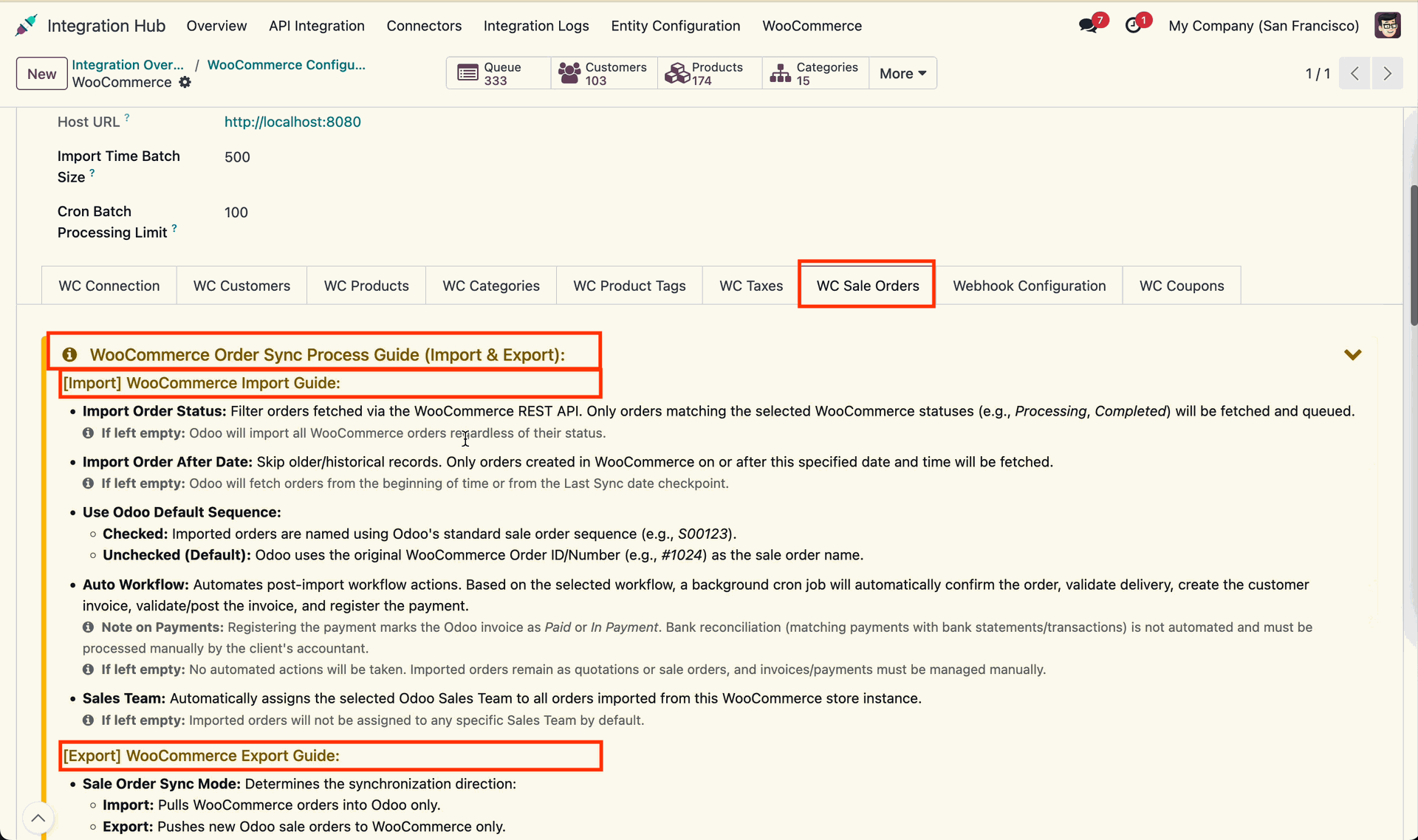
Configure import rules.
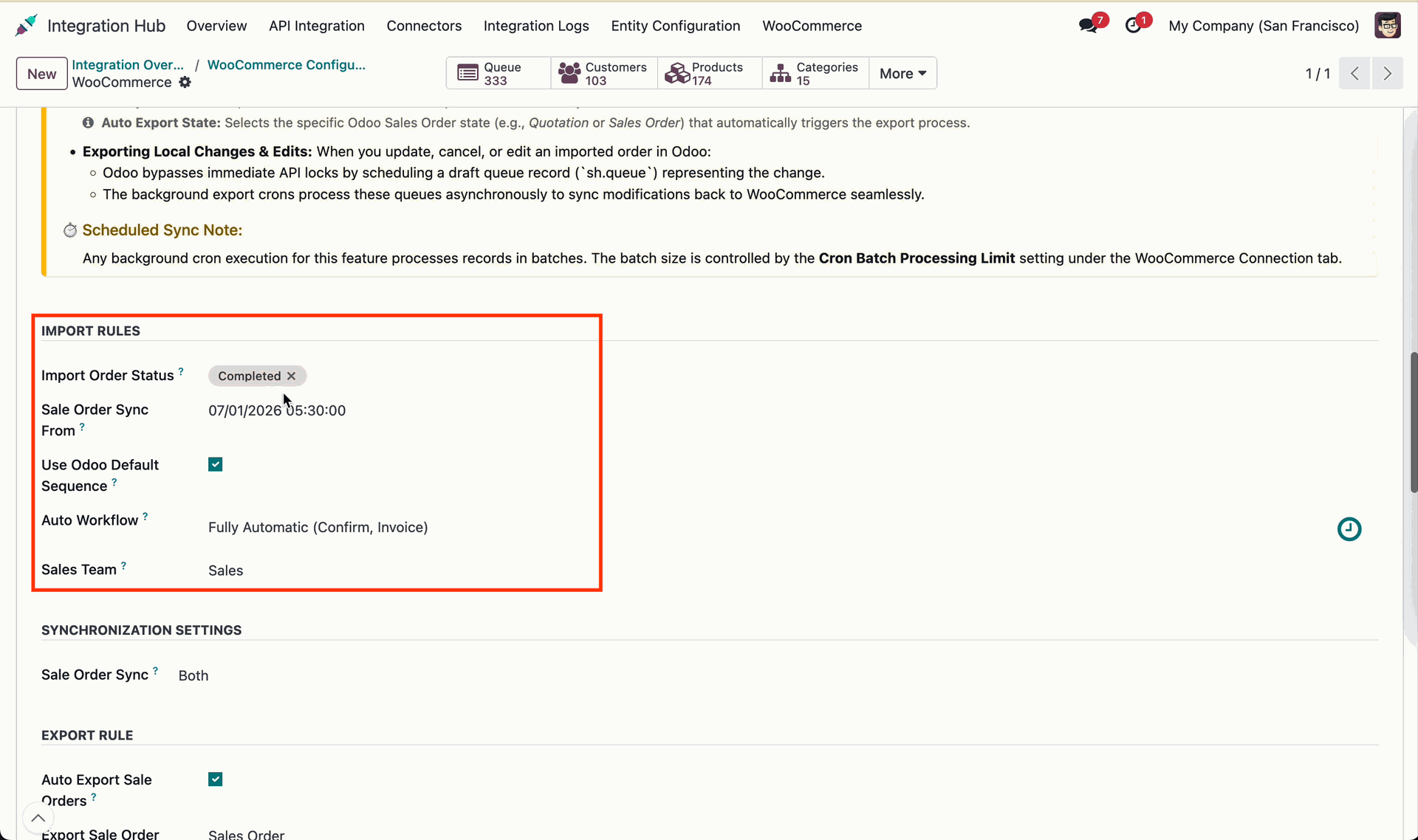
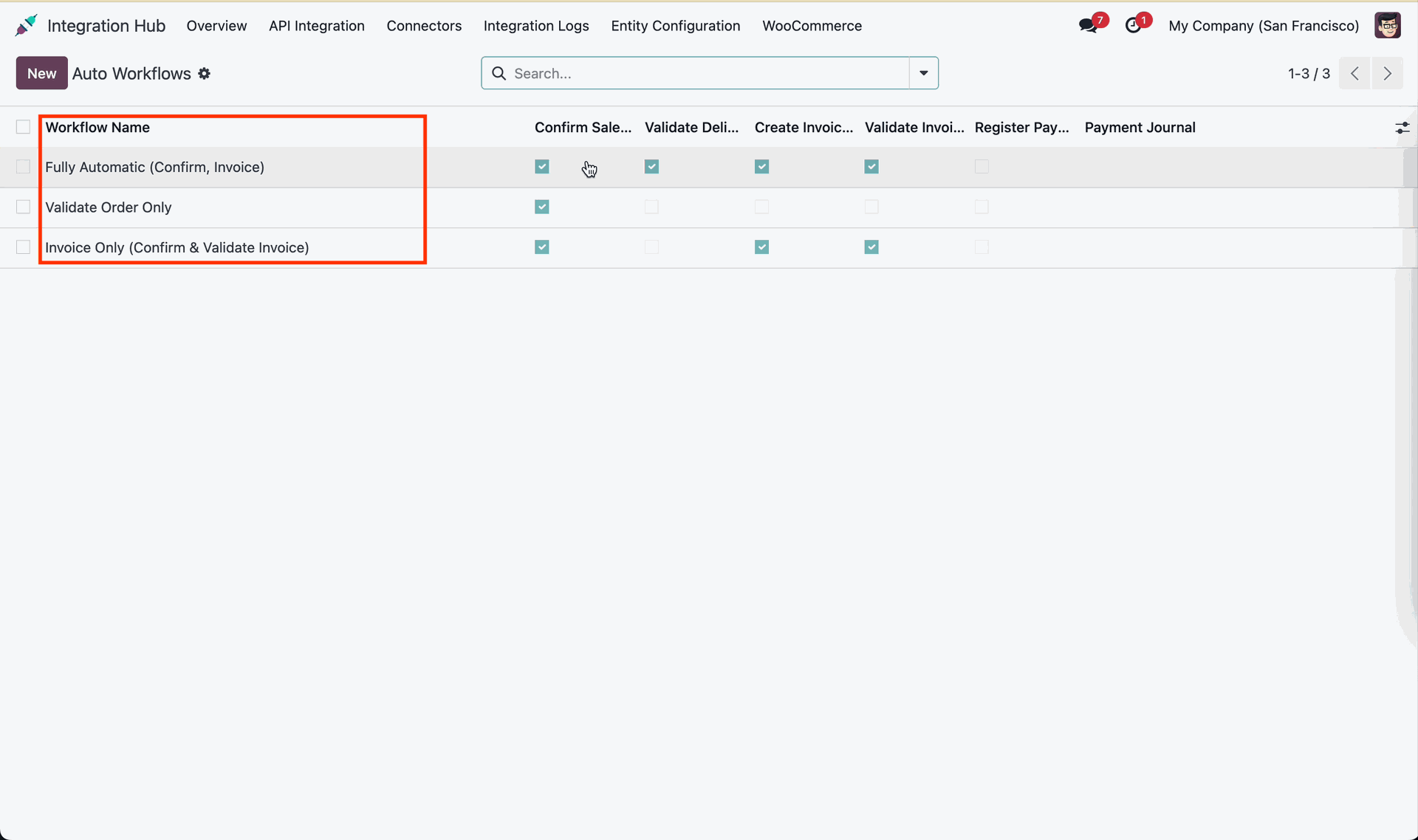
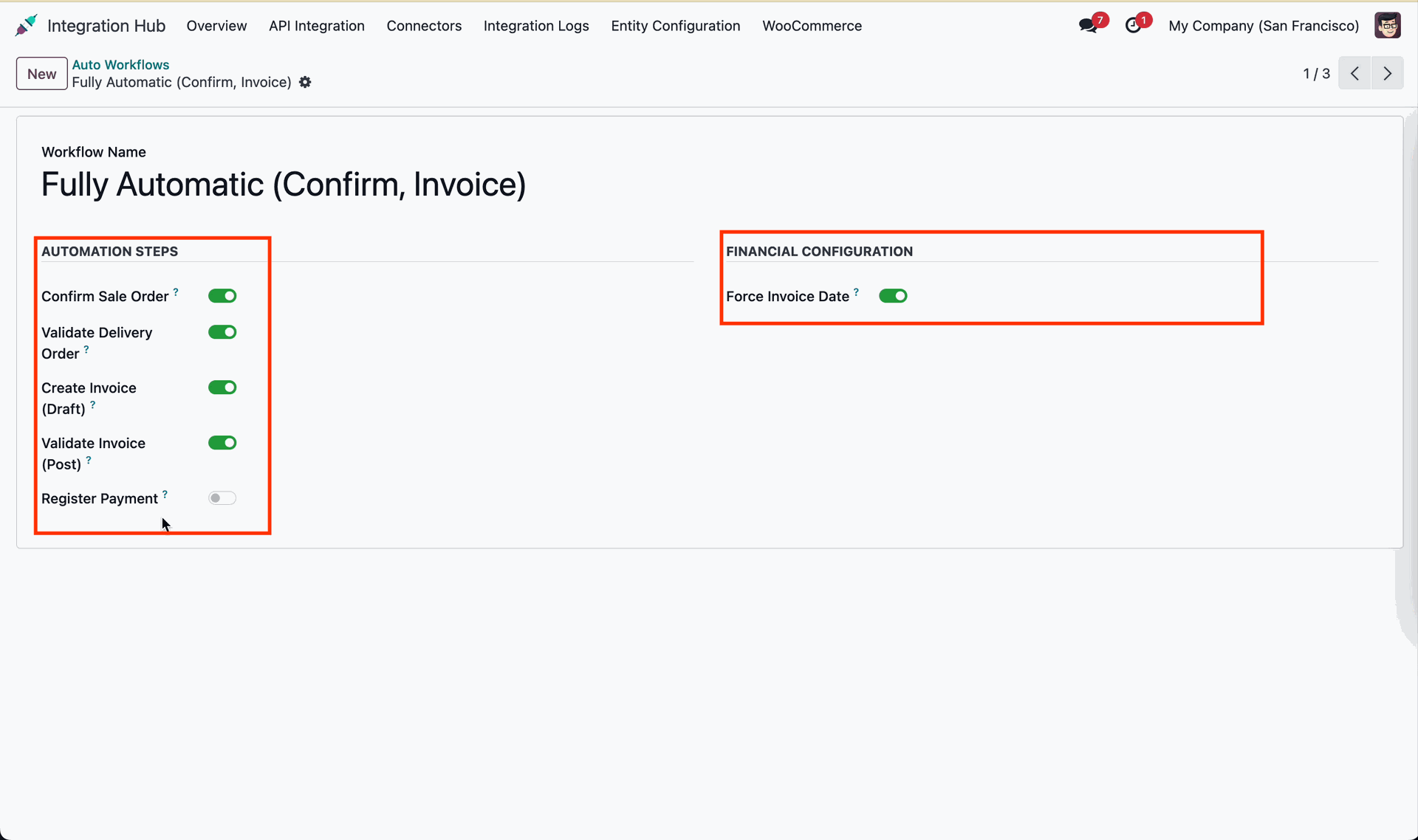
Configure Auto Order Workflow rules.
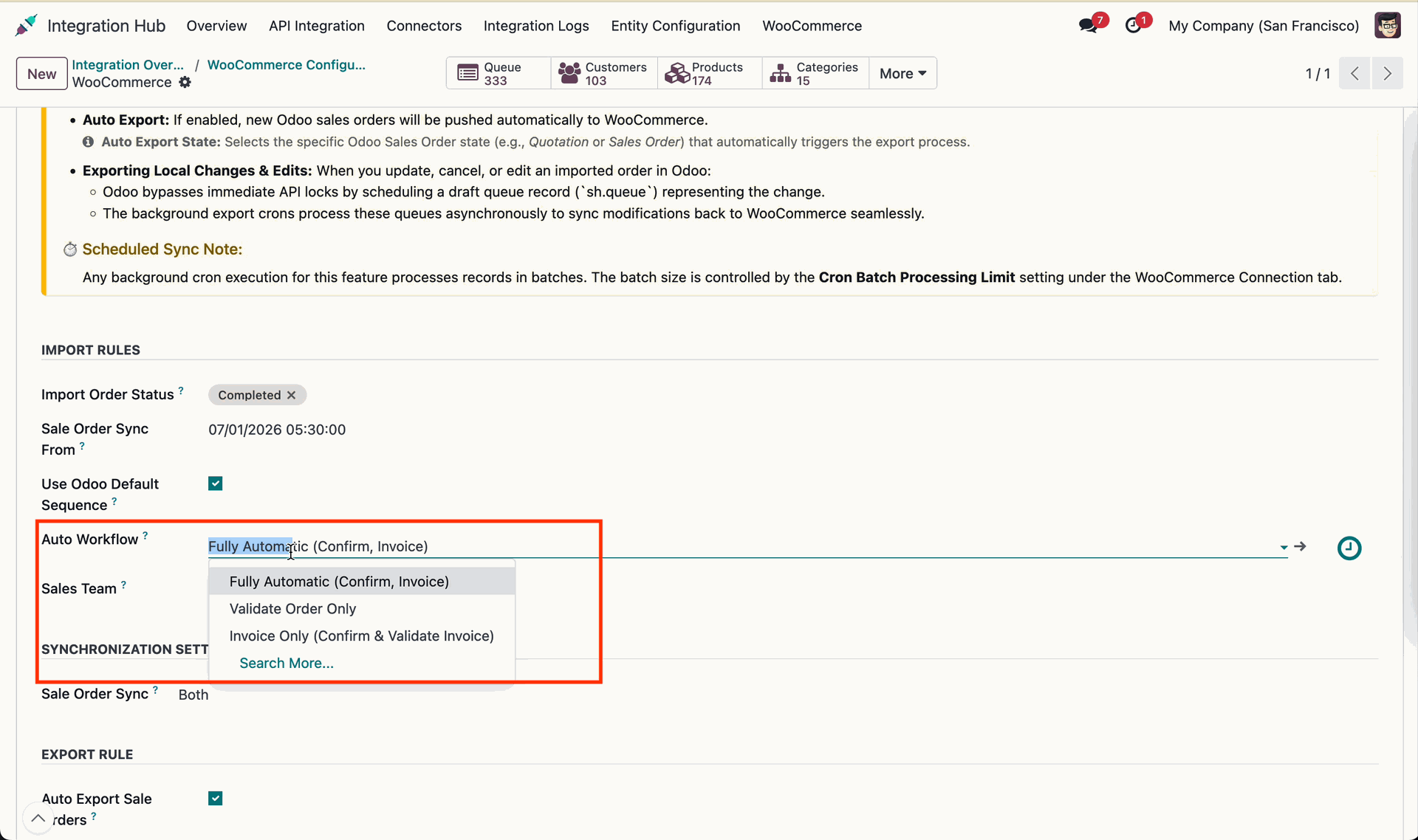
Auto workflow list.
Workflow form view.
Configure export rule.
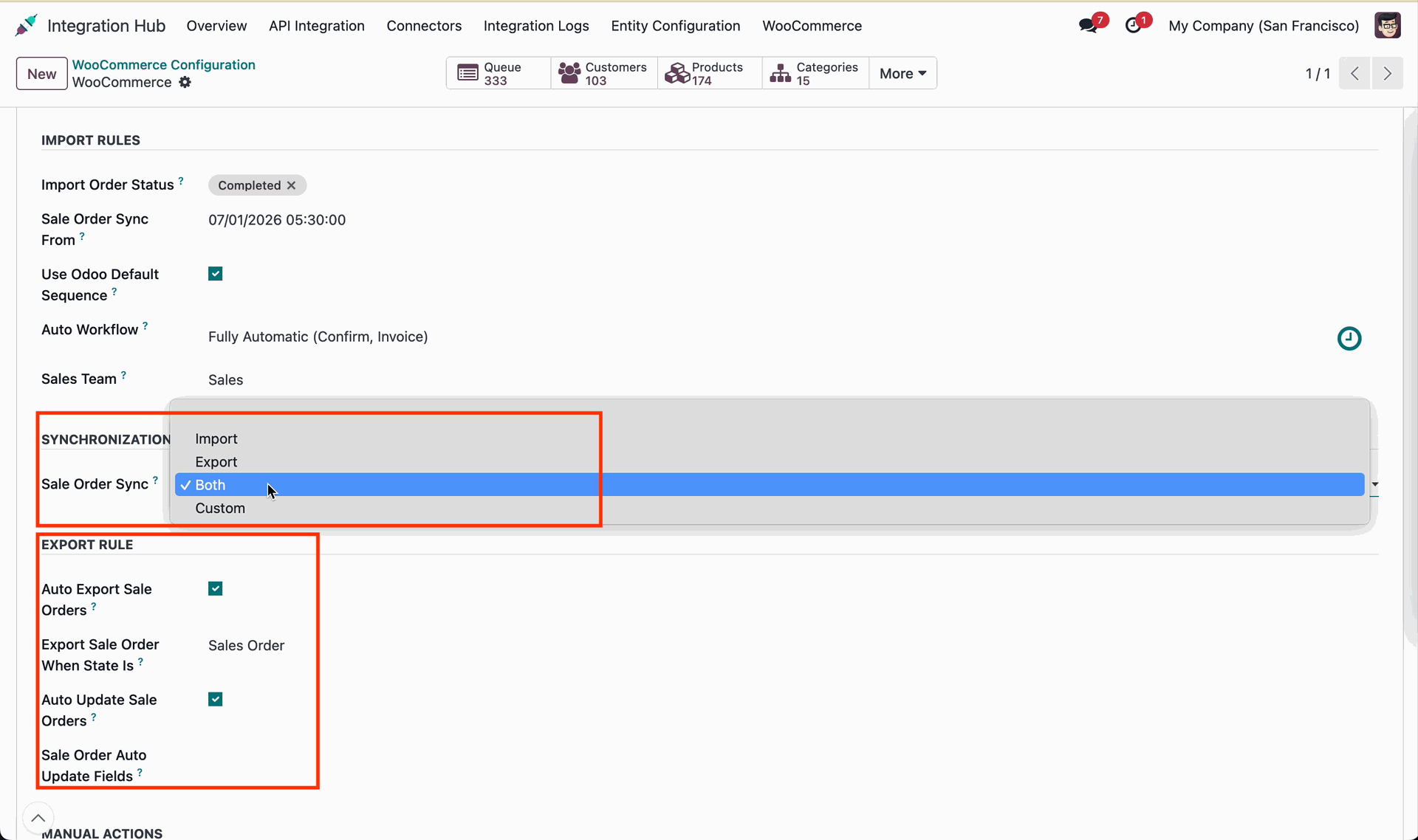
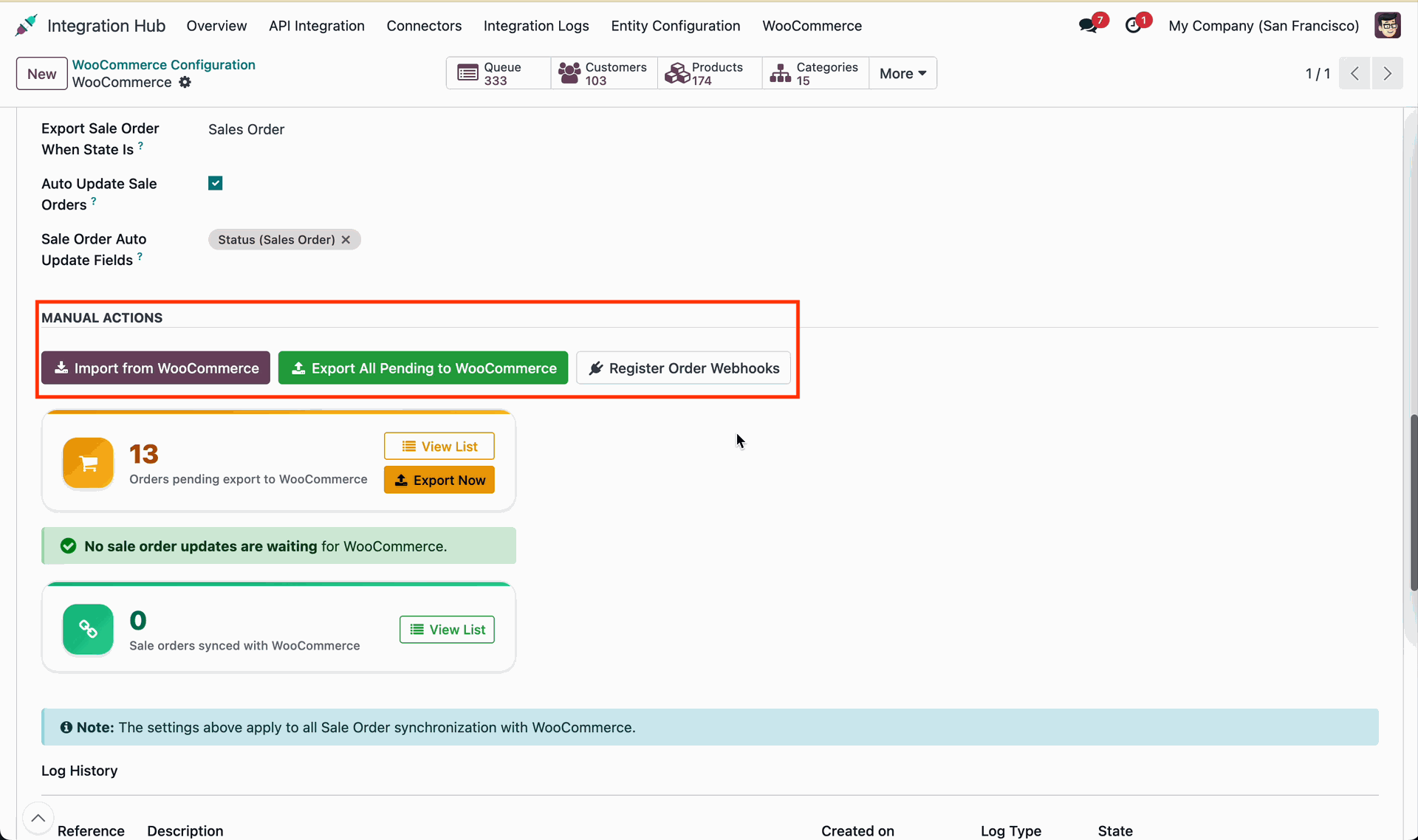
Perform import/export operations.
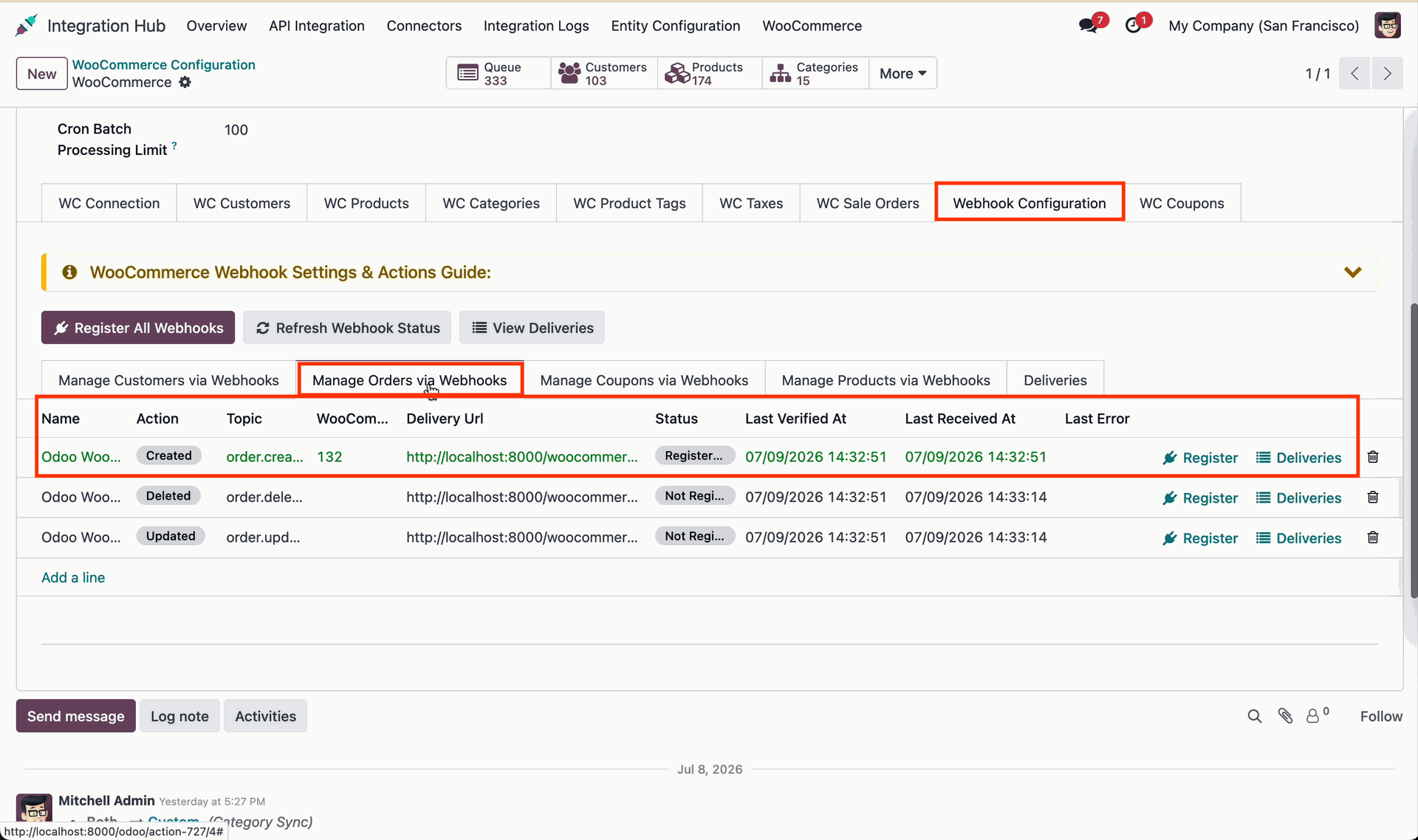
Manage via webhook.
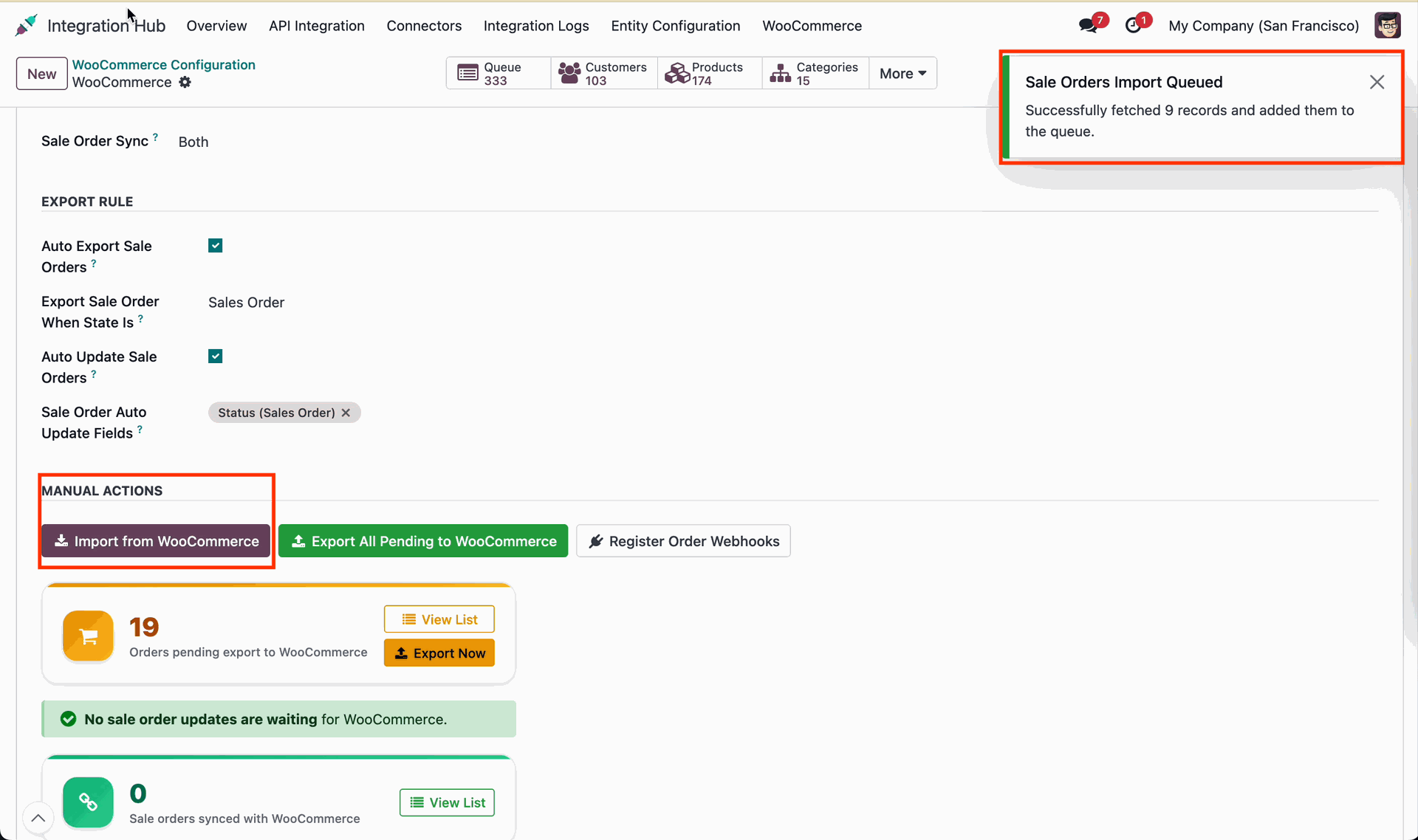
Successful import records notification.
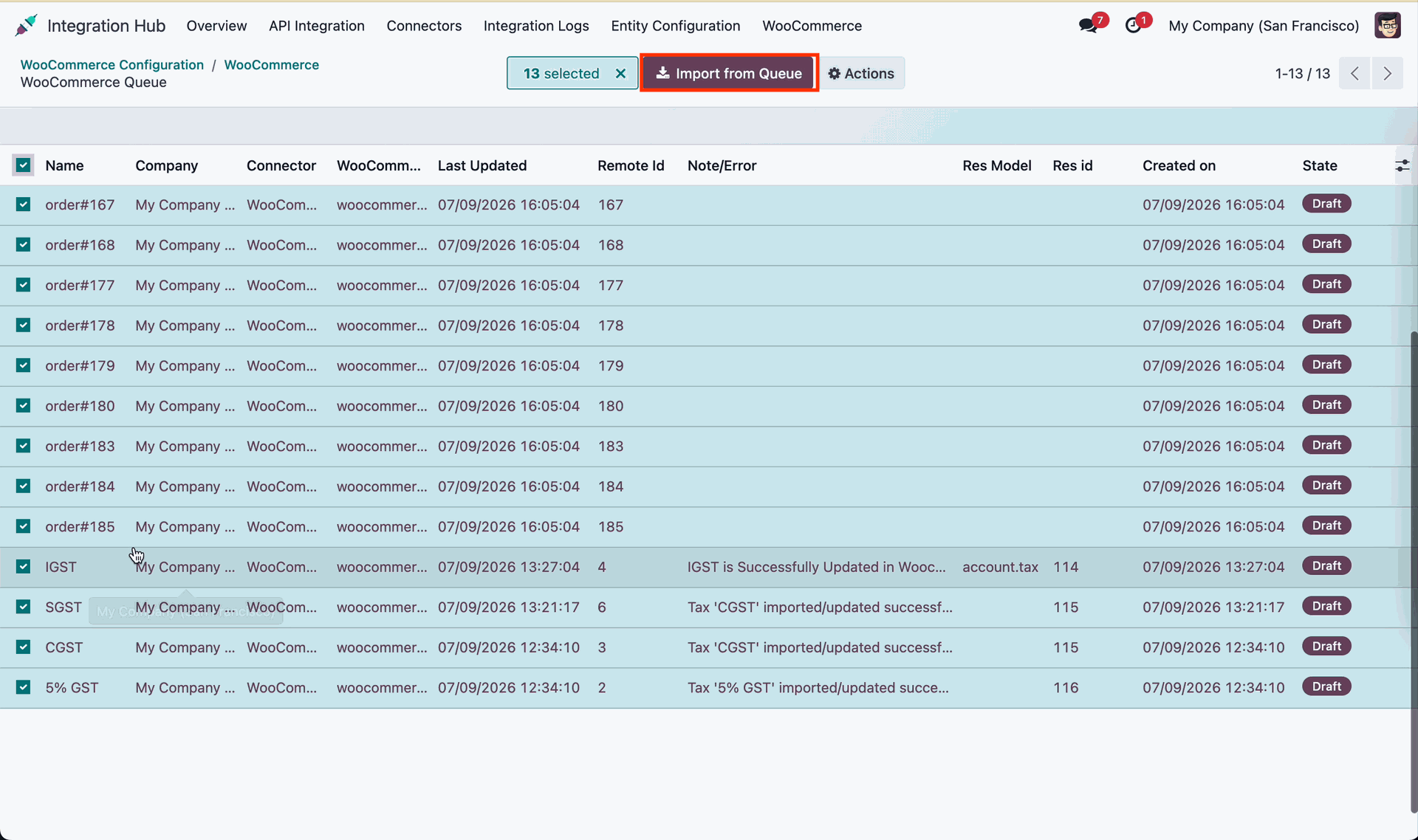
Import from queue.
Imported order view.
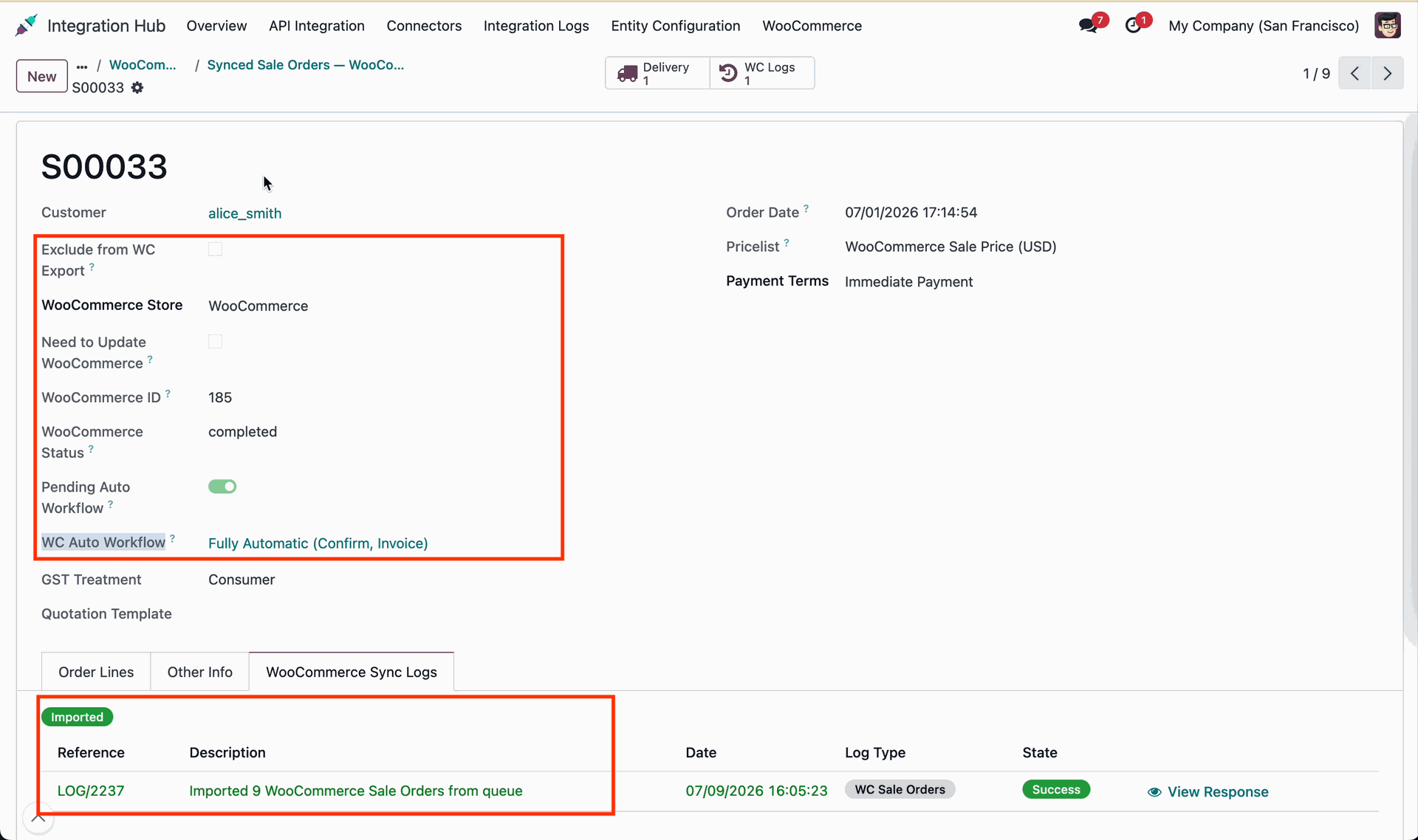
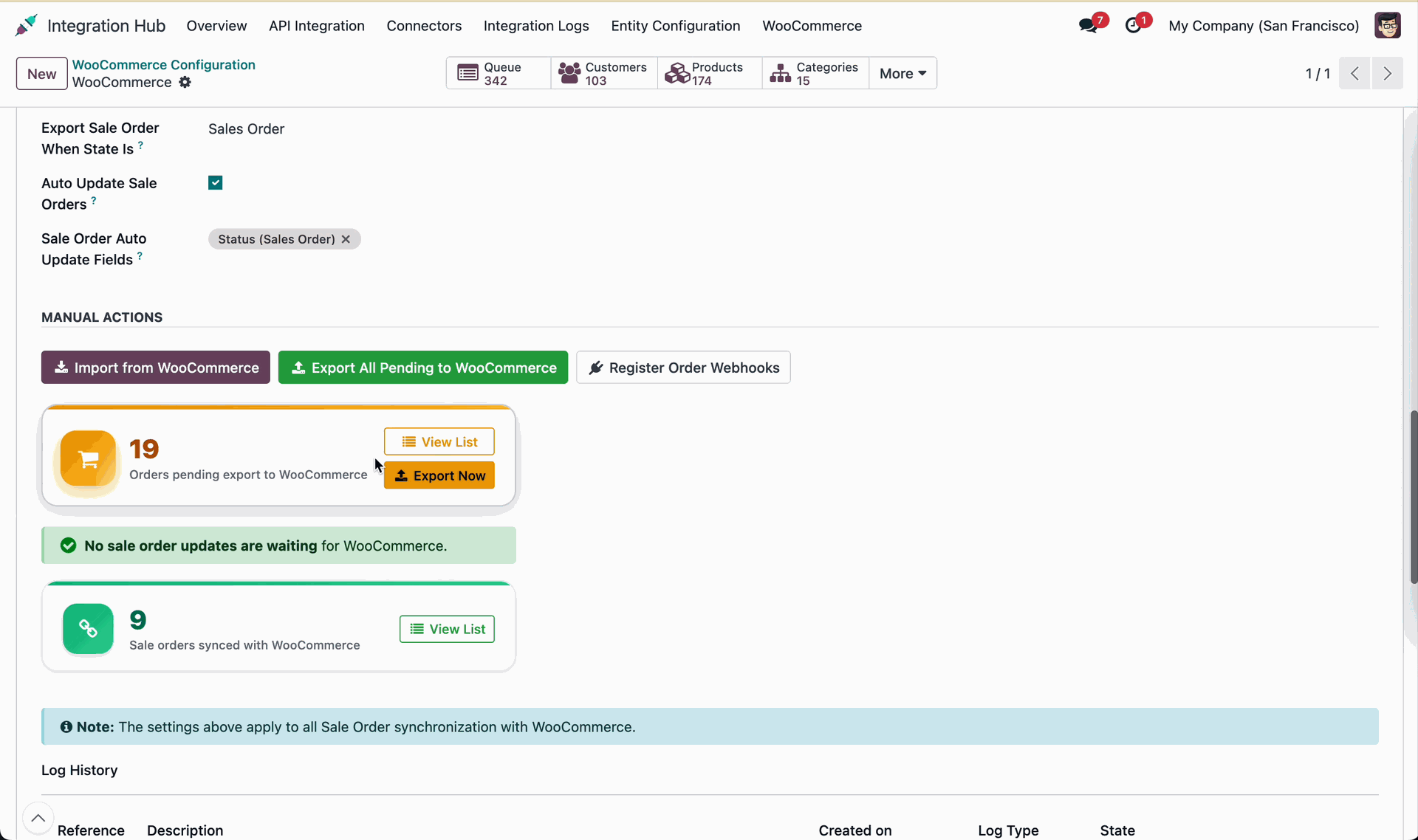
Click 'Export Now' to export.
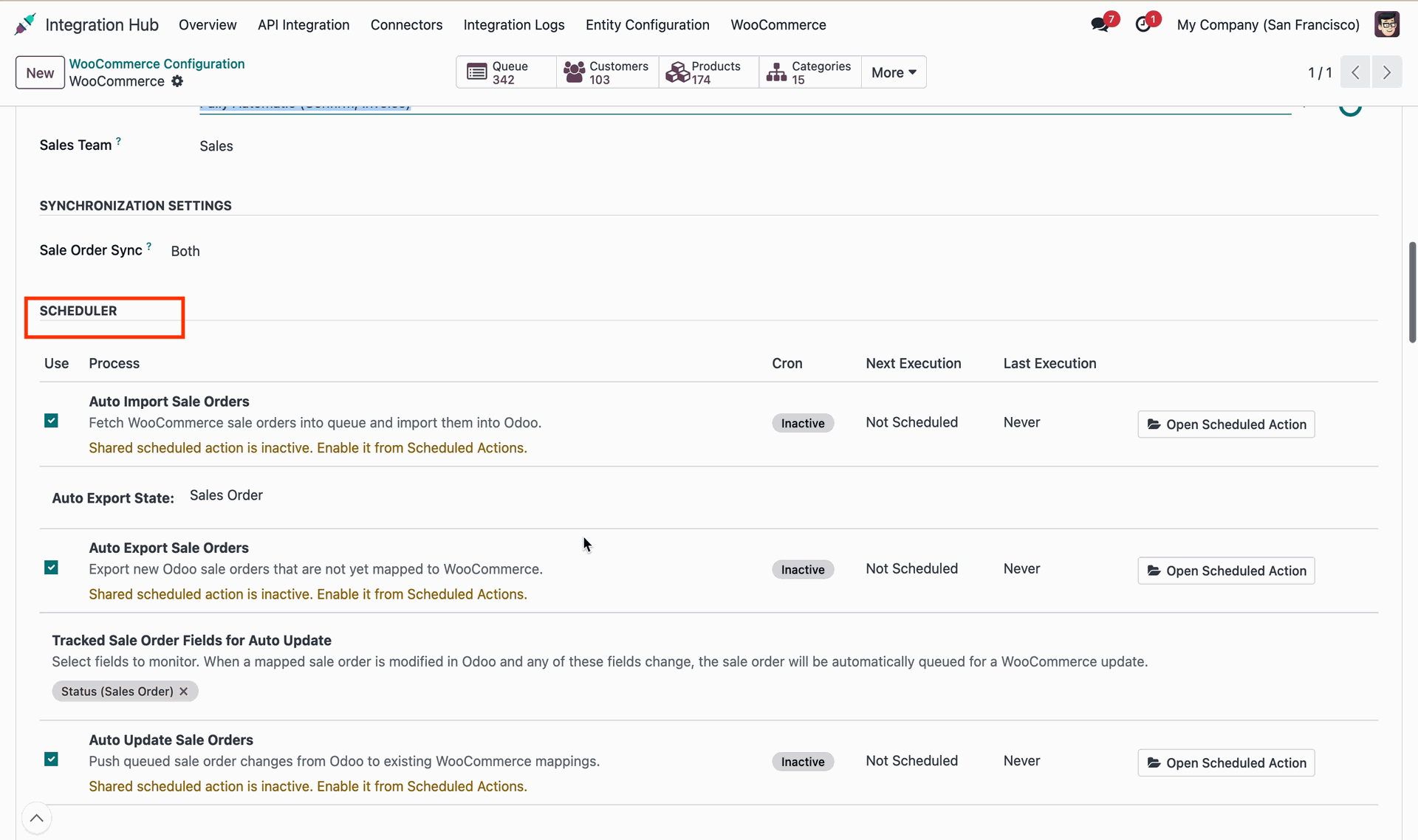
Scheduler configuration.
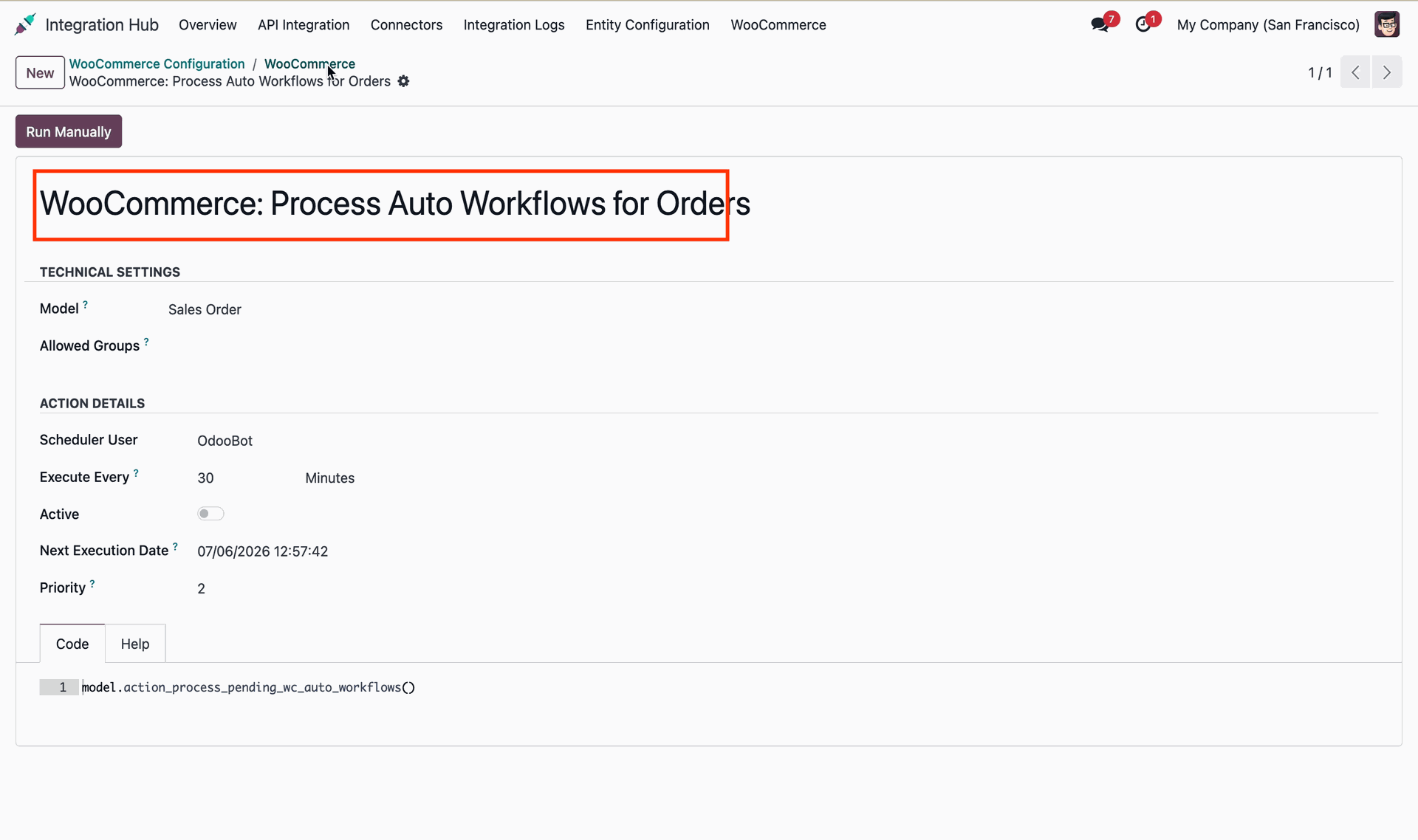
Cron job for orders.
 How it Works? Watch Video
Review the coupon sync guide to configure WooCommerce promotion rules and coupon mapping.
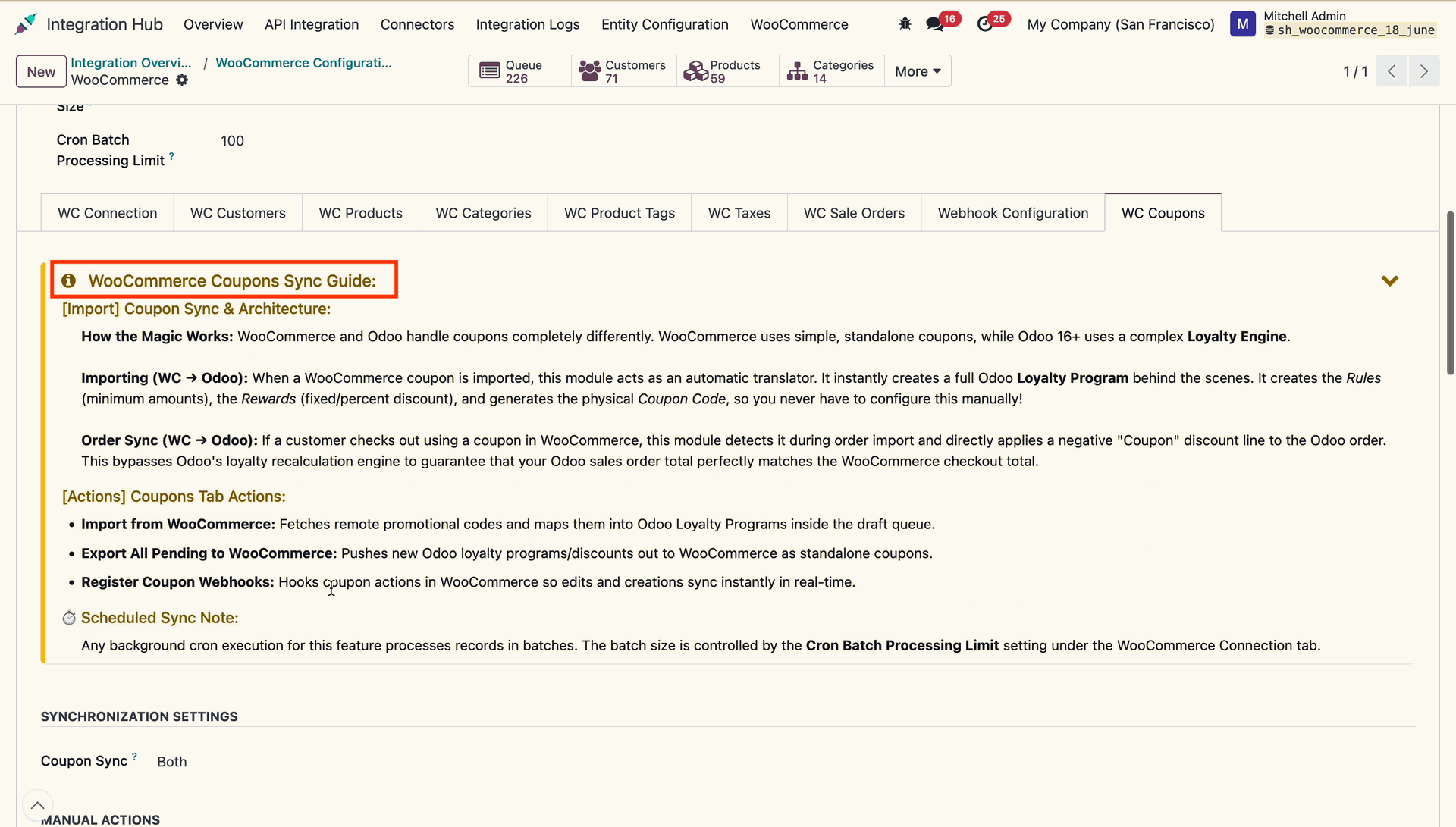
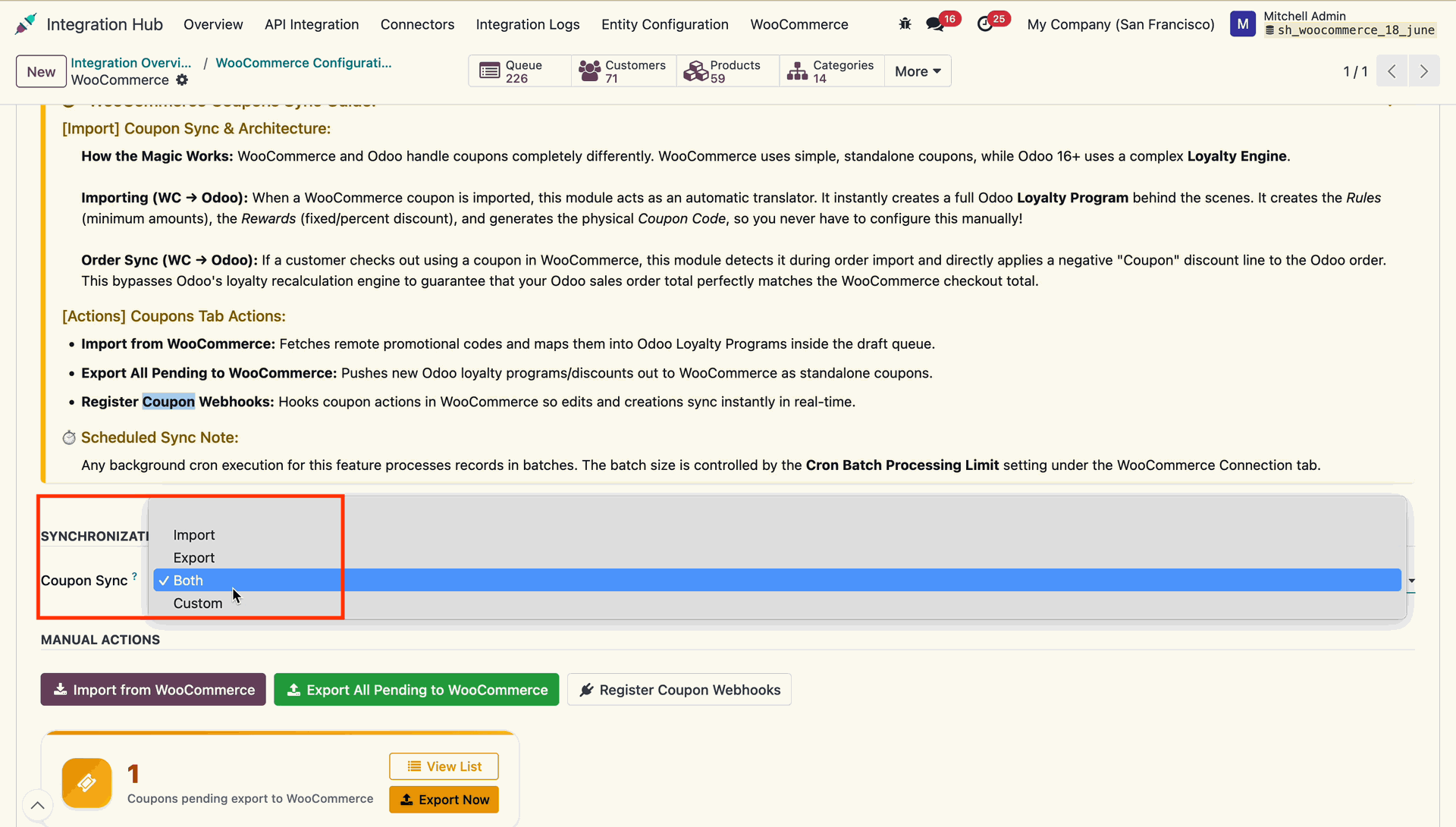
Select Coupon Sync mode and click Import Coupons from WooCommerce to fetch rules.
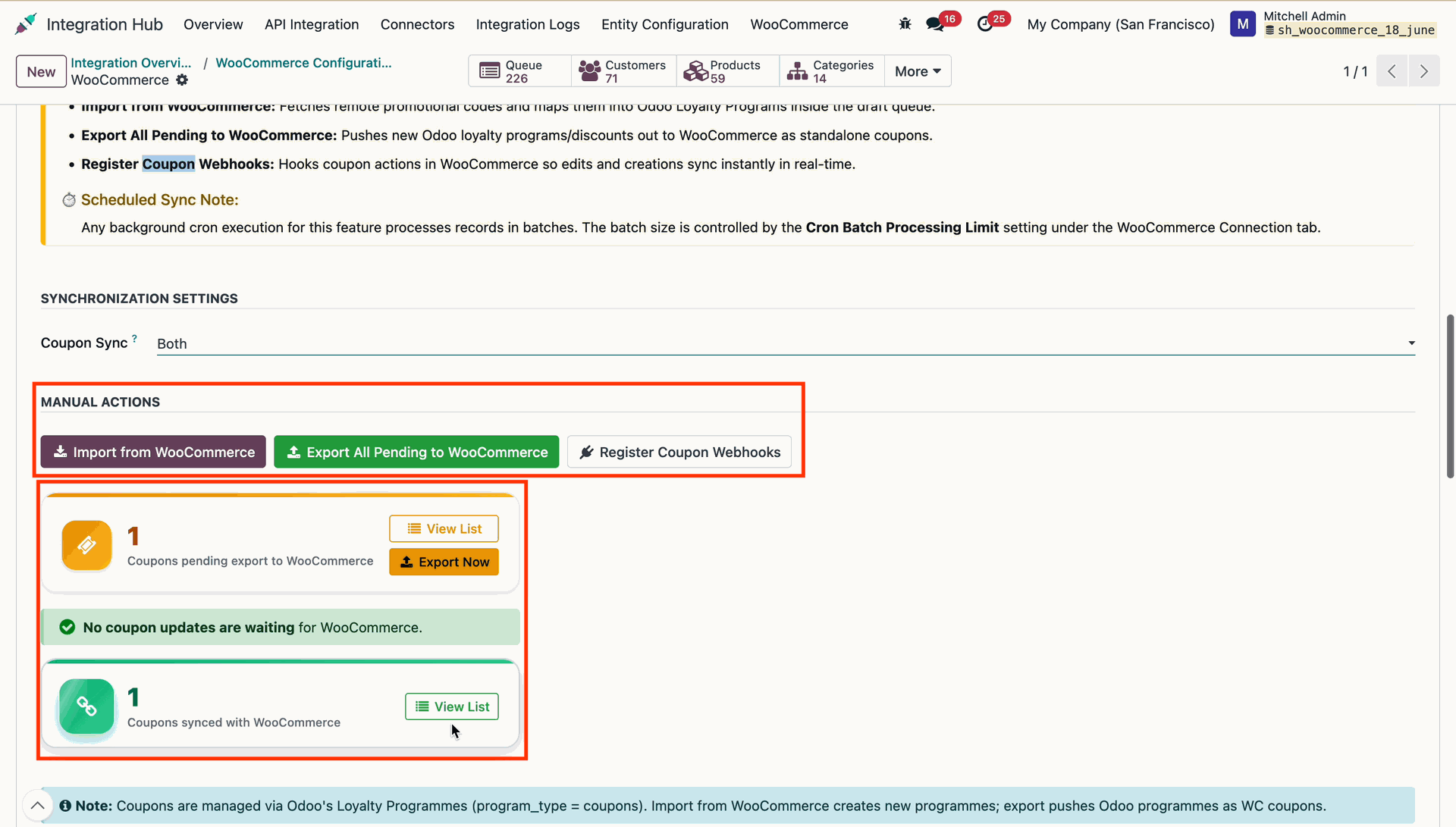
Open the coupon queue list to review draft coupon records and import status.
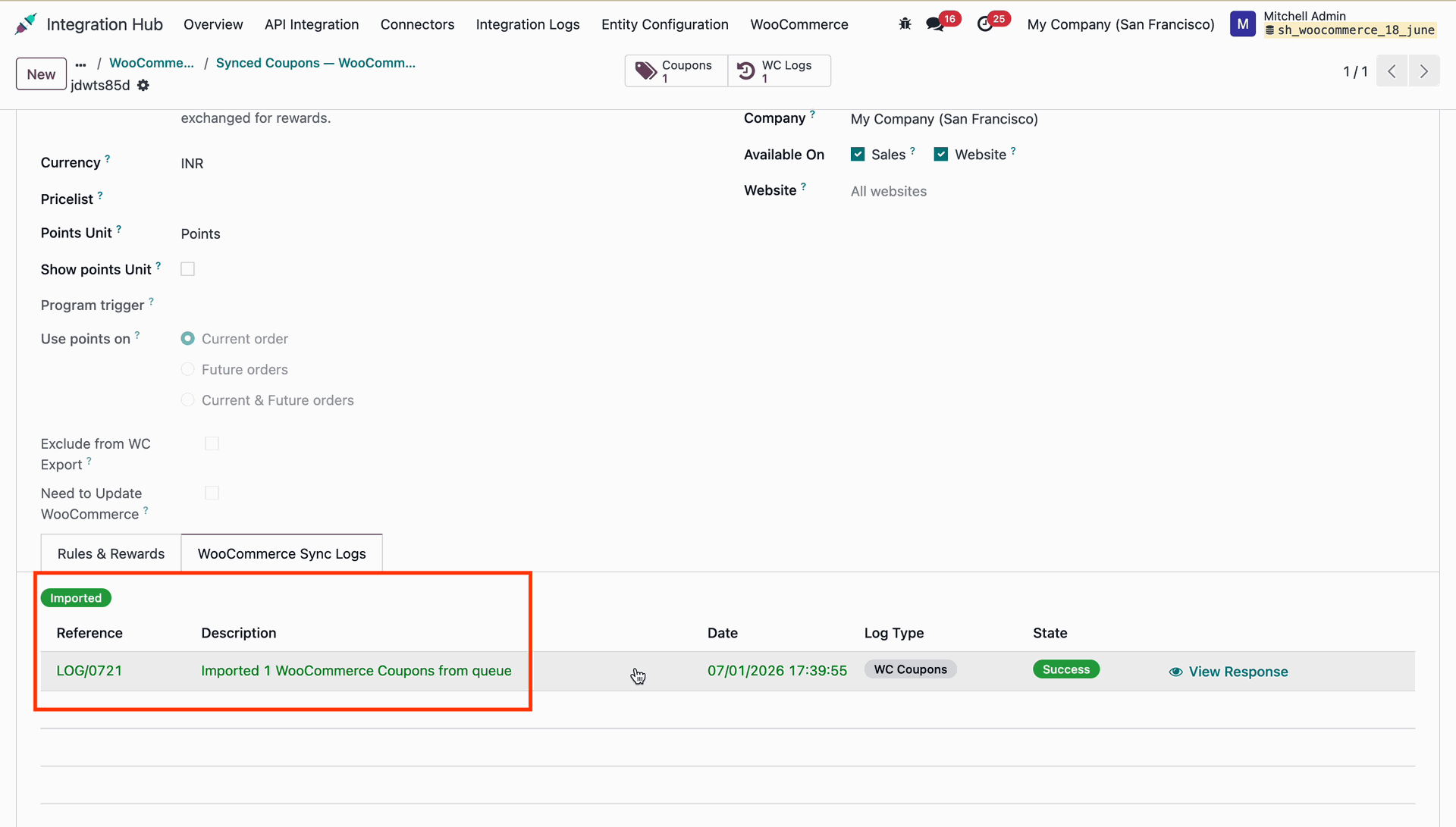
Sync log.
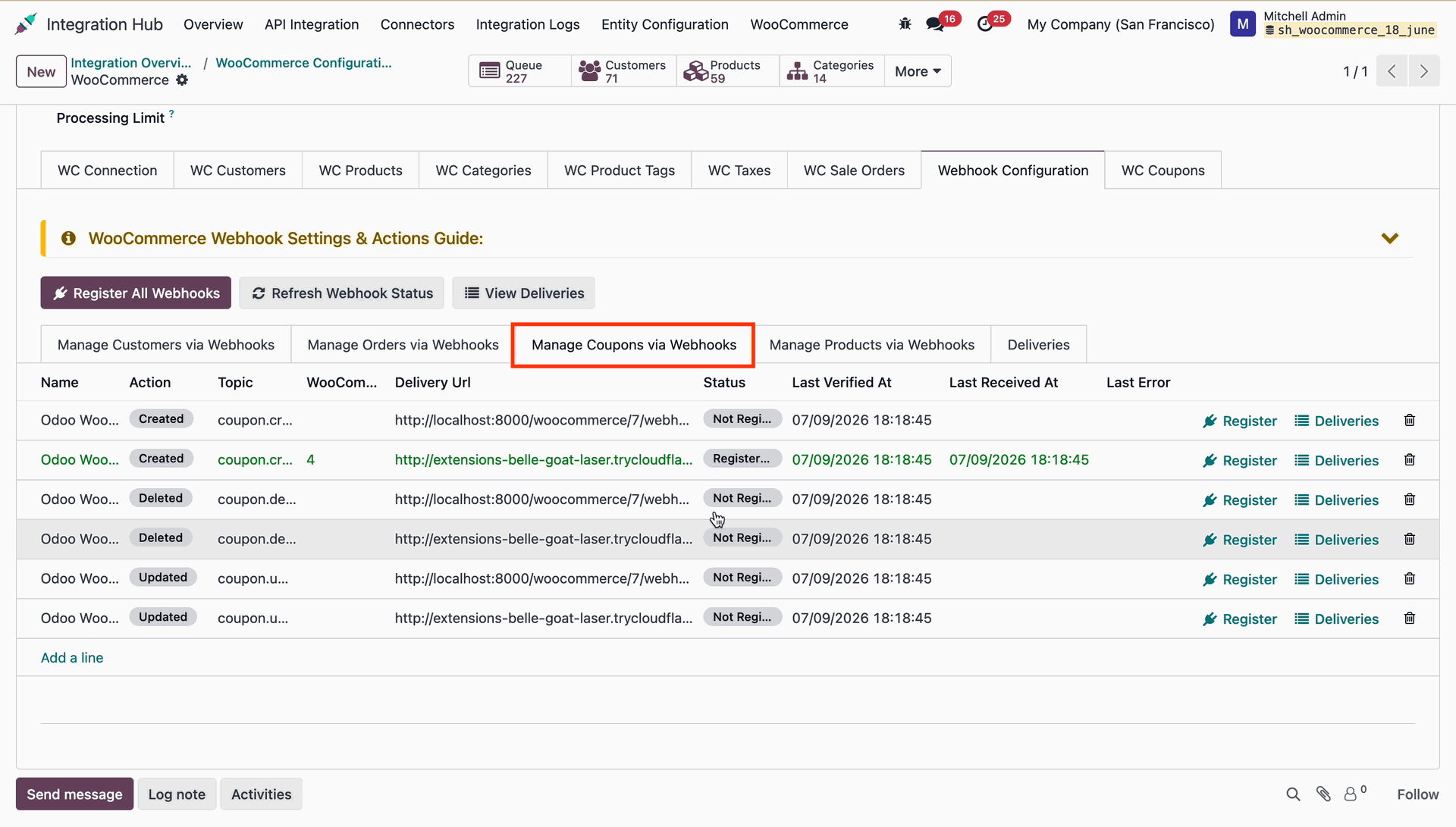
Click Update to WooCommerce on coupon form to publish local coupon to store.
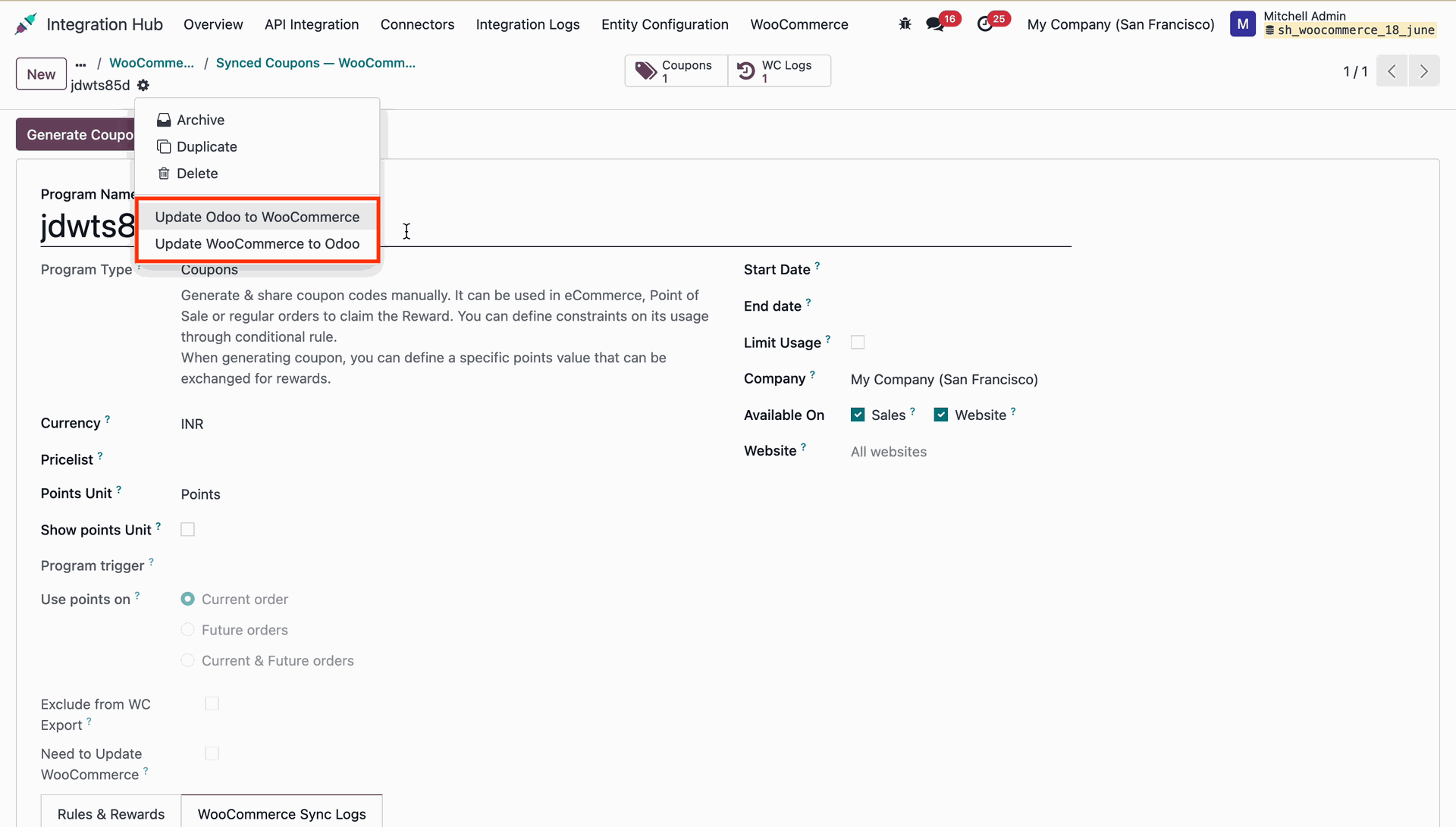
Exported coupon notification.
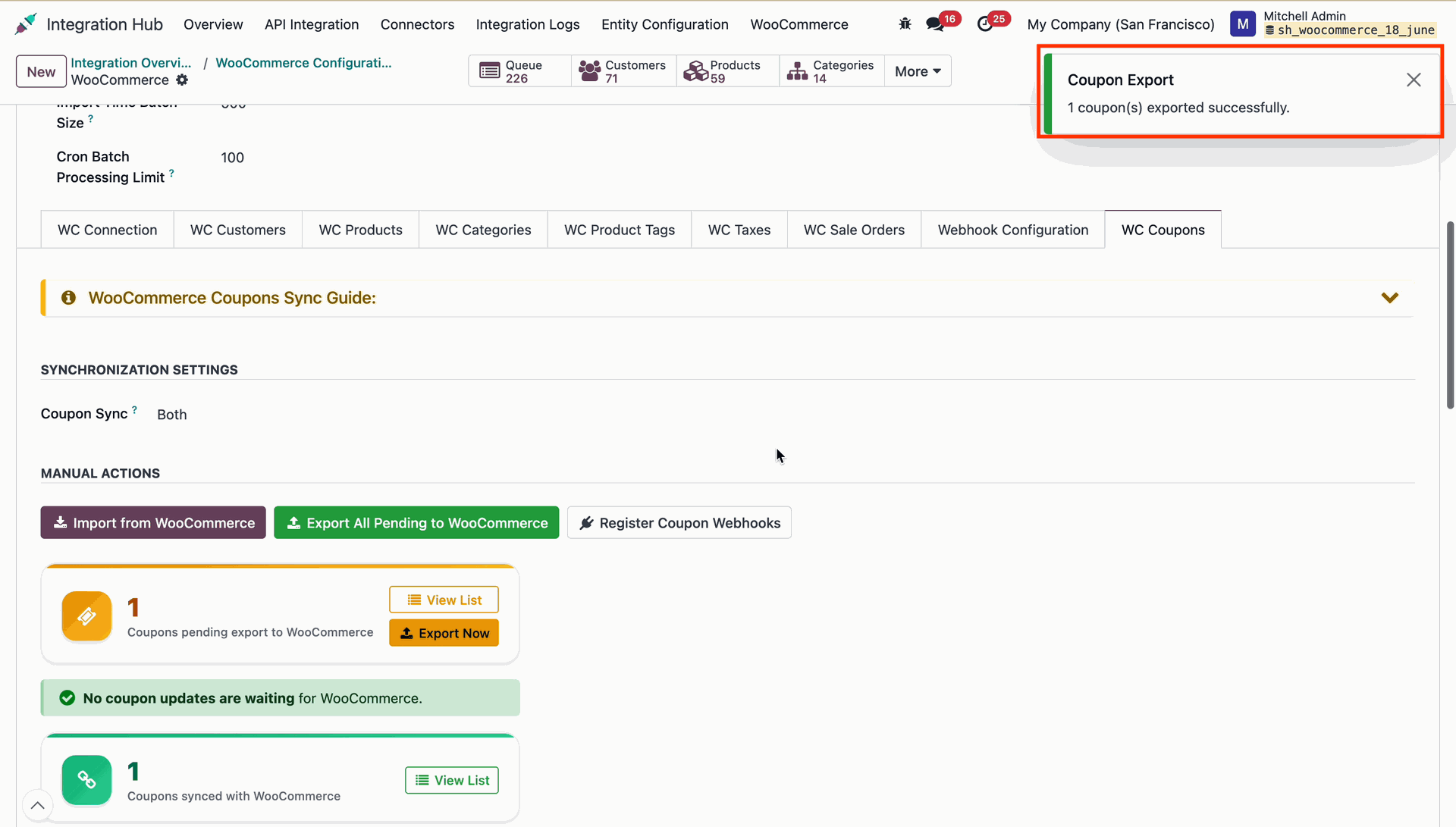
Manage coupons via webhook.
 How it Works? Watch Video
Review the WooCommerce taxes sync guide to understand tax mapping rules and queue actions.
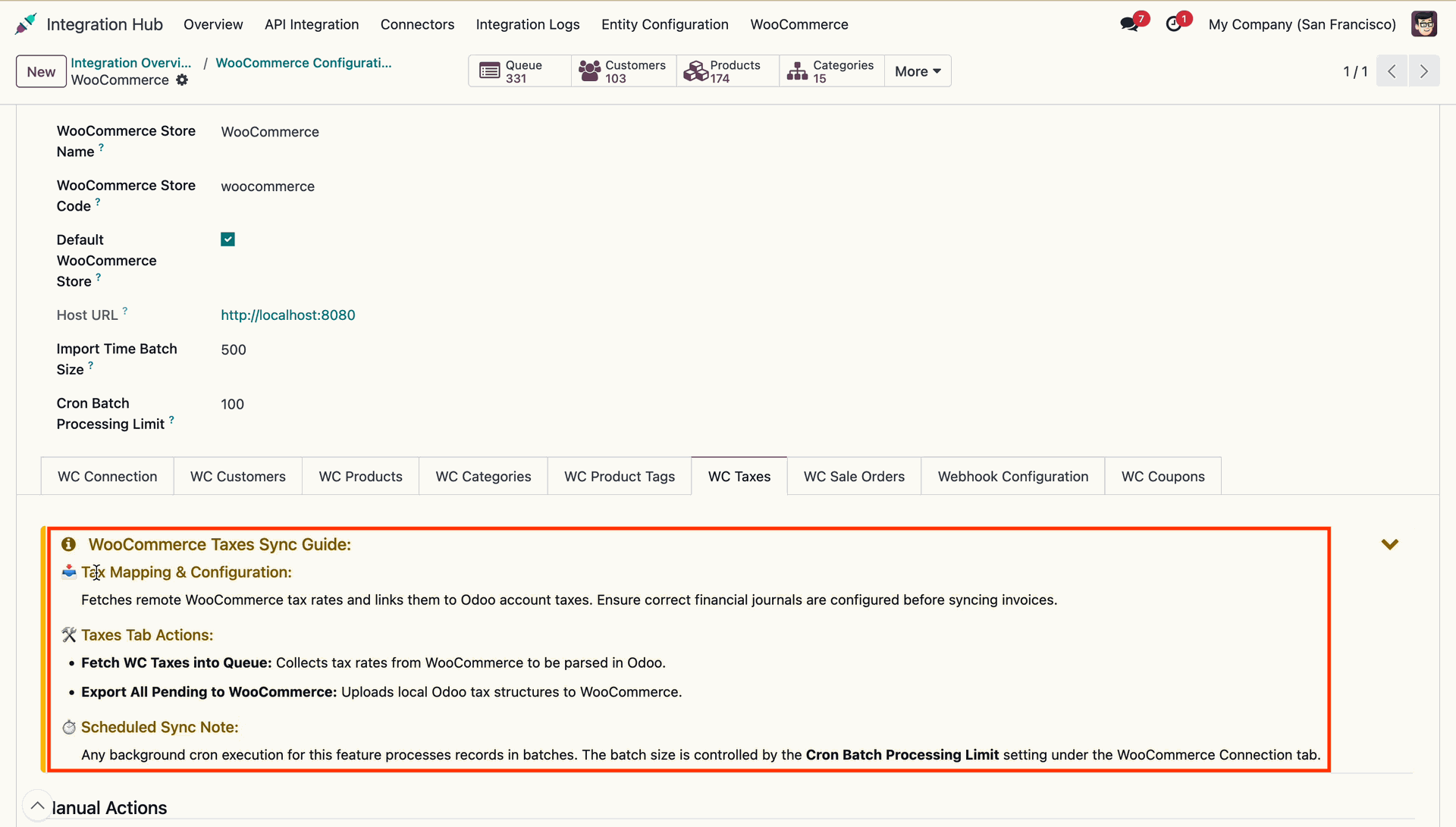
Click Fetch WC Taxes into Queue to import WooCommerce tax rates into the sync queue.
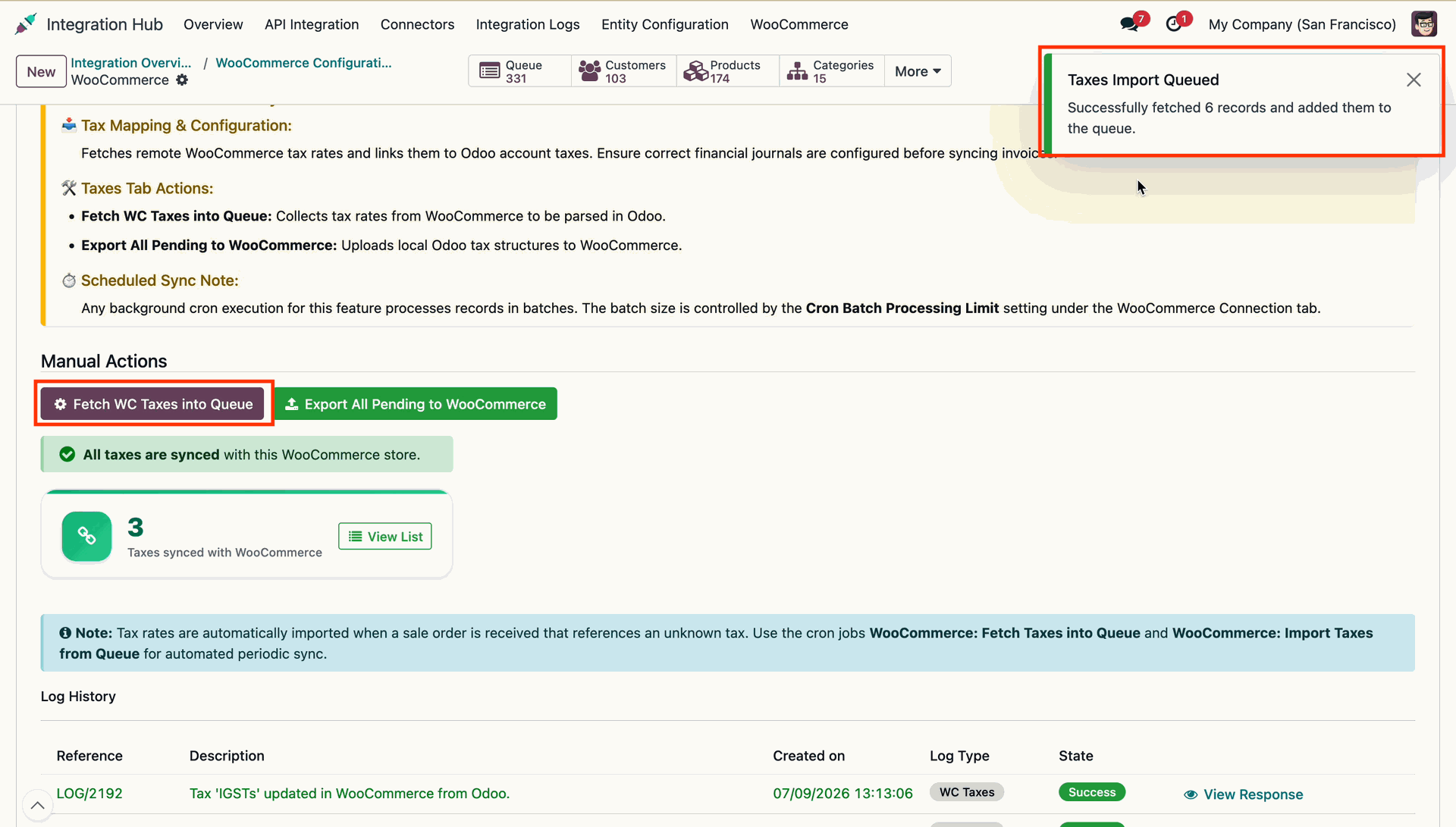
Select draft tax queue items and press Import from Queue to process queued records.
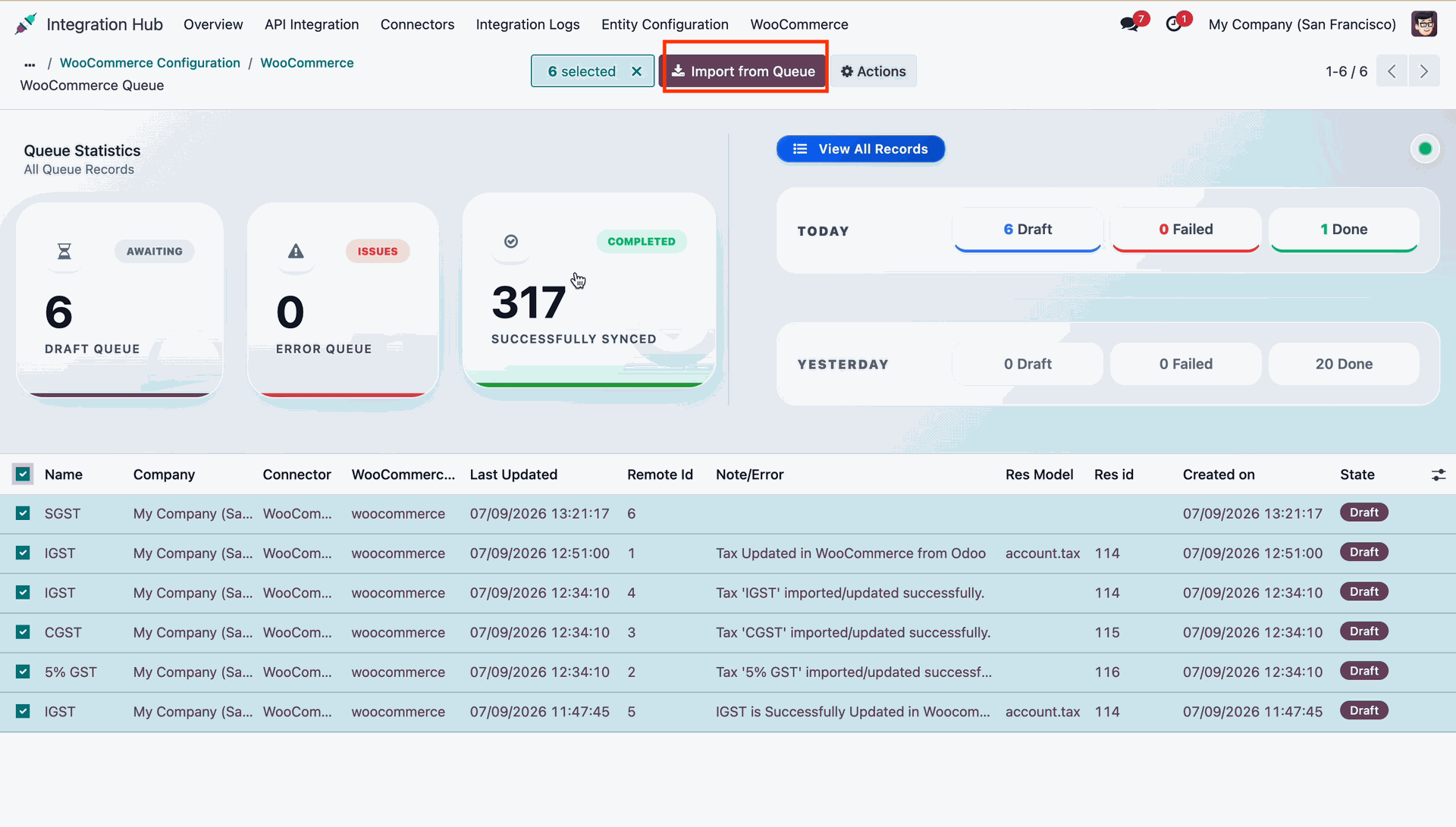
Click the More dropdown smart button to access synced taxes and entity records.
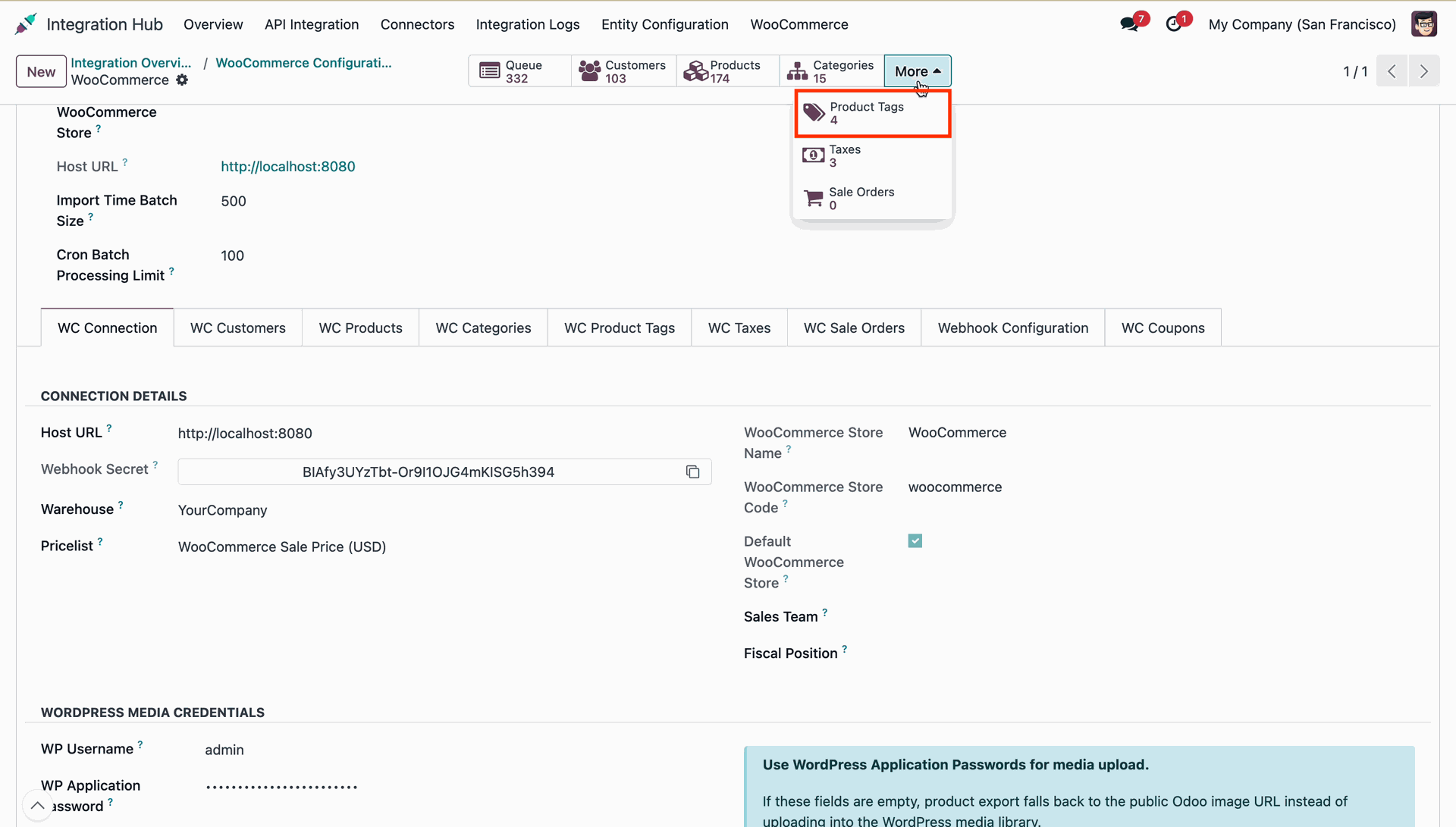
View synced tax count status and click View List to inspect mapped WooCommerce taxes.
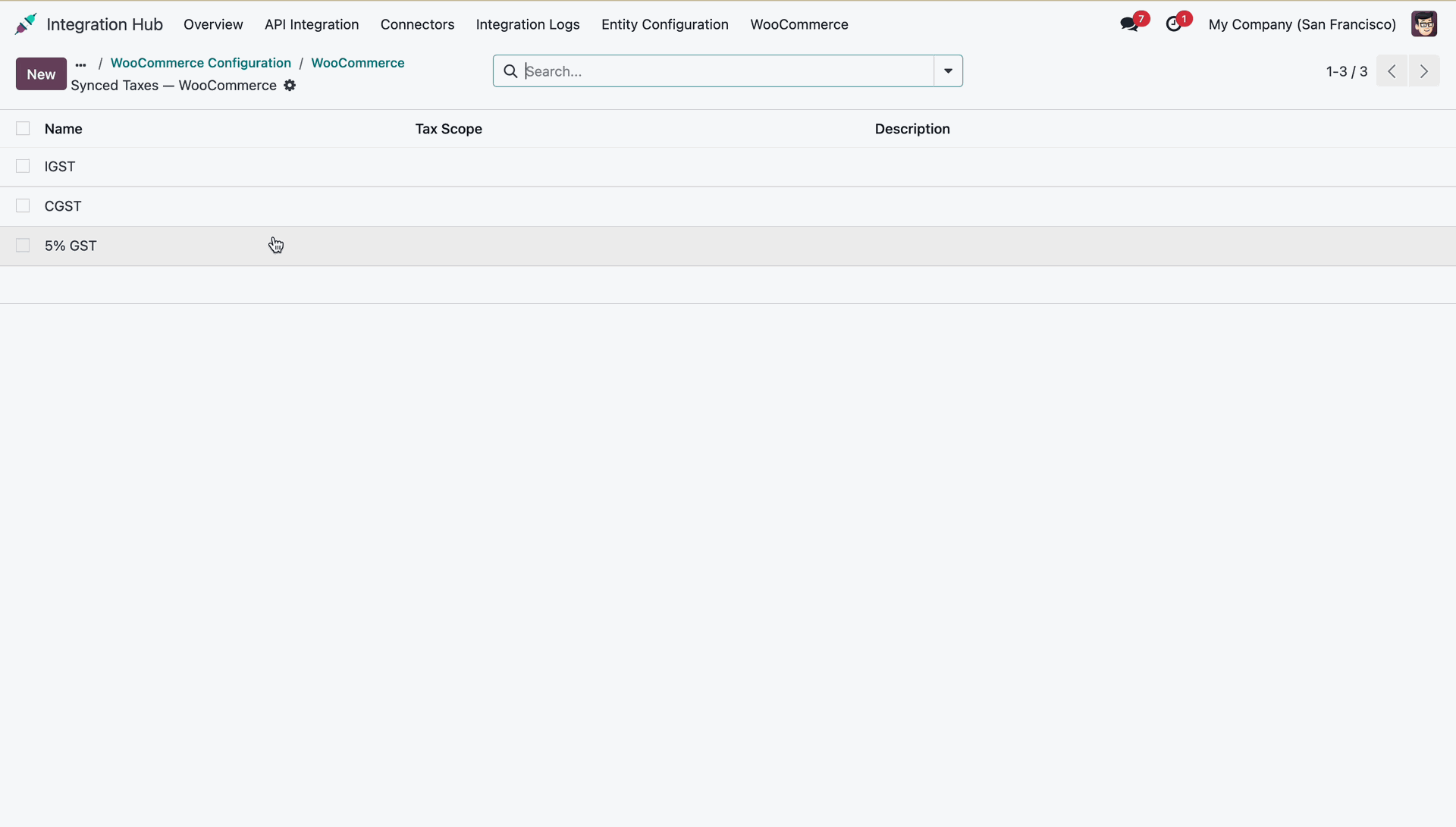
Review the list of synced WooCommerce taxes including IGST, CGST, and 5% GST.
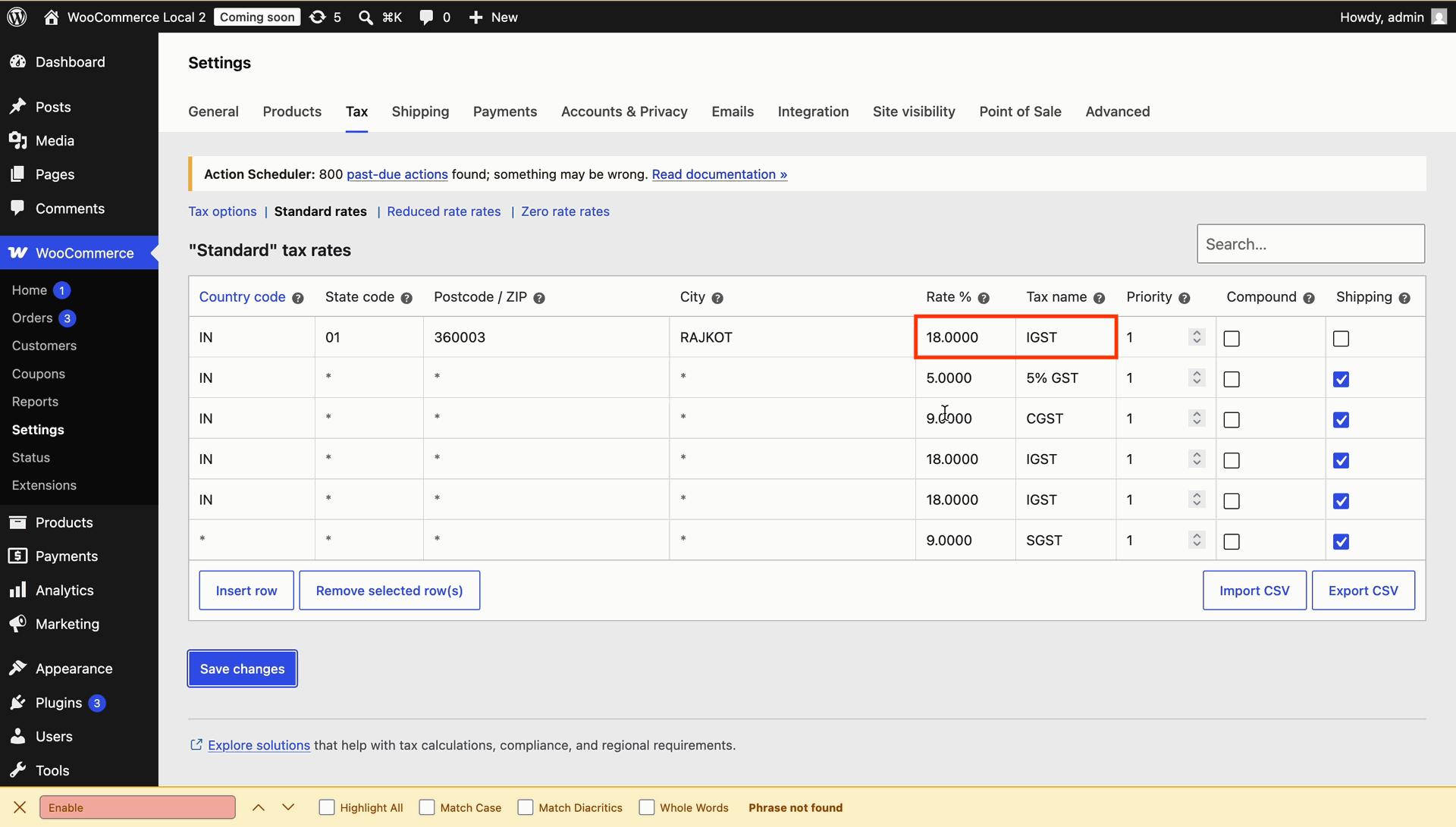
Verify created tax rates like IGST and rate percentages in WooCommerce store backend settings.
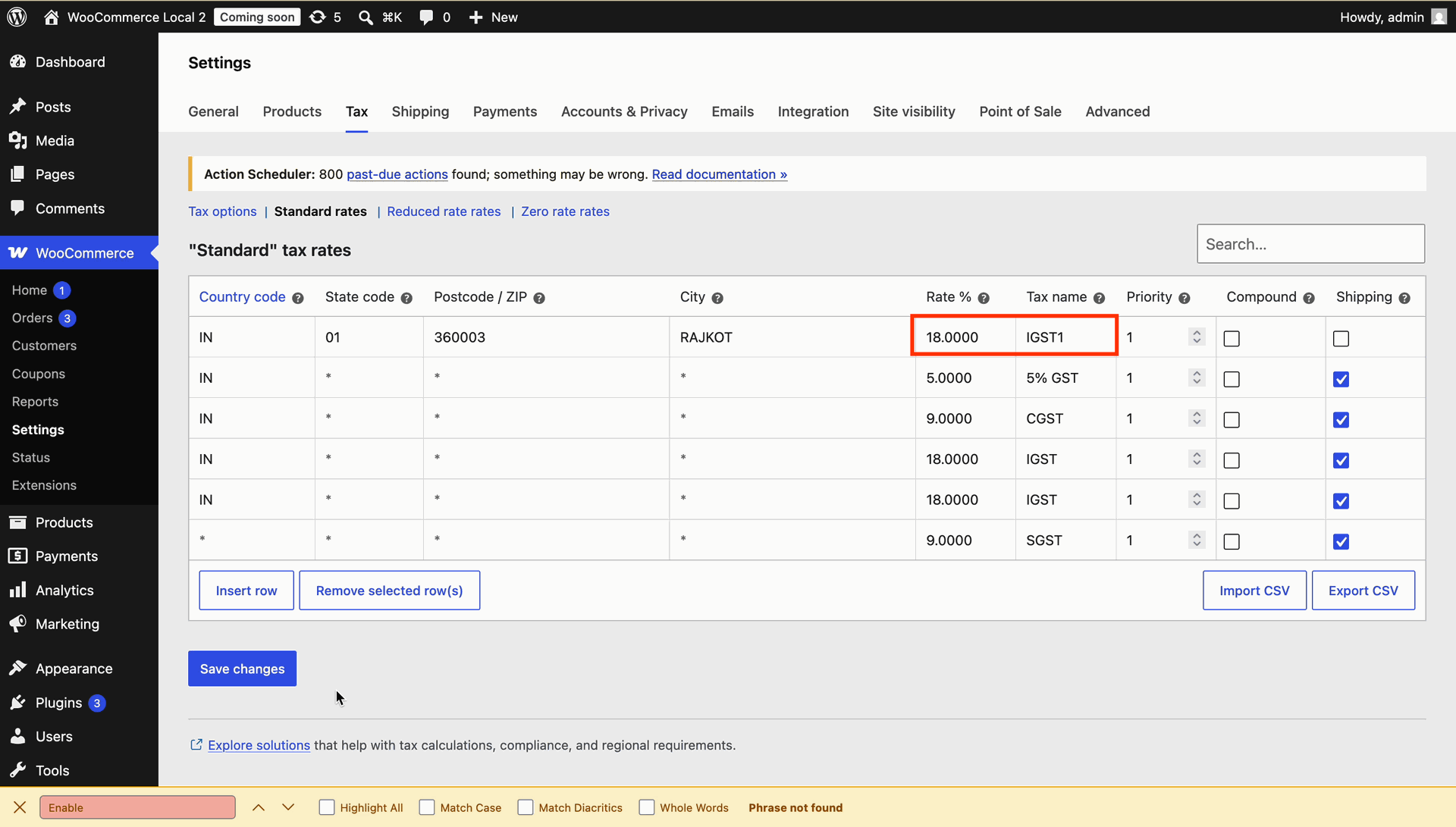
Update tax rate names such as IGST1 and press Save changes in WooCommerce settings.
Press Import from WooCommerce on the tax form to update individual tax details.
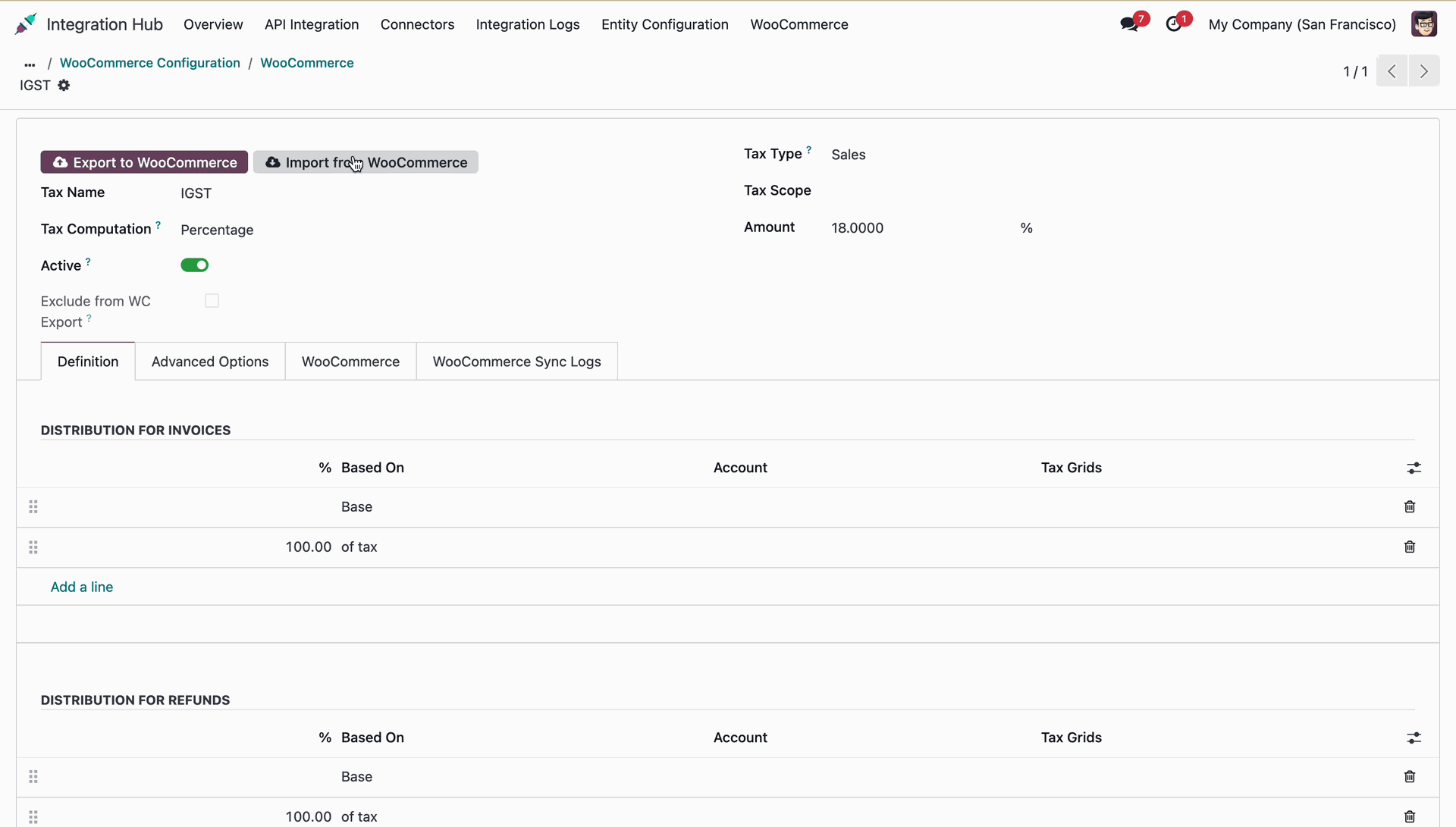
Review tax name details and access action buttons on the Odoo tax form.
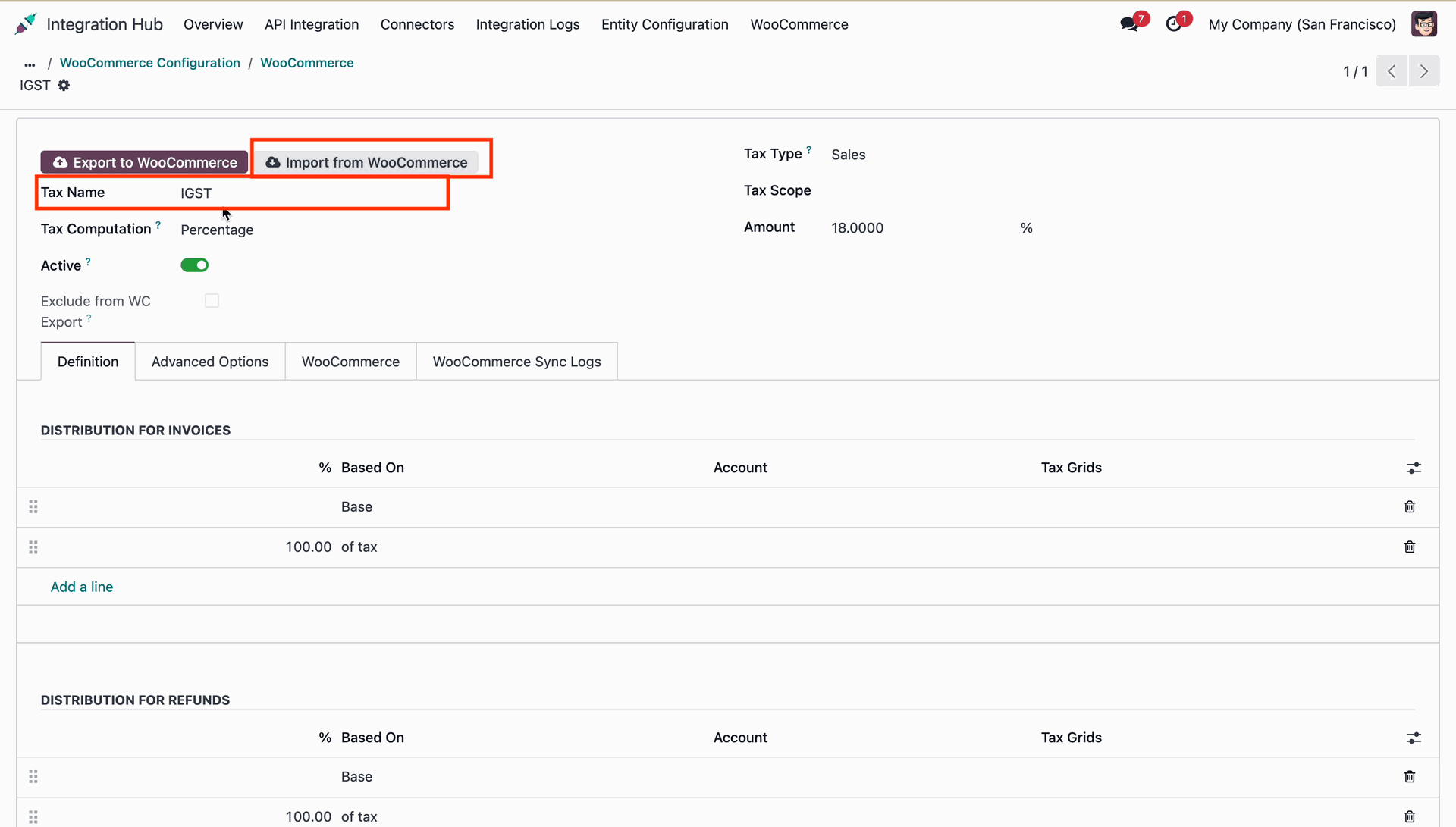
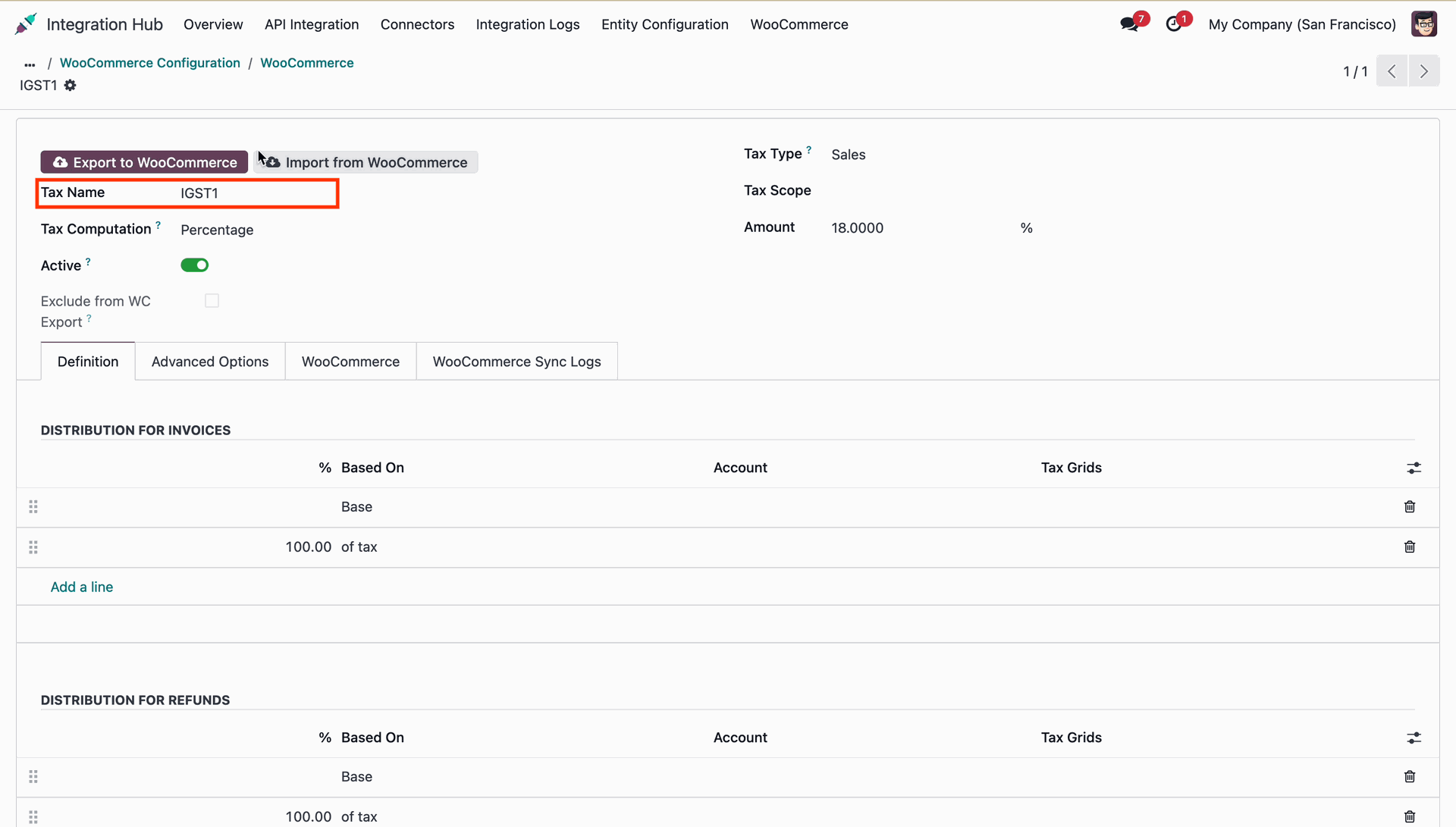
Verify the updated tax name IGST1 imported from WooCommerce onto the tax record.
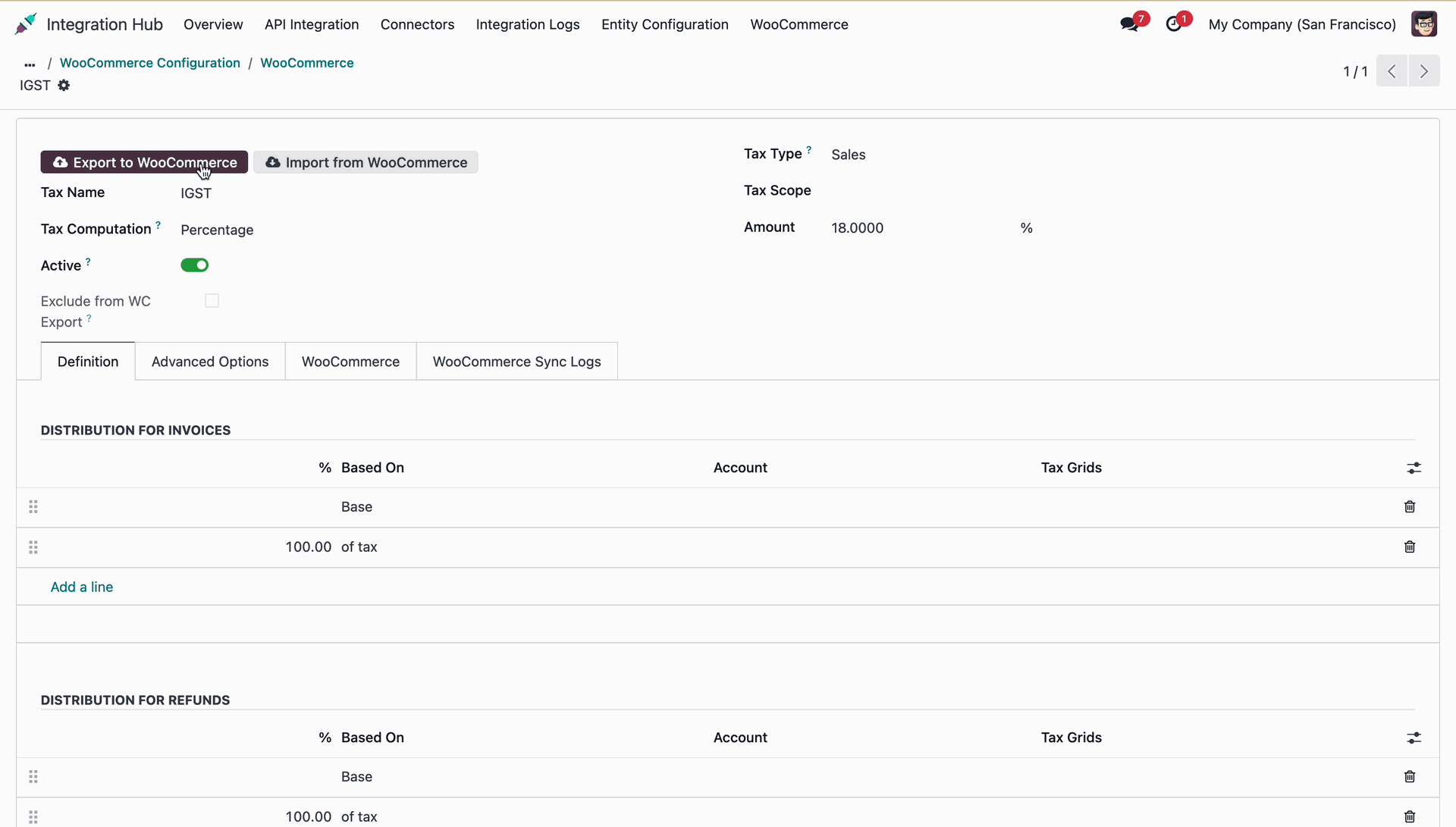
Press Export to WooCommerce on the tax form to export tax configuration.
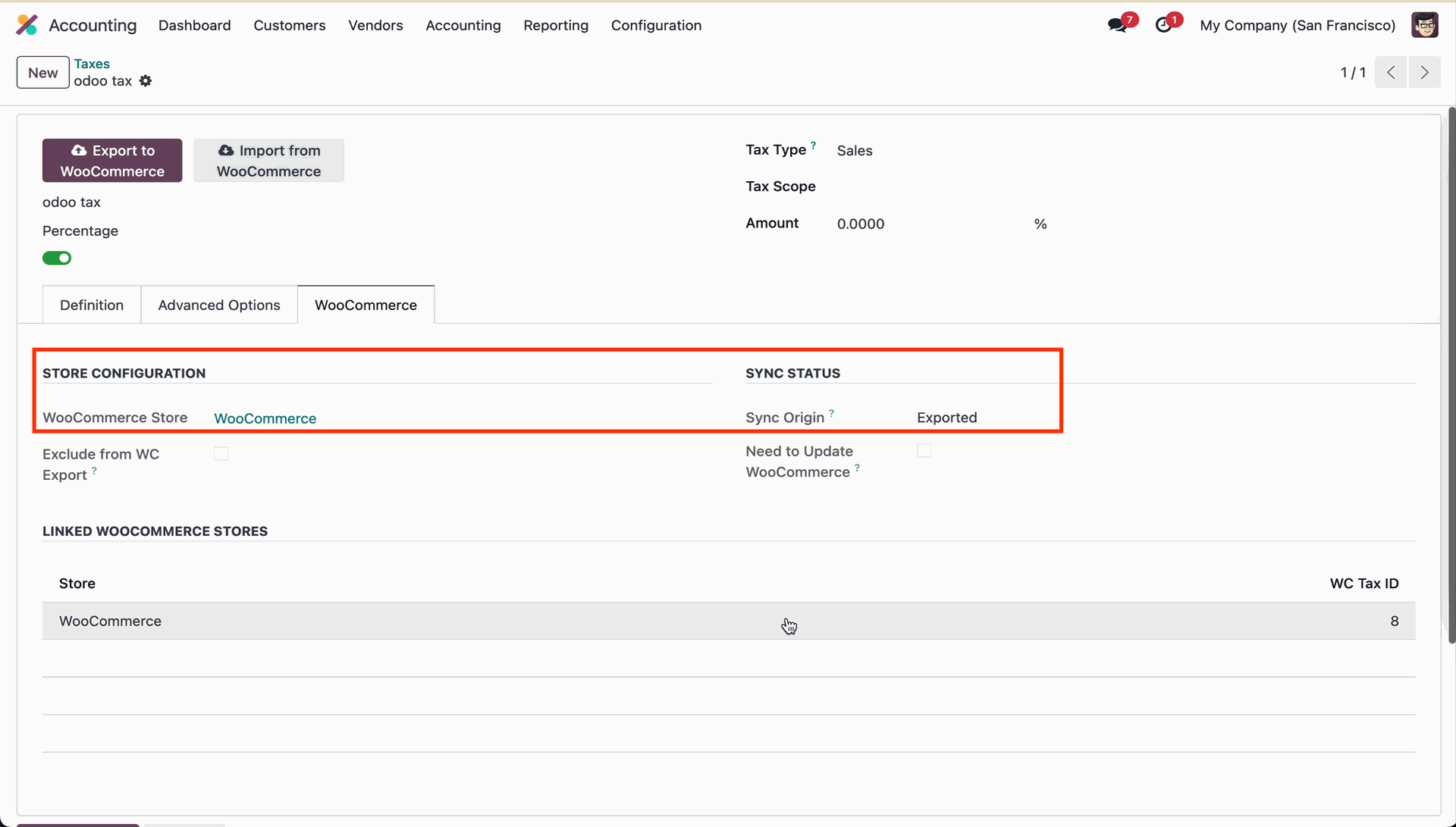
Review store configuration, sync status, and linked WooCommerce tax ID mapping details.
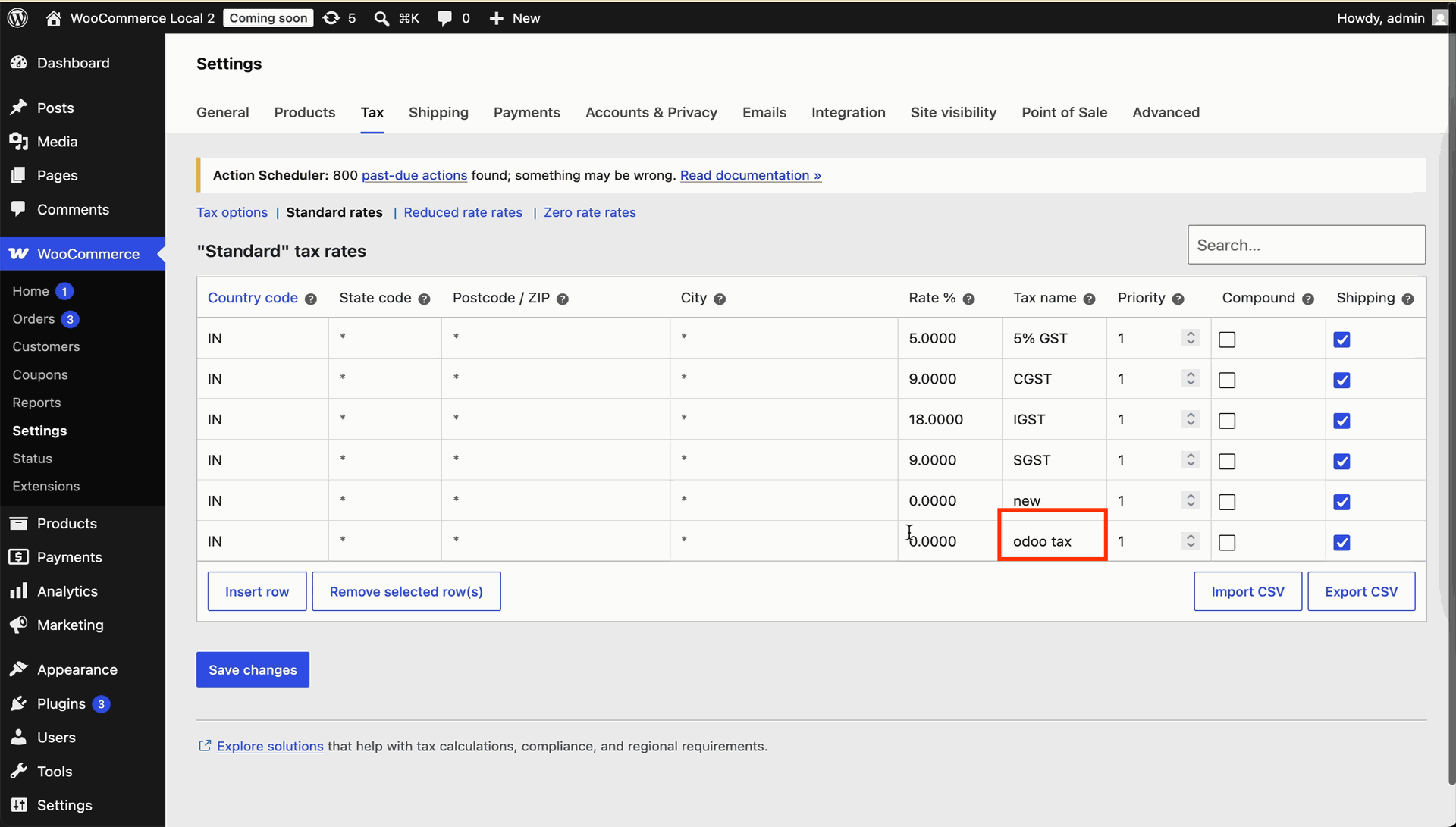
Verify exported tax records such as odoo tax in WooCommerce backend standard tax rates.
 Stock Synchronization Video
Stock Synchronization Overrides Video
Stock Synchronization Video
Stock Synchronization Overrides Video
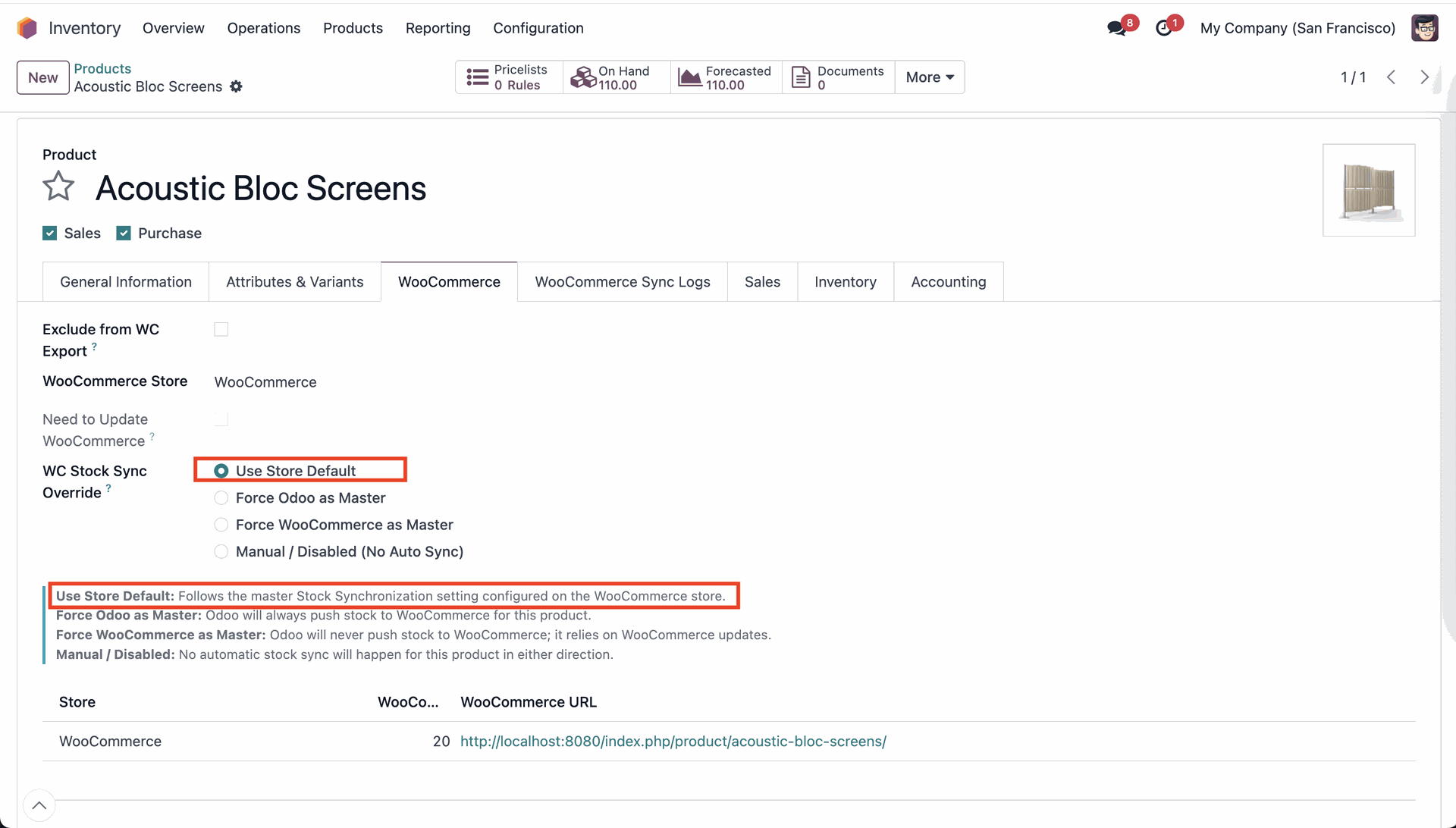
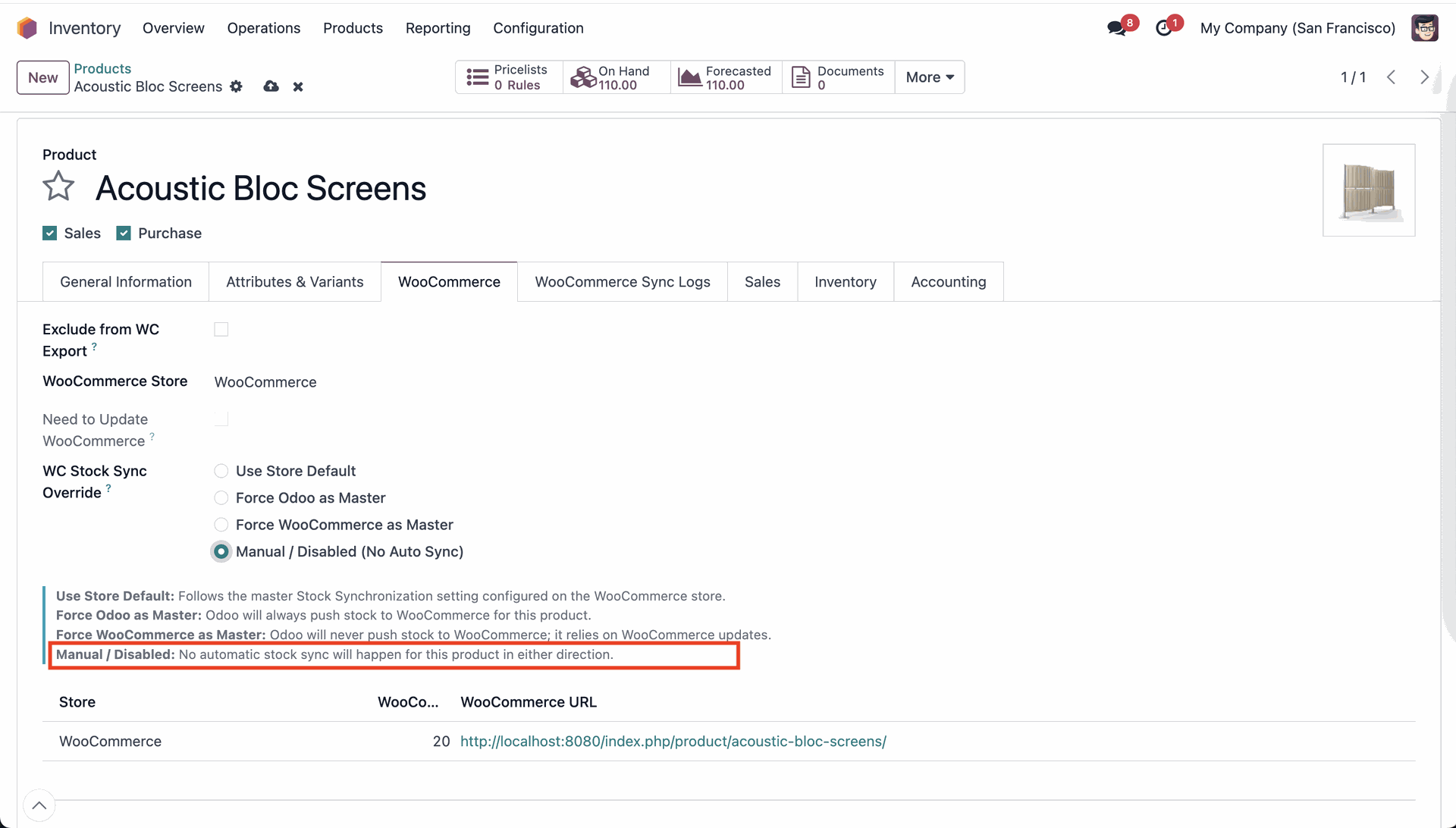
Select Use Store Default under WC Stock Sync Override on the product form.
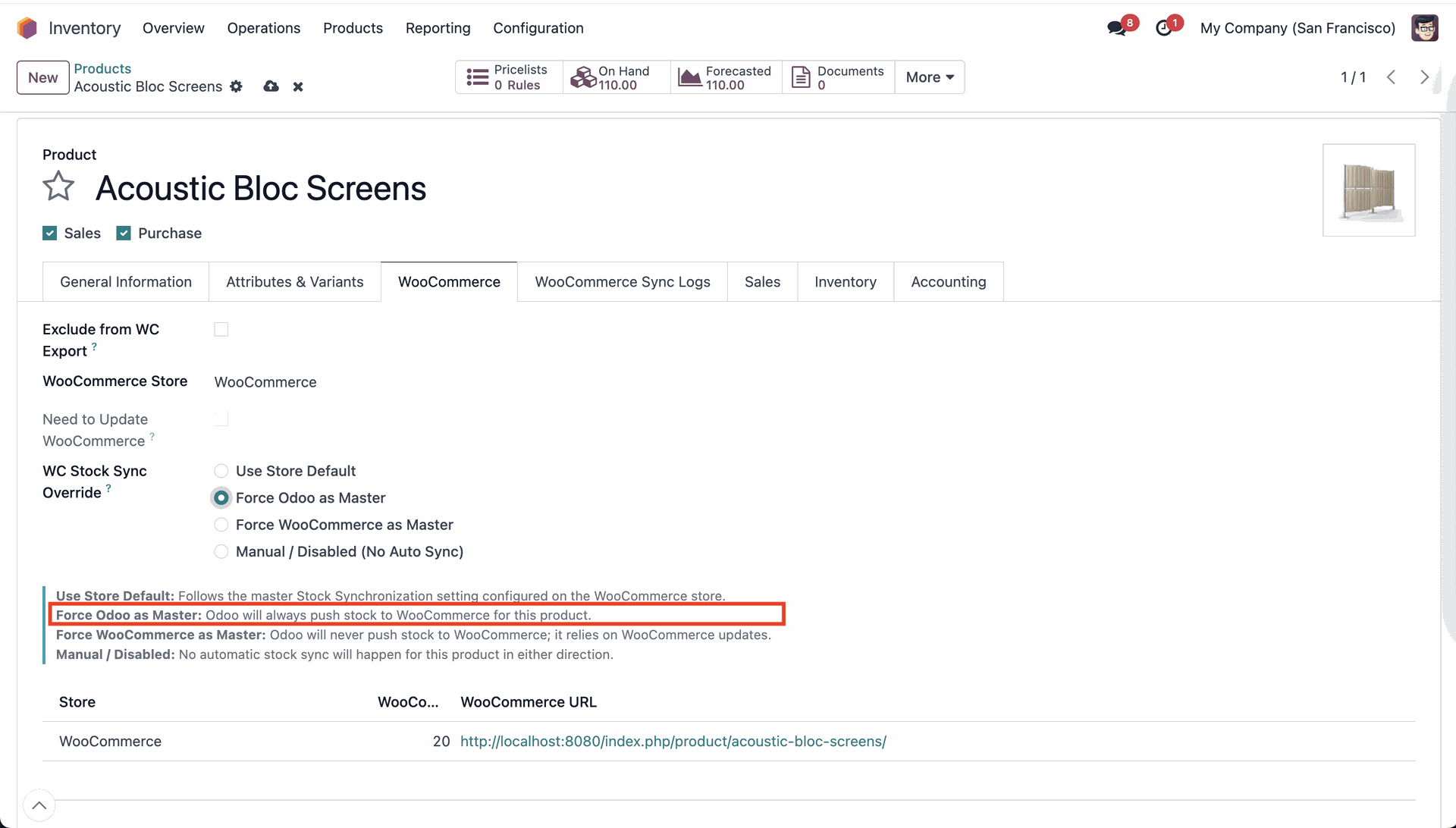
Choose Force Odoo as Master to continuously push local stock levels to WooCommerce.
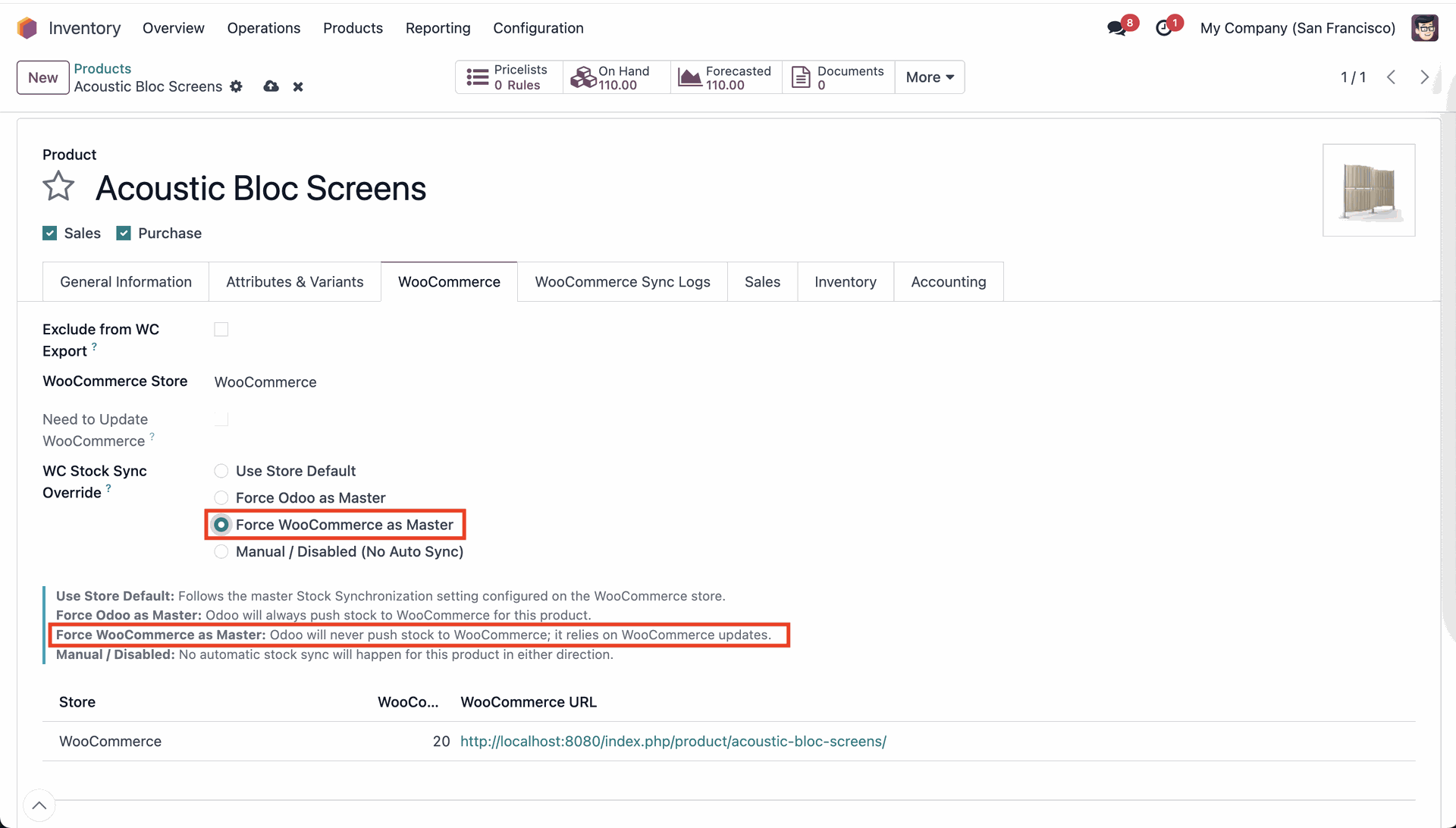
Select Force WooCommerce as Master to receive stock updates without pushing Odoo quantities.
Select Manual / Disabled to disable automatic stock synchronization for the specific product.
Configure Stock Sync Mode to Odoo as Master under store stock synchronization settings.
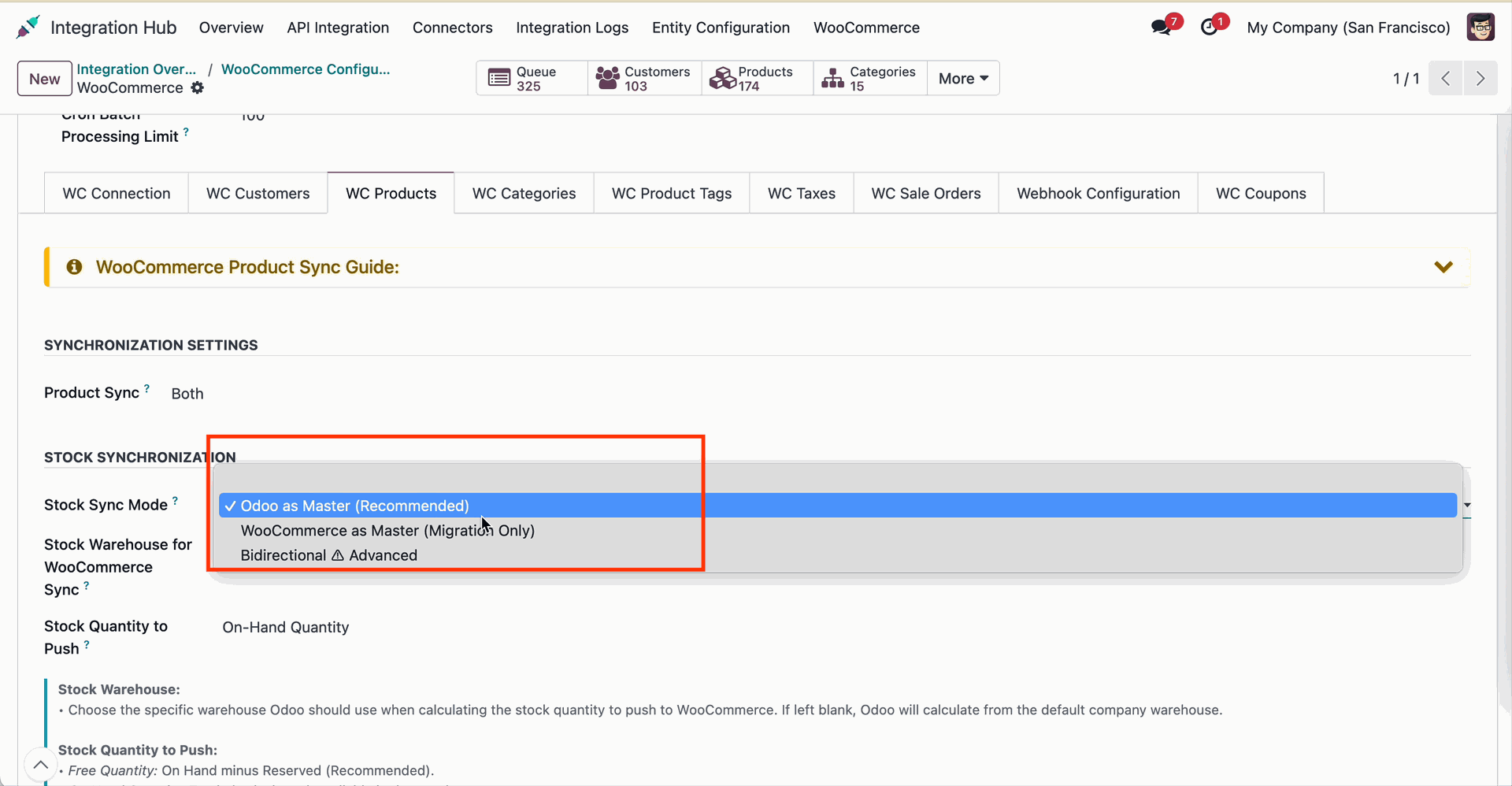
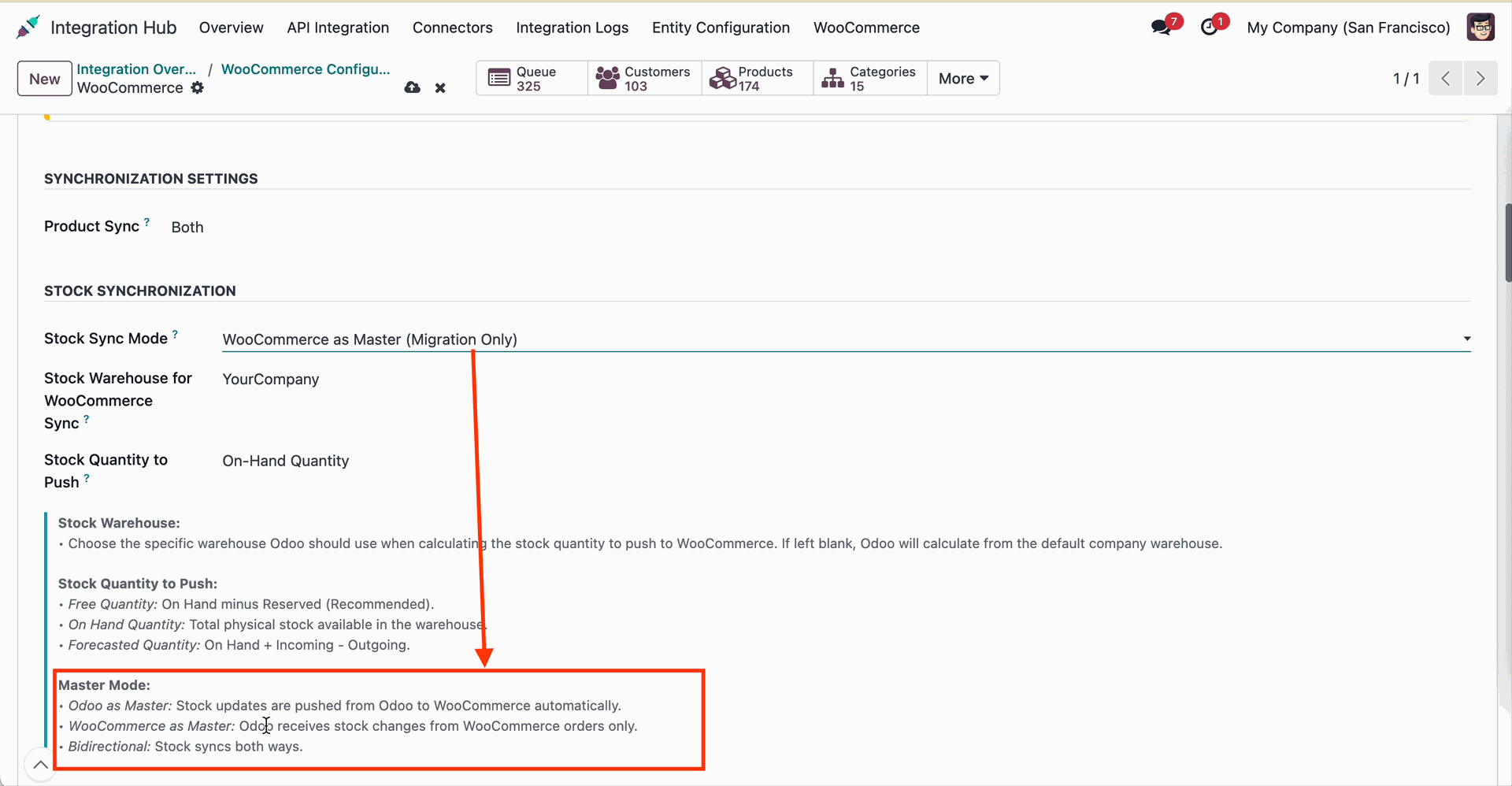
Select WooCommerce as Master mode to receive stock changes directly from store orders.
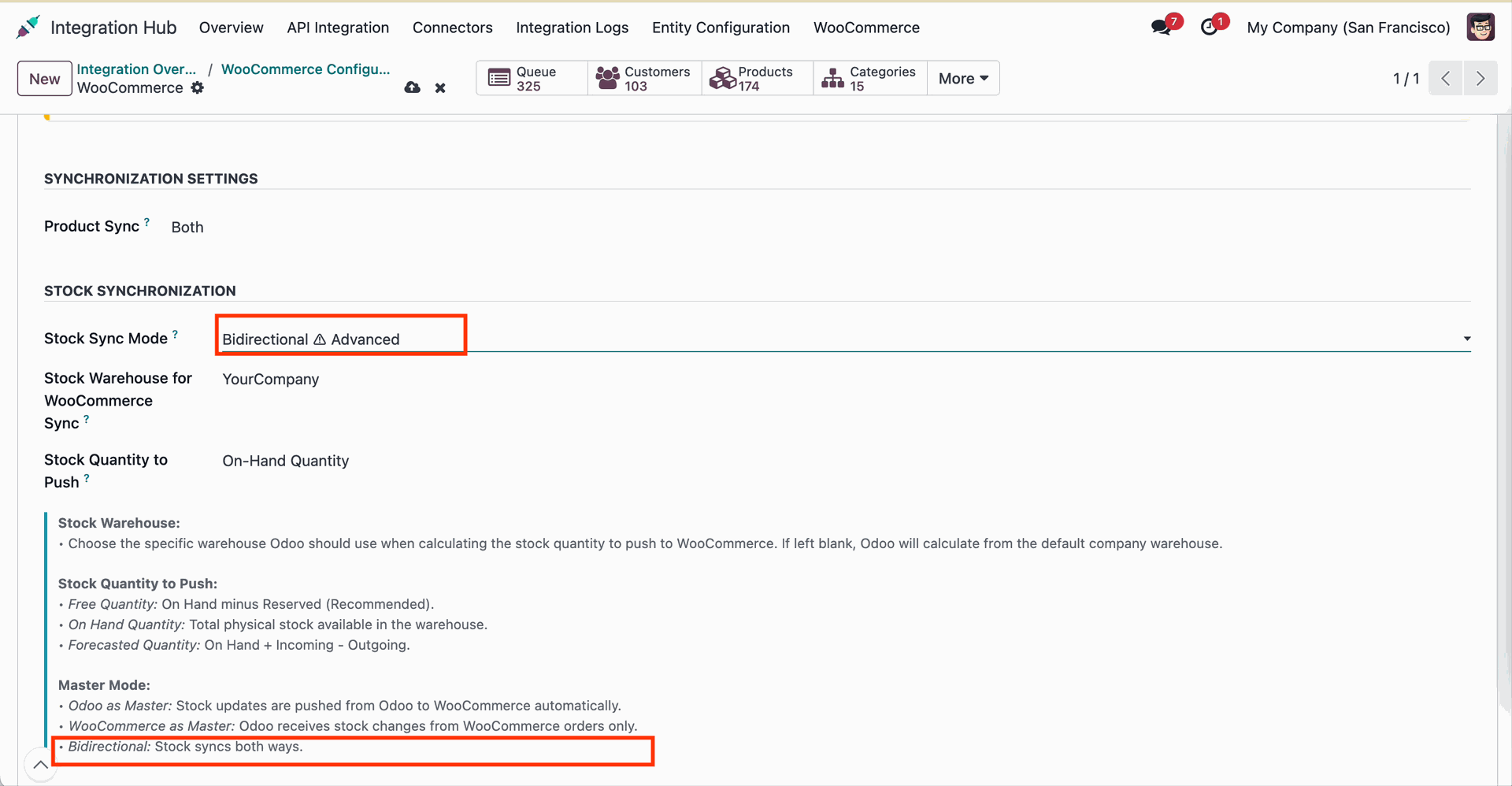
Set Stock Sync Mode to Bidirectional Advanced to synchronize inventory levels bi-directionally.
Select On-Hand Quantity as the stock quantity calculation parameter to push to WooCommerce.
 How it Works? Watch Video
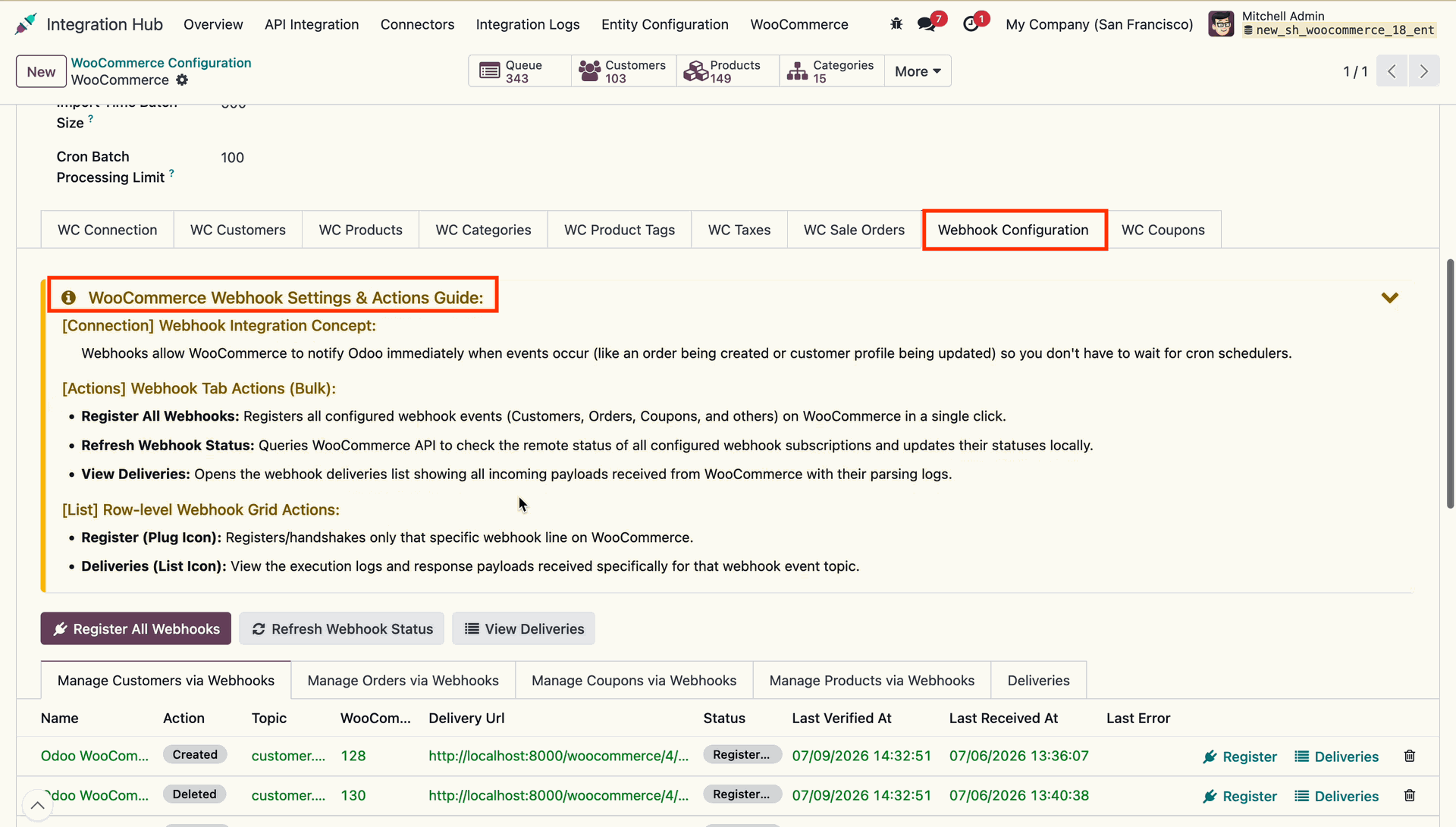
Review the webhook configuration guide.
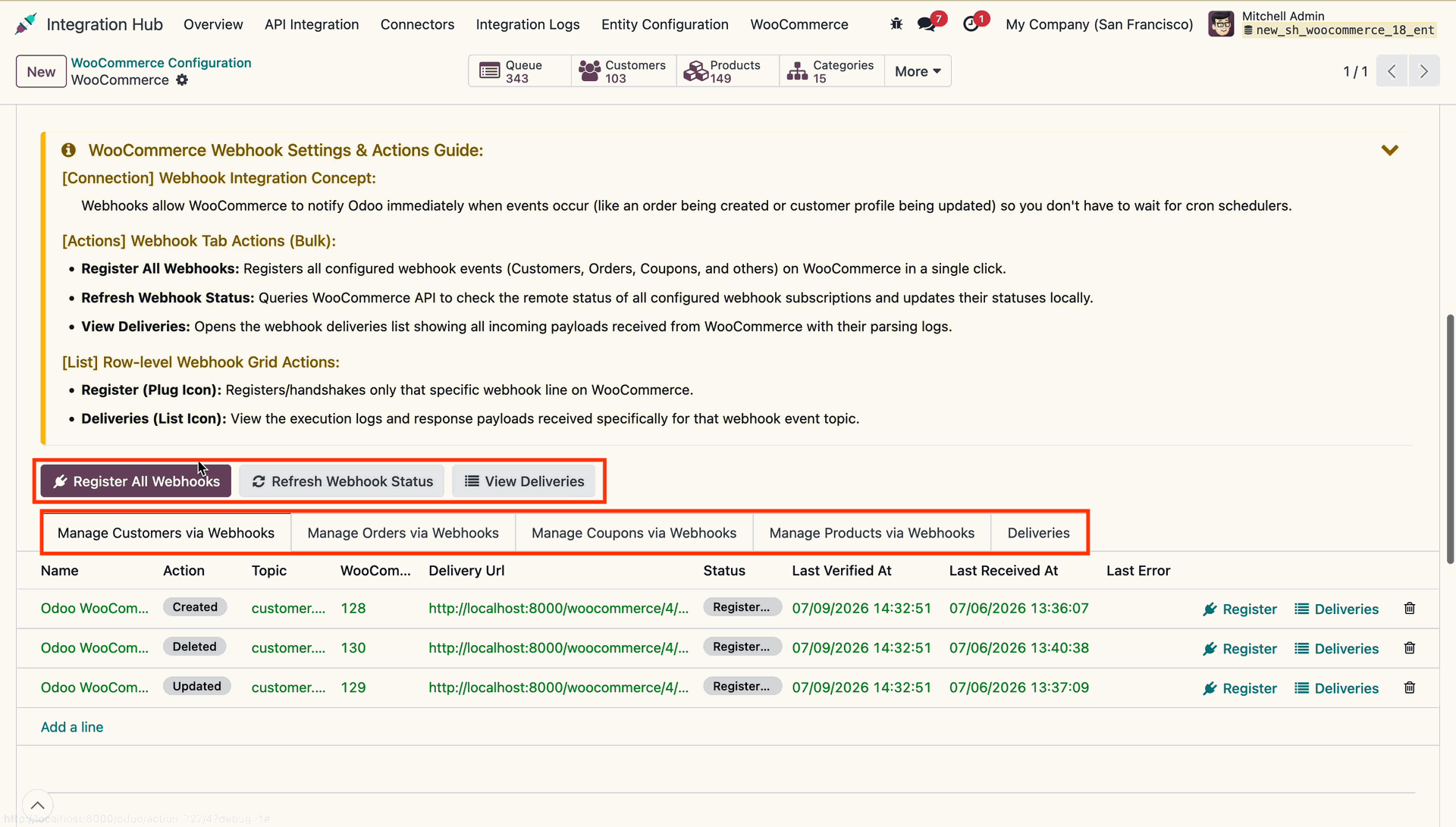
Access bulk webhook action buttons and sub-tabs for managing customers, orders, coupons, and products.
View order webhook topics like order.created and order.updated under Manage Orders via Webhooks.
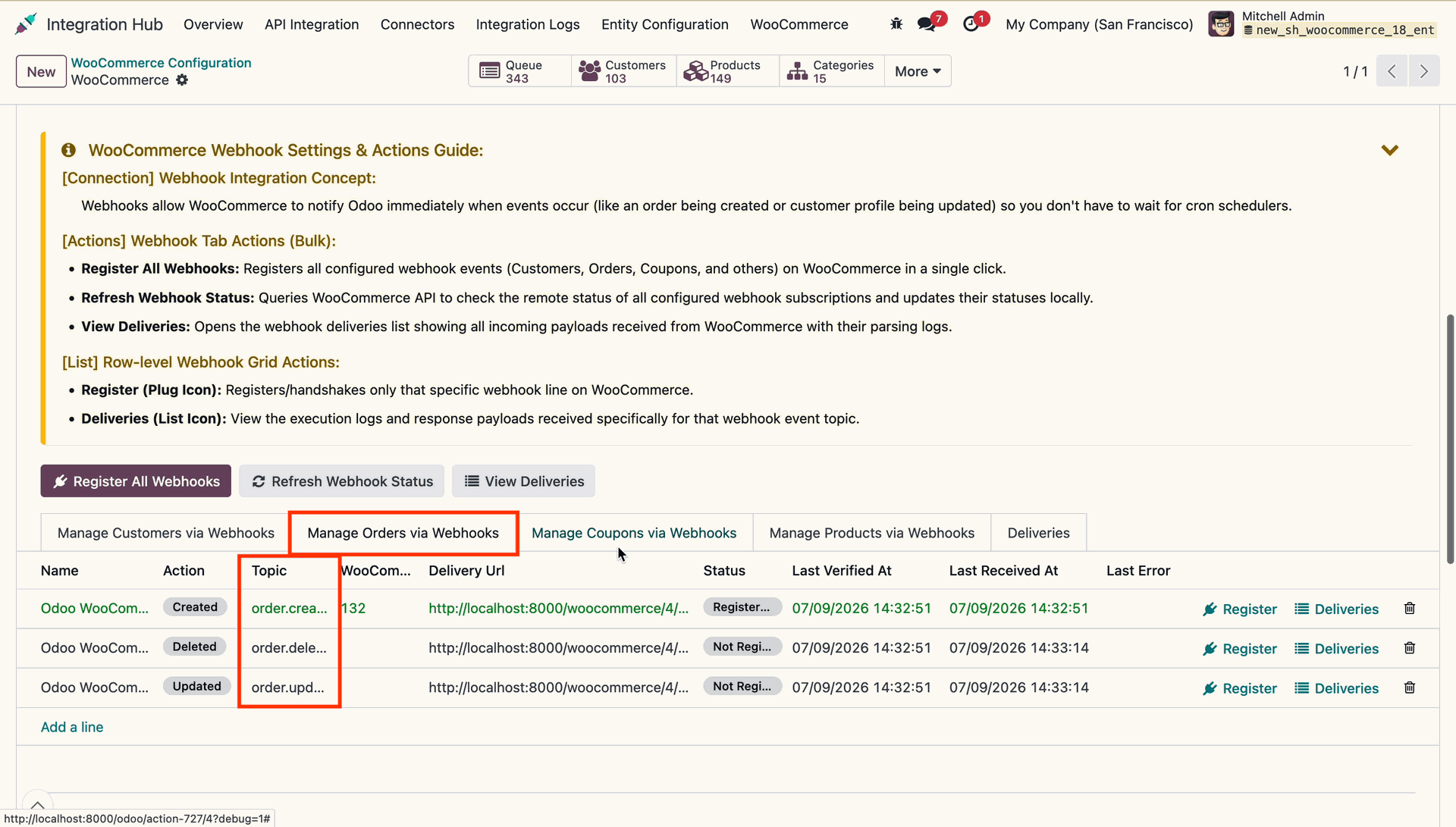
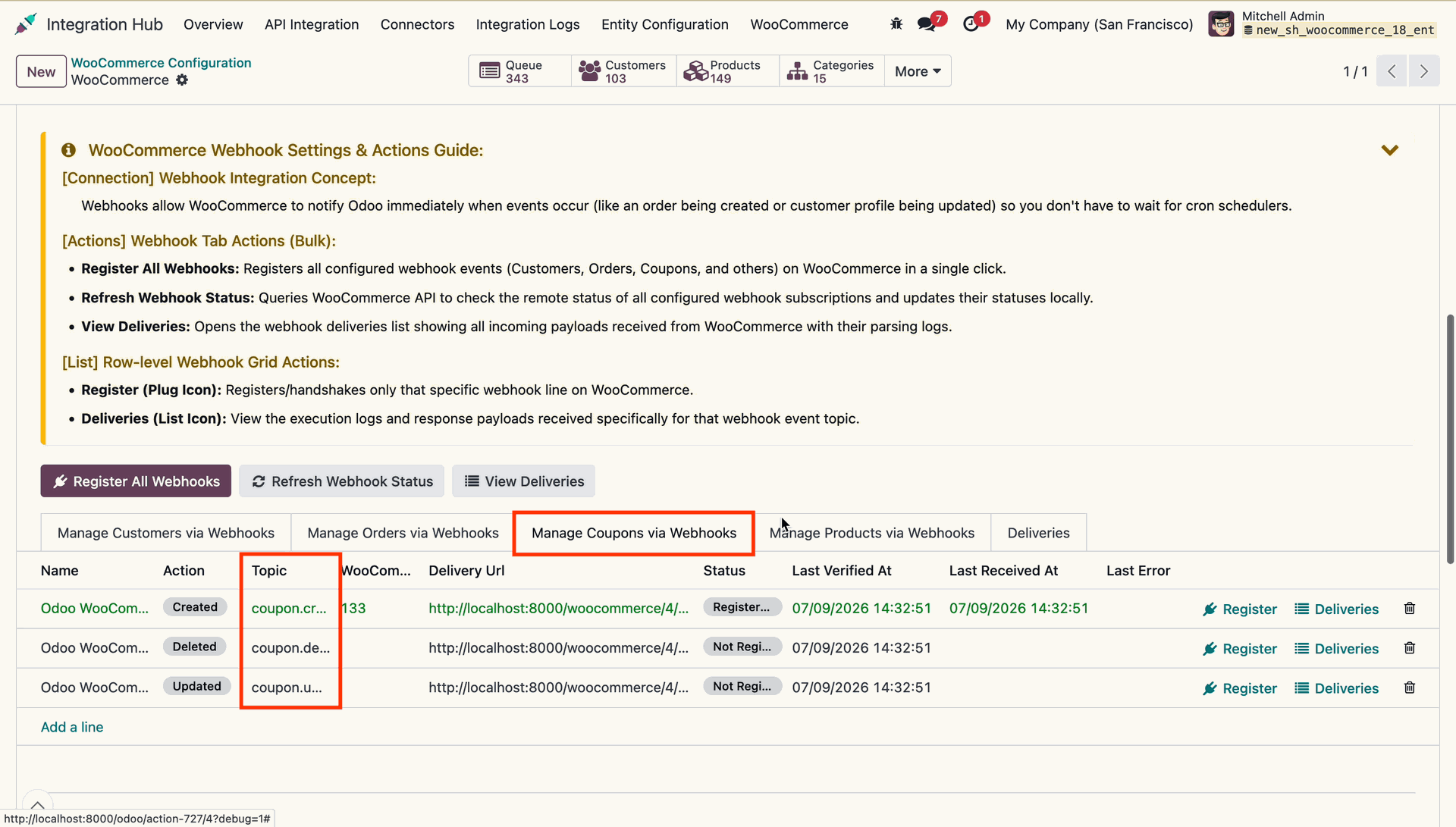
Inspect coupon webhook topics such as coupon.created within the Manage Coupons via Webhooks tab.
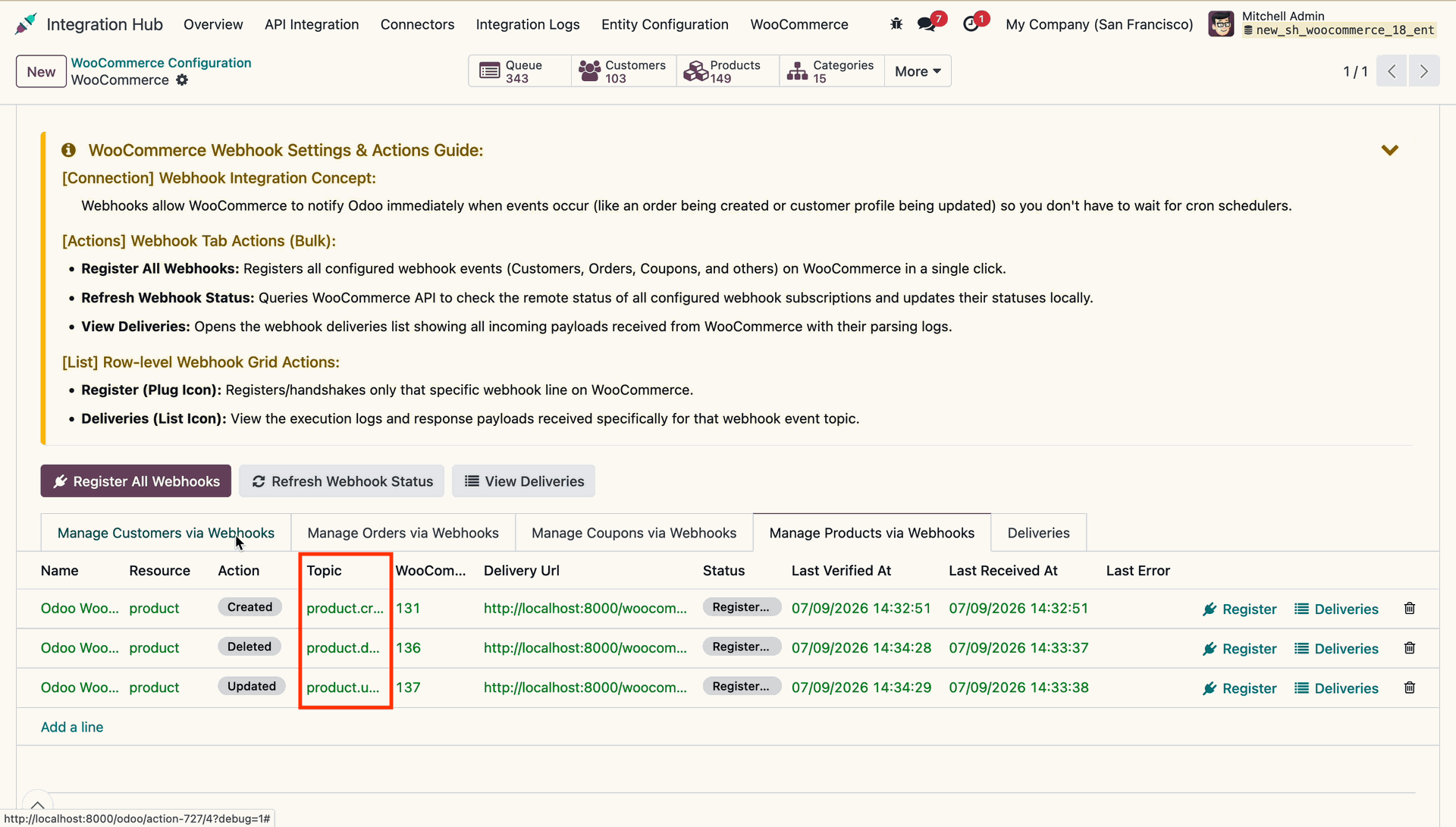
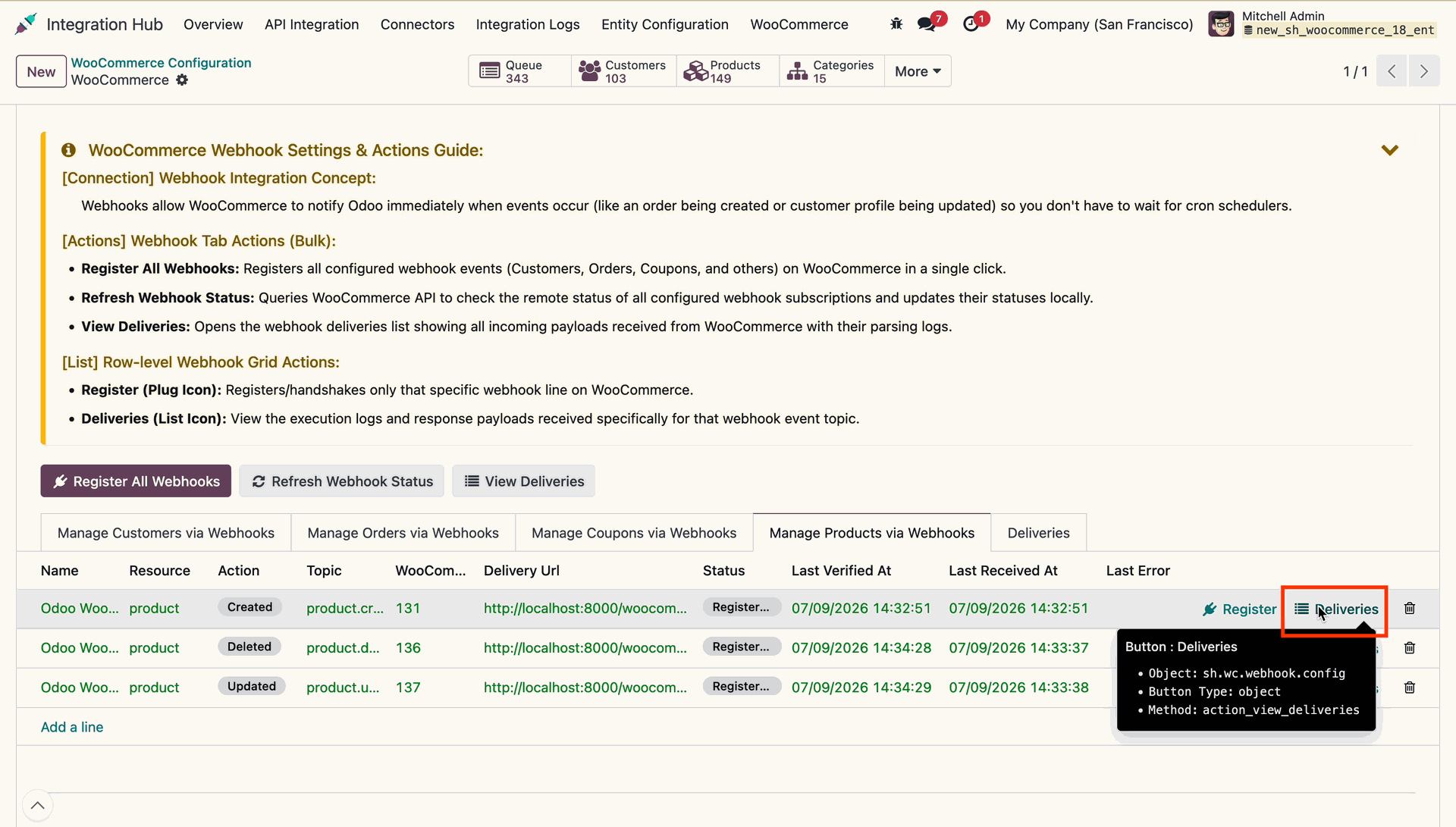
Review product webhook topics like product.created and product.updated under Manage Products via Webhooks.
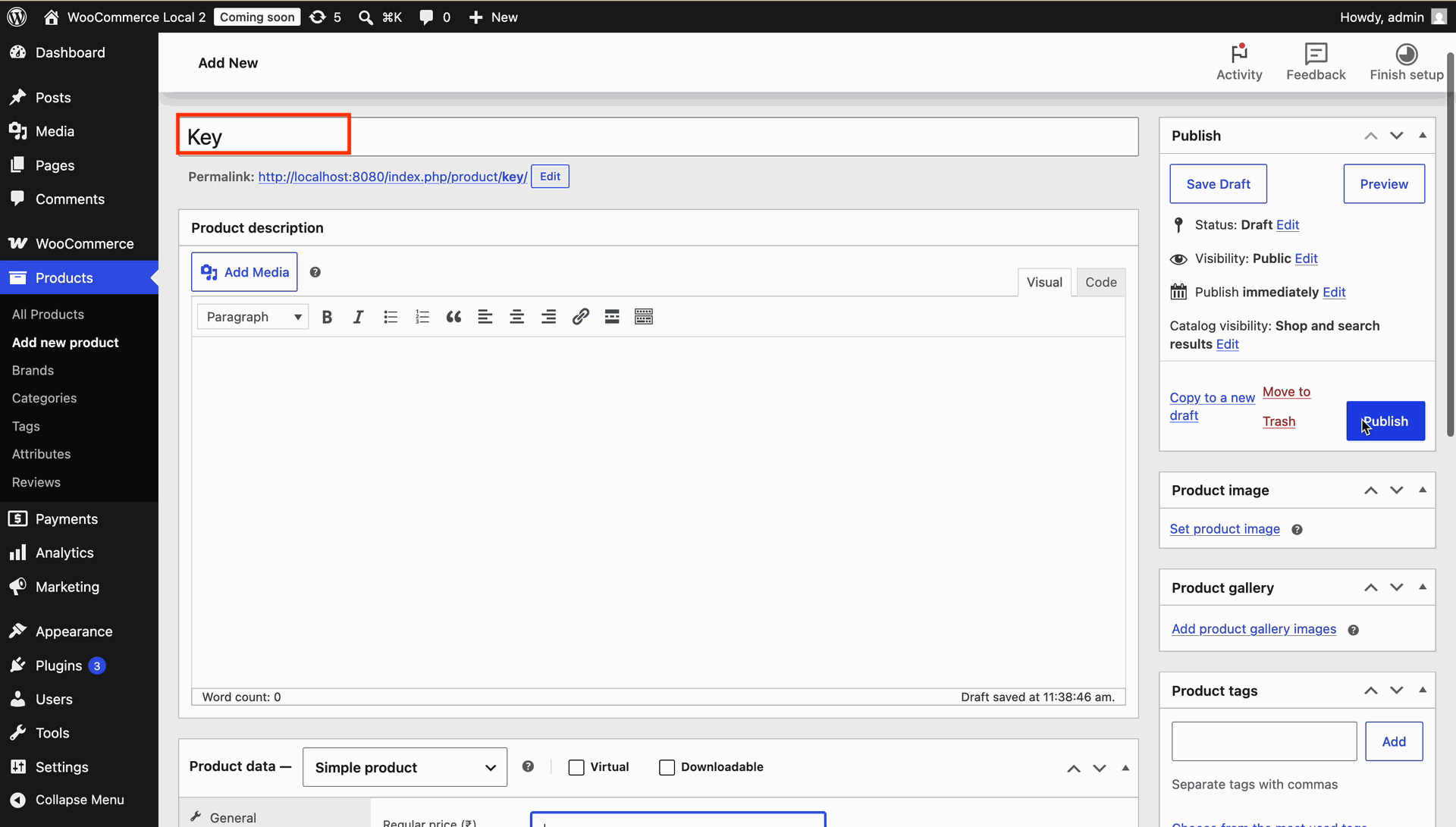
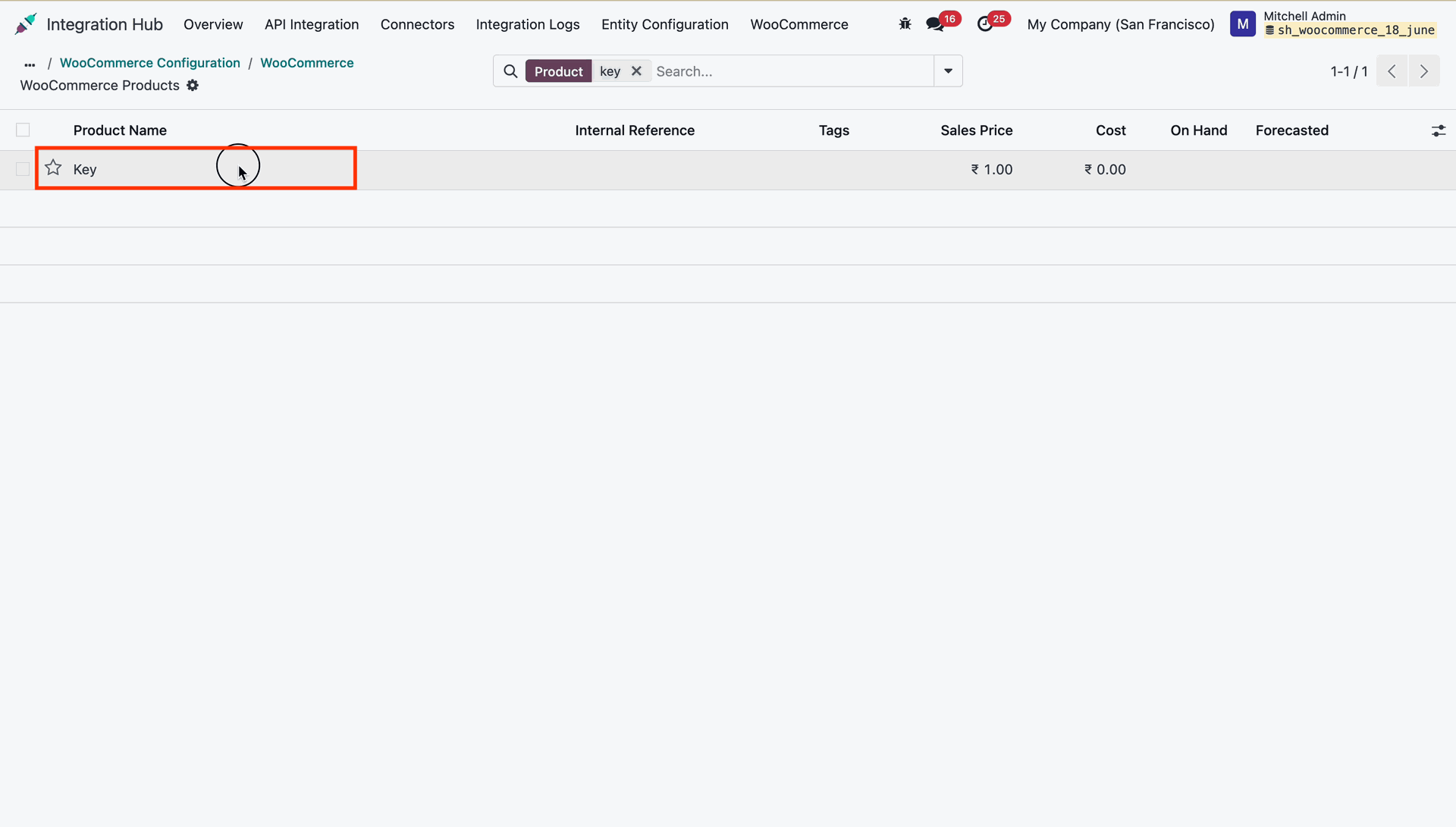
Enter product title Key and click Publish in WooCommerce store backend to create a product.
Verify real-time creation of product Key in Odoo via incoming webhook notification.
Click the Deliveries button on a webhook row to inspect topic execution logs.
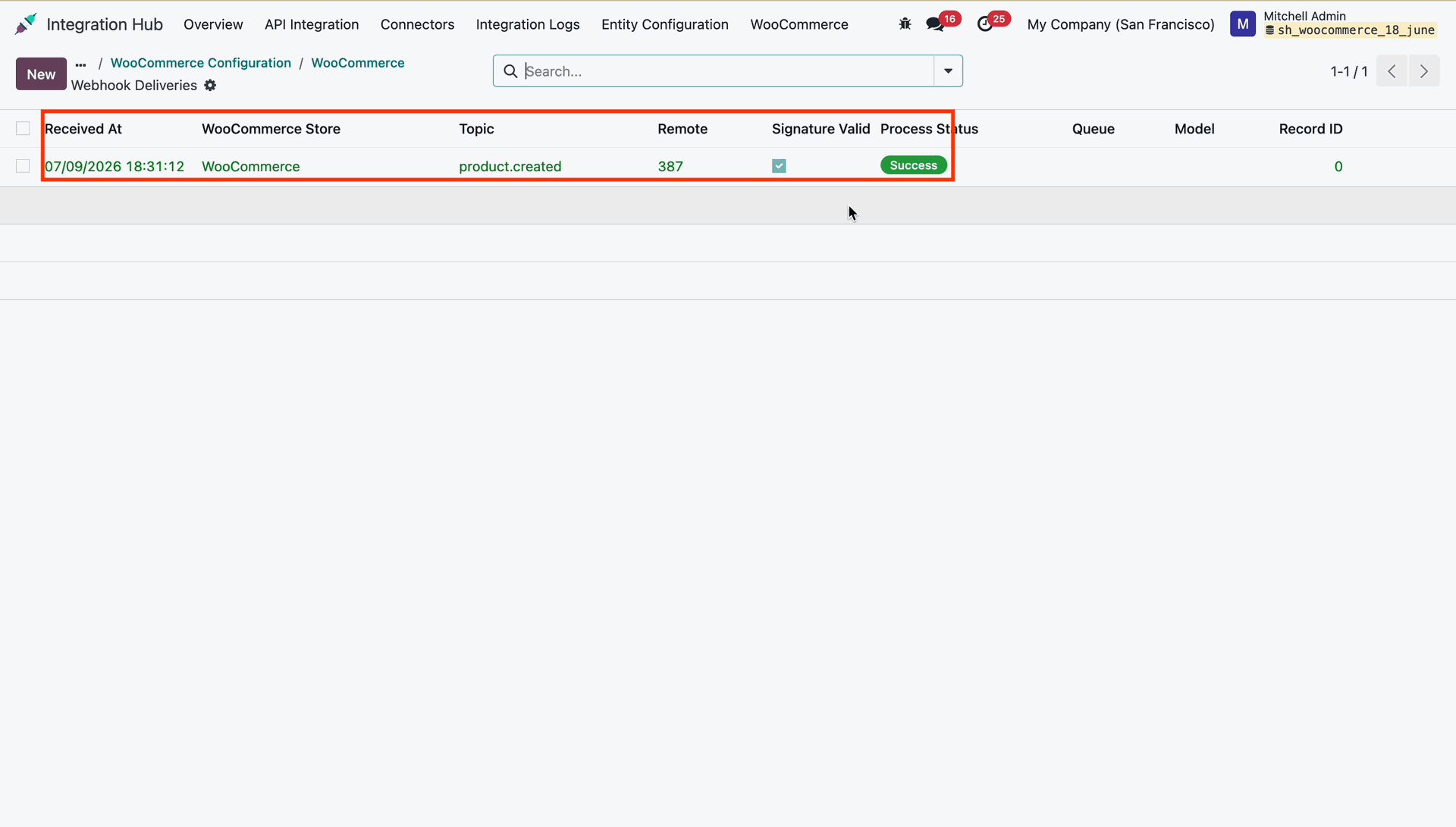
Review webhook delivery logs showing received timestamp, product.created topic, and success process status.
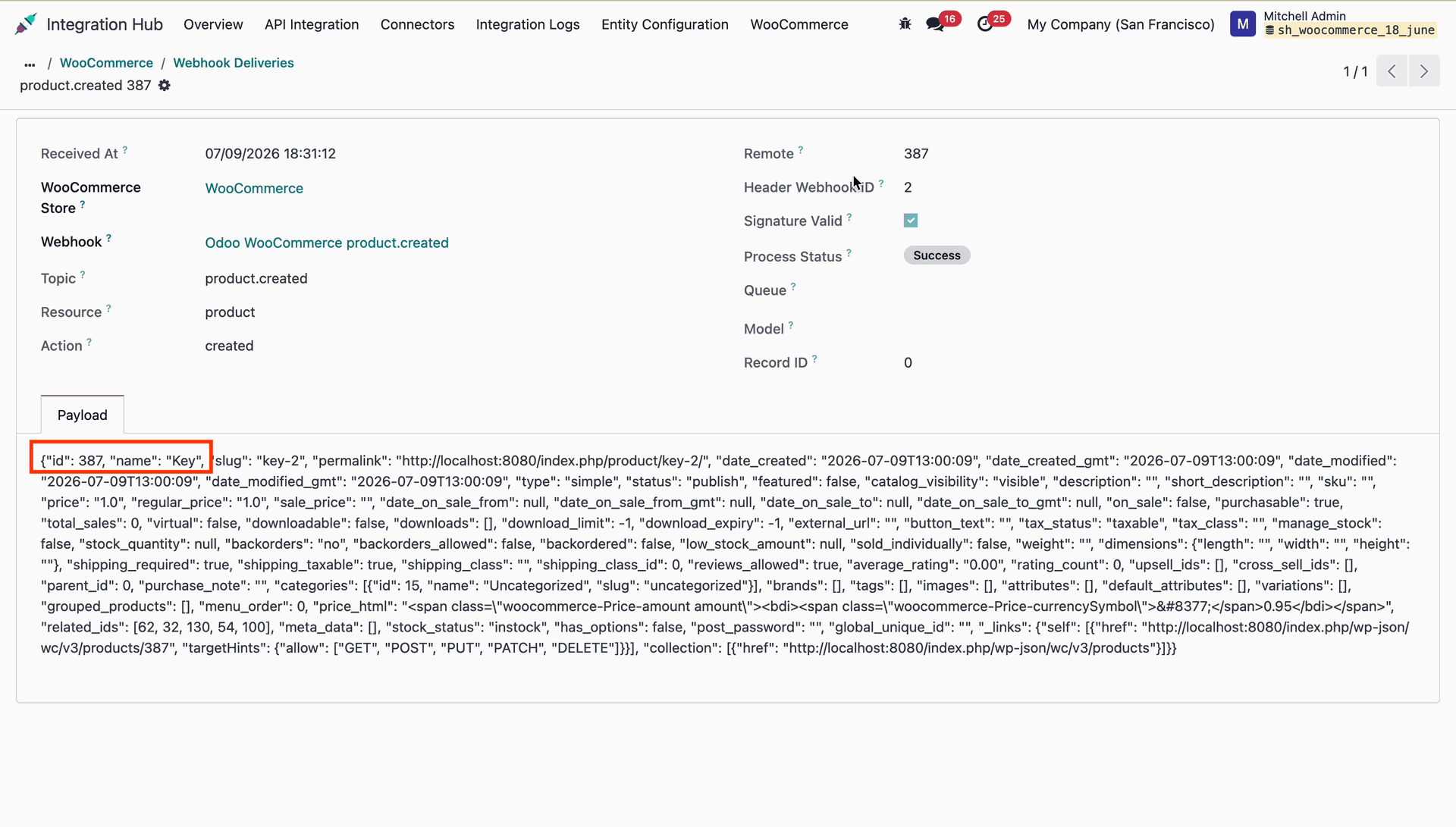
Detailed log.
Changelog
Track every update and new feature released for this module.
Initial Release.

 Buy Once,
Supported Forever
Buy Once,
Supported Forever


 Scan to email sales




 Your Ideas Shape
Our Roadmap
Your Ideas Shape
Our Roadmap

 Got an Idea?
We'll Build It
Got an Idea?
We'll Build It
Trusted by Businesses Worldwide


Abdulhamid Abdulwaheed
Best module for our online store. Highly adaptable, exceptional customer service, and very advanced modules.
Factura Venta POS
They have everything you need. Technical support is excellent, responds quickly, and keeps the module updated. 100% recommended!
Mehmet Muhanna
Great company and support team. Had a problem in my local Odoo server - they solved it in 5 minutes. Highly recommend.
Billy Jeffs
Customised an Odoo app for me which works perfectly. Many requirements, got it right every time. Very confident in their ability.
HP
Consistently excellent service over years of working together. Knowledge and commitment to keeping clients informed truly sets them apart.
Michal Kolasinski
Multiple addons + two custom modules. Communication always friendly and precise. Delivered on time, worked out of the box. Highly recommended!

Multi-Language
8 built-in translations







You May Also Like
Discover more Softhealer modules that integrate seamlessly with your Odoo environment.

Shopify-Odoo Connector
Connect Shopify with Odoo to synchronize products, orders, customers, inventory, and more.
View Module

Xero Connector with OAuth2.0 for Odoo
Securely synchronize contacts, products, orders, invoices, payments, and accounting data between Odoo and Xero.
View Module

Odoo QuickBooks Connector
Connect Odoo with QuickBooks to synchronize essential business and accounting data.
View Module

Hubspot Odoo Connector
Synchronize contacts, companies, leads, opportunities, tasks, emails, and meetings between Odoo and HubSpot.
View Module


Most Demanded Apps
The Softhealer modules our customers reach for most - trusted across 100+ countries.

Activities Management
Manage, schedule, and automate Odoo activities across all departments from one view.
View Module

Access Management
Granular access control over menus, fields, buttons, and records for every user role.
View Module

Backdate Advanced
Backdate any transaction across invoices, journals, pickings, and more with full audit.
View Module

All-in-One Helpdesk
Full-featured customer support with tickets, SLA, and customer portal built for Odoo.
View Module

All-in-One Mobile Backend
Access your full Odoo backend from any mobile device with an optimised interface.
View Module

All-in-One Import
Import data from Excel or CSV files into any Odoo model with smart field mapping.
View Module
Our Services
End-to-end Odoo expertise - from setup to scale.

AI & Business Integration
Odoo Implementation
Odoo Customization

Support & Maintenance
Mobile Apps
Migration Service

Third-Party Integration

Odoo Training
Ready to connect your AI to Odoo?
Join 10,000+ businesses - Softhealer, 11+ years of Odoo expertise across 100+ countries.

