



















Odoo SaaS Kit
The Odoo SaaS Kit helps you manage and operate a complete Odoo SaaS infrastructure directly from Odoo. Create and manage SaaS plans, customers, contracts, Odoo instances, servers, and runtime environments with centralized control. Configure Odoo versions and servers, publish SaaS plans, manage database templates, monitor server and instance resources, handle backups and external backup destinations, and process resource scaling requests.
Key Features

Server & Infrastructure Setup
-
 Self
& Remote (SSH) Server Management
Self
& Remote (SSH) Server Management
-
Database,
Docker & NGINX Configuration
-
Port
Range Allocation & SSL Setup
-
Configure
SFTP External Backup Server

SaaS Plan & Template Blueprint
-
Modular
Odoo Plans & Addon Bundles
-
Core
Module or Custom Module Selection
-
Master
Database Template Builder
-
Subscription
& User-Based Pricing
-
Variants
Based Pricing

Contract & Instance Management
-
Backend
& Website Contract Creation
-
Automated
Tenant Provisioning & Routing
-
Portal
Self-Service & Trial Conversion

Infrastructure & Health Monitoring
-
System
& Health Dashboard
-
Instance
Monitor Dashboard
-
Real-Time
CPU, Memory & Storage Tracking
-
Automated
Resource Threshold Alerts
-
Interactive
Metric Charts & Runtime Logs

Instance Resource Scaling
-
Flexible
CPU, RAM & Worker Adjustments
-
Automated
Scaling Evaluation & Limits
-
Monitor
Run-time Resource Usage
-
Vertical
Scaling Policy

Backup & External Storage Sync
-
Local
& External Backup (SFTP & S3)
-
Backup
with Filestore Selection
-
Manual,
Scheduled & Portal Backup Triggers
-
One-Click
Retention Cleanup
 Setup & Configuration
 Release Notes
 Support
 FAQ's
FAQ's
Frequently Asked Questions
Everything you need to know before getting started.
 Server Setup
 Plan Setup
 Contract & Instance Setup
 Monitoring & Scaling
 How it Works?
Watch Video
How it Works?
Watch Video
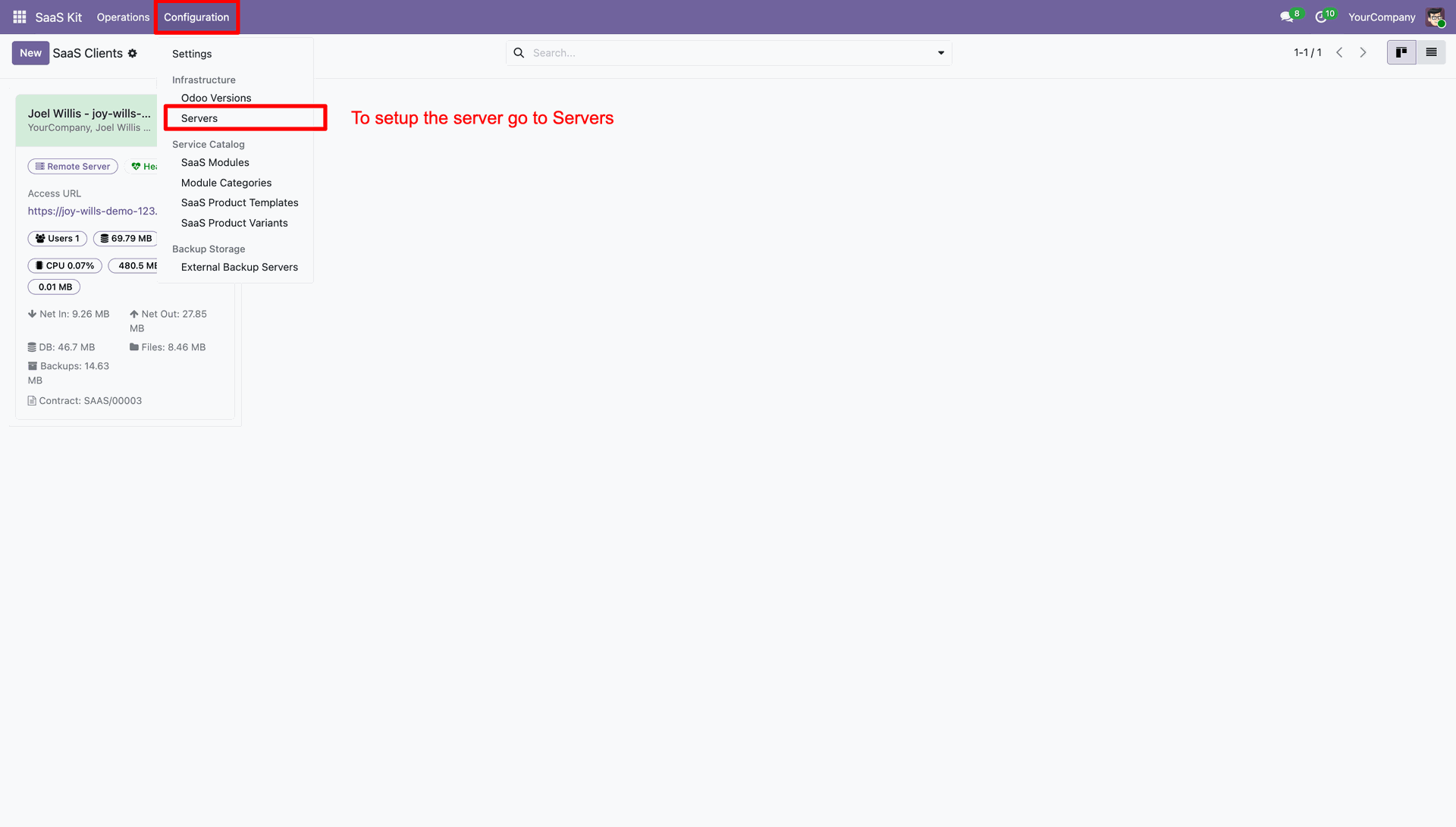
Navigate to Configuration and select Servers menu to begin server setup process.
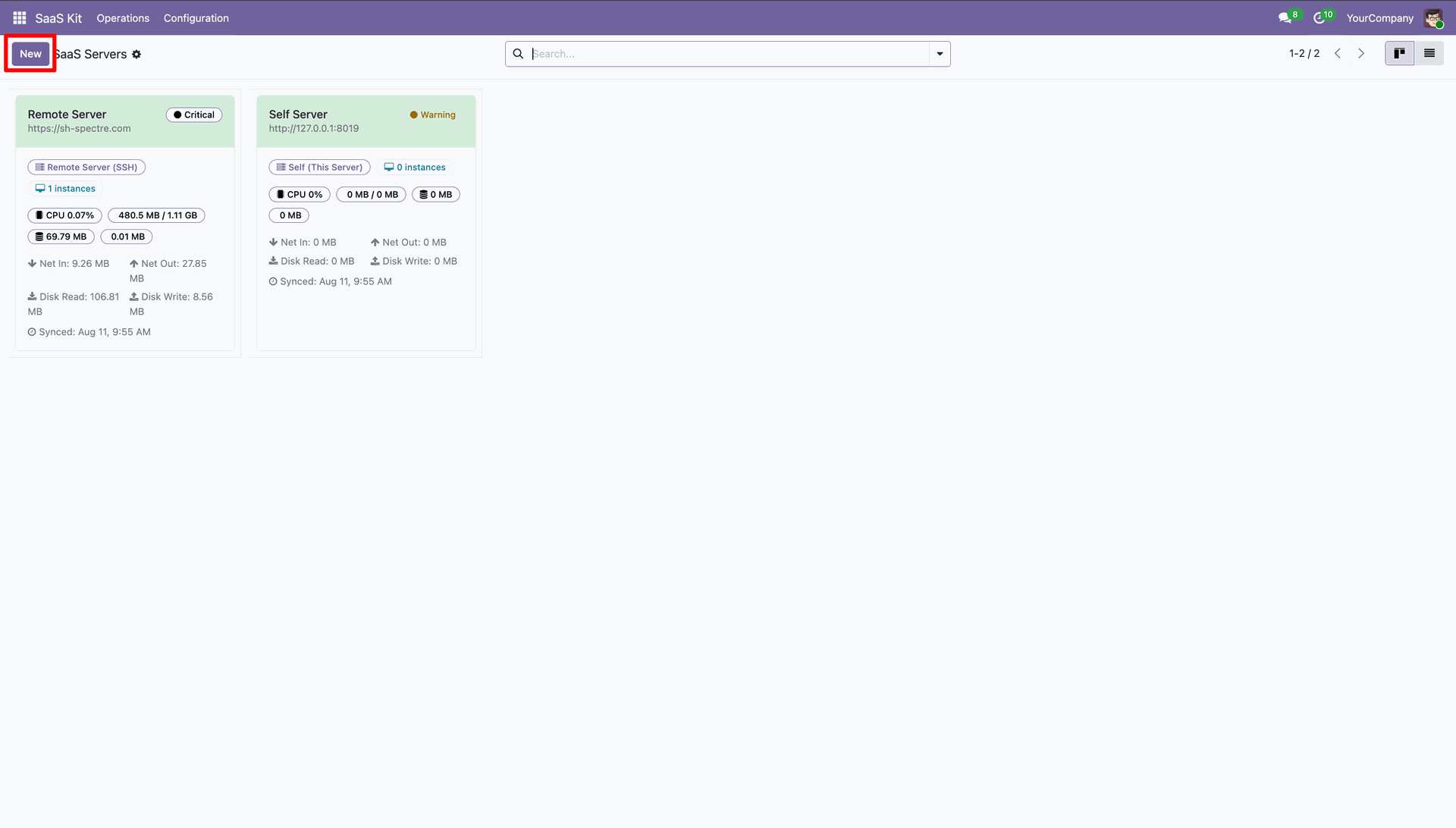
Click New button to open a fresh server configuration form.
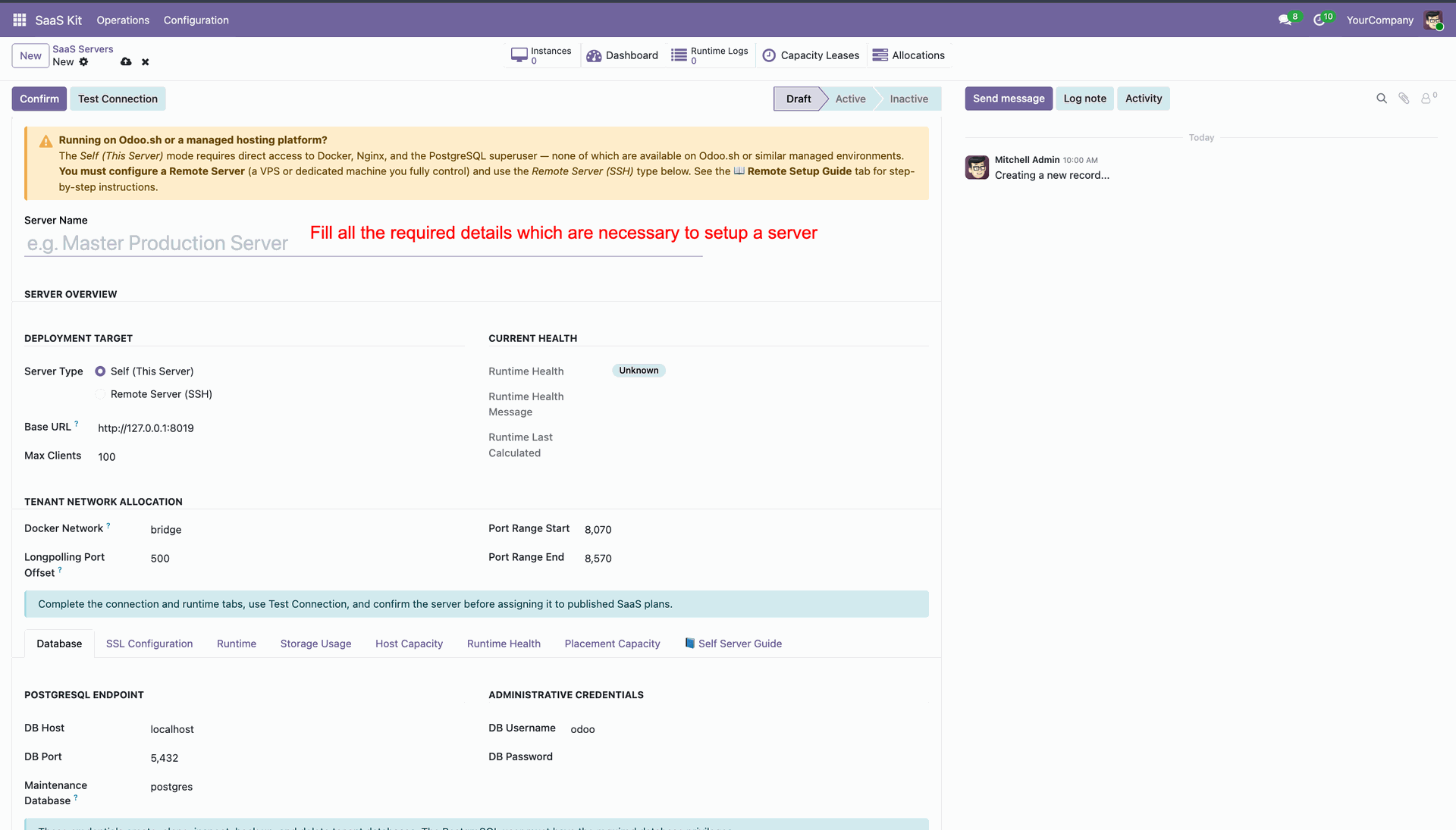
Enter server name and fill in general overview details on server form.
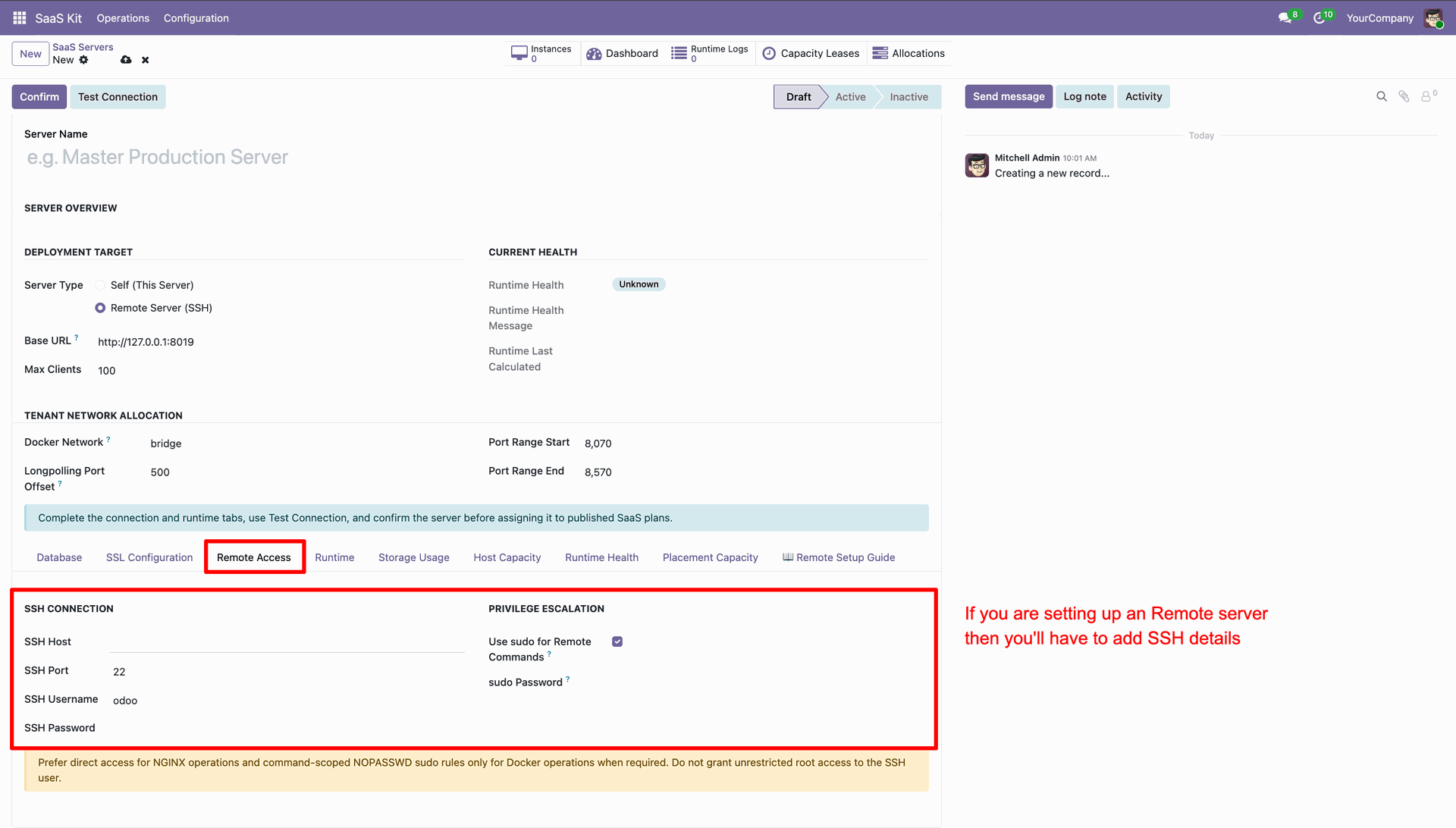
Select Remote Access tab and configure SSH connection details for remote server.
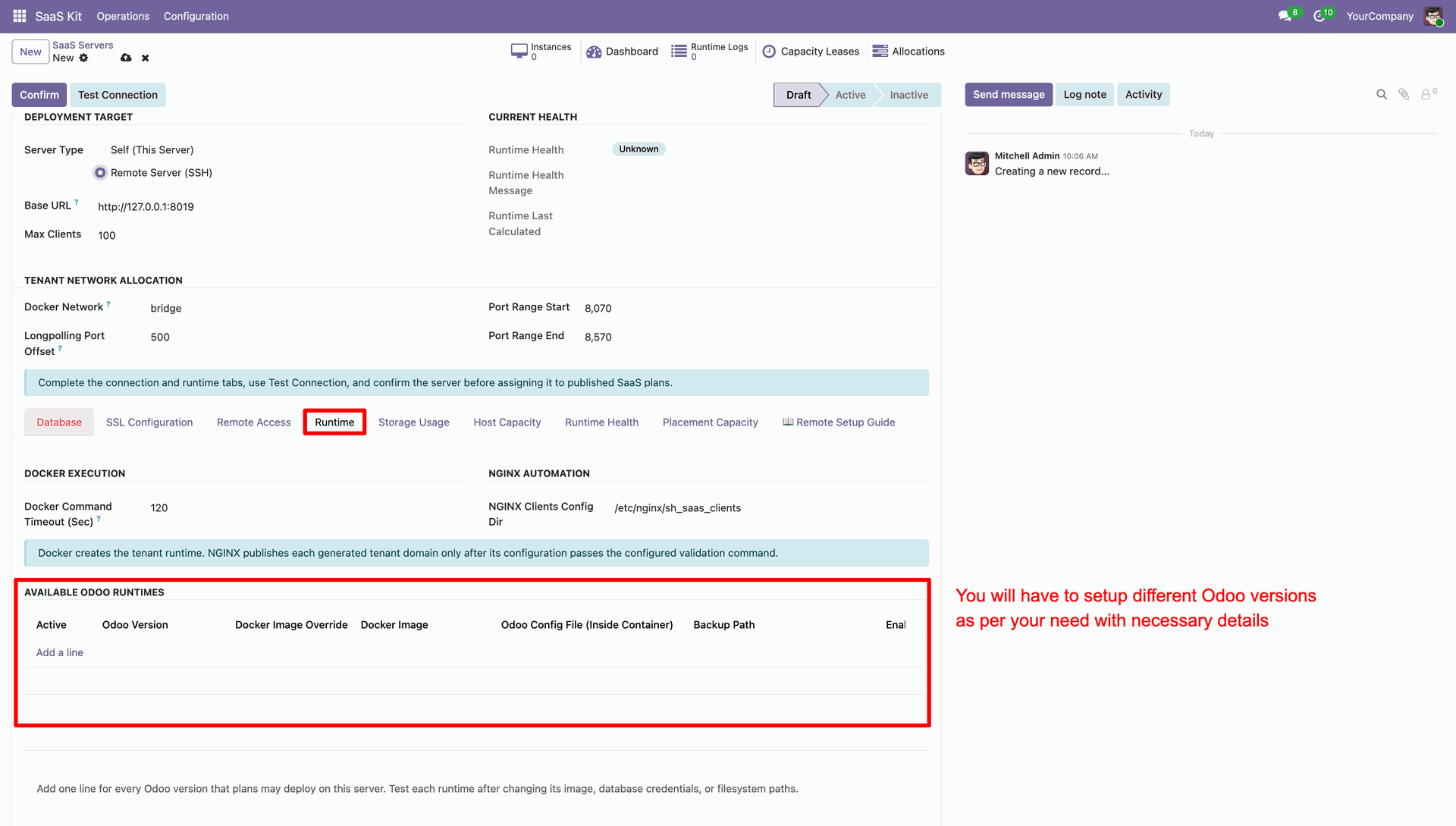
Select Runtime tab to add Odoo version runtimes and container image parameters.
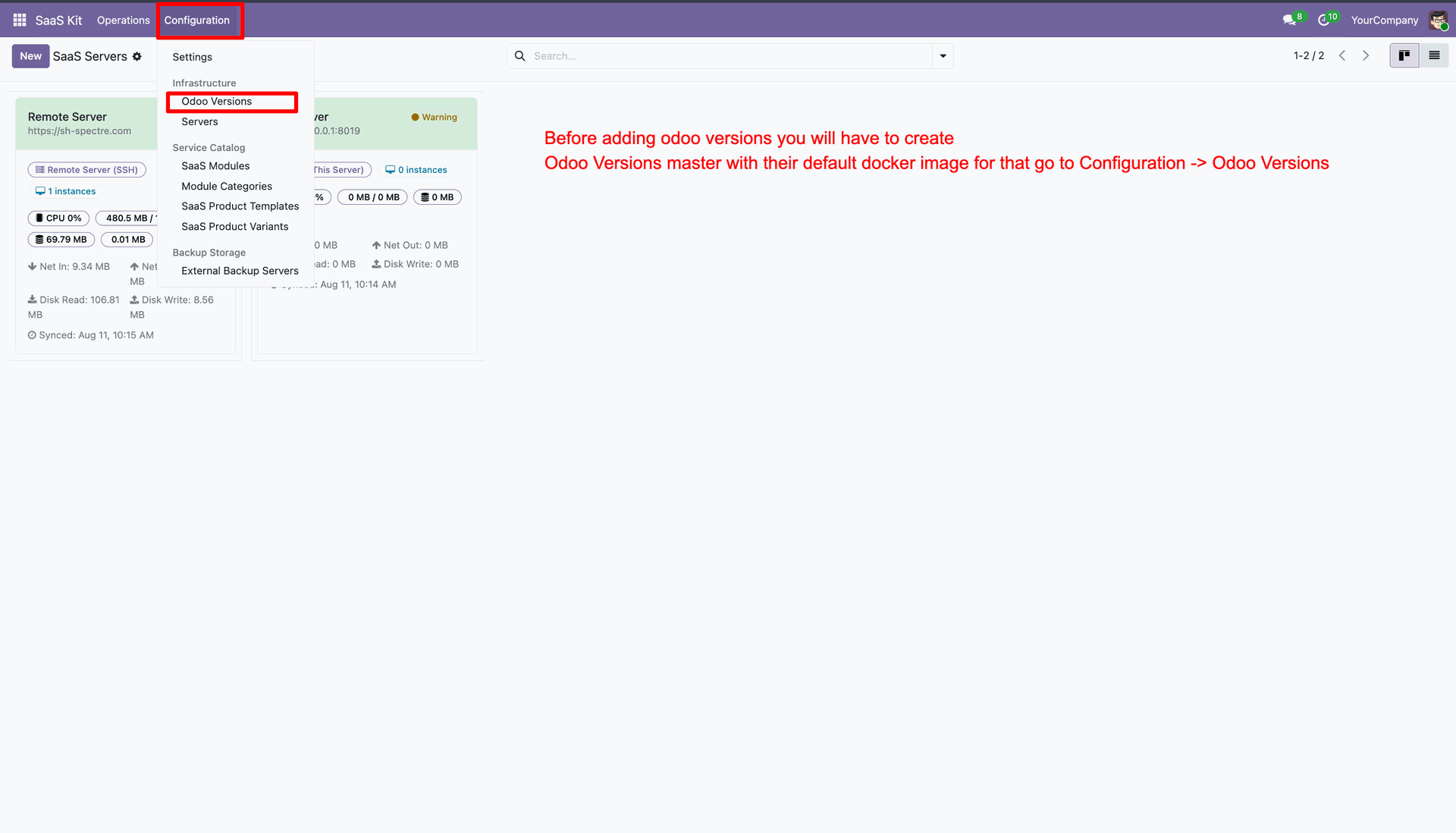
Navigate to Configuration menu and select Odoo Versions to configure supported version records.
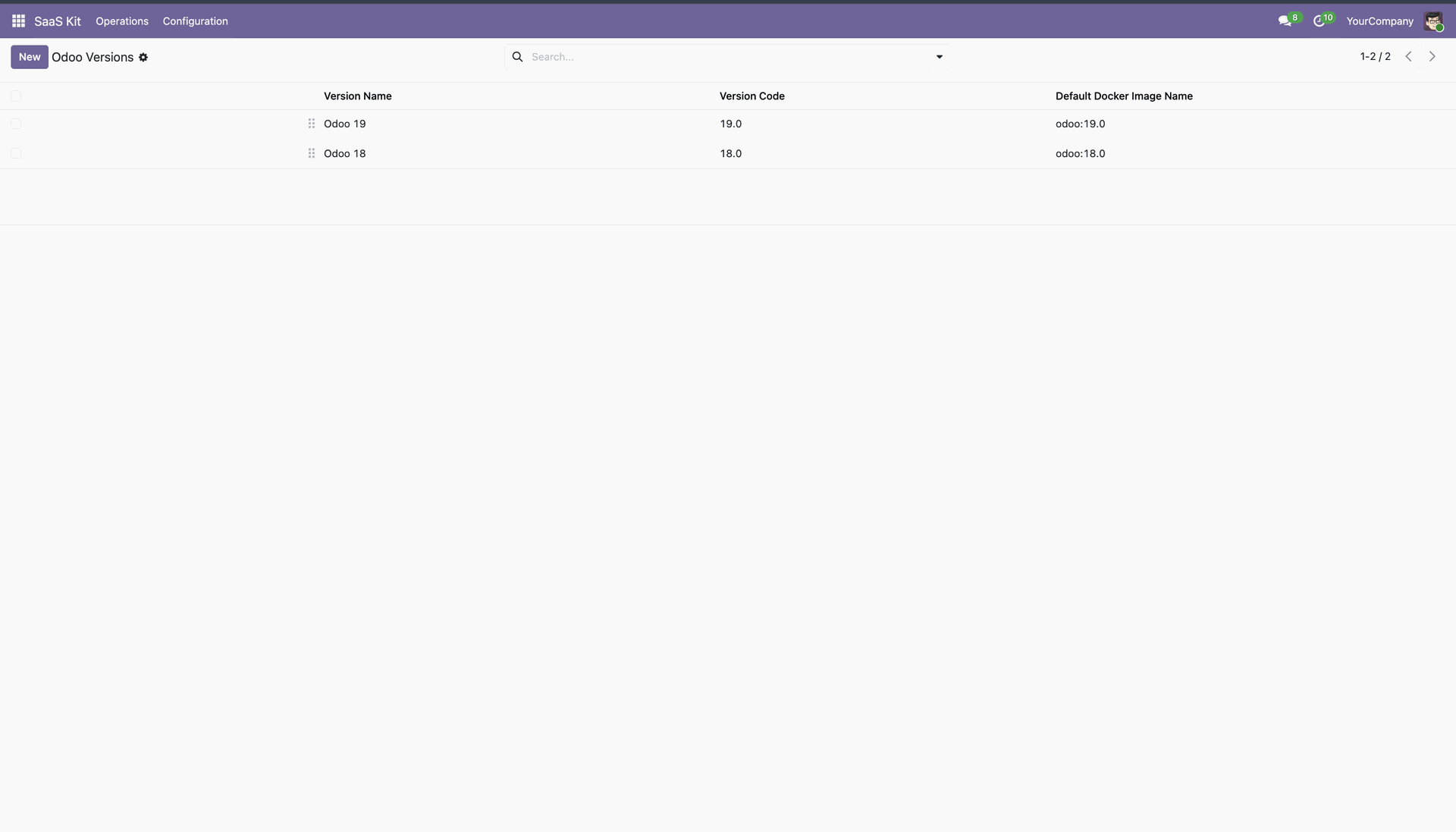
Review registered Odoo versions list displaying version codes and default Docker image names.
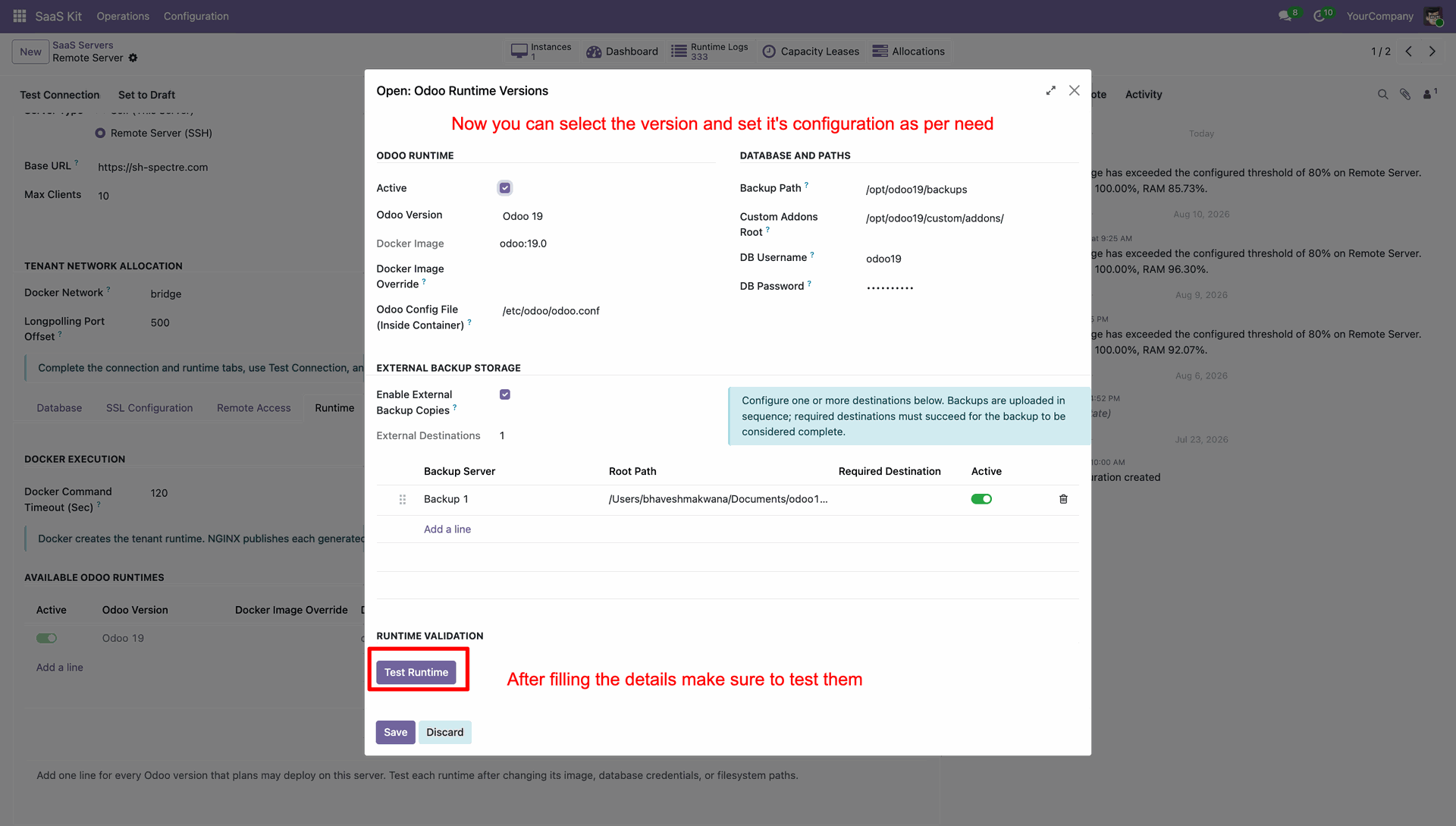
Click Test Runtime button to verify database paths and container runtime configuration settings.
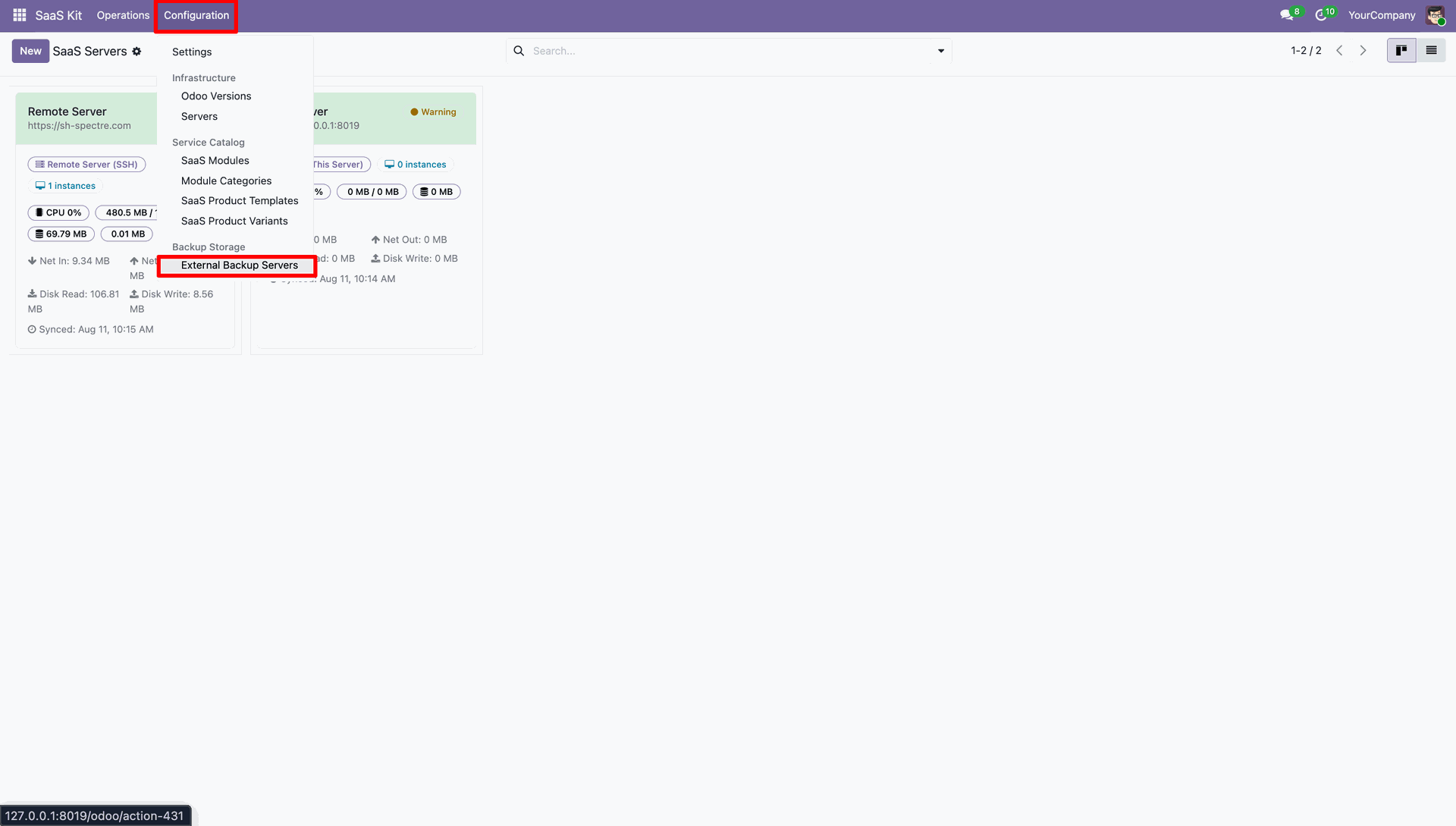
Navigate to Configuration menu and choose External Backup Servers to set up remote storage.
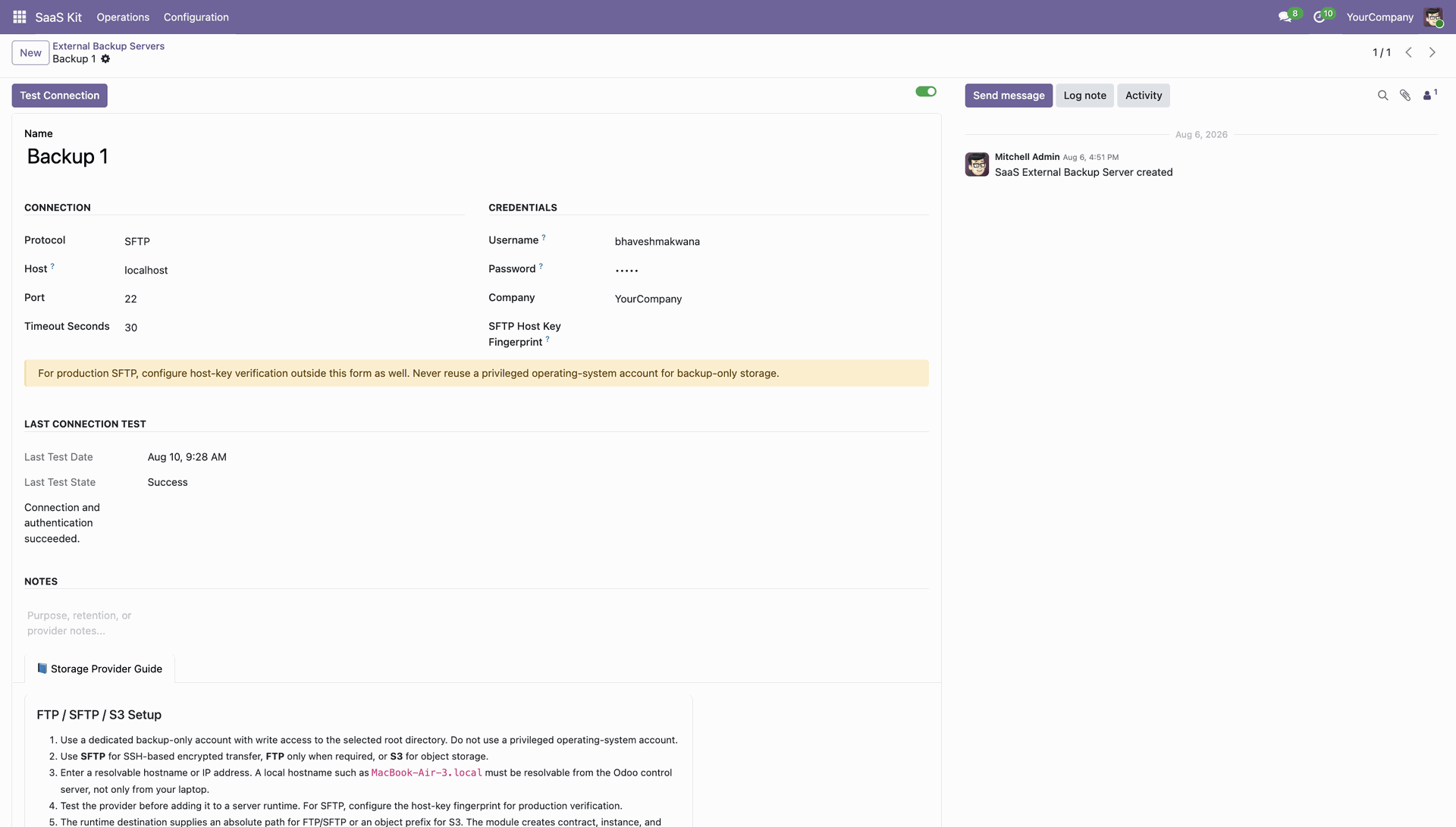
Configure SFTP external backup server details and click Test Connection to verify remote access.
 How it Works?
Watch Video
How it Works?
Watch Video
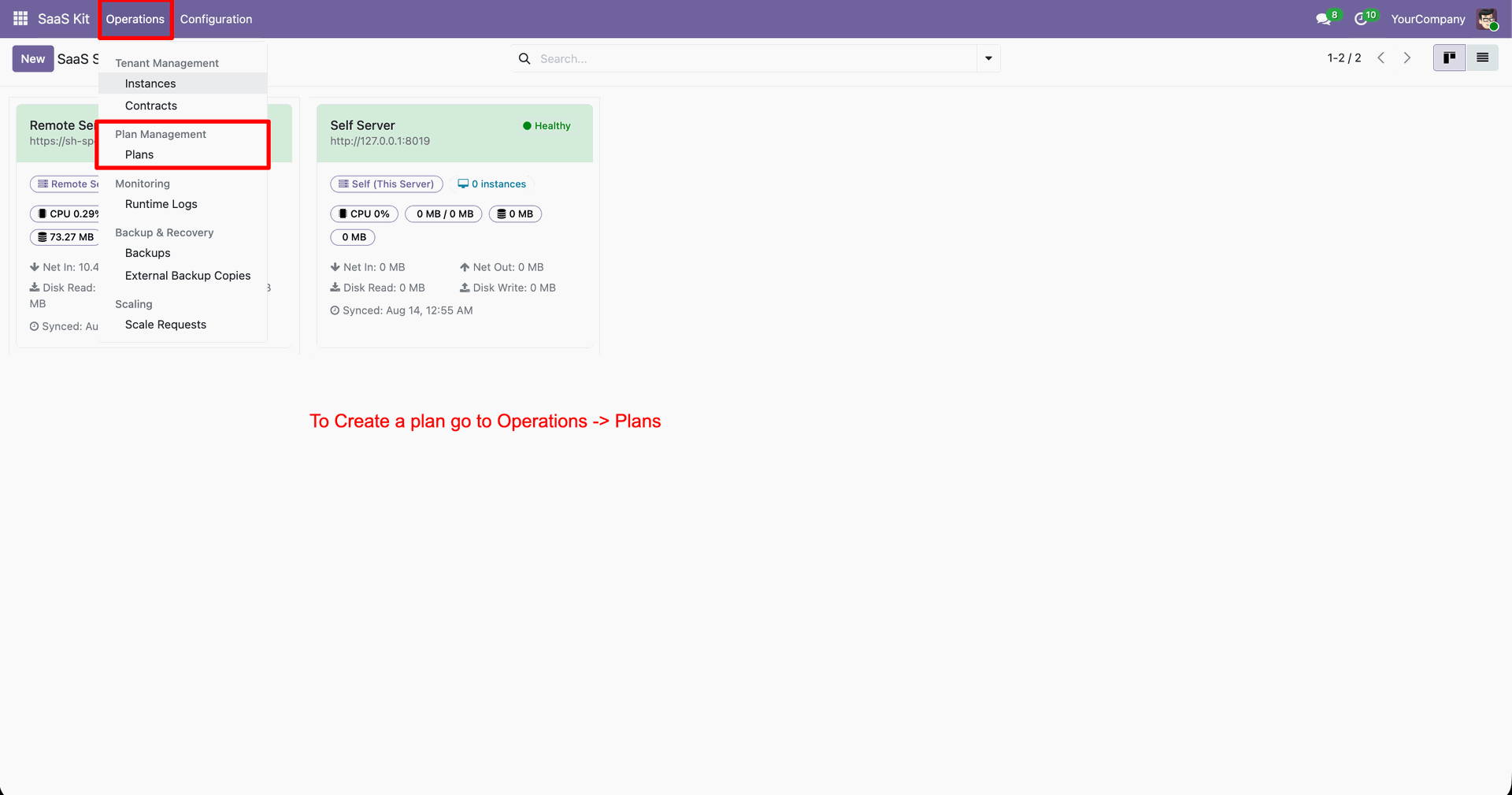
Navigate to Operations menu and select Plans to open SaaS plan management.
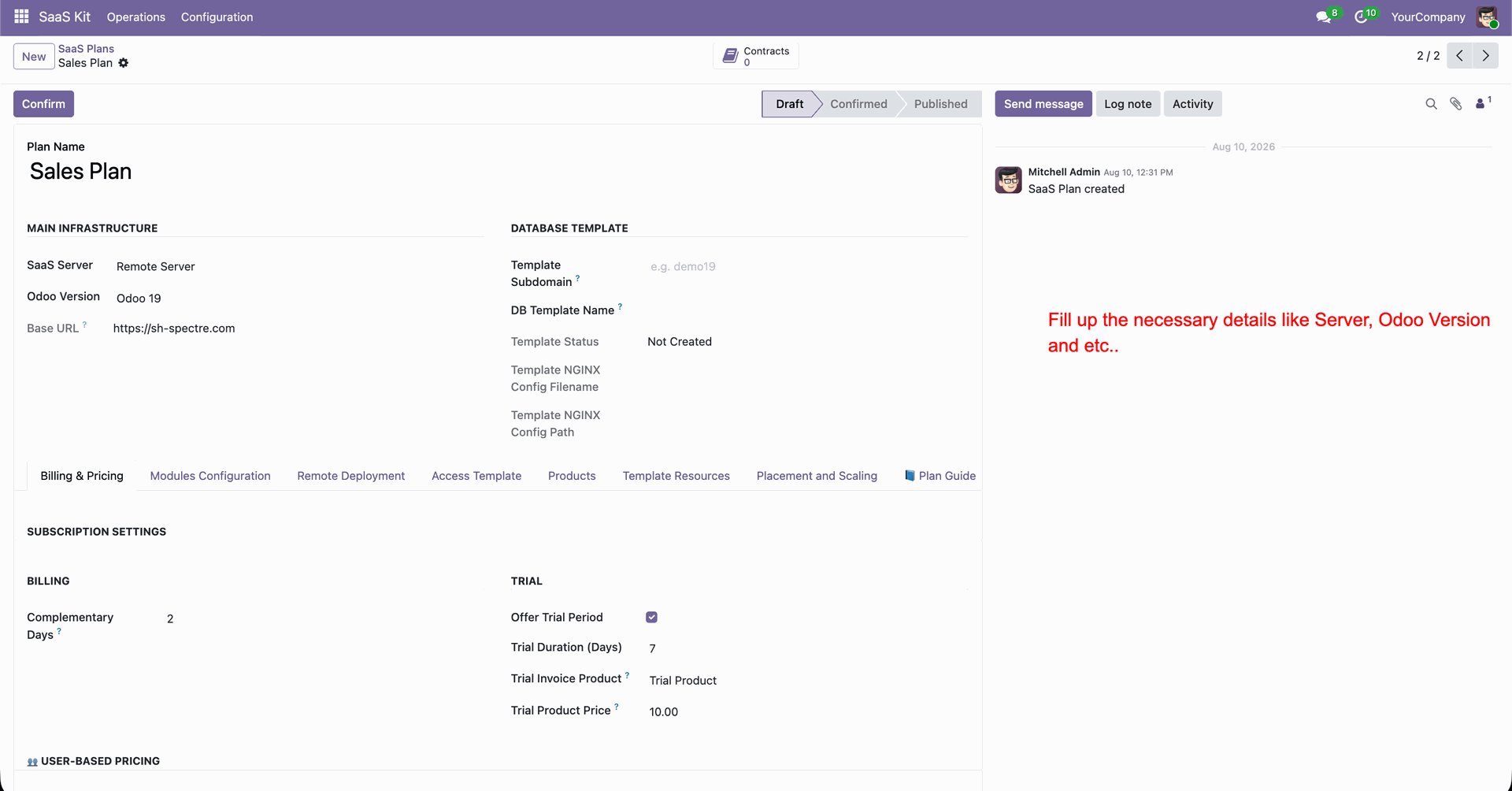
Enter plan name and configure main infrastructure details including SaaS server and version.
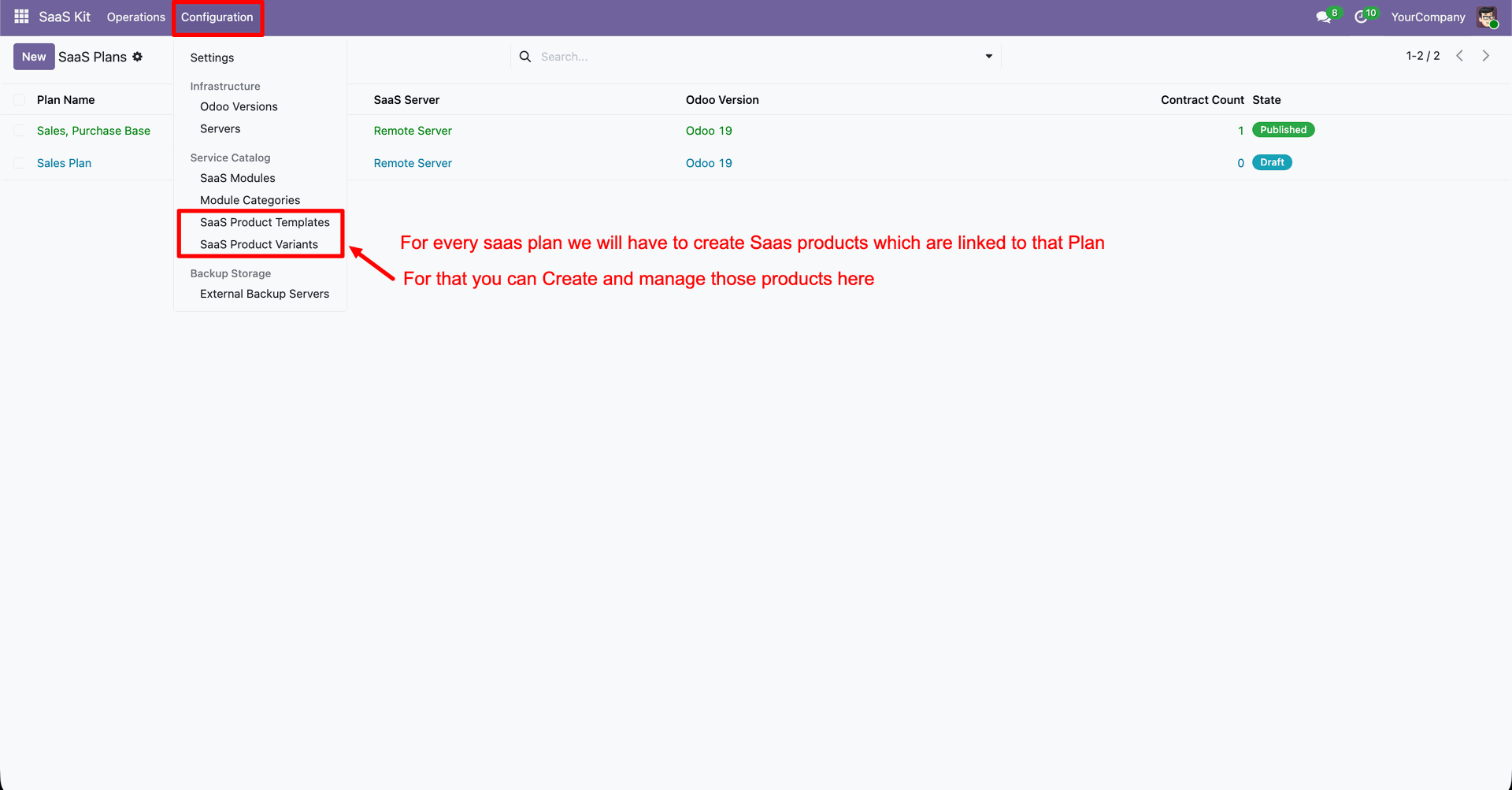
Navigate to Configuration menu and select SaaS Product Templates to link subscription products.
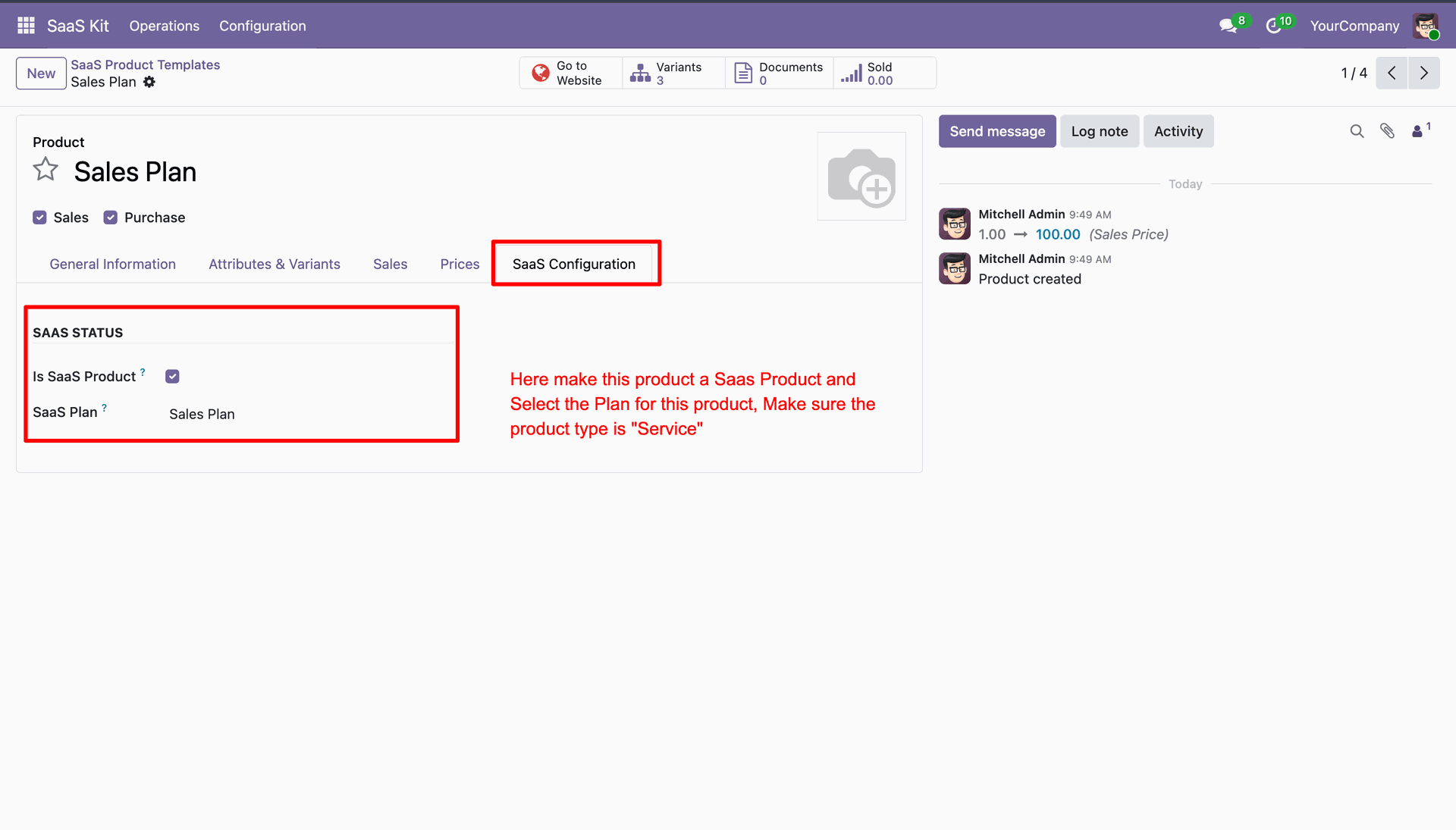
Enable Is SaaS Product checkbox and select target SaaS plan under SaaS Configuration tab.
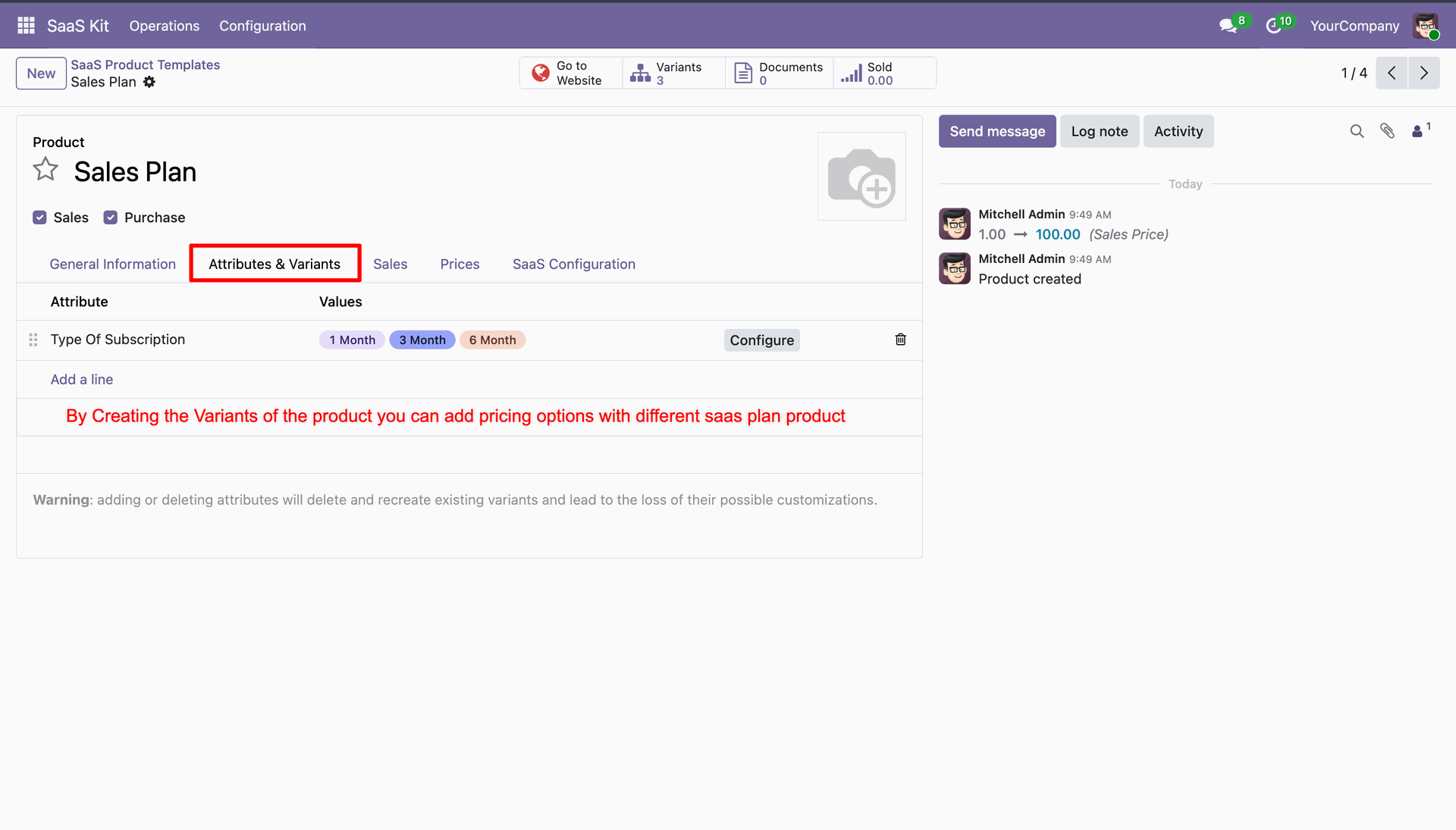
Select Attributes & Variants tab to define subscription billing terms and product variants.
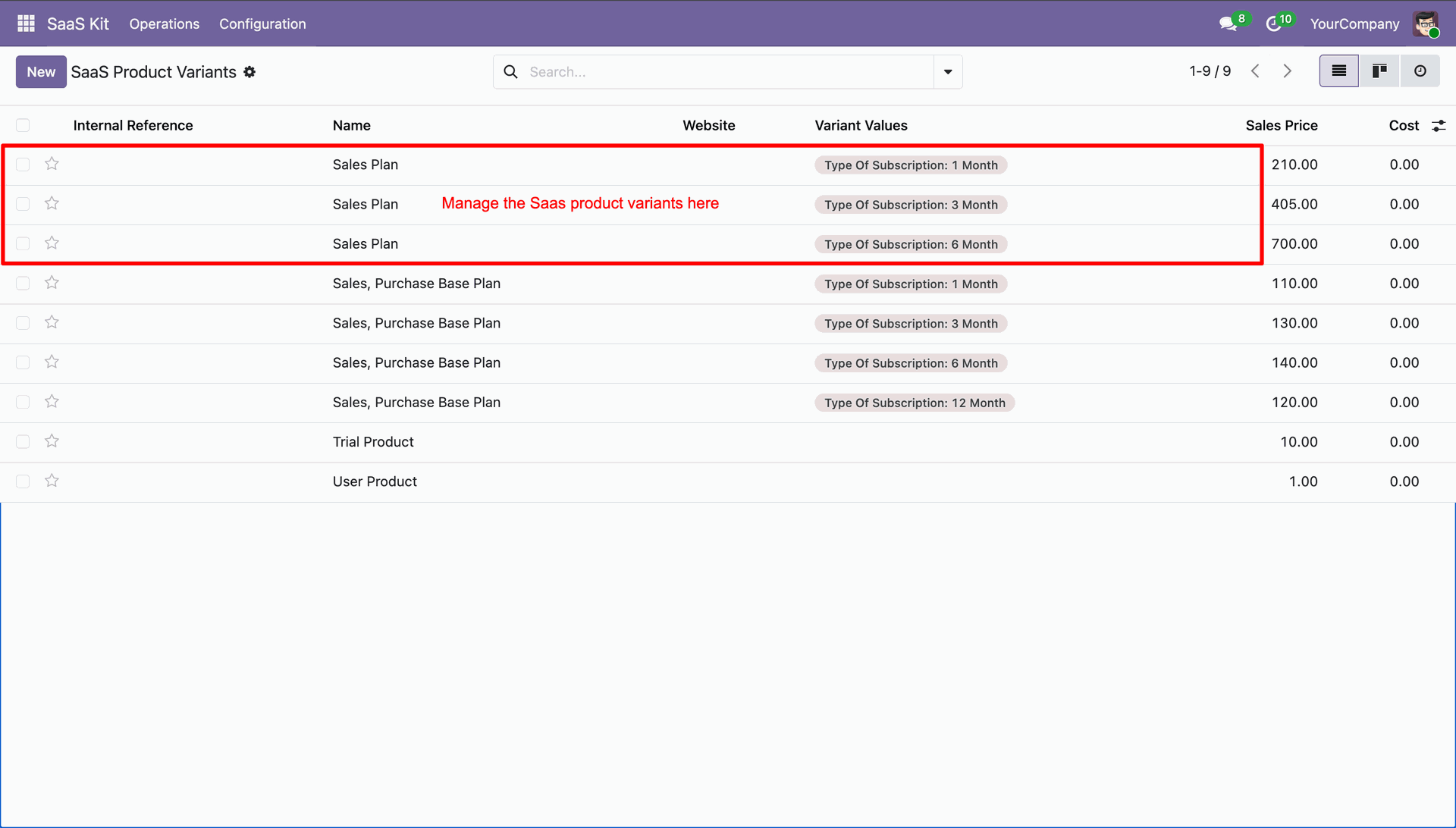
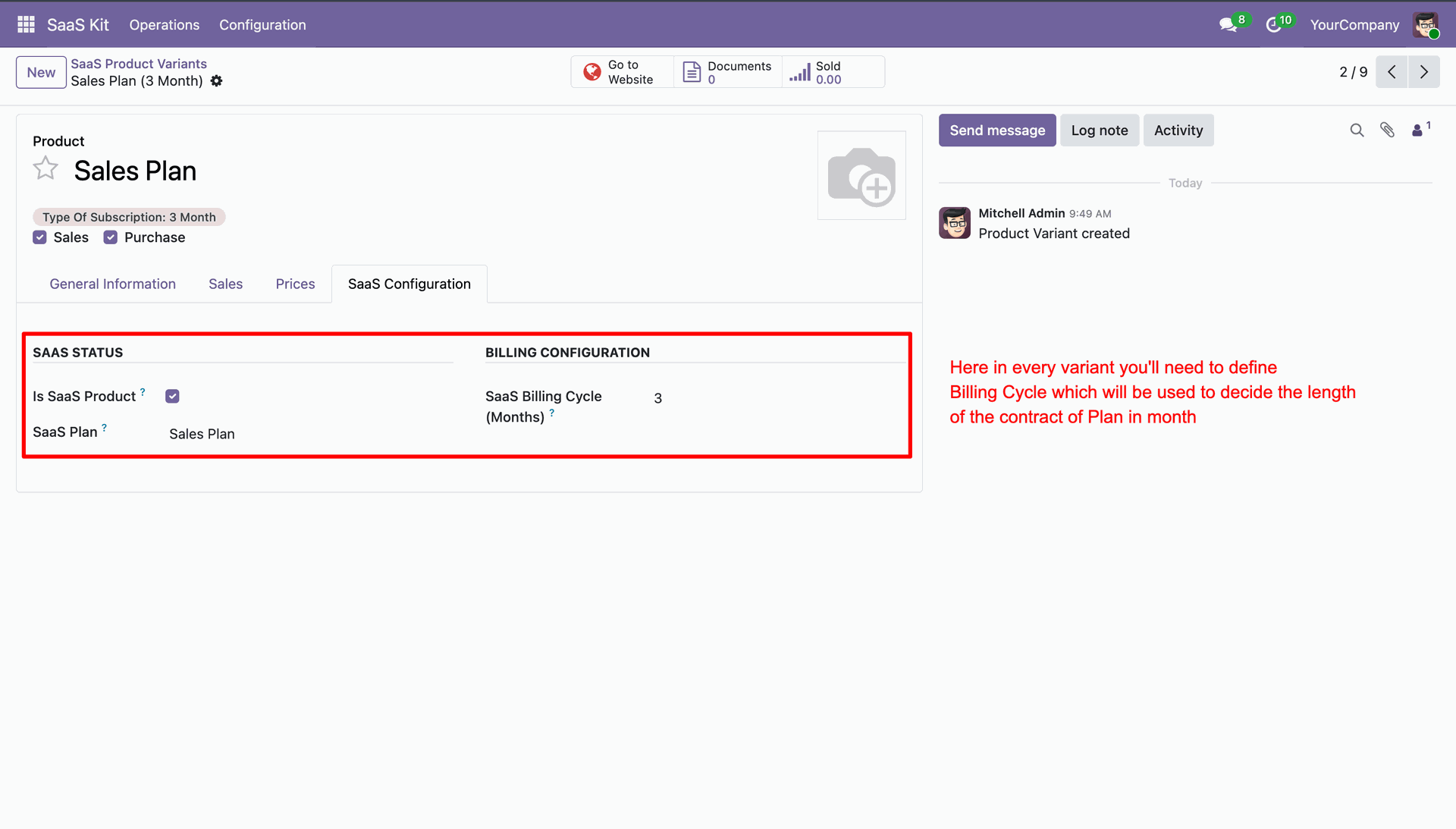
View SaaS Product Variants list to inspect and configure subscription billing options.
Set SaaS billing cycle months under SaaS Configuration tab of product variant.
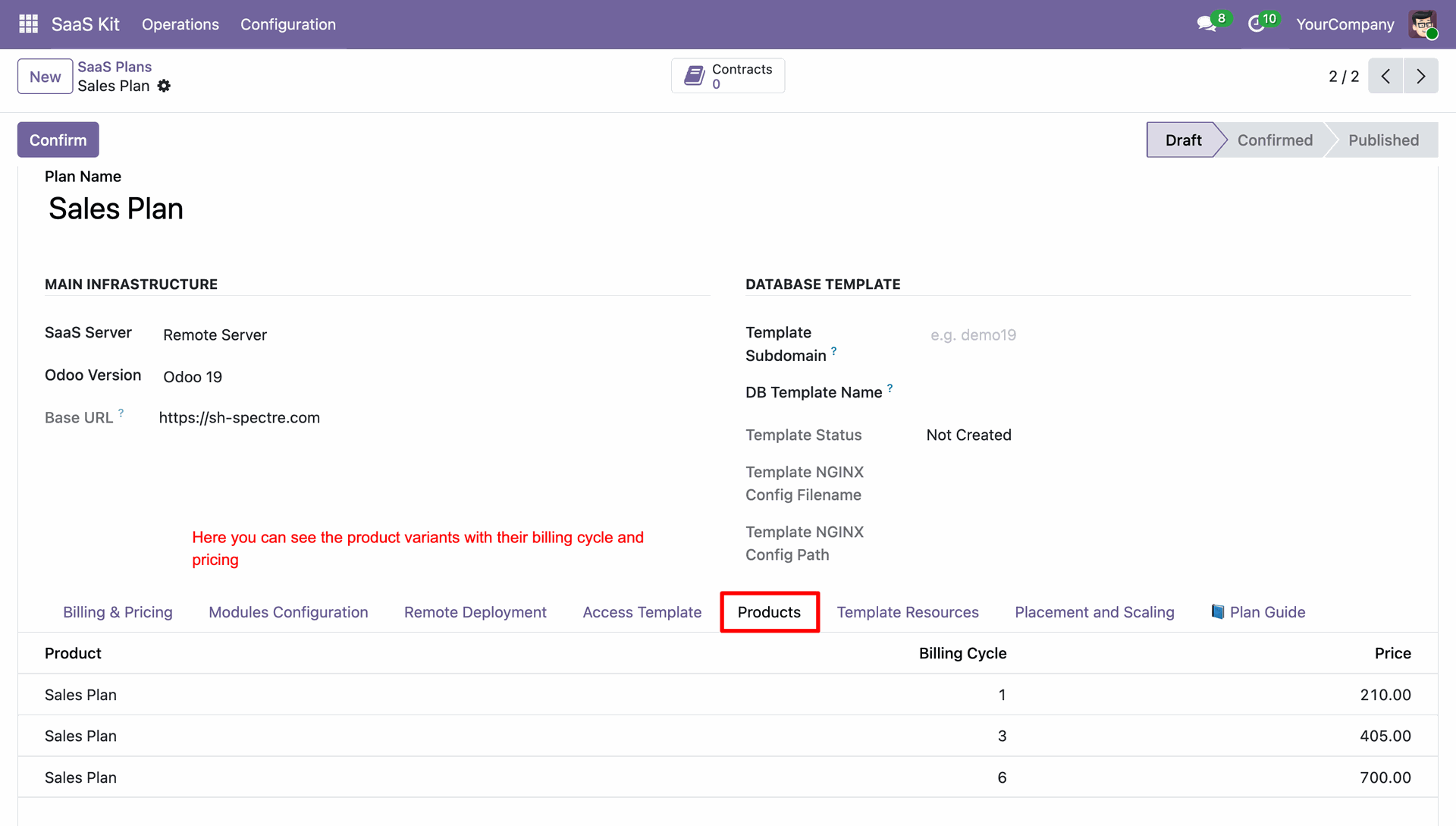
Select Products tab on SaaS plan form to review linked variants and pricing terms.
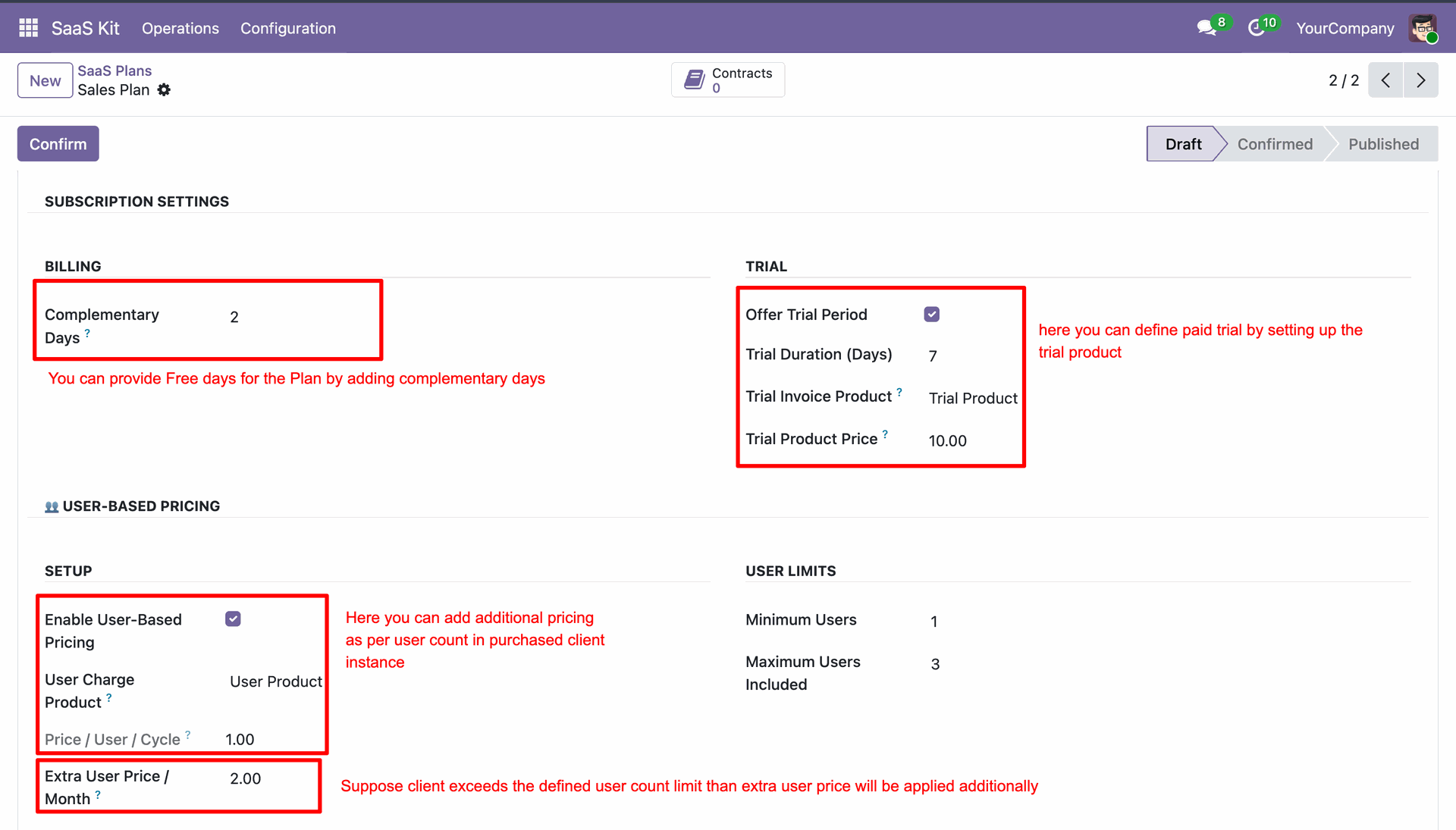
Configure complementary days, trial settings, and user-based pricing options on plan form.
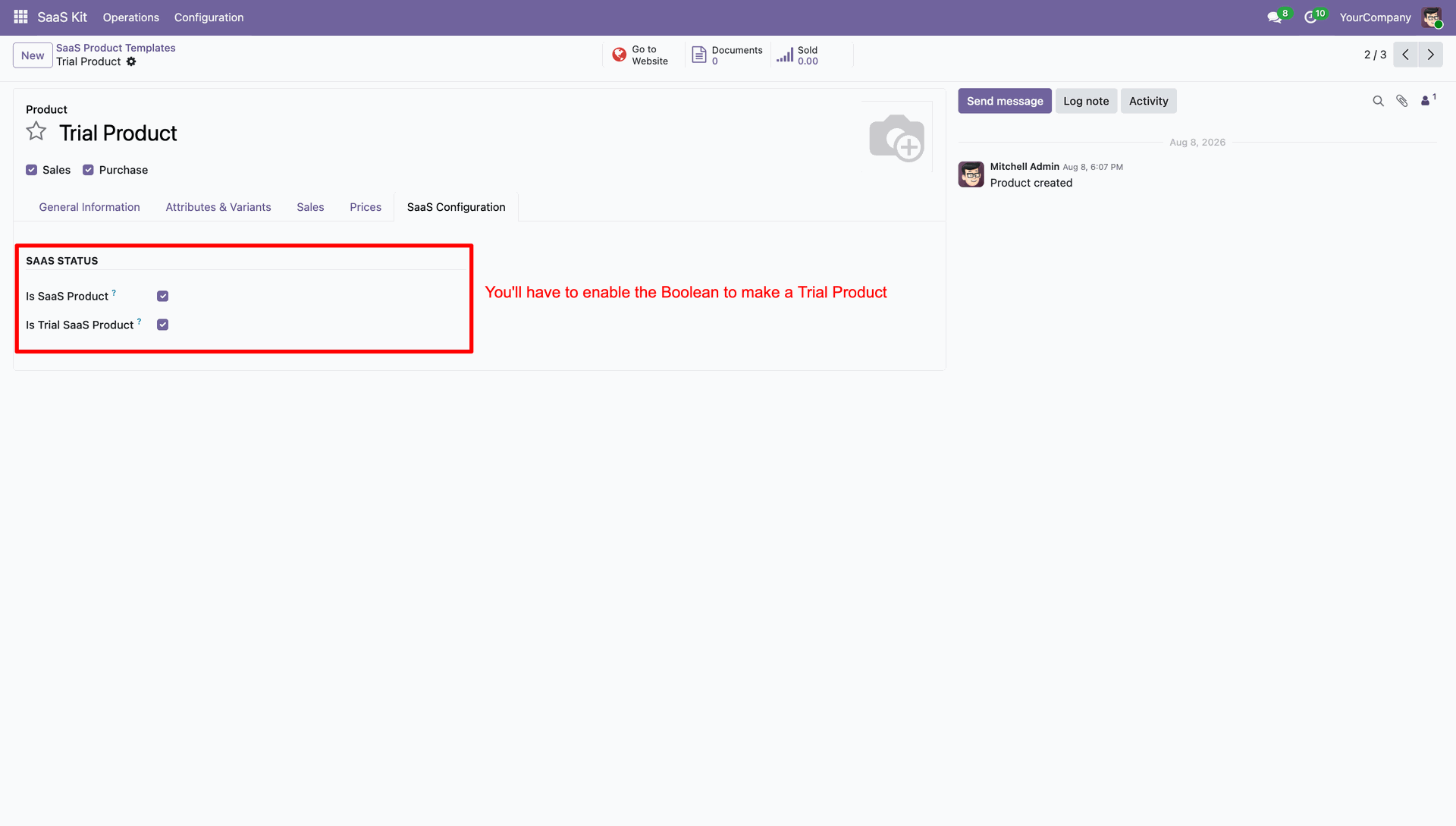
Enable Is Trial SaaS Product checkbox to designate product as trial offer.
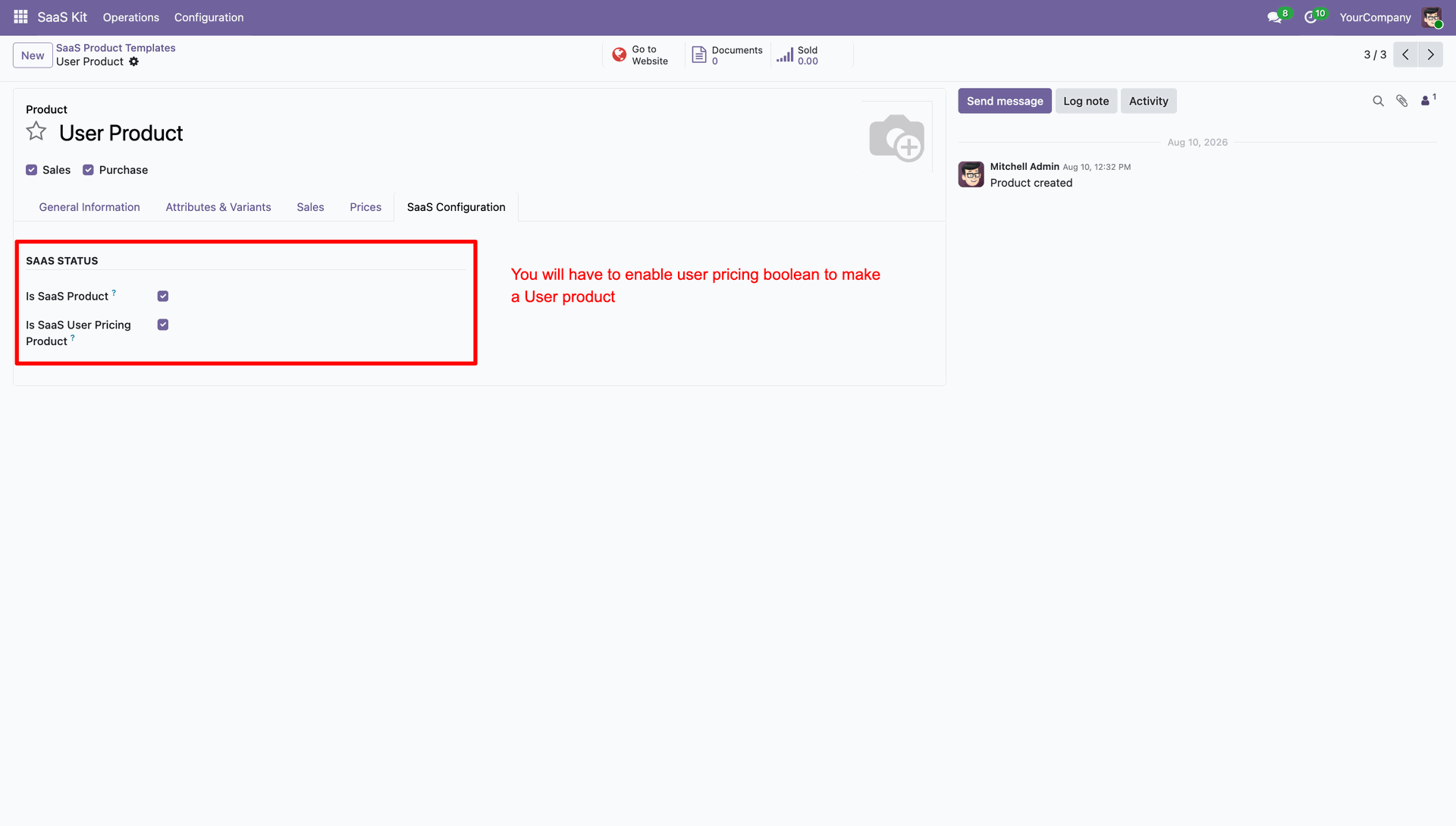
Enable Is SaaS User Pricing Product checkbox to set up extra user pricing.
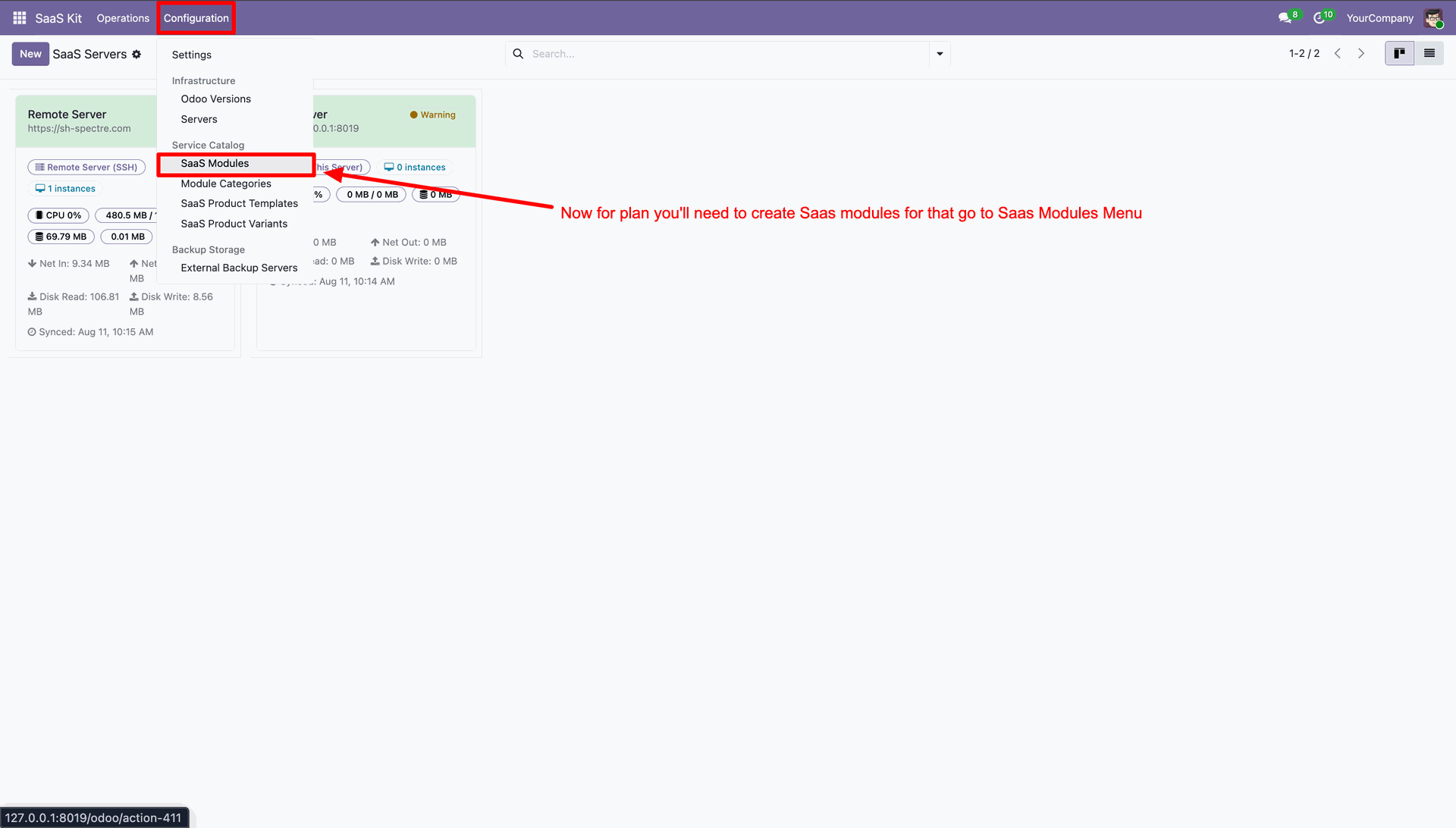
Navigate to Configuration menu and select SaaS Modules to manage add-on applications.
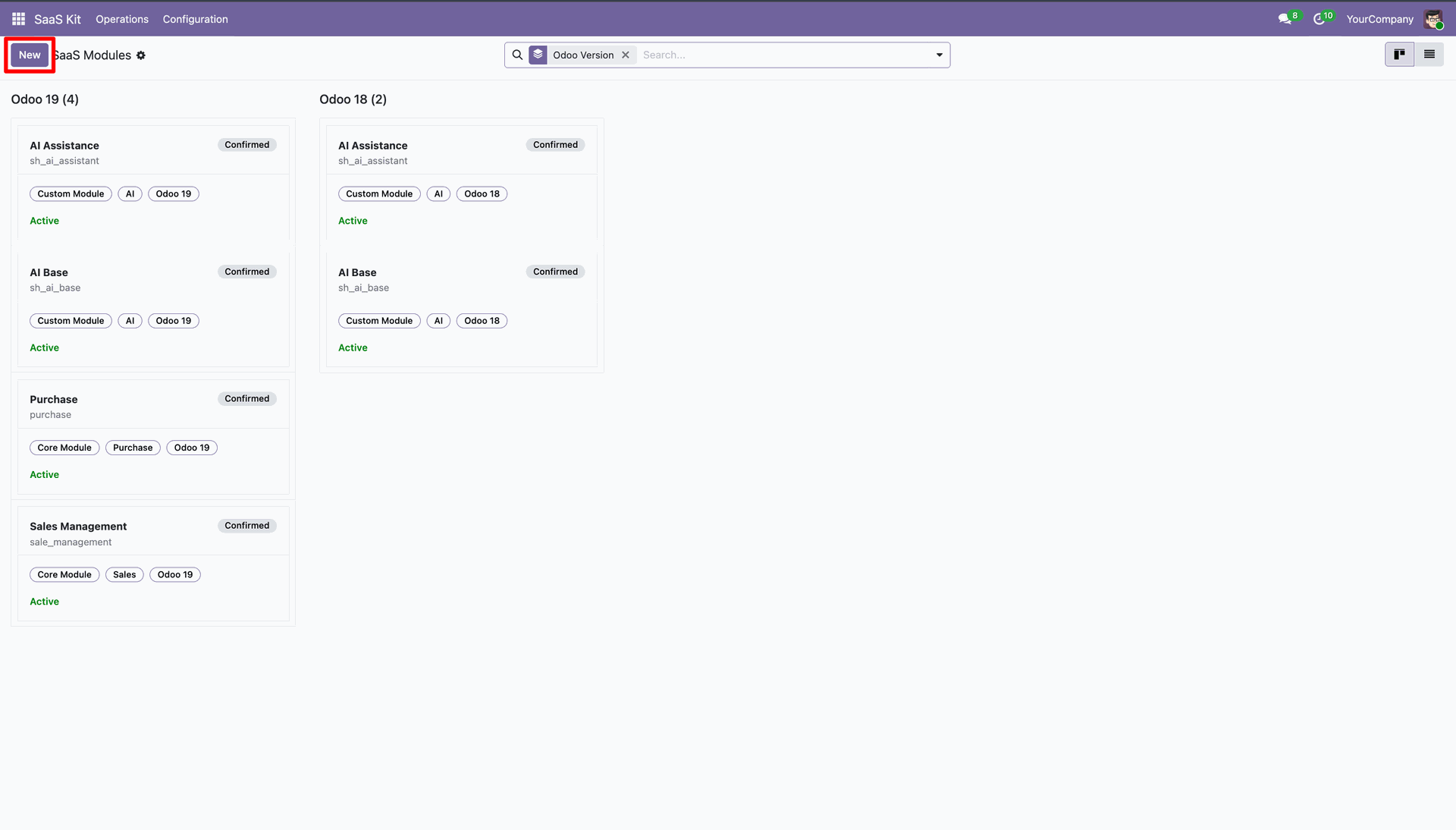
Click New button to add a new SaaS module record to system.
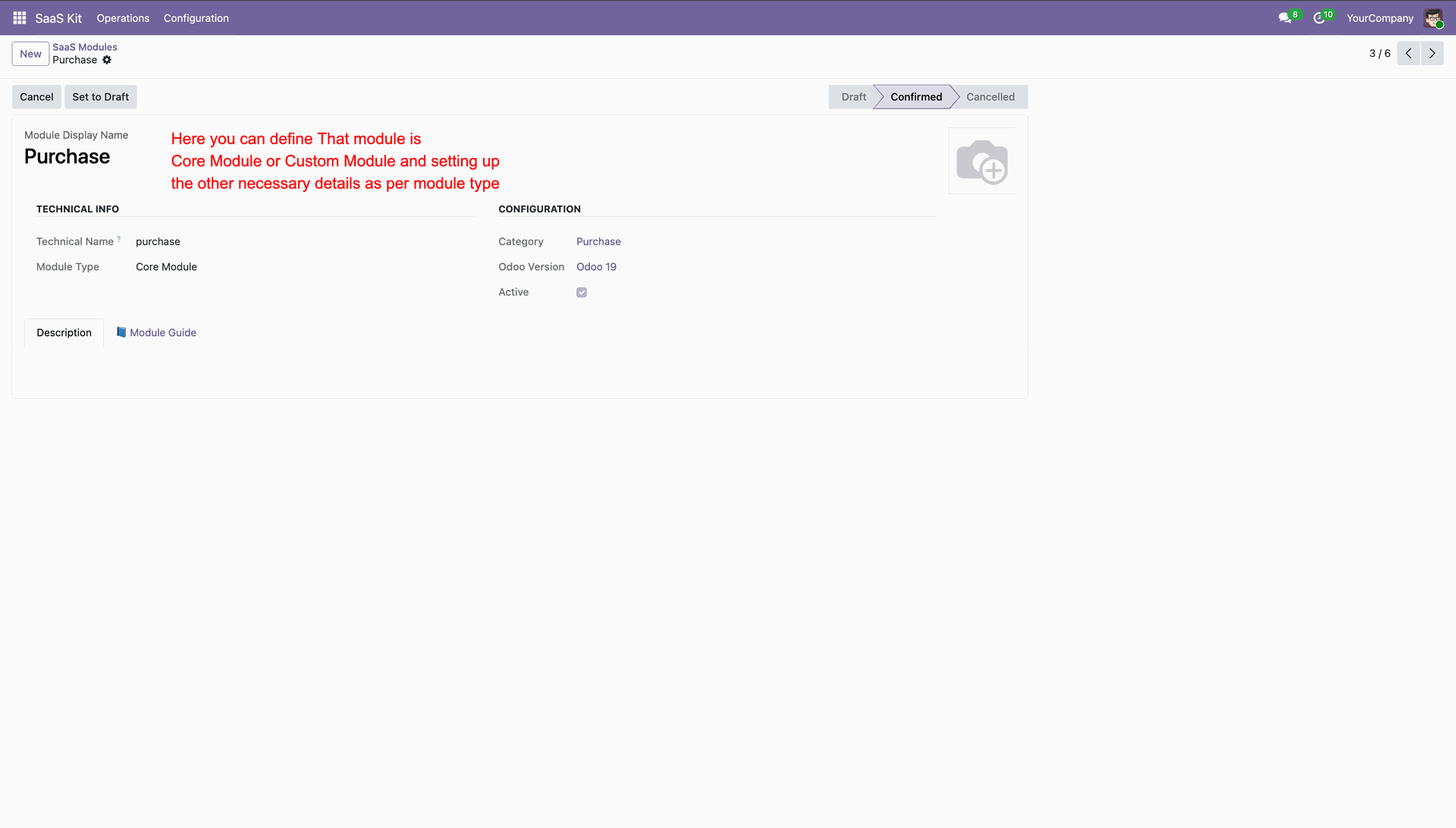
Define module type and configure technical module parameters.
Select Modules Configuration tab and add modules to install during instance creation.
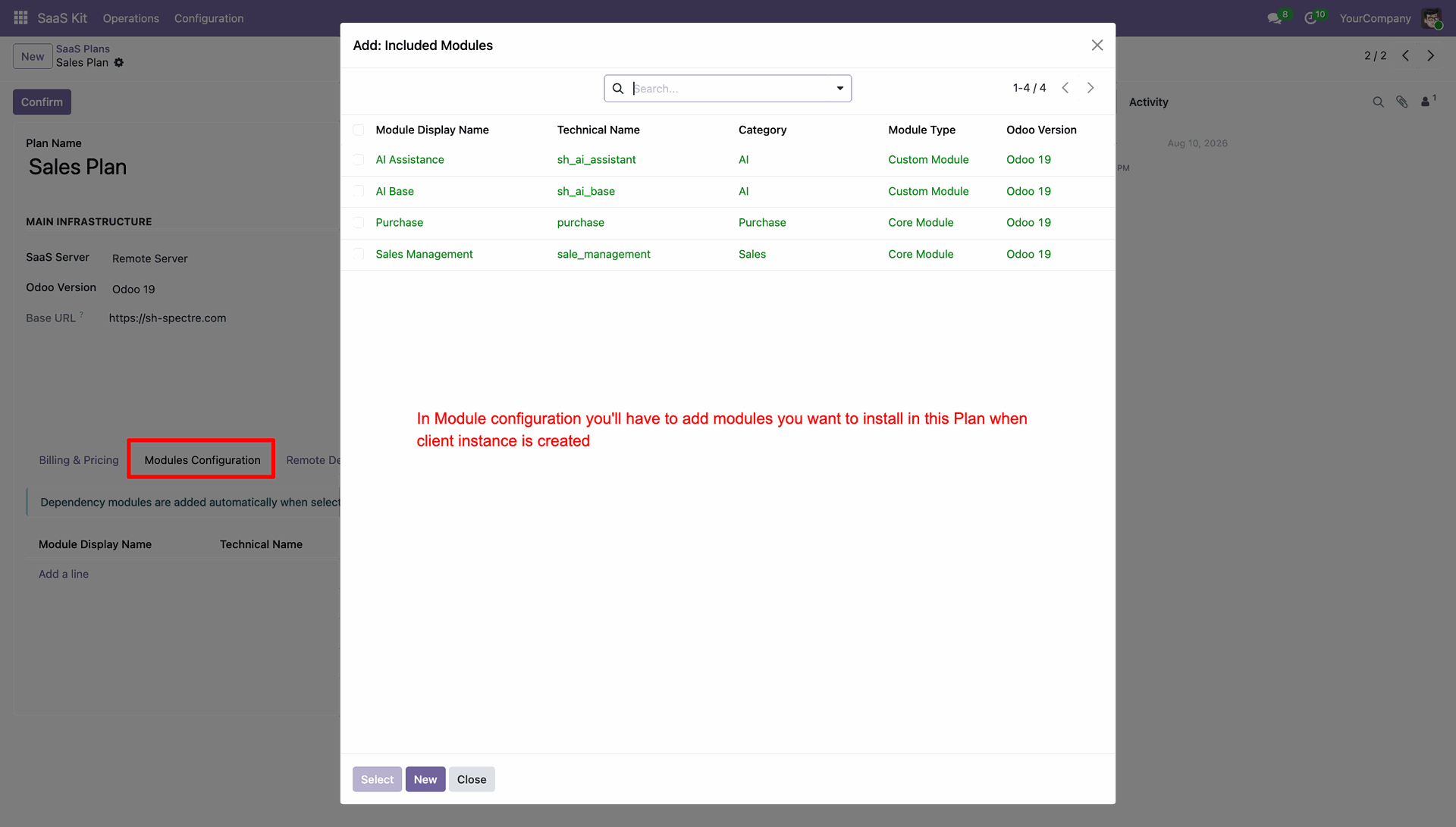
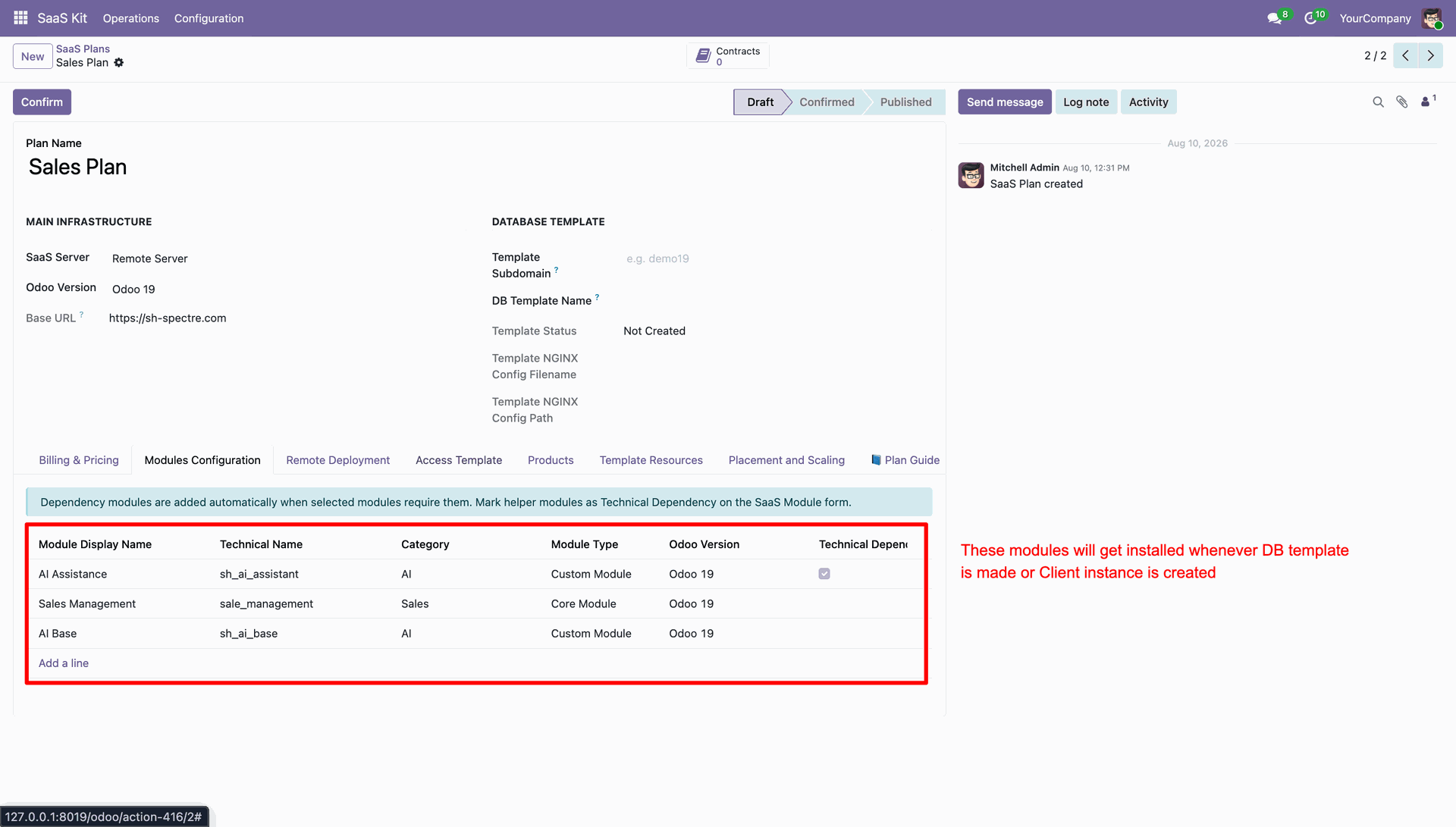
Review list of configured modules to install when building master database template.
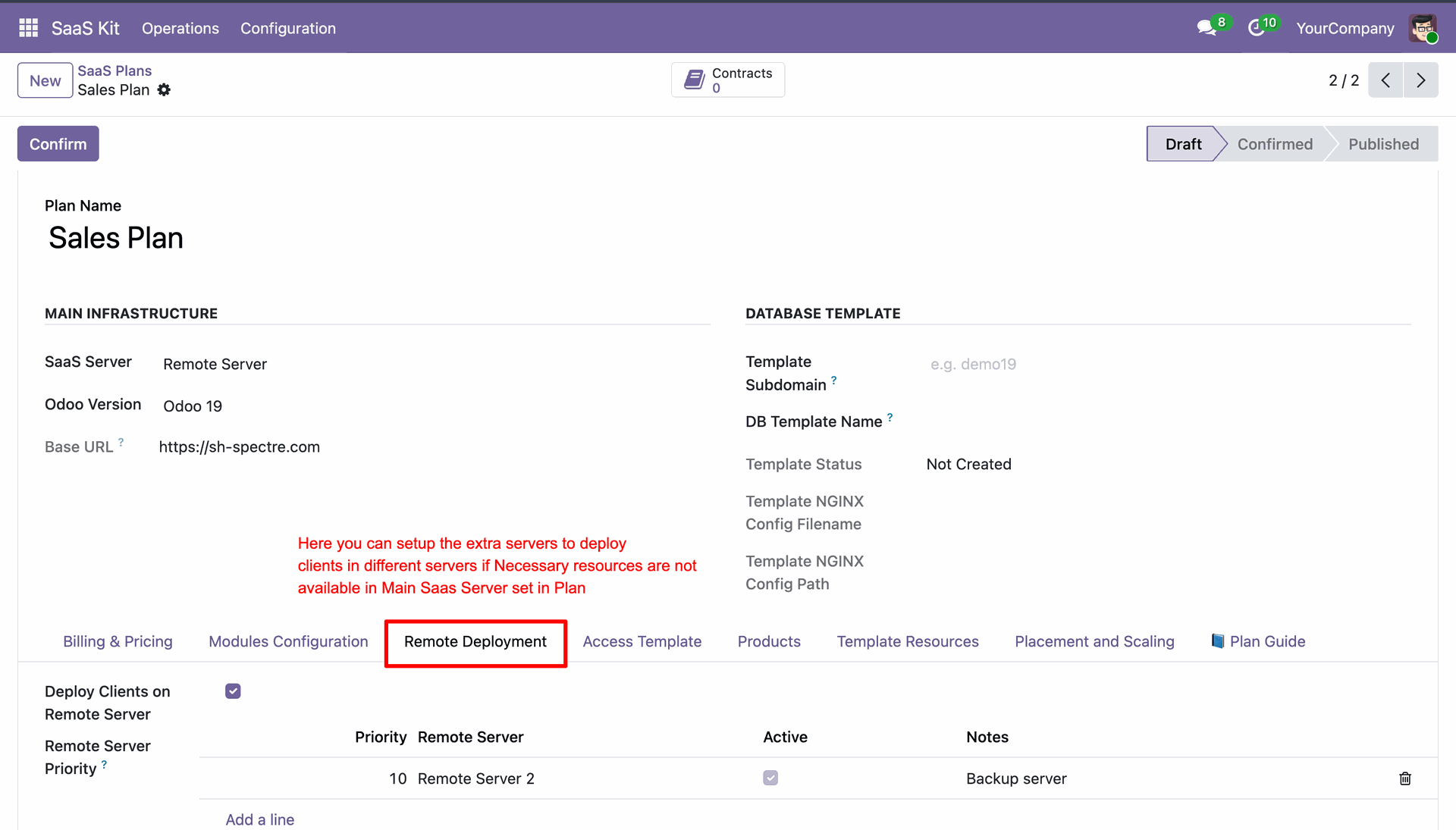
Select Remote Deployment tab to assign secondary remote servers for client fallback.
Select Placement and Scaling tab to configure initial CPU, RAM, and storage limits.
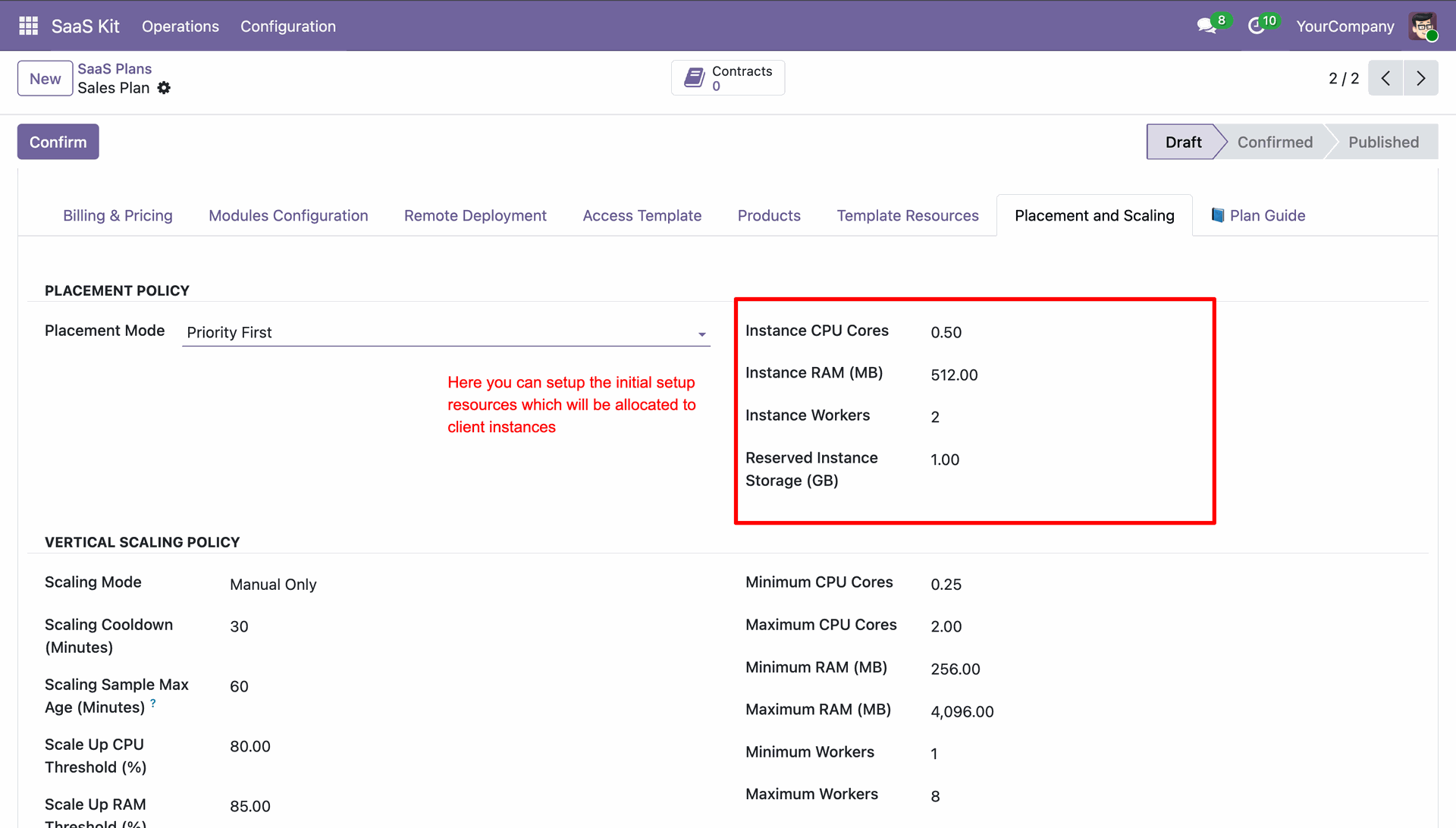
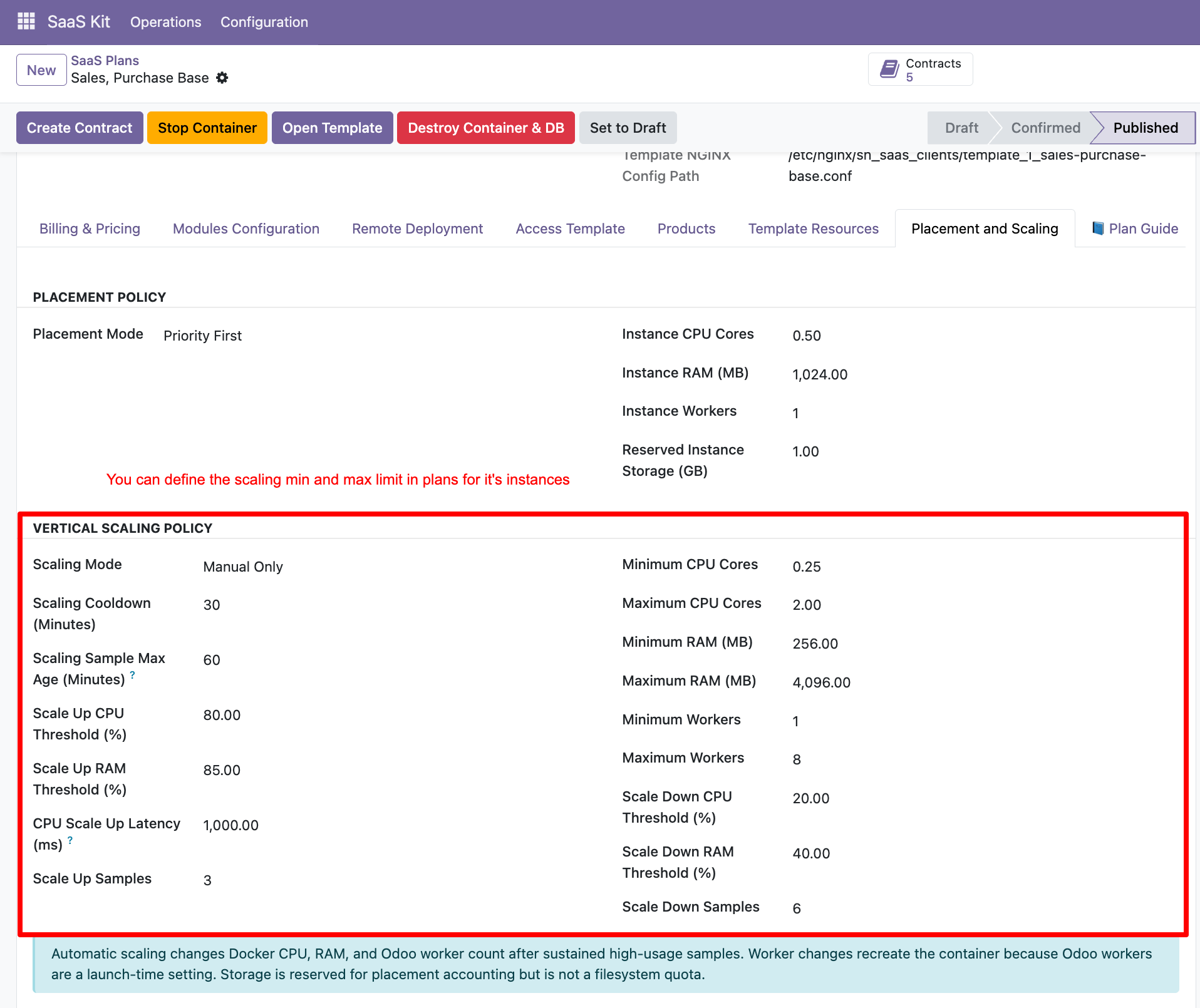
Set minimum and maximum vertical resource scaling thresholds for tenant container instances.
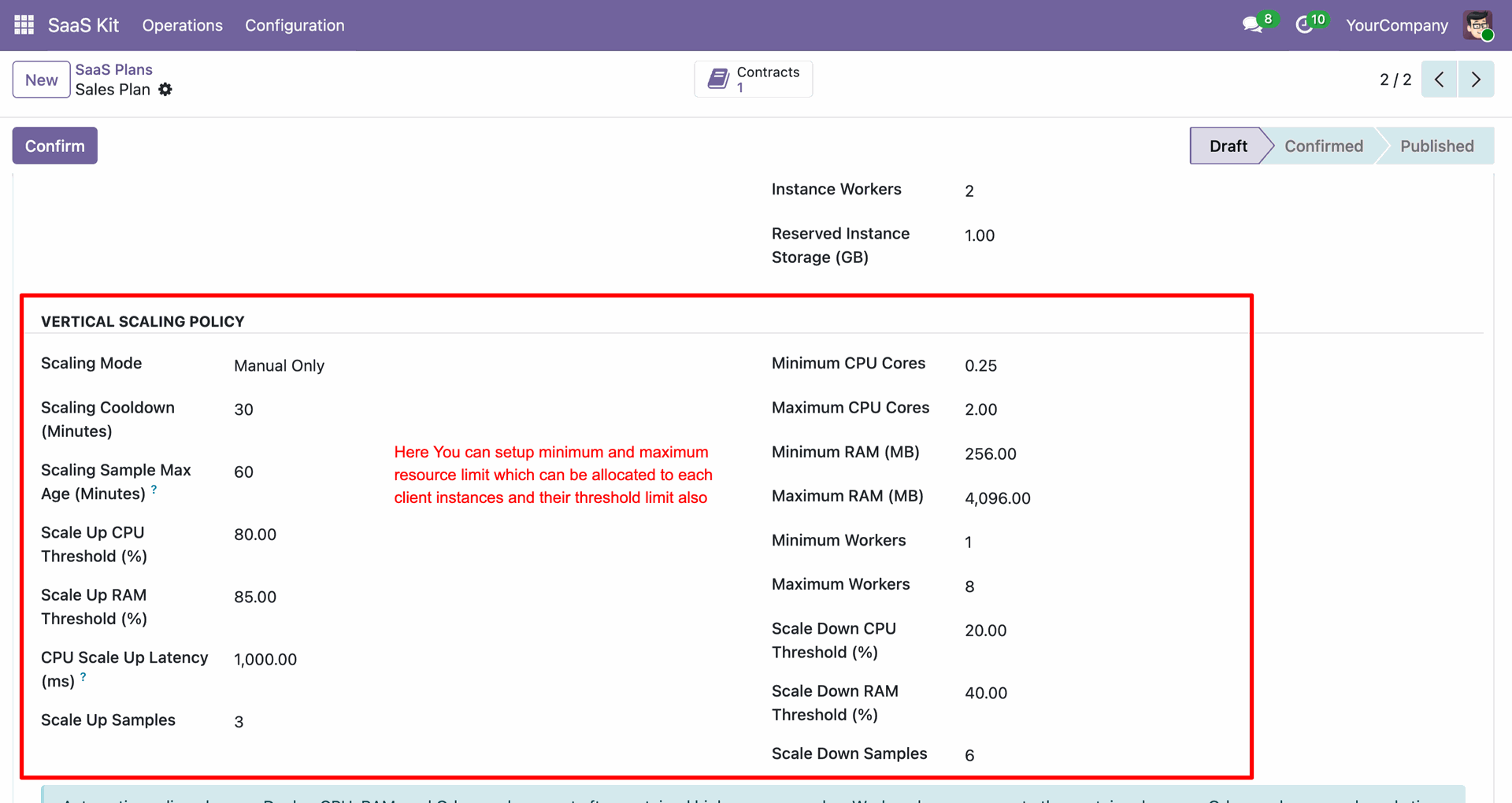
Click Confirm button to lock plan configuration and prepare for template creation.
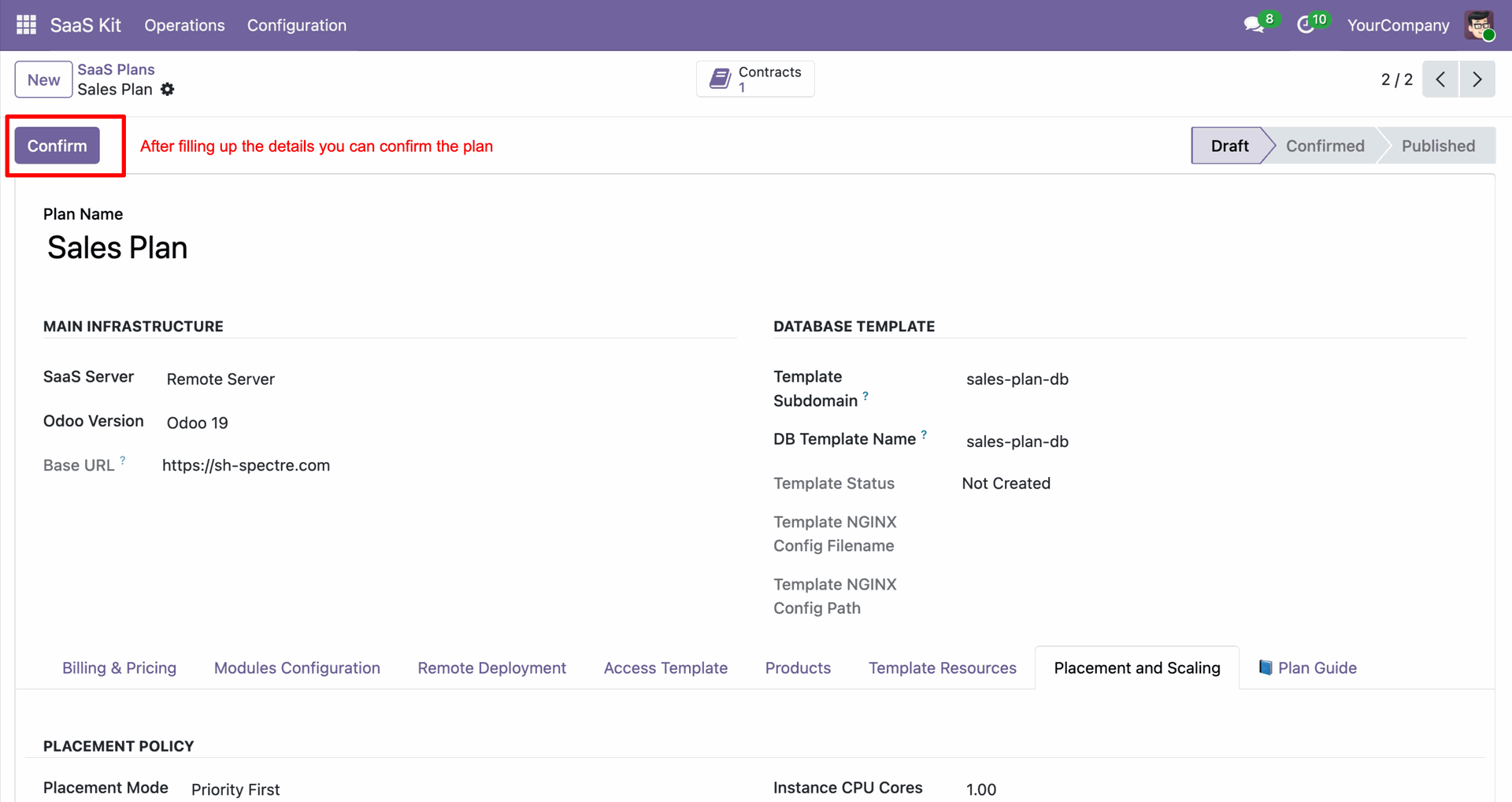
Click Create DB Template button to generate the database template for client instances.
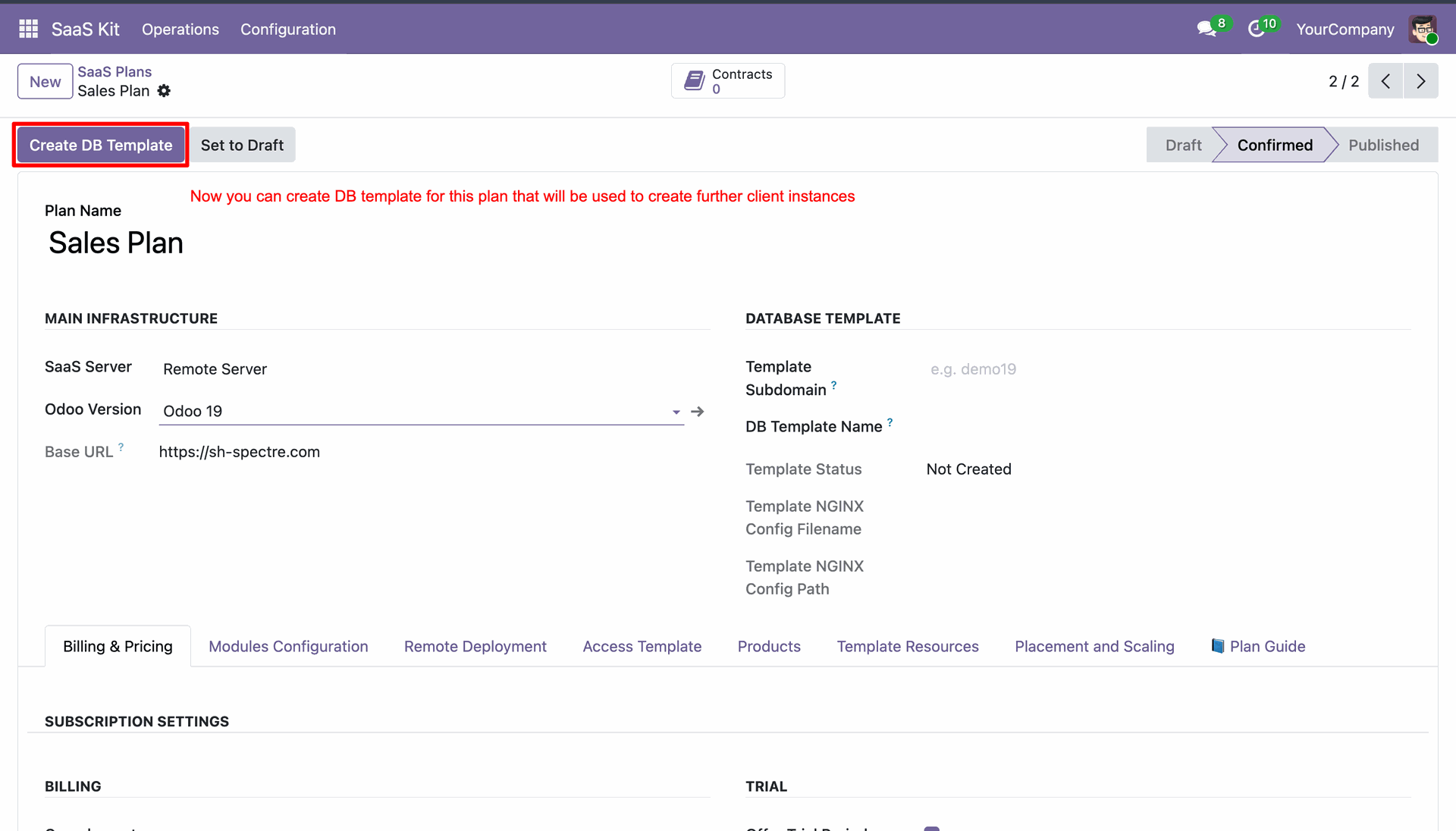
Click Publish button to make the configured SaaS plan available for purchase.
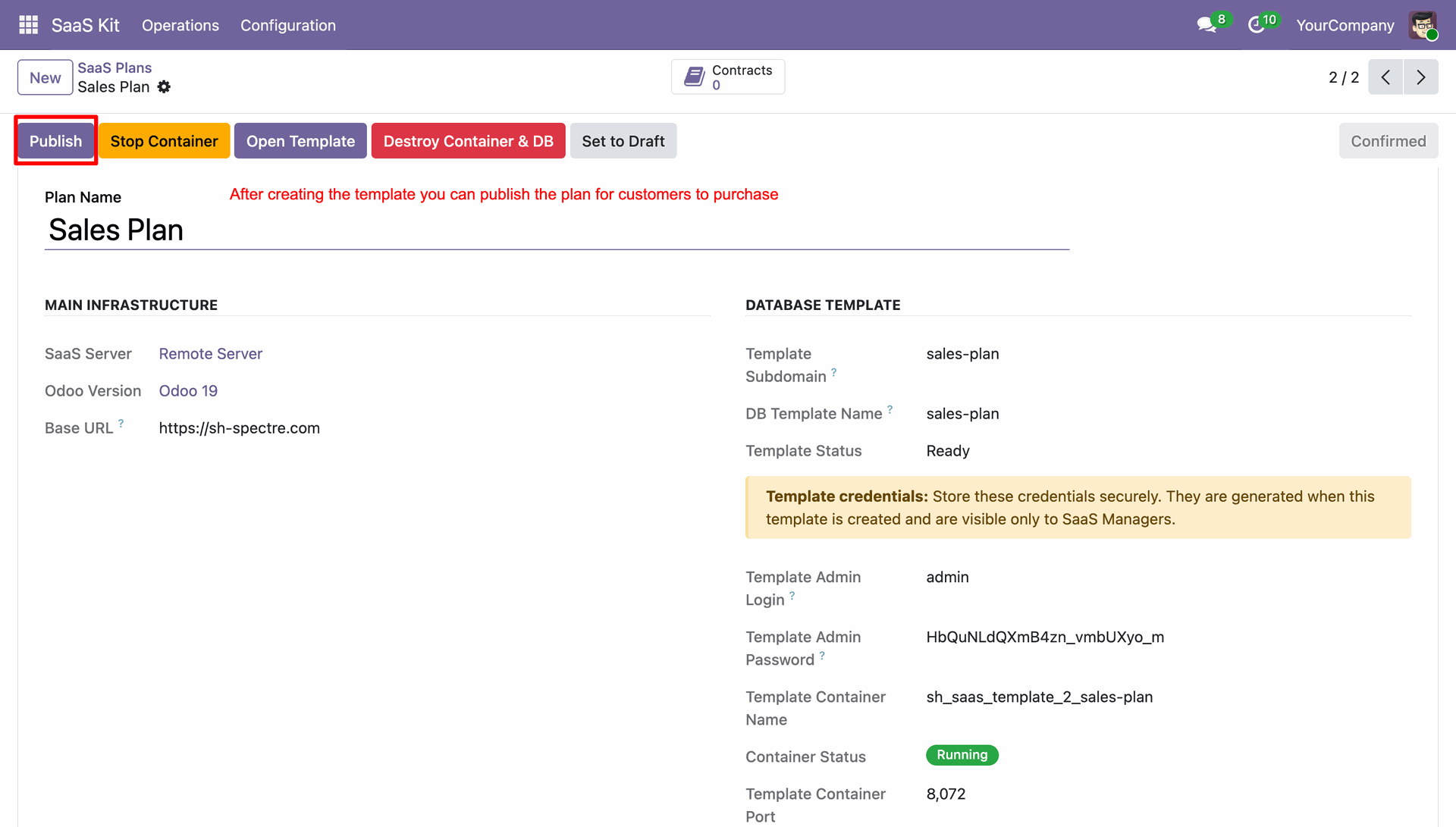
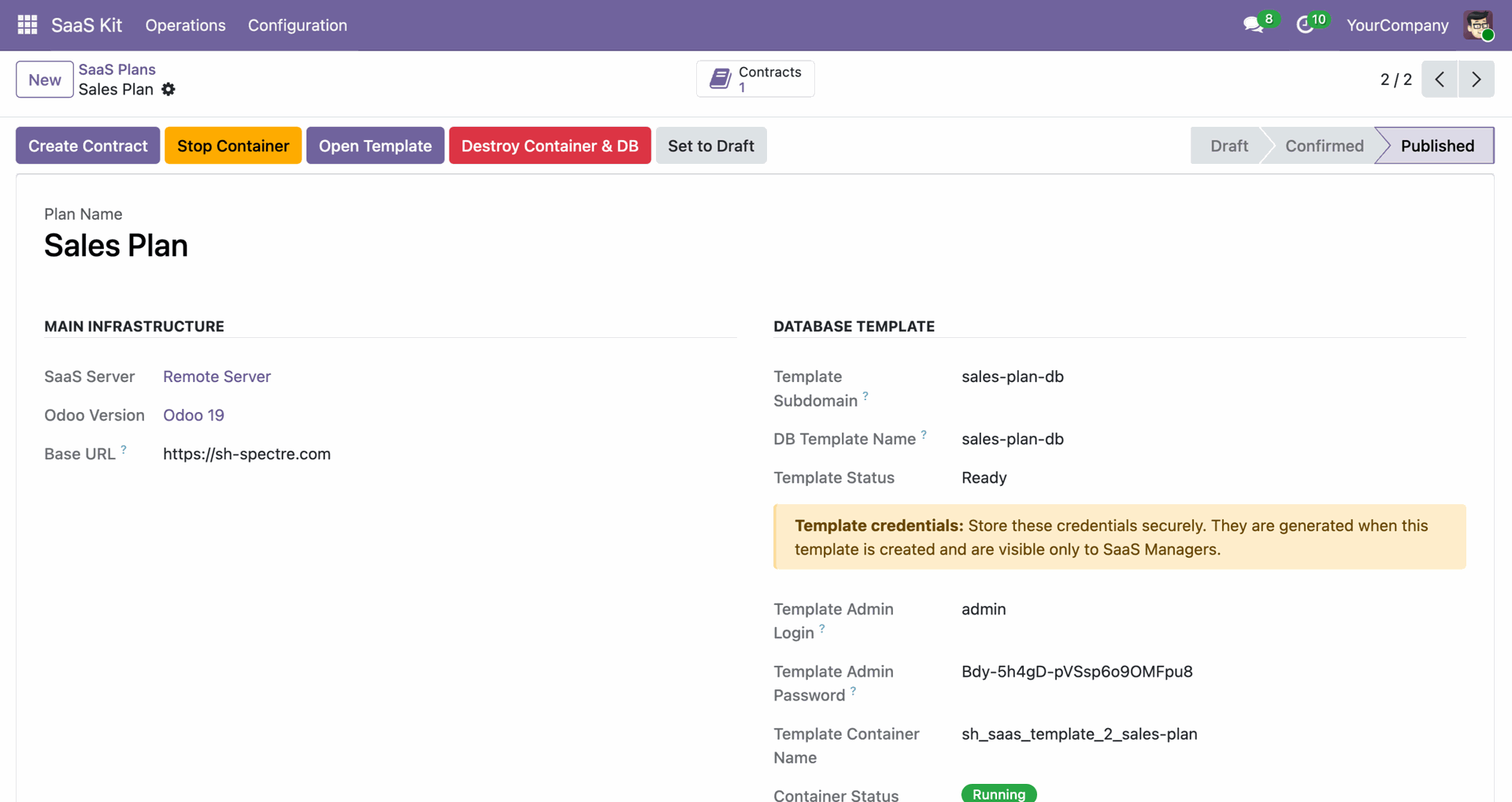
Click Create Contract button on published plan to generate a new customer contract.
 How it Works?
Watch Video
How it Works?
Watch Video
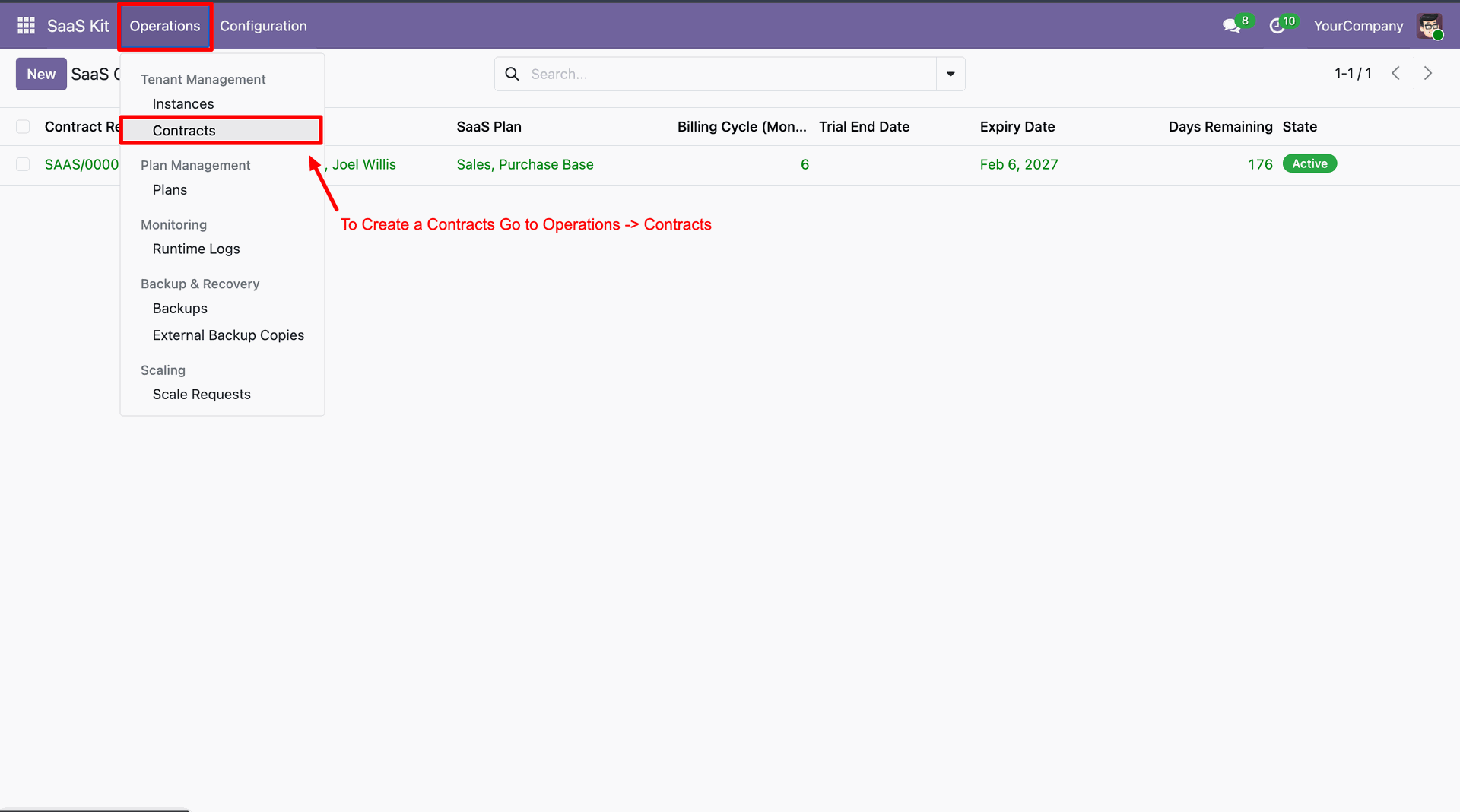
Navigate to Operations menu and select Contracts to manage customer SaaS subscription contracts.
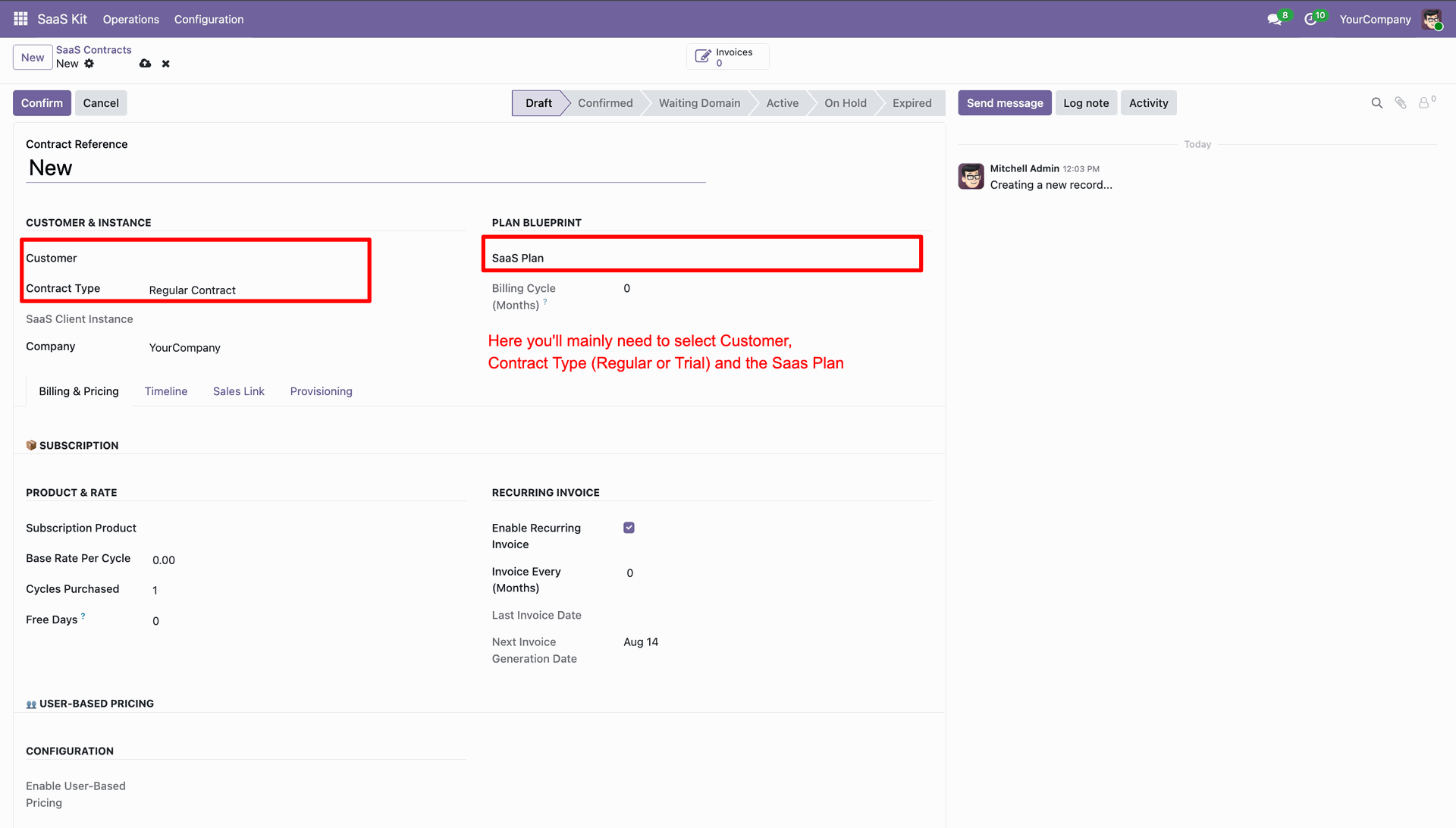
Select Customer, Contract Type, and target SaaS Plan on new contract form.
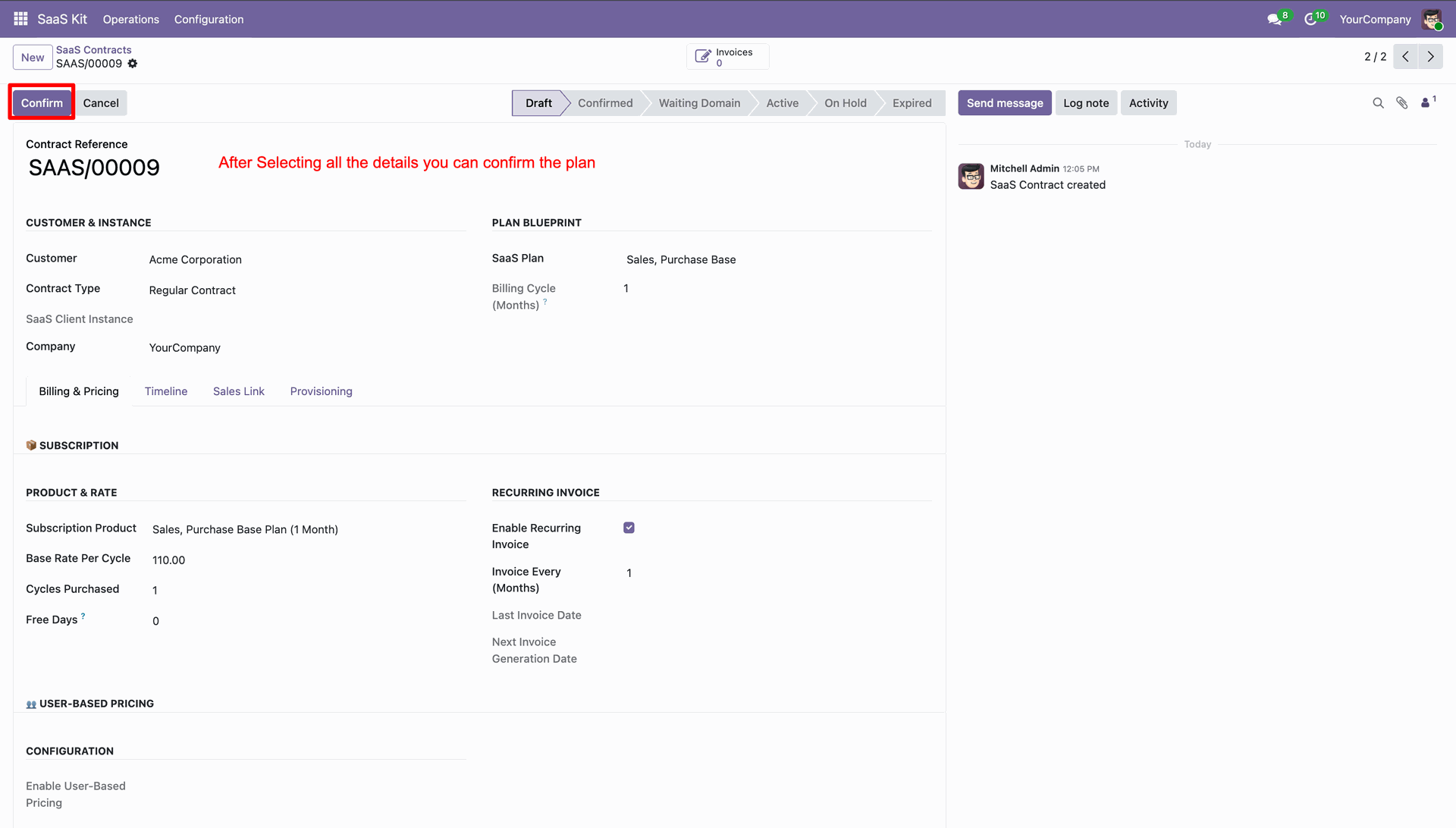
Click Confirm button to validate contract details and advance to draft confirmation stage.
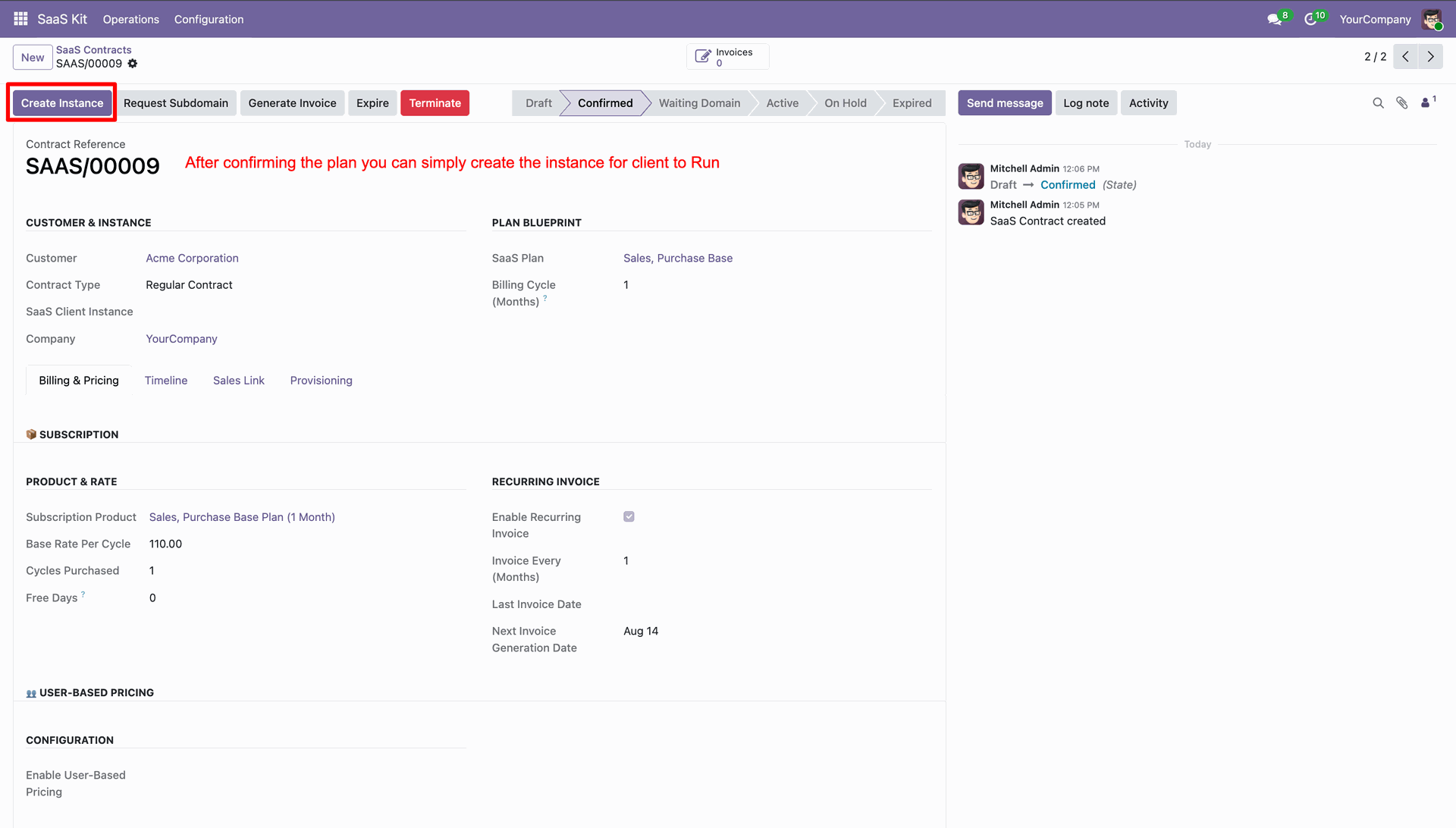
Click Create Instance button on confirmed contract to trigger client database container creation.
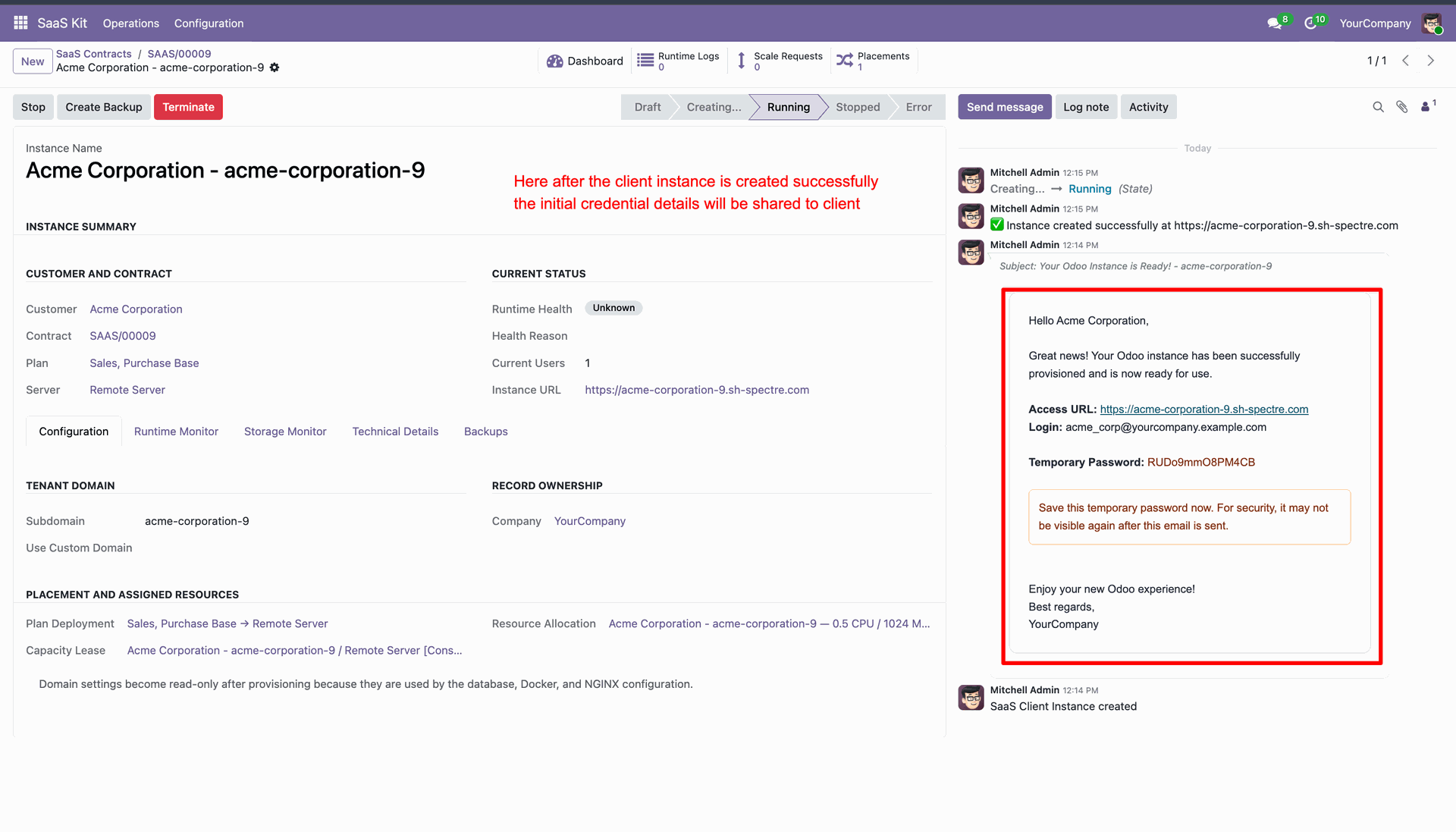
View automated welcome email log containing access URL, login name, and temporary password.
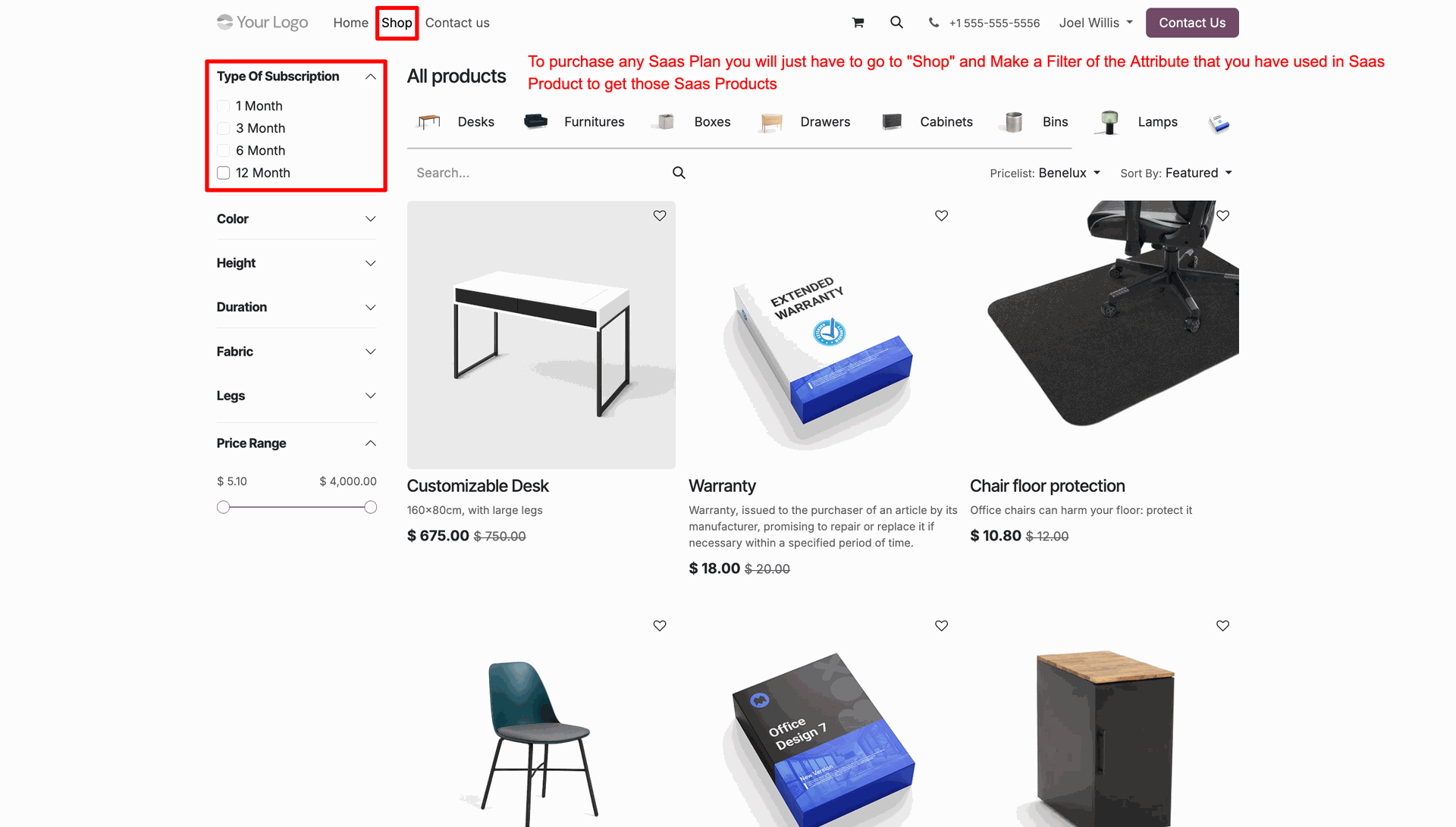
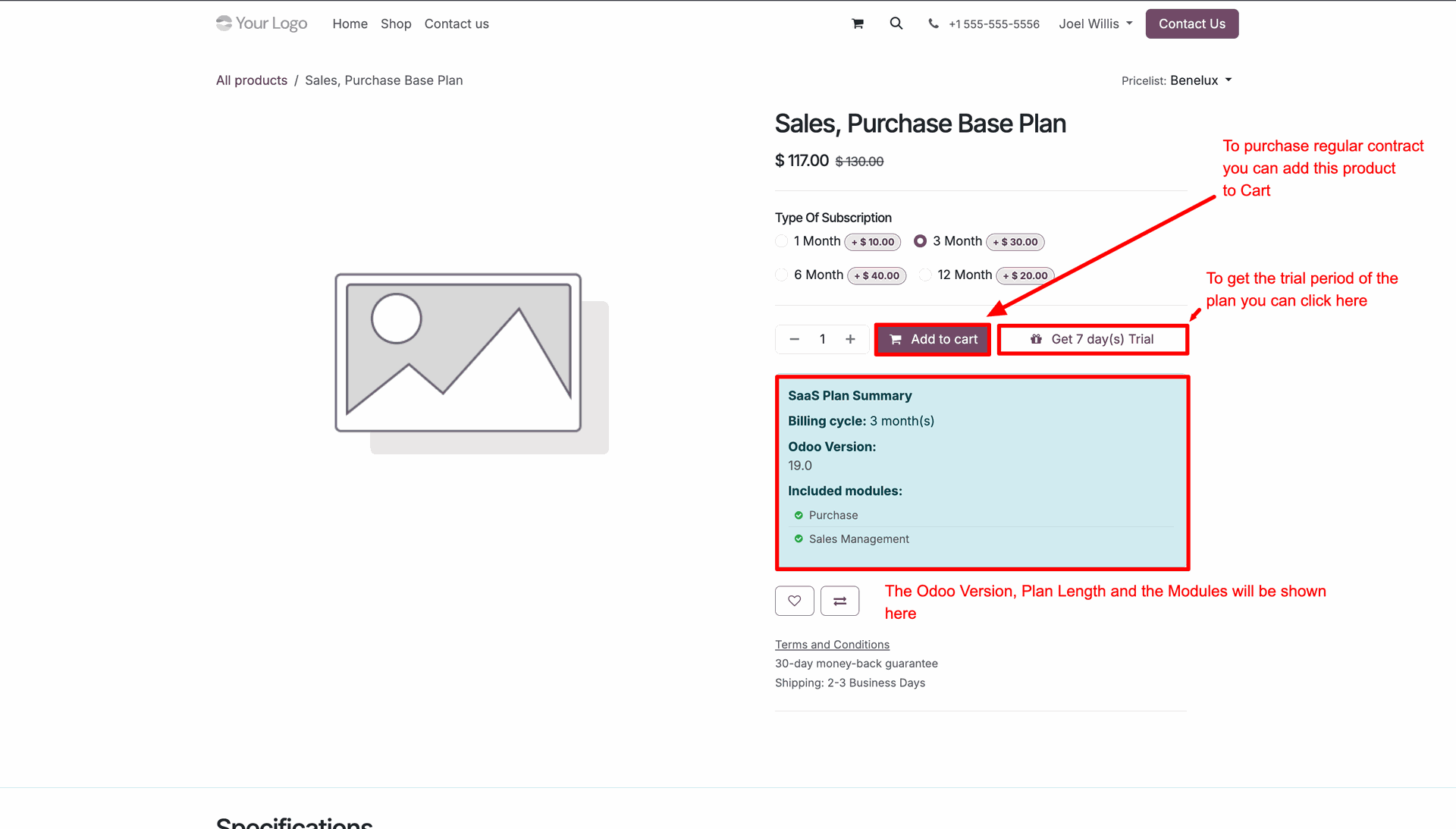
Filter SaaS products by subscription duration attributes on website e-commerce shop page.
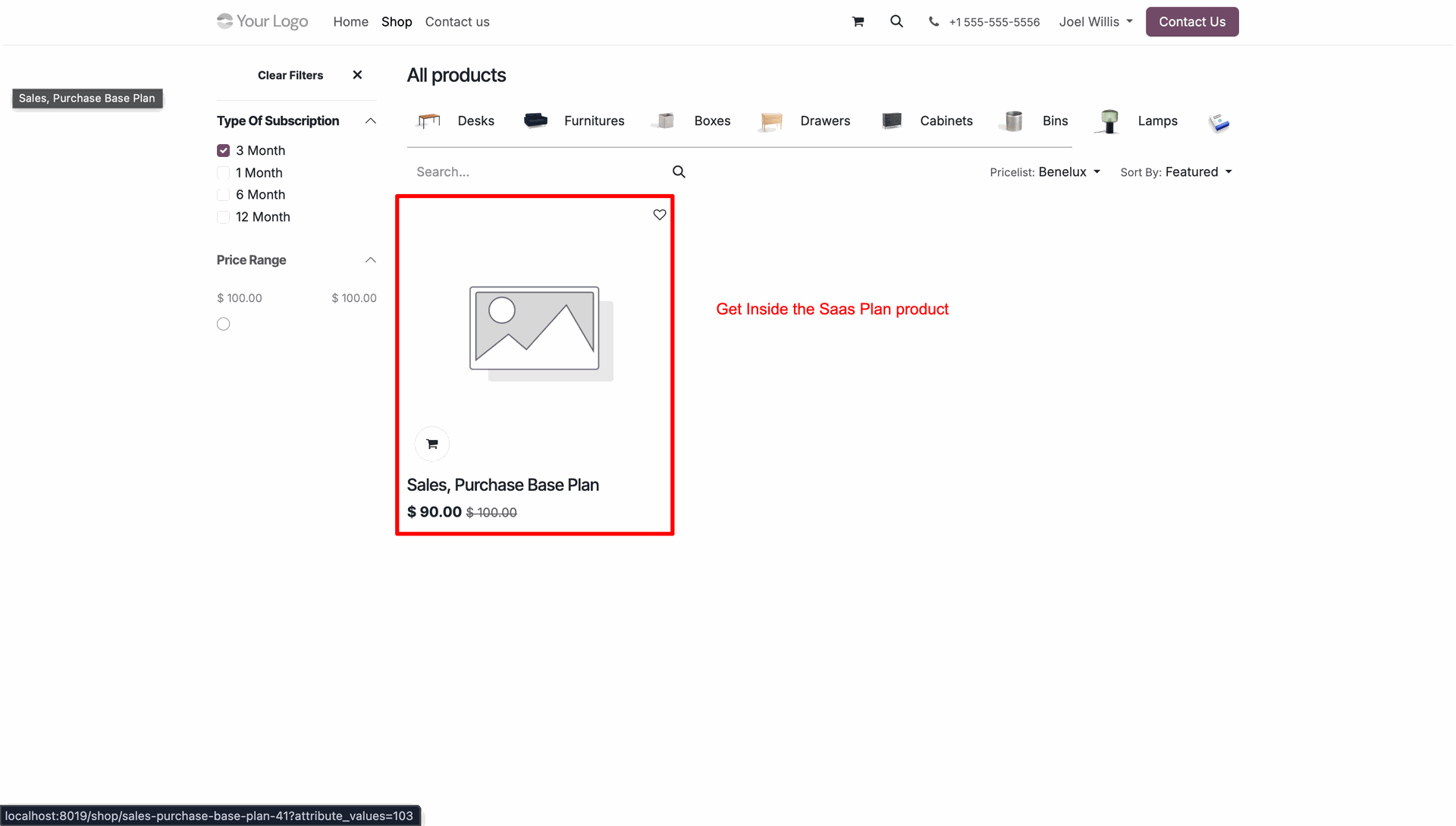
Select filtered SaaS subscription plan product card to view product details page.
Review SaaS Plan Summary block and click Add to cart or Get Trial button.
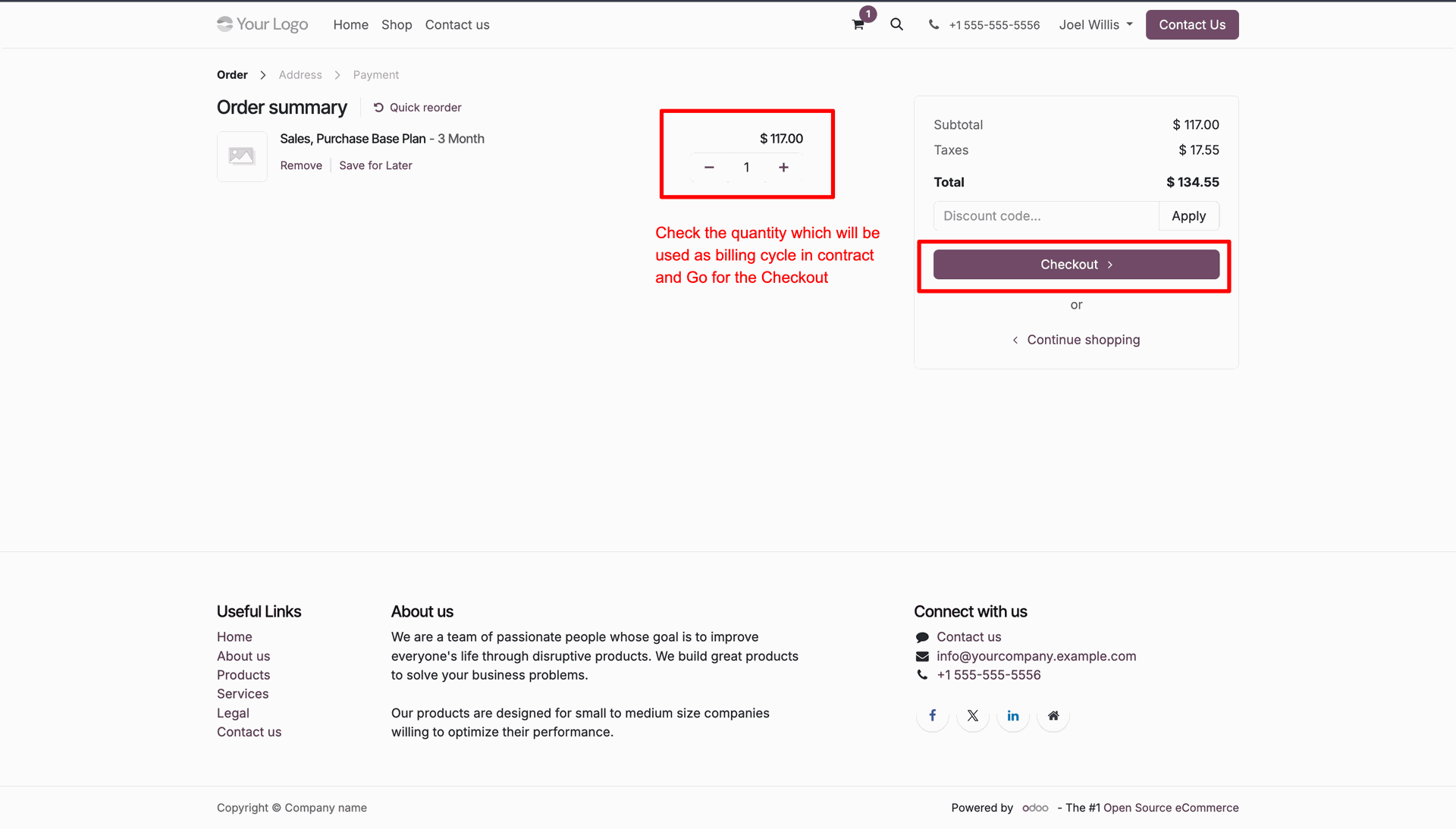
Verify plan quantity in shopping cart order summary and click Checkout button.
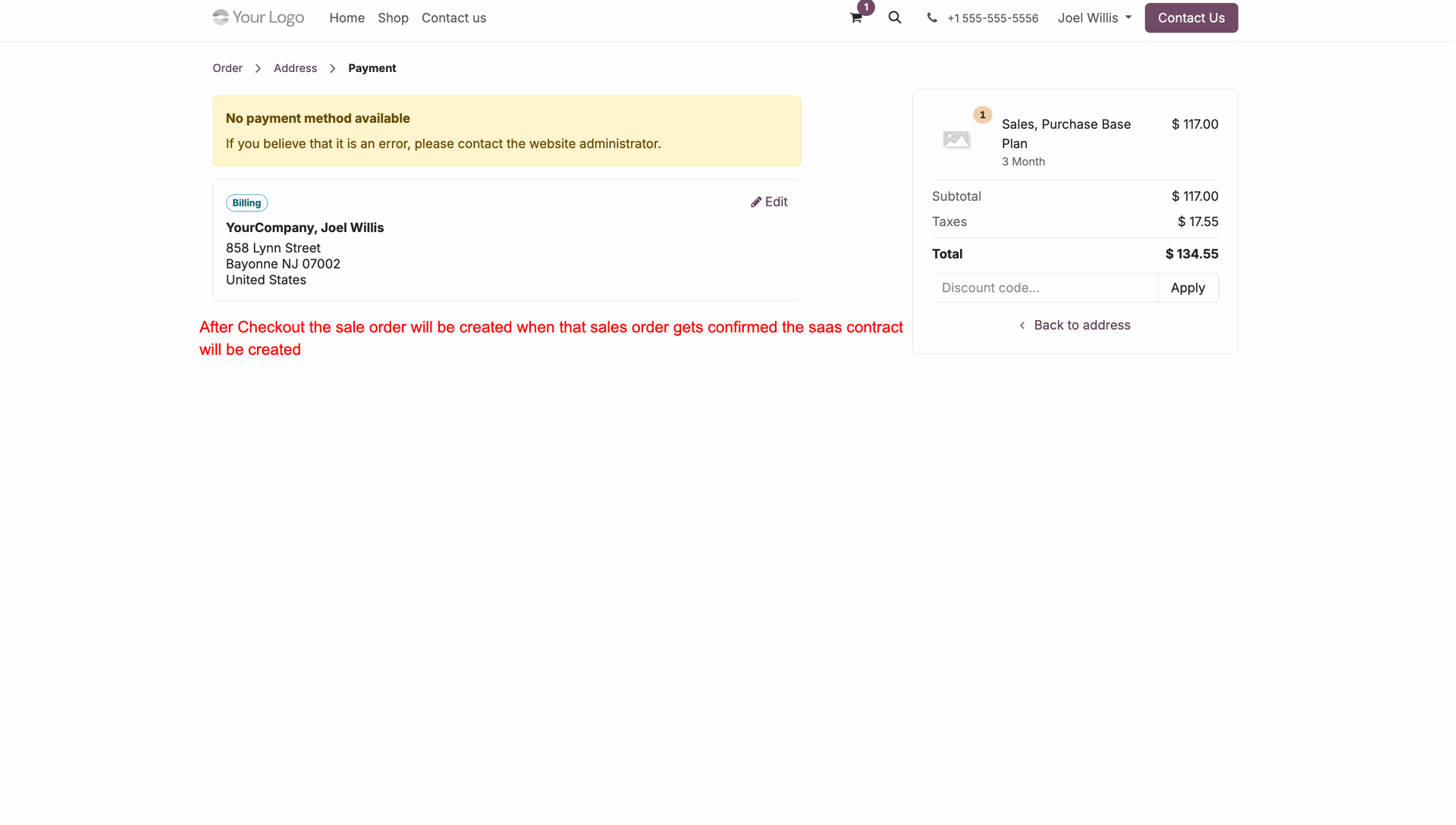
Complete payment process to confirm sales order and automatically generate SaaS contract.
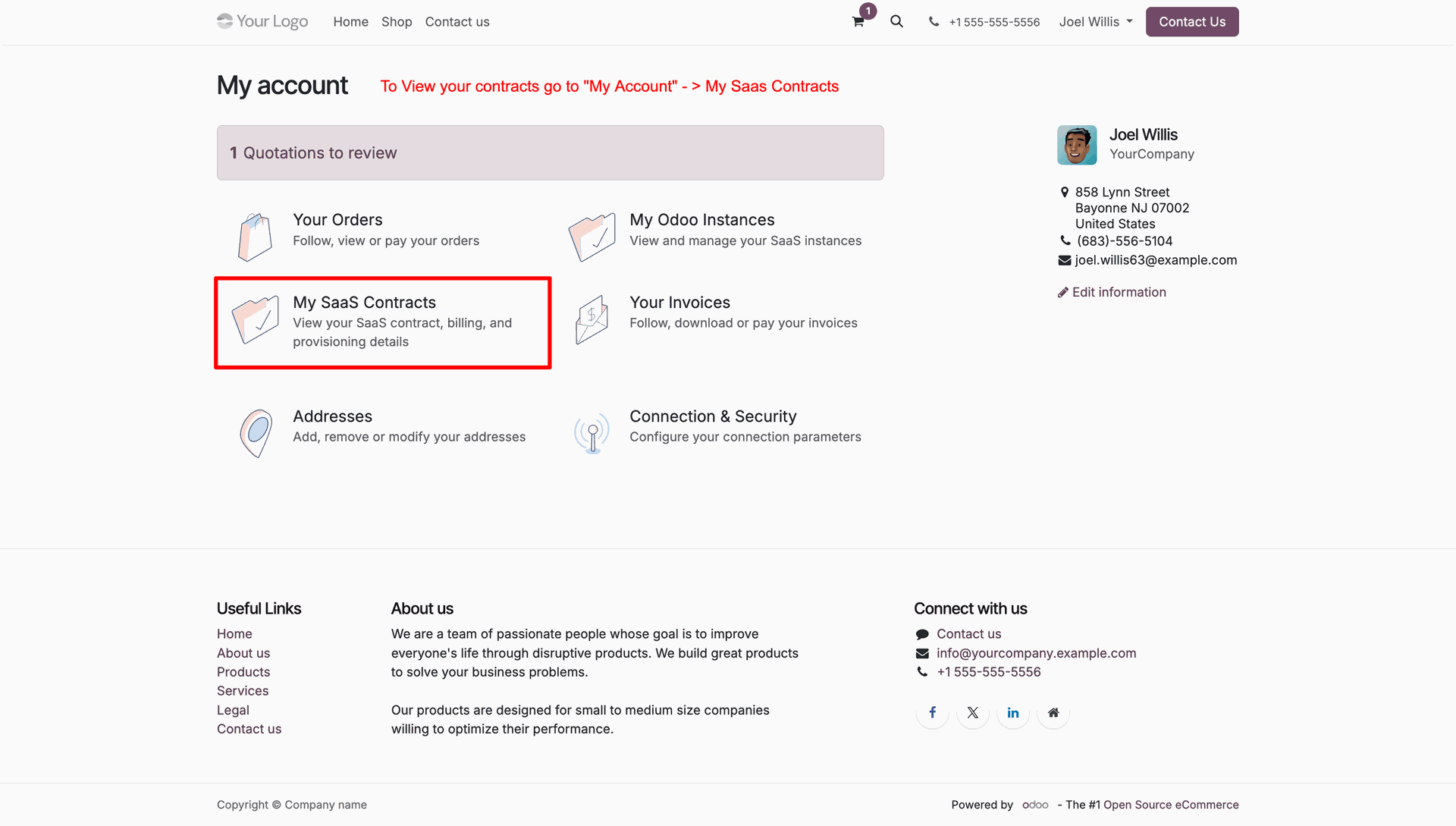
Navigate to My Account portal and select My SaaS Contracts to view active subscriptions.
Inspect customer SaaS contracts list and click View Details on target contract row.
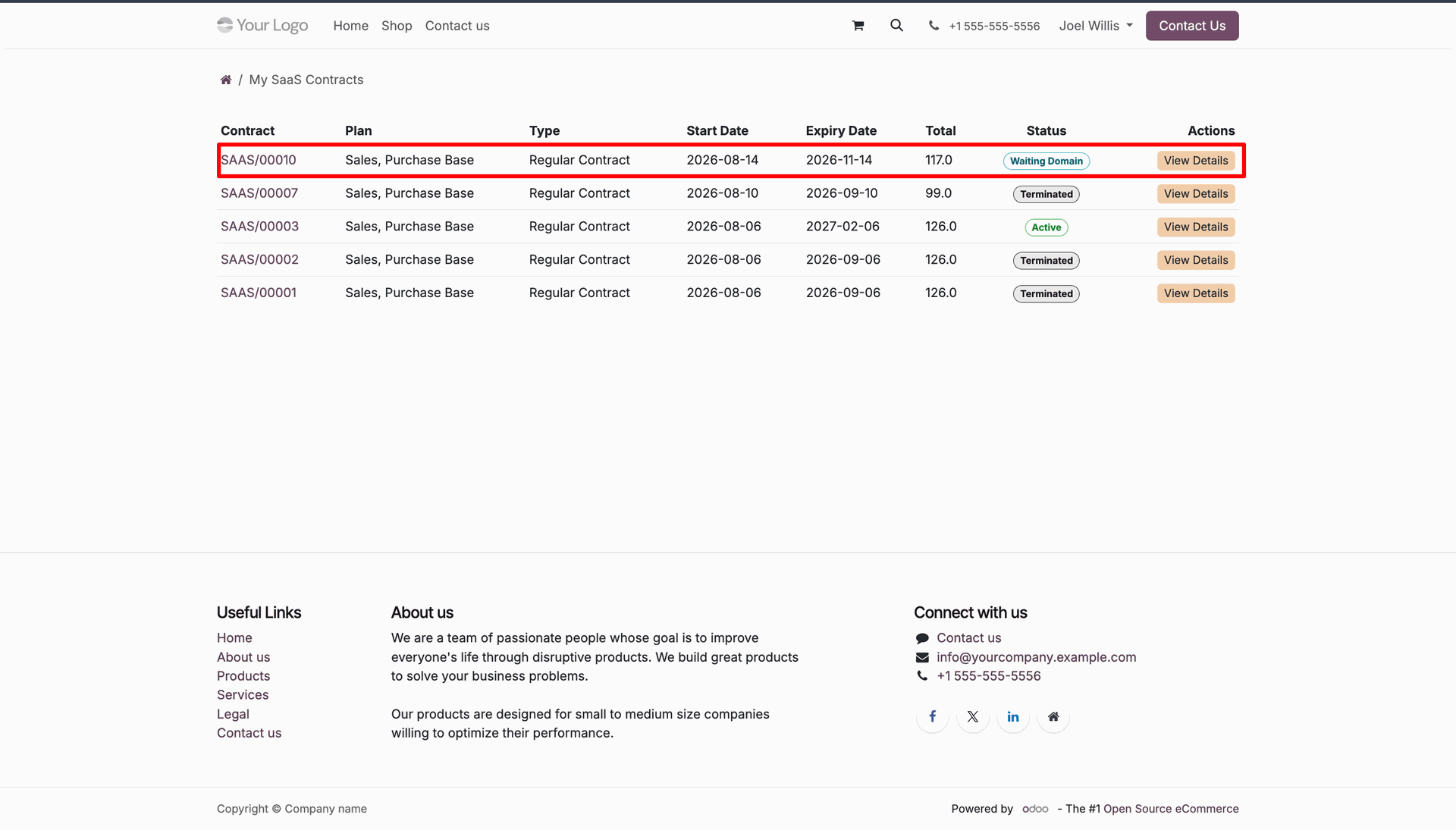
Click Continue Domain Setup button on portal contract page to configure client domain.
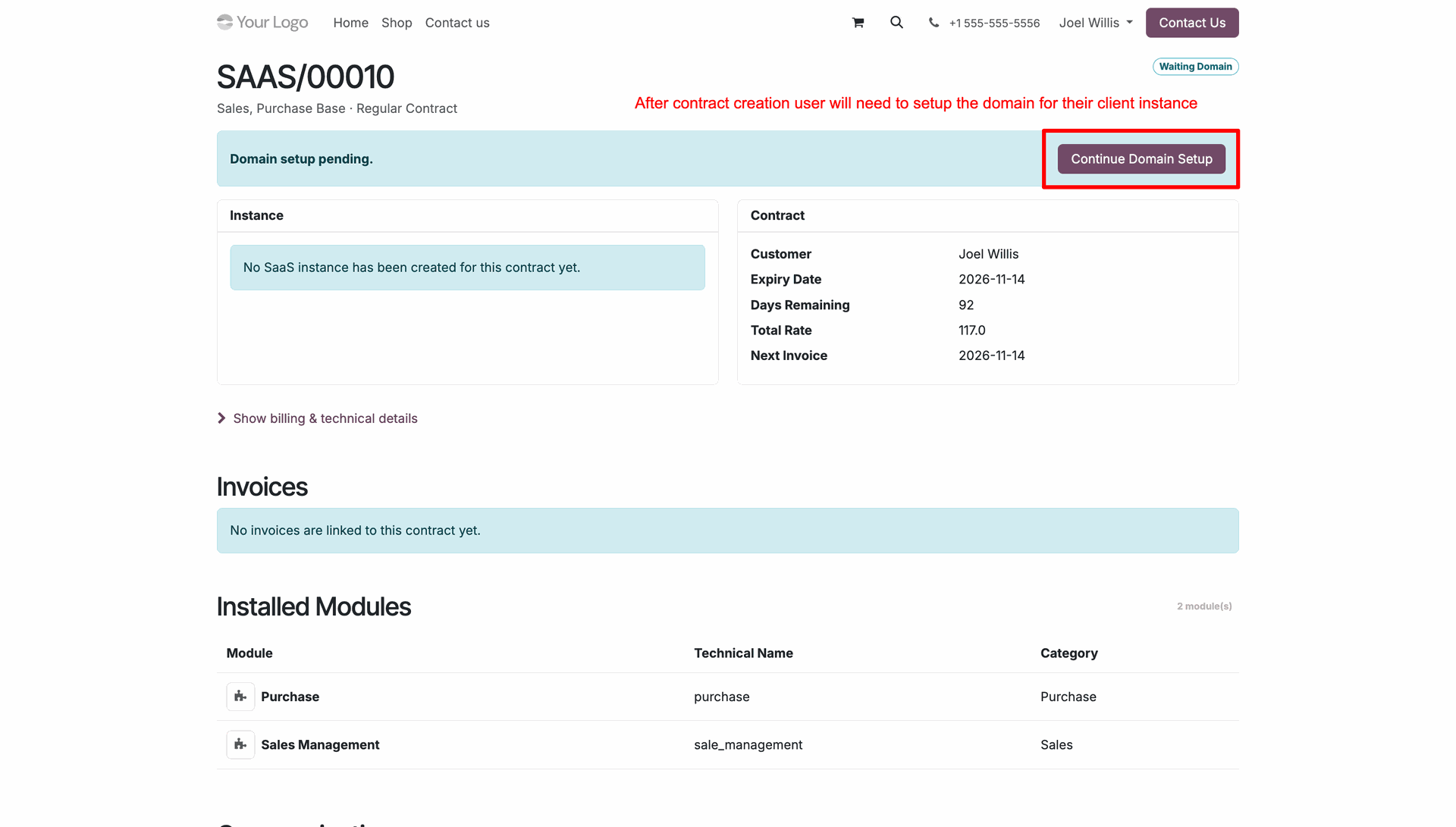
Enter requested Subdomain Name and click Select & Continue button to register instance domain.
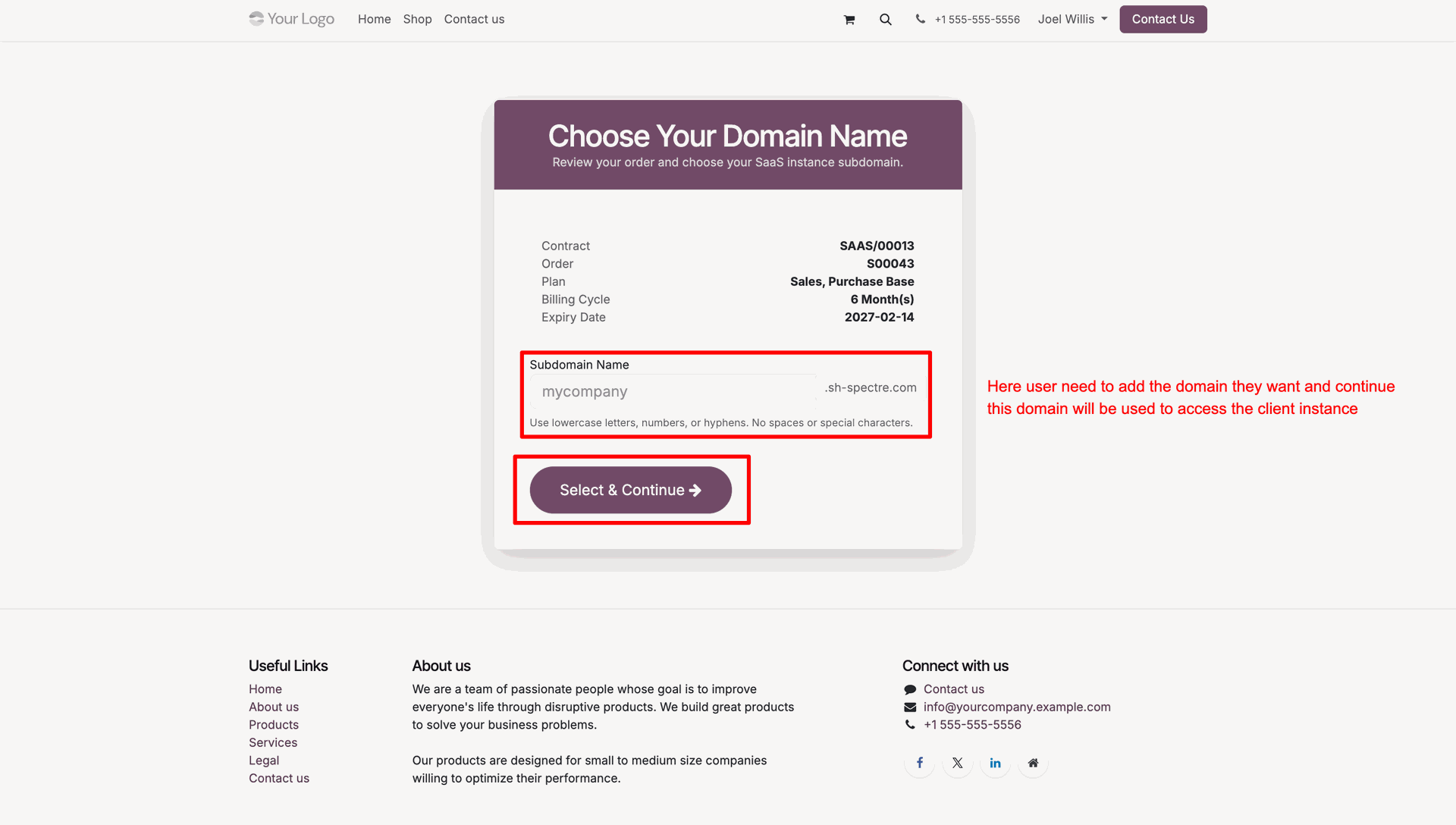
Review Provisioning Started confirmation screen while instance container setup runs in background.
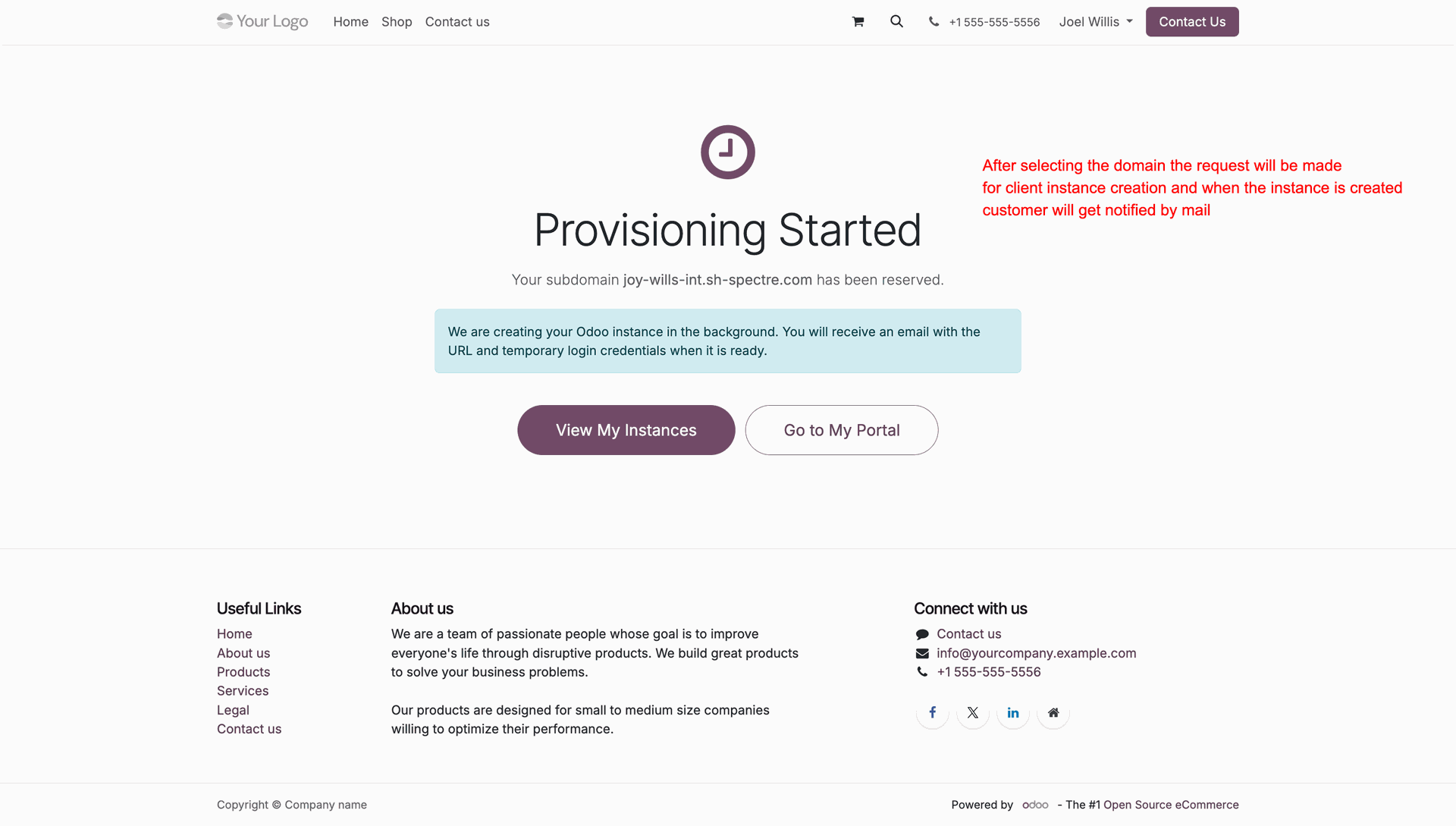
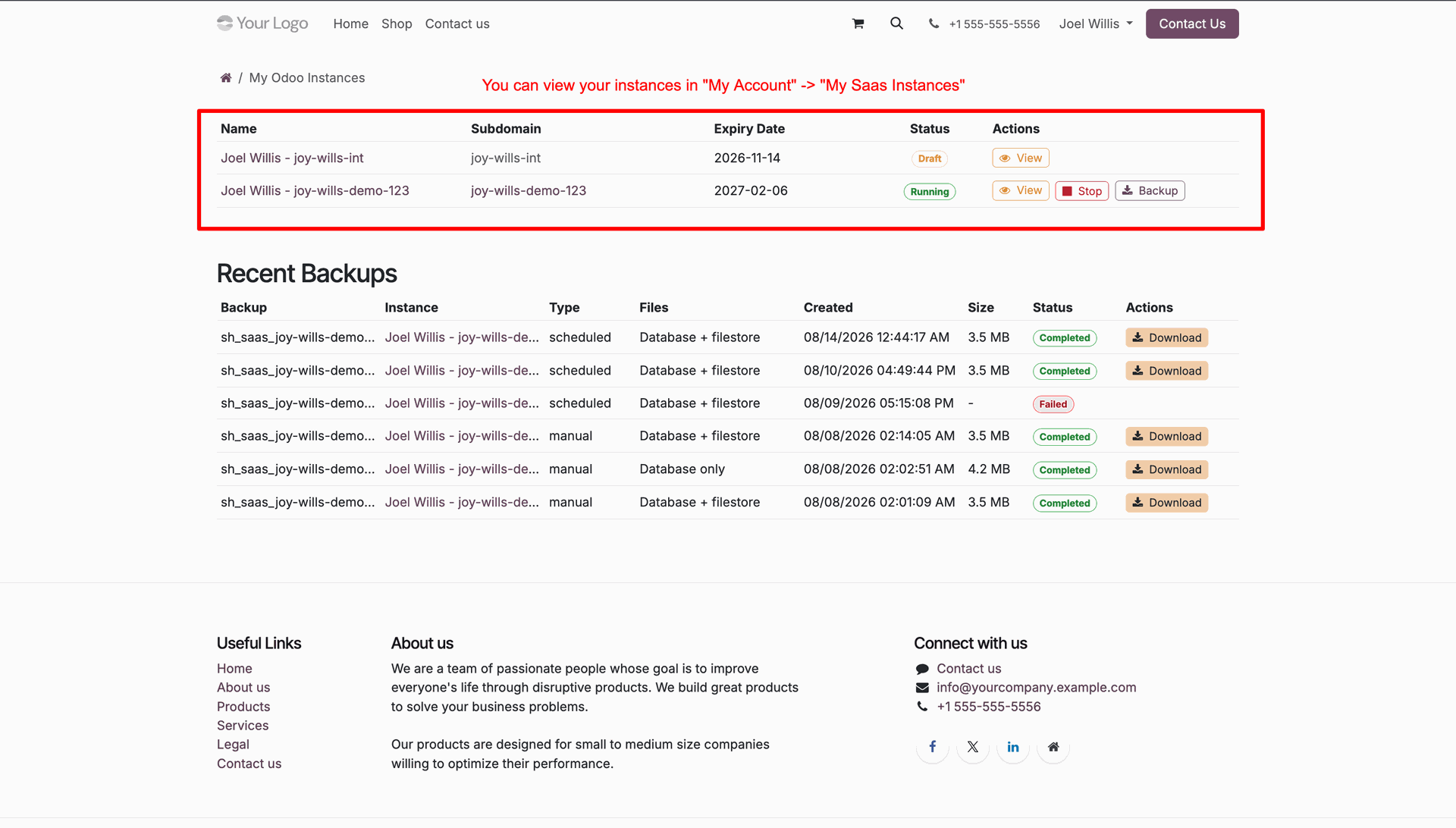
View client instances table under My Odoo Instances showing subdomain, status, and actions.
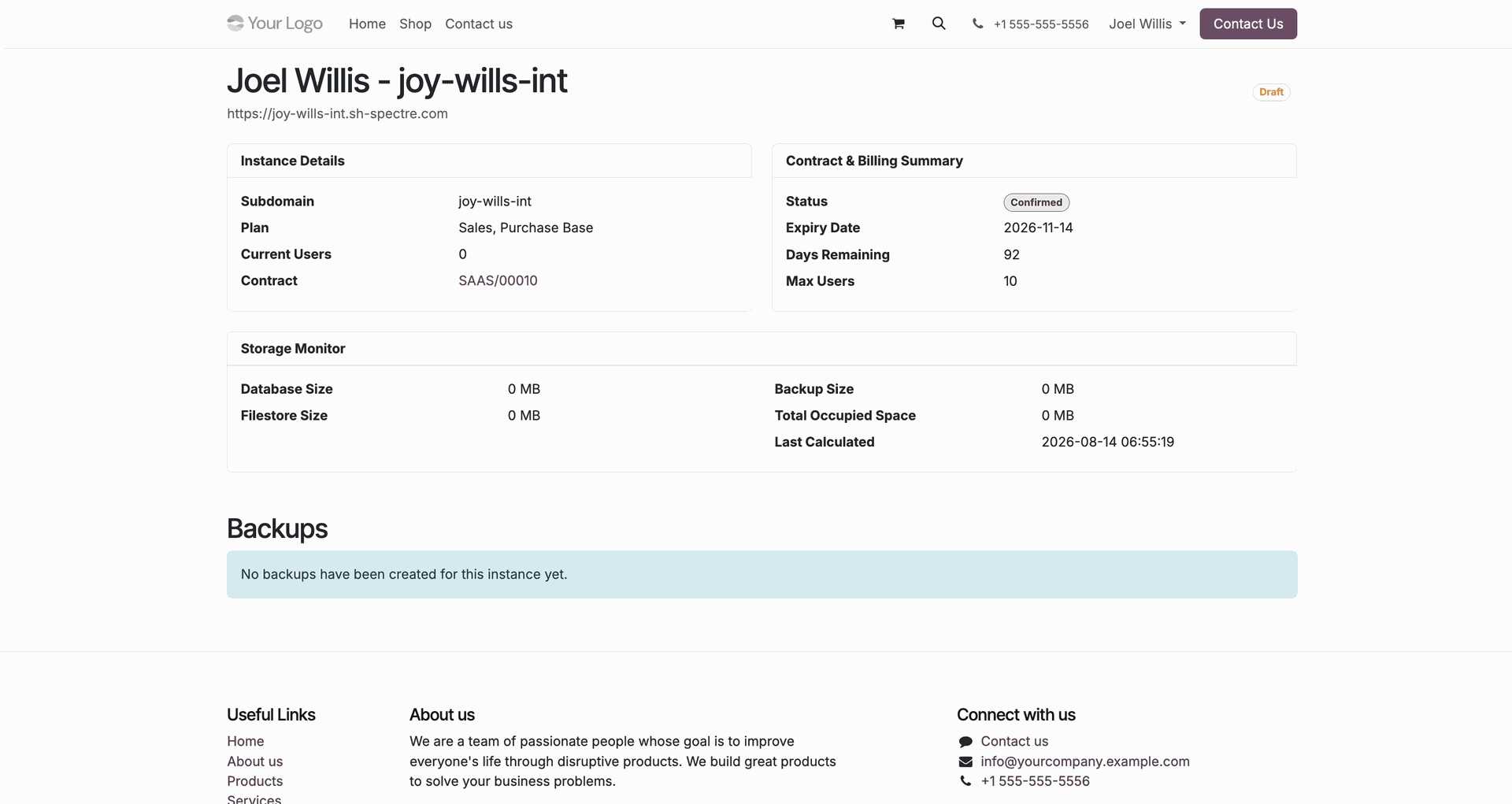
Inspect portal instance details page showing storage monitor metrics and billing summary.
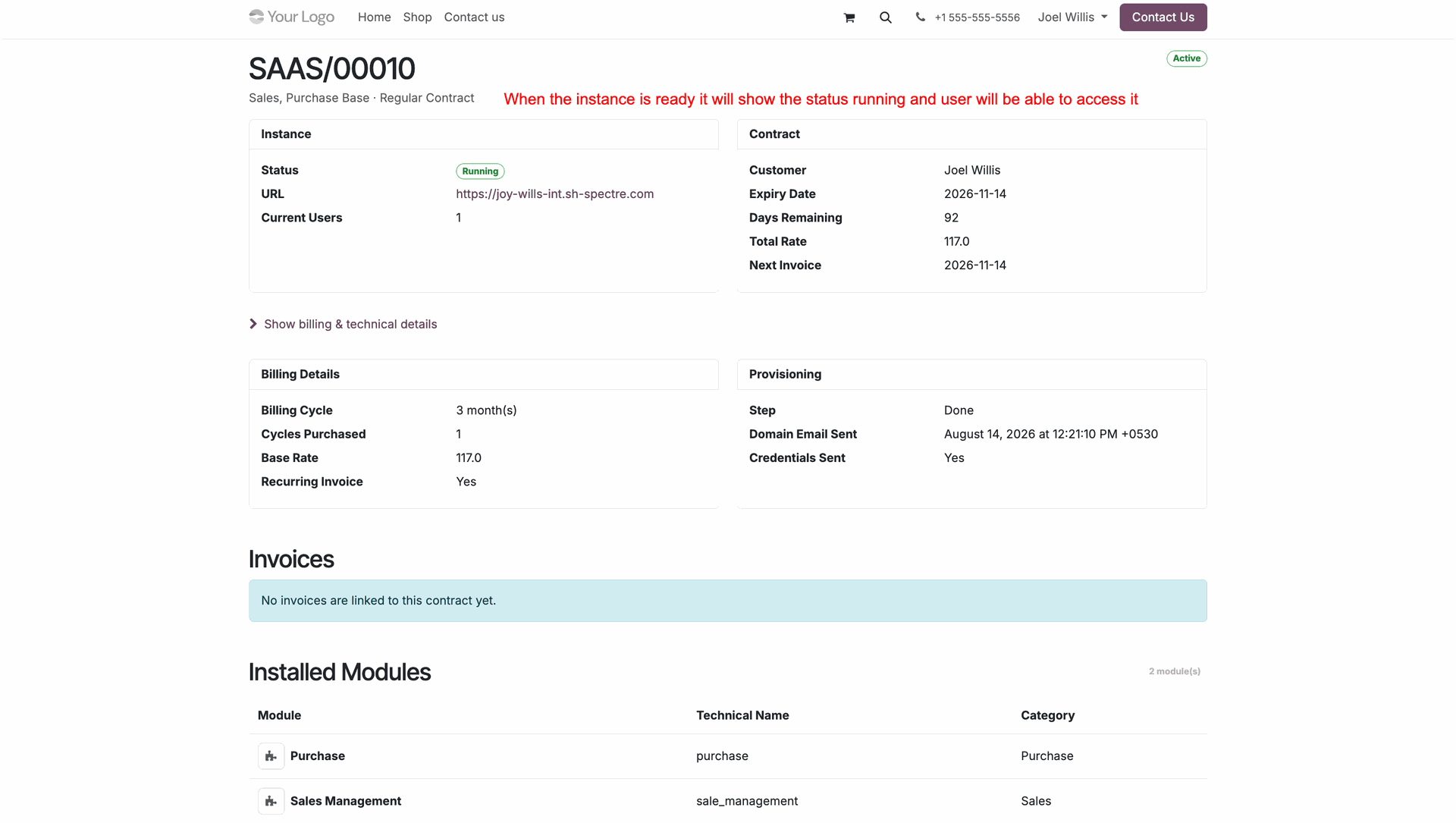
View active contract status badge showing running instance state and direct access URL.
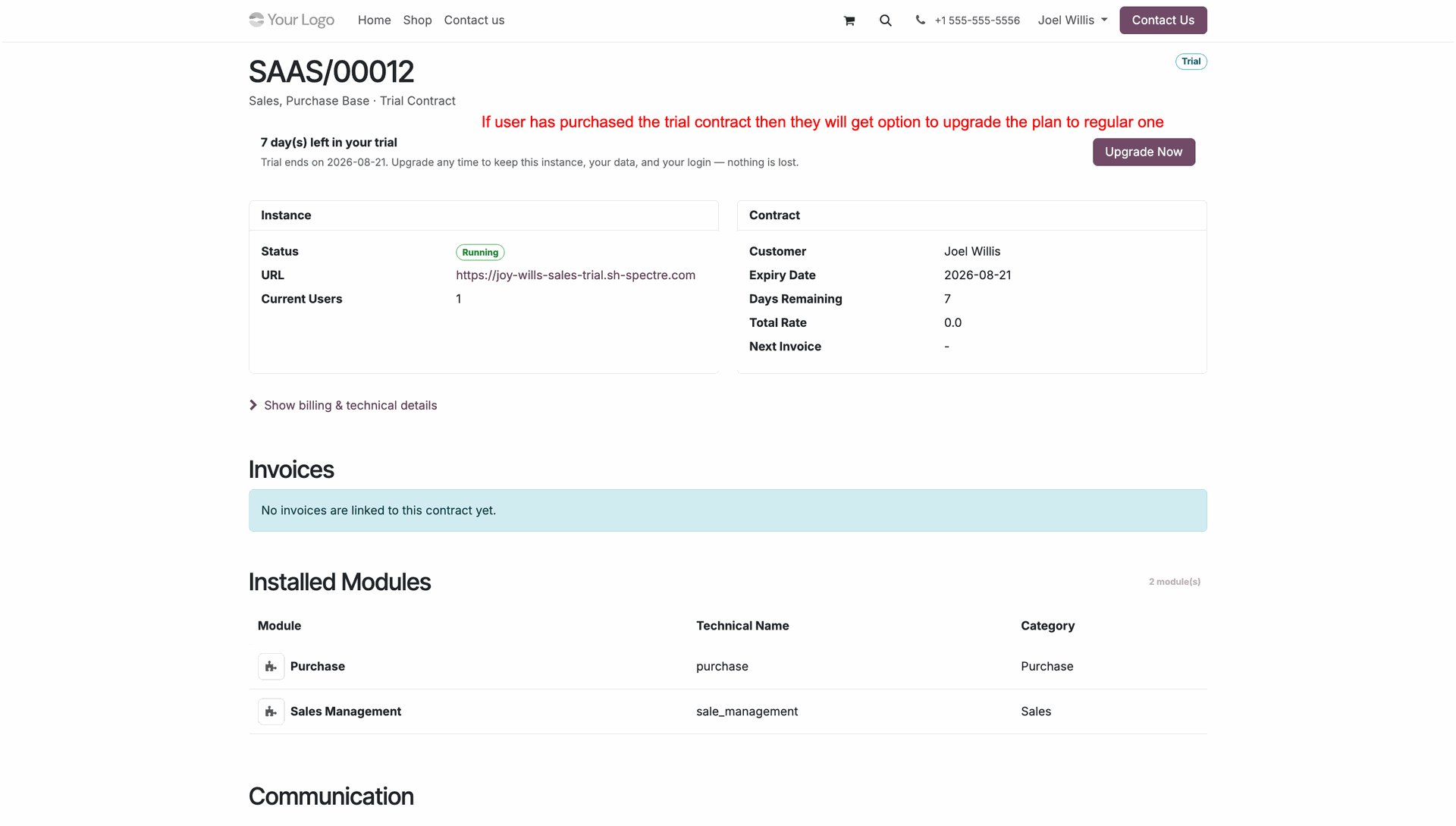
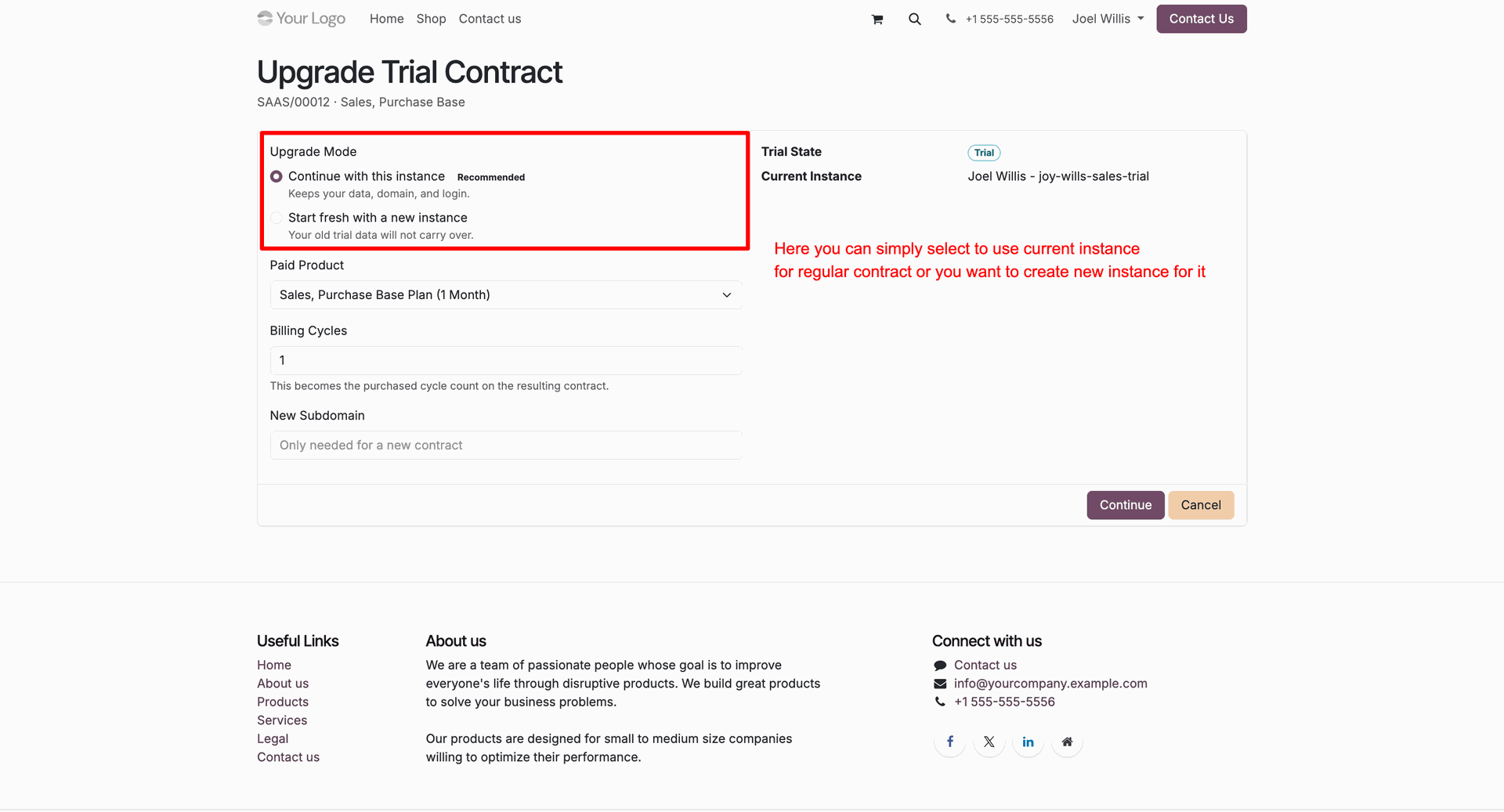
Inspect trial contract portal view with trial countdown banner and Upgrade Now button.
Select Upgrade Mode options on Upgrade Trial Contract form to convert to full subscription.
 How it Works?
Watch Video
How it Works?
Watch Video
Inspect server runtime health status and click Dashboard smart button to view resource usage.
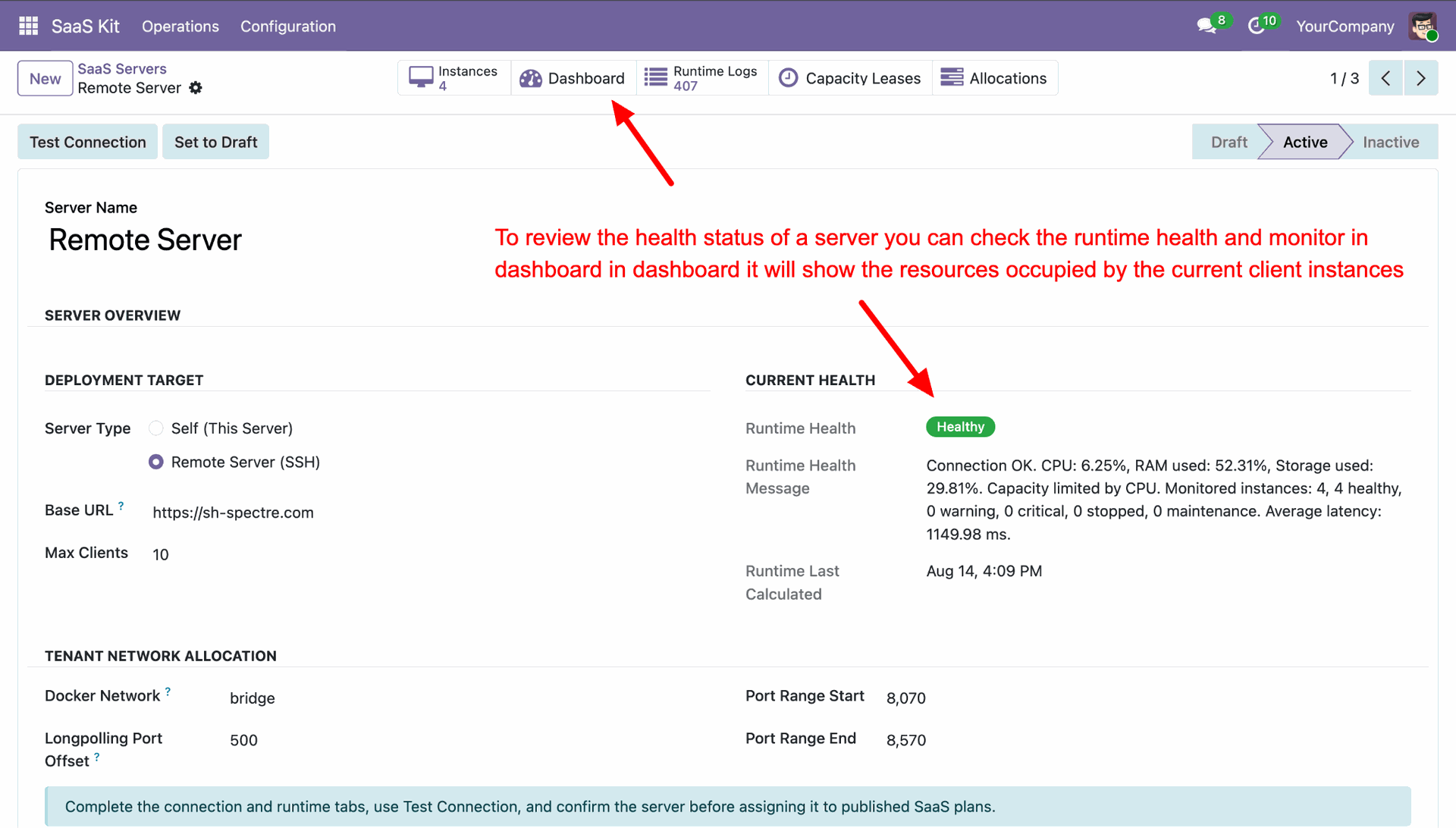
View server monitor dashboard showing CPU, memory, storage, network traffic, and latency KPI metrics.
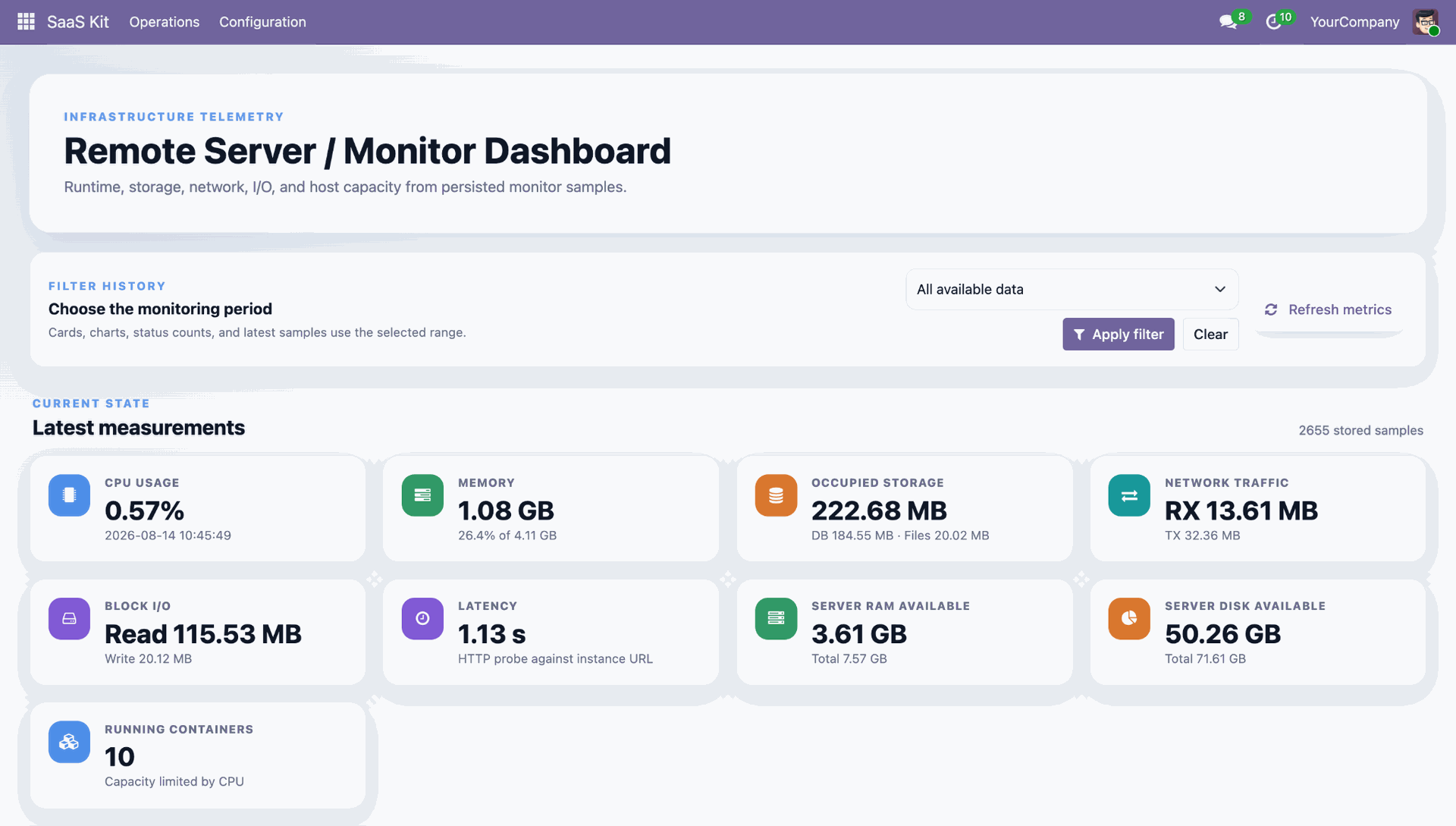
Review system health donut chart split, host environment details, and audit trail monitor samples.
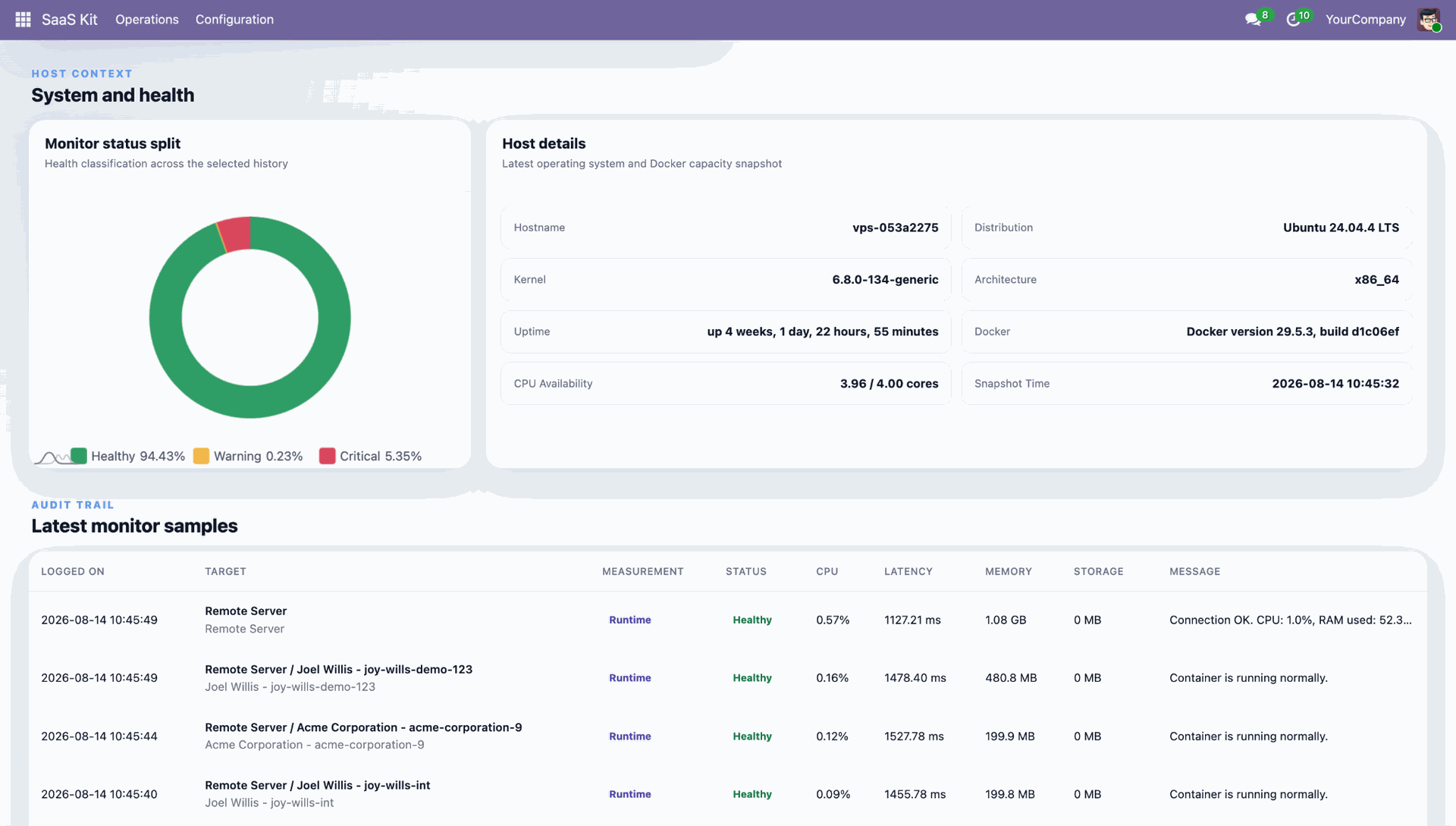
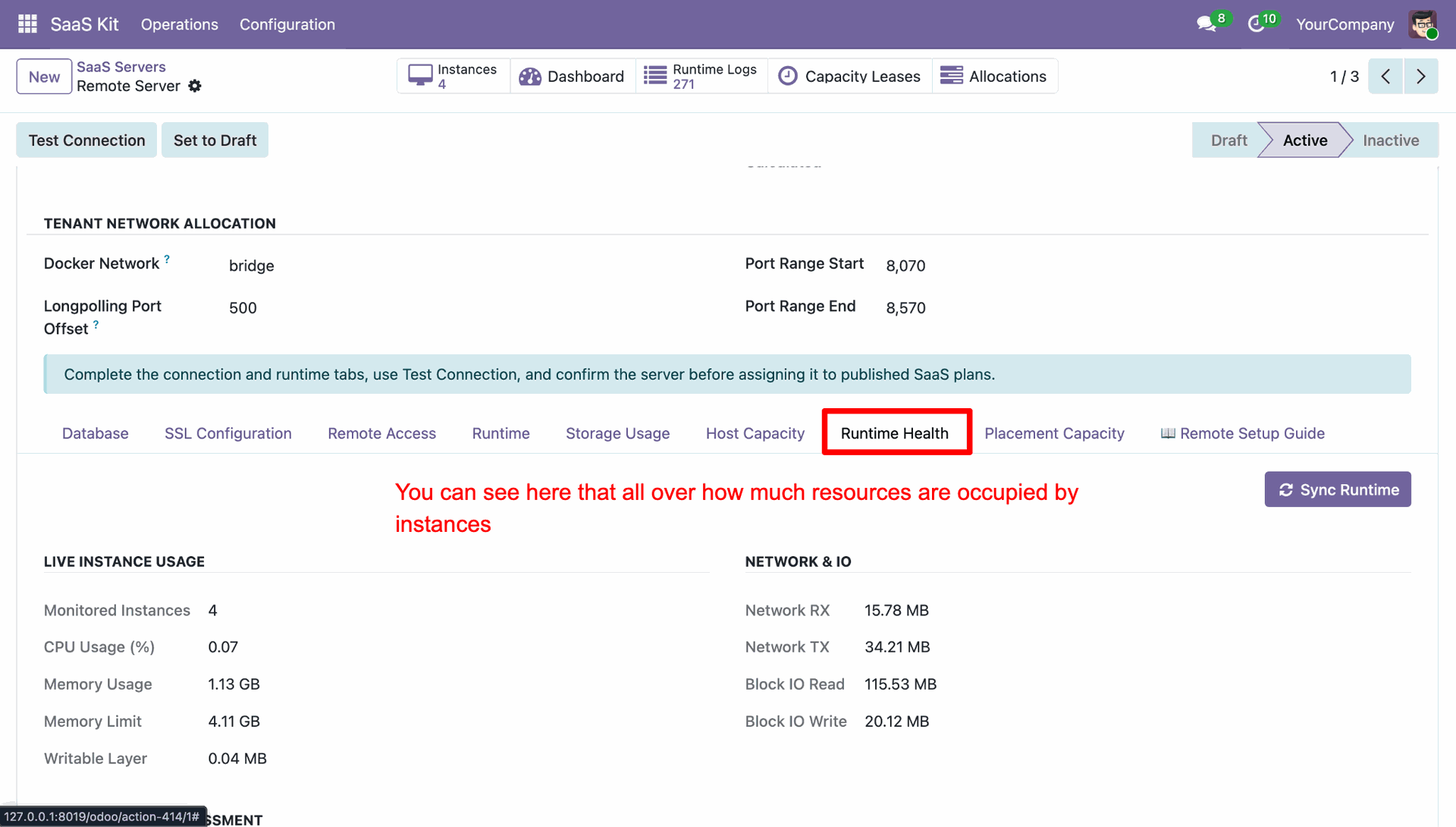
Select Runtime Health tab on server form to review overall live instance resource usage.
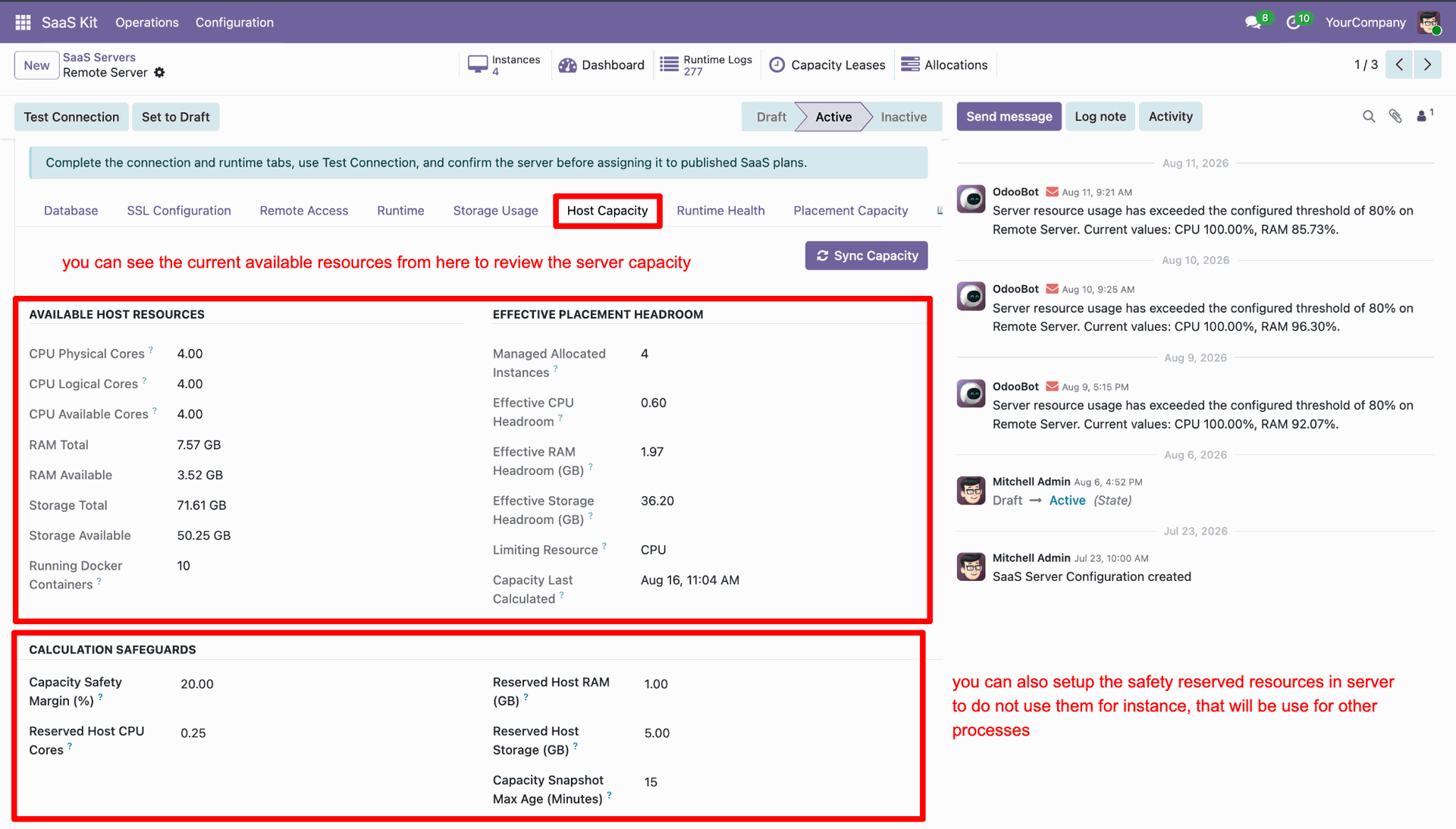
Select Host Capacity tab to inspect available host resources and set calculation safeguards.
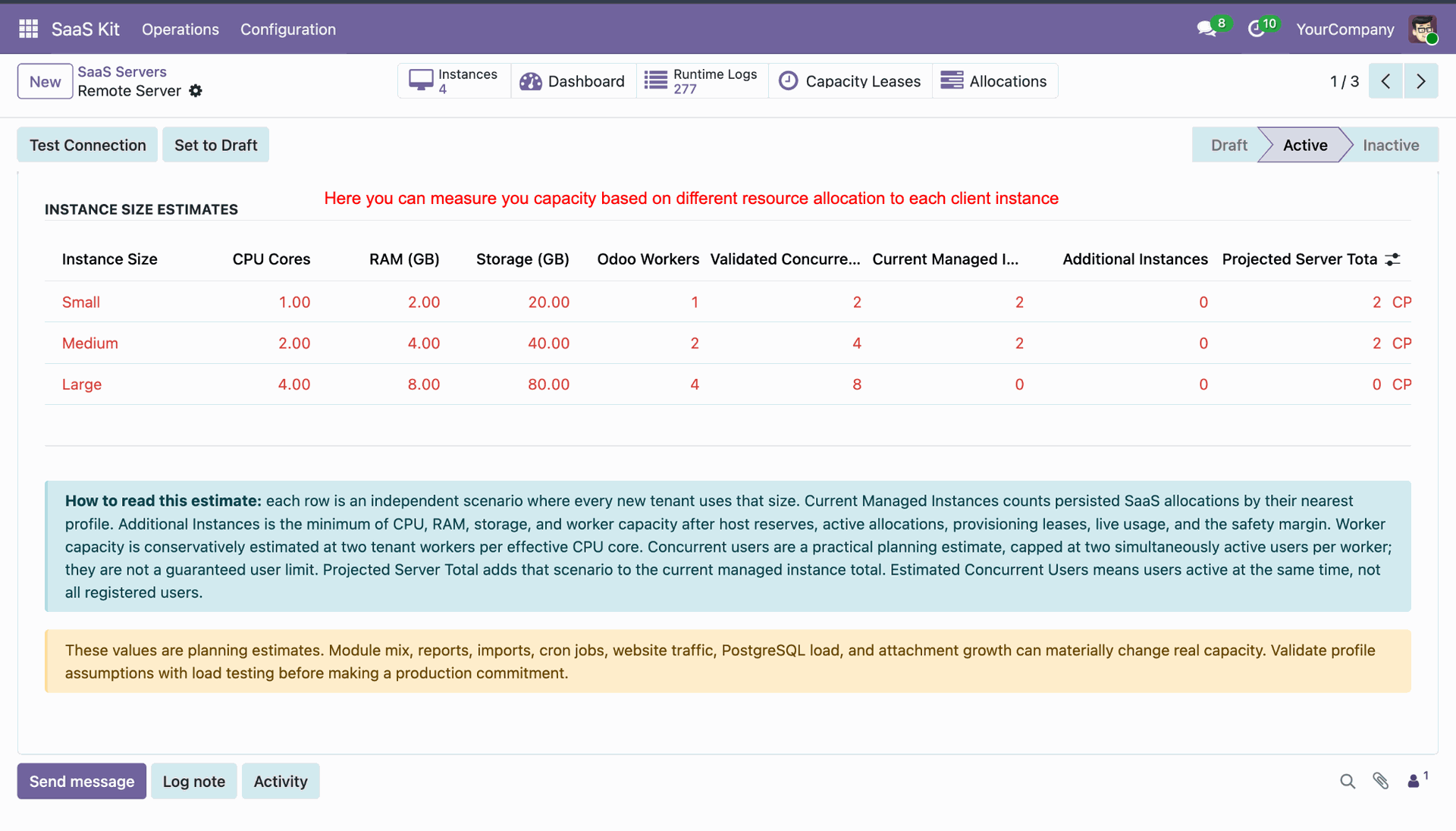
Review INSTANCE SIZE ESTIMATES table to project server capacity across preset resource profiles.
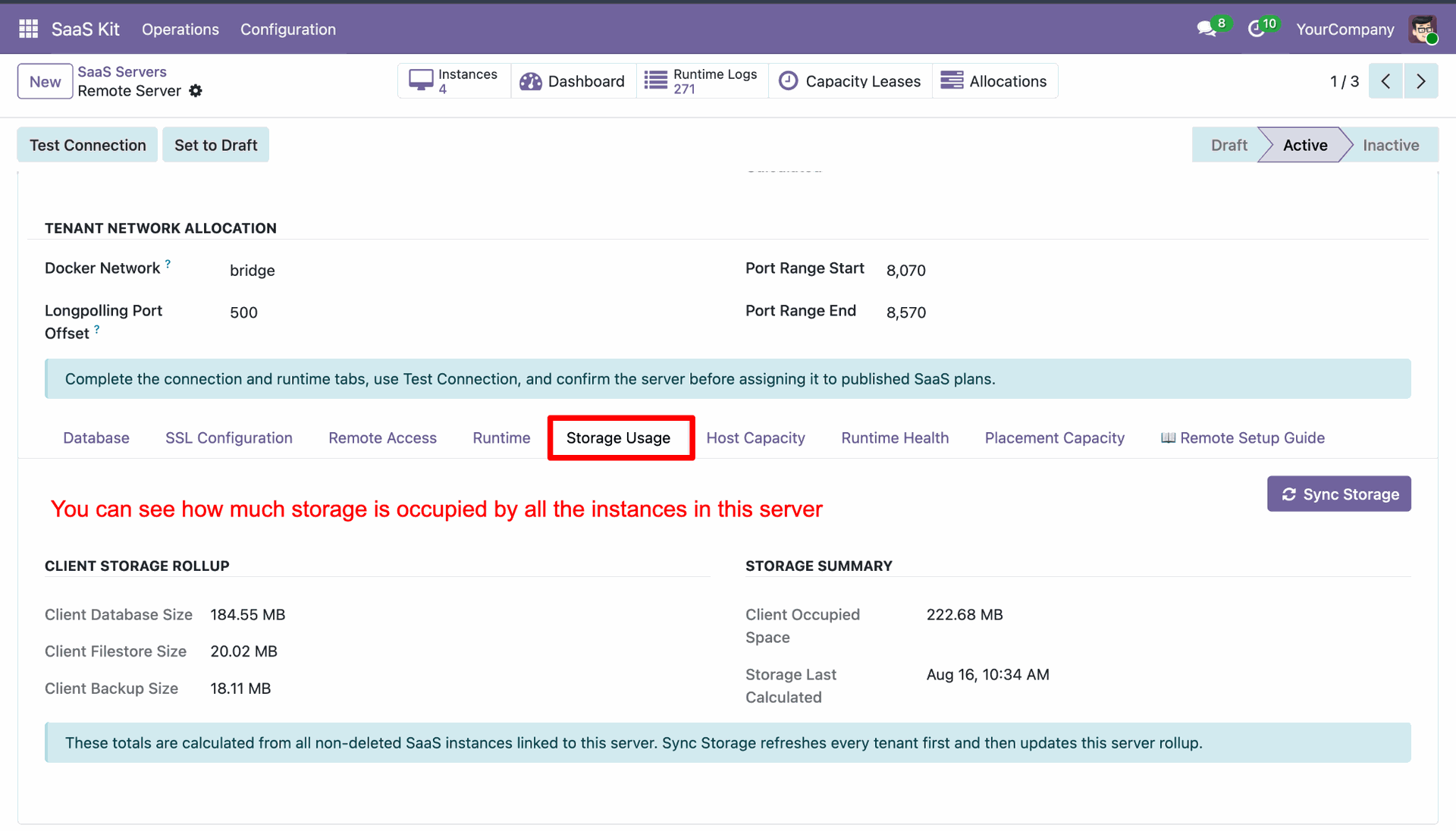
Select Storage Usage tab on server form to view aggregated database and filestore disk metrics.
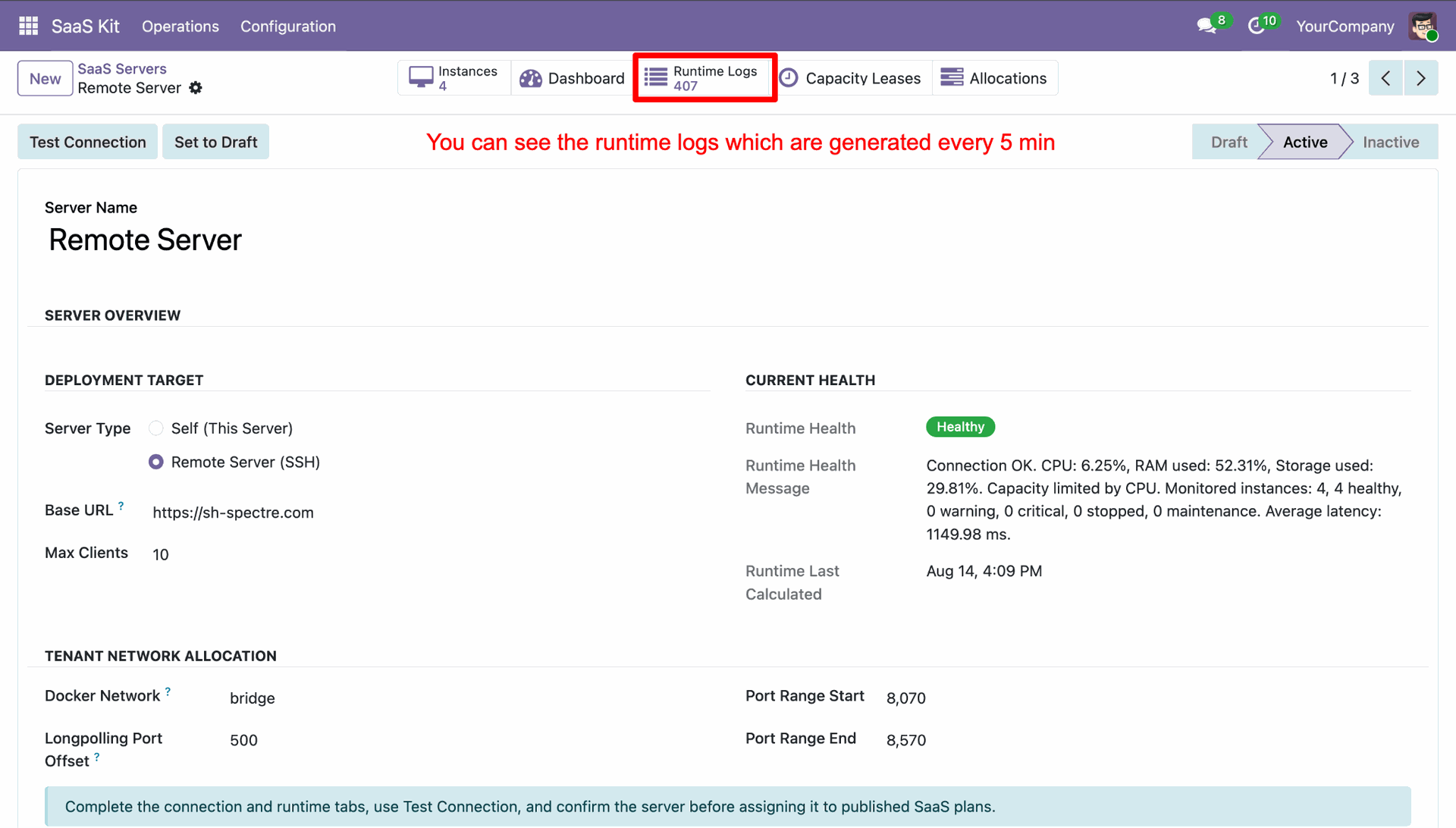
Click Runtime Logs smart button on server form to view periodic telemetry log records.
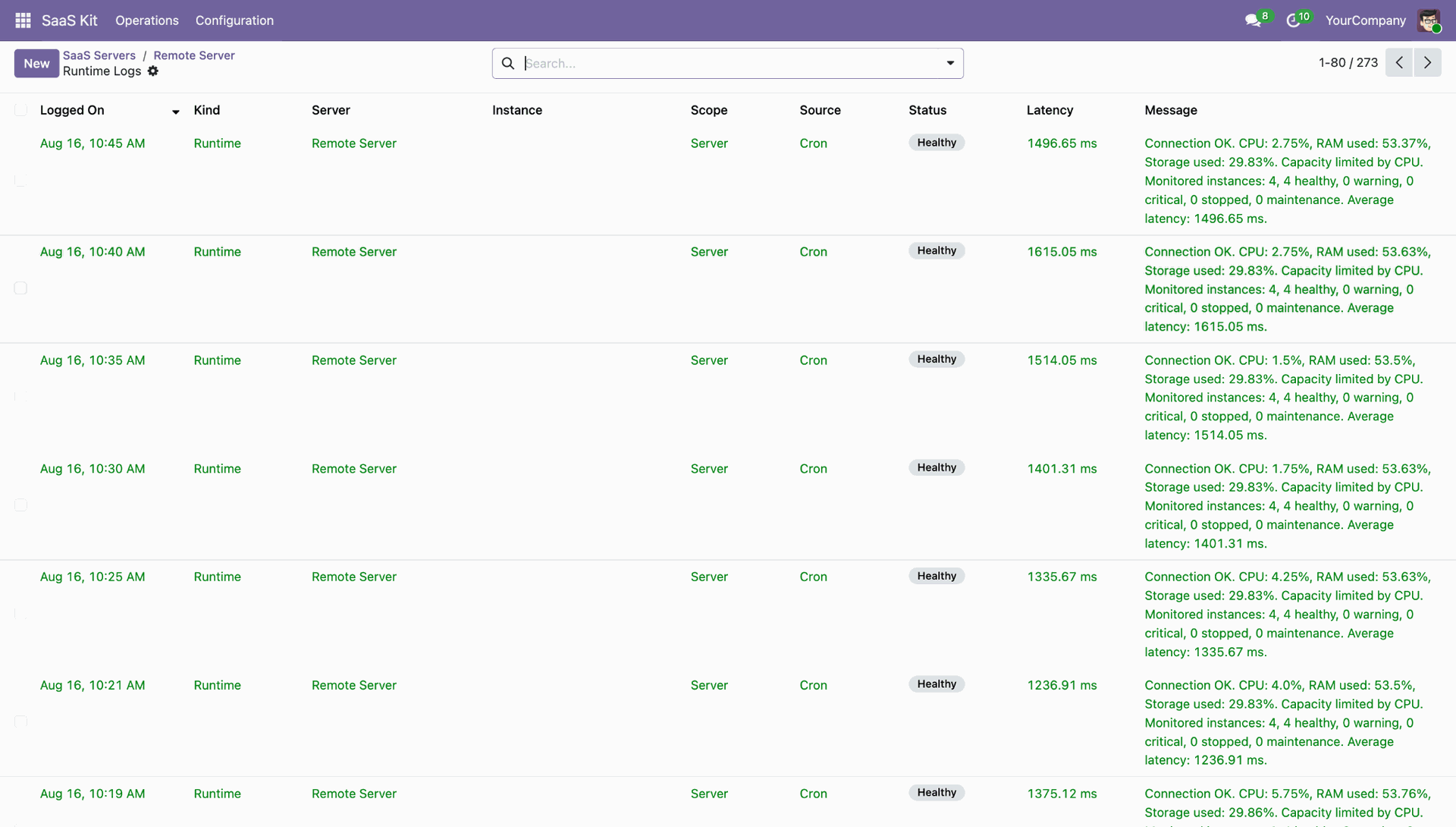
Inspect list view of server runtime logs displaying timestamps, health status, and latency metrics.
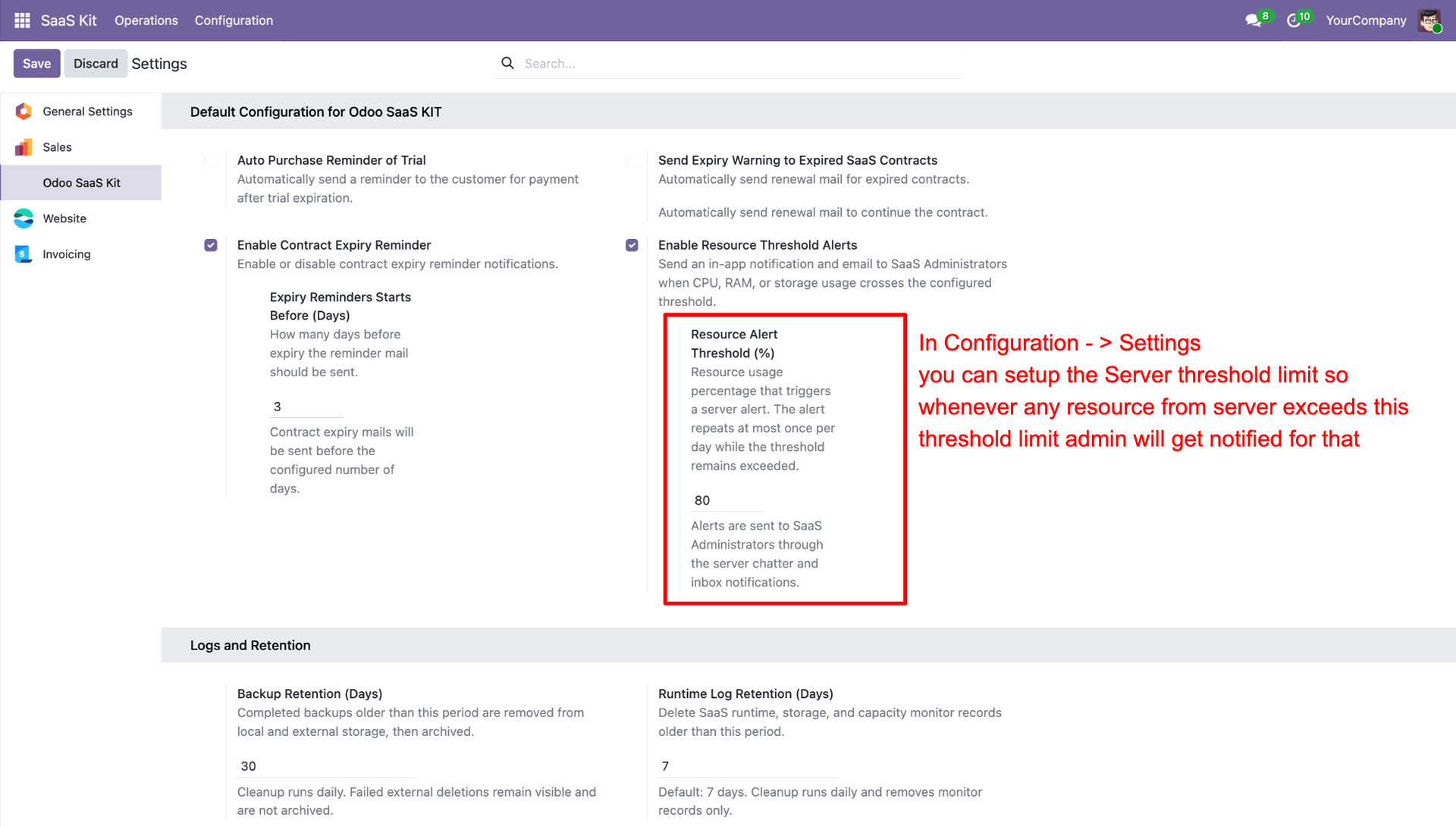
Configure Resource Alert Threshold (%) under Odoo SaaS Kit settings to receive admin notifications.
Inspect SaaS Clients kanban view displaying real-time resource telemetry cards per client instance.
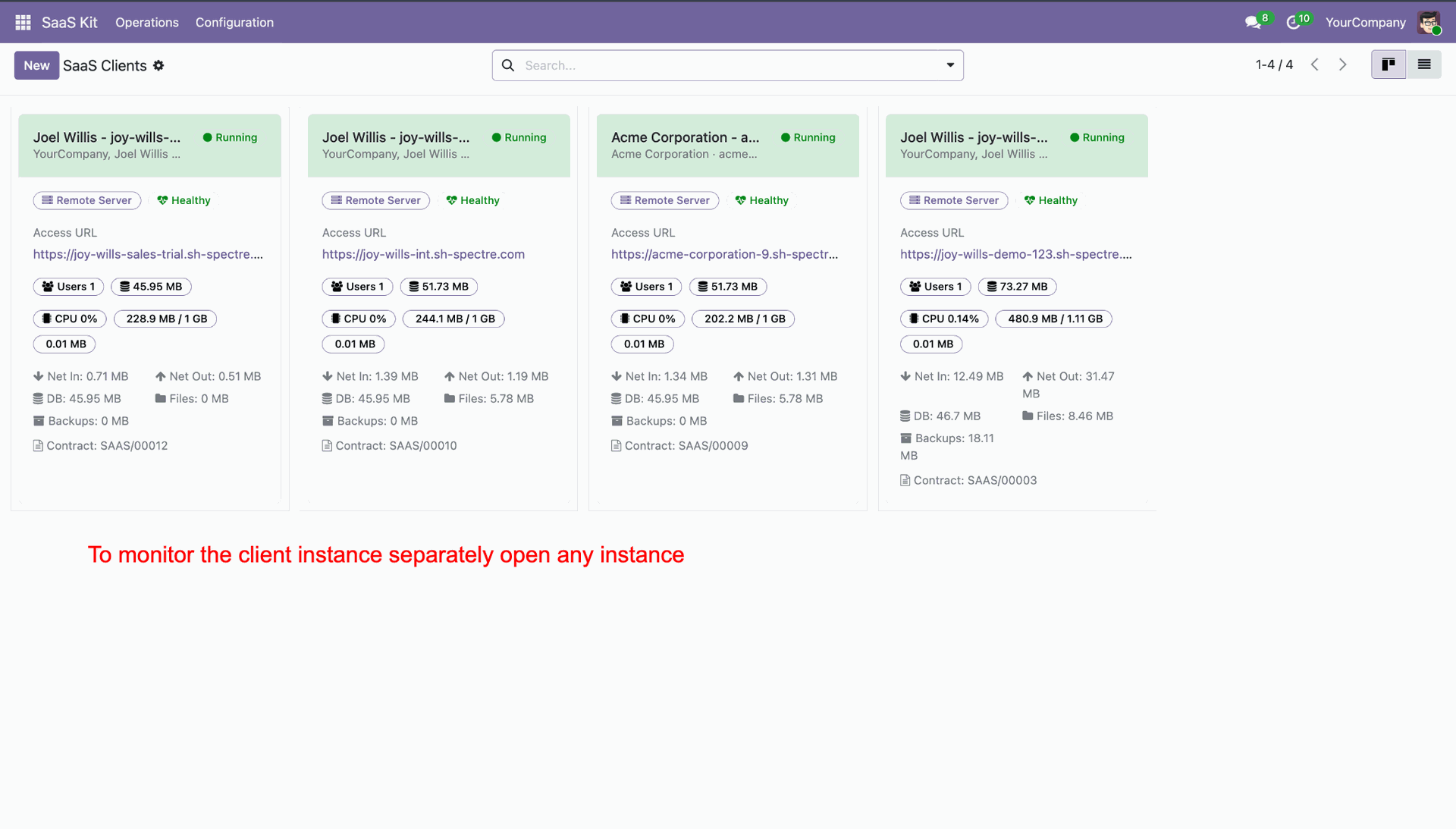
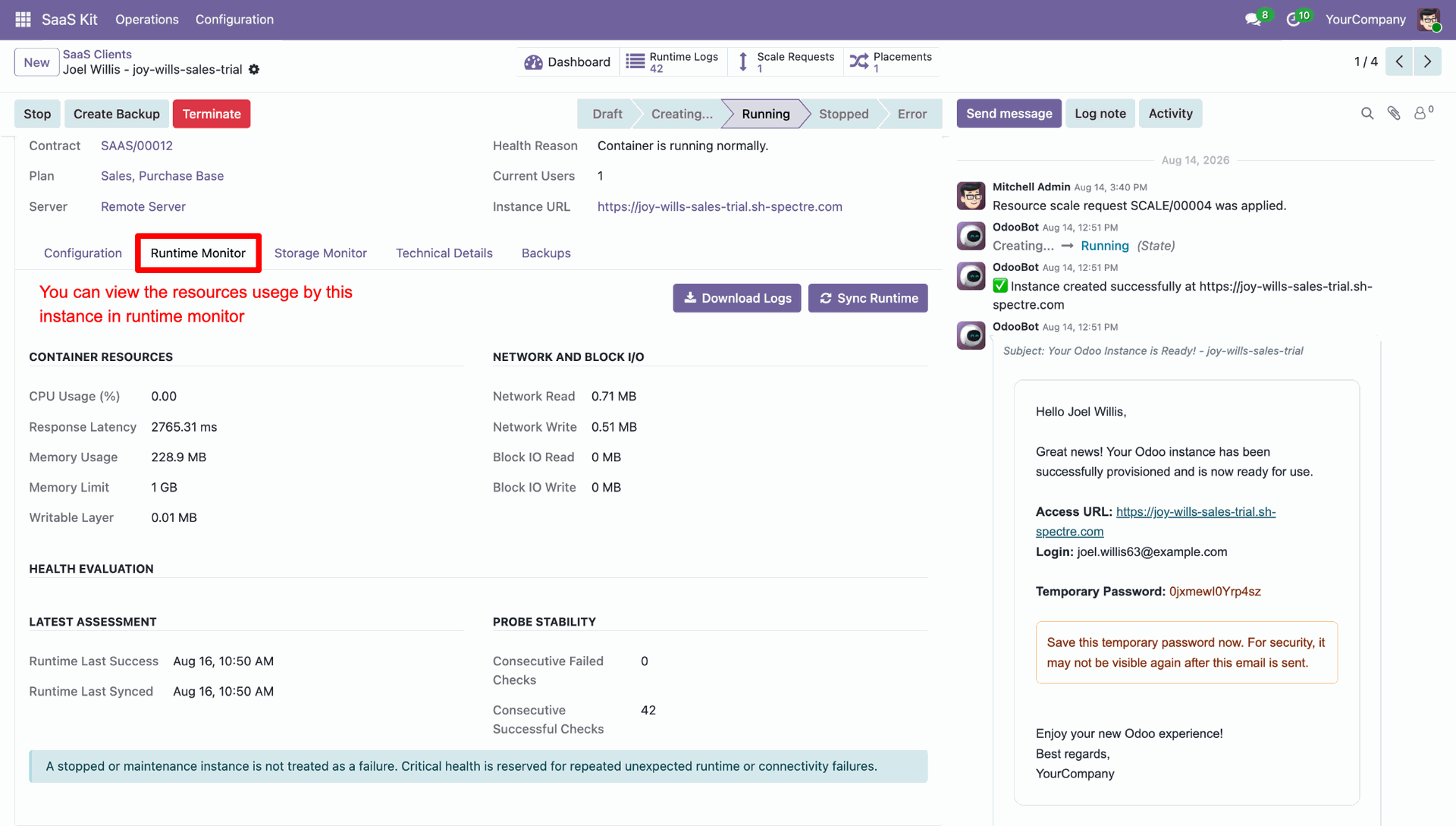
Click Dashboard smart button on client instance form to access individual instance telemetry.
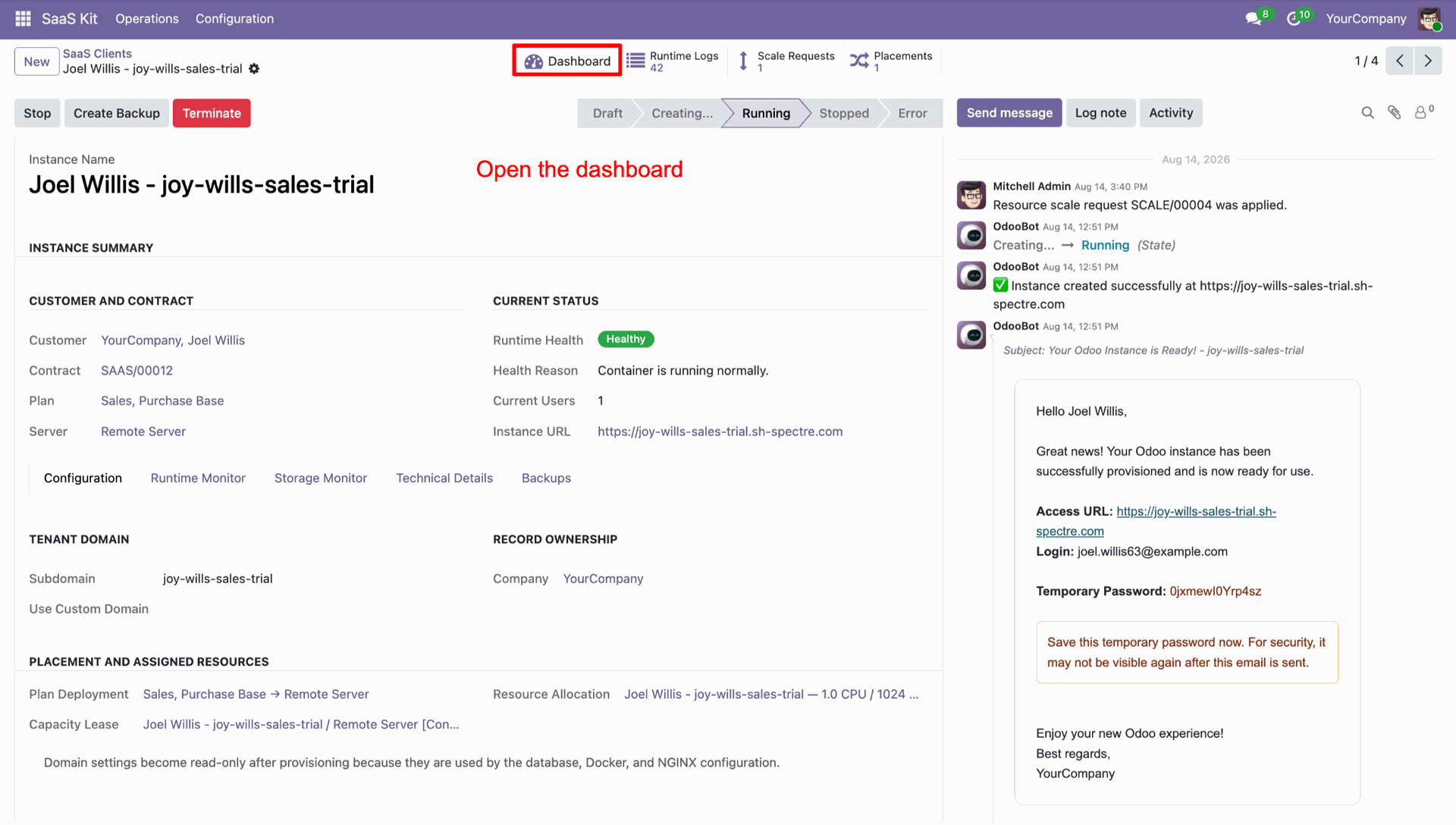
View Instance Monitor Dashboard displaying isolated container metrics and time-series history filters.
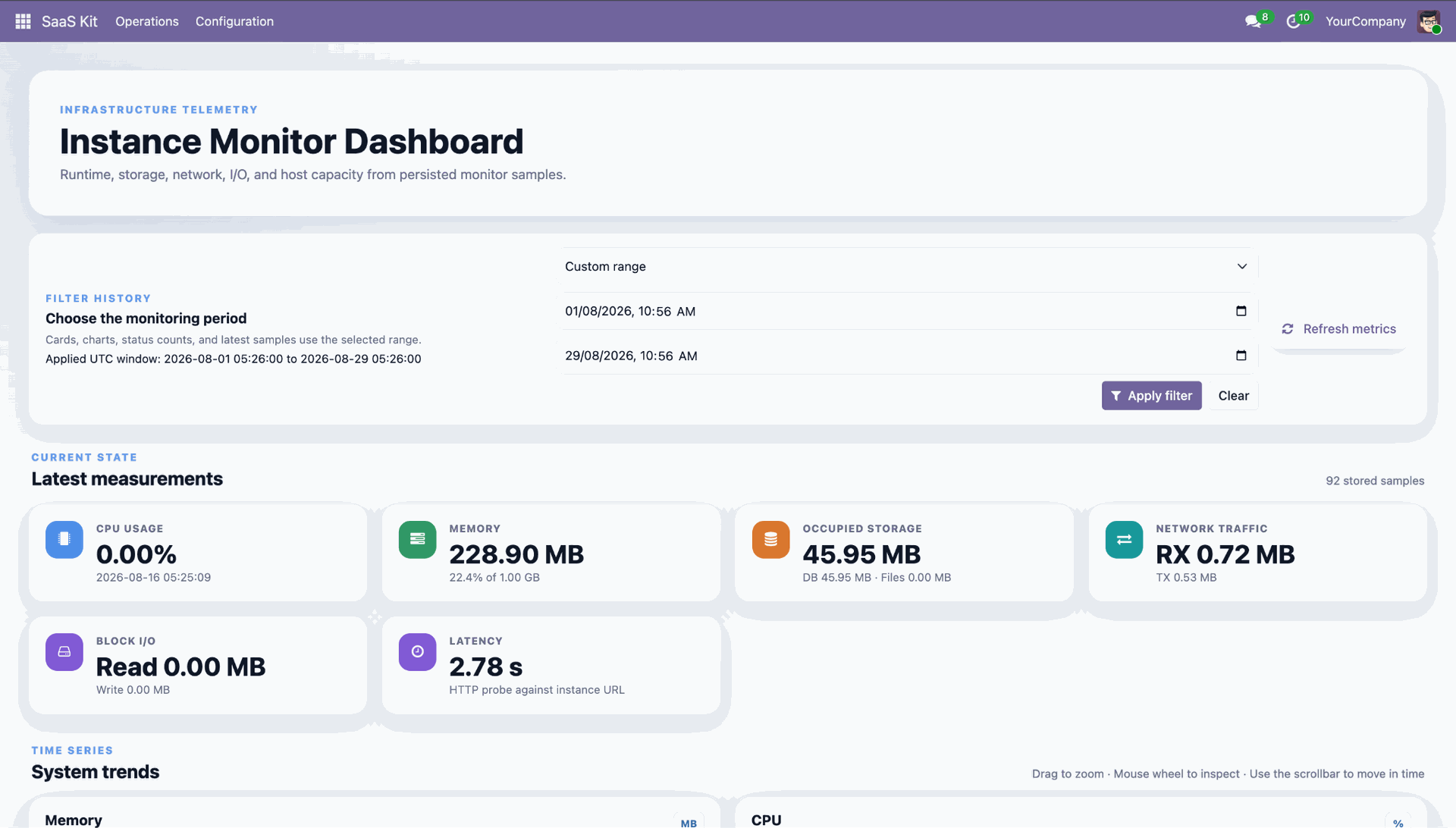
Analyze interactive system trends line charts for container memory, CPU utilization, and storage footprint.
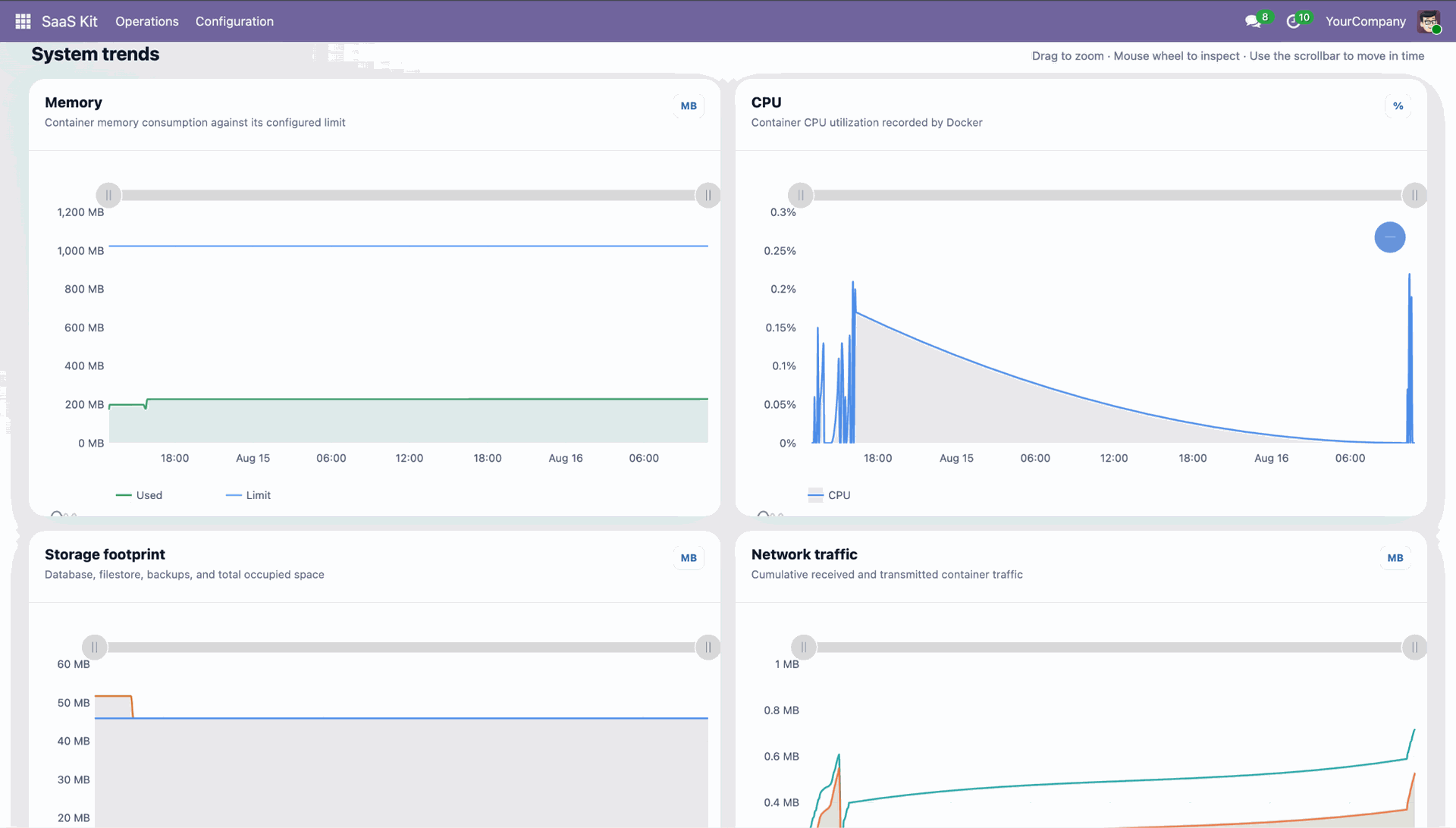
Select Runtime Monitor tab on instance form to view container resources and probe stability.
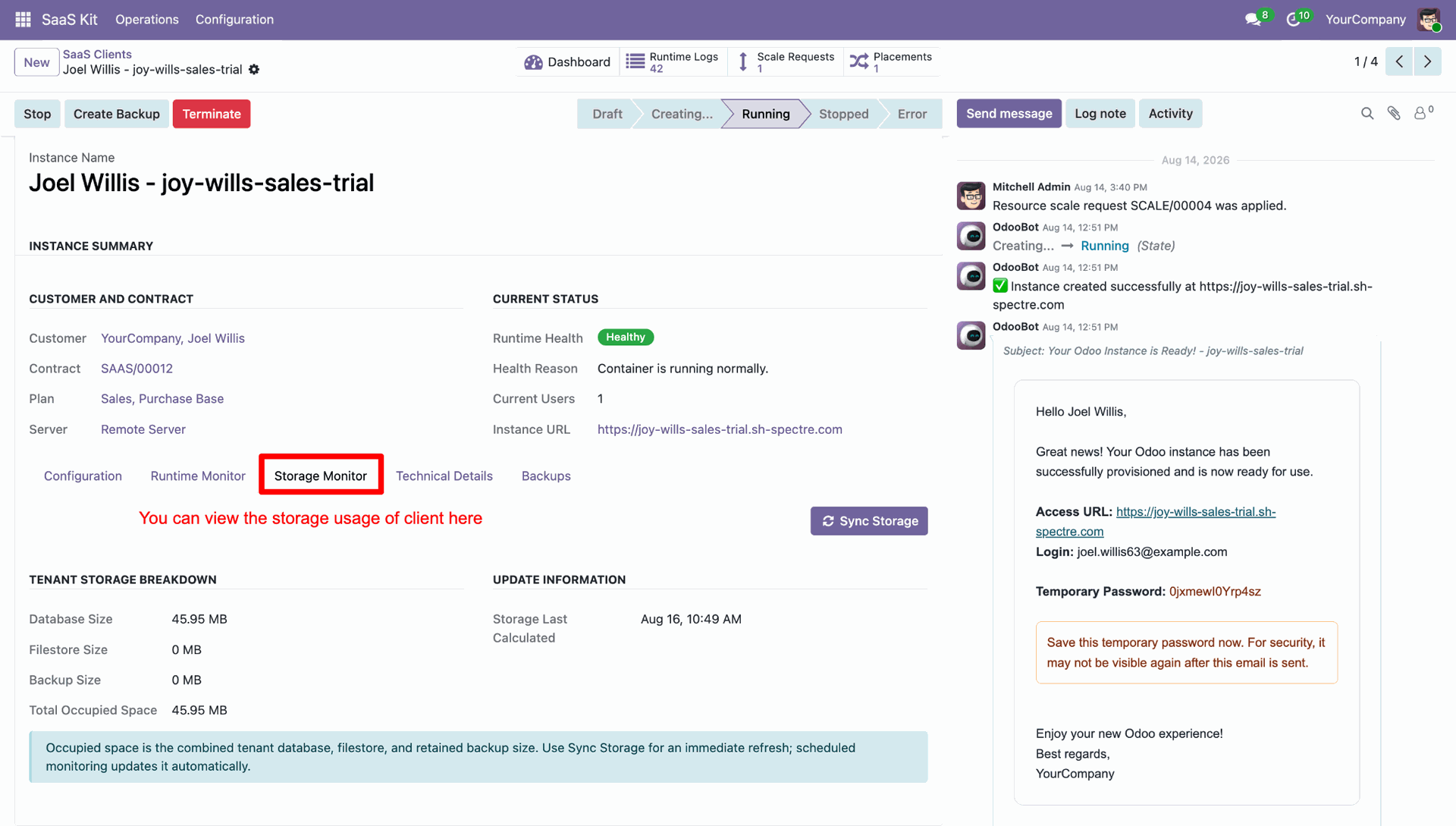
Select Storage Monitor tab on instance form to review tenant database and filestore breakdown.
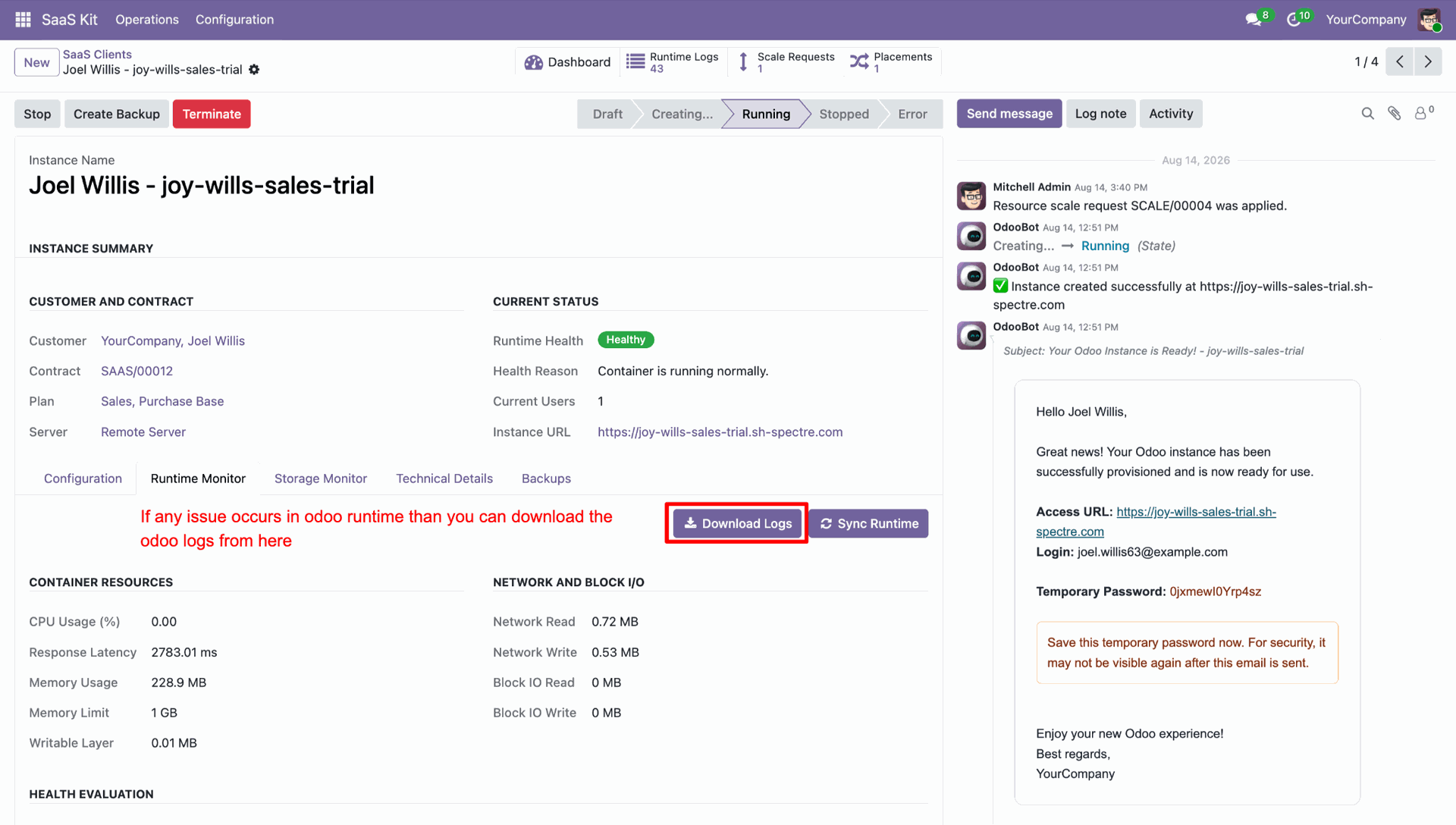
Click Download Logs button on instance runtime monitor to export client Odoo log file.
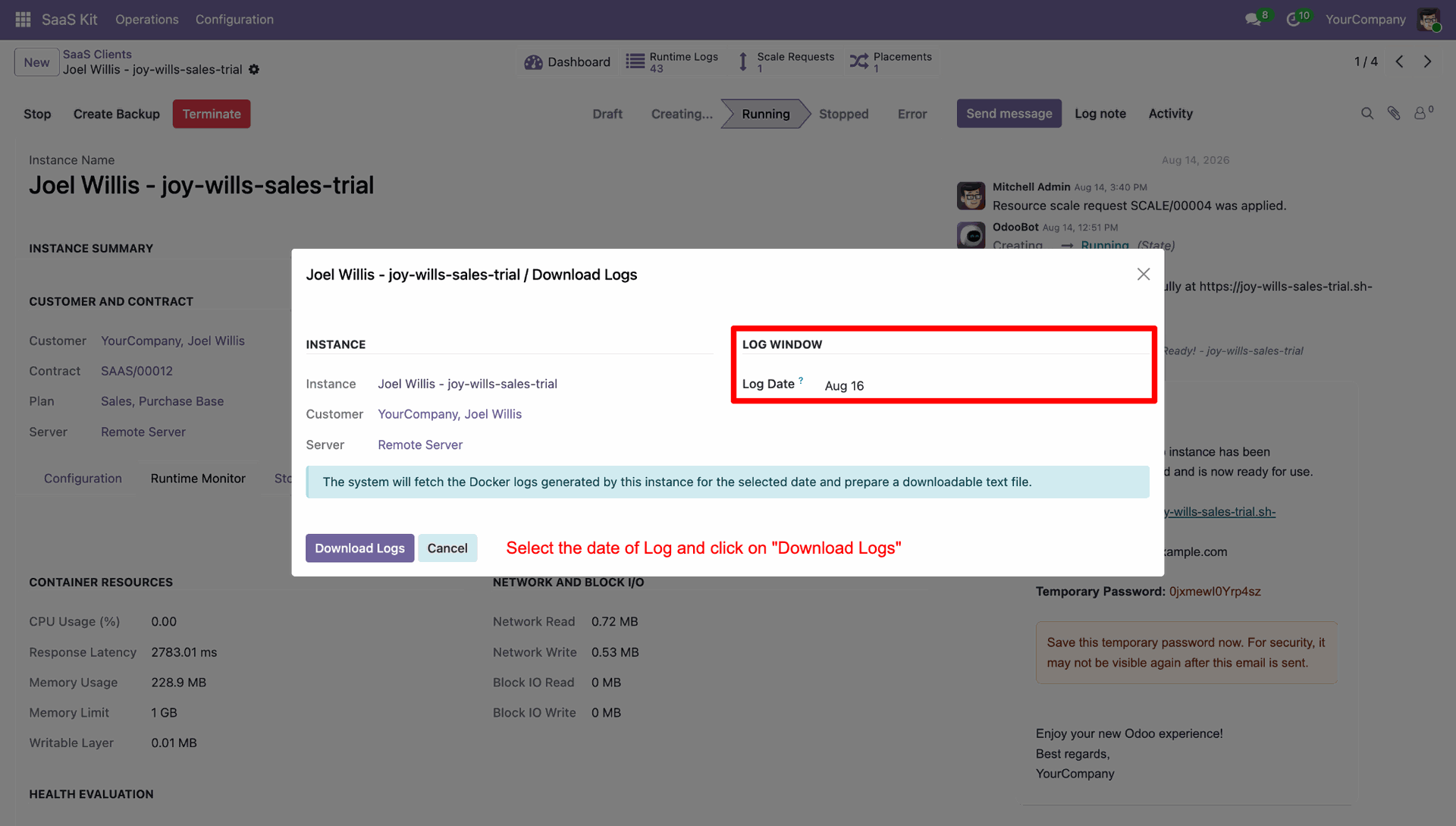
Select target log date within Download Logs popup wizard to download instance log files.
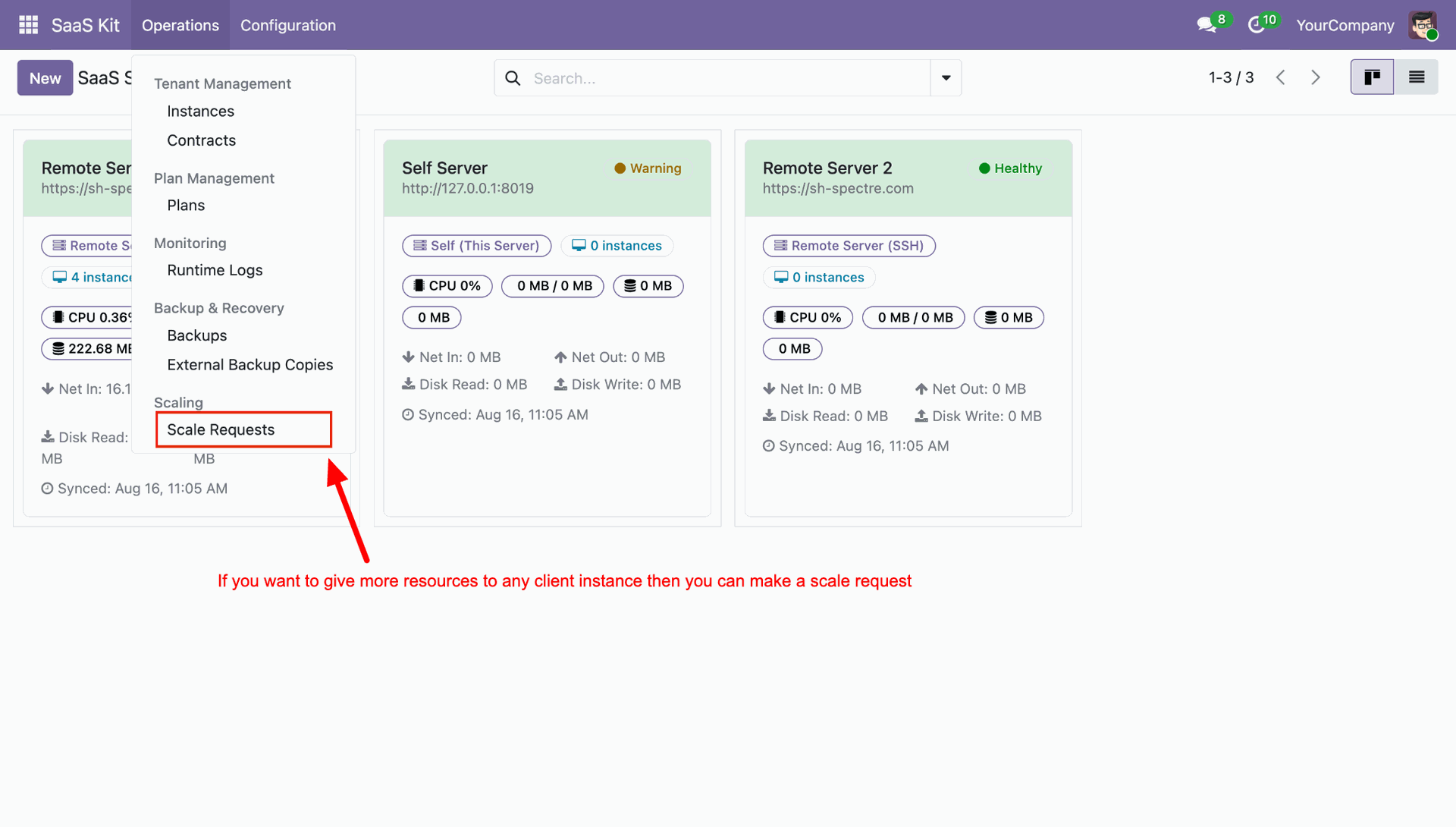
Navigate to Operations menu and select Scale Requests to manage client resource allocation requests.
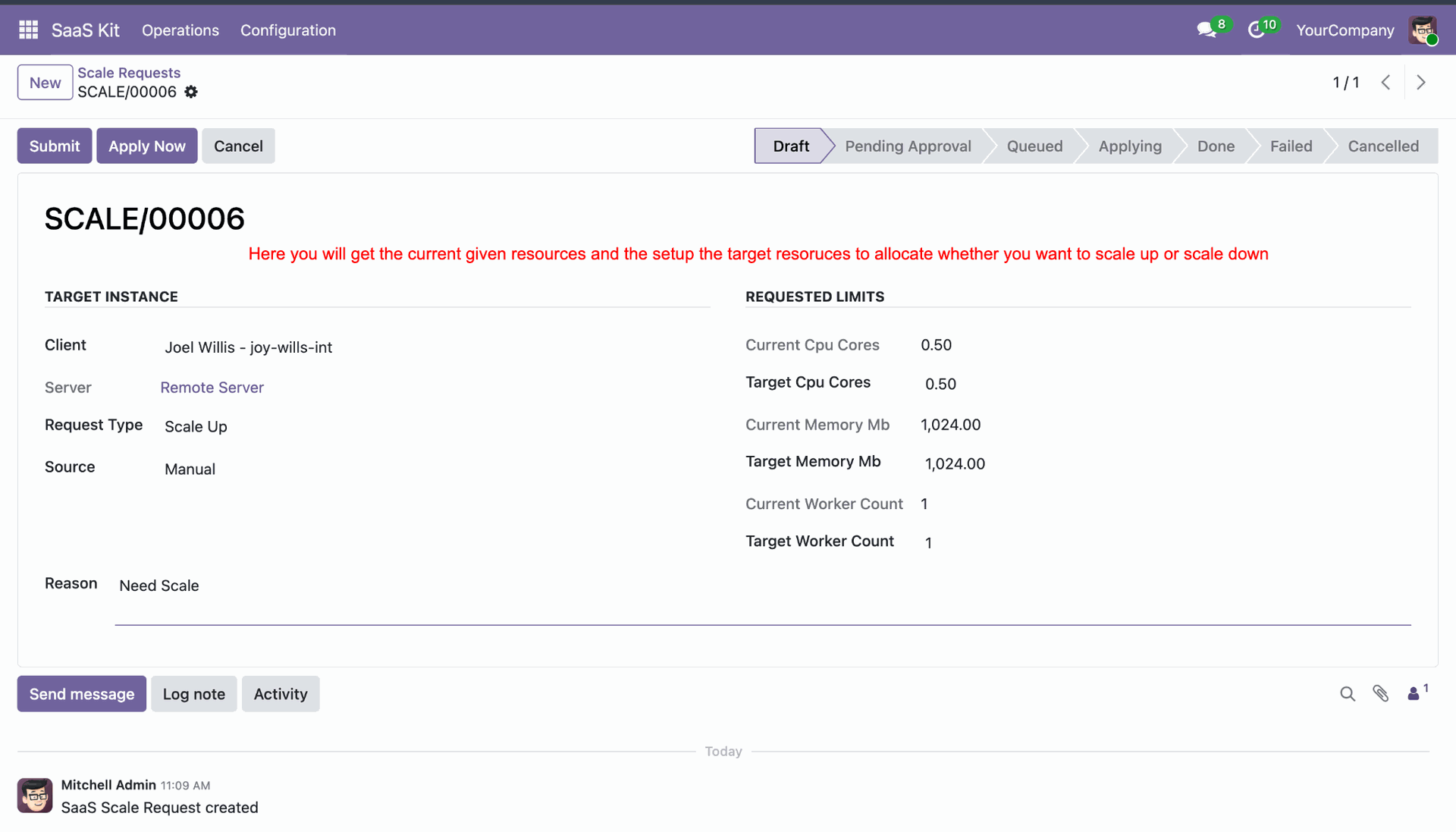
Configure target CPU, memory, and worker count parameters on scale request form for container scaling.
Define vertical scaling policy thresholds, cooldown periods, and resource limits under Placement and Scaling tab.
 How it Works?
Watch Video
How it Works?
Watch Video
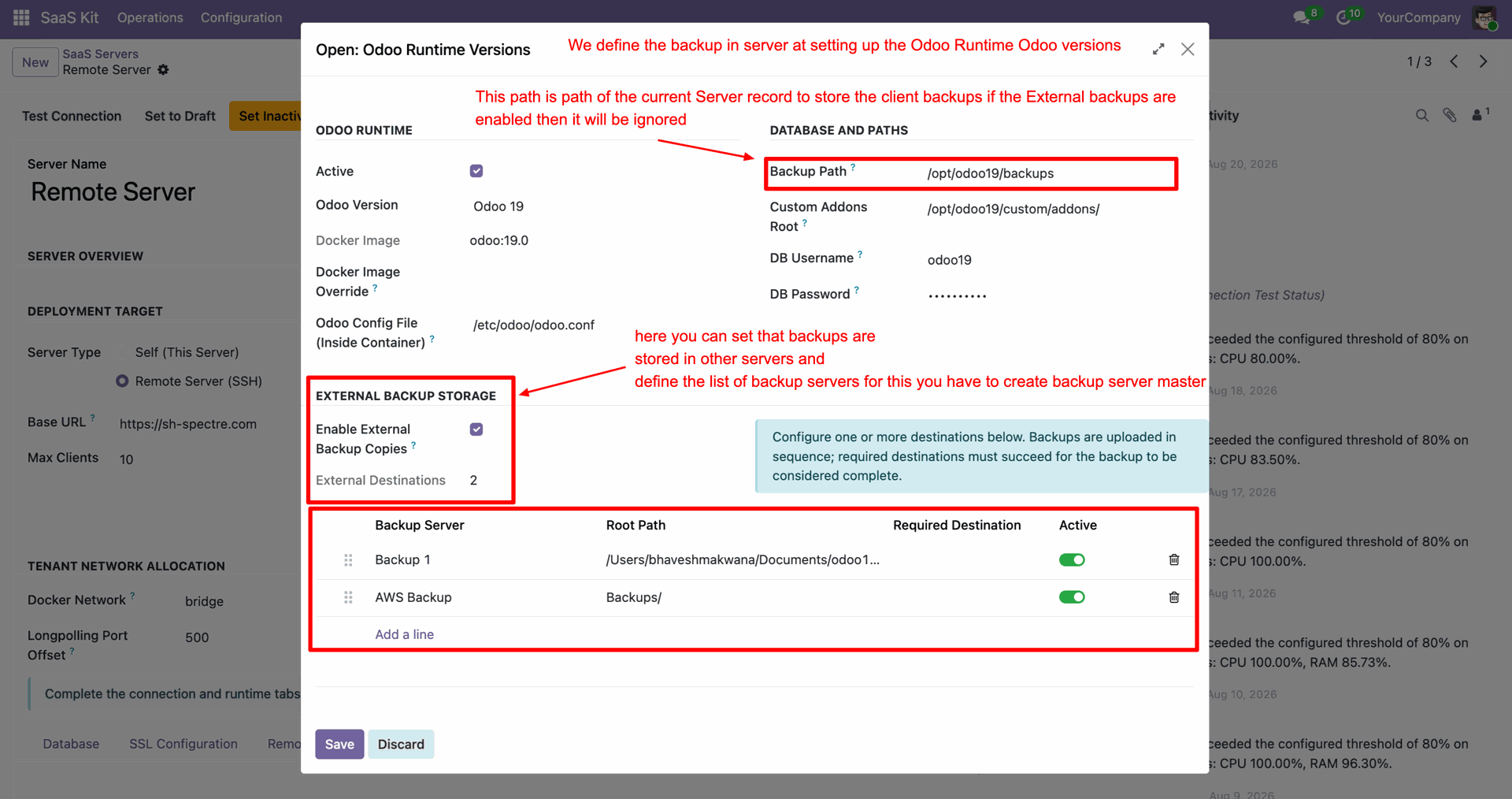
Configure local backup path and enable external backup storage destinations on Odoo Runtime Versions form.
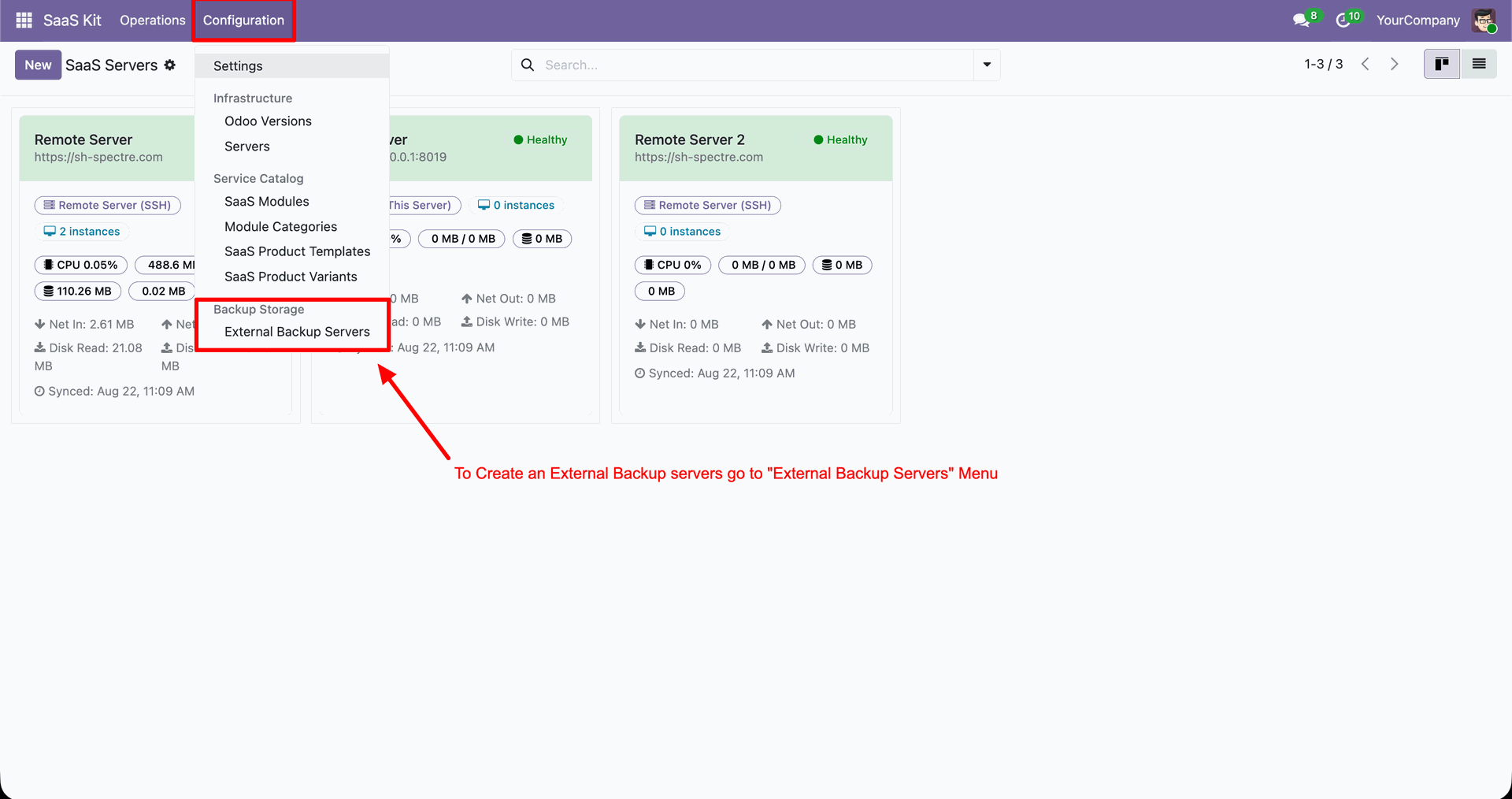
Select External Backup Servers from Configuration menu to set up offsite storage destinations.
View registered External Backup Servers list displaying protocol, host, bucket name, and test status.
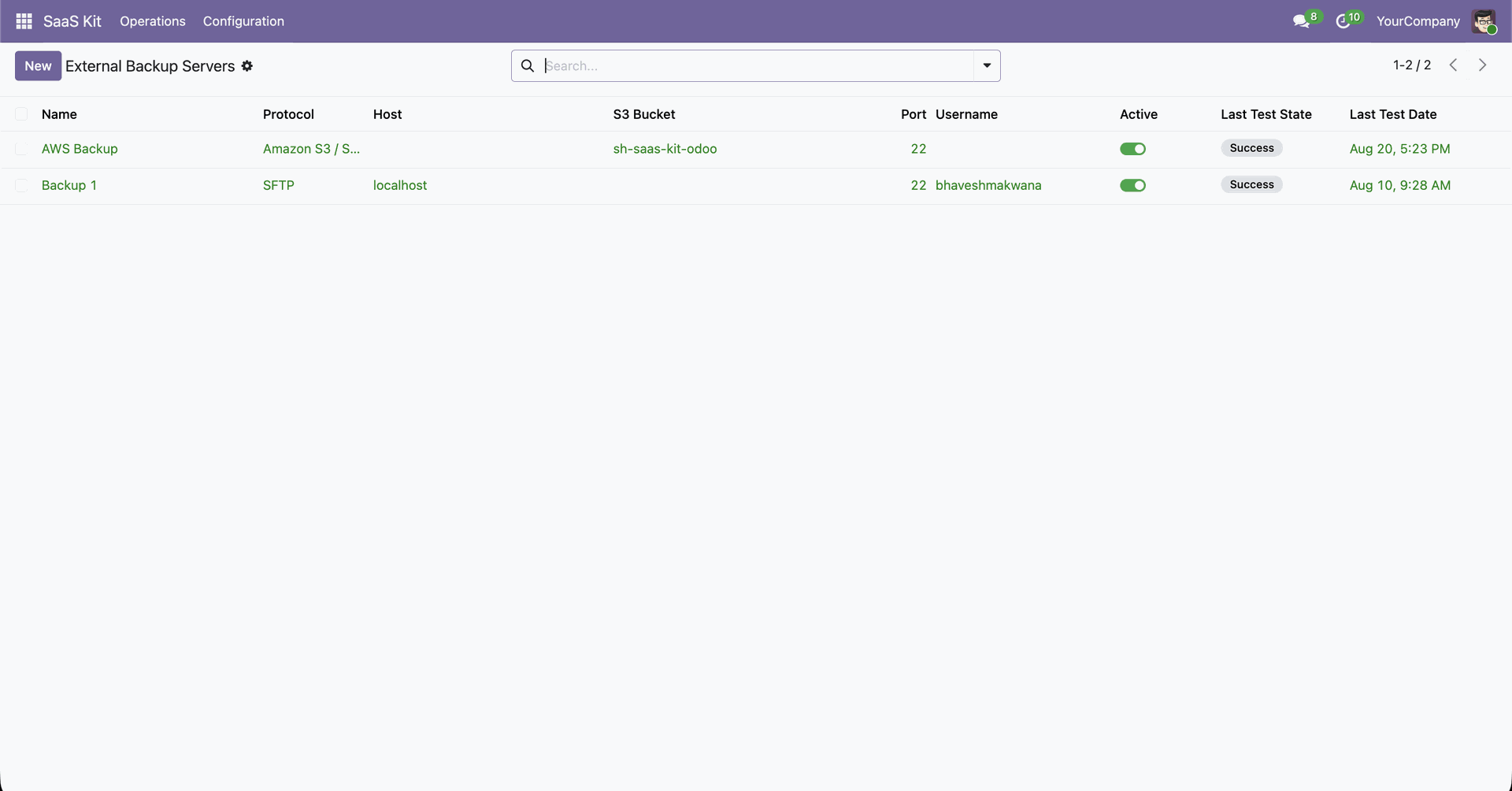
Configure SFTP server connection host, credentials, and test connection on external backup server form.
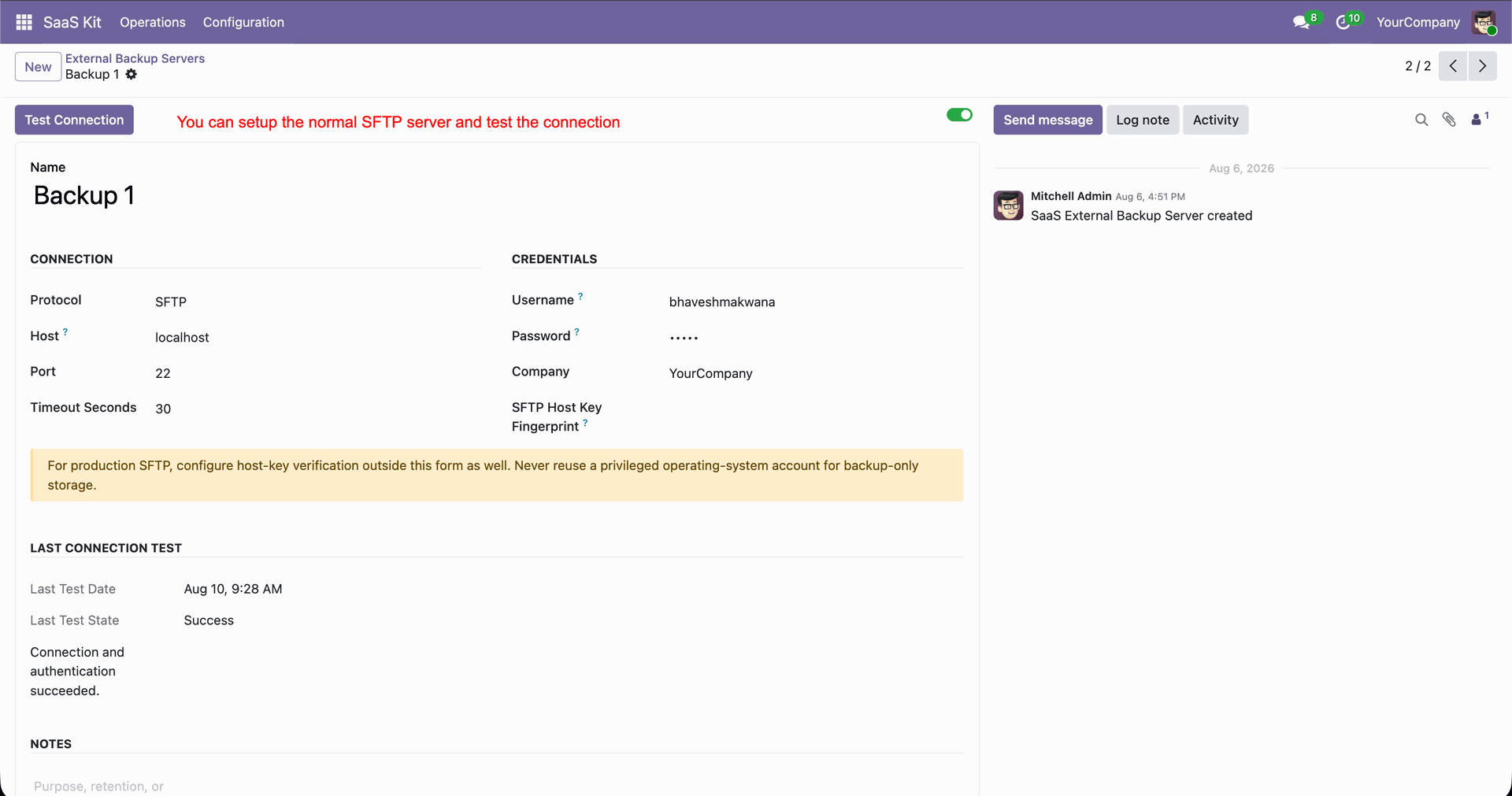
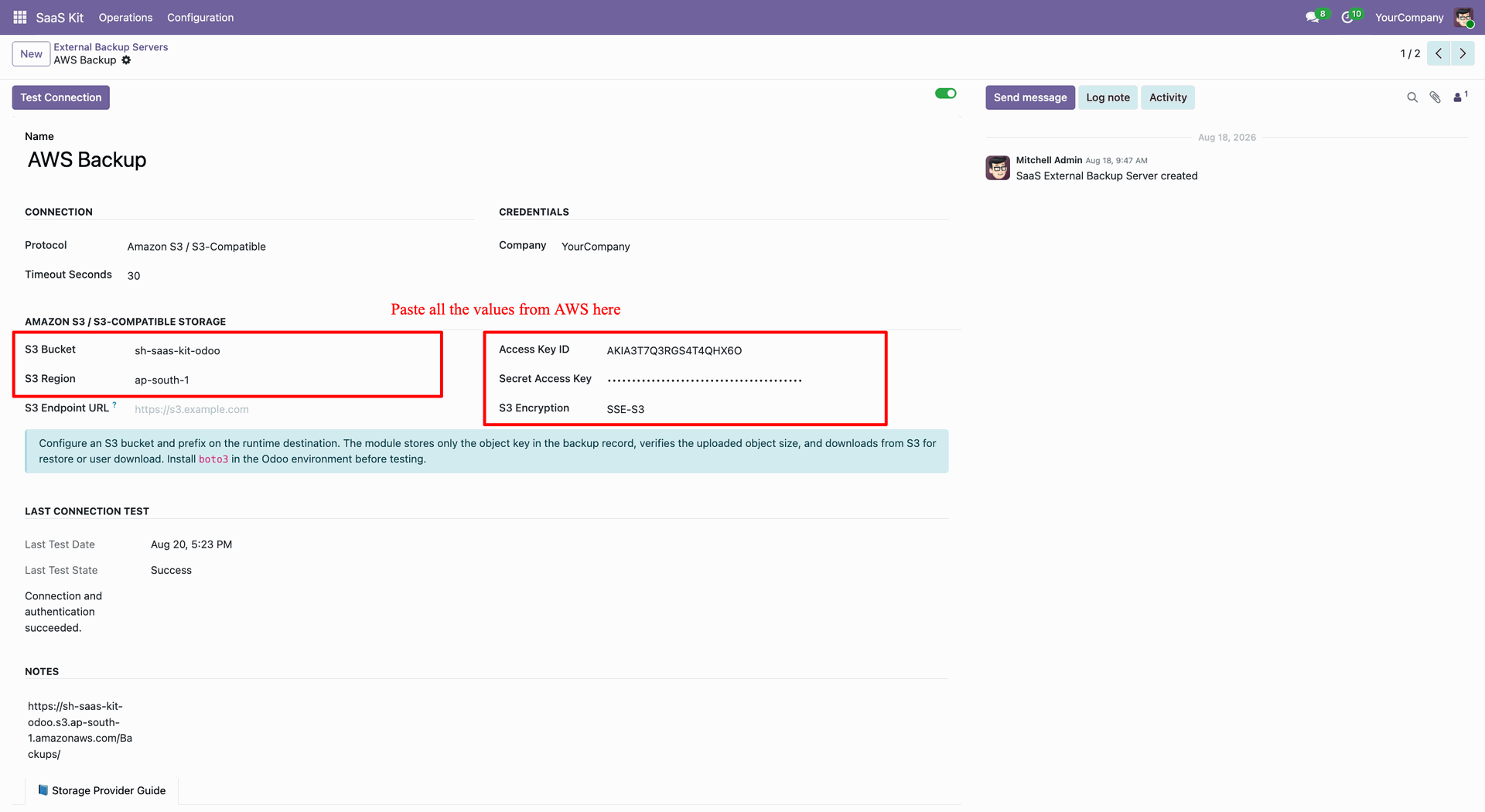
Set up Amazon S3 bucket, region, and access keys on external backup server form.
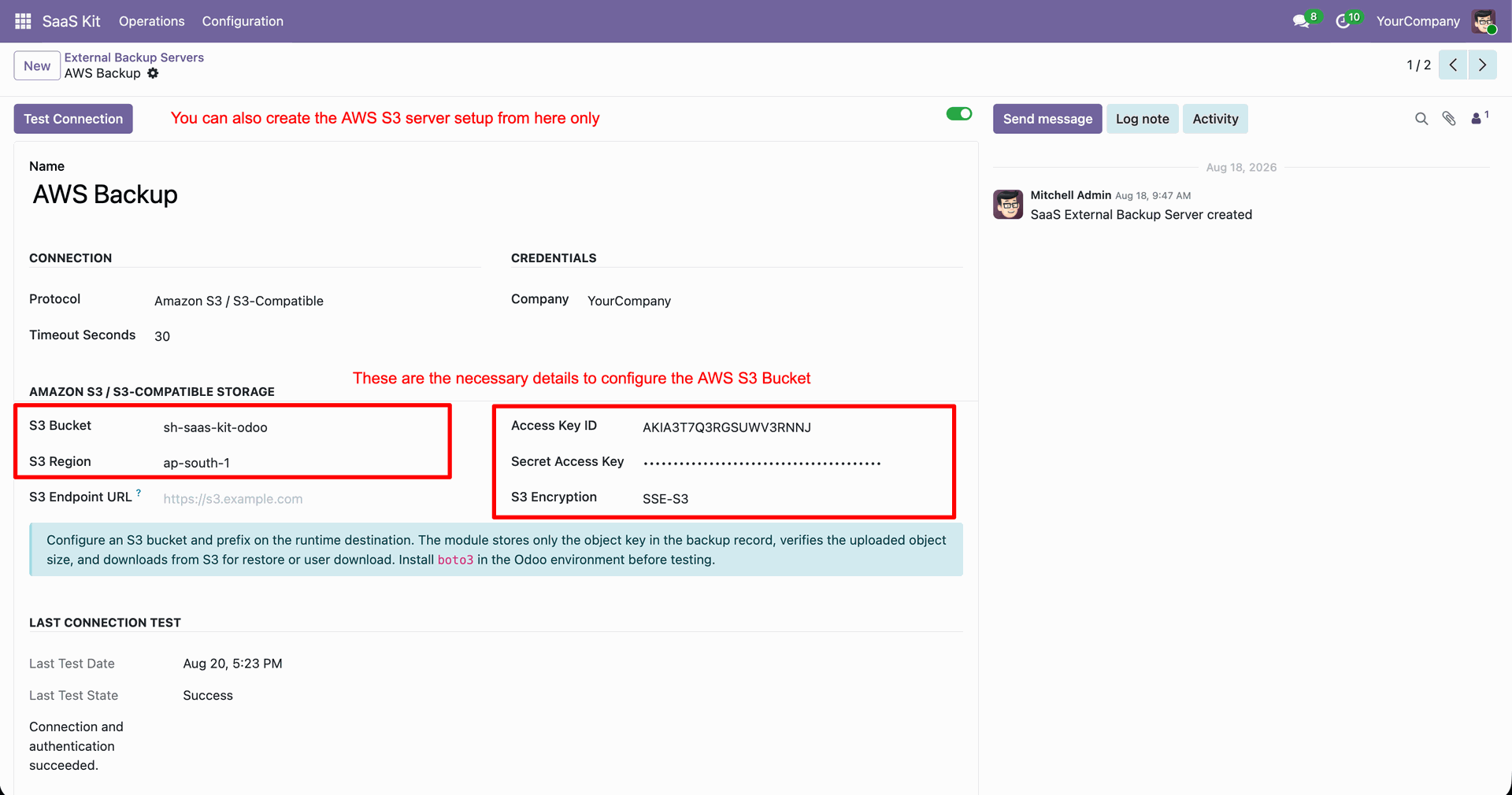
Navigate to Amazon S3 service from AWS Management Console home screen.
Select target S3 bucket from General purpose buckets list to view storage bucket properties.
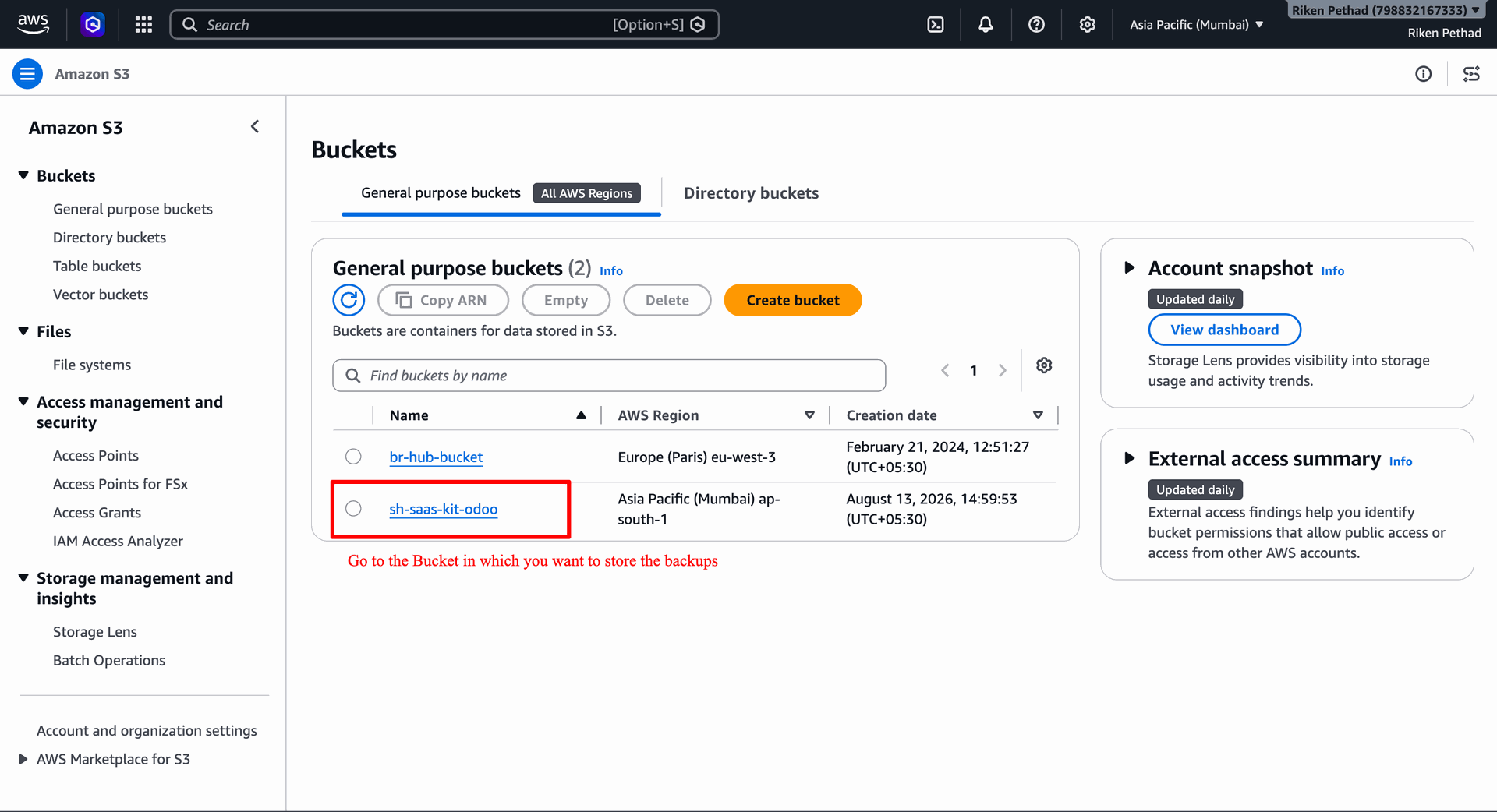
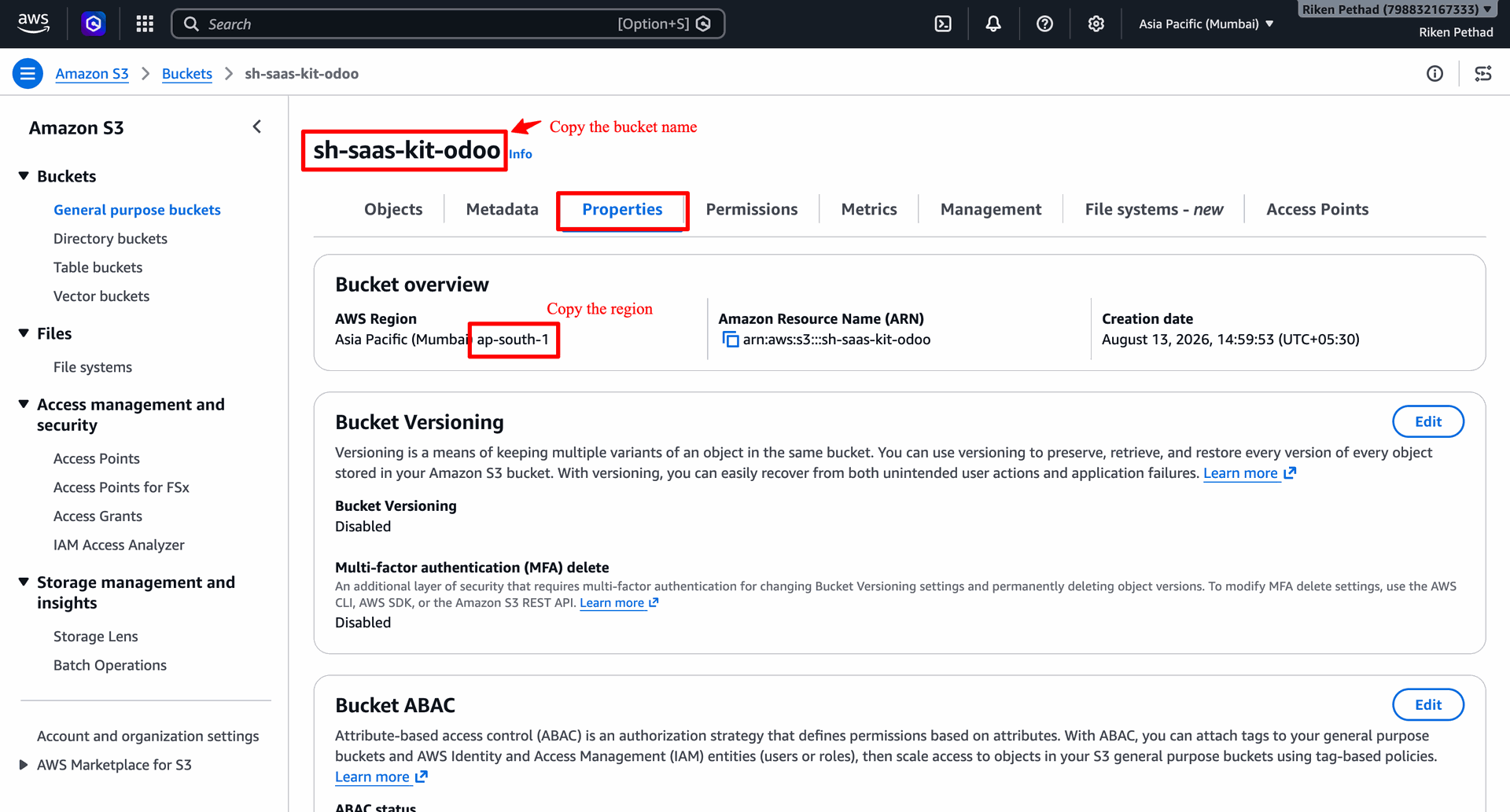
Copy S3 bucket name and AWS region code from bucket Properties tab overview.
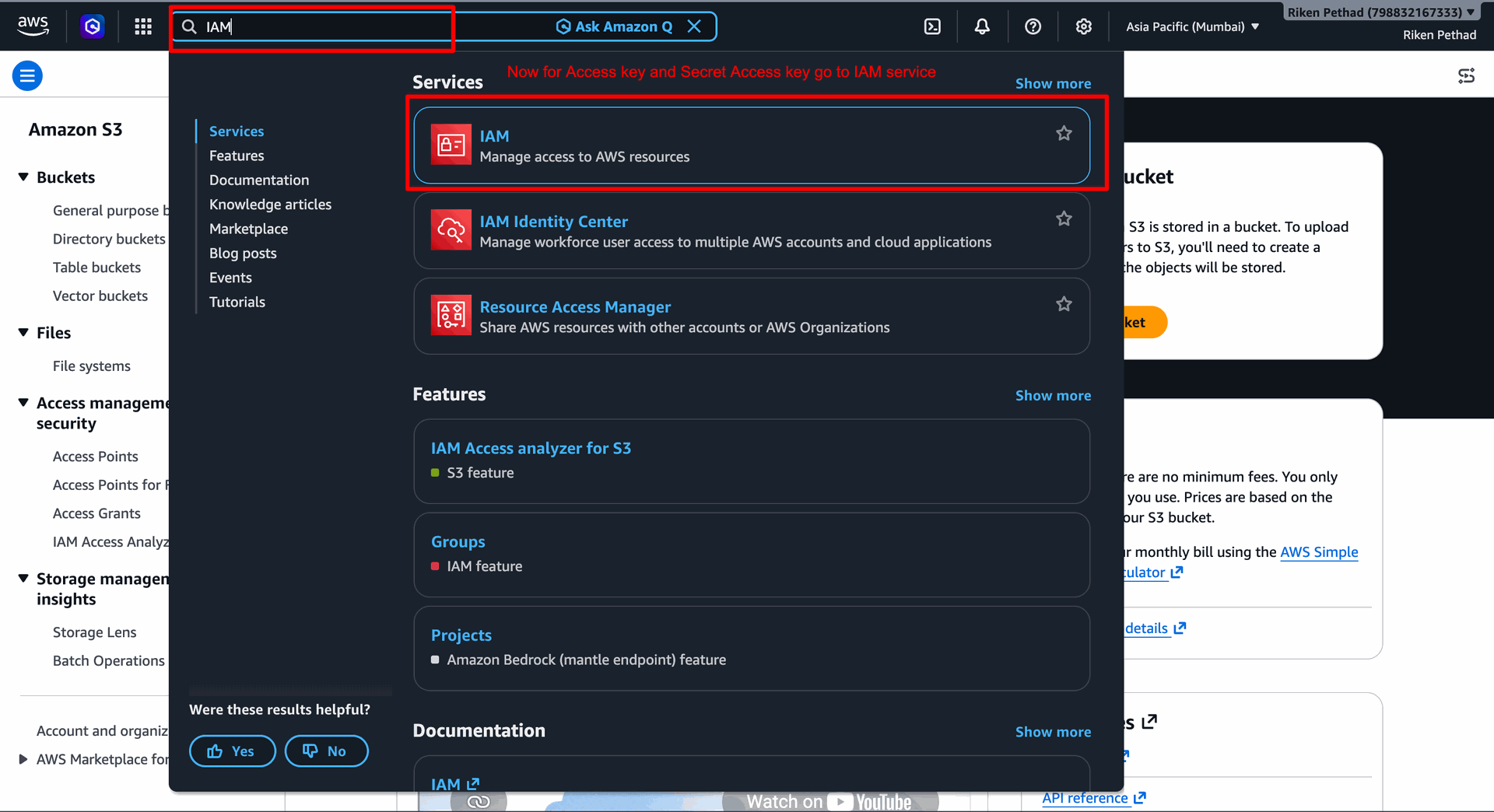
Search for IAM service in AWS search bar to manage security credentials.
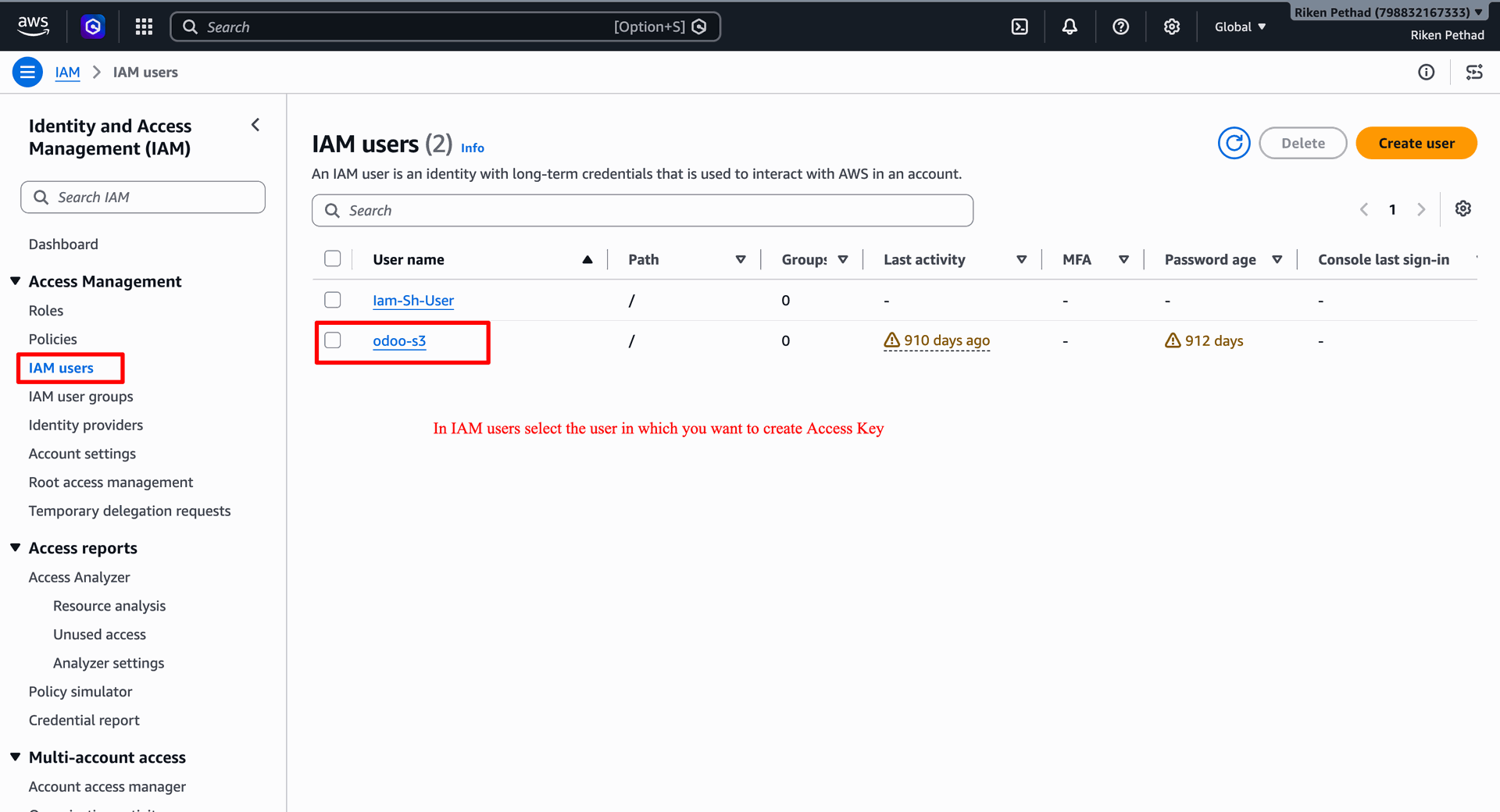
Select IAM user from IAM users table to configure user security credentials.
Select Security credentials tab on IAM user page and click Create access key button.
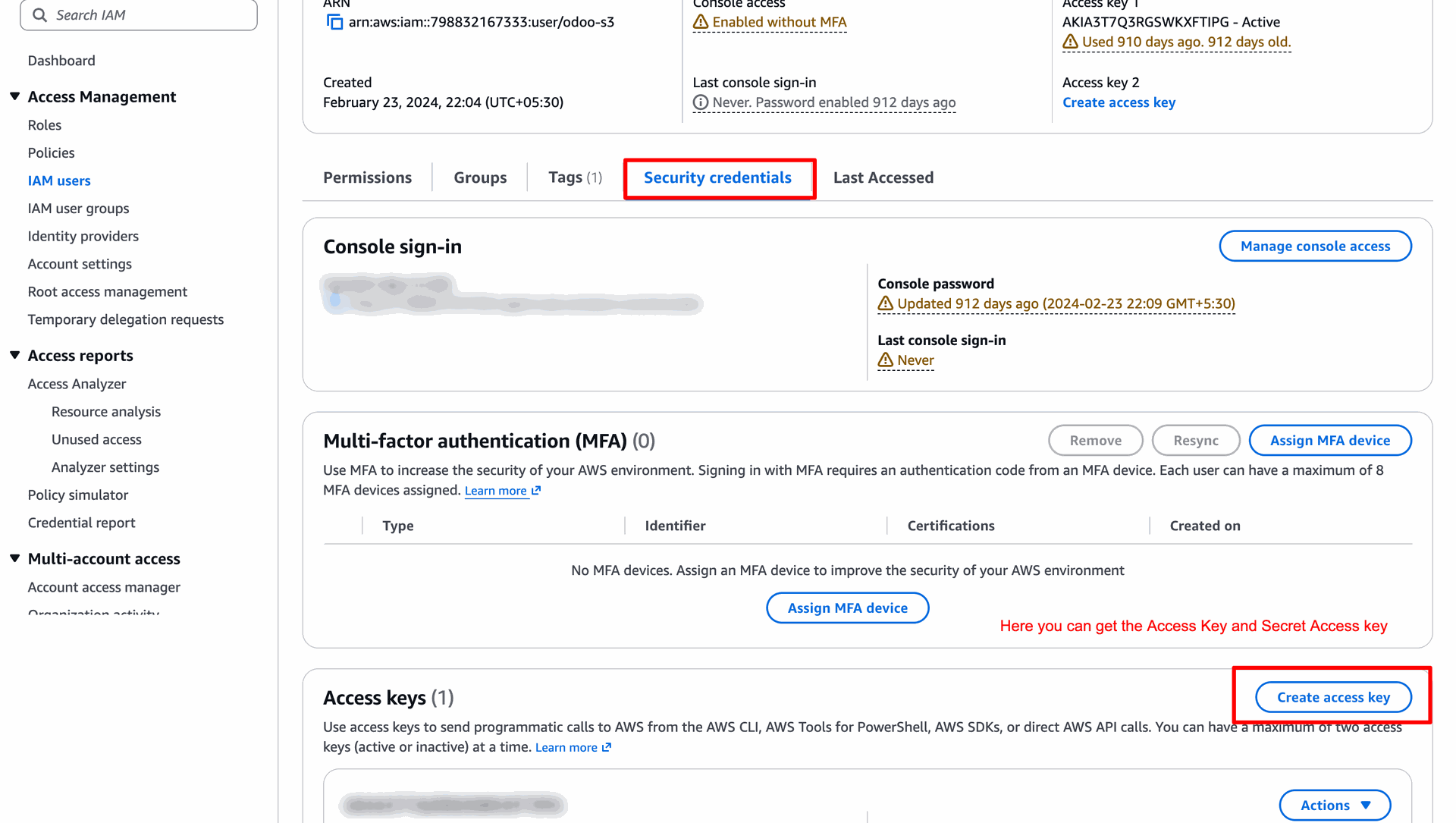
Select Application running outside AWS use case and click Next button on access key wizard.
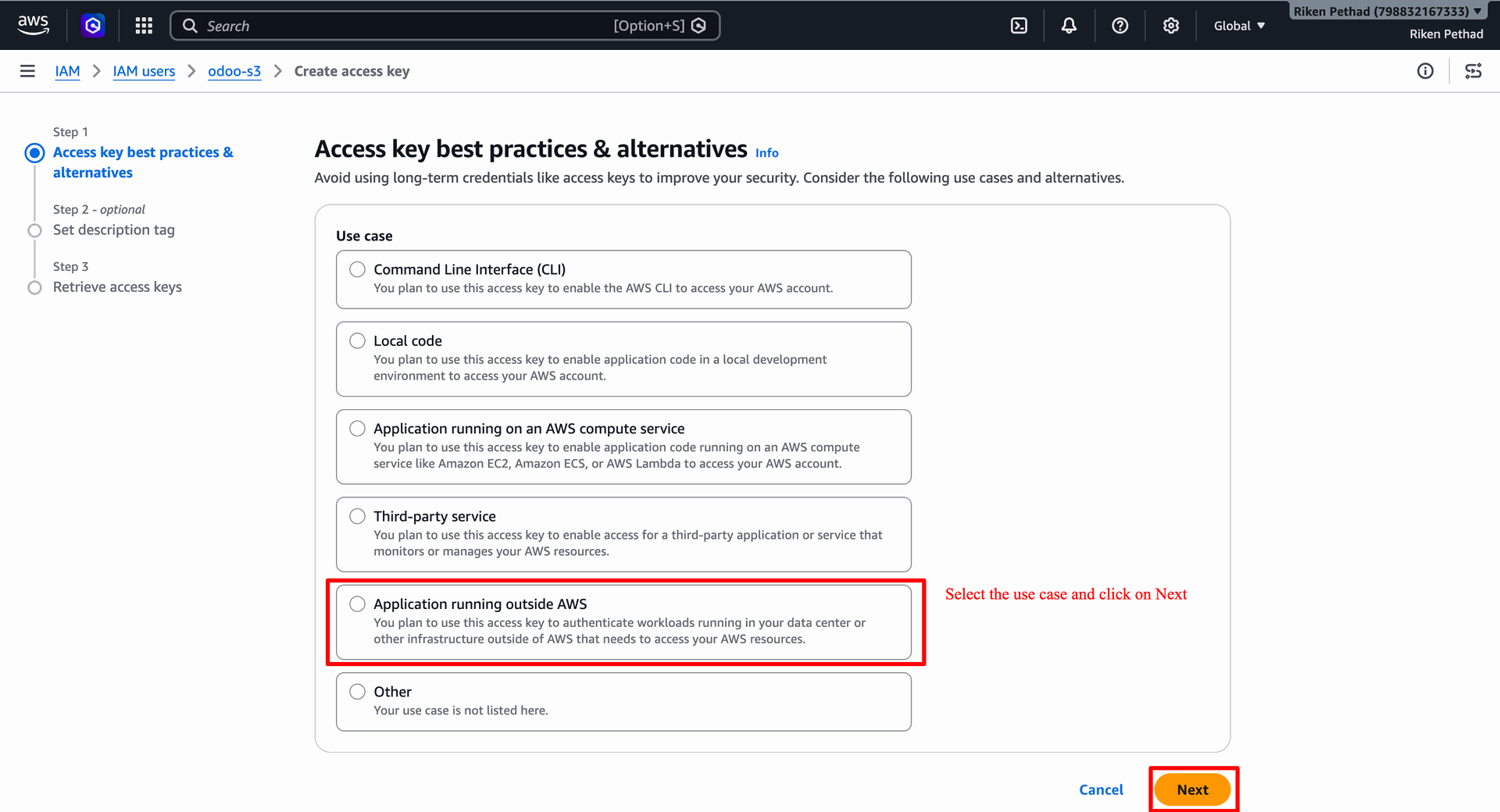
Copy generated Access key and Secret access key values and click Done button to finish setup.
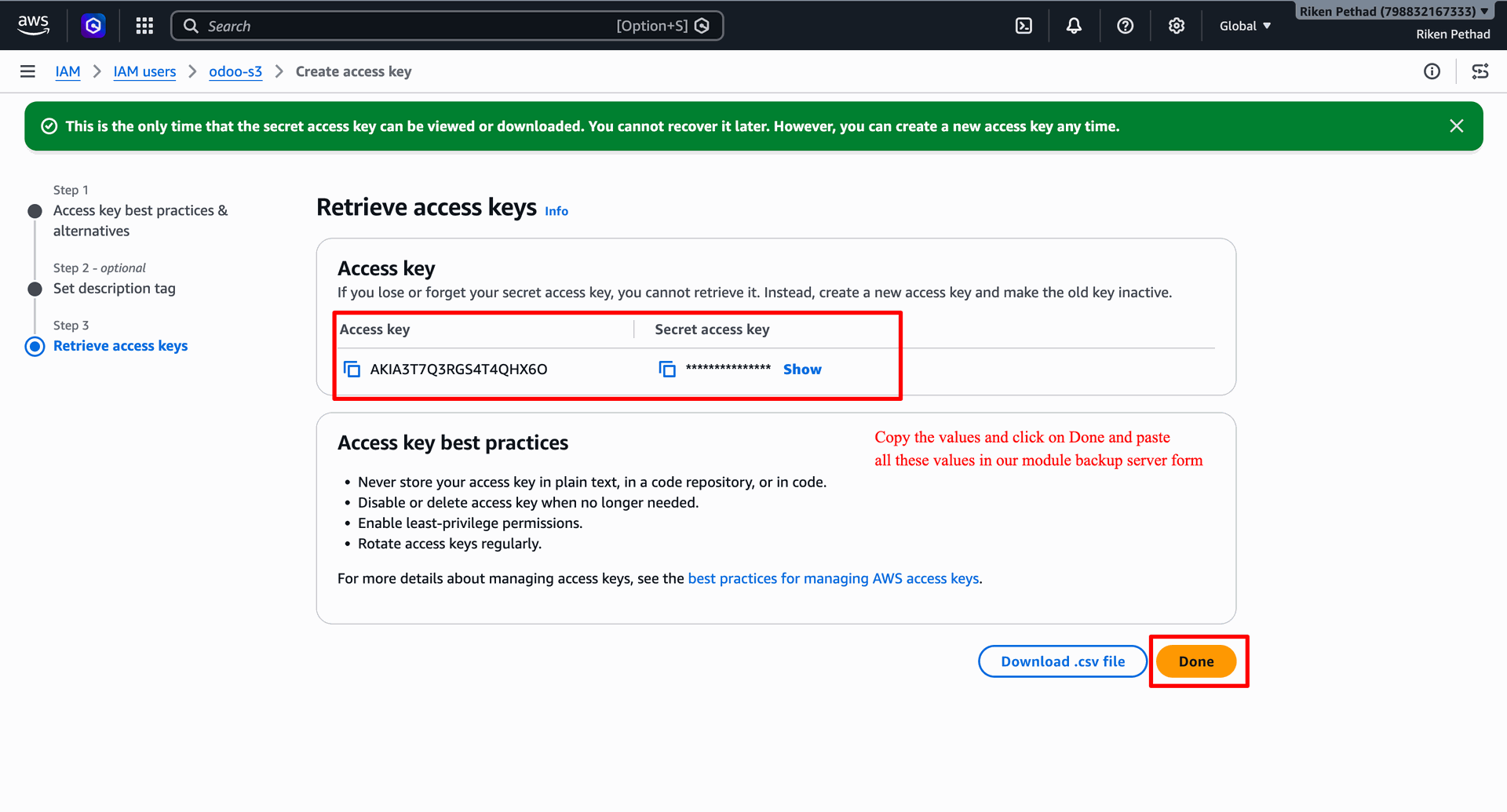
Paste retrieved S3 bucket details, region, and access keys into AWS backup server record.
Click Create Backup button on client instance form to manually generate an instance backup.
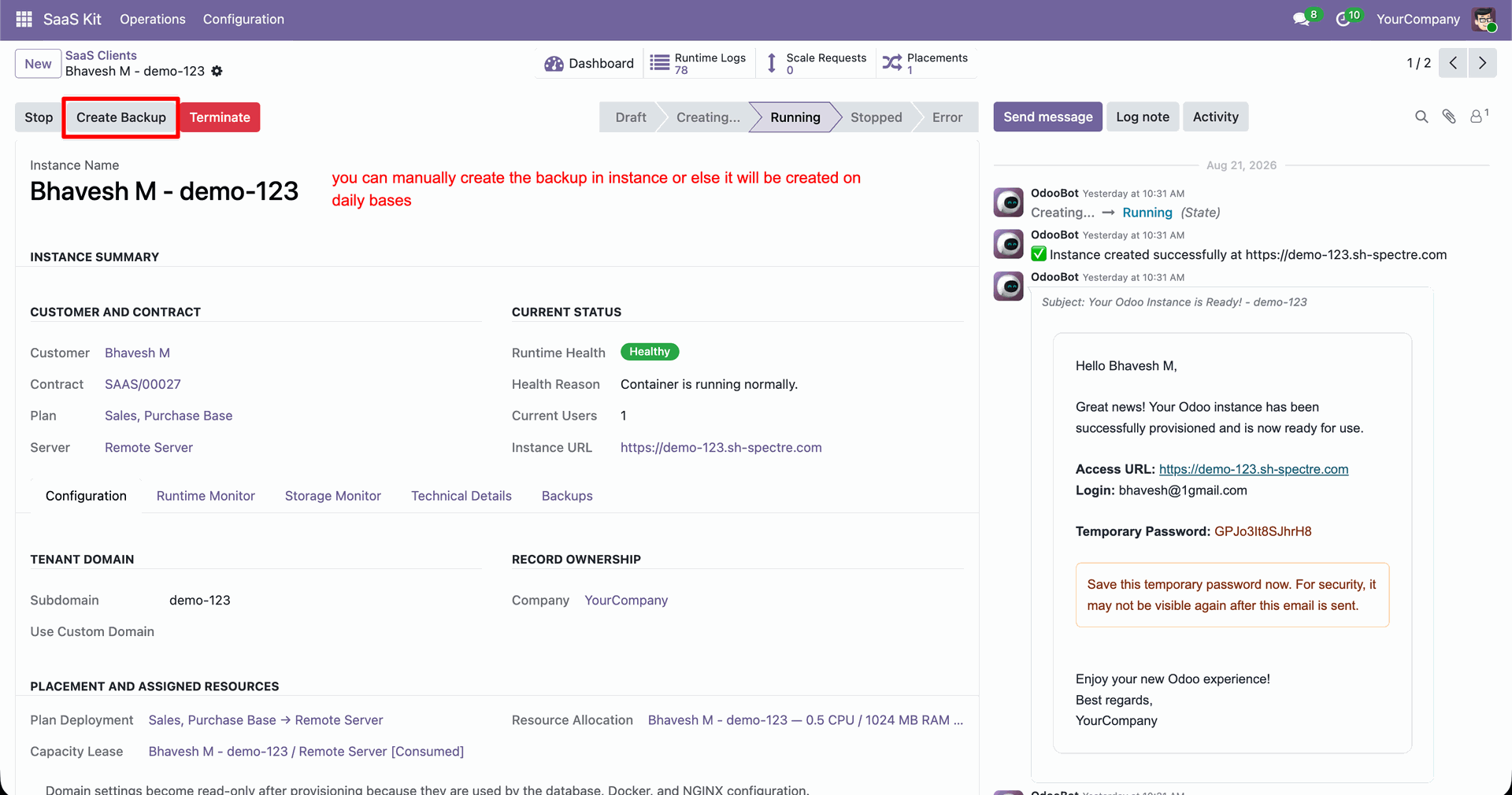
Select Include Filestore option in Backup Options popup and click Create Backup button.
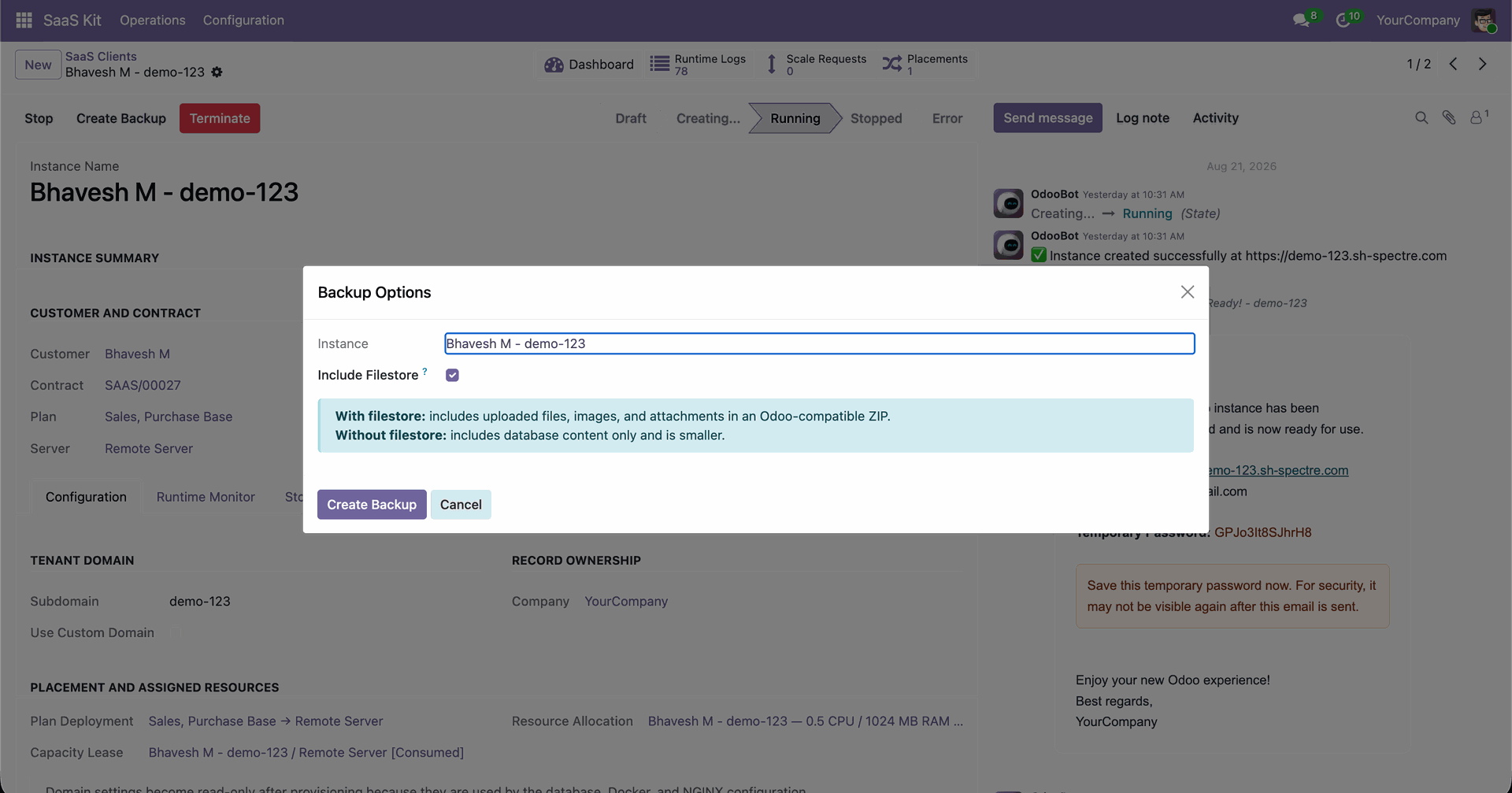
Select Backups tab on client form to view manual and scheduled tenant database backups.
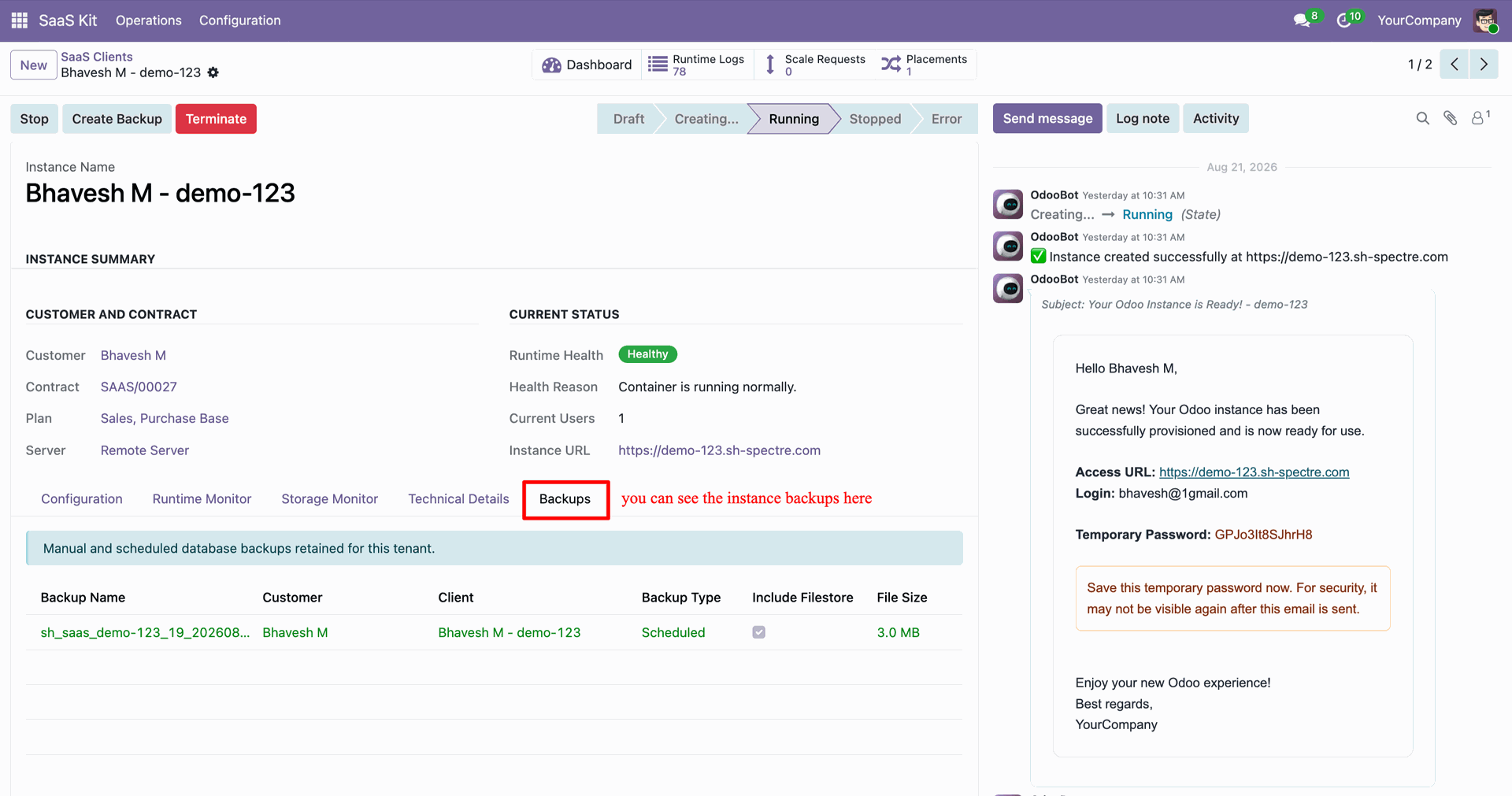
Inspect backup details, replication state, and external storage copy locations on Backups modal.
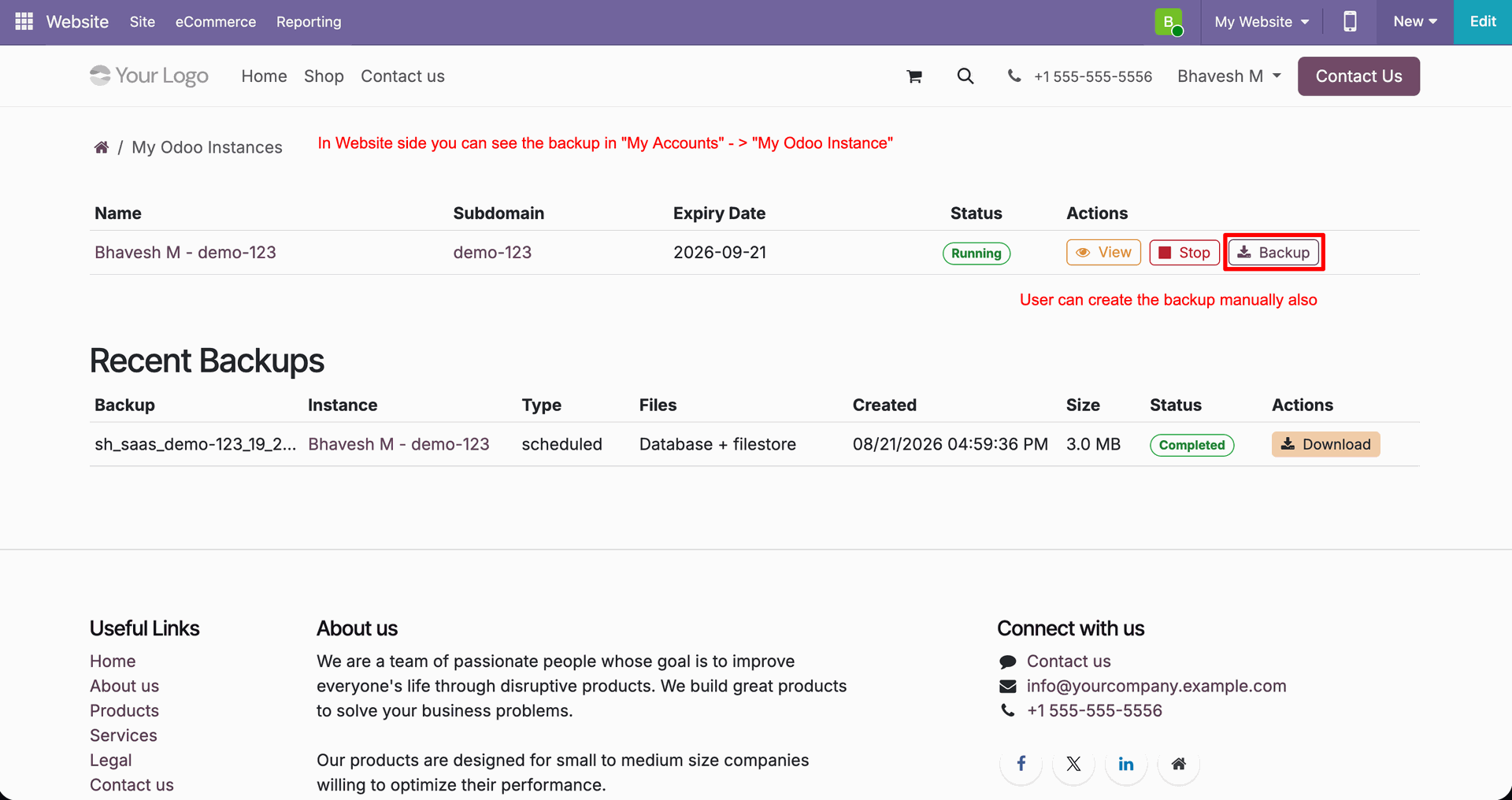
Click Backup button on customer portal My Odoo Instances page to trigger manual backup creation.
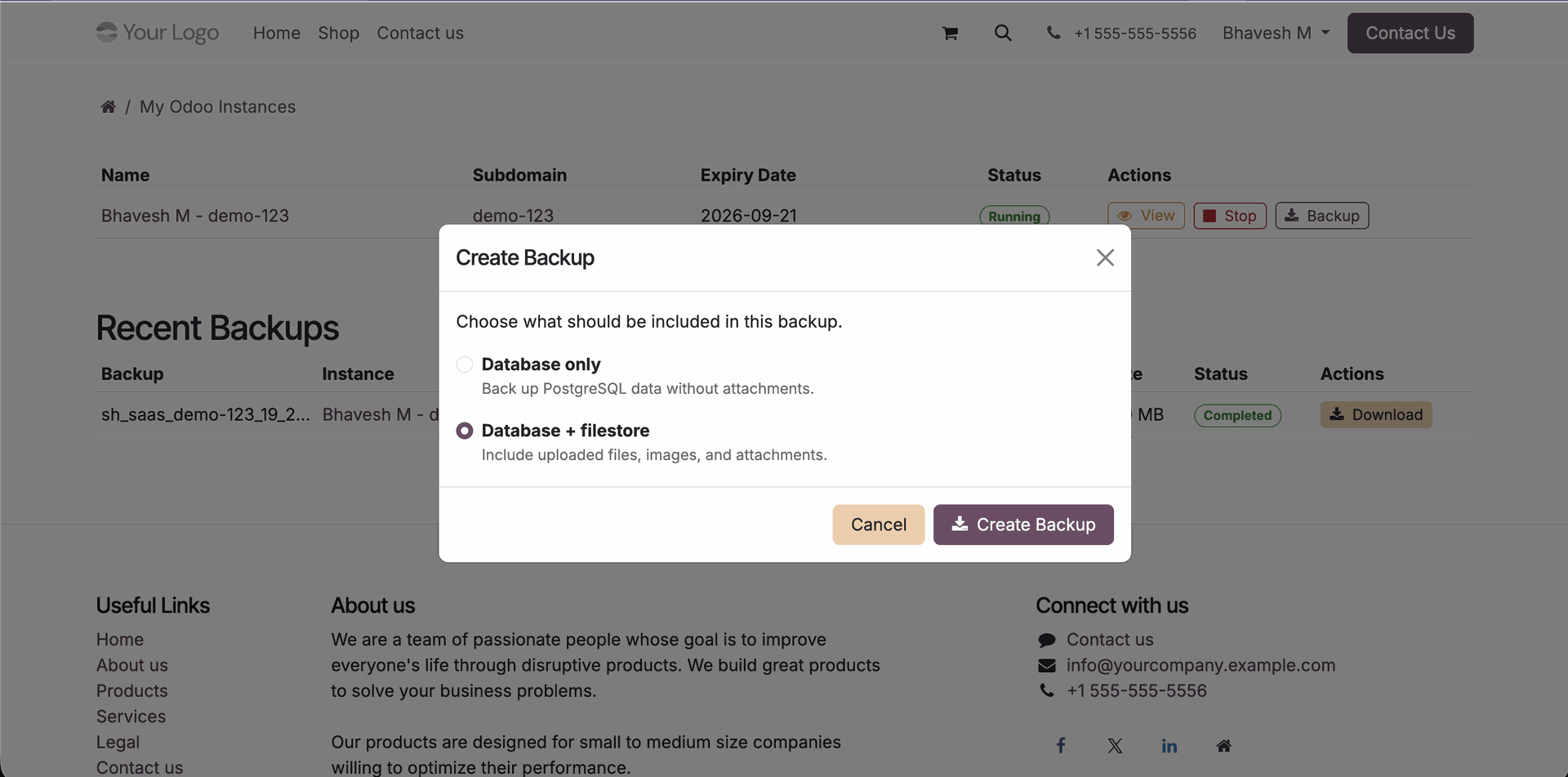
Select Database + filestore option on portal Create Backup popup and click Create Backup button.
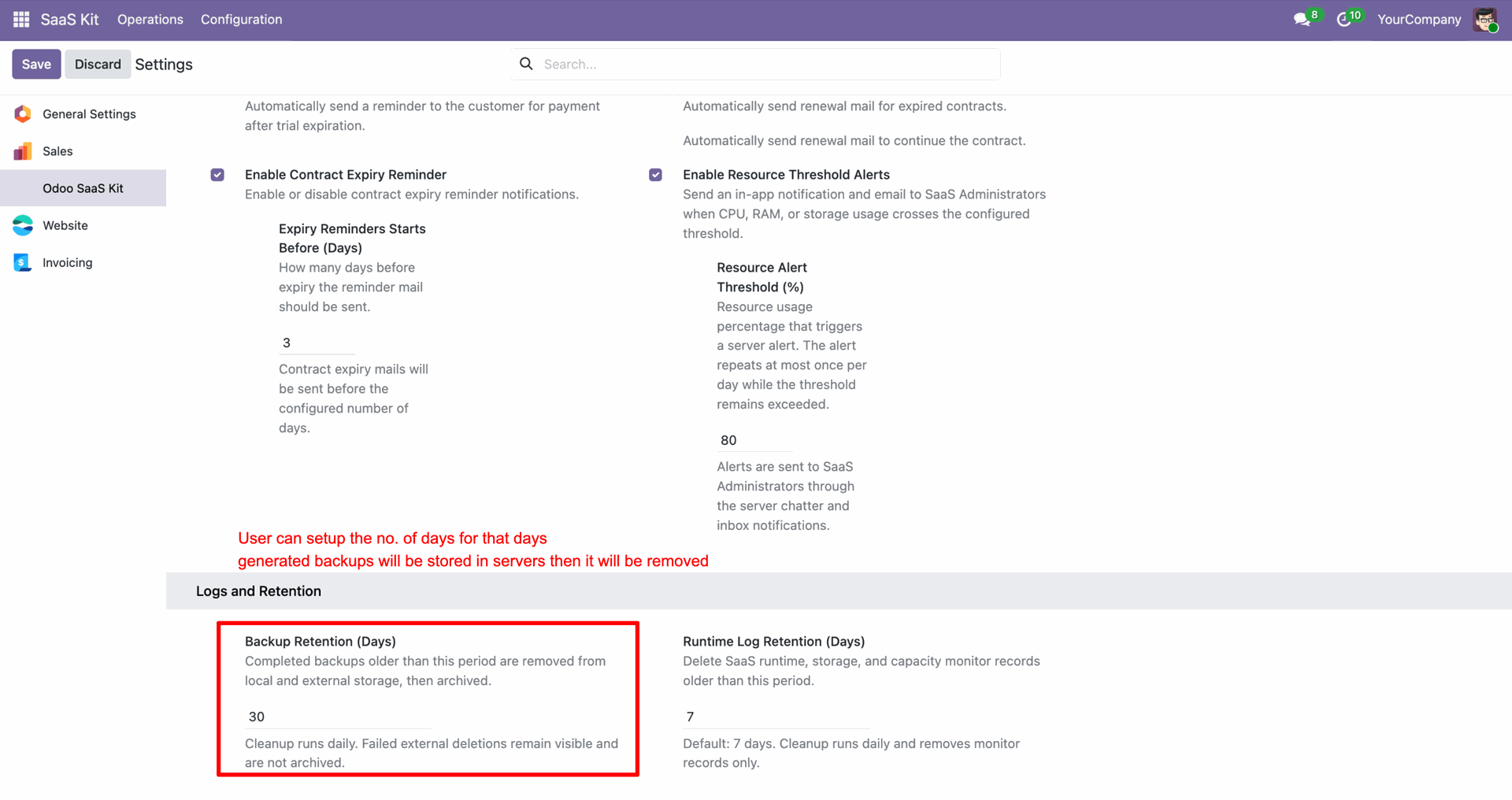
Configure Backup Retention (Days) under Odoo SaaS Kit settings to set automatic backup cleanup frequency.
Changelog
Track every update and new feature released for this module.
Initial Release.

 Buy Once,
Supported Forever
Buy Once,
Supported Forever



 Scan to email sales







 Your Ideas Shape
Our Roadmap
Your Ideas Shape
Our Roadmap

 Got an Idea?
We'll Build It
Got an Idea?
We'll Build It
Trusted by Businesses Worldwide


Abdulhamid Abdulwaheed
Best module for our online store. Highly adaptable, exceptional customer service, and very advanced modules.
Factura Venta POS
They have everything you need. Technical support is excellent, responds quickly, and keeps the module updated. 100% recommended!
Mehmet Muhanna
Great company and support team. Had a problem in my local Odoo server - they solved it in 5 minutes. Highly recommend.
Billy Jeffs
Customised an Odoo app for me which works perfectly. Many requirements, got it right every time. Very confident in their ability.
HP
Consistently excellent service over years of working together. Knowledge and commitment to keeping clients informed truly sets them apart.
Michal Kolasinski
Multiple addons + two custom modules. Communication always friendly and precise. Delivered on time, worked out of the box. Highly recommended!

Multi-Language
8 built-in translations







You May Also Like
Discover more Softhealer modules that integrate seamlessly with your Odoo environment.

Shopify-Odoo Connector
Connect Shopify with Odoo to synchronize products, orders, customers, inventory, and more.
View Module

Xero Connector with OAuth2.0 for Odoo
Securely synchronize contacts, products, orders, invoices, payments, and accounting data between Odoo and Xero.
View Module

Odoo QuickBooks Connector
Connect Odoo with QuickBooks to synchronize essential business and accounting data.
View Module

Hubspot Odoo Connector
Synchronize contacts, companies, leads, opportunities, tasks, emails, and meetings between Odoo and HubSpot.
View Module


Most Demanded Apps
The Softhealer modules our customers reach for most - trusted across 100+ countries.

Activities Management
Manage, schedule, and automate Odoo activities across all departments from one view.
View Module

Access Management
Granular access control over menus, fields, buttons, and records for every user role.
View Module

Backdate Advanced
Backdate any transaction across invoices, journals, pickings, and more with full audit.
View Module

All-in-One Helpdesk
Full-featured customer support with tickets, SLA, and customer portal built for Odoo.
View Module

All-in-One Mobile Backend
Access your full Odoo backend from any mobile device with an optimised interface.
View Module

All-in-One Import
Import data from Excel or CSV files into any Odoo model with smart field mapping.
View Module
Our Services
End-to-end Odoo expertise - from setup to scale.

AI & Business Integration
Odoo Implementation
Odoo Customization

Support & Maintenance

Mobile Apps

Migration Service

Third-Party Integration

Odoo Training
Ready to connect your AI to Odoo?
Join 10,000+ businesses - Softhealer, 11+ years of Odoo expertise across 100+ countries.

