




















Key
Features

Dashboard Overview
 LATEST
Monitor synchronization status, queued jobs, and integration performance from a centralized dashboard.
Watch VideoNetSuite Connector Setup
Connect Odoo with NetSuite using secure Token-Based Authentication for reliable data synchronization.
Watch VideoNetSuite Fetch Fields
Automatically fetch available NetSuite fields into Odoo to simplify field mapping and synchronization configuration.
Watch VideoExport Operations
LATEST
Export Odoo records to NetSuite while keeping data synchronized.
Watch VideoImport Operations
LATEST
Import records from NetSuite into Odoo with configurable synchronization options.
Watch Video Field Mapping System
LATEST
Configure field mappings between Odoo and NetSuite for flexible data synchronization.
Watch VideoIntegration HUB Dashboard
LATEST
Seamlessly connect and manage Xero operations using the advanced Integration HUB dashboard for better workflow management.
Multi Account Configuration
LATEST
Configure and manage multiple NetSuite accounts from a single Odoo instance.
Queue Management
LATEST
Process import and export jobs asynchronously using a queue management system for better performance.
Monitoring & Logs
LATEST
Monitor synchronization activities with detailed logs, statuses, and error tracking.
Customer & Vendor Synchronization (Import/Export)
Import and export customers and vendors between Odoo and NetSuite while keeping contact records synchronized.
Product Synchronization (Import/Export)
Synchronize product information between Odoo and NetSuite with import and export support.
Sales & Purchase Order Synchronization (Import/Export)
Import and export sales orders and purchase orders between Odoo and NetSuite.
Invoice & Bill Synchronization (Import/Export)
Synchronize customer invoices, vendor bills, credit notes, and refunds across both systems.
Customer & Vendor Payment Synchronization (Import/Export)
Import and export customer and vendor payment records to maintain accurate financial data.
Payment Term Synchronization (Import/Export)
Synchronize payment terms between Odoo and NetSuite for consistent payment configurations.
Picking & Inventory Transfer Synchronization (Import/Export)
Synchronize deliveries, receipts, and internal inventory transfers between Odoo and NetSuite.
Inventory Adjustment Synchronization (Import/Export)
Import and export inventory adjustments to keep stock quantities aligned across both systems.
Import Monitoring Logs
Monitor import activities with detailed logs, statuses, and error tracking.
 Setup & Configuration
 Release Notes
 Support
 FAQ's
FAQ's
 Dashboard Overview
 Connector Setup
 Import Operations
 Export Operations
 Field Mapping Sync
The NetSuite Connector Dashboard displays Linked Records, Pending Queues, Failed Queues, and Processed Queues for the connected instance. It also provides a Sync Summary, giving a quick overview of the overall synchronization status and connector activity.
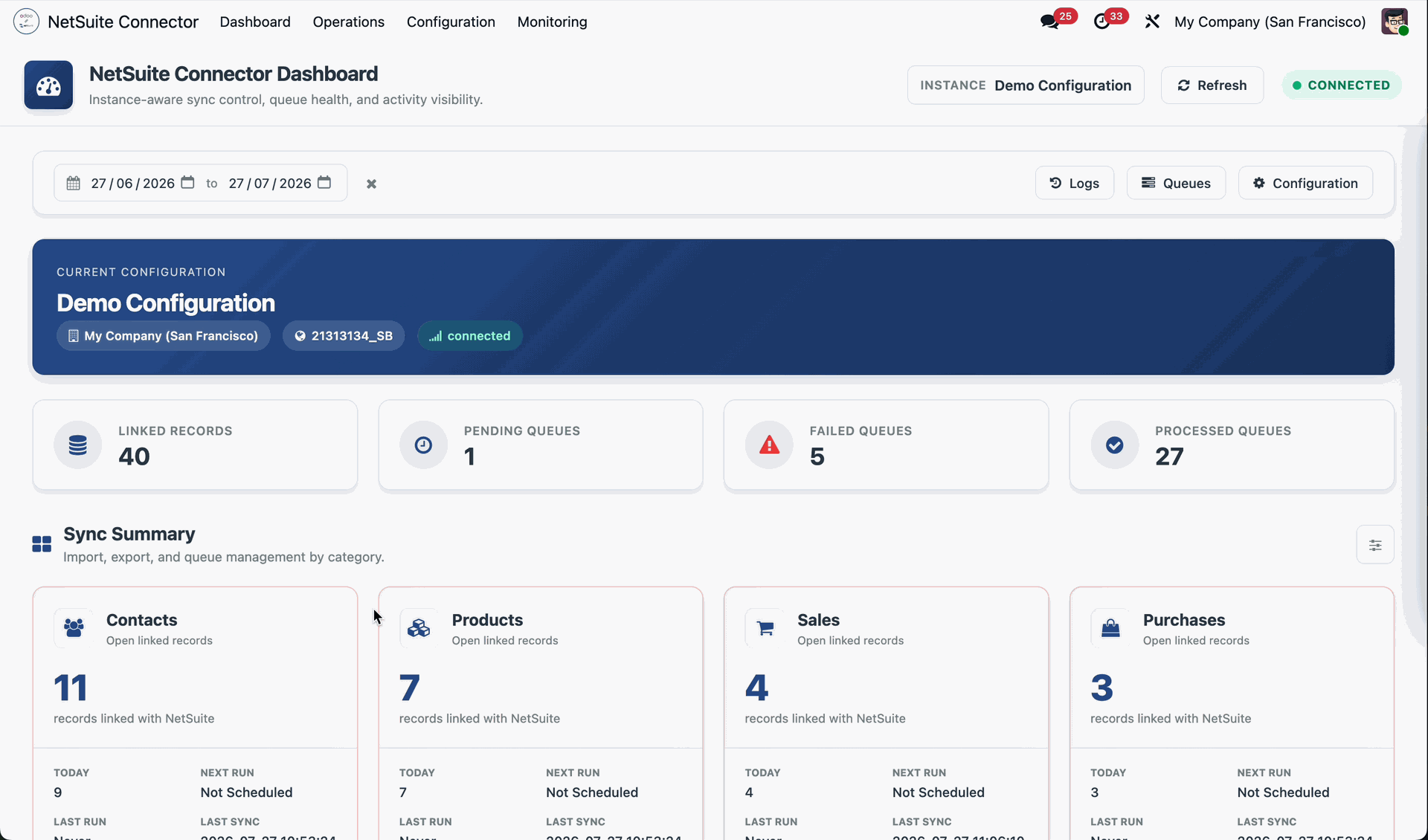
The NetSuite Connector Dashboard displays the connected NetSuite instance, allowing users to quickly identify which environment is currently linked and being synchronized with Odoo.
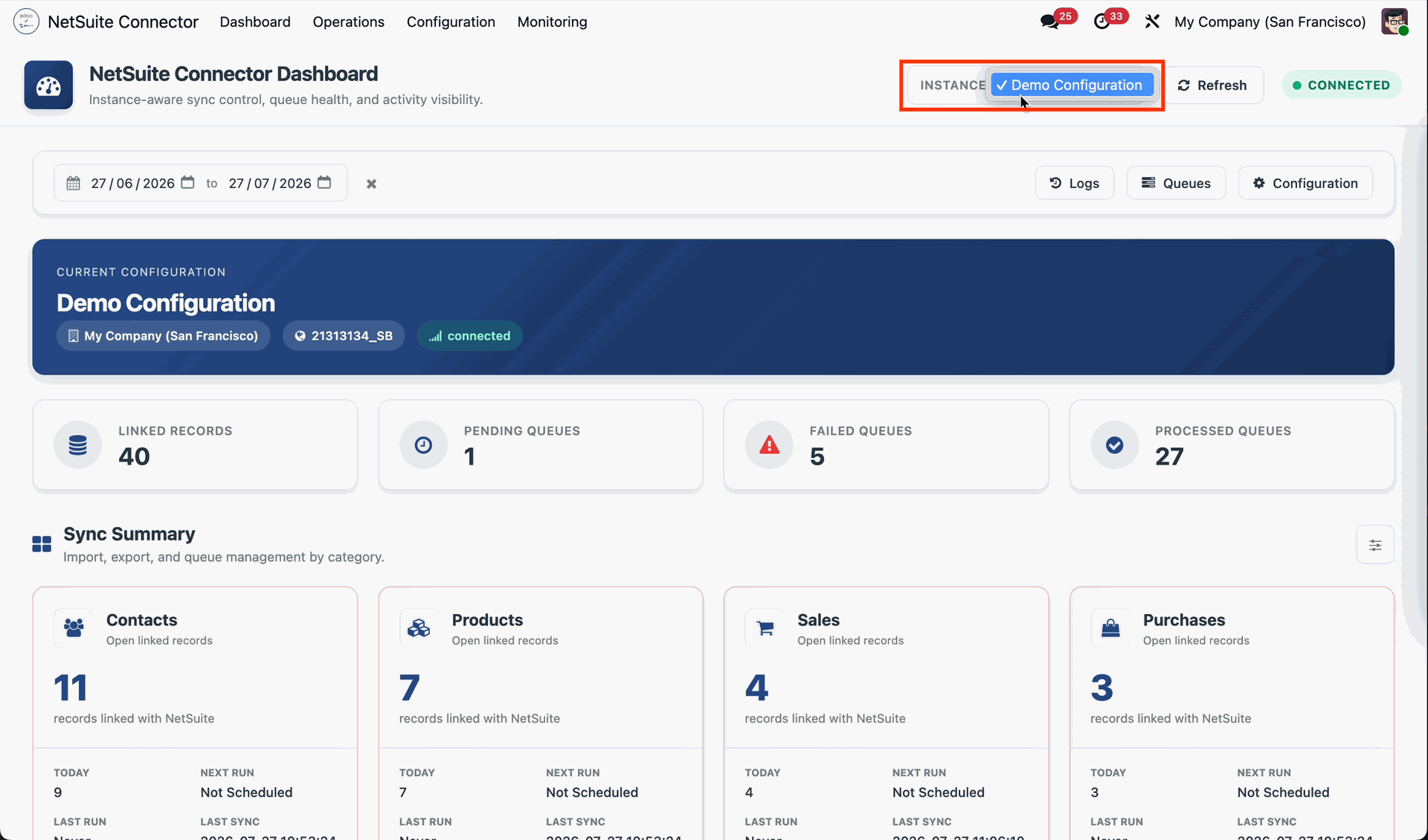
From the NetSuite Connector Dashboard, users can quickly access and manage the Logs, Sync Queues, and Configuration for the connected NetSuite instance.
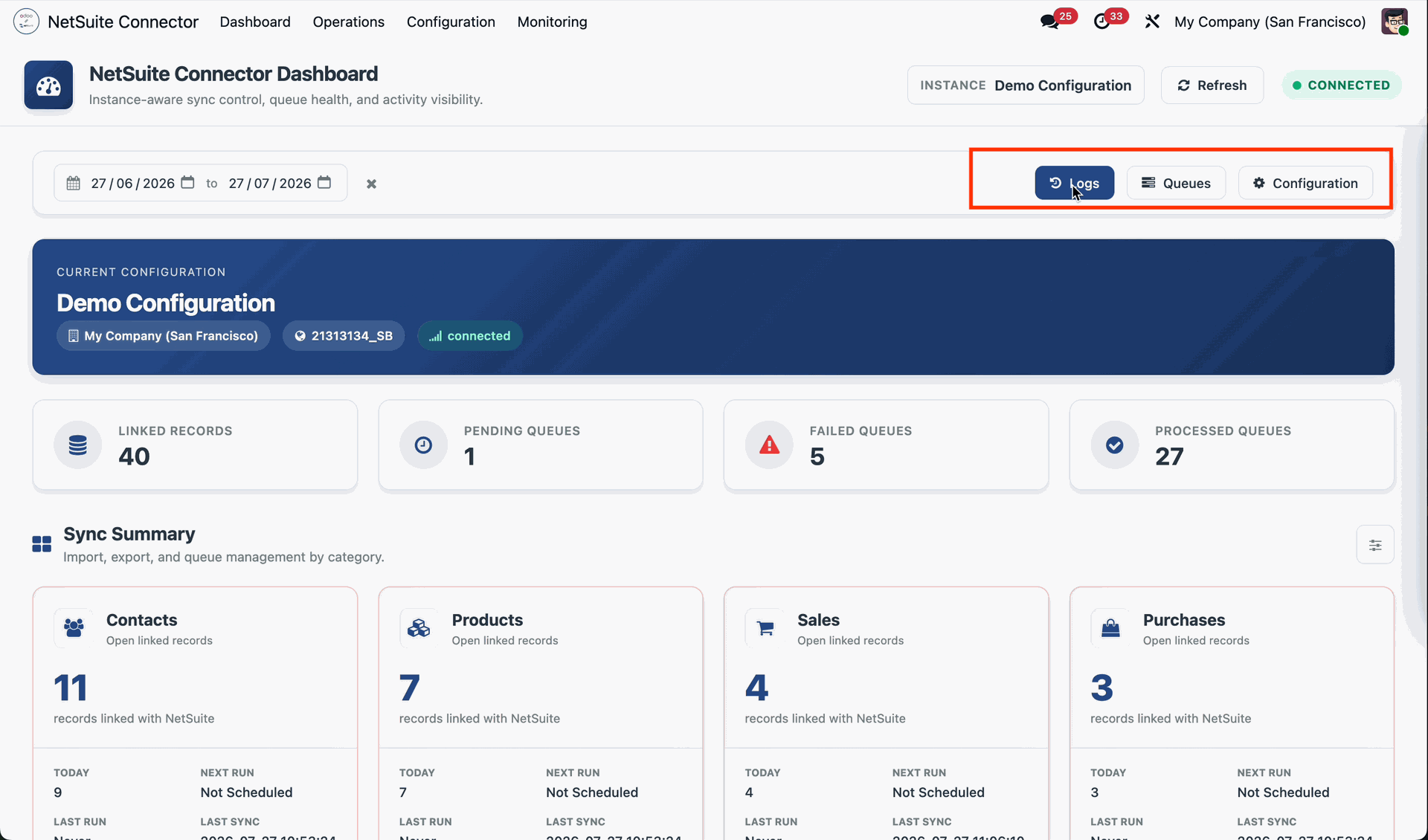
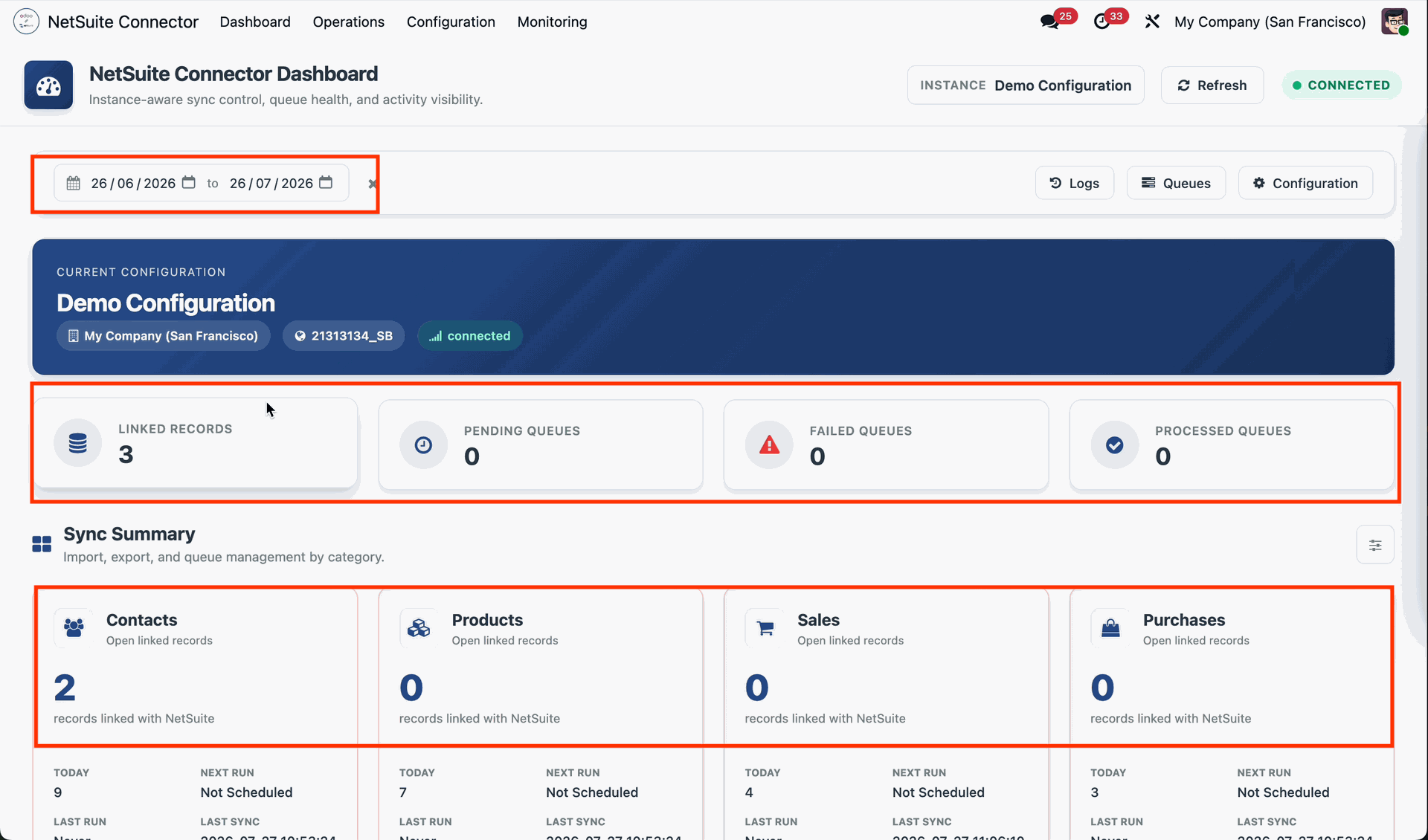
The NetSuite Connector Dashboard displays the count of Linked Records, Pending Queues, Failed Queues, and Processed Queues, providing a quick overview of the synchronization status for the connected NetSuite instance.
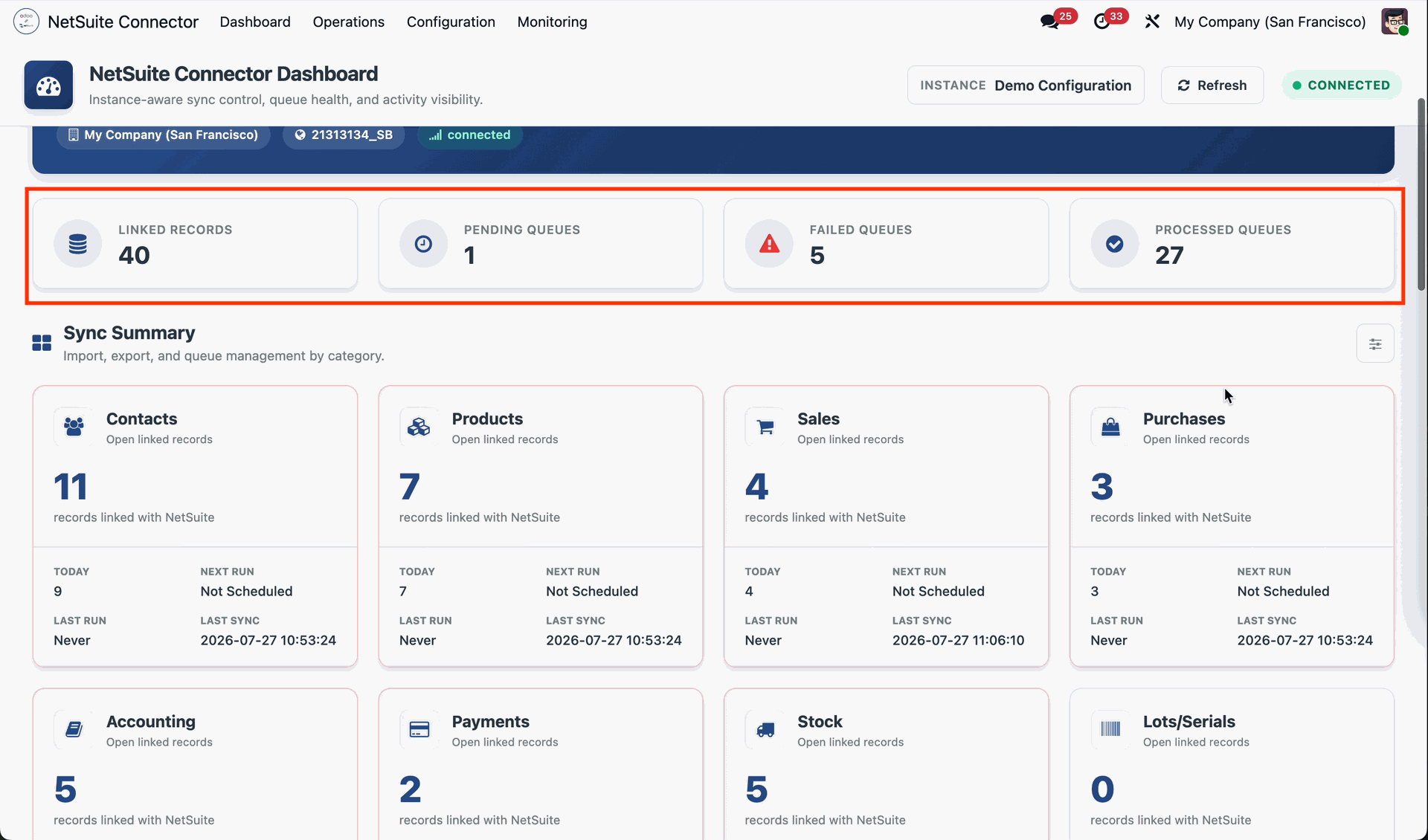
The Dashboard provides a Sync Summary. Click on Contacts to view the detailed synchronization information for contact records, including their sync status and related activities.
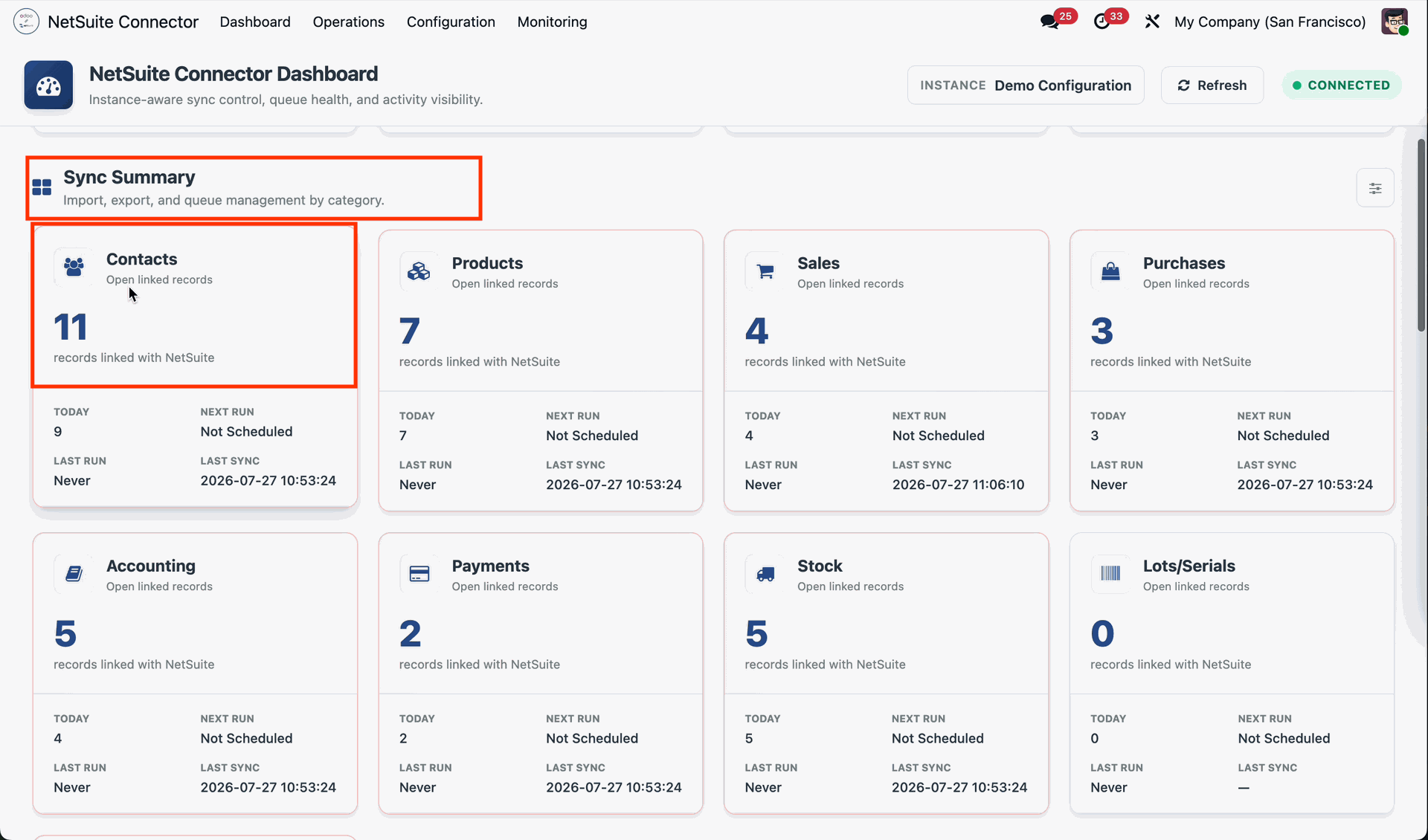
Clicking Contacts opens the NetSuite Contacts list view, where you can view and manage all synchronized contact records.
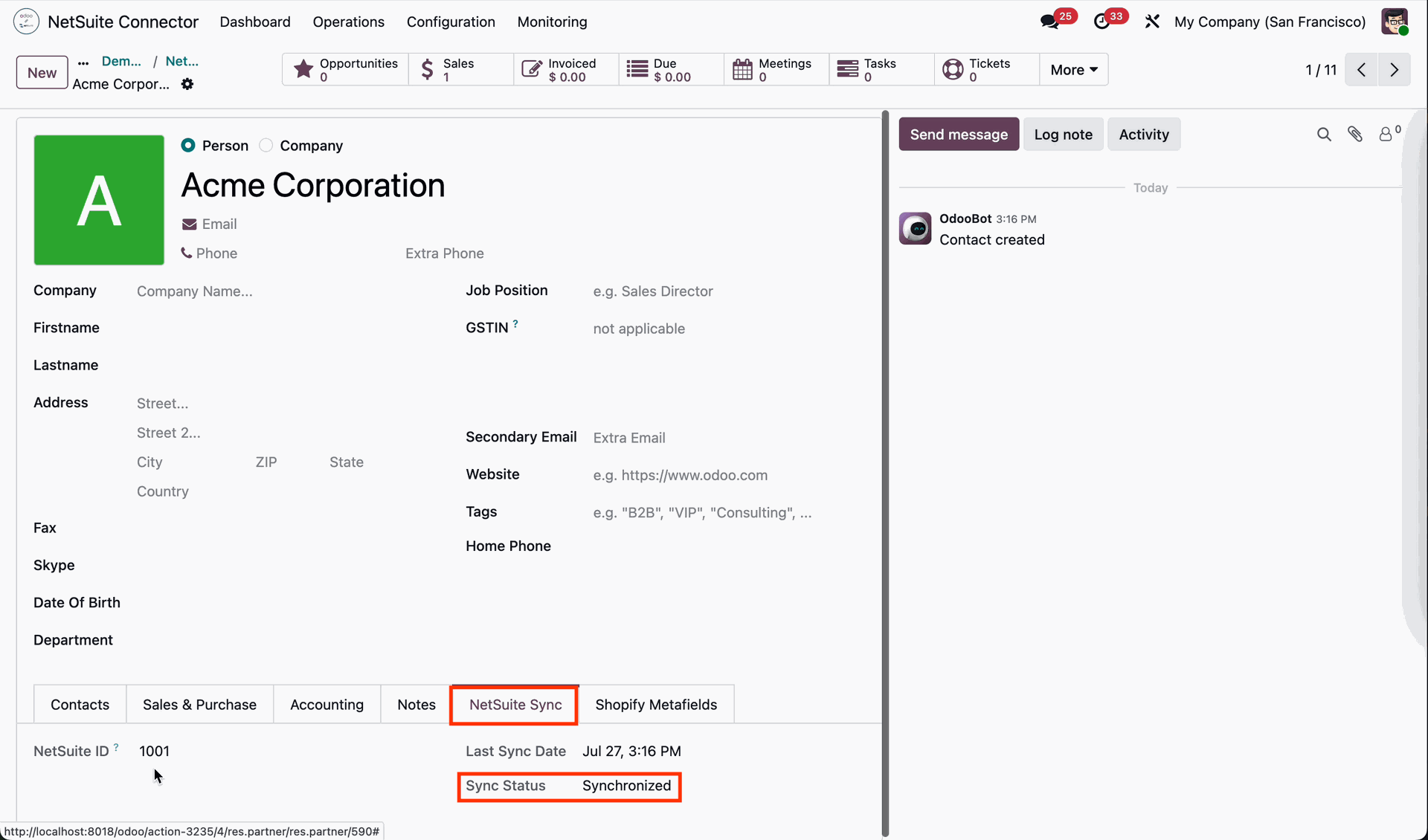
Open a Contact record to access its form view. Under the NetSuite Sync tab, you can view the NetSuite ID, Last Sync Date, and Sync Status for that contact.
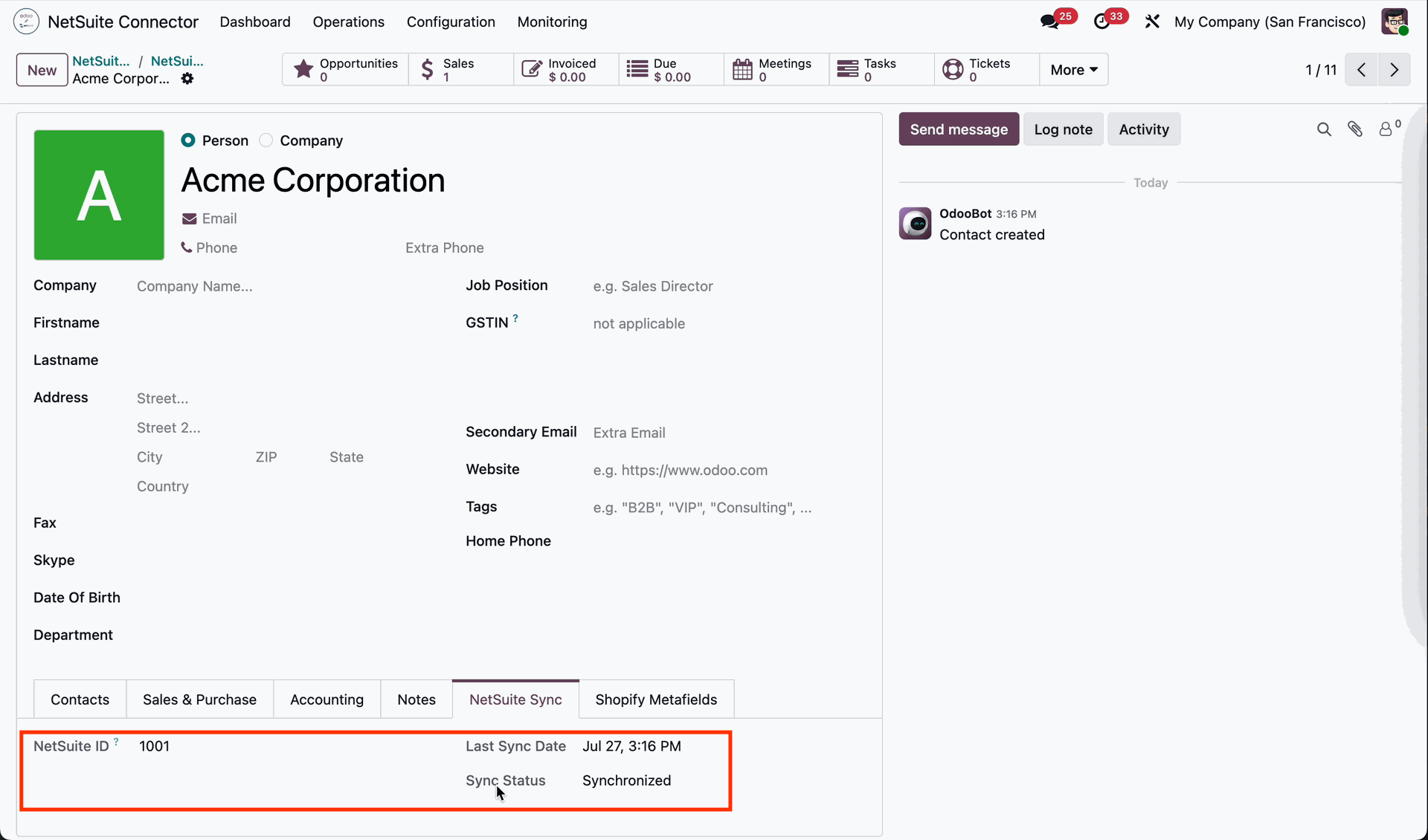
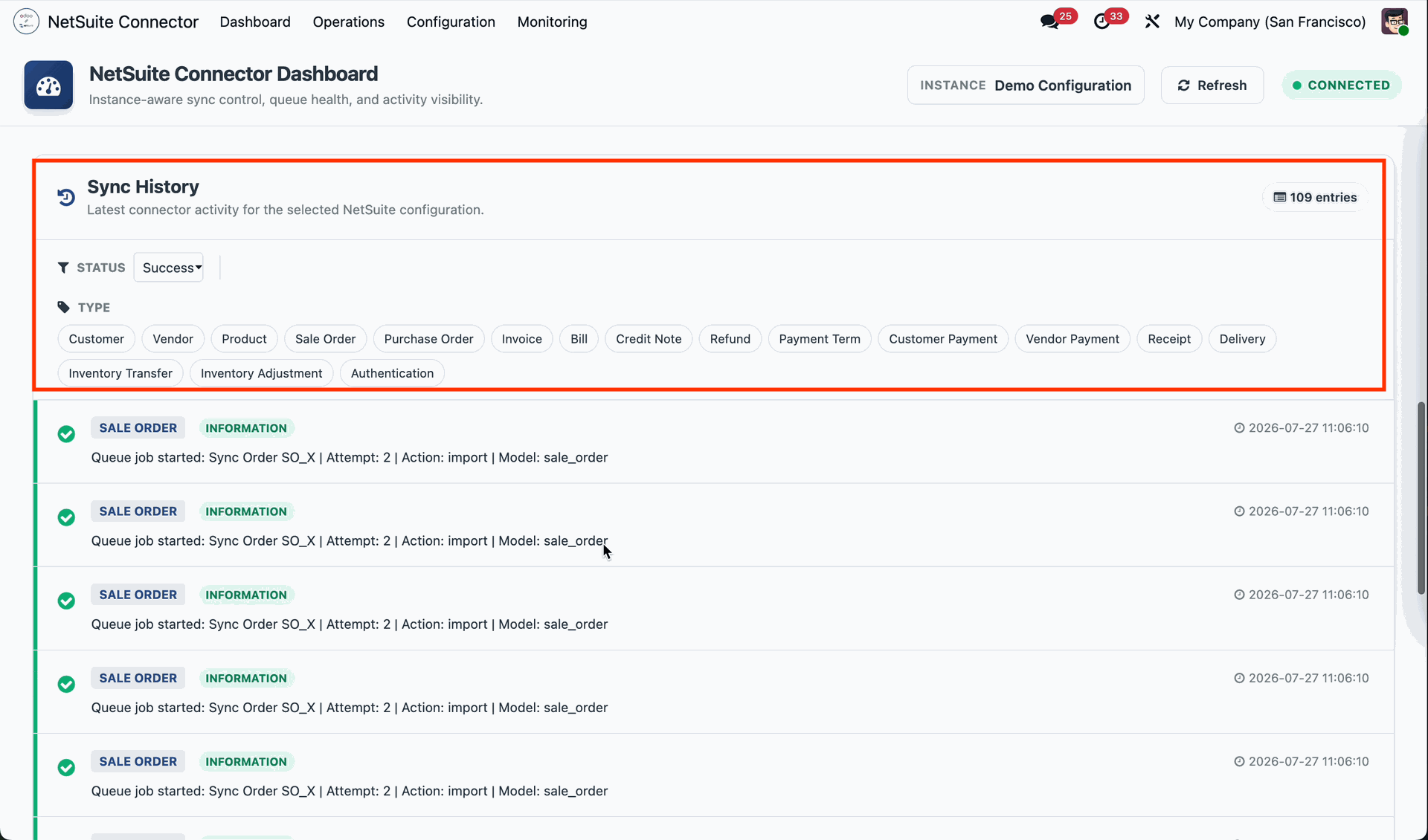
The NetSuite Connector Dashboard provides access to the Sync History, allowing users to view and monitor the history of all synchronization activities.
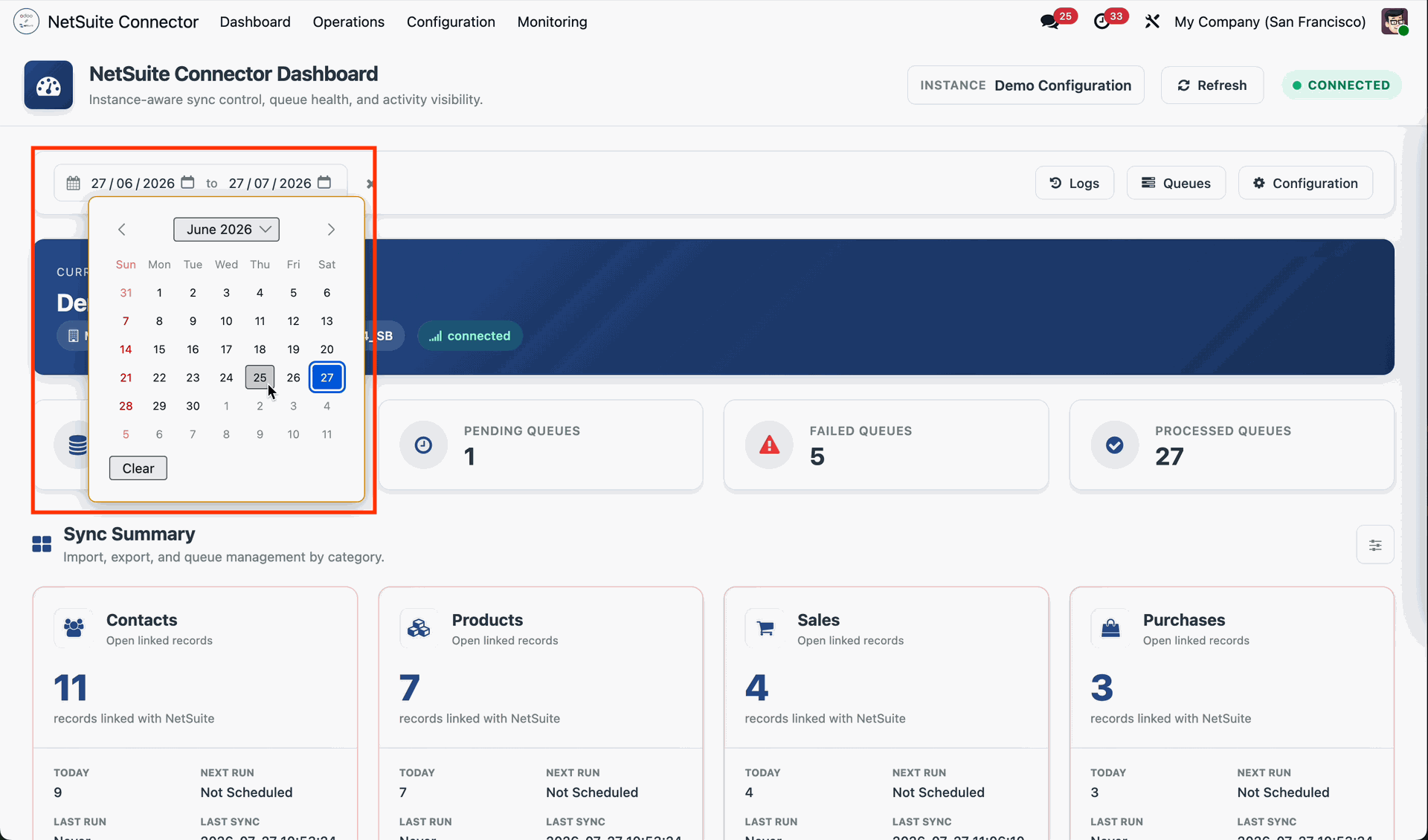
Users can select a date range on the NetSuite Connector Dashboard to filter and view synchronization records, logs, queues, and summary data for the specified period.
The NetSuite Connector Dashboard updates and displays all records, queues, logs, and sync summaries according to the selected date range.
Go to the NetSuite Configuration and select the appropriate Environment in Odoo (such as Sandbox or Production) before proceeding with the integration.
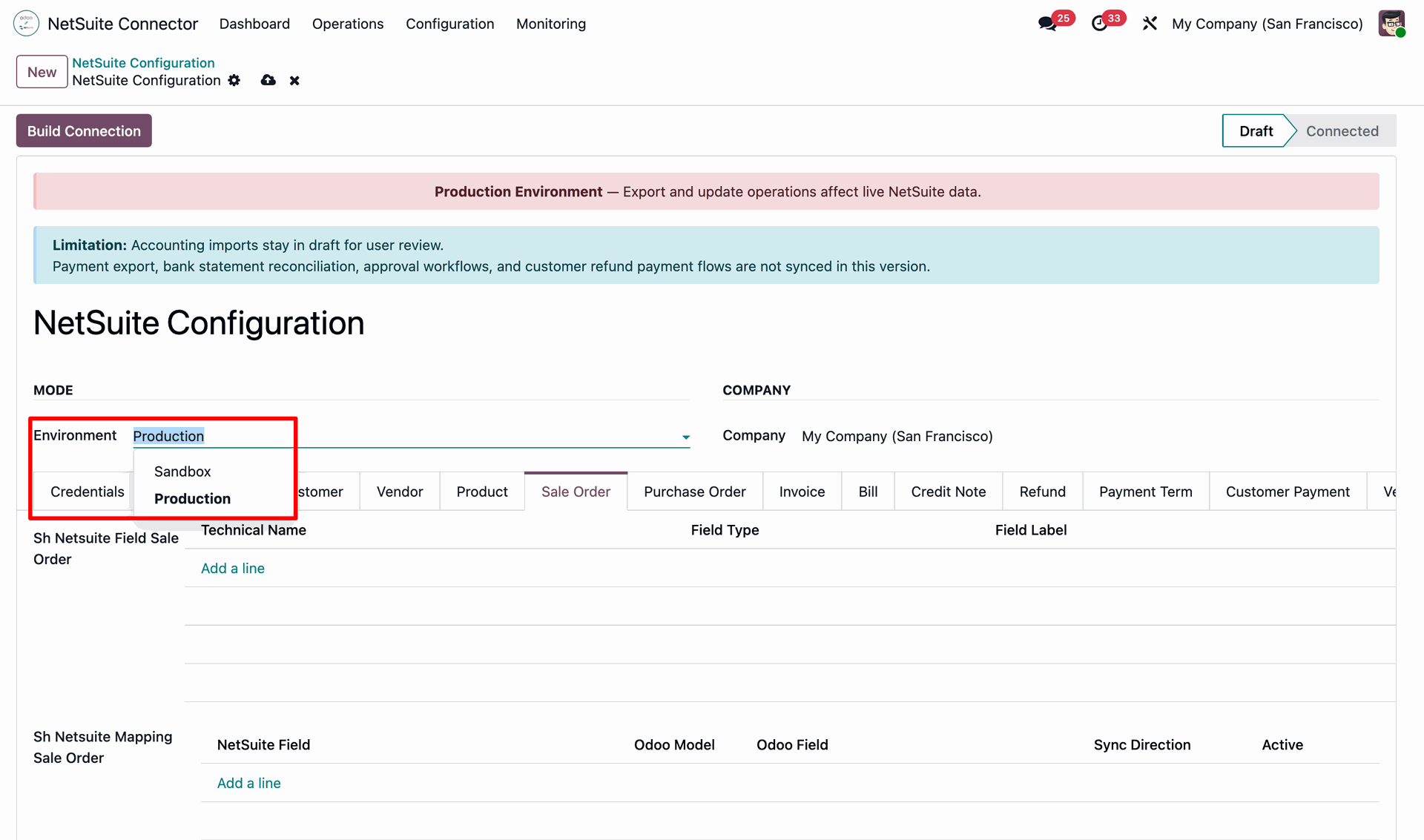
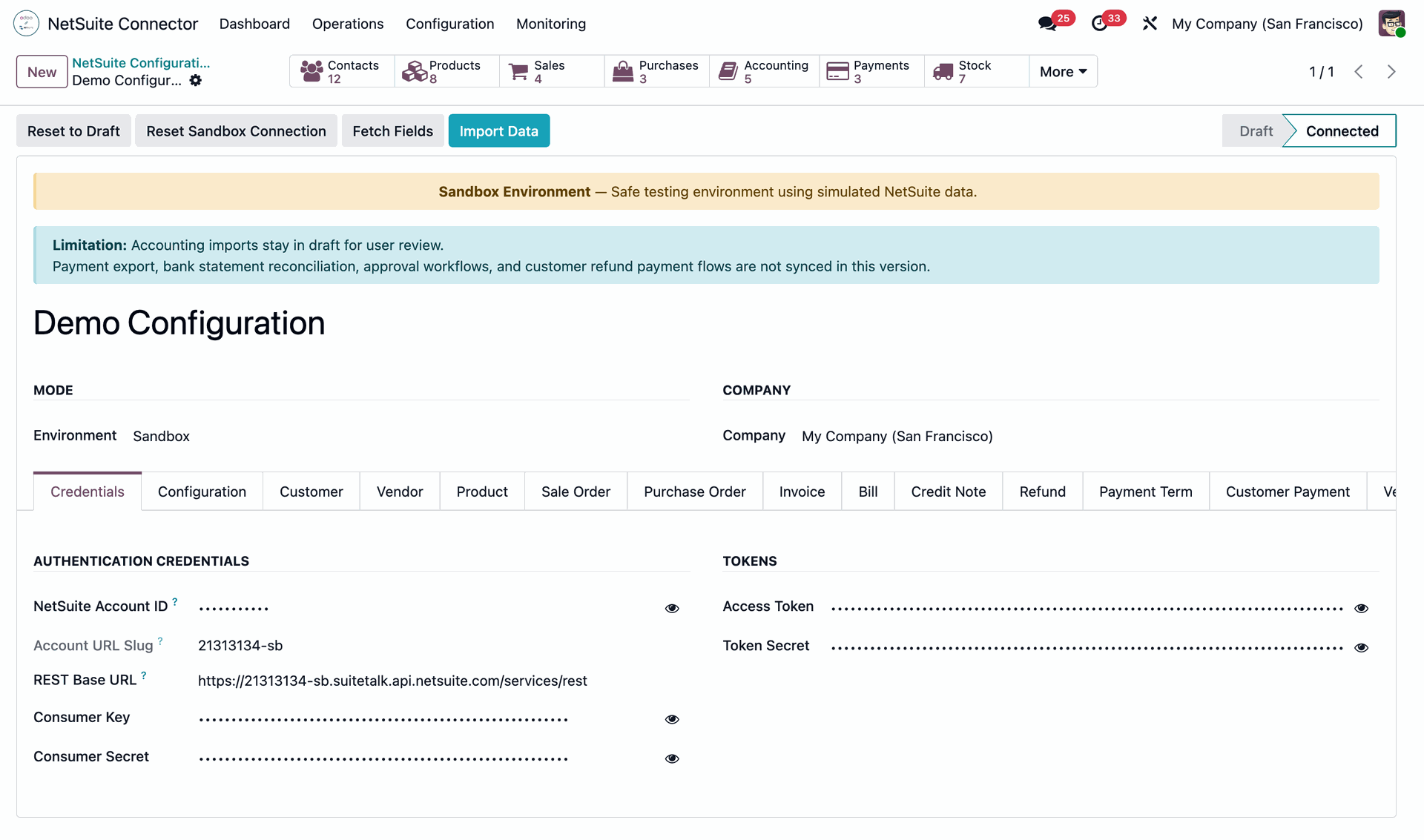
Go to the Credentials tab and enter the required NetSuite credentials to establish the connection with your NetSuite account.
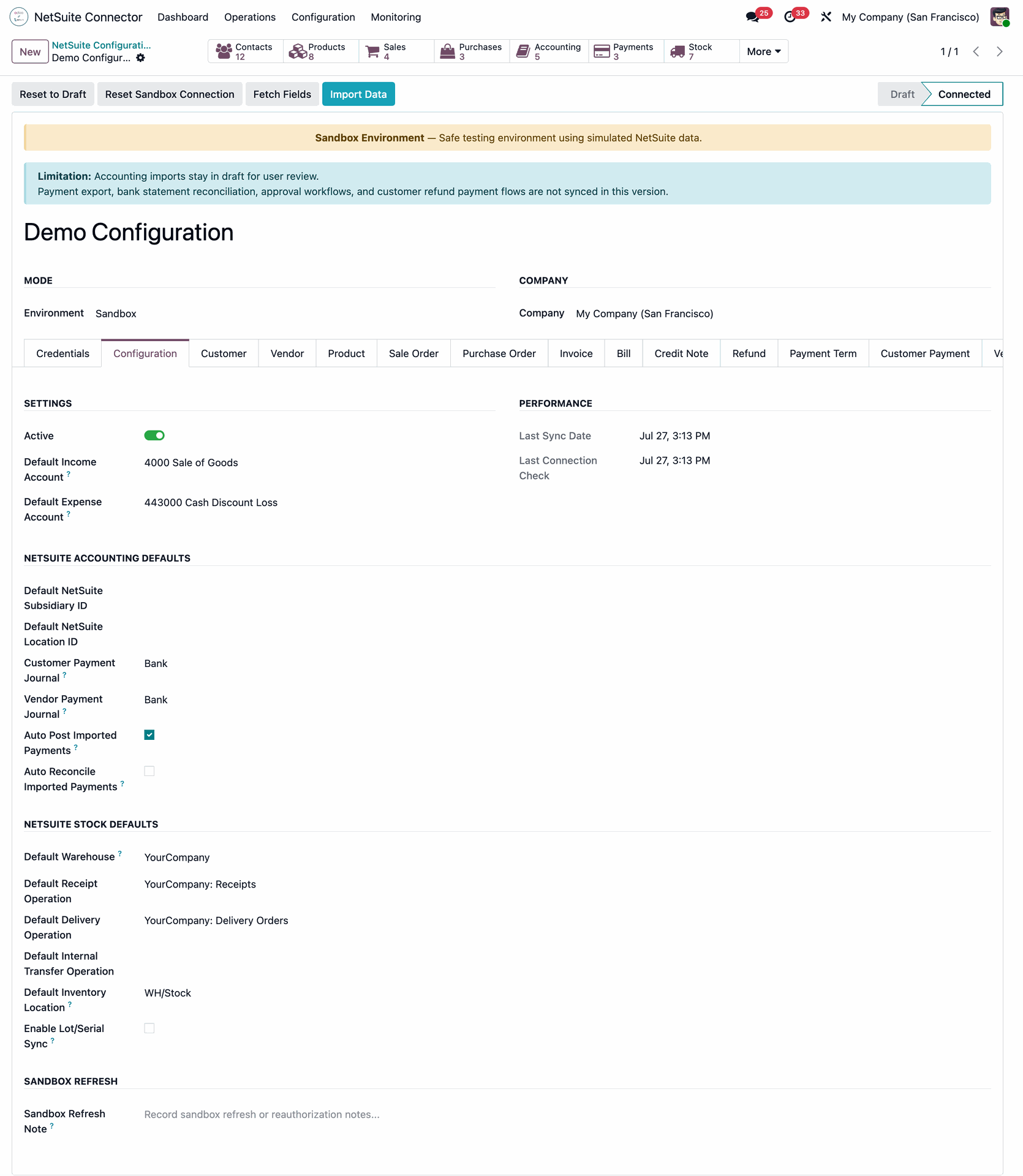
Go to the Configuration tab and configure the required settings, including the NetSuite Accounting Defaults and NetSuite Stock Defaults, to complete the integration setup.
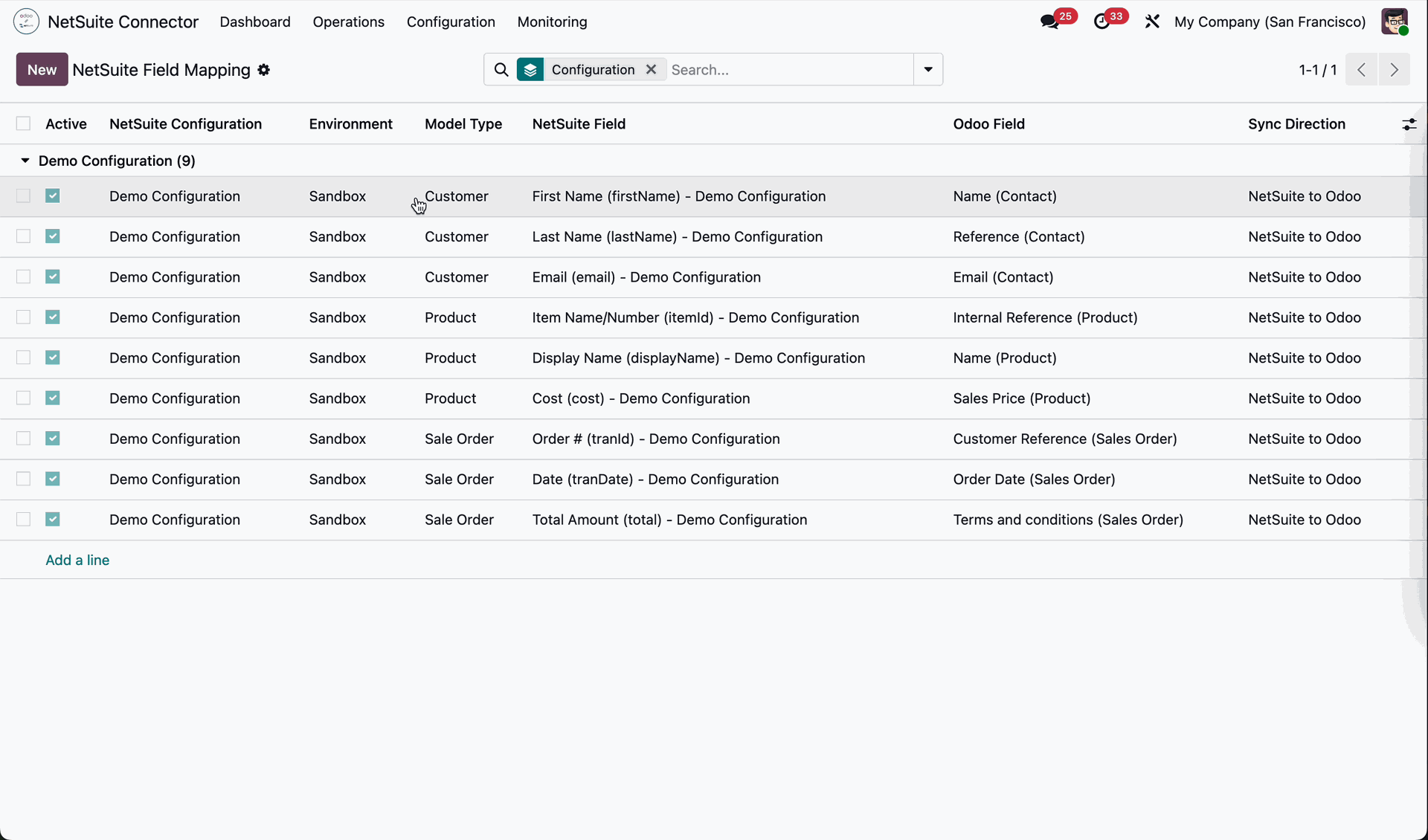
Go to the Configuration menu and select the Field Mapping submenu to view and manage the field mappings between NetSuite and Odoo.
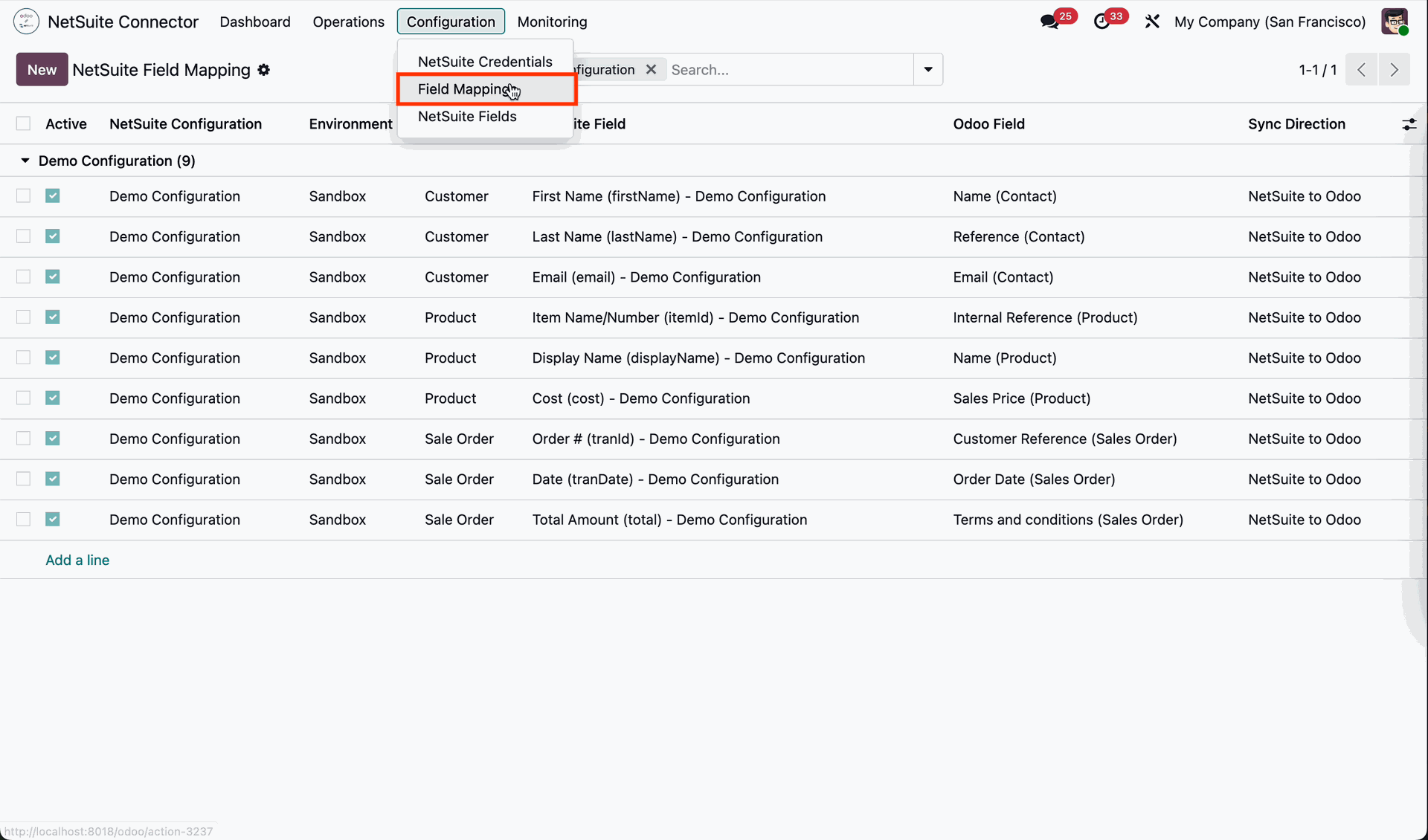
The Field Mapping submenu opens the NetSuite Field Mapping list view.
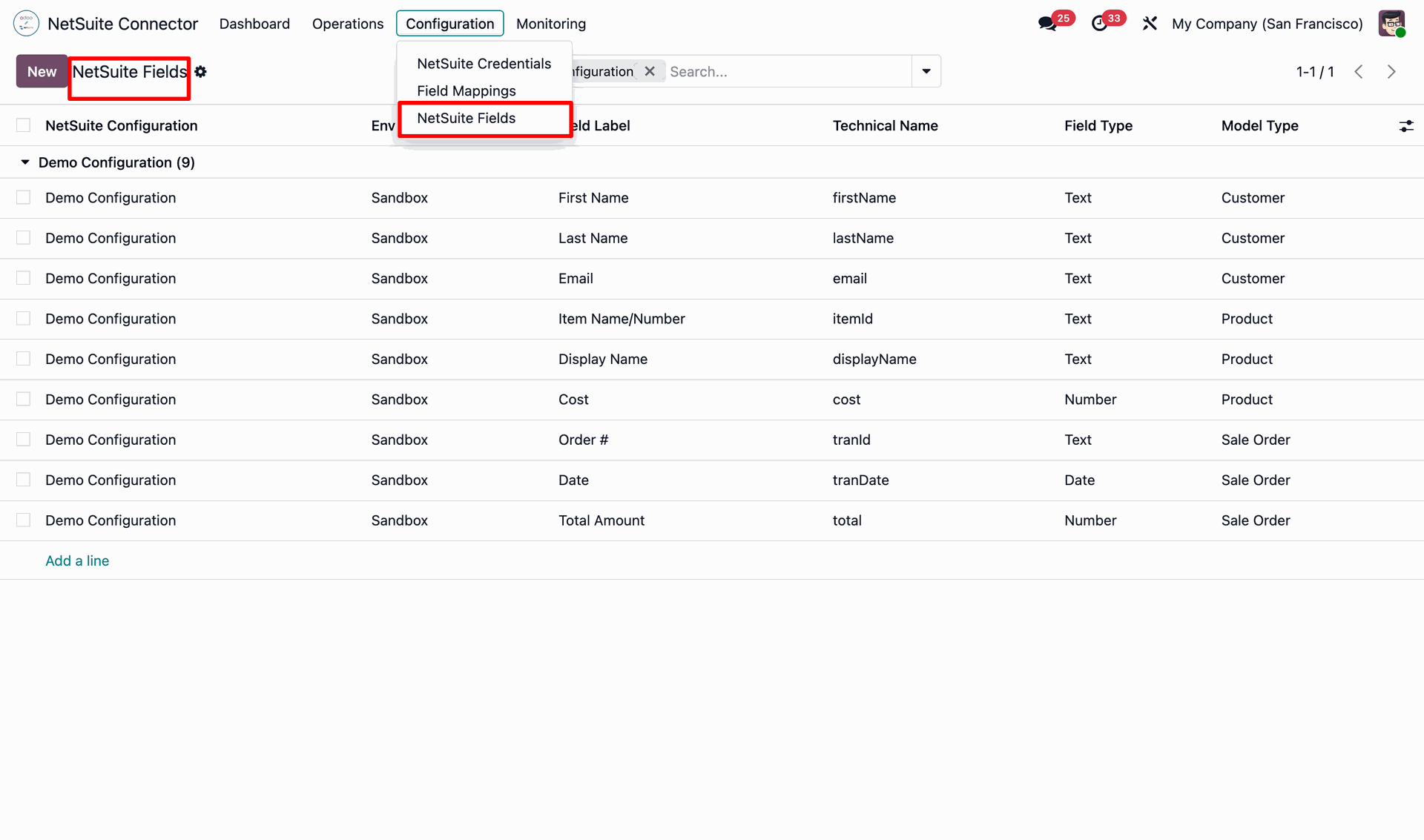
The NetSuite Fields submenu opens the list view displaying all the mapped NetSuite fields.
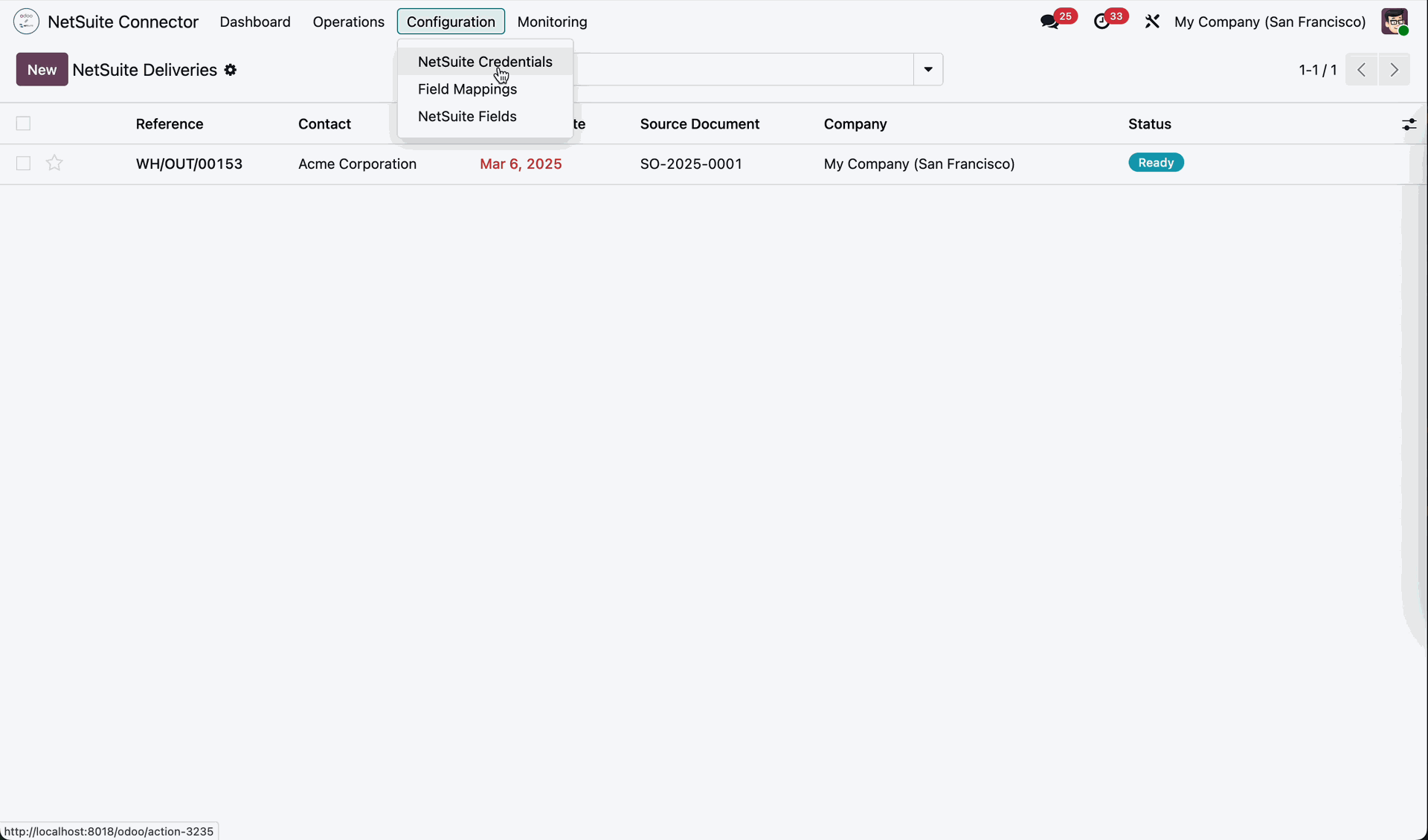
Go to the Configuration menu and select the NetSuite Credentials submenu to view and manage the configured NetSuite authentication credentials.
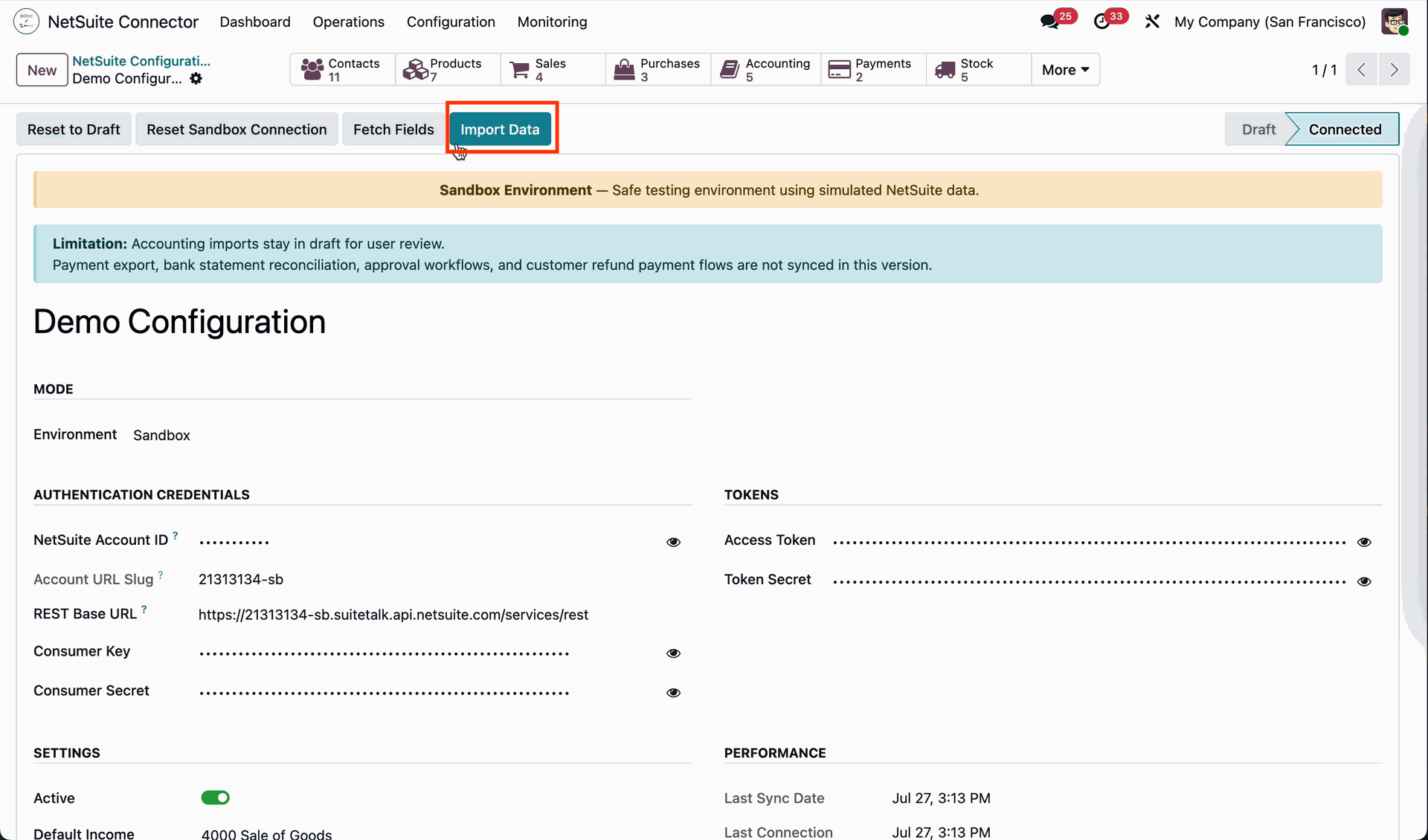
From the NetSuite Configuration form view in Odoo, click the Import Data button to start importing data from NetSuite.
The NetSuite Import Wizard opens. Select the desired Data Type.
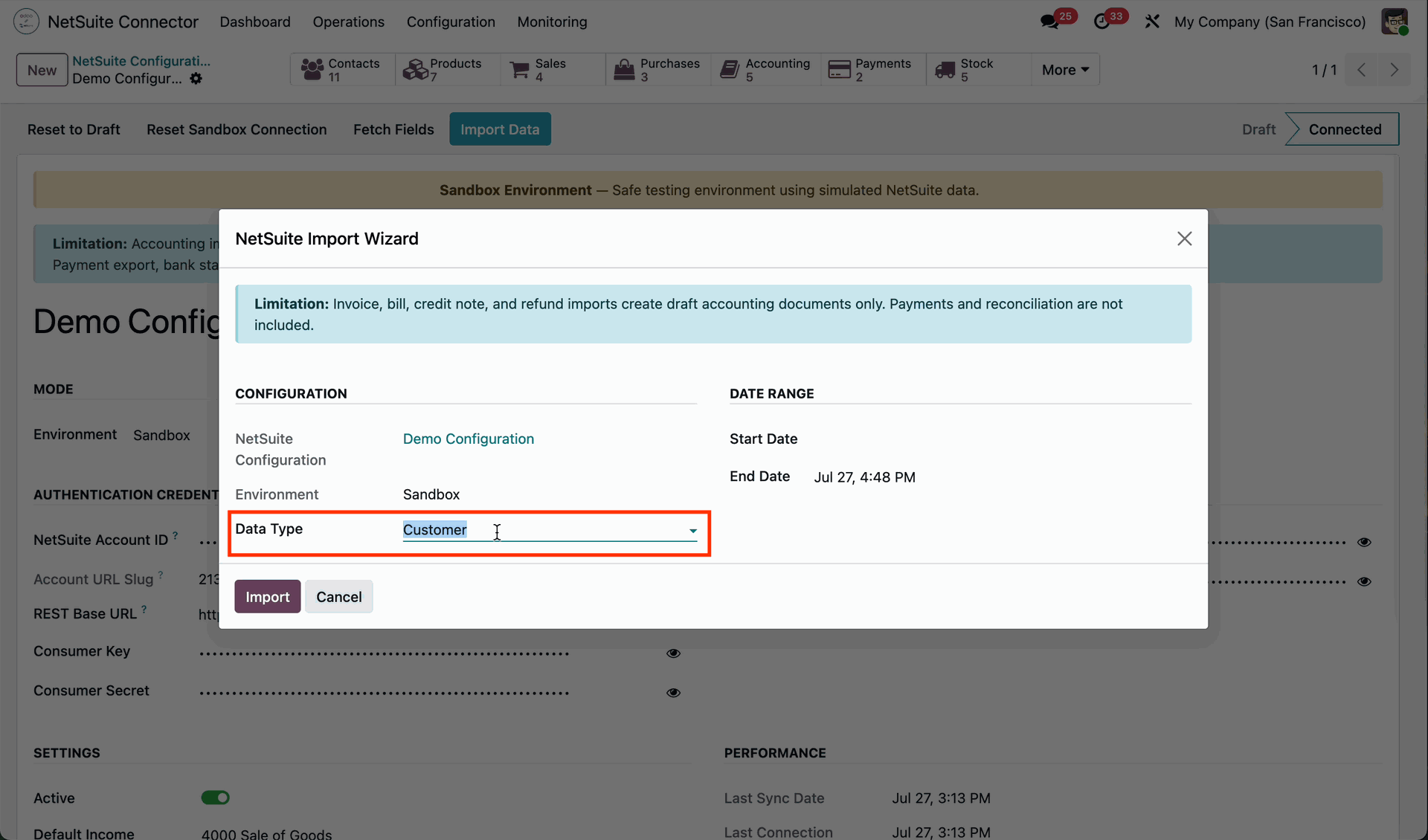
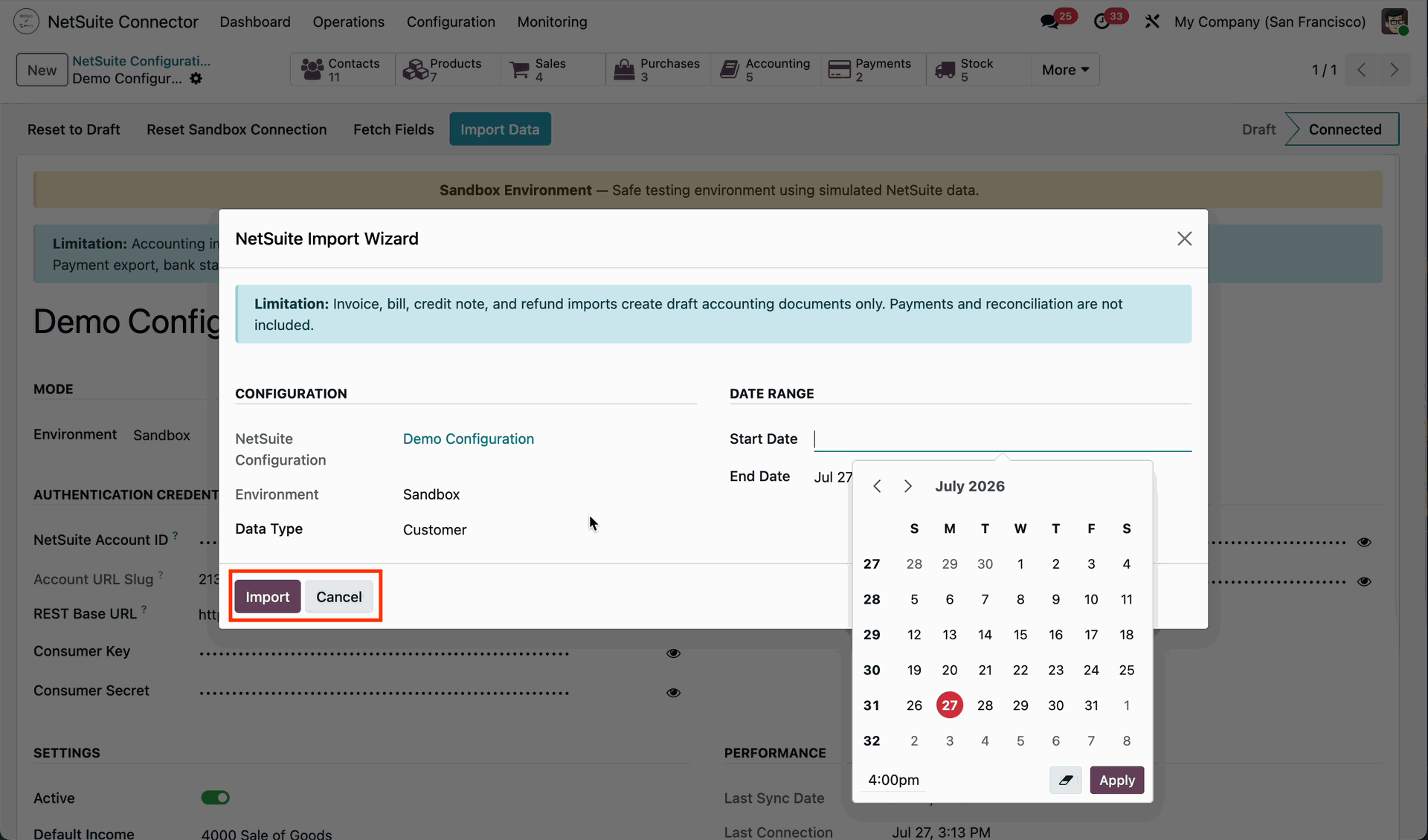
Select the Start Date in the import wizard, then click the Import button to import records from NetSuite starting from the specified date.
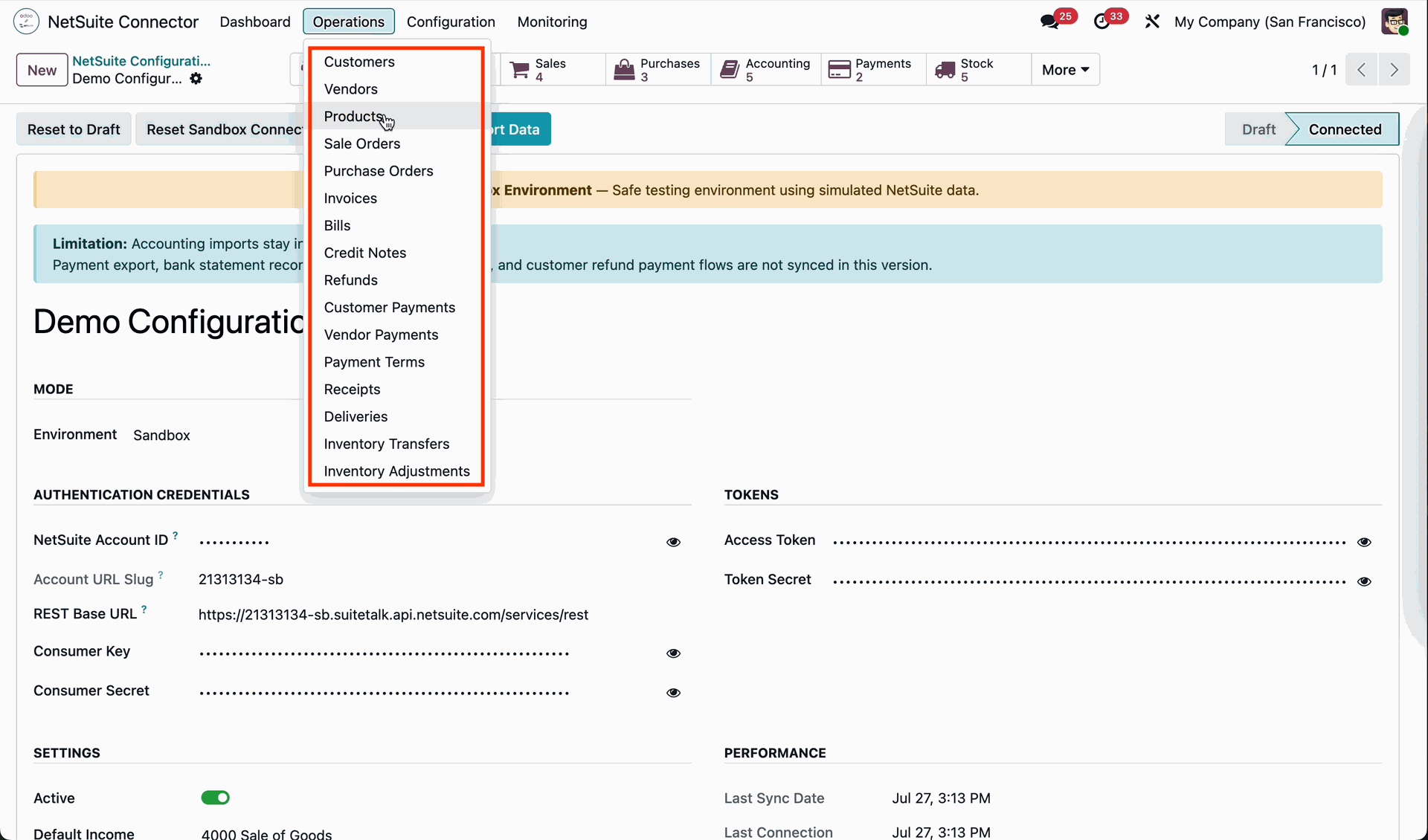
Go to the Operations menu and select the Customers submenu to view and manage the customer records imported from NetSuite.
The Customer form view opens, where the NetSuite Sync tab displays the sync status and related synchronization details for the customer record.
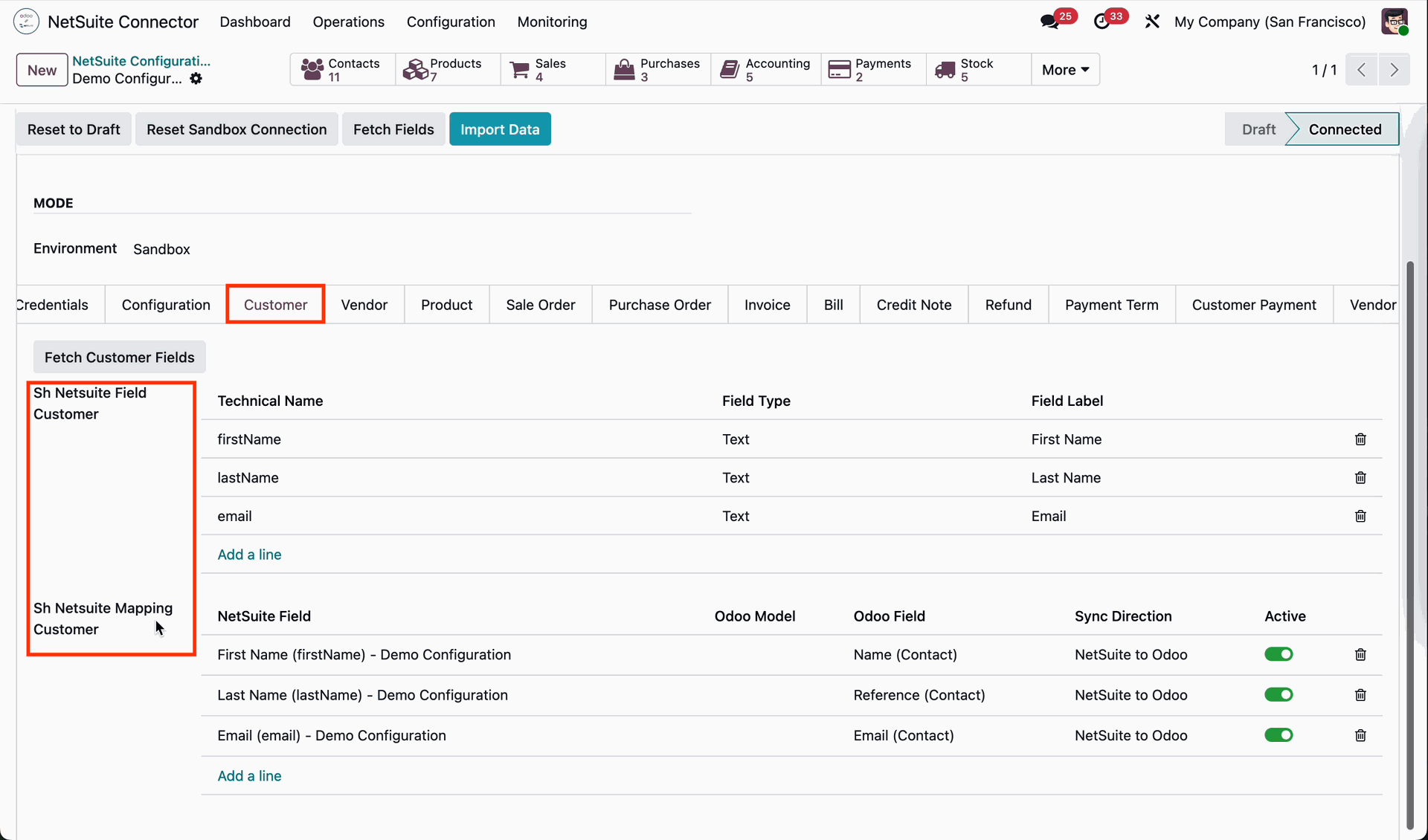
Go to the NetSuite Configuration form view and navigate to the Customers tab.
Here, you can view the fetched NetSuite fields along with their Technical Name, Field Type, and Field Label.
The tab also displays the field mappings between NetSuite and Odoo, including
the NetSuite Field, Odoo Field, Sync Direction, and Active status for each mapping.
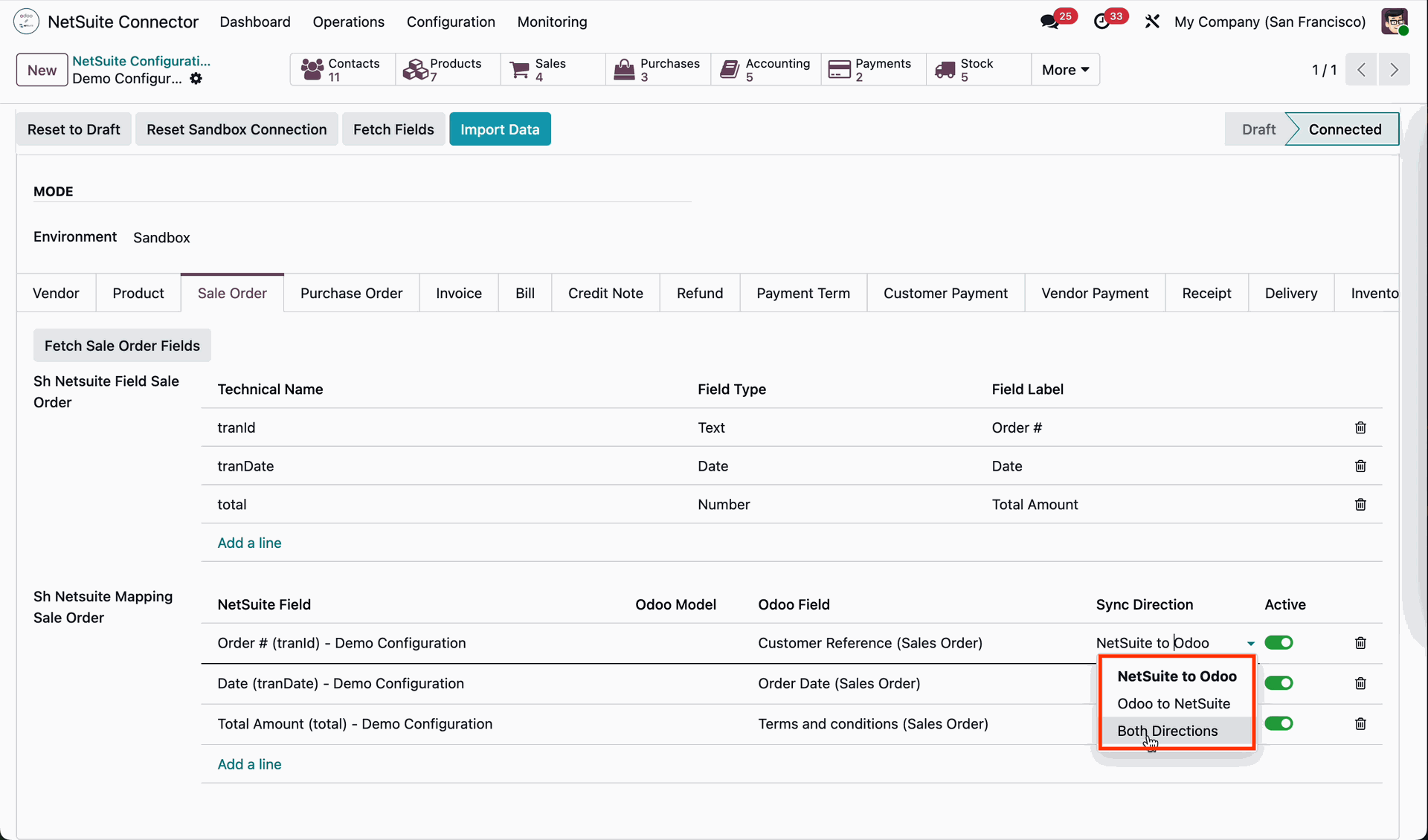
Users can configure the Sync Direction for each field mapping in the NetSuite Configuration, choosing from NetSuite to Odoo, Odoo to NetSuite, or Both Directions, depending on the desired synchronization behavior.
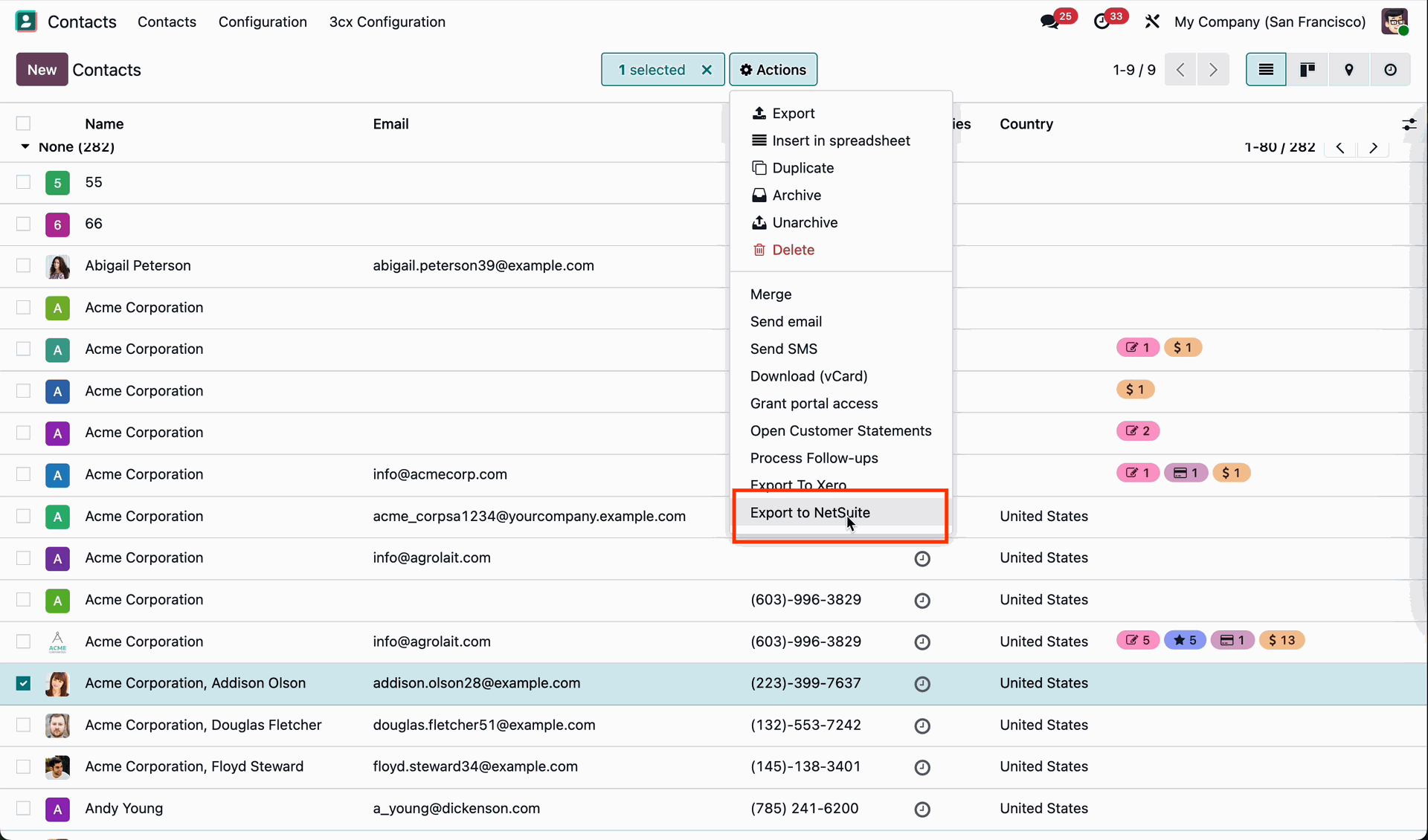
Go to the Customers list view, select the desired customer record, and click the Export to NetSuite action to export the selected customer to NetSuite.
Go to the Sync Queue to view and monitor the status of the customer export process and other synchronization jobs.
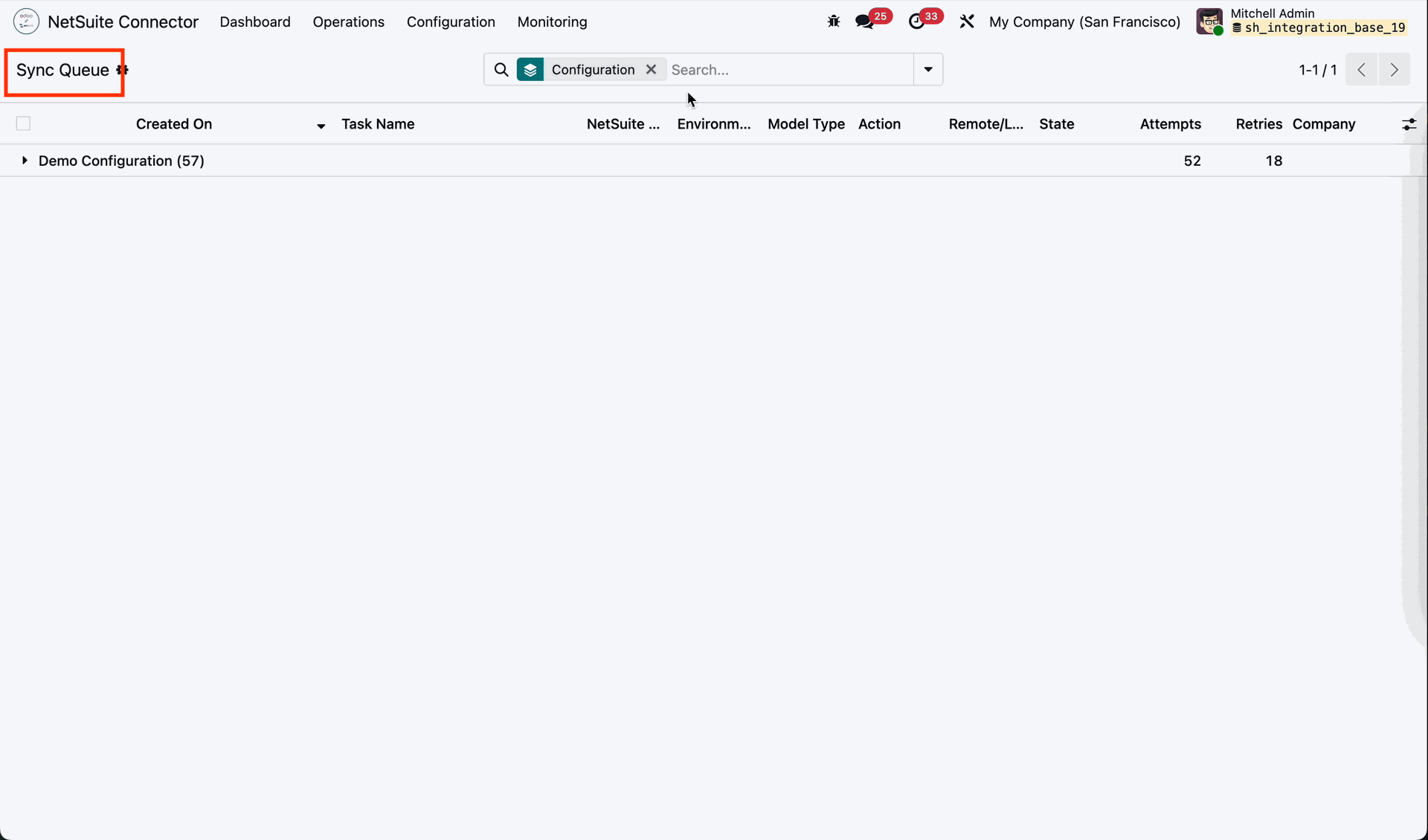
The exported customer is displayed in the Sync Queue, where you can track its synchronization status and processing details.
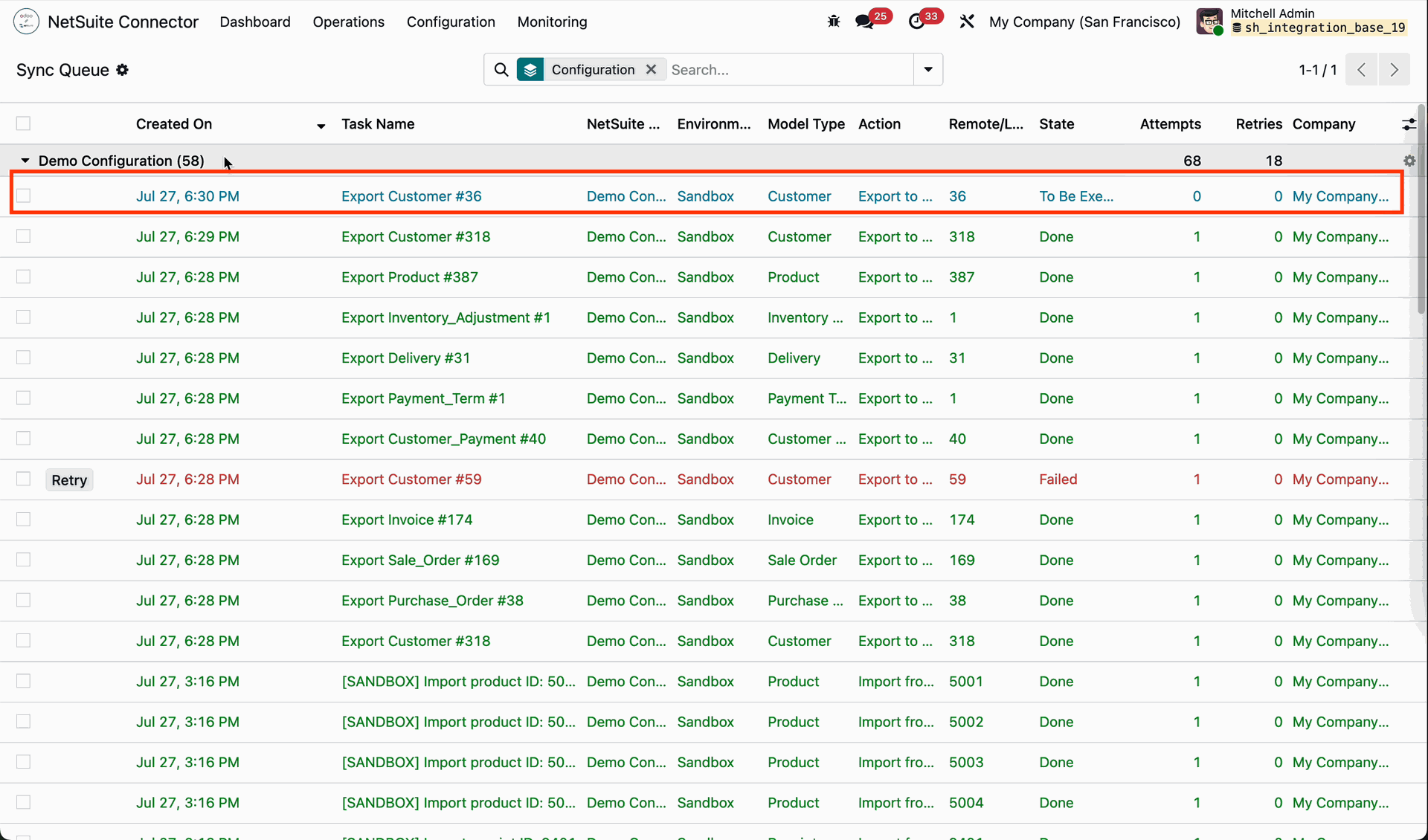
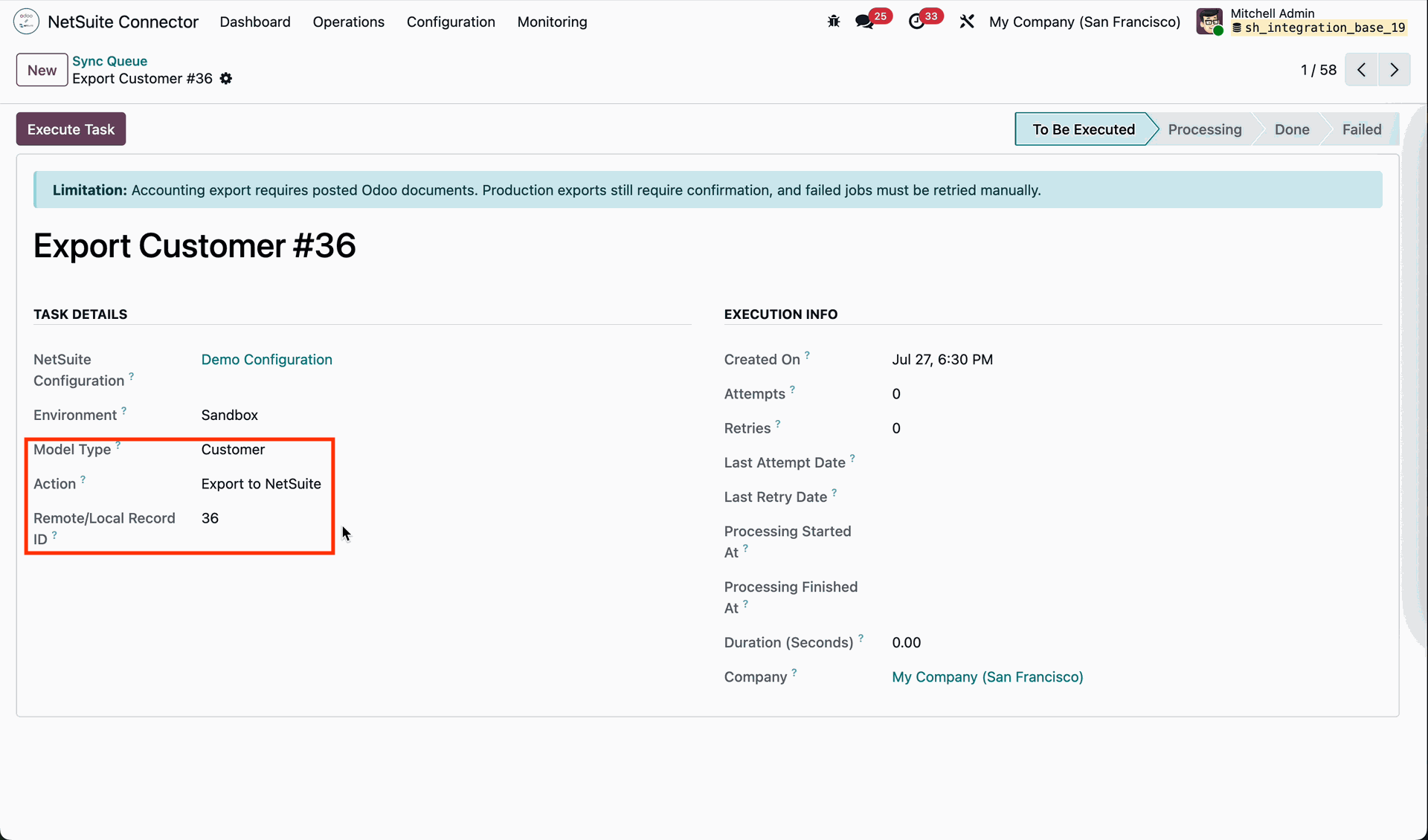
Clicking a Sync Queue record opens its form view, displaying details such as the Model Type, Local Remote ID, and Action, along with other synchronization information.
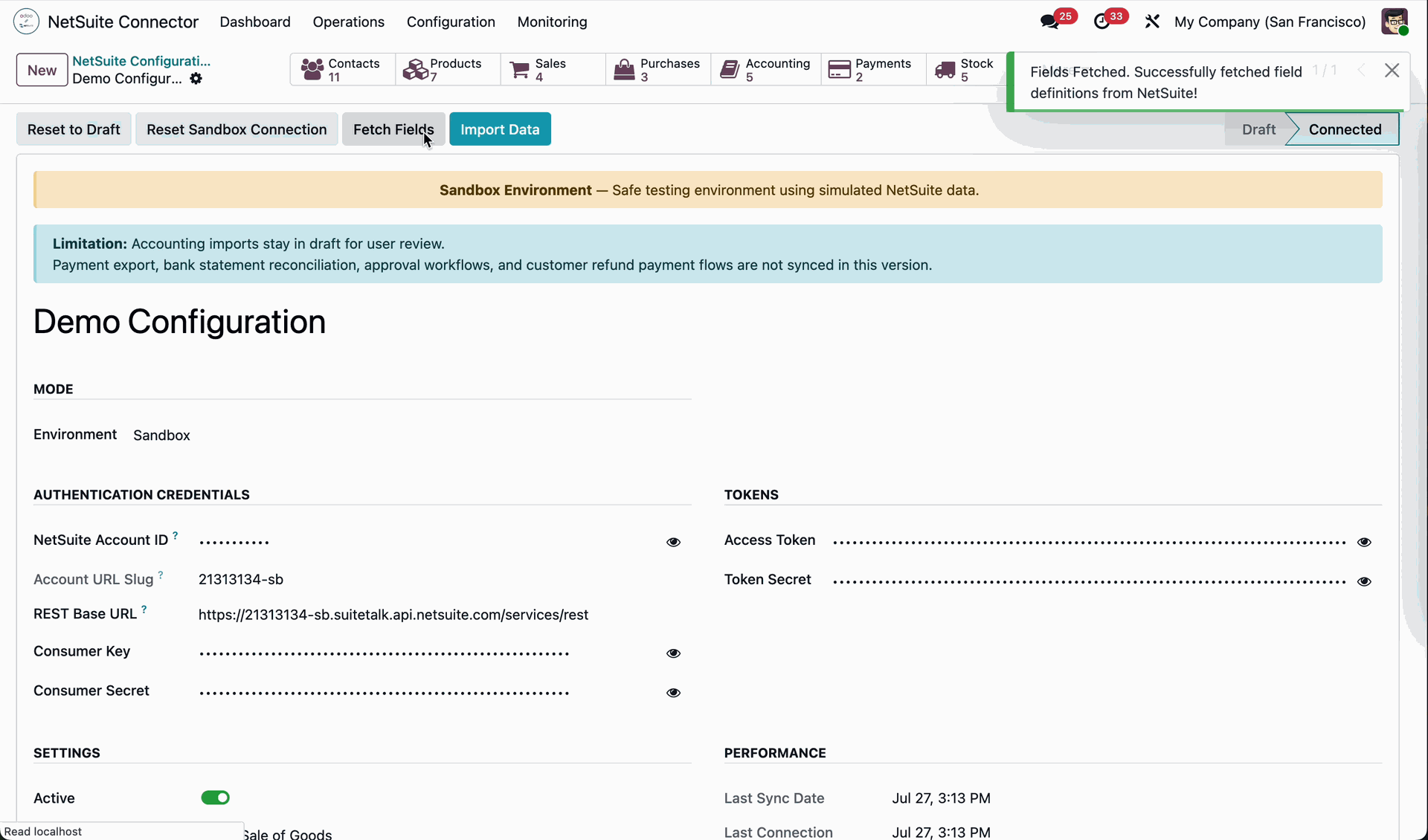
From the NetSuite Configuration form view, click the Fetch Fields button to retrieve
and synchronize the required field mappings from NetSuite into Odoo.
Once the process is completed successfully, a "Fields Fetched Successfully"
notification is displayed, confirming that the field mappings have been retrieved and synchronized successfully.
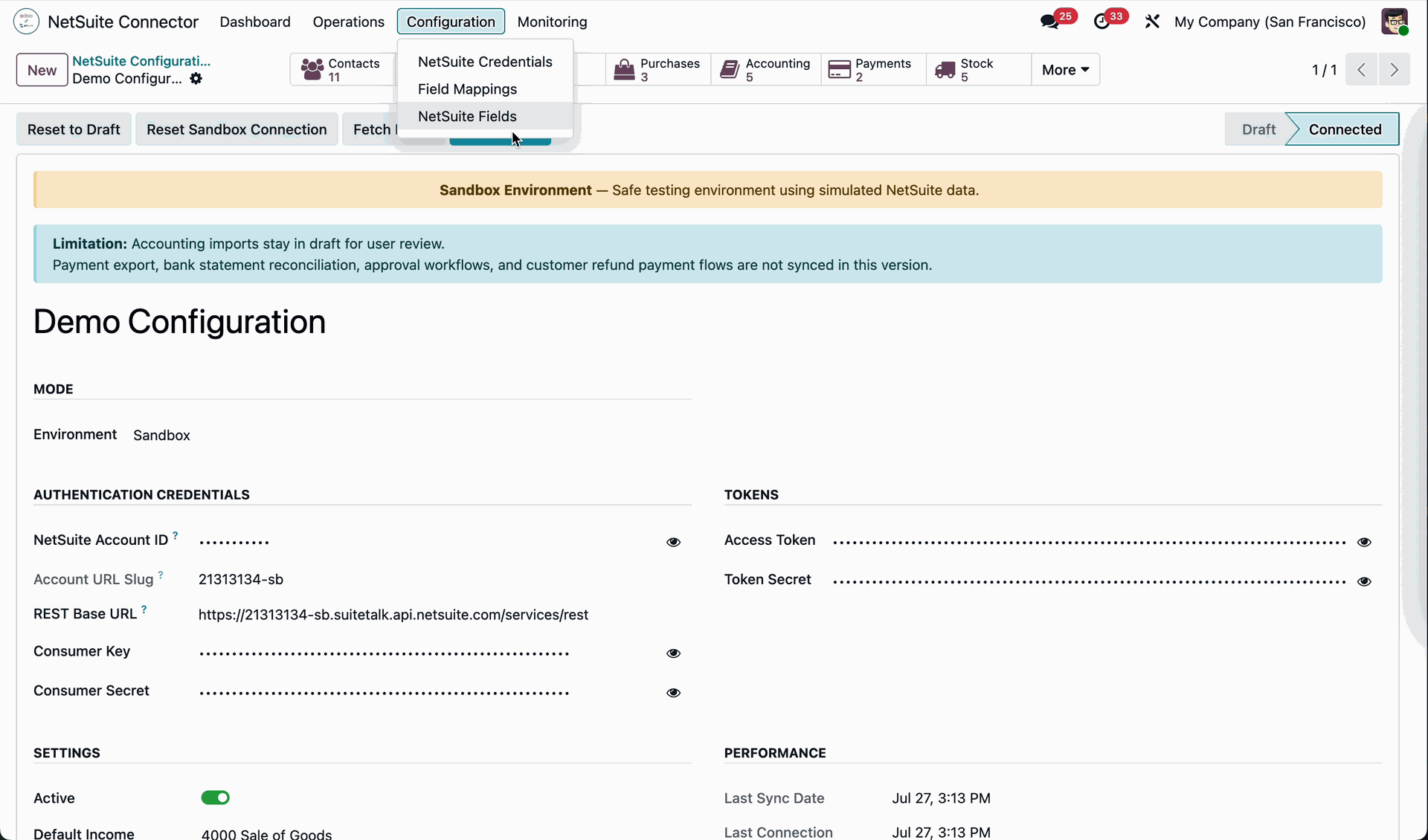
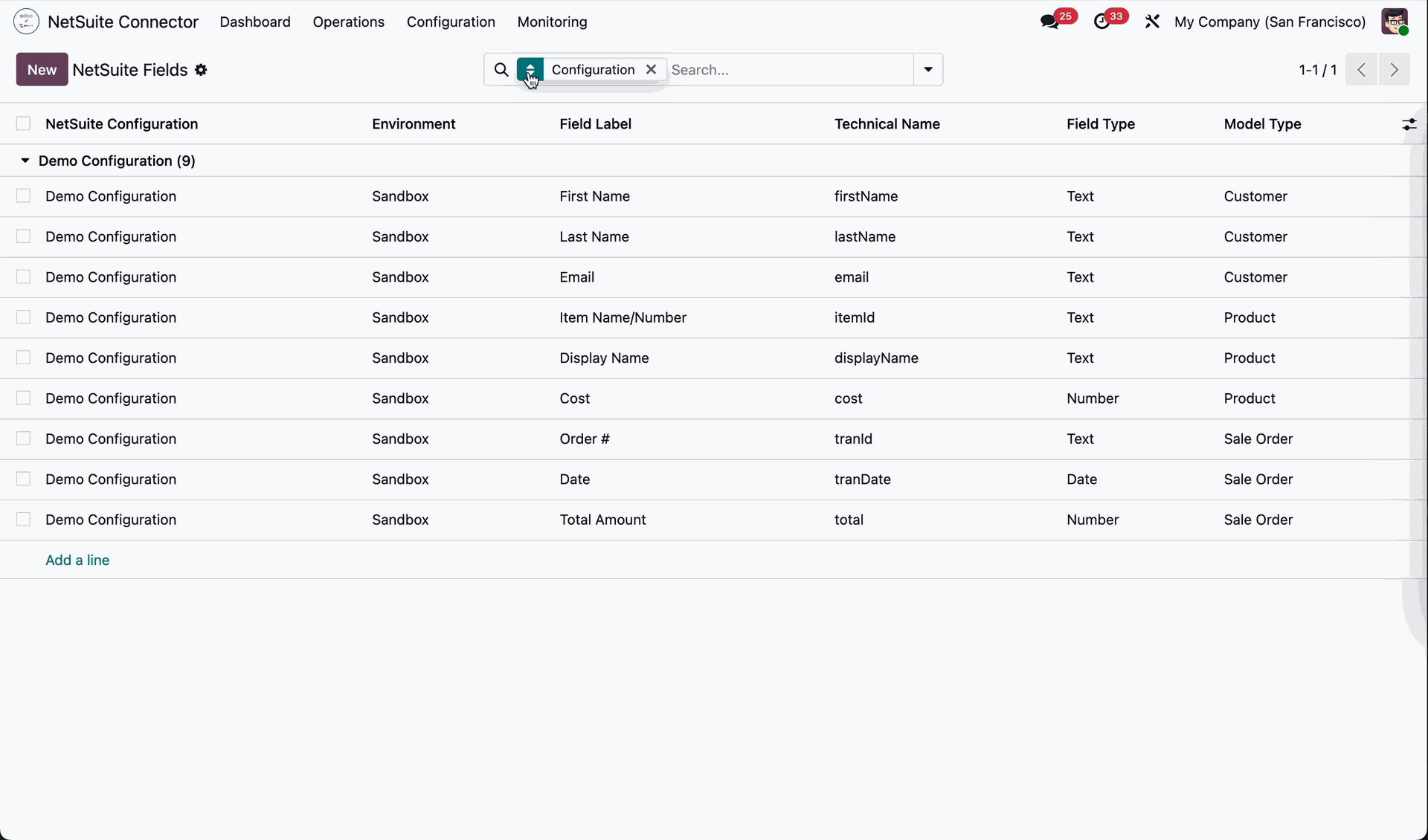
Go to the Configuration menu and select the NetSuite Fields submenu to view and manage the field mappings fetched from NetSuite.
The NetSuite Fields submenu opens the list view displaying all the fetched NetSuite fields.
Release Notes
Track every update, enhancement, and new feature across all versions.
Version 19.0.2.0.0 | Released: 06th August 2026
Version 19.0.1.0.0 | Released: 15th May 2026


 Buy Once, Supported Forever


 Scan to email sales






 Your Ideas Shape Our Roadmap
 Got an Idea? We'll Build It
Frequently Asked Questions
Everything you need to know before getting started.
Trusted by Businesses Worldwide


Abdulhamid Abdulwaheed
Best module for our online store. Highly adaptable, exceptional customer service, and very advanced modules.
Factura Venta POS
They have everything you need. Technical support is excellent, responds quickly, and keeps the module updated. 100% recommended!
Mehmet Muhanna
Great company and support team. Had a problem in my local Odoo server - they solved it in 5 minutes. Highly recommend.
Billy Jeffs
Customised an Odoo app for me which works perfectly. Many requirements, got it right every time. Very confident in their ability.
HP
Consistently excellent service over years of working together. Knowledge and commitment to keeping clients informed truly sets them apart.
Michal Kolasinski
Multiple addons + two custom modules. Communication always friendly and precise. Delivered on time, worked out of the box. Highly recommended!

Multi-Language
8 built-in translations







You May Also Like
Discover more Softhealer modules that integrate seamlessly with your Odoo environment.







Most Demanded Apps
The Softhealer modules our customers reach for most — trusted across 100+ countries.
Activities Management
Manage, schedule, and automate Odoo activities across all departments from one view.
View Module
Access Management
Granular access control over menus, fields, buttons, and records for every user role.
View Module
Backdate Advanced
Backdate any transaction across invoices, journals, pickings, and more with full audit.
View Module
All-in-One Helpdesk
Full-featured customer support with tickets, SLA, and customer portal built for Odoo.
View Module
All-in-One Mobile Backend
Access your full Odoo backend from any mobile device with an optimized interface.
View Module
All-in-One Import
Import any Odoo model data from CSV, Excel, and JSON files with mapping and validation.
View Module
Our Services
End-to-end Odoo expertise - from setup to scale.

AI & Business Integration

Odoo Implementation

Odoo Customization

Support & Maintenance

Mobile Apps

Migration Service

Third-Party Integration

Odoo Training
Ready to integrate with NetSuite Connector?
Join 10,000+ businesses - Softhealer, 11+ years of Odoo gold partnership expertise across 100+ countries.

