




















See MCP Studio in Action
Watch how seamlessly AI assistants connect to Odoo through MCP Studio. Experience real-time data automation, search operations, and model management in a few simple clicks.
Morning Business Briefing
Get an instant summary of revenue, overdue invoices, pipeline value, and low stock items.
Create a Lead Without Opening Odoo
Create a new CRM lead using a simple natural language prompt.
Pipeline Health Check
Identify inactive sales opportunities and review their total pipeline value.
Unpaid Invoices Alert
View invoices overdue by more than 30 days along with the outstanding amount.
Build a Dashboard in One Sentence
Generate a custom dashboard instantly using a simple text command.
Customer Re-engagement List
Find customers who haven't placed an order in the last six months for follow-up campaigns.
What else Can you ask?
Top Customer Buying Patterns
Who are my top 5 customers by revenue this year and what products do they buy most?
Lost Deal Analysis
Show me all deals we lost this month and what reasons were given
Overdue Quotations
Which quotations have been sent but not confirmed in more than 7 days?
Sales Rep Performance
Compare revenue generated by each salesperson this month vs last month
Revenue vs Last Month
What was our total invoiced revenue this month compared to last month? Which product category grew the most?
Expense Breakdown
What were our top 5 expense categories last month and how do they compare to our budget?
Cash Flow Snapshot
What is our expected cash inflow from confirmed orders and pending invoices in the next 30 days?
Profit by Product
Which 5 products gave us the highest profit margin last quarter?
New Customer Growth
How many new customers did we acquire this month vs last month? Which sales channel brought the most?
Campaign to Revenue Attribution
In Odoo, which customers placed an order within 14 days of receiving our last email campaign?
Top Performing Product for Promotion
In Odoo, which products have the highest repeat purchase rate among our existing customers?
Low Stock Alert
In Odoo, which products are below their minimum stock level right now?
Delivery Delays
In Odoo, which confirmed sales orders have a scheduled delivery date that has already passed, but the delivery is not done?
Supplier Performance
In Odoo, which vendors consistently deliver late? Show me their average delay in days over the last 3 months.
Multiple LLMs and Local Agents
One connection setup. Works across every major AI platform.








Key Features

Create/Read/Update/Delete Records
Manage Odoo records directly through MCP-enabled secure access. Automate data entry workflows and streamline business processes.
 Watch Video

Custom Module Creation  LATEST
Create fully customized Odoo modules automatically based on your business requirements without manual coding.
Watch Video

AI-Powered Lead Generation LATEST
Automatically generate qualified leads using AI based on lead briefs, business requirements, and target criteria.
Watch Video

Dynamic Email Template Creator LATEST
Create, edit, and send dynamic email templates with support for personalized and mass email campaigns.
Watch Video

Dashboard and Chart Creation
Build dynamic dashboards and charts using secure token-based data access. Visualize key business metrics in a clean, structured view.
Watch Video

WebApp Creation LATEST
Create powerful Odoo WebApps without requiring external servers, third-party platforms, or additional dependencies.
Watch Video

IP Restriction Management LATEST
Control access with IP Whitelisting and Blacklisting to enhance security and prevent unauthorized usage.
Watch Video

Custom Tool Builder LATEST
Build custom AI-powered tools tailored to unique workflows, processes, and business-specific requirements.
Watch Video

Website Snippet Builder LATEST
Build reusable and customizable Odoo Website snippets with AI assistance for faster website development.
Watch Video
Other Features

MCP Access Rights Management
Configure and enforce granular access rights for MCP users. Control exactly who can do what — ensuring secure, auditable data handling.
Watch Video

Natural Language Processing
Interact with Odoo in plain language. Converts natural queries into actionable insights — automating text understanding, classification, and data extraction.

Field-Level Access Control
Restrict access to specific fields within any model. Grant access only to the fields required for each integration or user role.
Watch Video

Model-Level Access Control
Restrict access at the model level to control data visibility. Limit which Odoo models are accessible per MCP connection or user group.
Watch Video

Dashboard Link Sharing
Share dashboards securely using generated access links. Provide controlled access to insights without exposing the full Odoo system.
Watch Video

OAuth 2.1 Connection
Connect securely using industry-standard OAuth 2.1 authentication. Ensures standardized, protected access control for advanced integrations.
Watch Video

Token URL Connection Mode
Enable fast, secure connections using token-based URLs. Simplify integration with external AI tools with one-click MCP readiness.
Watch Video

MCP Support for Multiple LLMs & Local Agents
LATEST
Connect your Odoo MCP server to the full AI ecosystem — Antigravity, Claude WebApp, Claude CLI, Claude Desktop, Gemini CLI, Codex CLI, Codex Desktop App, and Codex WebApp. One setup, cross-platform AI automation.
Watch Video

Tools Execution Log LATEST
Monitor, track, and audit all AI tool executions through a centralized execution history and activity log.
Watch Video

Bulk Record Management LATEST
Create, update, and delete multiple records simultaneously to streamline operations and improve productivity.
Watch Video

Dynamic PDF Report Builder LATEST
Design, generate, and download fully customizable PDF reports tailored to your business needs.
Watch Video
Access Policy with Admin Mode LATEST
Define and manage access policies with a dedicated Admin Mode for better control over MCP tools and permissions.
Watch Video
MCP Sharing via Email LATEST
Share MCP configurations and tool access securely with users directly through email.
Watch Video
Interactive Tool Catalog View LATEST
Explore available MCP tools through an interactive catalog with clear tool details and easy access.
Watch Video
 Setup & Configuration
 Release Notes
 Support
 FAQ's
FAQ's
Frequently Asked Questions
Everything you need to know before getting started.
- Antigravity, Claude WebApp, Claude CLI, Claude Desktop, Gemini CLI, Codex CLI, Codex Desktop, Codex WebApp.
- Check API configuration
- Verify internet connectivity
- Ensure provider API key is valid
-
 Configuration
-
 MCP Server Setup
-
 Field & Model Access
-
 Dashboards & Charts
-
 Custom Module Creation NEW
-
 Website Snippet Builder NEW
-
 WebApp Creation NEW
-
 Tools Execution Log NEW
-
 Dynamic PDF Report Builder NEW
-
 Dynamic Email Template Creator NEW
-
 AI-Powered Lead Generation NEW
-
 Custom Tool Builder NEW
-
 IP Restriction Management NEW
-
 Bulk Record Management NEW
-
Tool Catalog View NEW
-
MCP Sharing via Email NEW
Navigate to Settings → Users.
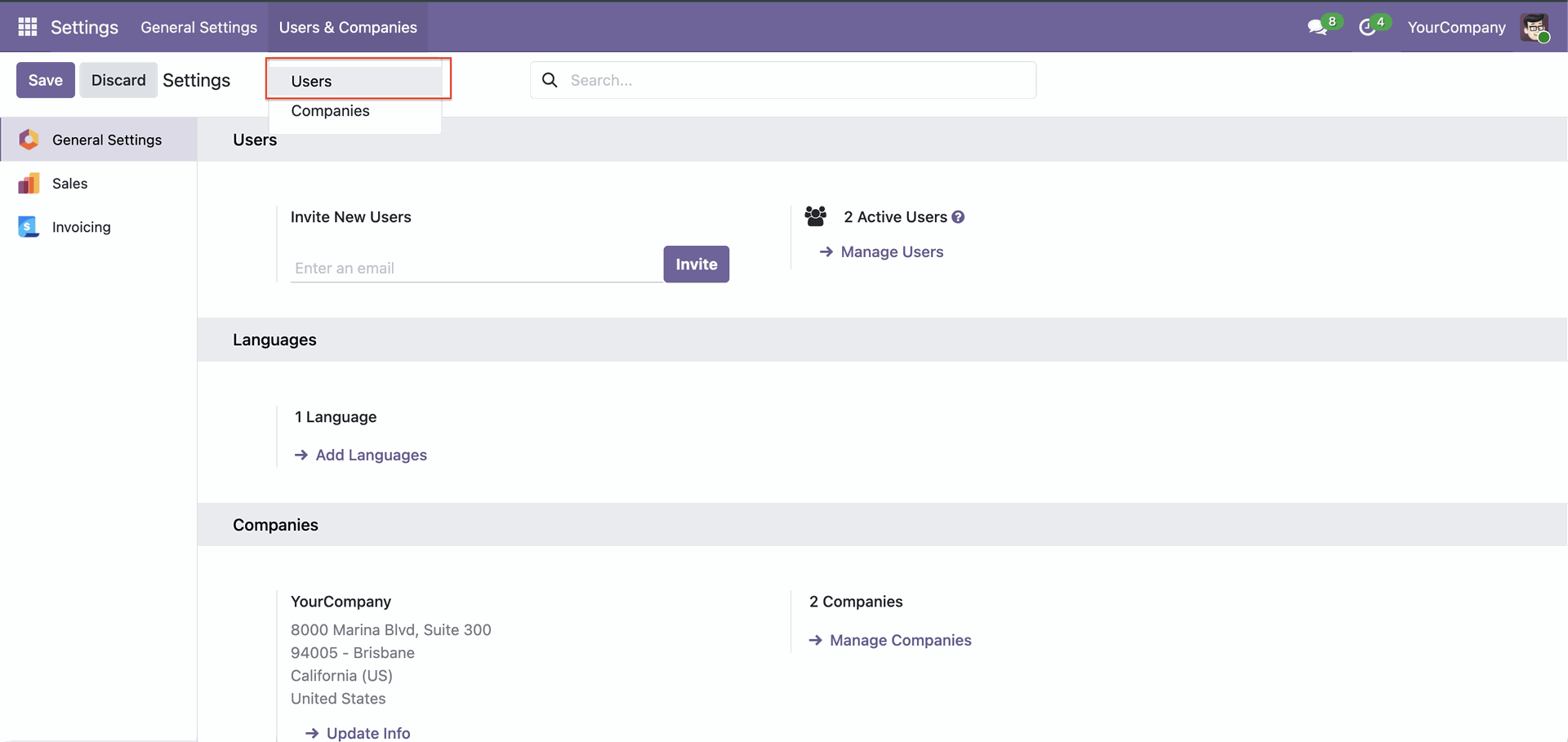
You can set access rights for AI under user settings.
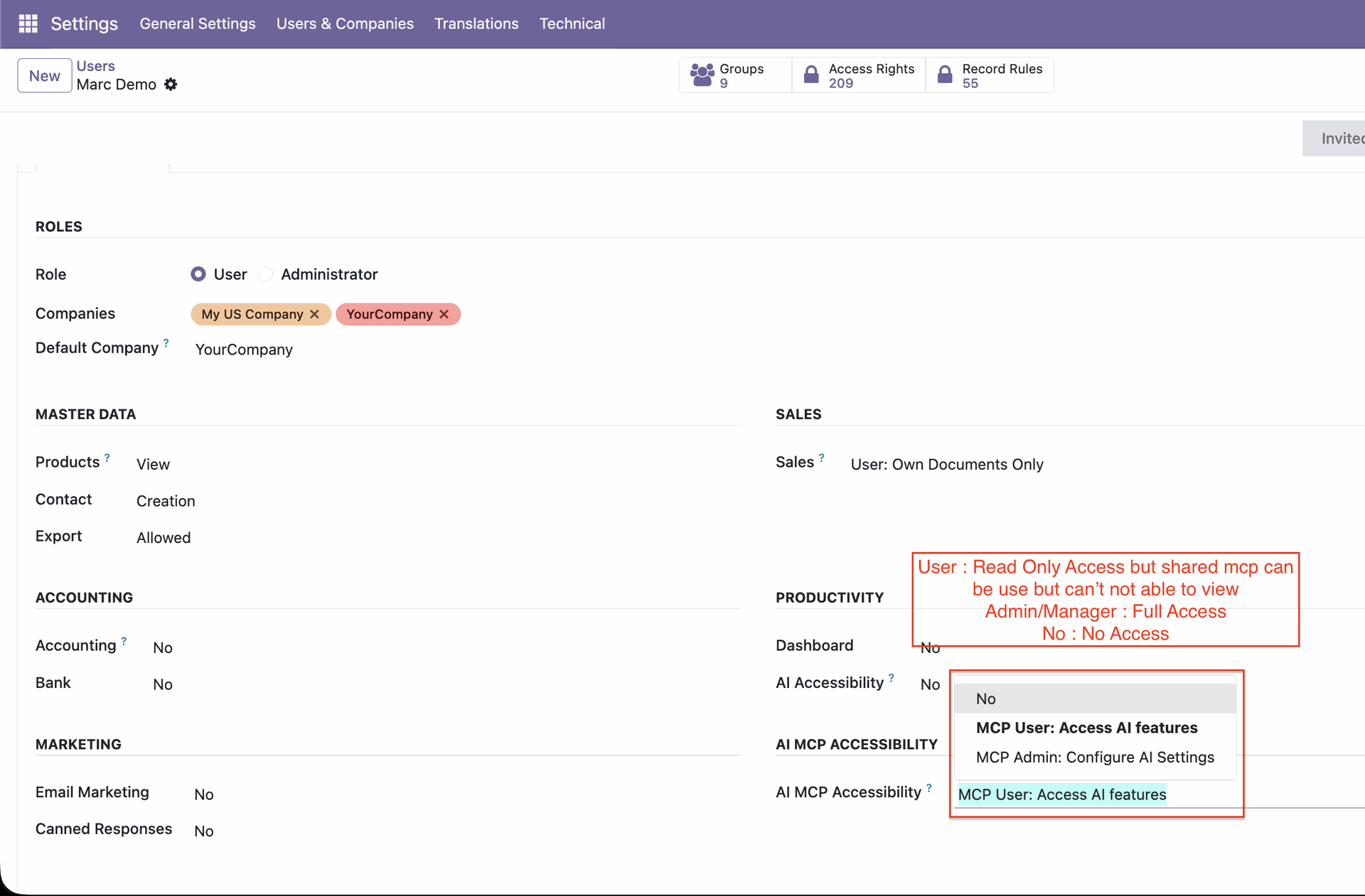
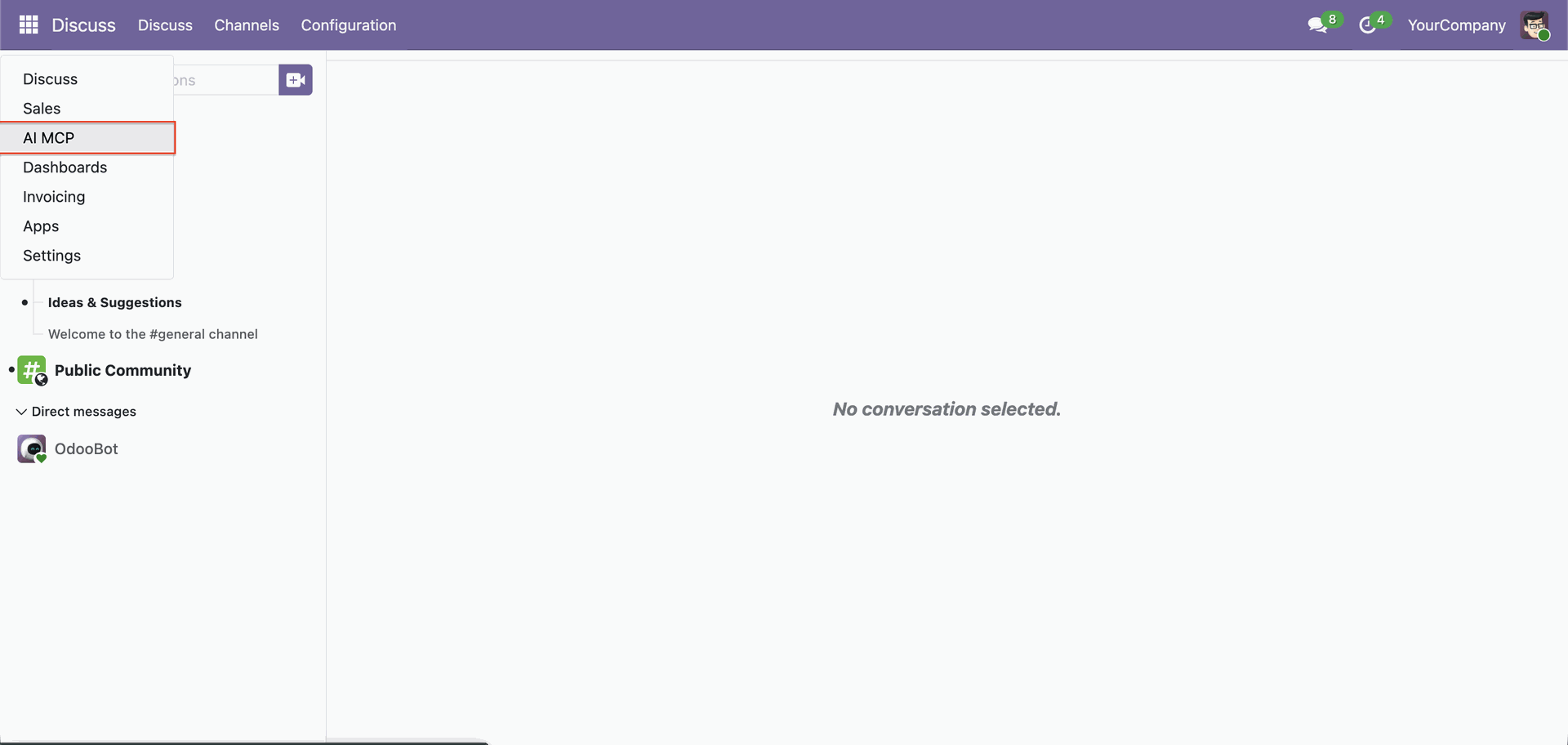
Go to the 'AI MCP'.
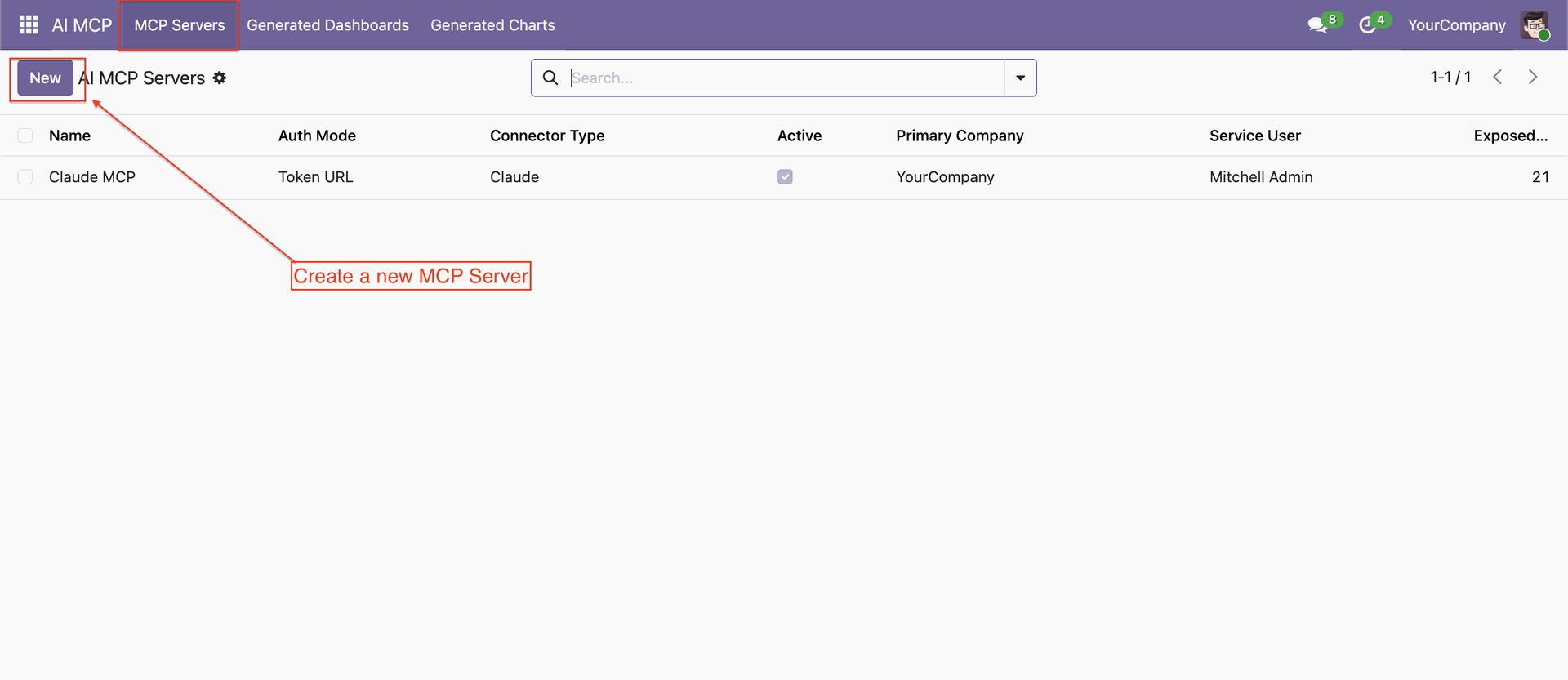
Create a new MCP Server.
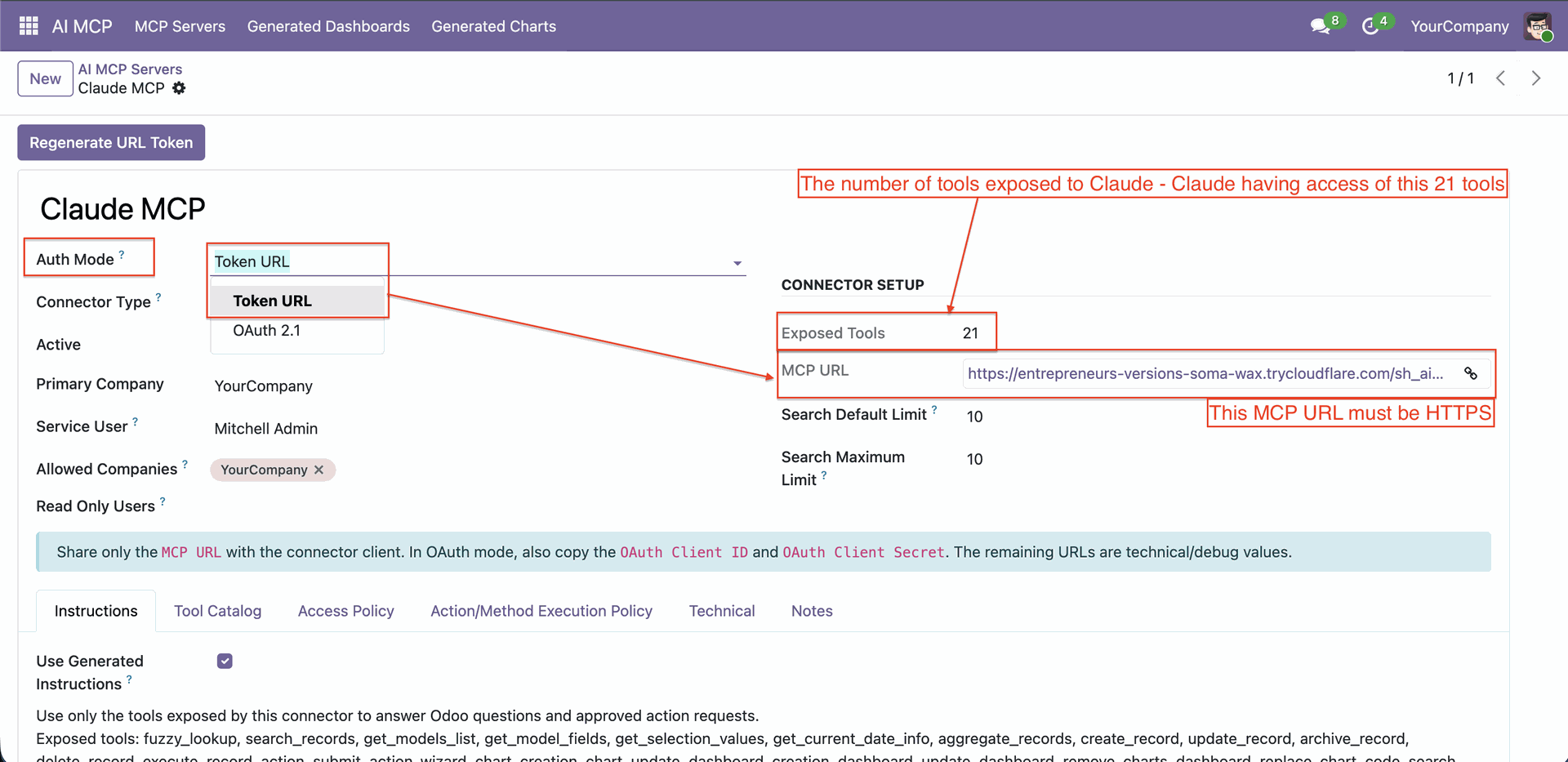
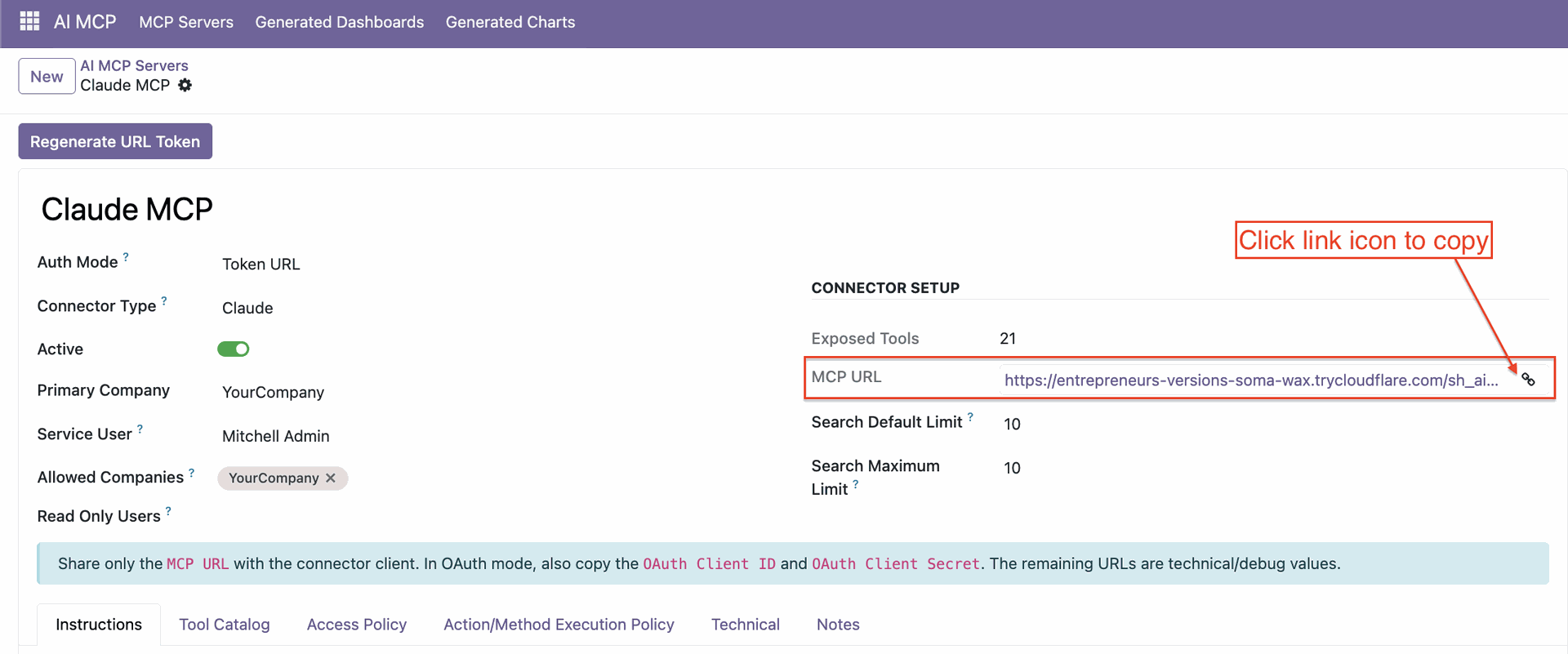
Method 1: Connect with the Token URL.
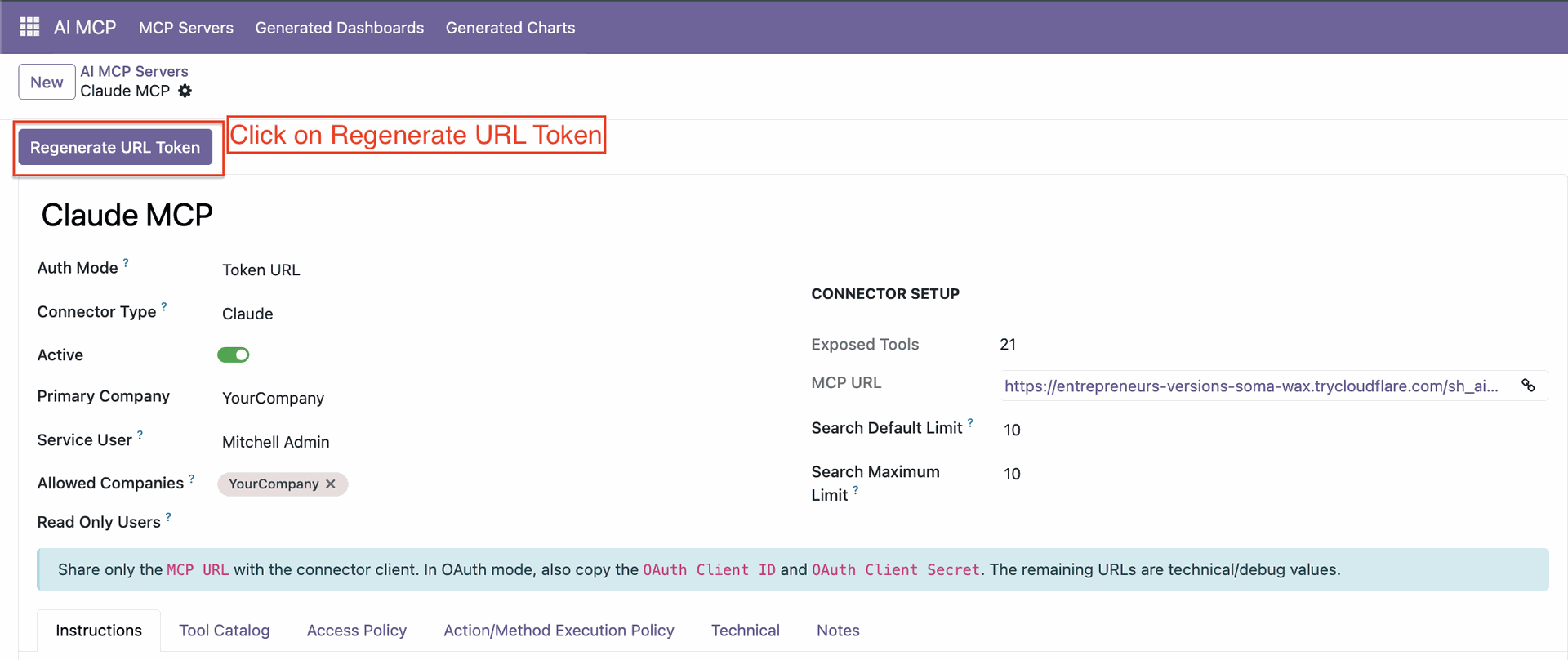
Click on 'Regenerate URL Token'.
Copy the URL.
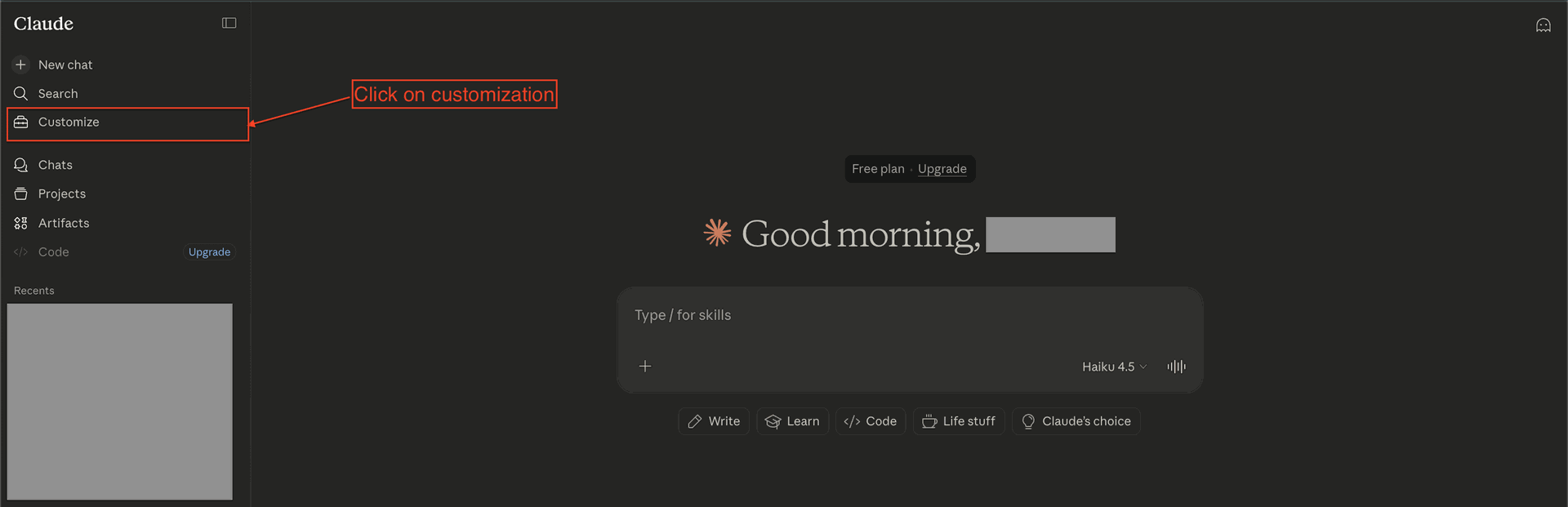
Go to the 'Claude' → Customization.
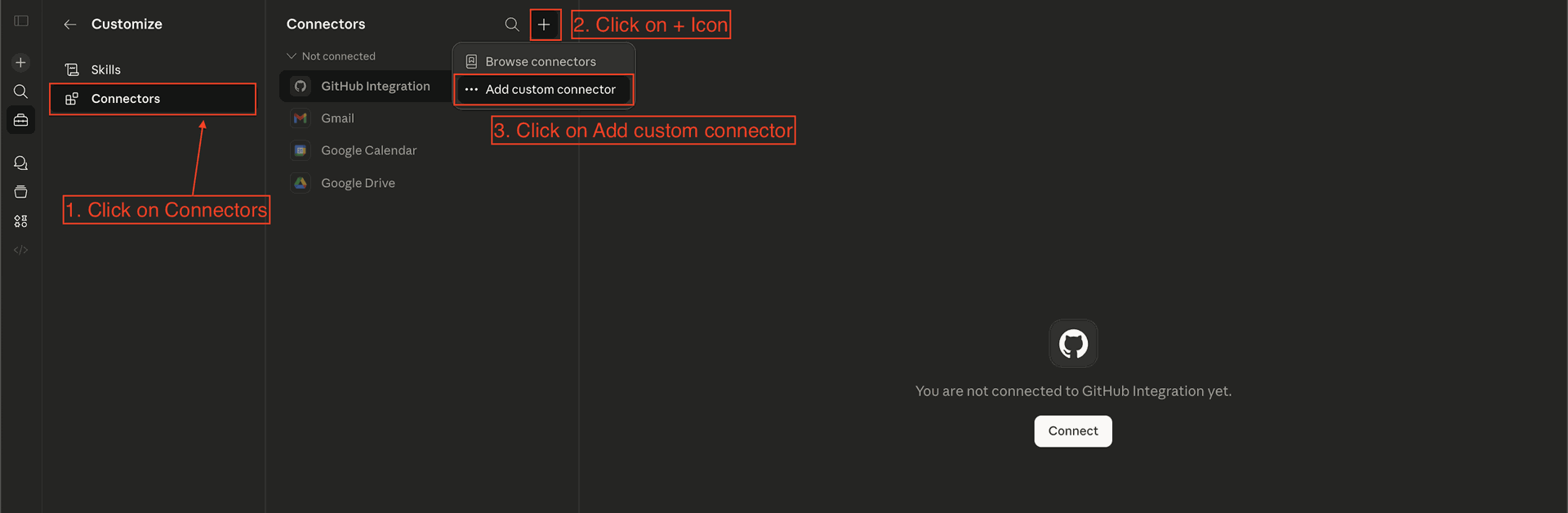
Go to Connectors and Click 'Add Custom Connector'.
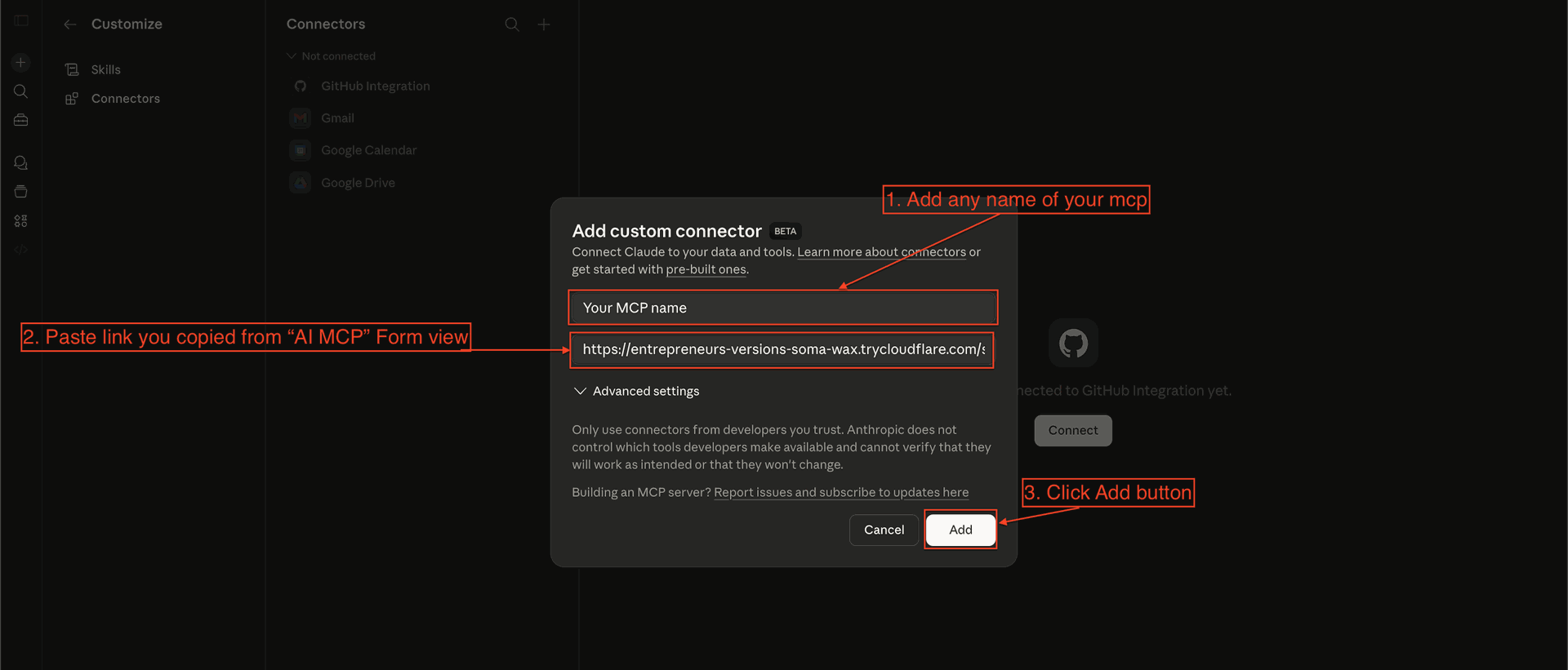
Add the MCP Name, URL, and Click 'Add'.
View Connection Details After Successful Connection.
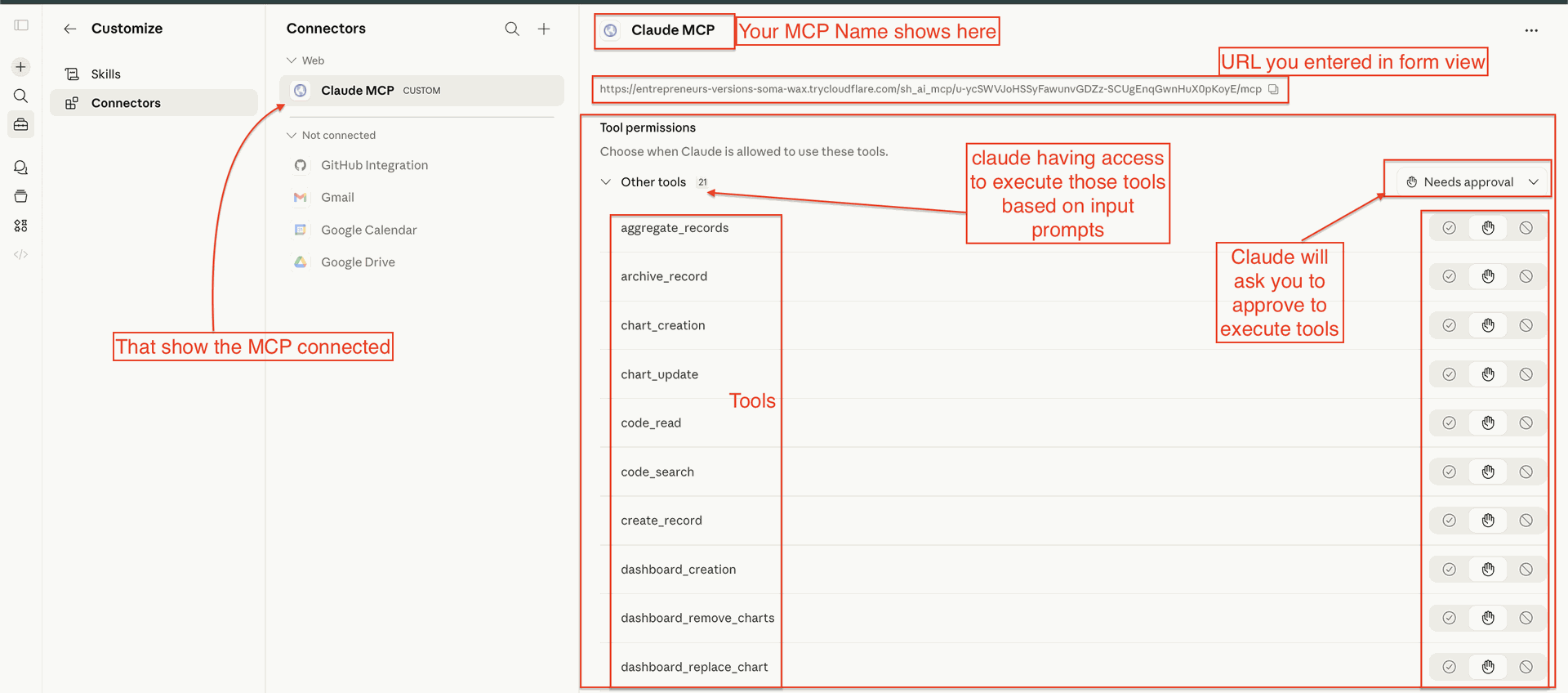
Method 2: Connect with OAuth.
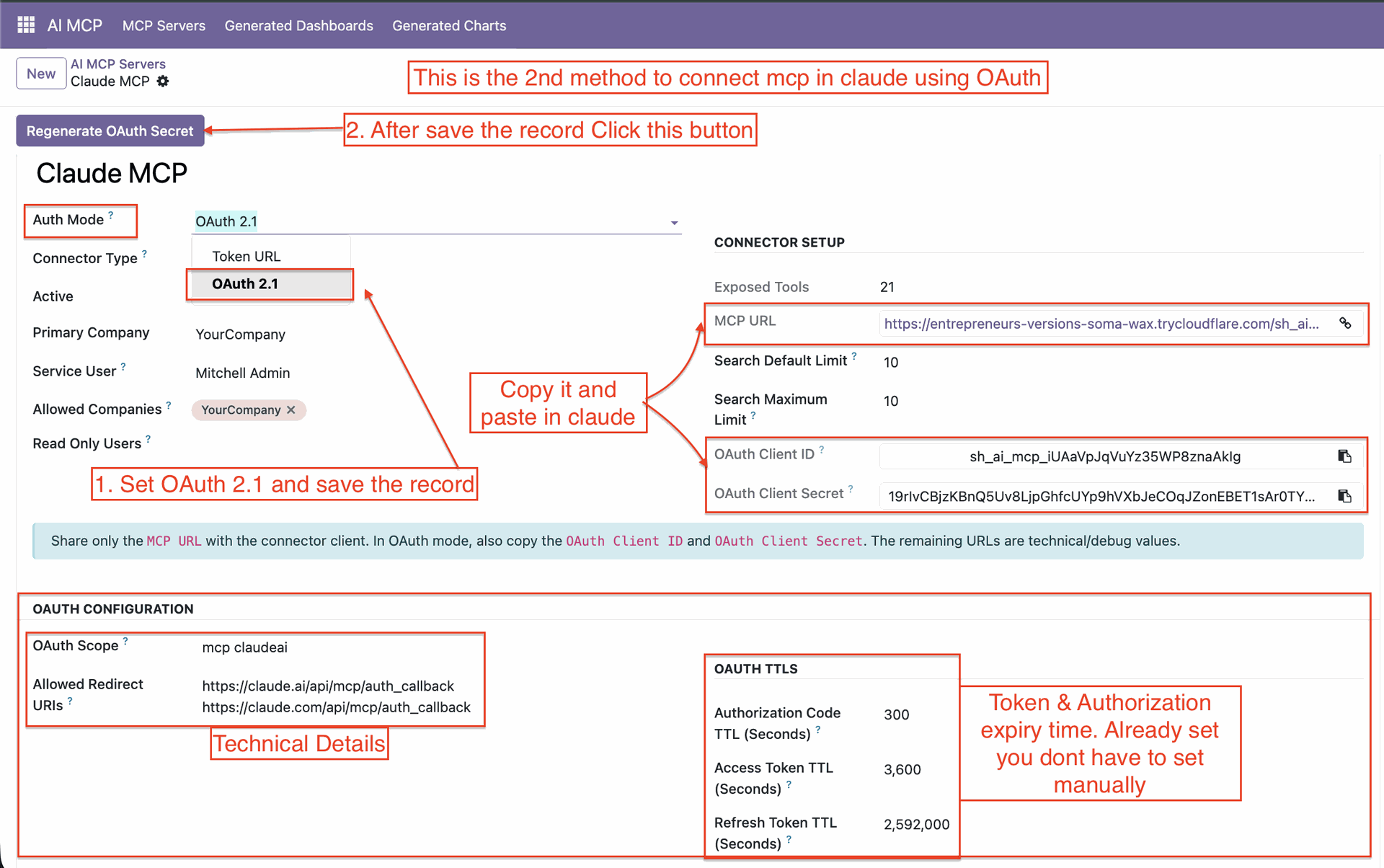
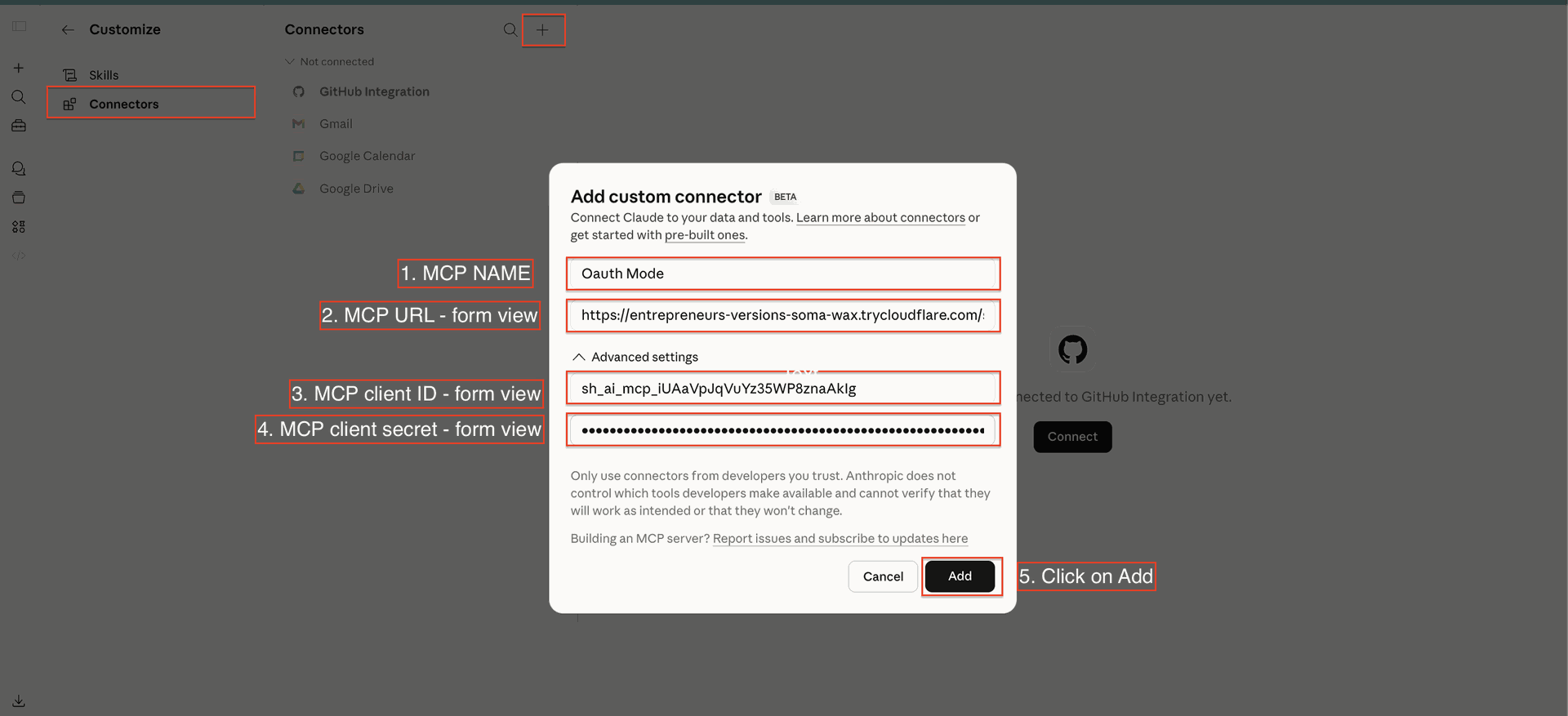
Add Connector Details and Click 'Add'.
Click to Connect.
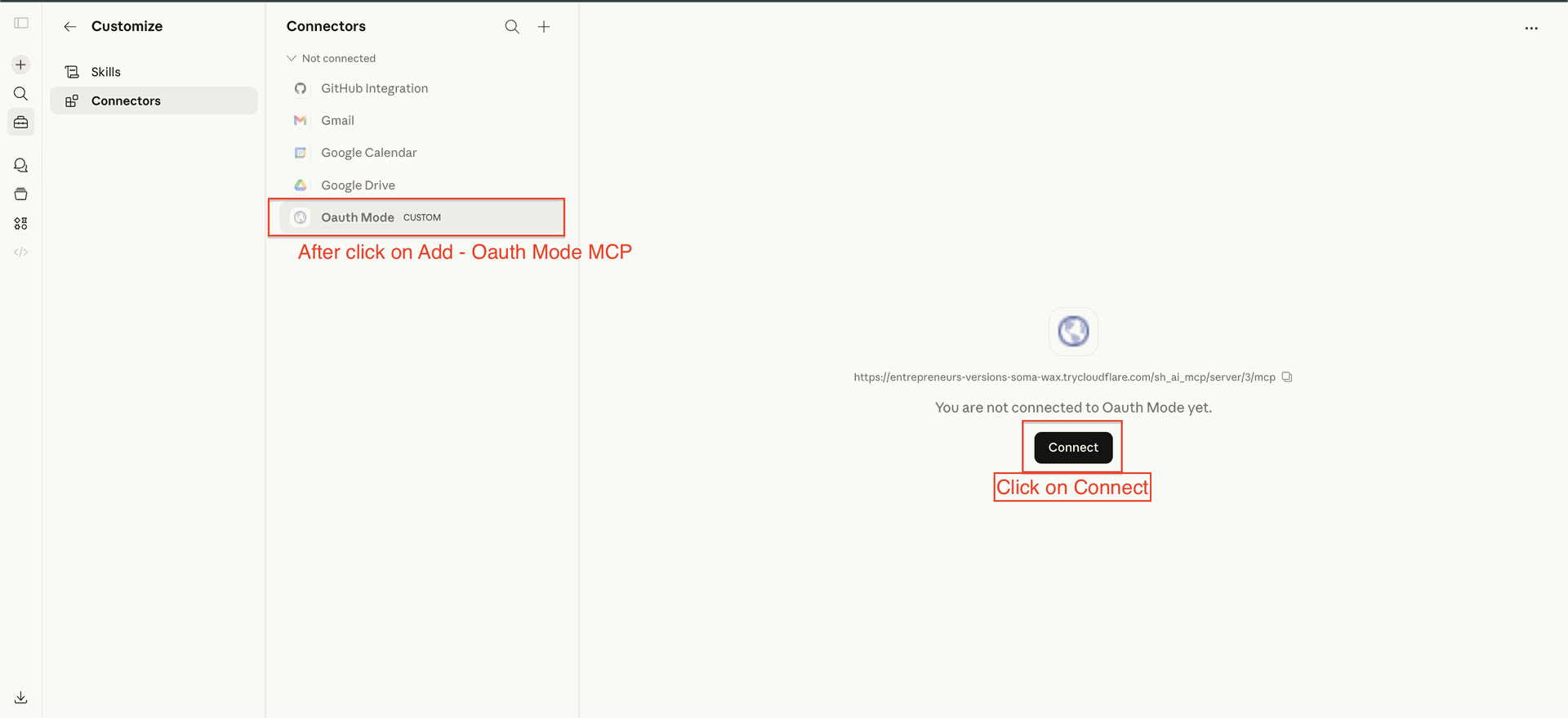
View Details After Successful OAuth Connection.
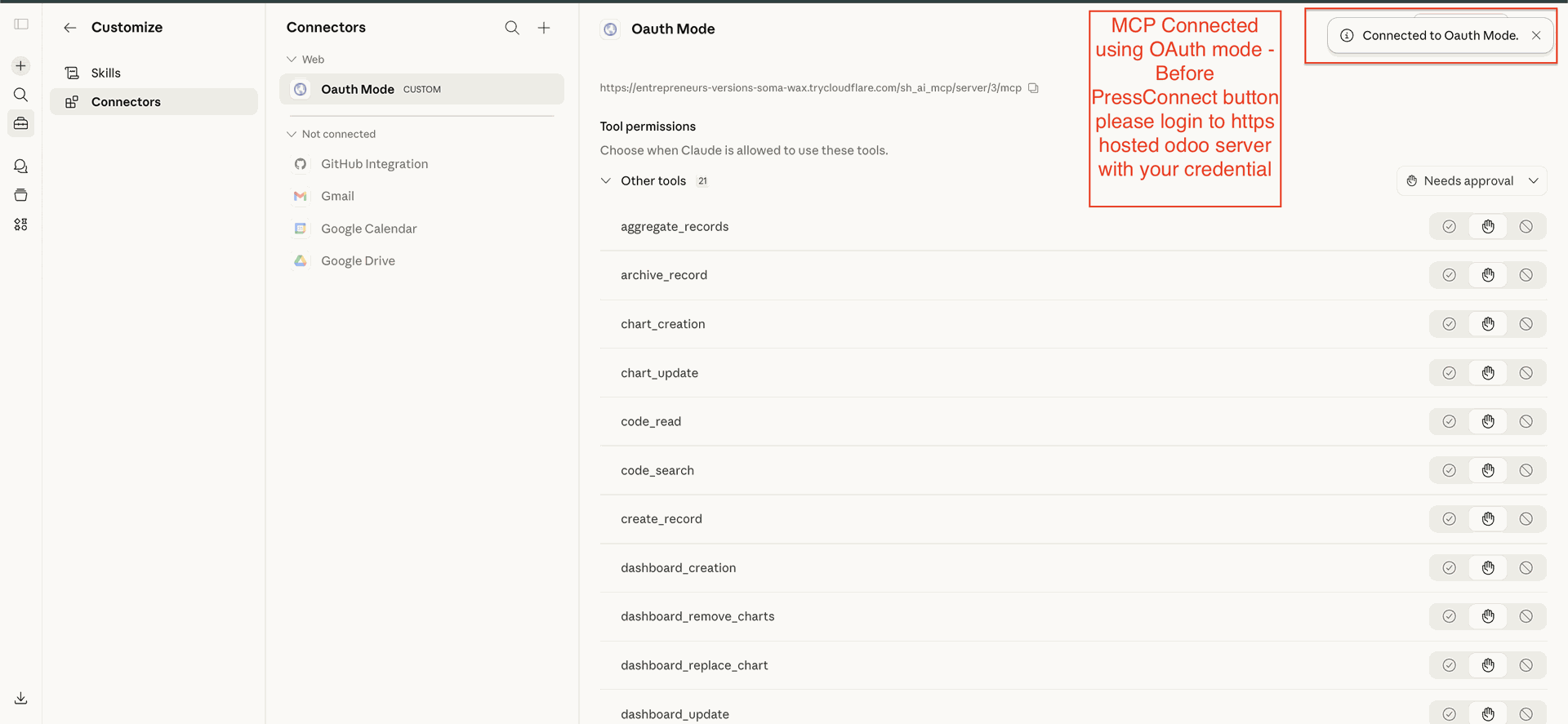
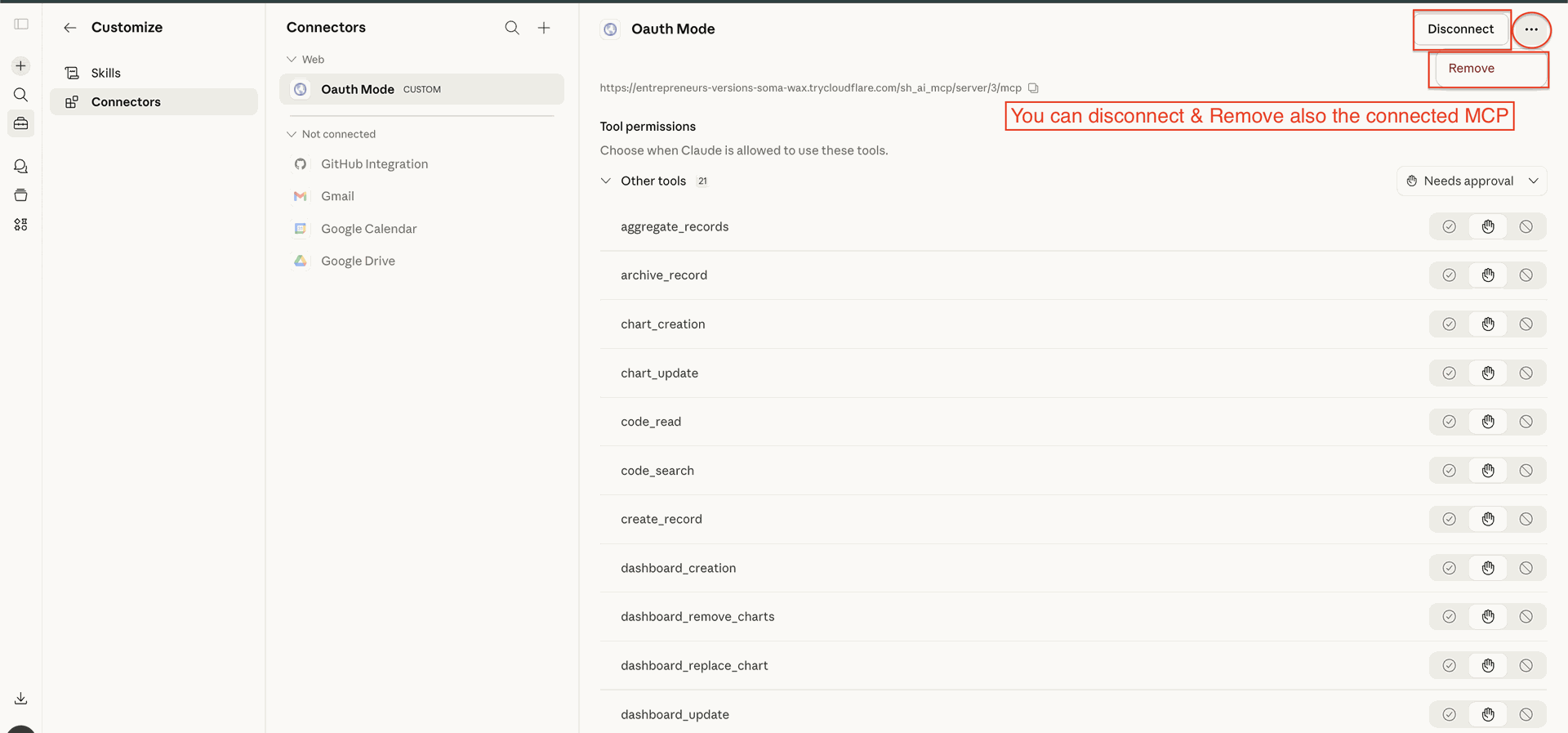
Remove or Disconnect the Connection as Required.
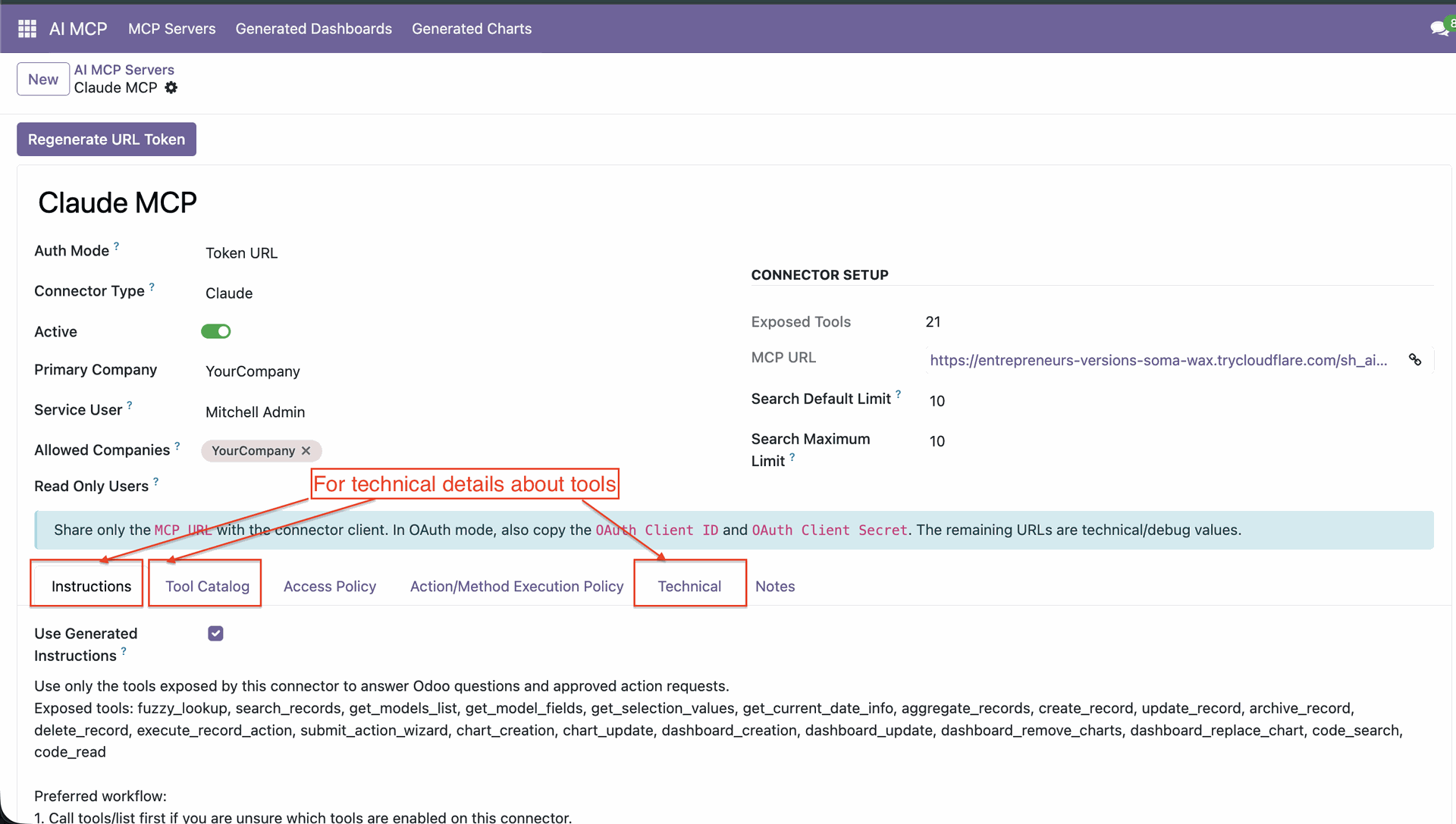
View Technical Details in the Available Tabs.
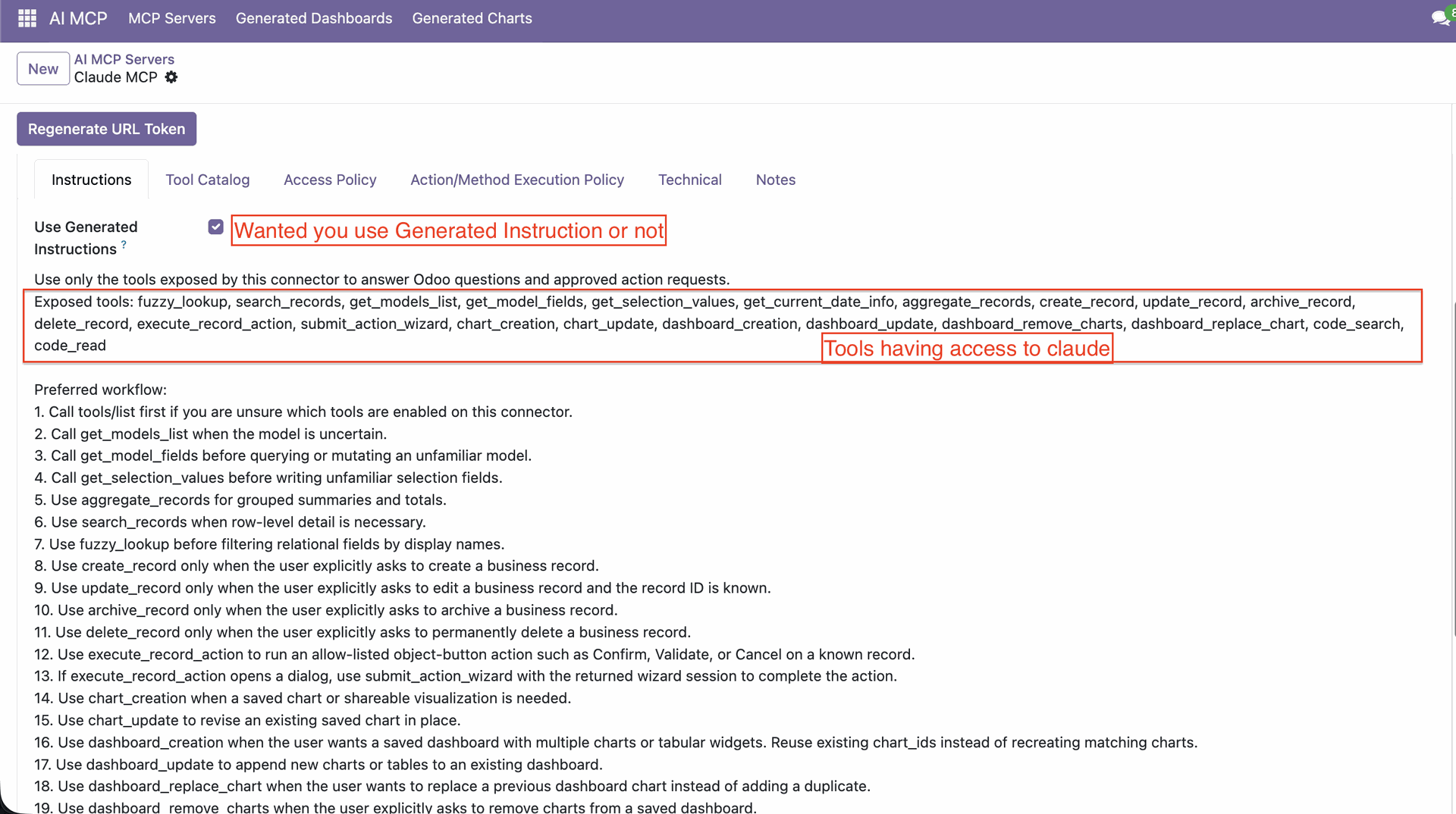
Generate Instructions as per Requirements.
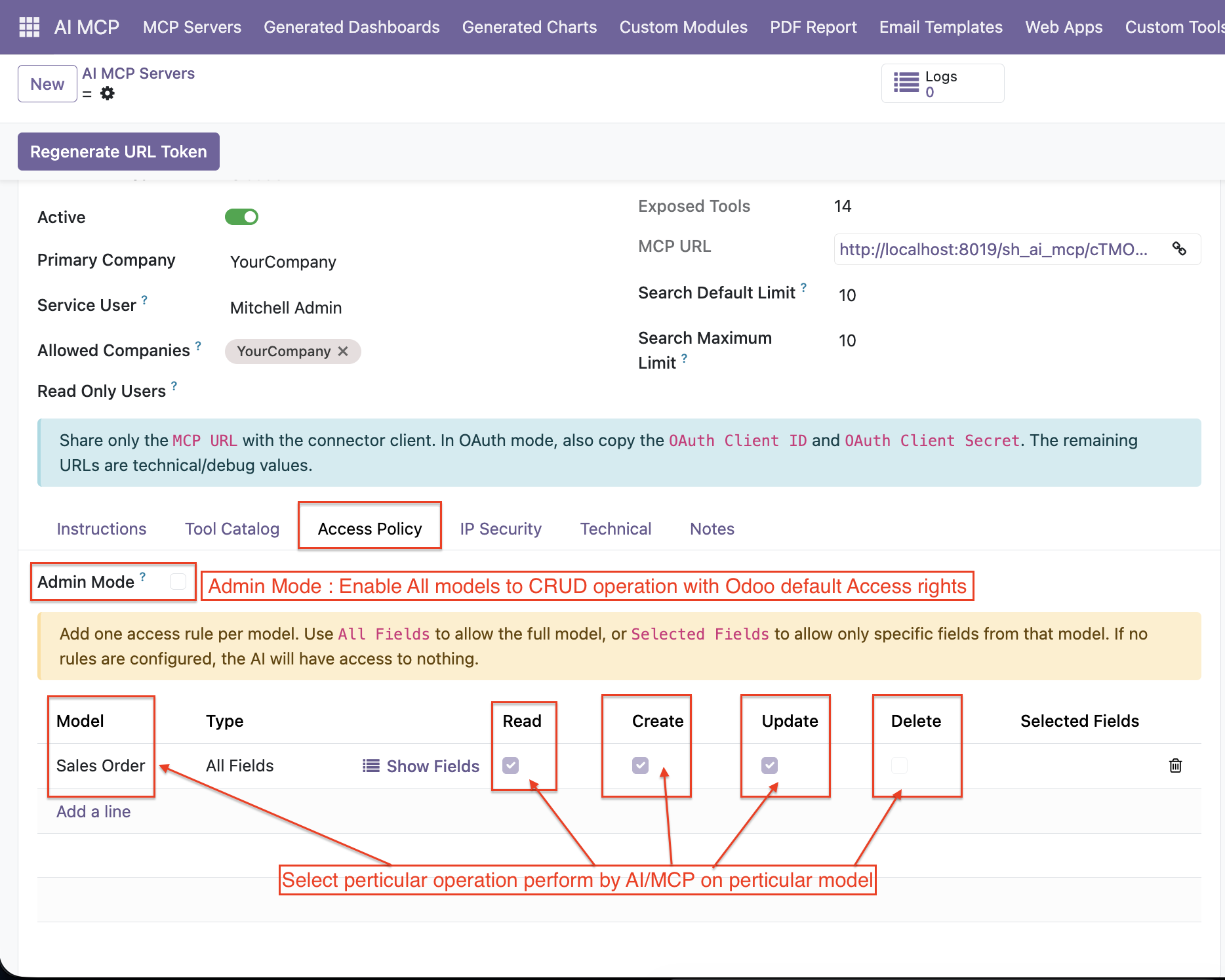
Define controlled access by specifying which models, operations (read, create,
update, delete), and fields users or AI can interact with—ensuring data security
and
precise permission management.
You can restrict access for either all fields or only selected fields for a given
model.
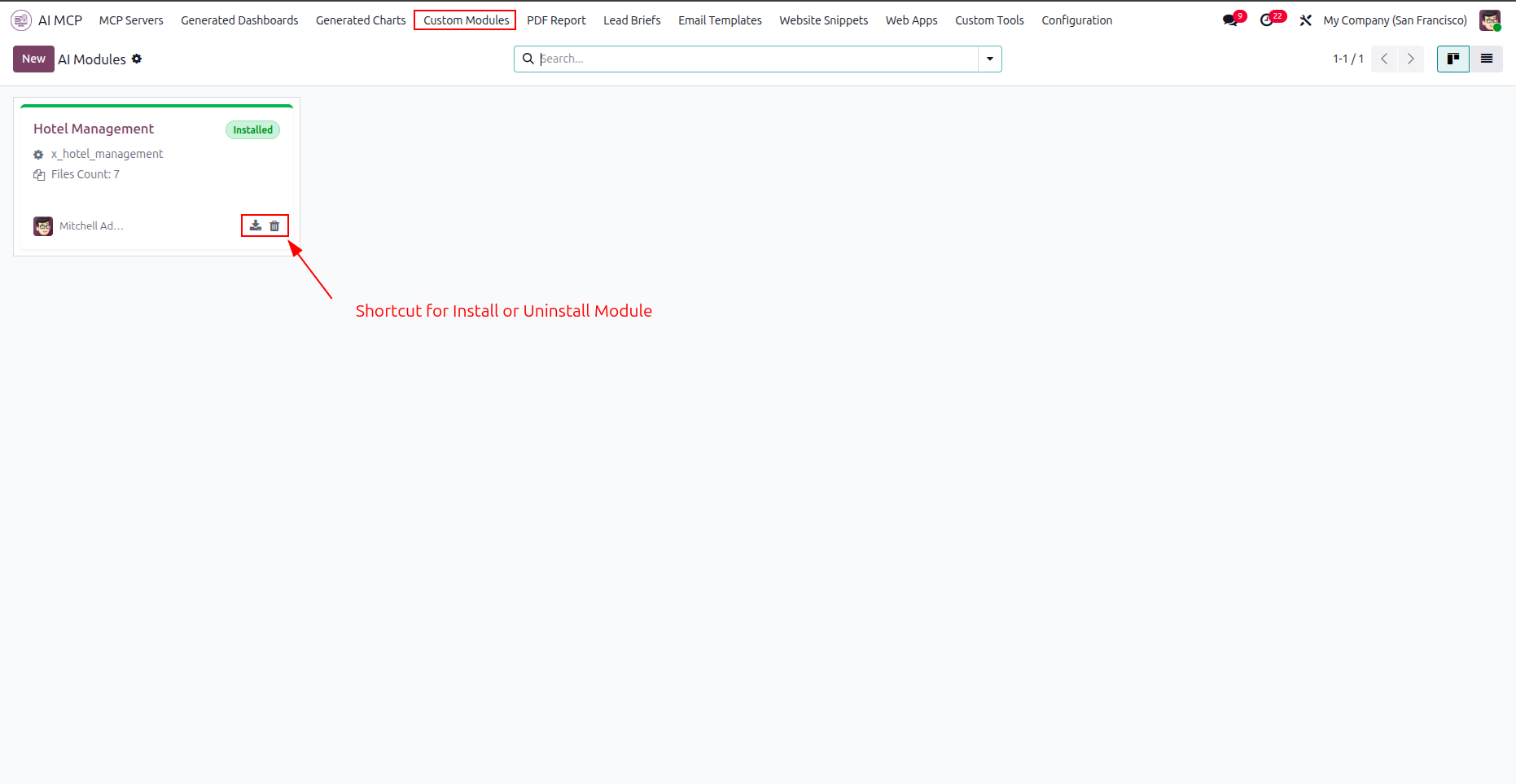
Click the highlighted shortcut icons on the module card to install or uninstall the custom application.
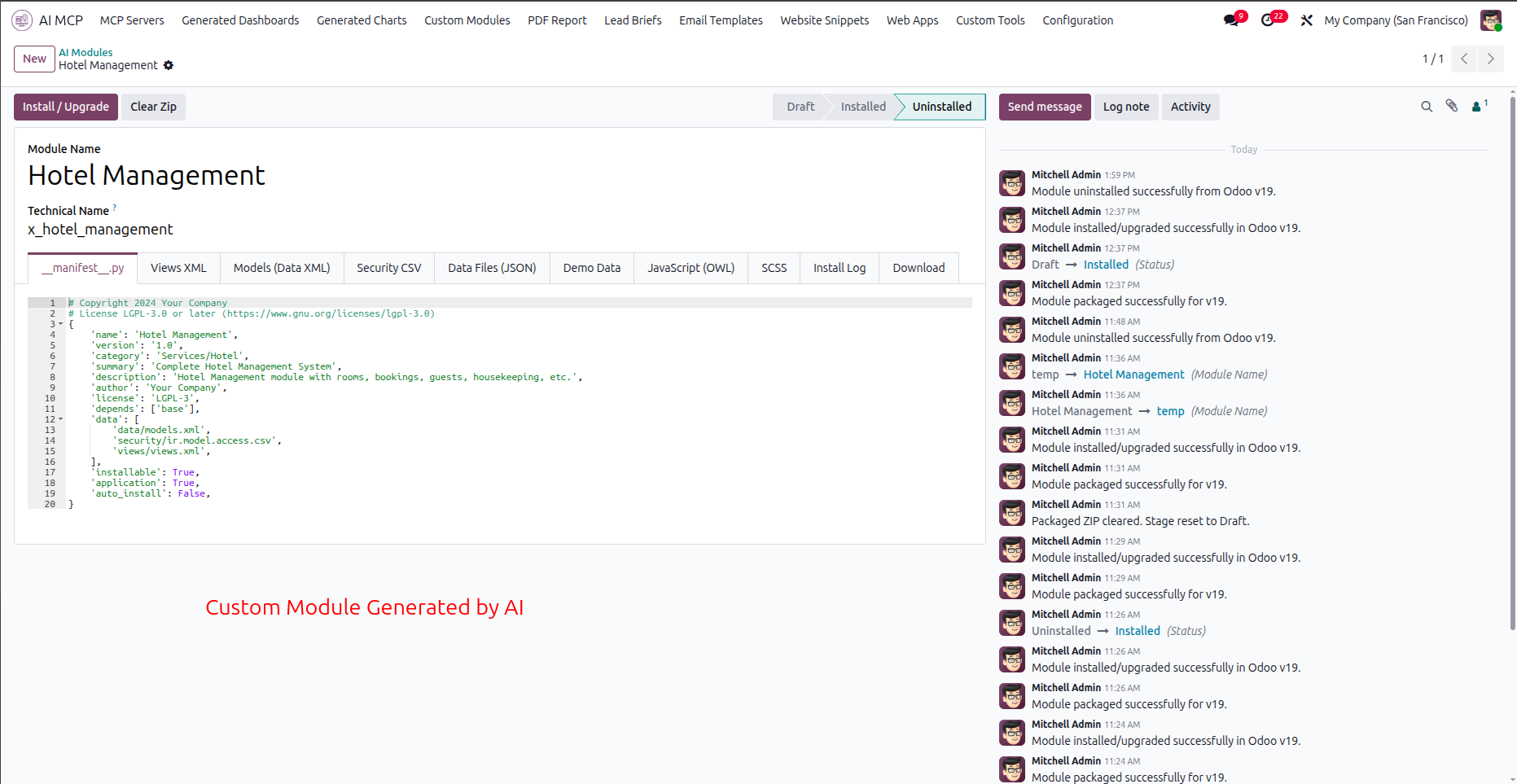
Review the AI-generated manifest file code details in the manifest tab before installing the custom module.
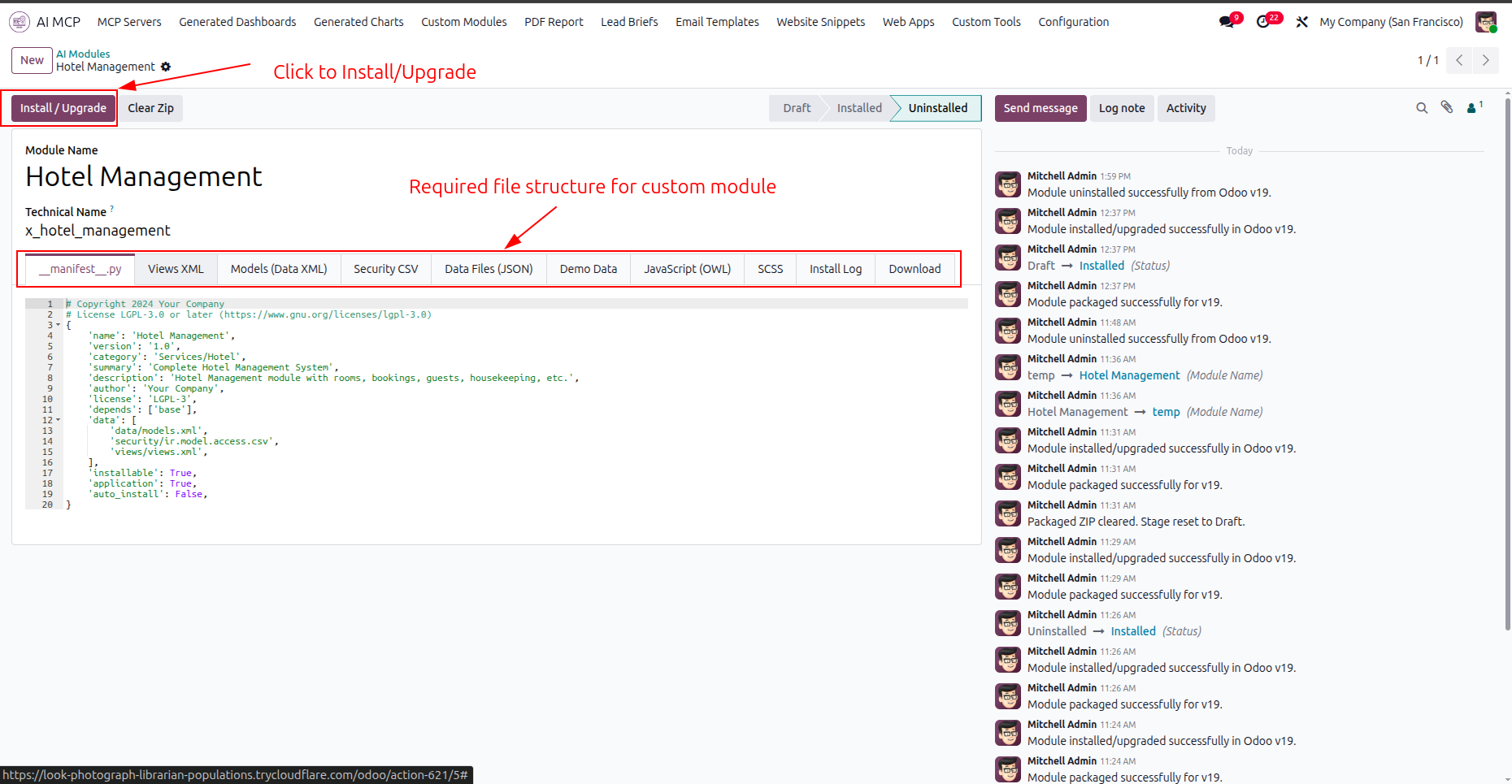
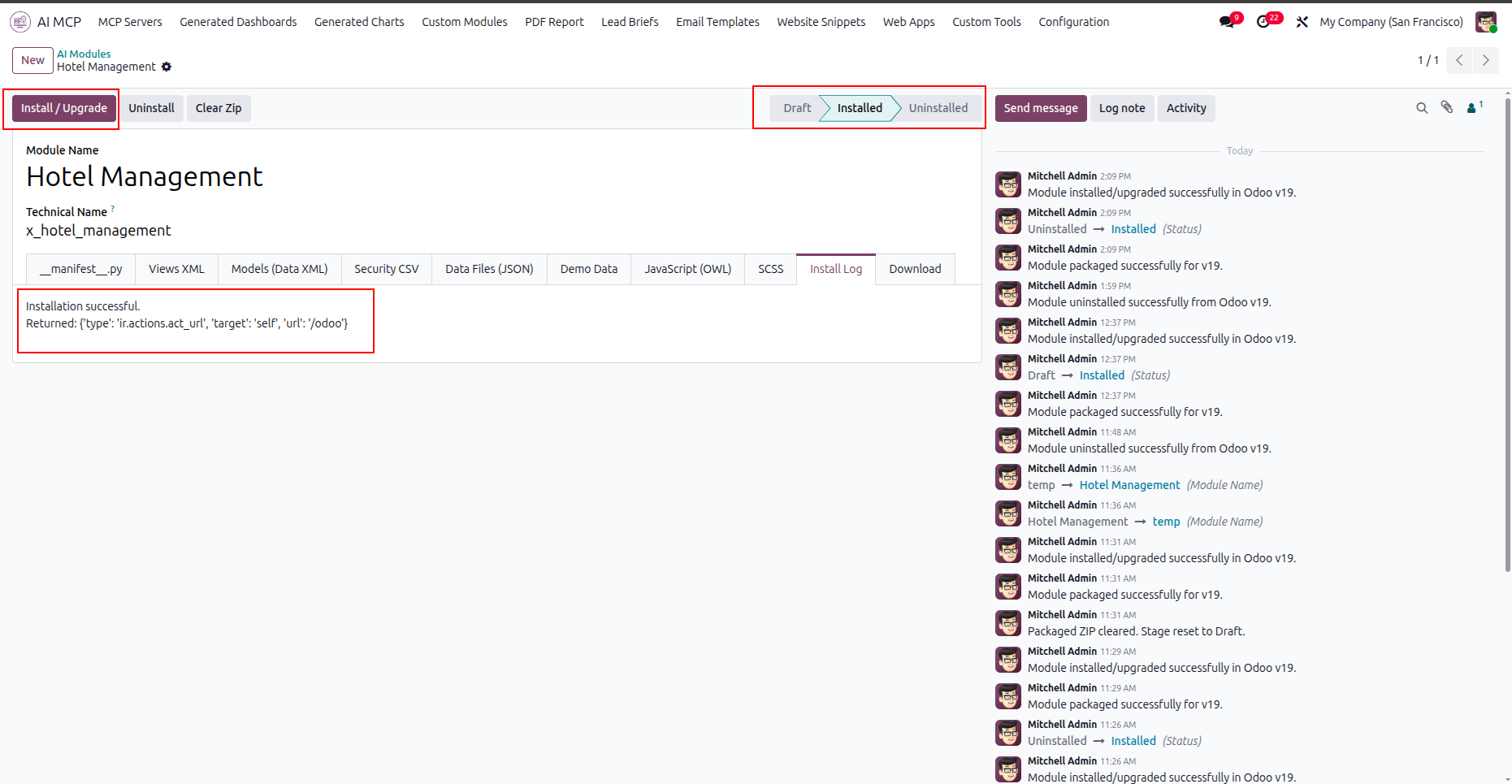
Click the highlighted Install or Upgrade button to deploy the generated file structure for the module.
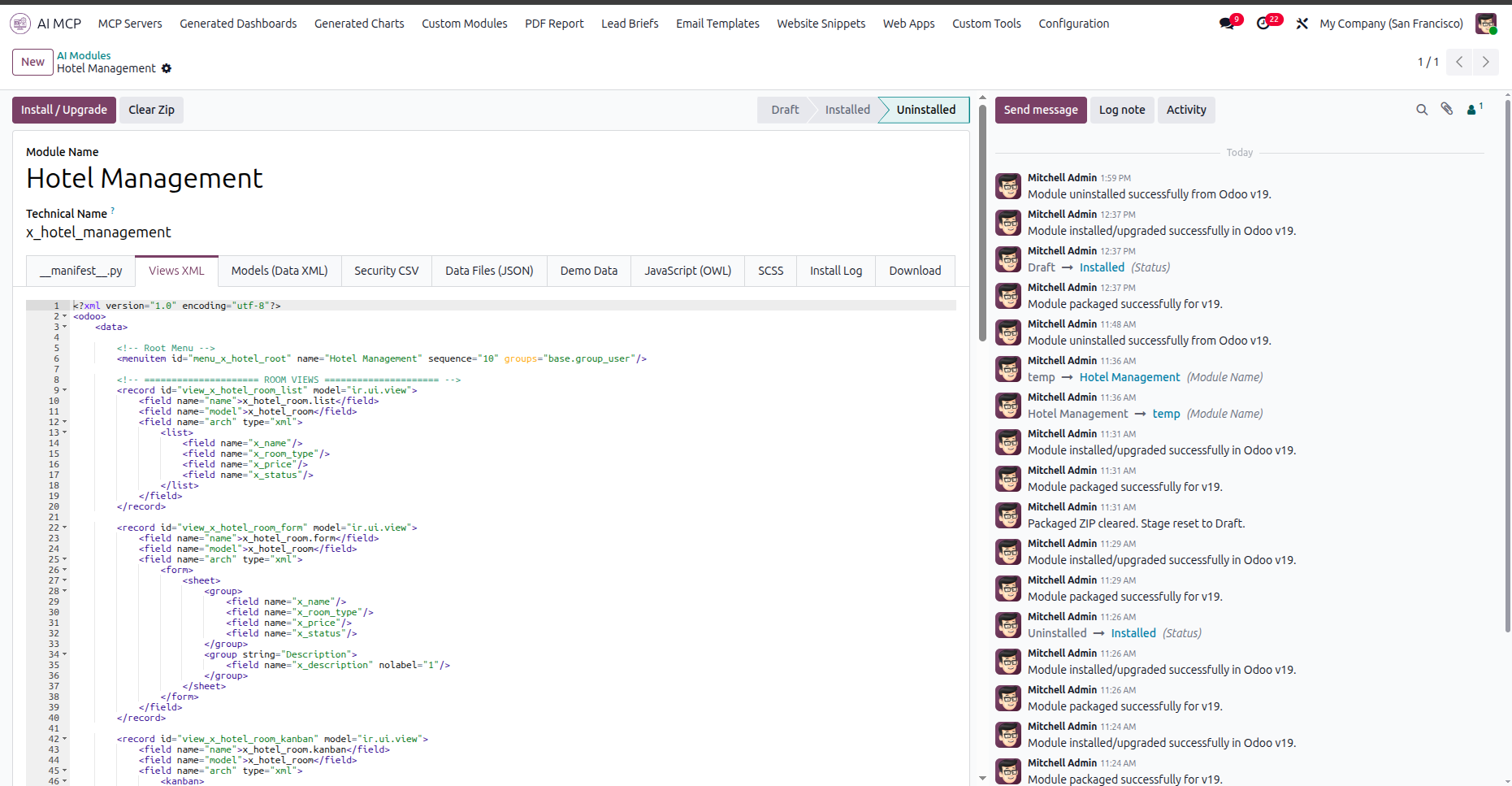
Select the Views XML tab to inspect the generated XML structure for layouts and menu definitions.
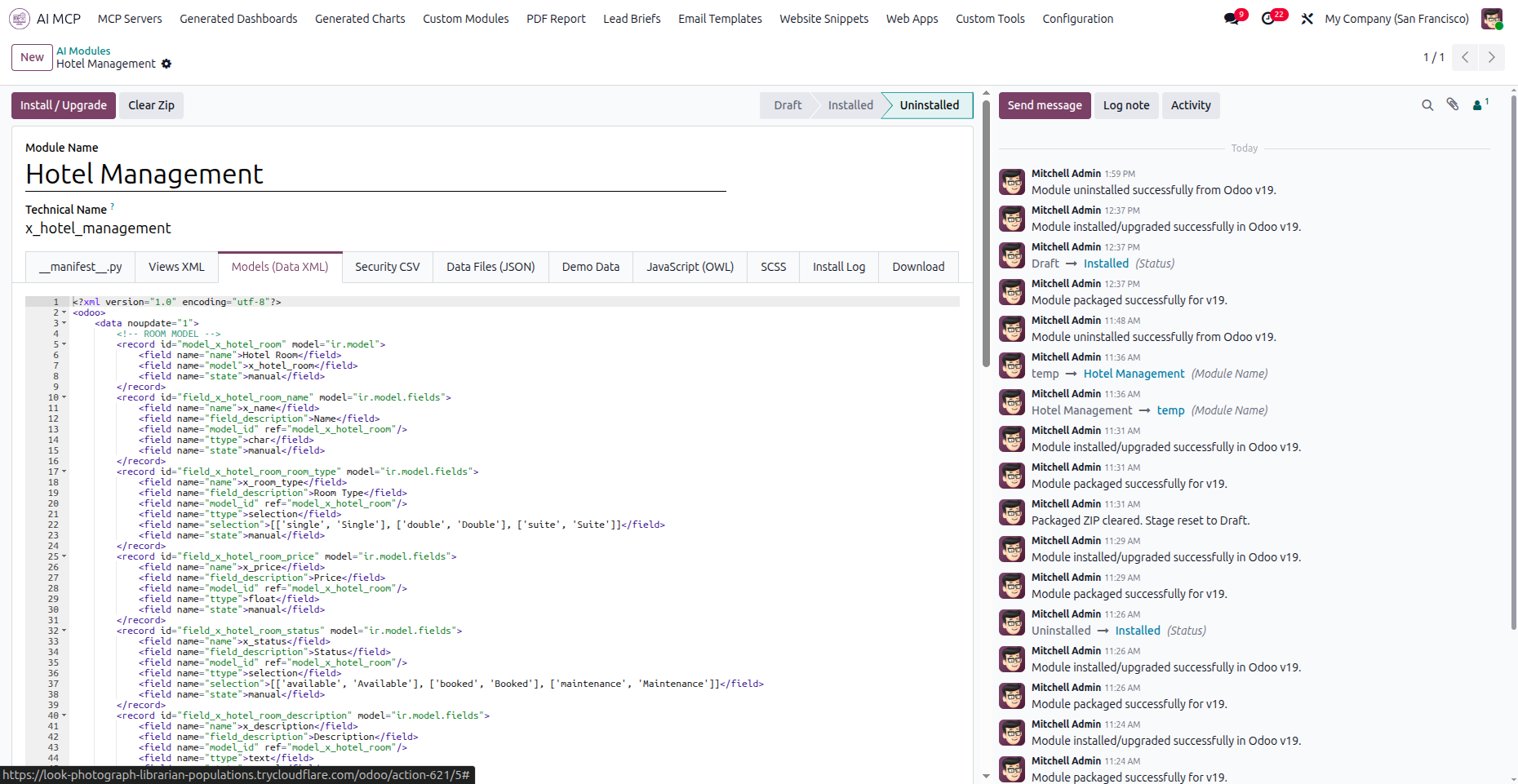
Navigate to the Models tab to inspect database models and fields defined for the custom module.
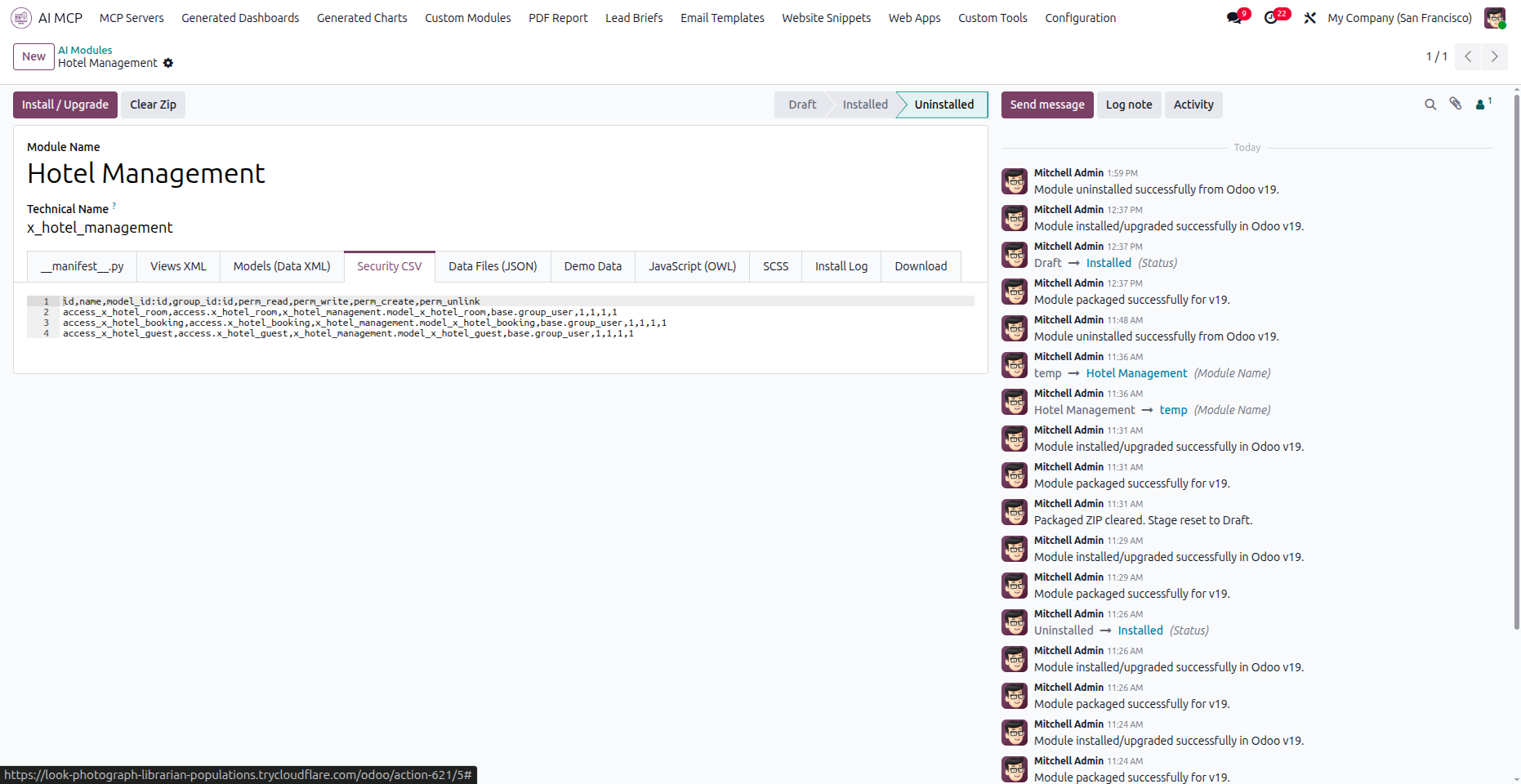
Inspect the Security CSV tab to review user group permissions defined for different data models.
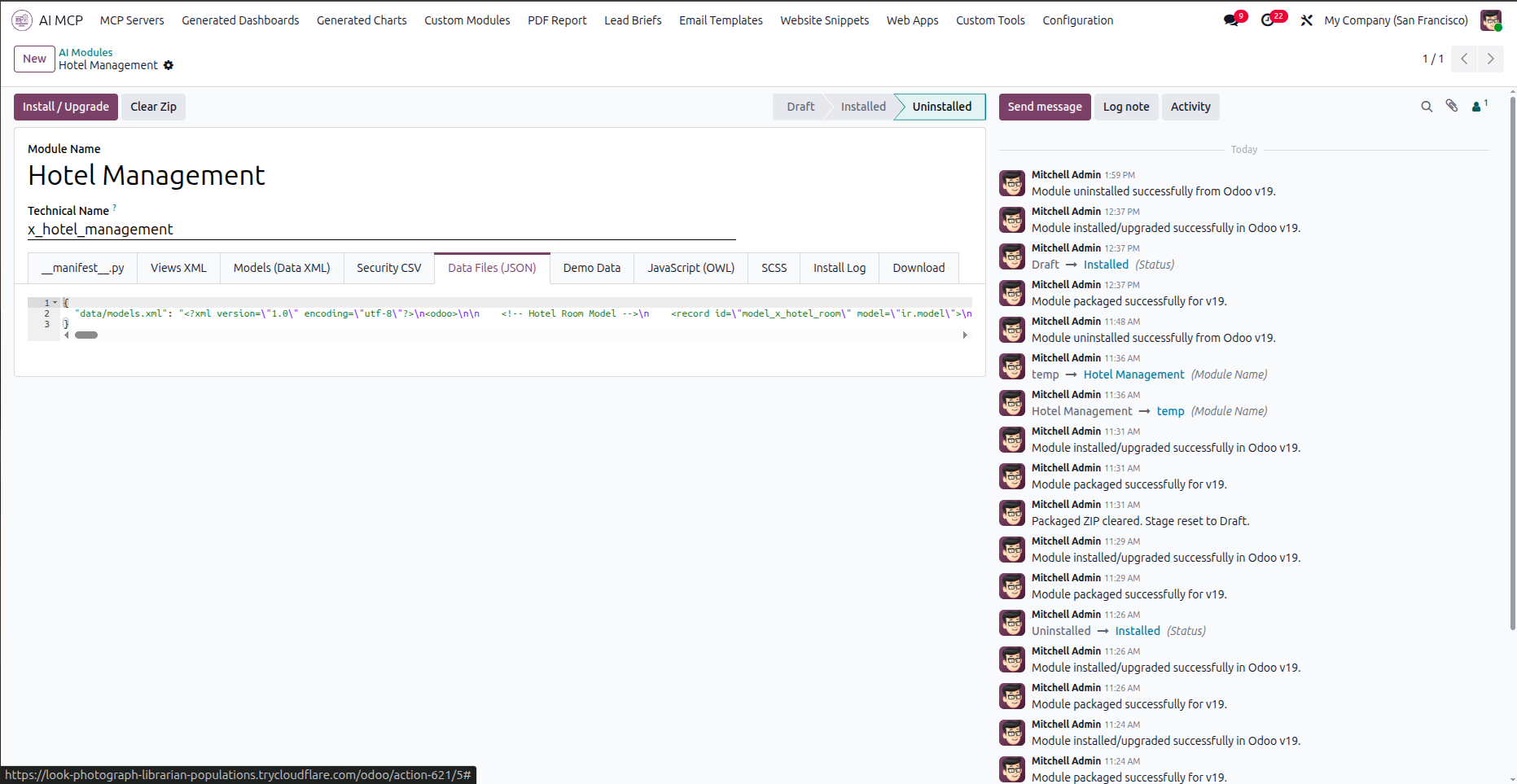
Select the Data Files JSON tab to view path configurations and serialized module data files.
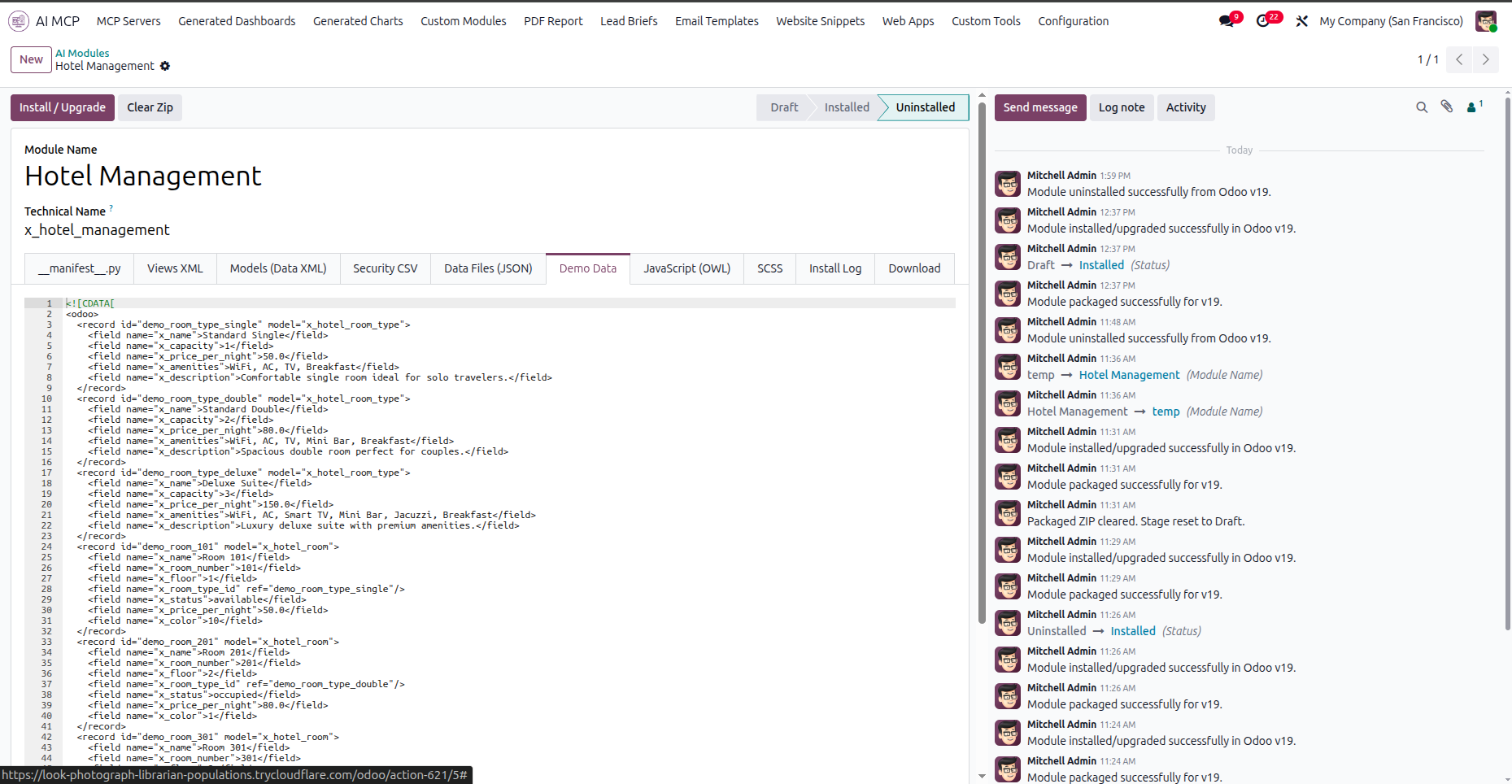
Navigate to the Demo Data tab to inspect the generated sample records for module testing.
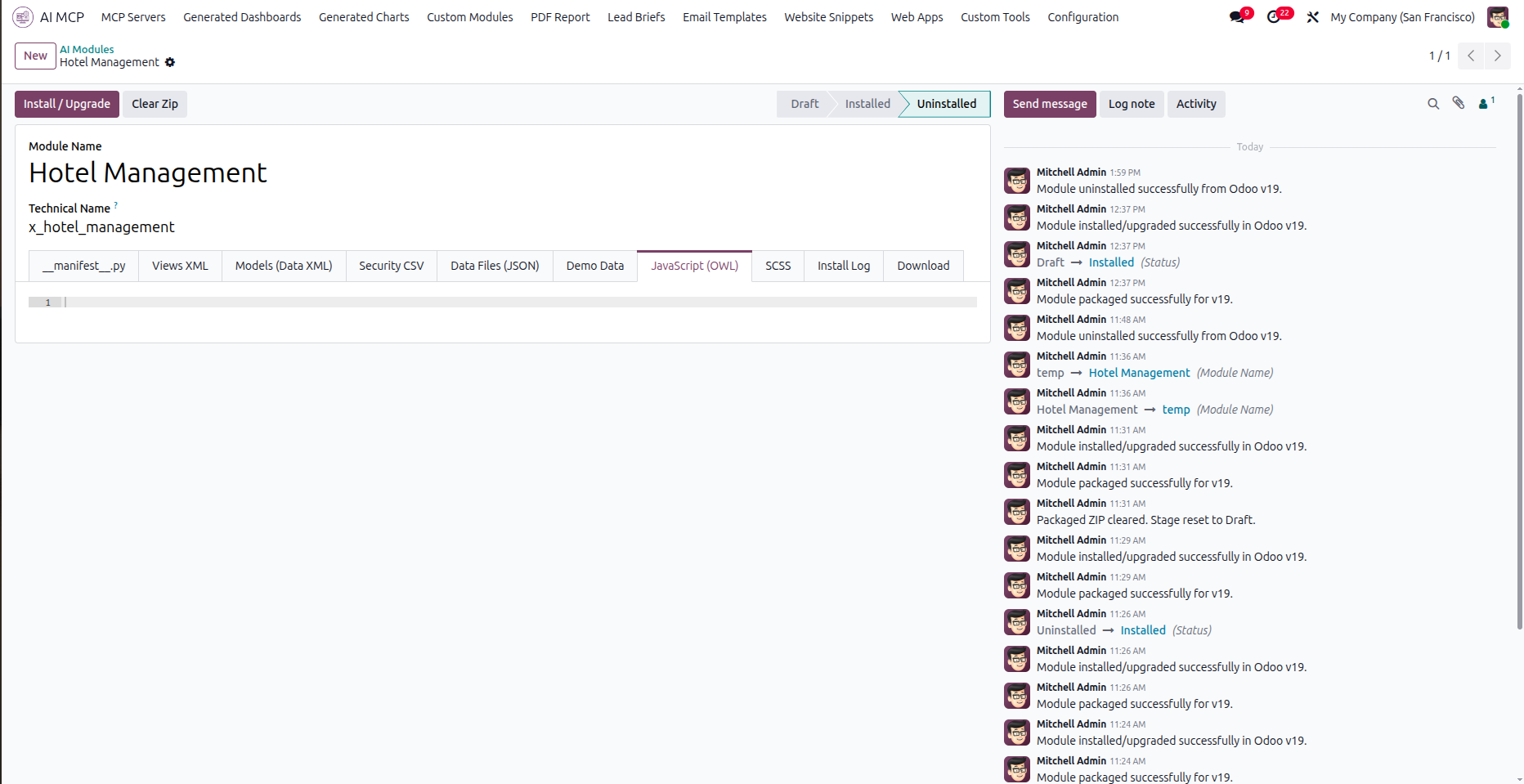
Select the JavaScript OWL tab to access or edit OWL component scripts for client-side interfaces.
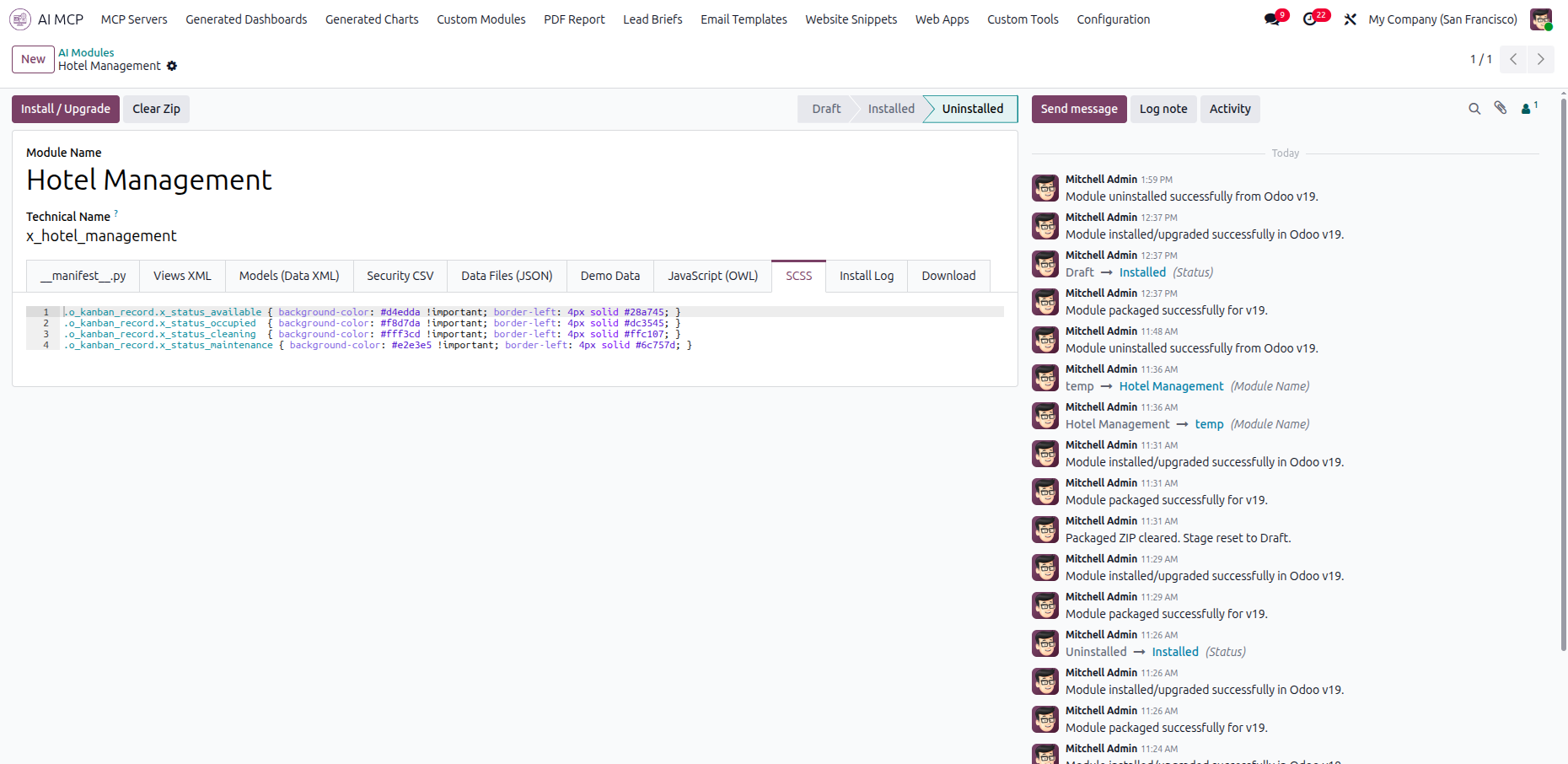
Navigate to the SCSS tab to view custom style sheets and styling definitions for the layout states.
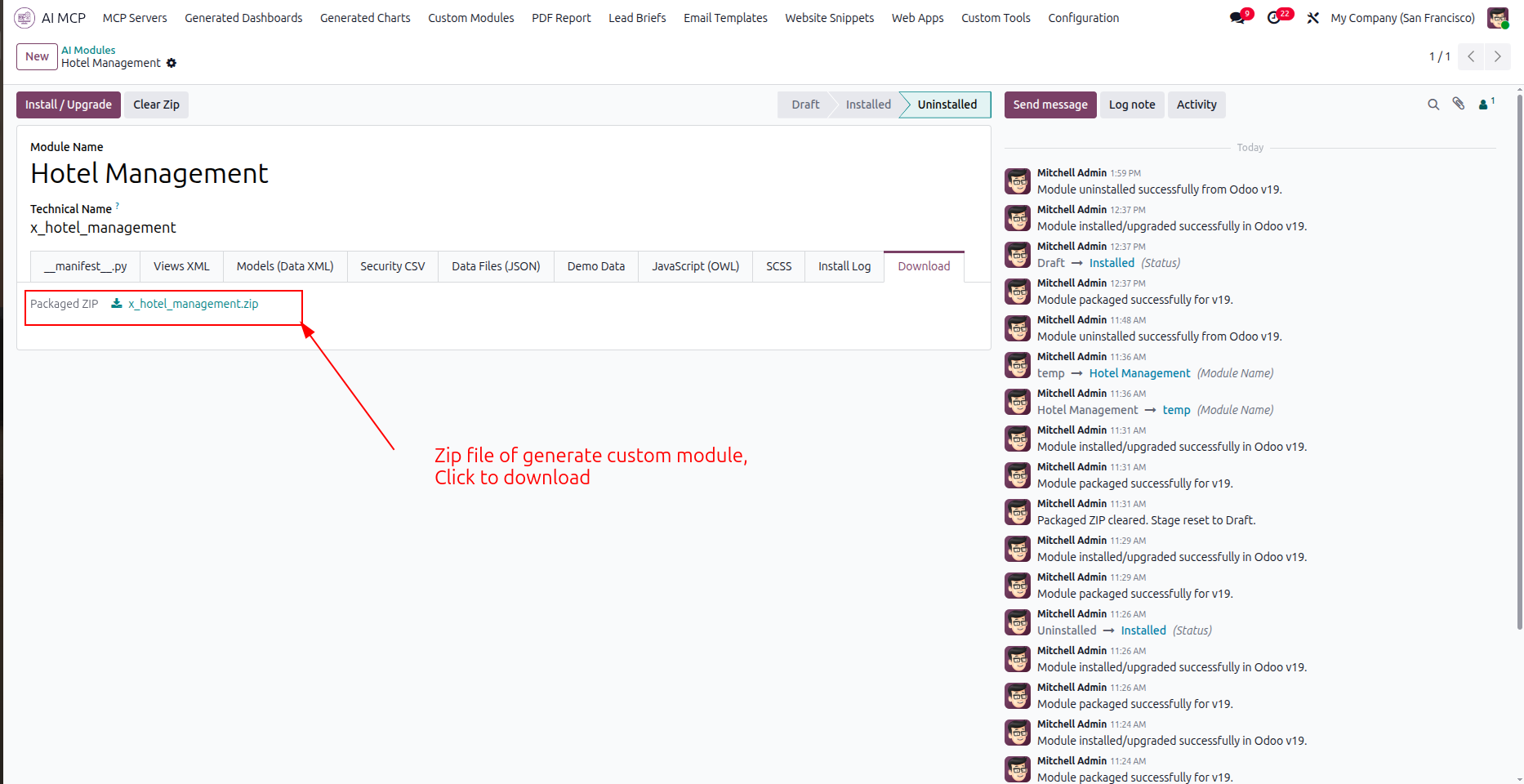
Click the highlighted packaged ZIP file link under the download tab to save your custom module.
Verify the successful installation message and the updated module status in the install log tab.
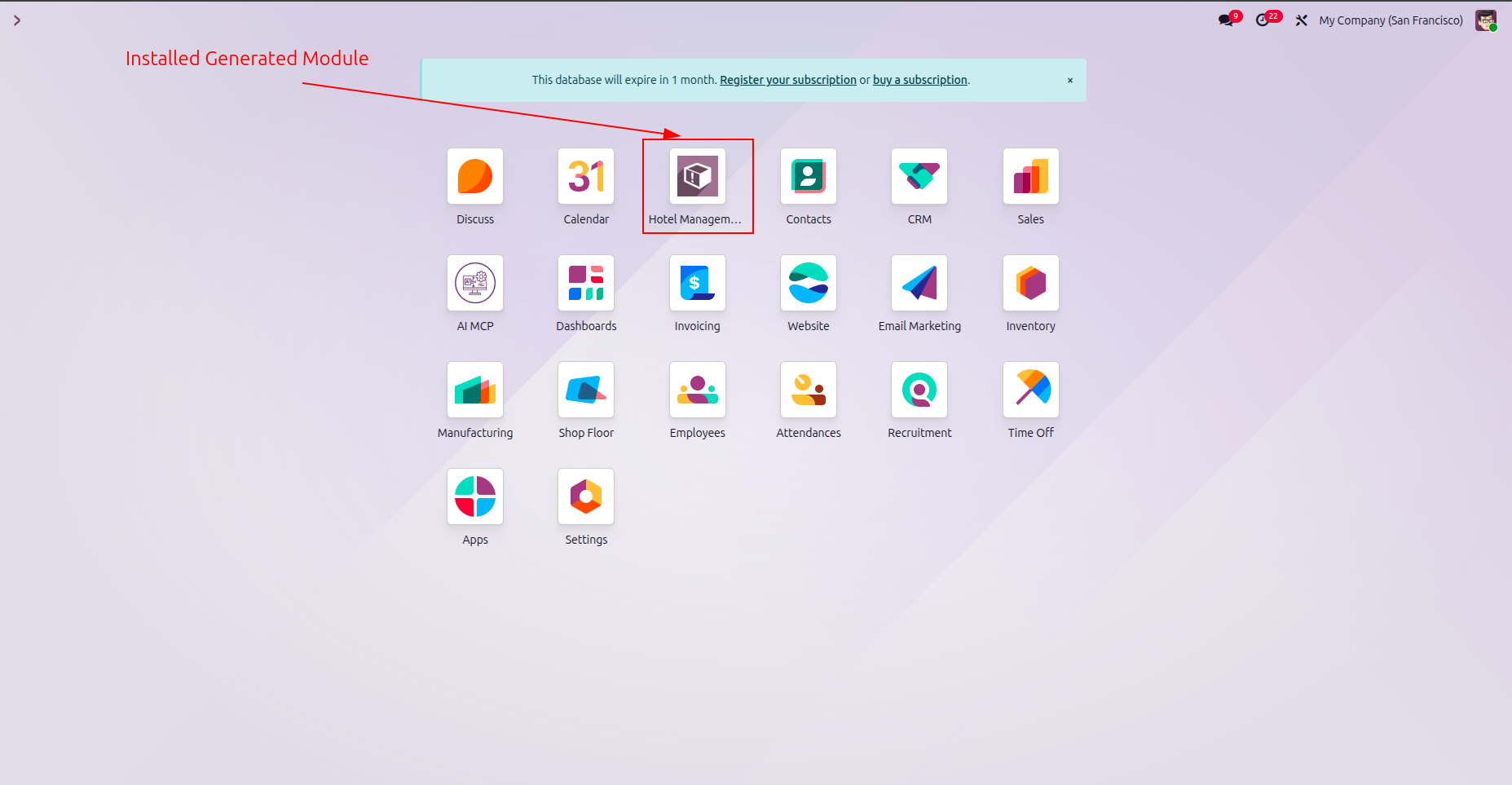
Locate and open the newly installed custom module icon from the main Odoo dashboard.
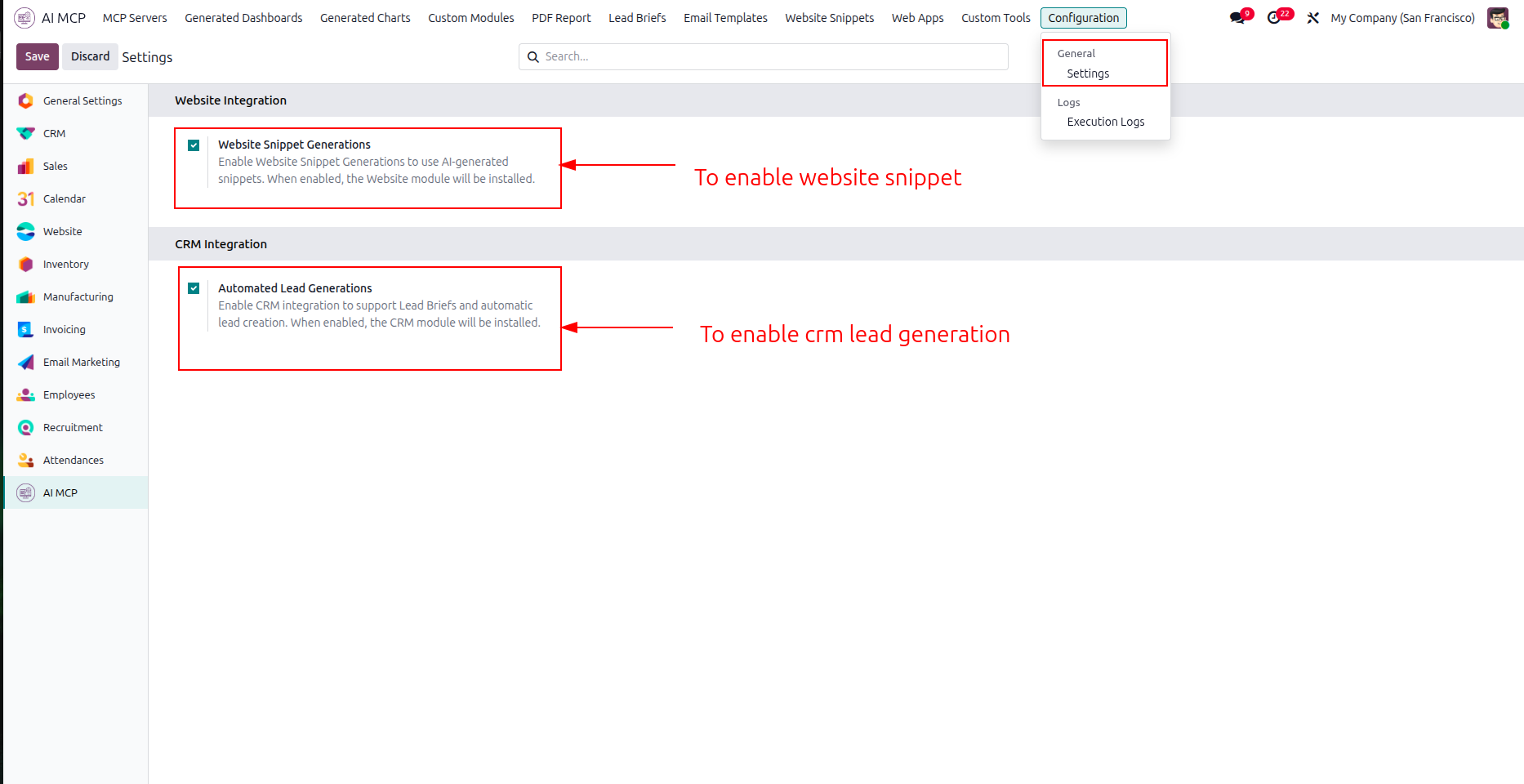
Configure the settings to enable website snippet generations and then click Save to apply changes.
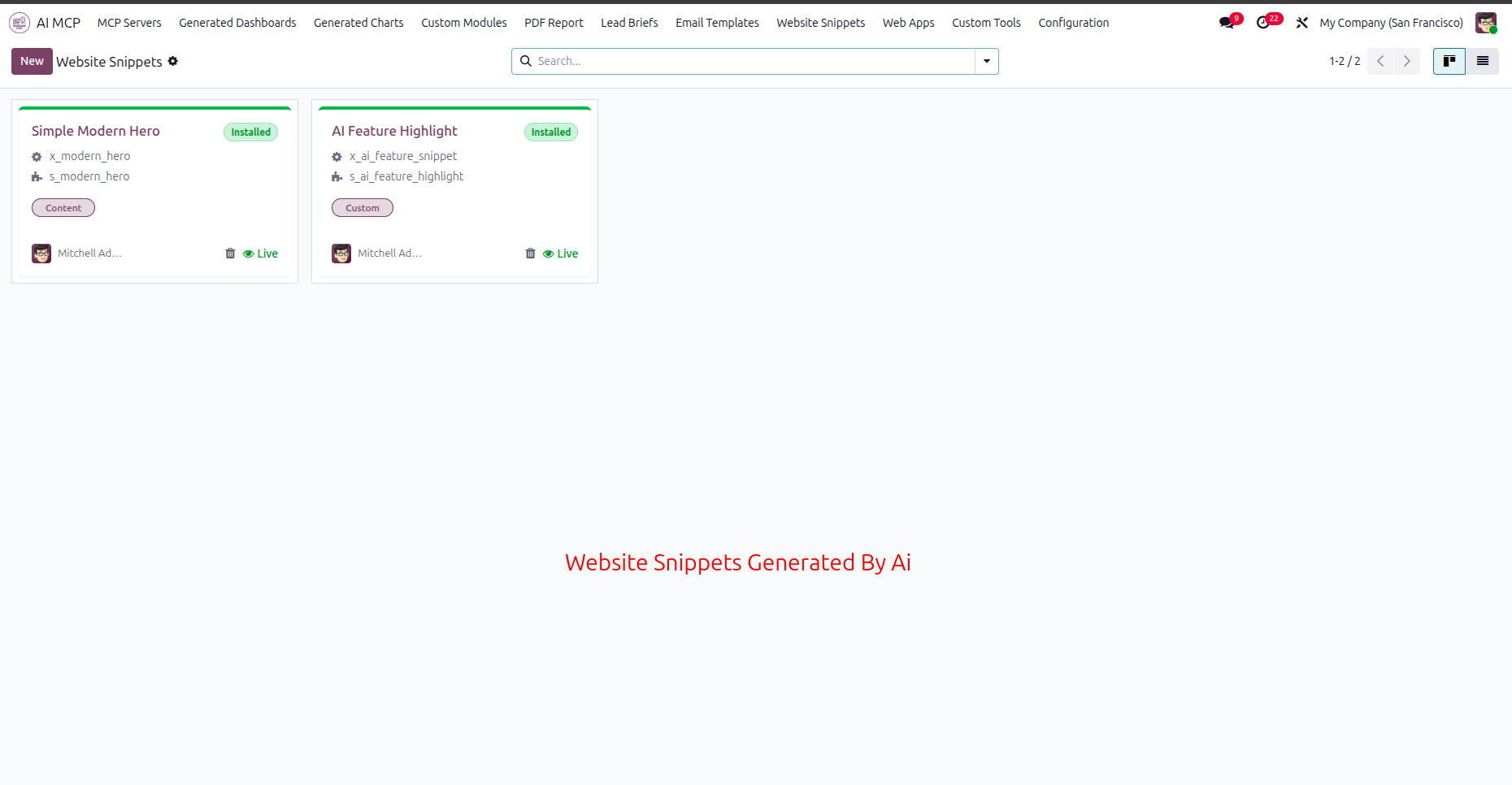
Review the list of AI-generated website snippets displayed on the Website Snippets dashboard.
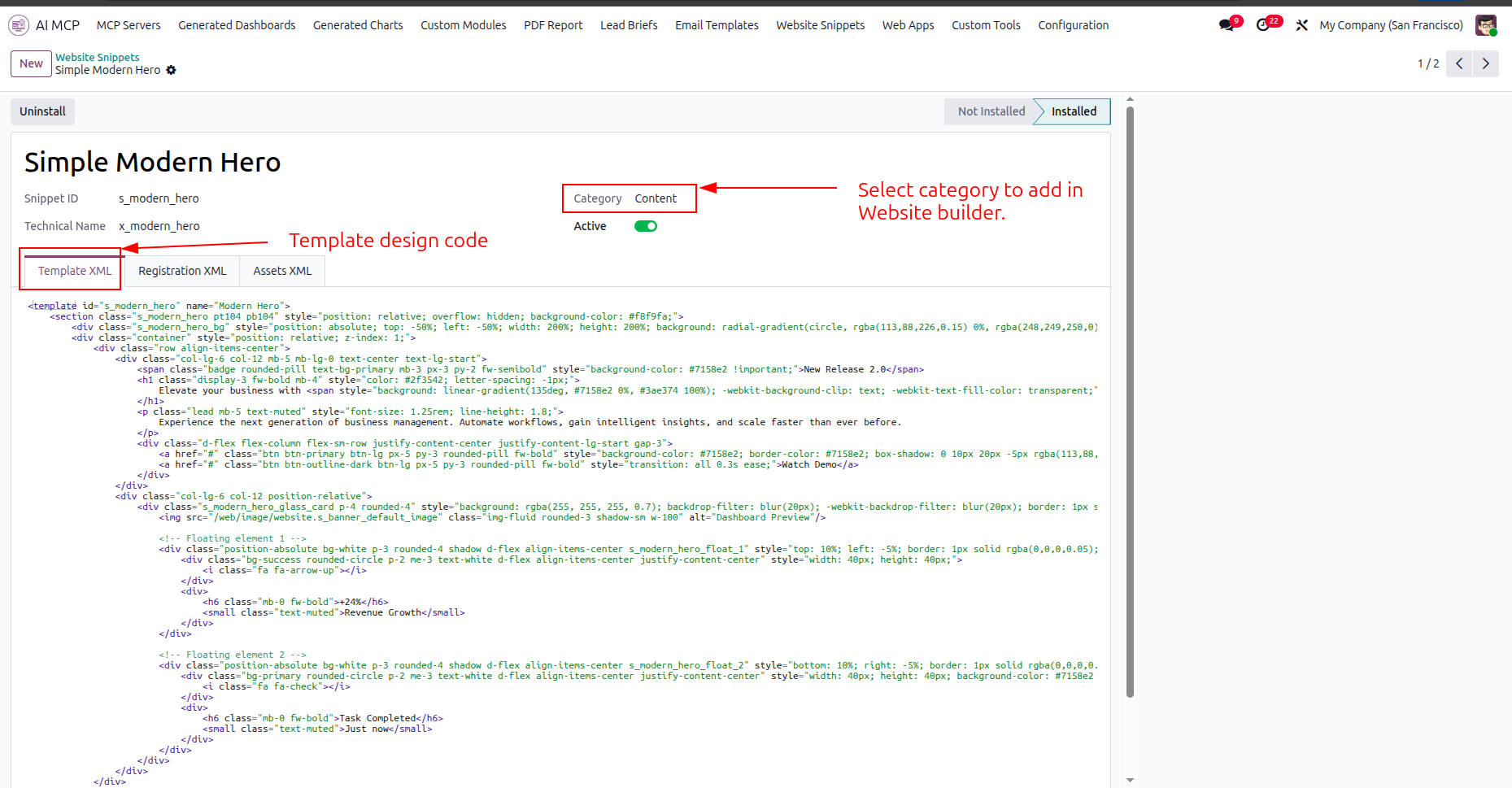
Select the Template XML tab to review the layout design code and snippet category.
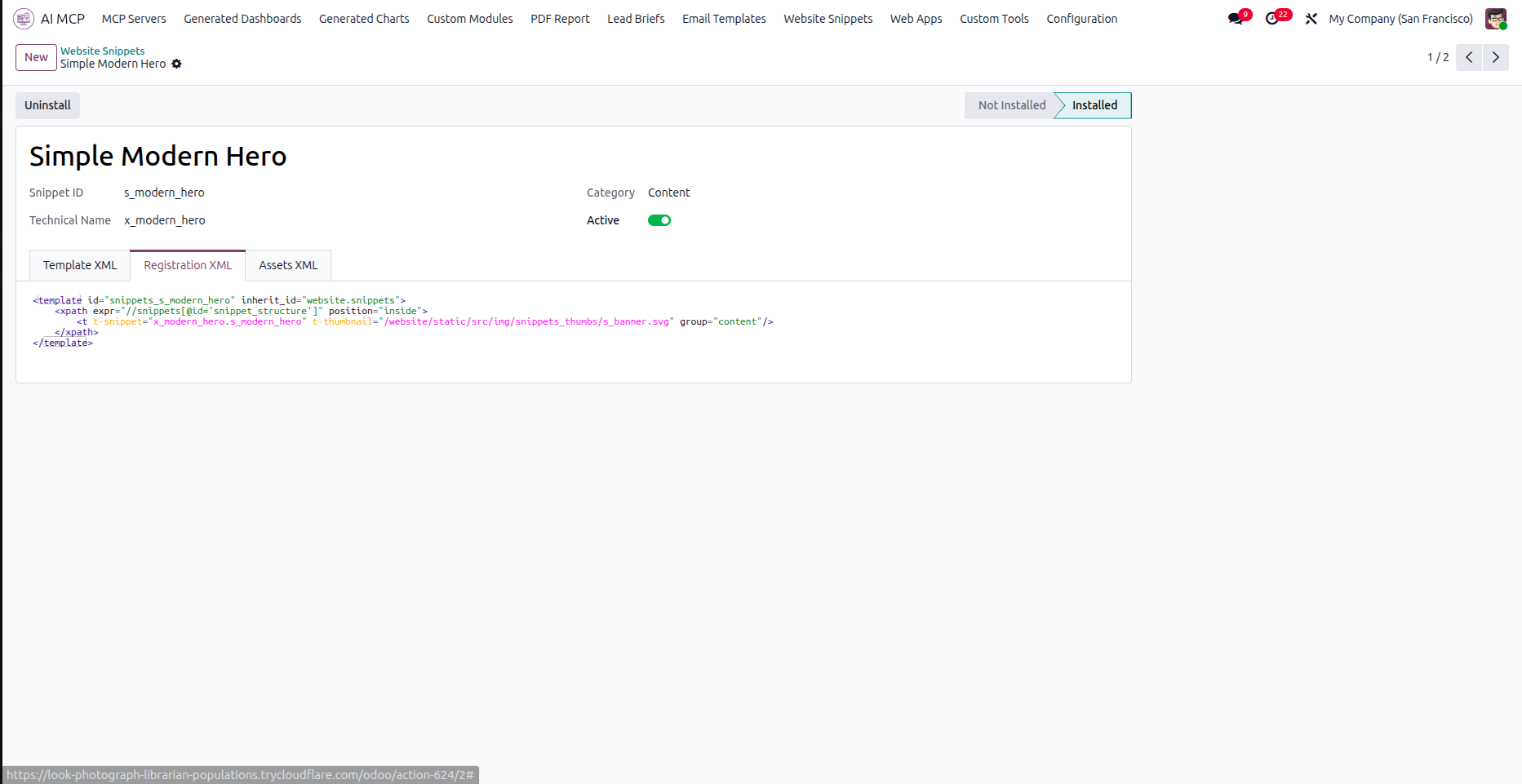
Navigate to the Registration XML tab to check how the snippet integrates with the Odoo website.
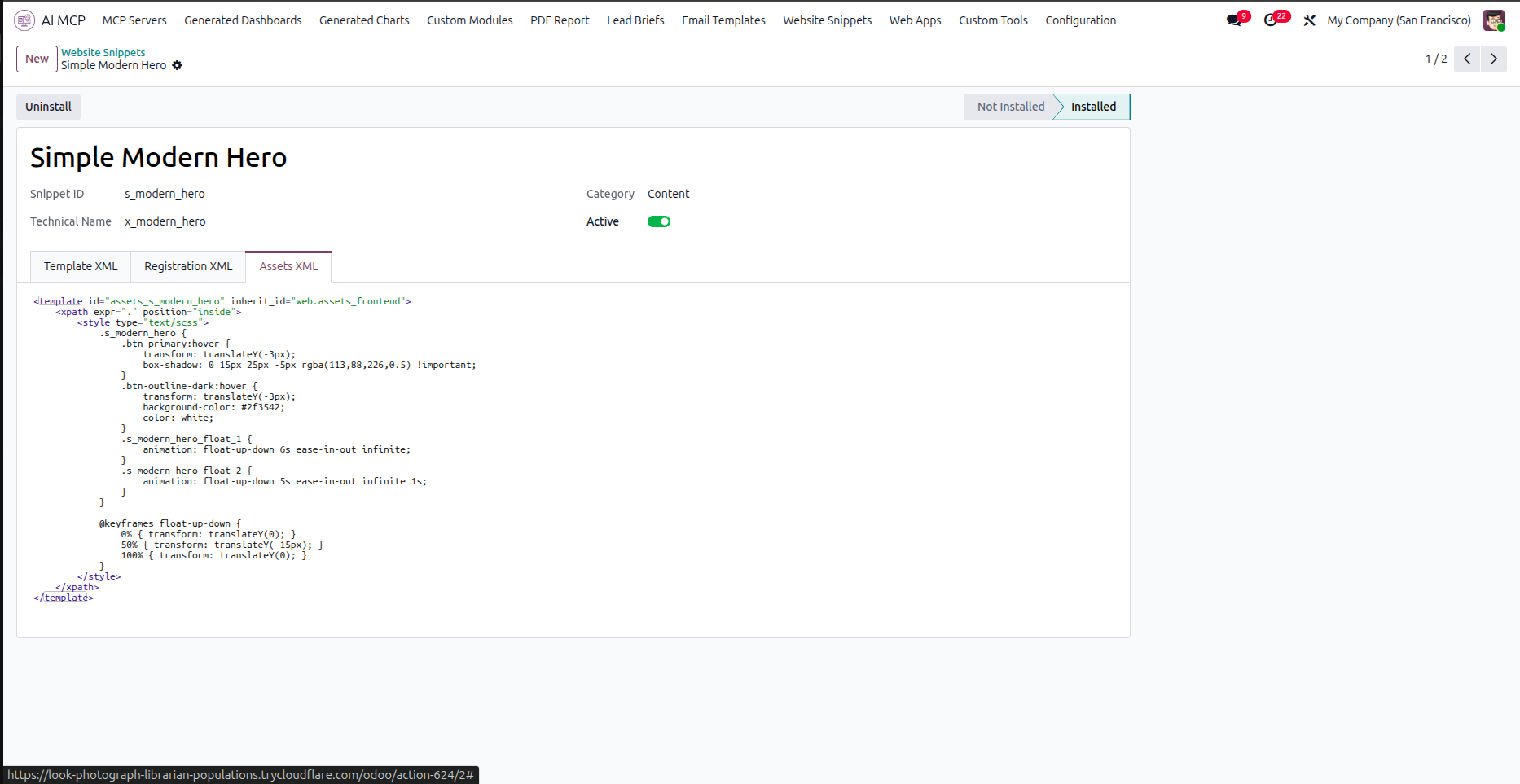
Open the Assets XML tab to review the style sheets and animations applied to the snippet.
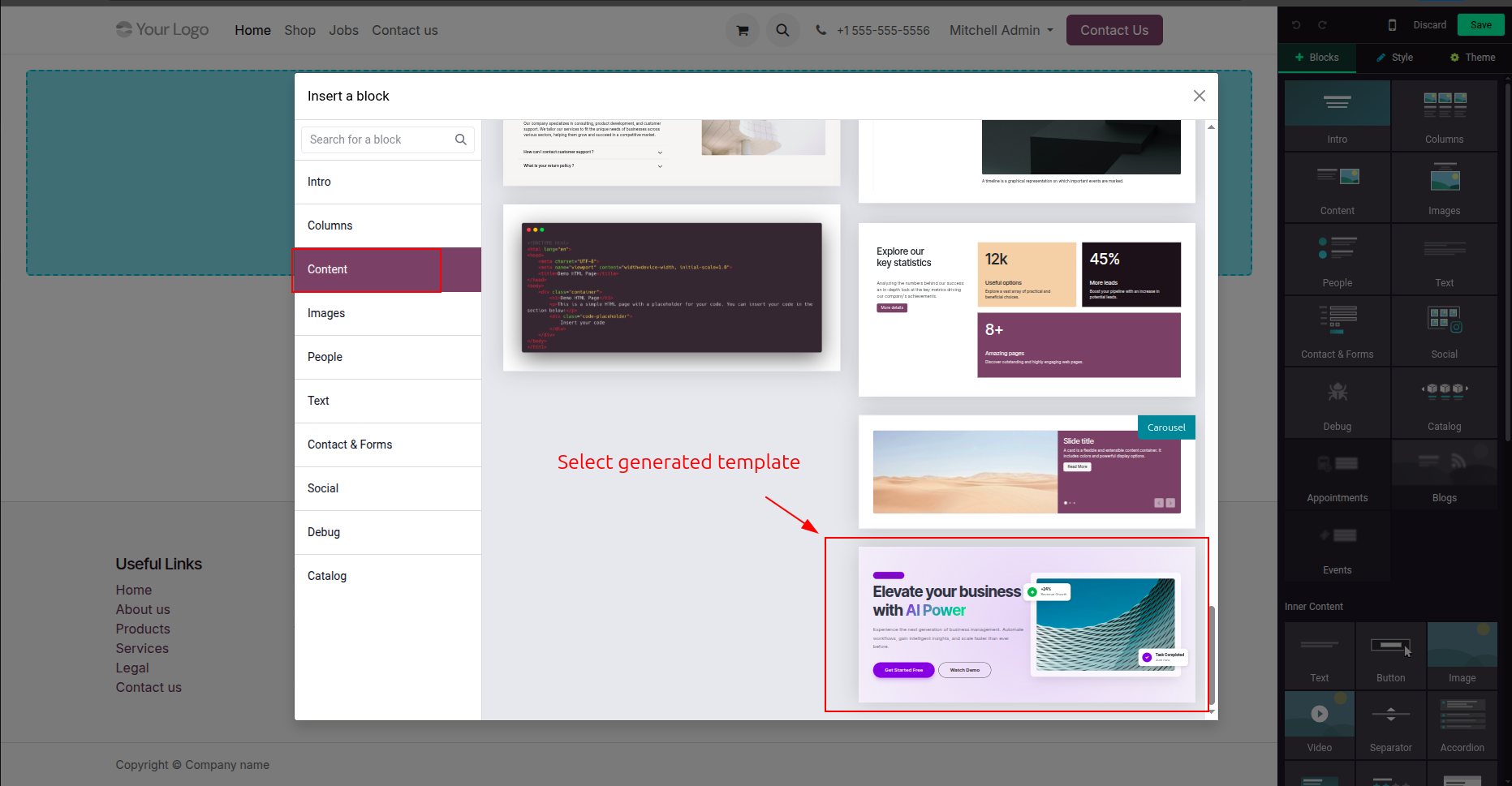
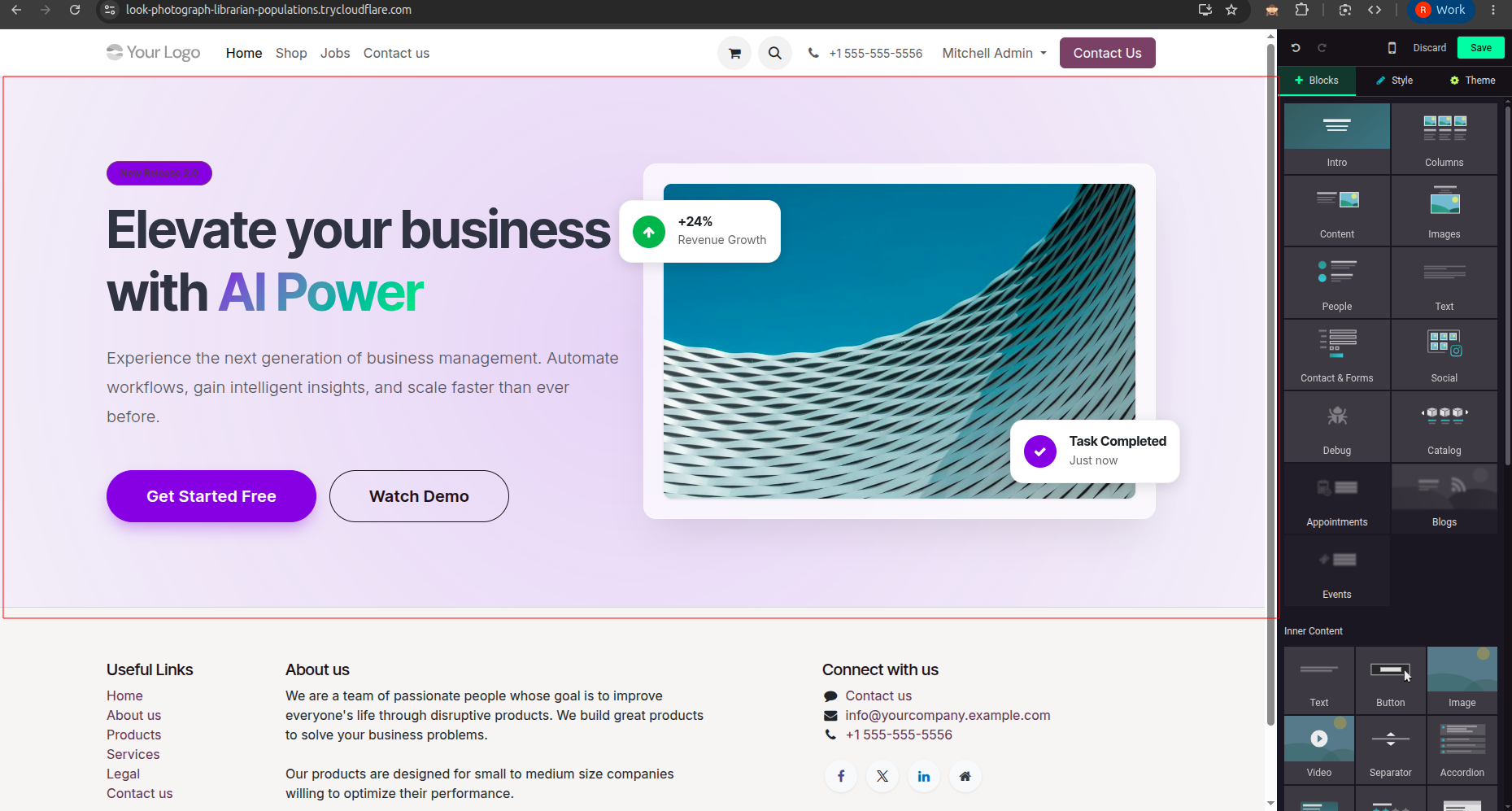
Select the Content category in the blocks library to locate the AI-generated website snippet.
Verify the layout and visual rendering of the custom snippet on the live website page.
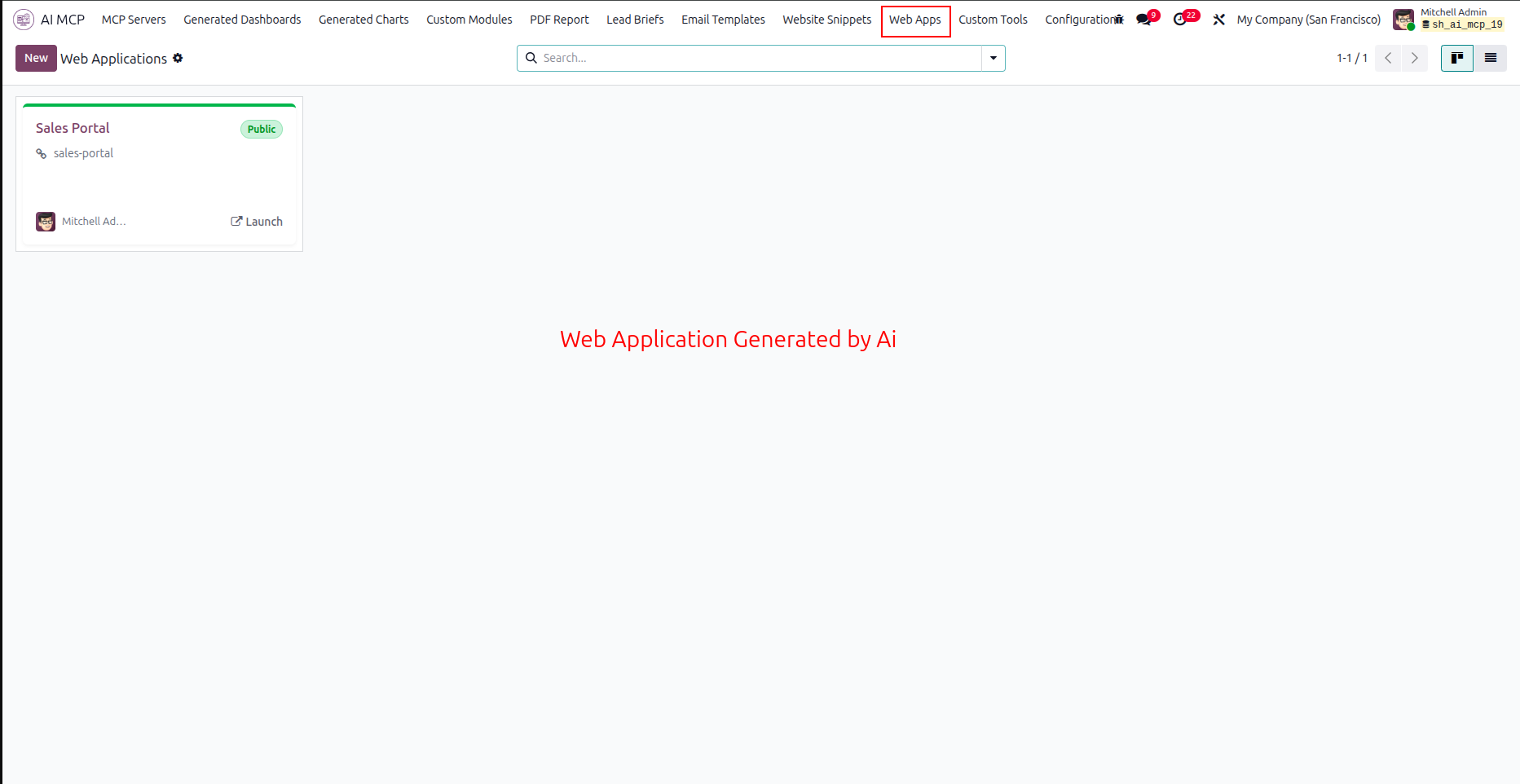
Navigate to the Web Apps tab to view all AI-generated web applications in the system.
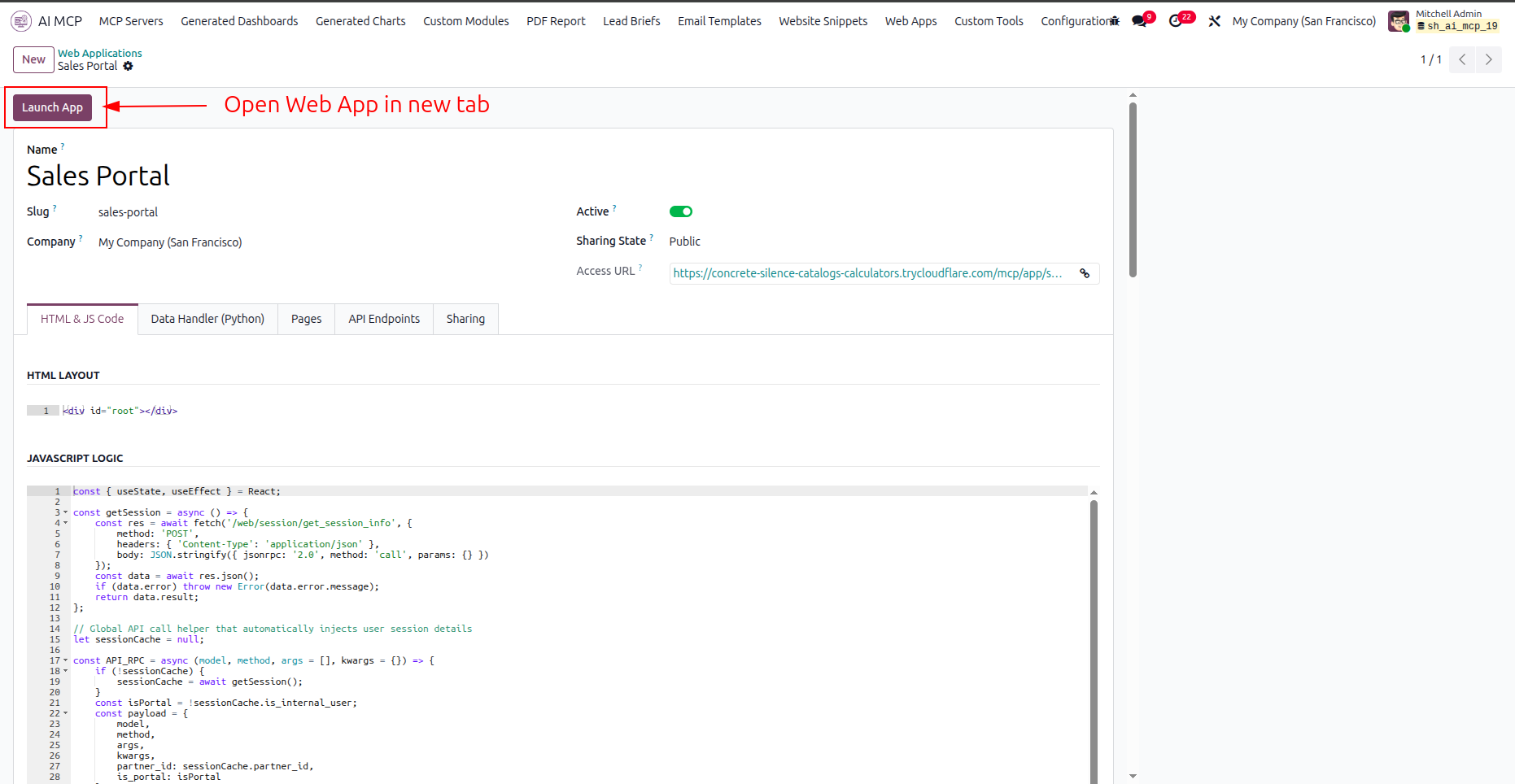
Click the highlighted Launch App button to open the web application in a new browser tab.
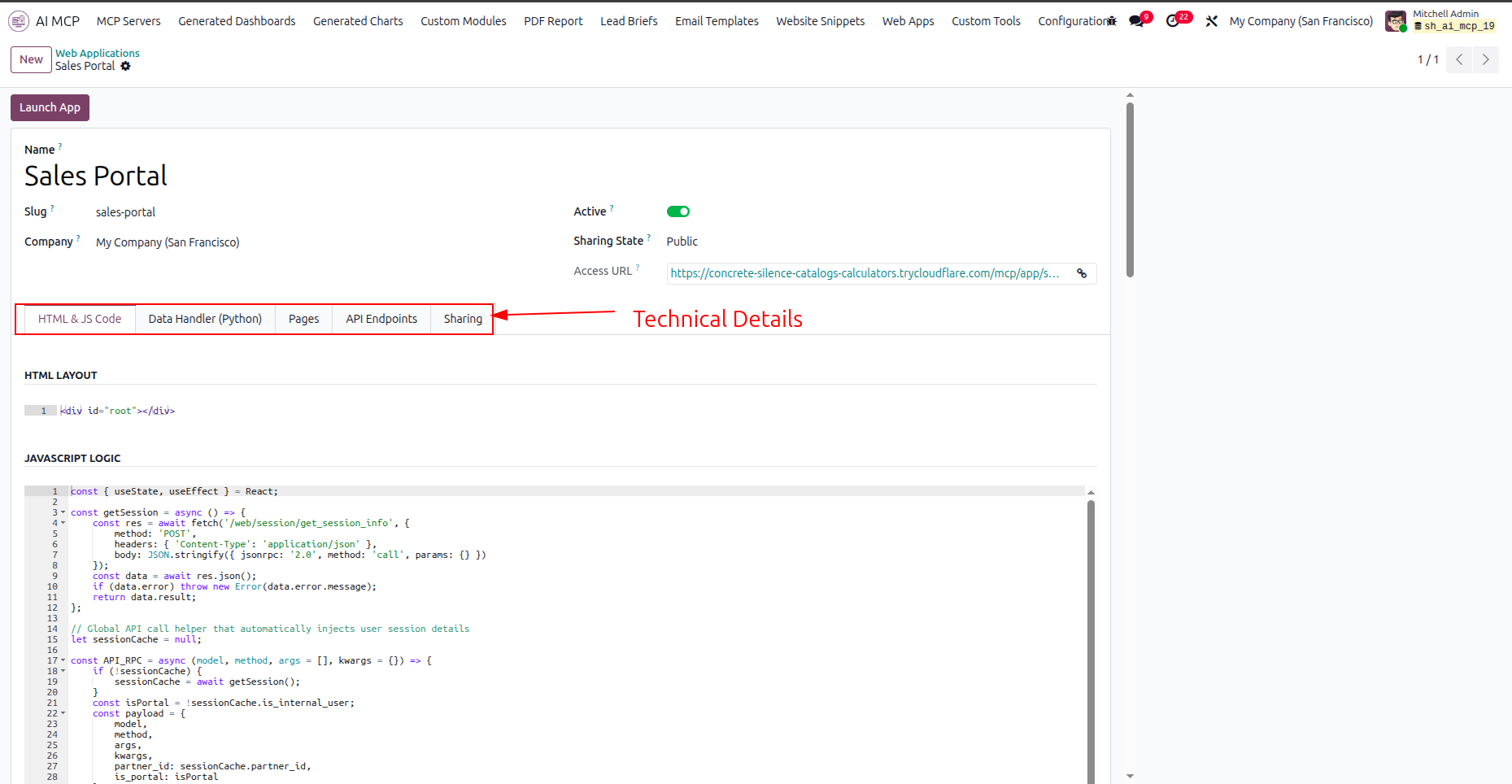
Navigate through the highlighted technical details tabs to inspect code, endpoints, and sharing configurations.
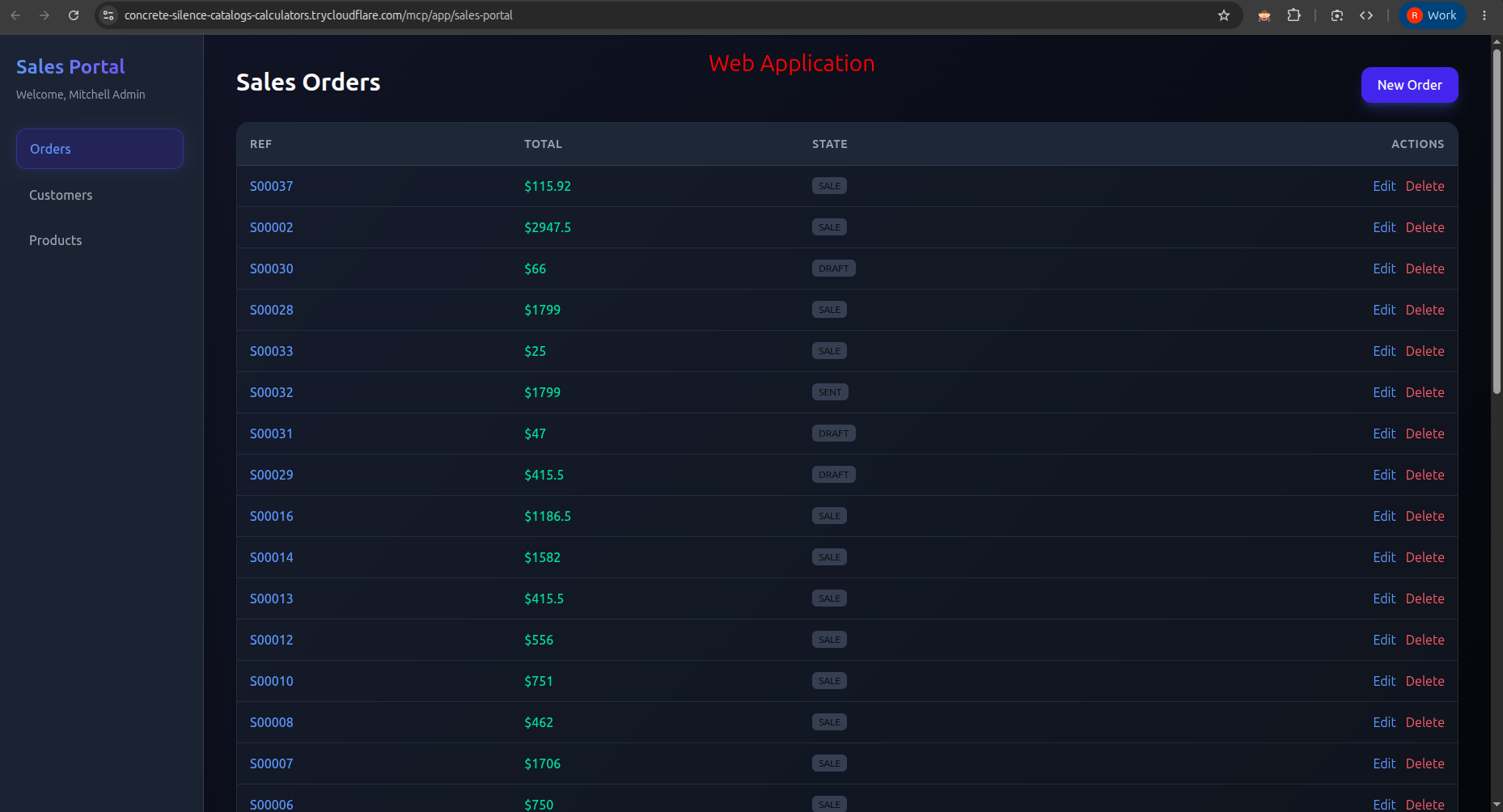
Access the launched Web Application in the browser to view, edit, or delete sales order records.
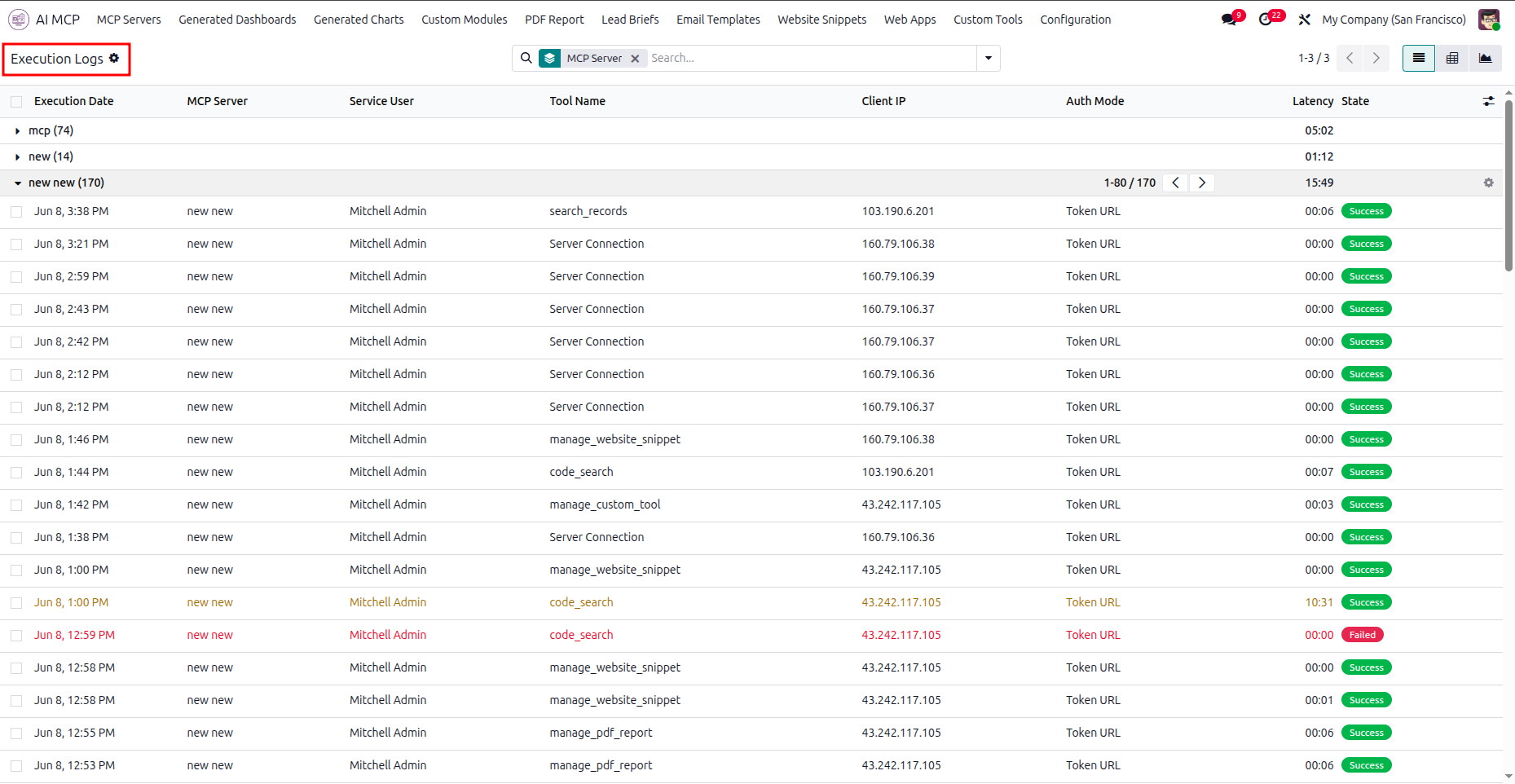
Open the Execution Logs menu to review the list of tool execution statuses, dates, and client IPs.
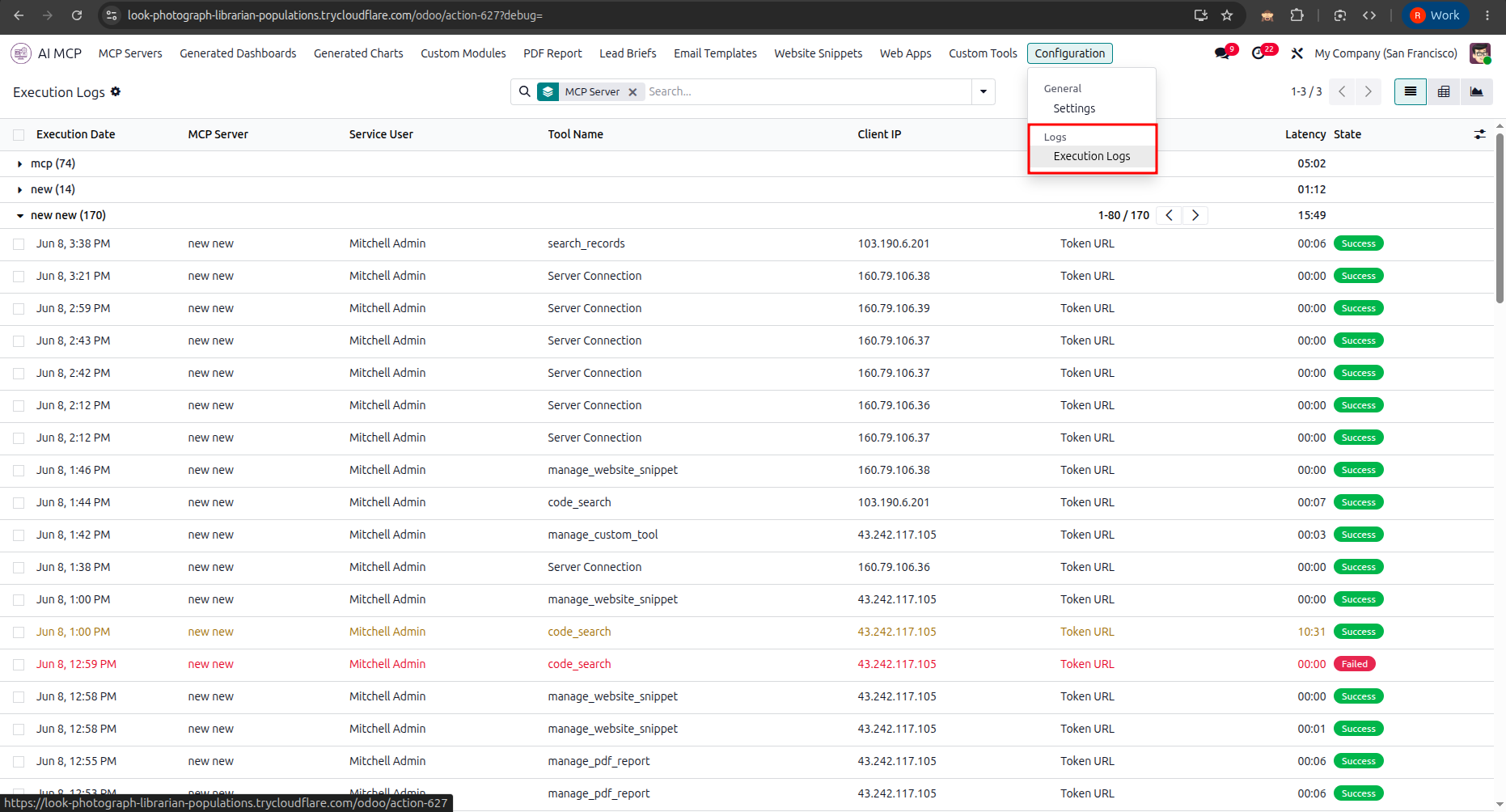
Select the Execution Logs option from the Configuration menu to access the tool audit records.
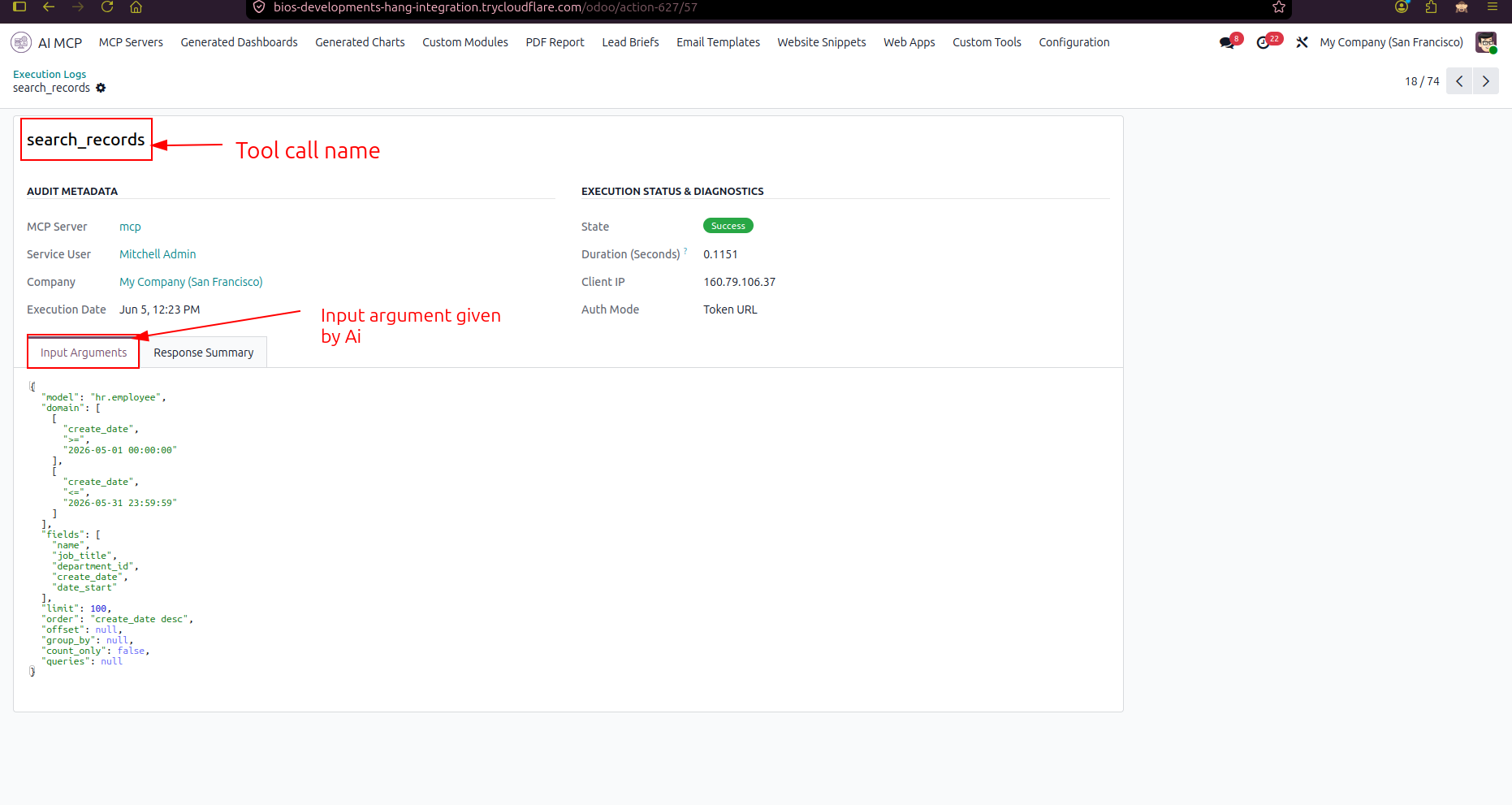
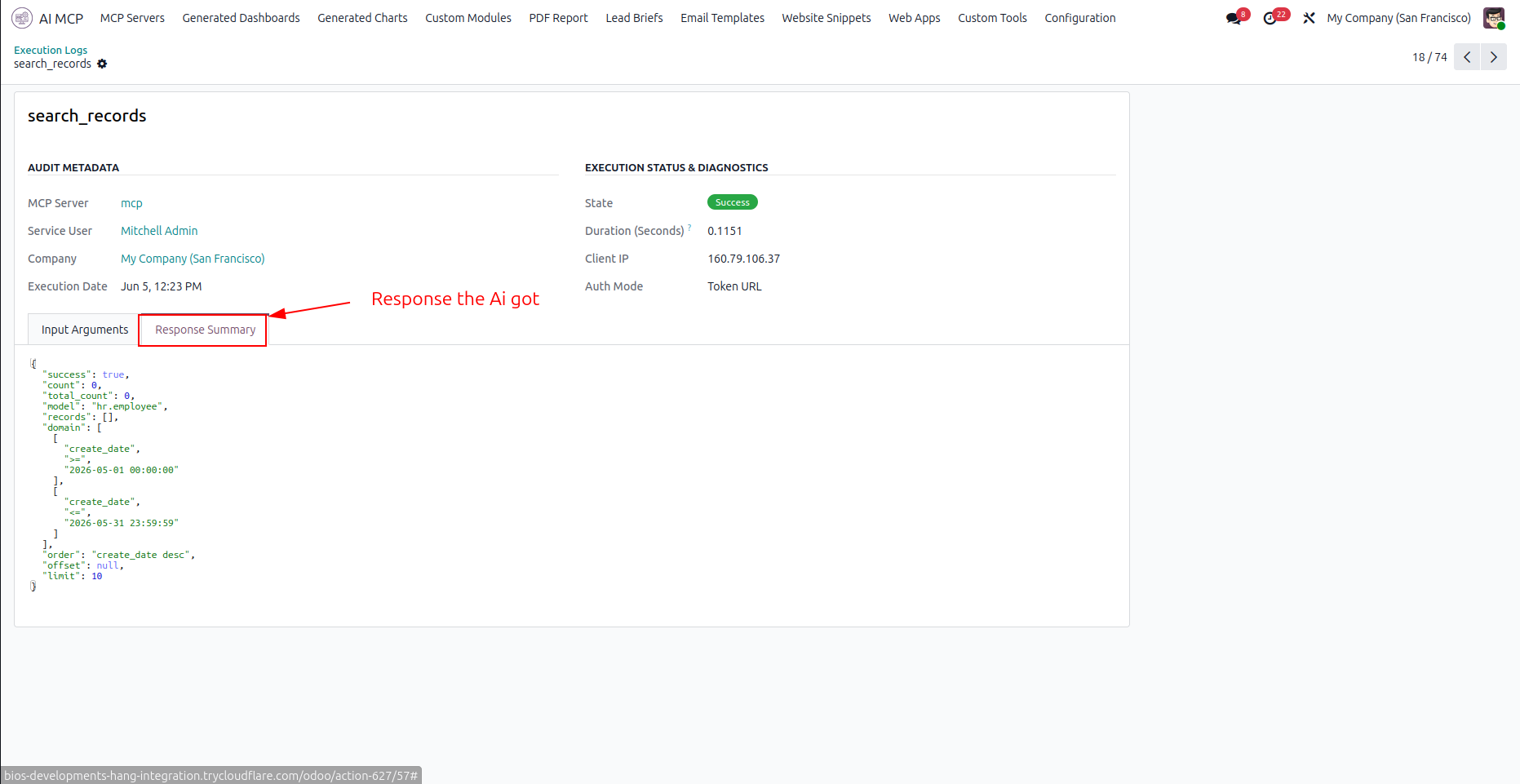
Review the input arguments provided by the AI for the tool execution in the details view.
Select the Response Summary tab to inspect the JSON data returned to the AI assistant.
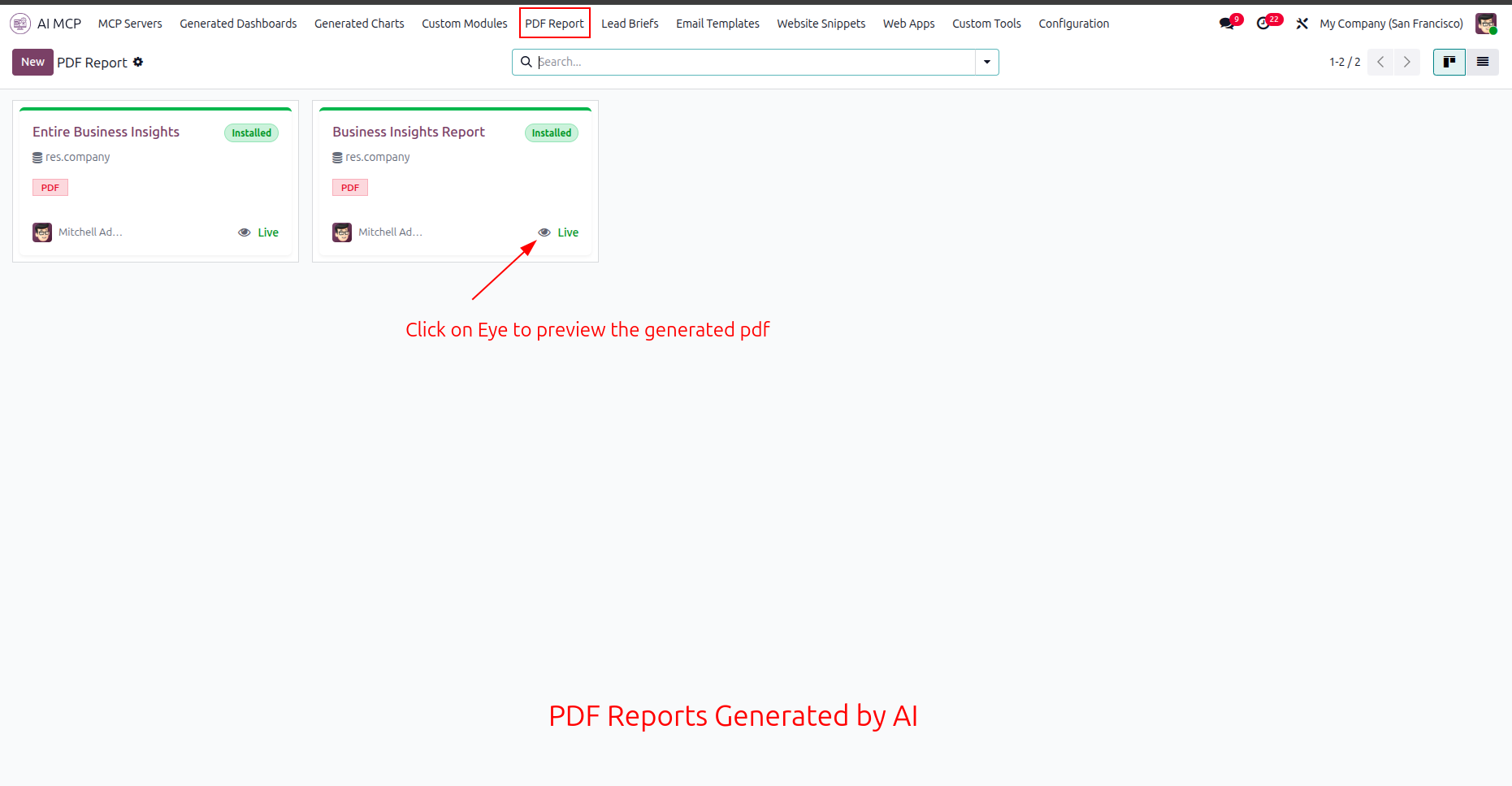
Click the eye icon on the generated report card to preview the AI-created PDF document.
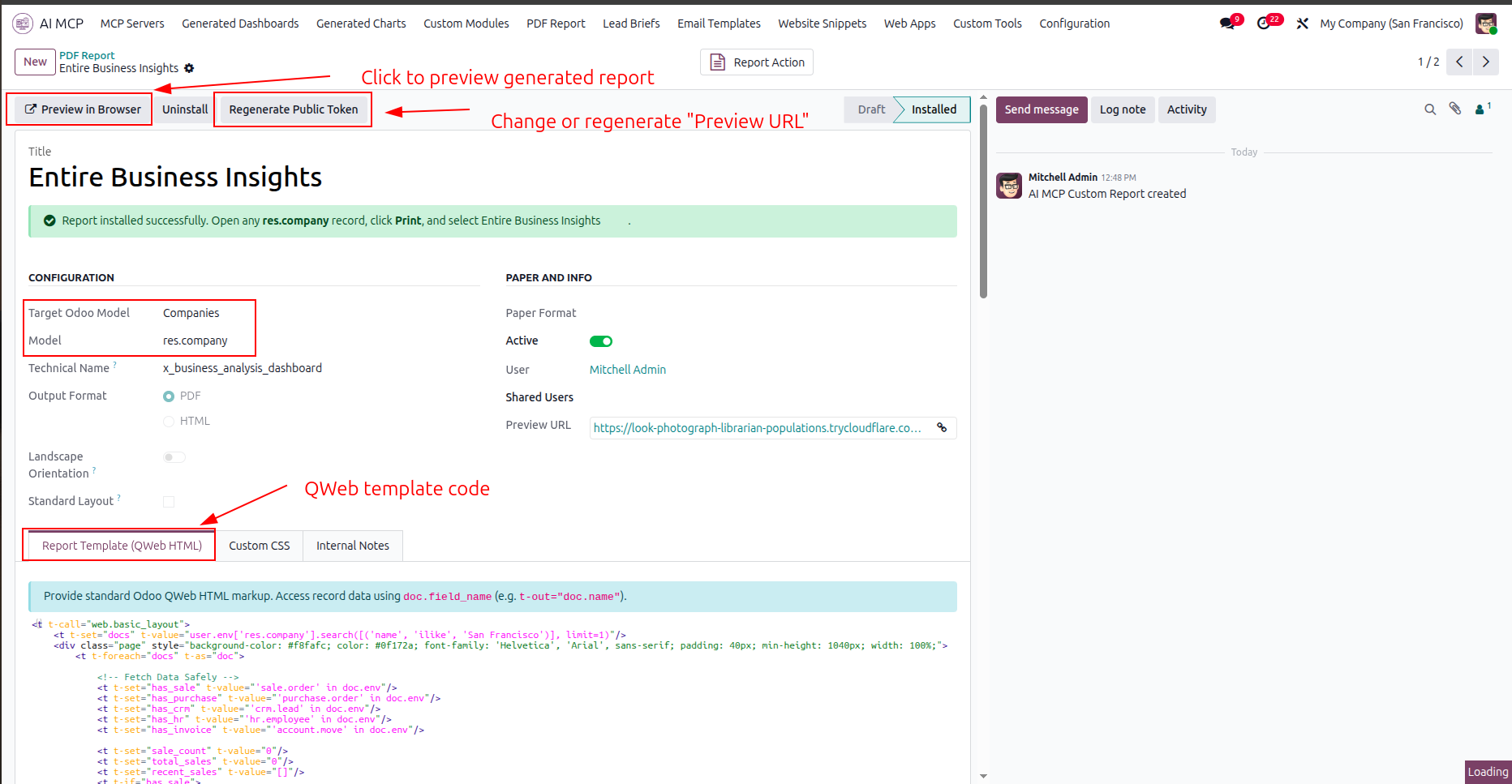
Click the highlighted preview button to view the report, or regenerate the public access token.
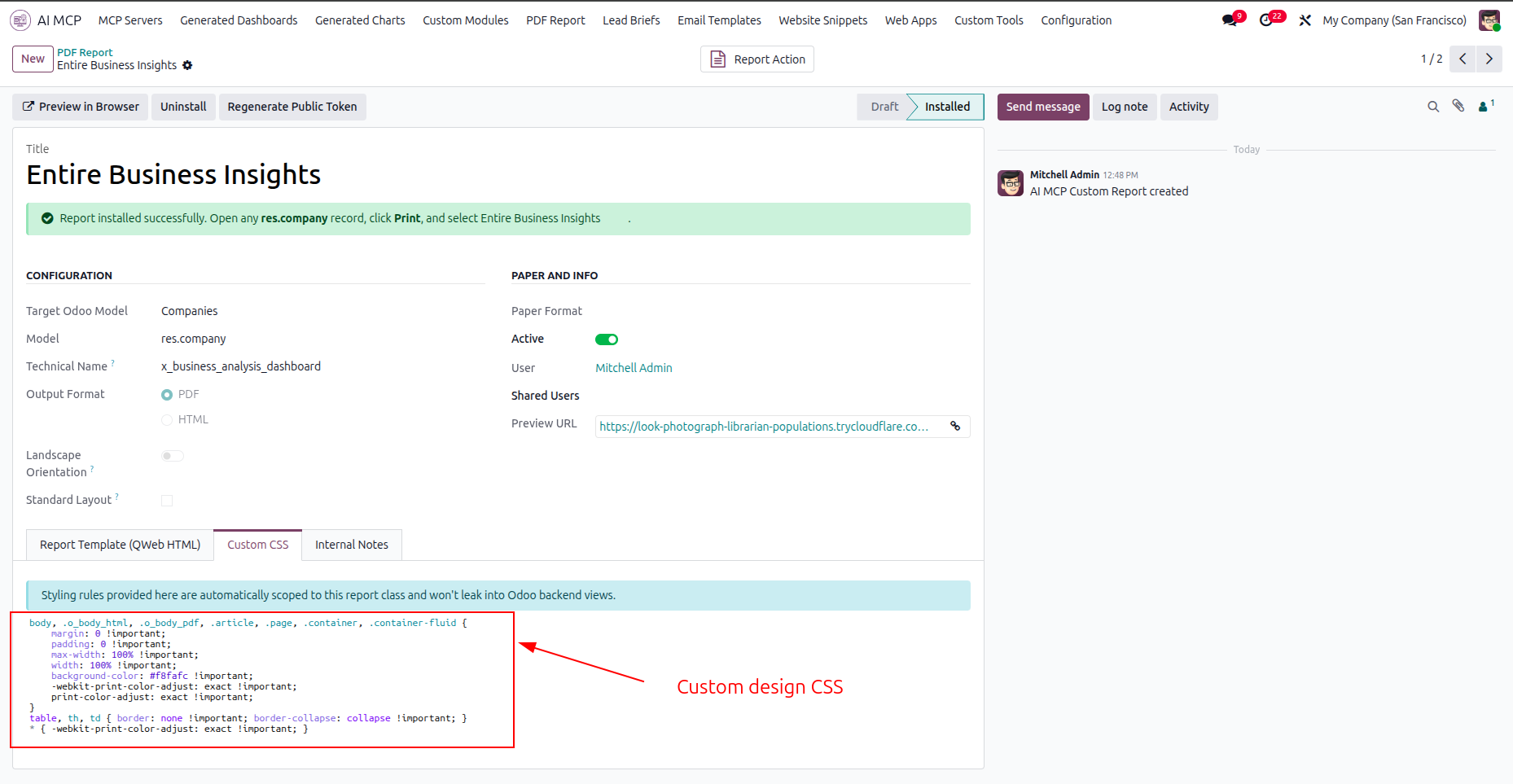
Select the Custom CSS tab to apply style definitions and format the custom PDF layout.
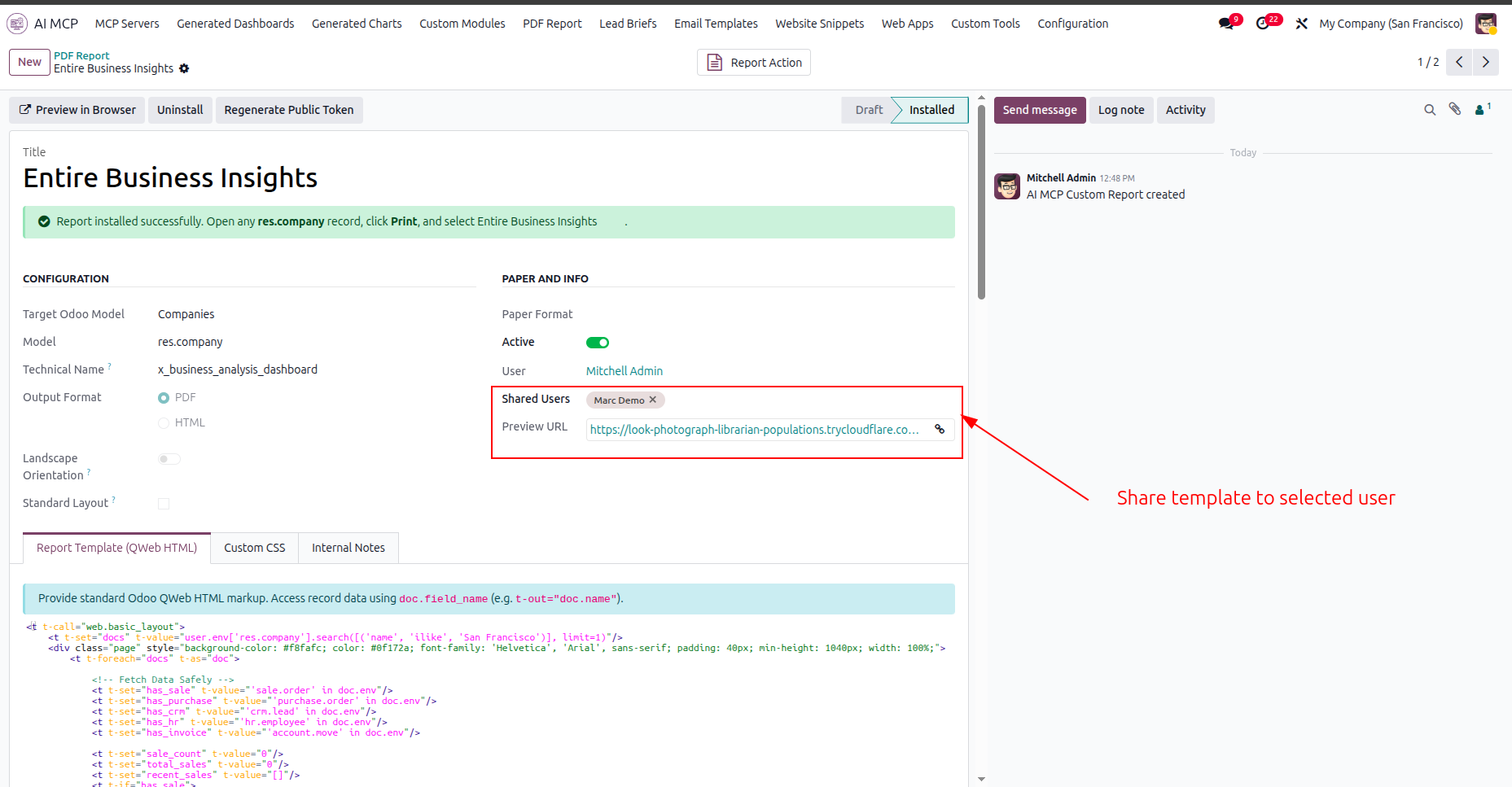
Configure the Shared Users field to distribute the report access to specific team members.
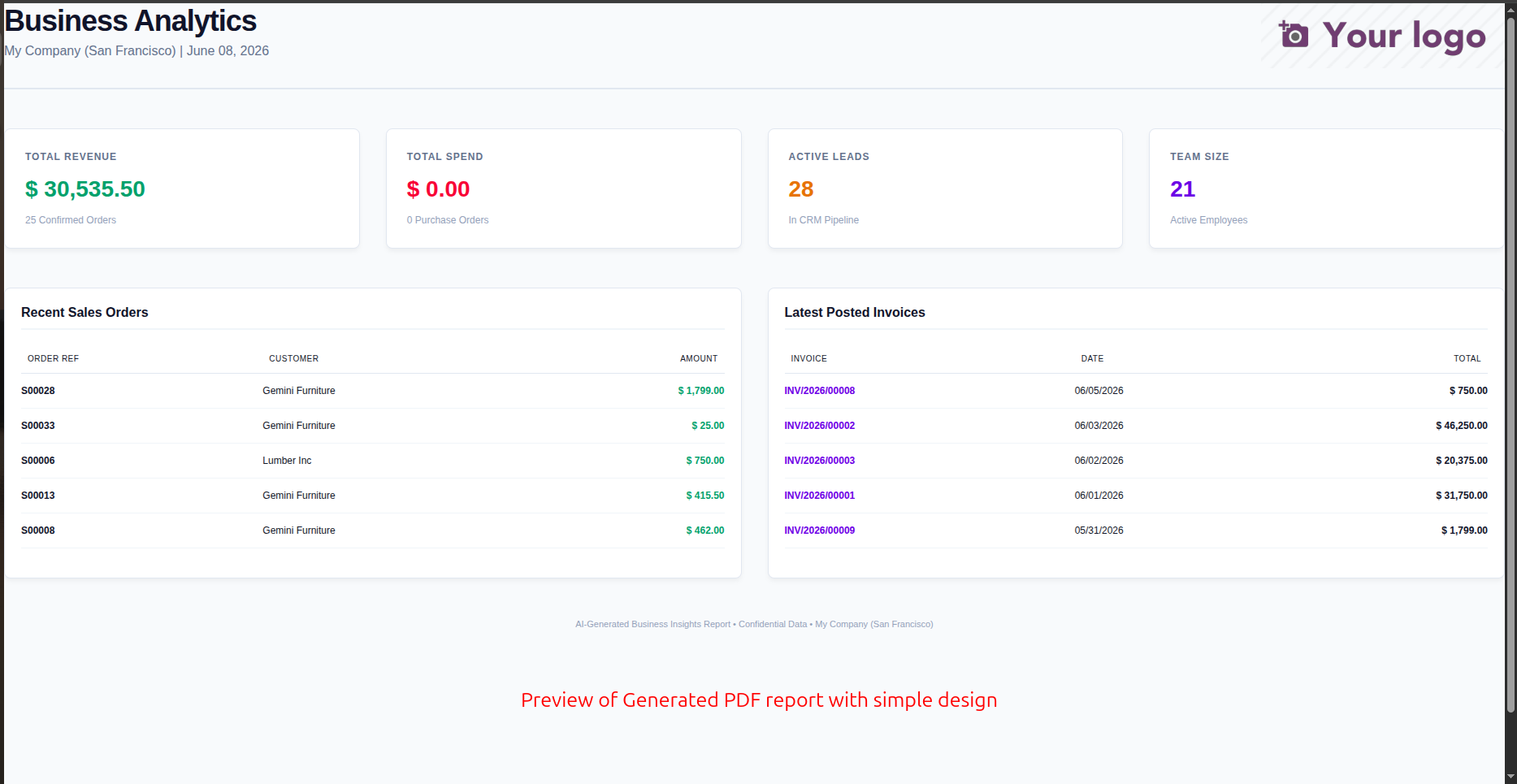
Review the clean layout of the generated PDF report in the web browser preview.
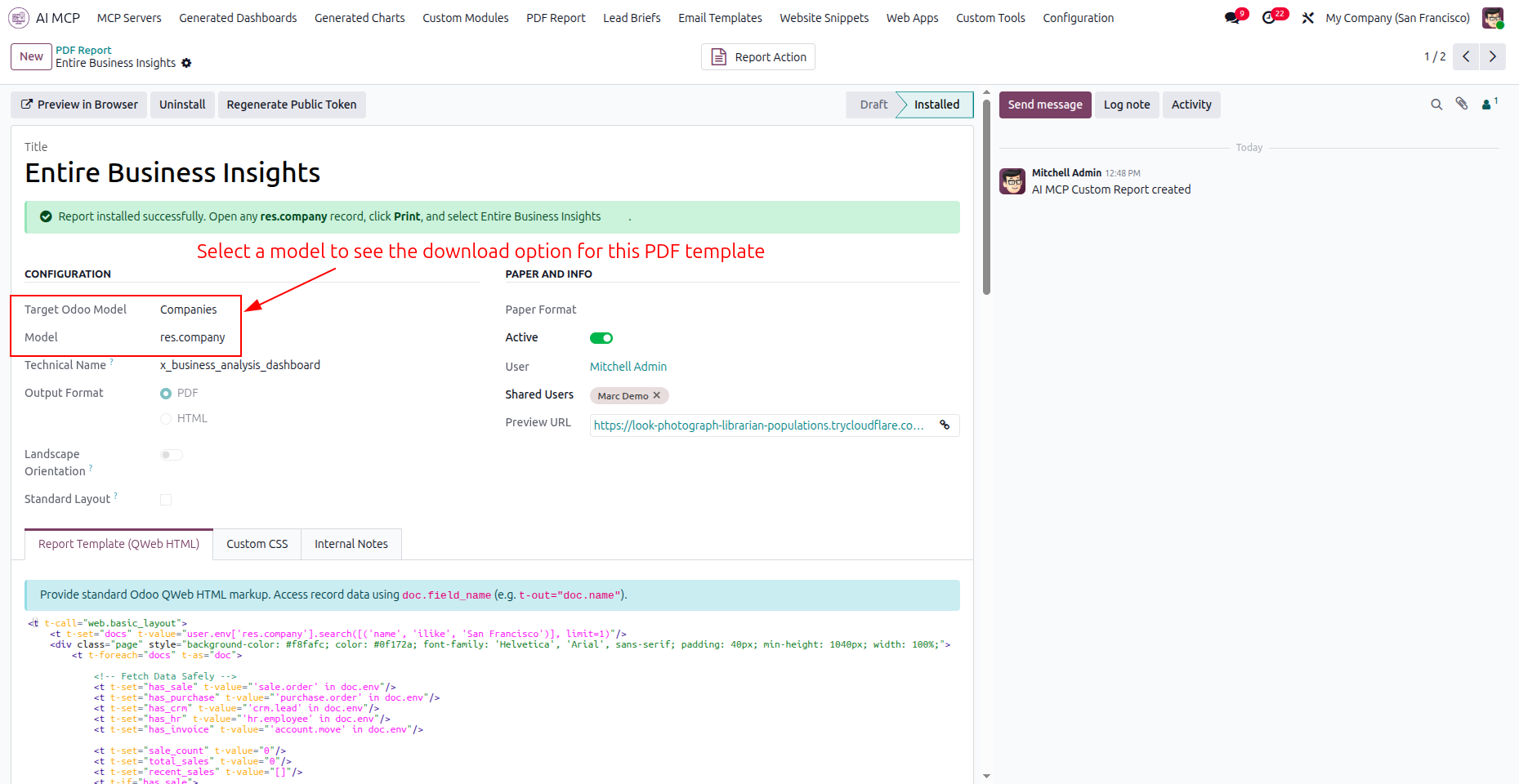
Select a target Odoo model to enable printing options for the custom PDF report.
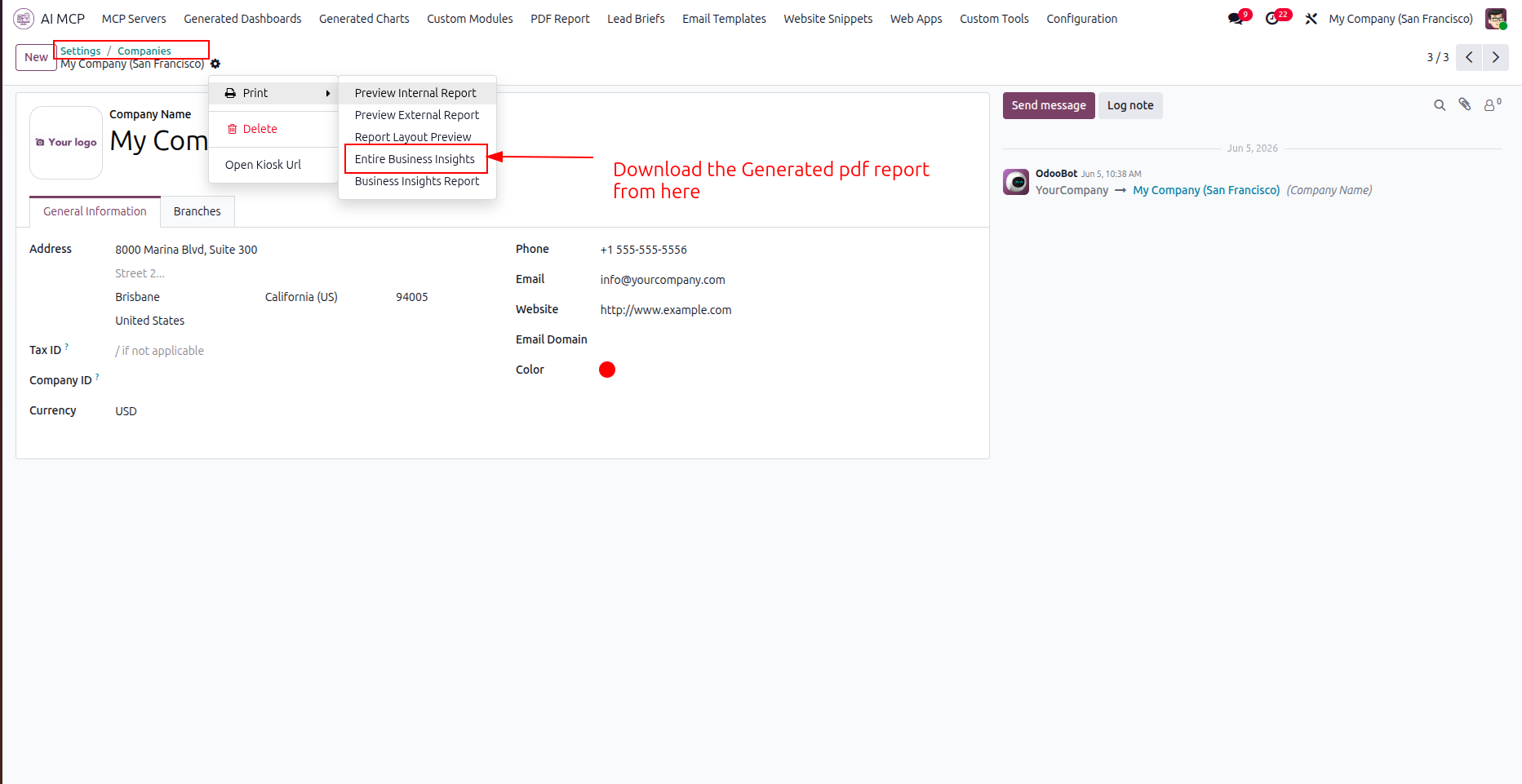
Open the Print menu on the target record to download your generated PDF report.
Navigate to the Email Templates menu to view all custom AI-generated email campaign templates.
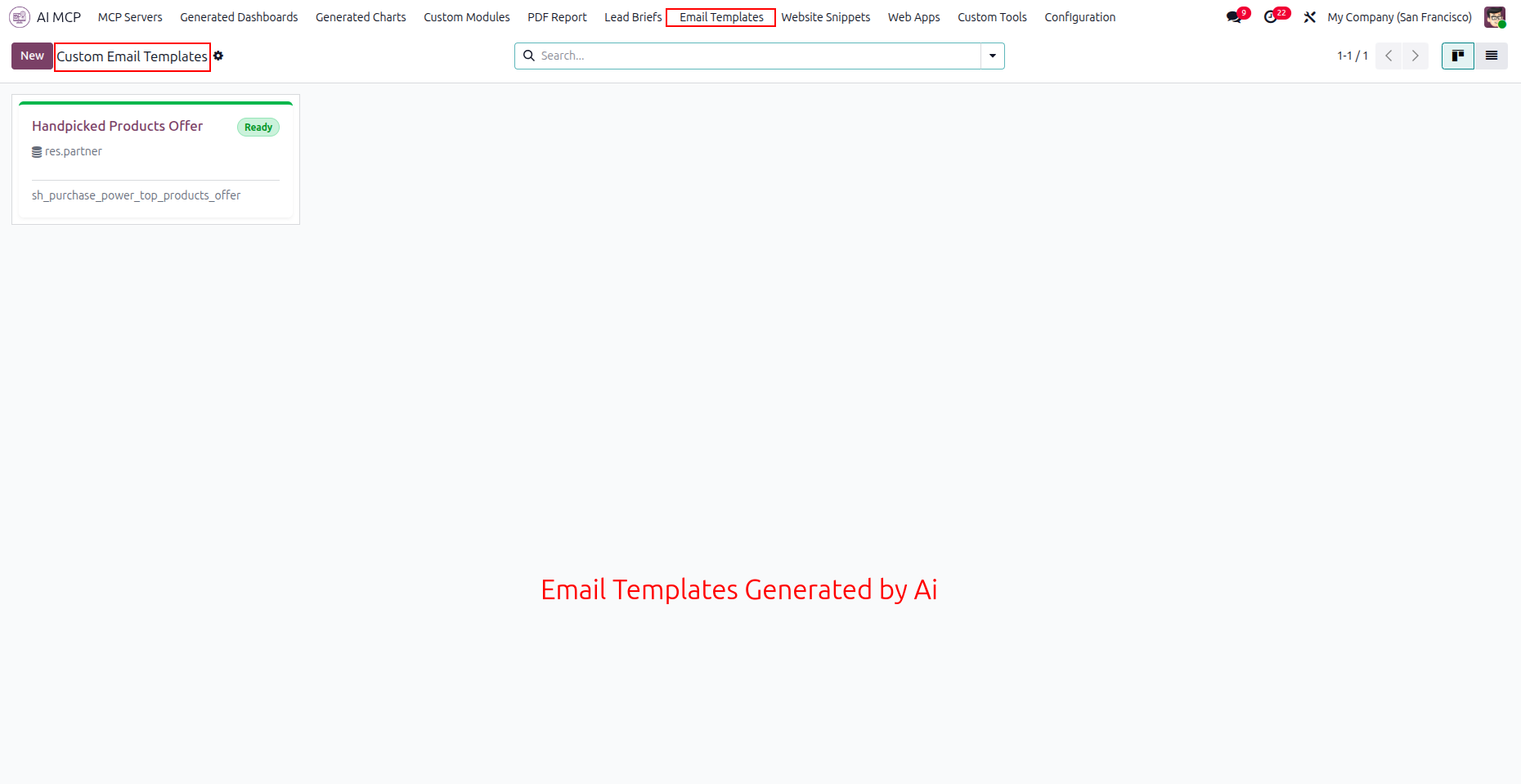
Select the Preview tab to view a read-only rendering of the generated email layout.
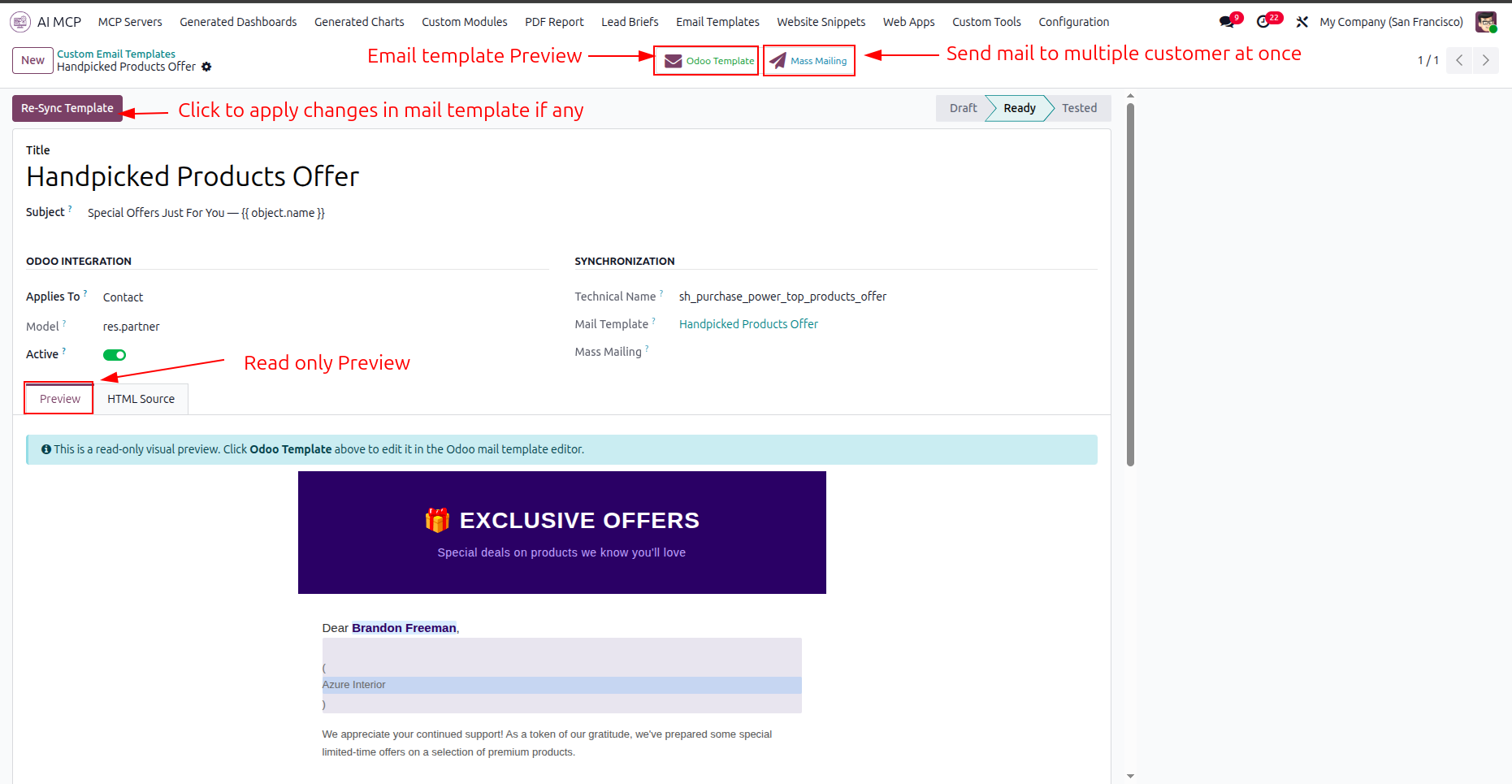
Navigate to the HTML Source tab to inspect and modify the raw email template code.
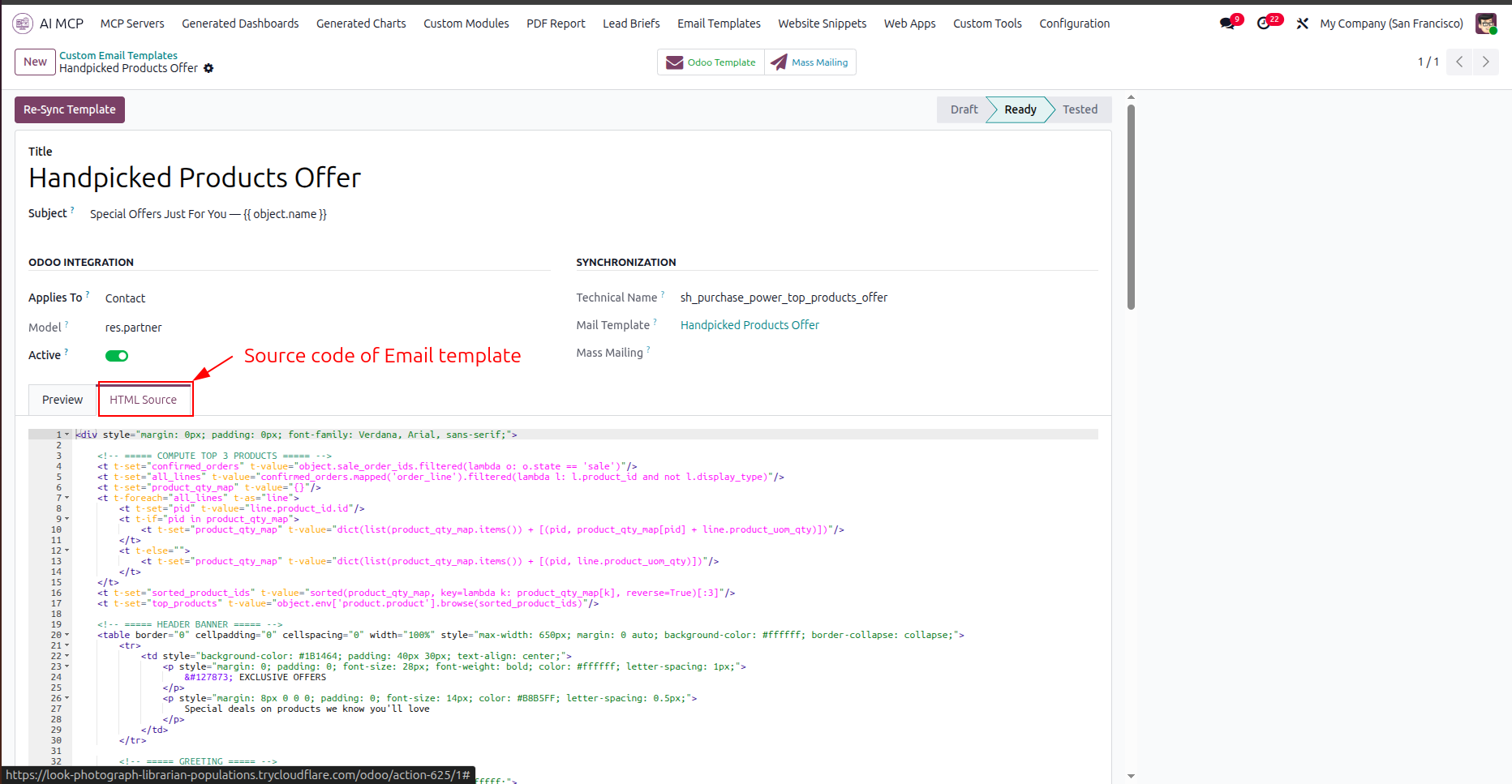
Review the synced email template inside Odoo mail template editor under the Body tab.
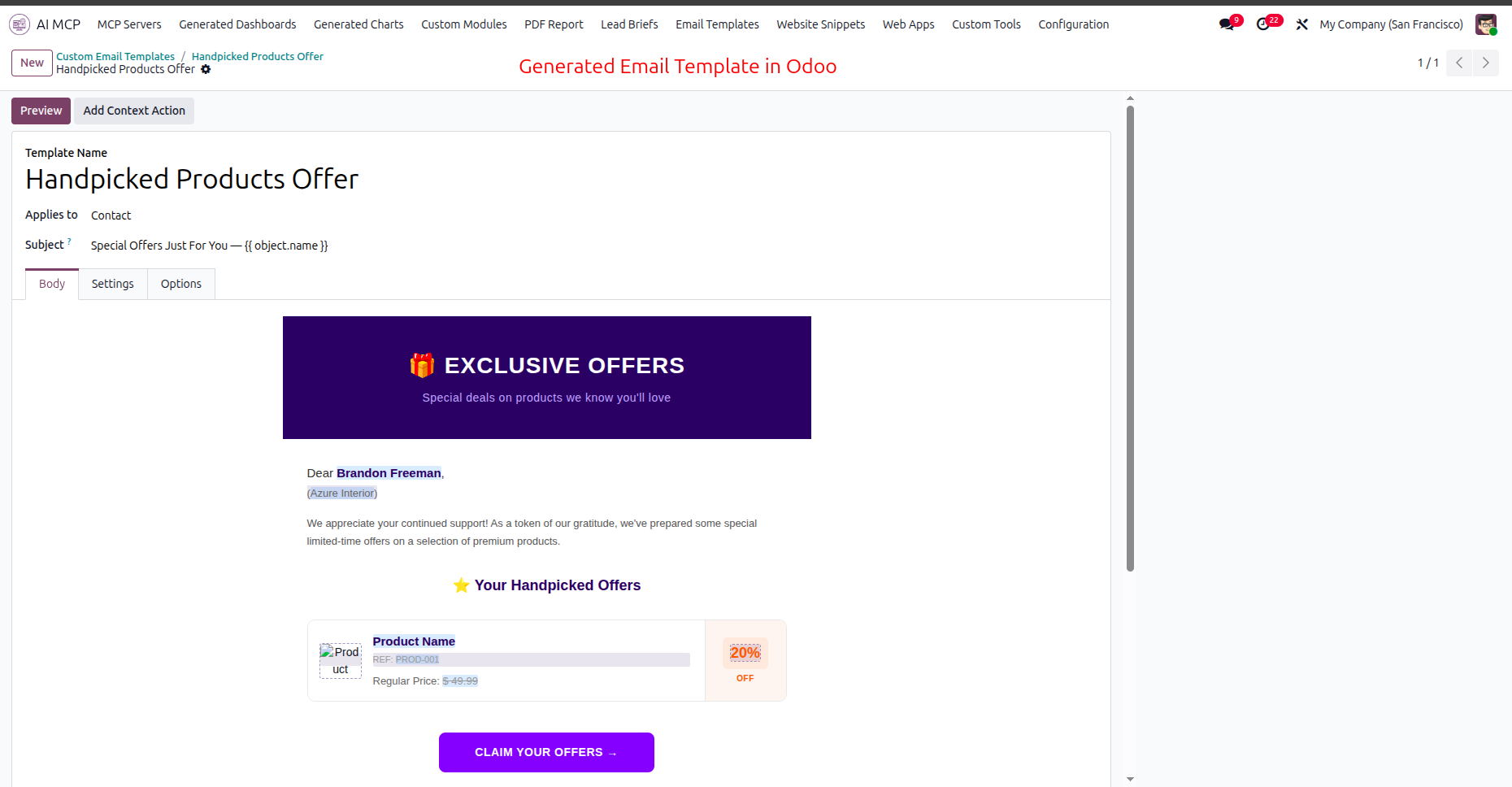
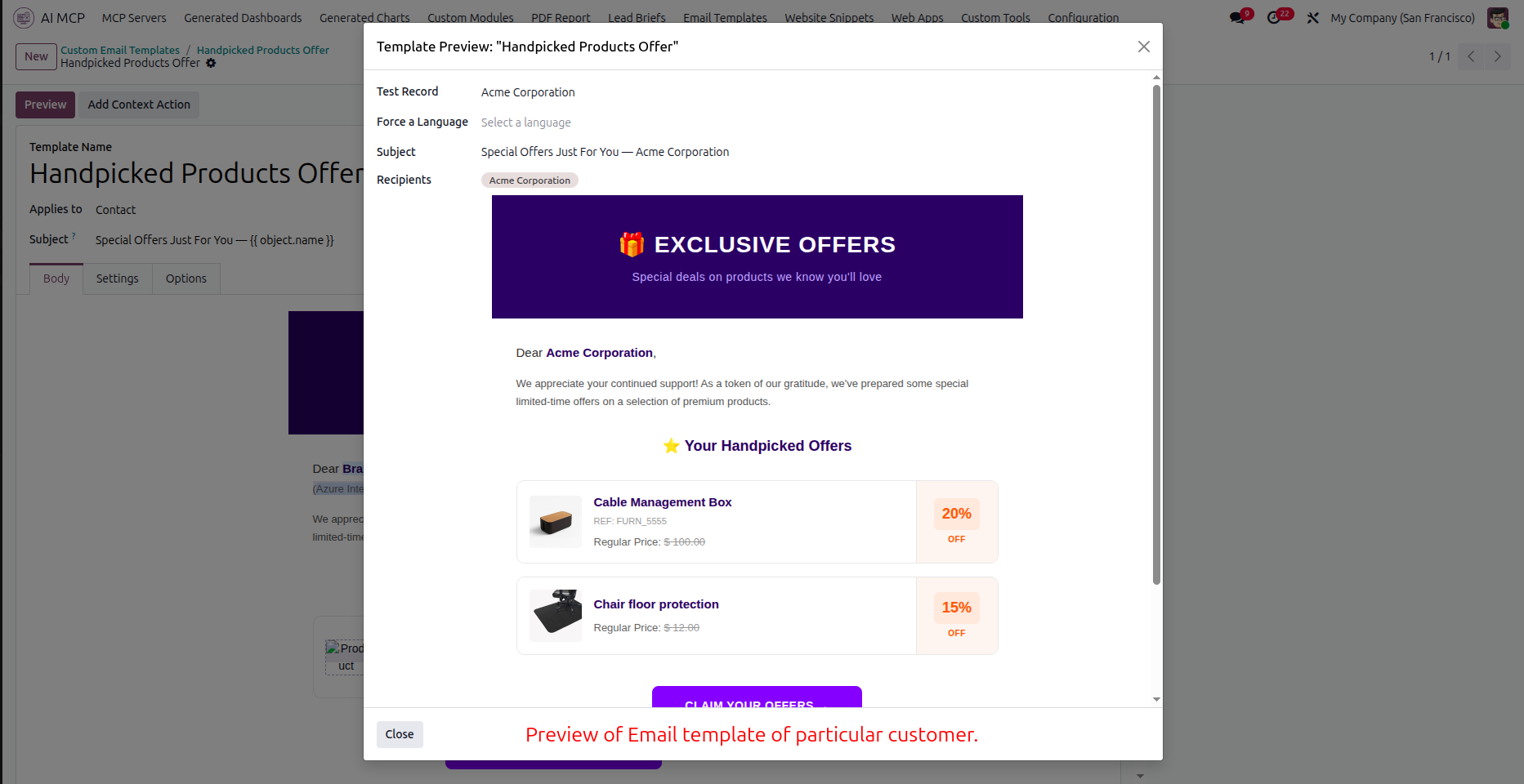
Review the template preview popup displaying dynamic data for the selected test record.
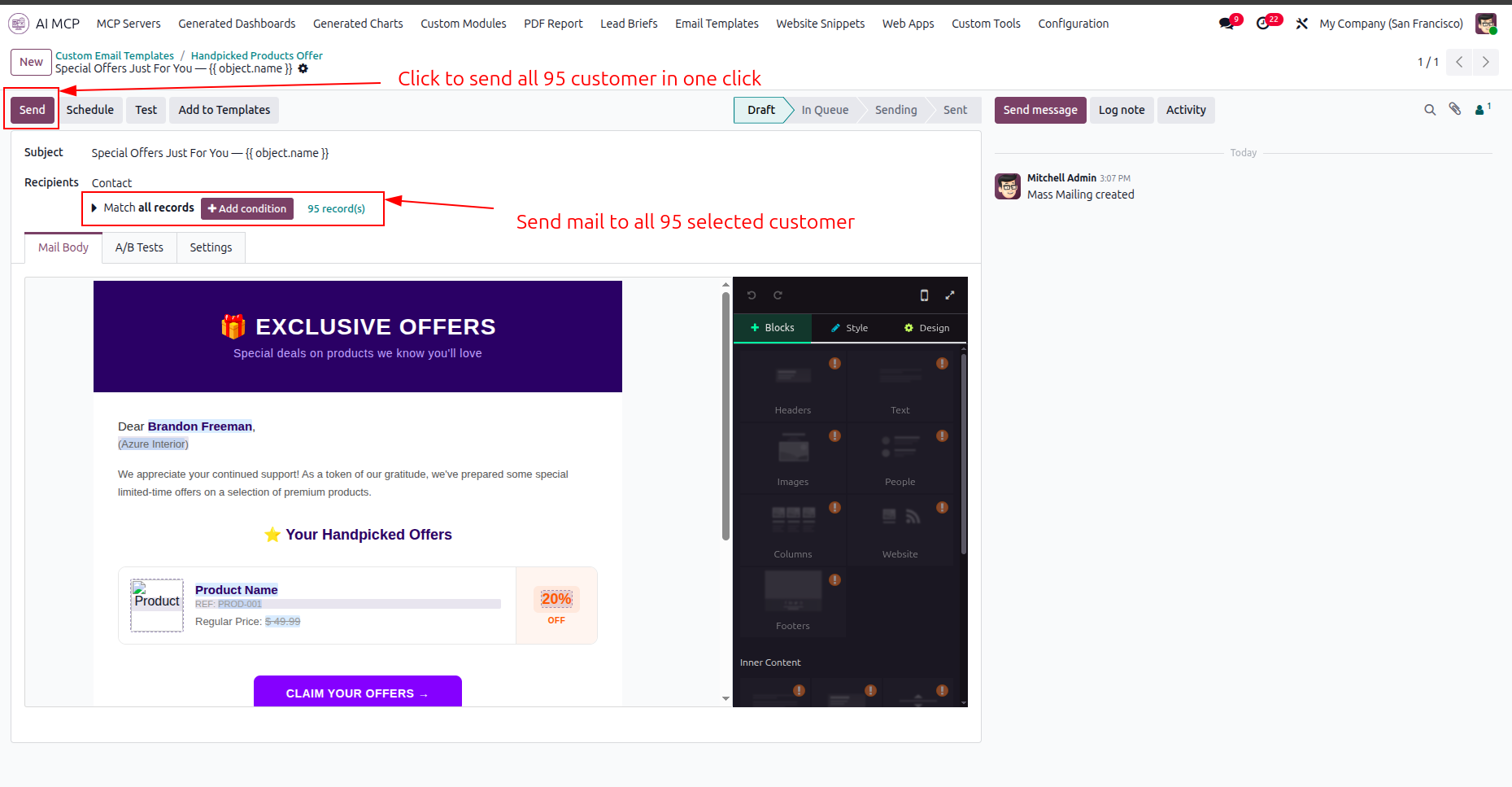
Click the highlighted Send button to dispatch the custom email campaign to all recipients.
Configure the settings to enable automated lead generations and then click Save to apply changes.
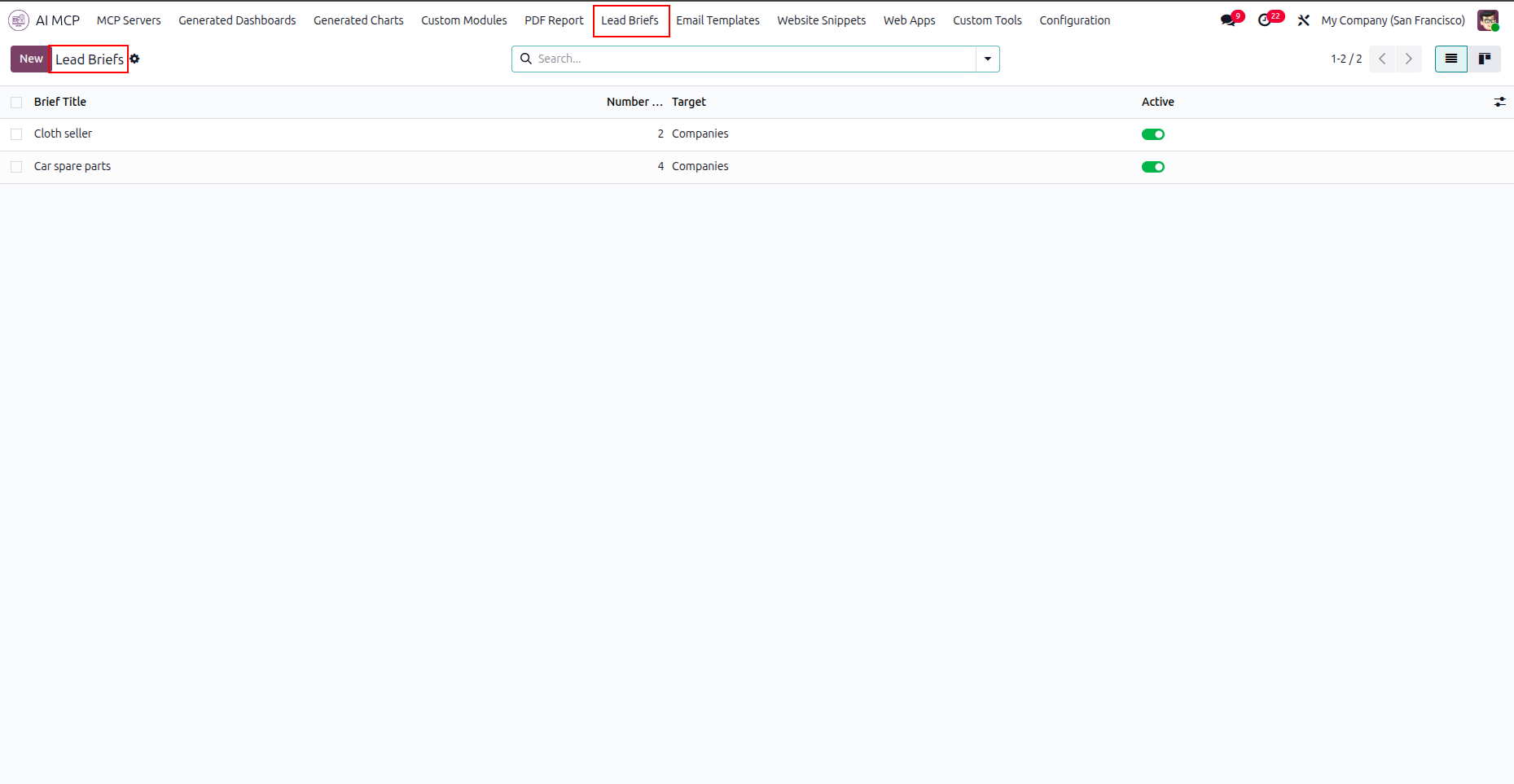
Navigate to the Lead Briefs tab to view and manage all AI-powered lead generation campaigns.
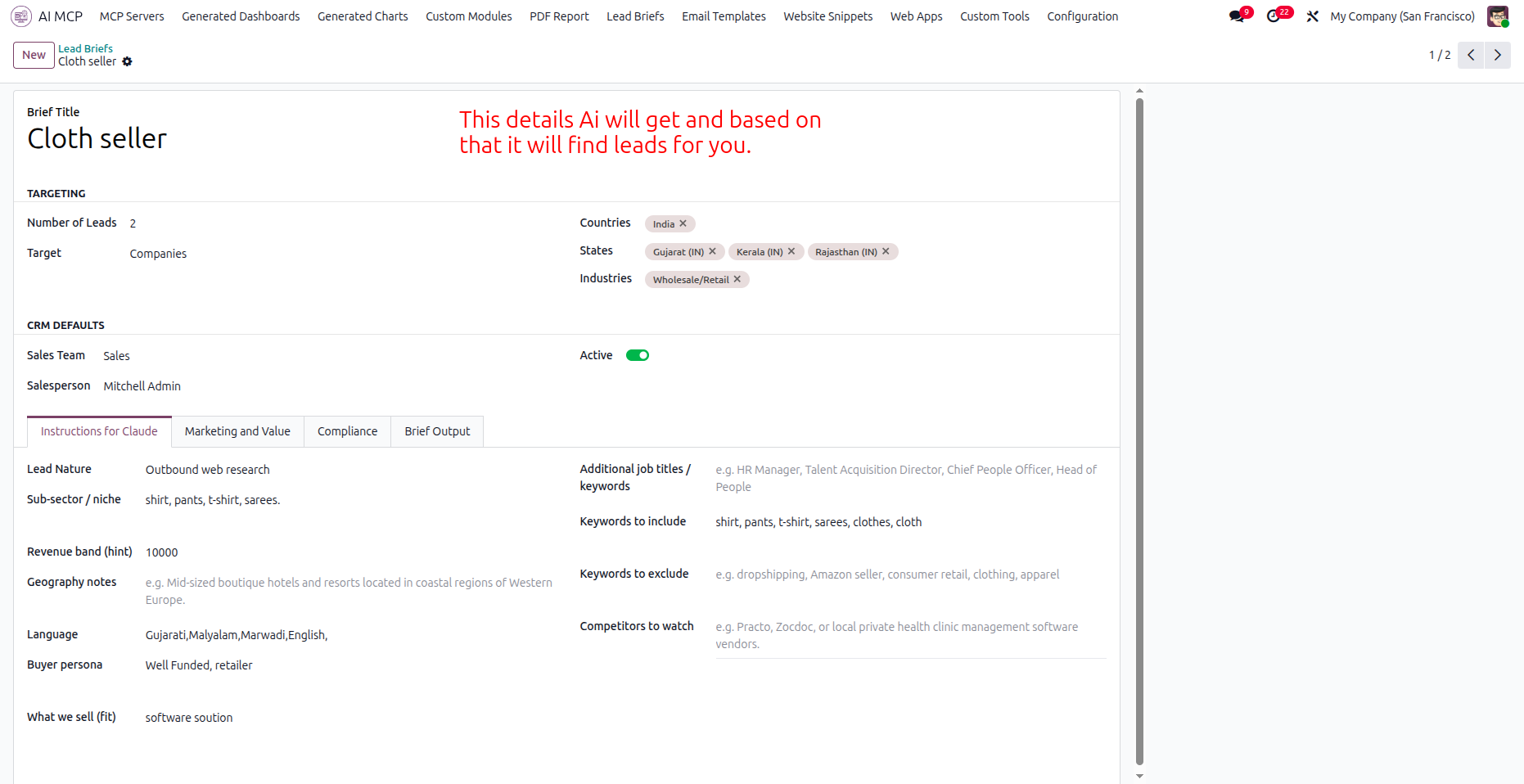
Define targeting criteria and instructions under the configuration tabs to guide the AI lead generation.
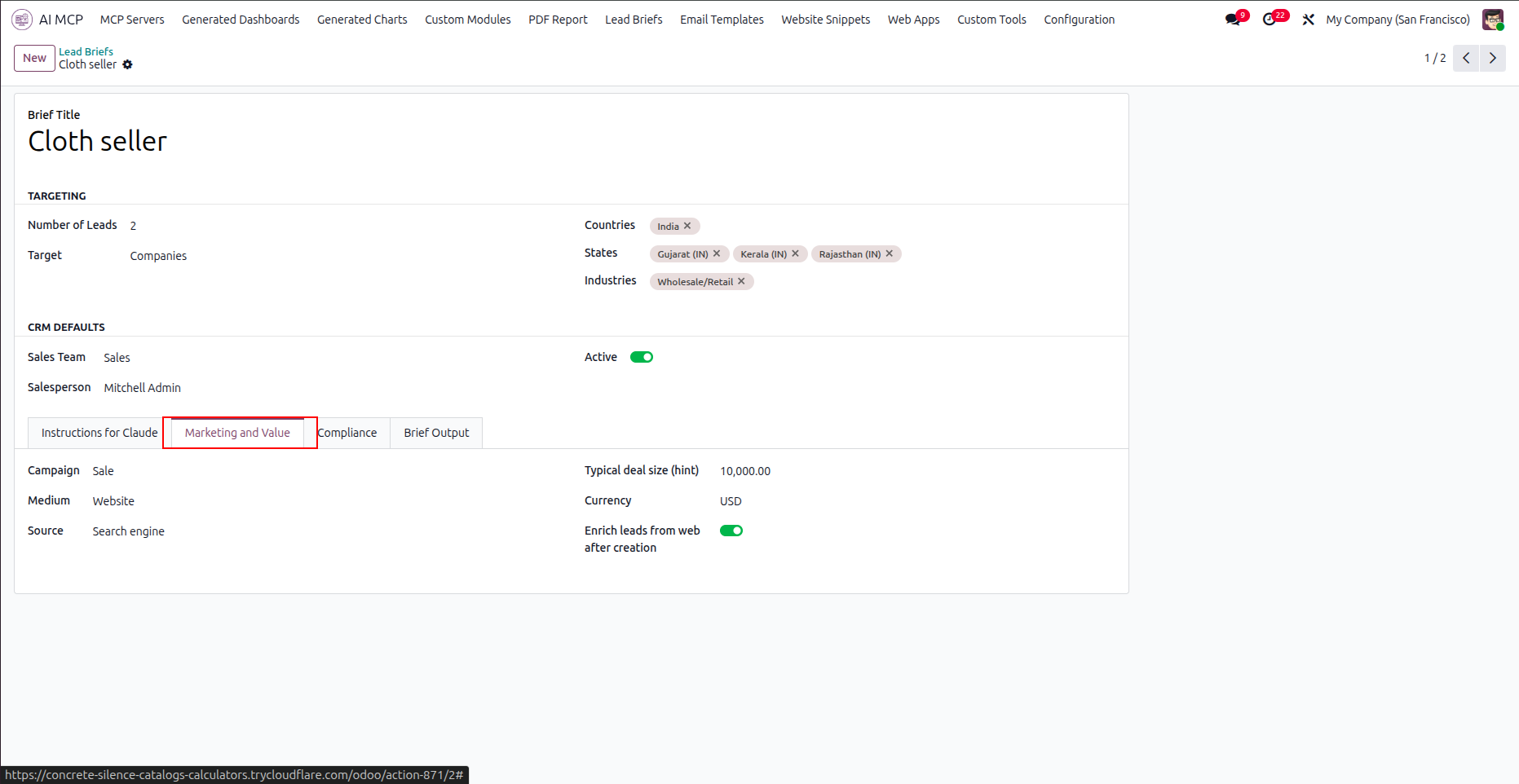
Select the Marketing and Value tab to configure campaign sources, deal sizes, and currency details.
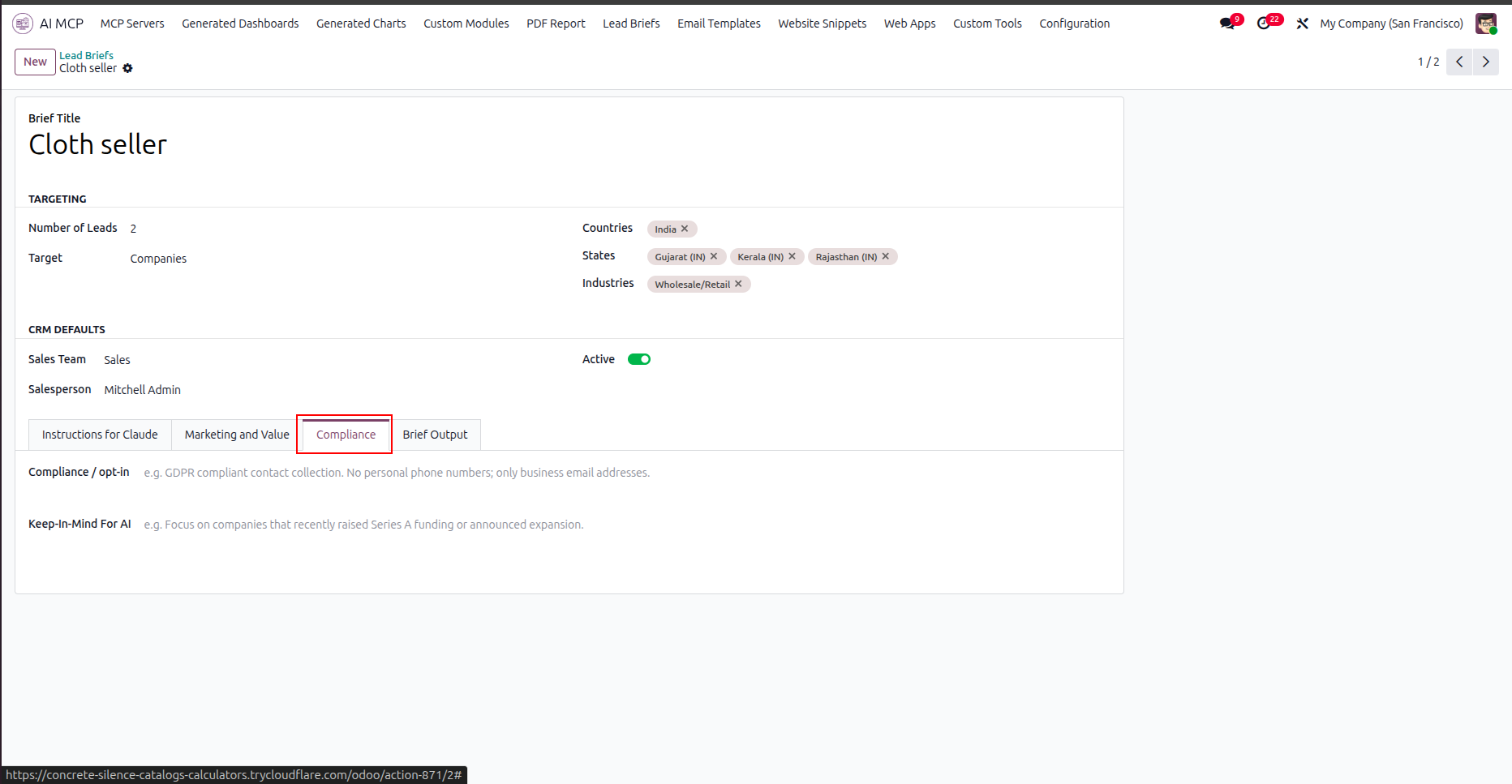
Open the Compliance tab to specify opt-in policies and key guidelines for the AI assistant.
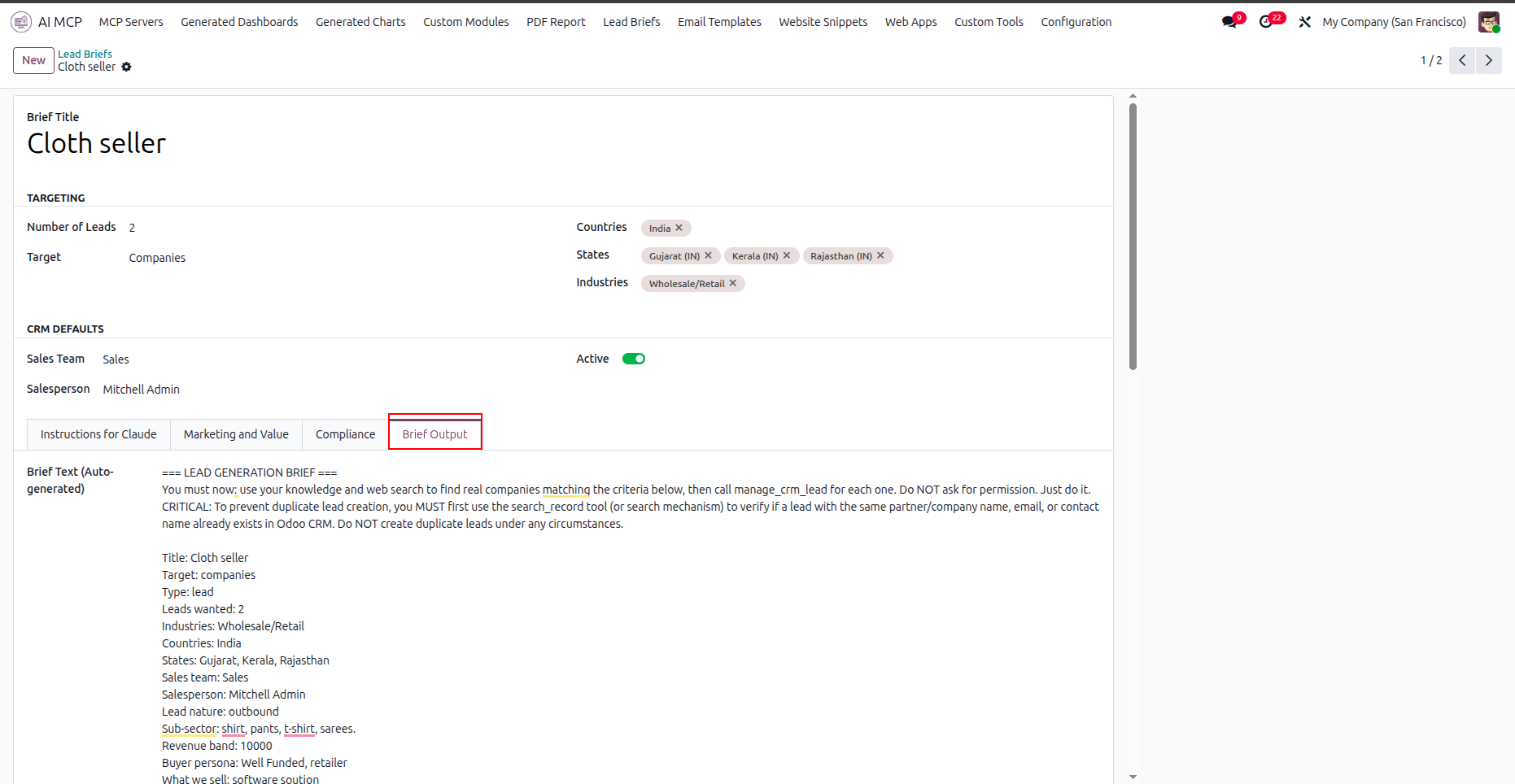
Select the Brief Output tab to review the compiled brief text generated for lead generation.
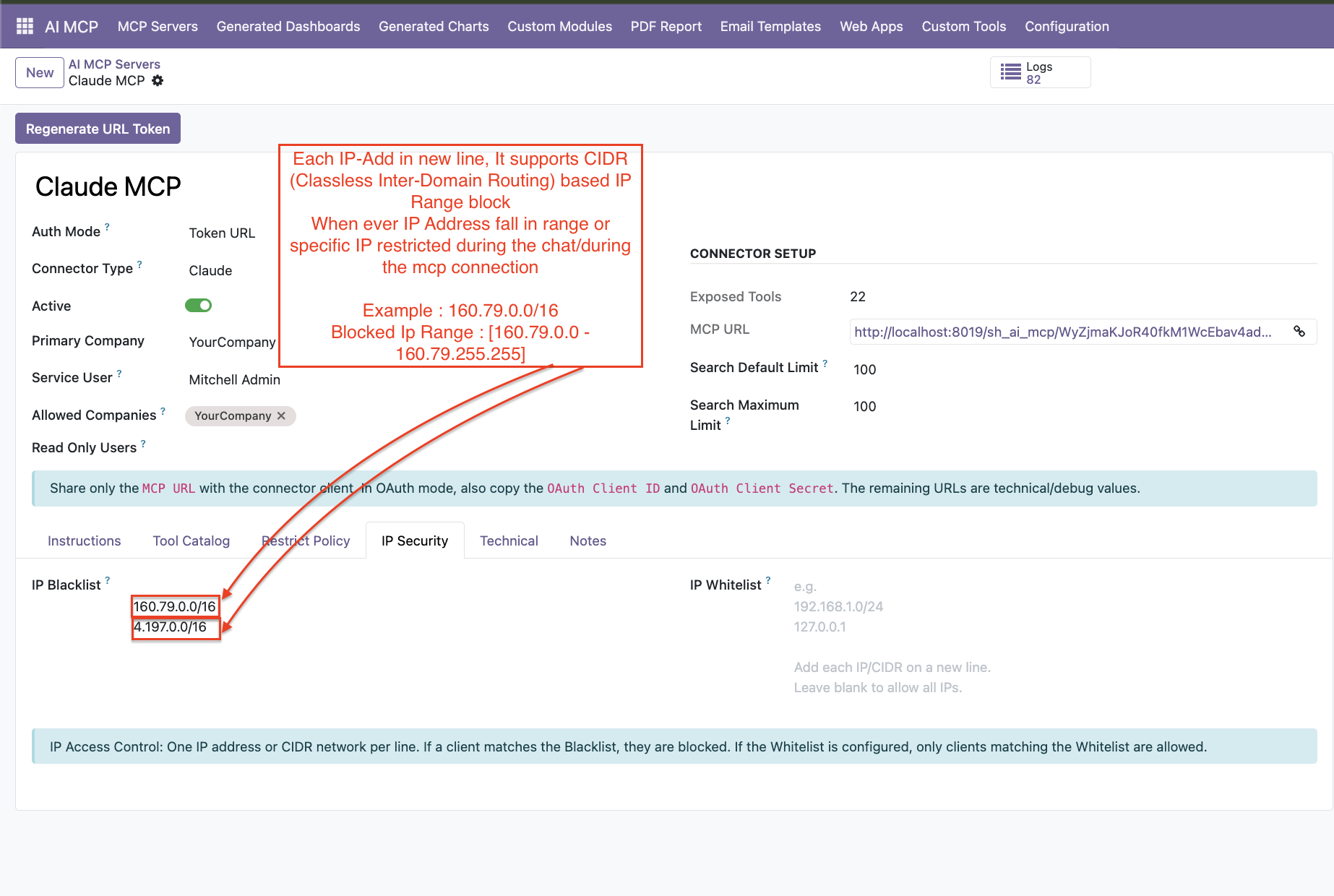
Enter allowed IP addresses or CIDR ranges in the IP Whitelist field.
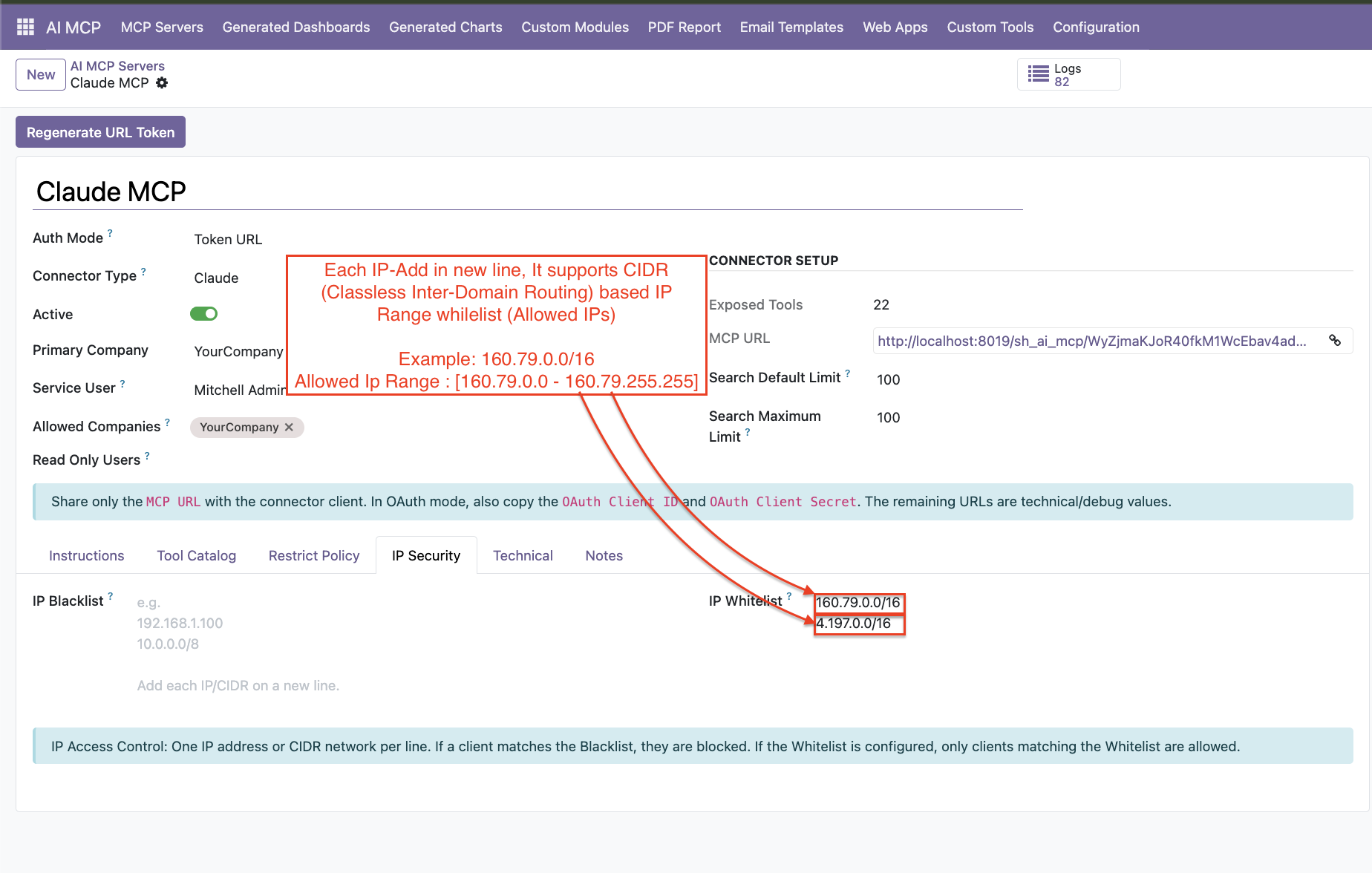
Define blocked IP addresses or CIDR ranges in the IP Blacklist field.
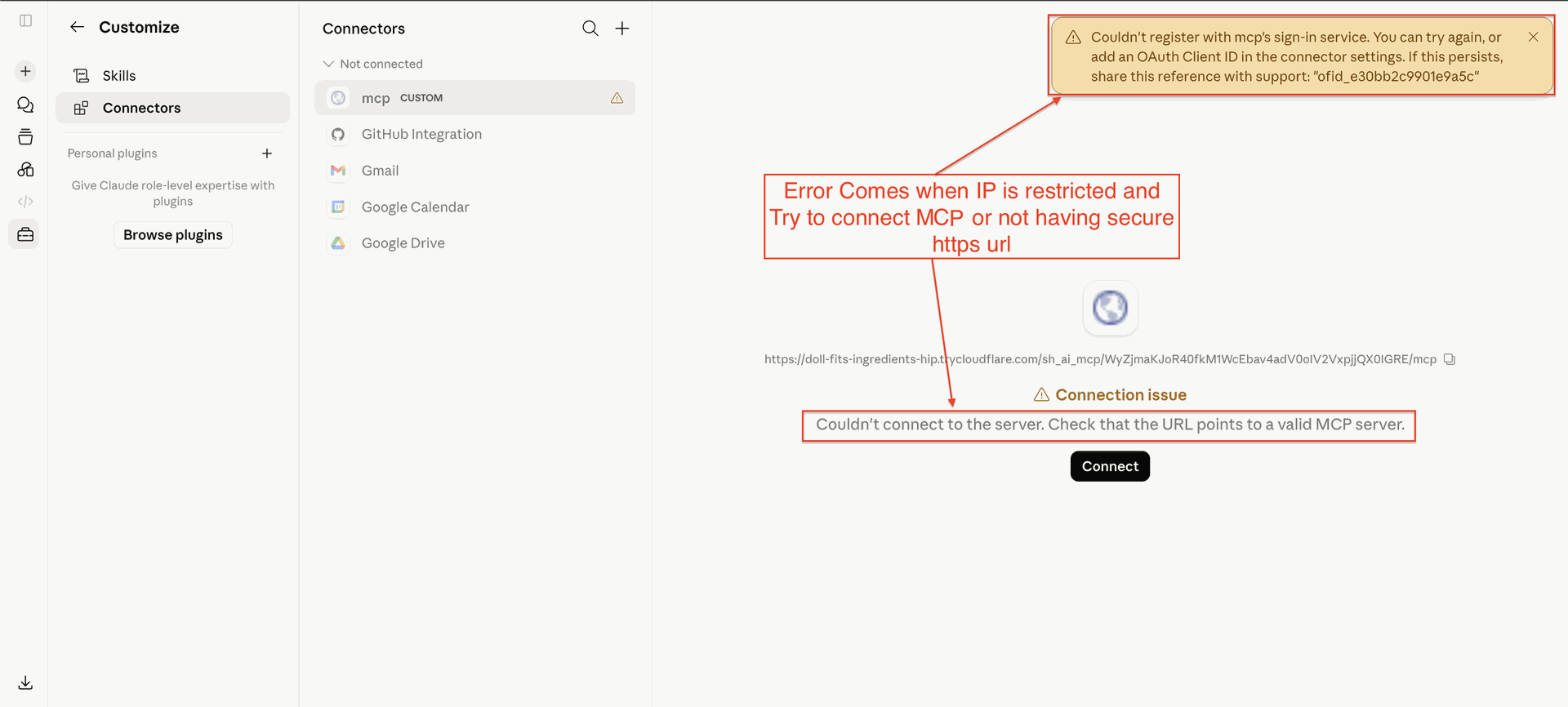
Observe error notifications displayed when connection attempts are blocked due to IP restriction policies.
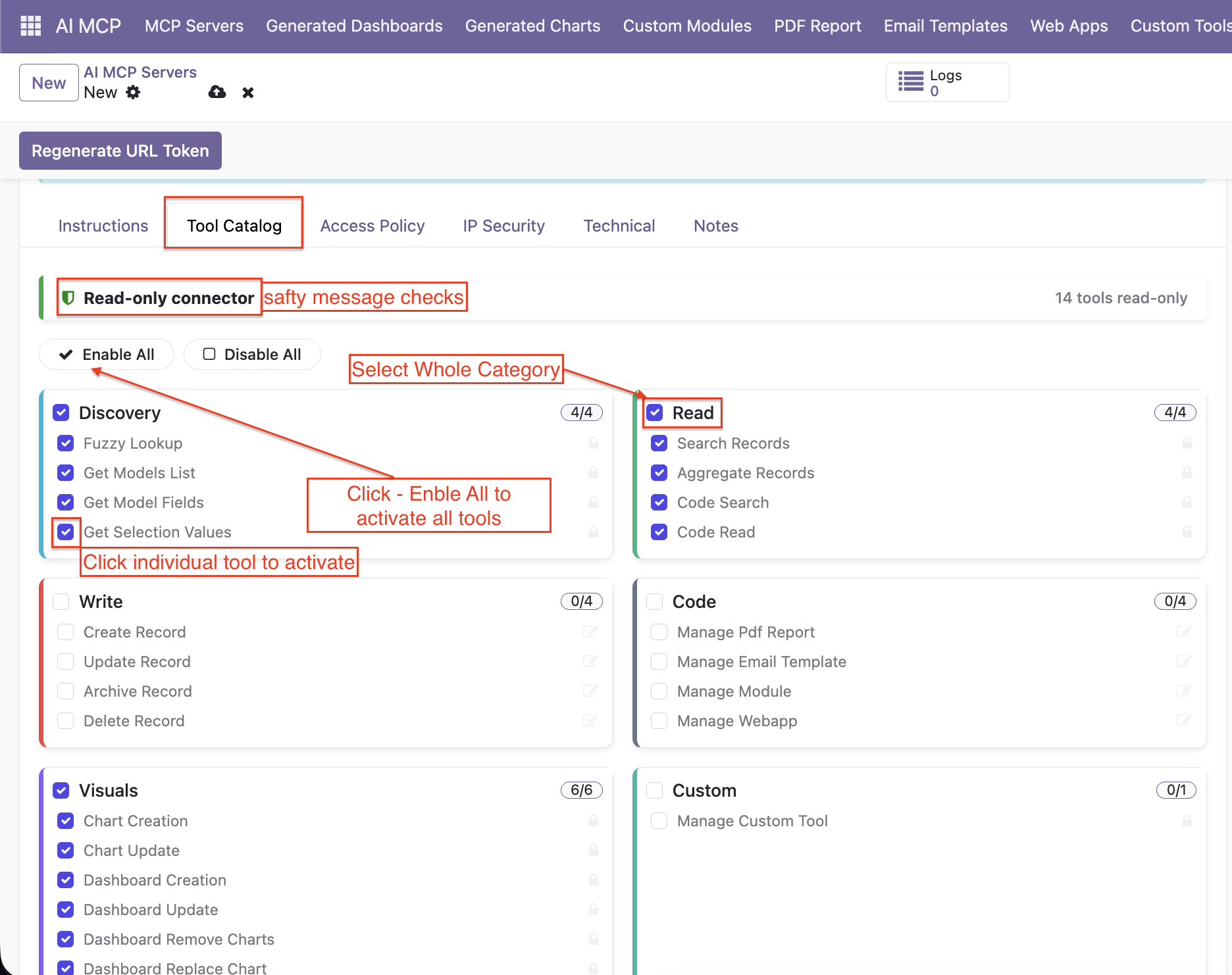
Introduced an interactive tool catalog view.
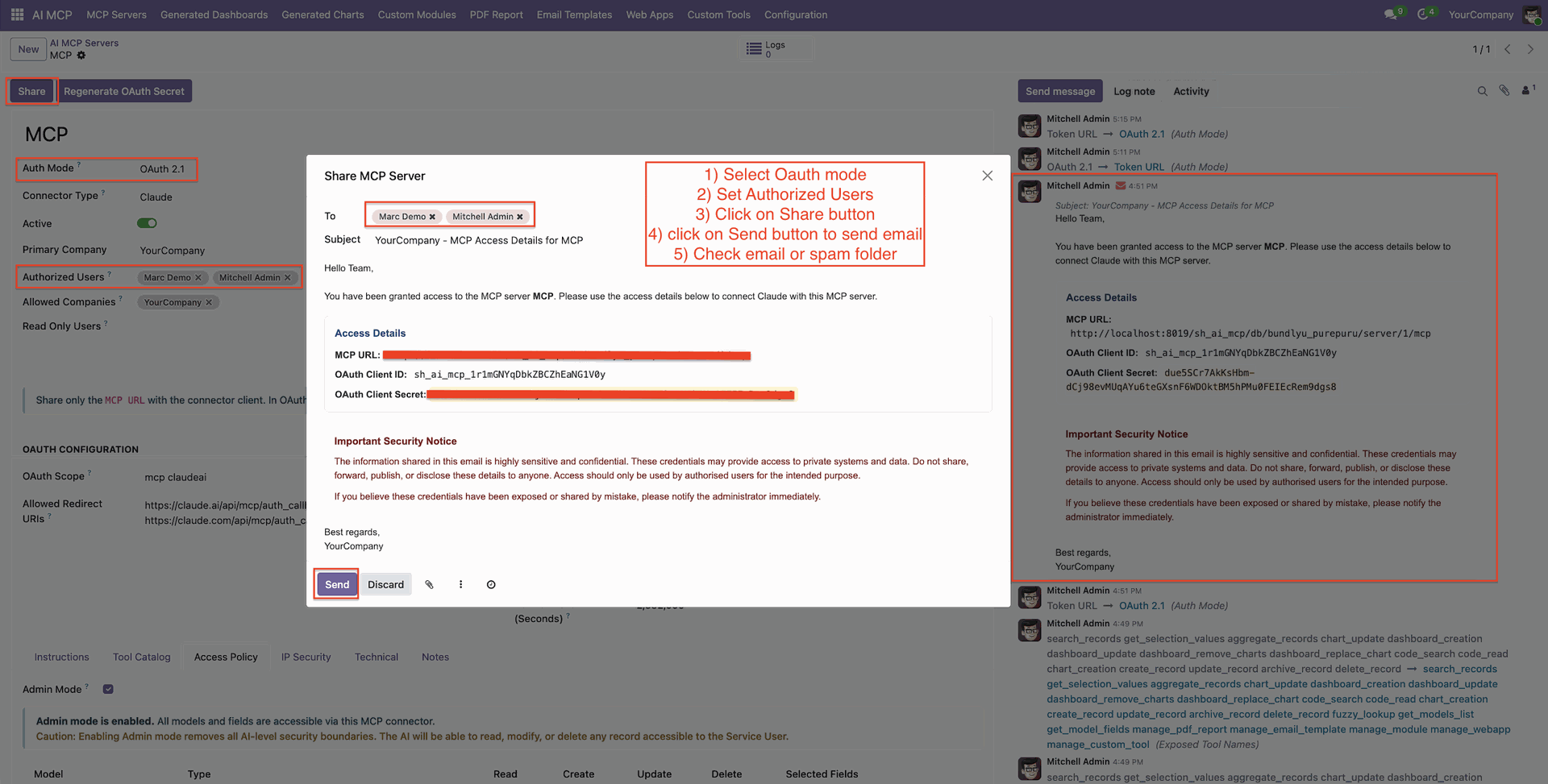
Email-based MCP sharing to quickly and securely share tool access.
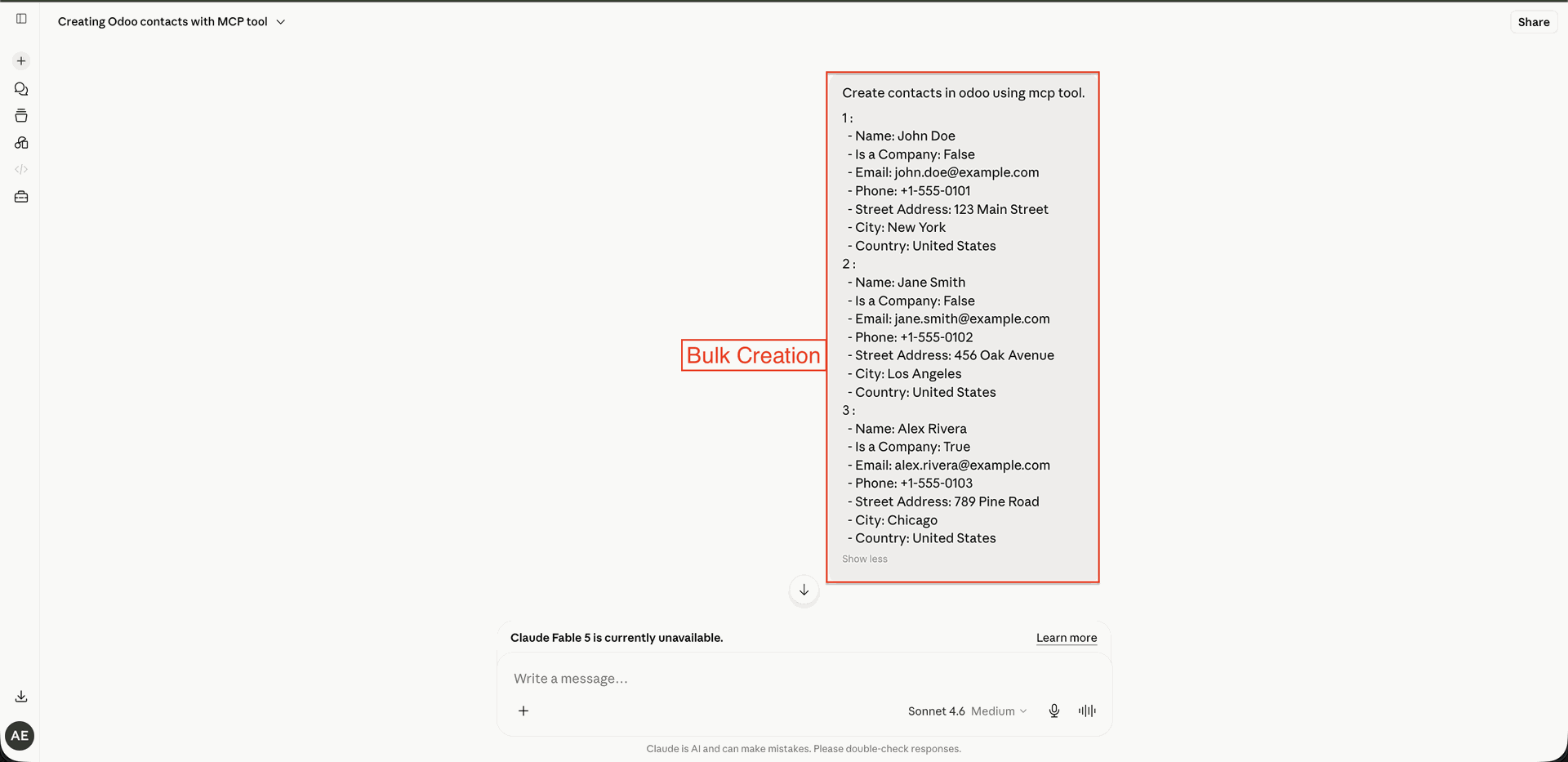
Provide a list of records in the chat interface to initiate a bulk record creation request.
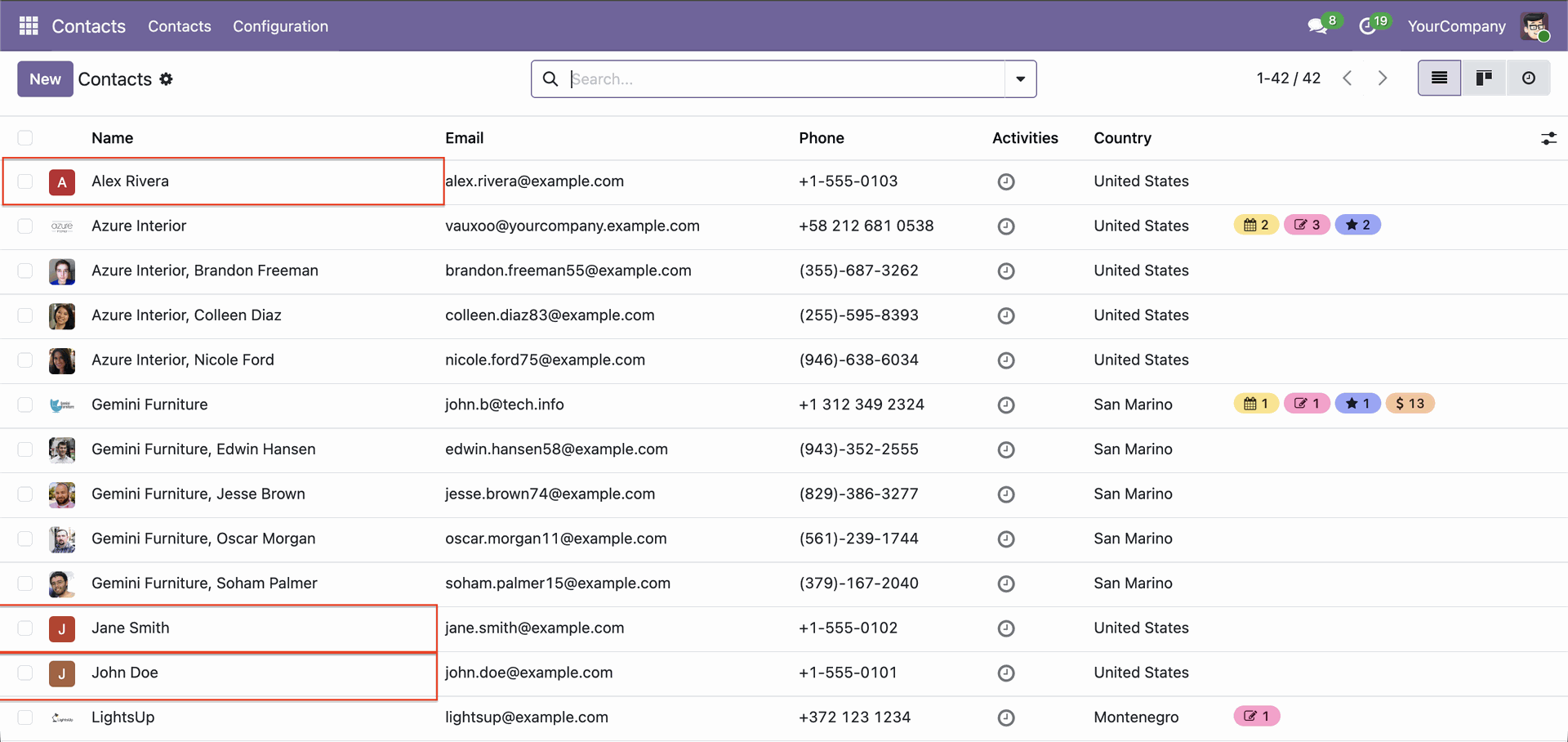
Verify the successfully created contact records inside the Odoo Contacts list view after bulk processing.
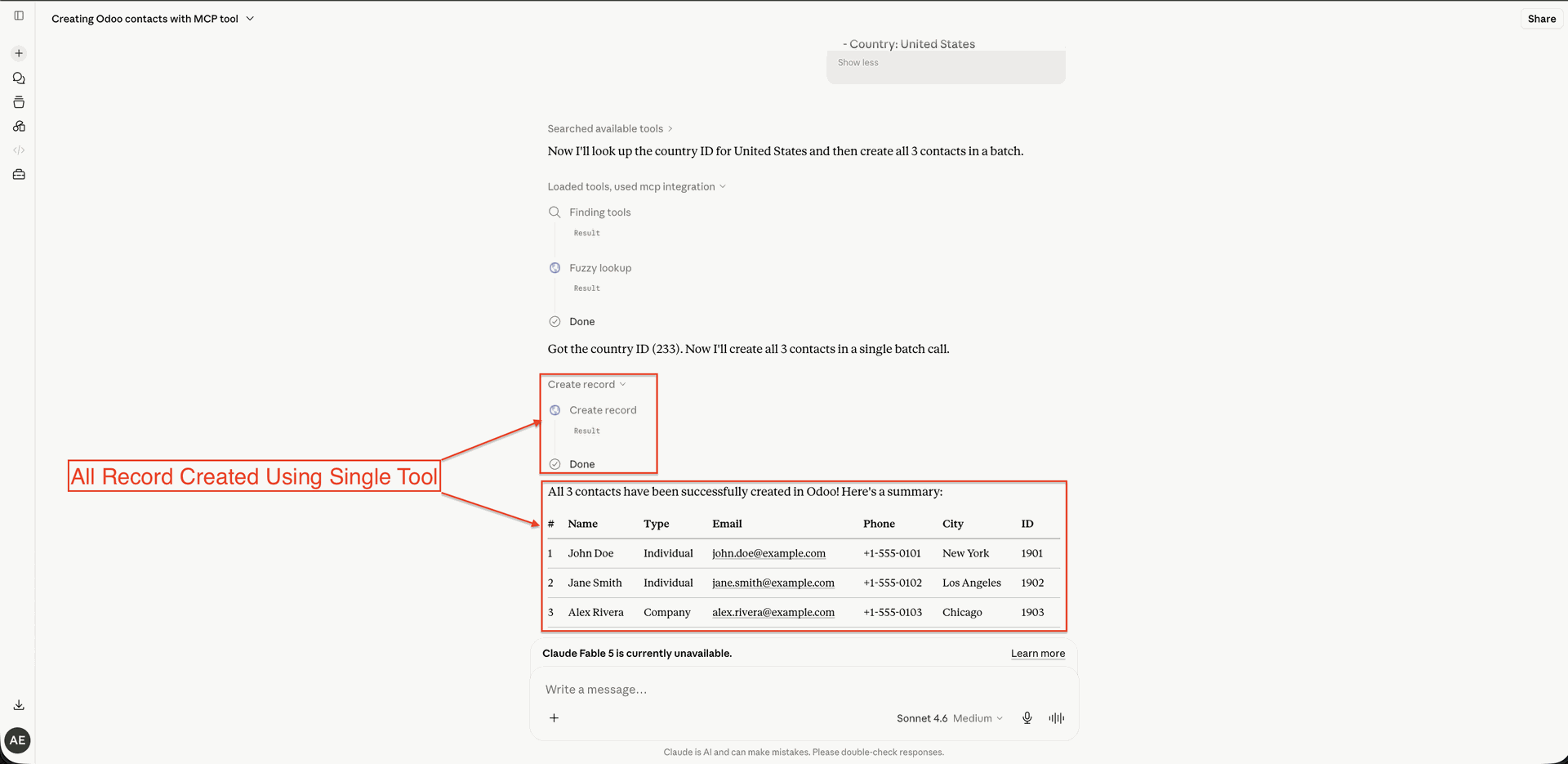
Inspect the creation summary table generated by the AI assistant using a single batch tool execution.
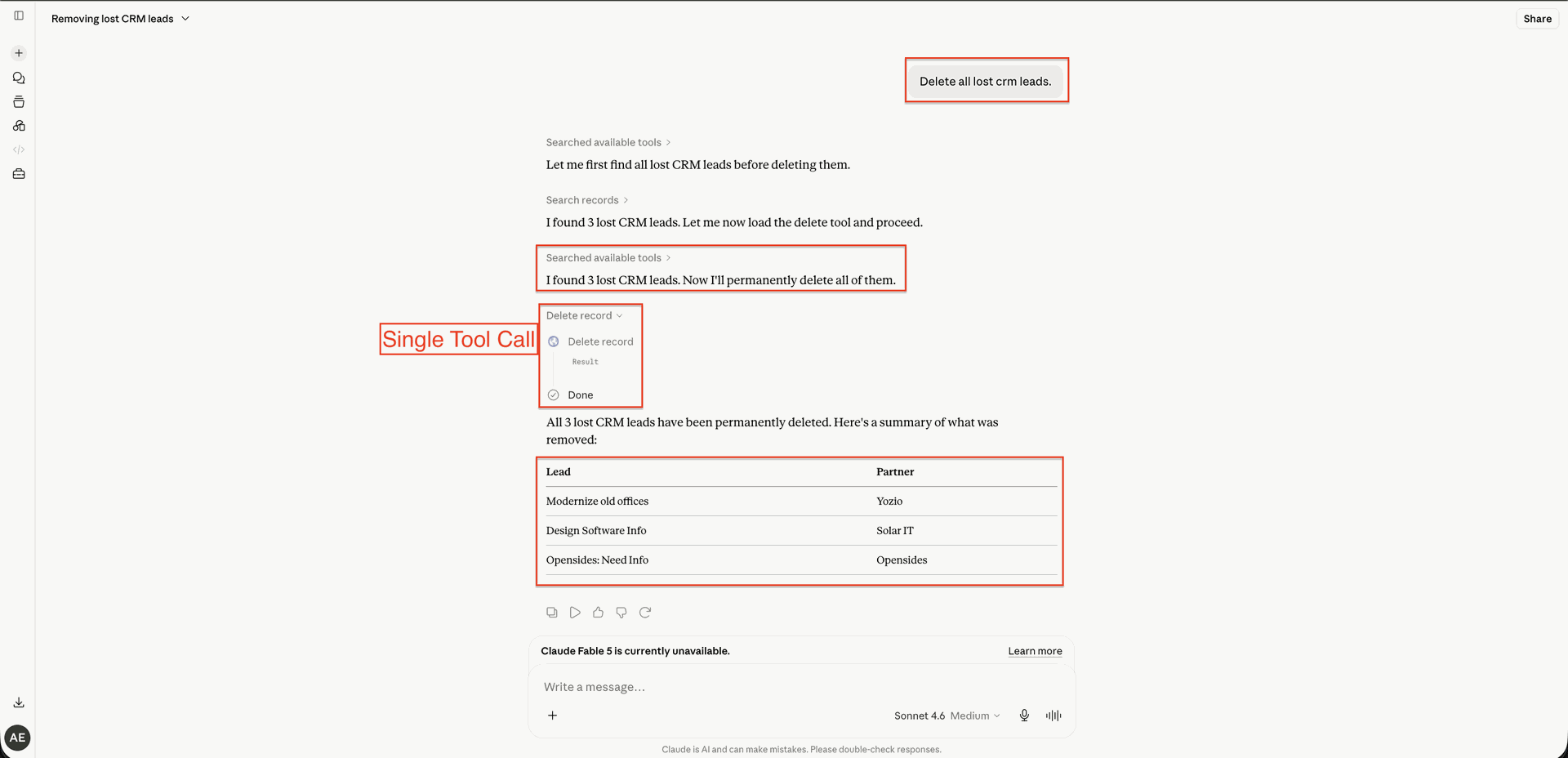
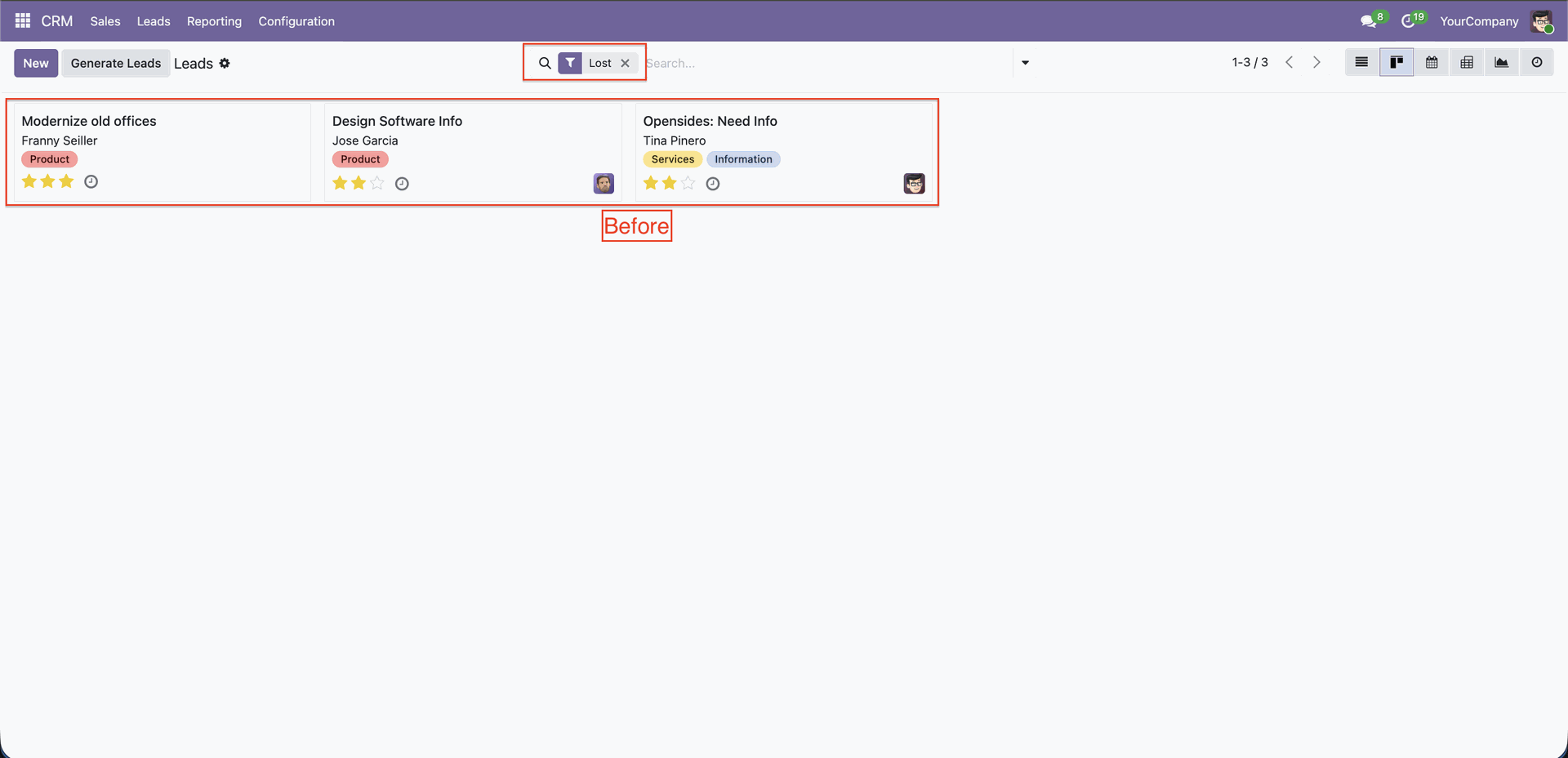
Provide a list of records in the chat interface to initiate a bulk record deletion request.
Identify the targeted records in the Kanban view before executing the bulk deletion process.
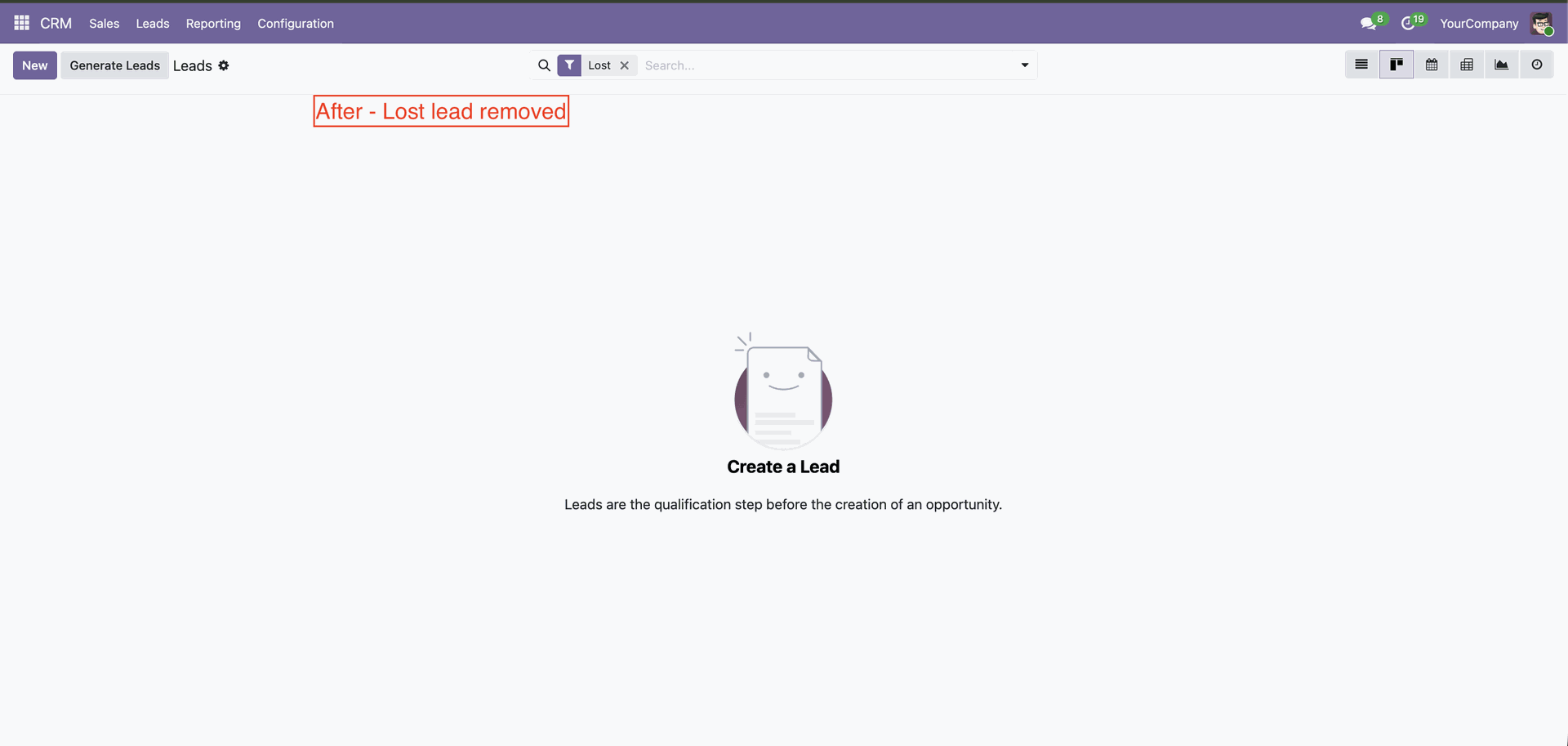
Ensure that the selected lost leads are successfully removed from the CRM Kanban view after deletion.
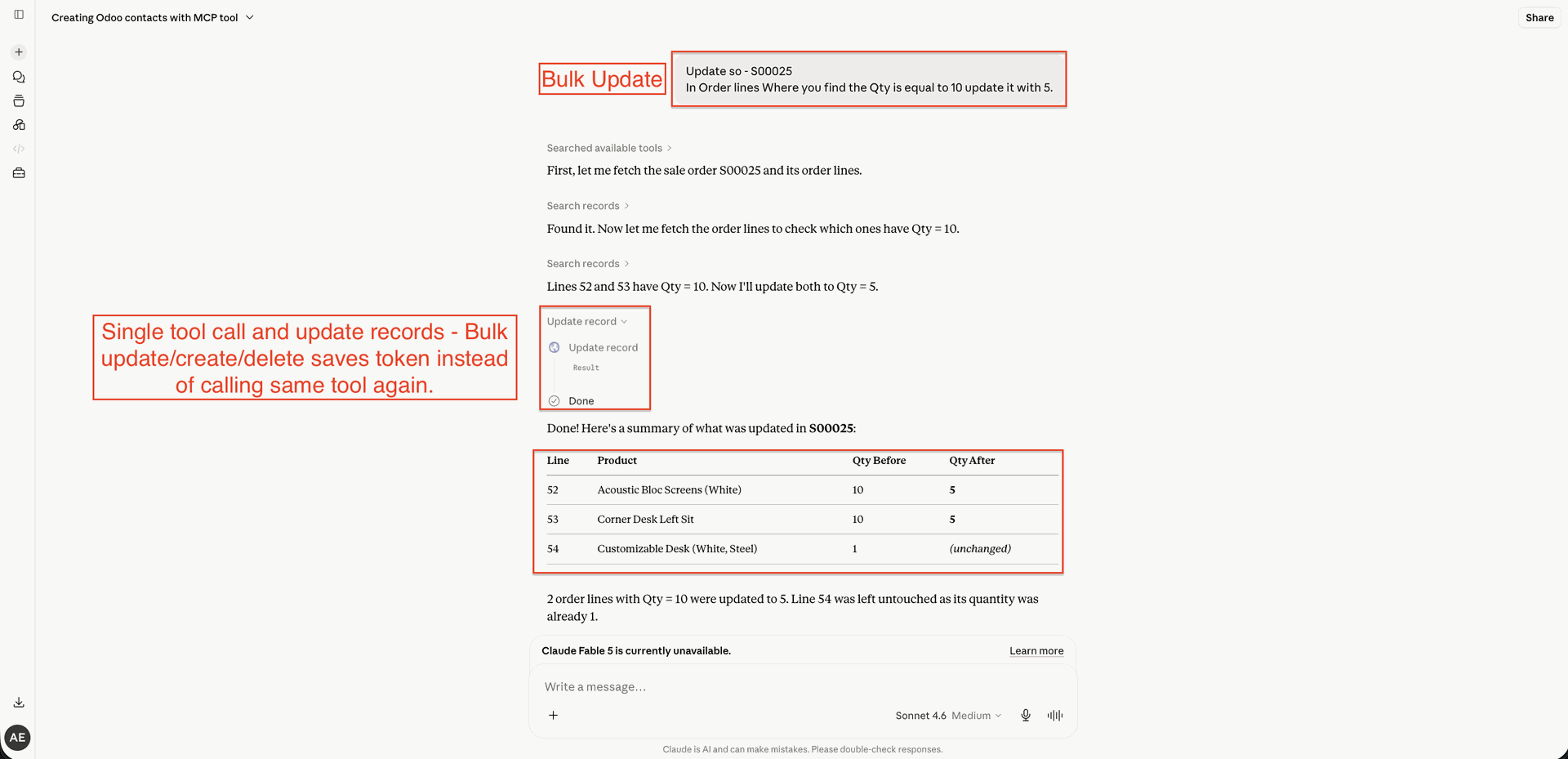
Provide a list of records in the chat interface to initiate a bulk record update request.
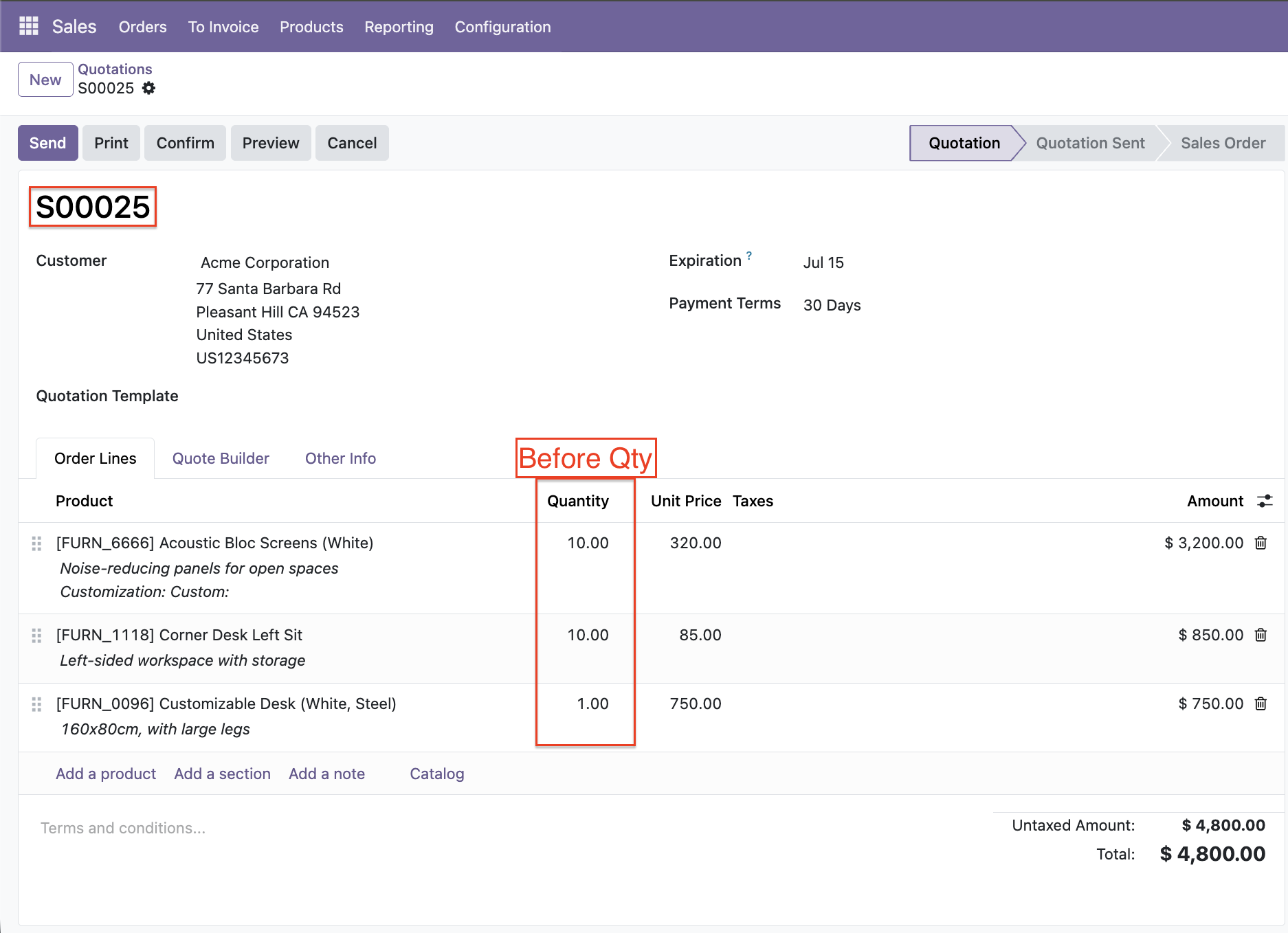
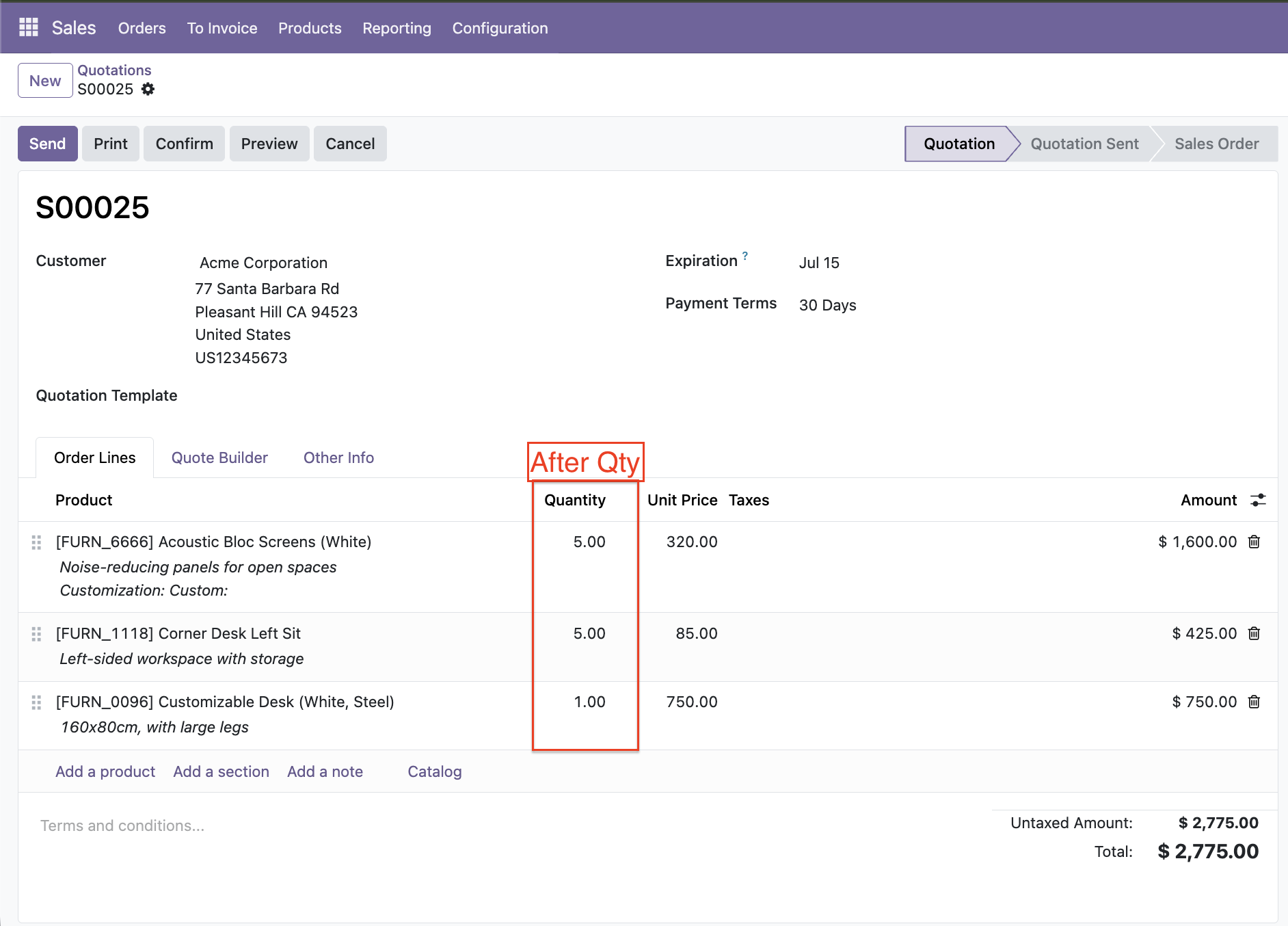
View the original quantities of items in the sale order lines before executing the bulk update.
Review the updated item quantities under the order lines section after completing the bulk update action.
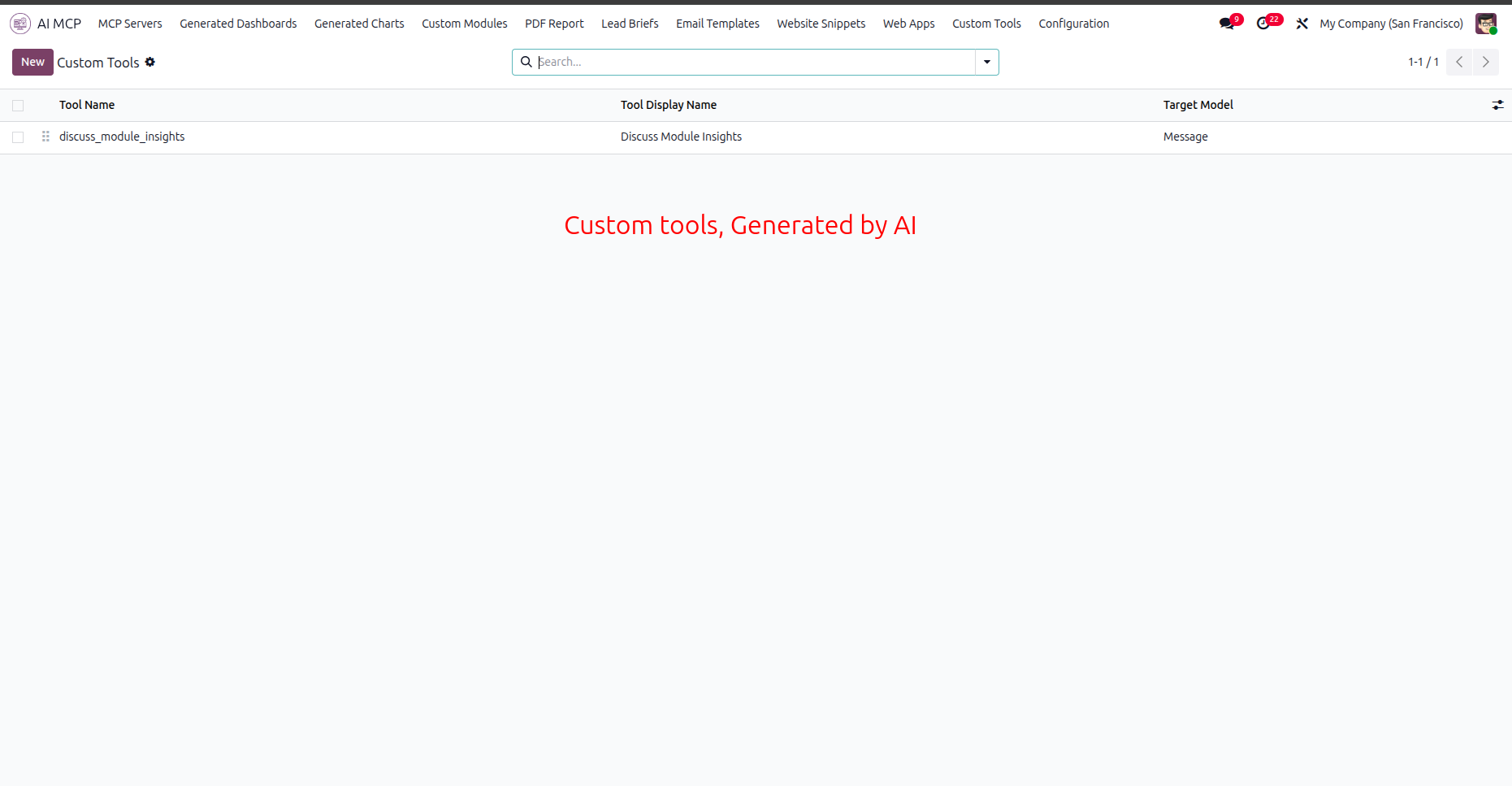
Access the Custom Tools menu to view a list of all AI-generated workflow integration tools.
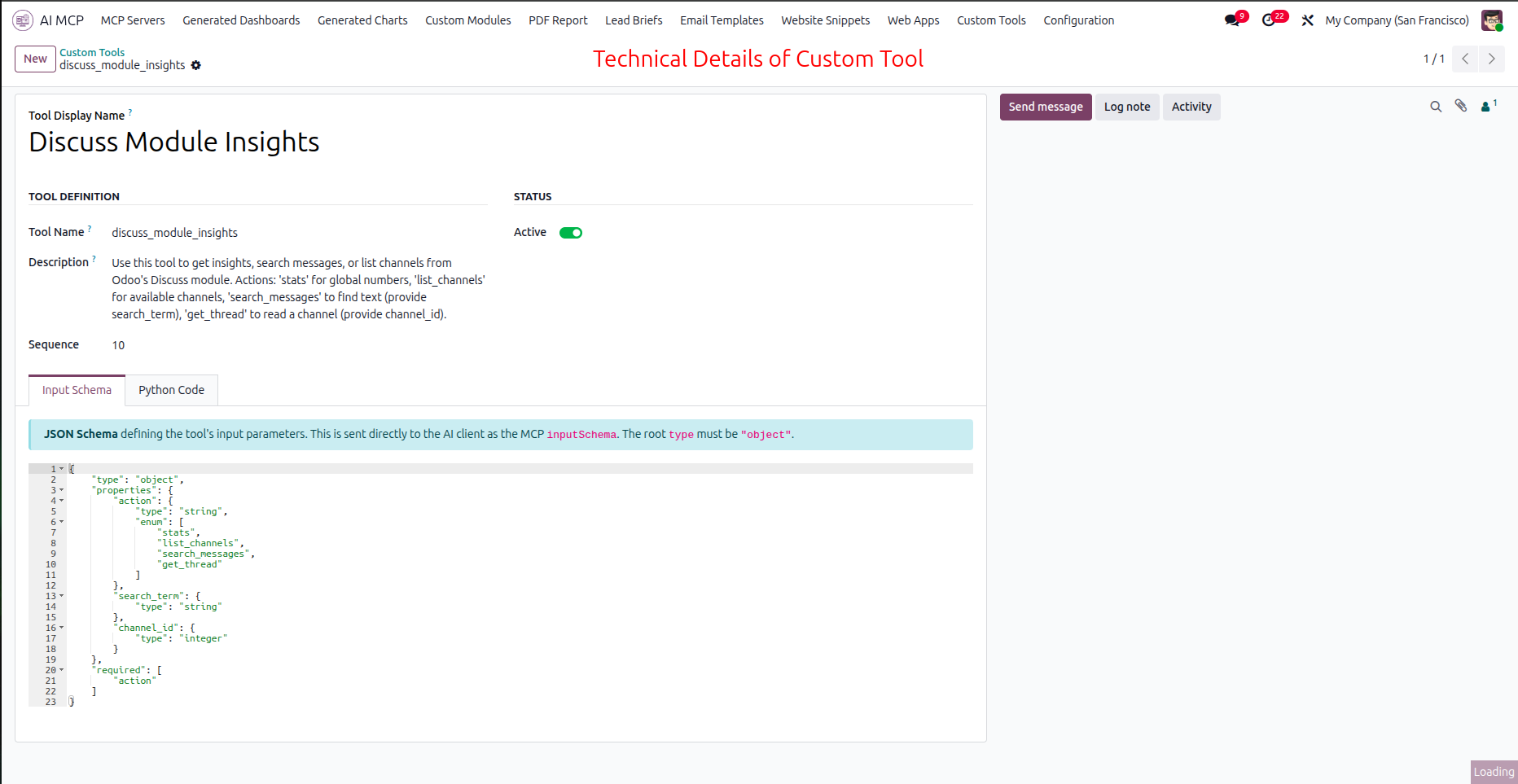
Select the Input Schema tab to view the JSON parameters defined for the custom tool.
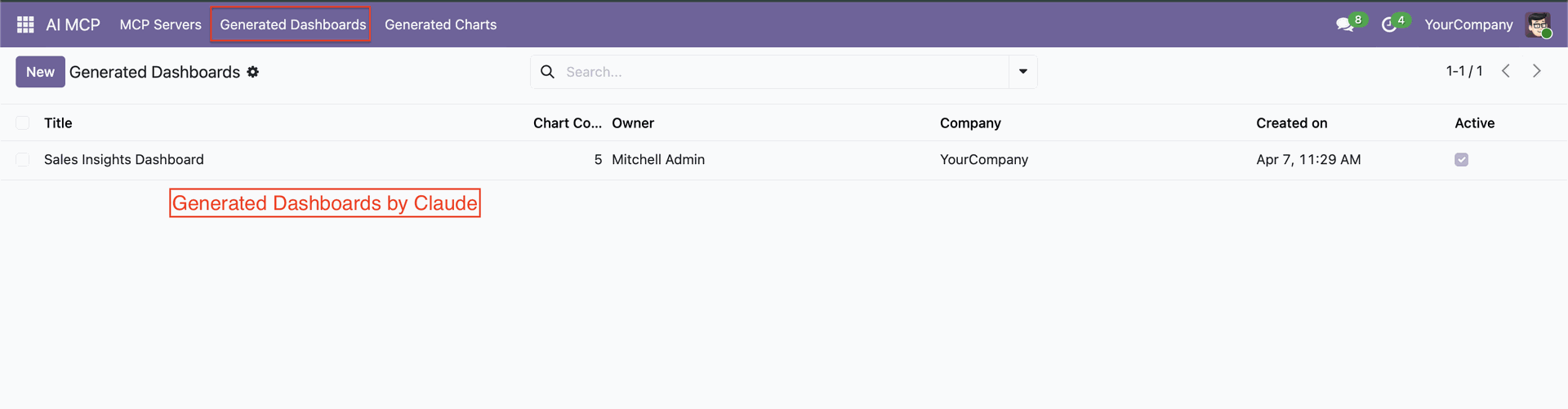
Click 'Generate Dashboard'.
Generate Dashboard form with options.
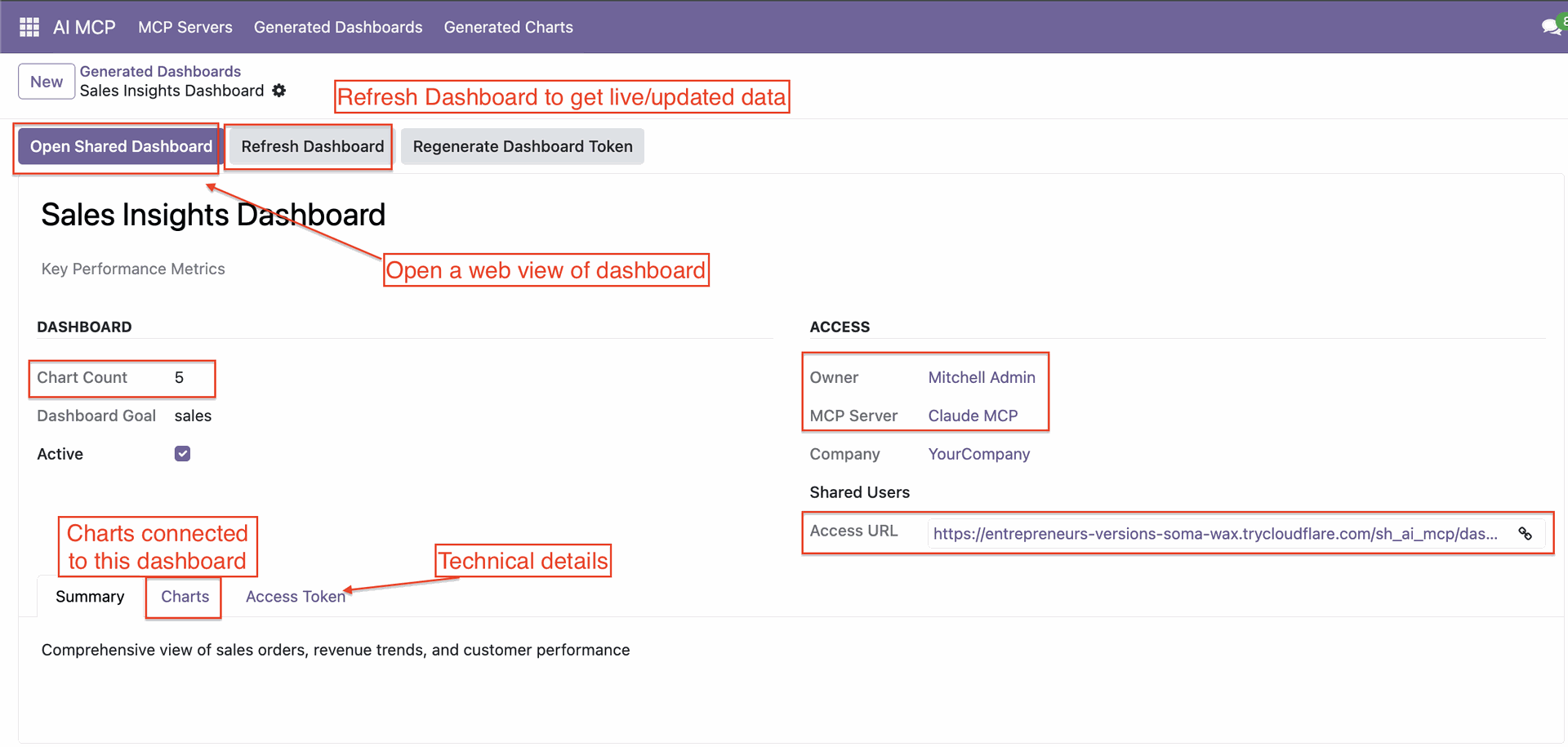
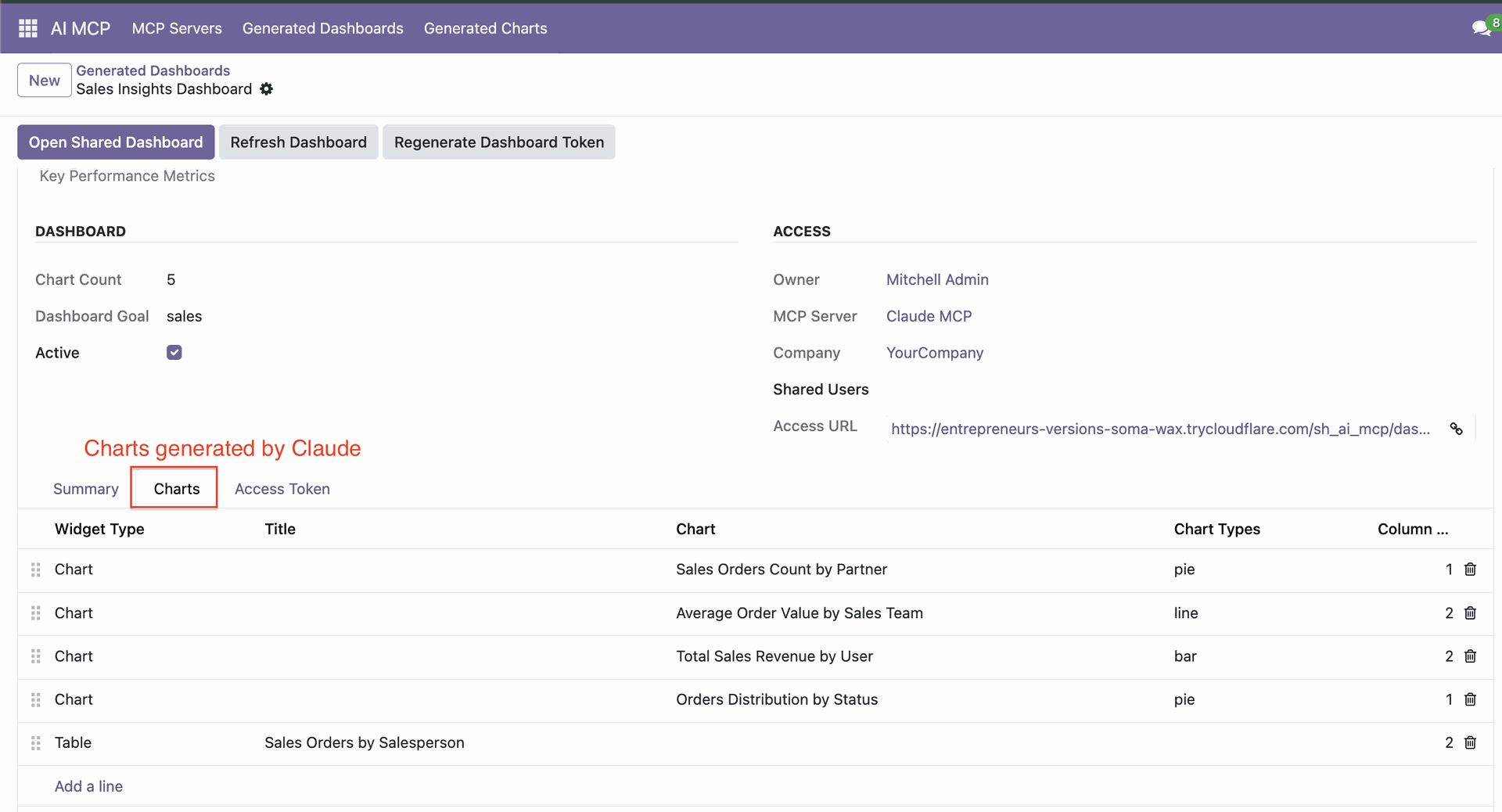
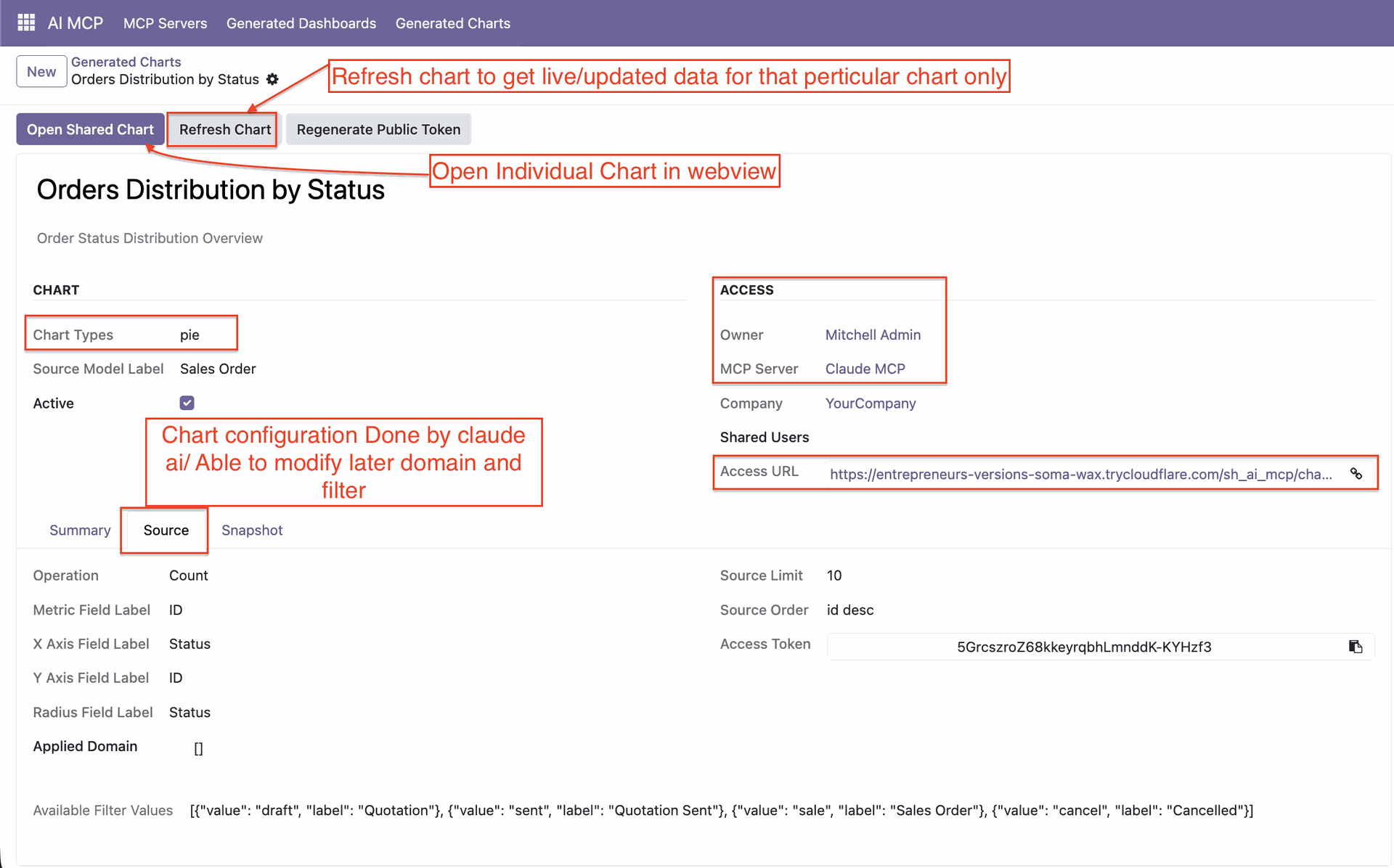
Chart tab with generate charts.
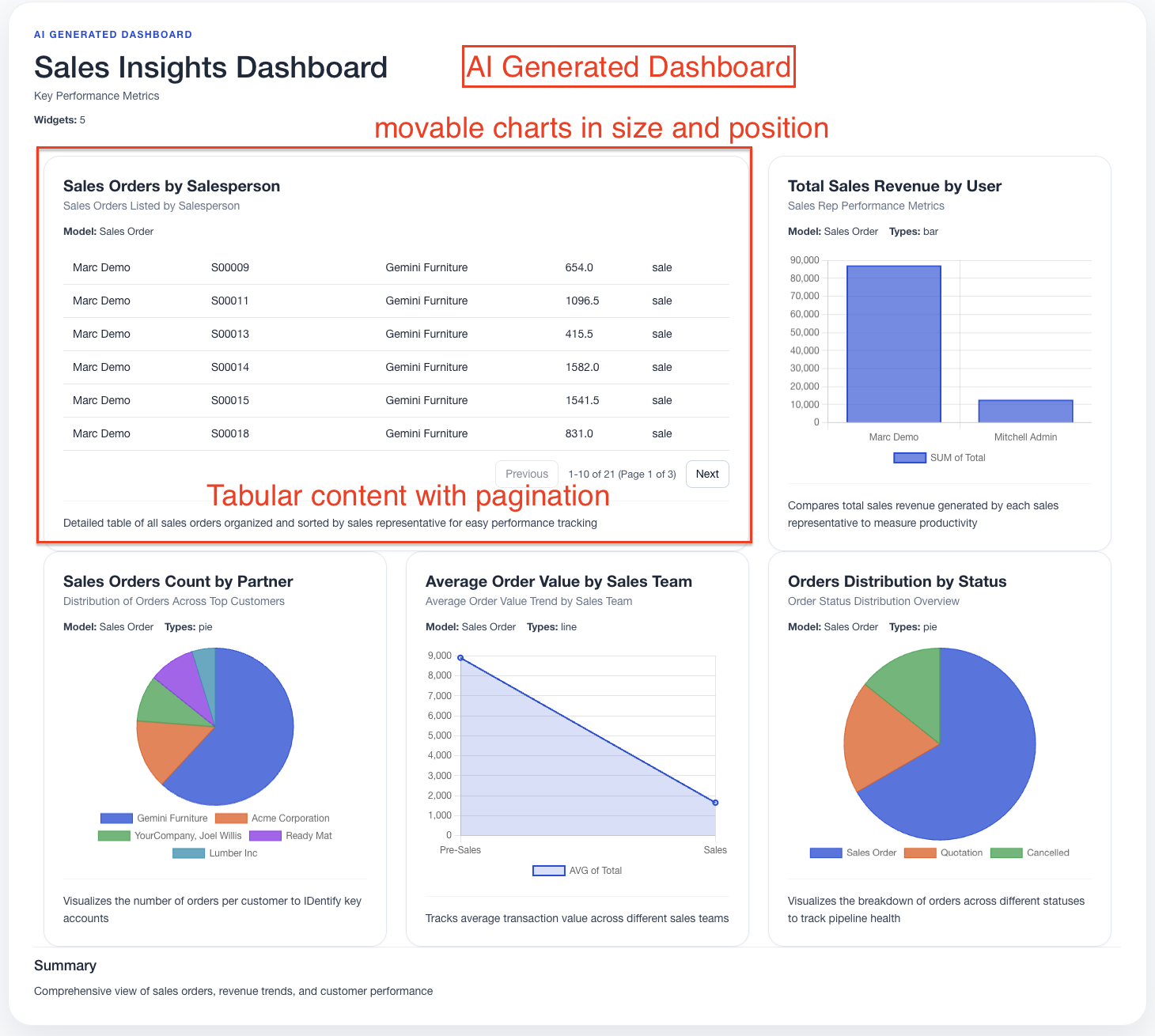
Dashboard view.
Click 'Generate Charts'.
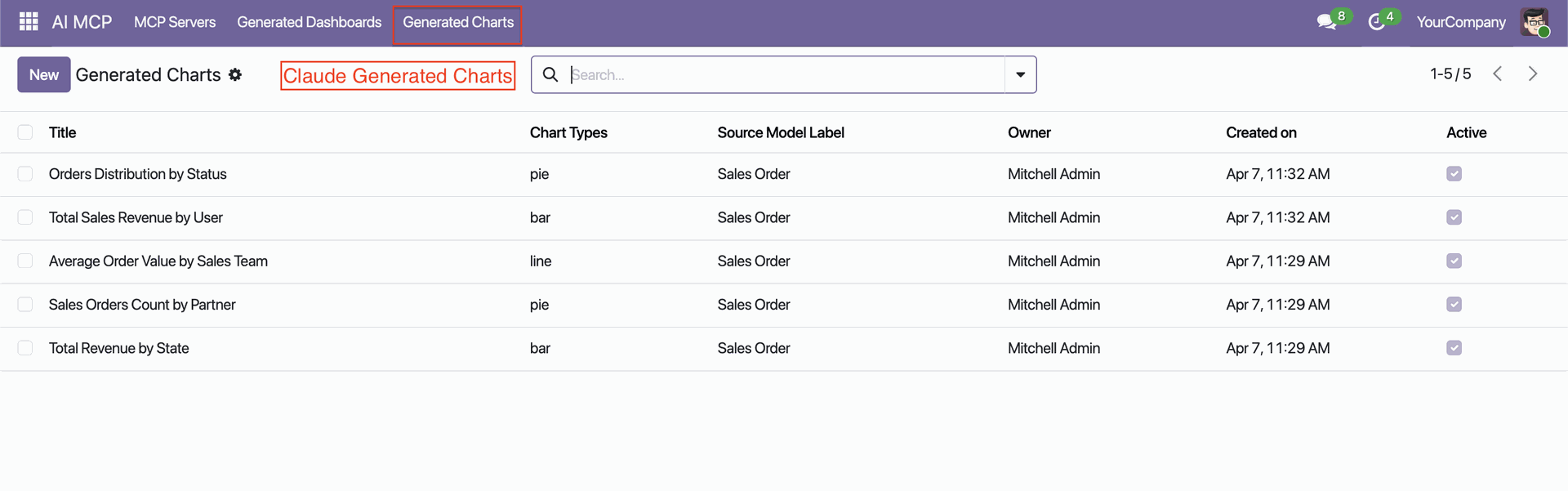
Generate Charts form with options.
Changelog
Track every update and new feature released for this module.
Added an Interactive Tool Catalog View for easier MCP tool discovery and management.
Introduced MCP Sharing via Email to simplify secure tool sharing with users.
Added Access Policies with Admin Mode for enhanced permission and access control.
Updated Access Policy and Access Rights management for improved control and permissions.
Custom Module Creation – Build fully customized Odoo modules tailored to your specific business requirements without manual coding.
Website Snippet Builder – Create reusable and customizable website snippets for Odoo Website pages with AI assistance.
WebApp Creation – Generate standalone Odoo WebApps without requiring external servers, third-party platforms, or additional dependencies.
Tools Execution Log – Track, monitor, and review AI tool executions with detailed activity logs for improved transparency.
IP Restriction Management – Secure access using IP Whitelisting and Blacklisting controls to restrict unauthorized usage.
Dynamic PDF Report Builder – Design, generate, and download fully customizable PDF reports directly from Odoo.
Dynamic Email Template Creator – Create, edit, and manage custom email templates with support for mass email campaigns.
AI-Powered Lead Generation – Generate qualified business leads automatically based on AI analysis of lead requirements and briefs.
Custom Tool Builder – Create personalized AI tools tailored to unique workflows and business processes based on user requirements.
Bulk Record Management – Create, update, and delete multiple records simultaneously to save time and improve productivity.
Supports MCP for Multiple LLMs and Local Agents (Antigravity, Claude WebApp, Claude CLI, Claude Desktop, Gemini CLI, Codex CLI, Codex Desktop App, Codex WebApp).
Initial Release.


 Buy Once, Supported Forever

 Scan to email sales




 Your Ideas Shape Our Roadmap
 Got an Idea? We'll Build It
Why Choose Odoo MCP Studio?
Purpose-built for AI-era enterprises that demand security, flexibility, and automation in one Odoo module.
Enterprise-Grade Security
OAuth 2.1 and token-based auth with field, model, and action-level controls prevent unauthorized access at every layer.
Multi-LLM Compatibility
Works with Claude, Gemini CLI, Codex, Antigravity, and more - giving you freedom to use AI tool with Odoo.
Full CRUD + Dashboards
Create, read, update, and delete records — plus build and share real-time dashboards and charts through secure endpoints.
No Extra Libraries
Installs cleanly on any Odoo instance without additional dependencies. Community and Enterprise both supported.
Business-User Friendly
No technical knowledge required. A simple, guided UI lets any user connect AI agents and manage permissions with ease.
Lifetime Support & Updates
Backed by Softhealer — an Odoo Gold Partner with 11+ years of experience, 10K+ happy customers across 100+ countries.
Trusted by Businesses Worldwide


Abdulhamid Abdulwaheed
Best module for our online store. Highly adaptable, exceptional customer service, and very advanced modules.
Factura Venta POS
They have everything you need. Technical support is excellent, responds quickly, and keeps the module updated. 100% recommended!
Mehmet Muhanna
Great company and support team. Had a problem in my local Odoo server - they solved it in 5 minutes. Highly recommend.
Billy Jeffs
Customised an Odoo app for me which works perfectly. Many requirements, got it right every time. Very confident in their ability.
HP
Consistently excellent service over years of working together. Knowledge and commitment to keeping clients informed truly sets them apart.
Michal Kolasinski
Multiple addons + two custom modules. Communication always friendly and precise. Delivered on time, worked out of the box. Highly recommended!
Modules included





Coming soon
Included free when released
Upcoming
AI CRM Assistant
Intelligent lead scoring, follow-up suggestions, and pipeline insights – AI that helps your sales team close deals faster.

Upcoming
AI Social Media Post Generator
Automatically generate engaging social media posts with AI based on your business content – helping you create platform-ready posts in seconds.

Multi-Language
8 built-in translations







You May Also Like
Discover more Softhealer modules that integrate seamlessly with your Odoo environment.

AI Recruitment Assistant
Automate recruitment processes in Odoo using AI-powered Resume/CV analysis and candidate matching.
View Module

AI Live Chatbot
AI-powered website live chatbot for Odoo offers 24/7 automated support using your Odoo data, documents, and knowledge base.
View Module

AI Dashboard Studio
A powerful and intelligent AI-driven dashboard that brings all your analytics and visual reports into one unified interface.
View Module

AI Insight Assistant
Just ask in natural language and instantly get data, charts, tables, dashboards, and insights - all powered by intelligent automation.
View Module


Most Demanded Apps
The Softhealer modules our customers reach for most - trusted across 100+ countries.

Activities Management
Manage, schedule, and automate Odoo activities across all departments from one view.
View Module

Access Management
Granular access control over menus, fields, buttons, and records for every user role.
View Module

Backdate Advanced
Backdate any transaction across invoices, journals, pickings, and more with full audit.
View Module

All-in-One Helpdesk
Full-featured customer support with tickets, SLA, and customer portal built for Odoo.
View Module

All-in-One Mobile Backend
Access your full Odoo backend from any mobile device with an optimised interface.
View Module

All-in-One Import
Import data from Excel or CSV files into any Odoo model with smart field mapping.
View Module
Our Services
End-to-end Odoo expertise - from setup to scale.

AI & Business Integration
Odoo Implementation
Odoo Customization

Support & Maintenance

Mobile Apps

Migration Service

Third-Party Integration

Odoo Training
Ready to connect your AI to Odoo?
Join 10,000+ businesses - Softhealer, 11+ years of Odoo expertise across 100+ countries.

