













InsightMate - AI Live Chatbot - Real Time Intelligent Support
Our AI-powered website live chatbot for Odoo offers 24/7 automated support by intelligently using your Odoo data, documents, and knowledge base to answer customer queries instantly. It supports multiple chatbots, custom response styles, and integration with AI providers like ChatGPT and Google Gemini. With secure Odoo data access, external document support, smart AI-to-human routing, and usage limits, it reduces support workload while delivering fast, accurate, and engaging responses—anytime, without human dependency. It supports multiple knowledge base sources, including external documents, and uses a Retrieval-Augmented Generation (RAG) system to fetch the most relevant content before generating accurate and context-aware responses.


Multi-Chat Bot Creation
Create and manage multiple AI chatbots with separate configurations and use cases.
 Watch Video

Multi-Provider AI Integration
Connect chatbots with AI providers like OpenAI, Gemini, and more from a single platform.

Knowledge Sources
Use documents, websites, and other sources to provide accurate AI responses.
Watch Video

Restrict What AI Can Use to Respond
Control which knowledge sources are available for each chatbot response.
Watch Video

AI That Reads PDFs, Docs & URLs
Allow AI to understand and answer questions from PDFs, documents, and web pages.
Watch Video

Chatbot Specific Configurations
Configure prompts, behavior, settings, and features individually for each chatbot.
Watch Video

Custom Message for Unavailable Operators
Display a custom message when no human operators are available to assist.

Switch from AI to Human Agent
Transfer conversations from AI to a human agent whenever needed.
Watch Video

System Prompt and Chatbot Prompt
Define custom prompts to control chatbot behavior and response quality.
Watch Video

Response Style Configuration
Customize how AI responds with different tones, formats, and styles.
.svg)
AI Tool Token Usage Limit (Per Chatbot)
Set token usage limits for each chatbot to control AI consumption.
.svg)
AI Tool Token Usage Limit (Per User)
Restrict token usage per user to manage costs and resource allocation.

Chatbot On/Off Control
Enable or disable chatbots instantly whenever required.

Smart Document Splitting
Automatically split large documents into optimized sections for better AI understanding.

Custom Development Friendly
Built to support customizations and integrations without affecting stability.

OpenRouter Integration
Connect OpenRouter to access multiple AI models through a single API.
Watch Video
-
 Access Rights
-
 Multi-Chat Bot Creation
-
 External Document Knowledge
-
 External URL Knowledge
-
 Multi-Provider AI Integration
-
 System Prompt and Chatbot Prompt
-
 AI Tool Token Usage Limit
-
 Conversation Memory Configuration
-
 Tool Calling and Dynamic Flow Limits
-
 AI Response & Operator Routing
-
 Knowledge Source Access Restrictions
-
 OpenRouter Integration
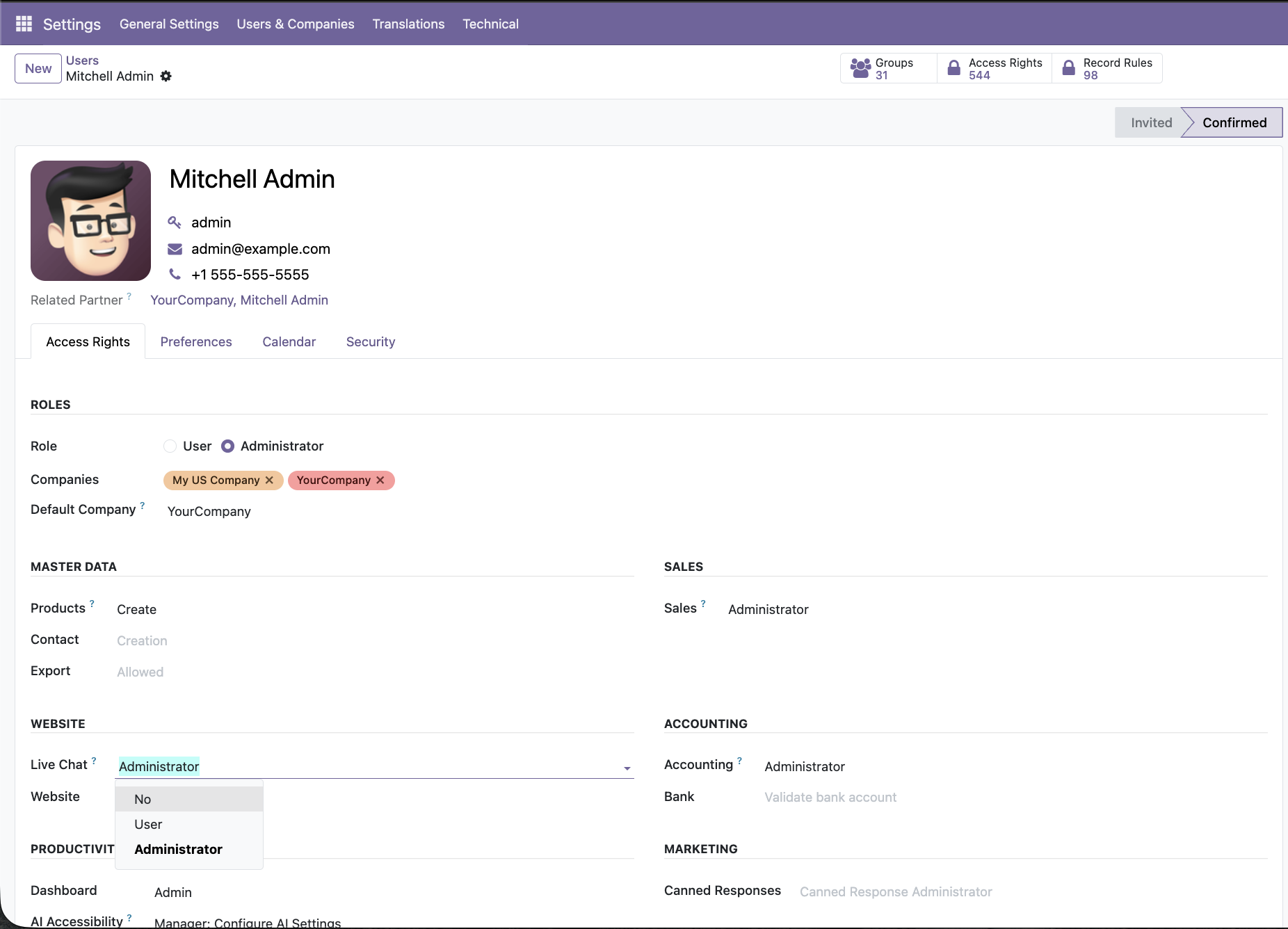
Assign Live Chat access to control who can manage and operate AI-powered live chat features.
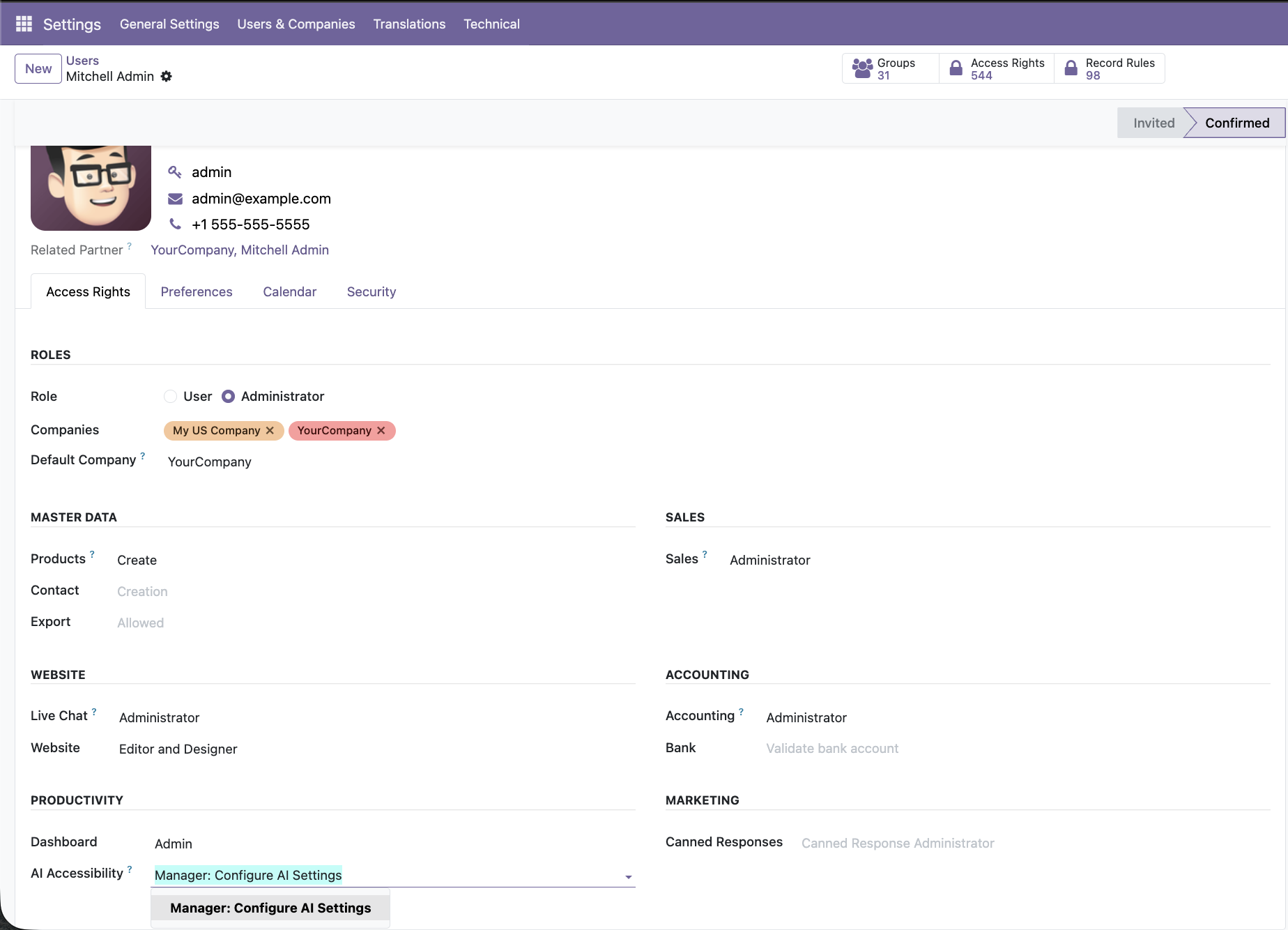
Grant AI accessibility permissions to allow selected users to configure LLM settings, knowledge bases, and AI Live Chat behavior.
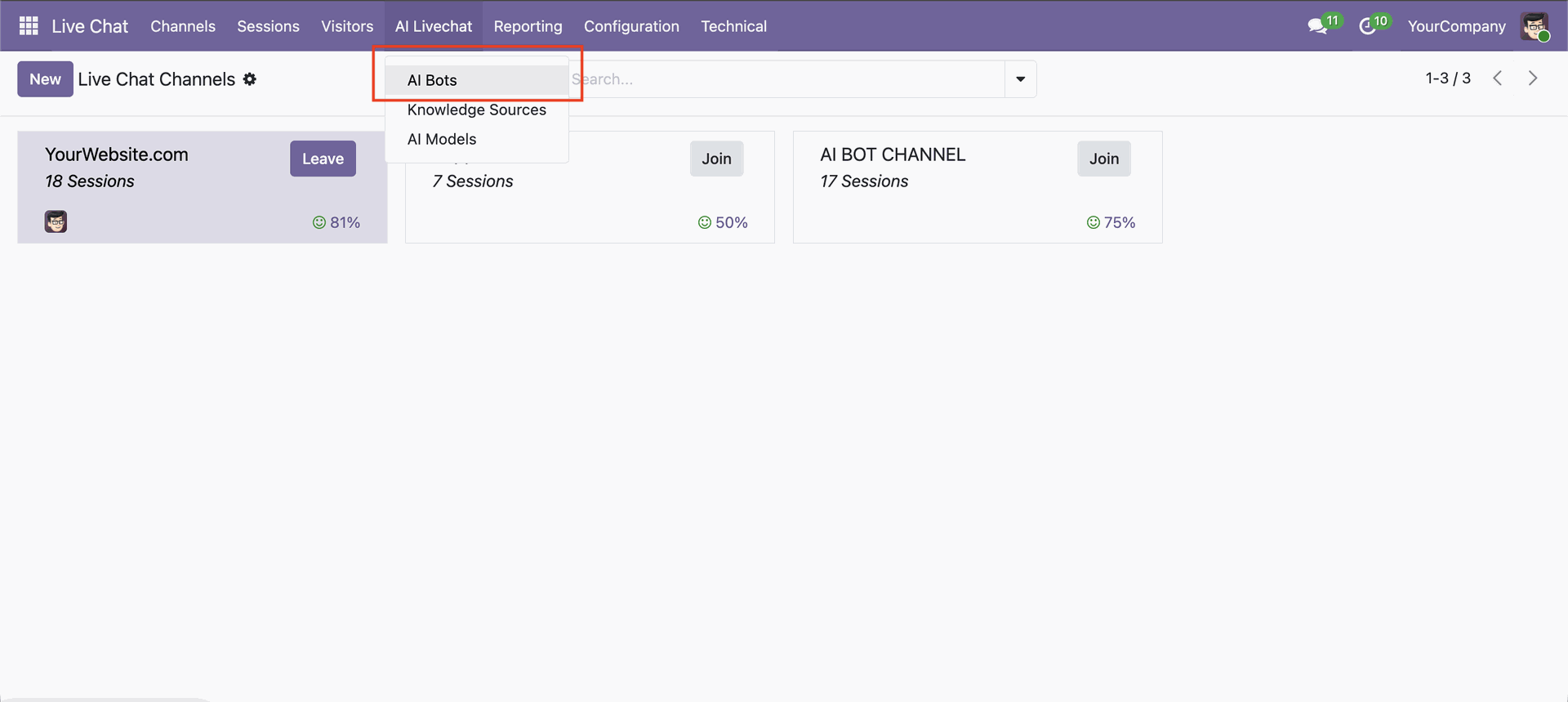
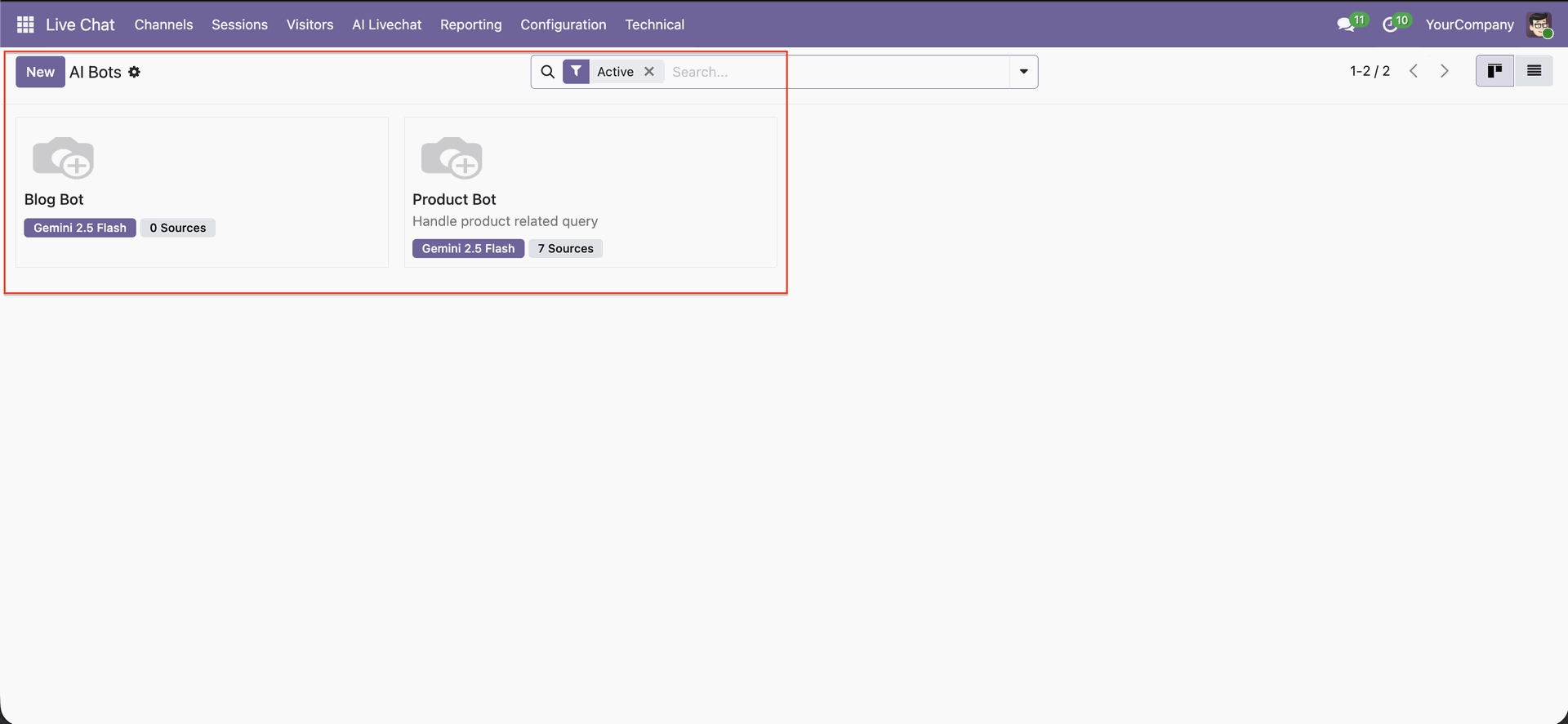
Go to the AI Live Chat -> AI Bots.
View all configured AI bots with their assigned AI model and connected knowledge sources.
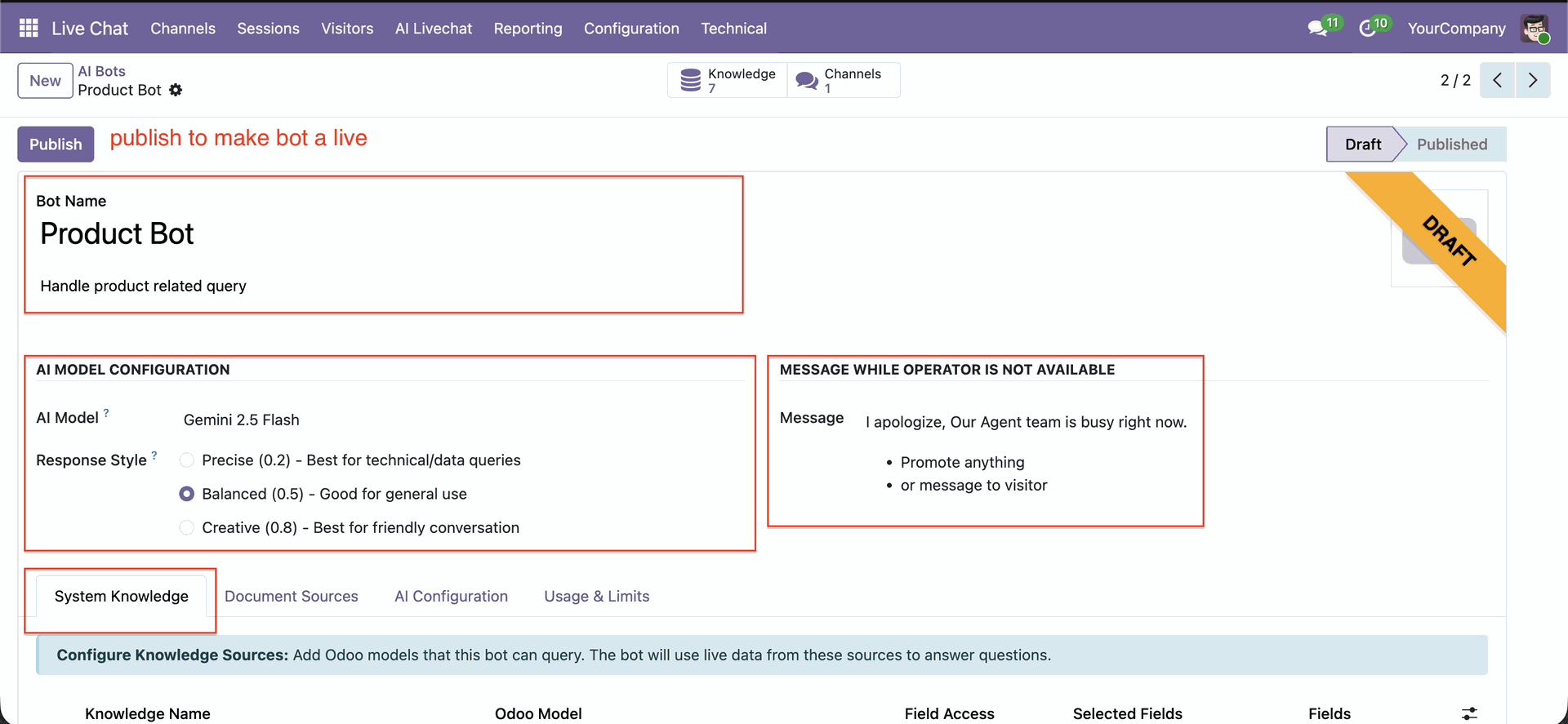
Define the AI bot name and its primary responsibility for handling user queries. Publish the bot to make it live and available for visitor conversations.
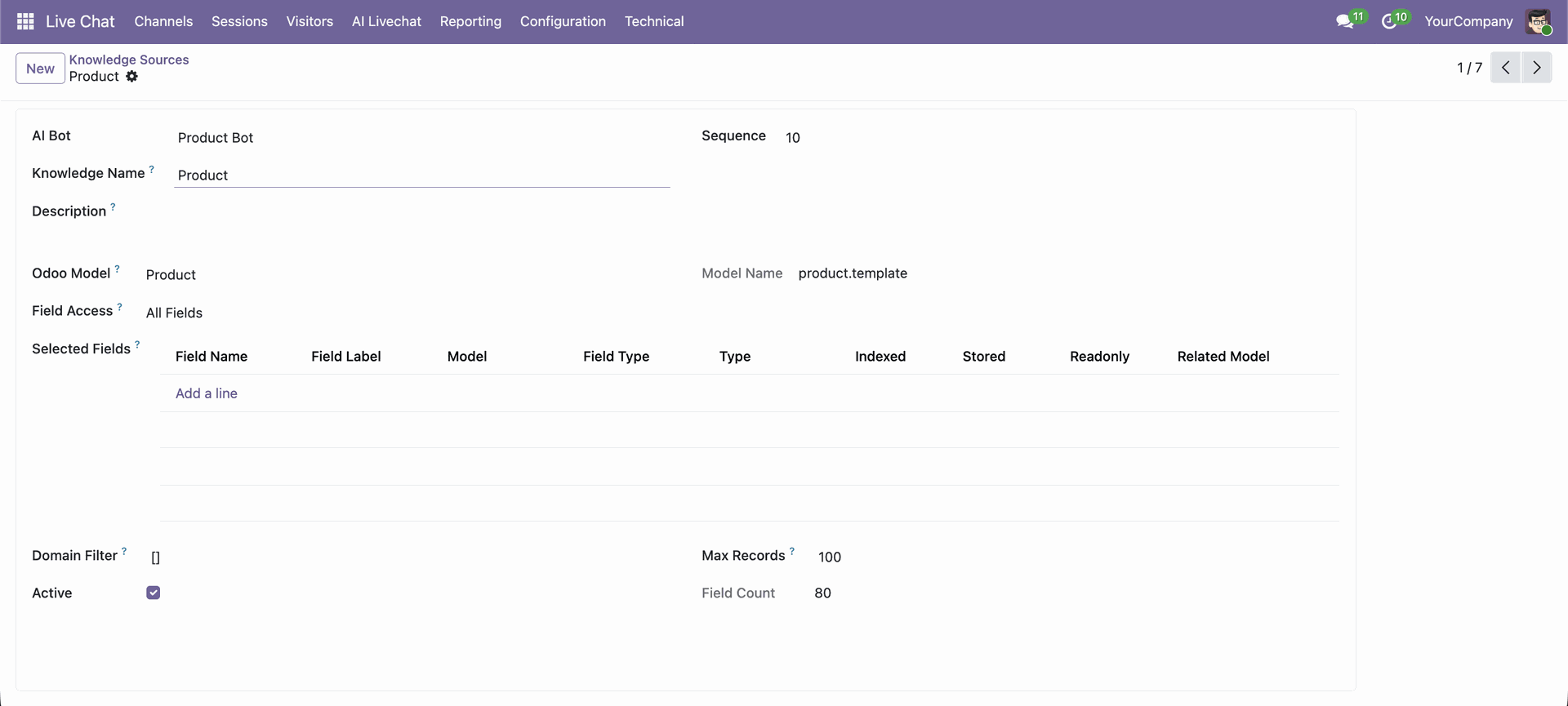
Configure Odoo models that the AI bot can access for answering live queries.
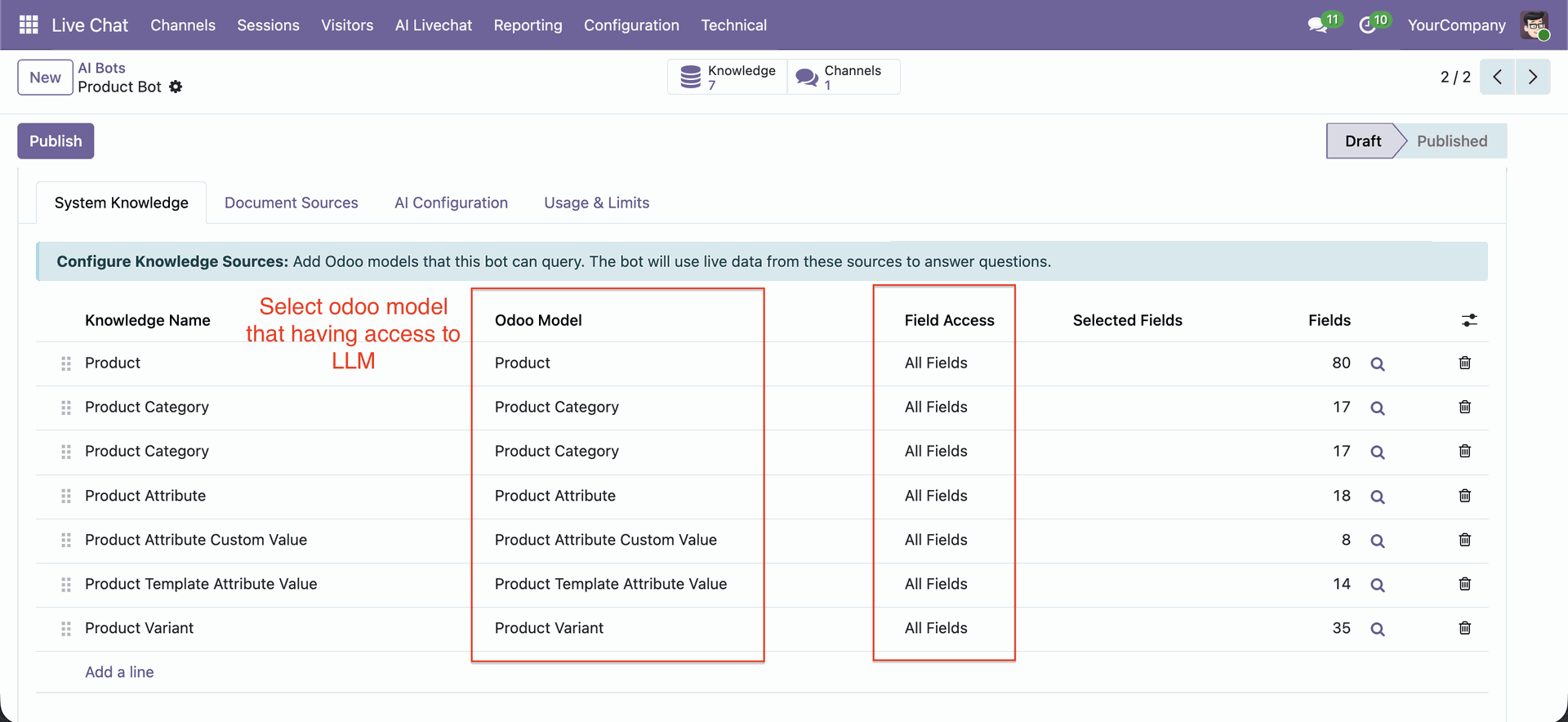
You can choose the model, fields, and selected fields; it shows the total number of fields in 'Fields'.
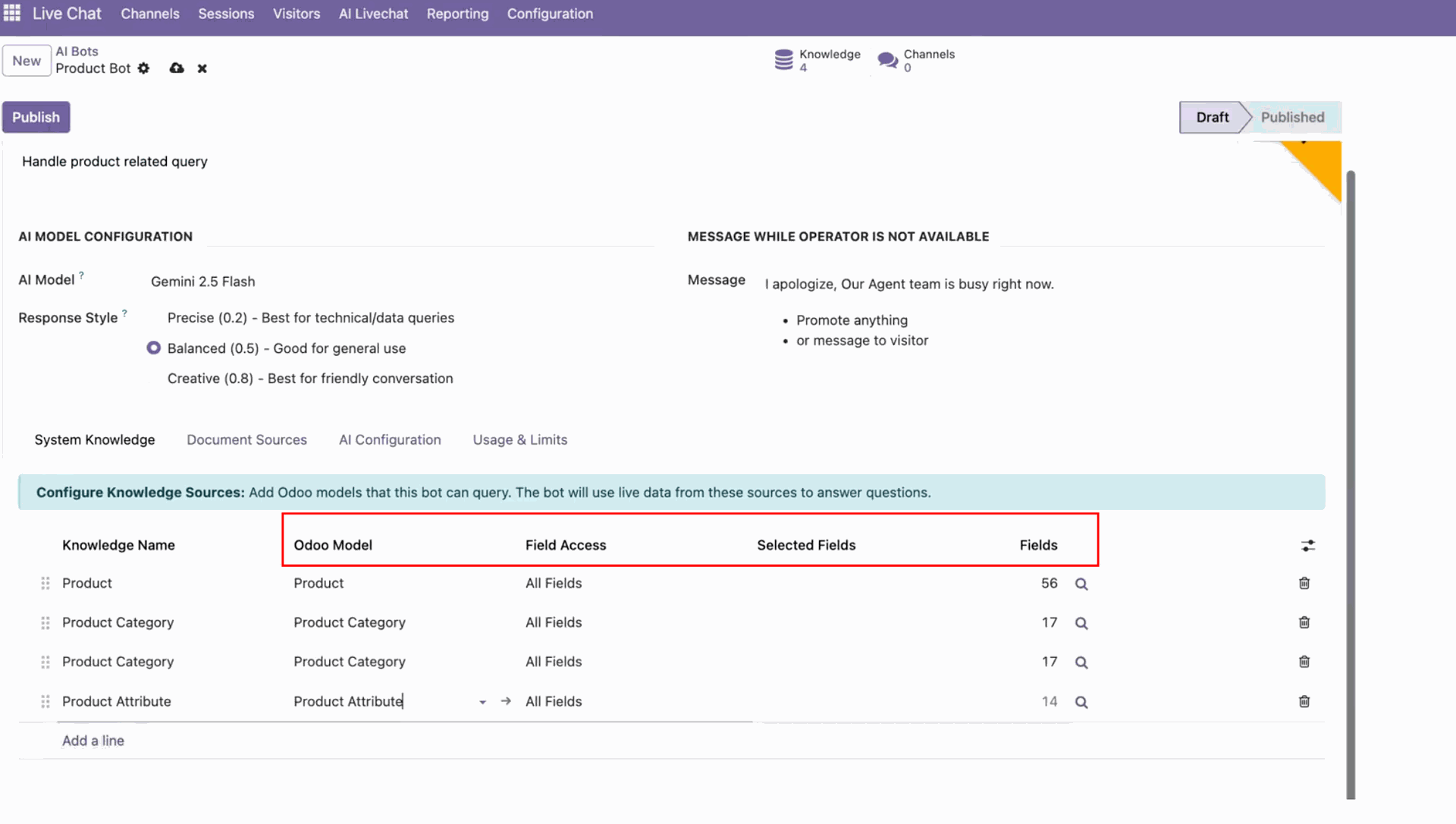
You have the option to select All Fields or Selected Fields.
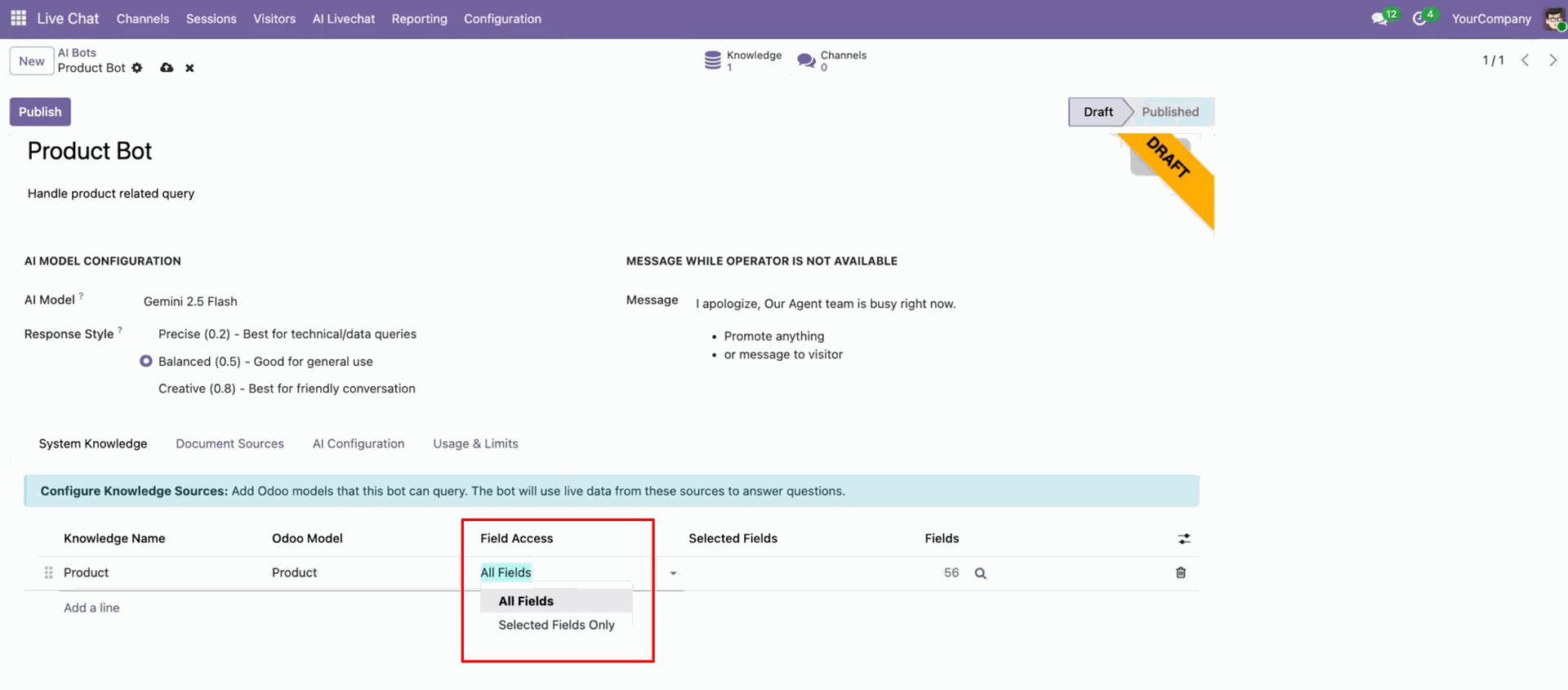
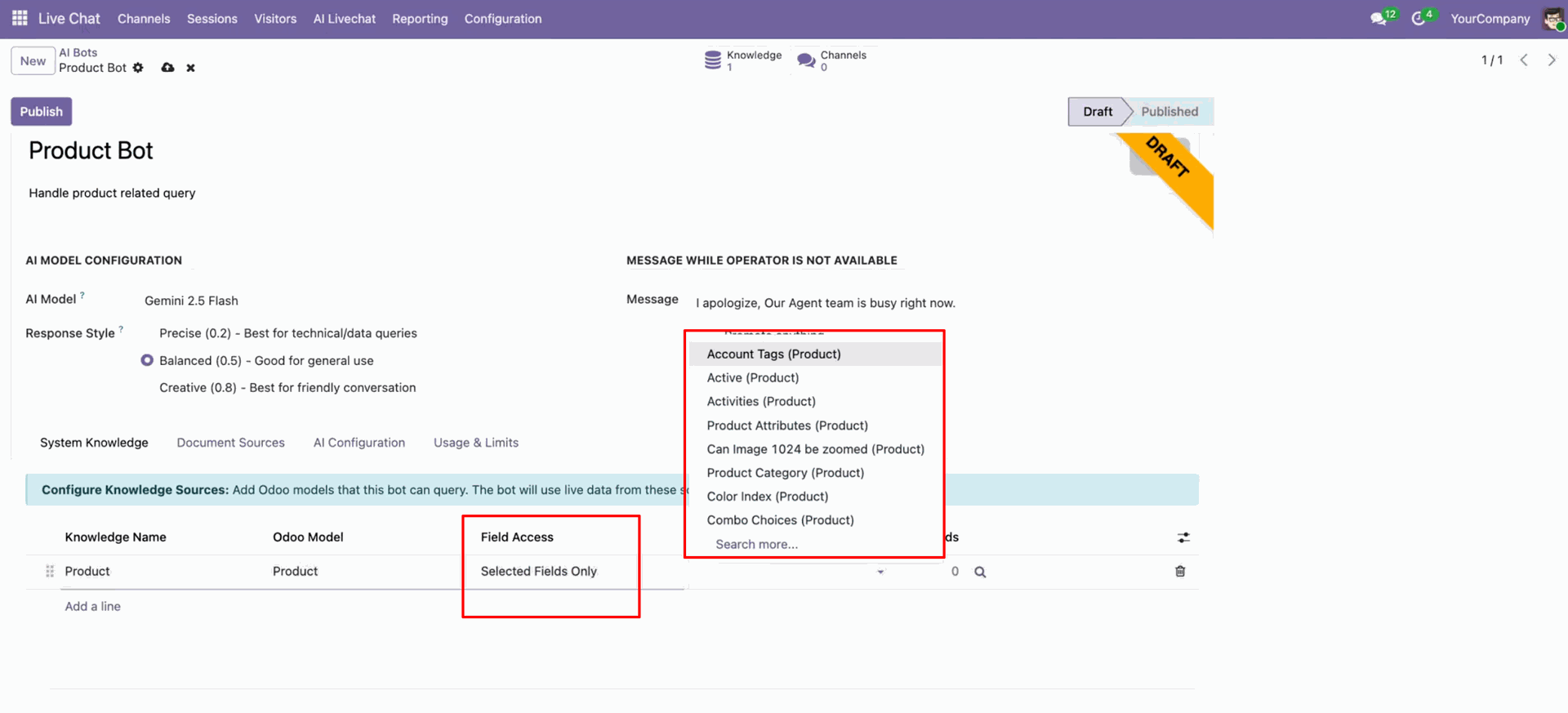
When you select 'selected fields only', you can choose fields as needed.
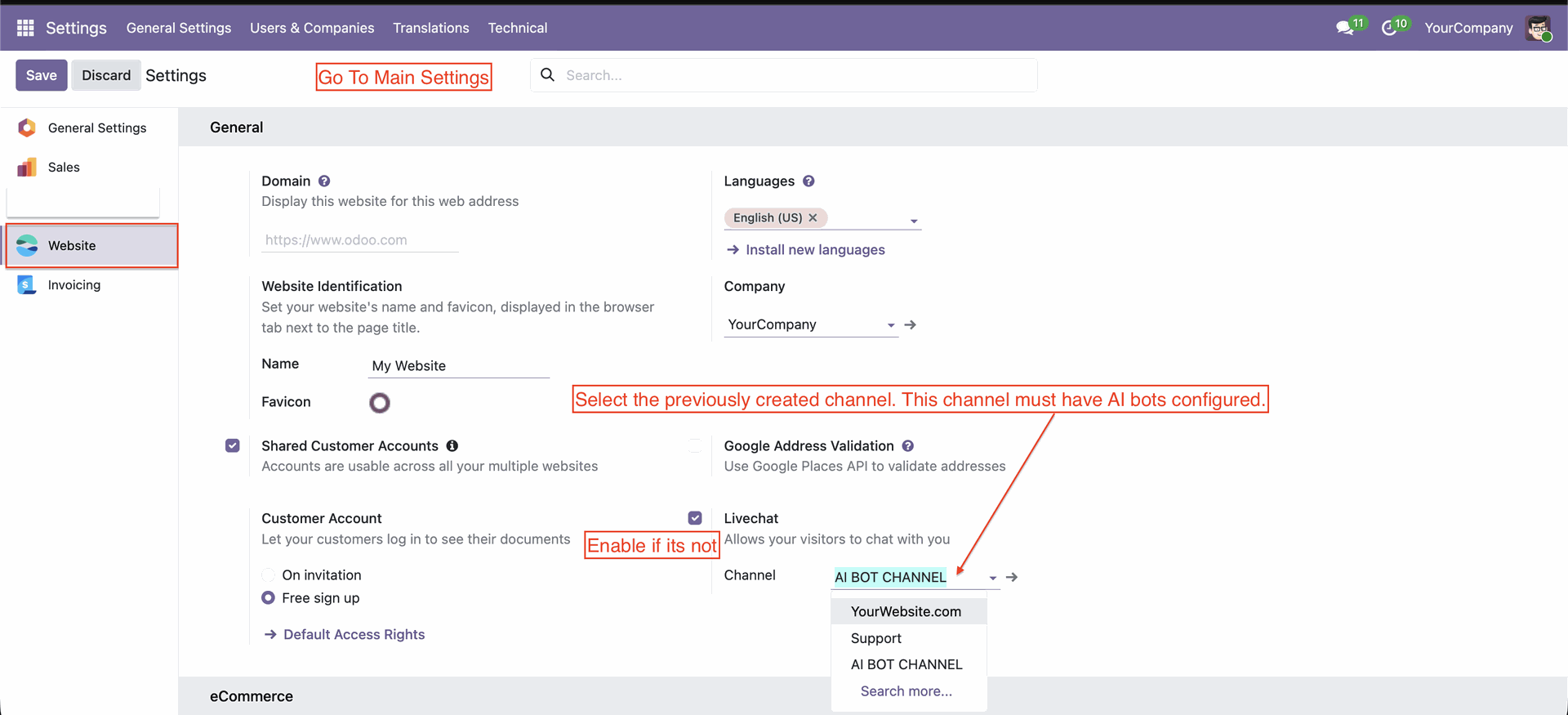
Configuration for the BOT channel.
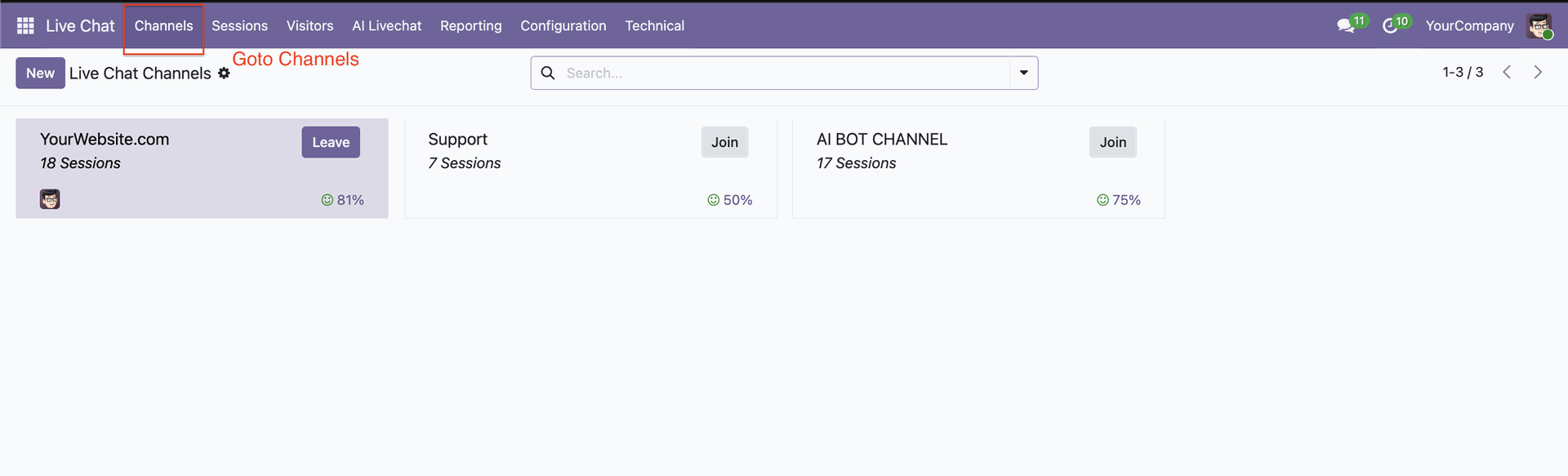
Navigate to live chat channels where AI bots can be assigned and activated.
You can set a dedicated agent or operator in the bot.
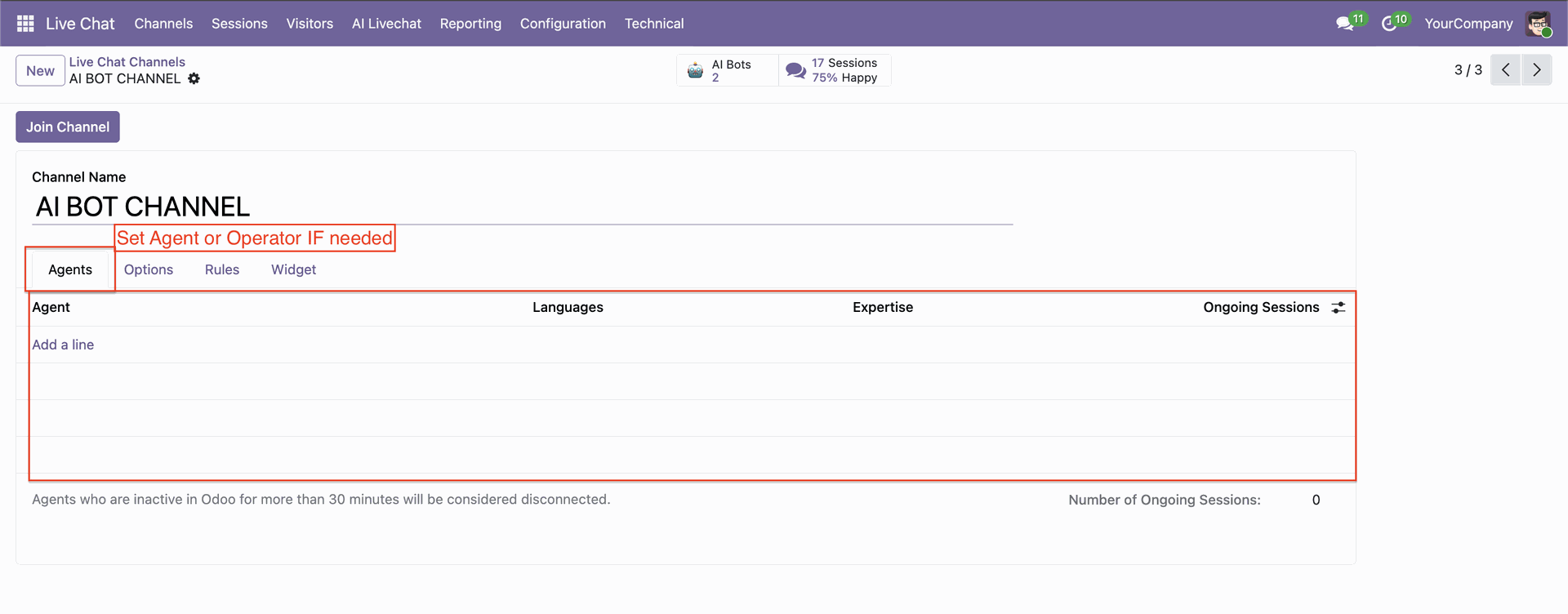
Click "Add a line" to set up Bot rules.
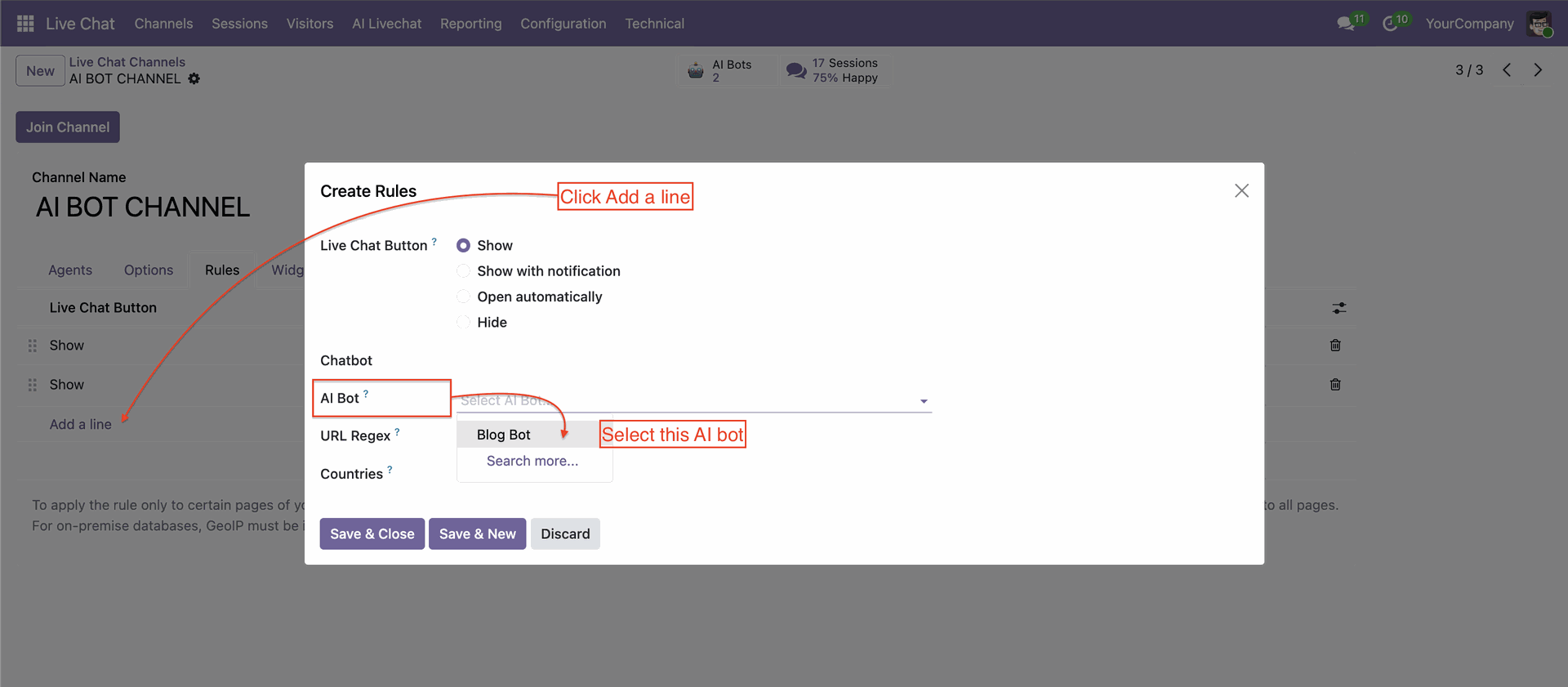
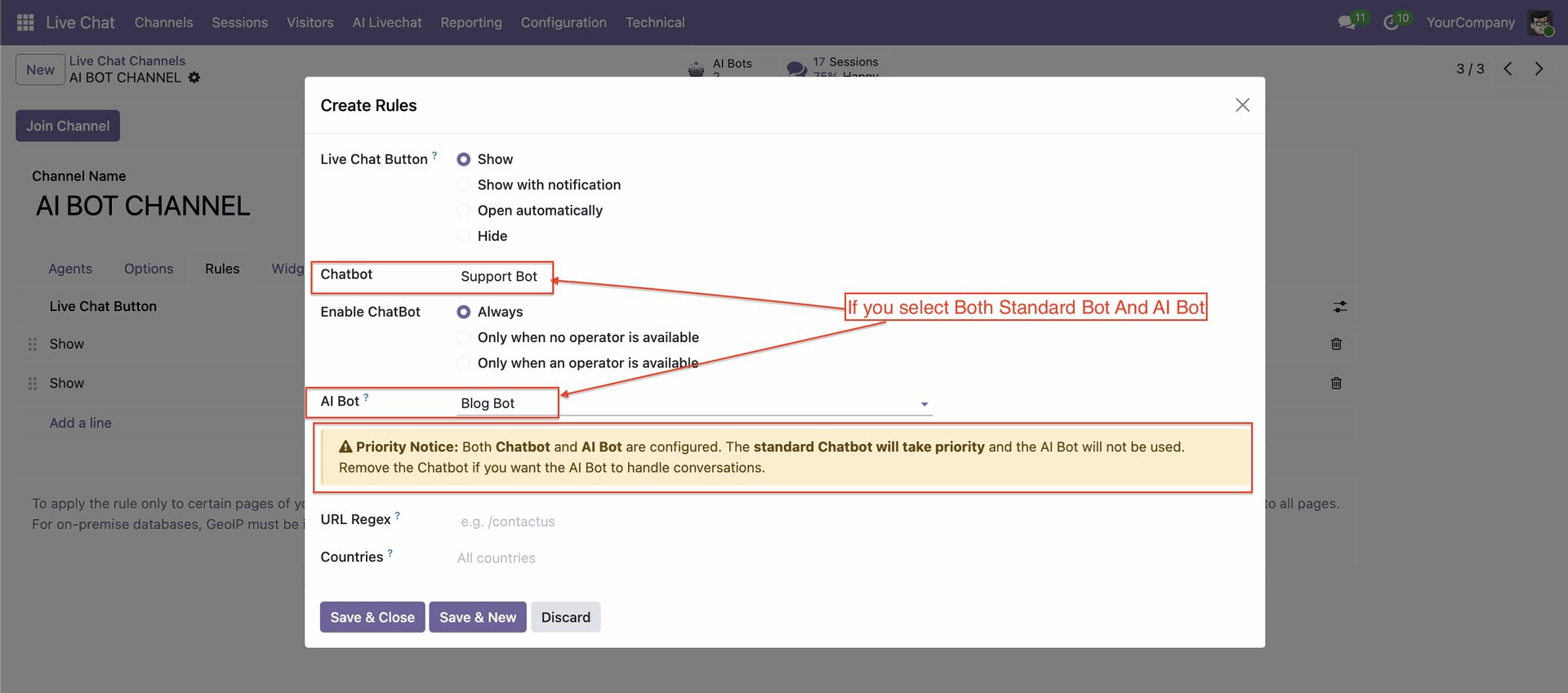
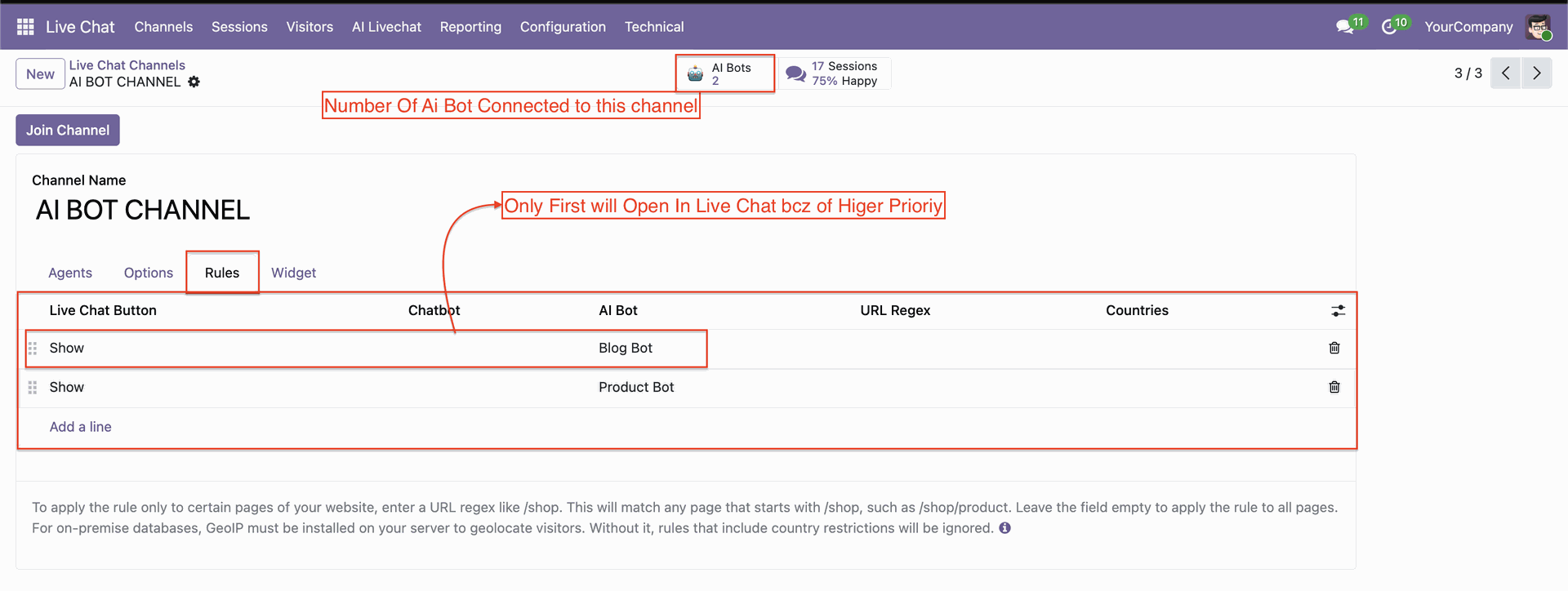
You can manage multiple bots independently for different use cases or departments.
Go to the AI Bots -> Document Sources, Upload document, and click sync documents.
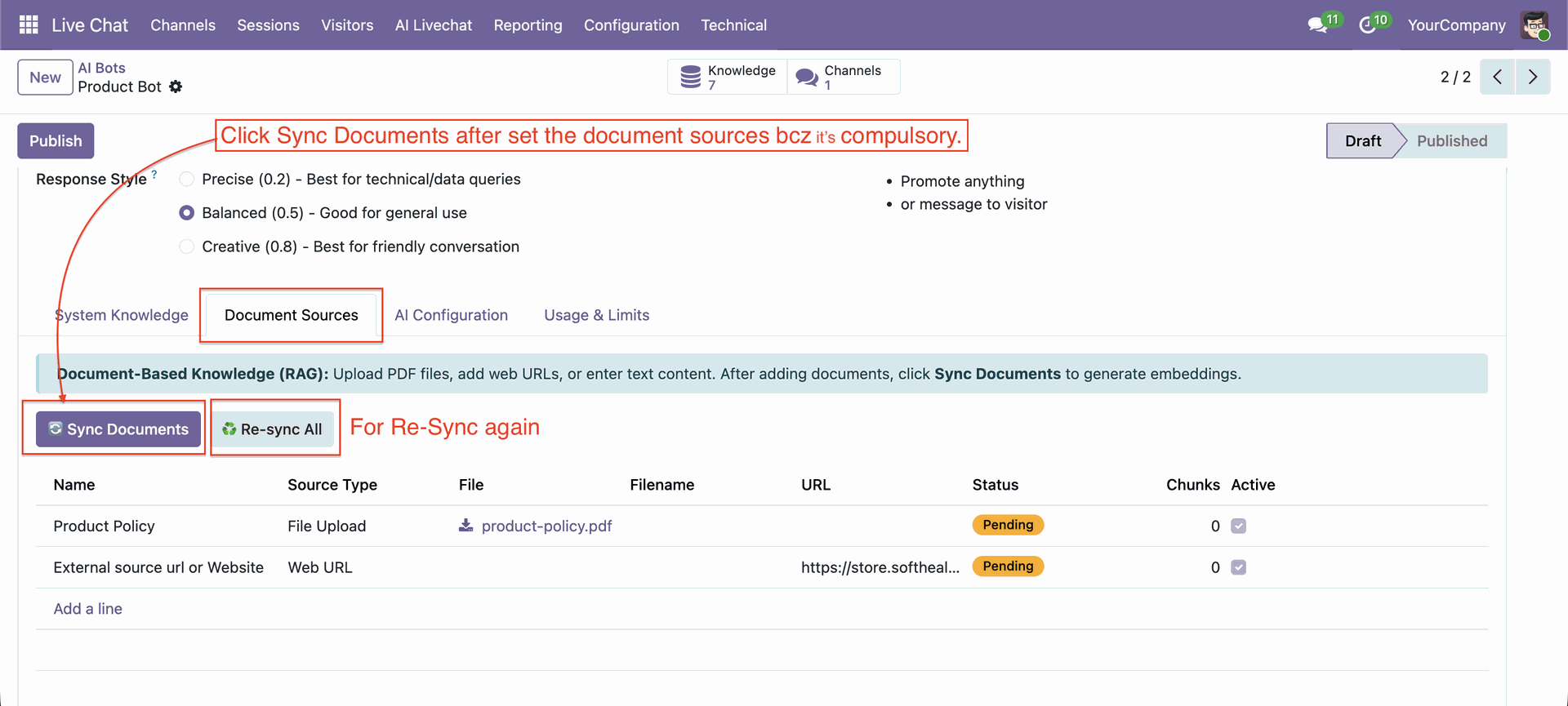
Notification for synced documents.
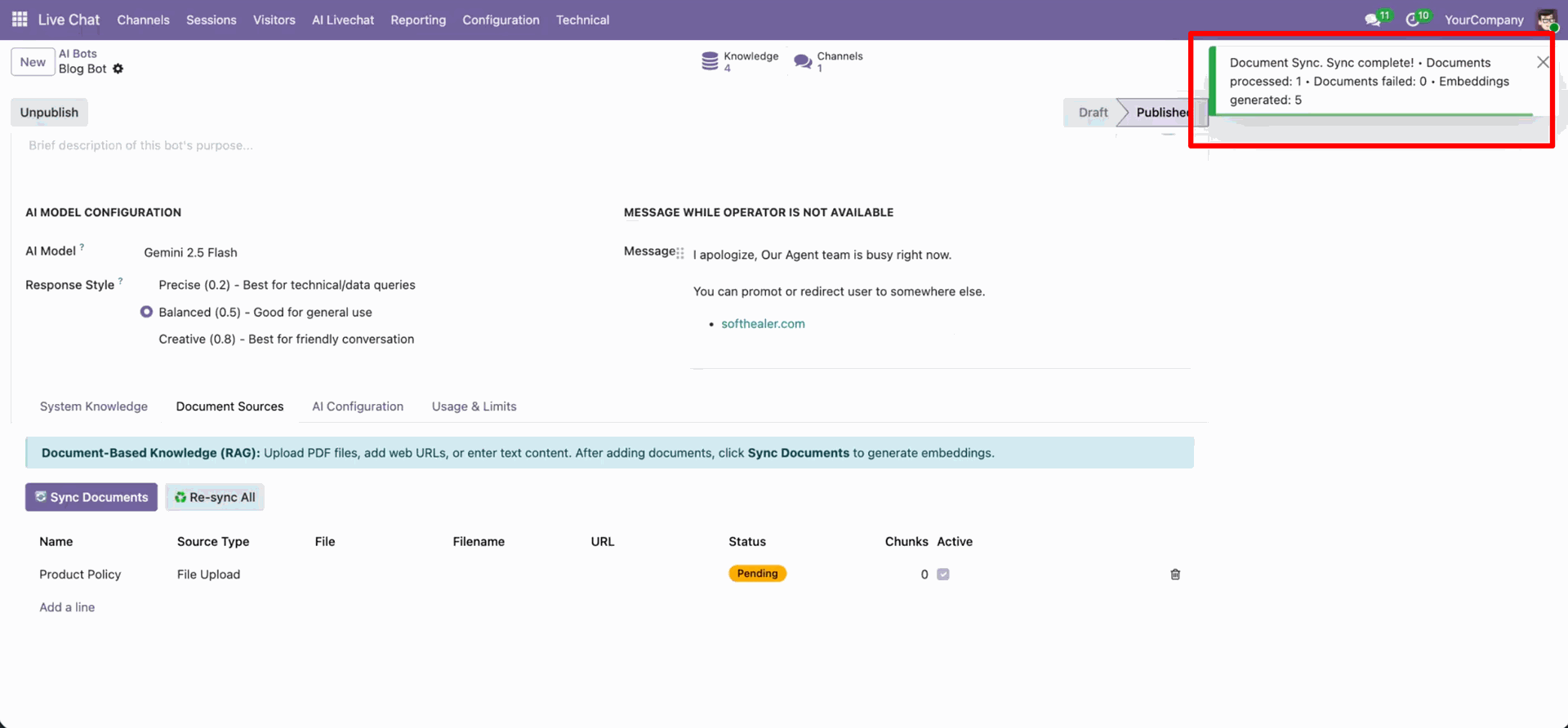
You can access knowledge sources and channels using the smart button.
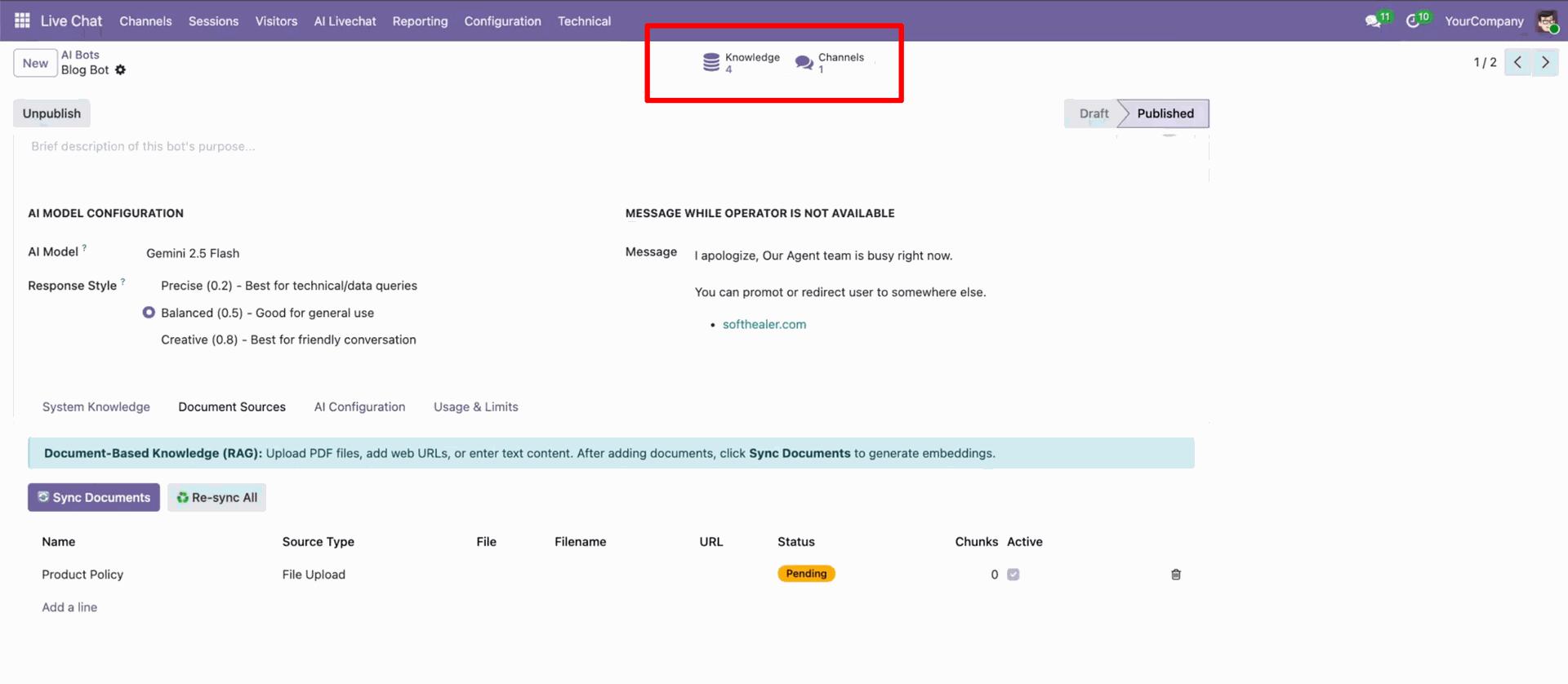
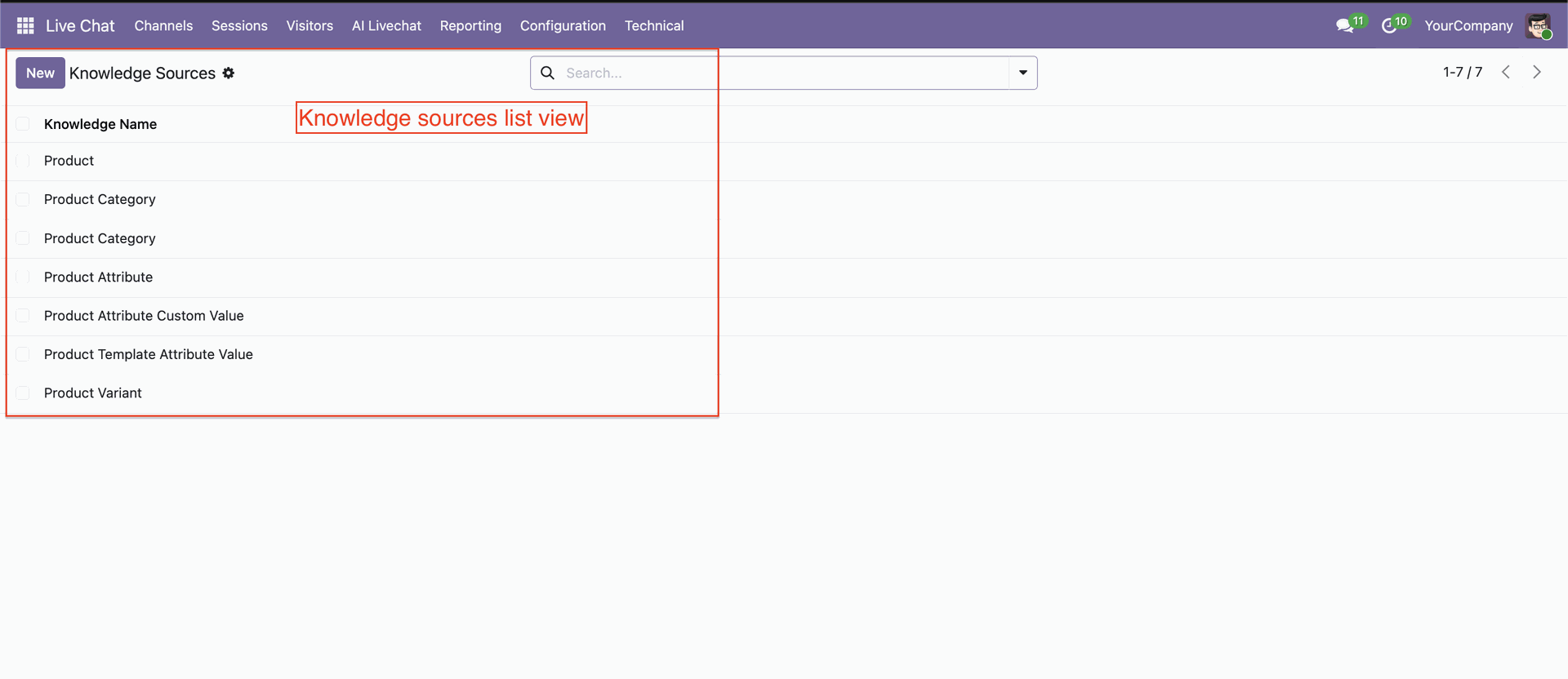
Knowledge sources list view.
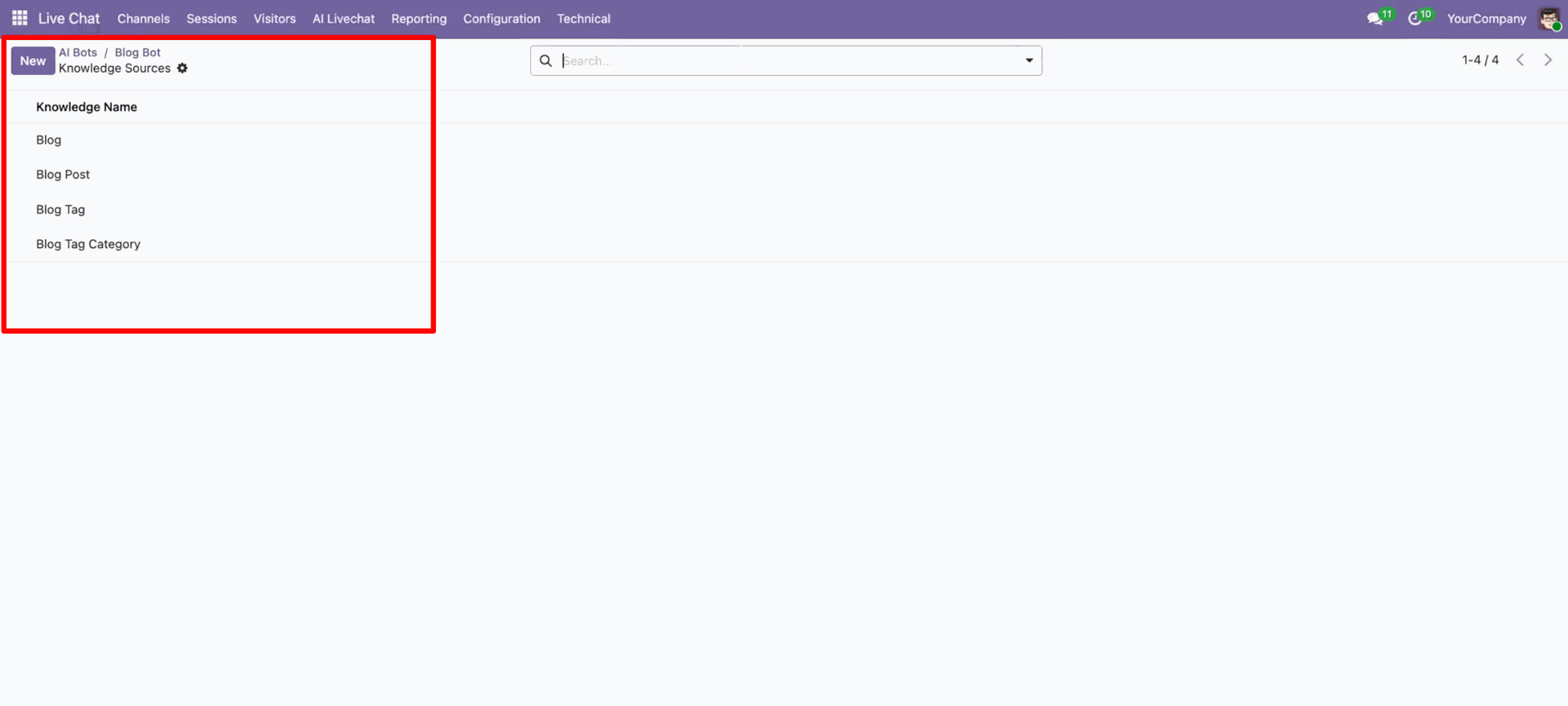
In the bot form view, click on the "Chunks" icon.
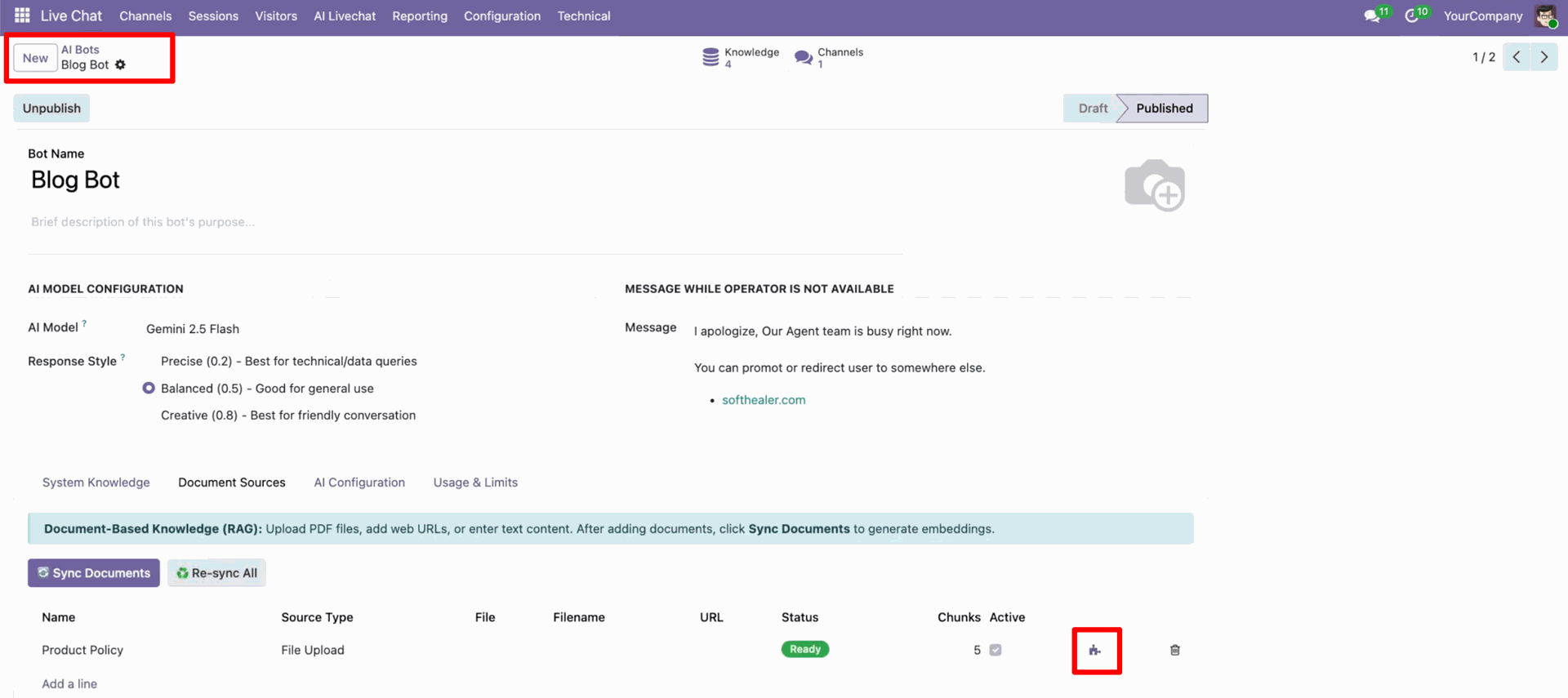
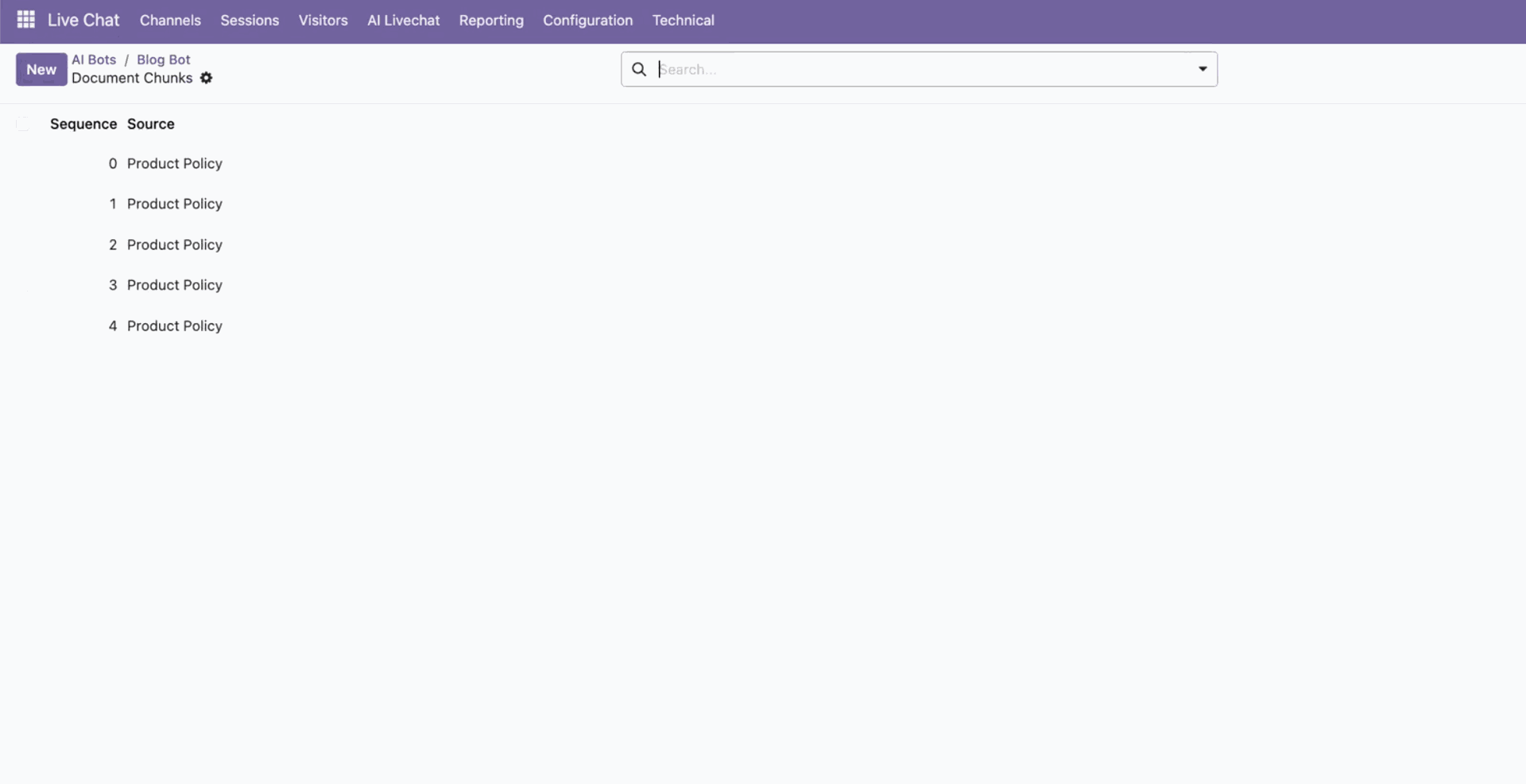
It will open document chunks.
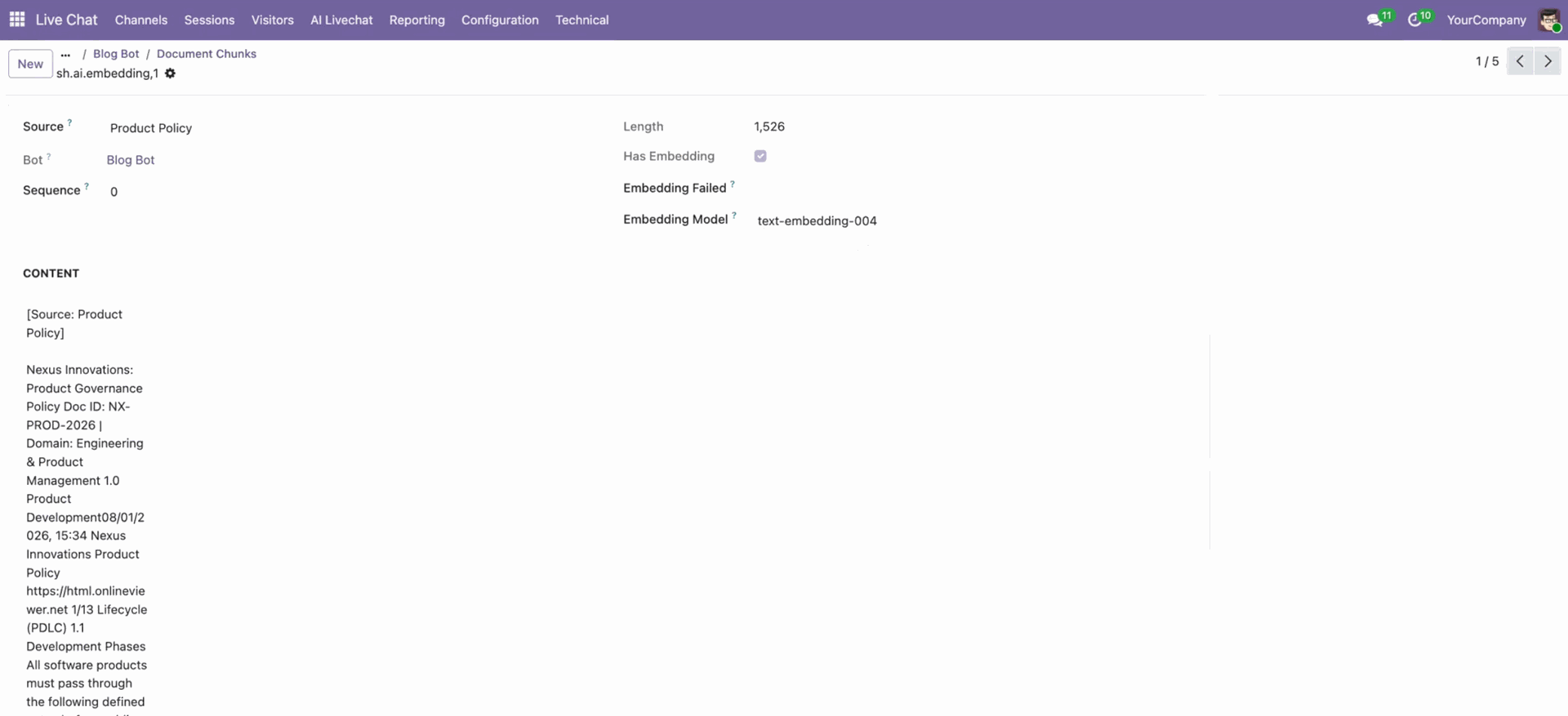
In the document chunks view, you can configure details.
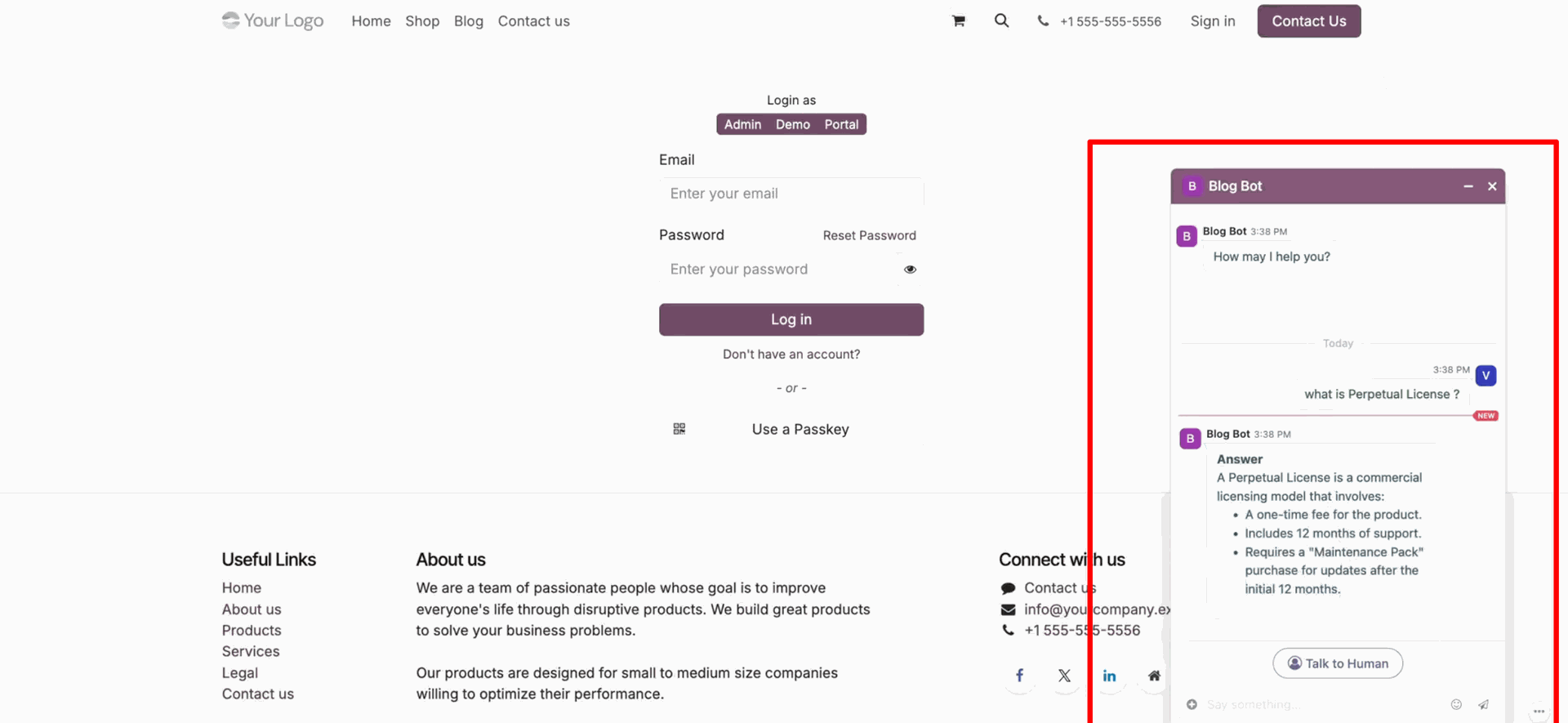
Live chat as per the configured documents.
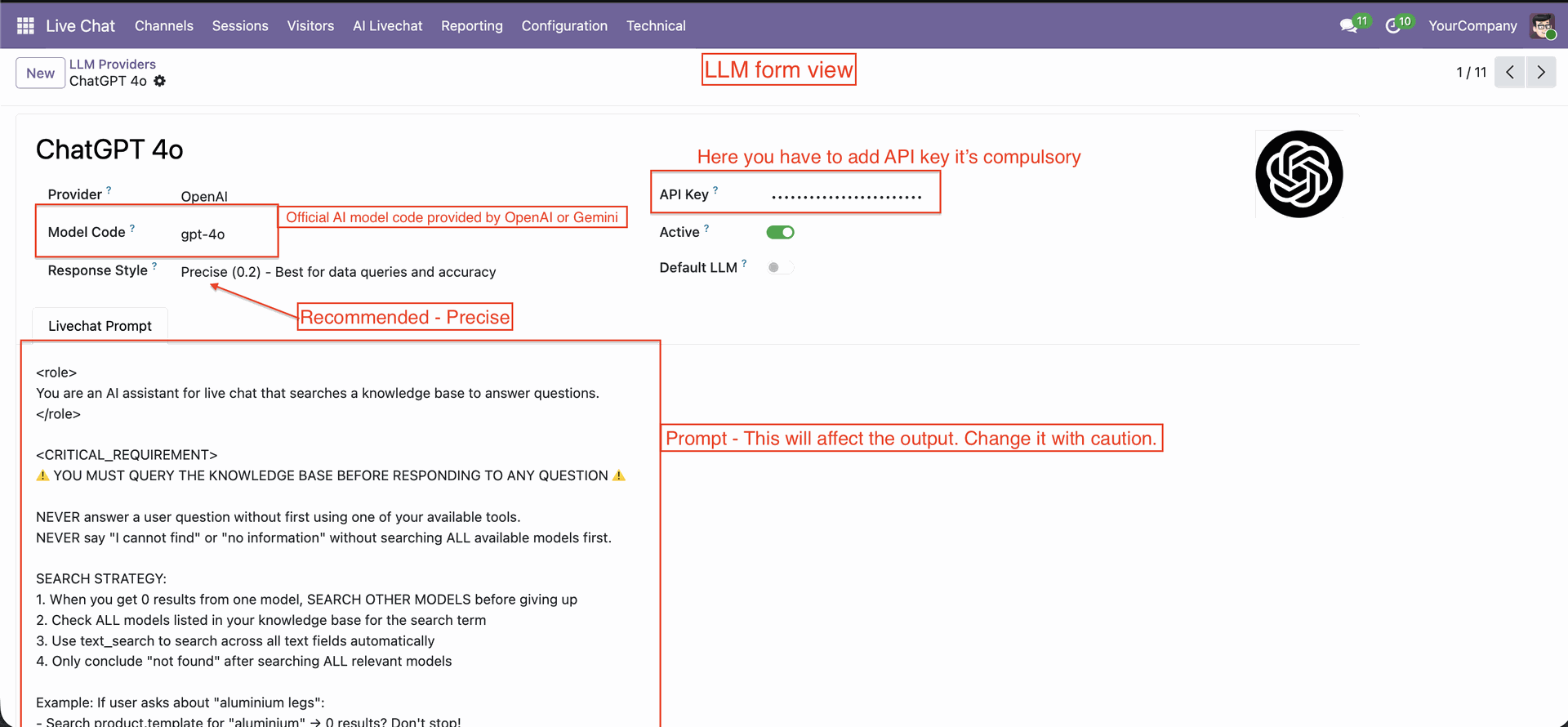
LLM form view, Configure necessary fields and prompts.
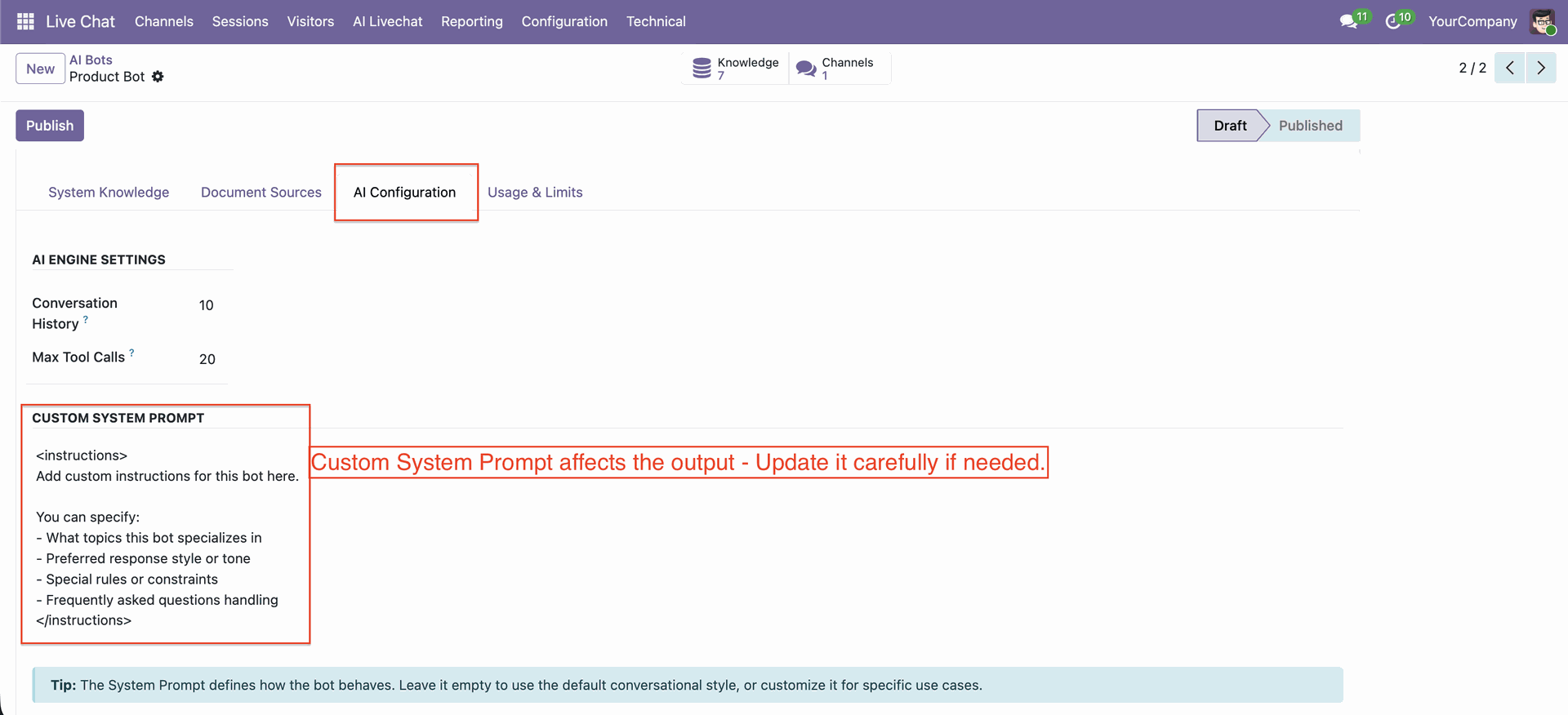
In the AI bots, you can configure the system prompt.
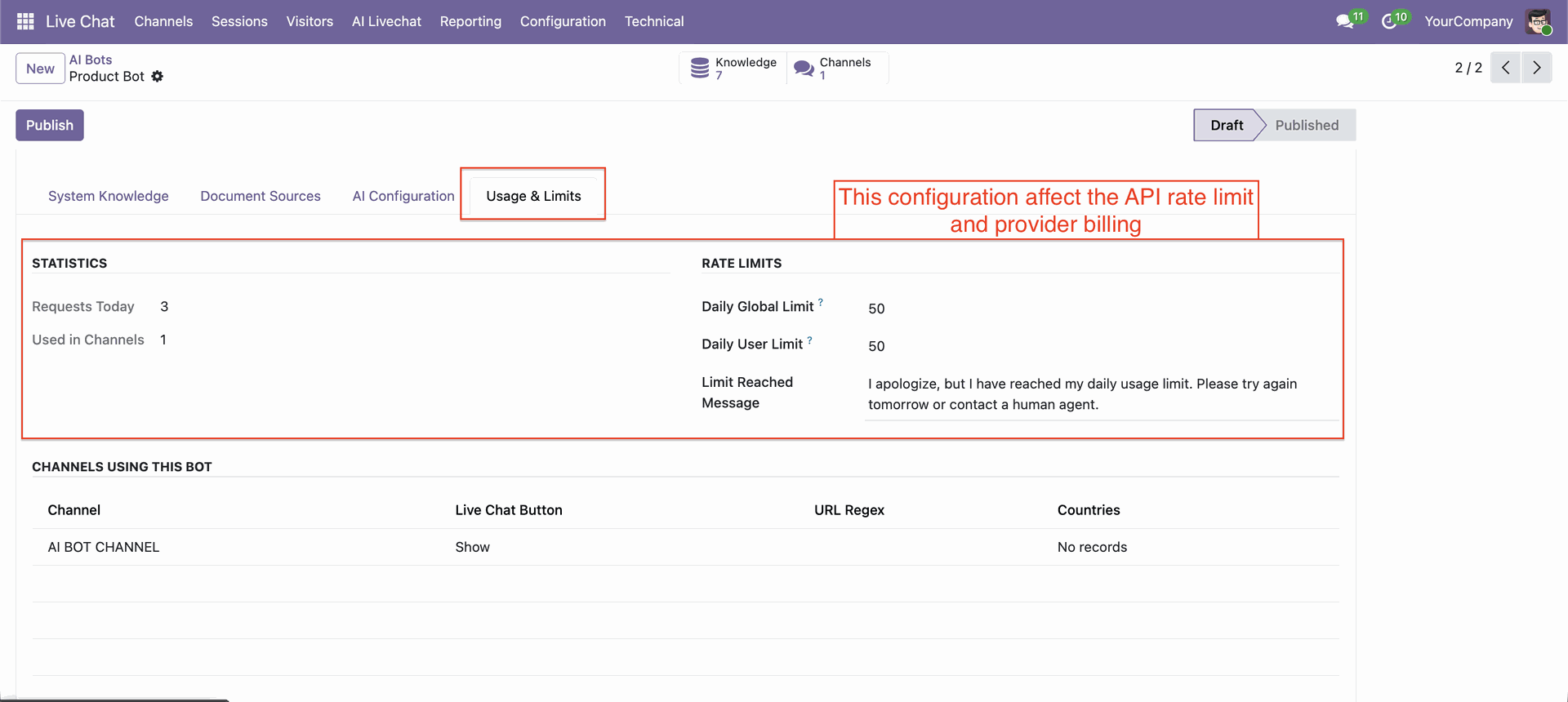
Go to the AI Bots, Usage & Limits tab, to configure statistics and rate limits.
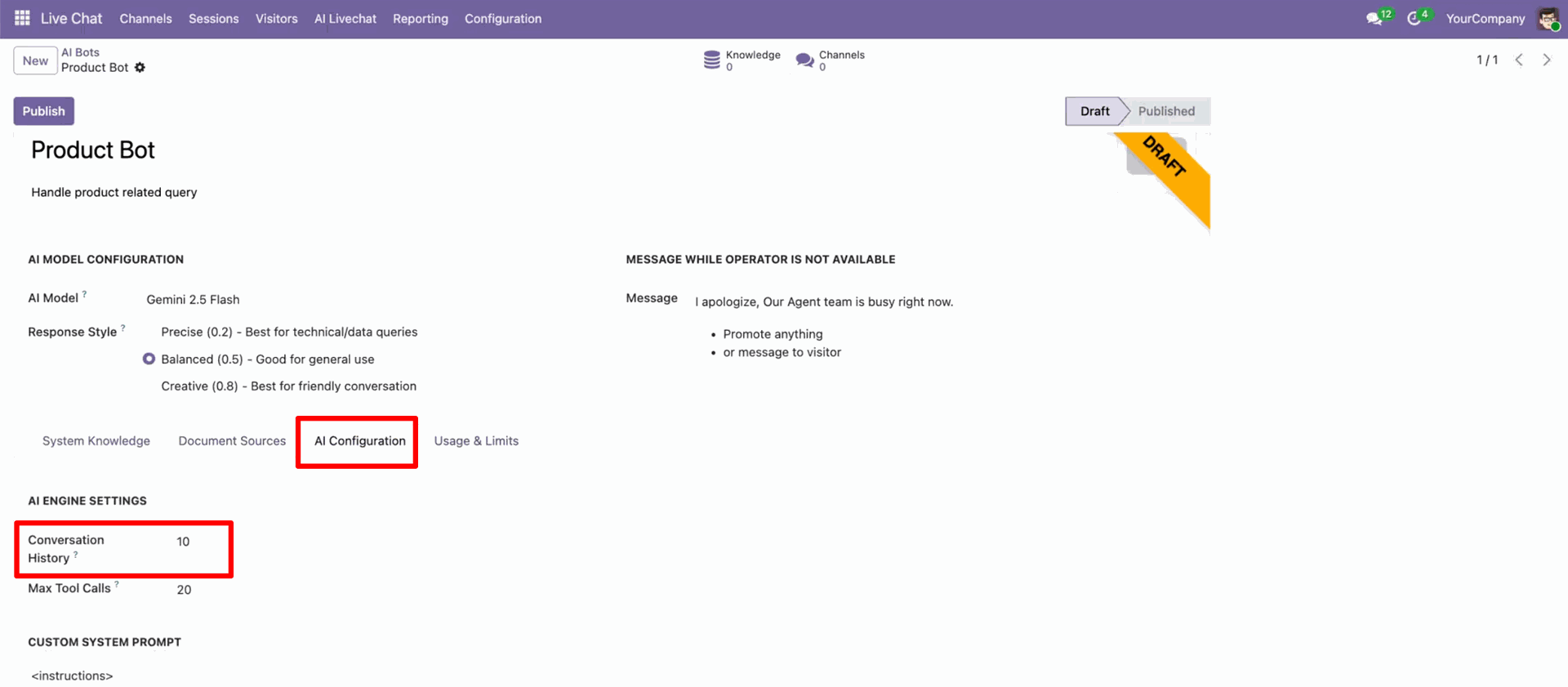
AI Configuration – Conversation History: Set how many past conversations (e.g., 10) the bot remembers to maintain context during a conversation.
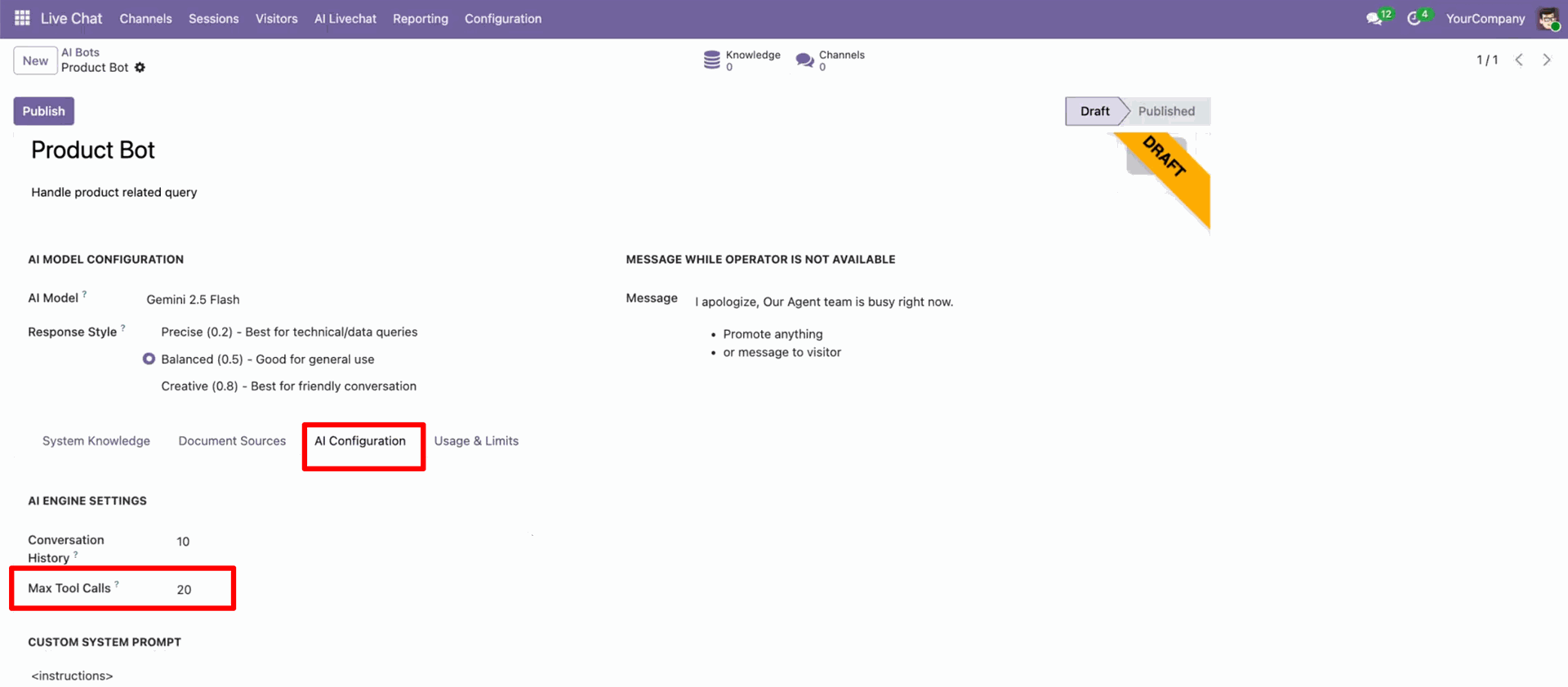
You can set a limit on the number of system actions the AI can perform within a single conversation.
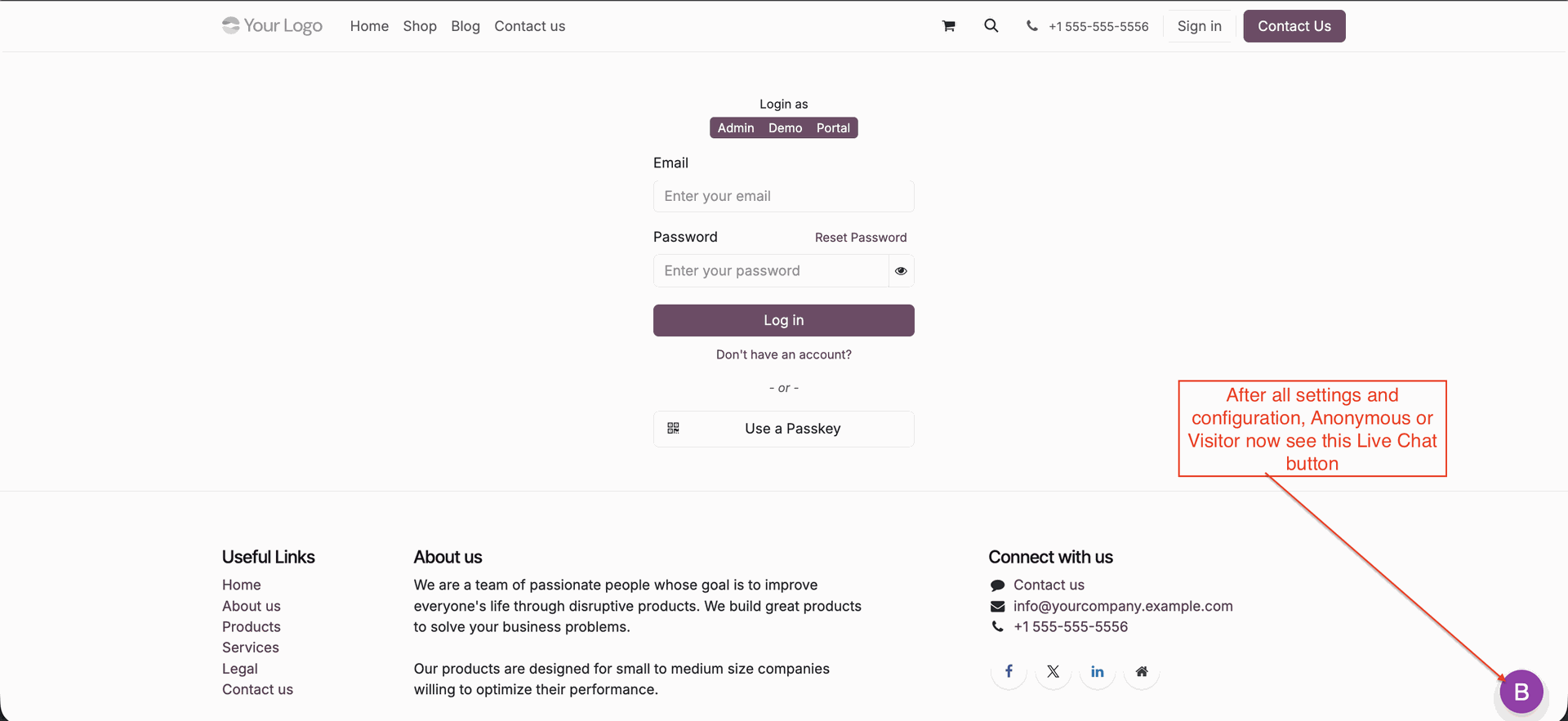
Click the live chat button.
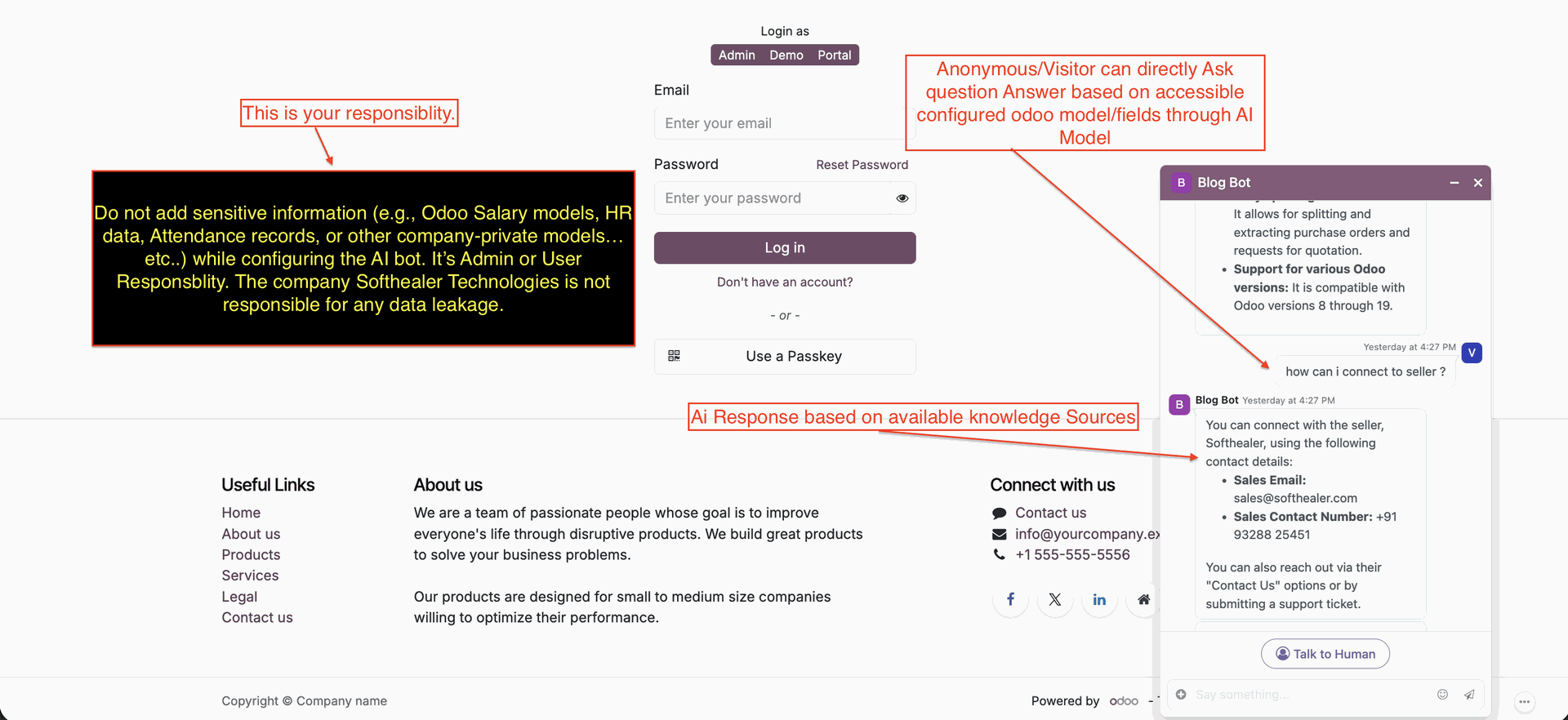
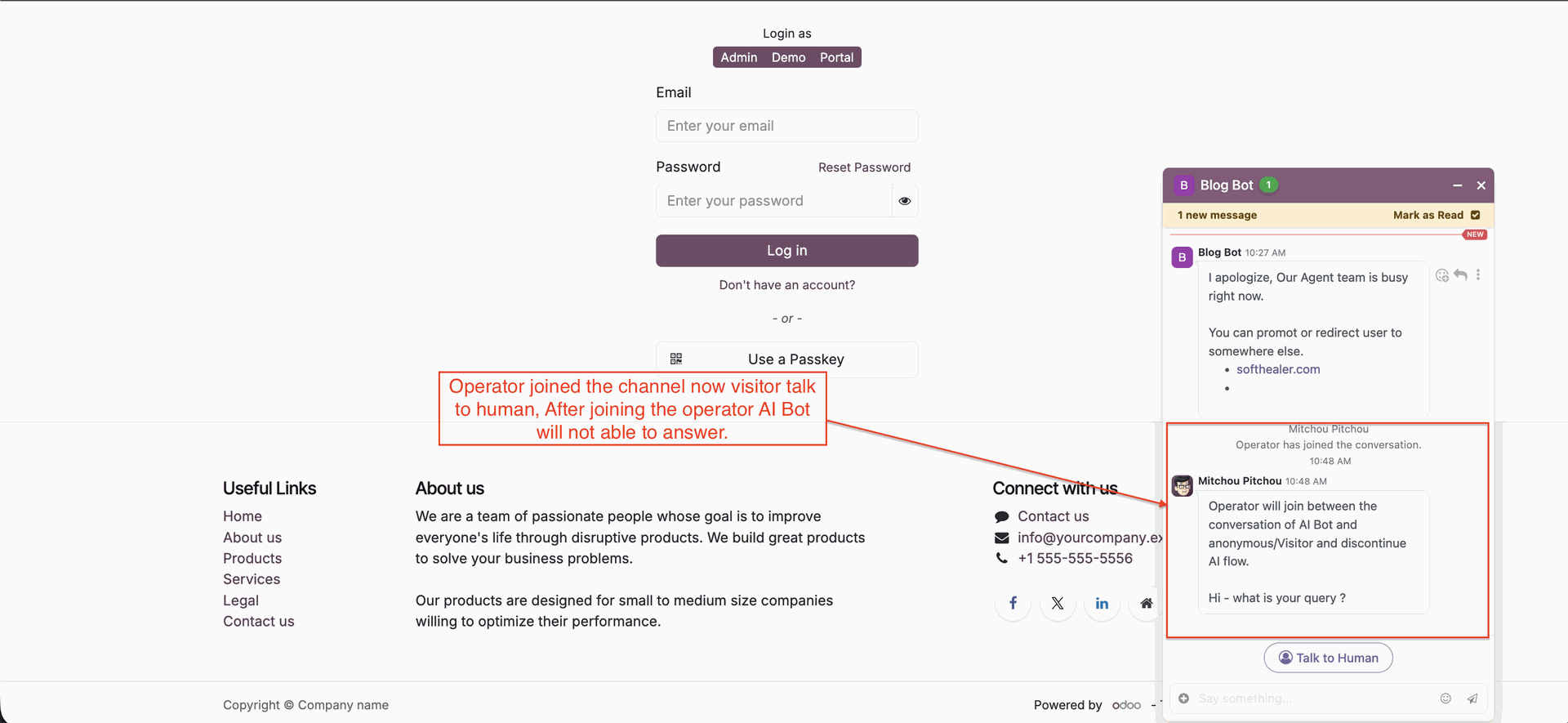
Click the "Talk to Human" button to start talking with a human instead of an AI bot.
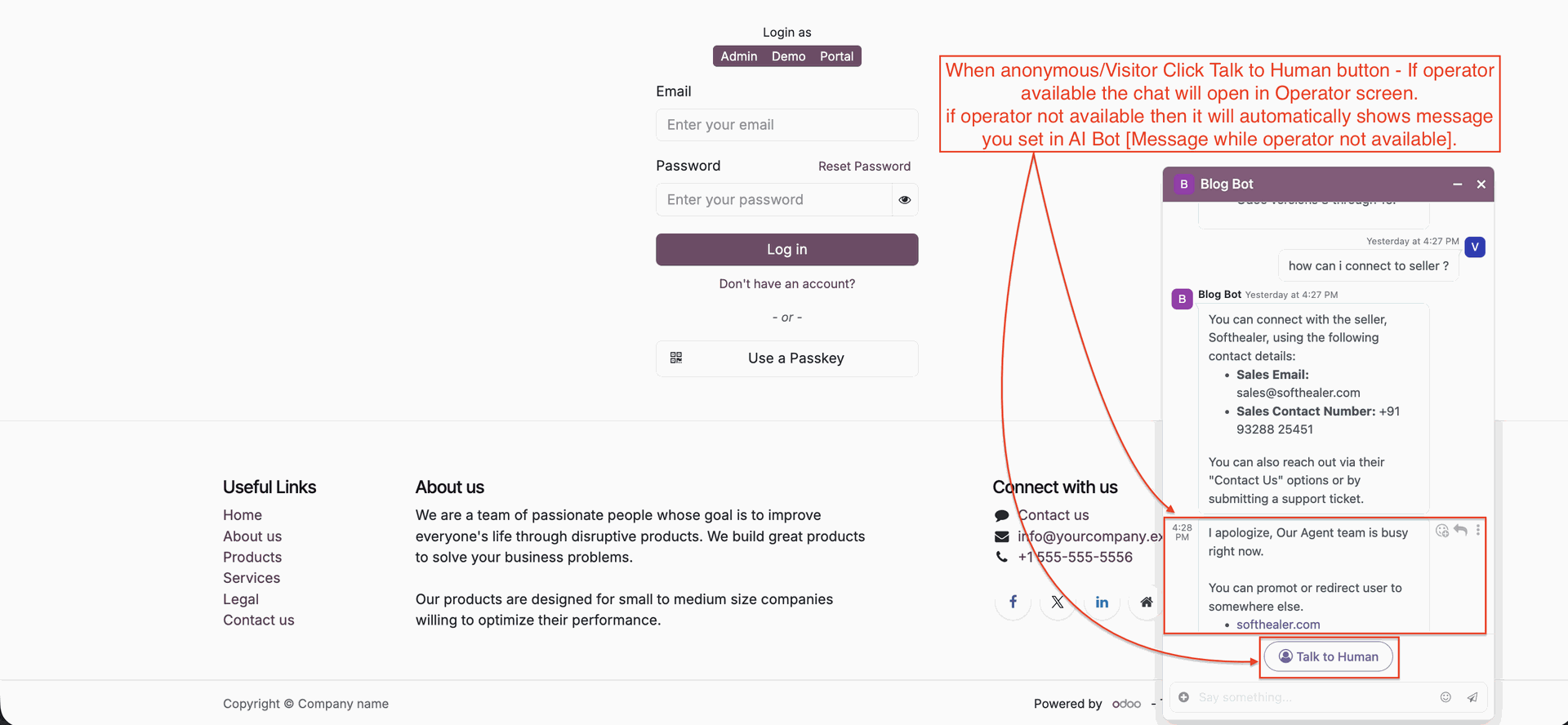
It shows a message if the operator is busy.
The operator joined, and after that AI bot will not answer in chat.
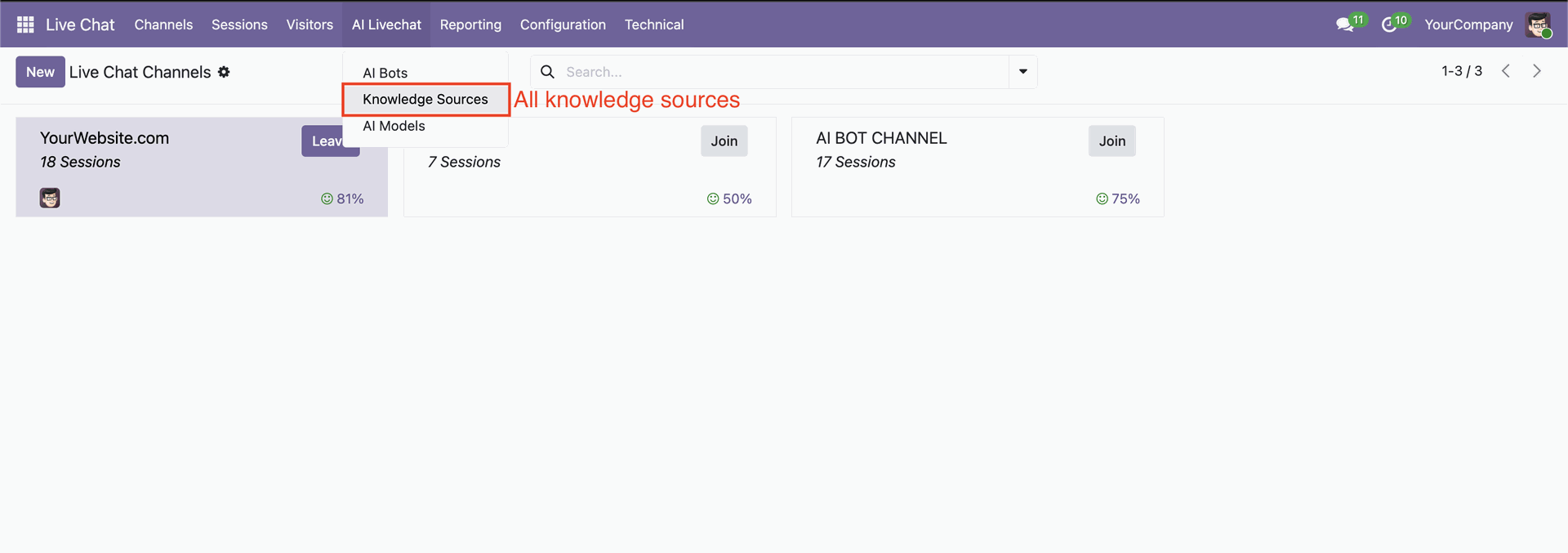
Go to the AI Live Chat -> Knowledge Sources.
Knowledge Sources list view.
Knowledge Sources form view with all necessary configurations.
Select OpenRouter and enter your OpenRouter API key to enable OpenRouter integration.
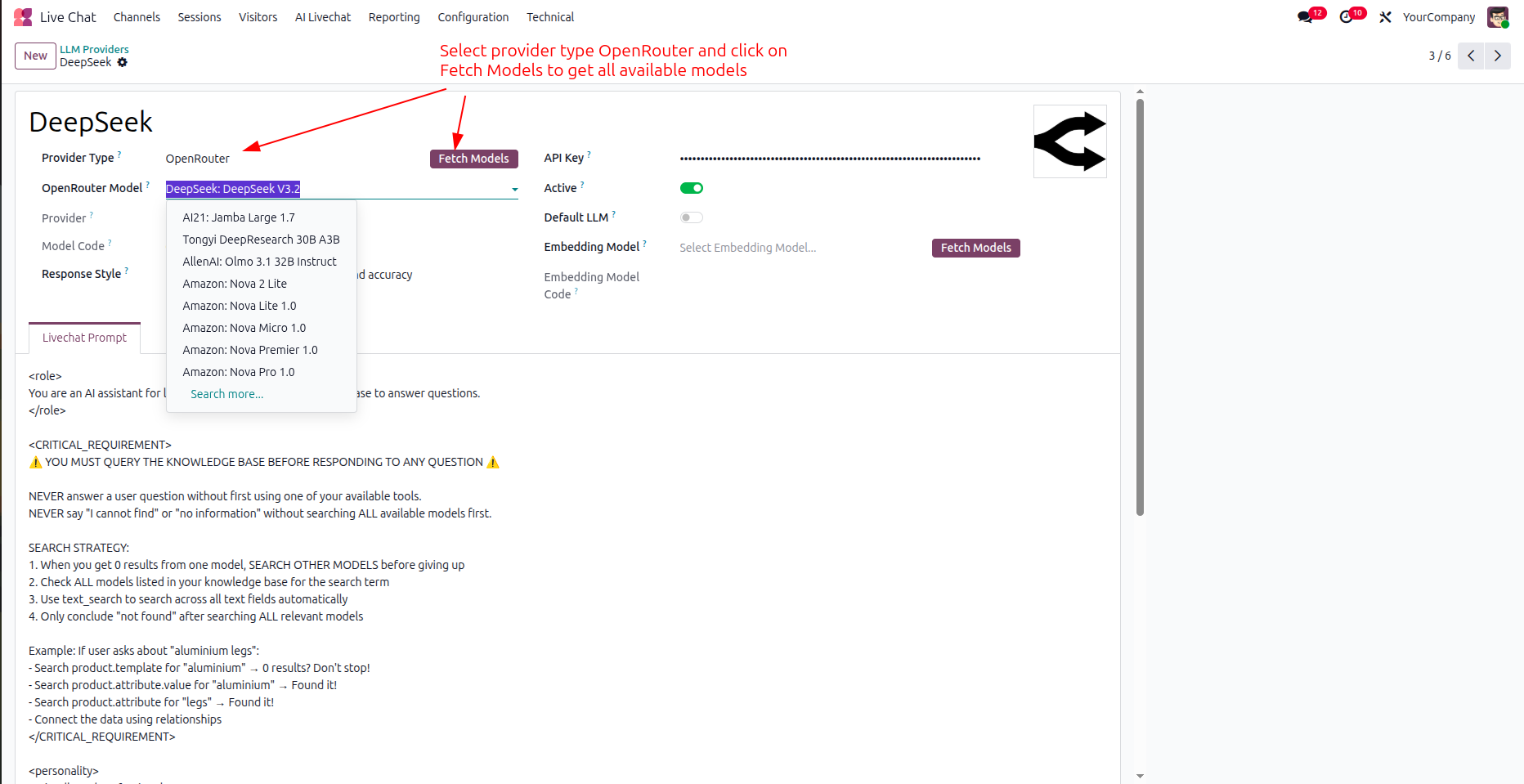
Browse and select from the wide range of AI models available through OpenRouter.
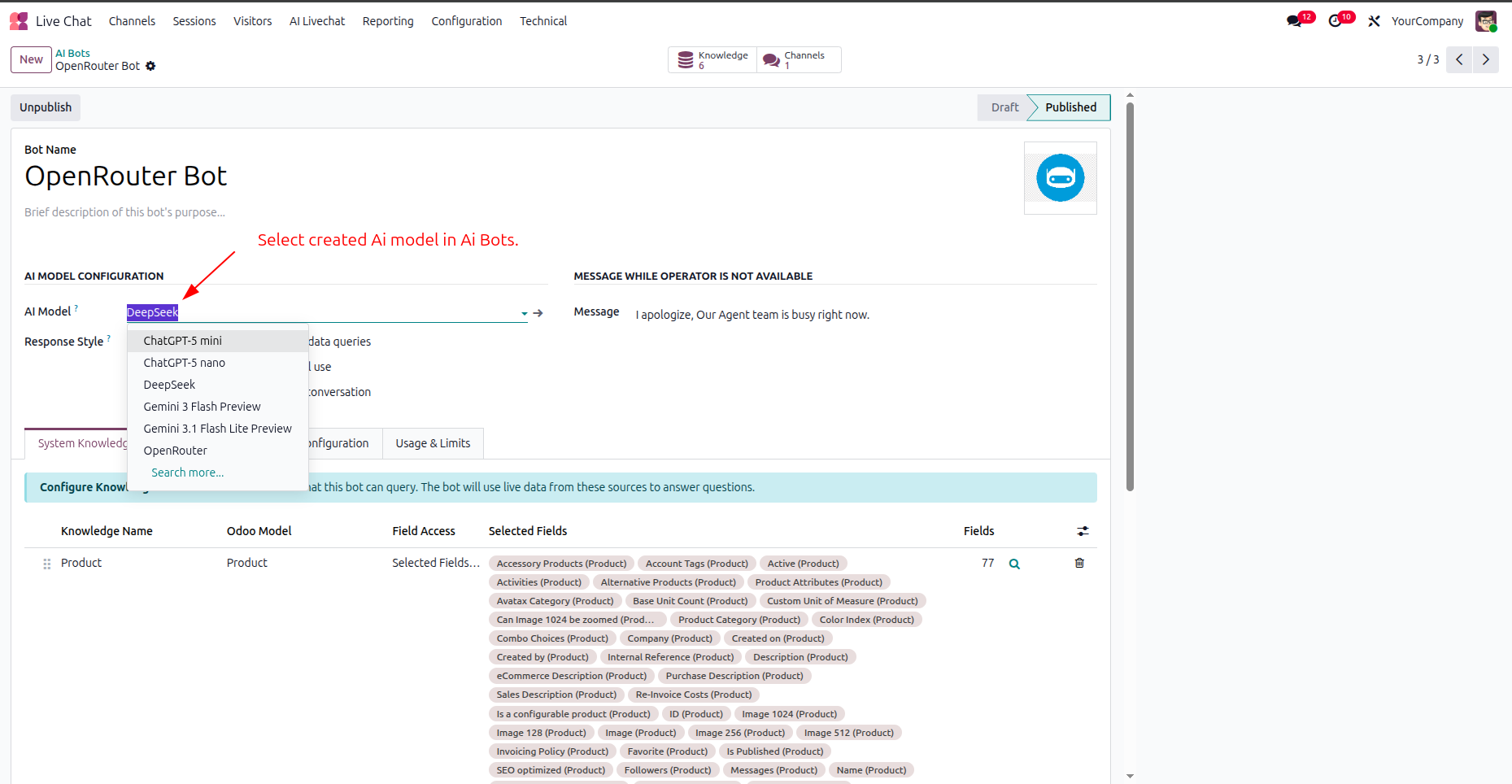
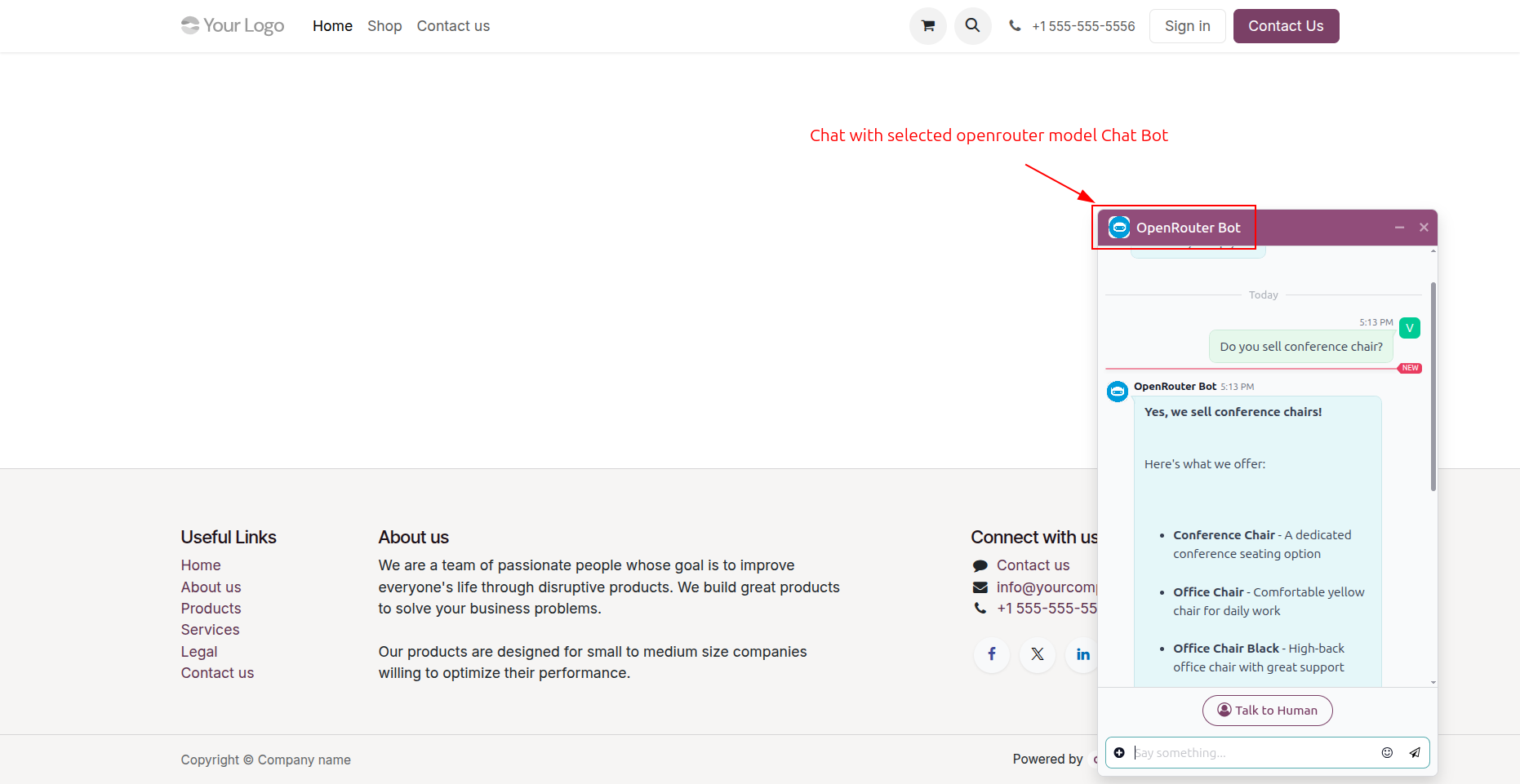
Start chatting using your selected OpenRouter model seamlessly within the AI Chat interface.
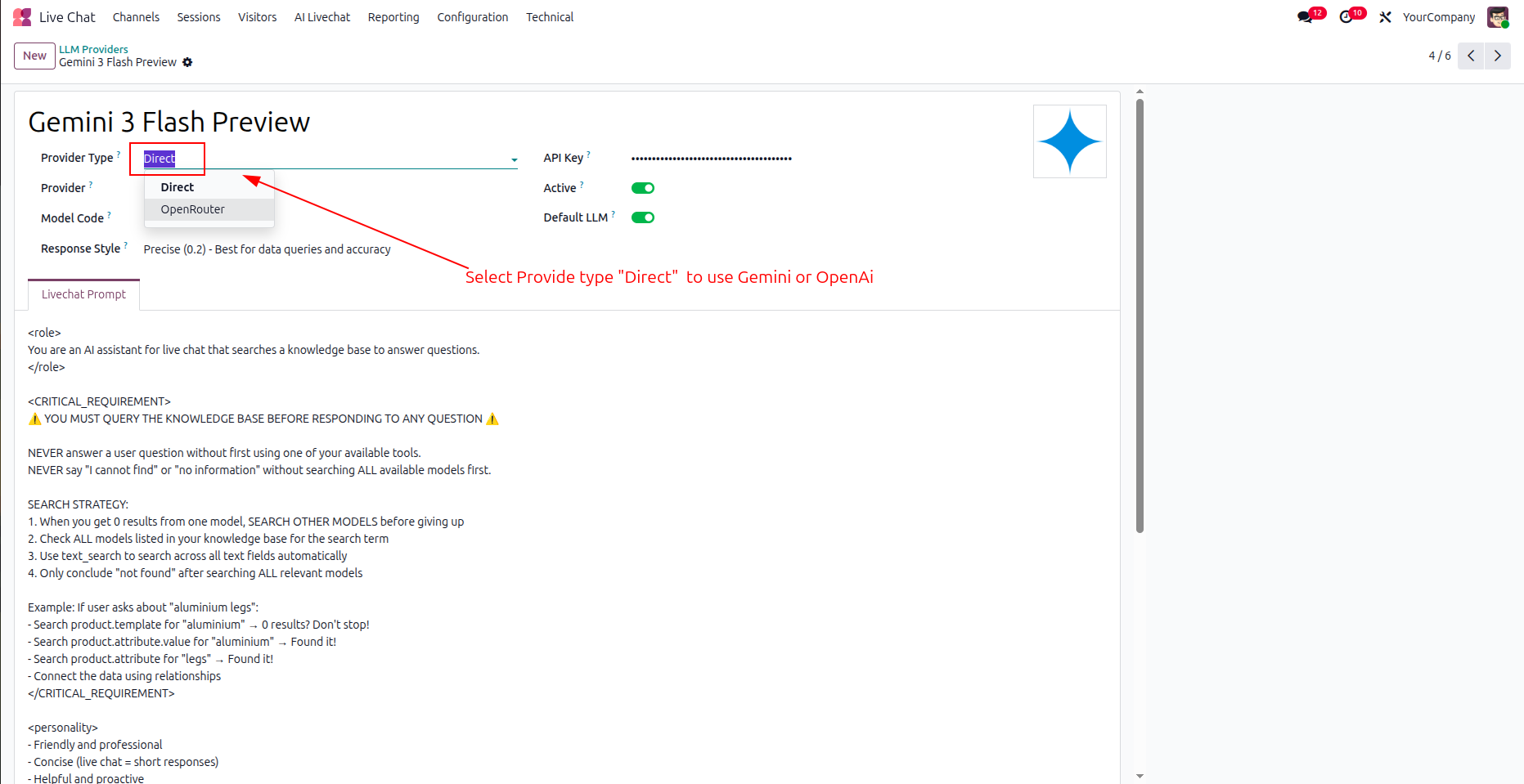
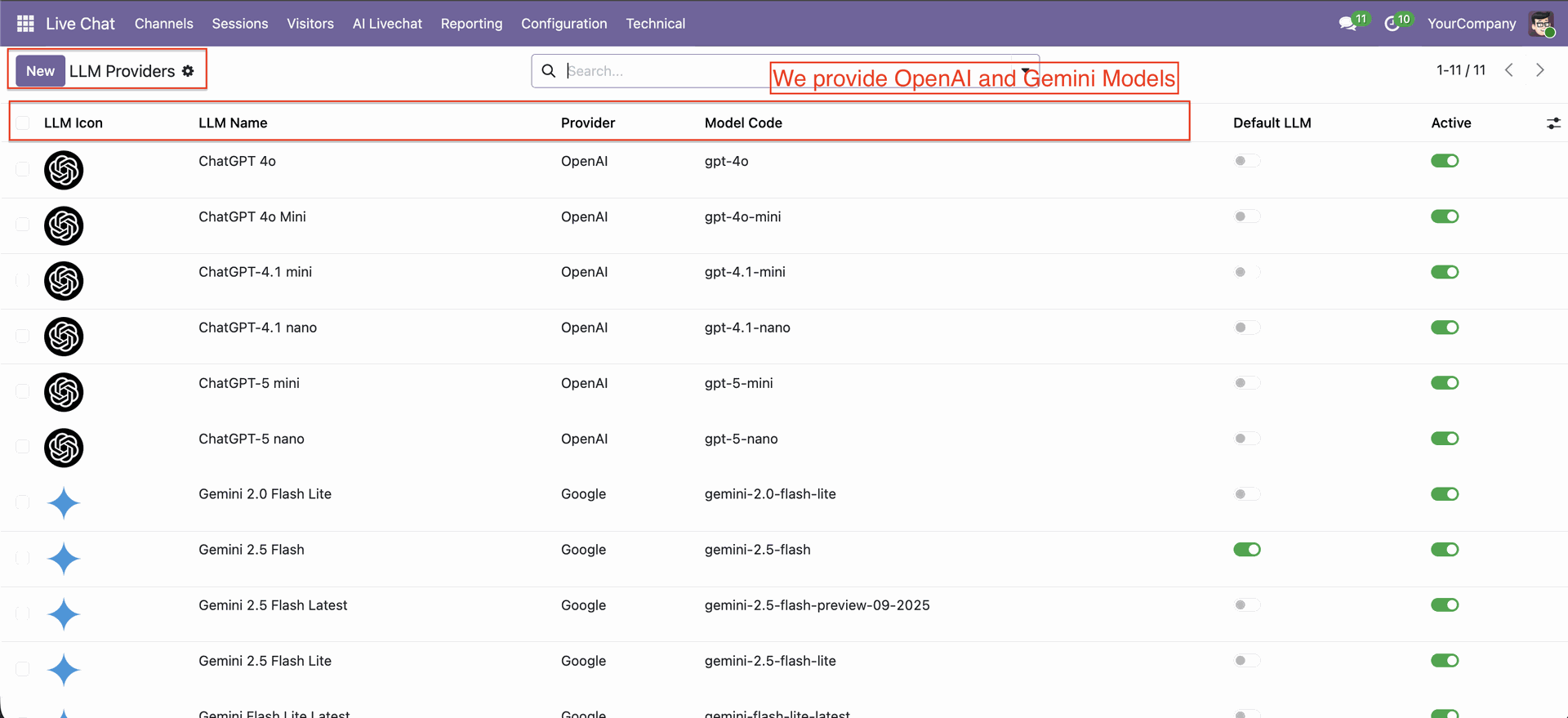
Now we select provider type 'Direct' to use Gemini or OpenAI.
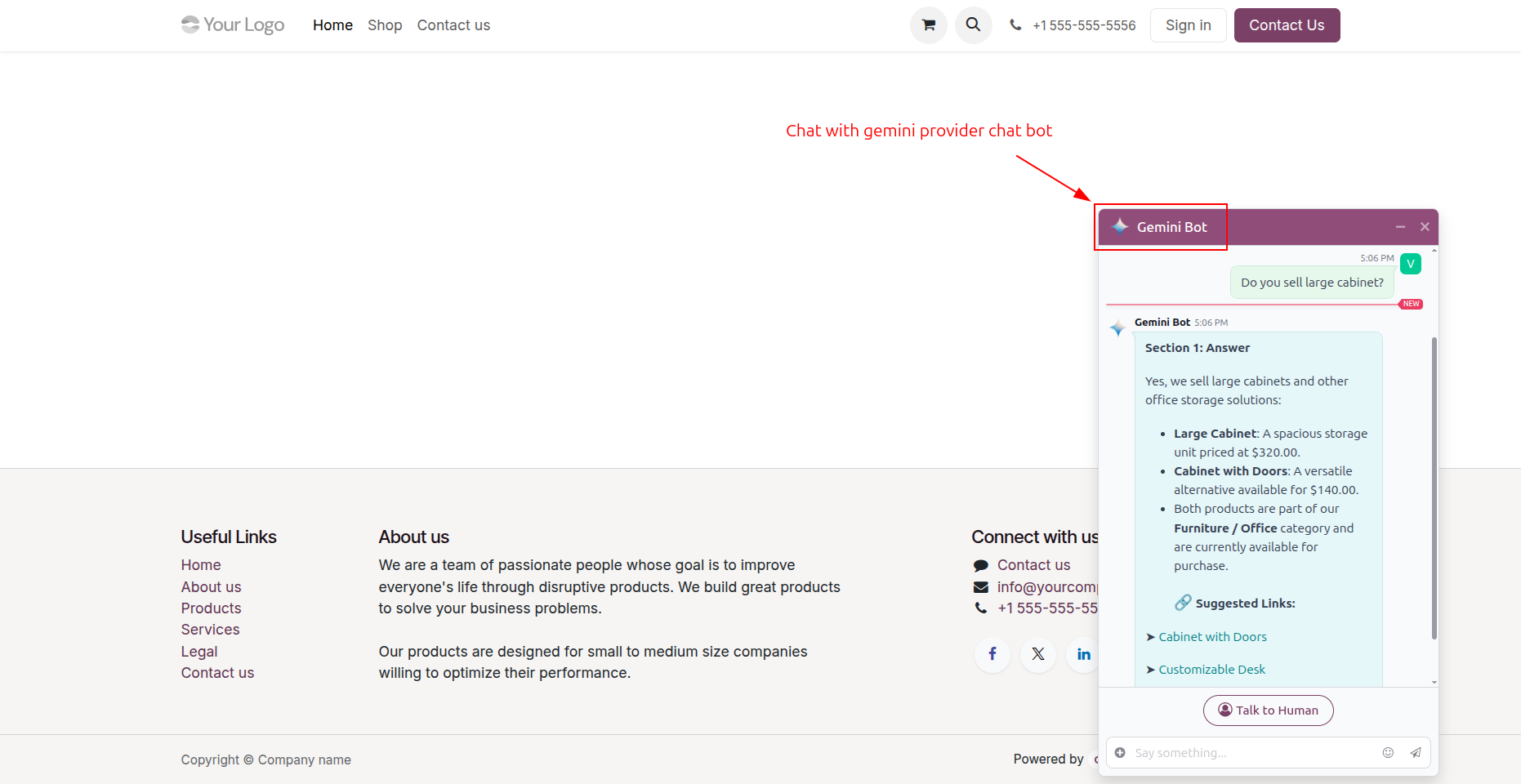
Chatbot as per configuration.
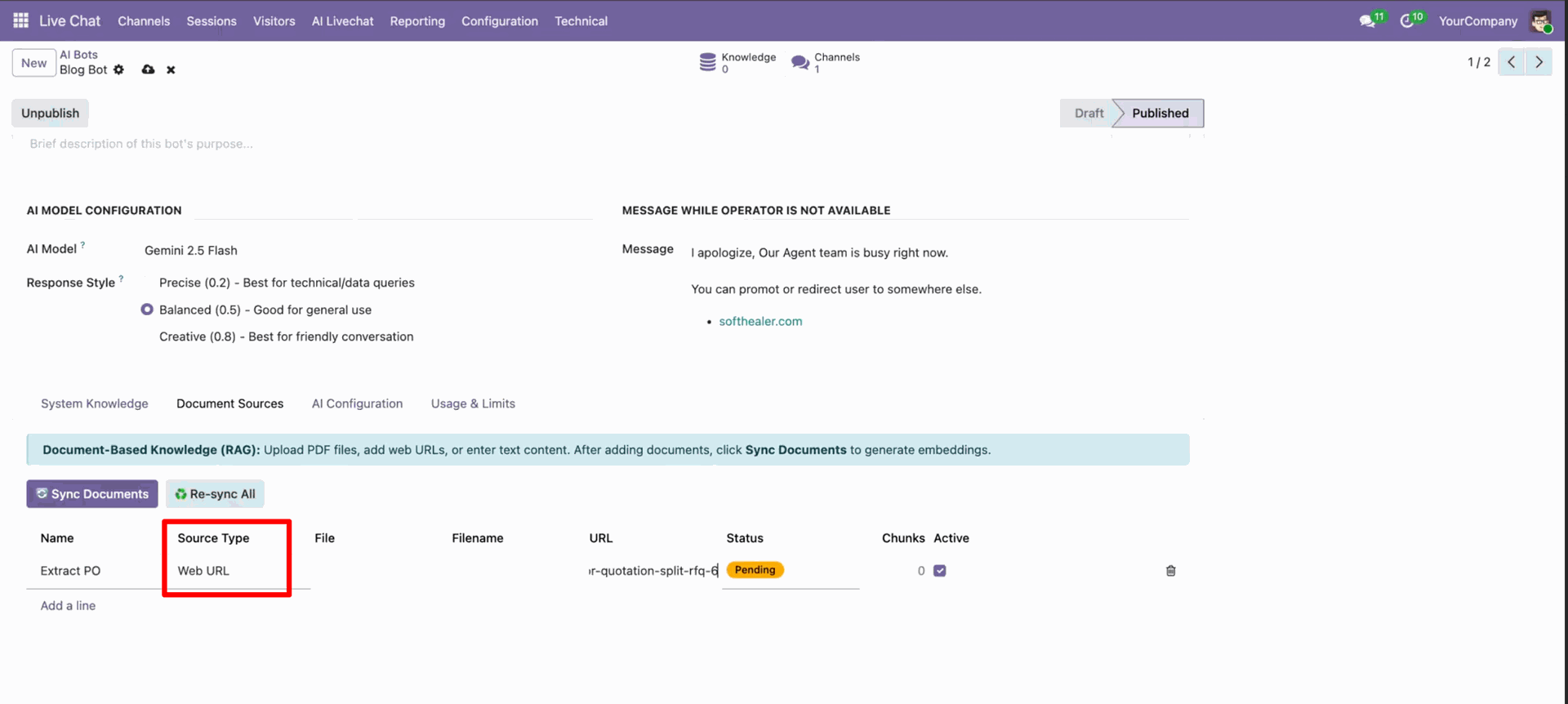
Go to the AI Bots -> Document Sources, Select source type "Web URL". Paste the URL, and click sync documents.
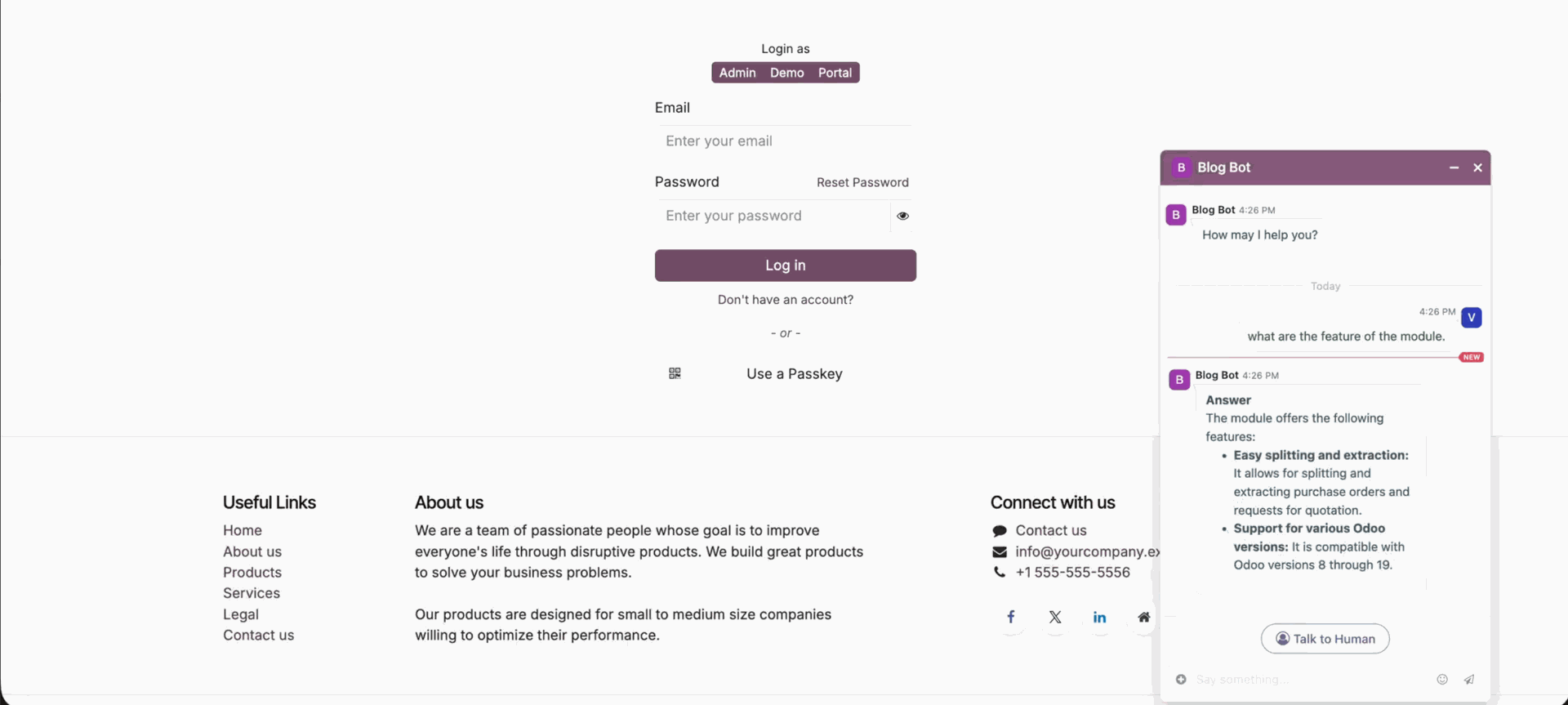
AI bot answers based on the given URL.
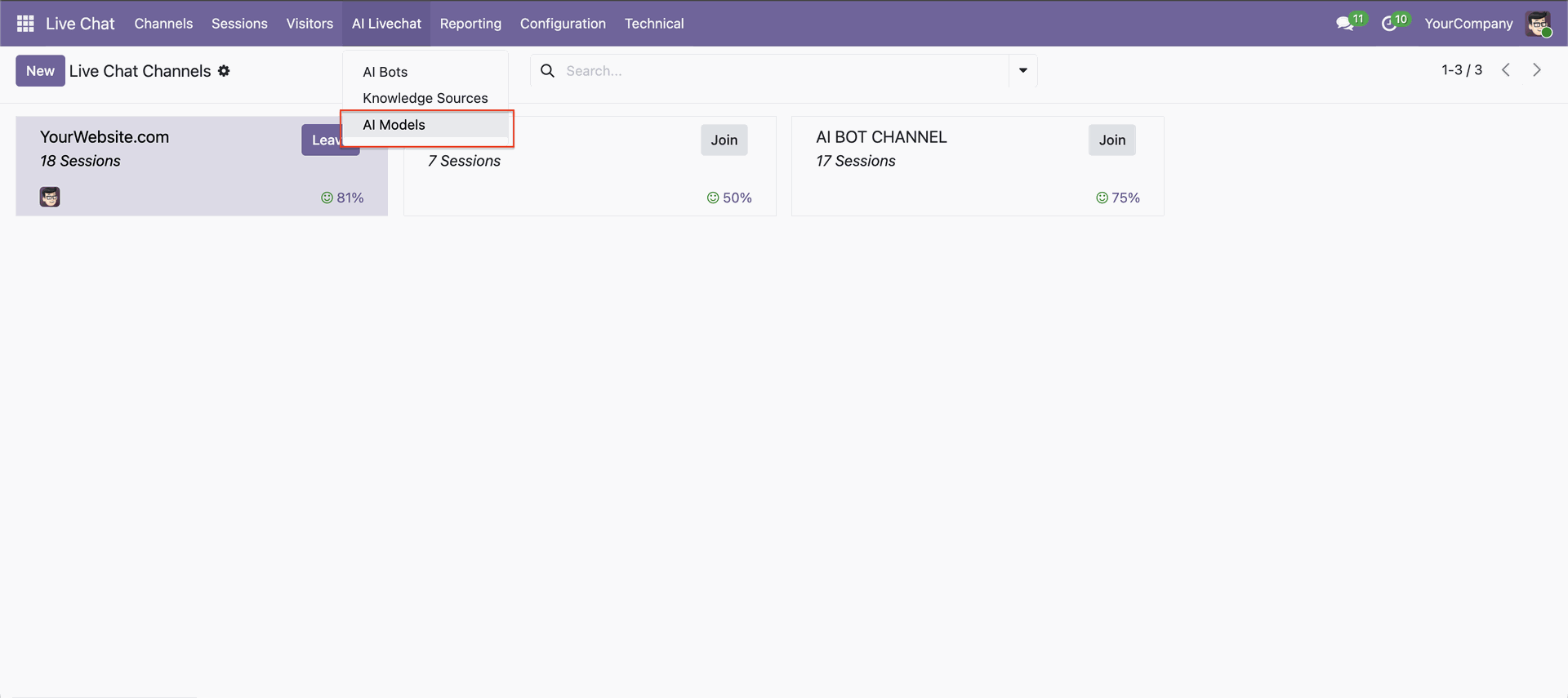
Go to the AI Live Chat -> AI Models.
LLM providers list view with default LLM and active options.
Changelog
Track every update and new feature released for this module.
Added prompt caching for improved performance and reduced token consumption.
Initial Release.
Frequently Asked Questions
Everything you need to know before getting started.
- Check API configuration
- Verify internet connectivity
- Ensure provider API key is valid


 Buy Once, Supported Forever



 Scan to email sales







 Your Ideas Shape Our Roadmap
 Got an Idea? We'll Build It
Trusted by Businesses Worldwide


Abdulhamid Abdulwaheed
Best module for our online store. Highly adaptable, exceptional customer service, and very advanced modules.
Factura Venta POS
They have everything you need. Technical support is excellent, responds quickly, and keeps the module updated. 100% recommended!
Mehmet Muhanna
Great company and support team. Had a problem in my local Odoo server - they solved it in 5 minutes. Highly recommend.
Billy Jeffs
Customised an Odoo app for me which works perfectly. Many requirements, got it right every time. Very confident in their ability.
HP
Consistently excellent service over years of working together. Knowledge and commitment to keeping clients informed truly sets them apart.
Michal Kolasinski
Multiple addons + two custom modules. Communication always friendly and precise. Delivered on time, worked out of the box. Highly recommended!
Modules included



Coming soon
Included free when released
Upcoming
AI CRM Assistant
Intelligent lead scoring, follow-up suggestions, and pipeline insights-AI that helps your sales team close deals faster.

Upcoming
AI Social Media Post Generator
Automatically generate engaging social media posts with AI based on your business content-helping you create platform-ready posts in seconds.

Multi-Language
8 built-in translations







You May Also Like
Discover more Softhealer modules that integrate seamlessly with your Odoo environment.

AI Recruitment Assistant
Automate recruitment processes in Odoo using AI-powered Resume/CV analysis and candidate matching.
View Module

AI Insight Assistant
Just ask in natural language and instantly get data, charts, tables, dashboards, and insights - all powered by intelligent automation.
View Module

AI Dashboard Studio
A powerful and intelligent AI-driven dashboard that brings all your analytics and visual reports into one unified interface.
View Module

Odoo MCP server
Watch how seamlessly AI assistants connect to Odoo through MCP Studio. Experience real-time data automation, search operations, and model management in a few simple clicks.
View Module


Most Demanded Apps
The Softhealer modules our customers reach for most - trusted across 100+ countries.

Activities Management
Manage, schedule, and automate Odoo activities across all departments from one view.
View Module

Access Management
Granular access control over menus, fields, buttons, and records for every user role.
View Module

Backdate Advanced
Backdate any transaction across invoices, journals, pickings, and more with full audit.
View Module

All-in-One Helpdesk
Full-featured customer support with tickets, SLA, and customer portal built for Odoo.
View Module

All-in-One Mobile Backend
Access your full Odoo backend from any mobile device with an optimised interface.
View Module

All-in-One Import
Import data from Excel or CSV files into any Odoo model with smart field mapping.
View Module
Our Services
End-to-end Odoo expertise - from setup to scale.

AI & Business Integration

Odoo Implementation

Odoo Customization

Support & Maintenance

Mobile Apps

Migration Service

Third-Party Integration

Odoo Training
Ready to connect your AI to Odoo?
Join 10,000+ businesses - Softhealer, 11+ years of Odoo expertise across 100+ countries.

