















Key
Features

ClickUp API Authentication & Configuration
Configure secure ClickUp API access and manage connector settings from Odoo.
Watch VideoDocs & Pages Synchronization
Synchronize ClickUp Docs and Pages with Odoo to keep documentation and content up to date.
Watch VideoGoals & Key Targets Synchronization
Synchronize ClickUp goals and key targets with Odoo to keep progress and targets updated across both systems.
Watch VideoGroups & Teams Synchronization
Synchronize ClickUp groups and teams with Odoo to keep team structures aligned across both systems.
Watch VideoTask & Checklist Synchronization
Synchronize ClickUp tasks and checklists with Odoo to keep task details and progress updated across both systems.
Watch VideoTask Template Synchronization
Synchronize ClickUp task templates with Odoo to maintain reusable task structures across both systems.
Watch VideoSpaces, Folders & Lists Synchronization
Sync ClickUp spaces, folders, and lists with their corresponding Odoo records.
Watch VideoBidirectional Task Synchronization
Keep tasks updated automatically between Odoo and ClickUp in both directions.
Watch VideoTask & Subtask Synchronization
Sync tasks and subtasks while maintaining their relationships and hierarchy.
Watch VideoComments & Attachments Synchronization
Sync task comments and attachments between ClickUp and Odoo.
Watch VideoTime Tracking & Timesheet Synchronization
Synchronize ClickUp time entries with Odoo timesheets for accurate time tracking.
Watch VideoClickUp Integration Dashboard
Monitor synchronization status, activities, and key integration information from one dashboard.
Workspace & Team Synchronization
Synchronize ClickUp workspaces and teams with Odoo.
Project & Task Synchronization
Synchronize projects and tasks between ClickUp and Odoo.
User & Assignee Mapping
Map ClickUp users with Odoo users and synchronize task assignments.
Status & Priority Synchronization
Keep task statuses and priorities synchronized between ClickUp and Odoo.
Custom Field Synchronization
Synchronize supported ClickUp custom fields with Odoo fields.
Automated & Scheduled Synchronization
Run synchronization automatically at scheduled intervals to keep data updated.
Sync Queue & Error Management
Manage synchronization queues and handle failed records for reliable data transfer.
Synchronization History & Logs
Track synchronization activities, results, and errors through detailed logs.
 Setup & Configuration
 Release Notes
 Support
 FAQ's
FAQ's
-
 ClickUp Dashboard
-
 Sync Hierarchy - Spaces, Folders & Lists
-
 Configuration & Workspace Setup
-
 Task & Sub-Task Sync
-
 Task Custom Fields Mapping
-
 Task Priority Sync
-
 Chatter & Comment Sync
-
 Per-List Stage & Status Mapping
-
 Task Attachments Sync
-
 Task Checklists Sync
-
 Task Dependencies & Blockage Sync
-
 Timesheet & Time Tags Sync
-
 Goals & Key Results Sync
-
 Docs & Pages Sync
-
 Task Templates Sync
-
 ClickUp Views Sync
-
 Teams & Groups Sync
-
 Sync Queue & Logs
-
 Integration HUB Dashboard
Open the ClickUp Dashboard option from Odoo settings to enable the connector dashboard.
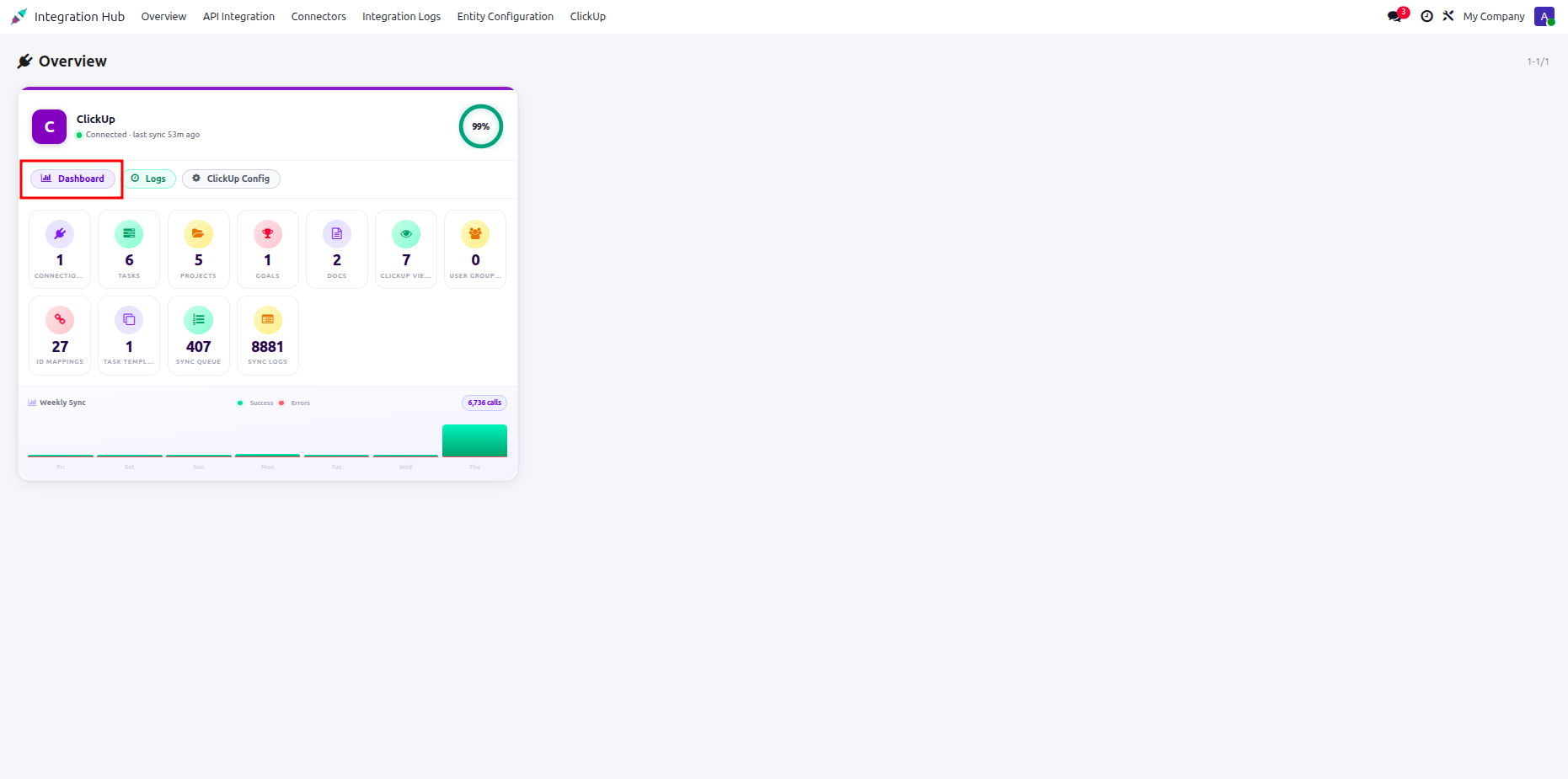
Review synchronized records, workspace counts, and recent synchronization activity from the ClickUp dashboard.
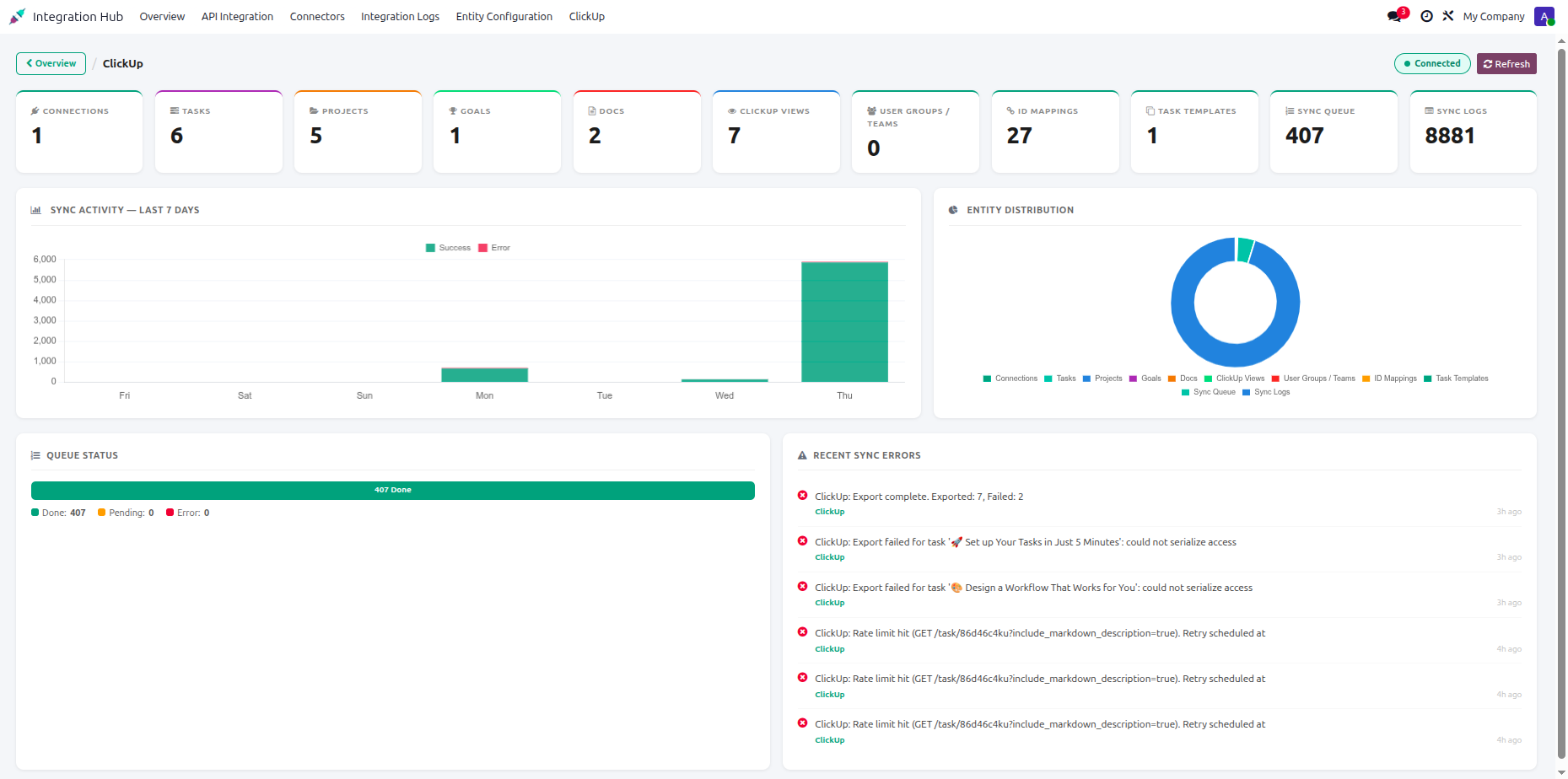
Open the Sync Hierarchy tab to configure the ClickUp workspace hierarchy within Odoo.
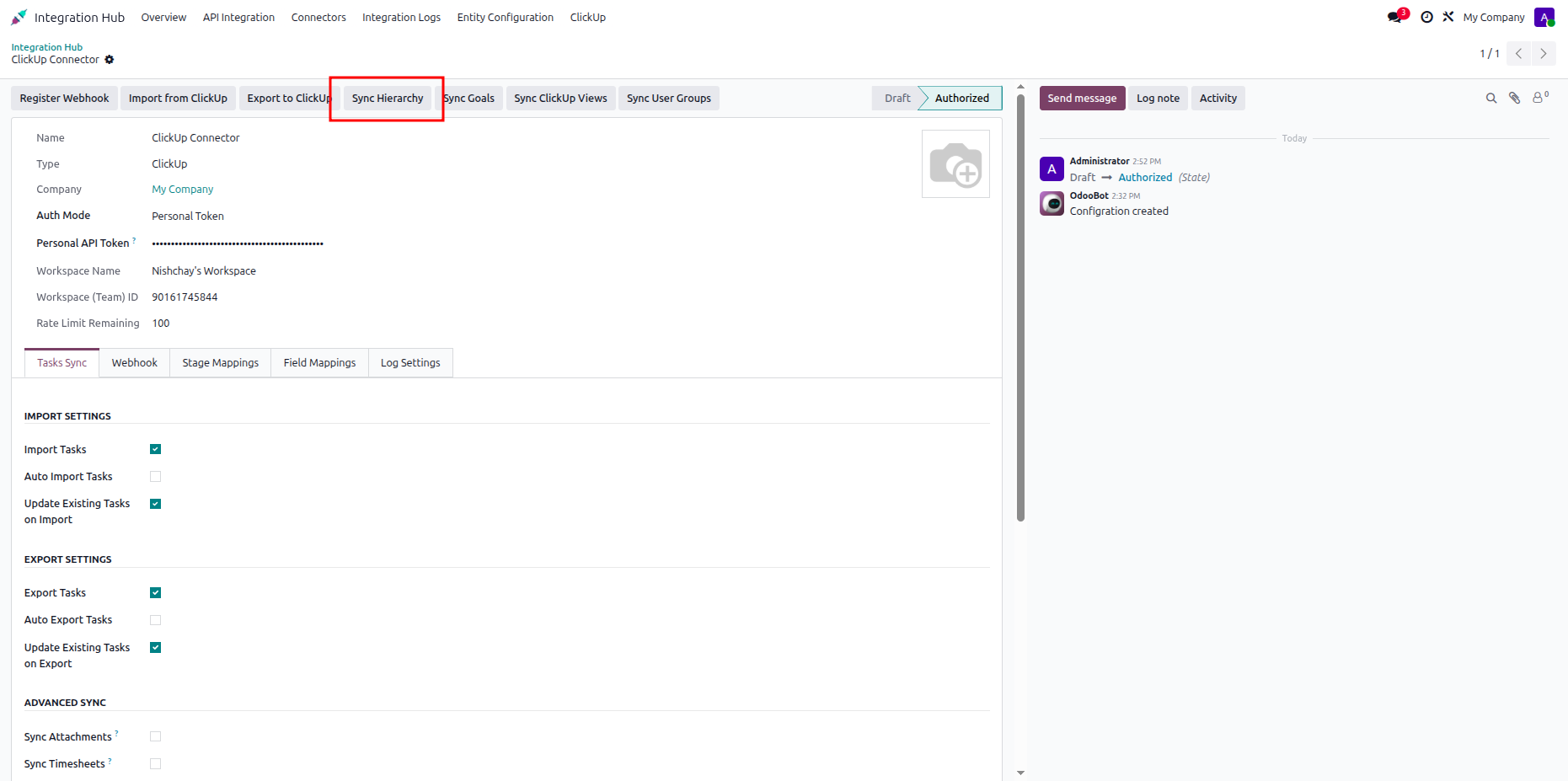
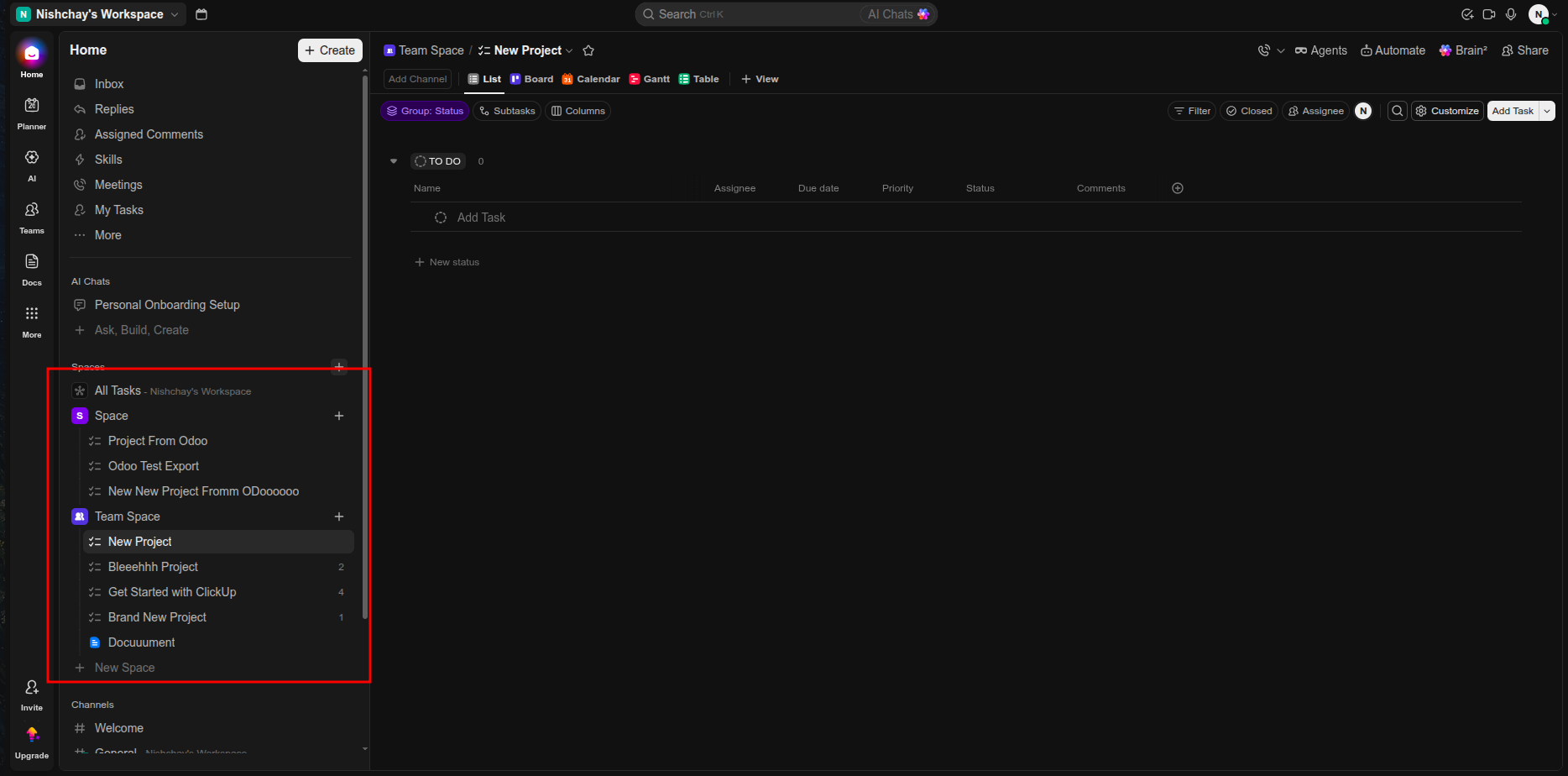
Review the ClickUp workspace hierarchy and select the highlighted workspace for synchronization.
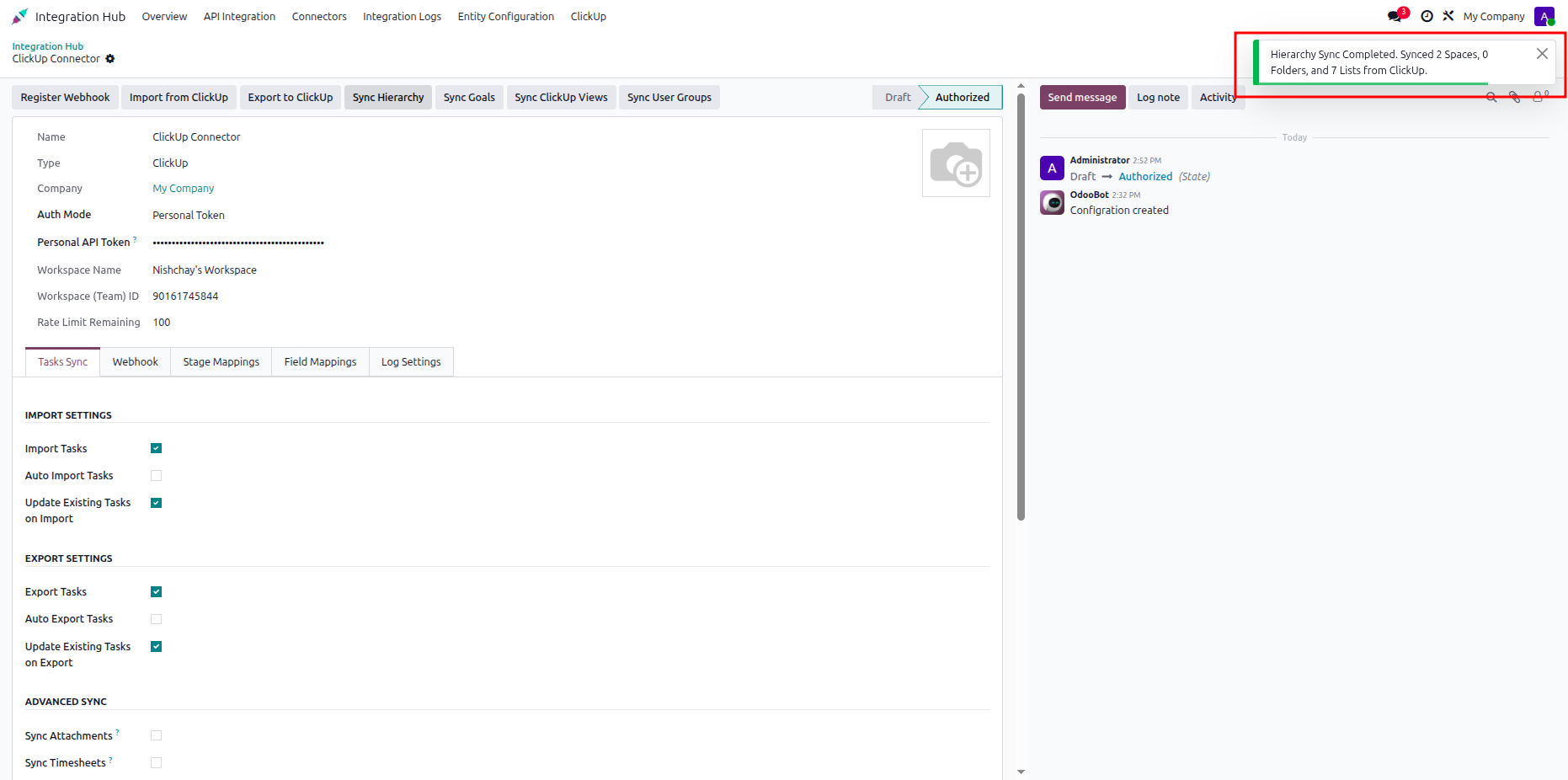
Select the required spaces from the ClickUp workspace overview for project synchronization.
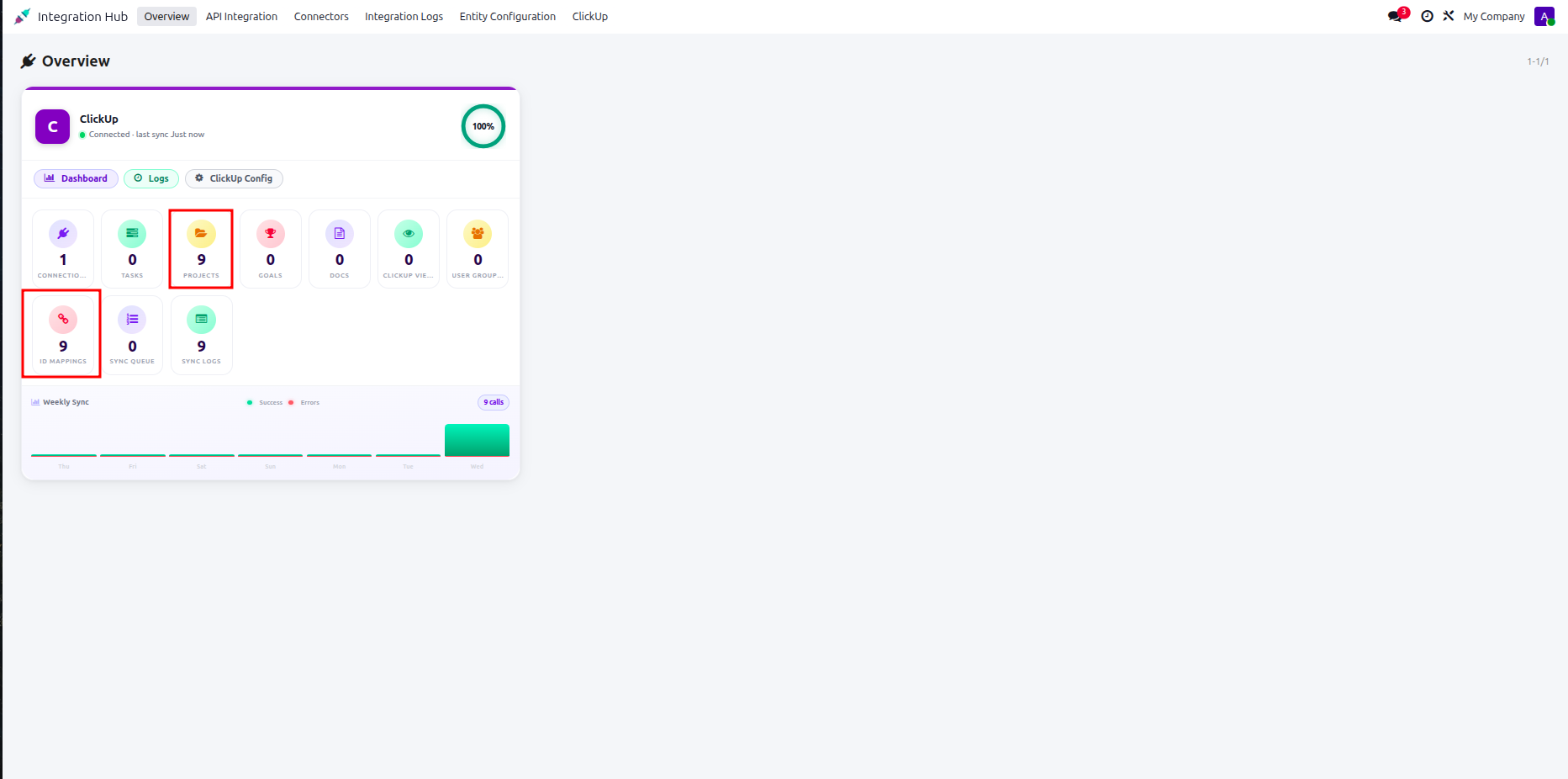
Review synchronized spaces, folders, and lists displayed in the Odoo hierarchy mapping view.
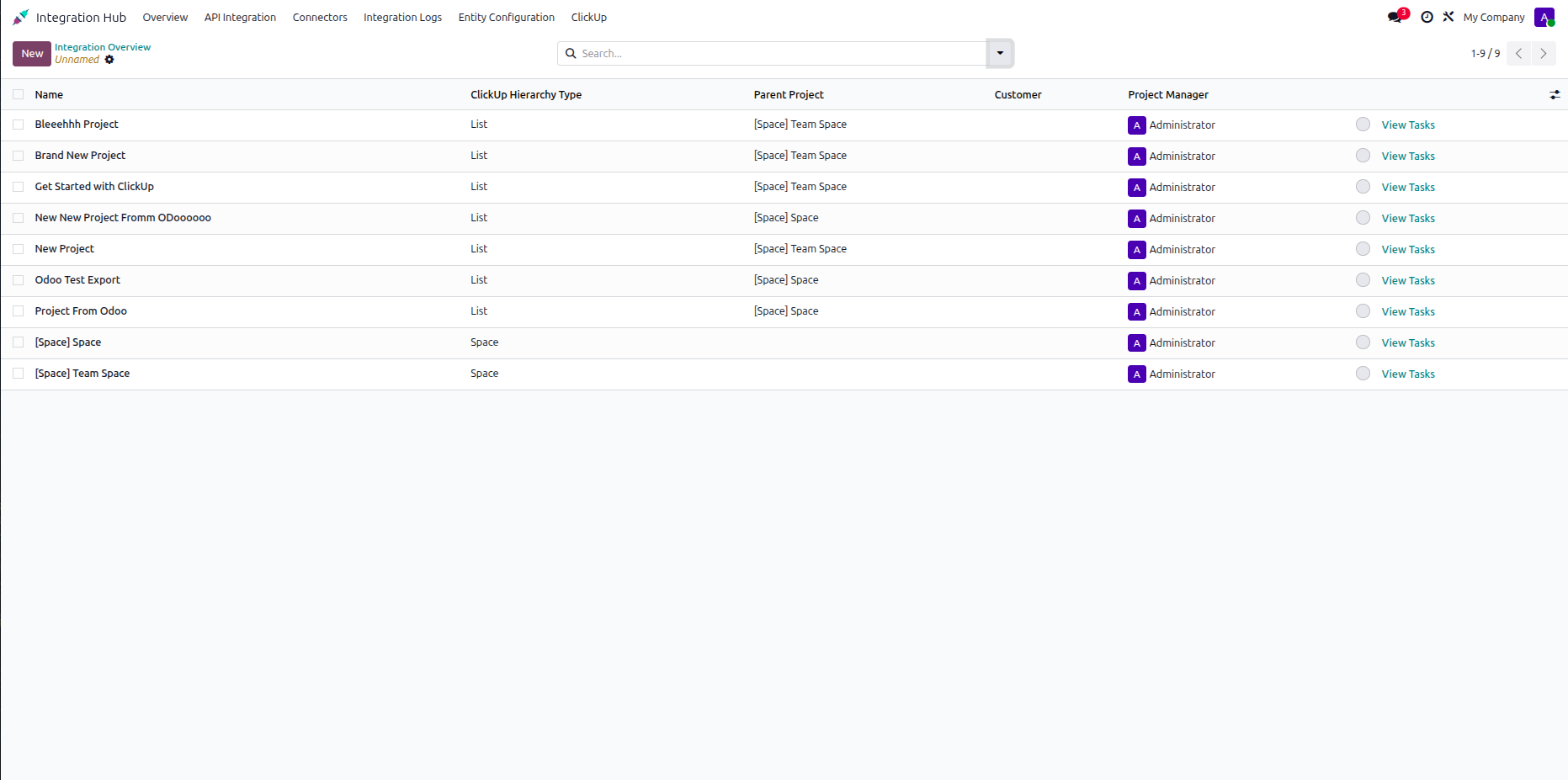
Open the Odoo project hierarchy to verify imported ClickUp spaces, folders, and lists.
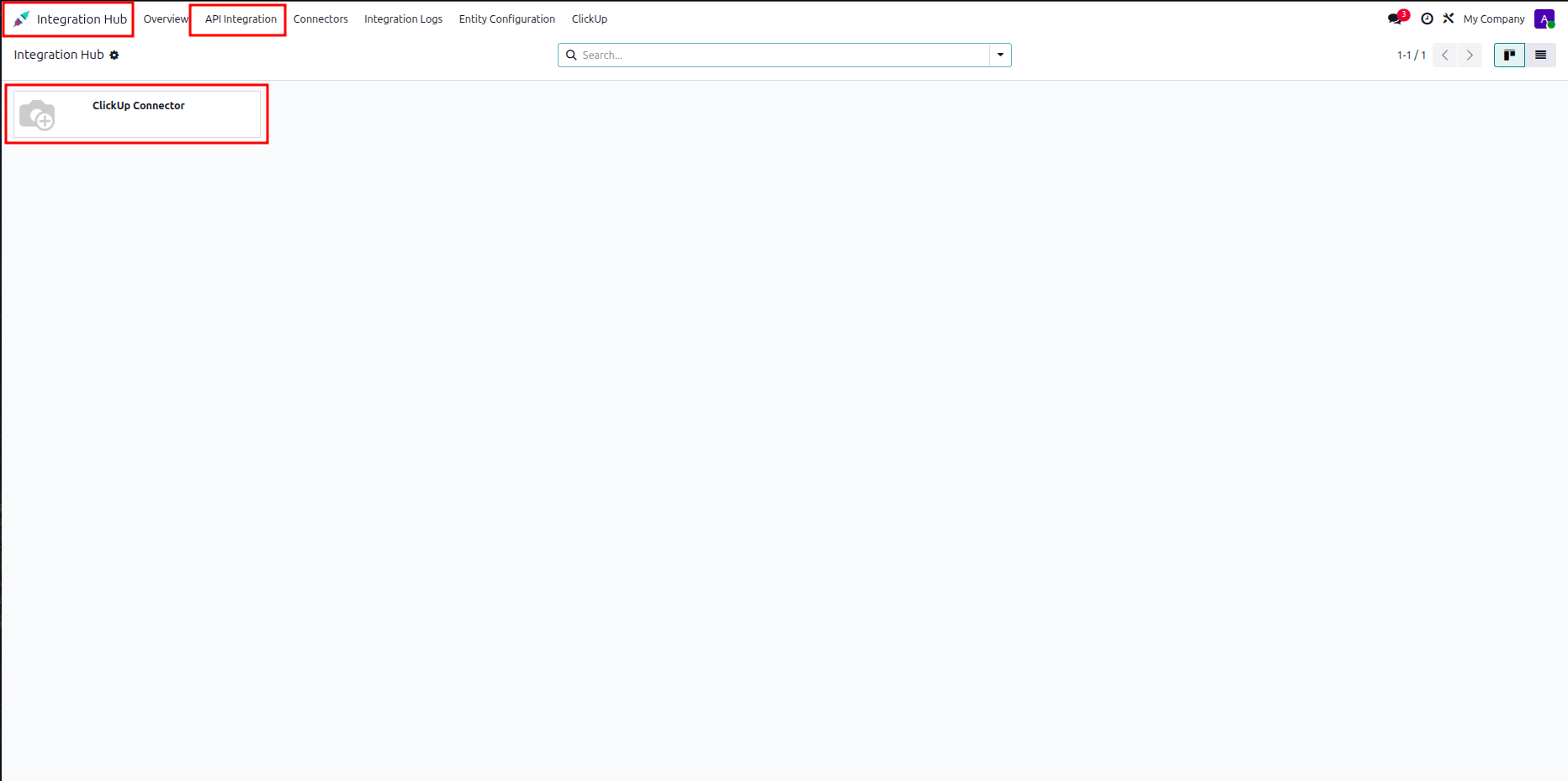
Open ClickUp configuration from Odoo and select the connector settings option to begin setup.
Generate and copy the ClickUp API token from the ClickUp developer settings screen.
.png)
Enter ClickUp connection details and configure workspace synchronization options in Odoo.
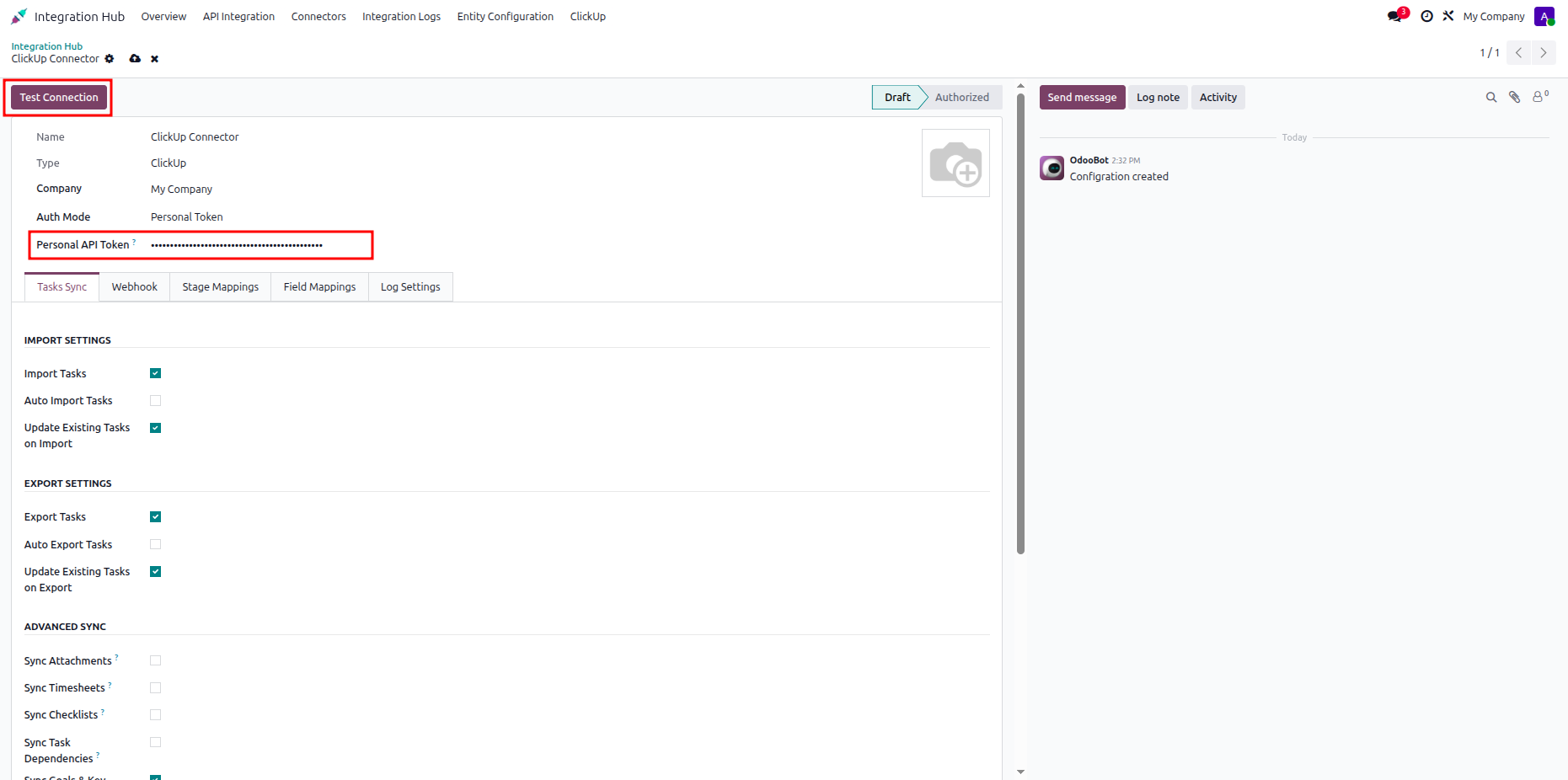
Review the configured ClickUp workspace details and enabled synchronization options before saving.
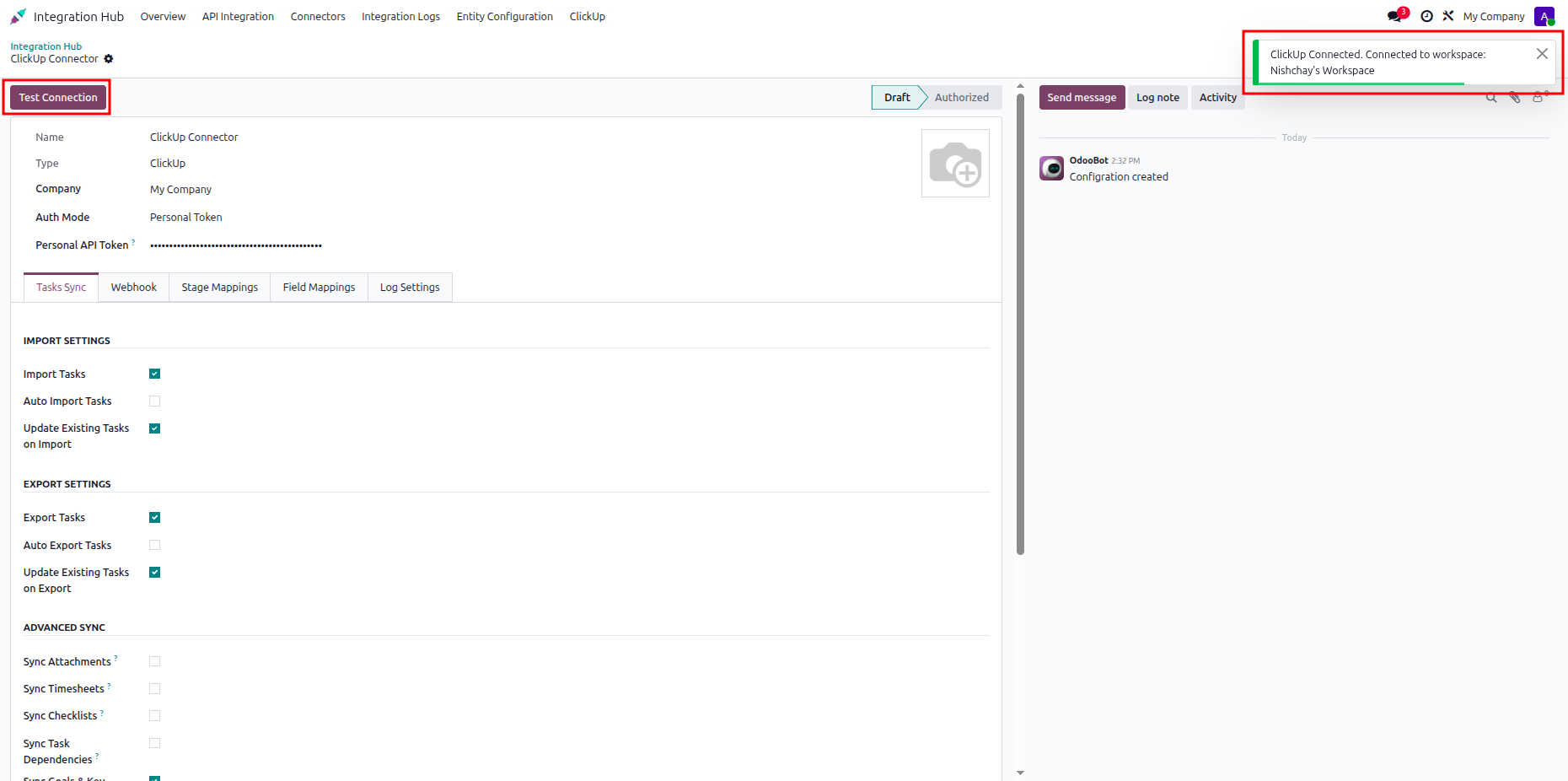
Verify the configured ClickUp API credentials and connection settings in the Odoo configuration.
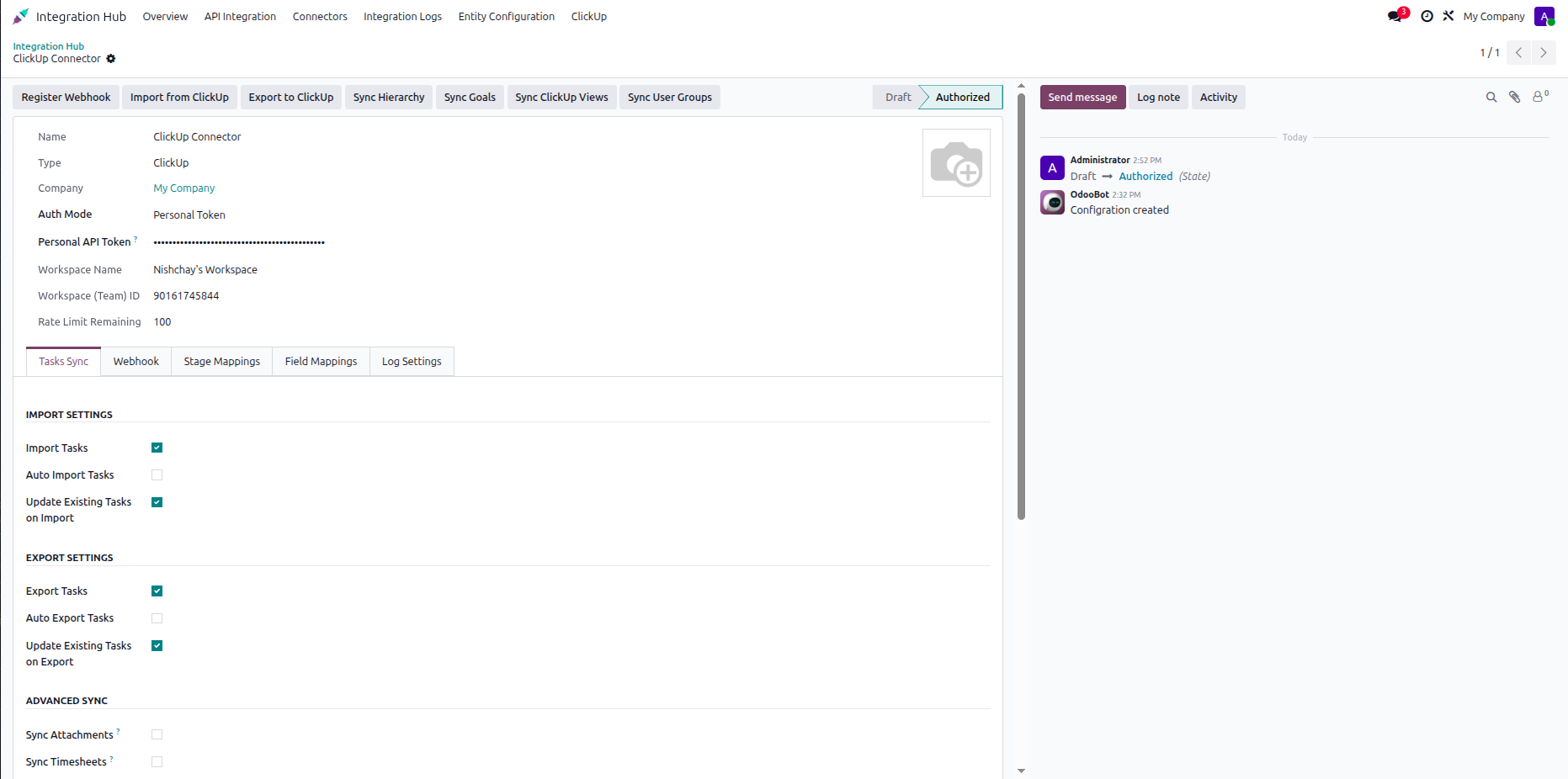
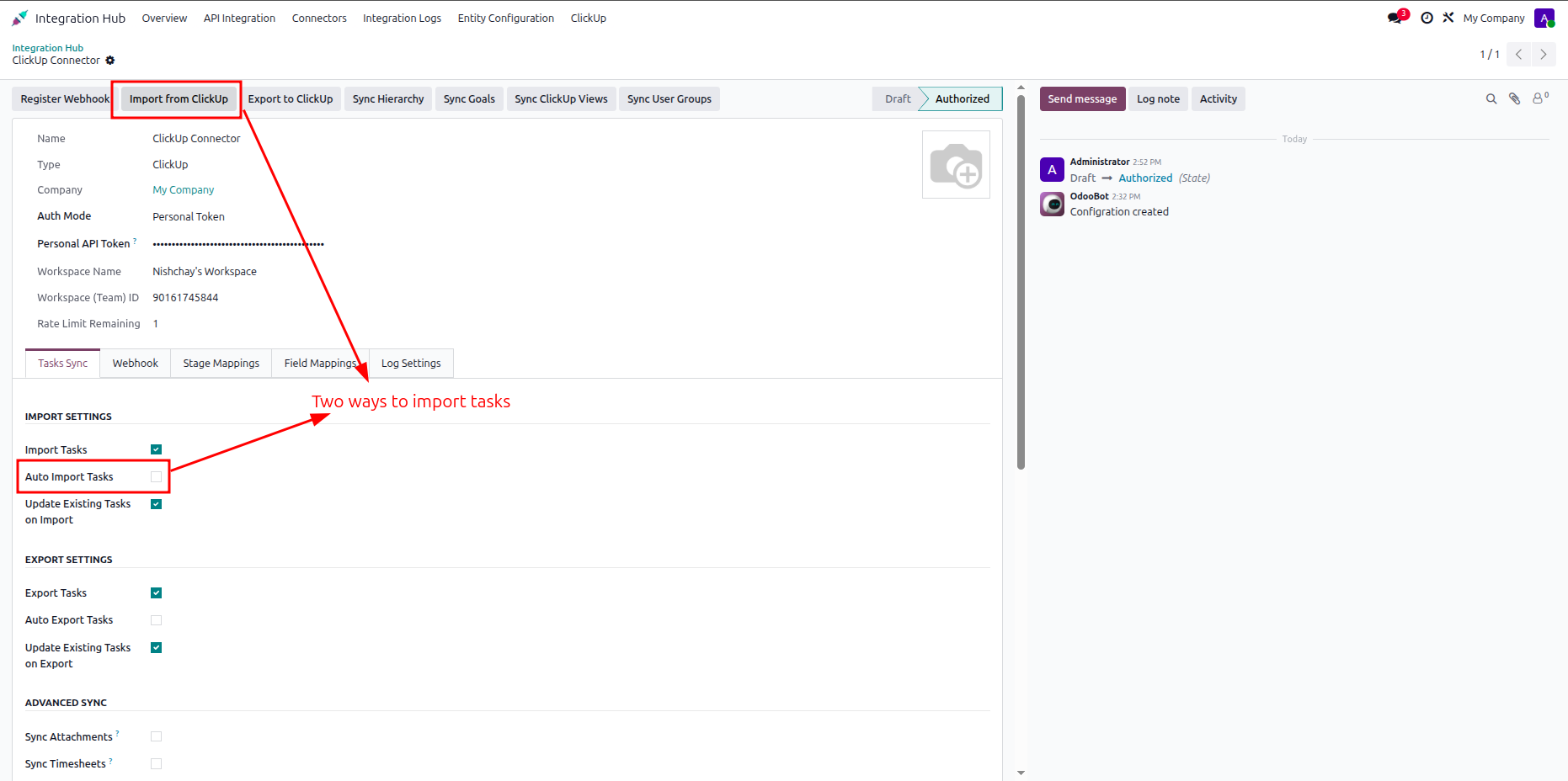
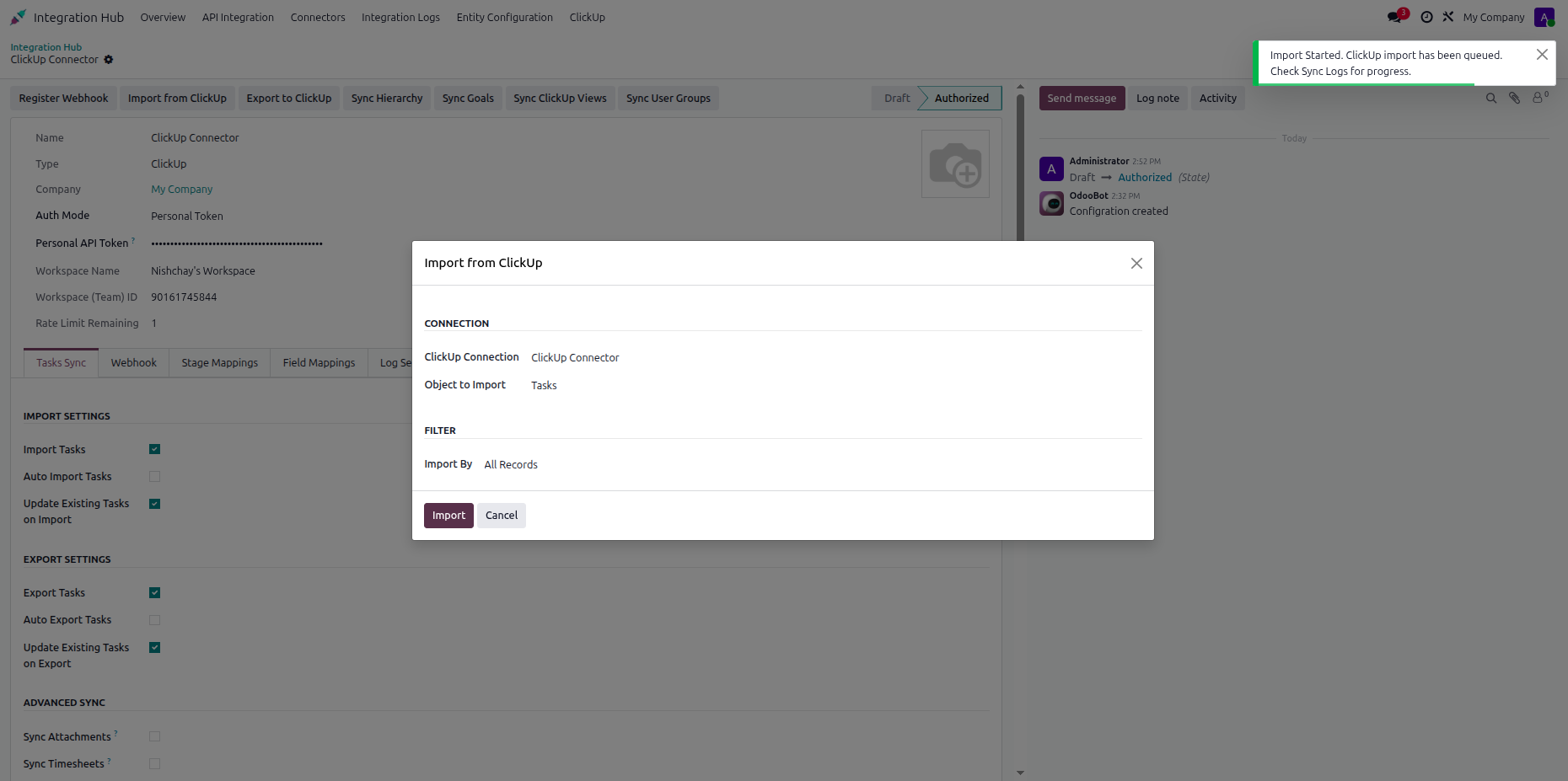
Open the task synchronization settings and select the highlighted task import option in Odoo.
Choose the ClickUp task list and import settings from the displayed synchronization dialog.
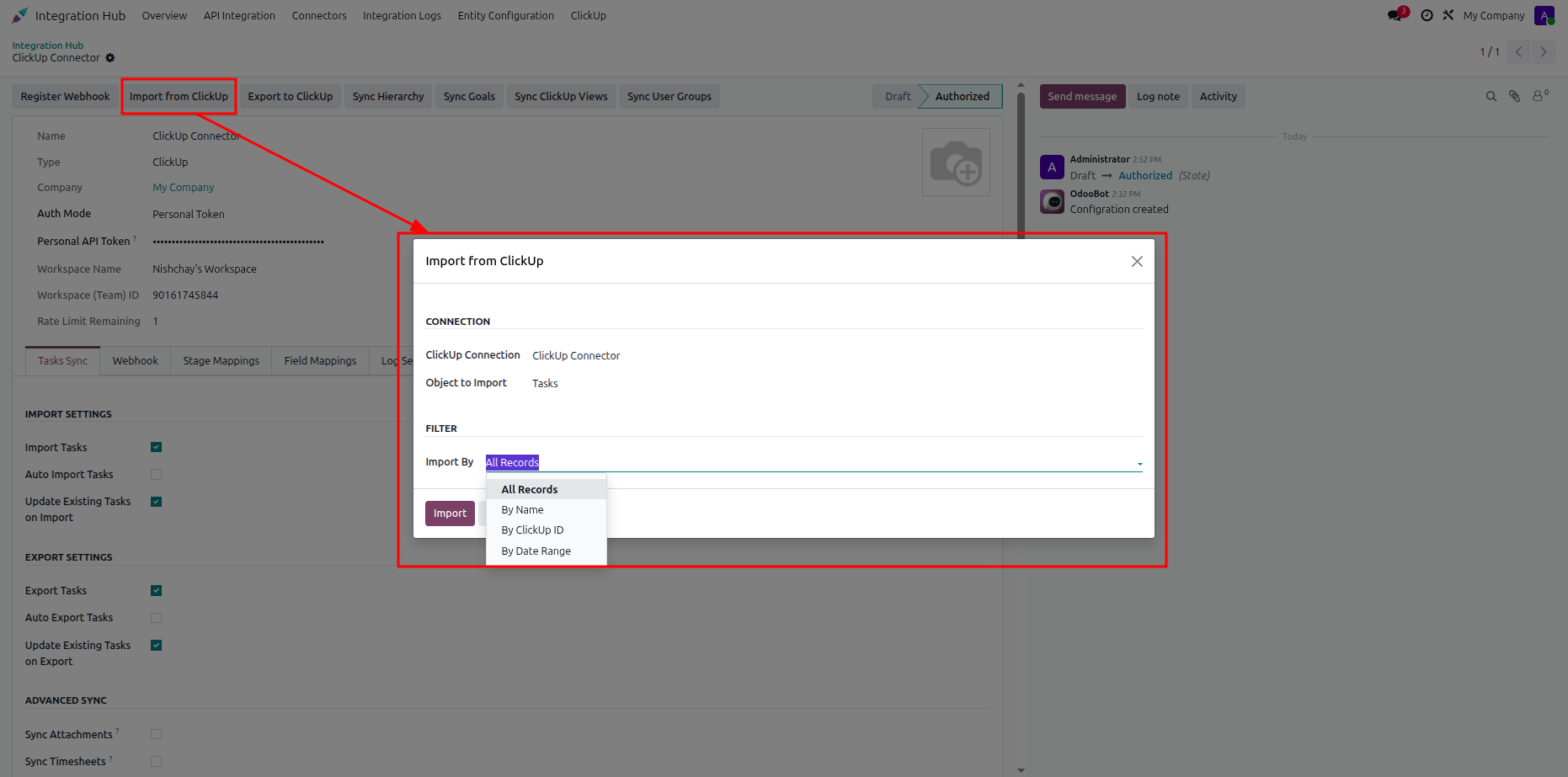
Confirm the selected ClickUp task list and synchronization options before starting the import.
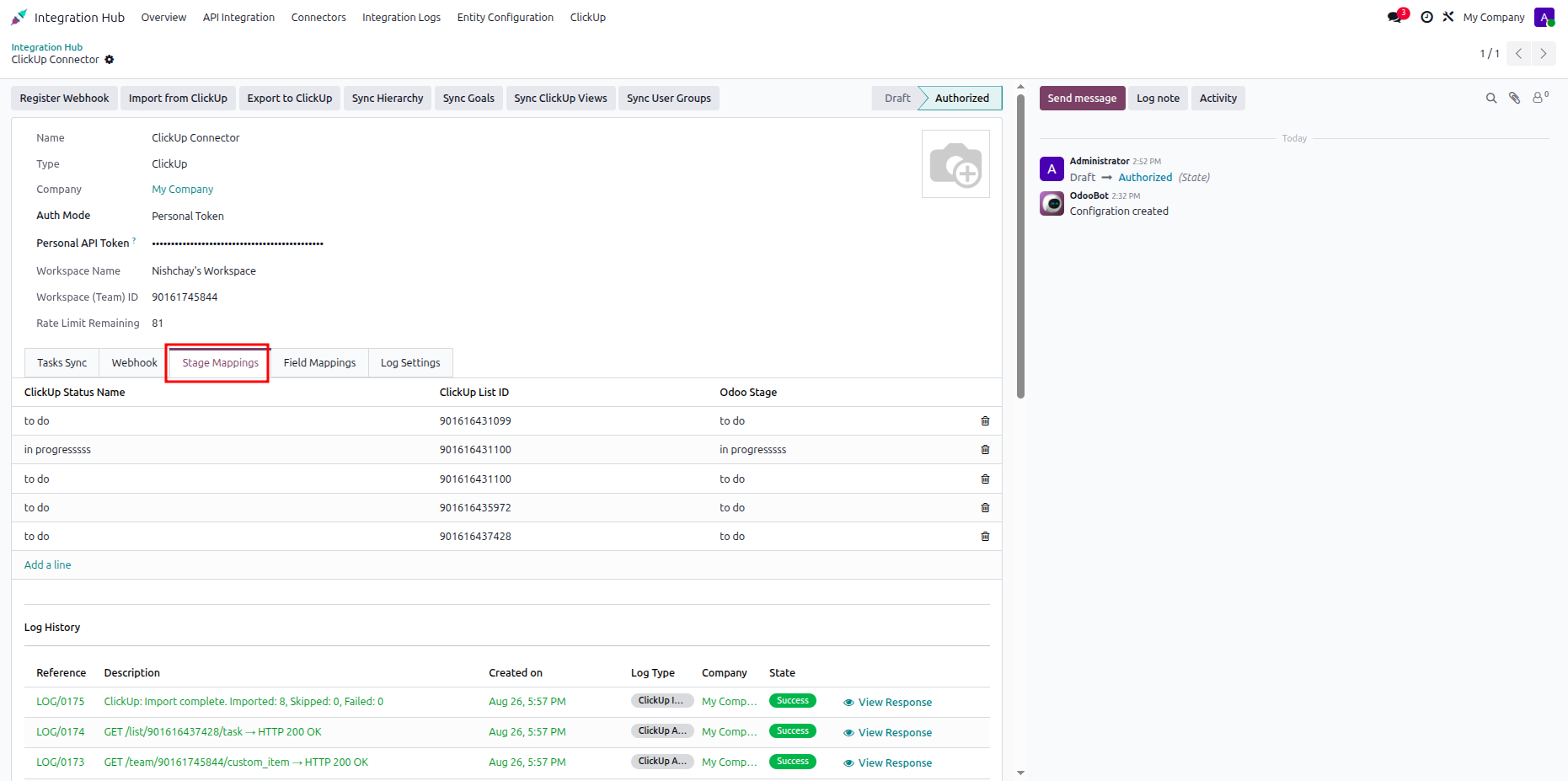
Review imported tasks and synchronization results from the Odoo task synchronization history.
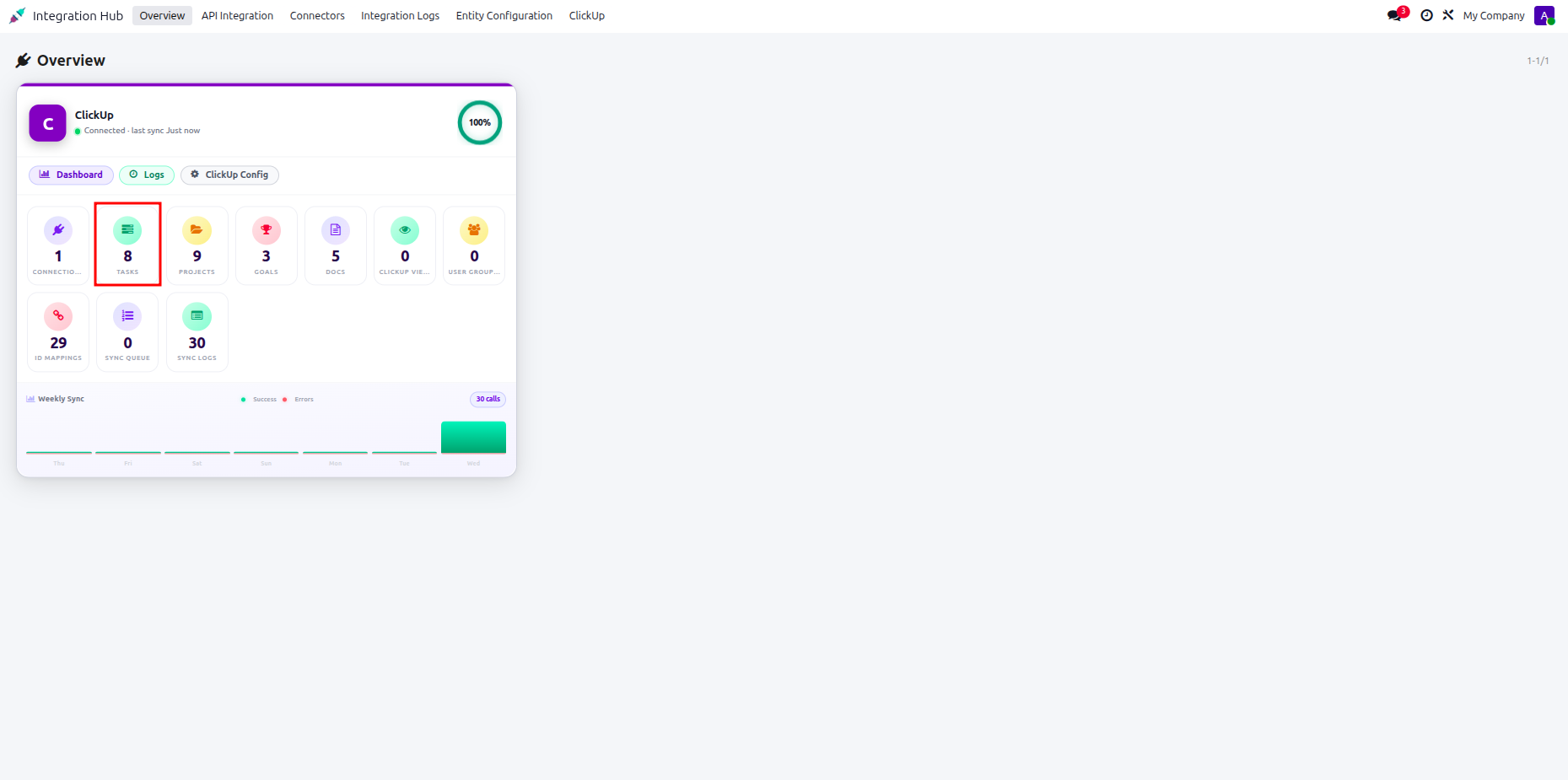
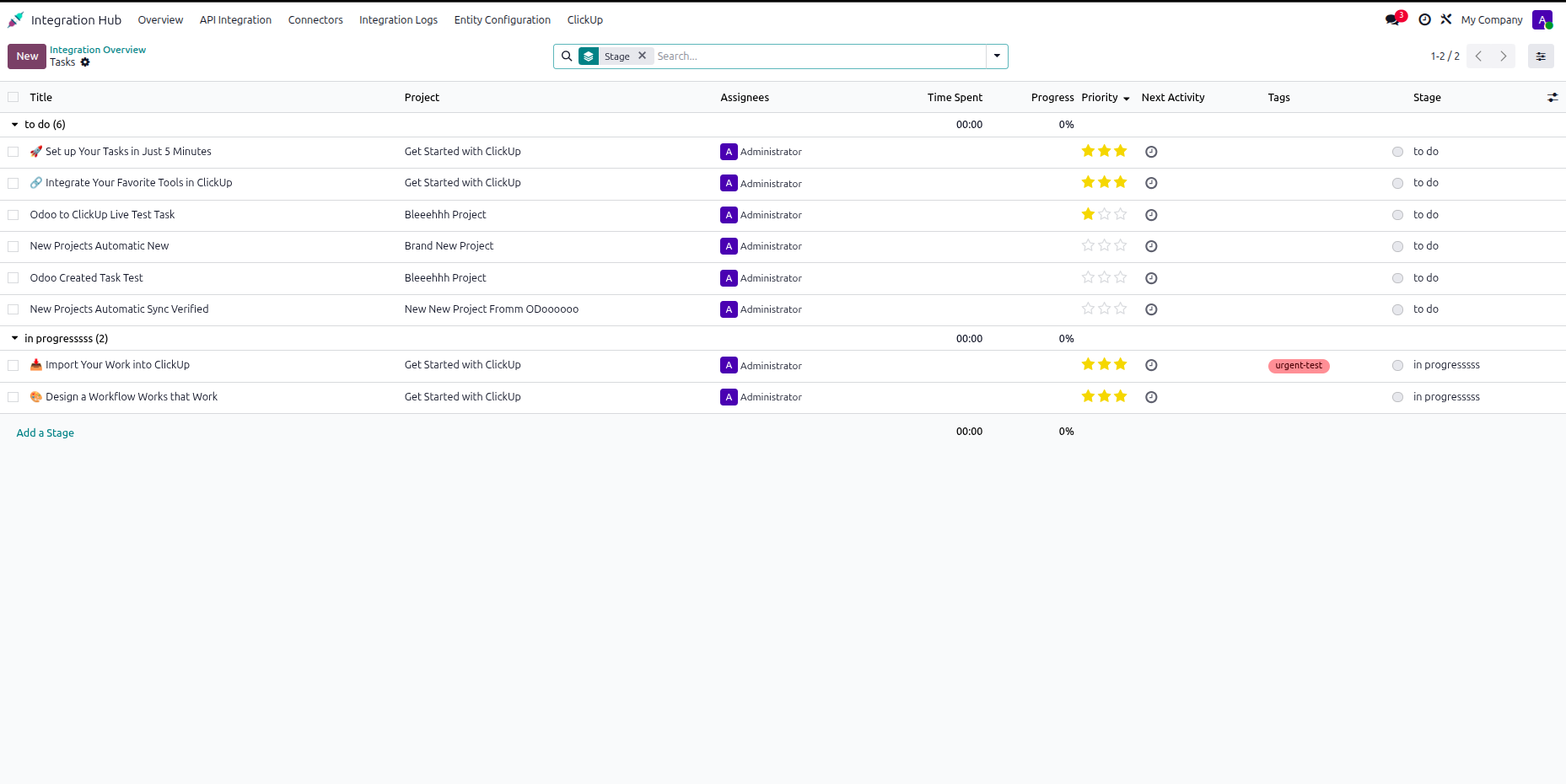
Verify imported task records and their current synchronization status in the Odoo list view.
Select the ClickUp task from the workspace to review its synchronized task details.
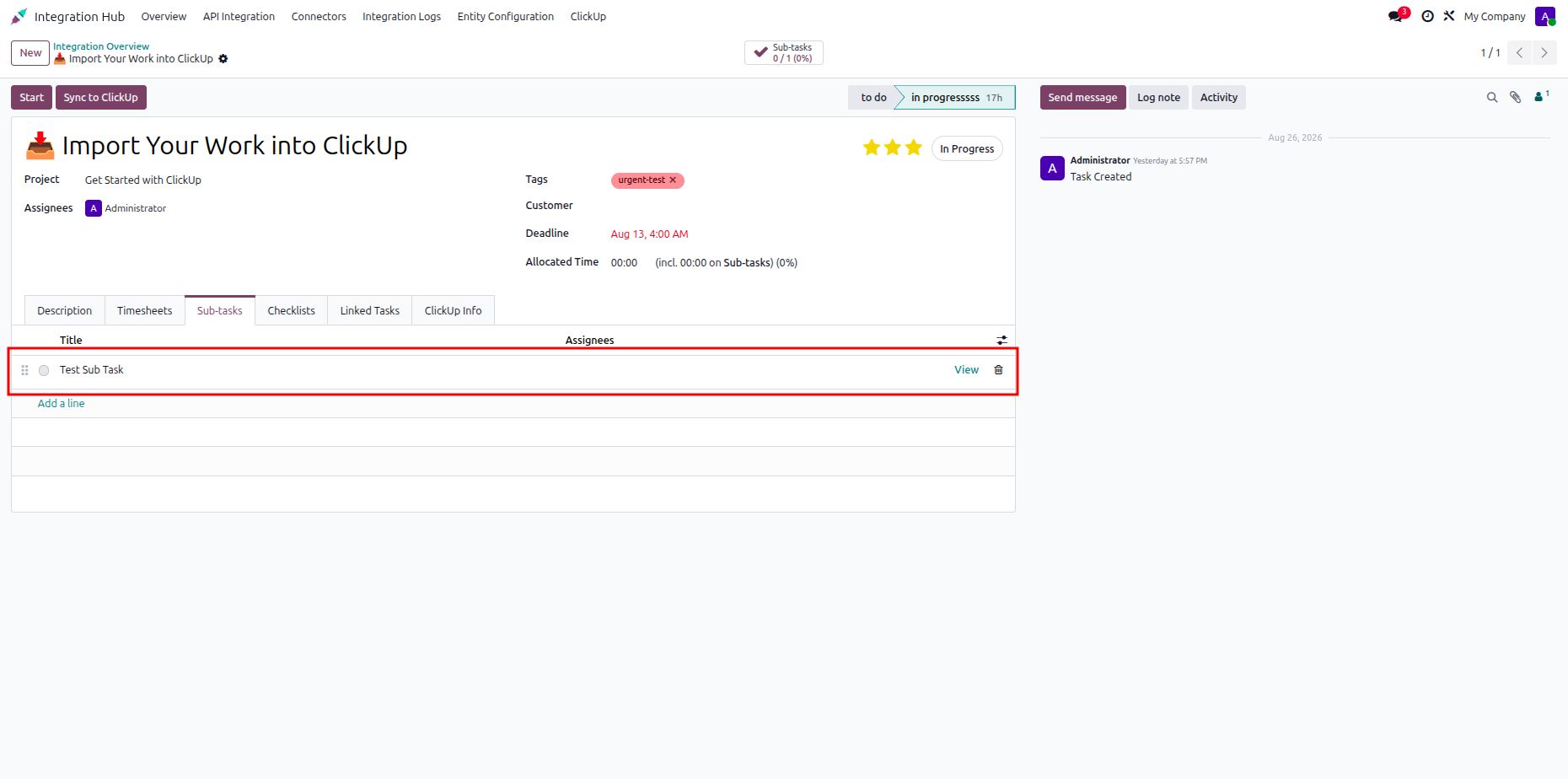
Review the ClickUp task details and selected task fields used during synchronization.
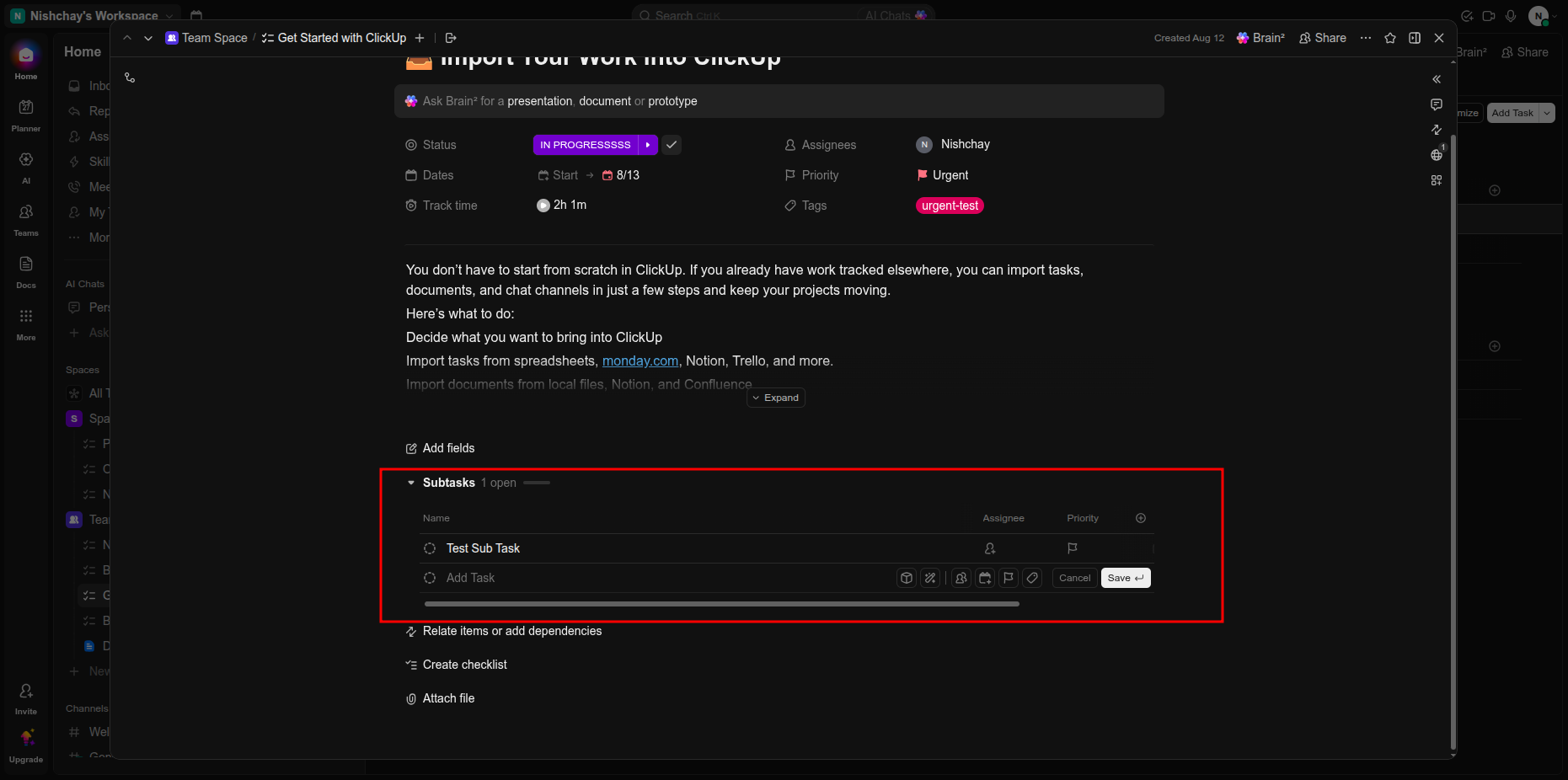
Verify the synchronized task record and its available task information in Odoo.
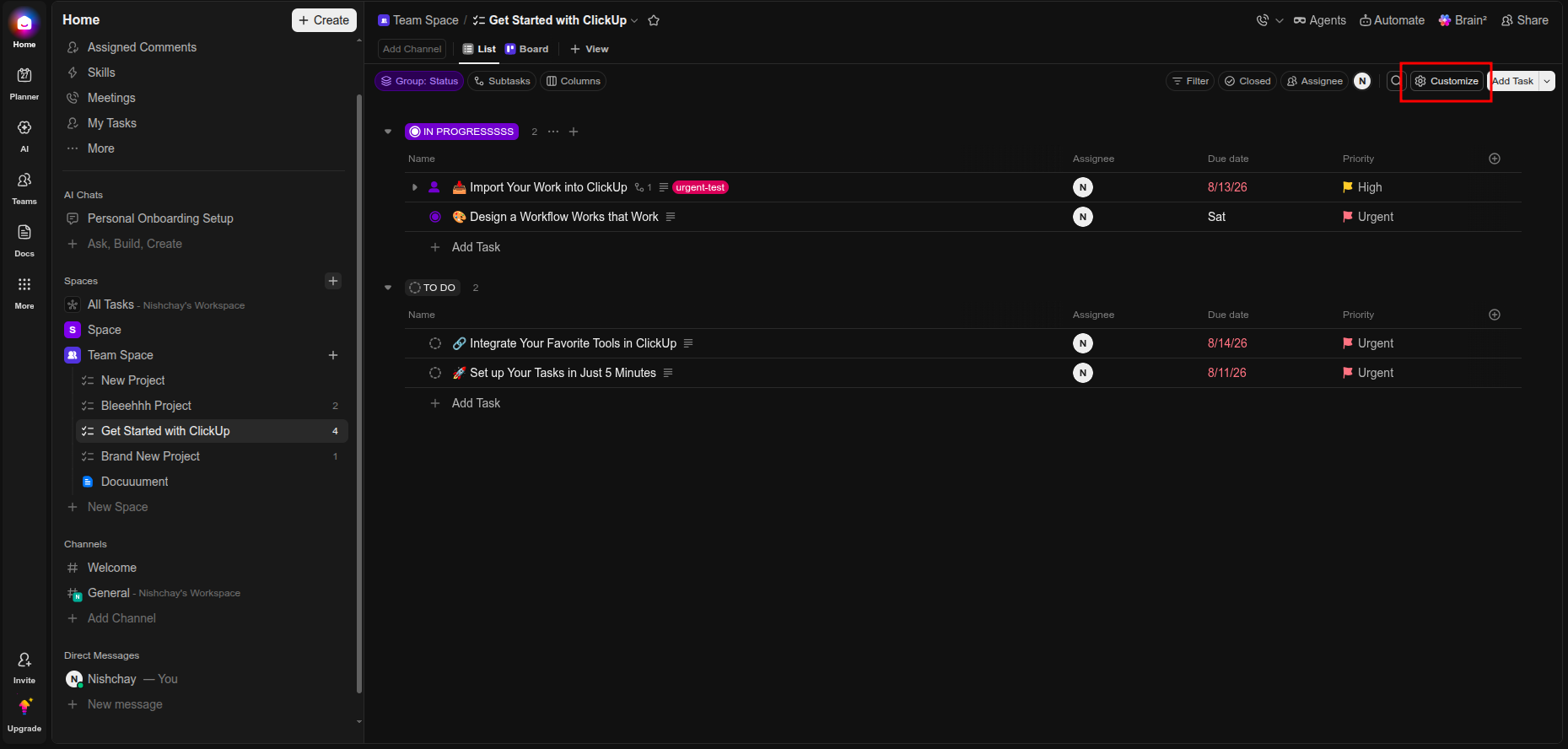
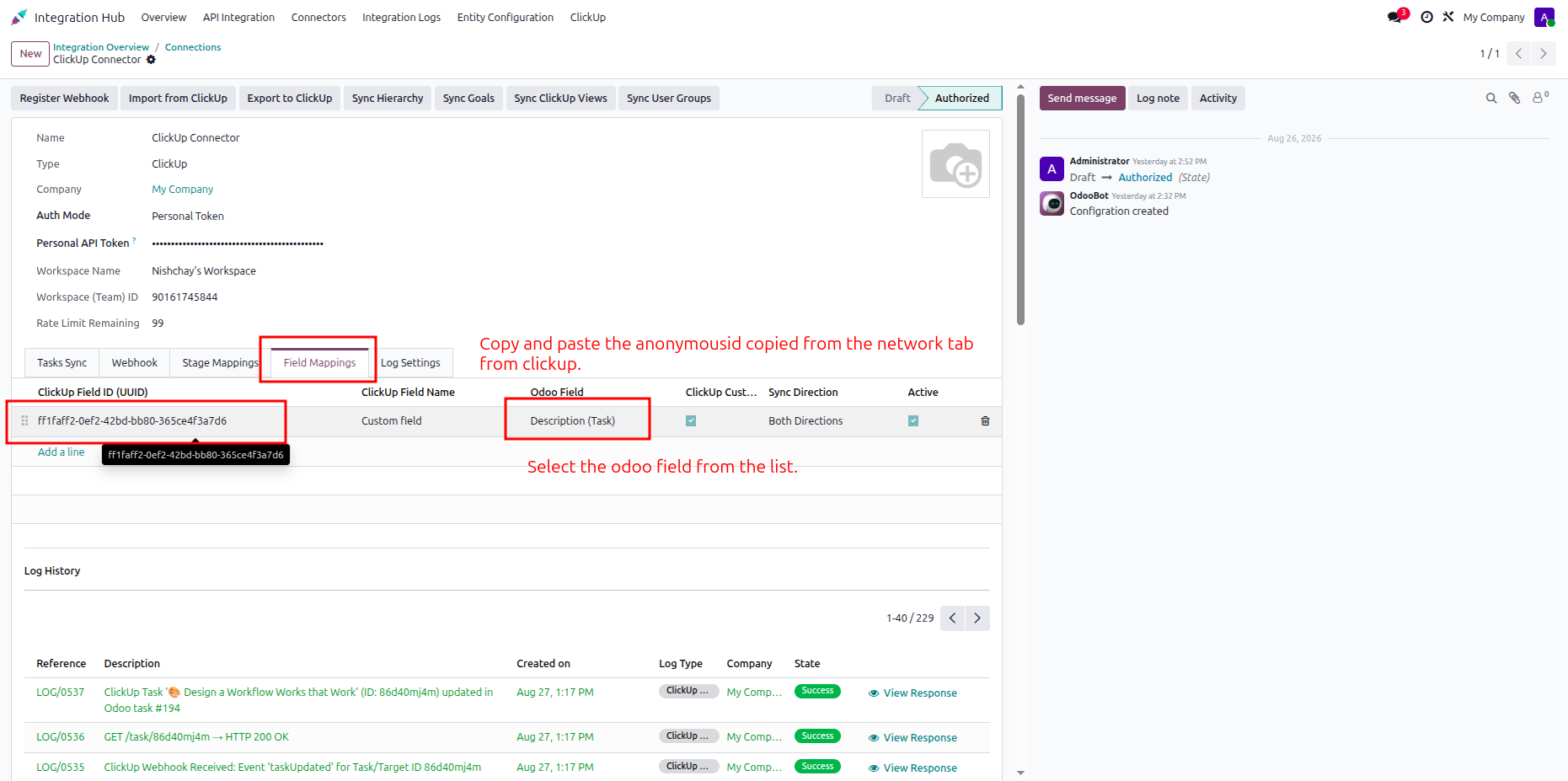
Open ClickUp custom field settings and select the highlighted field mapping option.
Review available ClickUp custom fields and select the field required for synchronization.
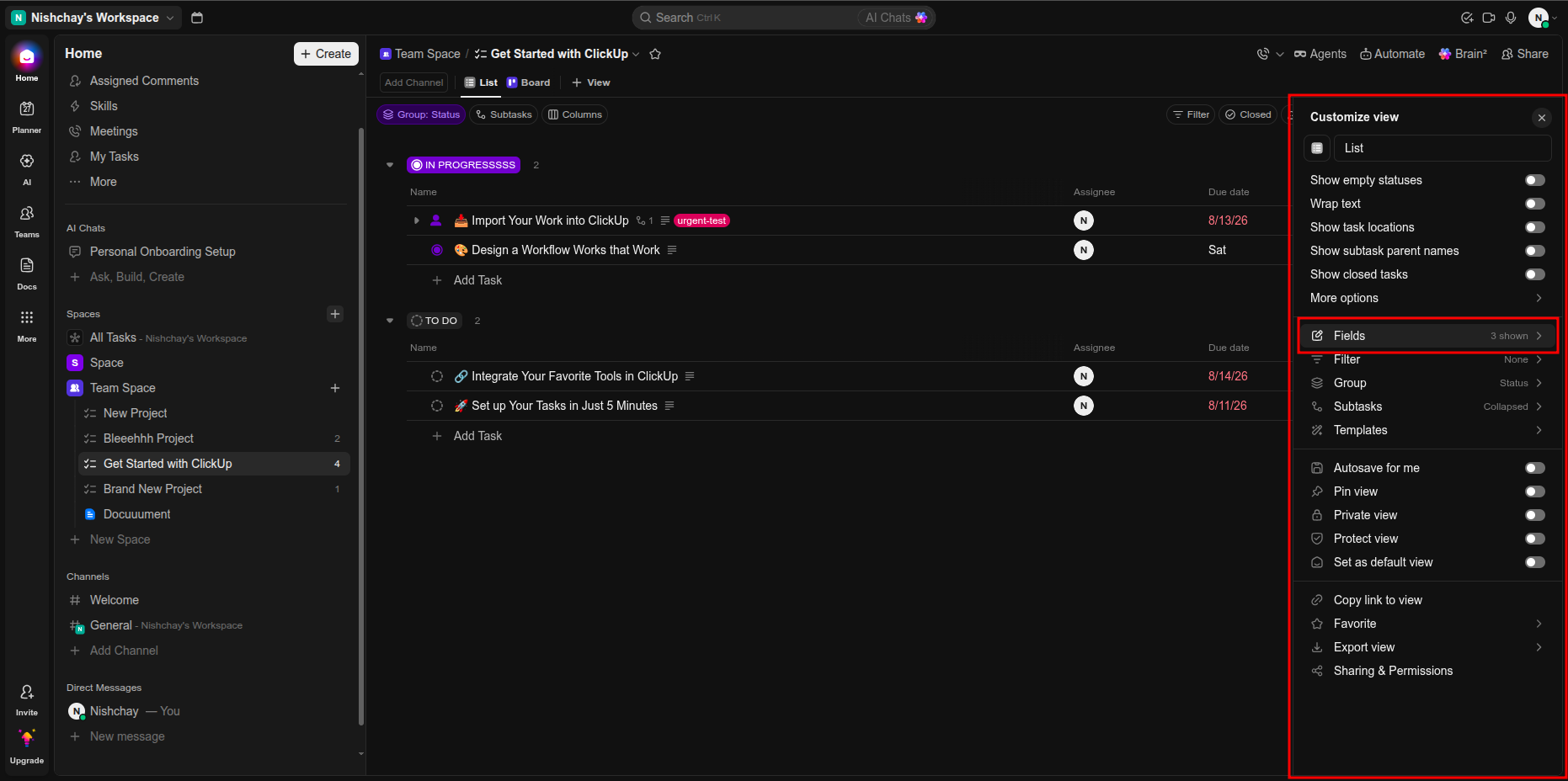
Choose the Odoo field mapping option for the selected ClickUp custom field.
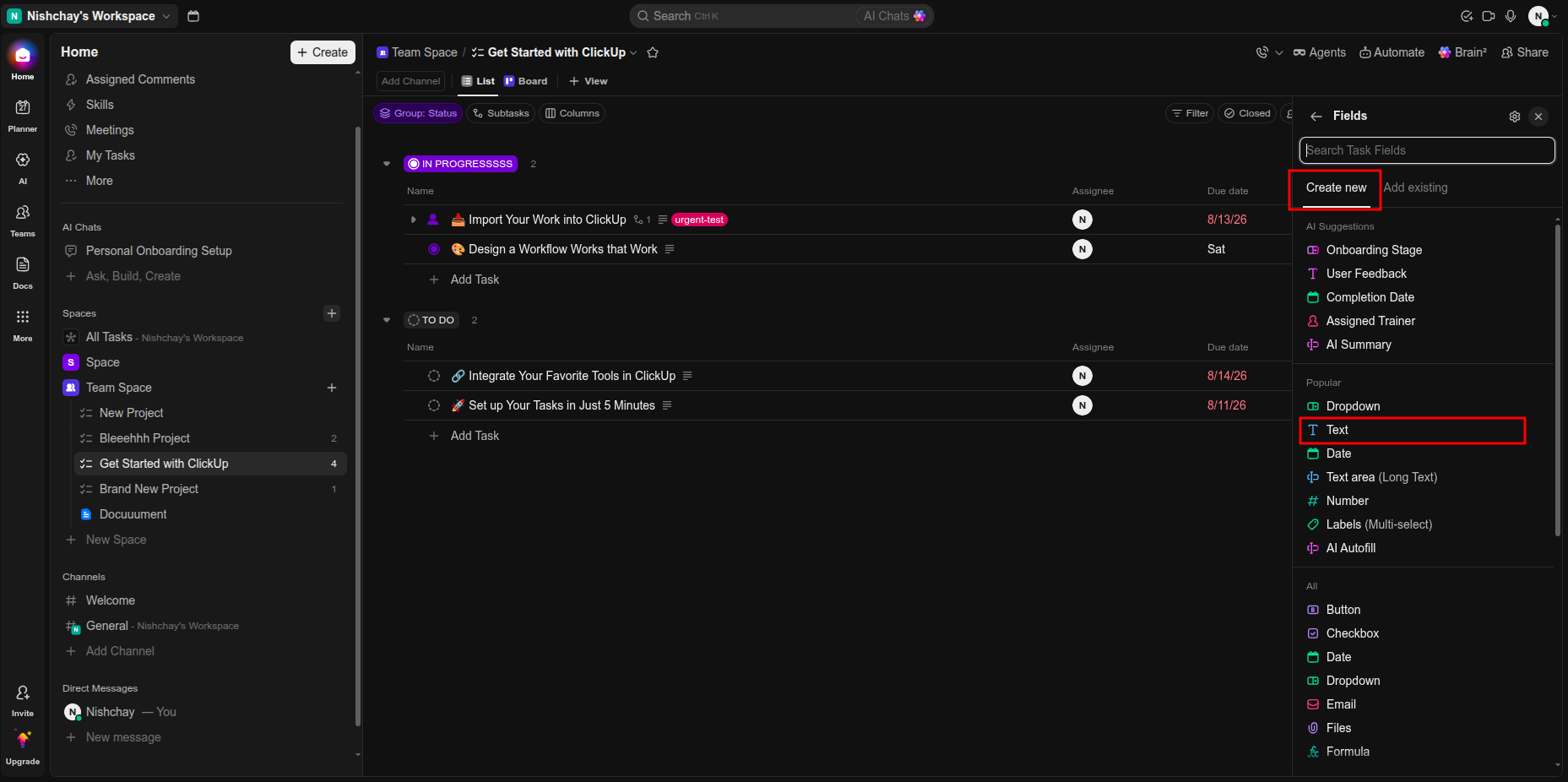
Select the required Odoo field from the available mapping choices for synchronization.
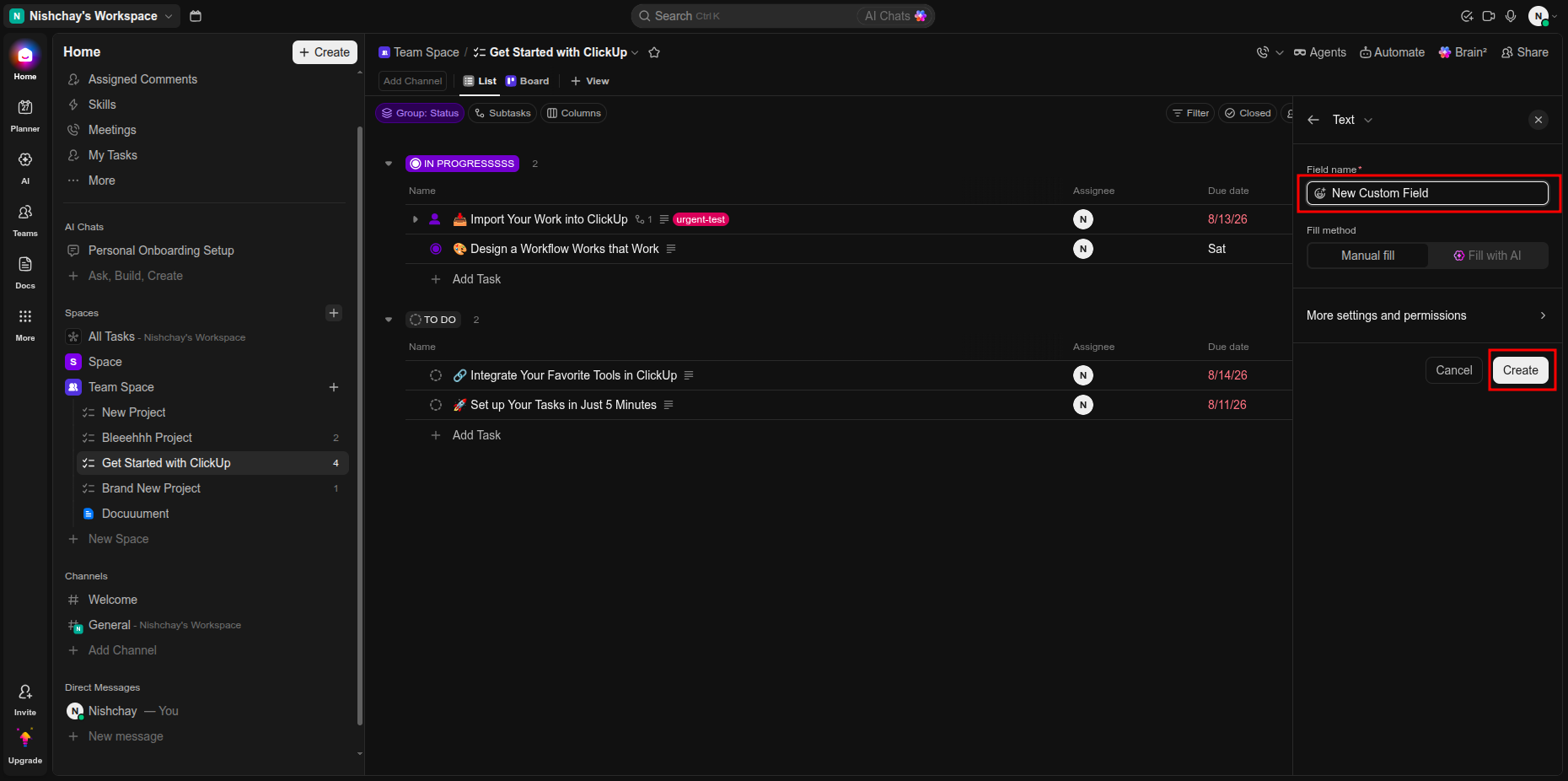
Confirm the selected custom field mapping and save the configured mapping in ClickUp.
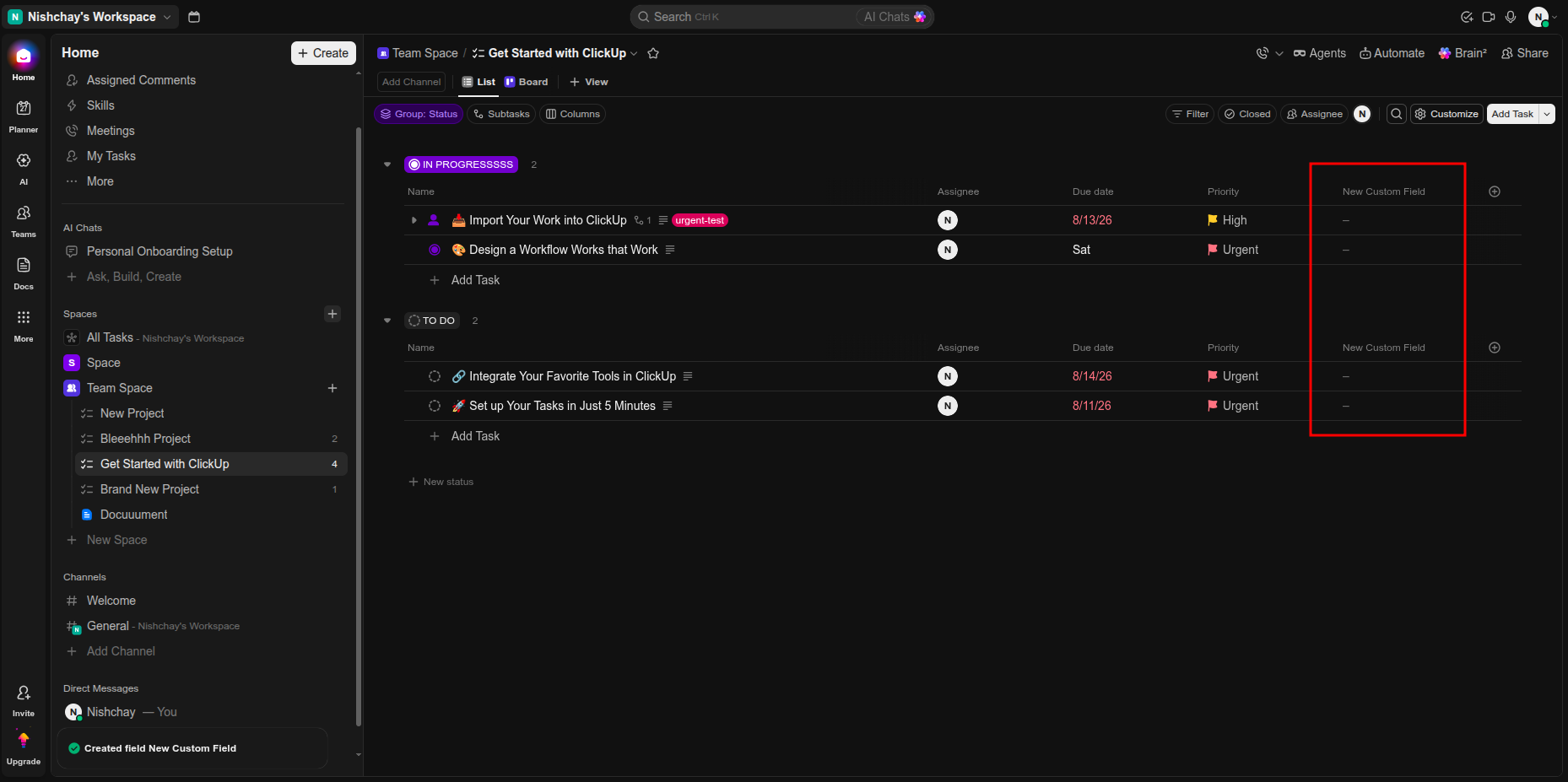
Review the completed custom field mapping configuration before applying synchronization settings.
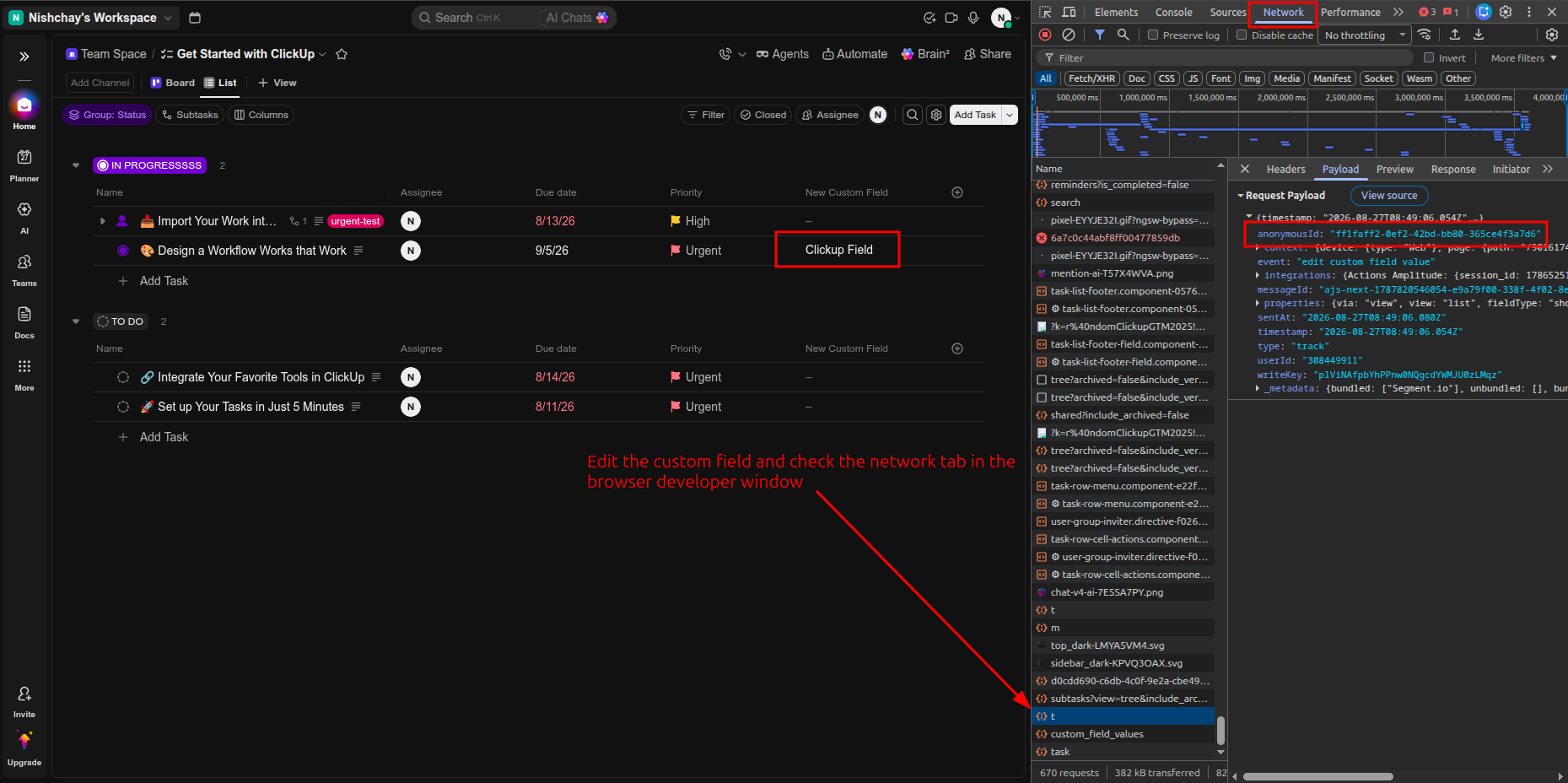
Open the Odoo task synchronization configuration to review mapped custom fields.
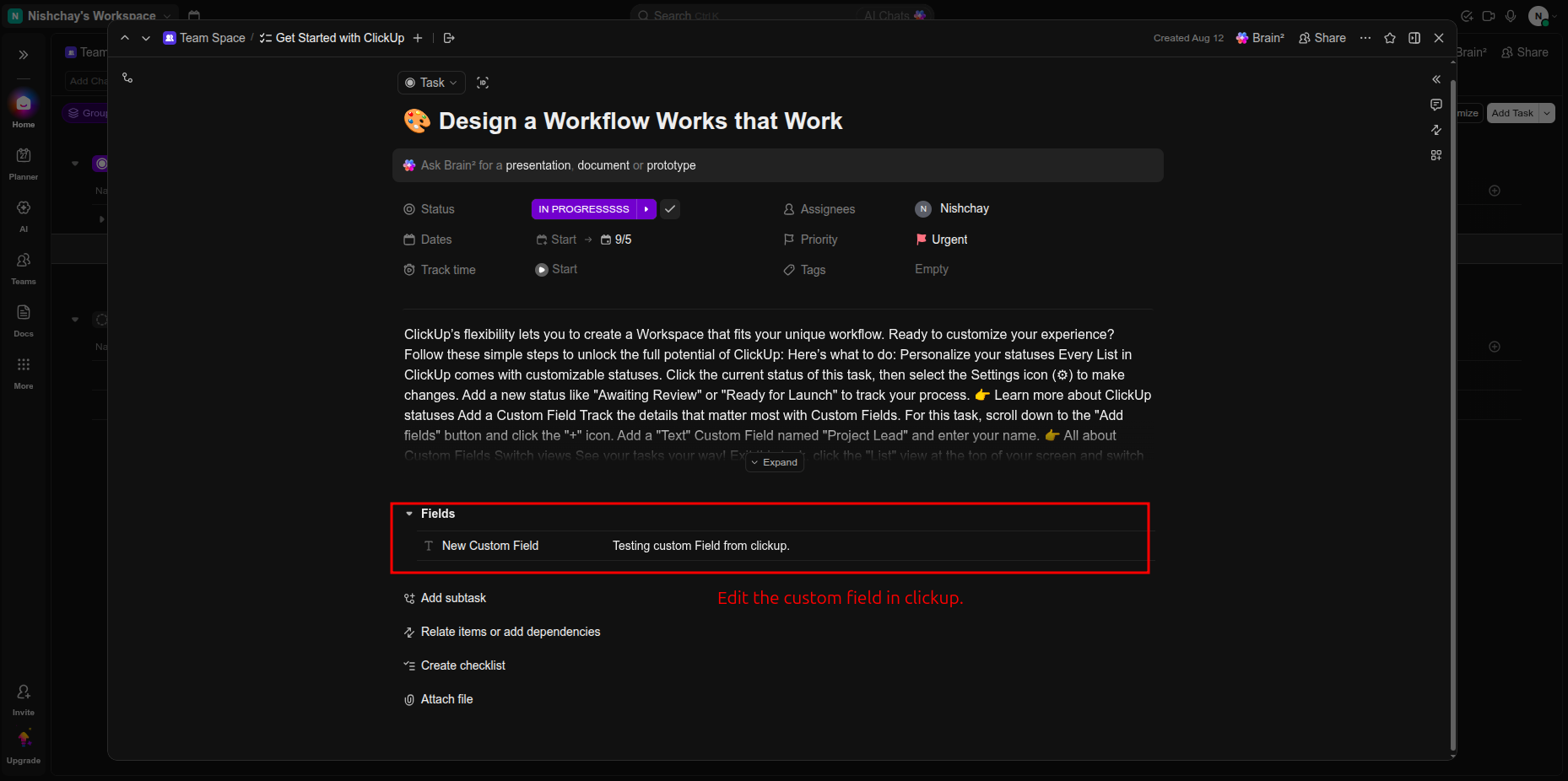
Review the corresponding ClickUp custom field value displayed on the synchronized task.
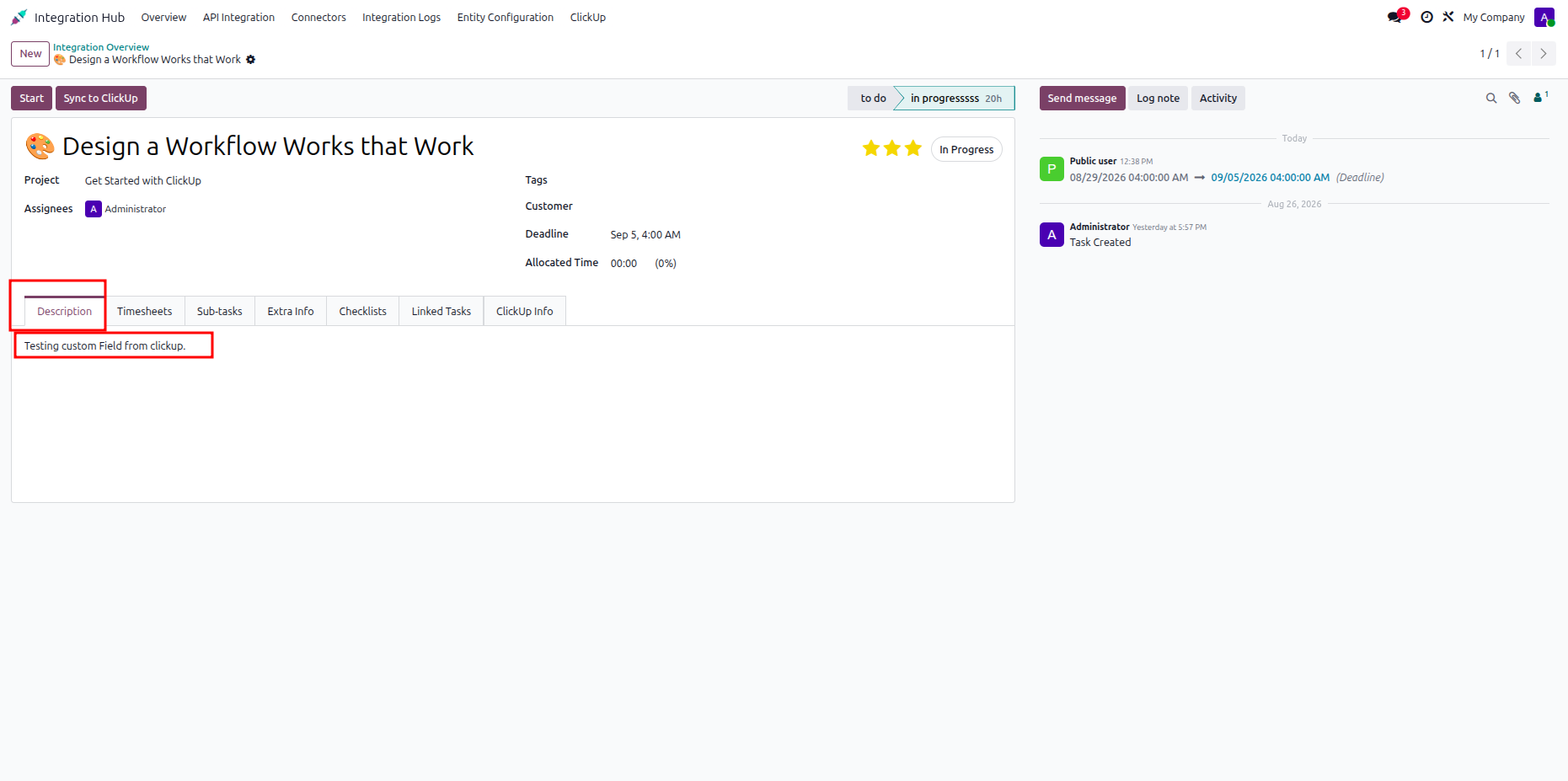
Verify the mapped custom field value on the synchronized Odoo task record.
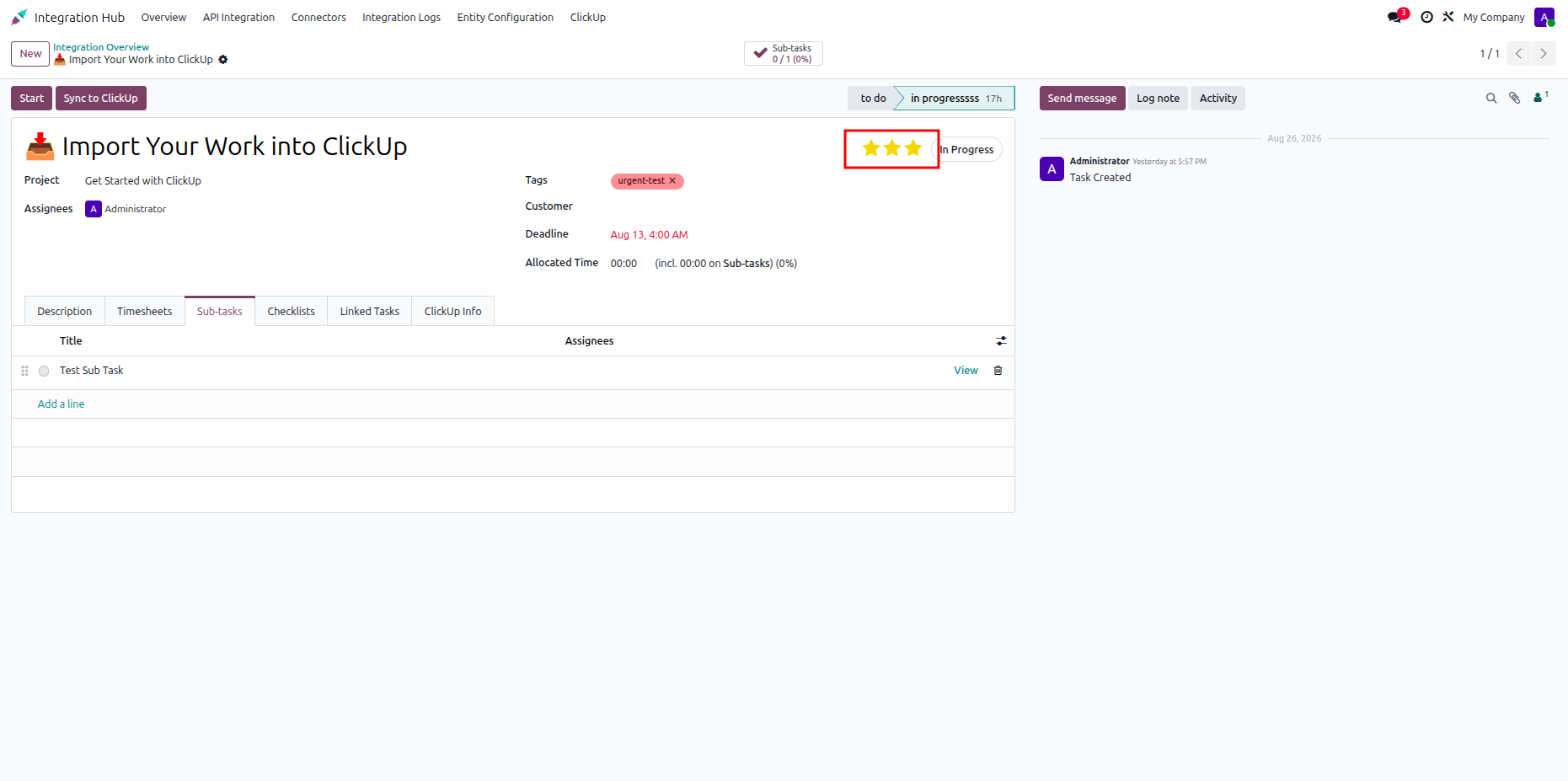
Review the Odoo task priority field selected for synchronization with ClickUp.
Open the ClickUp task and select the highlighted priority value from the task details.
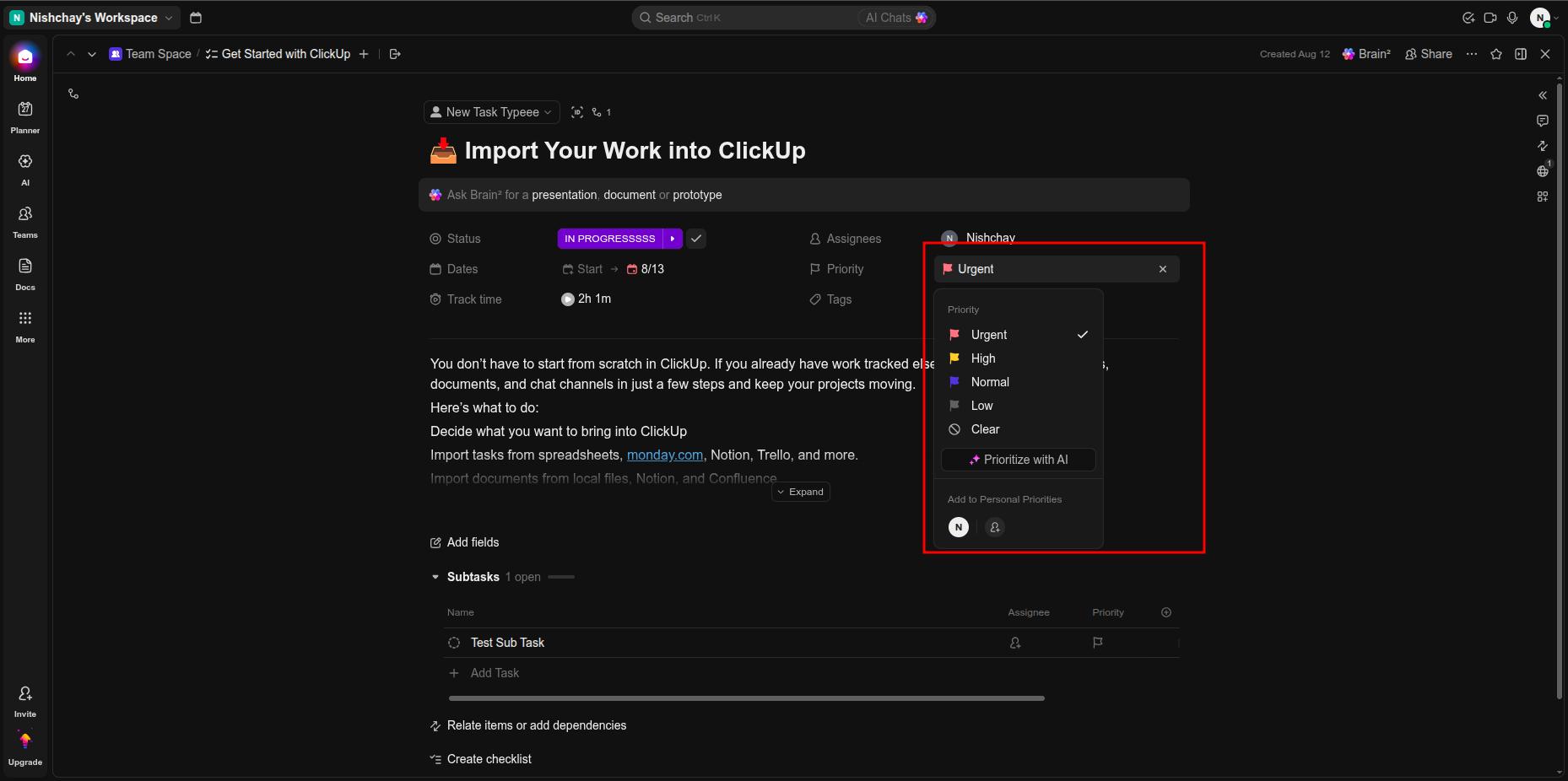
Choose the required ClickUp priority level from the displayed priority menu.
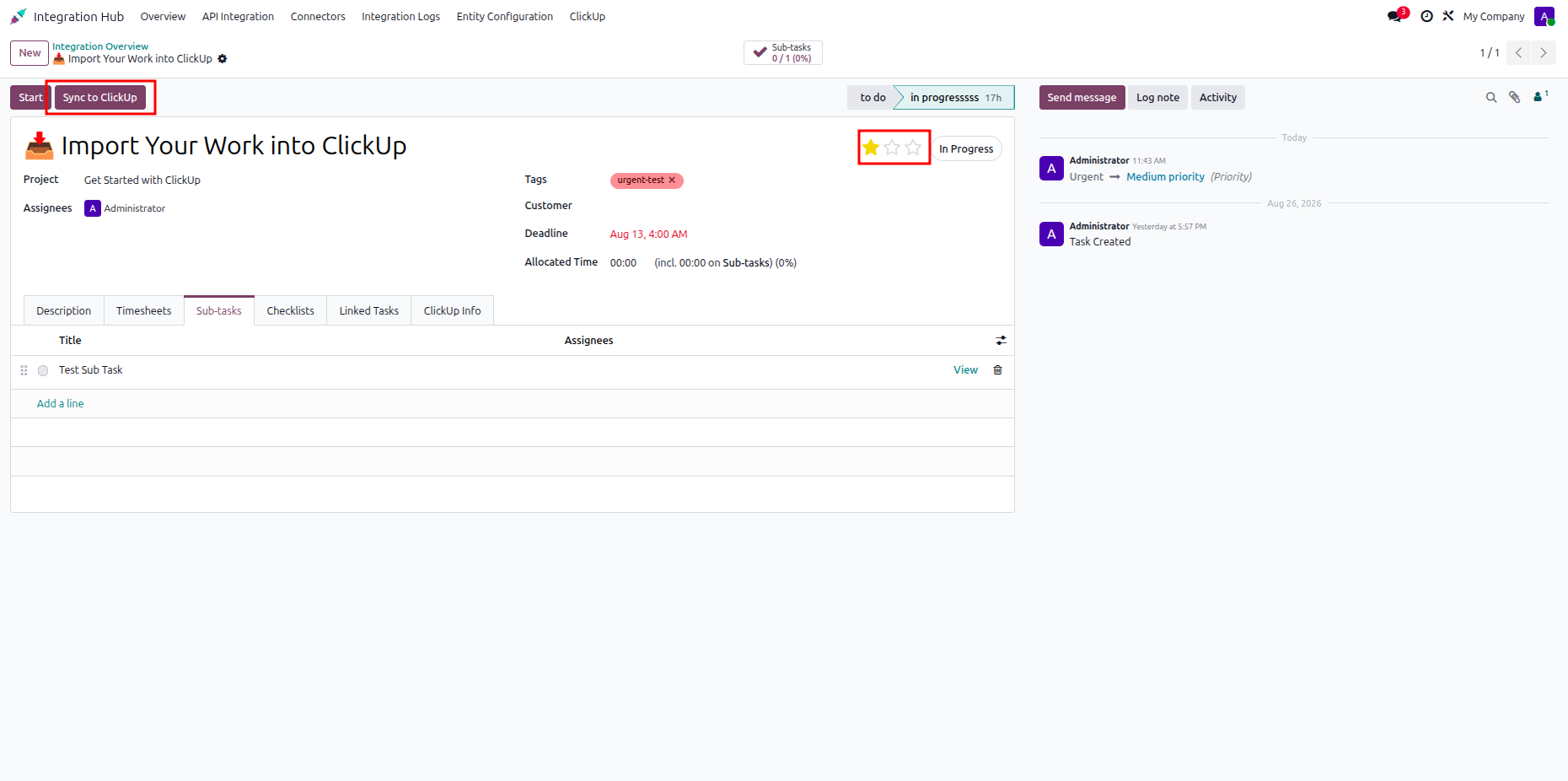
Select the mapped priority value in ClickUp to update the task synchronization data.
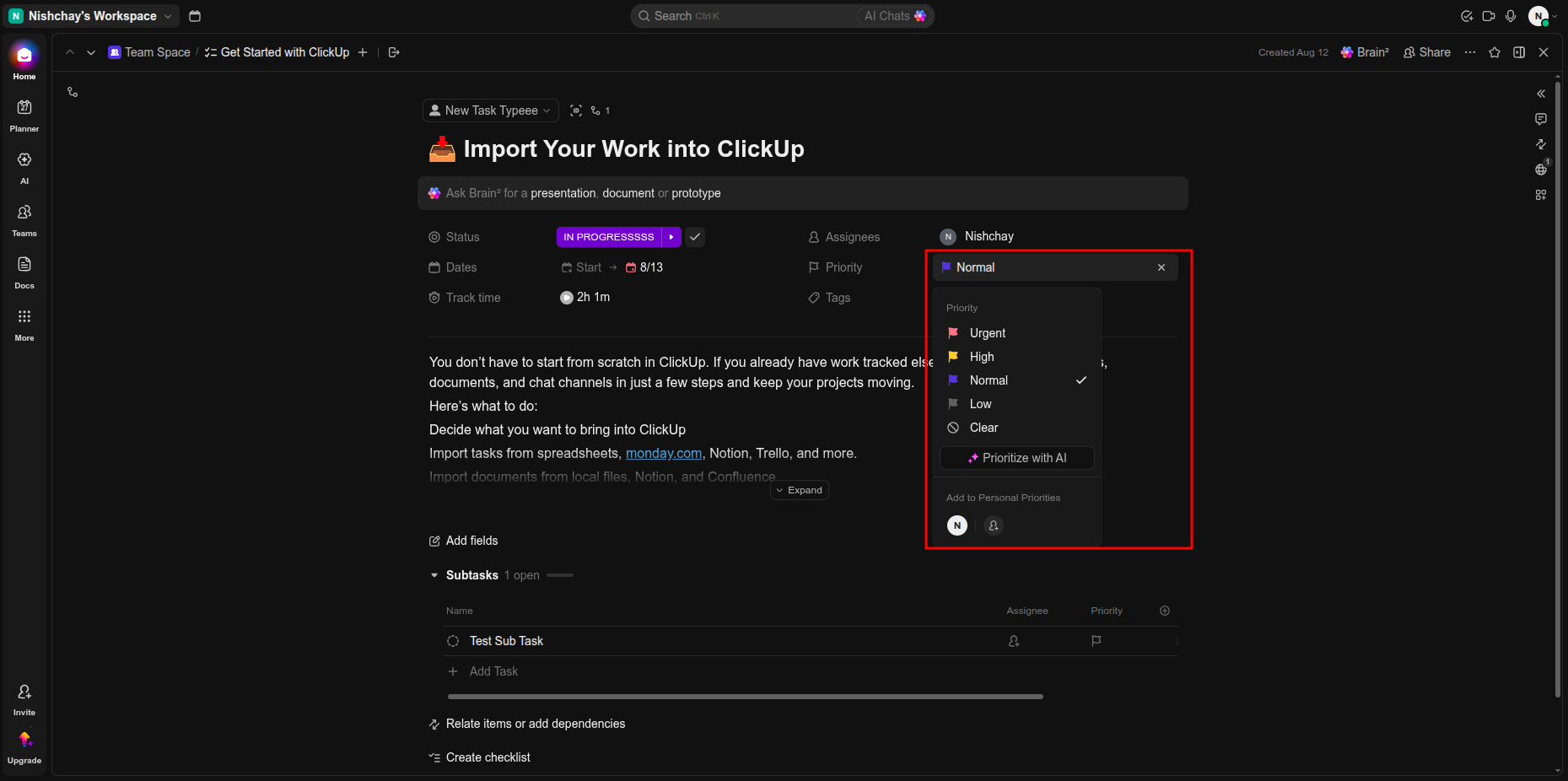
Review the updated ClickUp priority value after applying the selected priority setting.
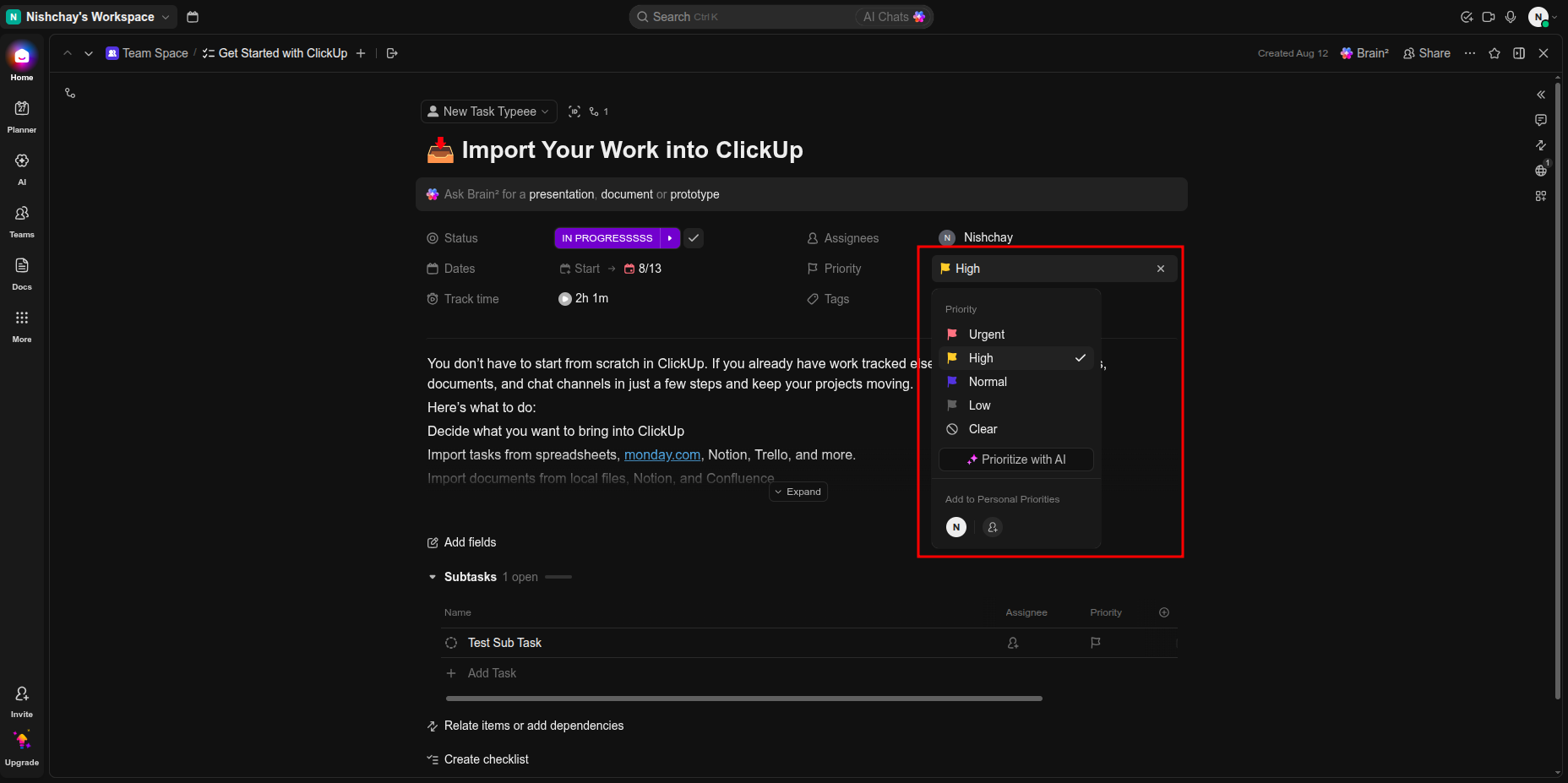
Verify the synchronized priority value displayed on the corresponding Odoo task record.
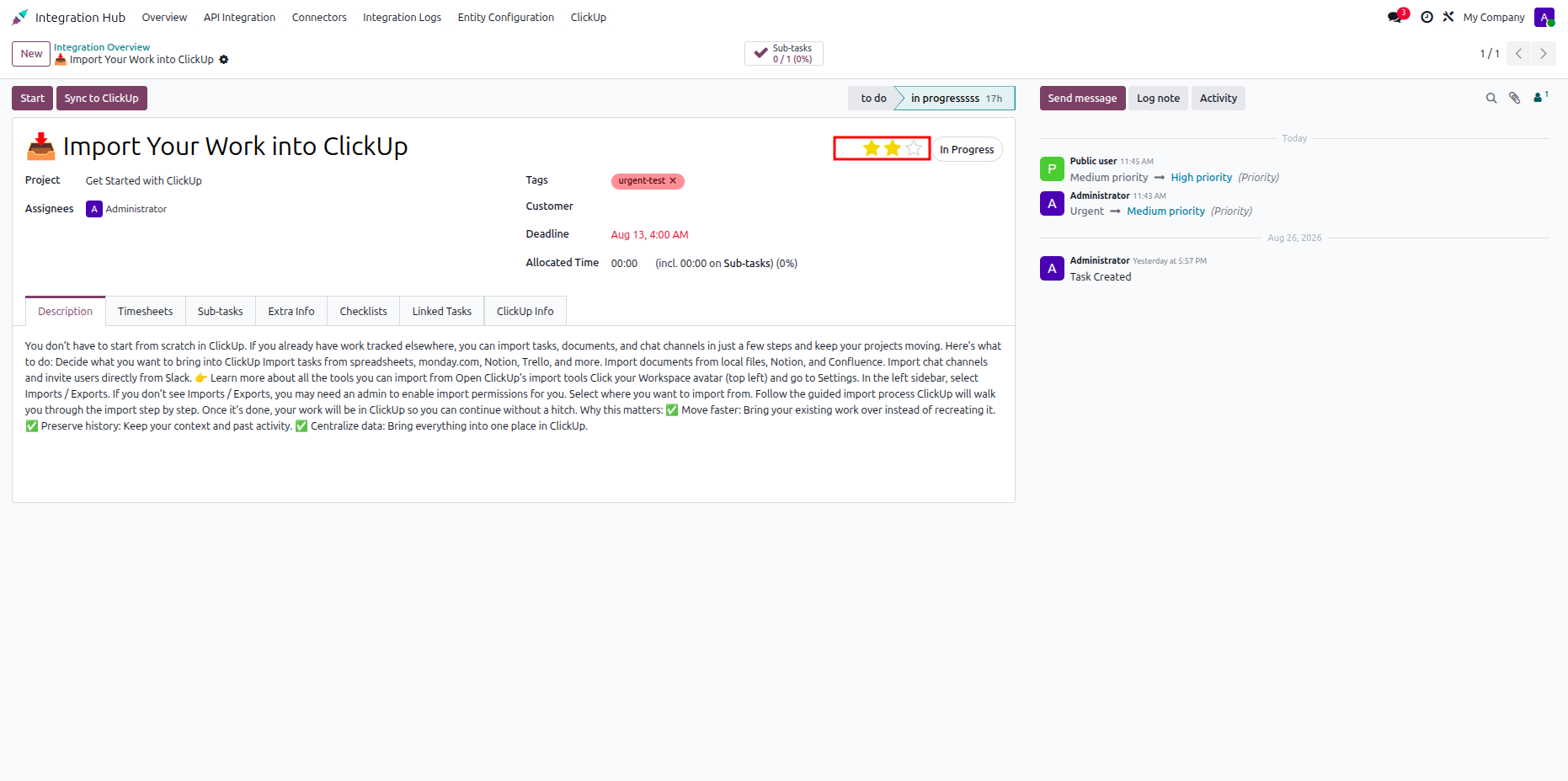
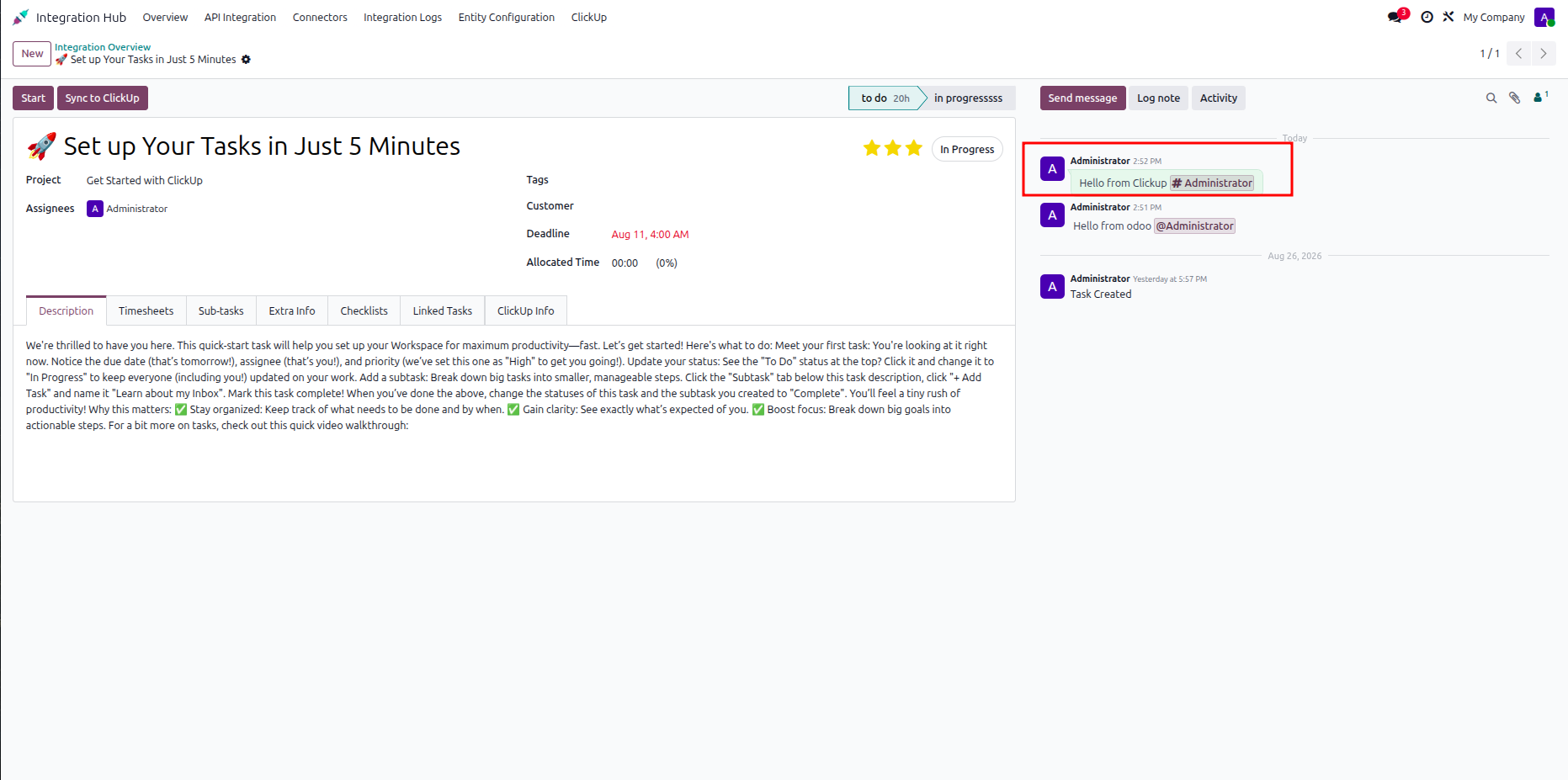
Open the Odoo task and review the highlighted chatter area containing synchronized messages.
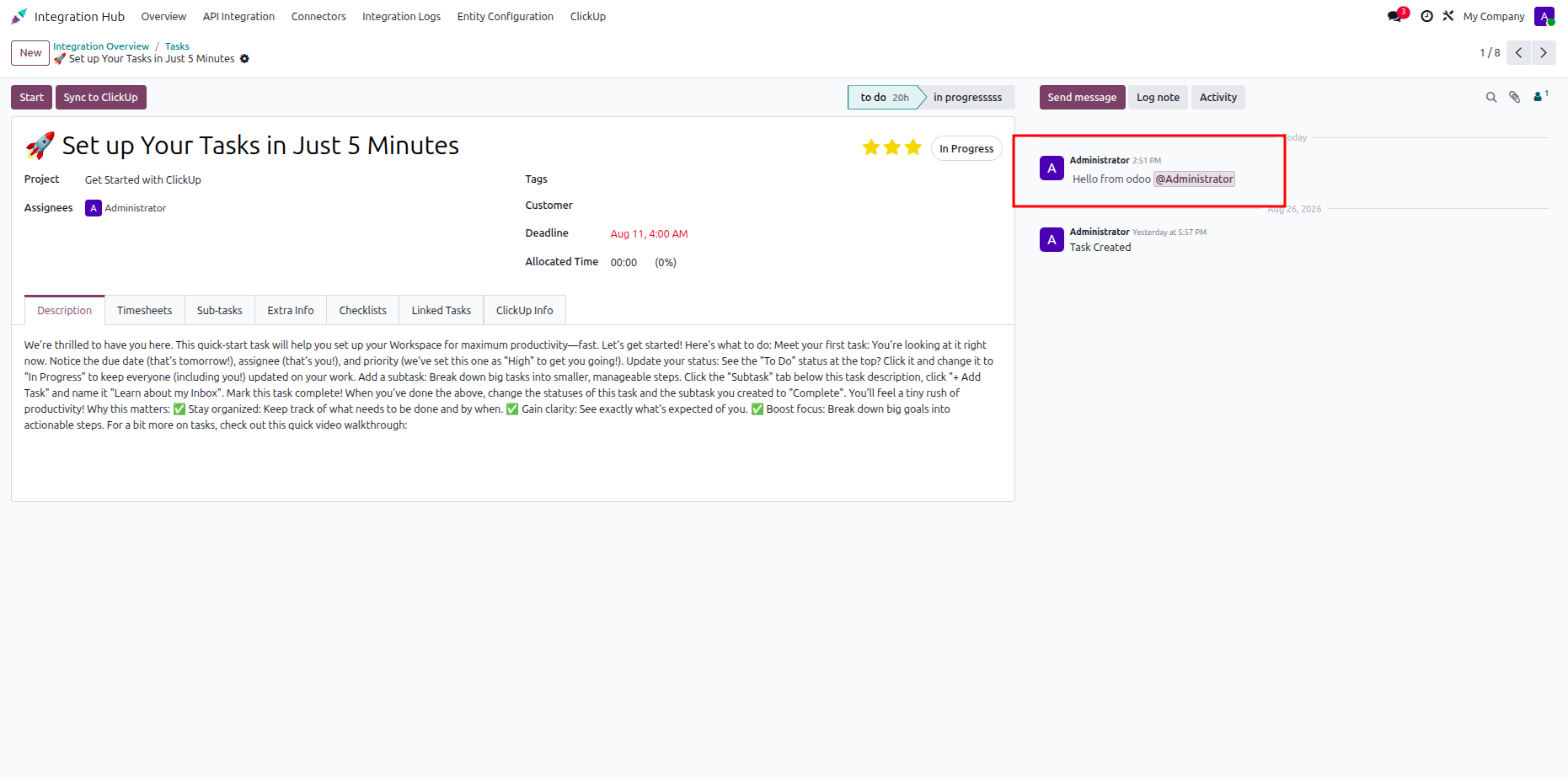
Add a comment to the ClickUp task to synchronize the message with Odoo.
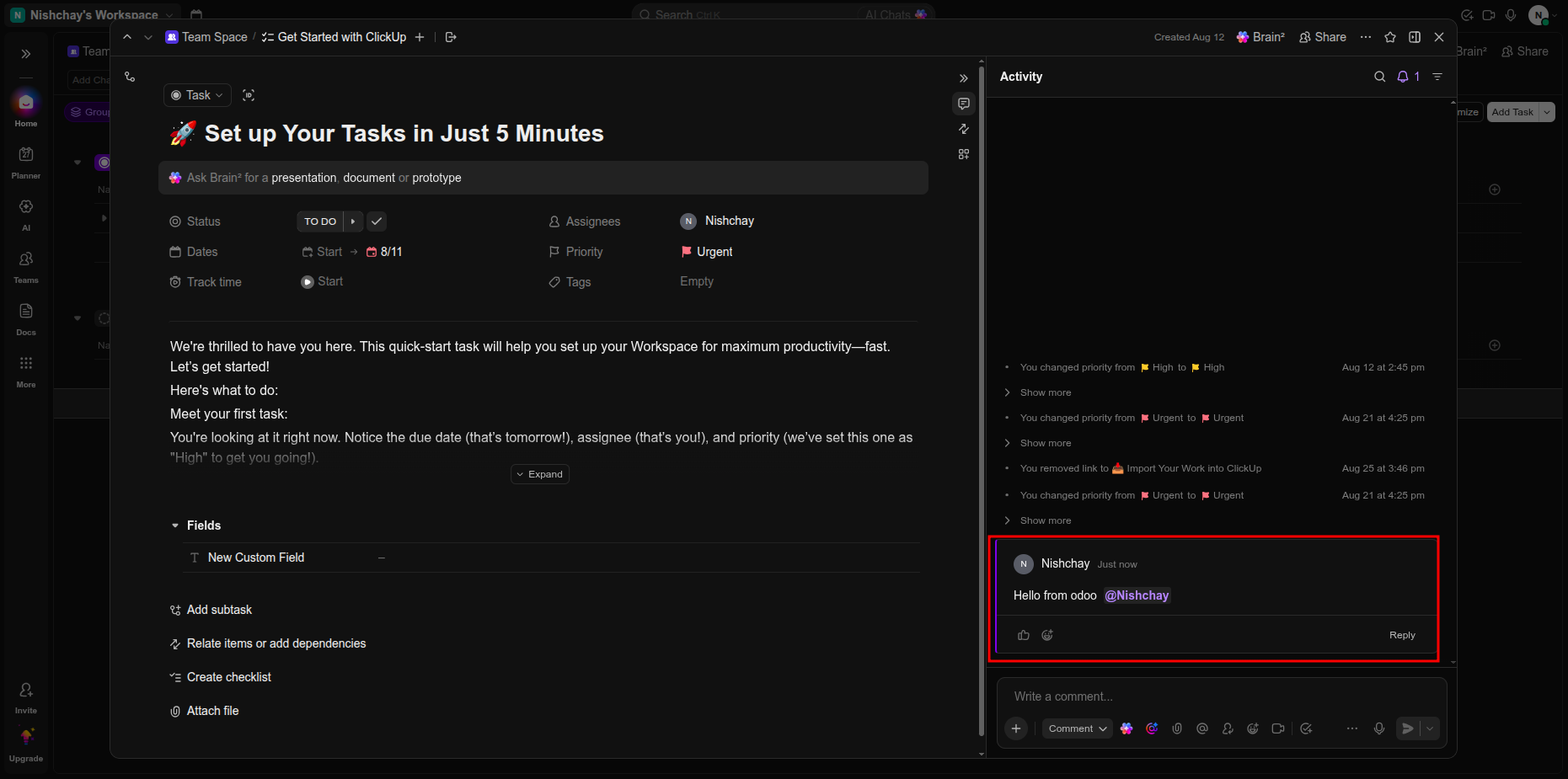
Review the newly added ClickUp comment in the task activity and conversation panel.
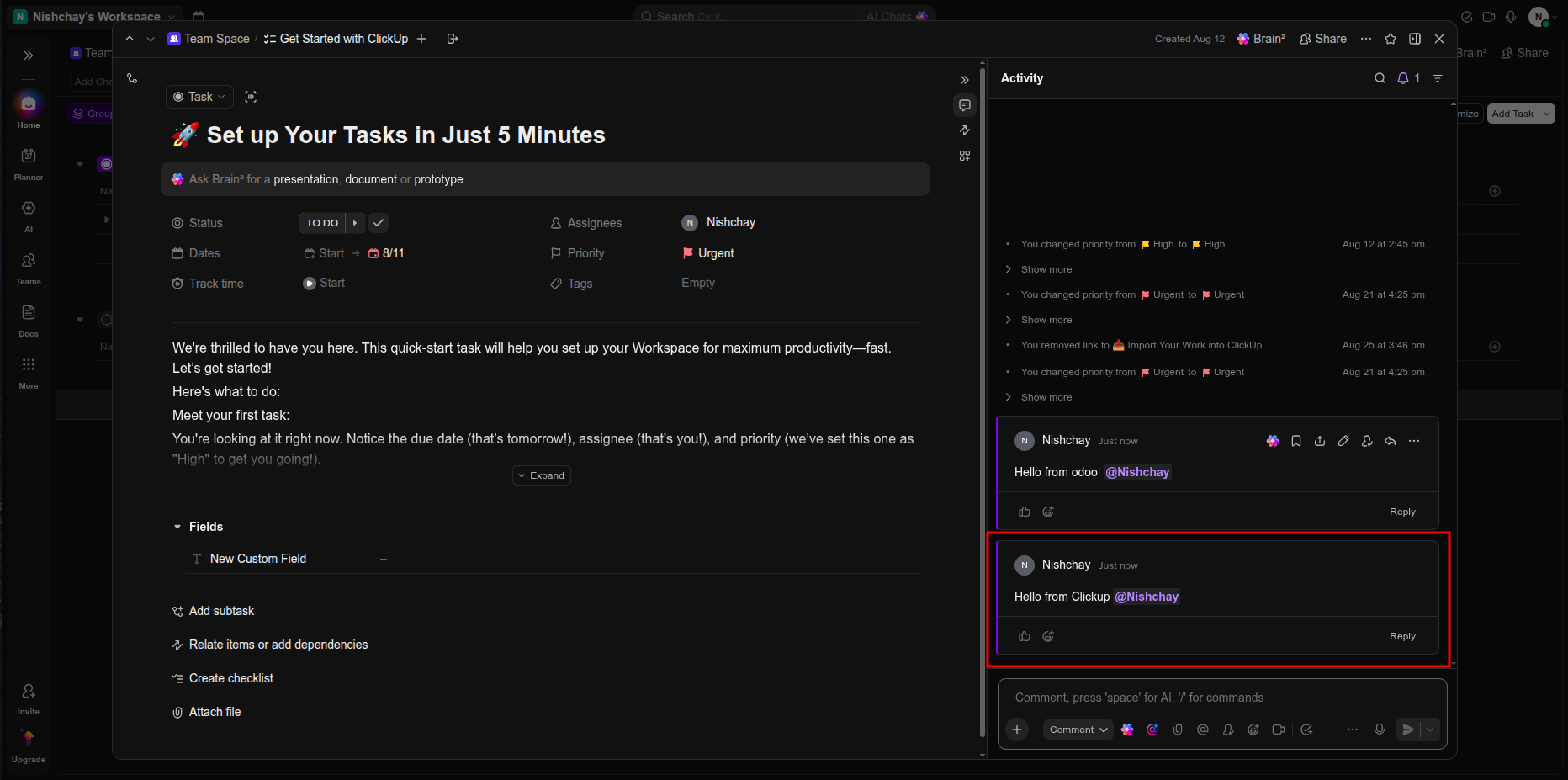
Verify the synchronized comment displayed in the Odoo task chatter after synchronization.
Open the stage mapping area to review the configured ClickUp list and Odoo stage relationship.
Review the mapped ClickUp stage and corresponding Odoo project stage in the synchronization table.
Verify the selected task stage mapping and synchronized status shown on the Odoo task record.
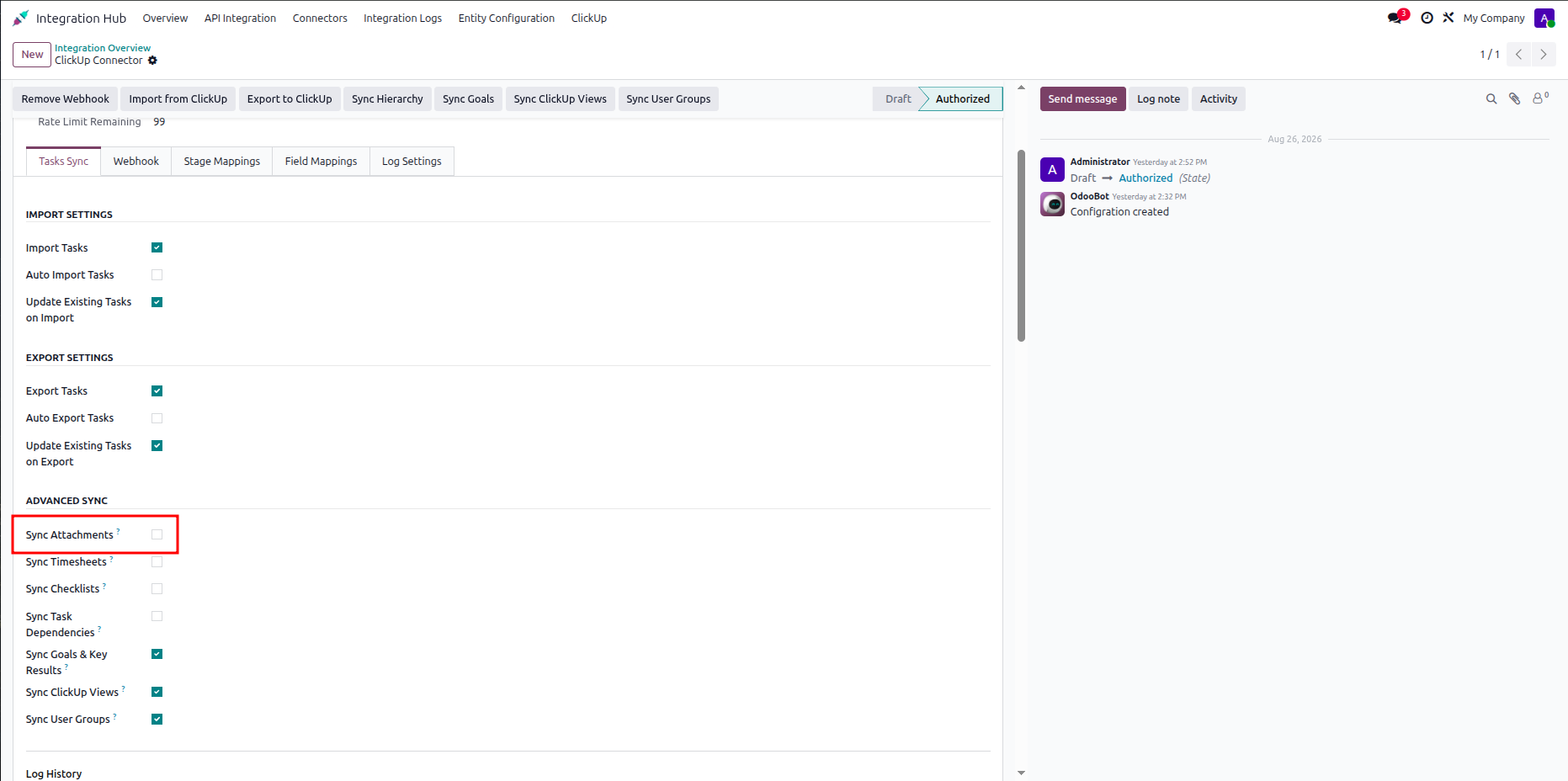
Open task synchronization settings and select the highlighted attachment synchronization option.
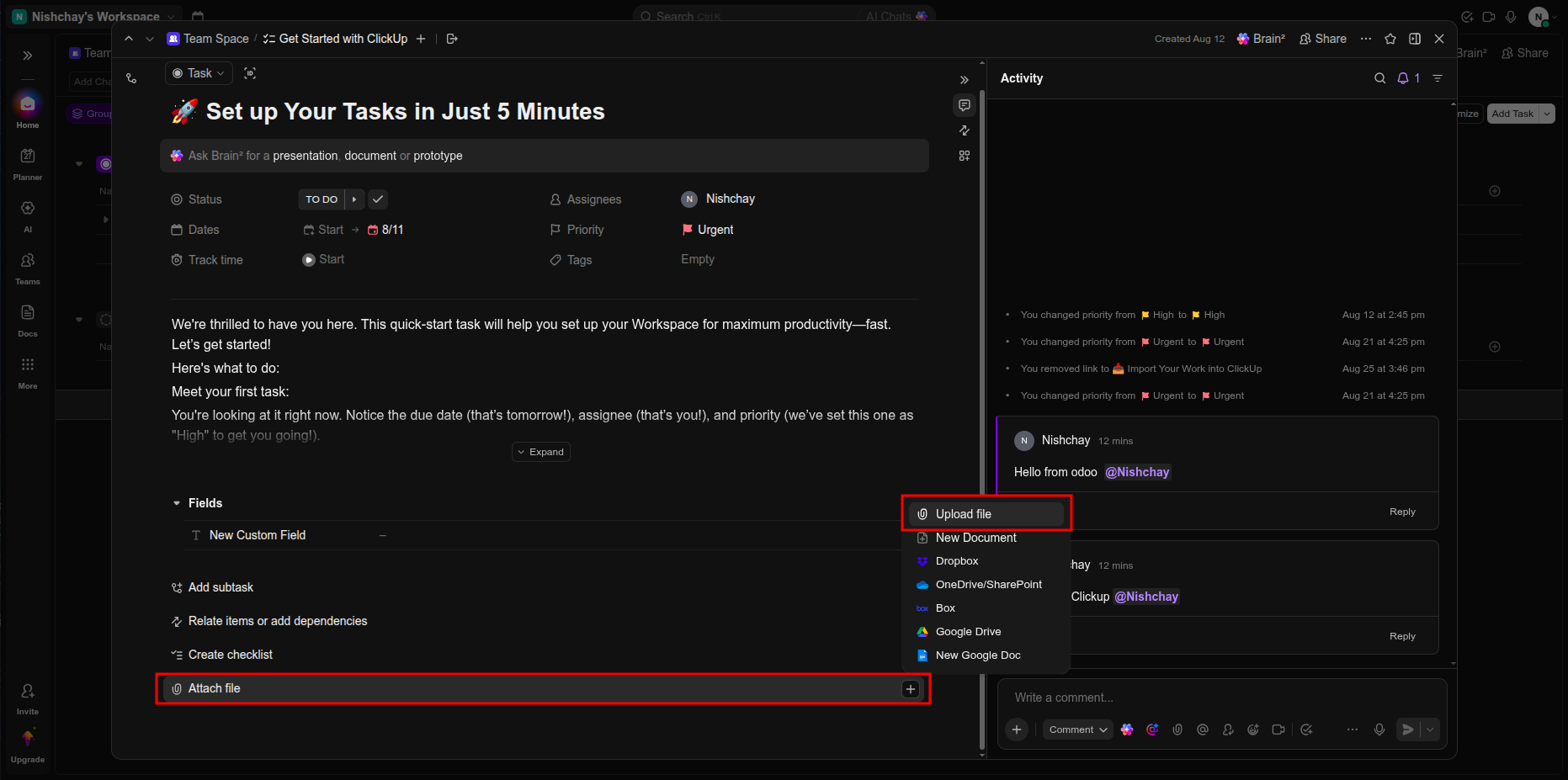
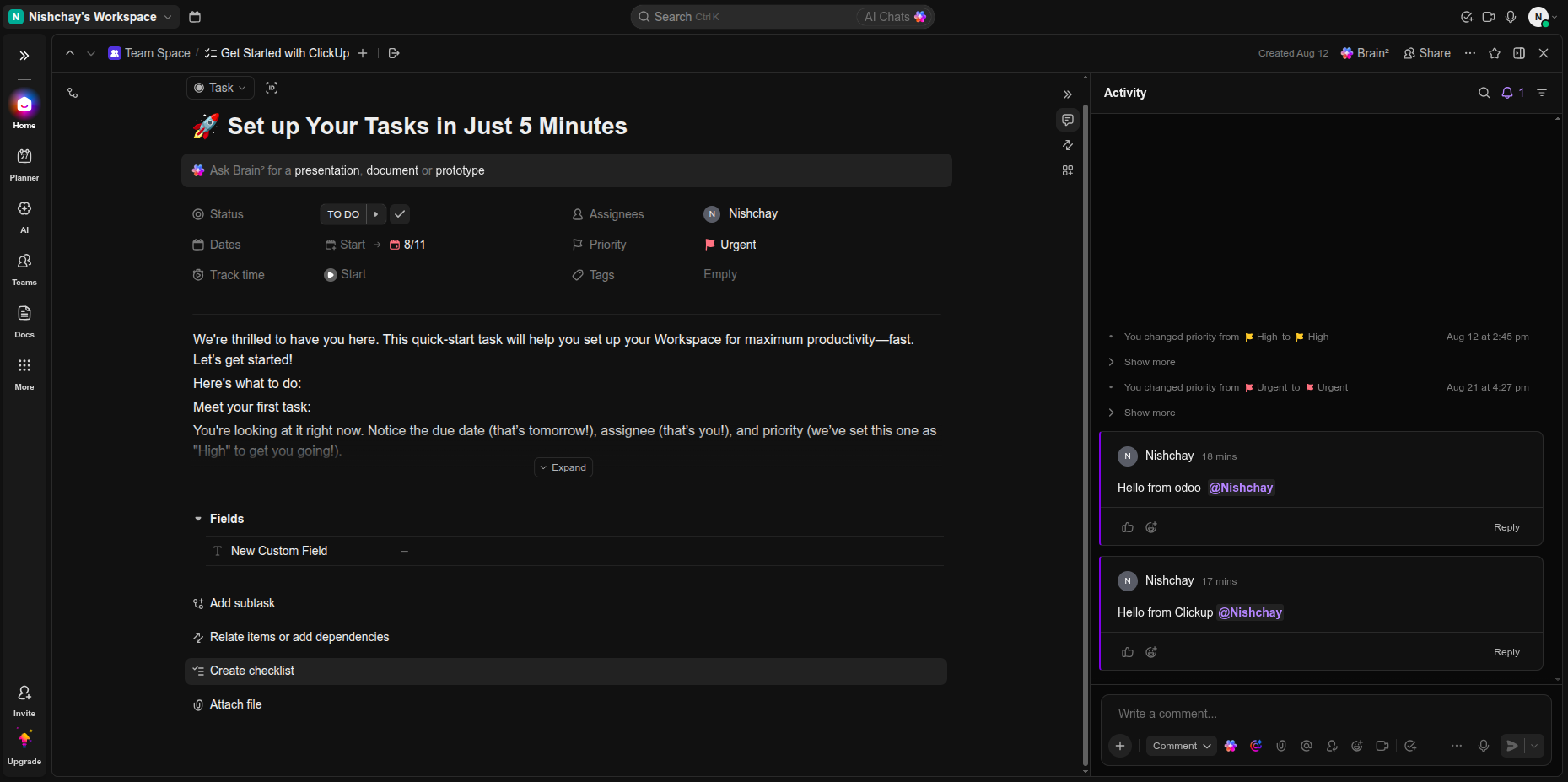
Open the ClickUp task and locate the attachment area used for file synchronization.
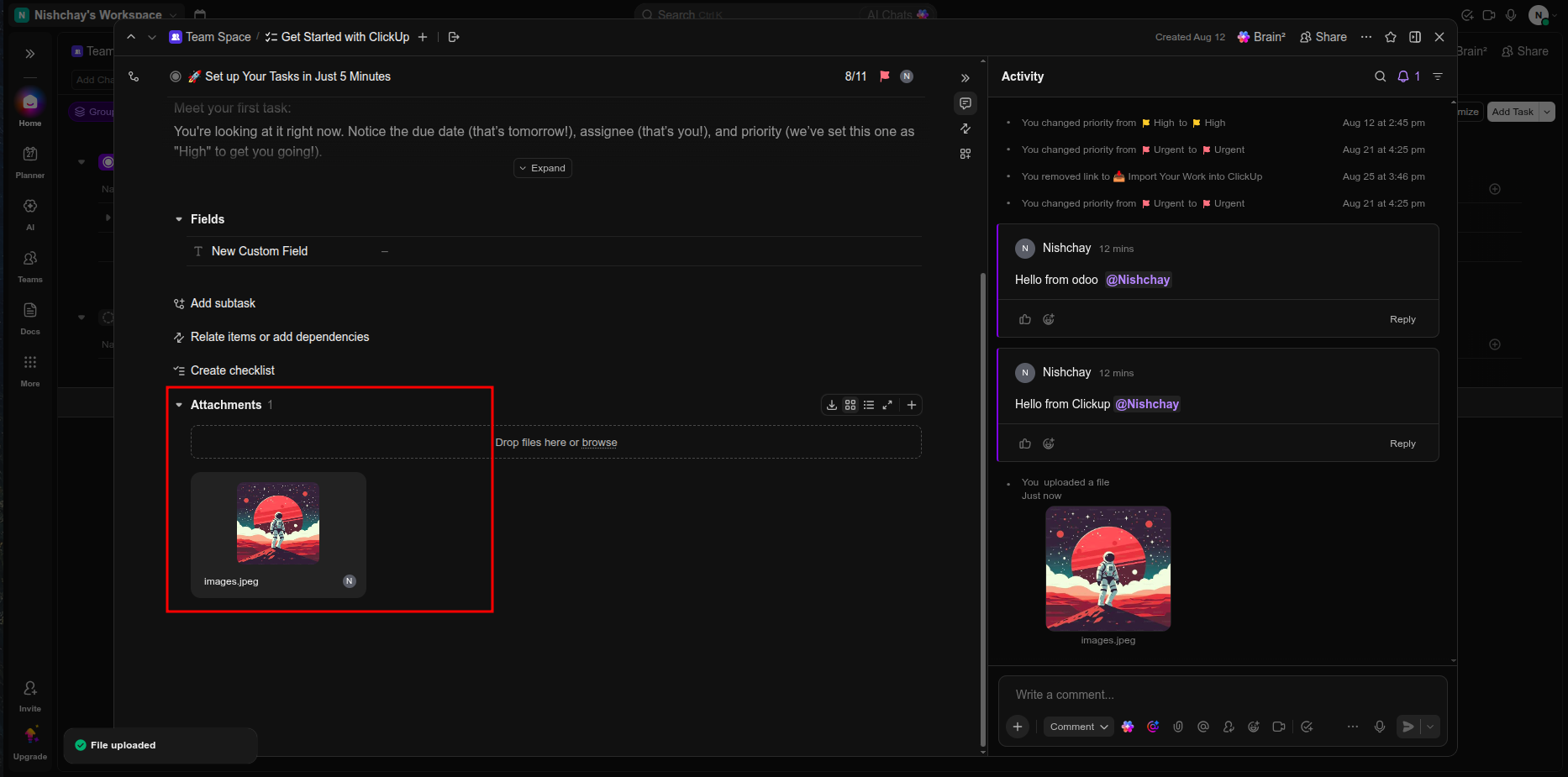
Review the attached file displayed in ClickUp before synchronizing it with Odoo.
Verify the synchronized attachment displayed on the corresponding Odoo task record.
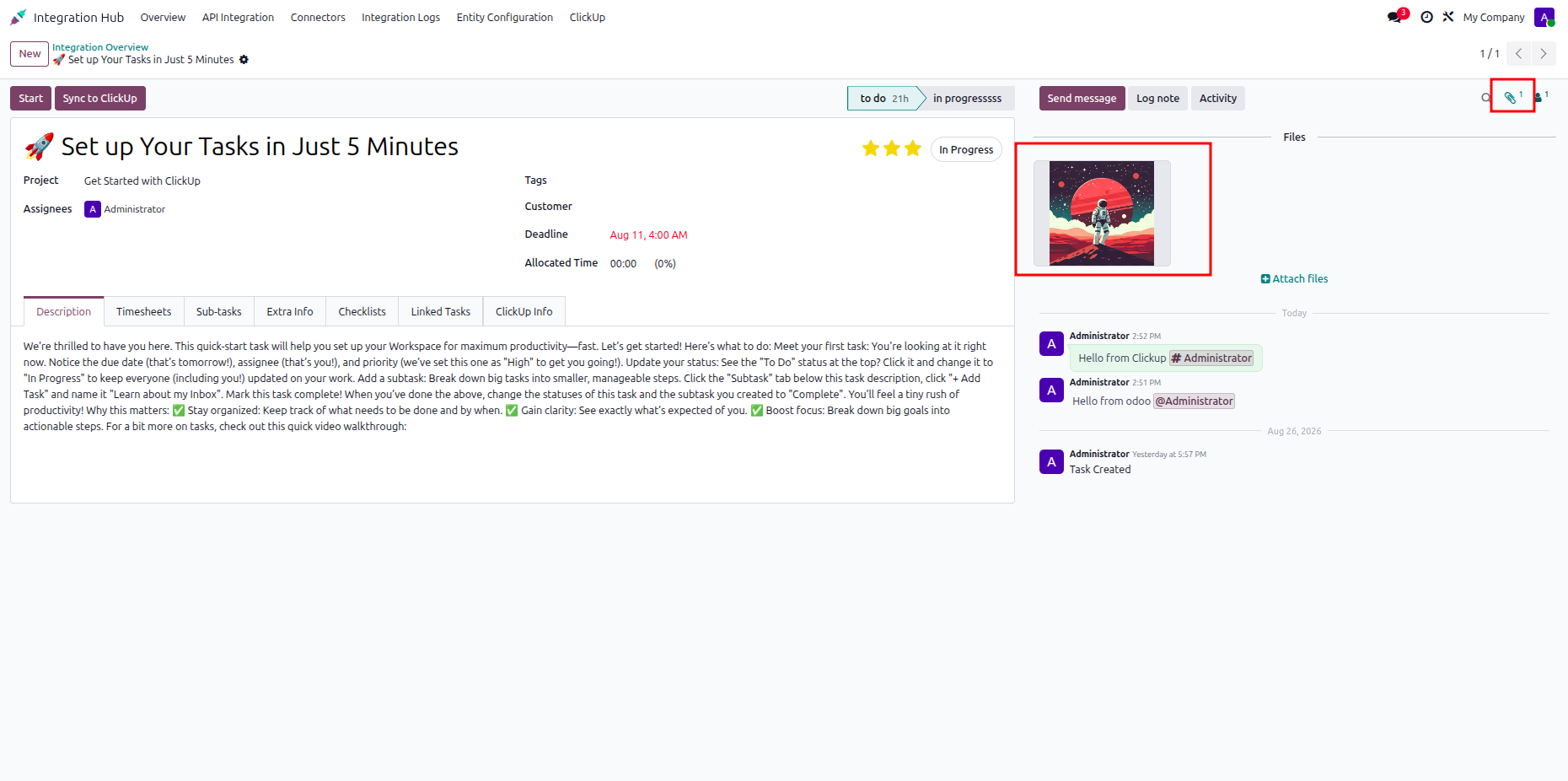
Open the ClickUp attachment menu to review available file actions for synchronization.
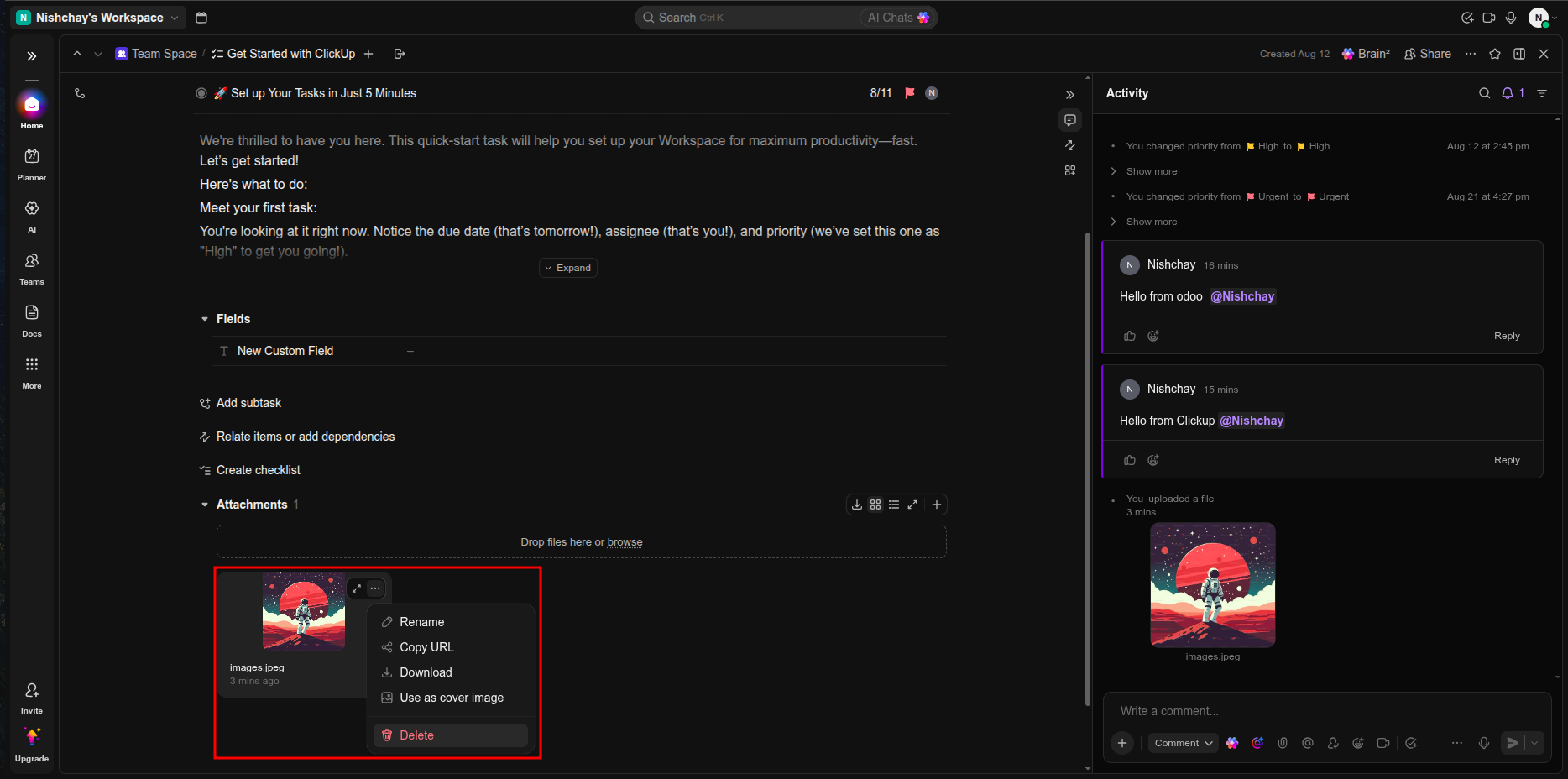
Review the task attachment and its available options in the ClickUp activity panel.
Verify the attachment tab on the Odoo task after the file synchronization completes.
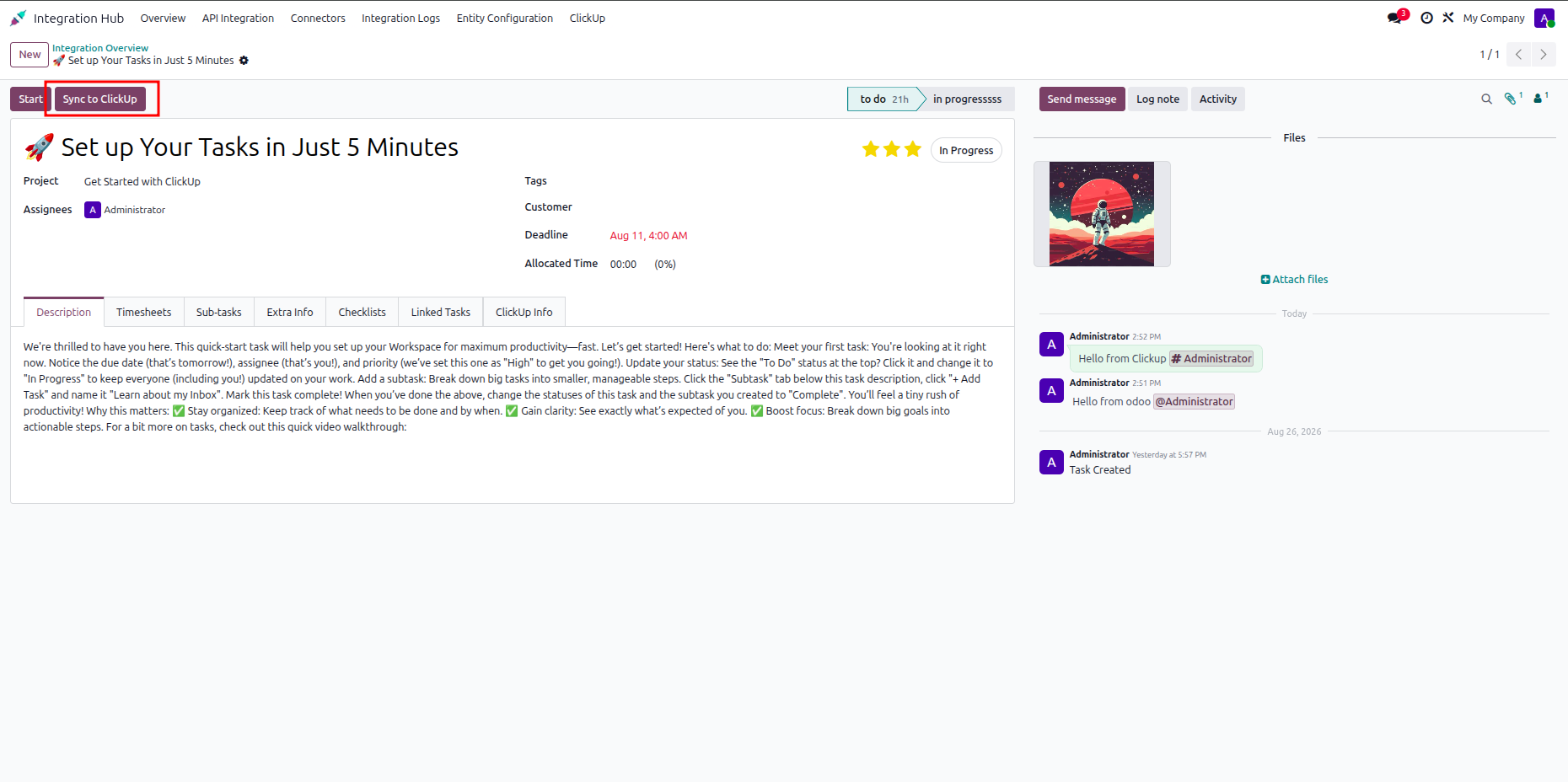
Review the synchronized task record and confirm its attachment information is available.
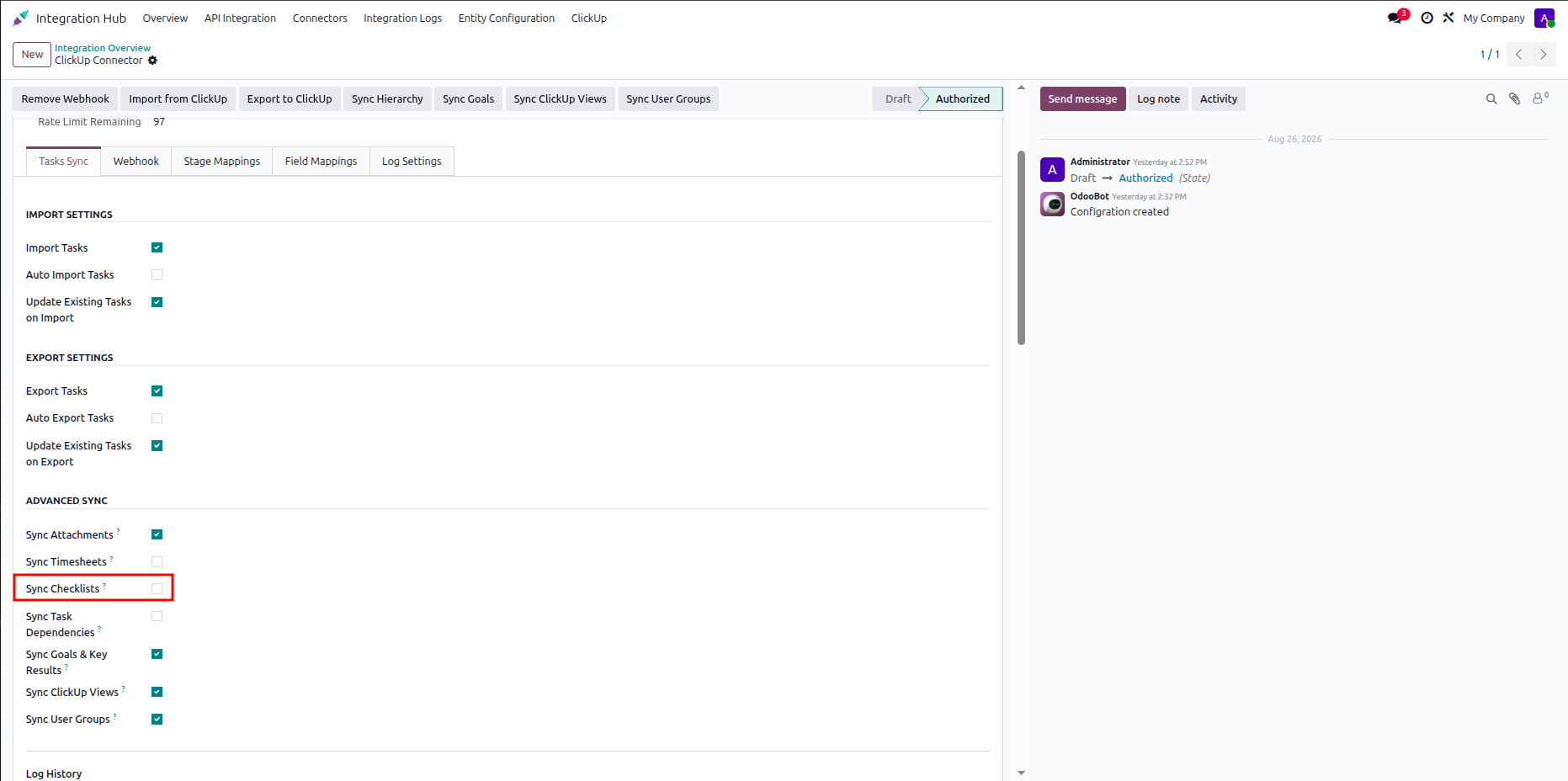
Open task synchronization settings and select the highlighted checklist synchronization option.
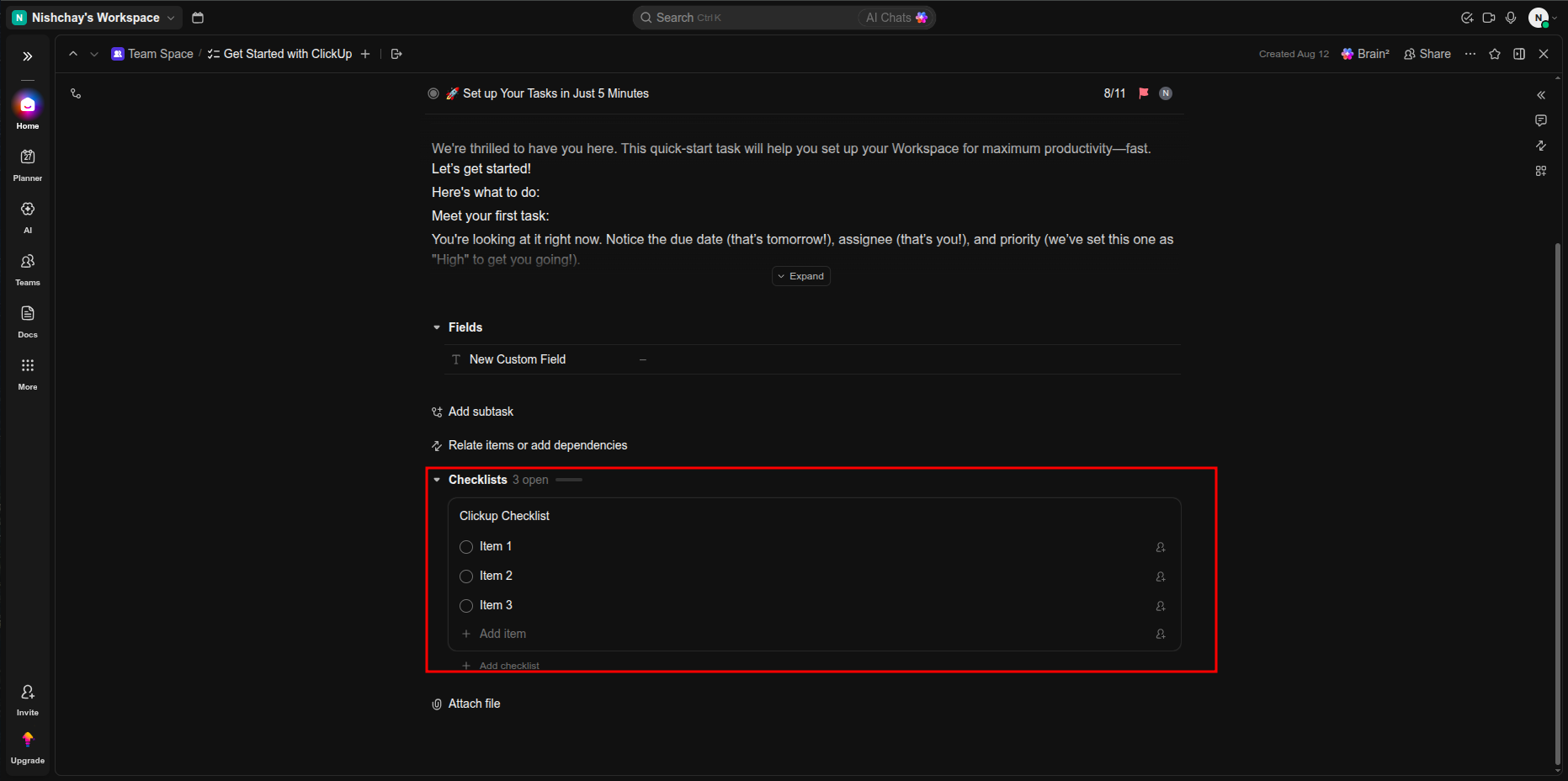
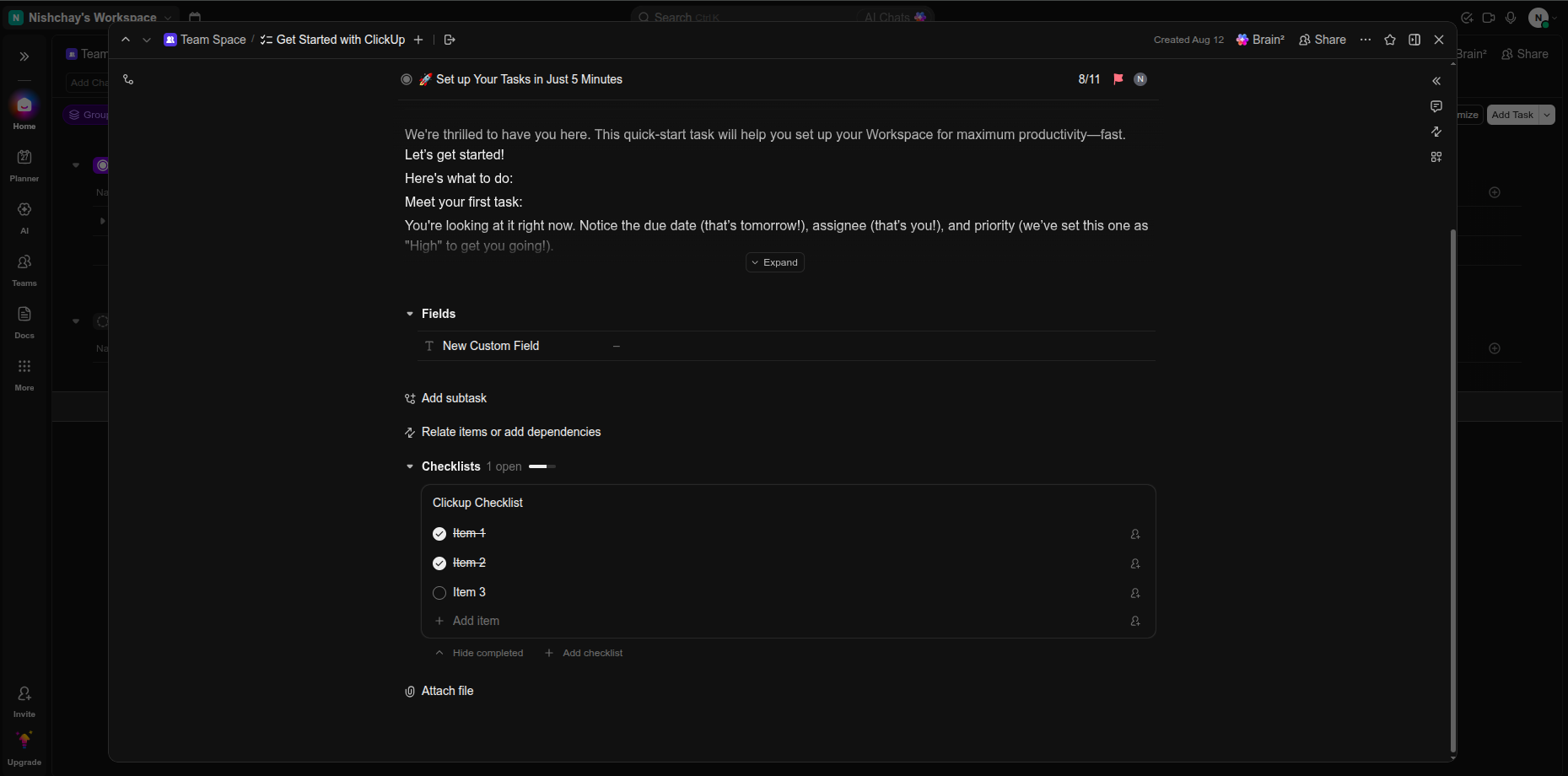
Review the checklist items displayed inside the ClickUp task before synchronization.
Open the Odoo task checklist tab to review synchronized checklist items and values.
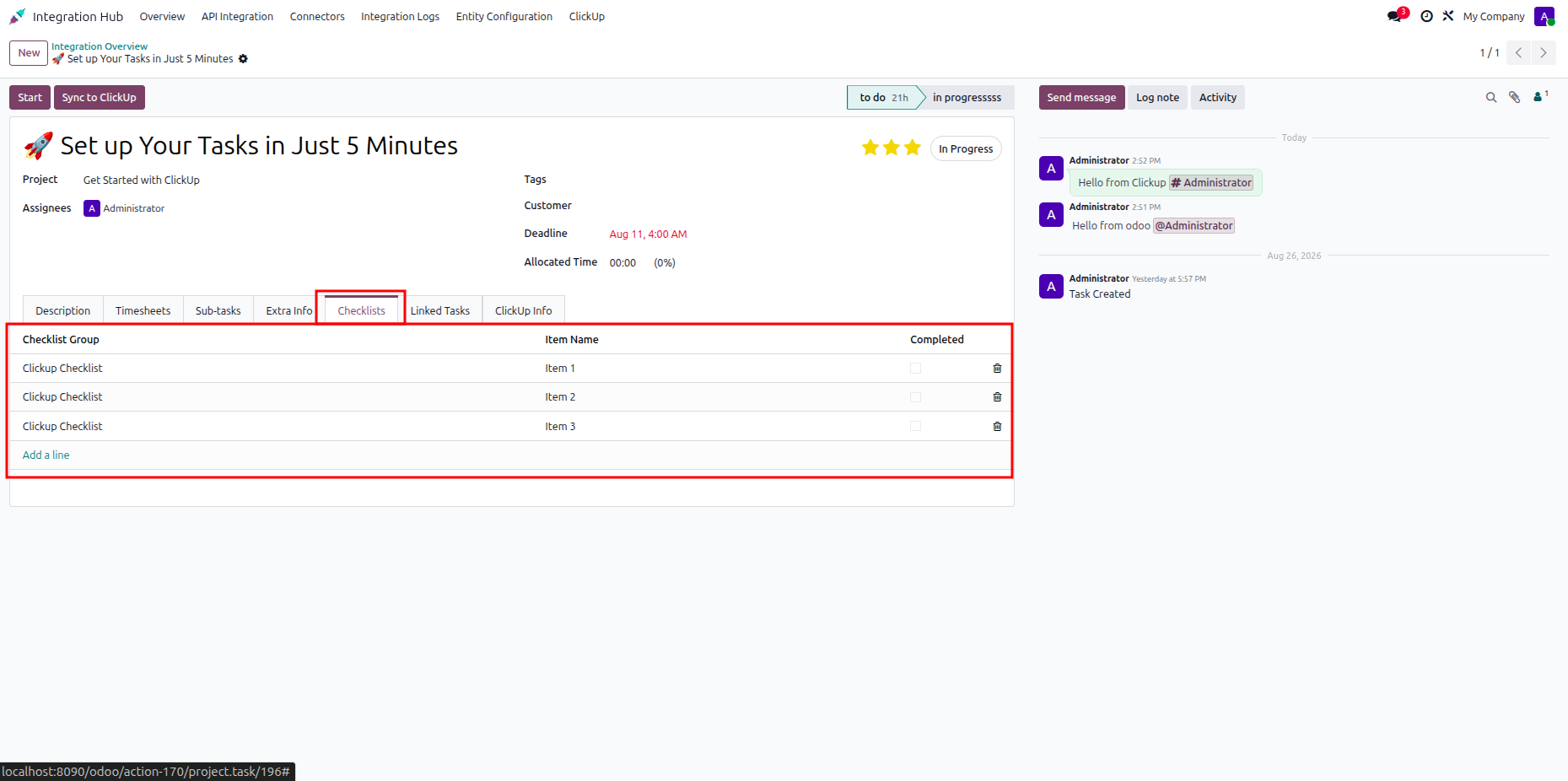
Review the synchronized checklist records and their current completion status in Odoo.
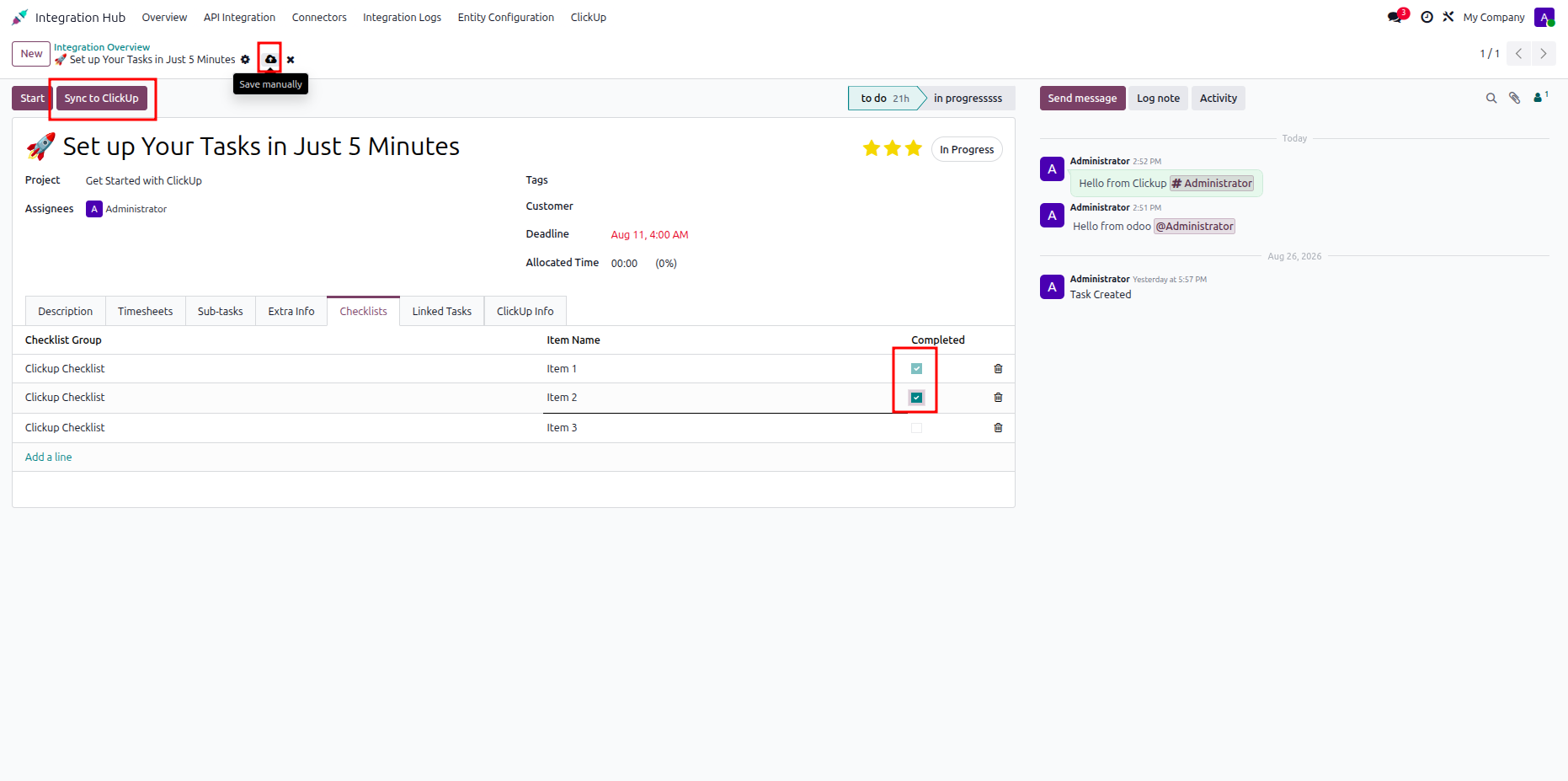
Verify the checklist structure and items displayed on the corresponding ClickUp task.
Open the ClickUp task overview and review the highlighted dependency information.
Review the Odoo task dependency field containing the synchronized blocking task relationship.
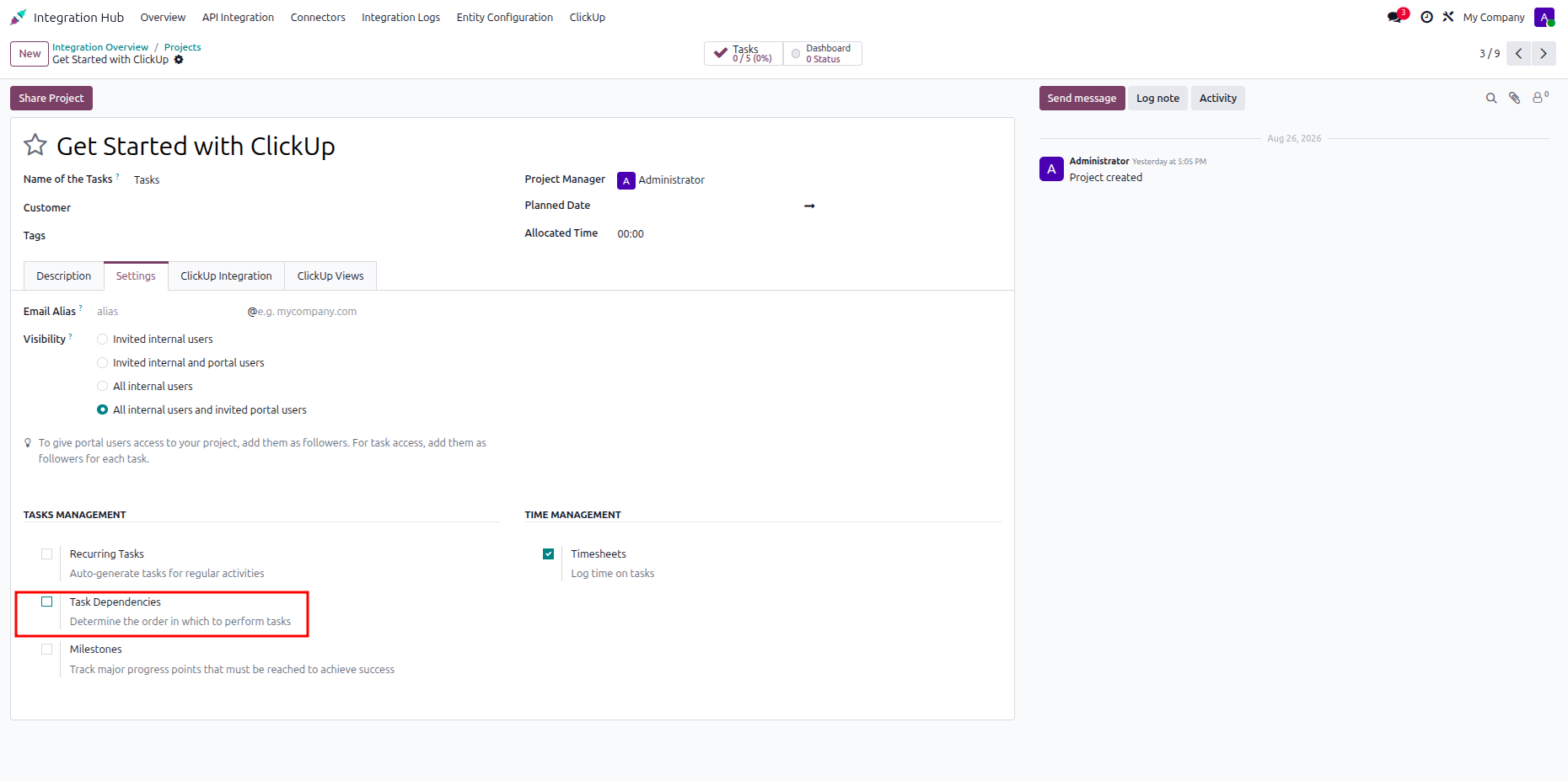
Open the task dependency tab to review linked and blocking task relationships.
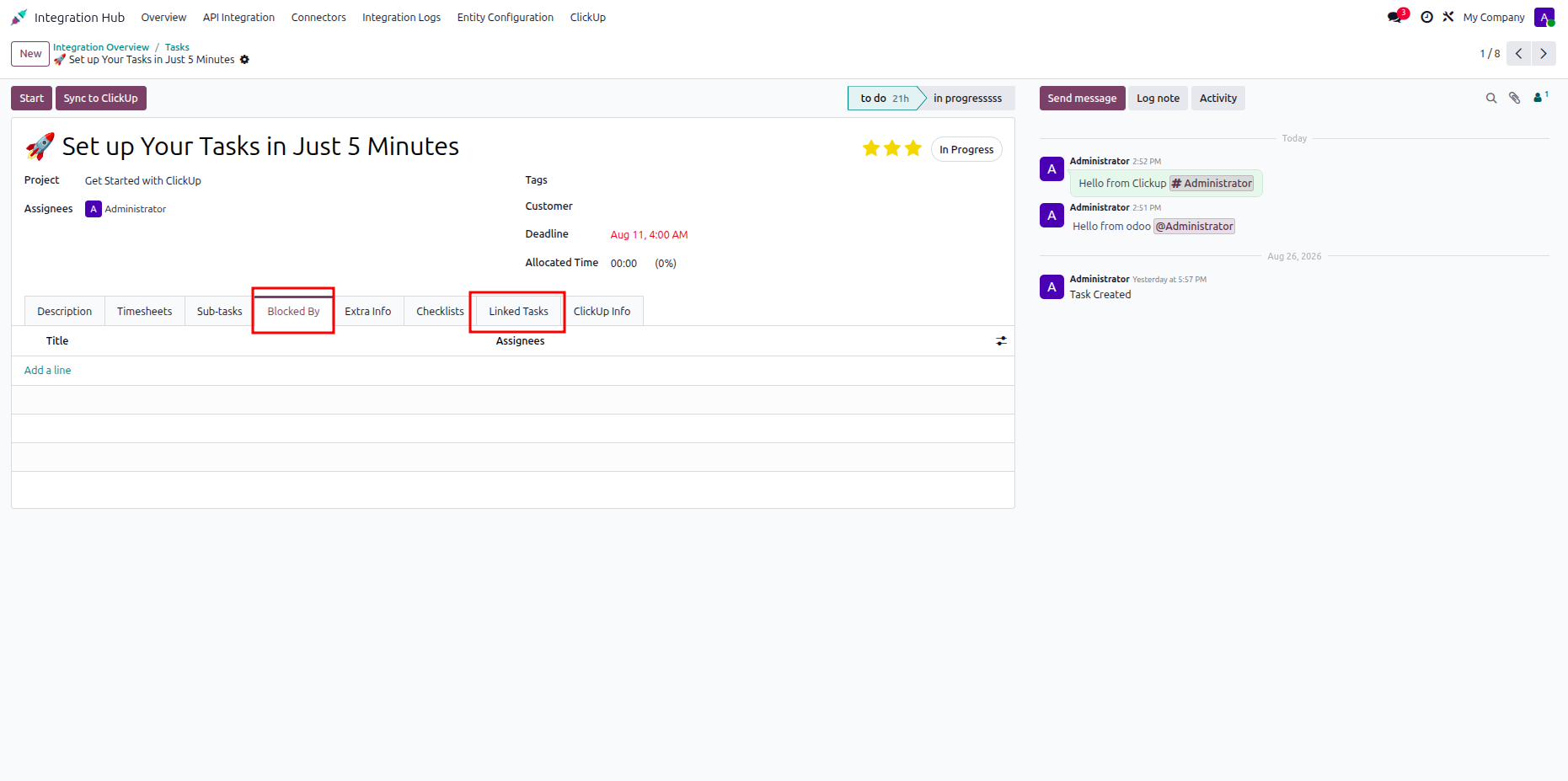
Select the required task from the dependency list to create a blocking relationship.
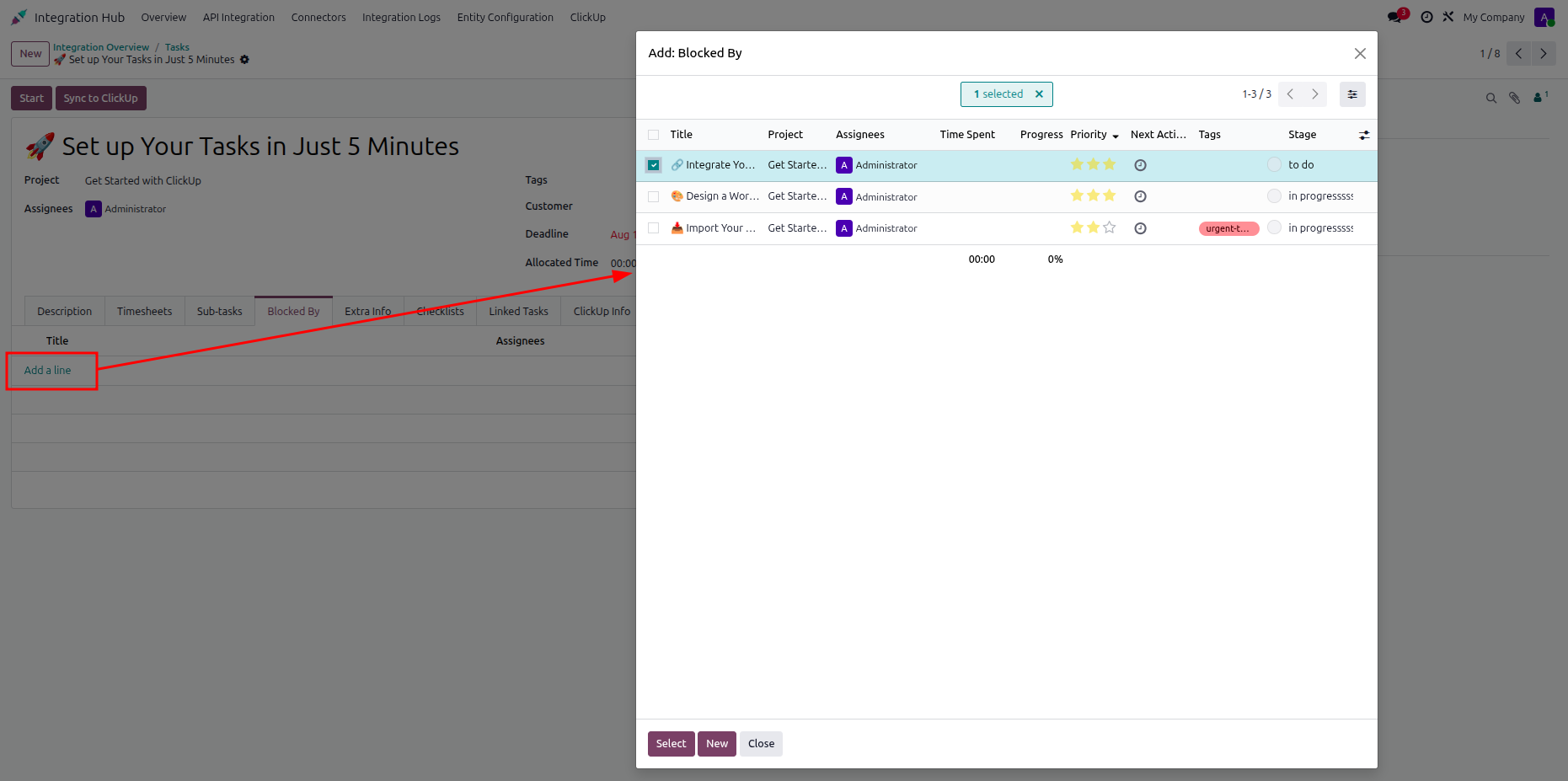
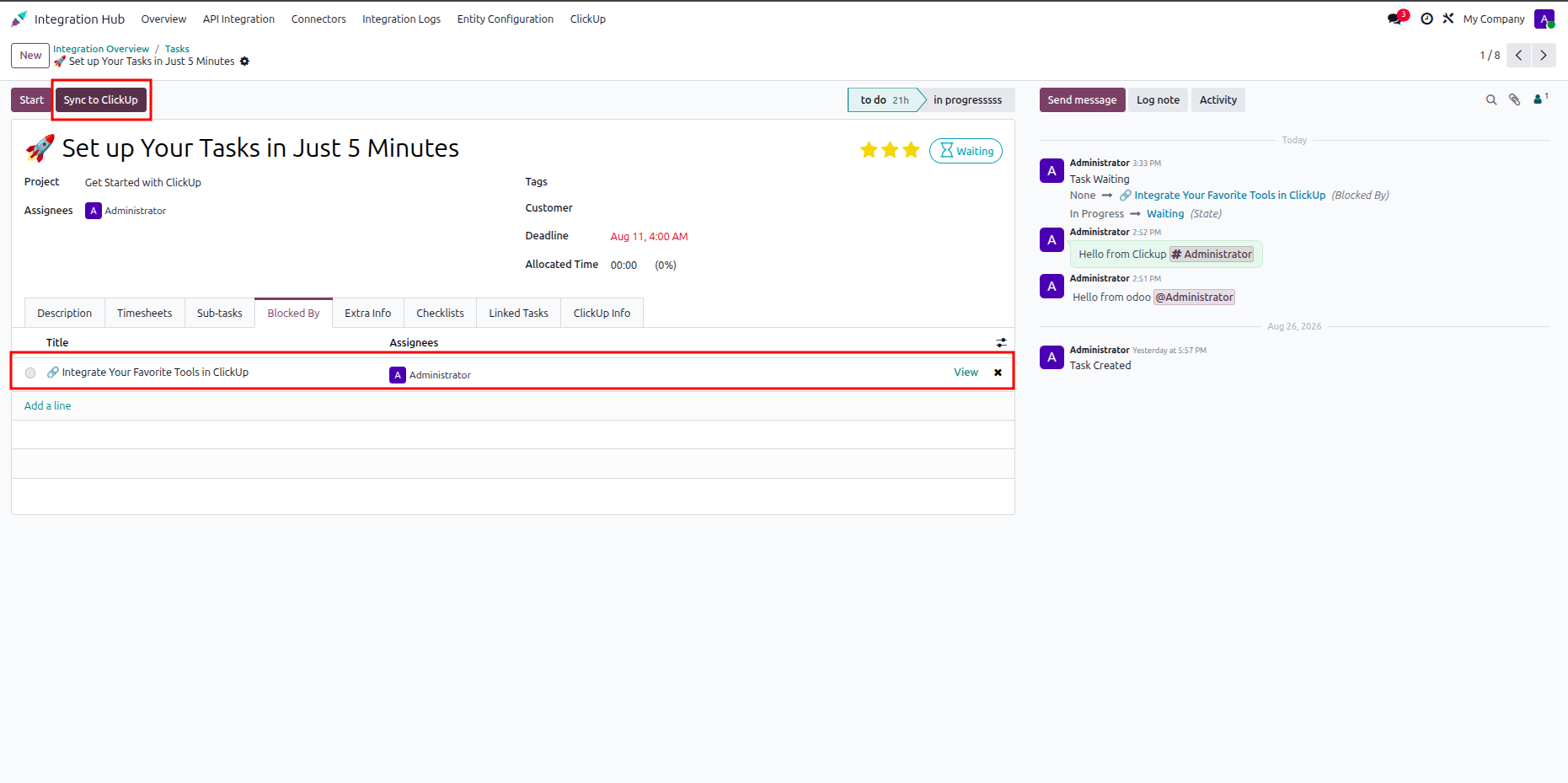
Review the synchronized dependency relationship displayed on the Odoo task record.
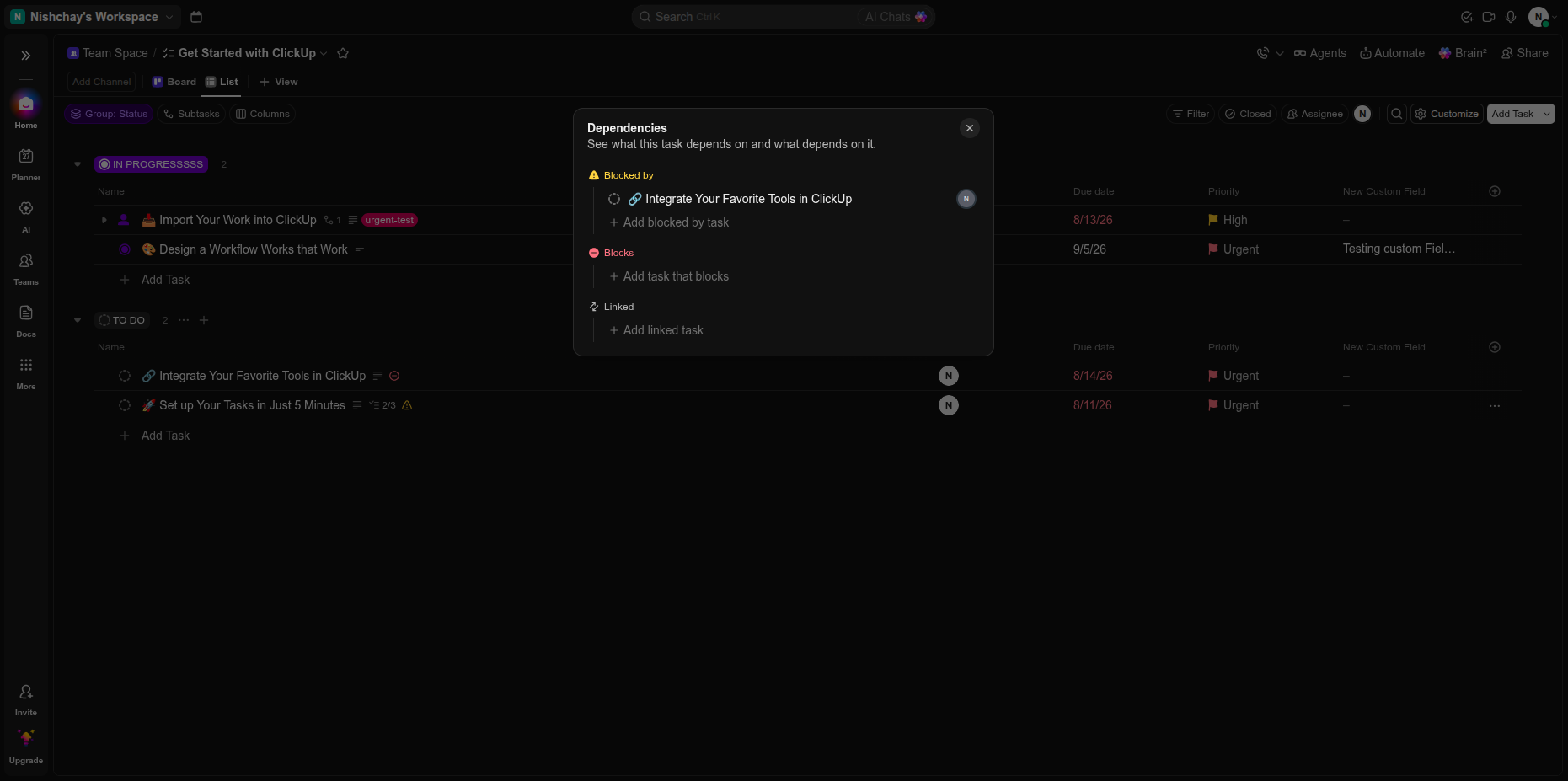
Verify the dependency dialog and linked ClickUp task information after synchronization.
Review the Odoo task dependency row showing the synchronized relationship and status.
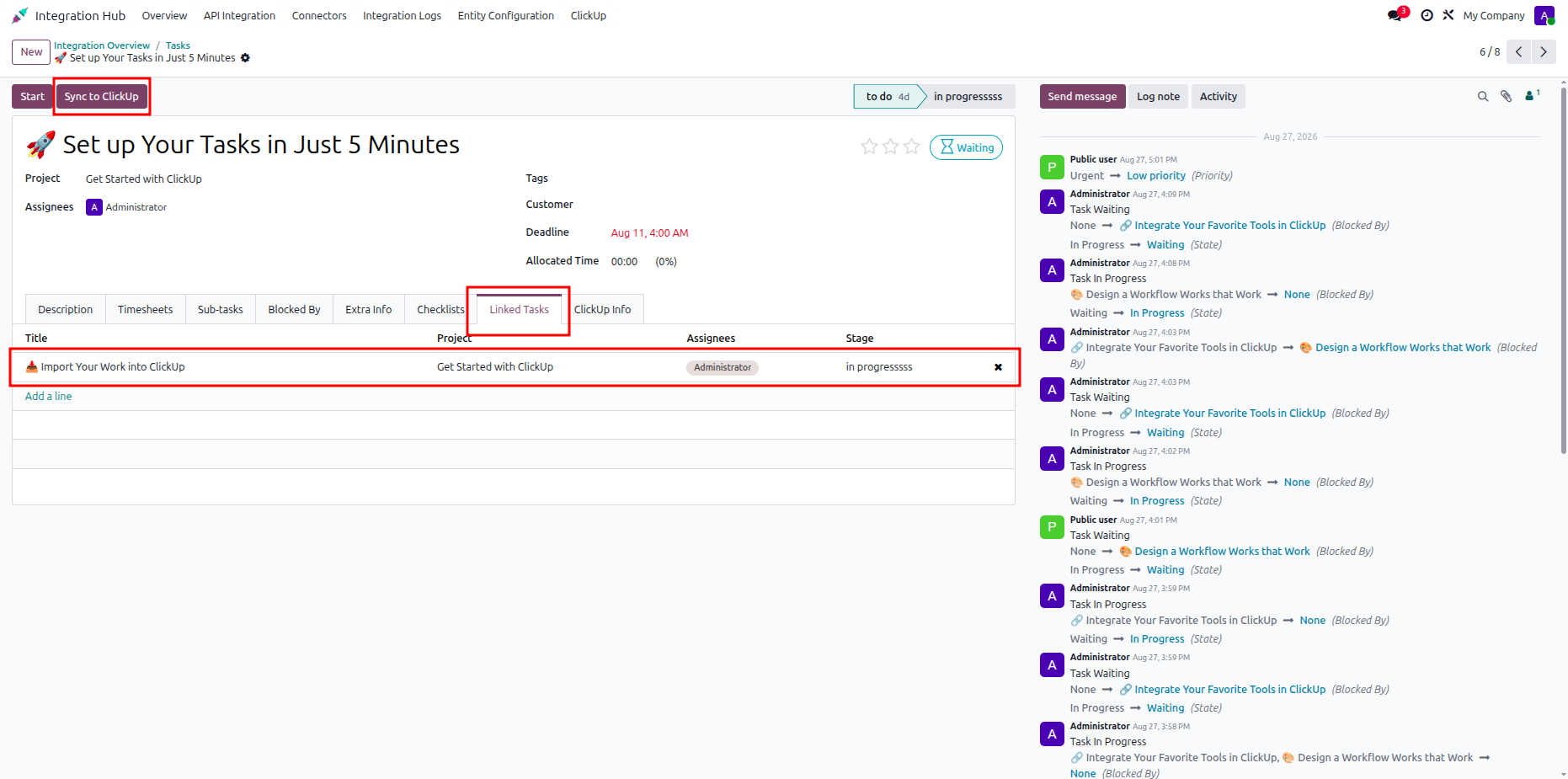
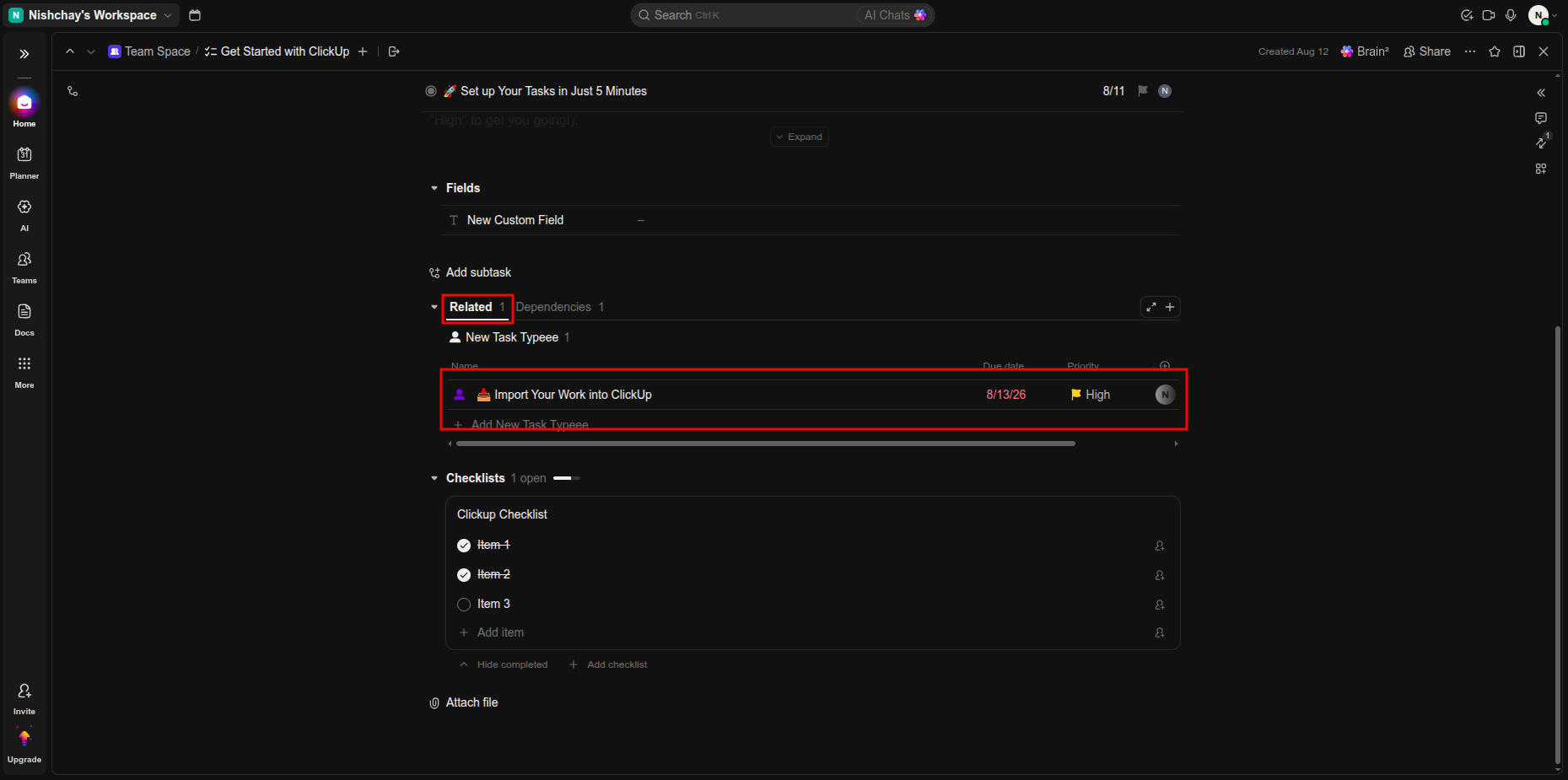
Verify the linked ClickUp task and dependency information displayed in the task view.
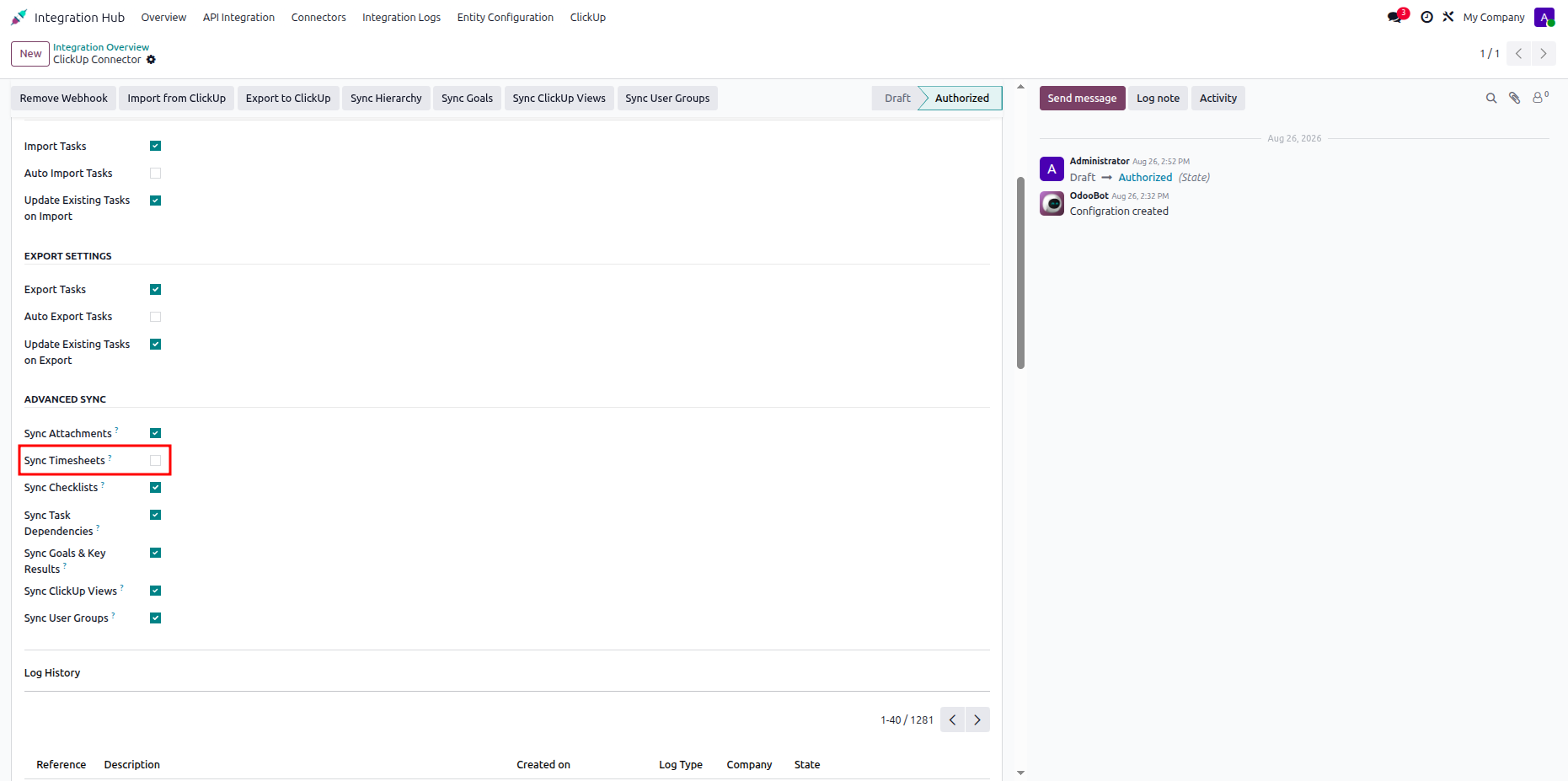
Open task synchronization settings and select the highlighted timesheet synchronization option.
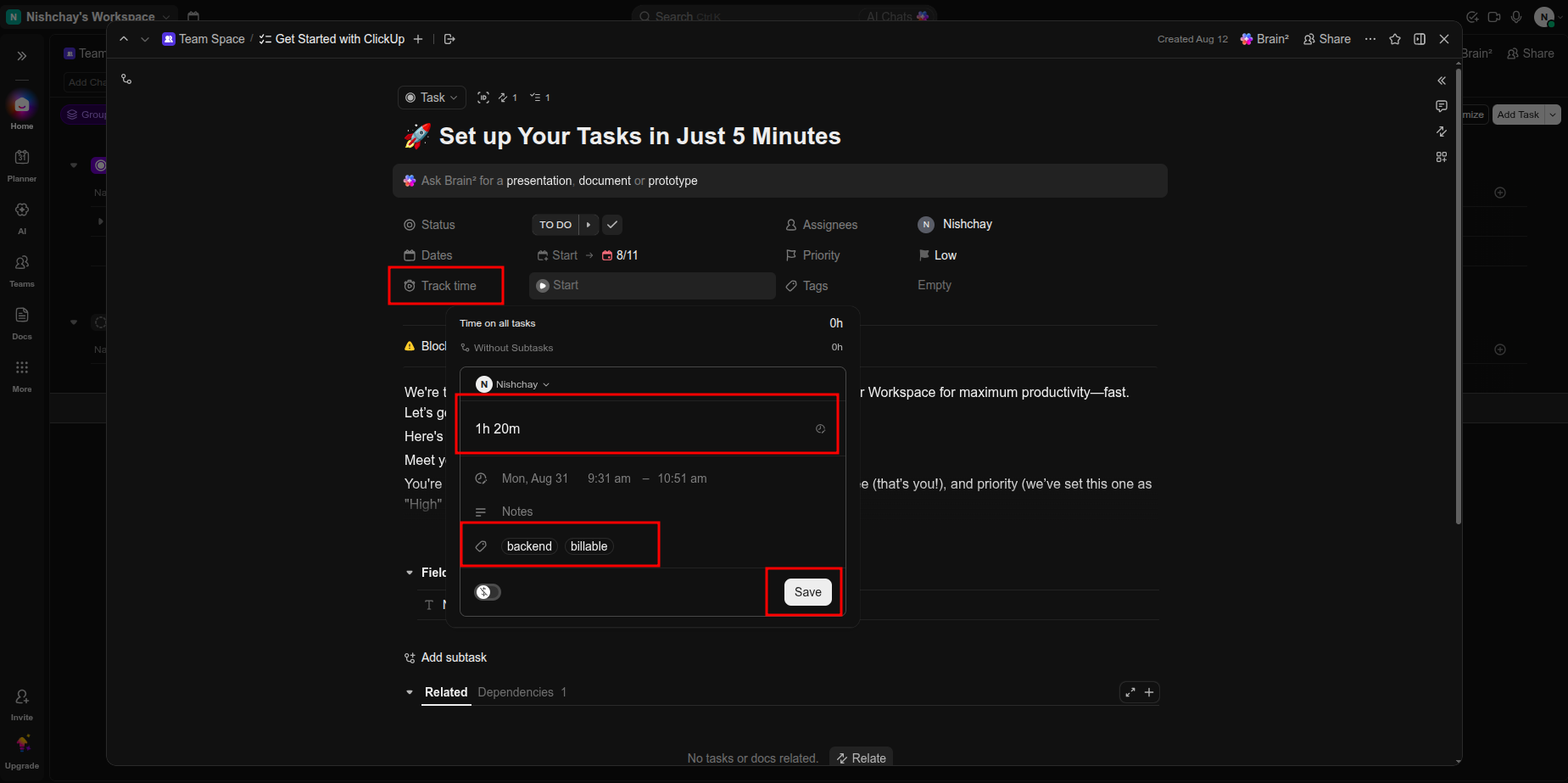
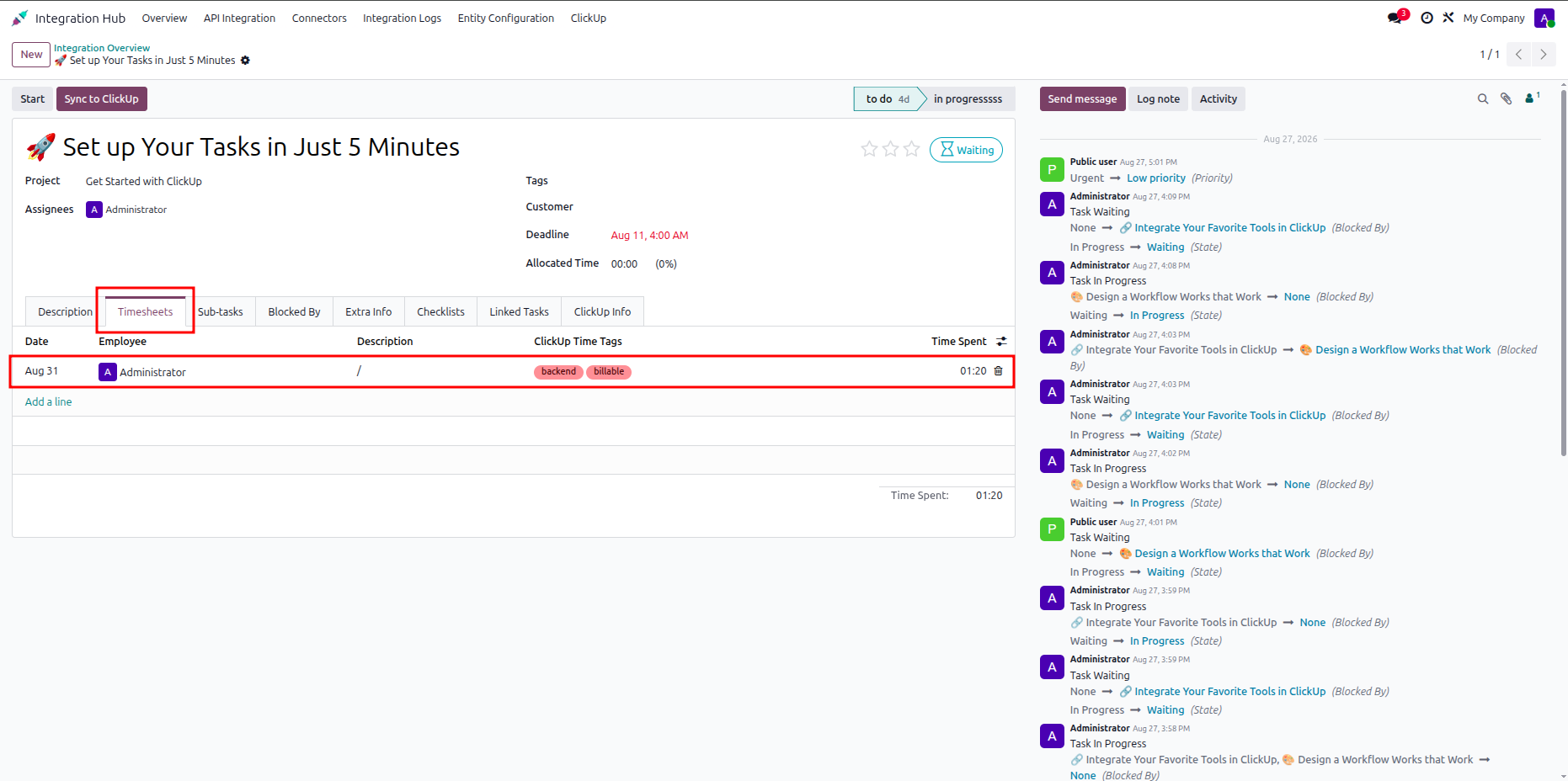
Enter the ClickUp task time entry and select the required time tag before saving.
Review the synchronized timesheet entry and tag displayed on the Odoo task.
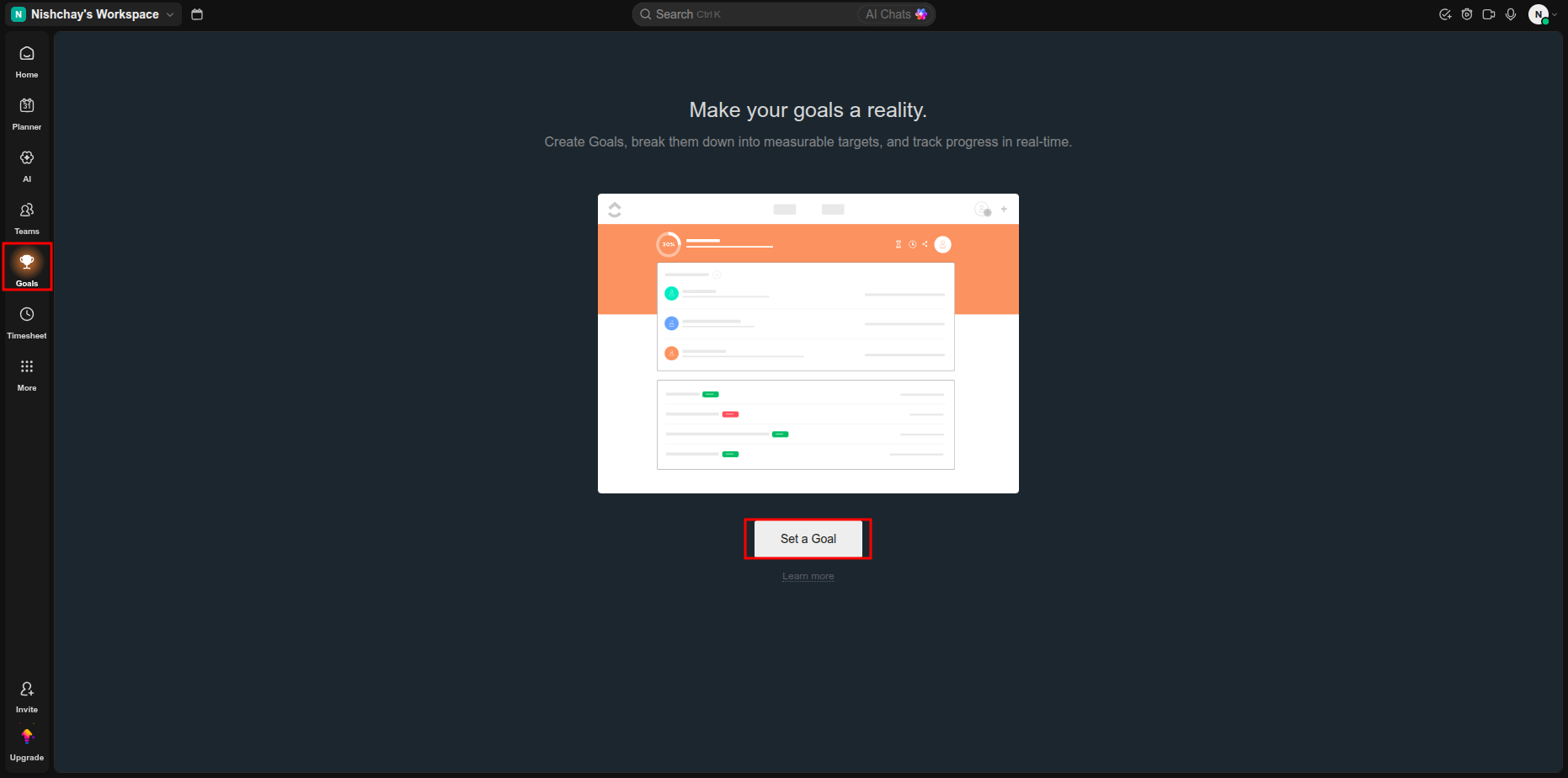
Open ClickUp Goals and select the highlighted option to begin creating a new goal.
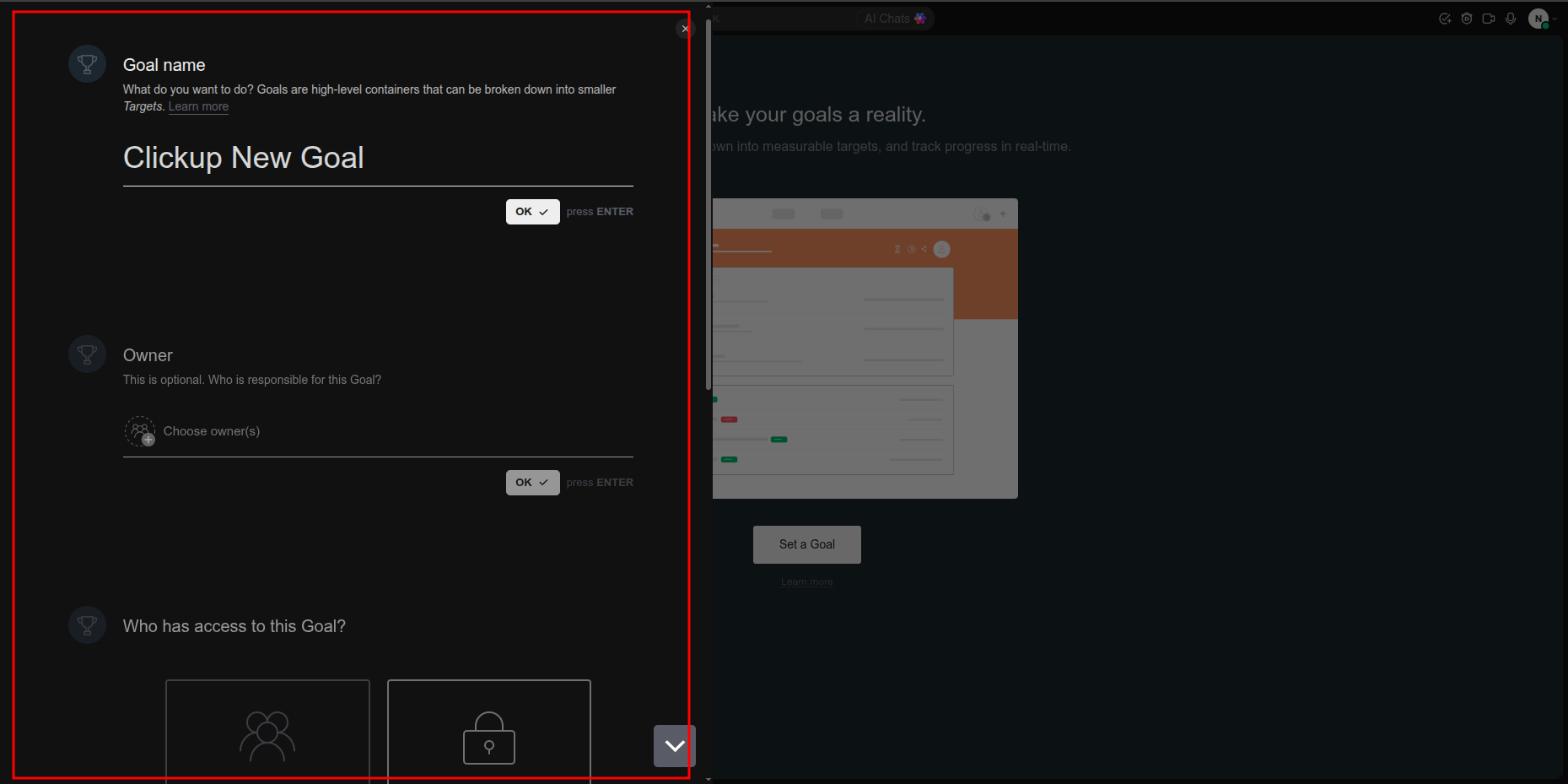
Enter the ClickUp goal name and owner details in the goal creation panel.
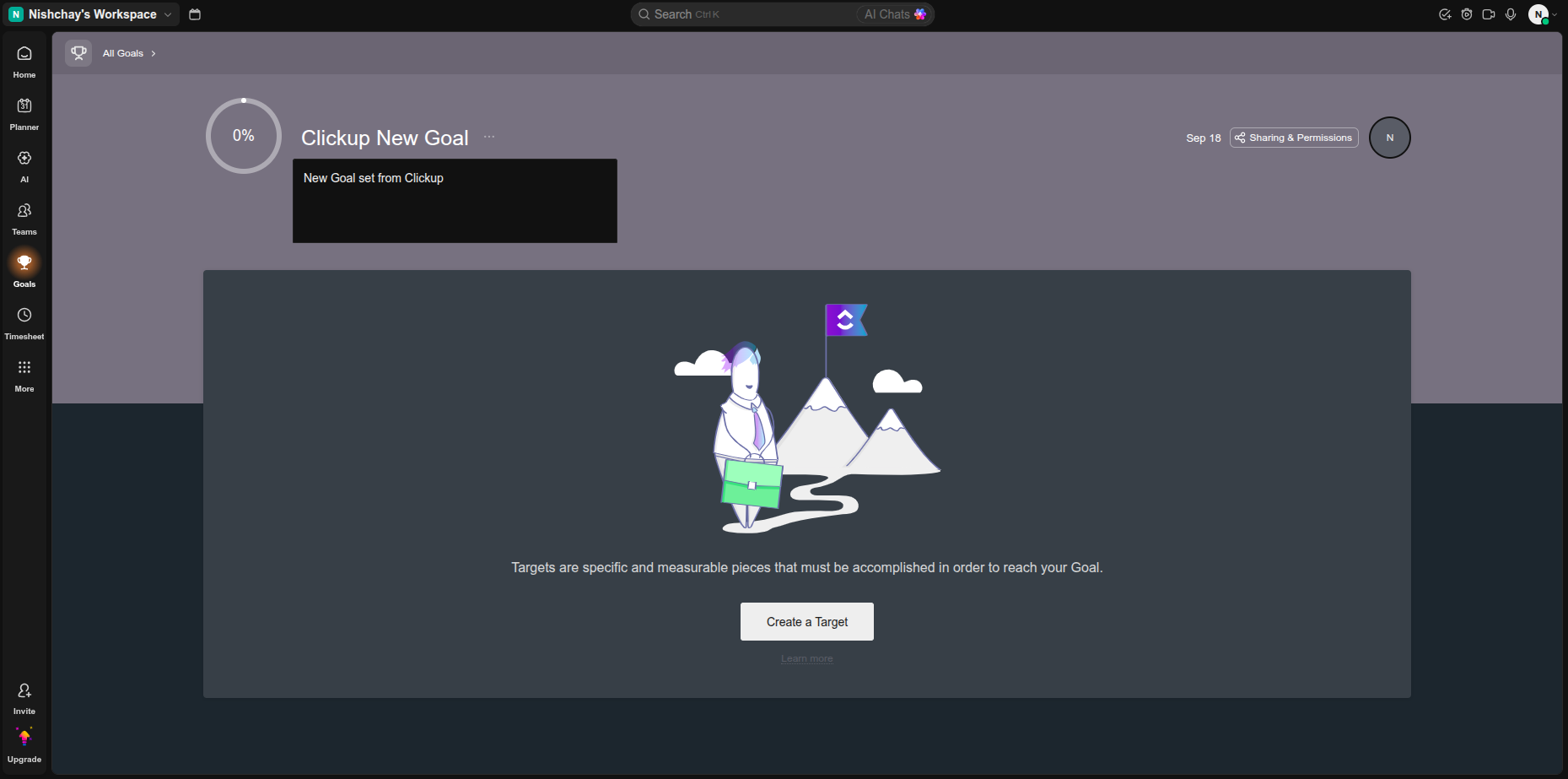
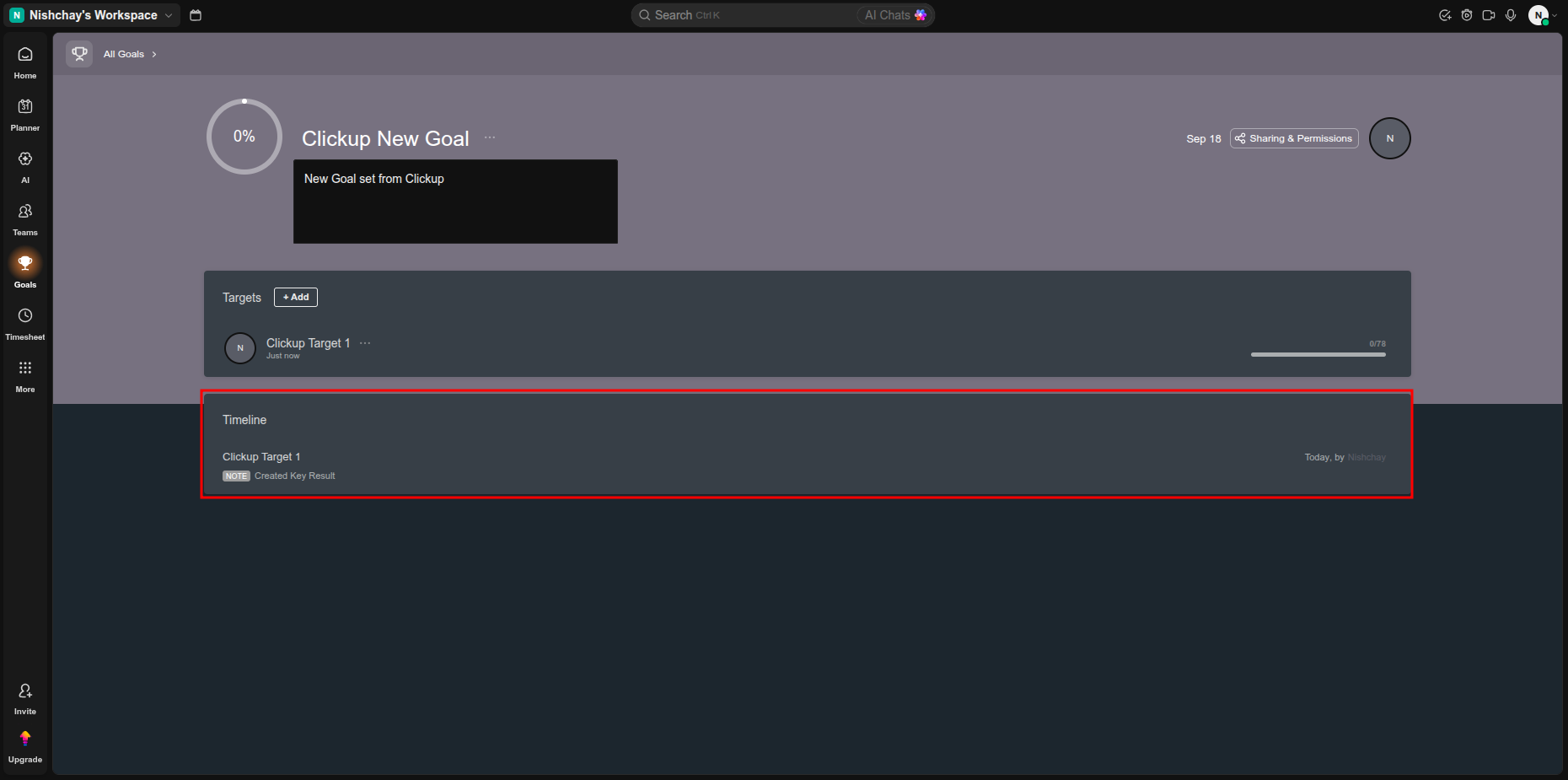
Review the newly created ClickUp goal displayed in the goals workspace.
Configure the target name, owner, and target type in the ClickUp target panel.
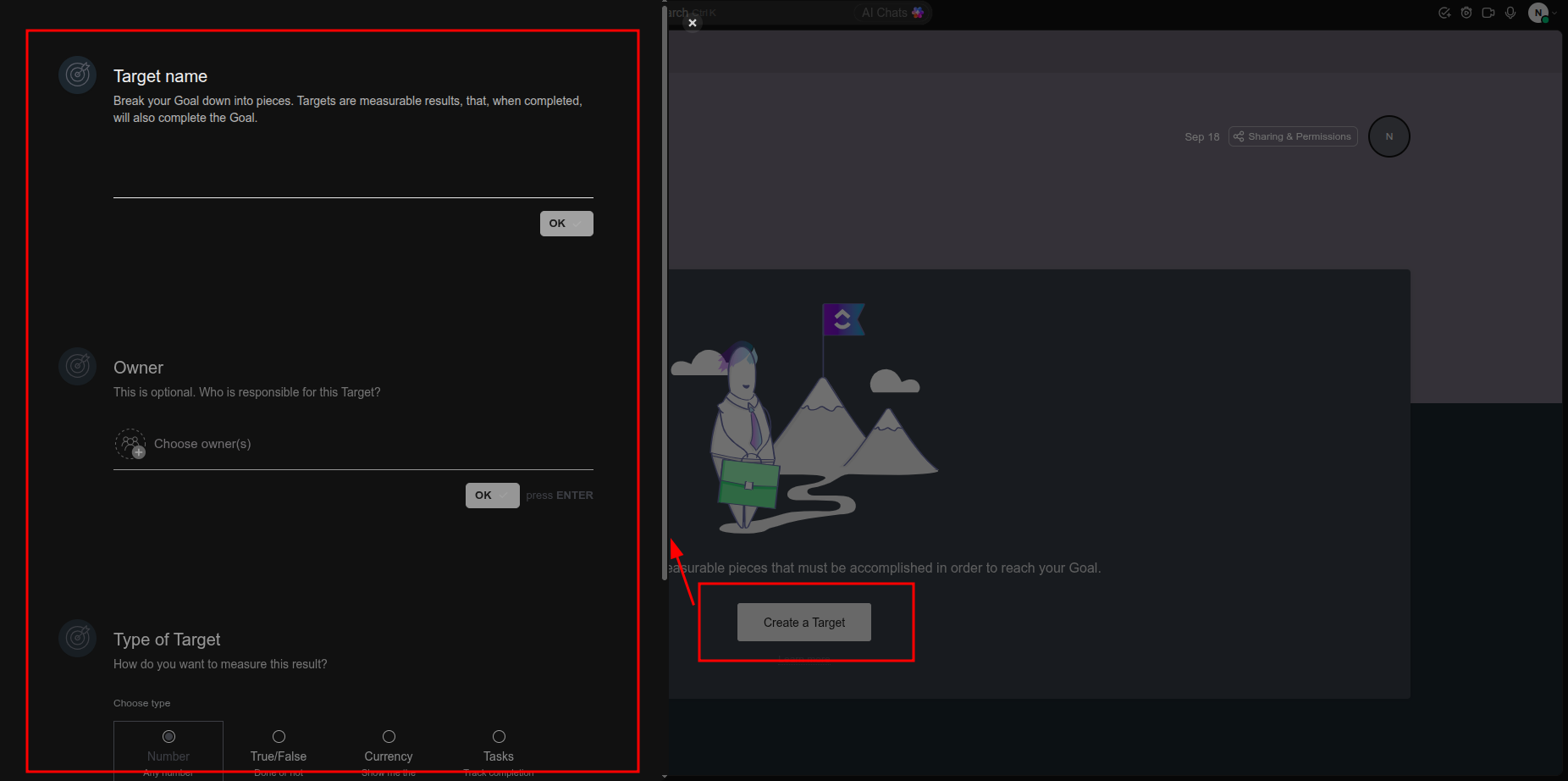
Select the target option and configure its required target value in ClickUp.
Open Odoo synchronization settings and select the highlighted Goals synchronization option.
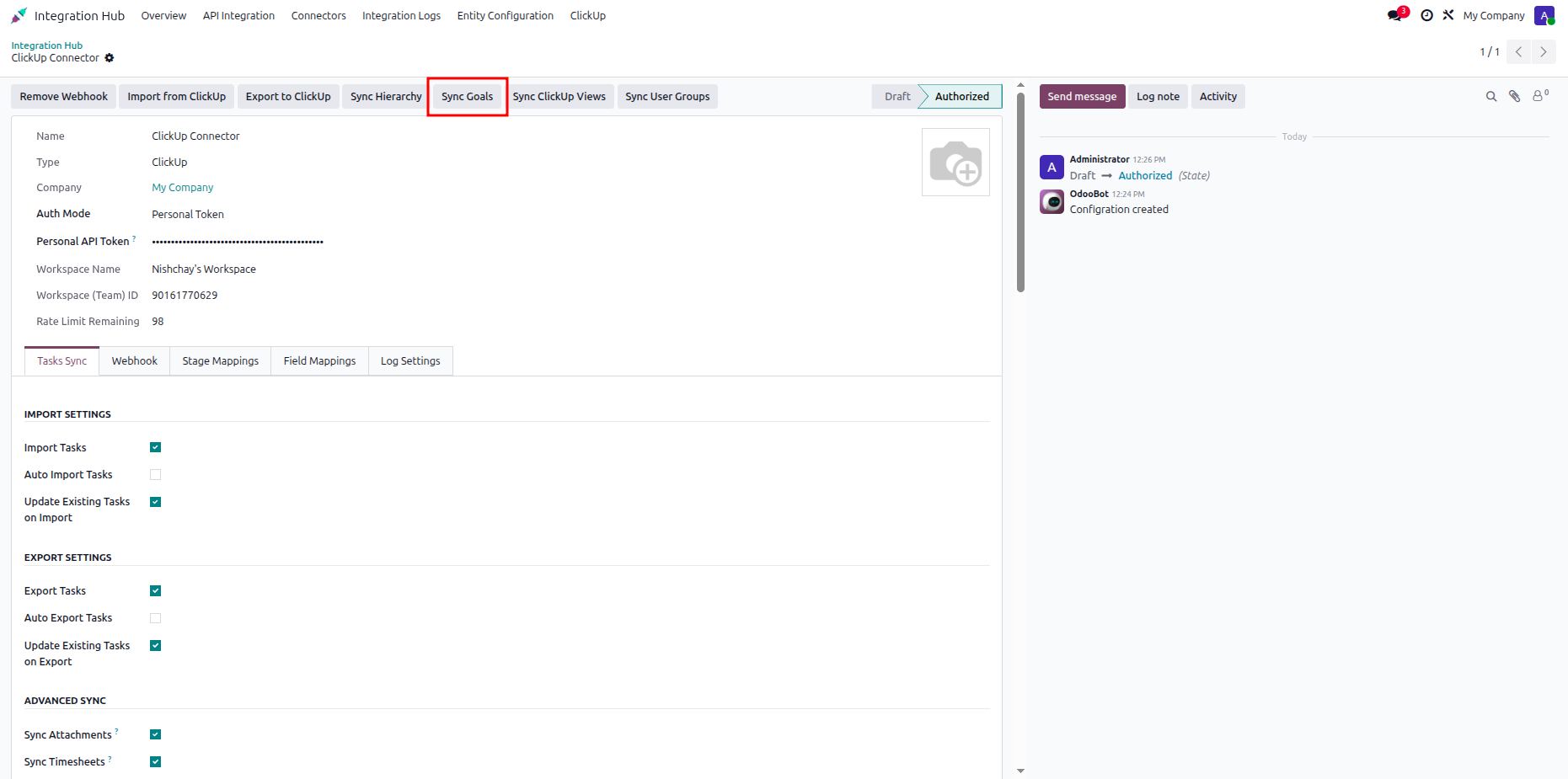
Review the configured goal synchronization settings and available ClickUp goal options in Odoo.
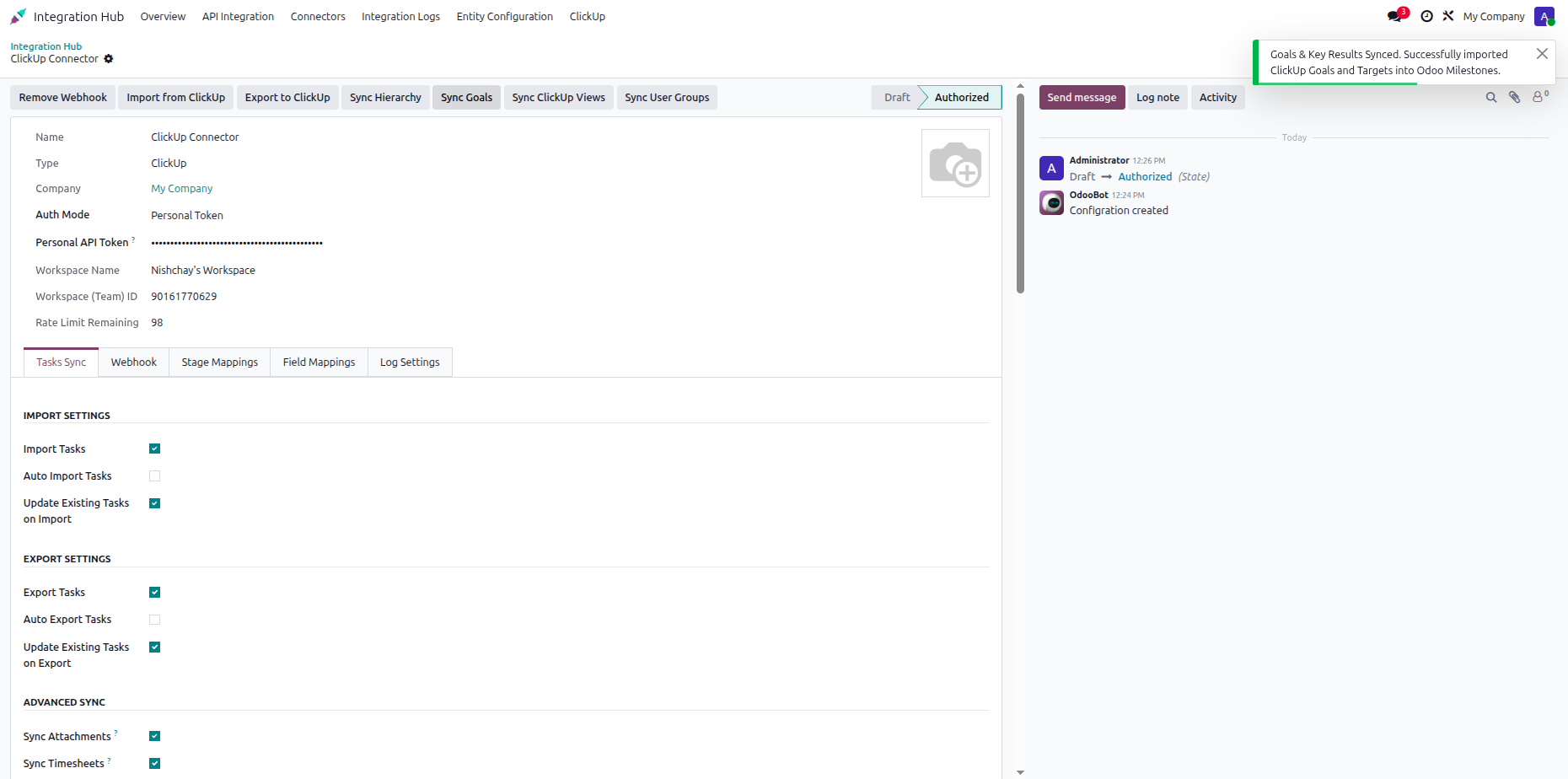
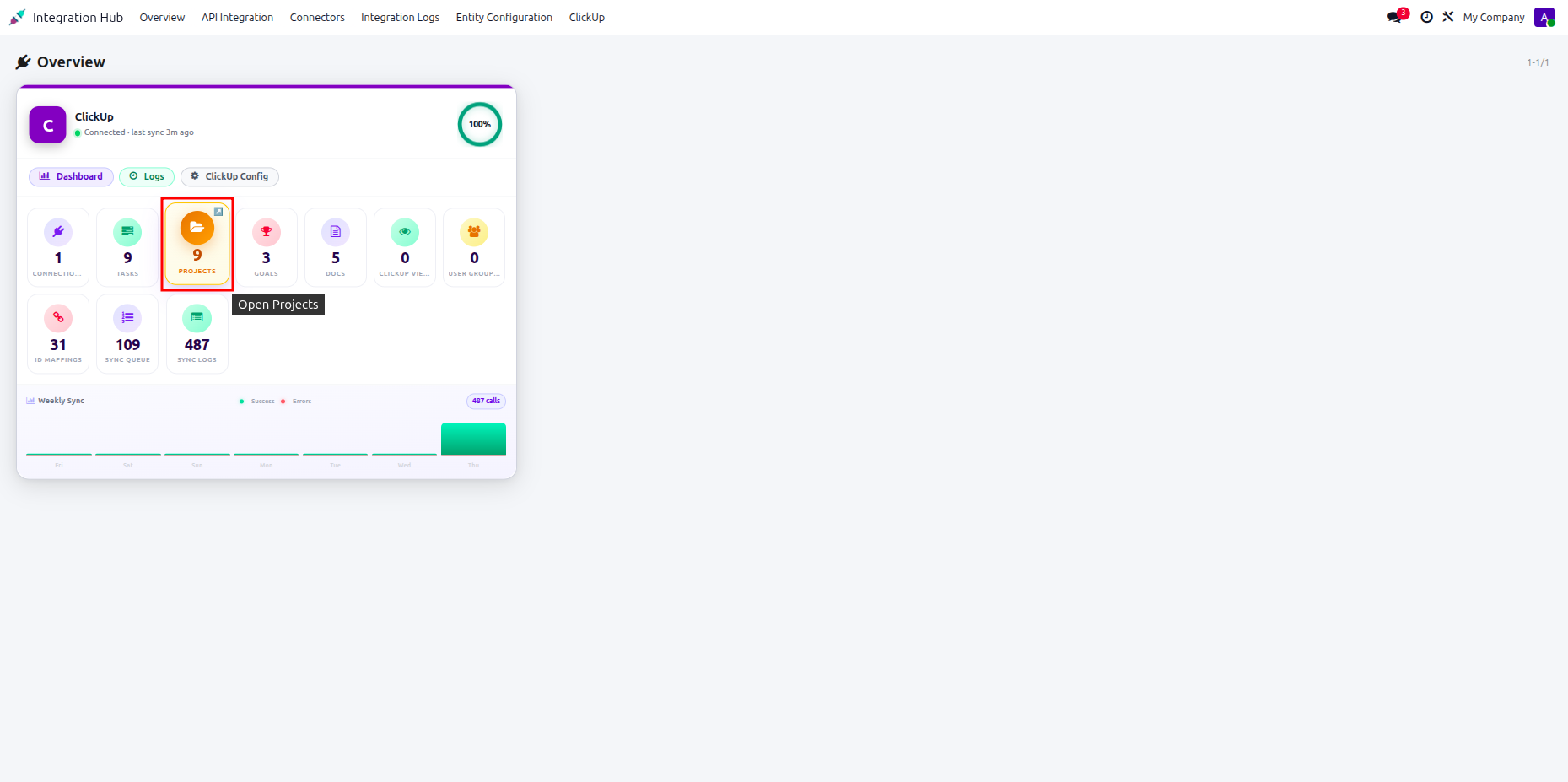
Open the ClickUp dashboard and select the highlighted goal count for review.
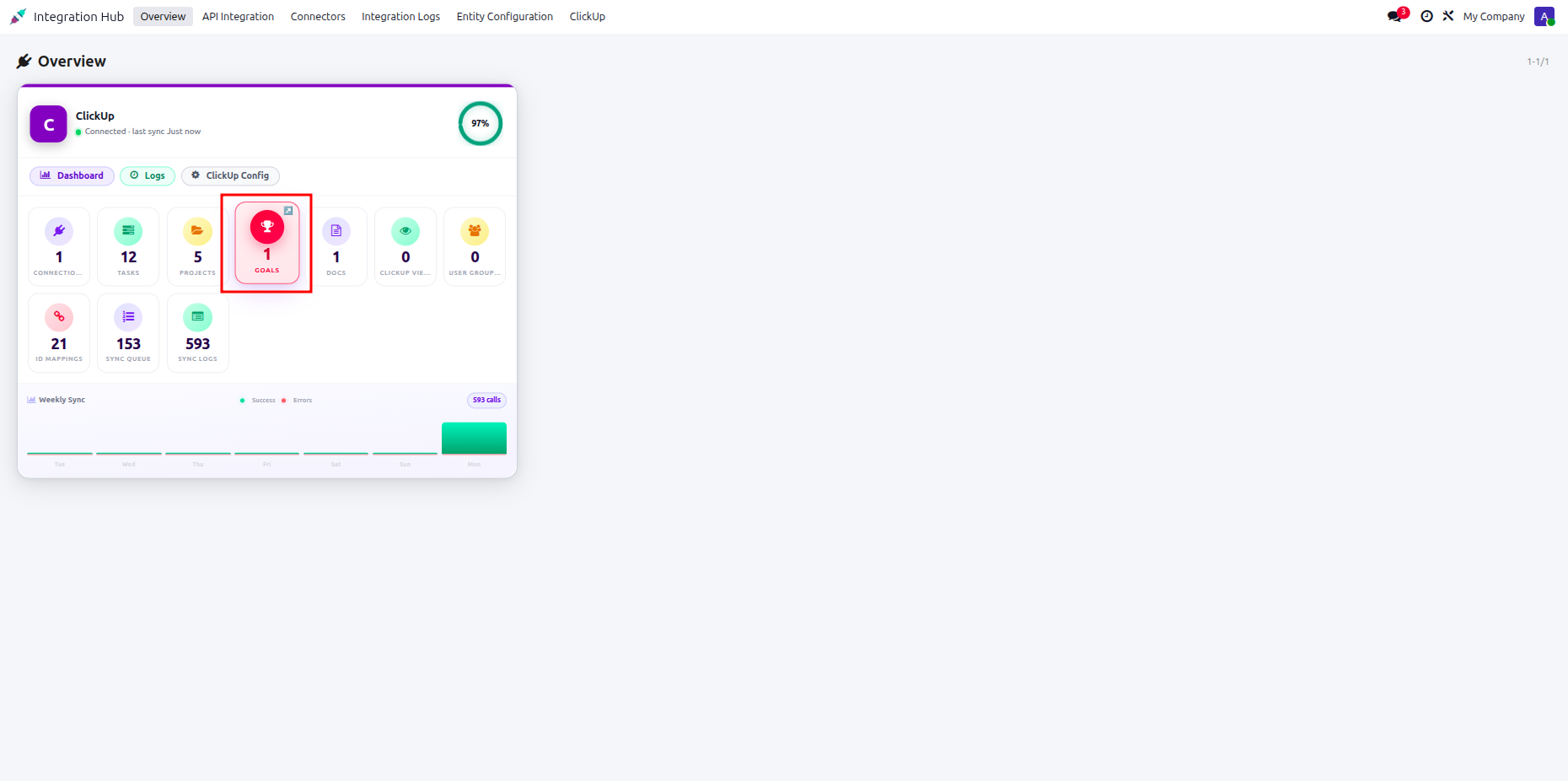
Review the Odoo Goals list and its synchronized ClickUp goal records.
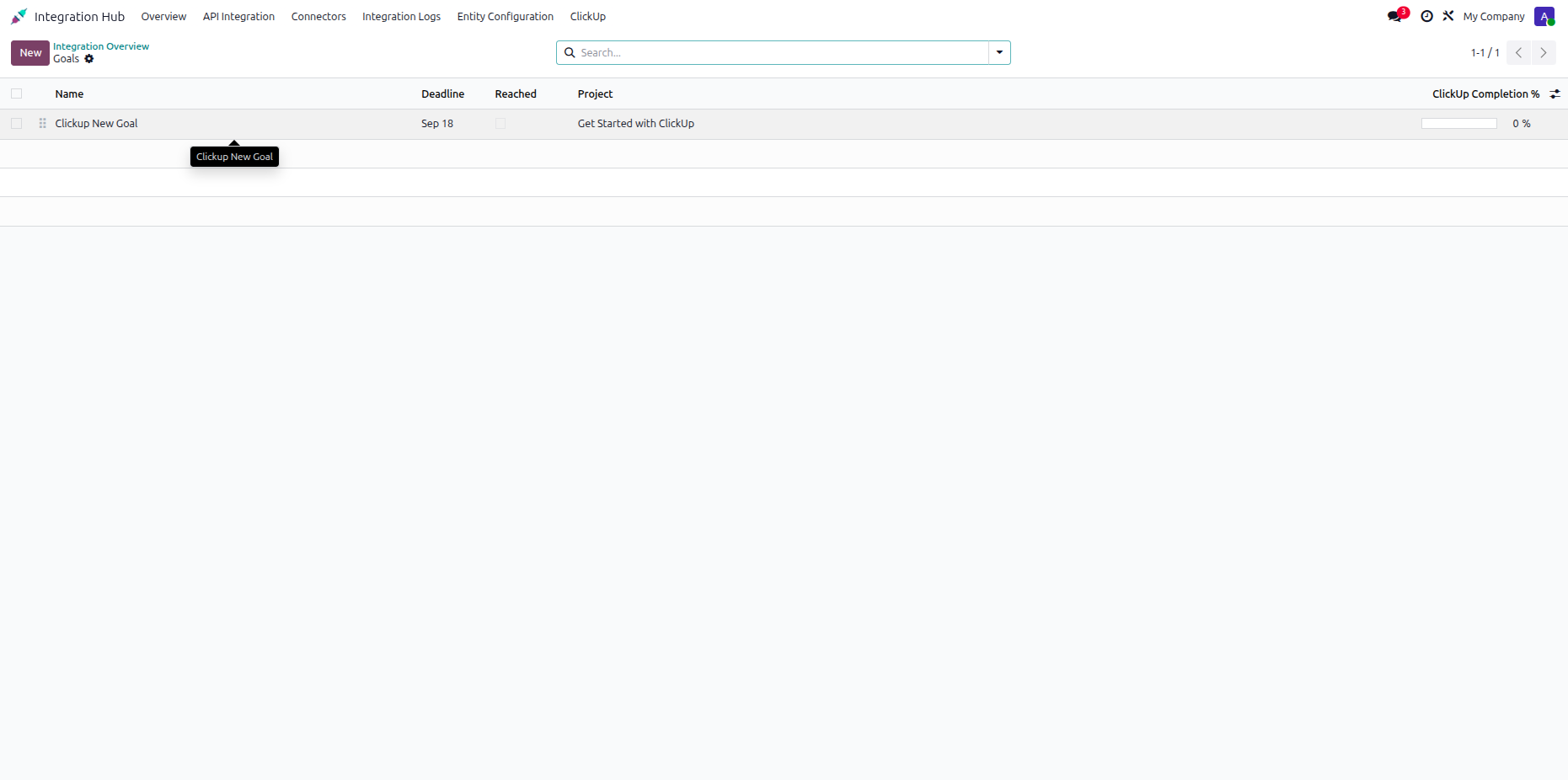
Open the synchronized goal record to review its target and progress information.
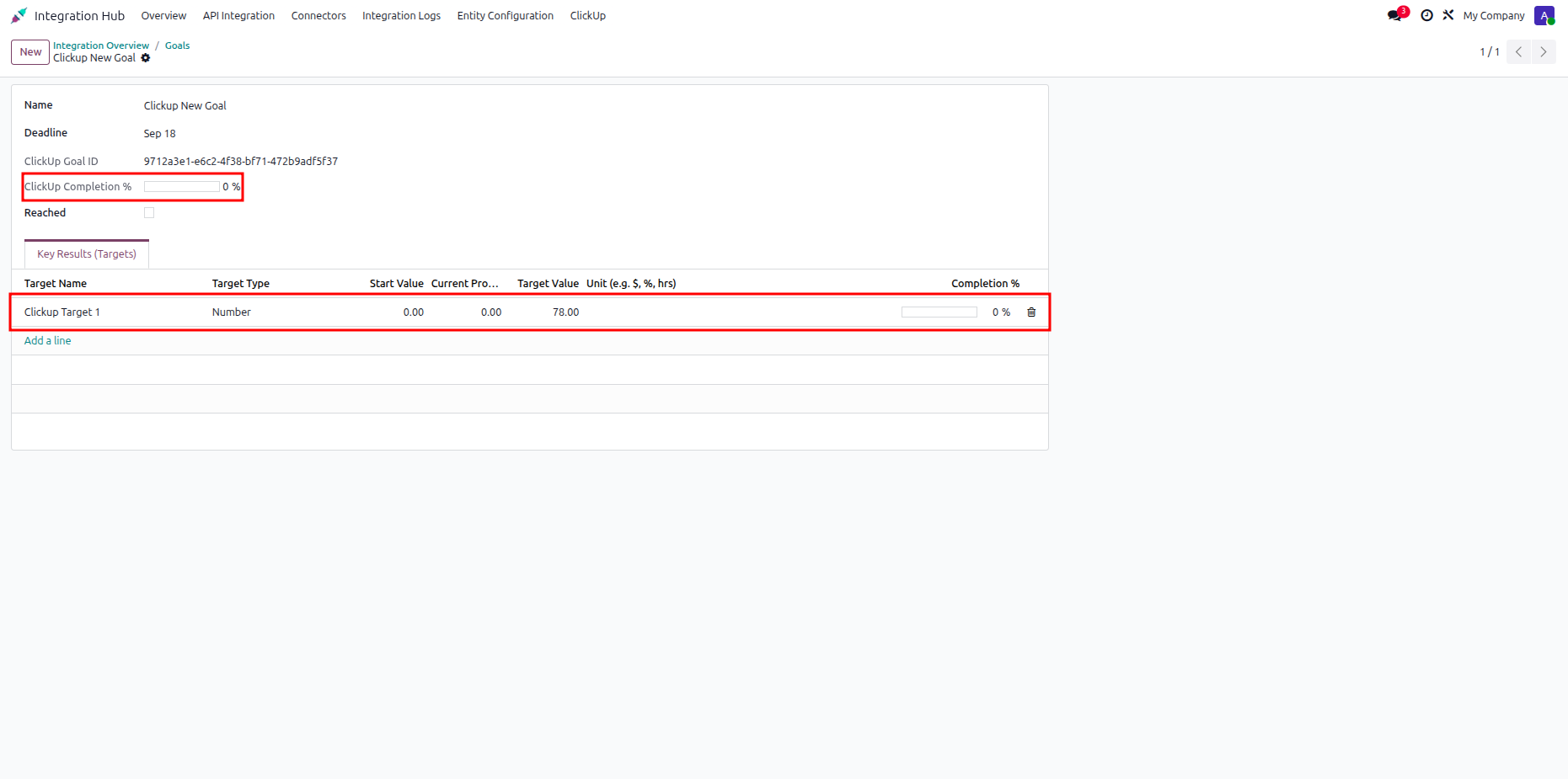
Review the target details and synchronized key result information on the Odoo goal.
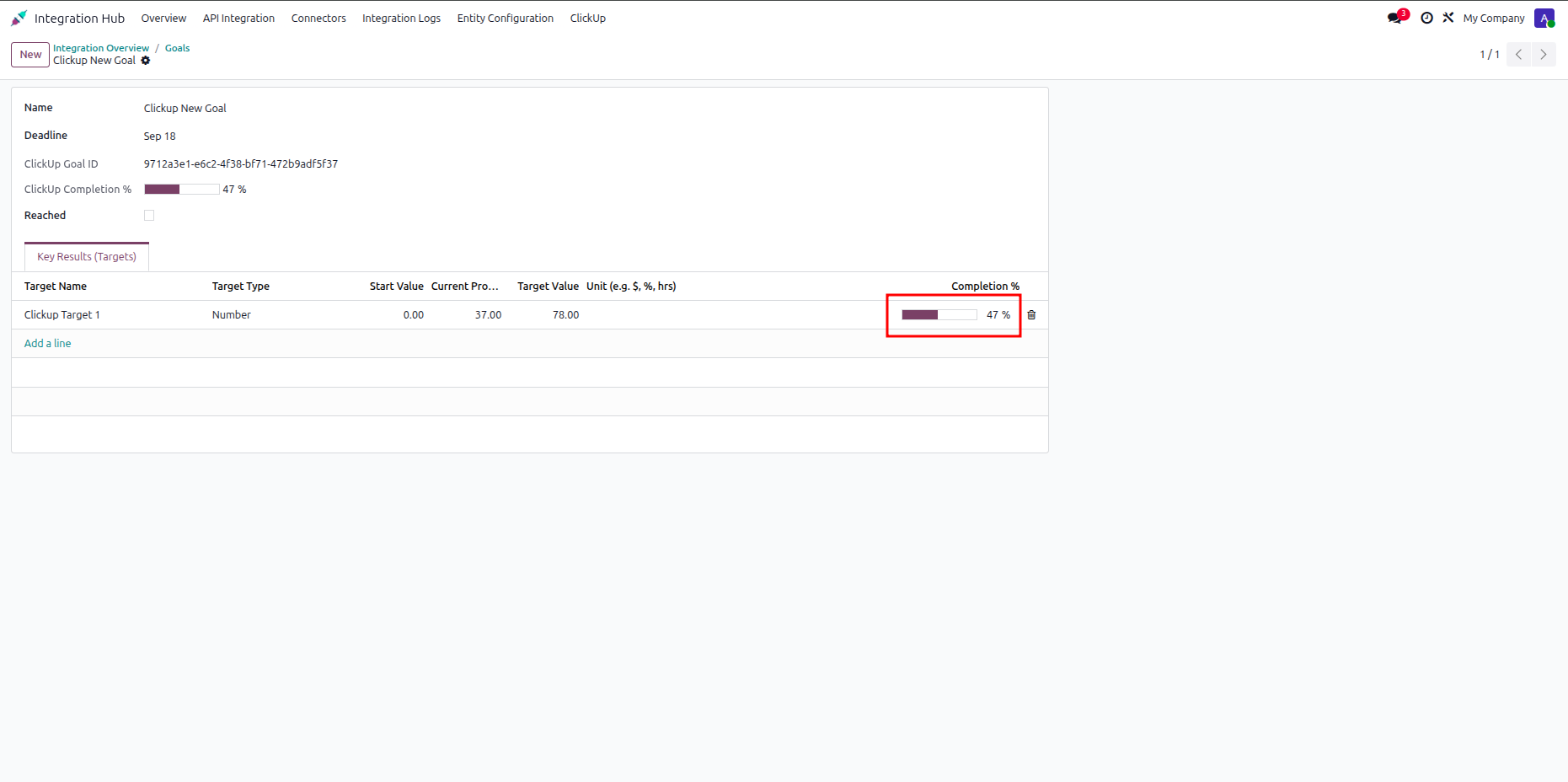
Verify the ClickUp goal and its configured targets after synchronization with Odoo.
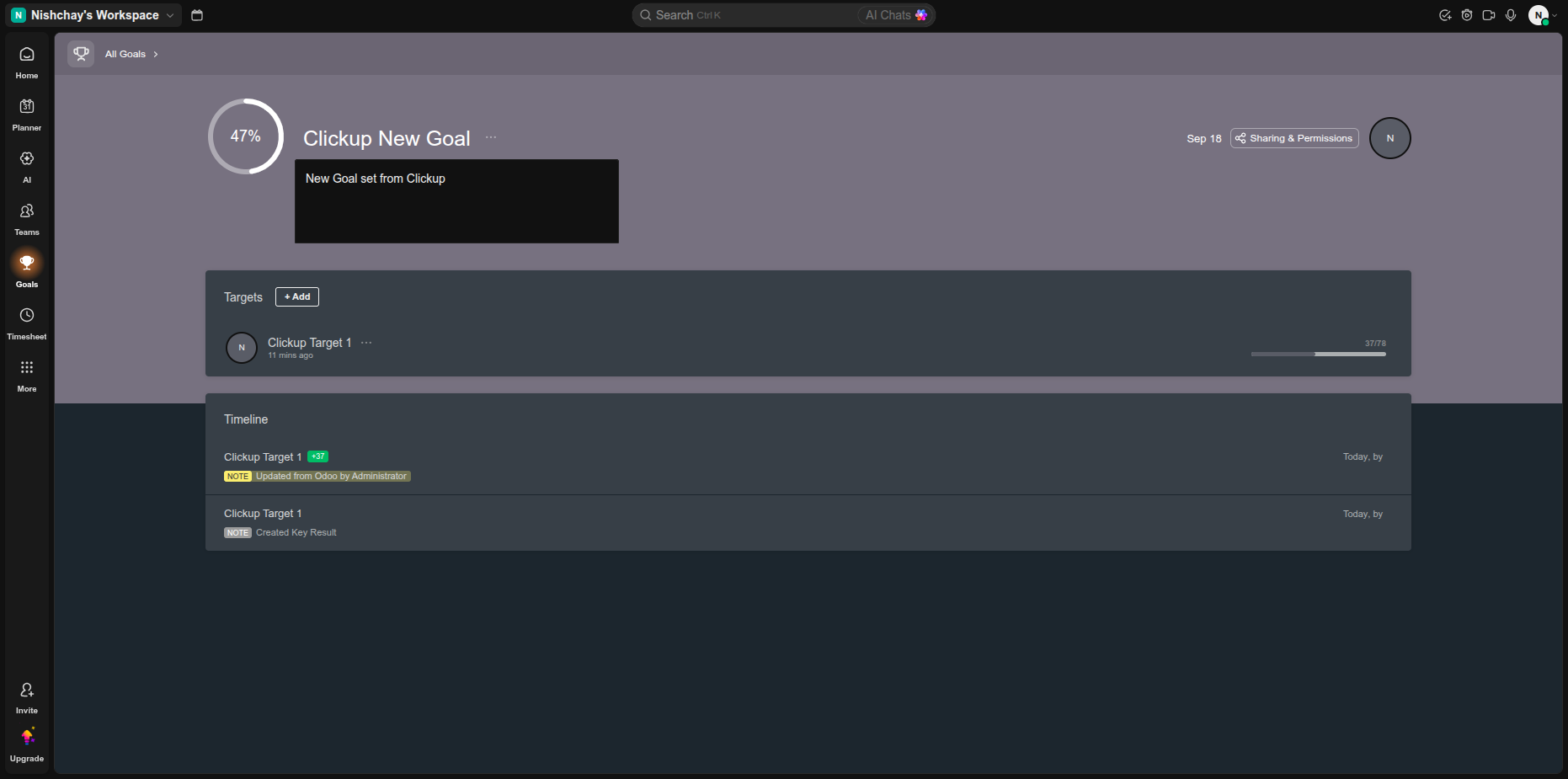
Open the Odoo synchronization settings and select the highlighted Docs and Pages option.
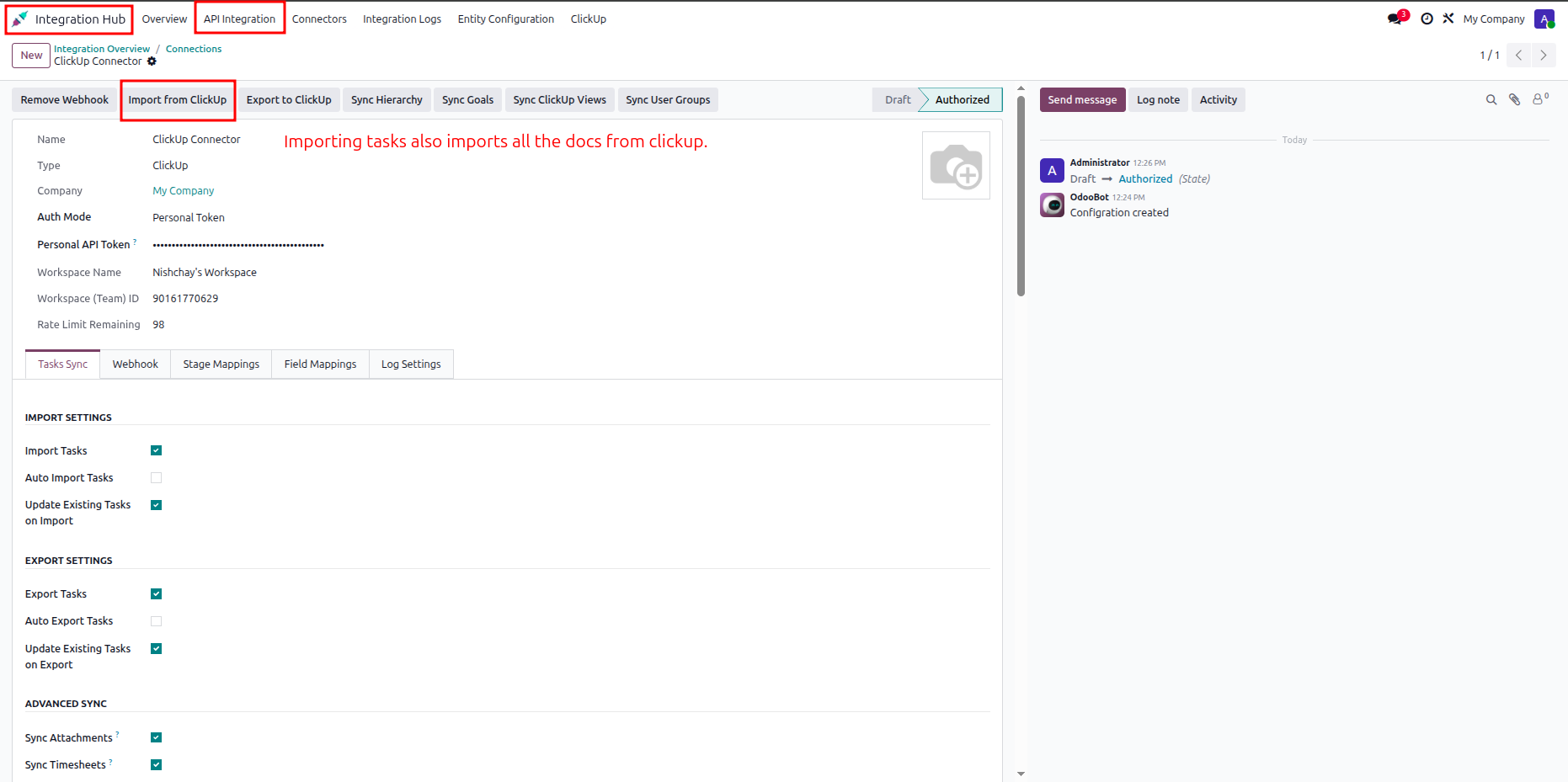
Select the Docs and Pages indicator from the ClickUp workspace dashboard to review content.
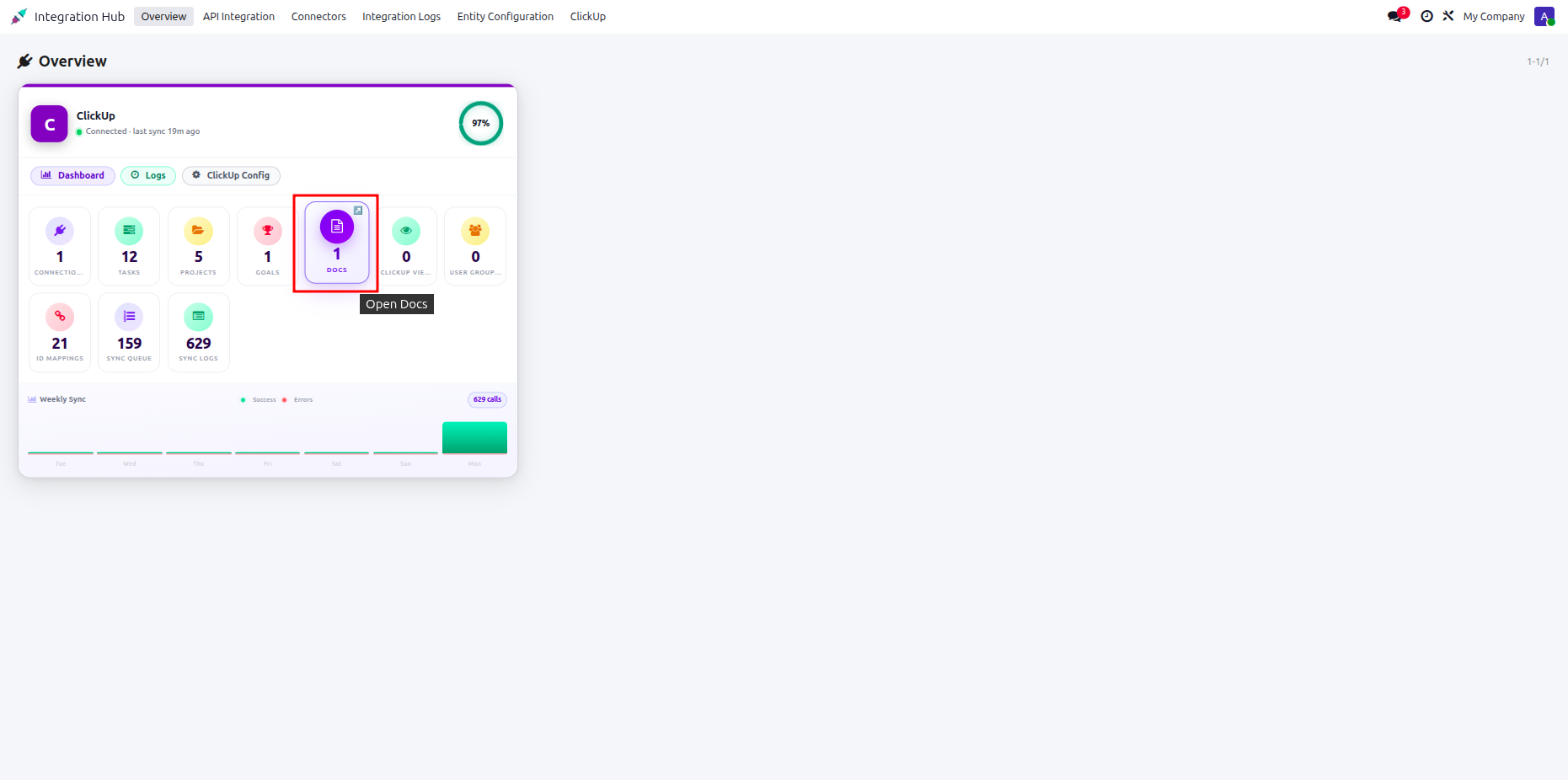
Review synchronized ClickUp documents and pages listed in the Odoo documentation view.
Open the synchronized Team Docs record in Odoo to review its document content.
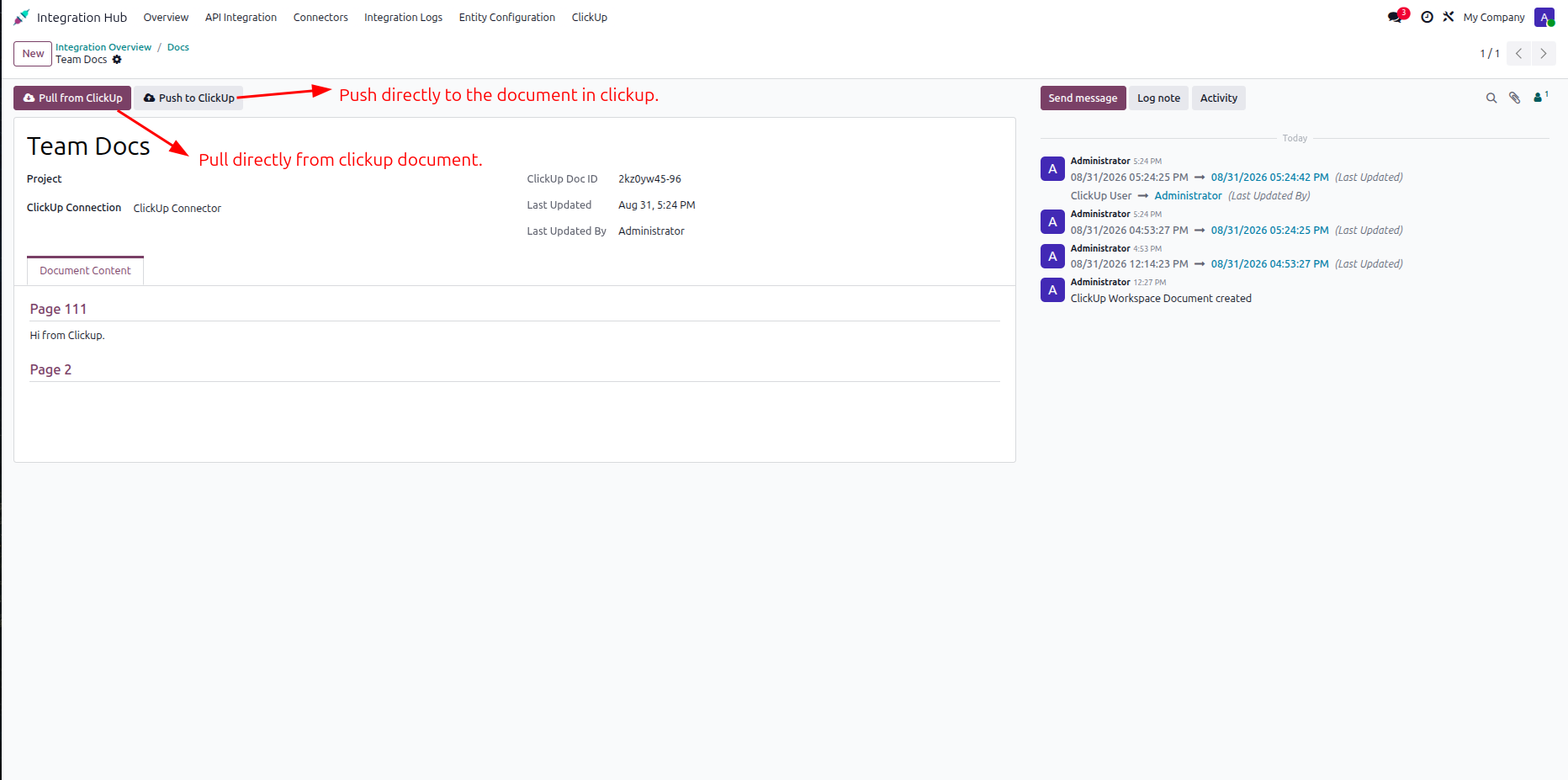
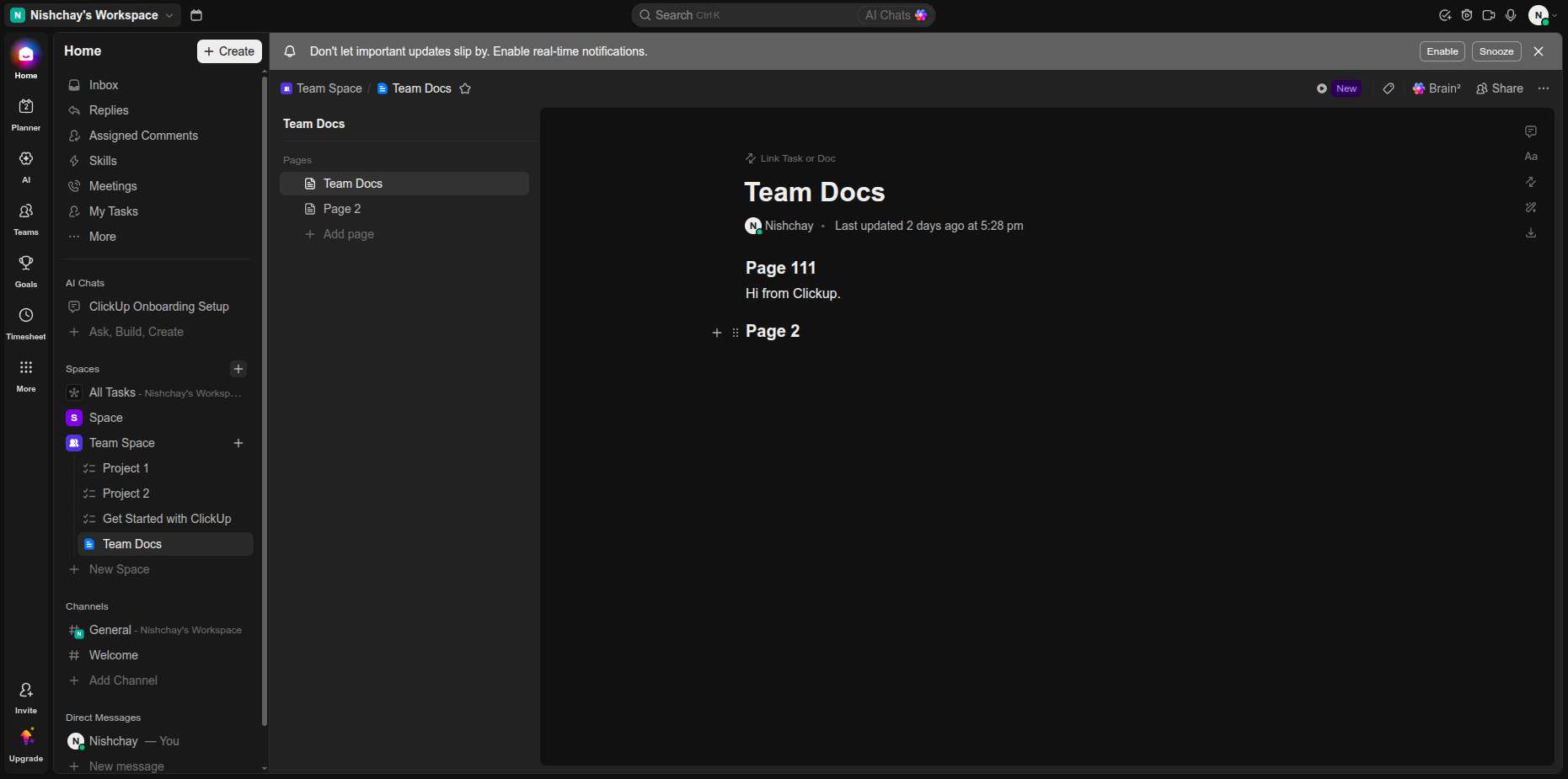
Verify the synchronized Team Docs pages and content displayed in the ClickUp workspace.
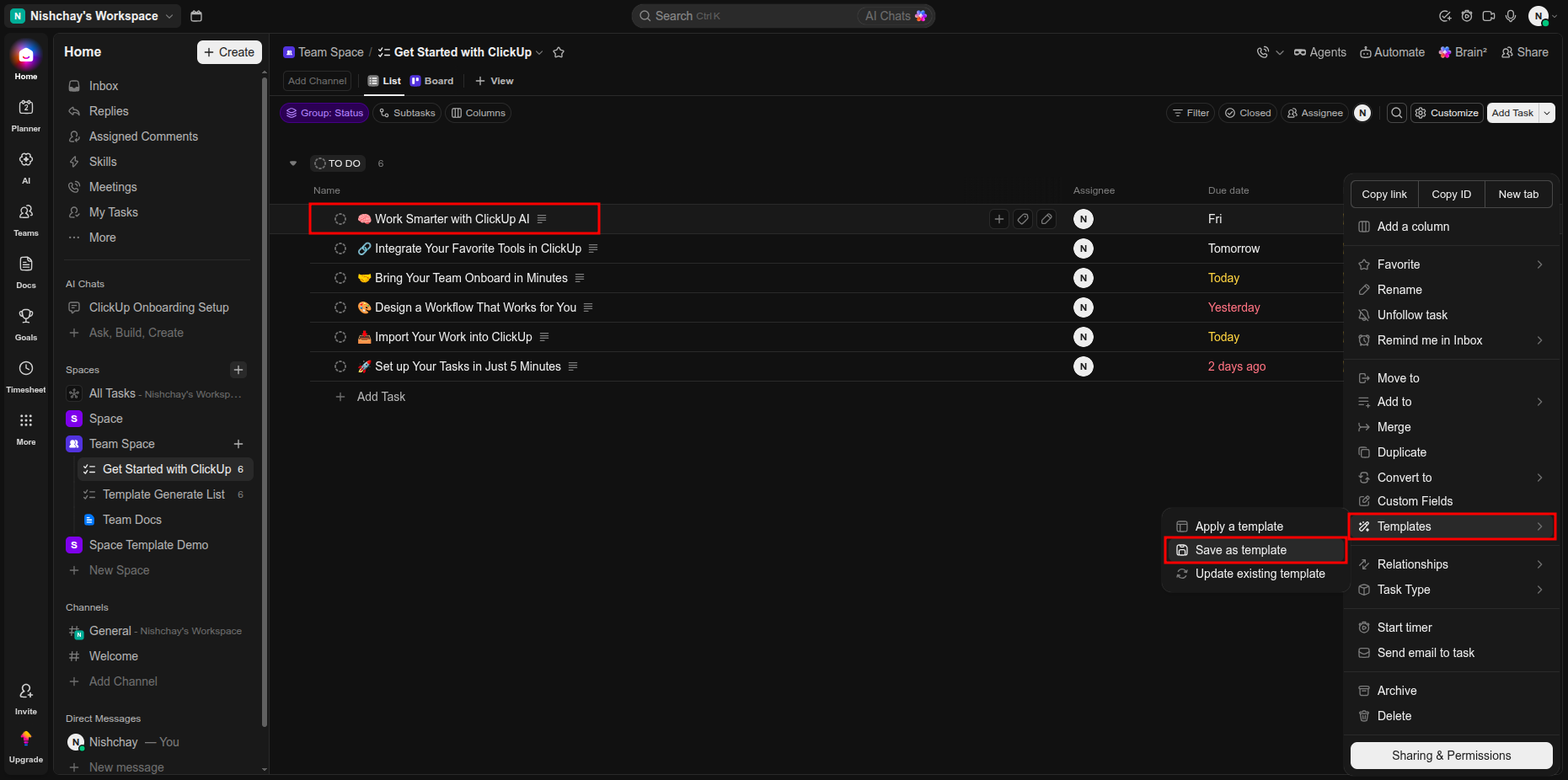
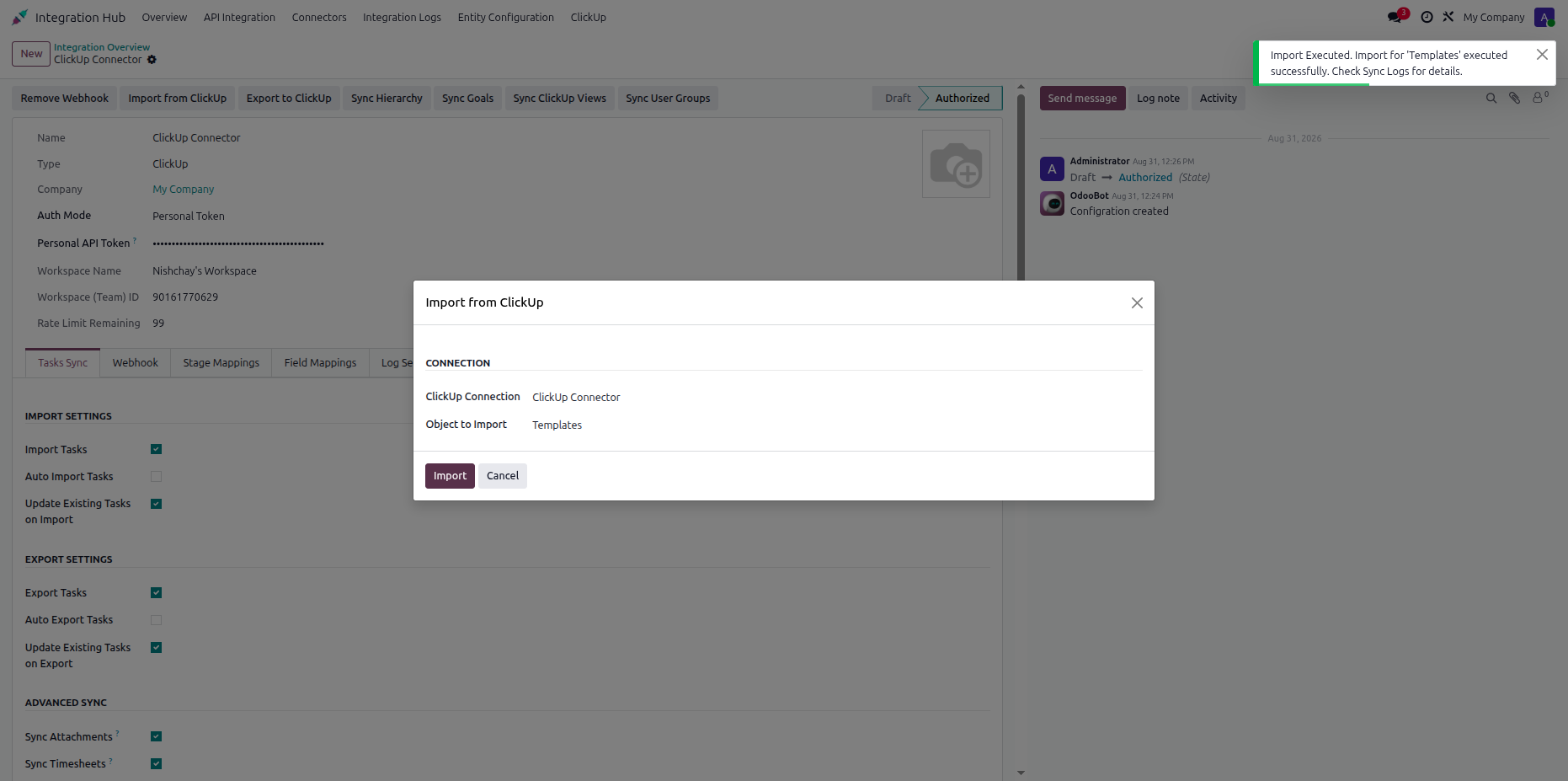
Open the ClickUp task template list and select the template synchronization option.
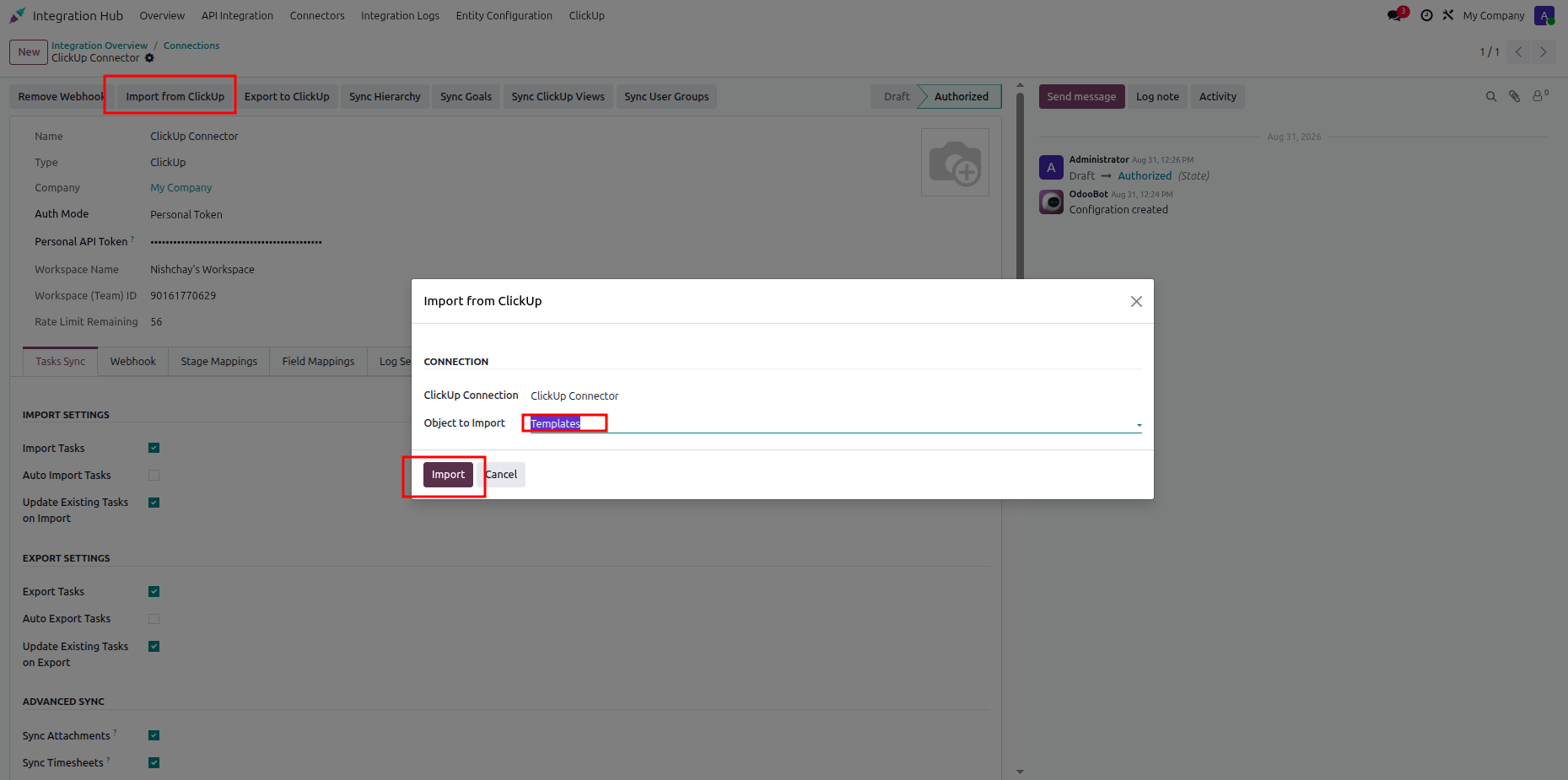
Choose the required ClickUp task template from the import dialog in Odoo.
.png)
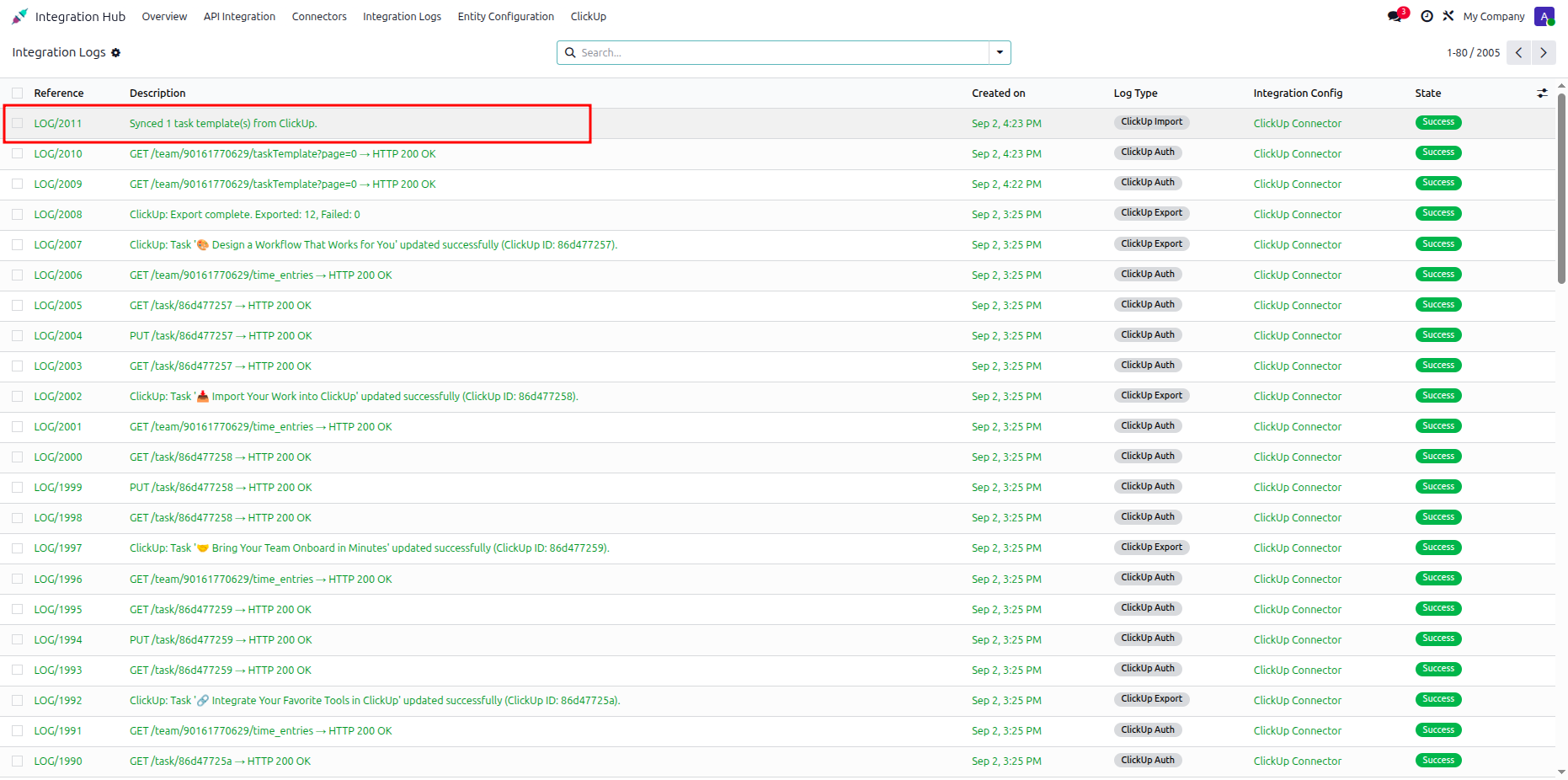
Confirm the selected task template and start the import process from Odoo.
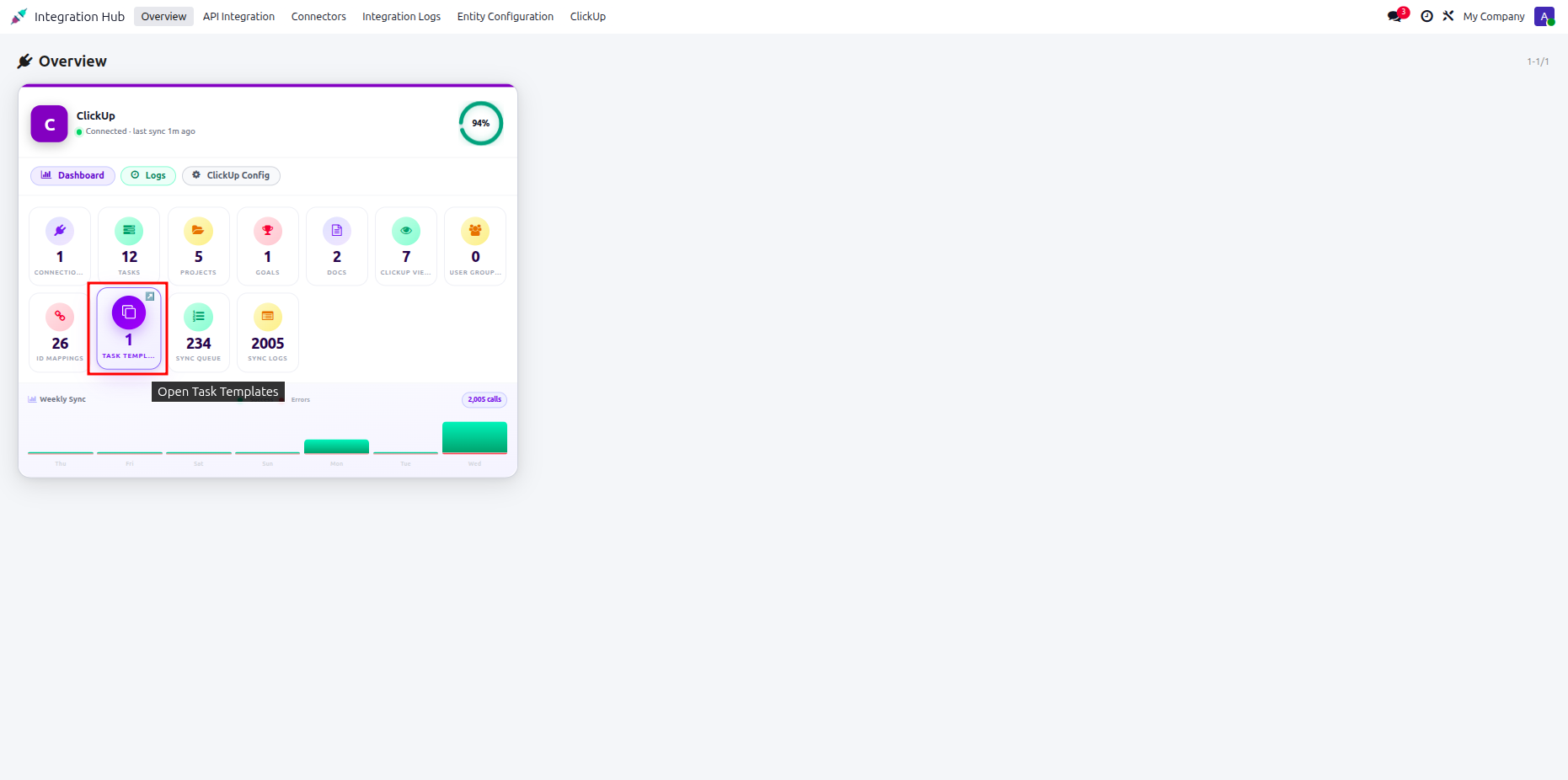
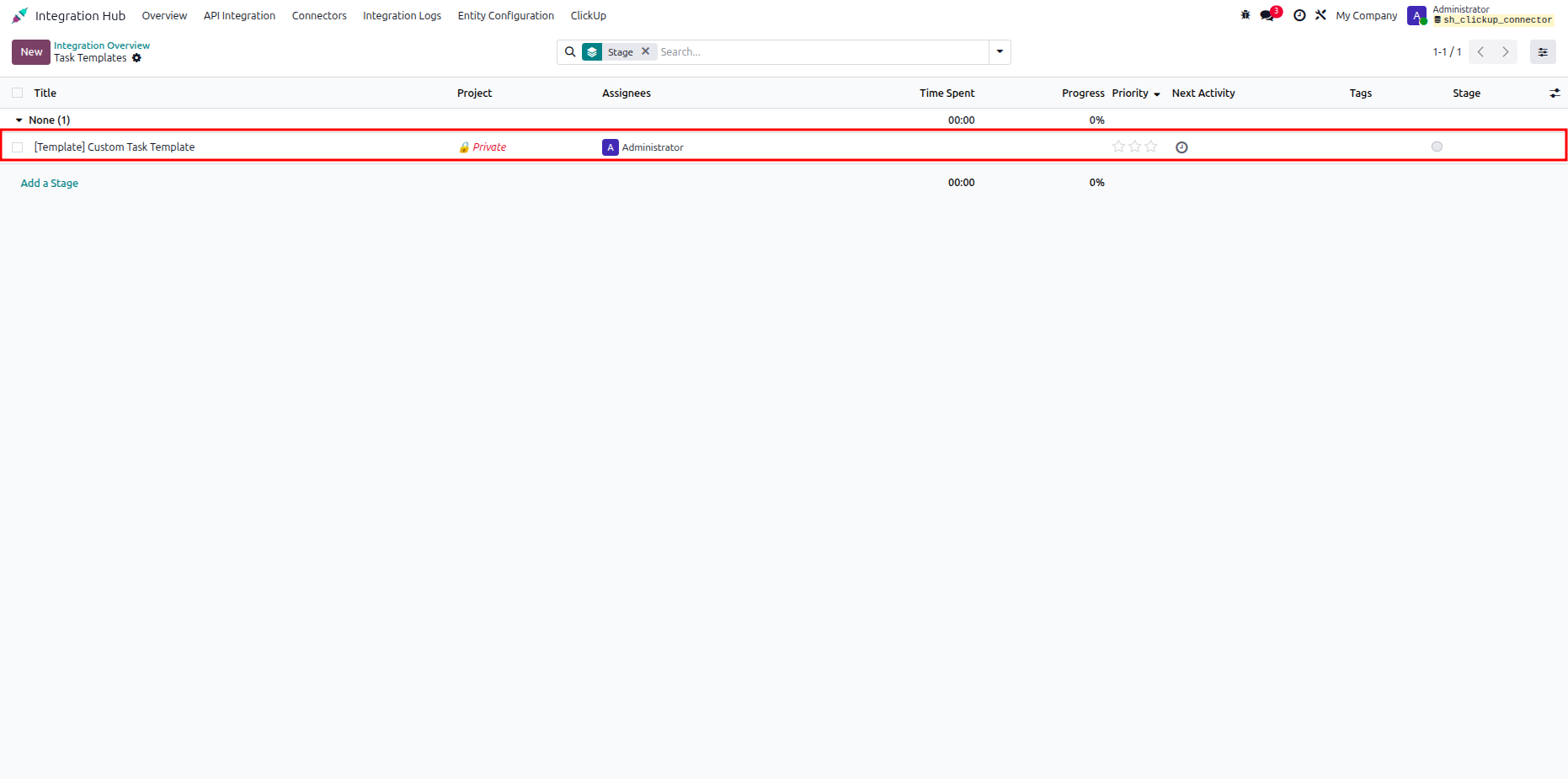
Review the imported ClickUp task templates listed in the Odoo template view.
Select the synchronized task template record to review its available template details.
Review the task template and associated fields displayed in the Odoo template record.
Open the Apply ClickUp Template dialog and select the required template option.
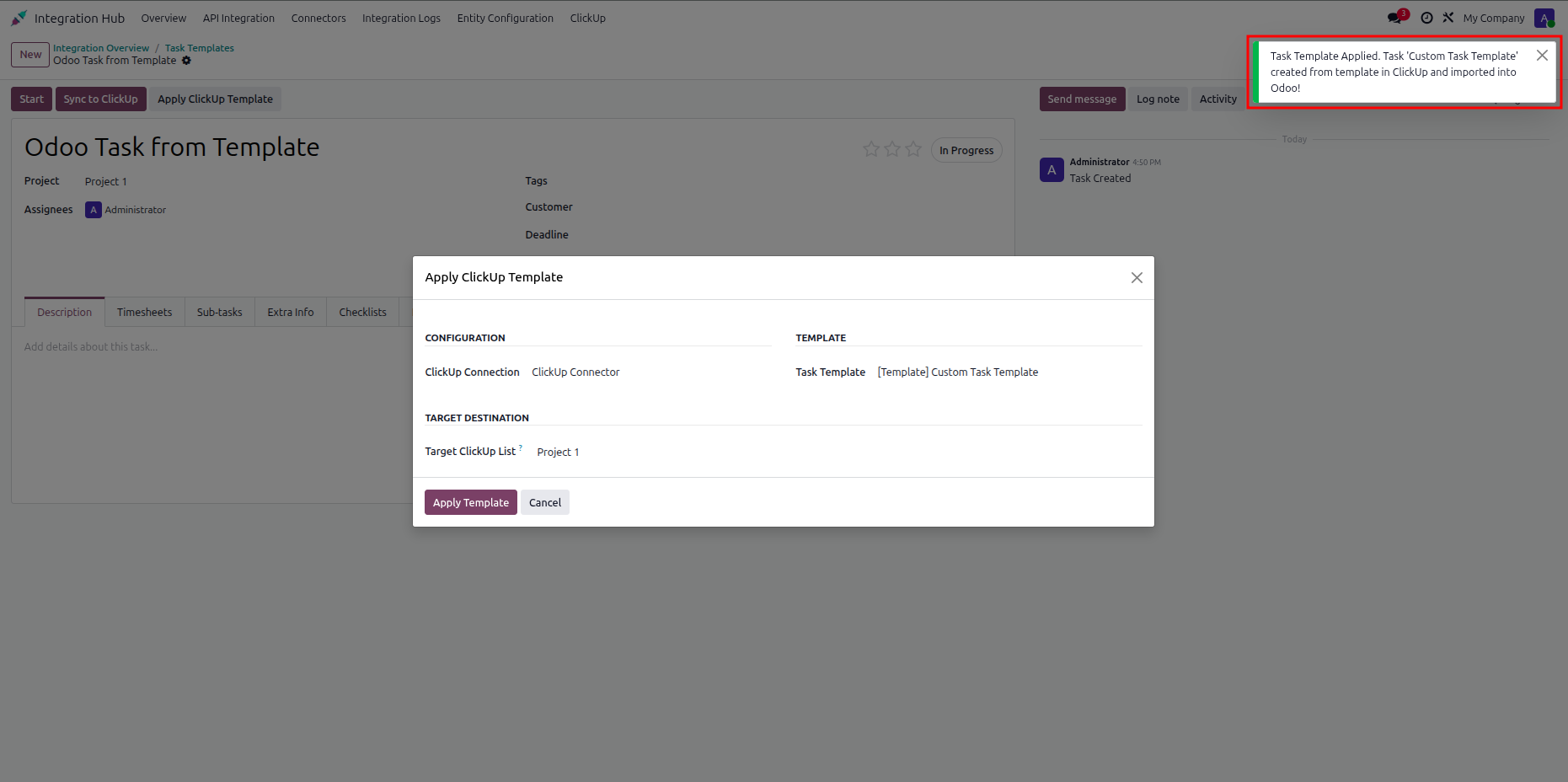
Confirm the selected ClickUp template before applying it to the Odoo task.
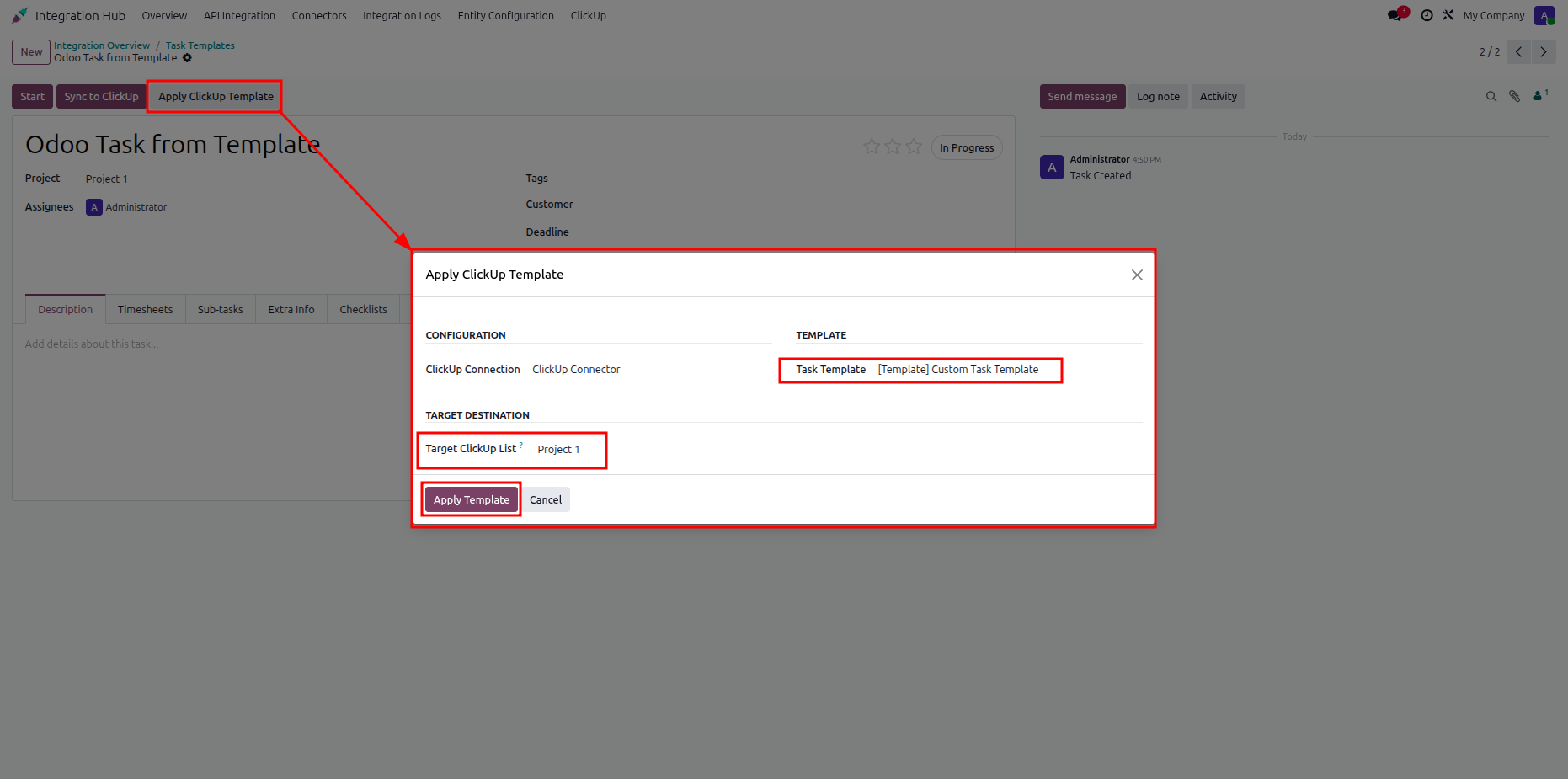
Review the ClickUp template application settings and available task template options.
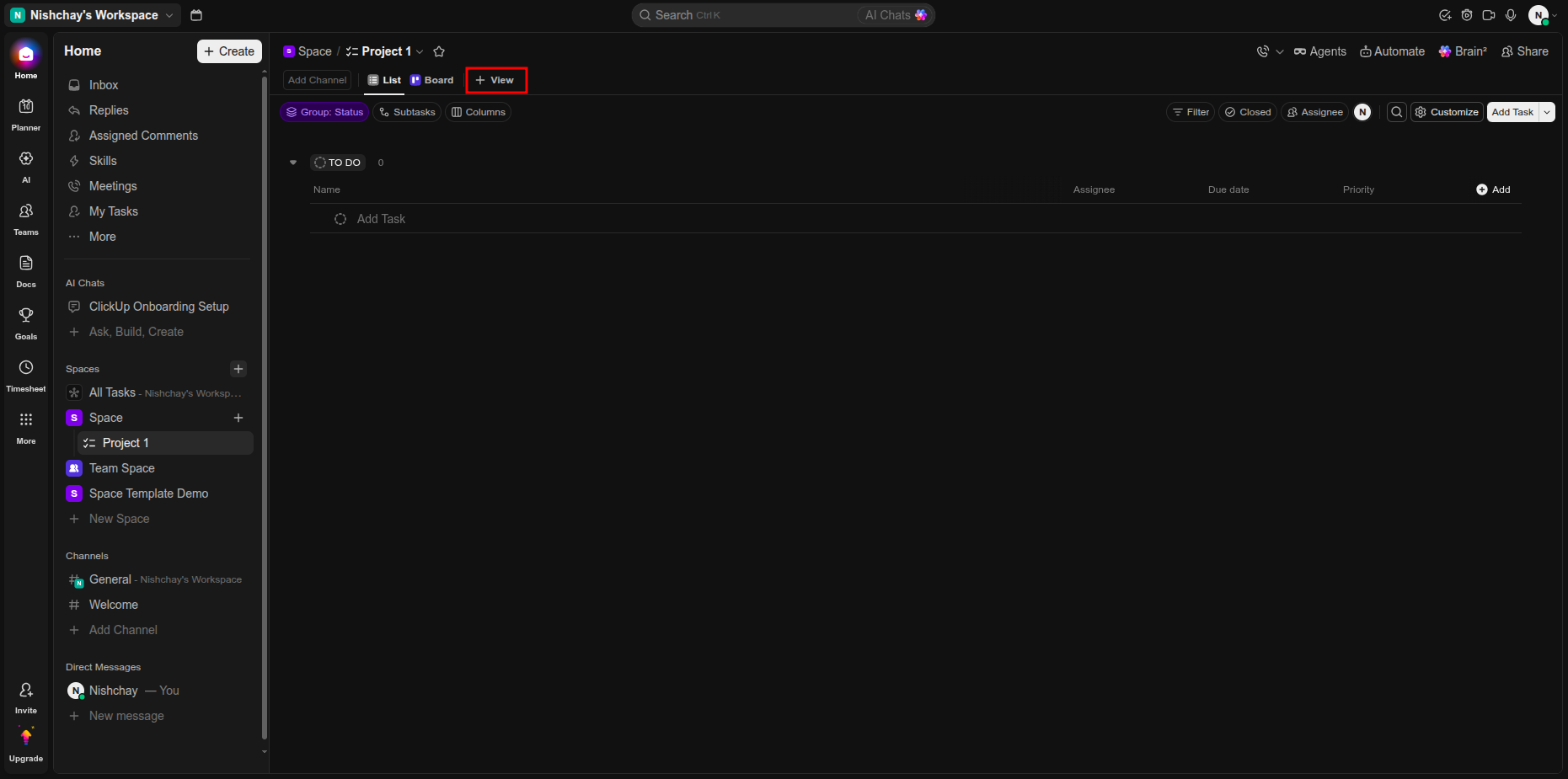
Open the ClickUp workspace and select the highlighted view option for synchronization.
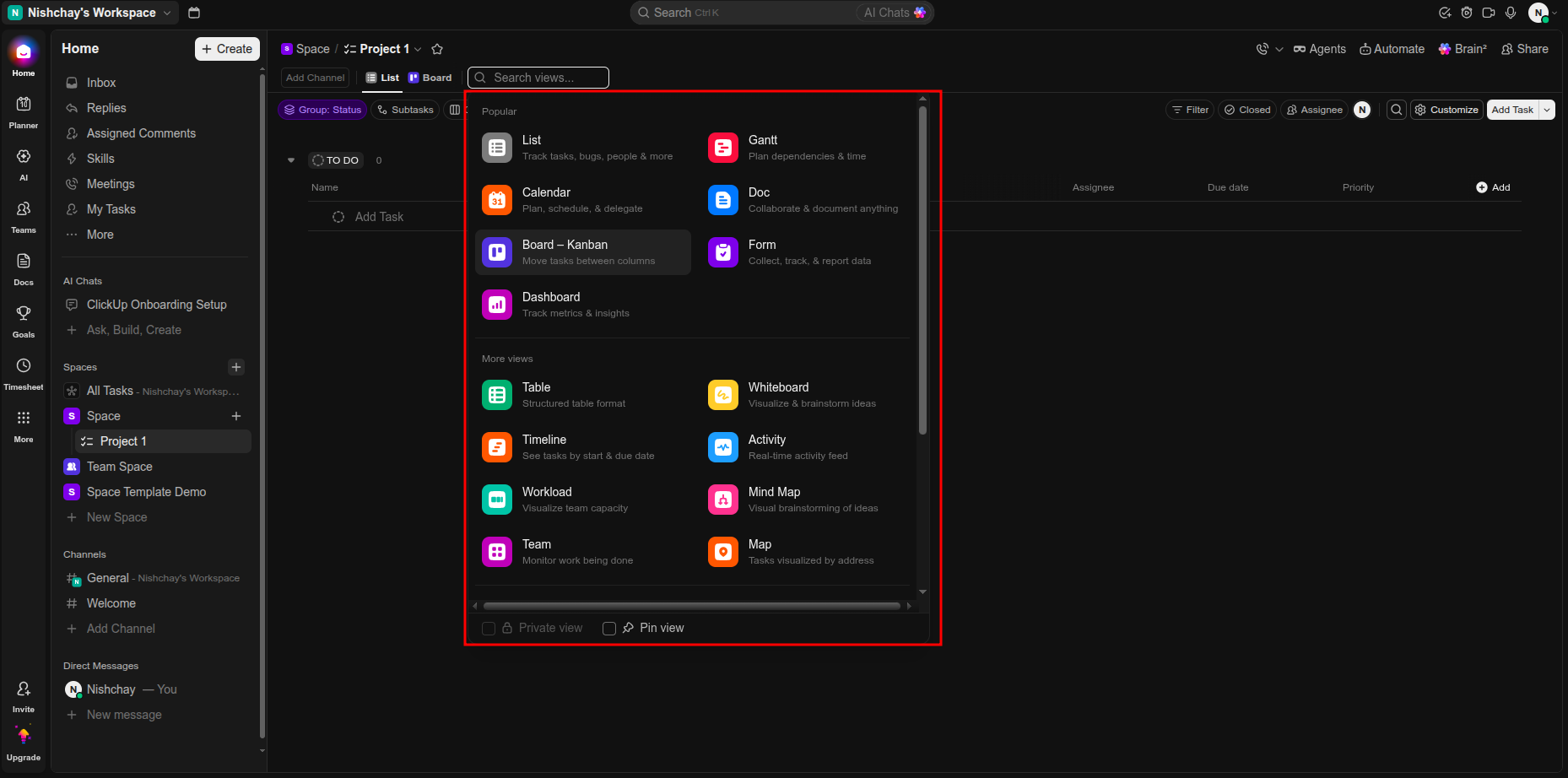
Review the available ClickUp views displayed in the view selection panel.
Select the required ClickUp view and review its synchronized task layout.
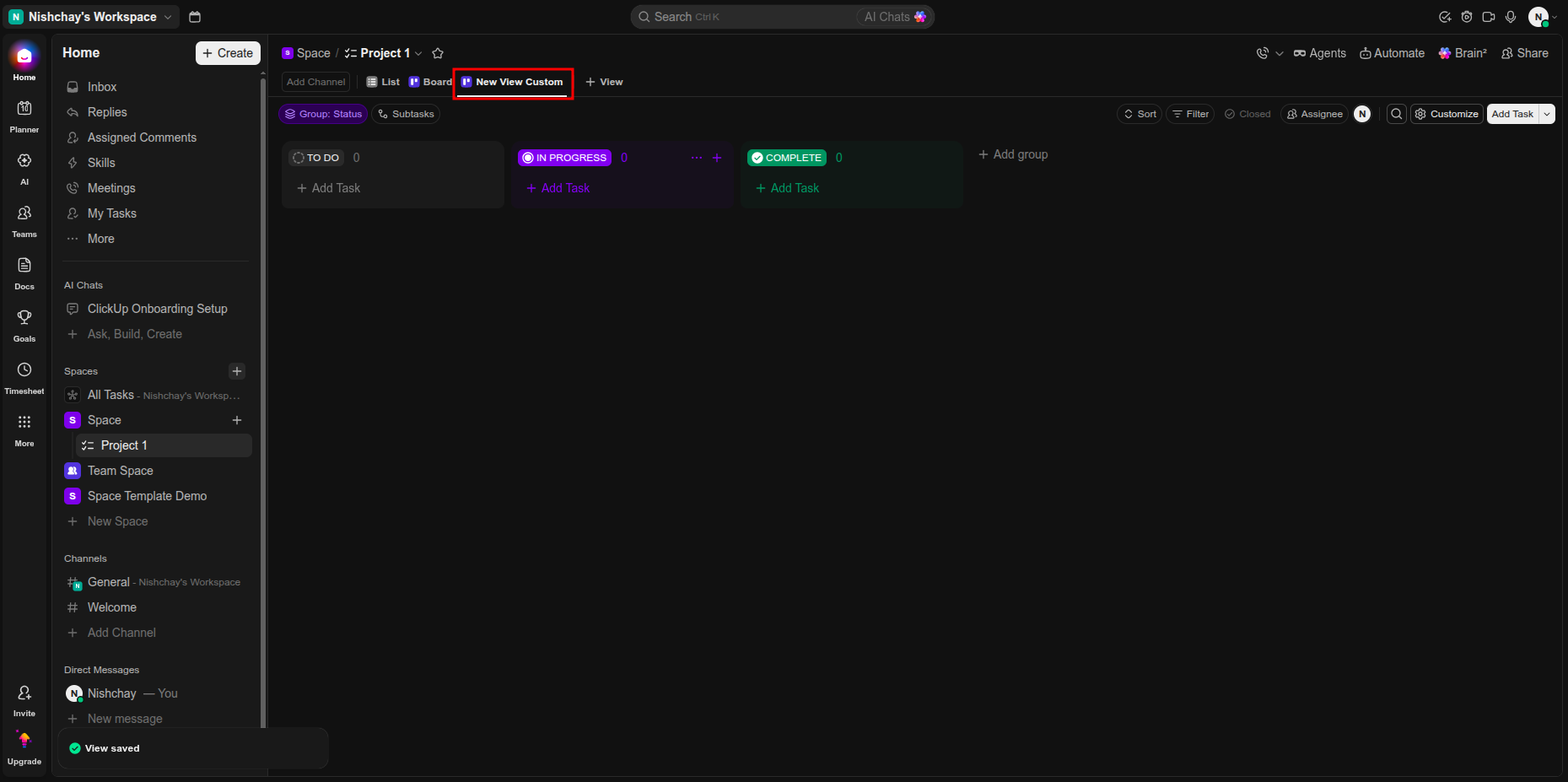
Open Odoo synchronization settings and select the highlighted Views synchronization option.
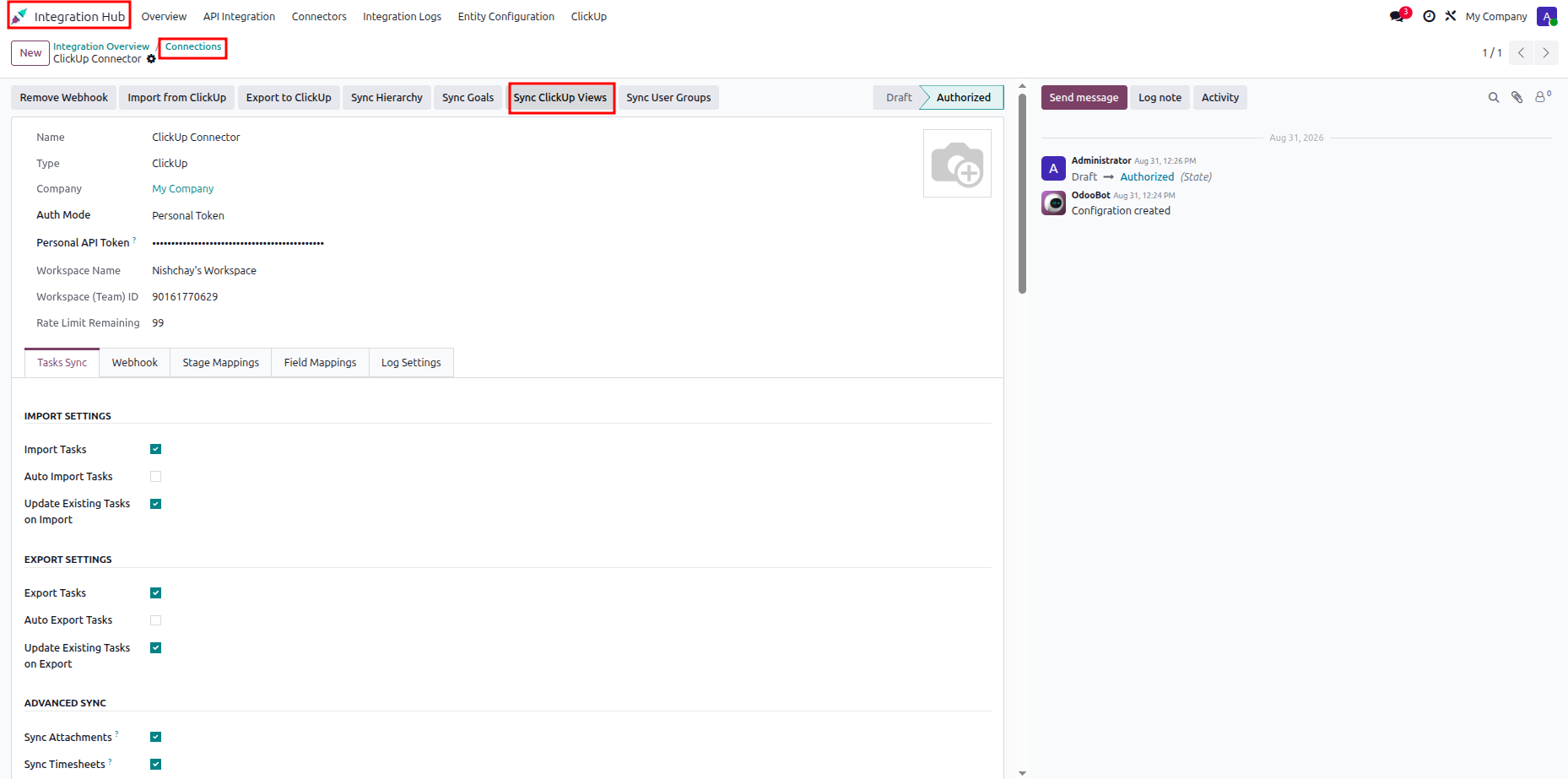
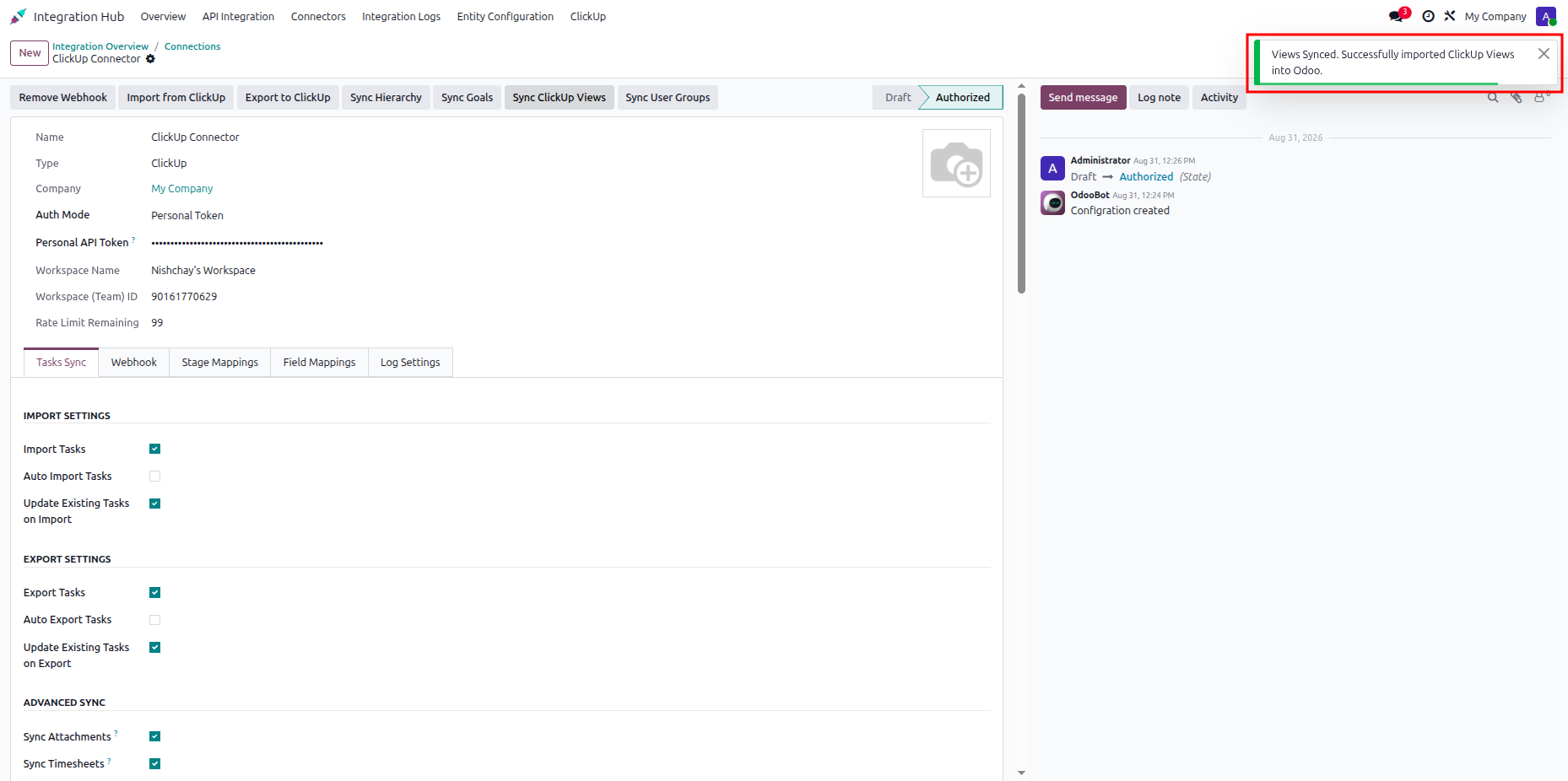
Review the configured ClickUp view synchronization settings in the Odoo connector.
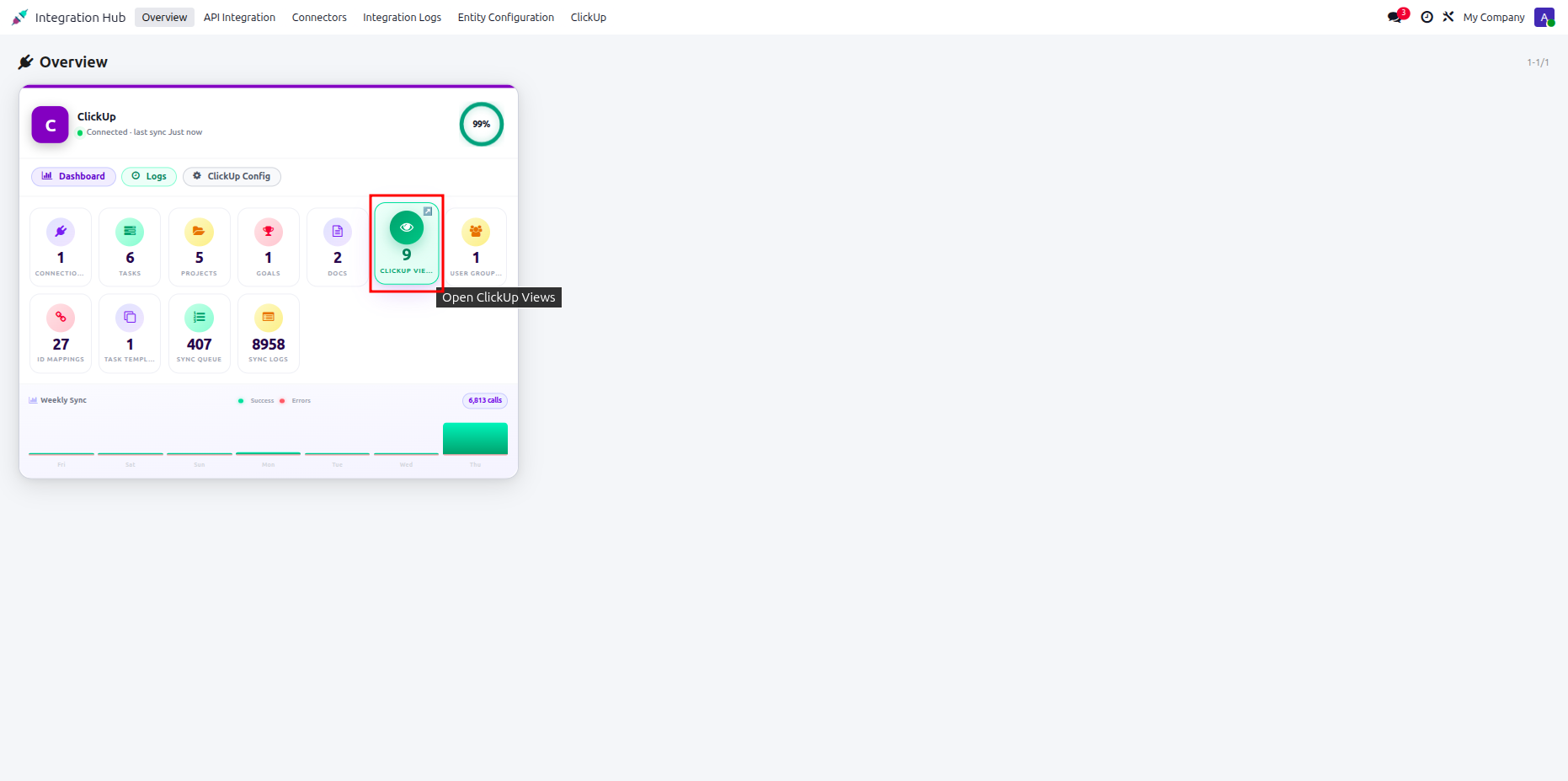
Open the ClickUp dashboard and select the highlighted view count for review.
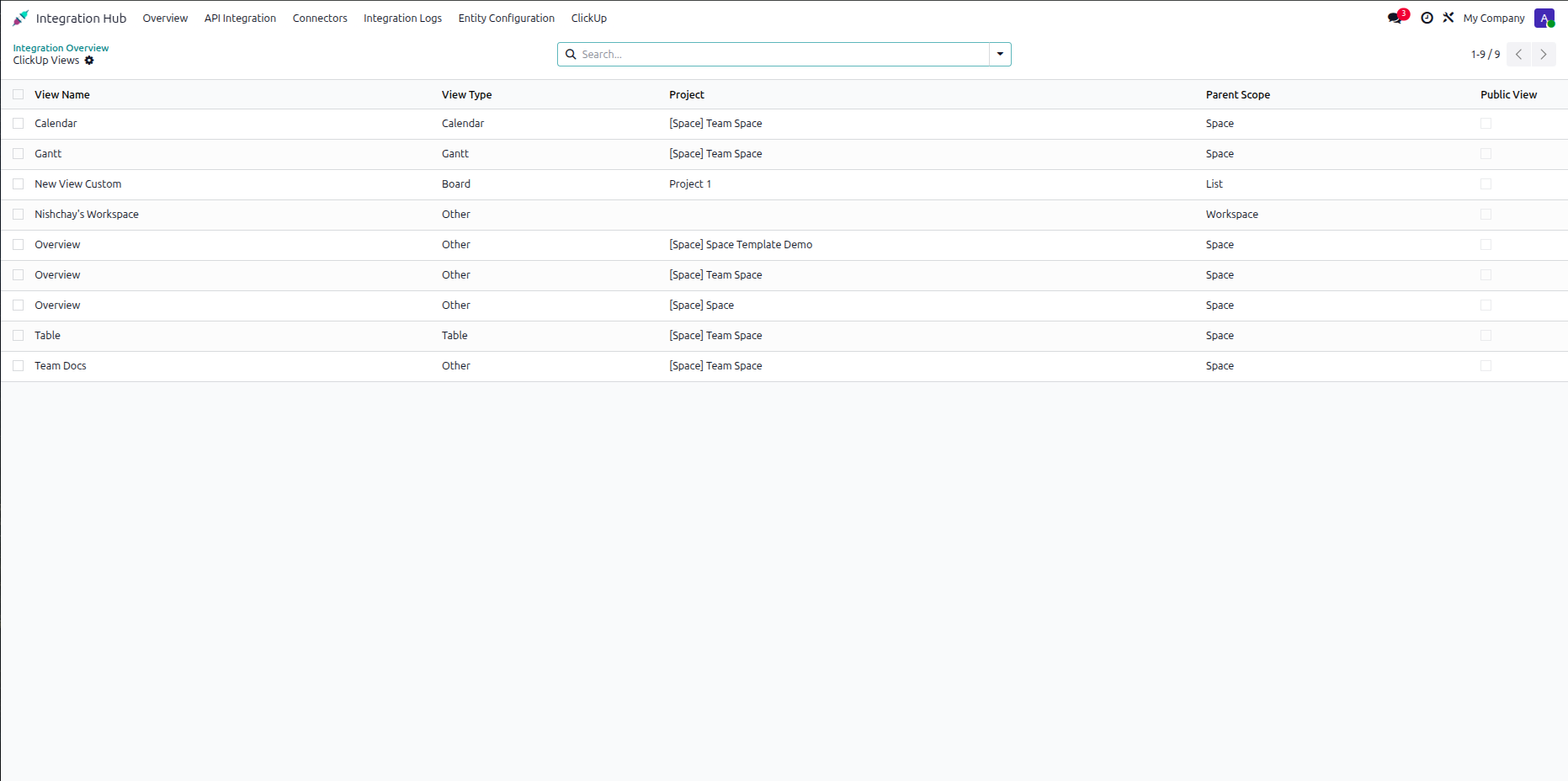
Review the synchronized ClickUp views listed in the Odoo view configuration.
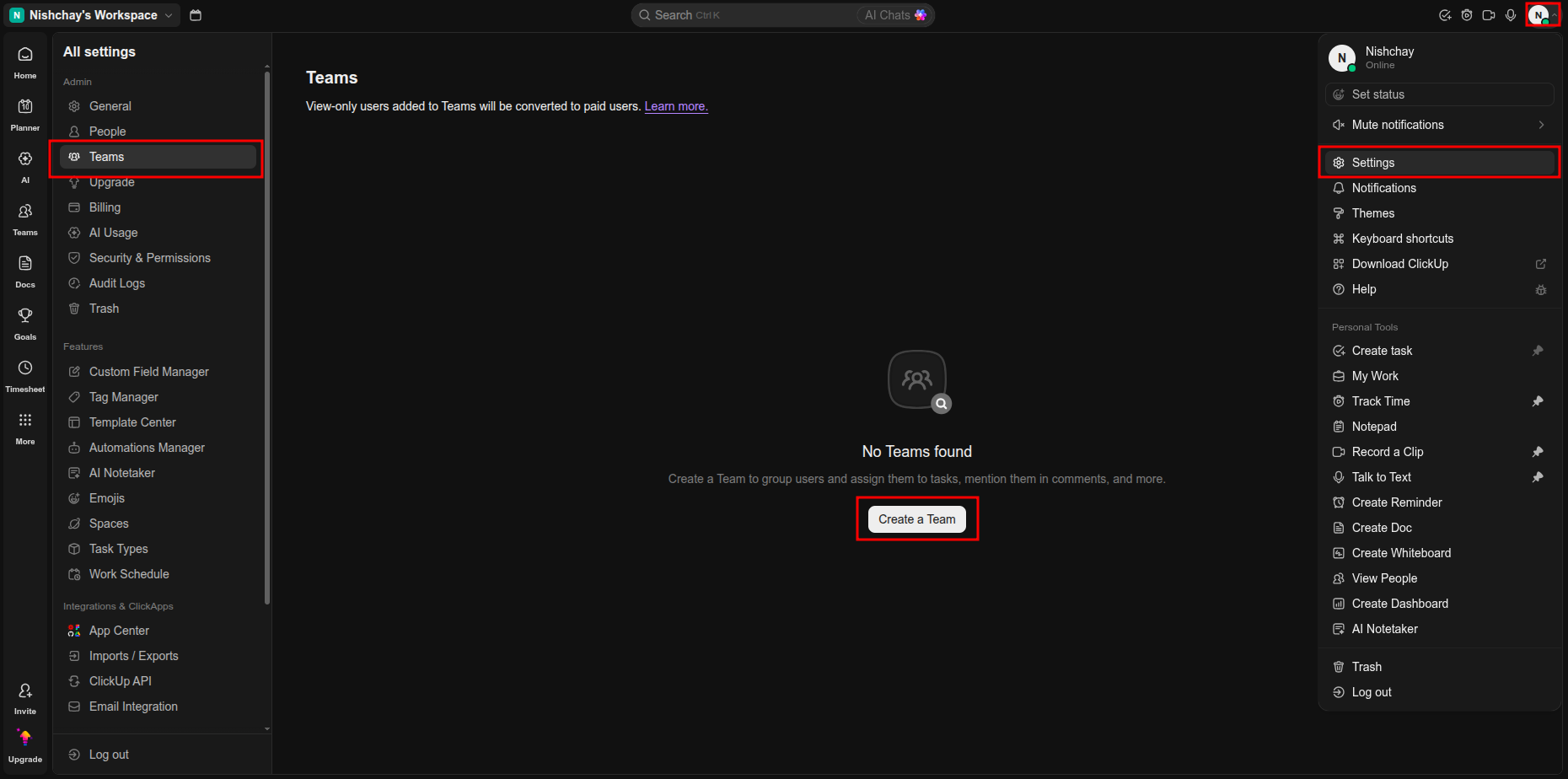
Open ClickUp Teams and select the highlighted Teams option from the workspace settings.
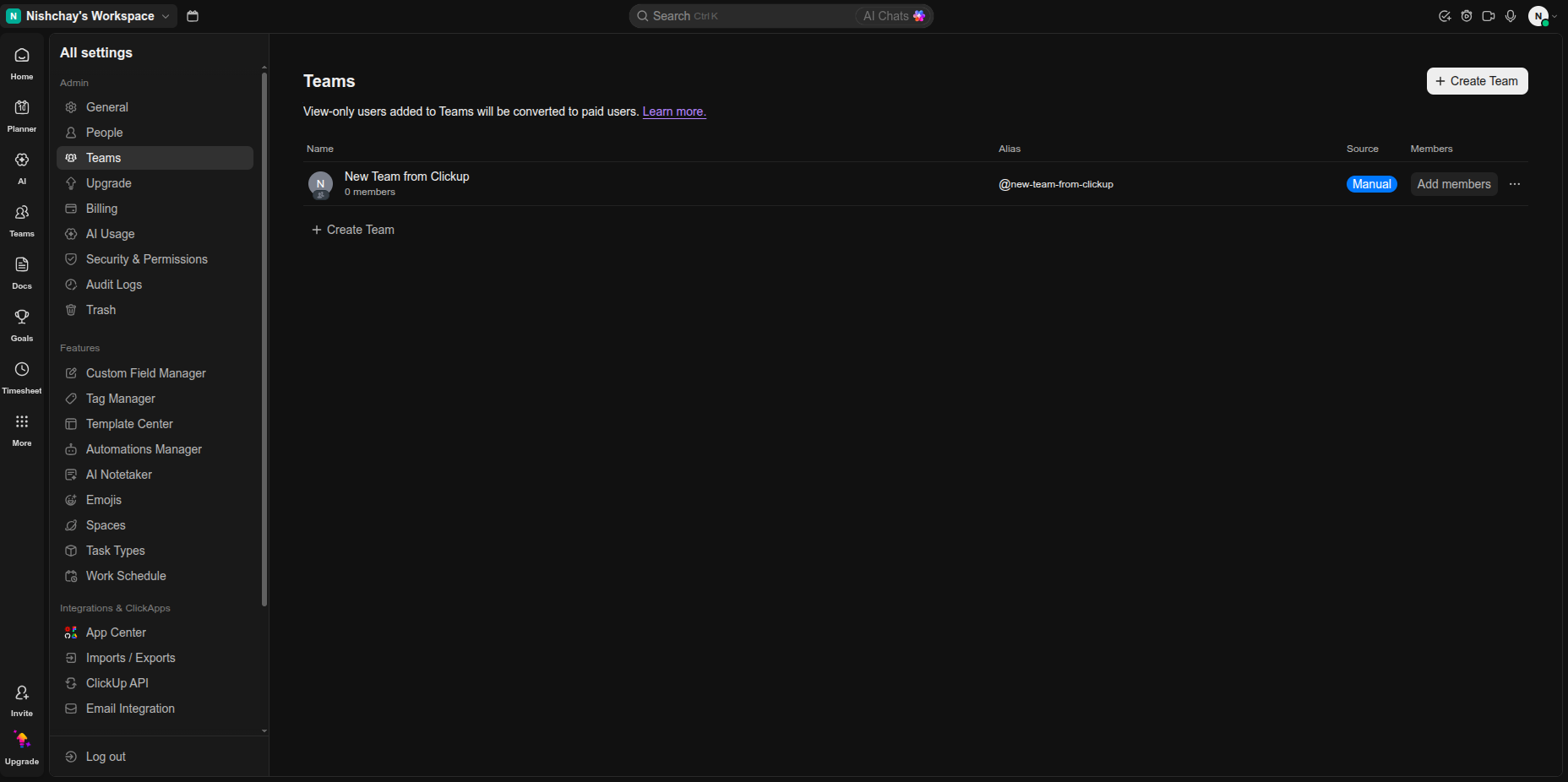
Review the available ClickUp team and member information before synchronization with Odoo.
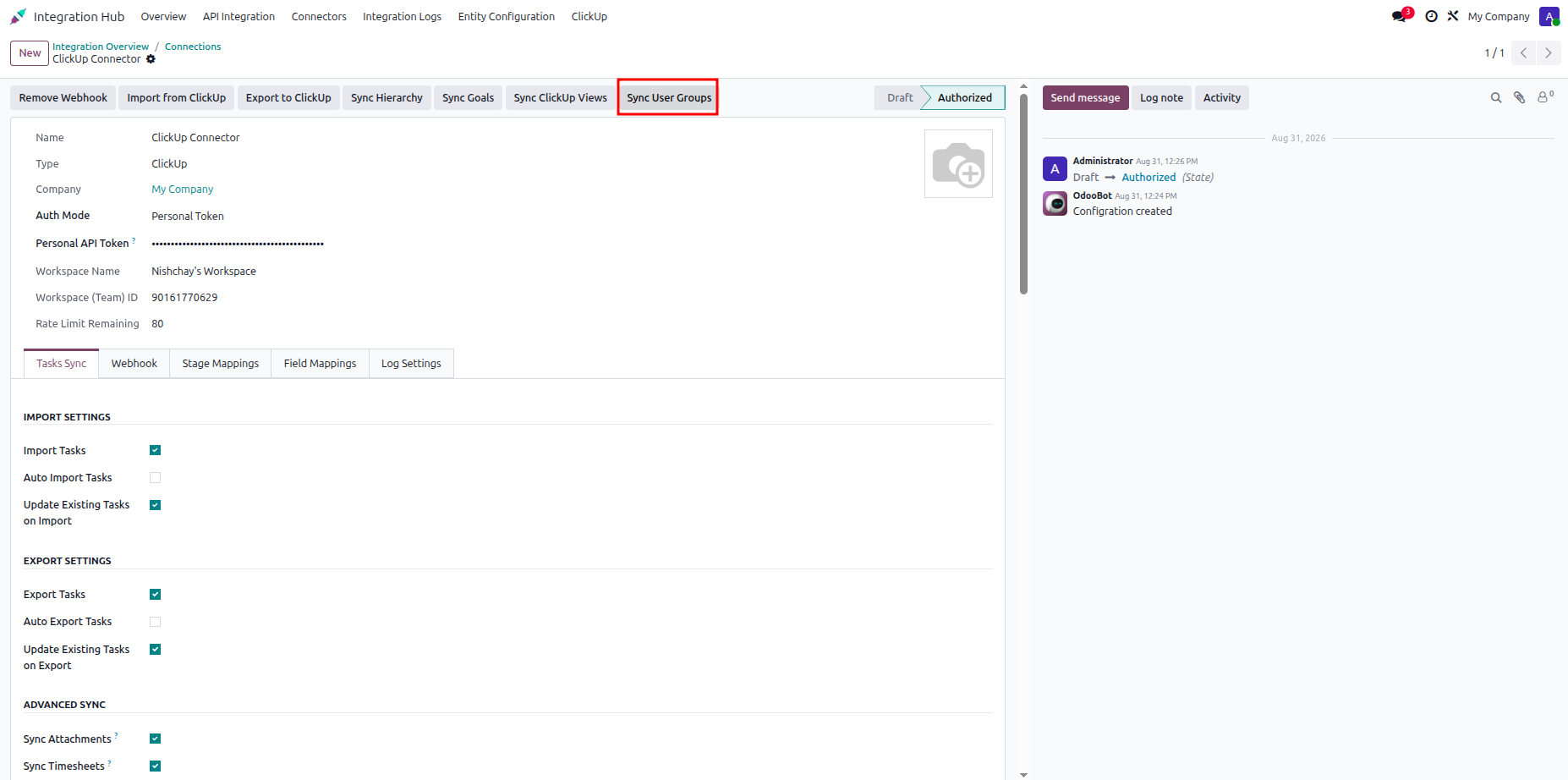
Open Odoo synchronization settings and select the highlighted Teams synchronization option.
Verify the ClickUp team synchronization result displayed in the Odoo notification area.
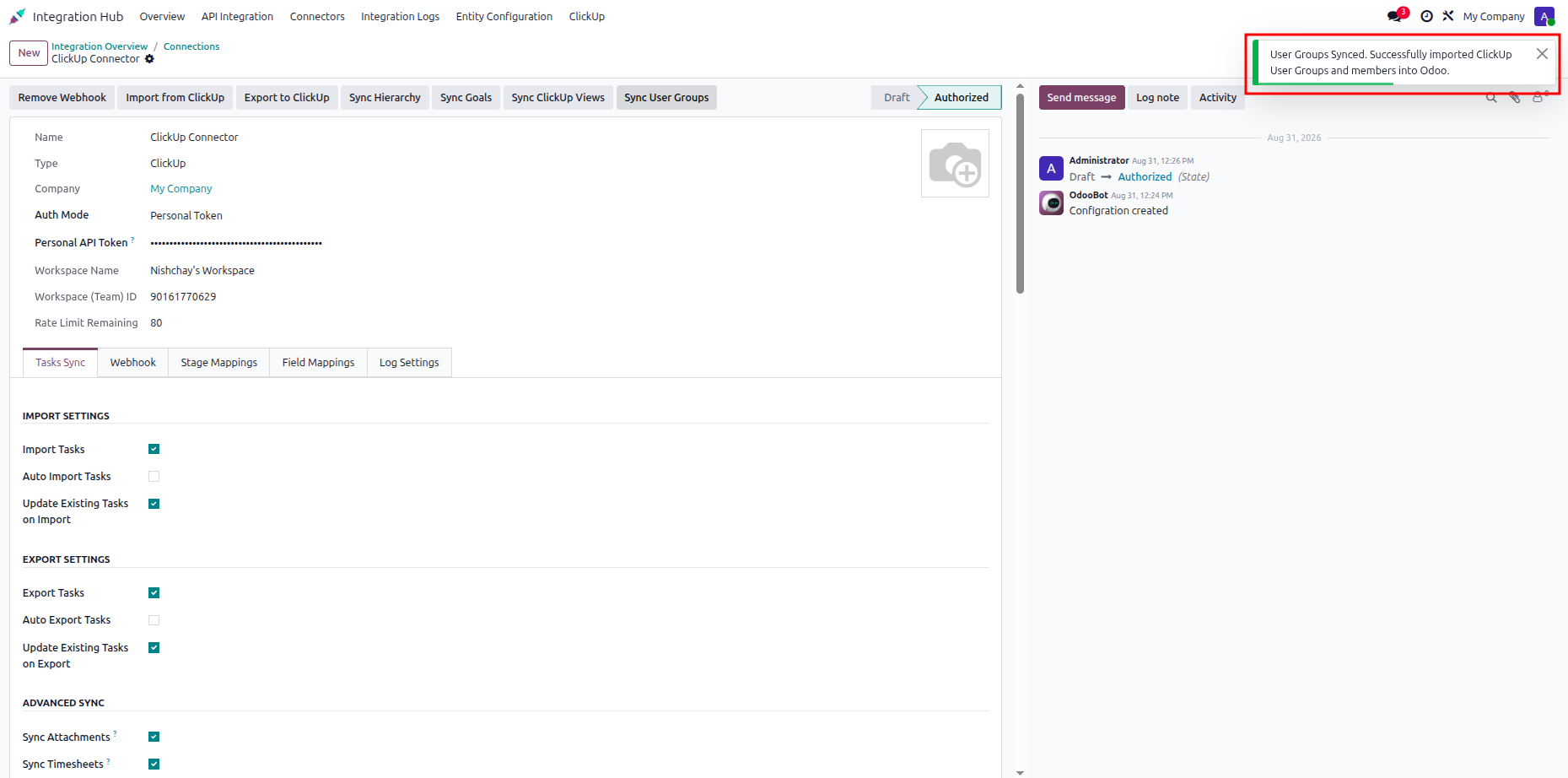
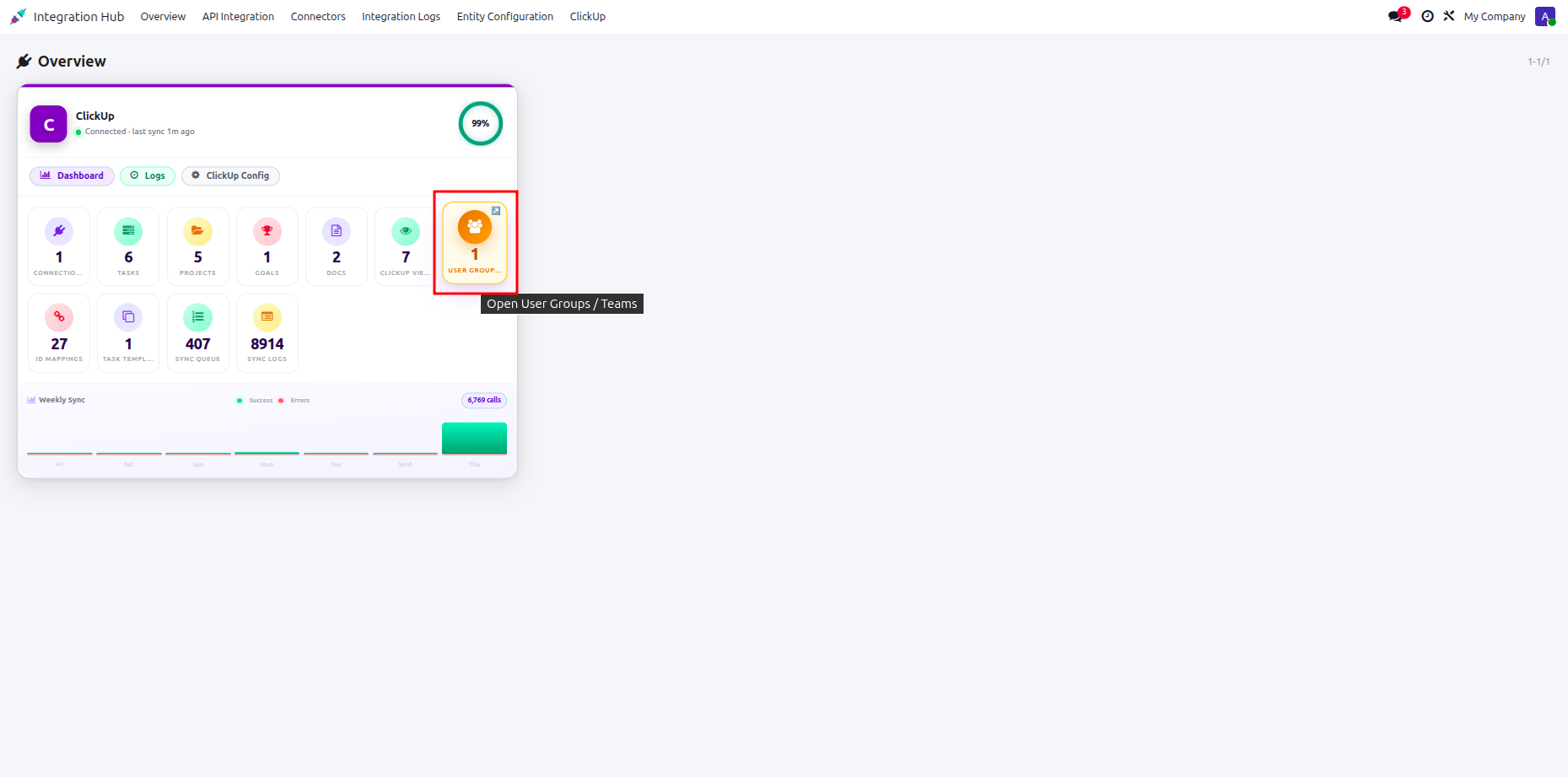
Open the ClickUp dashboard and select the highlighted team count to review synchronized teams.
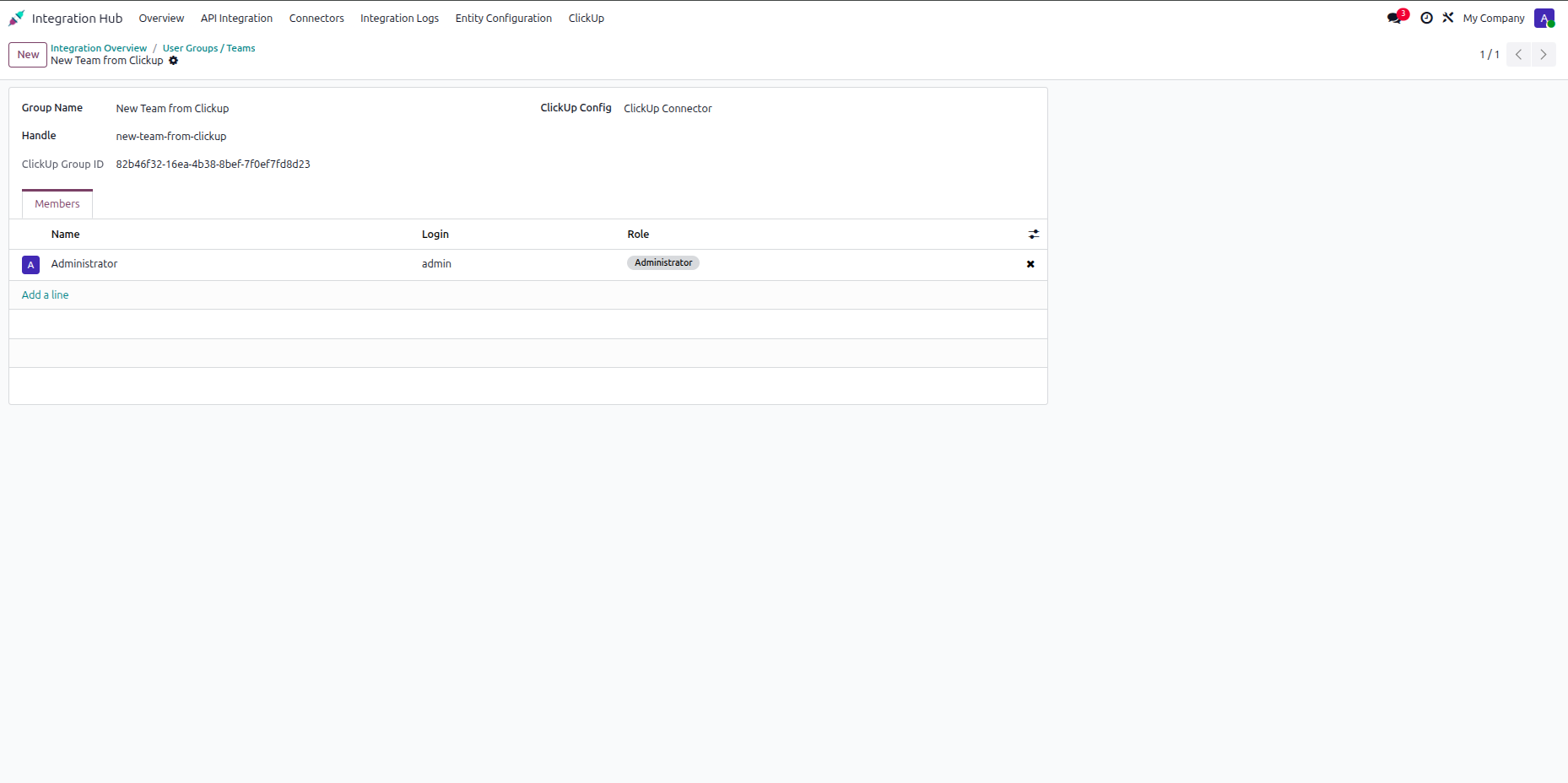
Review the synchronized team members and their associated roles in the Odoo team view.
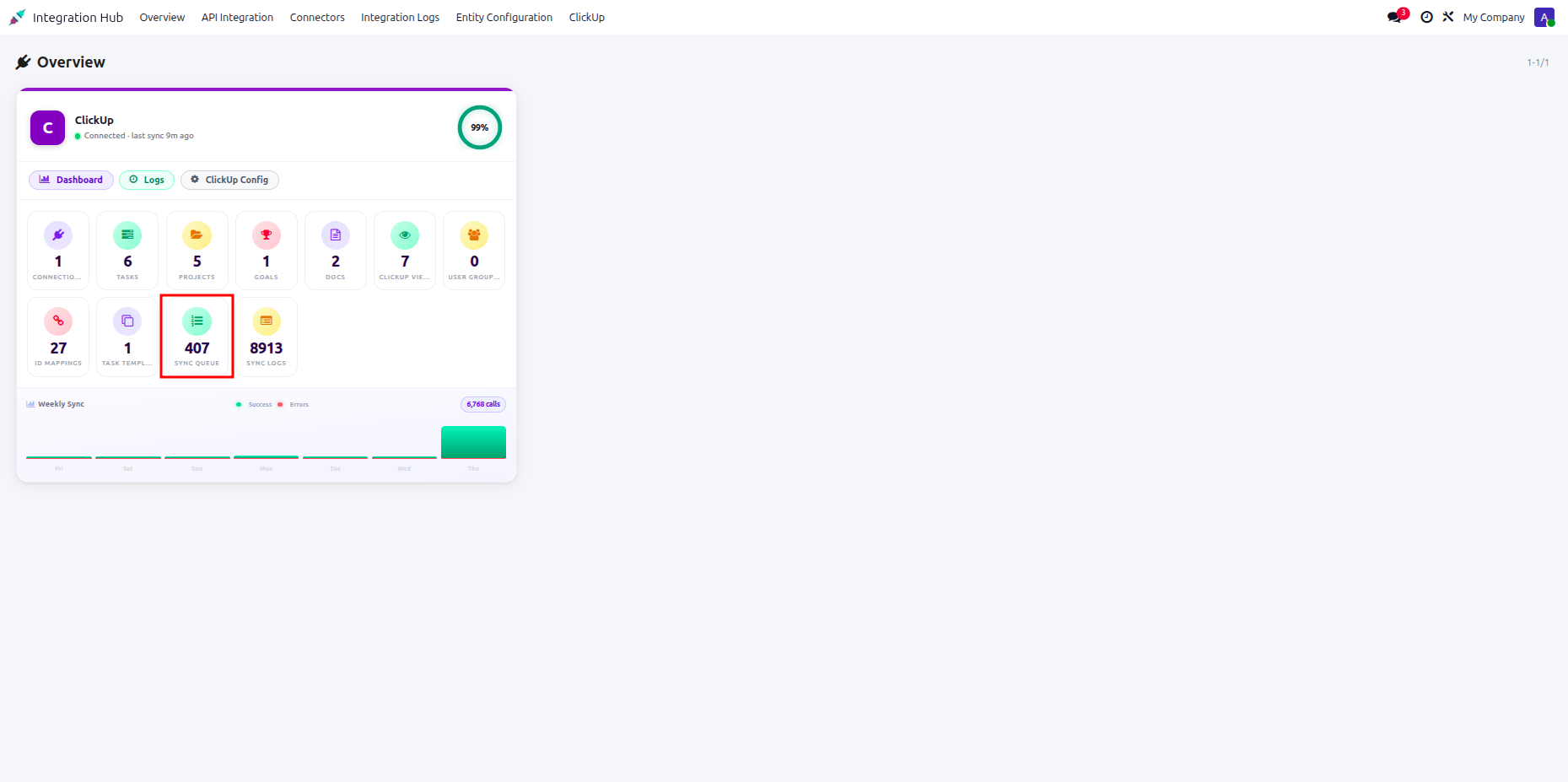
Open the ClickUp dashboard and select the highlighted synchronization queue count for review.
Review synchronization queue records, processing status, timestamps, and operation details in Odoo.
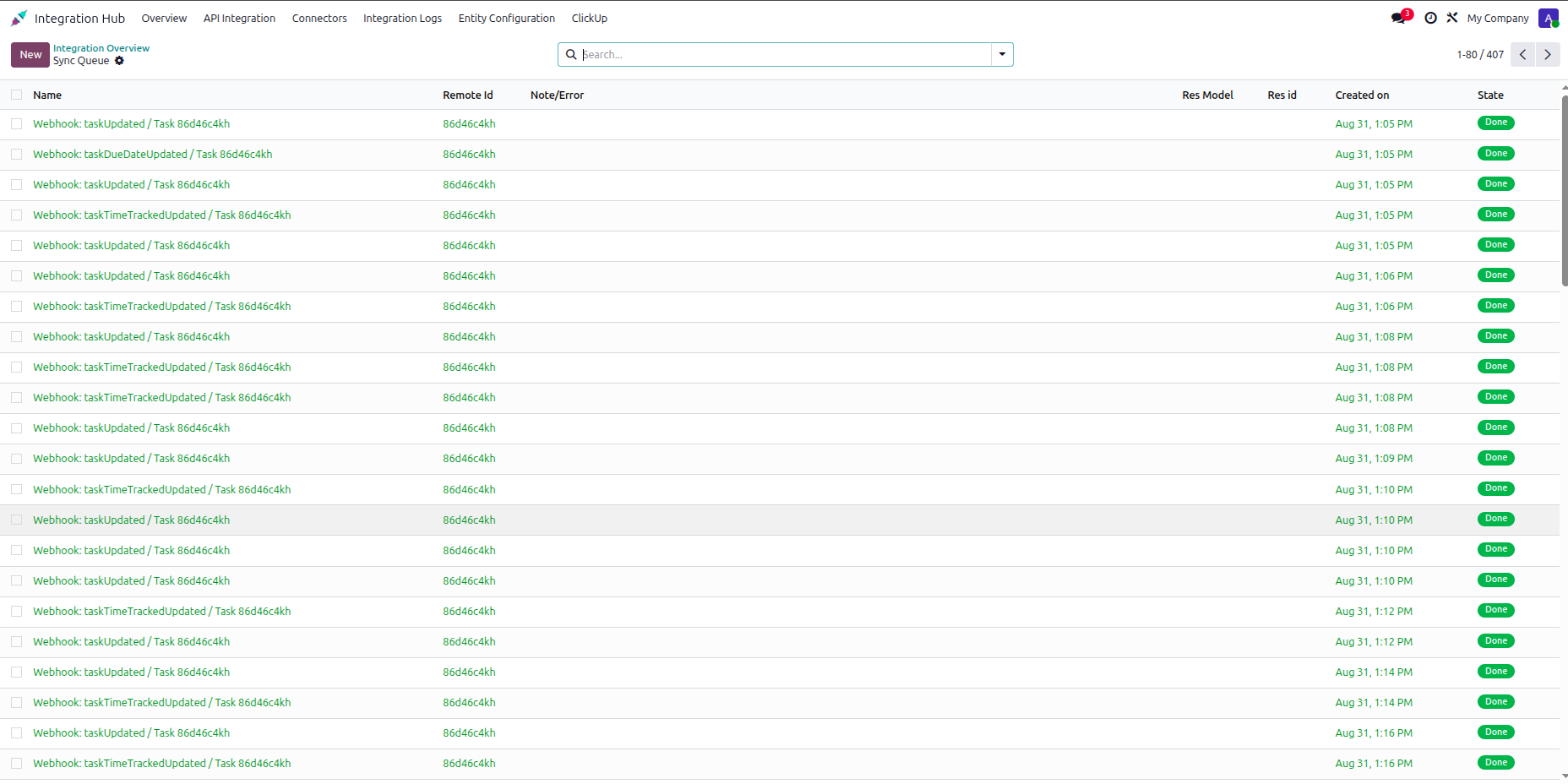
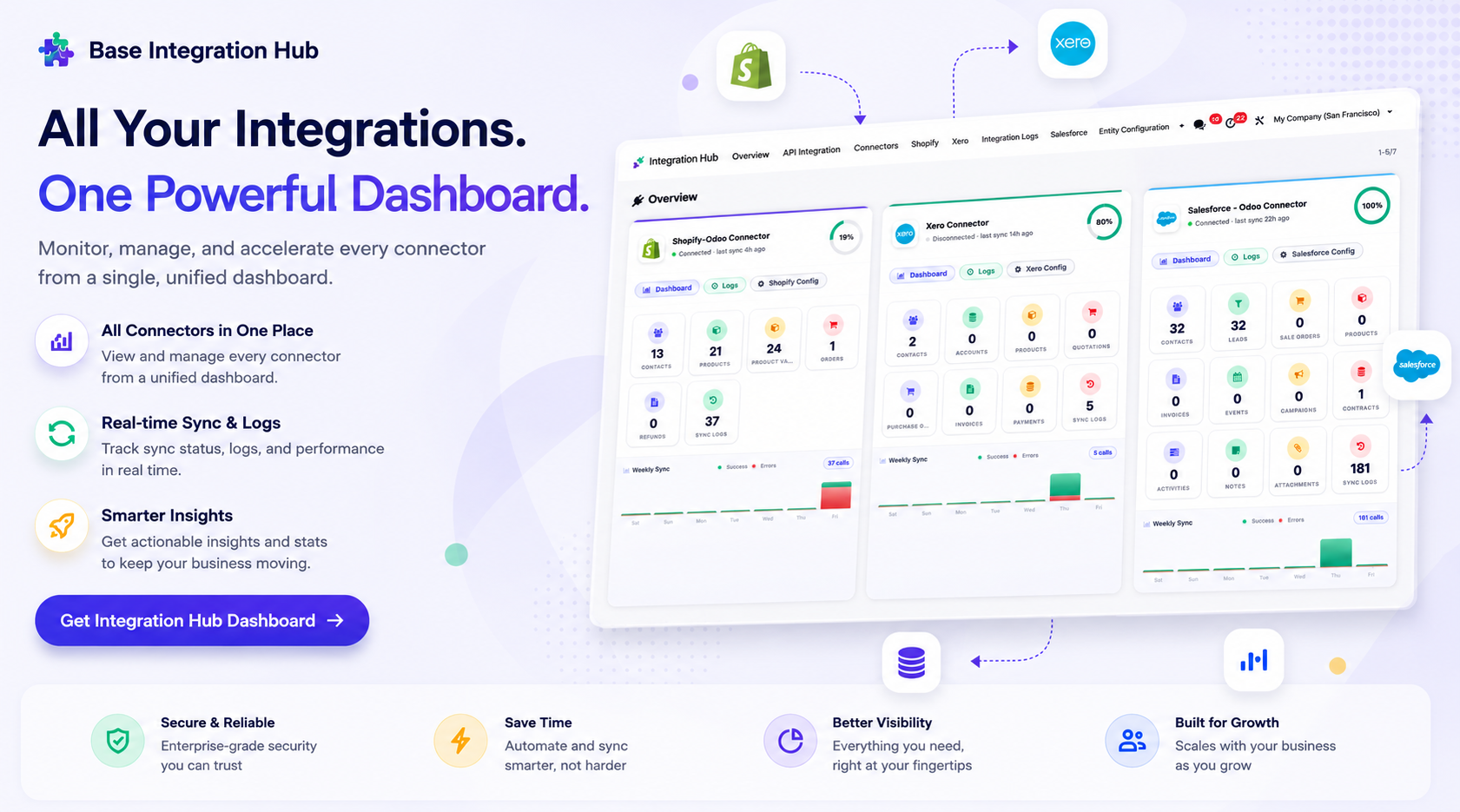
Centralized dashboard to manage and monitor all connectors from one place. Quickly access sync summary, activity logs, and configuration controls with improved visibility.
Release Notes
Track every update, enhancement, and new feature across all versions.
Version 19.0.1.0.0 | Released: 14th September 2026


 Buy Once, Supported Forever

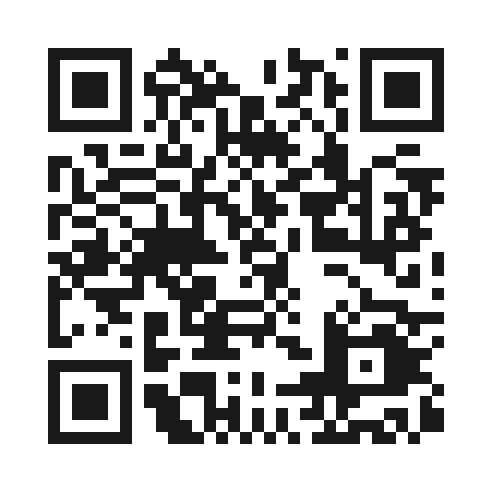
 Scan to email sales
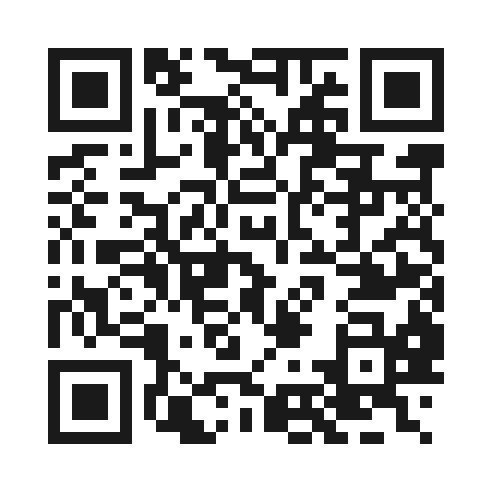


 Your Ideas Shape Our Roadmap
 Got an Idea? We'll Build It
Frequently Asked Questions
Everything you need to know before getting started.
Trusted by Businesses Worldwide


Abdulhamid Abdulwaheed
Best module for our online store. Highly adaptable, exceptional customer service, and very advanced modules.
Factura Venta POS
They have everything you need. Technical support is excellent, responds quickly, and keeps the module updated. 100% recommended!
Mehmet Muhanna
Great company and support team. Had a problem in my local Odoo server - they solved it in 5 minutes. Highly recommend.
Billy Jeffs
Customised an Odoo app for me which works perfectly. Many requirements, got it right every time. Very confident in their ability.
HP
Consistently excellent service over years of working together. Knowledge and commitment to keeping clients informed truly sets them apart.
Michal Kolasinski
Multiple addons + two custom modules. Communication always friendly and precise. Delivered on time, worked out of the box. Highly recommended!

Multi-Language
8 built-in translations







You May Also Like
Discover more Softhealer modules that integrate seamlessly with your Odoo environment.







Most Demanded Apps
The Softhealer modules our customers reach for most — trusted across 100+ countries.
Activities Management
Manage, schedule, and automate Odoo activities across all departments from one view.
View Module
Access Management
Granular access control over menus, fields, buttons, and records for every user role.
View Module
Backdate Advanced
Backdate any transaction across invoices, journals, pickings, and more with full audit.
View Module
All-in-One Helpdesk
Full-featured customer support with tickets, SLA, and customer portal built for Odoo.
View Module
All-in-One Mobile Backend
Access your full Odoo backend from any mobile device with an optimized interface.
View Module
All-in-One Import
Import any Odoo model data from CSV, Excel, and JSON files with mapping and validation.
View Module
Our Services
End-to-end Odoo expertise - from setup to scale.

AI & Business Integration

Odoo Implementation

Odoo Customization

Support & Maintenance

Mobile Apps

Migration Service

Third-Party Integration

Odoo Training
Ready to integrate with ClickUp Odoo Connector?
Join 10,000+ businesses - Softhealer, 11+ years of Odoo gold partnership expertise across 100+ countries.

