



















Key
Features

Purchase Tender Dashboard
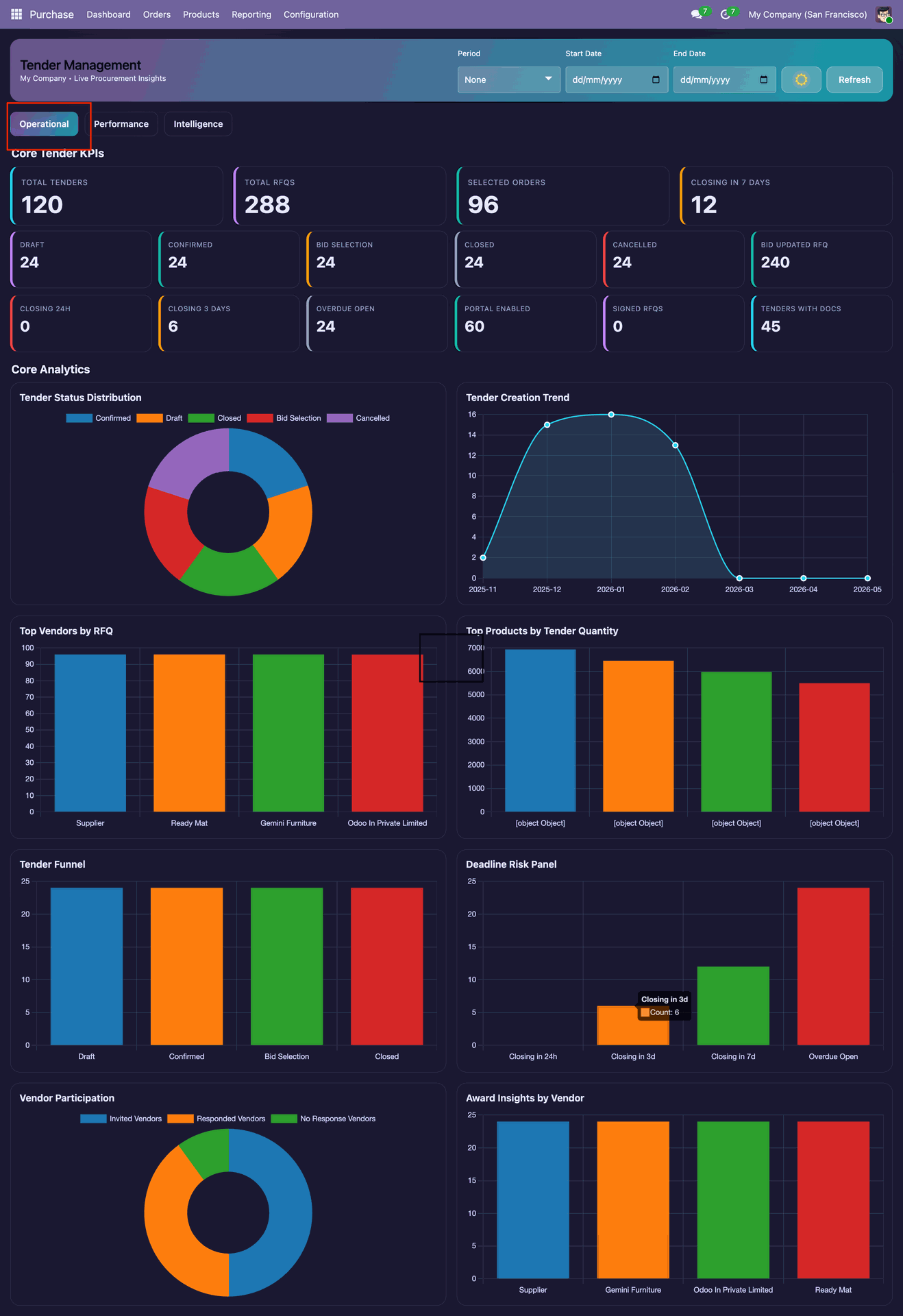
Monitor tenders, RFQs, supplier responses, and procurement activities from a centralized interactive dashboard.
Watch VideoTender & Purchase Order Management
Create tenders, send purchase agreements to selected vendors, and generate purchase orders from approved bids.
Watch VideoBid Update Notifications
Notify the purchase representative or RFQ buyer whenever a vendor submits or updates a bid.
Watch VideoTender Acceptance & Signing
Review, accept, and digitally sign tender agreements before proceeding with the purchase process.
Watch VideoTender Import Management
Import purchase tenders into Odoo for streamlined procurement management.
Watch VideoRFQ Analysis
Compare and analyze RFQ bids to evaluate vendor offers before selecting the final bid.
Watch VideoAutomatic Tender Closure
Automatically close tenders based on configured conditions or deadlines.
Watch VideoVendor Portal
Allow vendors to access tenders, submit bids, review purchase agreements, and manage their tender-related activities through the portal.
Watch VideoSupplier Portal for RFQs & Purchase Tenders
Provide suppliers with secure portal access to view, manage, and respond to RFQs and purchase tenders while controlling portal permissions and access rights from Odoo.
Tender Document Management
Attach and manage documents related to purchase tenders.
Purchase Quotation Reports
Generate detailed reports for purchase quotations.
Quotation Analysis XLS Report
Export quotation analysis reports in Excel format for further analysis.
Purchase Tender XLS Report
Generate Excel reports for purchase tenders.
Supplier Notes in Tender
Allow suppliers to add notes and comments directly to purchase tenders.
Supplier Notes in RFQ Portal
Enable suppliers to add notes while responding to RFQs through the portal.
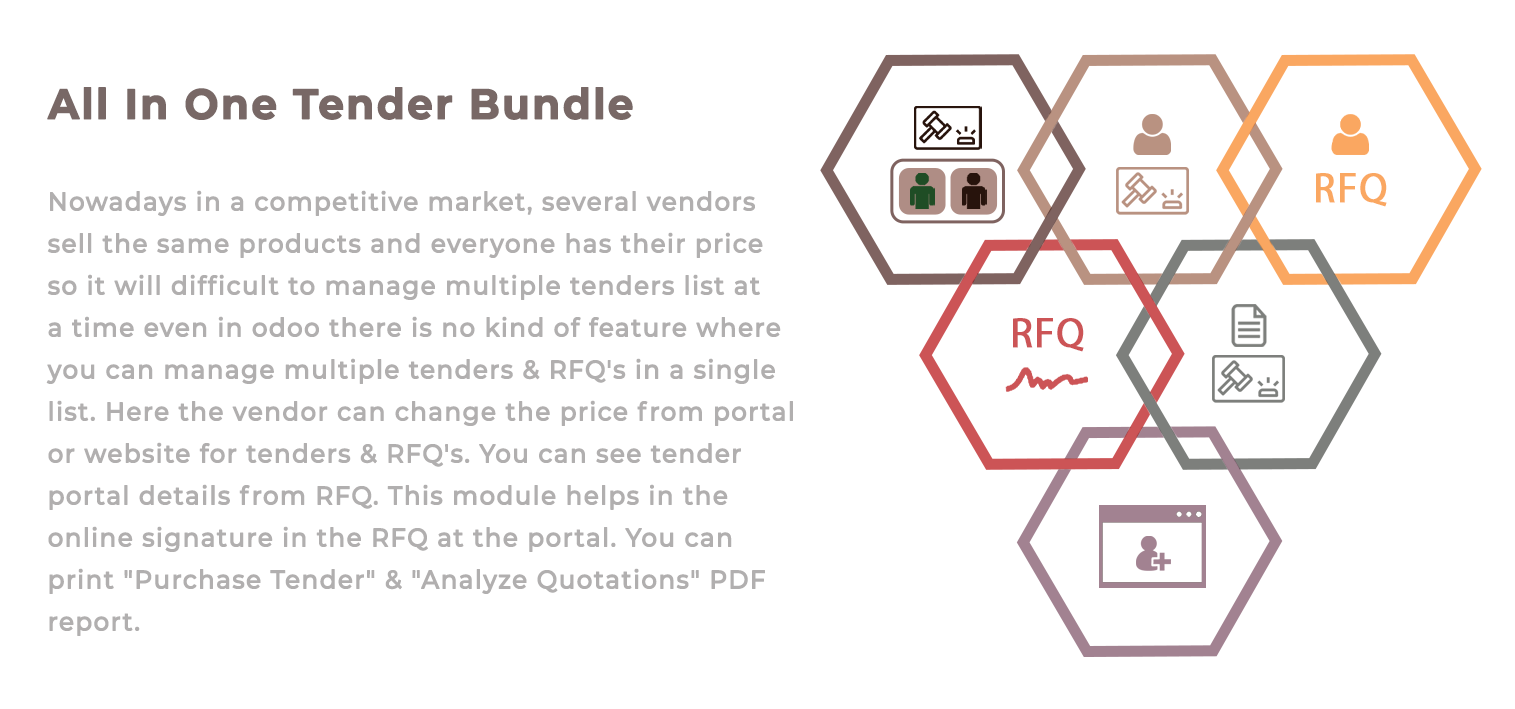
Manage Multiple RFQs in a Single Tender
Create, organize, and manage multiple RFQs within a single purchase tender through a unified list view, simplifying vendor communication and tender tracking.
Purchase Orders from Multiple Tenders
Generate purchase orders from one or multiple purchase tenders.
Tender Confirmation & Cancellation
Confirm or cancel purchase tenders with configurable workflows.
RFQ Cancellation & Recreation
Cancel existing RFQs and create new ones with ease.
Vendor Followers in Tender
Automatically add vendors as followers to receive tender updates and communications.
RFQ Chatter Communication
Communicate with suppliers directly through the RFQ chatter for better collaboration.
Tender Sharing
Share purchase tenders securely with vendors and stakeholders.
RFQ Price Updates from Portal
Allow suppliers to update quotation prices directly from the portal.
Multi-Currency Tender Support
Create and manage purchase tenders in multiple currencies.
Multi-Currency RFQ Support
Manage Requests for Quotation (RFQs) in multiple currencies.
Base Currency Tender Analysis
Analyze tender values using the company's base currency.
 Setup & Configuration
 Release Notes
 Support
 FAQ's
FAQ's
-
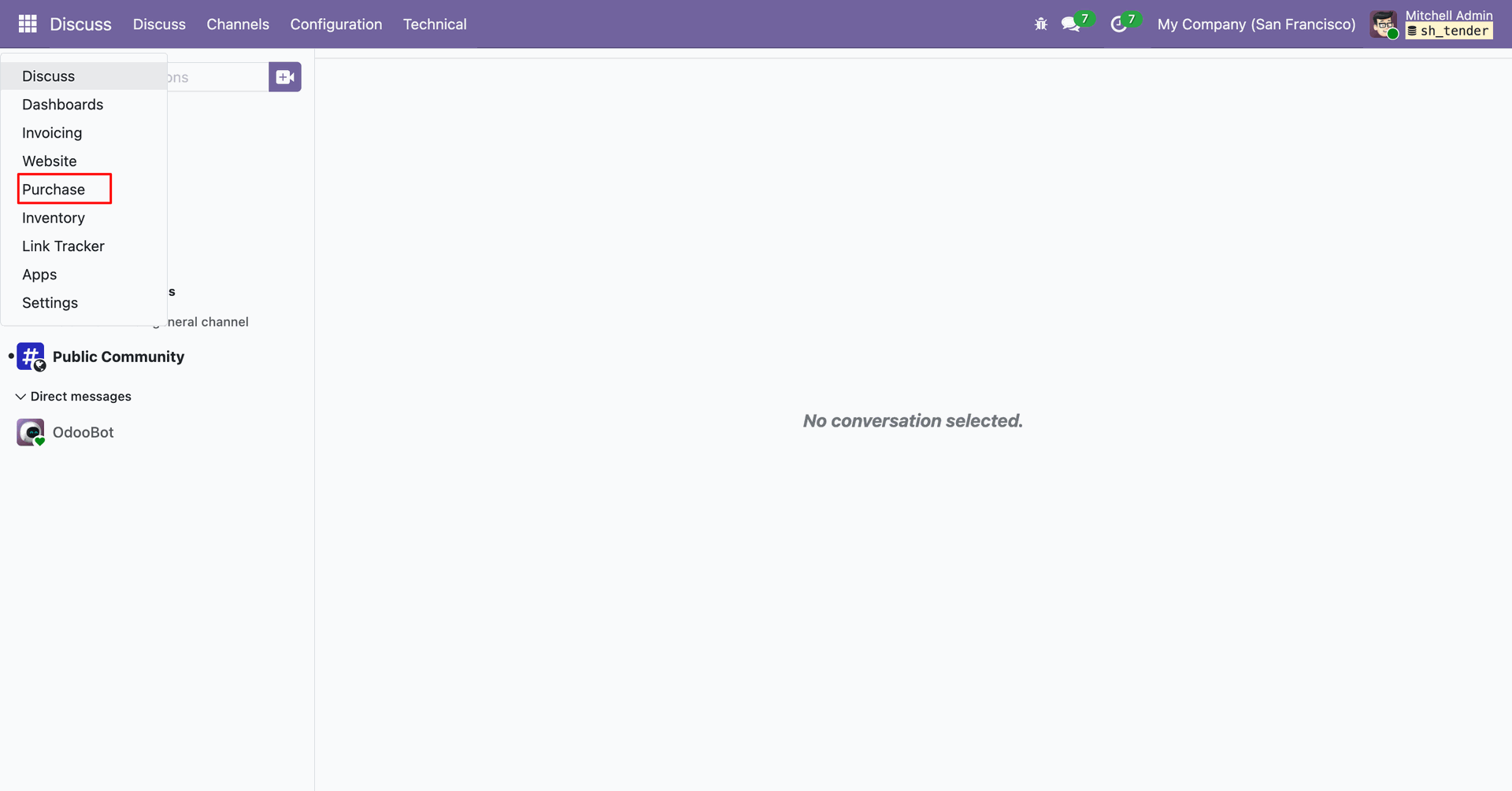
 Dashboard
-
 Create Tender
-
 Vendor Portal
-
 Bid applying
-
 Tender Accept & Sign
-
 Analyse RFQ & Create PO
-
 Send Purchase Agreement to Vendor
-
 Purchase Tender Management
-
Tender Management - Portal
-
 Request For Quotation-Portal
-
 Import Tender
-
 Auto Close Tender
-
 Notify RFQ Buyer While Update Bid
-
 Notify Tender Purchase Representative While Update Bid
Click on the Payment Dashboard from the Apps to view payment related information.
The Payment Dashboard provides an overview of payment activities, including Total Volume, Total Transactions, Success Rate, Failed Transactions, and Refunded Transactions.
Users can filter the data using From Date, To Date, and Provider filters, refresh the dashboard using the Refresh button.
Select Helcim Payment from the Provider filter on the Payment Dashboard to view payment statistics, transactions, revenue metrics, and charts related specifically to Helcim Payment.
Click on the Total Volume tile from the Payment Dashboard to View all confirmed transactions.
Clicking on the Total Volume tile from the Payment Dashboard will open a List View of all Confirmed Transactions.
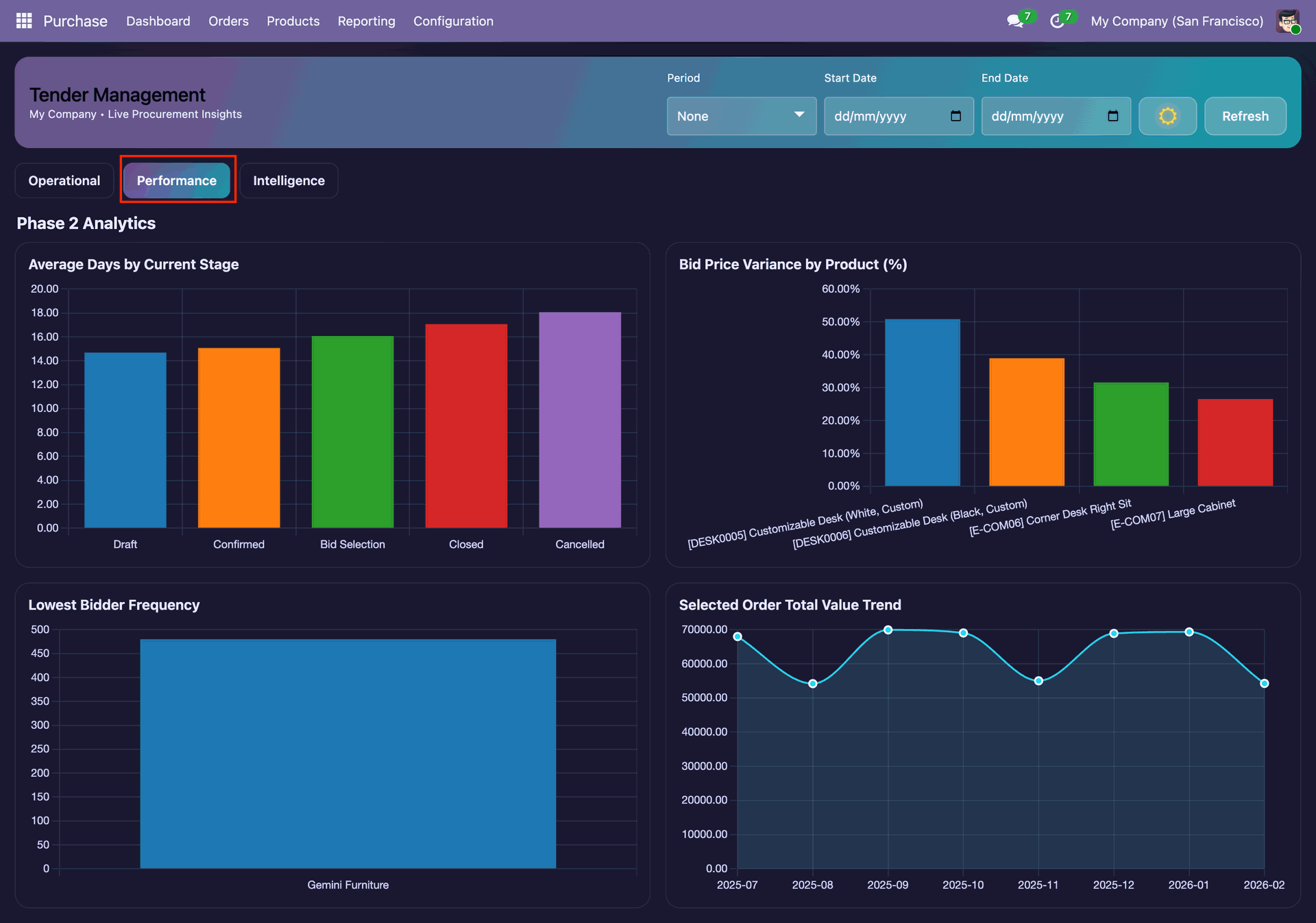
The dashboard displays interactive charts for Transaction Volume Over Time, Transactions by Status, and Volume by Provider, enabling users to analyze payment trends and performance more effectively.
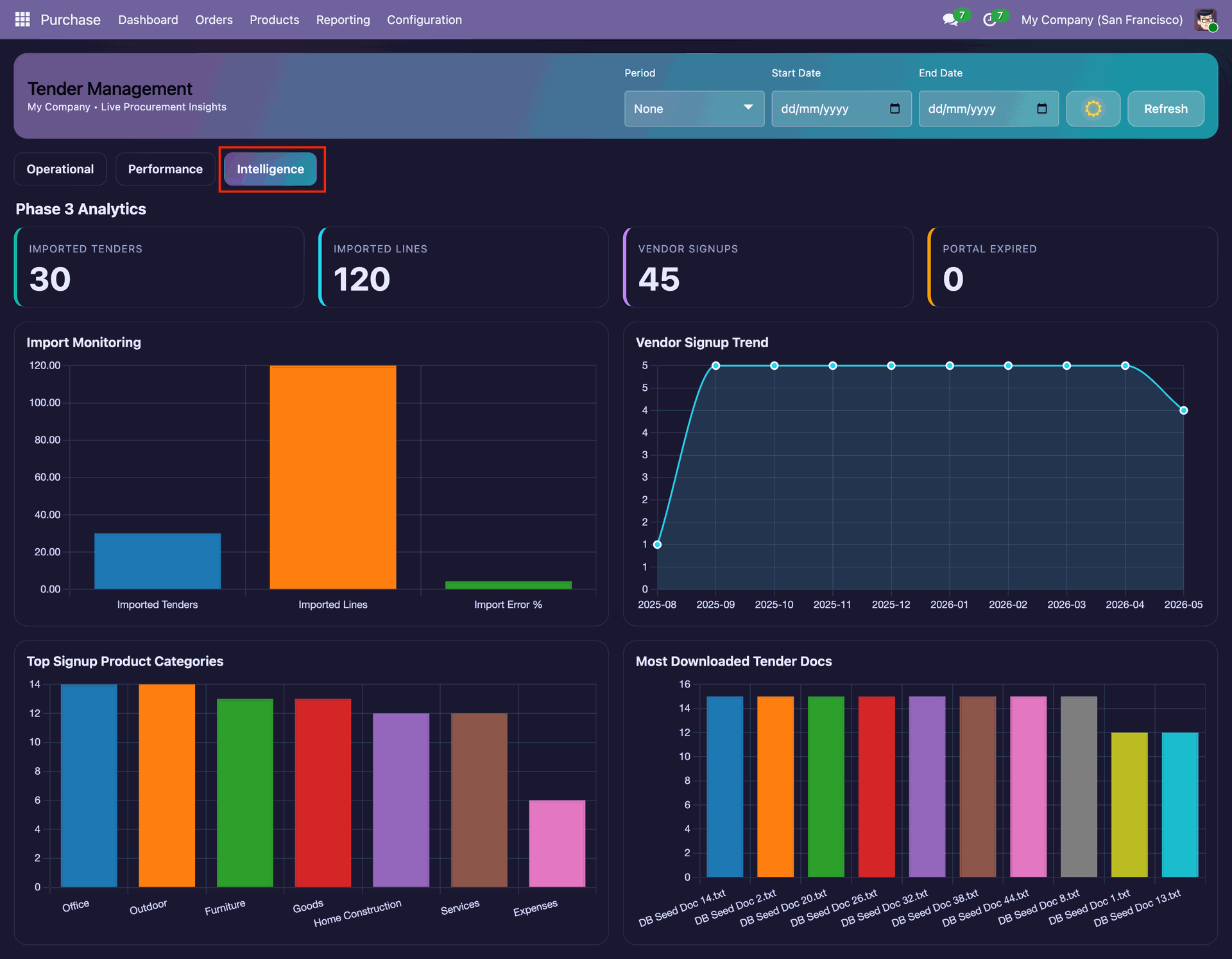
Recent Transactions can also be viewed directly from the Payment Dashboard, allowing users to quickly monitor the latest payment activities and transaction statuses.
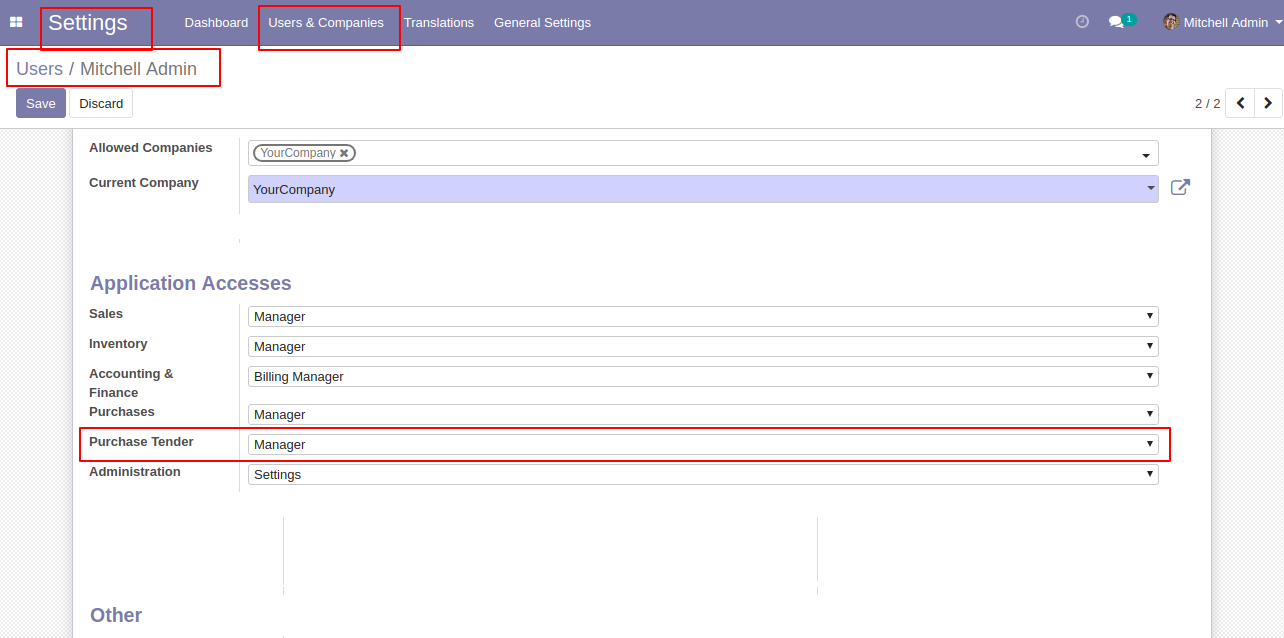
Goto User setting and select a group of purchase tender manager or user.
In the configuration, there is a menu for tender type where you can define a type of tenders.
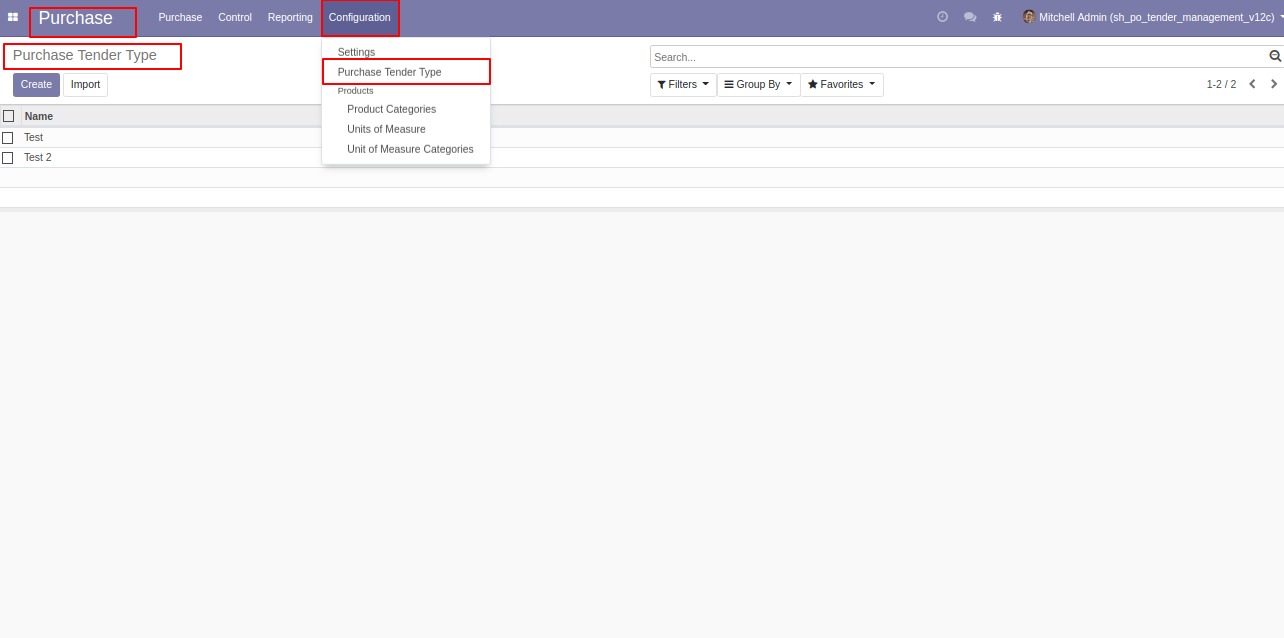
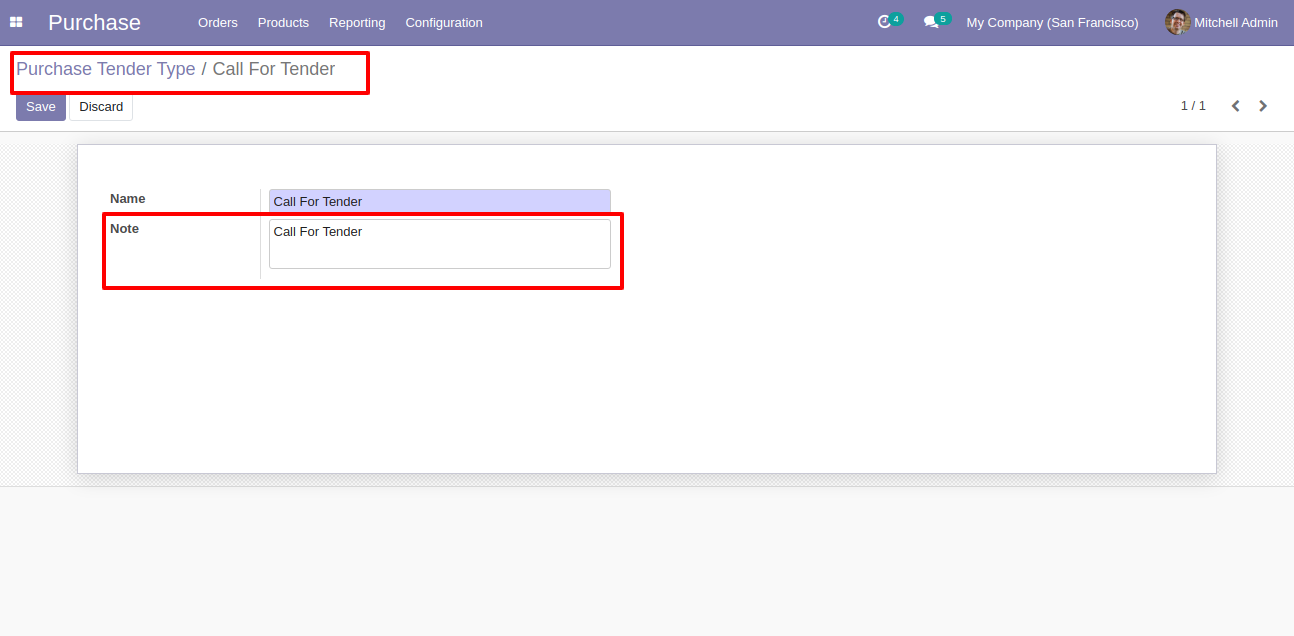
'Purchase Tender Type' form view.
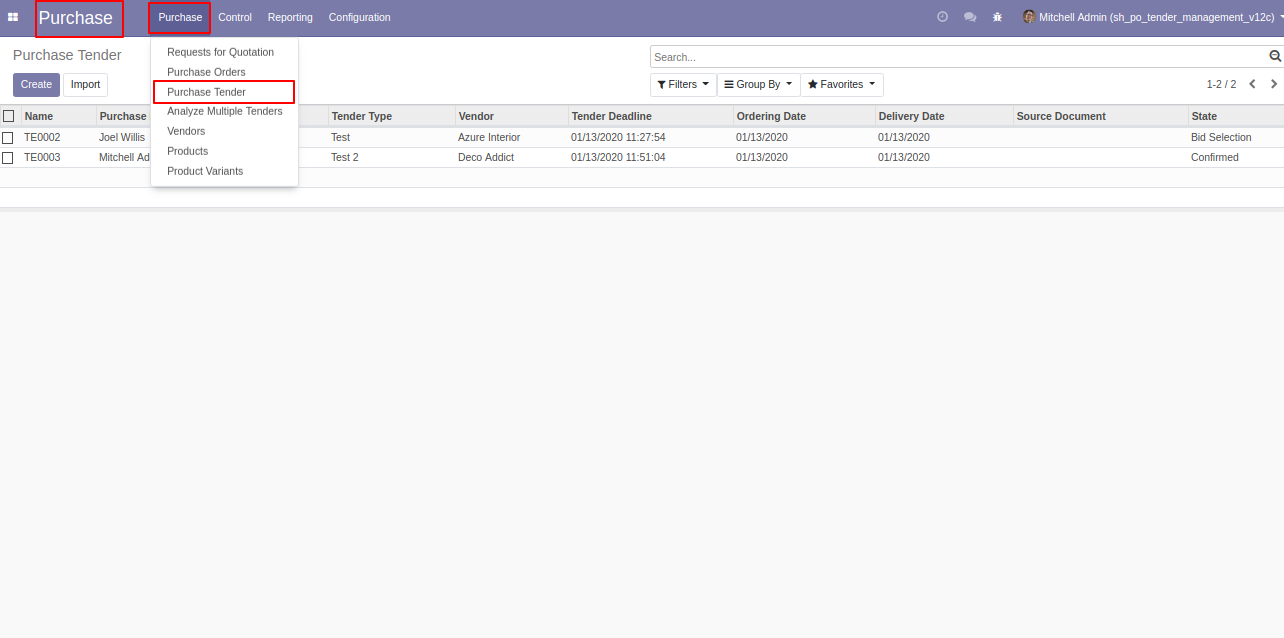
'Purchase Tender' menu and tree view.
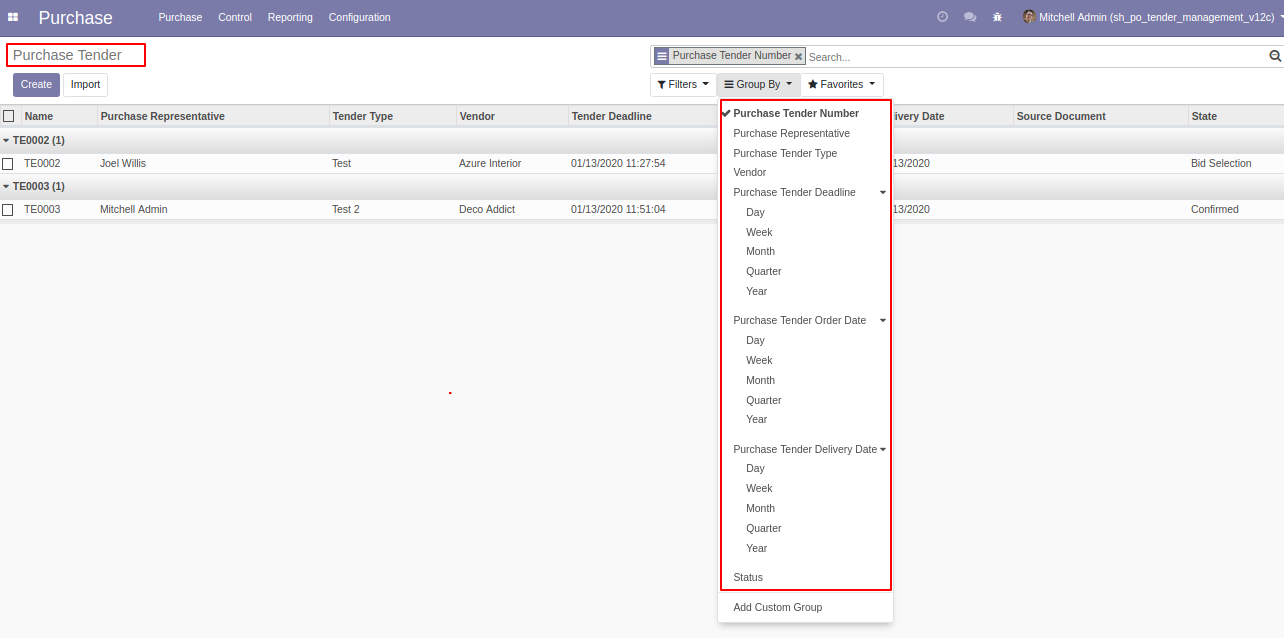
Group purchases tender by using Purchase tender number, type, representative, deadline, order date, delivery date, and vendor also status.
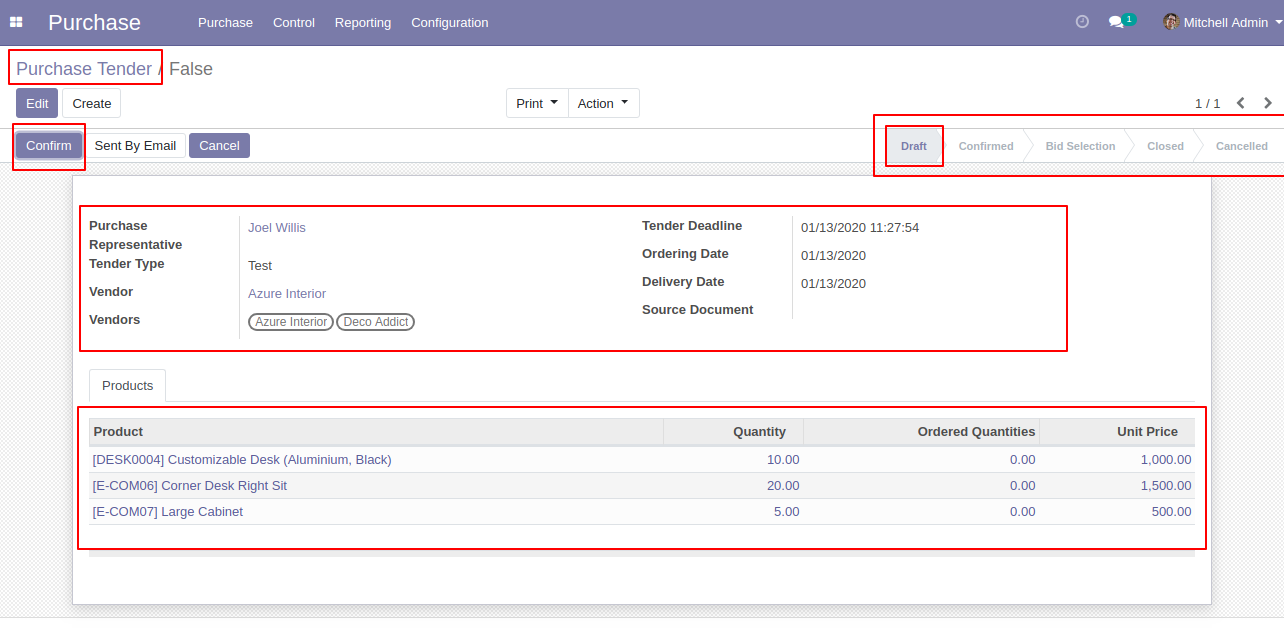
Purchase tender form view where you can create purchase tender and click
'confirm'.
You can choose multiple vendors and selected vendors can see that tender if
you have not selected any vendors then anyone can see the tender.
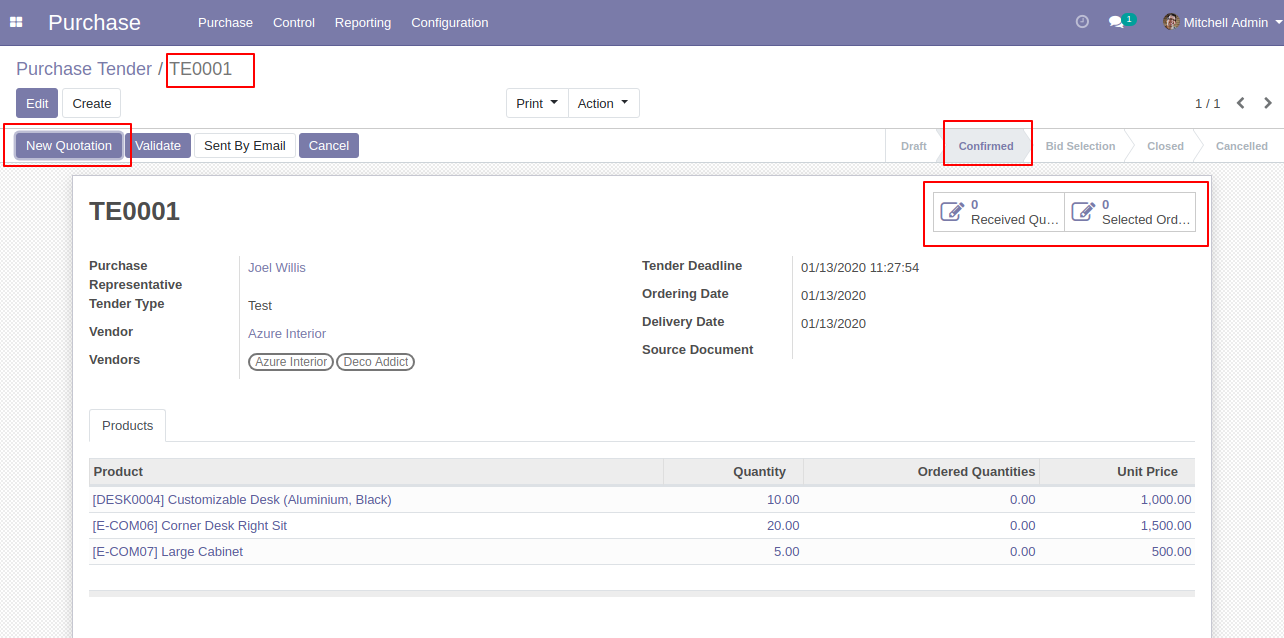
After confirming tender you can make the new quotation for that tender, and you can track all RFQ/PO from the smart button 'Received Quotation'.
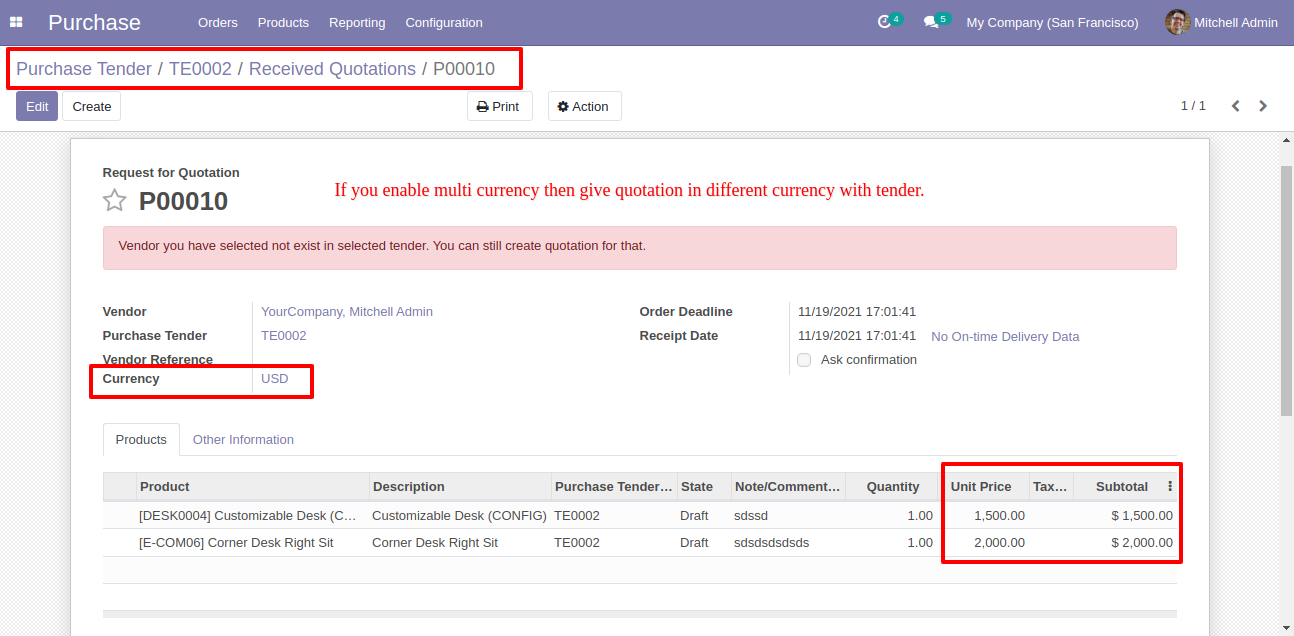
After click 'New Quotation' this form will appear. Where purchase tender automatically set in RFQ.
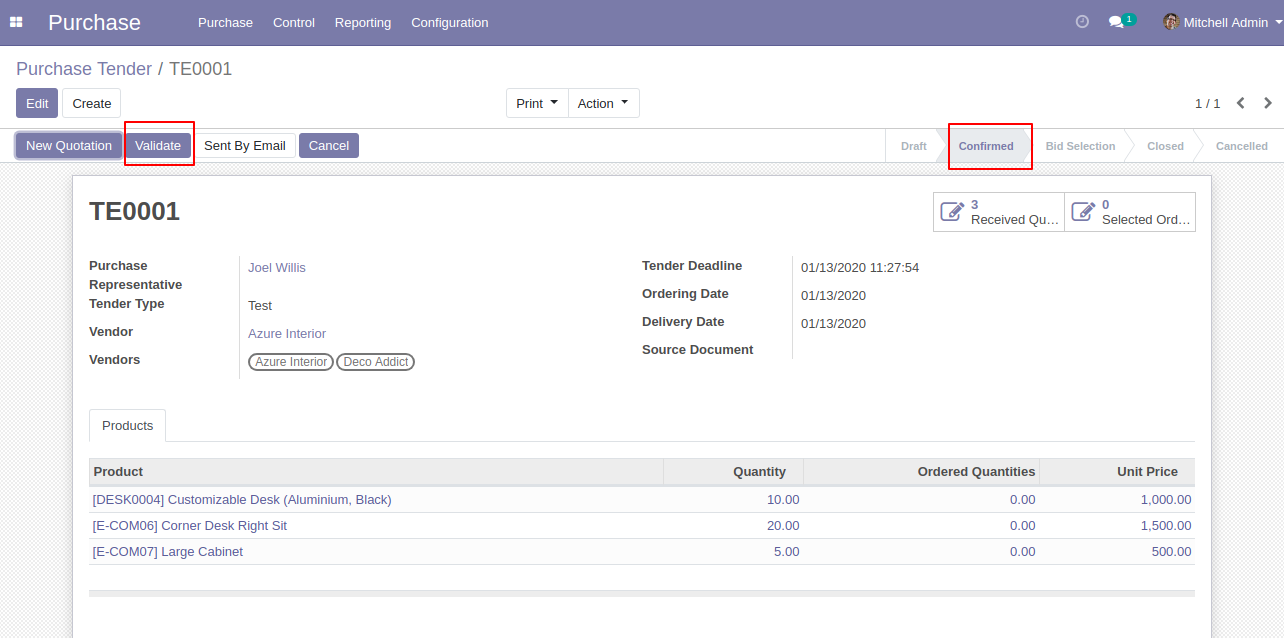
After creating RFQ in the smart button where you can see the number of RFQ/Purchase Order. And click 'Validate' to validate this purchase tender.
Configuration for the vendor signup.
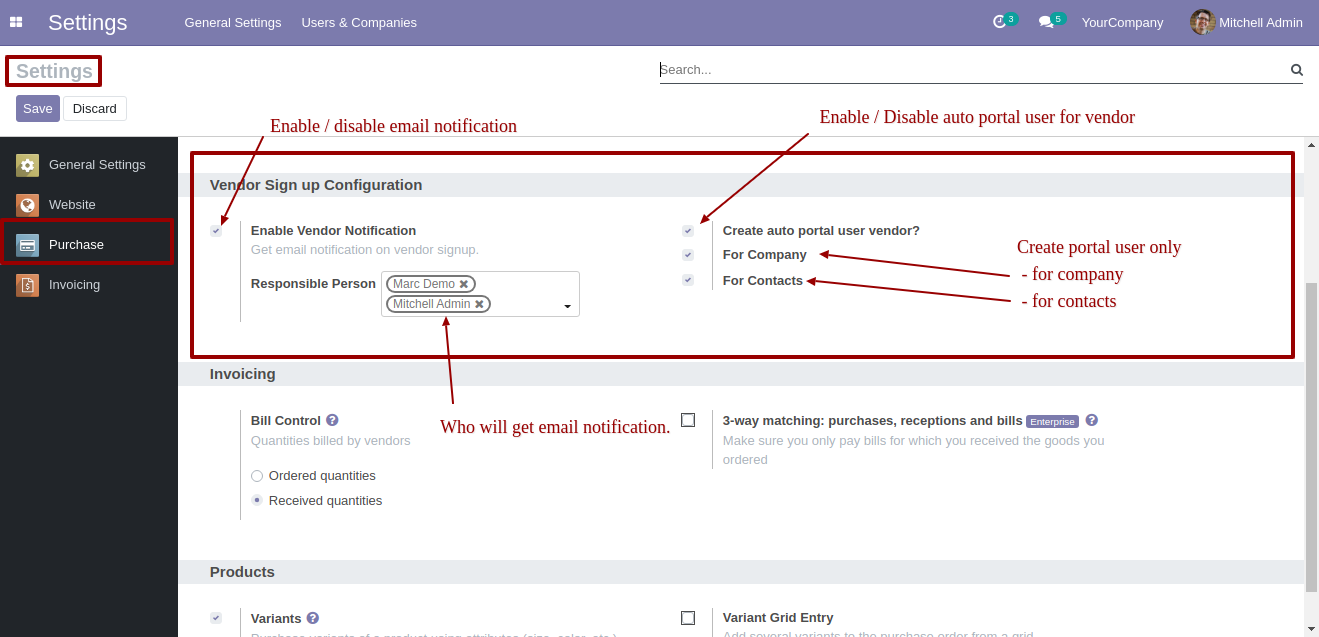
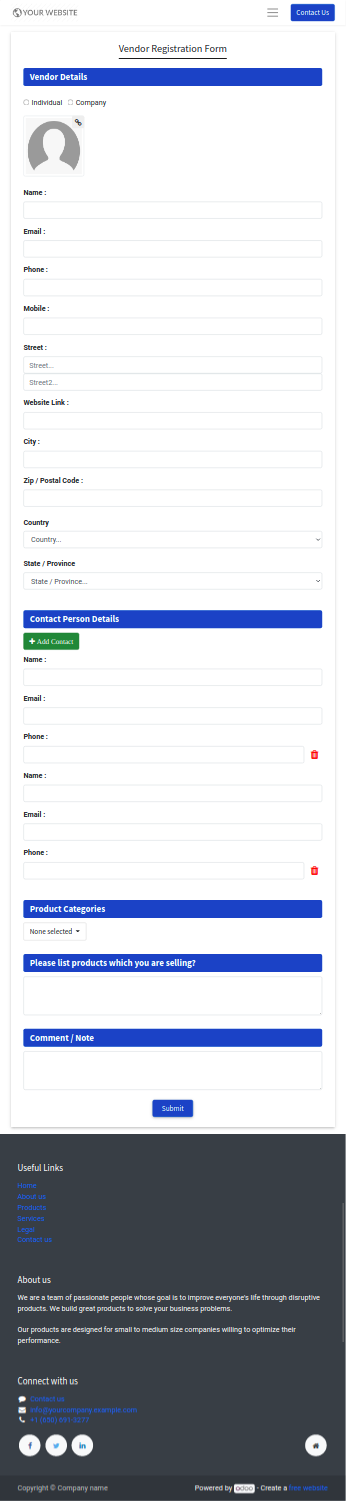
Go to the 'Vendor Request' menu on the website to signup from the website.
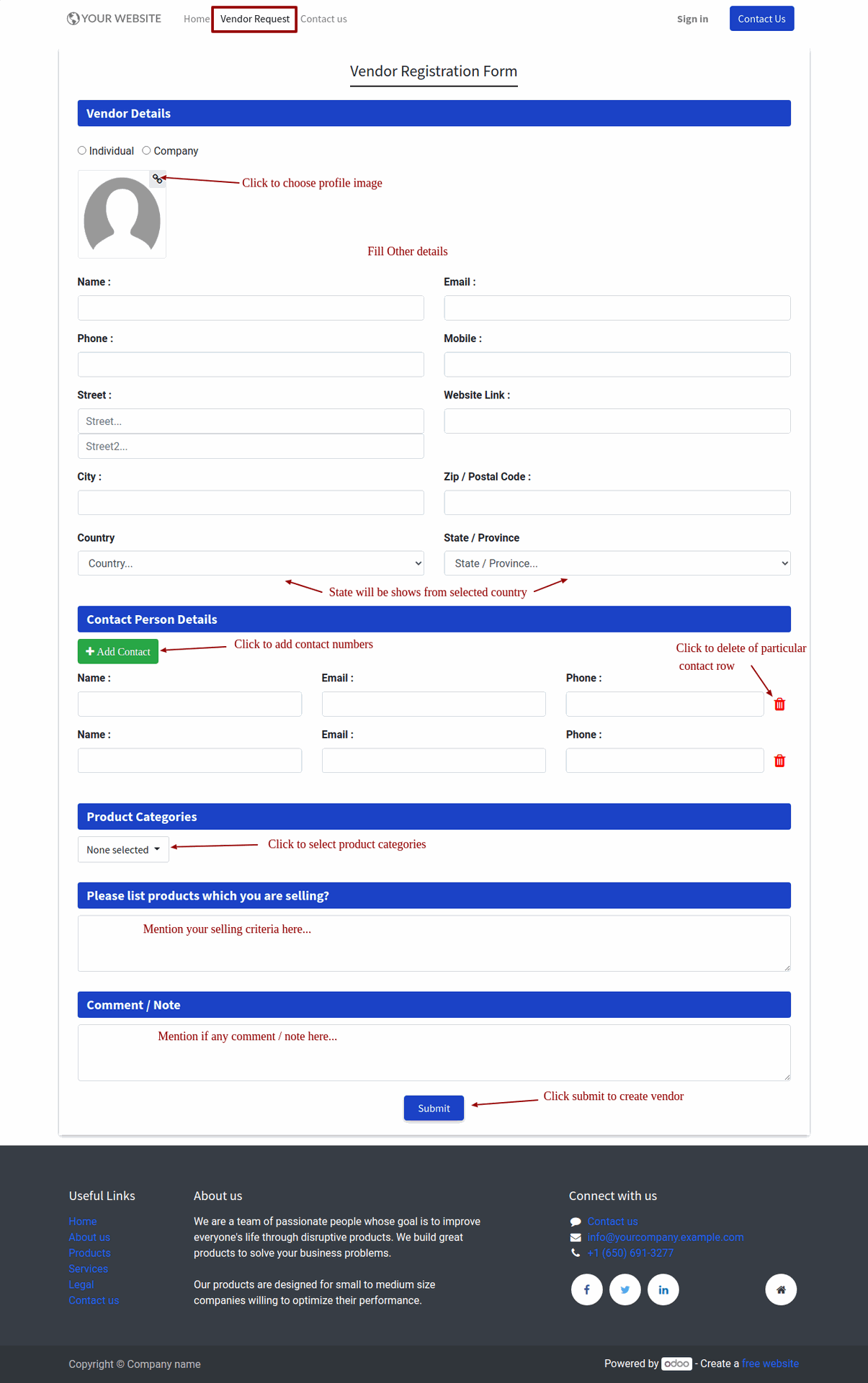
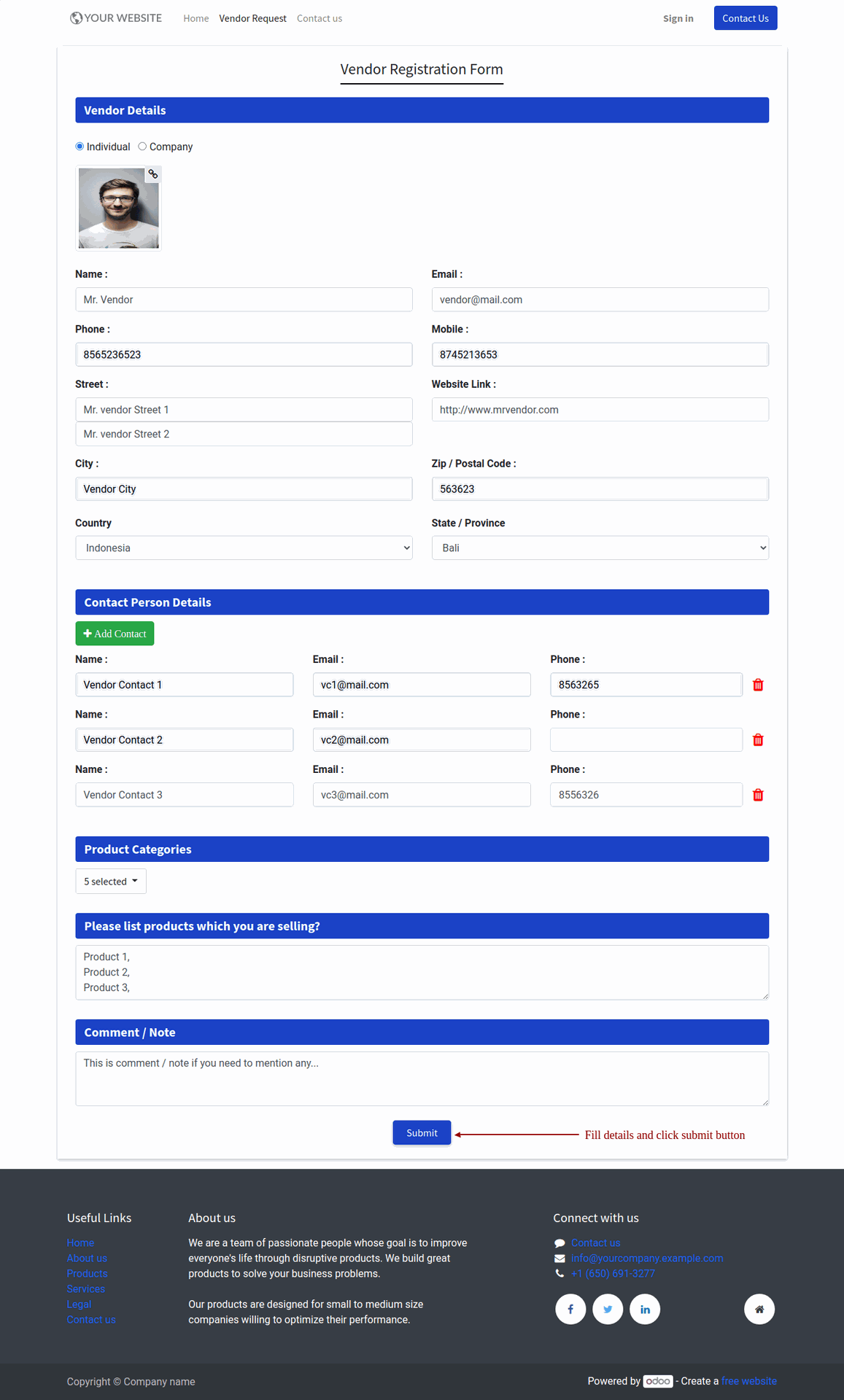
Fill vendor signup form and press the "Submit" button.
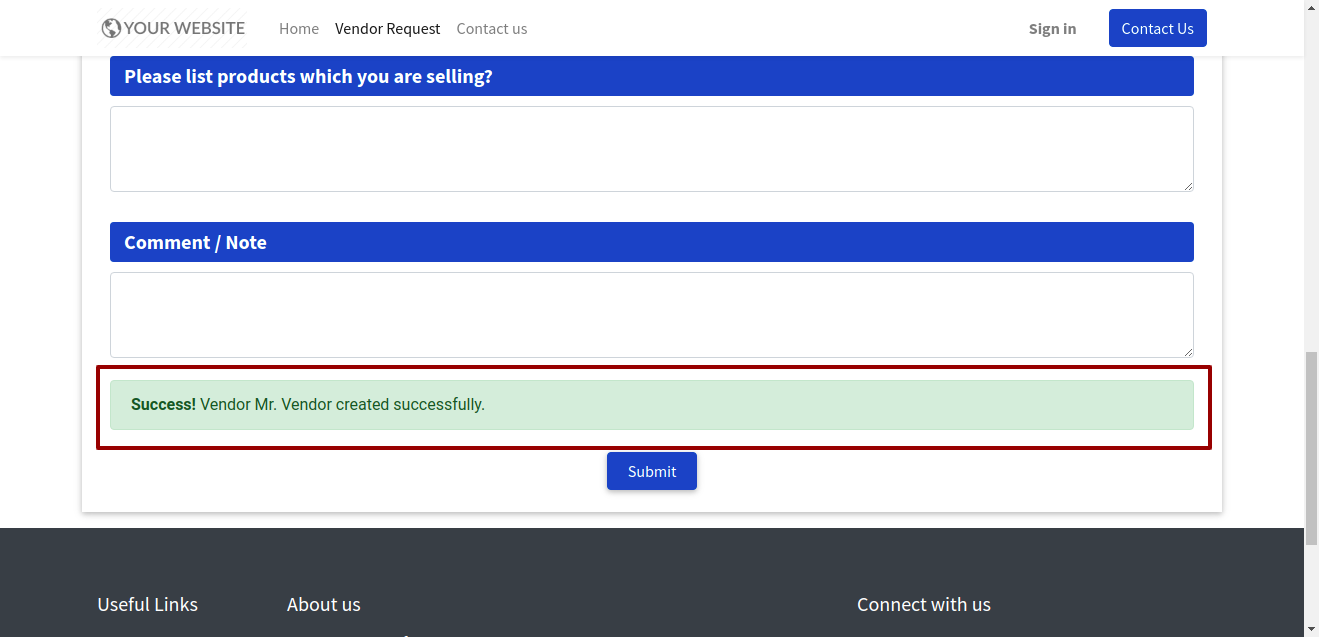
It shows a success notification after submitting the form.
Vendor created with contacts.
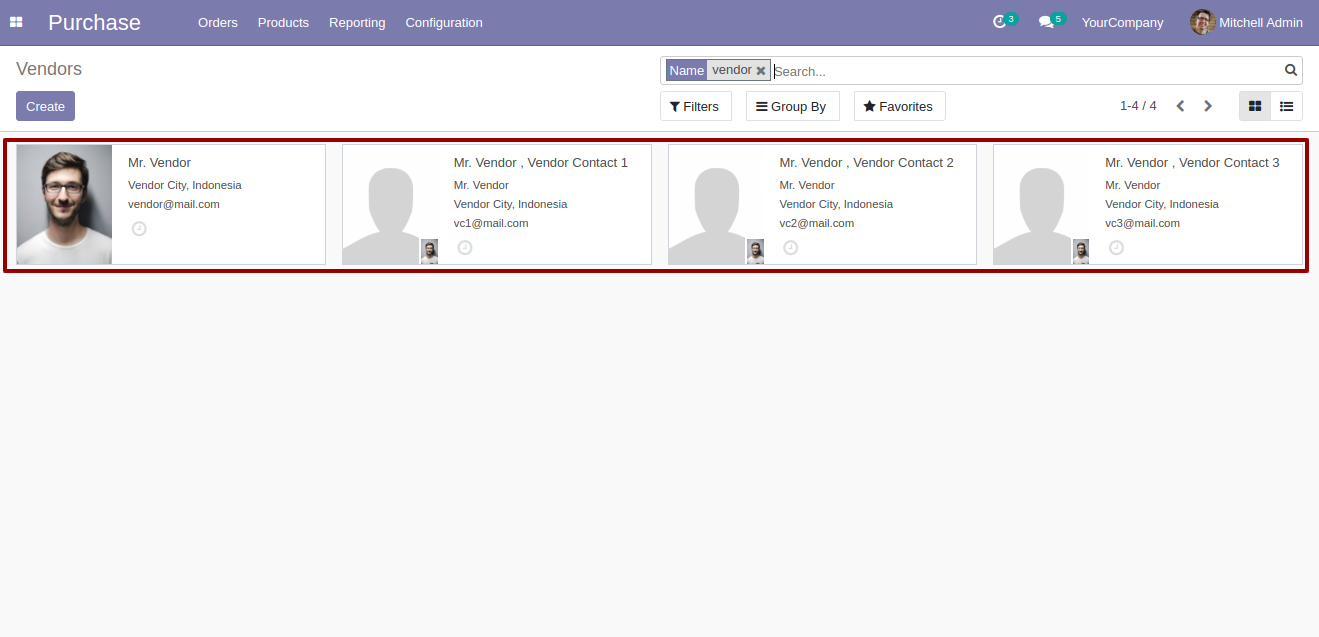
Vendor form view with contacts.
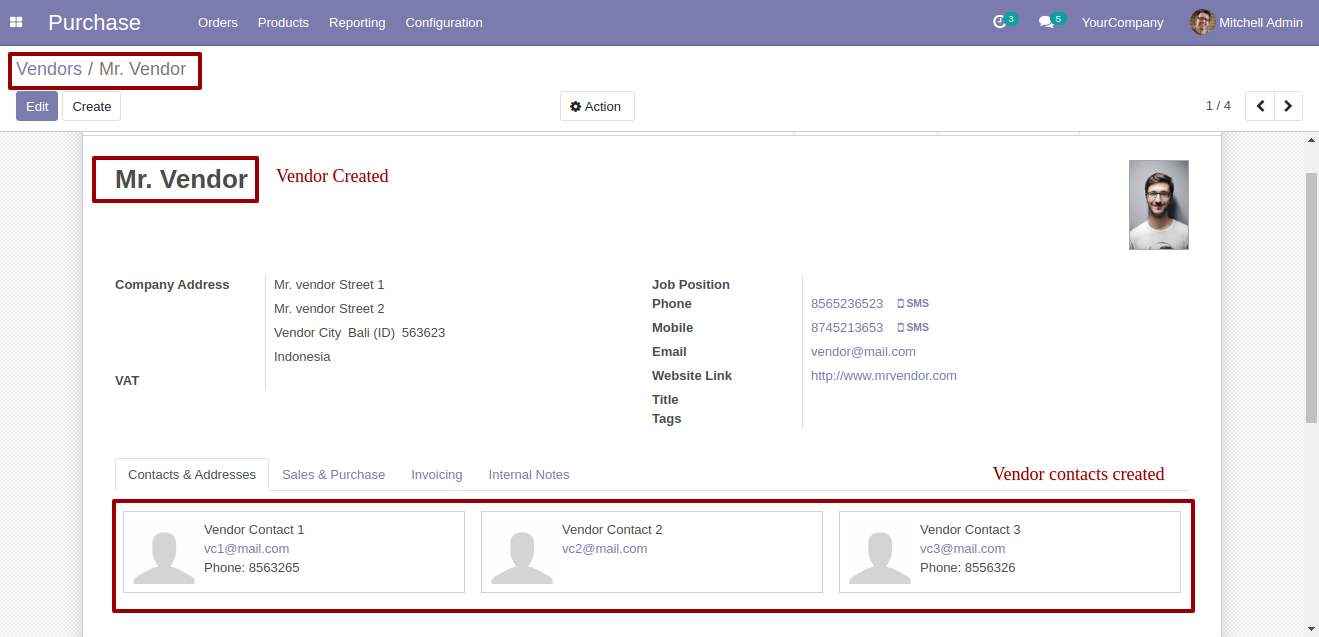
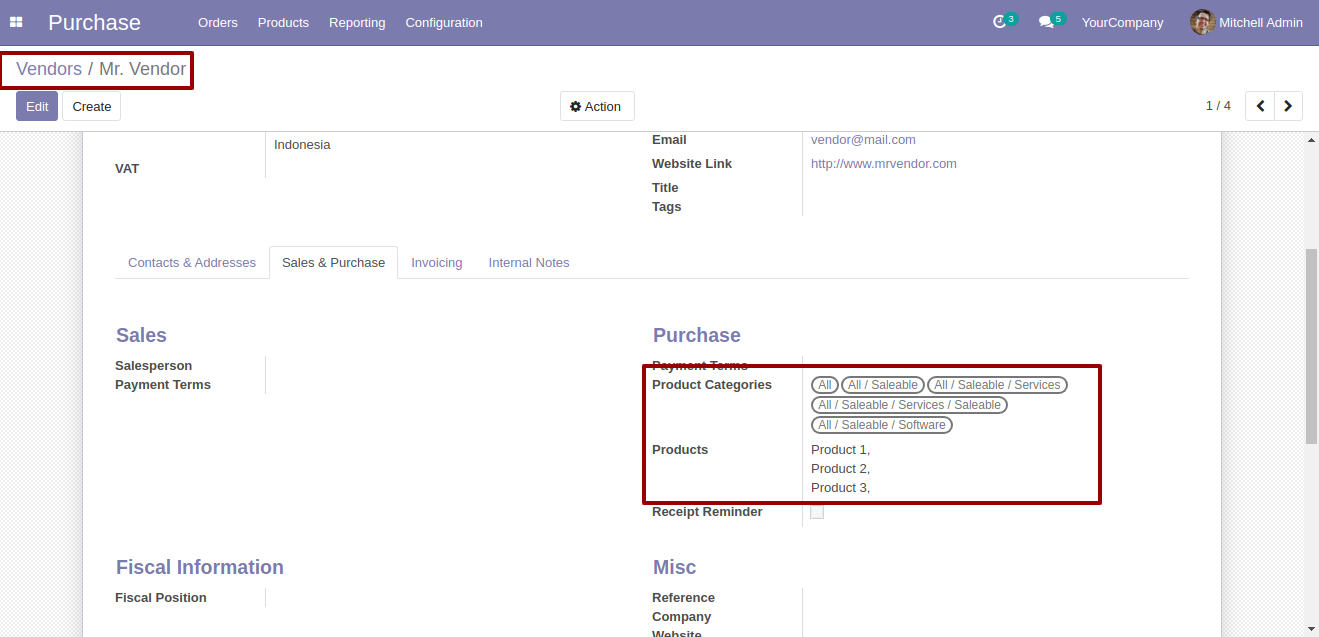
Vendor form view with the product and product categories.
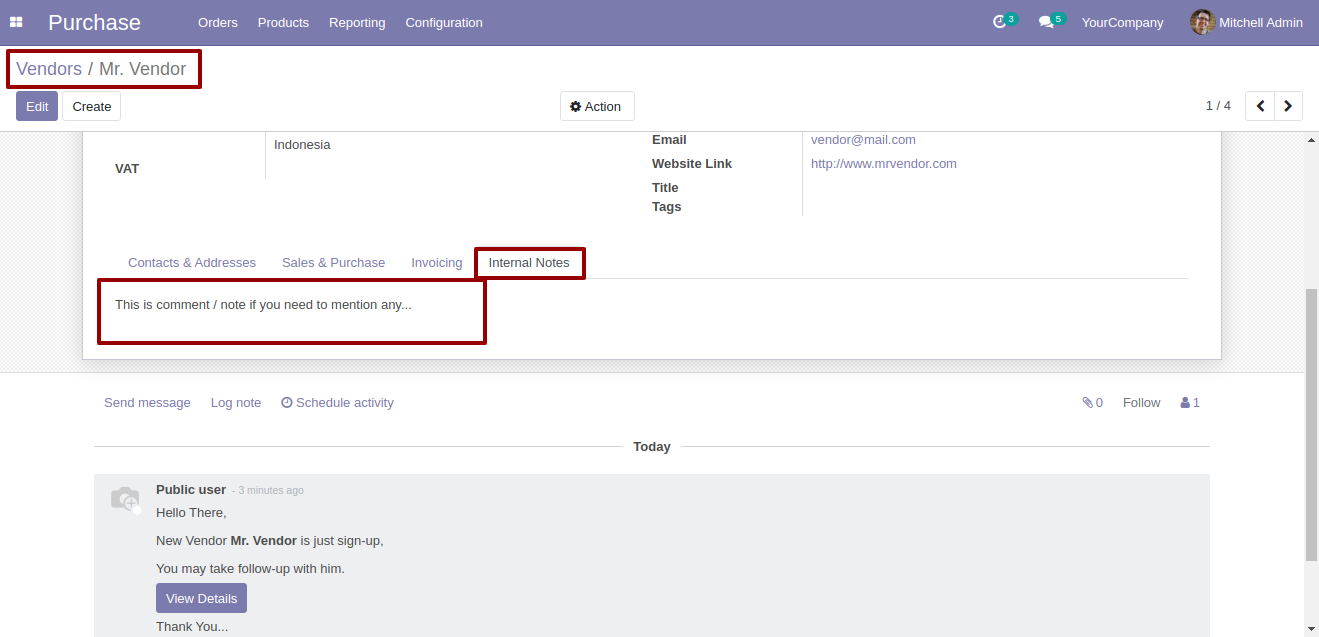
Vendor form view with the notes that given by vendor when signup.
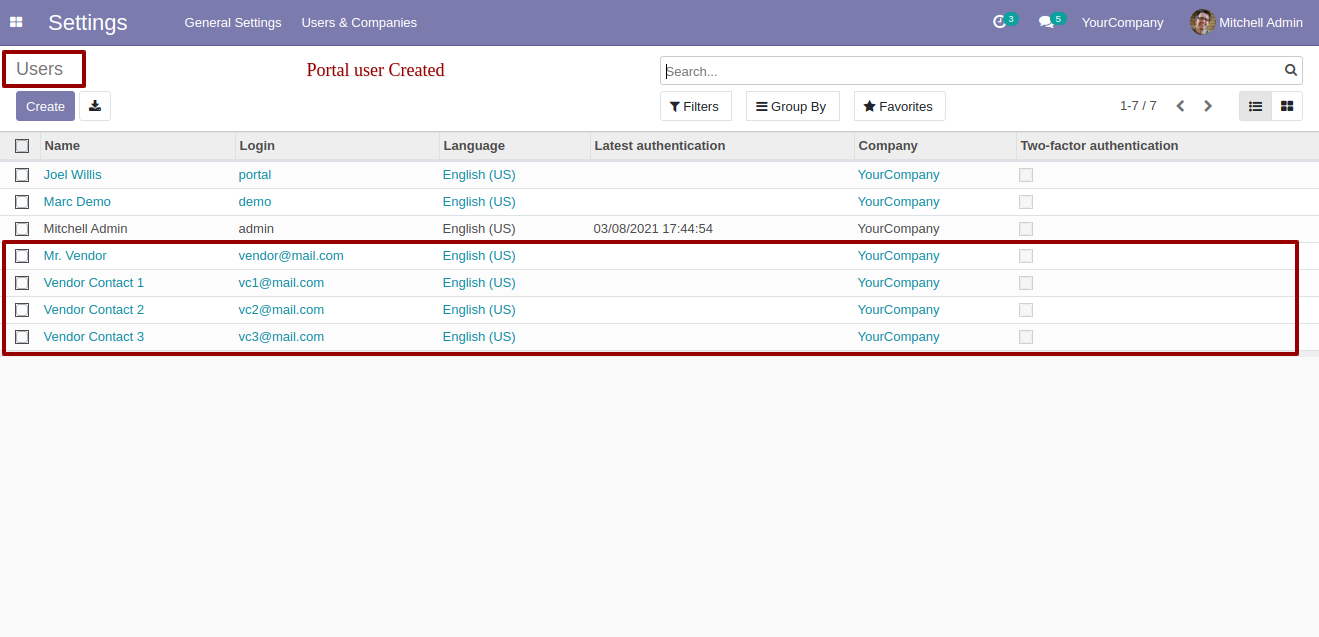
It creates a portal user if the auto-create portal user feature enable. Users list view looks like below.
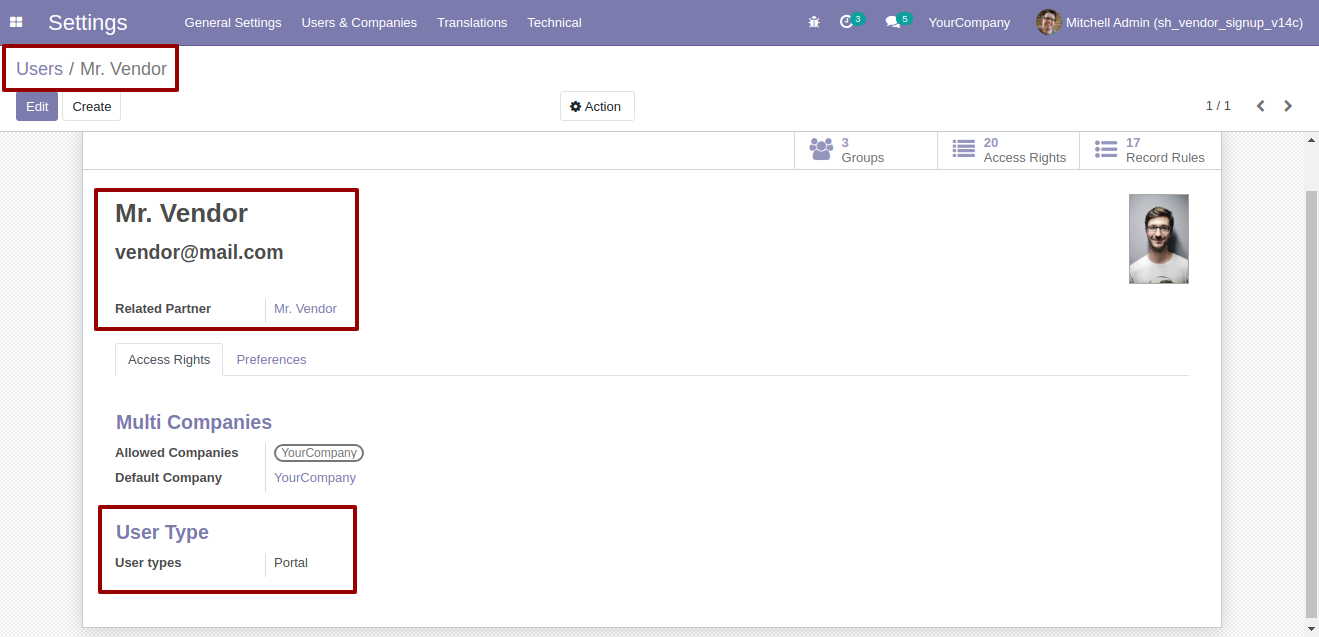
Vendor form view with the user type portal.
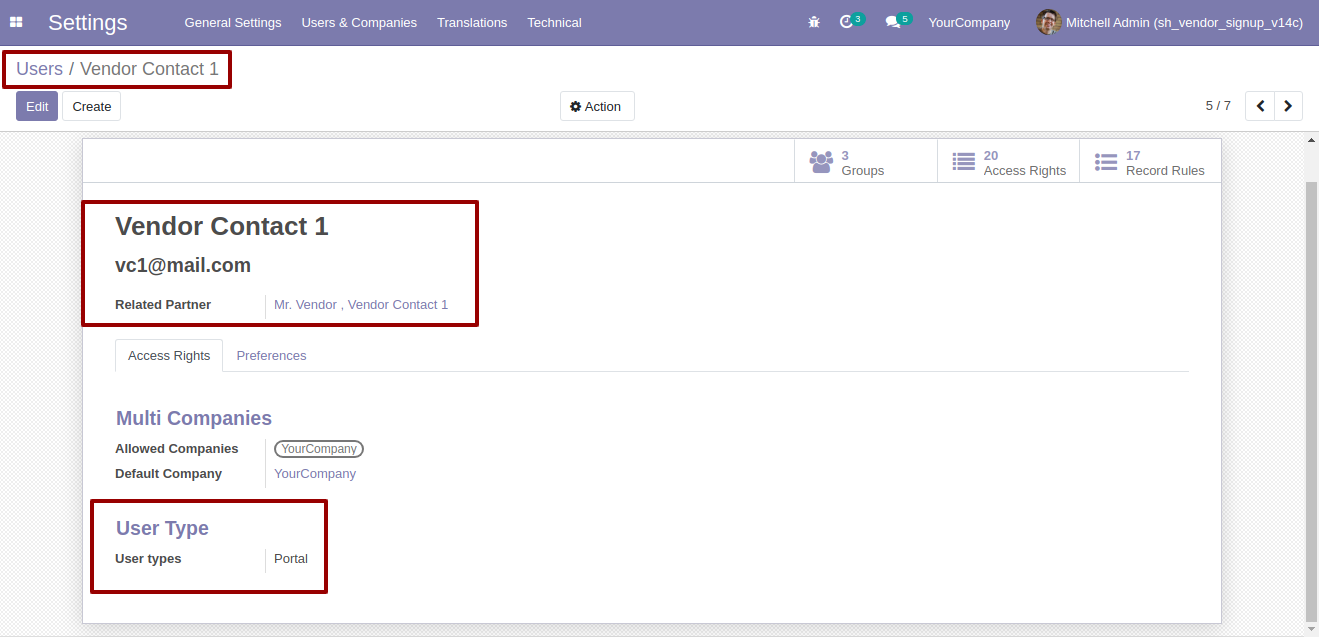
Vendor contacts form view with the user type portal.
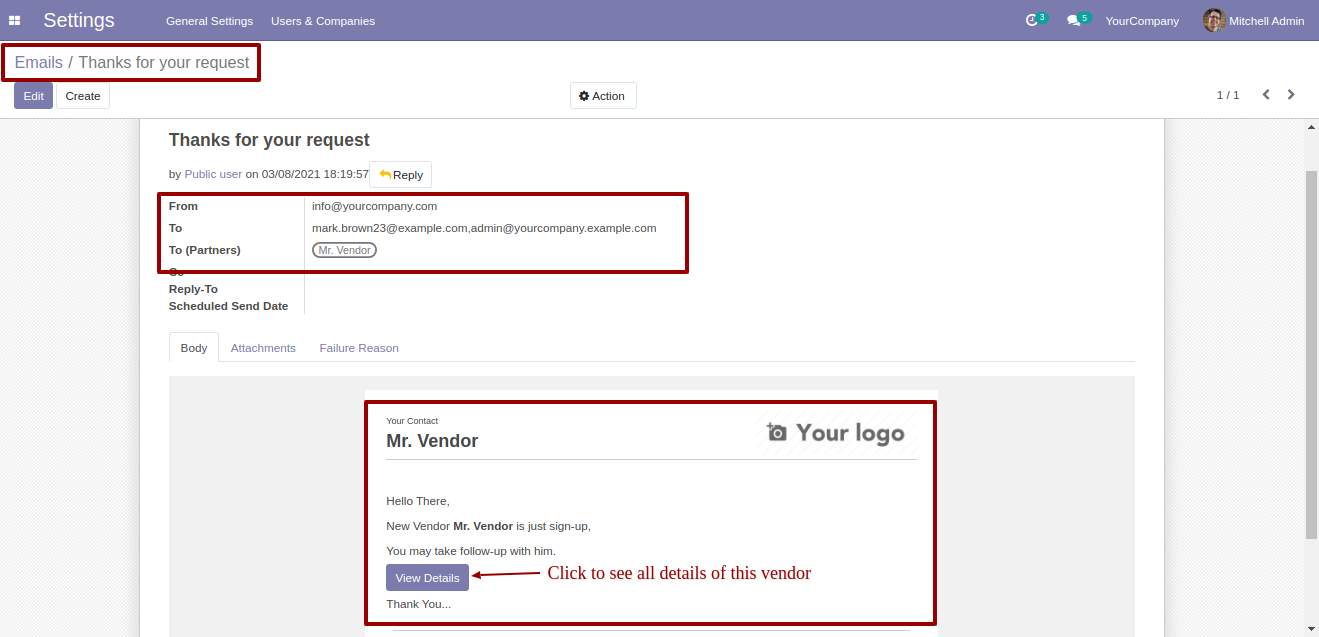
The email notification that responsible persons get when vendors sign up.
The vendors sign up form responsive view.
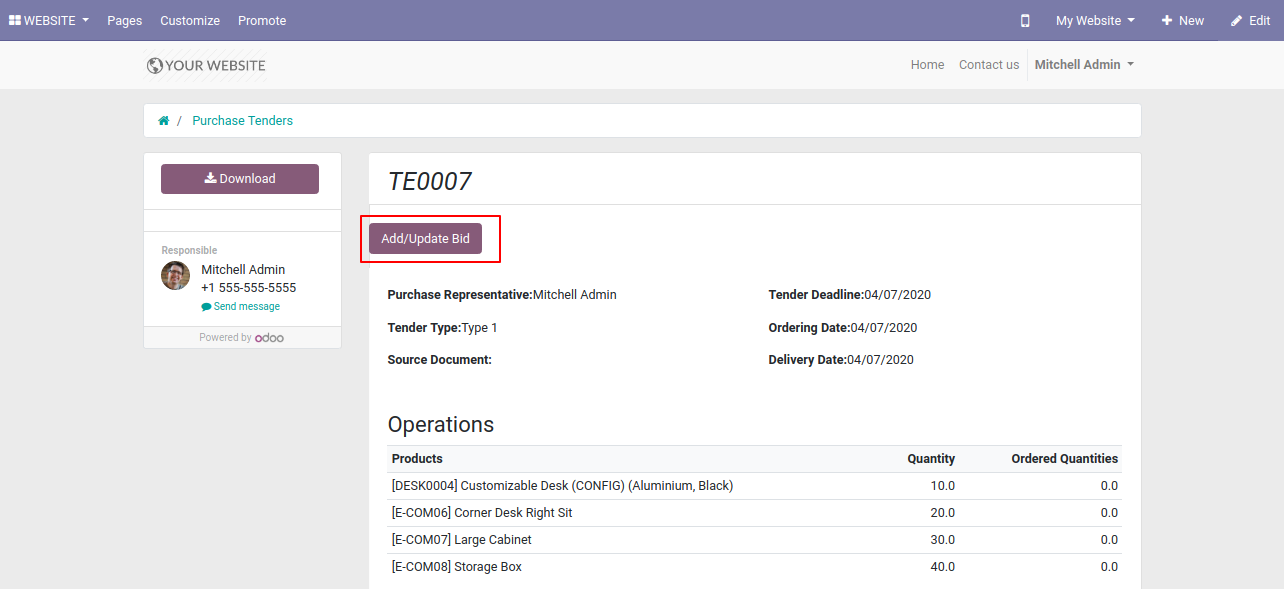
Press on the "Add/Update Bid" button to edit the unit price.
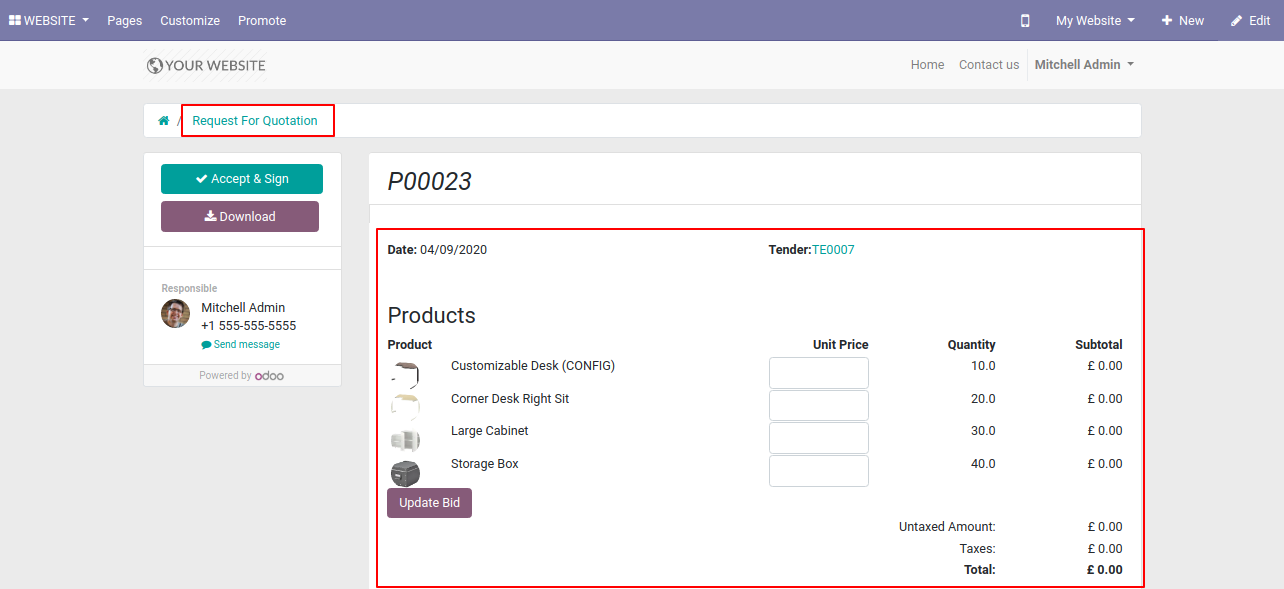
You can edit the unit price from here, currently, the unit price is empty.
Now we open the backend.
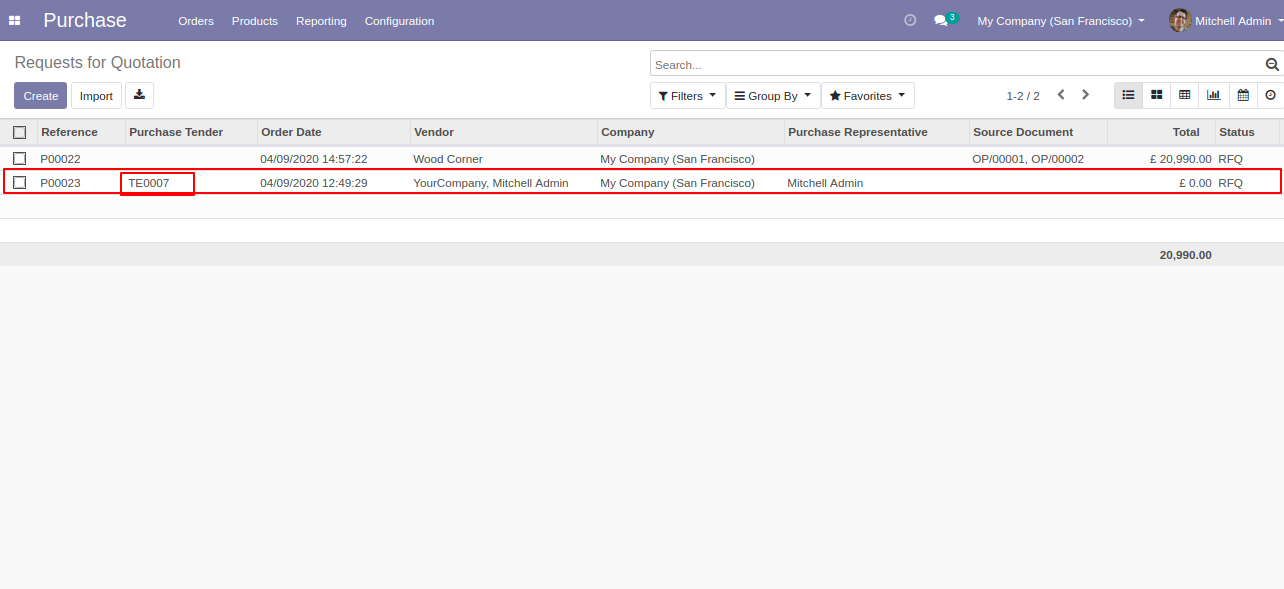
You can see in the backend unit price is empty means 0(Zero).
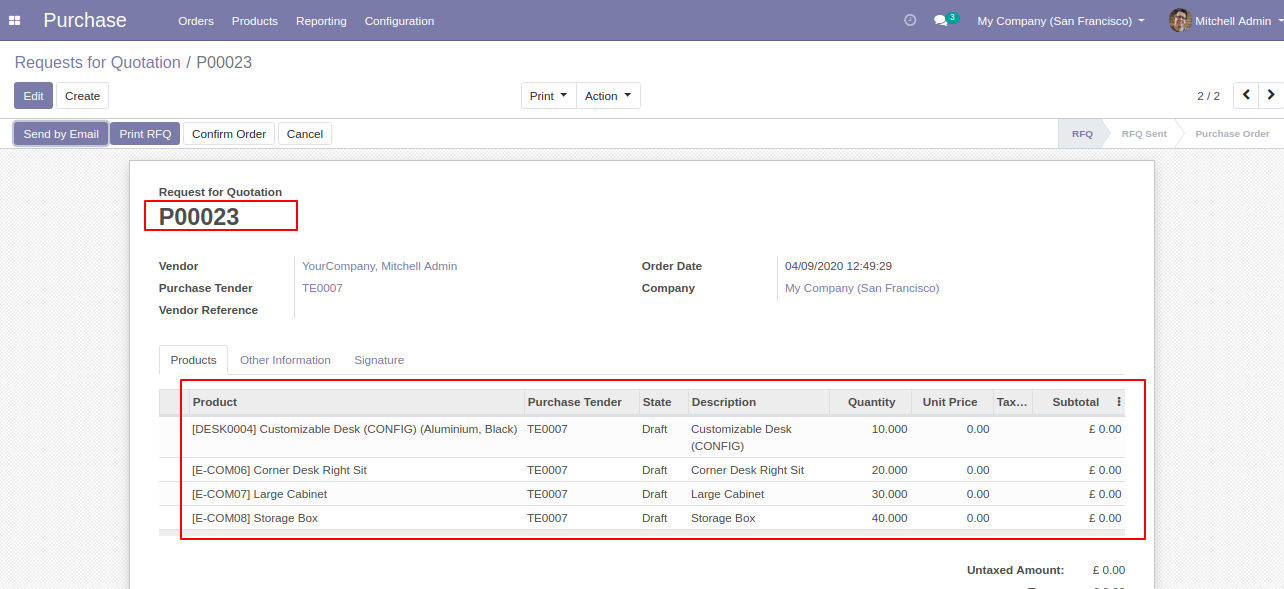
Portal access with time limit & open tender configuration.
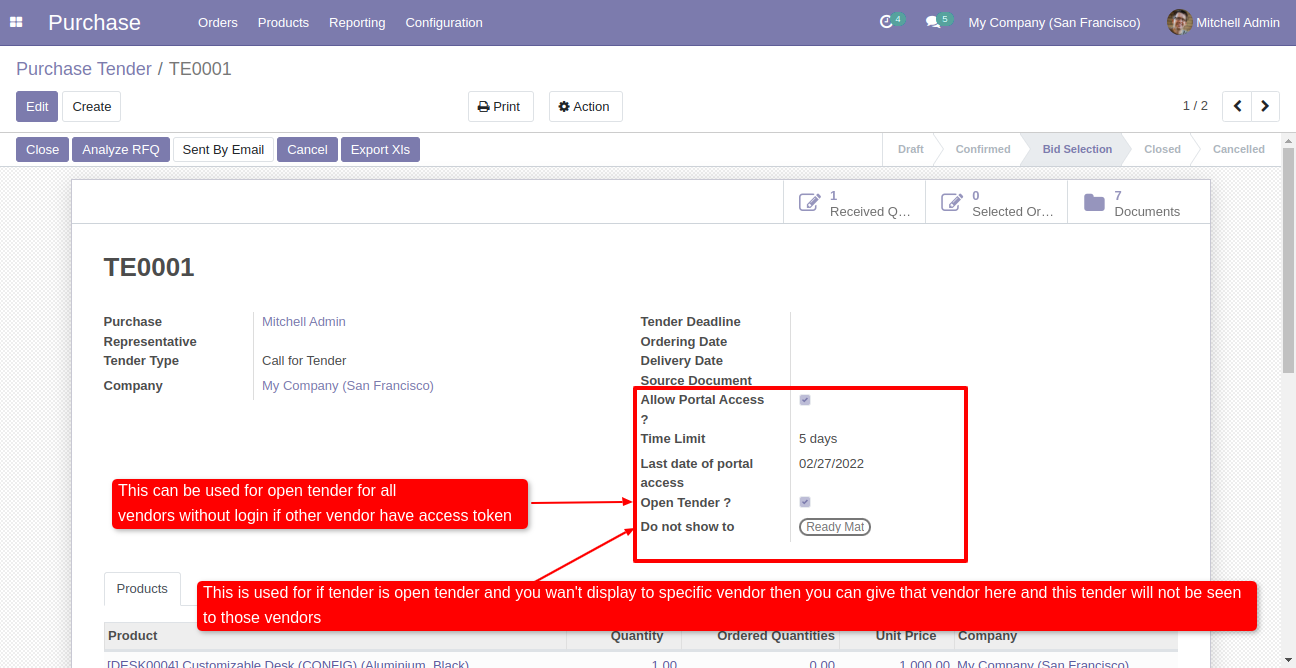
In the "Purchase Tender" click share to share tender via link.
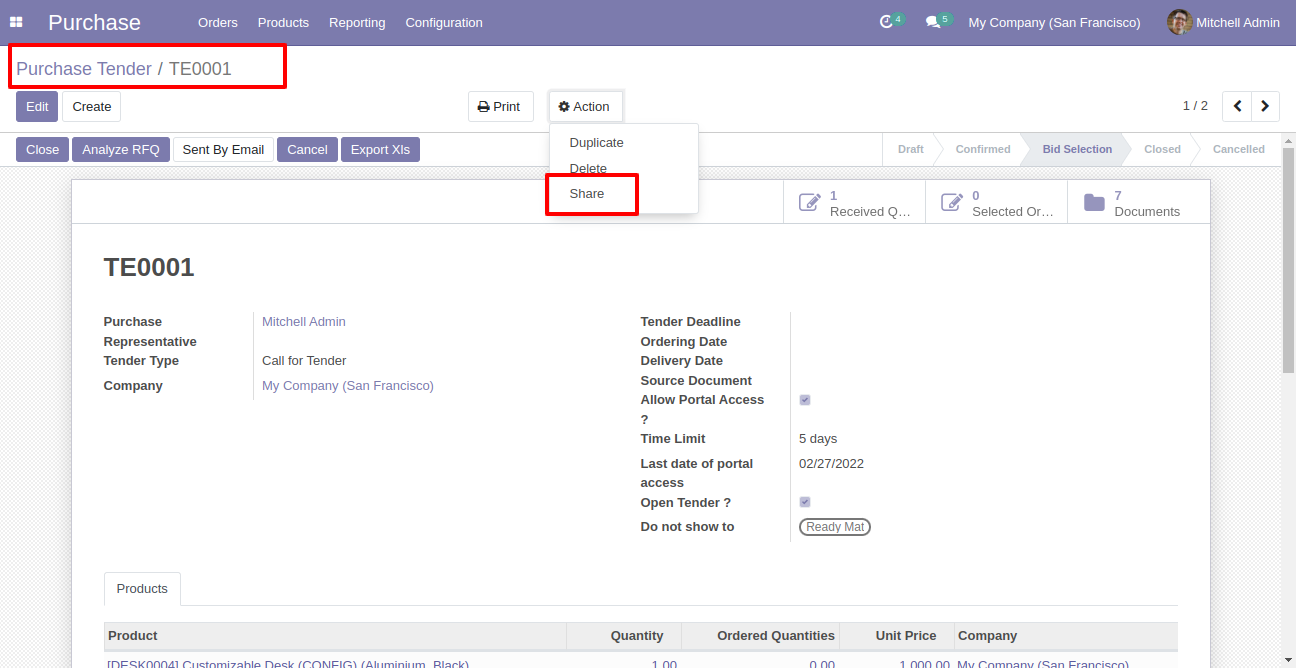
Share tender popup.
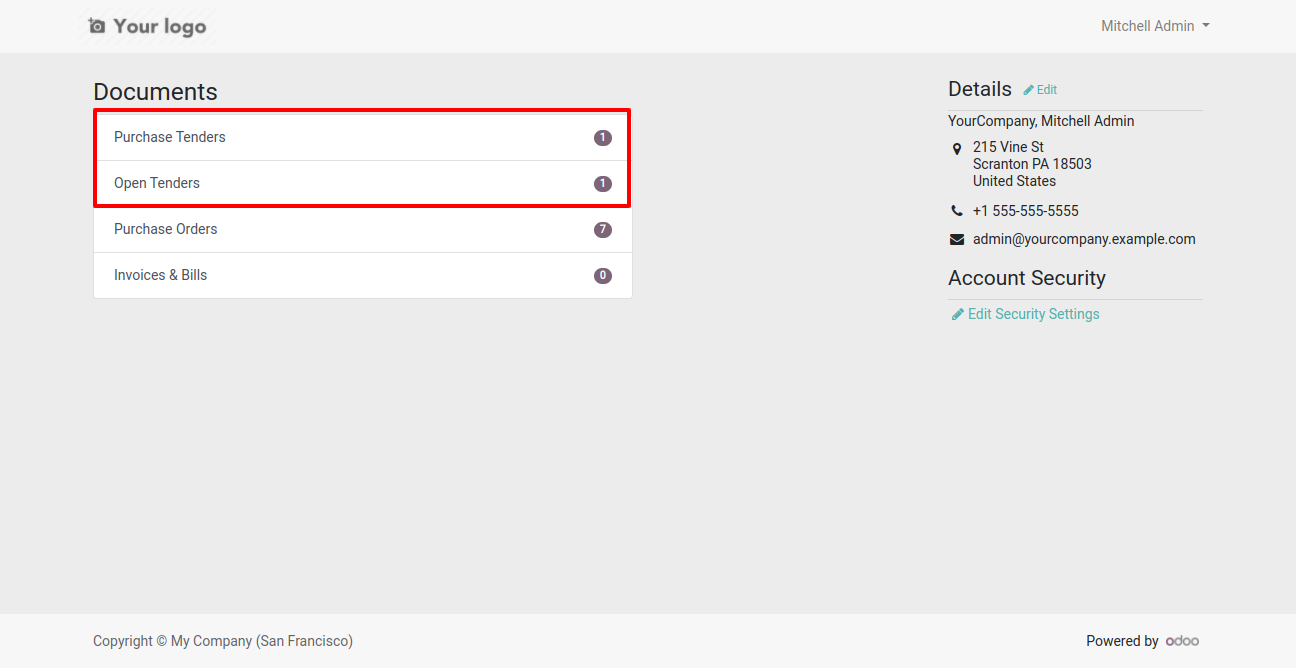
"Purchase Tender" & "Portal Tender" at portal.
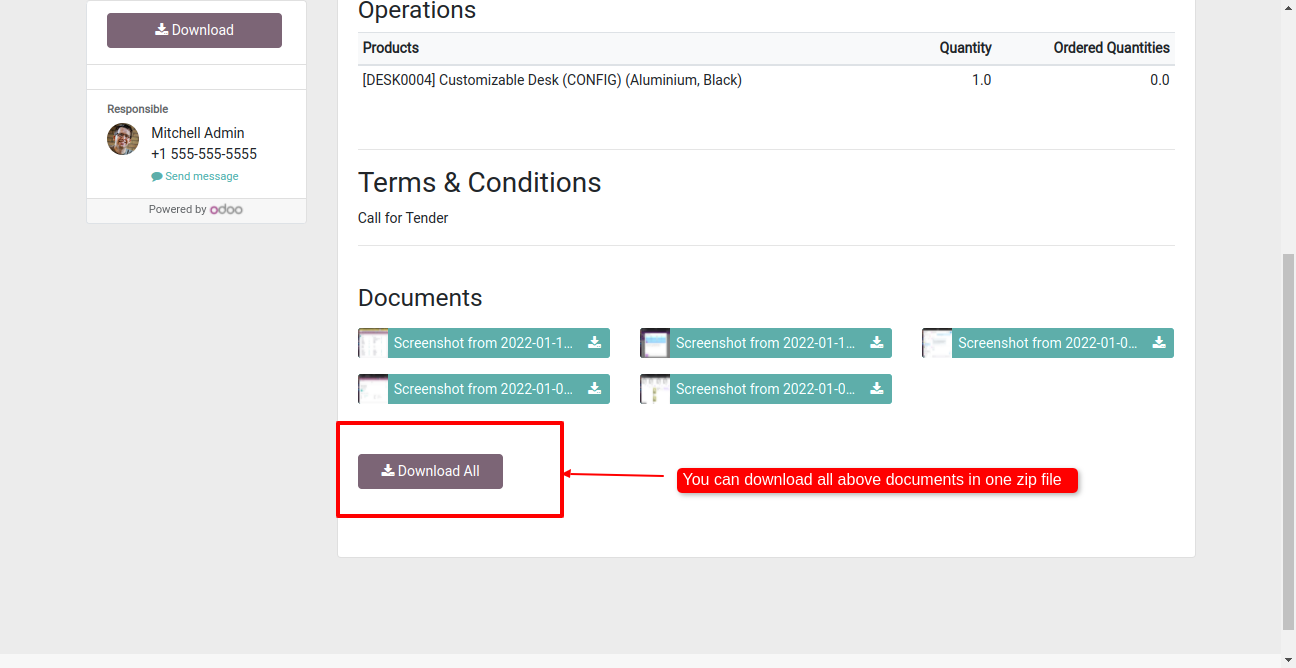
You can download all documents using one button.
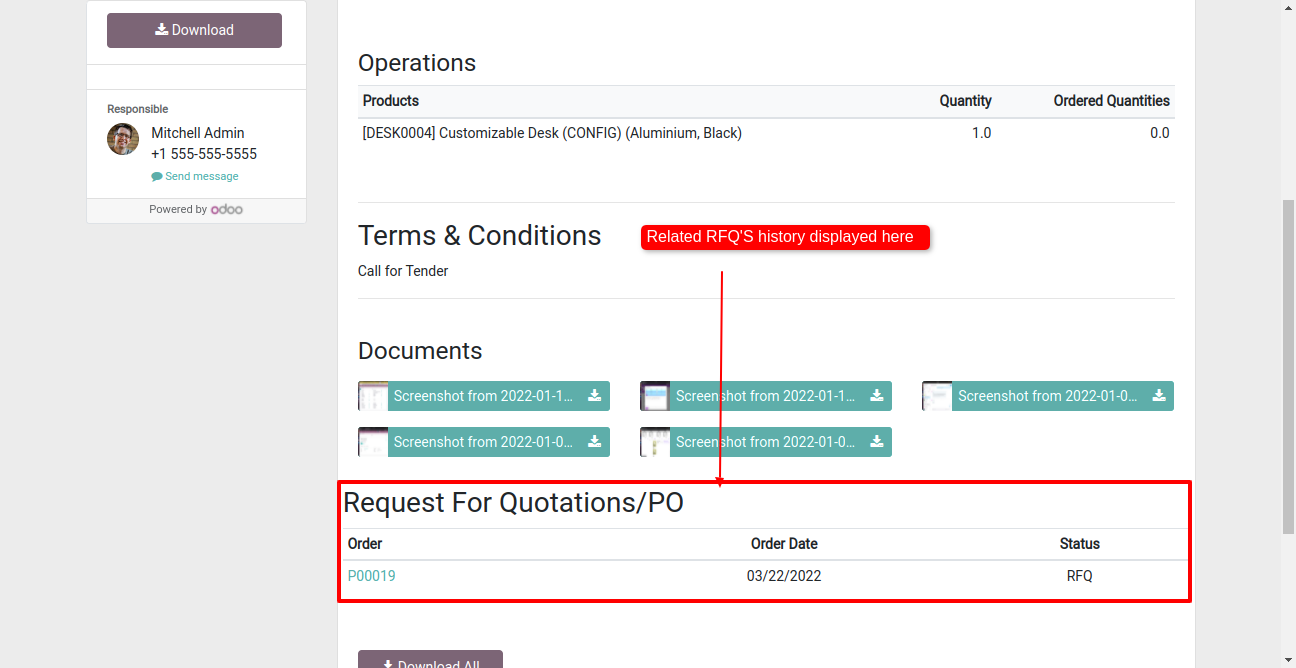
Tender related RFQ's displayed at portal.
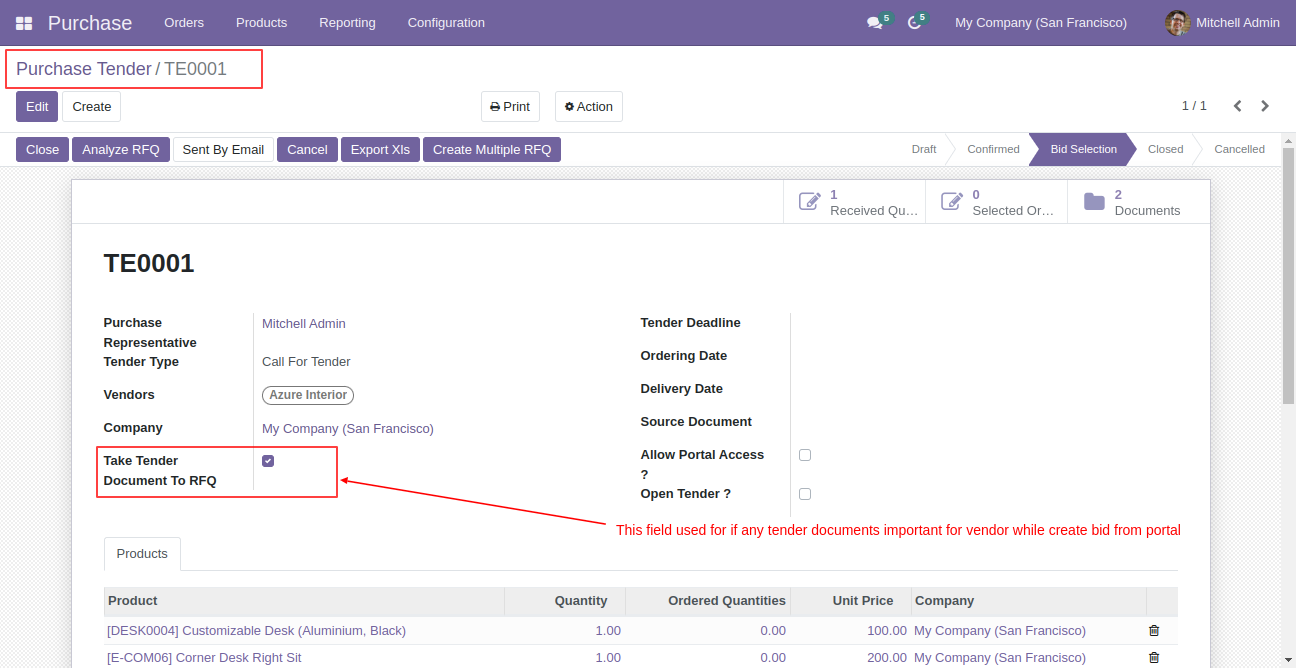
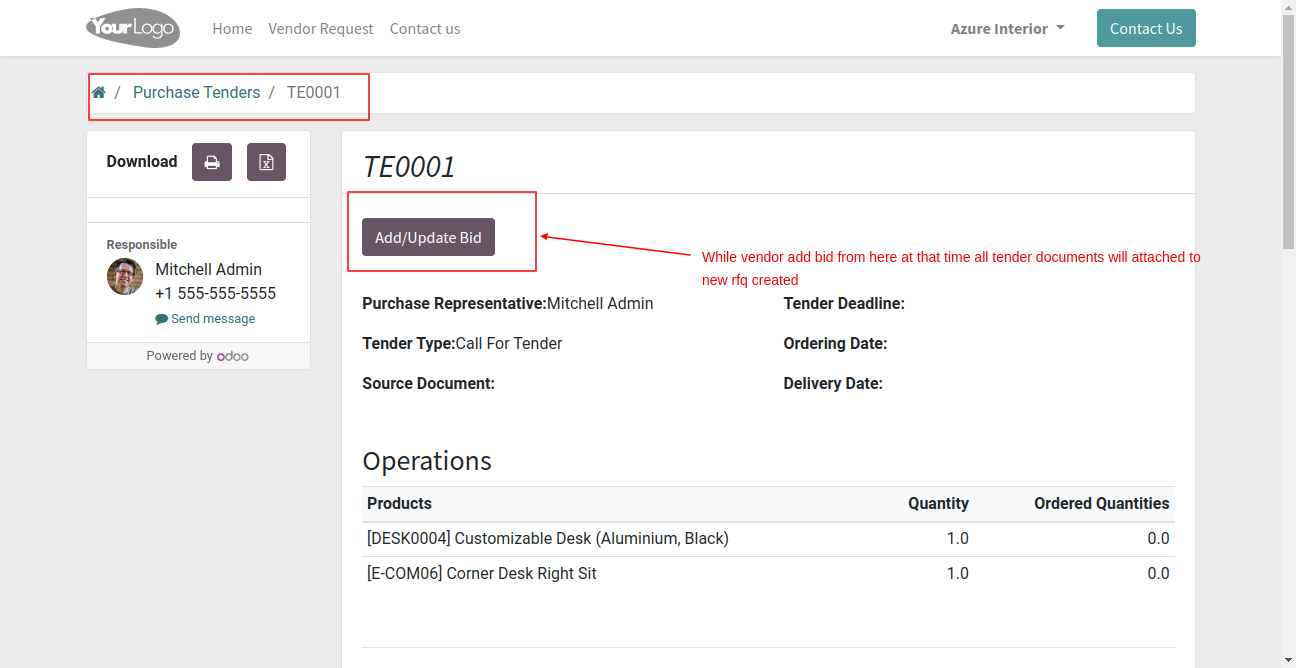
Enable "Take Tender Document To RFQ".
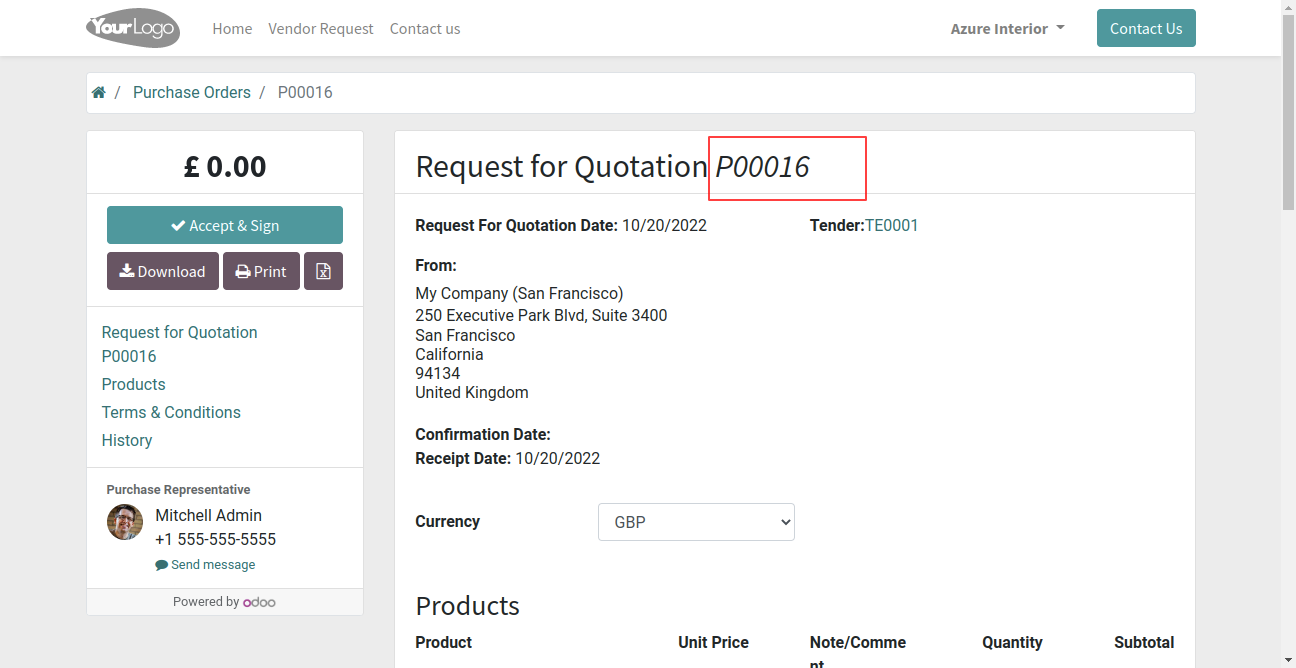
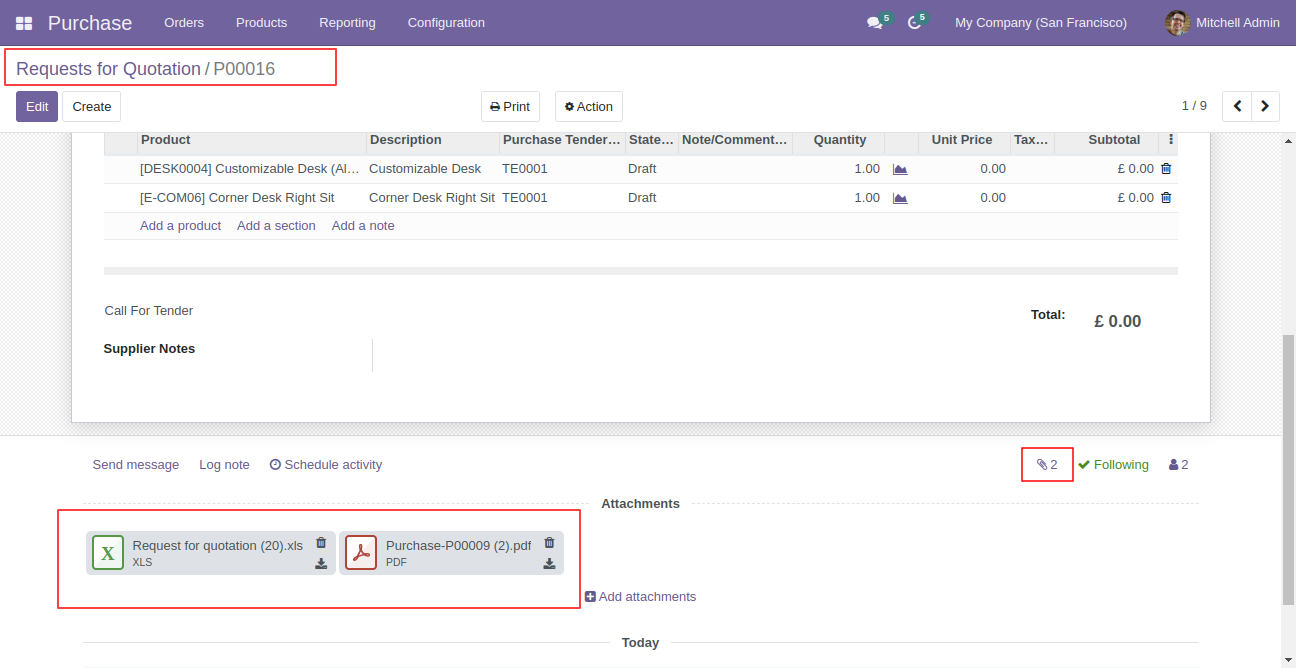
All tender documents attached to new RFQ while vendor add/update bid.
New RFQ/PO created with tender documents.
Go to website portal, open RFQ & press the button "Accept & Sign".
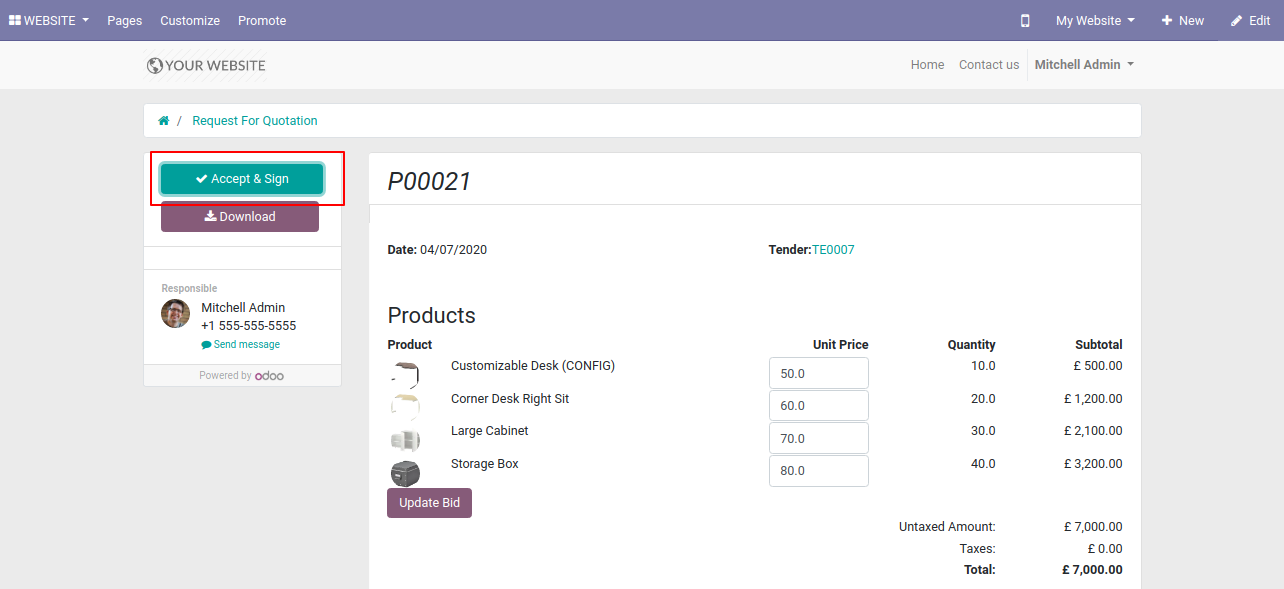
After that one wizard opens, writes name & for the signature, you have 3 options: Draw, Auto & Load. After the press button "Accept Sign.
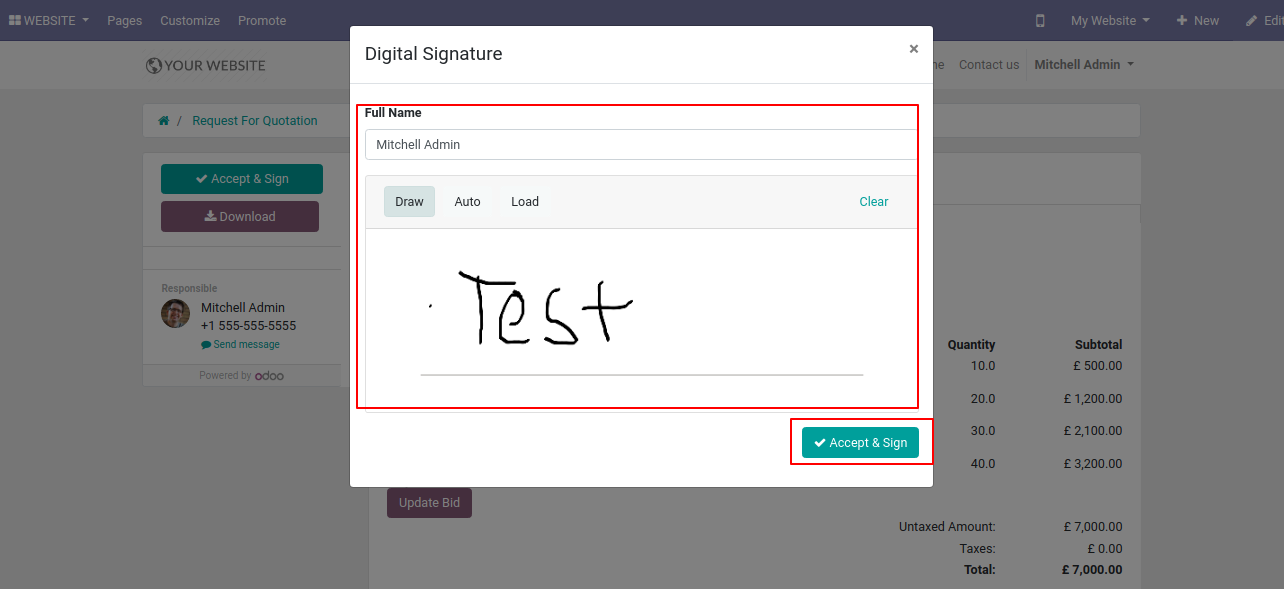
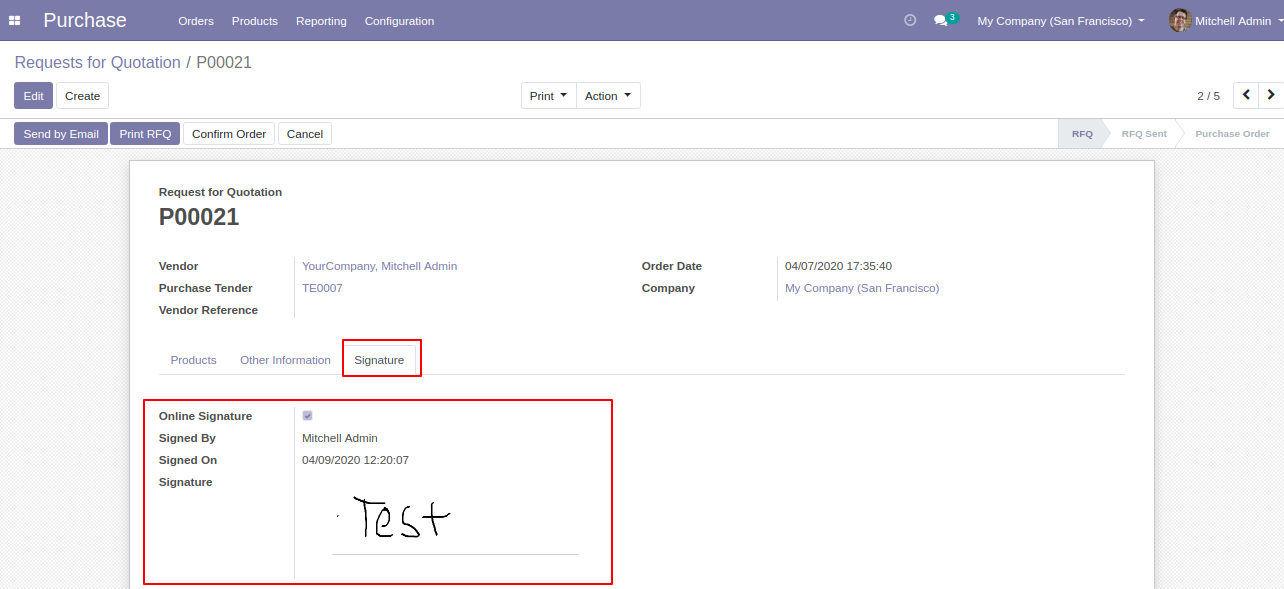
The backend will be updated with the signature & full details.
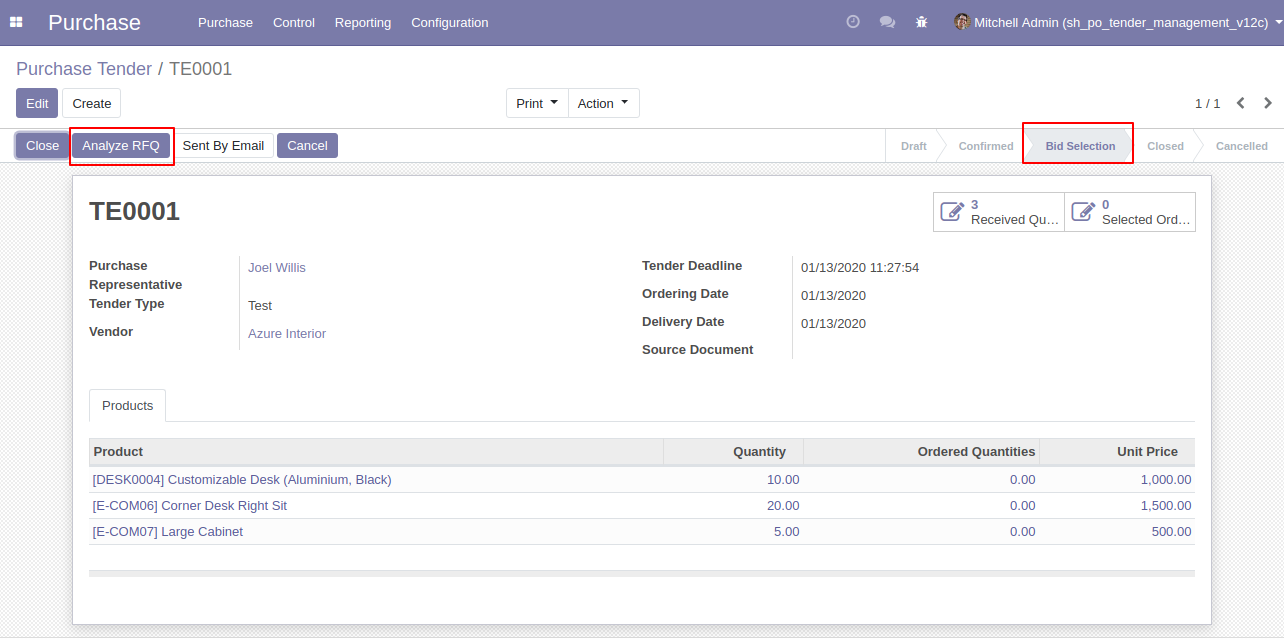
After click validates button purchase tender set in 'Bid Selection' state and 'Analyze RFQ' button will appear.
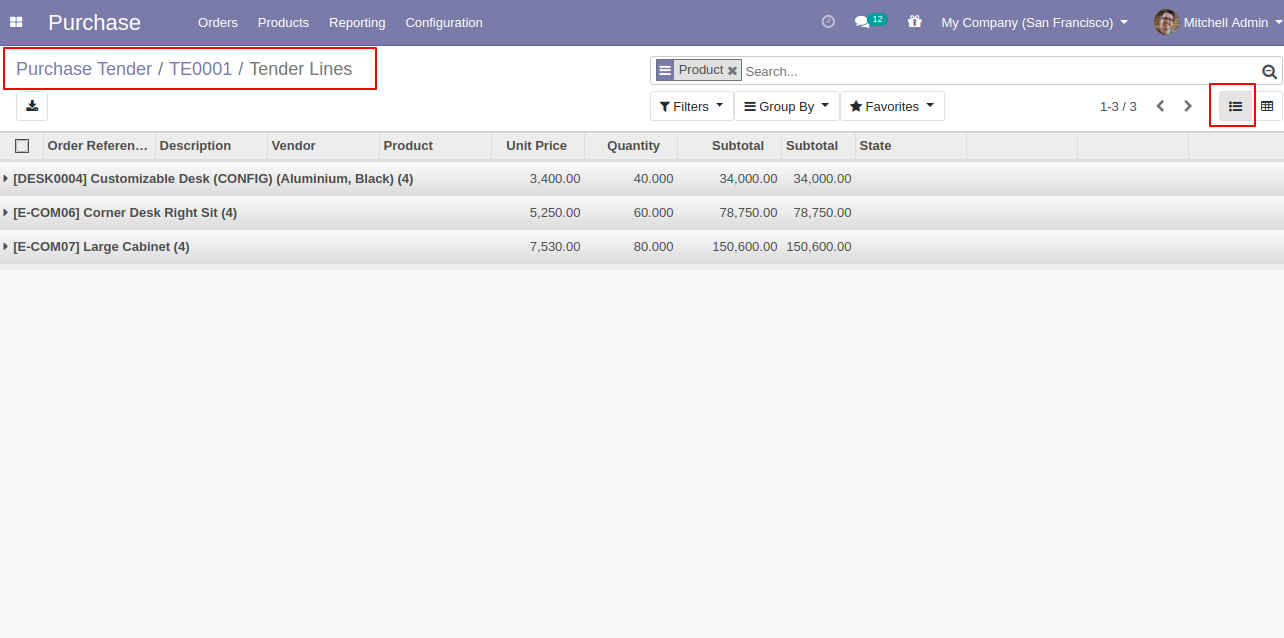
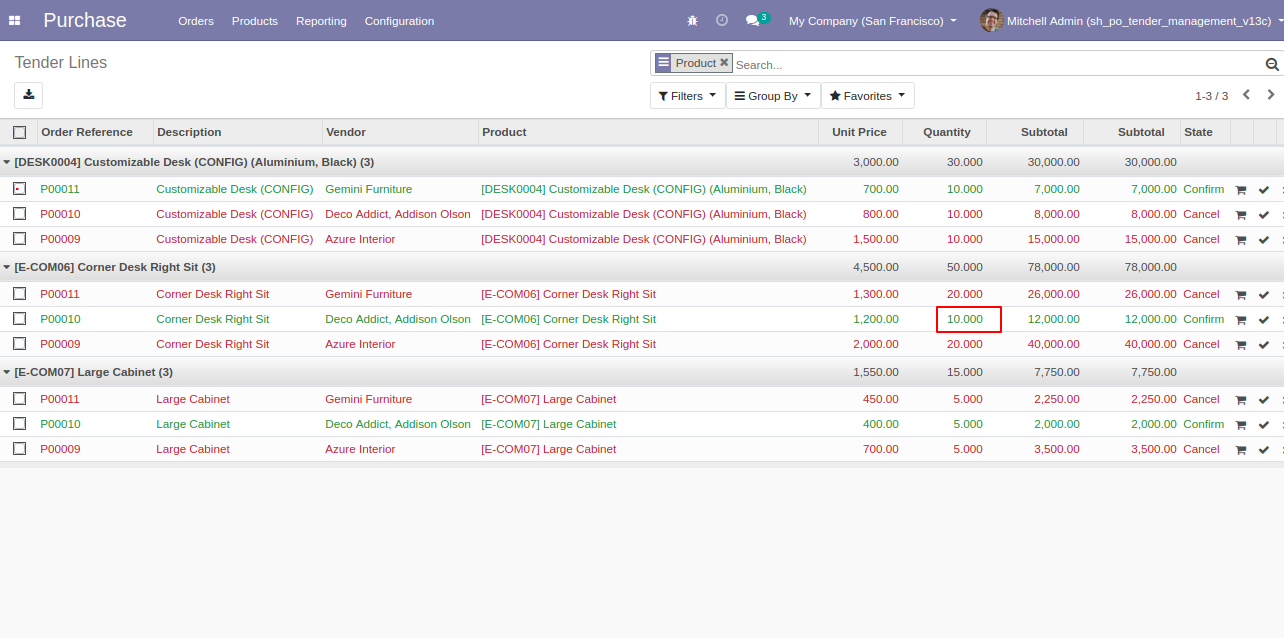
Tender lines list view.
Tender lines kanban view.
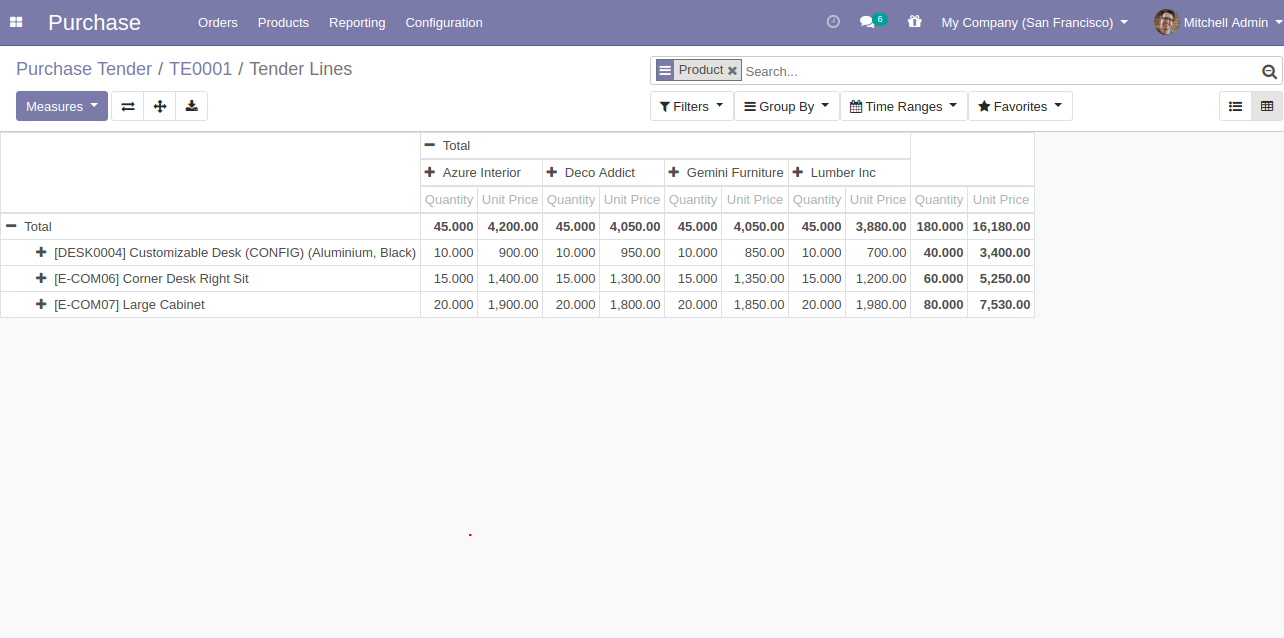
After click 'Analyze RFQ' 'Tender Lines' tree view appears, where you can see
three-button in lines,
1) Cart: Update Order Qty in RFQ. 2) Correct Mark(✔): To Confirm RFQ, after
clicking this mark that line will become 'Green'. 3) False(✗): To cancel RFQ,
after clicking this mark that line will become red.
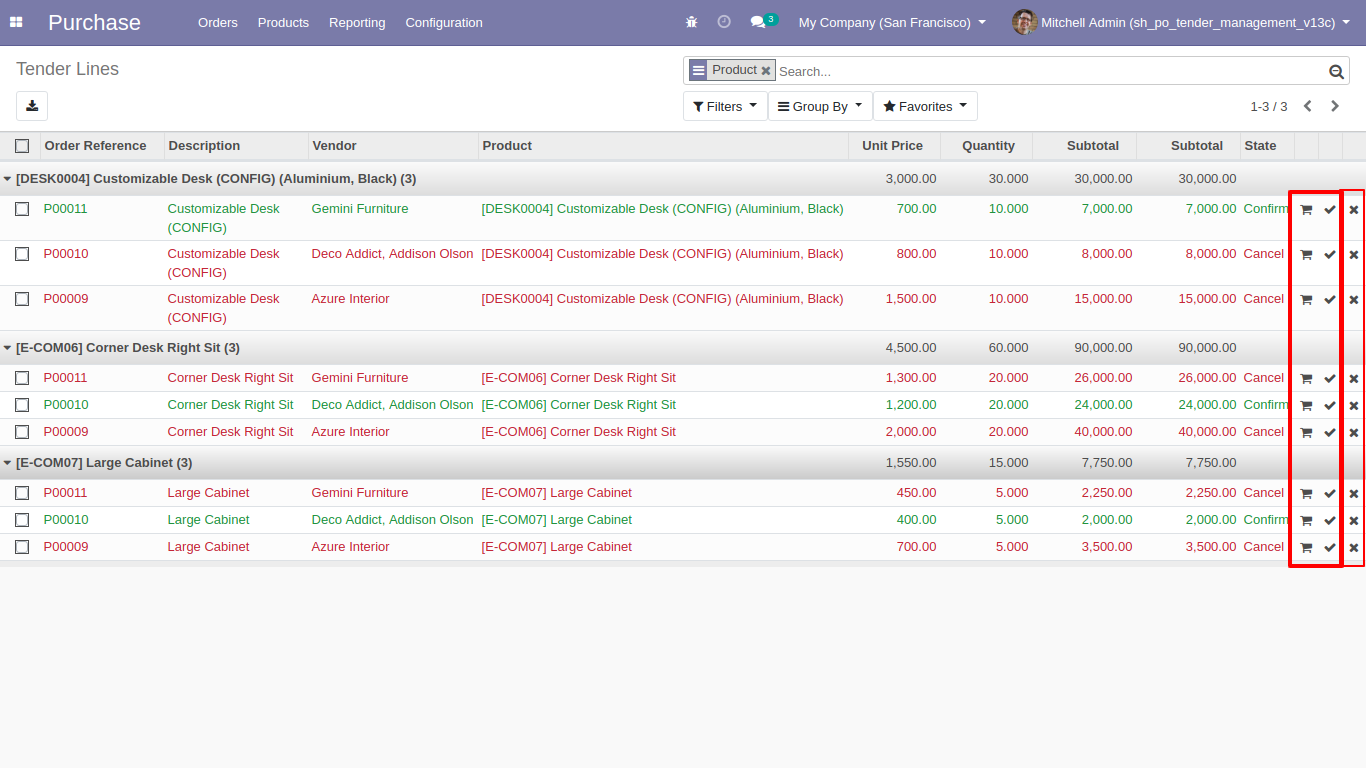
Tender lines detailed kanban view.
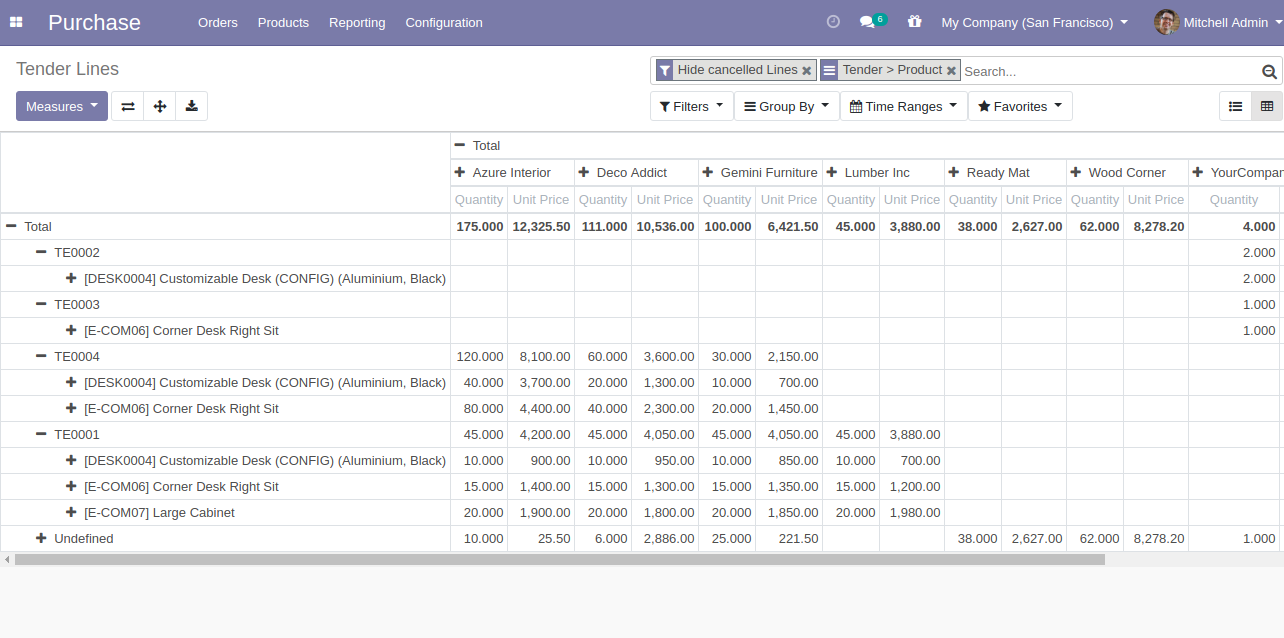
After clicking on the cart icon, this wizard will popup where you can change product quantity in the tender.
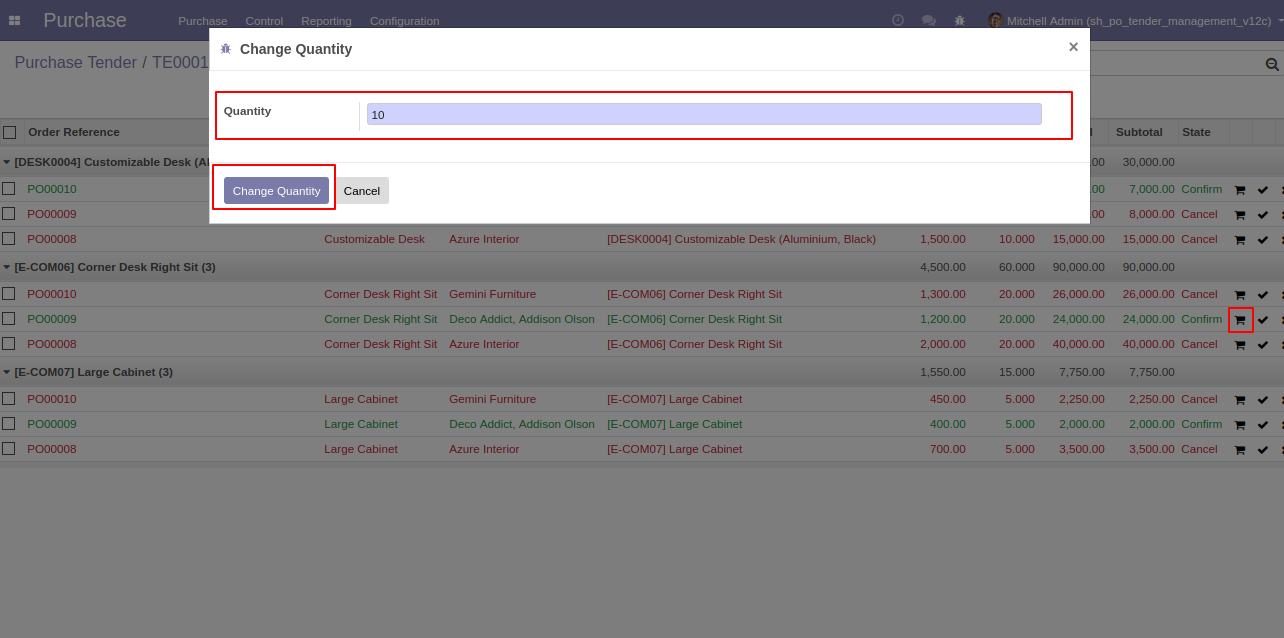
RFQ product quantity is updated.
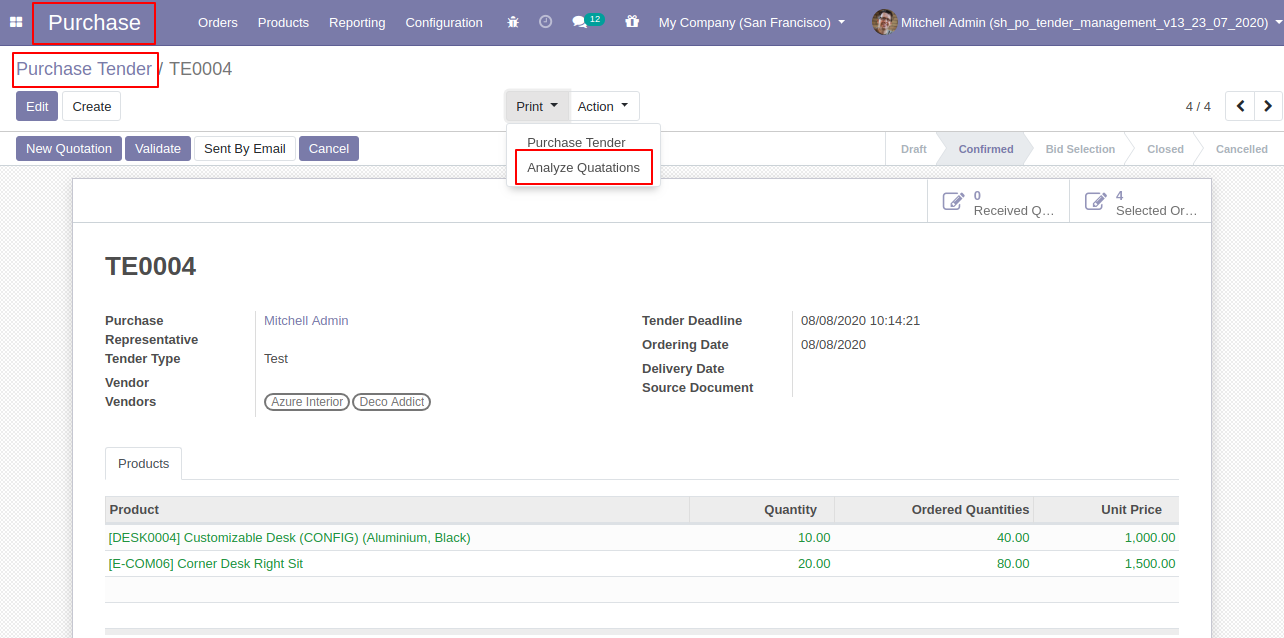
For print "Analyze Quotations" PDF report.
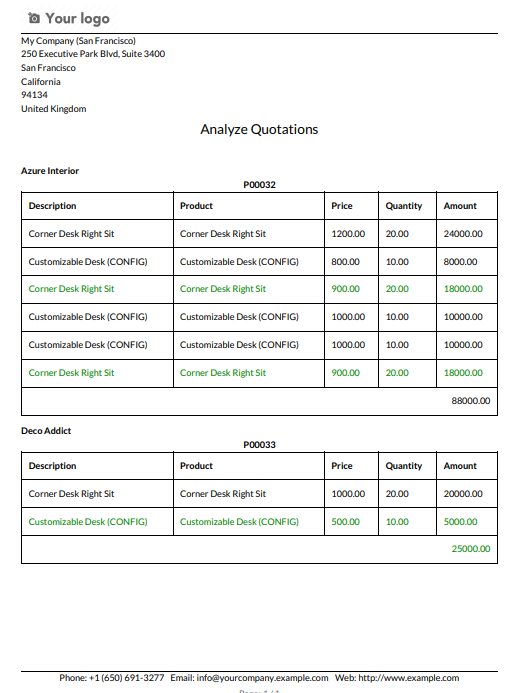
"Analyze Quotations" PDF Report.
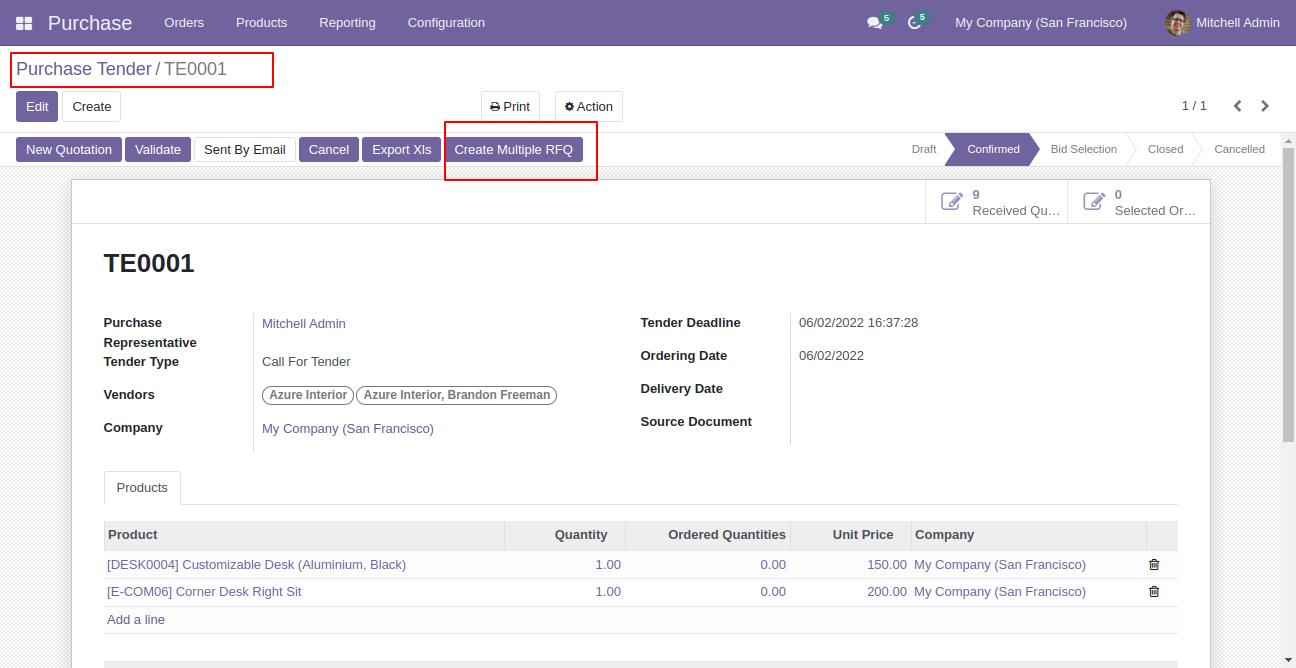
Press button "Create Multiple RFQ".
After that this wizard opens, choose vendors & email templates.
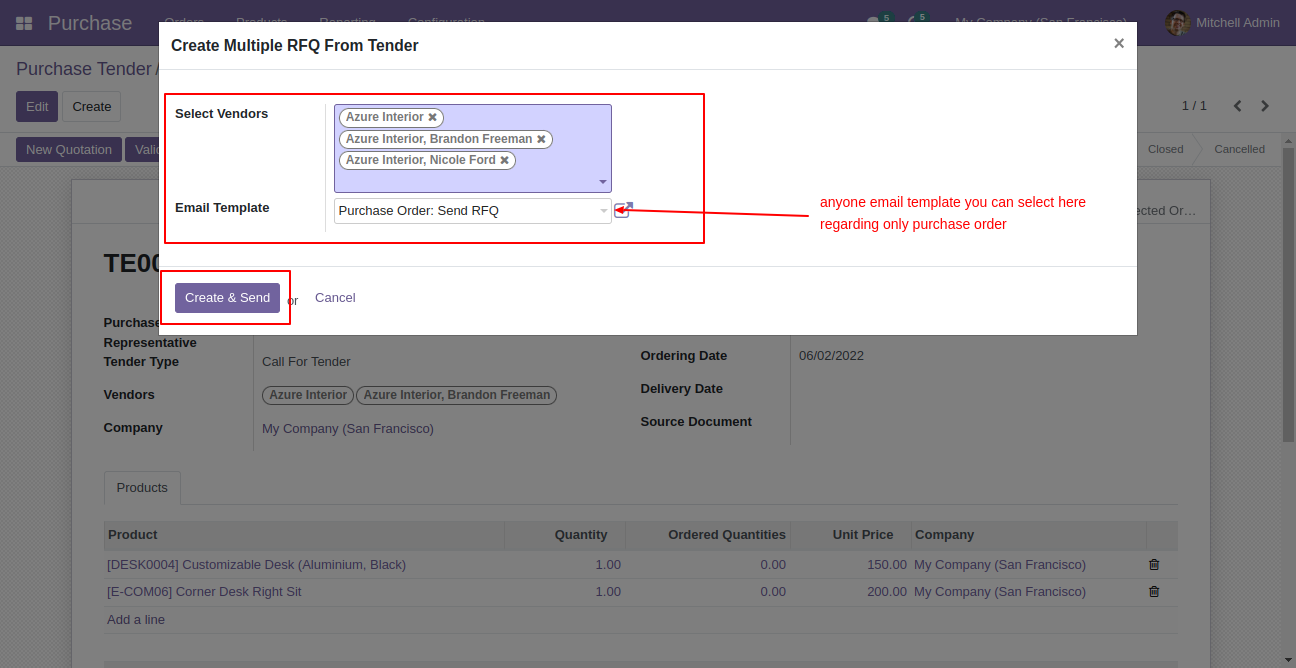
Multiple RFQs created.
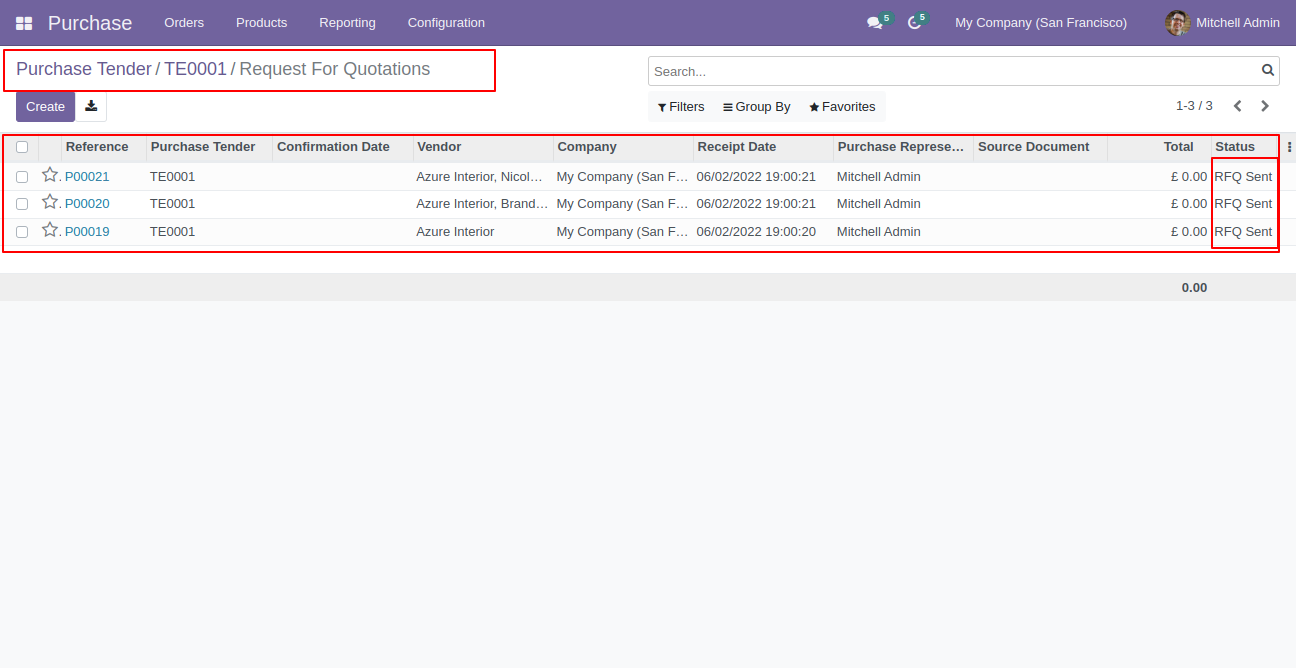
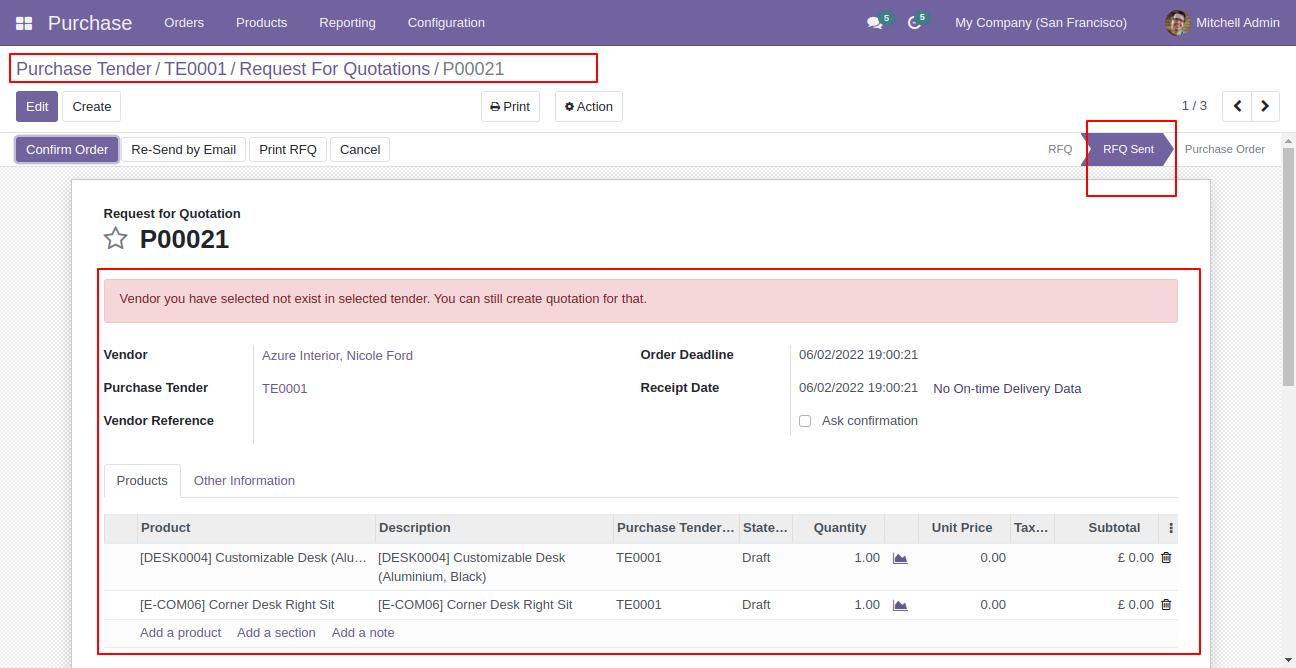
Created RFQ form view.
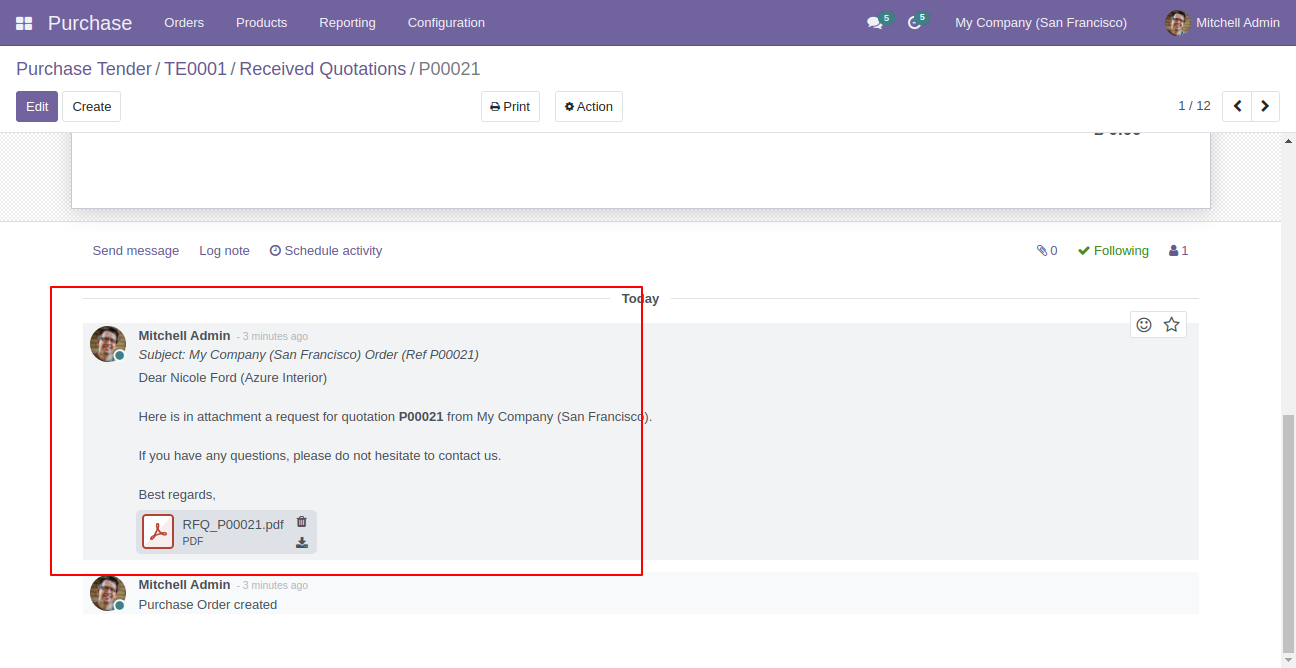
RFQ with chatter.
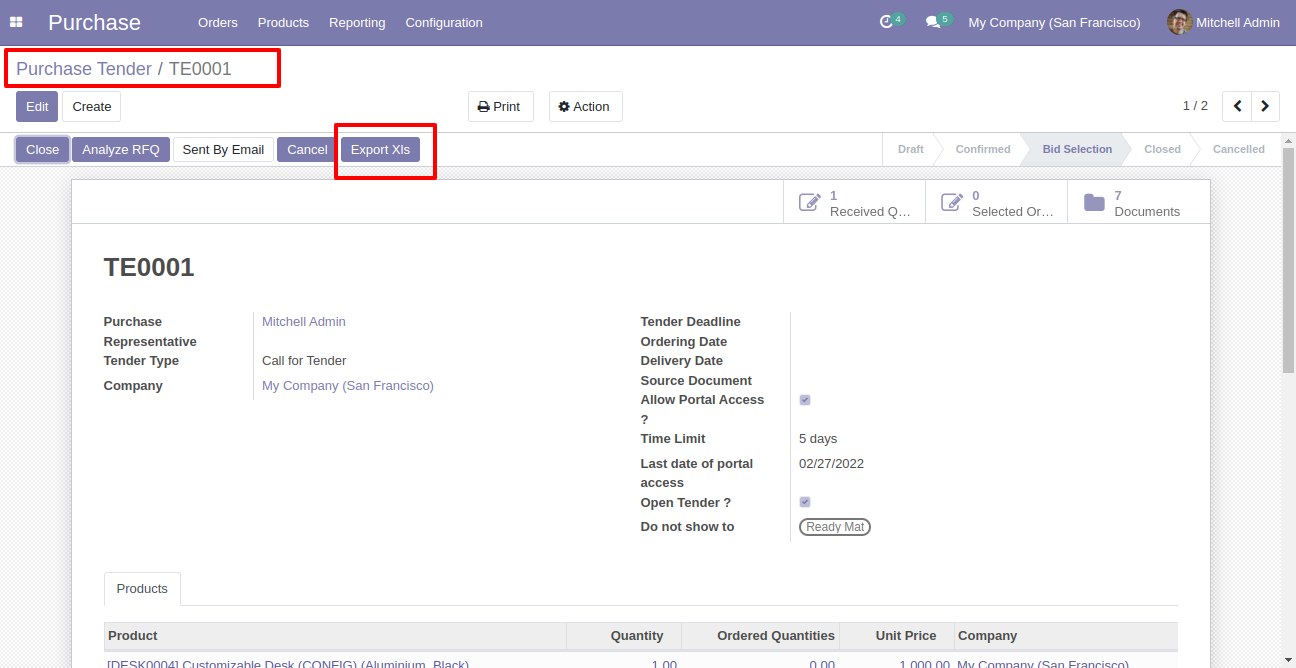
Press "Export XLS" in purchase tender.
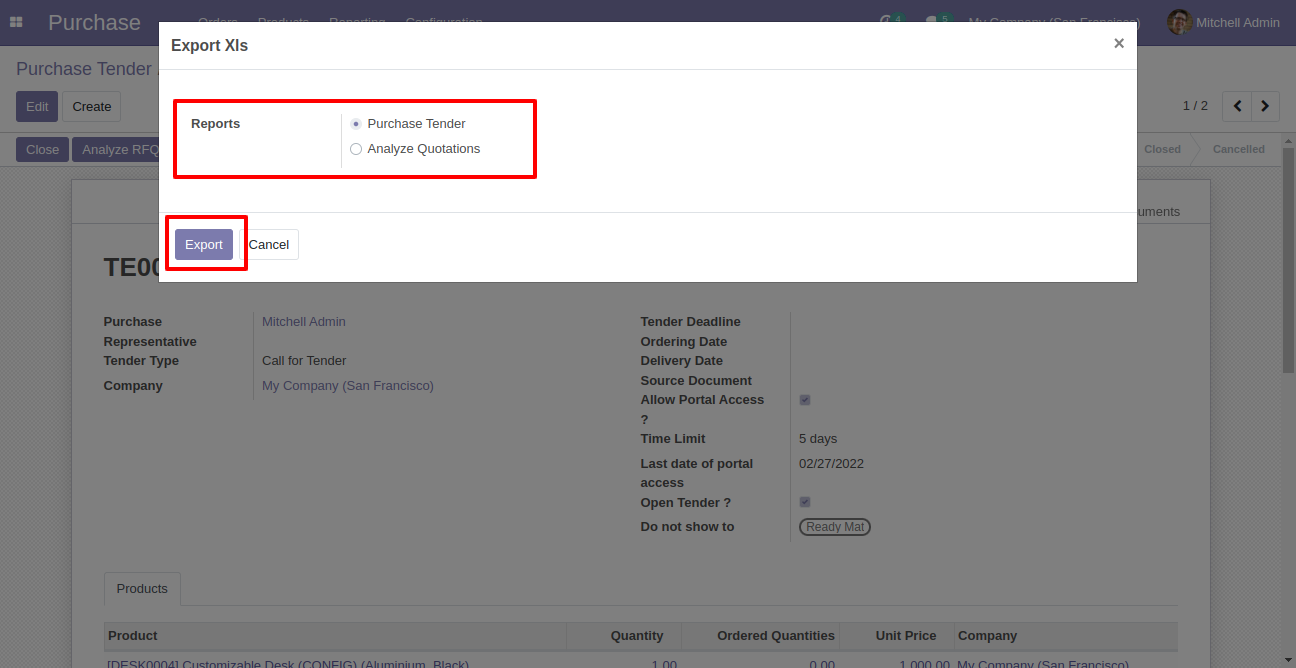
Select report and press "Export".
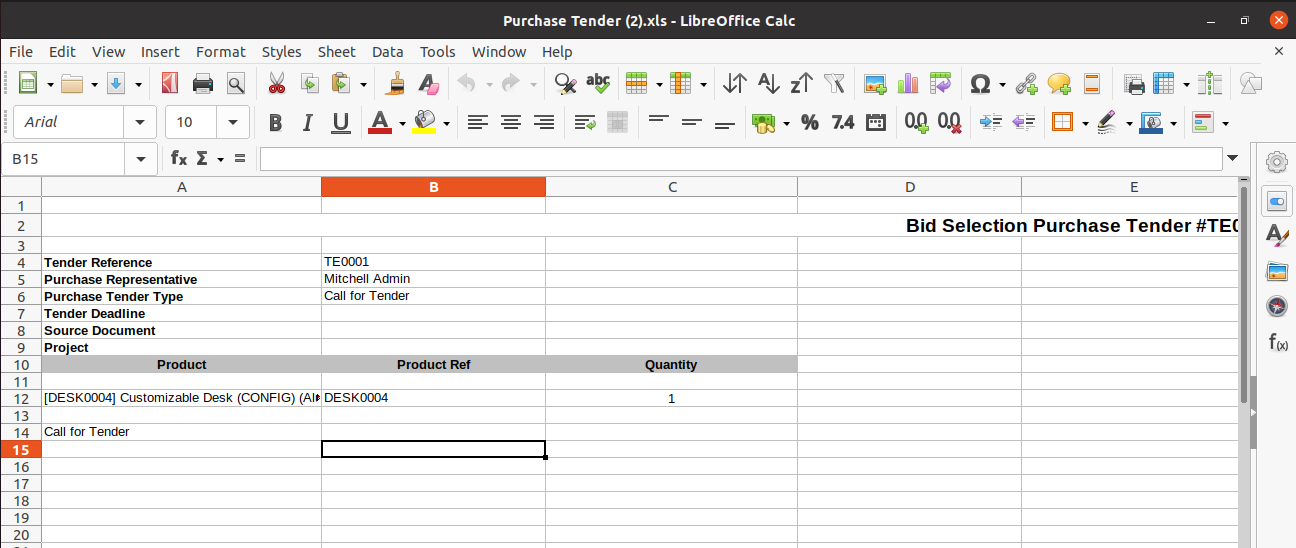
"Purchase Tender" XLS report looks like below.
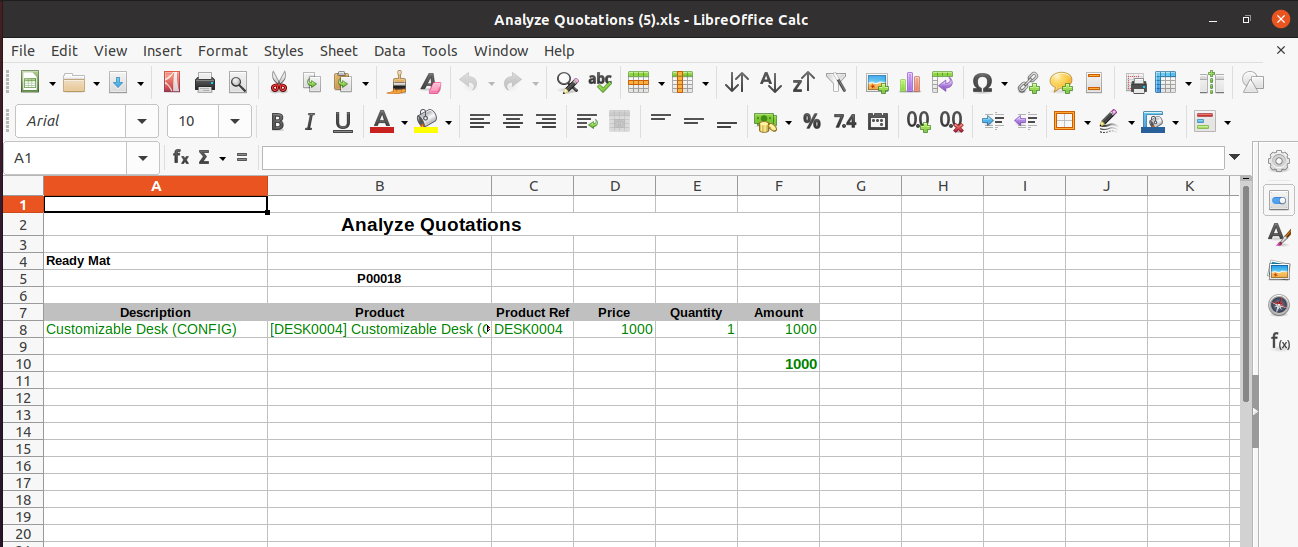
"Analyze Quotation" XLS report looks like below.
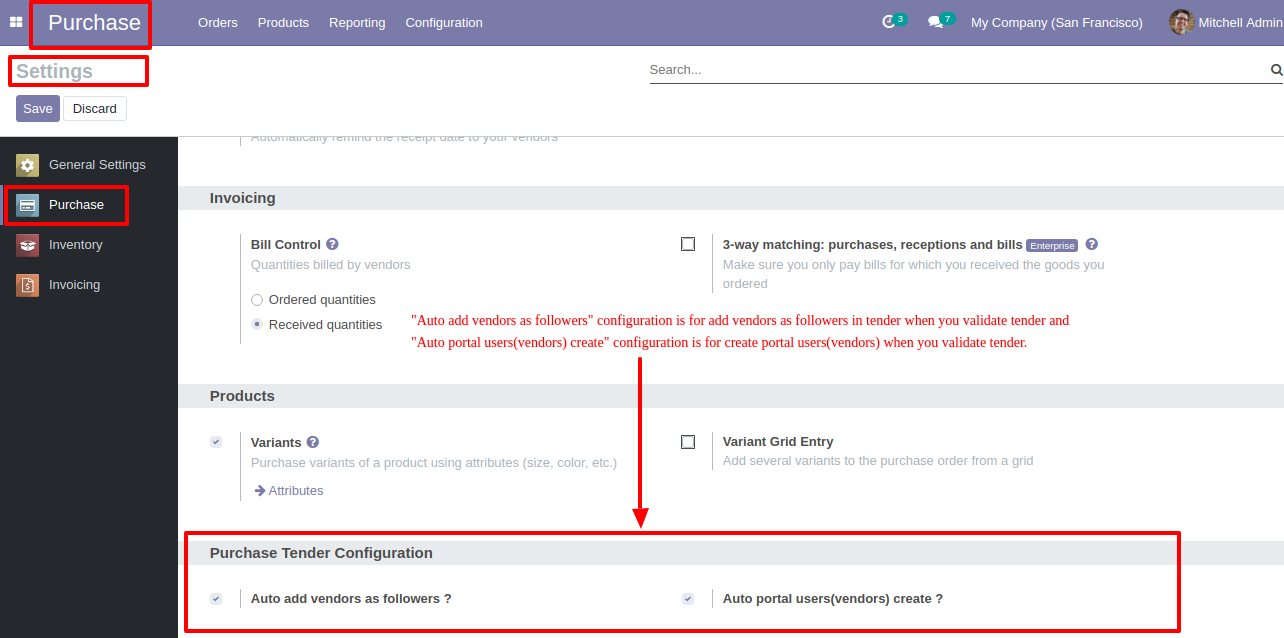
Configuration to add vendors as followers and create portal users(vendors).
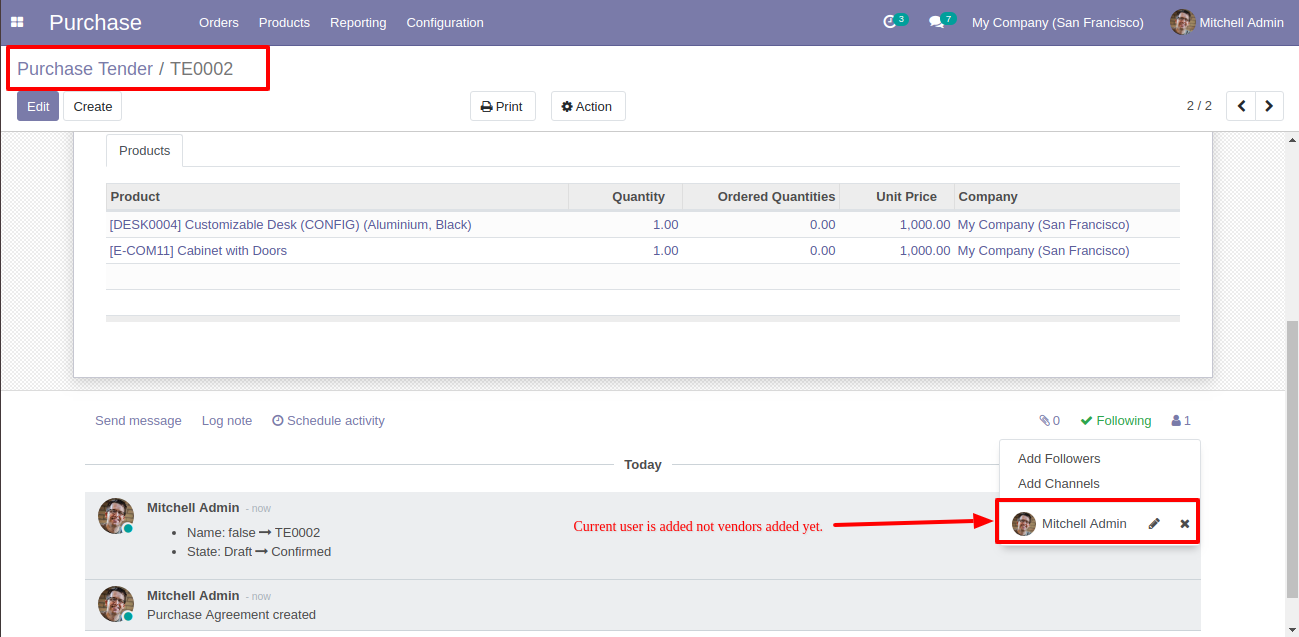
Currently, users(vendors) are not added as followers.
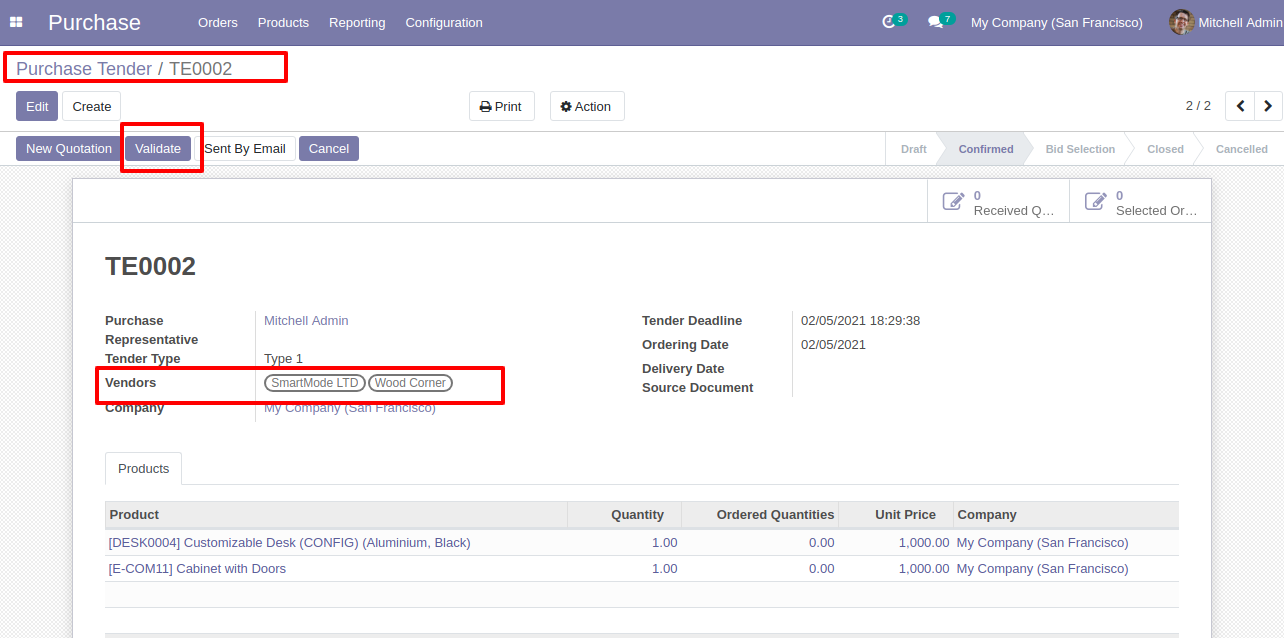
Now validate the tender.
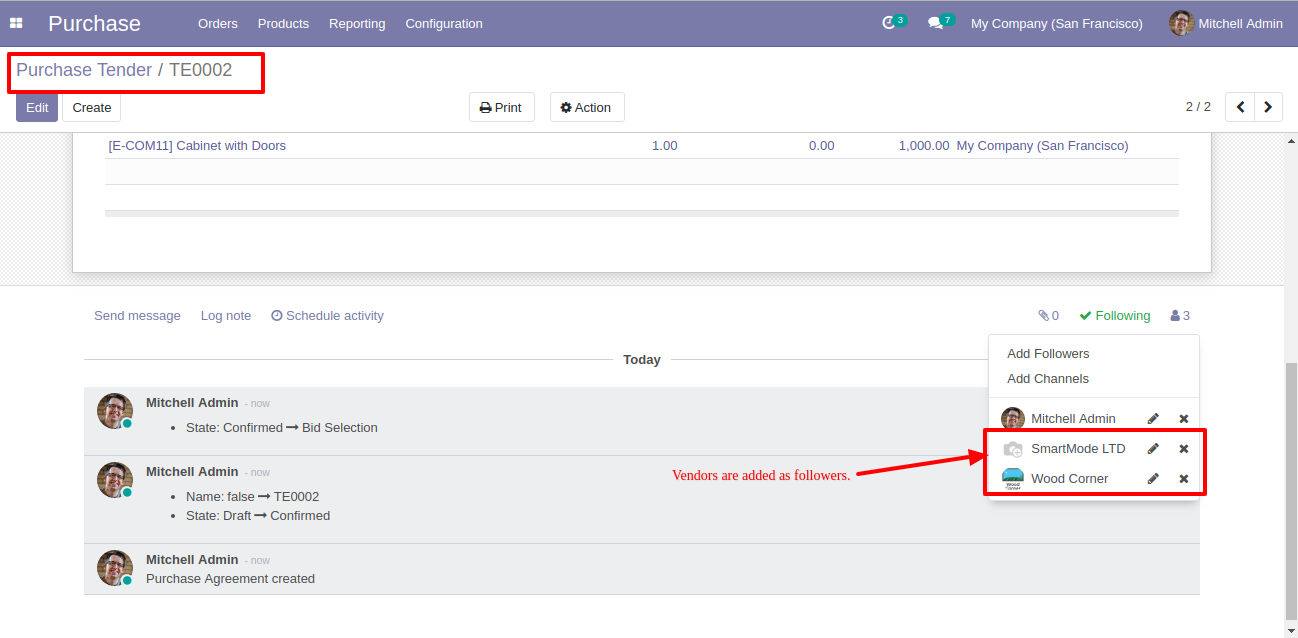
After validating the tender, vendors are added as followers.
Now we send the tender by email so press the "send by email" button.
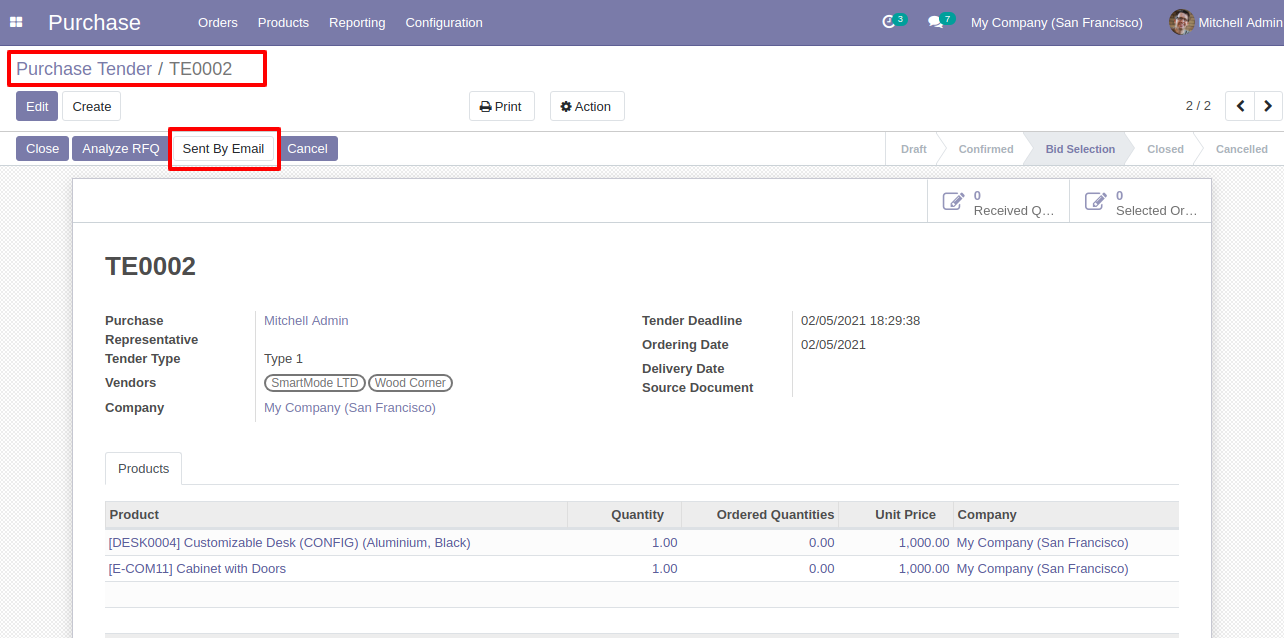
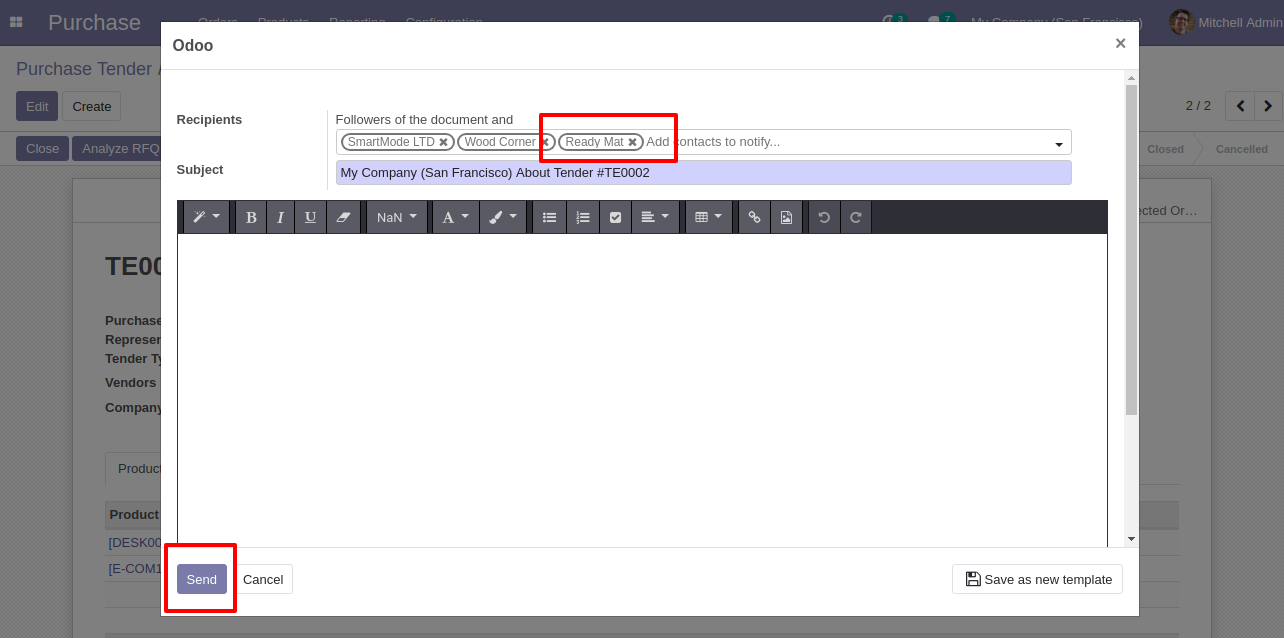
You can see recipients/vendors names.
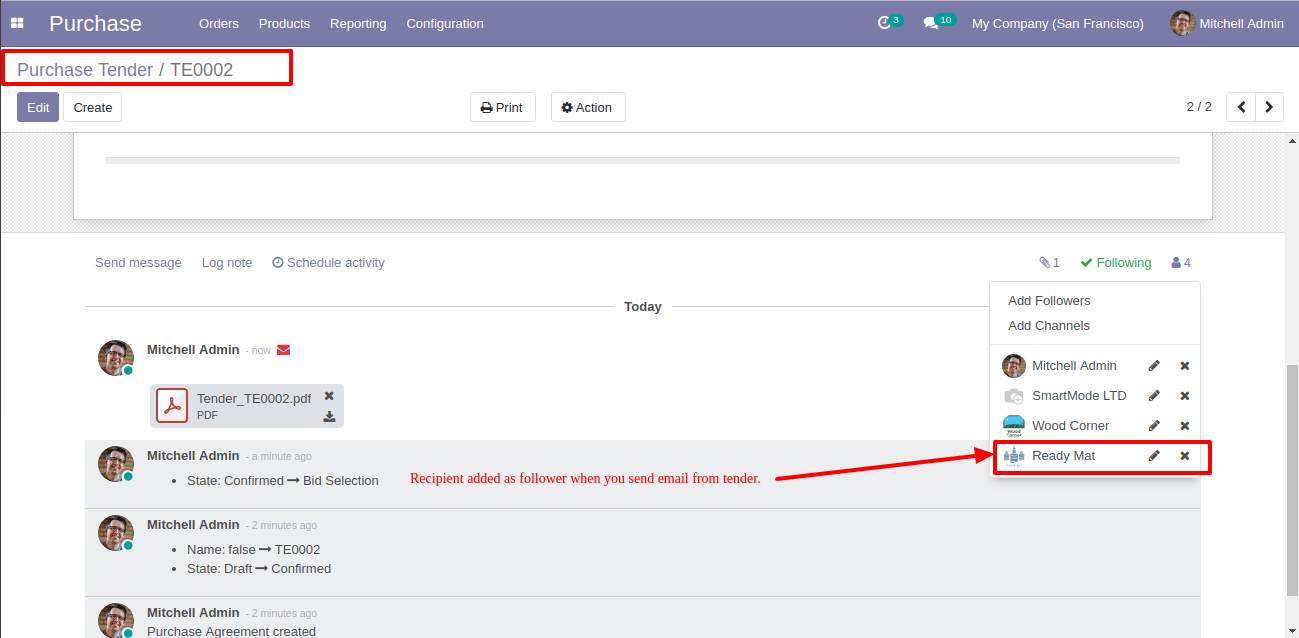
After sending the tender by email, vendors are added as followers.
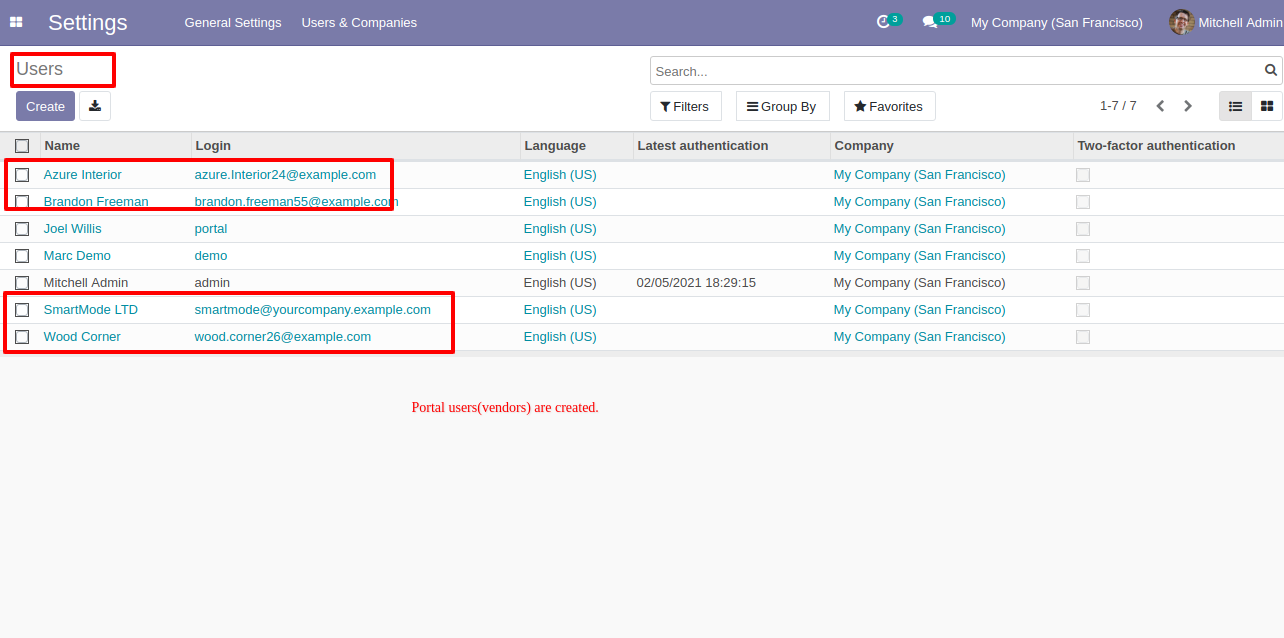
The portal users(vendors) created based on the configuration when validate the tender.
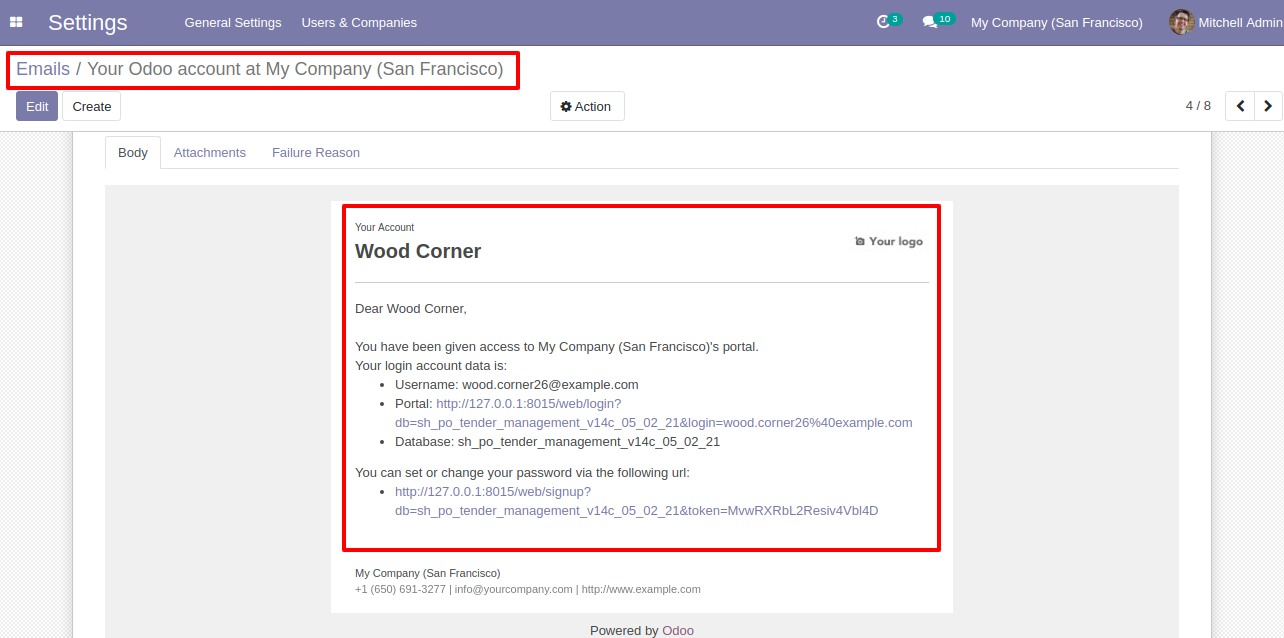
The vendors receive one email and link when creating vendors as a portal (users).
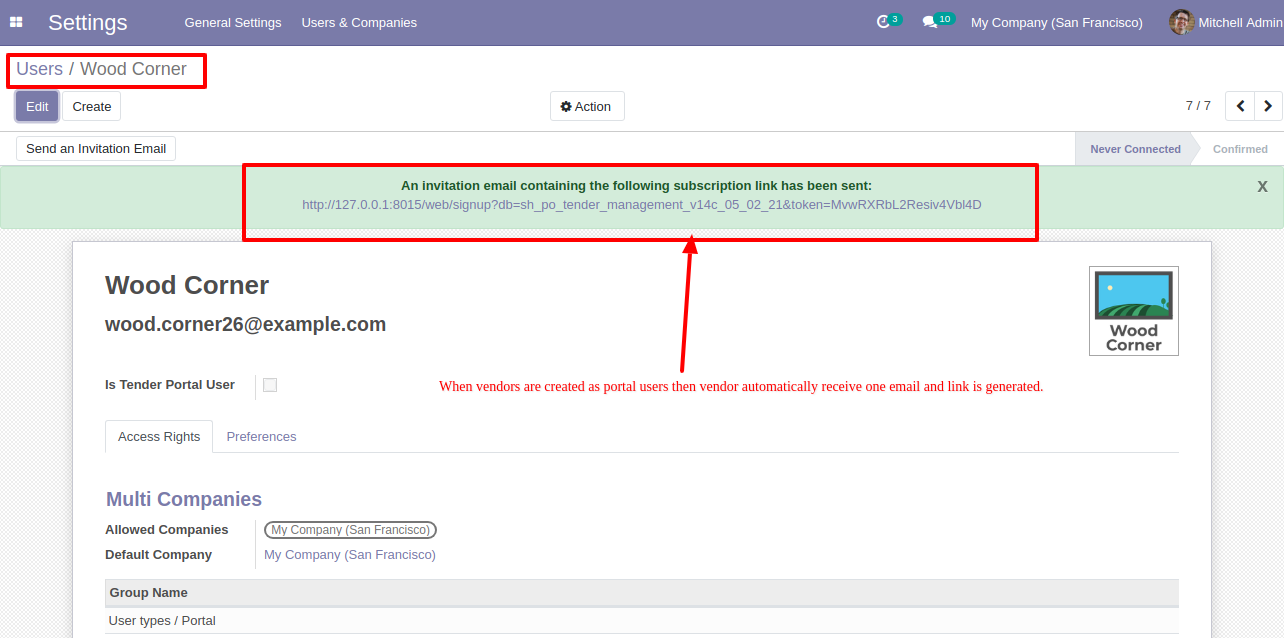
The vendors email with link for portal access.
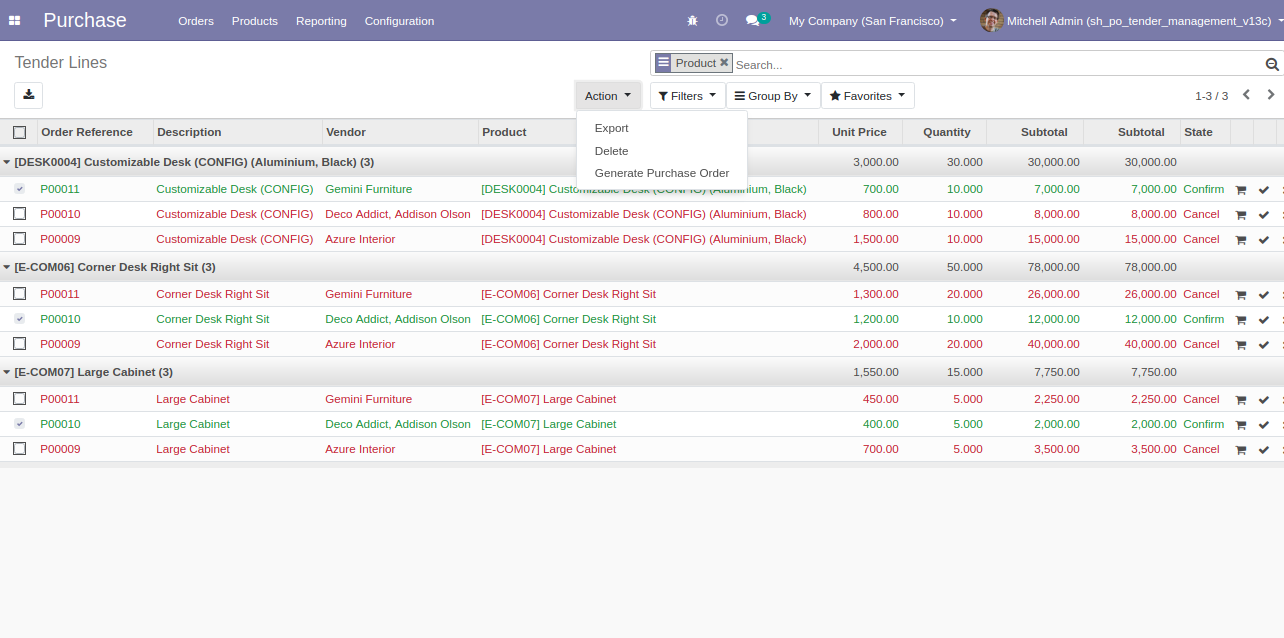
Select confirm RFQ and click 'Generate Purchase Order' to generate a purchase order.
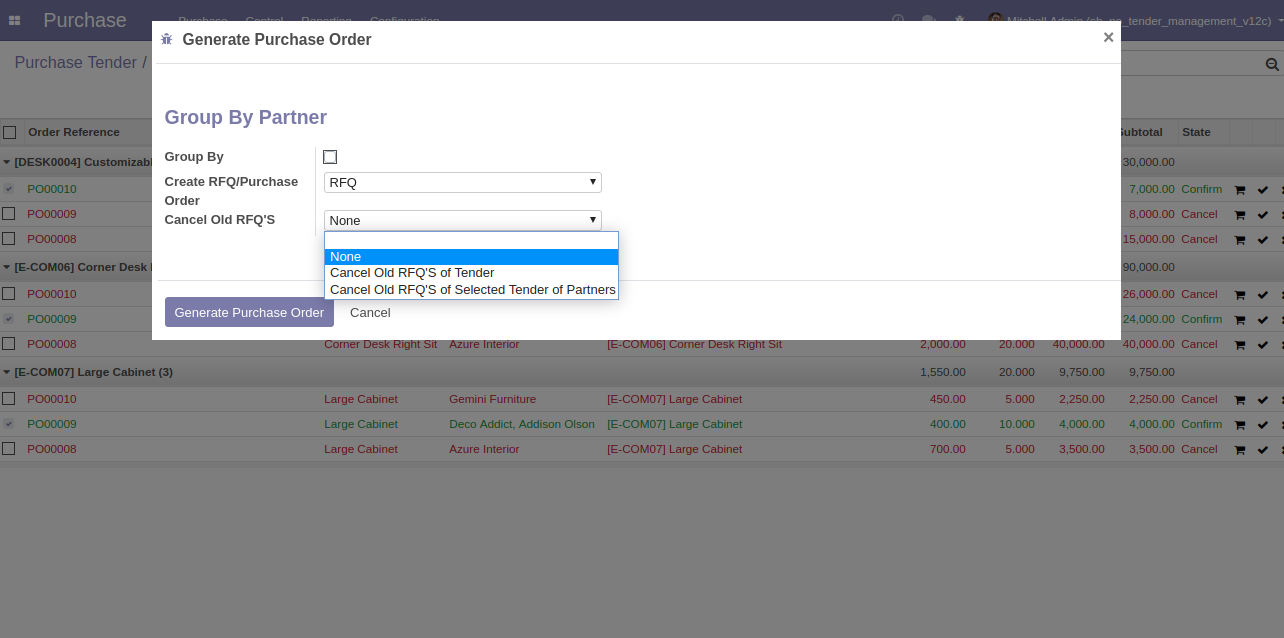
After click on 'Generate Purchase Order' from the action, this wizard will popup where you can group by partner, select RFQ/ purchase order & cancel old RFQ's.
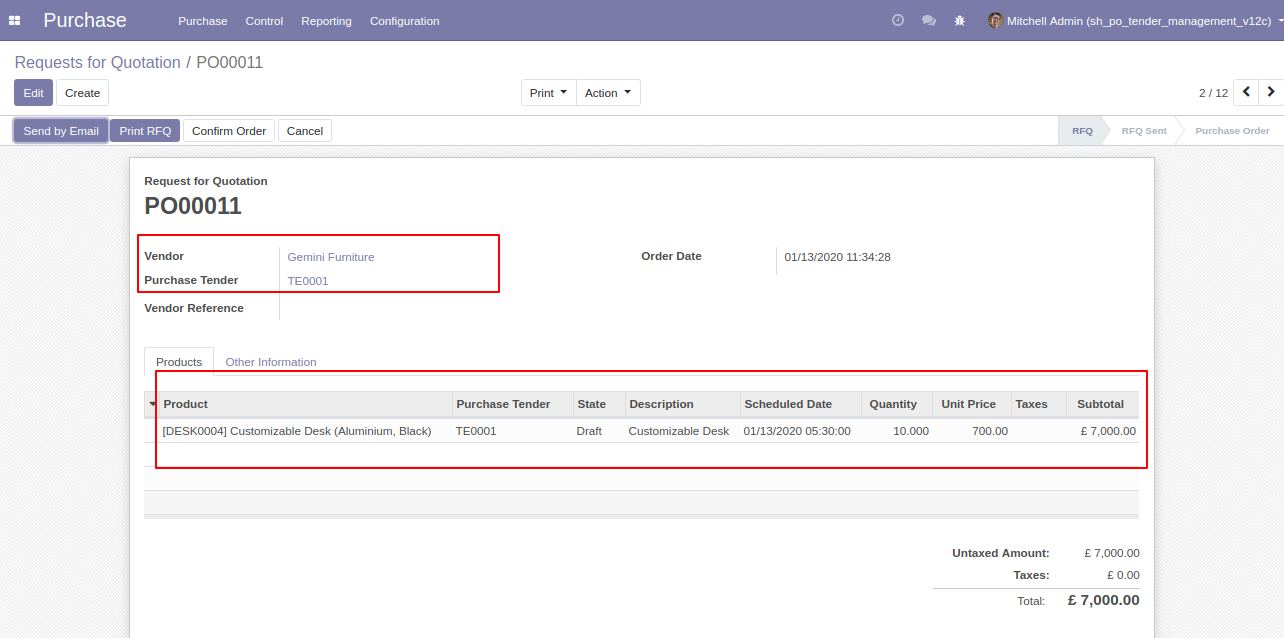
After clicking the 'Generate Purchase Order' purchase order will create with the group by the customer.
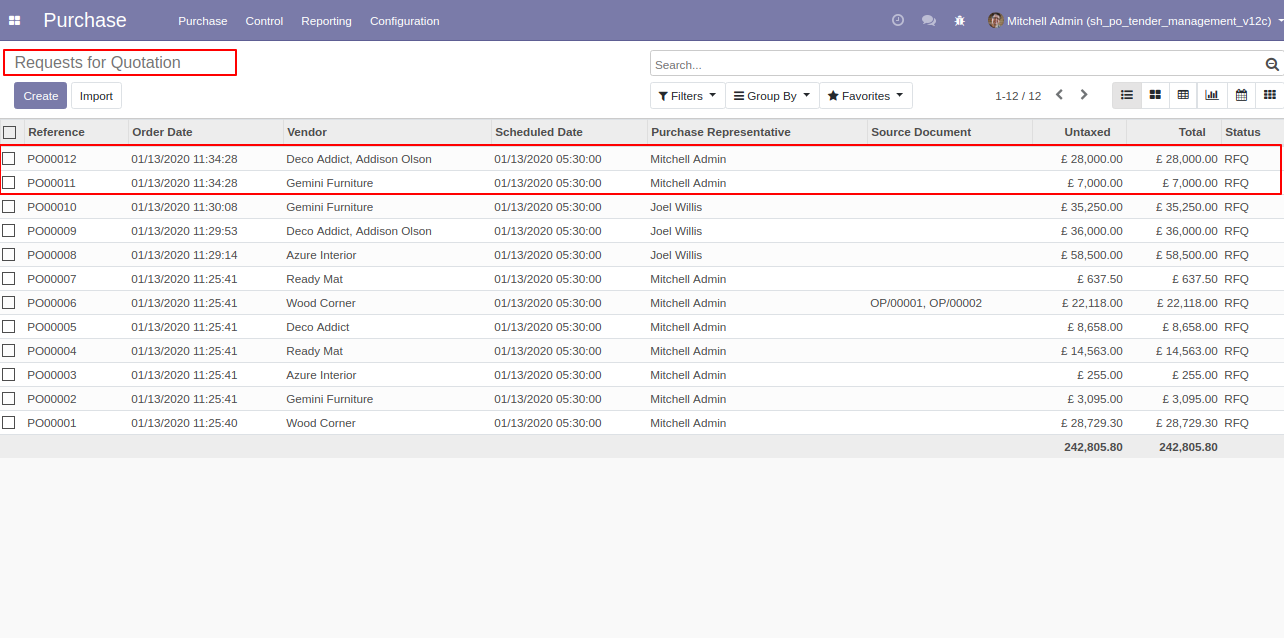
The same vendor's RFQ automatically merge.
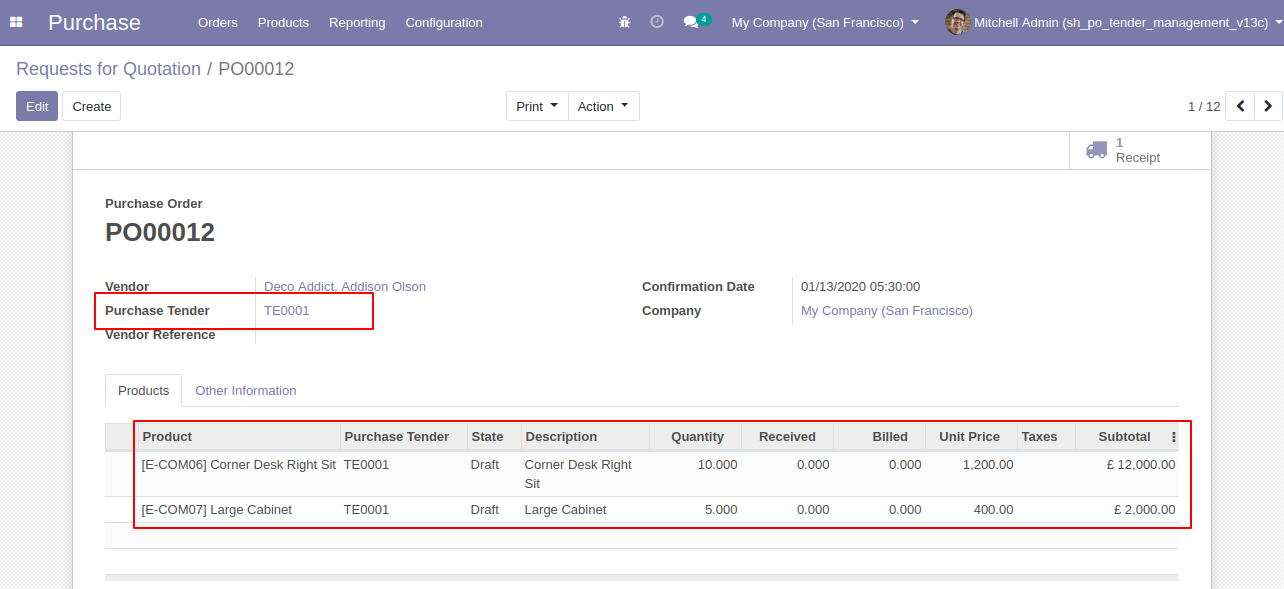
Unique vendor's RFQ will create a separate purchase order.
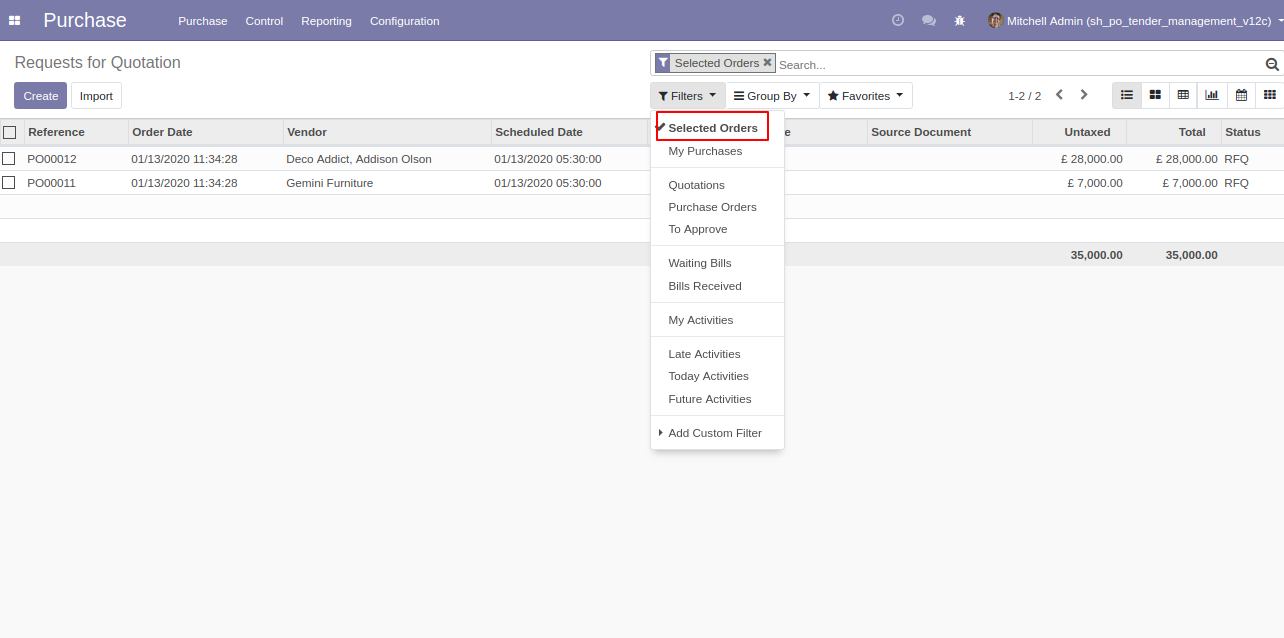
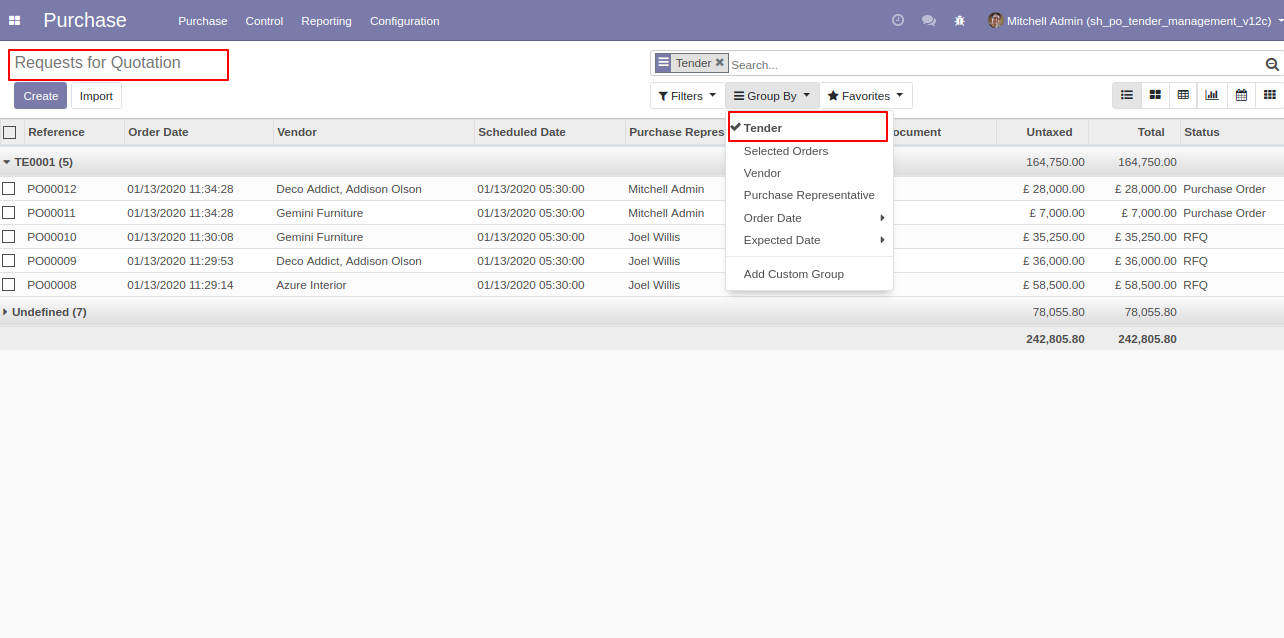
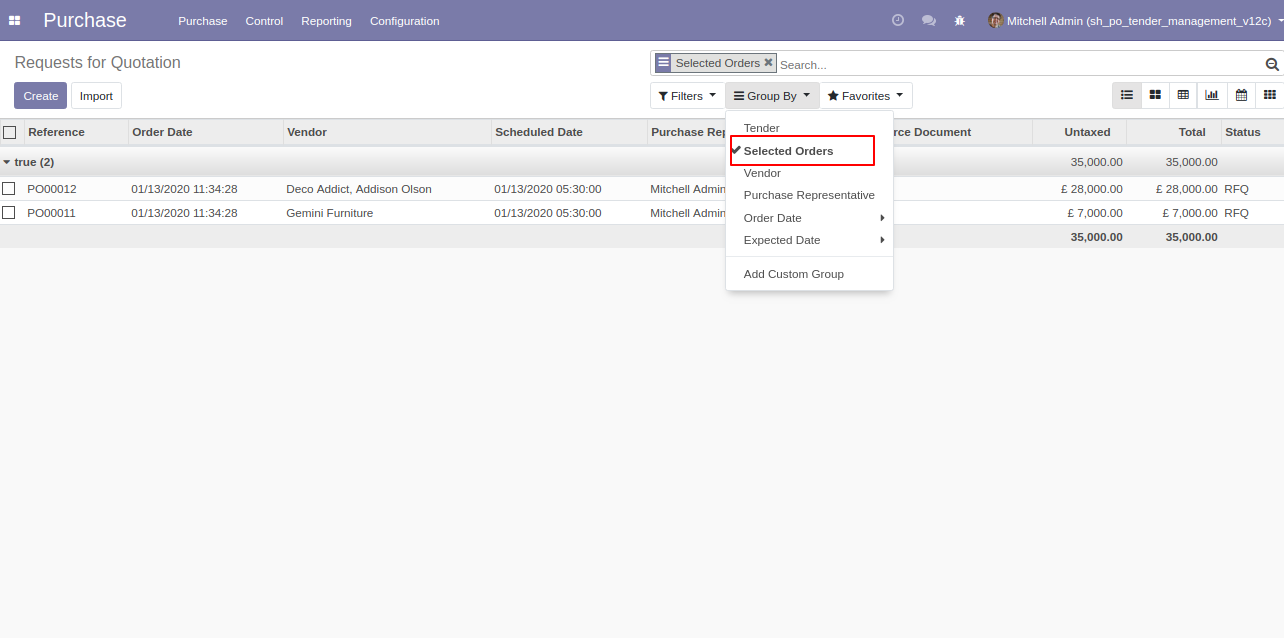
Filter RFQ by using 'Selected Orders' (that order which is selected in tender lines and make that purchase order).
Group RFQ by using 'Tender'.
Group RFQ by using 'Selected Orders' (that order which is selected in tender lines and make that purchase order).
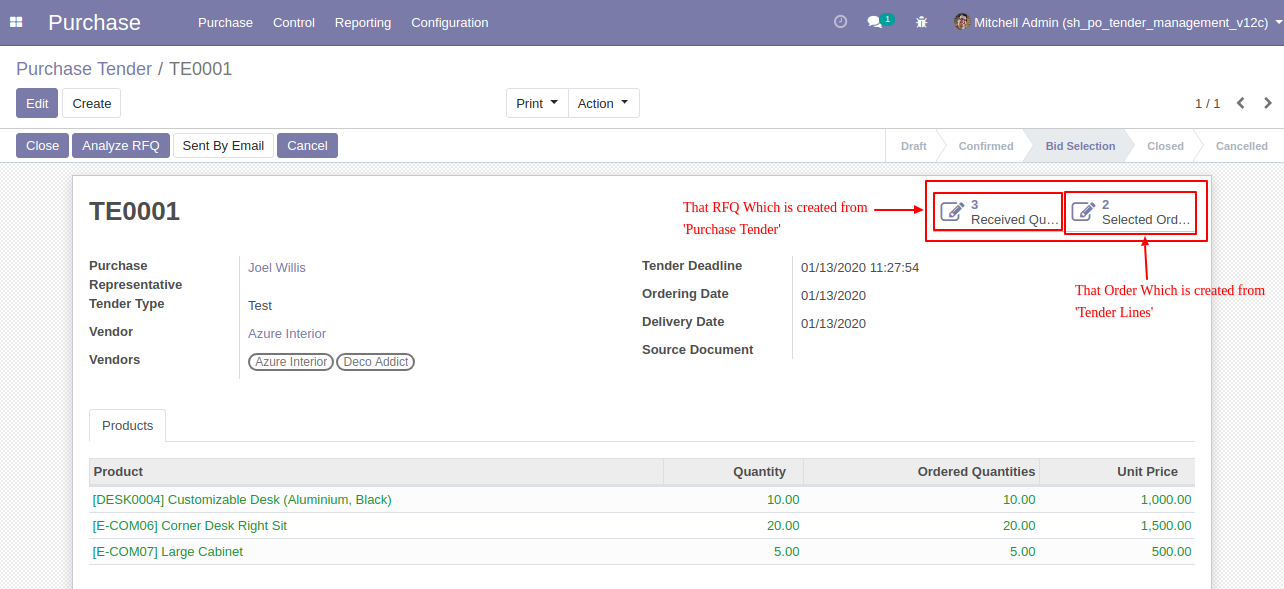
Two smart buttons in purchase tender 1) REceived Quotation 2) Selected Order.
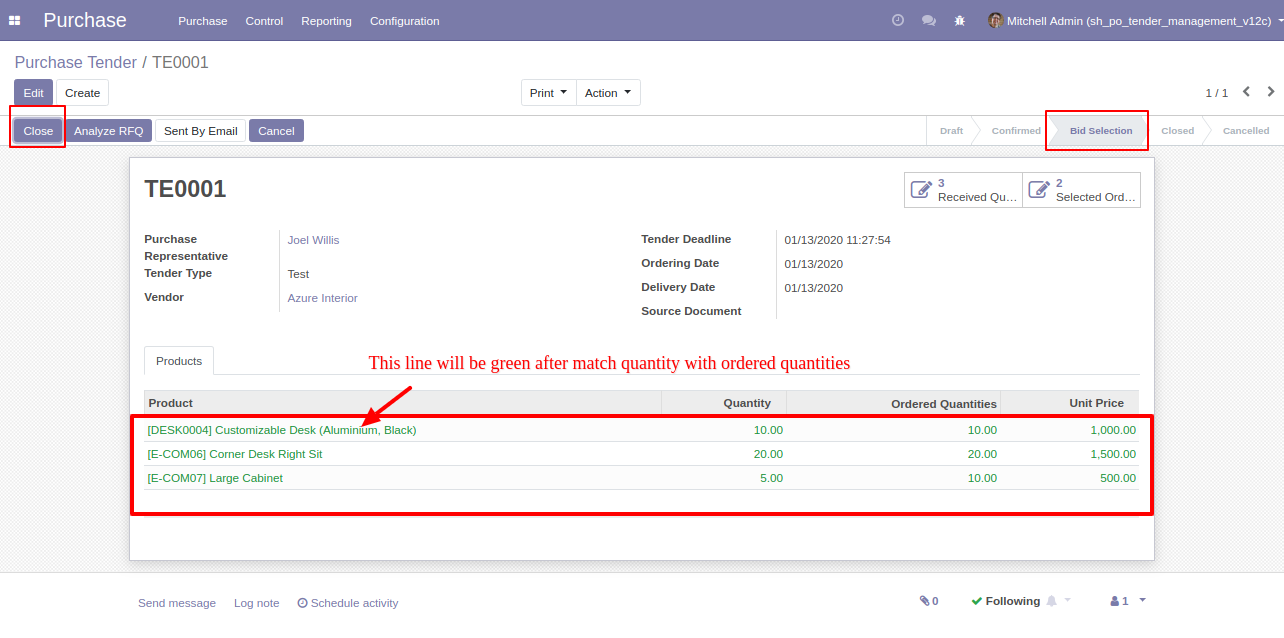
After 'Analyze RFQ' and make a final purchase order as you can see the product line will come green. If you want to close that purchase tender so click 'Close'.
You want to Cancel that purchase tender so click 'Cancel'.
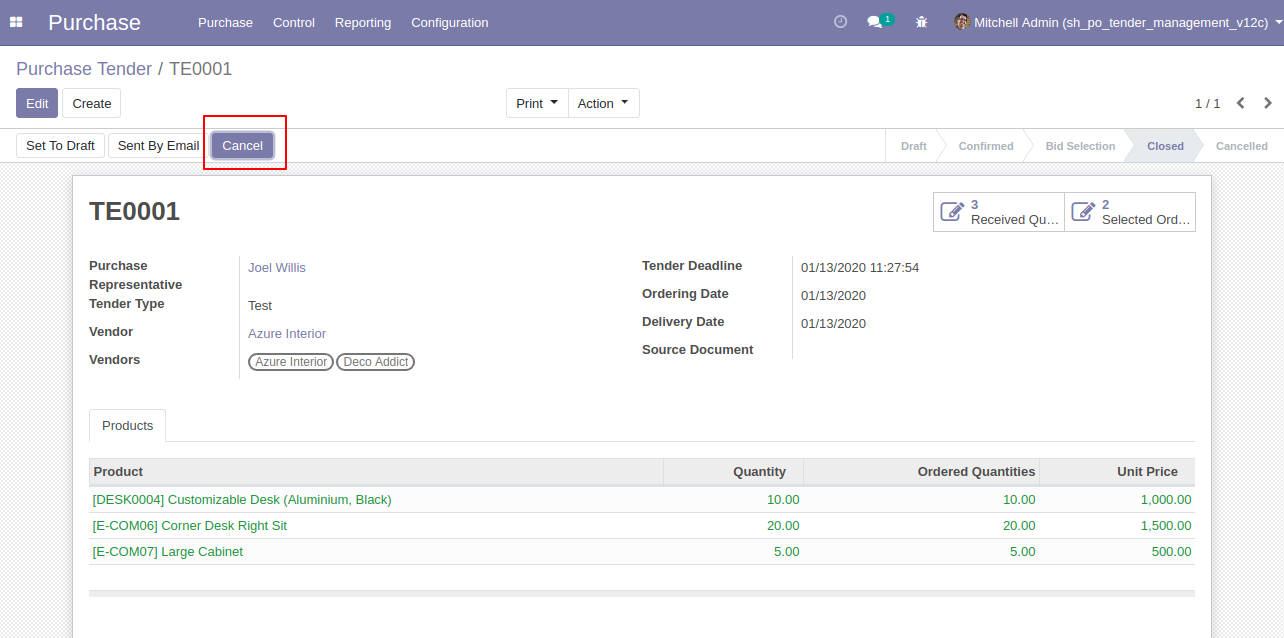
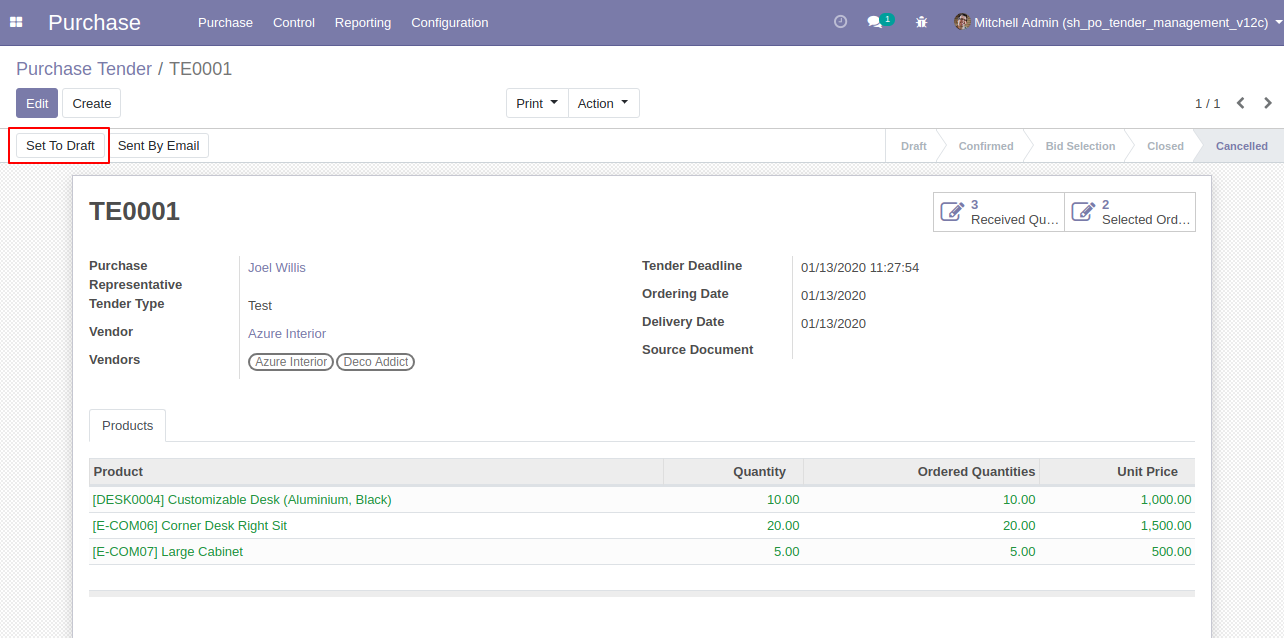
After clicking the 'cancel' button that purchases tender will set in 'Cancelled' state, if you want to set back to 'Draft' so click 'Set to Draft'.
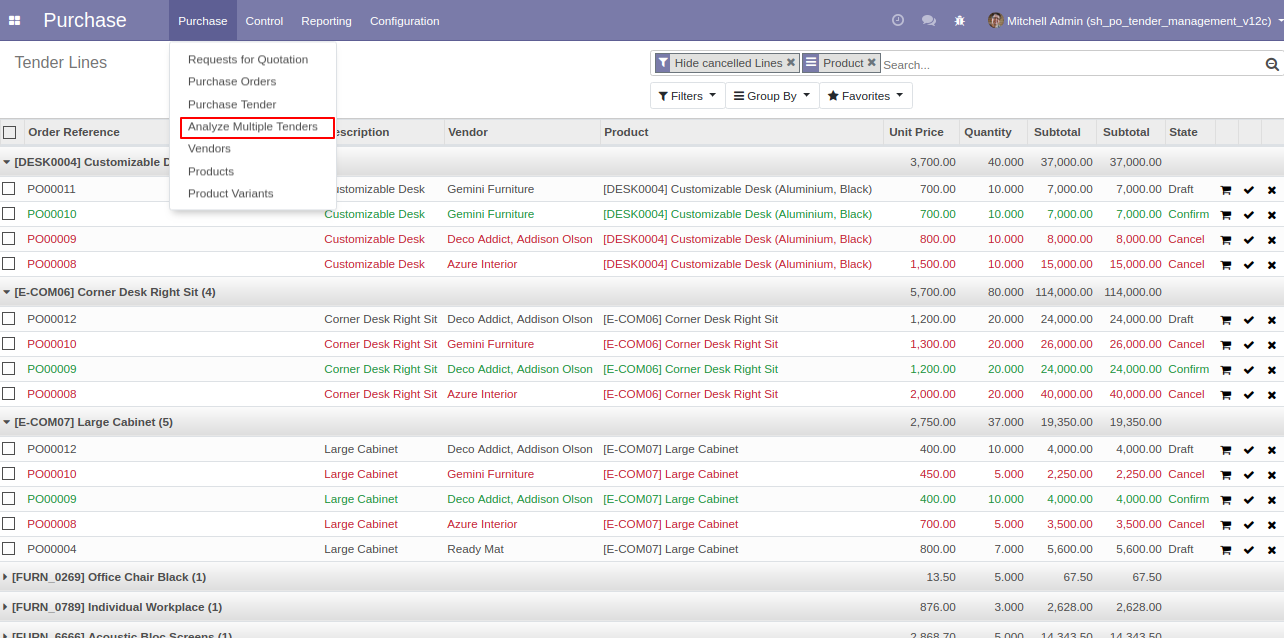
You can analyze purchase tenders from the 'Analyze Multiple Tender' menus.
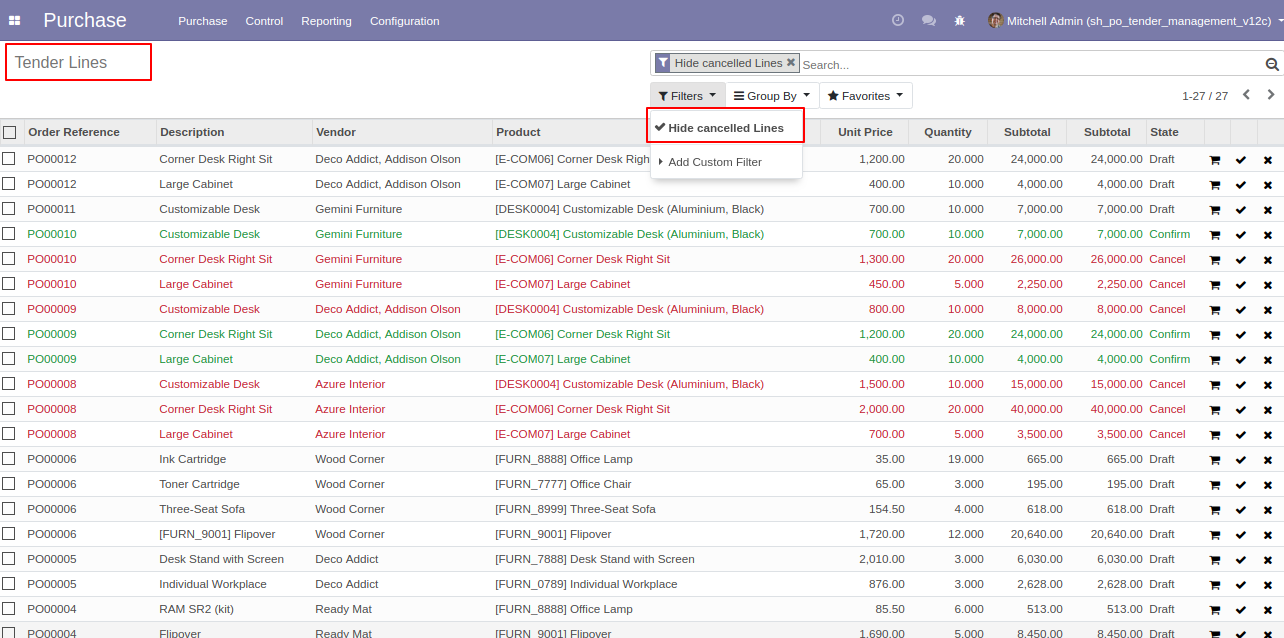
Filter Tender Lines by using 'Hide Cancel Line' to hide cancel lines from the list.
'Send By Email' to send purchase tender to your partner's email directly. After click 'Sent By Email' this wizard will popup.
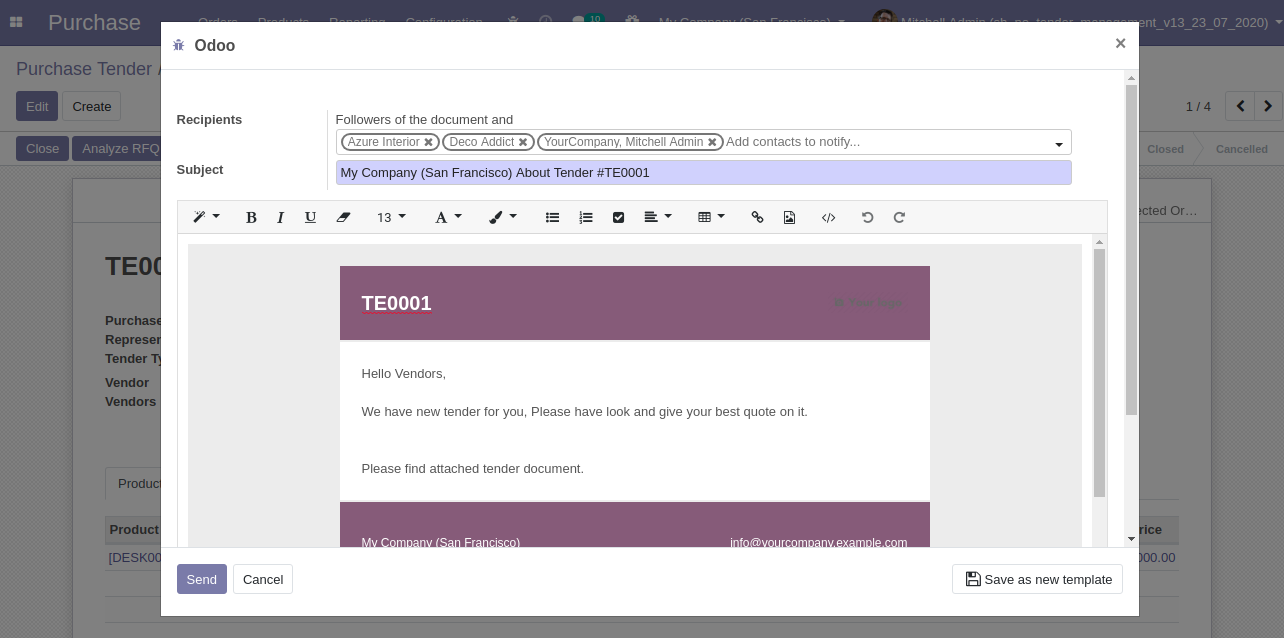
Tender pdf automatically attached to the email.
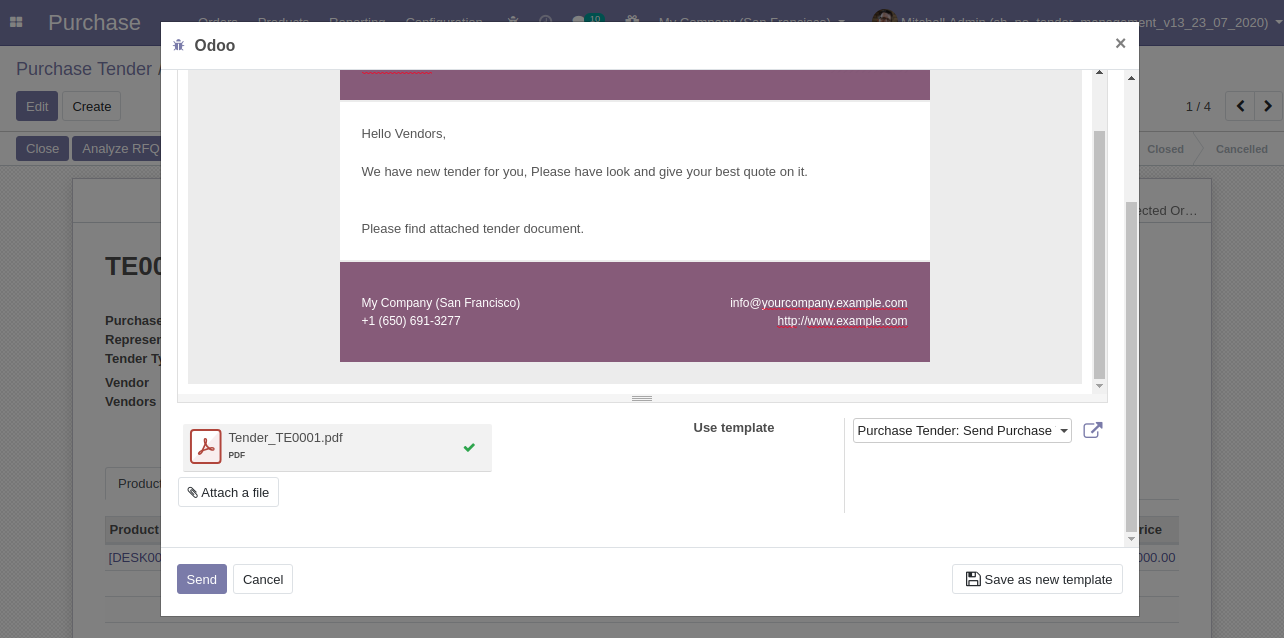
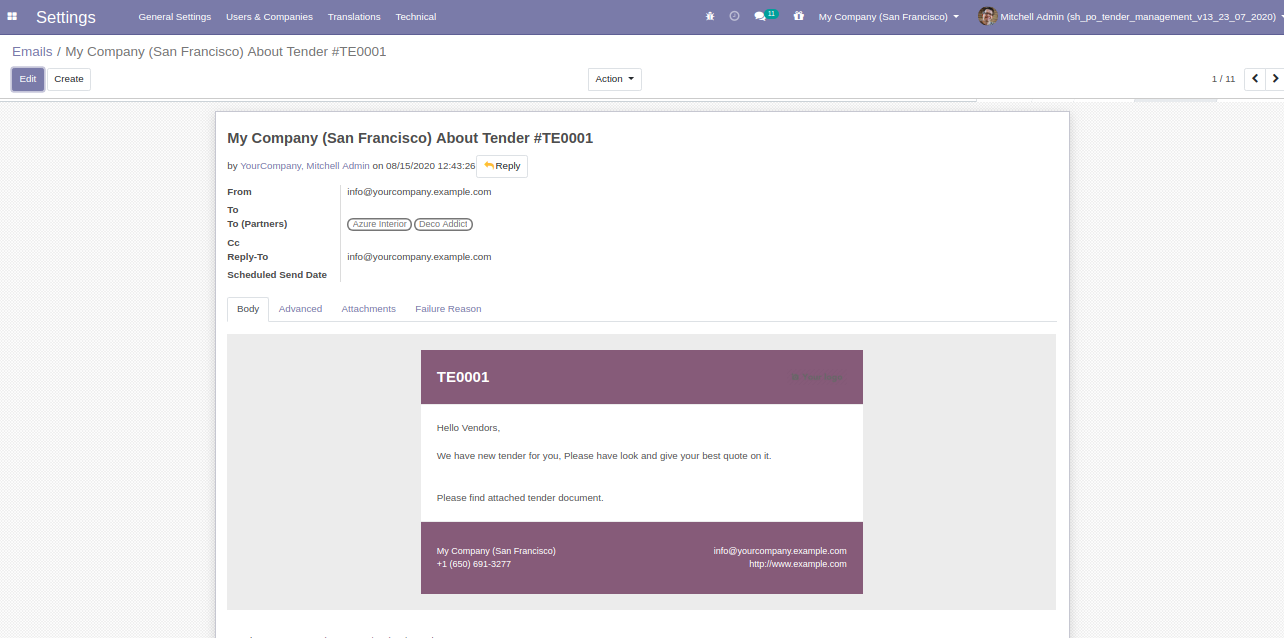
Email send to partners.
For print Purchase tender PDF report.
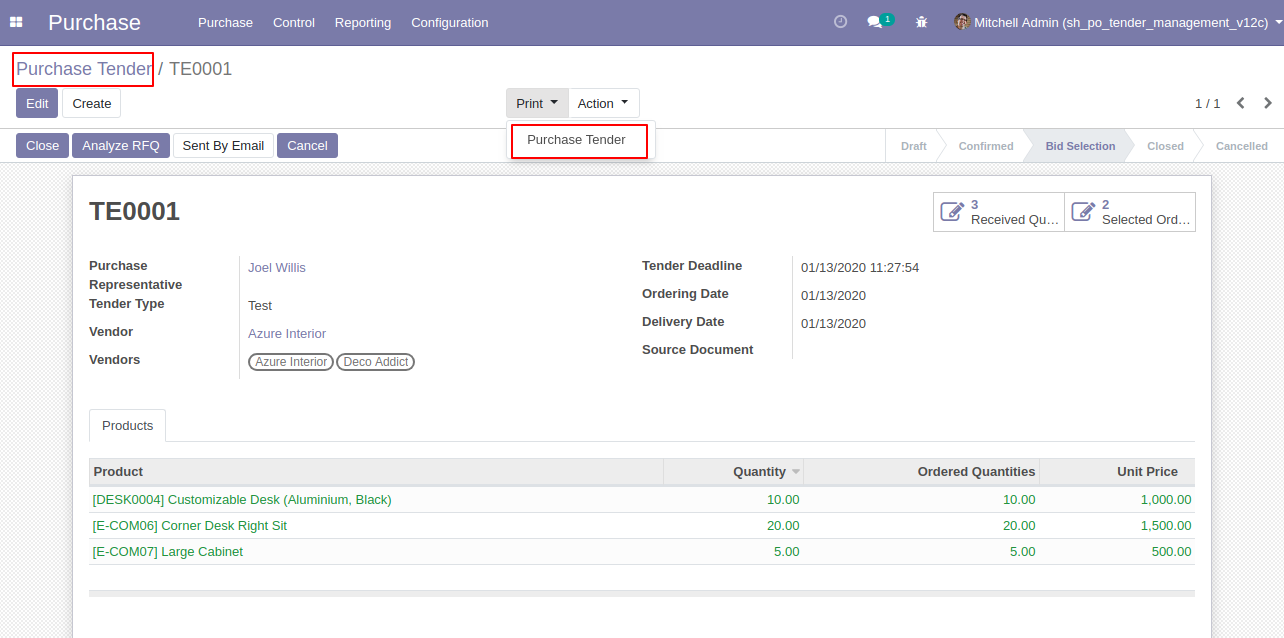
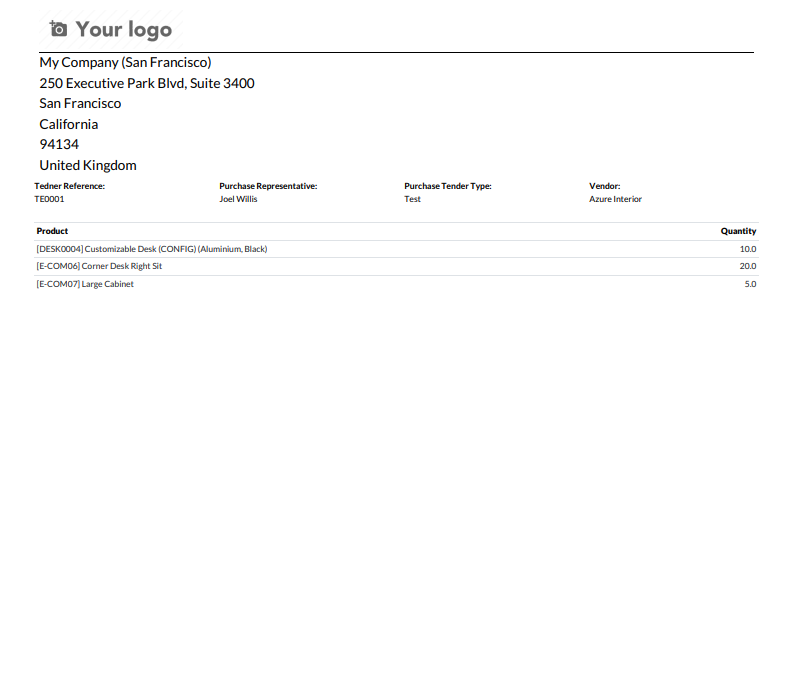
Purchase Tender PDF Report.
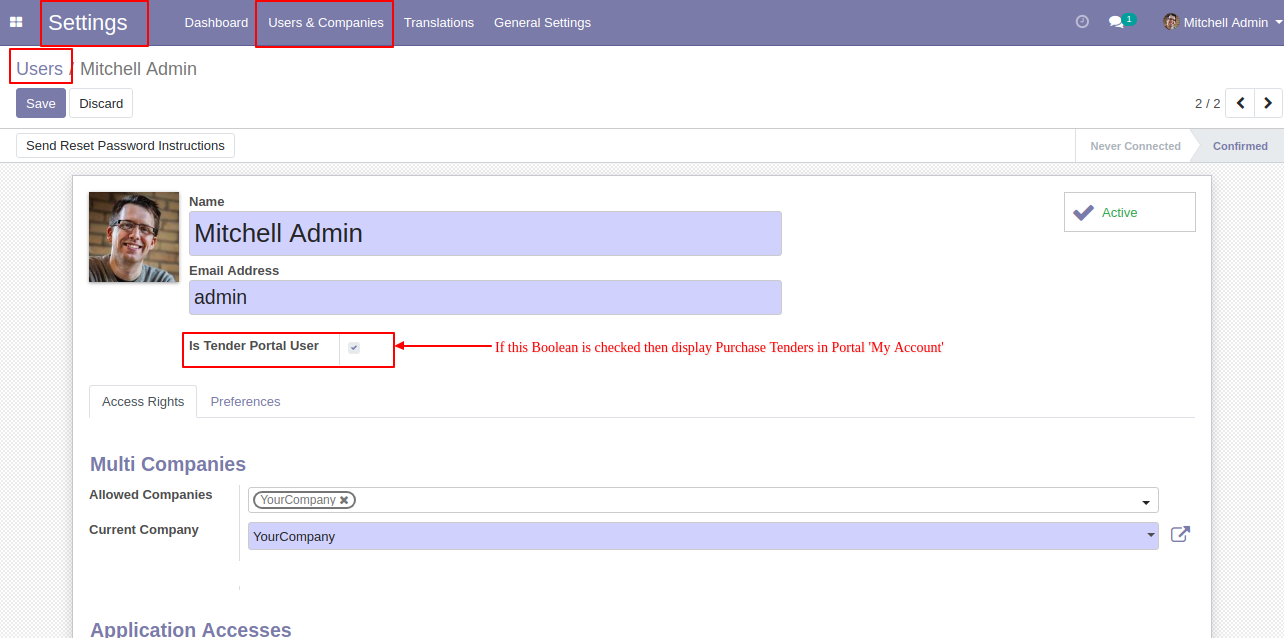
"Is Tender Portal User" checked then it displays purchase tender in my account portal.
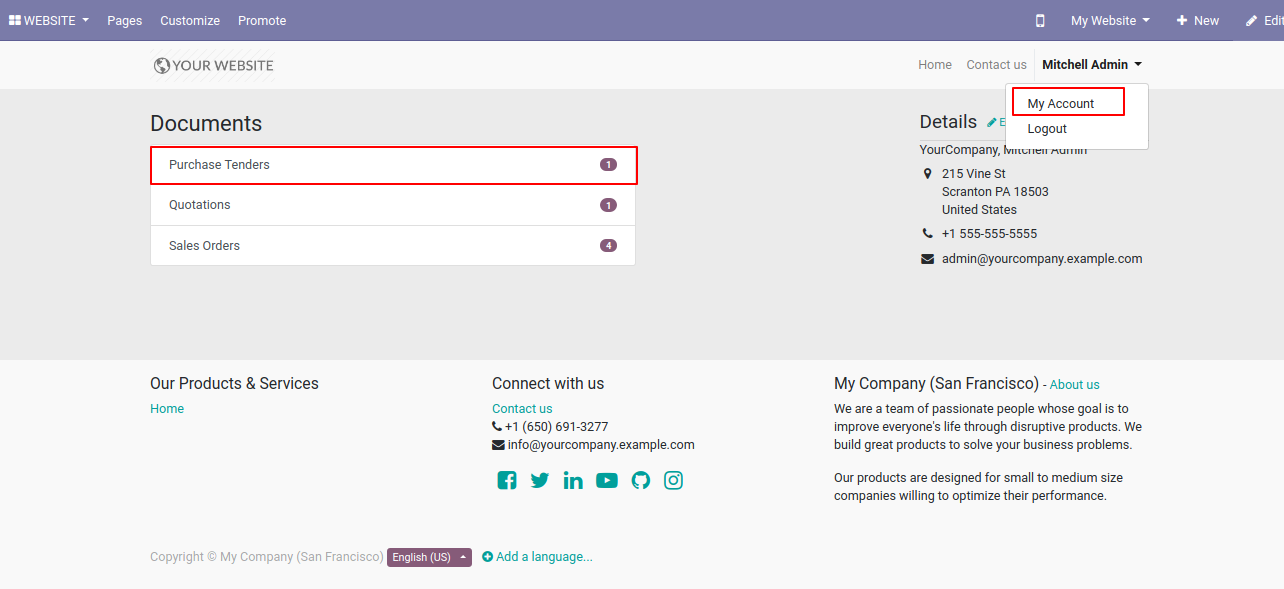
In my account select purchase tenders.
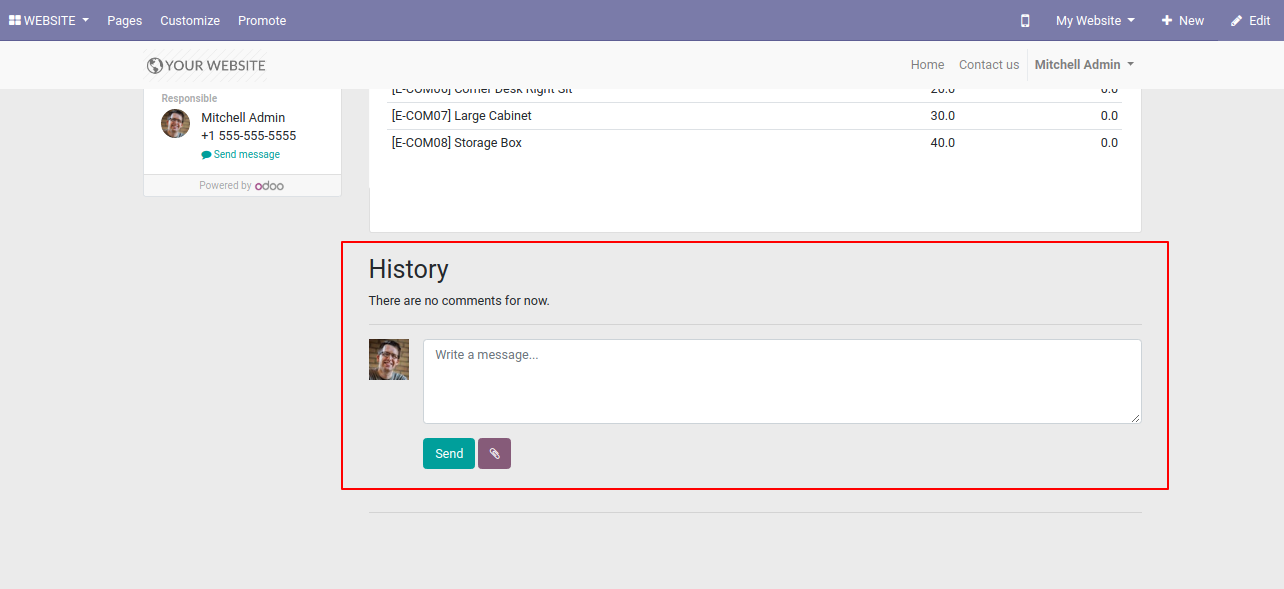
You can communicate in the chatter.
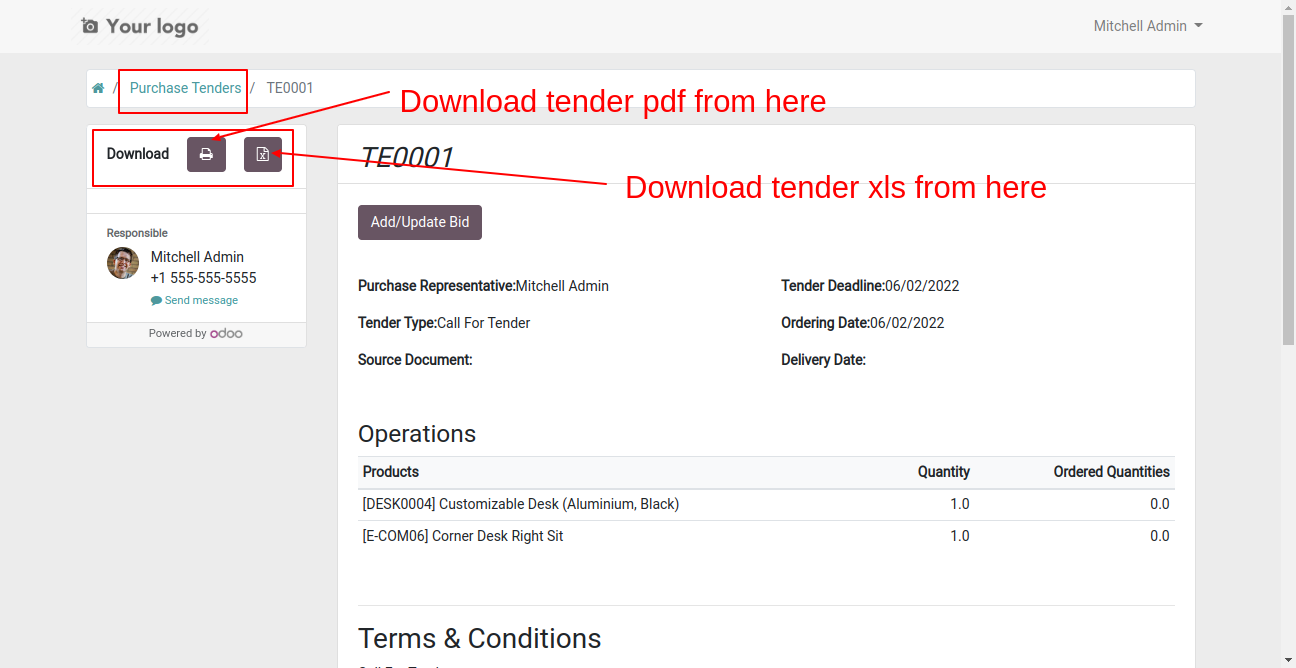
Click that button in the purchase tender to print PDF/XLS report.
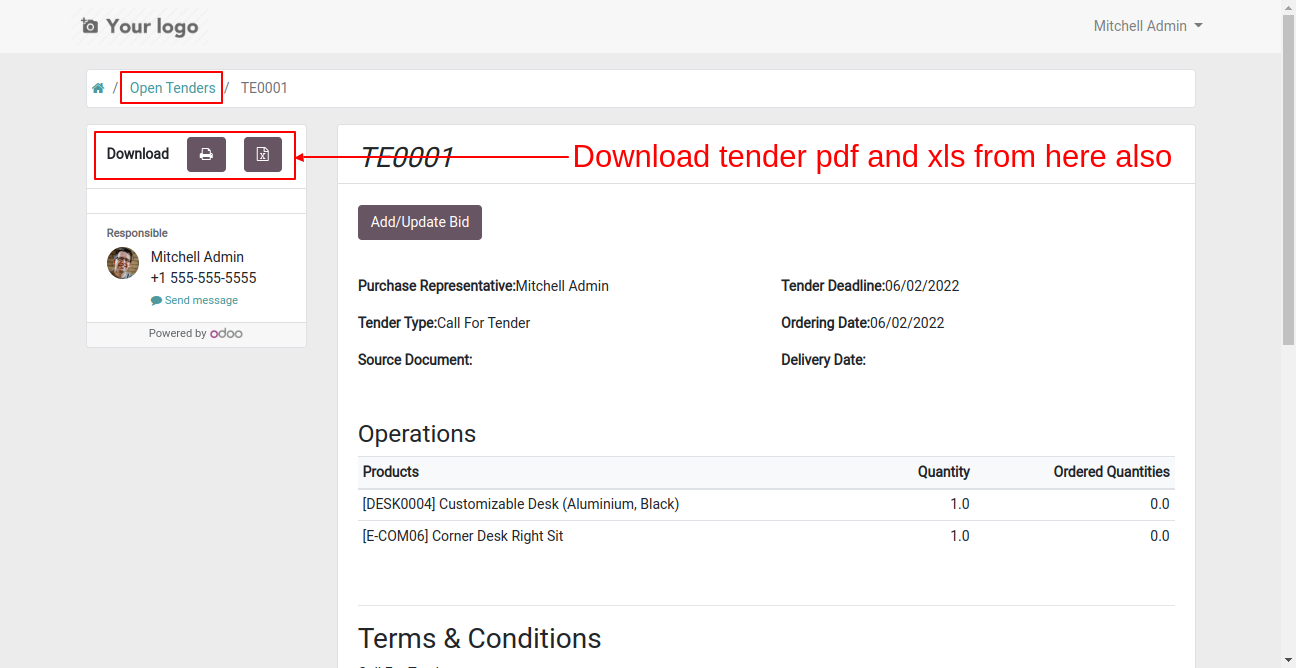
Click that button in the open tender to print PDF/XLS report.
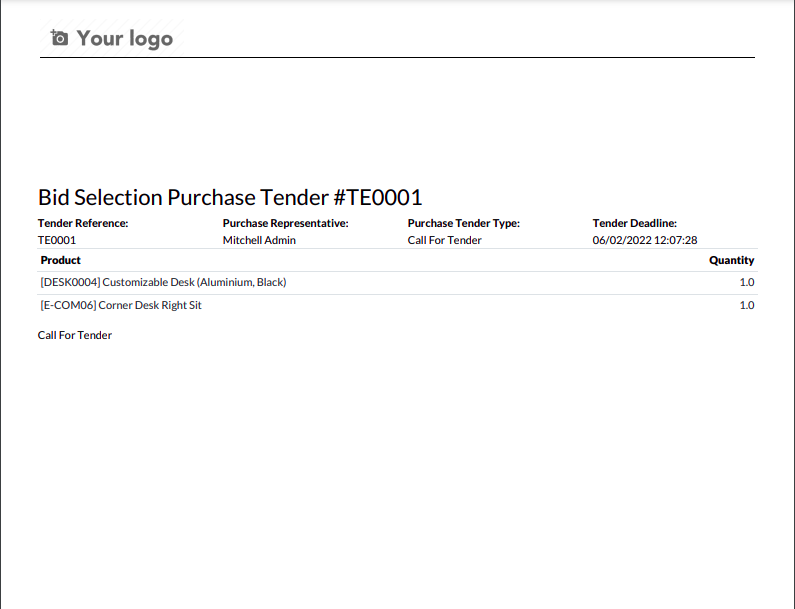
PDF report looks like this.
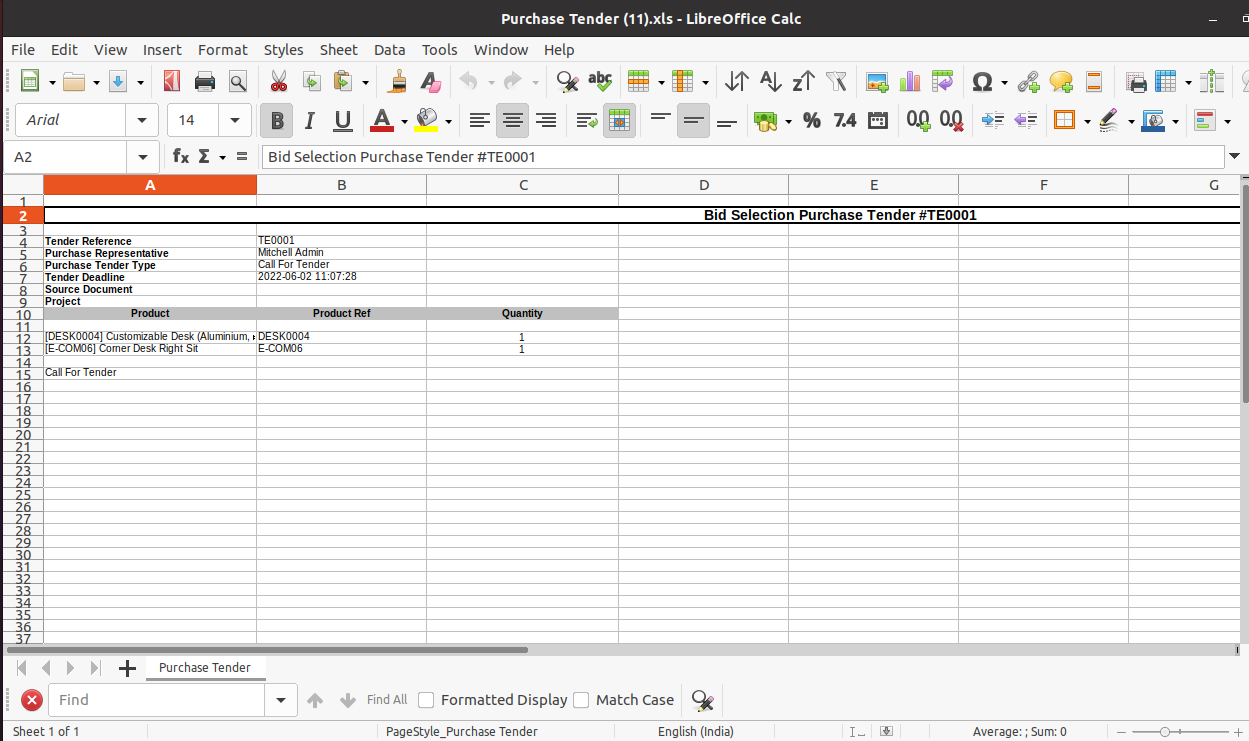
XLS report looks like this.
In my account select RFQ (Request For Quotation).
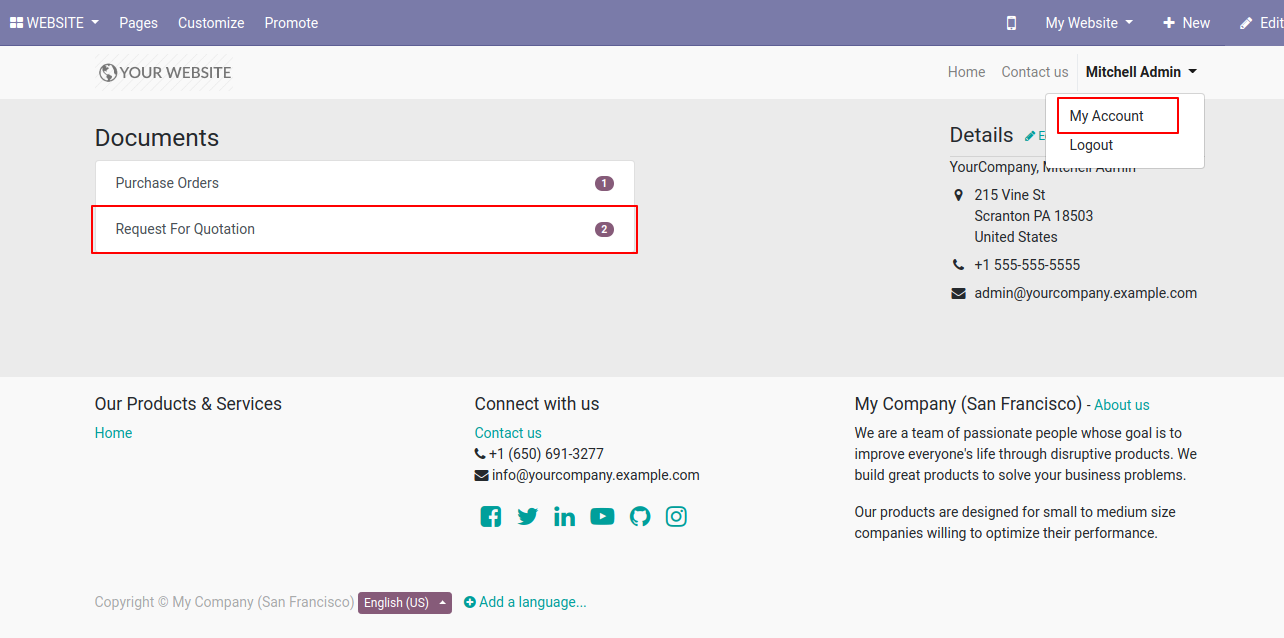
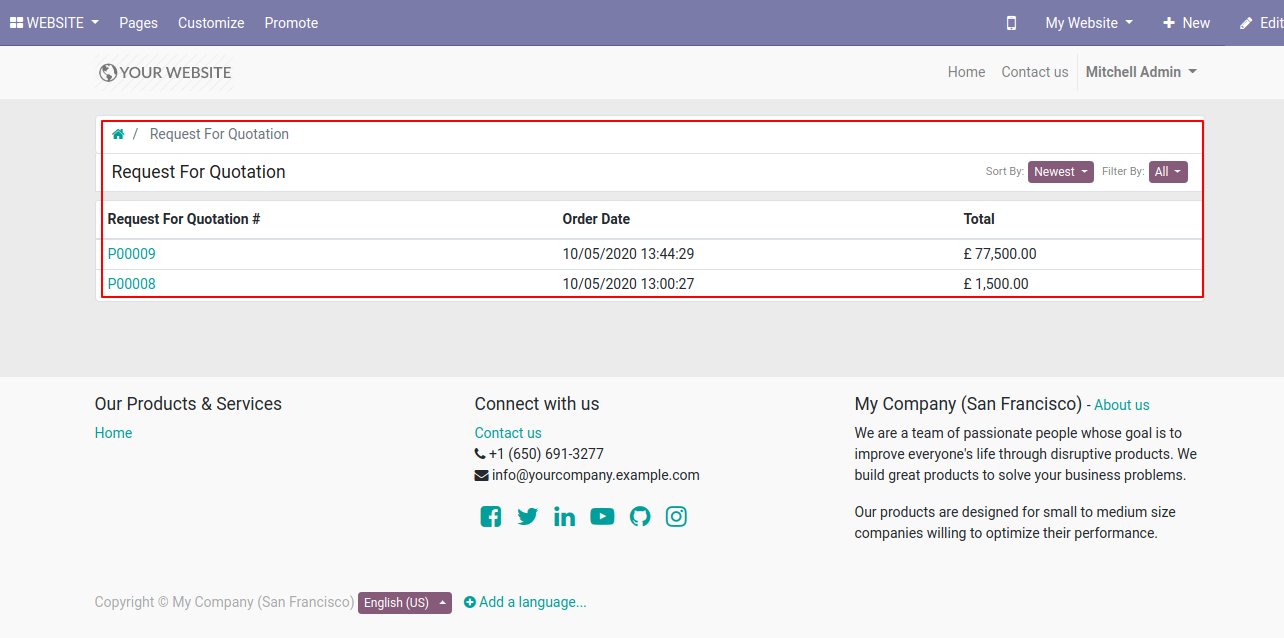
RFQ portal list view.
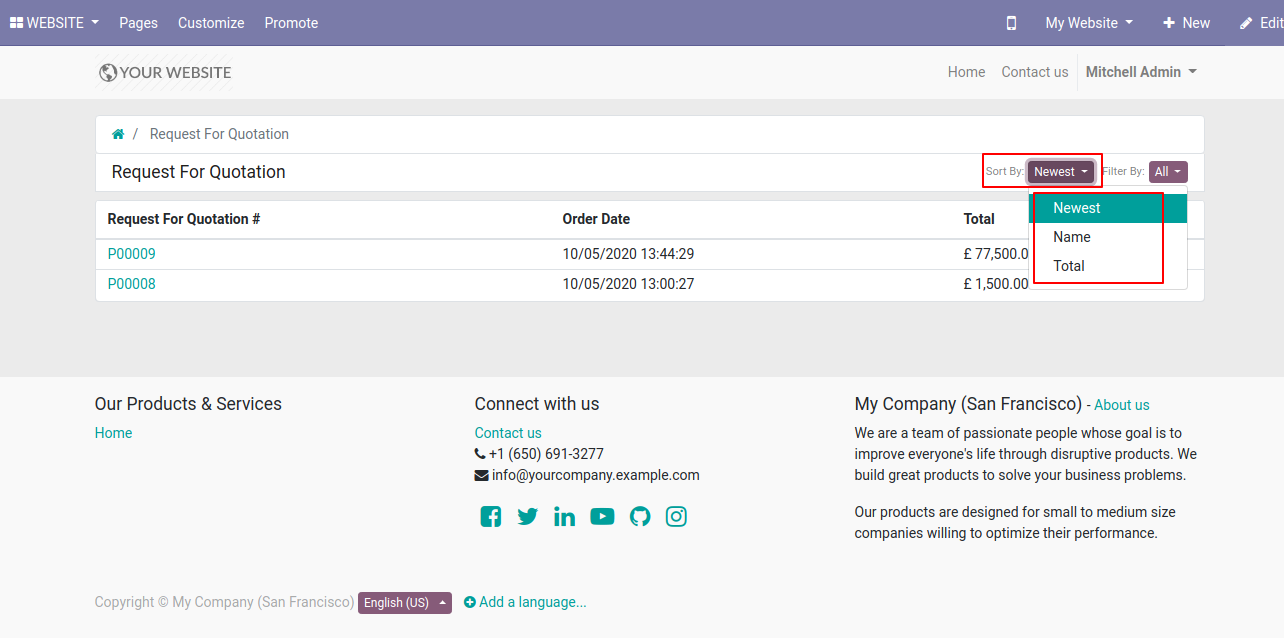
You can sort by RFQ by newest, name & total.
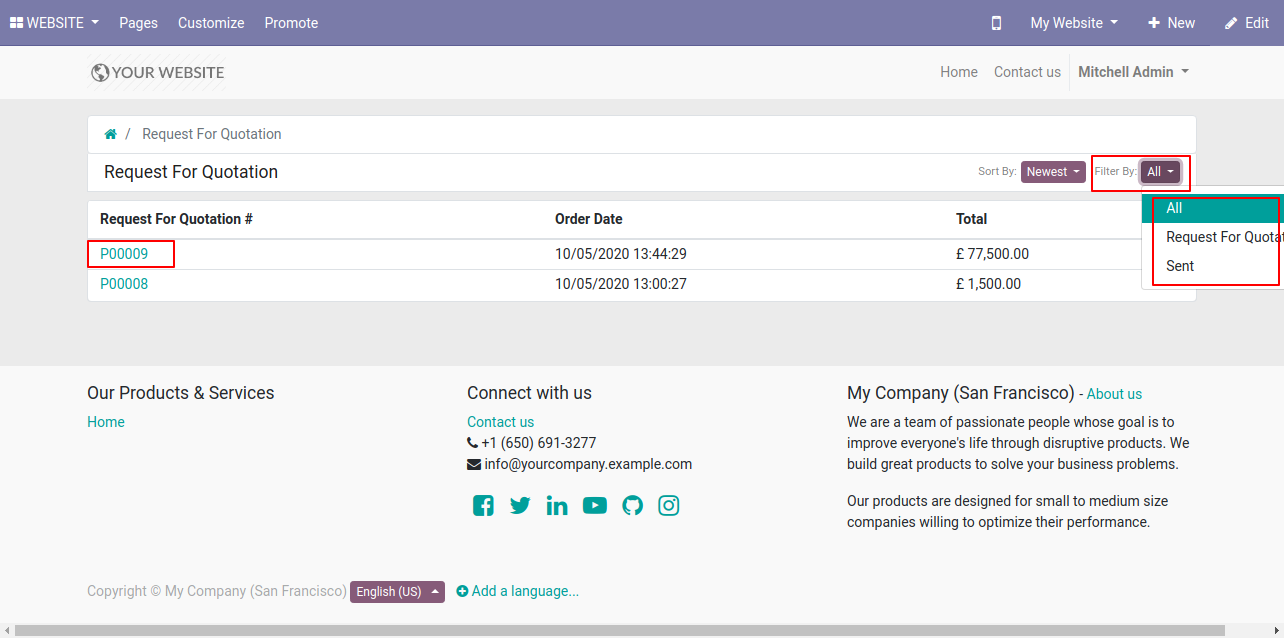
You can sort filter purchase orders by all, request for quotation & sent.
Here, we open RFQ, you can download the purchase quotation report using the download button & You can change the unit price.
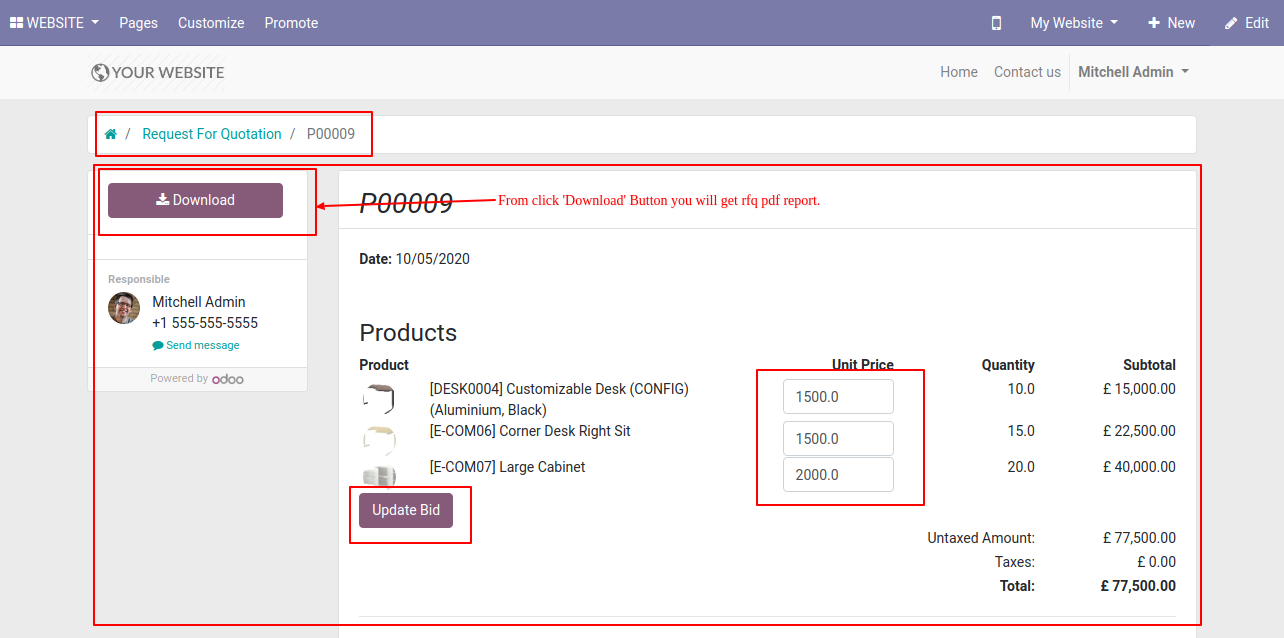
You can edit the unit price from here after that press on the "Update Bid" button.
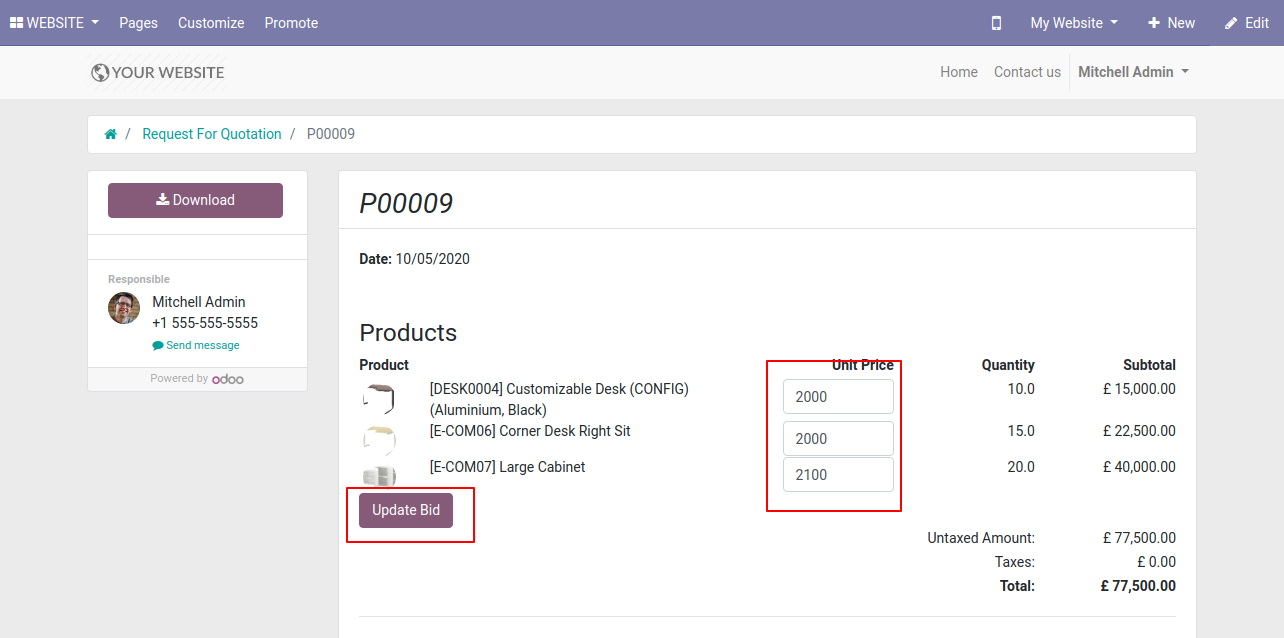
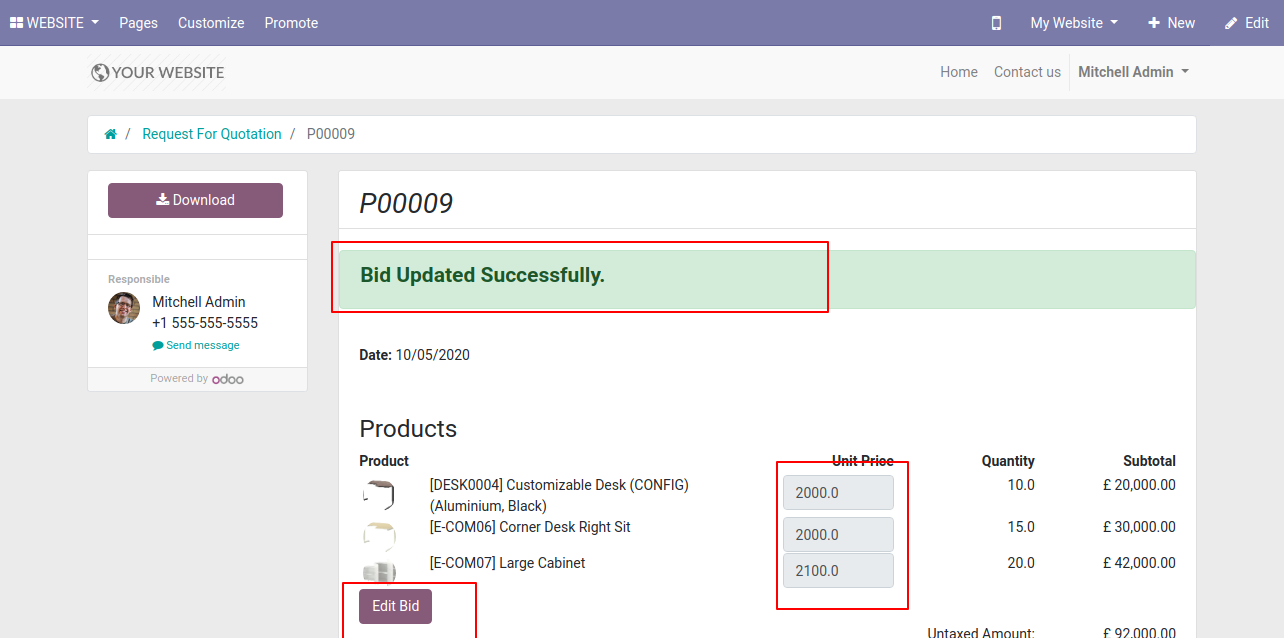
Now updated bid message looks like below.
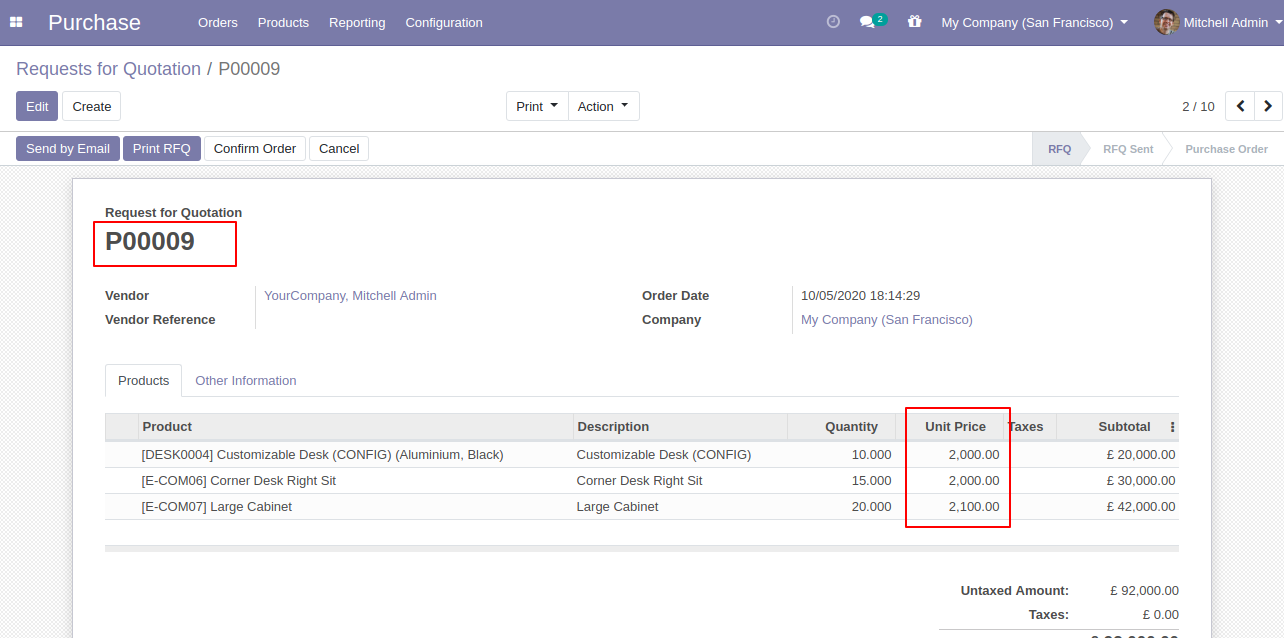
Unit price changed in odoo backend.
After successfully bid updated, you can edit it from the "Edit Bid" button.
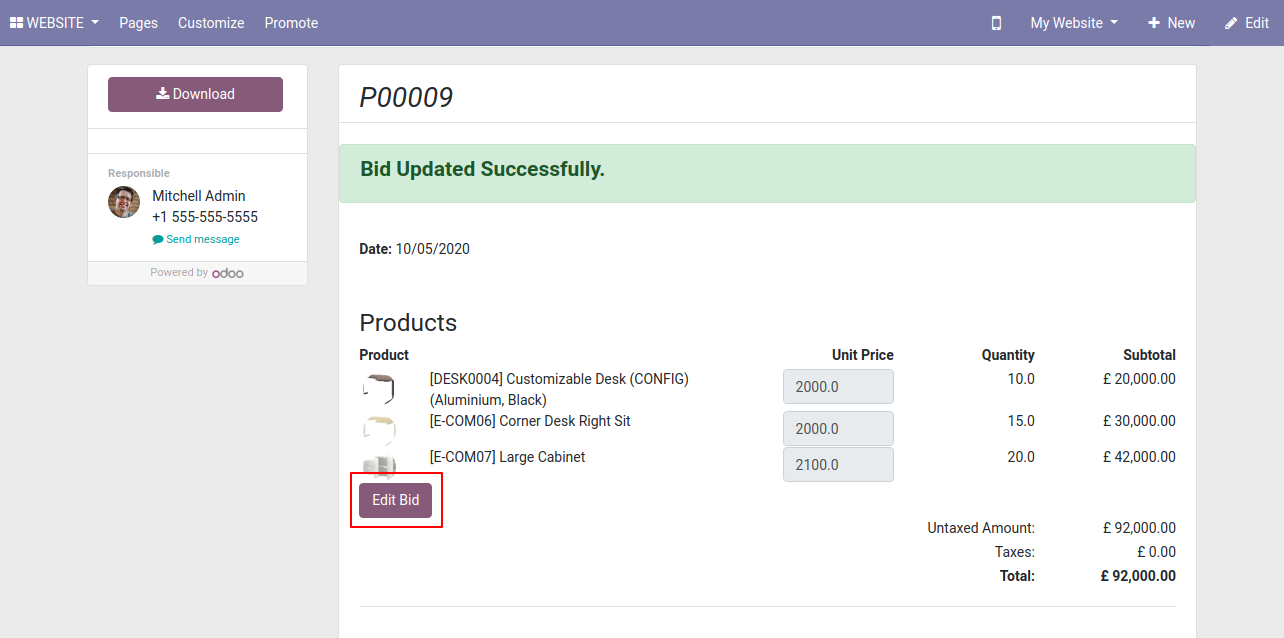
The bid is updated.
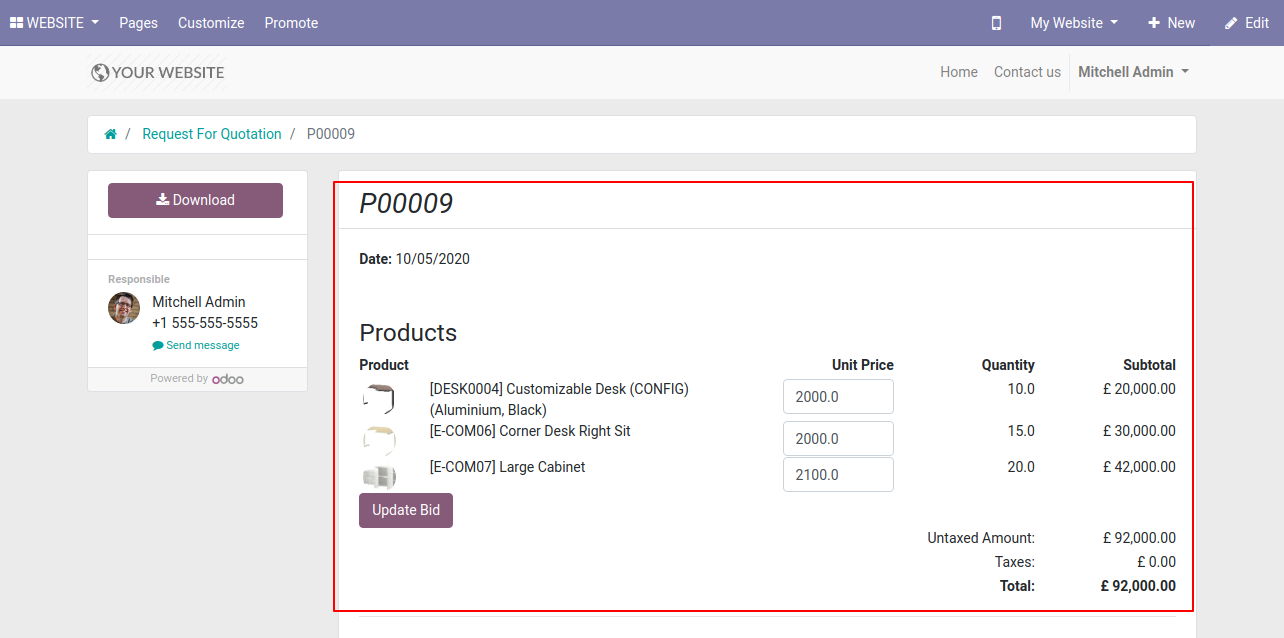
You can communicate in RFQ chatter.
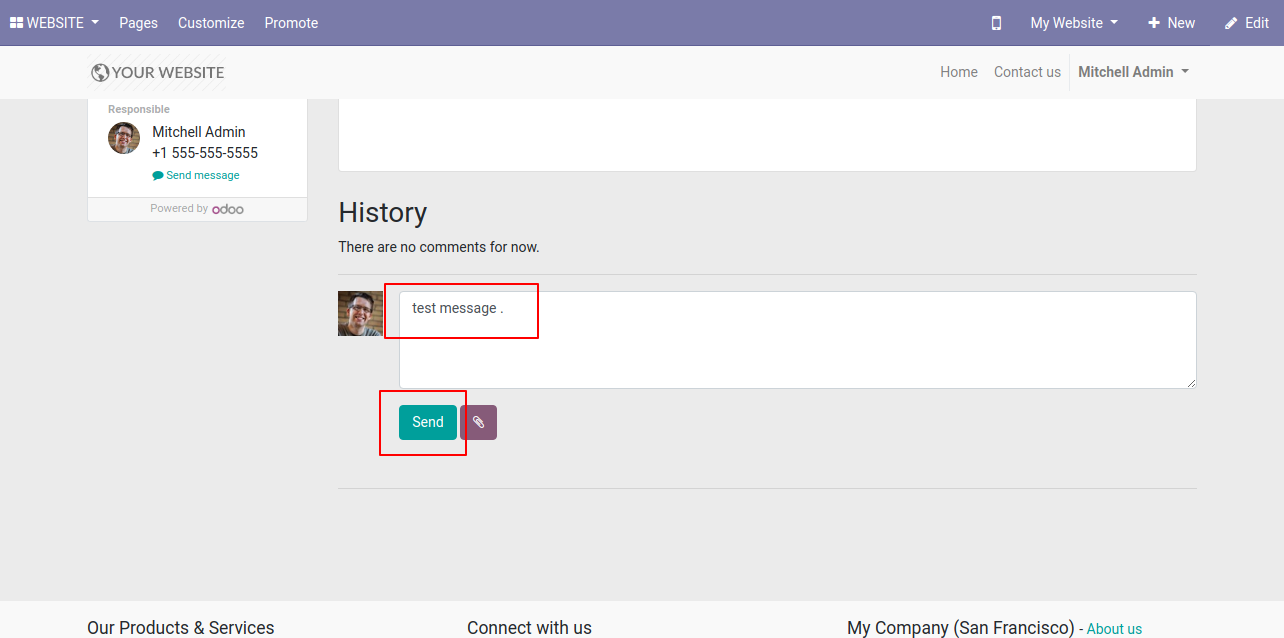
You can communicate in RFQ chatter.
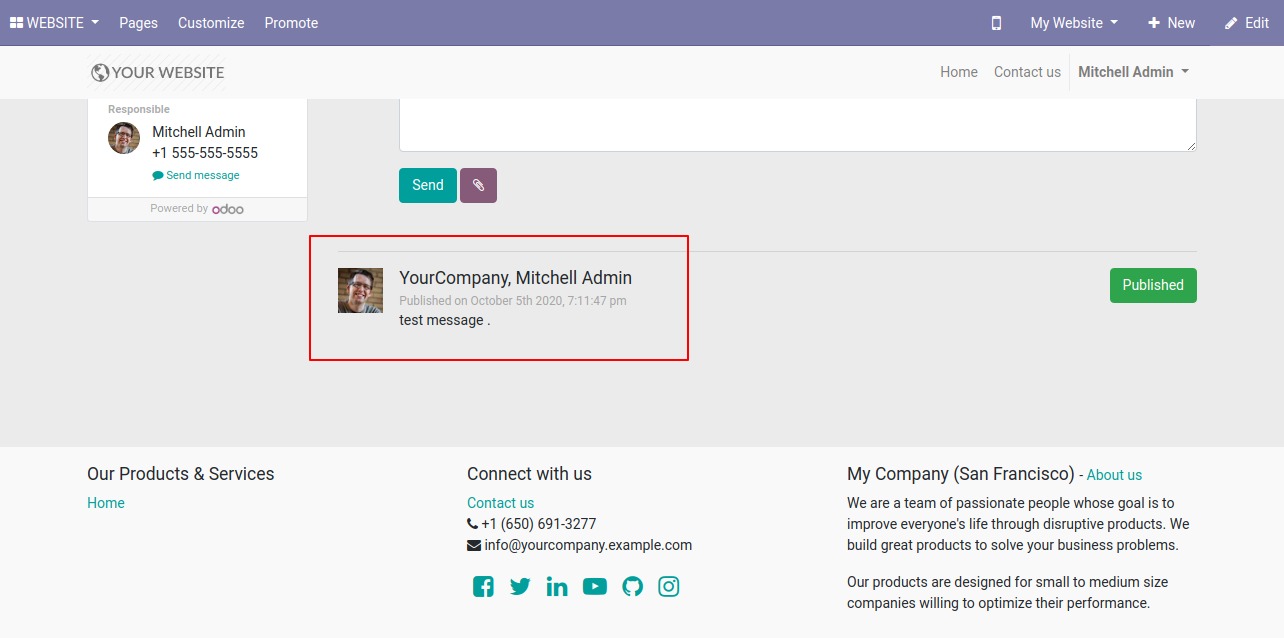
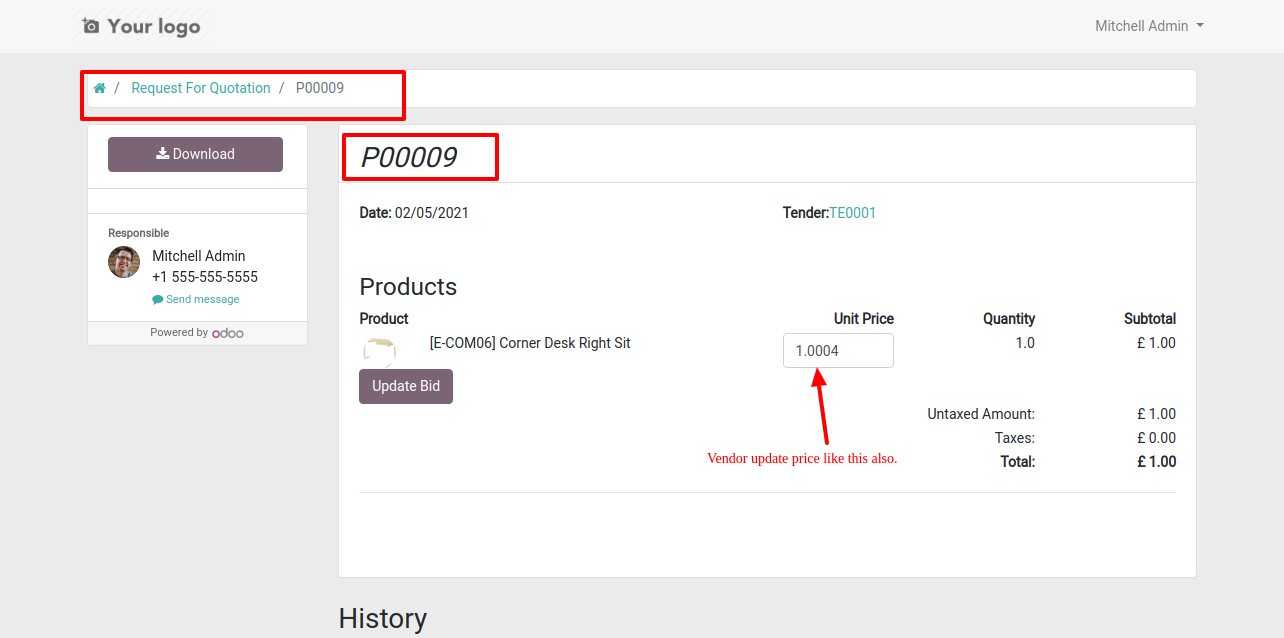
The vendor can update a decimal value in the bid.
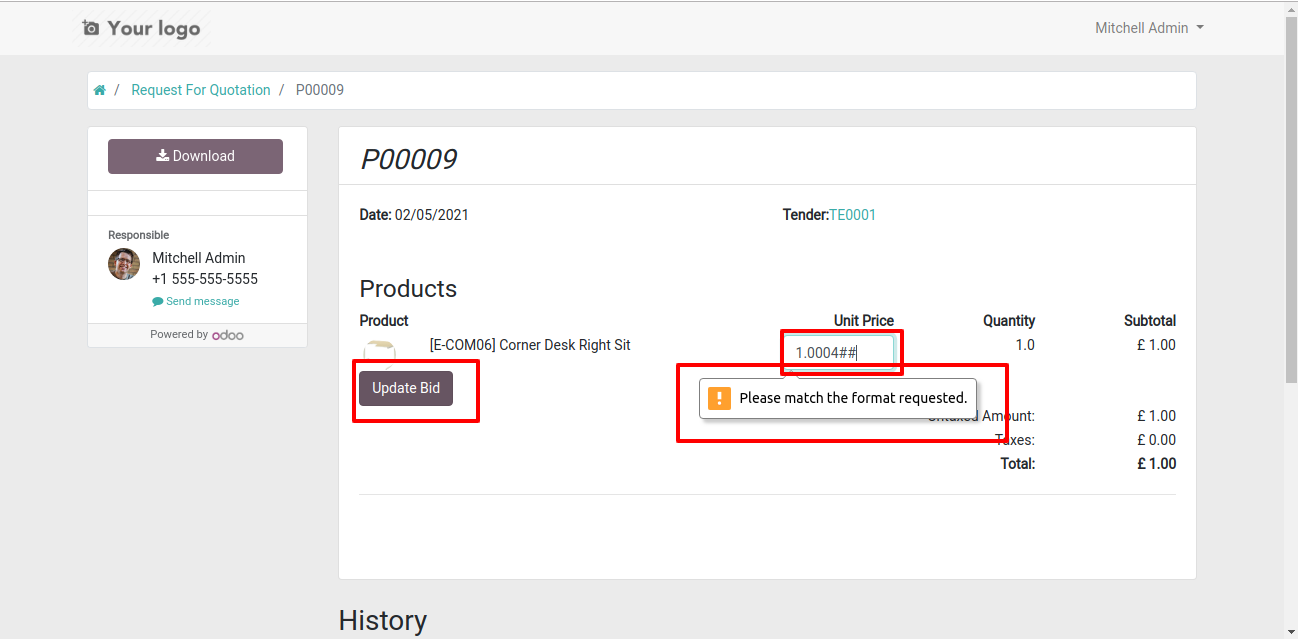
It shows an alert when you enter an invalid format.
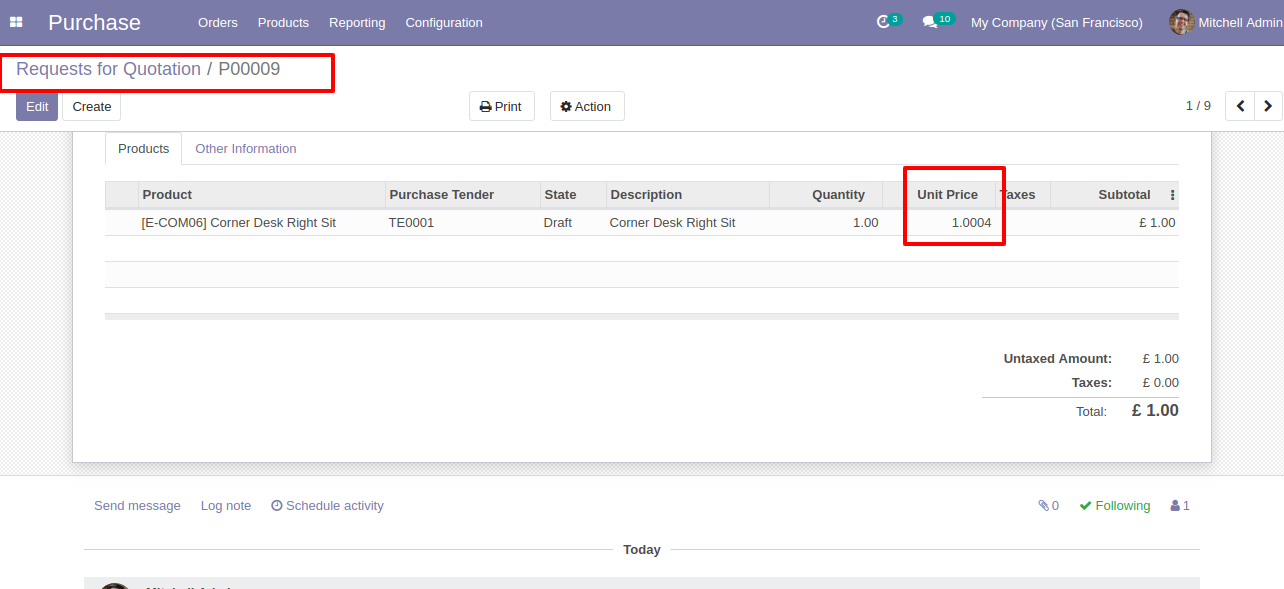
The bid value is updated in the backend.
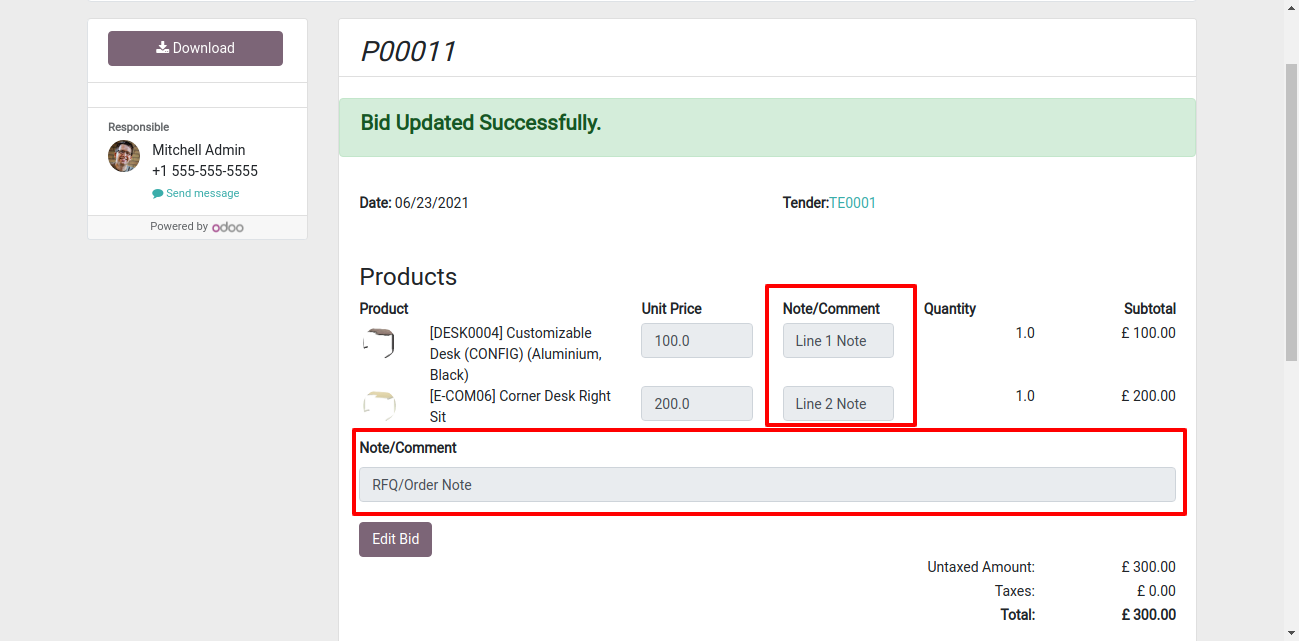
Add note/comments in the RFQ (Request For Quotation).
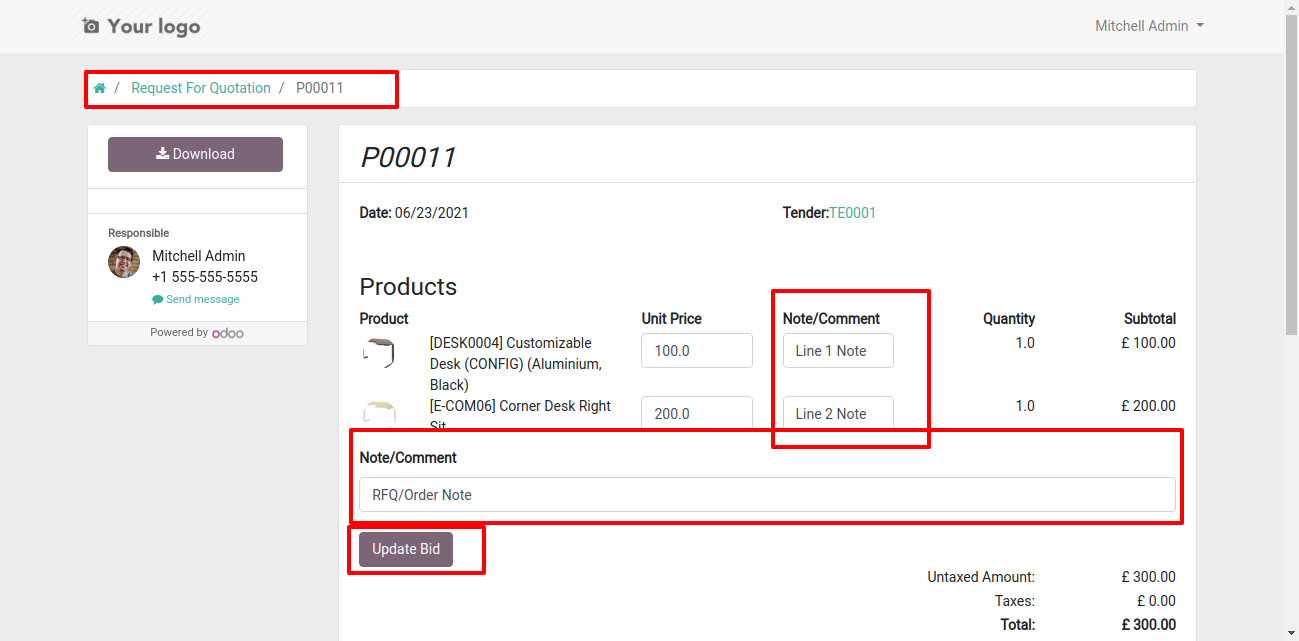
Now updated bid with note/comments looks like below.
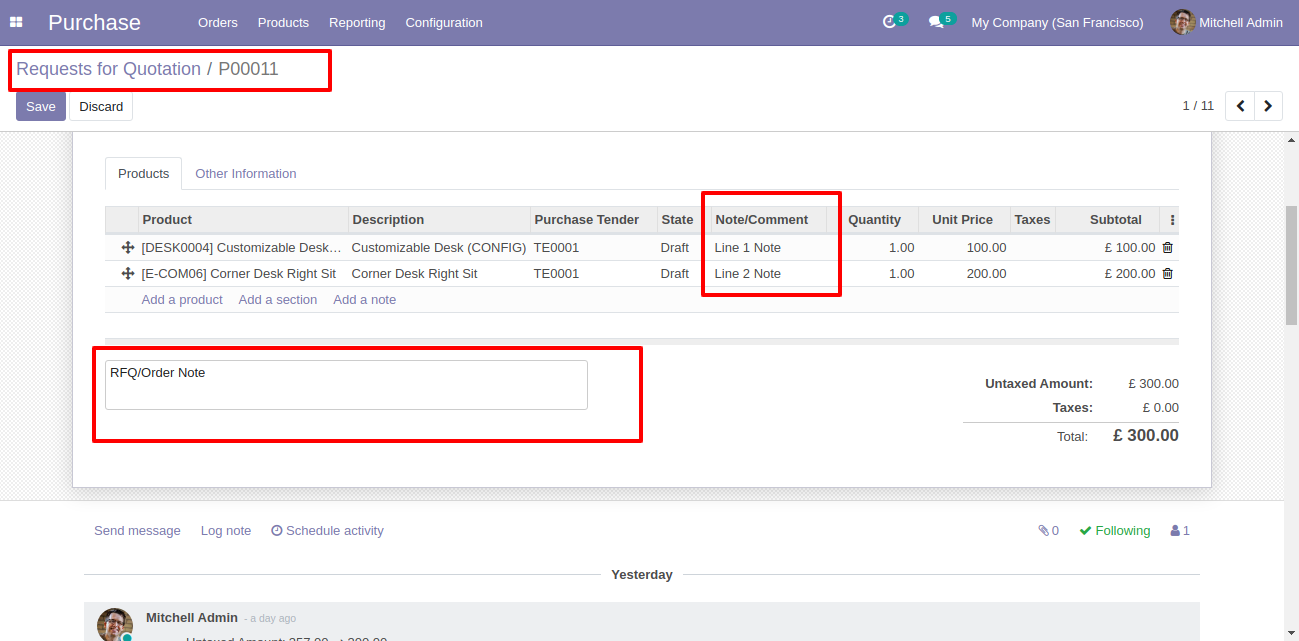
Also updated in the backend.
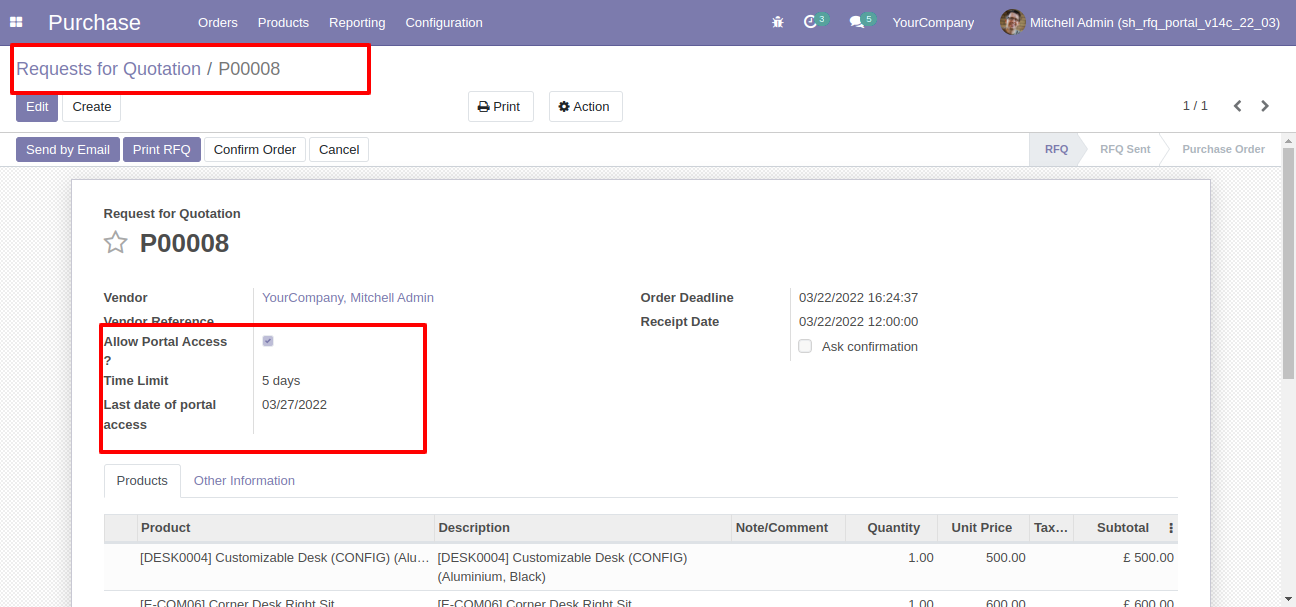
RFQ with portal access.
Now vendor update the bid.
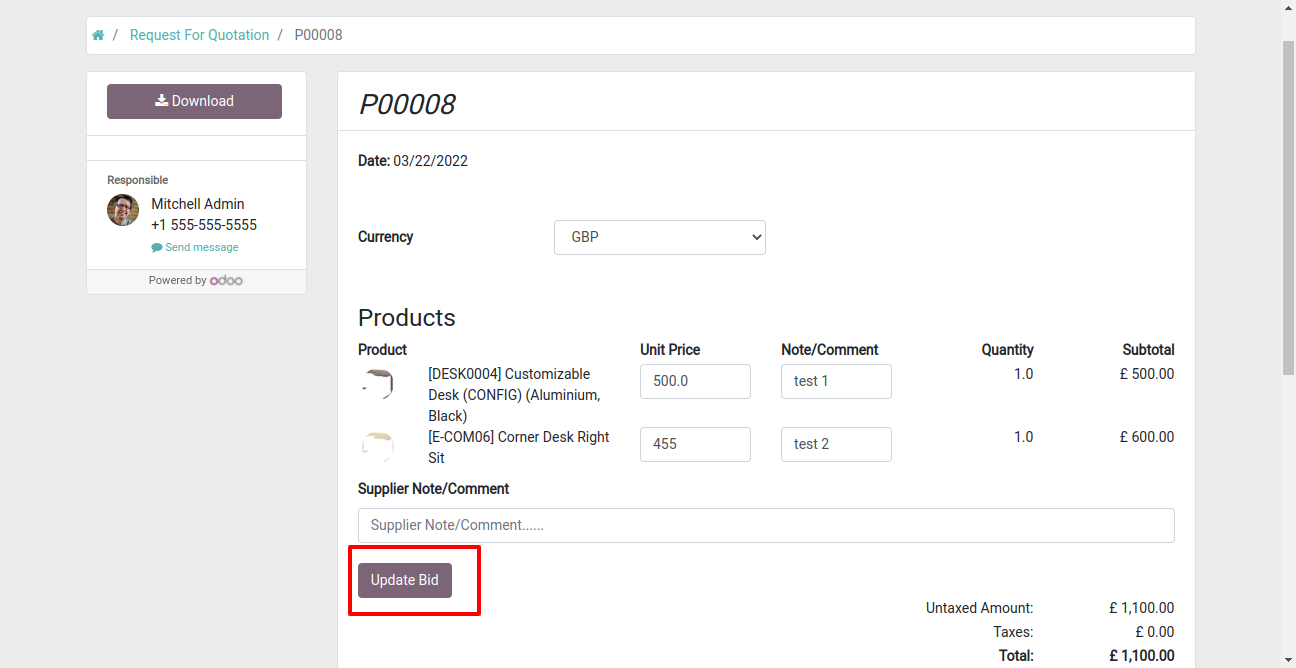
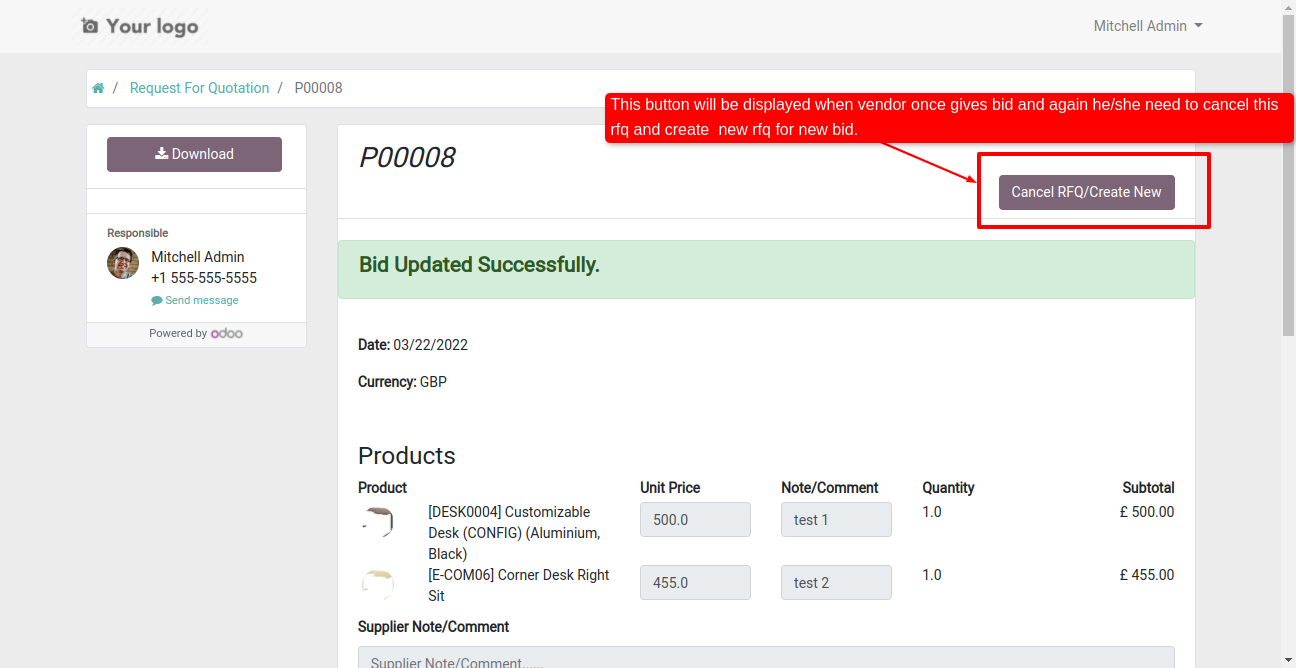
This button helps to cancel RFQ and create a new one, once a bid is updated then the vendor can not change that bid vendor need to cancel that RFQ and create one.
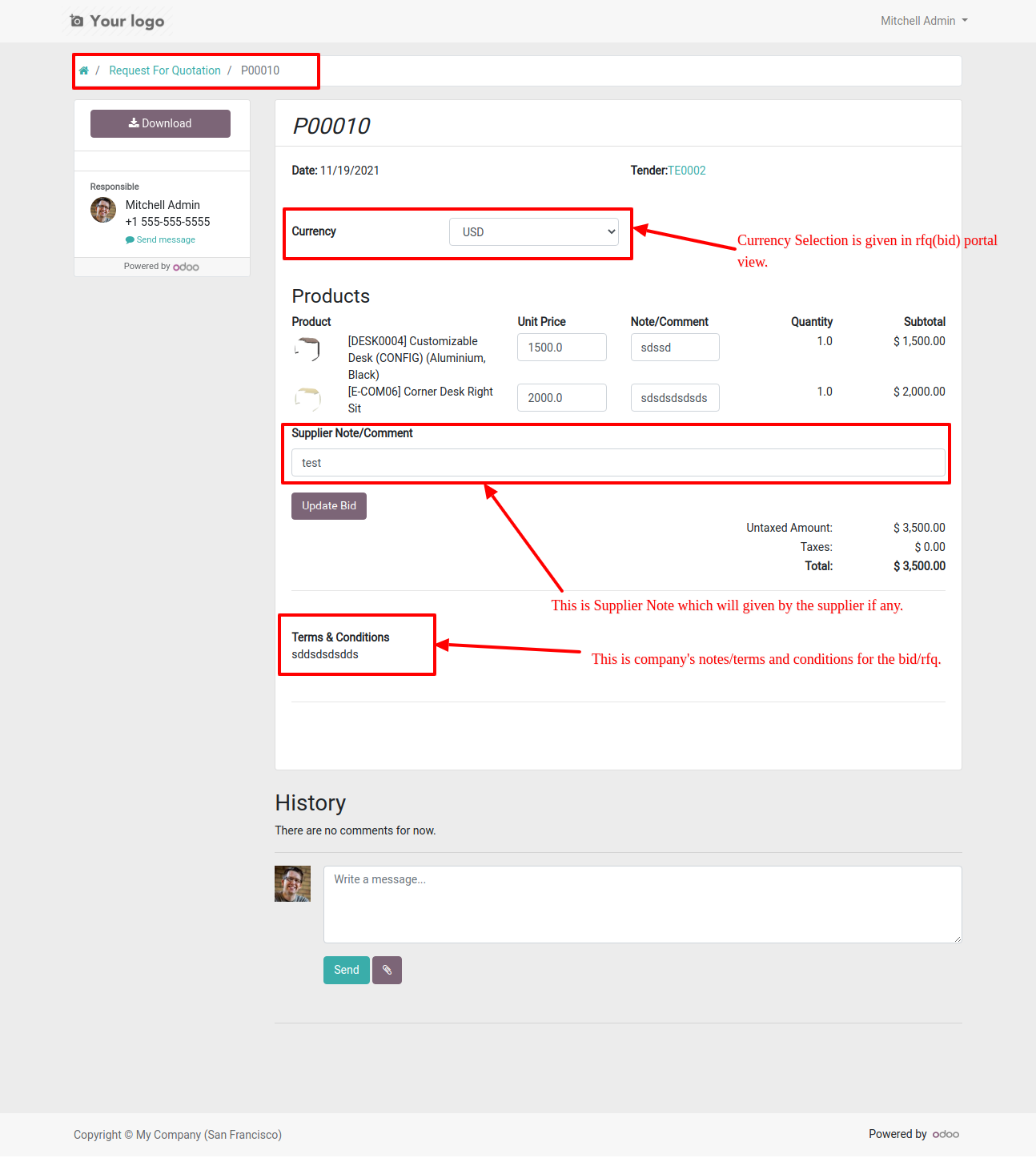
Portal view with multi currency, supplier note & terms-conditions.
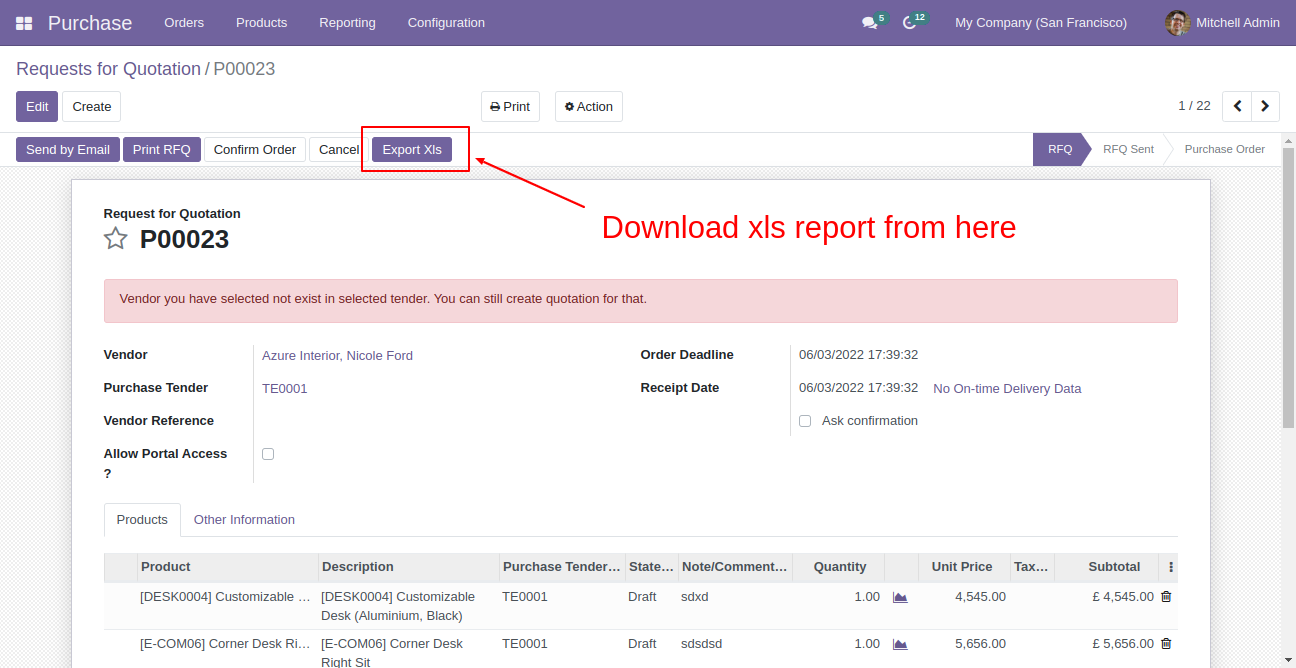
Press "Export XLS" in RFQ at backend.
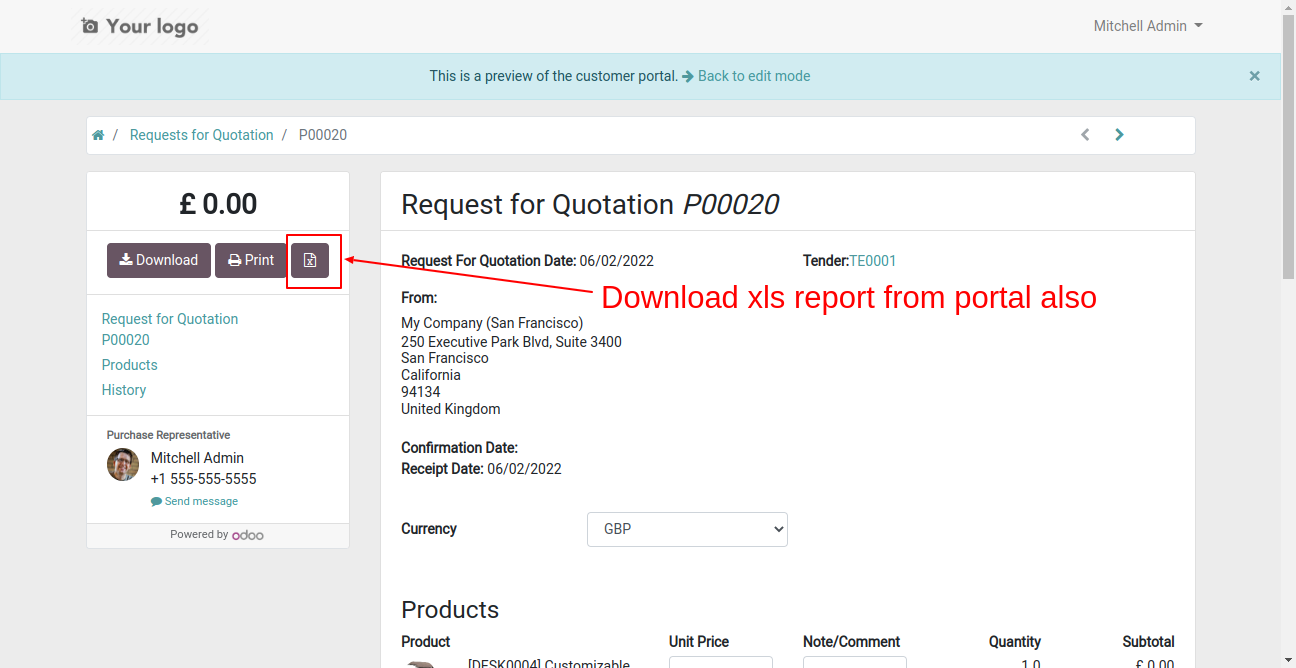
Click that button to print XLS report from portal.
XLS report looks like this.
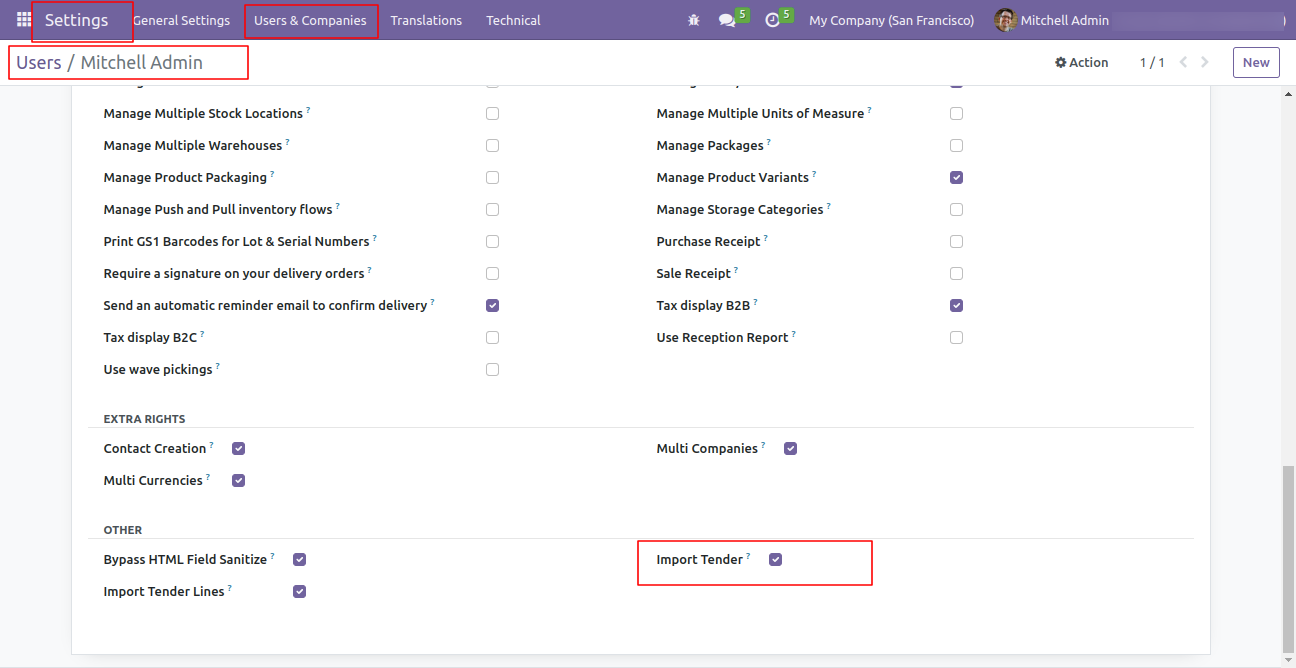
Go to the user's settings >> Enable the "Import Tender" option
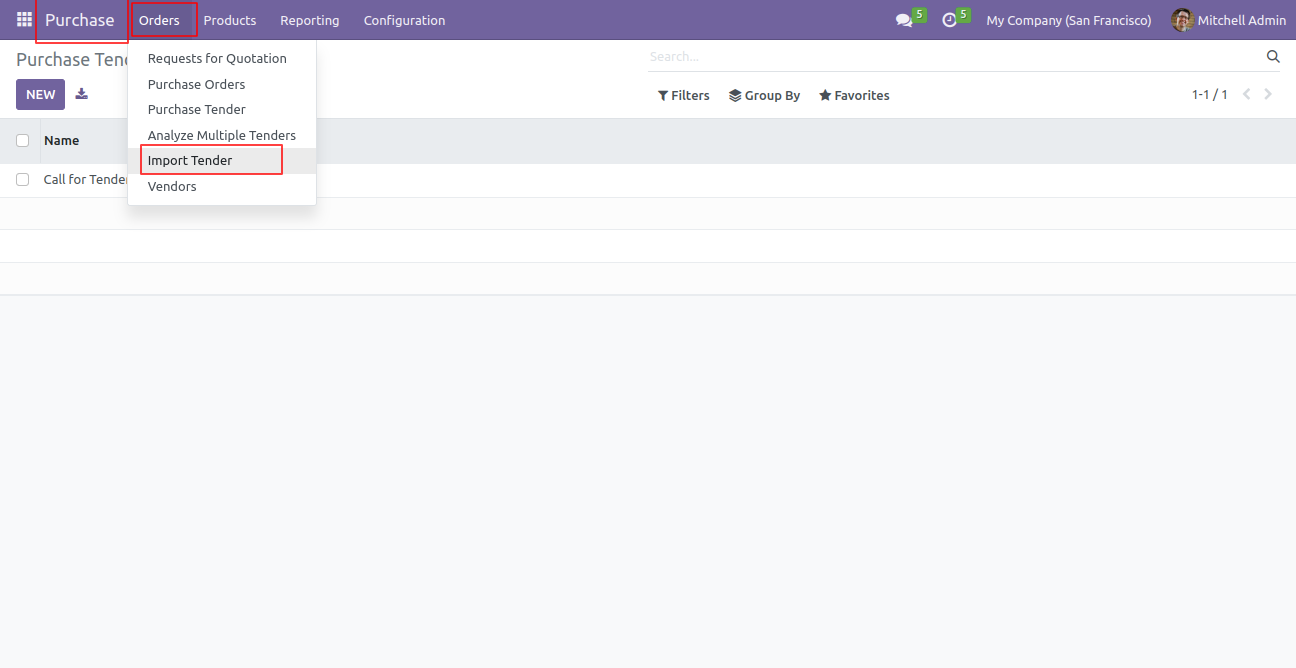
Click on the "Import Tender".
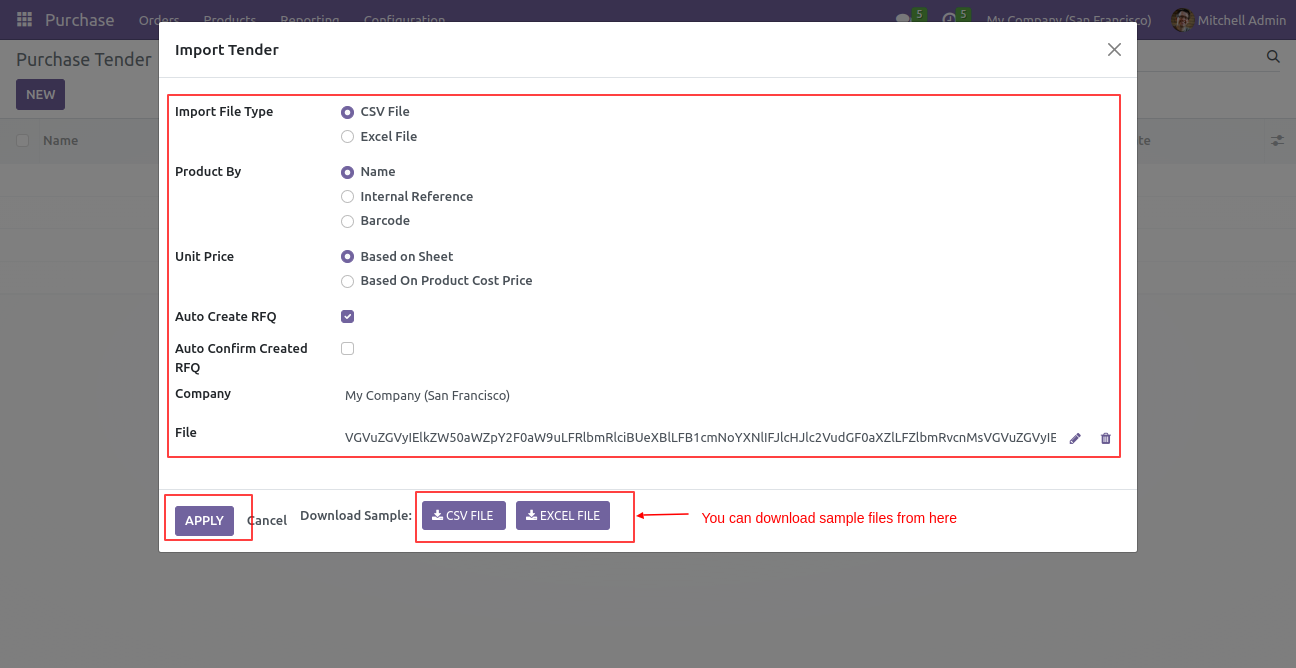
After that, the "Import Tender" wizard will open.
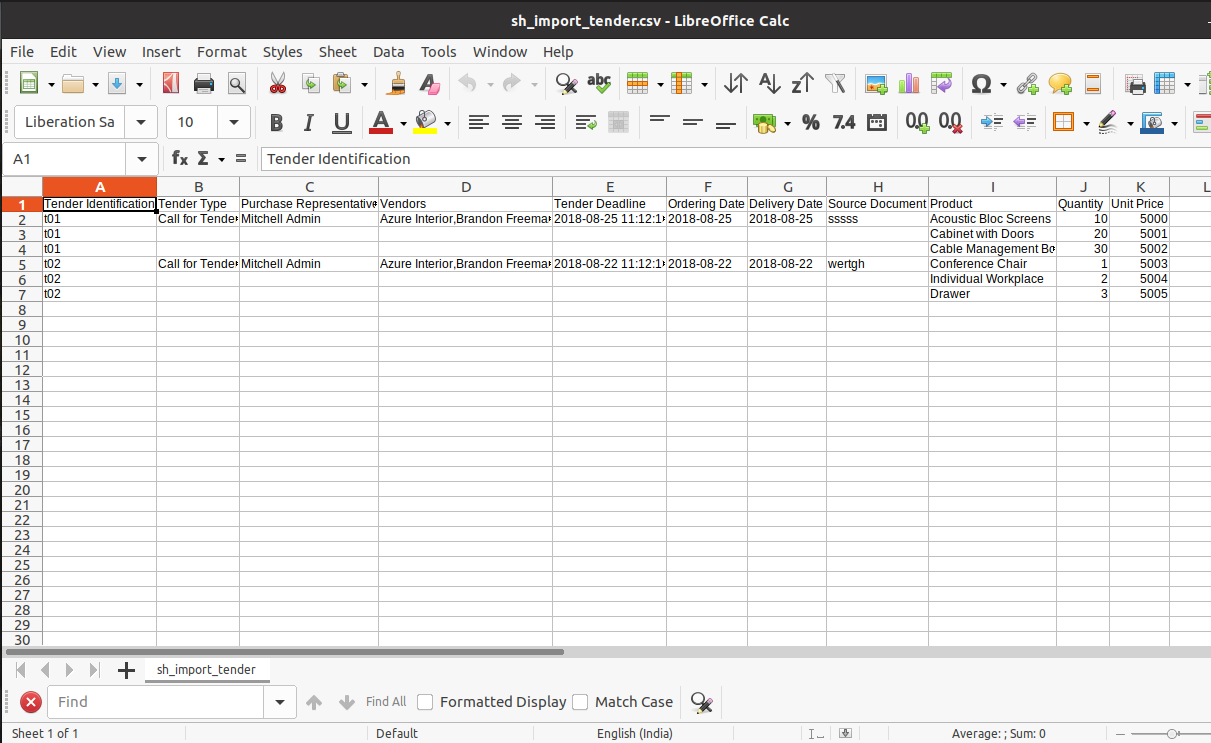
After pressing on the “Download Sample” button ("XLS File" or "CSV File"), you
can download the sample file.
Select the file that you want to import.
Select other options like Import File Type & Product By & Unit Price.
Click on the "Apply" button.
Success Message Pop-up.
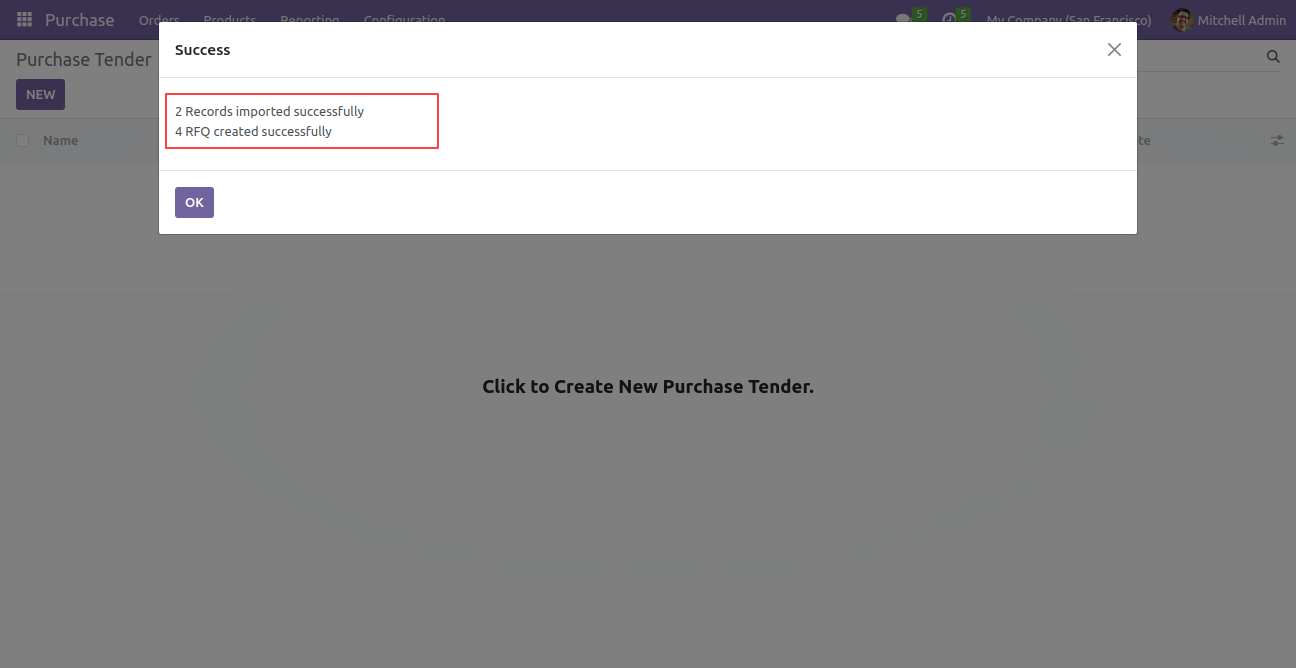
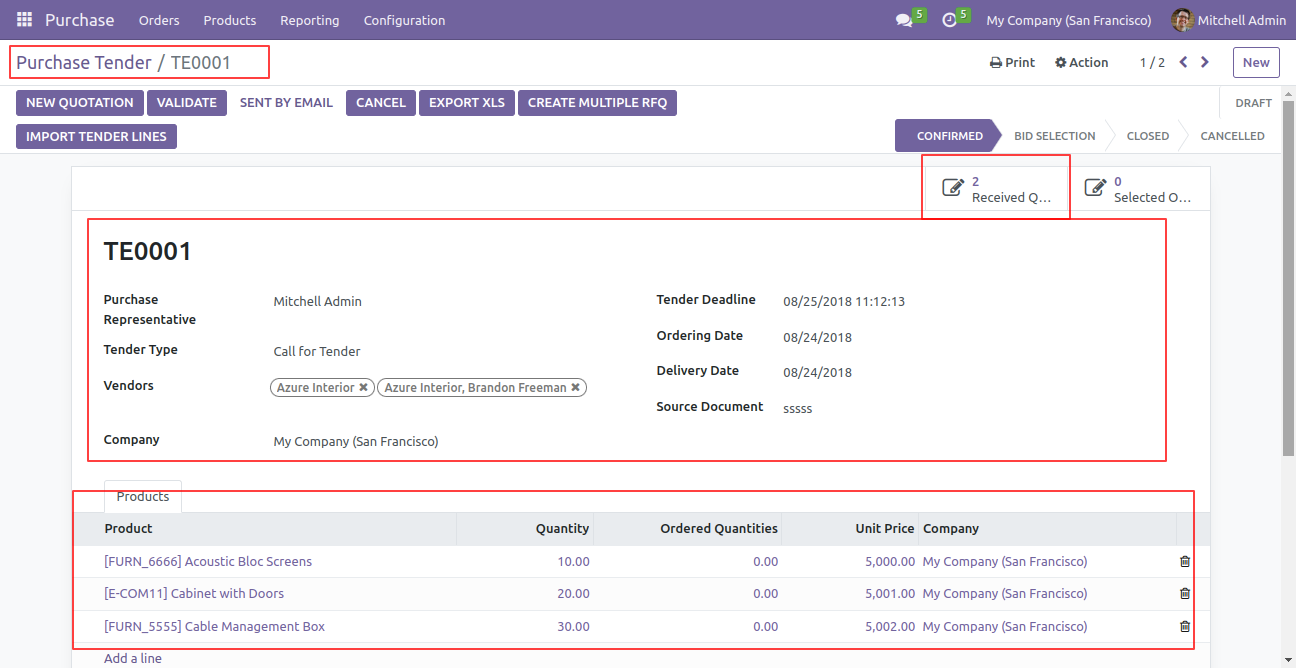
Form view of the purchase tender.
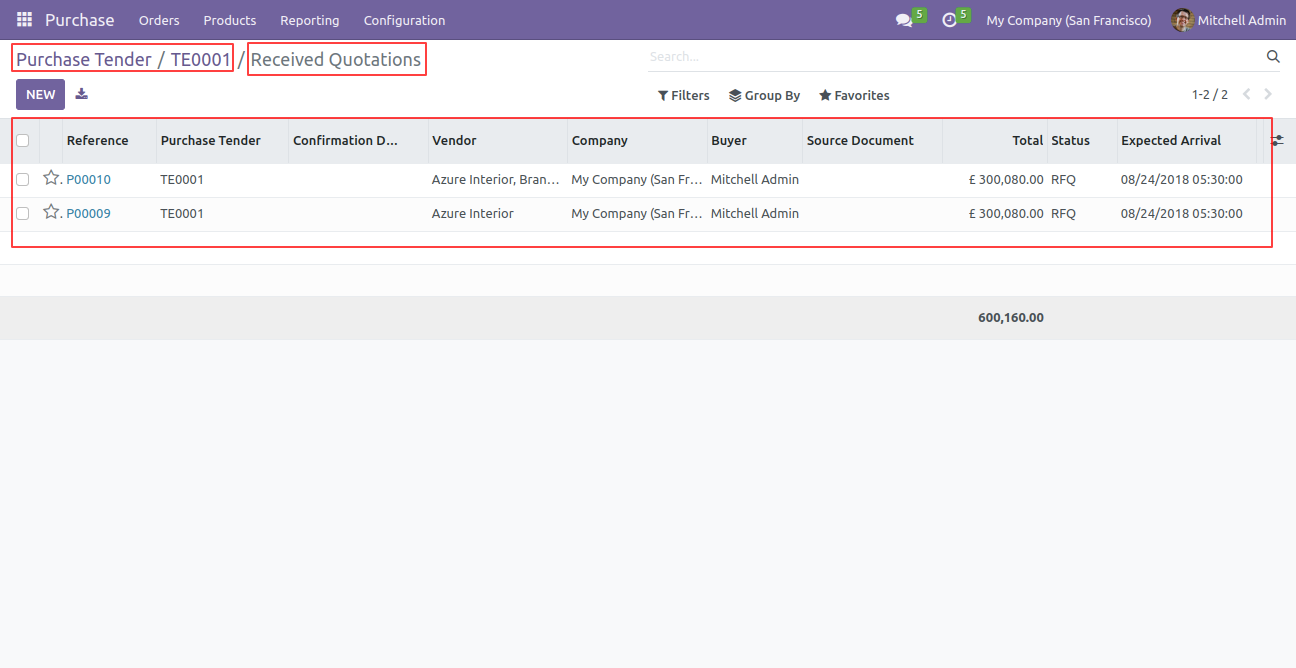
Click on the "Received Quotations" smart button.
Here, you can see the list of Received Quotations.
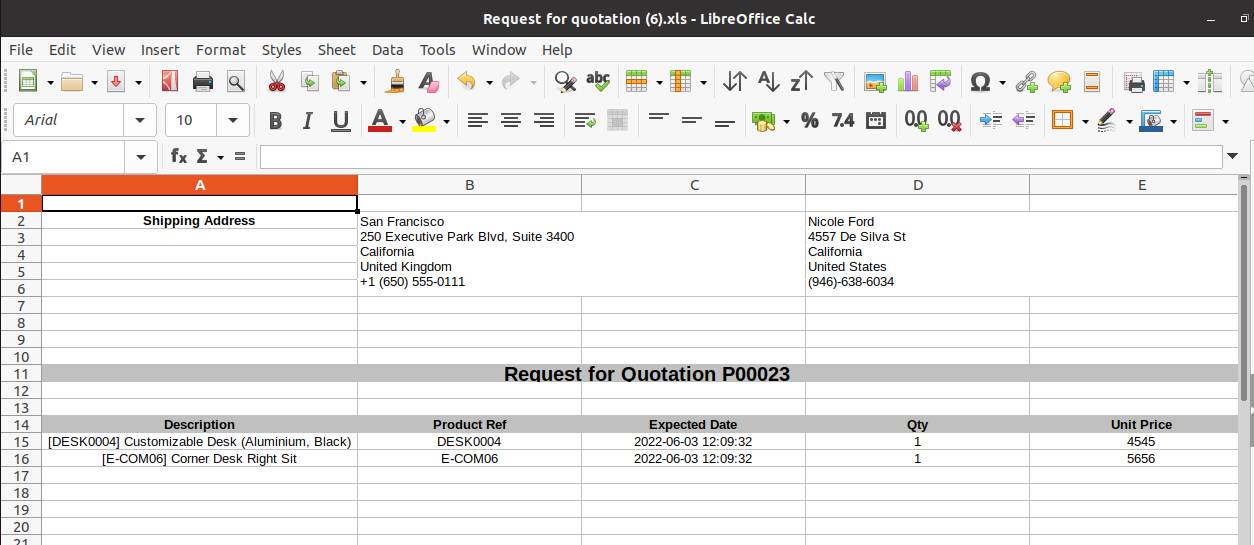
Sample File.
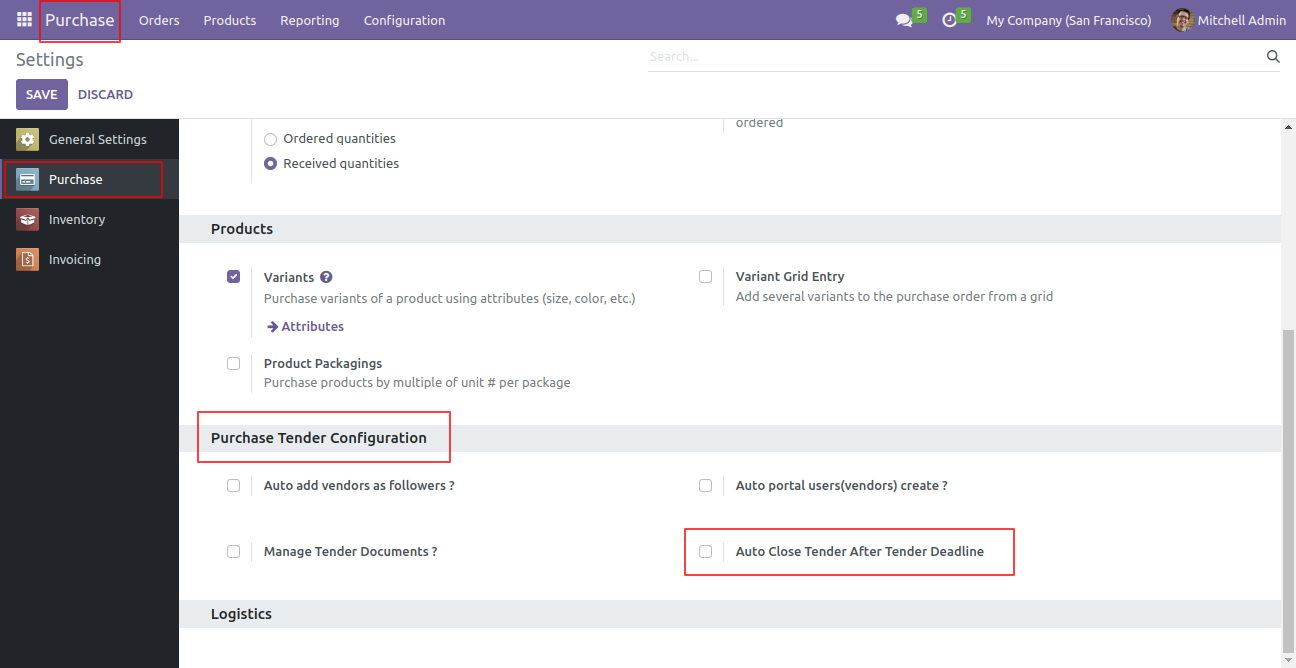
Go to purchase settings >> Enable the "Auto Close Tender After Tender Deadline".
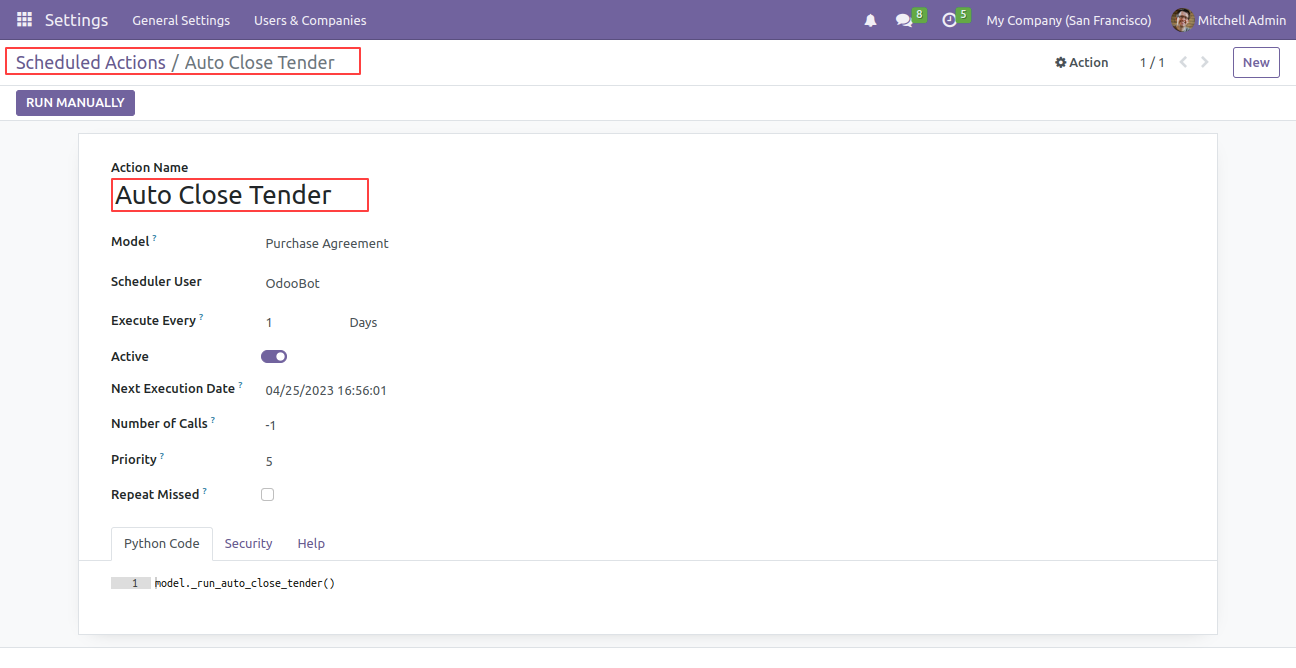
Scheduled Actions.
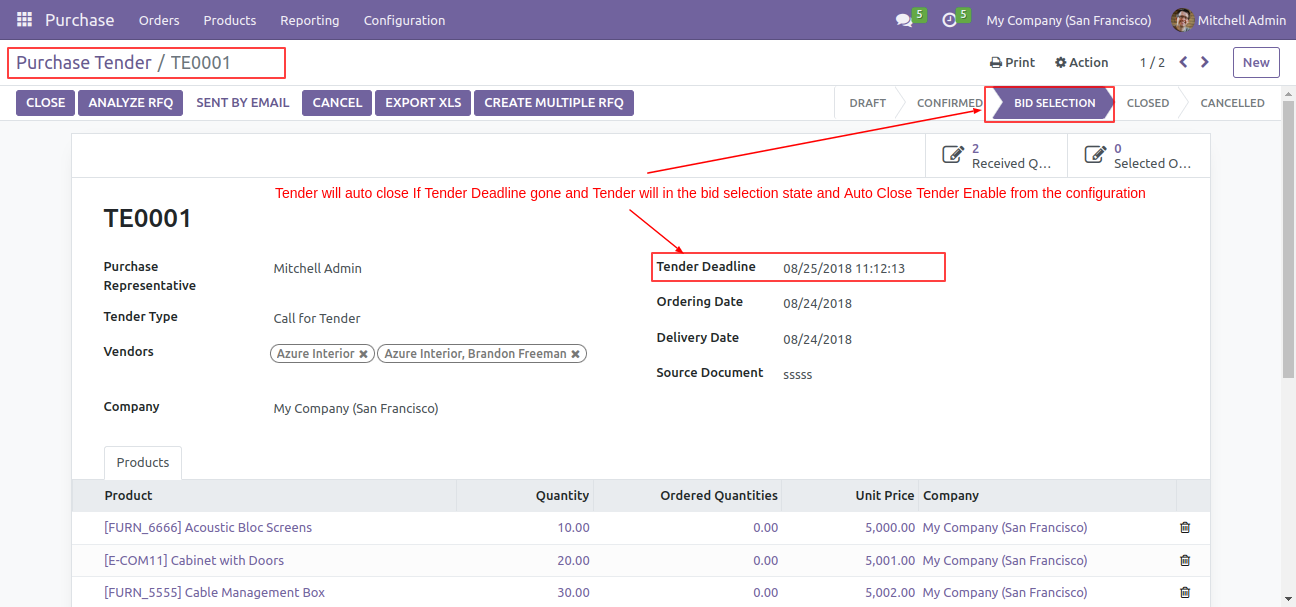
Form view of the purchase tender.
Here, you can see the Tender Deadline. The tender will auto close if the
tender deadline is gone and the Tender will be in the BID Section state and
Auto close tender enable from the configuration.
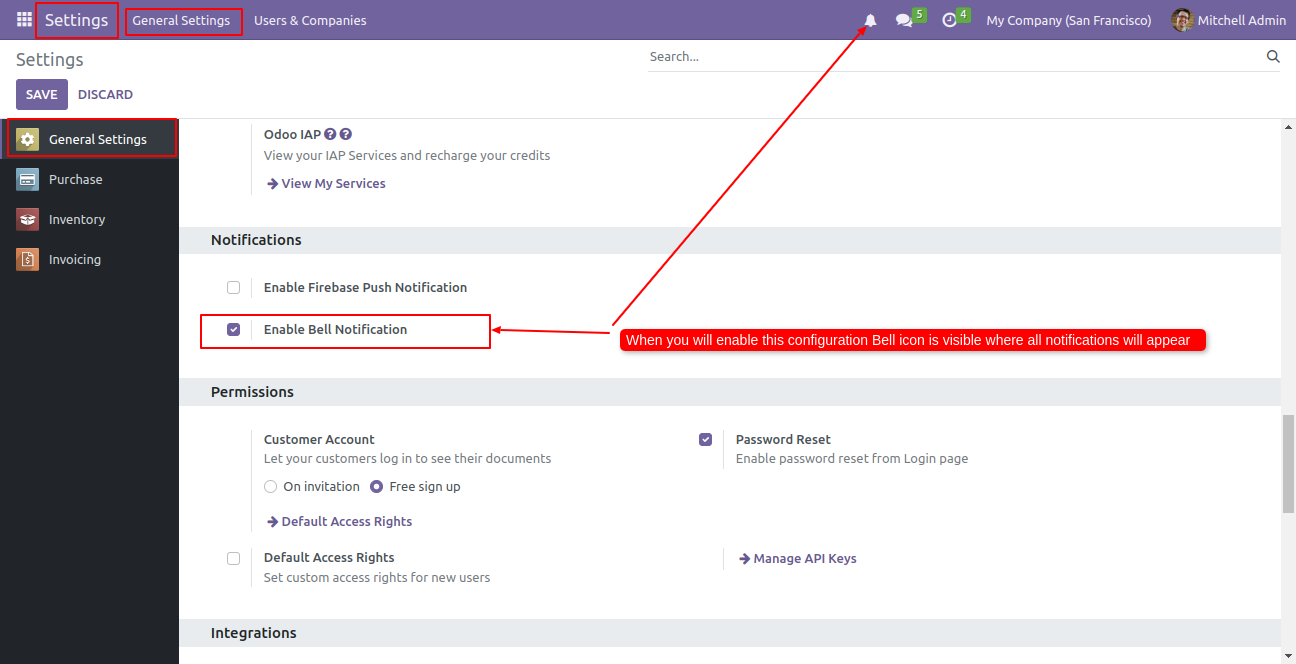
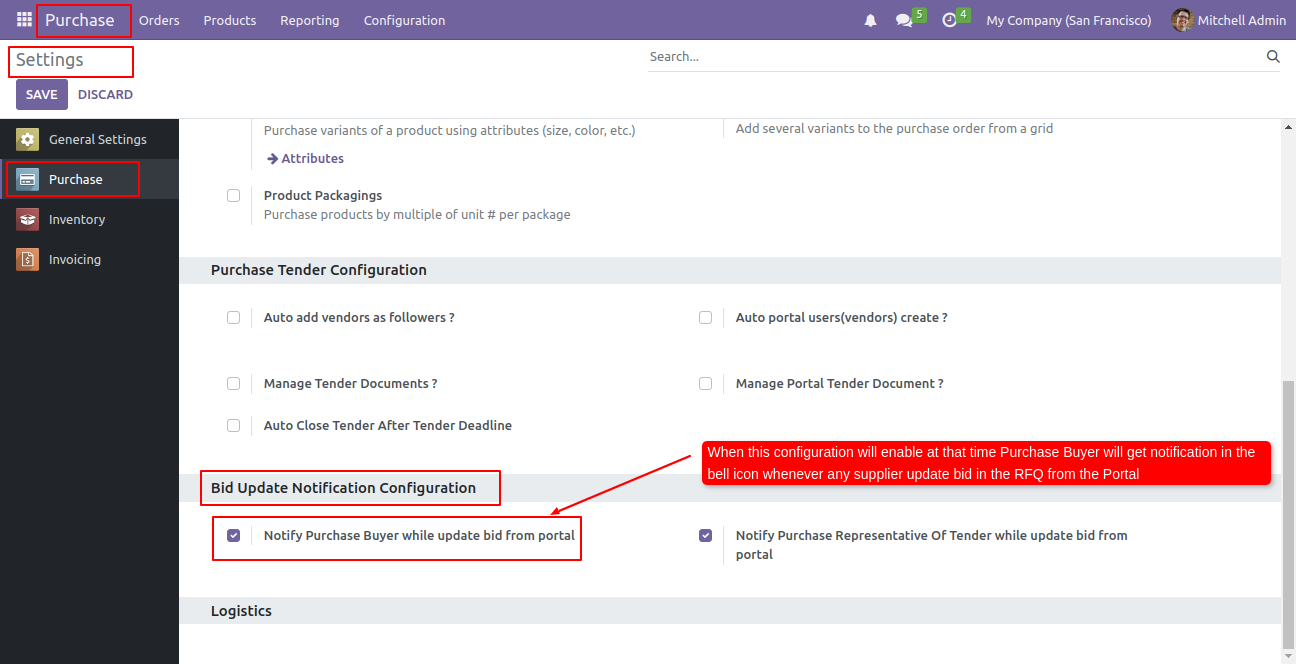
Enable the "Enable Bell Notification".
Enable the "Notify Purchase Buyer While Update Bid From Portal".
When you enable this options Buyer of RFQ will get notification about bid
update from portal by the vendor.
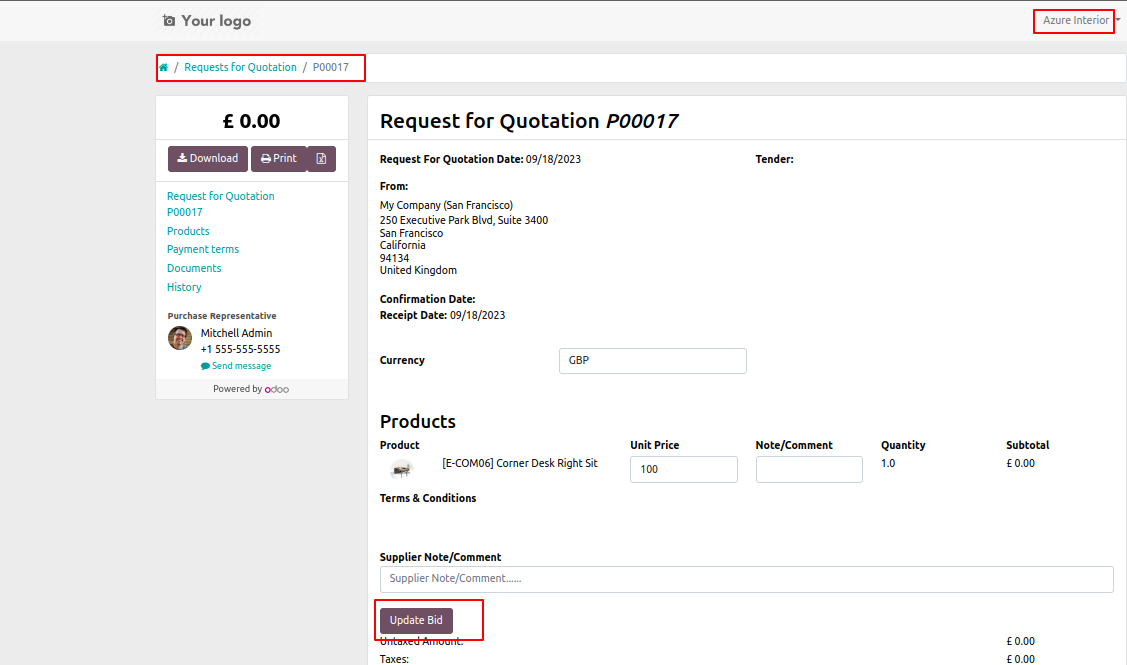
Login as a vendor.
Here, you can see the RFQ details.
For the update bid, add the bid and click on the "Update Bid" button.
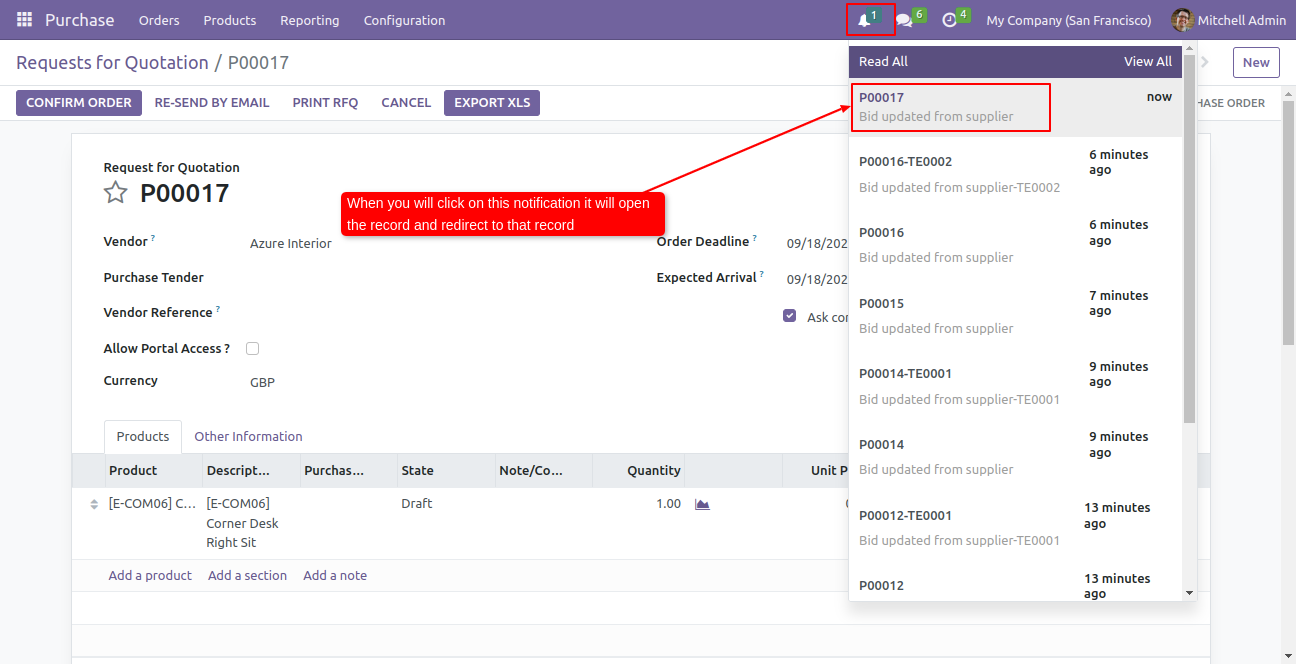
Click on the notification icon.
While clicking on this icon you will redirect to the records.
Click on the RFQ notification.
After that, you will redirect to the form view of the RFQ.
Note: The Buyer will get the notification.
Enable the "Enable Bell Notification".
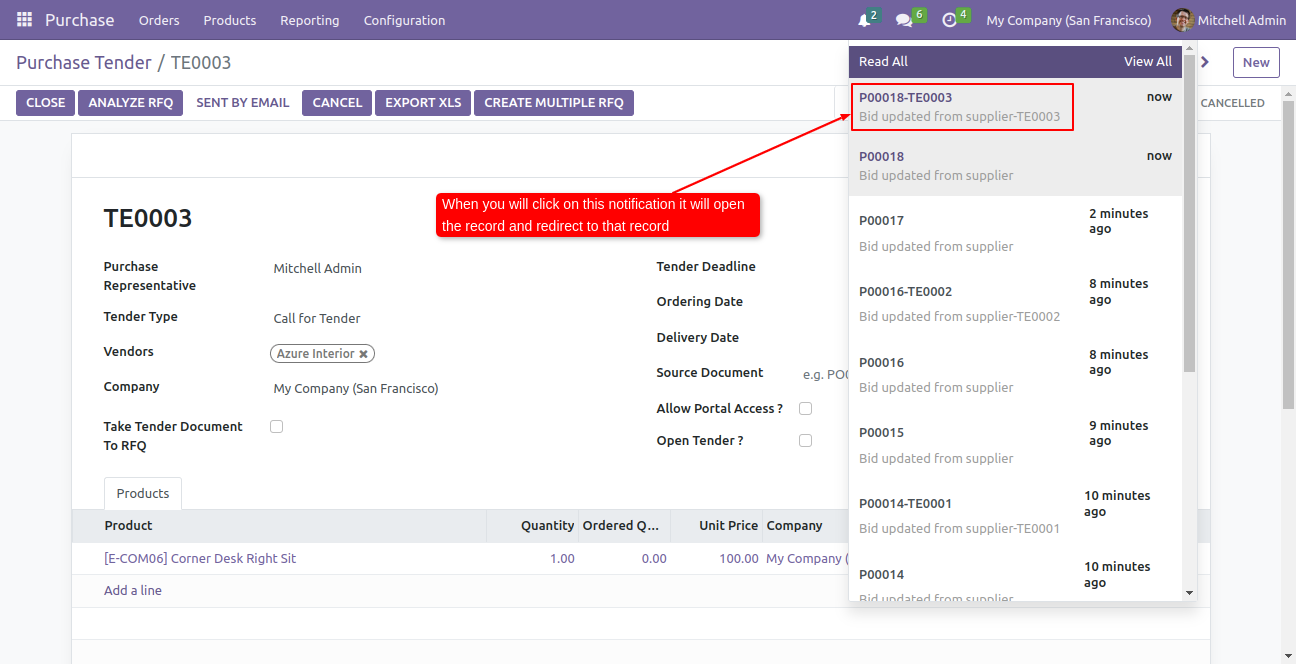
Go to purchase settings >> Enable 'Notify Purchase Representative Of Tender While Update BID From Portal'.
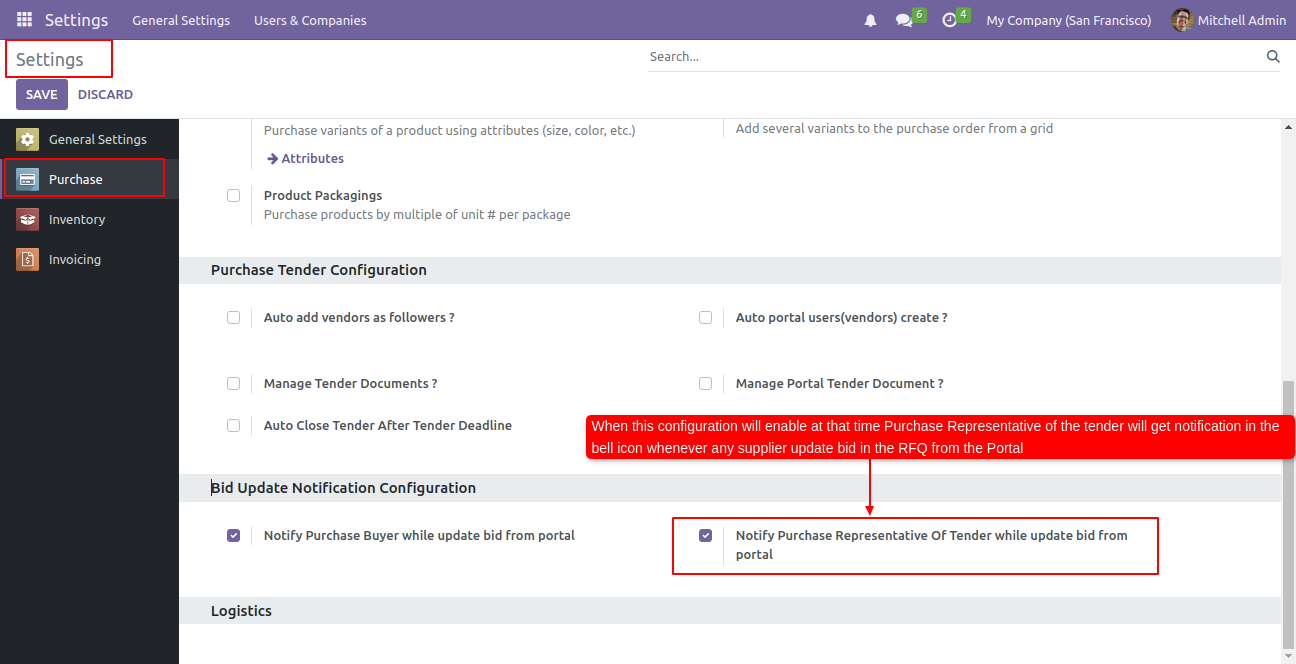
Log-in from the portal user and update the bid.
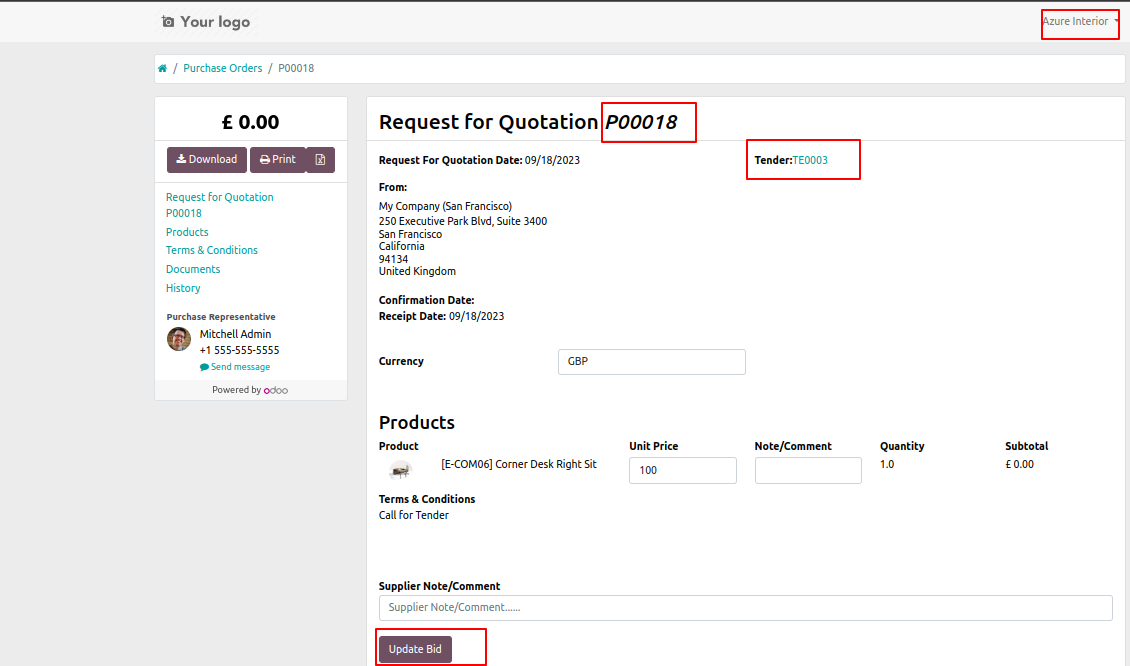
After updating the bid purchase representative gets a notification, Click on the notification icon, While clicking on this icon you will redirect to the records.
Release Notes
Track every update, enhancement, and new feature across all versions.
Version 20.0.1.0.0 | Released: 15th September 2026


 Buy Once, Supported Forever

 Scan to email sales




 Your Ideas Shape Our Roadmap
 Got an Idea? We'll Build It
Frequently Asked Questions
Everything you need to know before getting started.
Trusted by Businesses Worldwide


Abdulhamid Abdulwaheed
Best module for our online store. Highly adaptable, exceptional customer service, and very advanced modules.
Factura Venta POS
They have everything you need. Technical support is excellent, responds quickly, and keeps the module updated. 100% recommended!
Mehmet Muhanna
Great company and support team. Had a problem in my local Odoo server - they solved it in 5 minutes. Highly recommend.
Billy Jeffs
Customised an Odoo app for me which works perfectly. Many requirements, got it right every time. Very confident in their ability.
HP
Consistently excellent service over years of working together. Knowledge and commitment to keeping clients informed truly sets them apart.
Michal Kolasinski
Multiple addons + two custom modules. Communication always friendly and precise. Delivered on time, worked out of the box. Highly recommended!

Multi-Language
8 built-in translations







You May Also Like
Discover more Softhealer modules that integrate seamlessly with your Odoo environment.







Most Demanded Apps
The Softhealer modules our customers reach for most — trusted across 100+ countries.
Activities Management
Manage, schedule, and automate Odoo activities across all departments from one view.
View Module
Access Management
Granular access control over menus, fields, buttons, and records for every user role.
View Module
Backdate Advanced
Backdate any transaction across invoices, journals, pickings, and more with full audit.
View Module
All-in-One Helpdesk
Full-featured customer support with tickets, SLA, and customer portal built for Odoo.
View Module
All-in-One Mobile Backend
Access your full Odoo backend from any mobile device with an optimized interface.
View Module
All-in-One Import
Import any Odoo model data from CSV, Excel, and JSON files with mapping and validation.
View Module
Our Services
End-to-end Odoo expertise - from setup to scale.

AI & Business Integration

Odoo Implementation

Odoo Customization

Support & Maintenance

Mobile Apps

Migration Service

Third-Party Integration

Odoo Training
Ready to automate All In One Tender Bundle?
Join 10,000+ businesses - Softhealer, 11+ years of Odoo gold partnership expertise across 100+ countries.

