


 Easy to Manage
 Dedicated Support
















 Scan to email sales




Key
Features

Bundle Profitability Dashboard
 LATEST
Analyze bundle sales, costs, revenue, and profitability from a centralized dashboard.
Watch VideoBundle Management
Manage product packs and bundles across Sales, Purchase, Invoices, POS, and Inventory.
Watch VideoPOS Bundle Creation
Create and add multiple products as a bundle in POS with a single click.
Watch VideoWebsite Bundle Management
Enable or disable product bundles on the website and let customers explore bundle products.
Watch VideoWebsite Combo Savings Badge
LATEST
Display savings badges on website combo products to highlight customer savings.
Watch Video Interactive Combo Progress Guide
LATEST
Guide customers through combo selection and show their selection progress on the website.
Watch Video Smart Combo Suggestions
LATEST
Improve task alignment by synchronizing Xero tasks directly alongside your associated ongoing project records.
Watch VideoIntelligent Combo Stock Protection
LATEST
Check component stock availability and prevent customers from purchasing unavailable website combos.
Watch VideoProduct Bundle & Combo Creation
Create product bundles and combos by grouping multiple products into a single pack.
Bundle Price Management
Update bundle prices automatically based on the prices of individual products.
Bundle Product Access
Open and view individual products directly from a product bundle.
One-Click Bundle Processing
Add multiple products to an order or transaction as a bundle with a single click.
 Setup & Configuration
 Release Notes
 Support
 FAQ's
FAQ's
 Bundle Profitability Dashboard
 Product Bundle Base
 POS Product Bundle
 Bundle Product Management-Backend
 Bundle Product Management-Website
 Website Combo Savings Badge
 Interactive Combo Progress Guide
 Smart Combo Product Suggestions
 Intelligent Combo Stock Protection
Go to Sales -> Reporting and select Bundle Profitability.
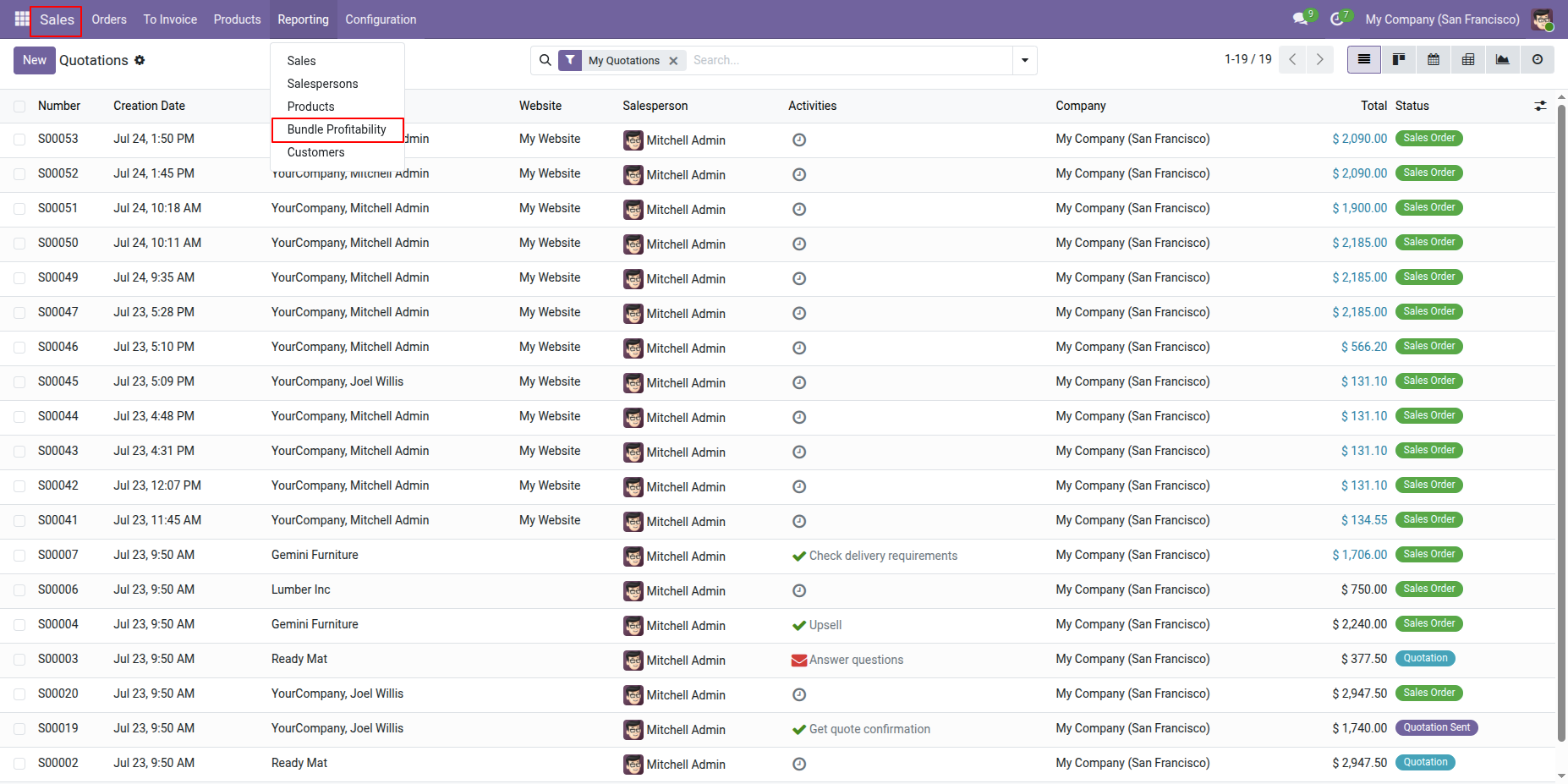
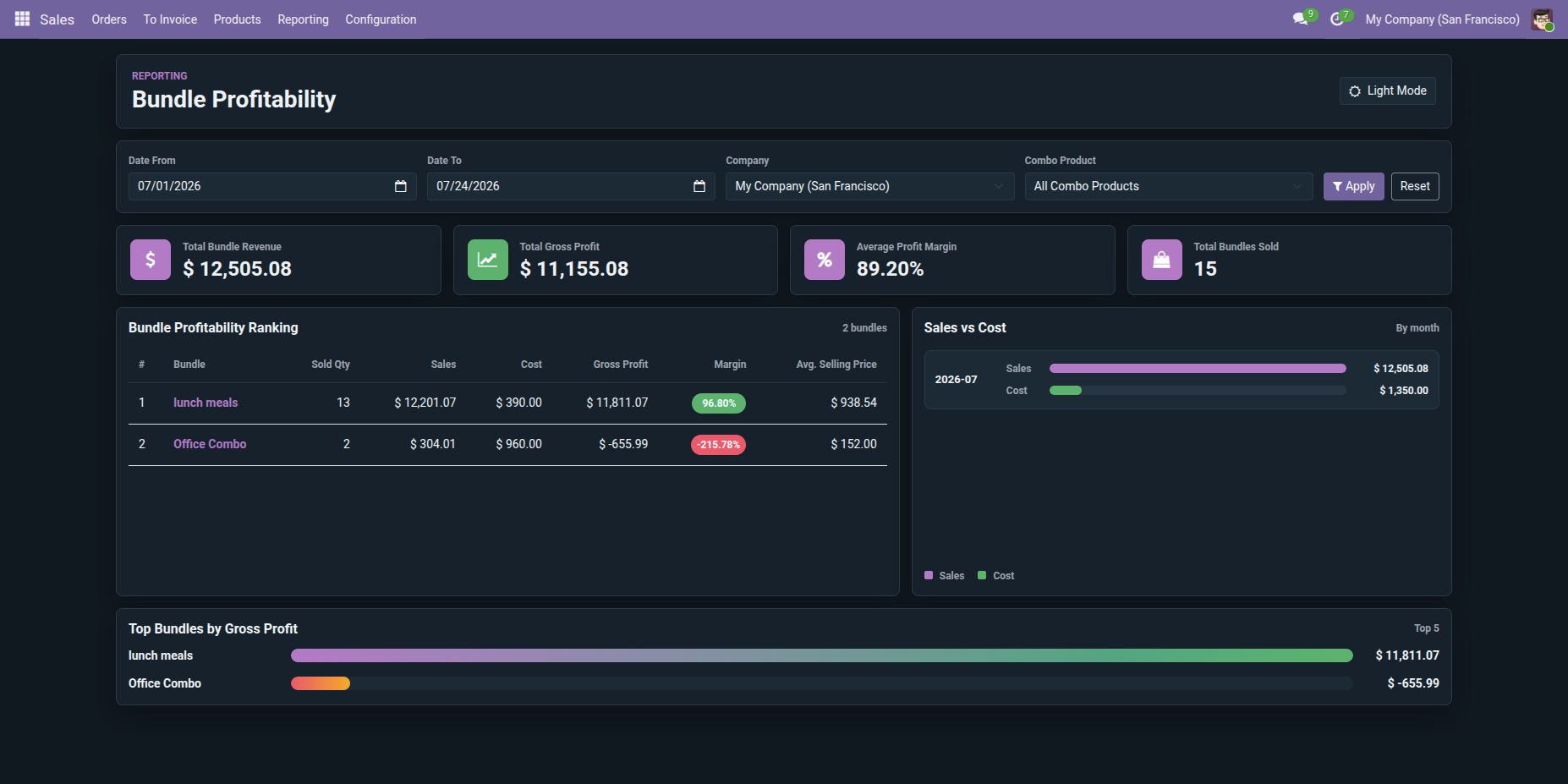
The Bundle Profitability Dashboard will open. The dashboard displays key metrics for Total Bundle Revenue, Total Gross Profit, Average Profit Margin, and Total Bundles Sold.
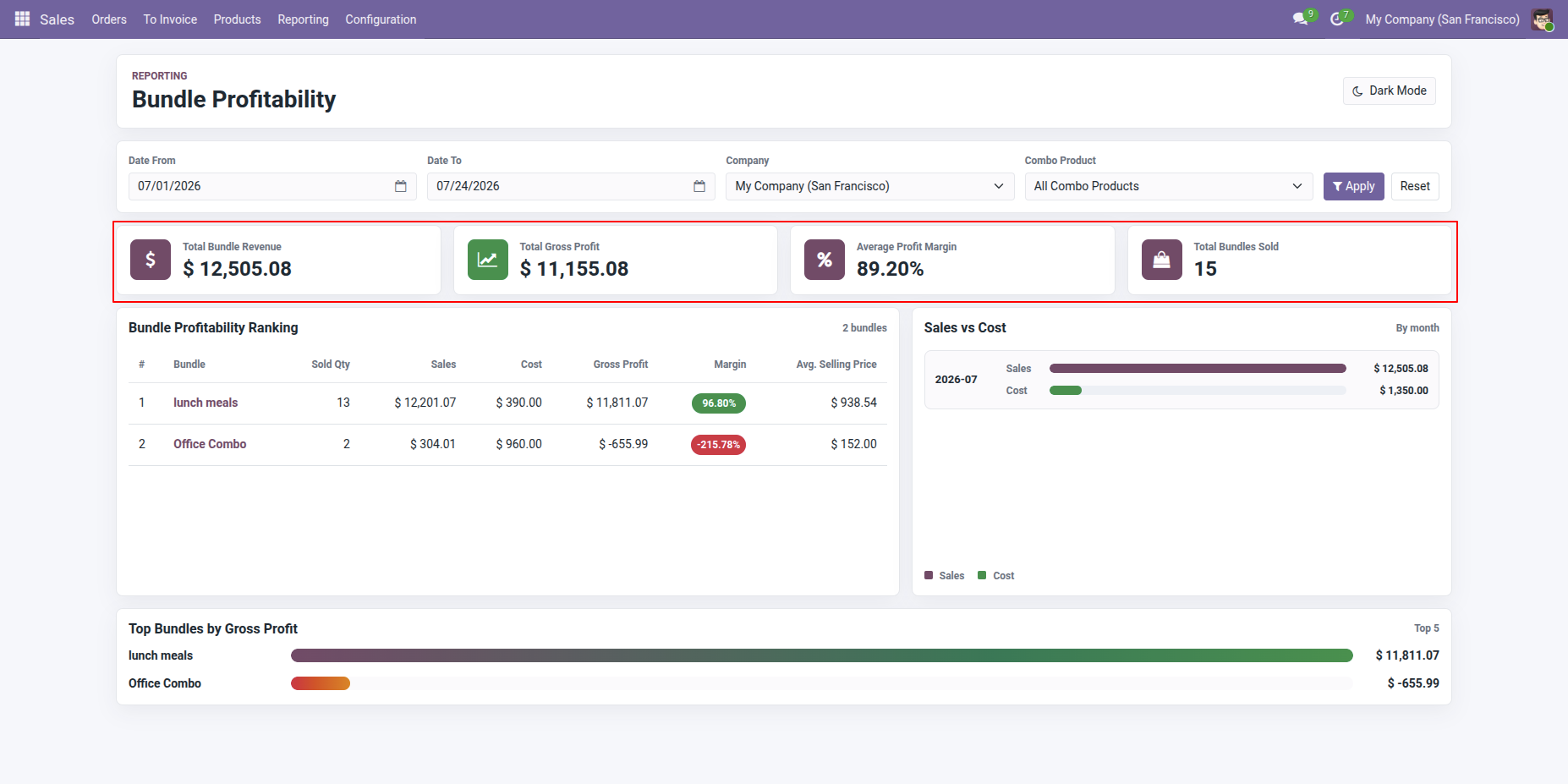
The dashboard displays a Bundle Profitability Ranking table, allowing users to compare the profitability of different bundle products.
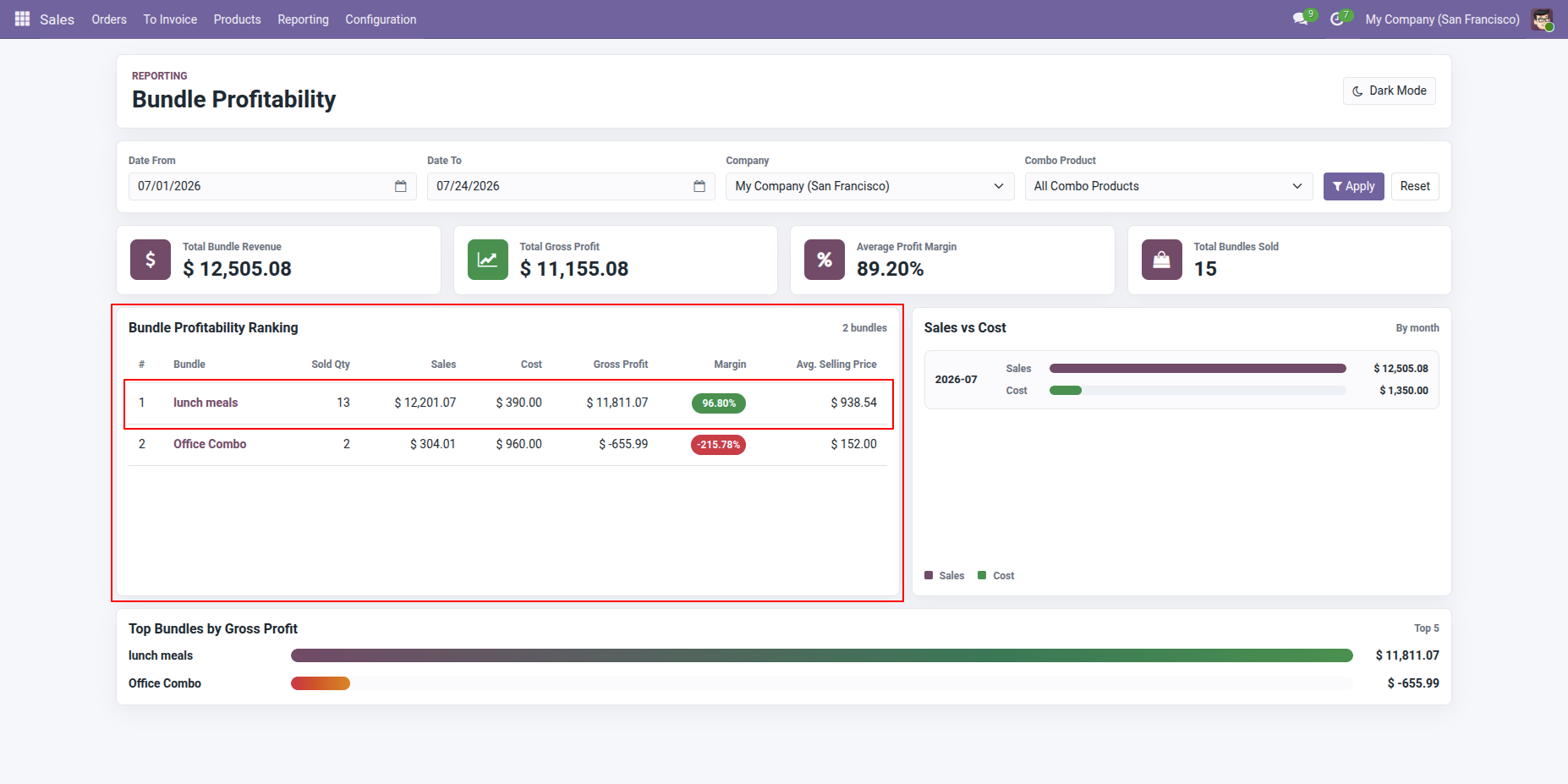
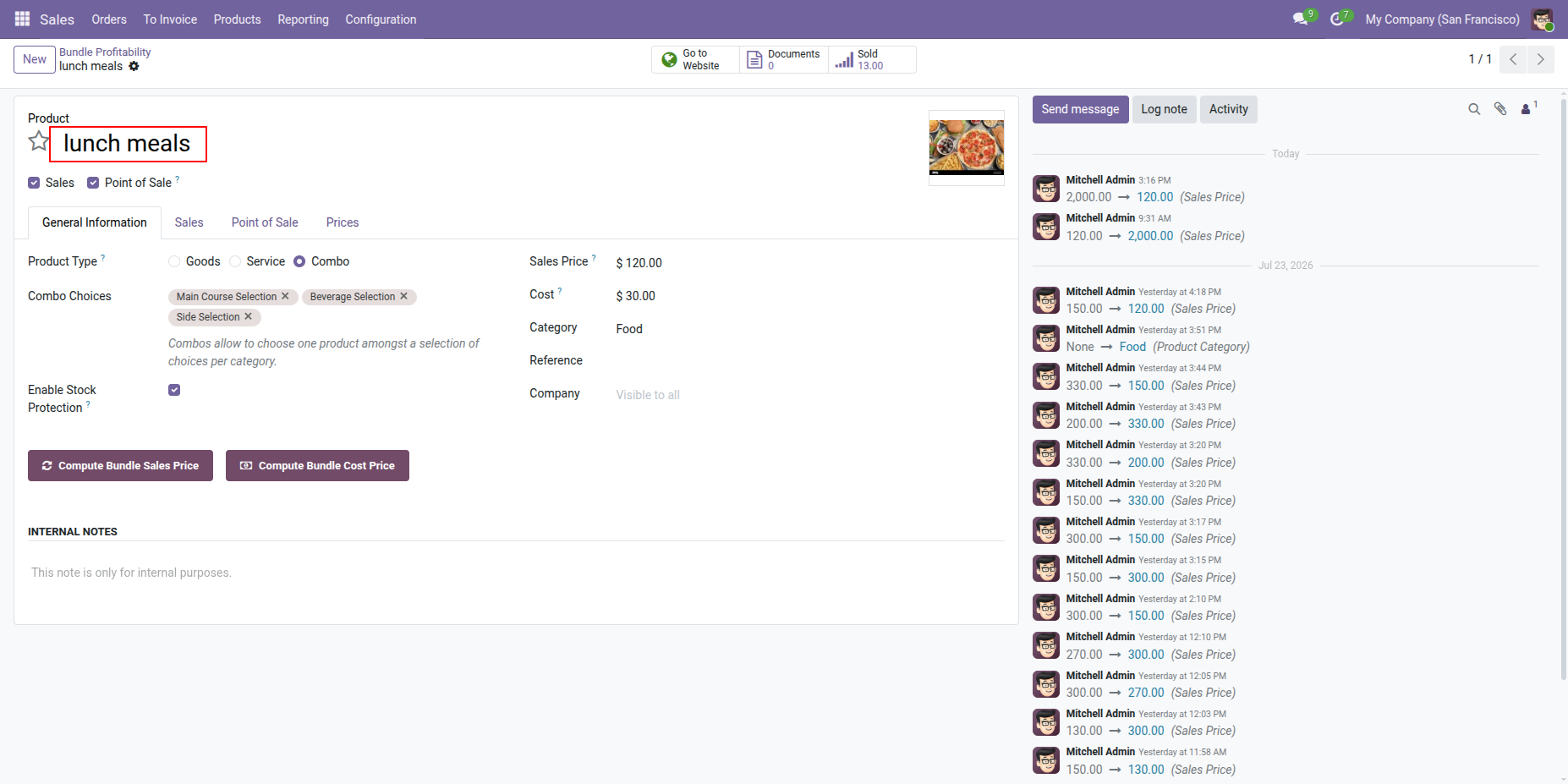
Click on a record in the Bundle Profitability Ranking table to open its form view.
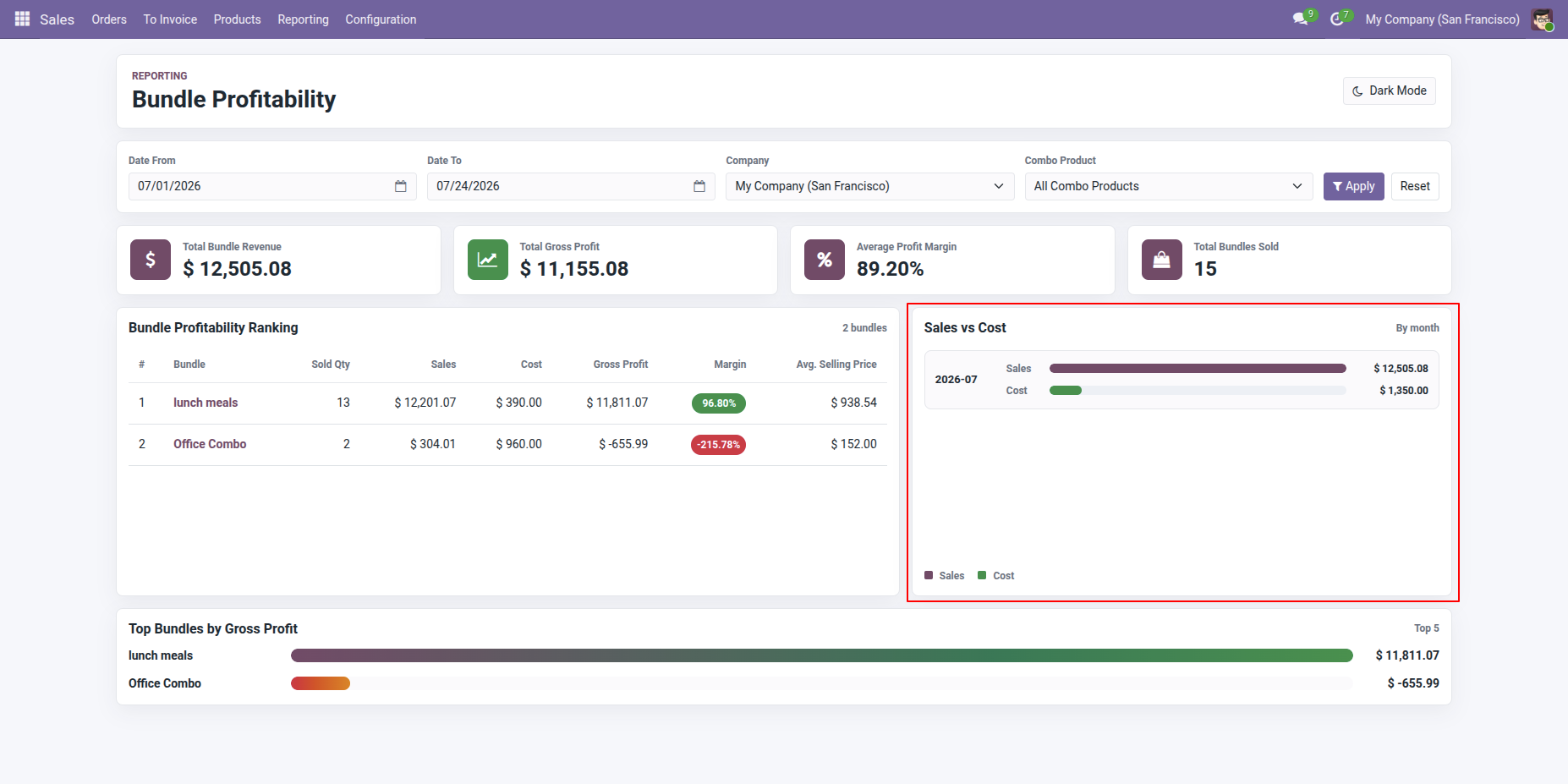
The dashboard displays Sales vs. Cost by Month, allowing users to compare monthly sales revenue with the associated cost.
The dashboard also displays the Top Bundles by Gross Profit, highlighting the bundles that generate the highest profit.
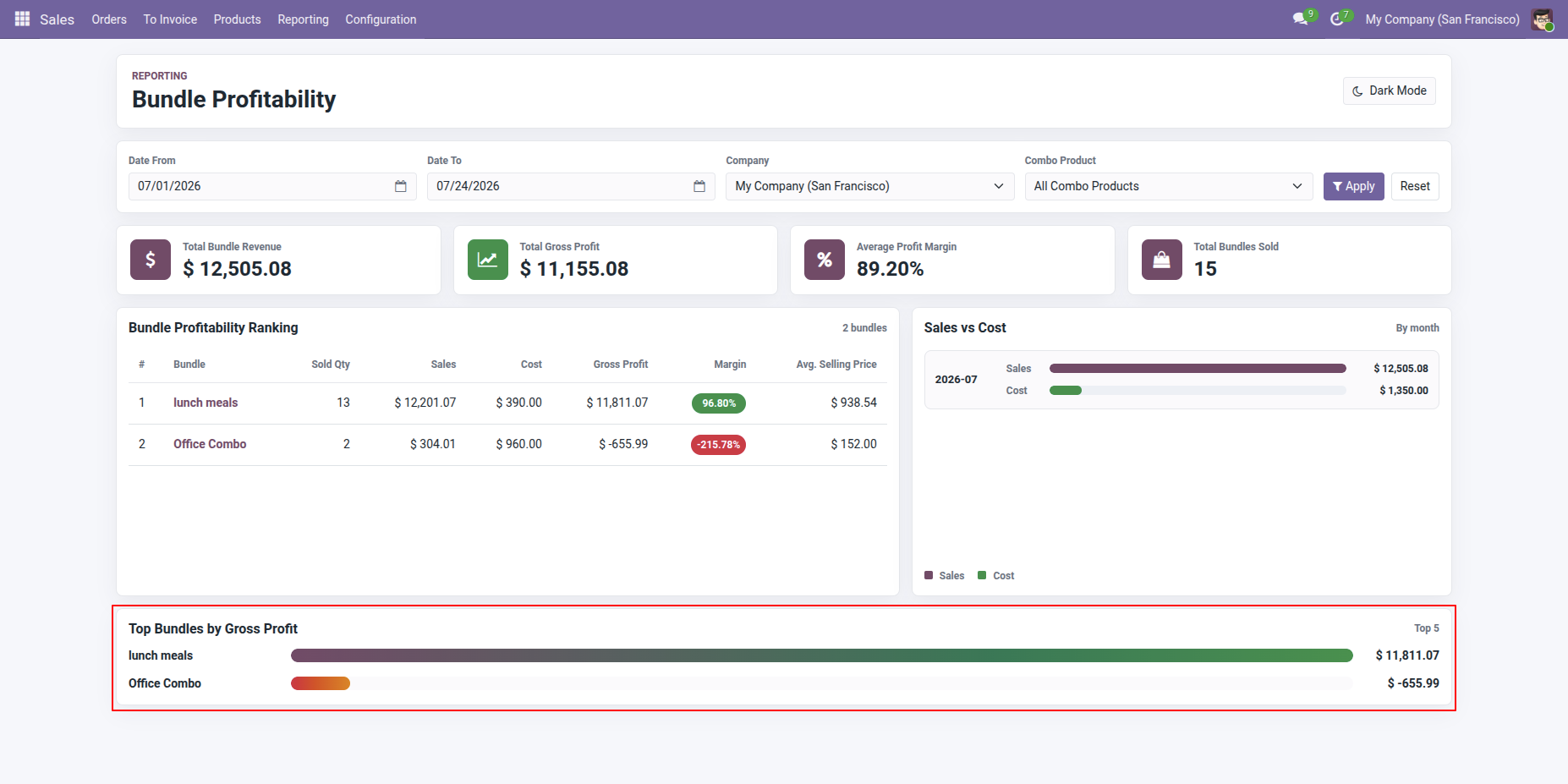
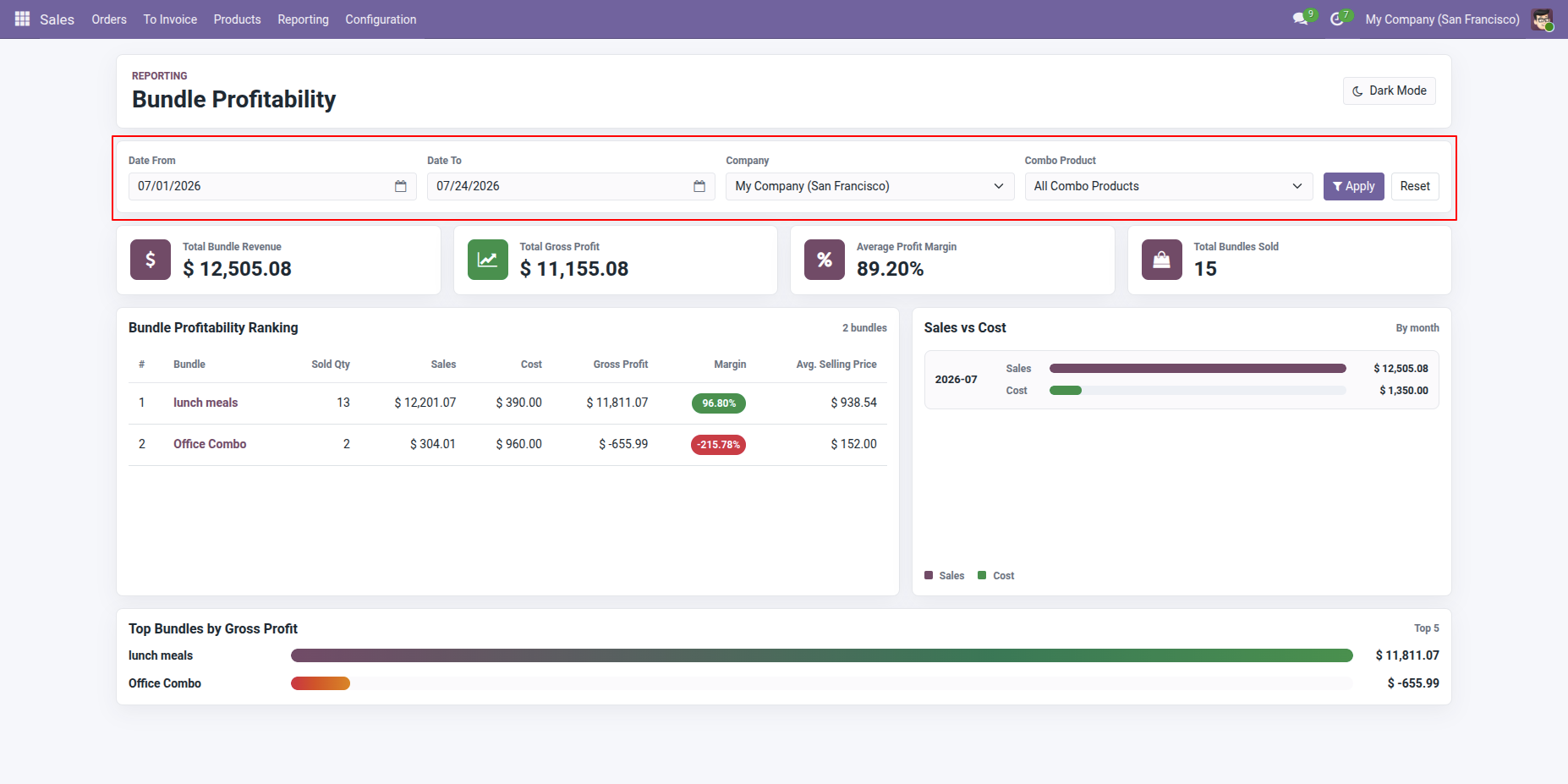
The Bundle Profitability Dashboard will open. Users can filter the dashboard by Date Range, Company, and Bundle Products.
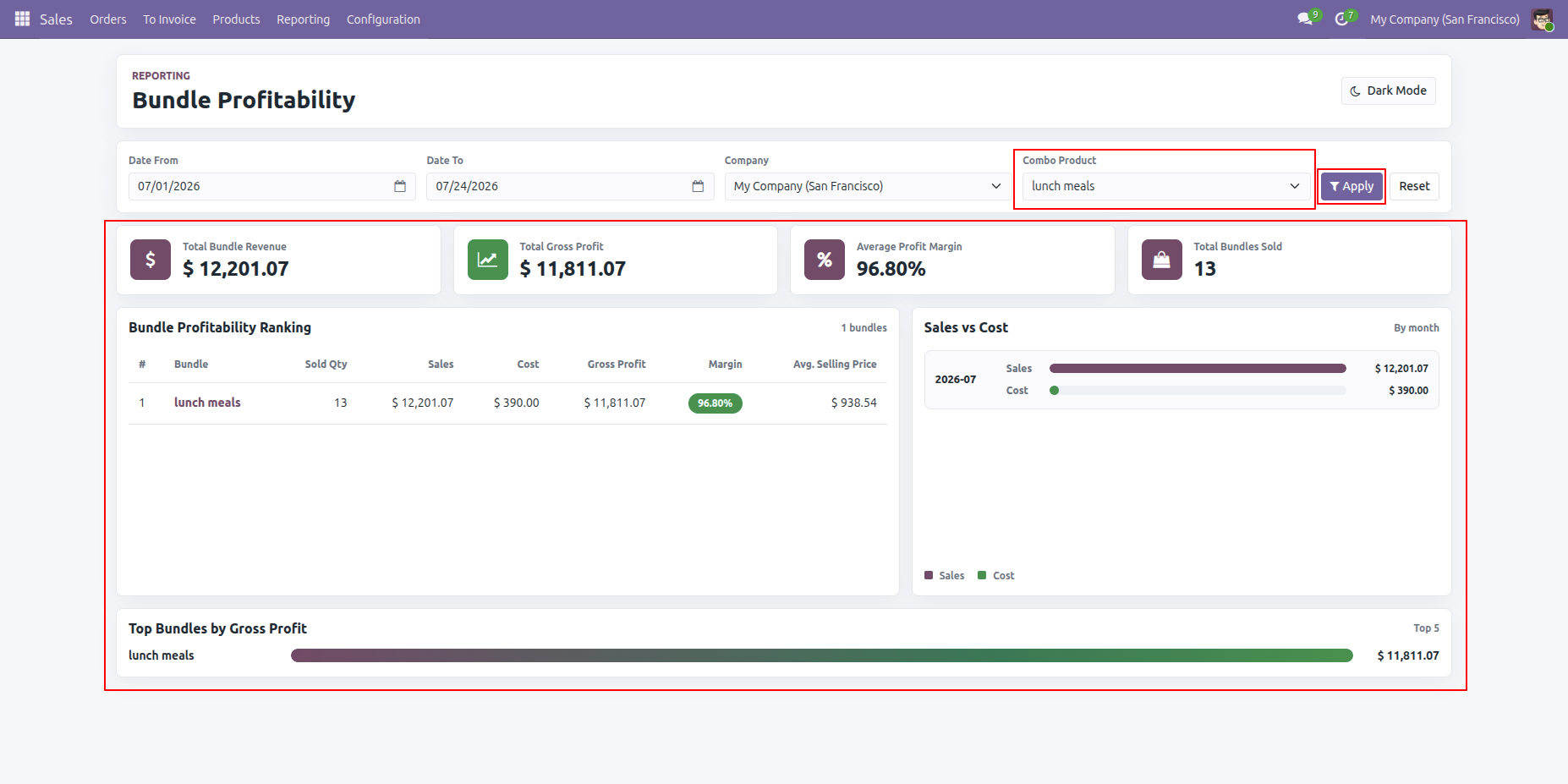
Filter the dashboard by Combo Product to view metrics and charts based on the selected product.
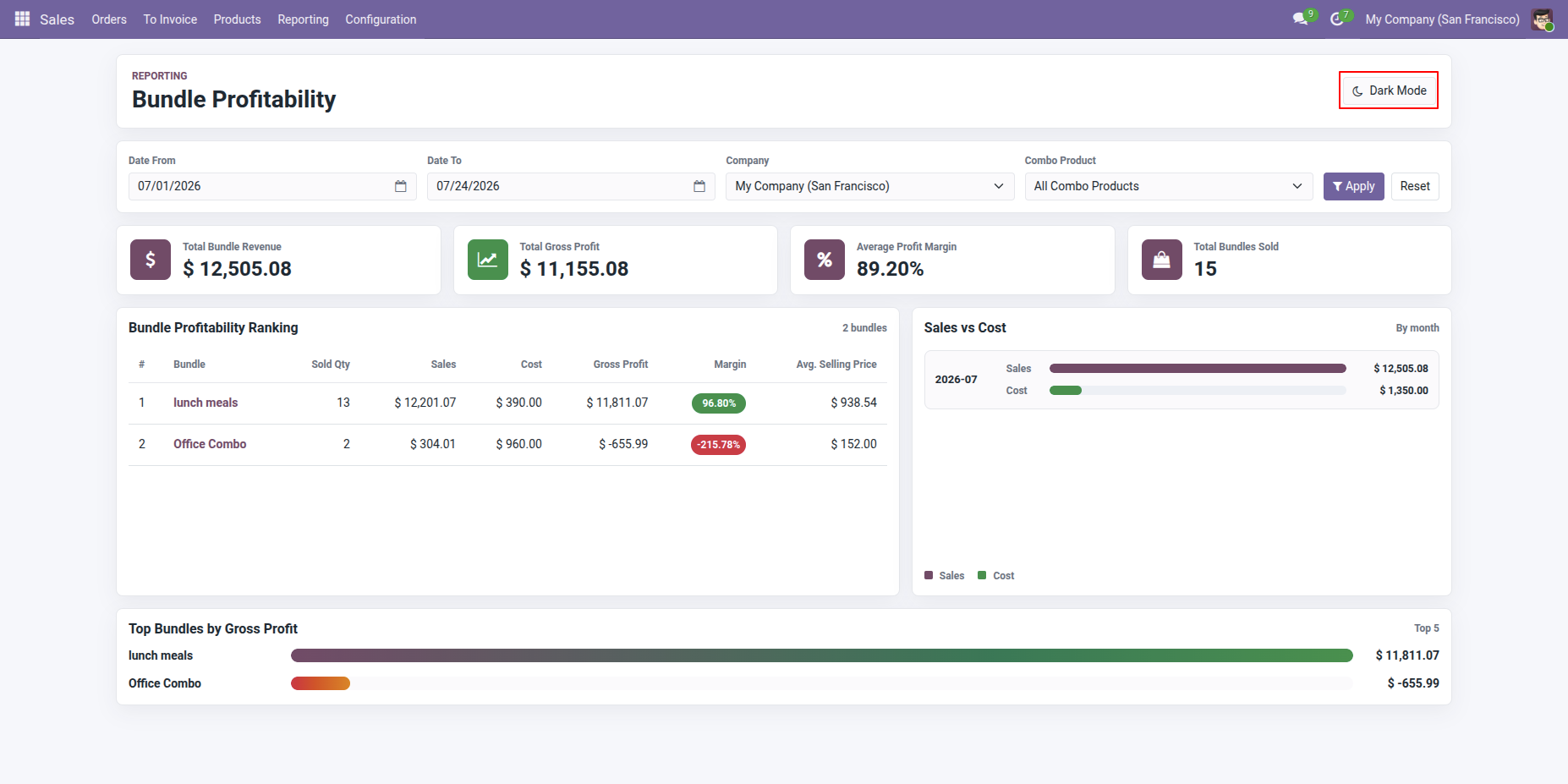
Click the Moon icon to switch the dashboard to Dark Mode.
The dashboard is displayed in Dark Mode.
Note: All in one product bundle base bone for "All in One Product Bundle", "POS Product Bundle", "Bundle Product Management" & "Bundle Product Management - Website".
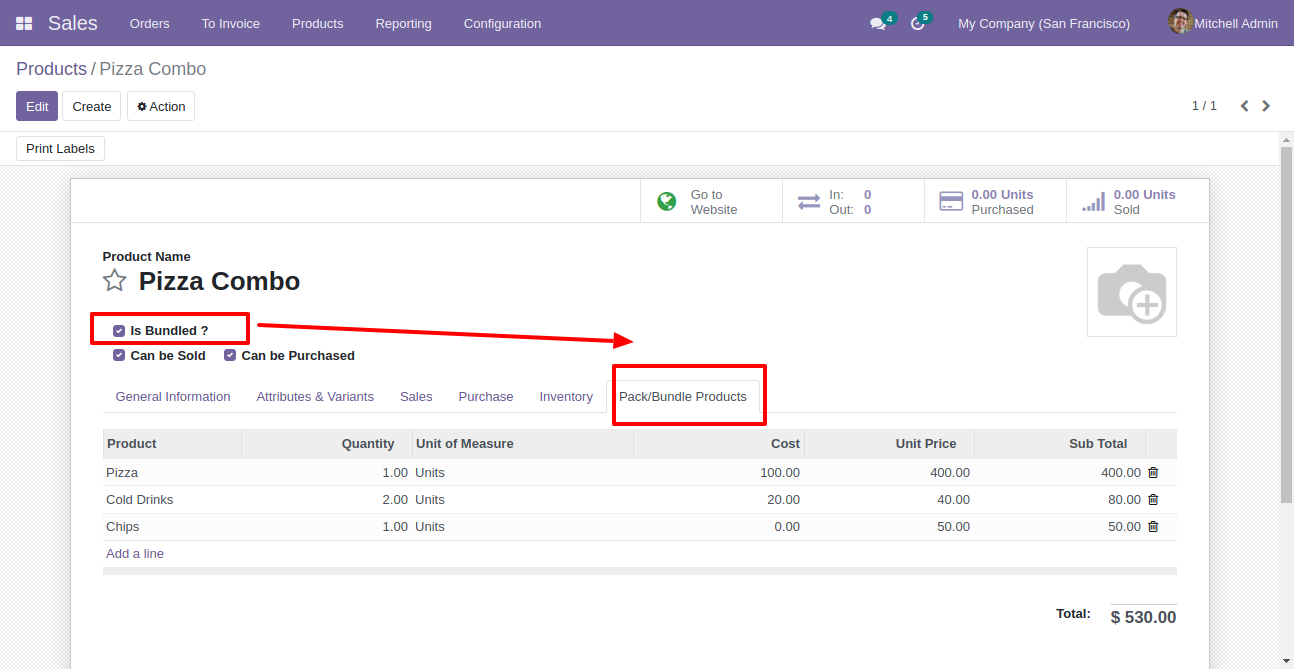
In the product tick "Is Bundled ?" to get the "Pack/Bundle Products" tab. You can count the total sales price of a bundle from the button "Compute Bundle Price".
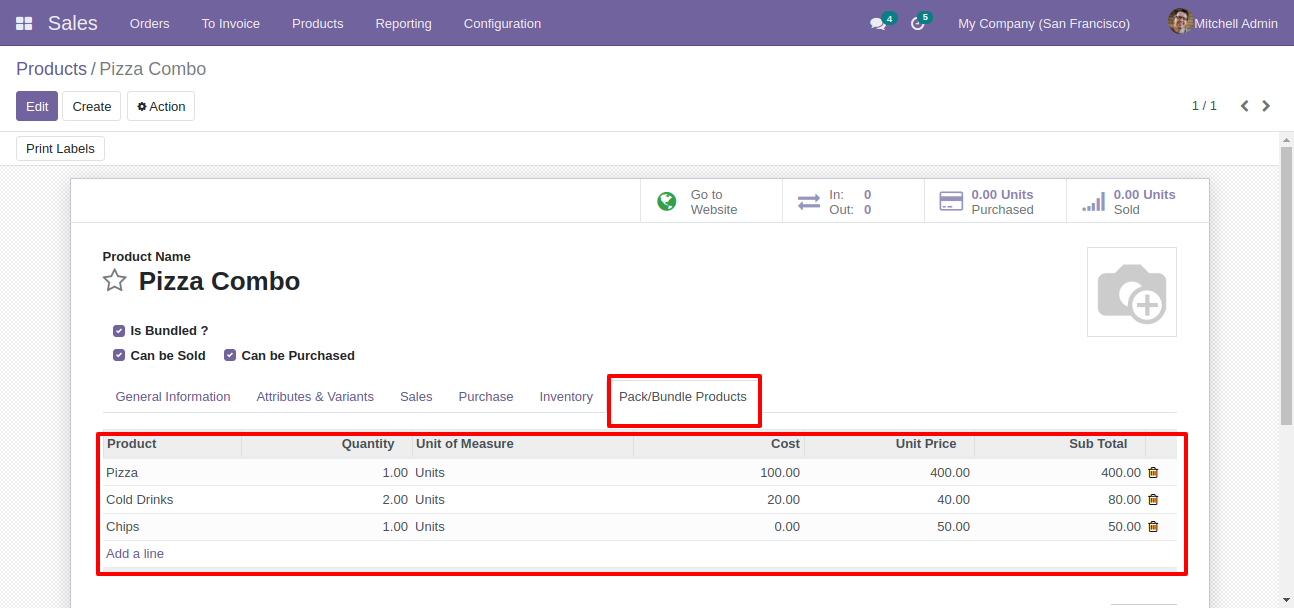
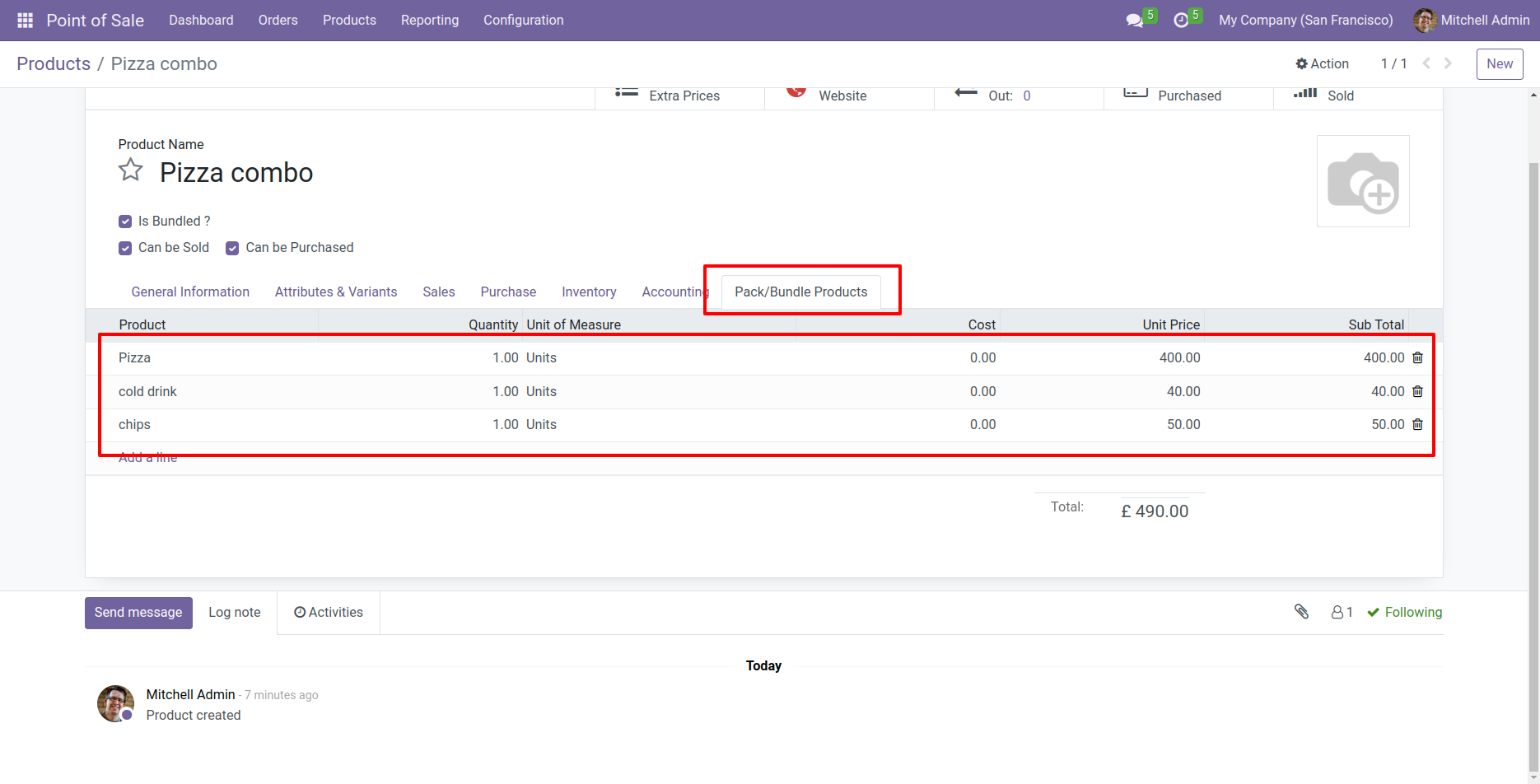
You can add products in the "Pack/Bundle Products" tab.
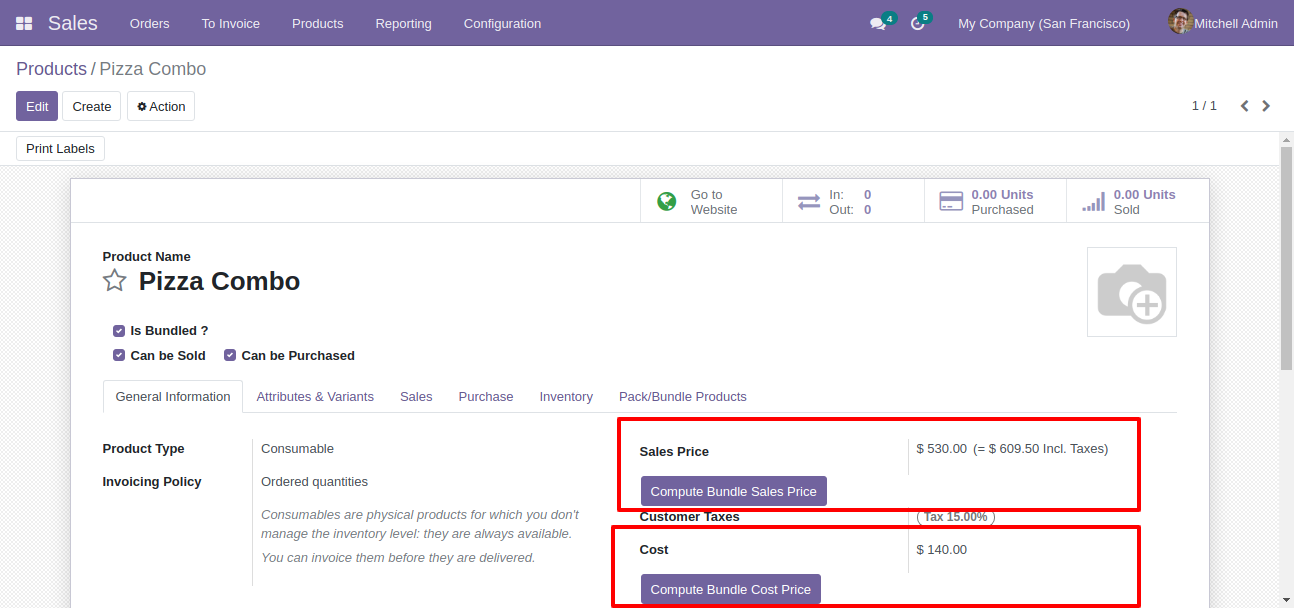
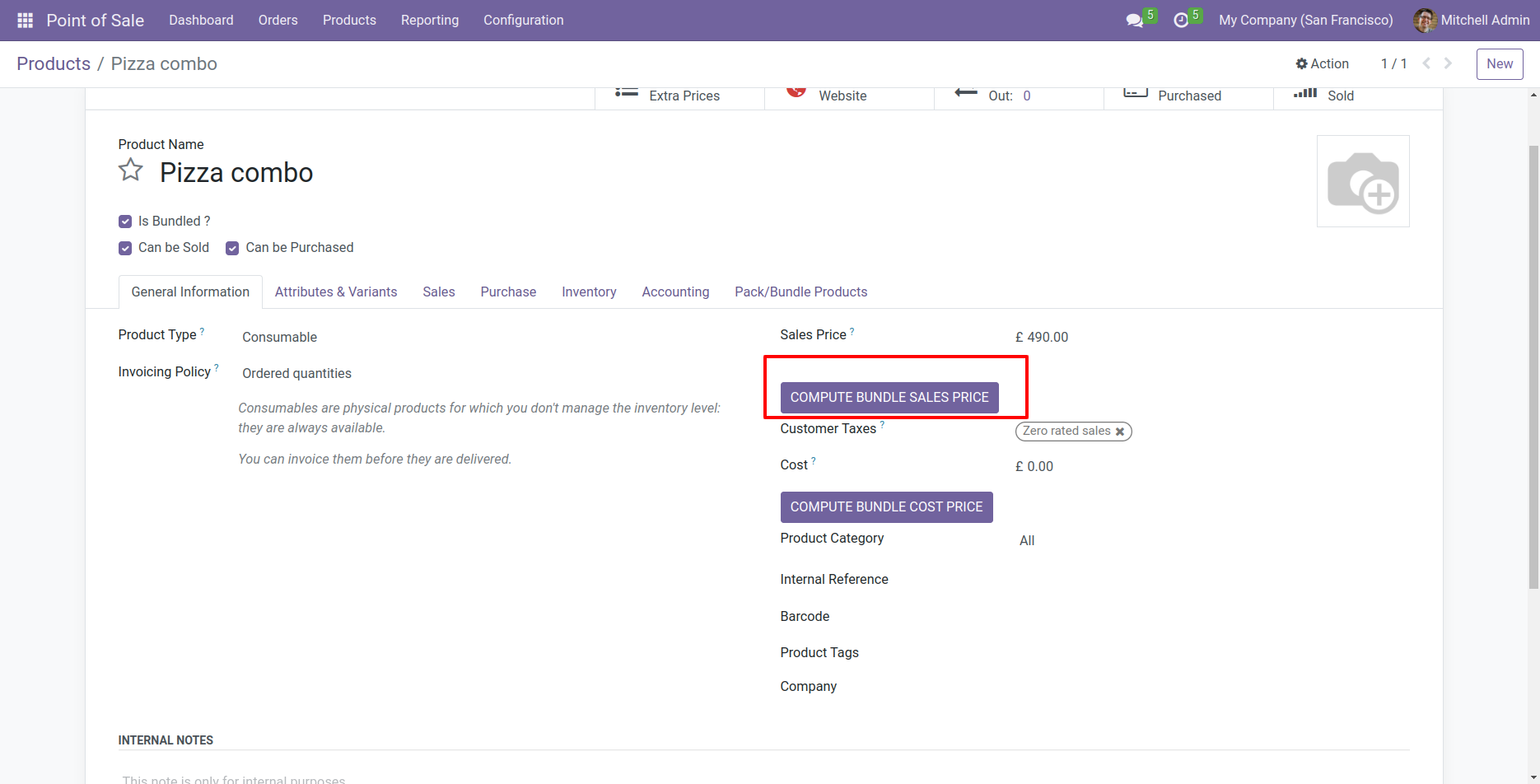
If you want to count the sales price of a bundle then click the button "Compute Bundle Price".
Base
Configuration
In the product tick "Is Bundled ?" to get the "Pack/Bundle Products" tab. You can count the total sales price of a bundle from the button "Compute Bundle Price".
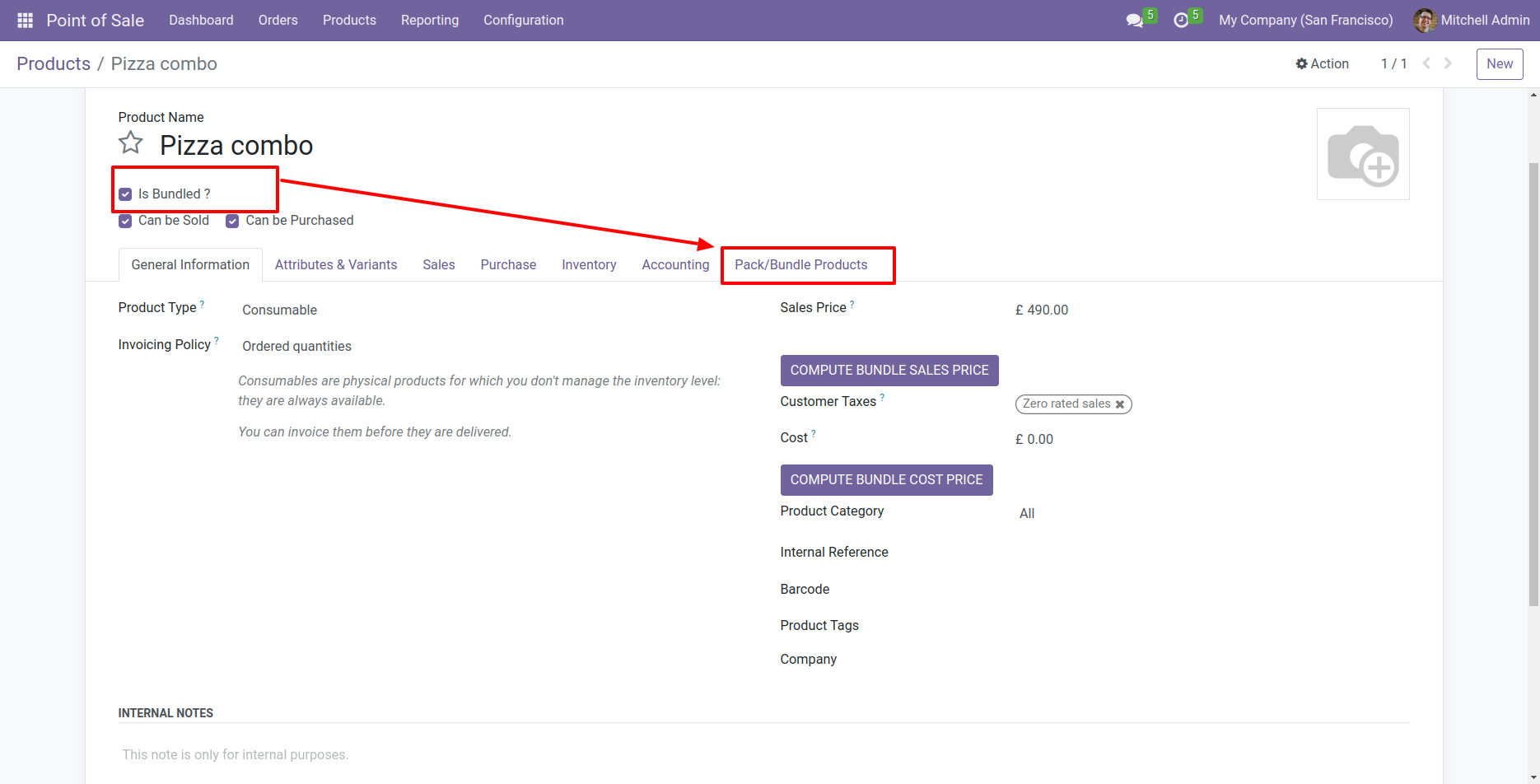
You can add products in the "Pack/Bundle Products" tab.
If you want to count the sales price of a bundle then click the button "Compute Bundle Sales Price".
Point Of Sale Product Bundle
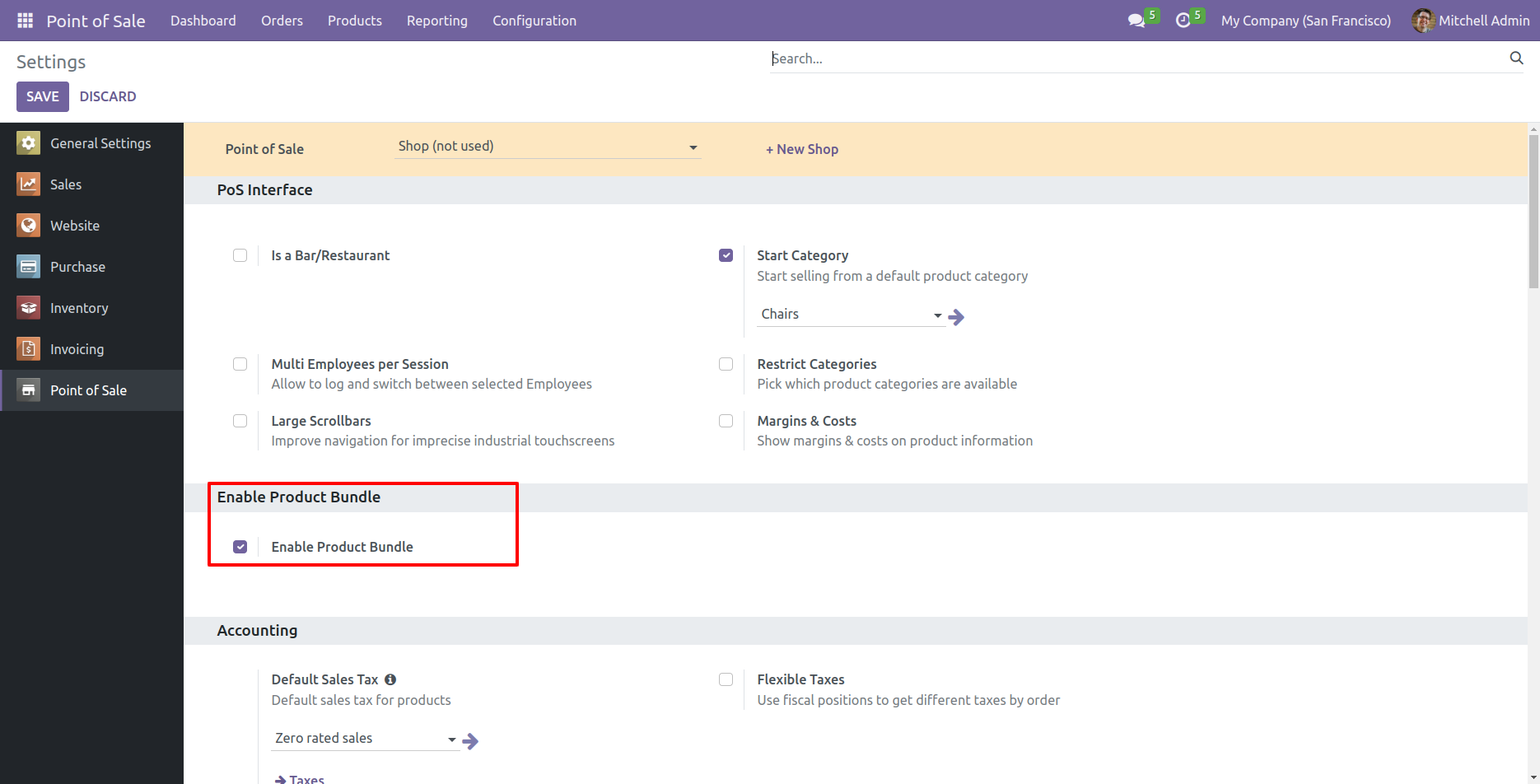
In the point of sale tick the "Enable Product Bundle" to enable product bundle.
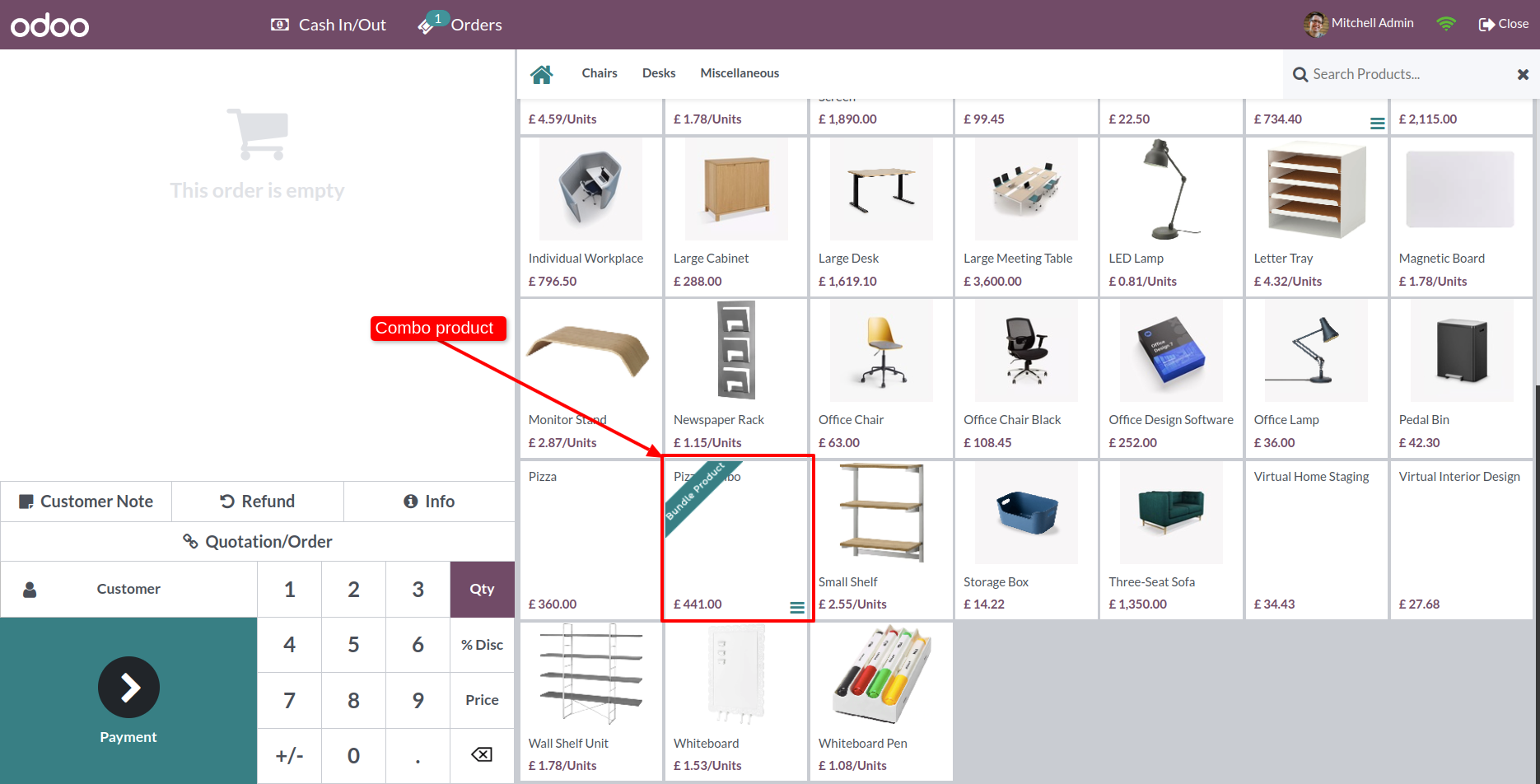
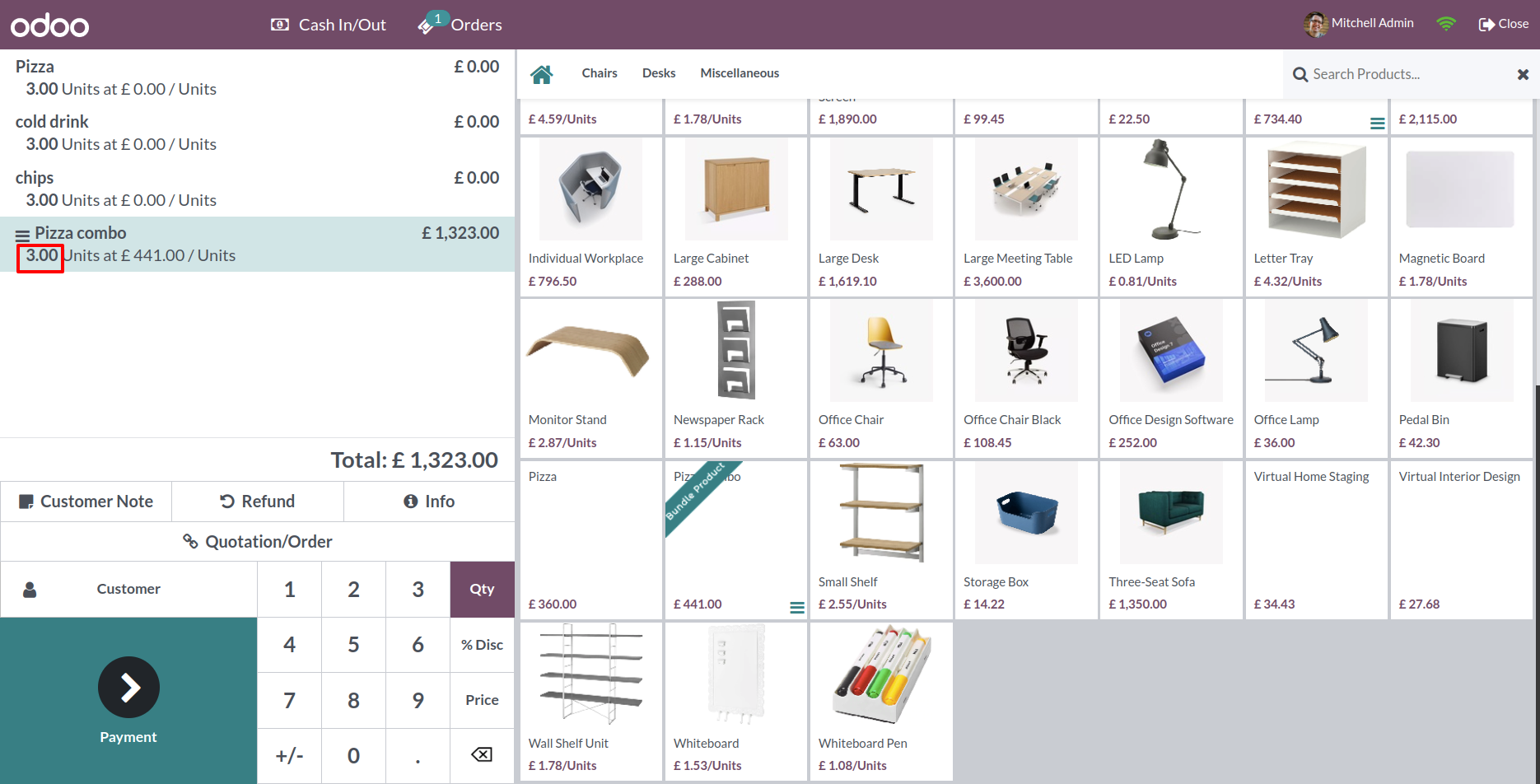
In the POS product if that product is bundle product then it shows the "Bundle Product" tag on that product bundle. You can see all product details of that bundle using the smart button that given below of that bundle.
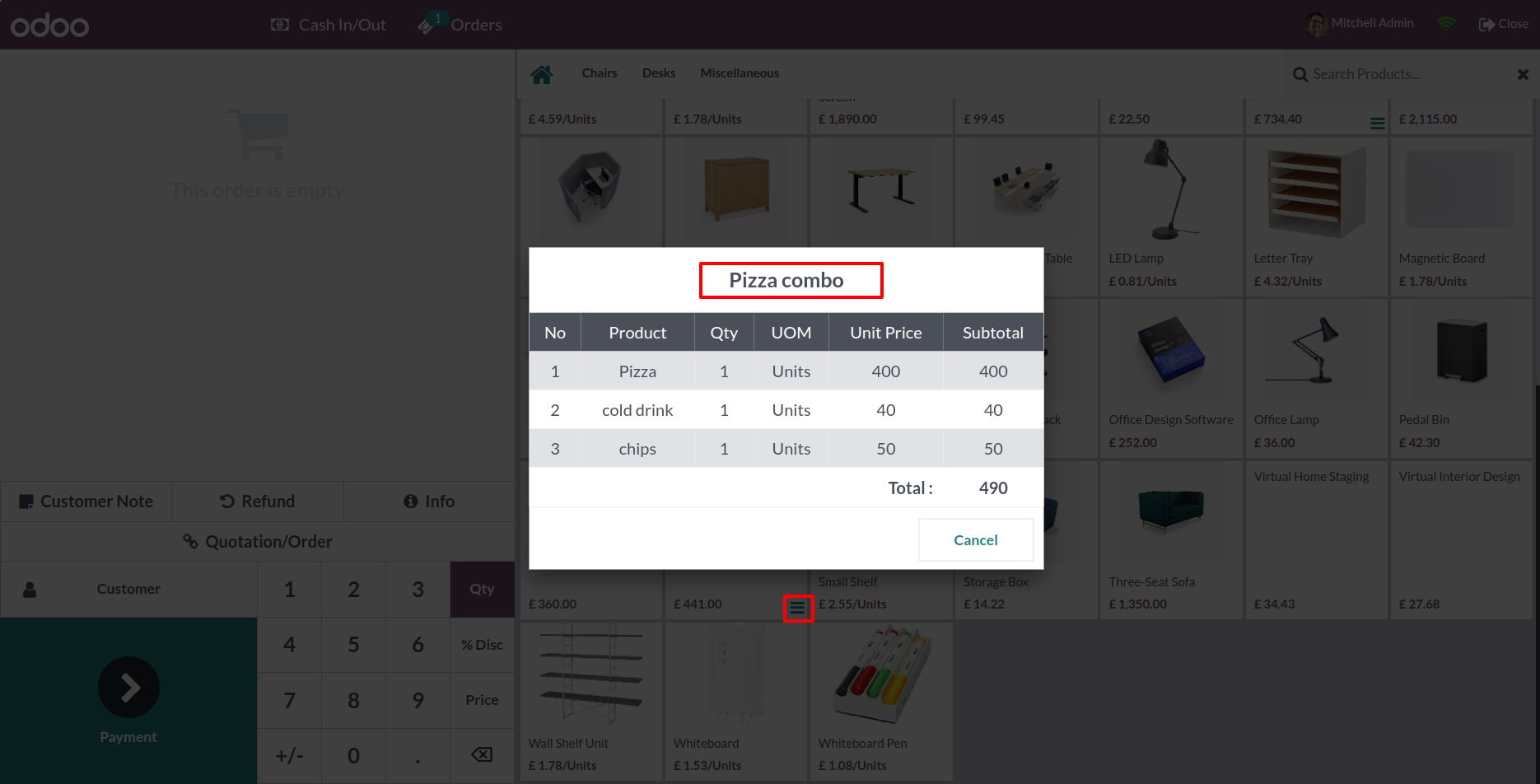
After press on that smart button, you can see all product details.
In the POS product if that product is bundle product then it shows the "Bundle Product" tag on that product bundle. You can see all product details of that bundle using the smart button that given below of that bundle.
If you click on bundle product it opens a wizard for quantity and price but normal product automatically added to the cart when we click.
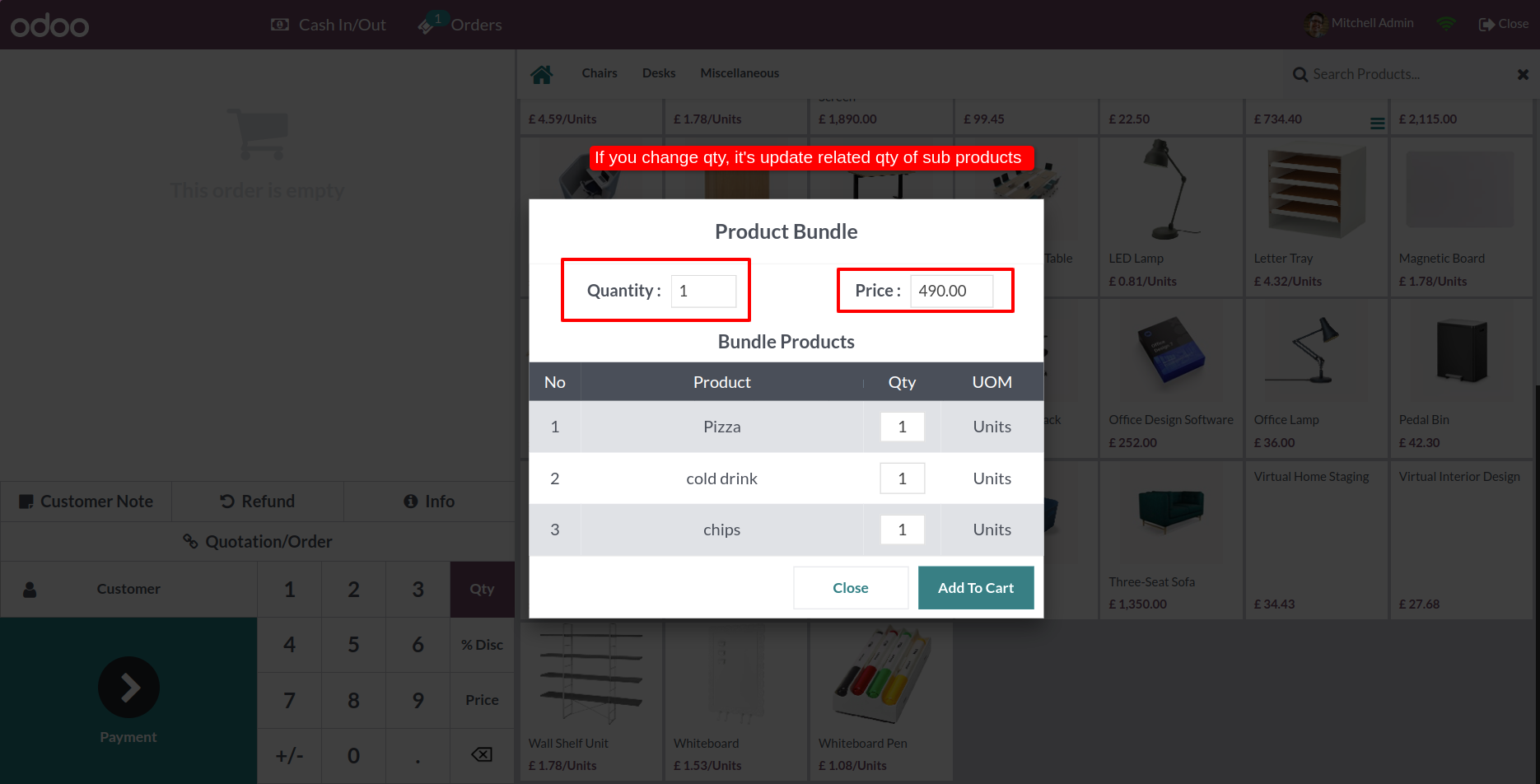
You can increase bundle quantity and then press the "Add To Cart" button.
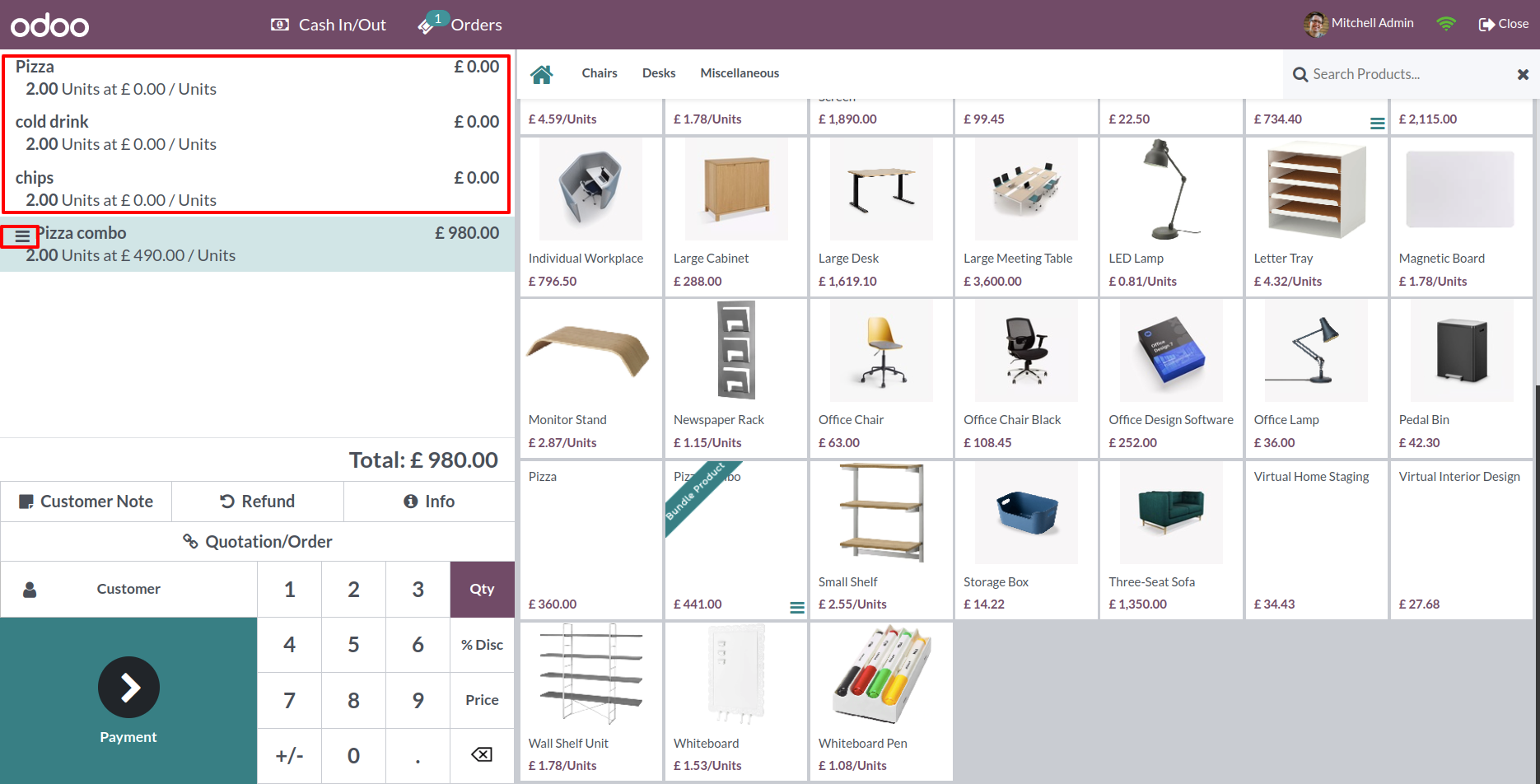
All pack product price is 0(zero) and in the total, it shows total price based on bundle quantity.
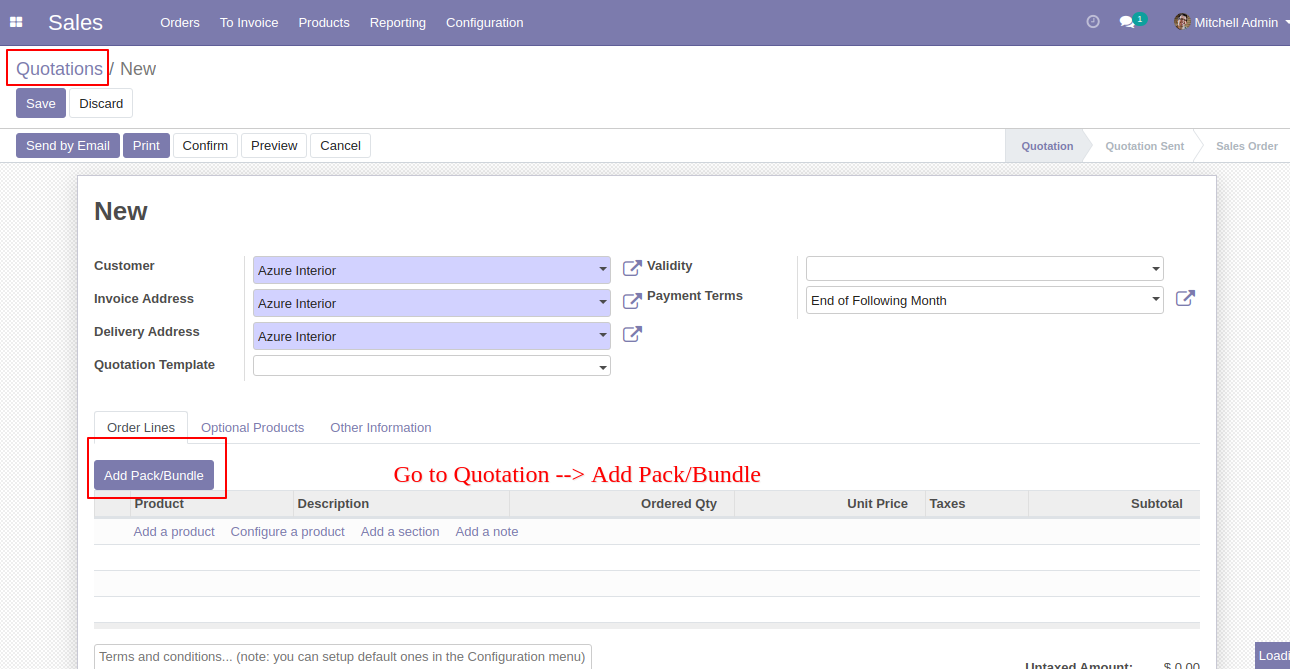
In the sales press button "Add Pack/Bundle" to add product package.
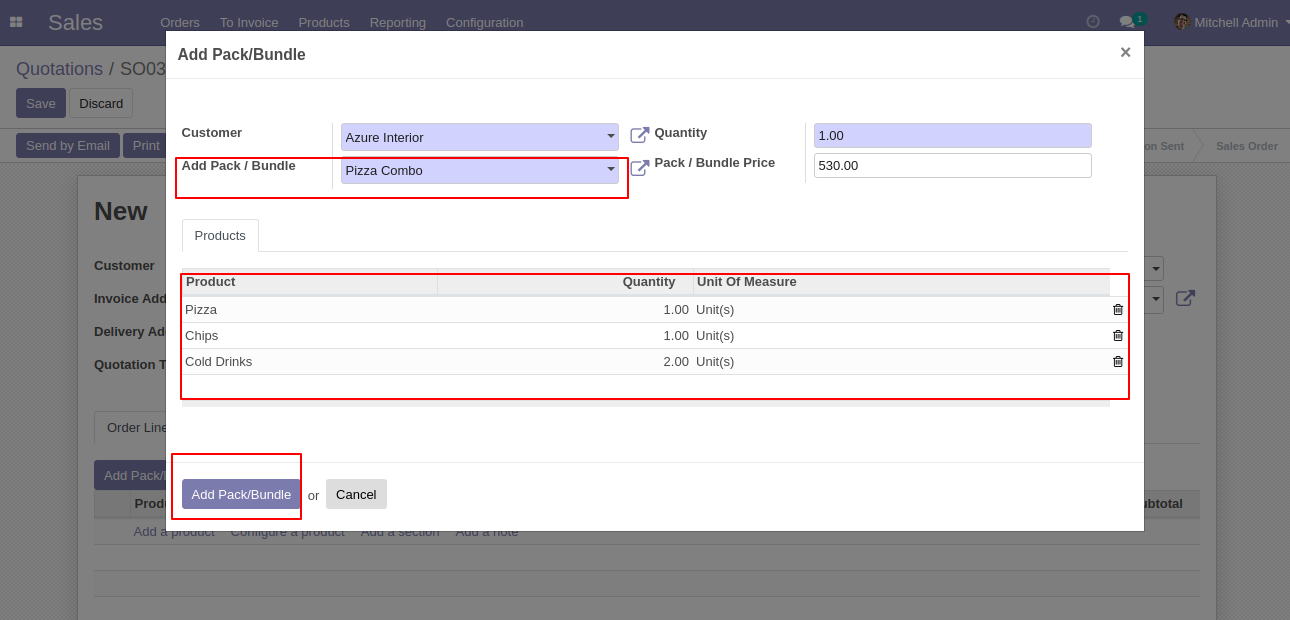
After that one wizard open where you can edit product details, quantity and other details.
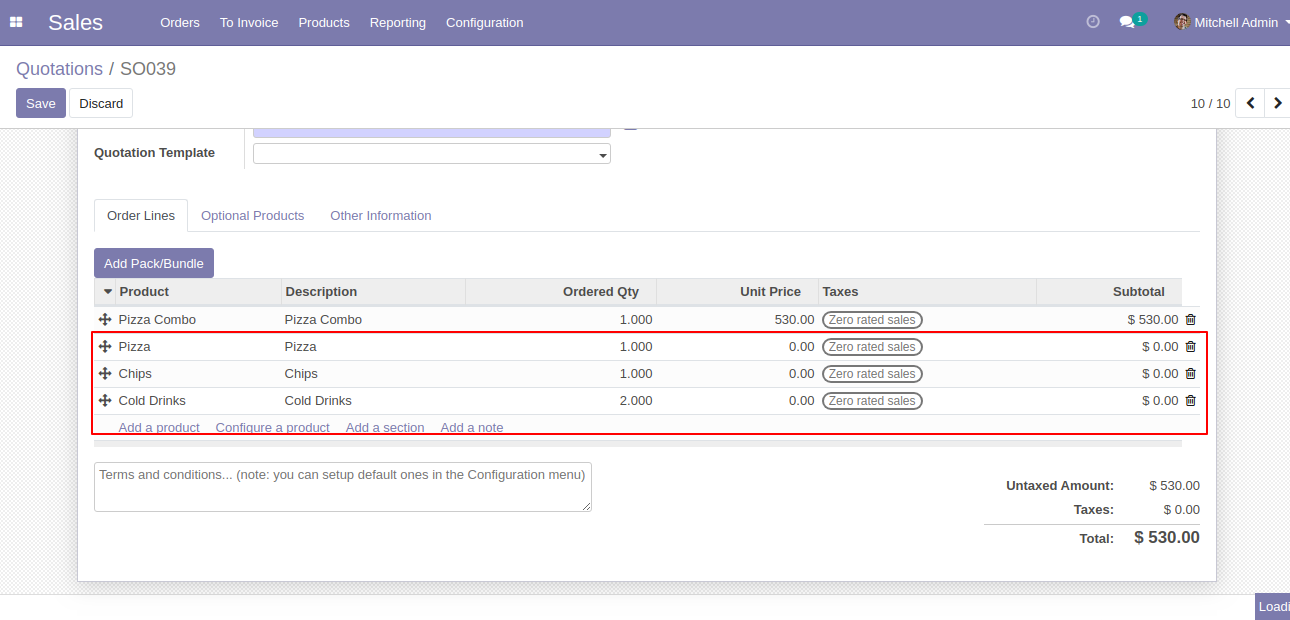
After the press button "Add Pack/Bundle" to add that bunch in quotation/sale order.
In the purchase press button "Add Pack/Bundle" to add product package.
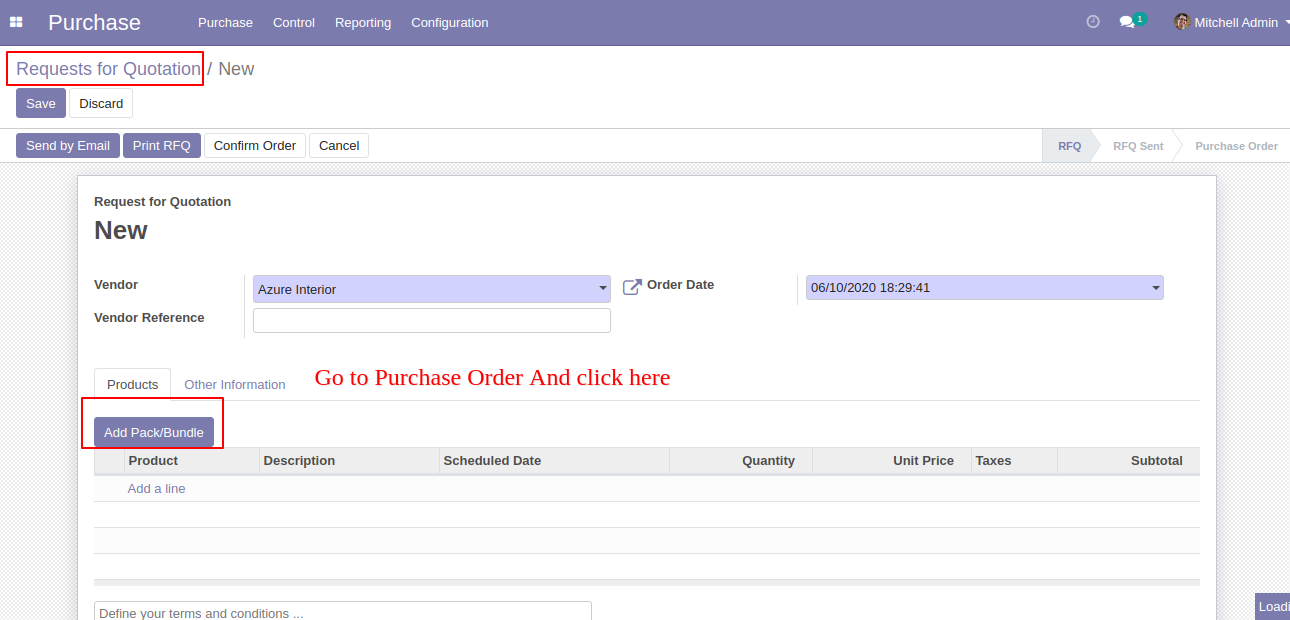
After that one wizard open where you can edit product details, quantity and other details.
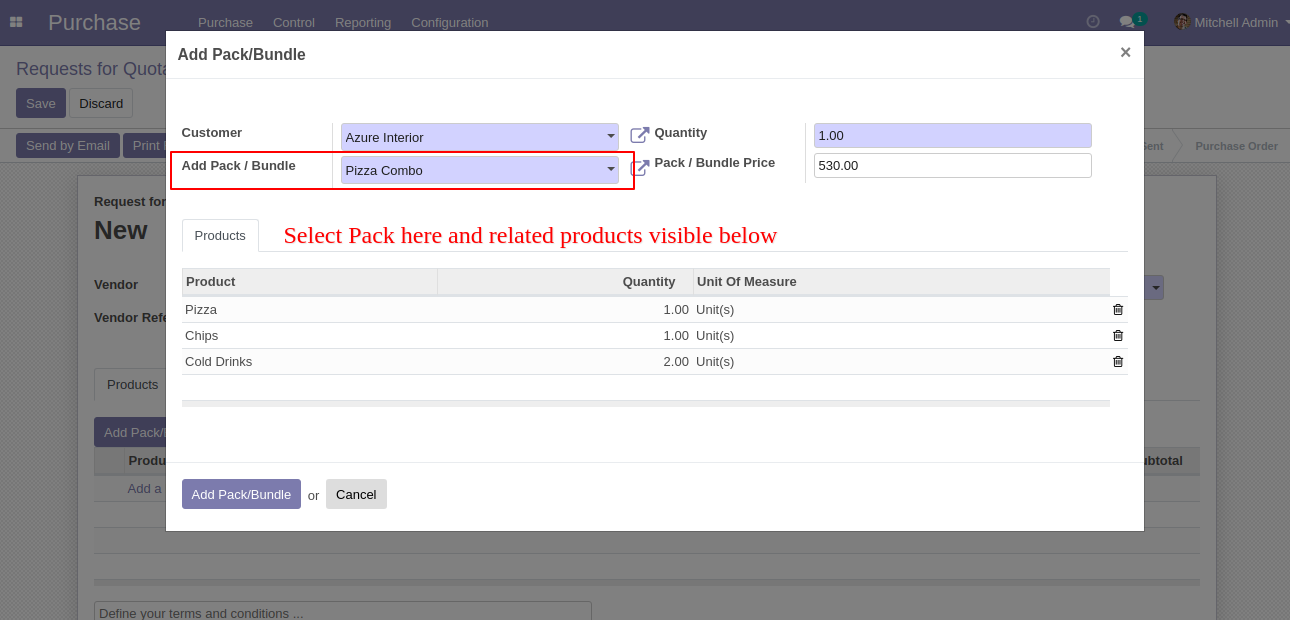
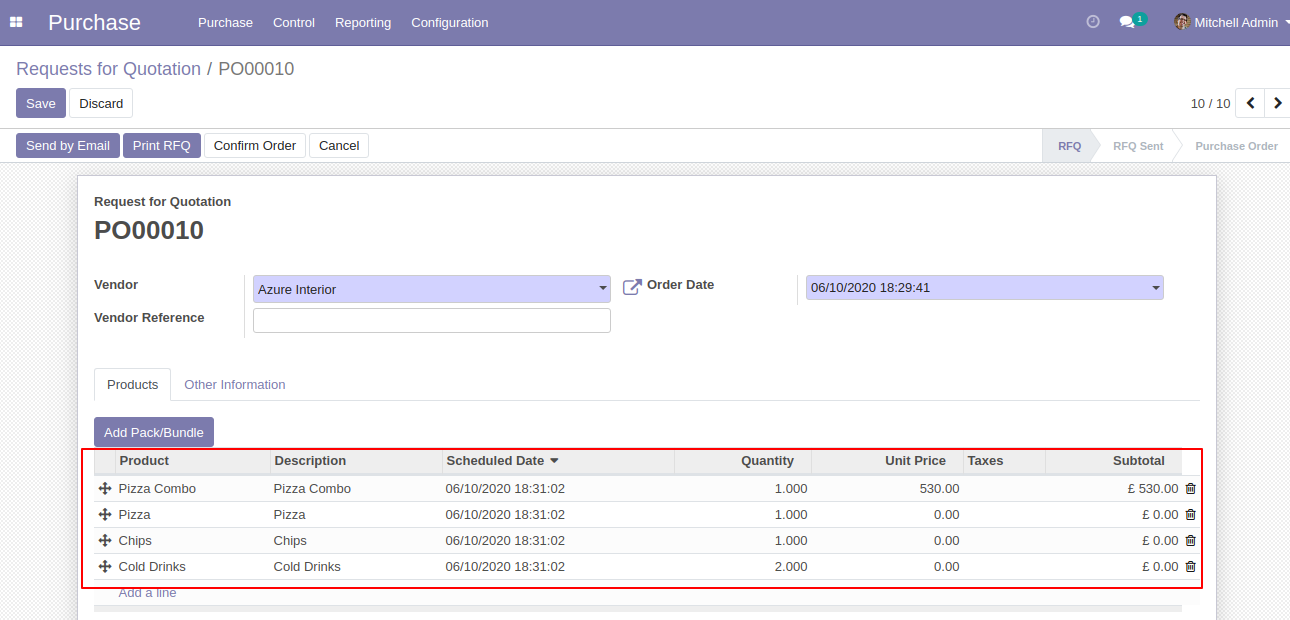
After the press button "Add Pack/Bundle" to add that bunch in a request for quotation/purchase order.
In the inventory press button "Add Pack/Bundle" to add product package.
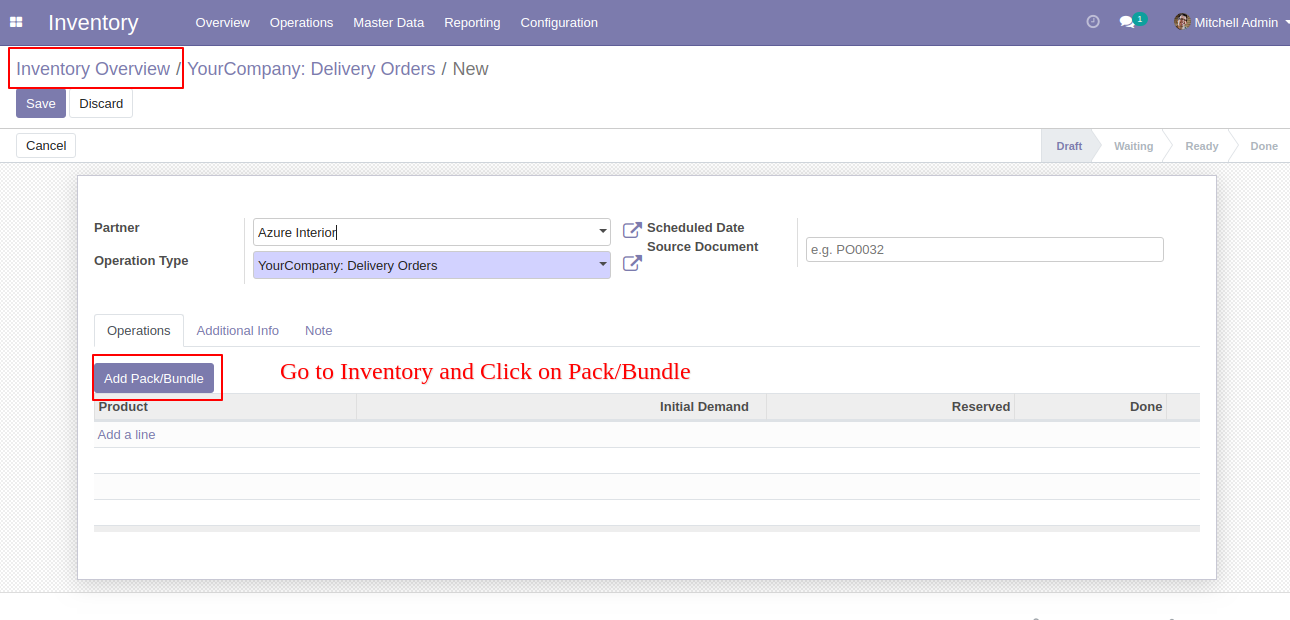
After that one wizard open where you can edit product details, quantity and other details.
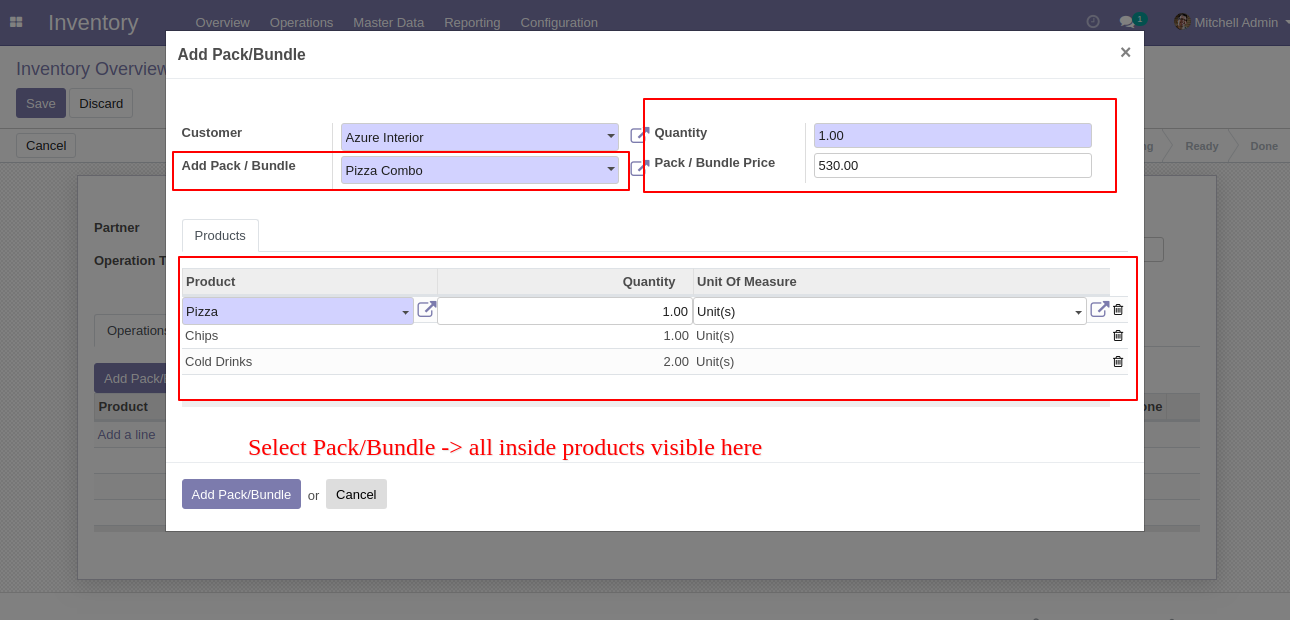
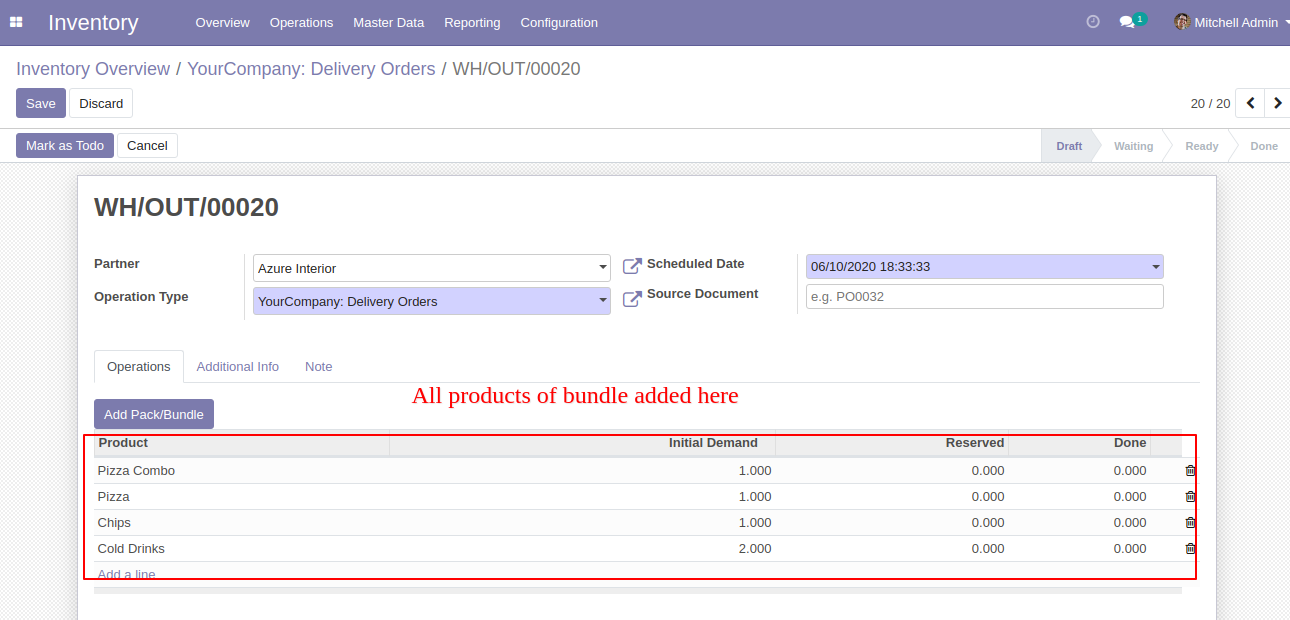
After the press button "Add Pack/Bundle" to add that bunch in an inventory or transfer.
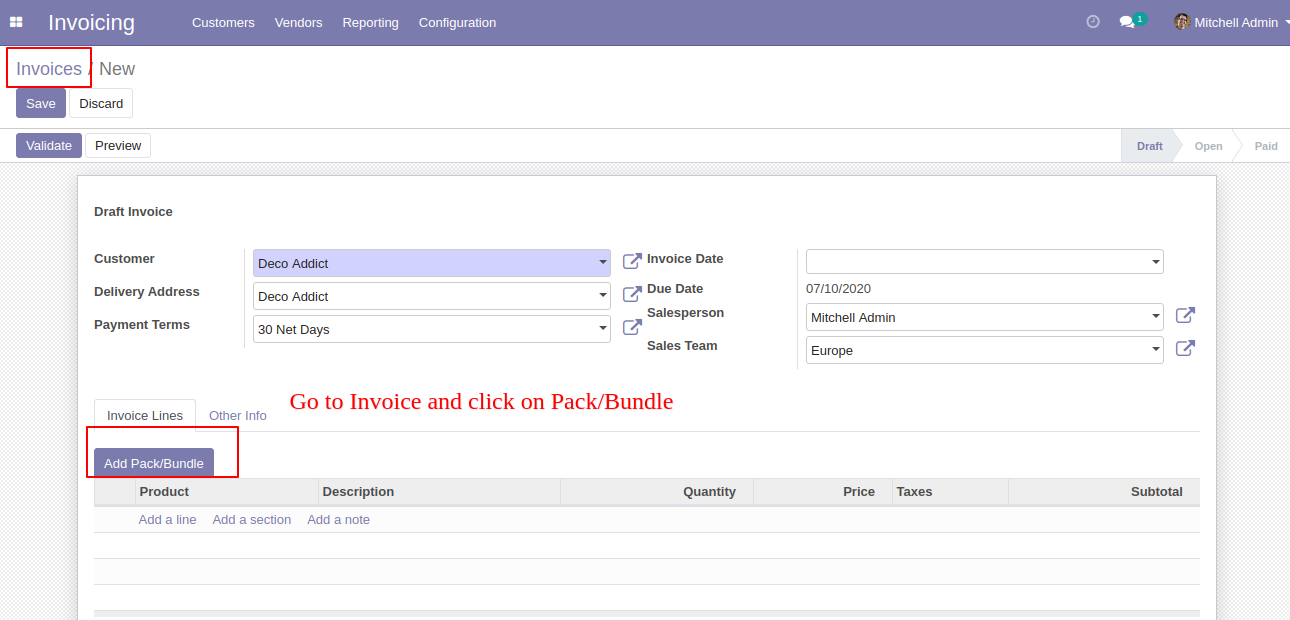
In the invoice press button "Add Pack/Bundle" to add product package.
After that one wizard open where you can edit product details, quantity and other details.
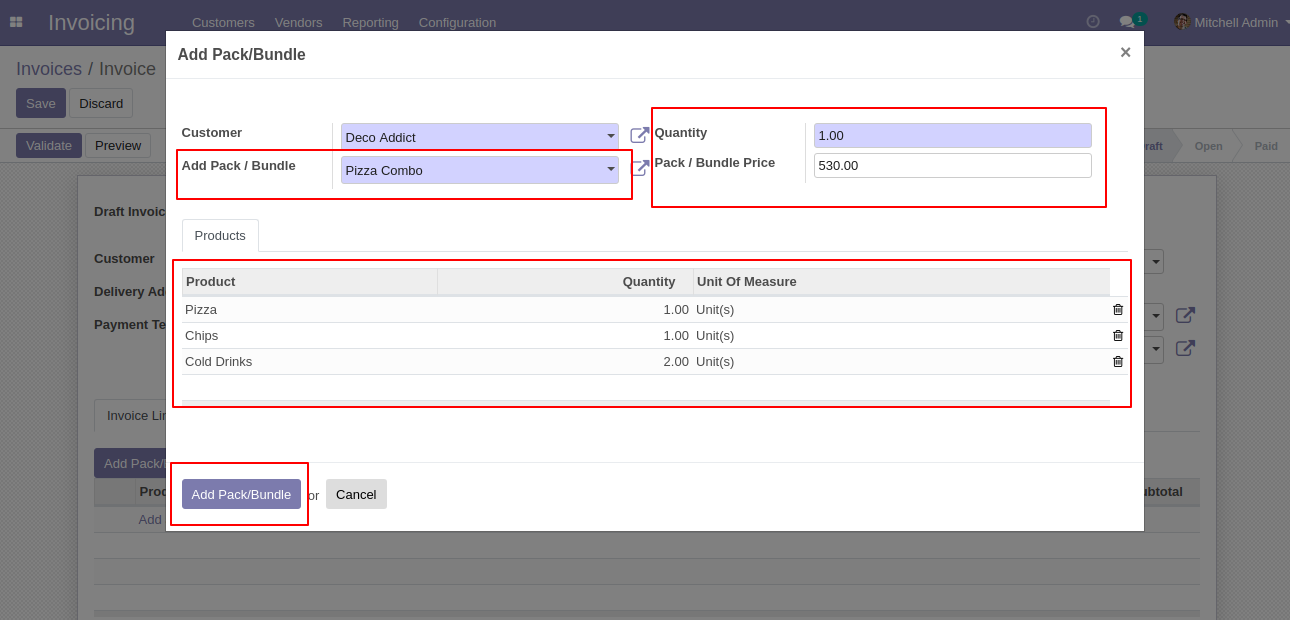
After the press button "Add Pack/Bundle" to add that bunch in the invoice.
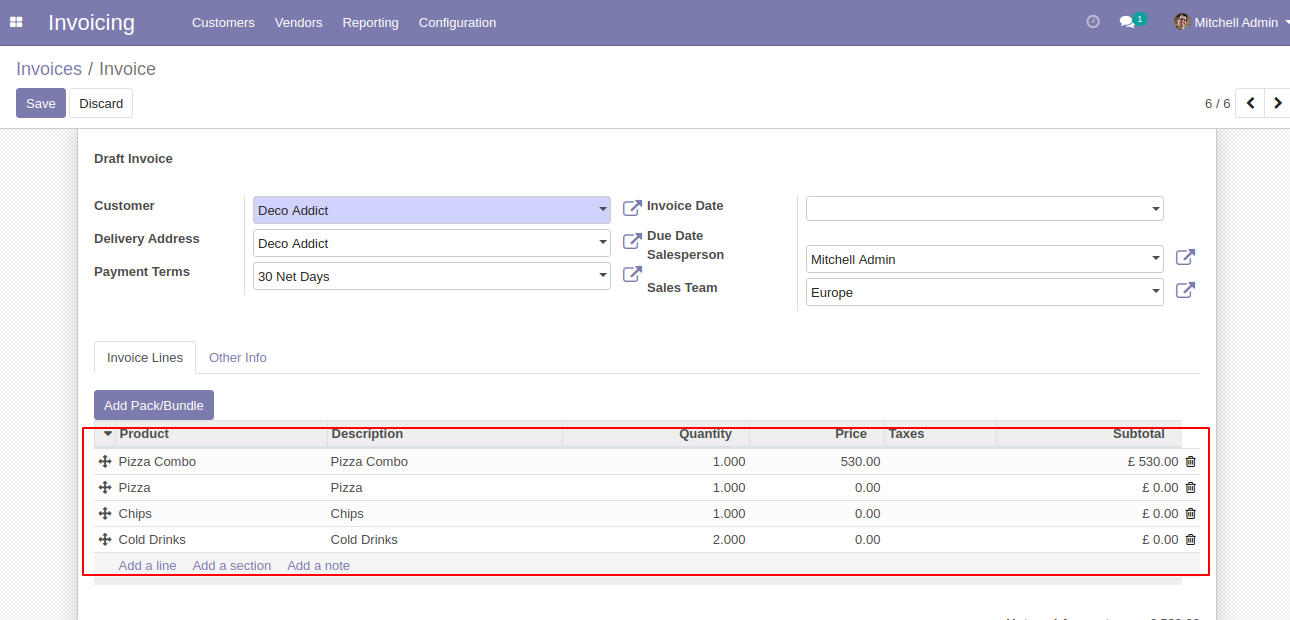
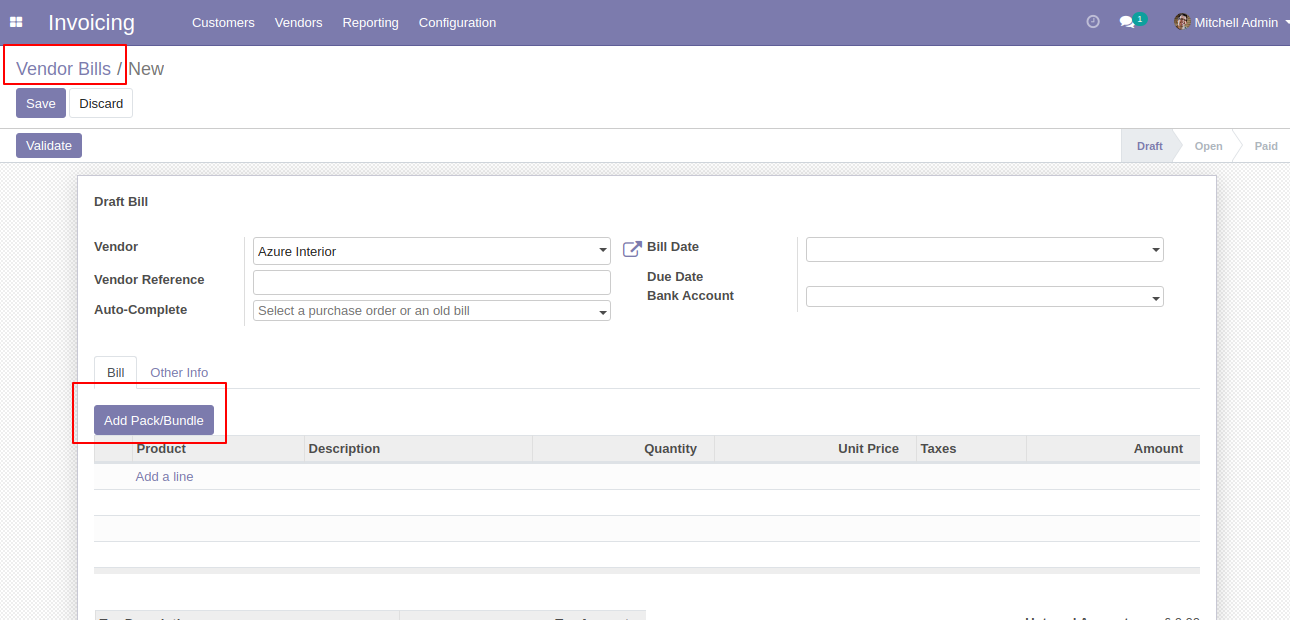
In the vendor bills press button "Add Pack/Bundle" to add product package.
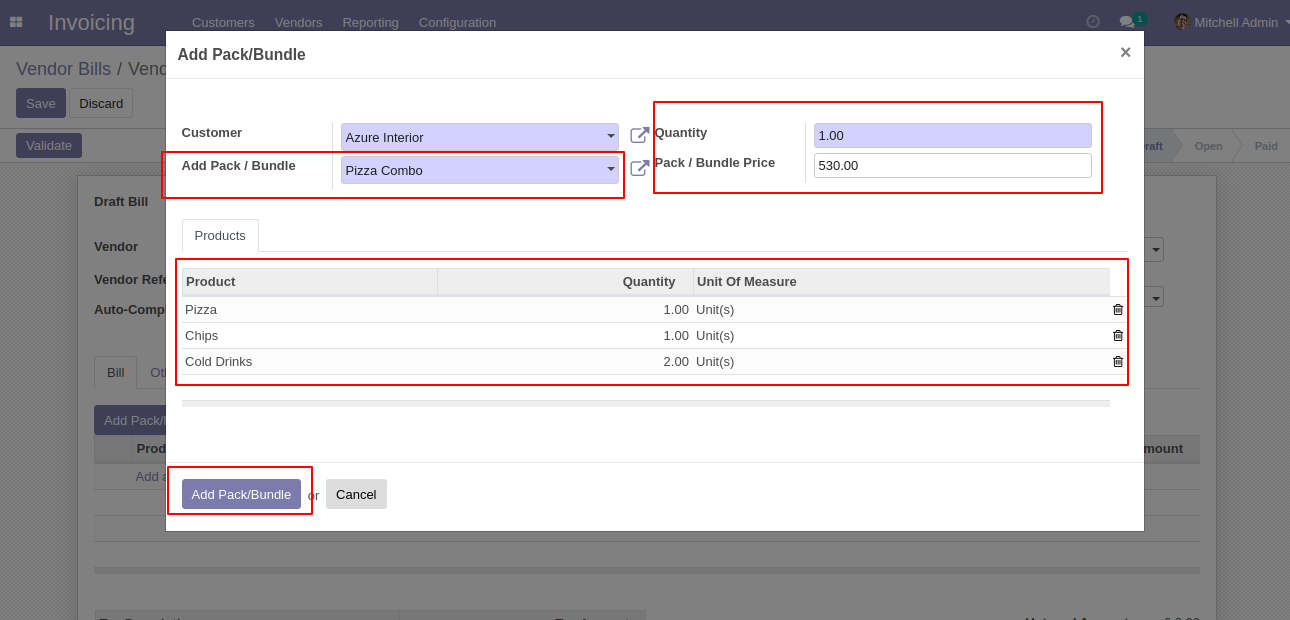
After that one wizard open where you can edit product details, quantity and other details.
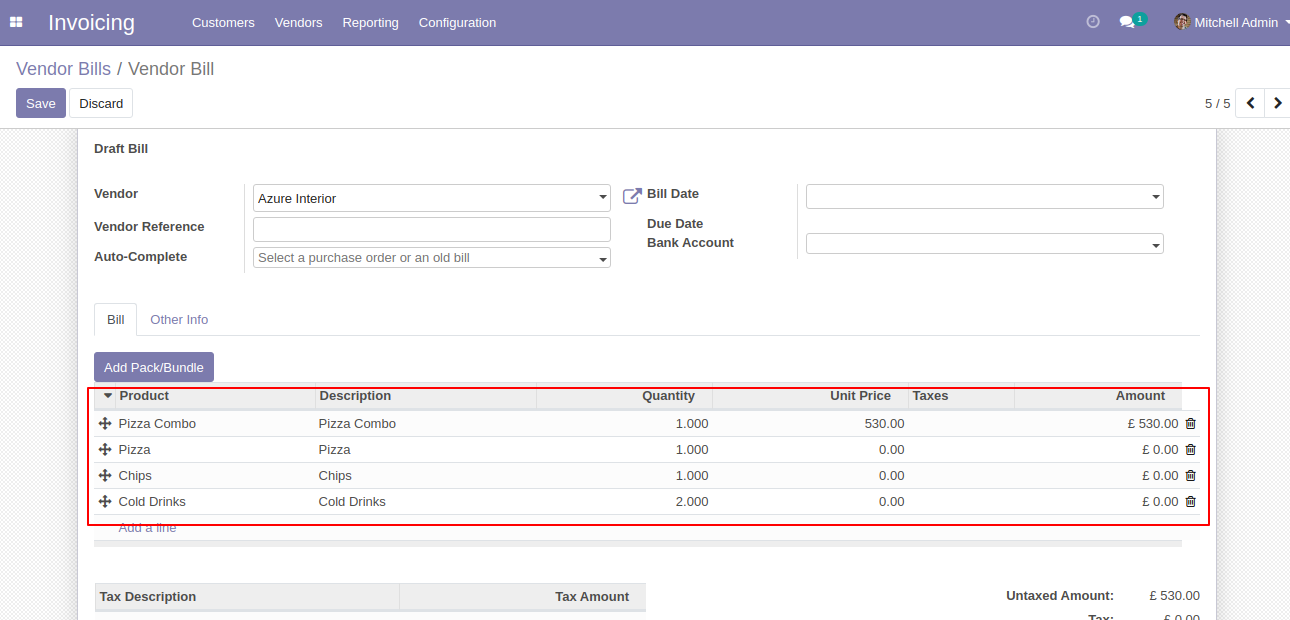
After the press button "Add Pack/Bundle" to add that bunch in vendor bills.
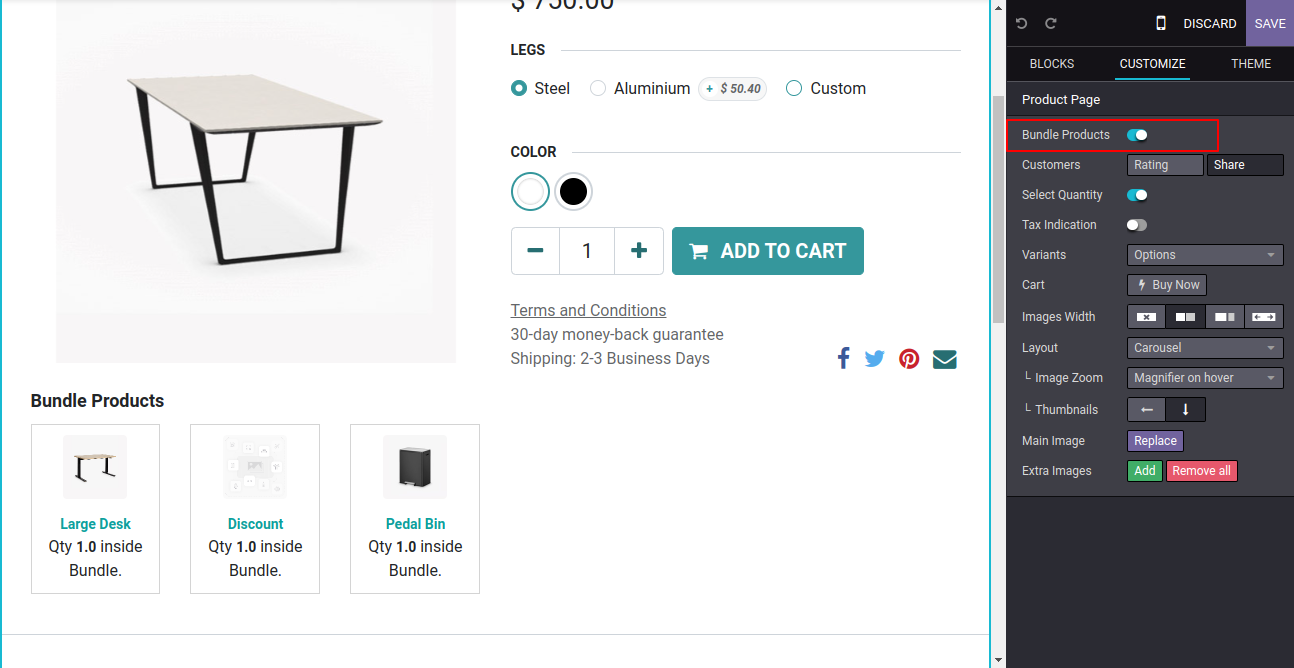
Configuration For Bundle Product Section.
In the 'Customize' menu, you will find the option to enable or disable the
bundle product feature.
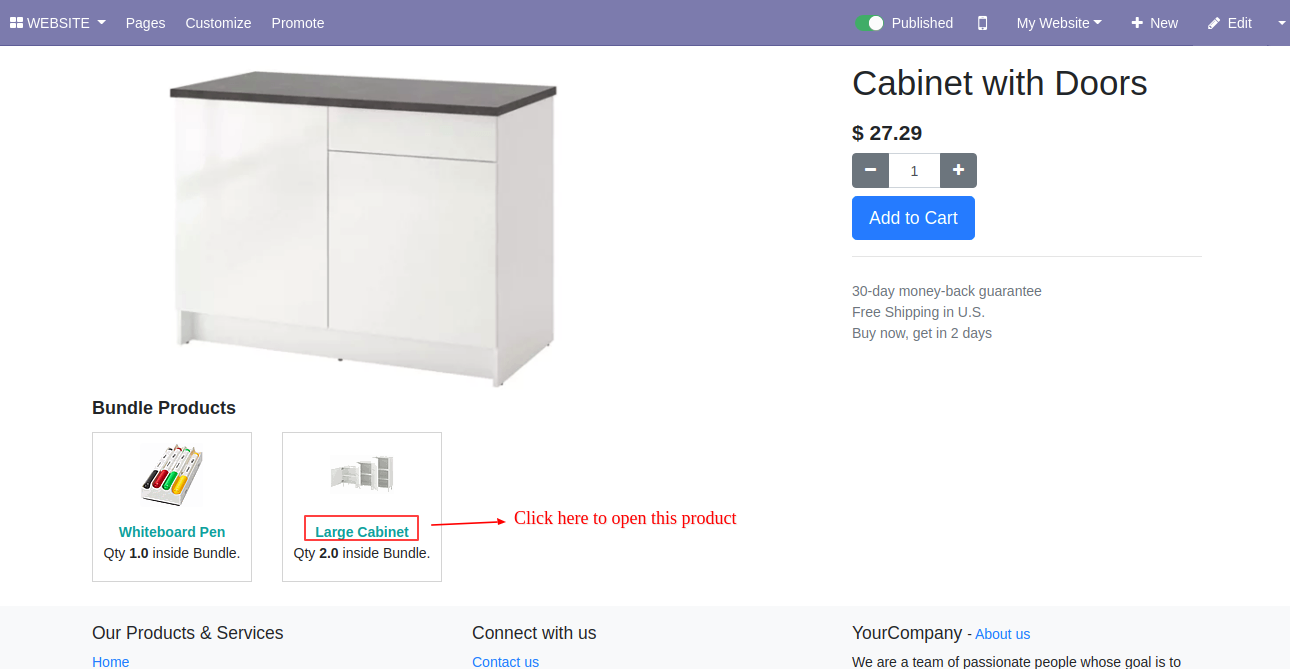
Bundle Product Management-Website
You can open the product when you click on the product bundle.
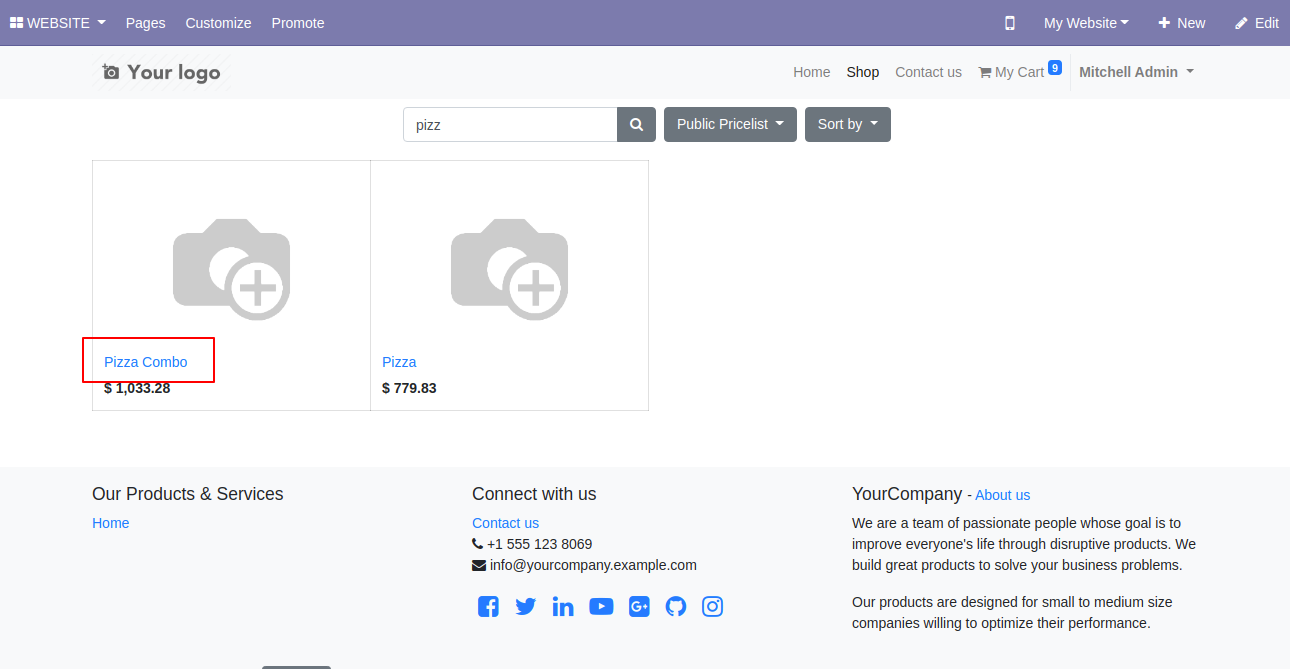
You can see all Bundle Products on Shop Page.
After that, you can see product detail in the bundle, here you can increase or decrease bundle quantity before buying that product combo.
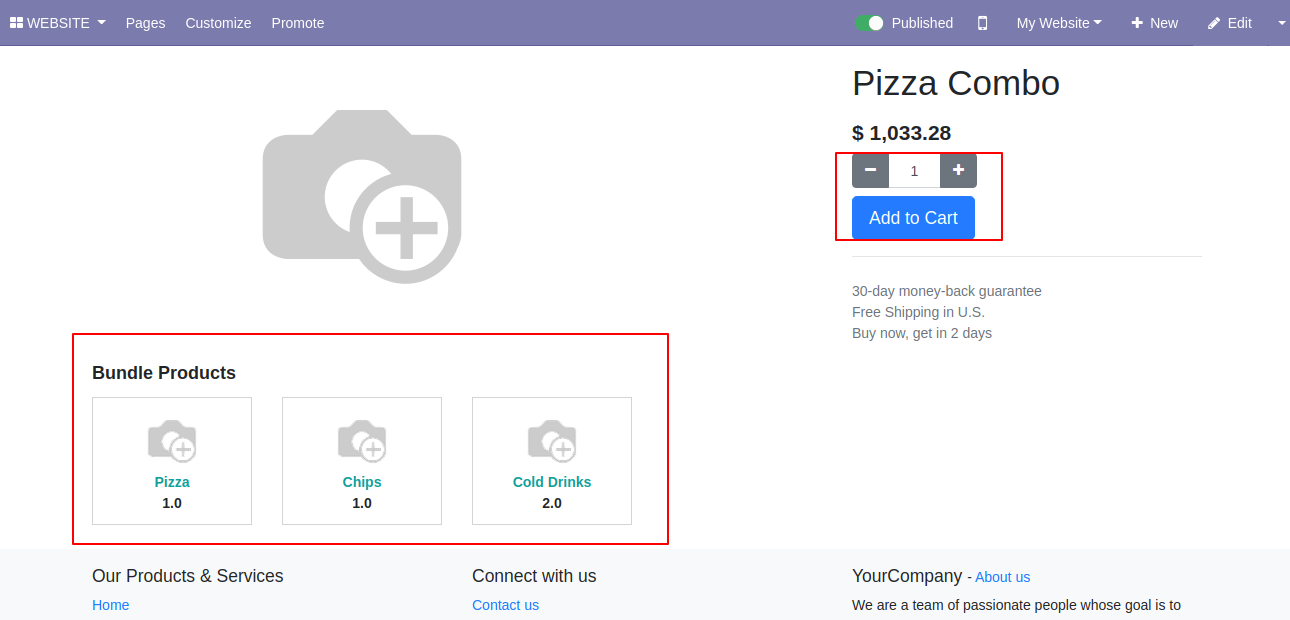
It will display all the products of the bundle with price and quantities, Here user can increase or decrease product quantity on the website.
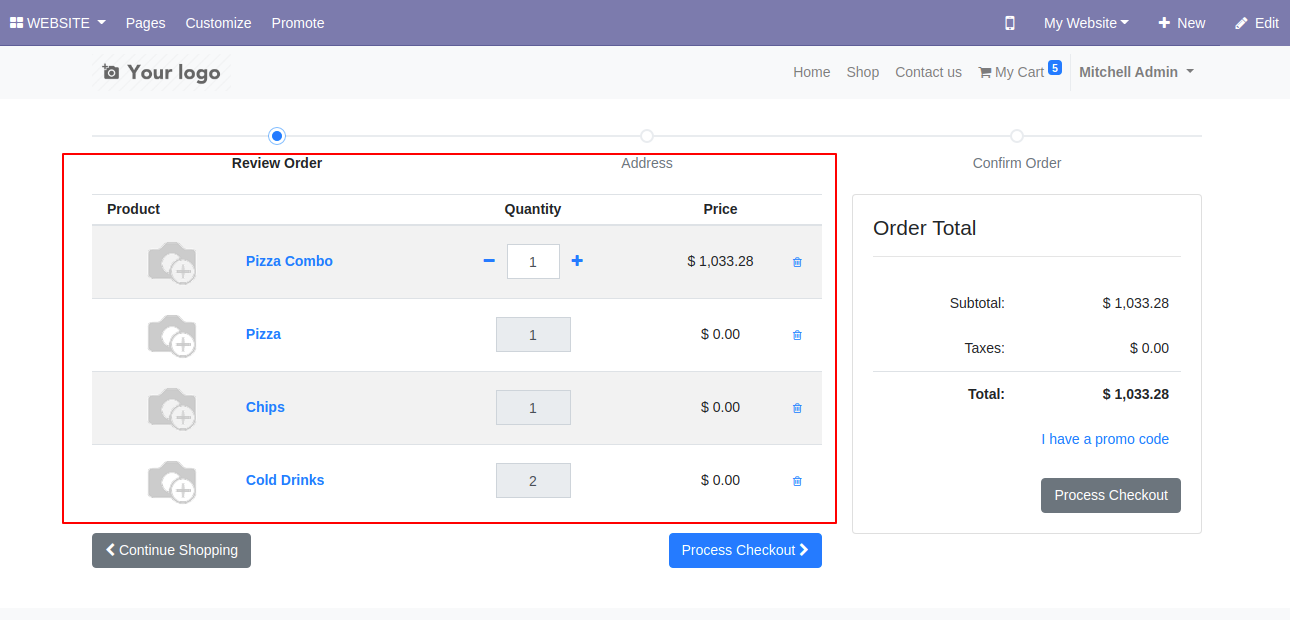
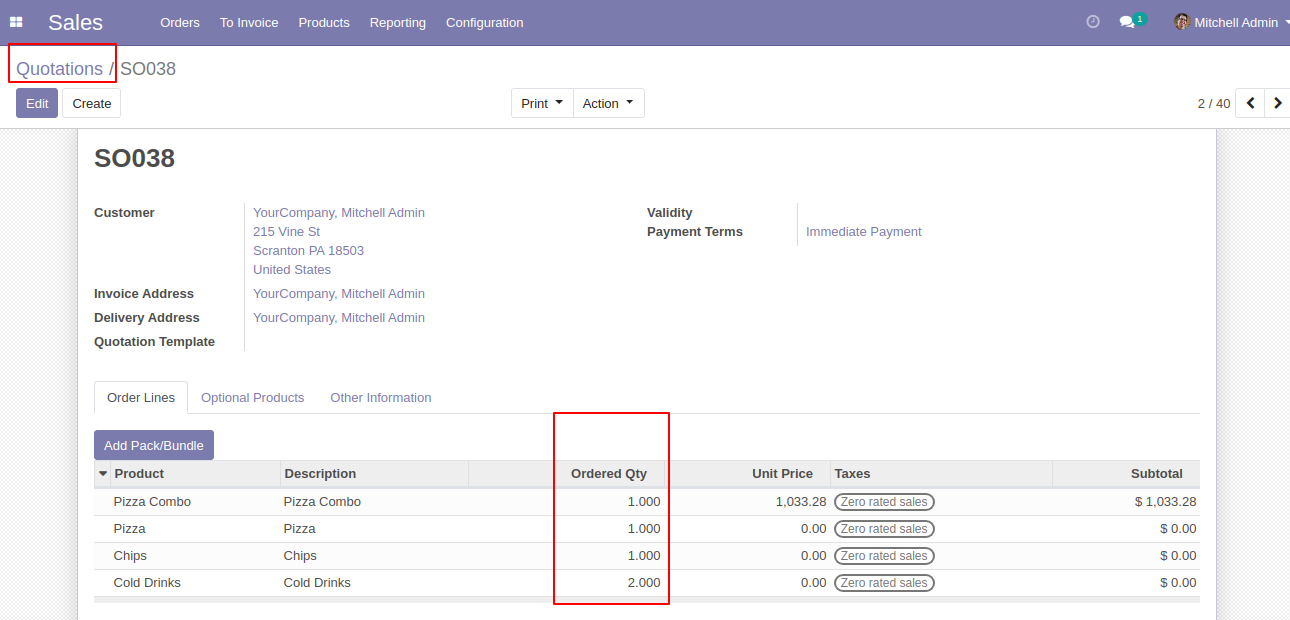
In sales, all changes automatic done in the backend.
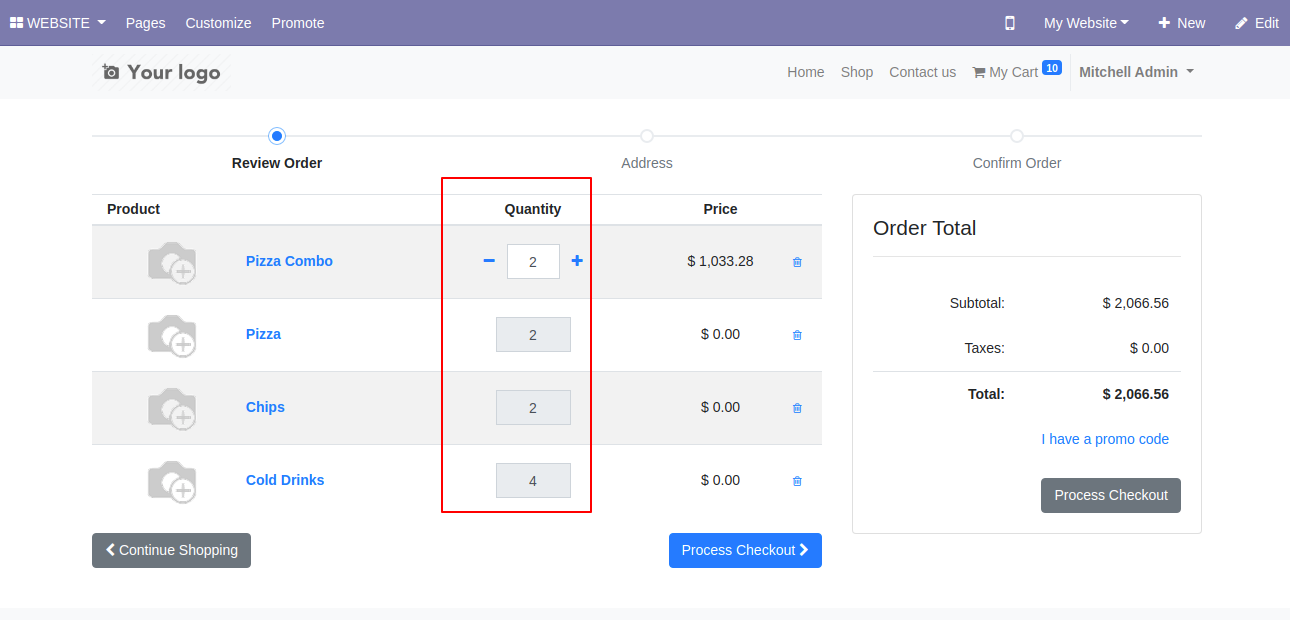
The user can change the quantity in the shop.
You can see the updated quantity in the backend.
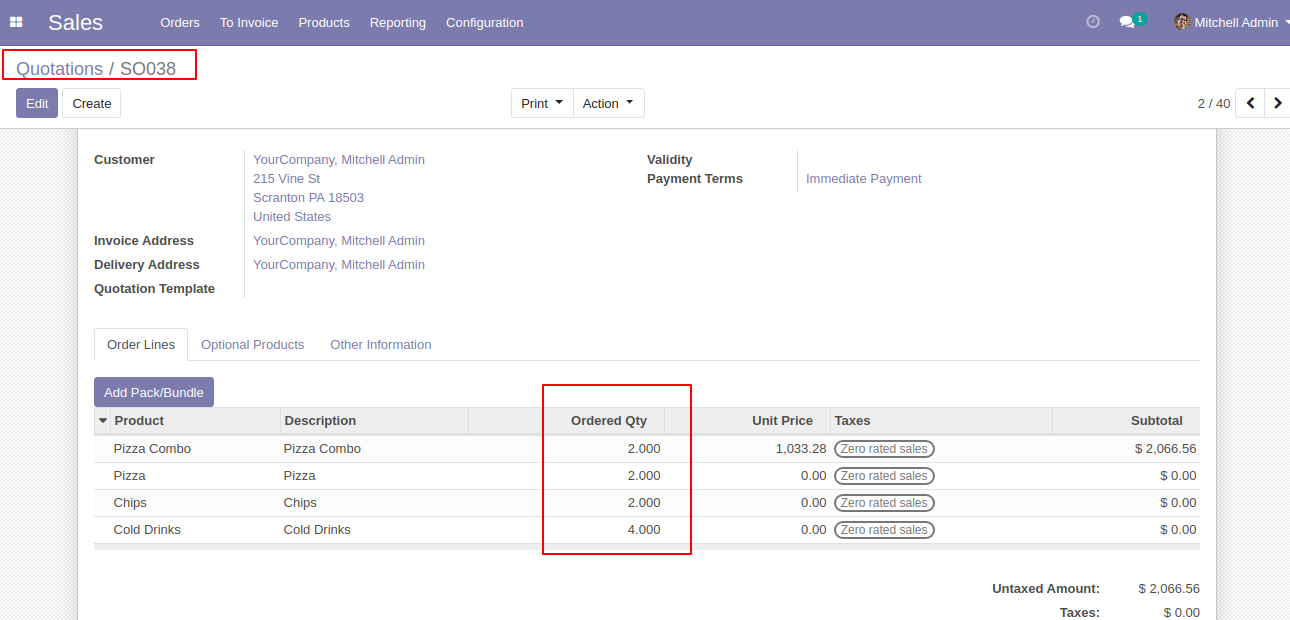
Bundle quantity made 2 and auto increased Bundle Product Item Quantity, Now we back to the product shop page.
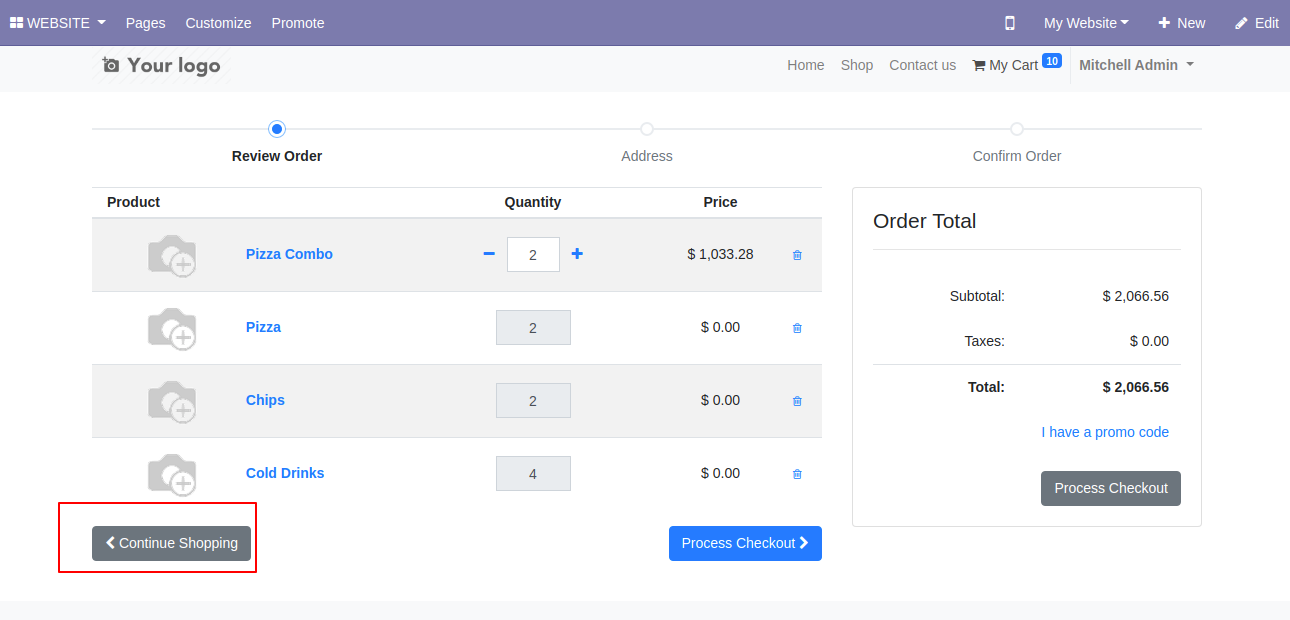
Now I try to add quantity 1 again to cart. So it should be 1 + 2(Current Qty) So total 3 quantity.
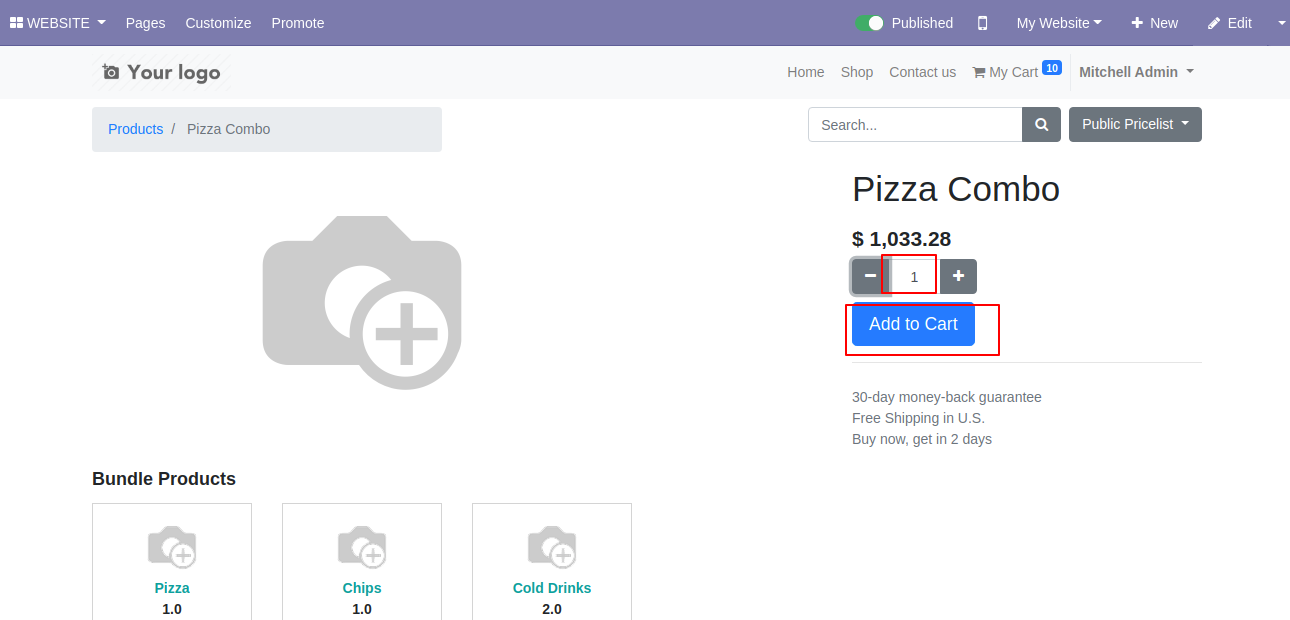
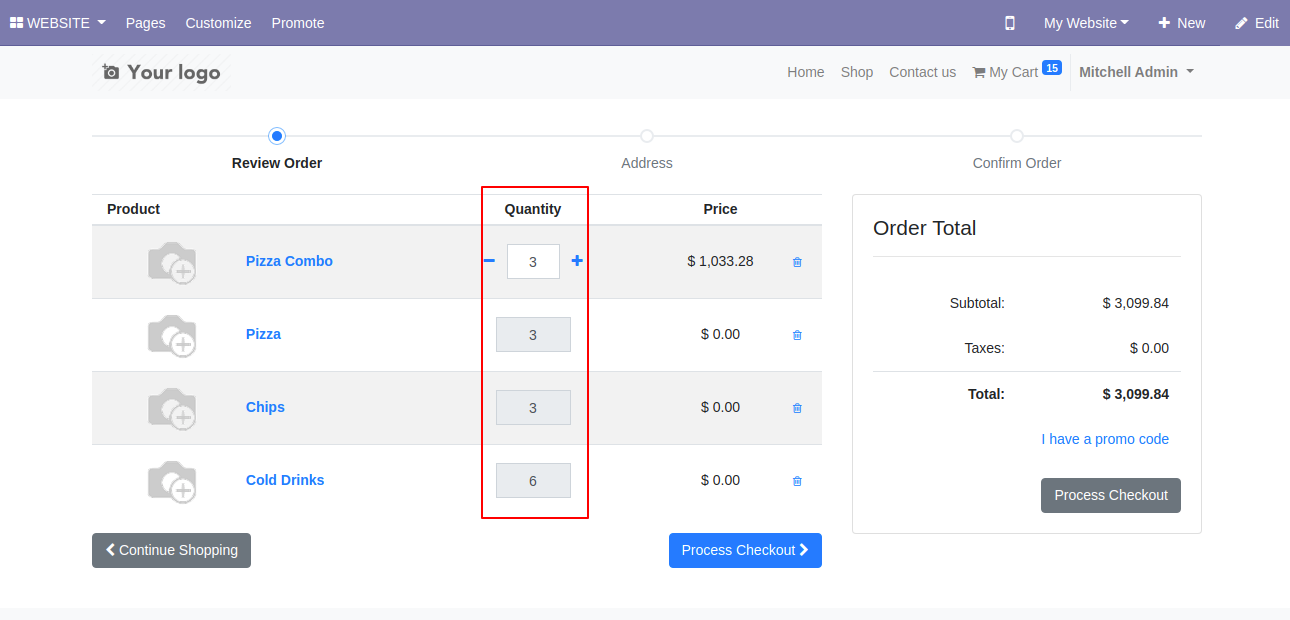
You can see updated quantity 3 (Three).
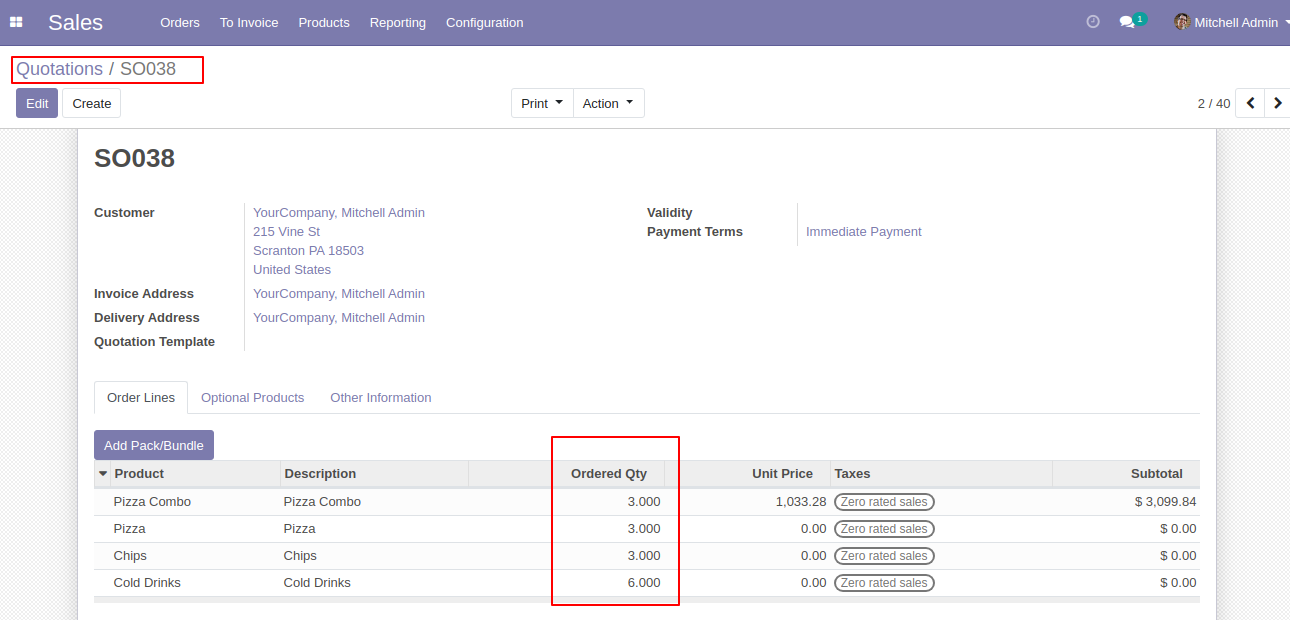
You can see the updated quantity in the backend.
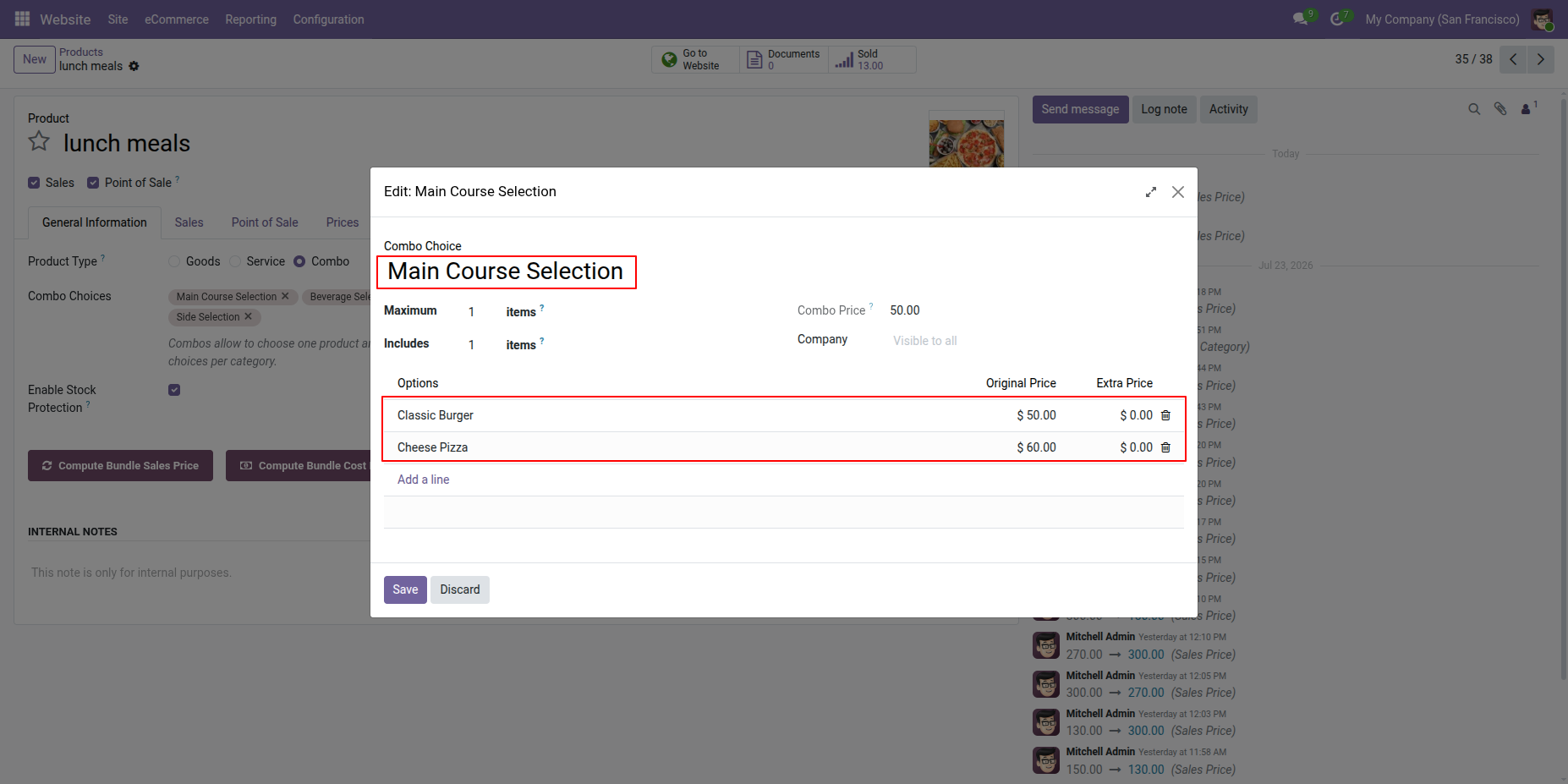
Edit the Main Course selection from Combo Choices and select the desired product.
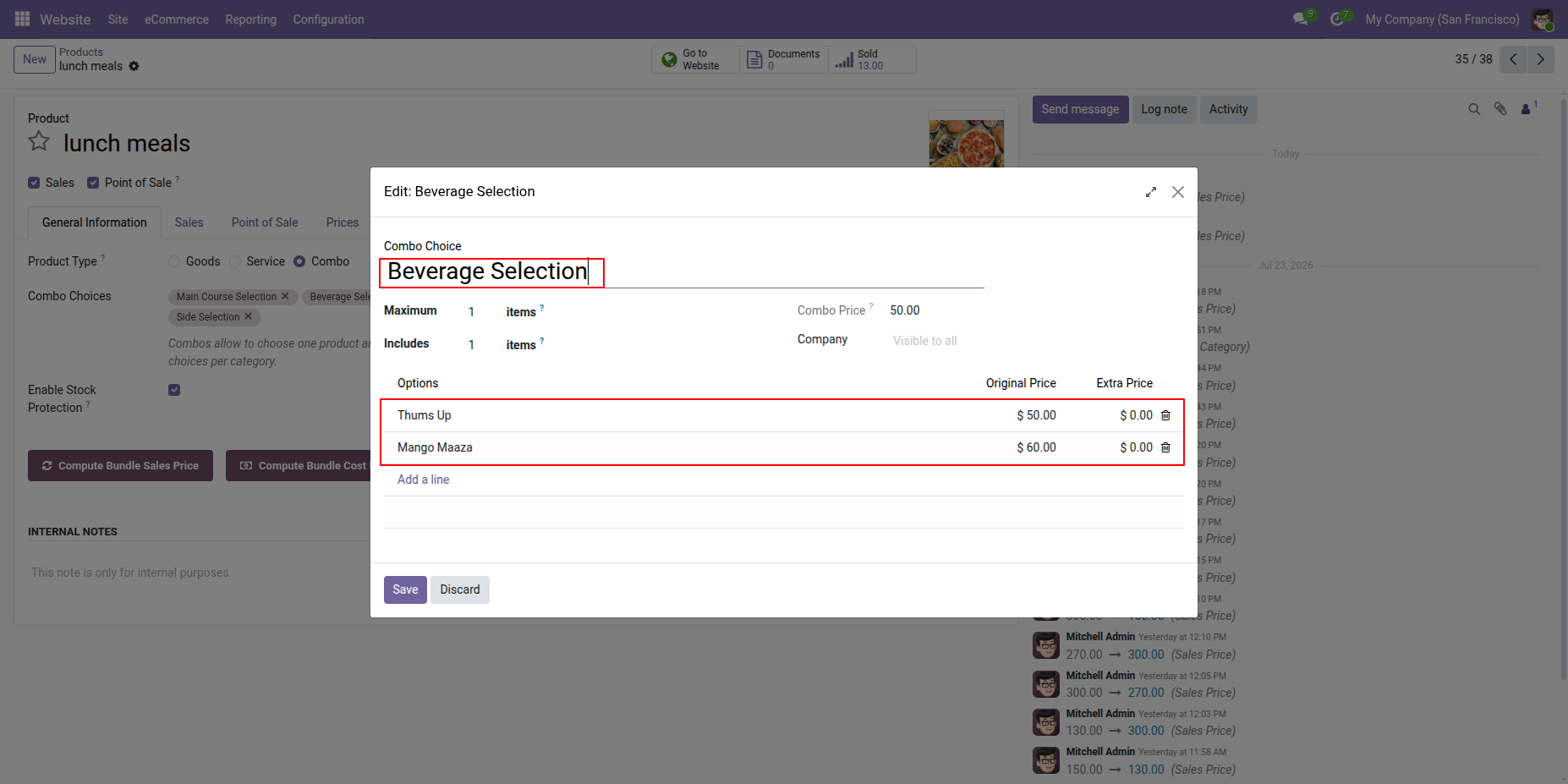
Edit the Beverage selection from Combo Choices and select the desired product.
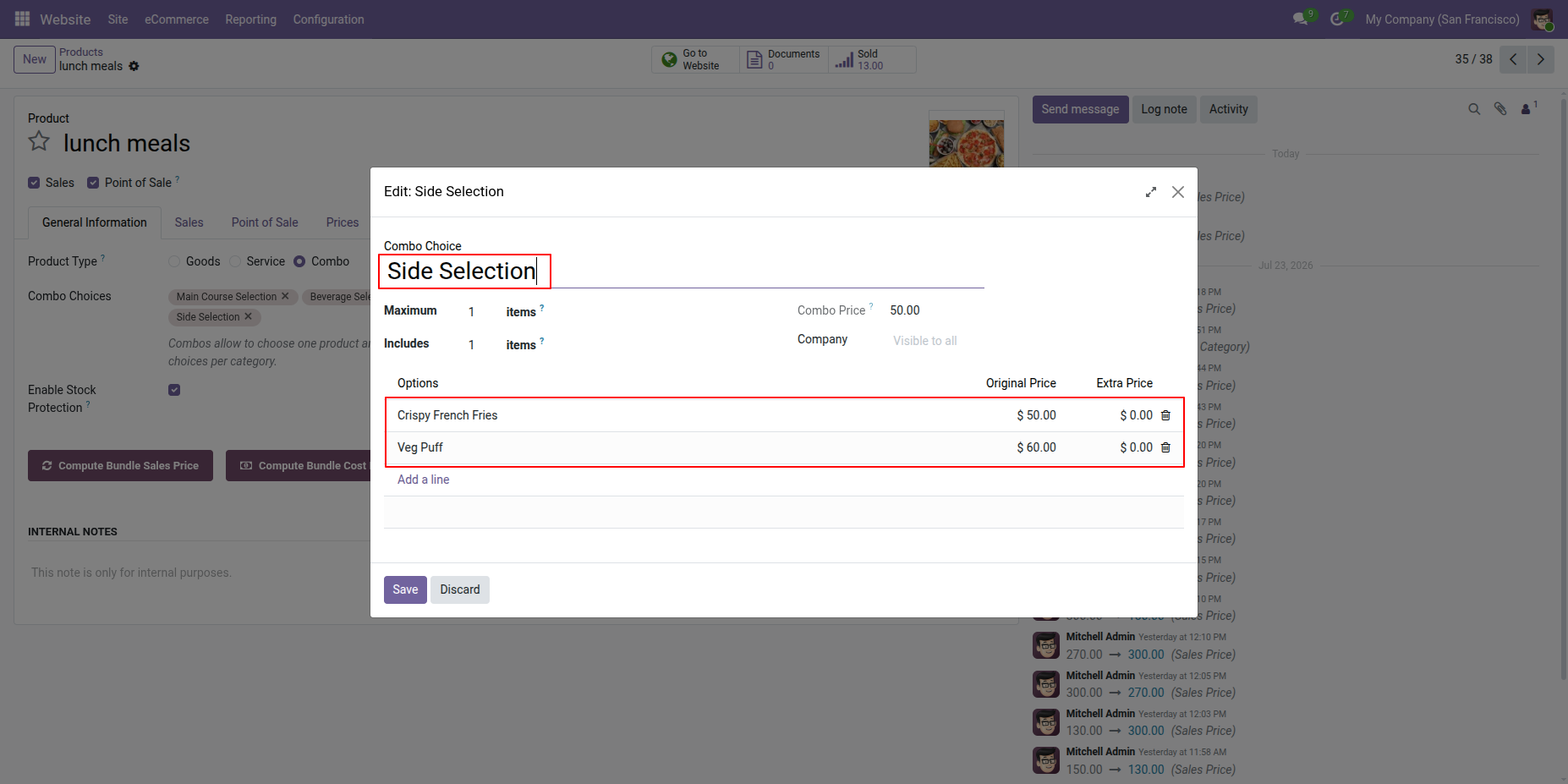
Edit the Side selection from Combo Choices and select the desired product.
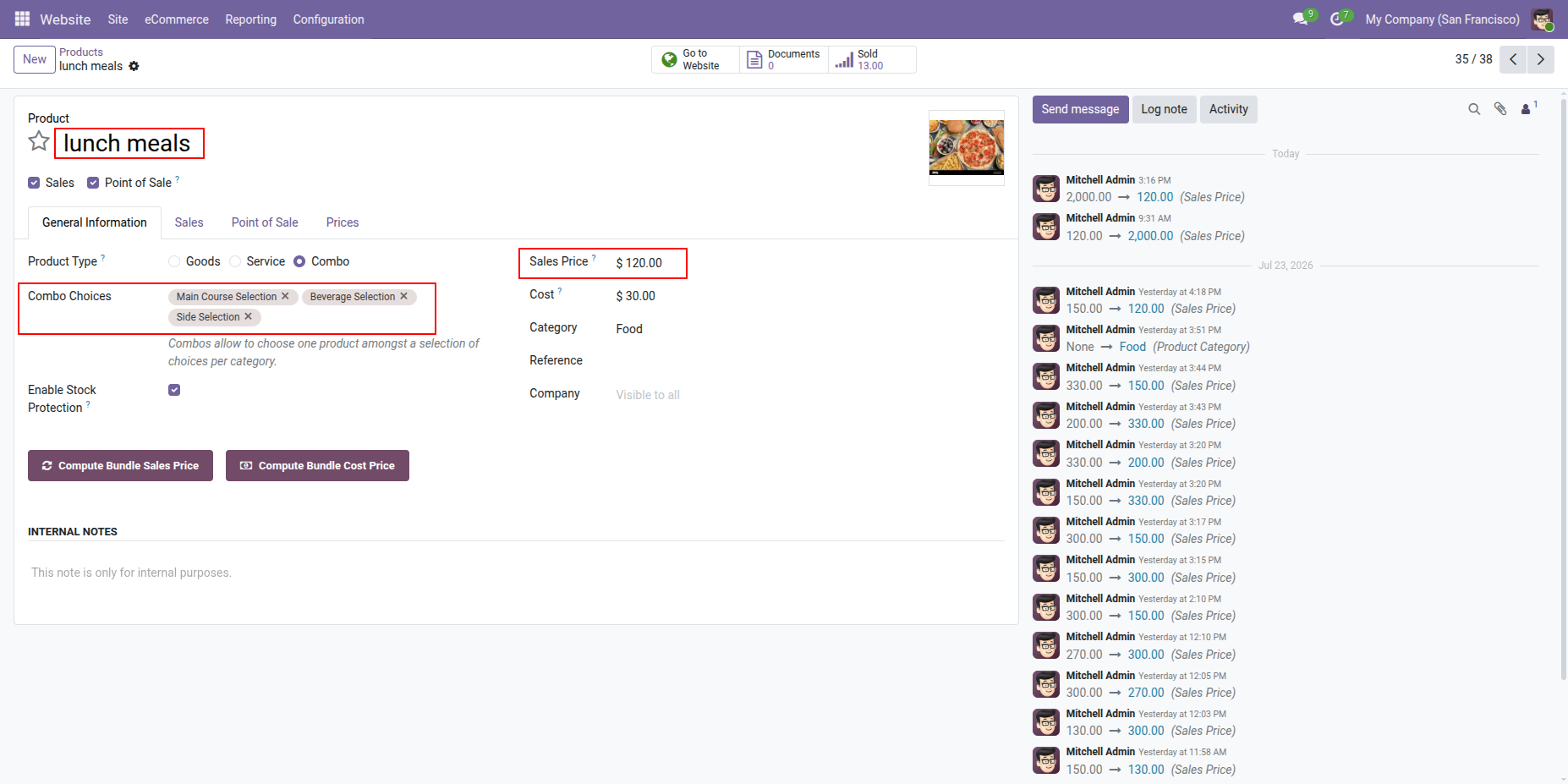
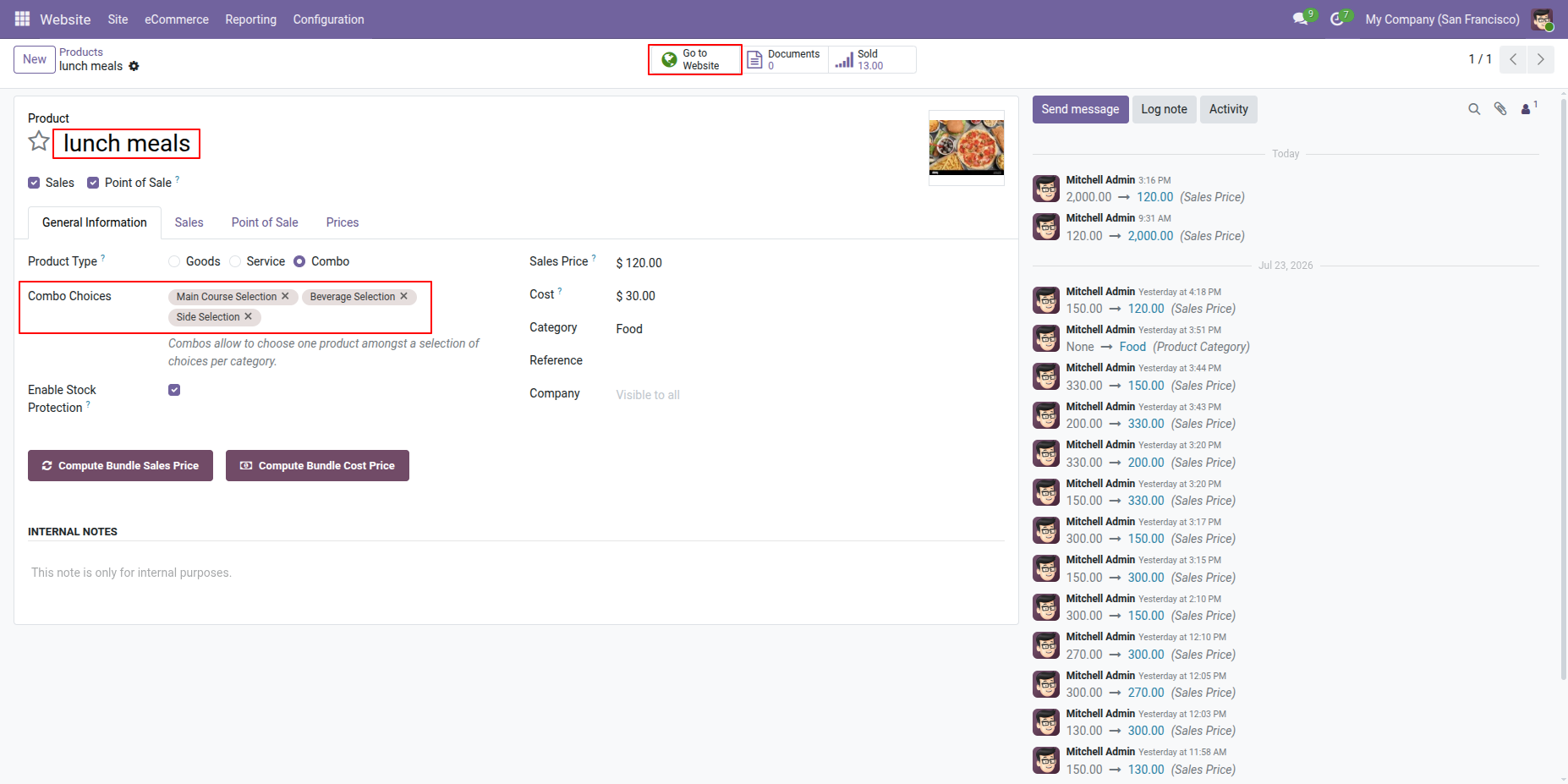
Select the required Combo Choices in the lunch meal product and set the Sales Price.
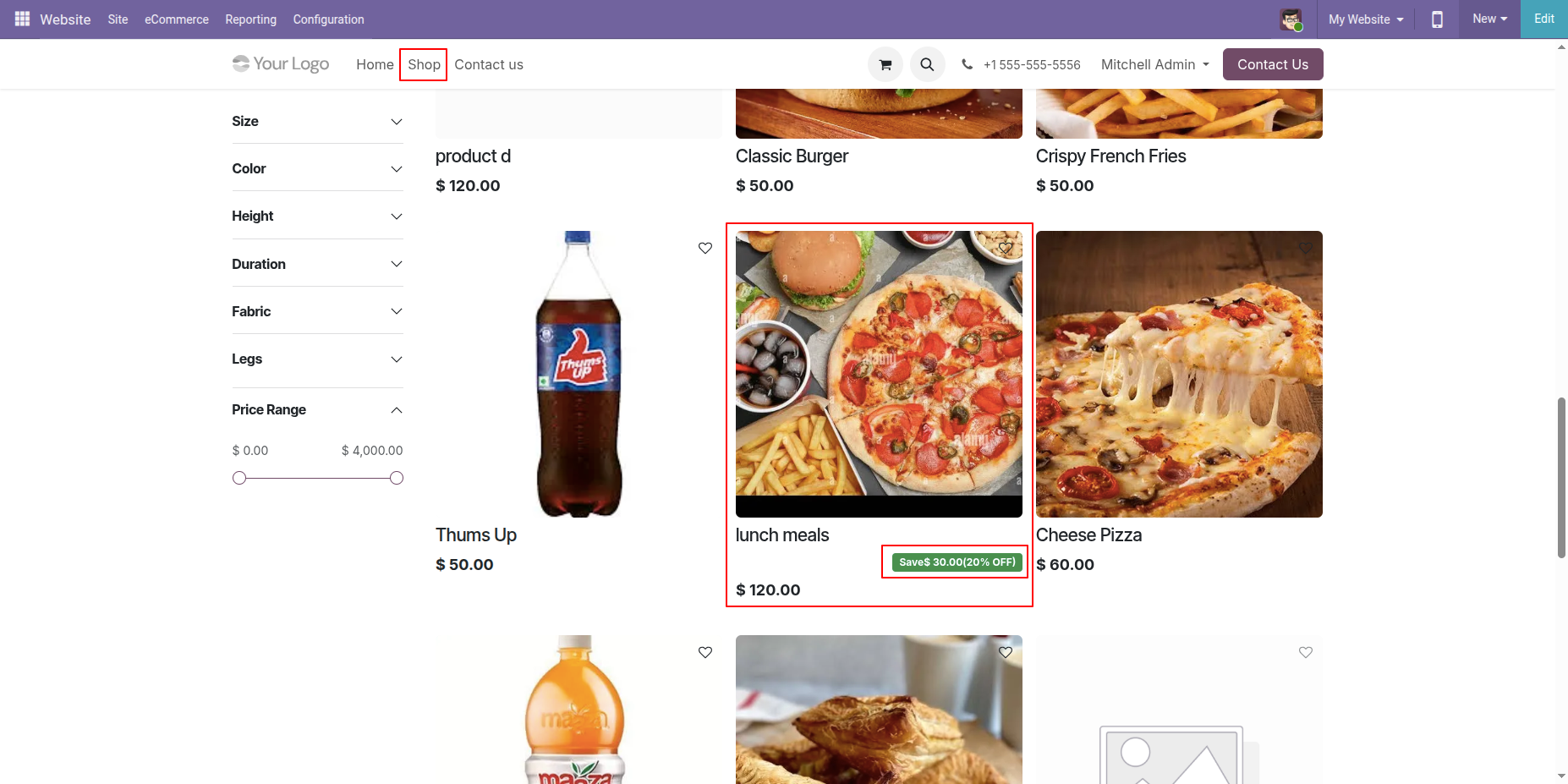
Go to the Website Shop page and select the Lunch Meal product.
The Saved Amount/Percentage badge is displayed on the shop page.
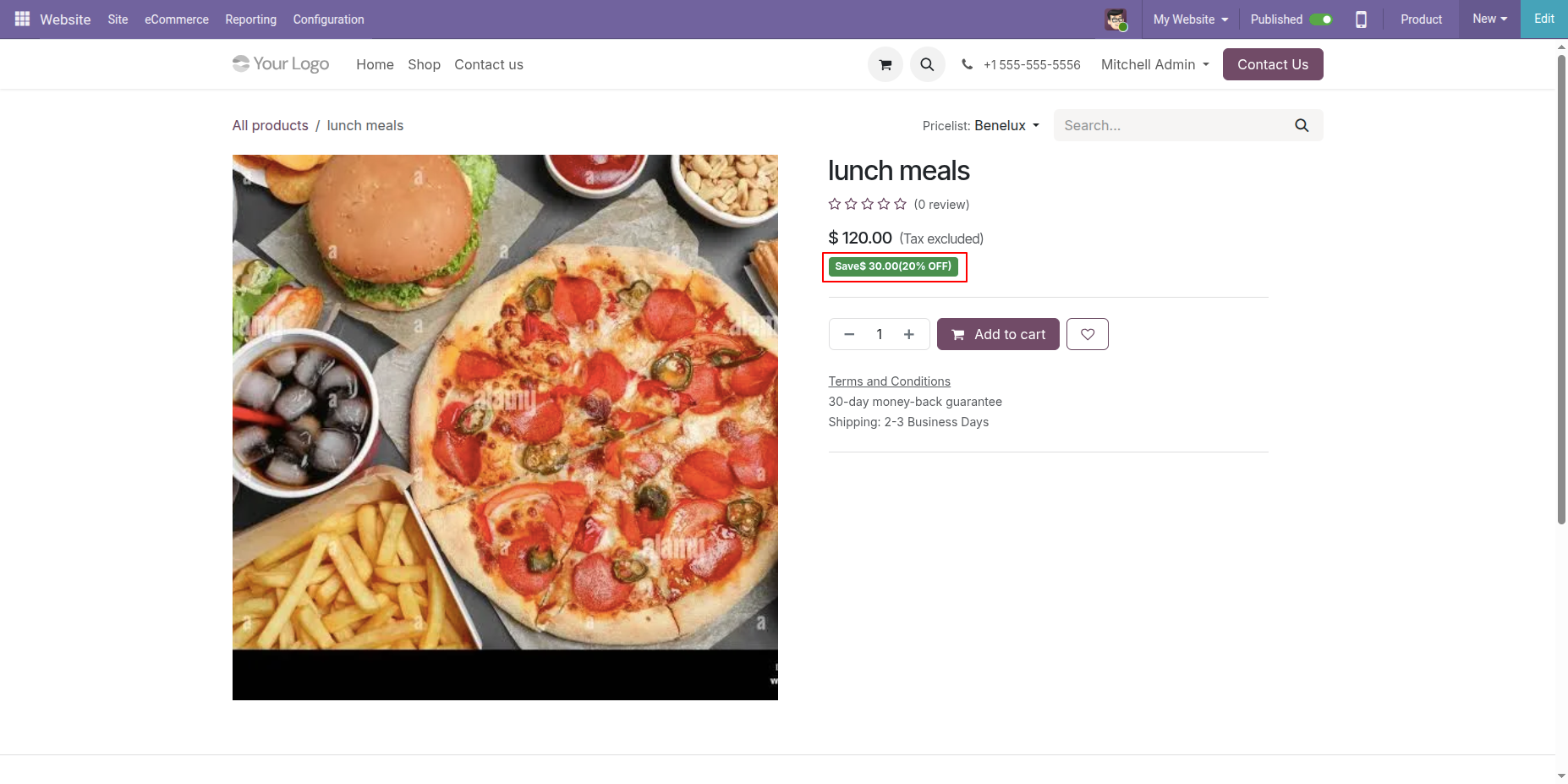
On the product detail page, the user can see the Saved Amount/Percentage badge.
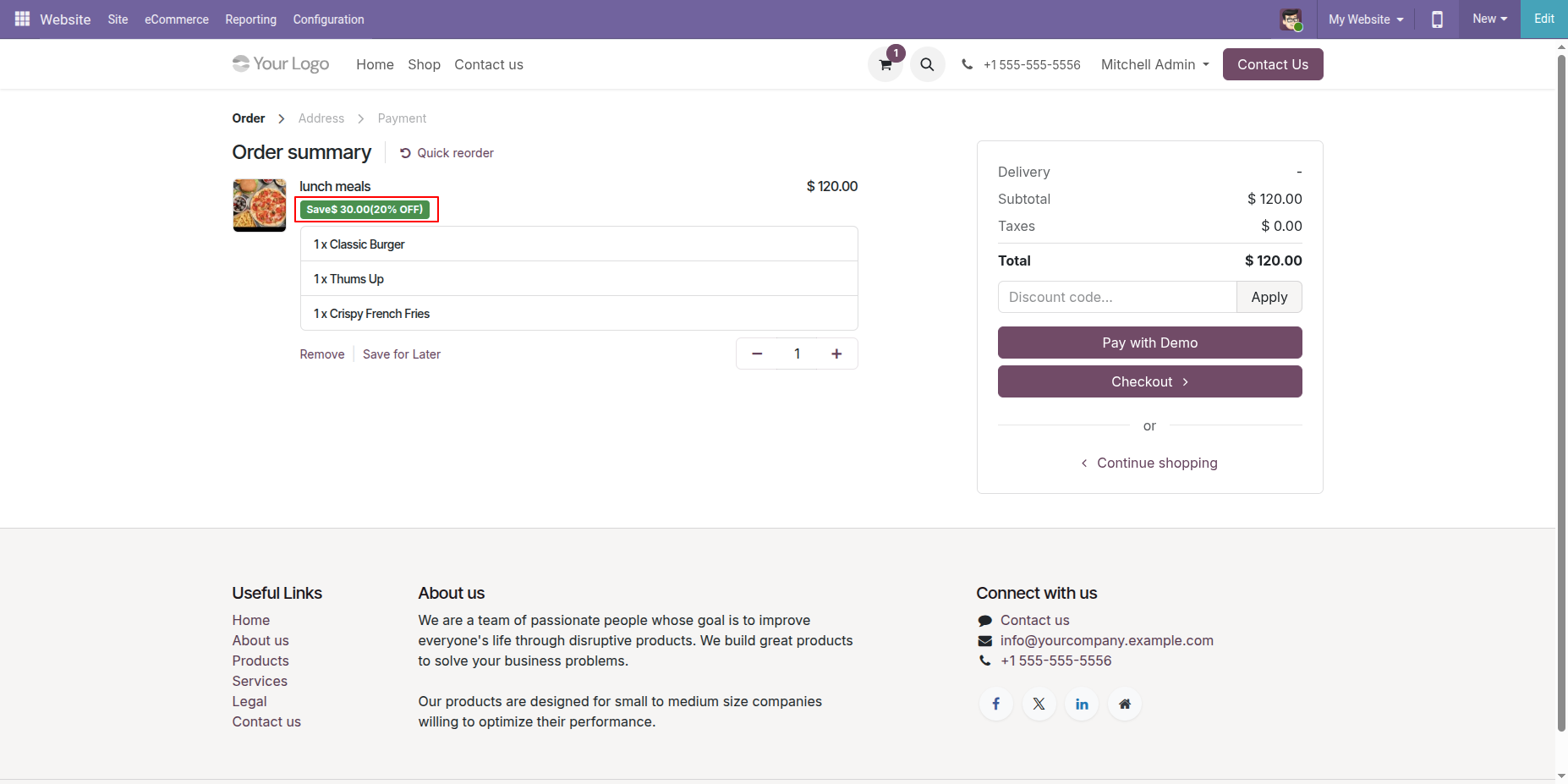
The Saved Amount/Percentage badge is also displayed on the Order Summary page.
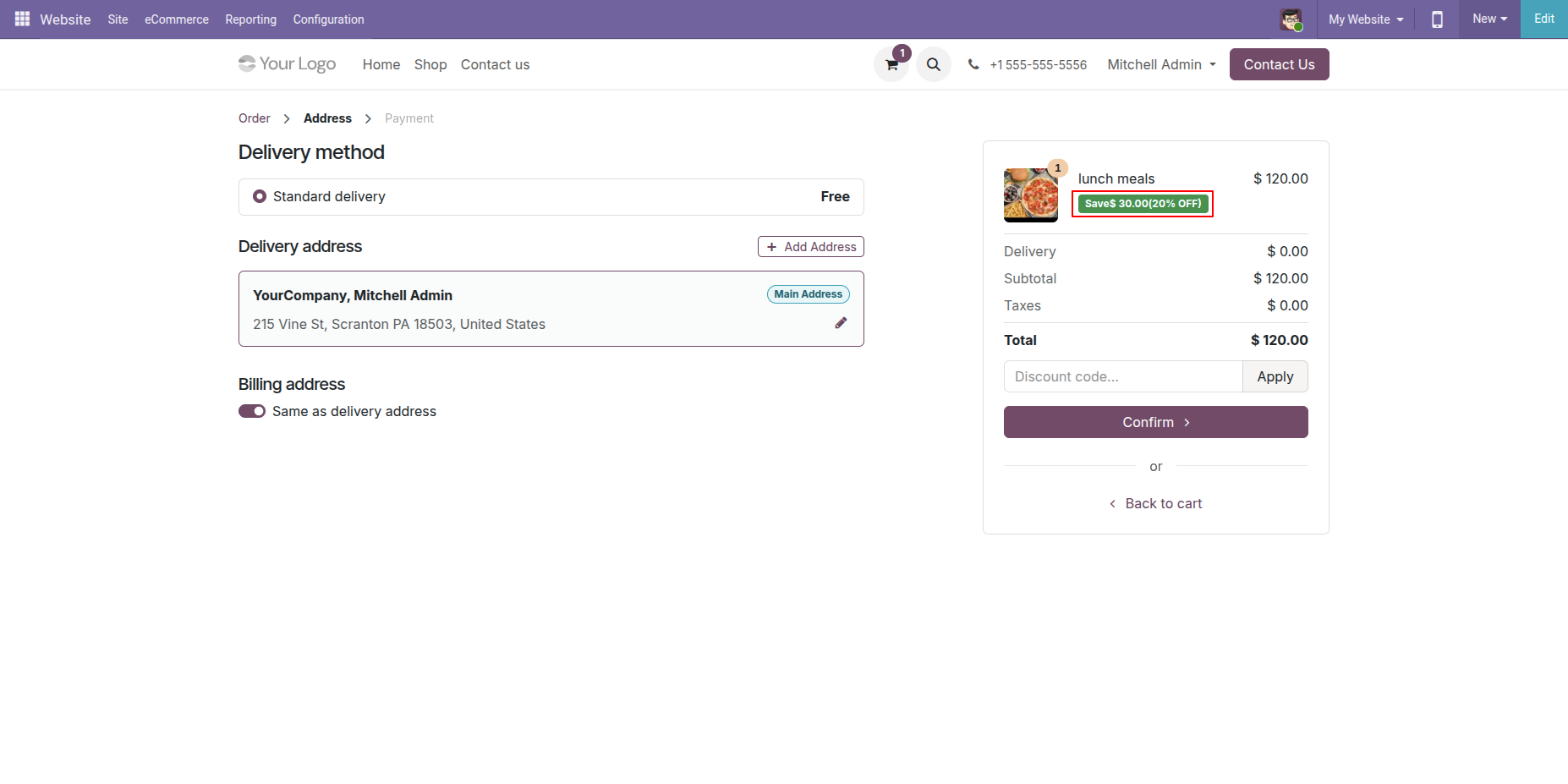
The Saved Amount/Percentage badge is also displayed on the Address page.
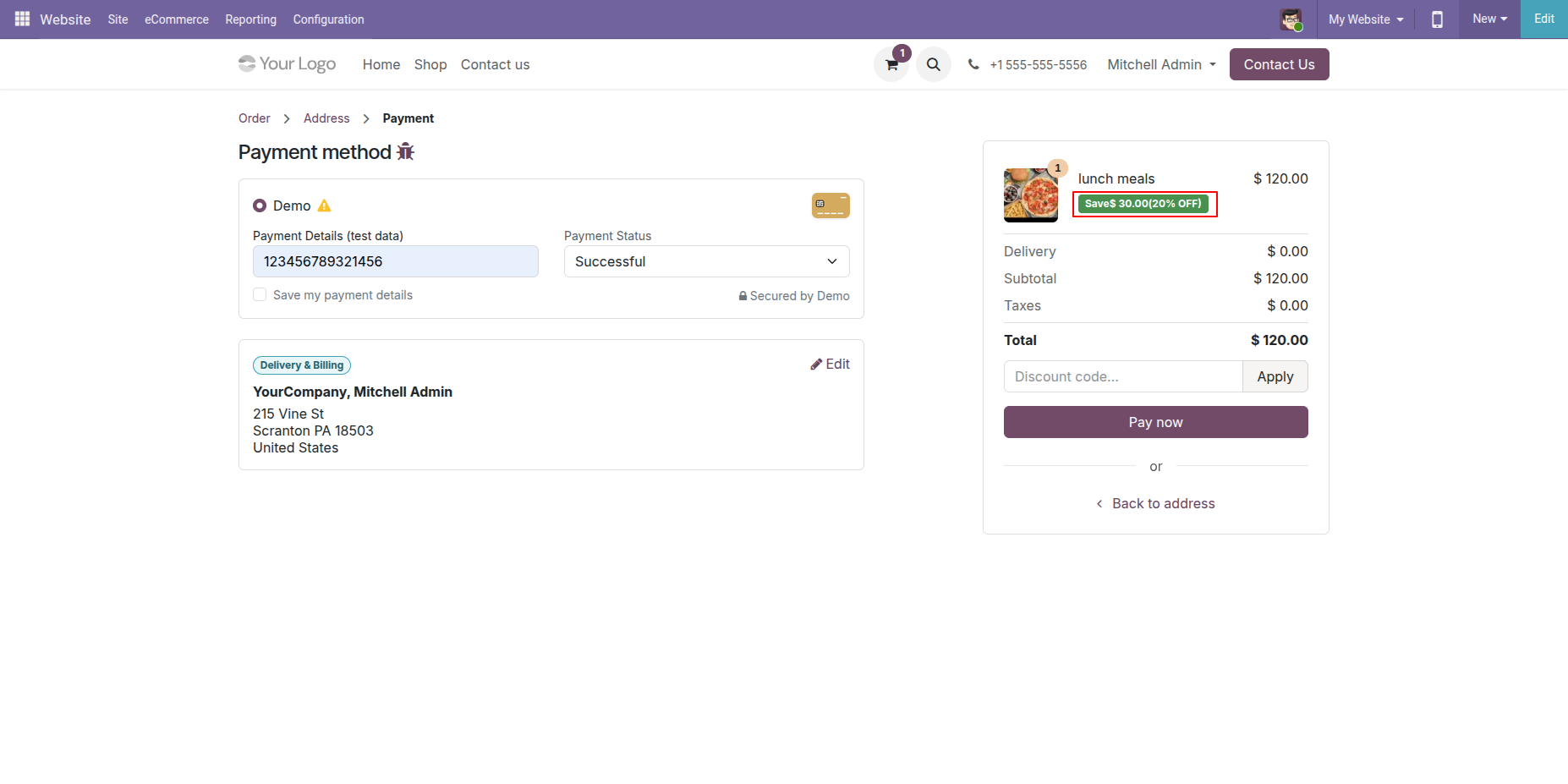
The Saved Amount/Percentage badge is also displayed on the payment page.
Select the required Combo Choices in the product and click on go to website.
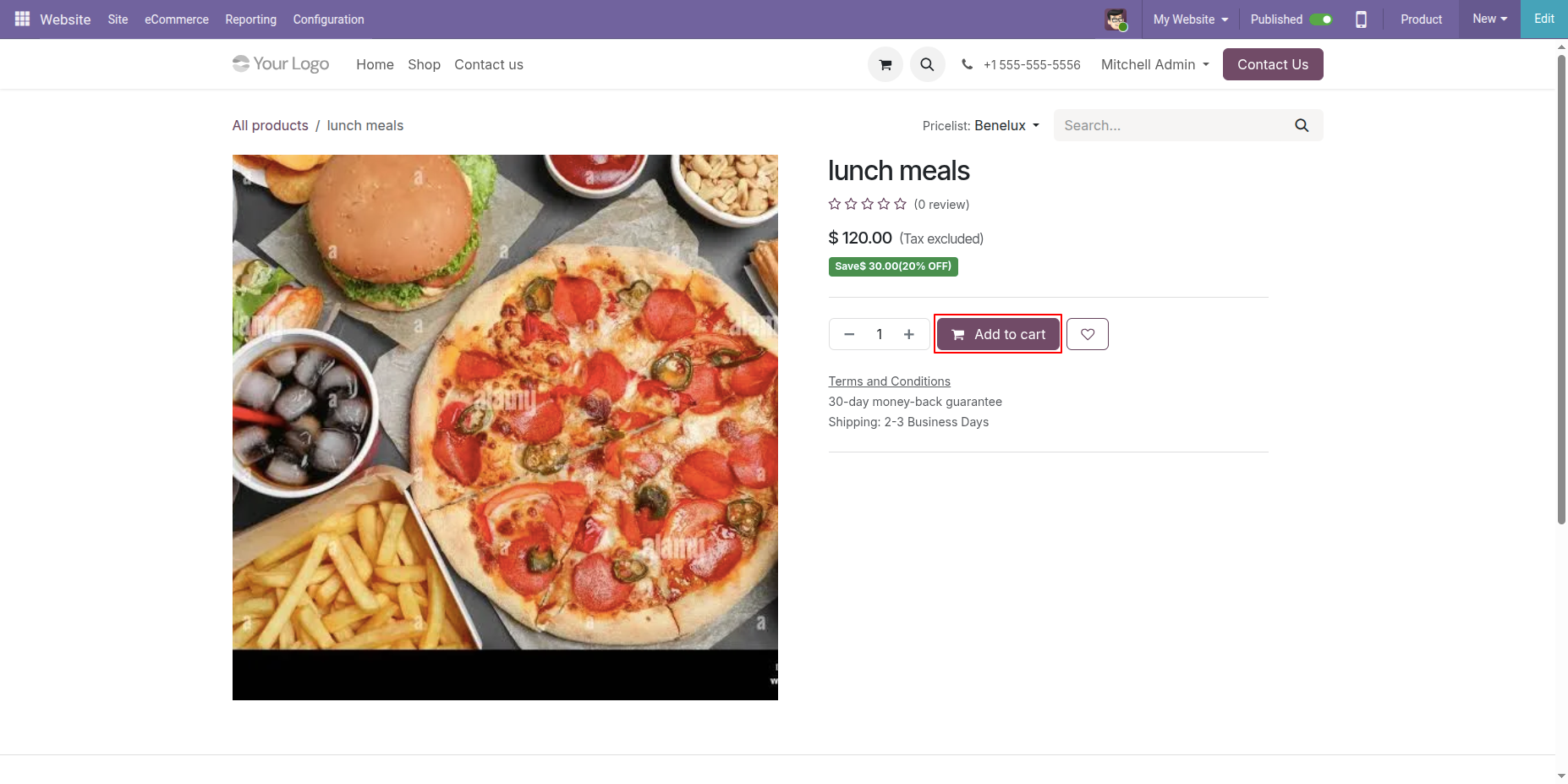
Click on Add to Cart button from the website.
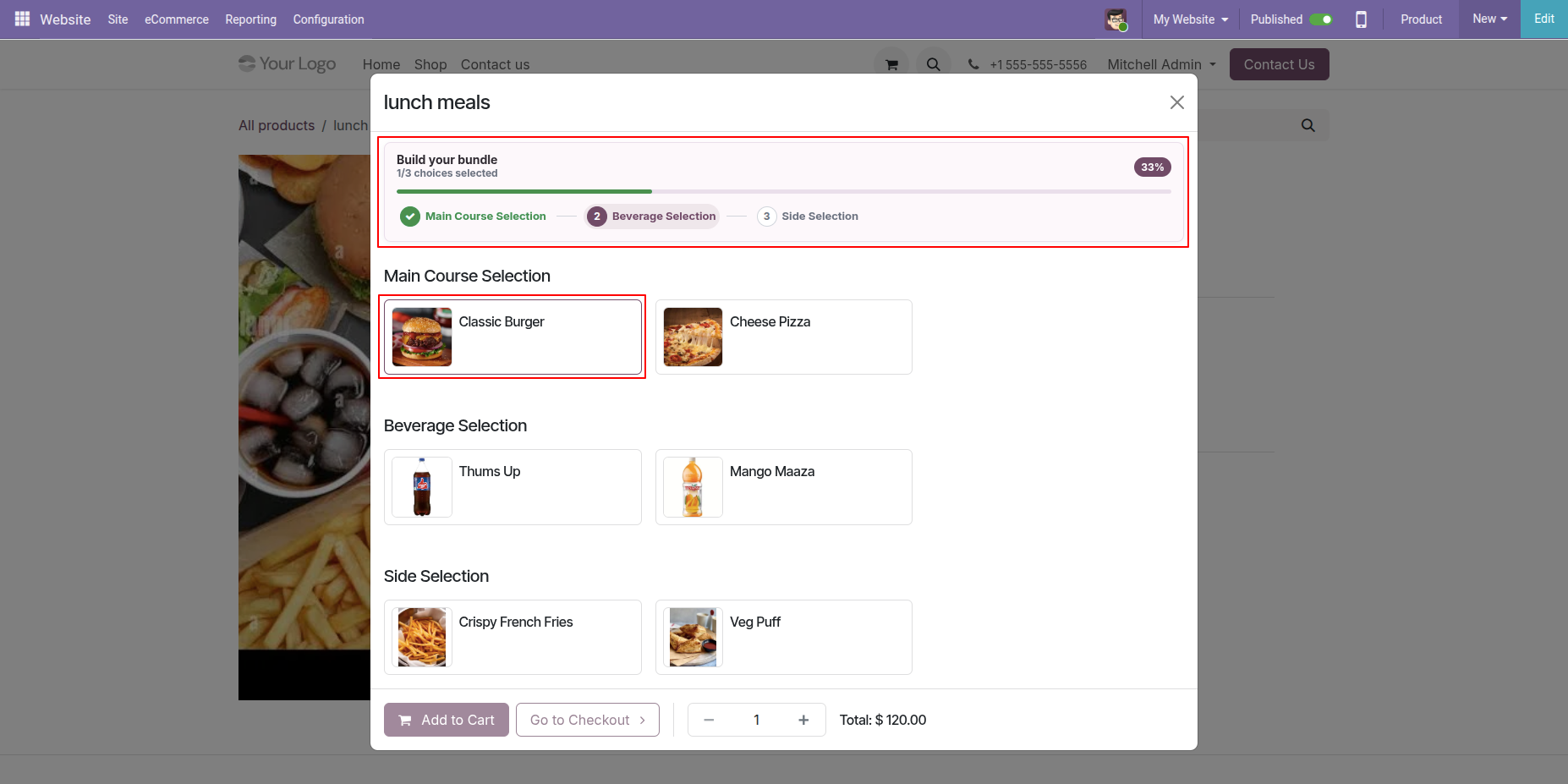
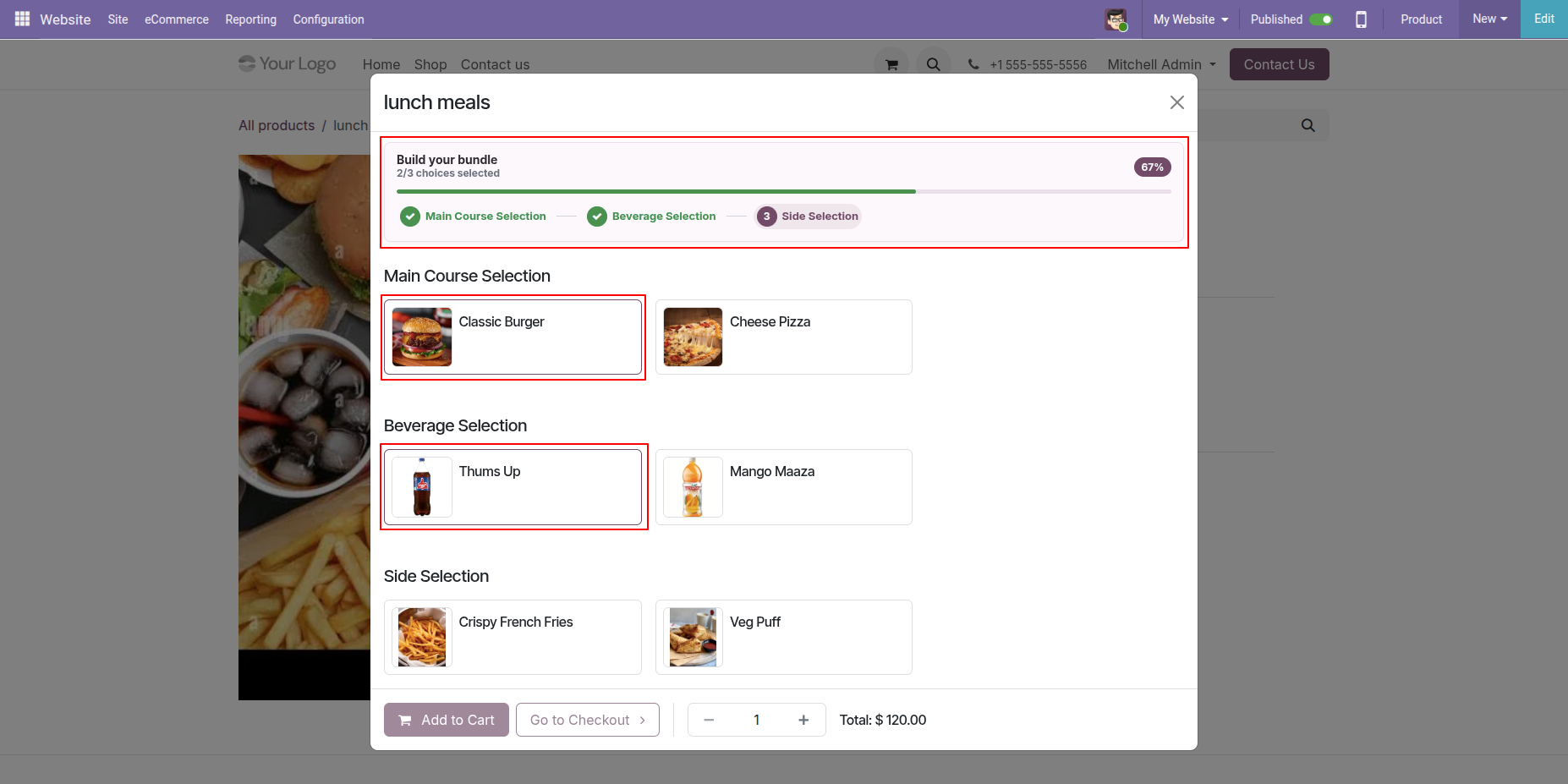
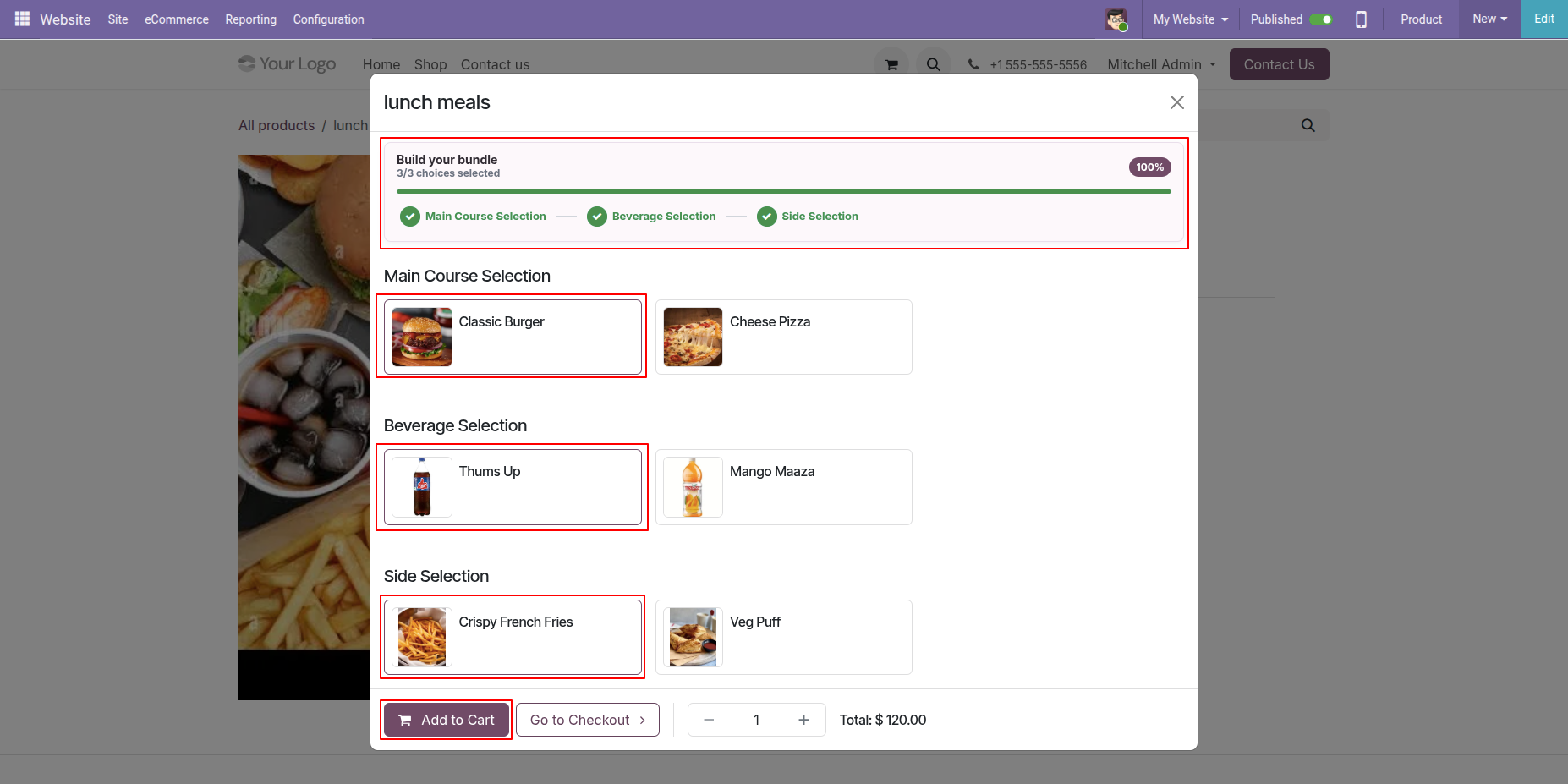
An interactive progress guide is displayed in the Combo Selection Wizard to help users track their selection progress.
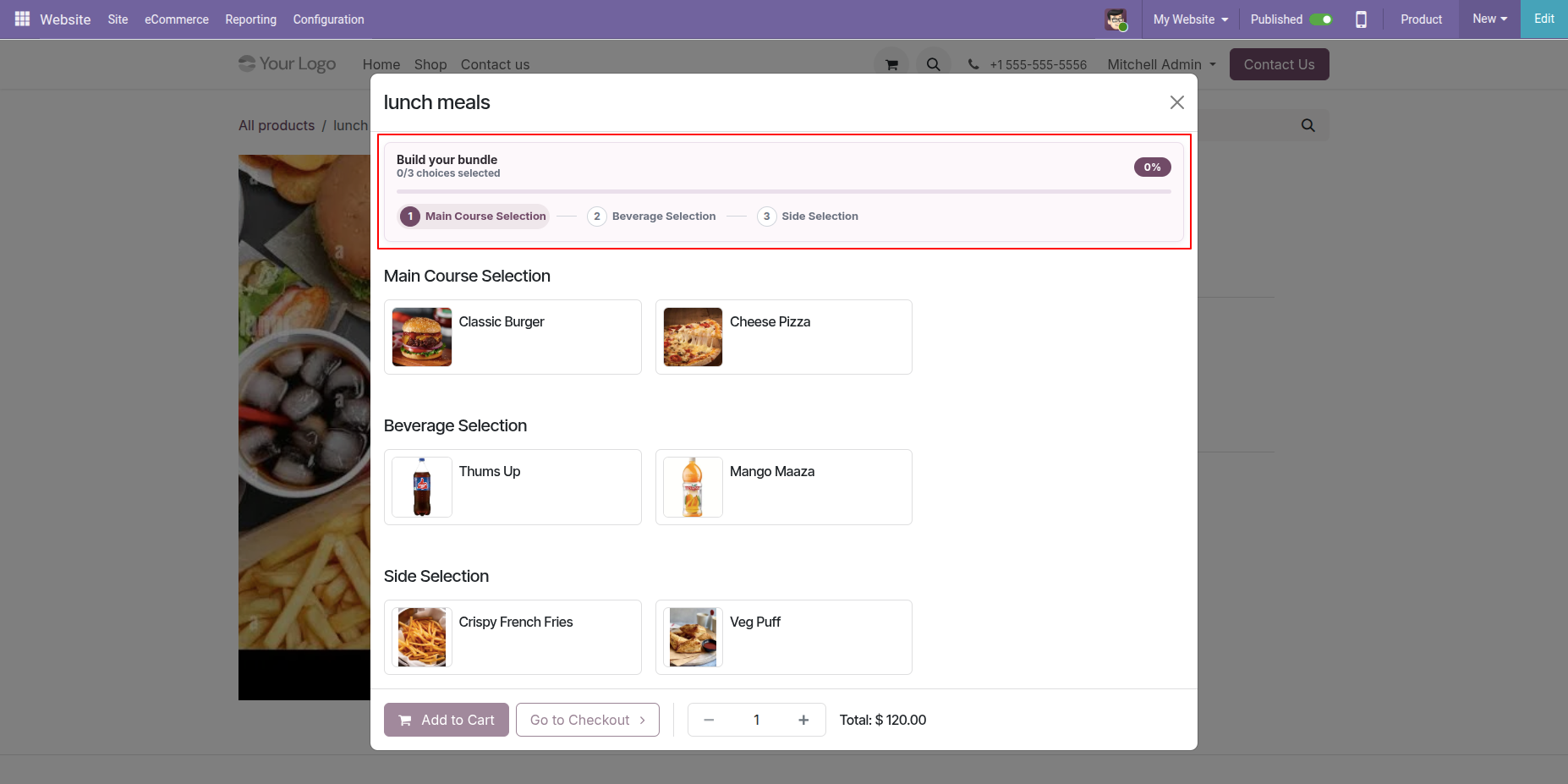
Select a product from the first Combo Choice, and the progress bar will fill up accordingly while displaying the selection percentage.
Select a product from the Second Combo Choice, and the progress bar will fill up accordingly while displaying the selection percentage.
Select a product from the third Combo Choice, and the progress bar will fill up accordingly while displaying the selection percentage.
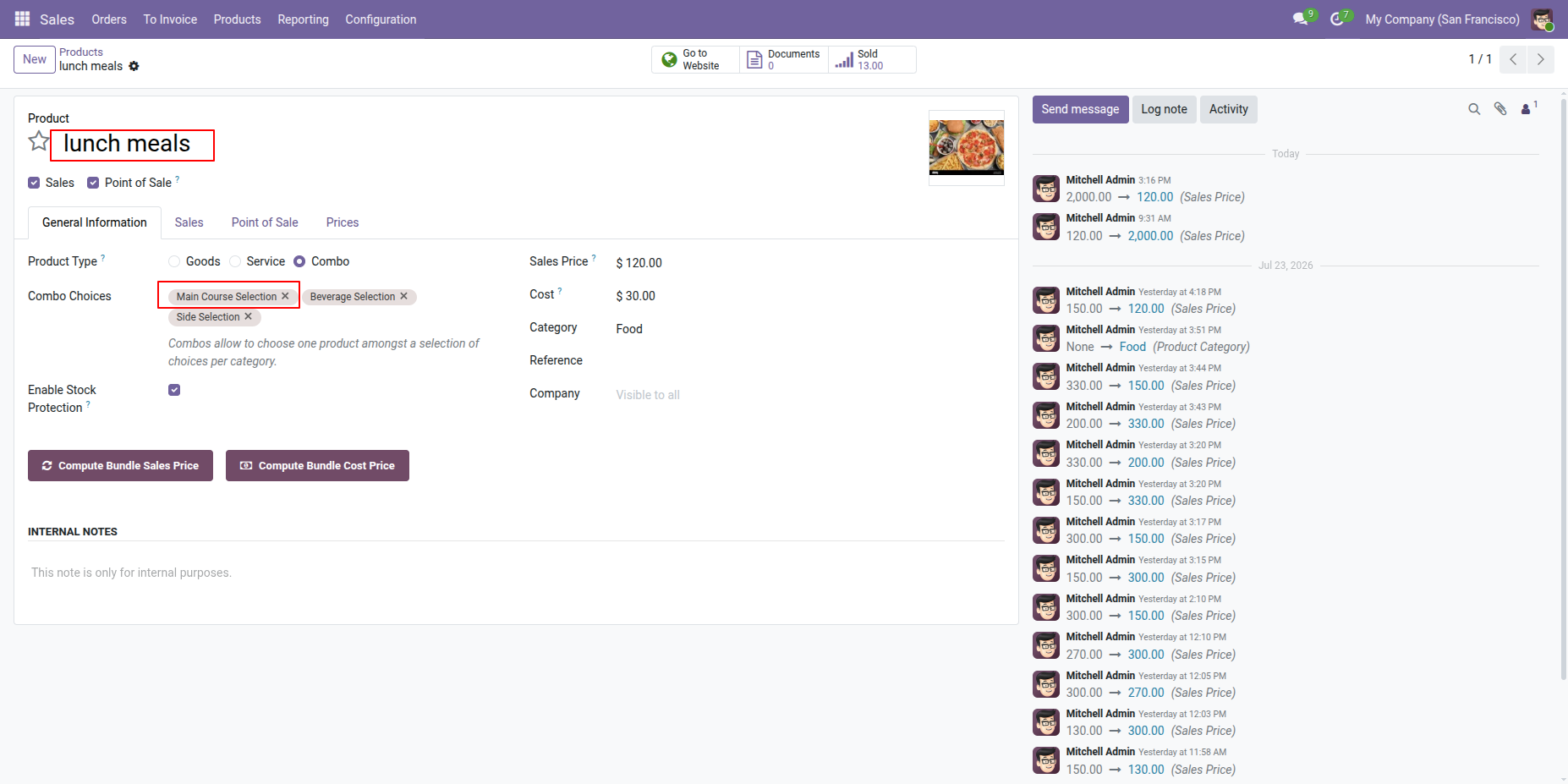
Select the required Combo Choices in the product.
Open the Edit Main Course wizard and select the required options.
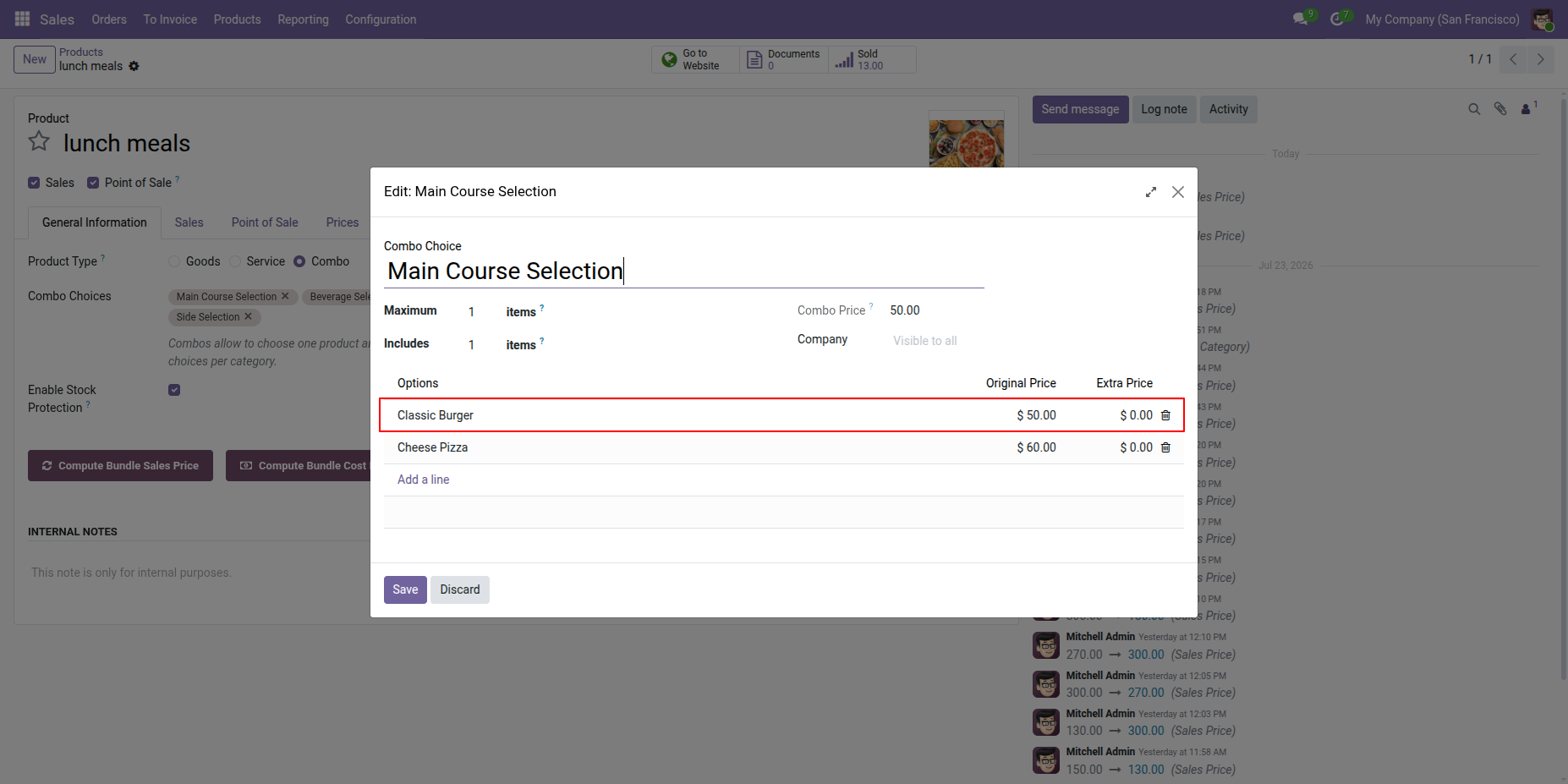
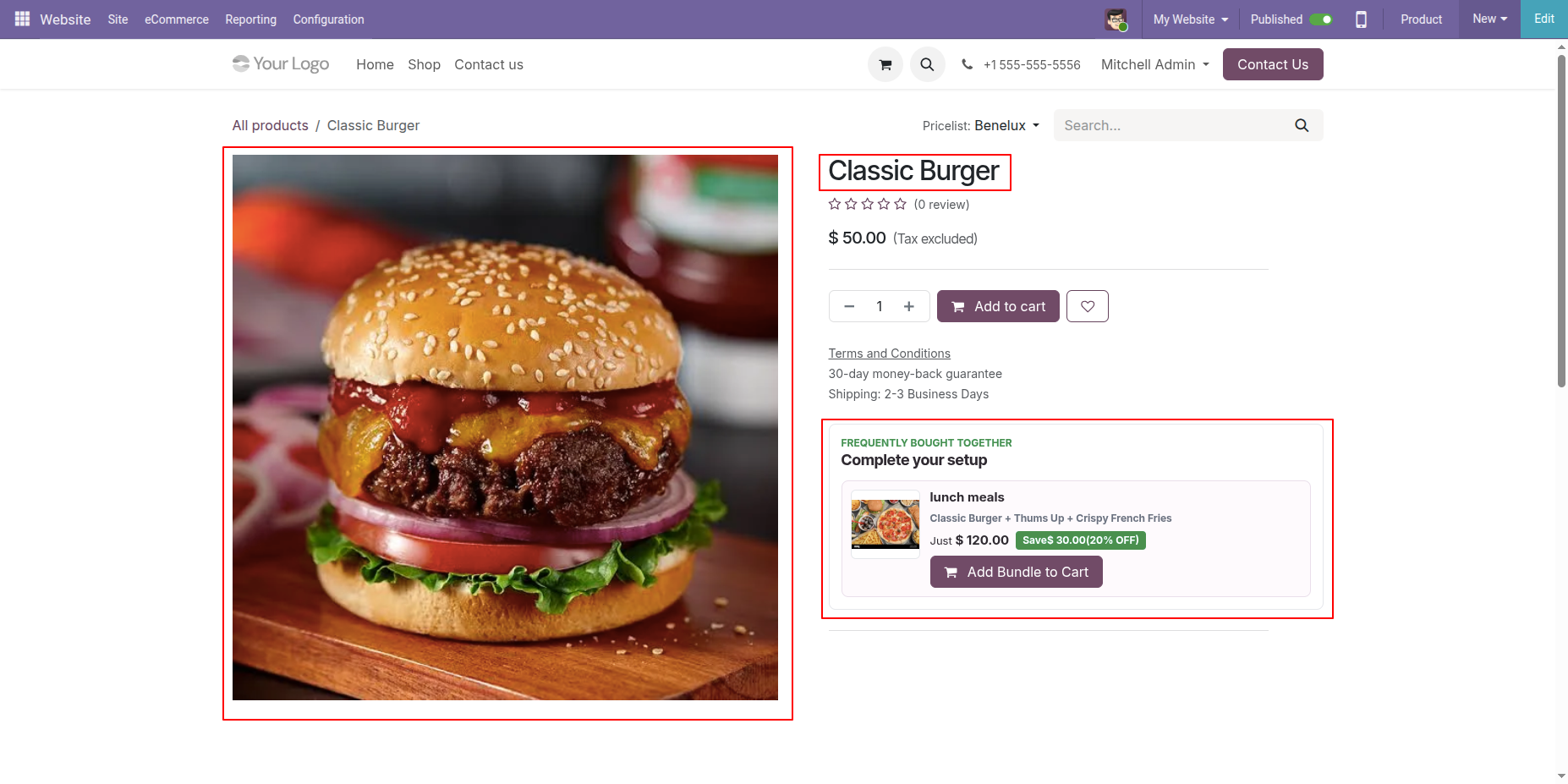
Select the Classic Burger option. The user will see smart suggestions on the website, then click Add Bundle to Cart.
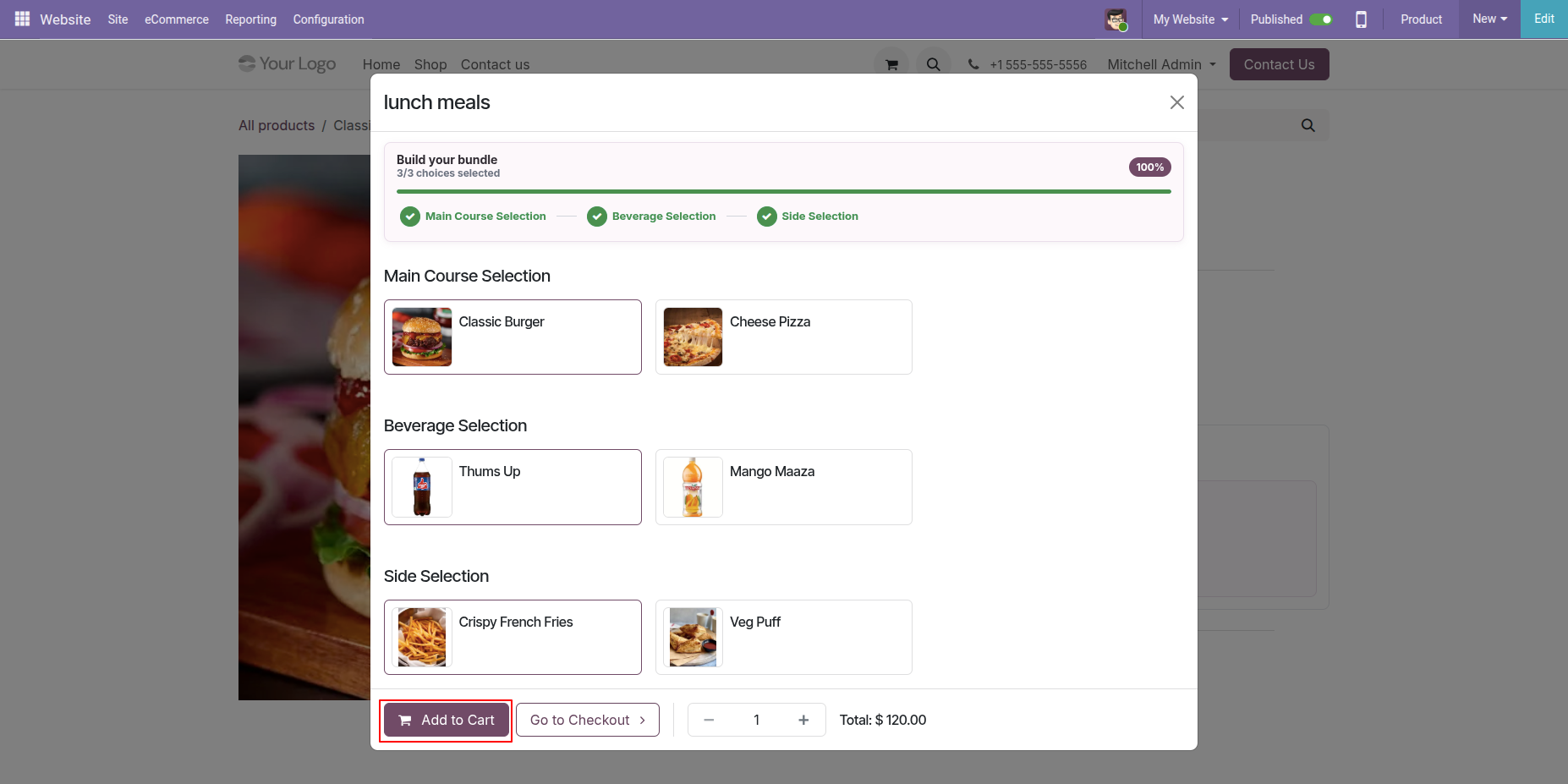
The Combo Choice Wizard will open. Select the required options and click Add to Cart.
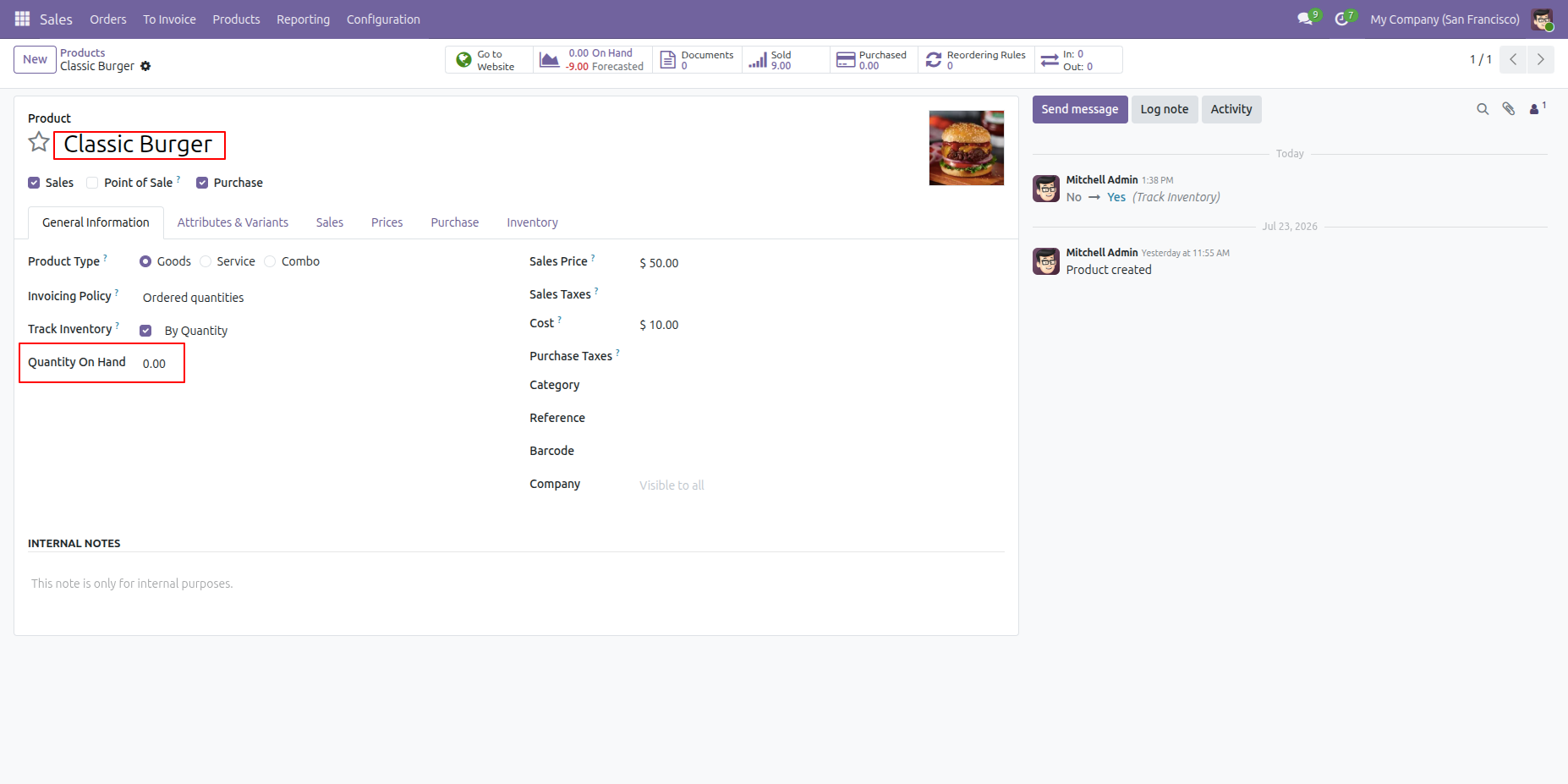
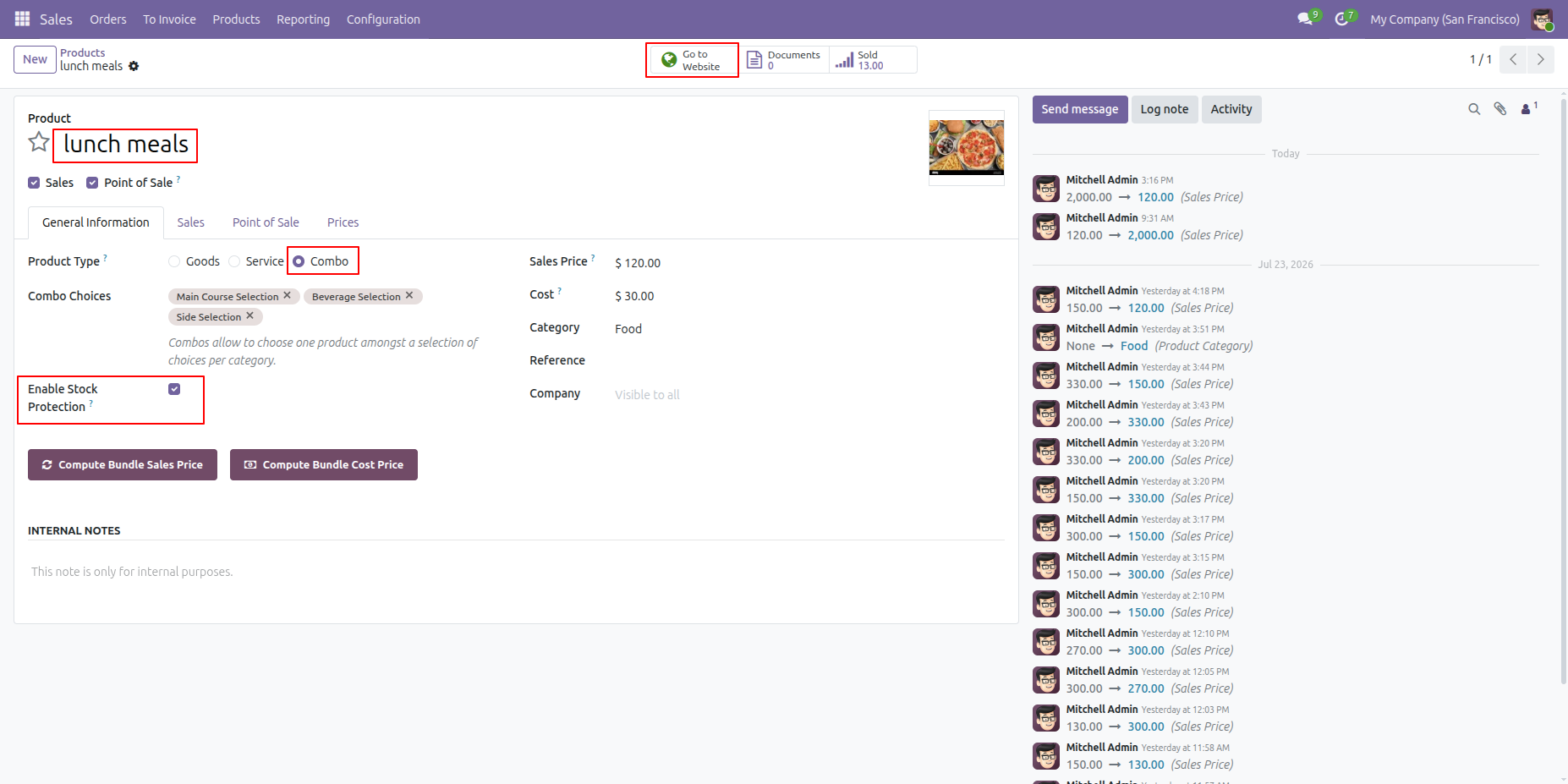
Set the Quantity on Hand in the Product form view.
Select the Combo Product type and enable the Stock Protection option.
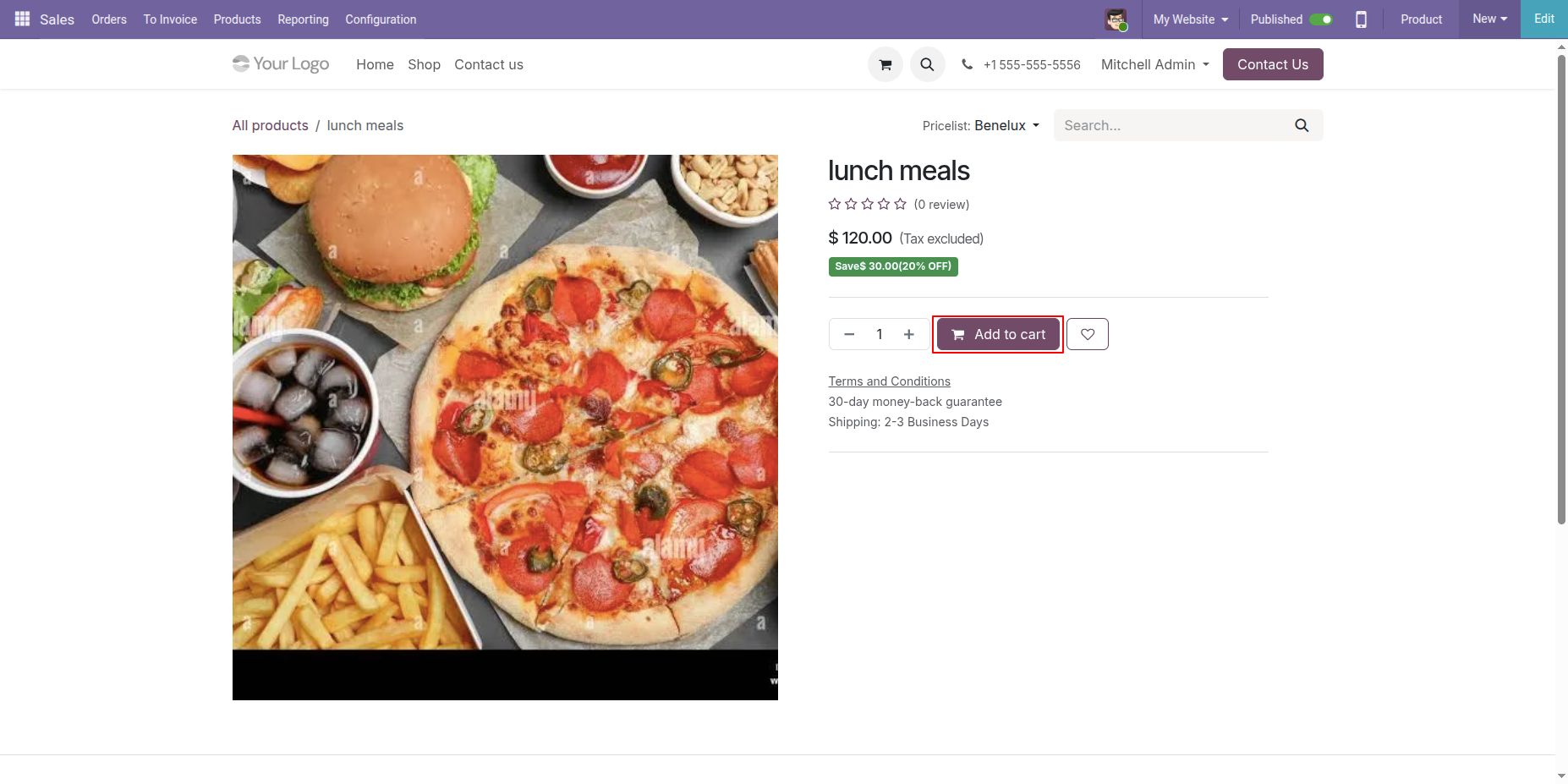
Go to the Website, select the desired product, and click the Add to Cart button.
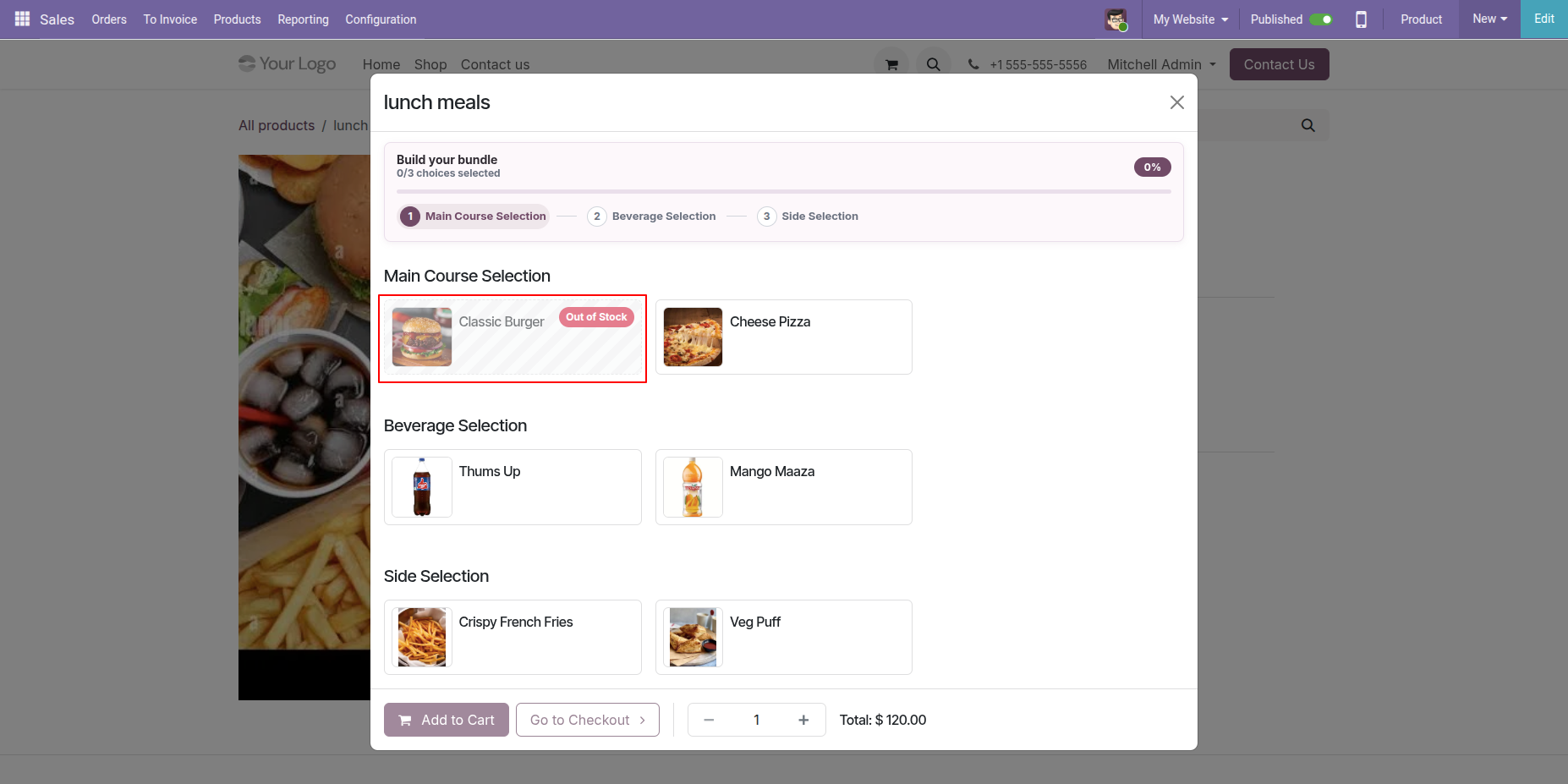
If the stock is unavailable, the product will be shown as Out of Stock in the Combo Choice Wizard on the website.
Release Notes
Track every update, enhancement, and new feature across all versions.
Version 19.0.2.0.0 | Released on : 02nd September 2026
Version 19.0.1.0.0 | Released on : 23rd March 2026


 Buy Once, Supported Forever


 Scan to email sales






 Your Ideas Shape Our Roadmap
 Got an Idea? We'll Build It
Frequently Asked Questions
Everything you need to know before getting started.
Trusted by Businesses Worldwide


Abdulhamid Abdulwaheed
Best module for our online store. Highly adaptable, exceptional customer service, and very advanced modules.
Factura Venta POS
They have everything you need. Technical support is excellent, responds quickly, and keeps the module updated. 100% recommended!
Mehmet Muhanna
Great company and support team. Had a problem in my local Odoo server - they solved it in 5 minutes. Highly recommend.
Billy Jeffs
Customised an Odoo app for me which works perfectly. Many requirements, got it right every time. Very confident in their ability.
HP
Consistently excellent service over years of working together. Knowledge and commitment to keeping clients informed truly sets them apart.
Michal Kolasinski
Multiple addons + two custom modules. Communication always friendly and precise. Delivered on time, worked out of the box. Highly recommended!

Multi-Language
8 built-in translations







You May Also Like
Discover more Softhealer modules that integrate seamlessly with your Odoo environment.







Most Demanded Apps
The Softhealer modules our customers reach for most — trusted across 100+ countries.
Activities Management
Manage, schedule, and automate Odoo activities across all departments from one view.
View Module
Access Management
Granular access control over menus, fields, buttons, and records for every user role.
View Module
Backdate Advanced
Backdate any transaction across invoices, journals, pickings, and more with full audit.
View Module
All-in-One Helpdesk
Full-featured customer support with tickets, SLA, and customer portal built for Odoo.
View Module
All-in-One Mobile Backend
Access your full Odoo backend from any mobile device with an optimized interface.
View Module
All-in-One Import
Import any Odoo model data from CSV, Excel, and JSON files with mapping and validation.
View Module
Our Services
End-to-end Odoo expertise - from setup to scale.

AI & Business Integration

Odoo Implementation

Odoo Customization

Support & Maintenance

Mobile Apps

Migration Service

Third-Party Integration

Odoo Training
Ready to automate with All in One Product Bundle?
Join 10,000+ businesses - Softhealer, 11+ years of Odoo gold partnership expertise across 100+ countries.

