





















All In One Merge
The This module useful to merge sale orders/quotation, purchase order/request for quotation, incoming order/outgoing order/internal transfer, invoice/bill/credit note/debit note, manufacturing order, product internal category with the POS category & product internal category with the e-commerce category.
Key Features
Merge Chatter, Orders & Category
Dynamic Chatter Merge
-
 Merge Sale Order With Chatter
-
Merge Purchase Order With Chatter
-
Merge Picking Order With Chatter
-
Merge MRP Order With Chatter
-
Merge Invoice With Chatter

Merge Orders
-
Merge sale orders
-
Merge purchase orders
-
Merge MRP orders
-
Merge invoices
-
Merge inventory
Merge Category
-
Merge internal & POS category
-
Merge internal & e-commerce category
 Setup & Configuration
 Release Notes
 Support
 FAQ's
FAQ's
Frequently Asked Questions
Everything you need to know before getting started.
 Merge Sale Order
 Merge Purchase Order
 Merge Sale Order With Section-wise Odoo
Merge Sale Order With Chatter
Merge Sale Orders Video
Merge Sale Order With Section-wise Odoo
Merge Sale Order With Chatter
Merge Sale Orders Video
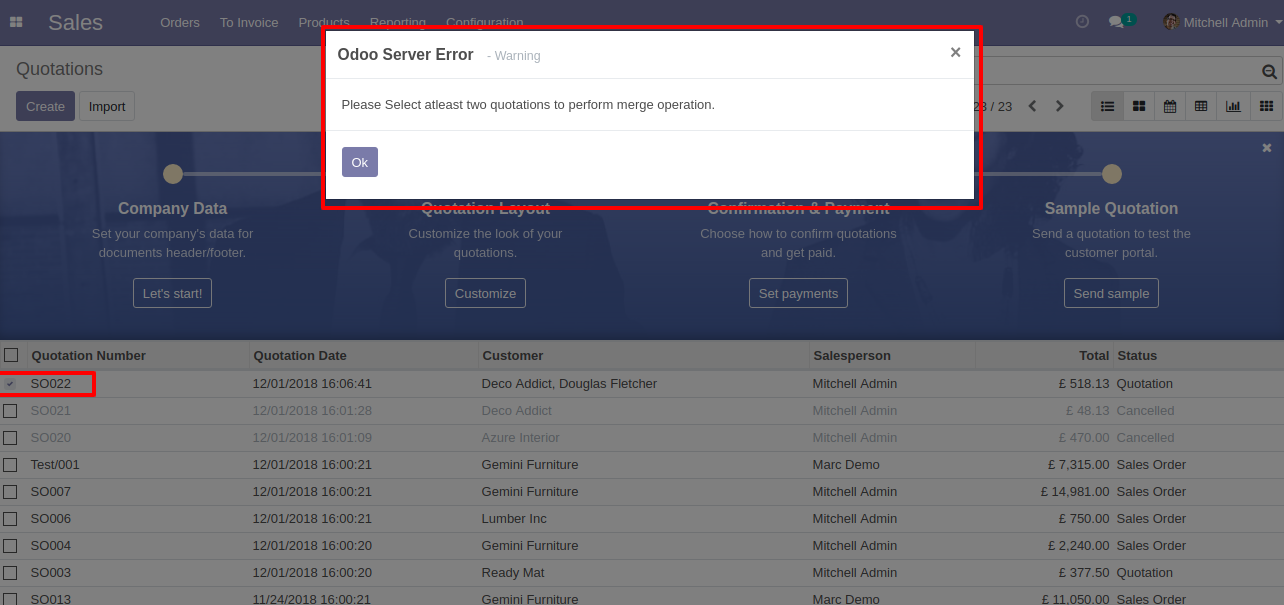
Select quotation. Error Message gived if you select only one Quotation.
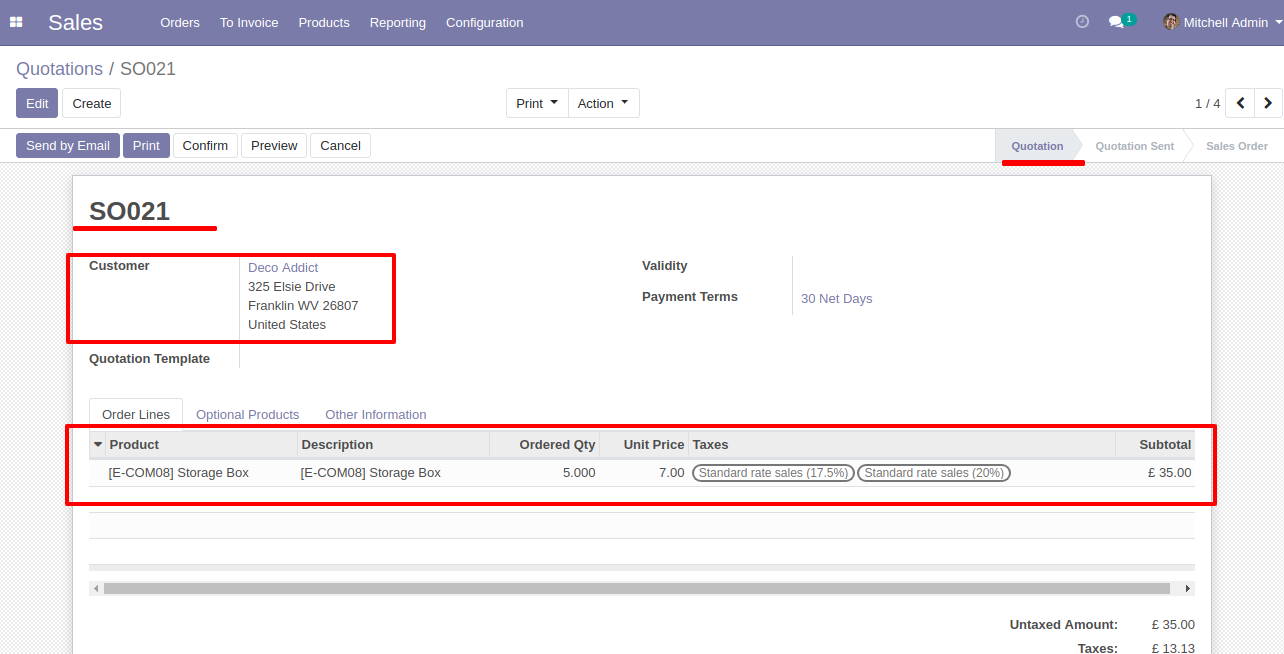
Error Message gived if your select any sale order which are not in Quotation and Quotation sent State.
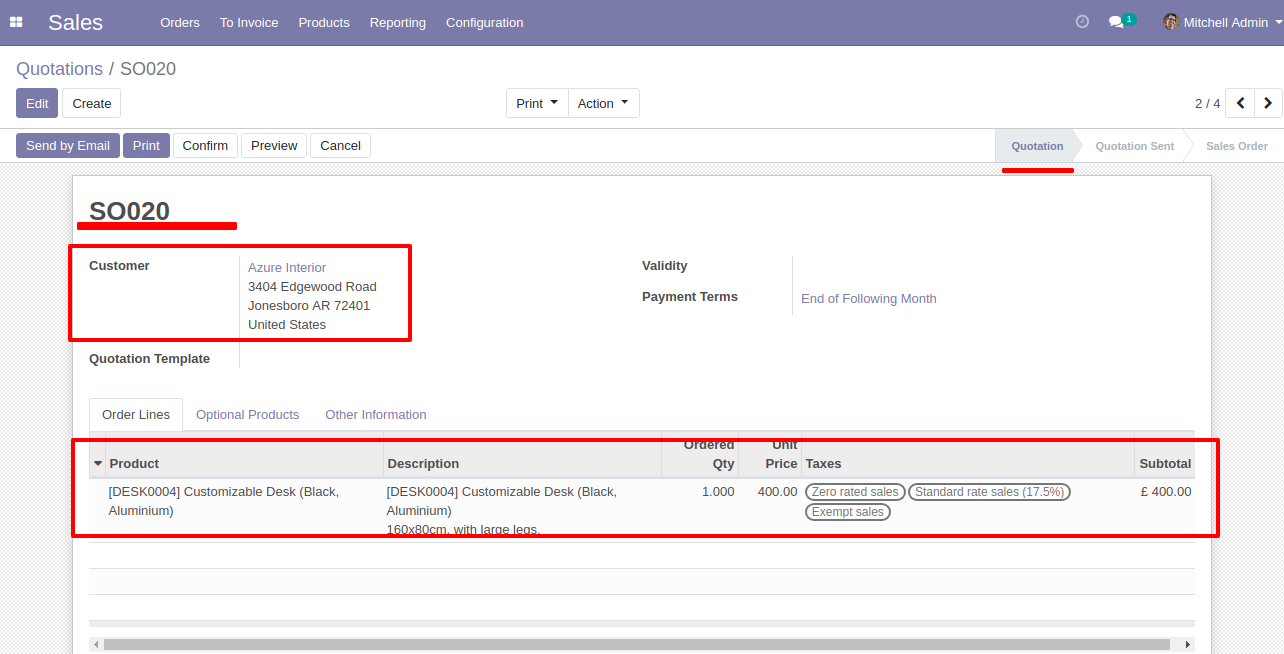
Now we merge sale order/quotation that state is the 'Quotation' & 'Quotation Sent' State.
After that 'Merge Sale Orders' wizard will appear. Tick 'Is Merge Chatter Message' option. Click on the 'MERGE' button.
Here, you can see the new Quotation orders shown in tree view.
Click on that Quotation order.
New generated sale order looks like below.
You can see the merge chatter message of the Quotation orders history in the
chatter.
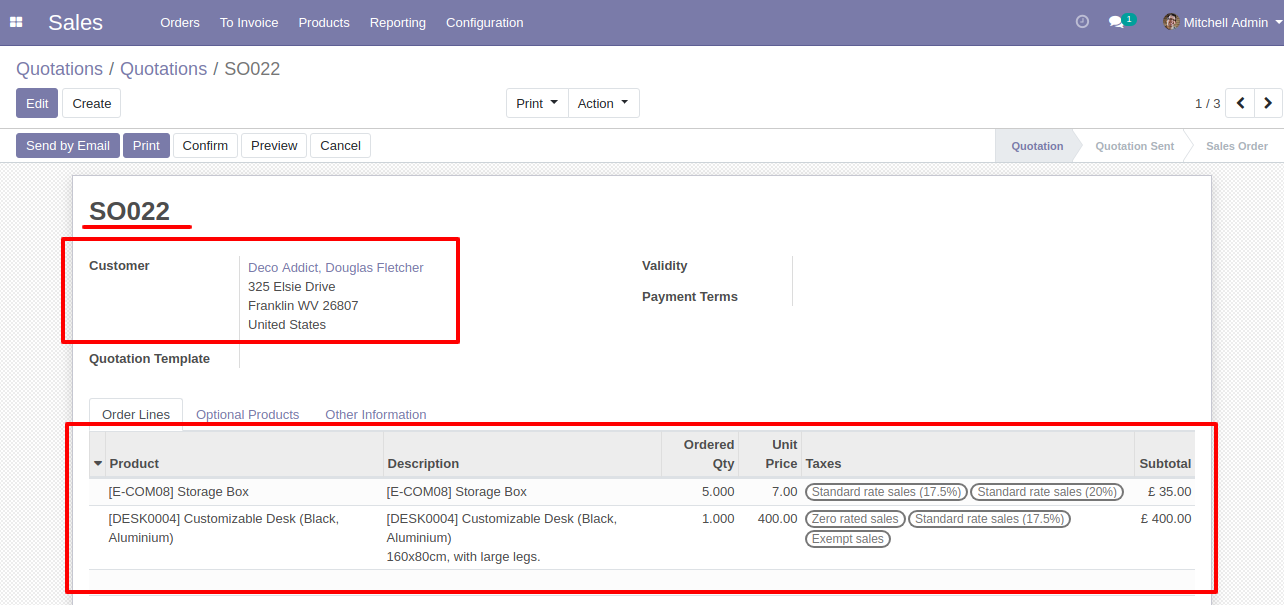
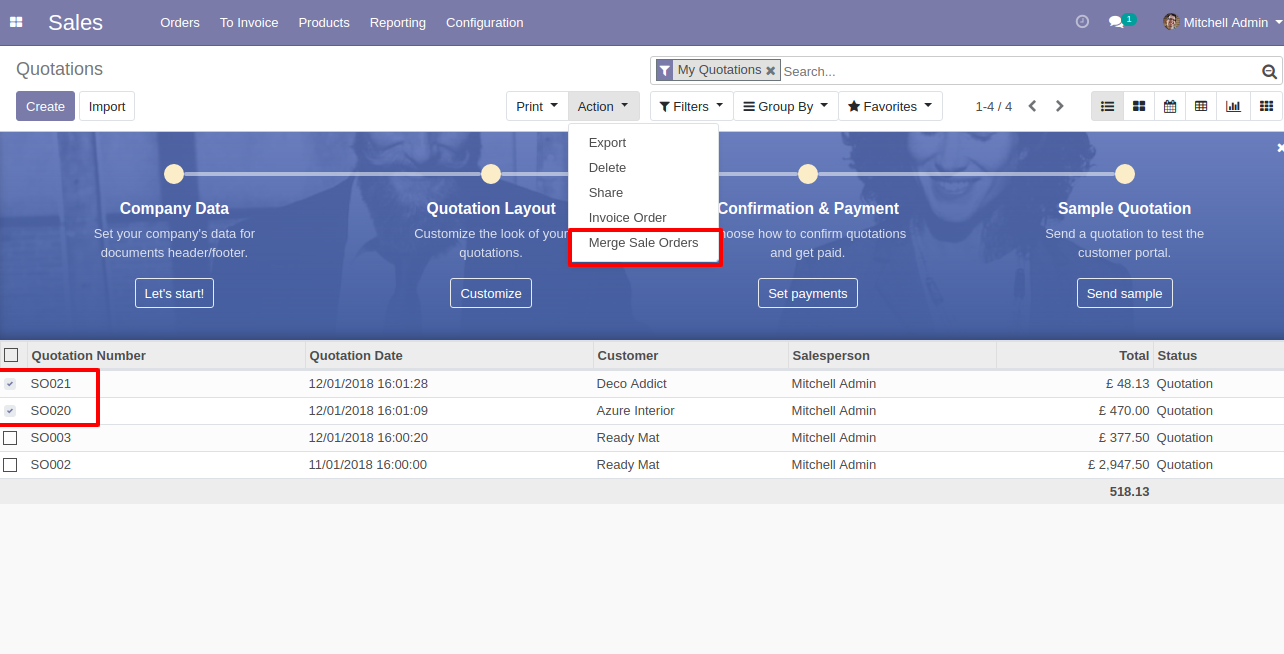
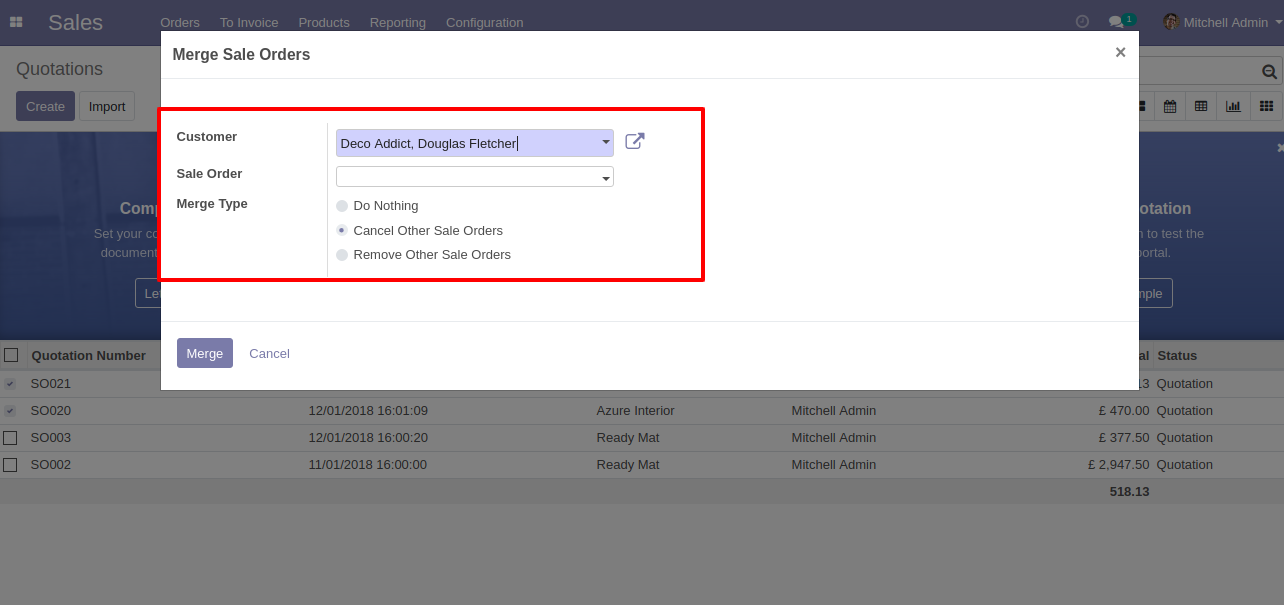
In Merge Sale Orders wizard, Select customer and if you want to create new
sale order then don't select sale order.
if you want to merge in existing sale order then select sale order and choose
cancel, remove or do nothing options.
if you choose cancel then other sale orders cancelled,
if you choose remove then other sale orders deleted and if you choose do
nothing then other sale orders stay as it is.
Tick 'Is Merge Chatter Message' option.
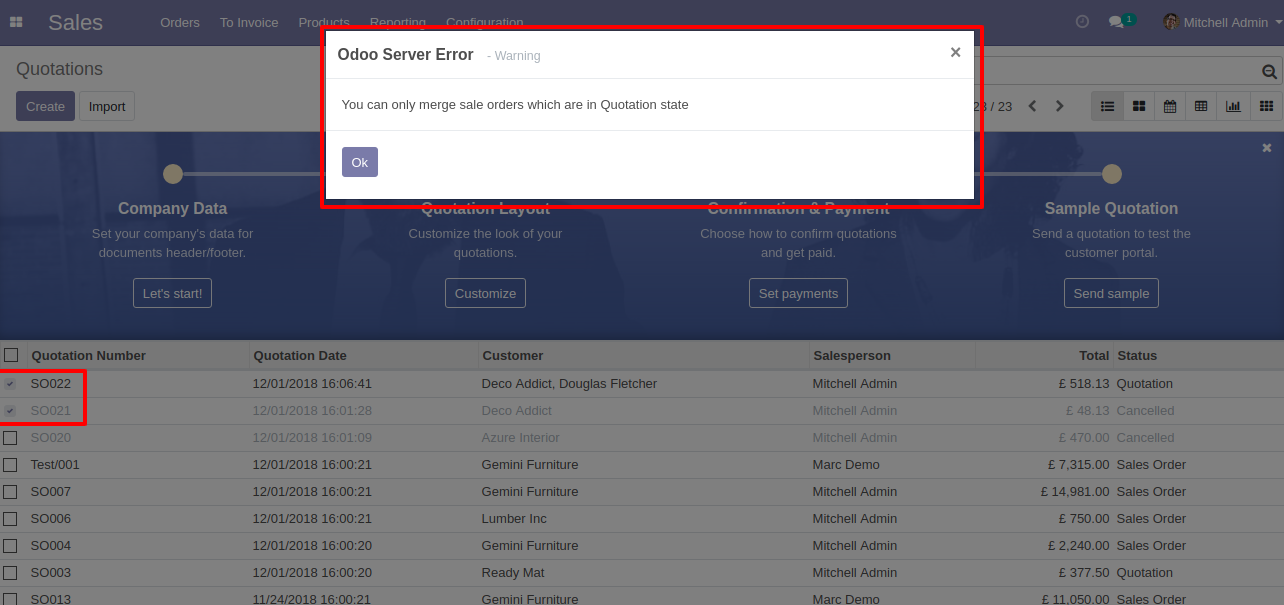
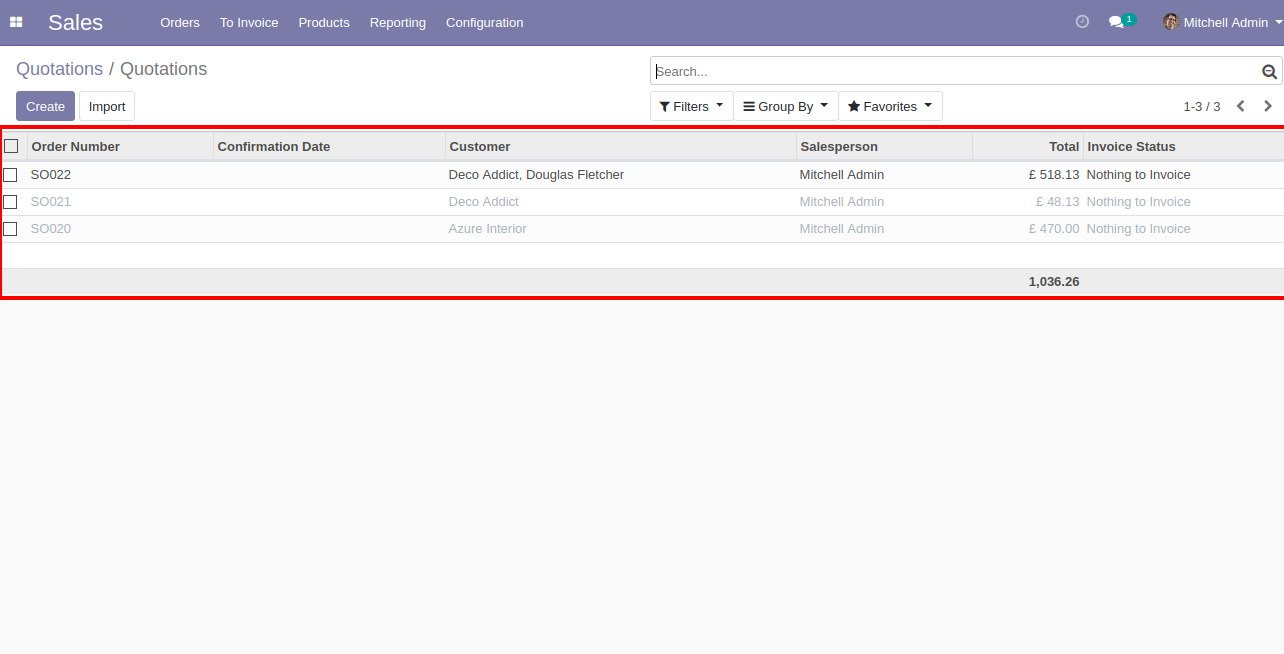
Merge sale order with selected option, list view of new and cancelled sale order.
 Merge Purchase Orders - Section & Notes Odoo
Merge Purchase Order With Chatter
Merge Purchase Orders Odoo
Merge Purchase Orders - Section & Notes Odoo
Merge Purchase Order With Chatter
Merge Purchase Orders Odoo
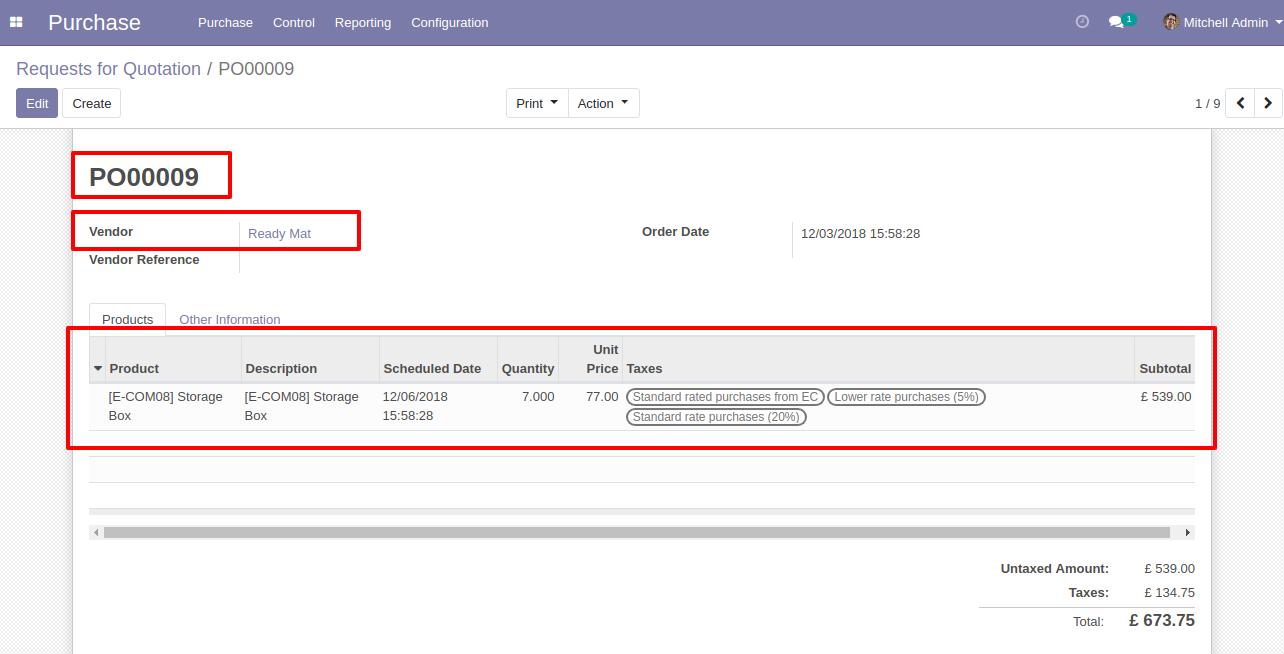
Requests for Quotation (PO00008) with one order line.
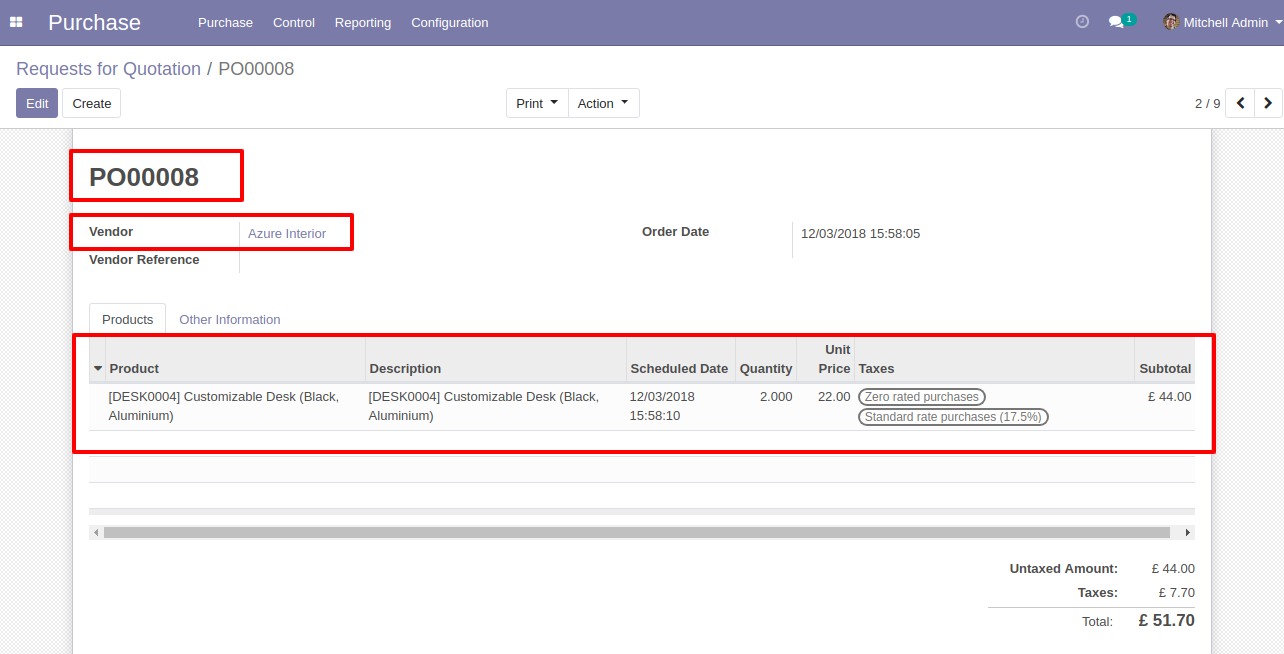
Requests for Quotation (PO00009) with one order line.
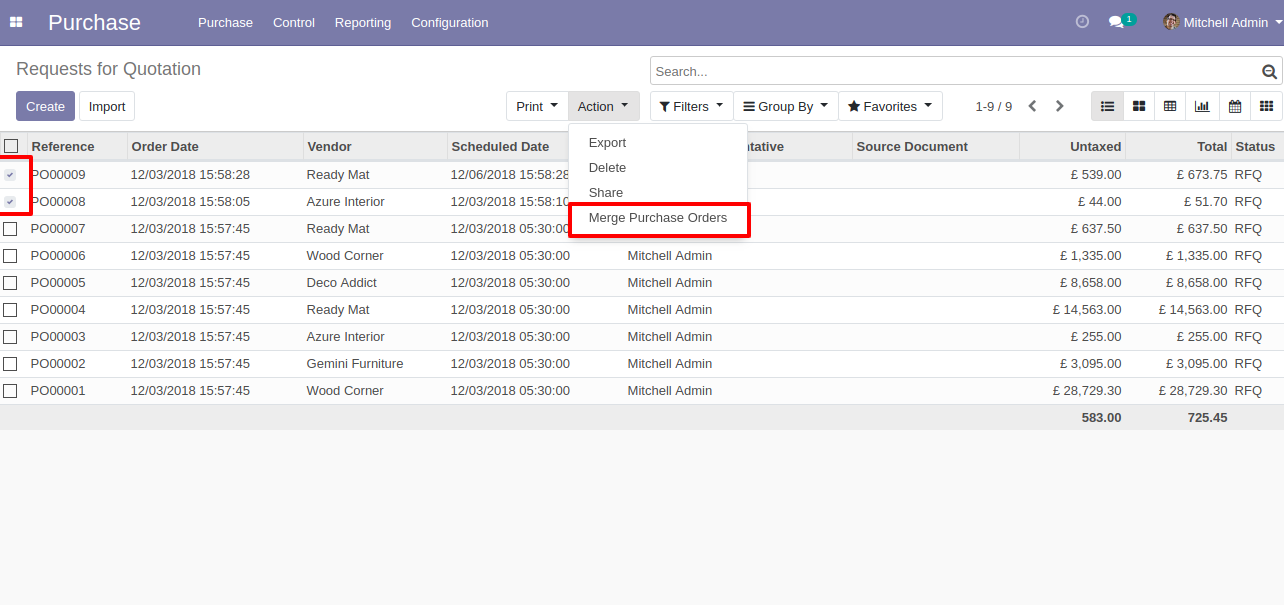
Select Two or More RFQ and click Merge Purchase Orders.
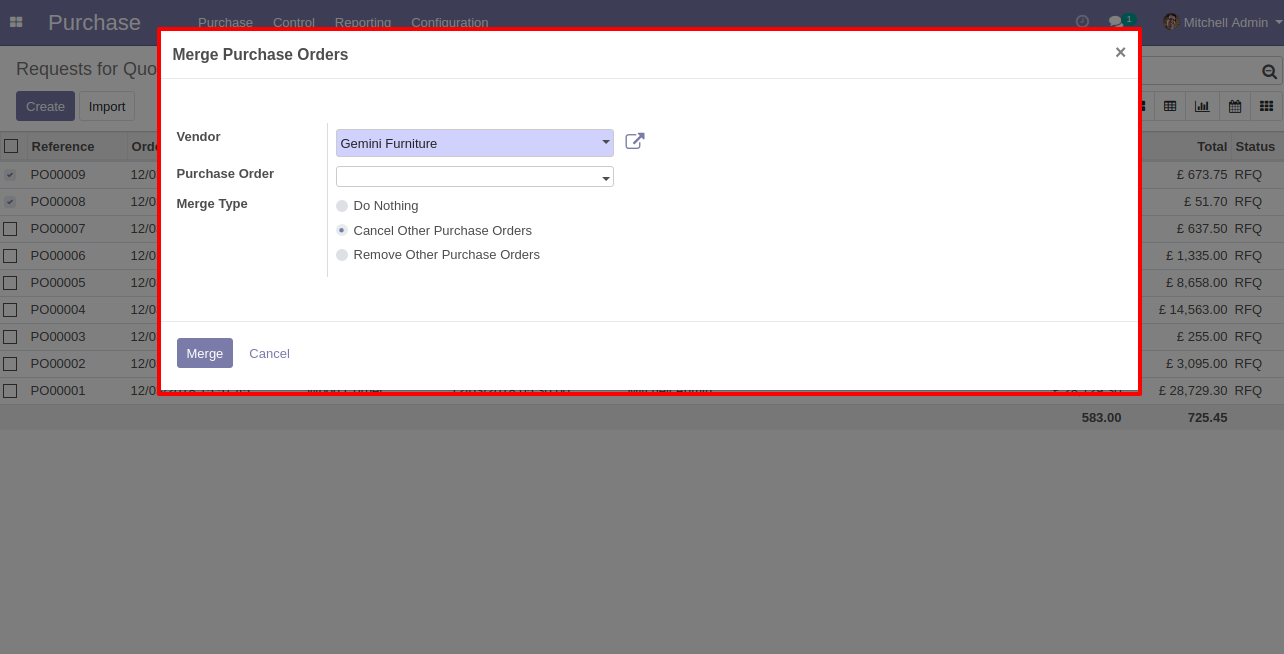
In Merge purchase Orders wizard, Select vendor and if you want to create new purchase order then don't select purchase order. if you want to merge in existing purchase order then select purchase order. and choose cancel, remove or do nothing options.if you choose cancel then other purchase orders cancelled, if you choose remove then other purchase orders deleted and if you choose do nothing then other purchase orders stay as it is.
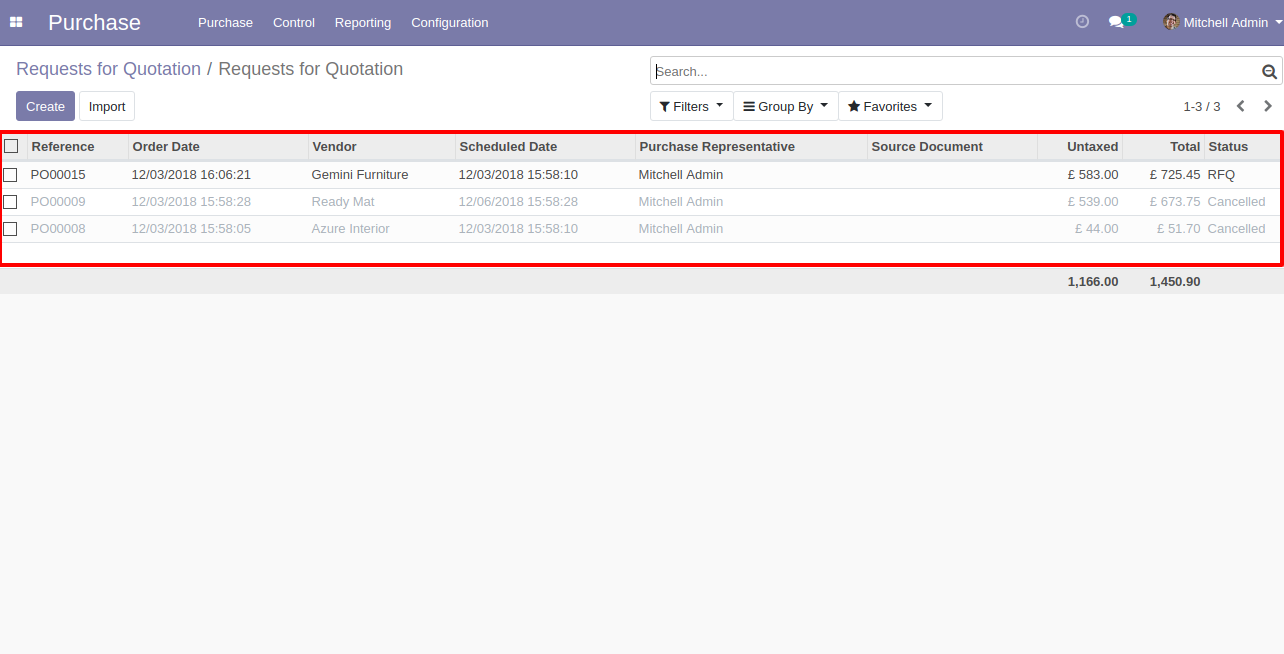
New and cancelled purchase order shown in tree view.
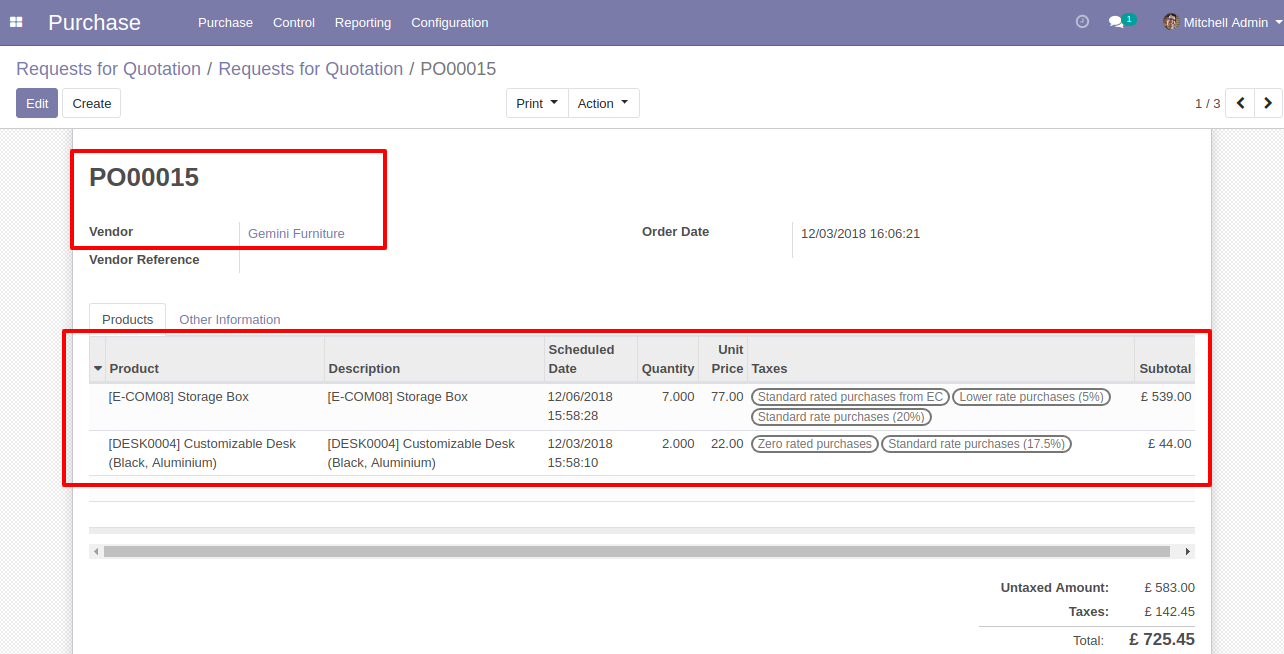
New generated purchase order looks like below.
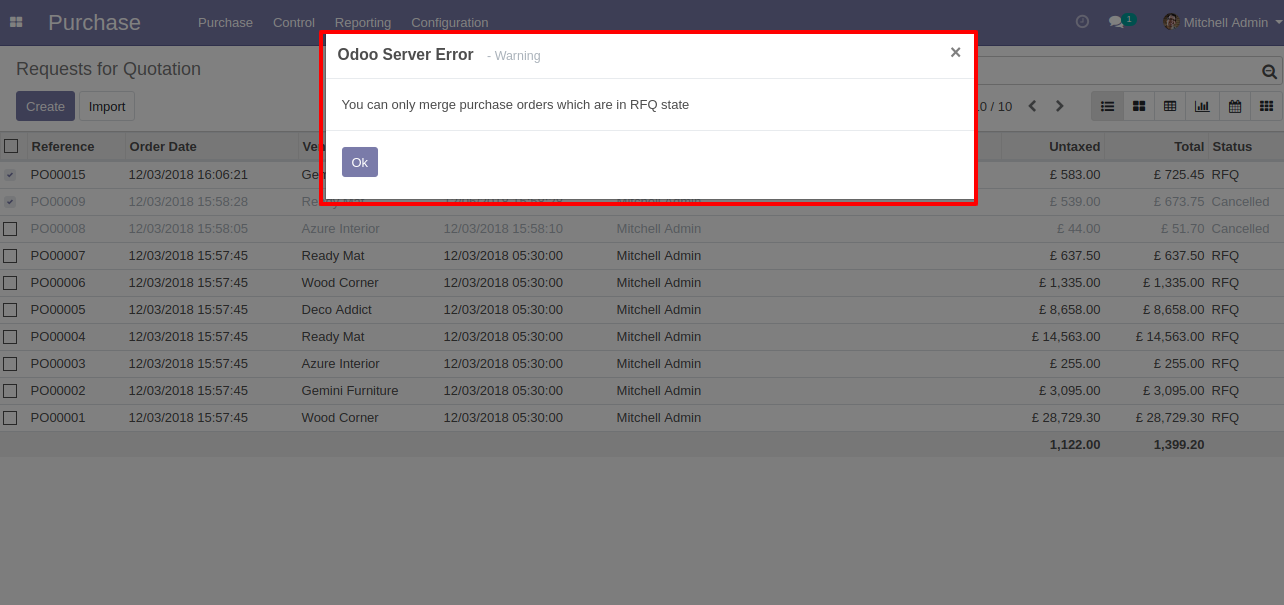
Error Message gived if your select any purchase order which are not in RFQ State.
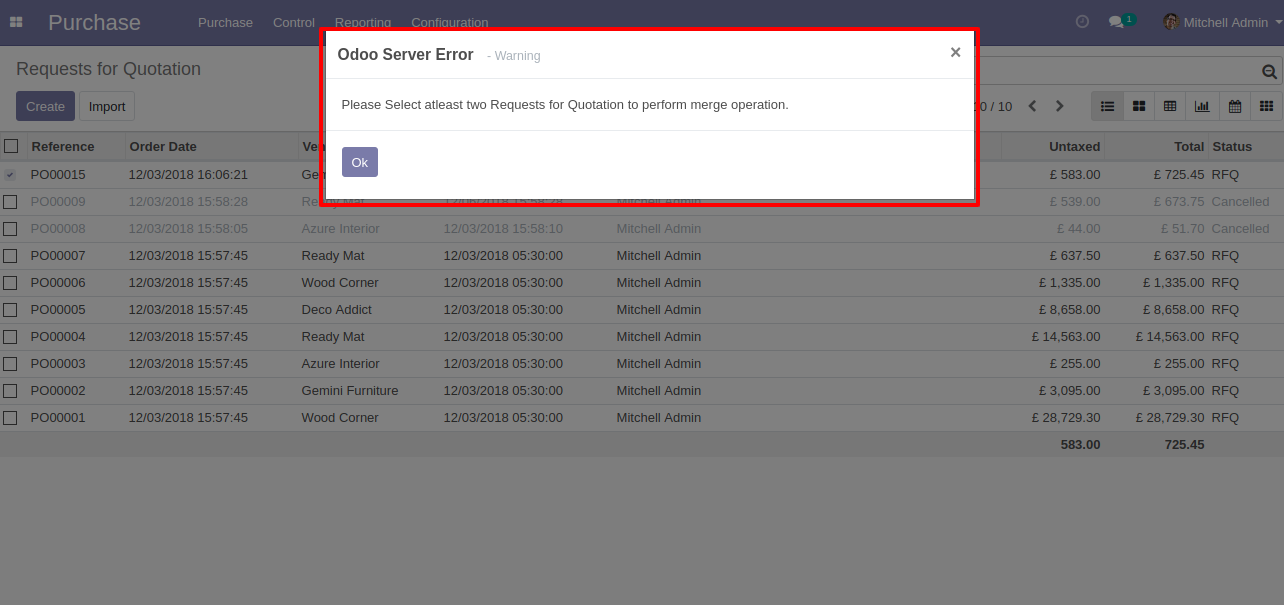
Error Message gived if you select only one RFQ.
 Merge Invoices - Section & Notes Odoo
Merge Invoice With Chatter
Merge Invoices Odoo
Merge Invoices - Section & Notes Odoo
Merge Invoice With Chatter
Merge Invoices Odoo
Draft Invoice 1 with one invoice line.
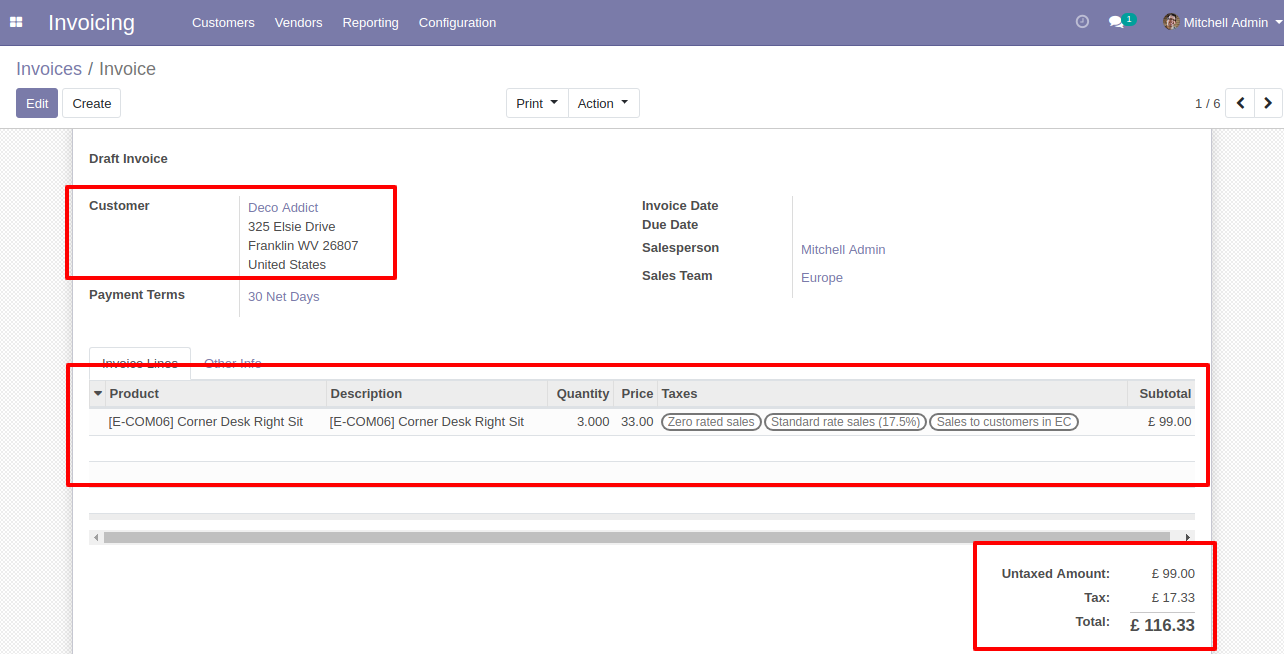
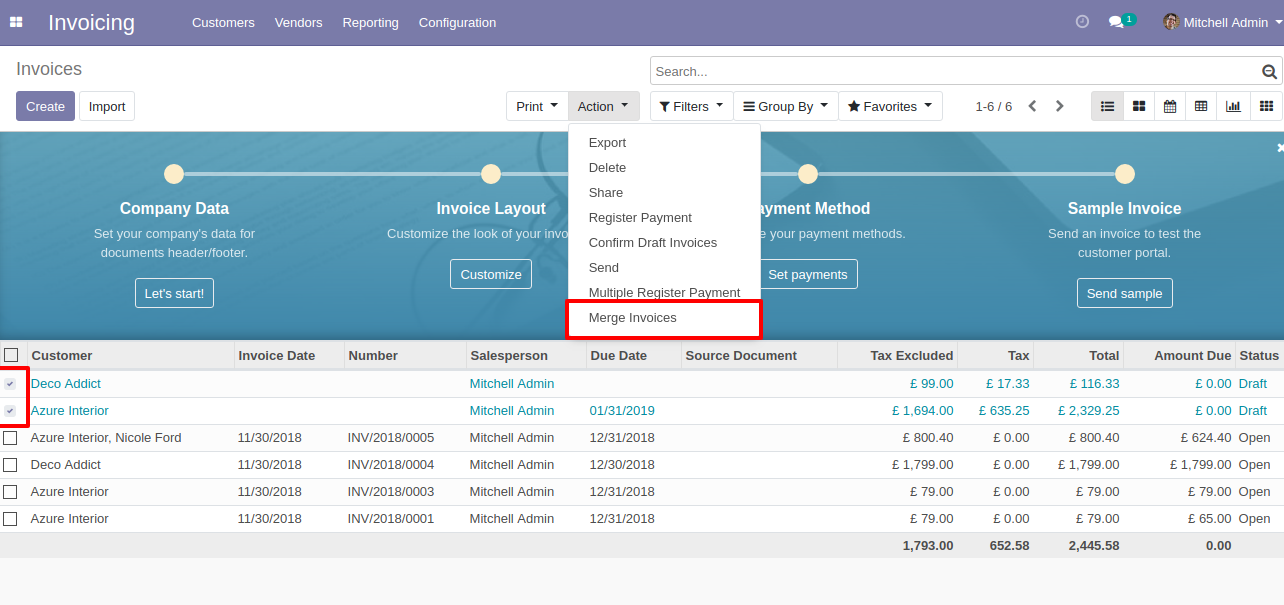
Draft Invoice 2 with one invoice line.
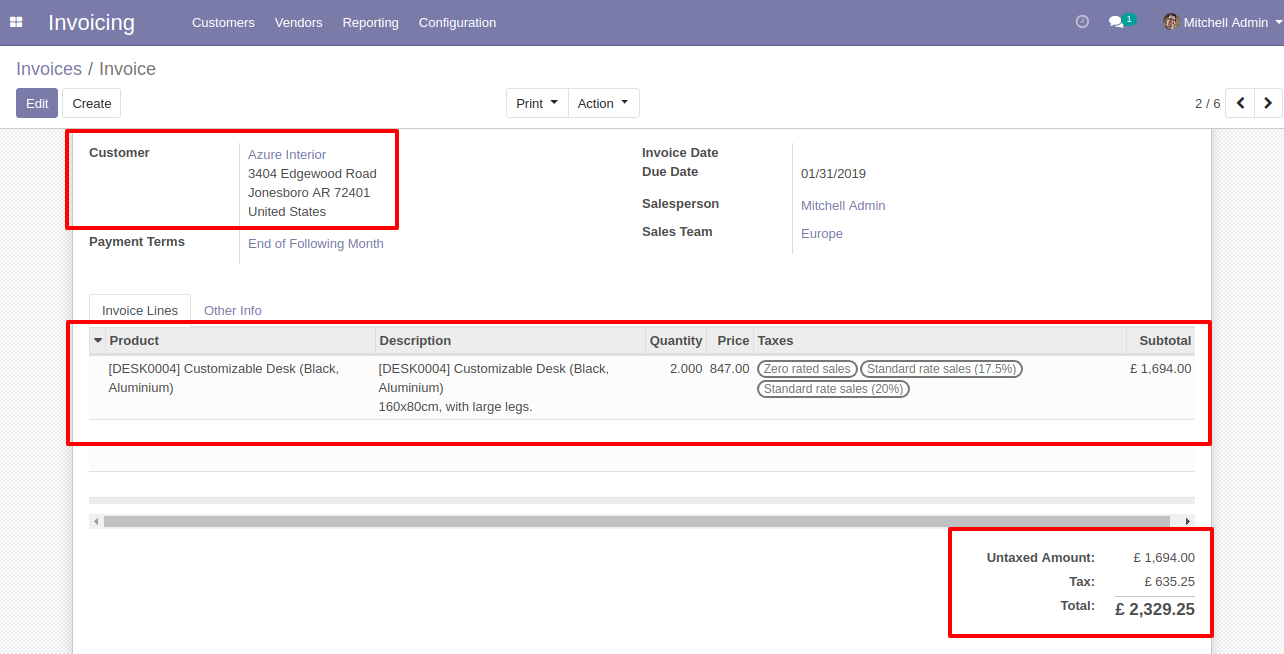
Select Two or More Invoices and click Merge Invoices.
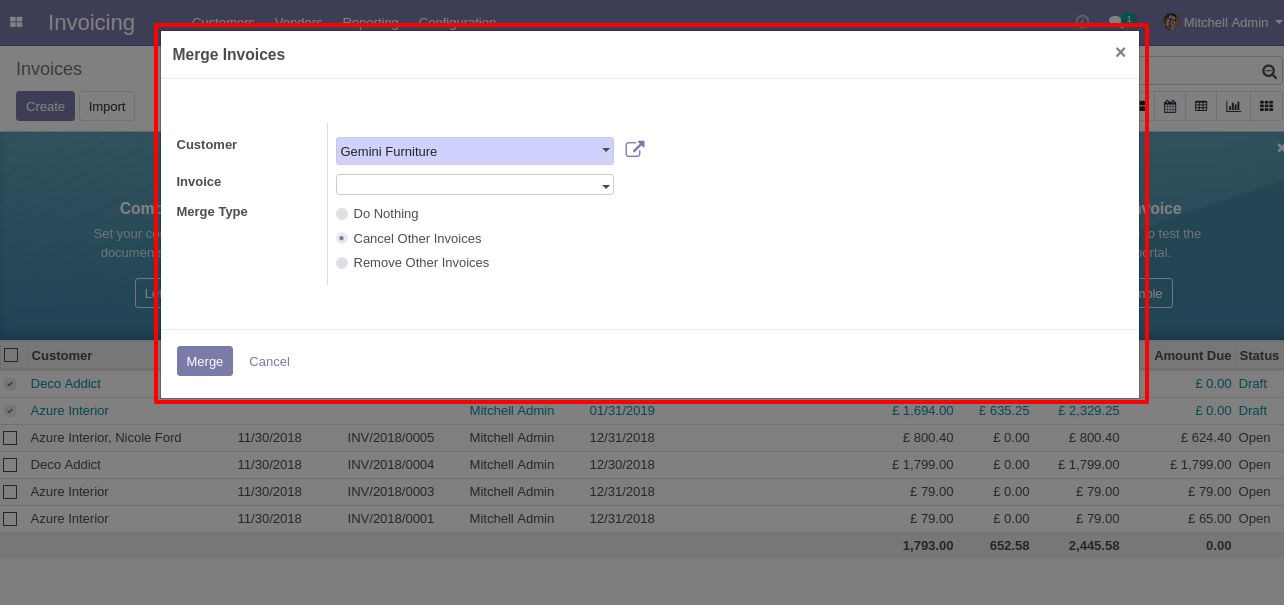
In Merge Invoice wizard, Select customer and if you want to create a new invoice then don't select invoice. if you want to merge in the existing invoice then select the invoice, choose merge type cancel, remove or do nothing options. if you choose to cancel then other invoices canceled, if you choose to remove then other invoices deleted and if you choose to do nothing then other invoices stay as it is.
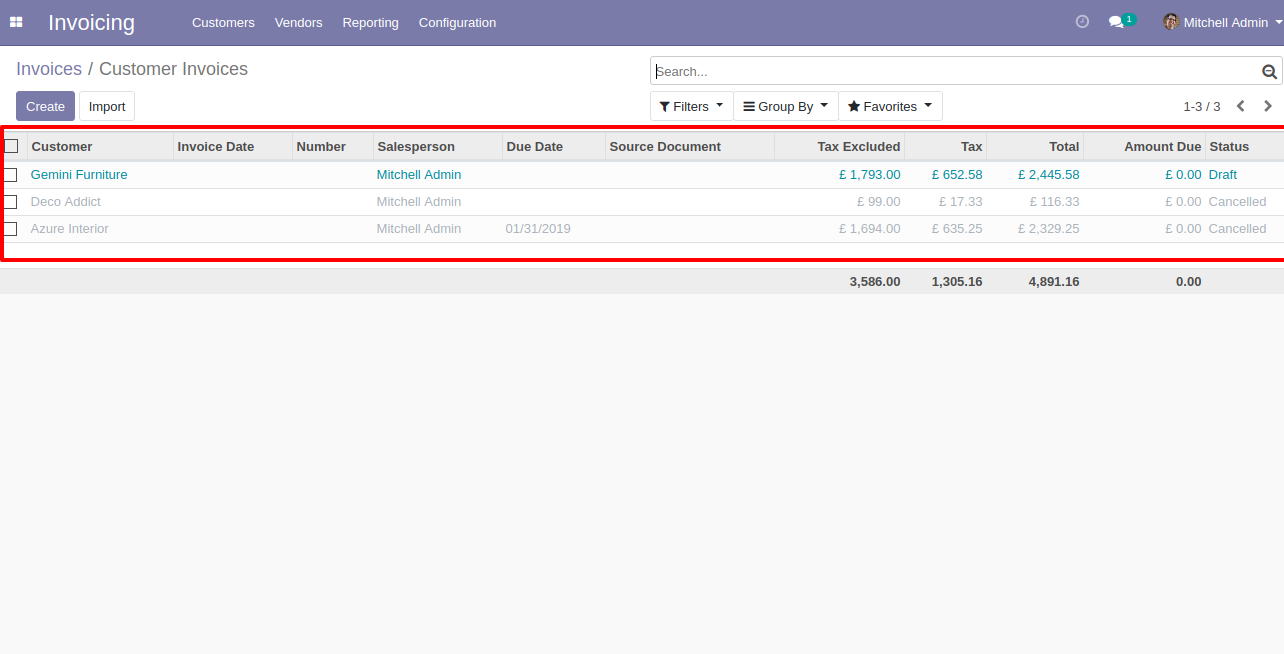
New and cancelled invoices shown in tree view.
New generated invoice looks like below.
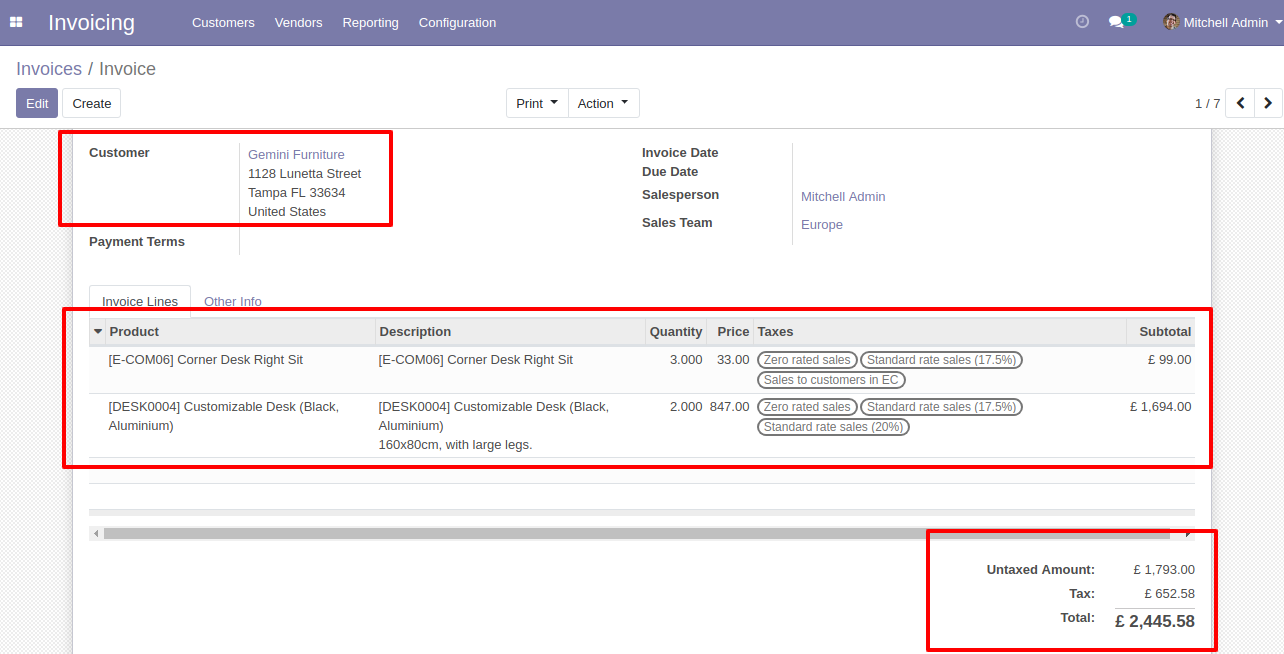
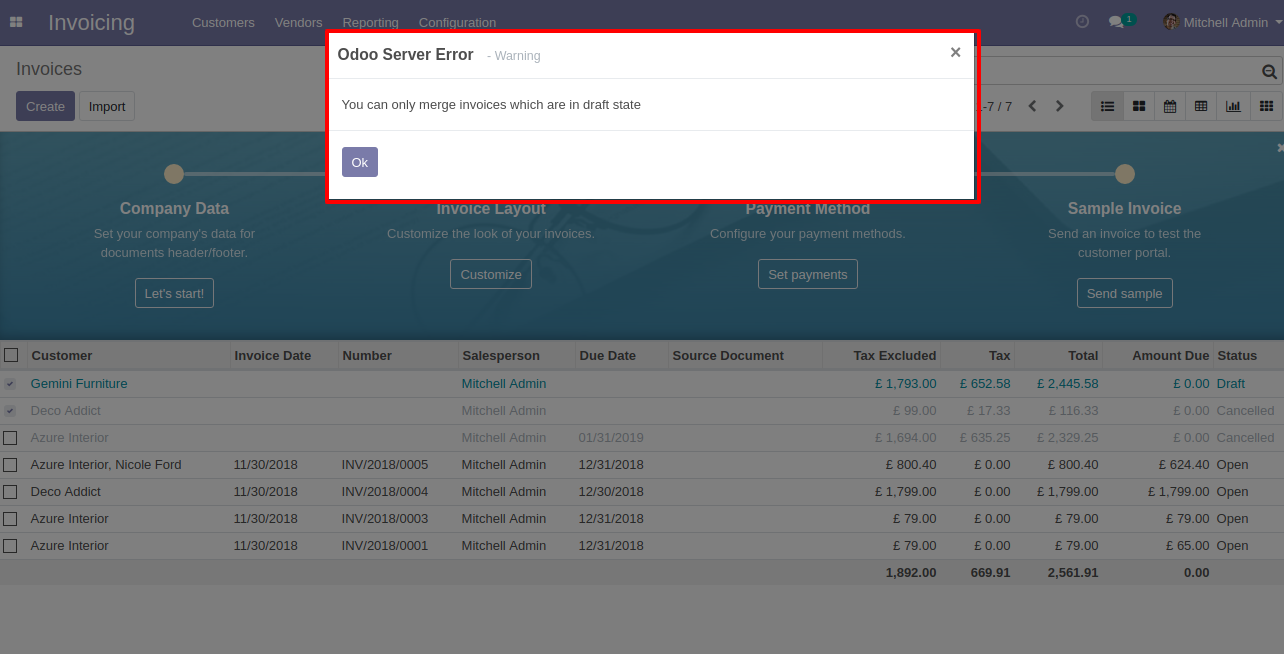
This error message will show when you select any invoice which is not in draft state.
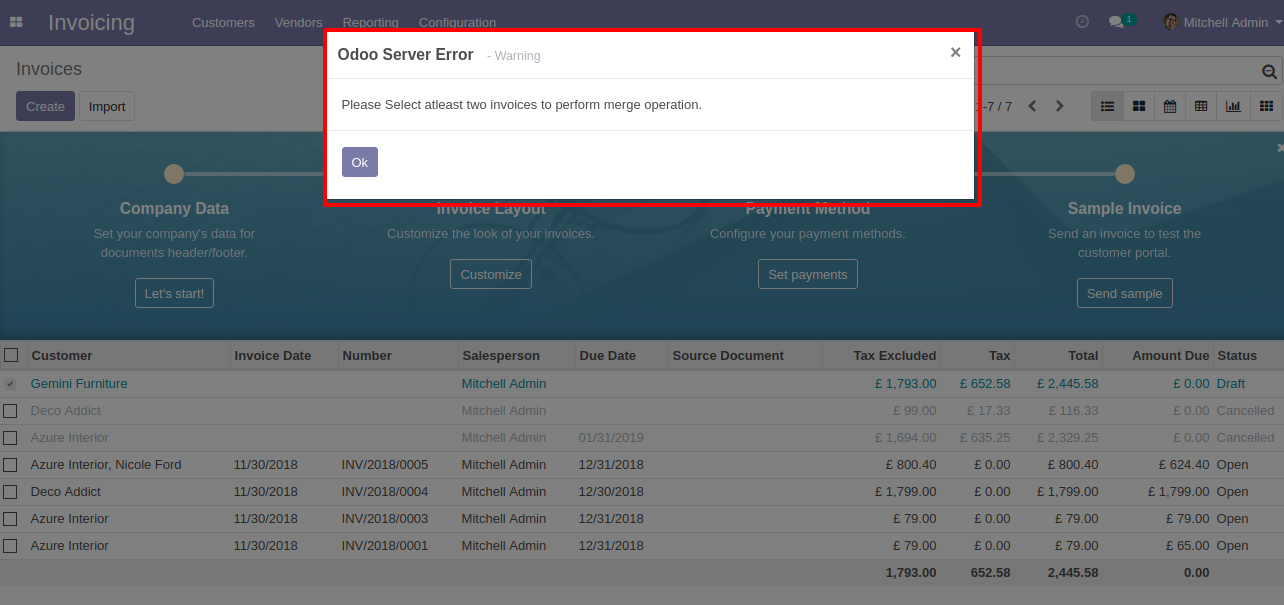
This error message will show when you select only one invoice.
 Merge Picking Order With Chatter
Merge Picking Orders Odoo
Merge Picking Order With Chatter
Merge Picking Orders Odoo
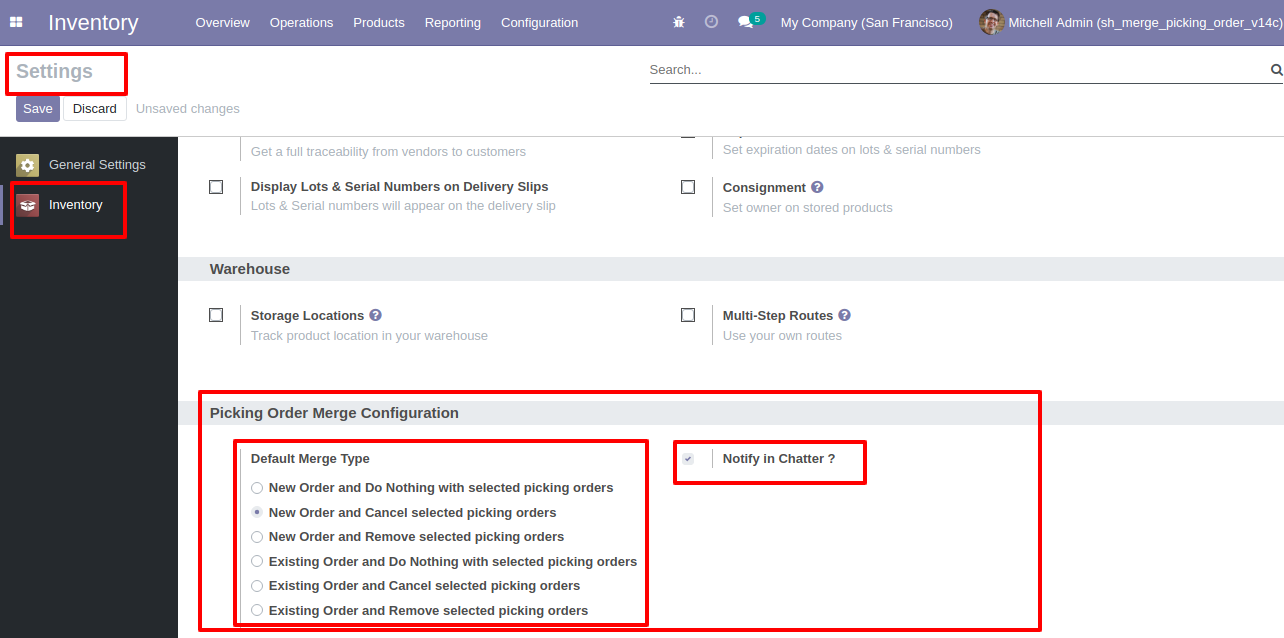
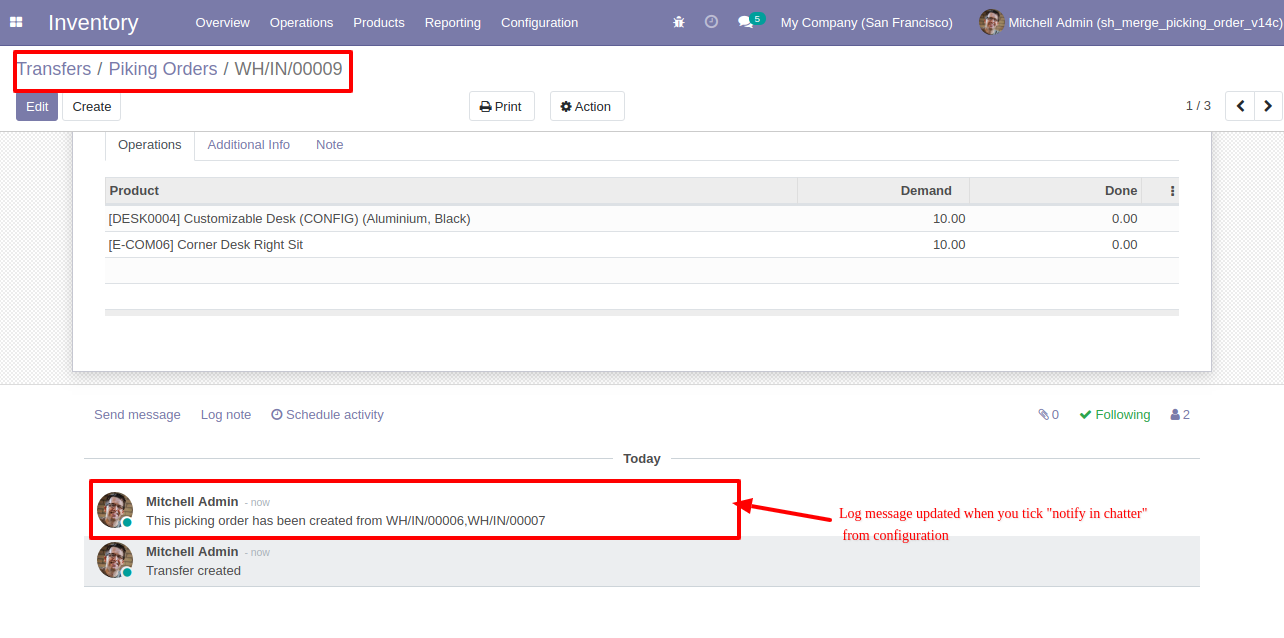
Configuration for merge picking orders, here you can choose merge type and if you tick the "Notify in Chatter" option then it gives notification of merged orders into the chatter.
"Merge Picking Orders" menu and tree view.
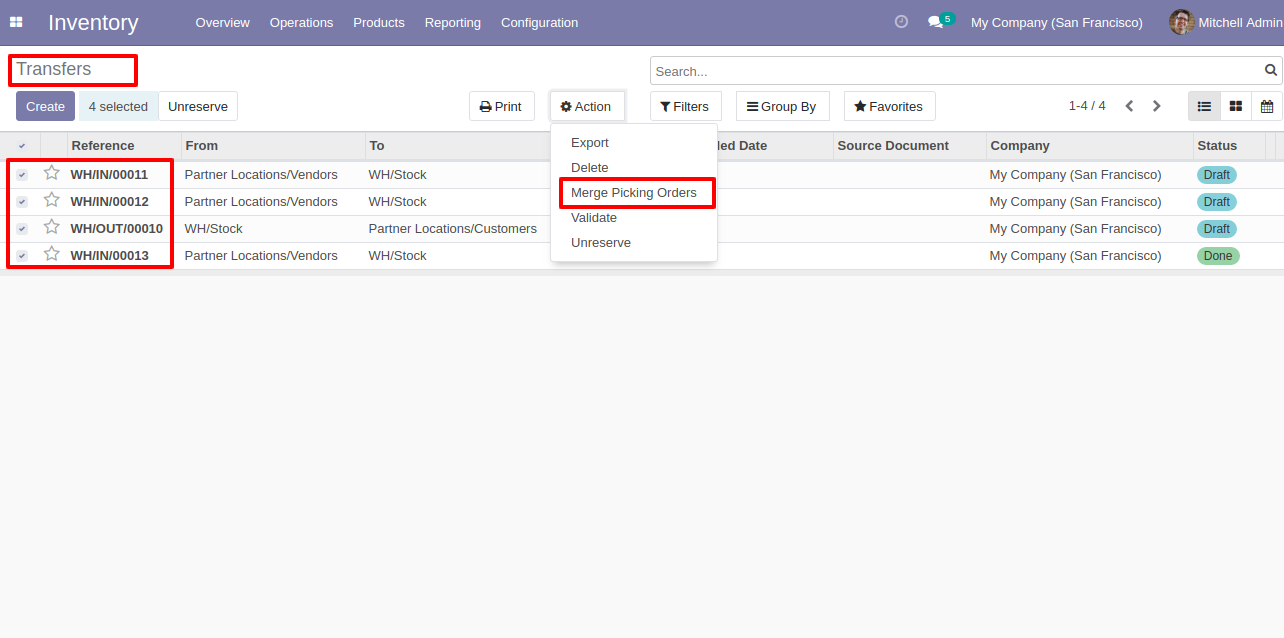
You can merge only draft/ waiting/ ready state orders.
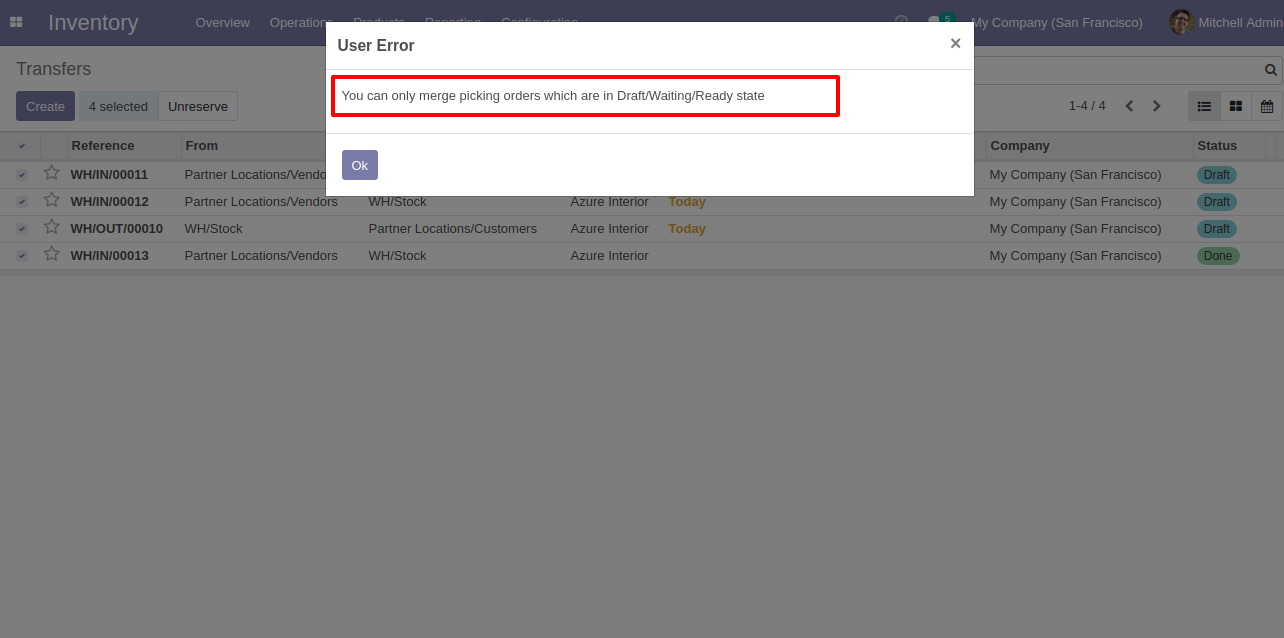
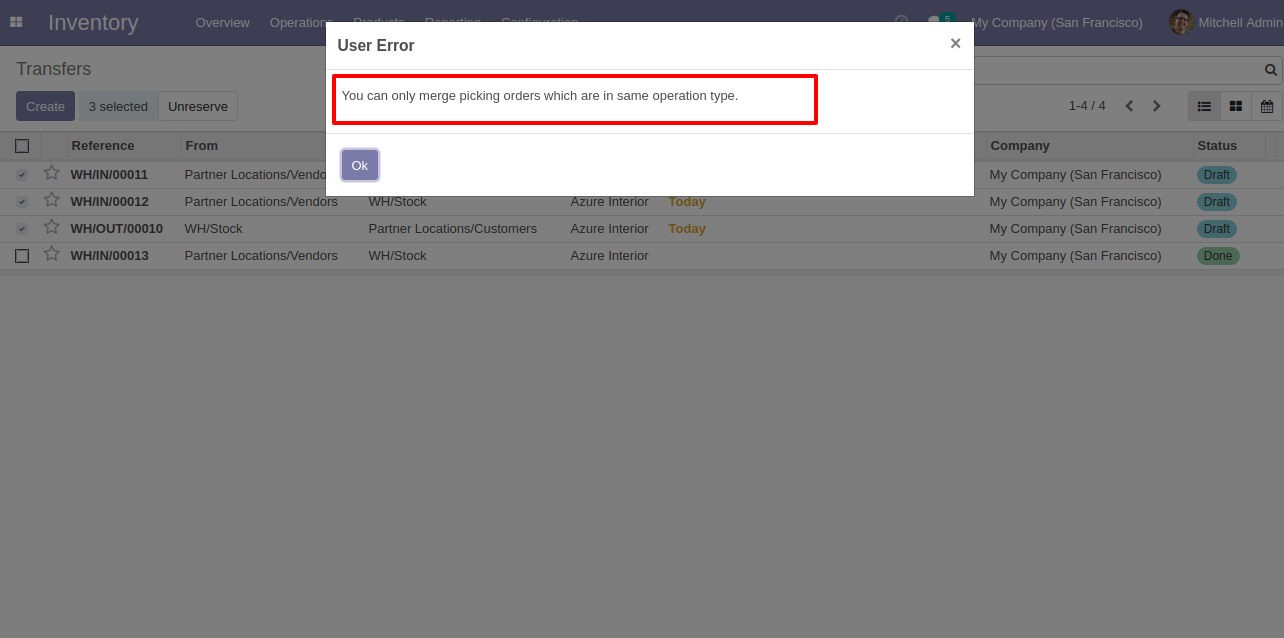
You can merge picking orders which have the same operation type.
Merge picking orders wizard with the default selected merge type.
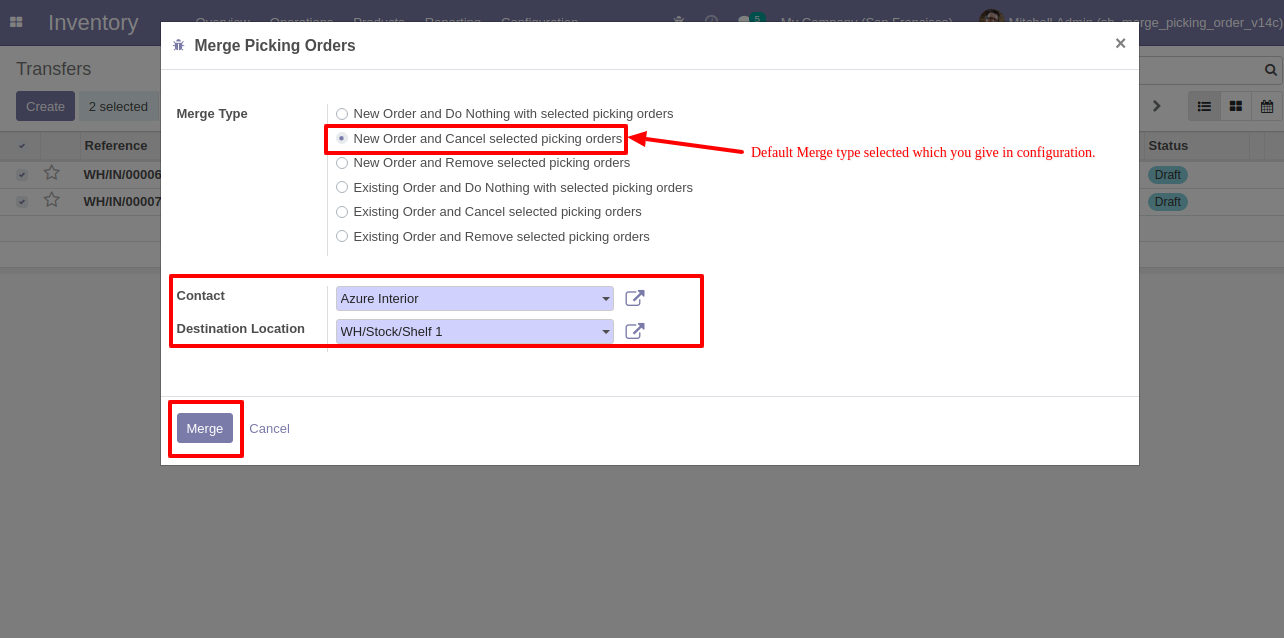
Merge picking orders wizard with the existing order type.
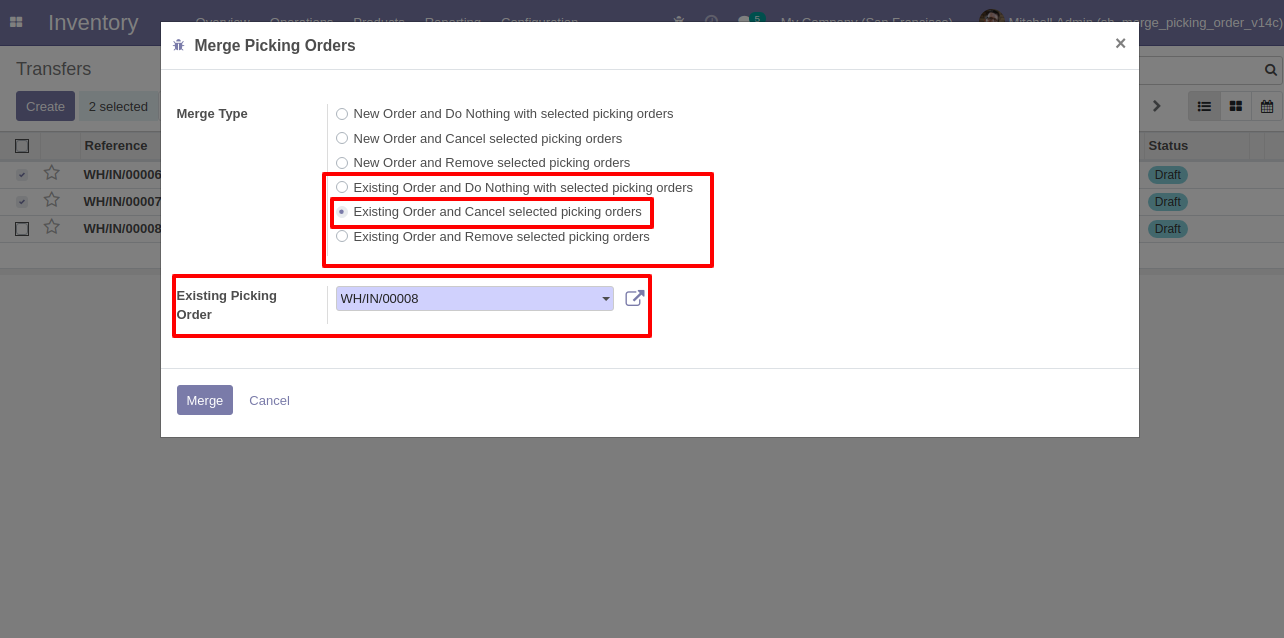
We merge the picking orders with the default selected merge type.
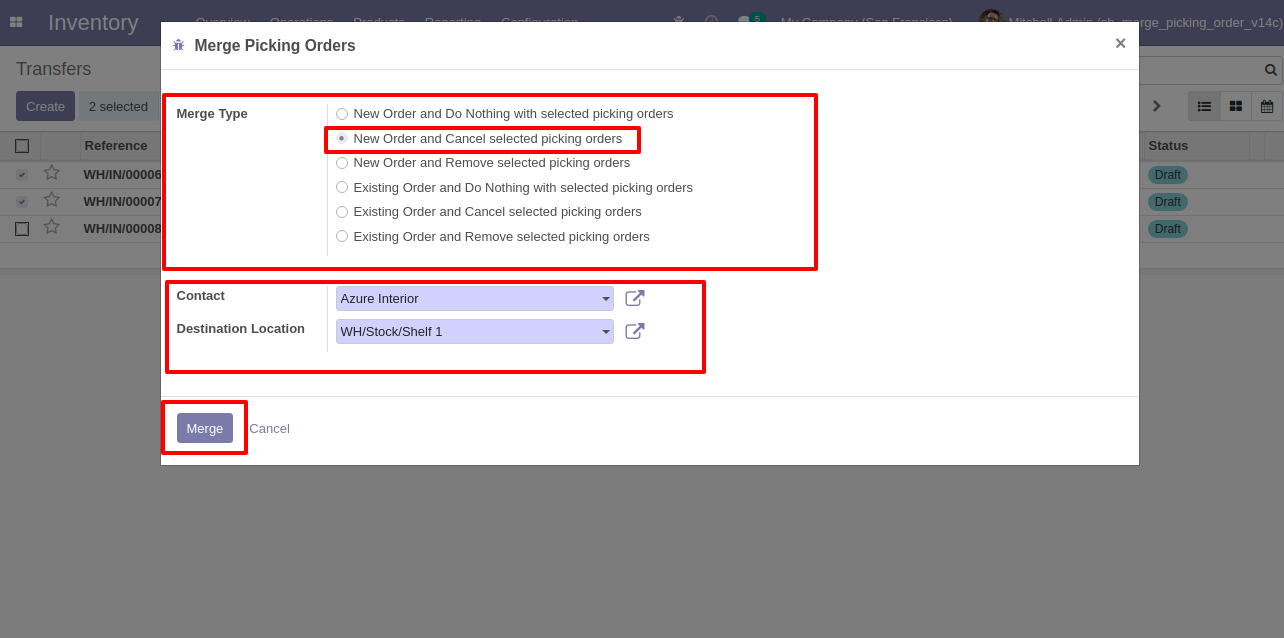
Here it creates a new order and cancels selected orders.
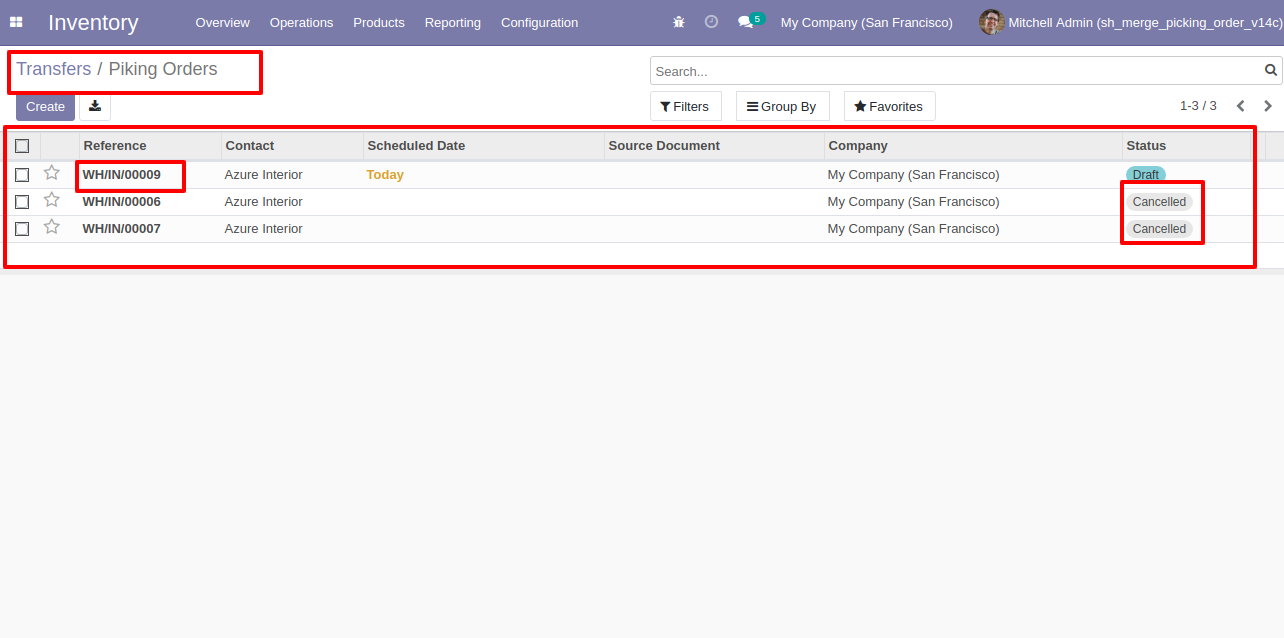
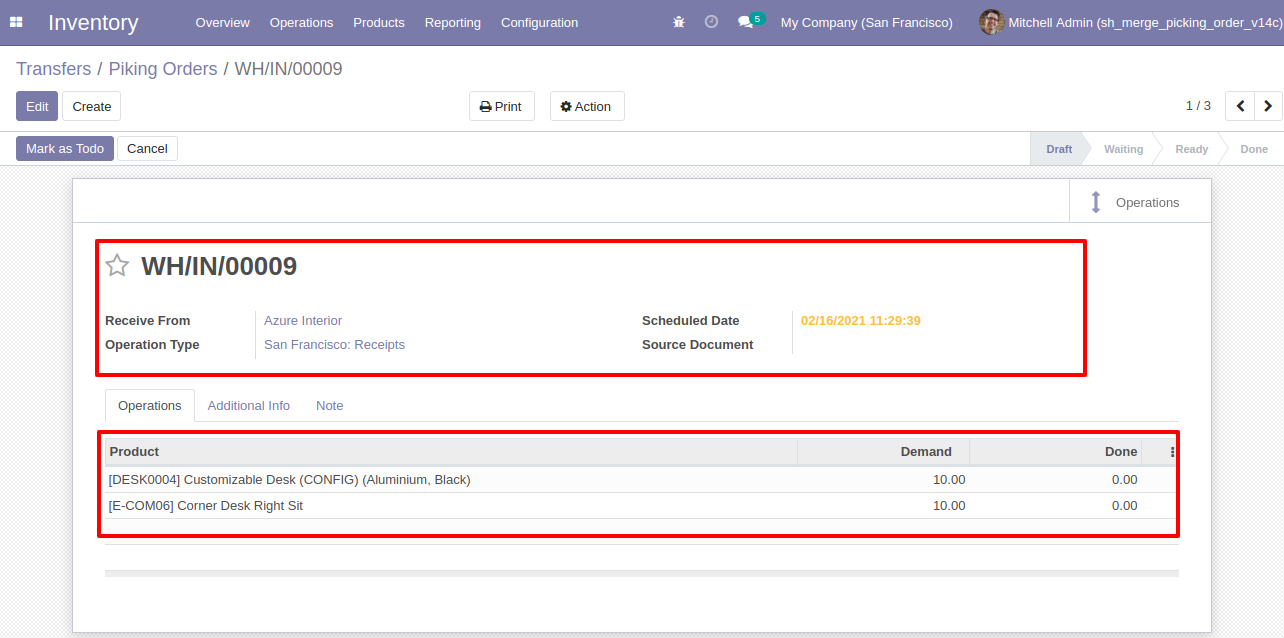
The merged picking order form view.
Merged orders notification comes into the chatter.
 Merge MRP Order With Chatter
Merge MRP Order - Subtract Selected Record's Line QTY Odoo
Merge MRP Order With Chatter
Merge MRP Order - Subtract Selected Record's Line QTY Odoo
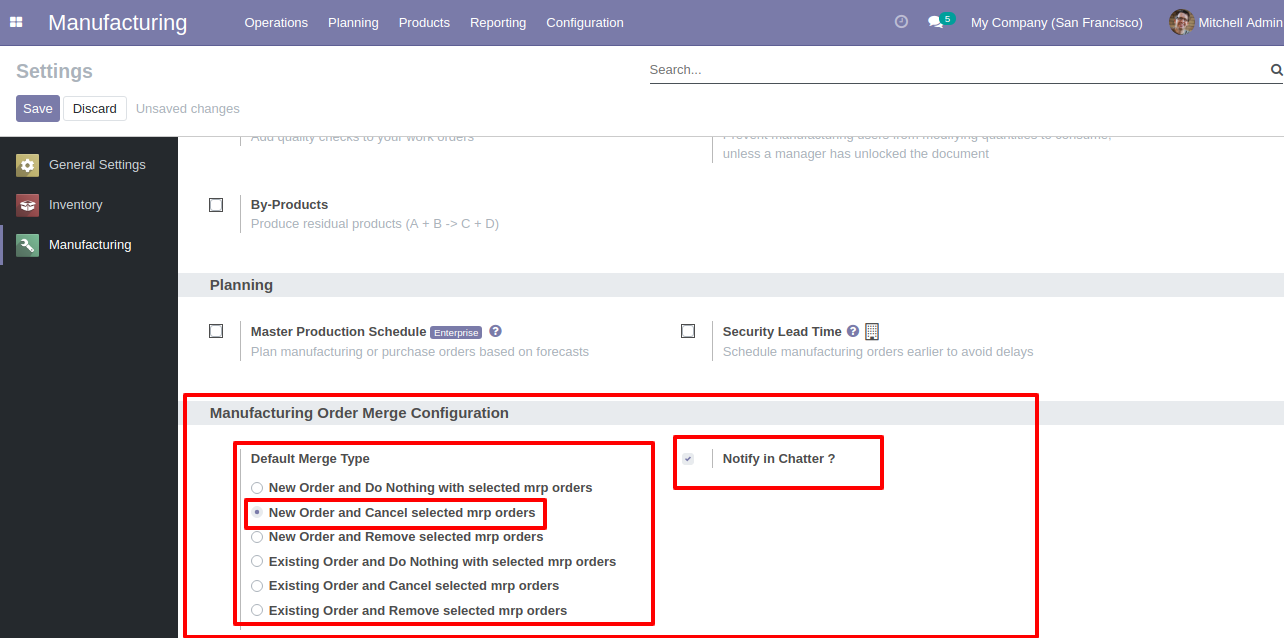
Configuration for merge manufacturing orders, here you can choose merge type and if you tick the "Notify in Chatter" option then it gives notification of merged orders into the chatter.
"Merge MRP Orders" menu and tree view.
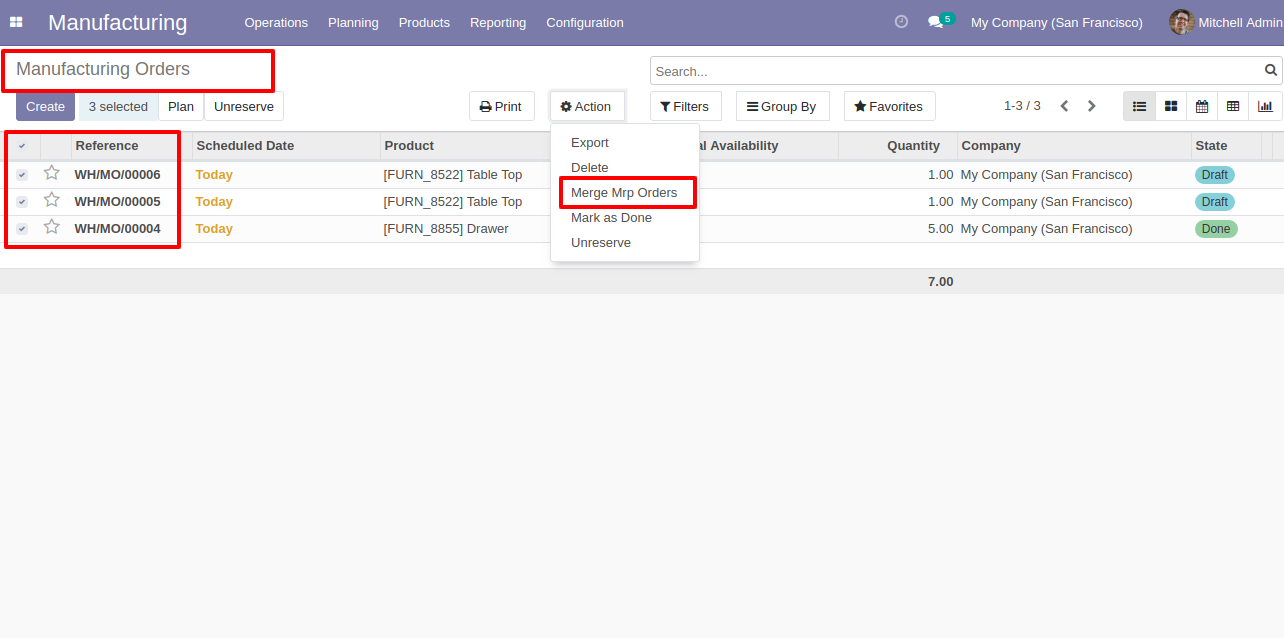
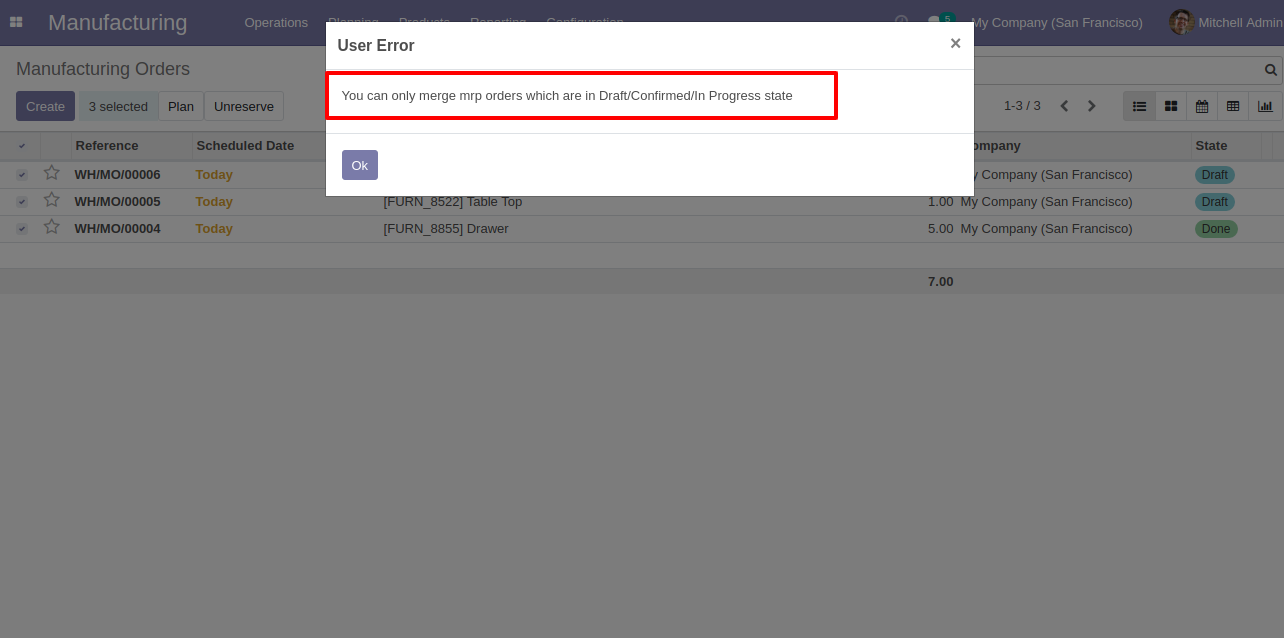
You can merge only draft/ confirmed/ in-progress state orders.
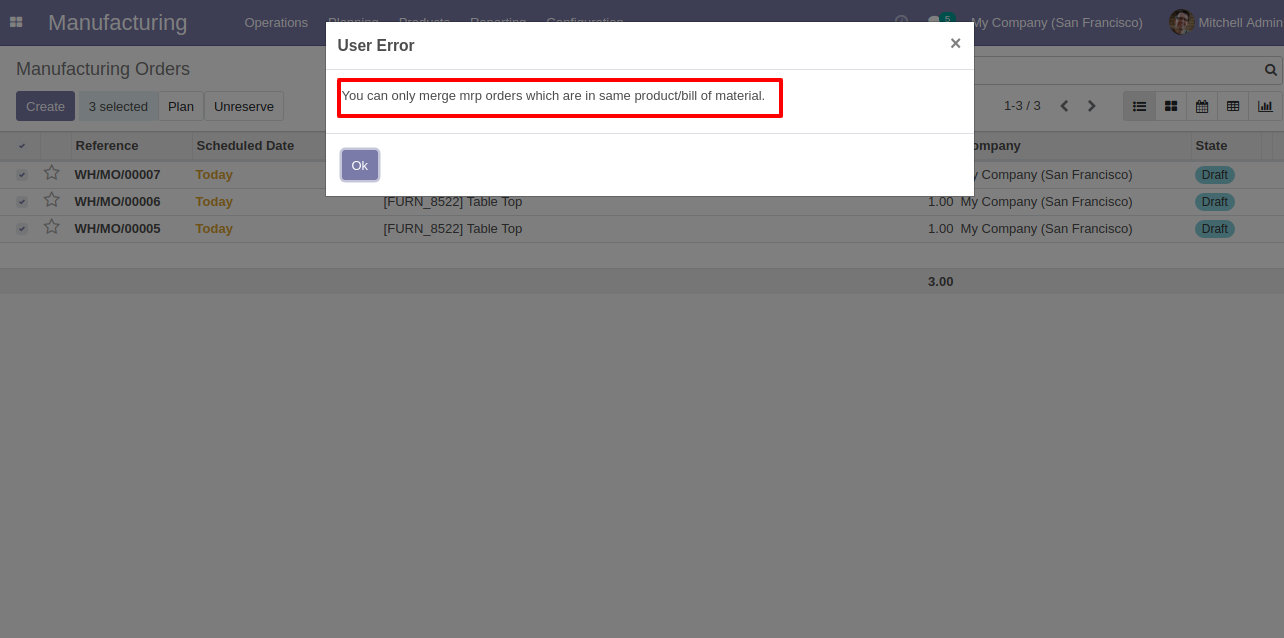
You can merge MRP orders which have the same product/bill of materials.
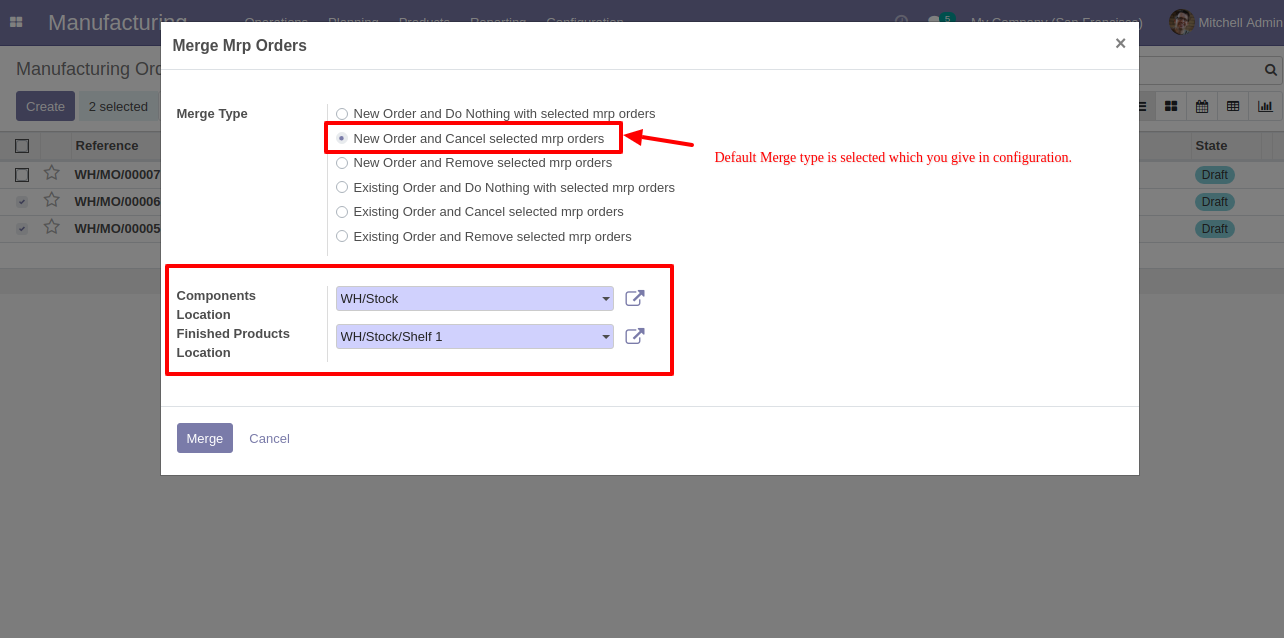
Merge manufacturing orders wizard with the default selected merge type.
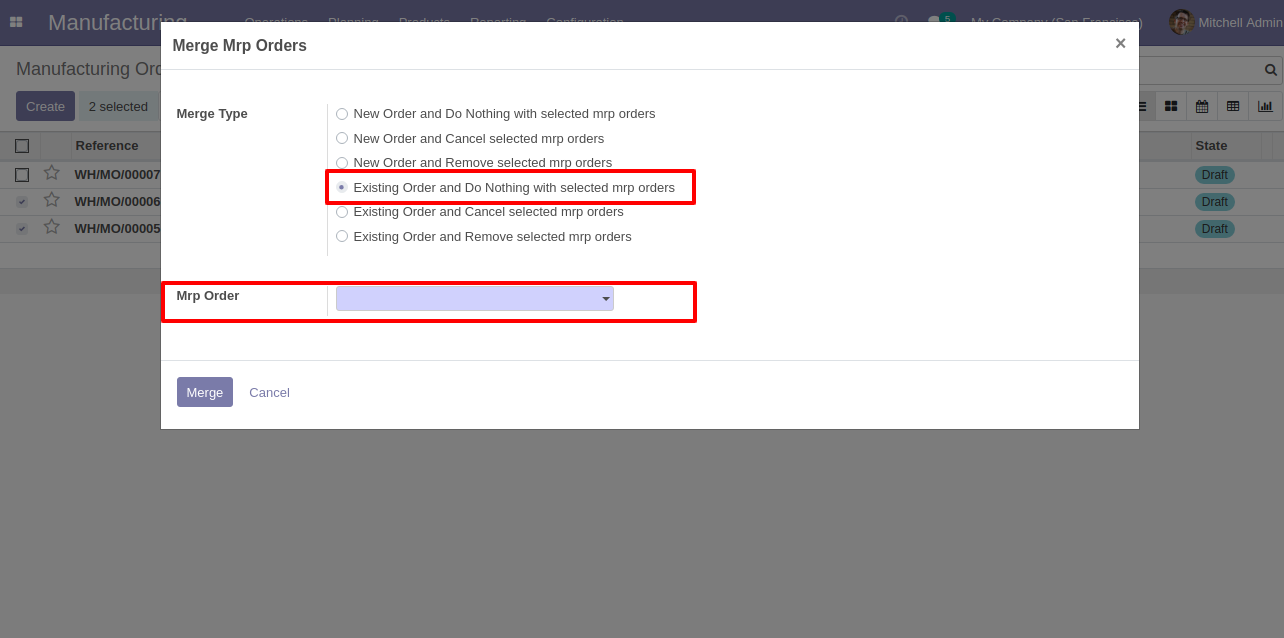
Merge manufacturing orders wizard with the existing order type.
We merge the manufacturing orders with the default selected merge type.
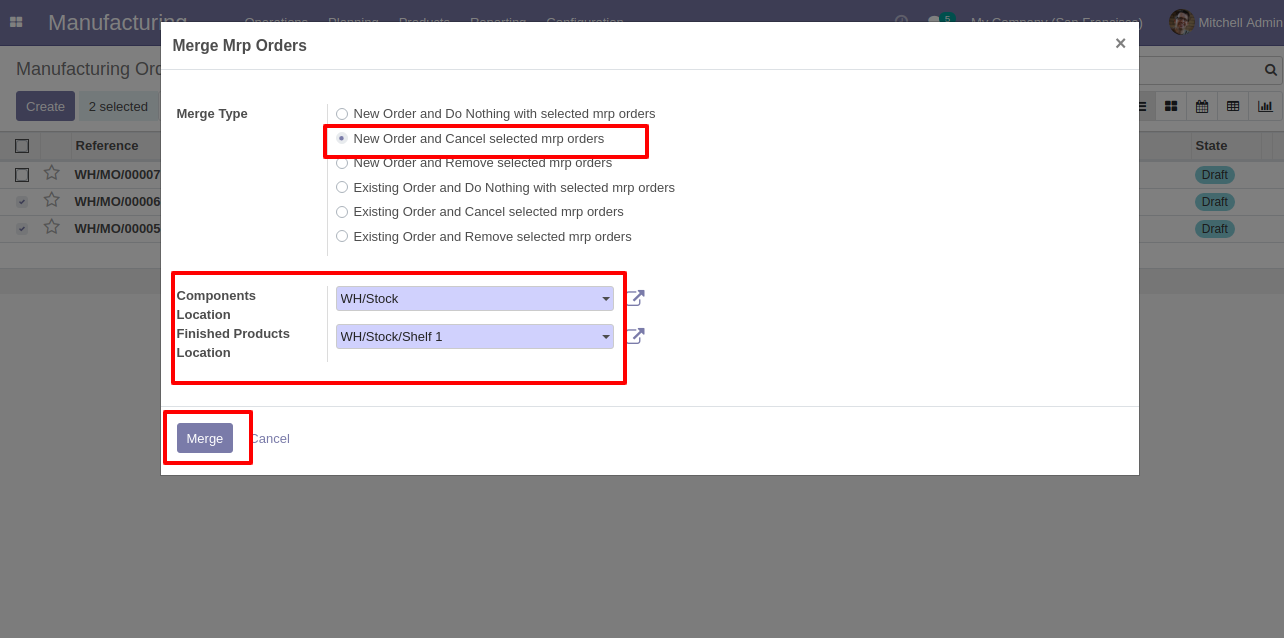
Here it creates a new order and cancels selected orders.
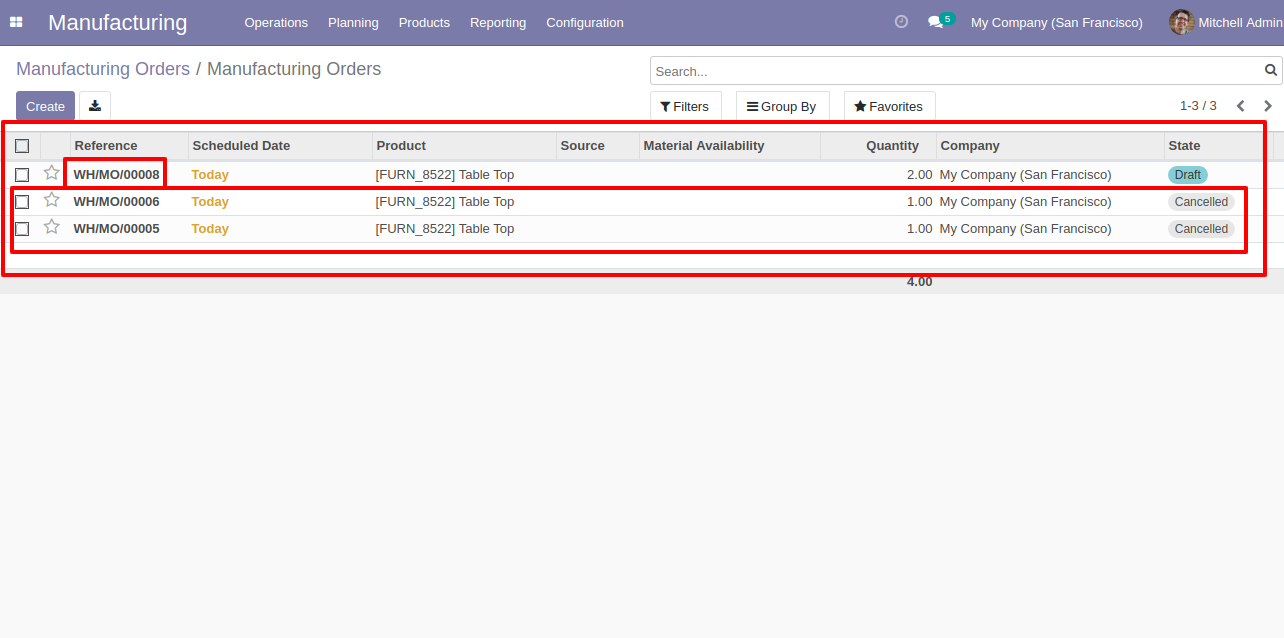
The merged MRP order form view.
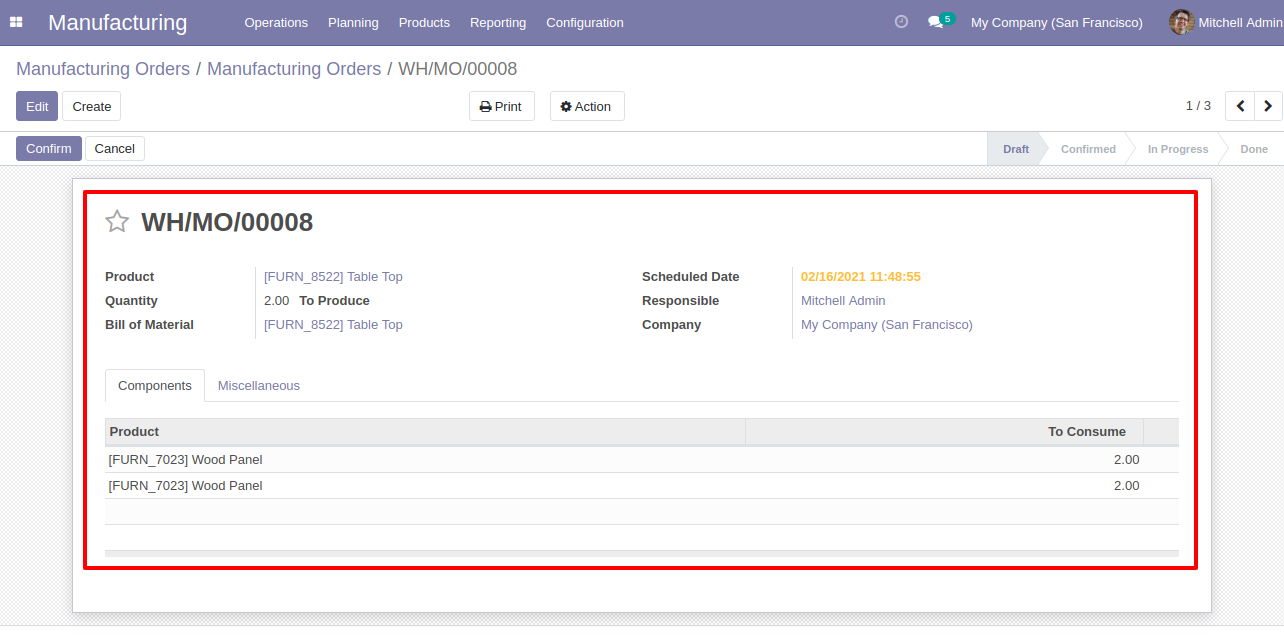
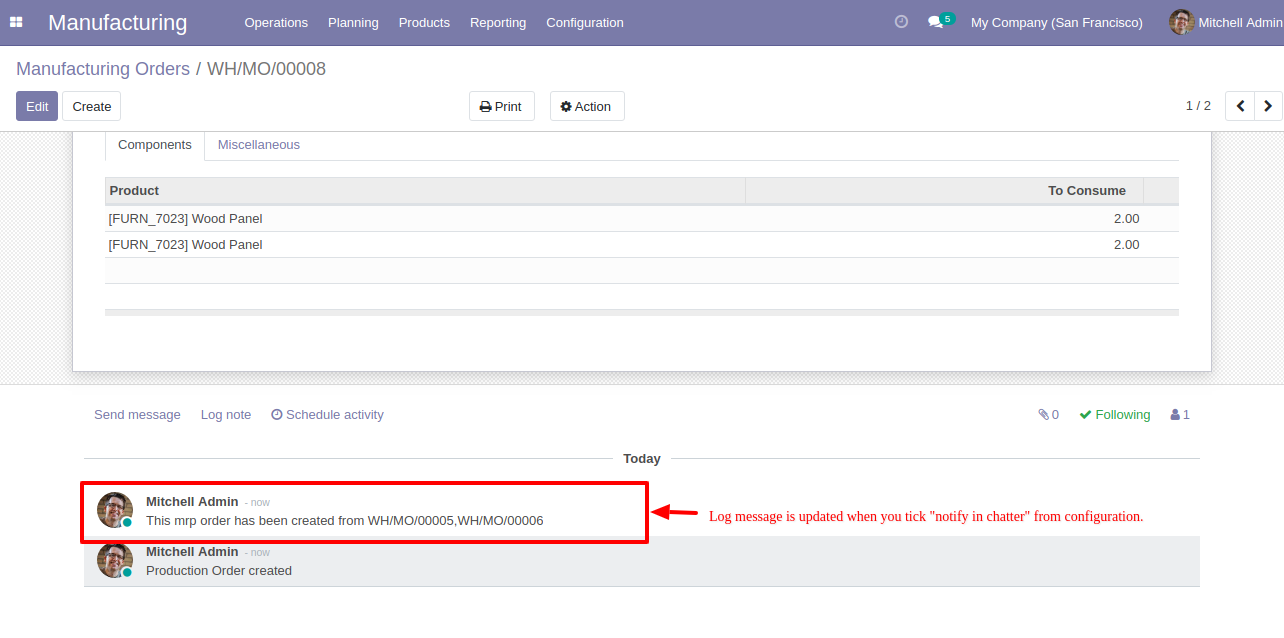
Merged orders notification comes into the chatter.
 Invoice Merge PDF
Attachment Video
Internal Category To POS Category Management Odoo
Invoice Merge PDF
Attachment Video
Internal Category To POS Category Management Odoo
'Merge PoS Category' sub menu in configuration menu.
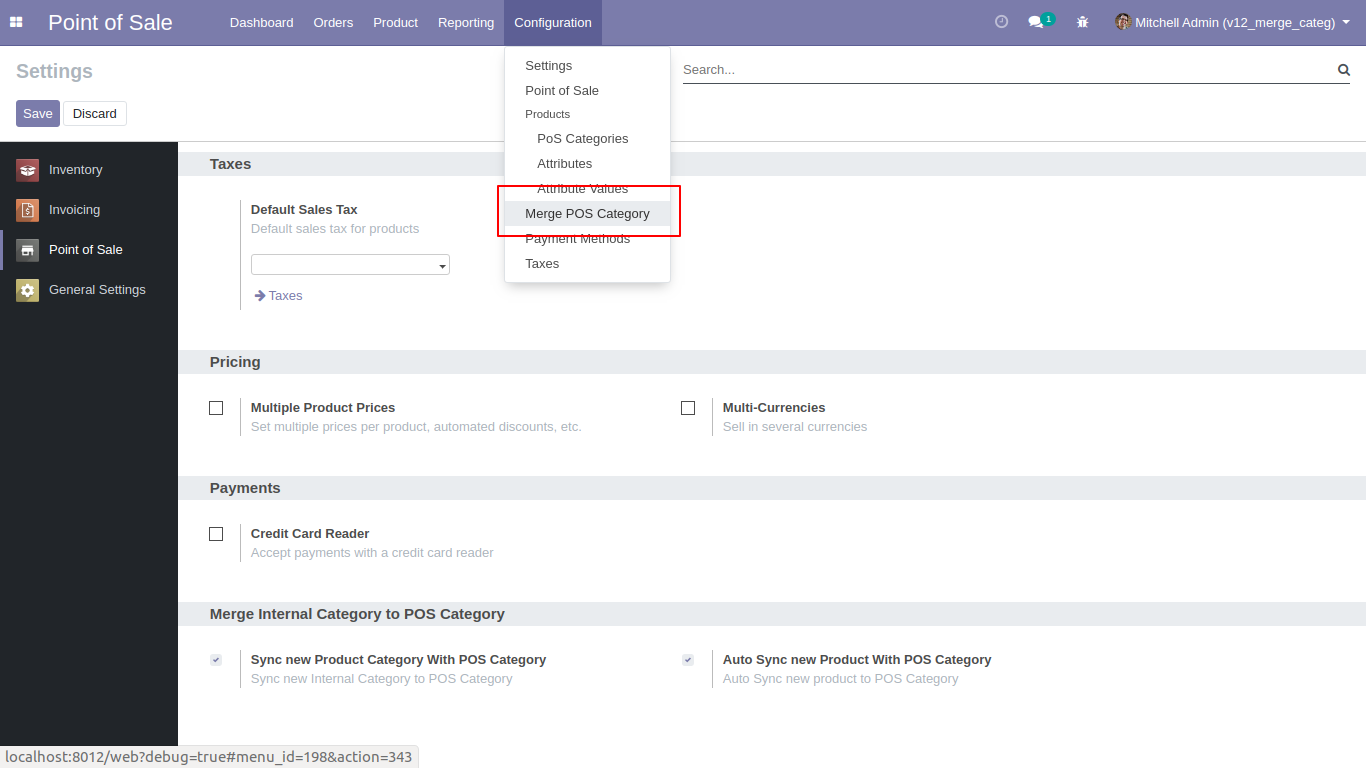
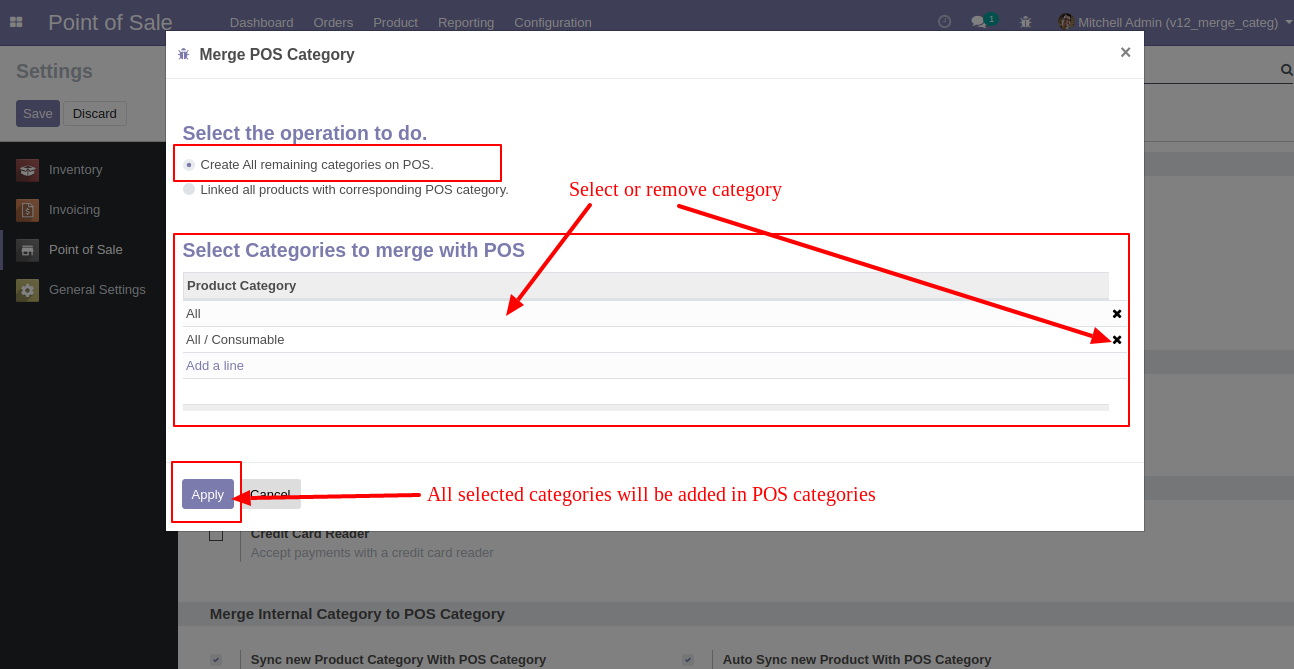
After open 'Merge PoS Category' menu one popup will open and select 'Create all remaining categories on PoS' then you can see the remaining categories list in 'Select categories merge with PoS' and then you can add or remove categories from the list and click 'Apply' so all selected categories added in PoS Category.
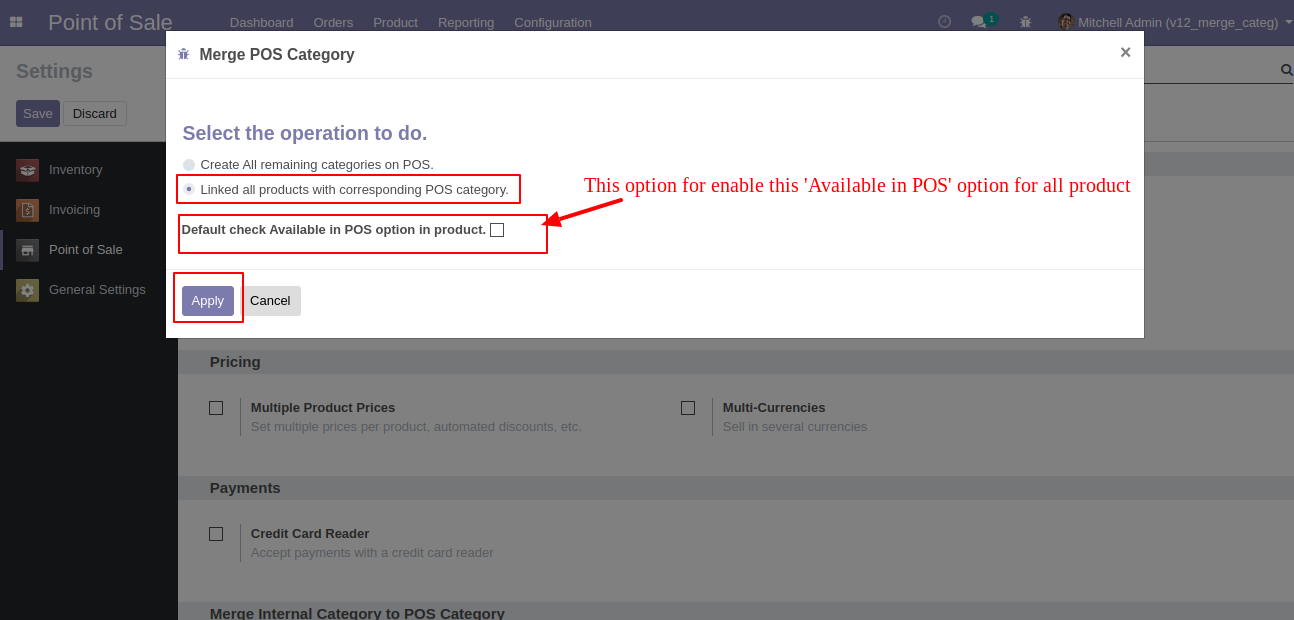
If you select 'Linked all products with corresponding PoS category' then one checkbox 'Default check Available in PoS option in product' will be visible, this checkbox used to check option 'Available in PoS' in product, and click 'Apply' then all products category and PoS category will be linked.
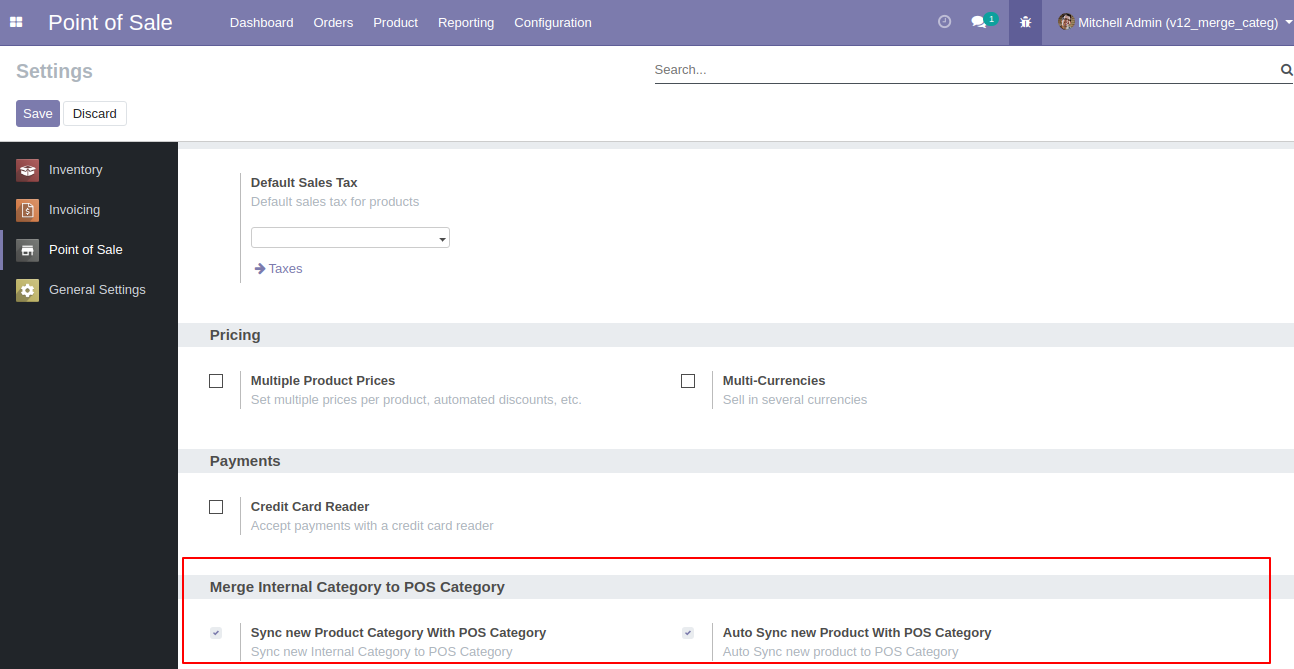
Goto POS config setting there is a two
different option for merge internal category with POS category as like.
1)Sync new product category with POS Category 2)Auto Sync New Product With
POS Category
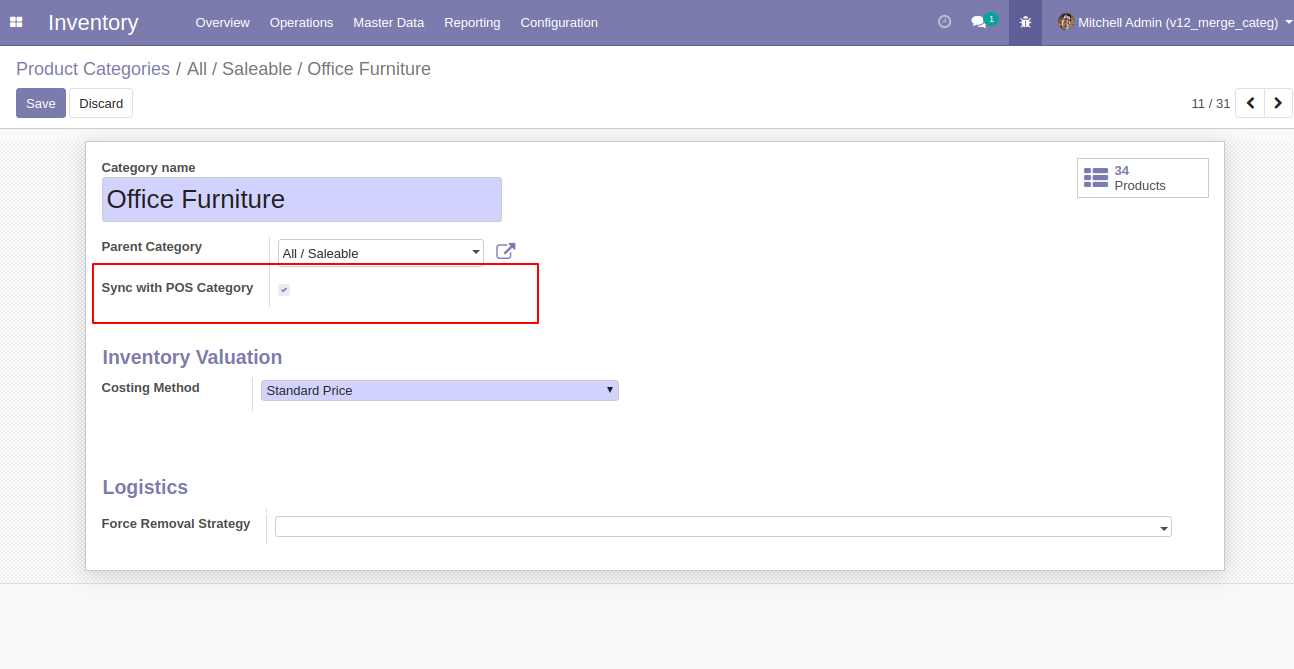
You can disable sync option for particular category after unchecking 'Sync with POS Category' option. 'Sync With POS Category' this option only visible after enabling this 'Sync new product category with POS Category' option in POS config Setting.
 Invoice Merge PDF
Attachment Video
Internal Category To E-commerce Category Management Odoo
Invoice Merge PDF
Attachment Video
Internal Category To E-commerce Category Management Odoo
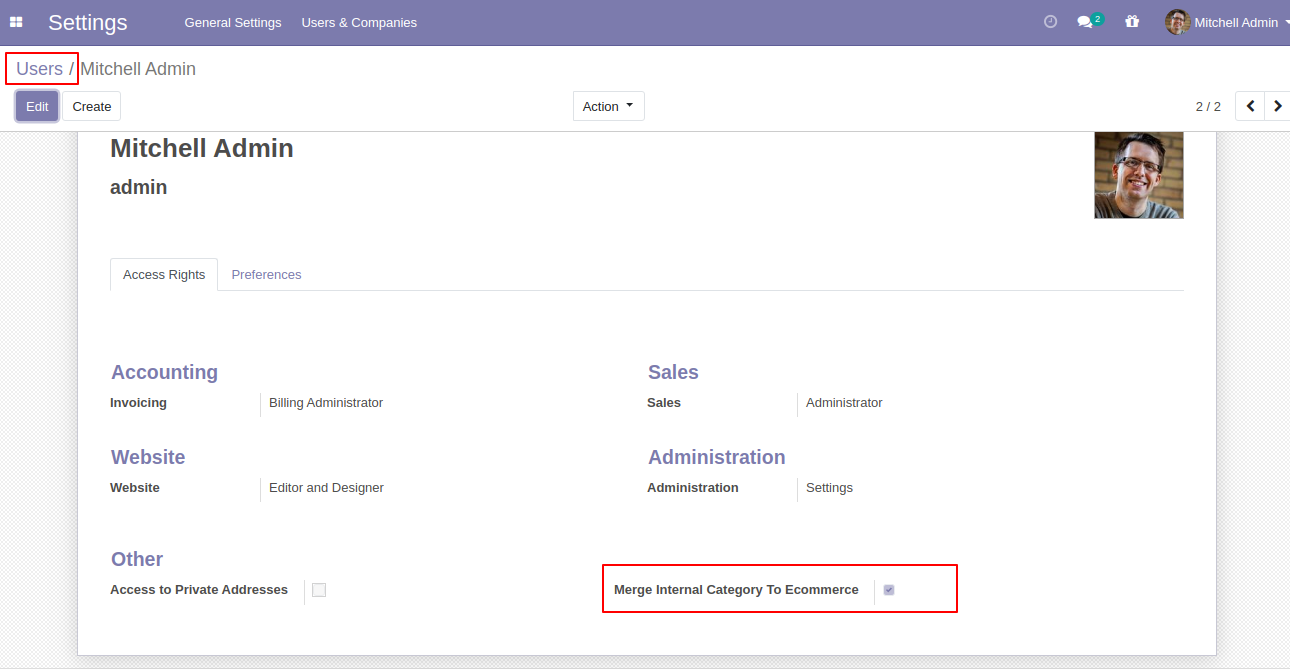
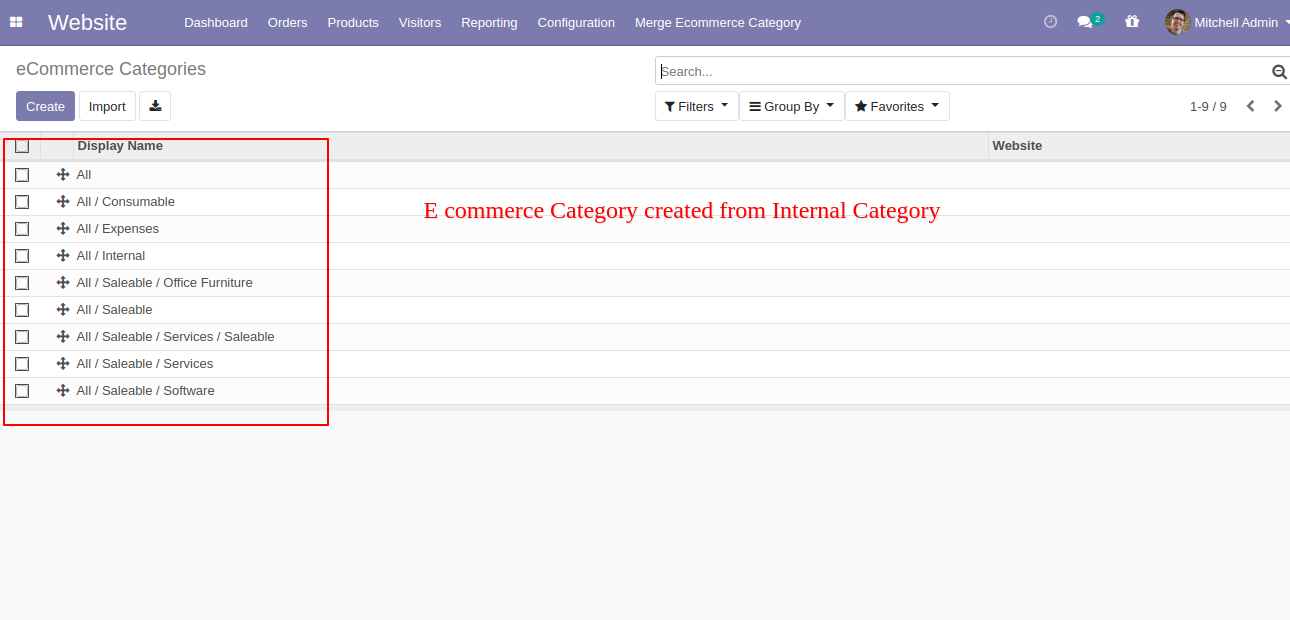
Go to users and tick "Merge Internal Category To Ecommerce".
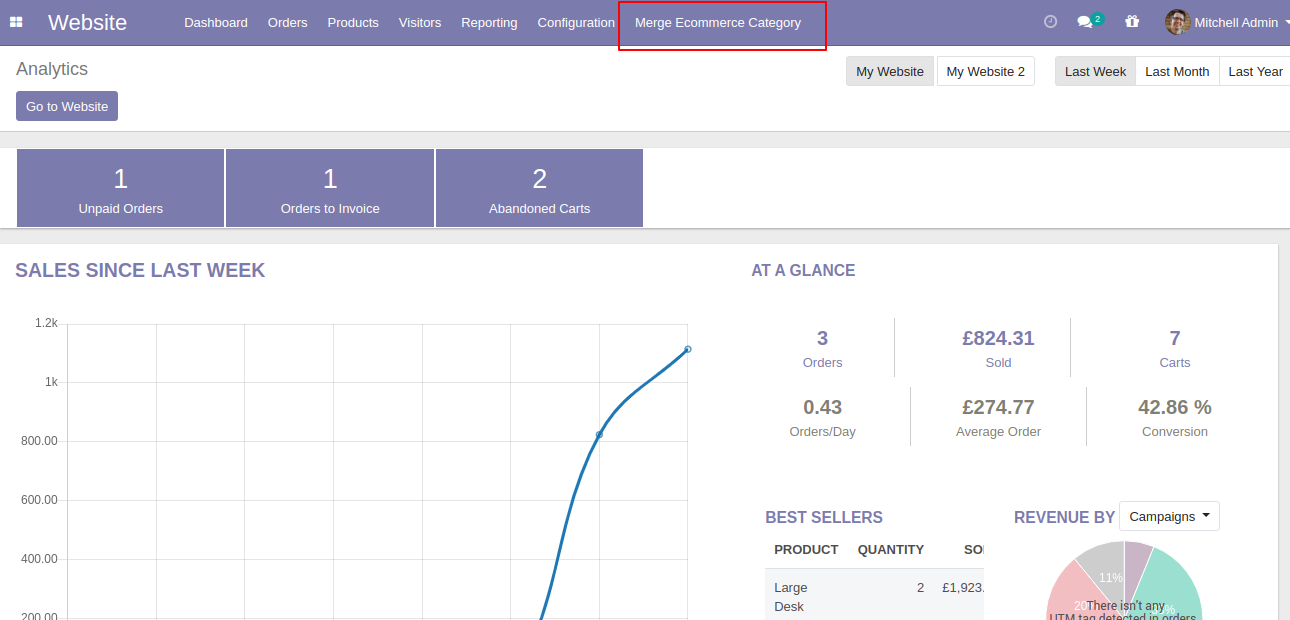
Now go to the "Merge Ecommerce" Category".
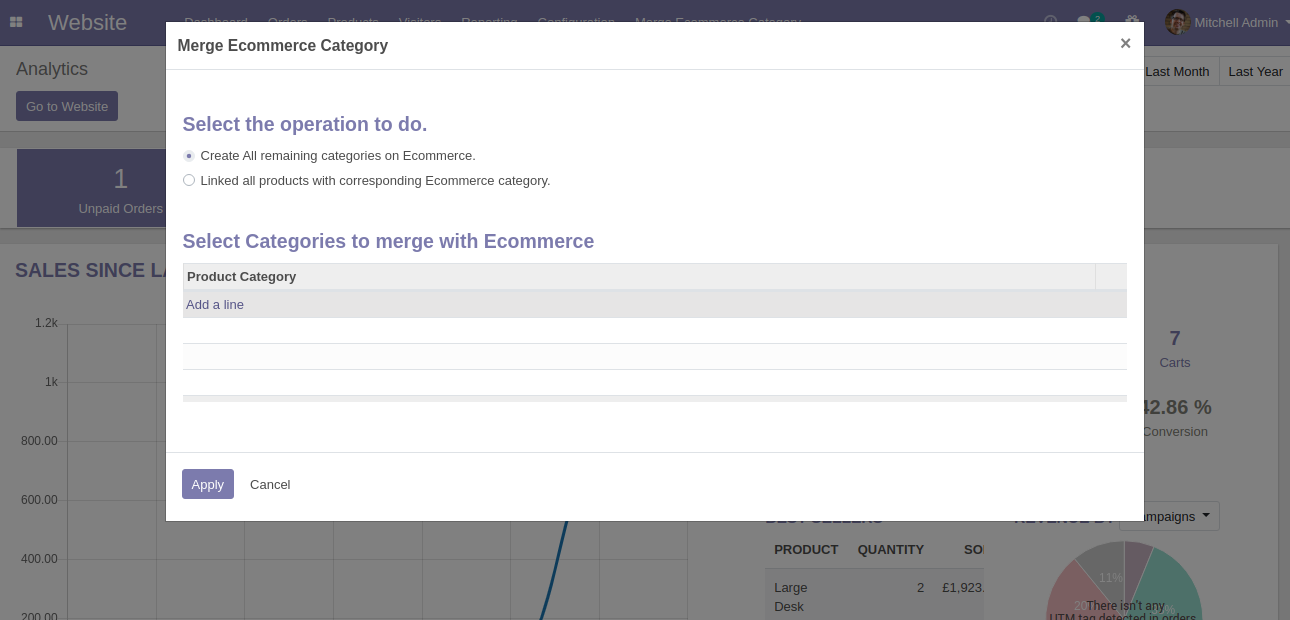
After that one popup will open and select 'Create all remaining categories on Ecommerce' then you can see the remaining categories list.
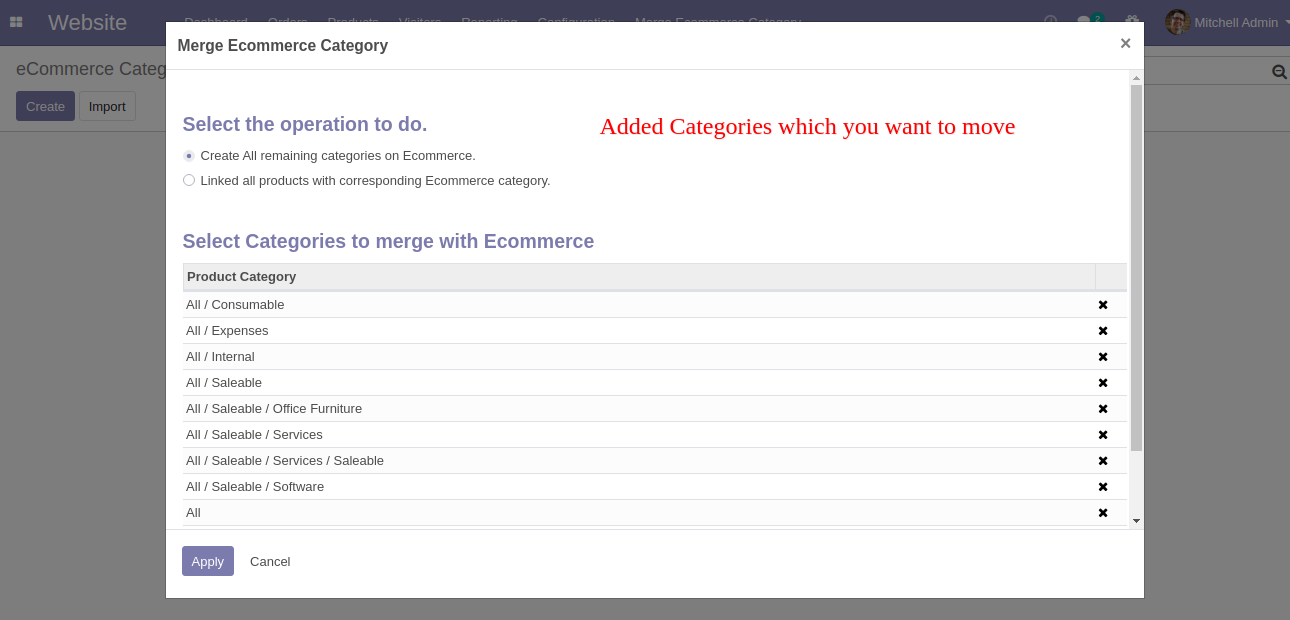
You can add or remove categories from the list and click 'Apply' so all selected categories added in the e-commerce category.
E-commerce category created from the internal category.
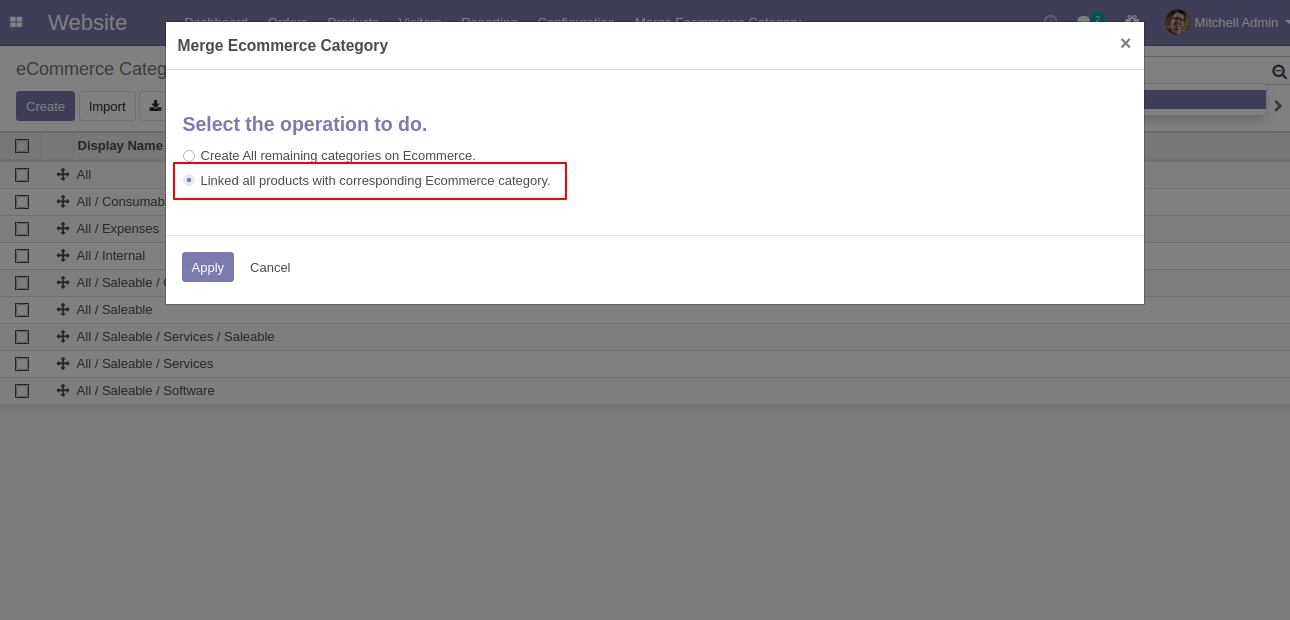
If you select 'Linked all products with the corresponding Ecommerce category' then one checkbox 'Default check Available in Ecommerce option in product' will be visible, this checkbox used to check option 'Available in Ecommerce' in a product, and click 'Apply' then all products category and Ecommerce category will be linked.
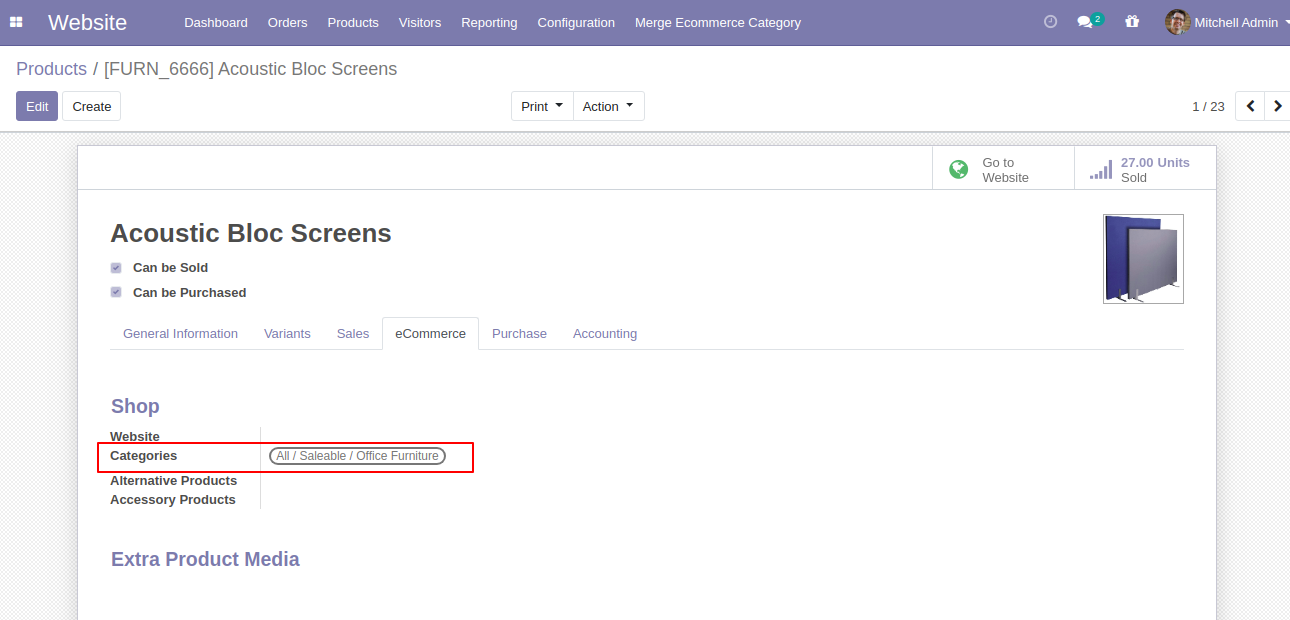
Ecommerce category linked.
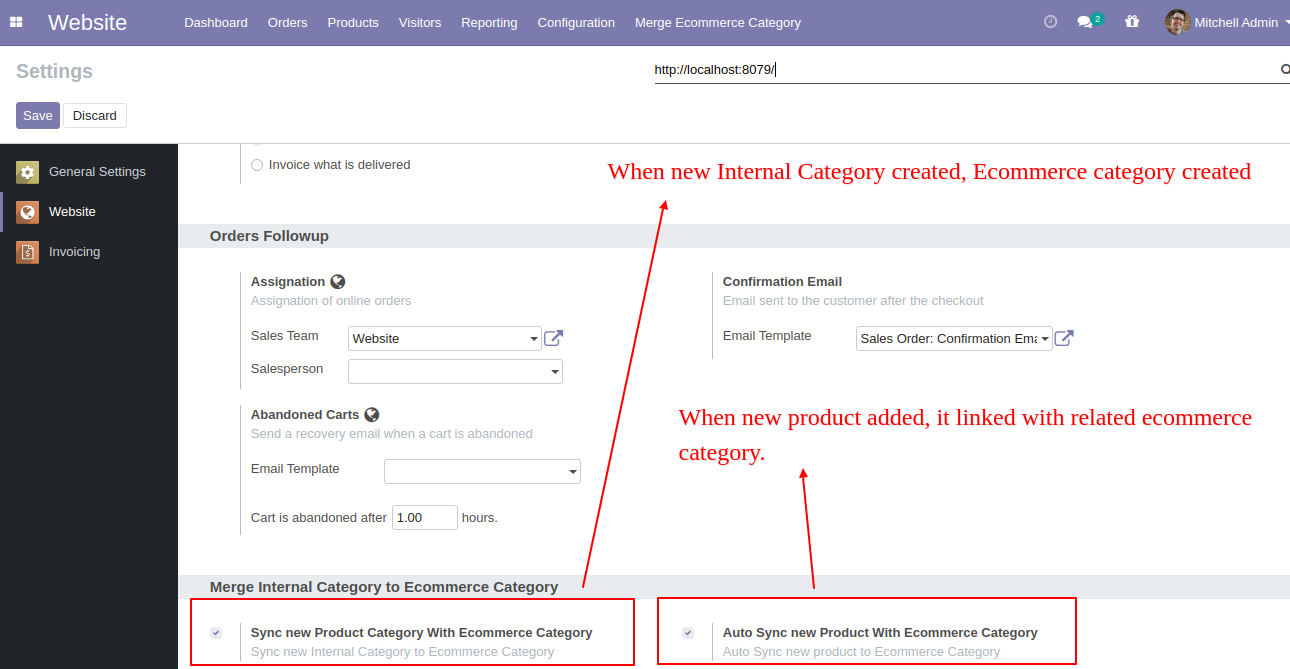
Goto e-commerce config setting there is a two different option for merge internal category with Ecommerce category as like. 1)Sync new product category with e-commerce category & 2)Auto sync new product with e-commerce category
 Invoice Merge PDF
Attachment Video
Invoice Merge PDF
Attachment Video
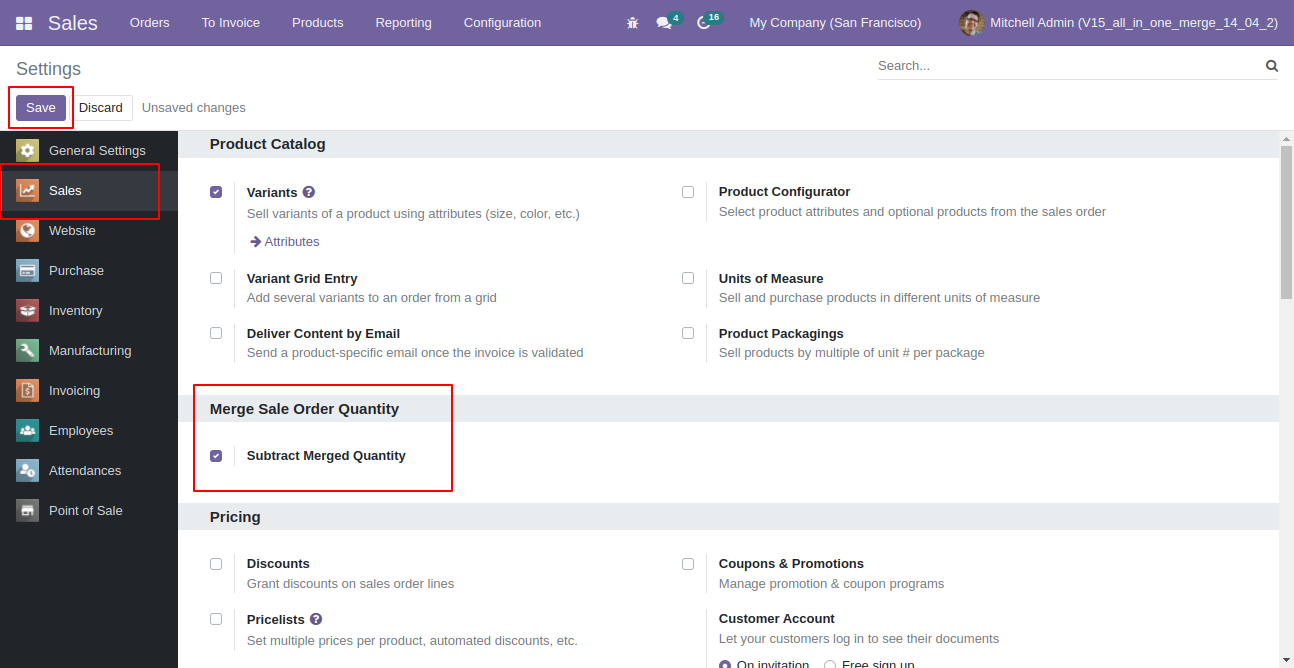
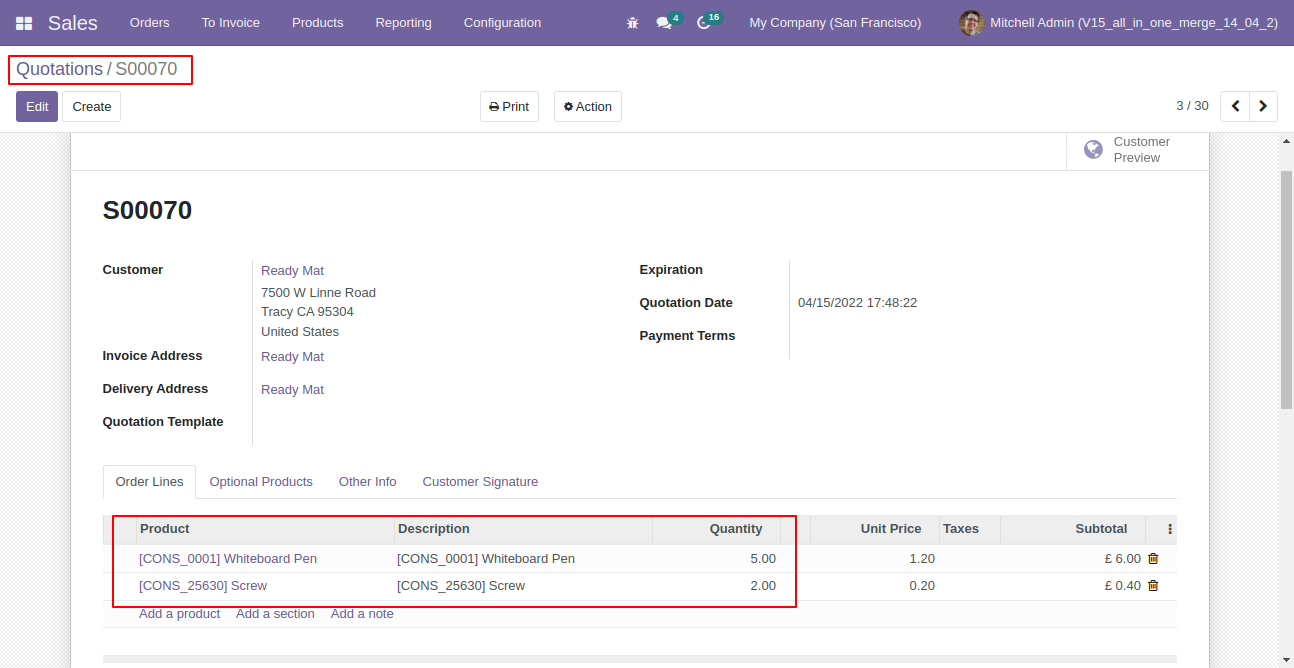
Enable "Subtract Merged Quantity". (Same Flow In Sales, Purchase, Inventory, Account, MRP)
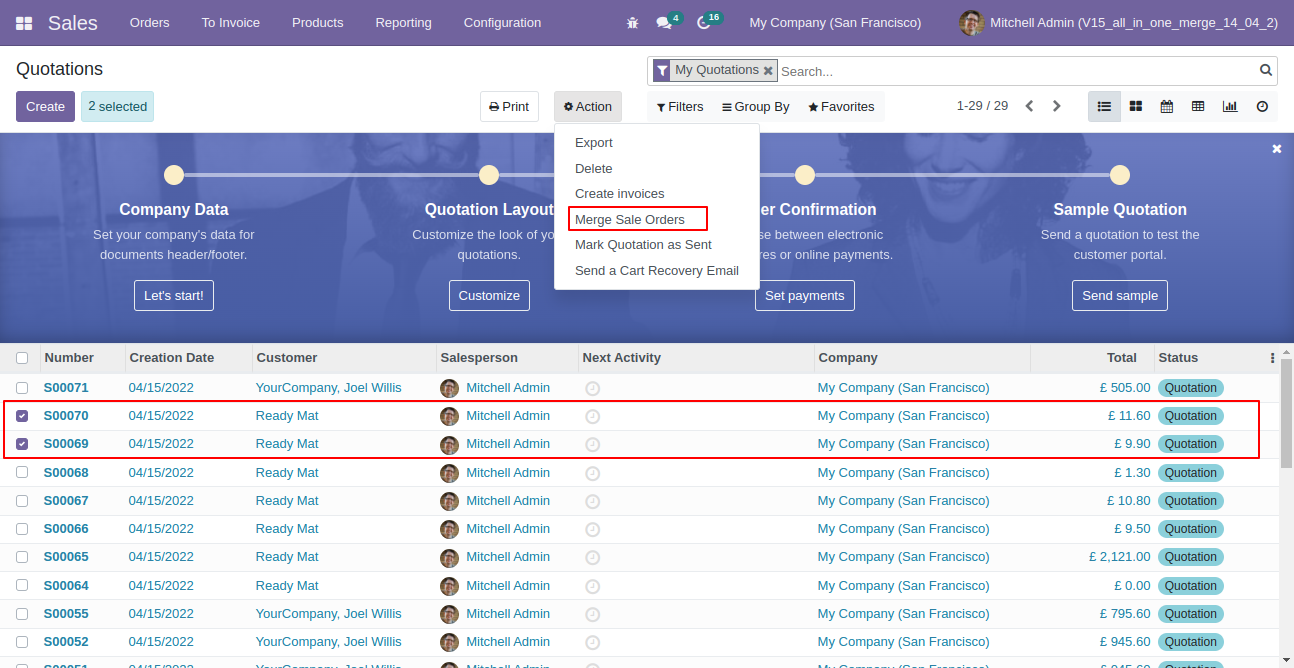
Select two or more quotation/so and click merge sale orders.
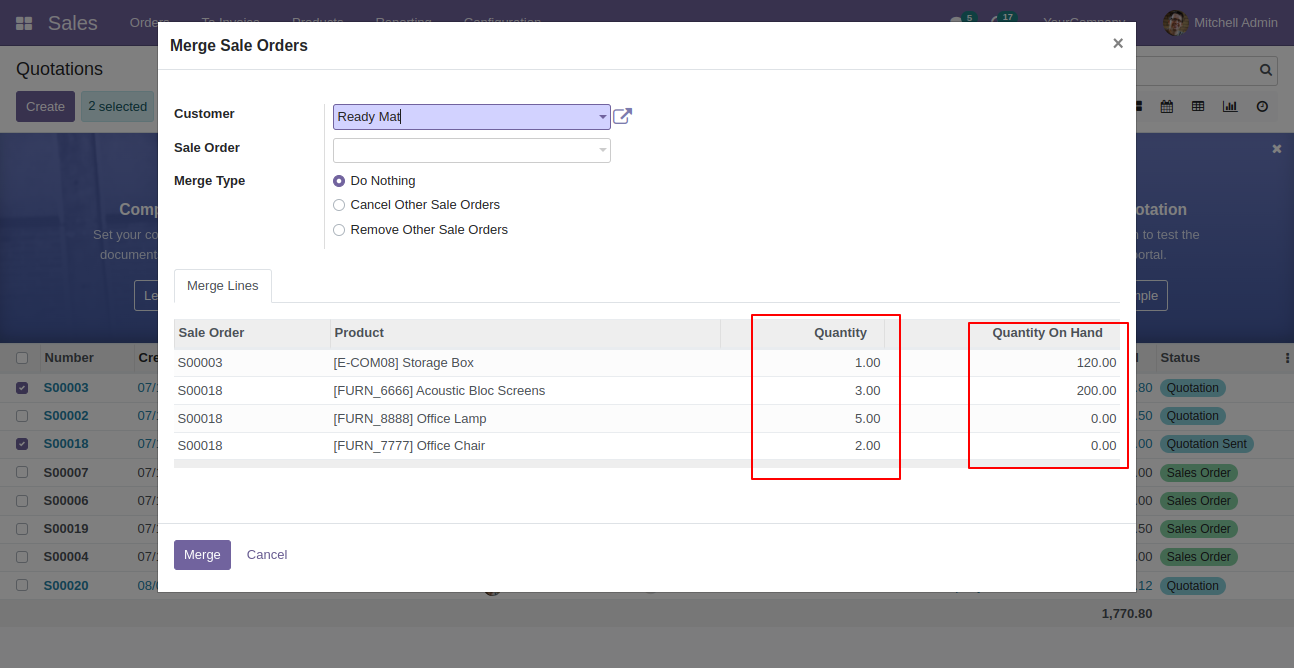
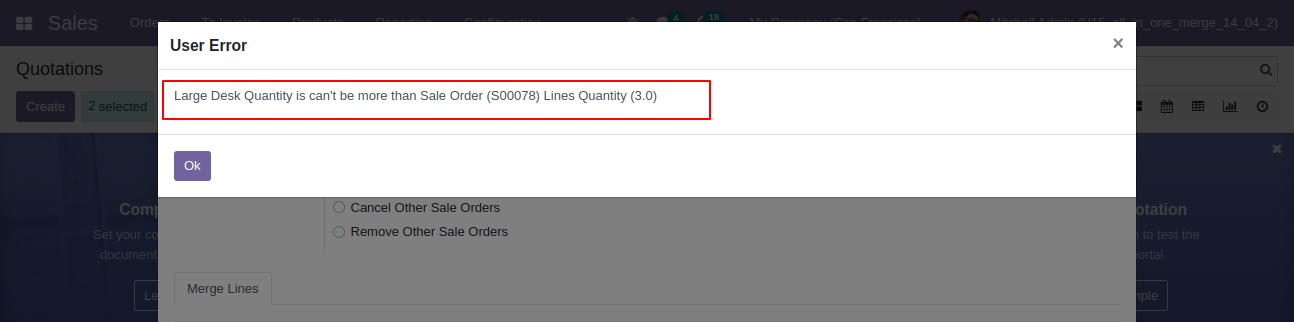
So it opens merge sale order wizard with all records quantity & on hand quantity, You can subtract qty from this wizard as well.
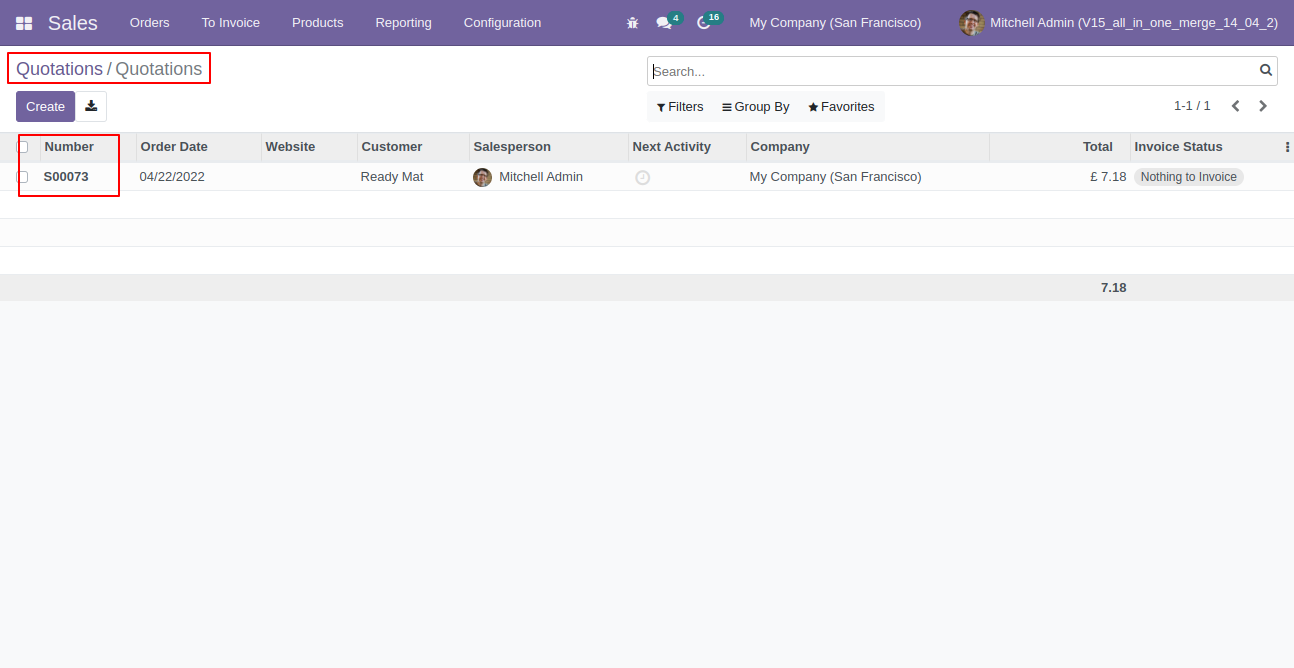
Created order list view.
New generated sale order looks like below.
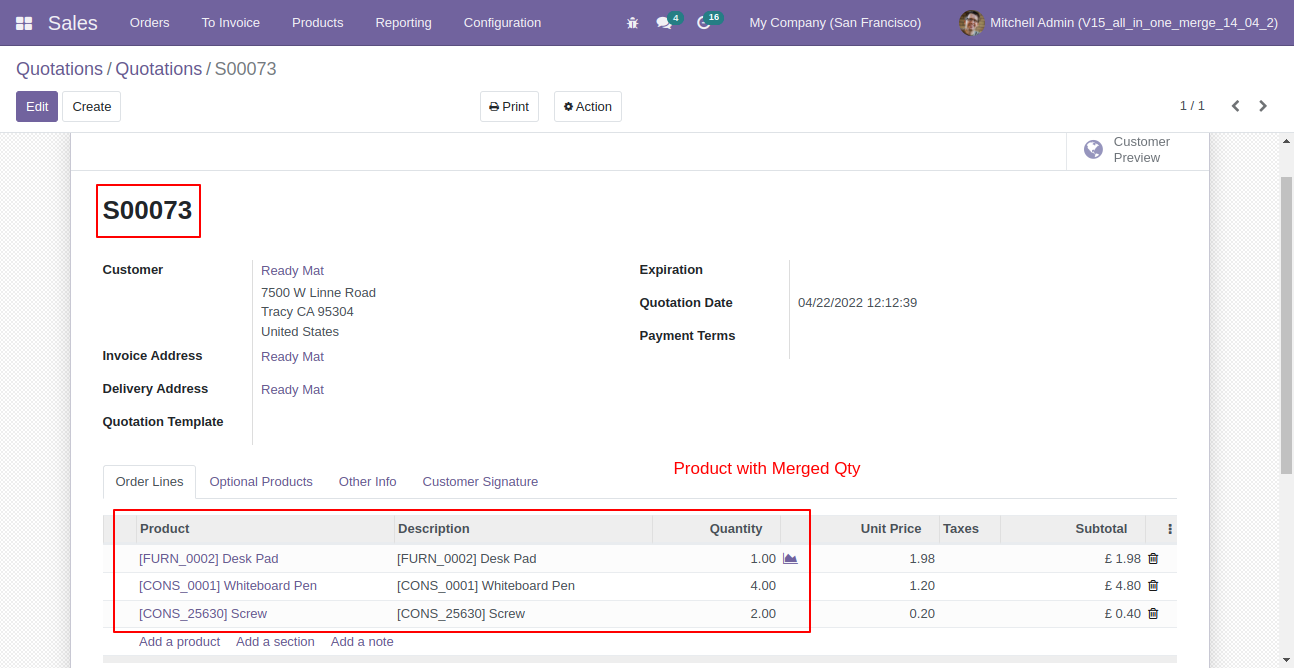
Old quotation with remaining quantity.
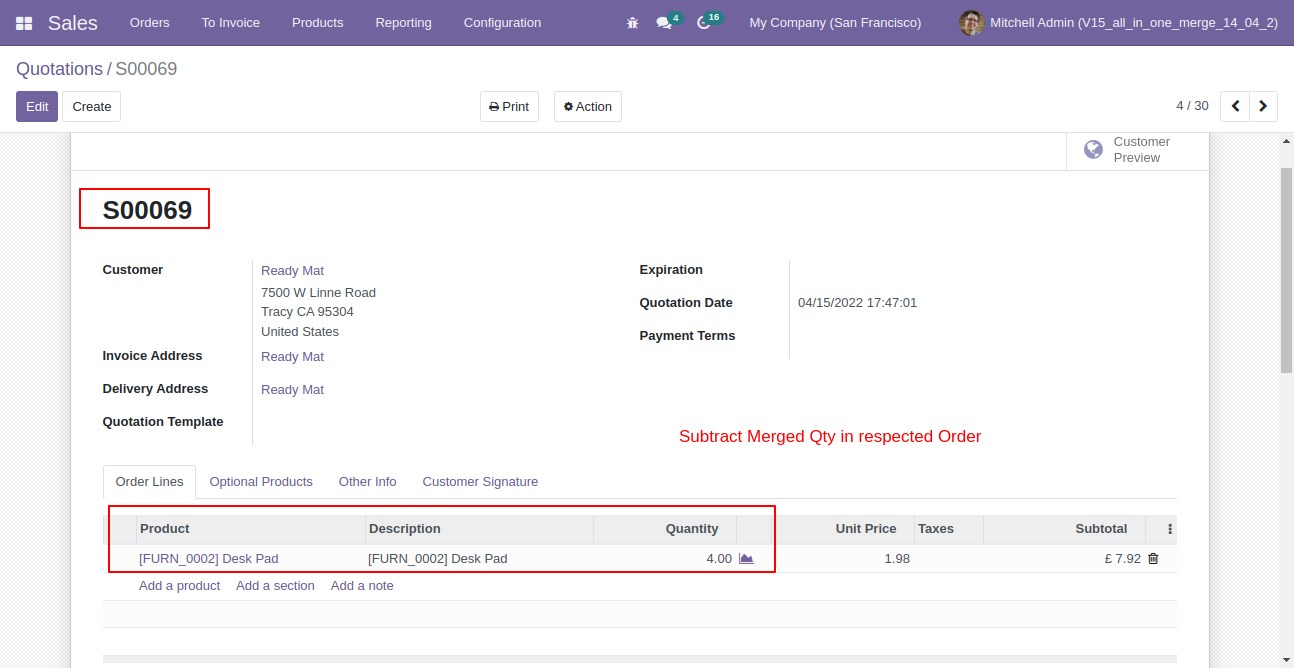
Old quotation with remaining quantity.
If you try to add qty more than order line qty then alert occurs.
Changelog
Track every update and new feature released for this module.
Initial Release.

 Buy Once,
Supported Forever
Buy Once,
Supported Forever



 Scan to email sales







 Your
Ideas Shape
Our Roadmap
Your
Ideas Shape
Our Roadmap

 Got an
Idea?
We'll Build It
Got an
Idea?
We'll Build It
Trusted by Businesses Worldwide


Abdulhamid Abdulwaheed
Best module for our online store. Highly adaptable, exceptional customer service, and very advanced modules.
Factura Venta POS
They have everything you need. Technical support is excellent, responds quickly, and keeps the module updated. 100% recommended!
Mehmet Muhanna
Great company and support team. Had a problem in my local Odoo server - they solved it in 5 minutes. Highly recommend.
Billy Jeffs
Customised an Odoo app for me which works perfectly. Many requirements, got it right every time. Very confident in their ability.
HP
Consistently excellent service over years of working together. Knowledge and commitment to keeping clients informed truly sets them apart.
Michal Kolasinski
Multiple addons + two custom modules. Communication always friendly and precise. Delivered on time, worked out of the box. Highly recommended!

Multi-Language
8 built-in translations







You May Also Like
Discover more Softhealer modules that integrate seamlessly with your Odoo environment.

Merge Sale Orders
Merge Sale Orders. Some time required to make a single quote from the multi quotation. This module helps the user to merge quotations as well as many more options. easy and quick solution to make a new quotation or replace existing quotation.
View Module

Merge Purchase Orders
Merge Purchase Orders. Some time required to make a single quote from the multi quotation. This module helps the user to merge quotations as well as many more options. easy and quick solution to make a new quotation or replace the existing quotation.
View Module

Merge Invoices
Merge multiple draft invoices, credit notes, debit notes, or vendor bills into a new or existing document. Choose a customer, select the invoices to merge, and select one of three merge types: Do Nothing, Cancel Other Invoice, or Remove Other Invoice. You can also merge invoices from different customers into a single customer's invoice.
View Module
Merge Picking Orders
Merge picking orders. Some times required to make a single order from the multiple picking orders. You can merge picking orders which are only in the draft/ waiting/ ready state. Your picking orders must have the same operation type (incoming order/delivery order) for merge orders. You can merge picking orders with many options. Merge picking orders notification comes into the chatter!
View Module
Merge Manufacturing Orders
Merge manufacturing orders. Some times required to make a single order from the multiple MRP orders. You can merge MRP orders which are only in the draft/ confirmed/ in-progress state state. Your MRP orders must have the same product/bill of materials for merge orders. You can merge manufacturing orders with many options. Merge MRP orders notification comes into the chatter!
View Module
Internal Category To Ecommerce Category Management
You to add the product categories to the e-commerce categories. If you have lots of products and you want to set e-commerce Category in one click so you can do that thing with this module. You can auto-sync with the e-commerce category while you create a new product category. While you linked all products category with the corresponding e-commerce category,
View Module
Most Demanded Apps
The Softhealer modules our customers reach for most - trusted across 100+ countries.

Activities Management
Manage, schedule, and automate Odoo activities across all departments from one view.
View Module

Access Management
Granular access control over menus, fields, buttons, and records for every user role.
View Module

Backdate Advanced
Backdate any transaction across invoices, journals, pickings, and more with full audit.
View Module

All-in-One Helpdesk
Full-featured customer support with tickets, SLA, and customer portal built for Odoo.
View Module

All-in-One Mobile Backend
Access your full Odoo backend from any mobile device with an optimised interface.
View Module

All-in-One Import
Import data from Excel or CSV files into any Odoo model with smart field mapping.
View Module
Our Services
End-to-end Odoo expertise - from setup to scale.

AI & Business Integration

Odoo Implementation

Odoo Customization

Support & Maintenance

Mobile Apps

Migration Service

Third-Party Integration

Odoo Training
Everything your Odoo needs, in one place.
Discover ready-to-use apps & themes, or work directly with our certified engineers to customize your Odoo setup.

