





















Key
Features

Sales Order Barcode Scanning
Add and manage products in Sales Orders quickly using barcode scanning.
Watch VideoPurchase Order Barcode Scanning
Add and manage products in Purchase Orders quickly using barcode scanning.
Watch VideoInvoice Barcode Scanning
Add products to customer invoices and vendor bills using barcode scanning for faster billing.
Watch VideoInventory Barcode Scanning
Process inventory pickings efficiently using barcode scanning.
Watch VideoBOM Barcode Scanning
Scan barcodes to add and manage components in Bills of Materials (BOM).
Watch VideoInventory Adjustment Barcode Scanning
Perform inventory adjustments quickly by scanning product barcodes during stock counting.
Watch VideoNew & Existing Lot/Serial Scanning
Scan existing or create new lot and serial numbers directly during barcode operations.
Watch VideoMulti-Barcode Support
Assign and scan multiple barcodes for a single product across various Odoo documents.
Watch VideoBarcode Scan Notifications
Display instant success and failure notifications based on barcode scanning results.
Watch VideoPicking Command Barcode Scanning
Execute picking operations efficiently by scanning command barcodes during warehouse workflows.
Watch VideoPackaging Barcode Scanning
Scan packaging barcodes to quickly identify and process packaged products during inventory operations.
Watch VideoQR Code Scanner
Scan QR codes in addition to standard barcodes for inventory and document processing.
Error-Free Barcode Processing
Reduce manual data entry errors with fast and accurate barcode-based operations.
Auto-Focus Barcode Scanner
Automatically focus the barcode input field after every successful or failed scan for faster processing.
Barcode-Based Product Selection
Add products to Sales Orders, Purchase Orders, Customer Invoices, Vendor Bills, Delivery Orders, Incoming Orders, and more using barcode scanning.
PDA Barcode Scanner Support
Perform fast and accurate barcode scanning using PDA barcode scanner devices.
 Setup & Configuration
 Release Notes
 Support
 FAQ's
FAQ's
-
 Sale Barcode scanner
-
 Purchase Barcode Scanner
-
 Inventory Barcode Scanner
-
 Scrap Barcode
-
 Invoice Barcode Scanner
-
 Bom Barcode Scanner
-
 Inventory Adjustment Barcode scanner
-
 Global Serach
-
 Multi Barcode scanner
-
 Lot/Serial Number Barcode scanner
-
 Barcode Scan Notifications
-
 Packaging Barcode Scanning
-
 Picking Command Barcode Scanning
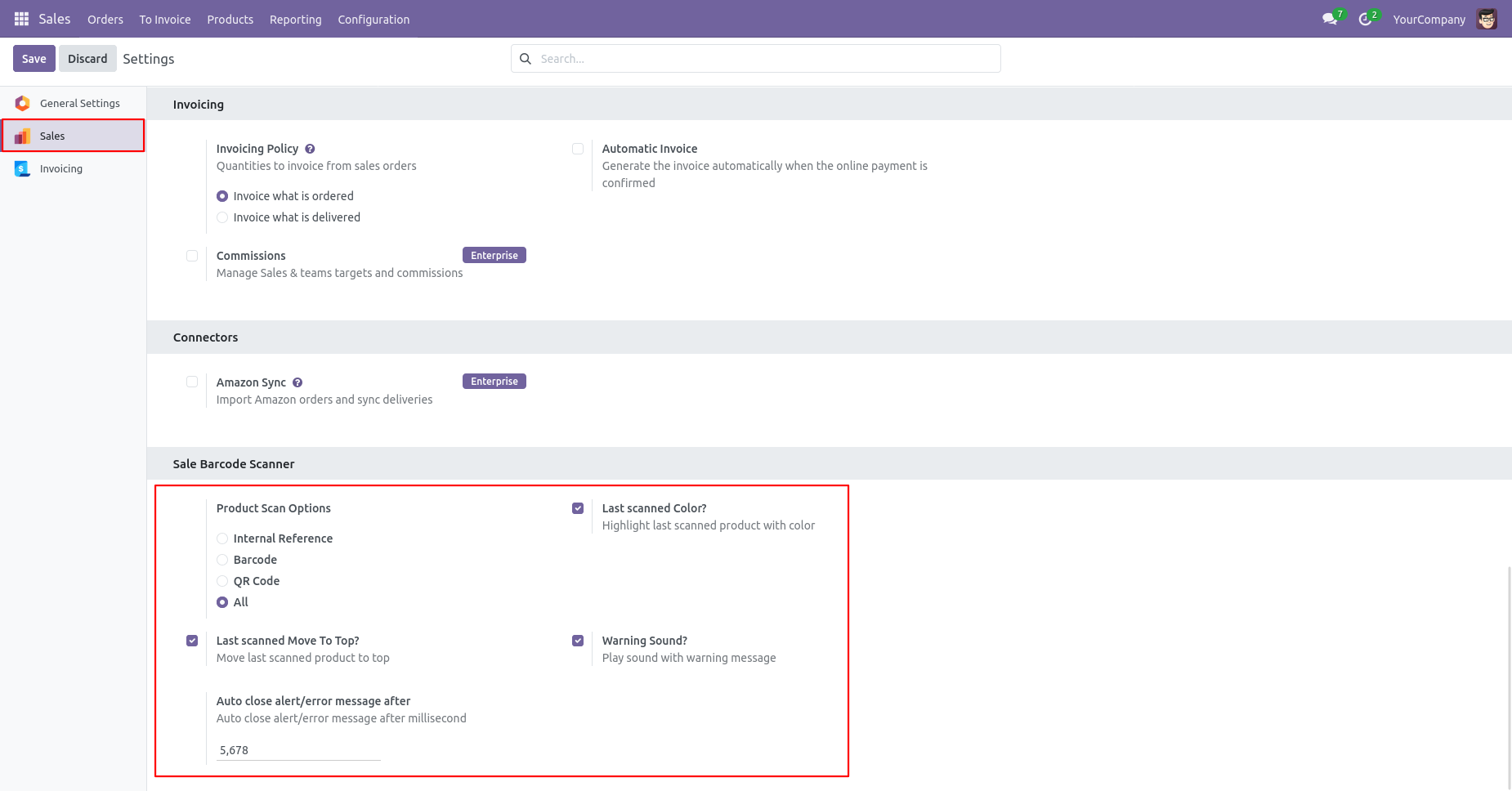
Product scan option in sale settings whether you want to scan product by Barcode, QRCode, internal reference, or all.
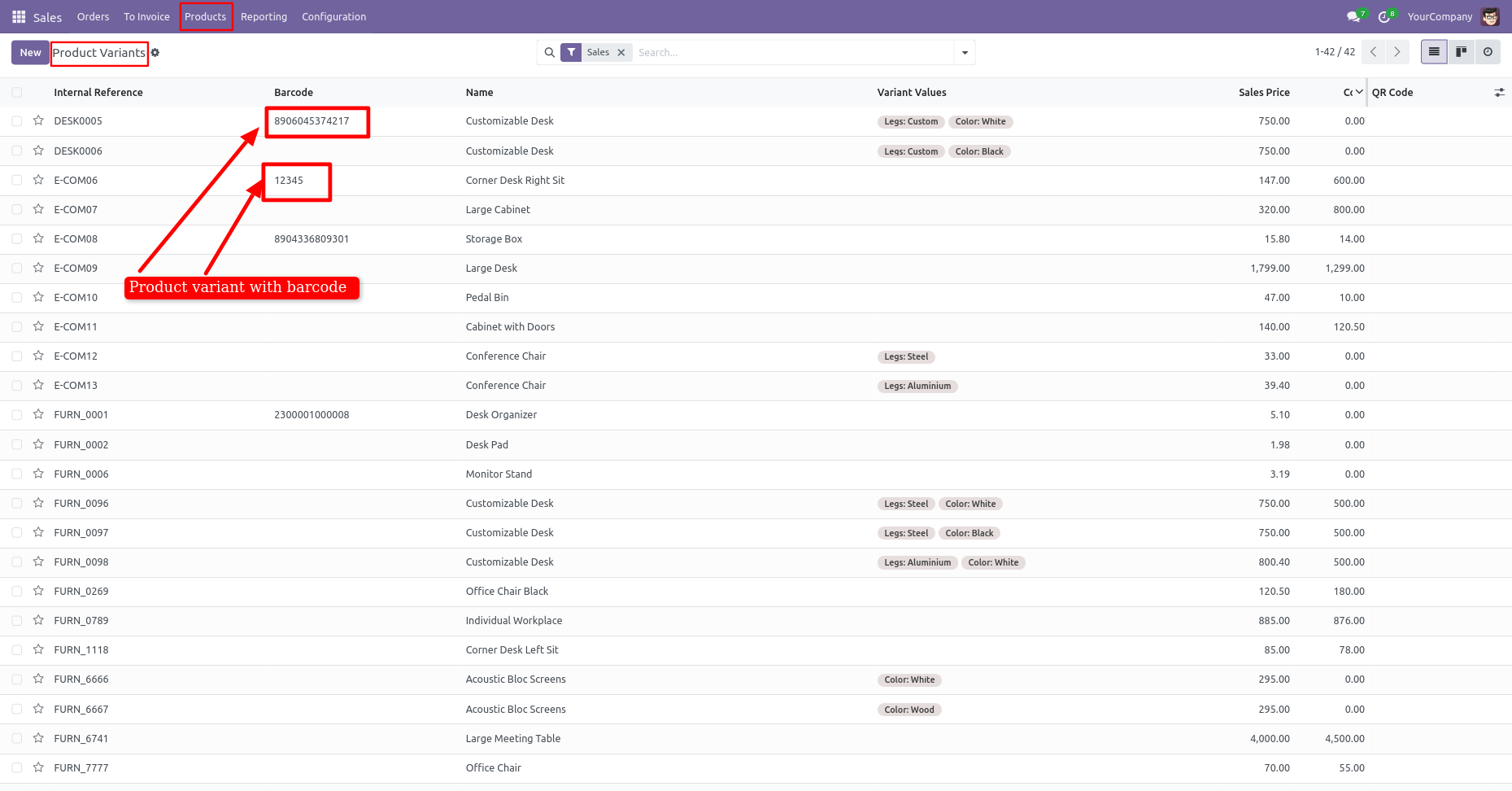
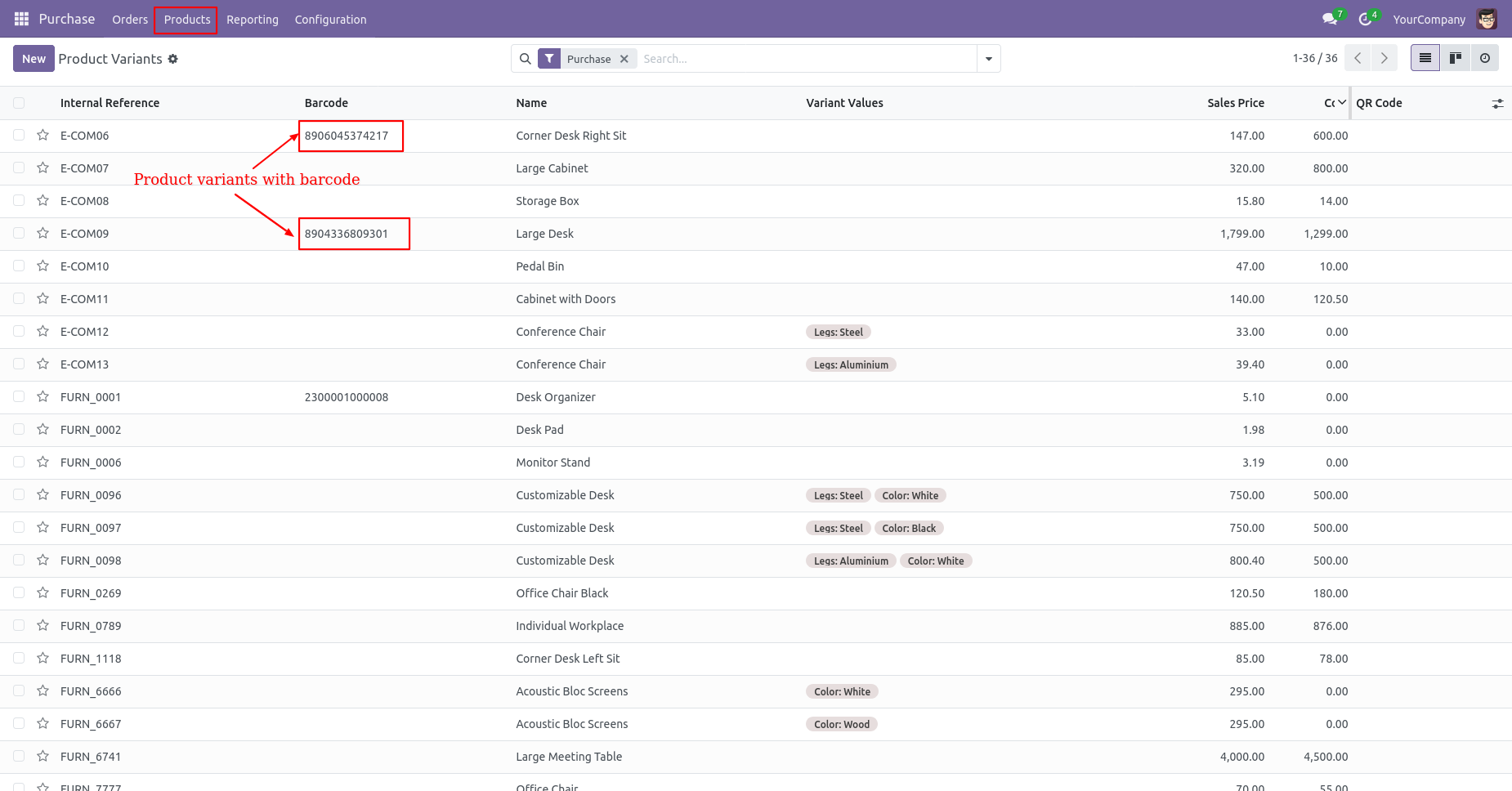
Product Variants With EAN-13 Barcode.
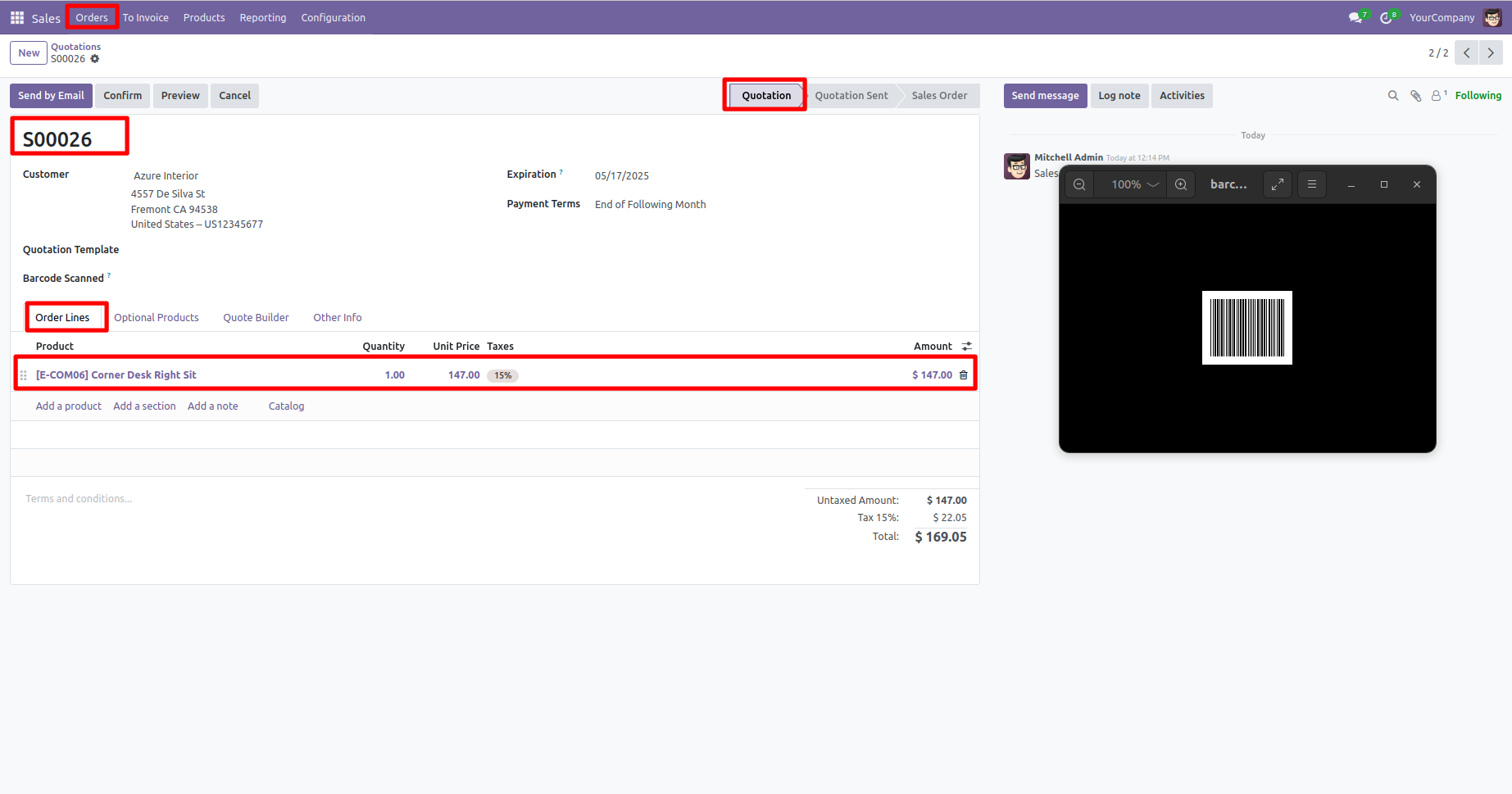
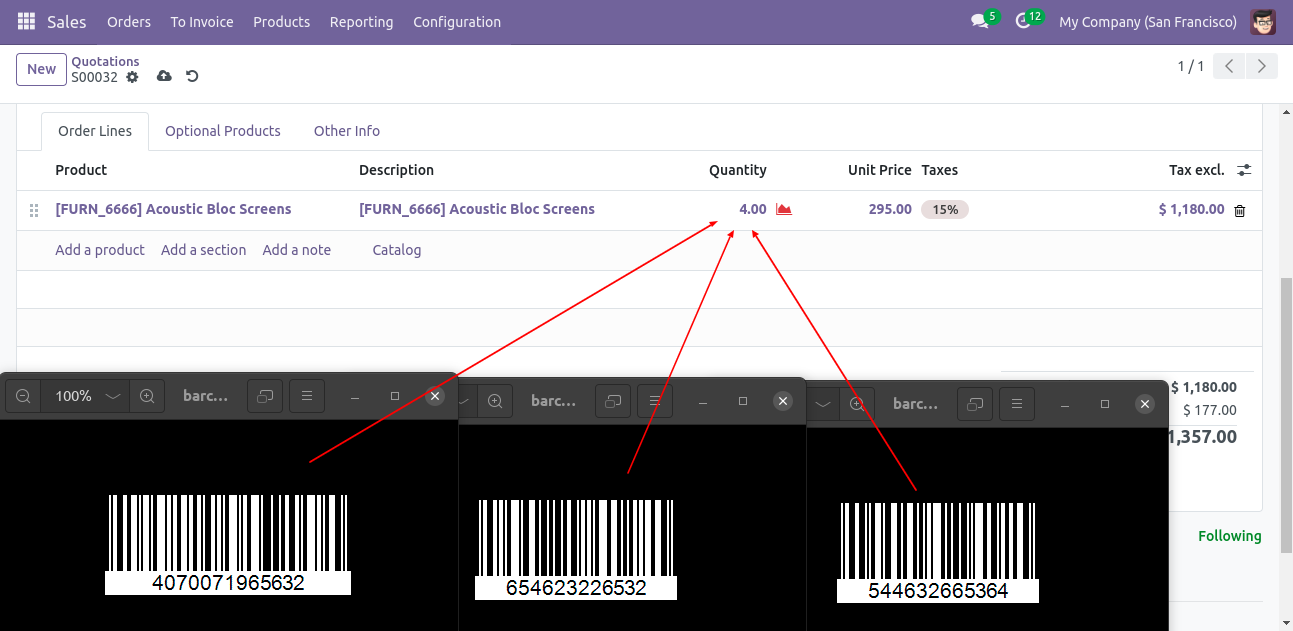
Scan the barcode then the product is automatically added in the order line if the product already existed in order line then ordered qty increased by 1.
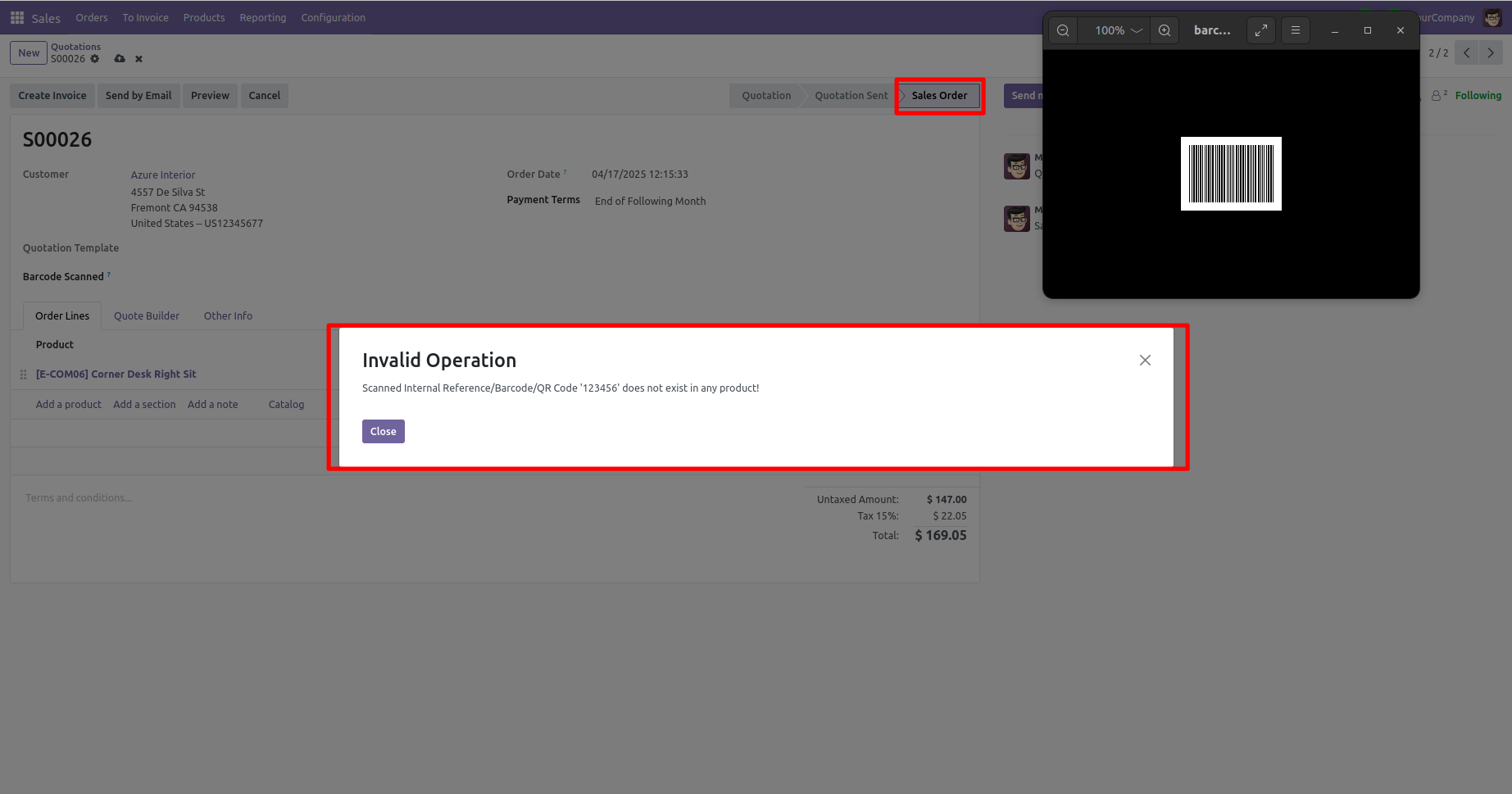
The error message is given if no any matching product is found.
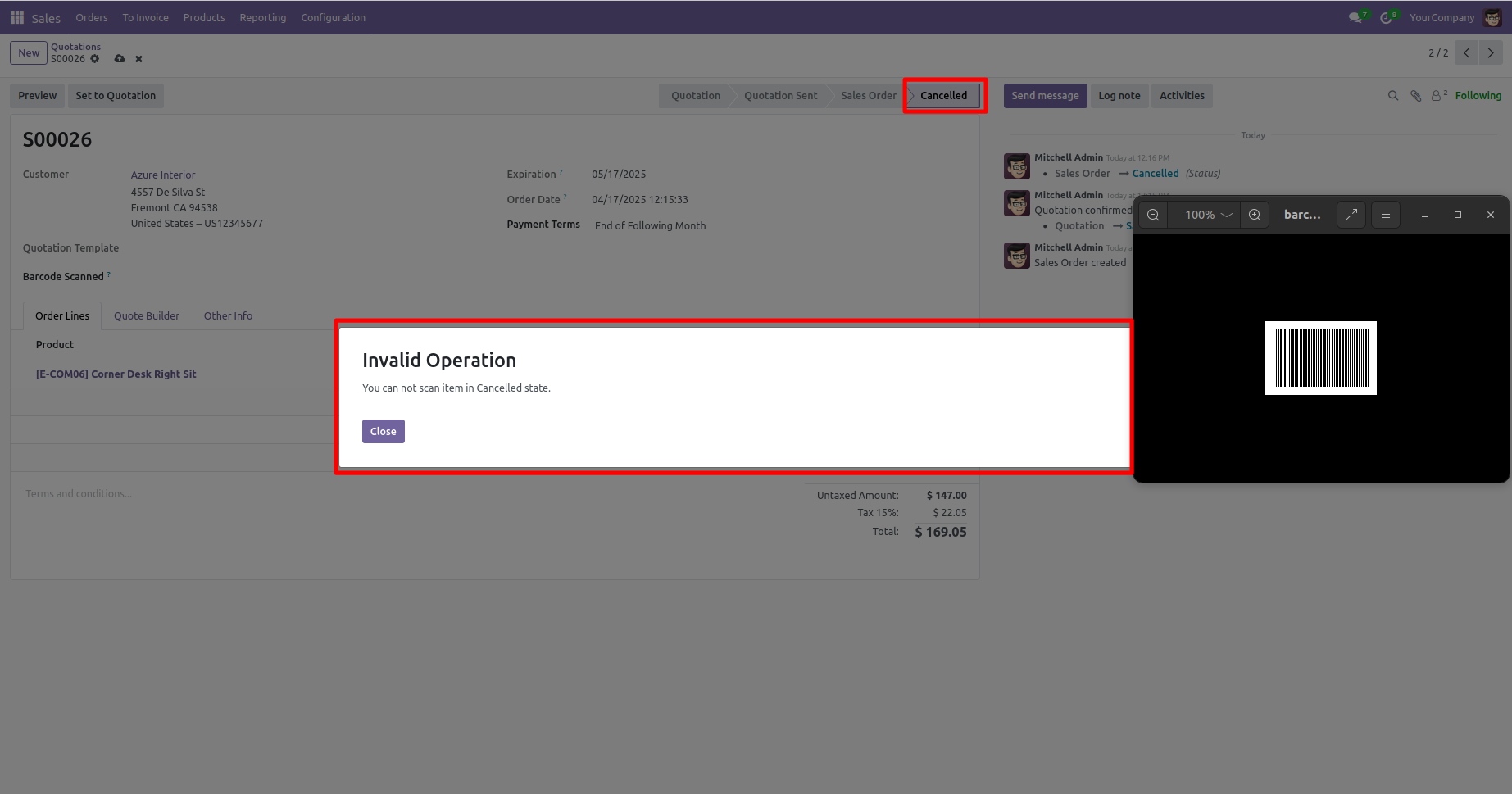
The error message is given if the sale order in cancelled or locked state.
Products With EAN-13 Barcode.
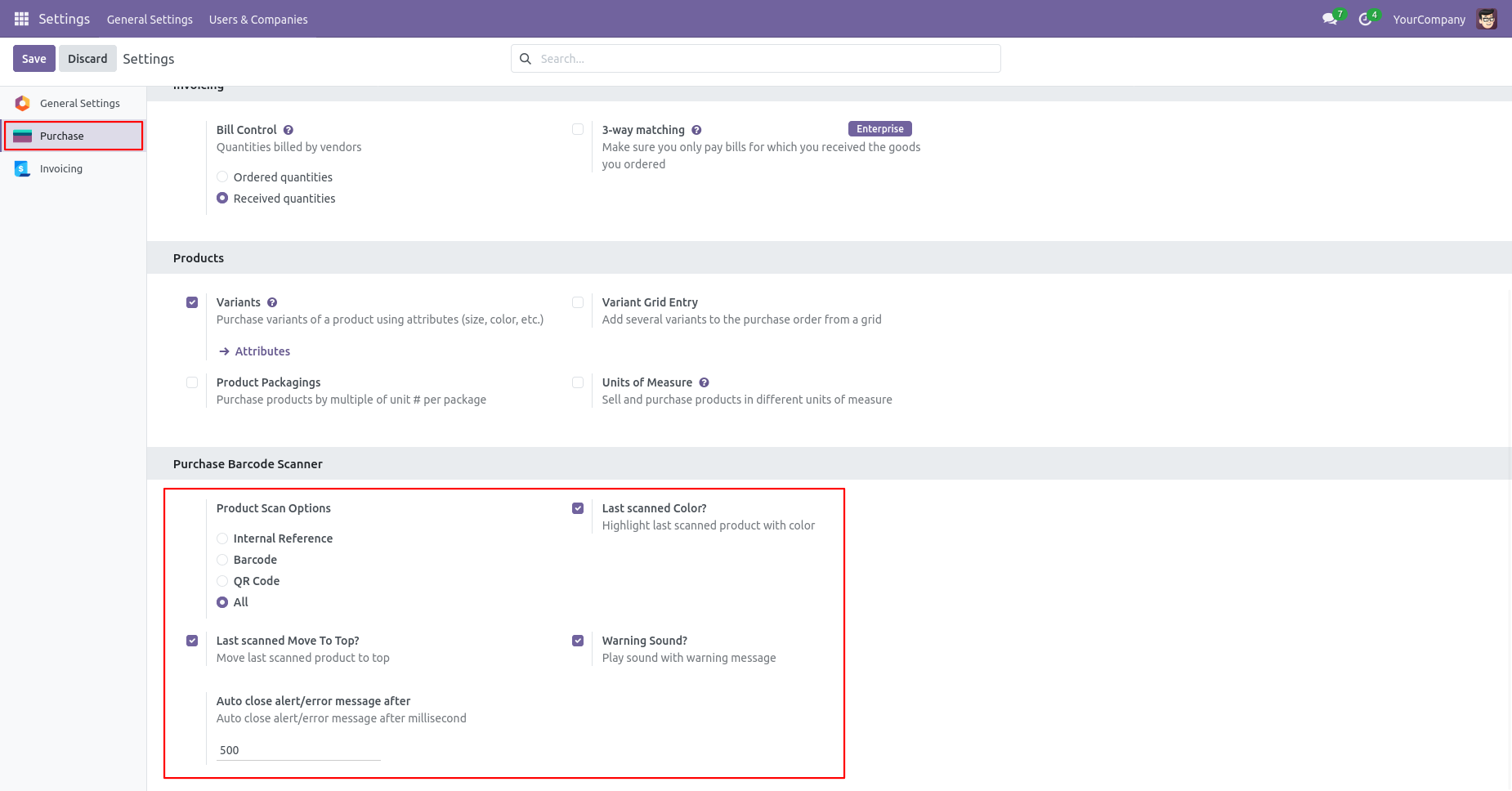
Product scan option in purchase settings whether you want to scan product by Barcode, QRCode, internal reference, or all.
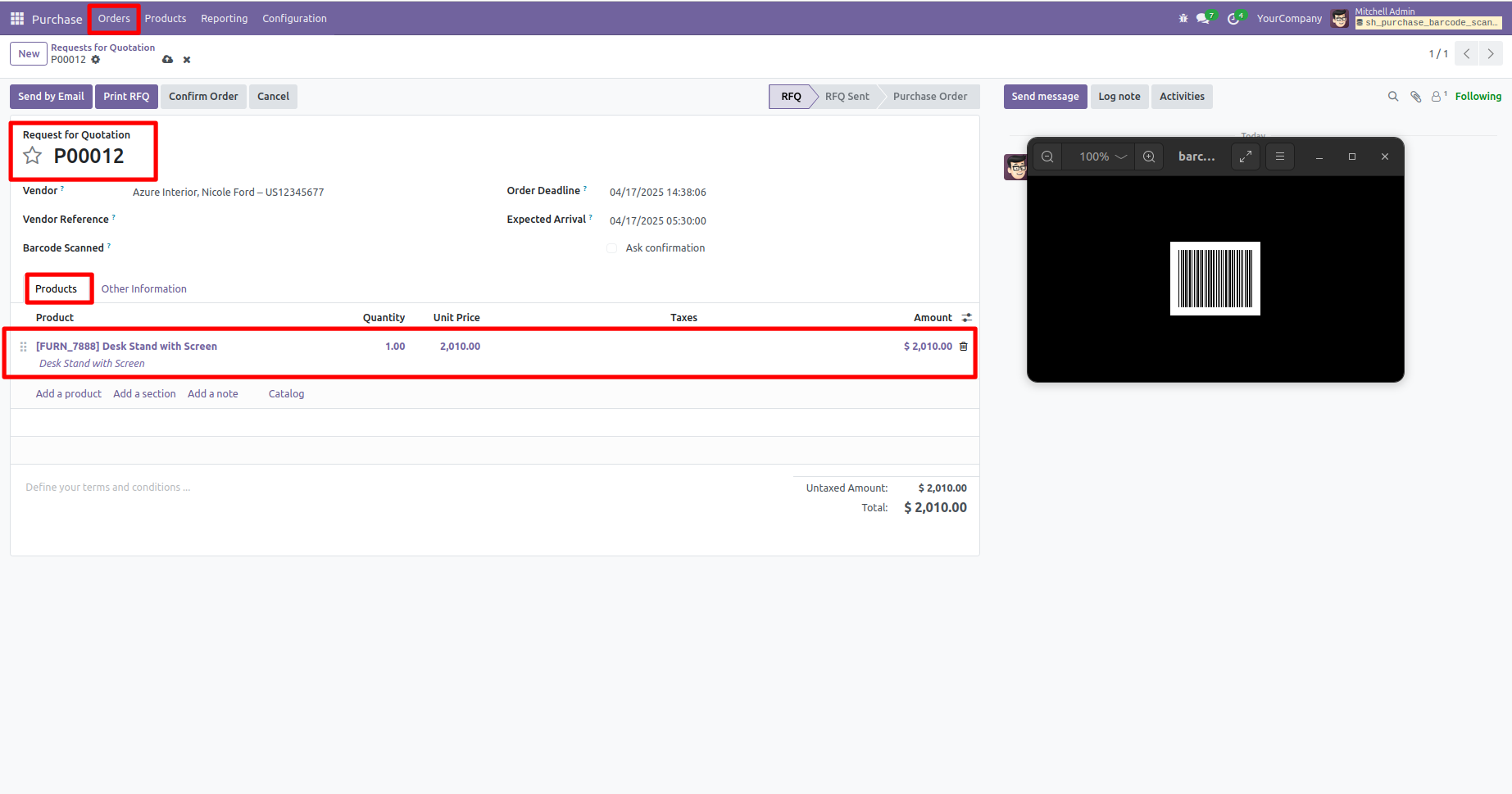
Scan barcode then product automatic added in order line if product already existed in order line then ordered qty increased by 1.
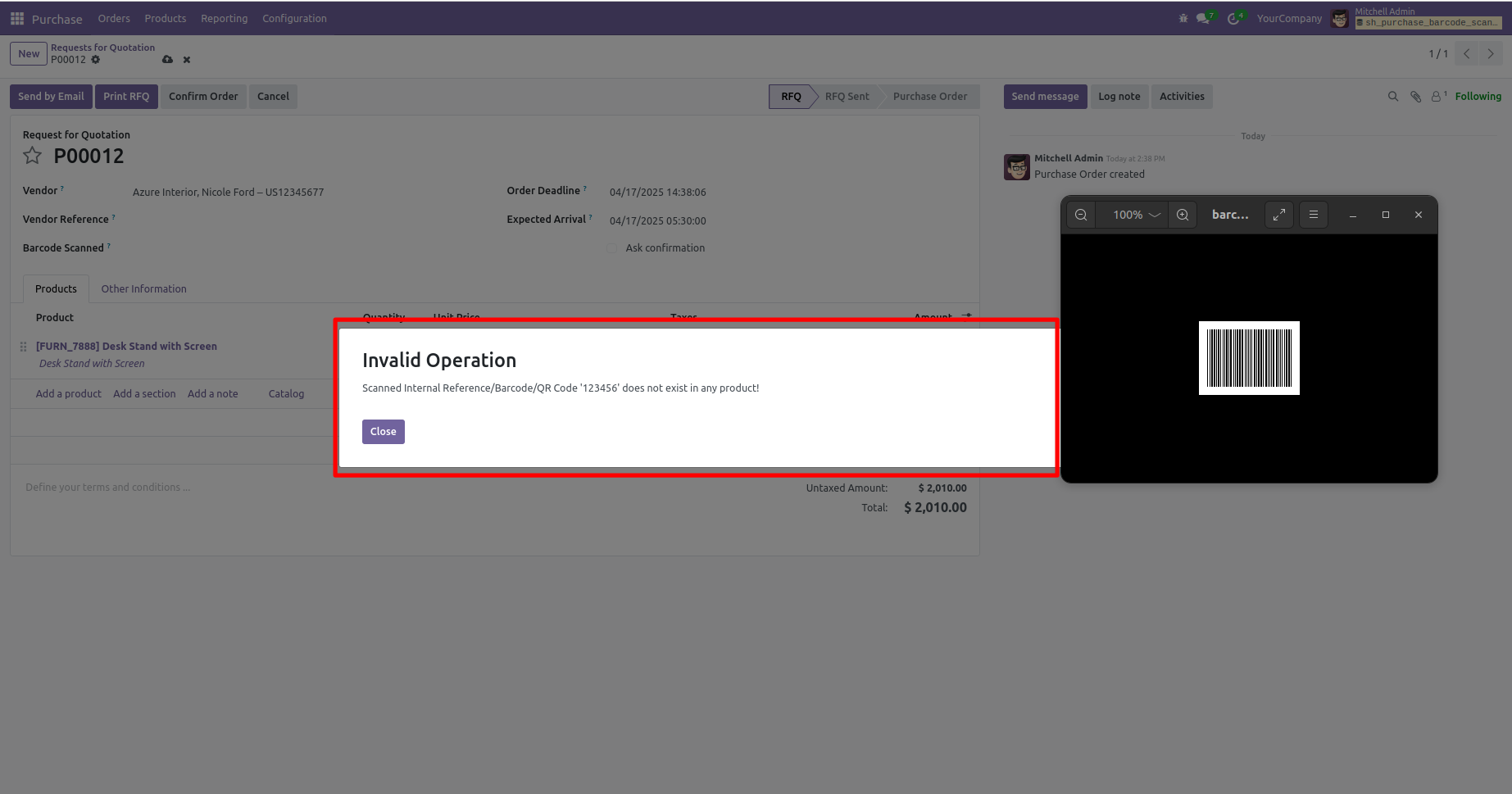
Error message given if no any matching product found.
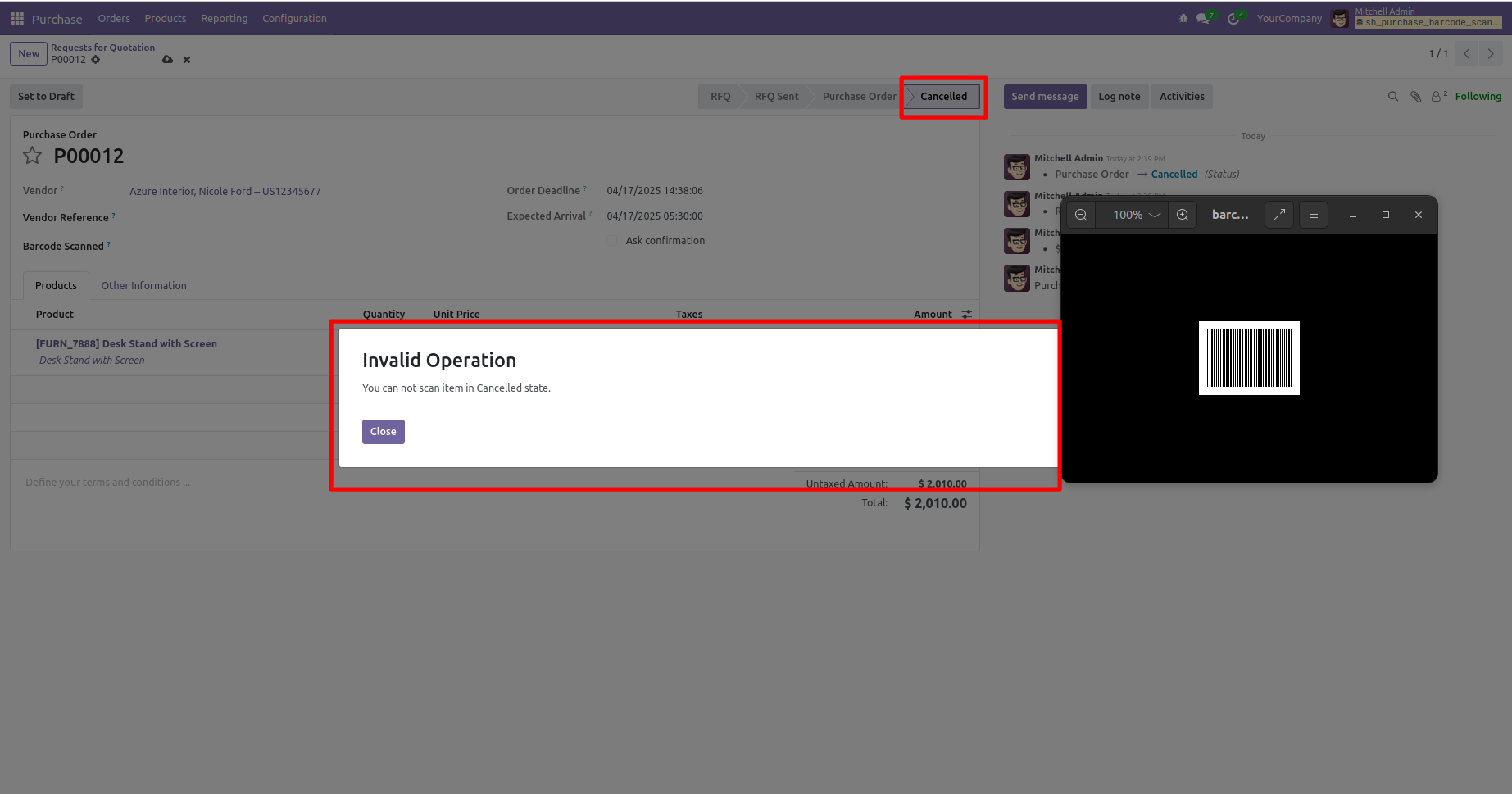
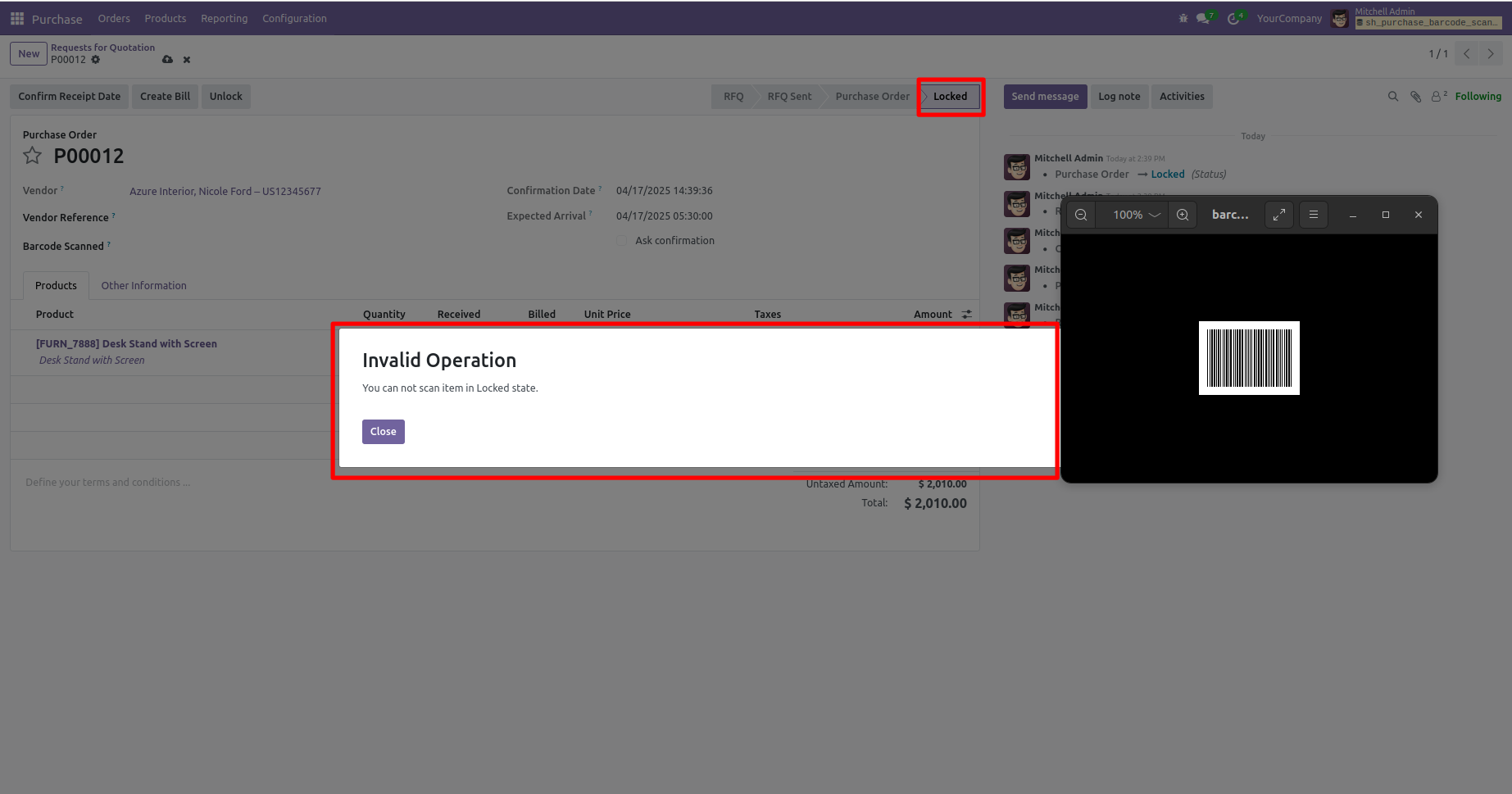
An error message is displayed if the purchase order is in a cancelled state.
An error message is displayed if the purchase order is in a locked state.
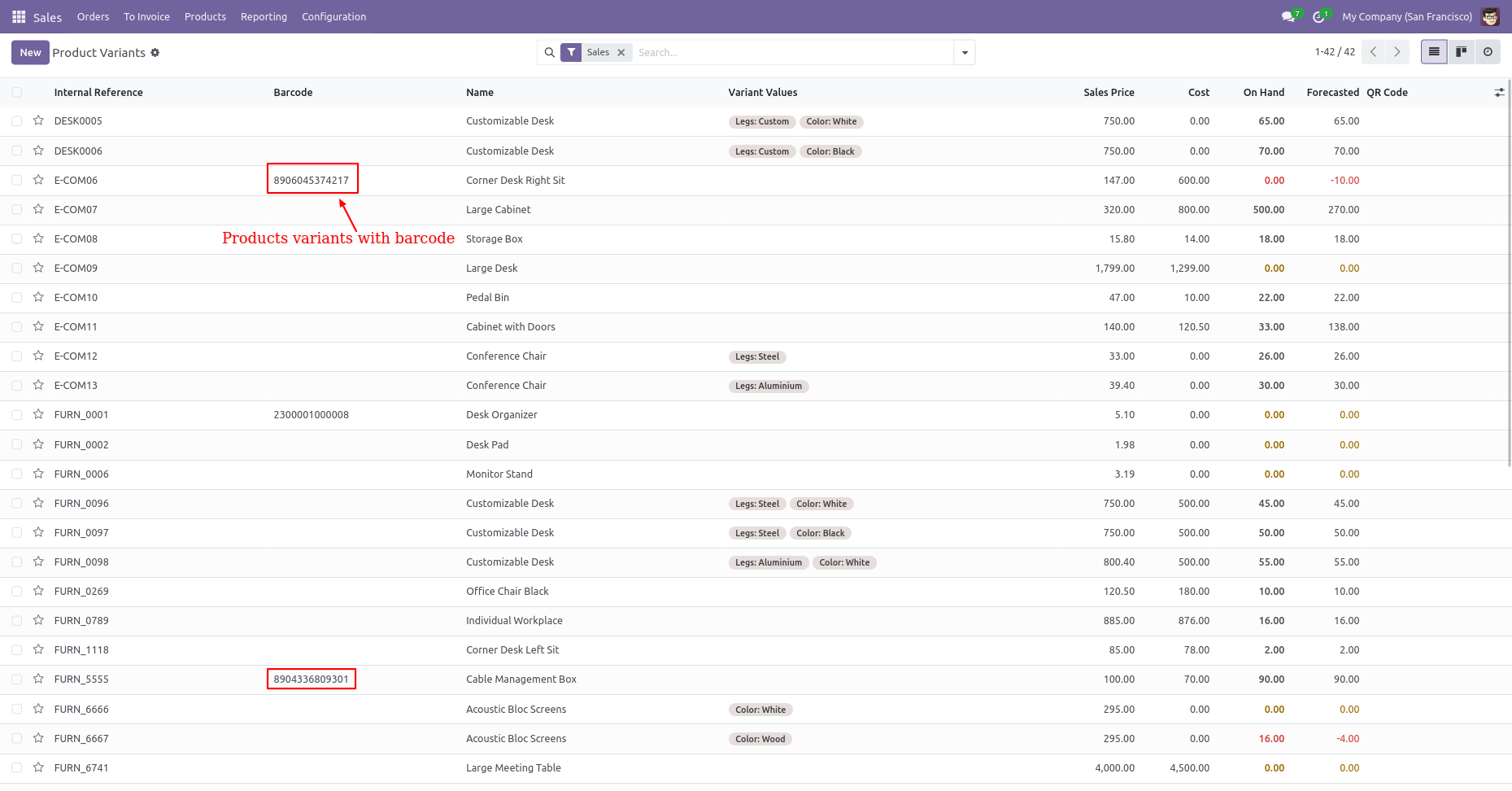
Products With EAN-13 Barcode.
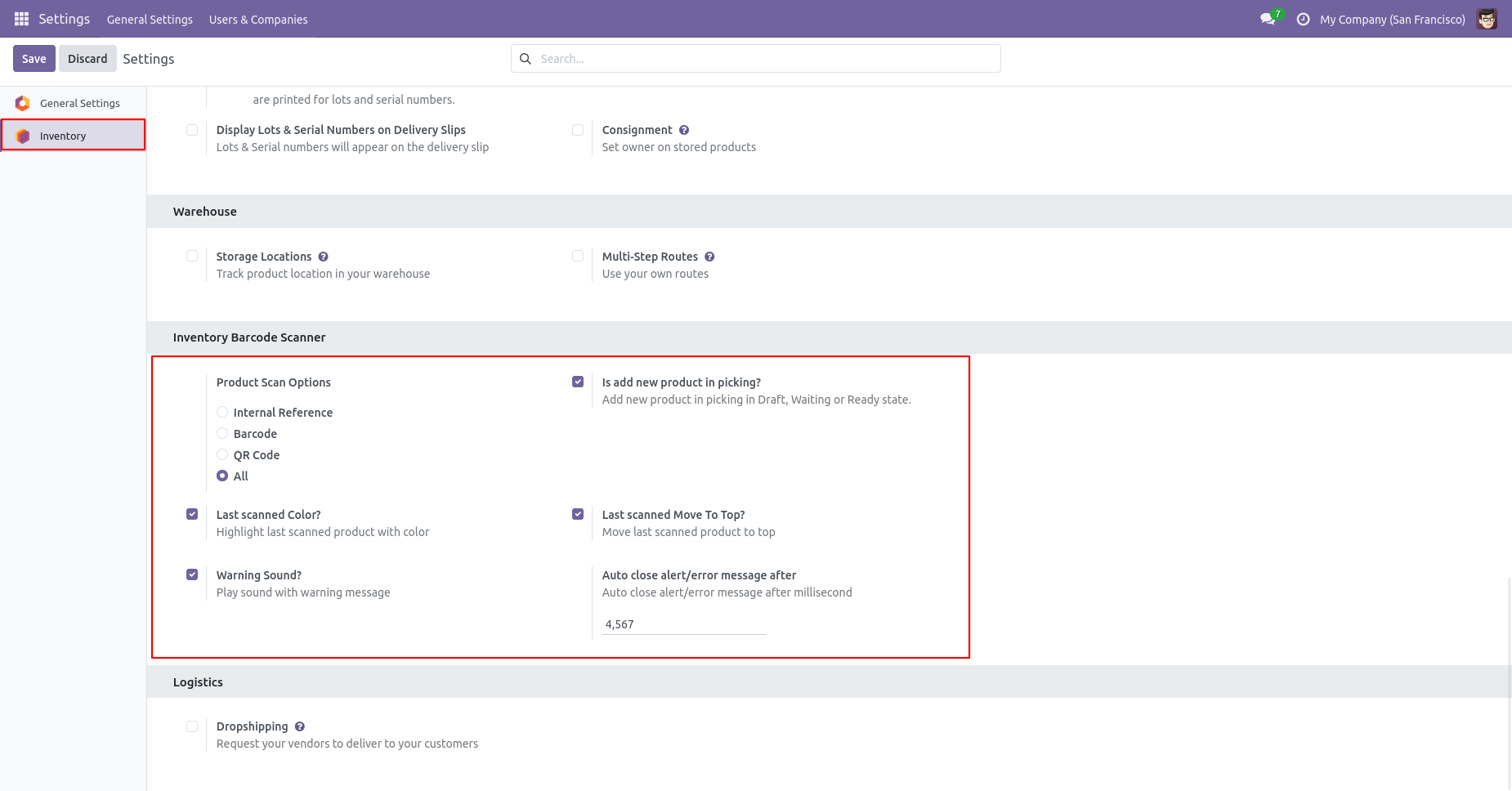
Product scan option in inventory settings whether you want to scan product by Barcode, QRCode, internal reference, or all.
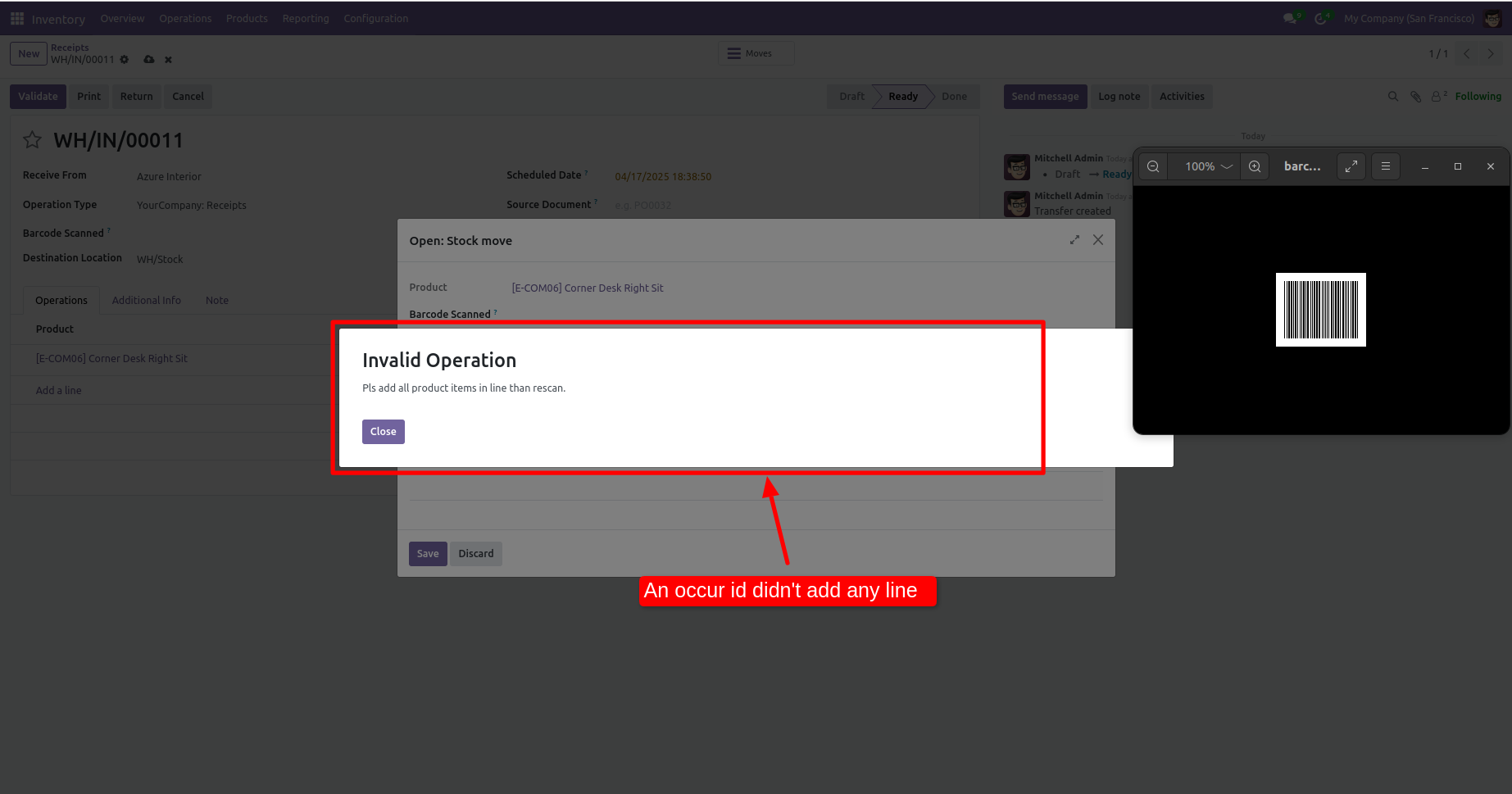
The error message is given if you enable lots and serial numbers.
If you scan the barcode then the quantity done increases by 1.
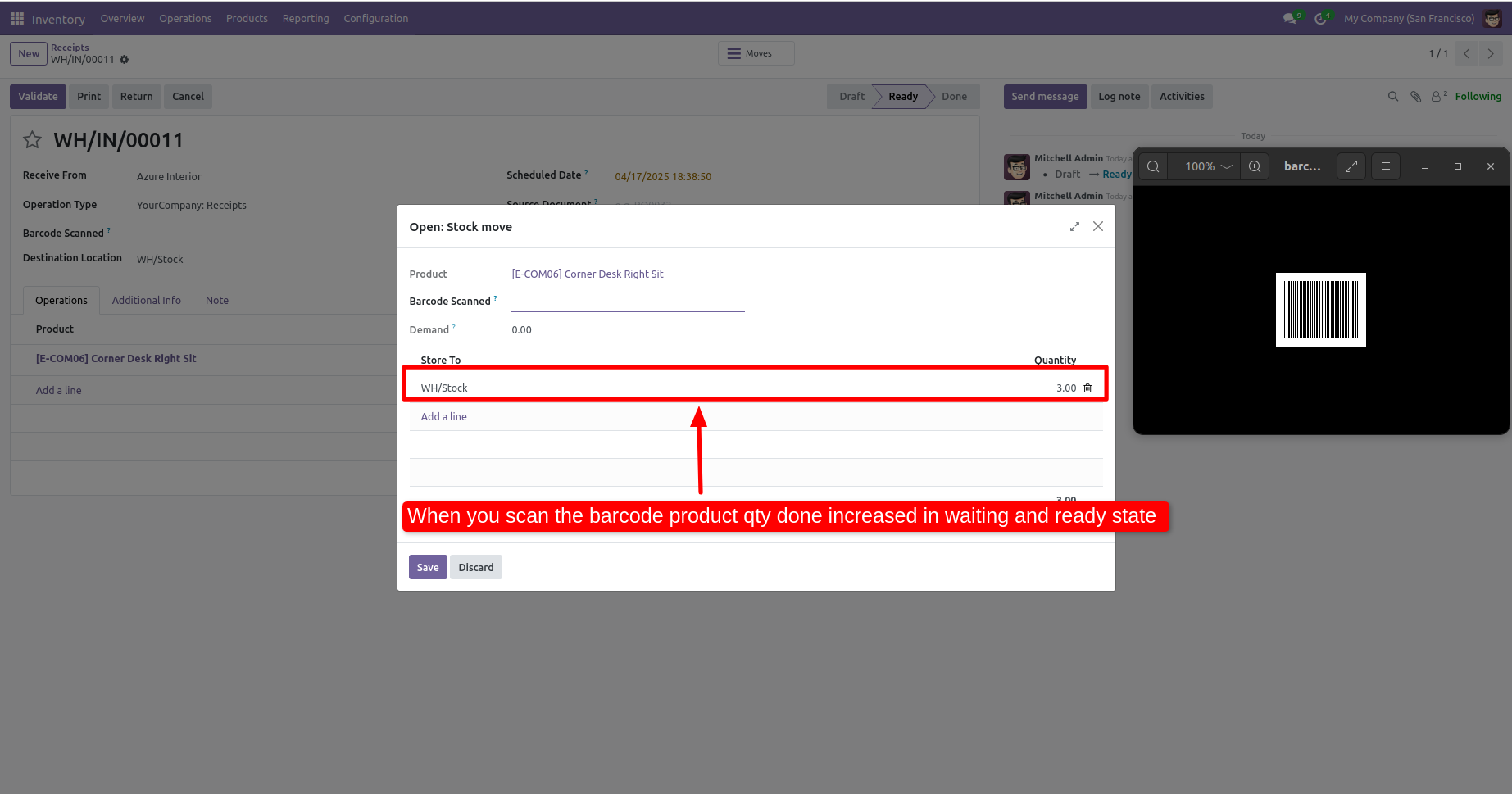
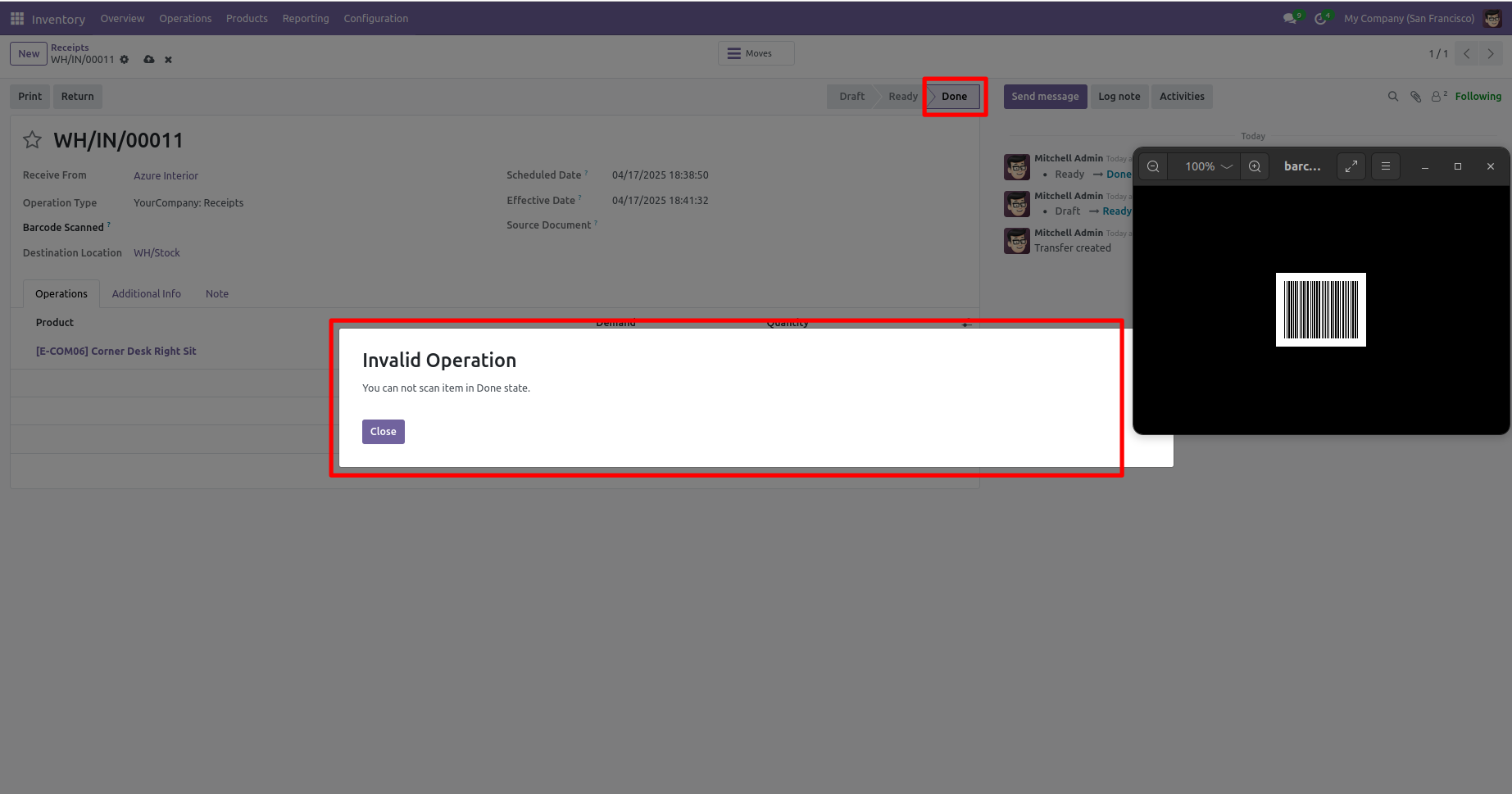
The error message is given if picking is not in the proper state.
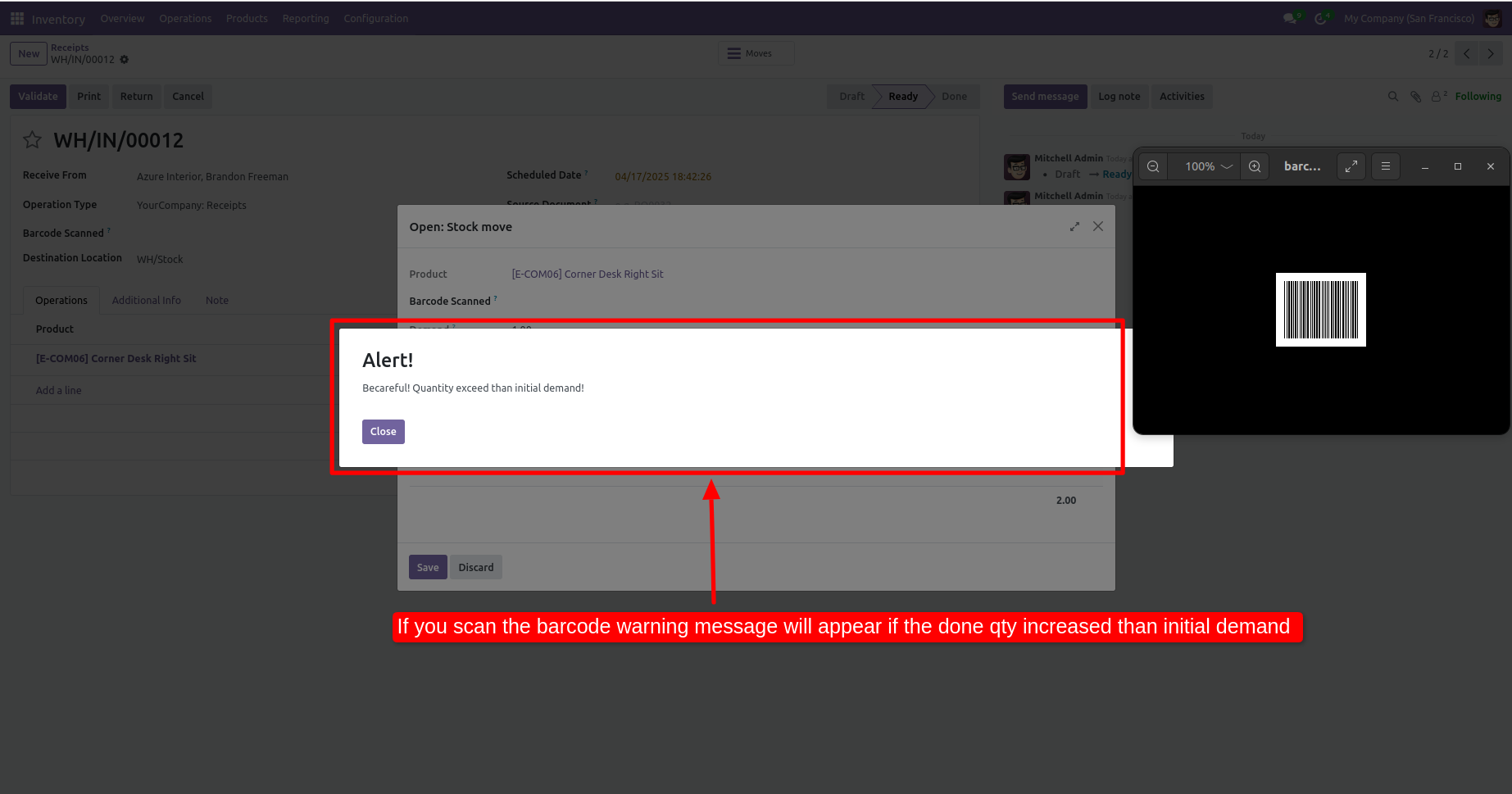
The warning message is given if done quantity increases than the initial demand.
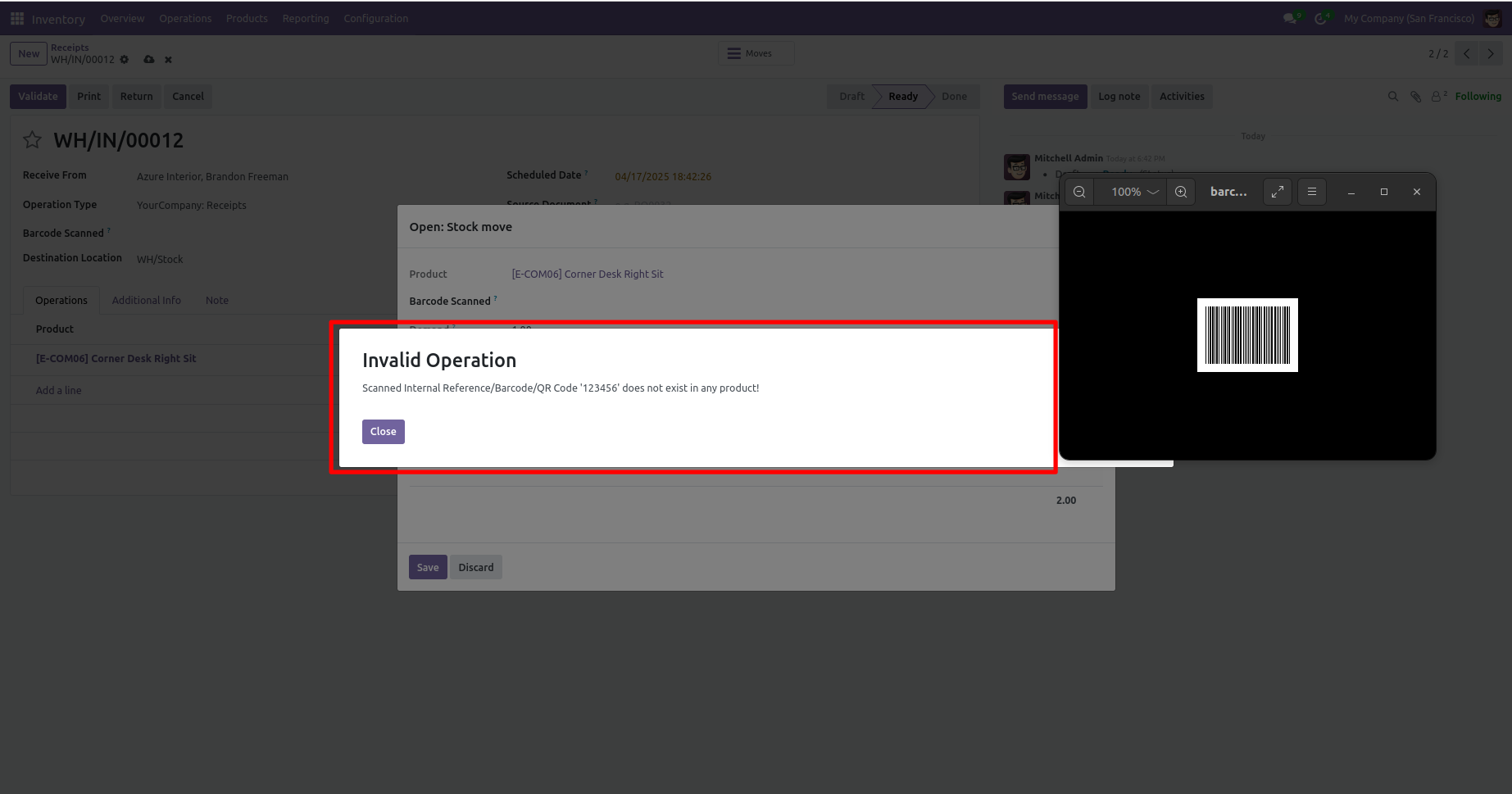
The error message is given if the scanned product is not found in line.
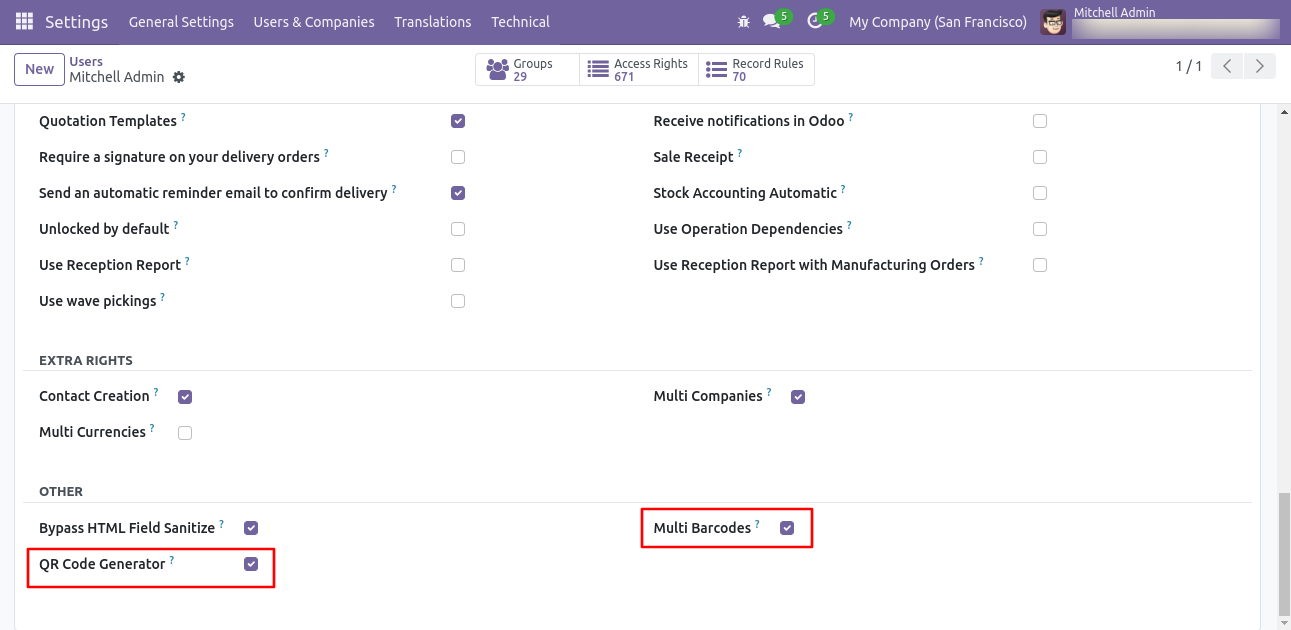
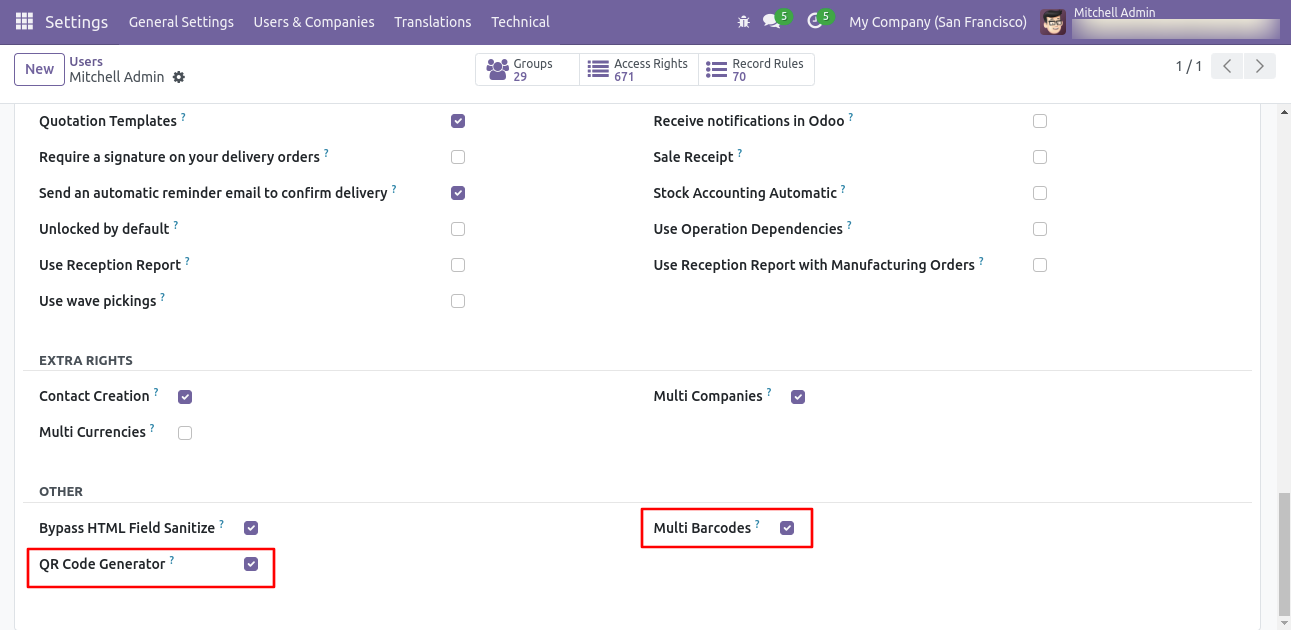
Go to the user setting and enable 'Multi barcode' & 'QR code generator'.
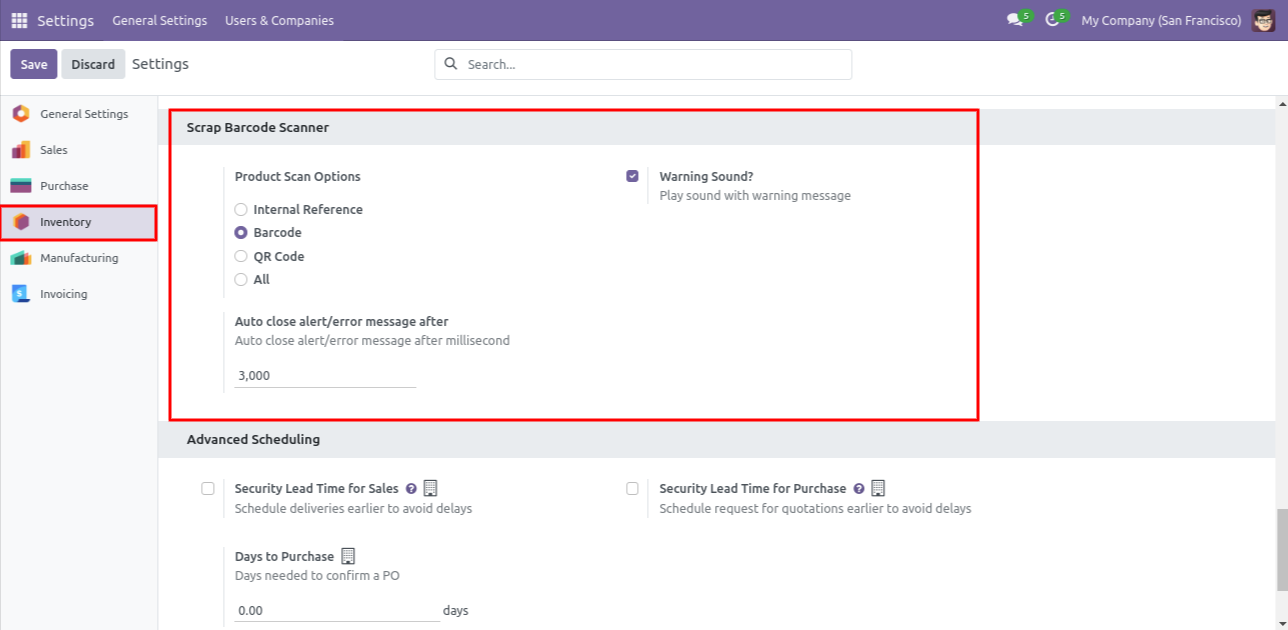
Product scan option in inventory settings whether you want to scan product by Barcode,QRCode, internal reference or all.
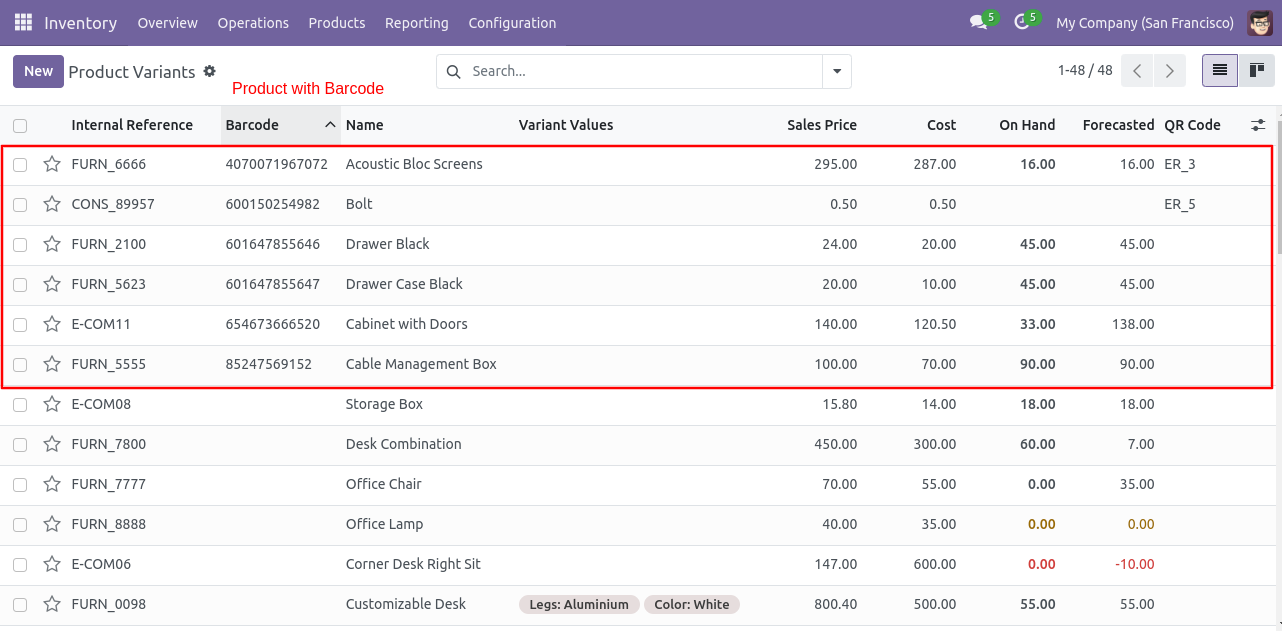
Products With EAN-13 Barcode.
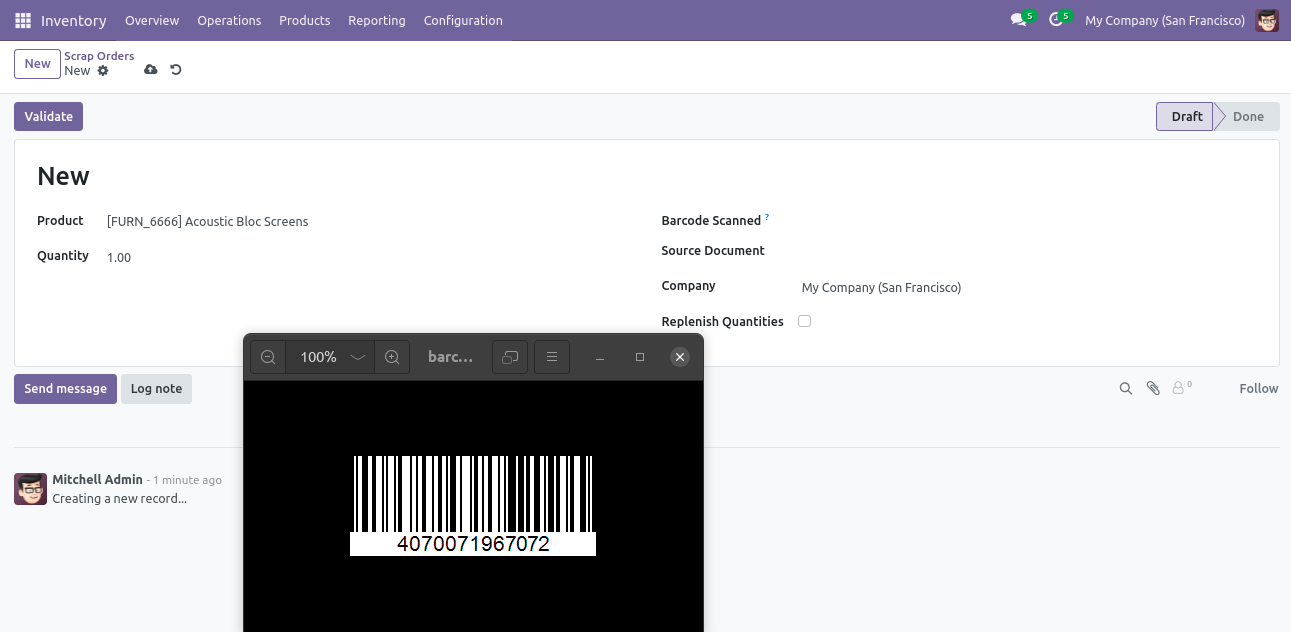
Scan barcode then product automatic added in product field and quantity set to 1 if product already in product field then quantity increased by 1.
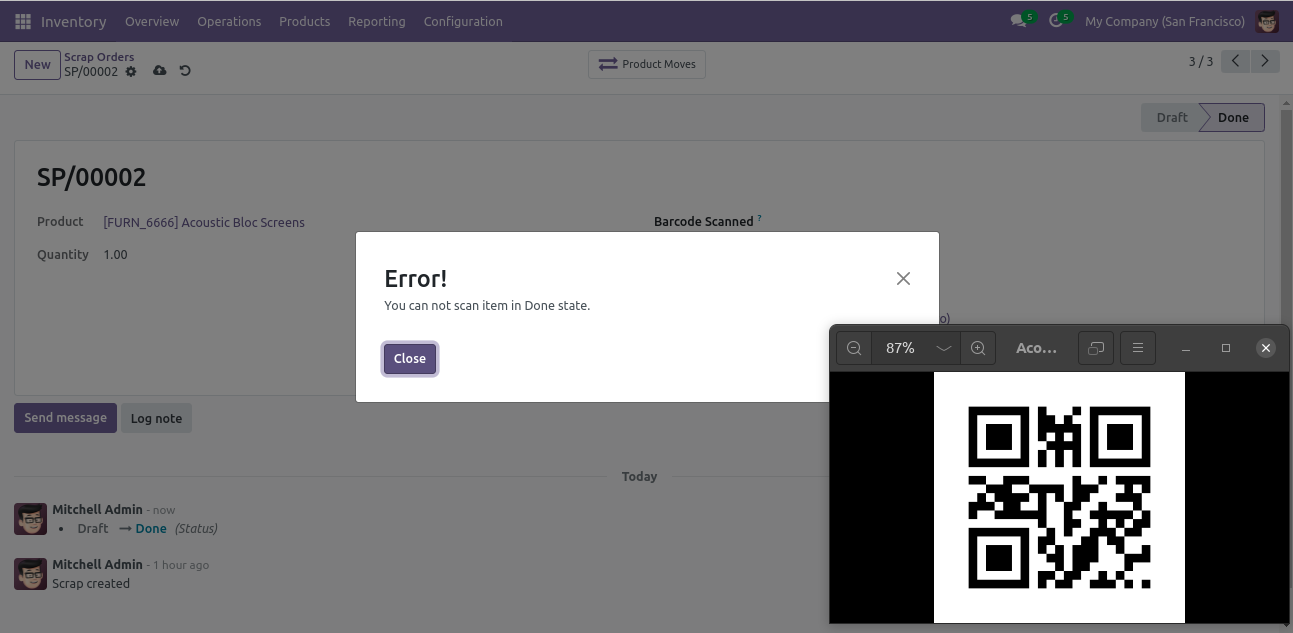
Error message given if scrap order in Done state.
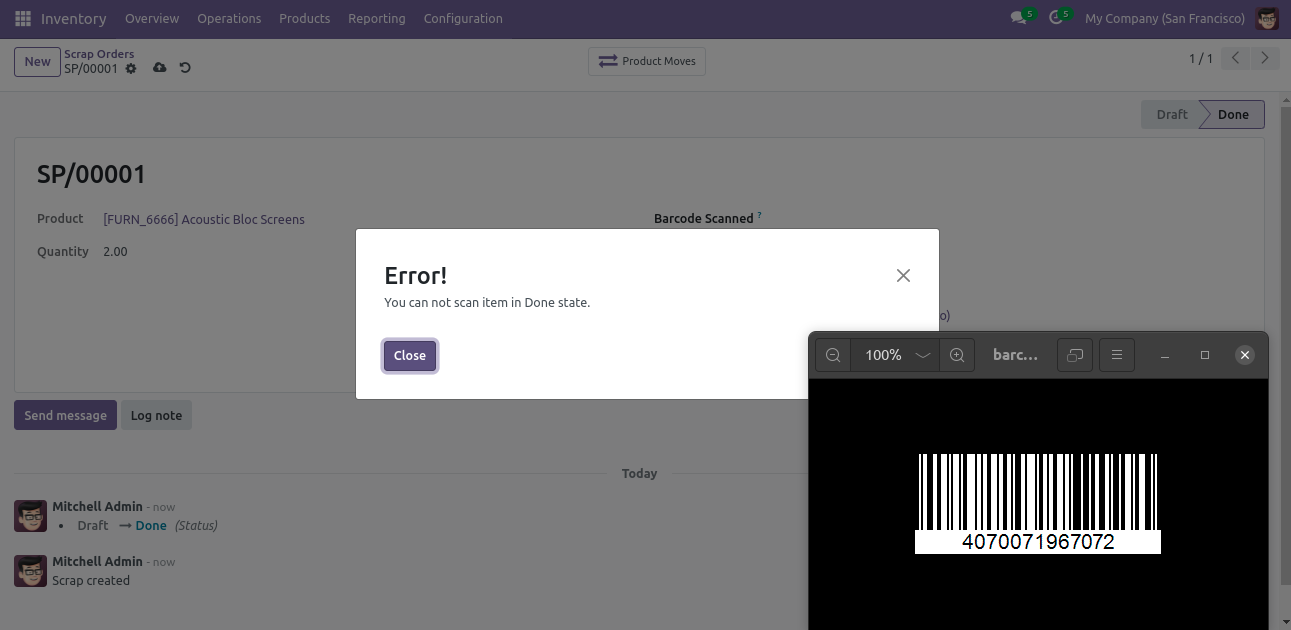
Select QRCode if you want to scan using only QRCode.
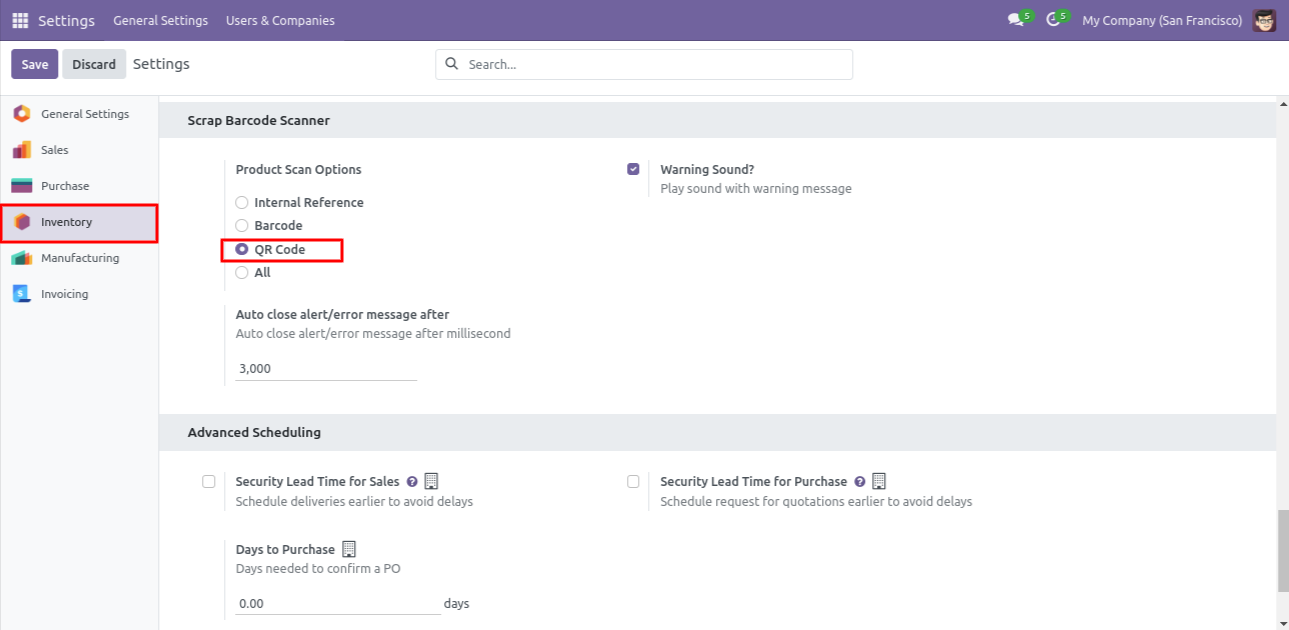
Products With QRCode.
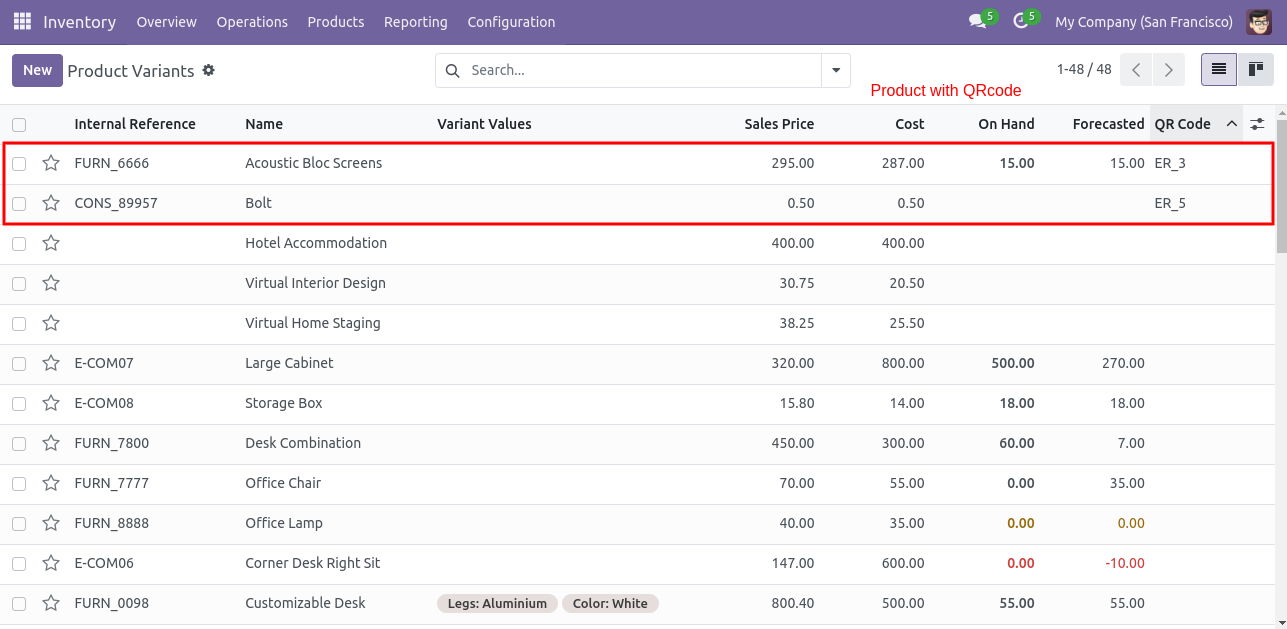
Product with QRCode in form view.
Scan QRCode then product automatic added and if the product already existed then ordered qty increased by 1.
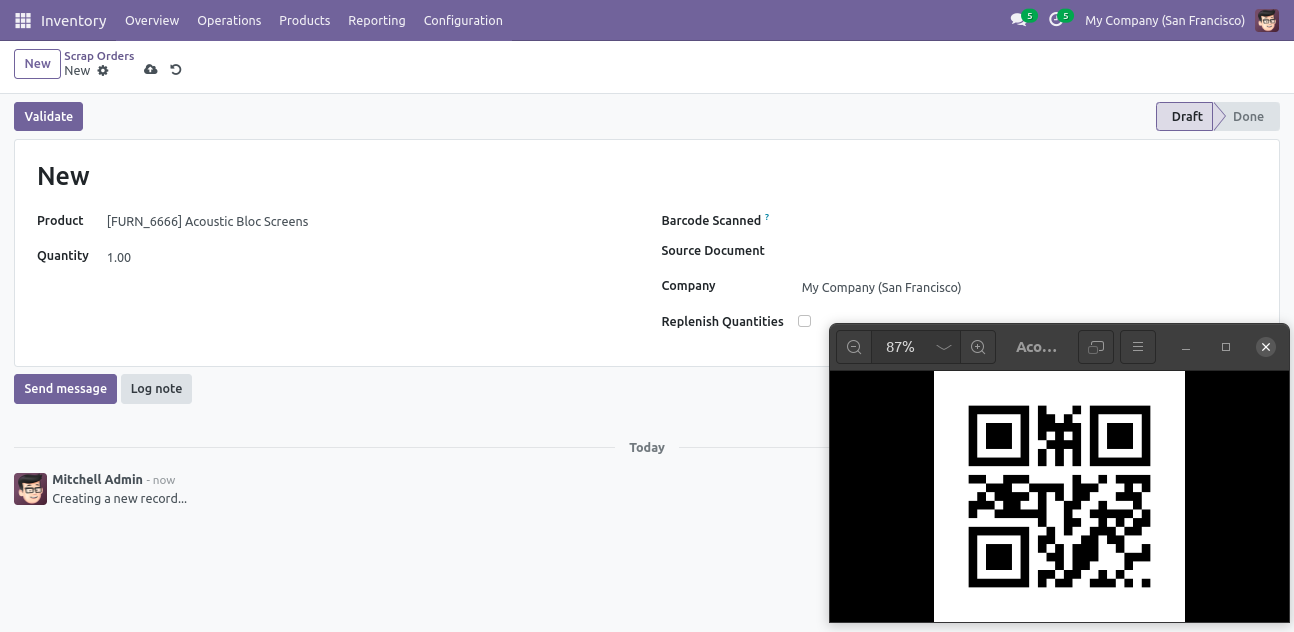
The error message is given if no matching product found.
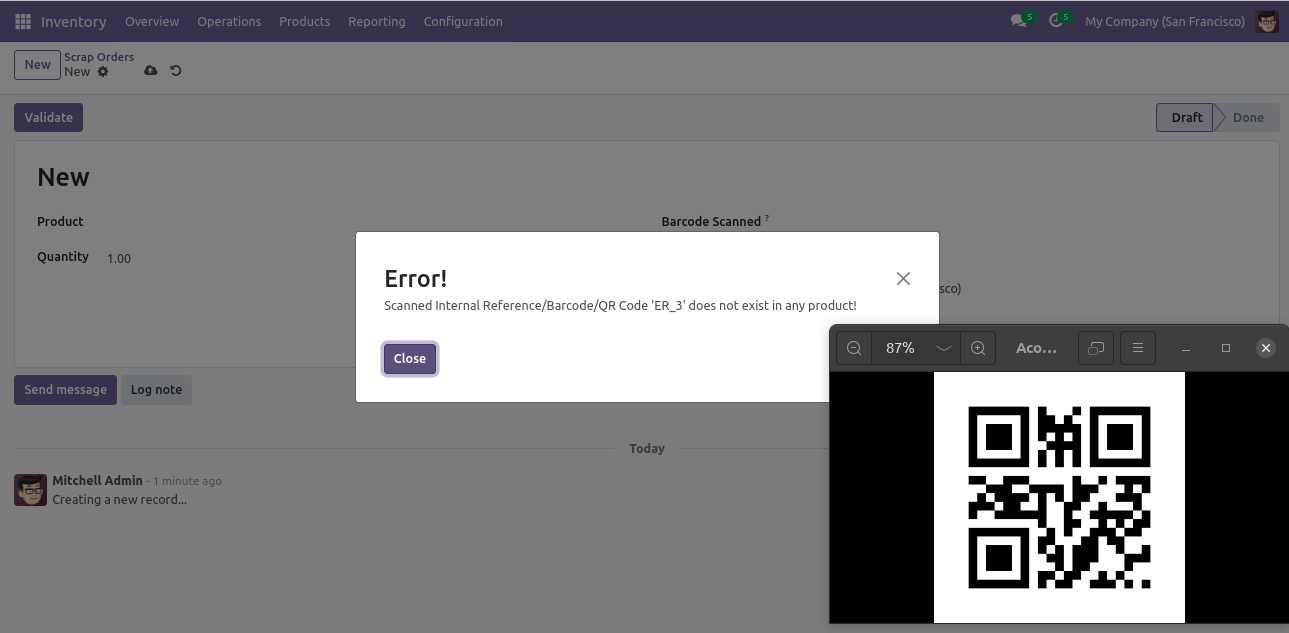
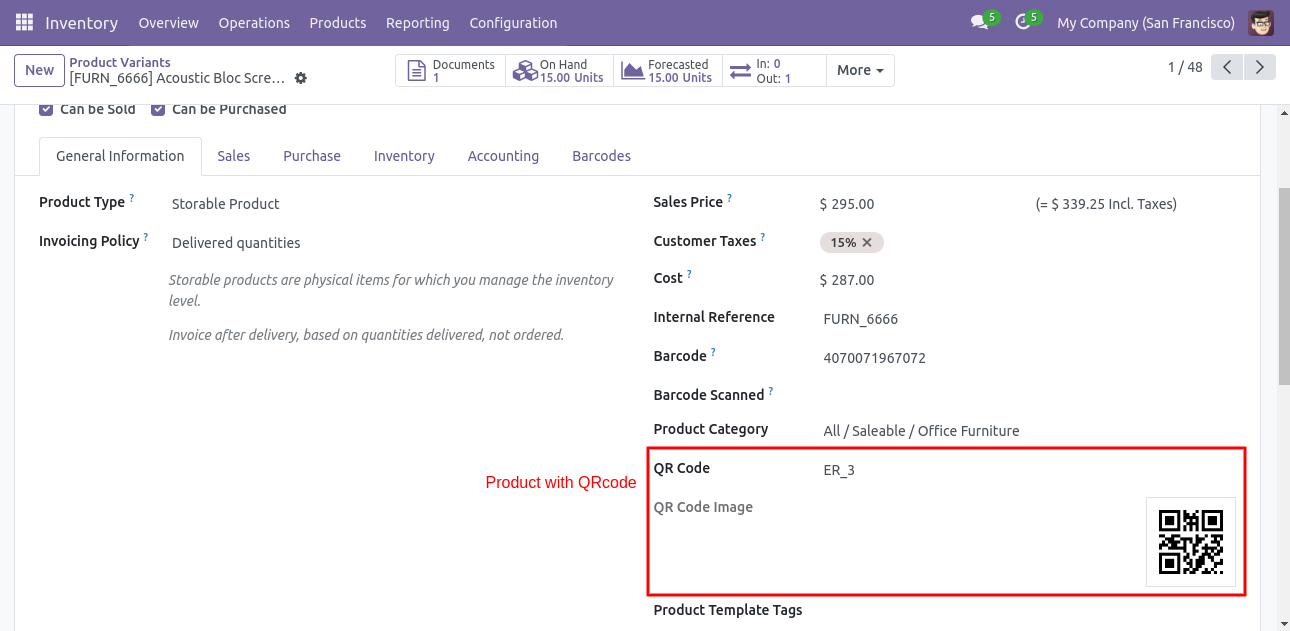
Error message given if scrap order in Done state.
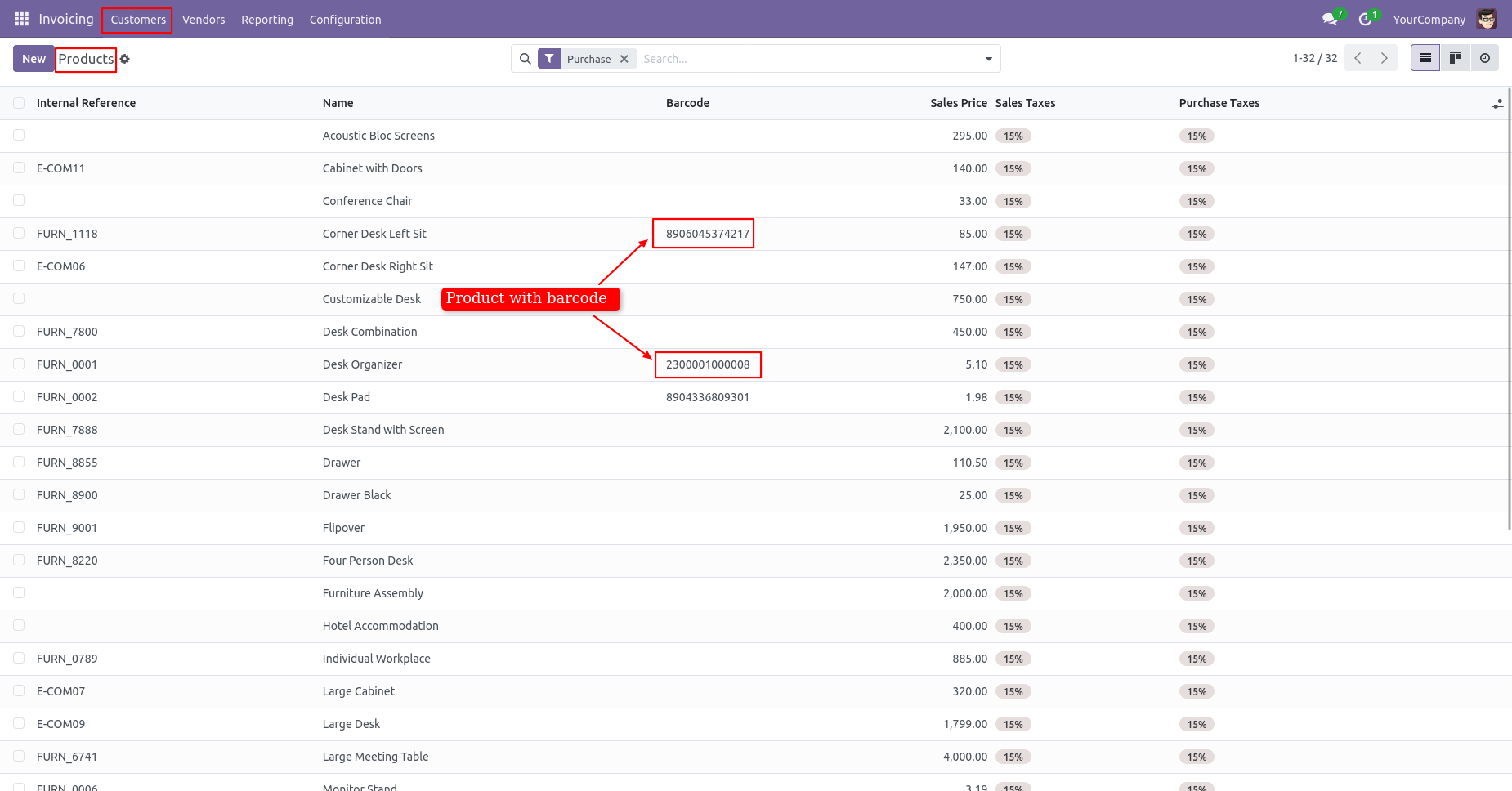
Products With EAN-13 Barcode.
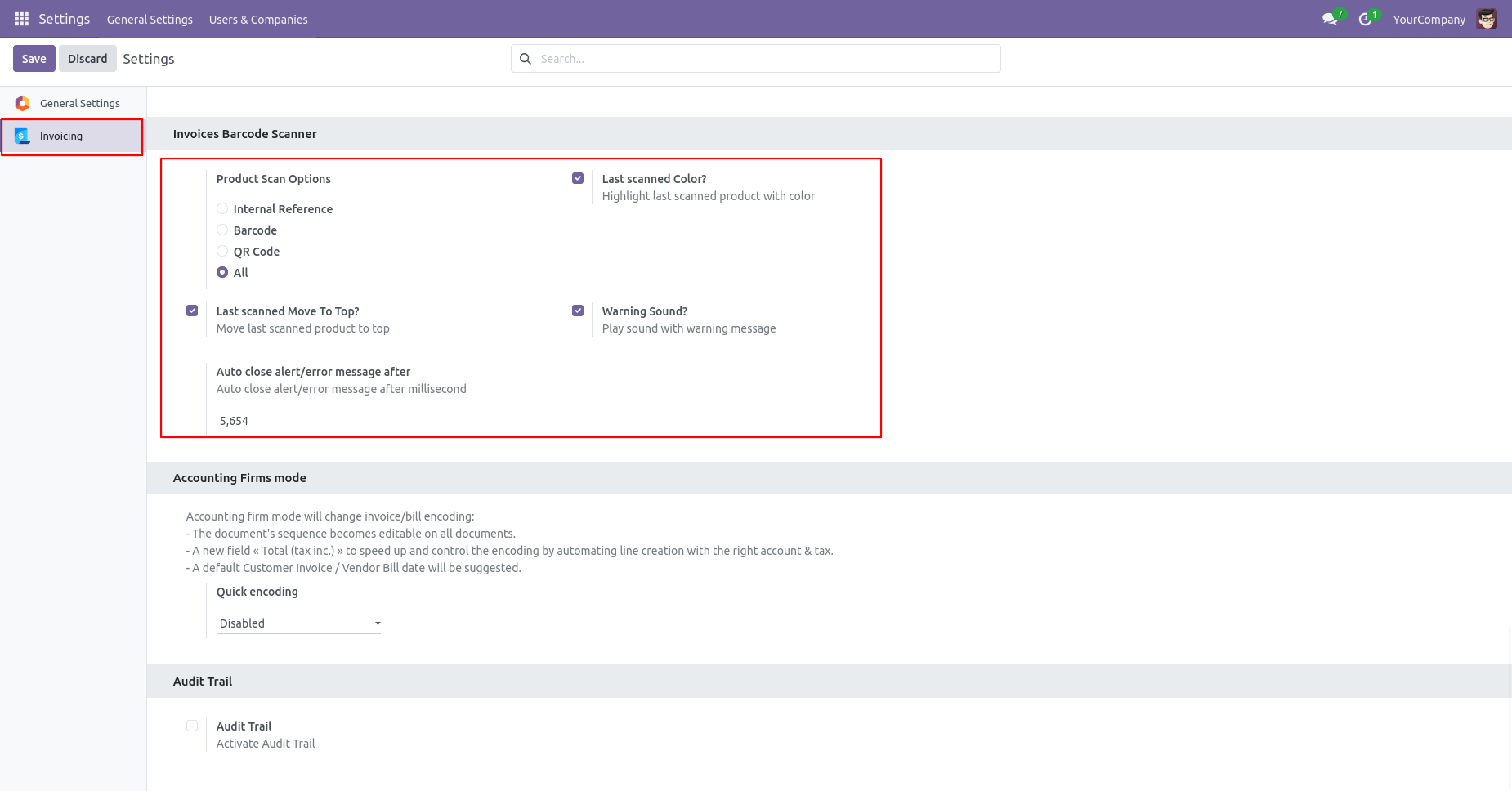
Product scan option in invoice settings whether you want to scan product by Barcode,QRCode, internal reference or all.
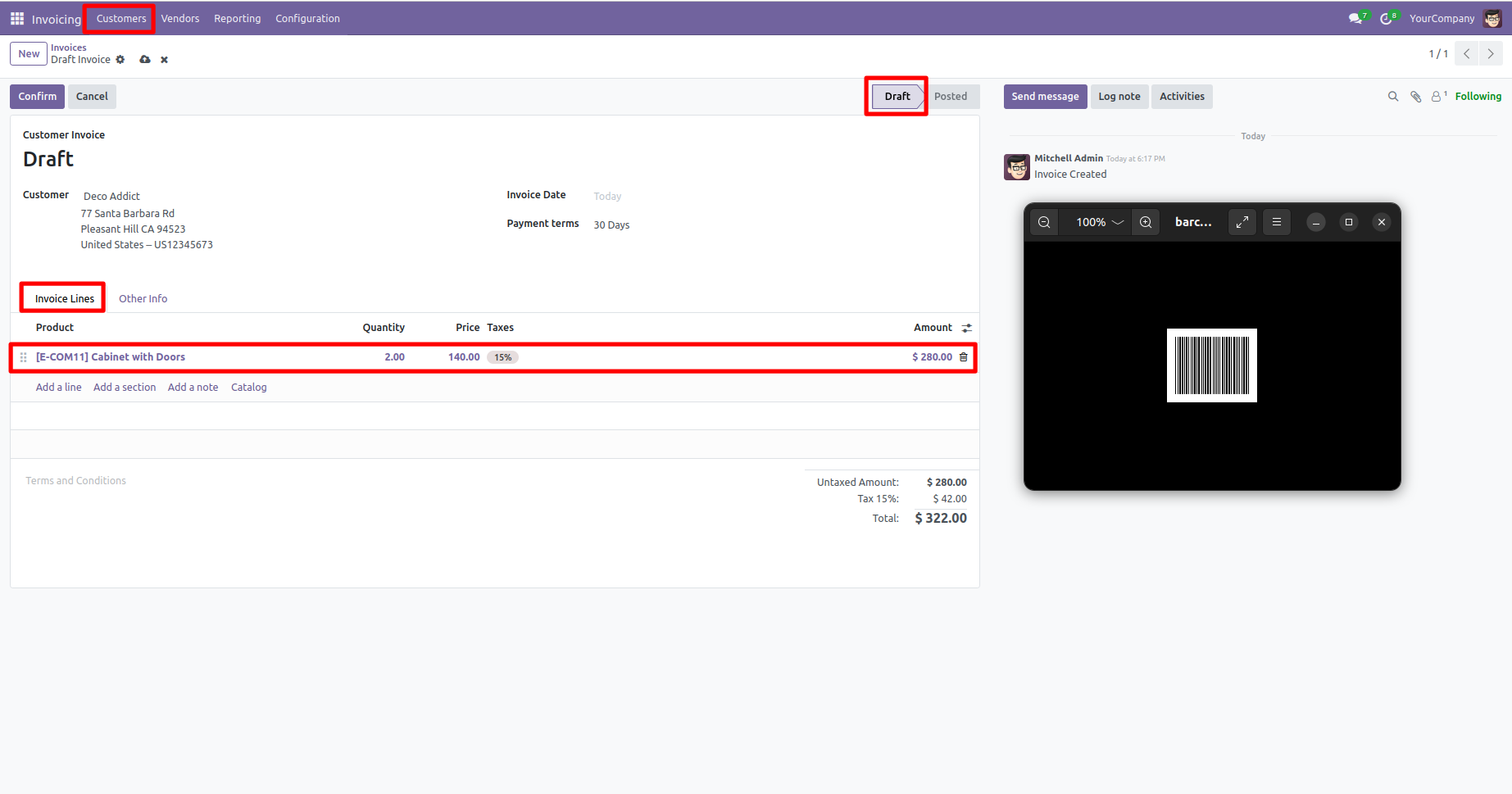
Scan barcode then product automatic added in invoice line if product already existed in invoice line then ordered qty increased by 1.
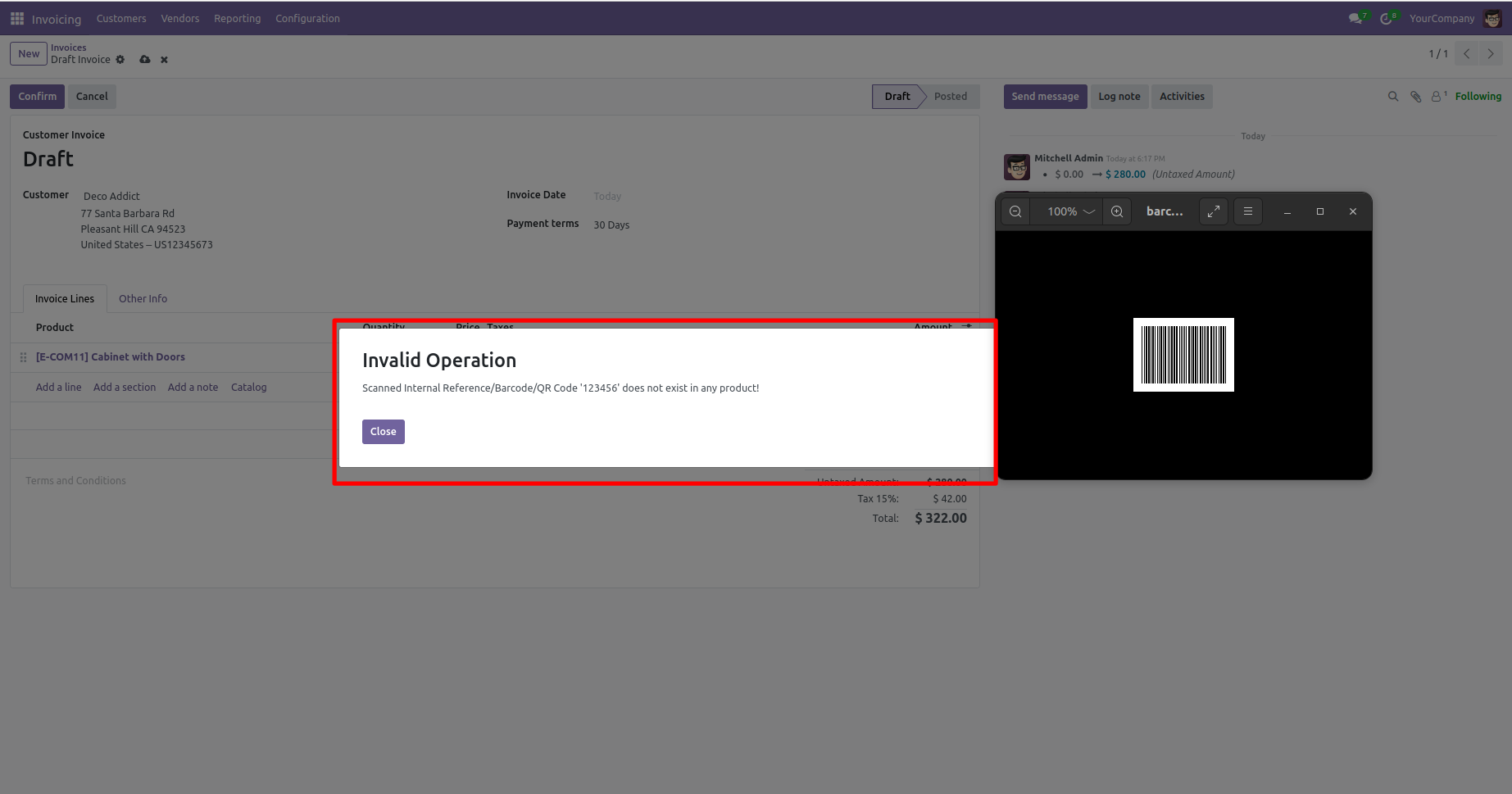
Error message given if no any matching product found.
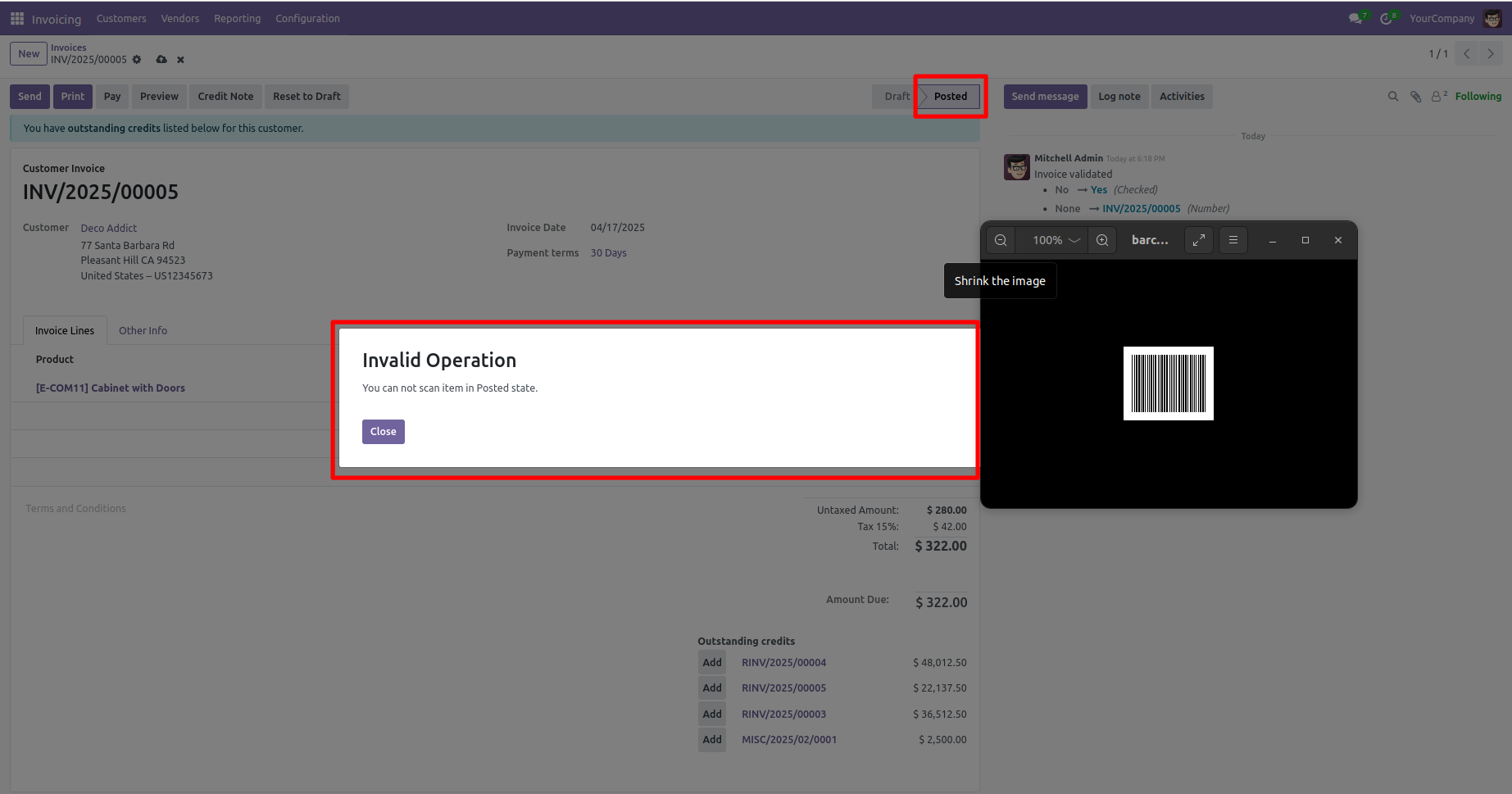
Error message given if invoice not in Posted state.
You can also scan product in vendor bills.
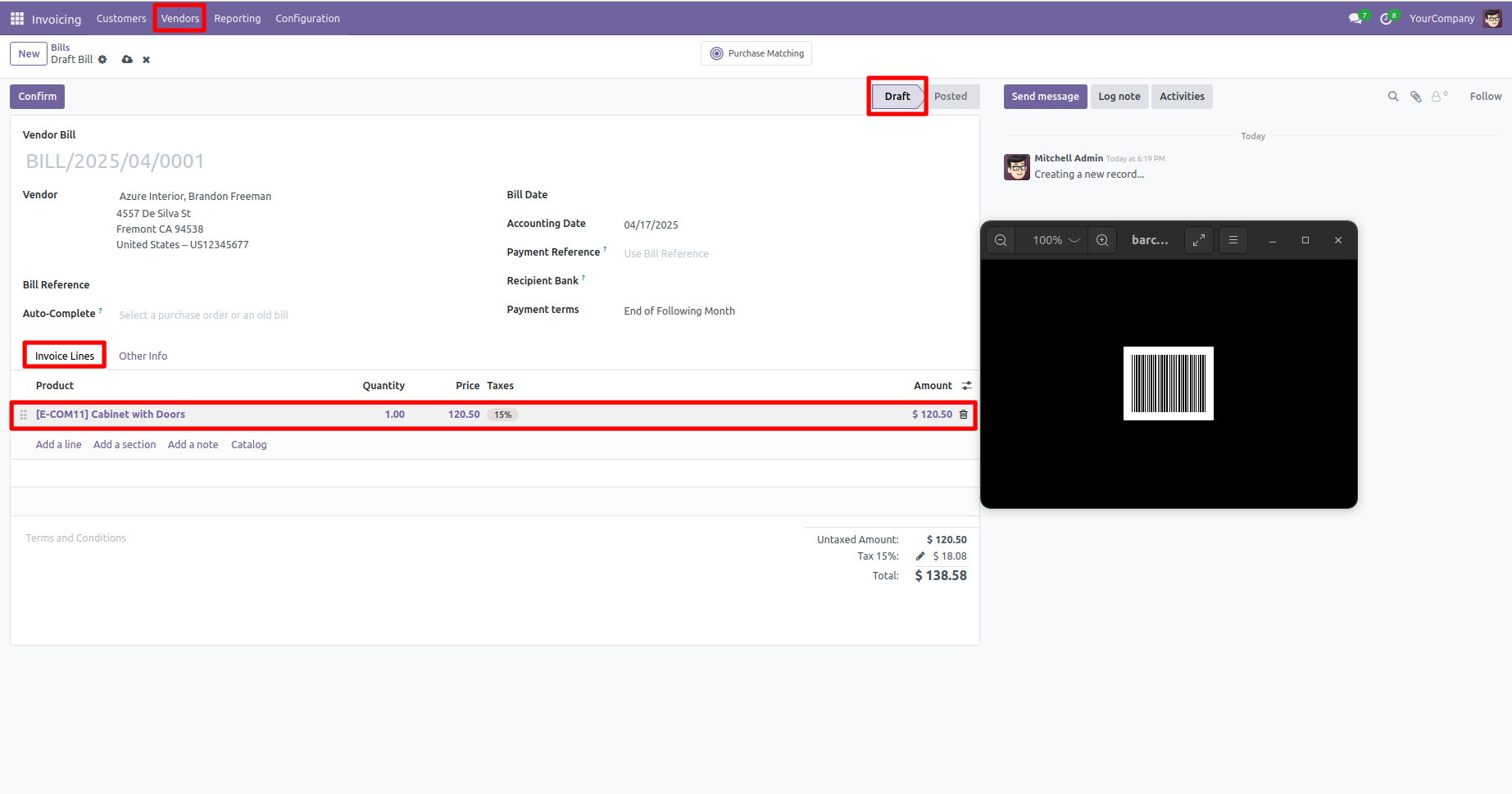
Products With EAN-13 Barcode.
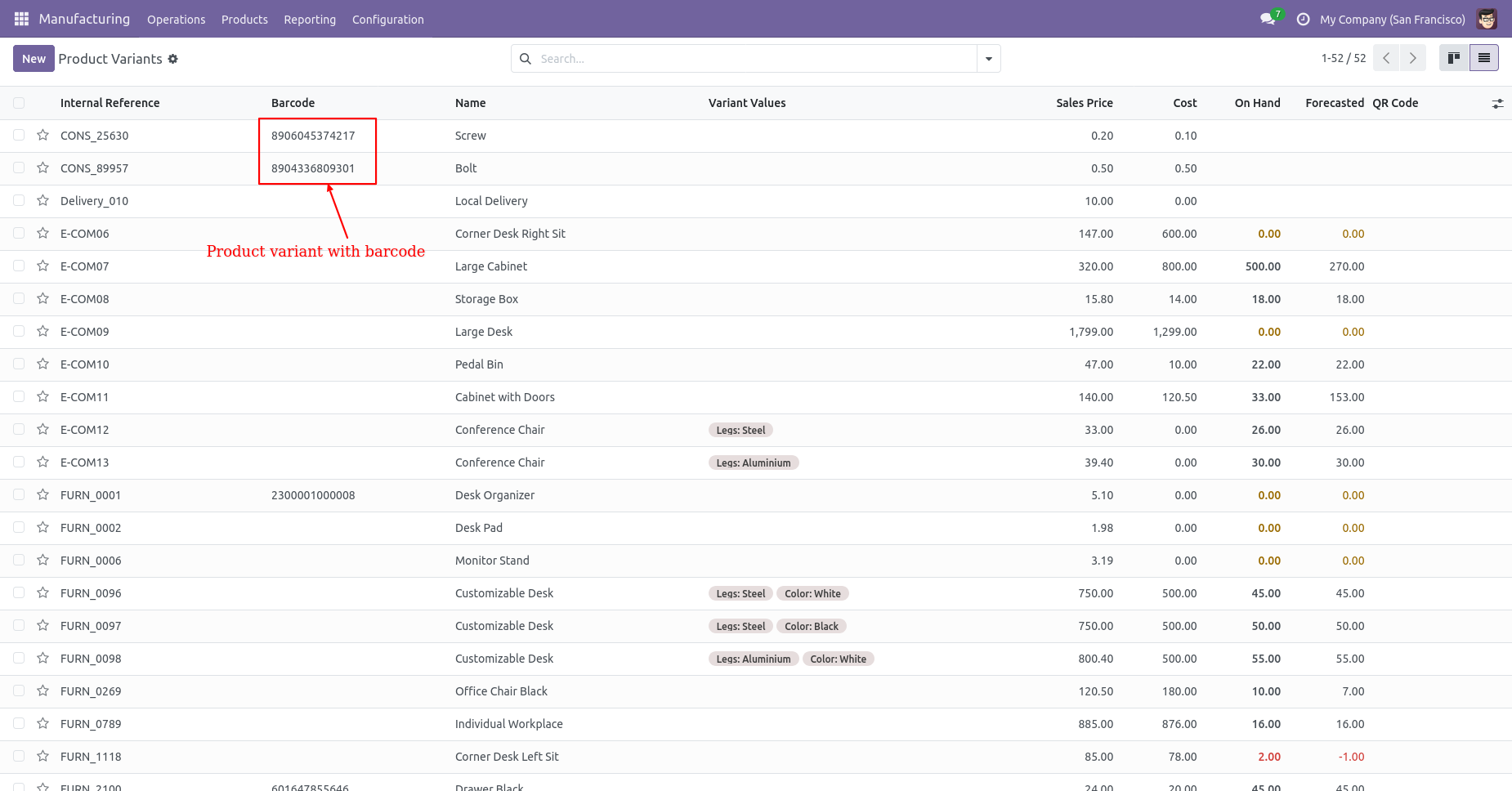
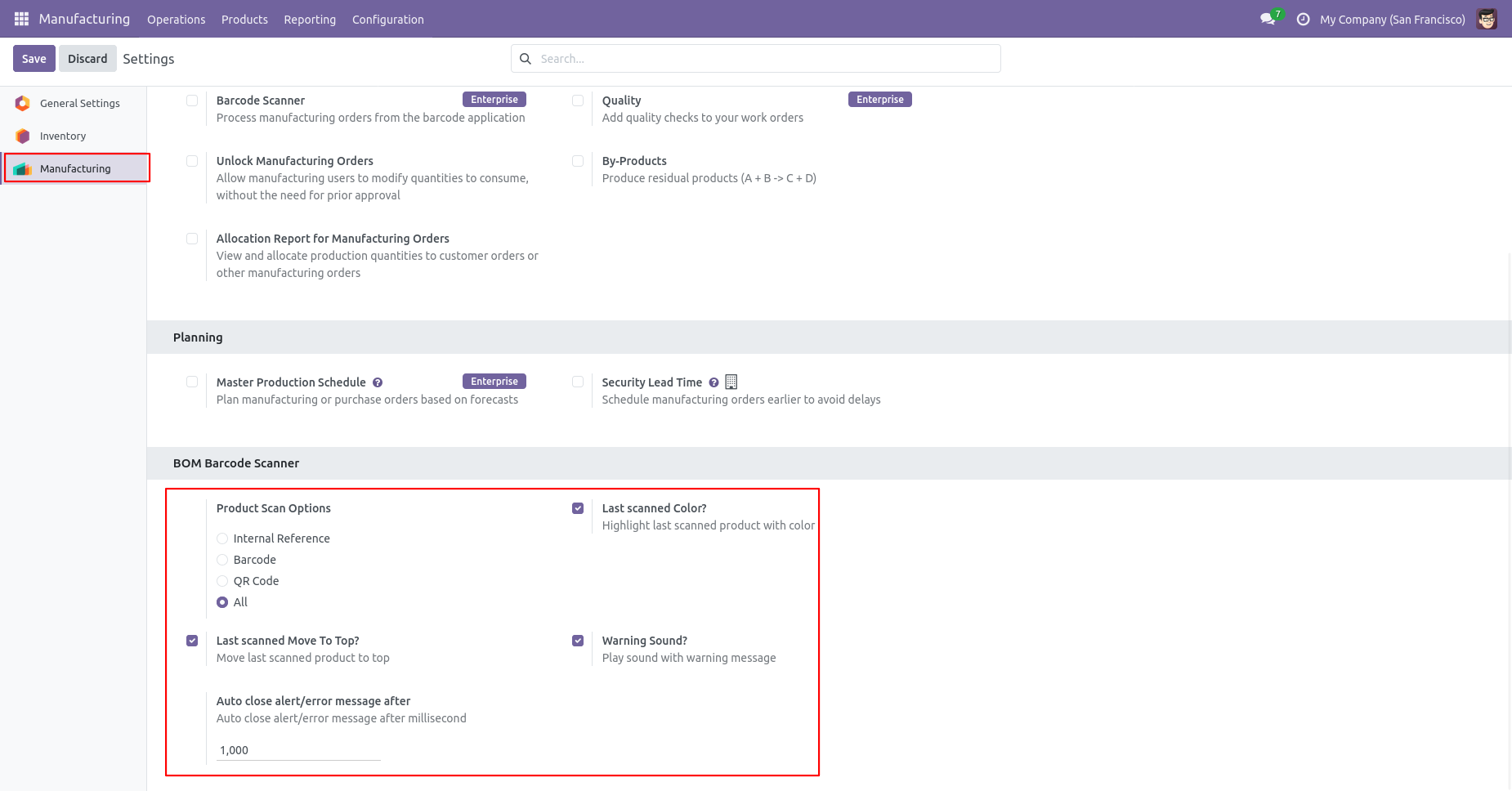
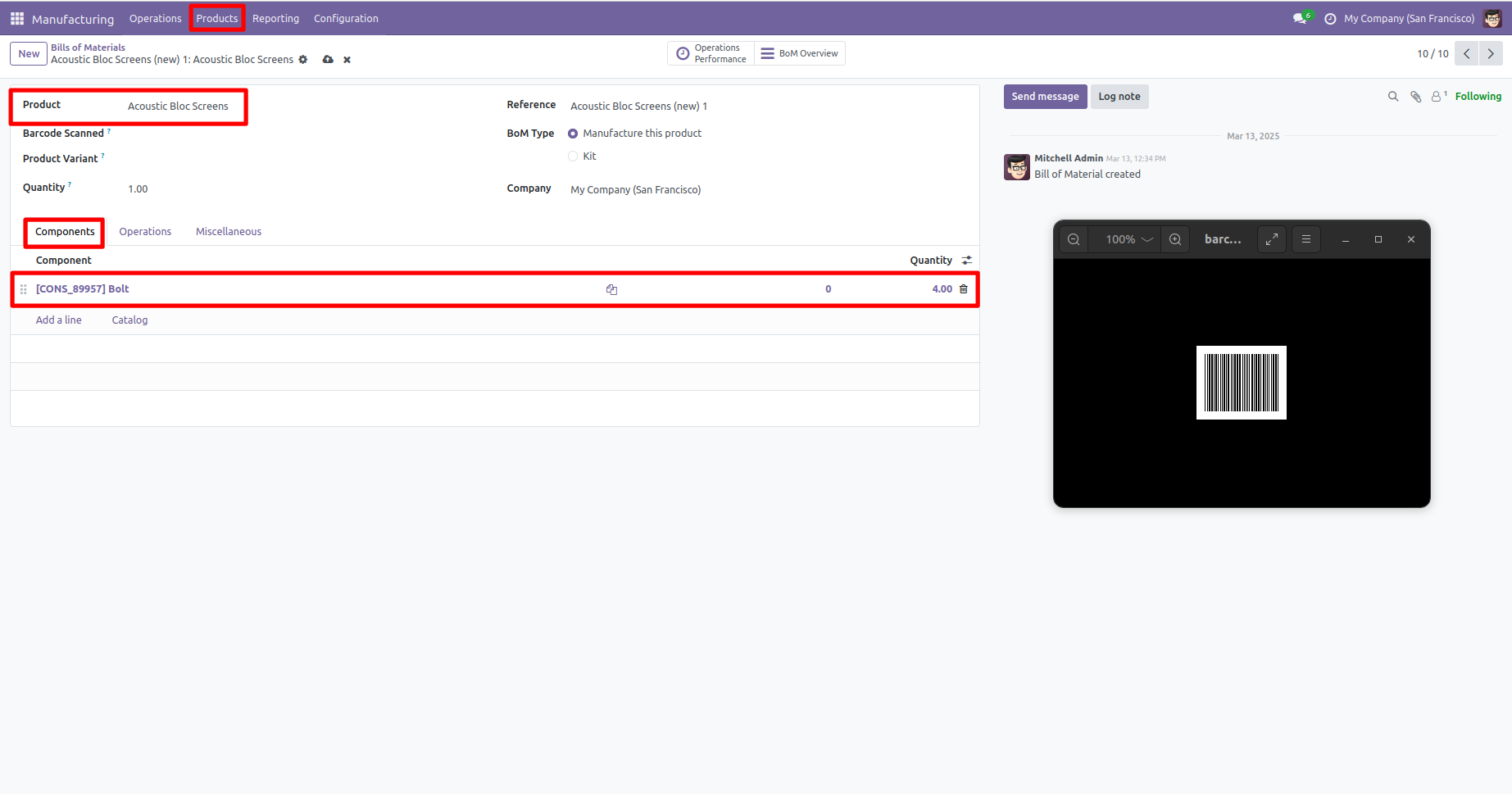
Product scan option in Manufacturing settings whether you want to scan product by Barcode, QRCode, internal reference, or all.
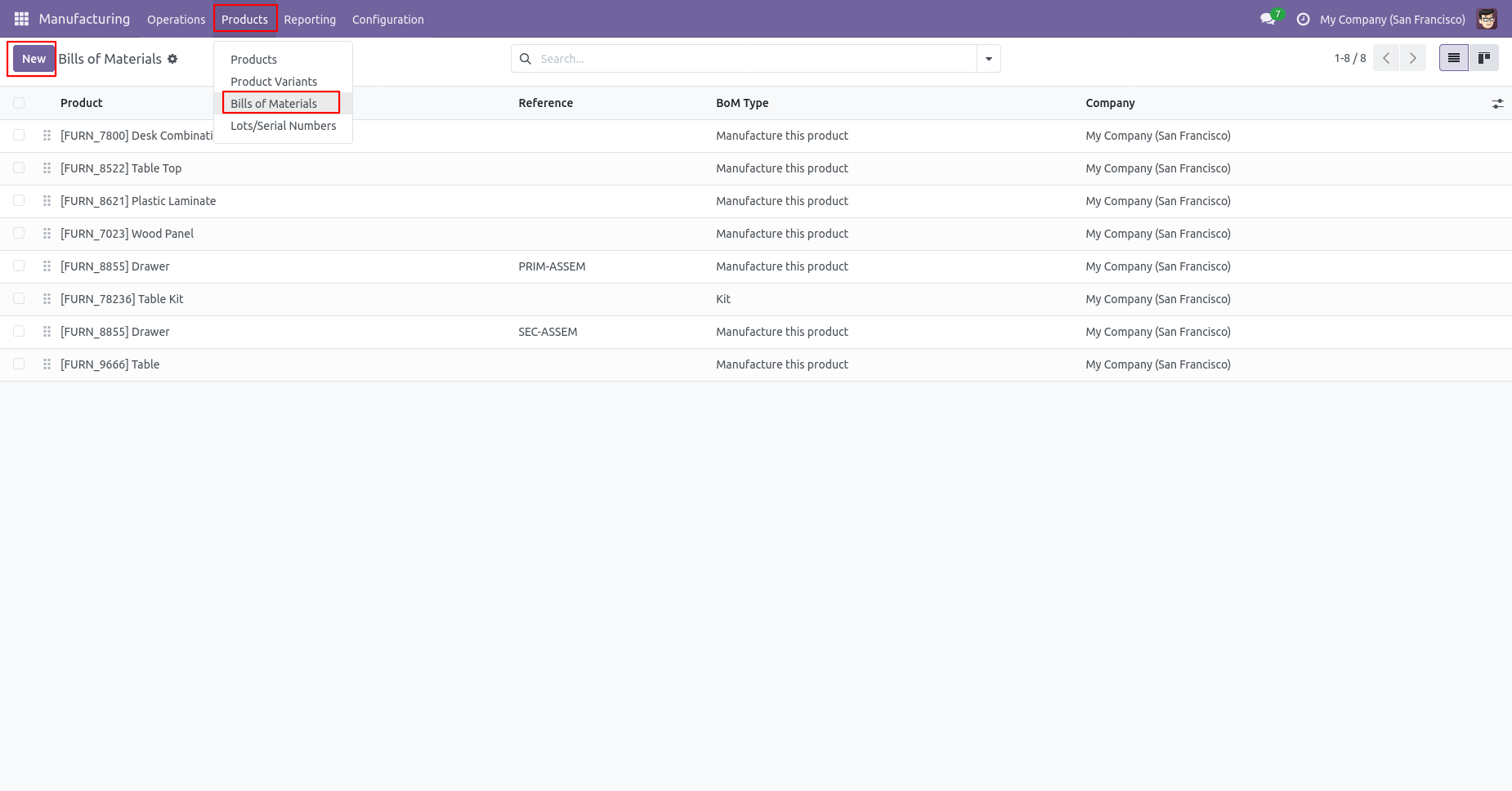
'Bills Of Materials' menu and tree view.
Scan barcode then product automatically added in bom line if the product already existed in bom line then ordered qty increased by 1.
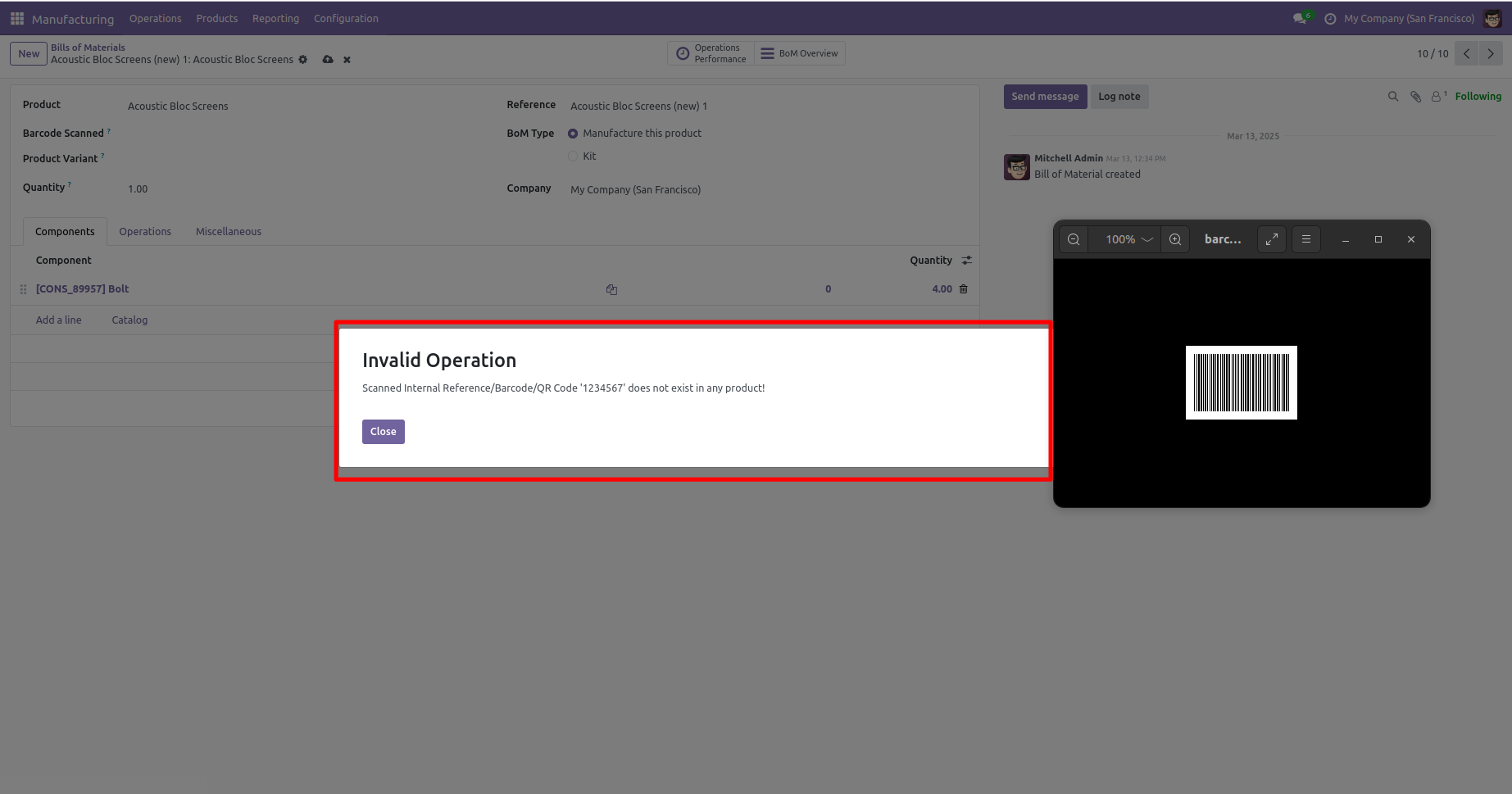
Error message given if no any matching product found.
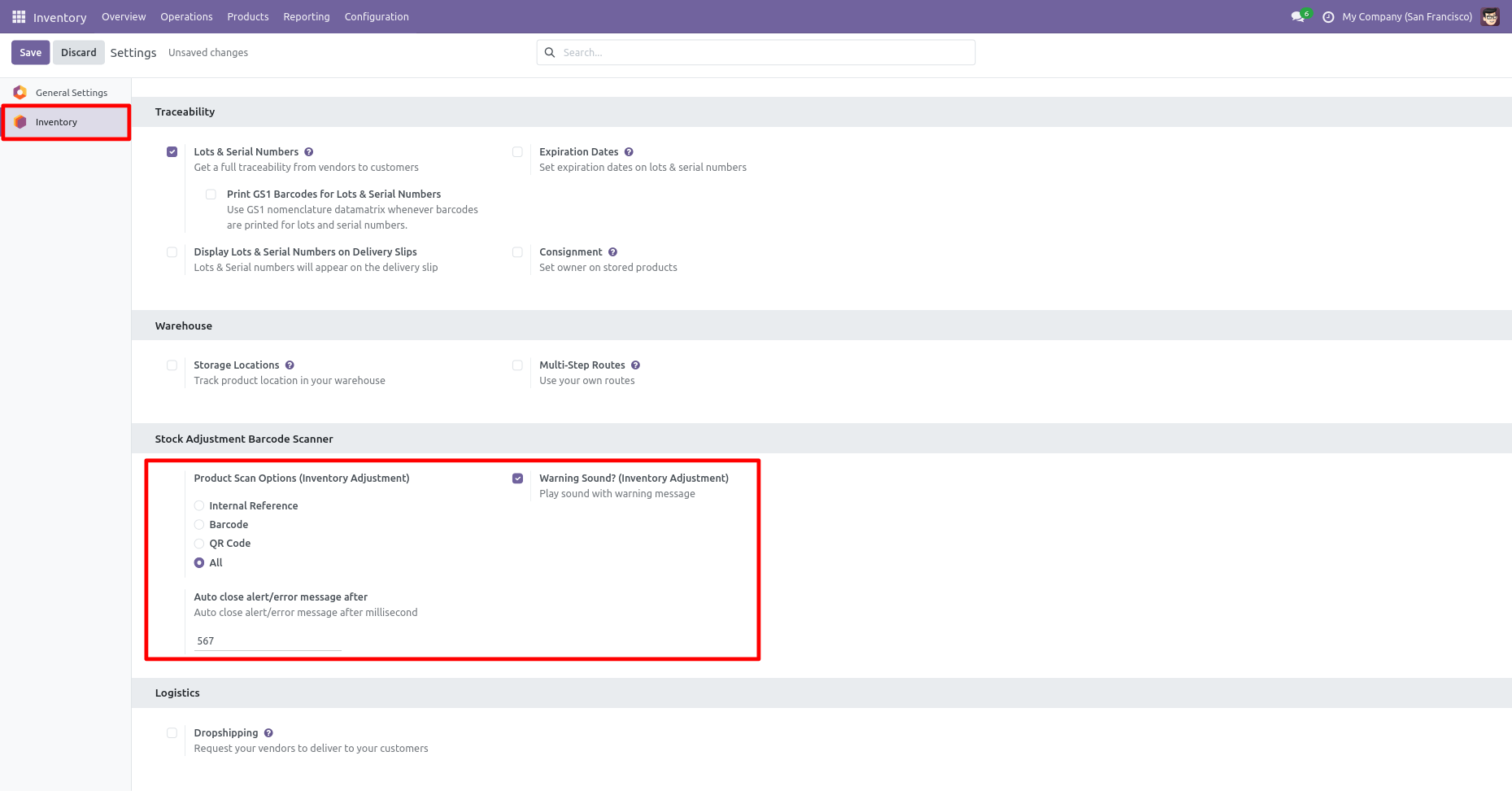
Product scan option in Inventory settings whether you want to scan product by Barcode, QRCode, internal reference, or all.
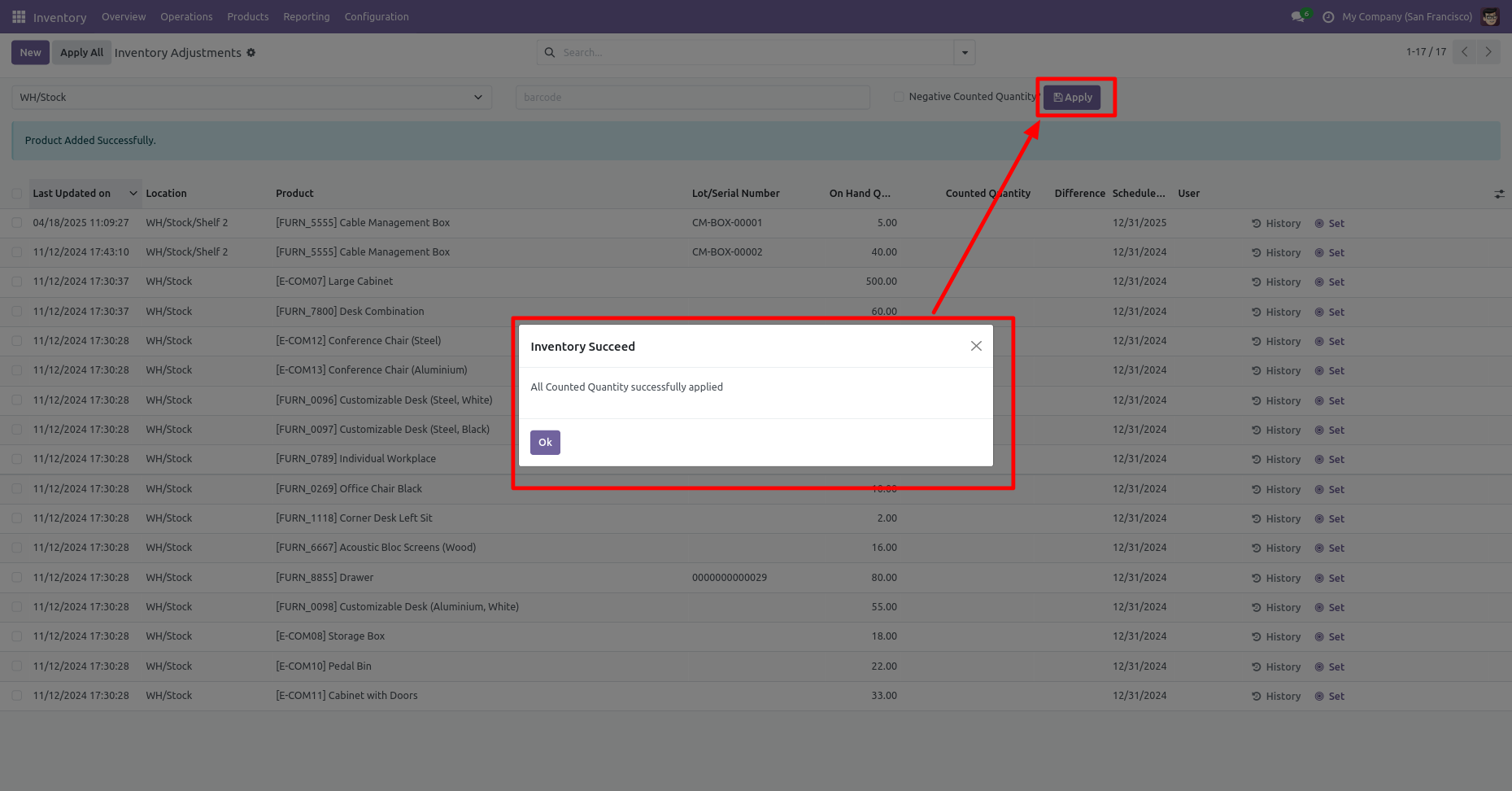
Select a location, scan the barcode, and apply it.
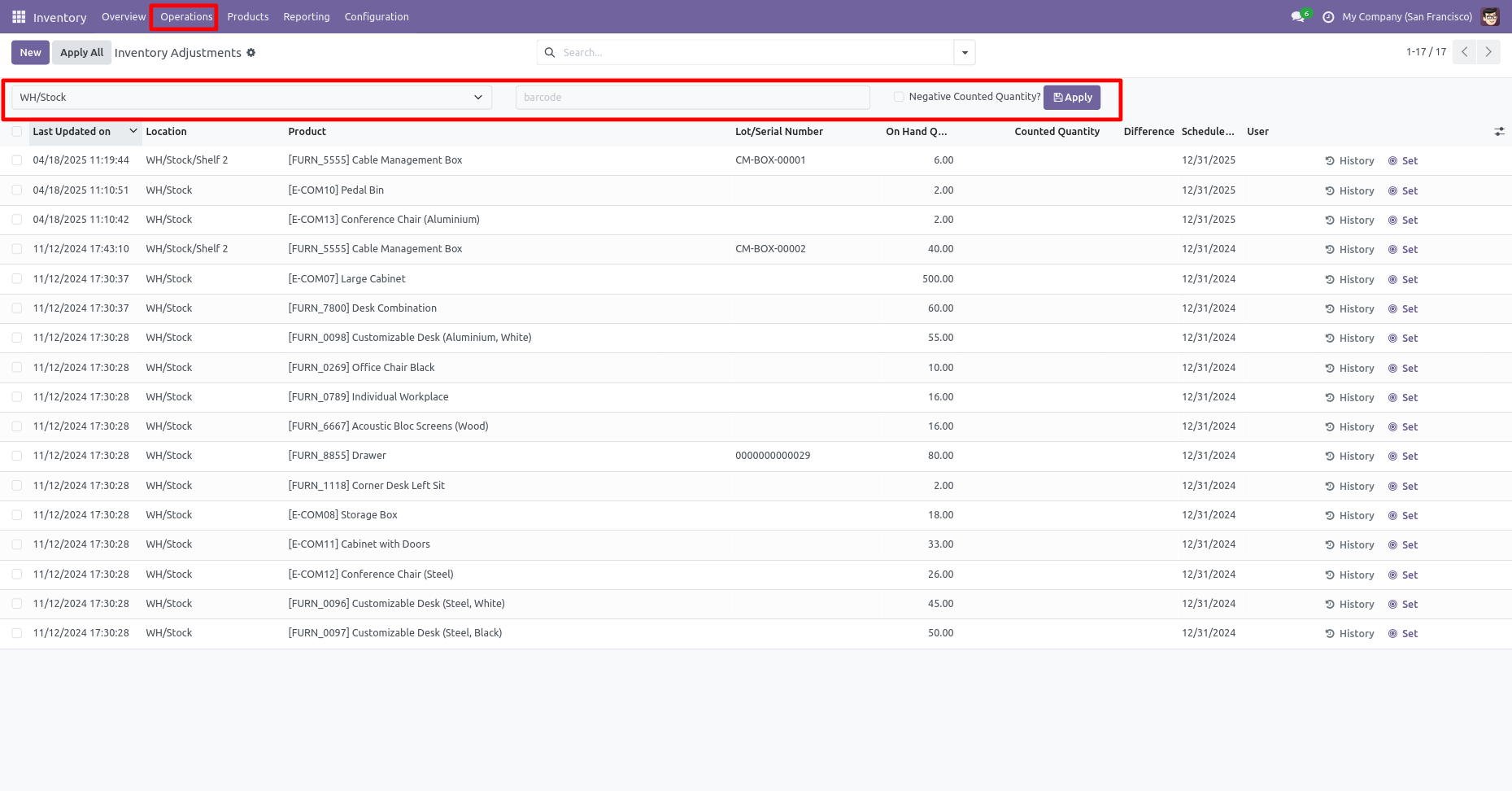
You can scan products and that counted qty increase by 1(One).
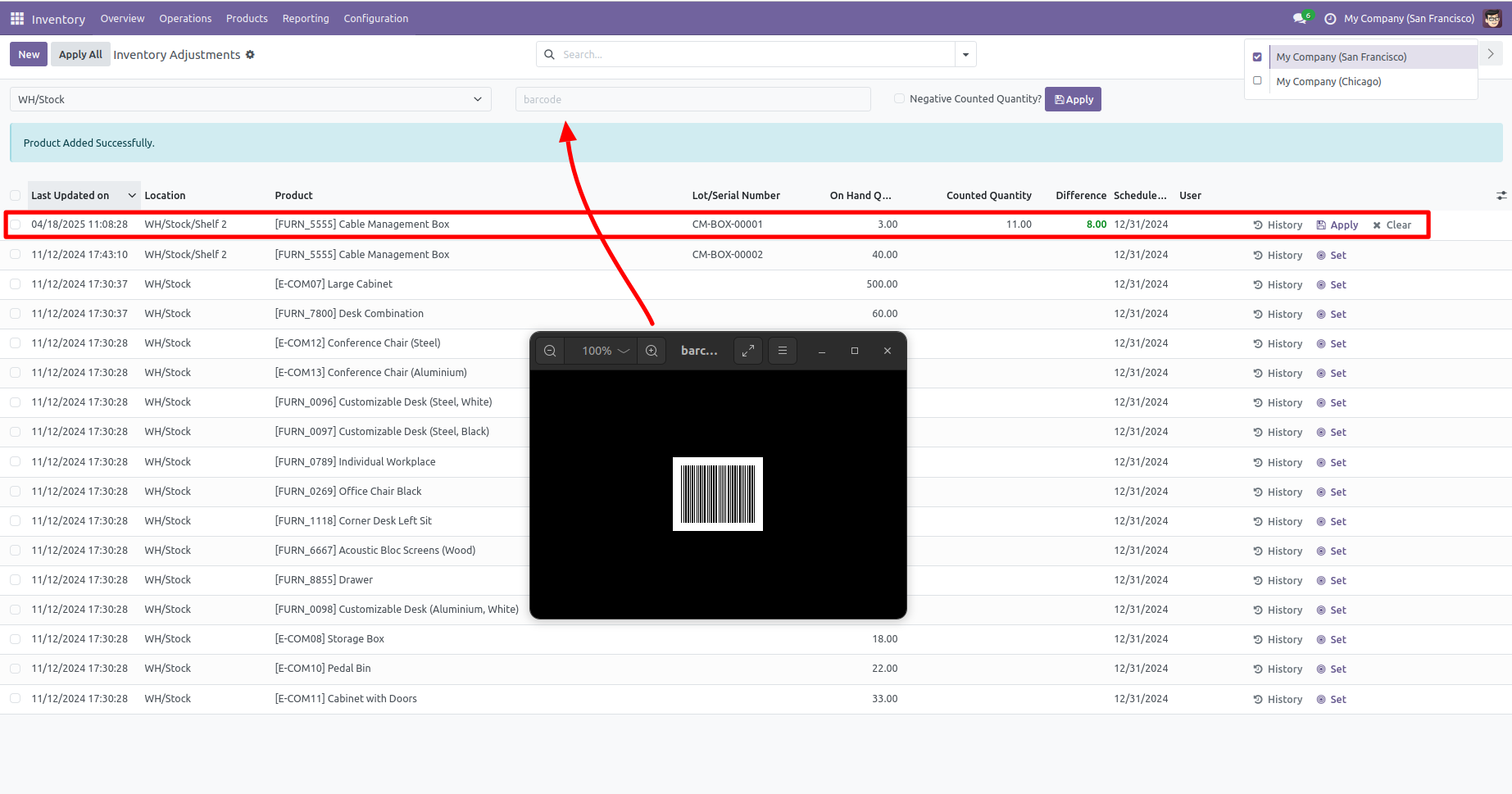
The success message looks like this.
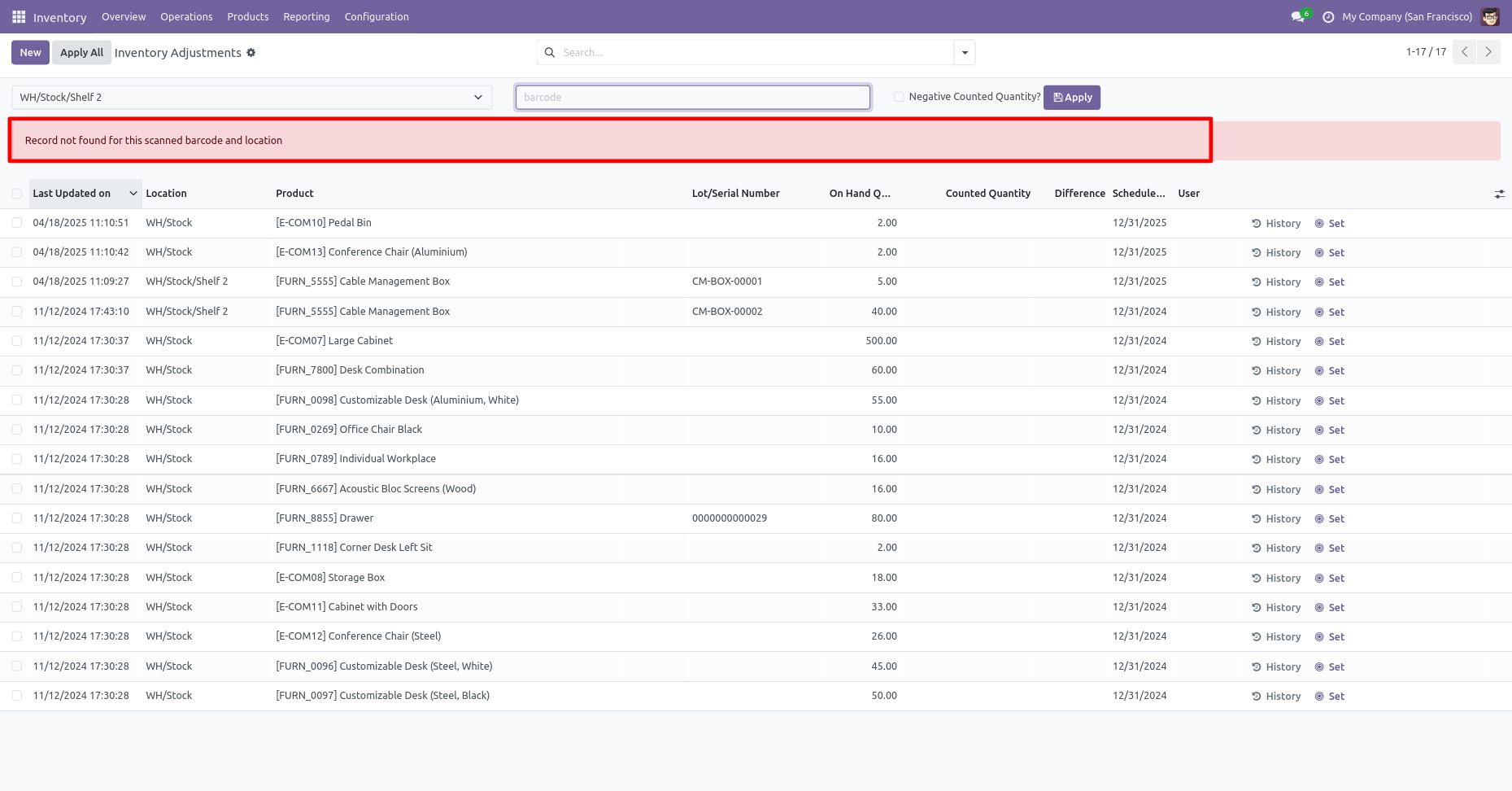
The error message is given if no matching product is found.
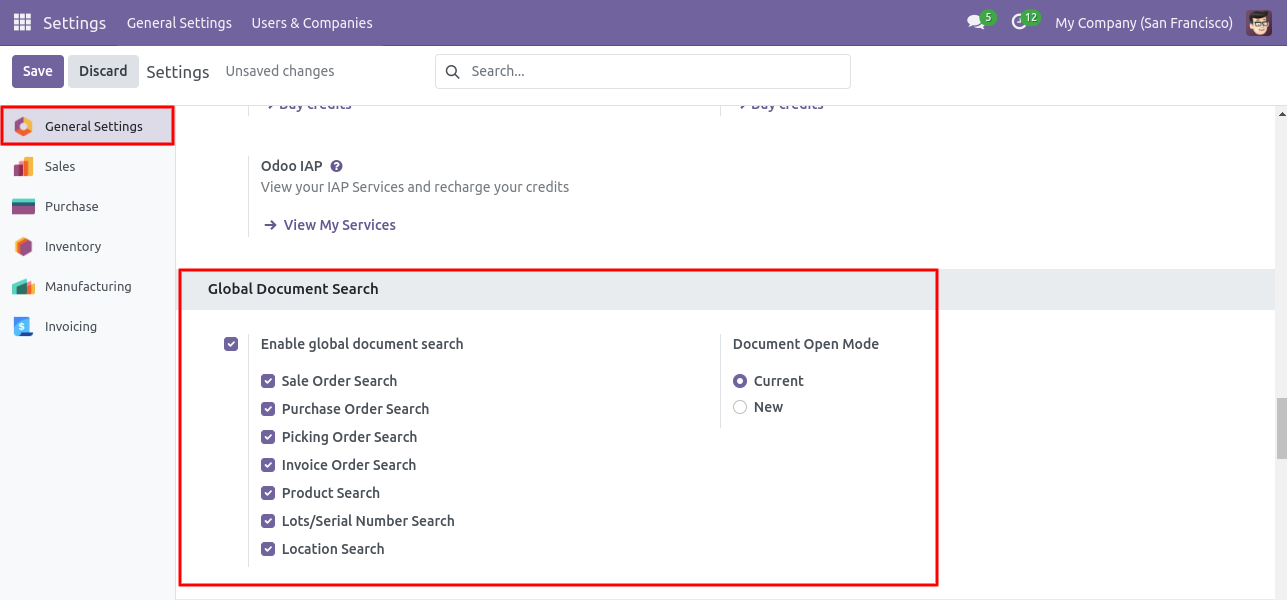
Global document search configuration.
Click on the barcode icon to open the barcode popup and scan the barcode. You can filter documents based on the configuration settings.
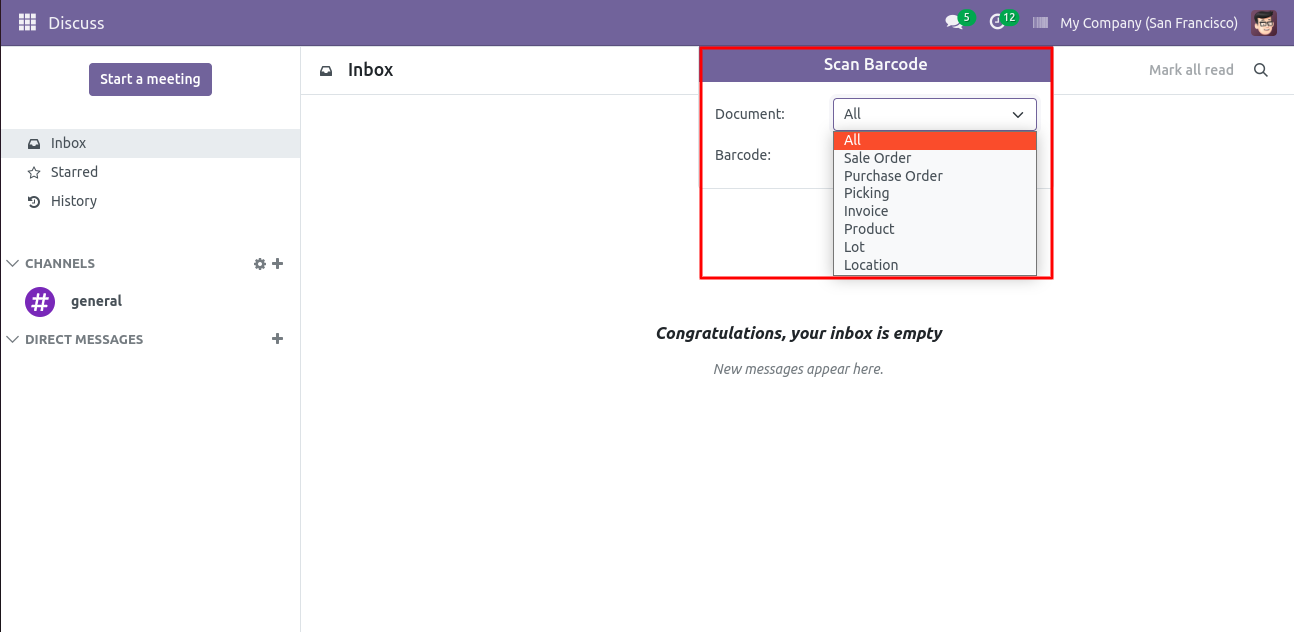
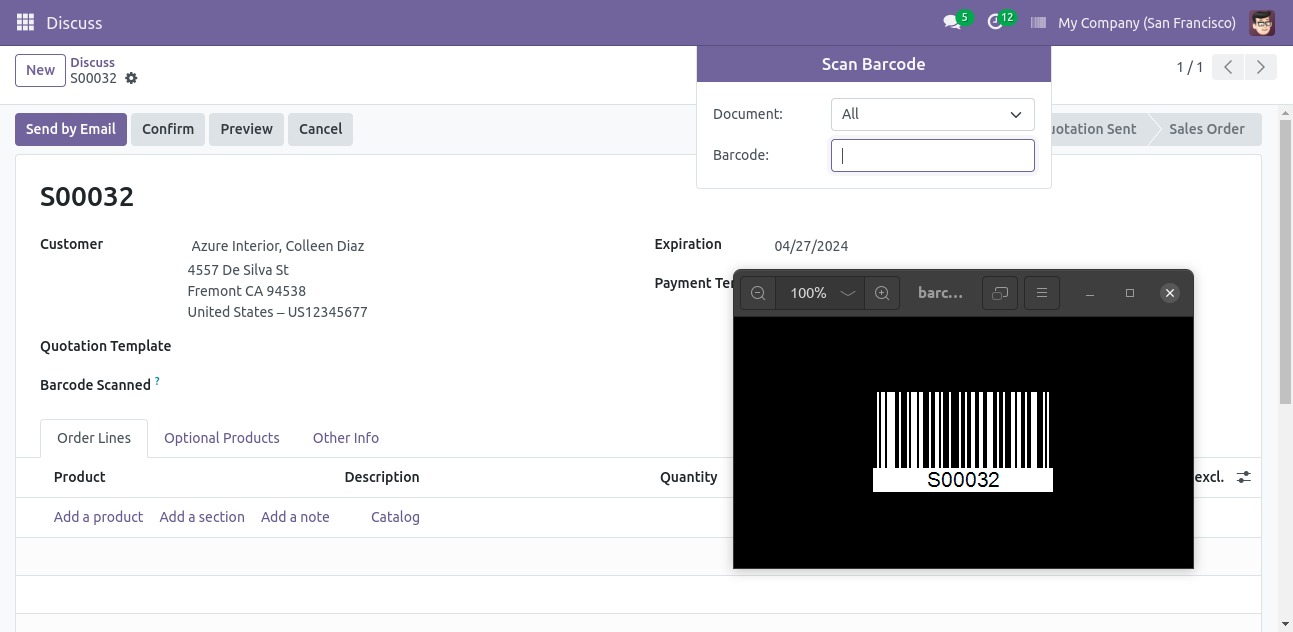
Now scan the barcode to open the document.
We are using "Print Barcode in sales,
purchase, inventory, accounts, and mrp reports" to print
barcode in PDF reports.
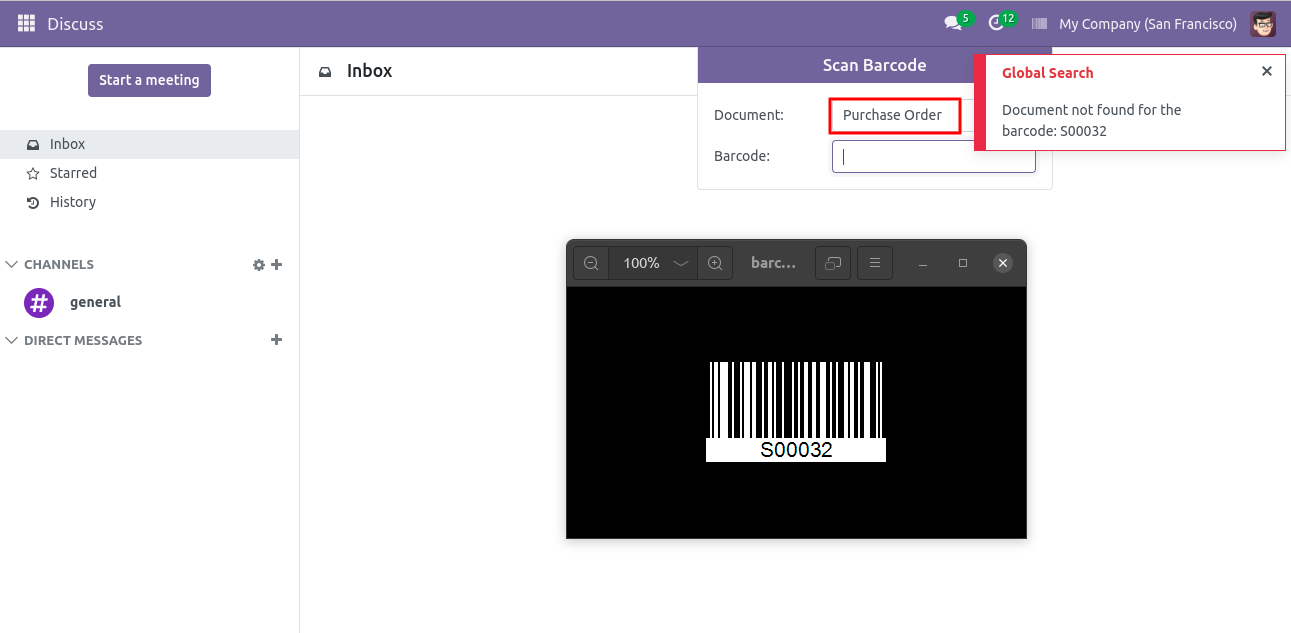
It shows the alert if the document is not found.
Now scan the barcode to open the document.
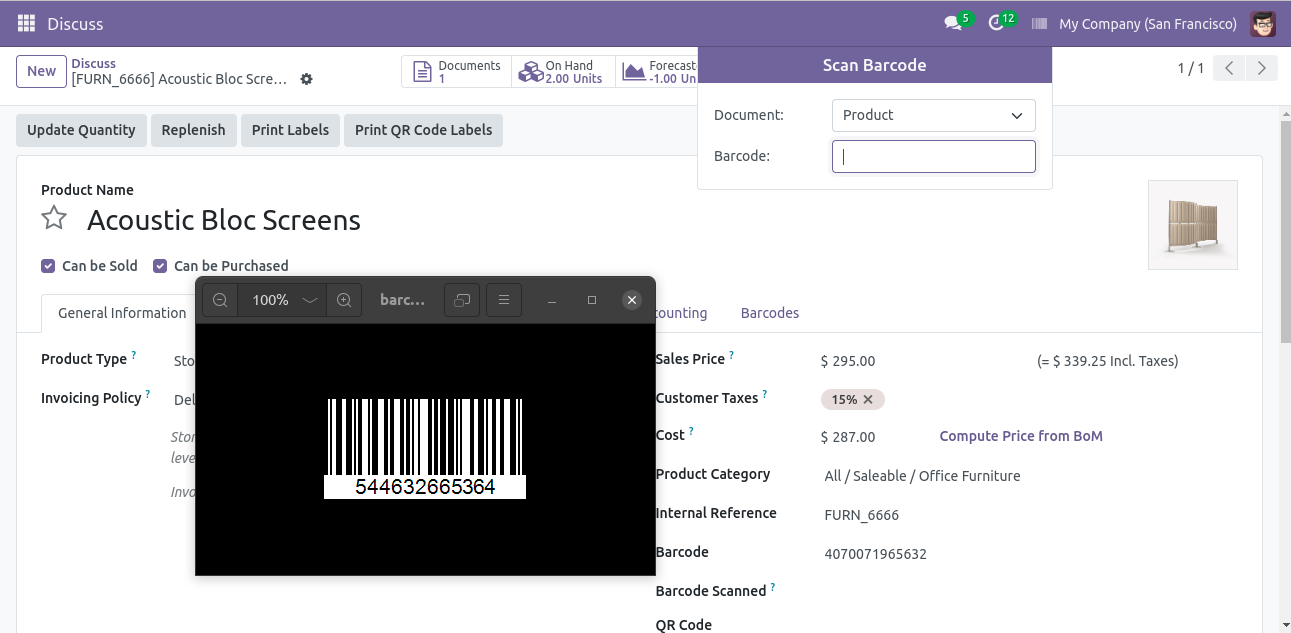
Select the doscument open mode: New.
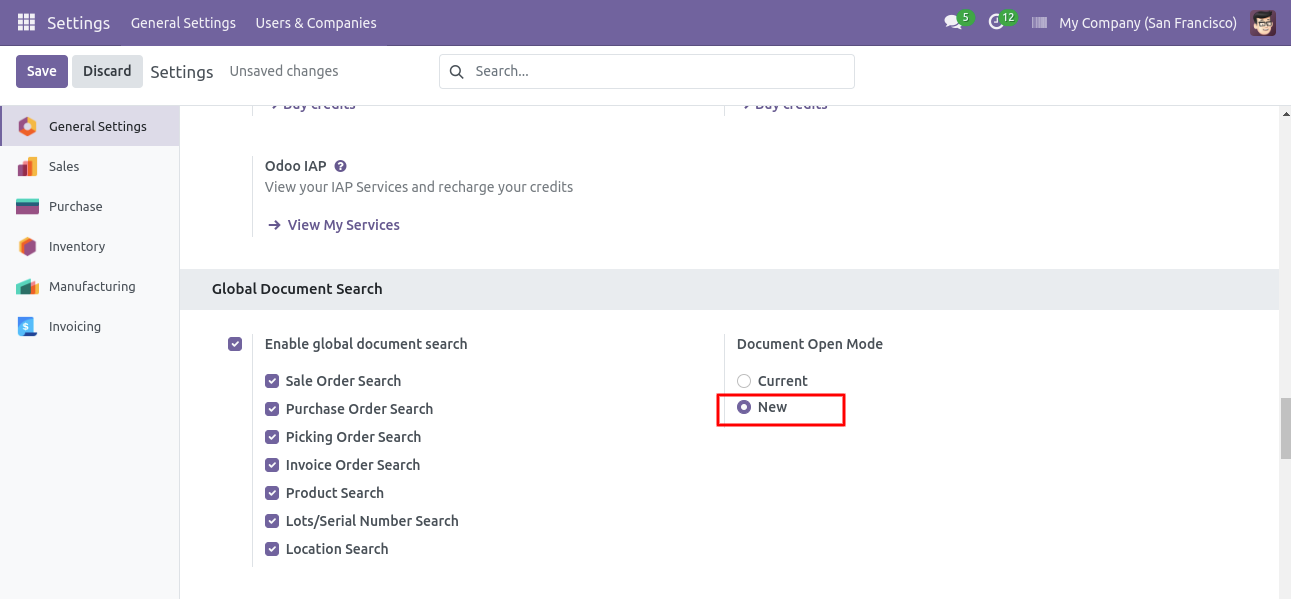
Now scan the barcode to open the document.
After scanning the barcode the document will be open.
Sale Order.
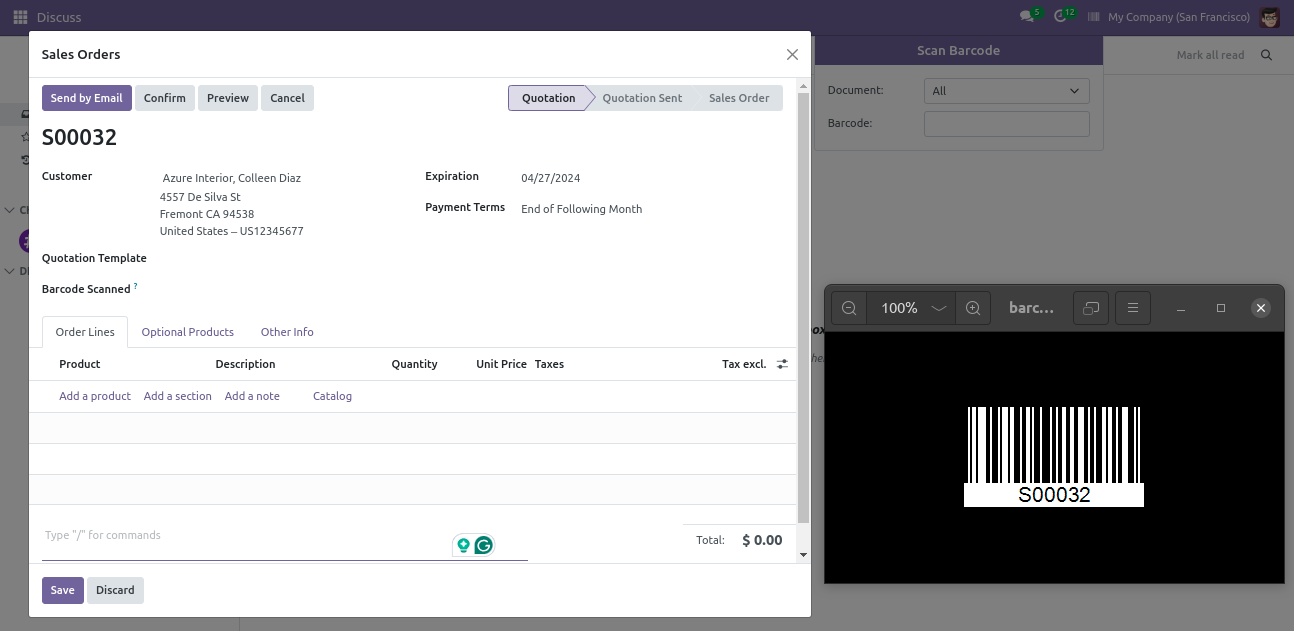
Invoices.
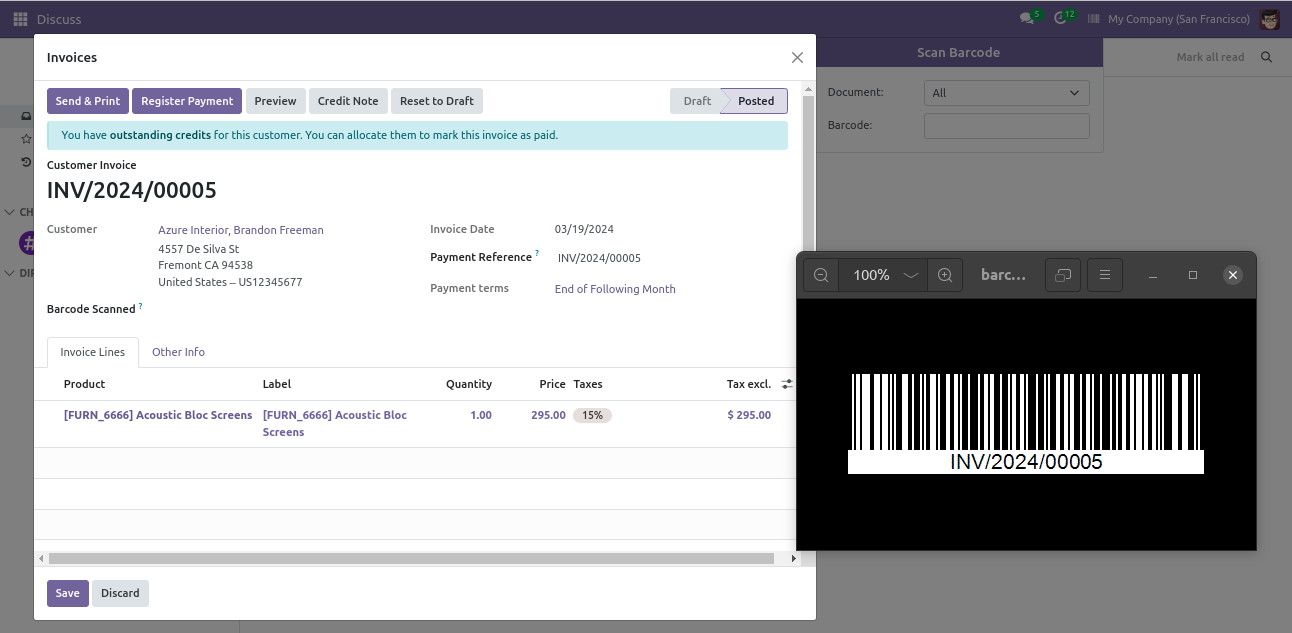
Purchase Order.
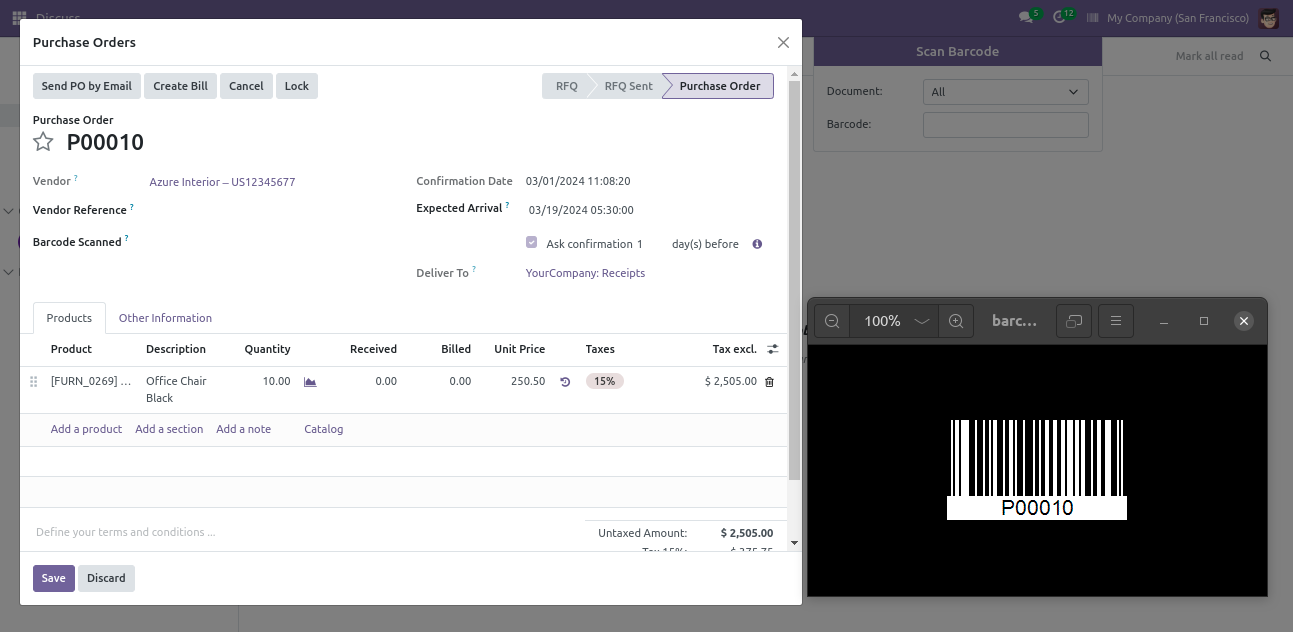
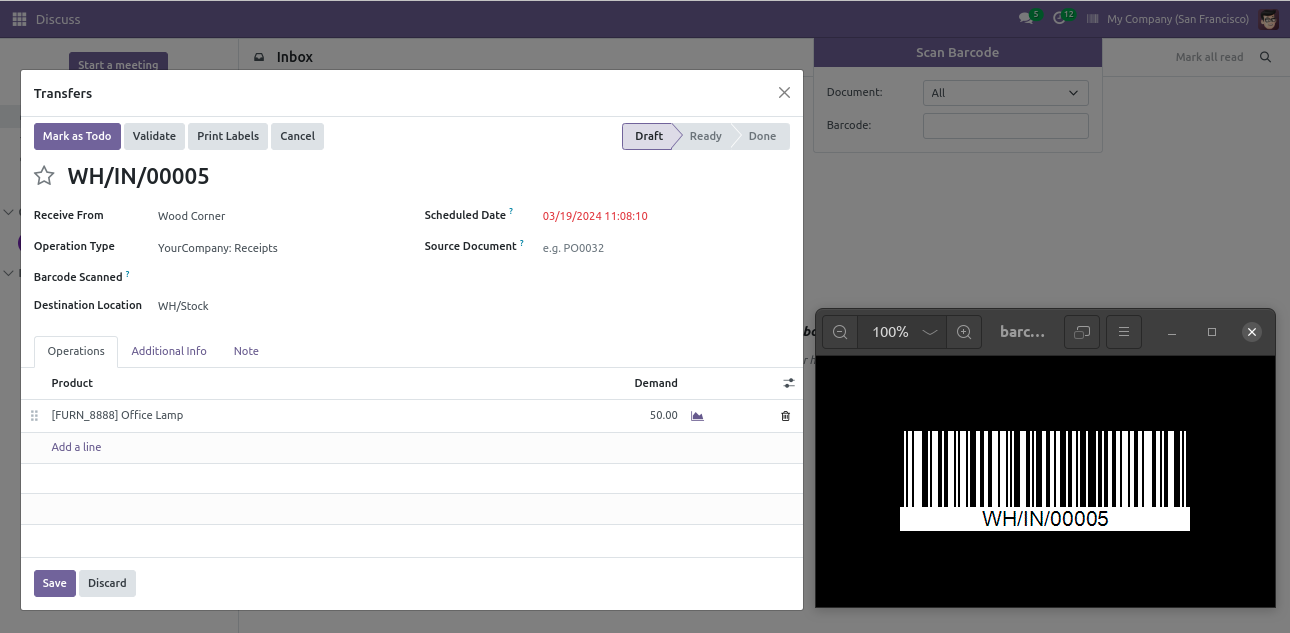
Tranfer Order.
User Setting: Tick the 'Multi Barcodes' group.
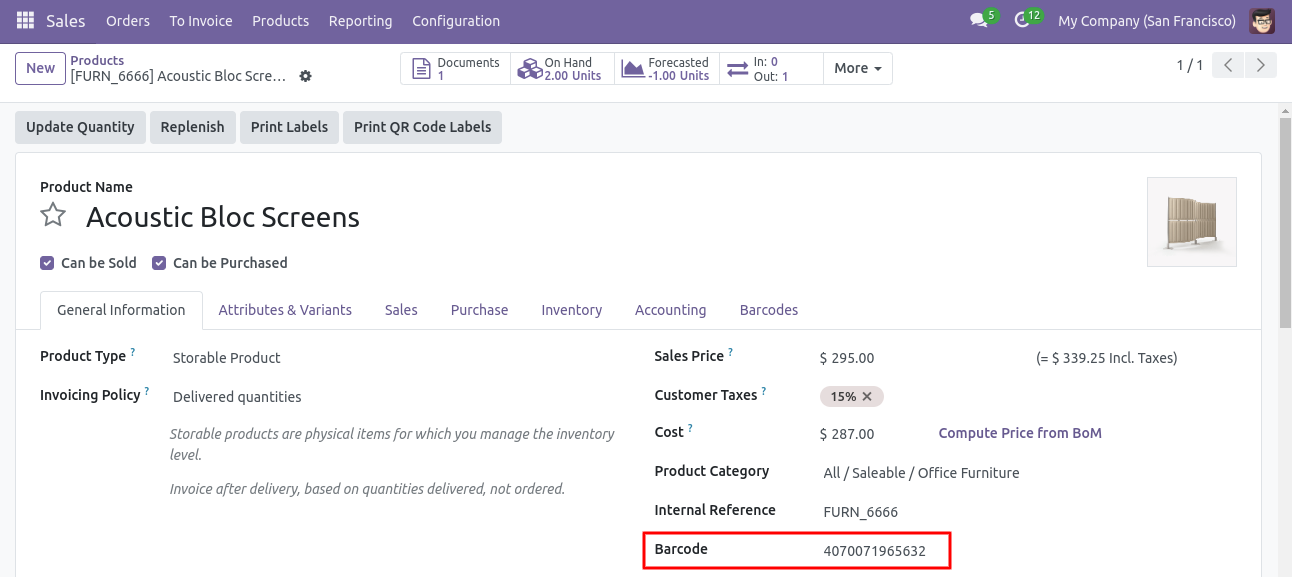
In products, the user can see the standard barcode field.
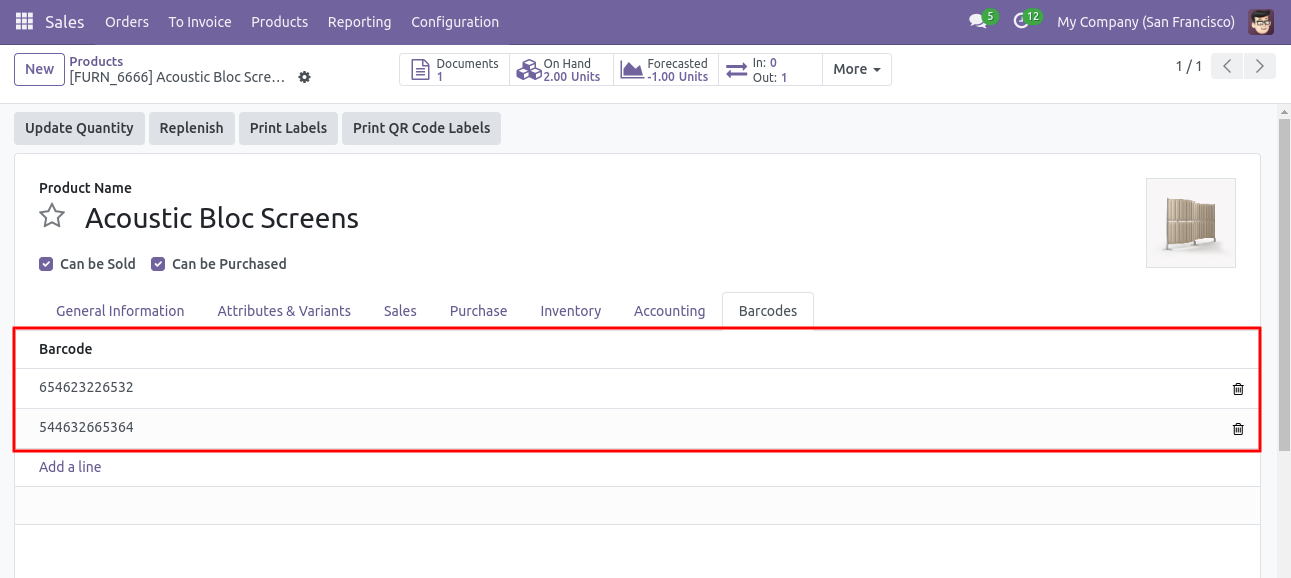
You can add product multiple barcodes here.
You can find the product by using multiple barcodes.
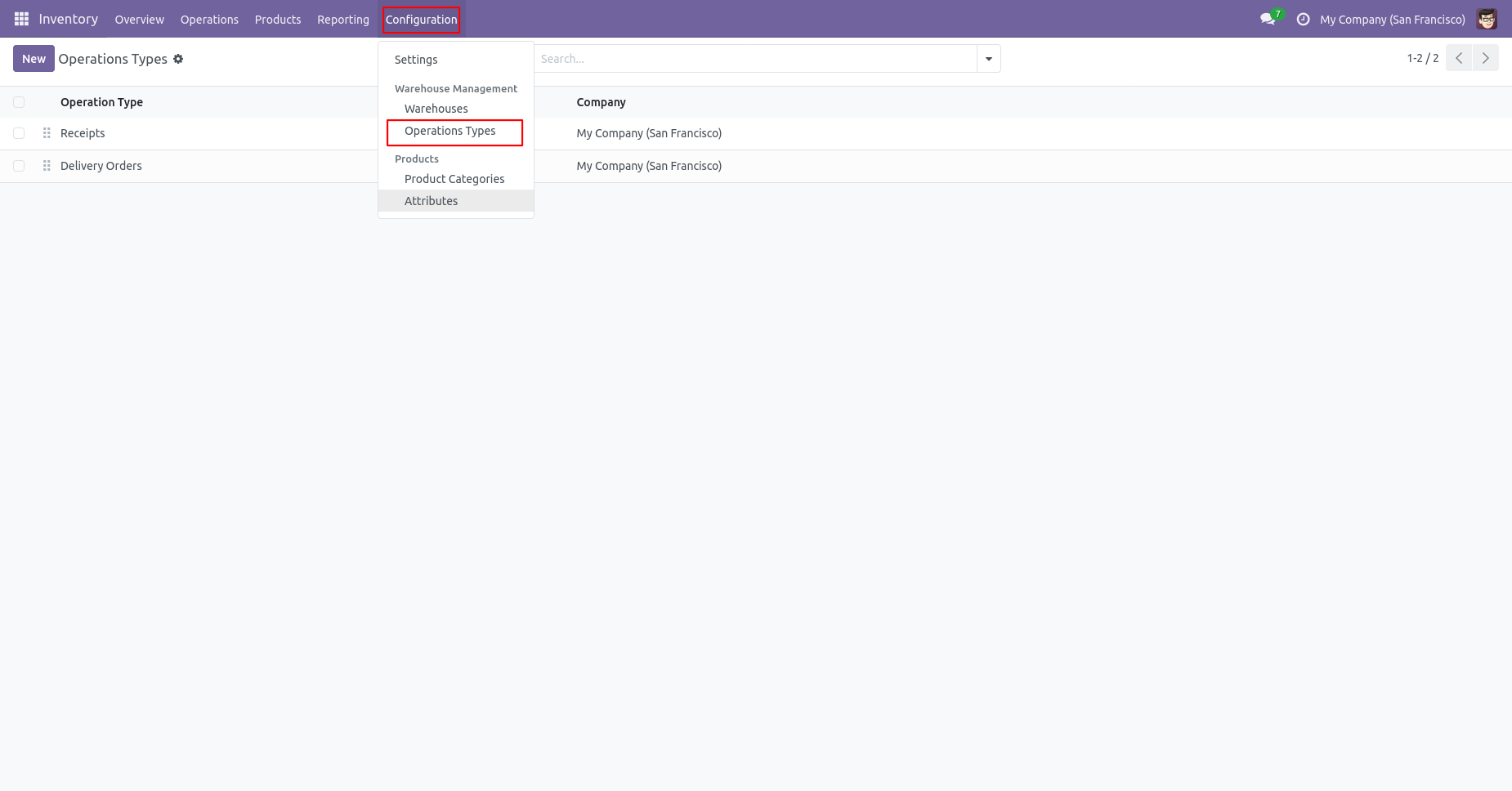
Go to the 'Configuration' => 'Operation Types'.
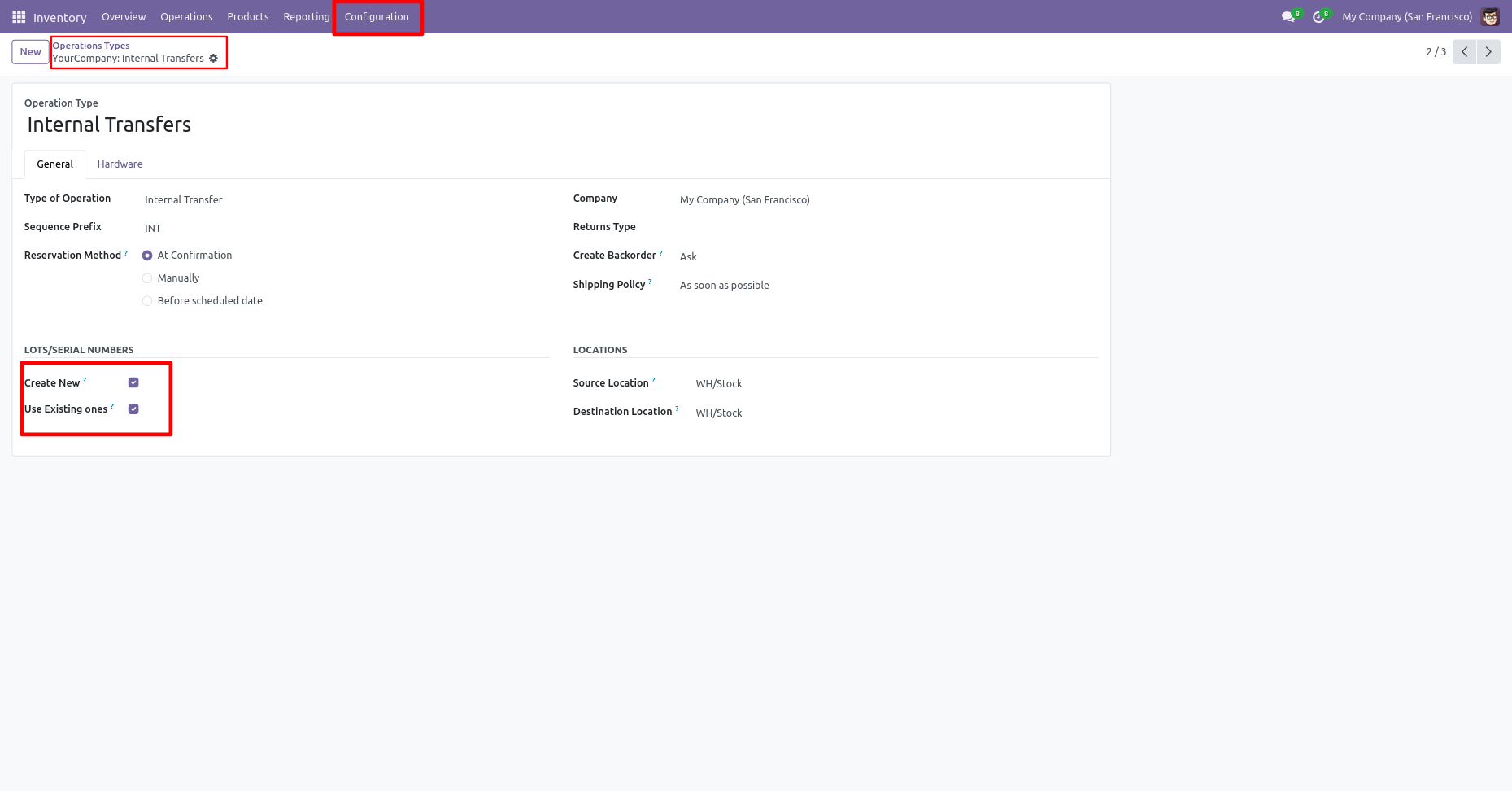
Select product lot/serial numbers(Create new, use existing ones).
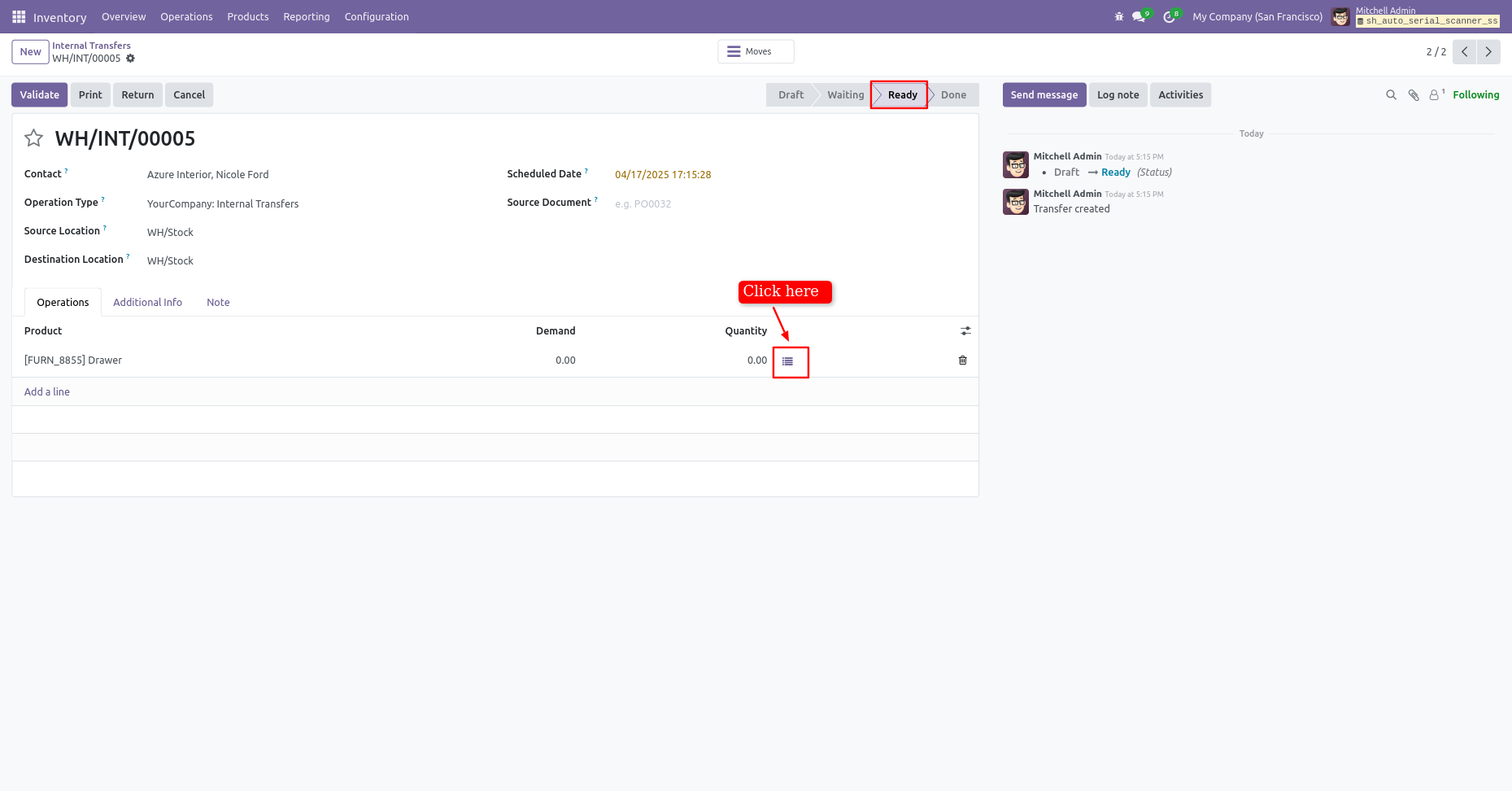
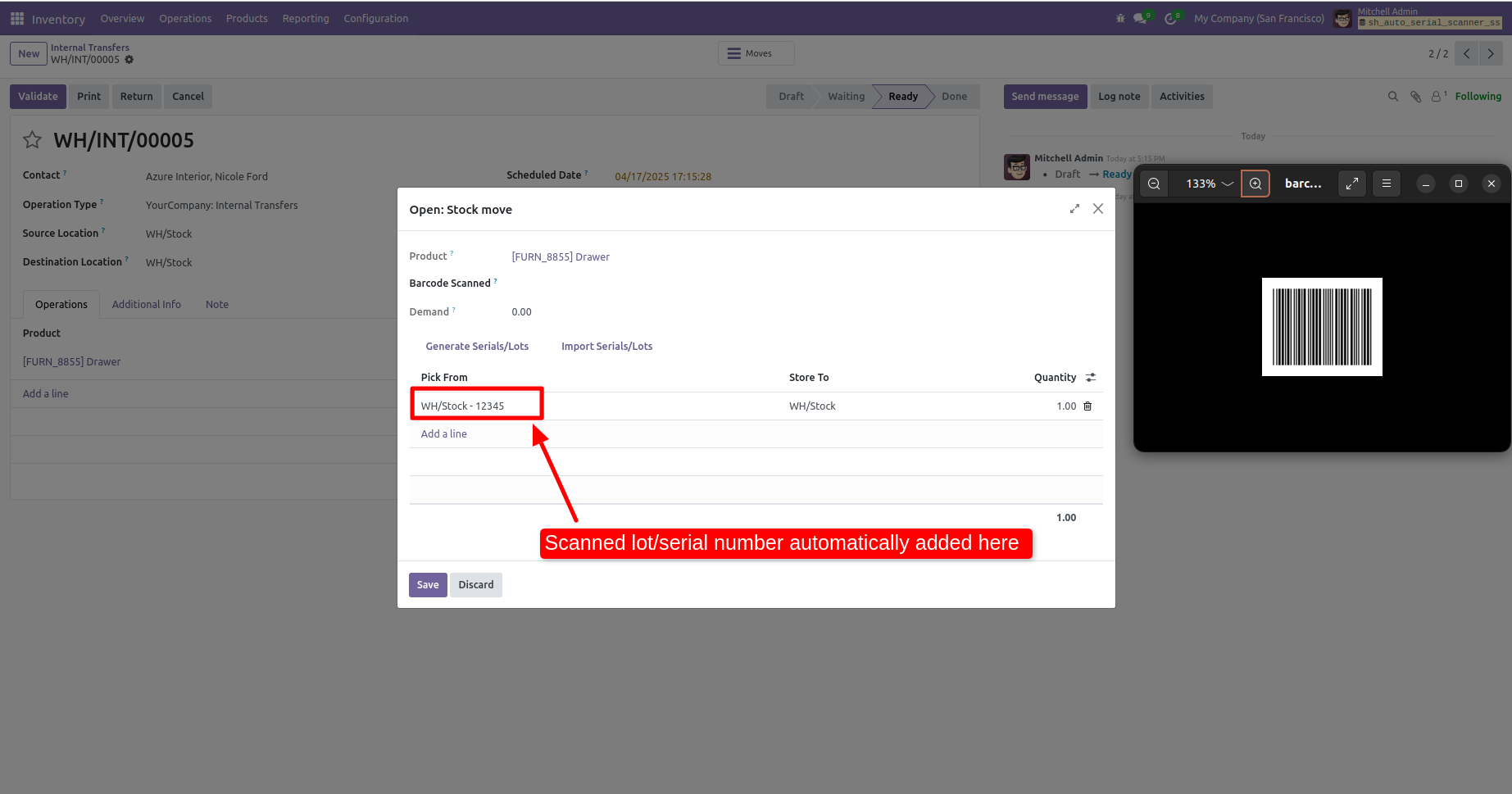
You can see the product with Lot/Serial Number in the internal transfer. Here if you click on that button "Detailed Operations" wizard open, Here you can scan your barcode.
That barcode will be added inside 'Lot Numbers' if the same barcode scanned again
than done quantity will be increased by one. If another barcode is scanned than
will be another entry for new Lot Numbers in the next line.
After that, the quantity is added to the existing quantity.
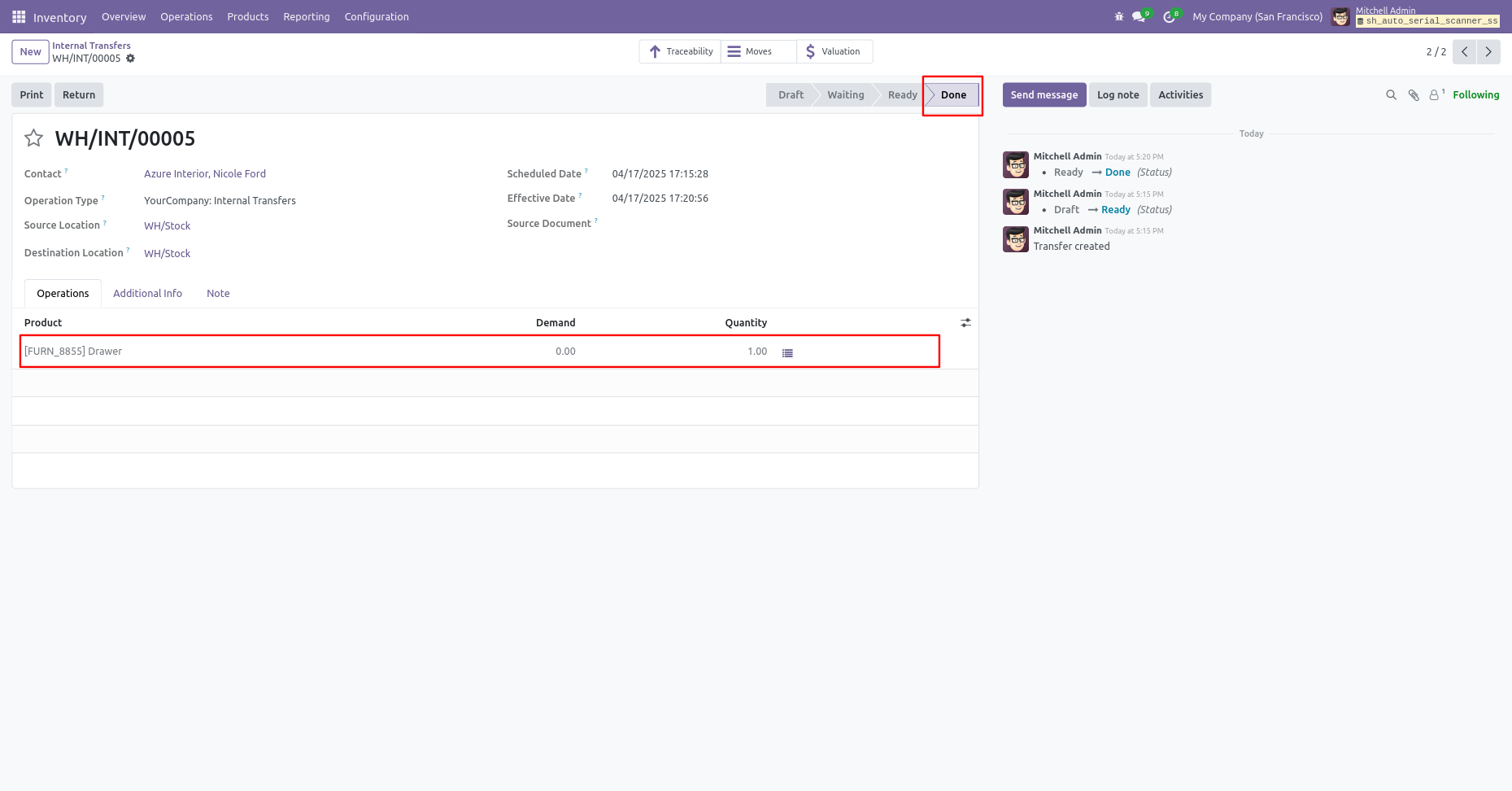
Click on the 'Validate' button, and the stage will be set to 'Done'.
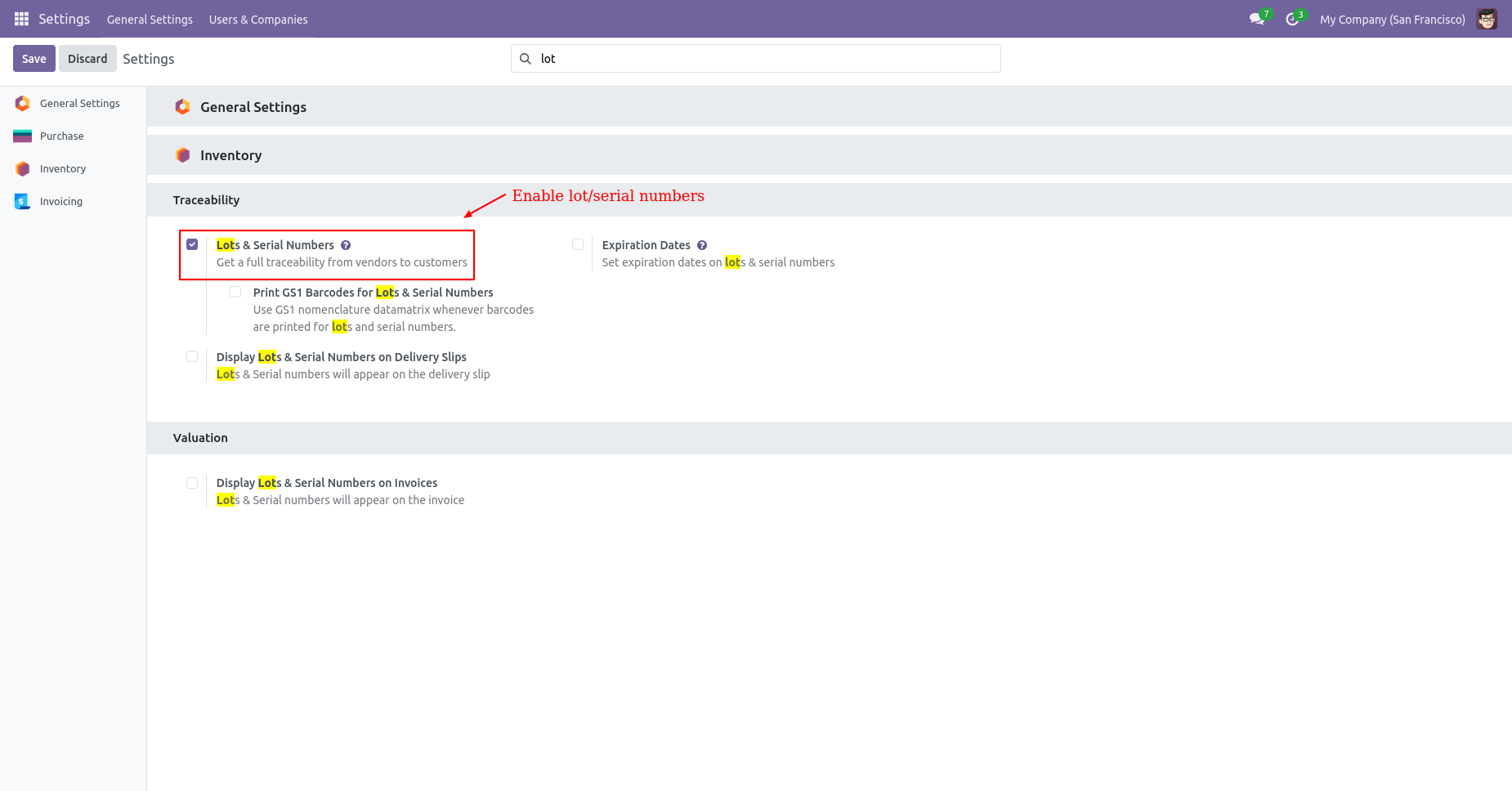
User Setting: Enable 'Lot & Serial Numbers'.
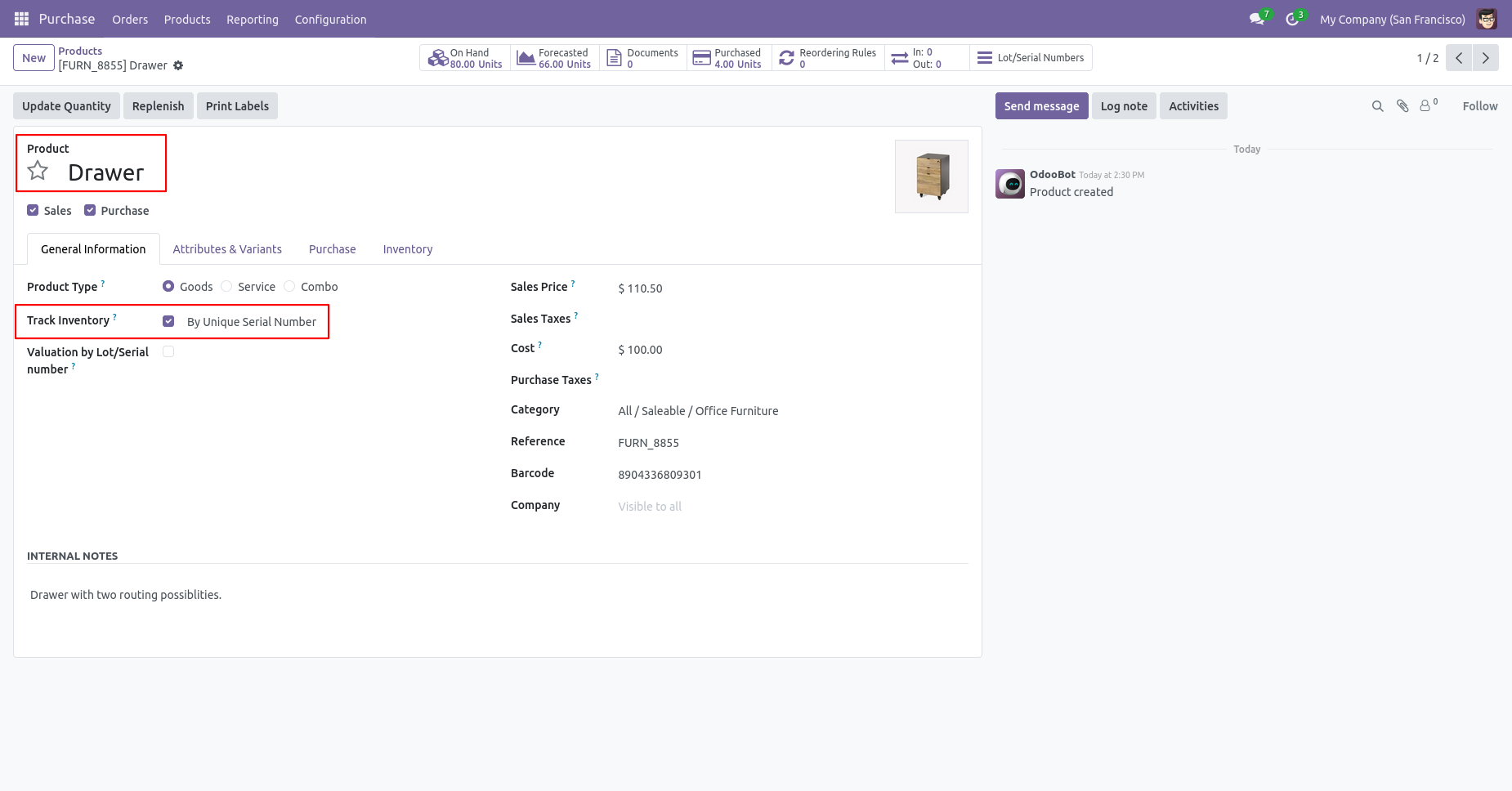
Select product traceability 'By Unique Serial Number' if you want to track the product by its unique serial number.
Select product traceability 'By Lots' if you want to track product in Lot.
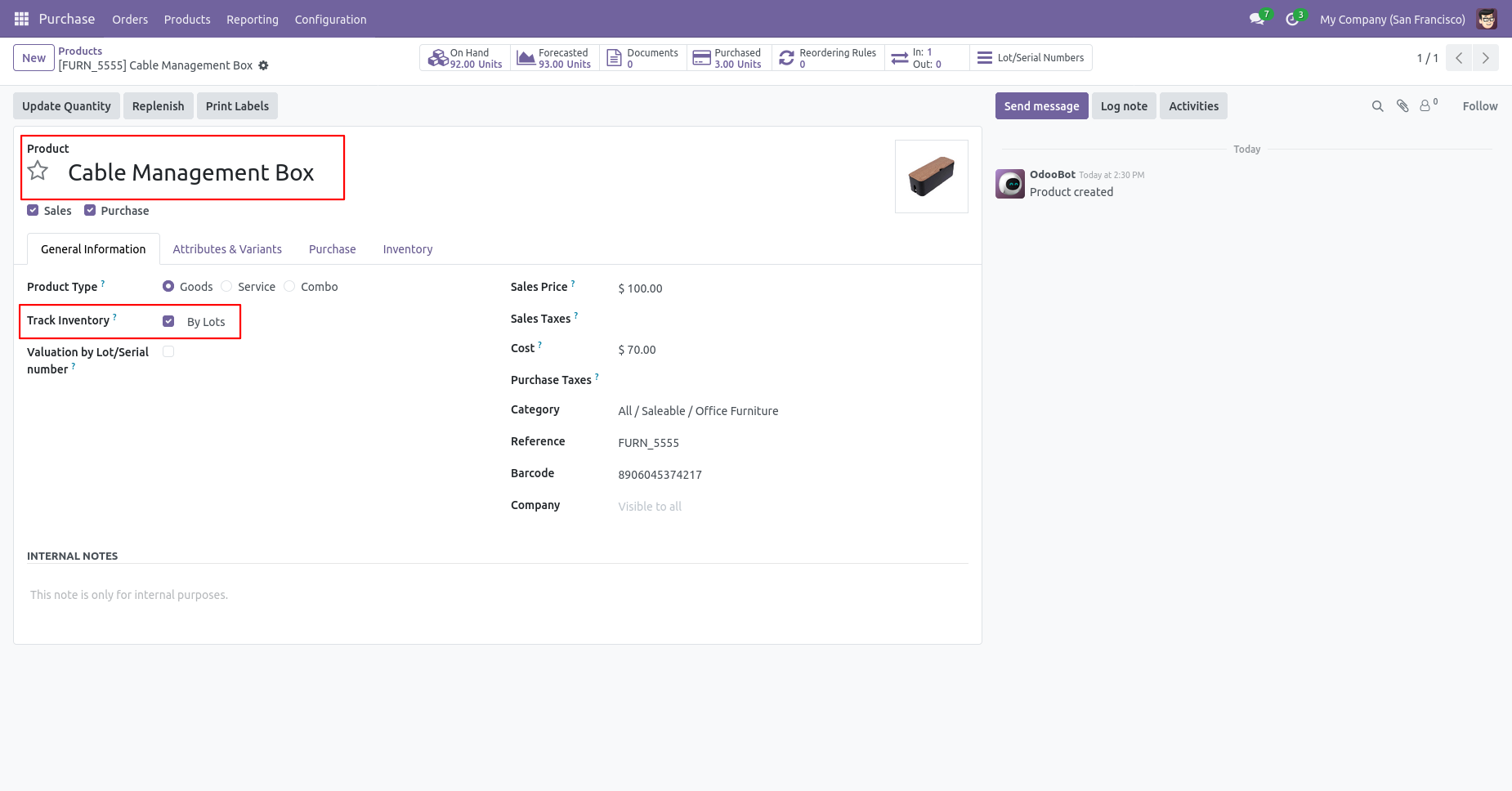
Purchase (Incoming Order) Process
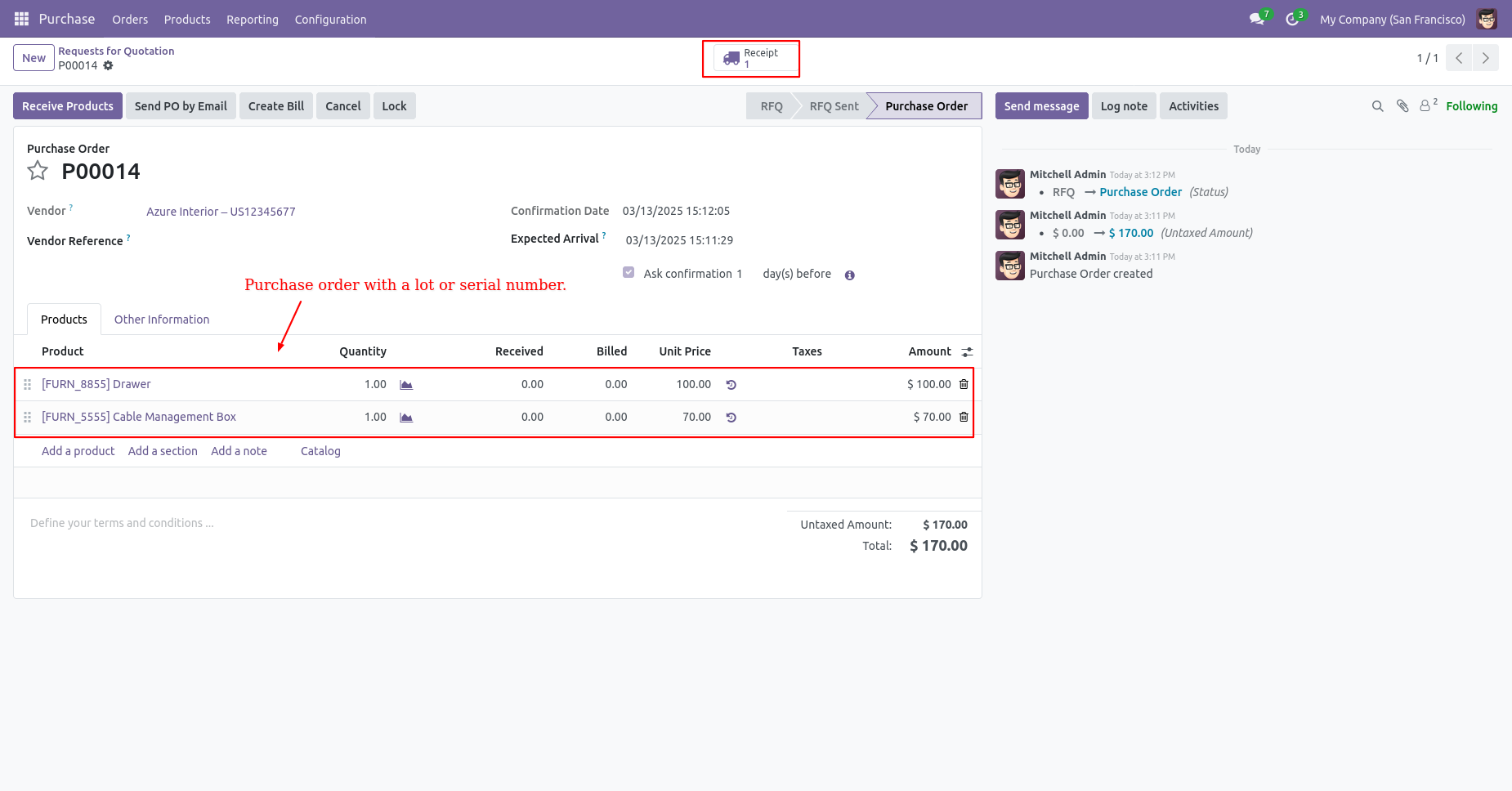
Create a purchase order with the tracking and enter a quantity of that, After
confirm order go to receipt.
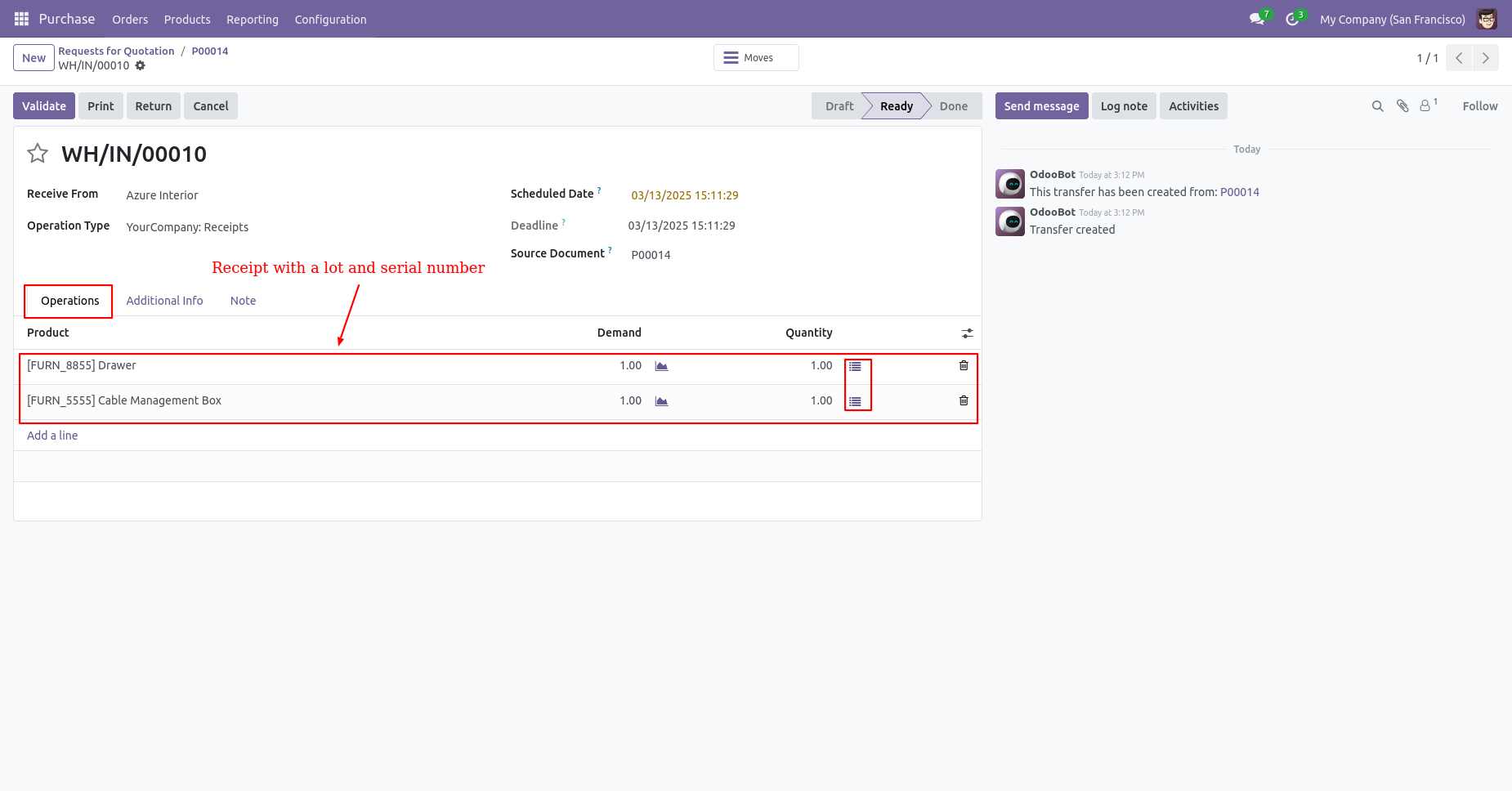
You can see product with Lot/Serial Number in receipt. Here if you click on that button "Detailed Operations" wizard open, Now our purchase order stage is "Ready".
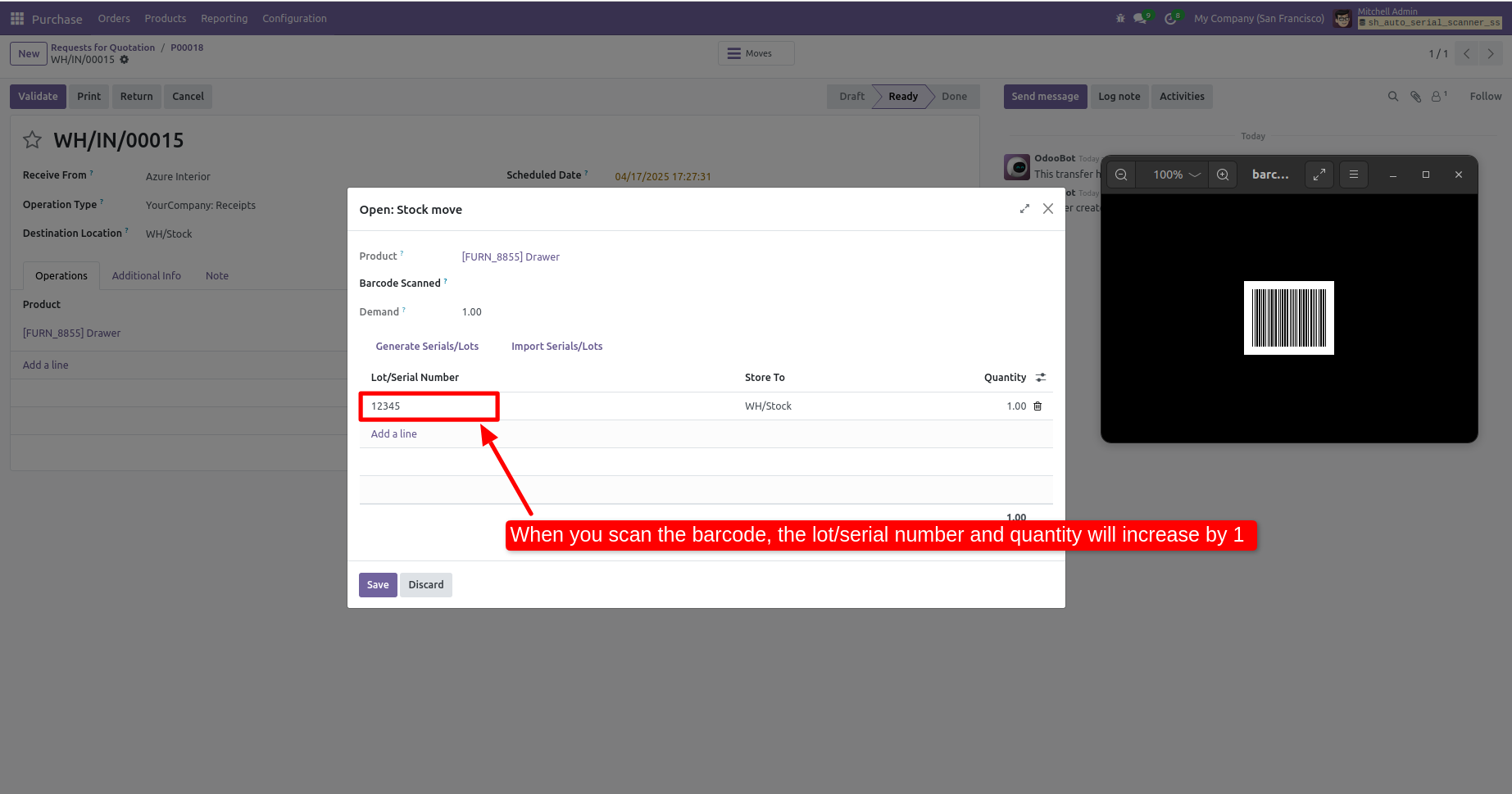
Lot Numbers workflow
Here you can scan your barcode. That barcode will be added inside 'Lot Numbers'
if the same barcode scanned again than done quantity will be increased by one. If
another barcode is scanned than will be another entry for new Lot Numbers in the
next line.
It shows alert message if our entered quantity is increase then stock.
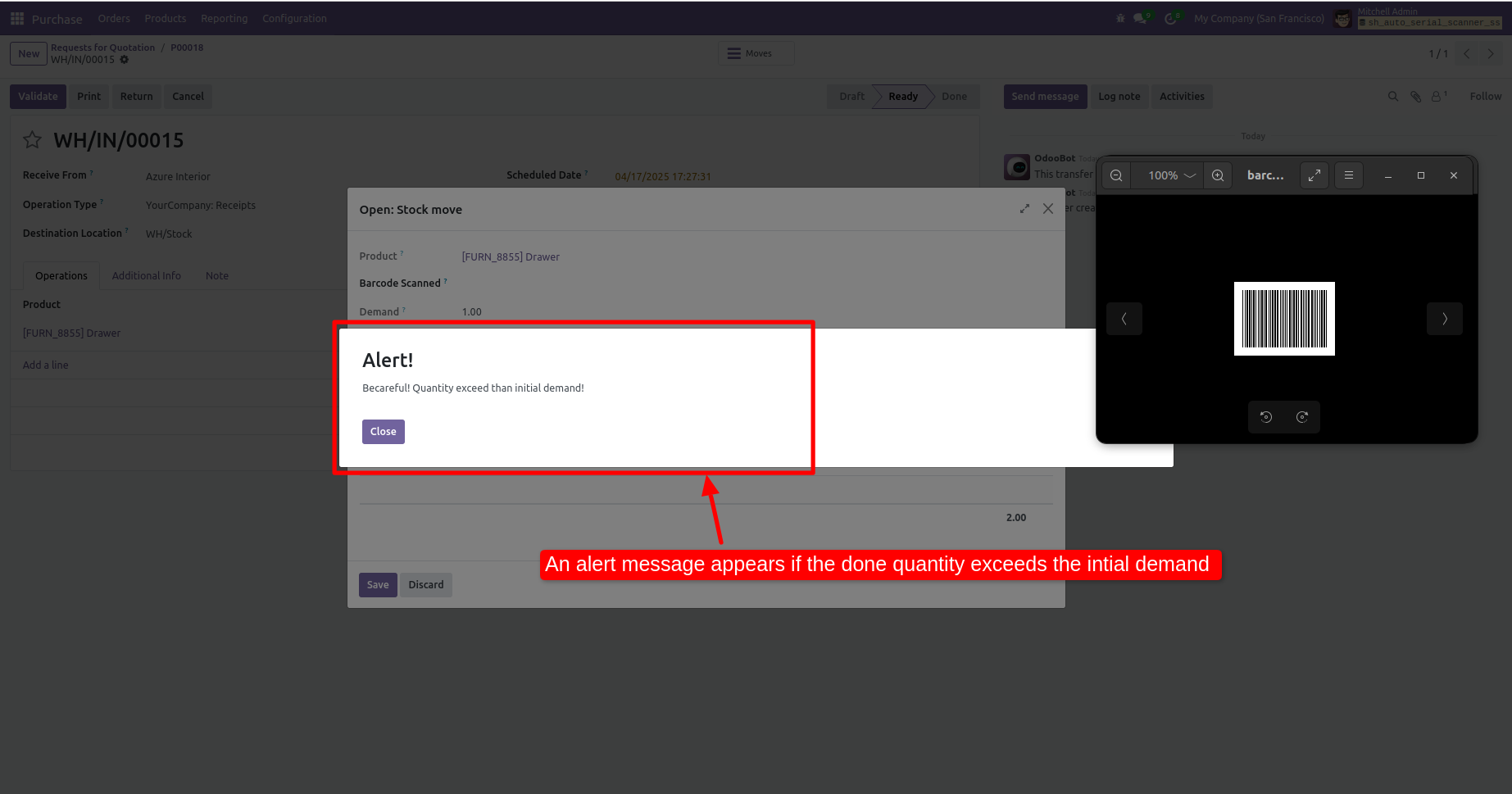
Serial Number workflow
Here you can scan your barcode. That barcode will be added inside 'Serial Number'
If another barcode is scanned than will be another entry for Serial Number in the
next line.
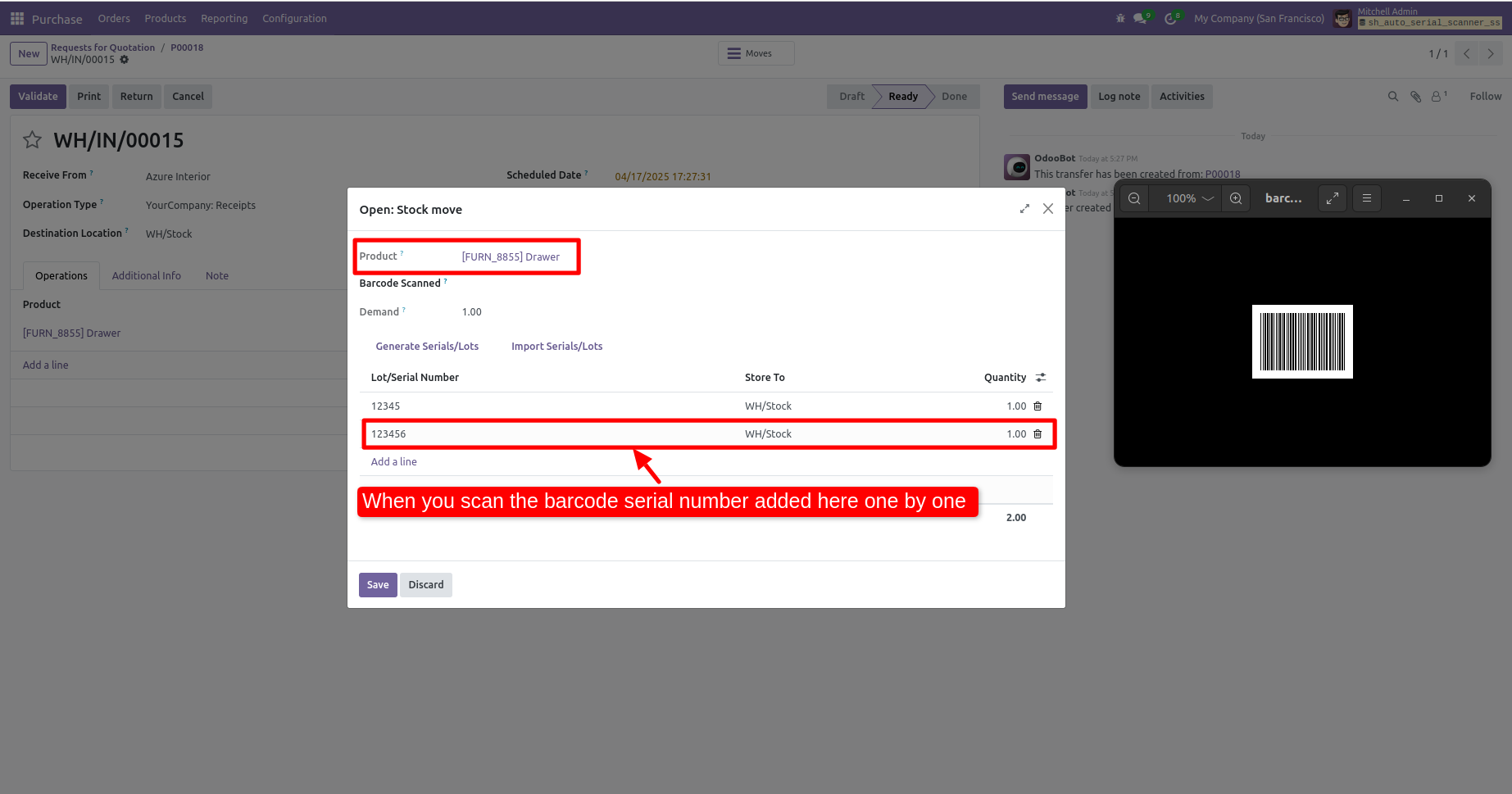
It shows alert message if same barcode scan again.
Scan correct product and click on the 'Save' button.
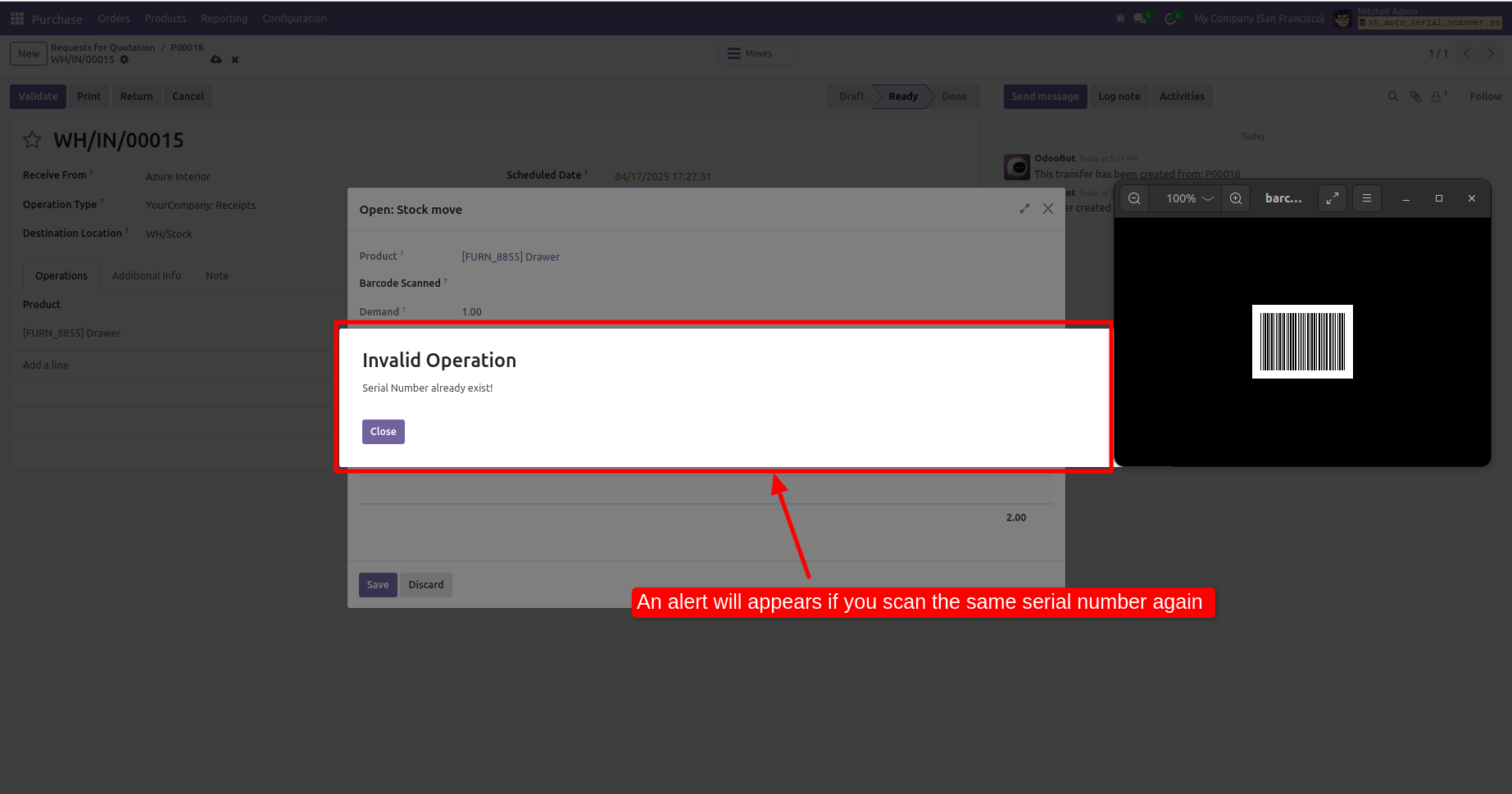
After that, click on the 'Validate' button. The receipt will then move to the 'Done' state.
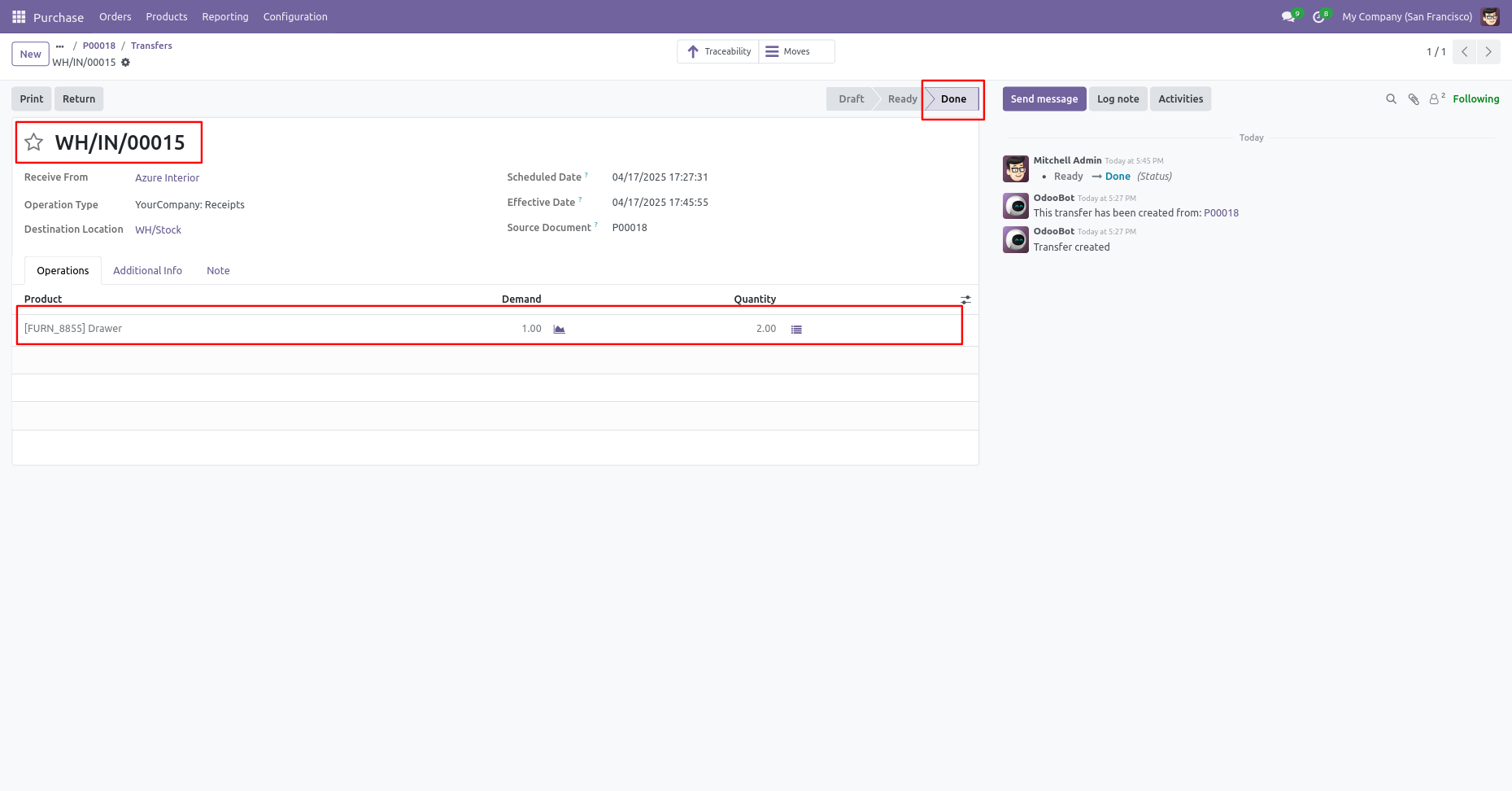
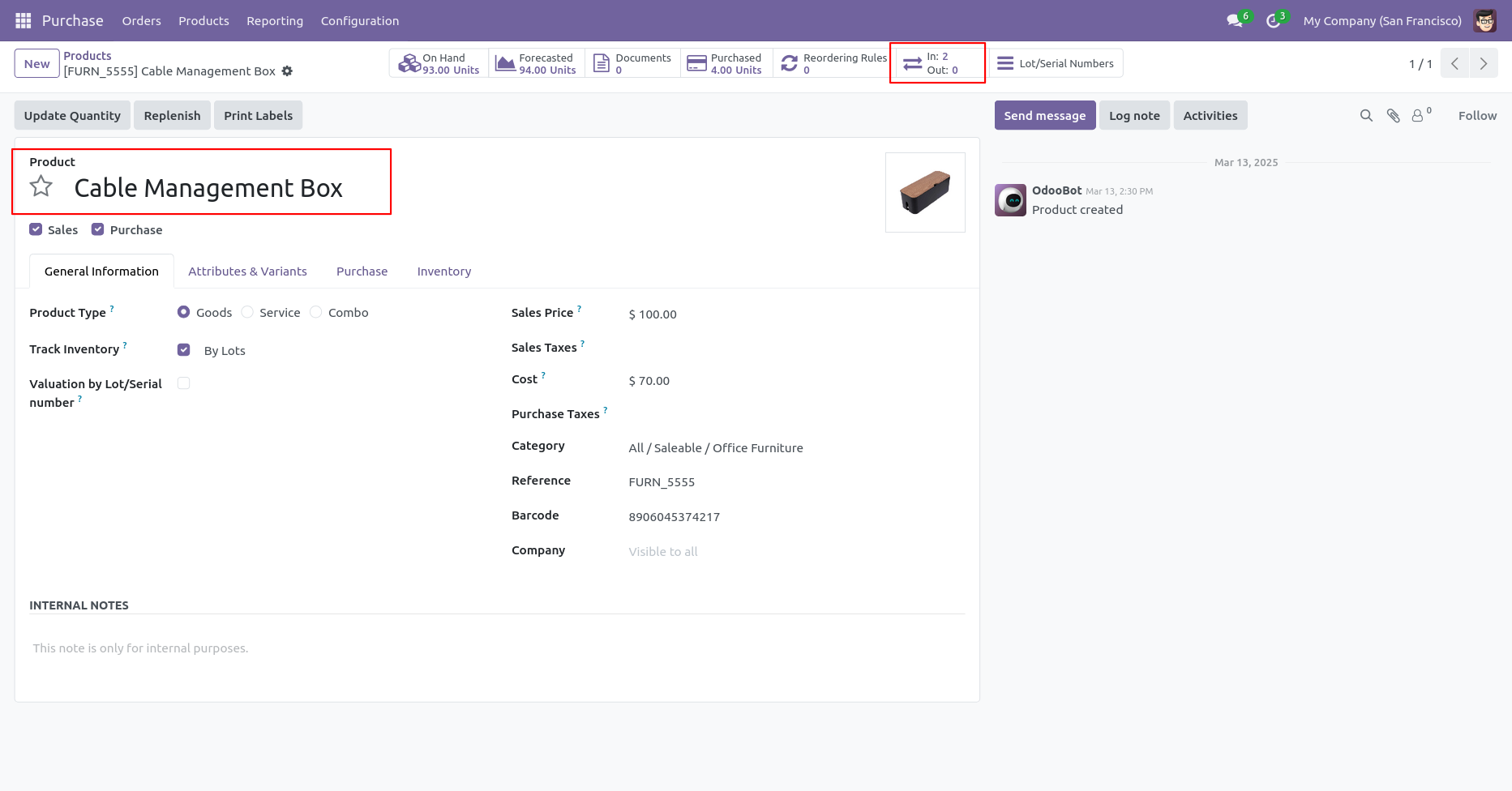
Select product with traceability 'By Unique Serial Numbers' and you can see product in-out quantity.
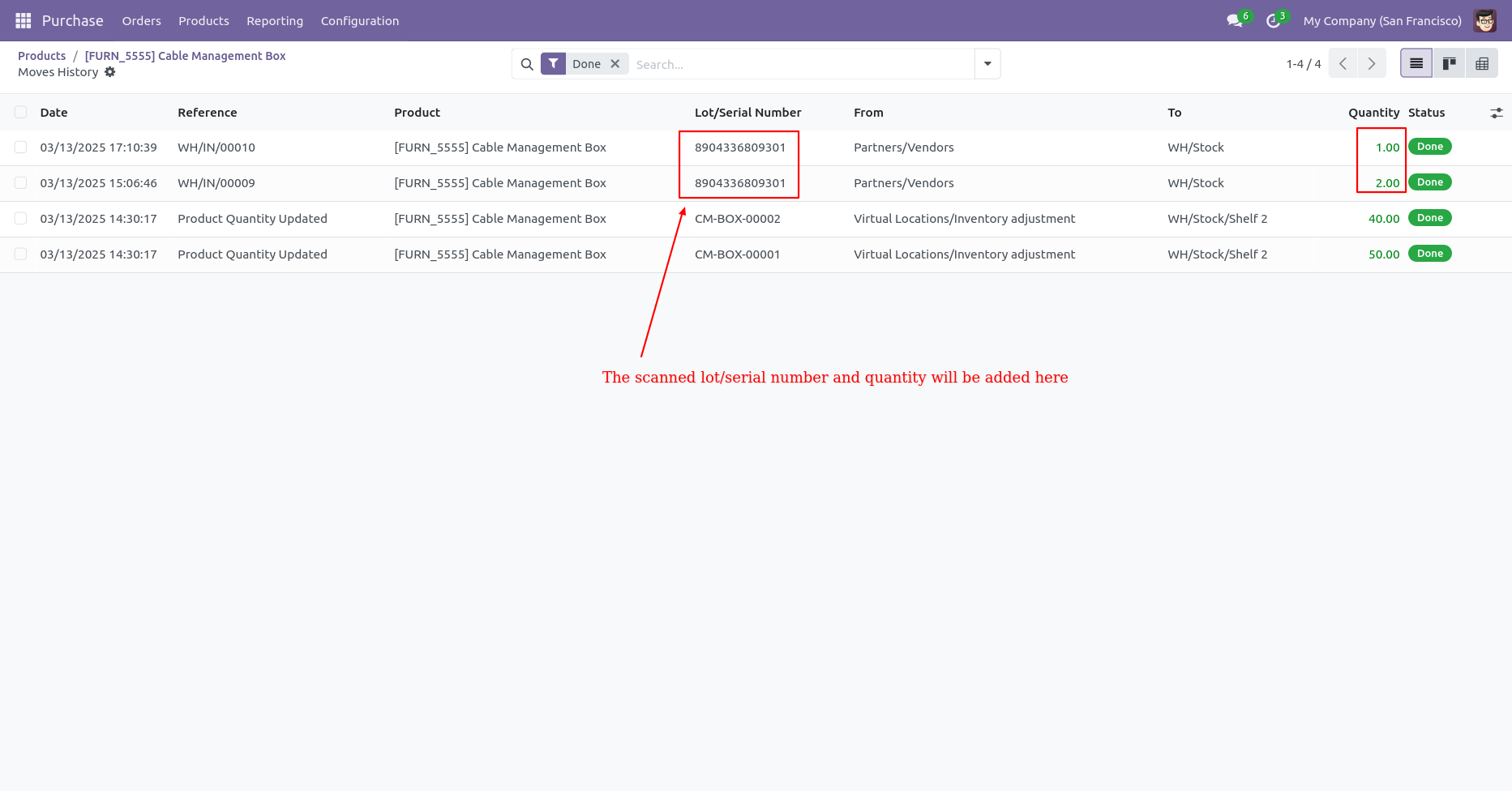
After that, it shows Lot/Serial number will be added in Update quantity.
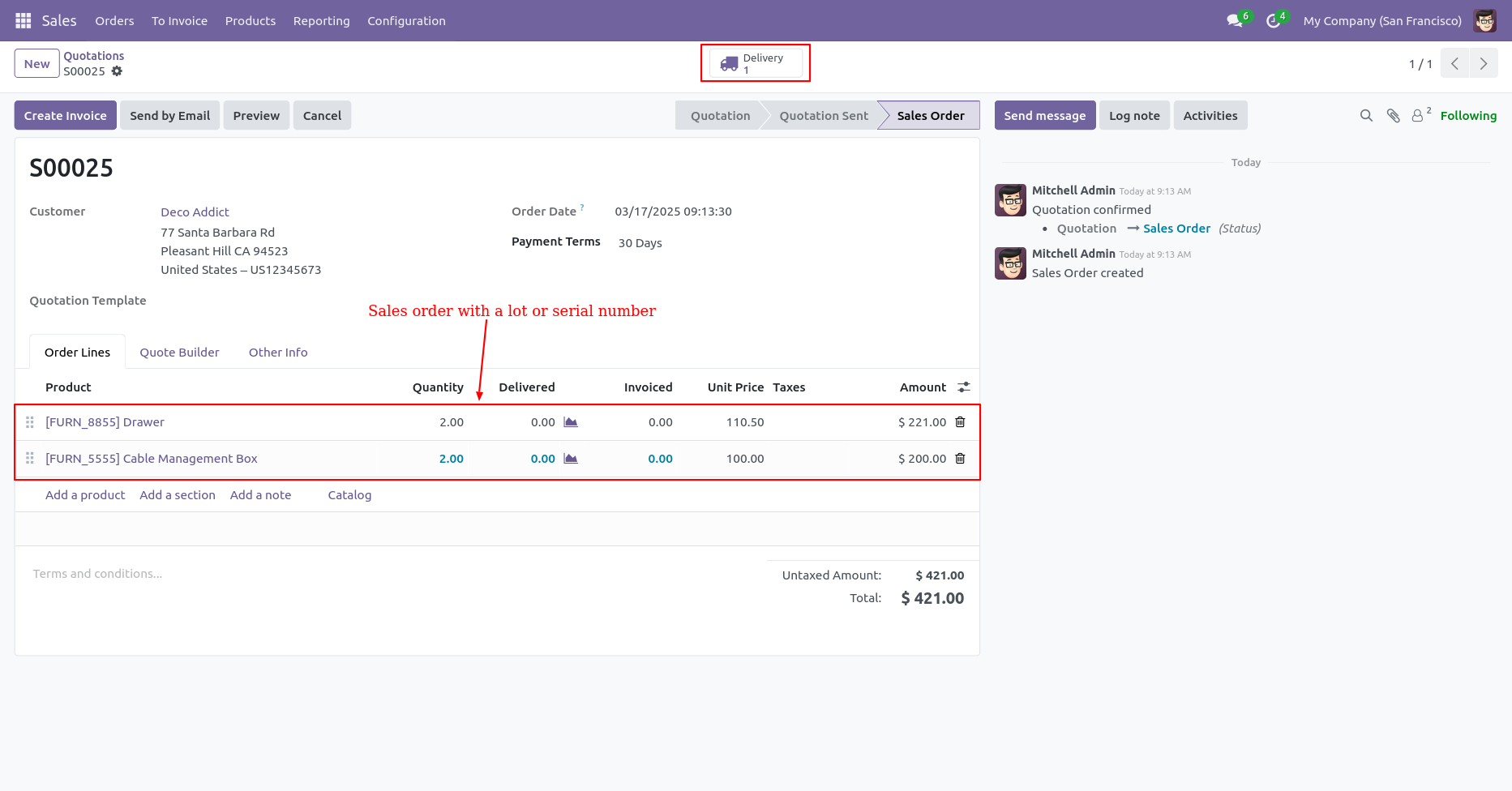
Sale (Delivery Order) Process
Create a sale order with a product by lot or serial number after it confirms that
order goes to Delivery.
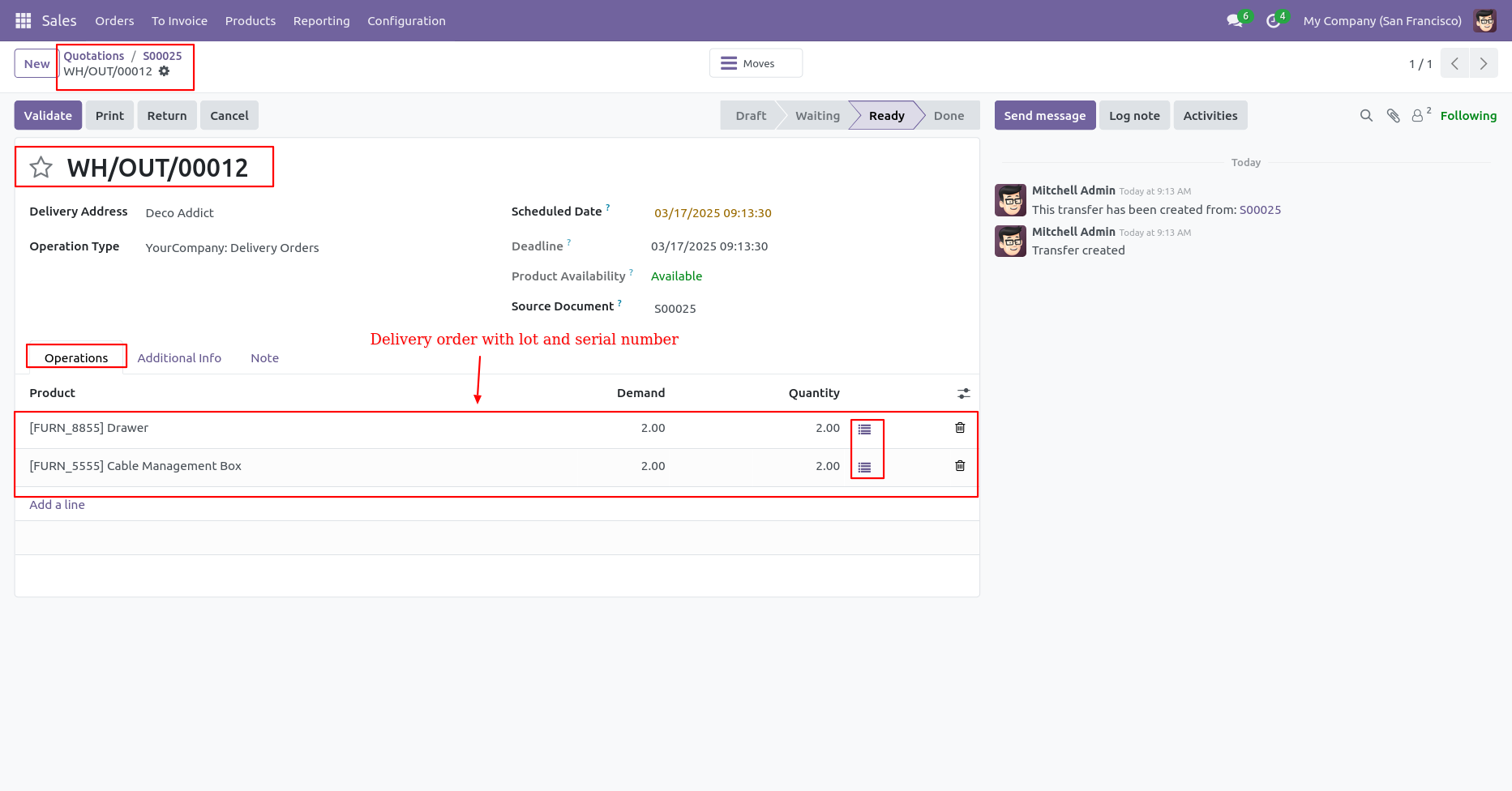
You can see product with Lot/Serial Number in delivery. Here if you click on that button 'Detailed Operations' wizard open, Now our sale order stage is "Ready".
Serial Number workflow
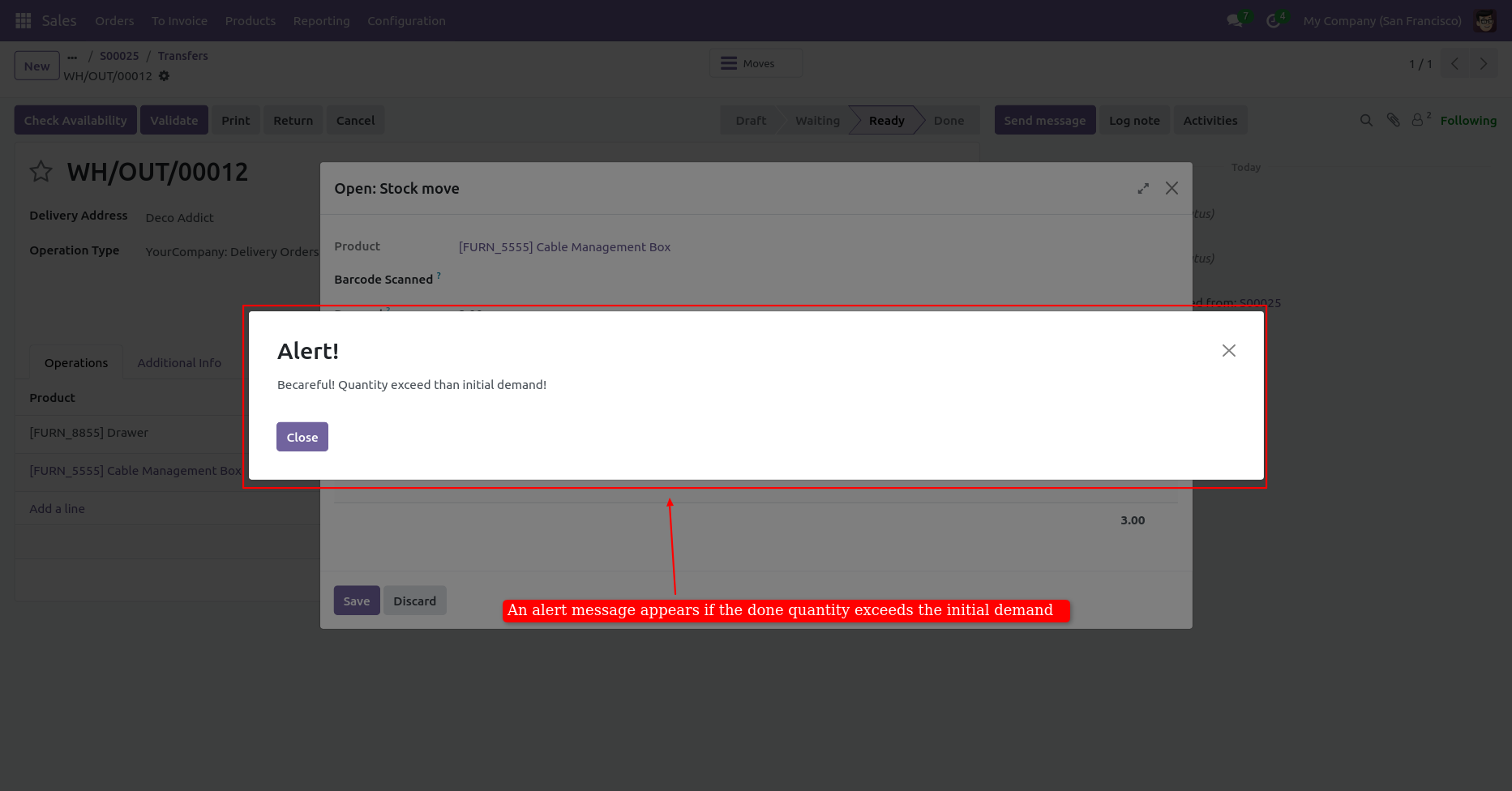
Here you can scan your barcode. That barcode will be added inside 'Serial Number'
if the same barcode scanned again than done quantity will not be increased by
one. If another barcode is scanned than will be another entry for new Serial
Number in the next line.
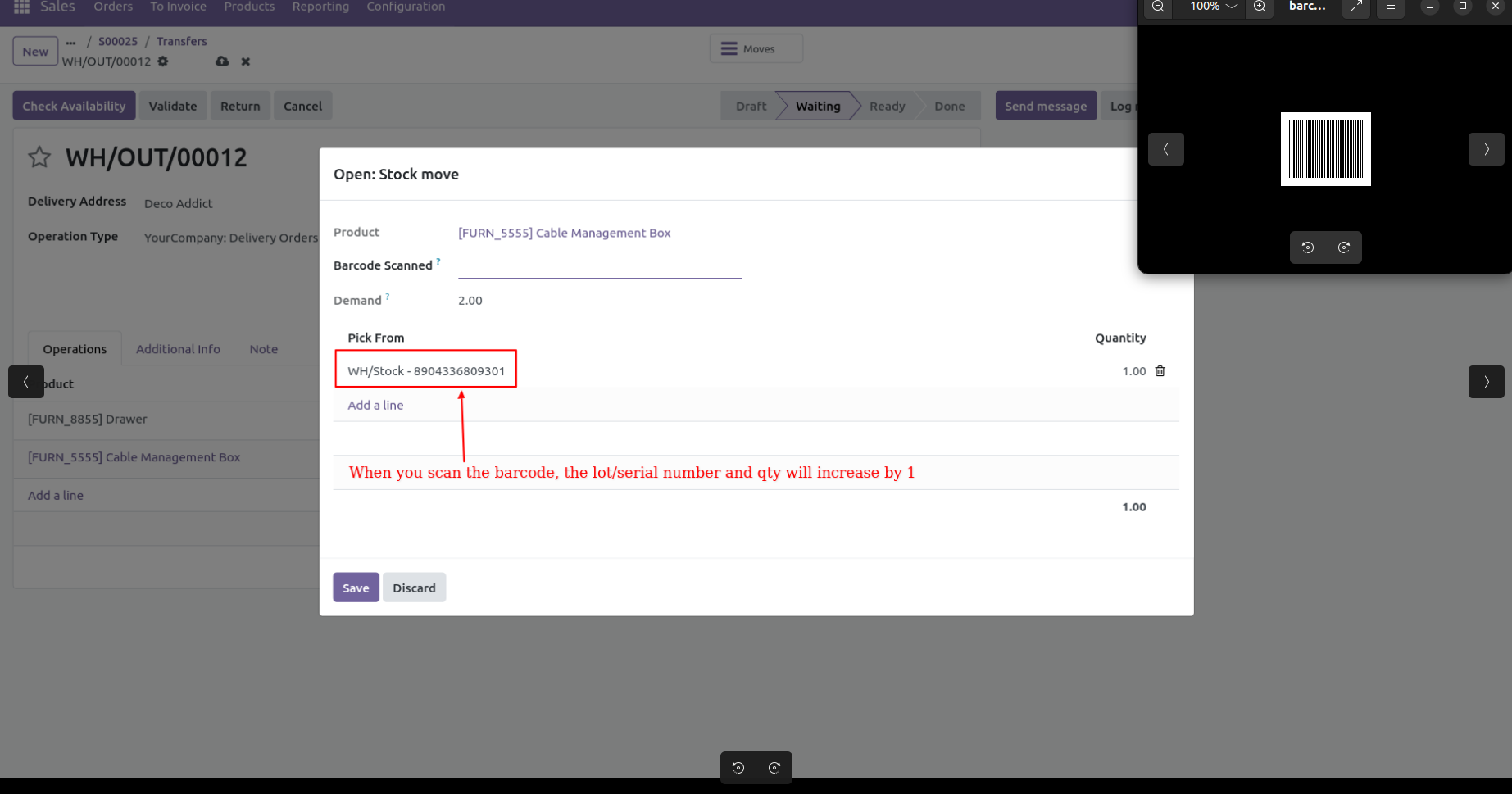
It shows alert message if our entered quantity is increase then stock.
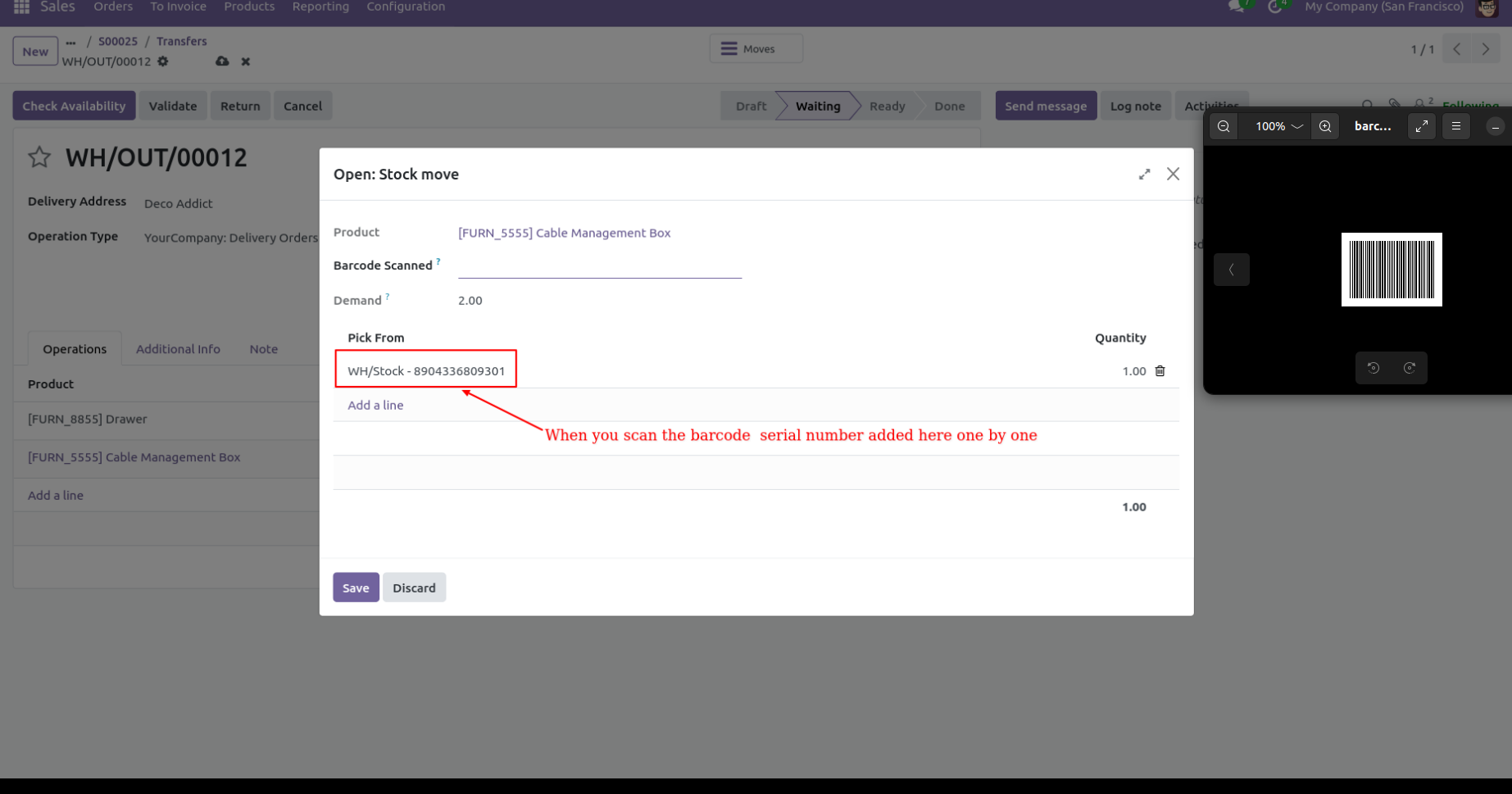
Scan the another product(Serial number) barcode.
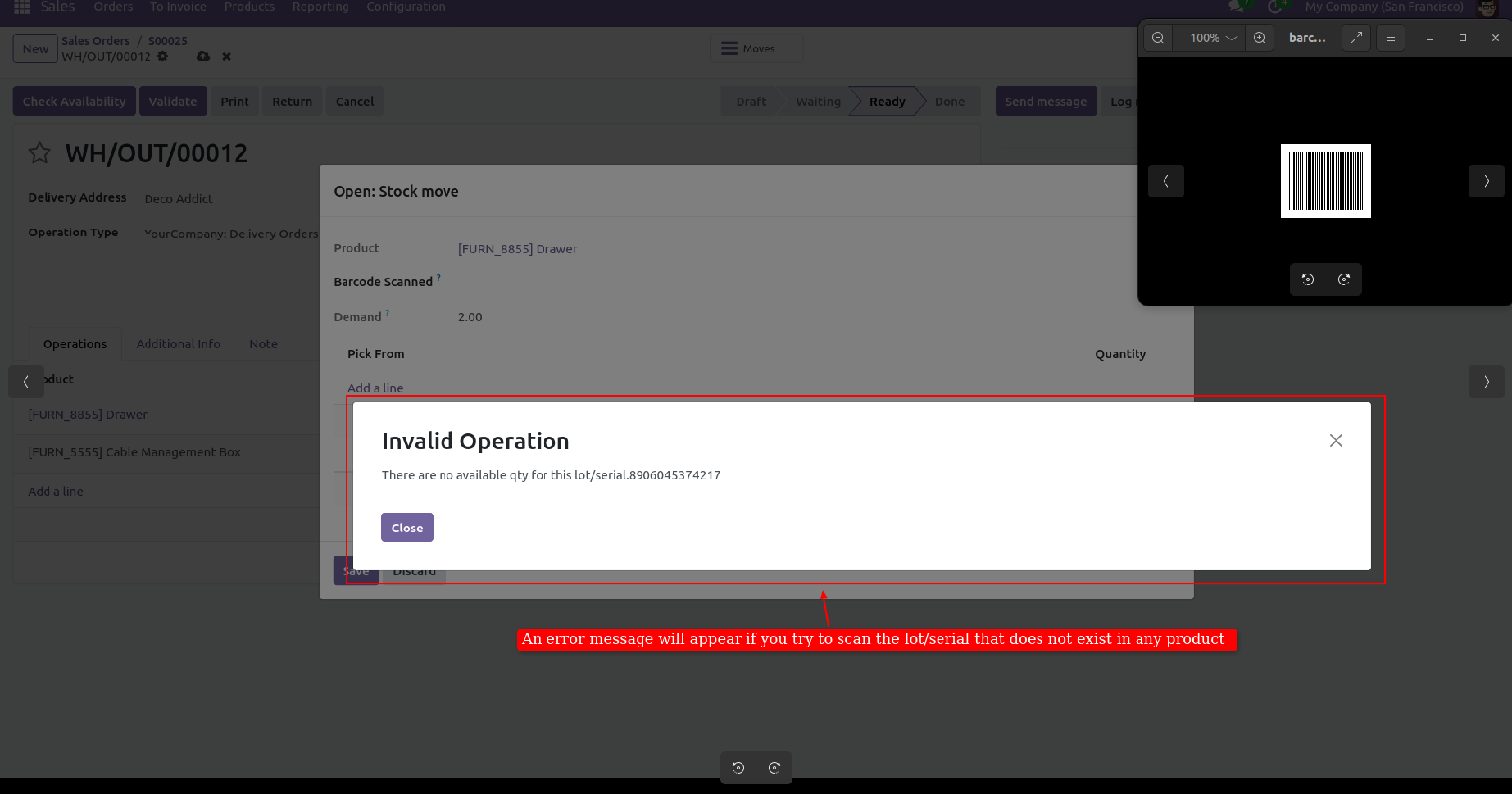
It shows alert message if your entered serial number is not available in stock.
Scan the correct serial number barcode and click on the 'Save' button.
After that, click on the 'Validate' button. The receipt will then move to the
'done' state.
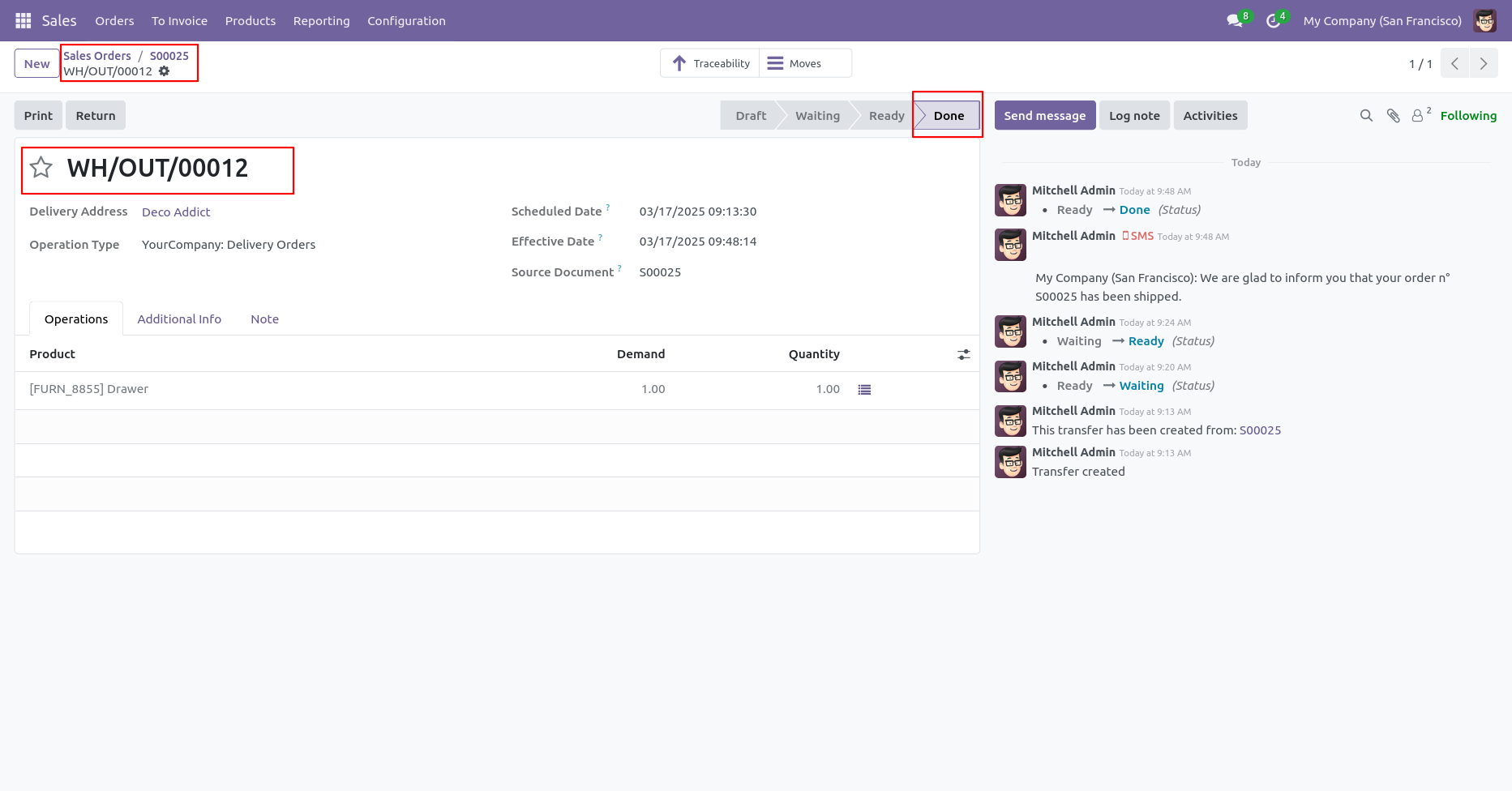
Select product with traceability 'By Unique Serial Numbers' and you can see product in-out quantity.
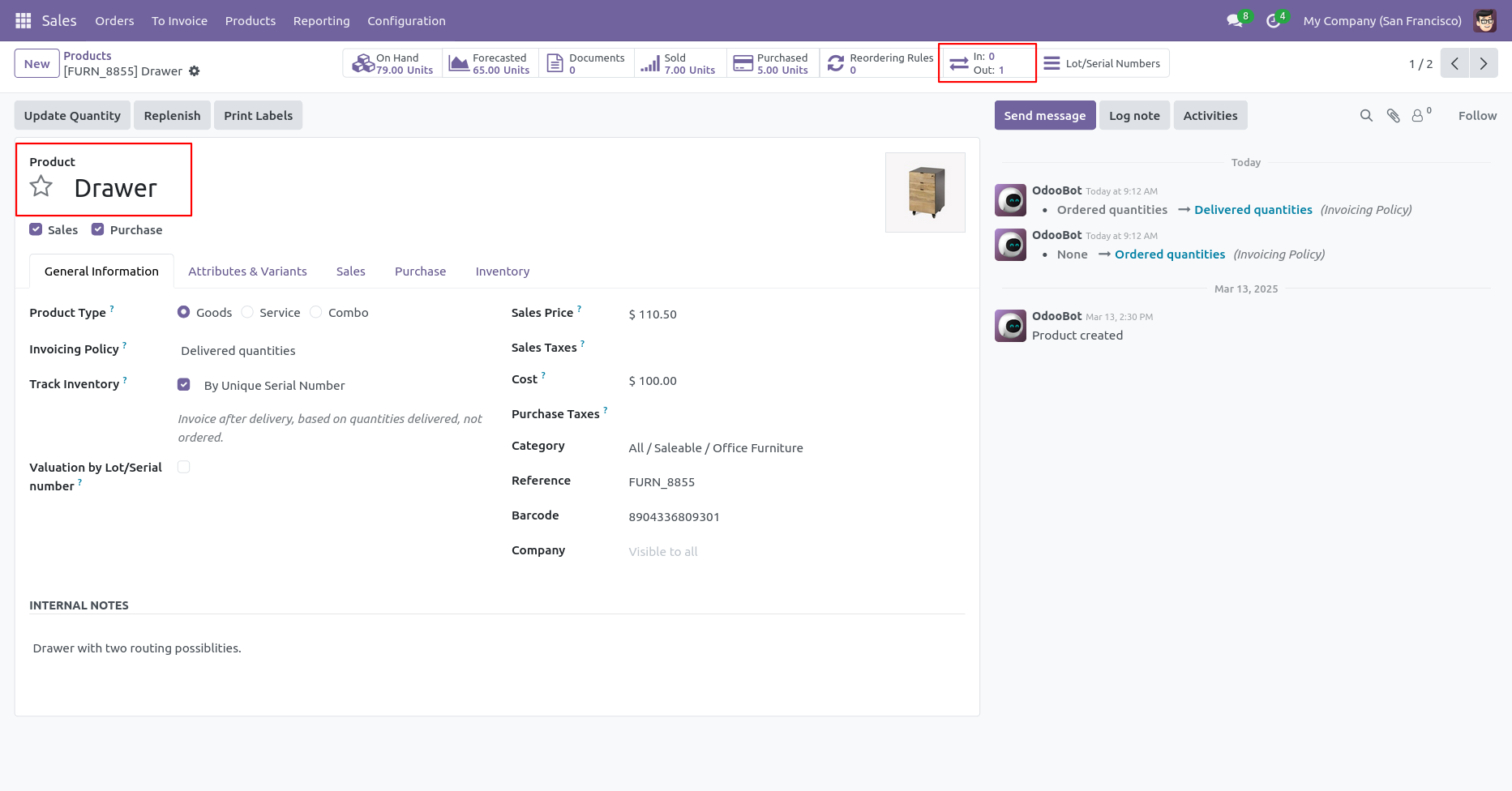
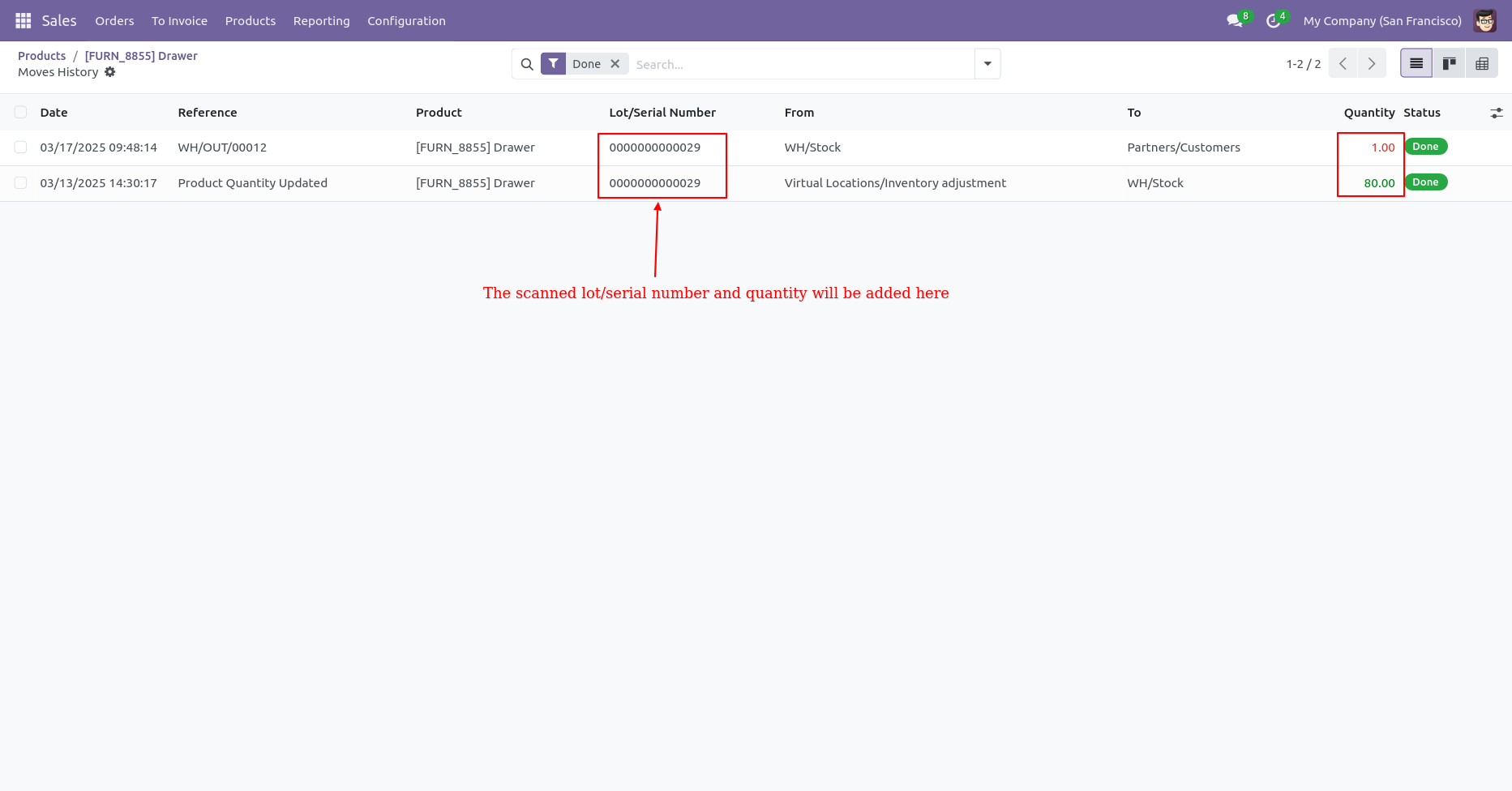
After that, it shows Serial number and on hand quantity of sold product.
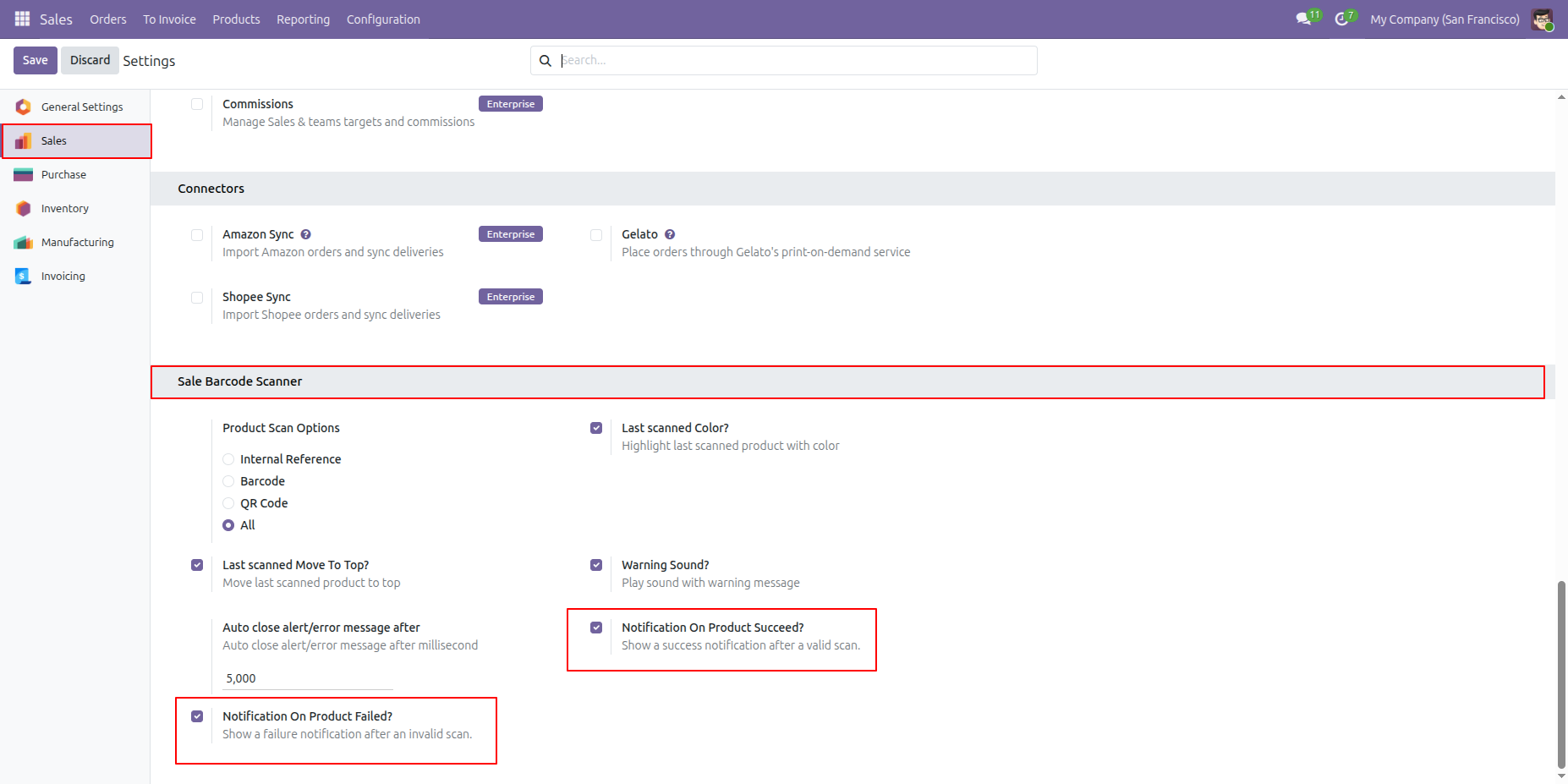
Go to the settings and enable the Notification on Product Succeed and Notification on Product Failed option.
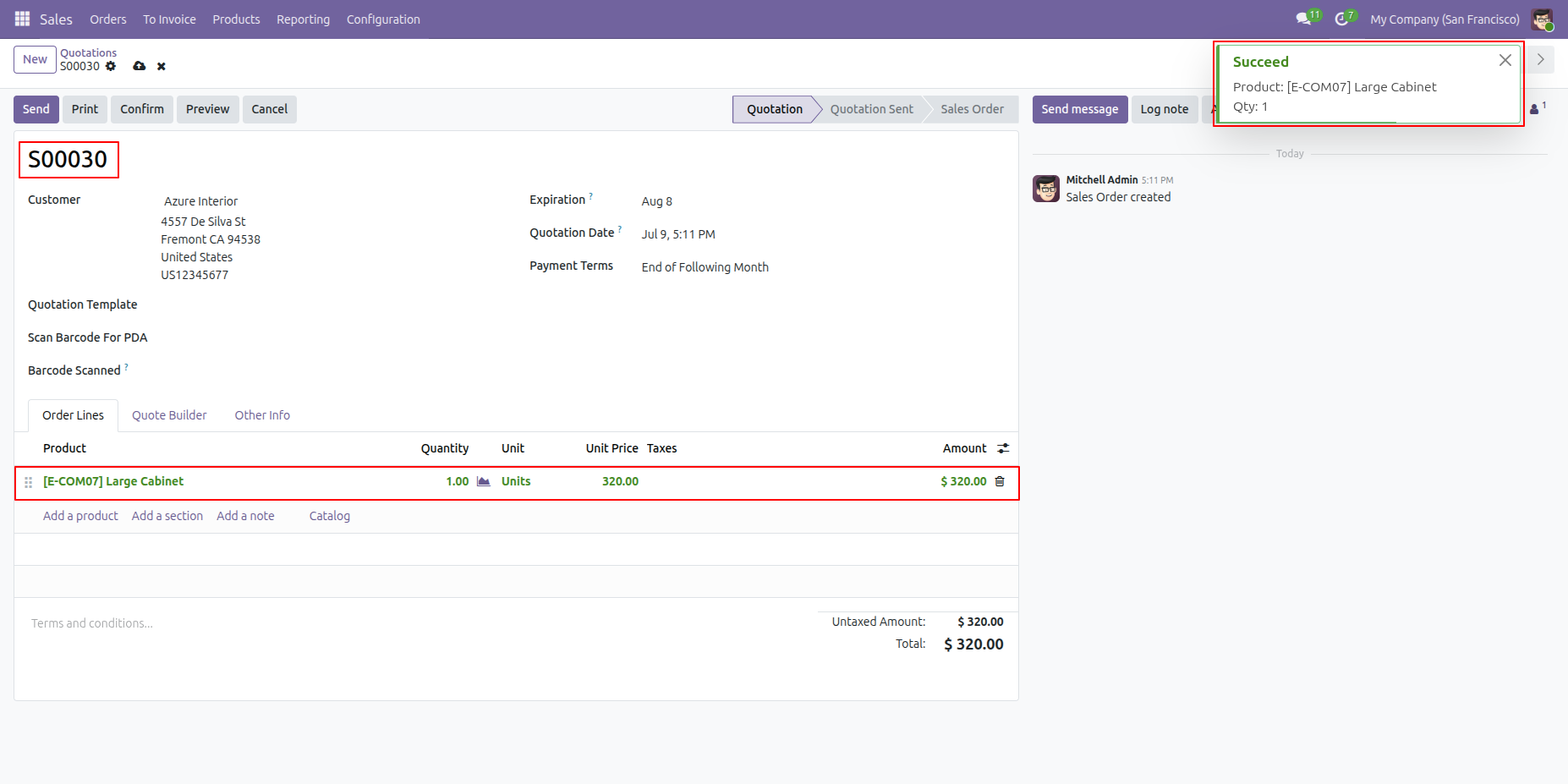
Scan the product barcode, if the product is available in stock than you will get a notification on the top right corner of the screen.
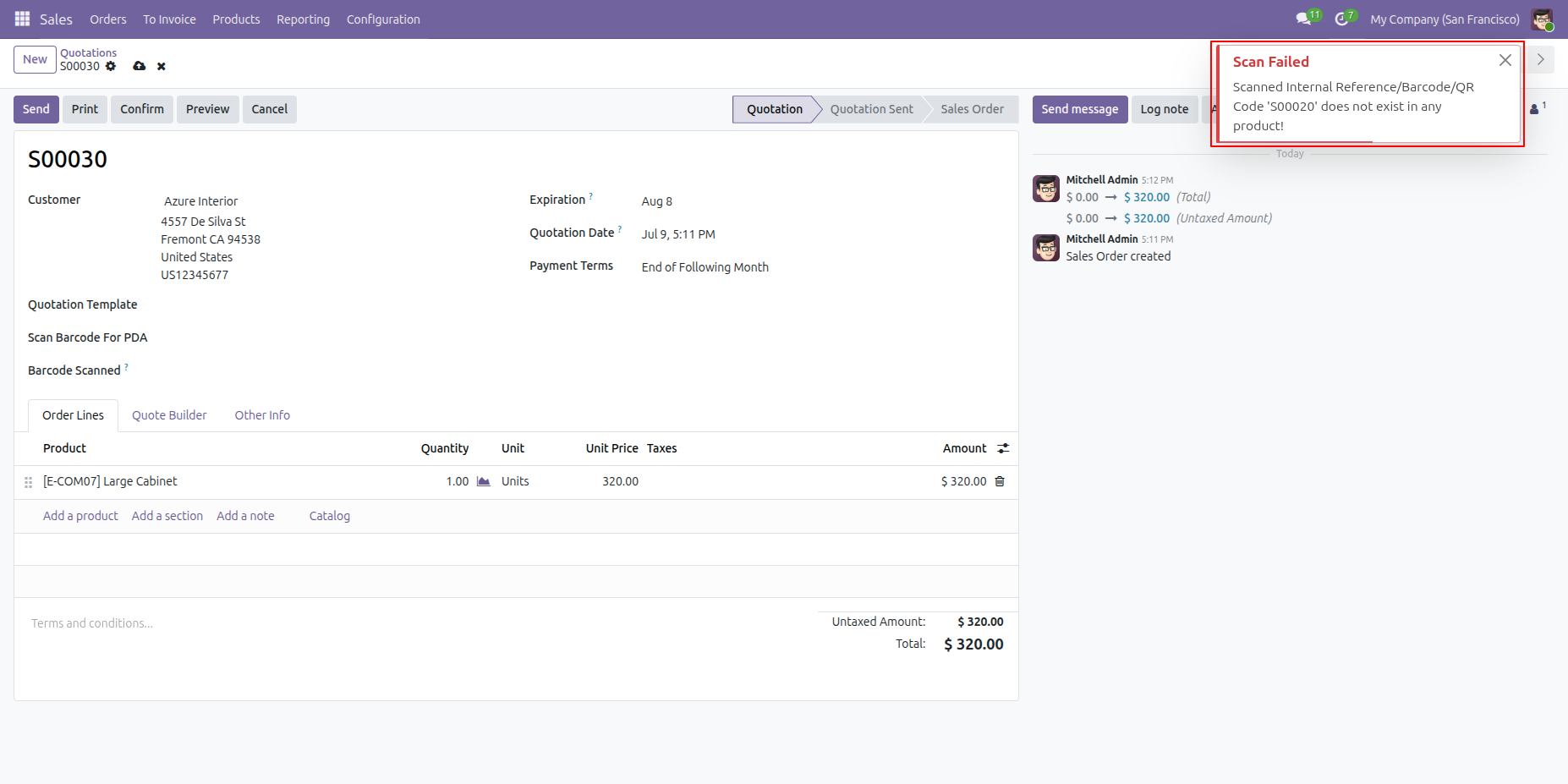
Scan the product barcode, and if the product is not available in stock than you will get a notification on the top right corner of the screen.
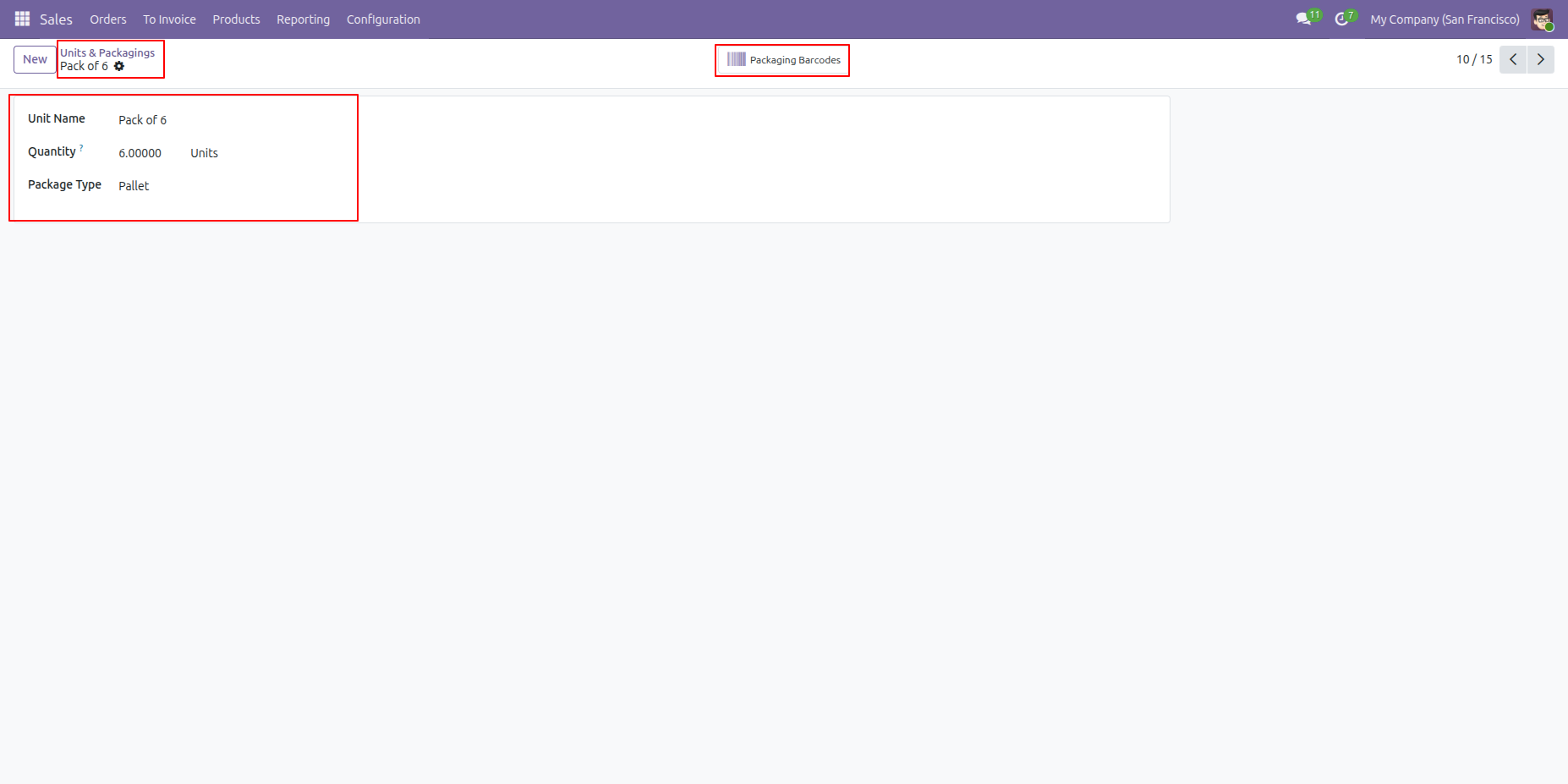
Go to the Units & Packages form view and click the Packaging Barcode smart button to open the list of packaging barcodes associated with the selected package.
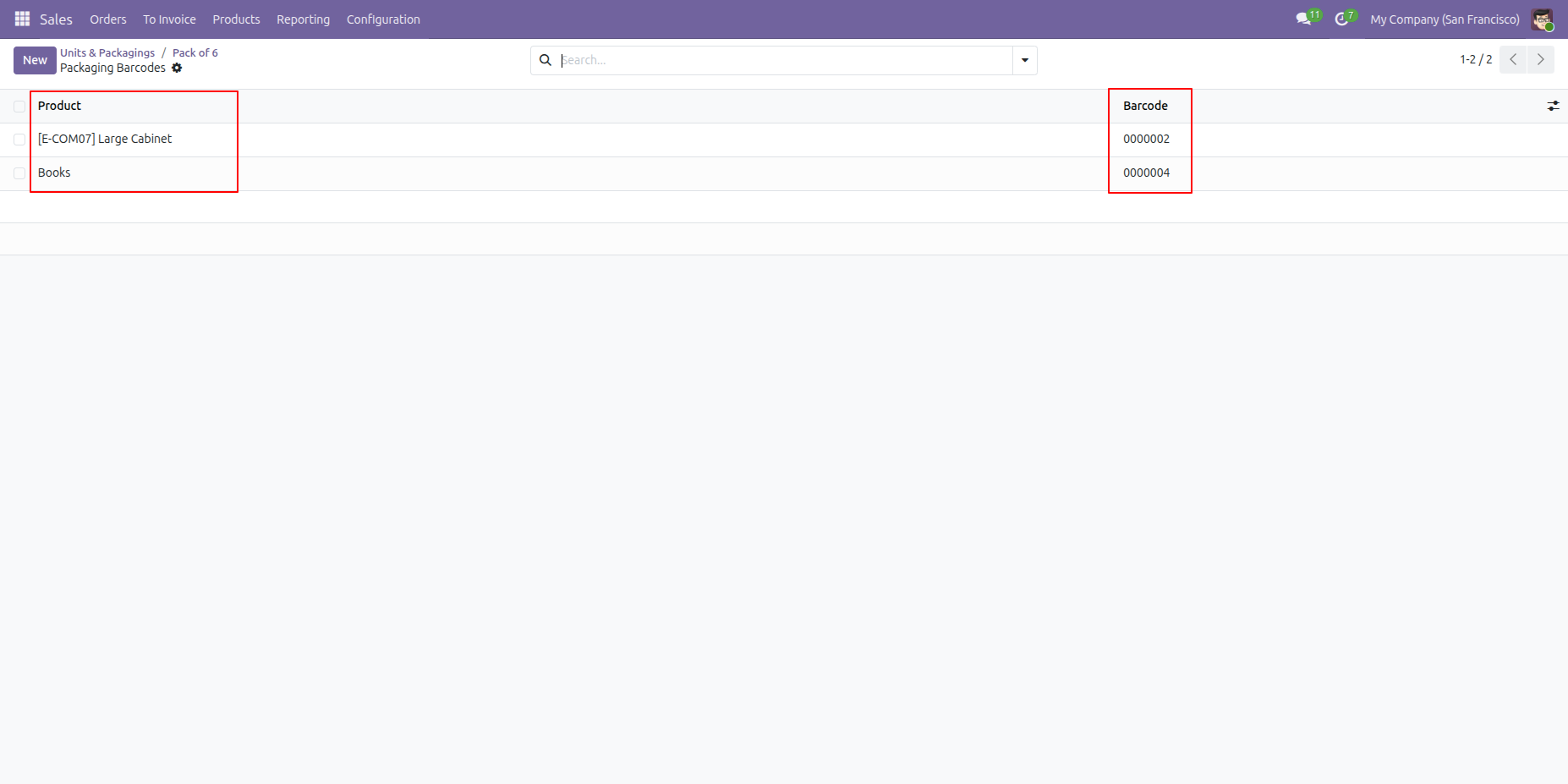
Clicking the Packaging Barcode smart button opens the Packaging Barcode list view, where you can create and assign new barcodes to the selected package.
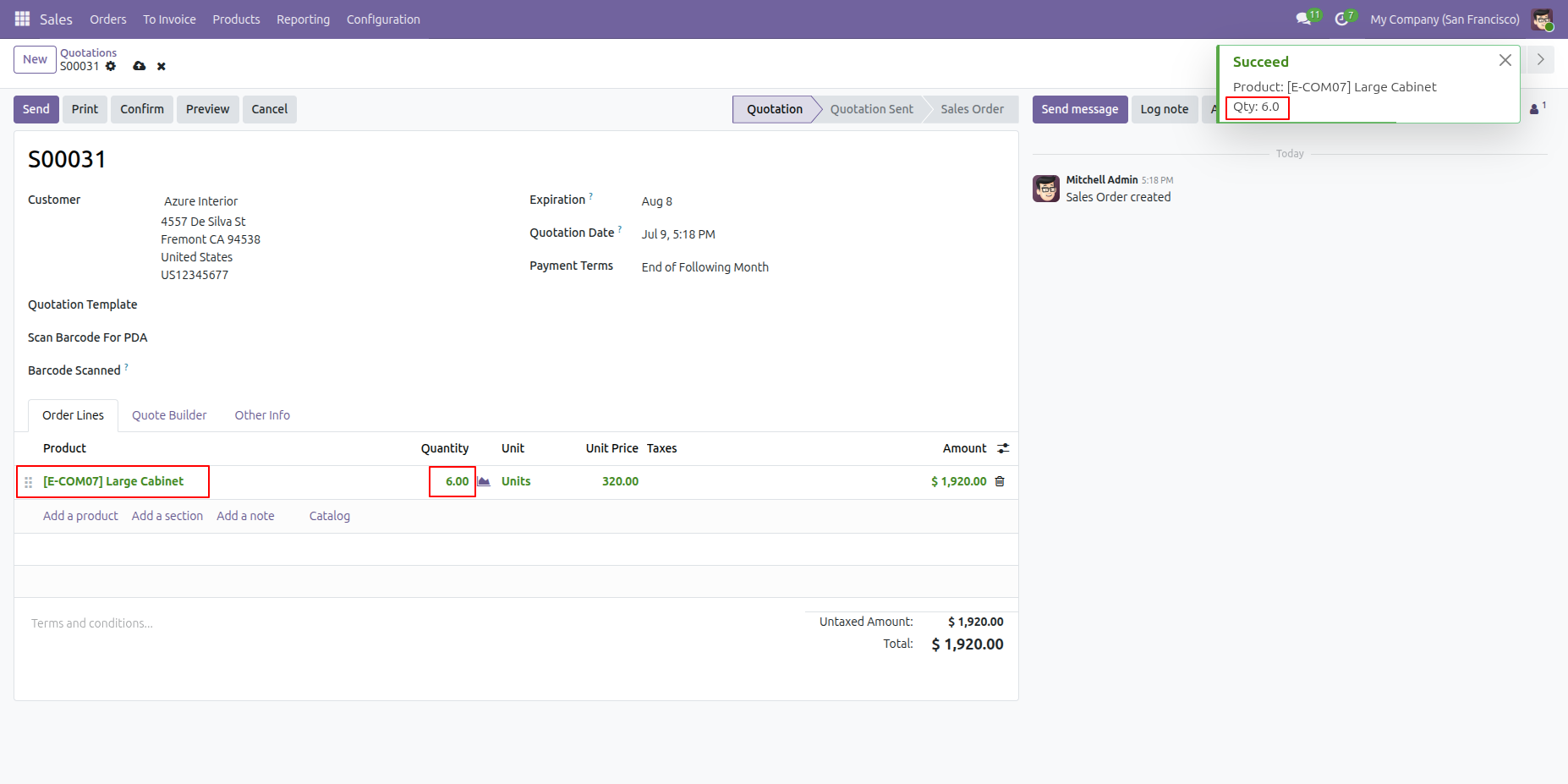
Scan the Packaging Barcode on the order line. The corresponding product is automatically added with its configured package quantity, and a success notification is displayed to confirm the barcode scan.
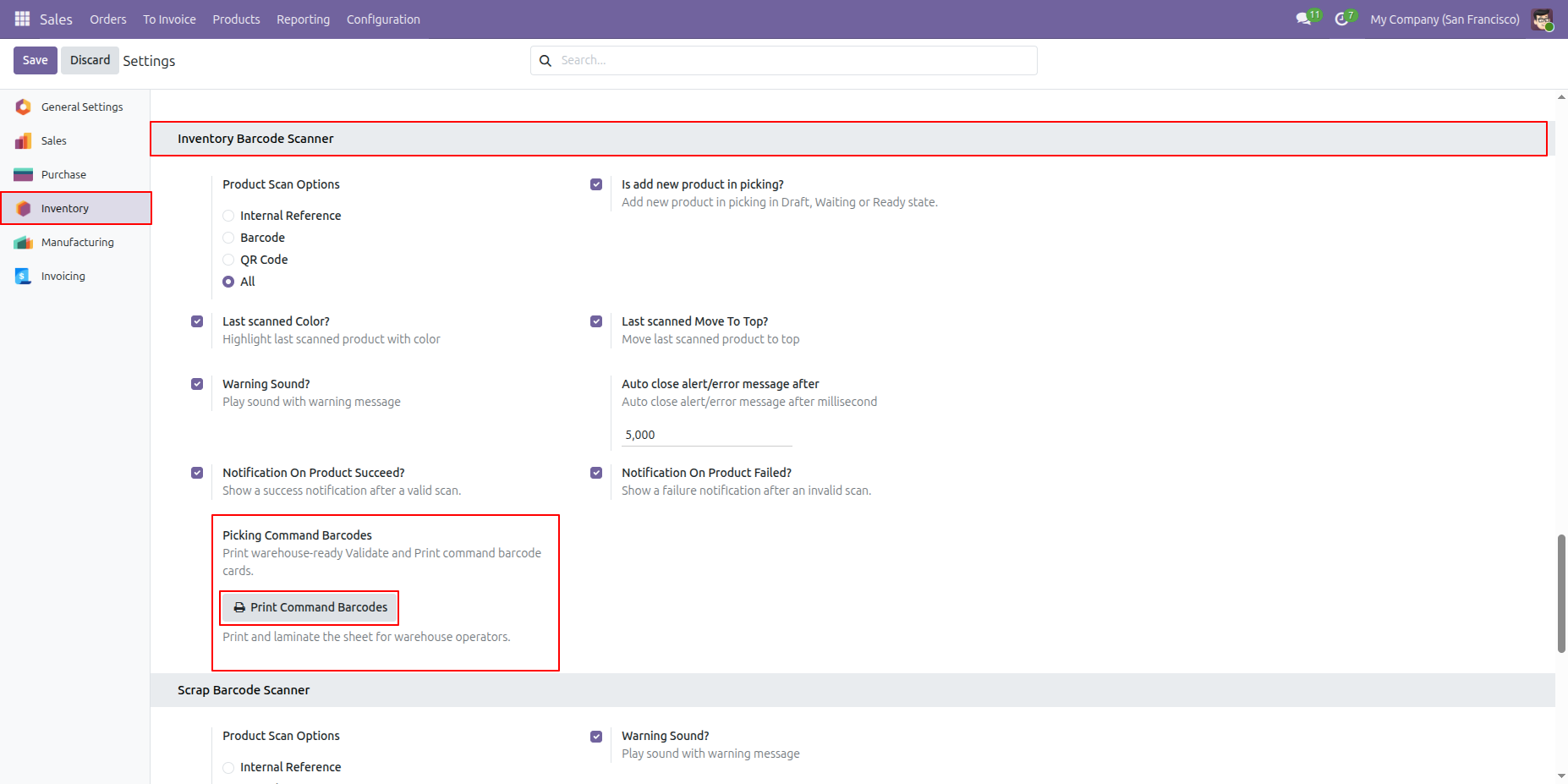
Go to the Inventory Settings and, under the Picking Command Barcode section, click the Print Command Barcode button to generate the picking command barcode labels.
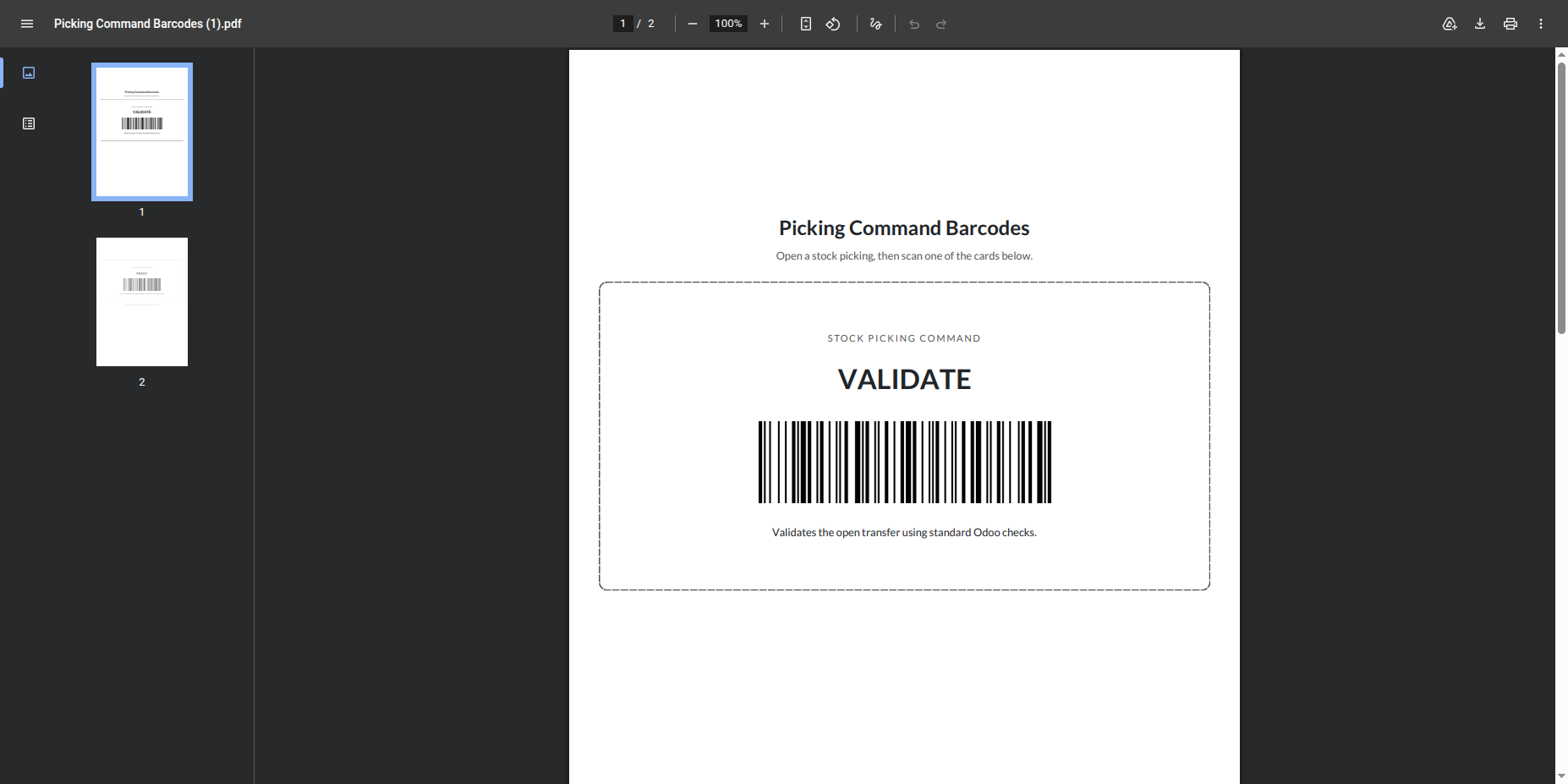
A PDF containing the Picking Validate Barcode is generated.
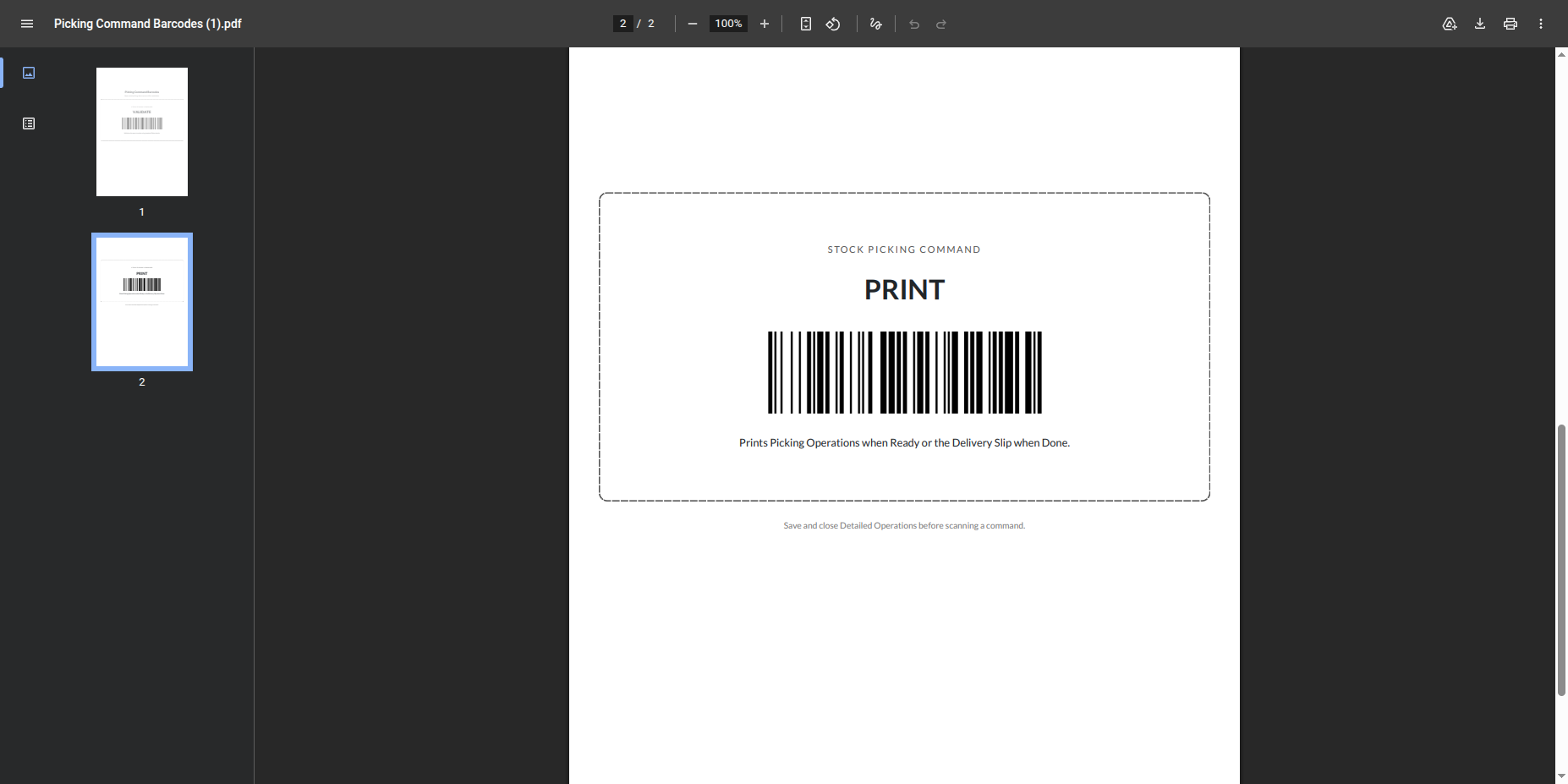
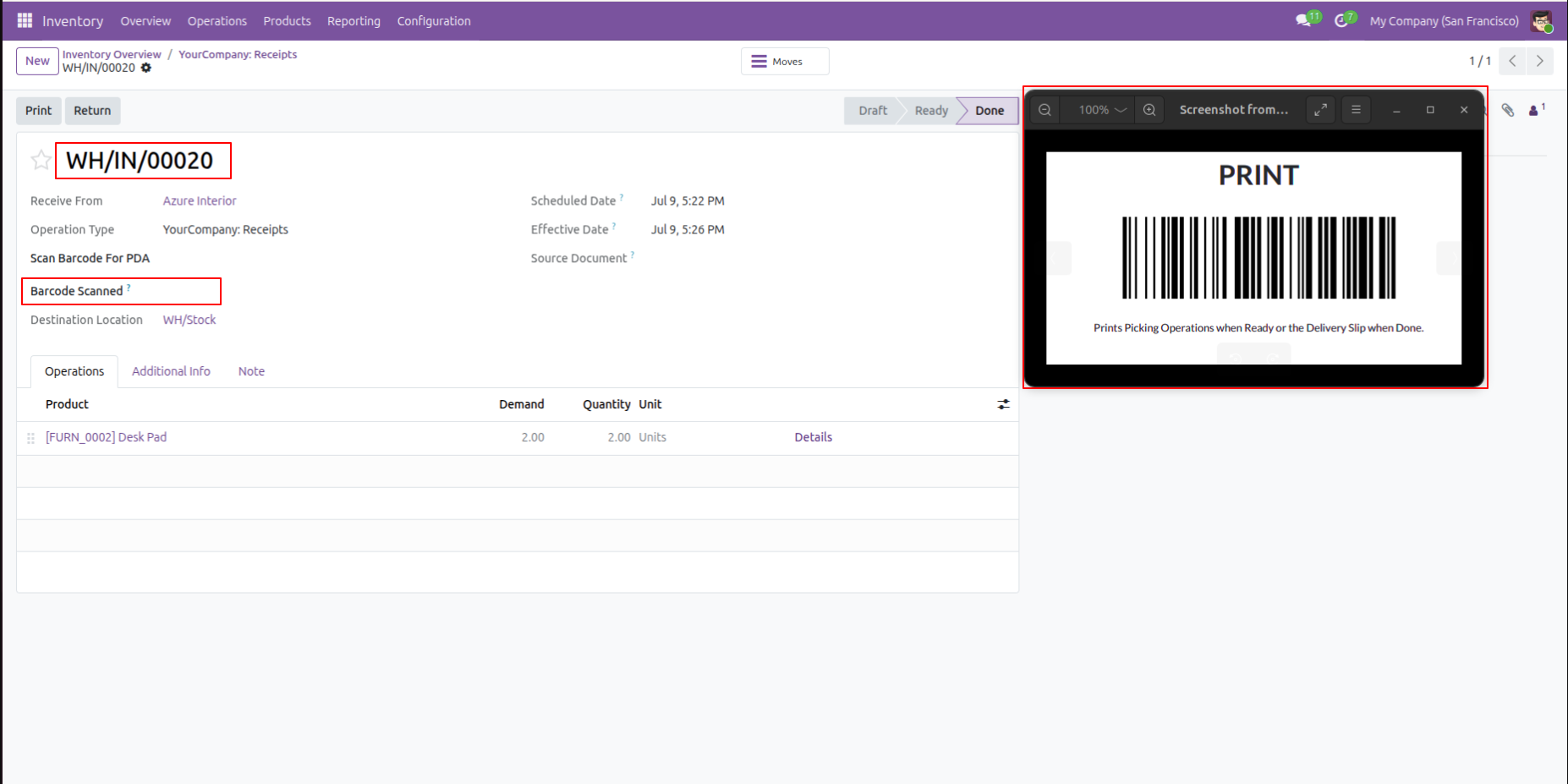
A PDF containing the Picking Print Barcode is generated
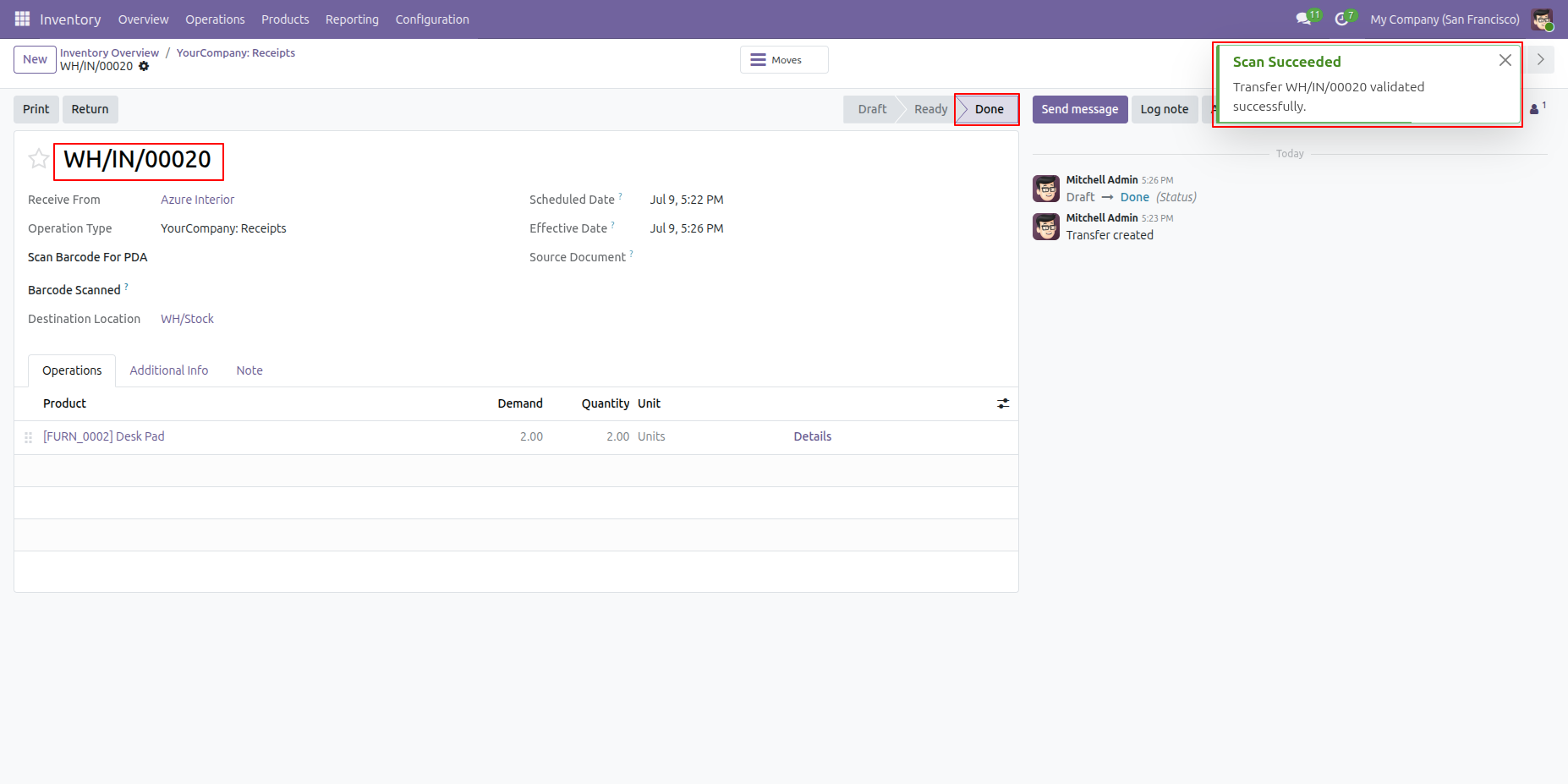
Create a Picking Order in the Draft stage, then scan the Validate Barcode. The picking order is automatically validated and its status changes to Done.
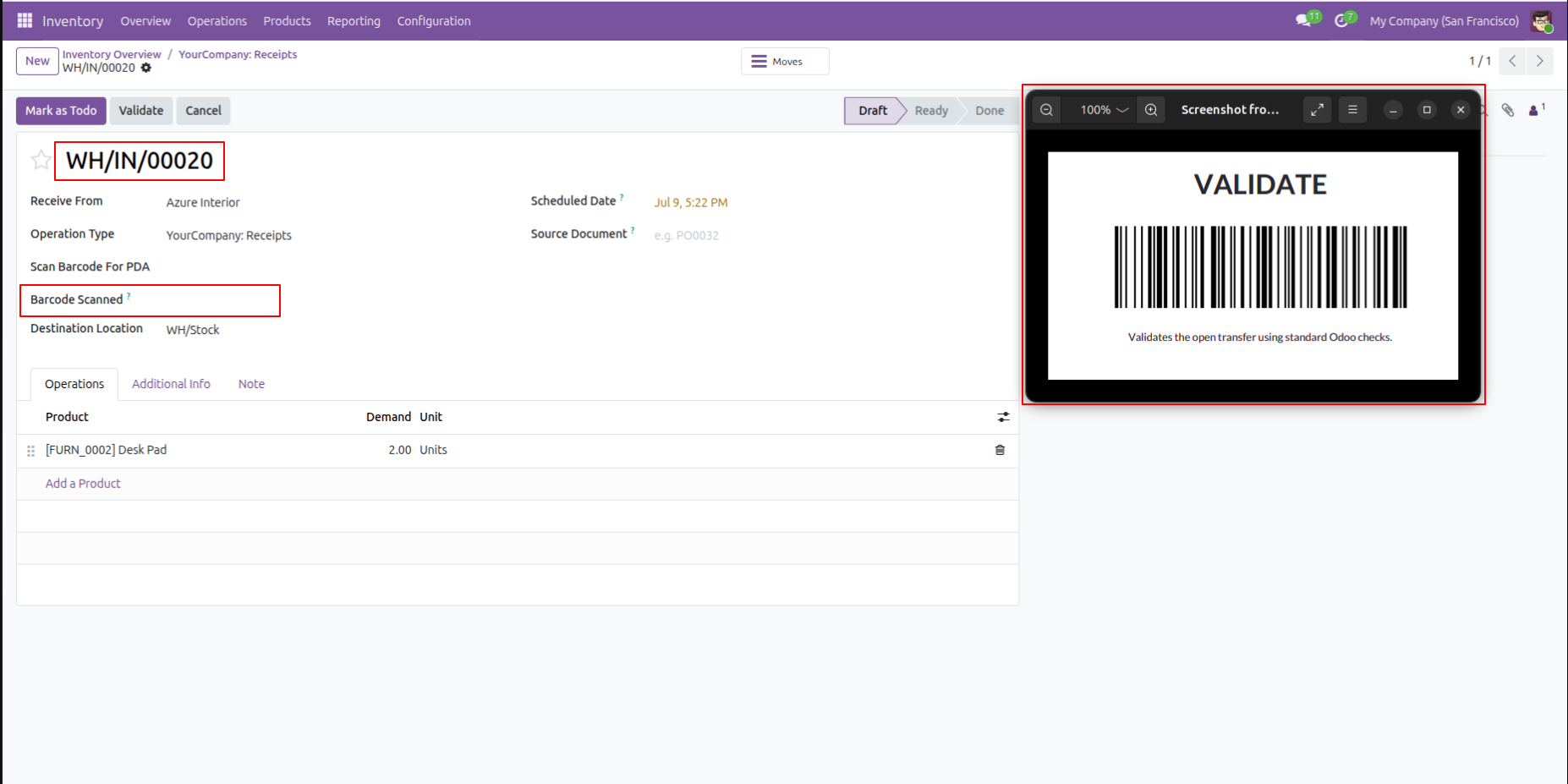
A success notification is displayed, confirming that the picking order has been successfully validated.
Scan the Print Barcode from the Picking Order to automatically generate and print the corresponding picking.
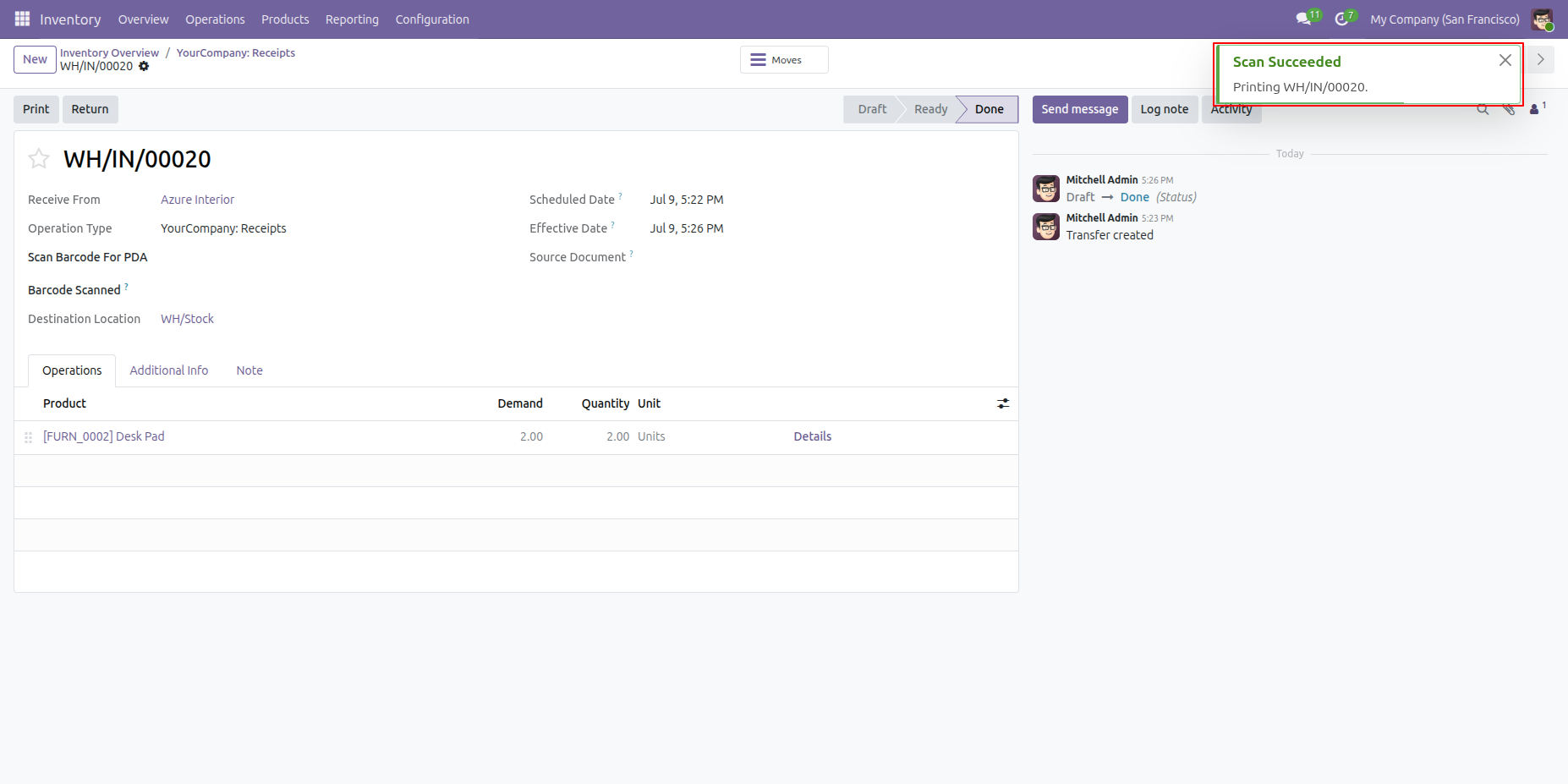
After the barcode is scanned successfully, a success notification is displayed confirming that the action has been completed successfully.
The Picking Order is automatically generated and printed after the barcode is scanned successfully.
Release Notes
Track every update, enhancement, and new feature across all versions.
Version 20.0.1.0.0 | Released on : 15th September 2026


 Buy Once, Supported Forever

 Scan to email sales




 Your Ideas Shape Our Roadmap
 Got an Idea? We'll Build It
Frequently Asked Questions
Everything you need to know before getting started.
- Yes, this app works perfectly with Odoo Enterprise (Odoo.sh & Premise) as well as Community.
- No, this application is not compatible with odoo.com(odoo saas/Odoo Online)
- Yes, to test this module, please contact us at sales@softhealer.com.
- Please contact us at sales@softhealer.comto request customization.
- Yes, we provide free lifetime support for the version you purchased.
- Yes, you will receive lifetime free updates for the version of the module you purchased.
- No, there is no need to install any additional libraries.
- Yes, for version 12 and above, you need to purchase the module separately for each version you intend to use.
- No, exchanges or refunds are not allowed. Please make sure to select the correct version before purchasing.
- You can contact us at support@softhealer.com for language translation support. We use Google Translator tools to provide translations in multiple languages, so the accuracy may vary. We welcome your suggestions to help improve translations.
Trusted by Businesses Worldwide


Abdulhamid Abdulwaheed
Best module for our online store. Highly adaptable, exceptional customer service, and very advanced modules.
Factura Venta POS
They have everything you need. Technical support is excellent, responds quickly, and keeps the module updated. 100% recommended!
Mehmet Muhanna
Great company and support team. Had a problem in my local Odoo server - they solved it in 5 minutes. Highly recommend.
Billy Jeffs
Customised an Odoo app for me which works perfectly. Many requirements, got it right every time. Very confident in their ability.
HP
Consistently excellent service over years of working together. Knowledge and commitment to keeping clients informed truly sets them apart.
Michal Kolasinski
Multiple addons + two custom modules. Communication always friendly and precise. Delivered on time, worked out of the box. Highly recommended!

Multi-Language
8 built-in translations







You May Also Like
Discover more Softhealer modules that integrate seamlessly with your Odoo environment.







Most Demanded Apps
The Softhealer modules our customers reach for most — trusted across 100+ countries.
Activities Management
Manage, schedule, and automate Odoo activities across all departments from one view.
View Module
Access Management
Granular access control over menus, fields, buttons, and records for every user role.
View Module
Backdate Advanced
Backdate any transaction across invoices, journals, pickings, and more with full audit.
View Module
All-in-One Helpdesk
Full-featured customer support with tickets, SLA, and customer portal built for Odoo.
View Module
All-in-One Mobile Backend
Access your full Odoo backend from any mobile device with an optimized interface.
View Module
All-in-One Import
Import any Odoo model data from CSV, Excel, and JSON files with mapping and validation.
View Module
Our Services
End-to-end Odoo expertise - from setup to scale.

AI & Business Integration

Odoo Implementation

Odoo Customization

Support & Maintenance

Mobile Apps

Migration Service

Third-Party Integration

Odoo Training
Ready to Automate Your Business with All In One Barcode Scanner-Advance?
Join 10,000+ businesses - Softhealer, 11+ years of Odoo gold partnership expertise across 100+ countries.

