


 Easy to Manage
 Dedicated Support
















 Scan to email sales




Key
Features

Agriculture Dashboard
Get a complete overview of farms, crops, livestock, expenses, production, and key agricultural activities from one dashboard.
Watch VideoAgriculture Portal
Provide farmers with a dedicated portal to view farms, crops, requests, activities, inspections, and other agricultural information online.
Watch VideoAgricultural Product Classification
Define products as crops, animals, or farming equipment for better agricultural management.
Watch Video360-Degree Farmer Profiles
Create and manage detailed farmer profiles with complete farming-related information.
Watch VideoResource-Integrated Crop Processes
Manage crop processes with linked resources such as seeds, fertilisers, pesticides, and equipment.
Watch VideoProject-Driven Crop Execution
Manage farming activities through projects and tasks for better planning and execution.
Watch VideoMulti-Location Farm Geometry
Manage farms across multiple locations and track their geographical details.
Watch VideoDisease & Incident Log
Record and monitor crop-related diseases, incidents, and required actions.
Watch VideoSeason Summary Report
Review key farming activities, production, expenses, and performance for each season.
Watch VideoRegulatory & Subsidy Reports
Generate reports for regulatory requirements and agricultural subsidy tracking.
Watch VideoSeason-Based Budgeting
Set seasonal budgets and receive alerts when actual expenses vary from planned amounts.
Watch VideoSeason Expense Categorisation
Categorise and track expenses based on farming seasons and activities.
Watch VideoPurchase Order from Inputs
Create purchase orders directly from required farming inputs.
Watch VideoAutomatic Vendor Bill Creation
Automatically create vendor bills based on farming input purchases.
Watch VideoSales & Invoice Integration
Connect crop sales with sales orders and invoices for complete financial tracking.
Watch VideoCrop Growth Stage Tracking
Track crops through different growth stages from planting to harvest.
Watch VideoHarvest Batch & Traceability
Manage harvest batches and trace crop production history from farm to final output.
Watch VideoField Visit & Inspection Records
Record field visits, inspections, observations, and follow-up activities.
Watch VideoAgronomist Assignment & Access
Assign agronomists to farming activities and control access based on their roles.
Watch VideoLabour & Payroll Integration
Manage agricultural labour and connect workforce activities with payroll.
Watch VideoFertiliser Management
Manage fertiliser usage, applications, and requirements for crops.
Watch VideoIrrigation & Water Management
Monitor irrigation activities and manage water usage across farms and crops.
Watch VideoDaily Weather Tracking
Record and monitor daily weather conditions for farming activities.
Watch VideoCrop Rotation Planning
Plan crop rotation across fields and seasons to support better farm management.
Watch VideoLivestock & Animal Health
Track livestock, health records, treatments, and animal-related activities.
Watch VideoCRM Sales Pipeline Integration
Connect agricultural sales activities with the CRM pipeline to manage potential customers and opportunities.
Watch VideoGoogle API Weather Forecasting
Get weather forecasts using Google API data to support farming decisions and planning.
Watch VideoCrop Request Management
Create, track, and manage crop requests through each stage of the process.
Crop Production P&L
Analyse crop-wise revenue, expenses, and profit or loss.
Soil Analysis Records
Record soil test results and generate reports for better crop planning.
 Setup & Configuration
 Release Notes
 Support
 FAQ's
FAQ's
-
 Dashboard
-
 Portal Flow
-
 Configurations
-
 Agriculture Product/Animal
-
 Agriculture Farmers And Farming Locations
-
 Agriculture Project & Task
-
 Agriculture Crops
-
 Resource-Integrated Crop Processes
-
 Agriculture Crops Disease
-
 Crops Request and Crops Orders
-
 Invoice Creation from Inputs
NEW
Invoice Creation from Inputs
NEW
-
 Crop Growth Stage Tracking
NEW
Crop Growth Stage Tracking
NEW
-
 360-Degree Farmer Profiles
NEW
360-Degree Farmer Profiles
NEW
-
 Multi-Location Farm Geometry
NEW
Multi-Location Farm Geometry
NEW
-
 Project-Driven Crop Execution
NEW
Project-Driven Crop Execution
NEW
-
 Agriculture Crops Incident
NEW
Agriculture Crops Incident
NEW
-
 Purchase Order Creation from Inputs
NEW
Purchase Order Creation from Inputs
NEW
-
 Vendor Bills Auto-Creation from Inputs
NEW
Vendor Bills Auto-Creation from Inputs
NEW
-
 Harvest Batch & Traceability
NEW
Harvest Batch & Traceability
NEW
-
 Field Visit & Inspection Records
NEW
Field Visit & Inspection Records
NEW
-
 Agronomist Assignment & Role-Based Access
NEW
Agronomist Assignment & Role-Based Access
NEW
-
 Labour & Payroll Integration
NEW
Labour & Payroll Integration
NEW
-
 Fertiliser Management
NEW
Fertiliser Management
NEW
-
 Seed Management
NEW
Seed Management
NEW
-
 Pesticide Management
NEW
Pesticide Management
NEW
-
 Irrigation & Water Management
NEW
Irrigation & Water Management
NEW
-
 Daily Weather Tracking
NEW
Daily Weather Tracking
NEW
-
 Livestock & Animal Health
NEW
Livestock & Animal Health
NEW
-
 Crop Rotation Planning
NEW
Crop Rotation Planning
NEW
-
 CRM Sales Pipeline Integration
NEW
CRM Sales Pipeline Integration
NEW
-
 Season Summary Report
NEW
Season Summary Report
NEW
-
 Regulatory Compliance & Subsidy Reports
NEW
Regulatory Compliance & Subsidy Reports
NEW
-
 Season-Based Budgeting & Variance Alerting
NEW
Season-Based Budgeting & Variance Alerting
NEW
-
 Season-Level Expense Categorisation
NEW
Season-Level Expense Categorisation
NEW
-
Crop Production P&L (Profit & Loss)
NEW
-
 Google API Weather Forecasting
NEW
Google API Weather Forecasting
NEW
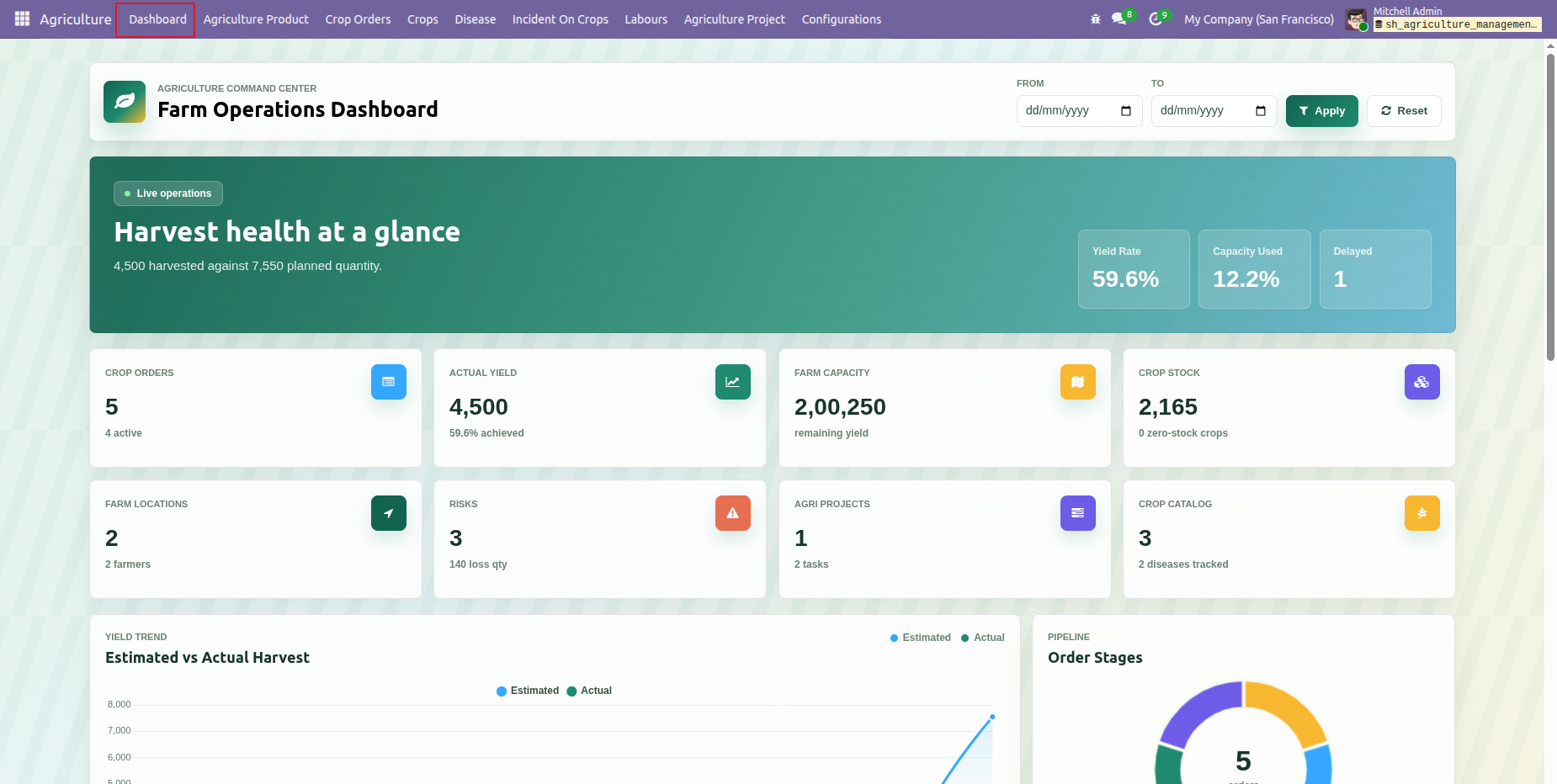
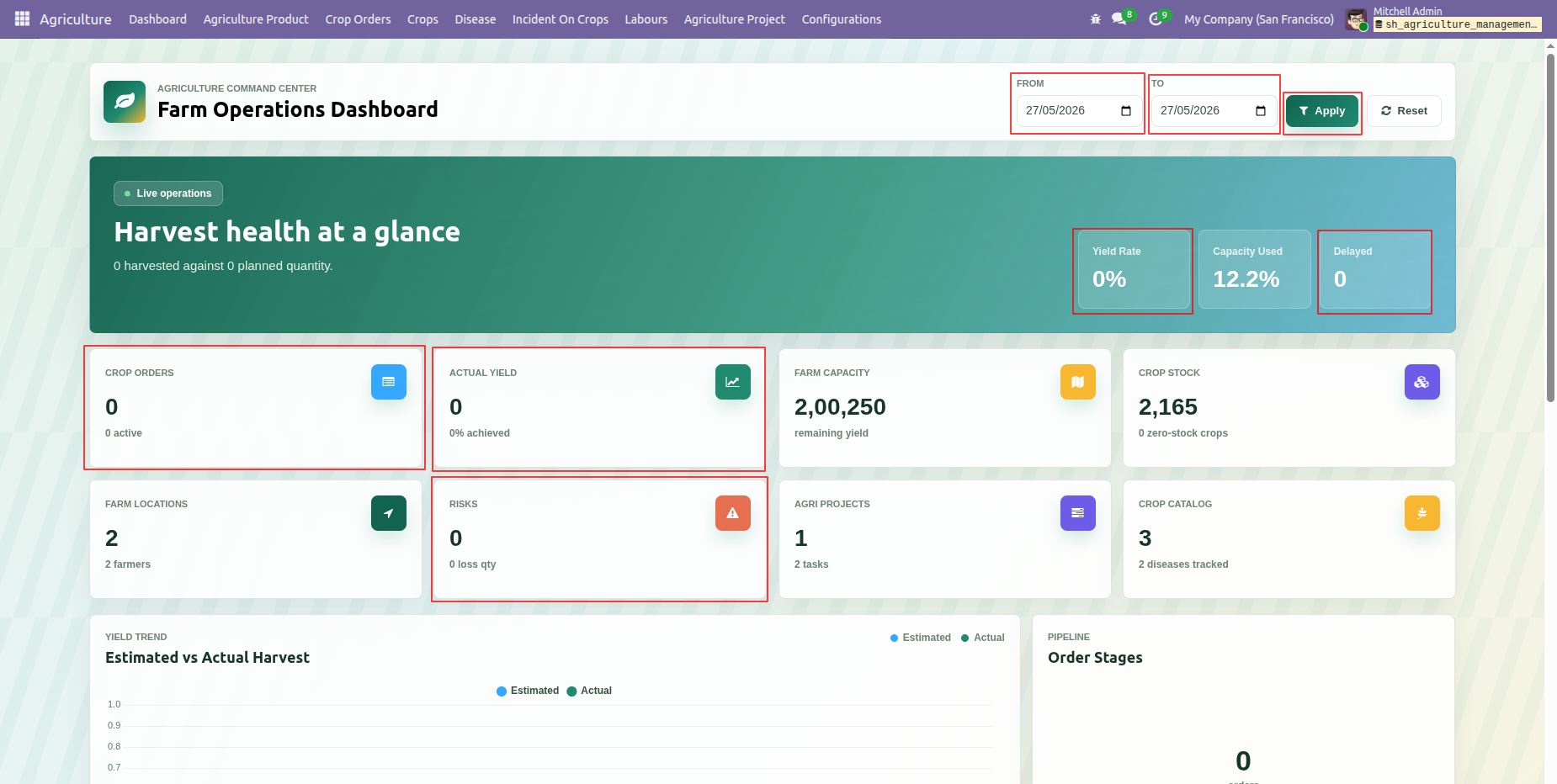
Review the Farm Operations Dashboard to monitor harvest health, operational summaries, charts, orders, and crop information.
The Farm Operations Dashboard opens with harvest health metrics and key farming indicators at a glance.
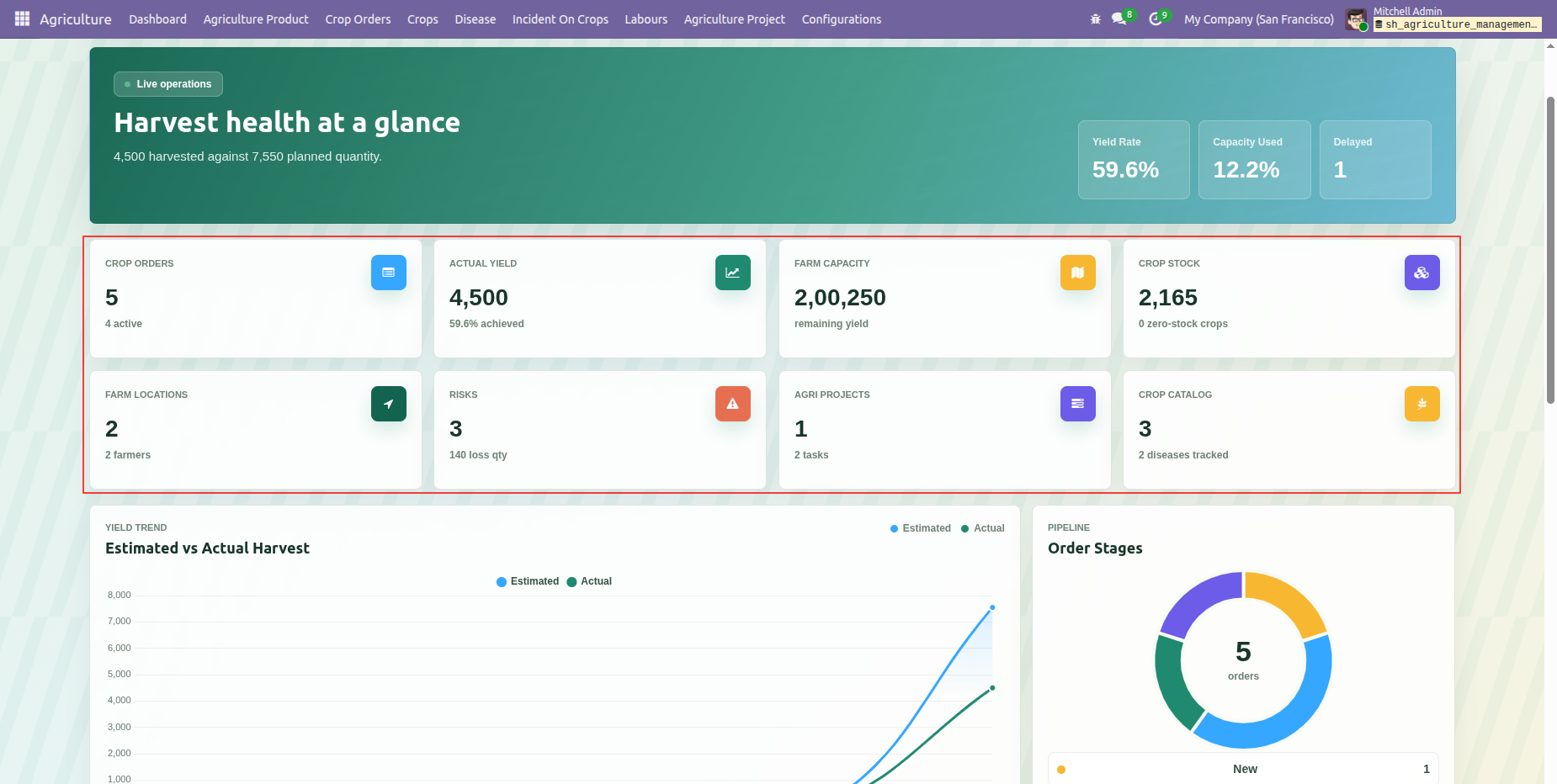
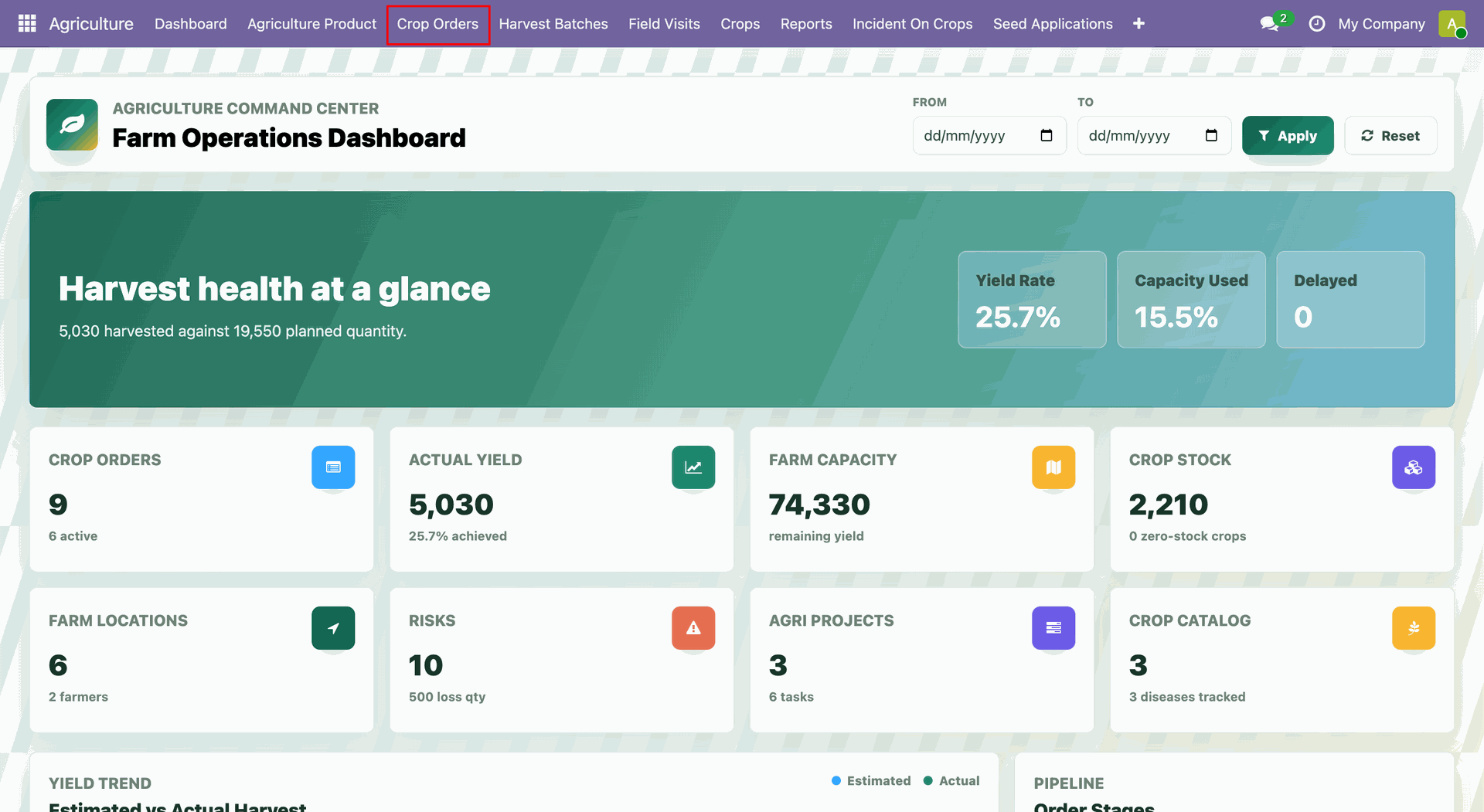
The dashboard summary cards show Crop Orders, Actual Yield, Farm Capacity, Crop Stock, Farm Locations, Risks, Agri Projects and Crop Catalog figures together in one view.
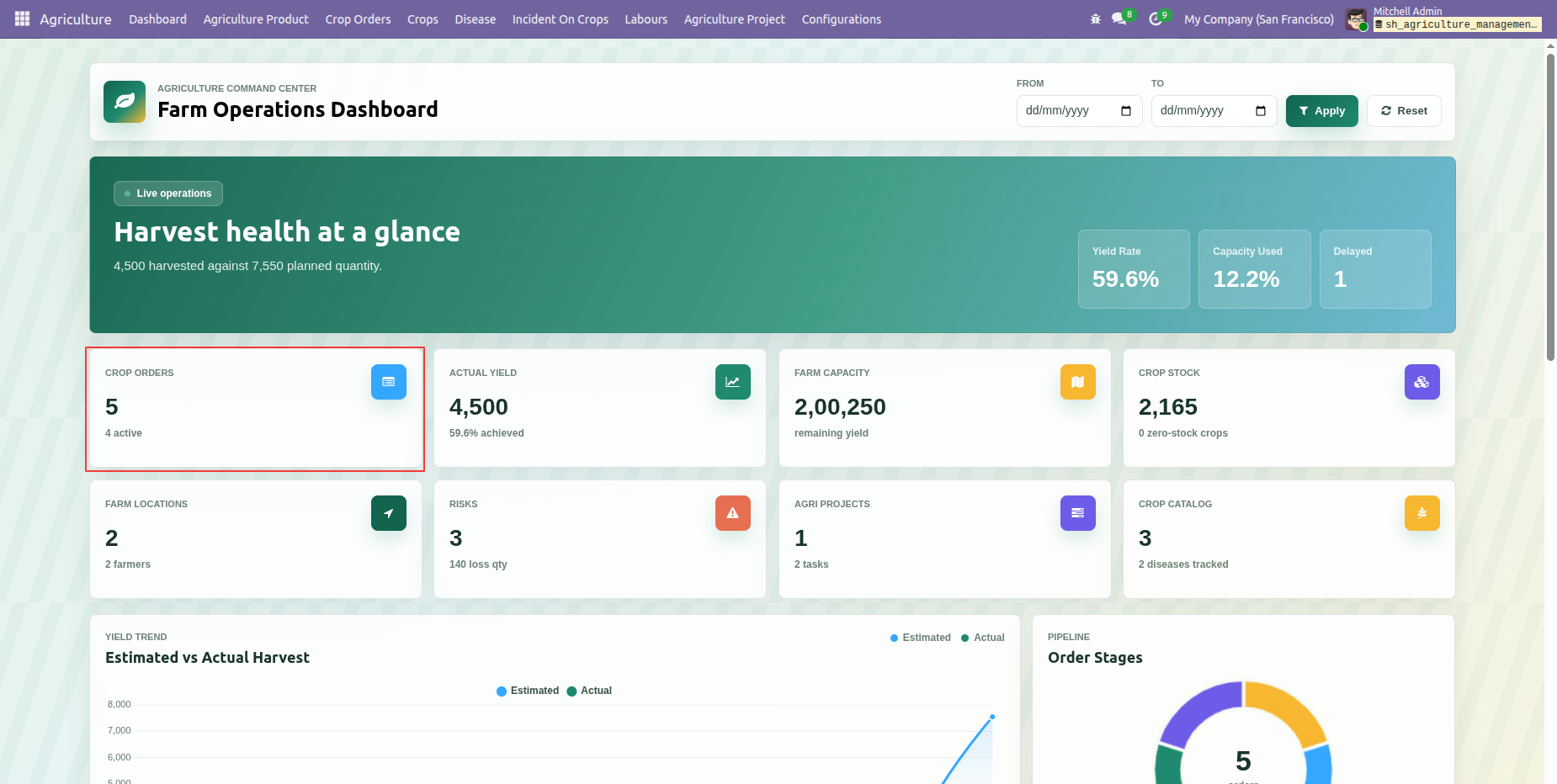
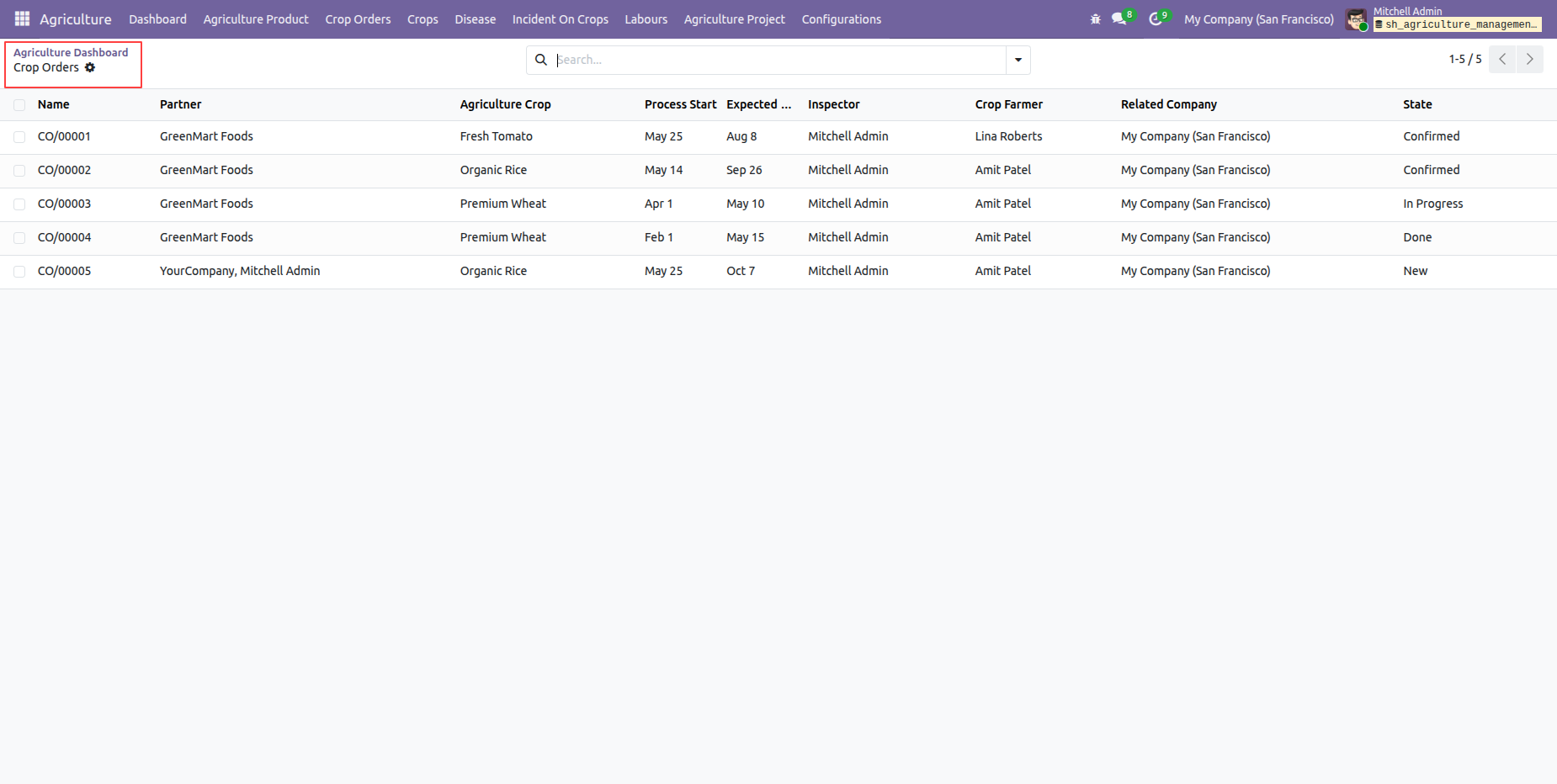
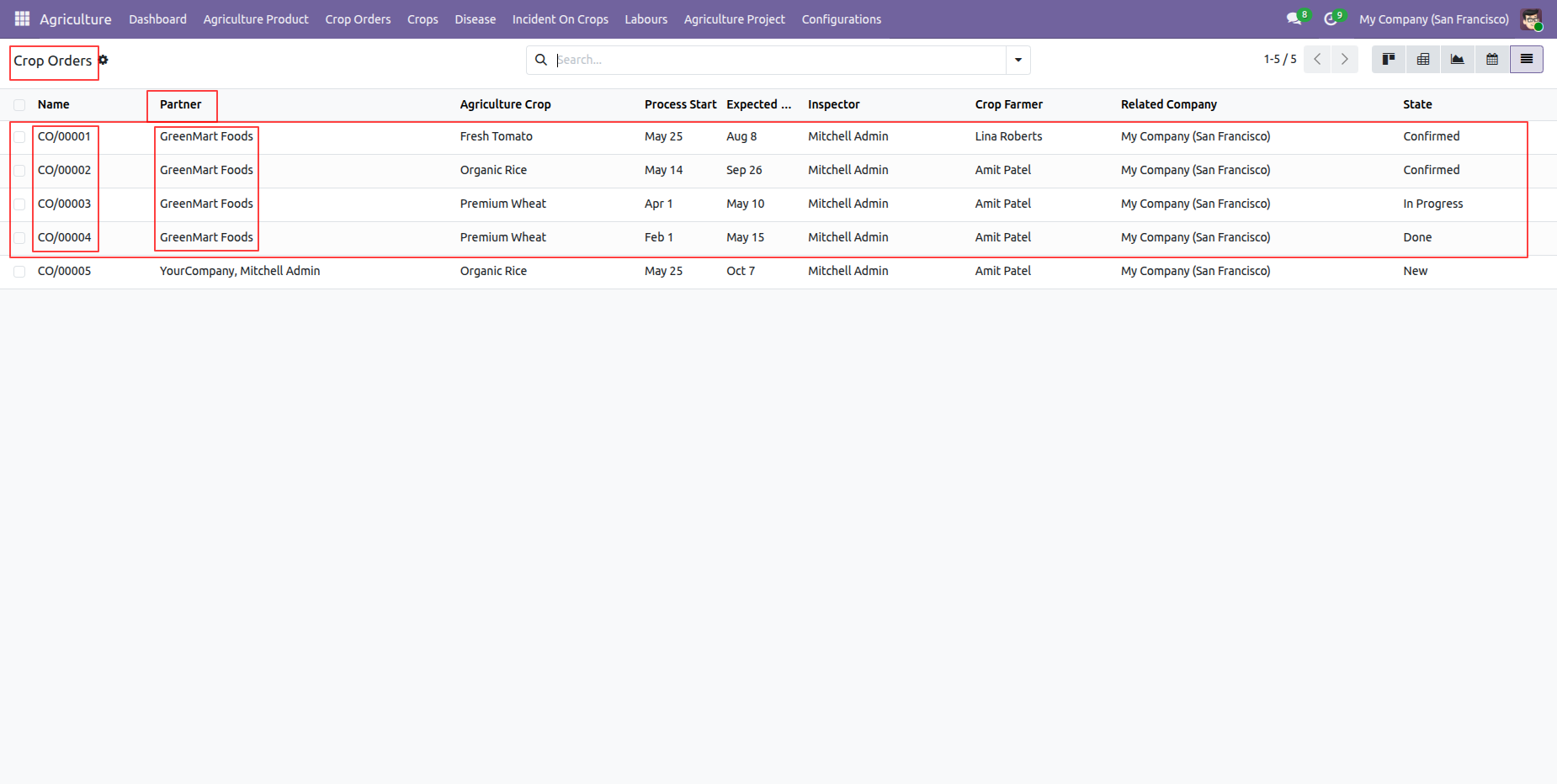
Click on Crop Orders tile from the dashboard.
Crop Orders list view will open by clicking on Crop Orders tile from dashboard.
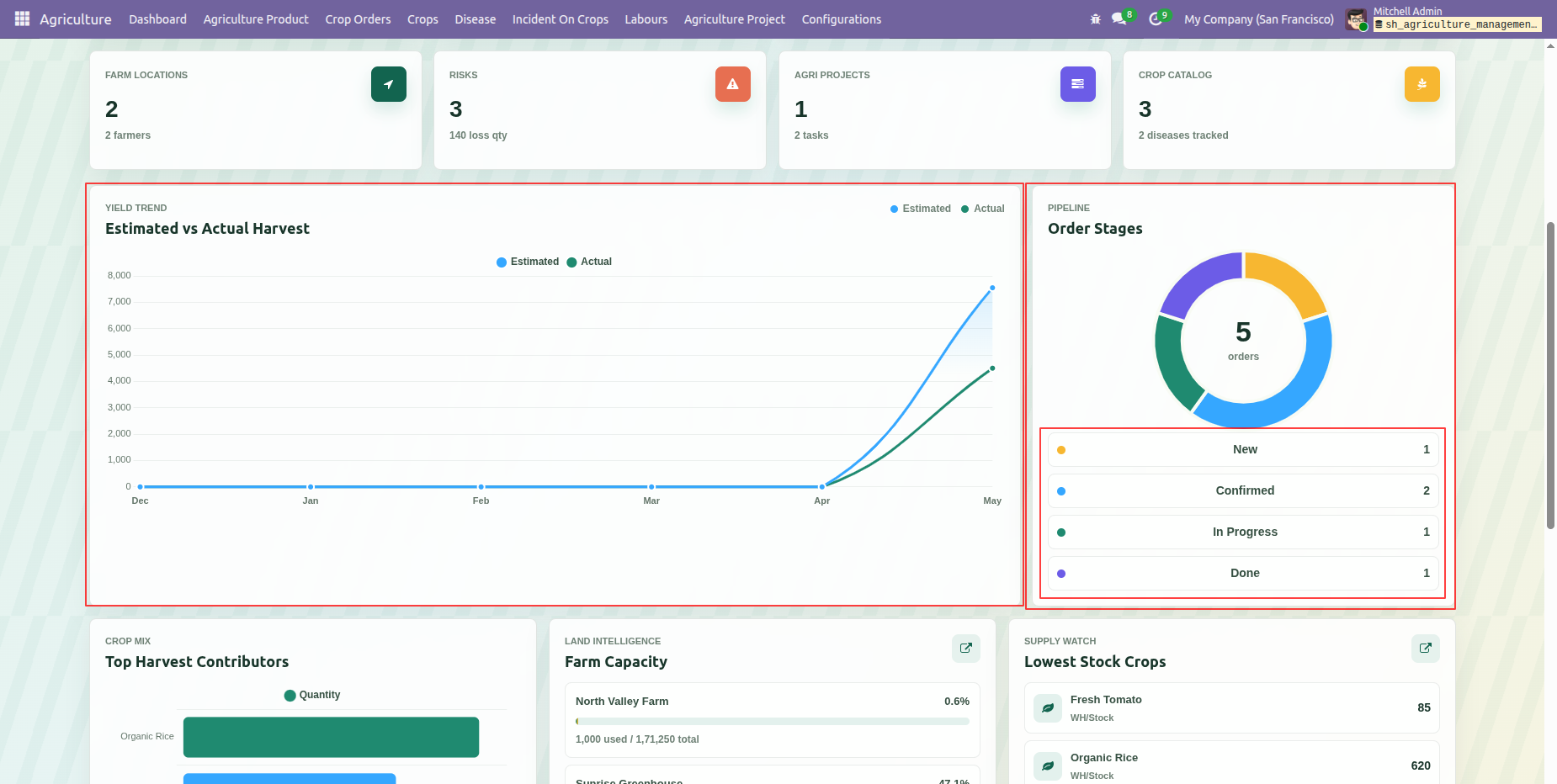
Dashboard displays estimated and actual harvest values and order status information Charts.
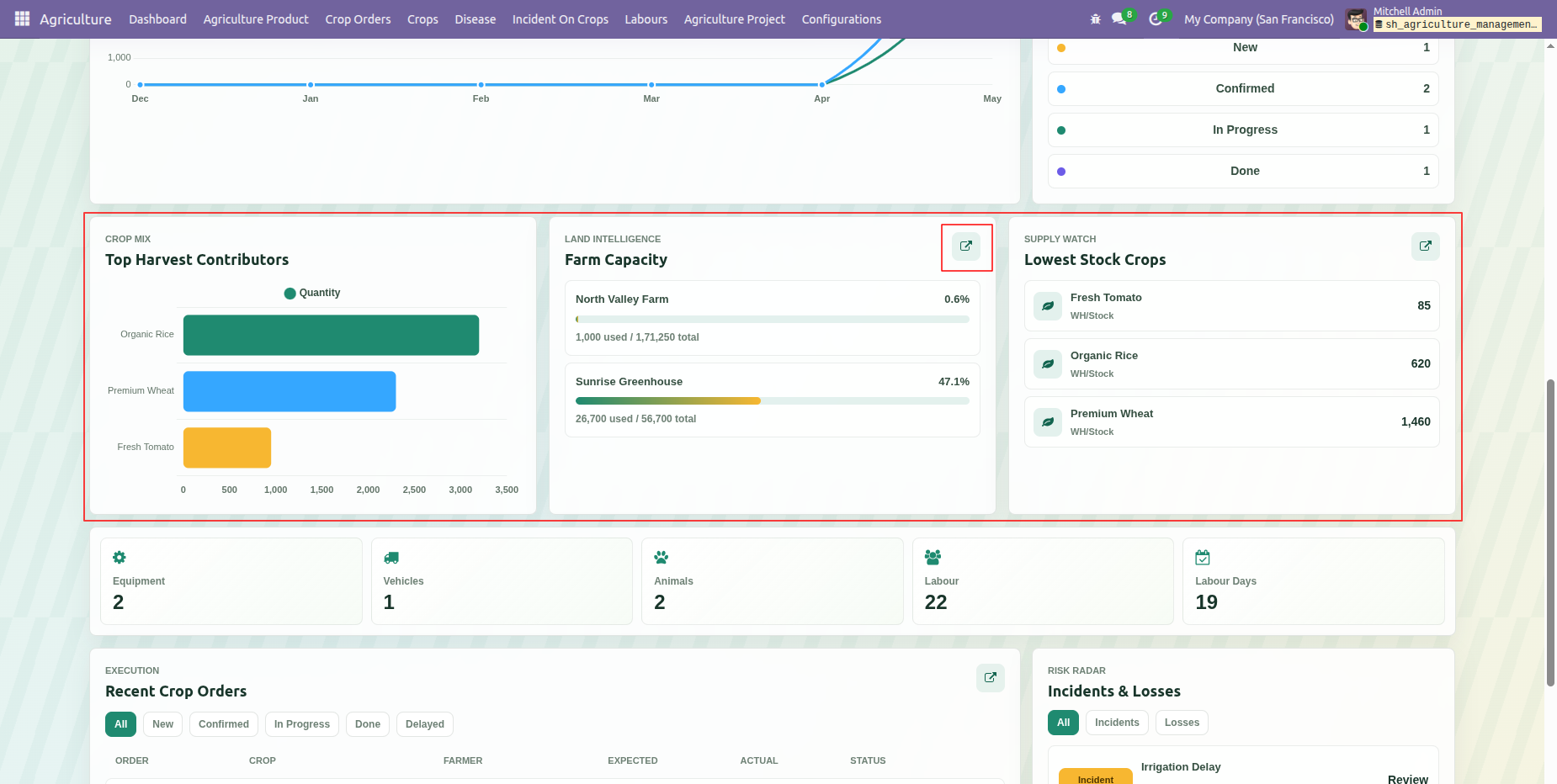
Lower dashboard panels summarize farmer contributions, farm capacity, and latest stock crops. Click on Farm Capacity navigation link.
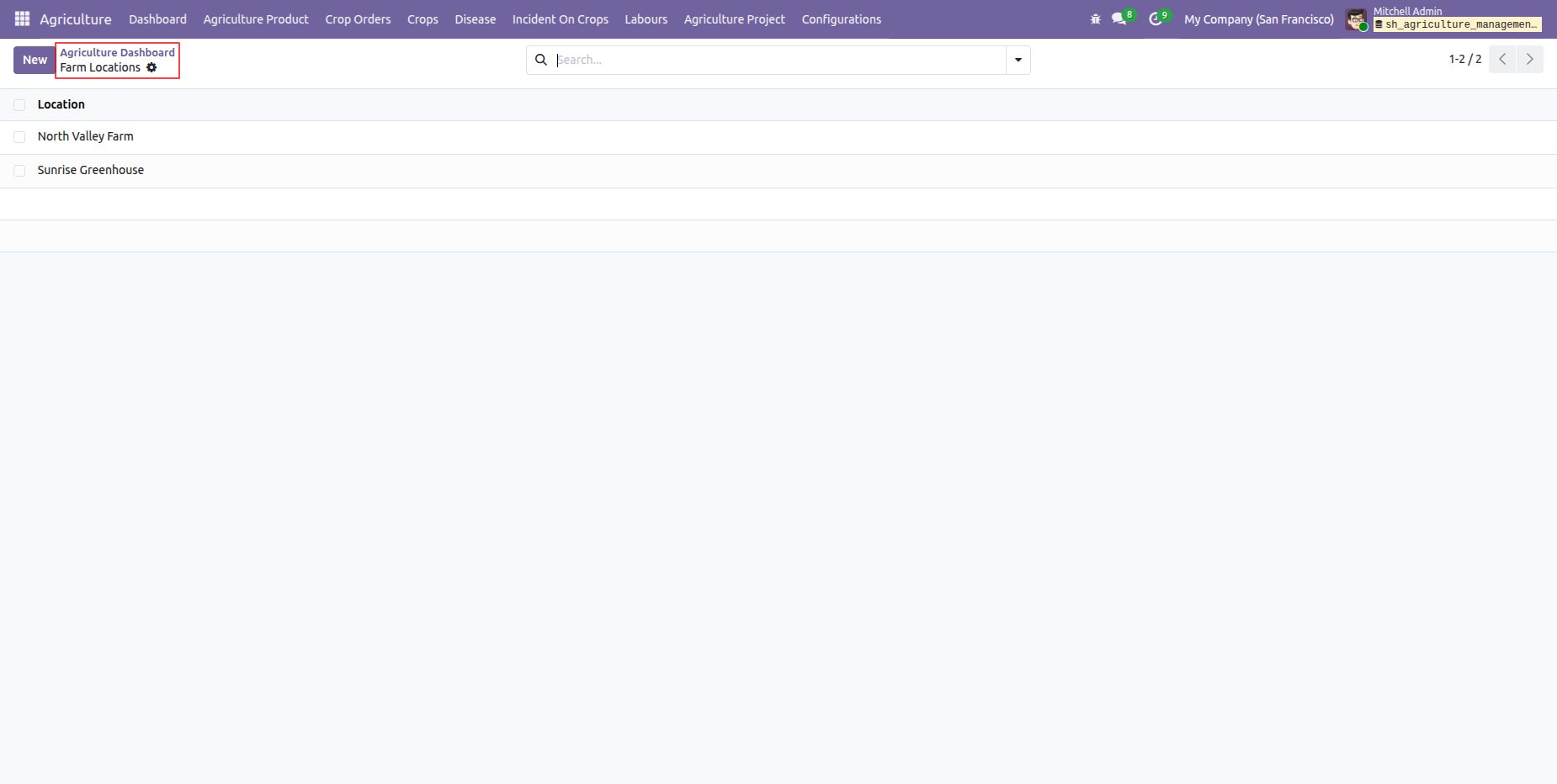
A dashboard navigation result shows the available record list after selecting a dashboard option.
Click on lowest stock crop navigation link.
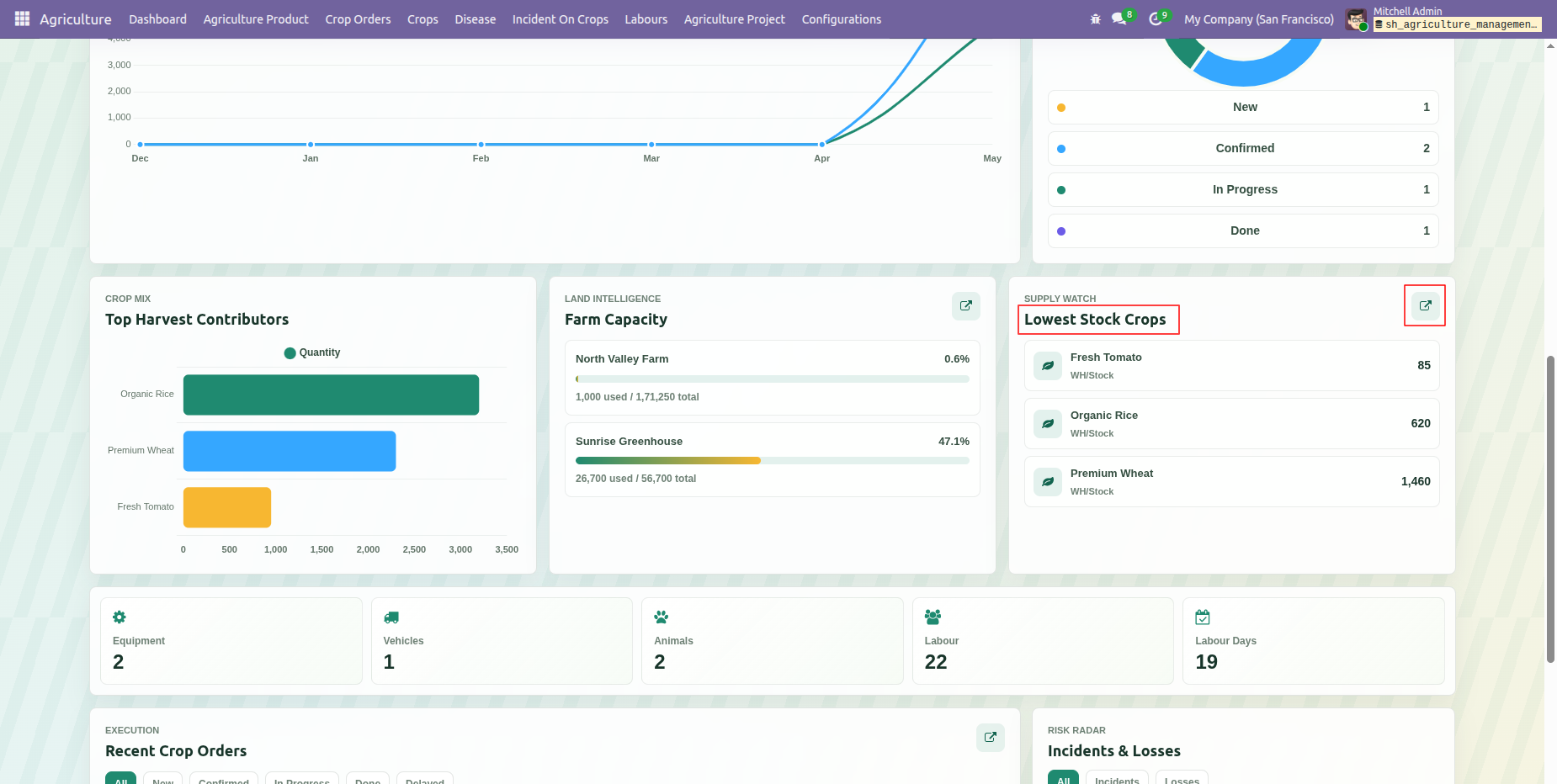
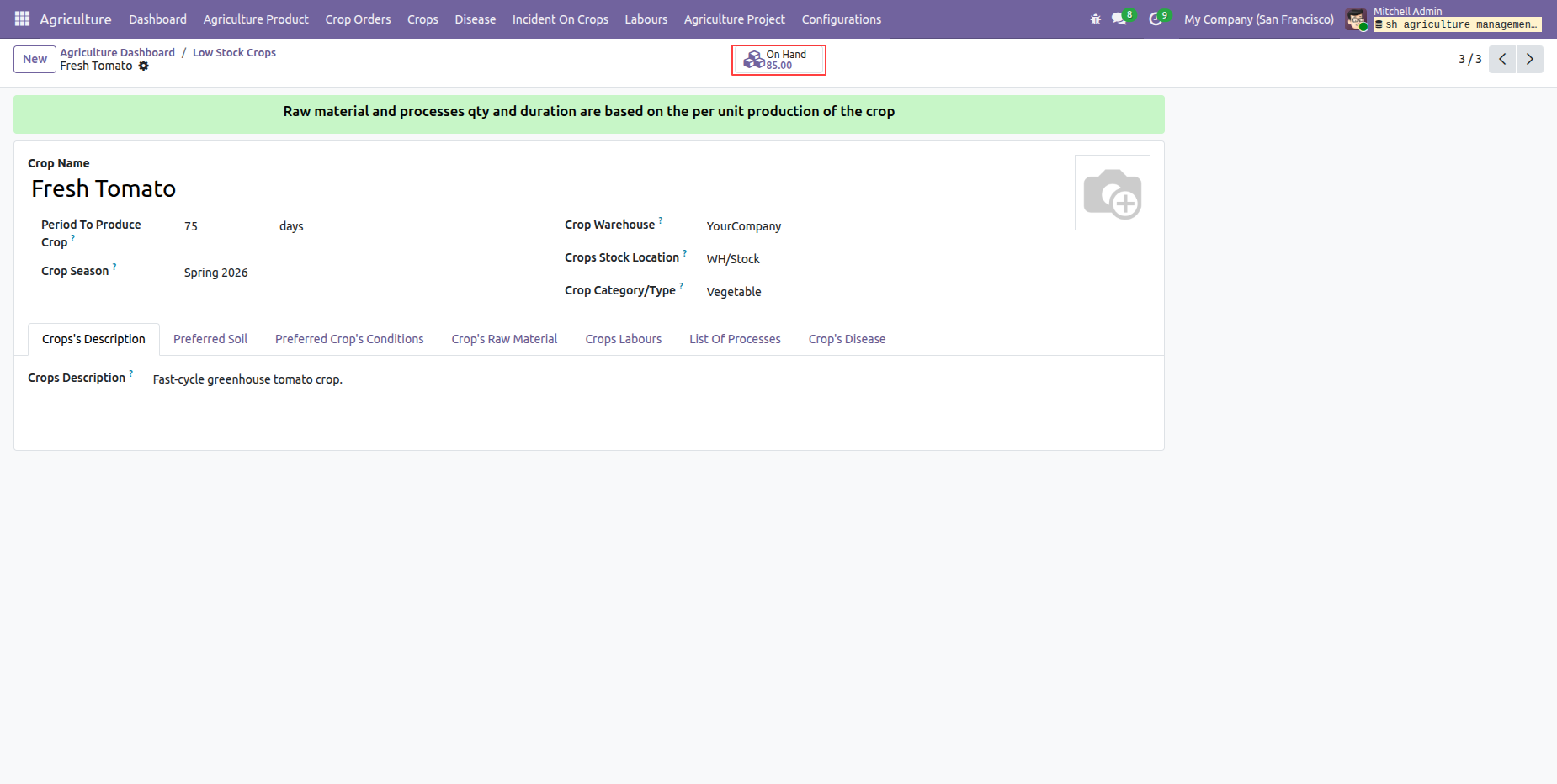
Lowest Stock Crop records will open by clicking on lowest stock crop navigation link from dashboard.
The dashboard shows Equipment, Vehicles, Animals, Labours, and Labour Days figures together in one view.
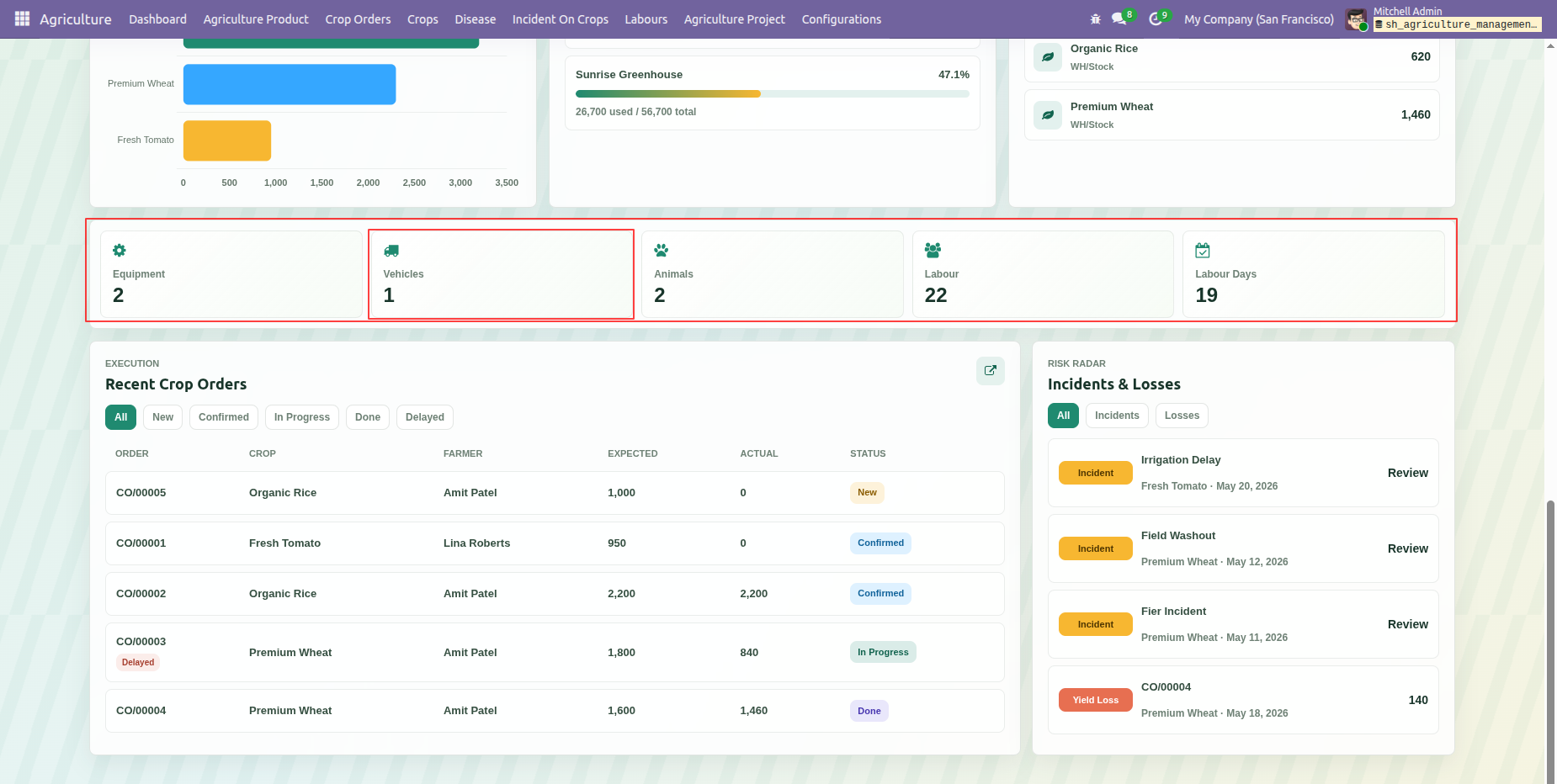
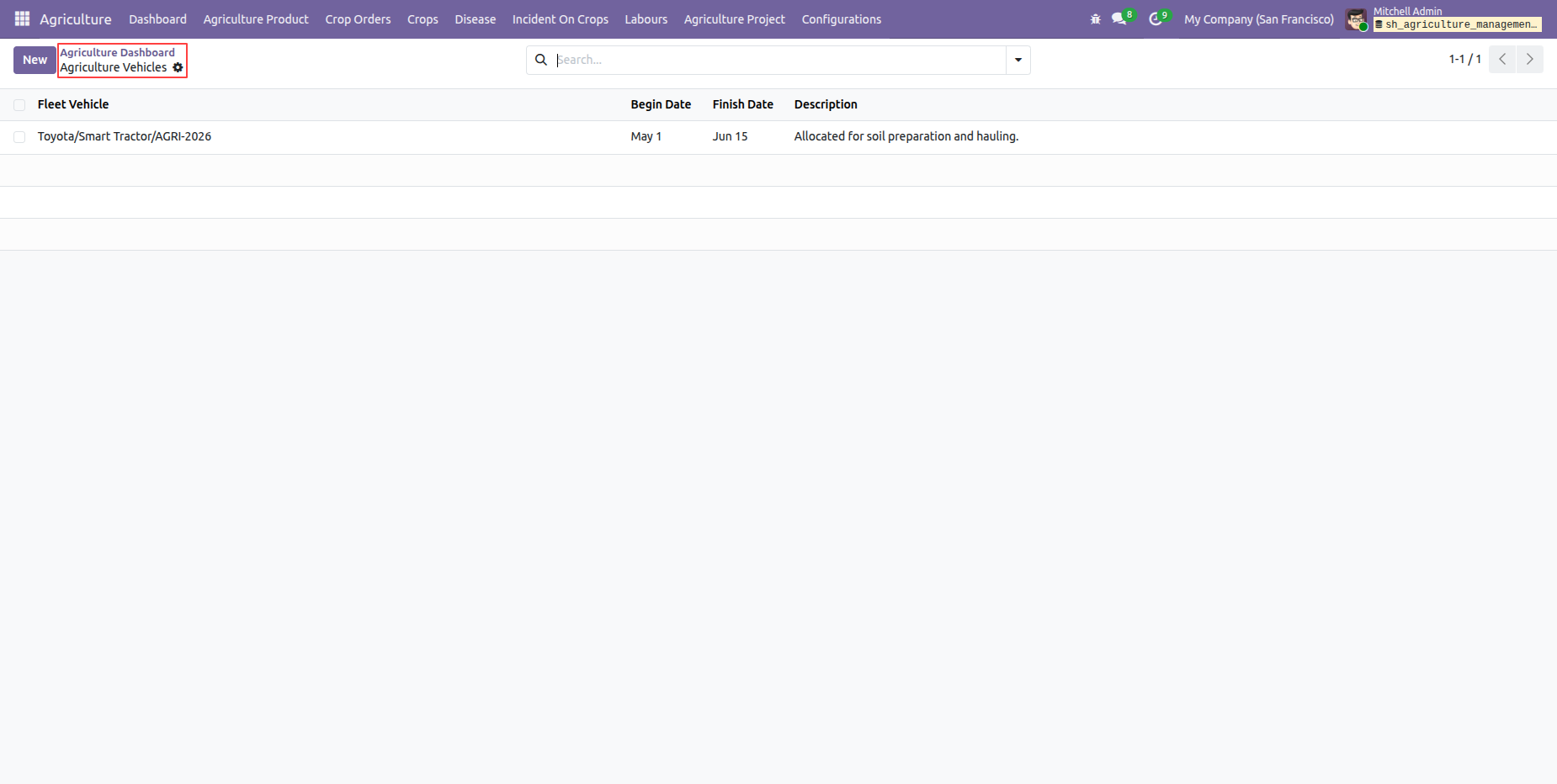
By clicking on vehicles tile from dashboard will open agriculture vehicles list view.
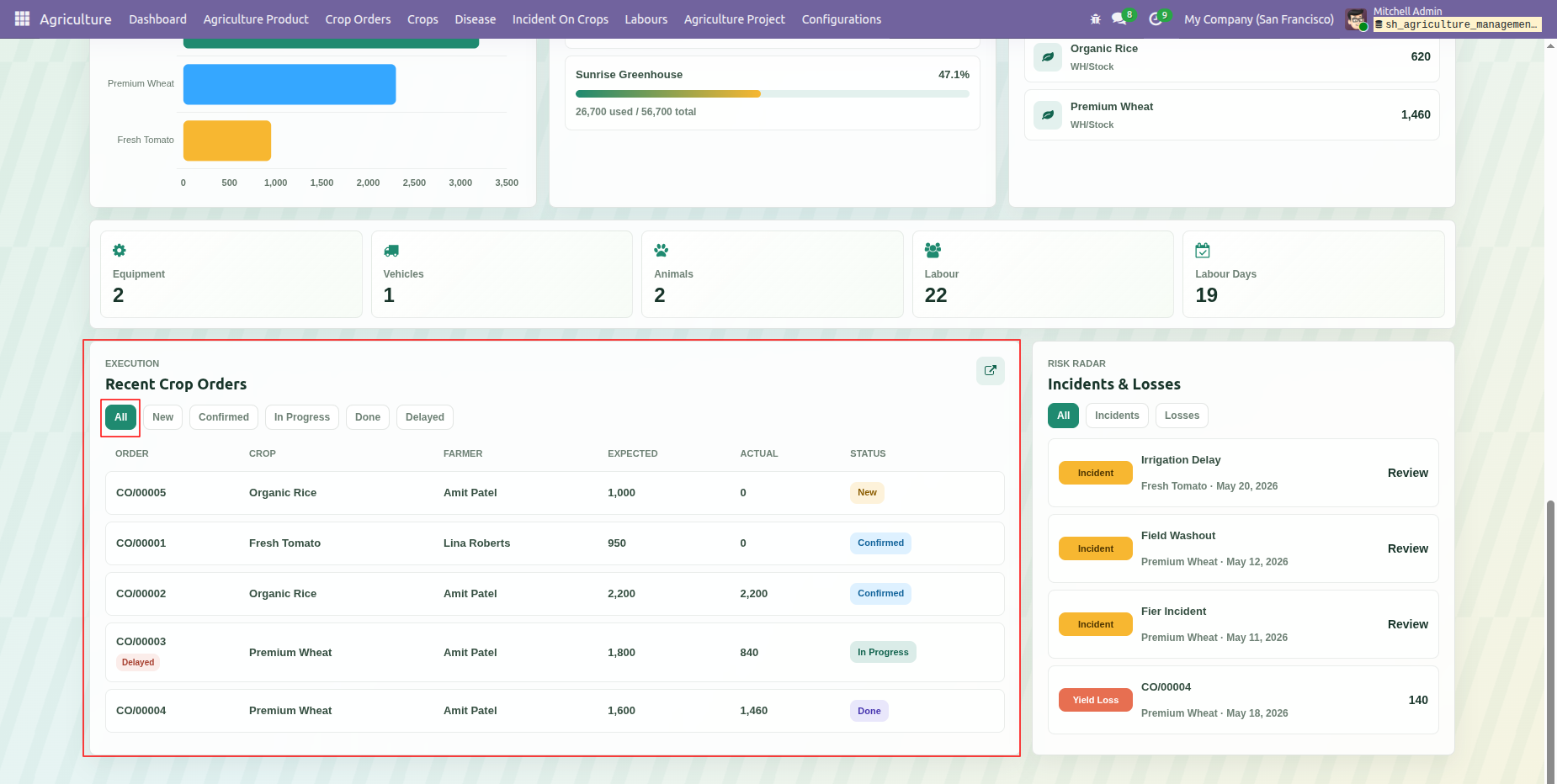
Recent crop orders are listed with order details, statuses, and related crop information with All filter option.
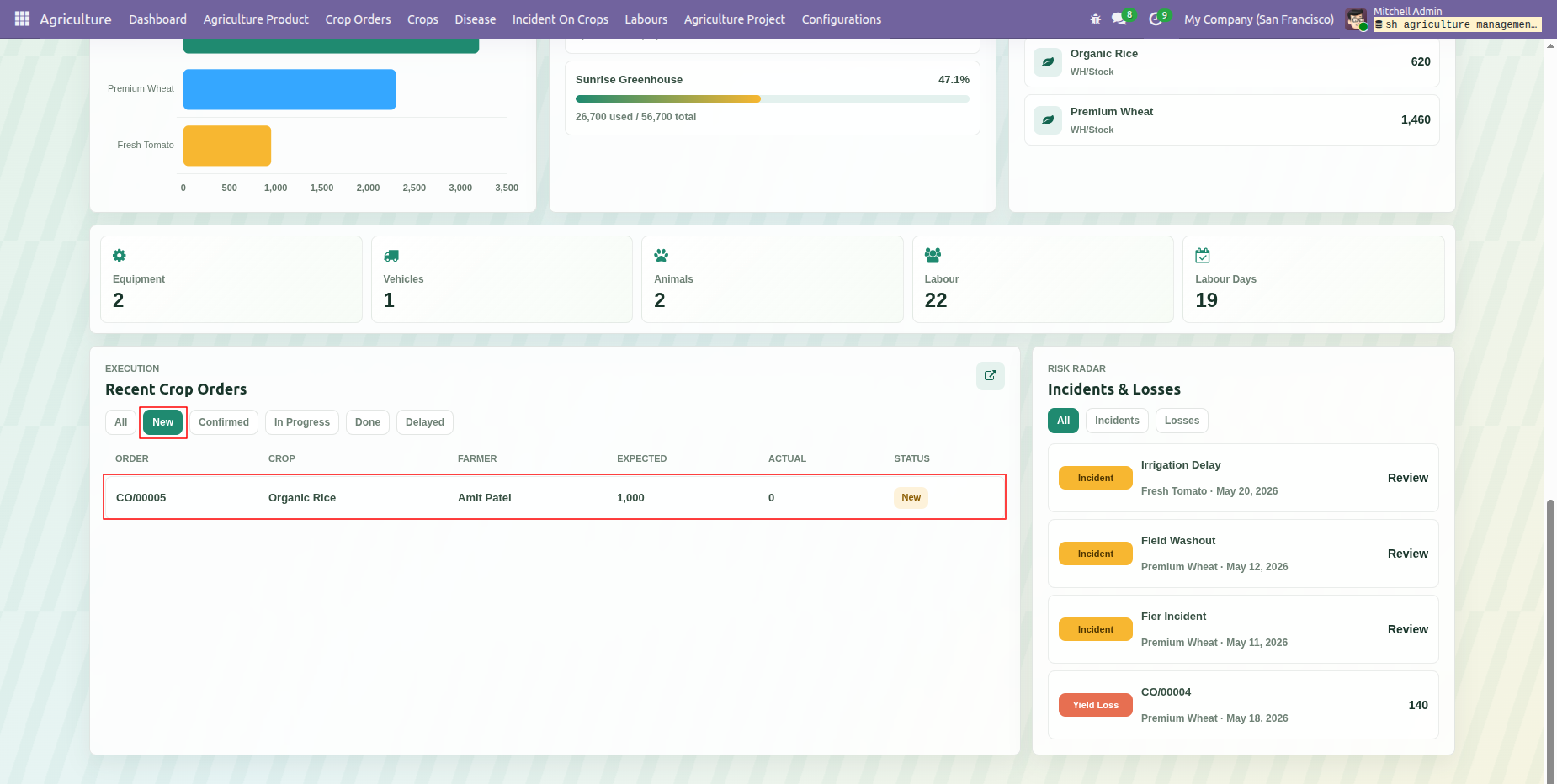
Recent crop orders are listed with order details, statuses, and related crop information with New filter option.
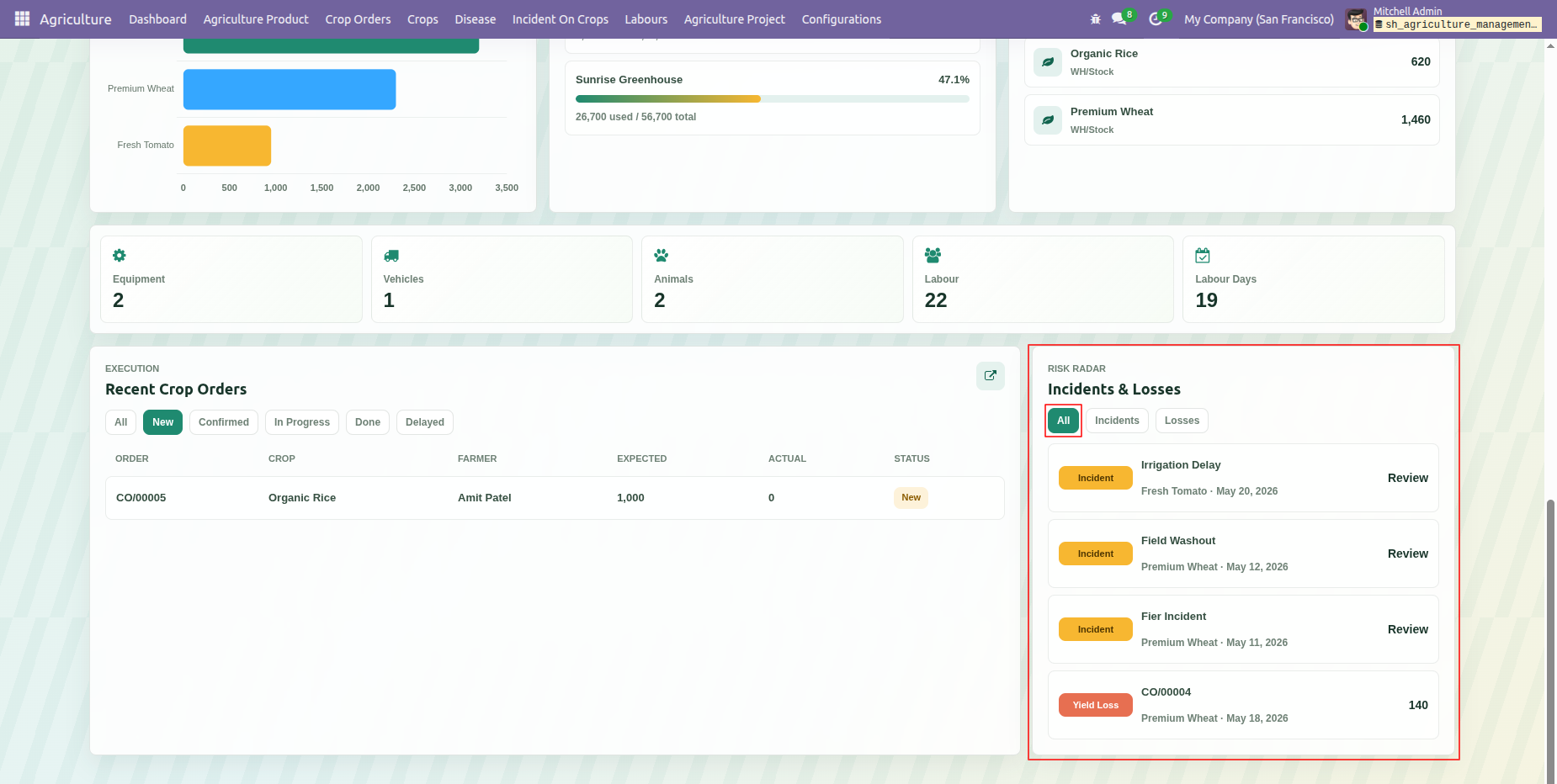
Dashboard displays Incidents & Losses with All filter option.
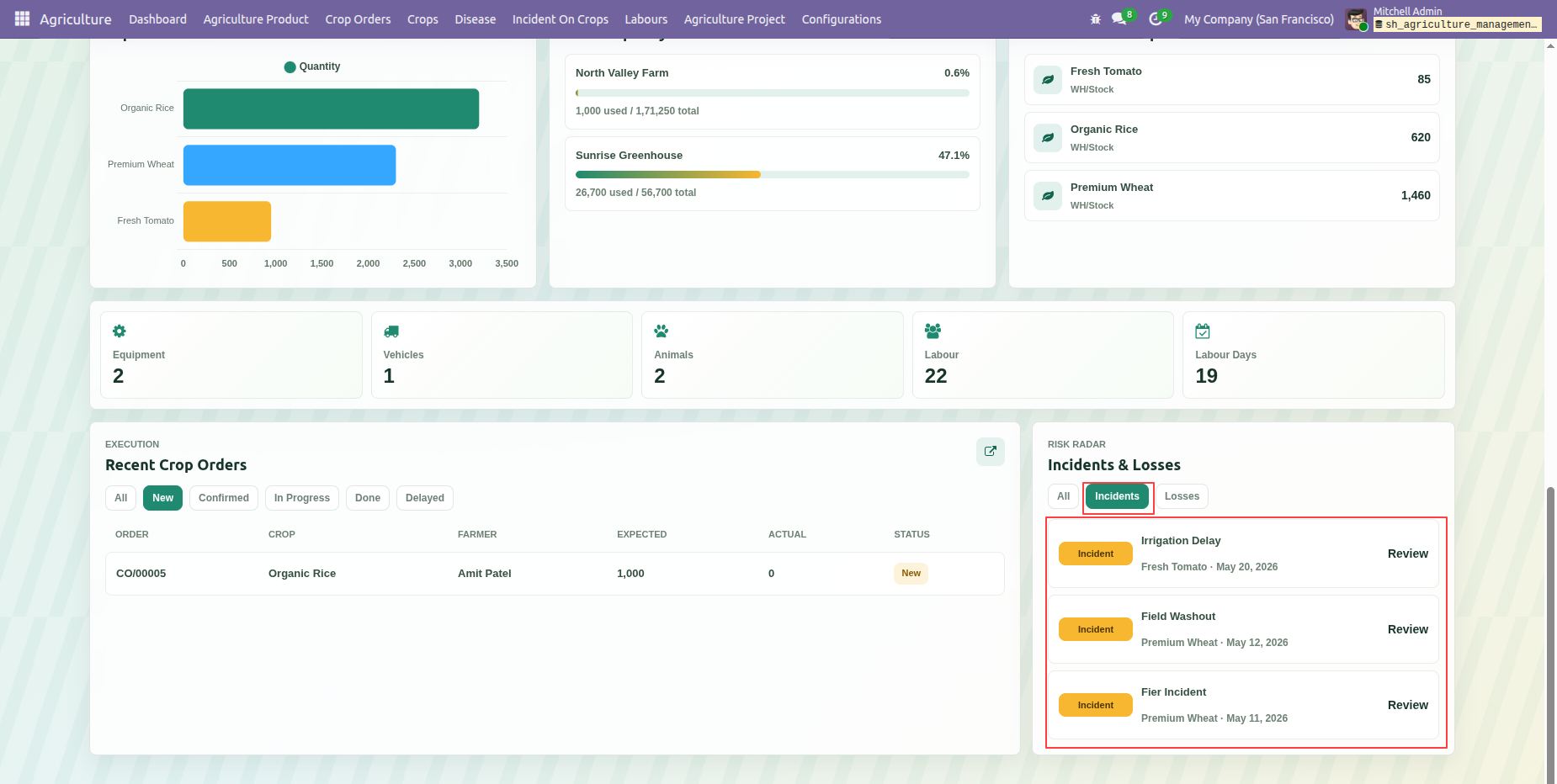
Dashboard displays Incidents & Losses with Incidents filter option.
Dashboard can filtered with date range and summary cards provide a focused view of current farm operation information based on filetred date.
Review the portal flow for Crop Orders and Crop Requests from the My Account area through request and order details.
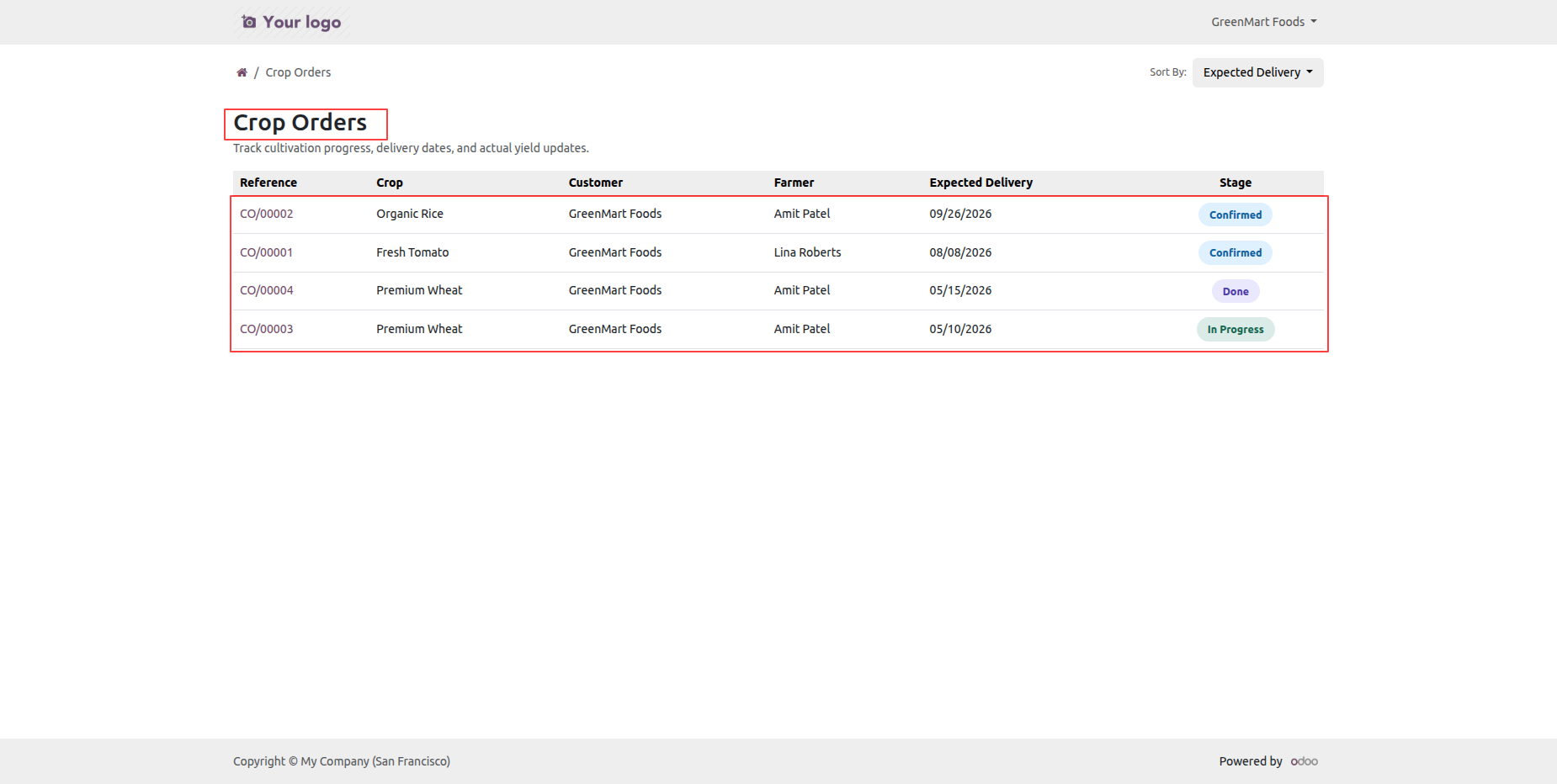
The portal Crop Orders list displays available orders with customer, crop, quantity, and status information.
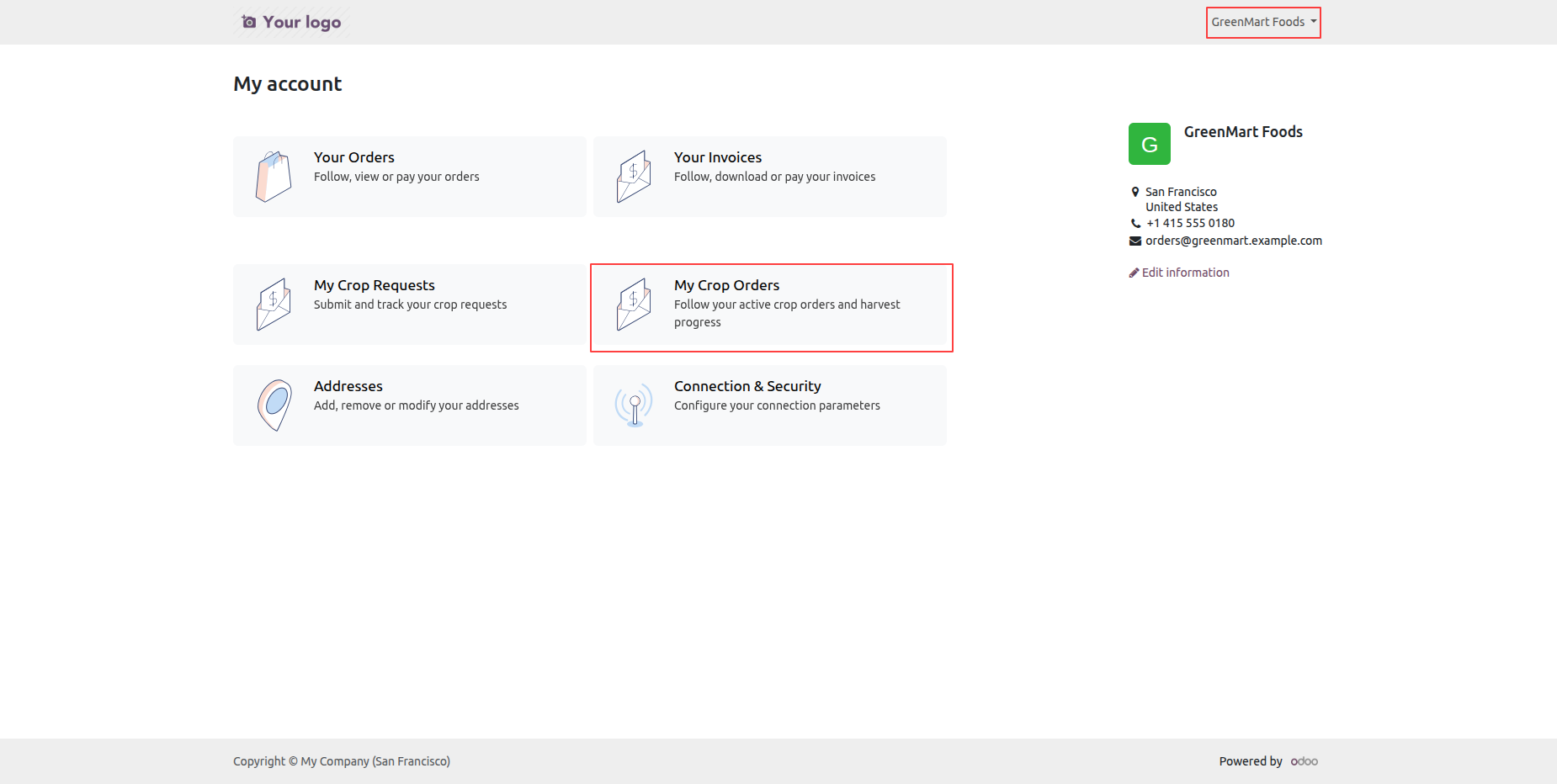
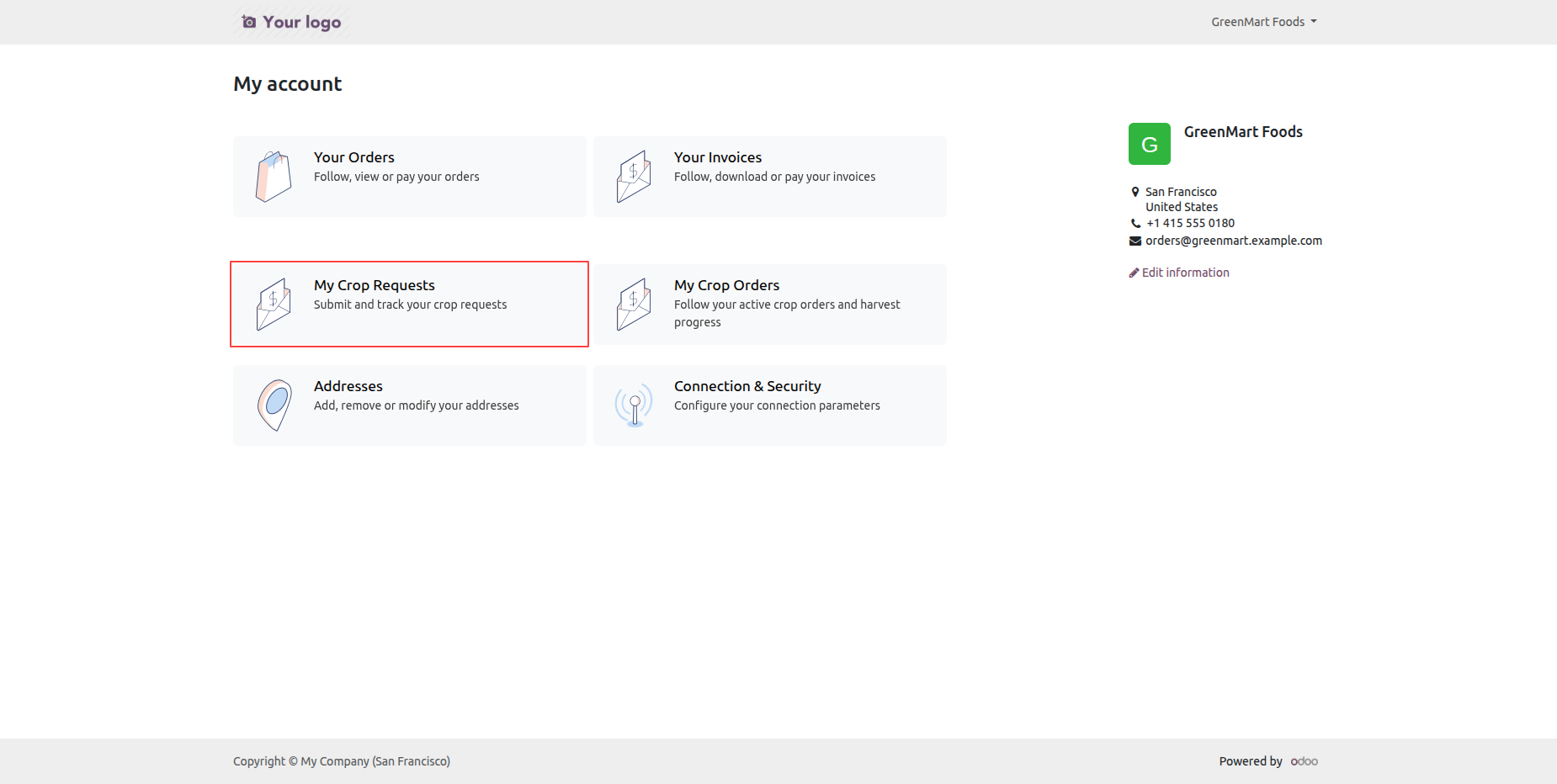
The portal My Account page shows available account sections including Crop Orders and Crop Requests.
The portal Crop Orders page lists submitted crop orders with visible order details and statuses.
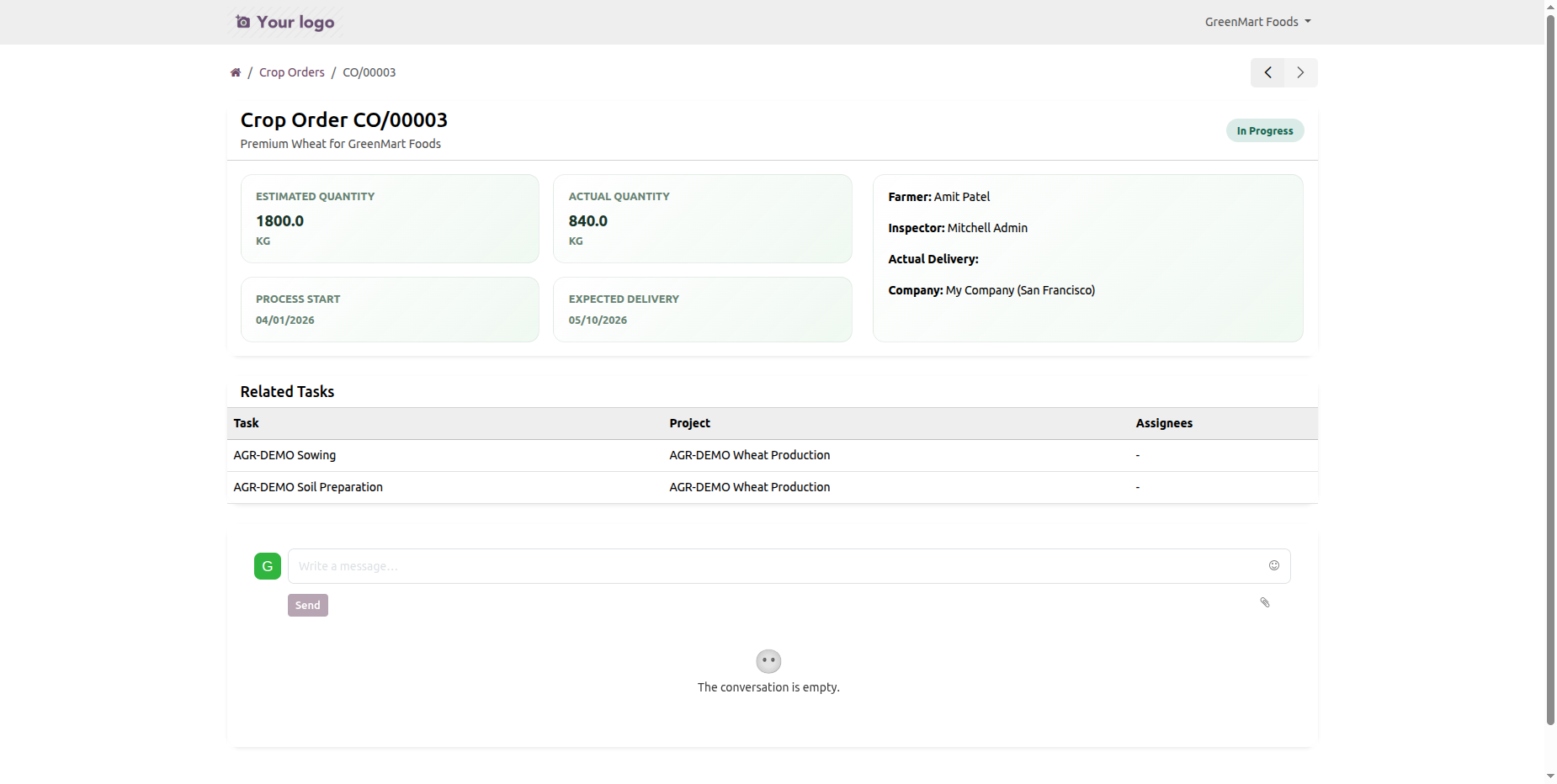
A portal crop order opens to a detail page showing order information and order lines.
The portal My Account page highlights the Crop Requests option for submitting and reviewing requests.
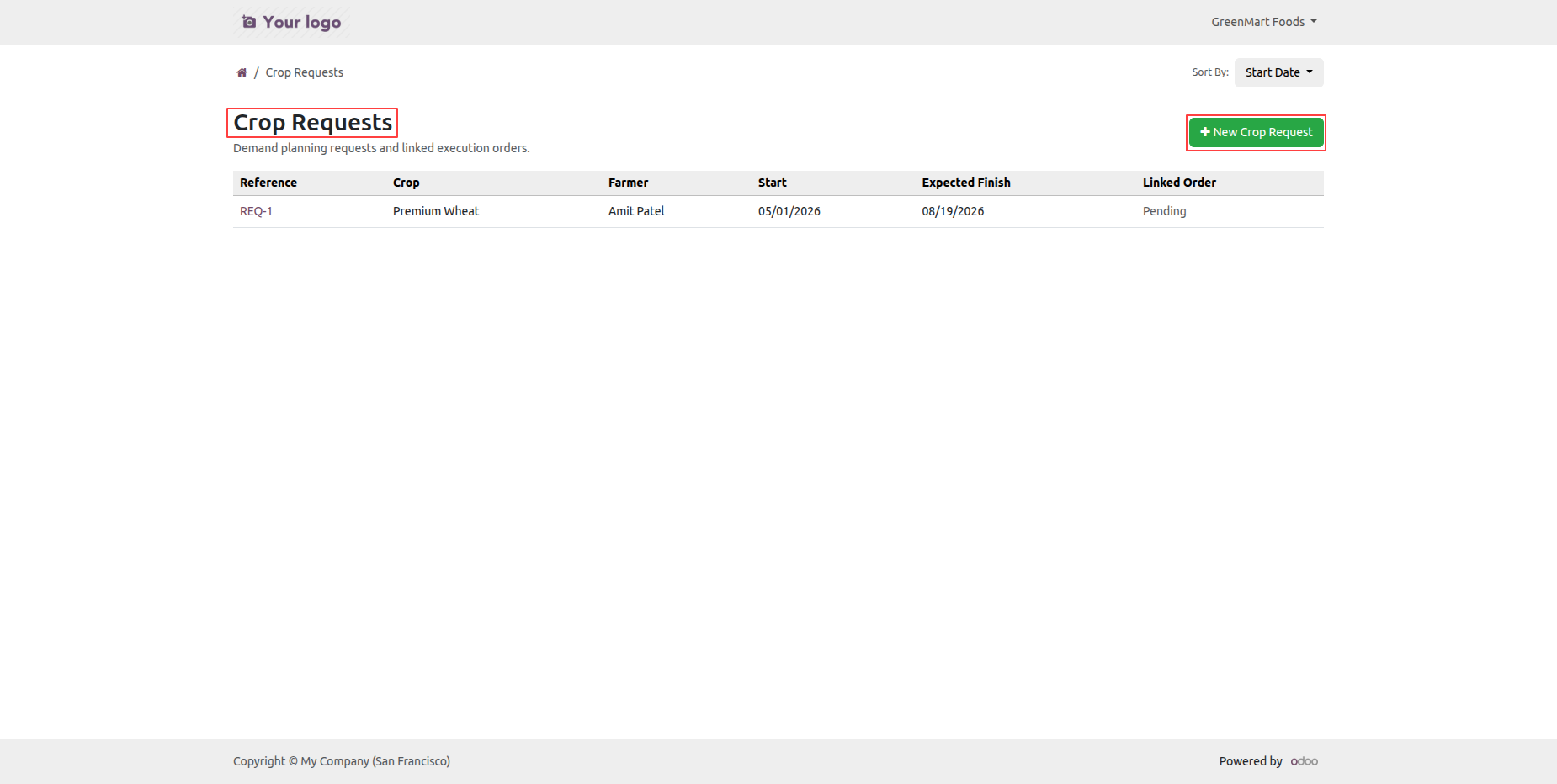
The Crop Requests portal page lists existing requests with their visible details and statuses.
Click on New Crop Request button.
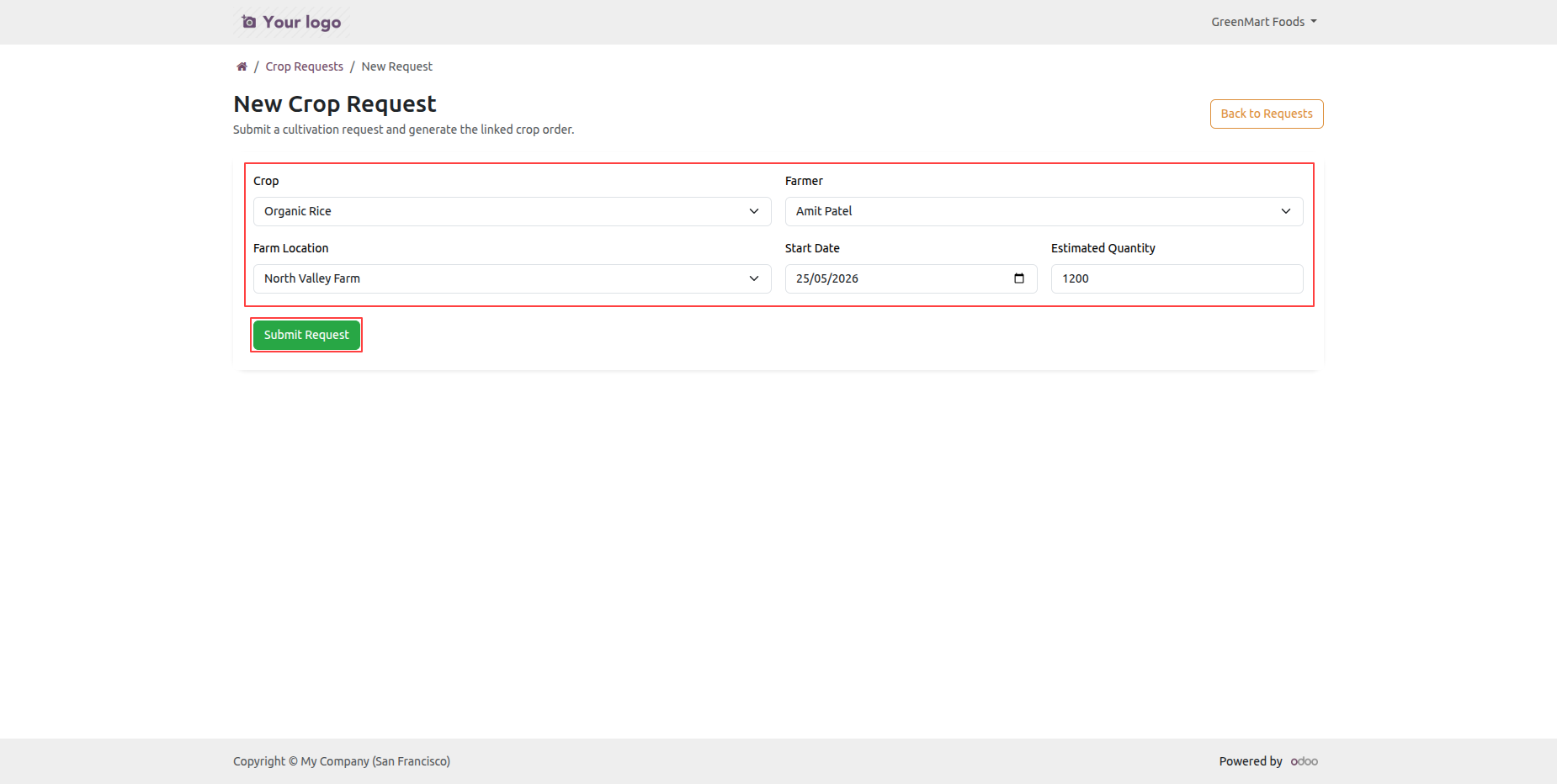
The New Crop Request form will open for entering crop request information and submitting it.
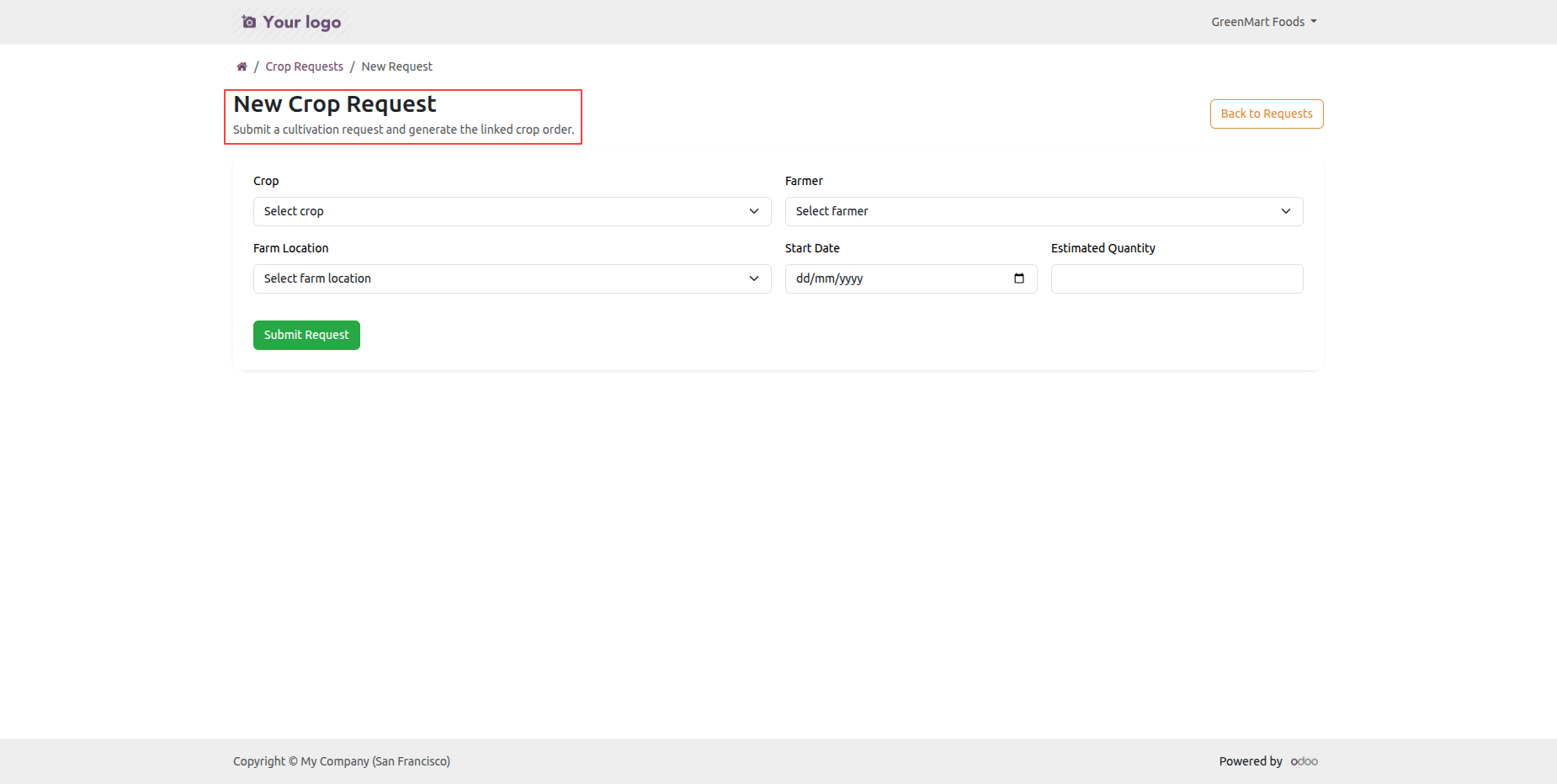
Add relavent details and click on Submit Request button.
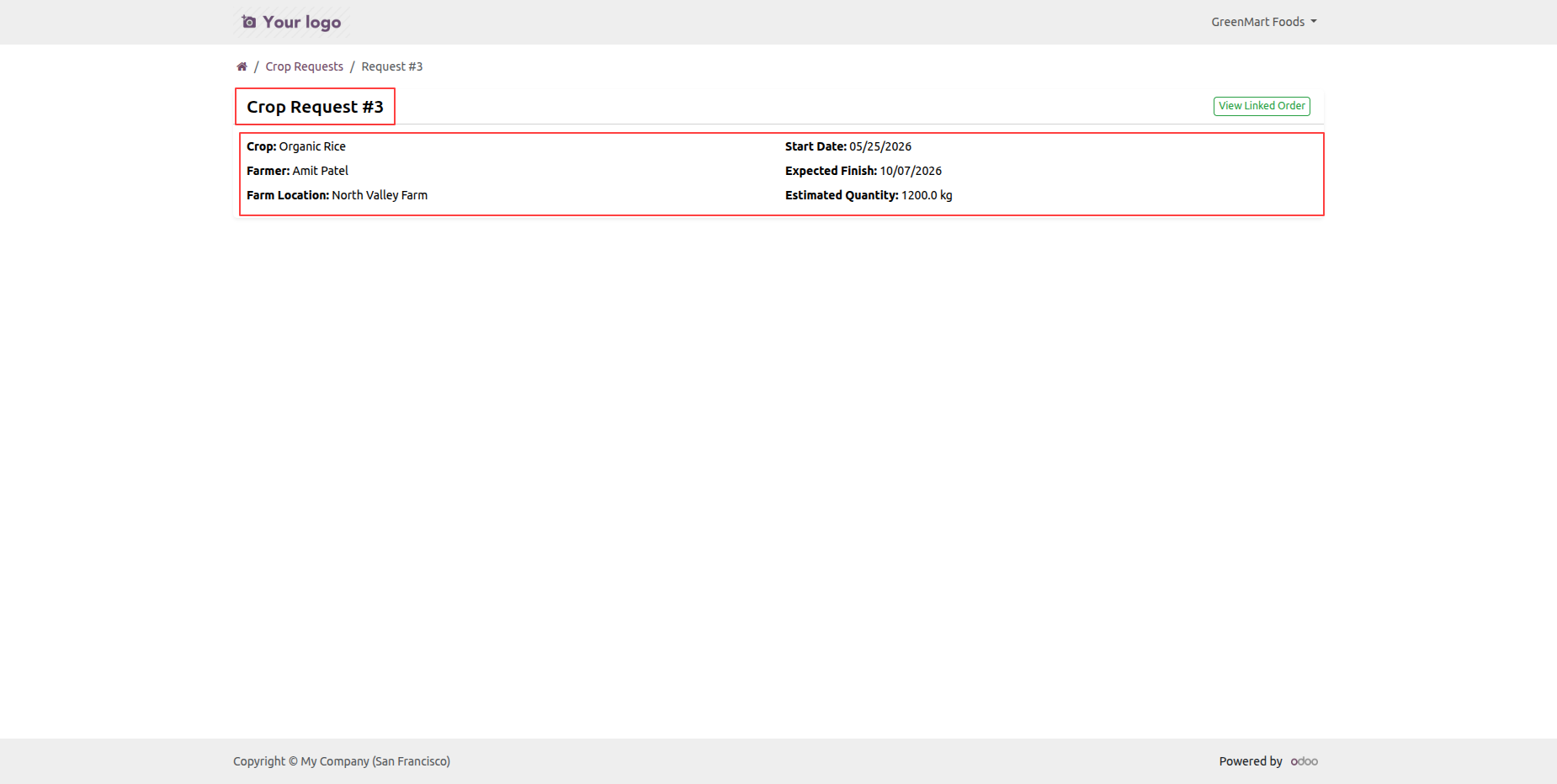
The portal request detail view presents crop request information.
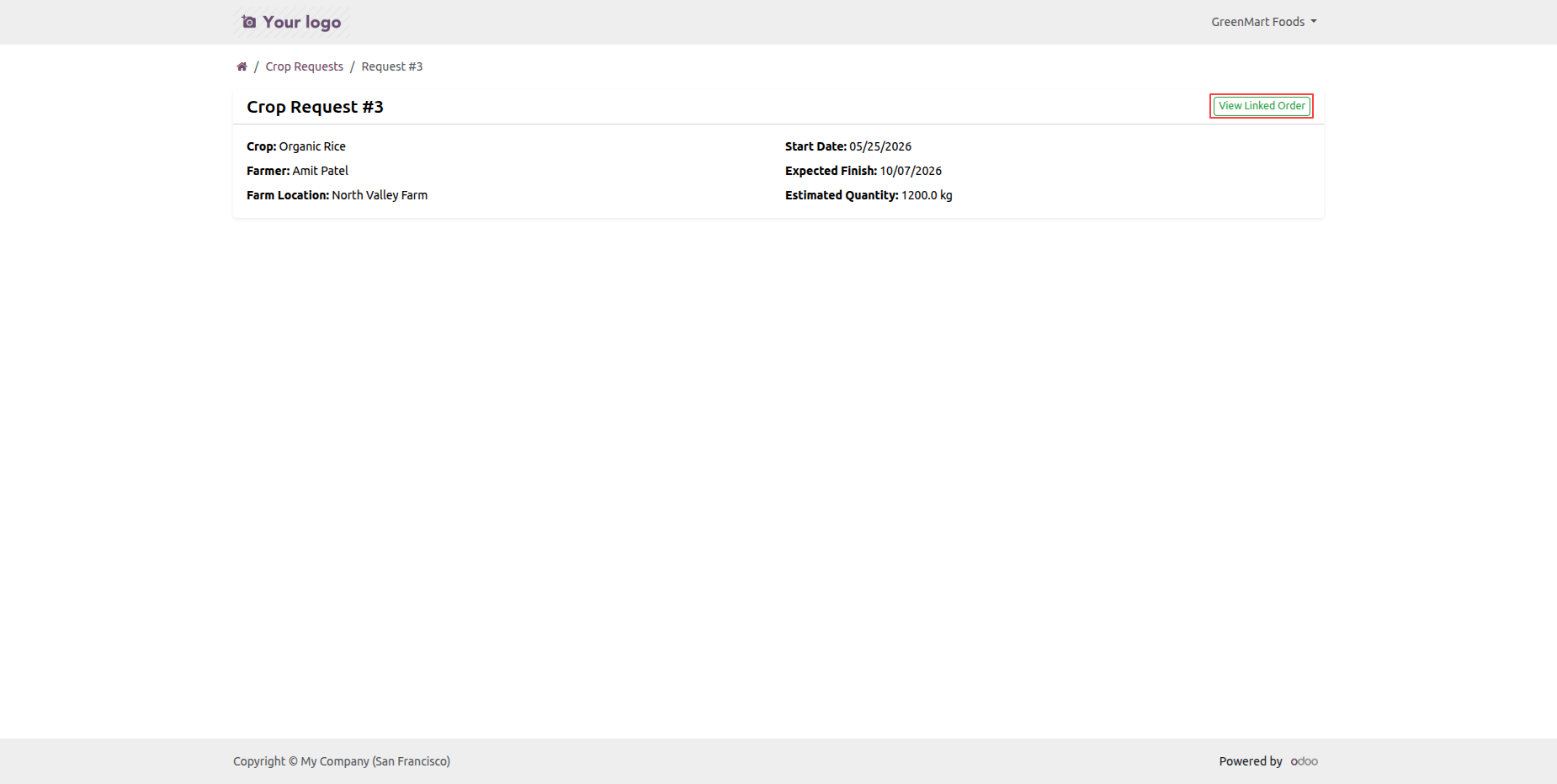
Click on the view linked order button from the Crop request form view.
Linked Crop Order detail page will open.
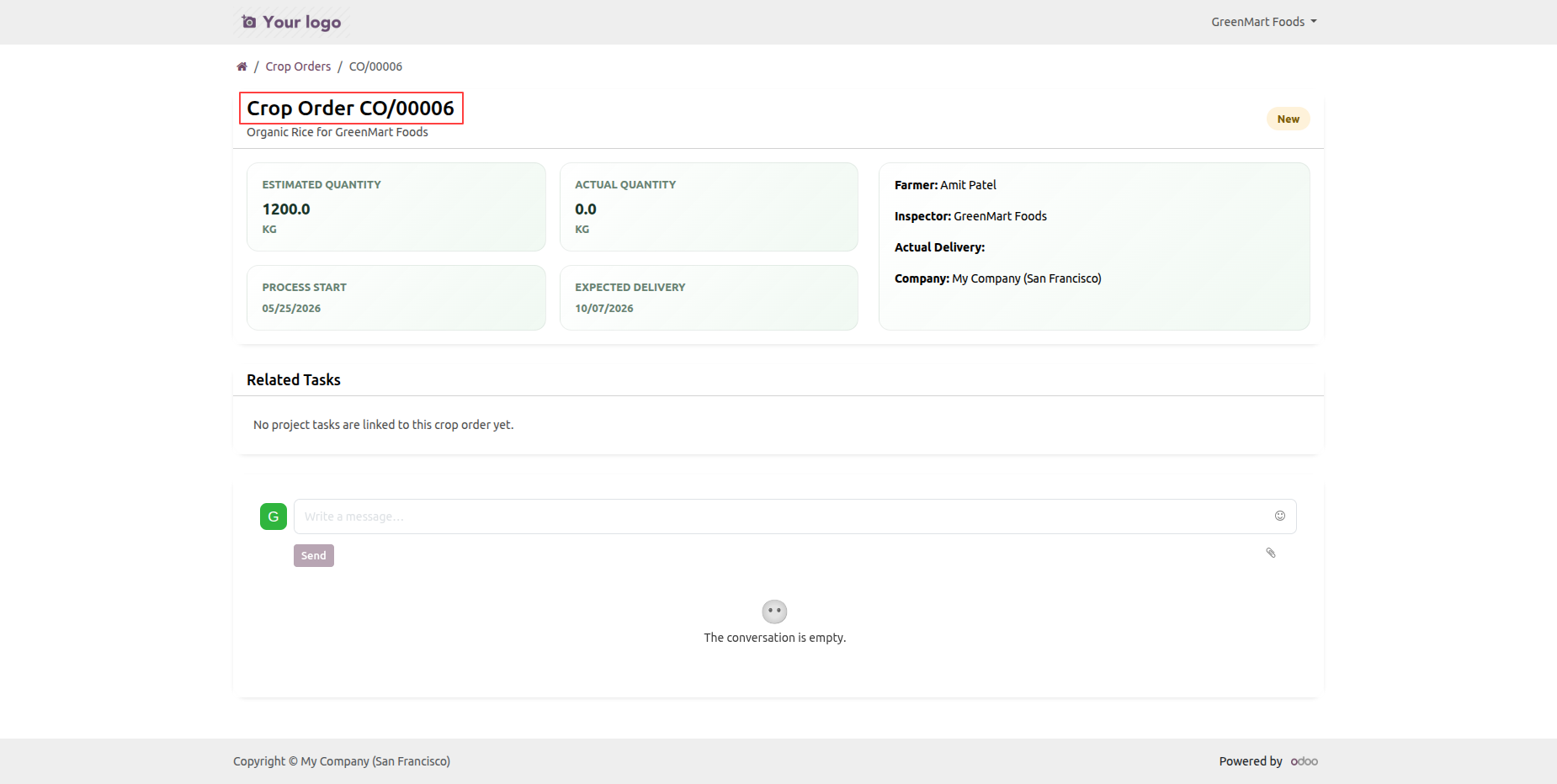
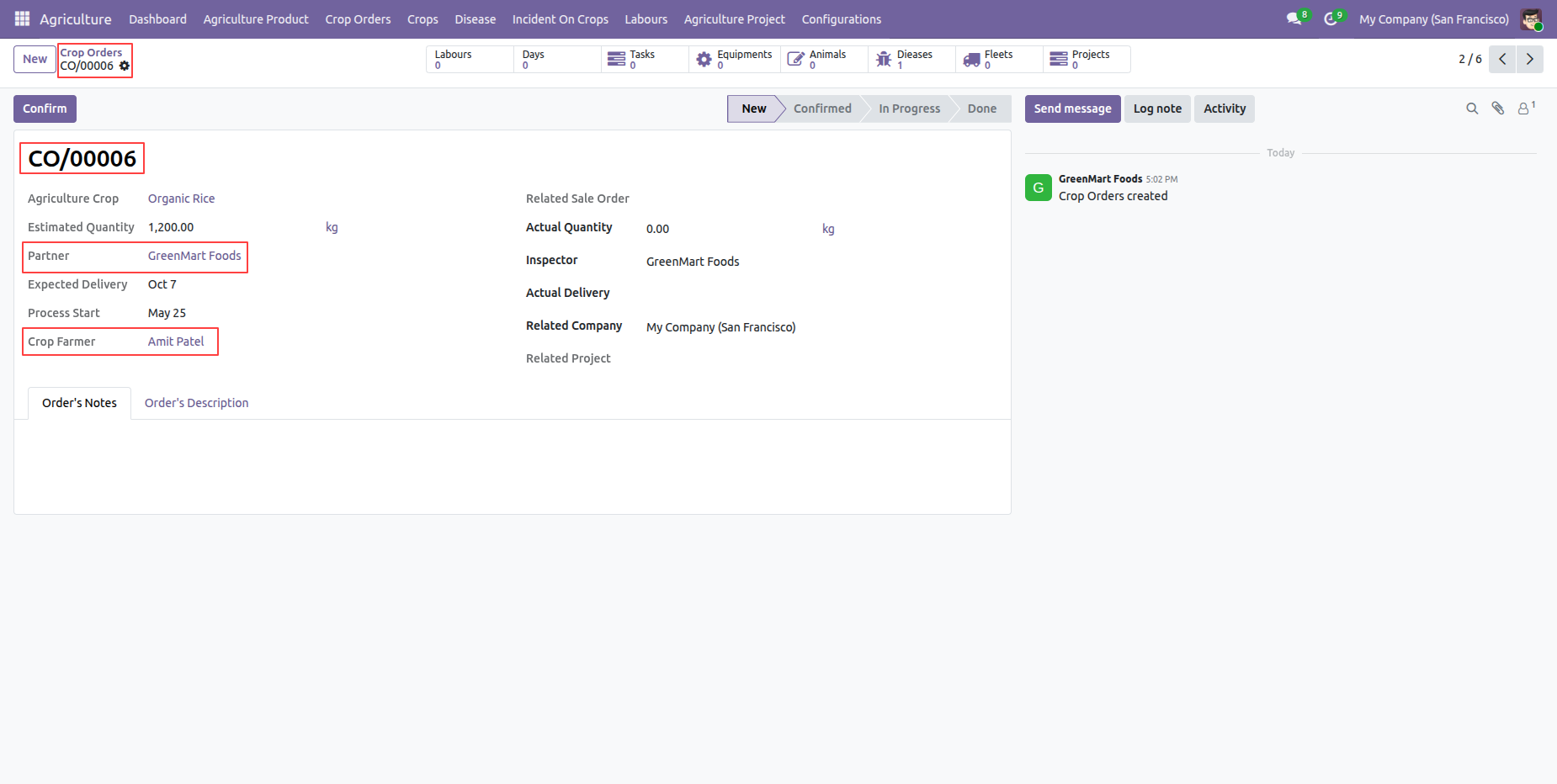
The backend crop order record shows its reference, customer, crop farmer, and related details.
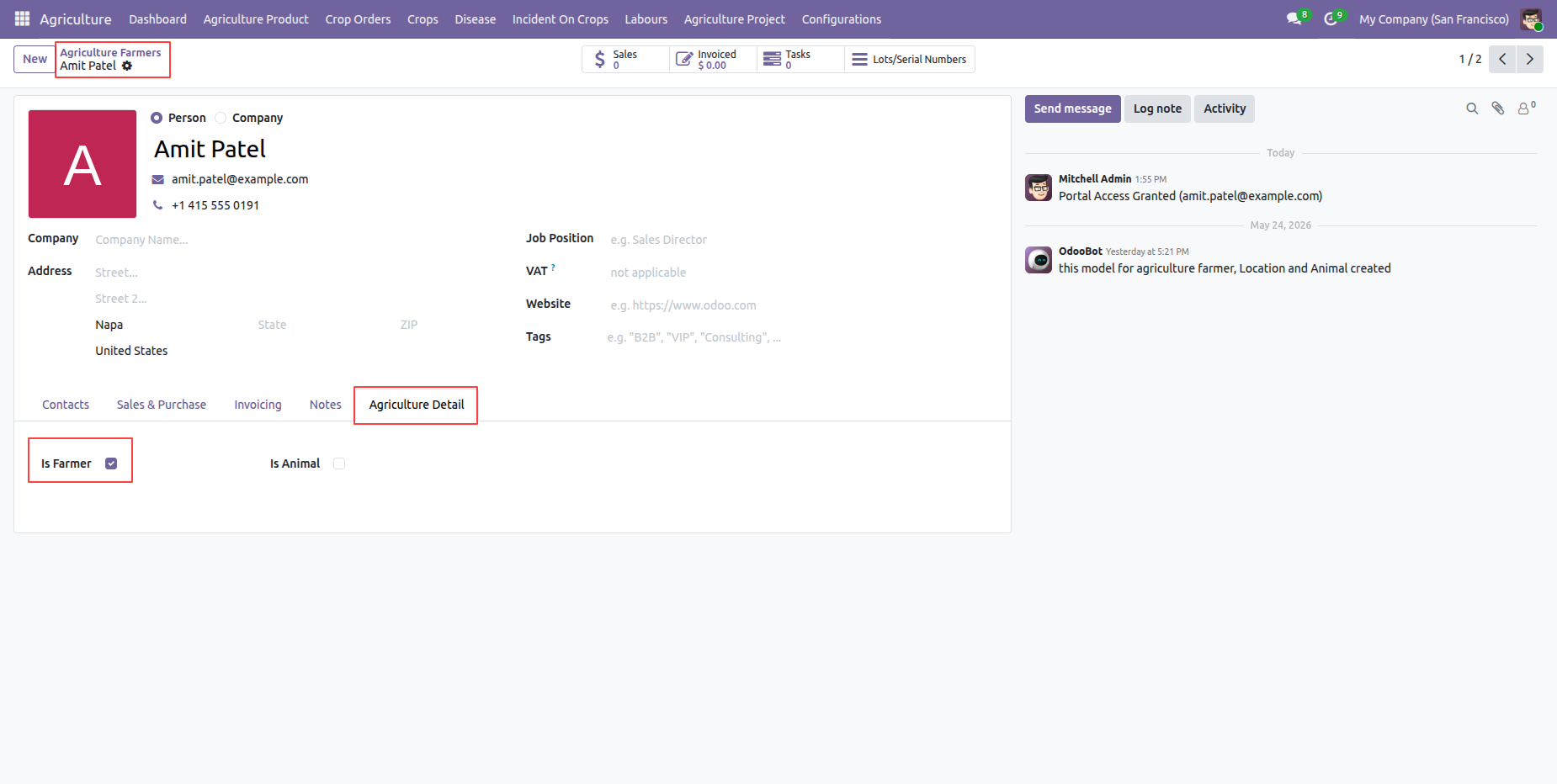
The farmer account page displays profile information and is farmer boolean enabled in the agriculture detail tab.
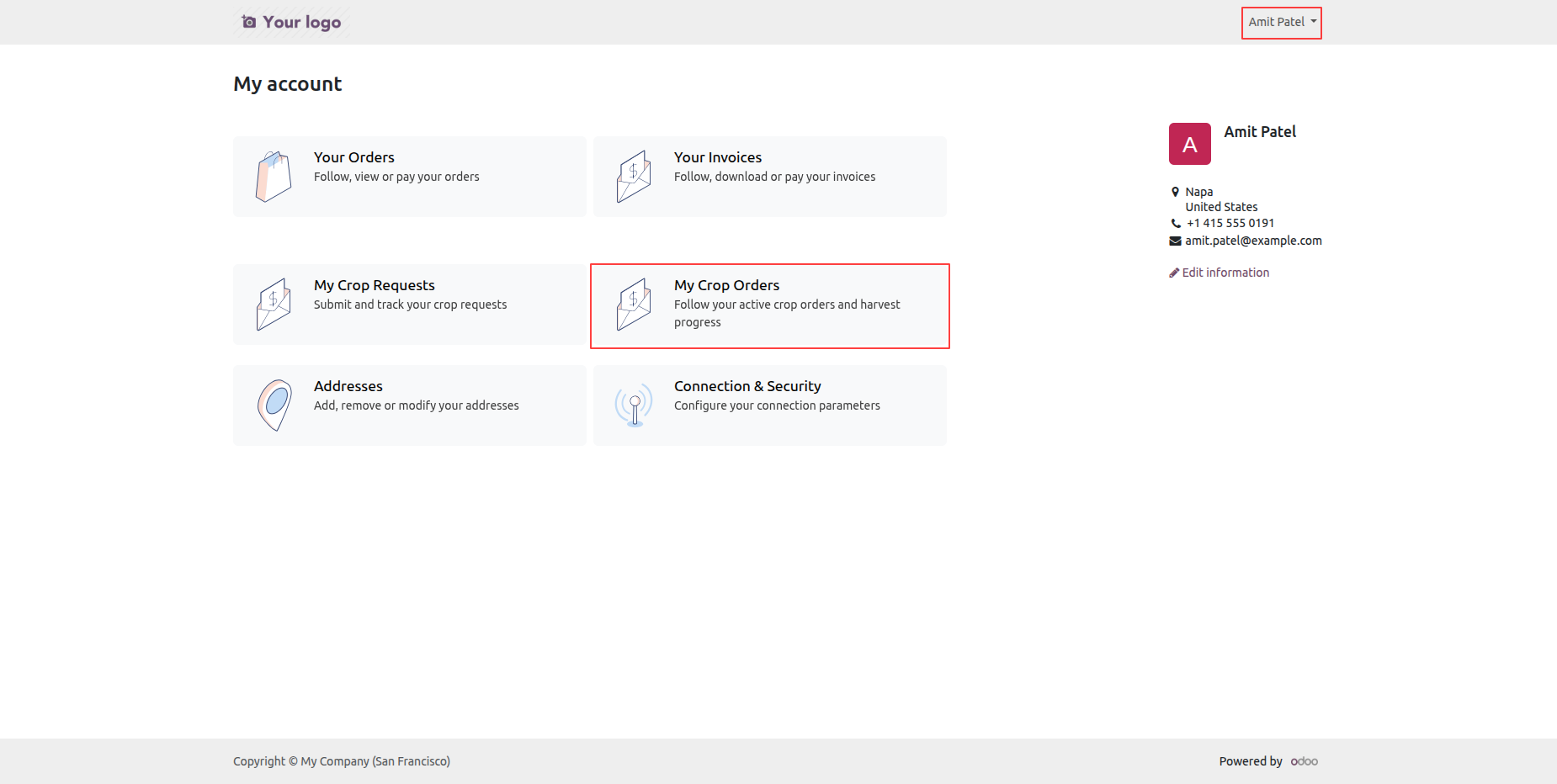
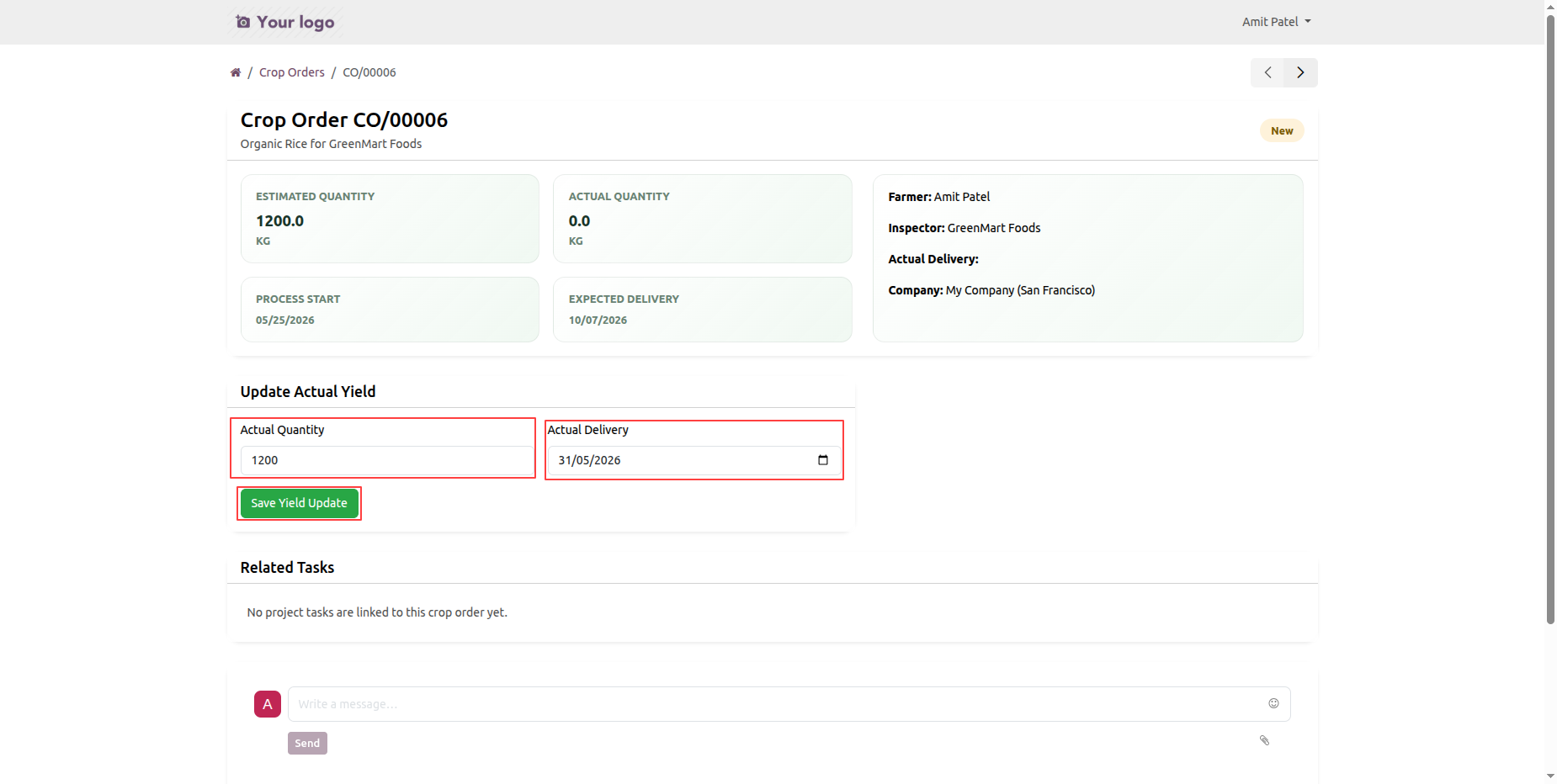
Login with the farmer portal Account, click on My Crop Orders.
Portal farmer can update the actual quantity and actual delivery date.
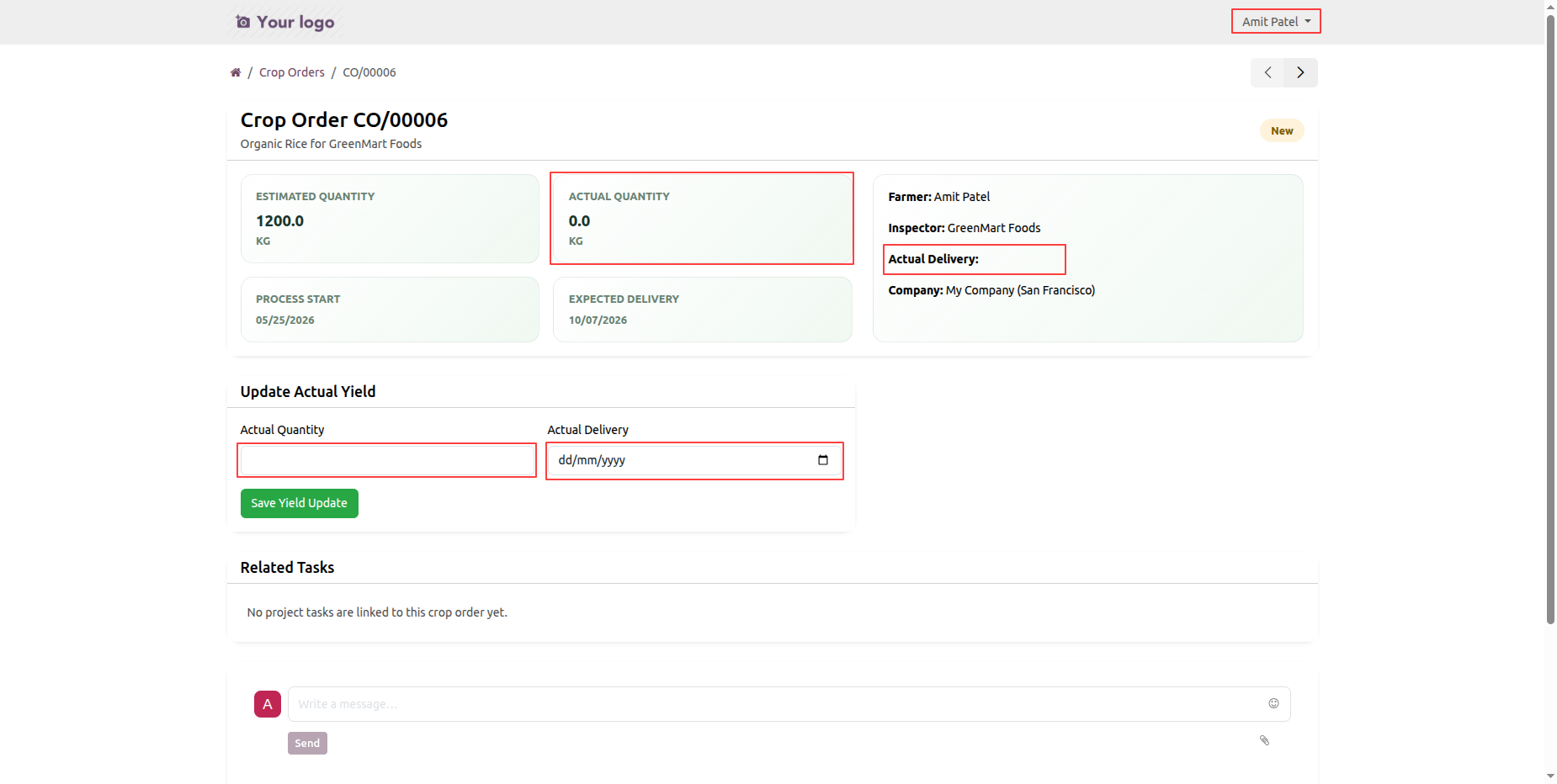
Add the actual quantity and actual delivery date. Click on Save Yield Update button.
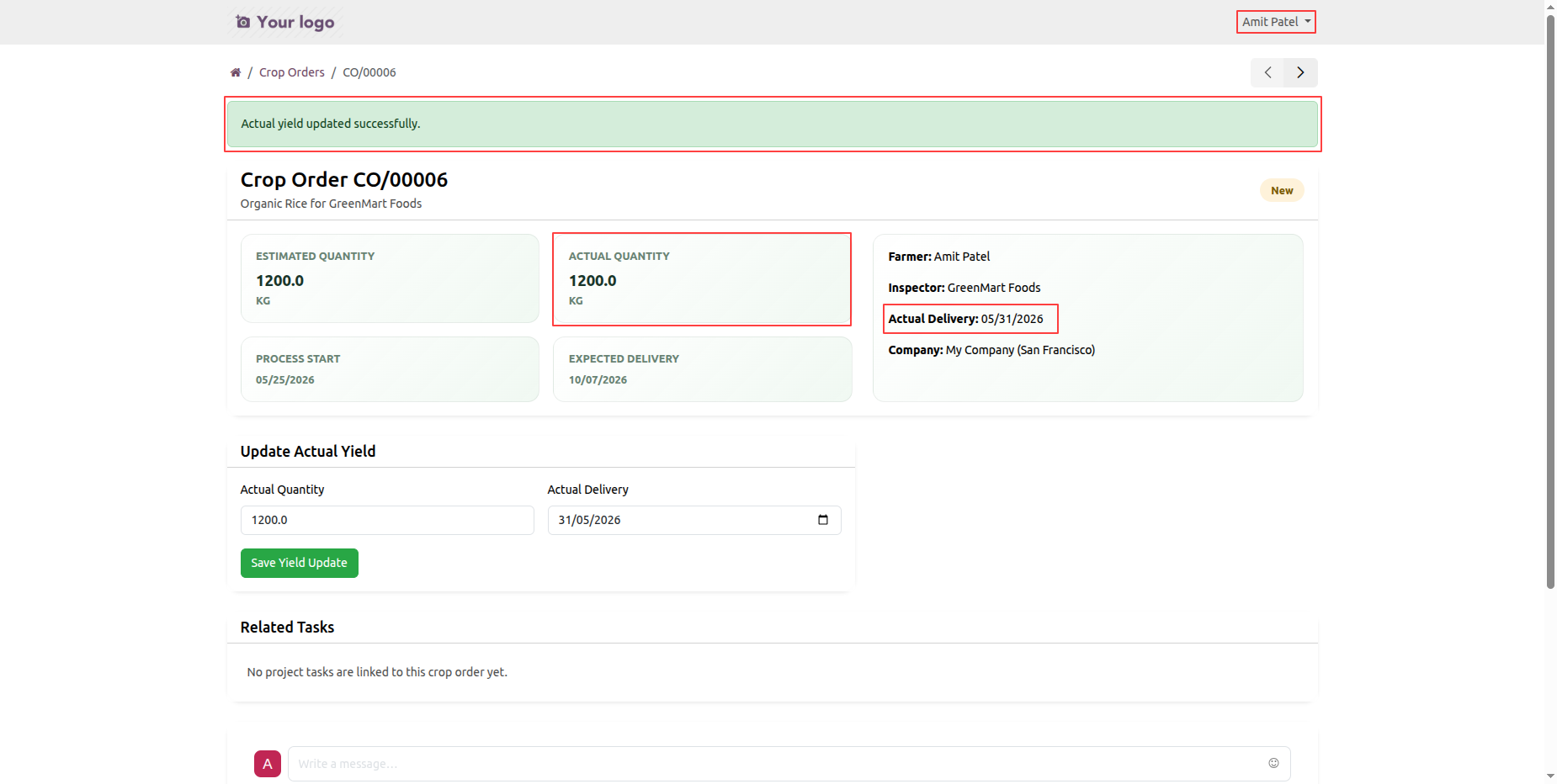
The final crop order view presents Actual Quantity and Actual Delivery Date information.
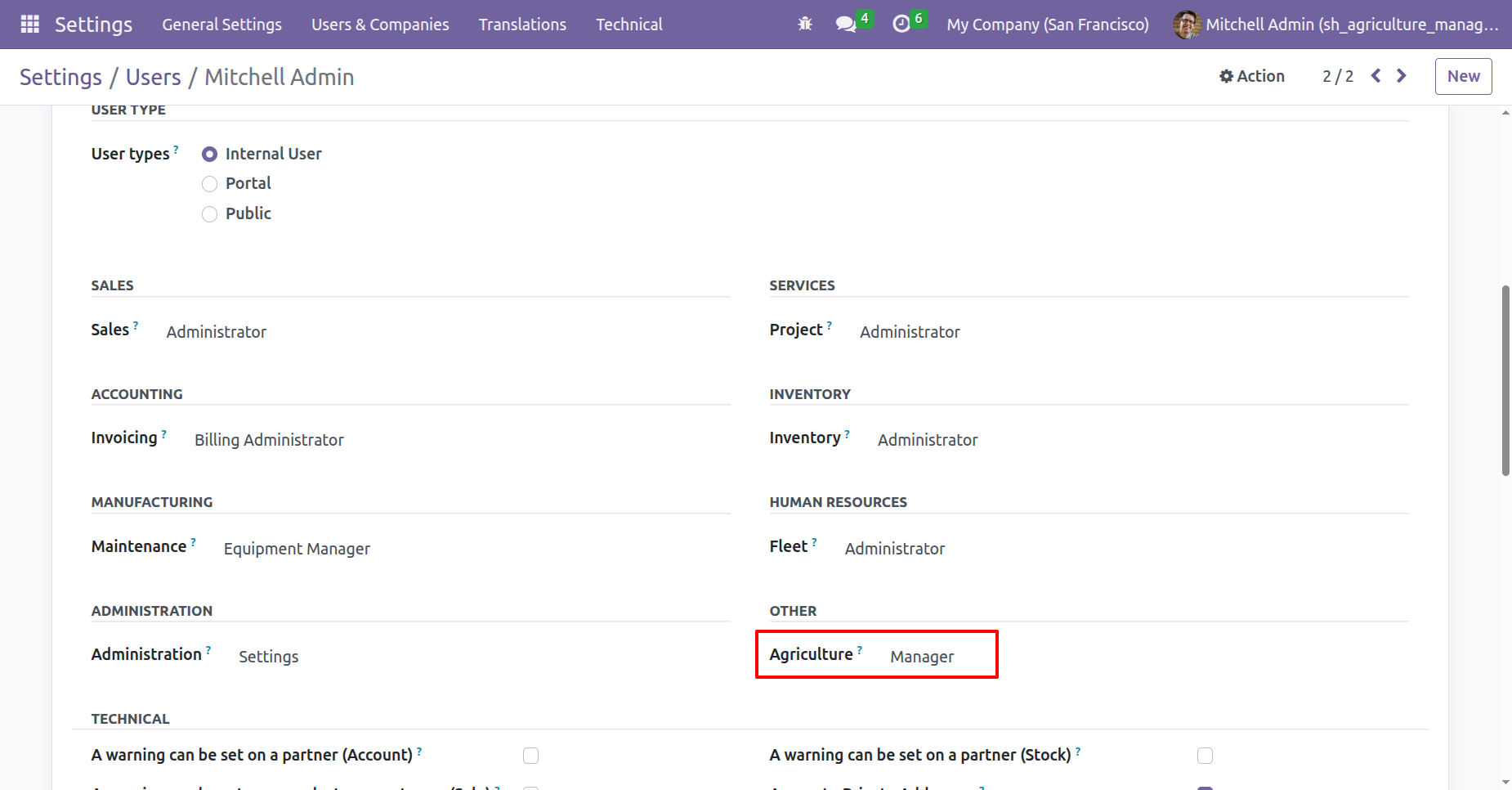
Go to User Settings and assign the role Agriculture: Manager.
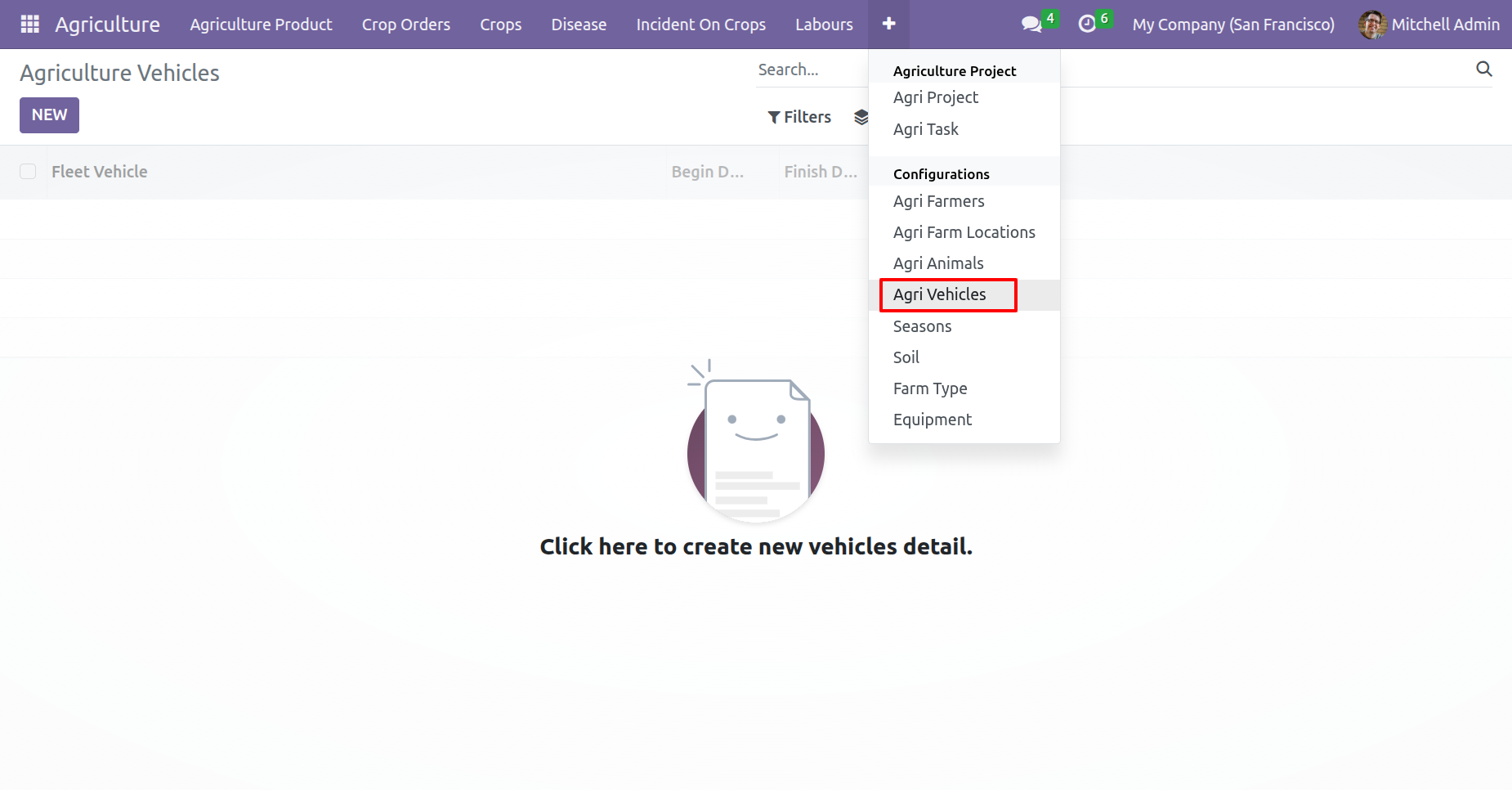
Agriculture vehicles menu and kanban view.
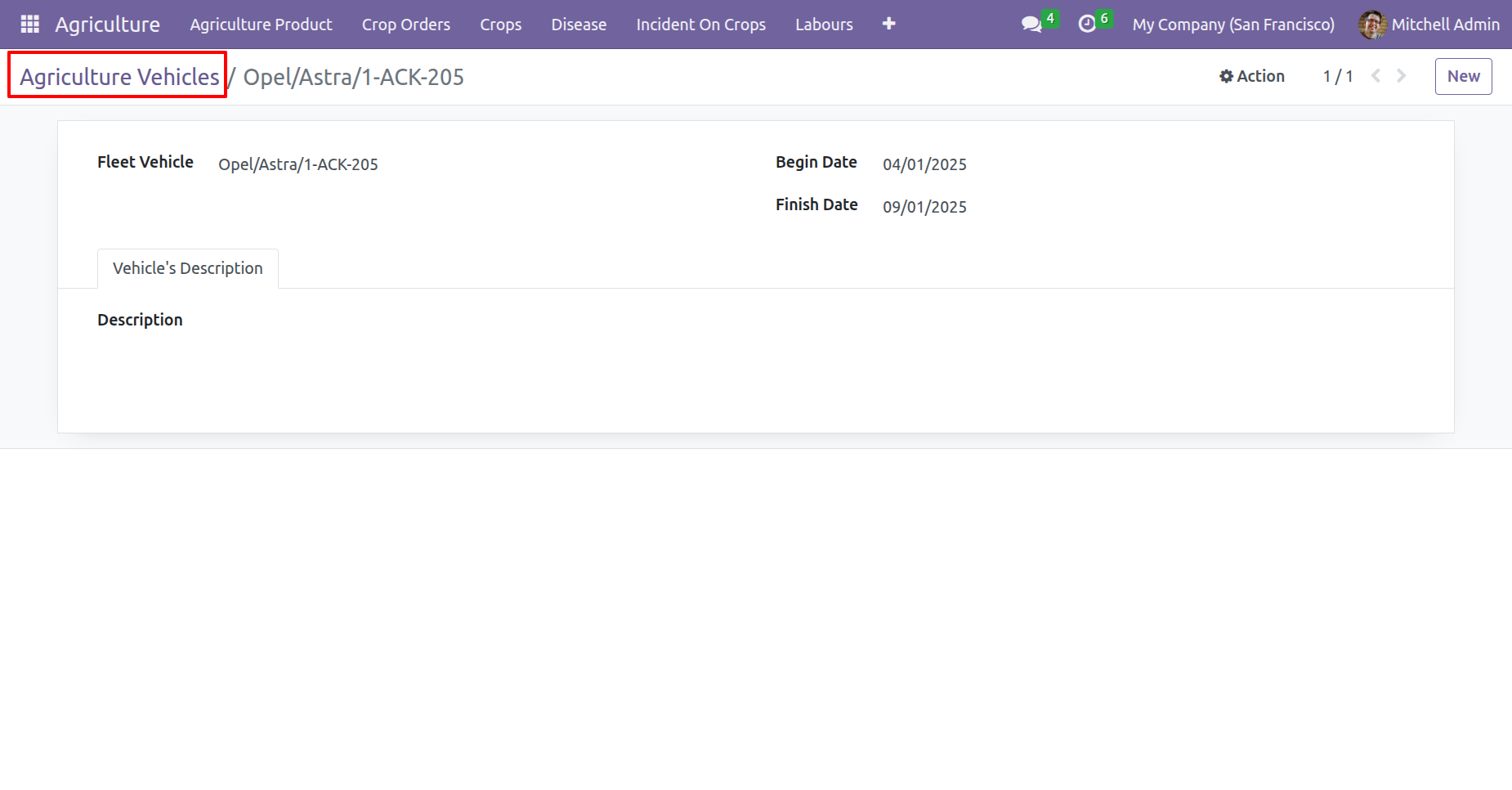
Form view of the Agriculture vehicles.
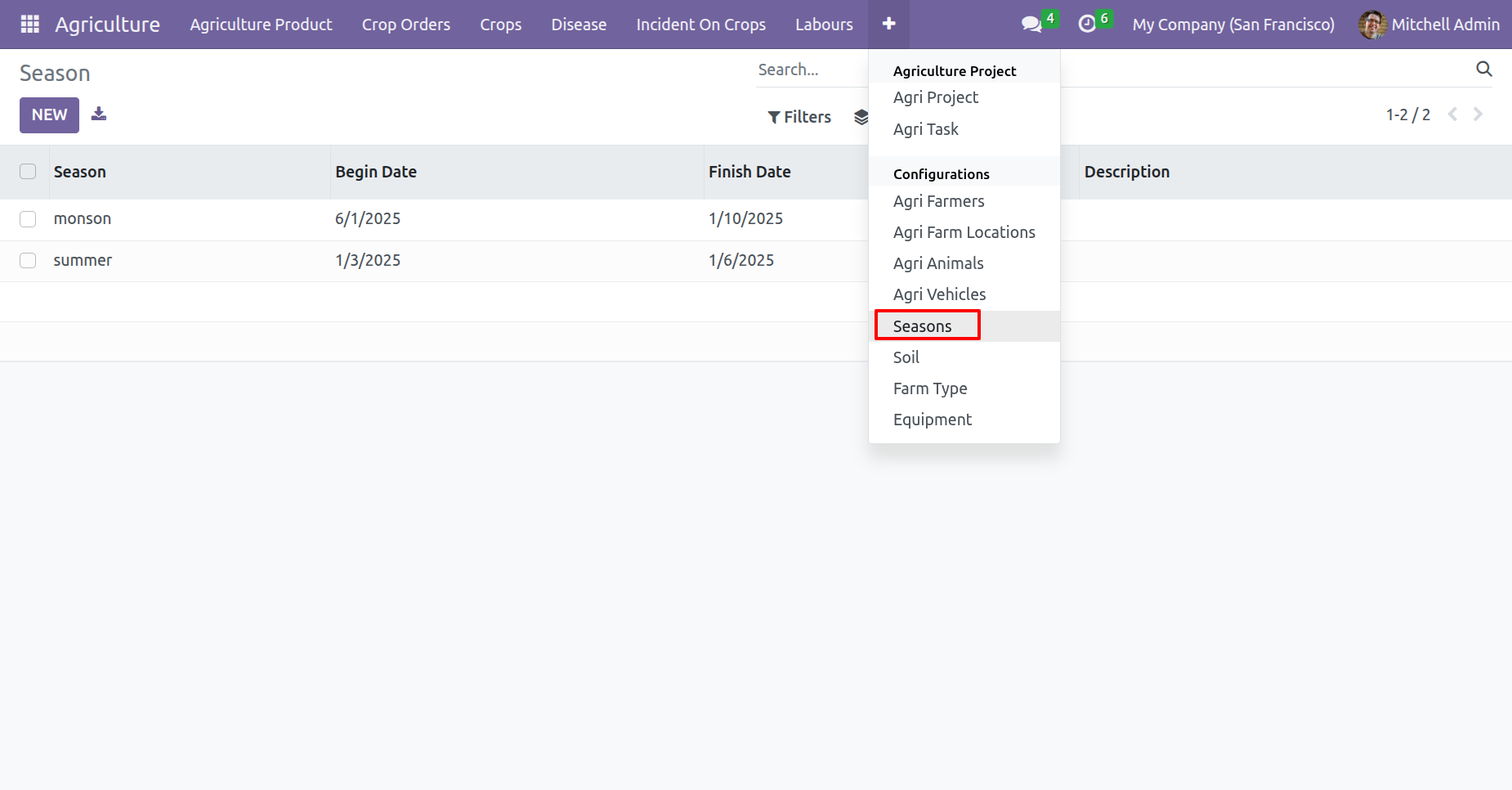
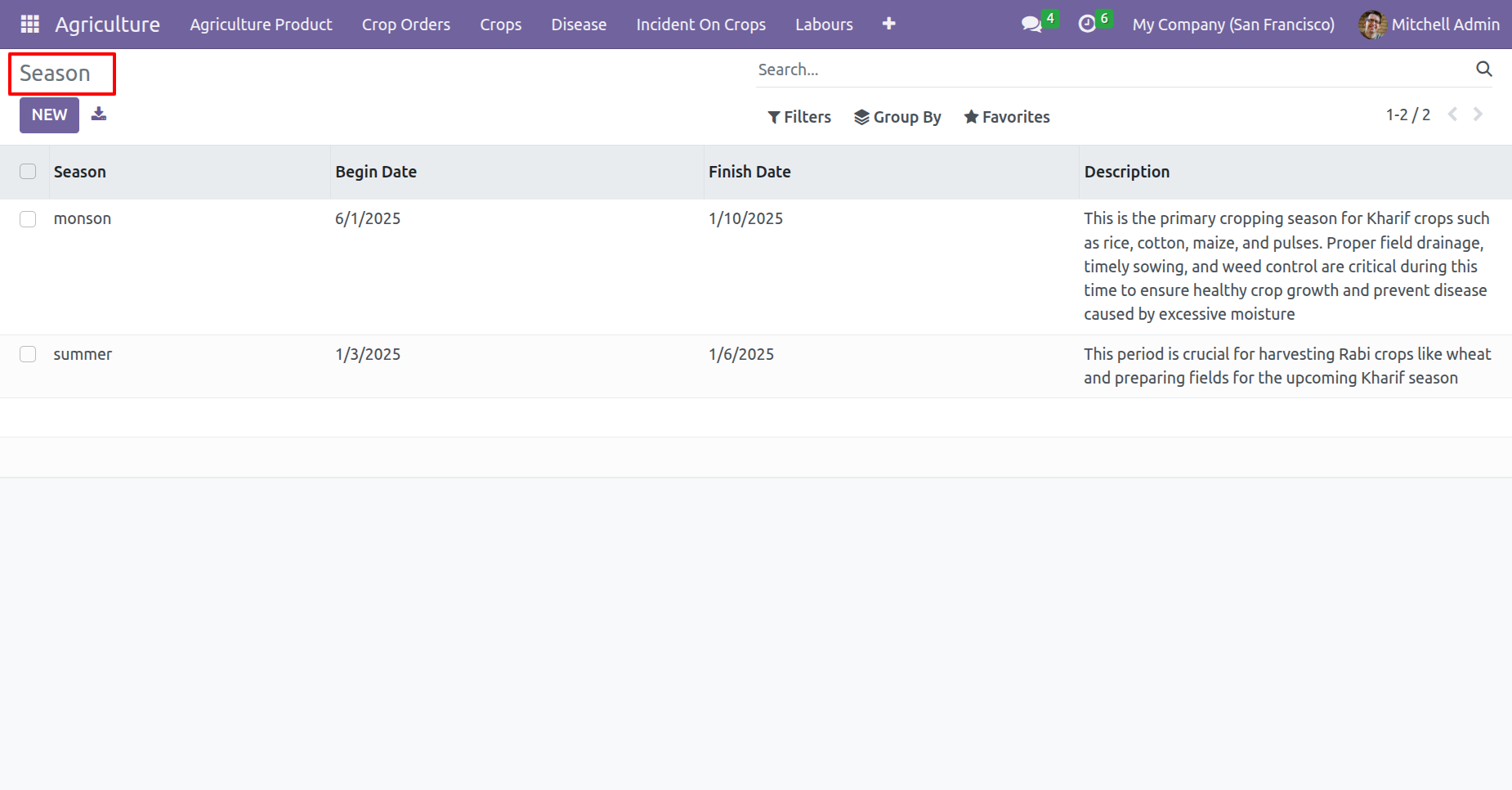
Seasons menu and list view.
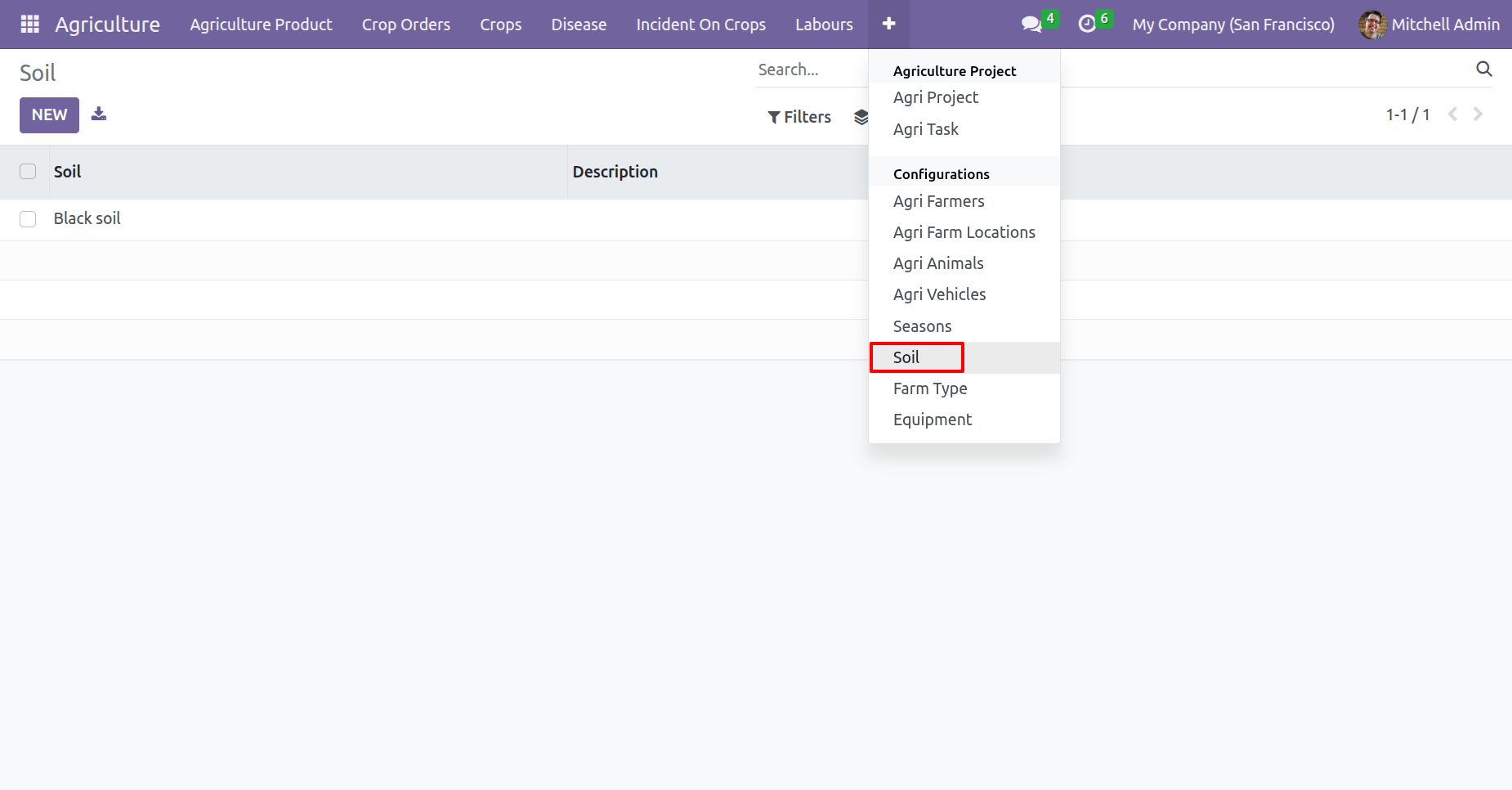
Soil menu and list view.
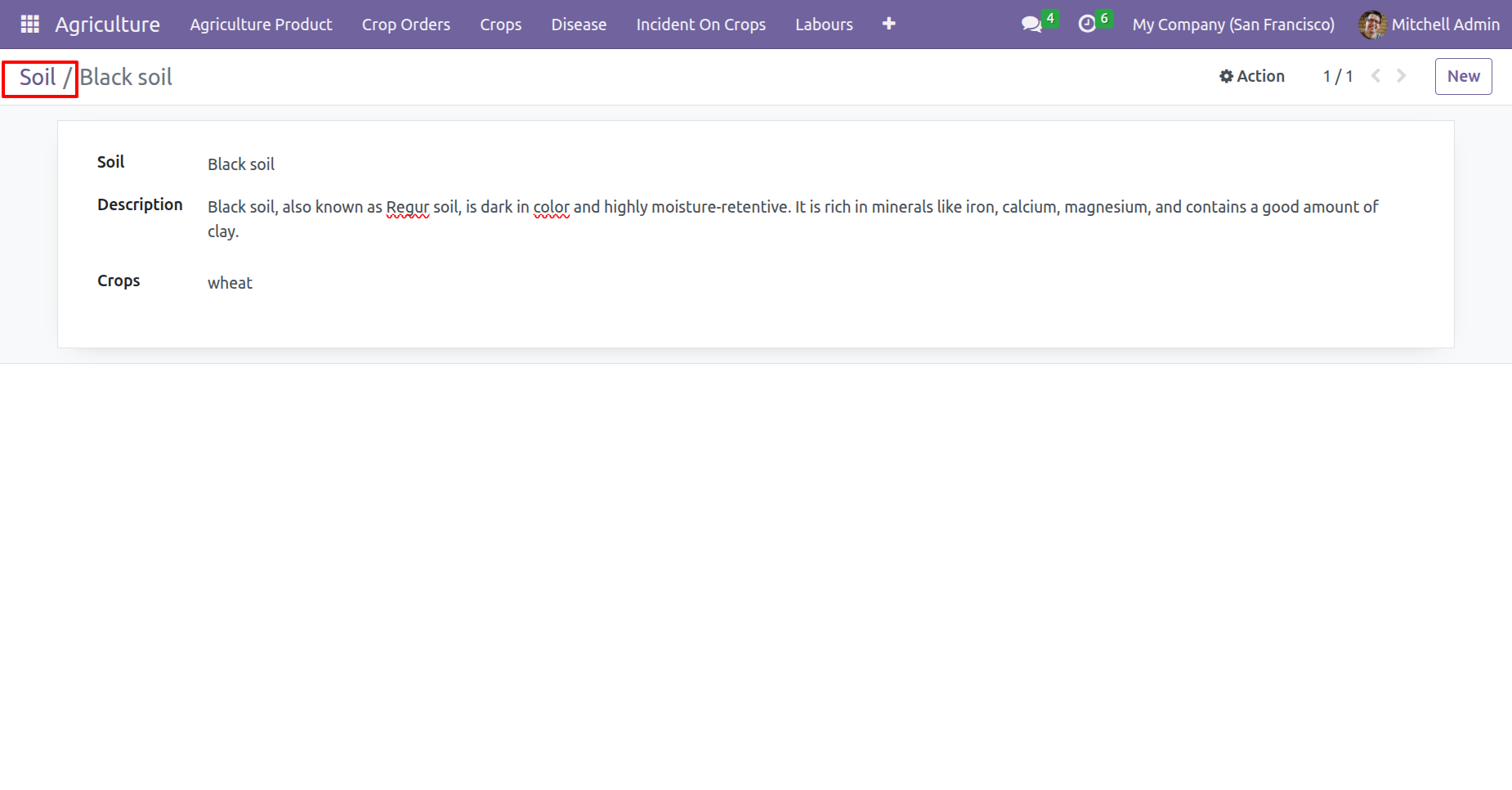
Form view of the 'Soil'.
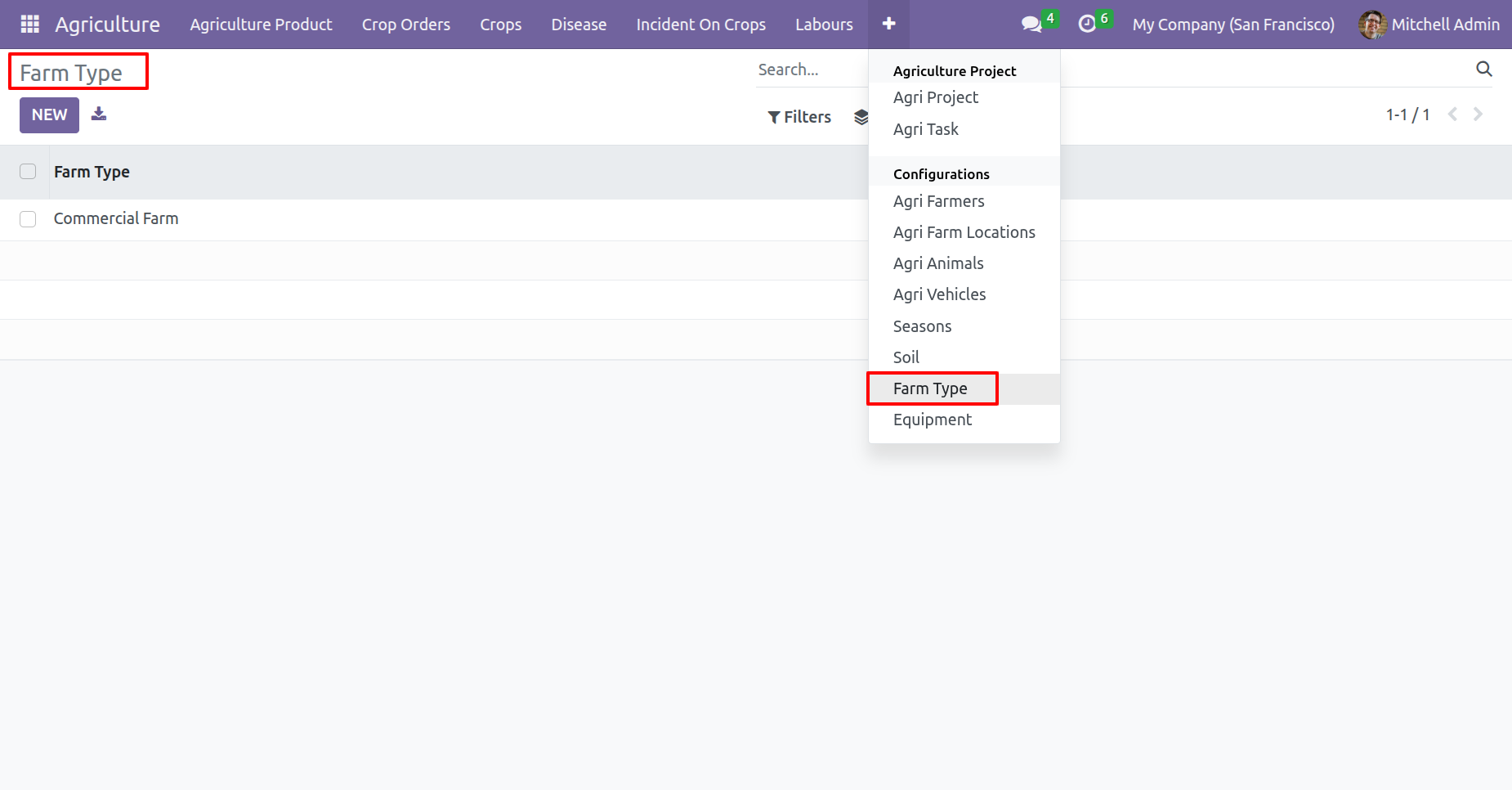
Farm Type menu and list view.
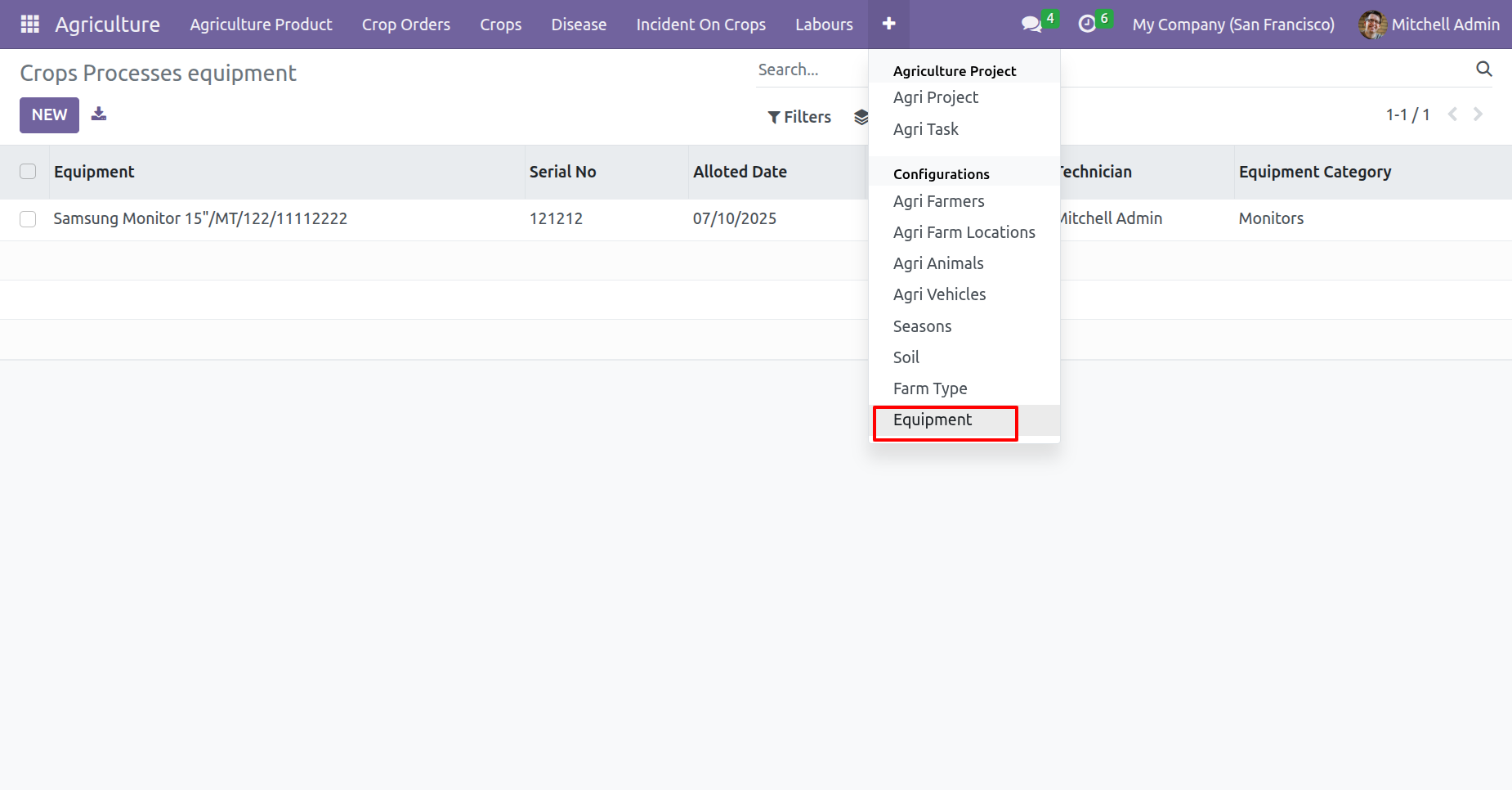
'Equipments' menu.
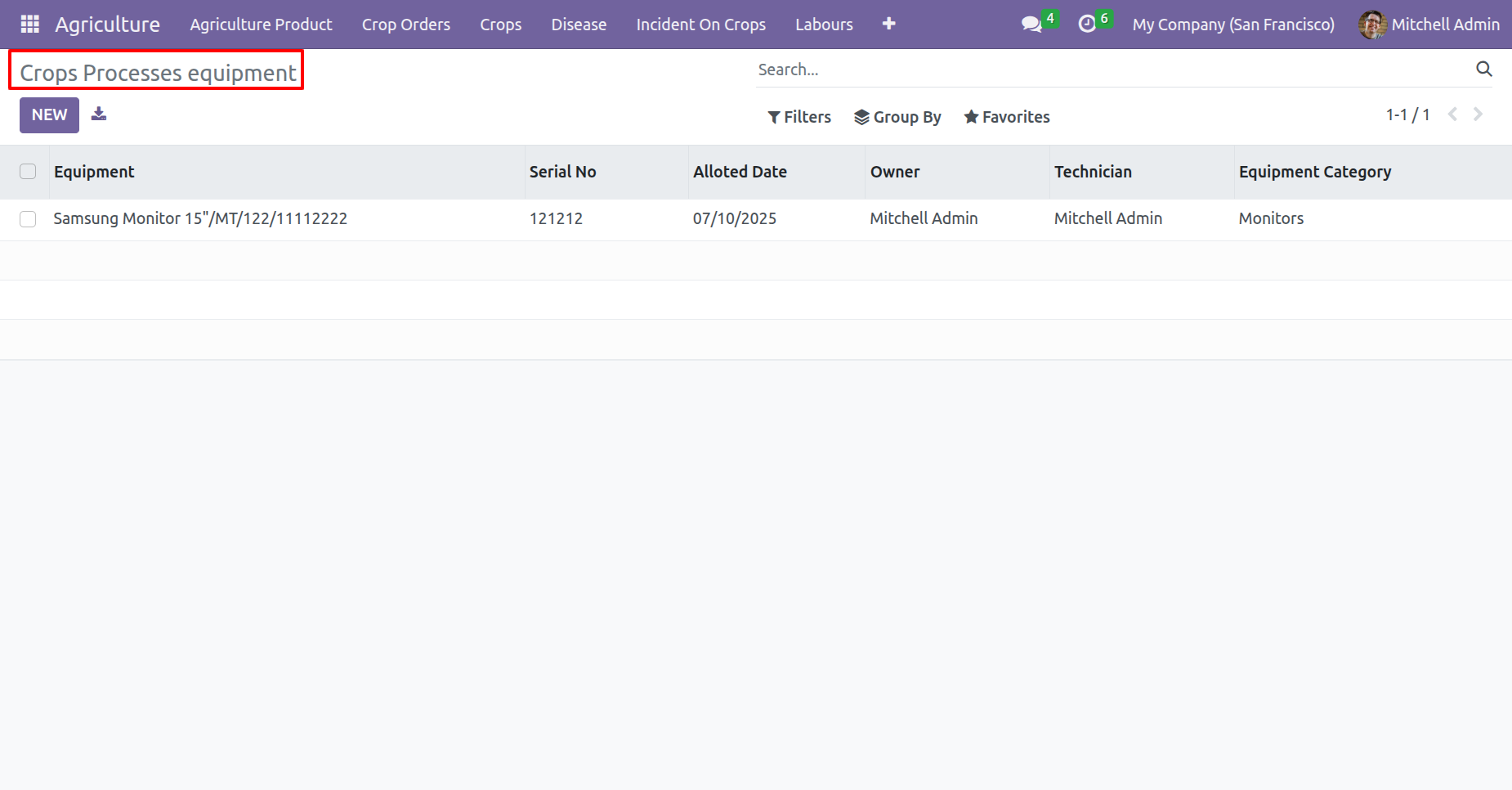
list view of the 'Equipment'.
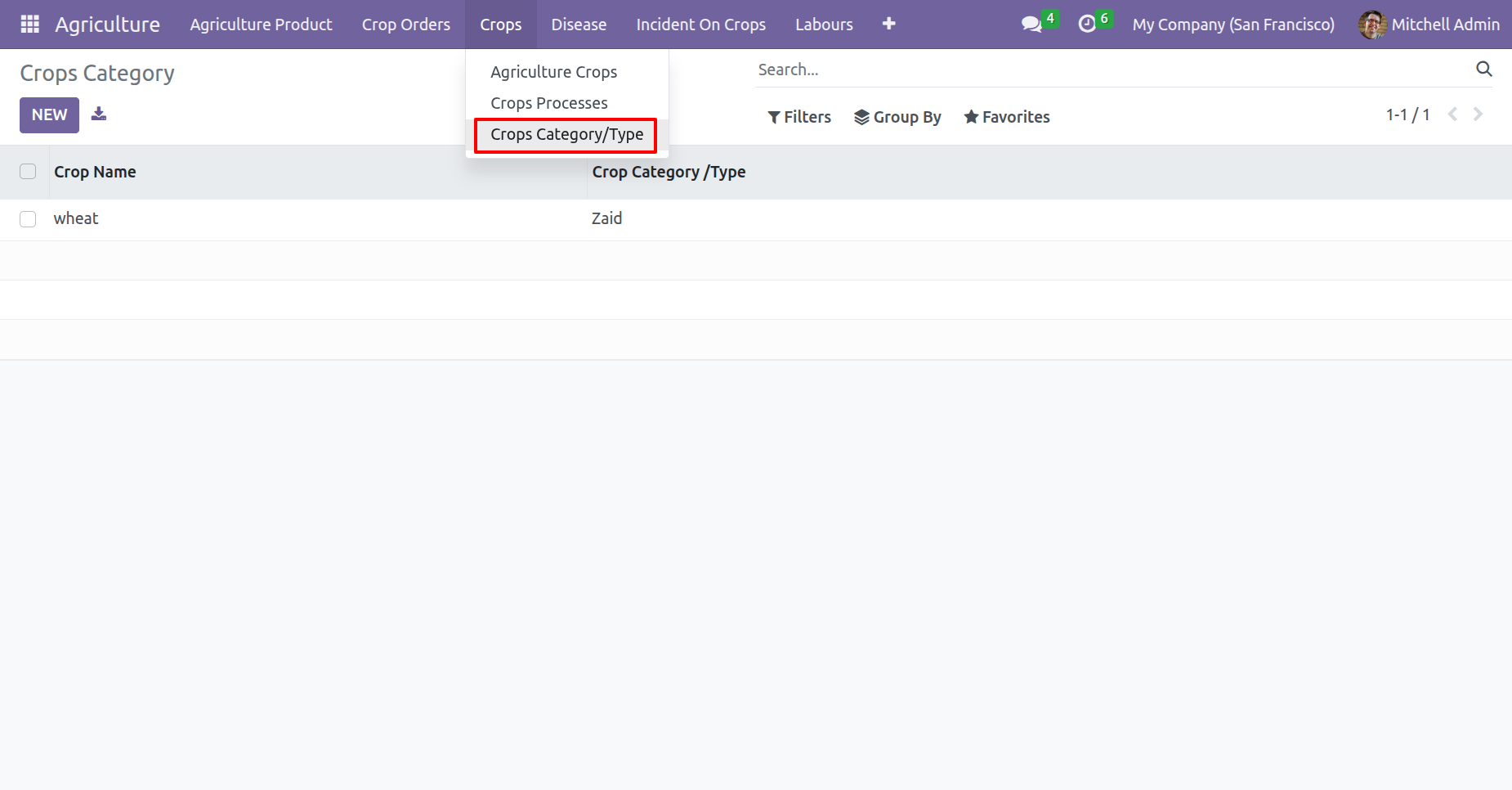
'Crops Category/Type' menu and list view.
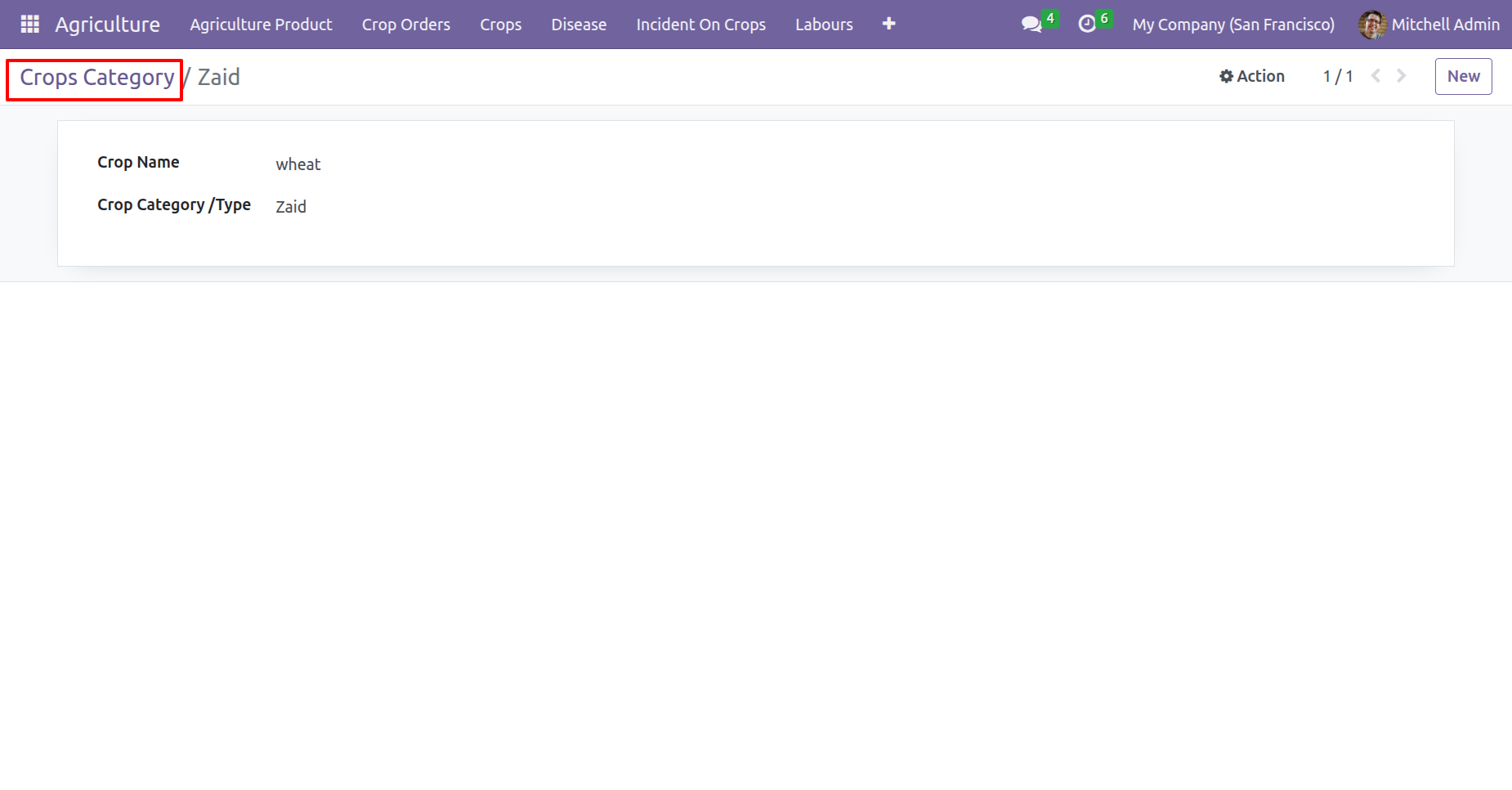
Form view of the 'Crops Category'.
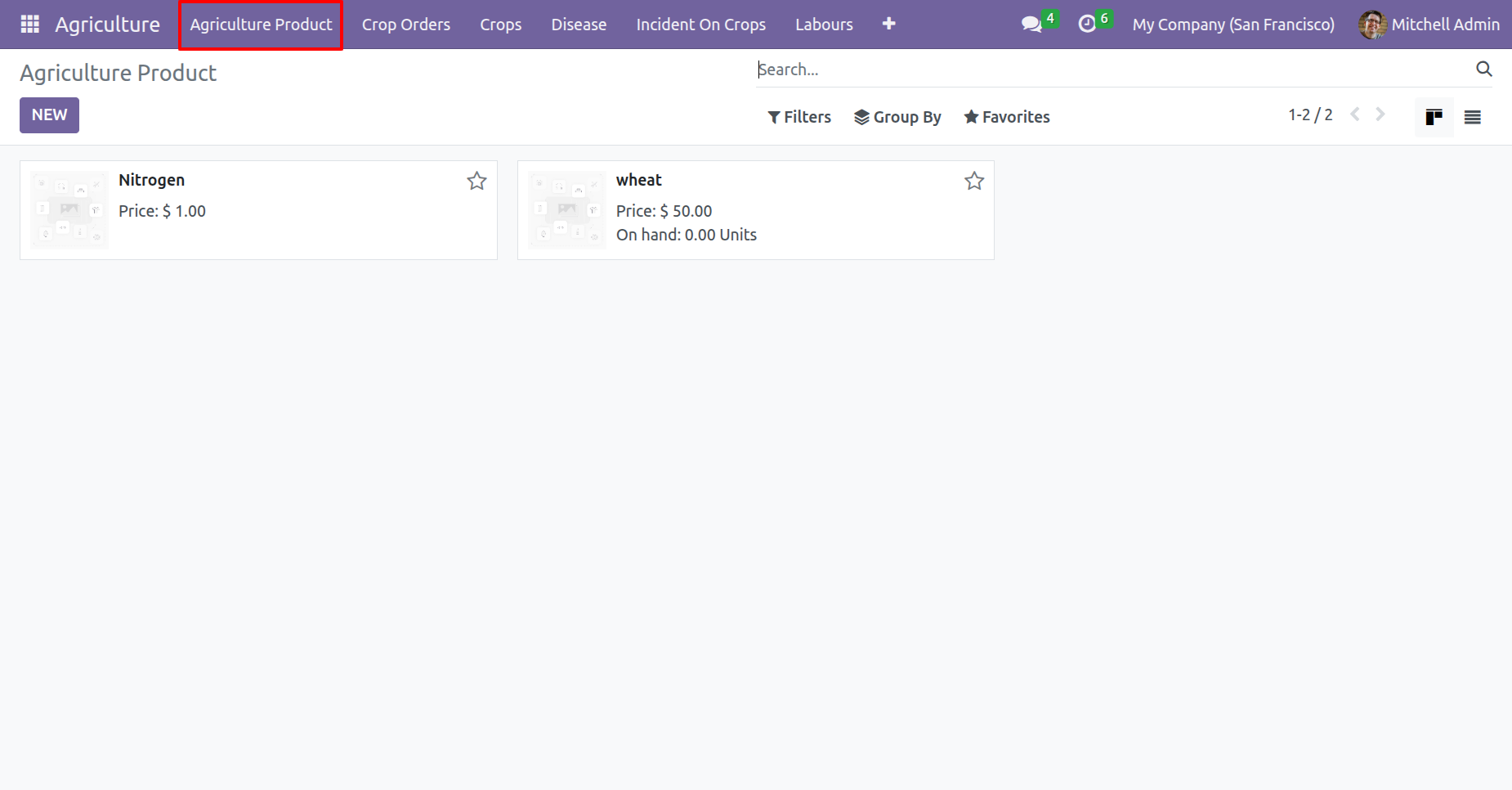
'Agriculture Product' menu and kanban view.
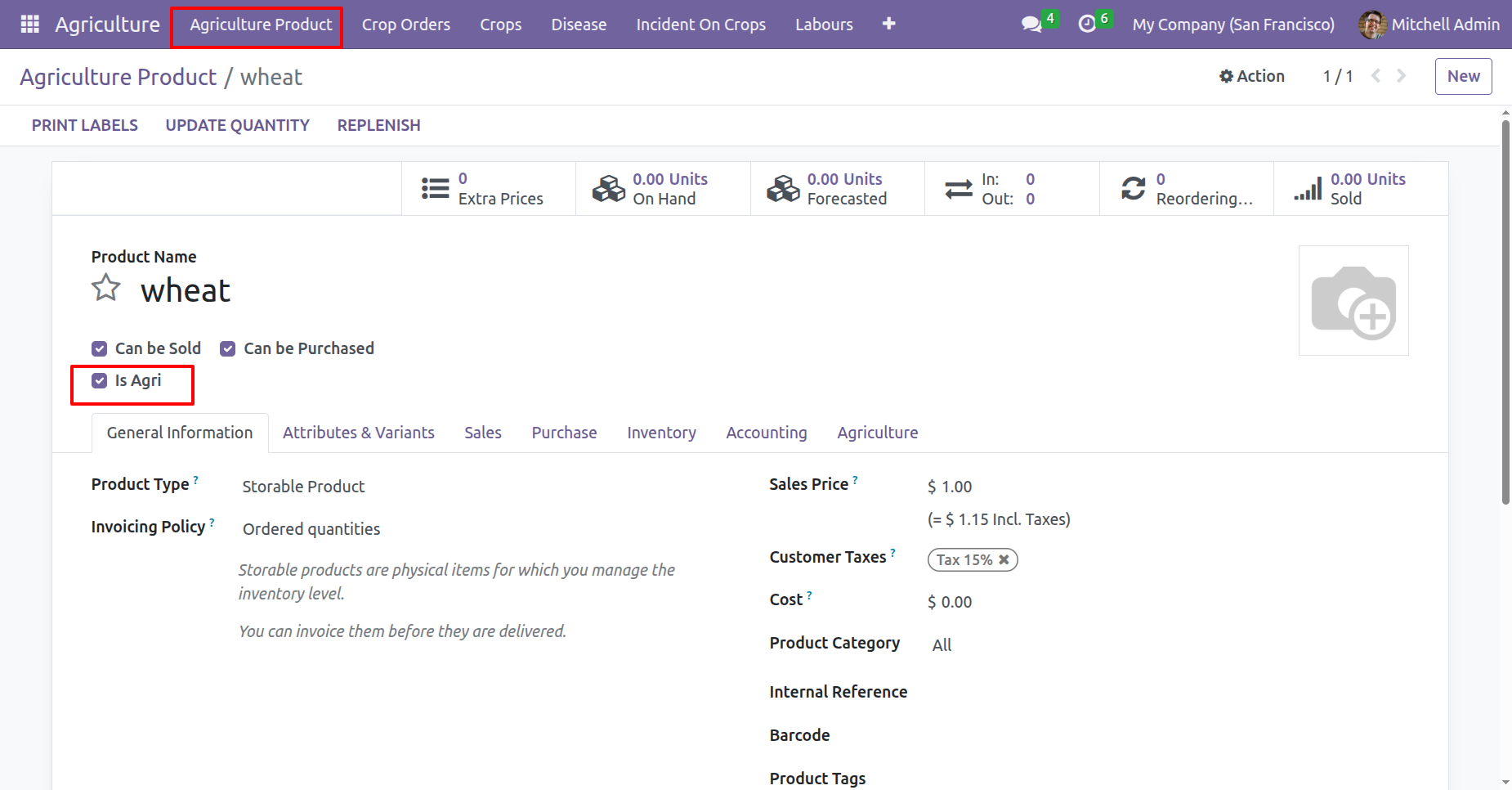
In the Agriculture product, tick the 'Is Agri' boolean.
In the Agriculture tab, enable the 'Agri Crop' boolean if the product is a crop.
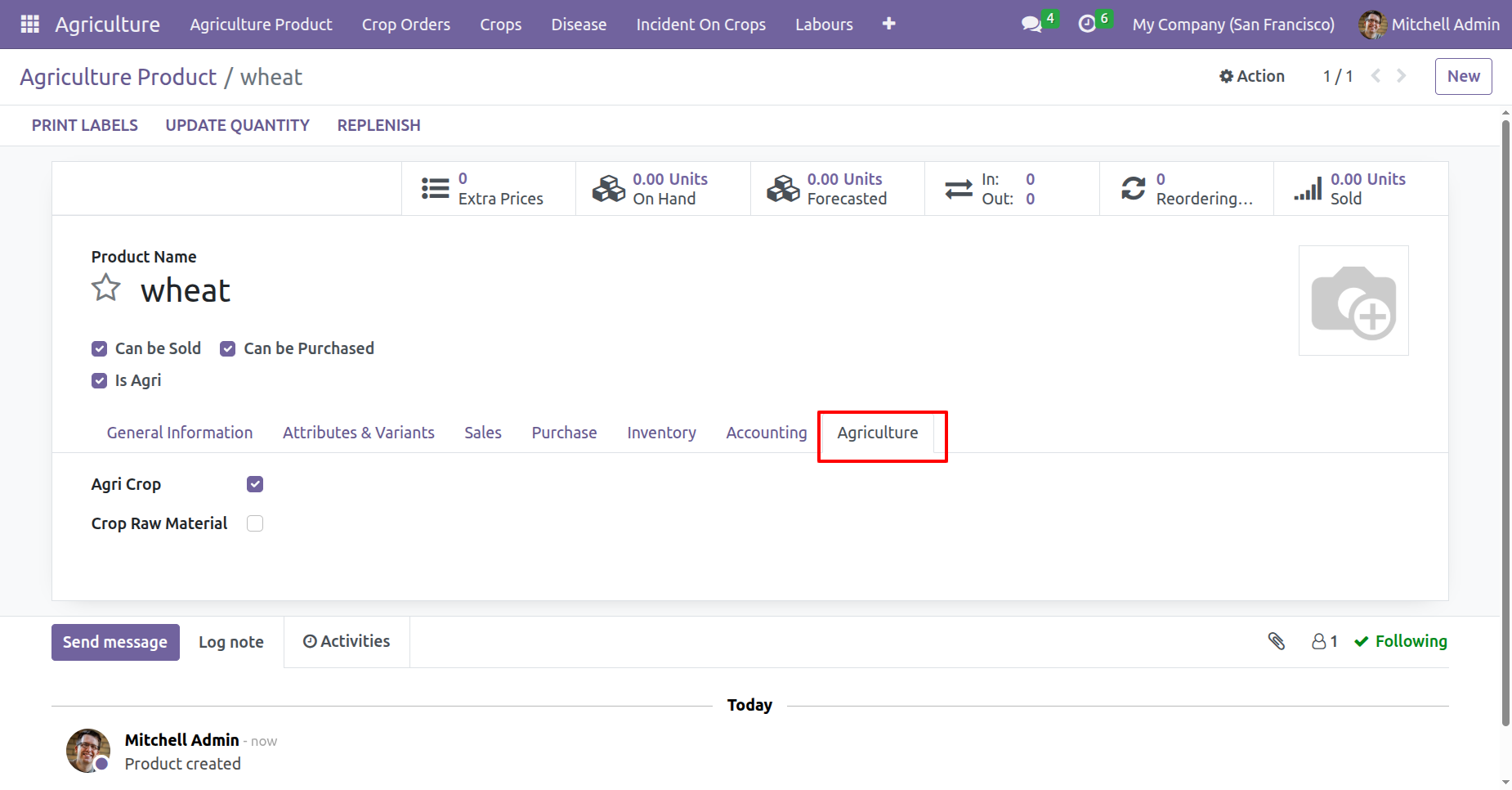
Agriculture Animal menu and kanban view.
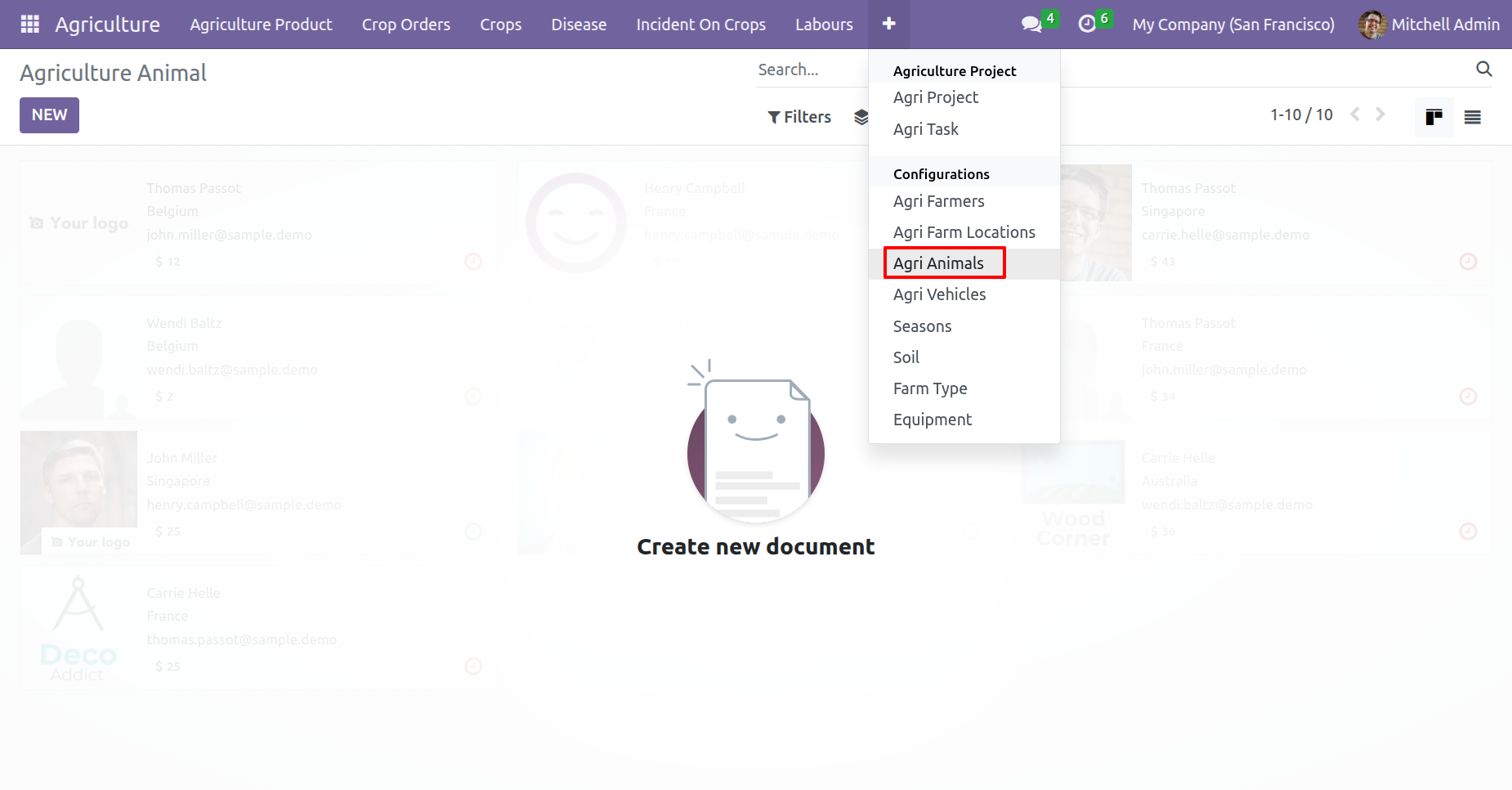
In the agriculture animal form, open the Agriculture Detail tab and tick the 'Animal' boolean.
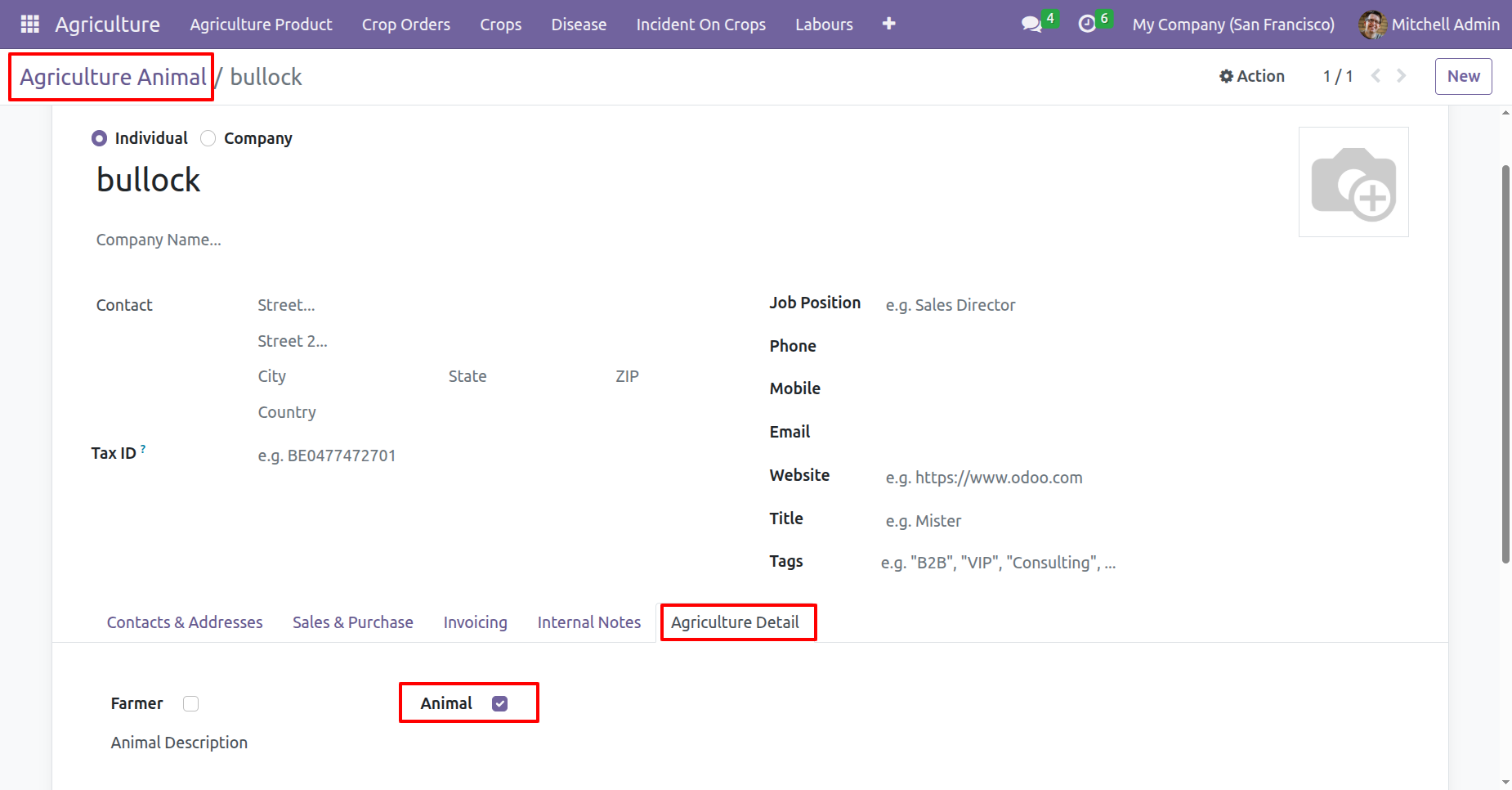
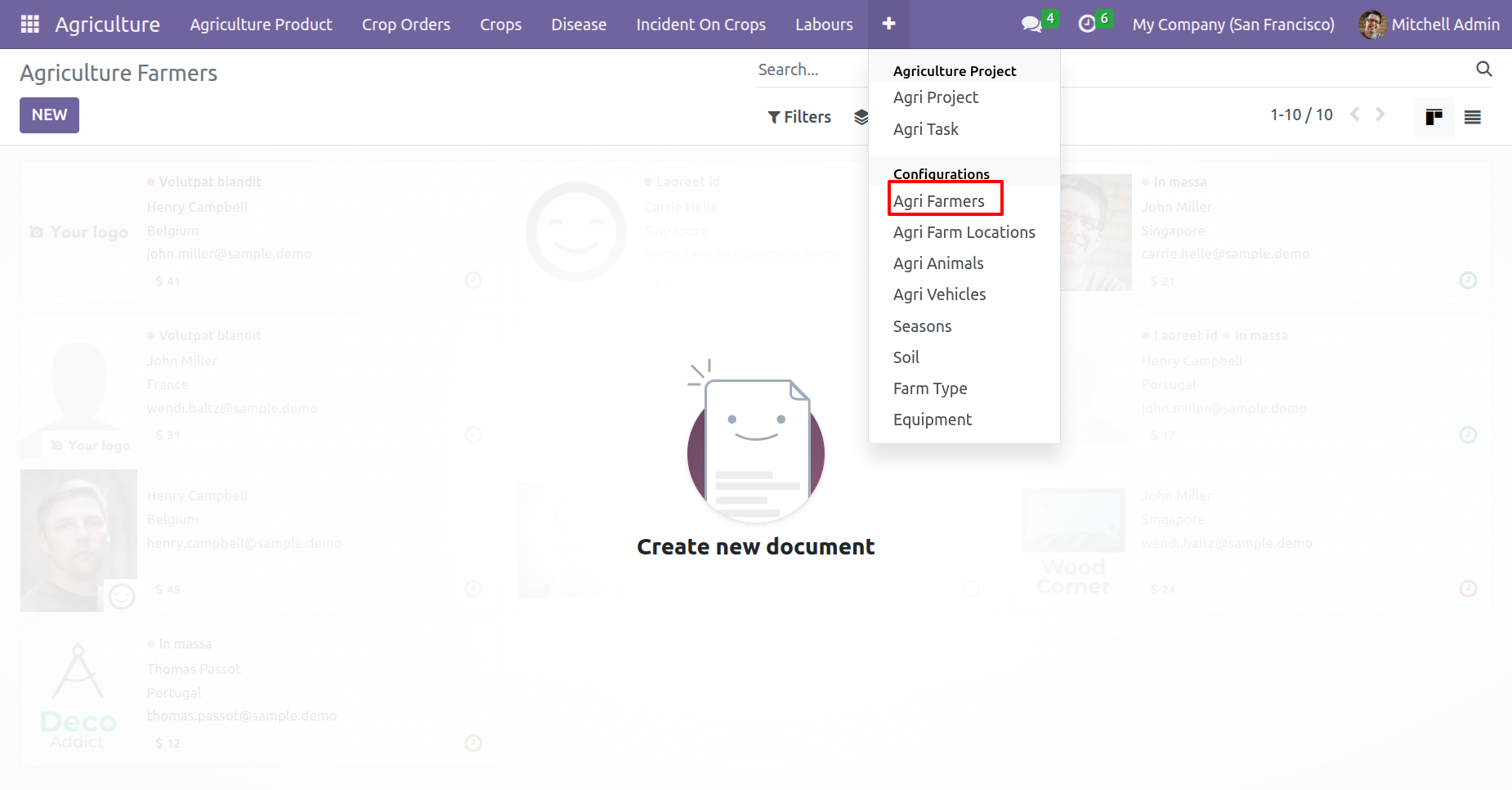
Agri Farmers menu and kanban view.
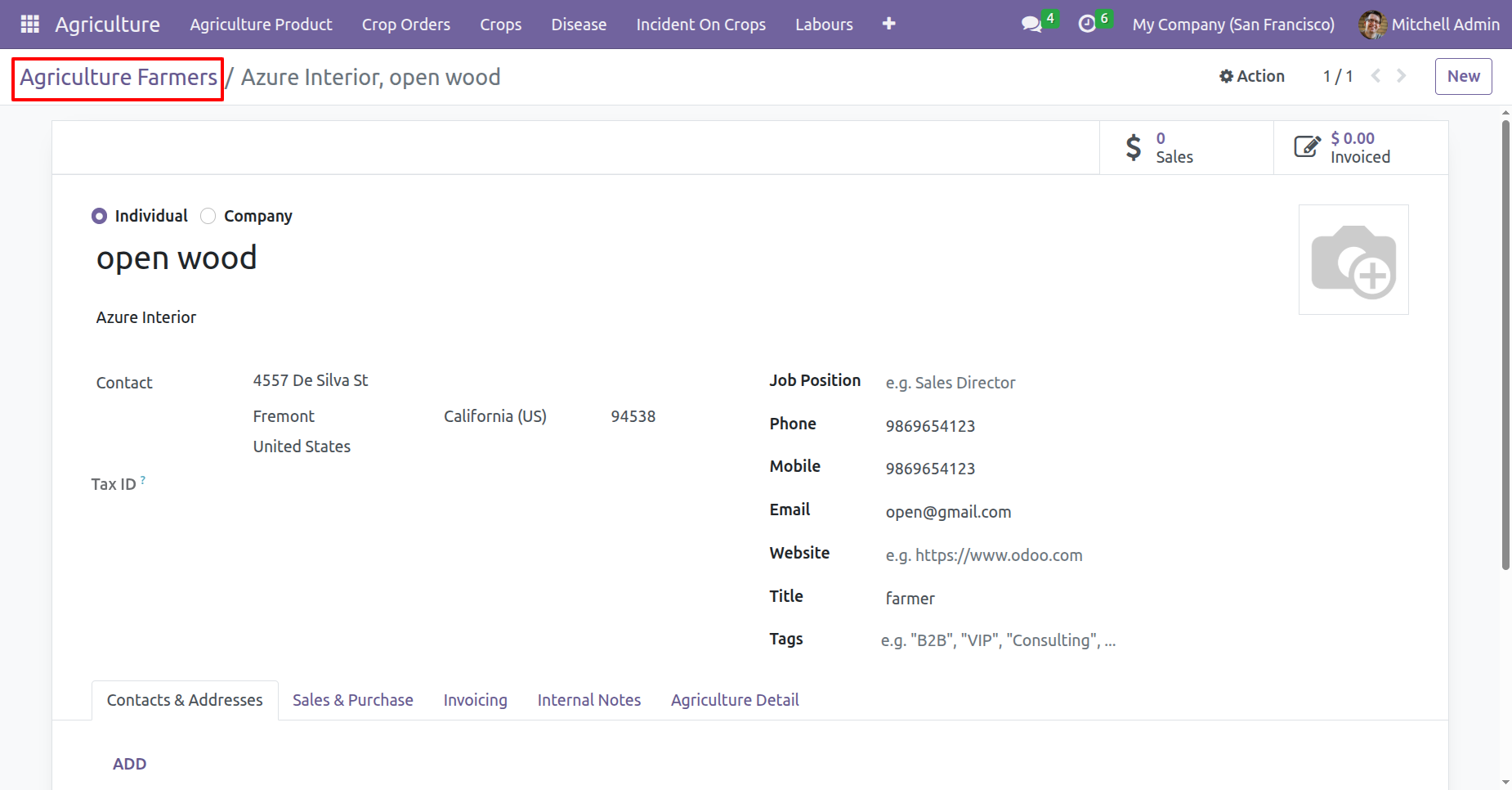
Create an agriculture farmer.
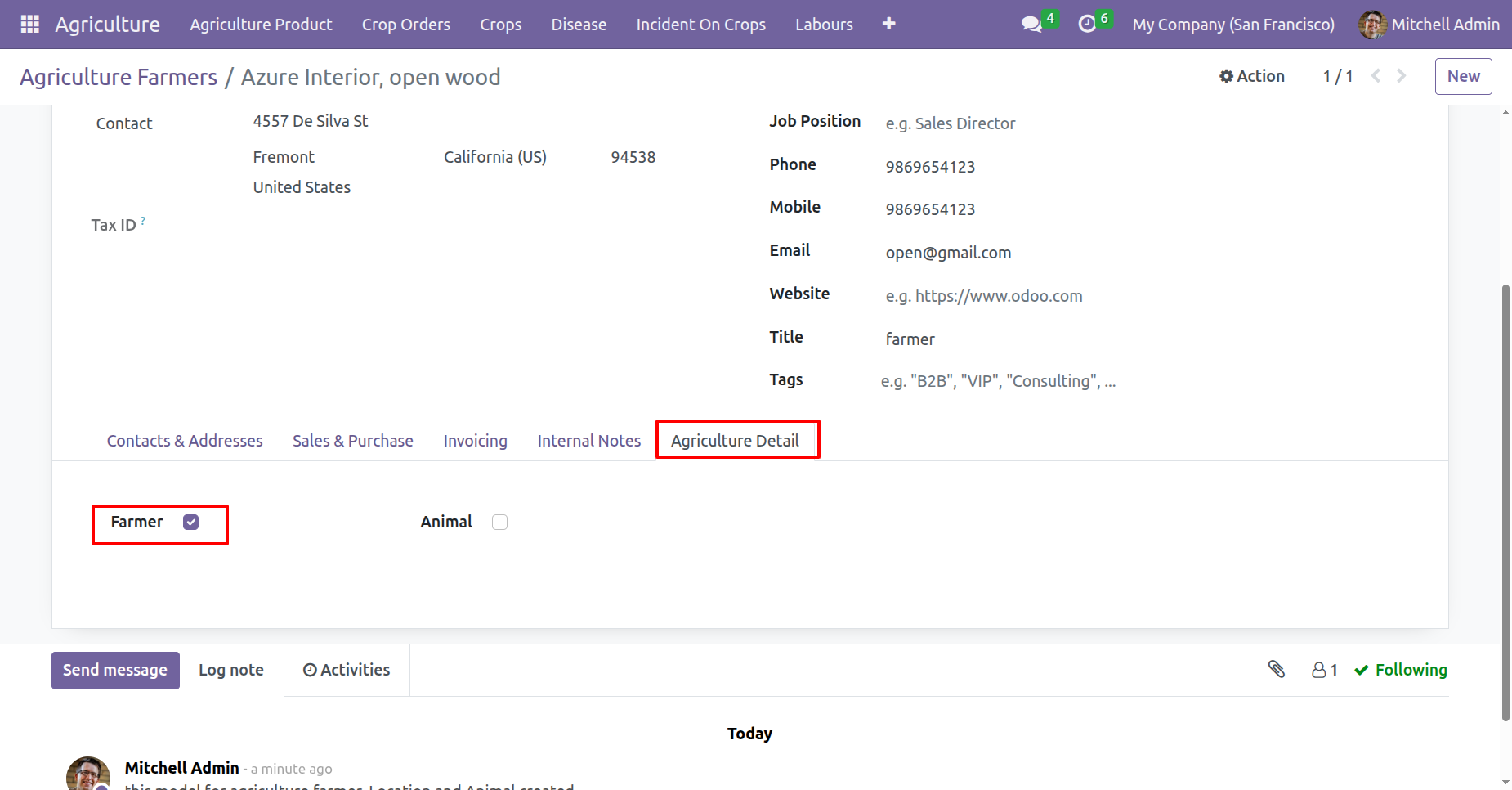
In the Agriculture Detail tab, enable the 'Farmer' boolean.
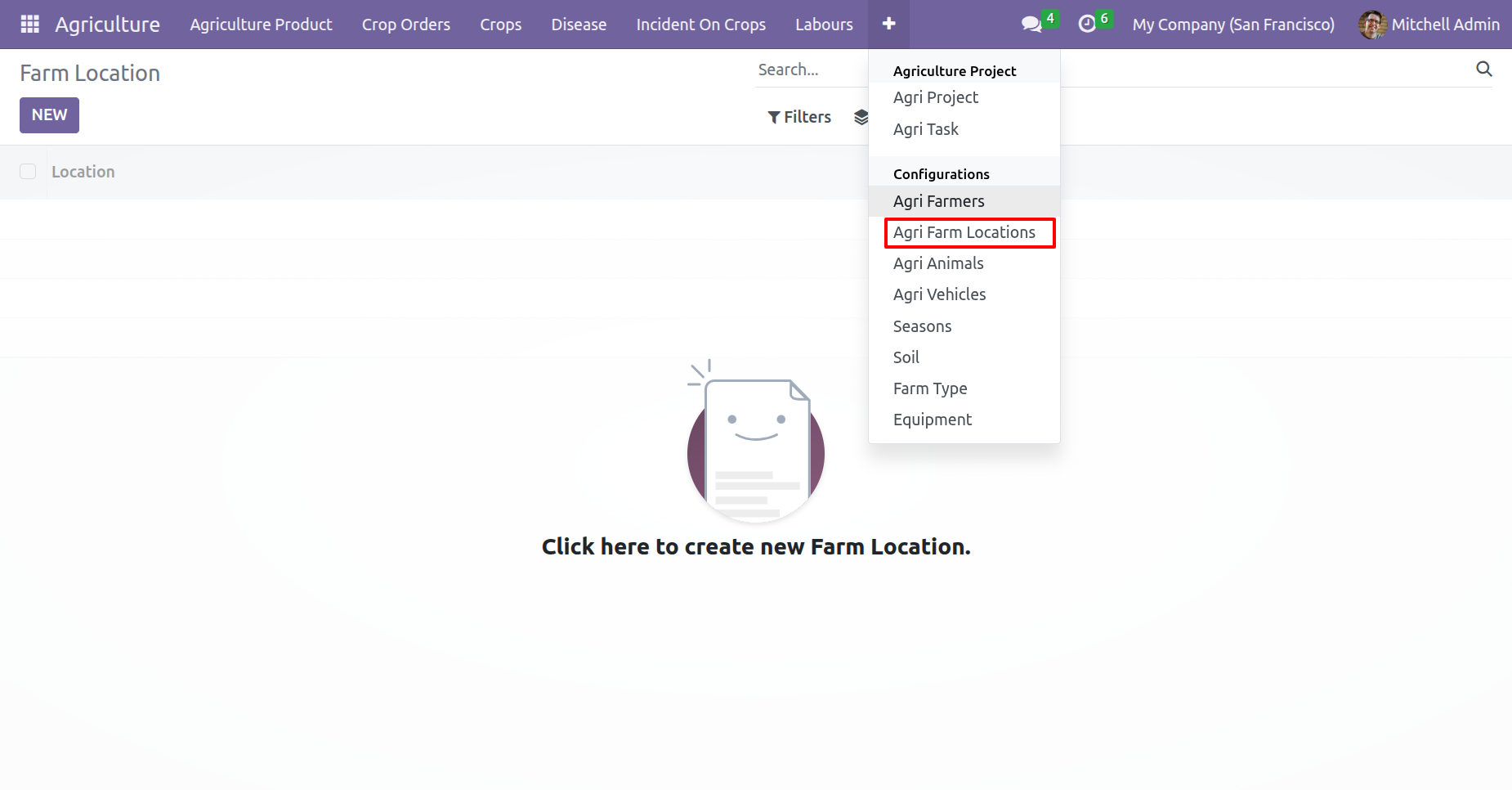
Agri Farm Locations menu and kanban view.
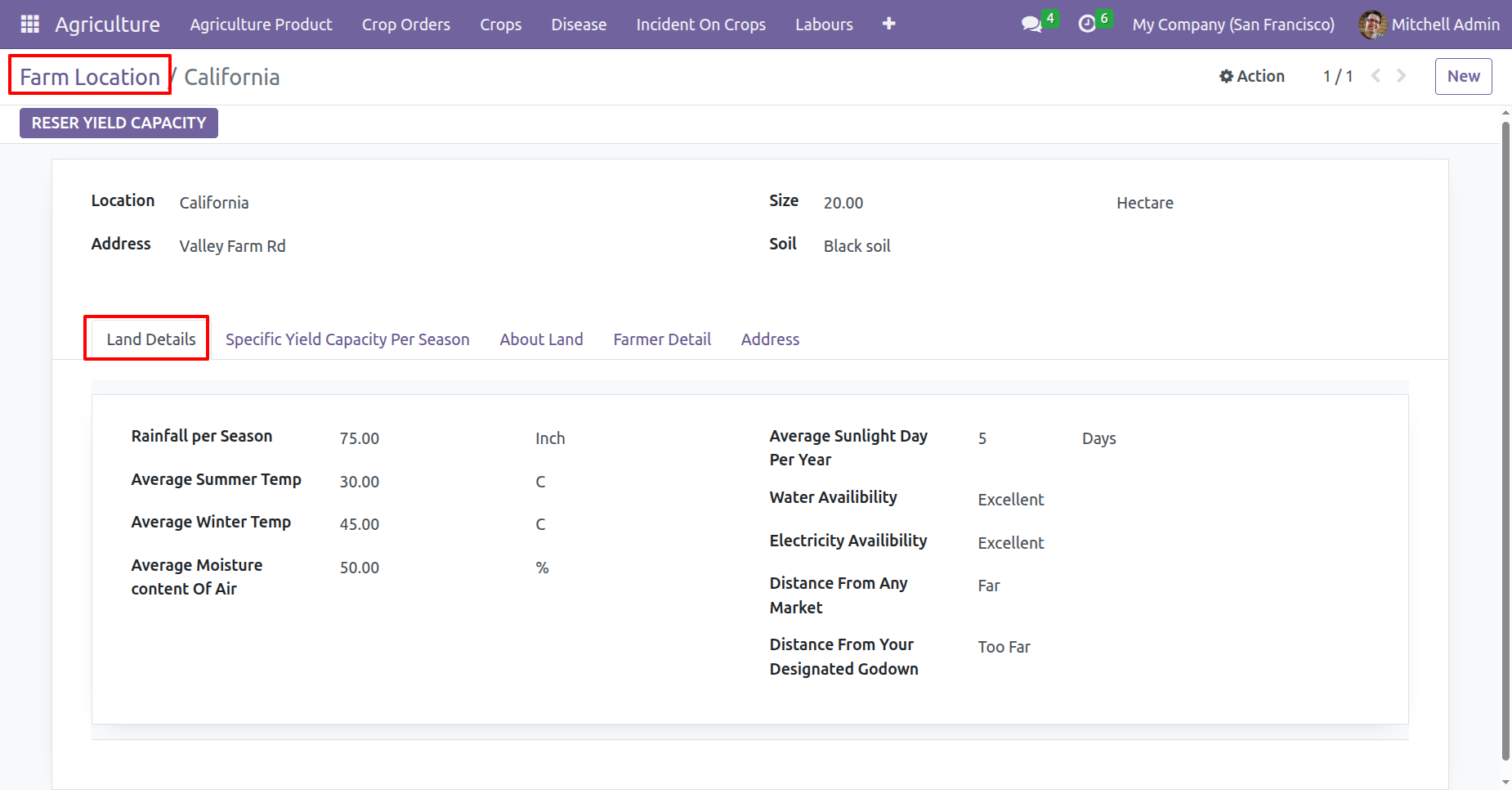
In the farm location form view, fill the land details.
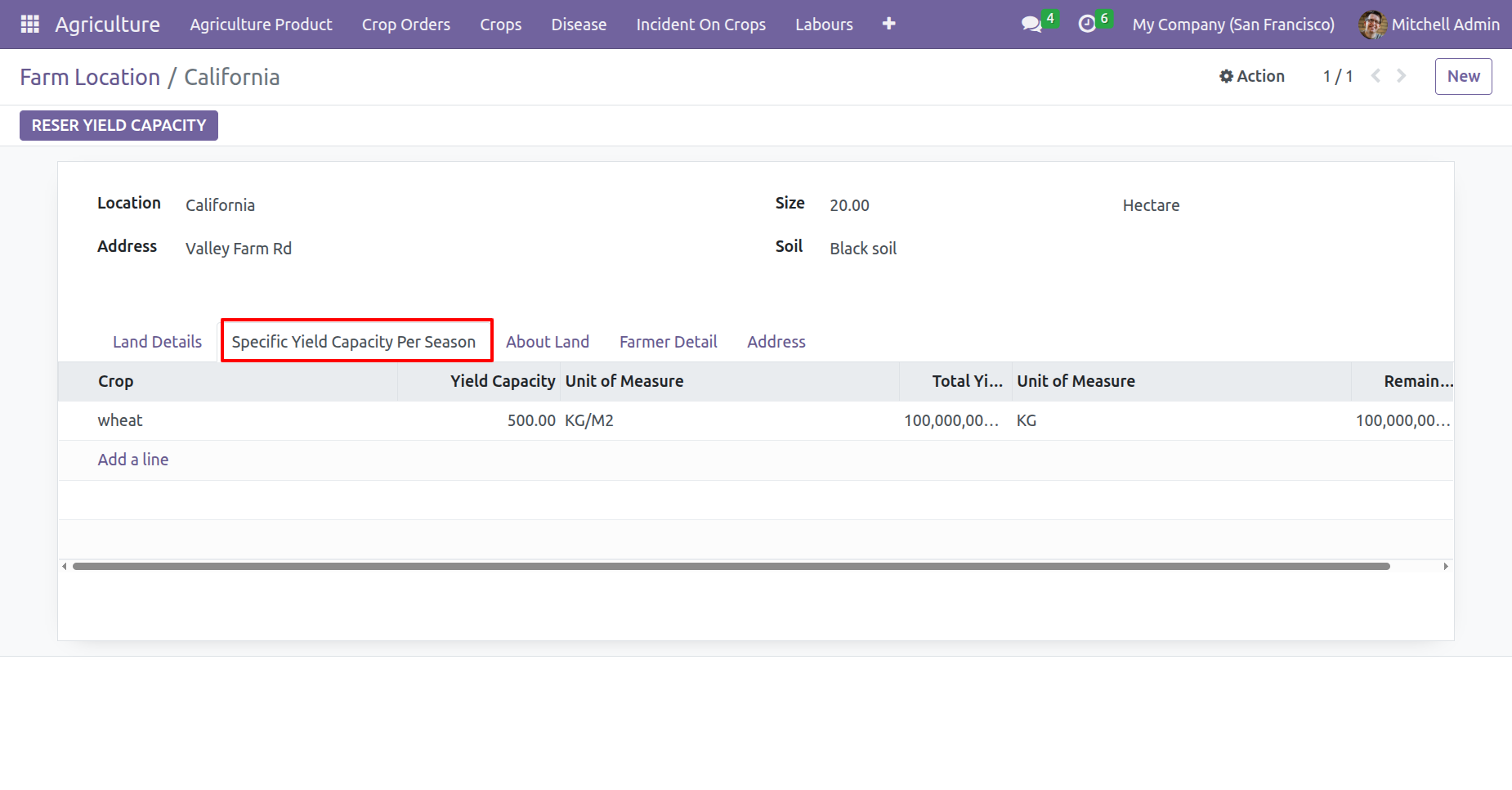
Add details under the 'Specific Yield Capacity Per Season' tab.
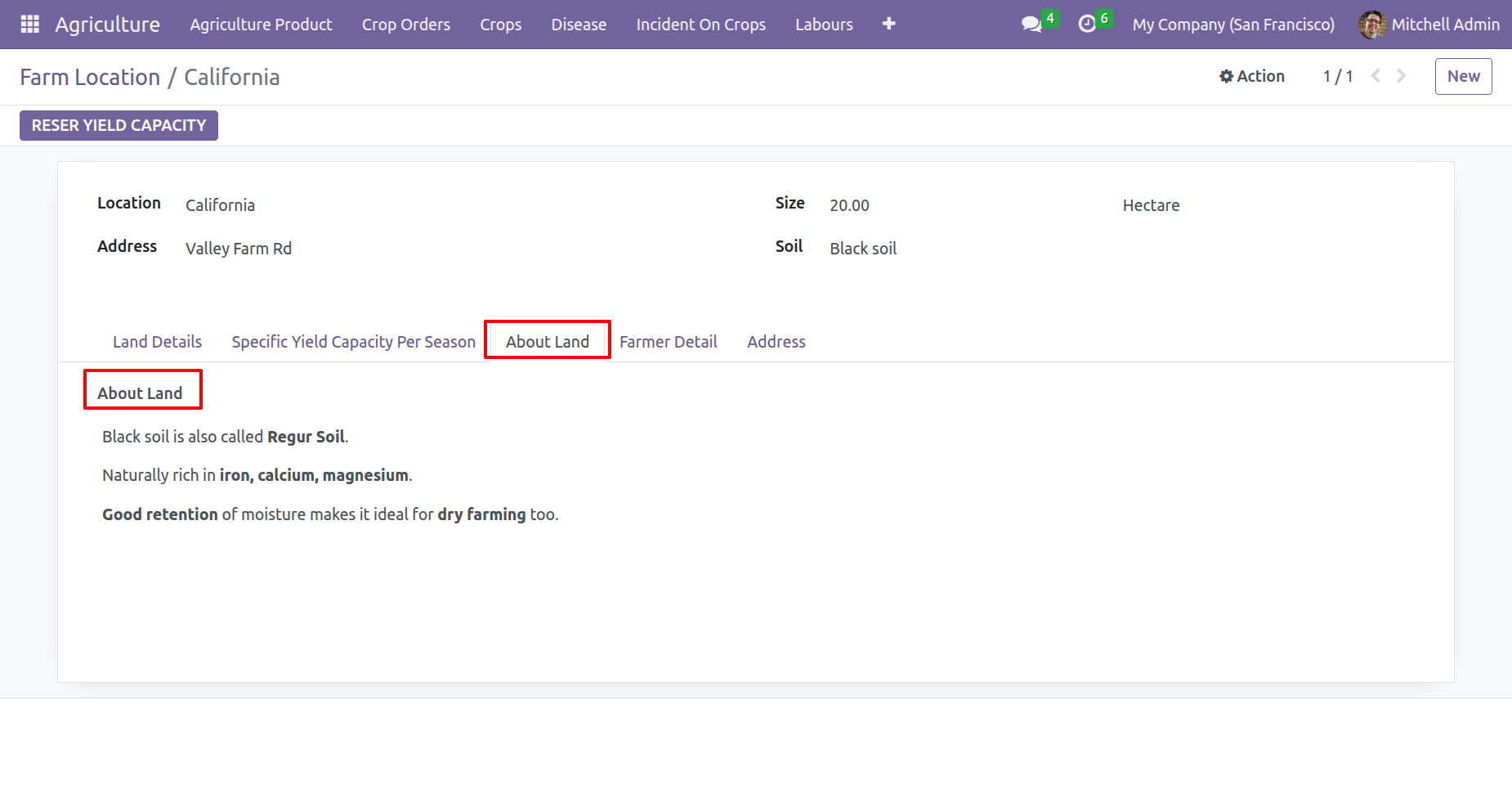
Add land information under the 'About Land' tab.
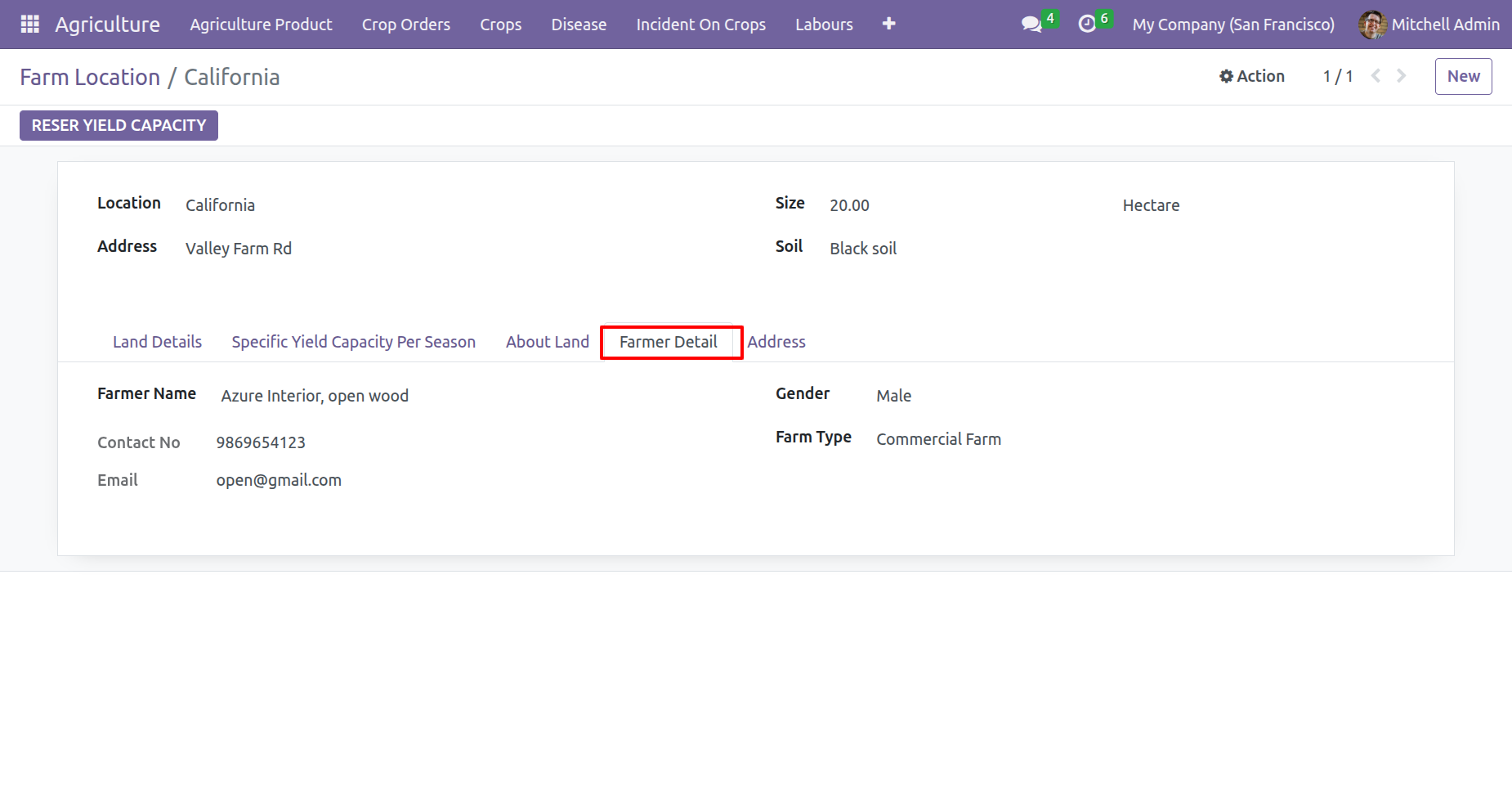
Add farmers information in the 'Farmer Detail' tab.
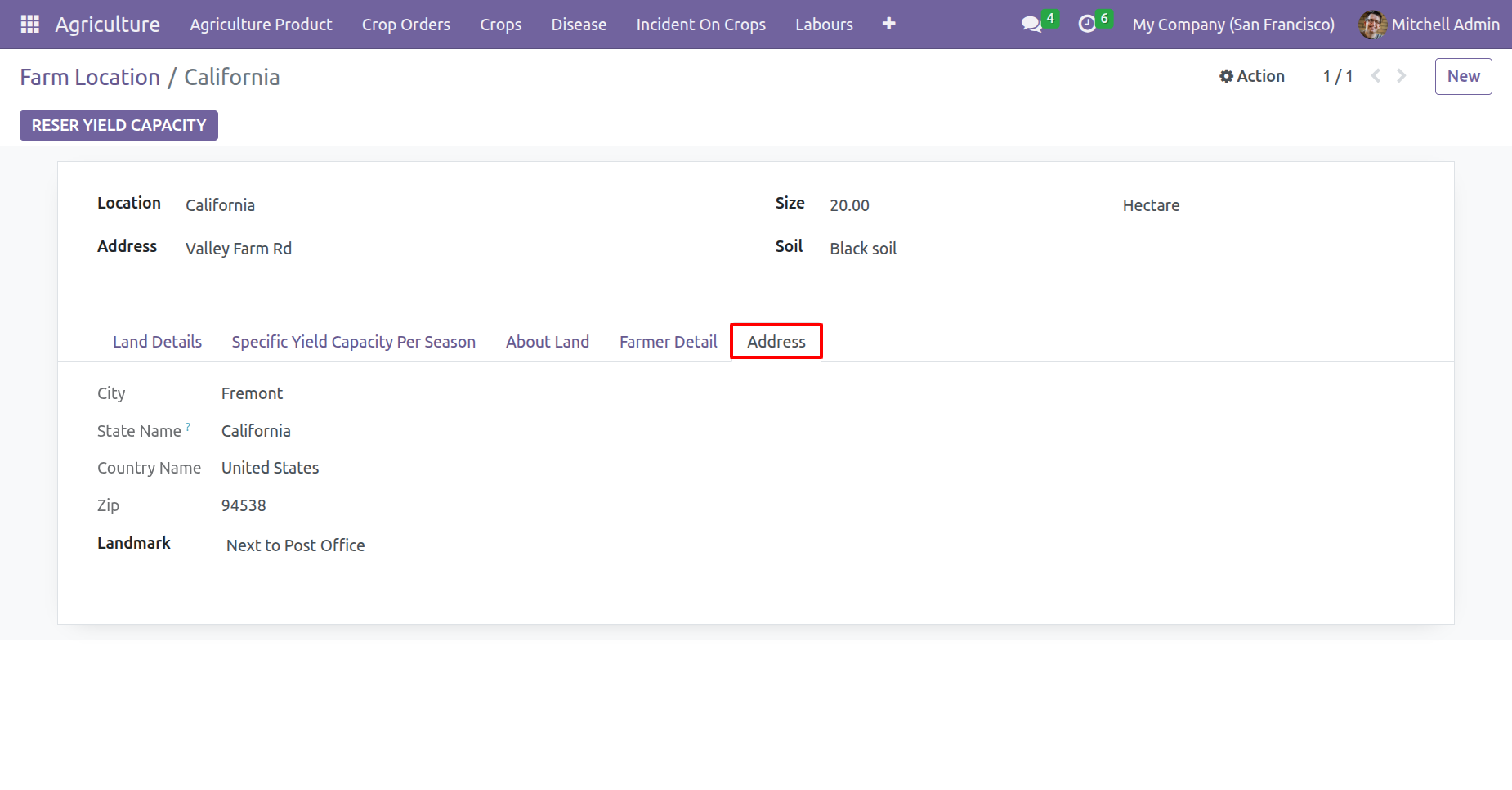
Specify the farm address in the 'Address' tab.
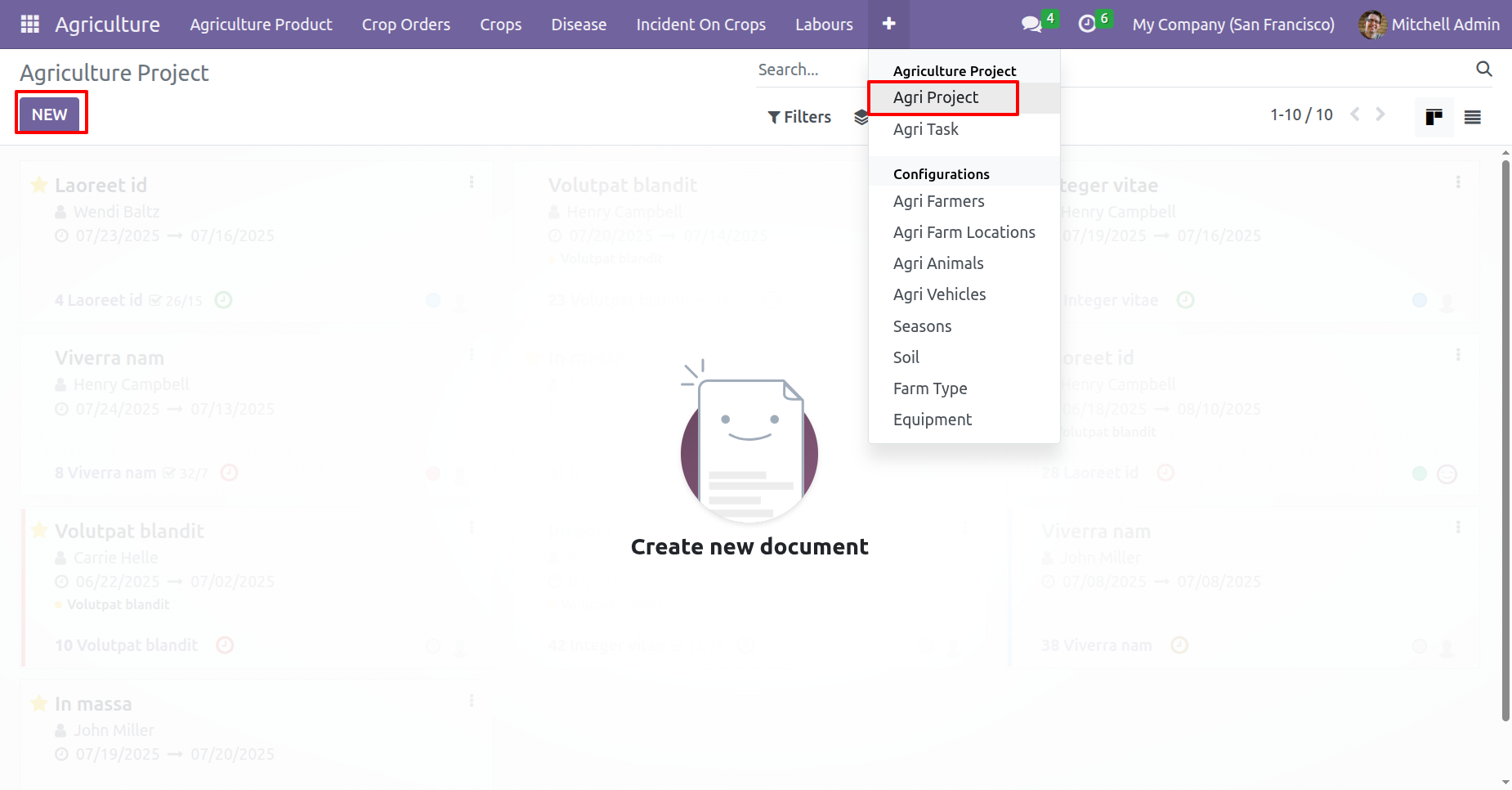
Go to the Agriculture Project menu and click on the 'New' button to create a project.
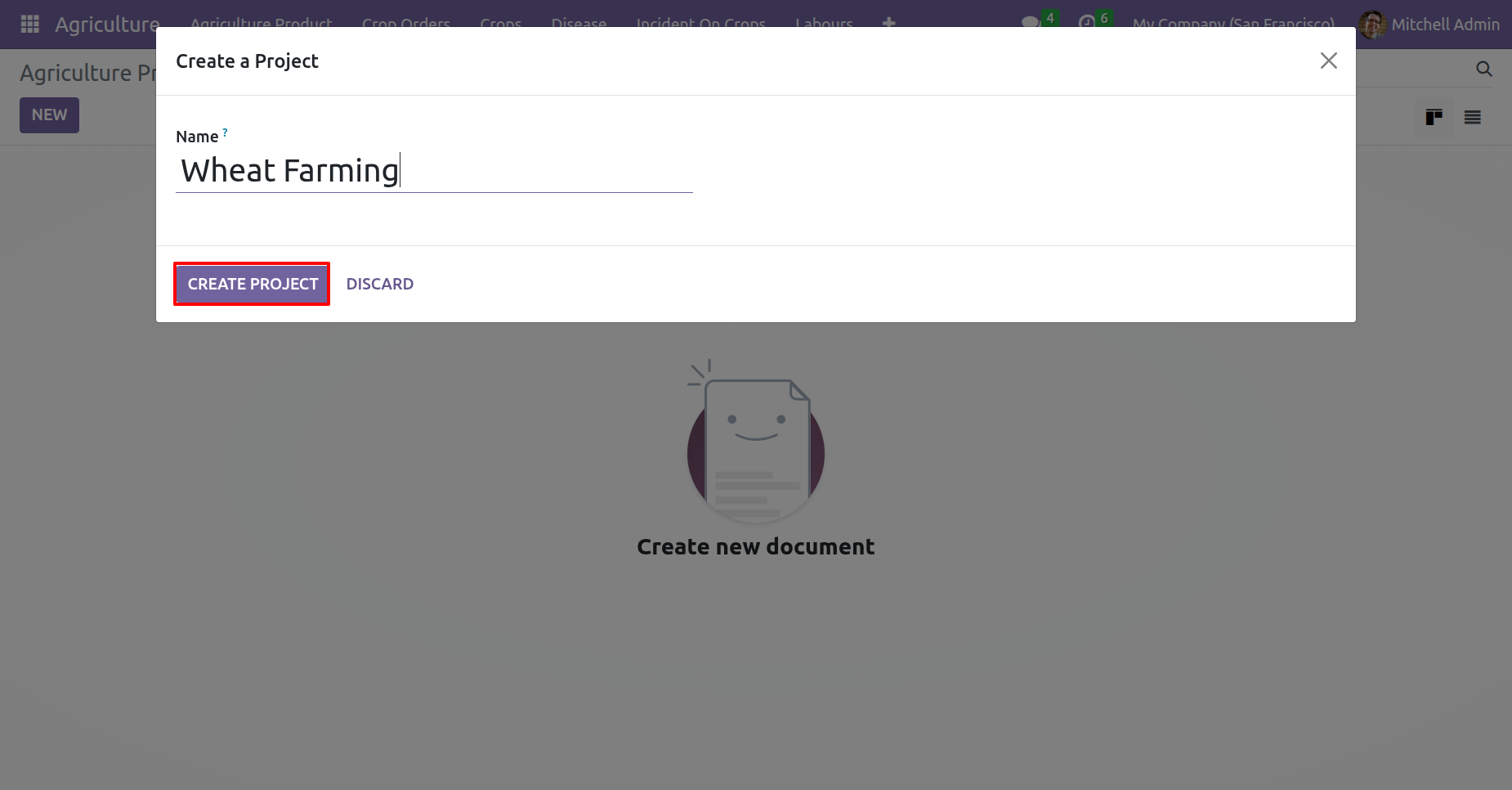
The project creation wizard will appear. Fill the details and click on the 'Create Project' button.
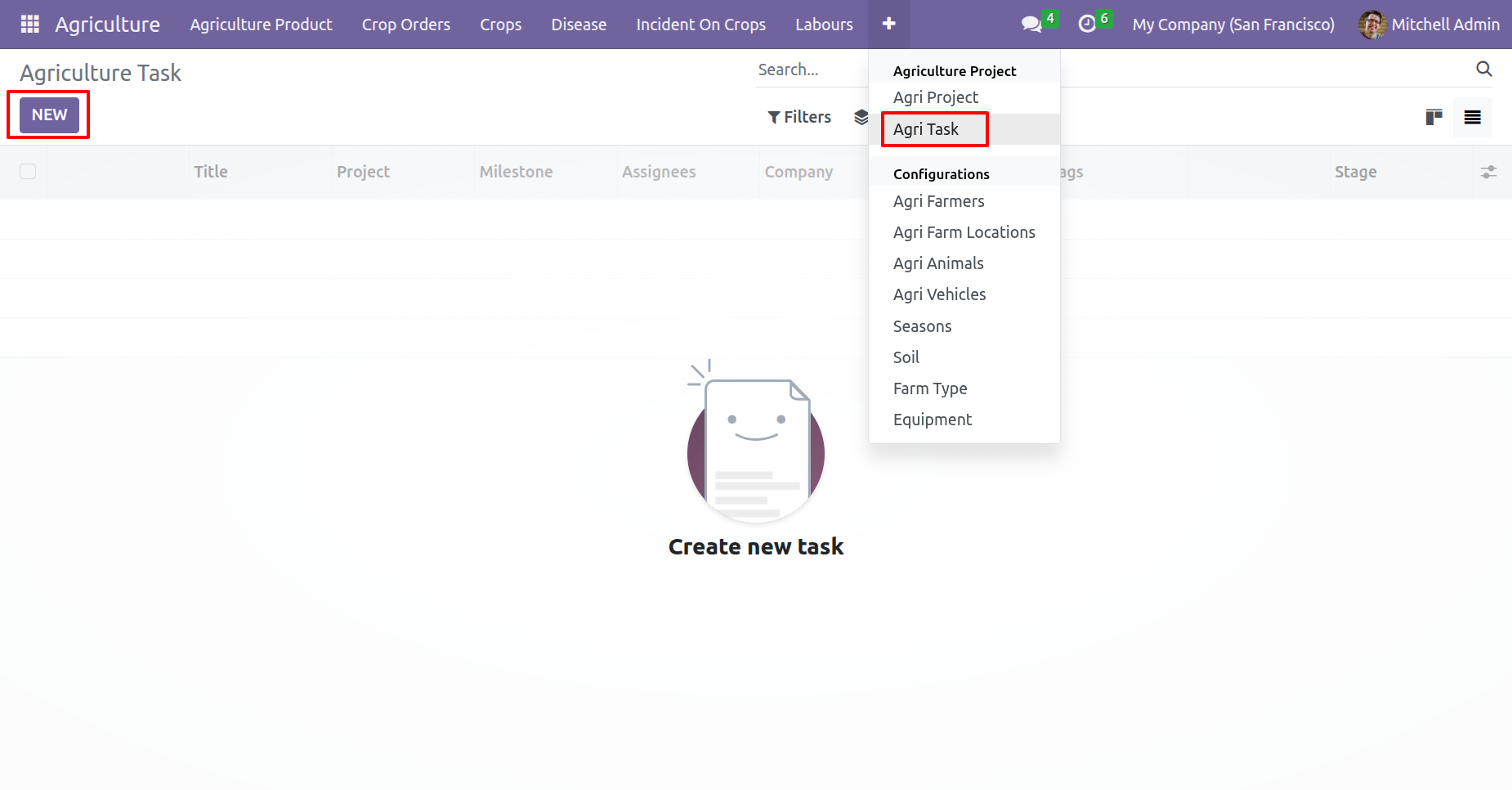
Agriculture Task menu and kanban view.
Form view of the Agriculture Task.
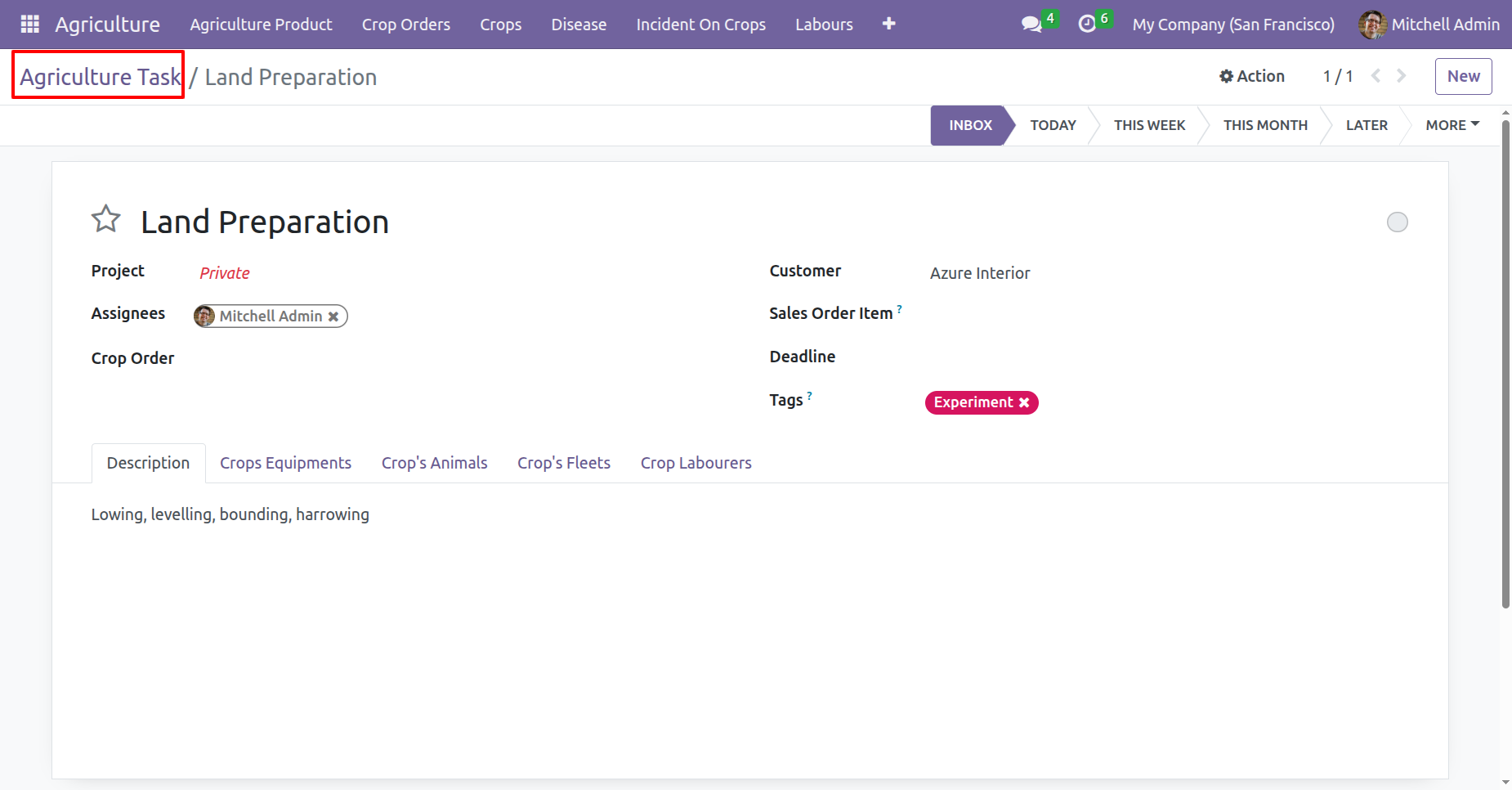
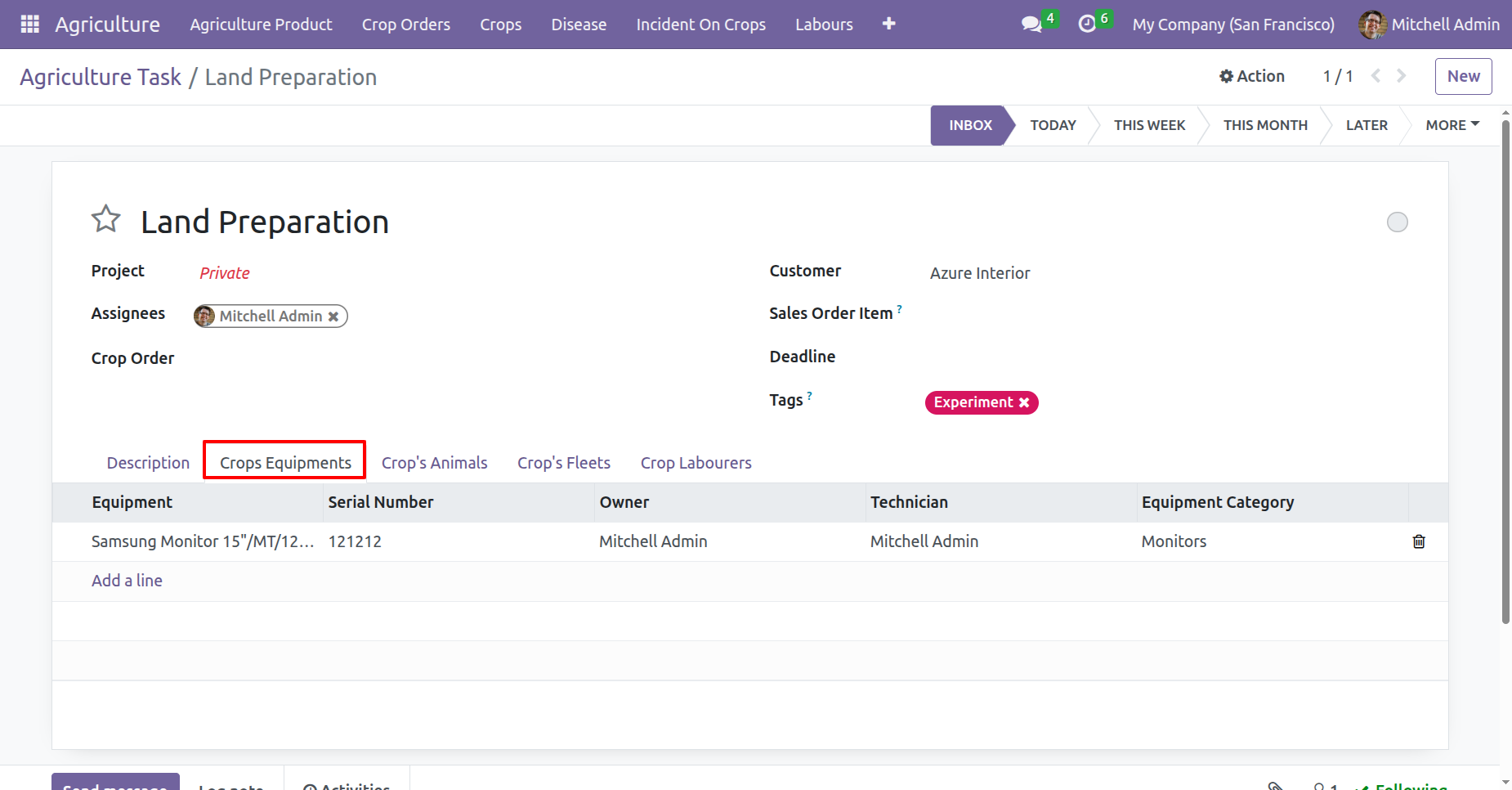
Add equipment information under the 'Crops Equipments' tab.
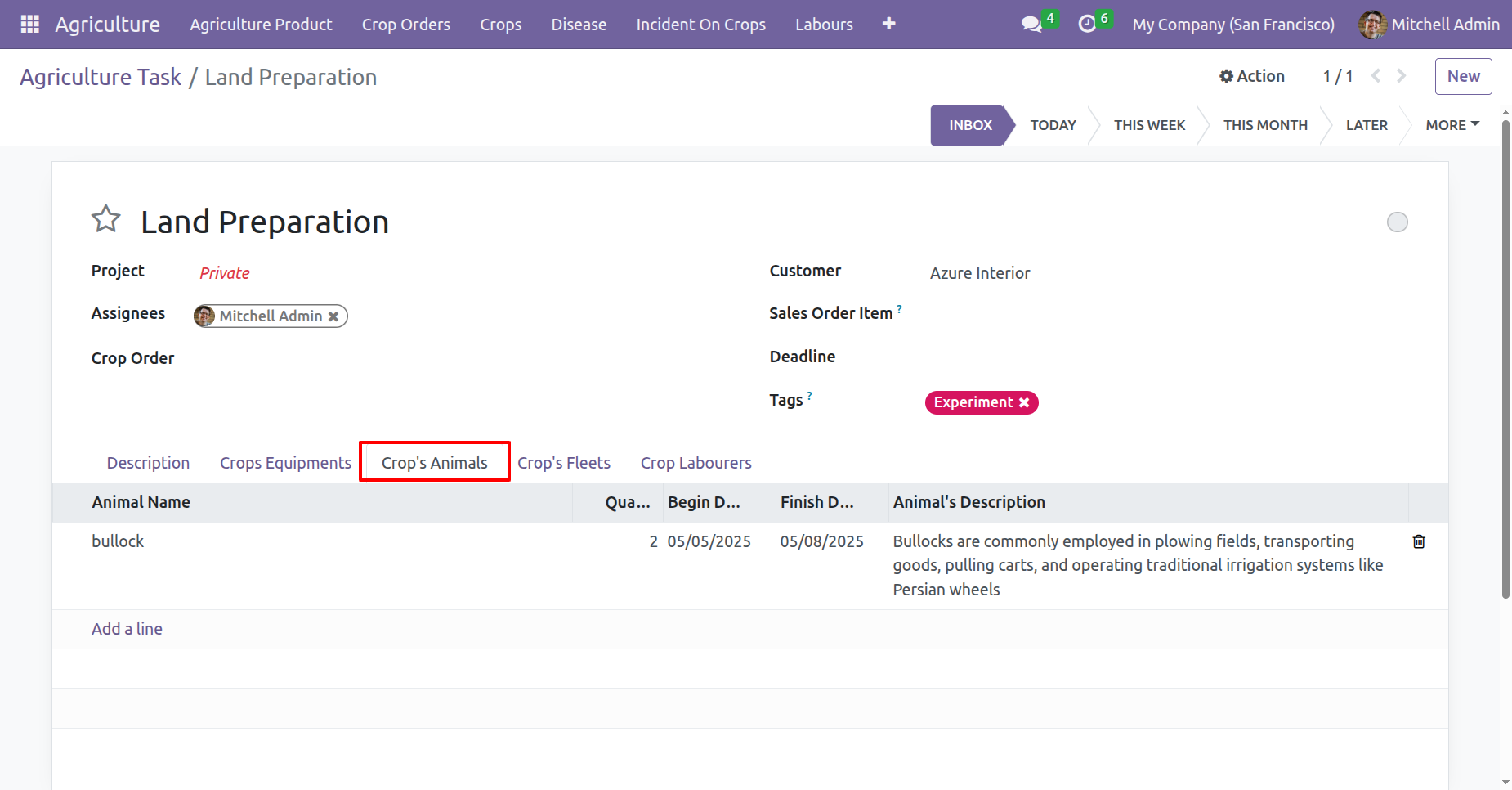
Add animal information under the 'Crops Animal' tab.
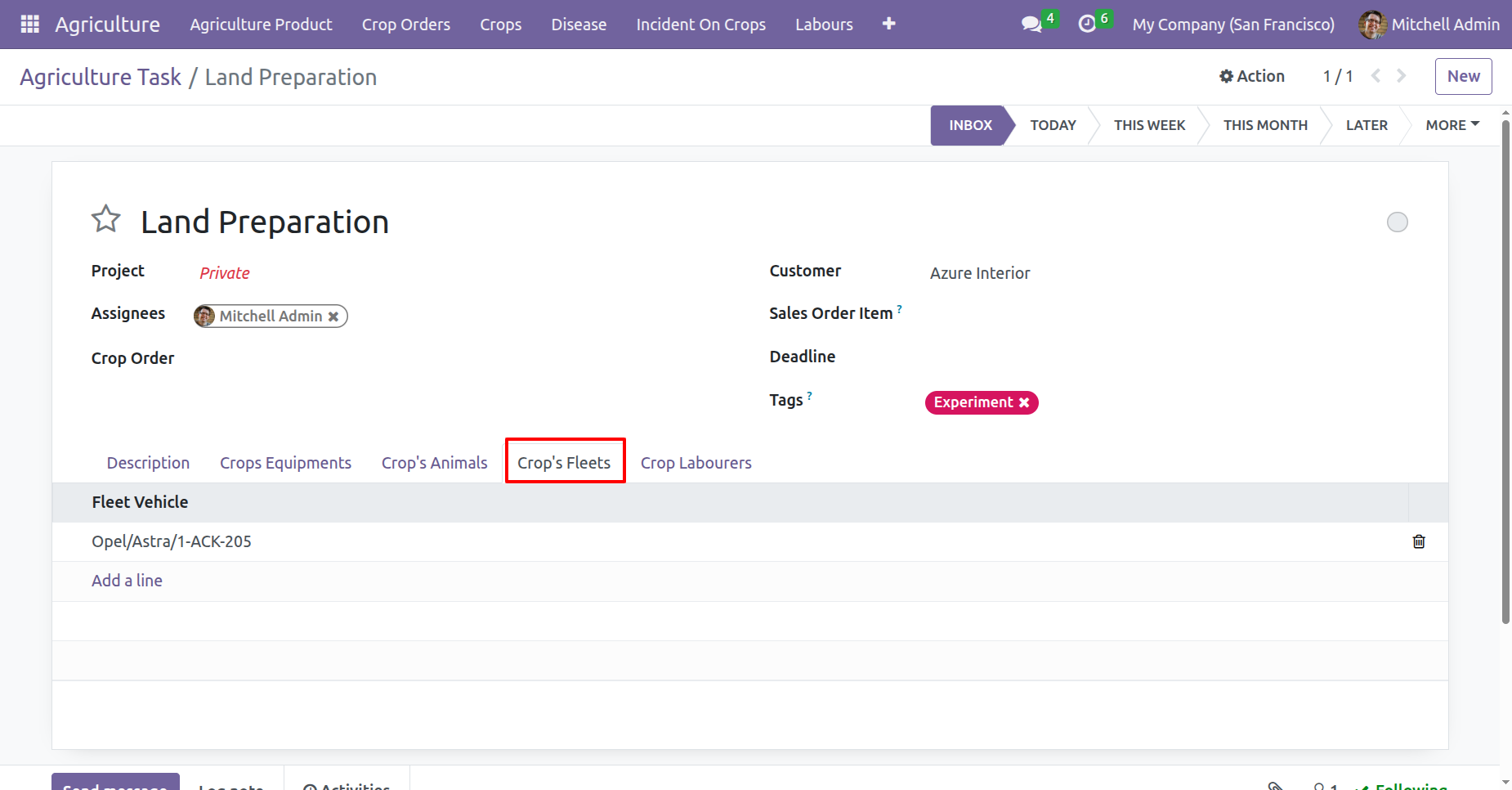
Add fleet information under the 'Crops Fleets' tab.
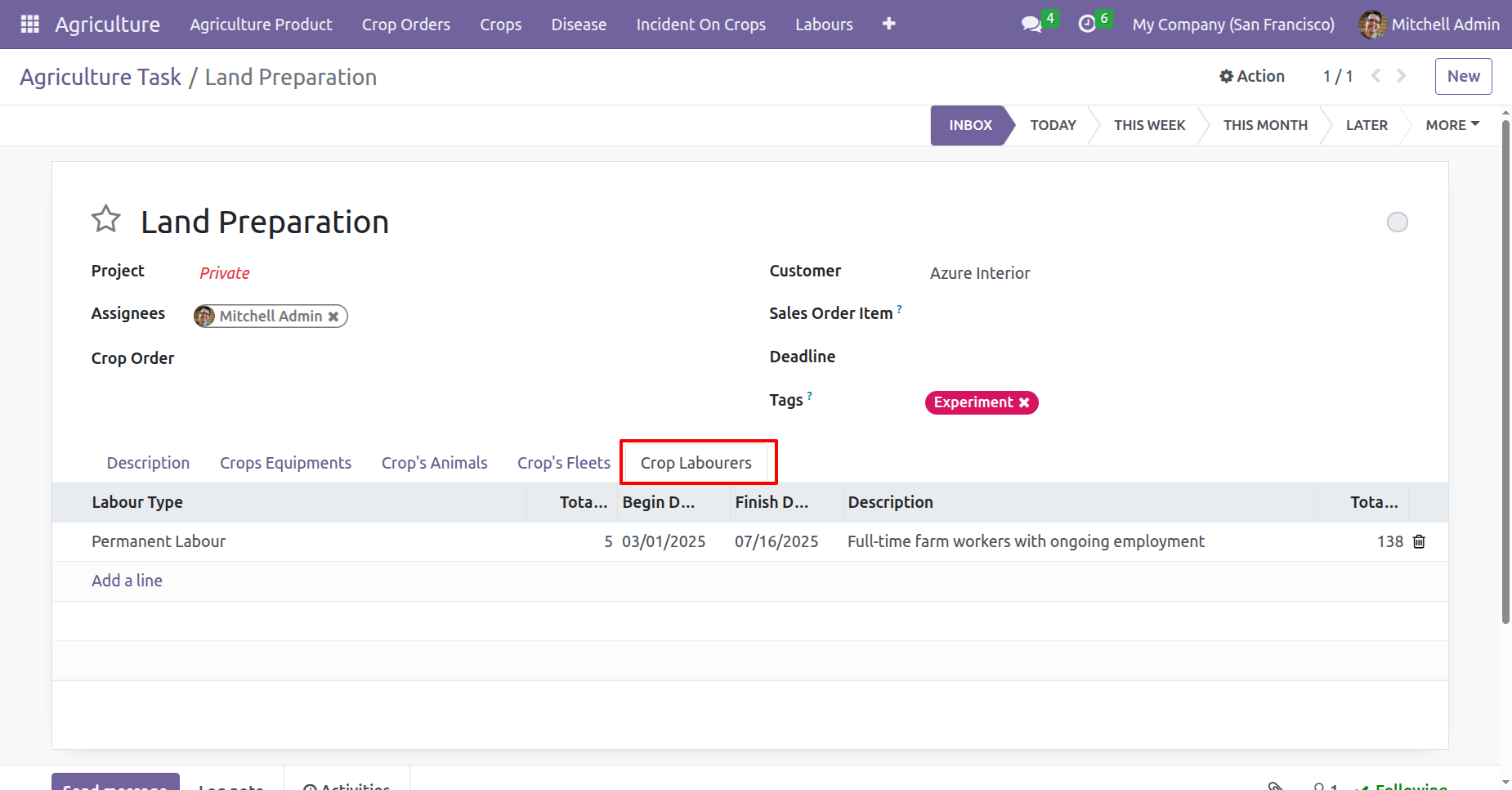
Add labourers information under the 'Crops Labourers' tab.
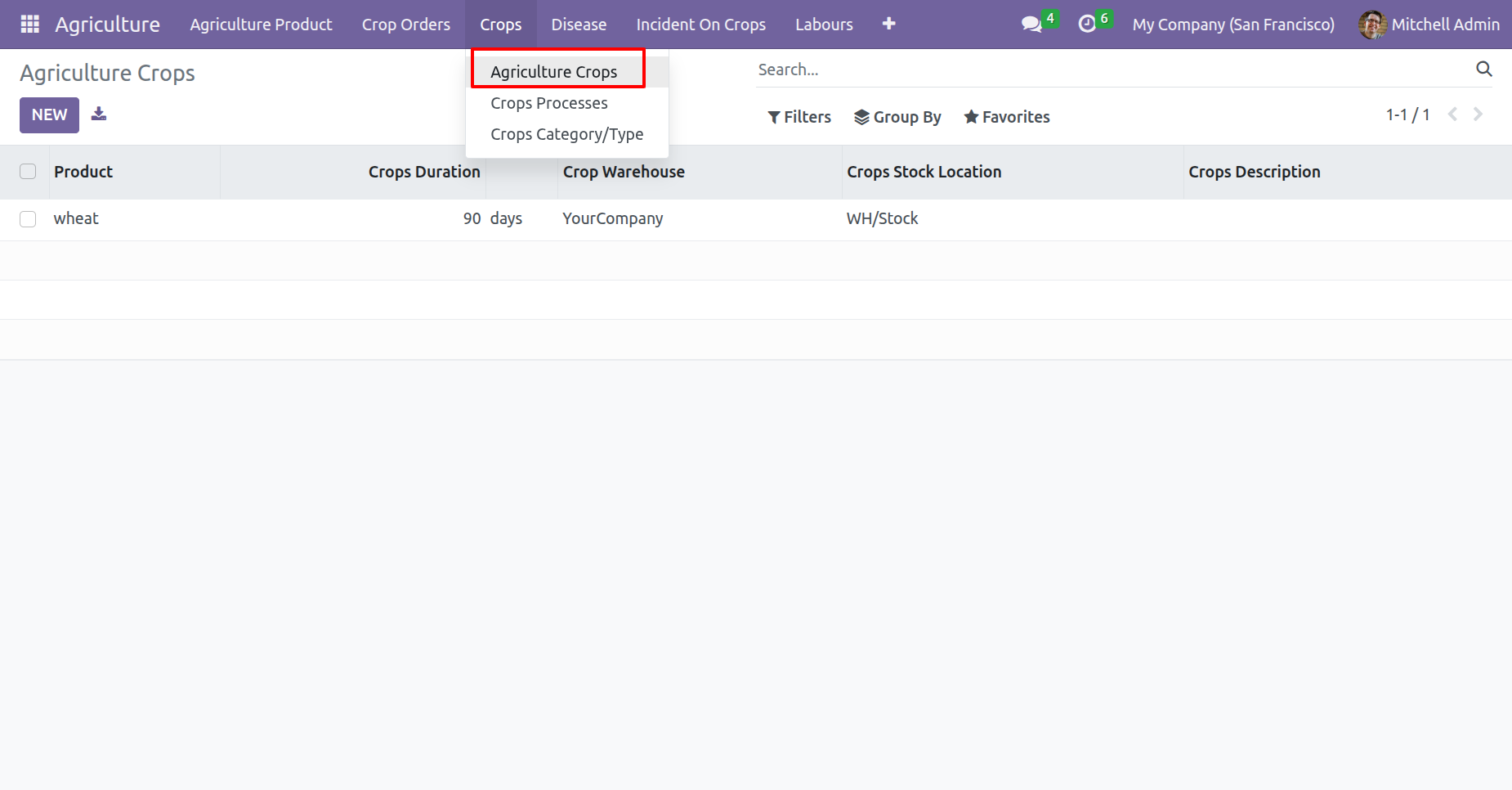
'Agriculture Crops' menu and kanban view.
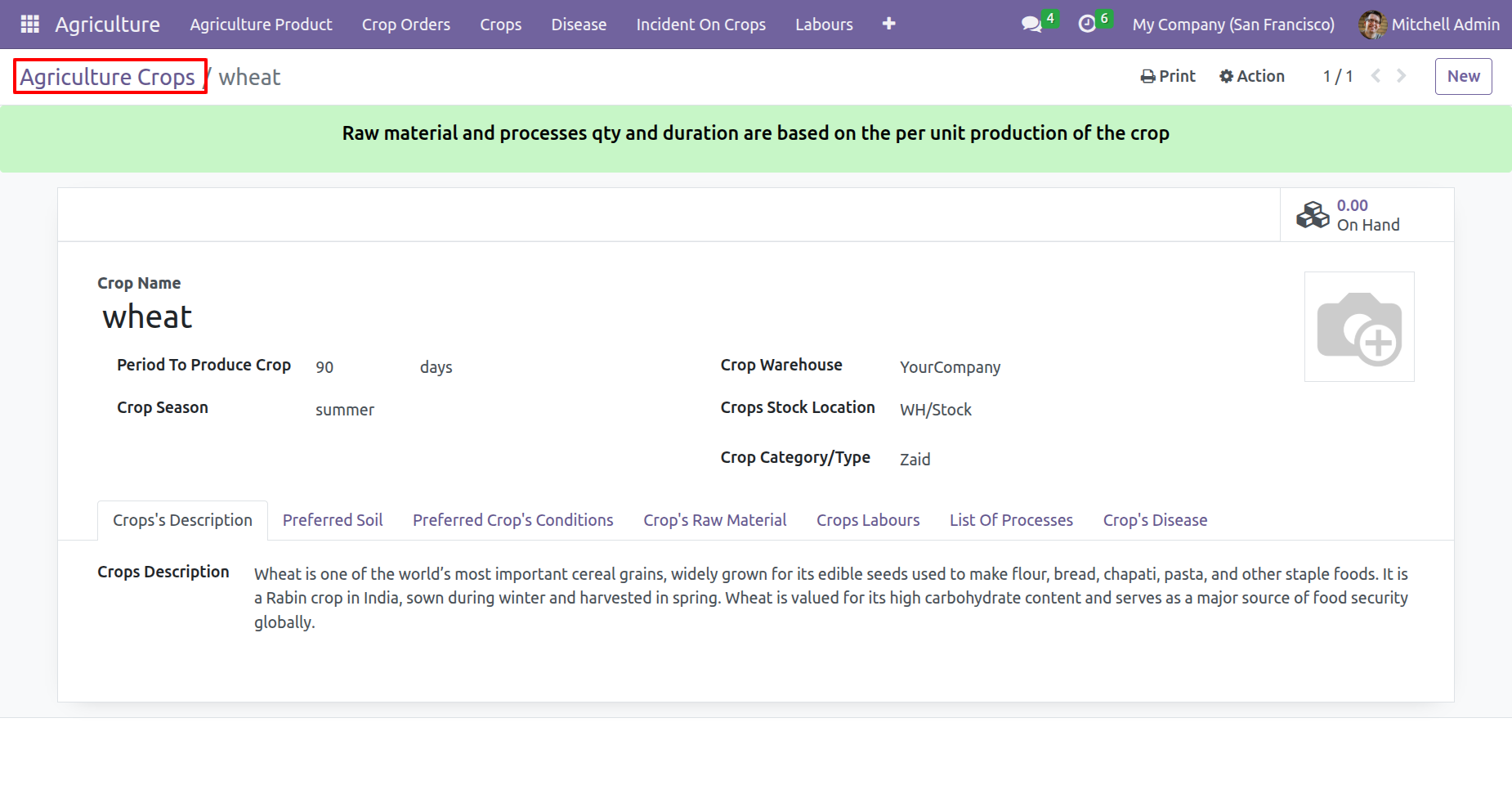
Form view of the 'Agriculture Crops'.
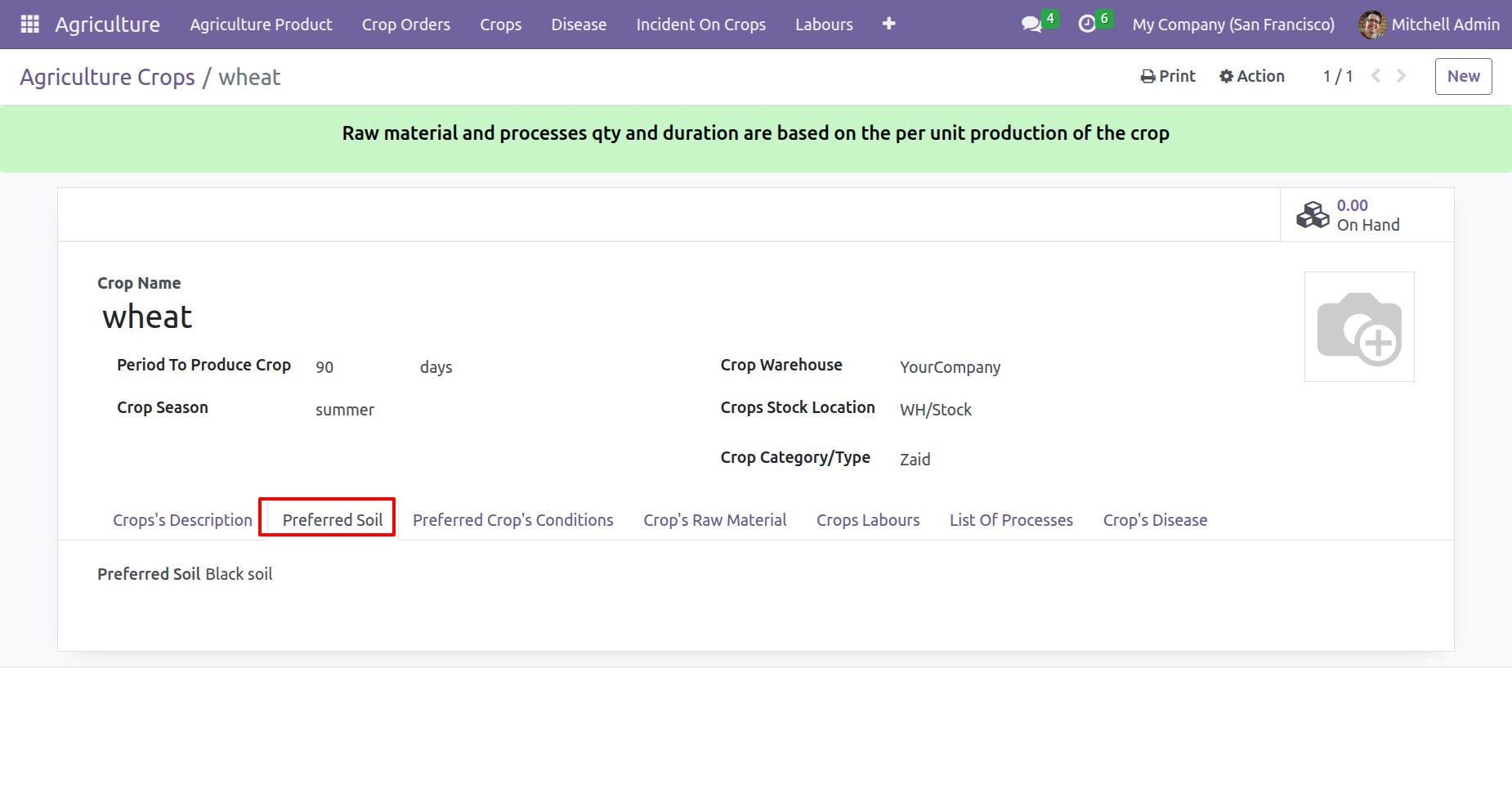
Add soil information under the 'Preferred Soil' tab.
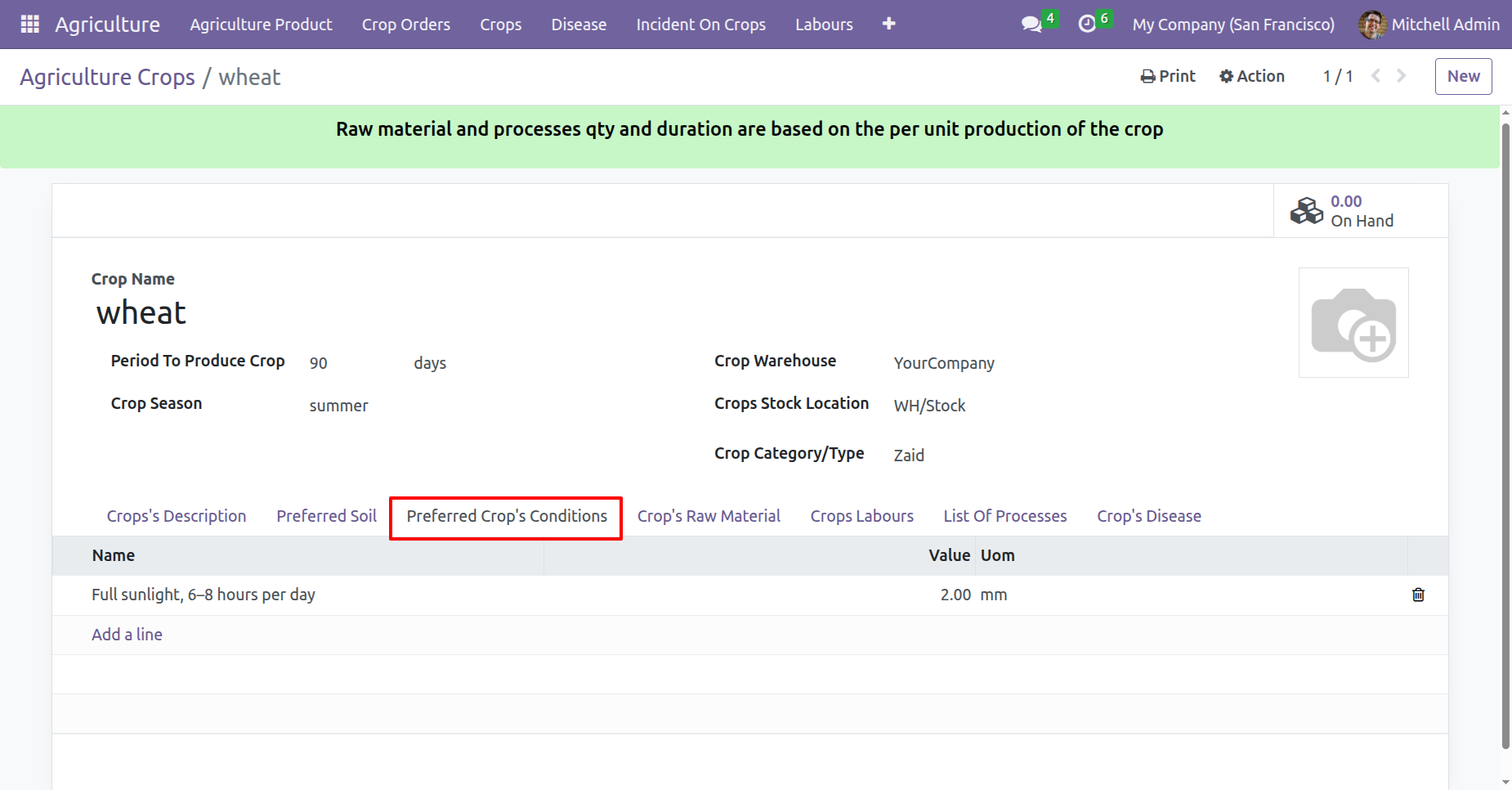
Add conditions under the 'Preferred Crops Conditions' tab.
Add row materials under the 'Crops Row Material' tab.
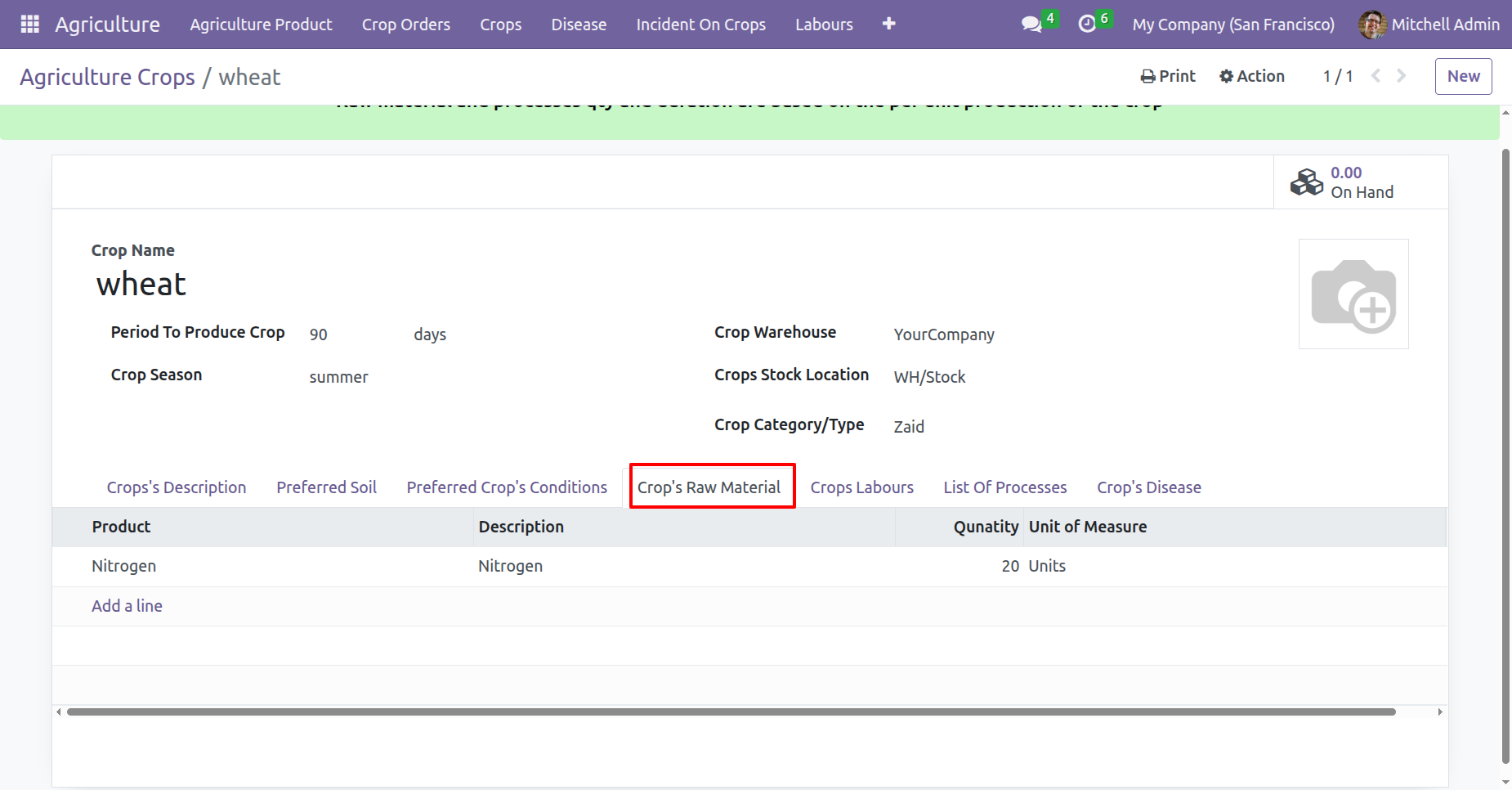
Add labours information under the 'Crops Labours' tab.
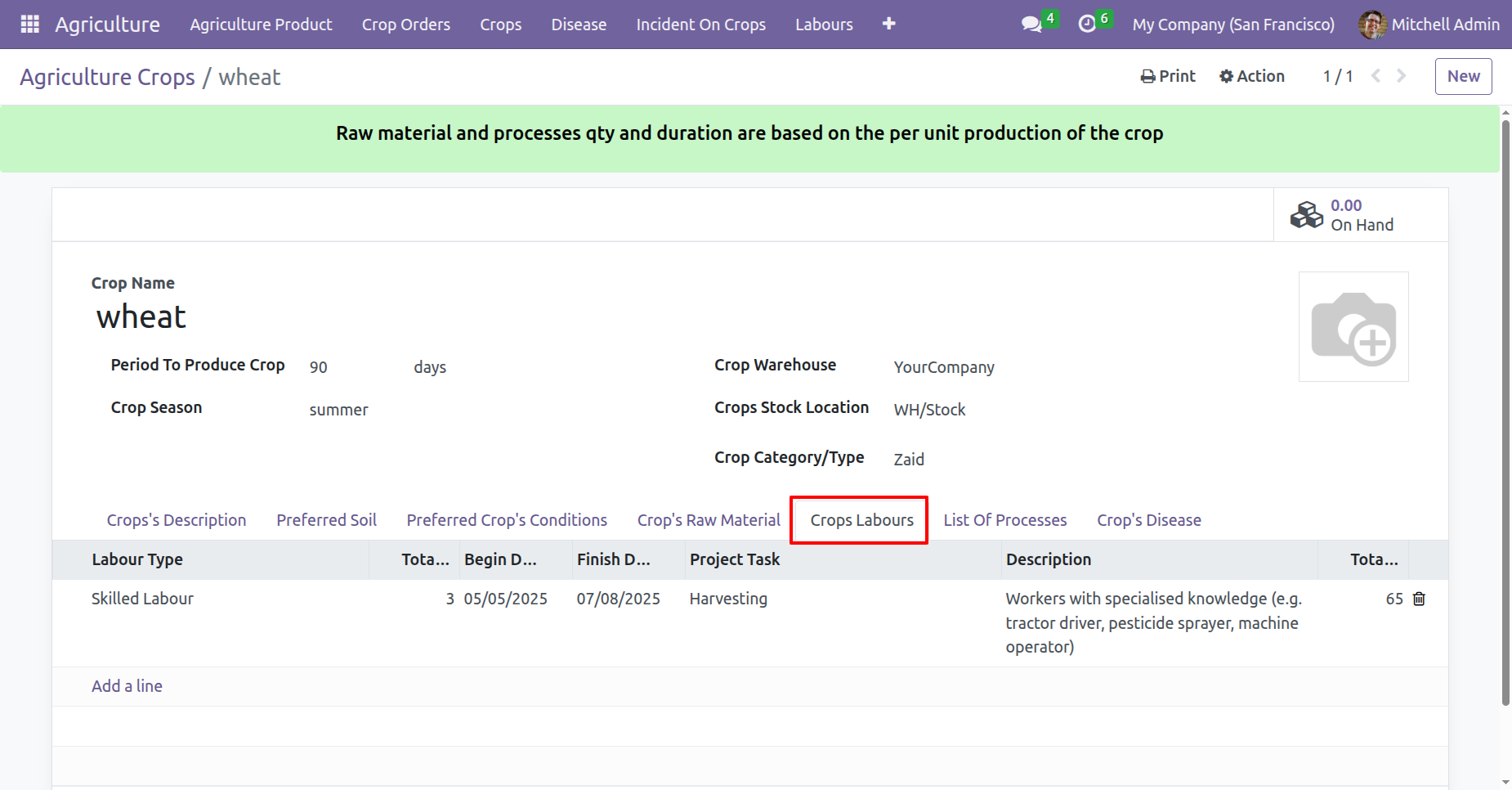
Add processes under the 'List Of Processes' tab.
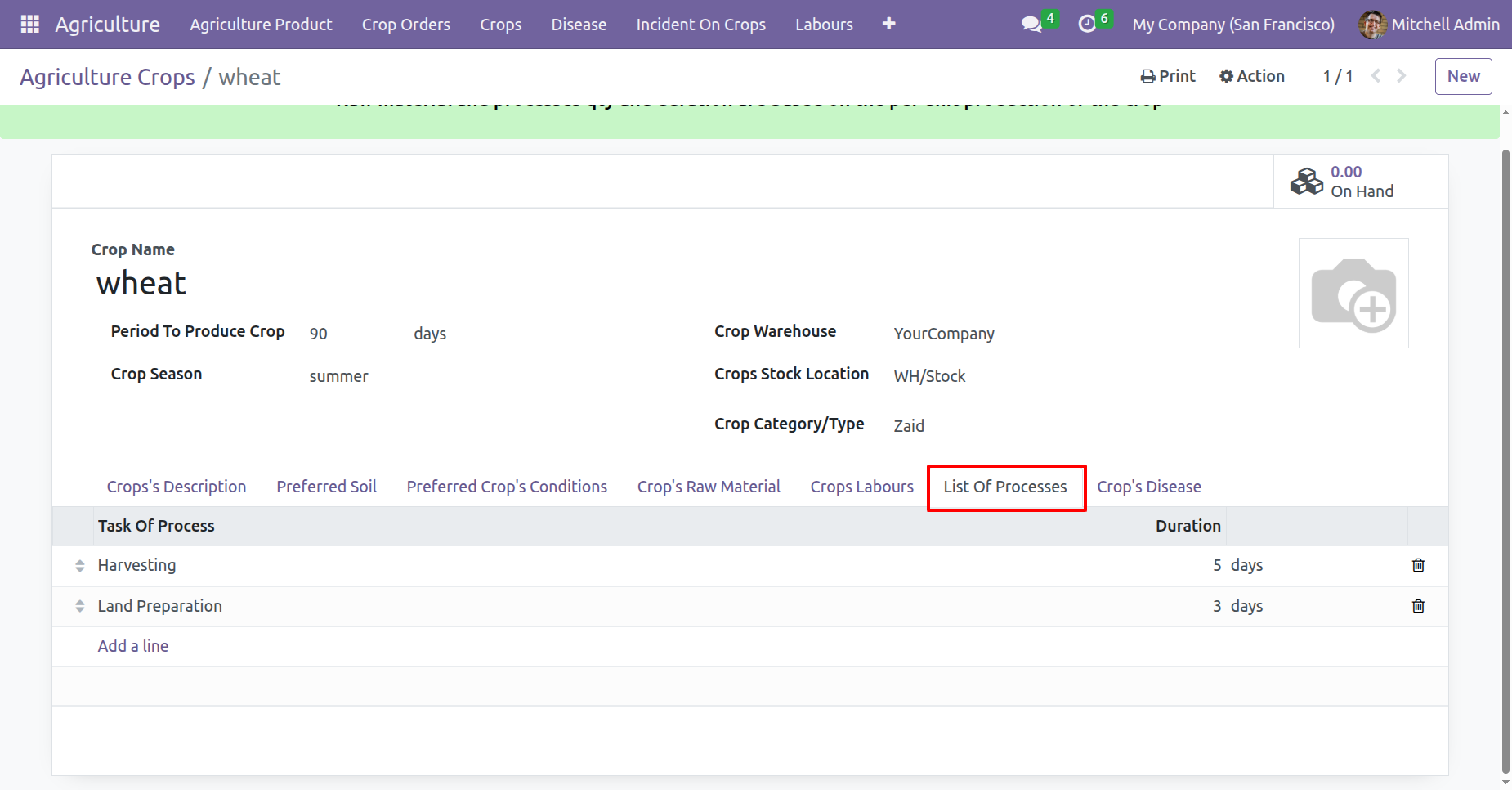
Add disease under the 'Crops Disease' tab.
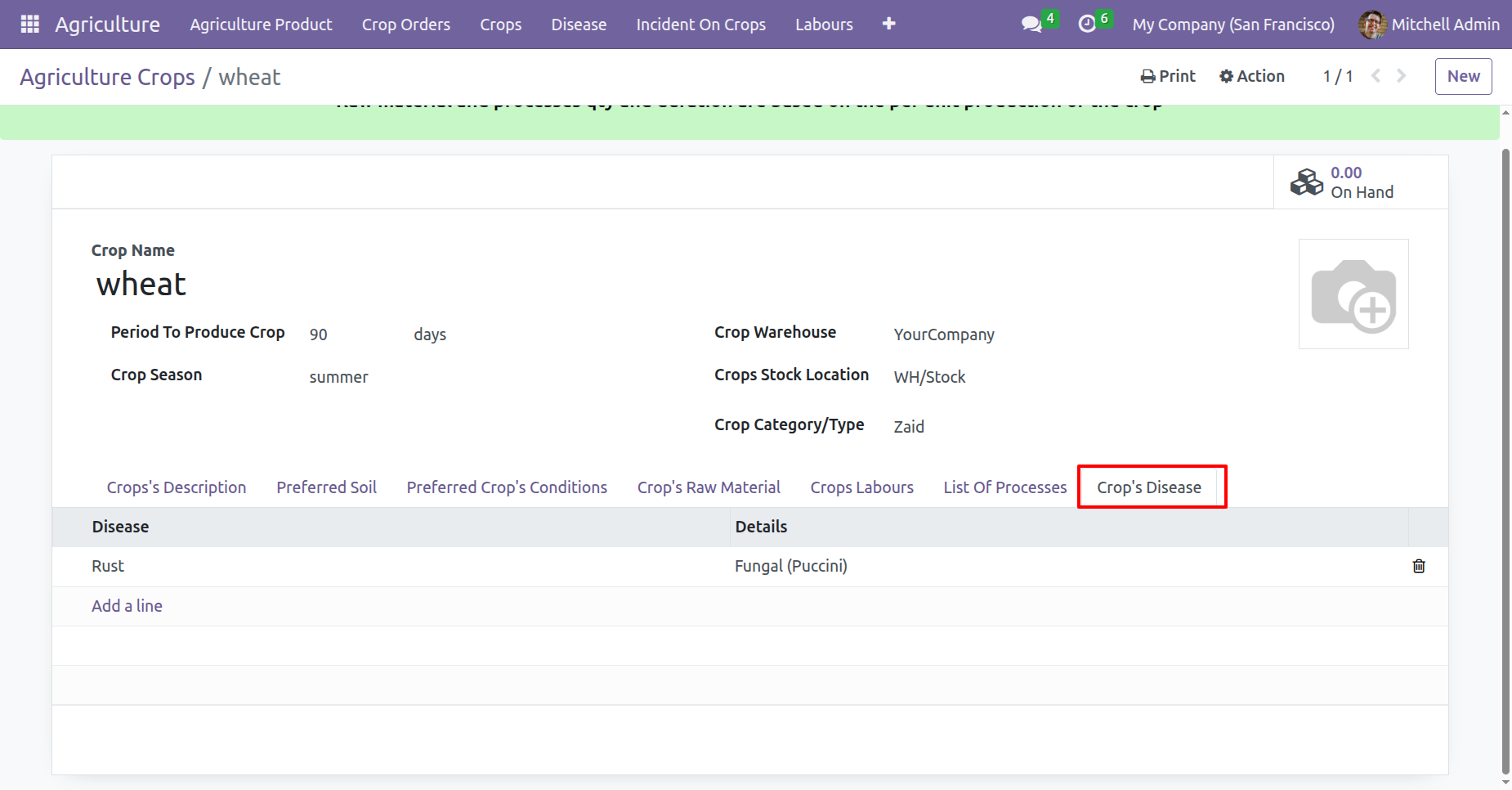
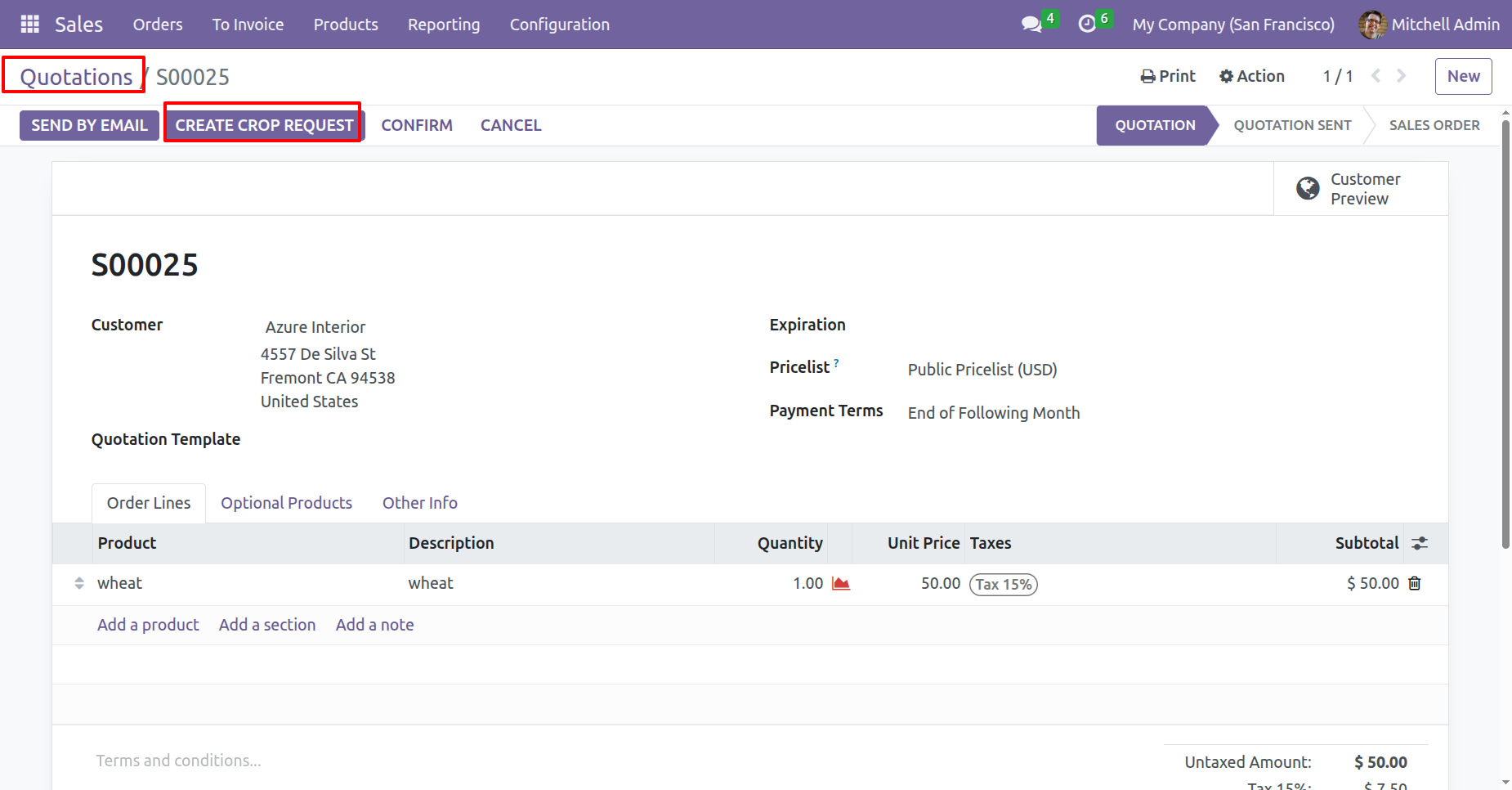
Click on the 'Create Crop Request' button to initiate a new crop request.
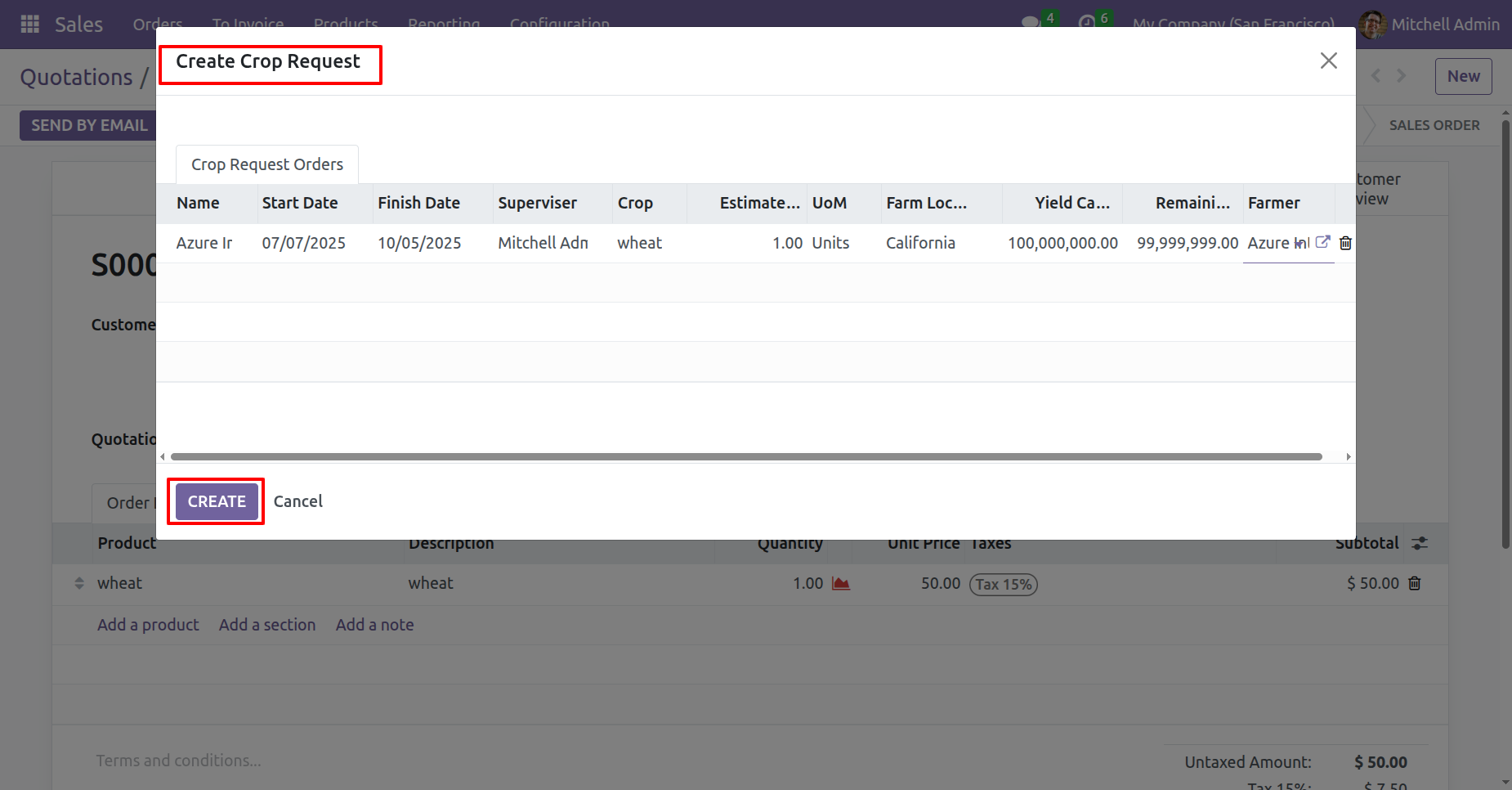
After that, the Crop Request wizard will appear. Review the details and click on the 'Create' button.
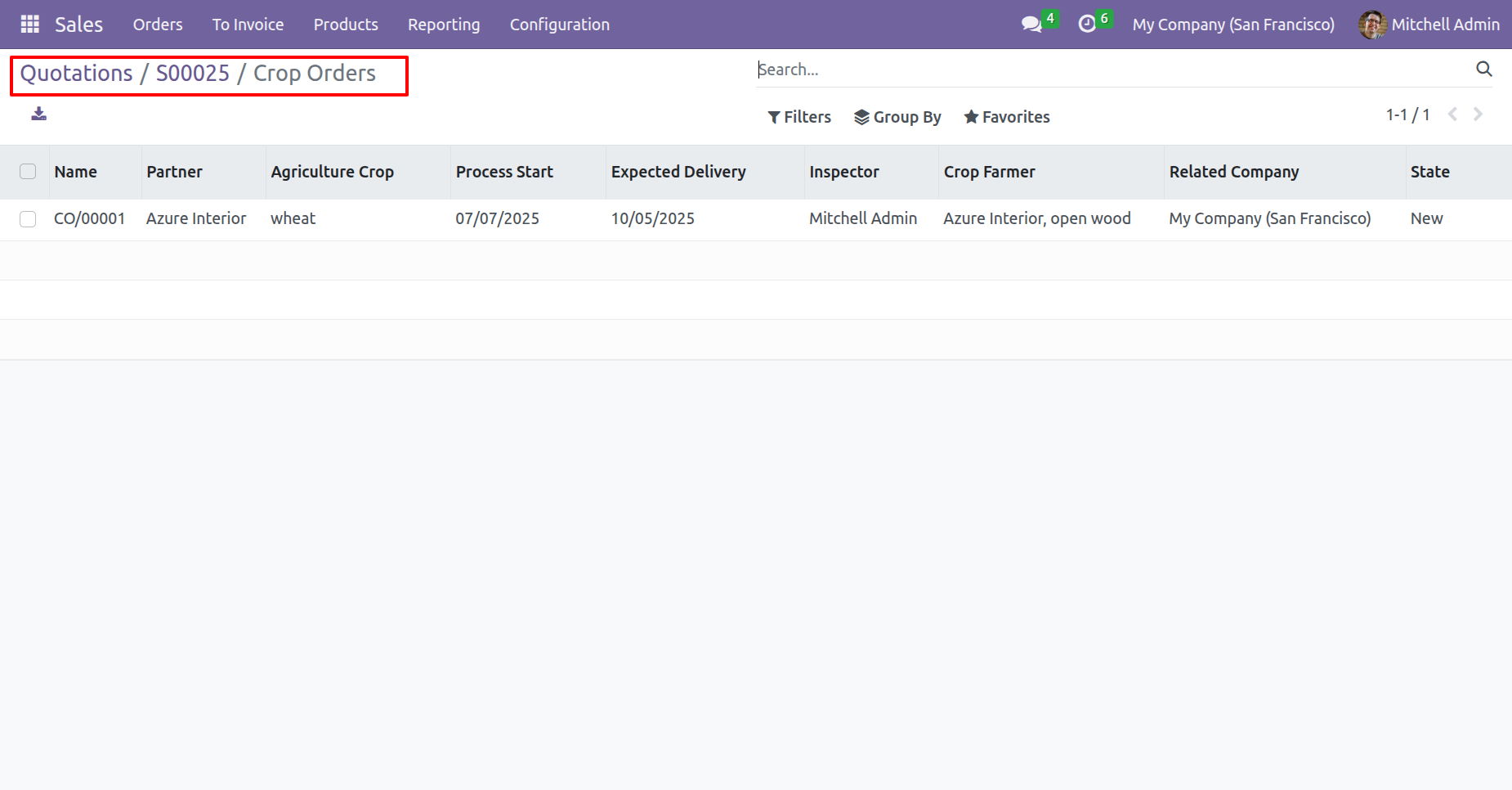
Here, you can see that the crop order has been created.
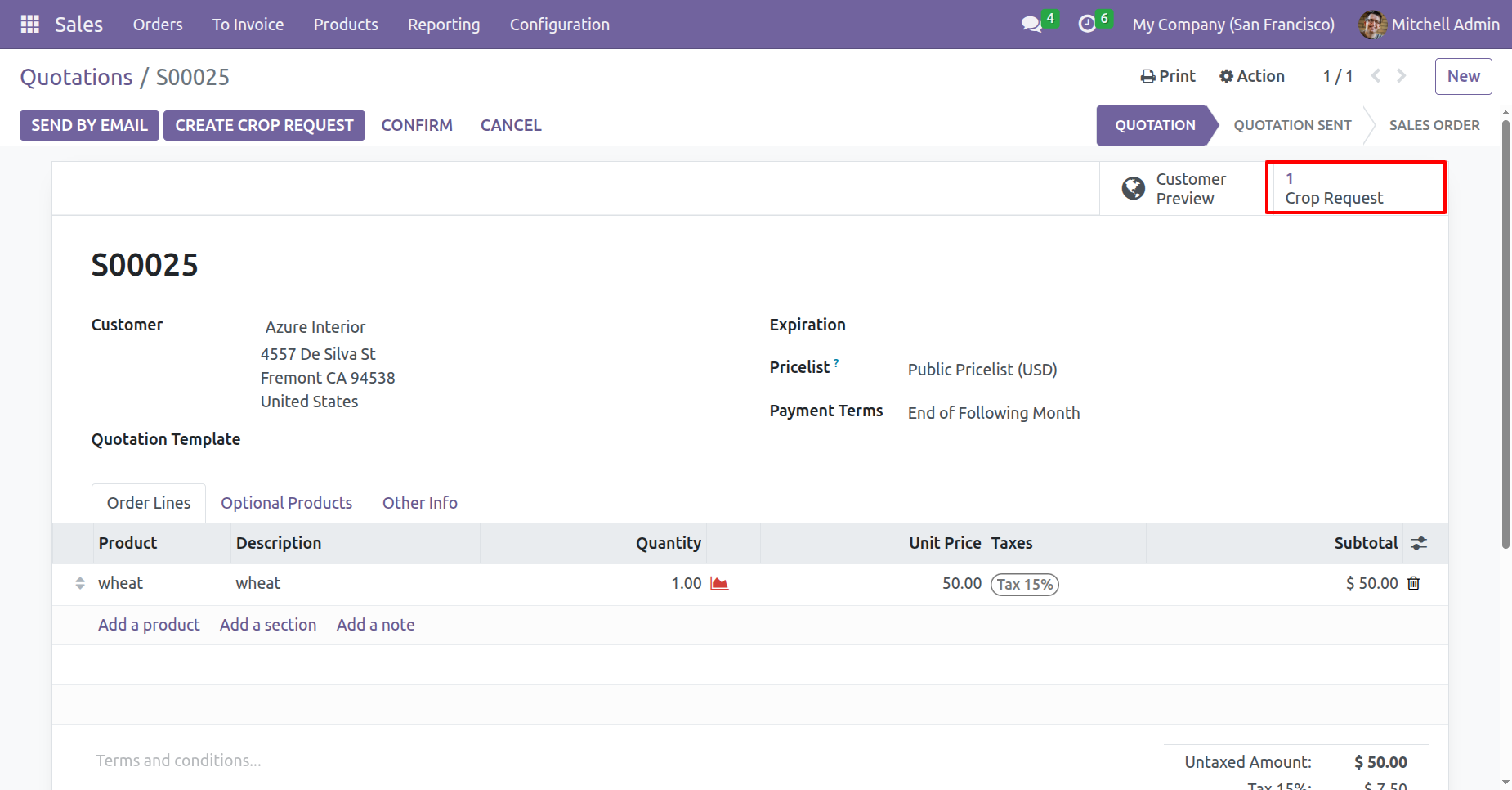
In the Sales Order, the Crop Request smart button will be available.
'Crop Orders' menu and kanban view.
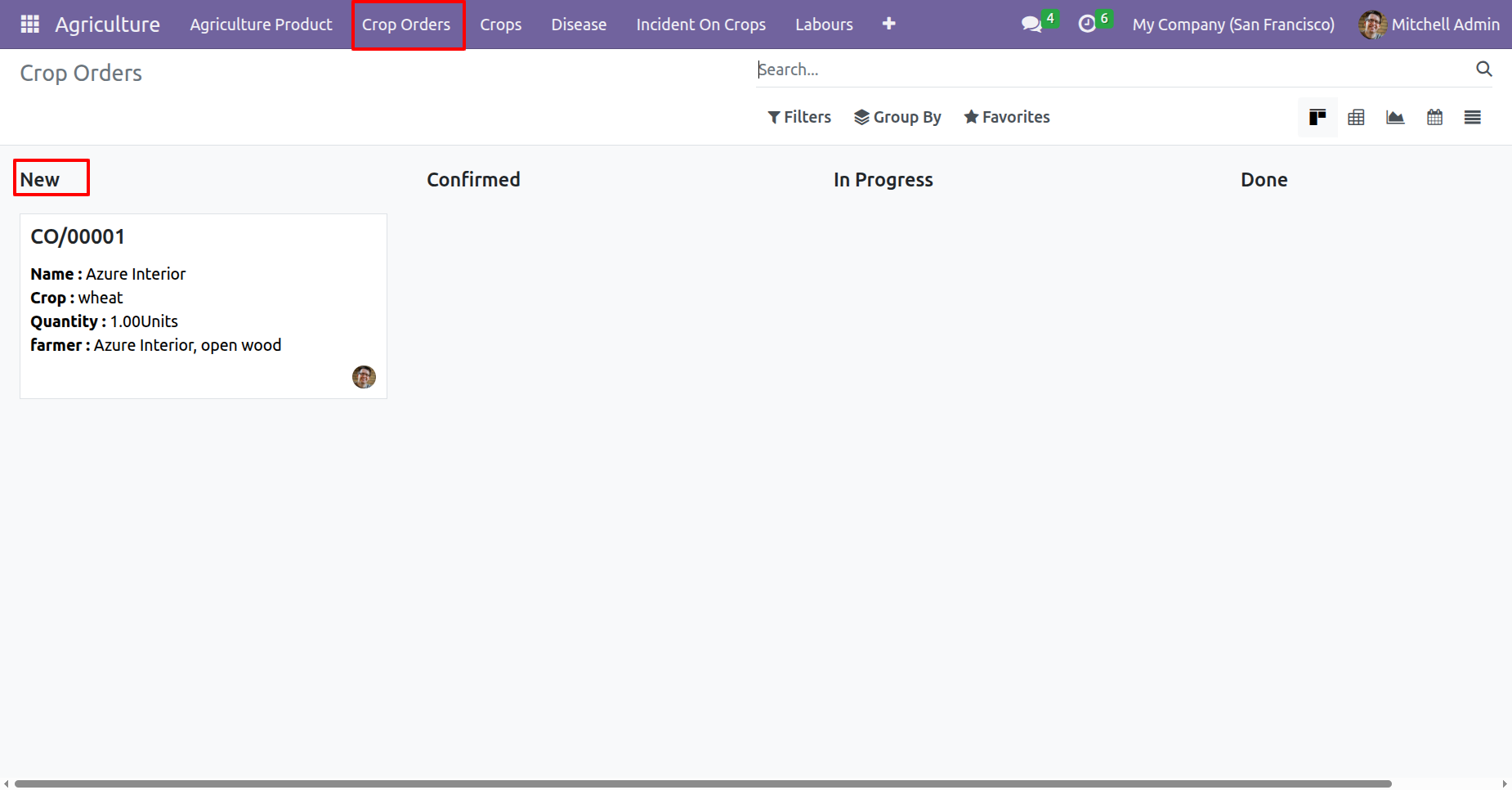
Form view of the crop orders. Click on the 'Confirm' button.
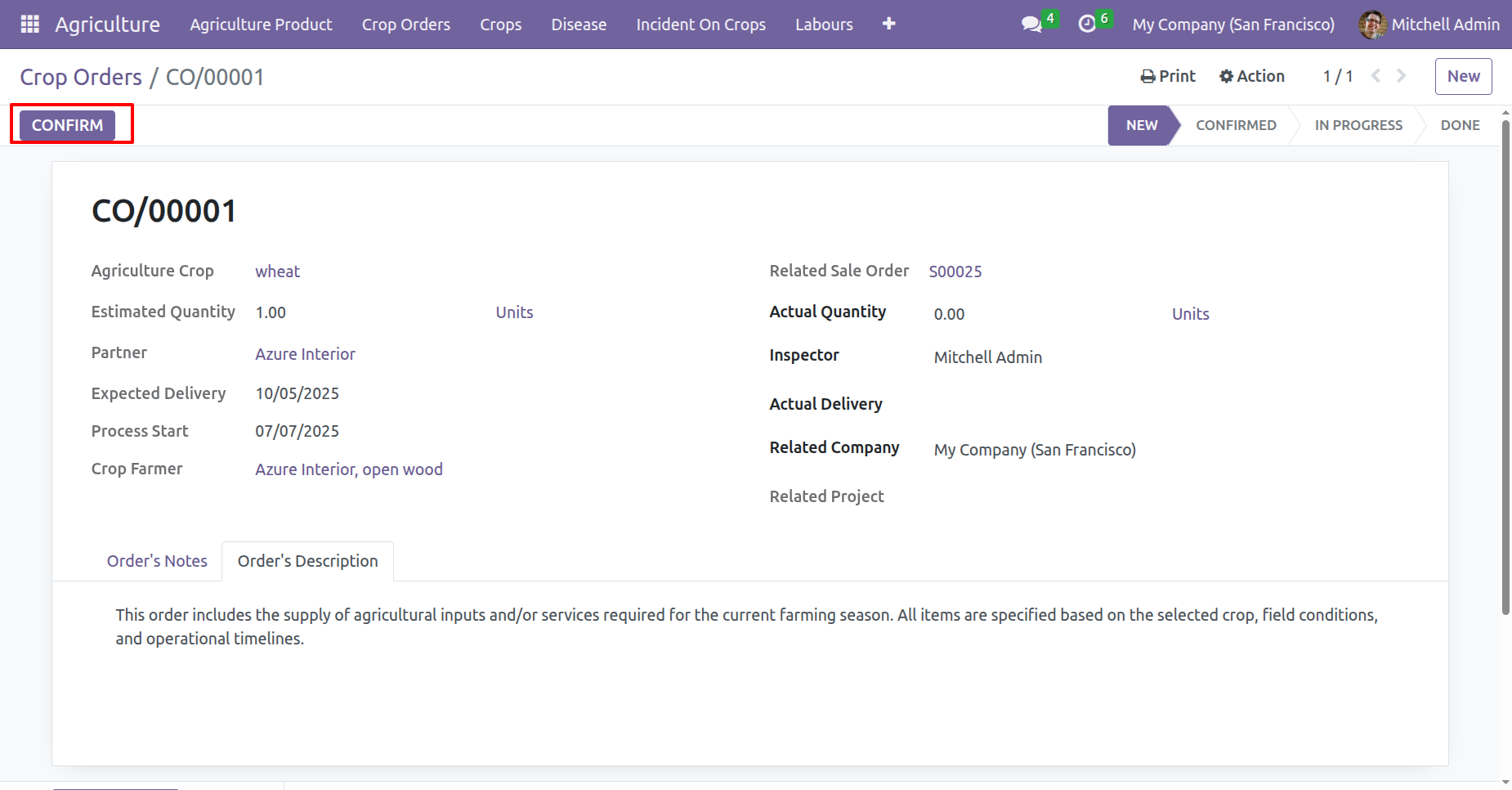
Click on the 'In Progress' button.
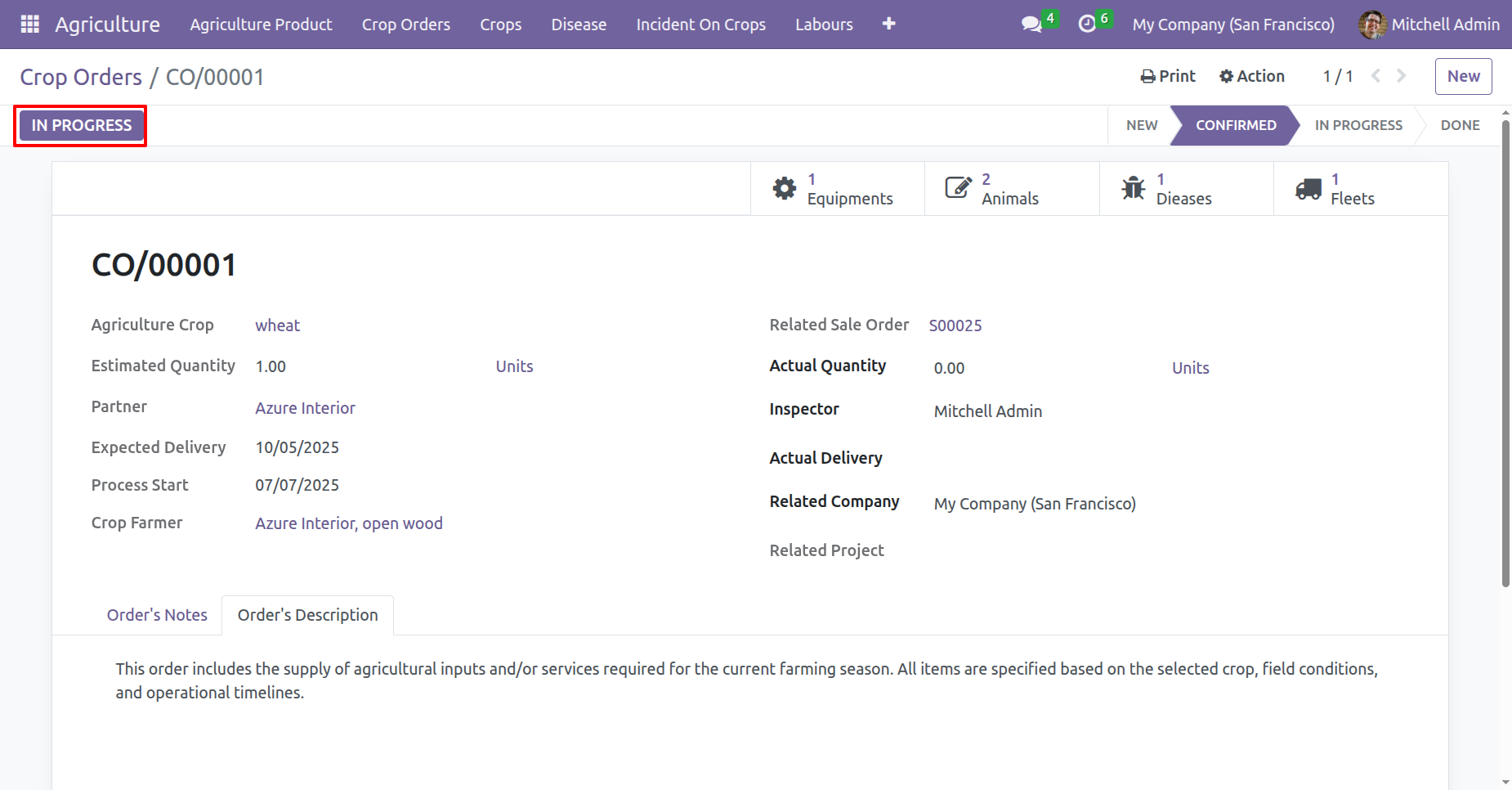
Click on the 'Done' button.
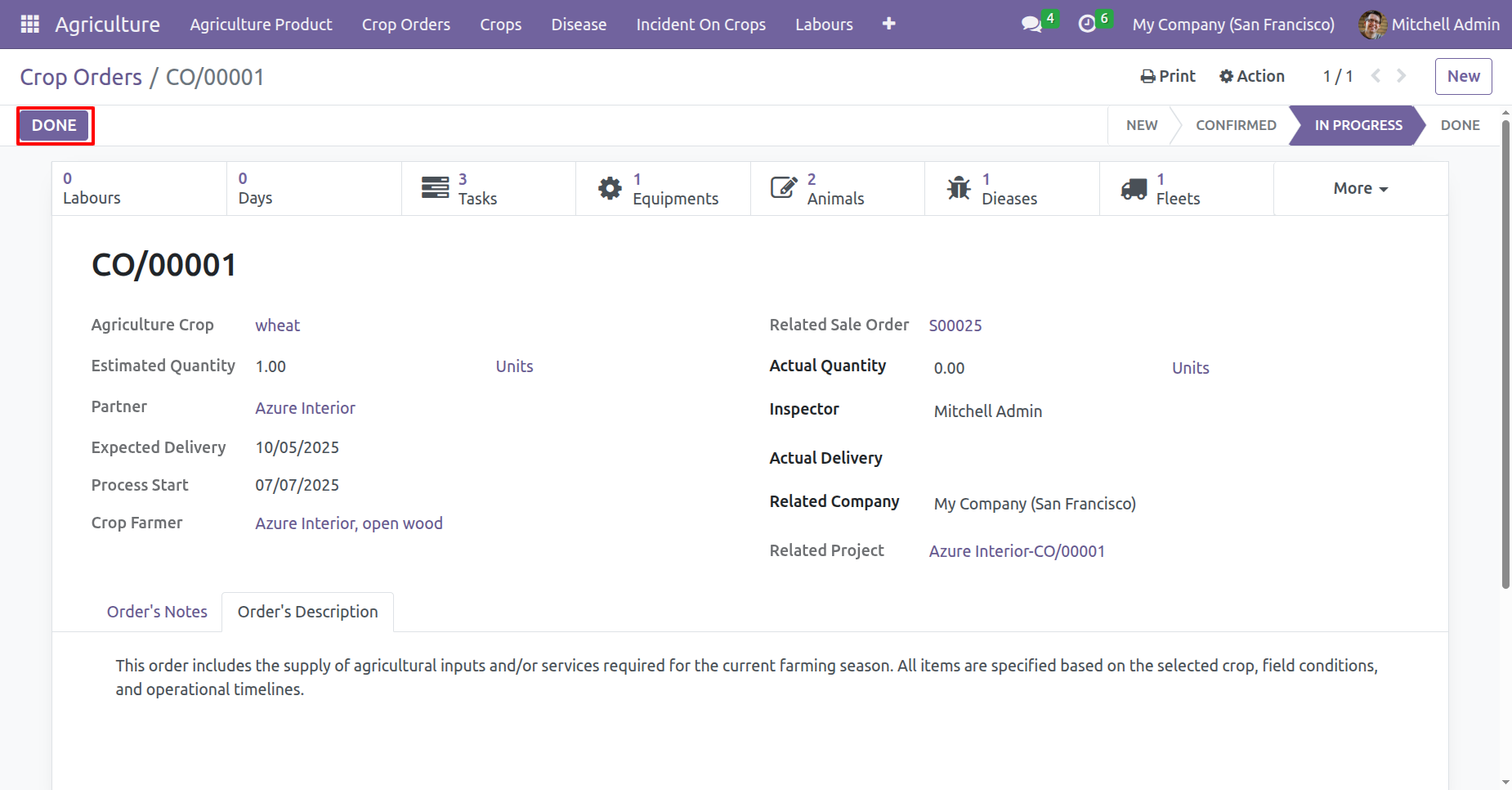
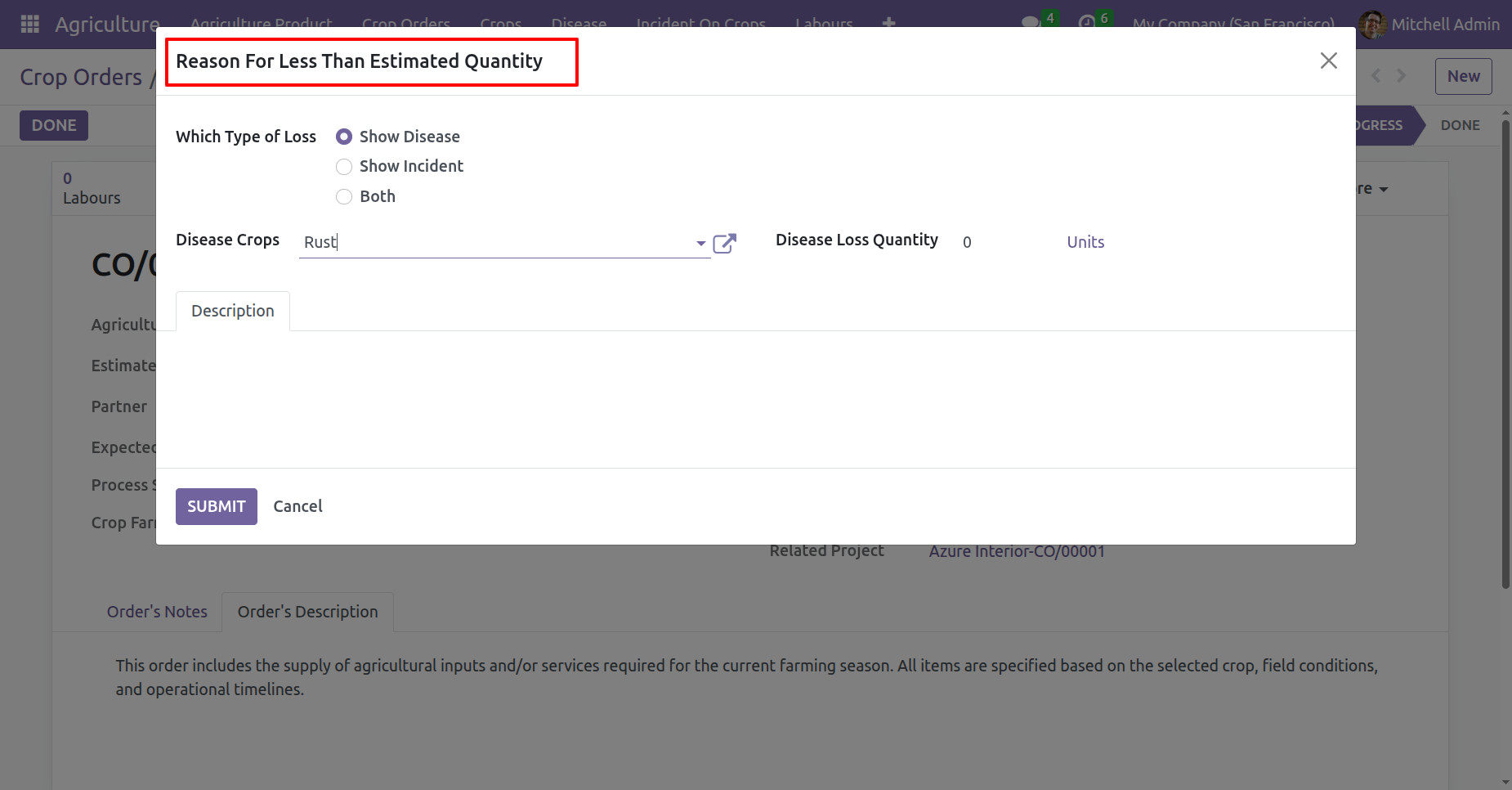
If the actual quantity is less than estimated quantity, a wizard will appear. Fill the details and click on the 'Submit' button.
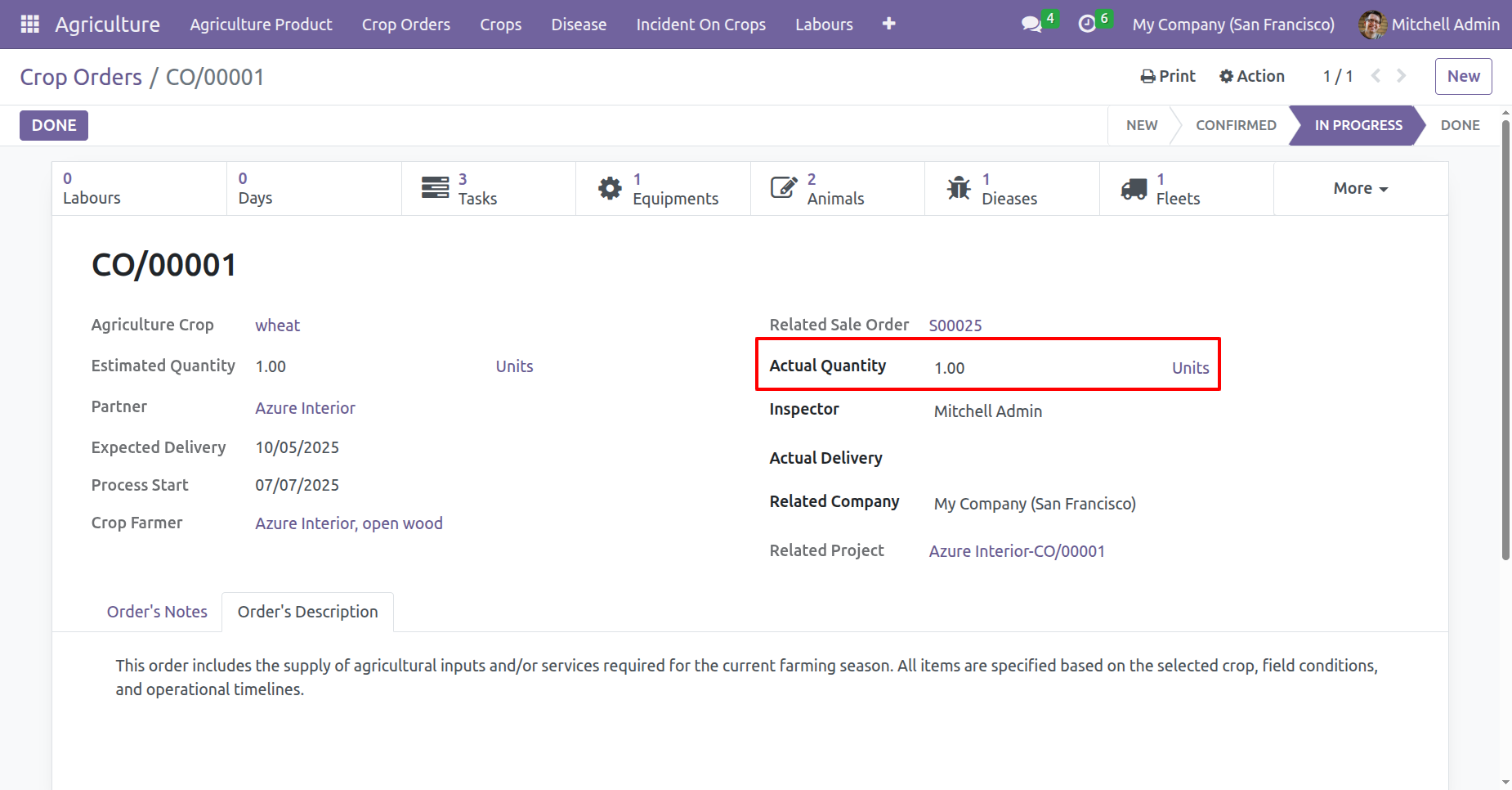
Add Actual Quantity and click on the 'Done' buton..
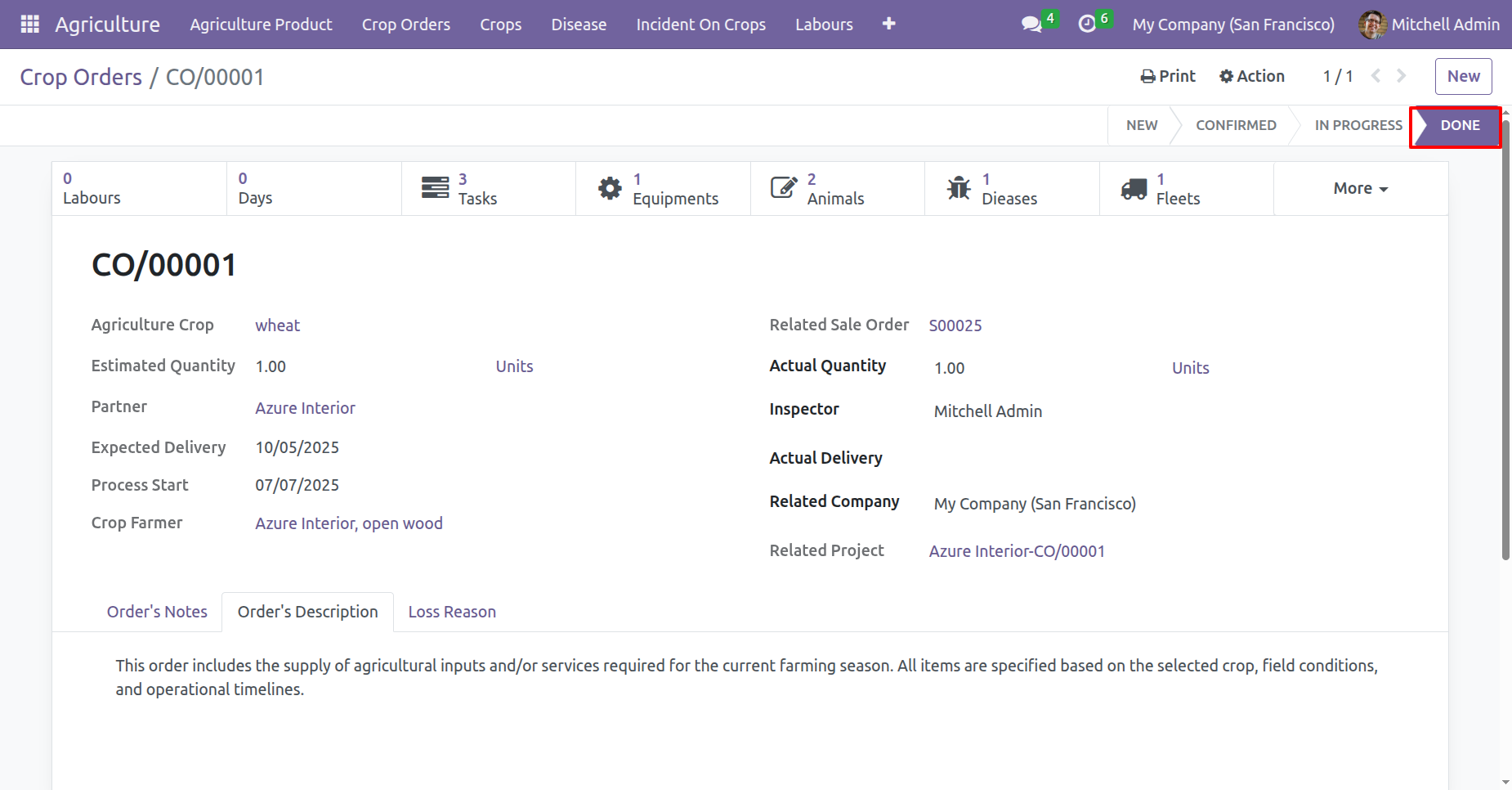
The crop order is now marked as Done.
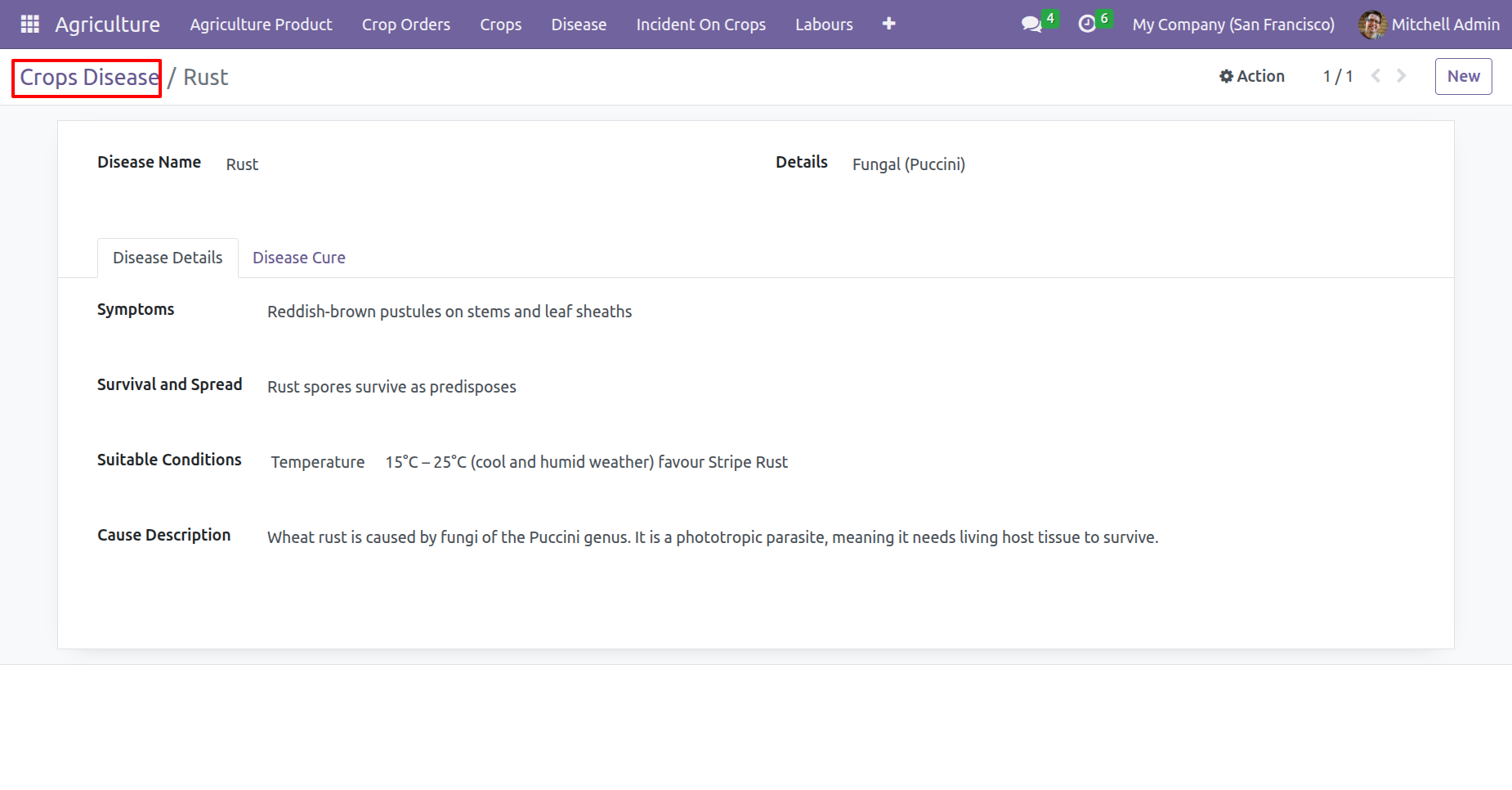
Form view of the 'Crops Disease'.
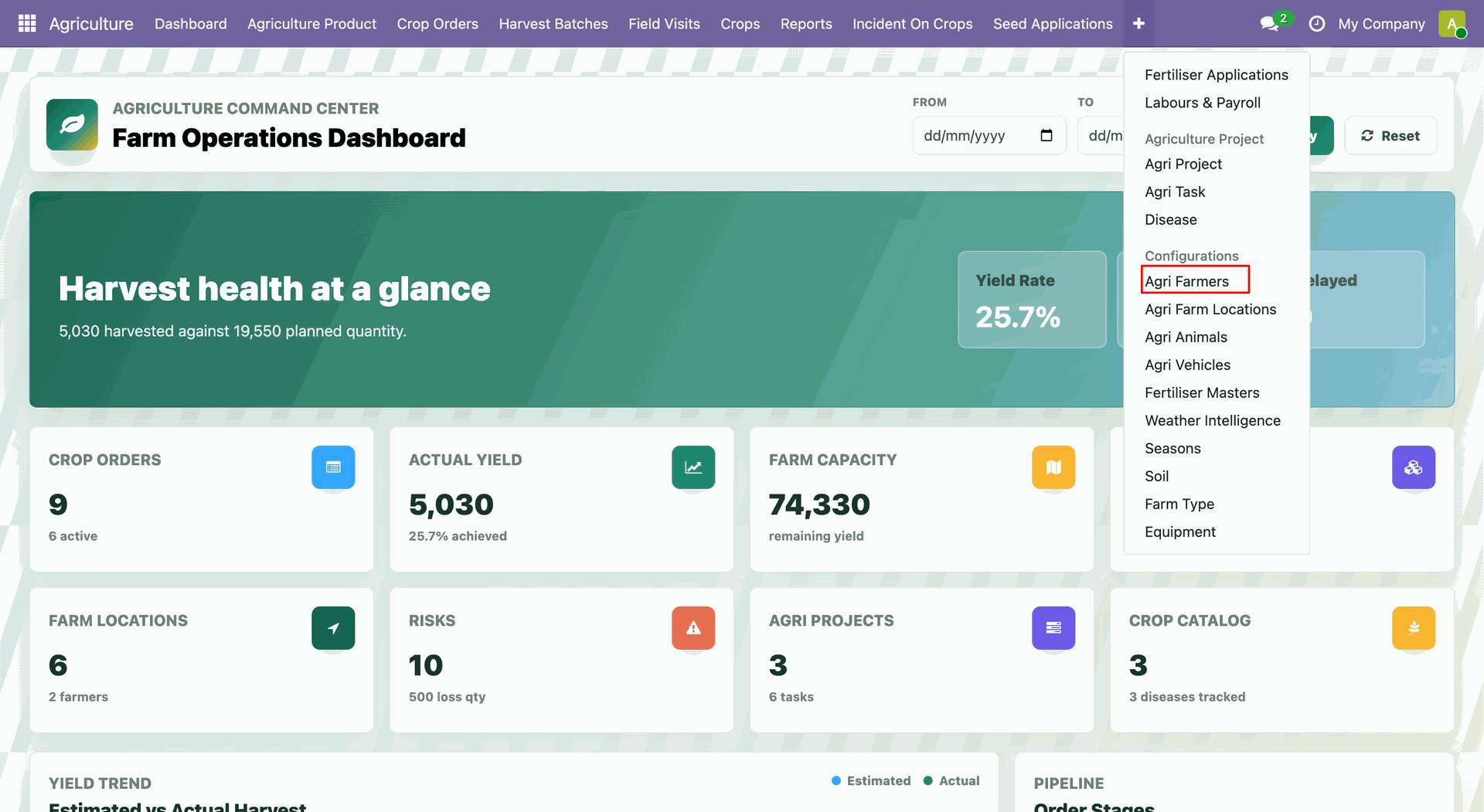
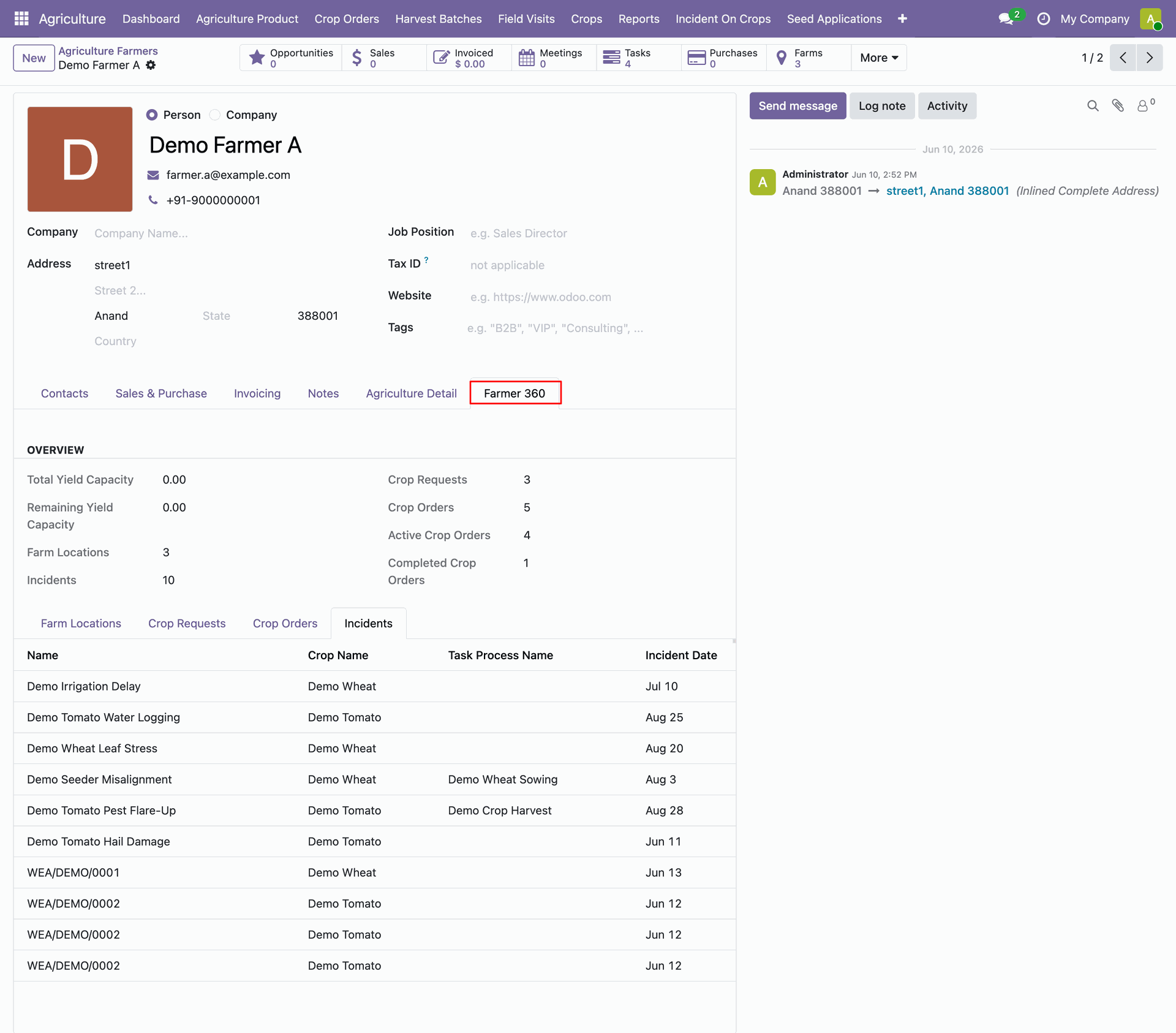
Open Agriculture -> Agri Farmers. Open a farmer record and review the available tabs to use the consolidated profile.
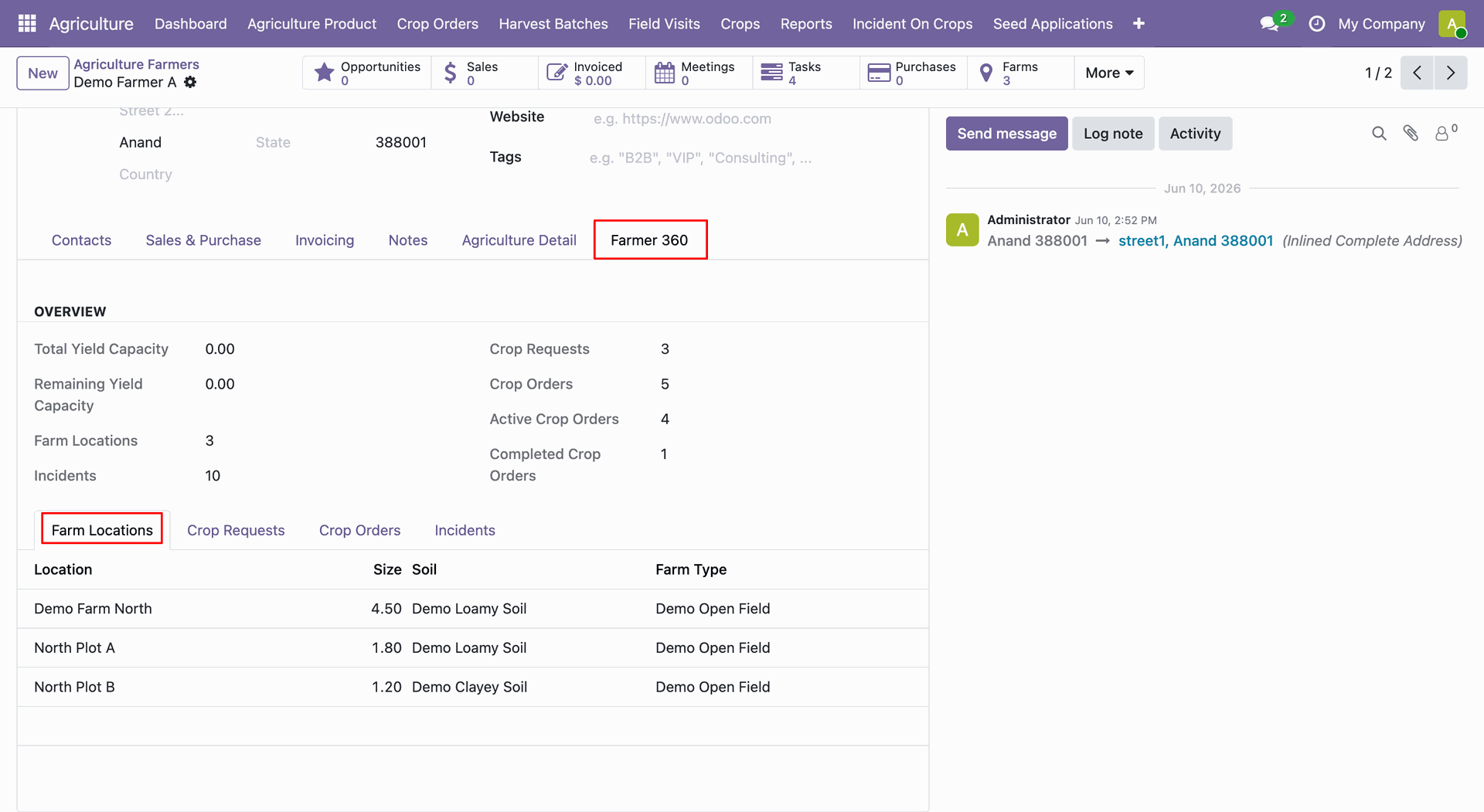
The Farmer 360 tab displays farm locations and summary information for the selected farmer.
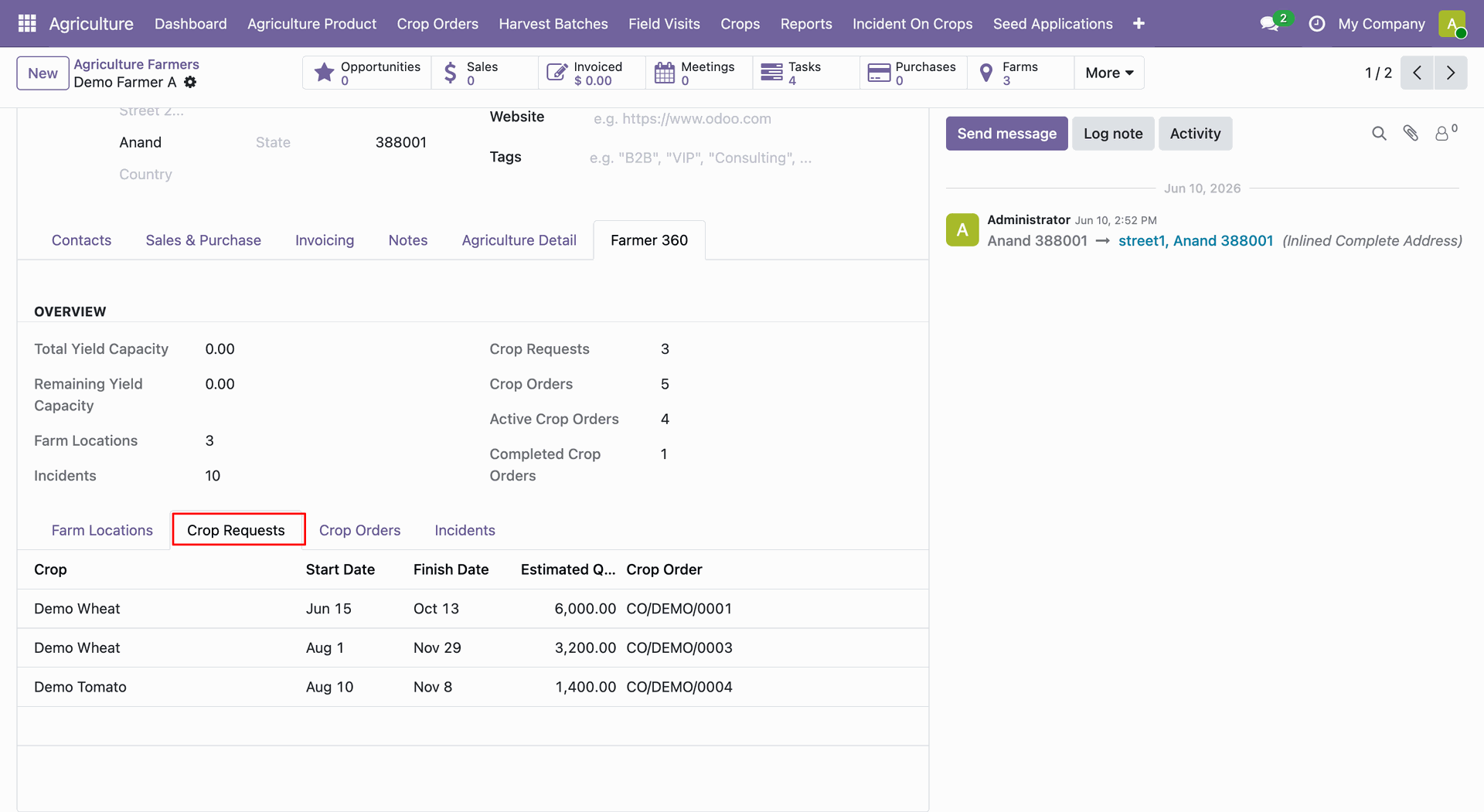
The Crop Requests tab lists crop requests associated with the selected farmer profile.
The Orders tab shows agriculture orders connected with the selected farmer record.
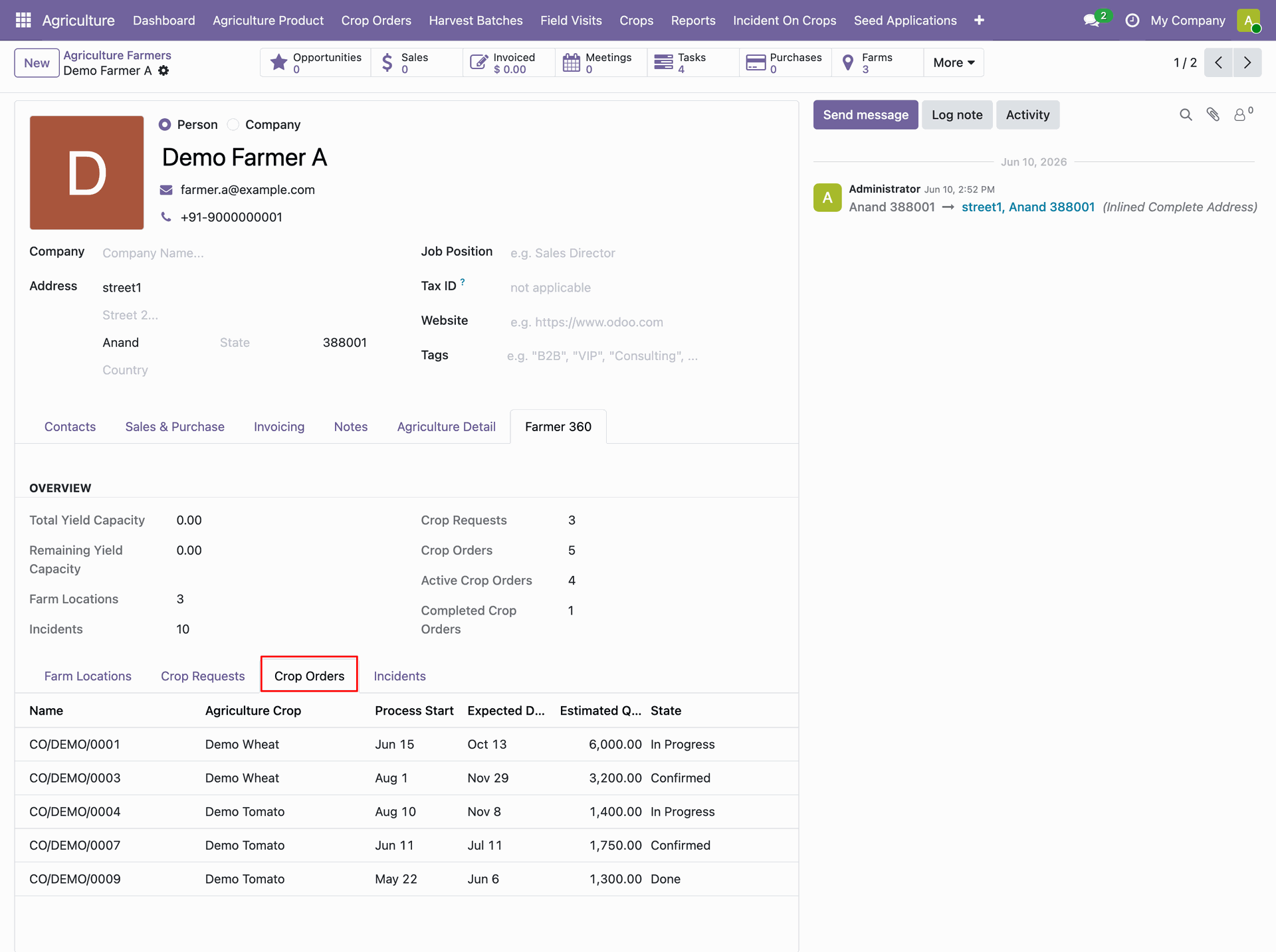
The farmer profile displays additional crop-related records in the Farmer 360 view.
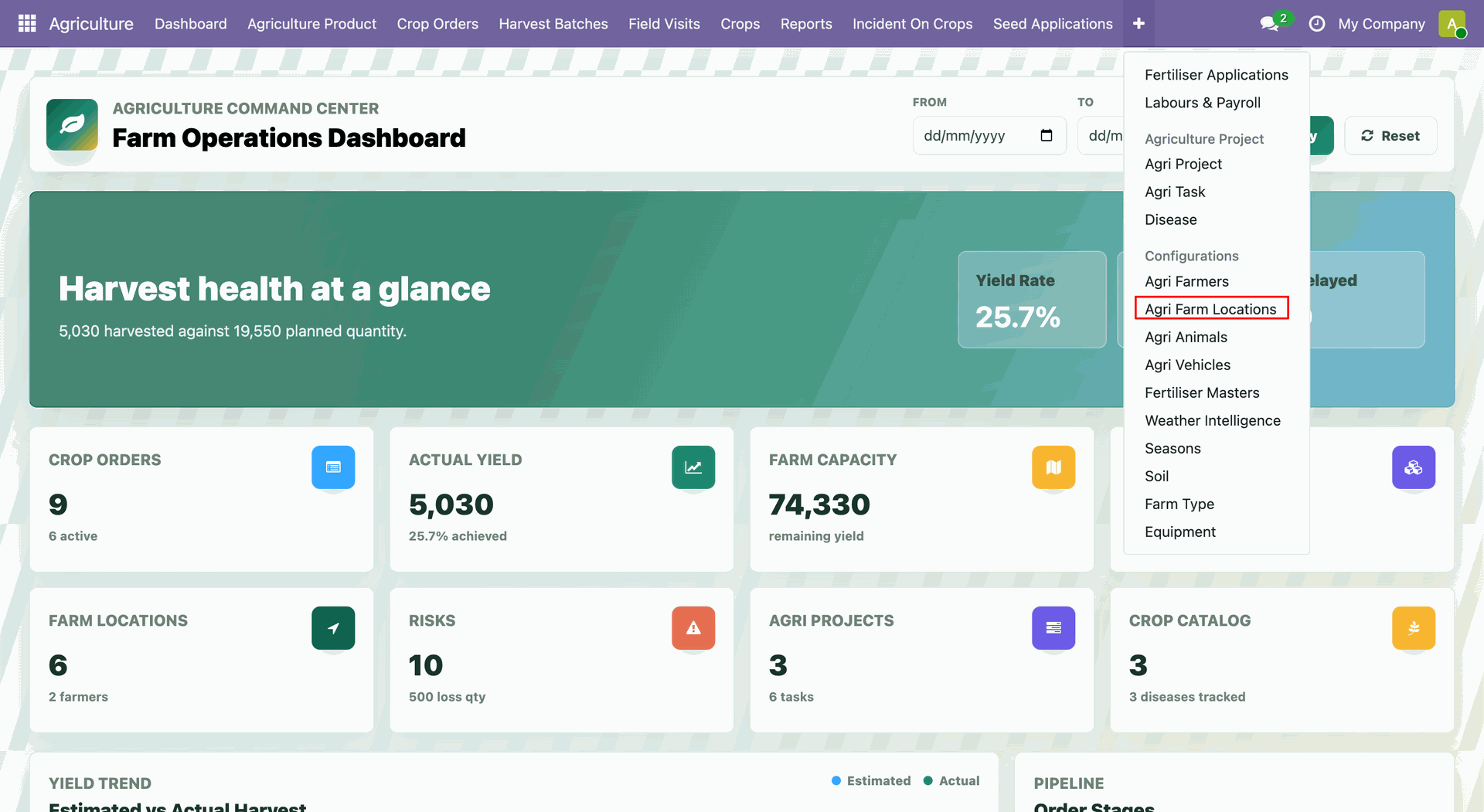
Open Agriculture -> Agri Farm Locations.
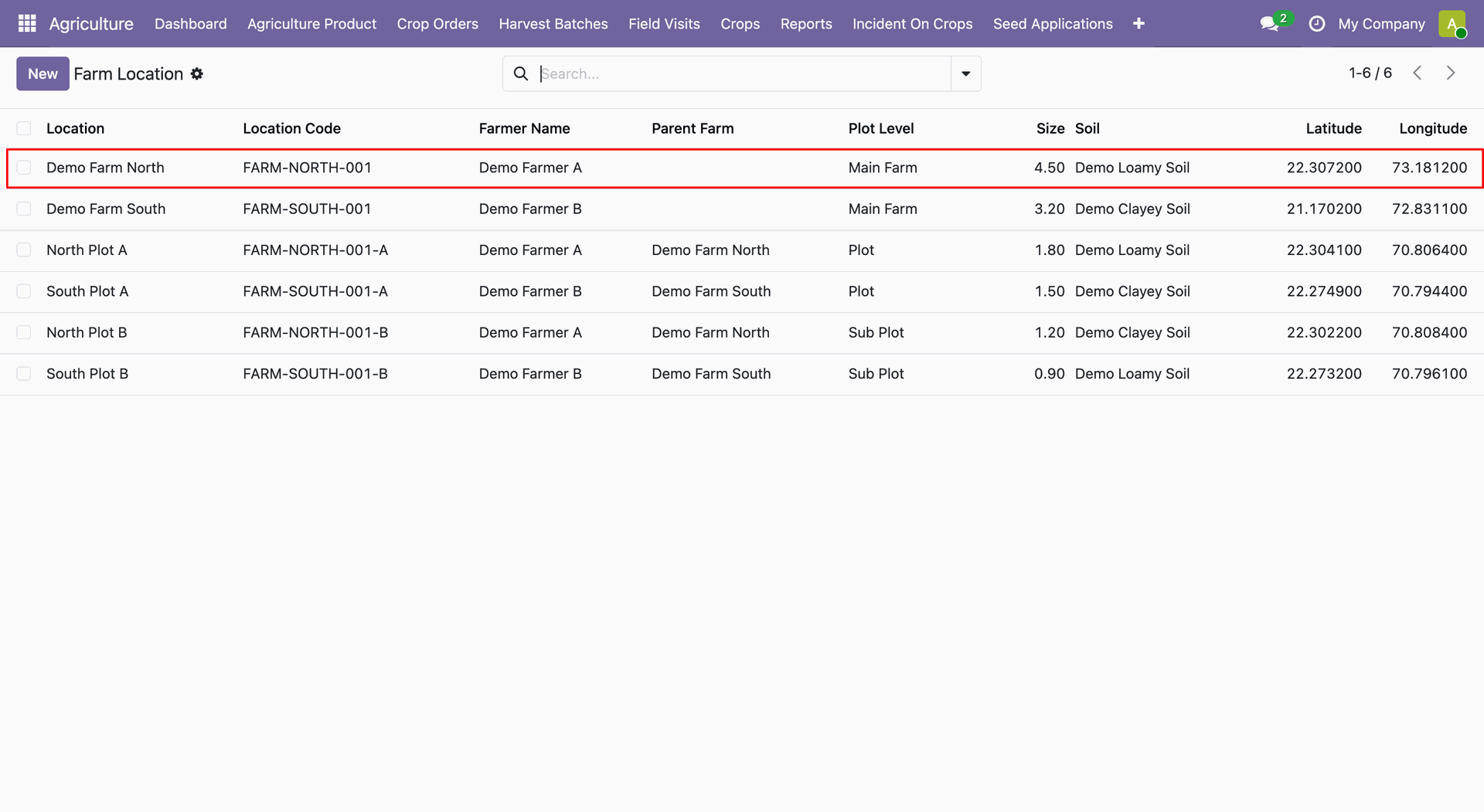
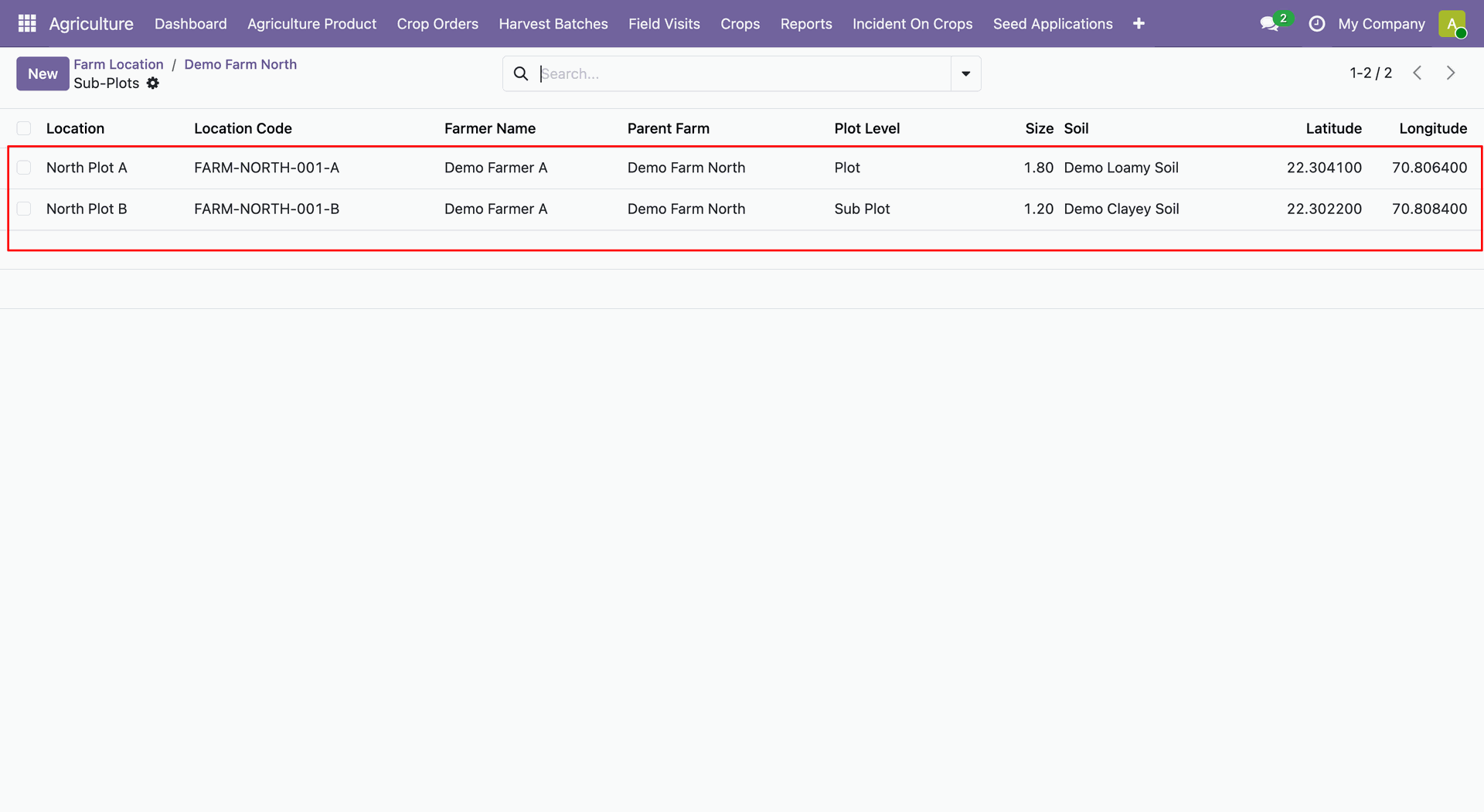
The farm-location list displays locations, codes, farmers, plot levels, sizes, and coordinates.
The Geometry & Mapping tab displays coordinates and geographic details for the selected farm.
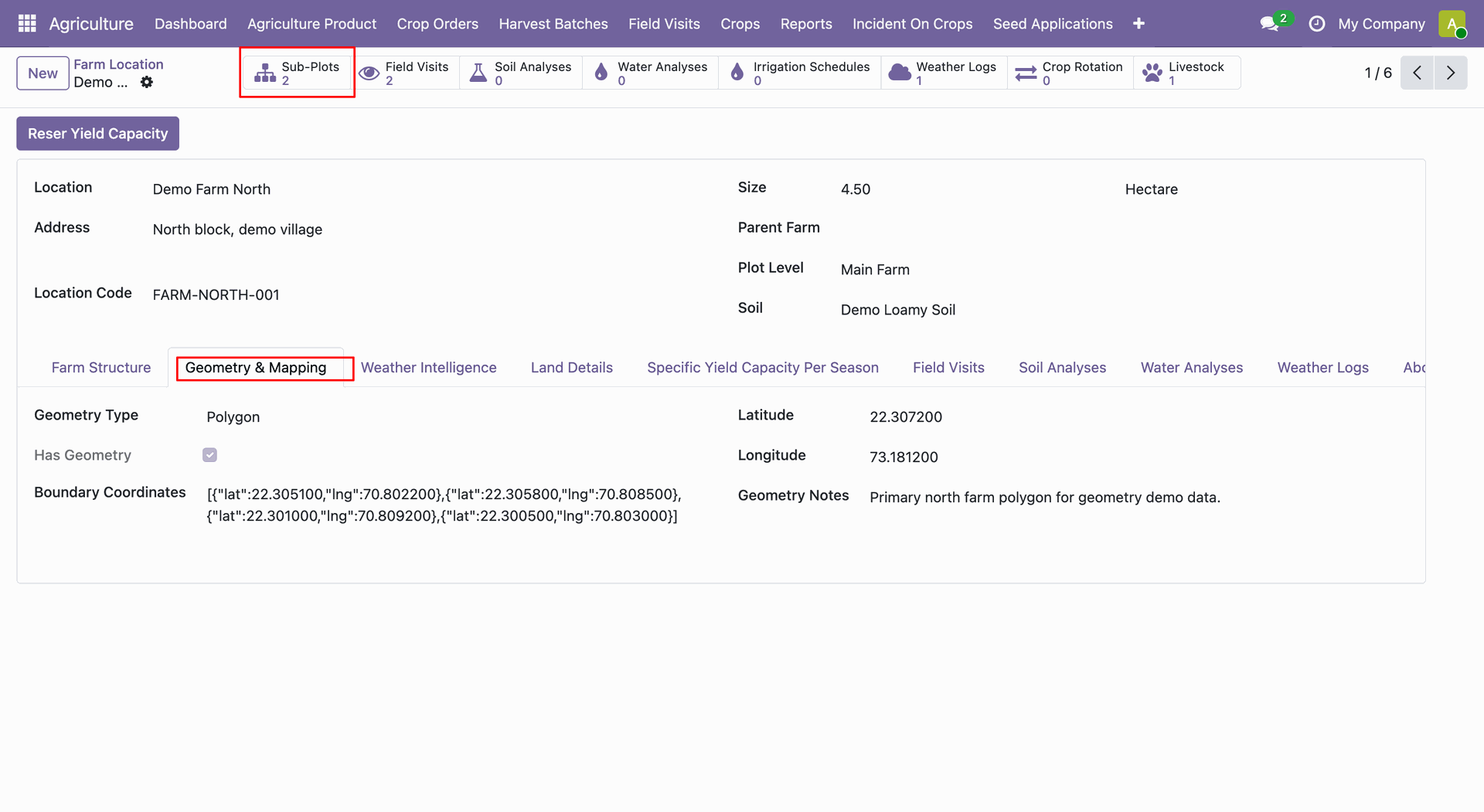
Click on the sub-plots smart button to view multiple farm records with their visible geographic information.
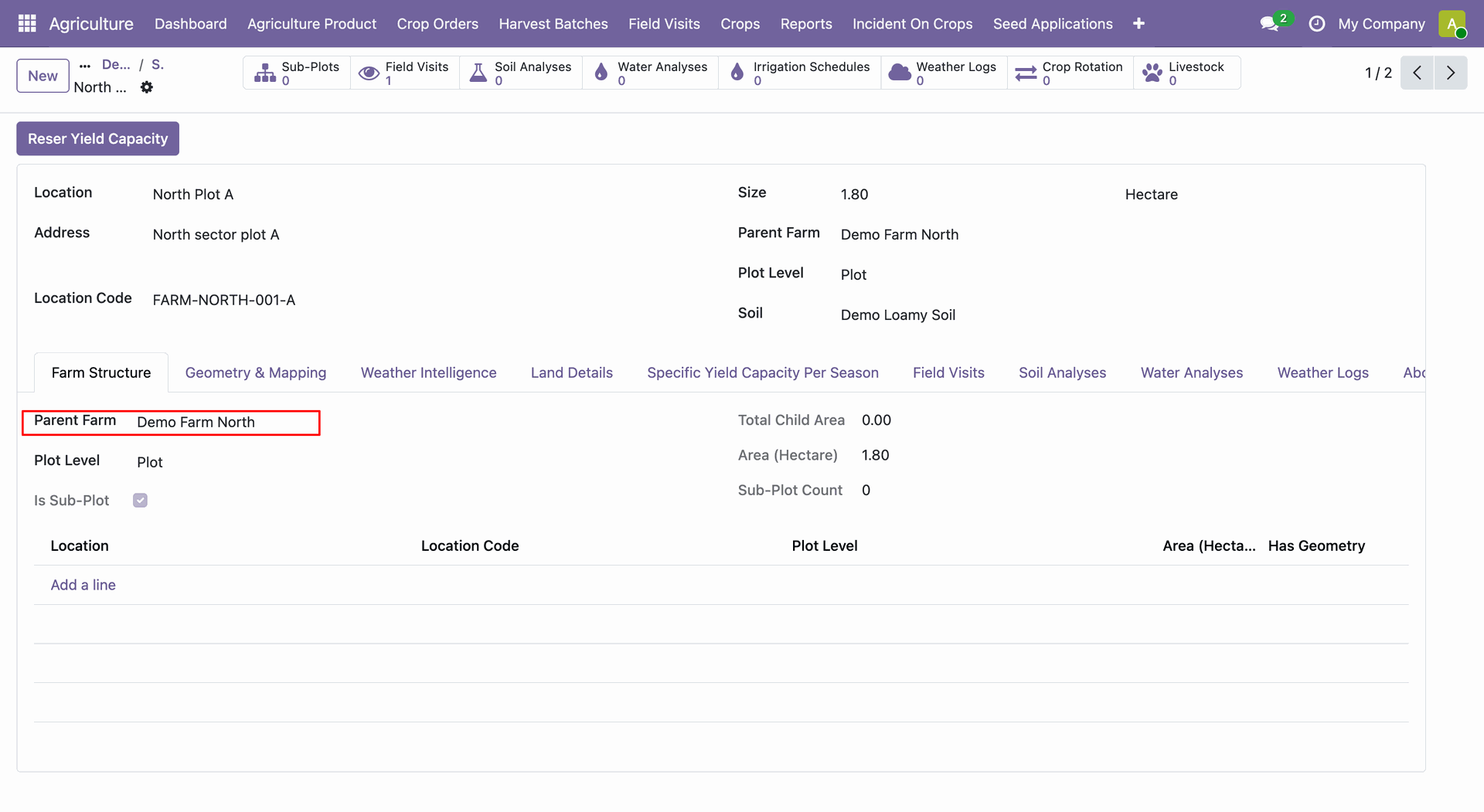
The selected sub-plot A shows parent farm details and related farm information.
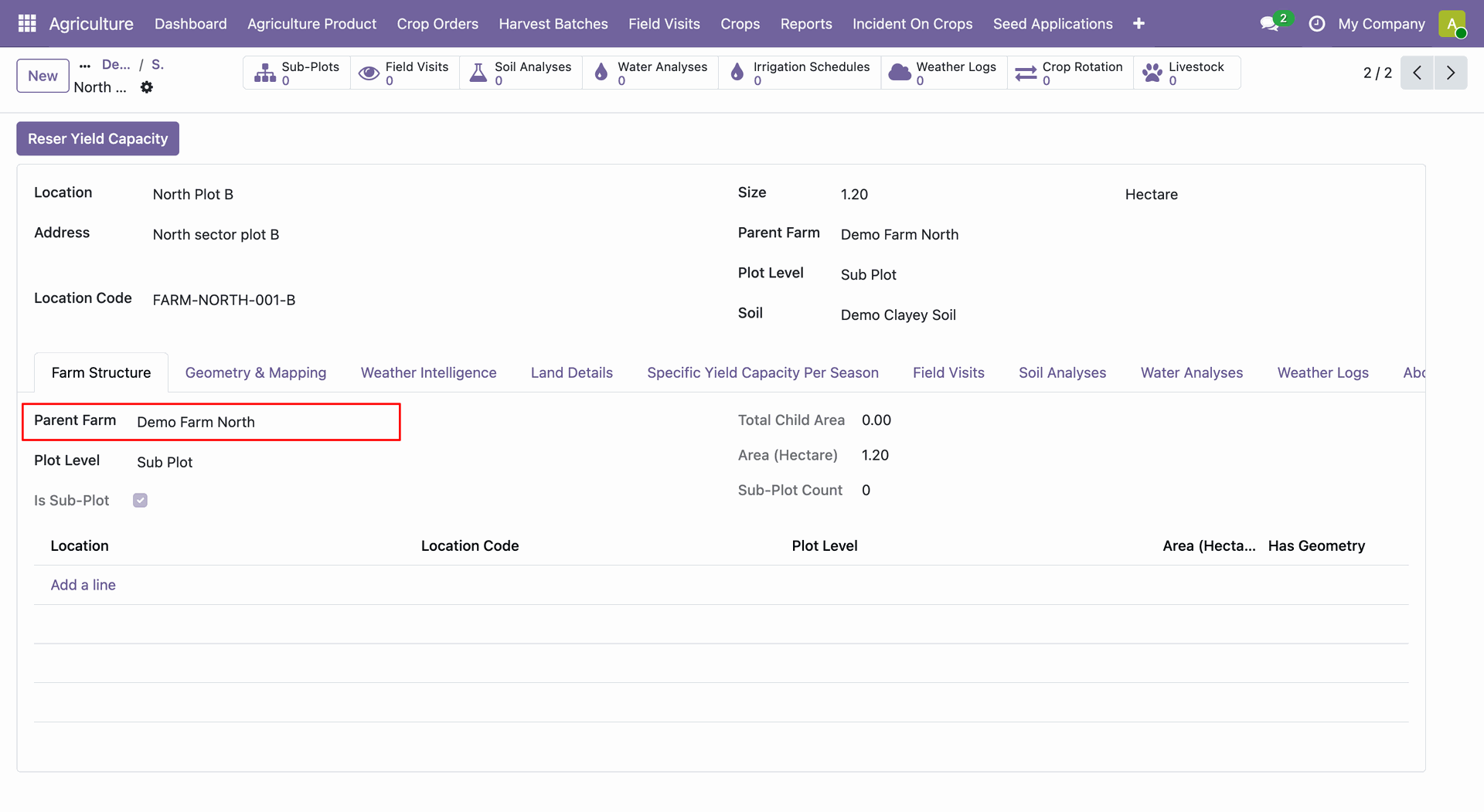
The selected sub-plot B shows parent farm details and related farm information.
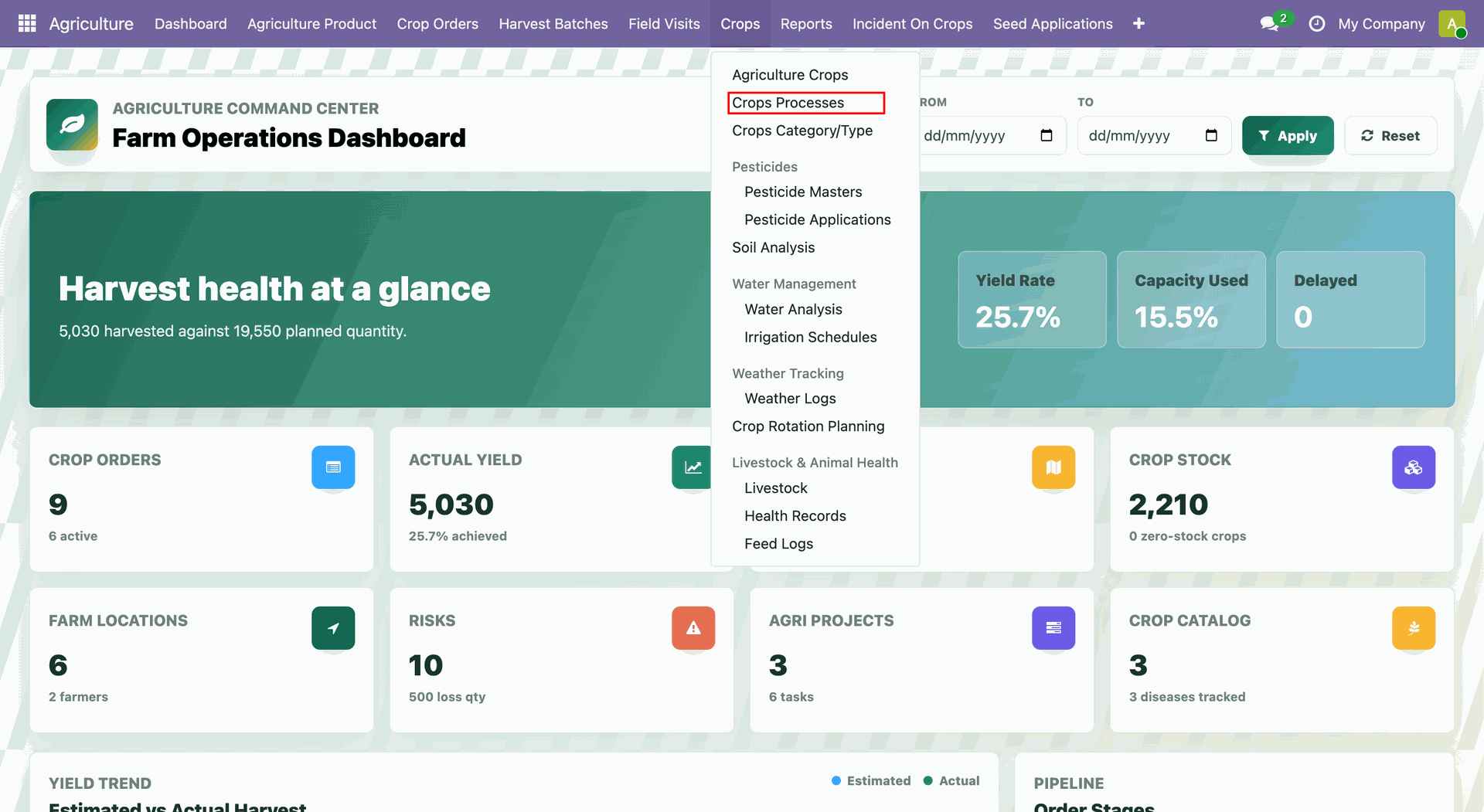
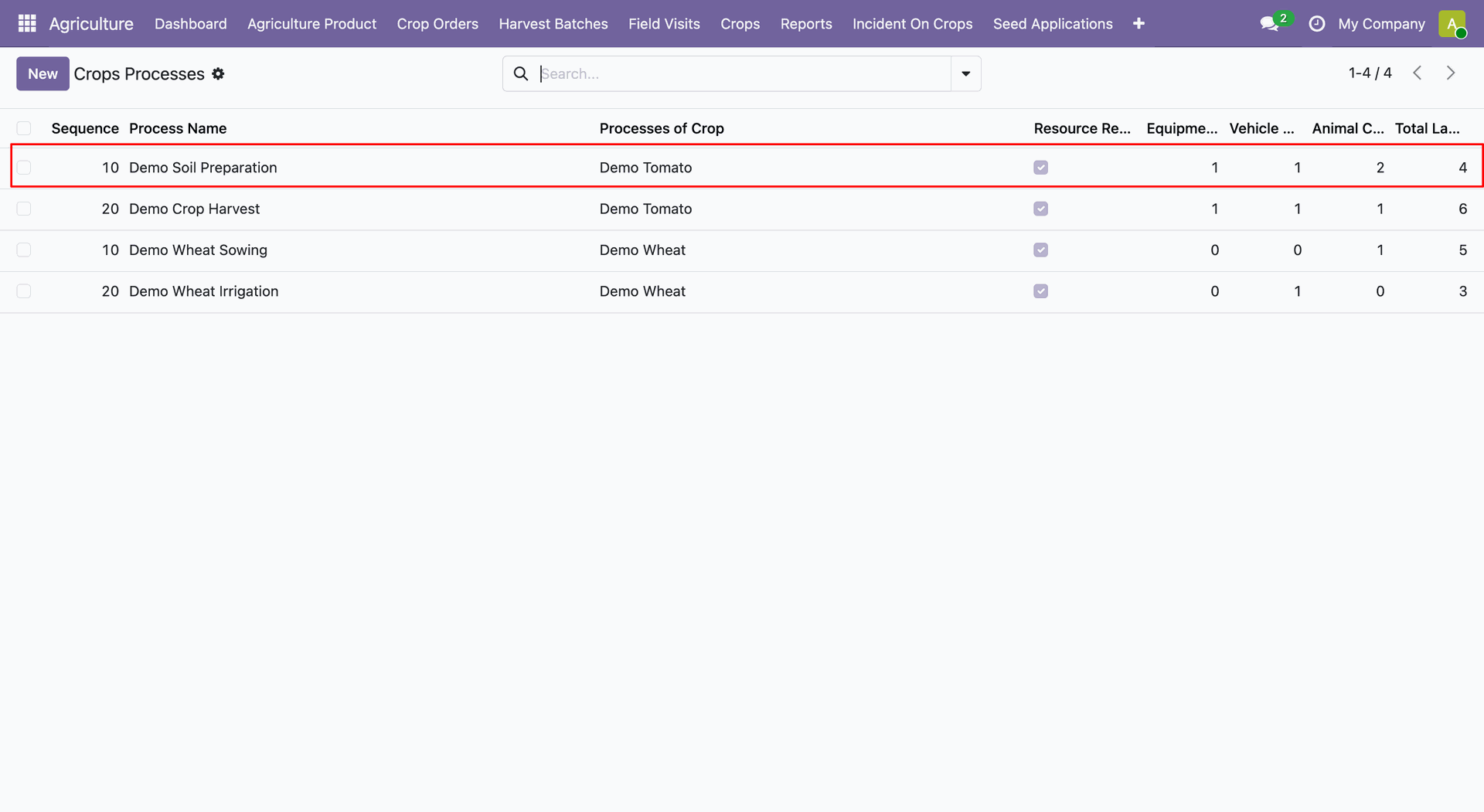
Open Agriculture -> Crops -> Crop Processes.
The Crop Processes list displays process names with linked resource counts.
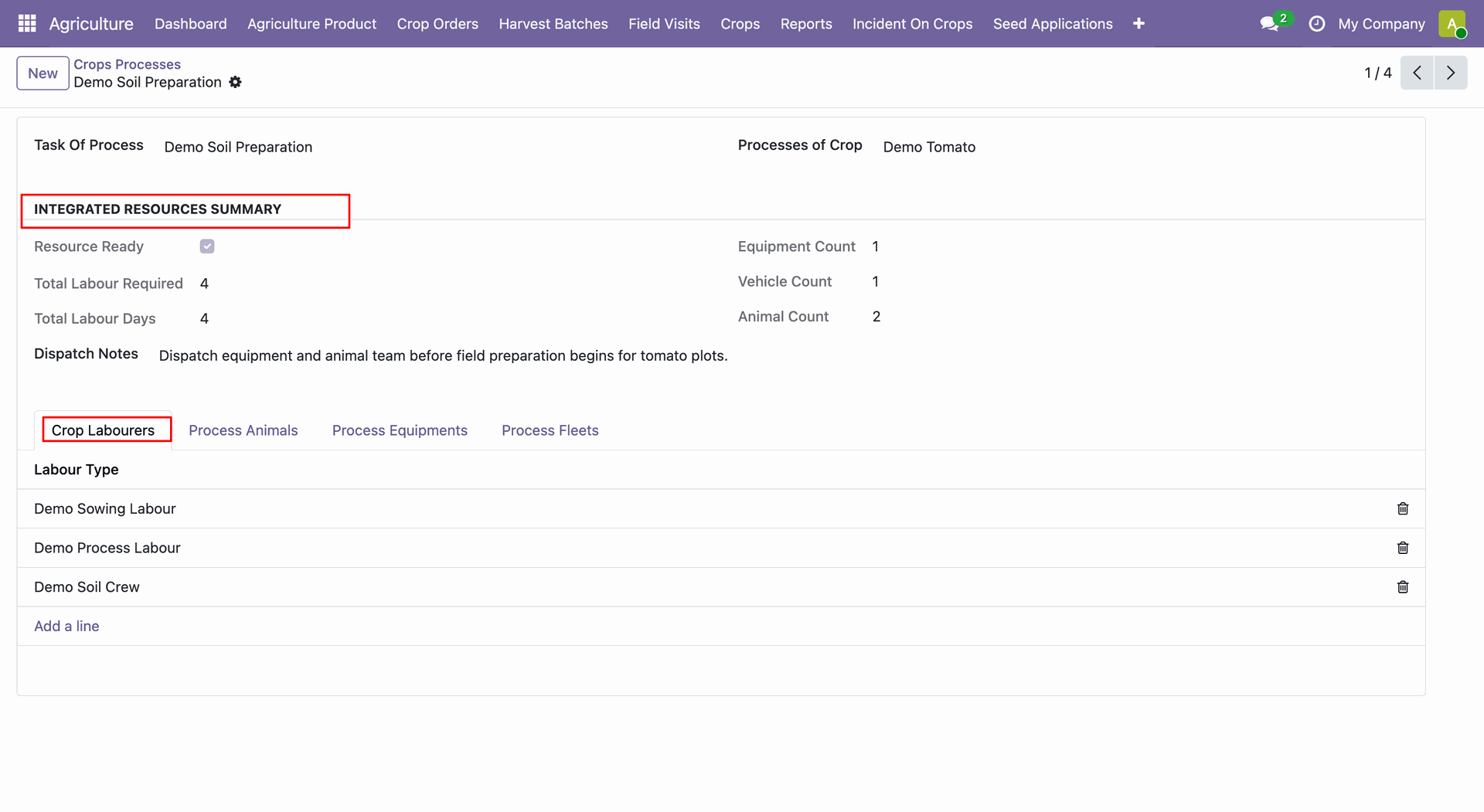
The selected process shows an Integrated Resources Summary and Crop Labourers tab.
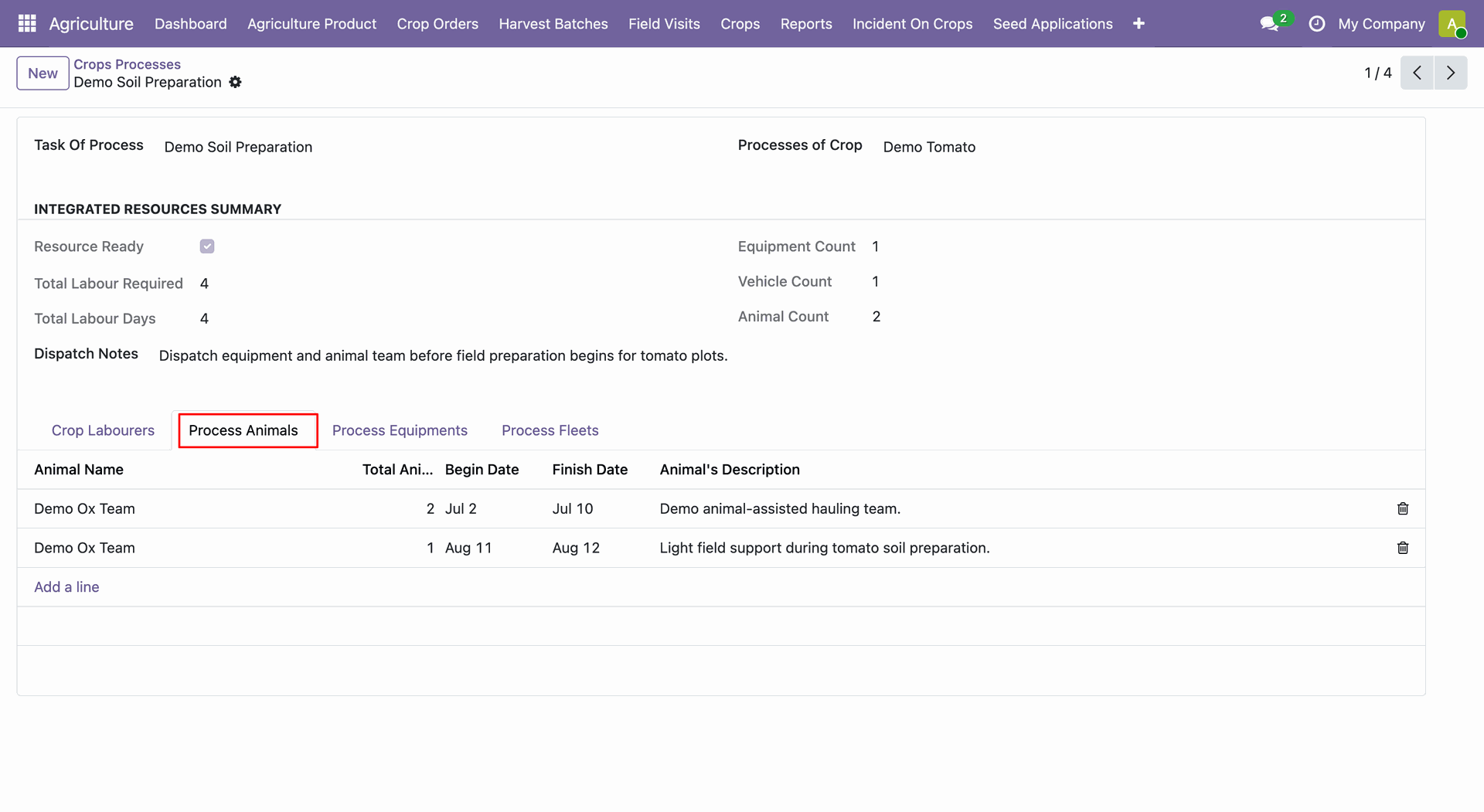
The Process Animals tab lists animal resources linked to the selected crop process.
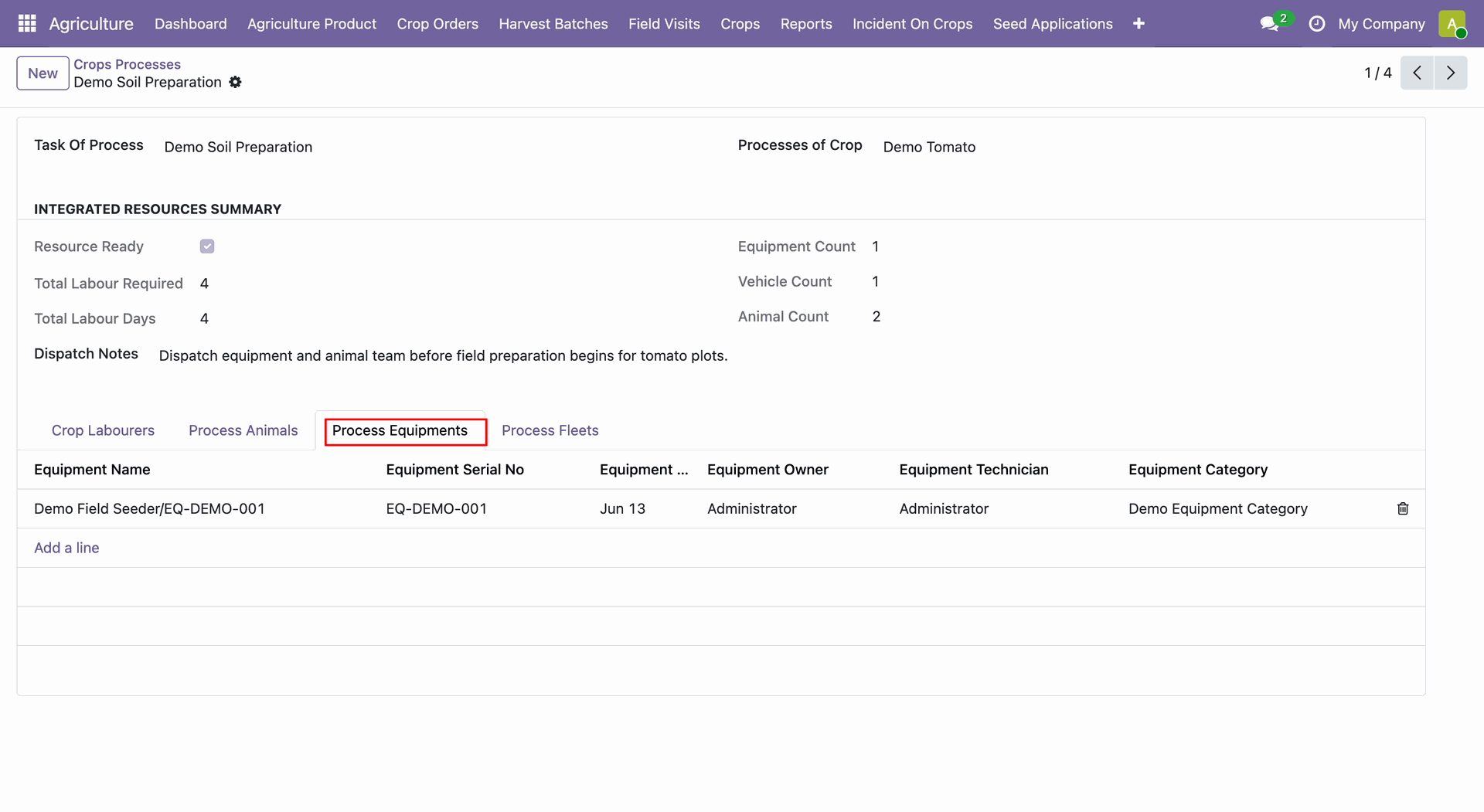
The Process Equipments tab displays equipment resources connected with the crop process.
The Process Fleets tab shows vehicle resources assigned to the selected process.
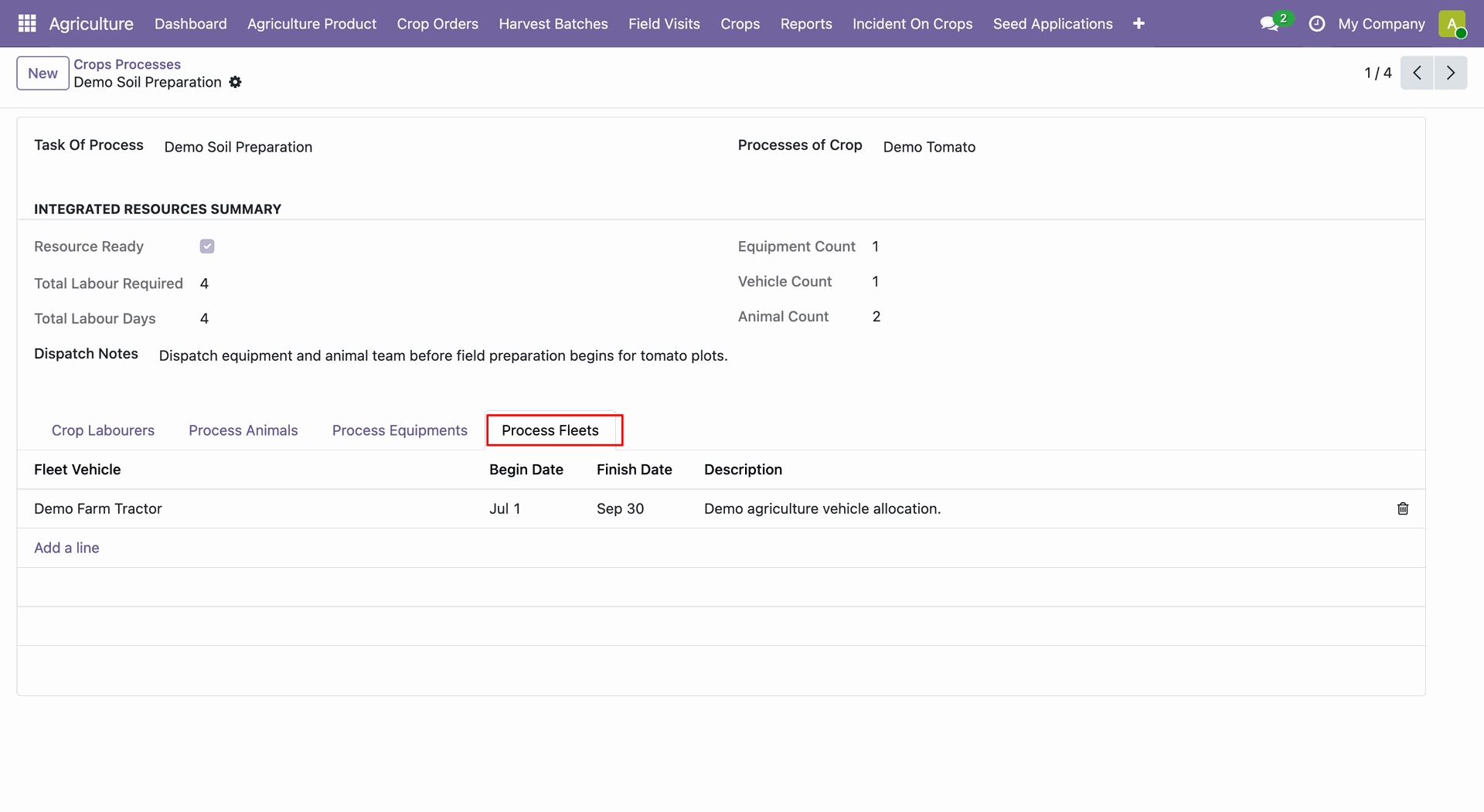
Open Agriculture -> Crop Orders.
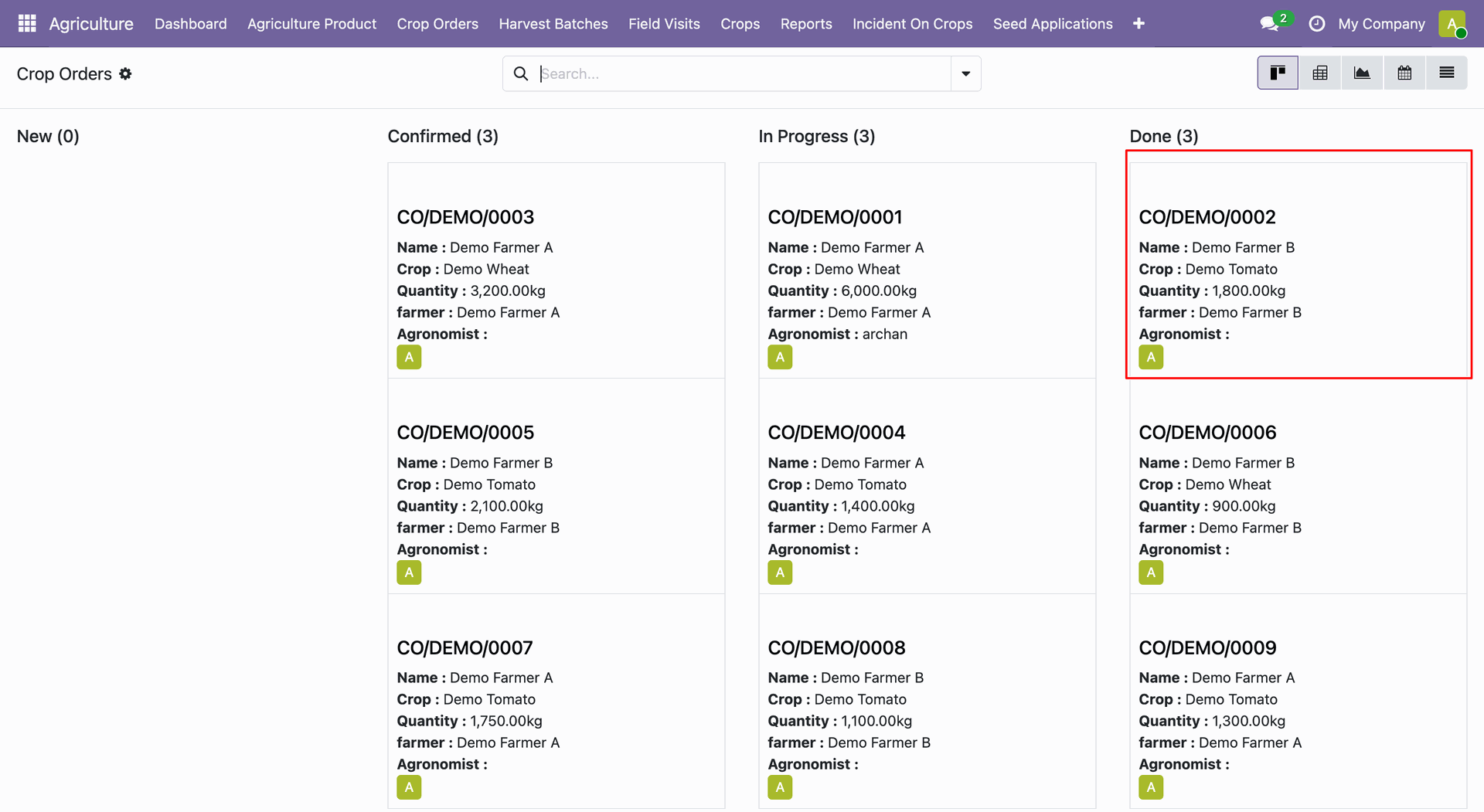
The Crop Orders kanban shows records grouped by workflow stages including New, In Progress, and Done.
The selected crop order form view displays agriculture project and execution information in detail.
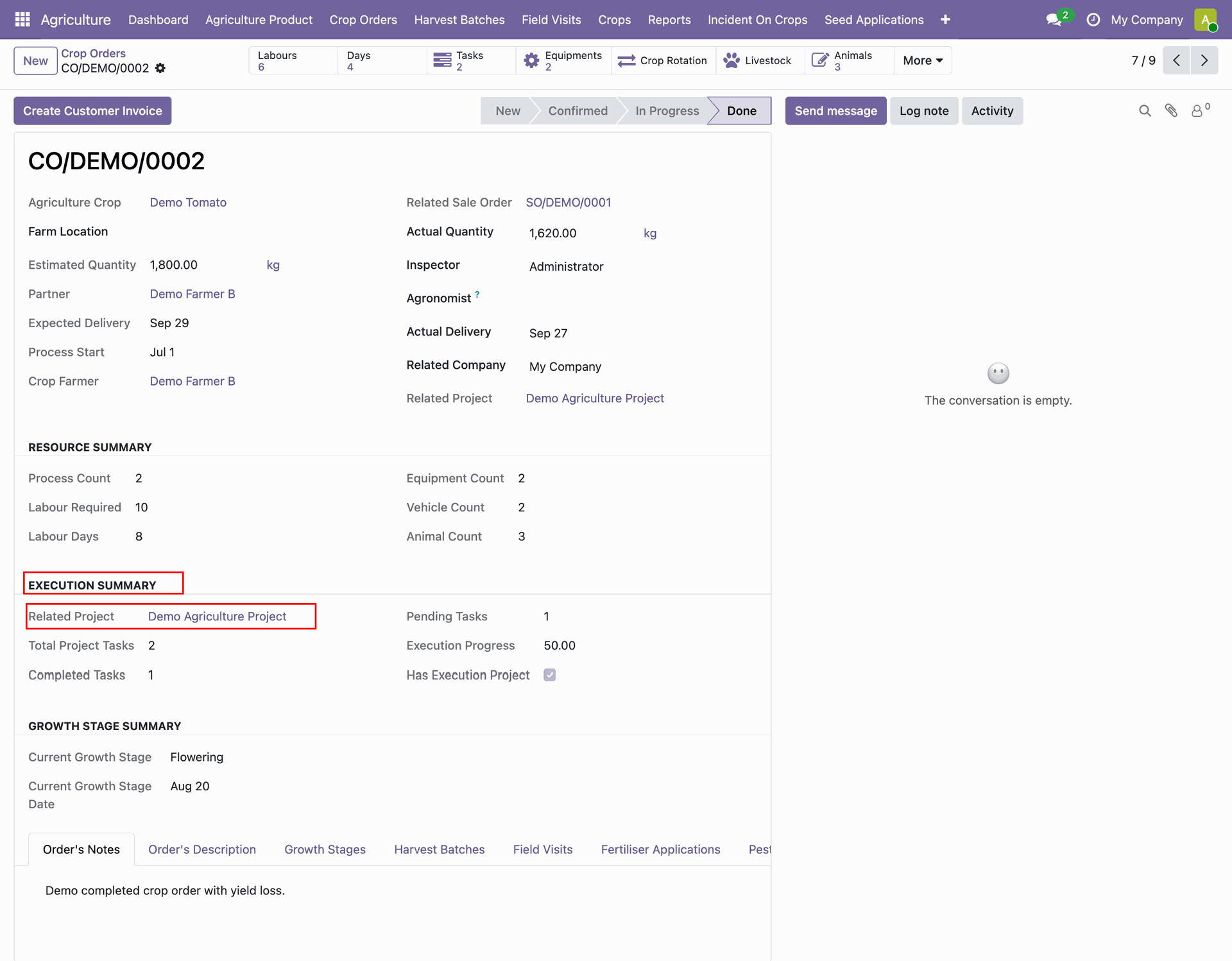
The linked Agriculture Project record shows the crop order.
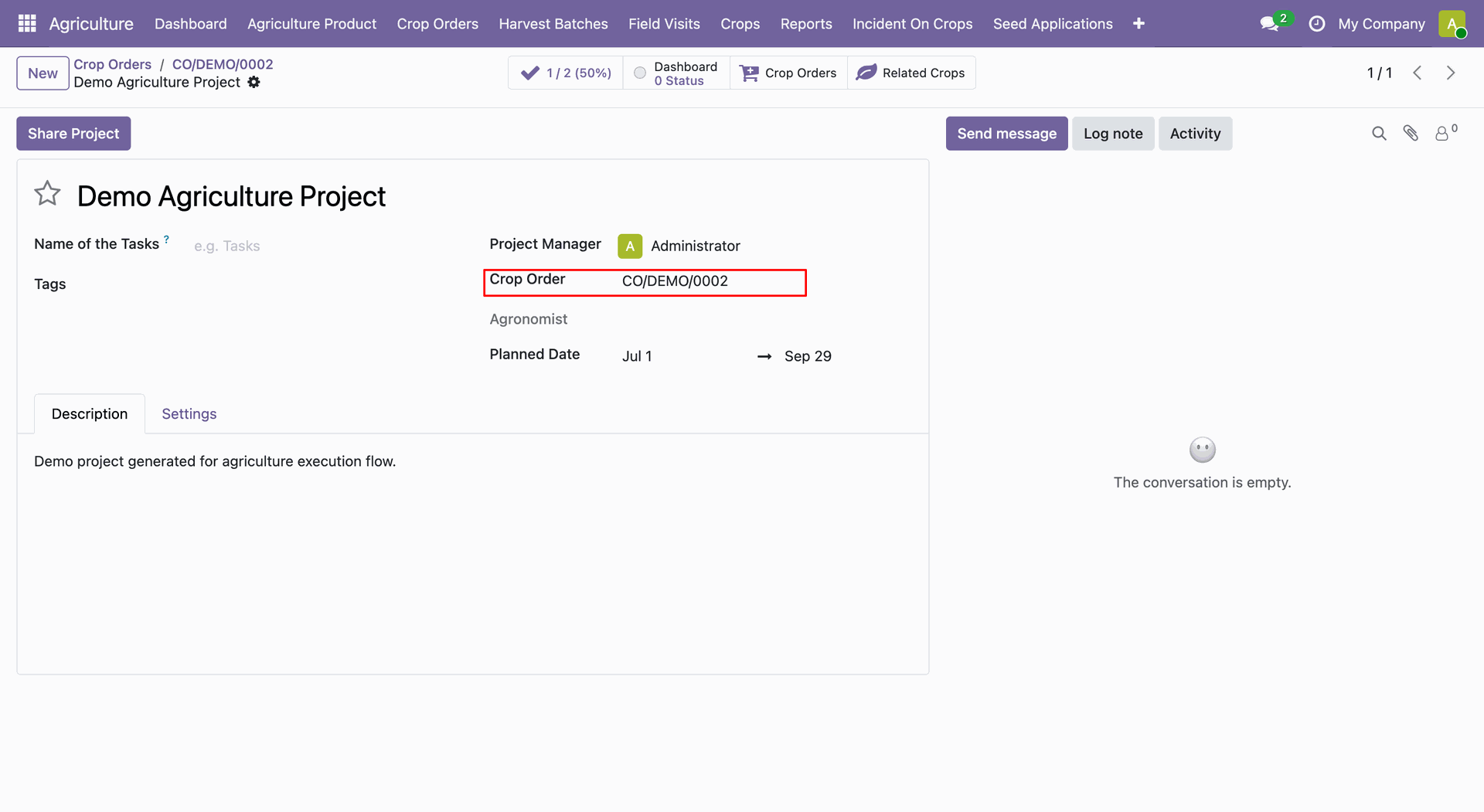
The crop order displays linked tasks smart button.
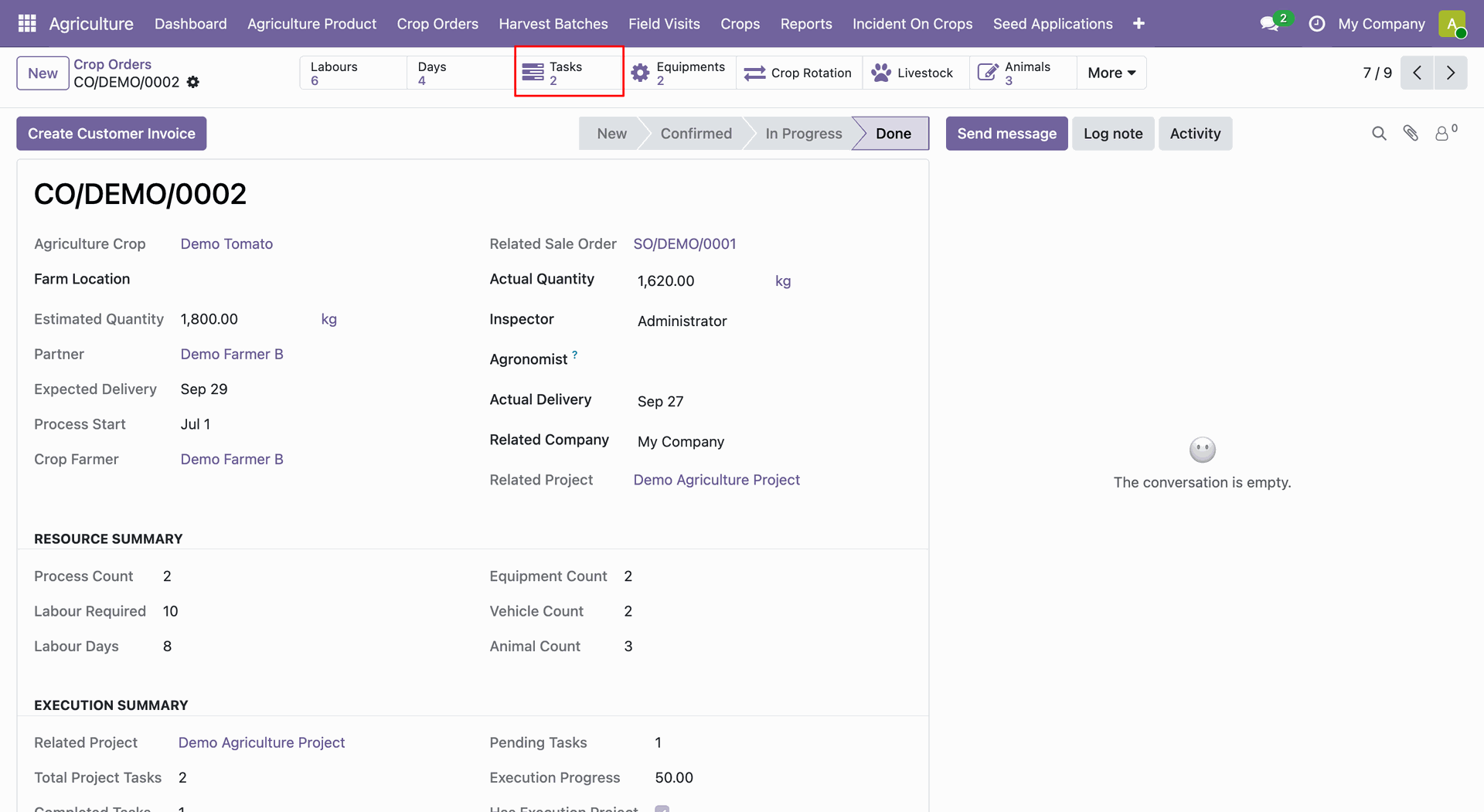
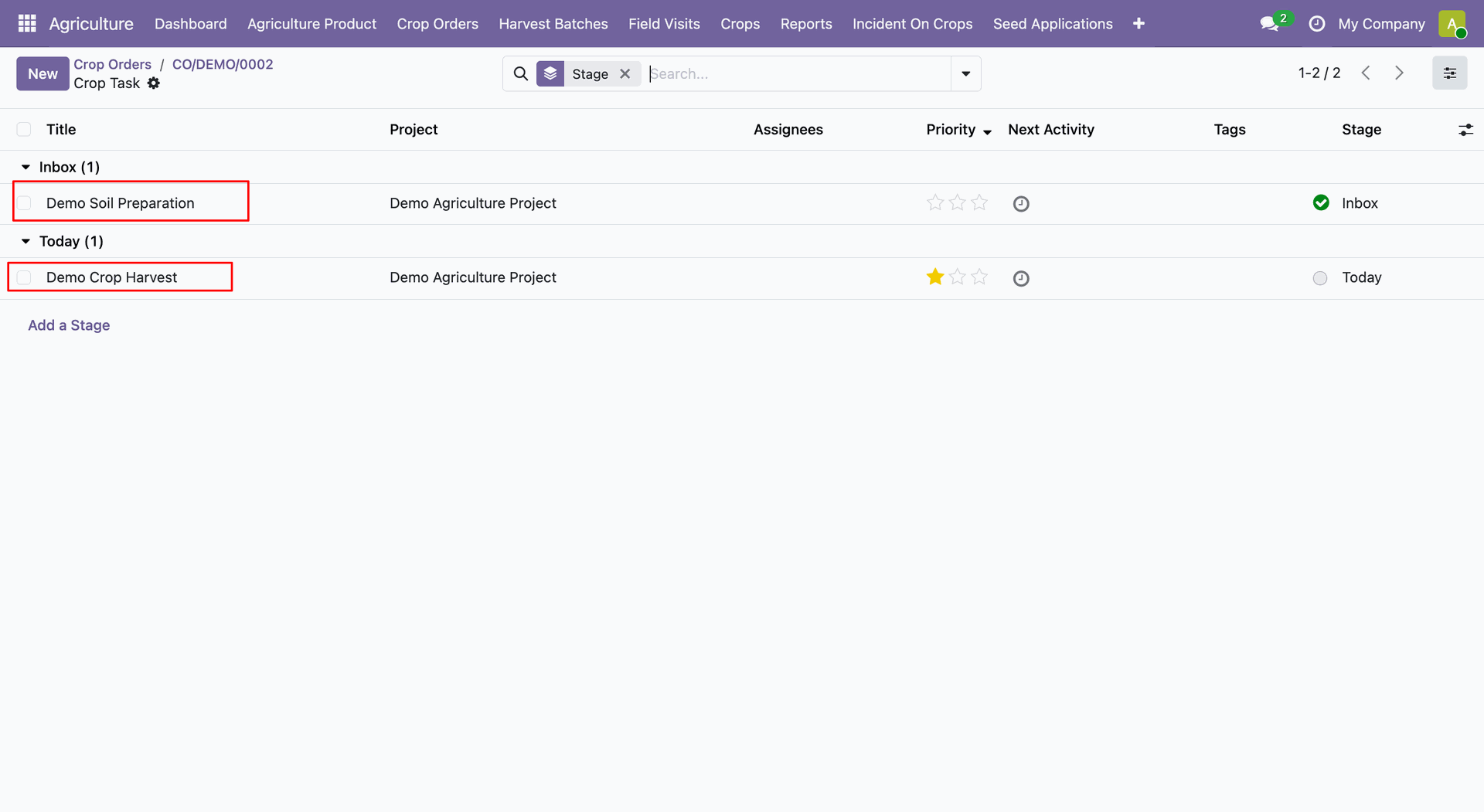
The project task list shows crop-related tasks with stages, priorities, and activities.
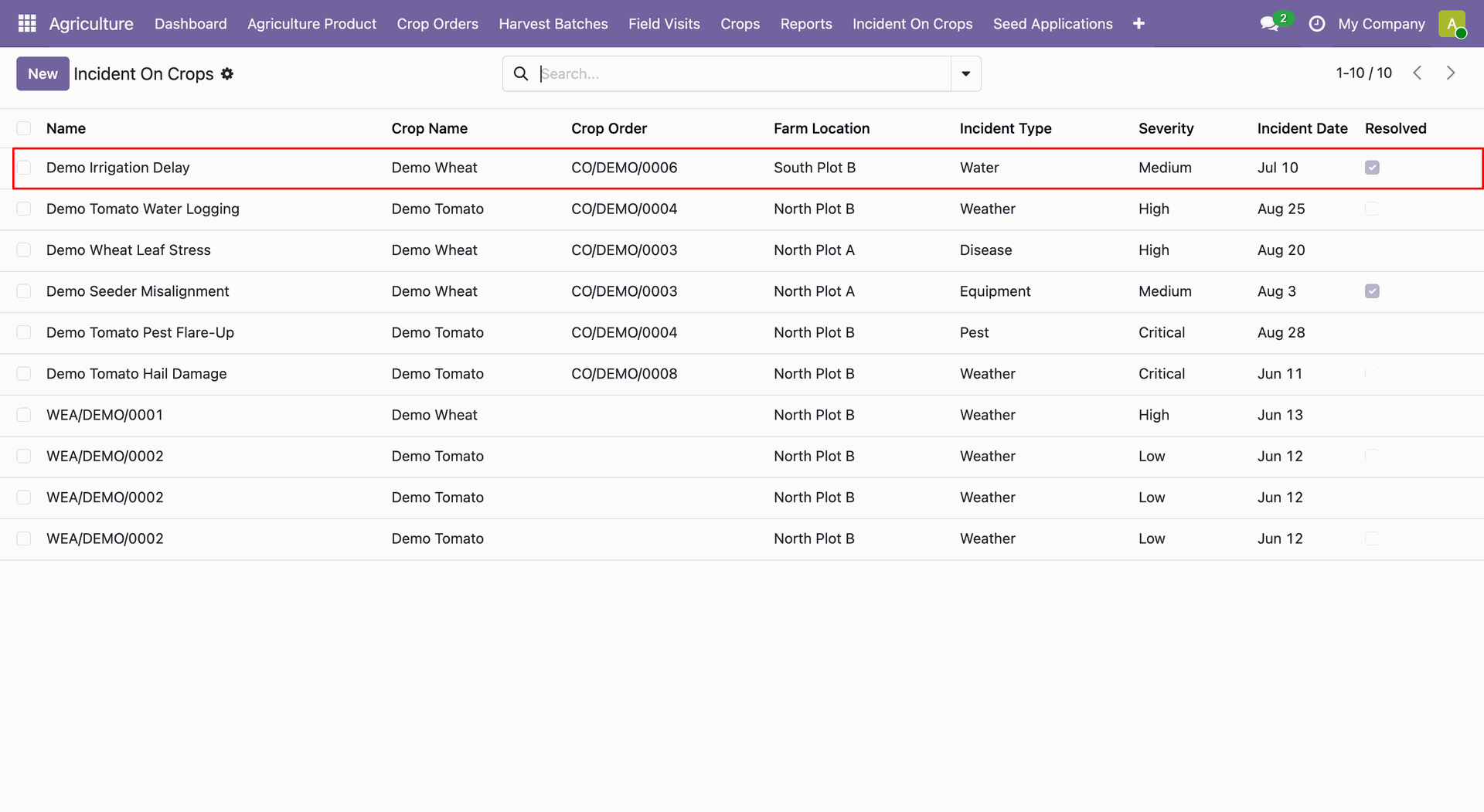
Open Agriculture → Incident On Crops.
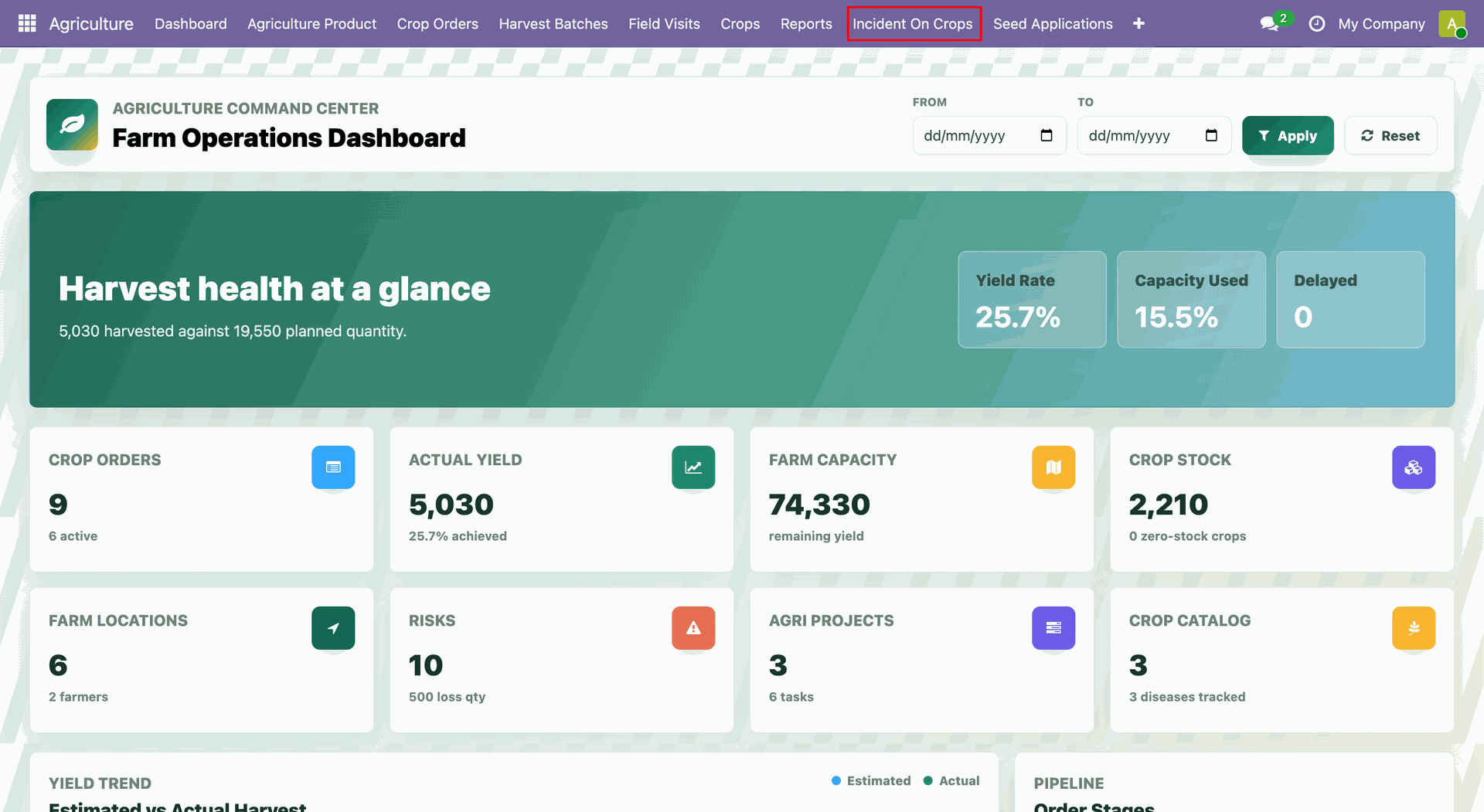
The incident records view displays existing crop incidents with their visible record information.
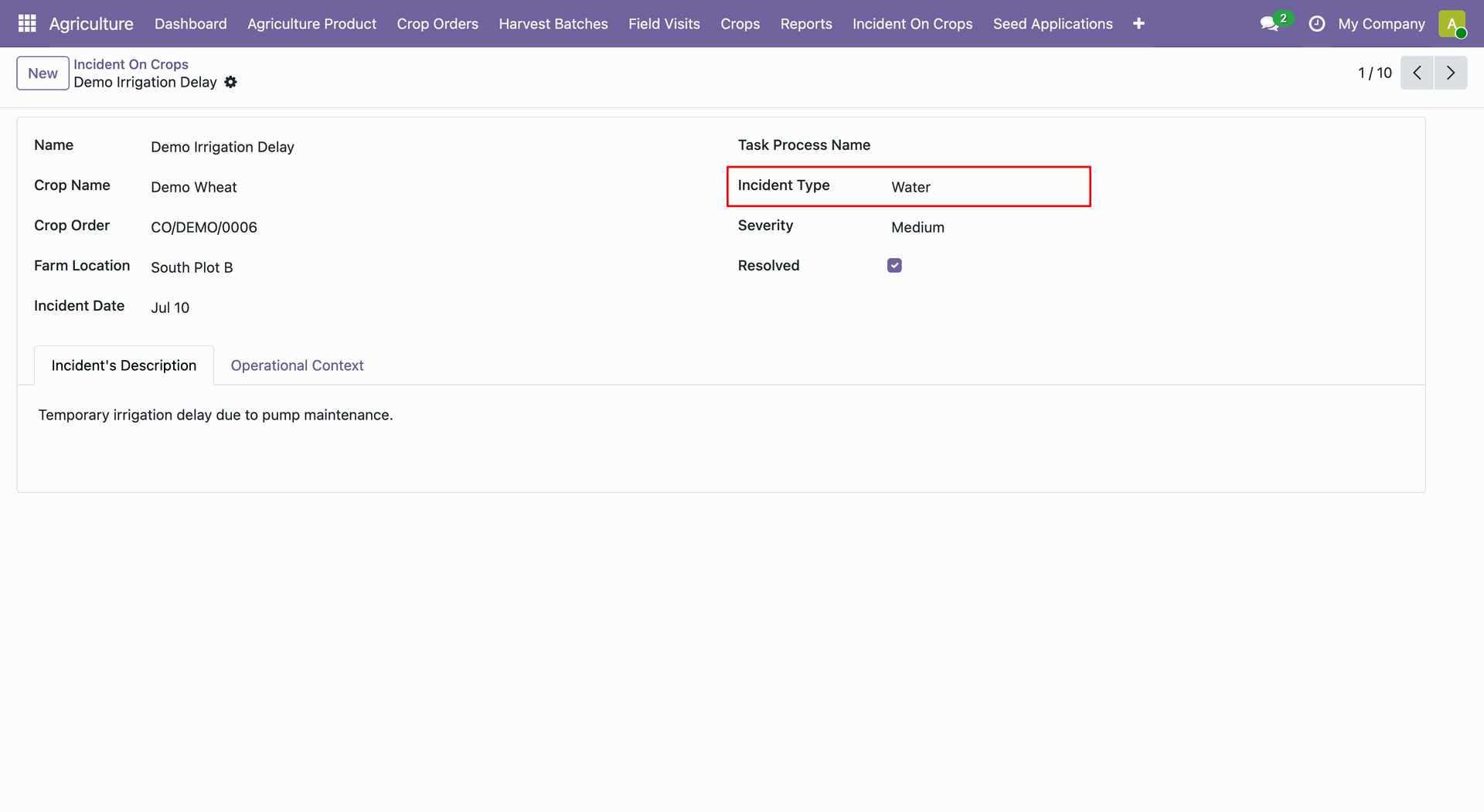
The selected crop incident opens in a form showing detailed incident information.
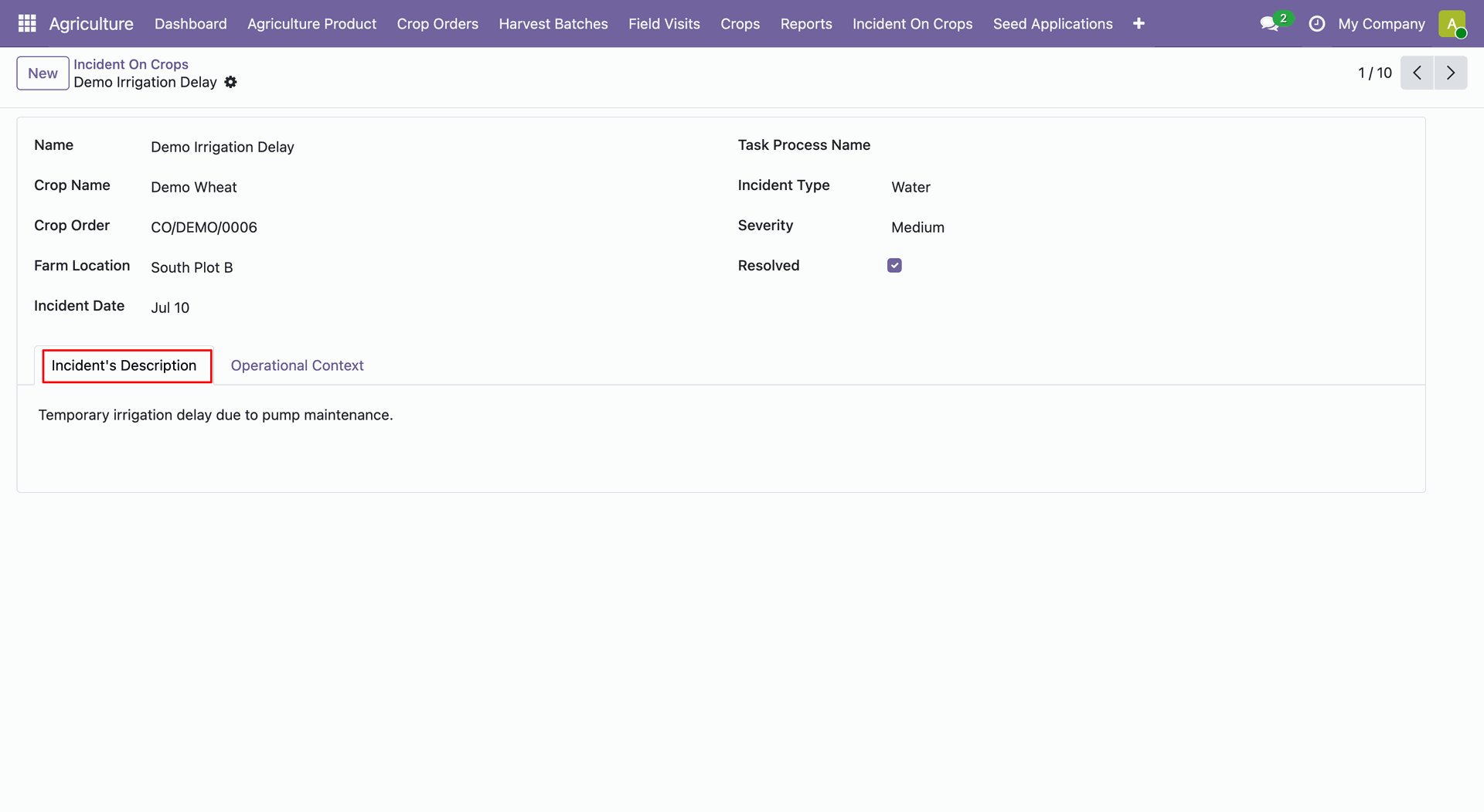
The incident record displays incident's description for review.
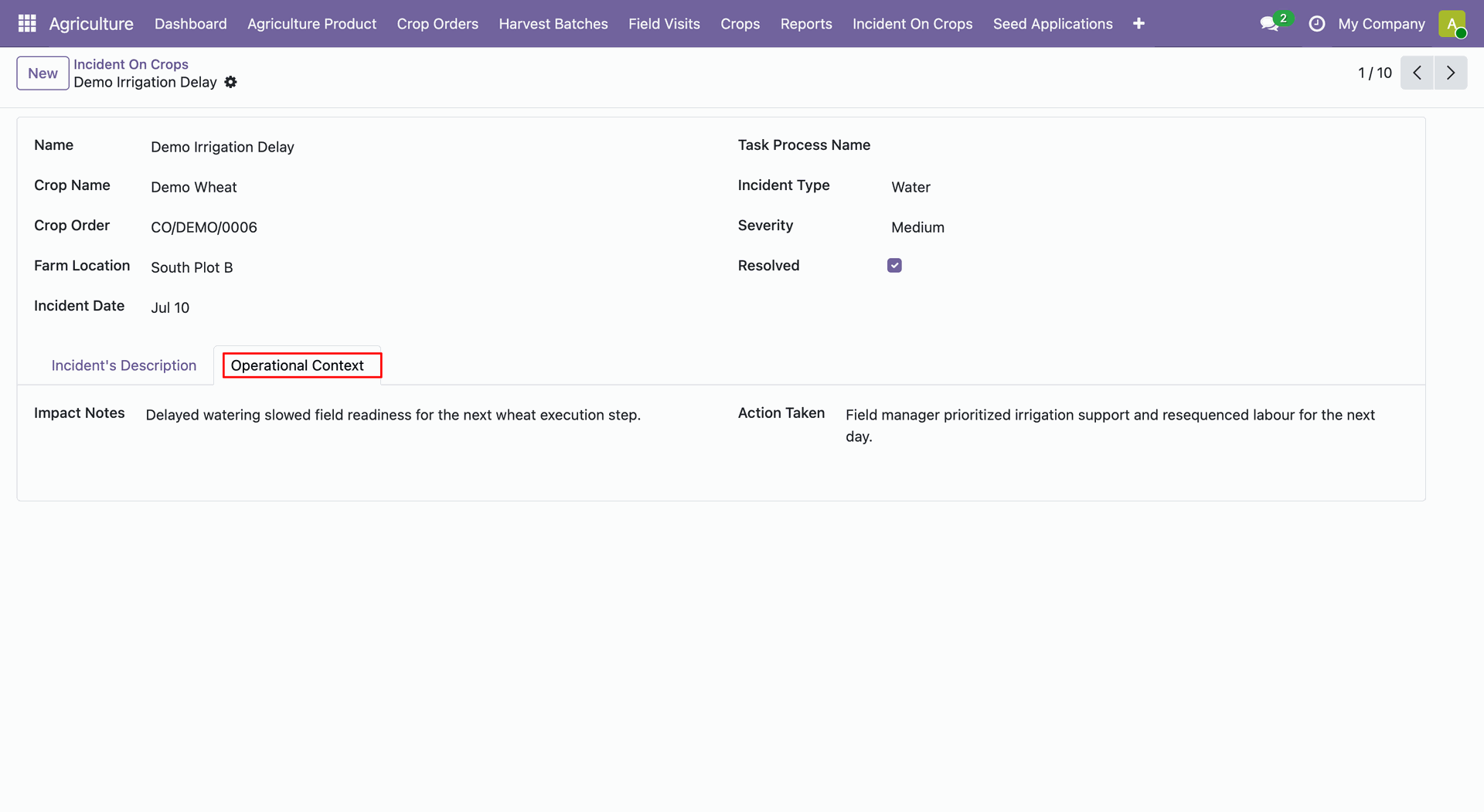
The operational context displays impact notes and action taken details.
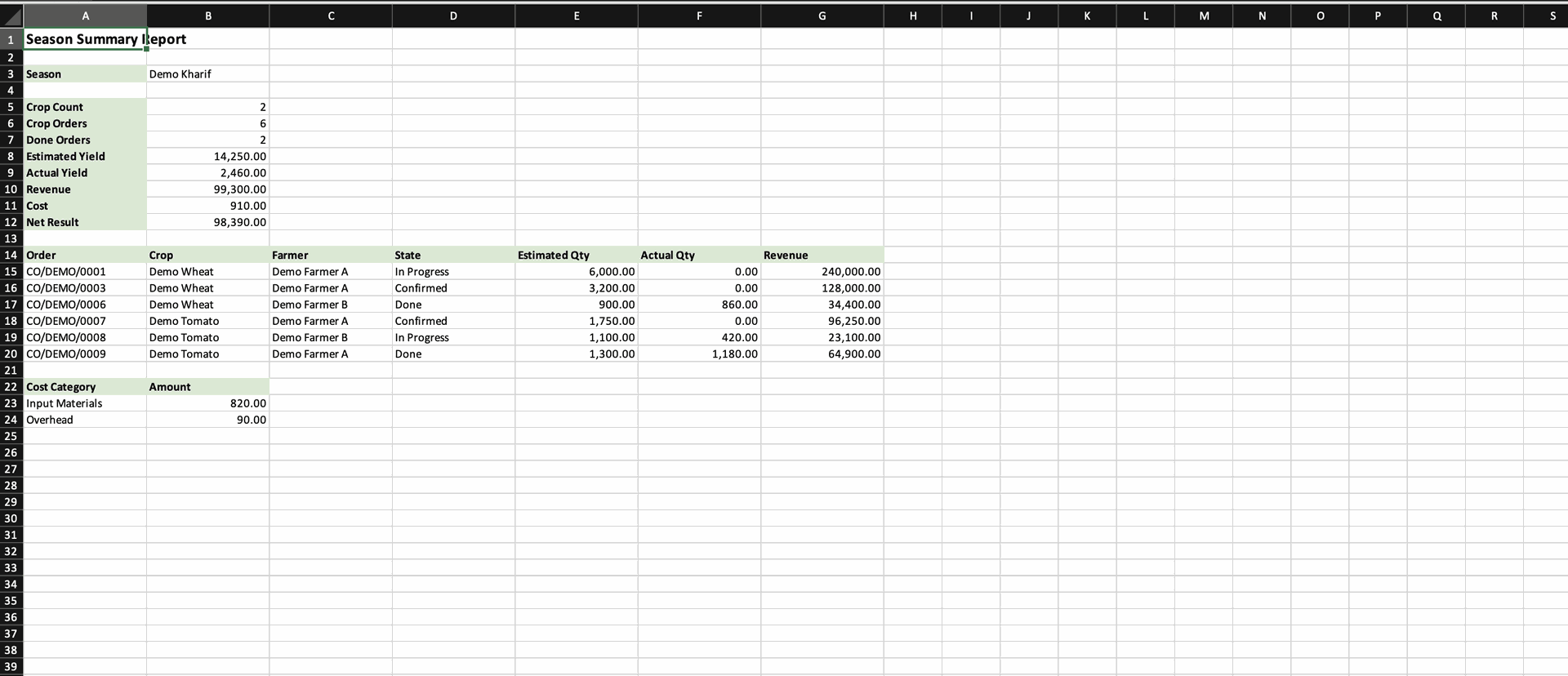
Open Agriculture -> Reports -> Season Summary Report.
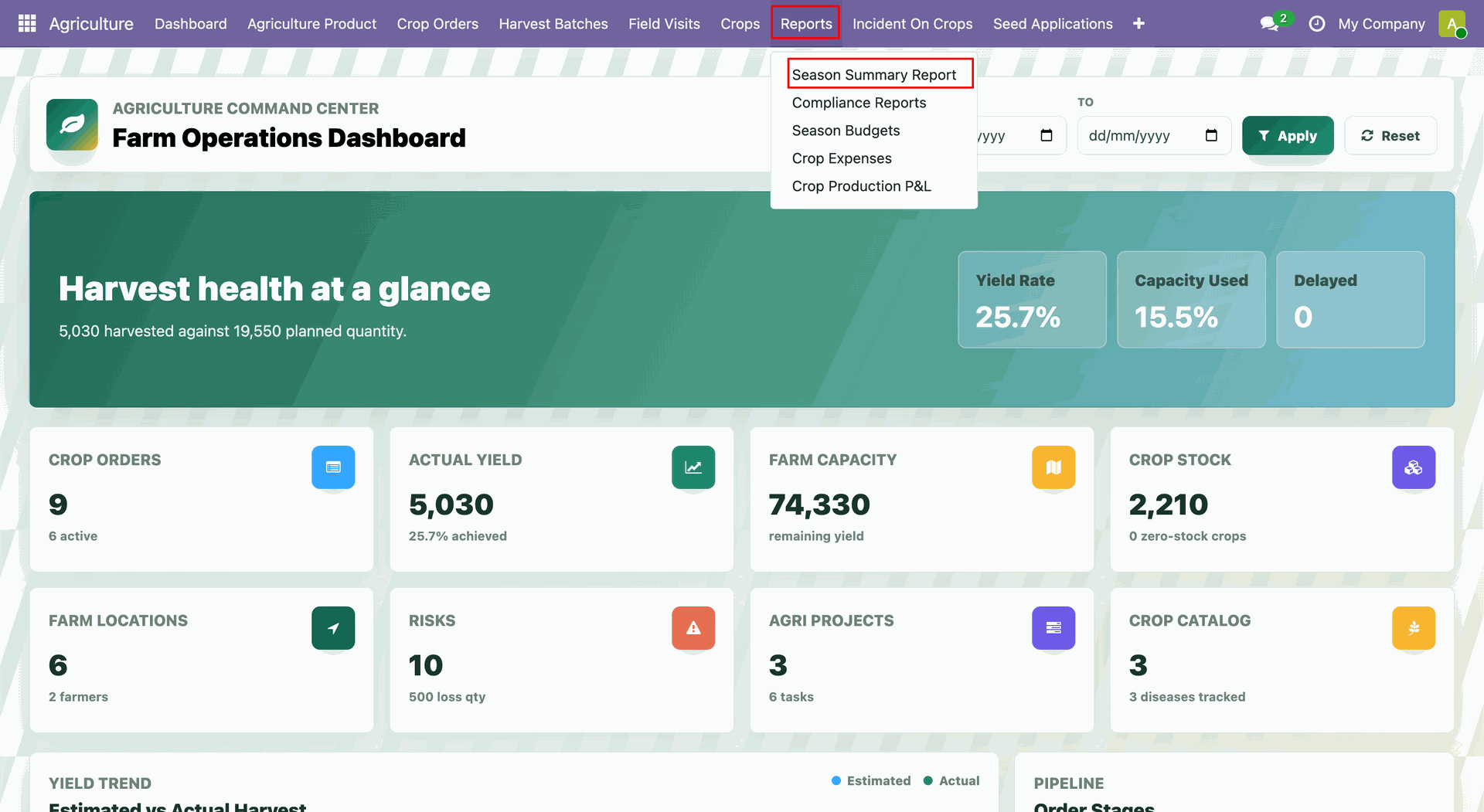
Season Summary Report wizard will open, select season and click on print PDF button.
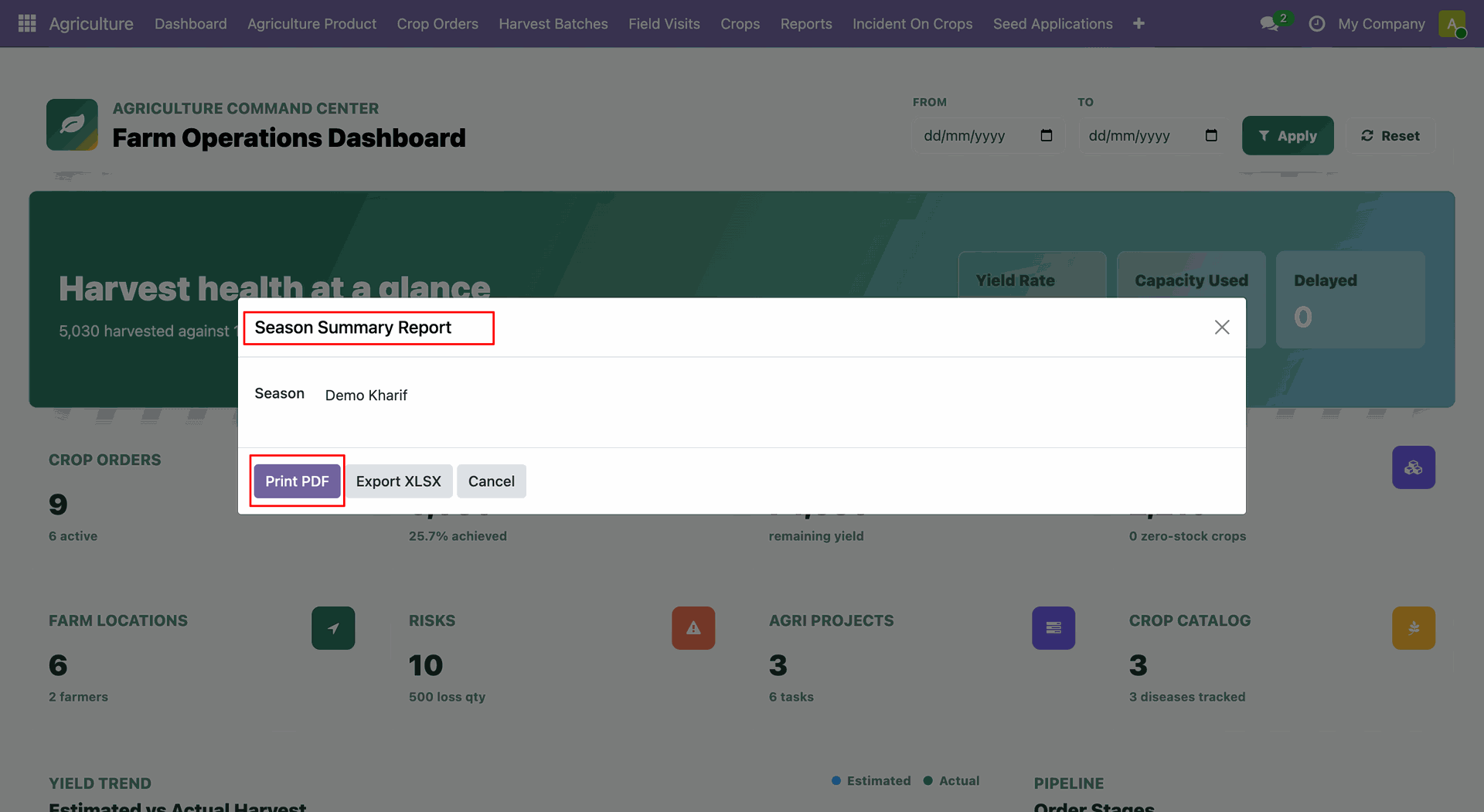
The selected Season Summary Report in PDF format.
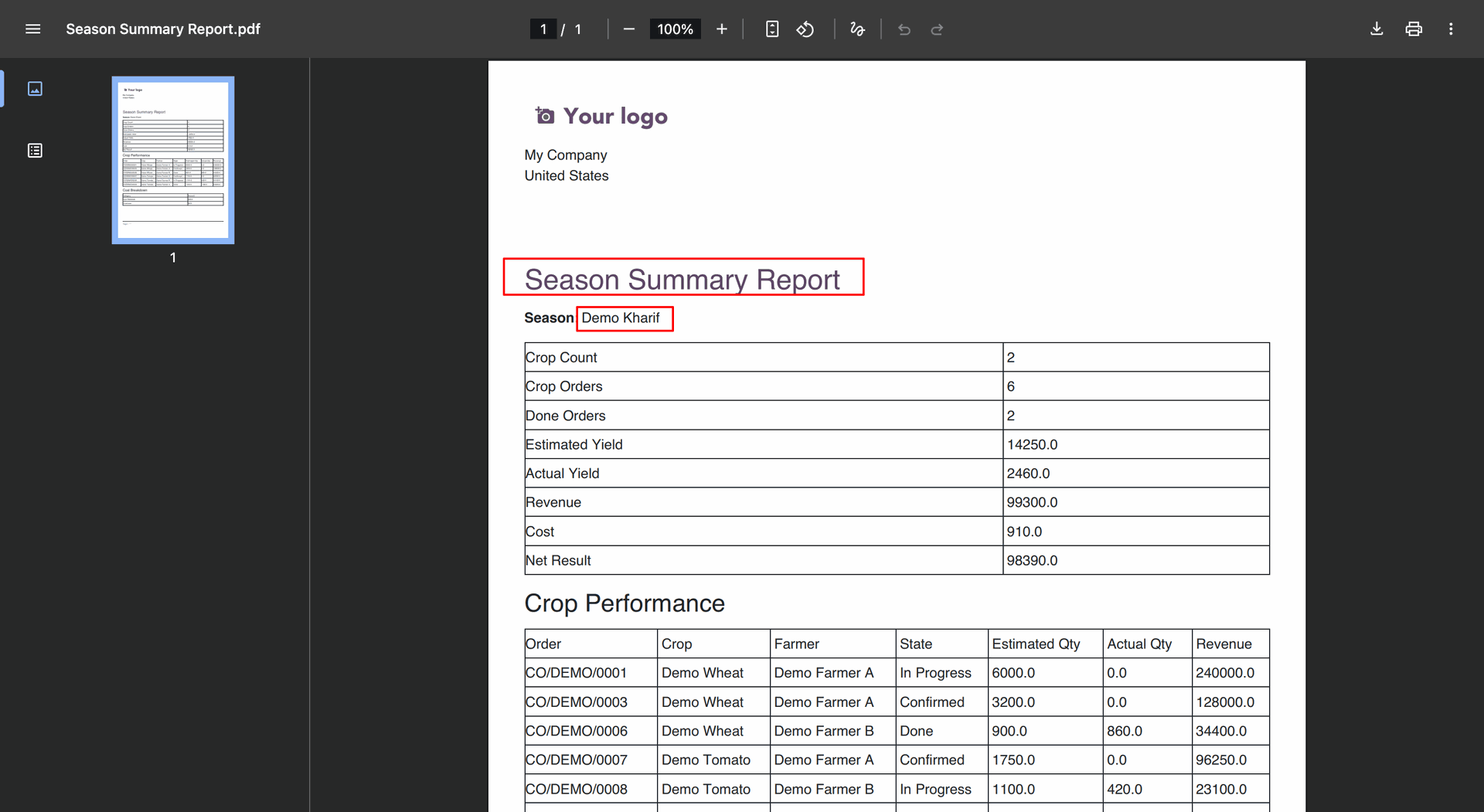
Season Summary Report wizard will open, select season and click on Export XLSX button.
The selected Season Summary Report in Excel format.
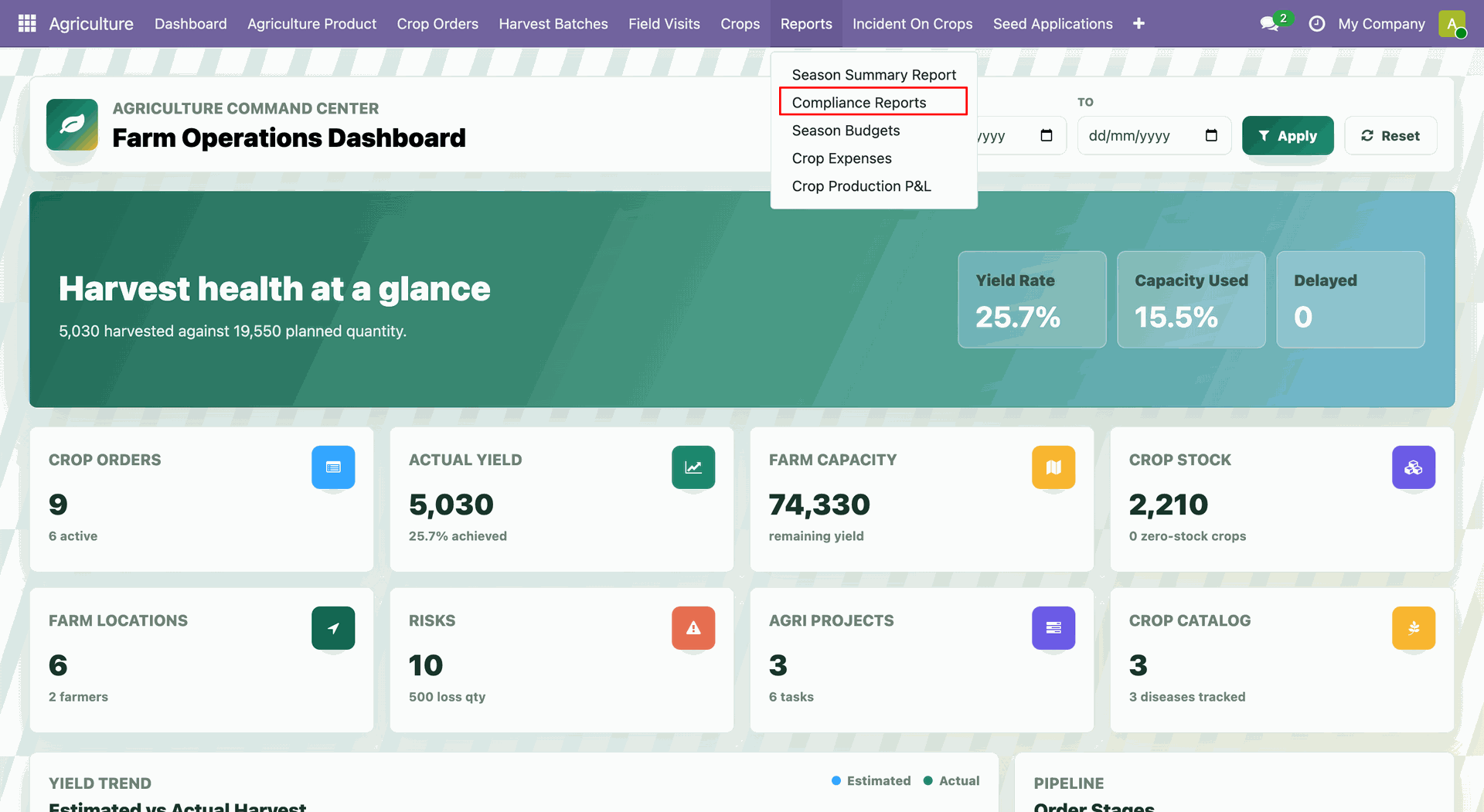
Open Agriculture -> Reports -> Compliance Reports.
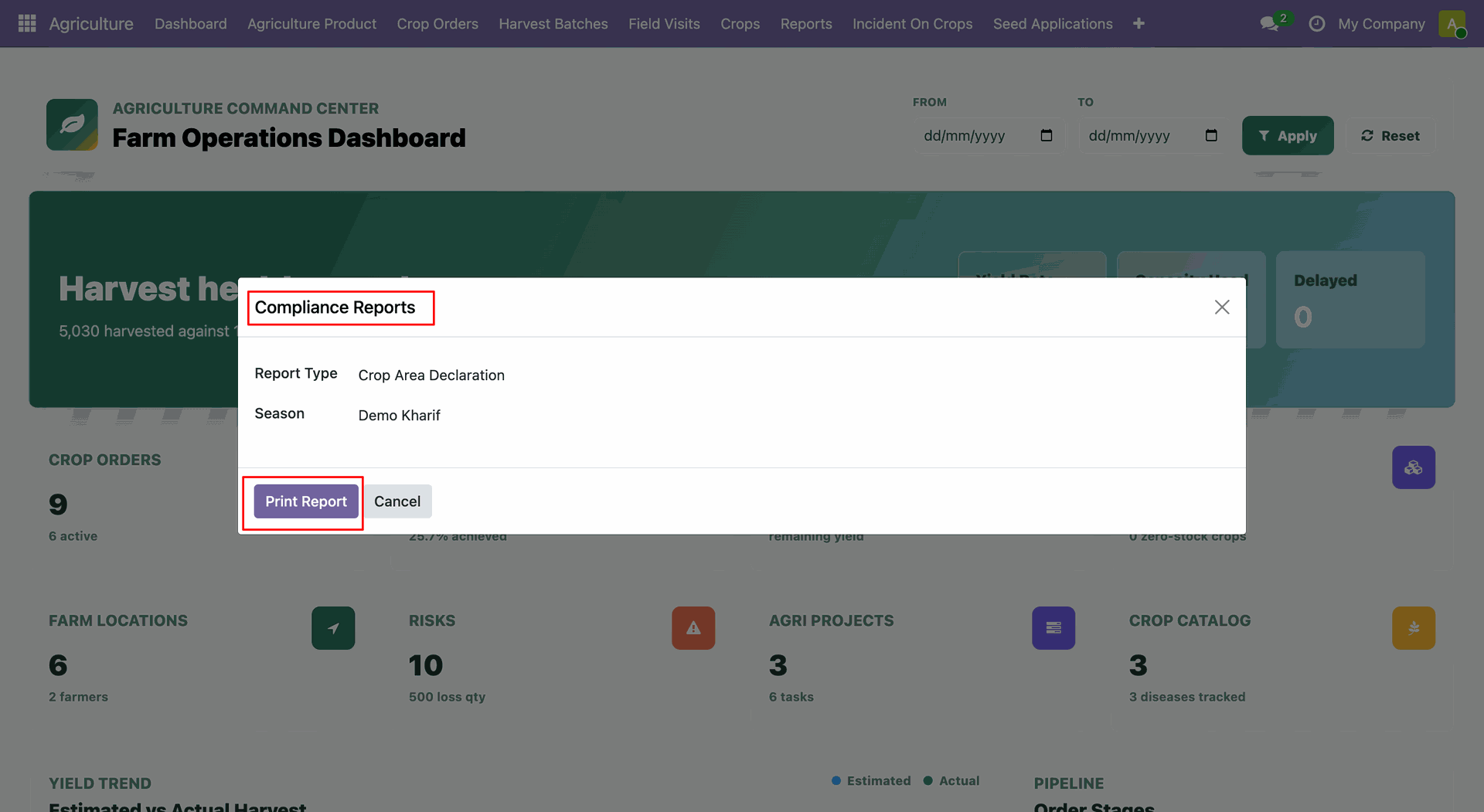
Compliance Reports wizard will open, select report type and season. Click on Print Report button.
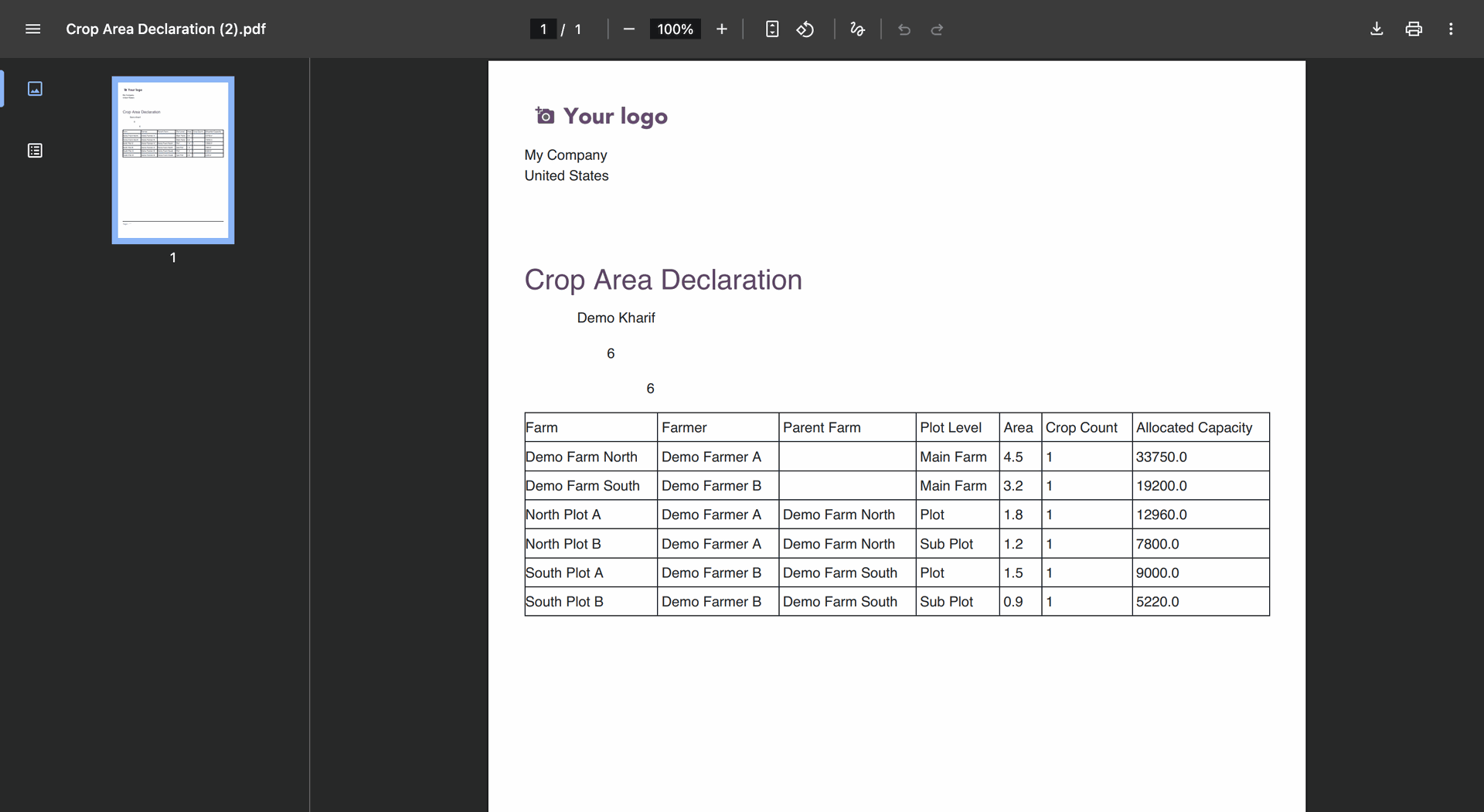
The selected compliance report prints with detailed information in PDF format.
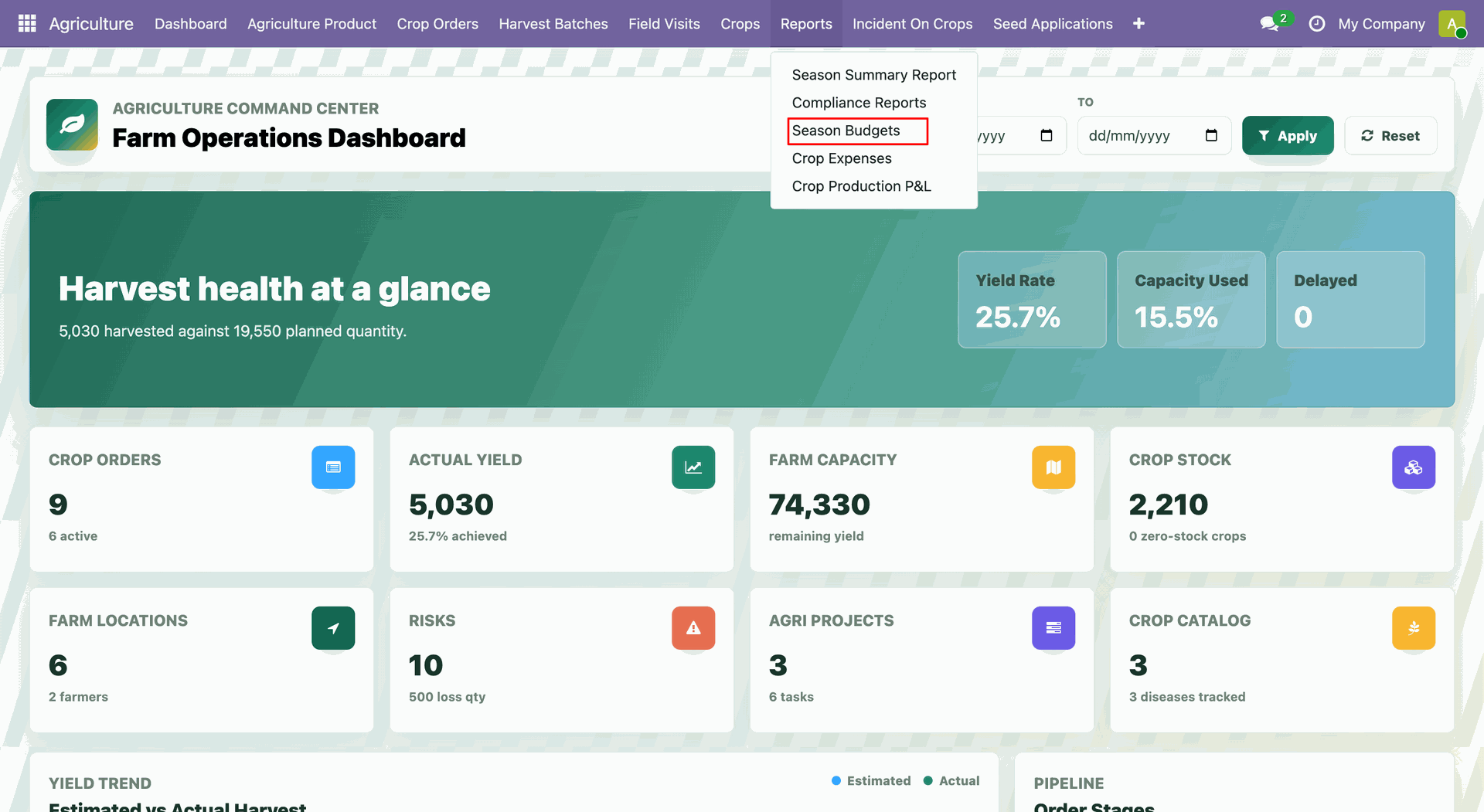
Open Agriculture -> Reports -> Season Budgets.
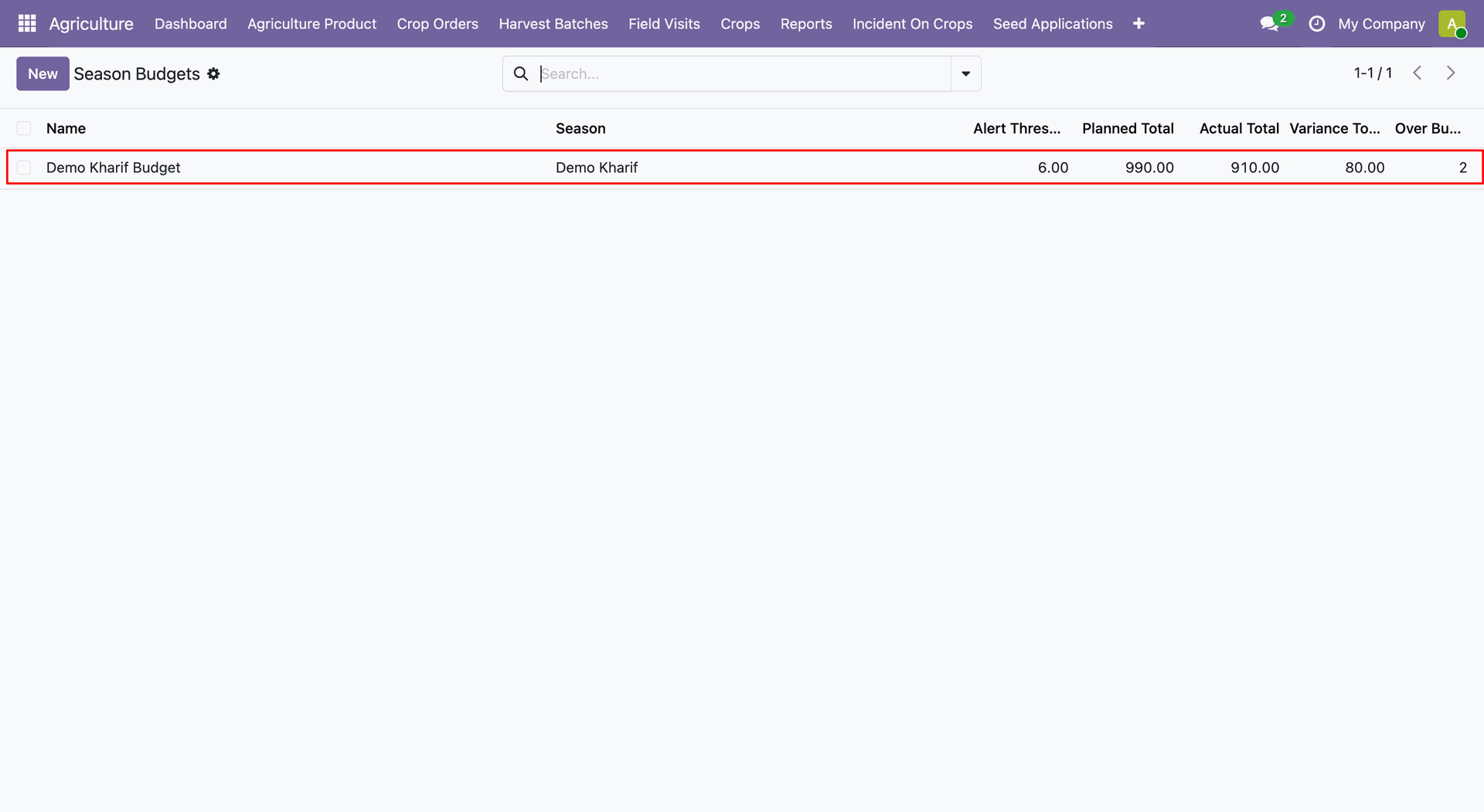
The Season Budgets list view displays planned totals, actual totals, variance, and over-budget values.
The selected budget form view shows budget lines with planned, actual, variance, and threshold amounts.
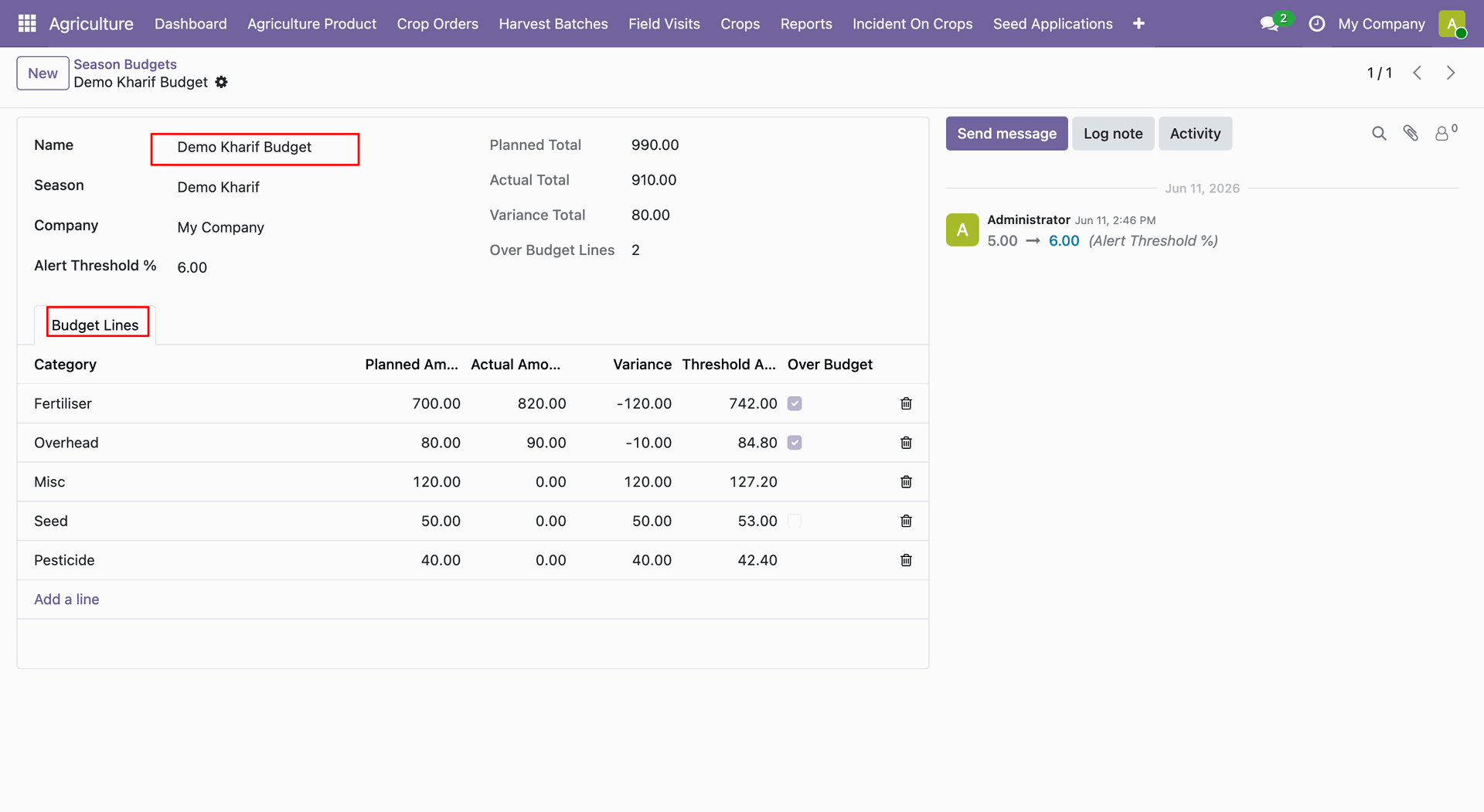
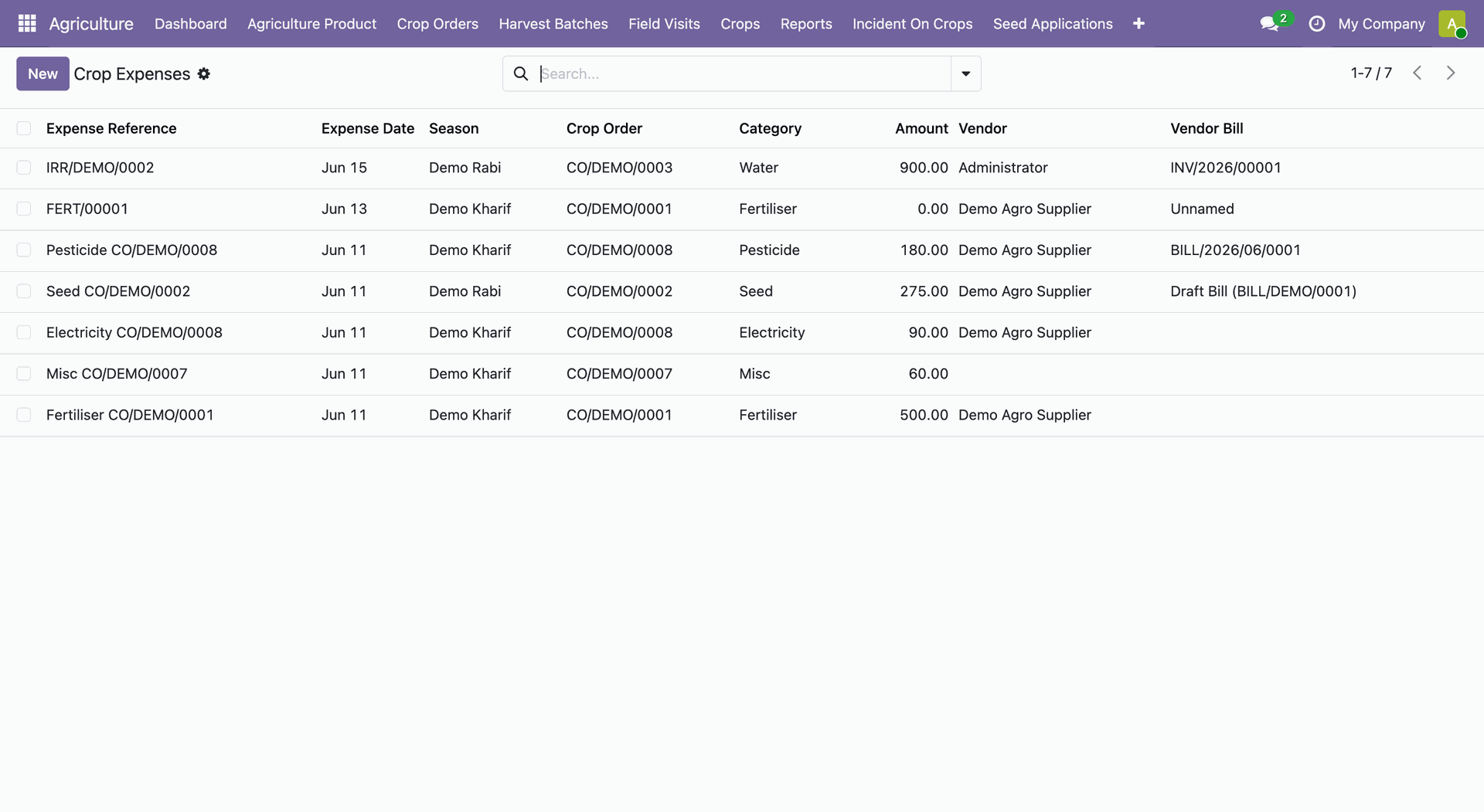
Open Agriculture -> Reports -> Crop Expenses.
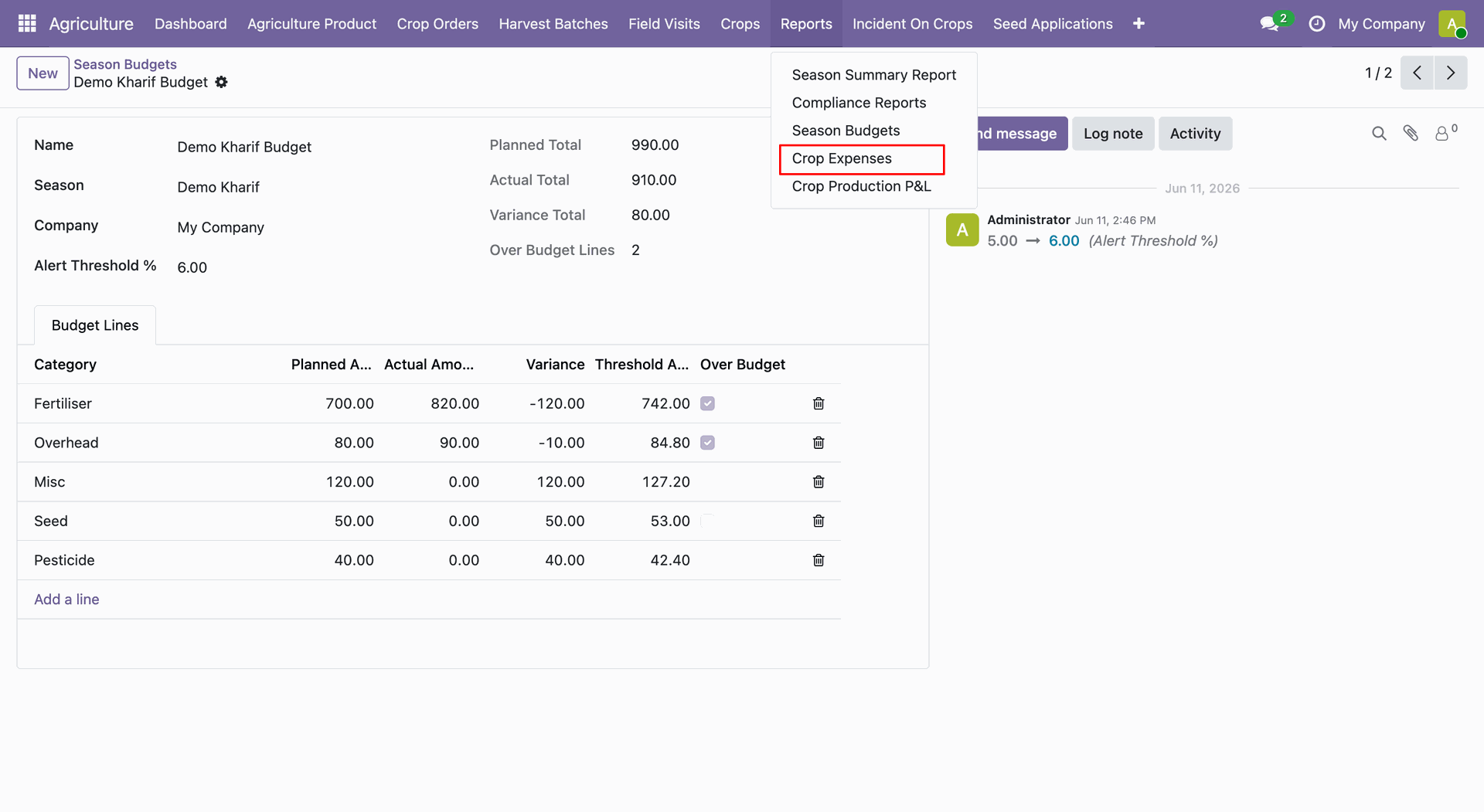
The Crop Expenses list displays expense dates, seasons, crop orders, categories, amounts, vendors, and bills.
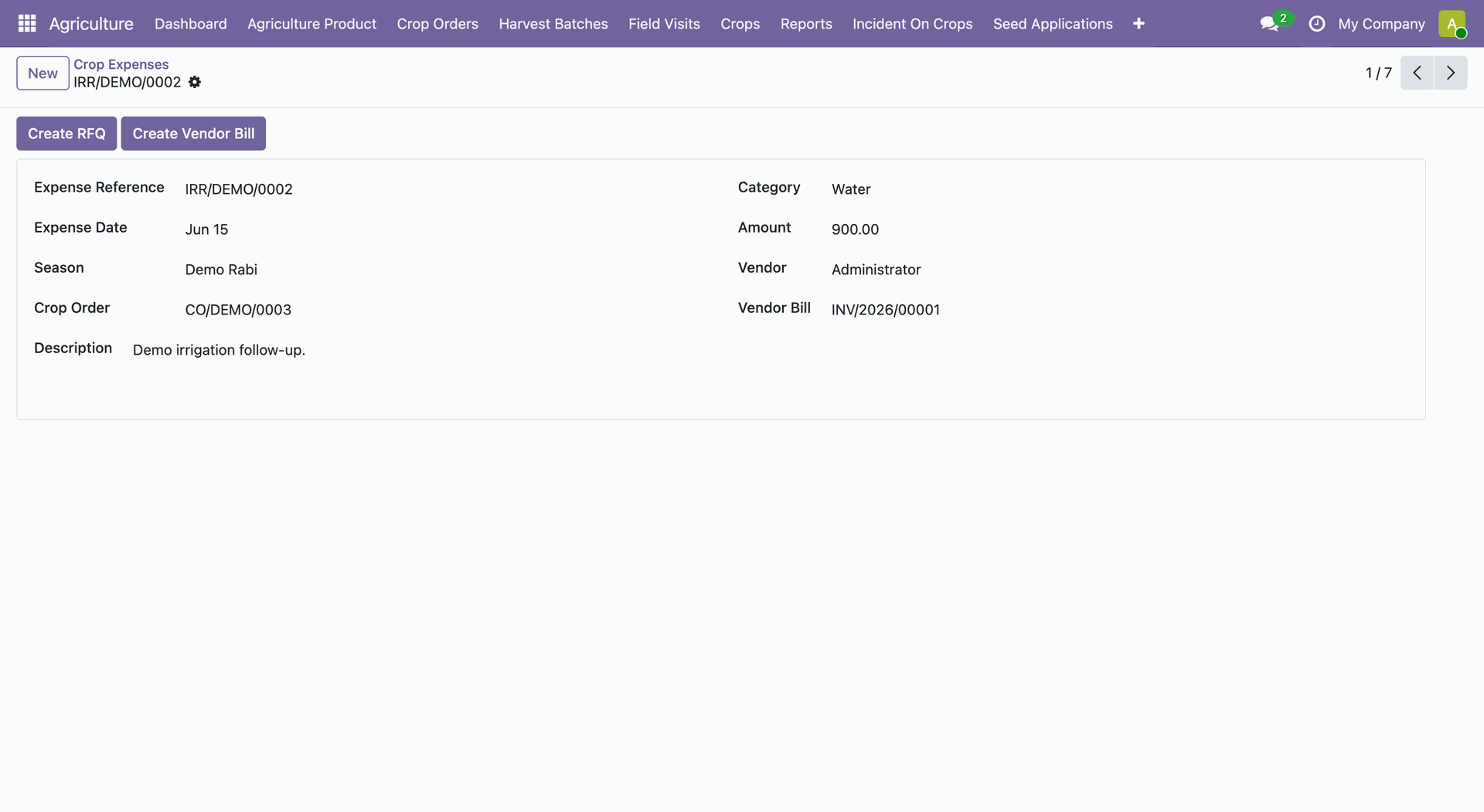
The selected crop expense form view shows expense date, season, crop order, description, amount, category, vendor, date, and vendor bill details.
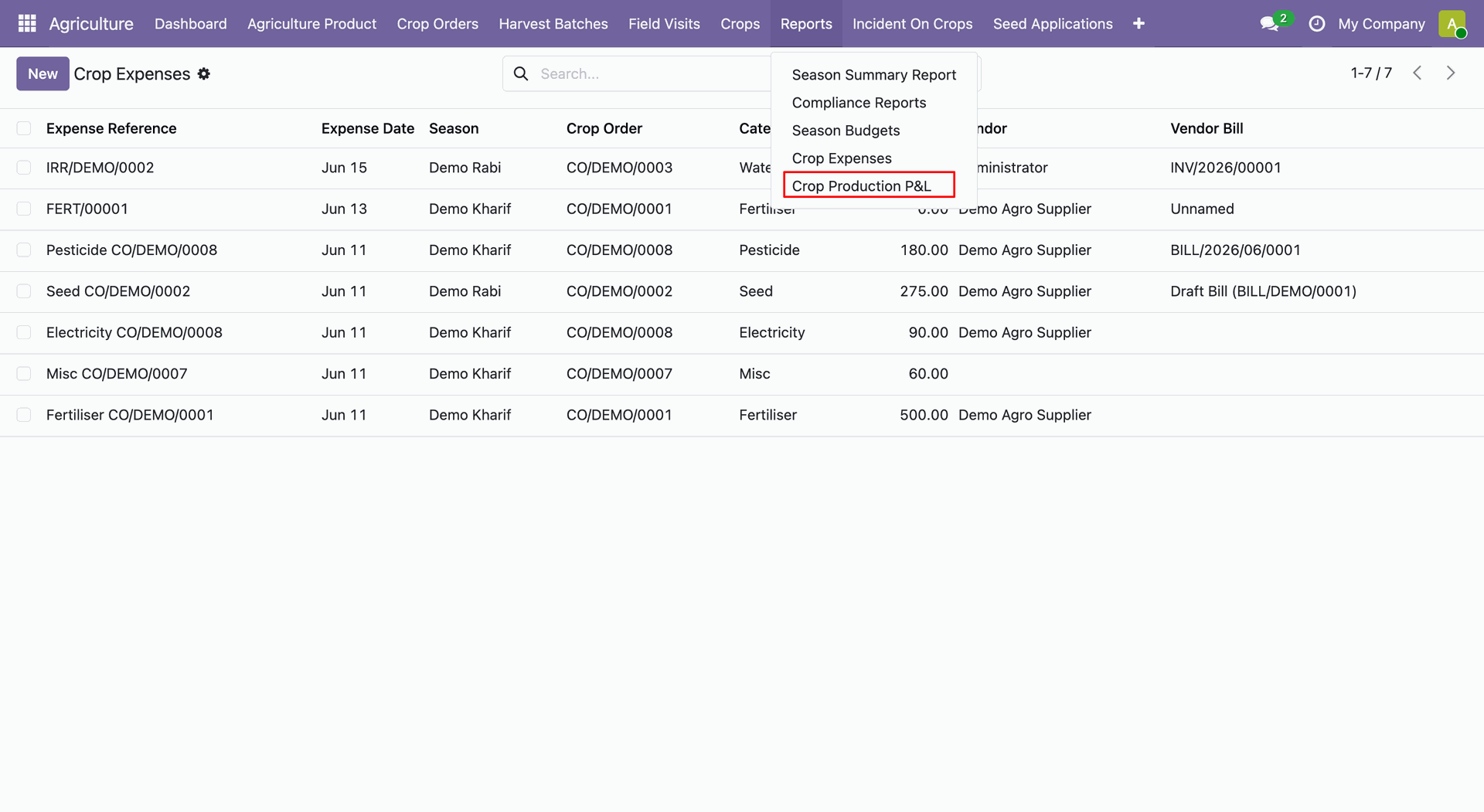
Open Agriculture → Reports → Crop Production P&L.
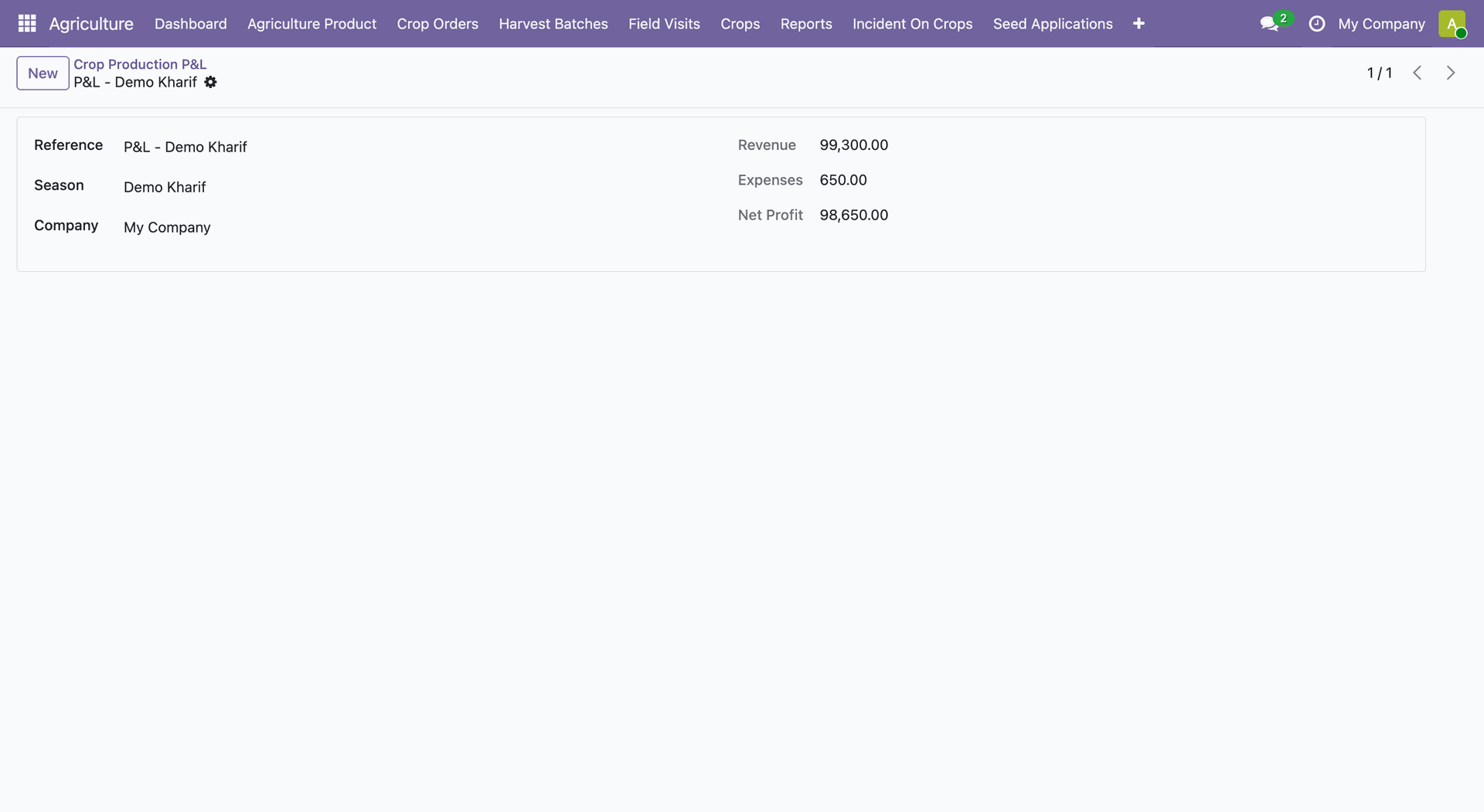
The Crop Production P&L list displays season revenue, expenses, and net profit values.
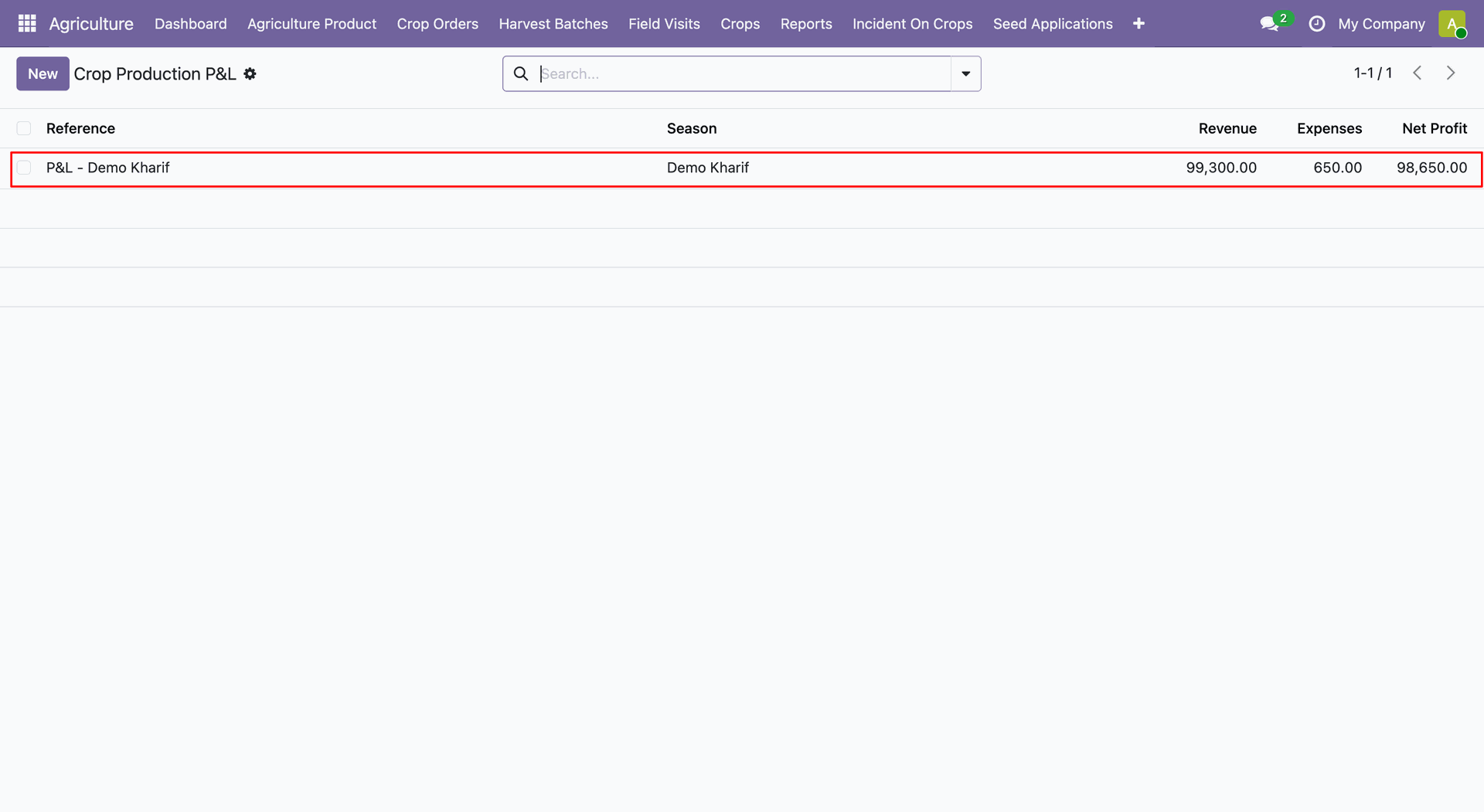
The selected Crop Production P&L record summarizes revenue, expenses, and net profit.
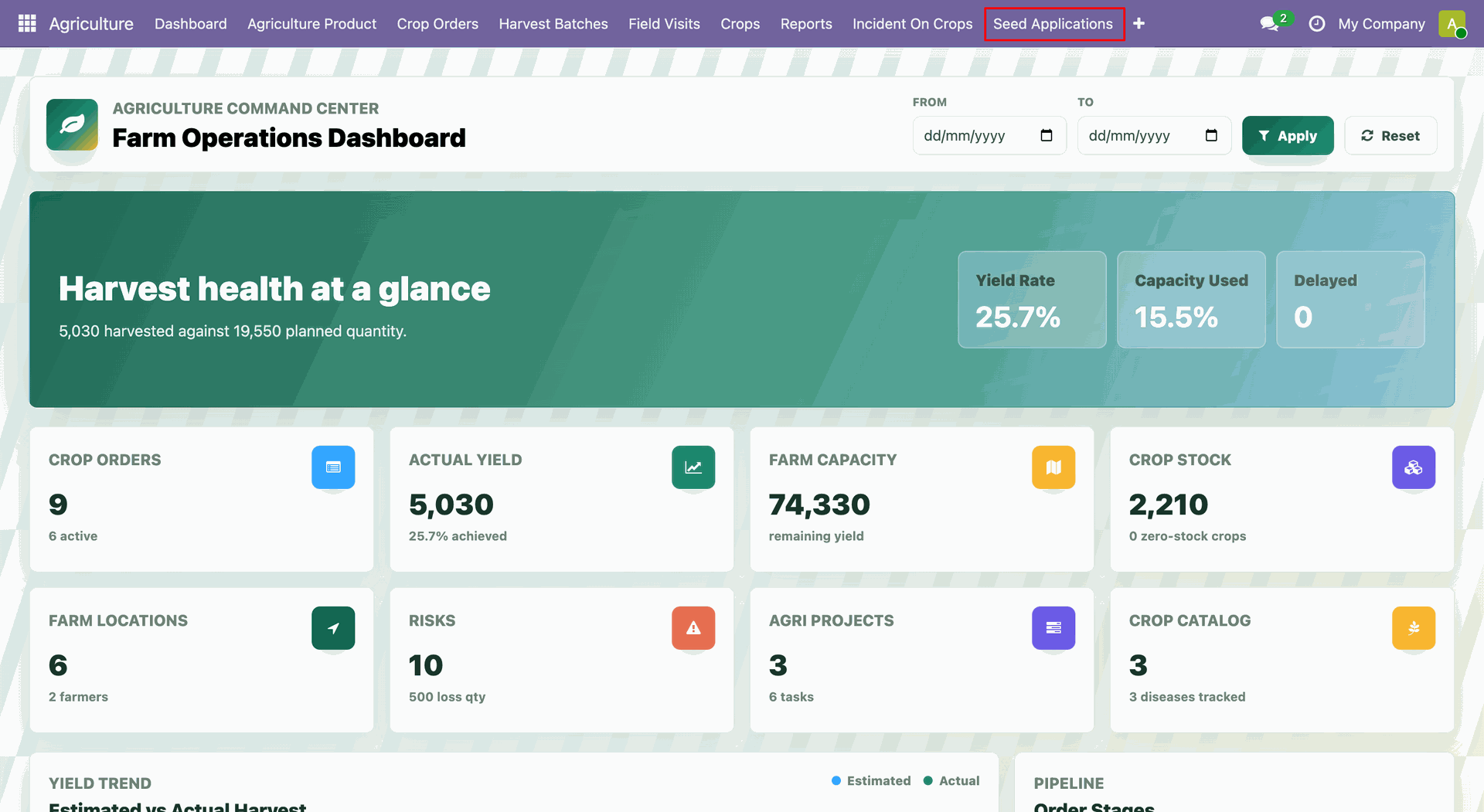
Open Agriculture -> Seed Applications.
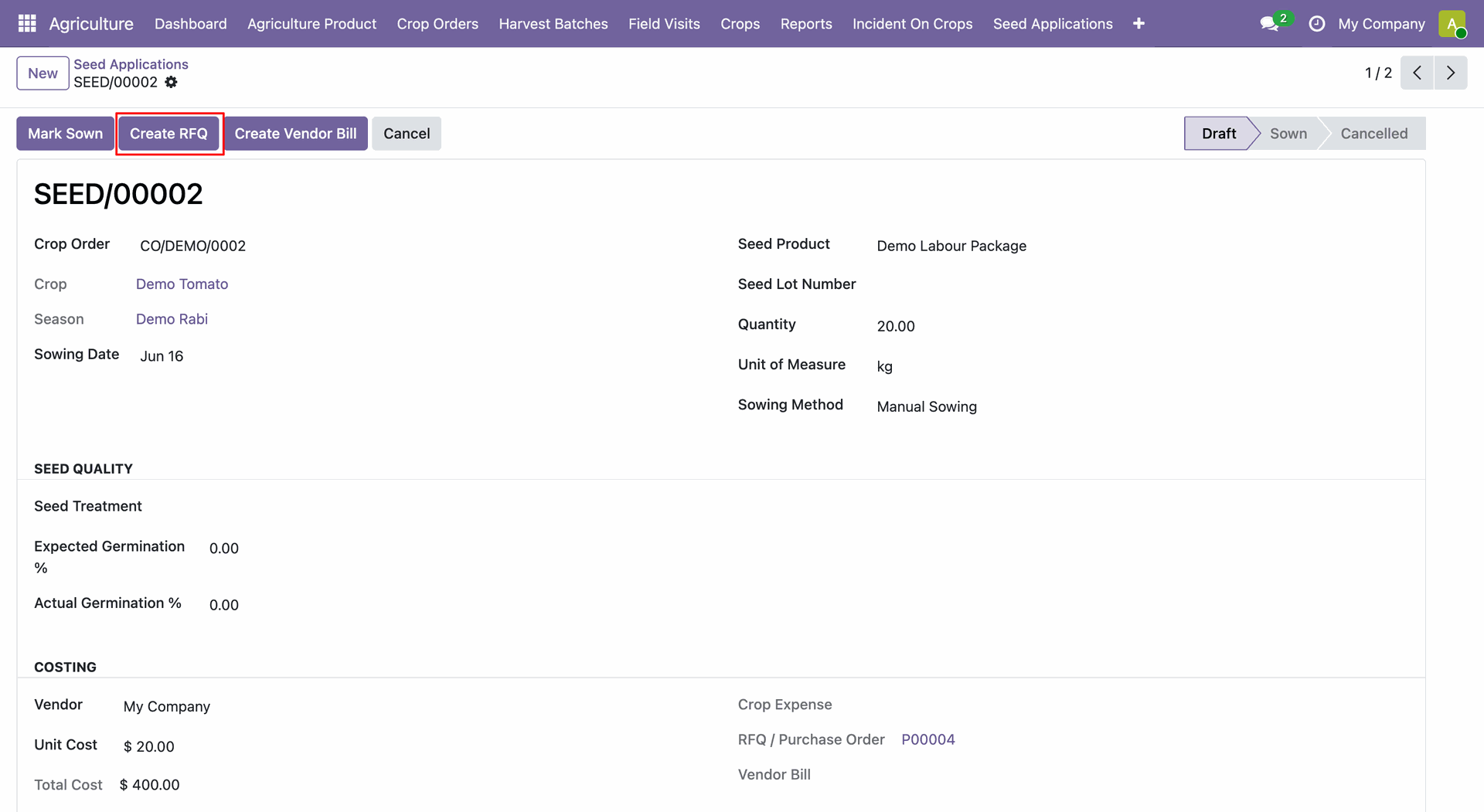
Create a seed application and click on Create RFQ button.
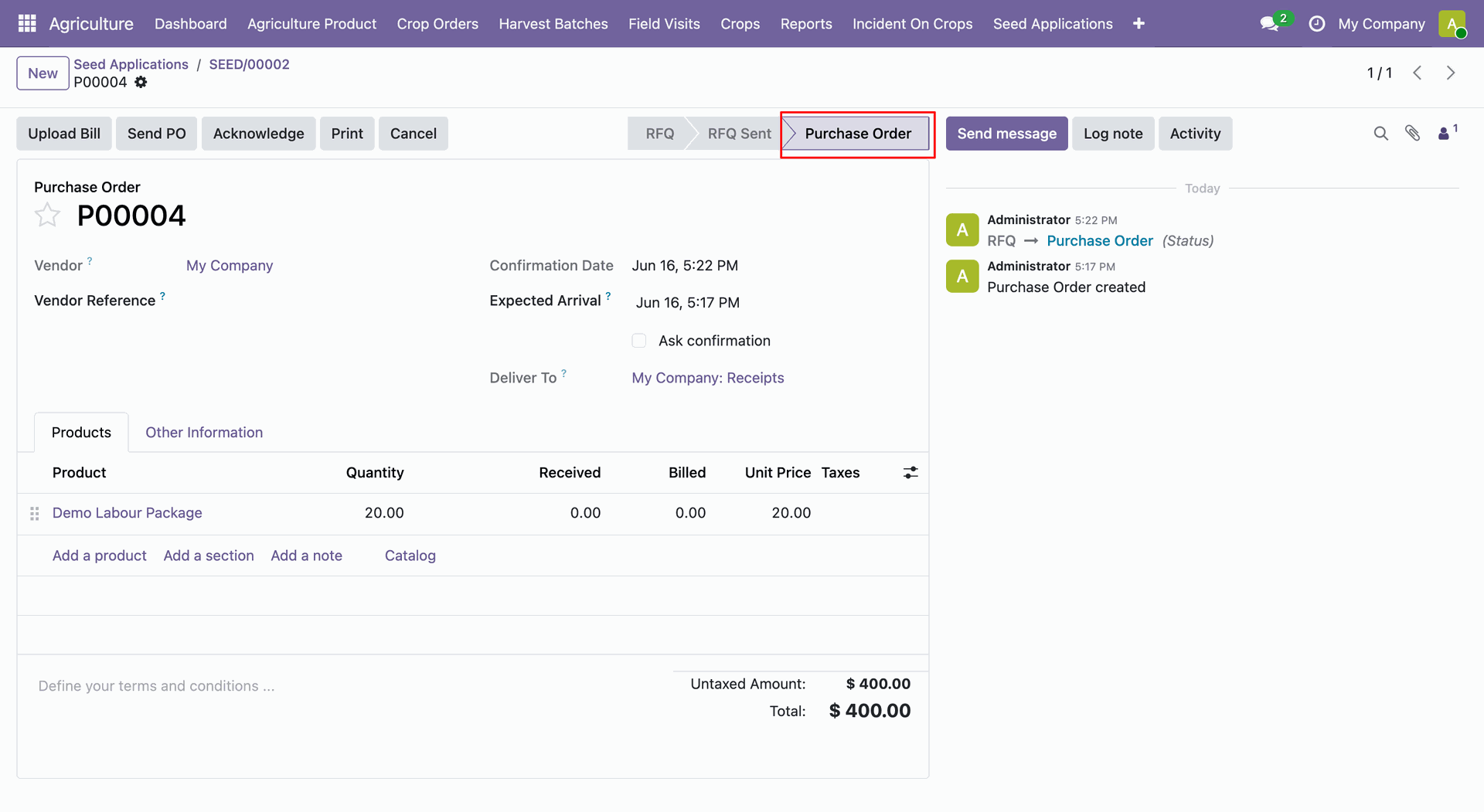
Purchase Order created from the seed application.
Open Agriculture -> Seed Application.
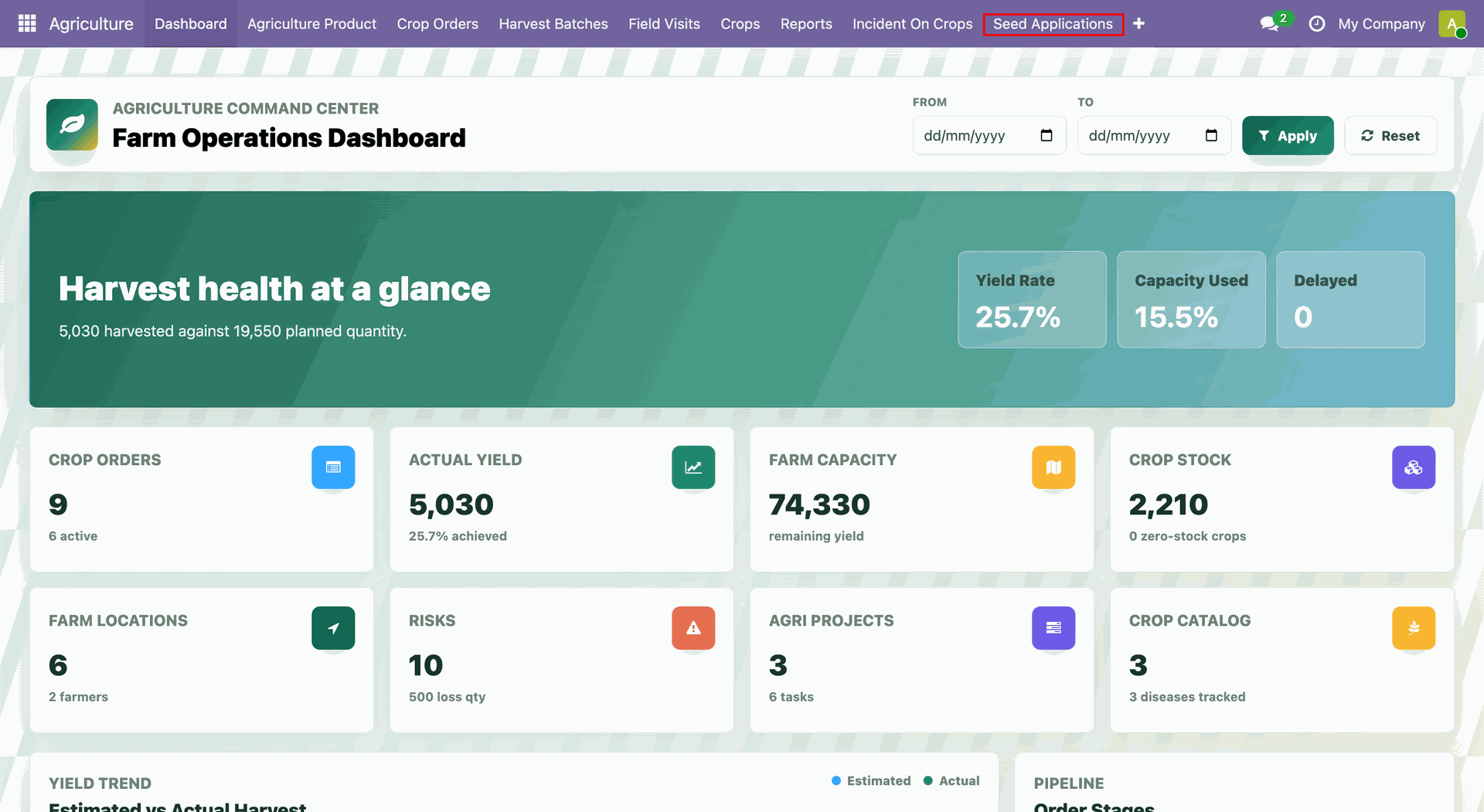
Create a seed application and click on Create Vendor Bill button.
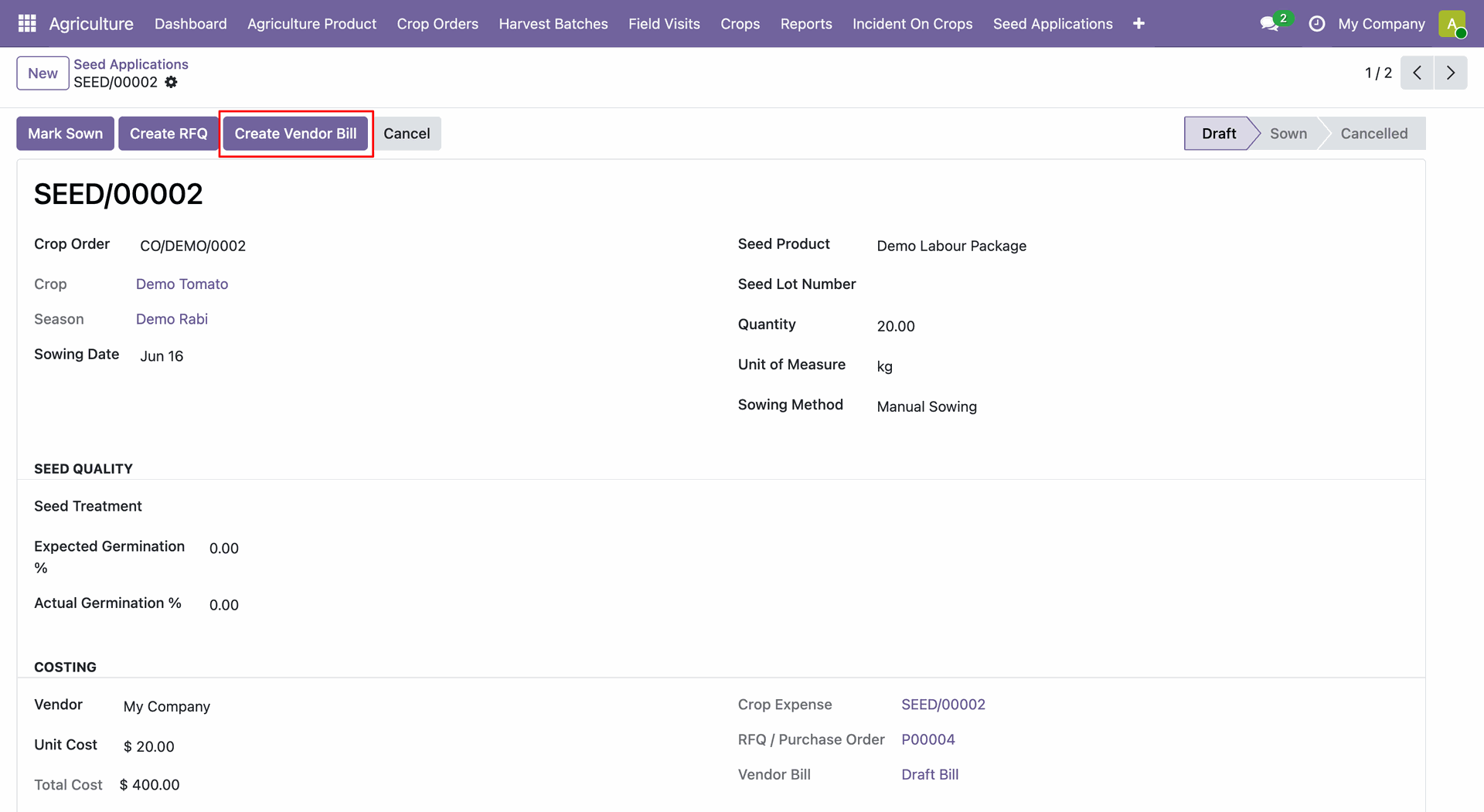
Vendor bill created from the seed application.
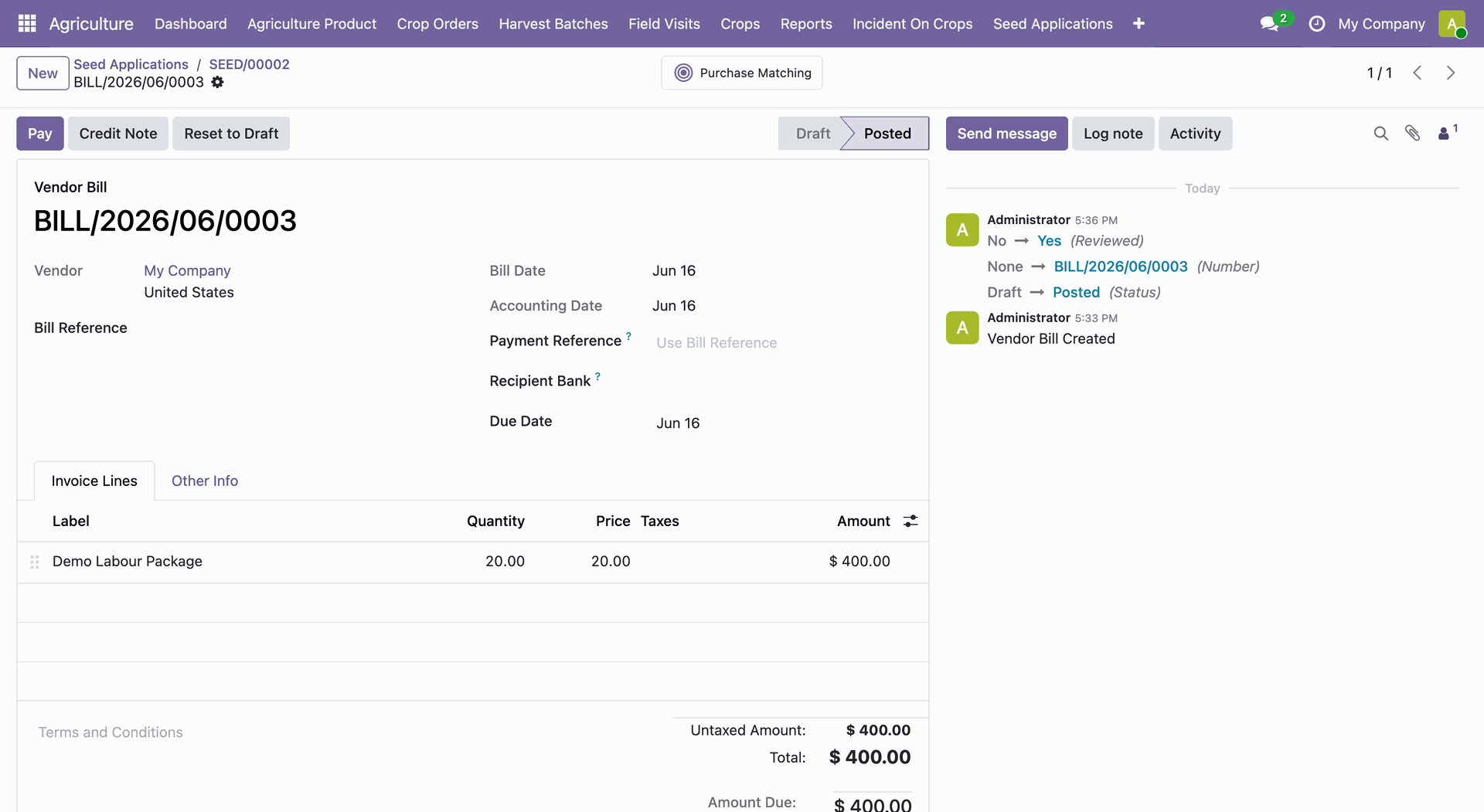
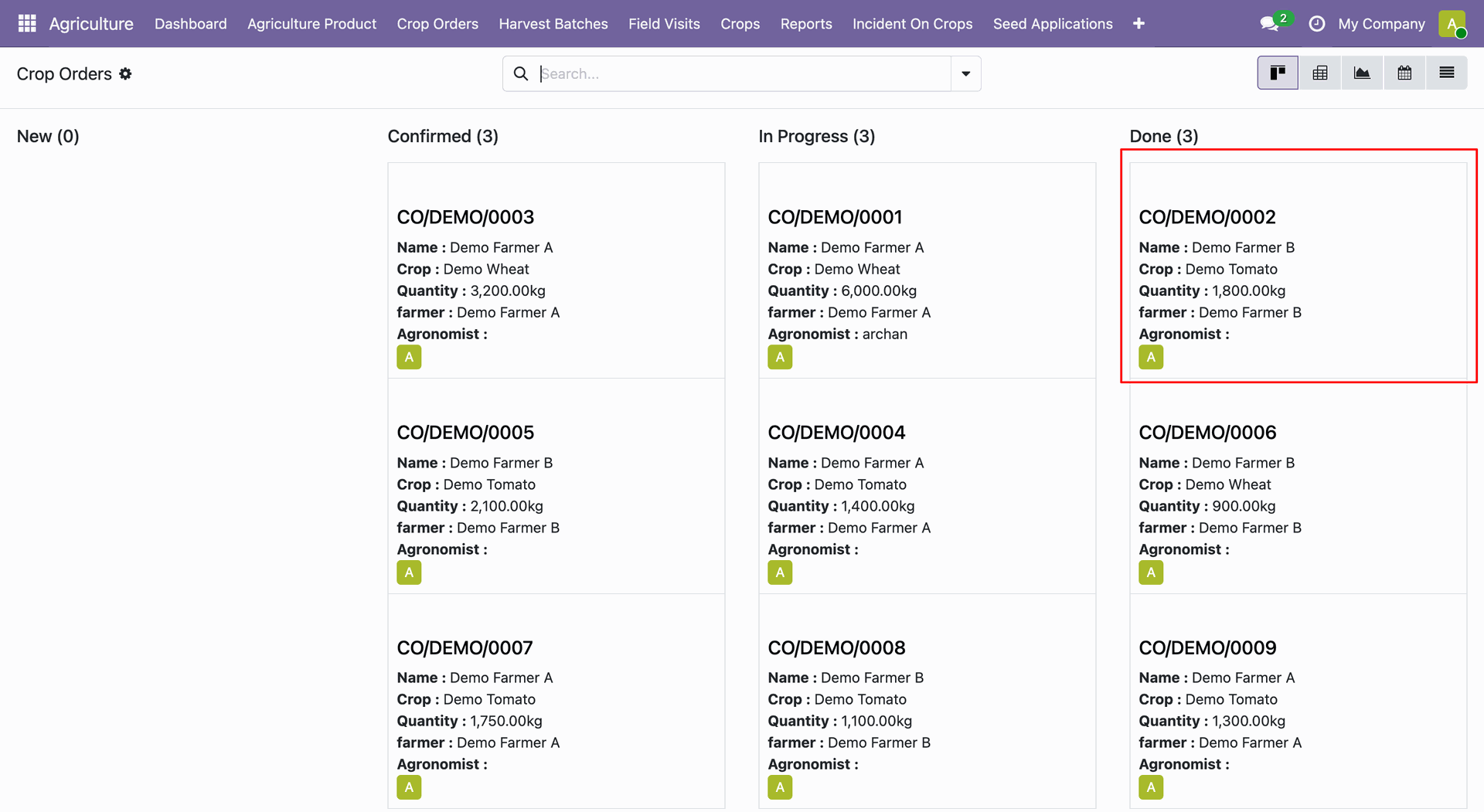
Open Agriculture -> Crop Orders.
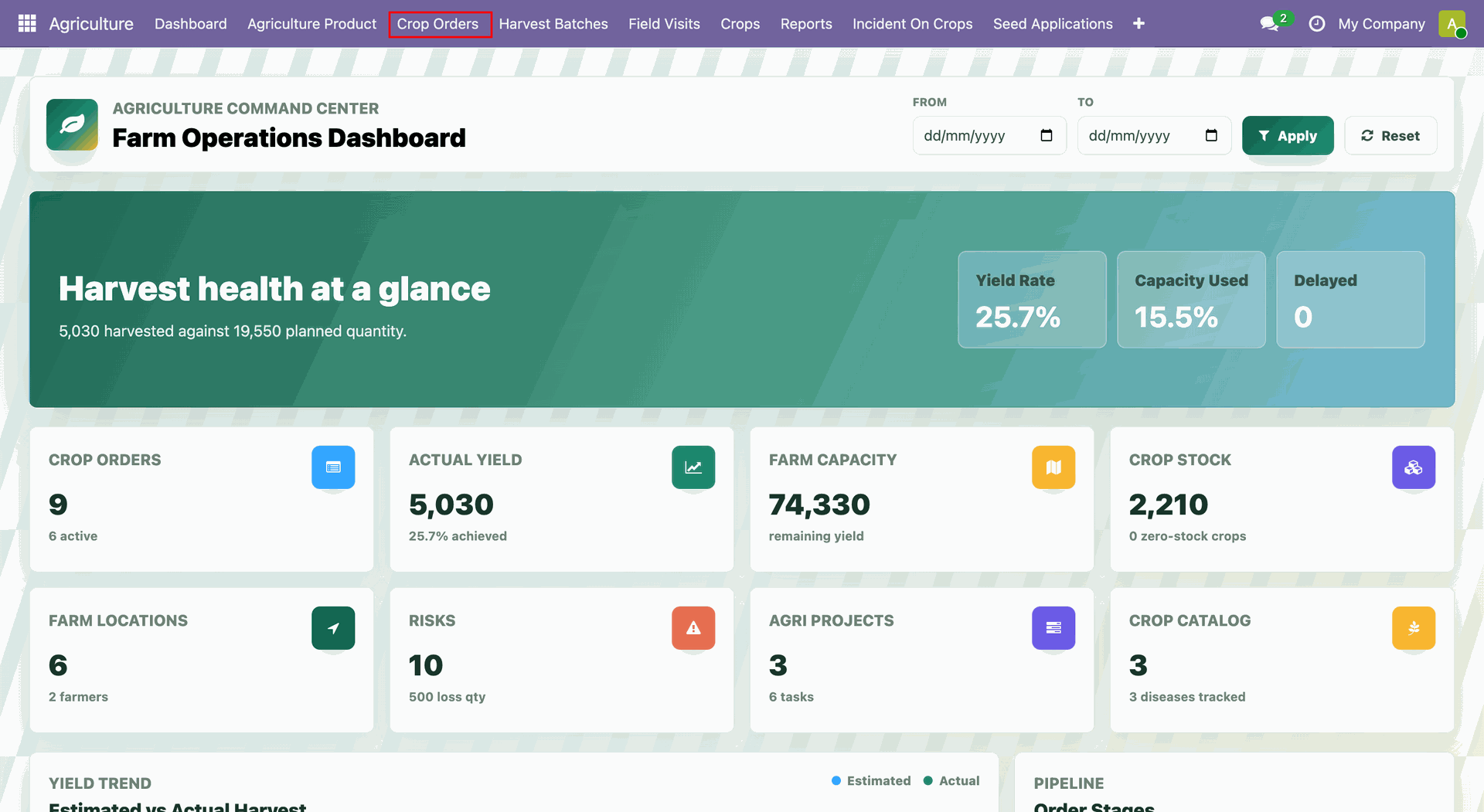
Crop order kanban view. Open the done order.
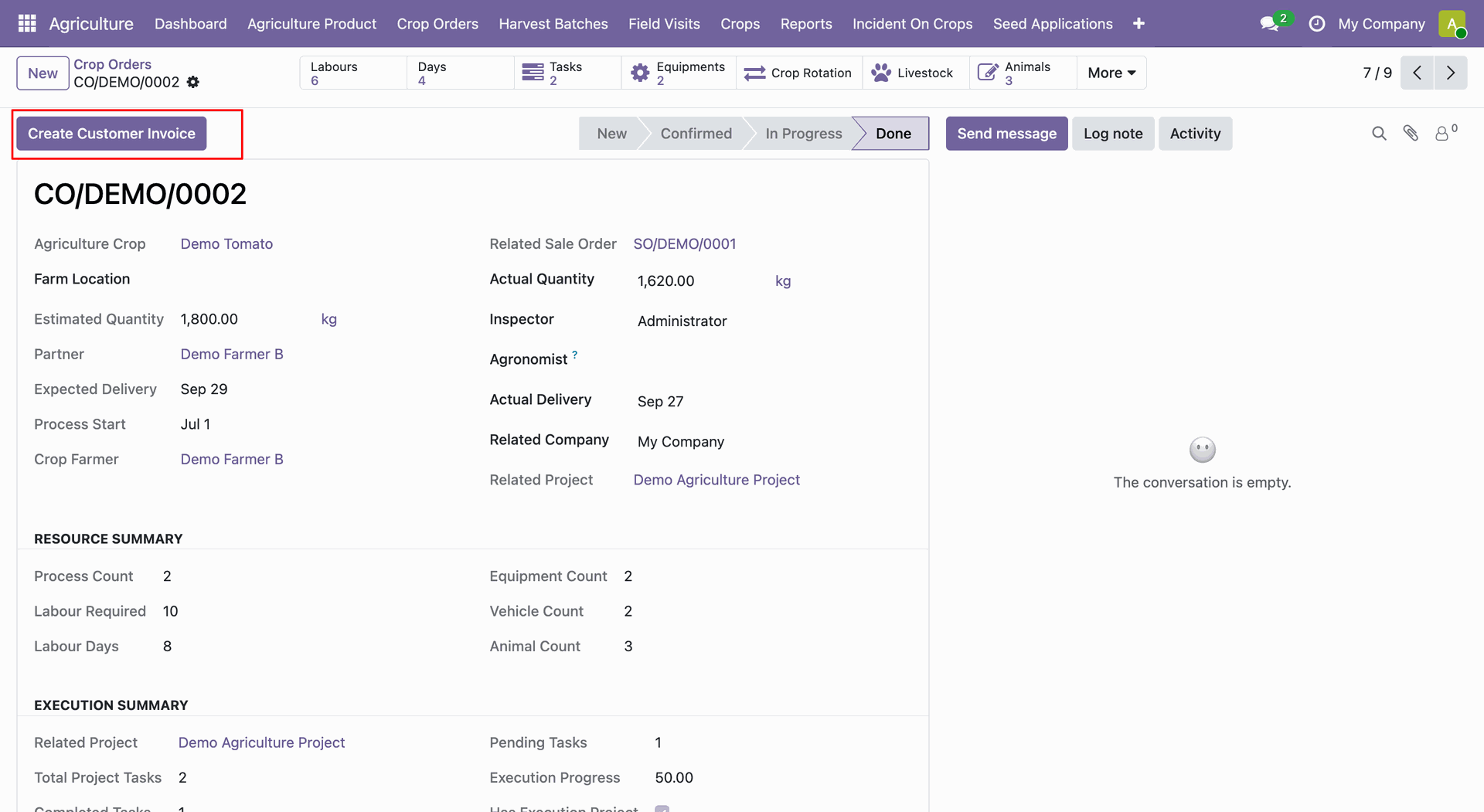
Click on the Create Customer Invoice button from the crop order.
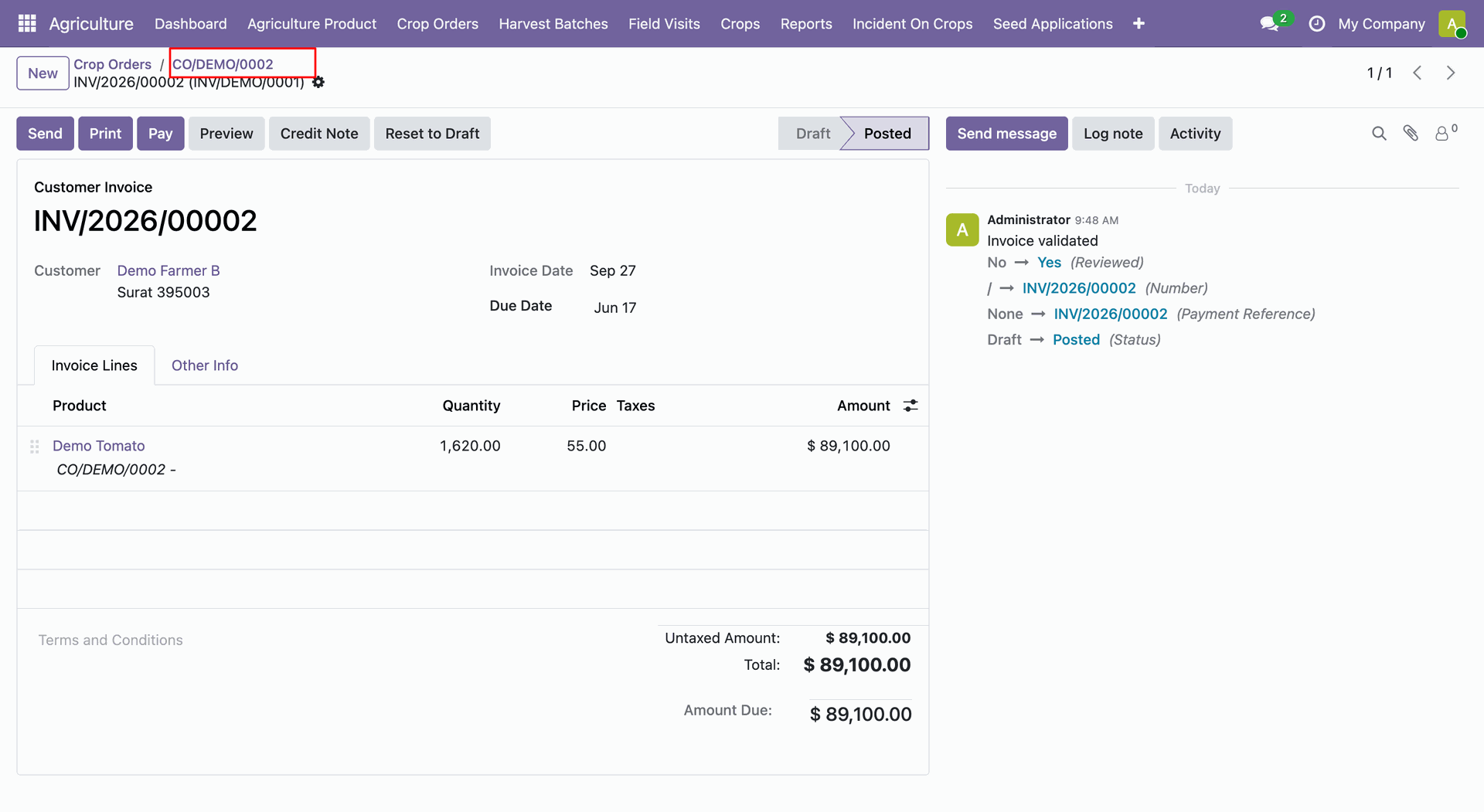
Customer Invoice created from the crop order.
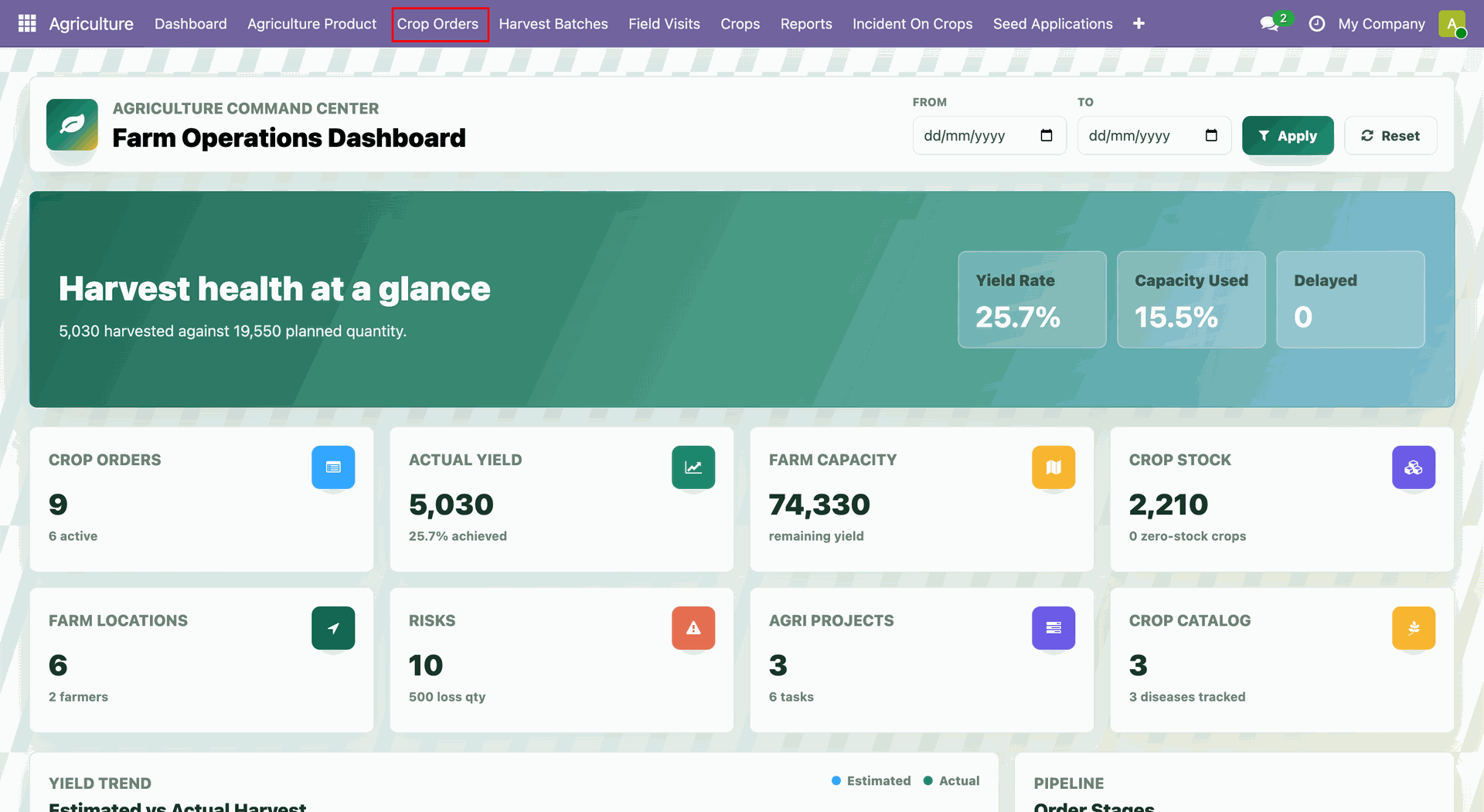
Open Agriculture → Crop Orders.
Open the crop order and user can see the Growth stage tab. Growth stage tab displays the selected Crop Growth record.
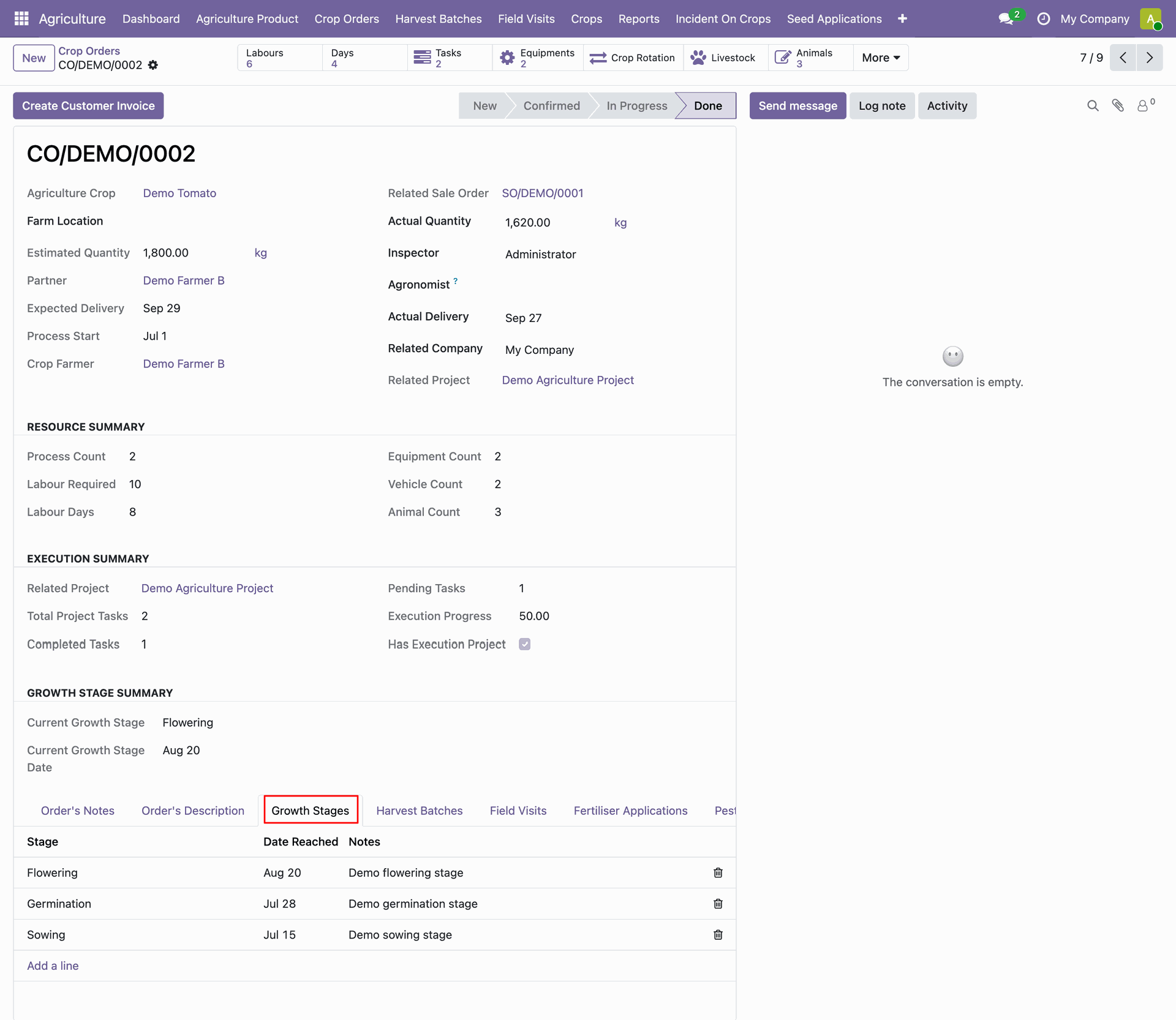
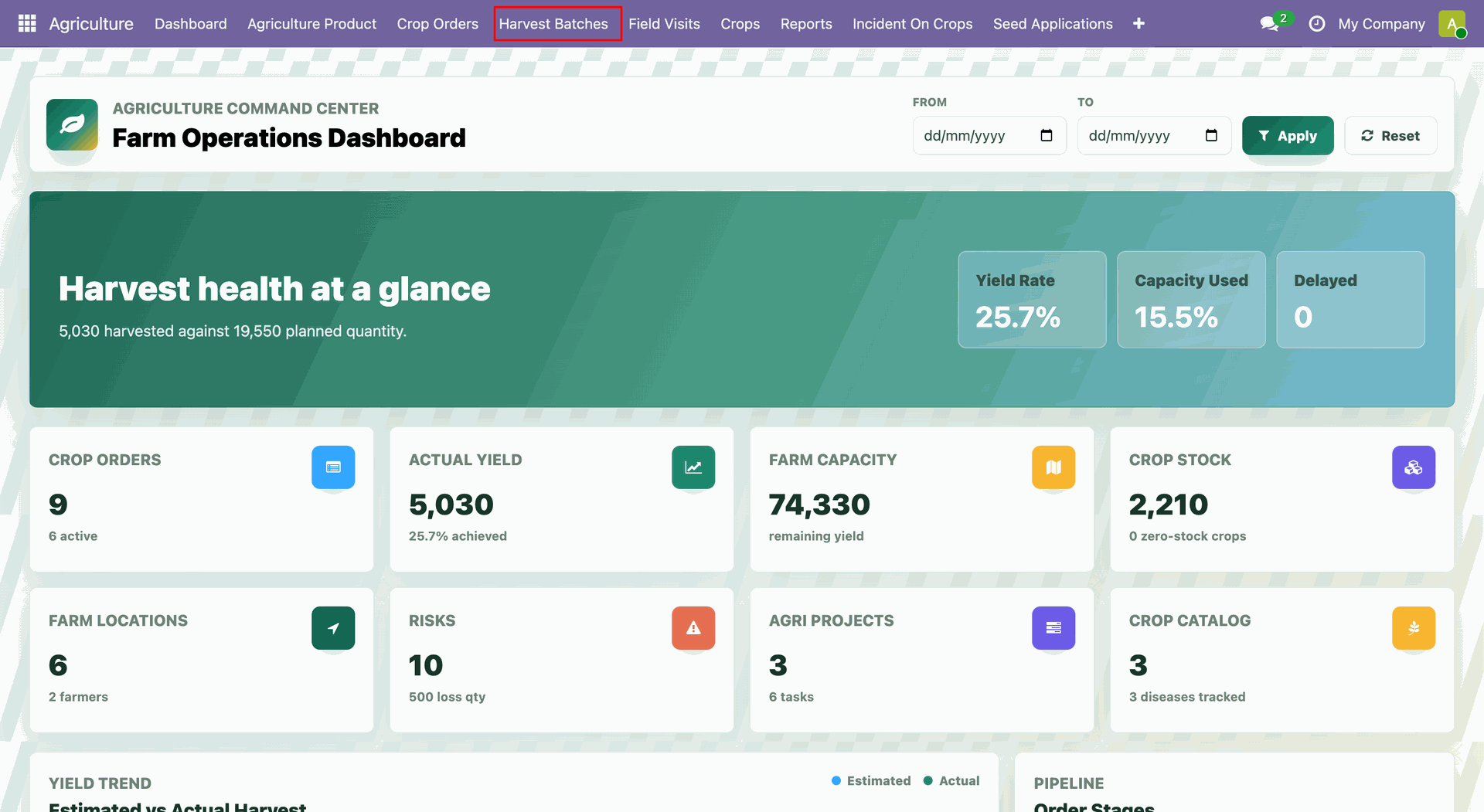
Open Agriculture -> Harvest Batches.
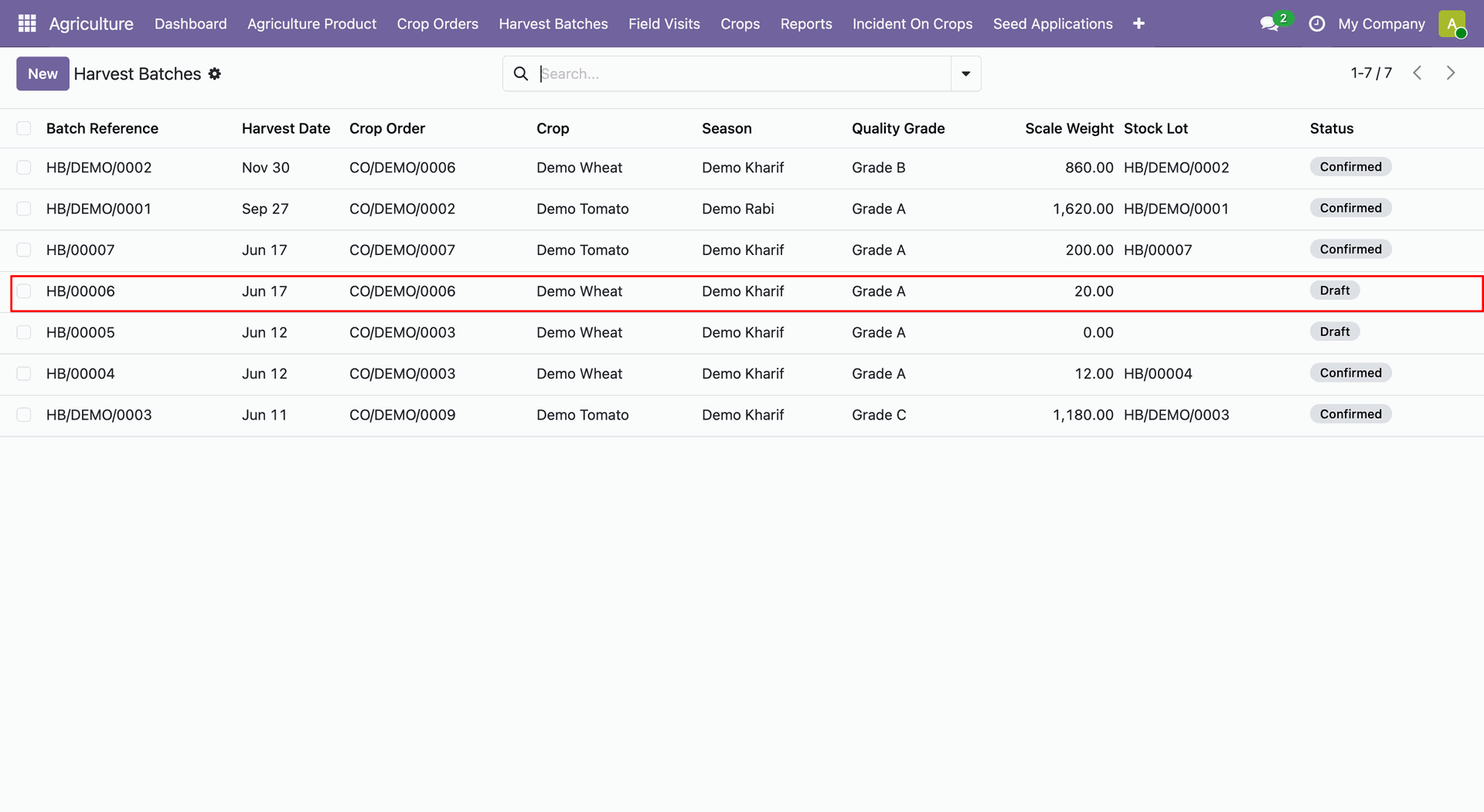
The Harvest Batch list view displays batches reference number with crop order, season, crop, quality grade, scale weight, stock lot and status details.
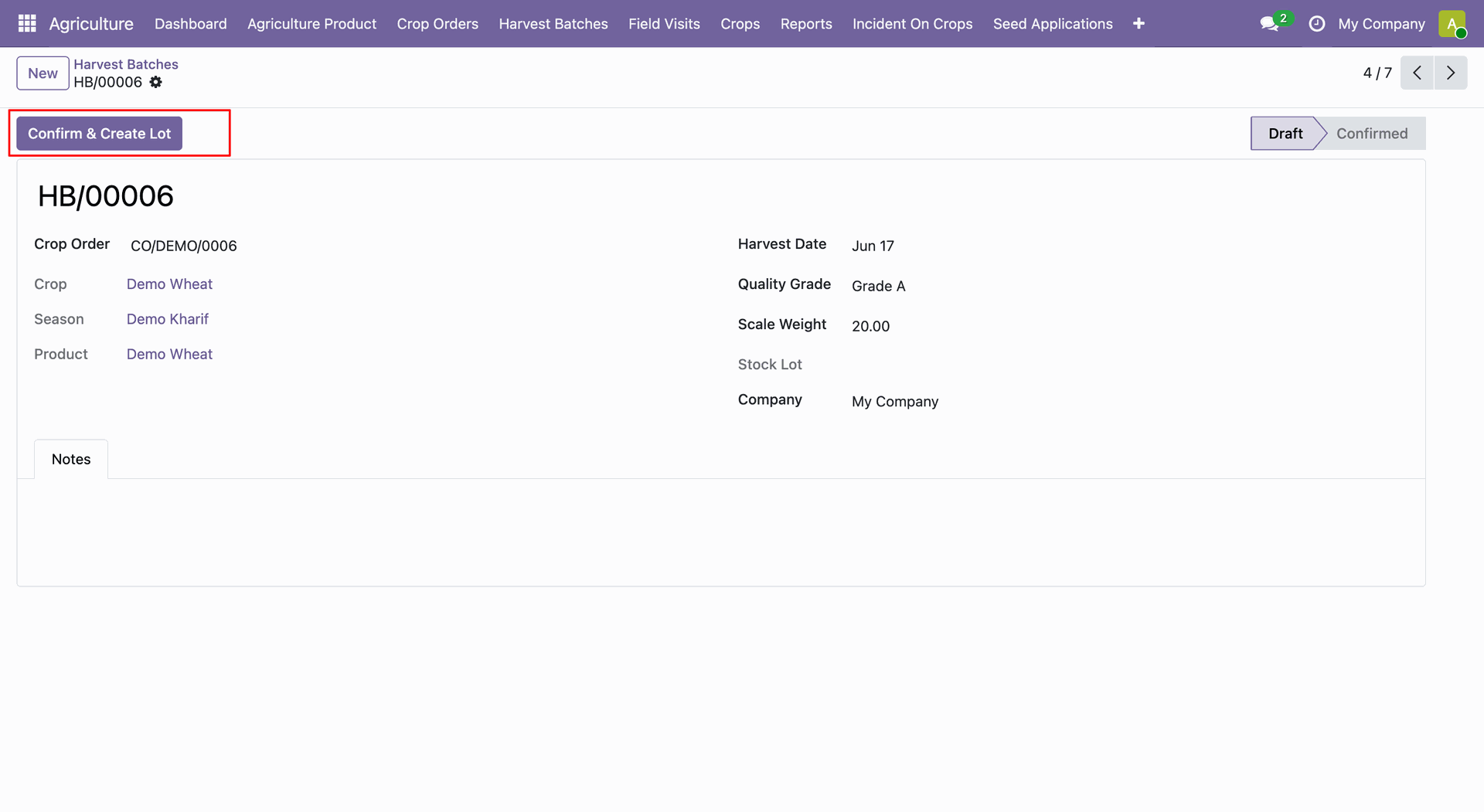
The selected draft Harvest Batch form shows detailed information. Click on Confirm & Create Lot button.
The Harvest Batch order confirmed and create stock lot. Stock lot smart button visible on the form view.
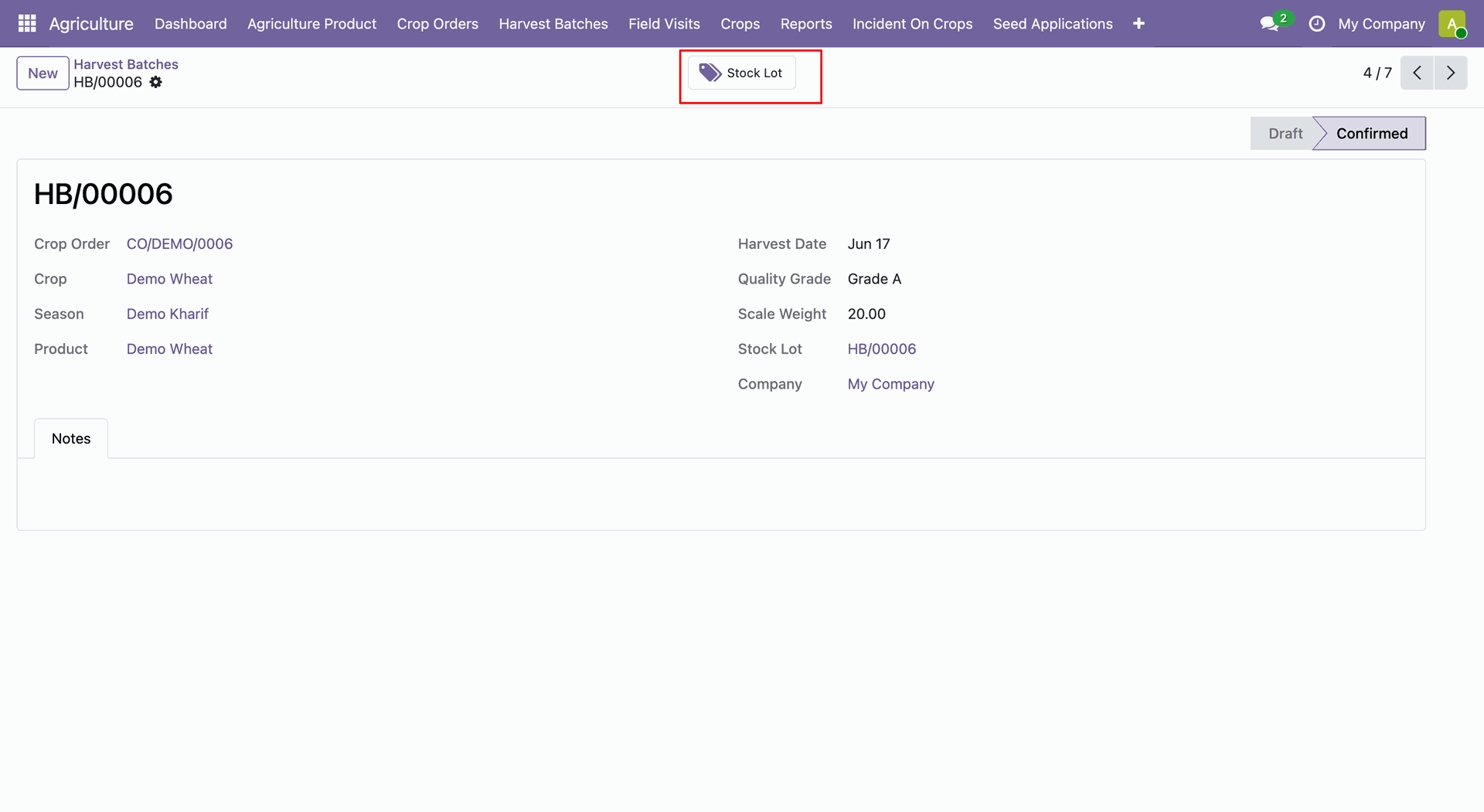
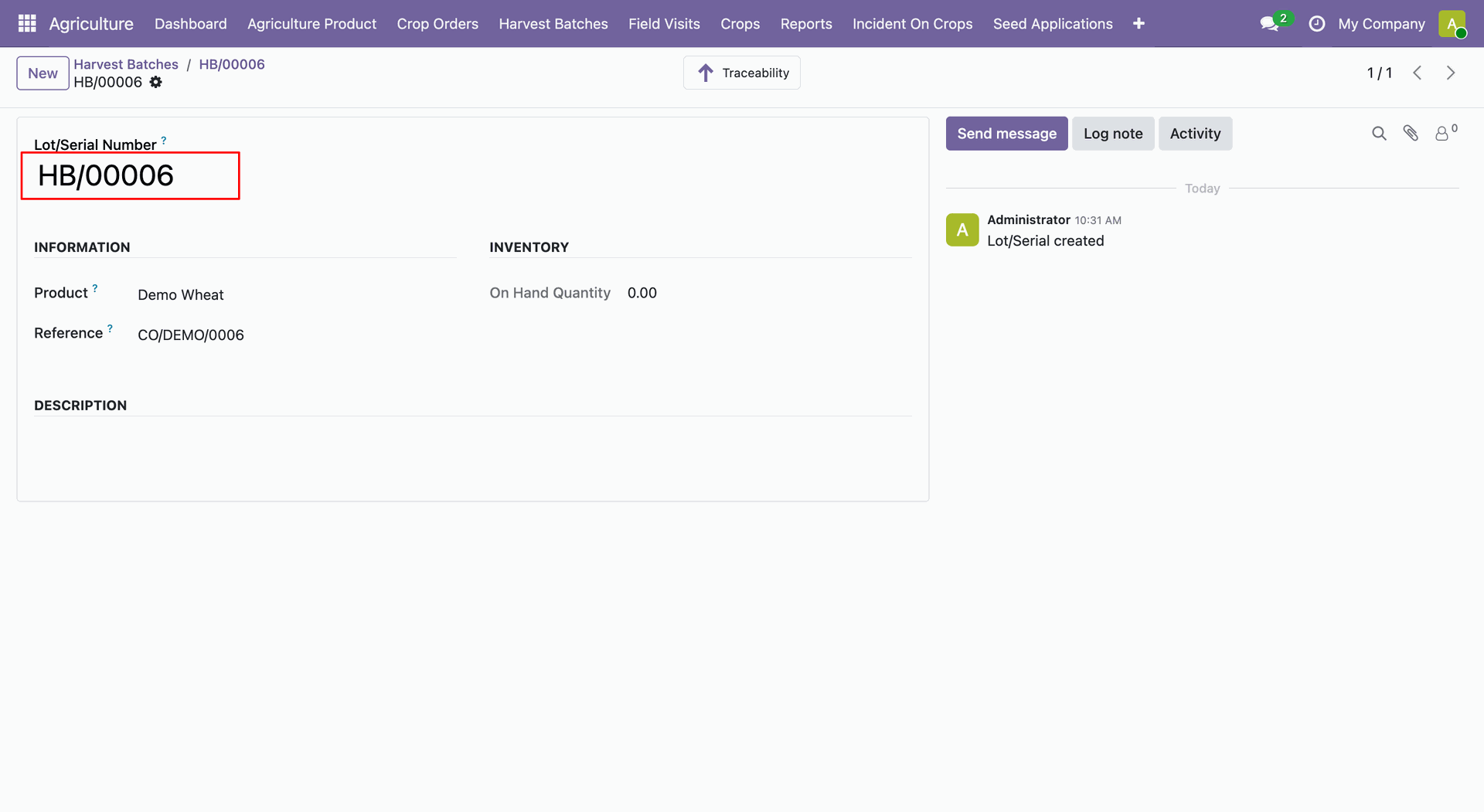
Click on the stock lot smart button will open a stock lot form view.
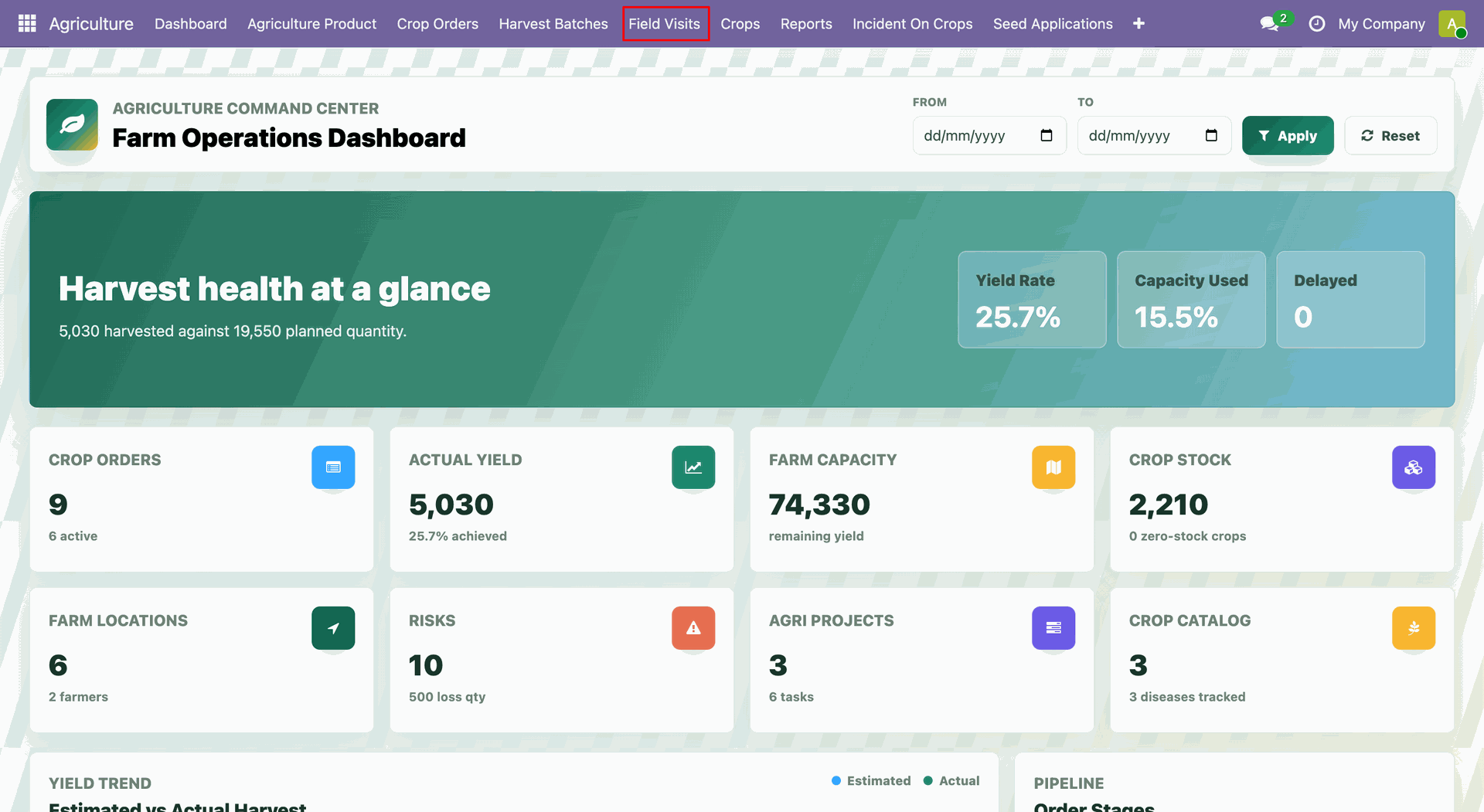
Open Agriculture -> Field Visits.
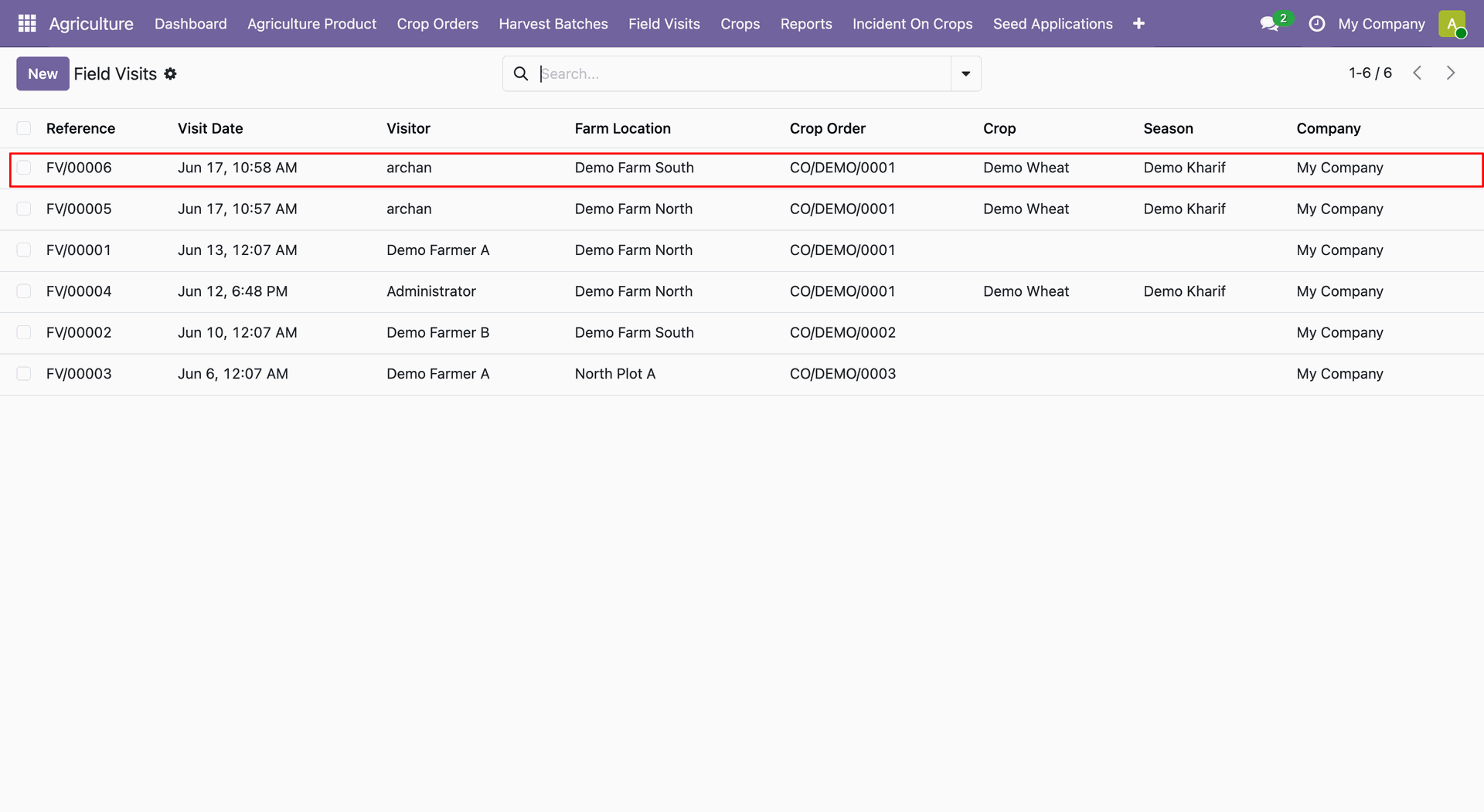
The Field Visit list view displays visitor, visit date, farm location, crop order, crop and season details.
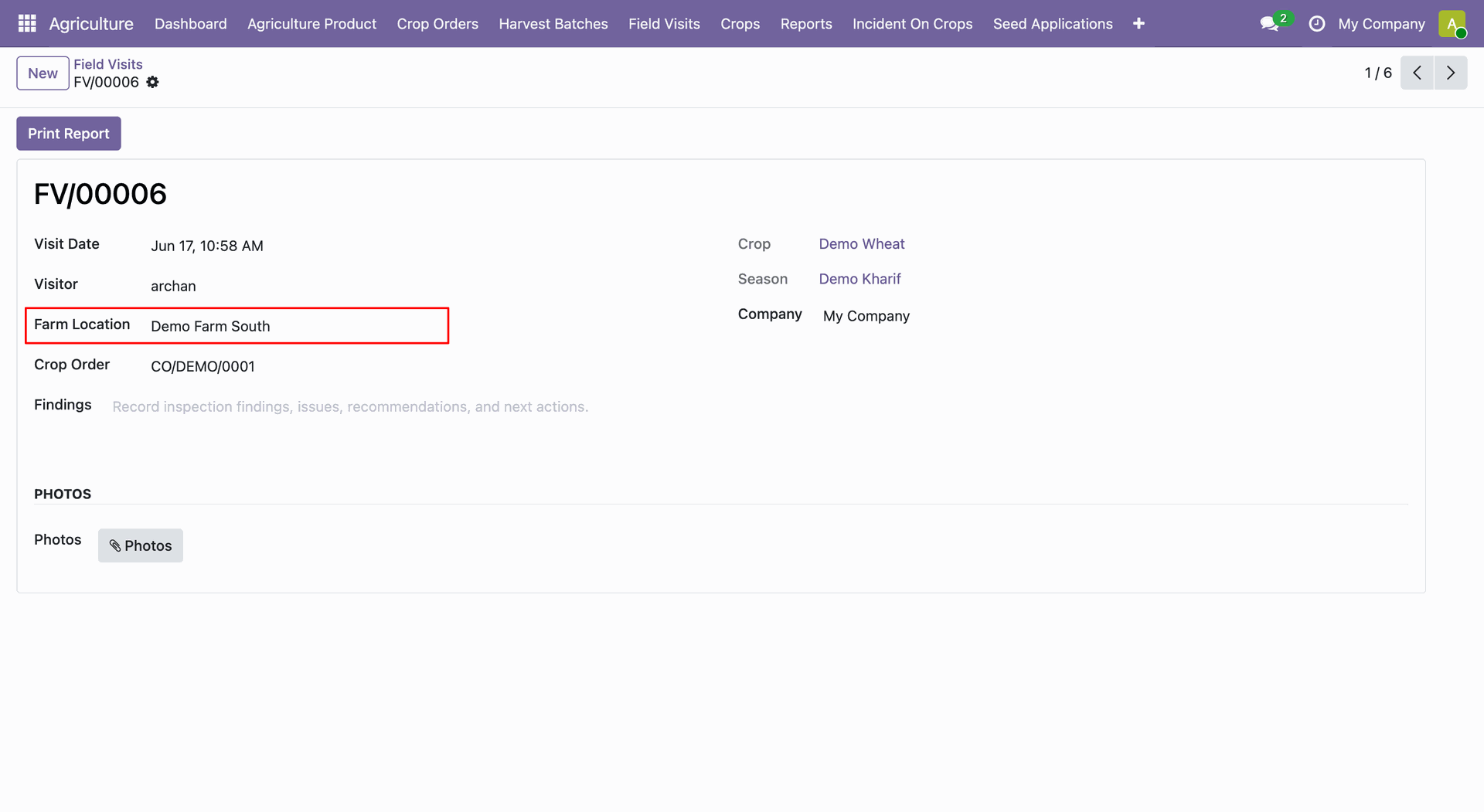
The selected Field Visit form view shows detailed information.
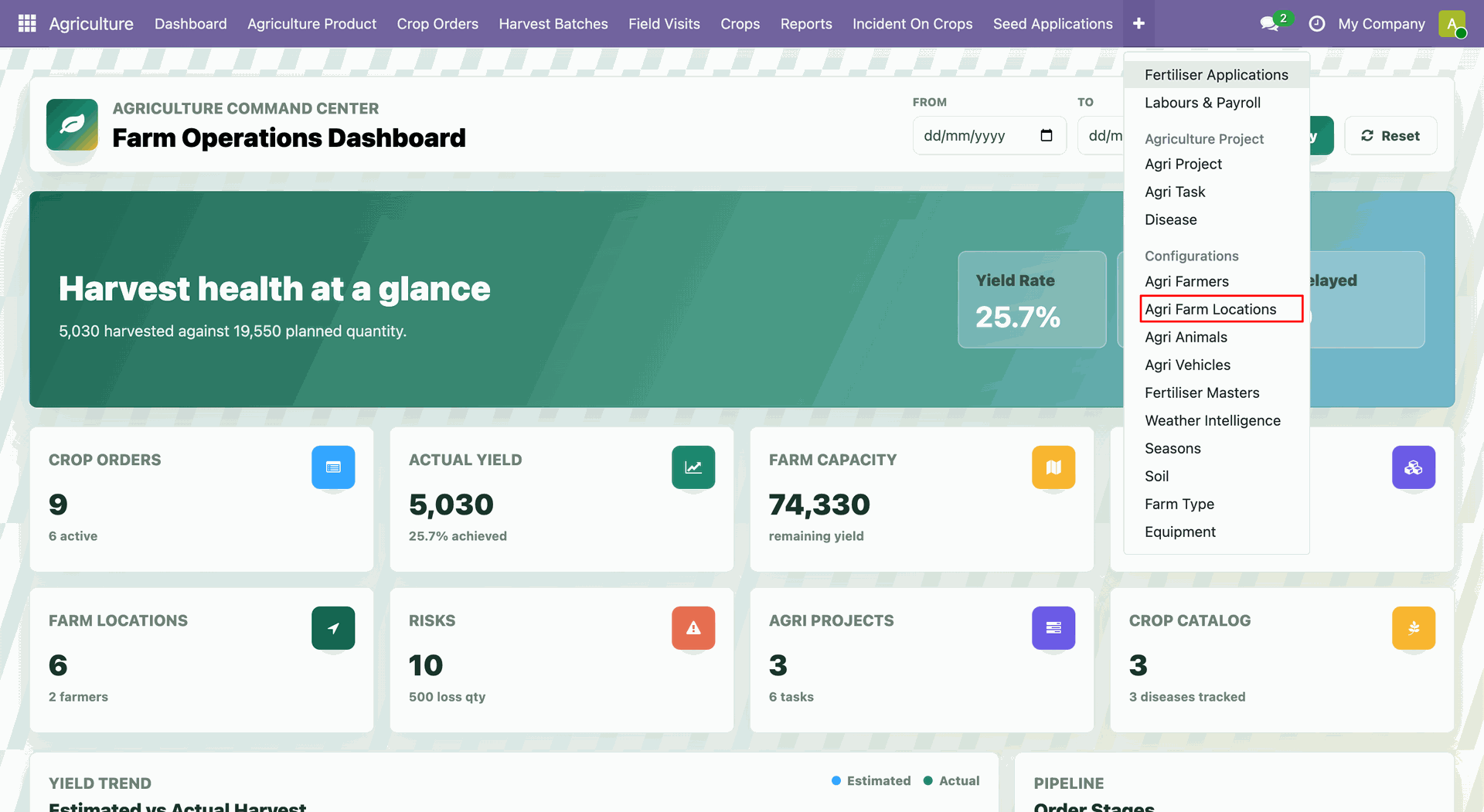
Open Agriculture -> Agri Farm Locations.
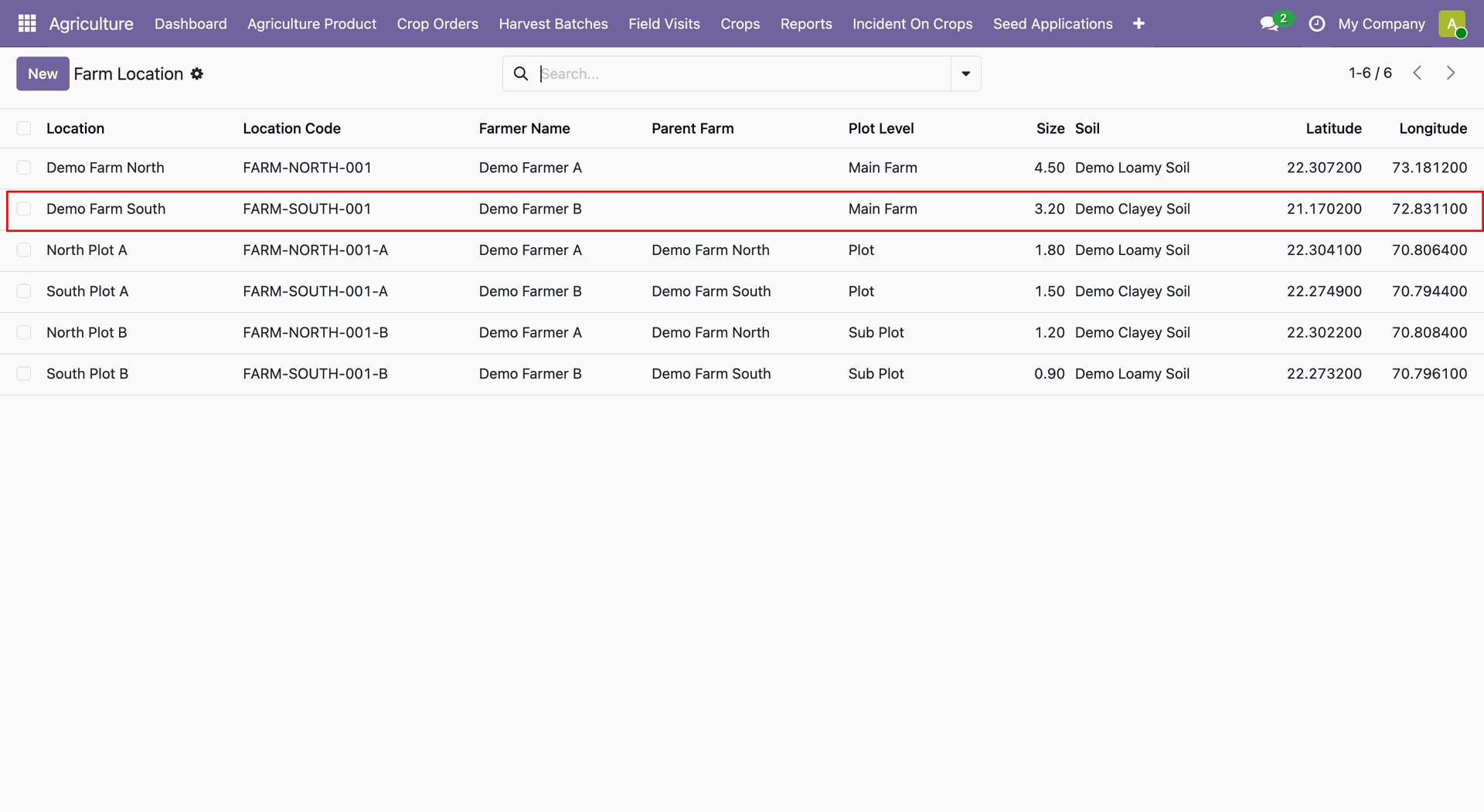
Agri Farm Location list view. Select location and open the record.
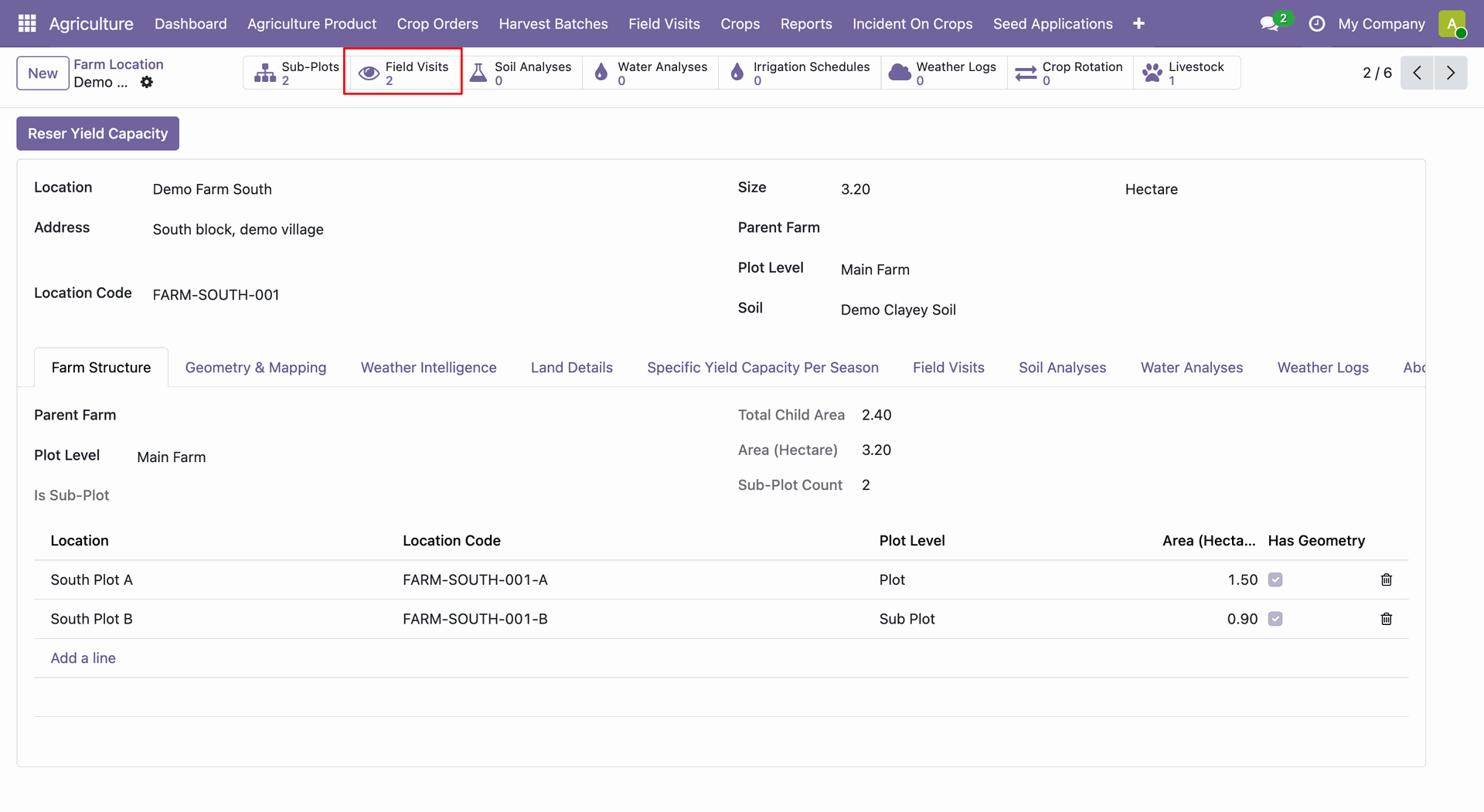
The selected farm location form view displays field visit smart button.
Click on the field visit smart button will open field visit list view.
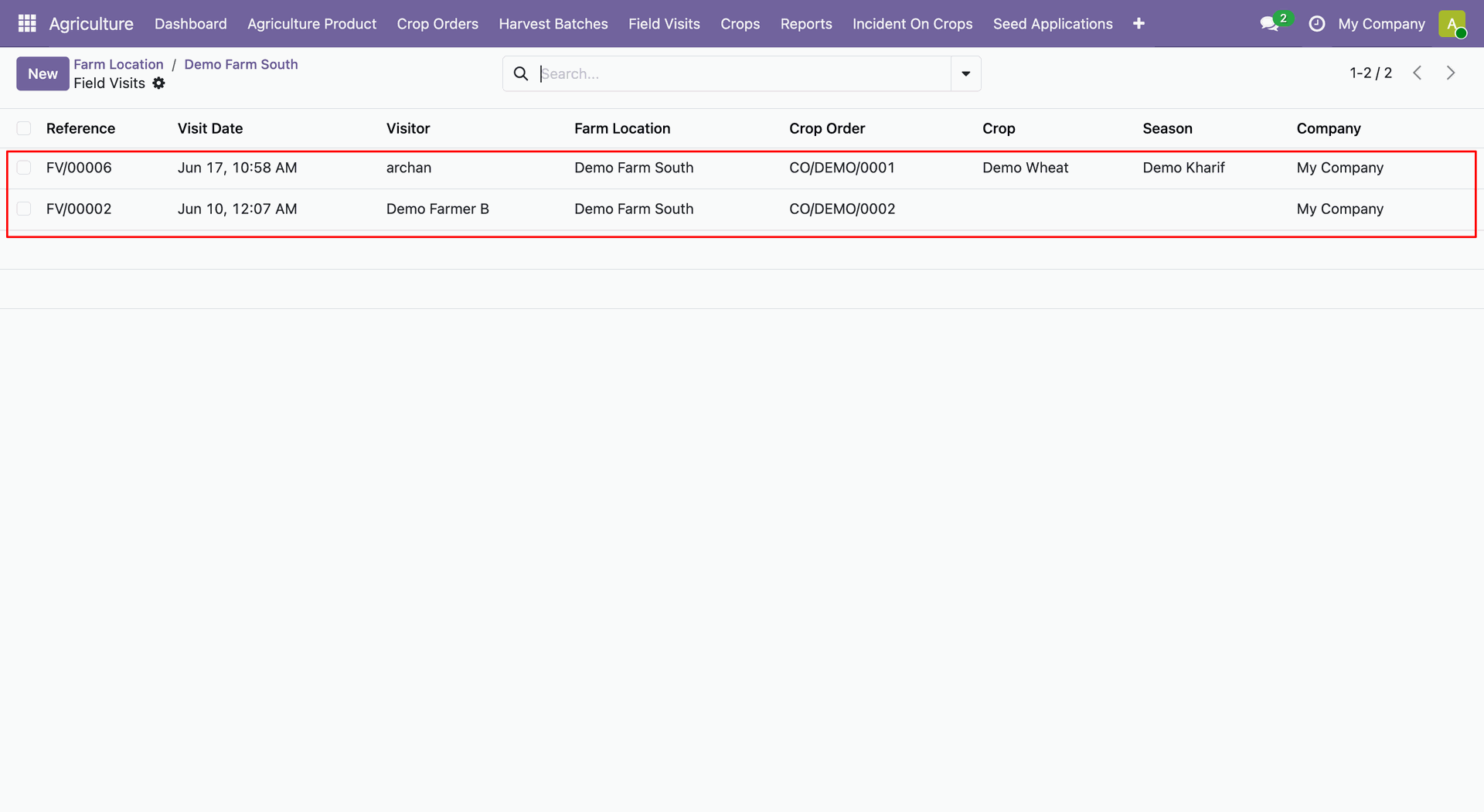
Open the field visit record from the list view.
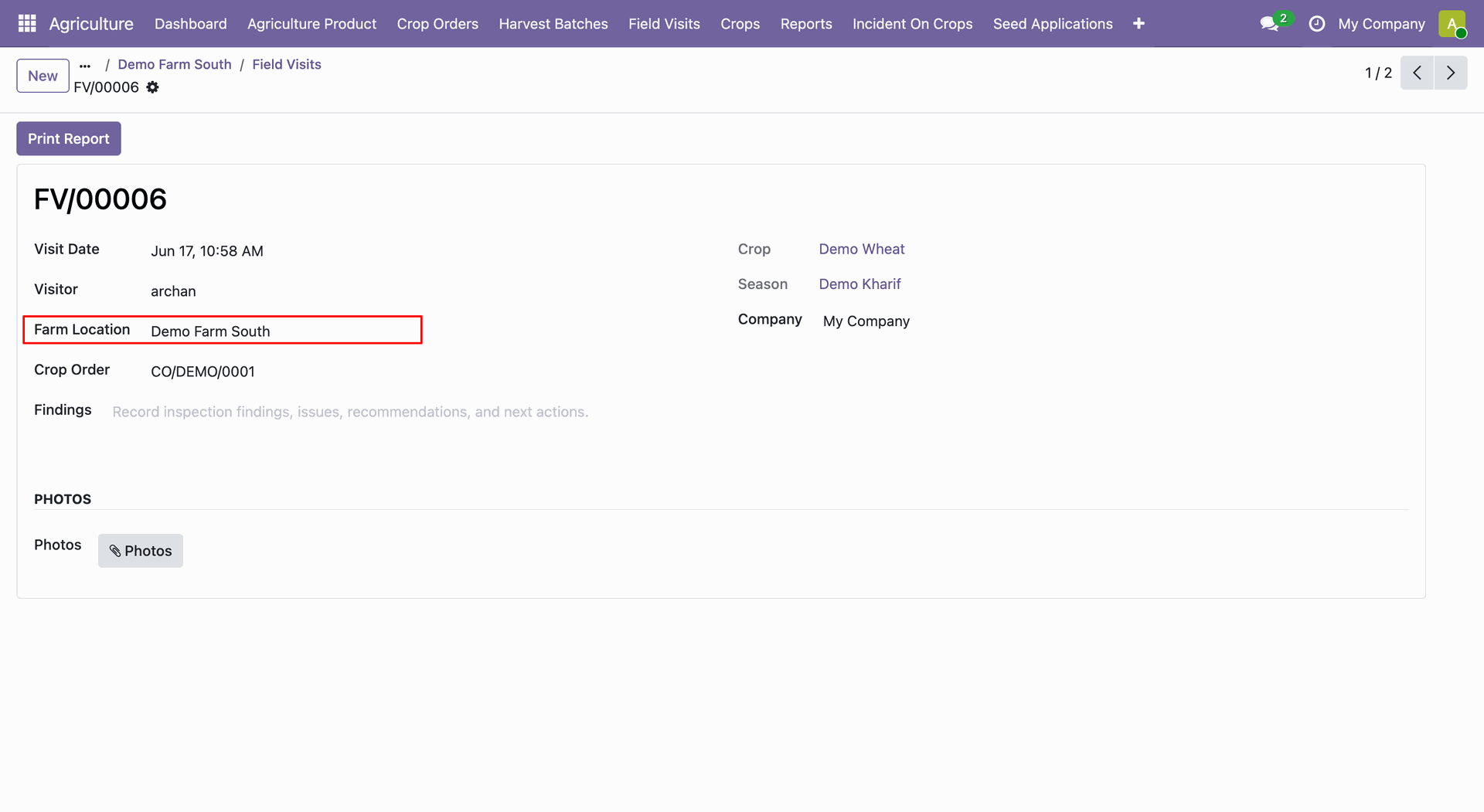
Use Odoo Settings -> Users & Companies.
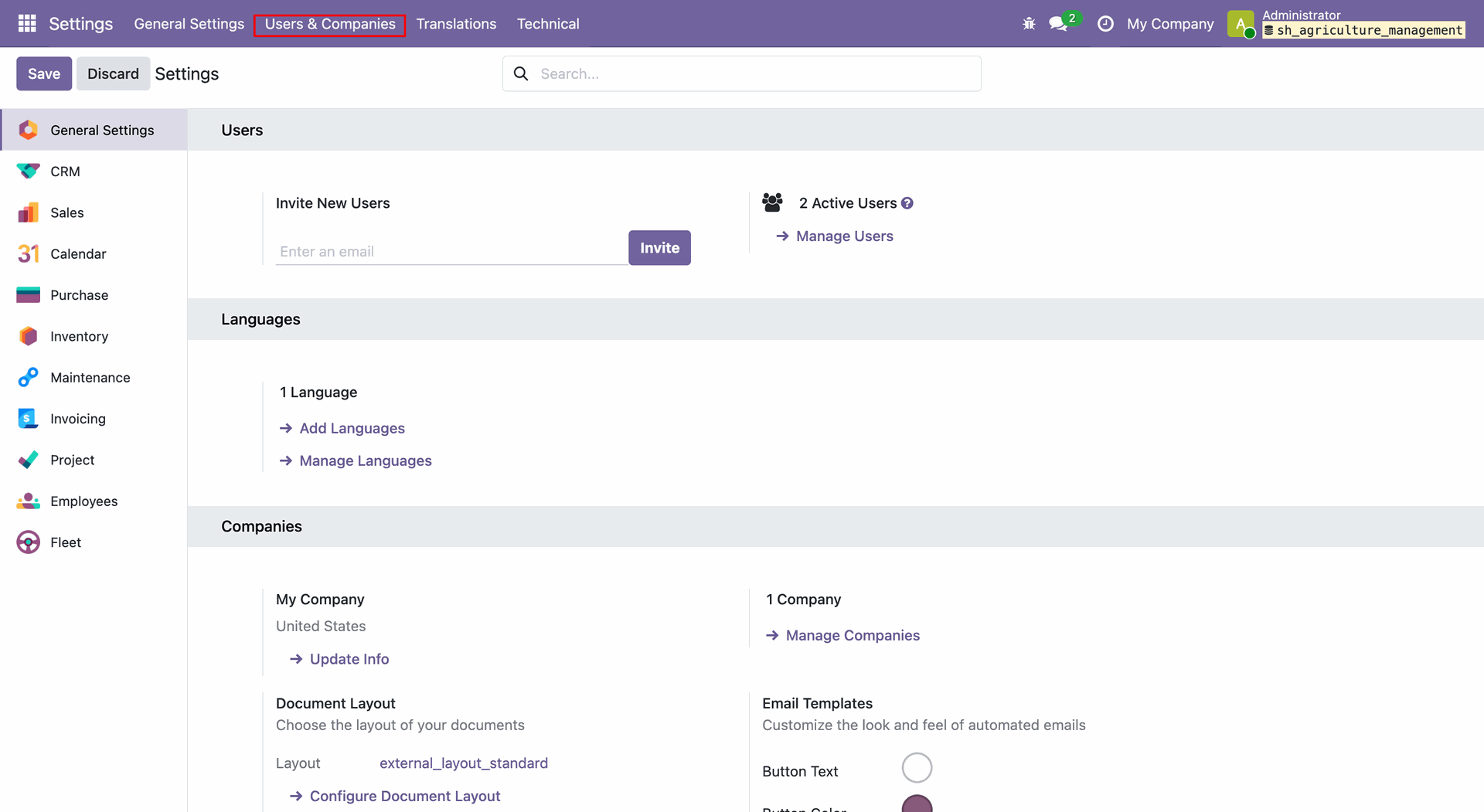
Use Odoo Settings -> Users & Companies -> Users. Set Agriculture manager to the selected user.
Use Odoo Settings -> Users & Companies -> Users. Set Agriculture Agronomist to the selected user.
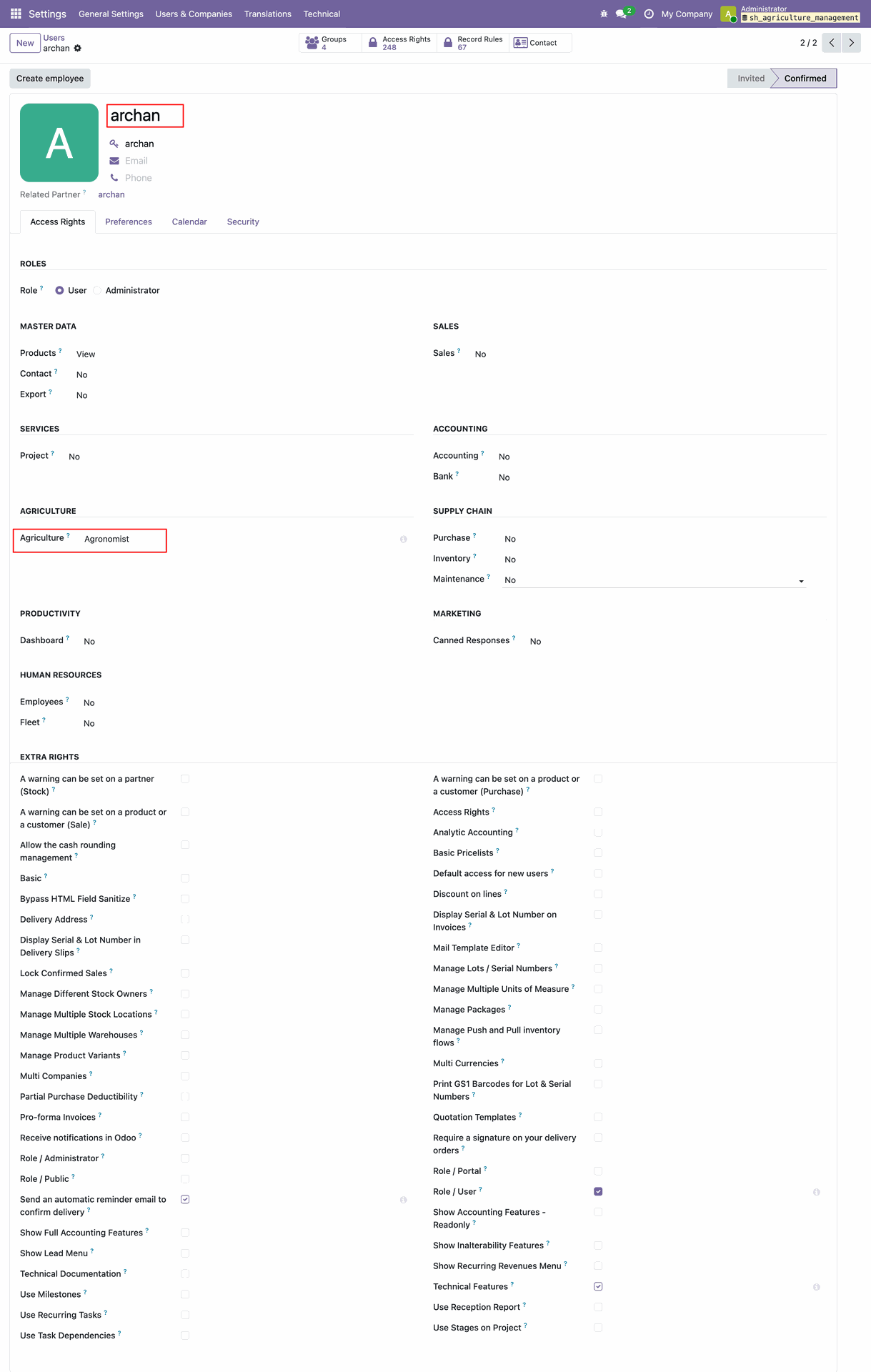
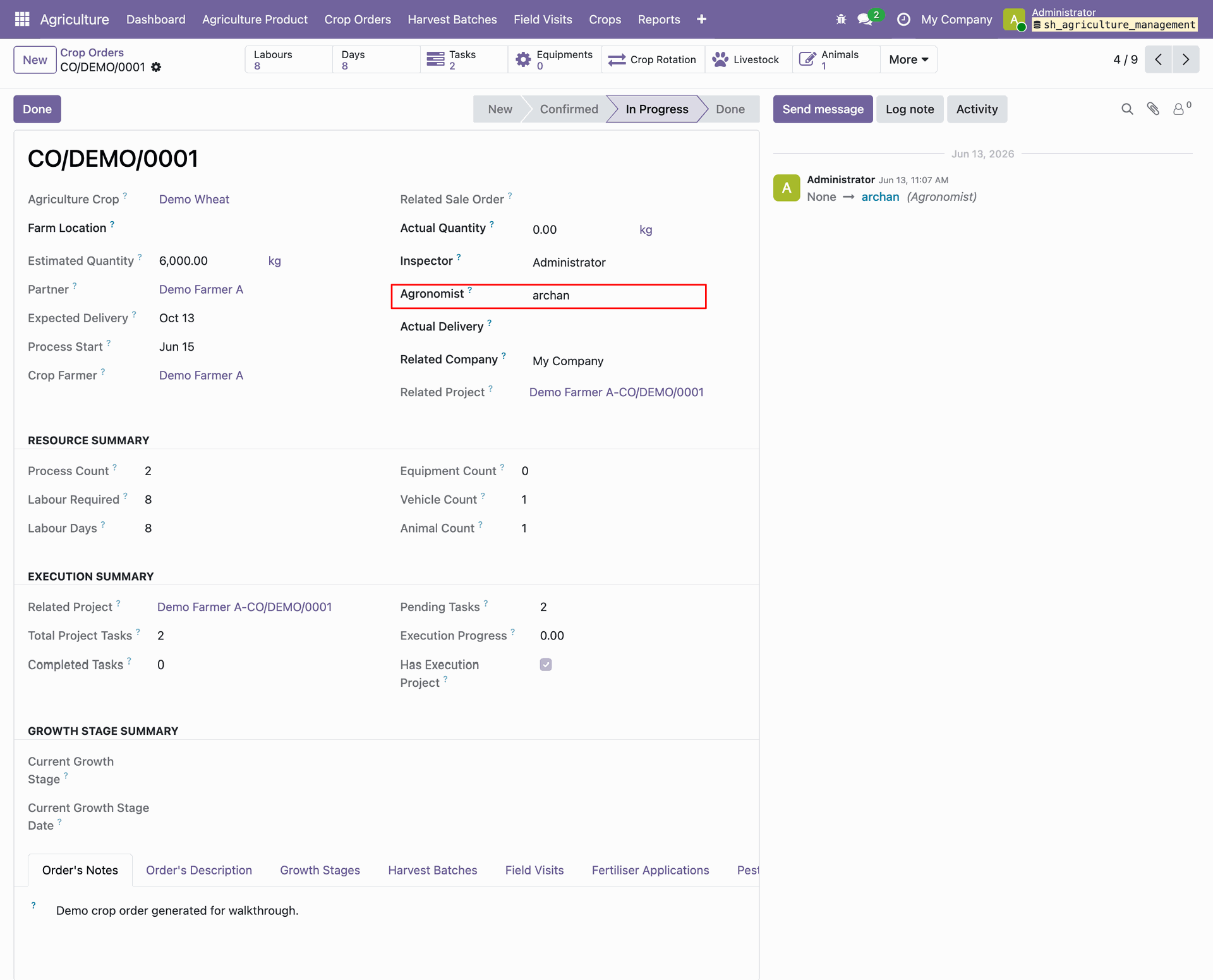
Open the crop order and select the Agronomist user.
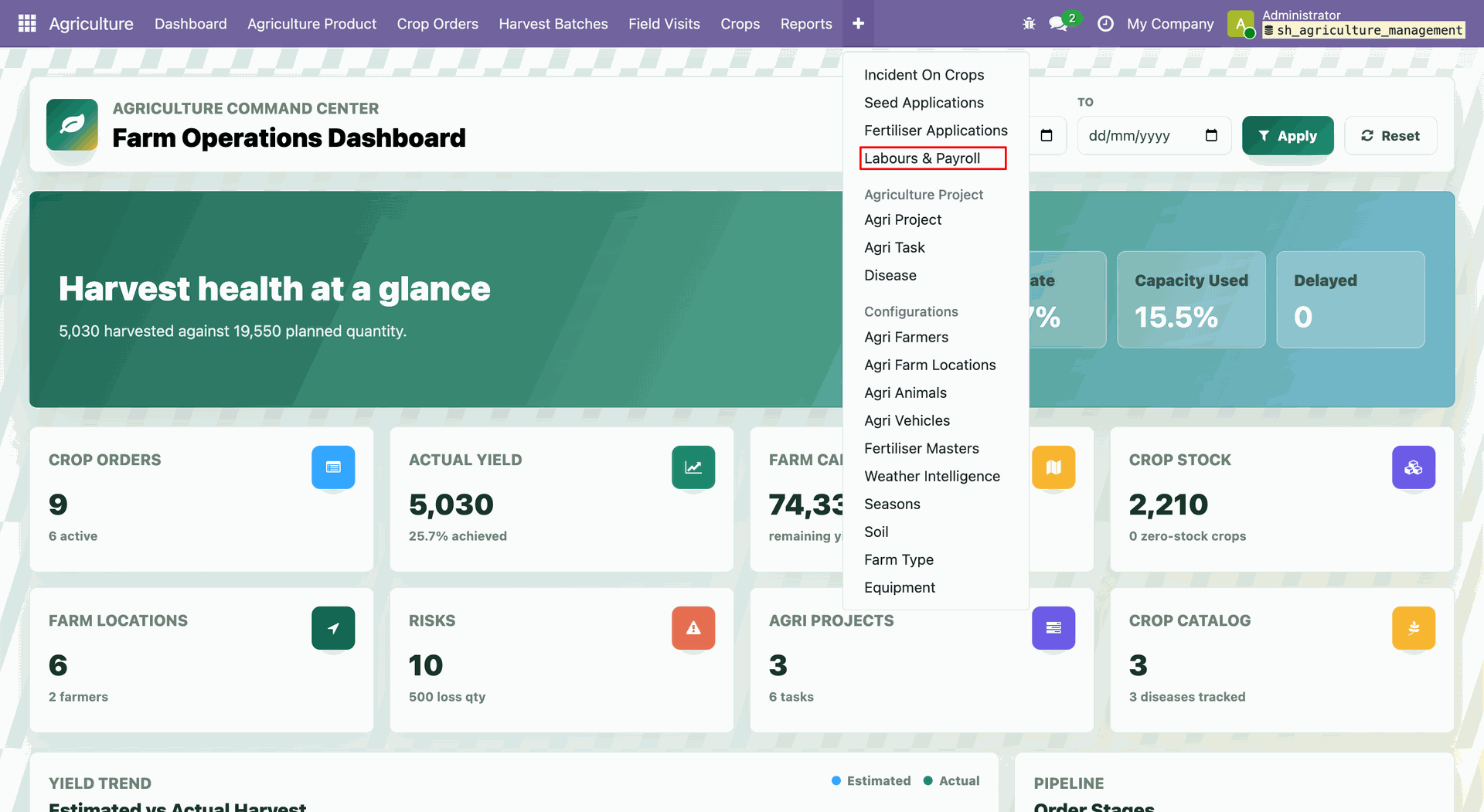
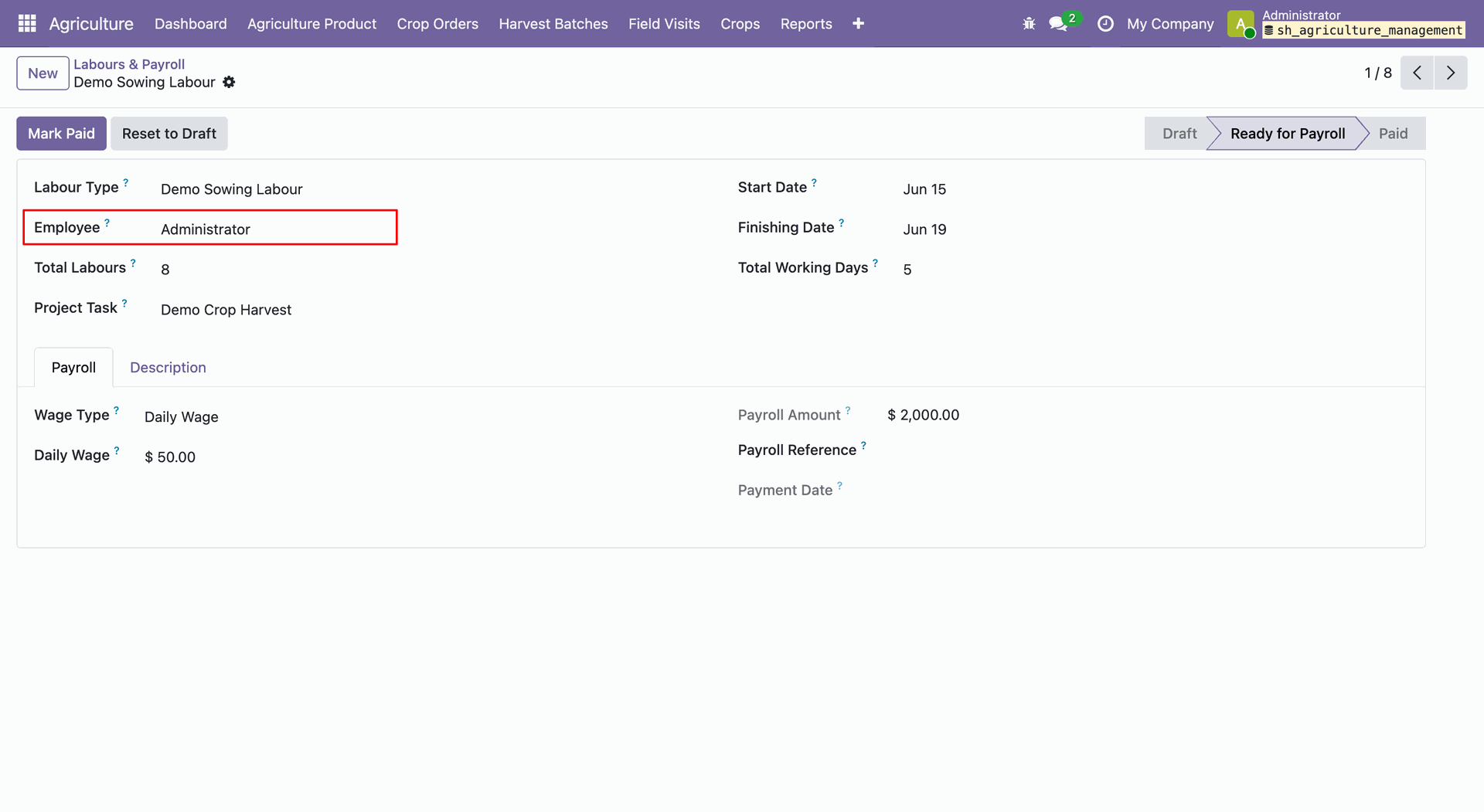
Open Agriculture -> Labours & Payroll.
Labour & Payroll list view. Click on the labour record from the list view.
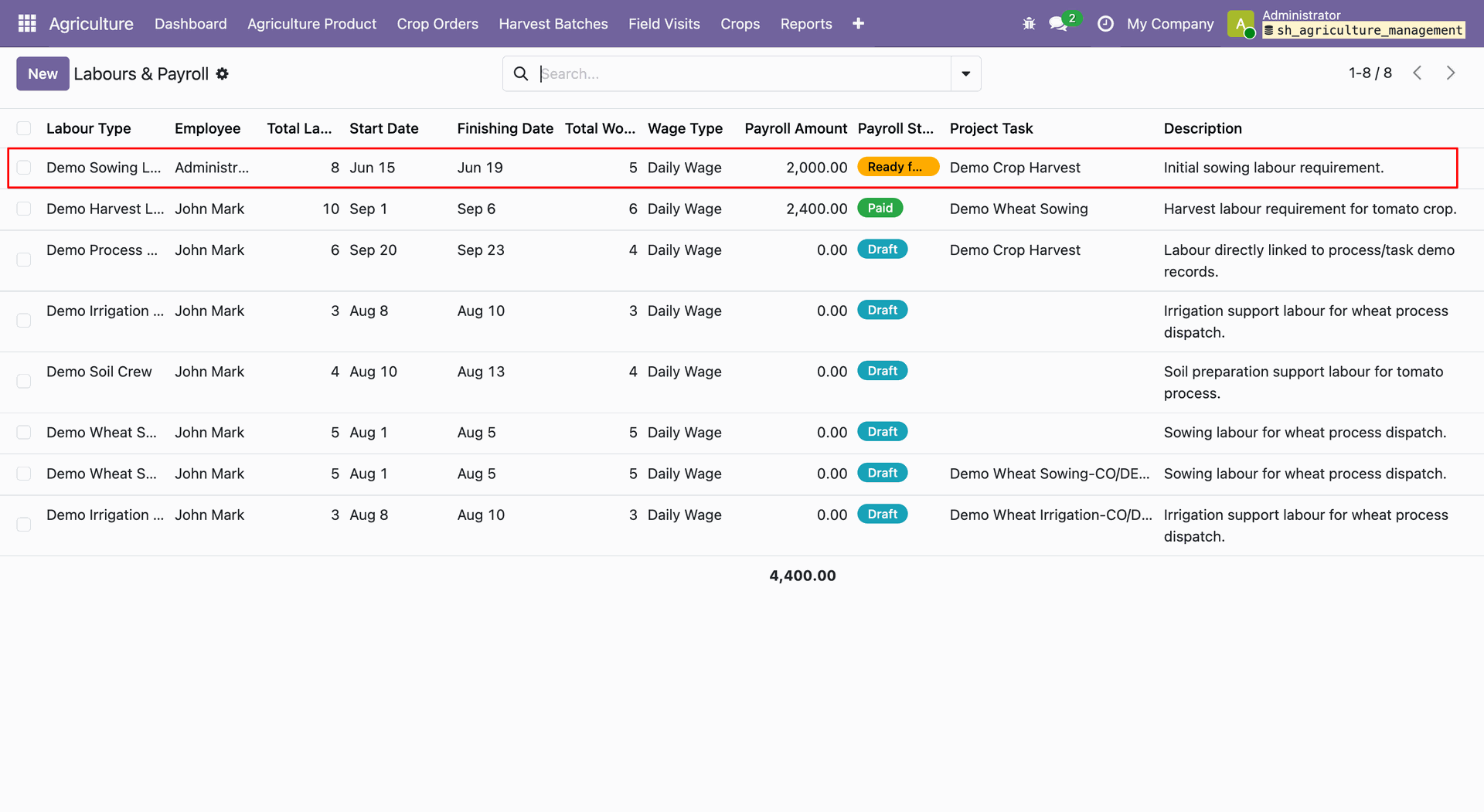
Labour & Payroll form view will open. Labour & Payroll form displays the employee selected as a labour.
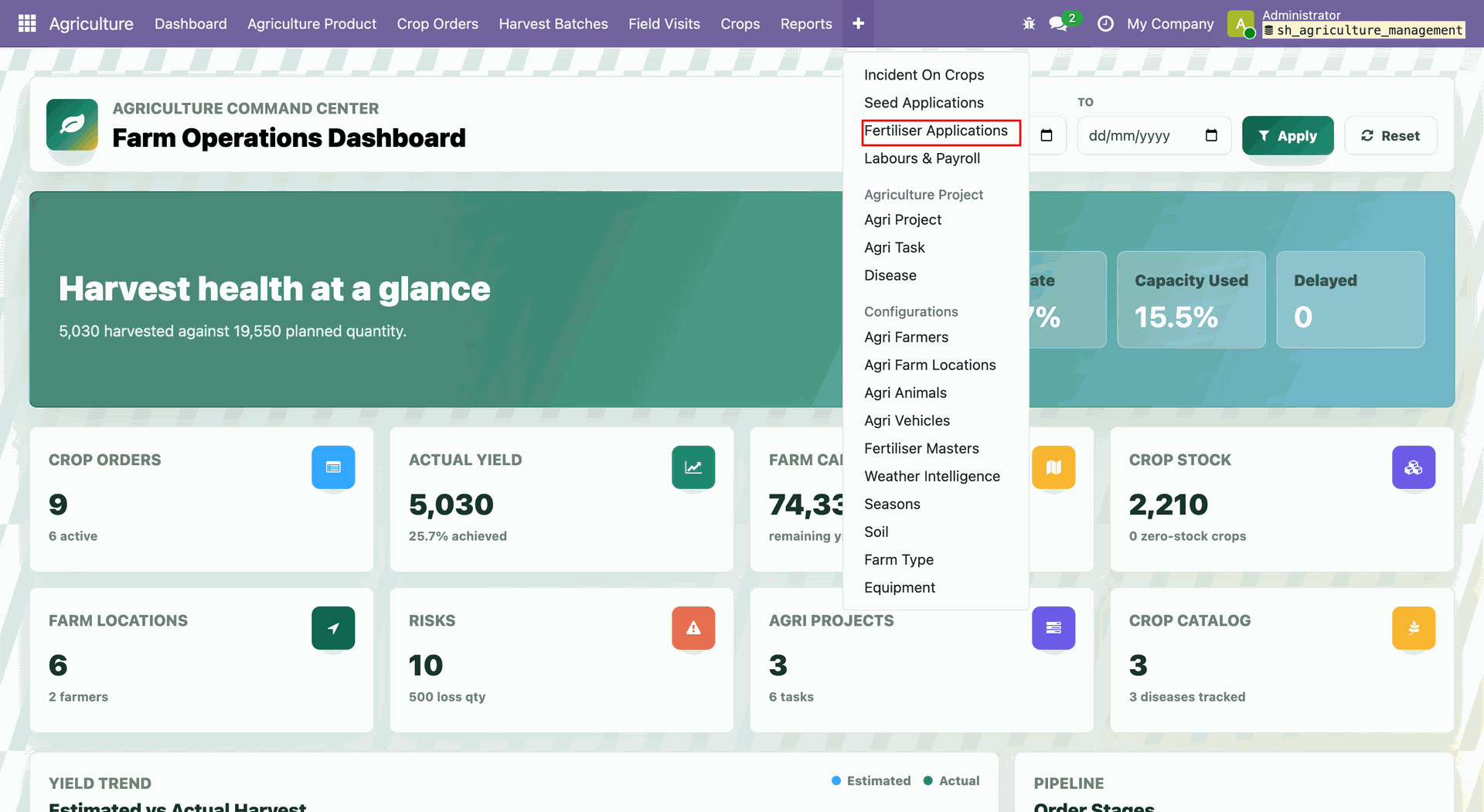
Open Agriculture → Fertiliser Applications.
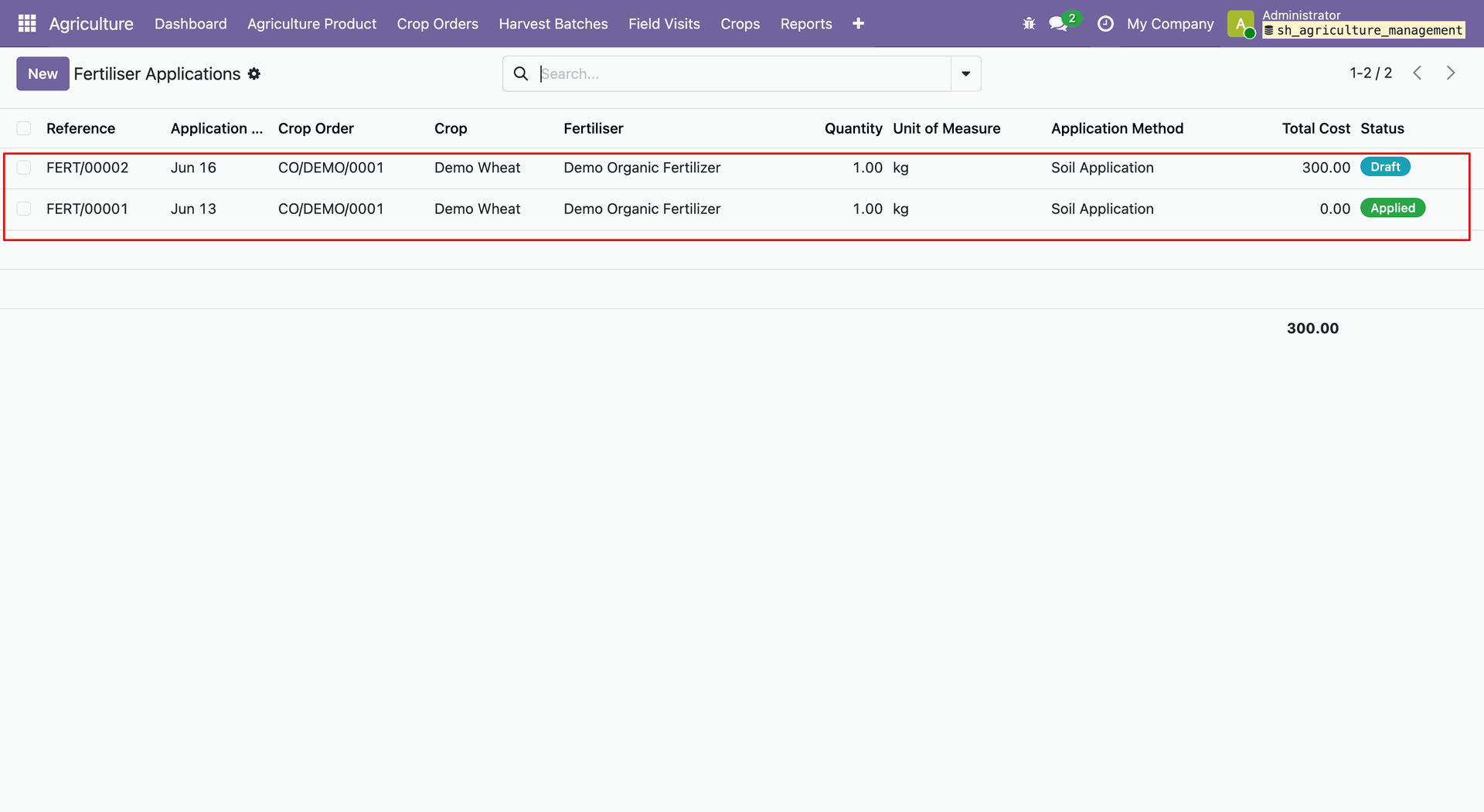
The Fertiliser Management list view displays crop, crop order, fertiliser, qunatity, UOM, application method and total cost.
The selected Fertiliser Management record shows detailed information.
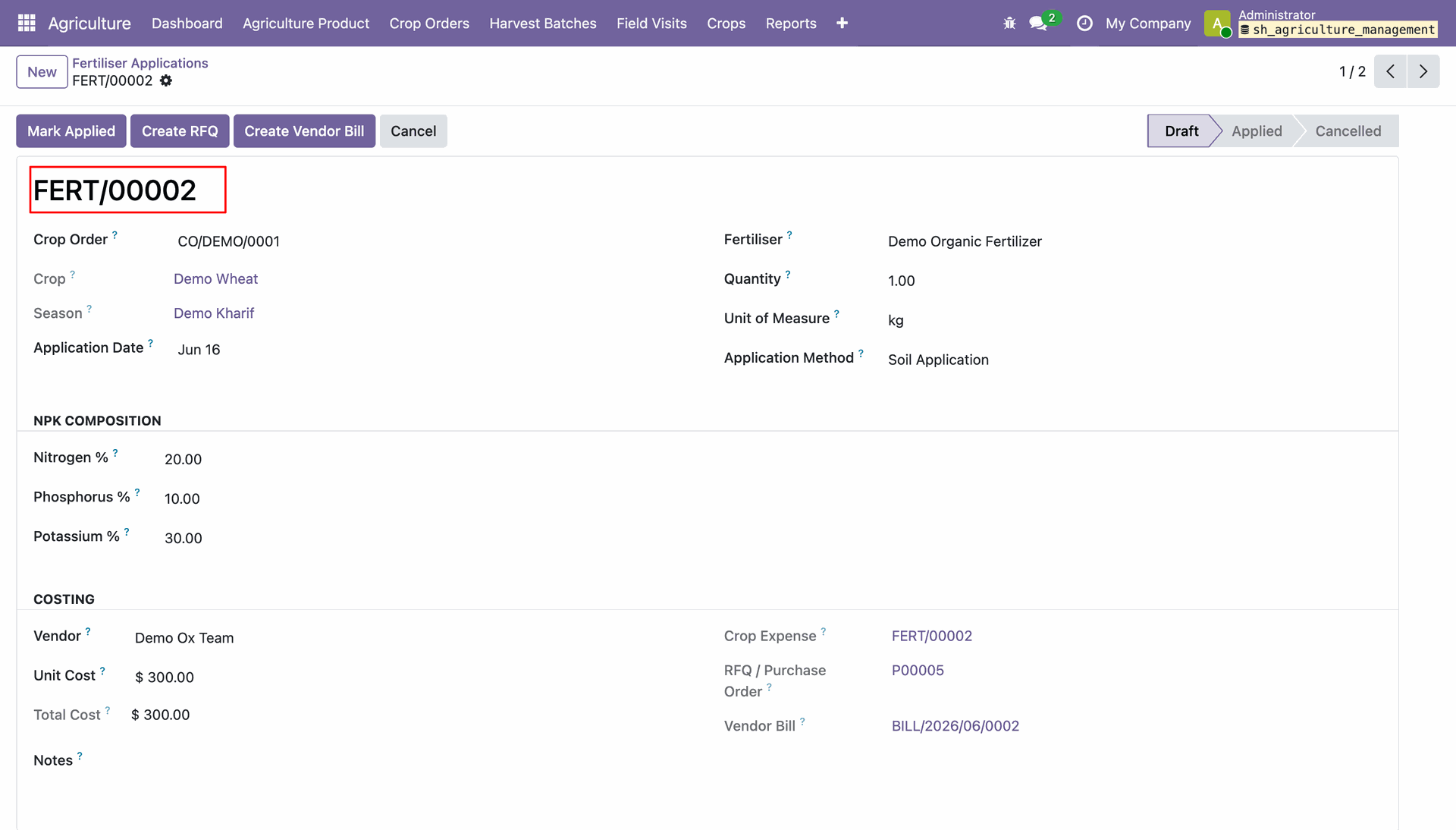
Click on Mark Applied button from the Fertiliser Application from.
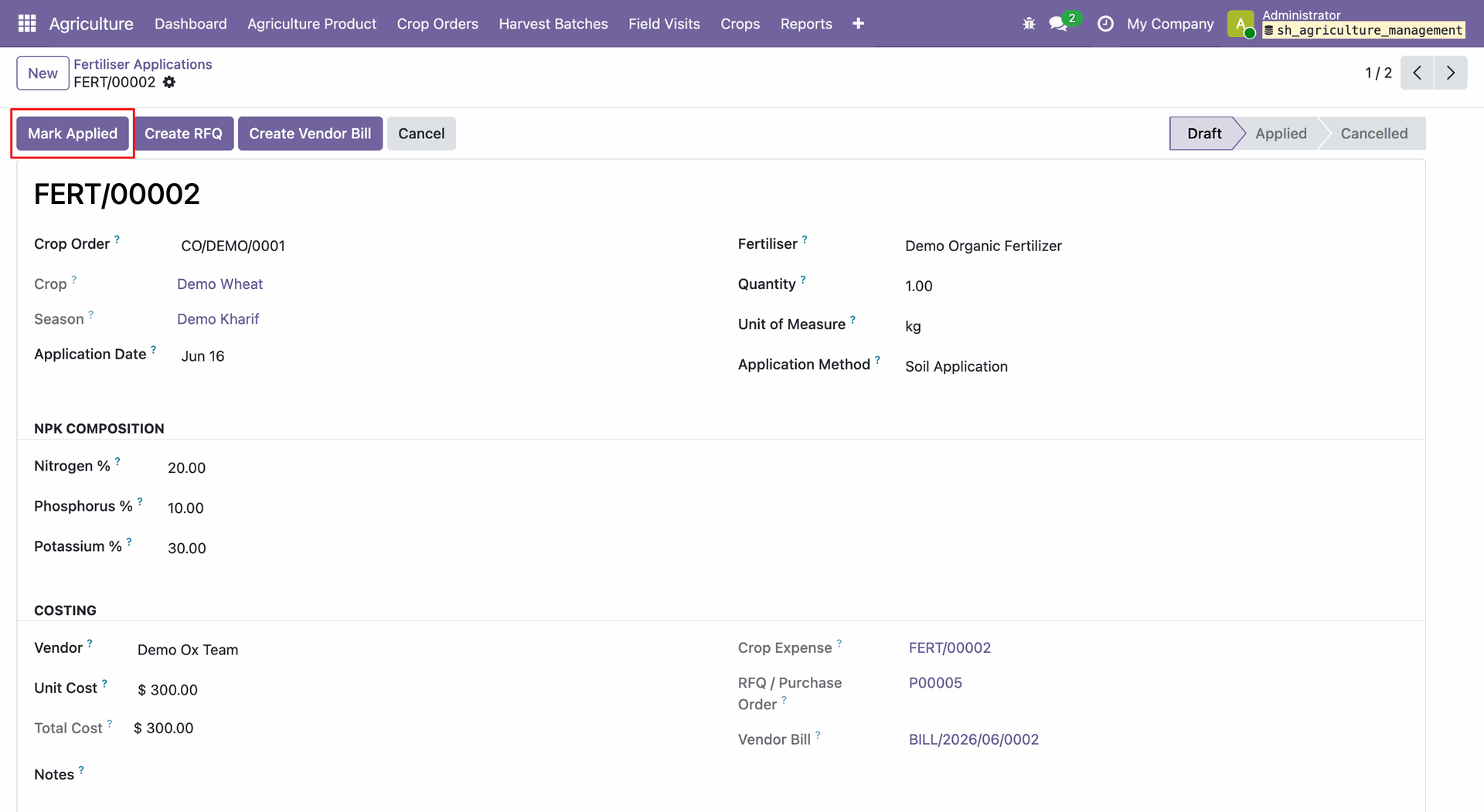
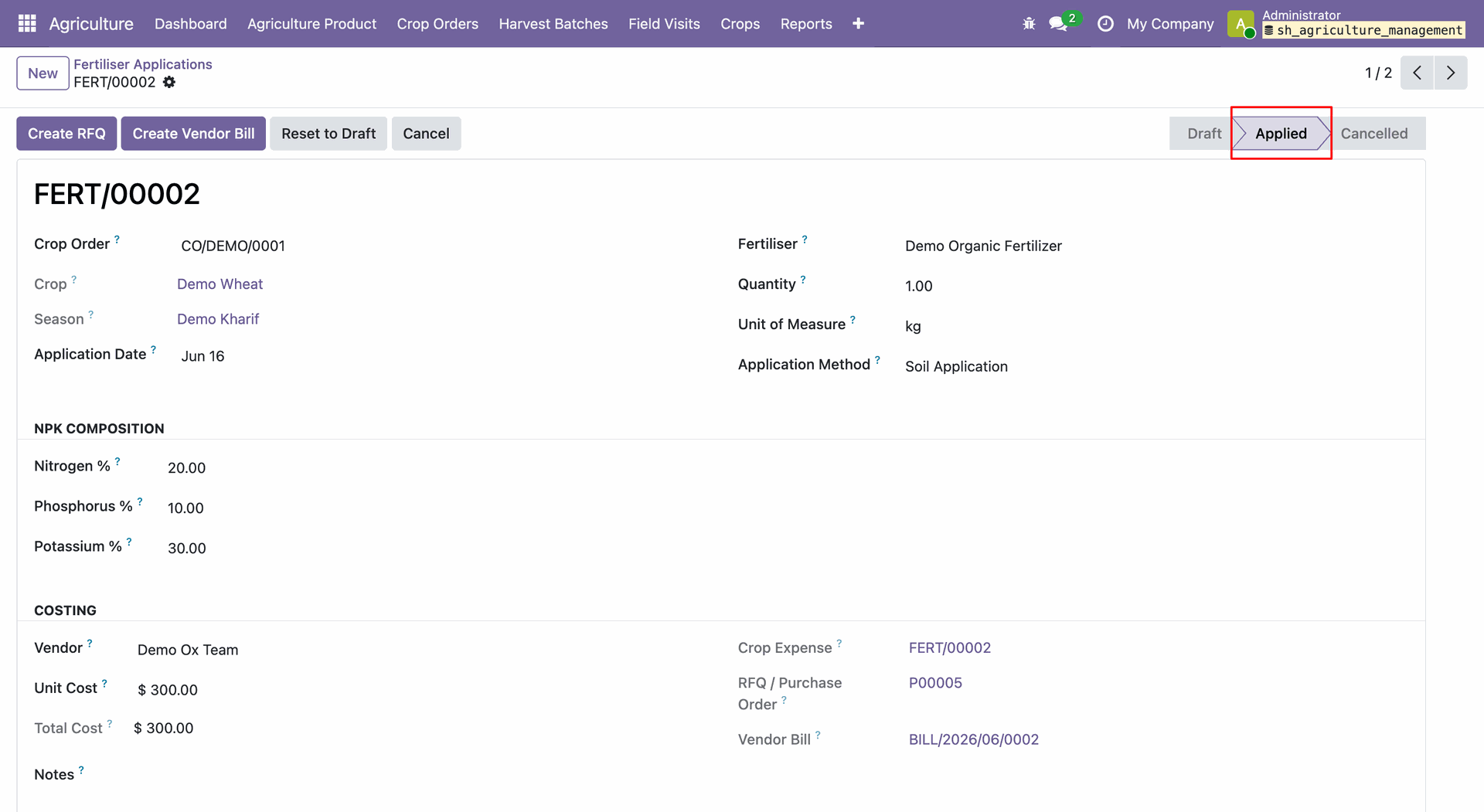
The Fertiliser Application will move to Applied stage.
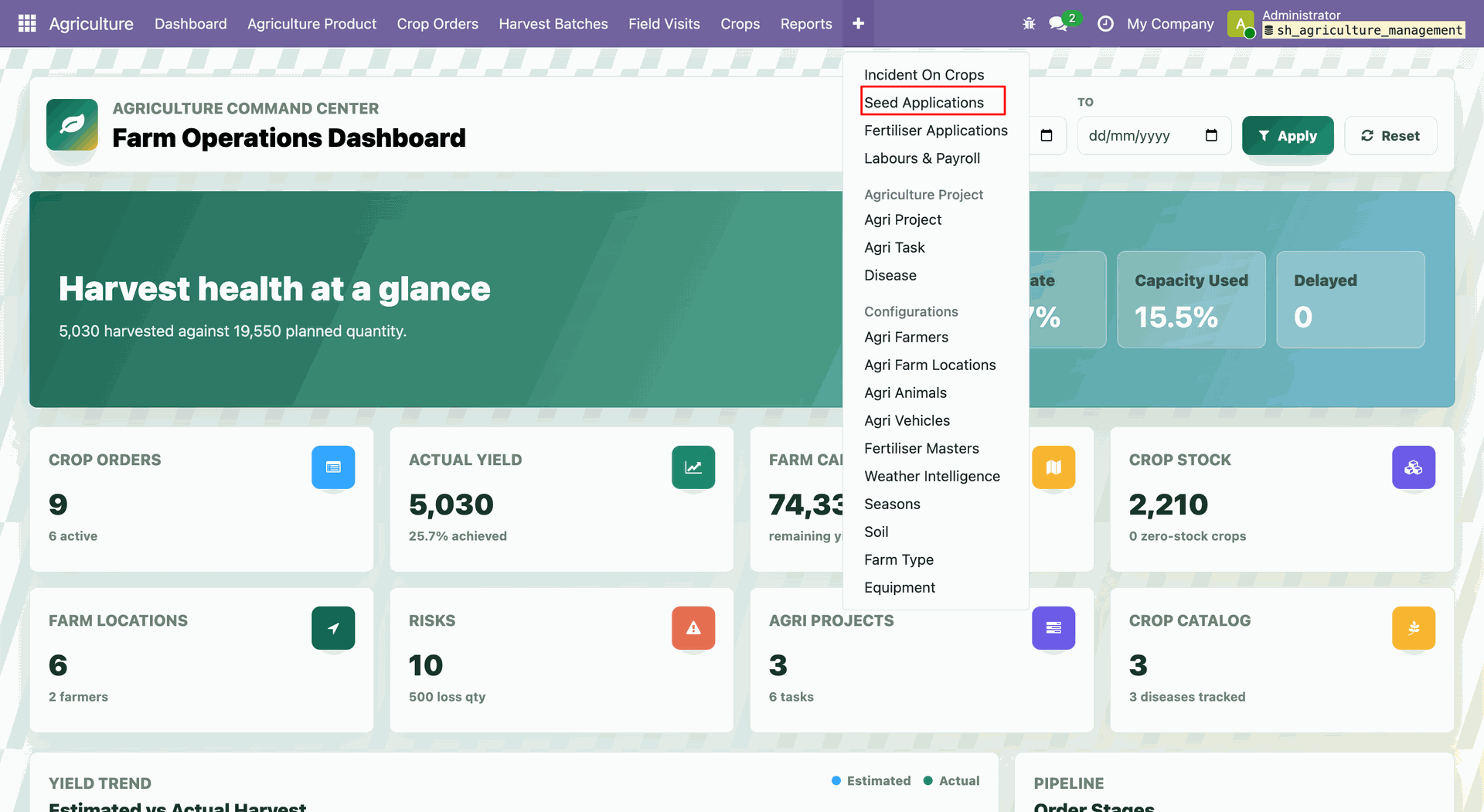
Open Agriculture → Seed Applications.
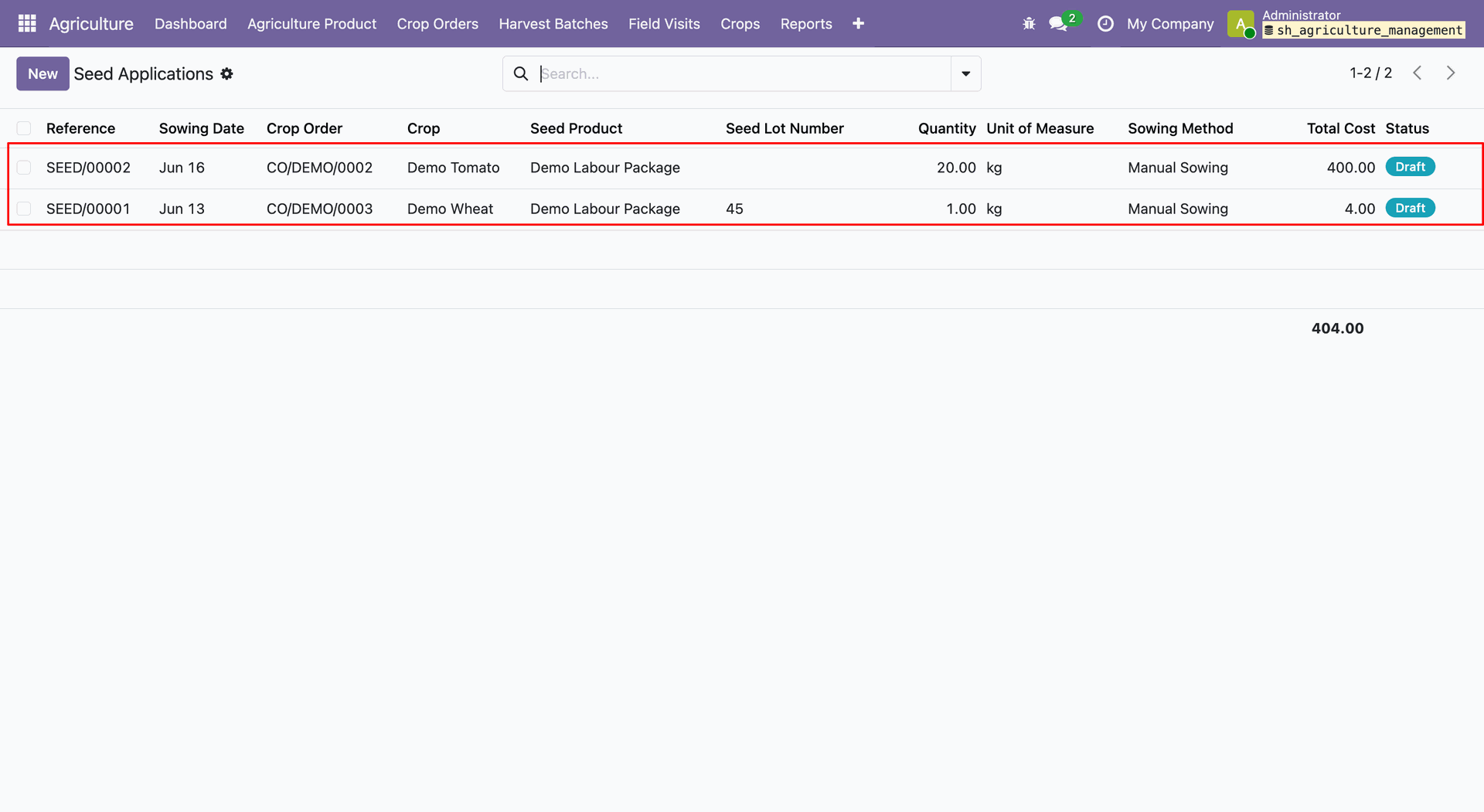
The Seed Applications list view.
The selected Seed Application record shows detailed information with crop order.
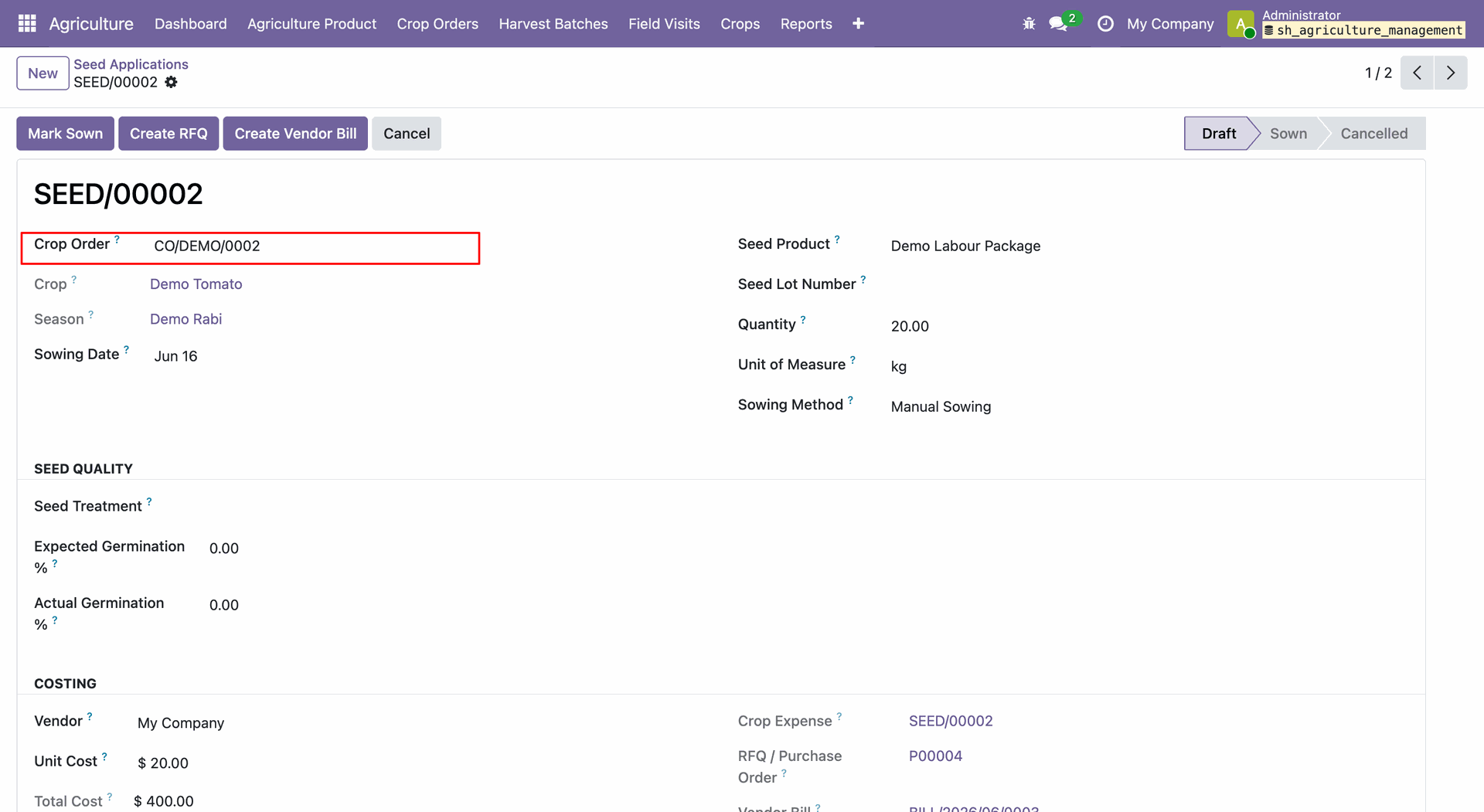
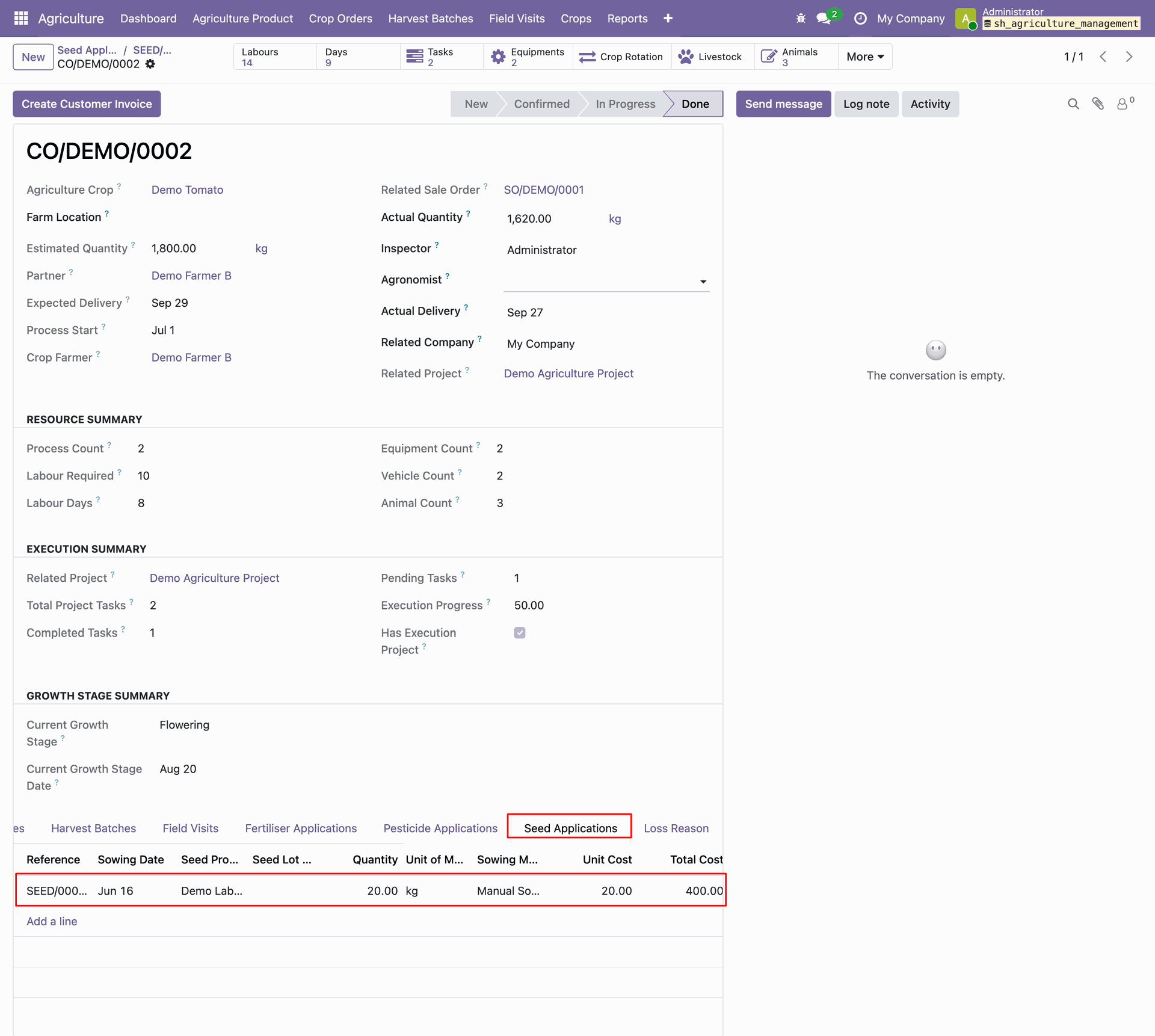
User can see the Seed application details in the crop orders form view -> Seed application tab.
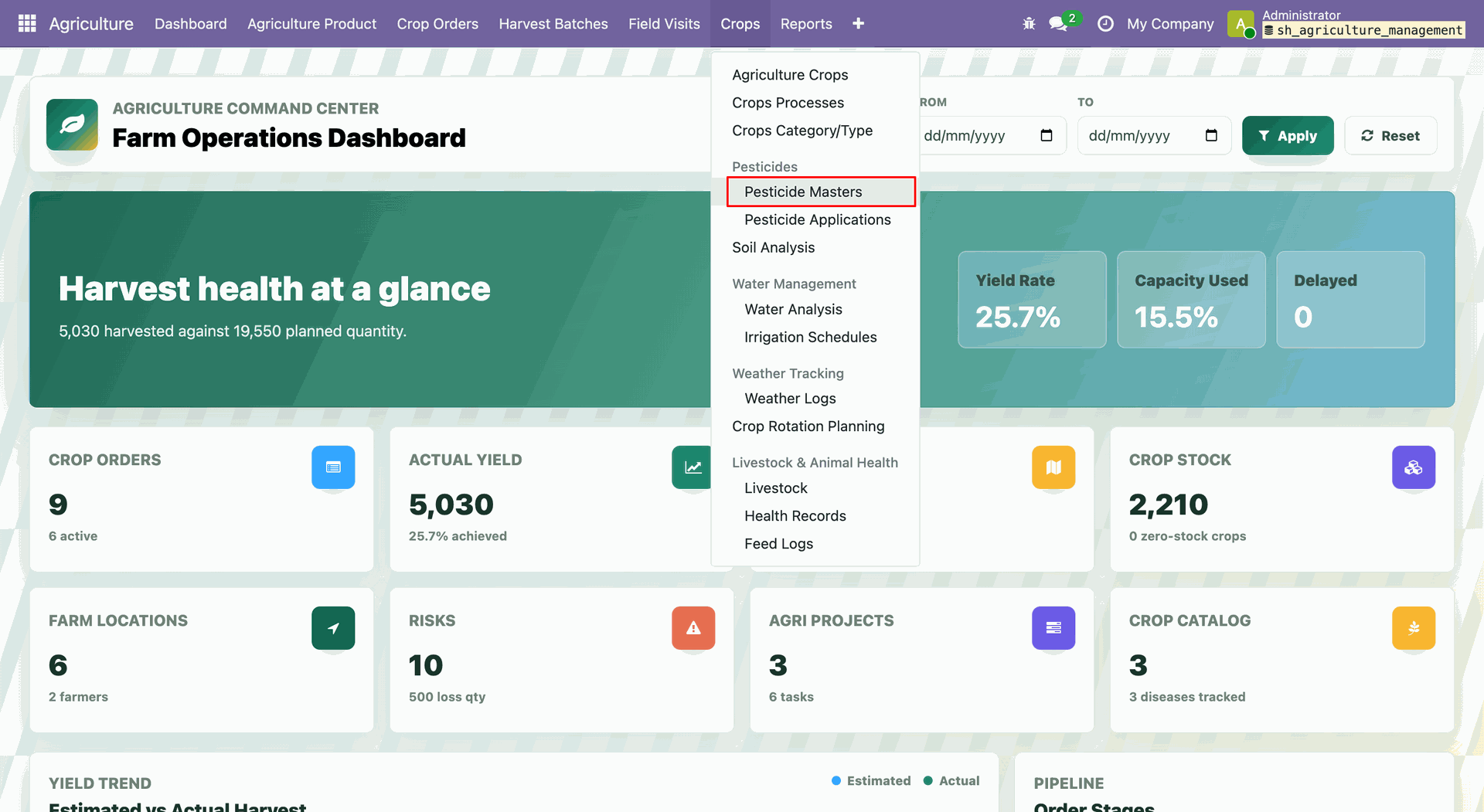
Open Agriculture -> Crops -> Pesticides -> Pesticide Masters.
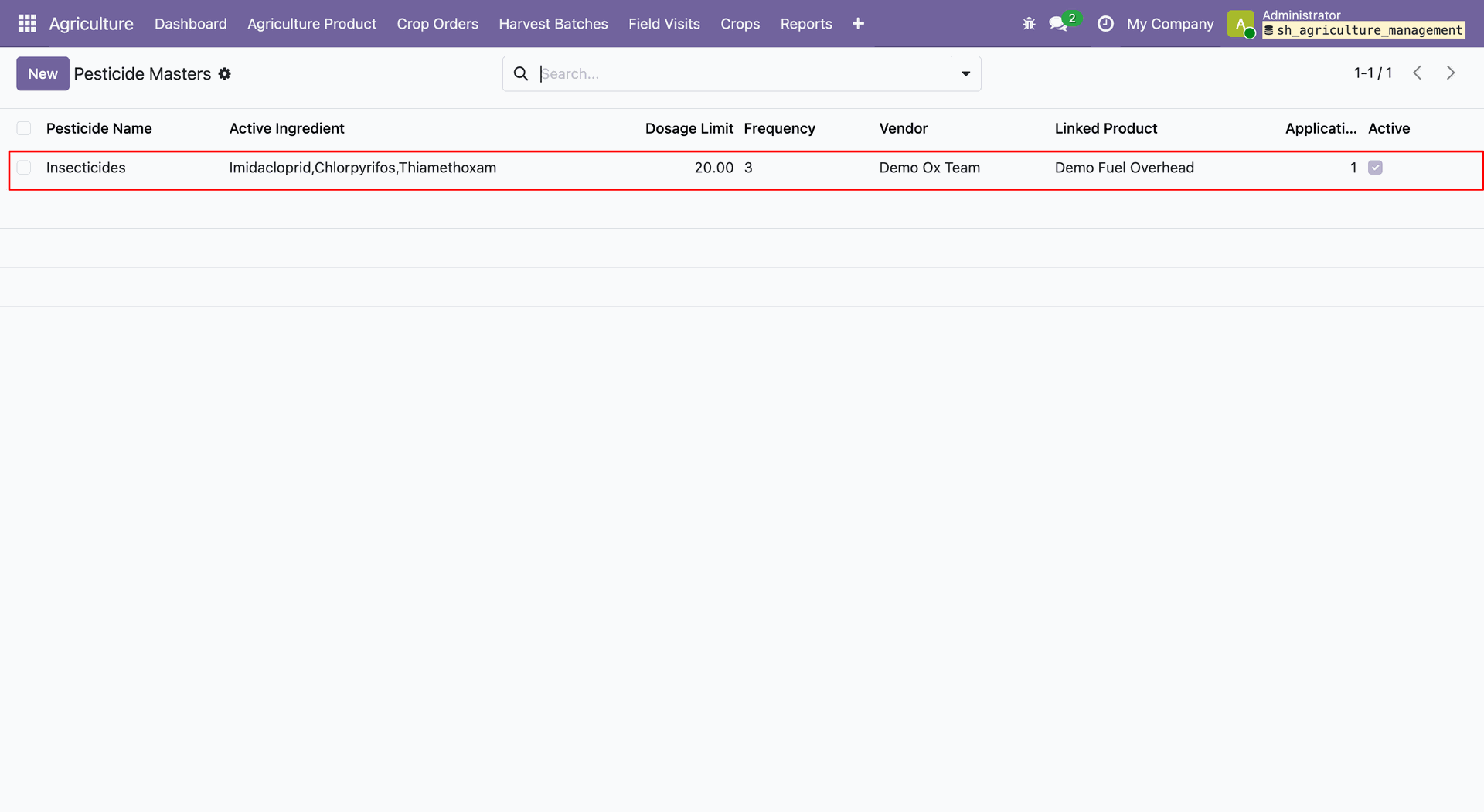
The Pesticide Masters list view.
The selected Pesticide Masters record shows detailed information with application details and crop order details.
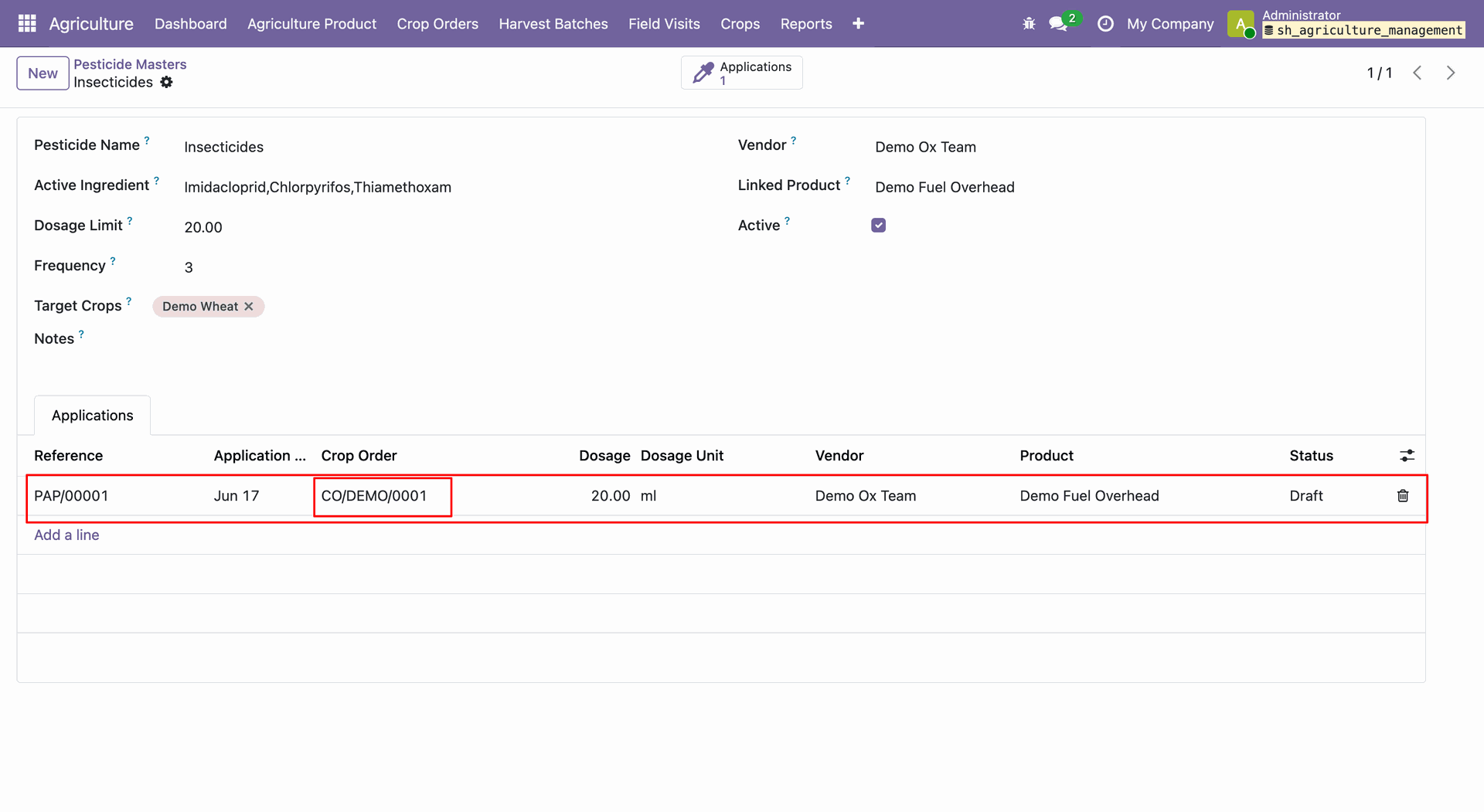
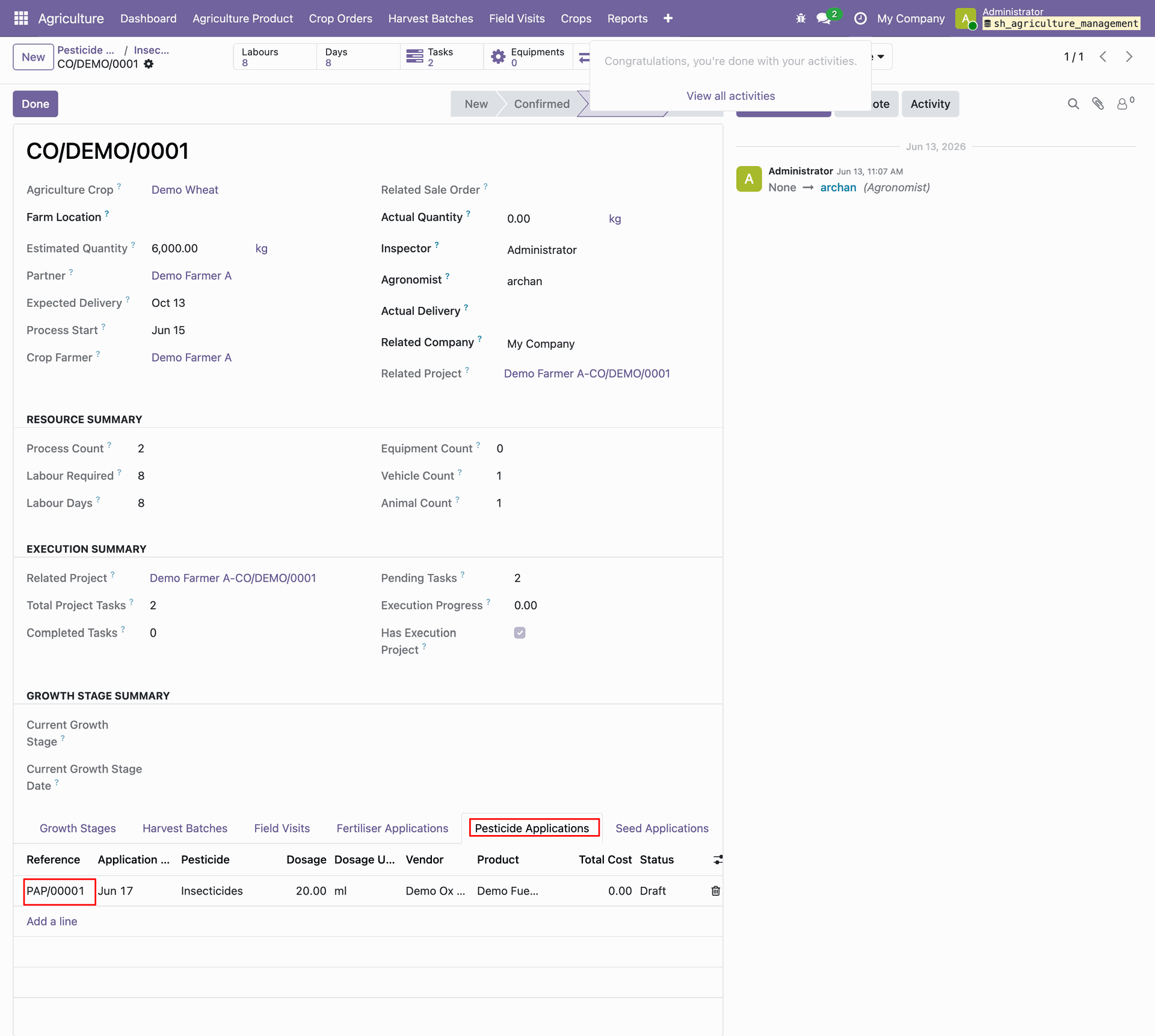
User can see Pesticide details in the crop order form view -> Pesticide Applications tab.
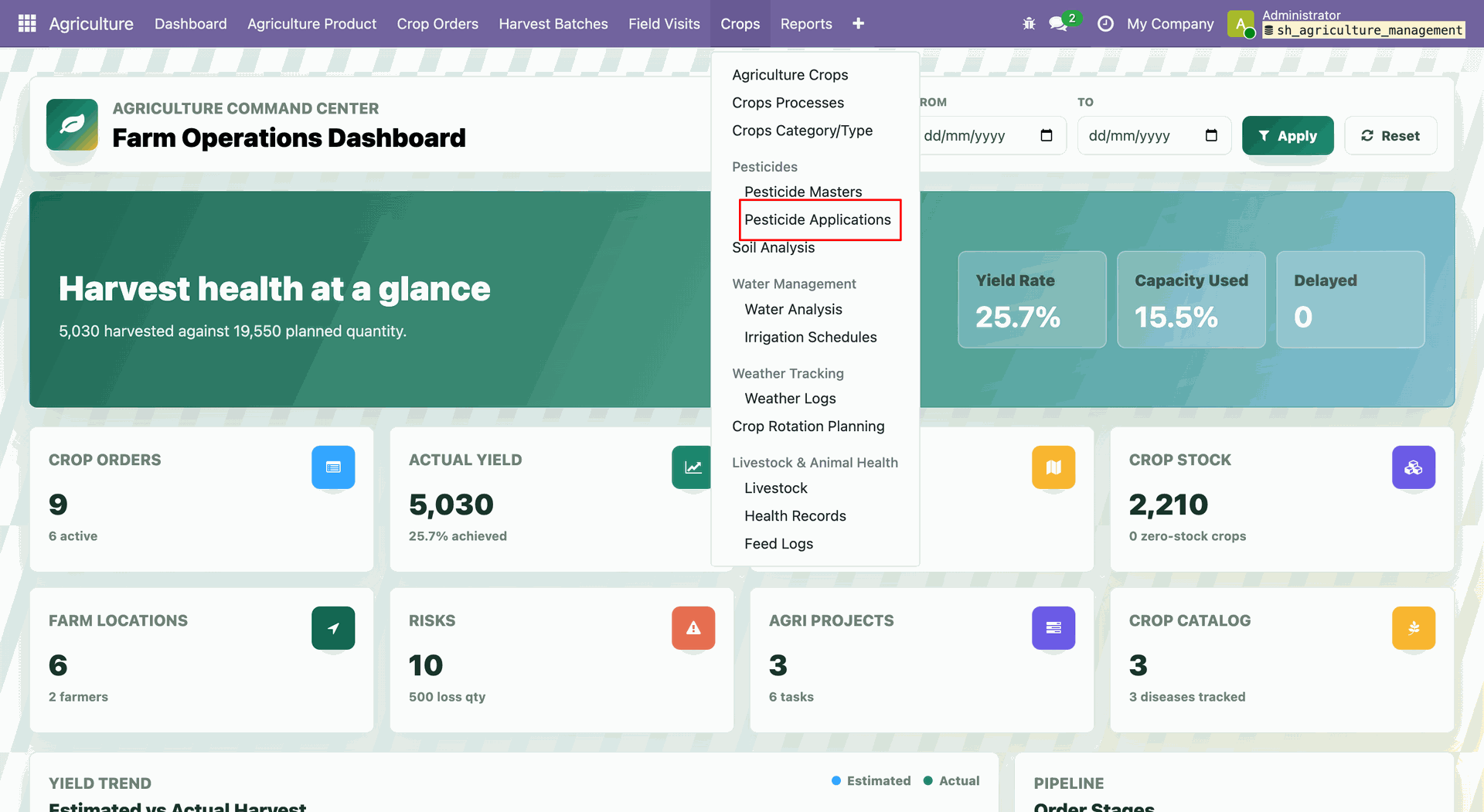
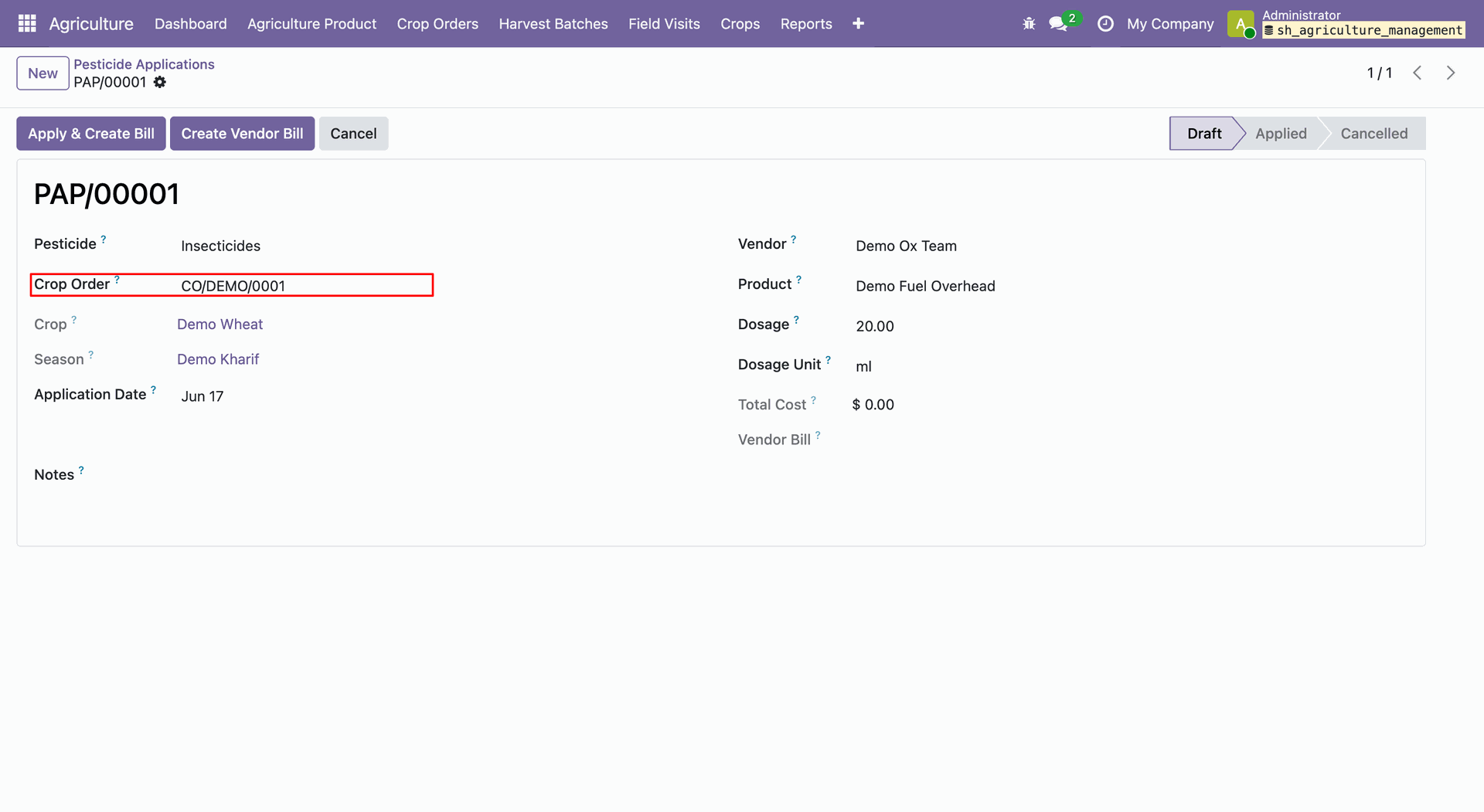
Open Agriculture -> Crops -> Pesticides -> Pesticide Applications.
The Pesticide Applications list view.
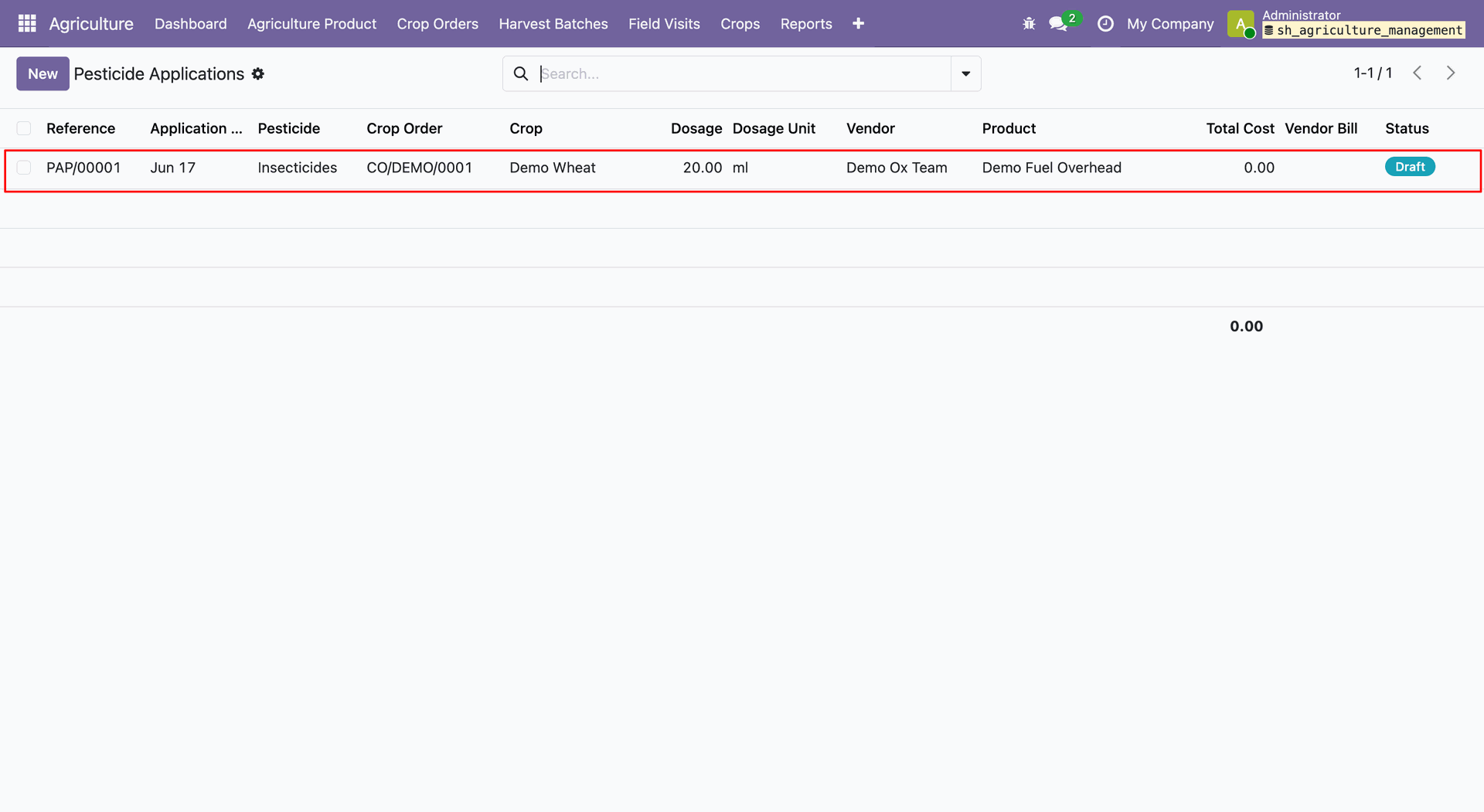
The Pesticide Application form view shows detailed information with crop order details.
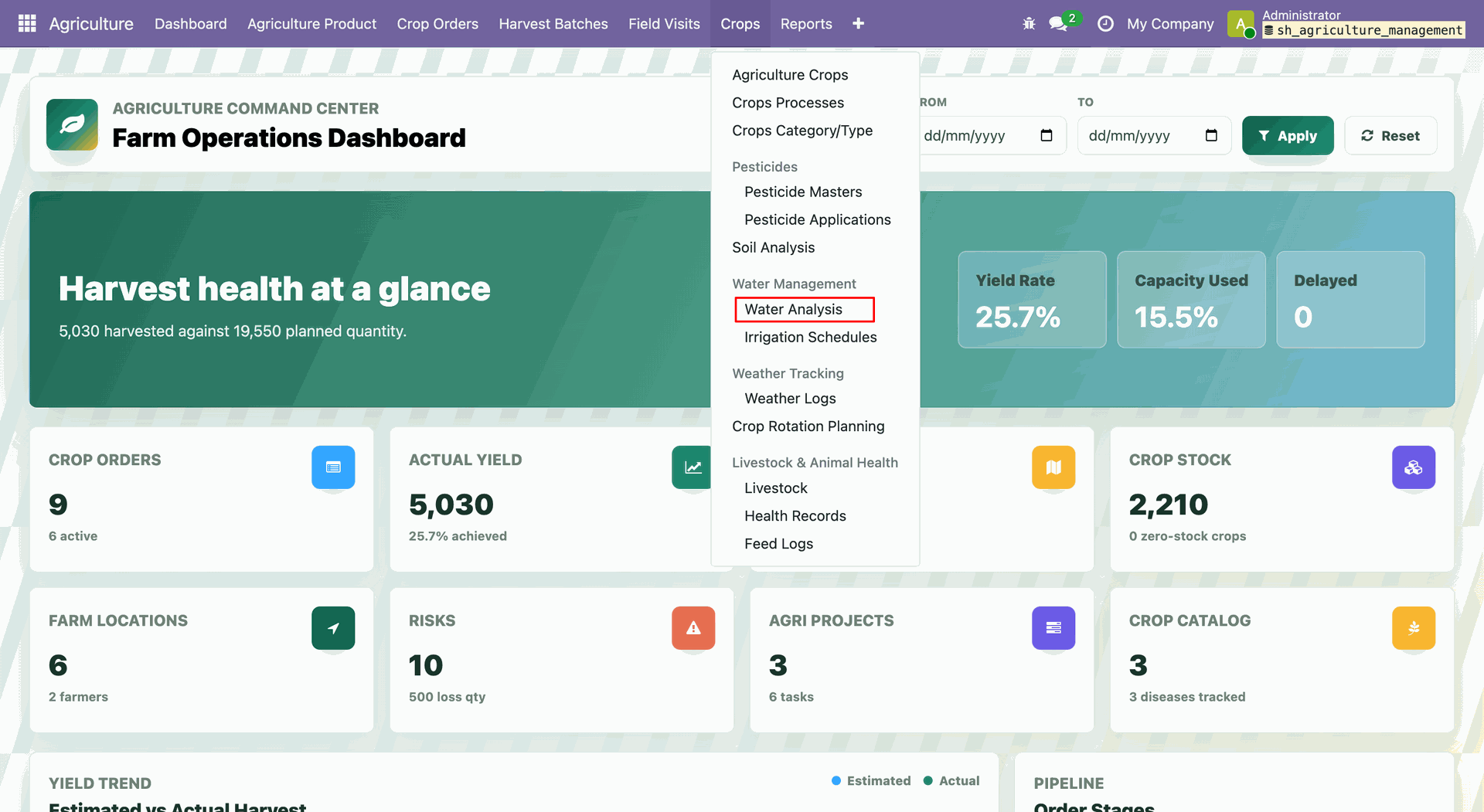
Open Agriculture -> Crops -> Water Management -> Water Analysis.
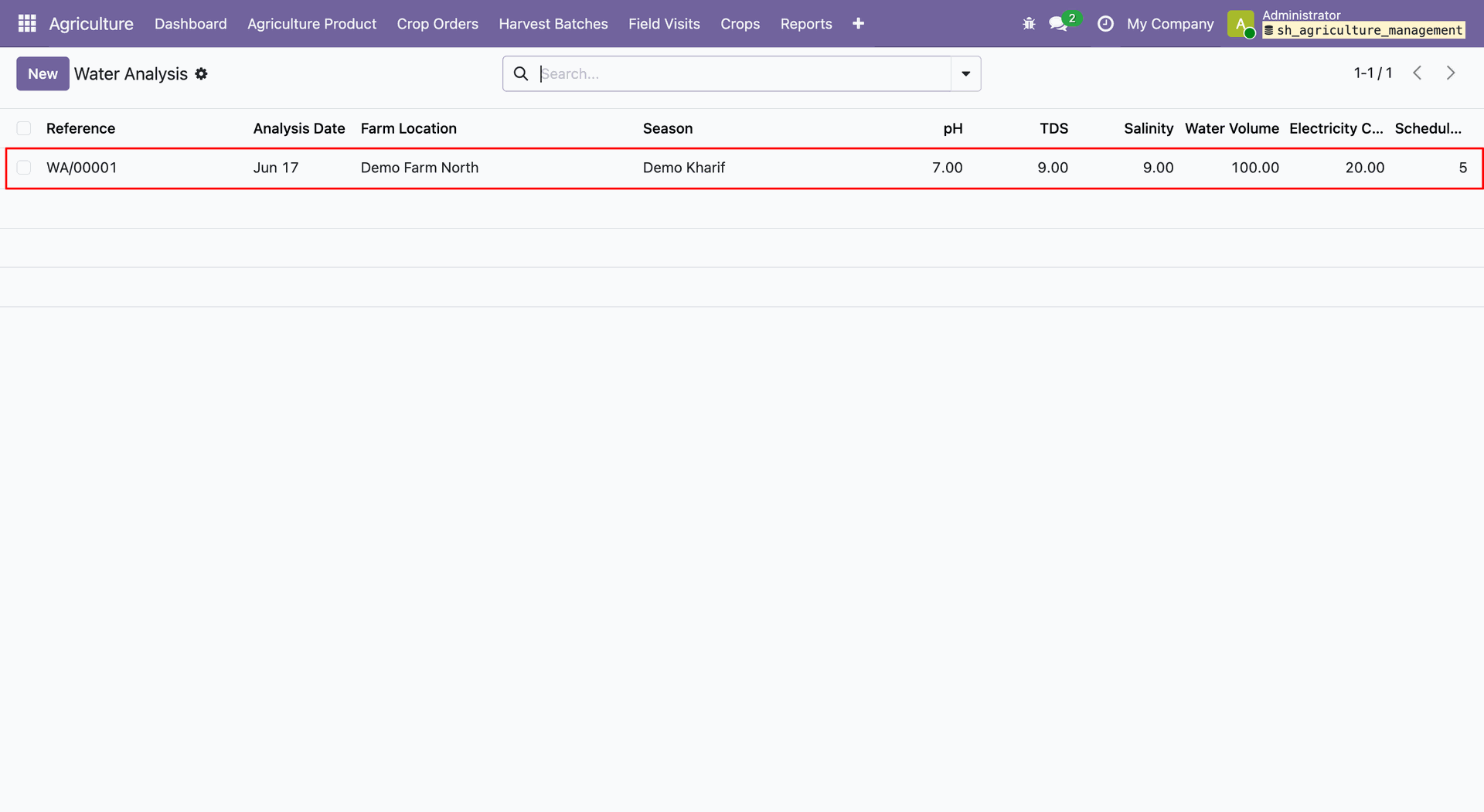
The Water Analysis list view.
The selectedWater Analysis record shows irrigation schedules.
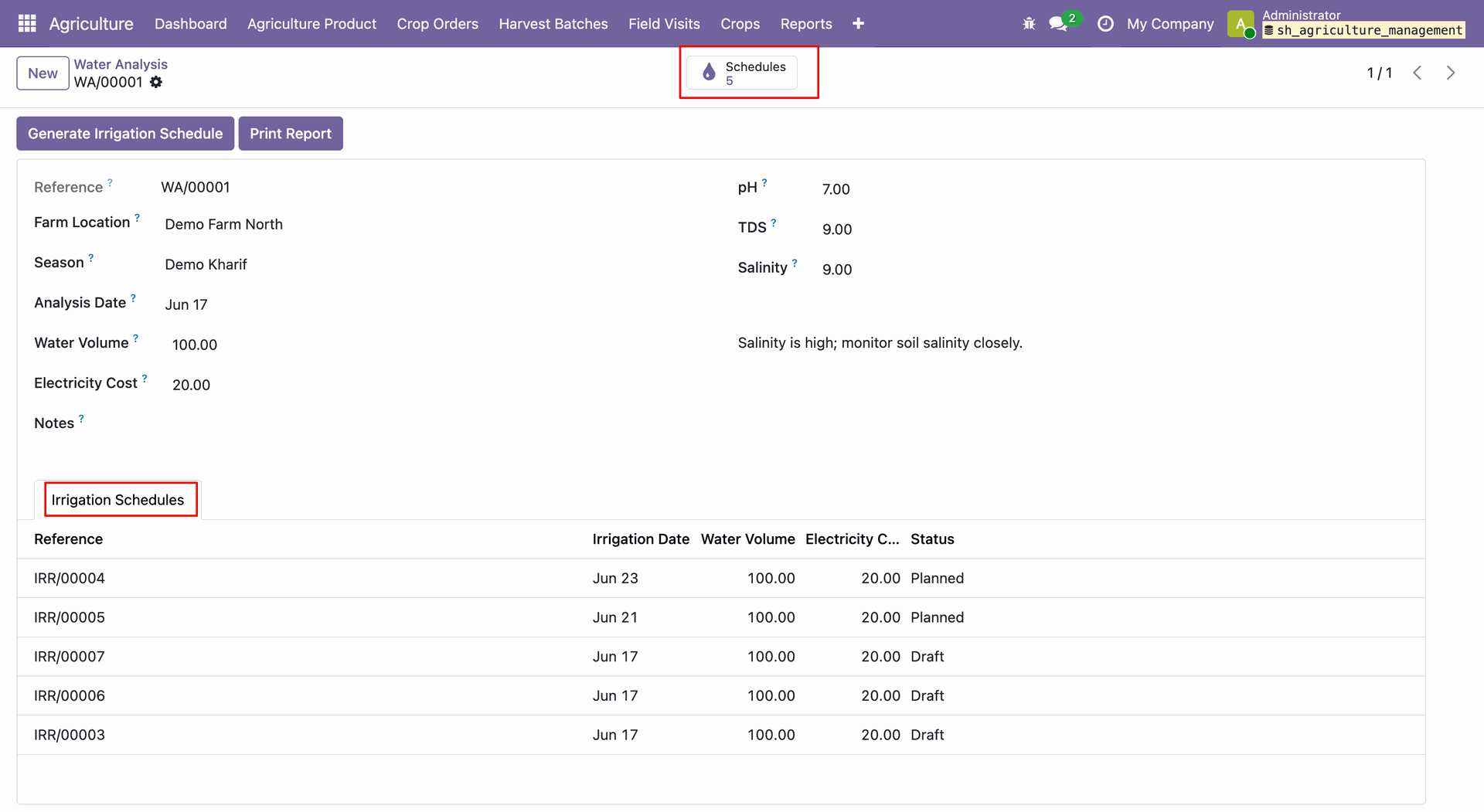
Click on Generate Irrigation Schedule button.
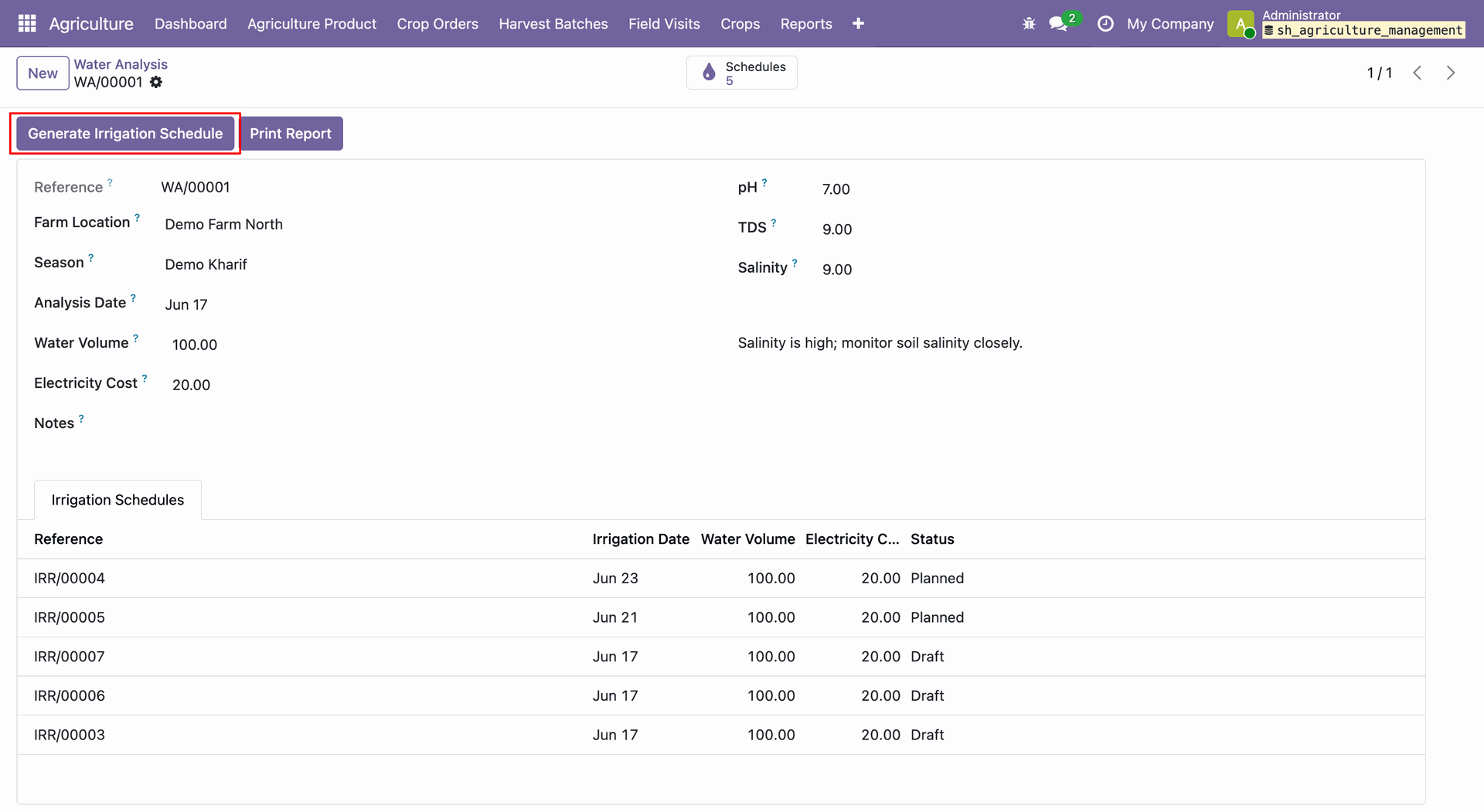
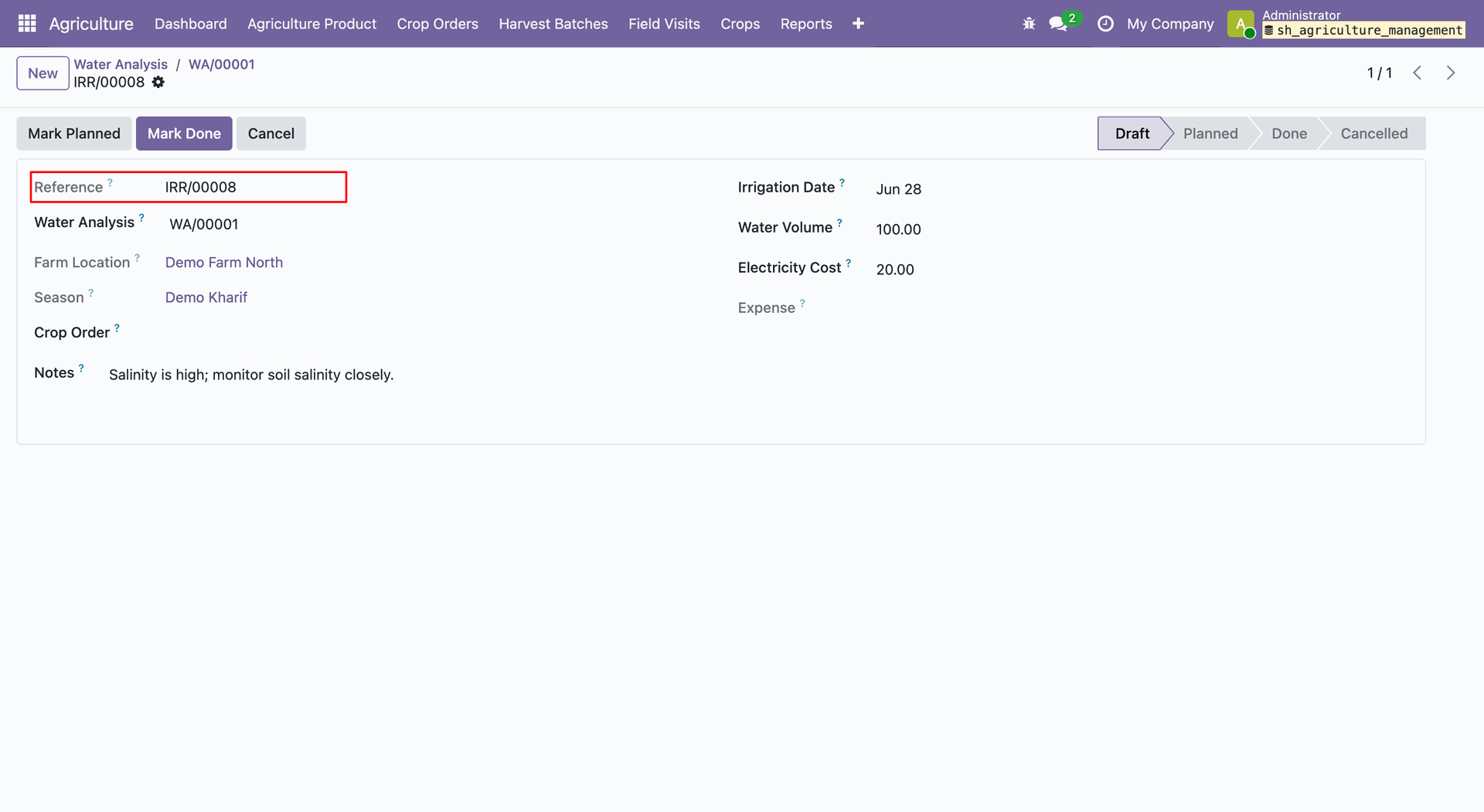
New Irrigation Schedule created in draft stage.
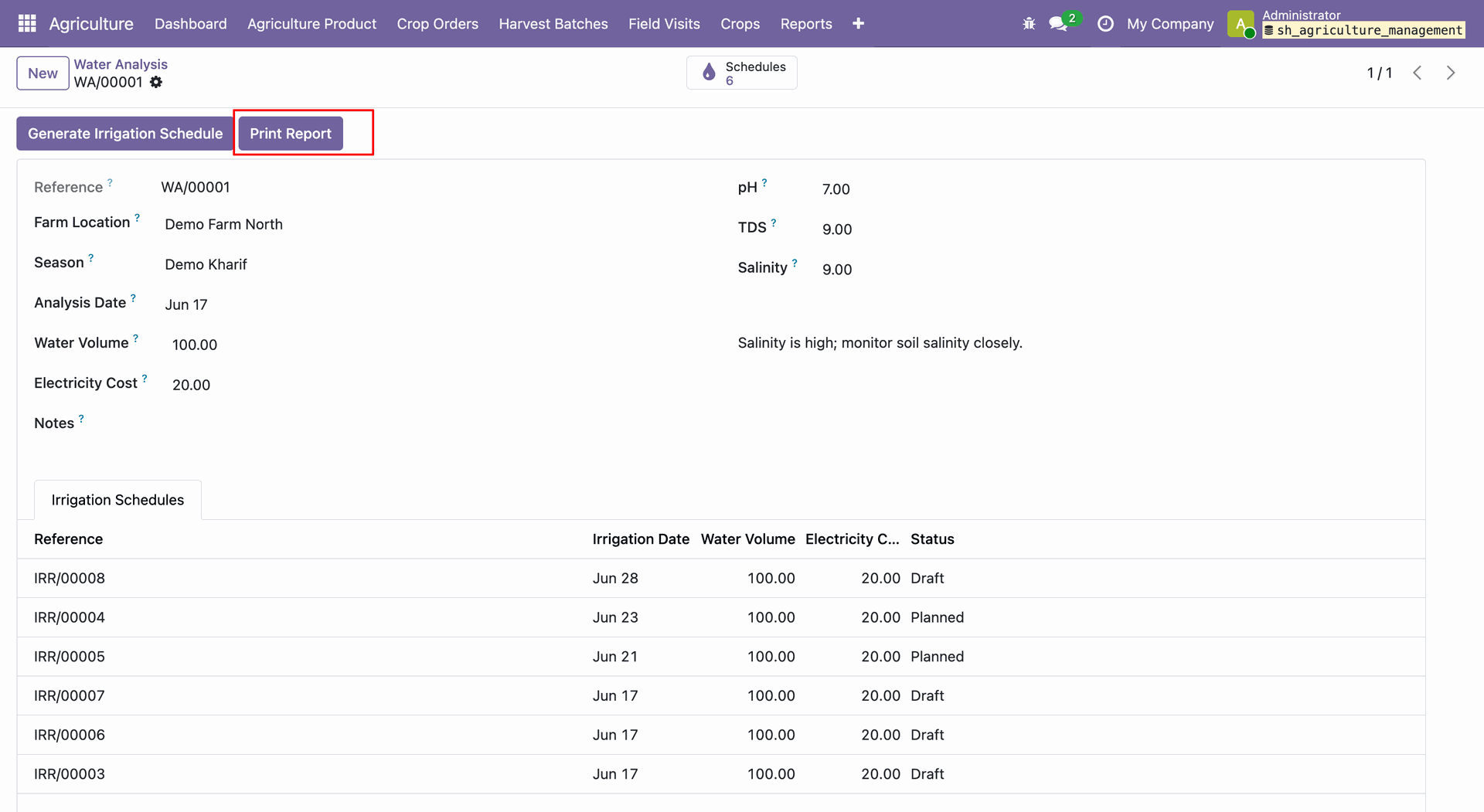
Click on Print Report button from the Water Analysis form view.
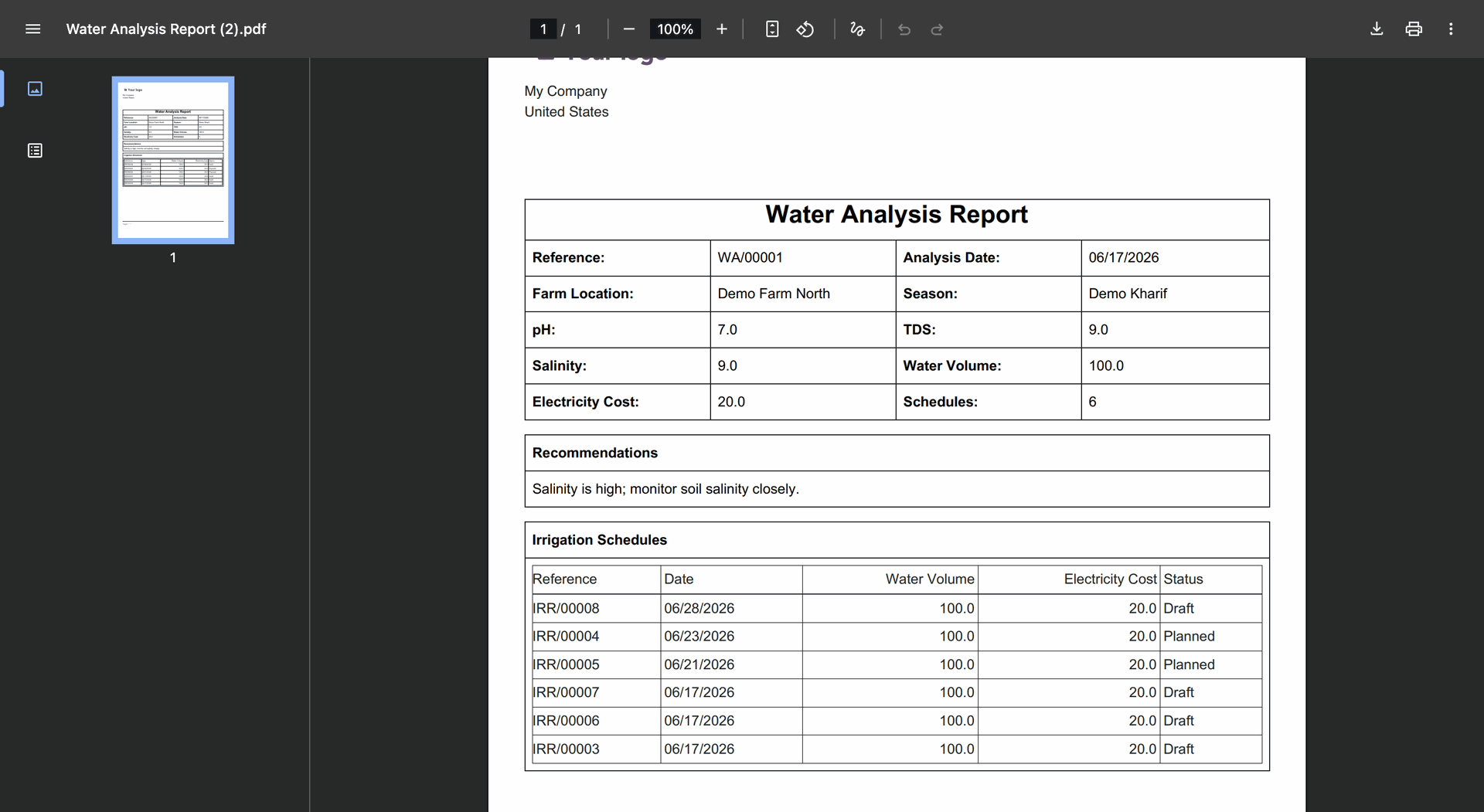
Generated Water Analysis report in PDF Format.
Open Agriculture -> Crops -> Weather Tracking -> Weather Logs.
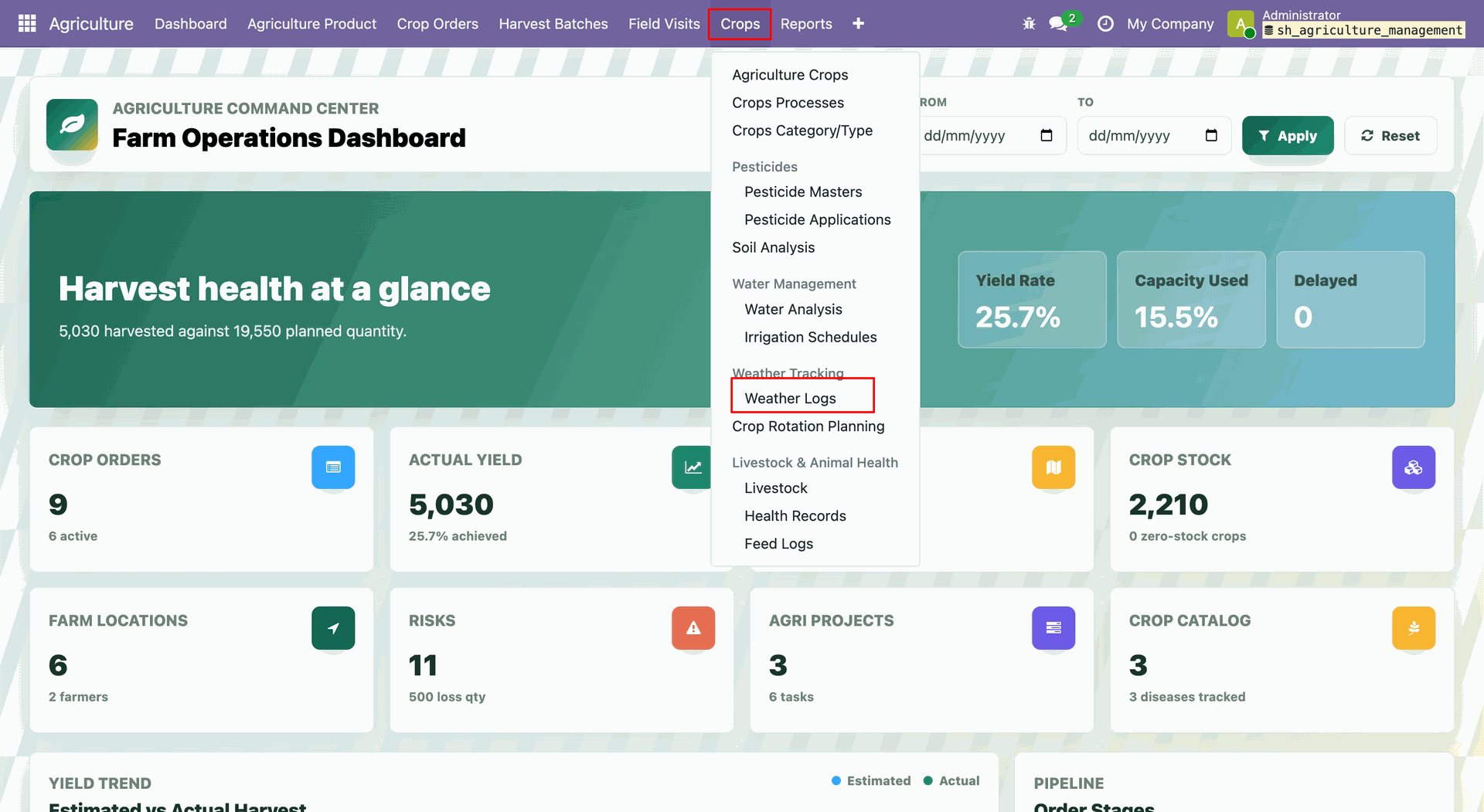
The Weather Logs list view.
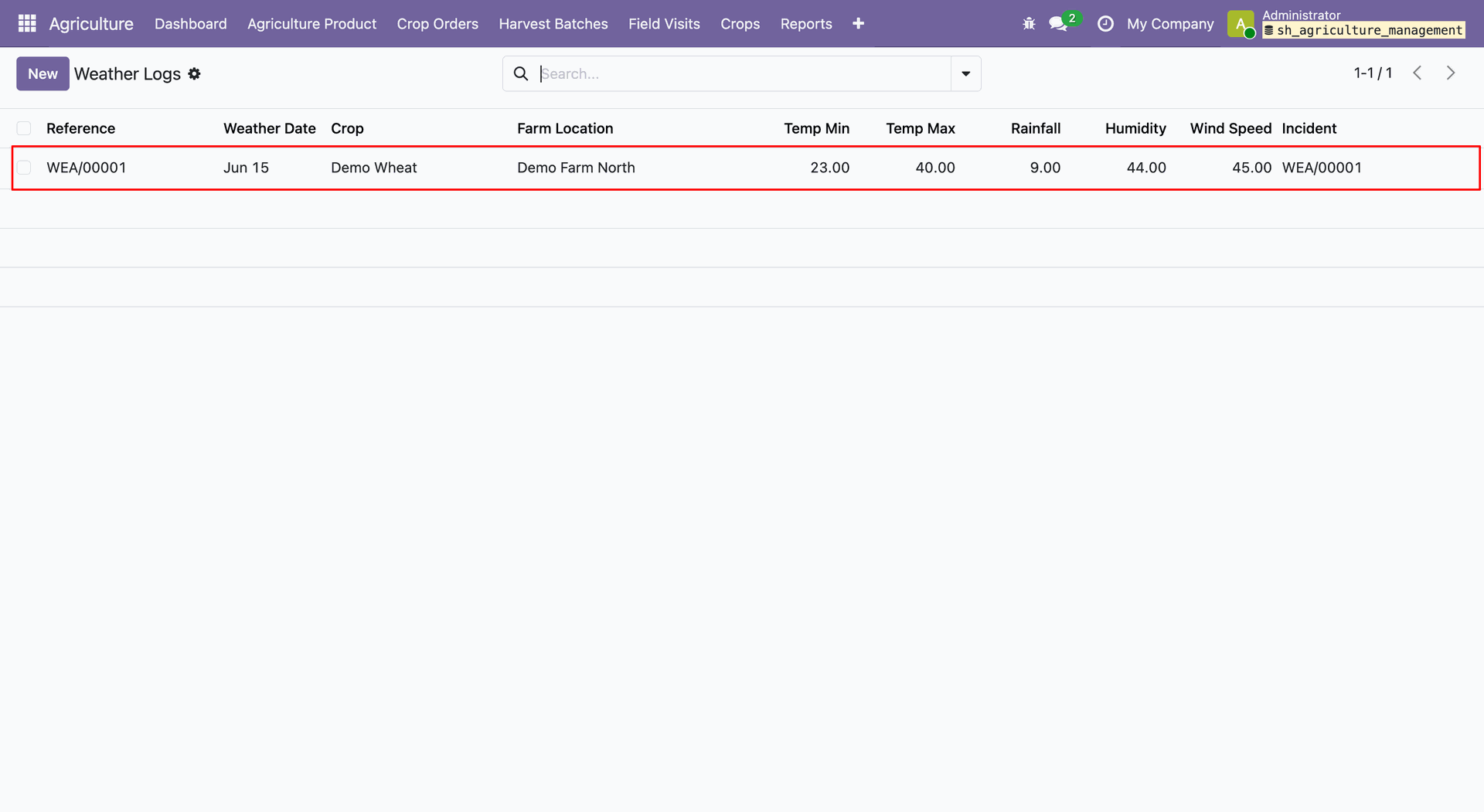
The selected Weather Log record shows detailed information.
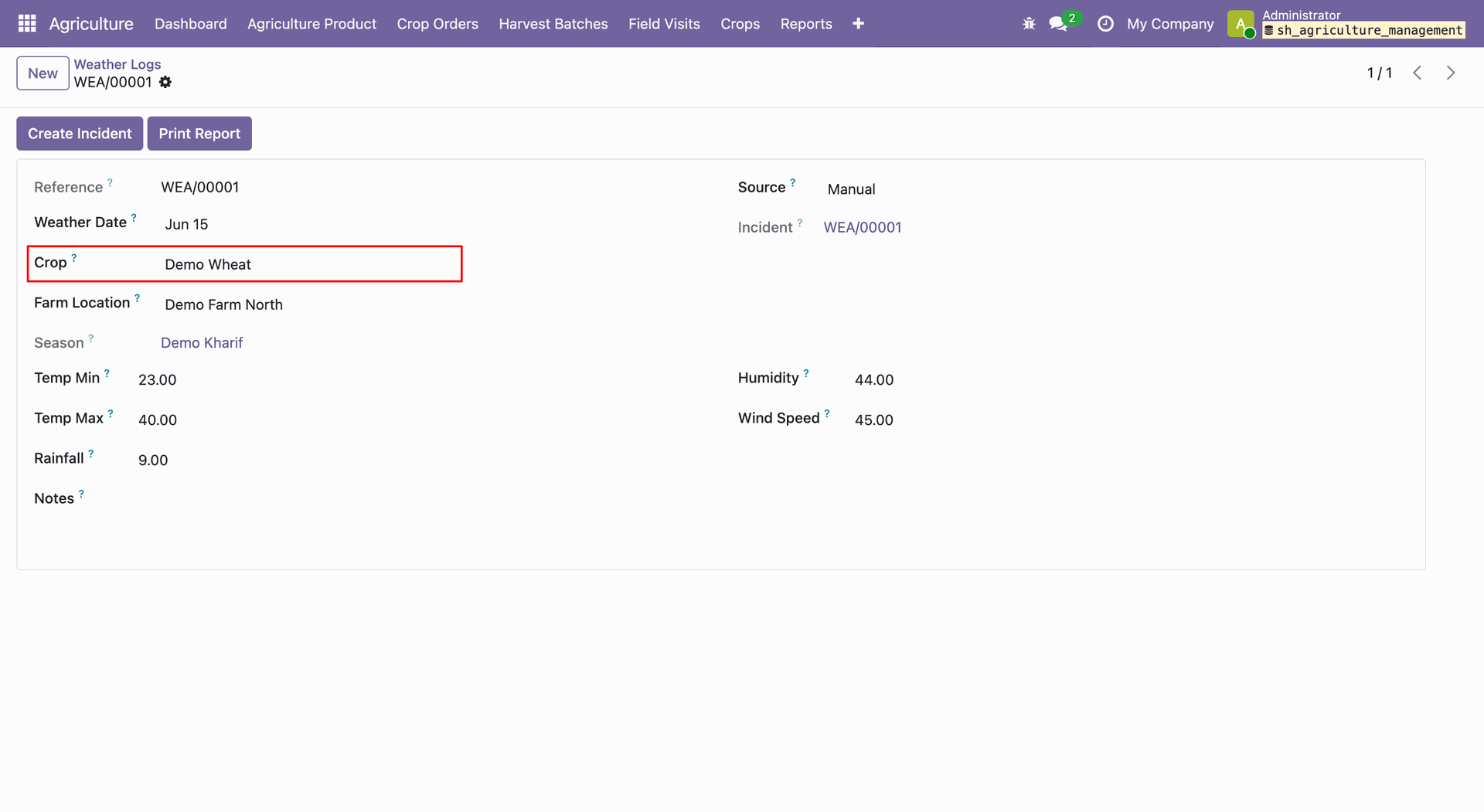
User can see Weather details in the crop form view -> Weather Tracking tab.
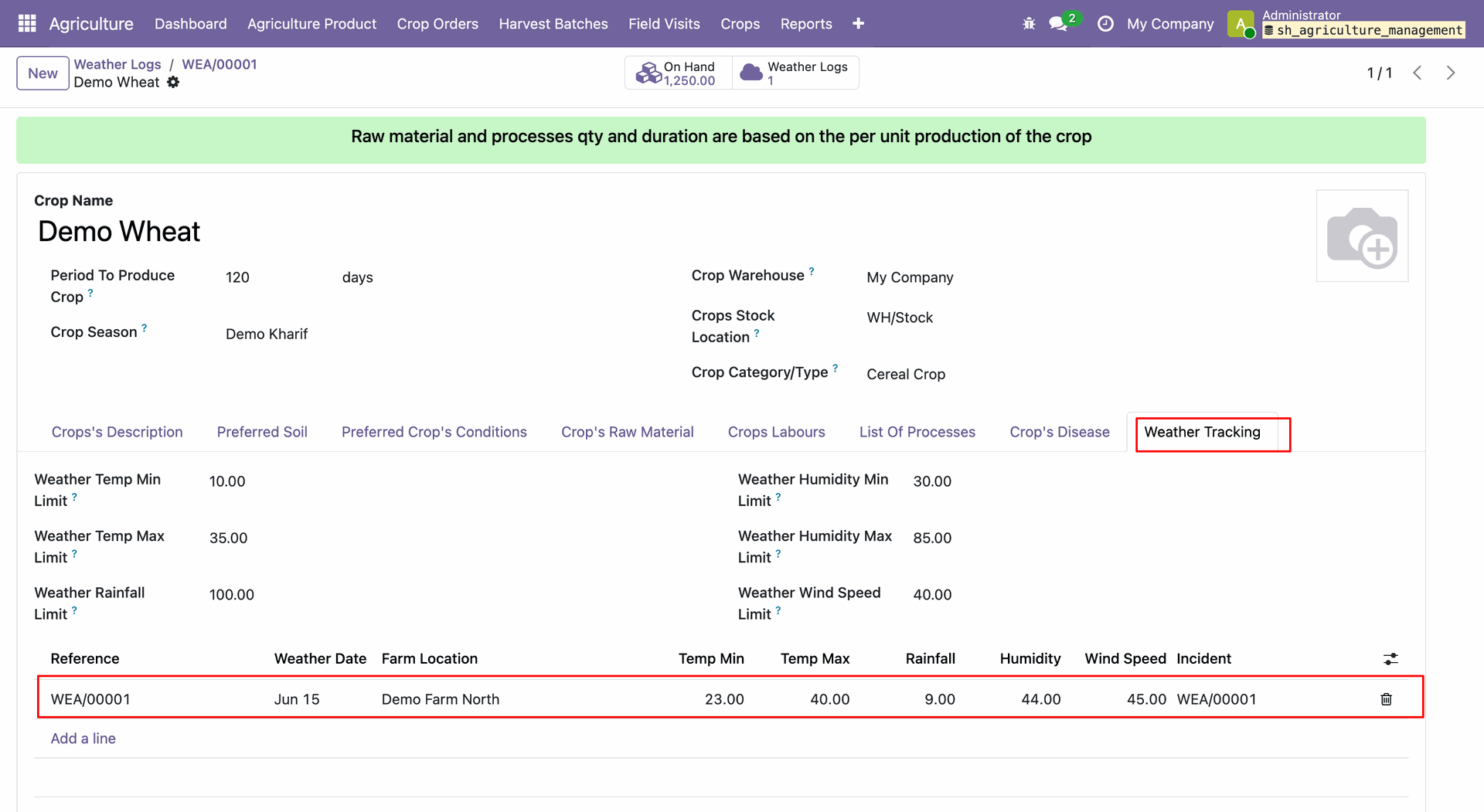
Click on the Print Report button from Weather Log form view.
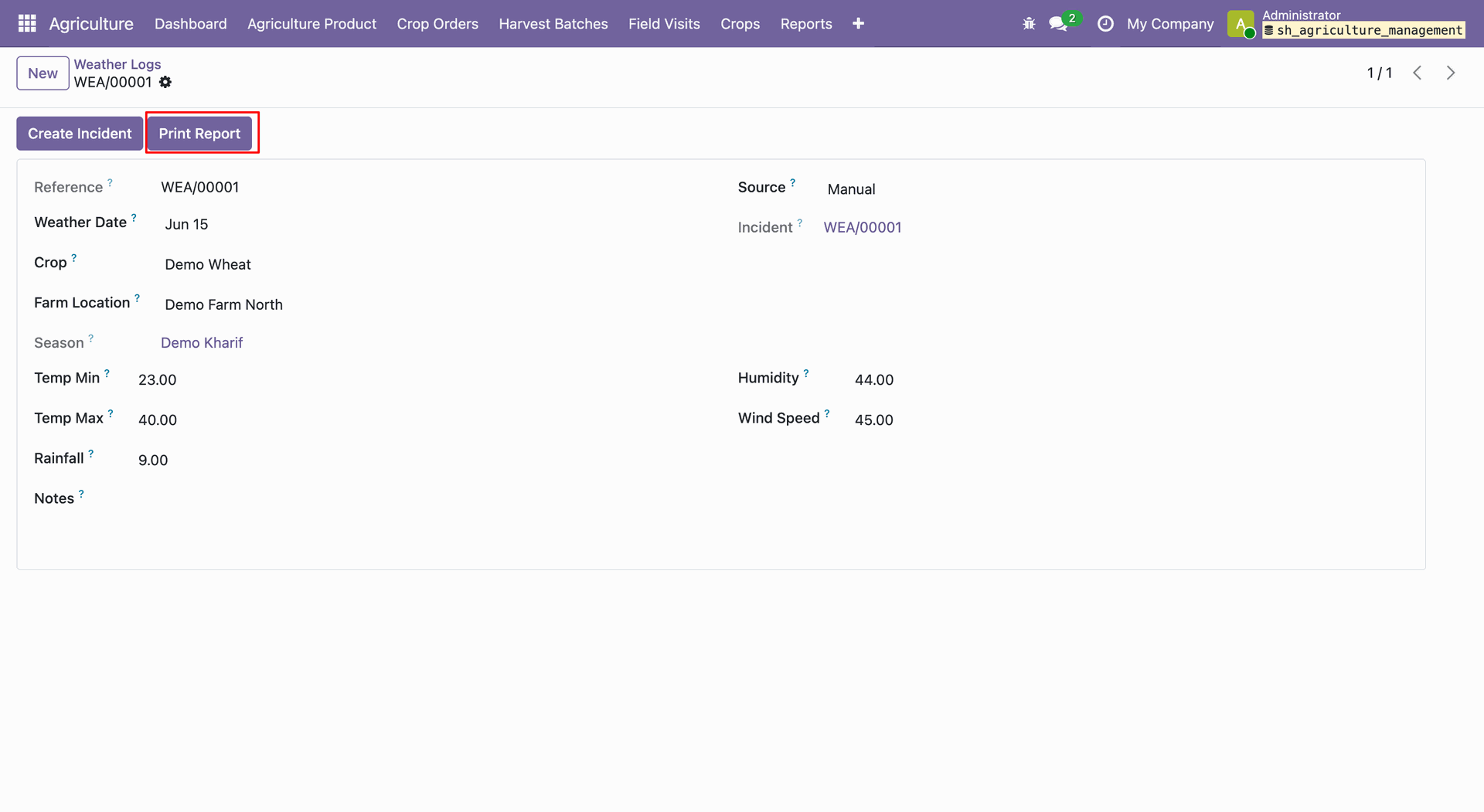
Generated Weather Report in PDF format.
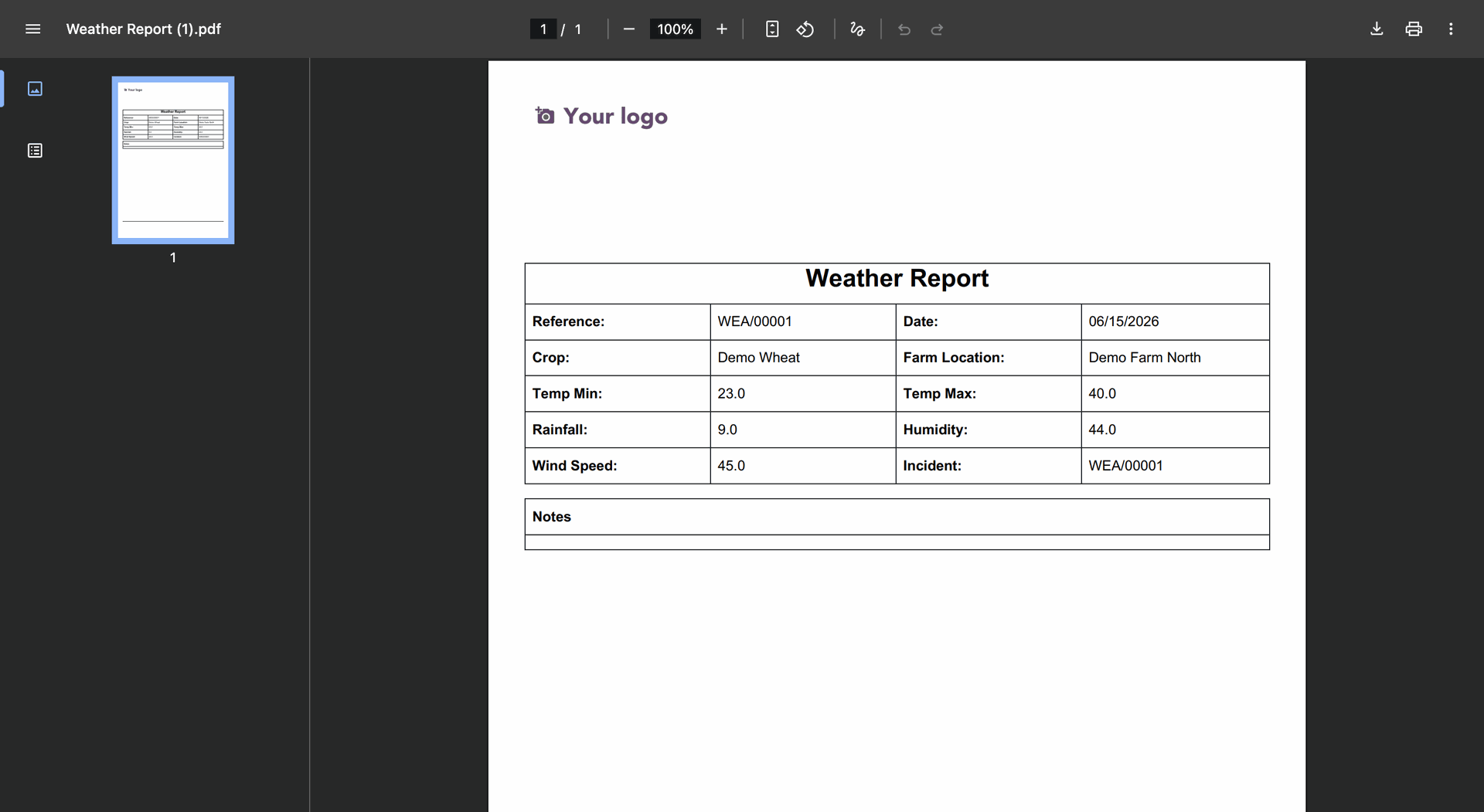
Open Agriculture -> Crops -> Weather Tracking → Crop Rotation Planning.
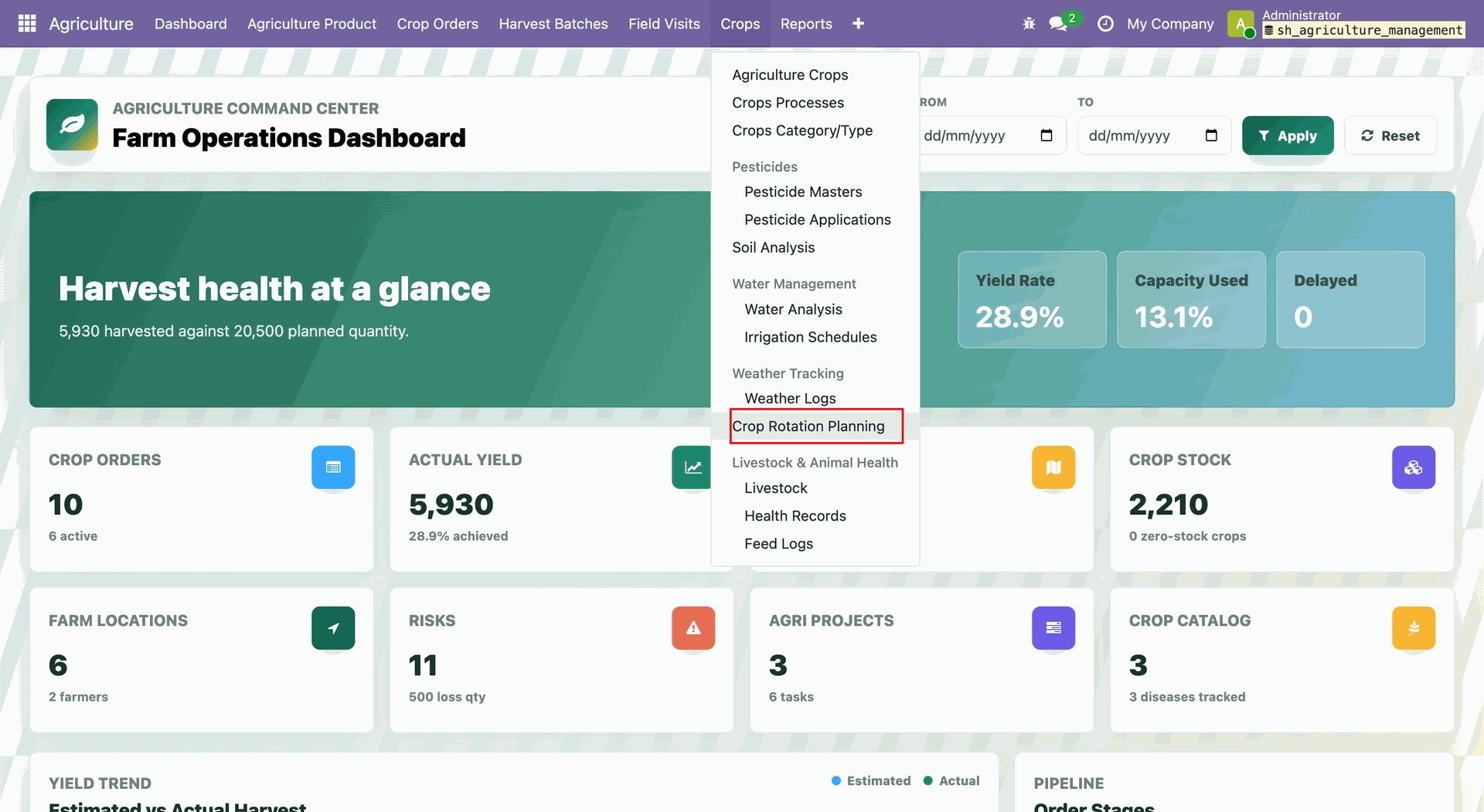
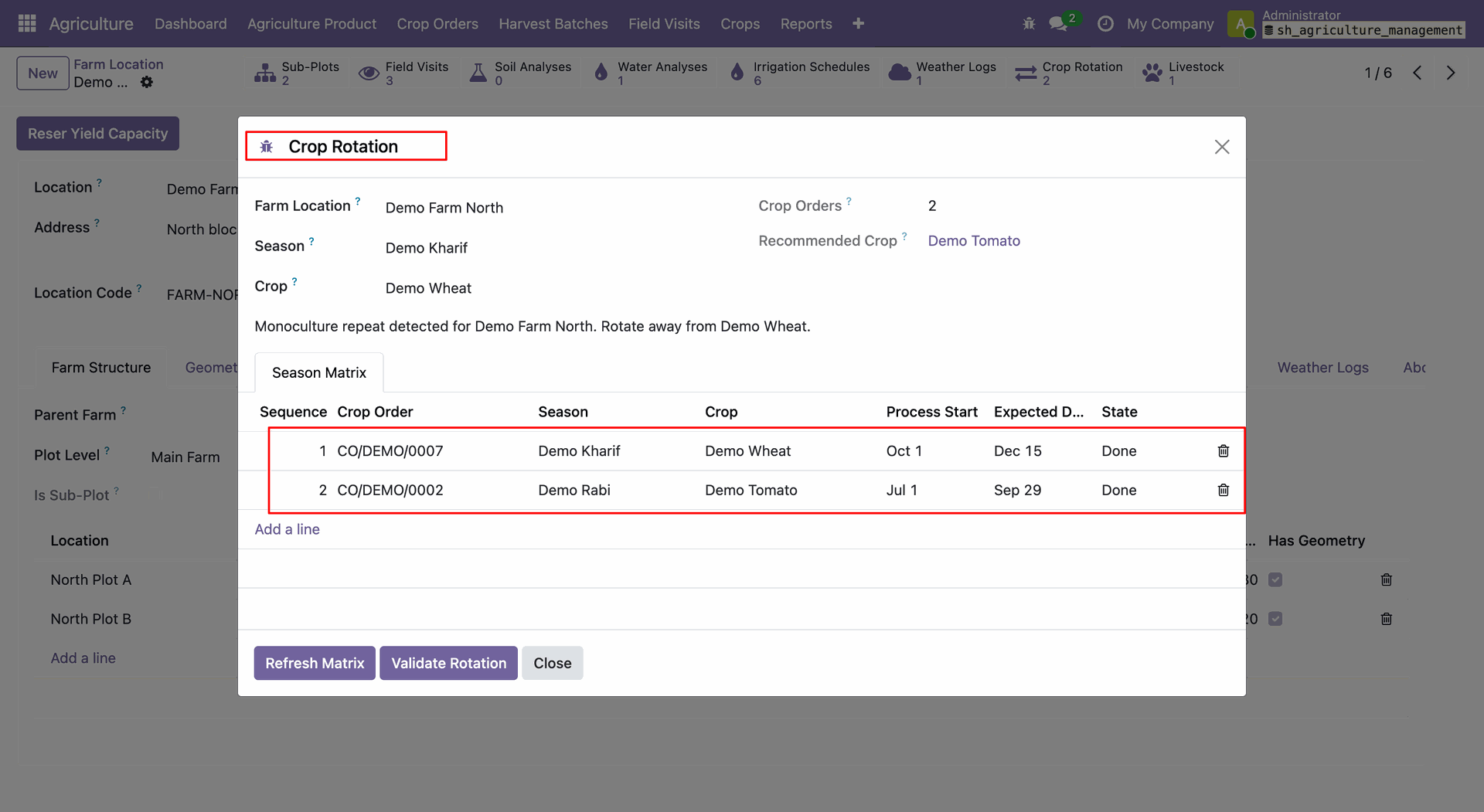
Open the farm location record. User can see Crop Rotation smart button.
Click on the Crop Rotation smart button will open crop rotation wizard and displays season matrix details for the selected crop, season and farm location.
Open the Crop Order record. User can see Crop Rotation smart button.
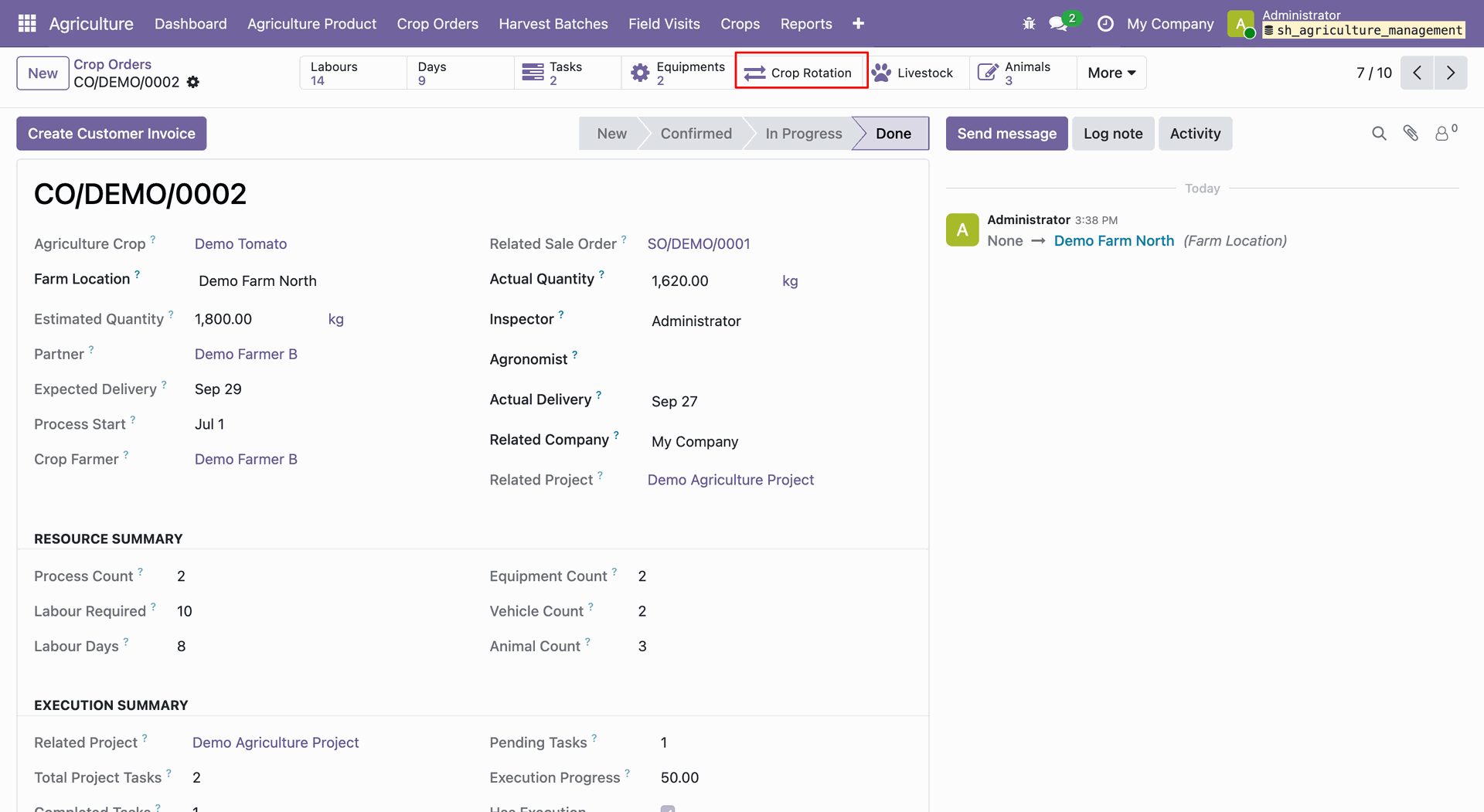
Click on the Crop Rotation smart button will open crop rotation wizard and displays season matrix details for the selected crop, season and farm location.
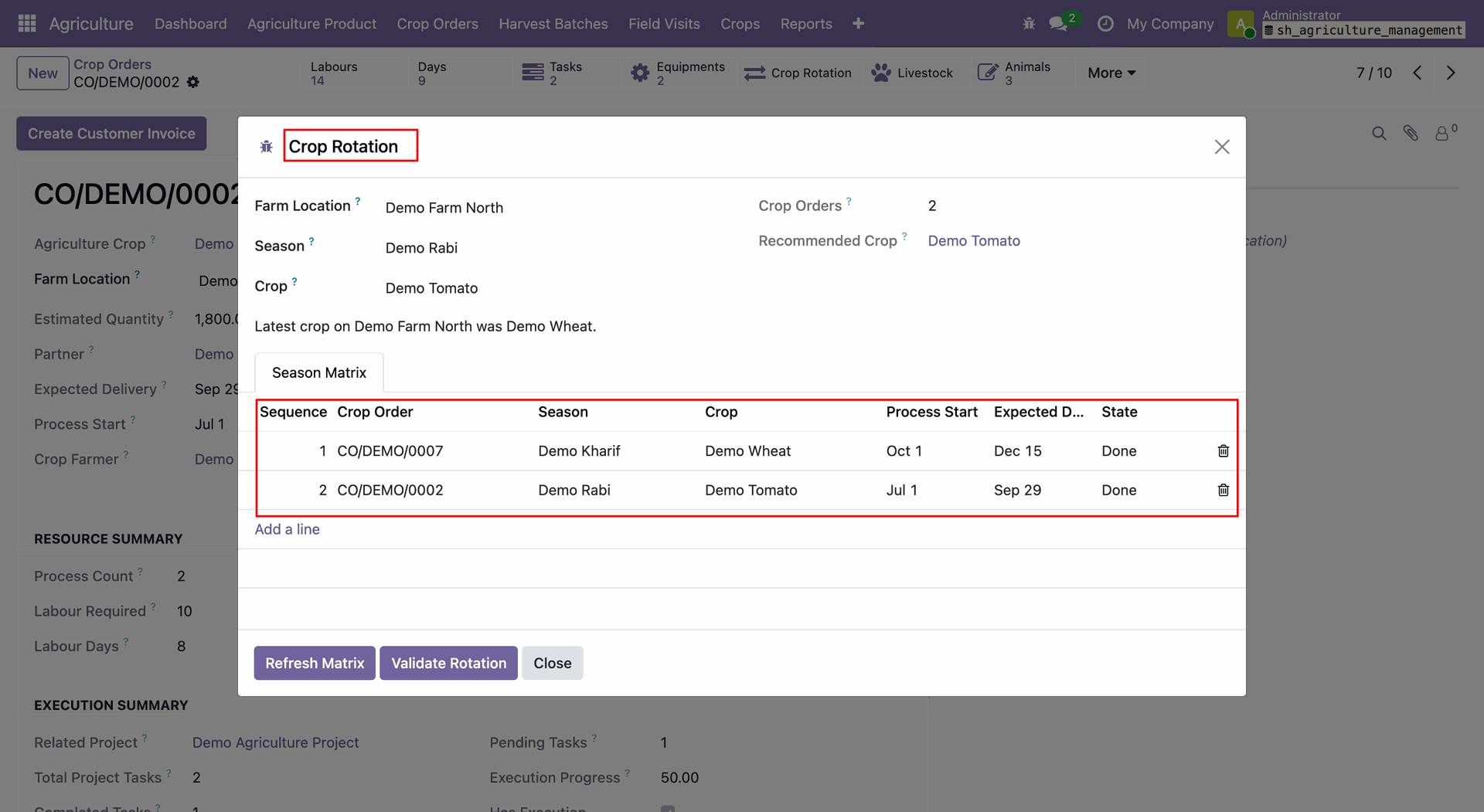
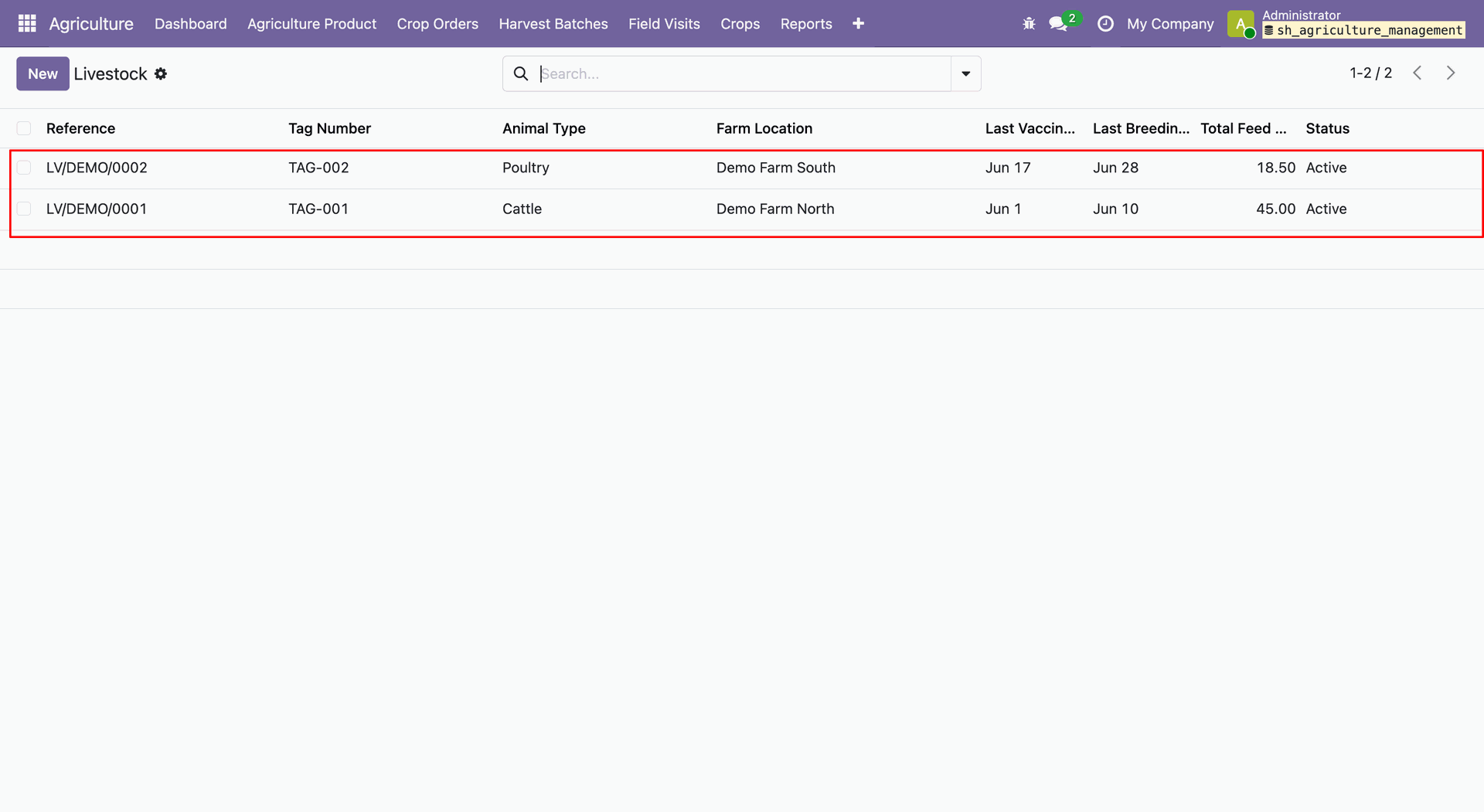
Open Agriculture -> Crops -> Live Stock.
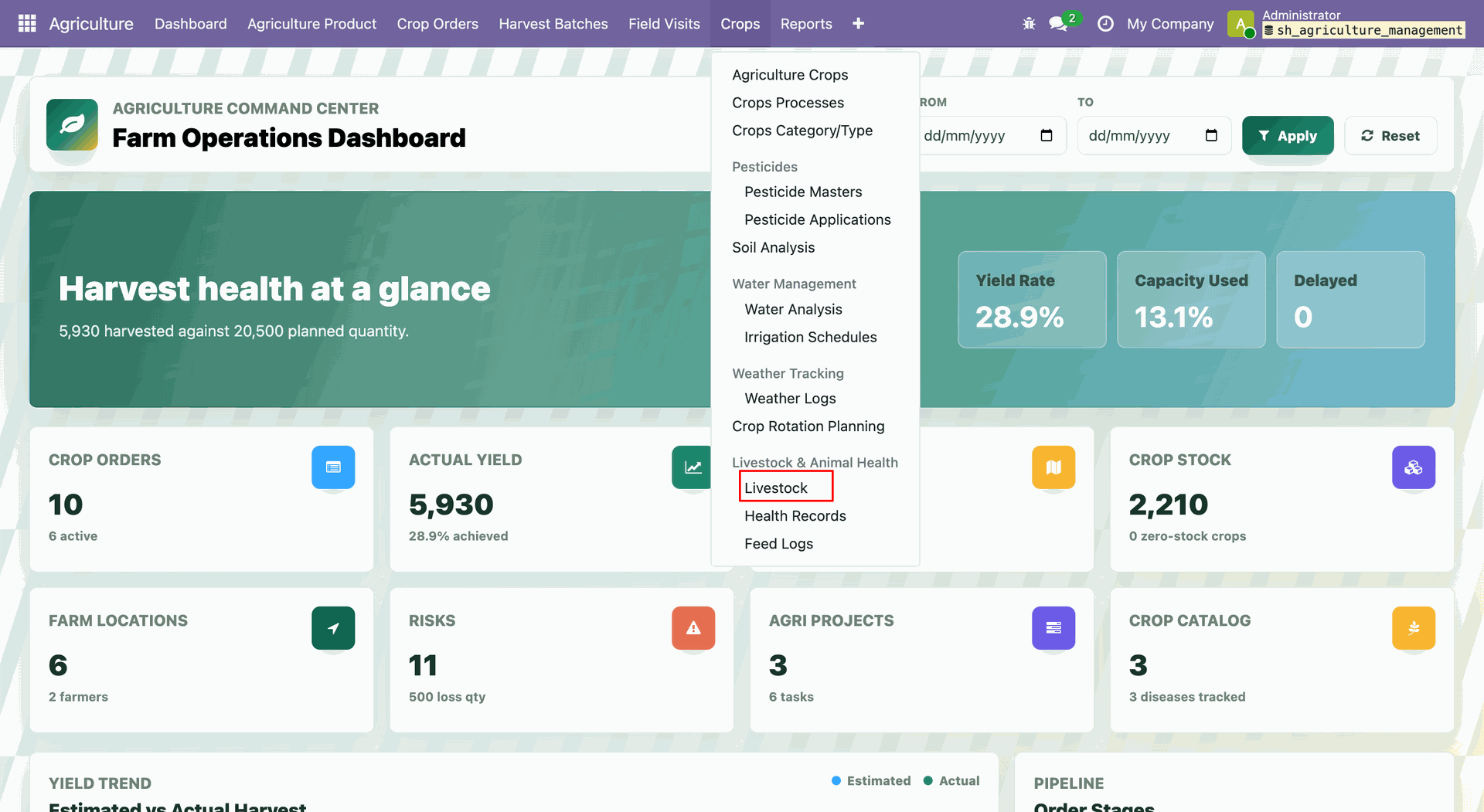
The Livestock list view.
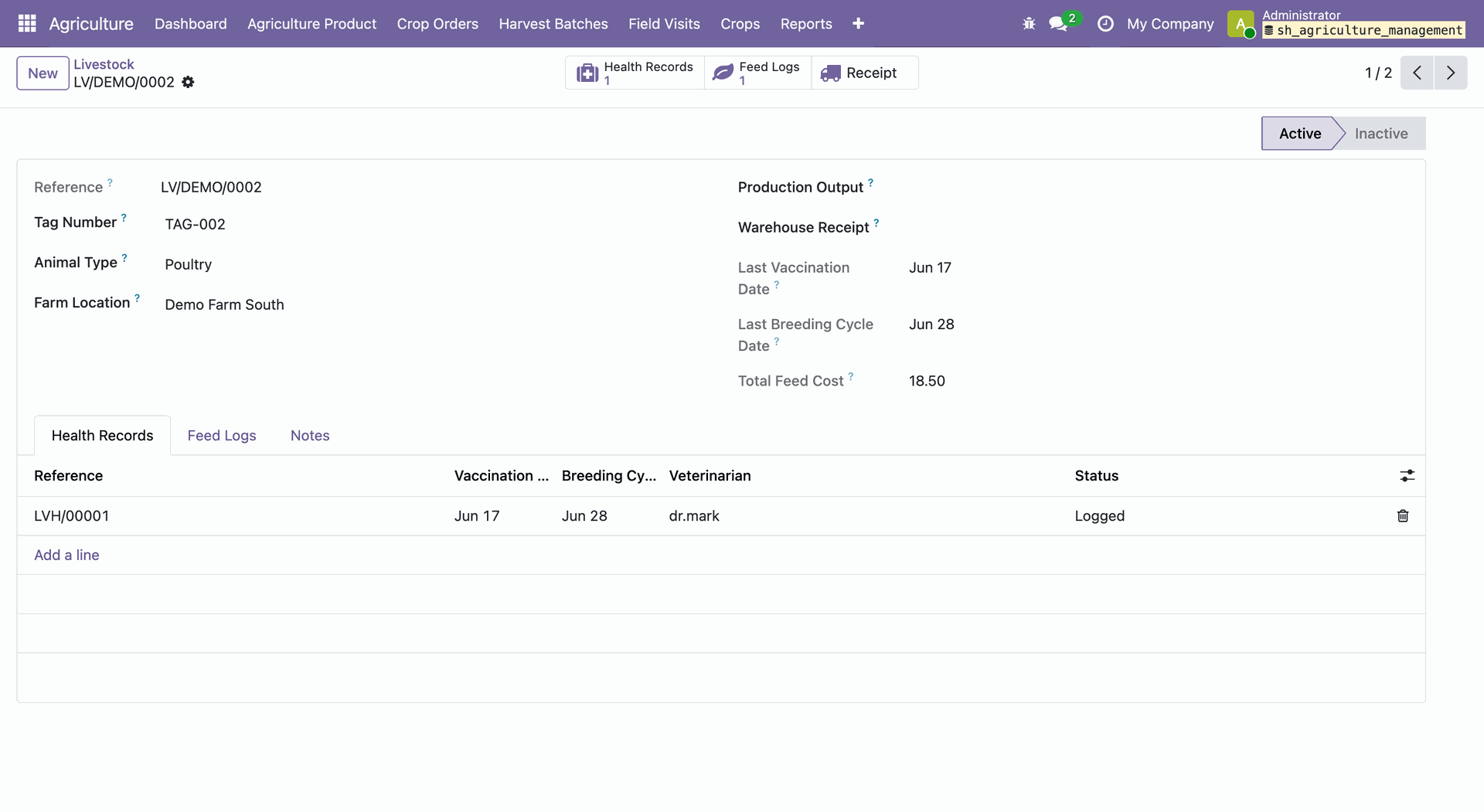
The selected Livestock record shows detailed information.
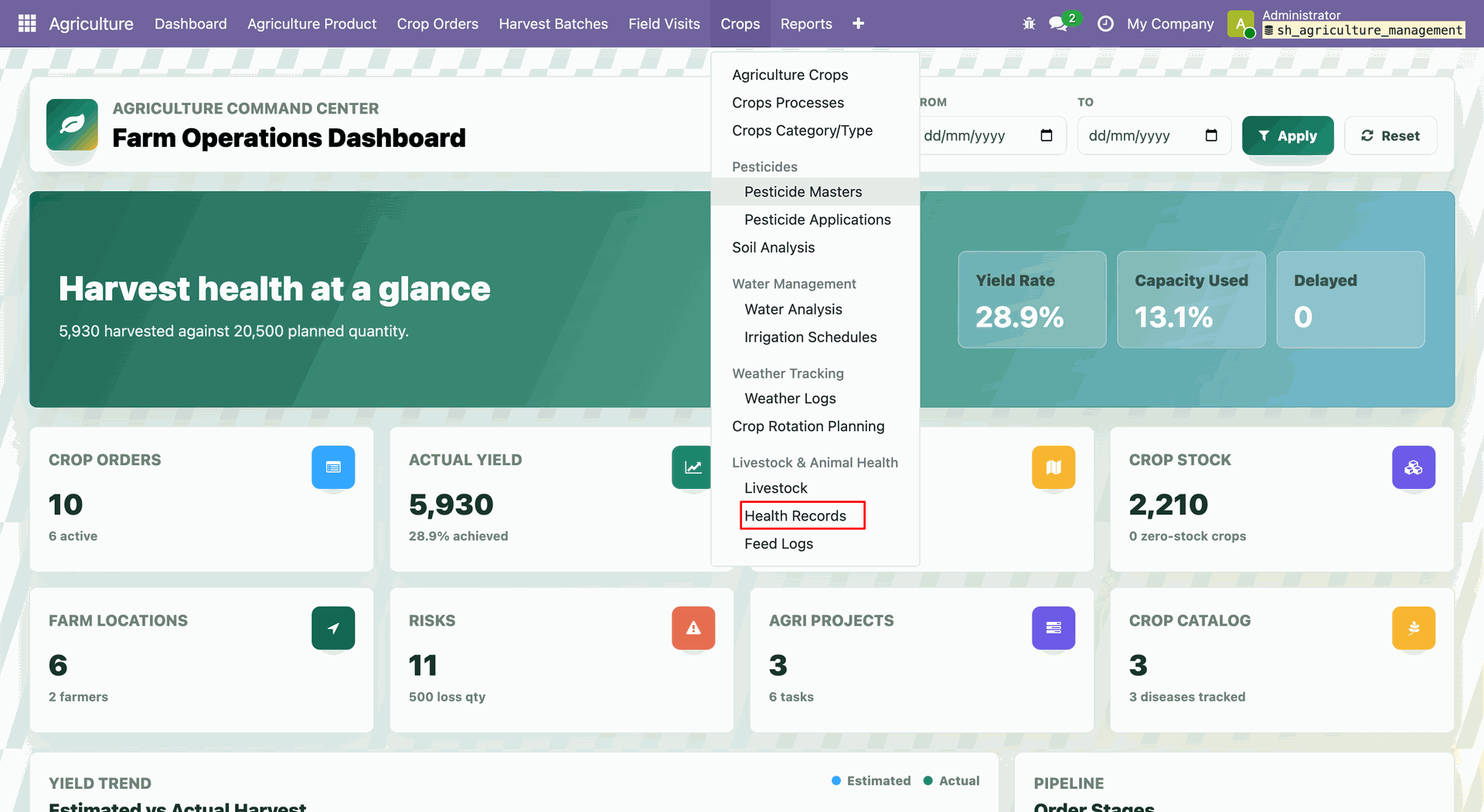
Open Agriculture -> Crops -> Health Records.
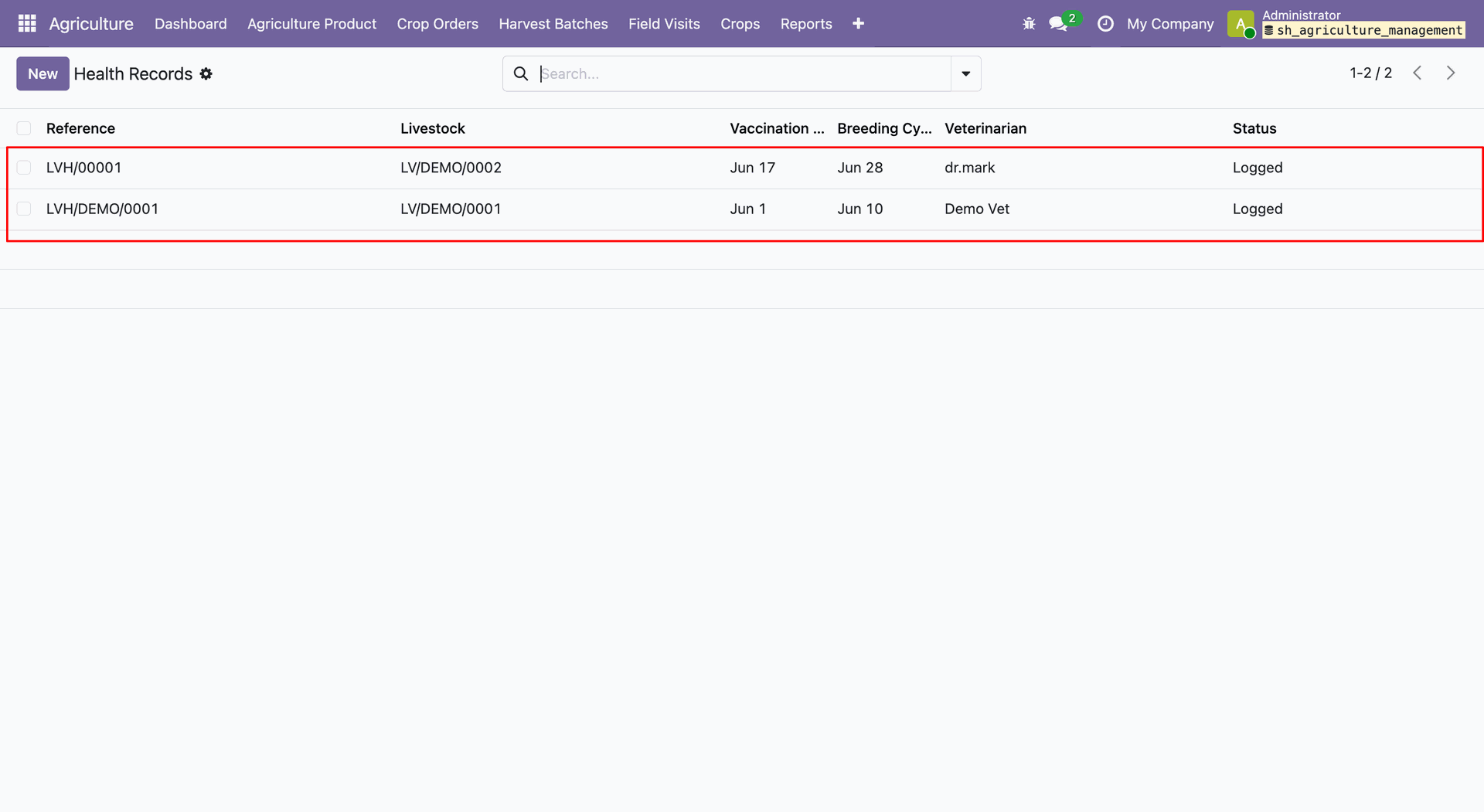
The Animal Health record list view.
The selected Animal Health record shows detailed information.
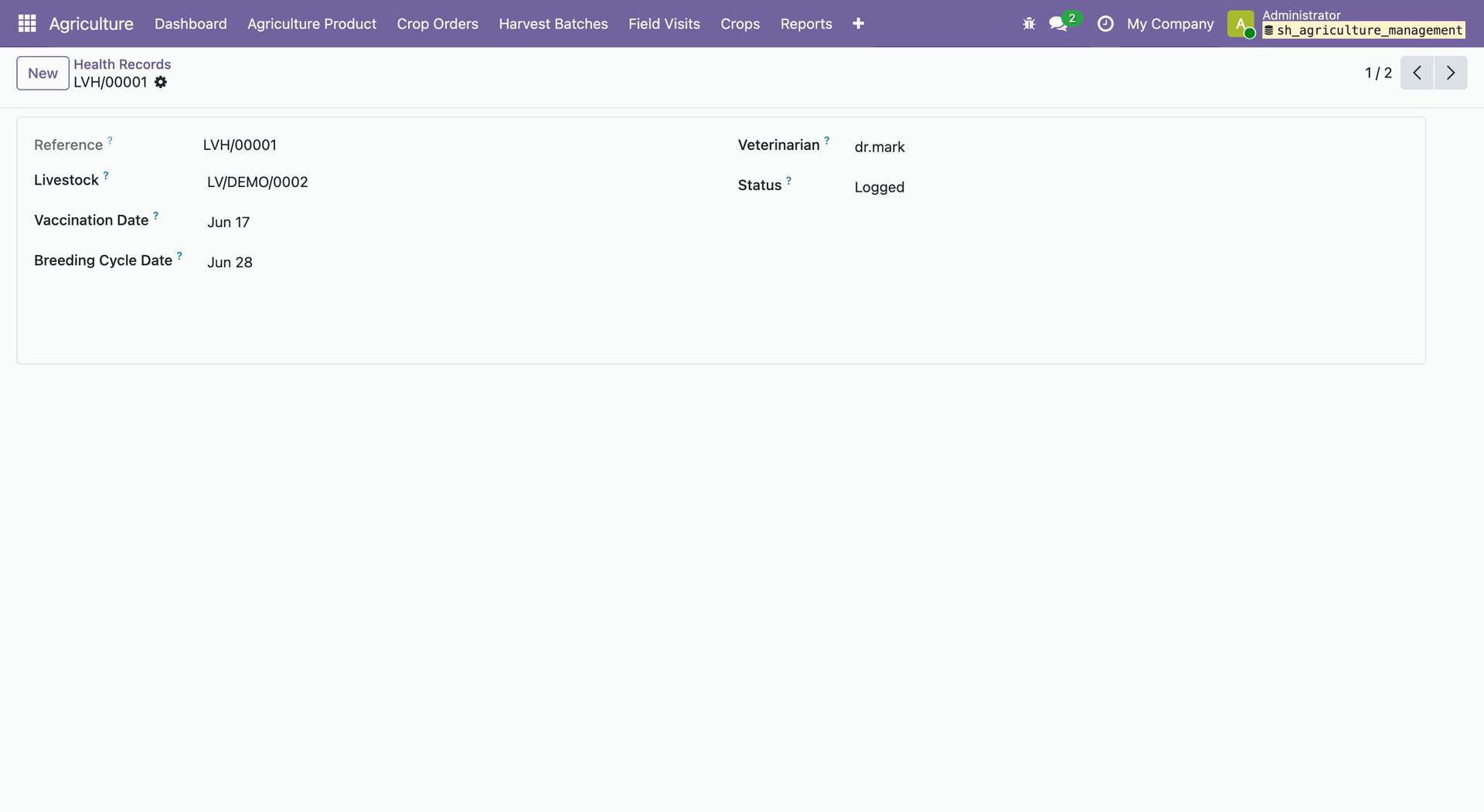
Open Agriculture -> Crops -> Feed Logs.
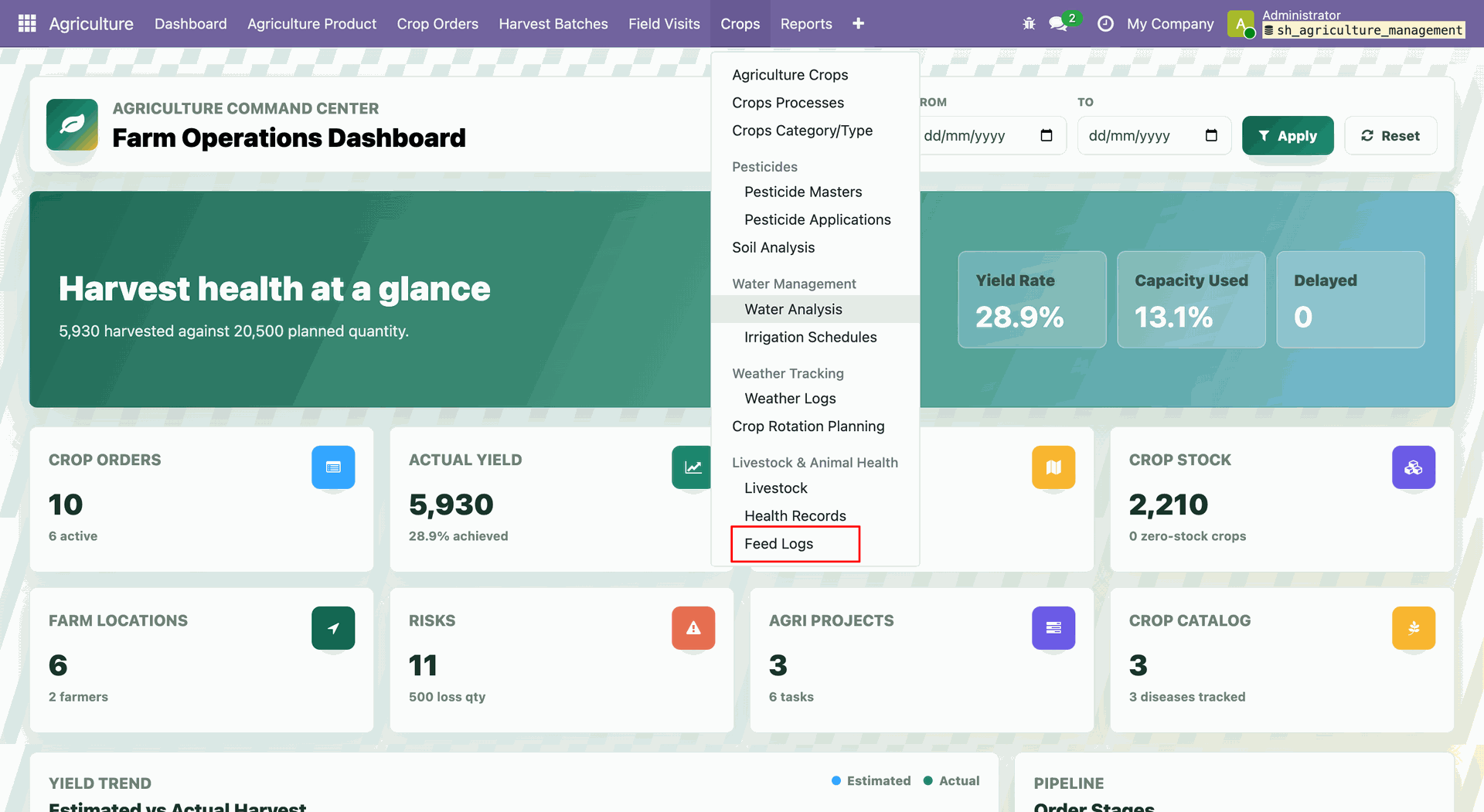
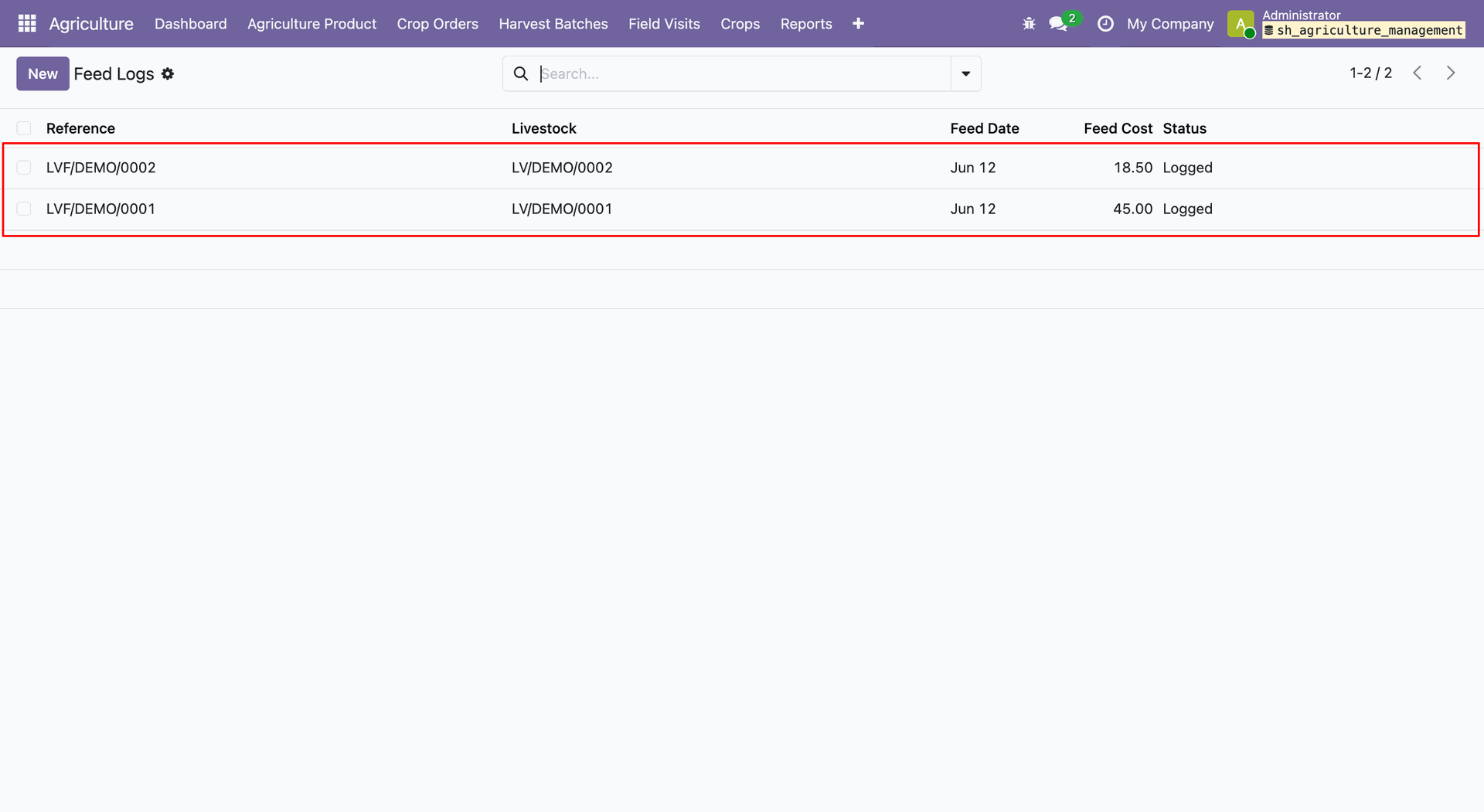
The Feed Logs record list view.
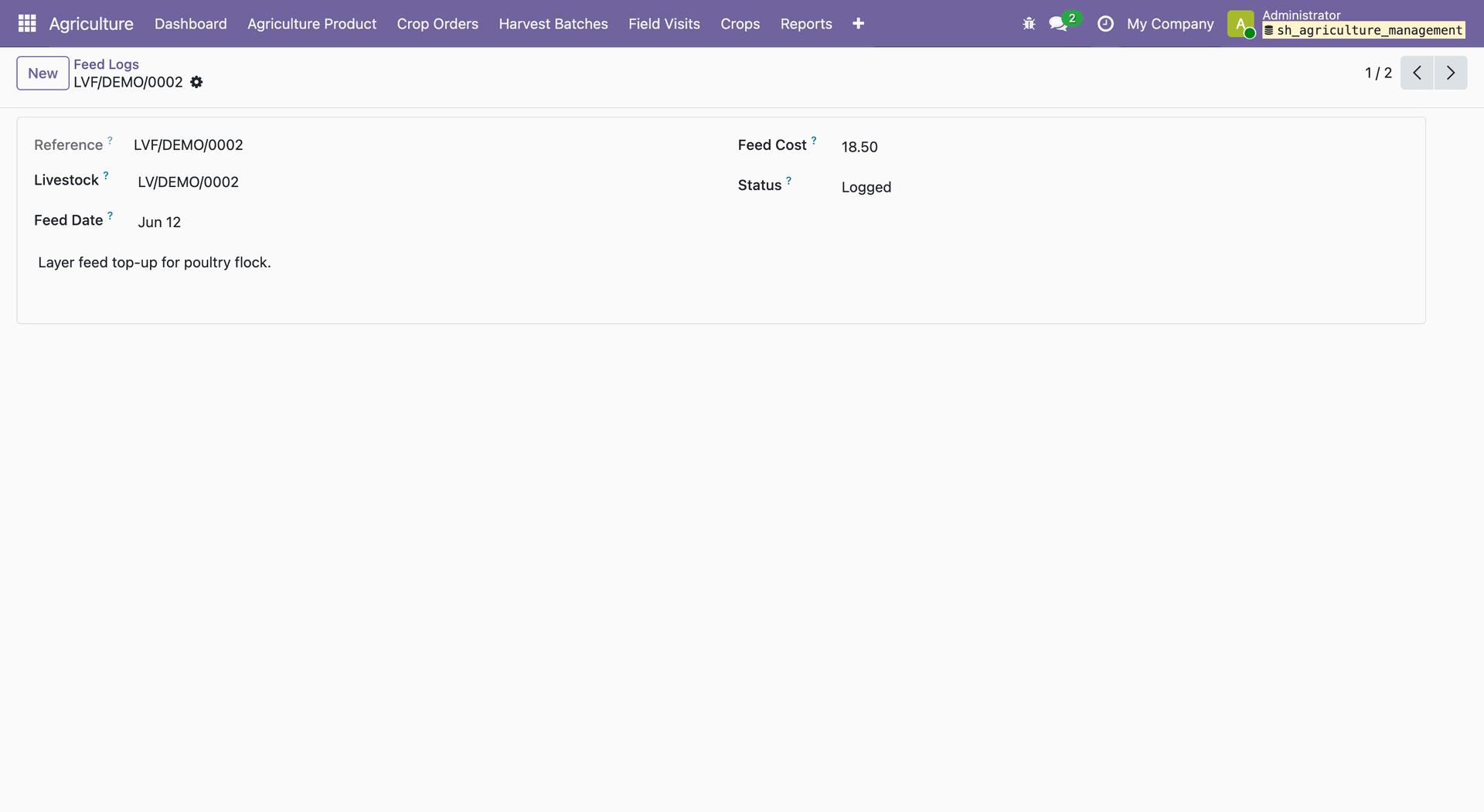
The selected Feed Log record shows detailed information.
Go to the CRM -> Pipeline.
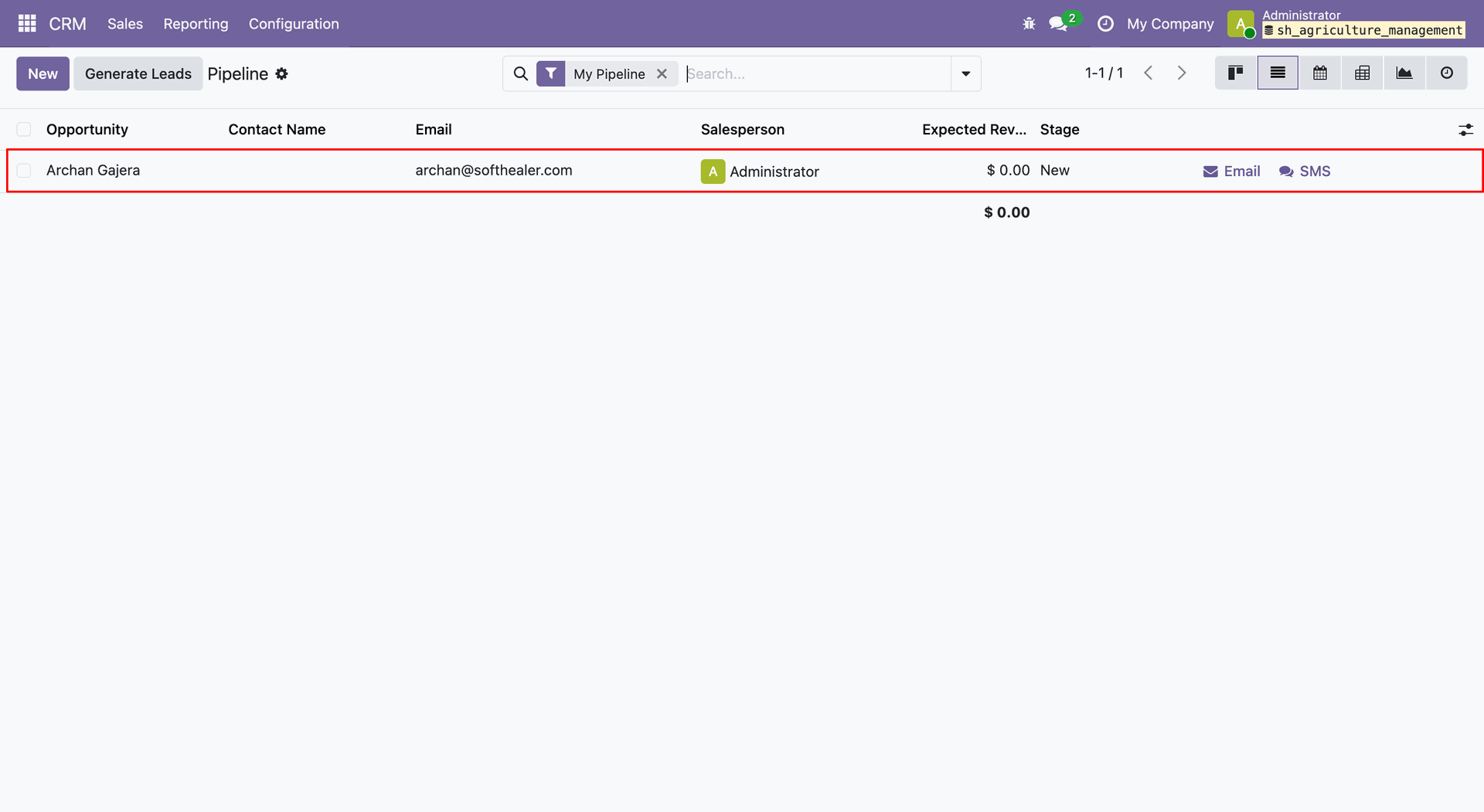
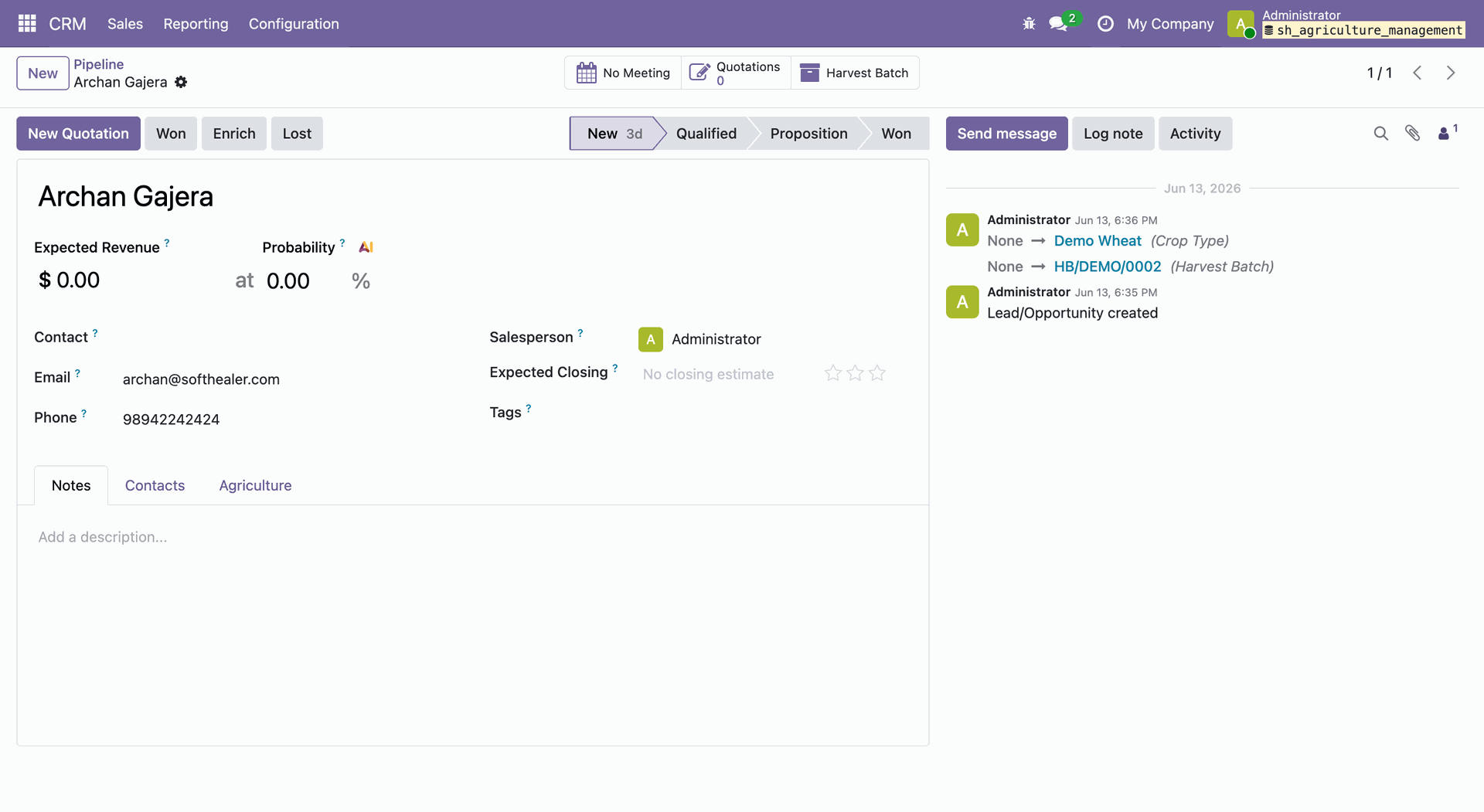
Open the Pipeline form view add relavent details in agriculture tab.
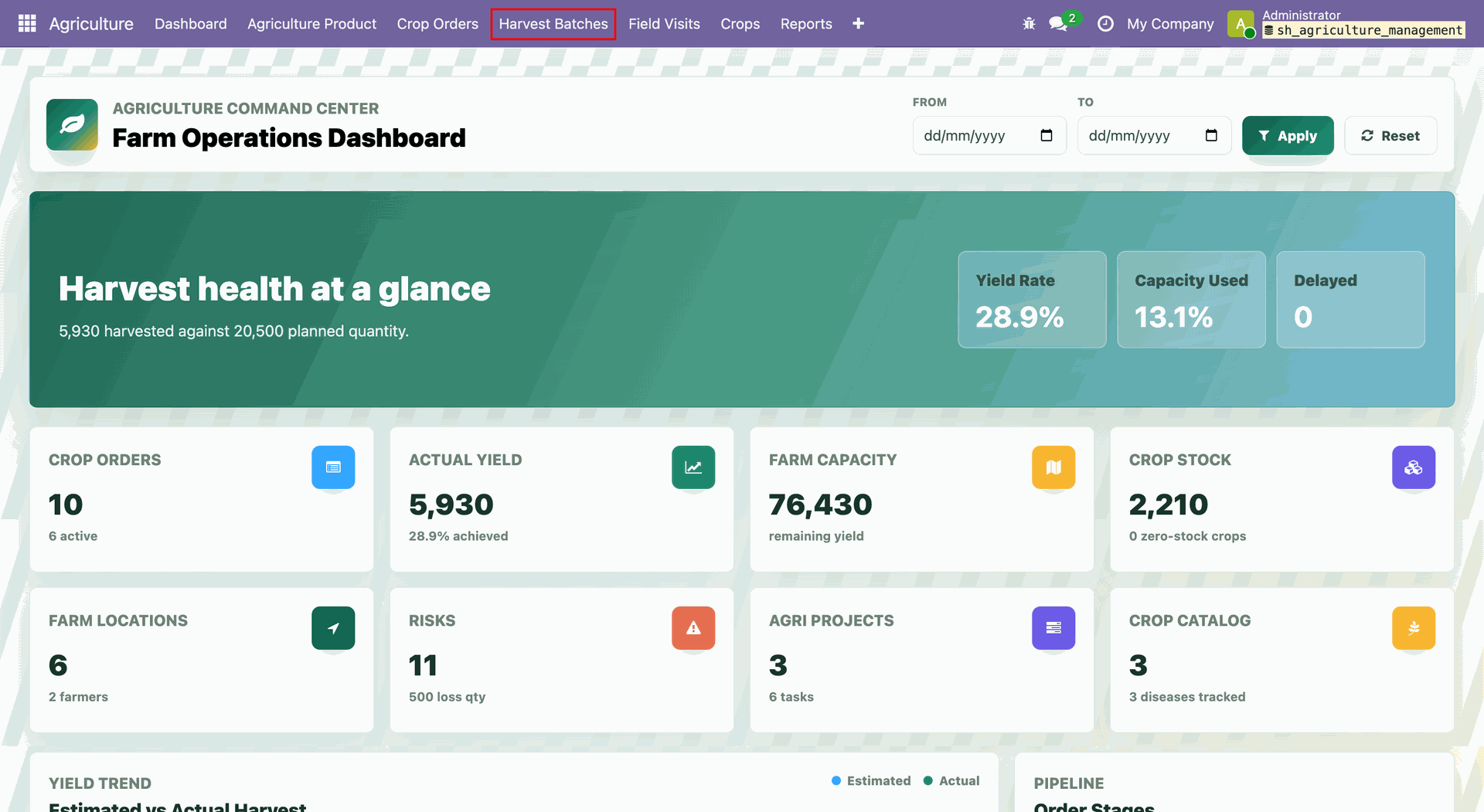
Open Agriculture -> Harvest Batches.
Harvest Batches list view. Select and open a record.
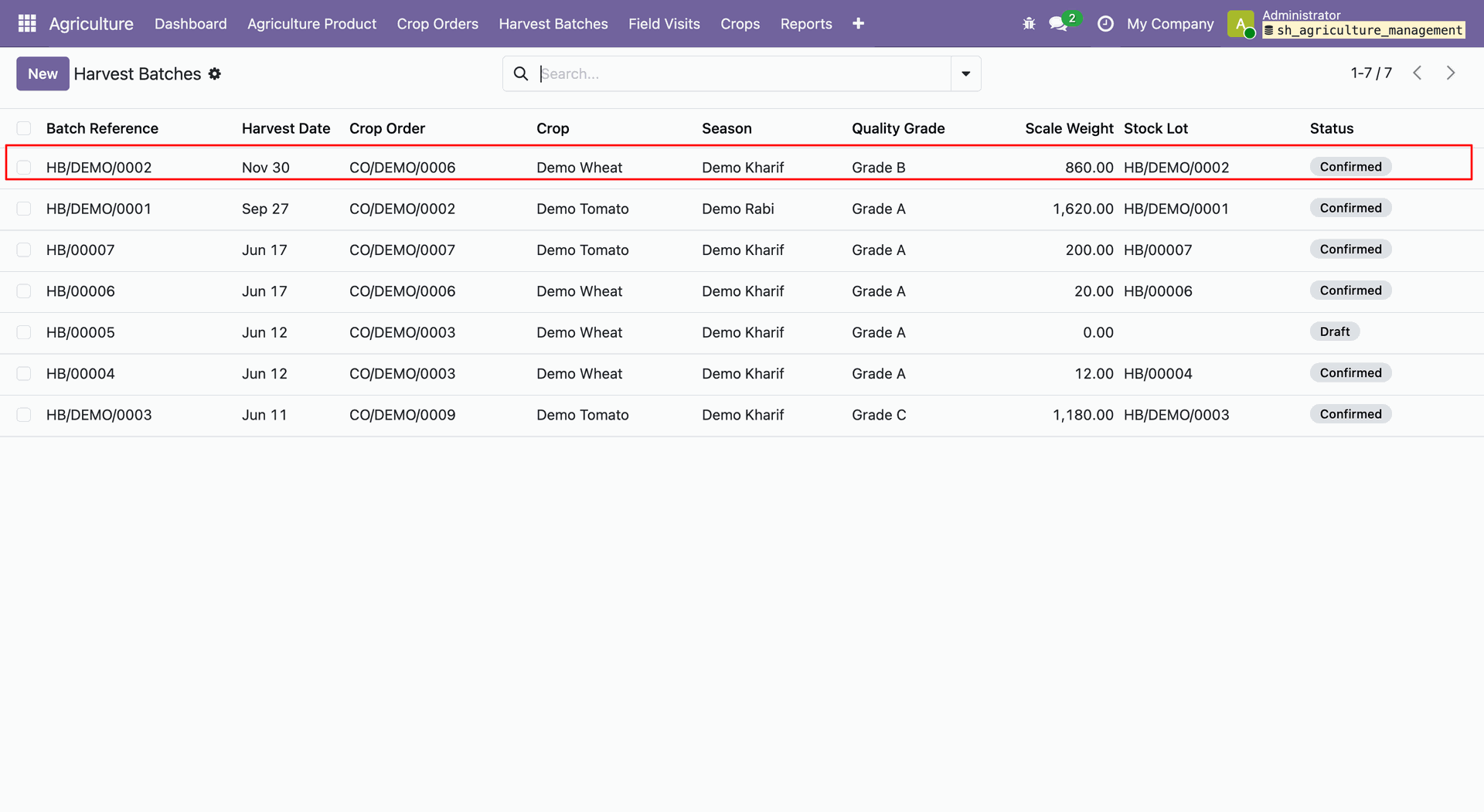
User can see CRM Opportunities smart button in the Harvest Batch form view.
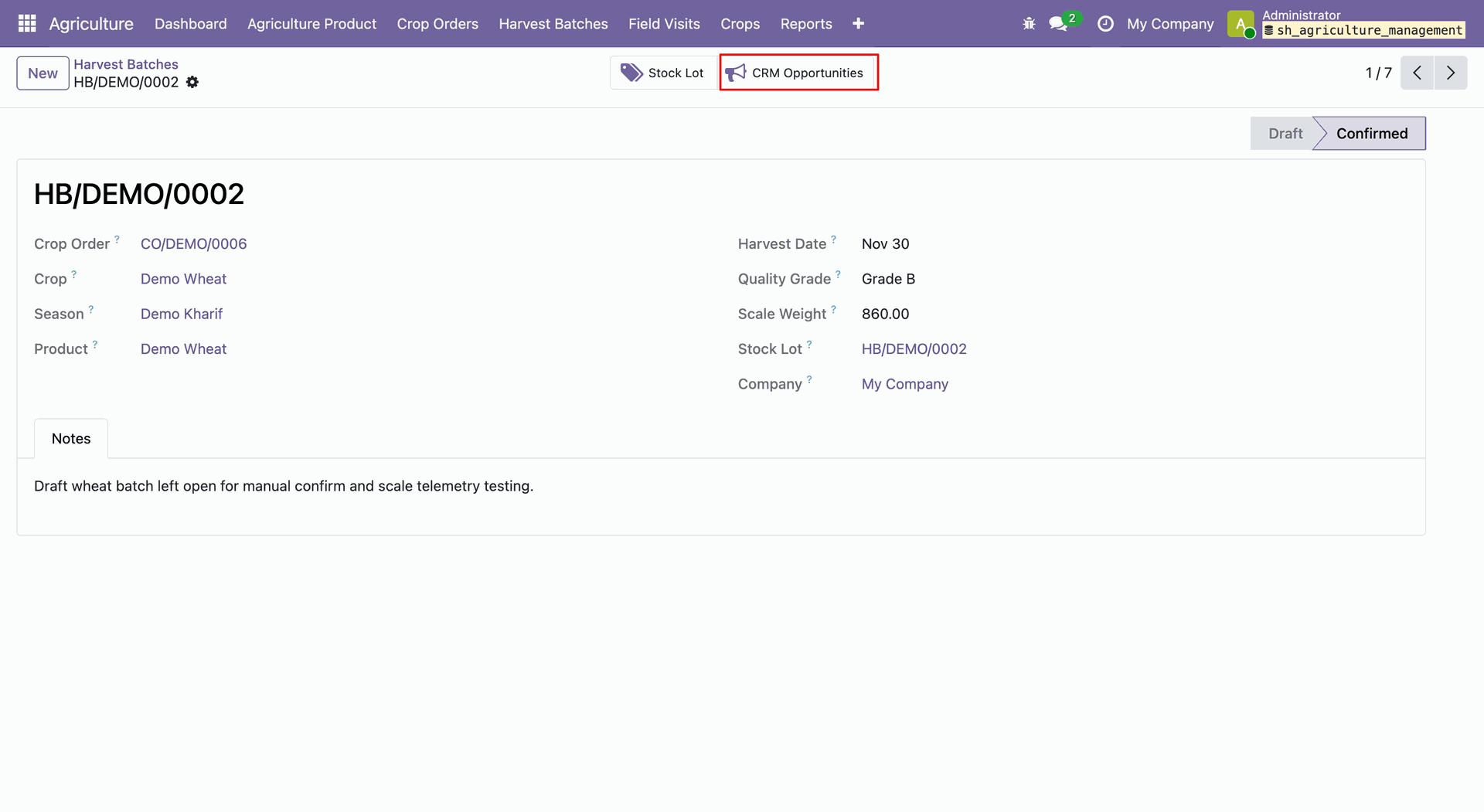
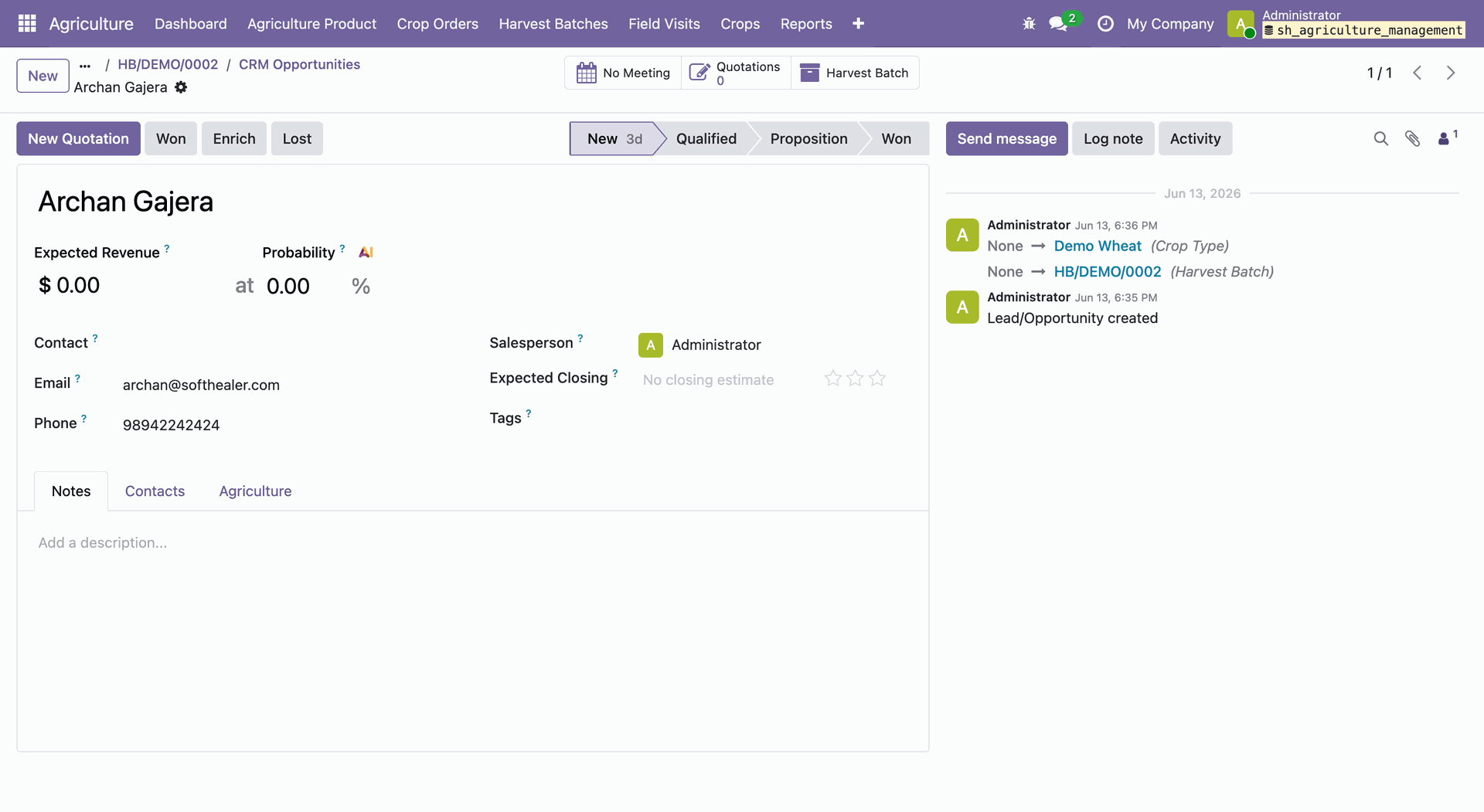
By clicking on the smart button will opwn CRM Opportunity form view and linked Harvest Batch smart button is visible.
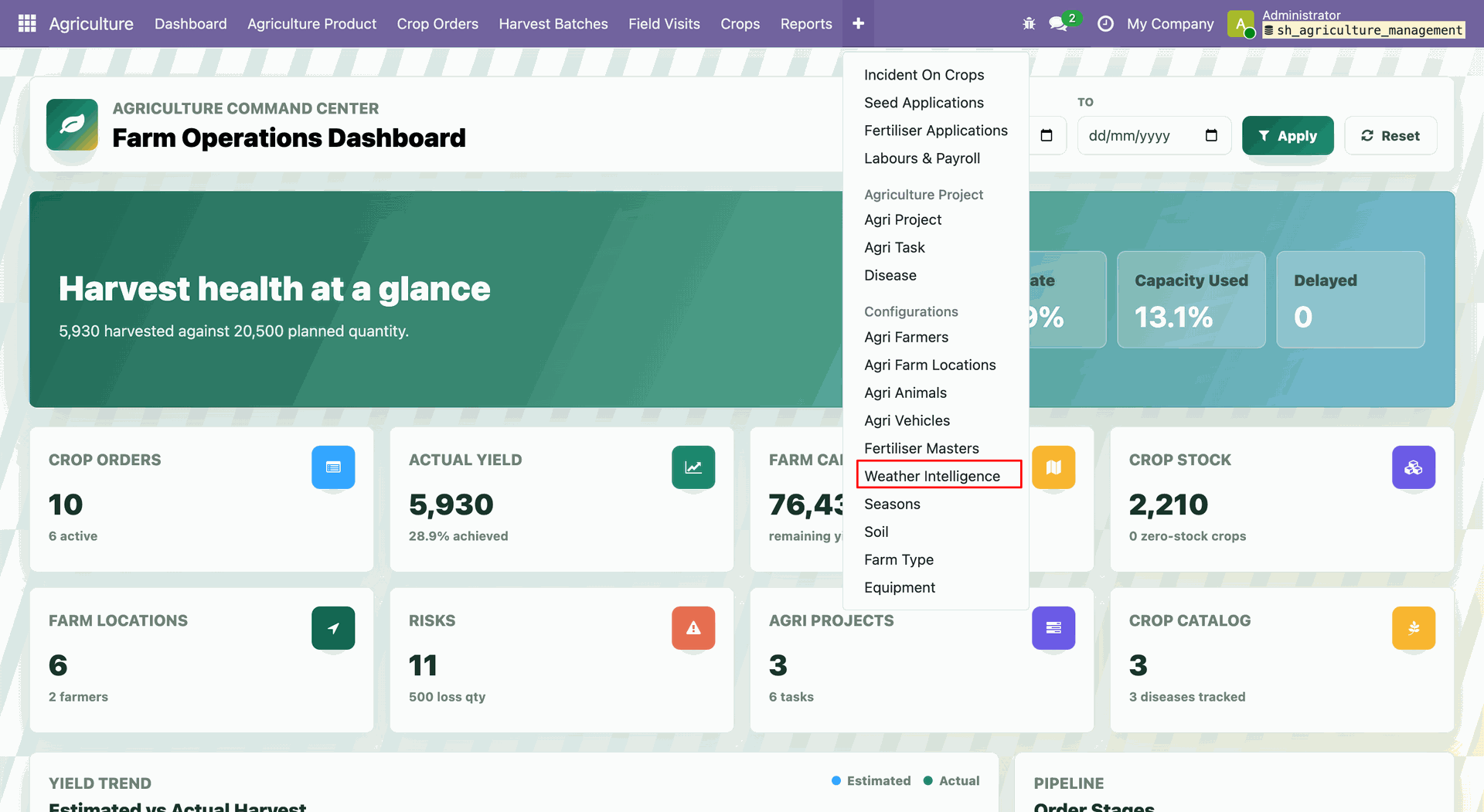
Open Agriculture -> Weather Intelligence.
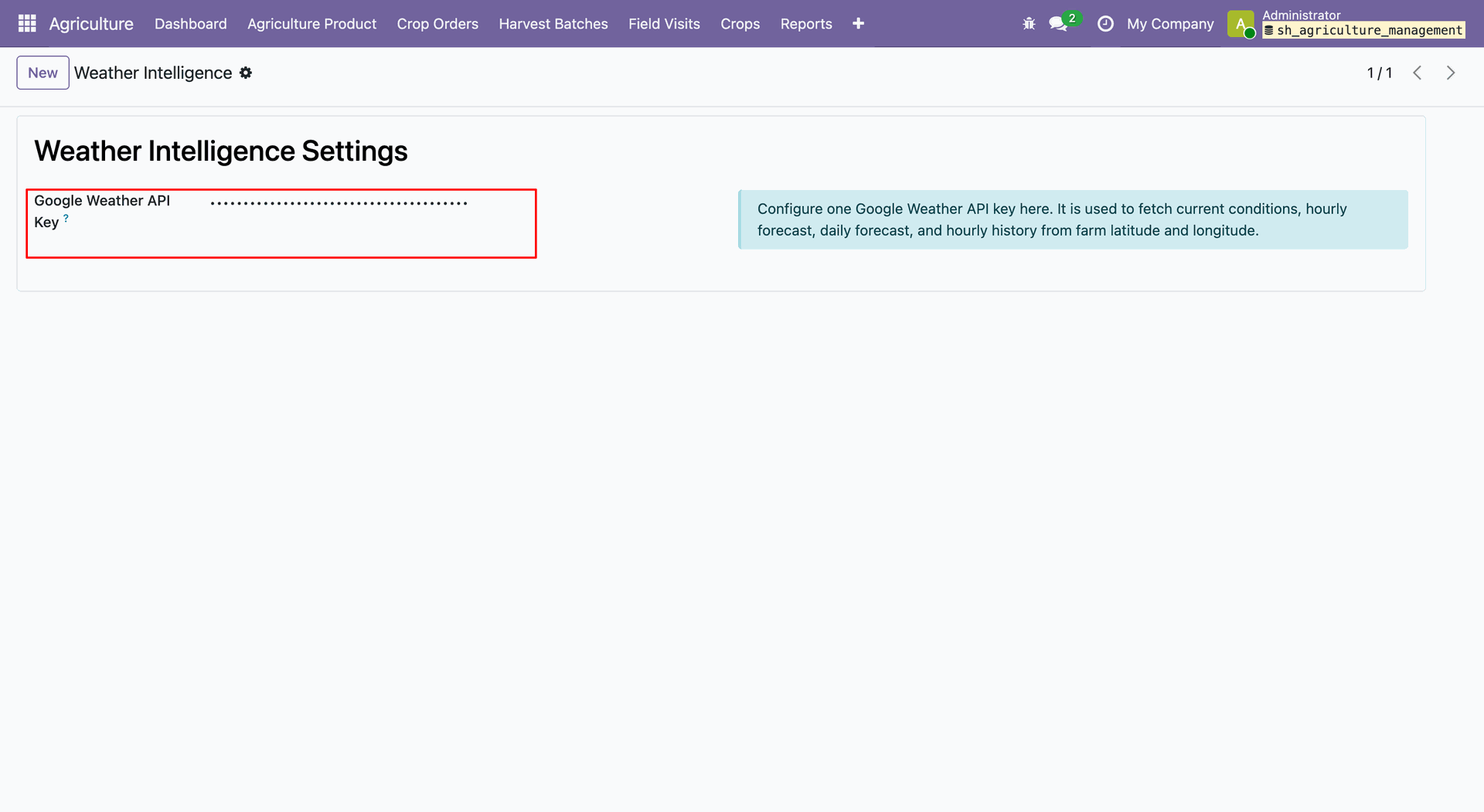
Weather Intelligence form will open add google Weather API key.
Go to the farm location list view. Select record and open the selected record.
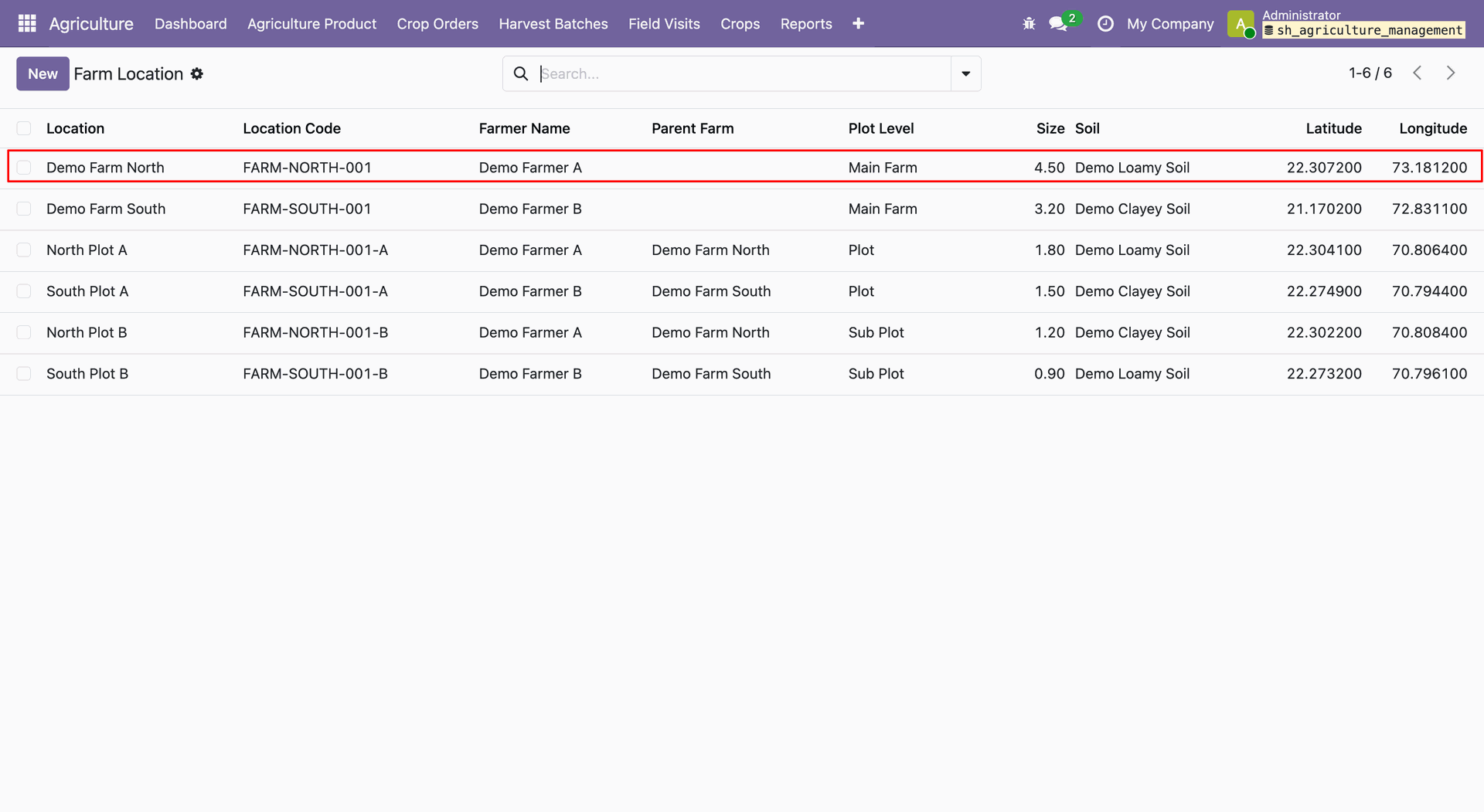
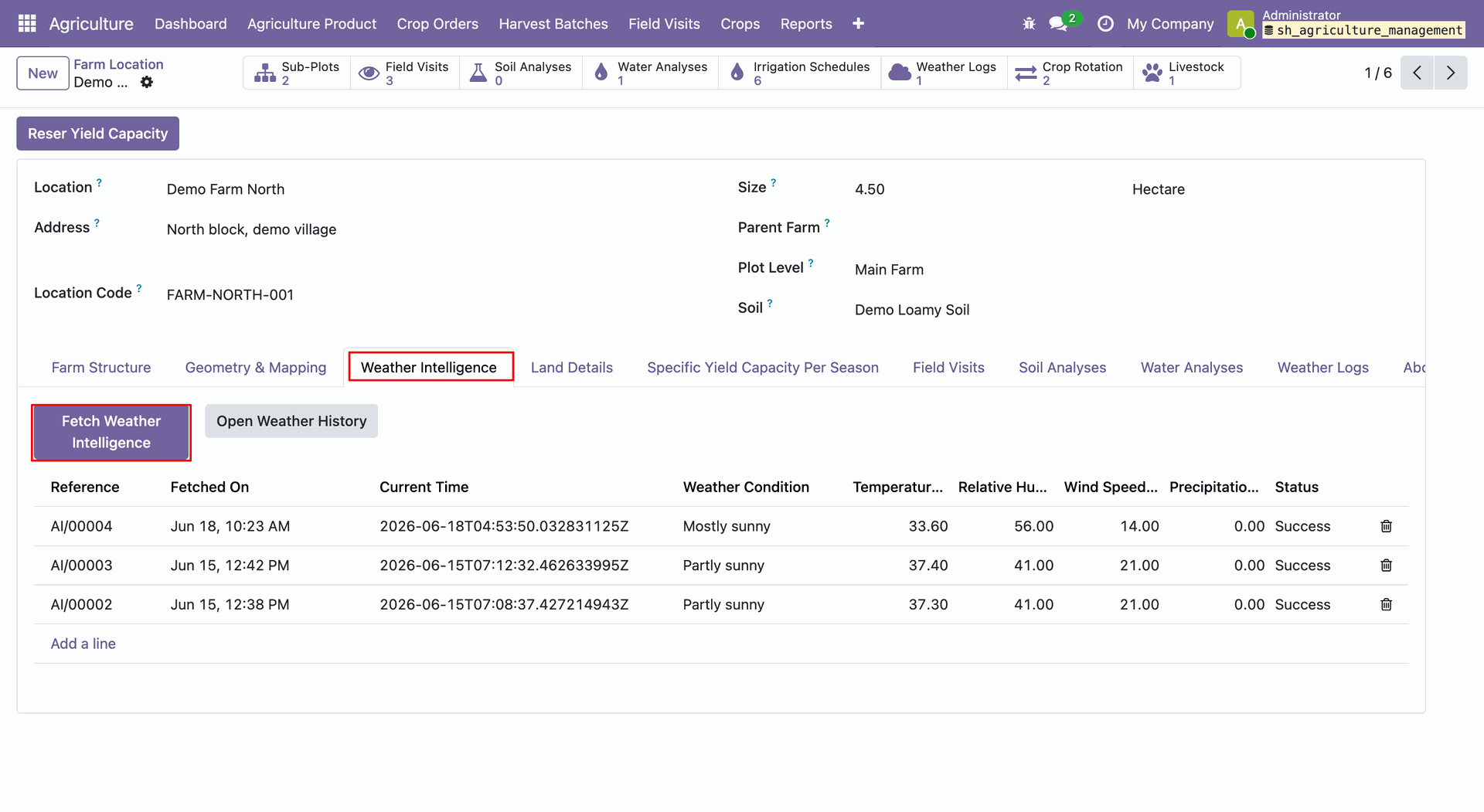
Navigate to the Weather Intelligence tab from farm location form view and click on Fetch Weather Intelligence button.
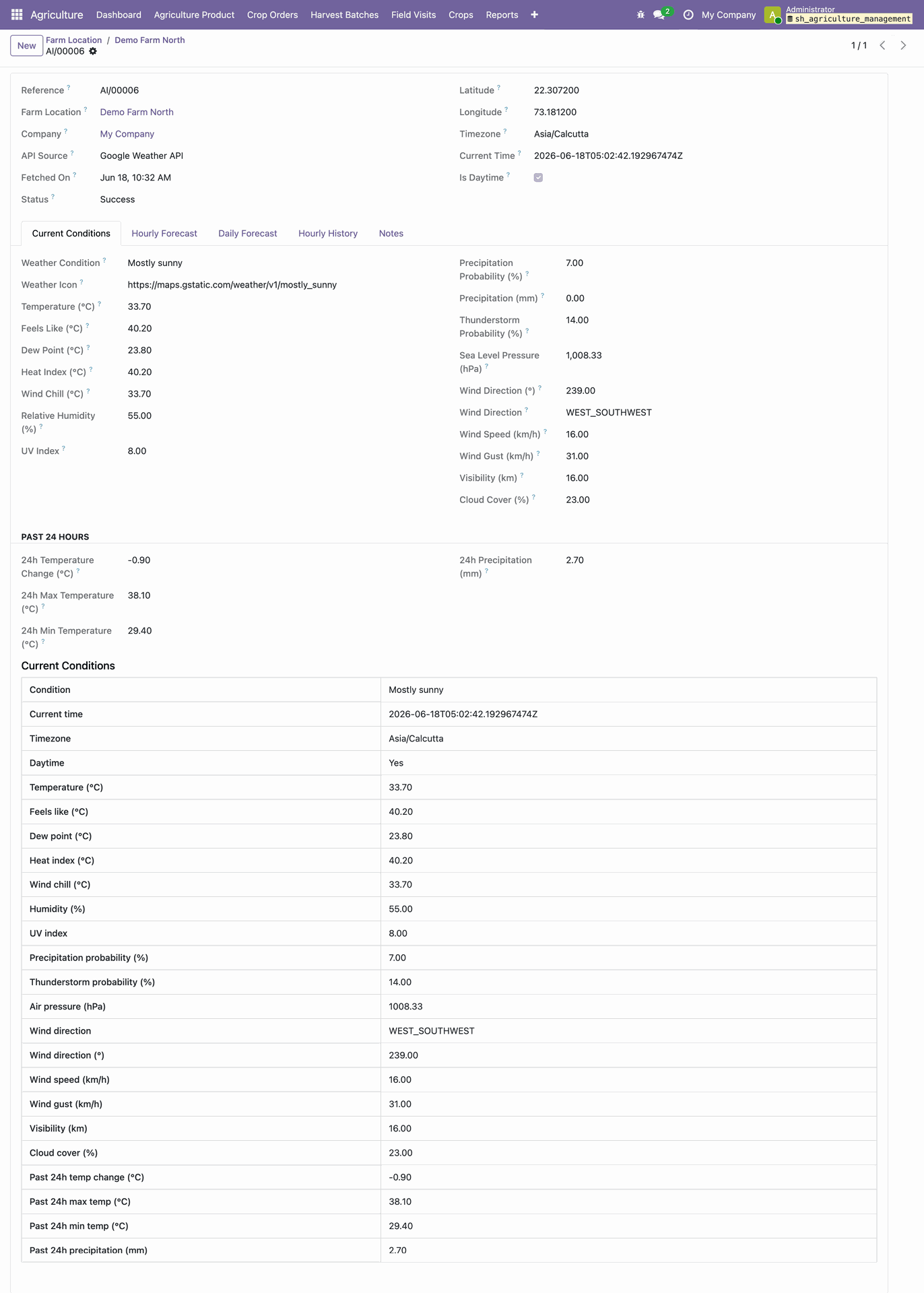
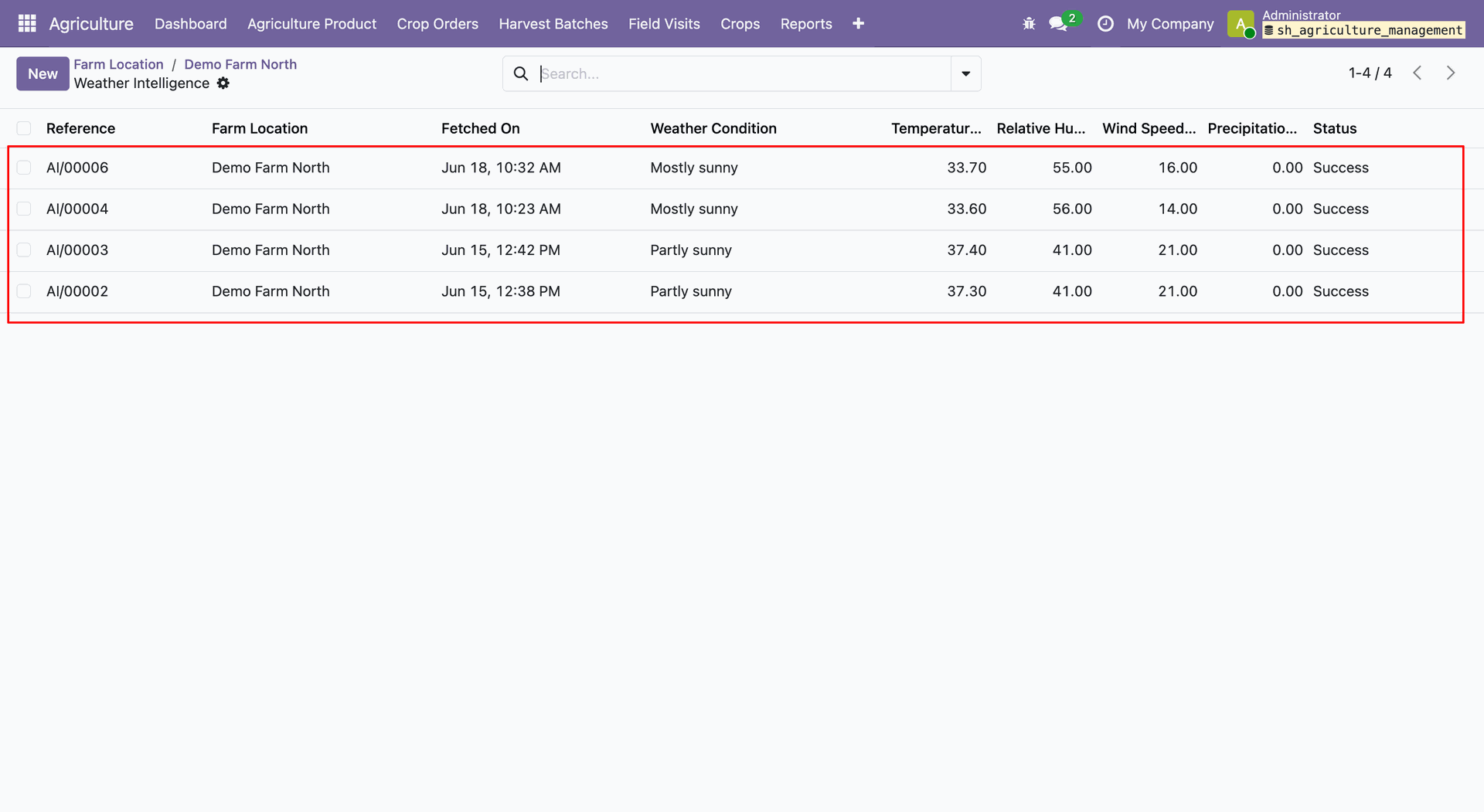
The Google API Weather Forecasting view displays current condition details.
Navigate to the Weather Intelligence tab from farm location form view and click on Open Weather History button.
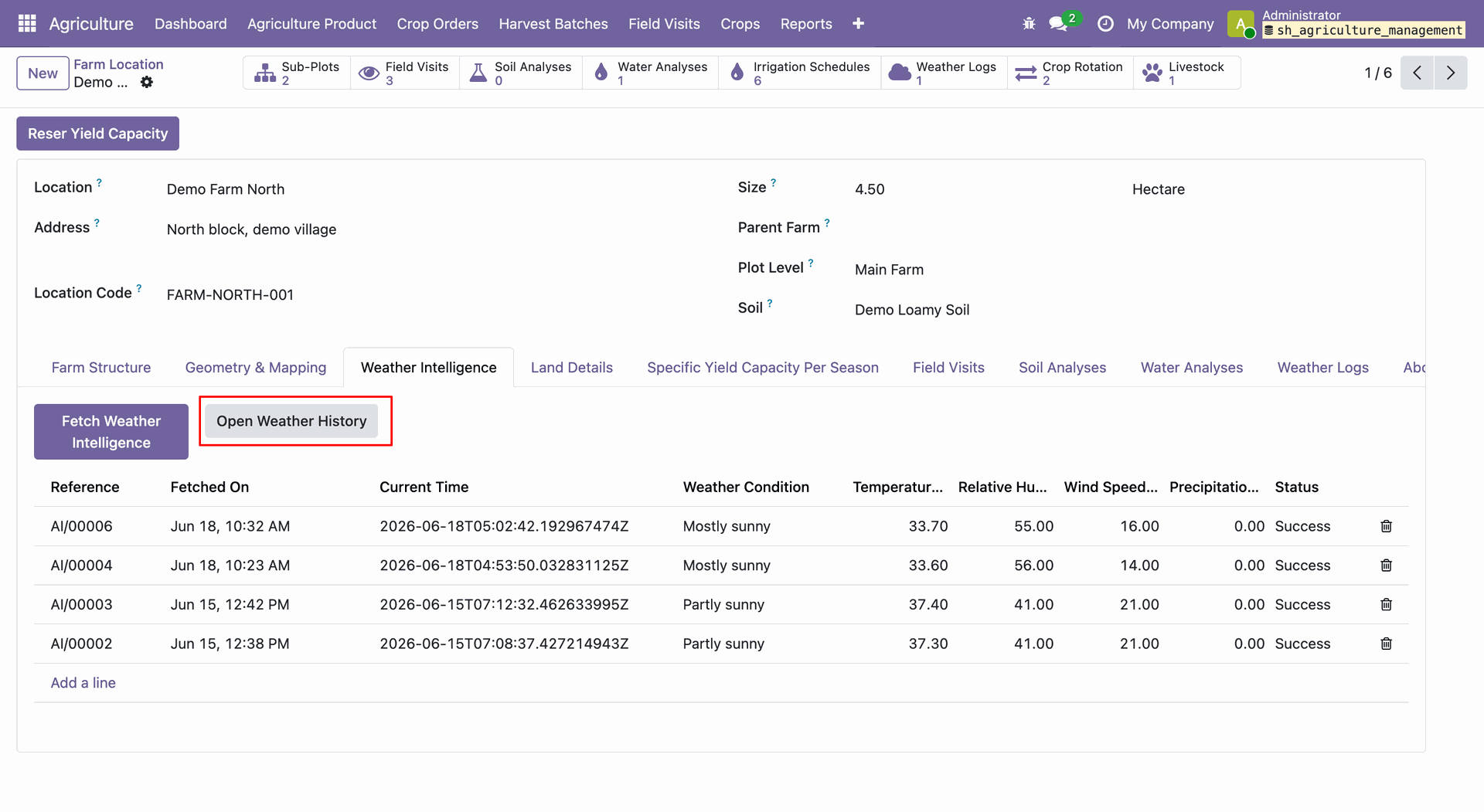
Weather History list view will open with fetched details.
Release Notes
Track every update, enhancement, and new feature across all versions.
Version 19.0.3.0.0 | Released on : 08th September 2026
Version 19.0.2.0.0 | Released on : 08th September 2026
Version 19.0.1.0.0 | Released: 10th February 2026


 Buy Once, Supported Forever


 Scan to email sales






 Your Ideas Shape Our Roadmap
 Got an Idea? We'll Build It
Frequently Asked Questions
Everything you need to know before getting started.
Trusted by Businesses Worldwide


Abdulhamid Abdulwaheed
Best module for our online store. Highly adaptable, exceptional customer service, and very advanced modules.
Factura Venta POS
They have everything you need. Technical support is excellent, responds quickly, and keeps the module updated. 100% recommended!
Mehmet Muhanna
Great company and support team. Had a problem in my local Odoo server - they solved it in 5 minutes. Highly recommend.
Billy Jeffs
Customised an Odoo app for me which works perfectly. Many requirements, got it right every time. Very confident in their ability.
HP
Consistently excellent service over years of working together. Knowledge and commitment to keeping clients informed truly sets them apart.
Michal Kolasinski
Multiple addons + two custom modules. Communication always friendly and precise. Delivered on time, worked out of the box. Highly recommended!

Multi-Language
8 built-in translations







You May Also Like
Discover more Softhealer modules that integrate seamlessly with your Odoo environment.







Most Demanded Apps
The Softhealer modules our customers reach for most — trusted across 100+ countries.
Activities Management
Manage, schedule, and automate Odoo activities across all departments from one view.
View Module
Access Management
Granular access control over menus, fields, buttons, and records for every user role.
View Module
Backdate Advanced
Backdate any transaction across invoices, journals, pickings, and more with full audit.
View Module
All-in-One Helpdesk
Full-featured customer support with tickets, SLA, and customer portal built for Odoo.
View Module
All-in-One Mobile Backend
Access your full Odoo backend from any mobile device with an optimized interface.
View Module
All-in-One Import
Import any Odoo model data from CSV, Excel, and JSON files with mapping and validation.
View Module
Our Services
End-to-end Odoo expertise - from setup to scale.

AI & Business Integration

Odoo Implementation

Odoo Customization

Support & Maintenance

Mobile Apps

Migration Service

Third-Party Integration

Odoo Training
Ready to automate Agriculture Management System?
Join 10,000+ businesses - Softhealer, 11+ years of Odoo gold partnership expertise across 100+ countries.

