



















Key
Features

Agriculture Dashboard
 LATEST
Get a complete overview of farms, crops, livestock, expenses, production, and key agricultural activities from one dashboard.
Watch VideoAgriculture Portal
LATEST
Provide farmers with a dedicated portal to view farms, crops, requests, activities, inspections, and other agricultural information online.
Watch VideoAgricultural Product Classification
Define products as crops, animals, or farming equipment for better agricultural management.
Watch VideoFarmer Profile Management
Create and manage detailed farmer profiles with complete farming-related information.
Livestock Management
Track agricultural animals and link them with farms or crop-related processes.
Farm Equipment & Fleet Management
Manage farming equipment and fleets across different agricultural operations.
Agriculture Project & Task Management
Organize farming projects and manage related tasks for better planning and execution.
Crop Request Management
Create, track, and manage crop requests through every stage of the process.
Crop Disease & Incident Management
Record and monitor crop-related diseases, incidents, and required actions.
 Setup & Configuration
 Release Notes
 Support
 FAQ's
FAQ's
 Dashboard
 Portal Flow
 Configurations
 Agriculture Product/Animal
 Agriculture Farmers And Farming Locations
 Agriculture Project & Task
 Agriculture Crops
 Crop Processes
 Agriculture Crops Incident & Disease
 Crops Request and Crops Orders
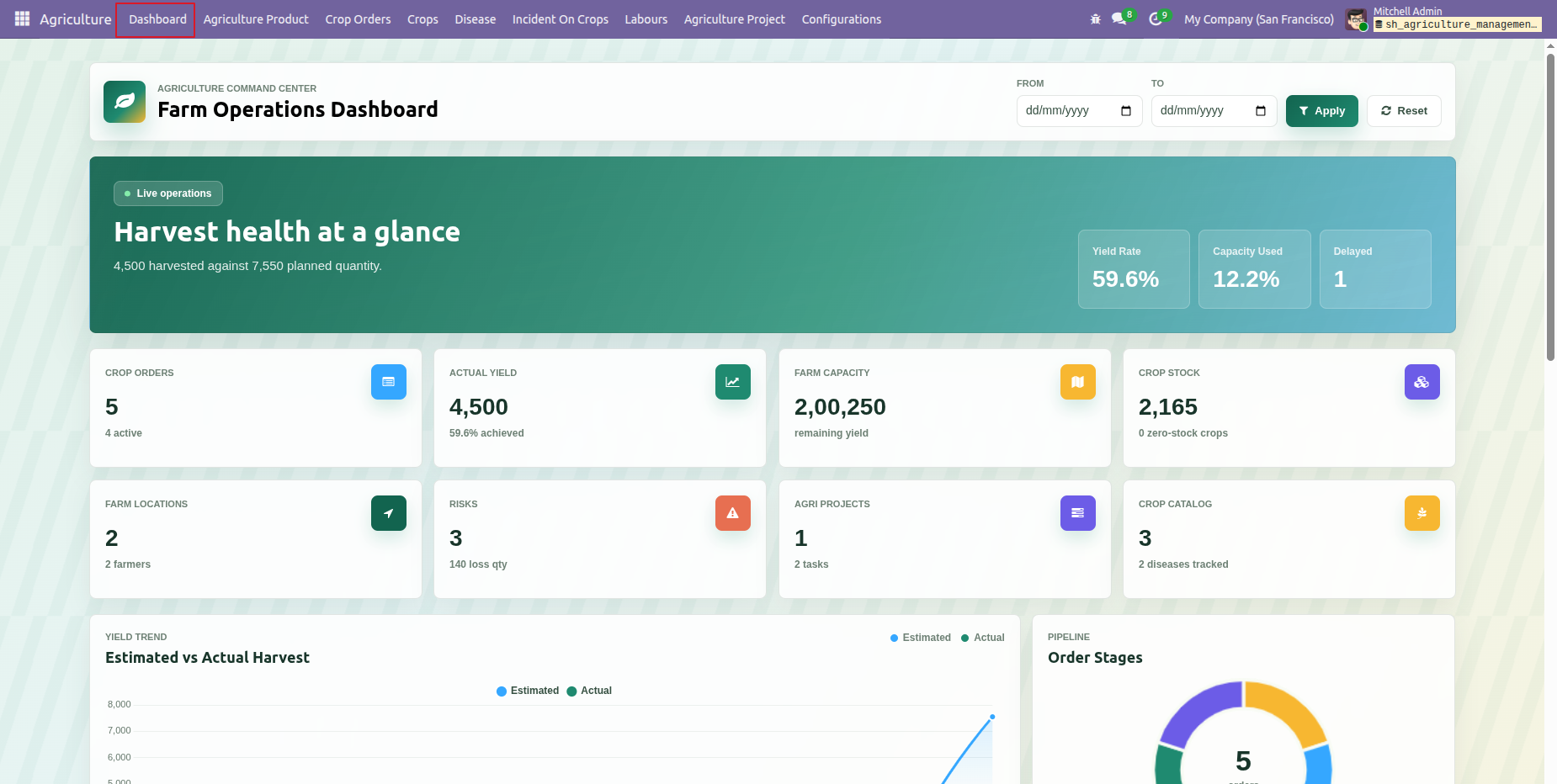
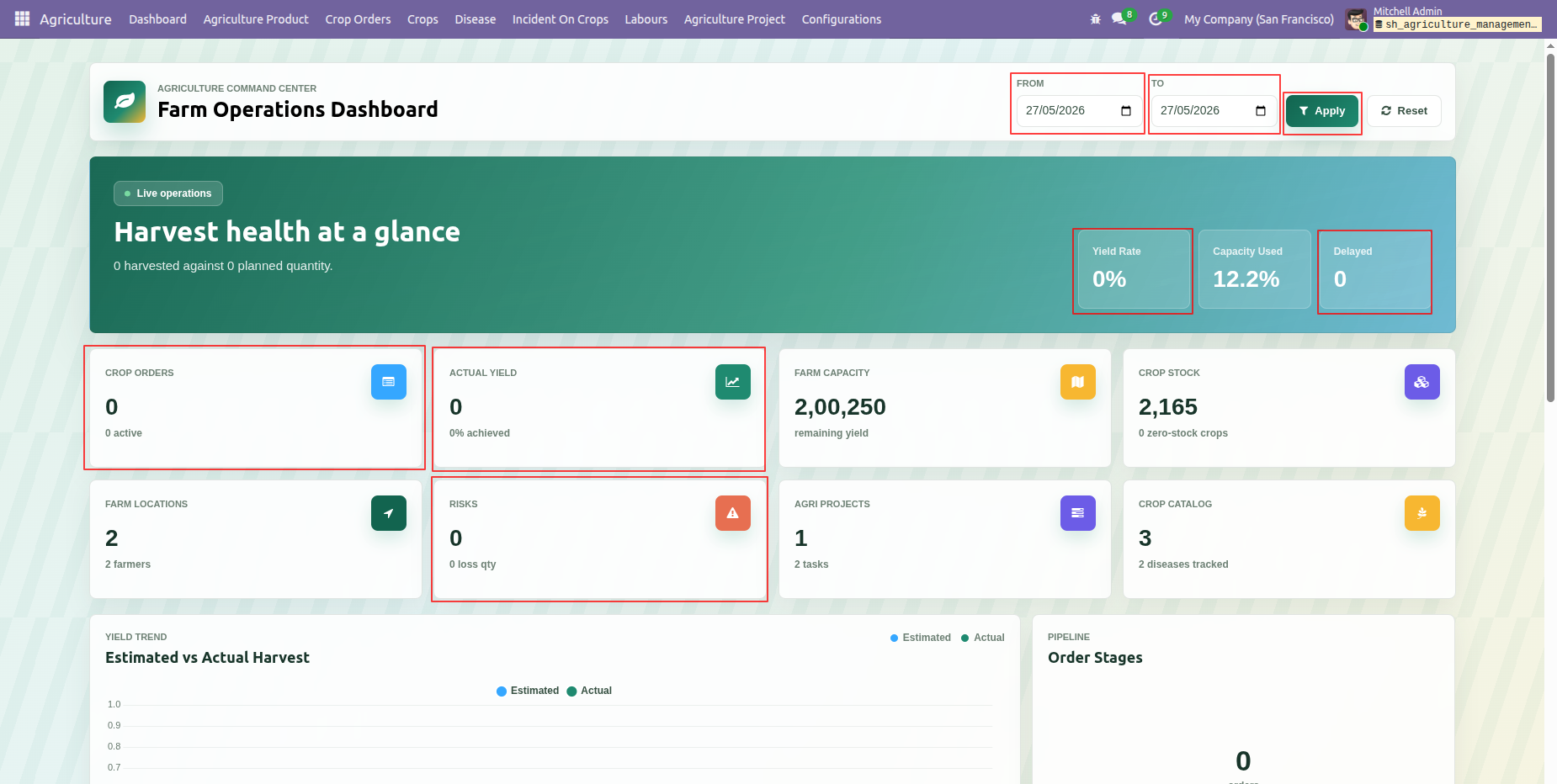
Review the Farm Operations Dashboard to monitor harvest health, operational summaries, charts, orders, and crop information.
The Farm Operations Dashboard opens with harvest health metrics and key farming indicators at a glance.
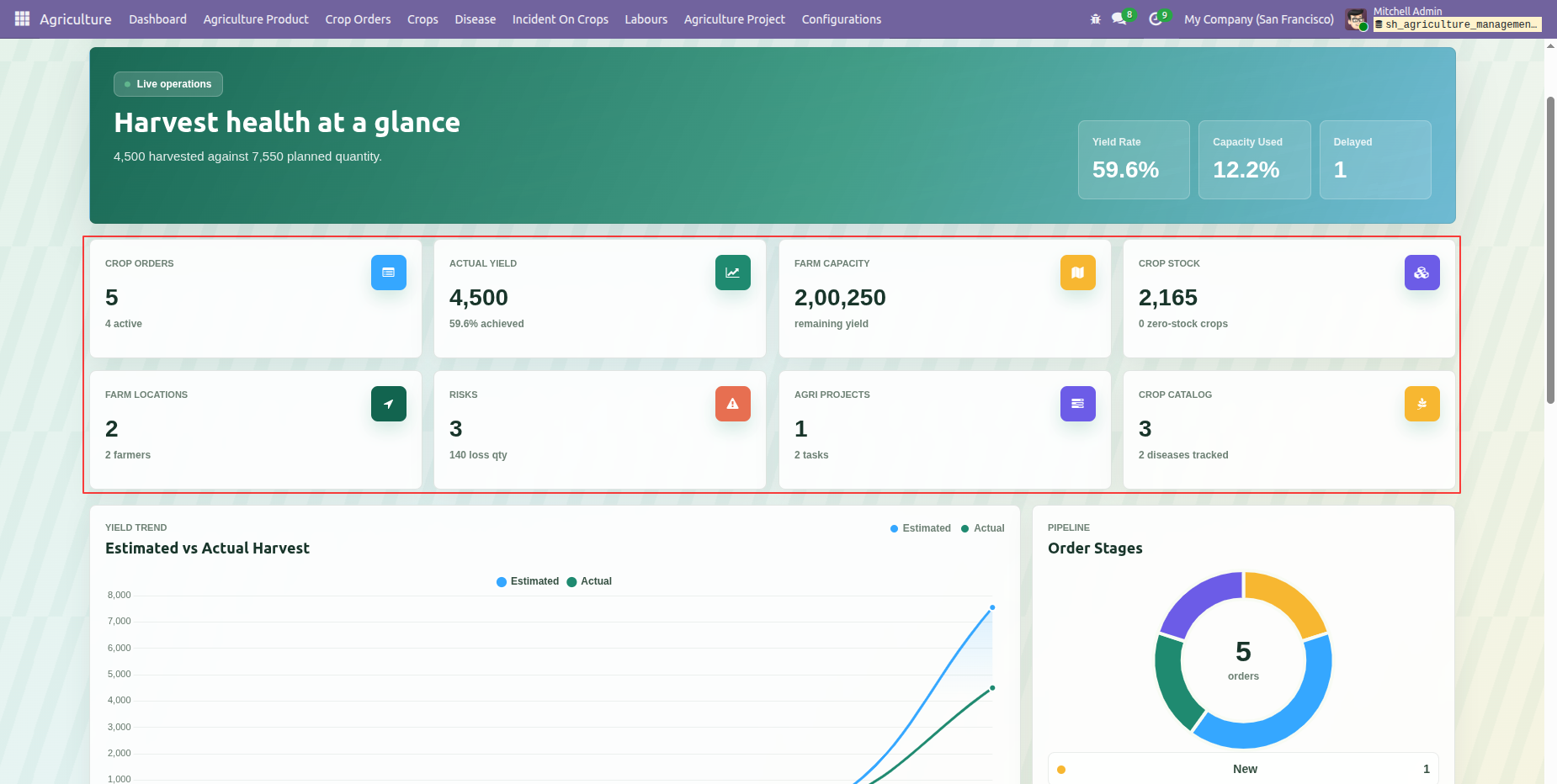
The dashboard summary cards show Crop Orders, Actual Yield, Farm Capacity, Crop Stock, Farm Locations, Risks, Agri Projects and Crop Catalog figures together in one view.
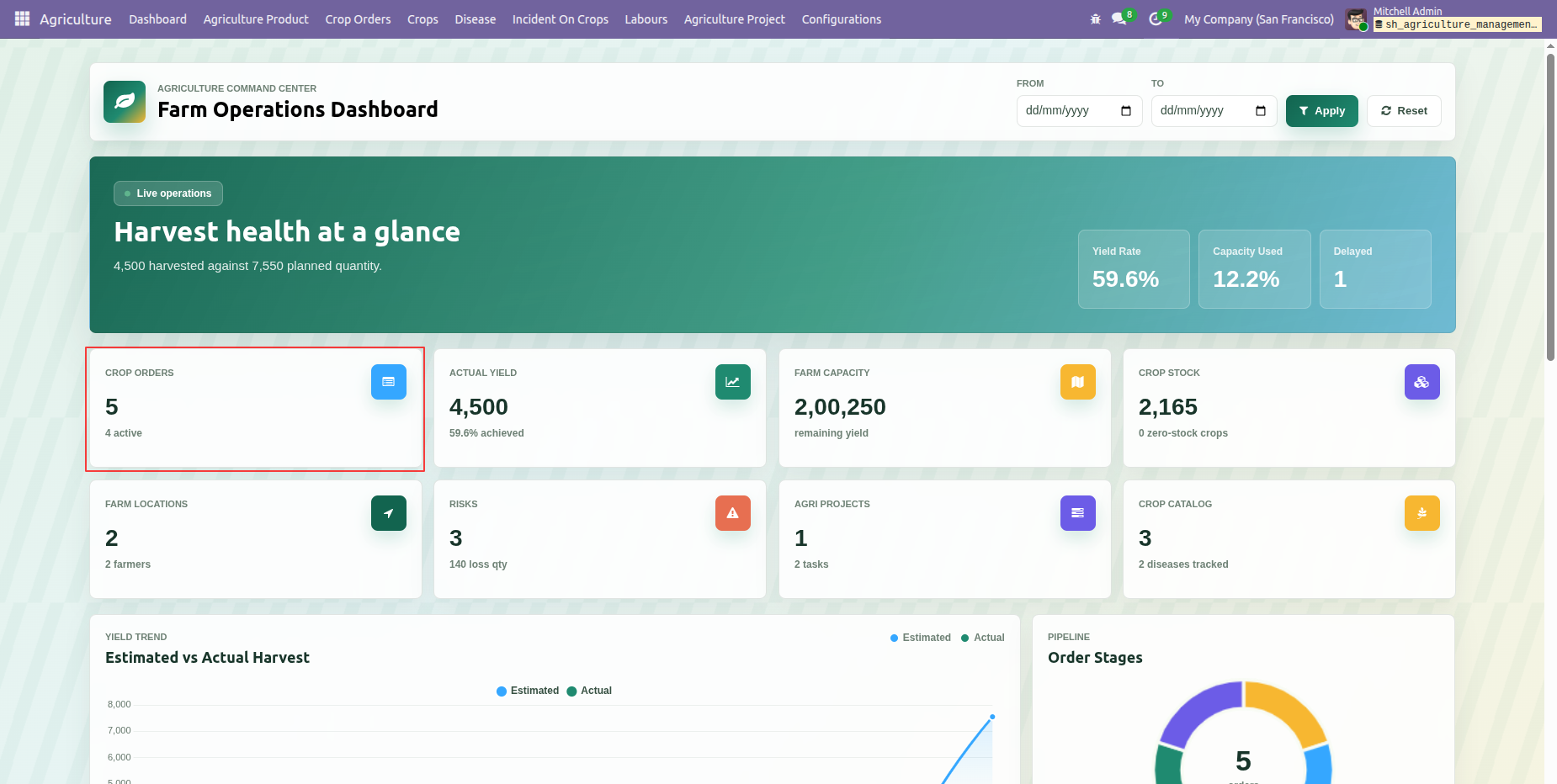
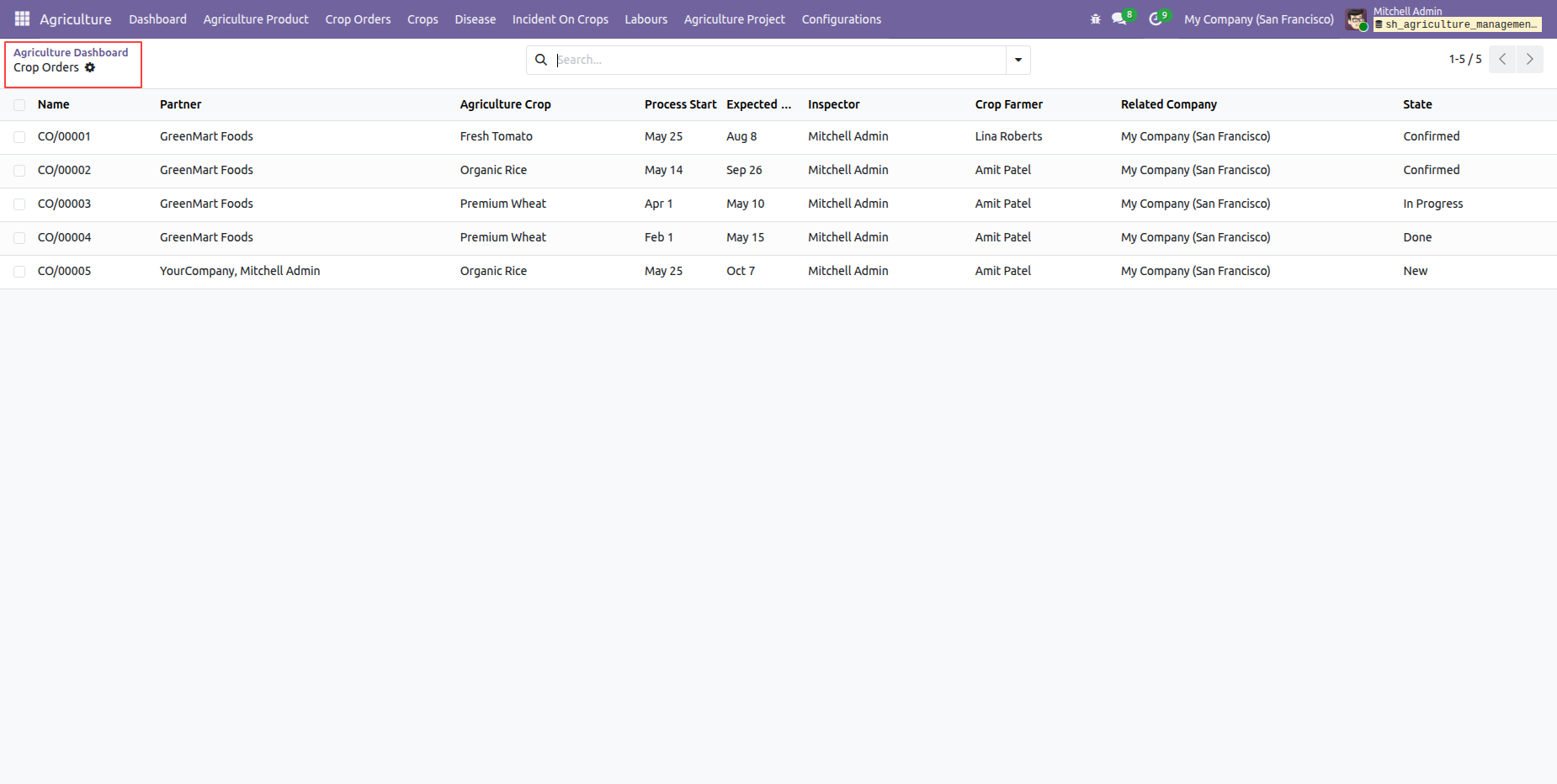
Click on Crop Orders tile from the dashboard.
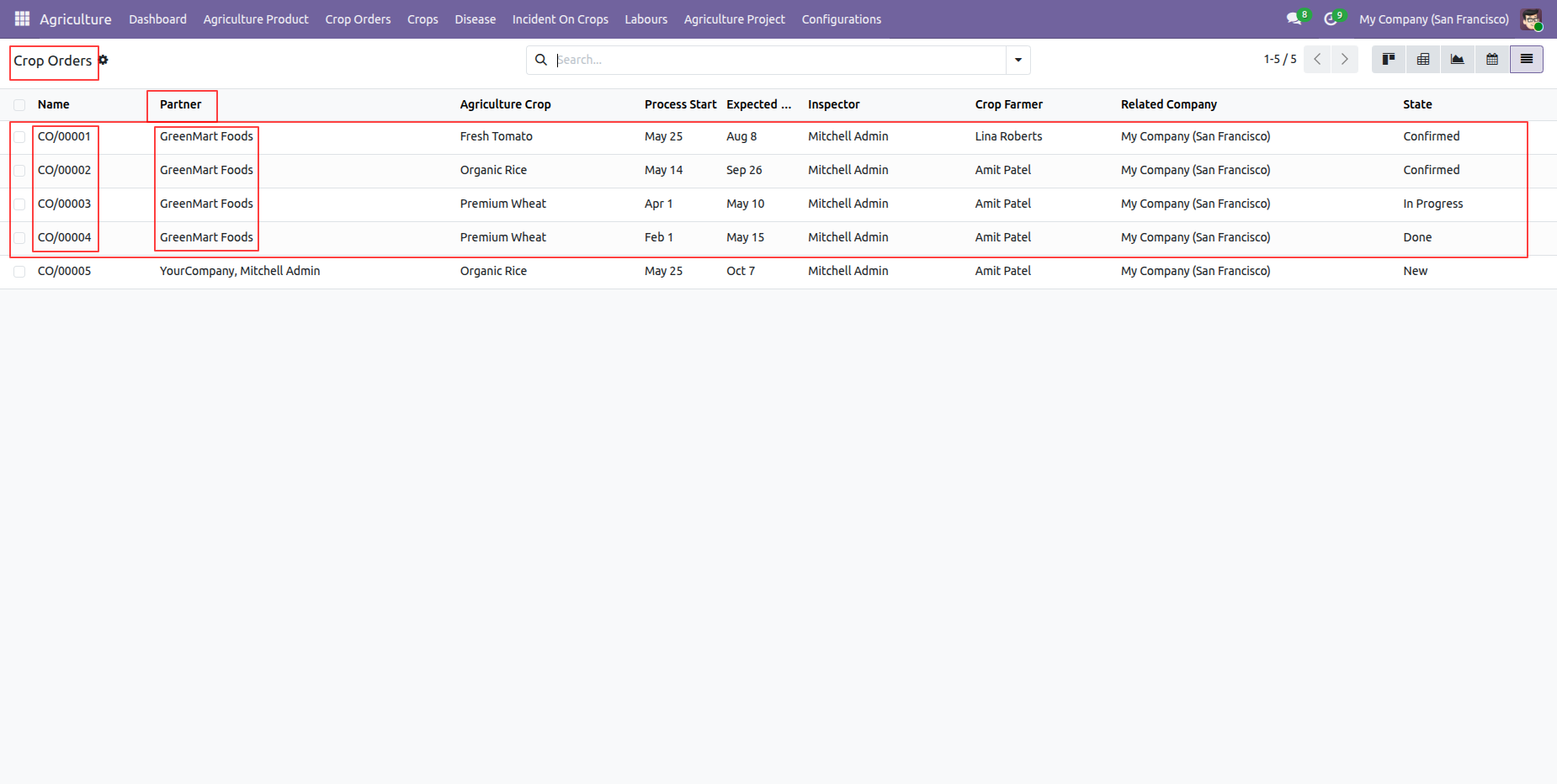
Crop Orders list view will open by clicking on Crop Orders tile from dashboard.
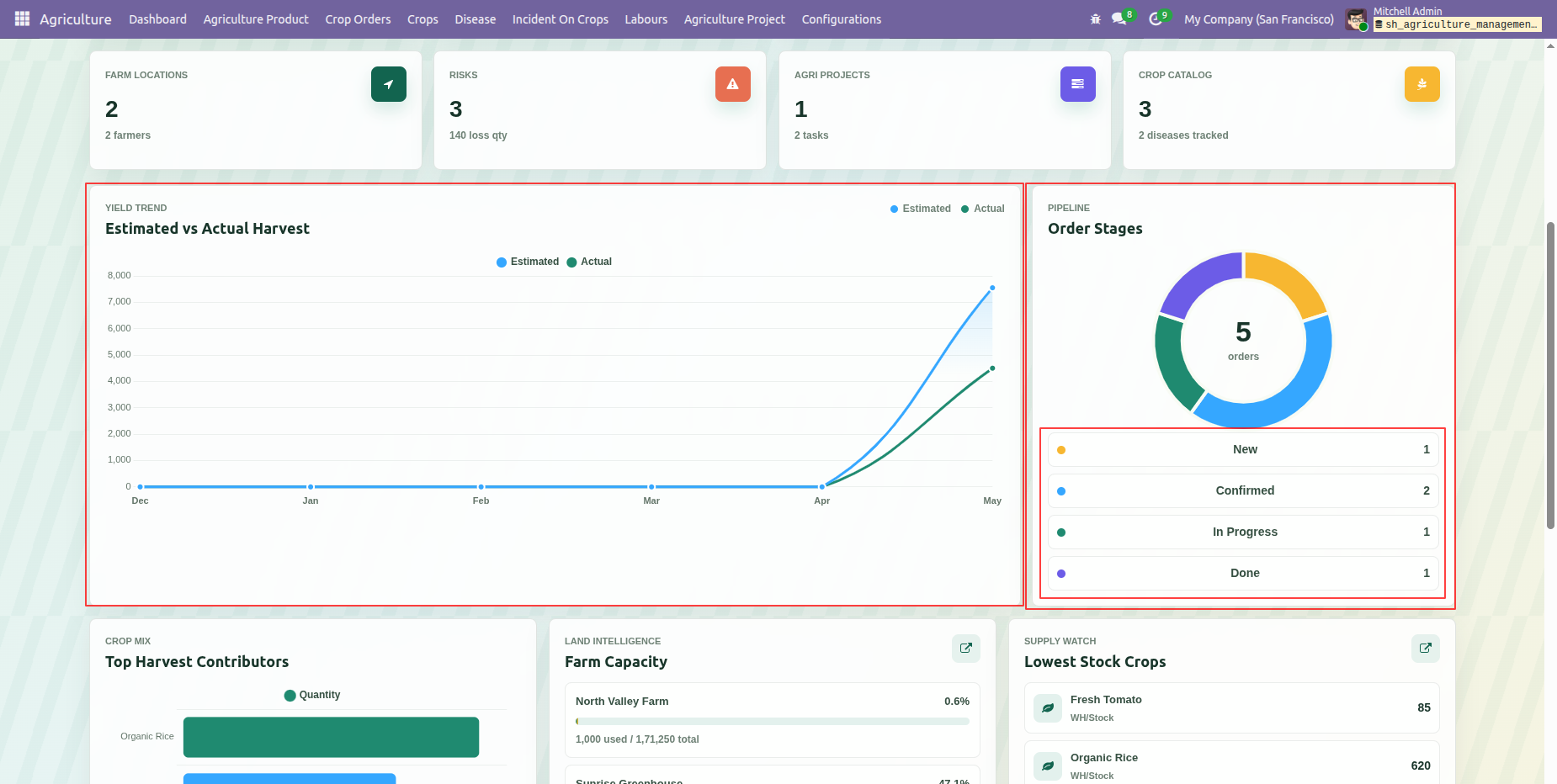
Dashboard displays estimated and actual harvest values and order status information Charts.
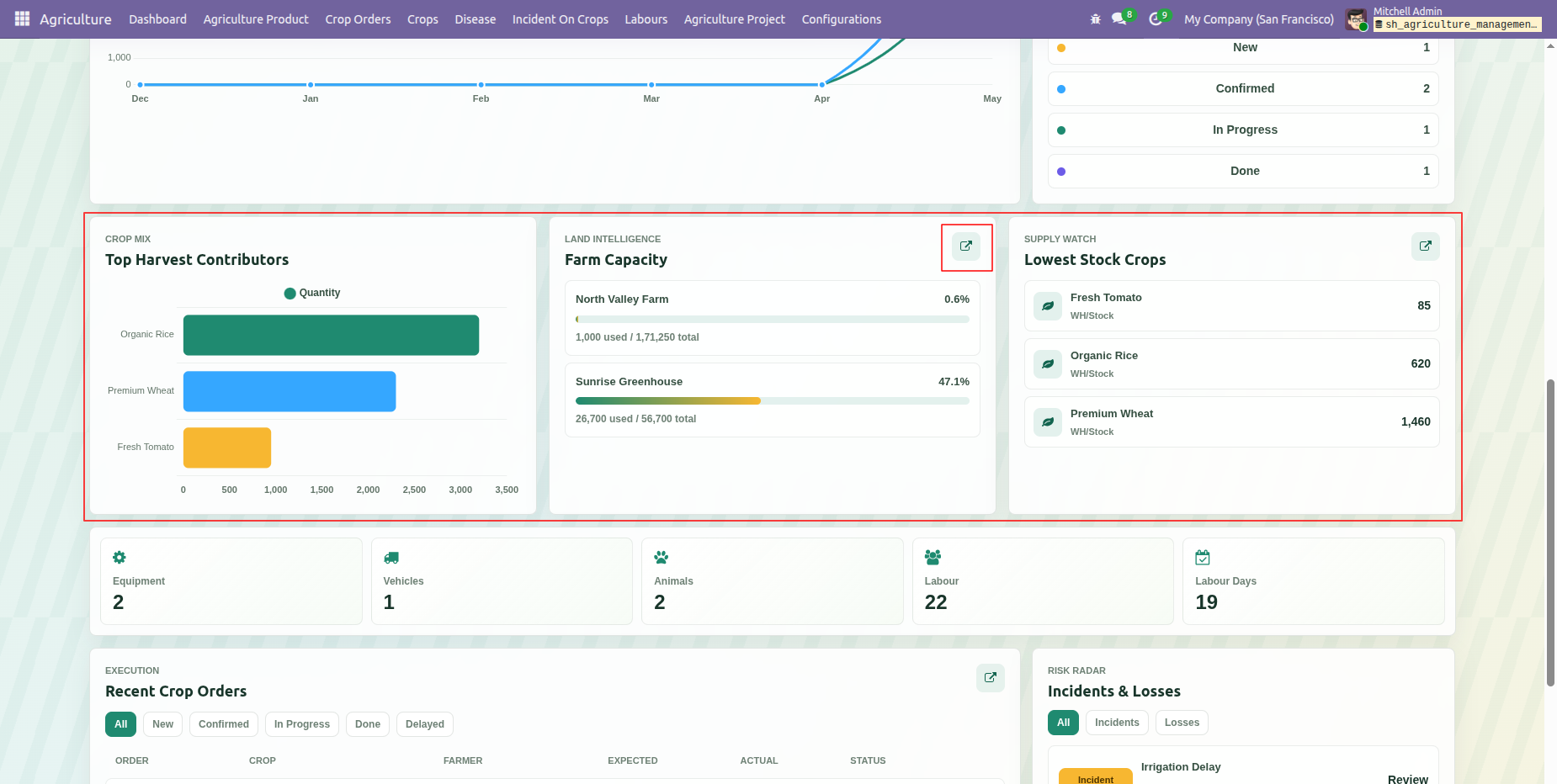
Lower dashboard panels summarize farmer contributions, farm capacity, and latest stock crops. Click on Farm Capacity navigation link.
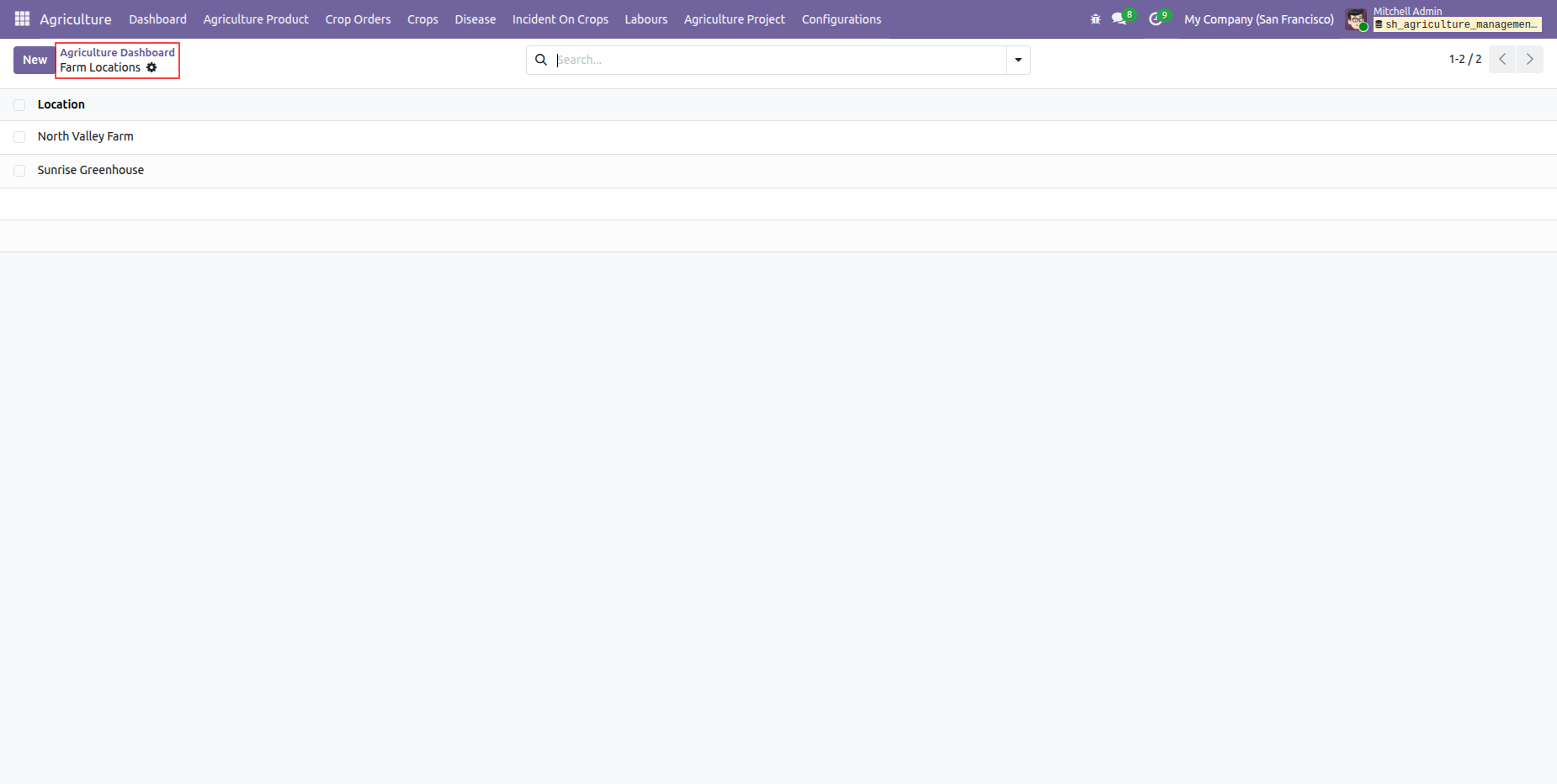
A dashboard navigation result shows the available record list after selecting a dashboard option.
Click on lowest stock crop navigation link.
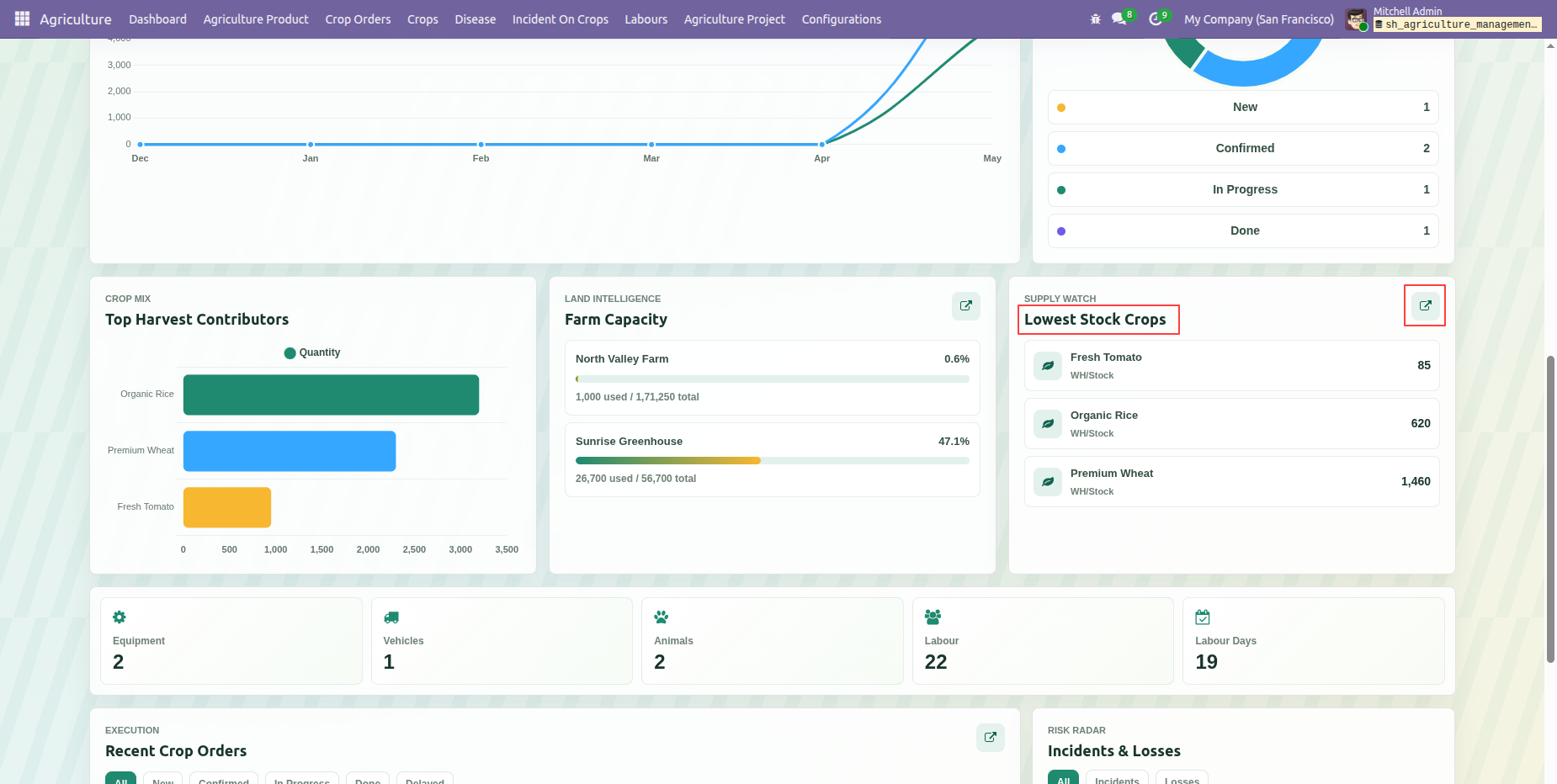
Lowest Stock Crop records will open by clicking on lowest stock crop navigation link from dashboard.
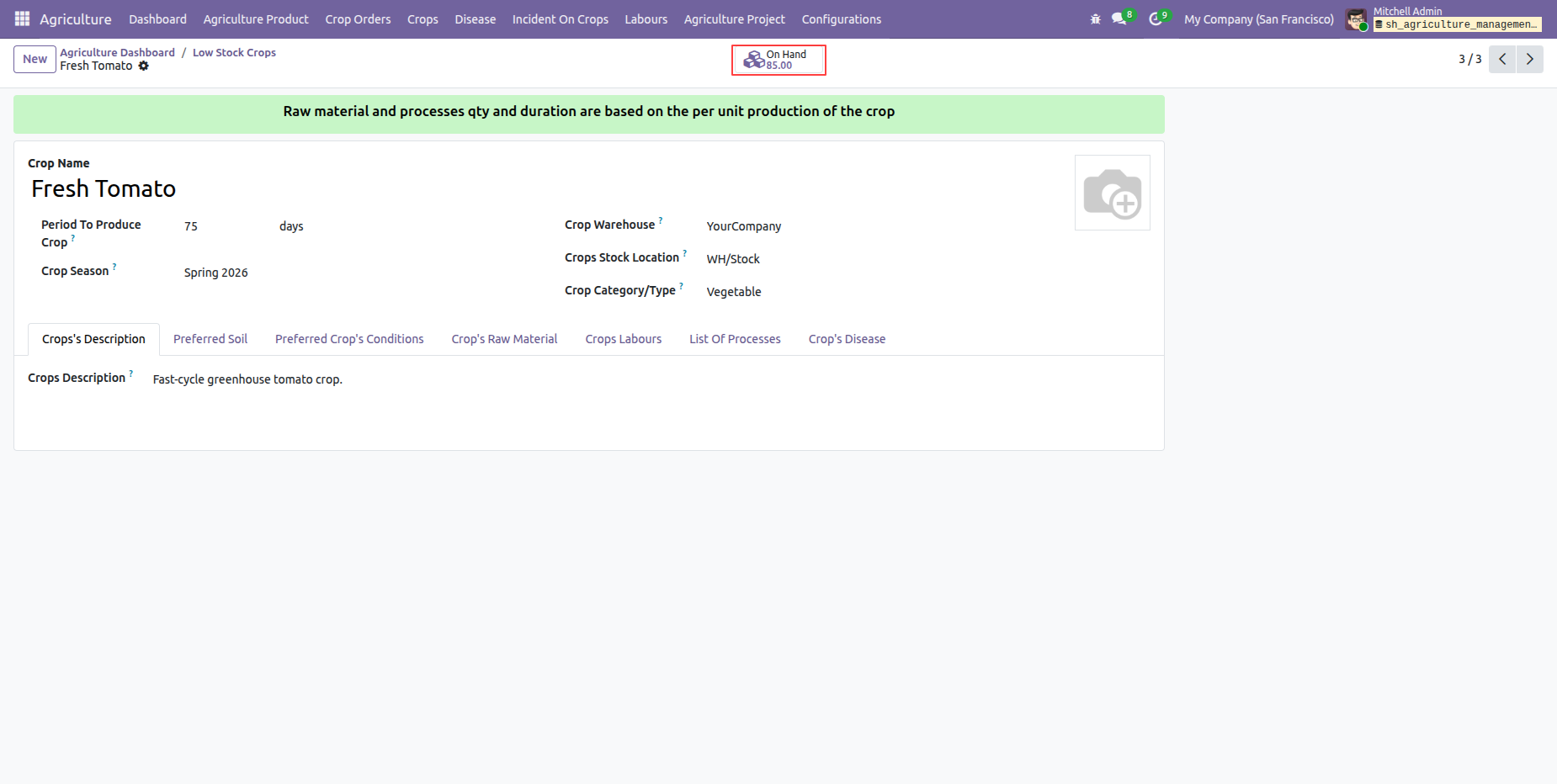
The dashboard shows Equipment, Vehicles, Animals, Labours, and Labour Days figures together in one view.
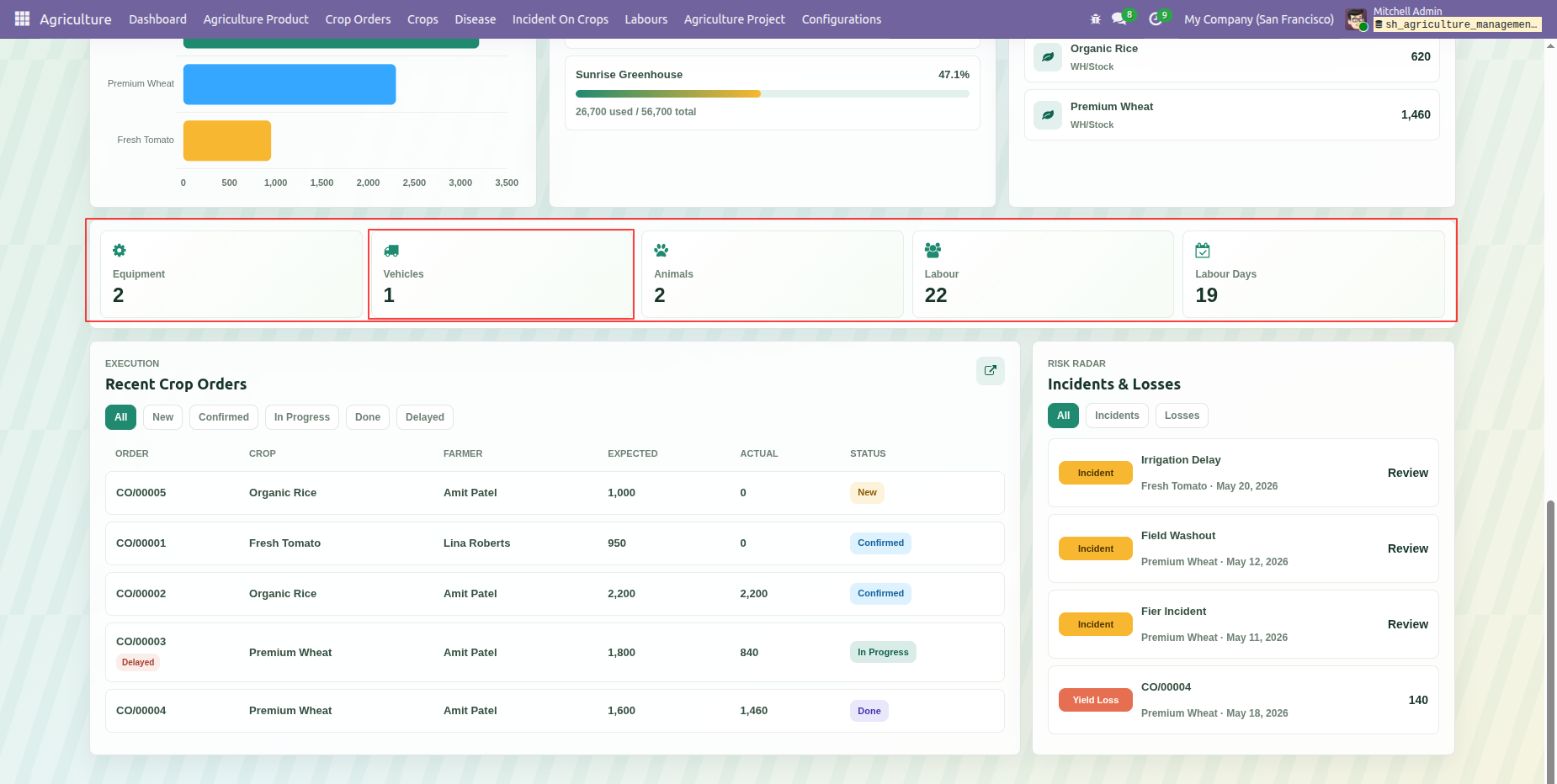
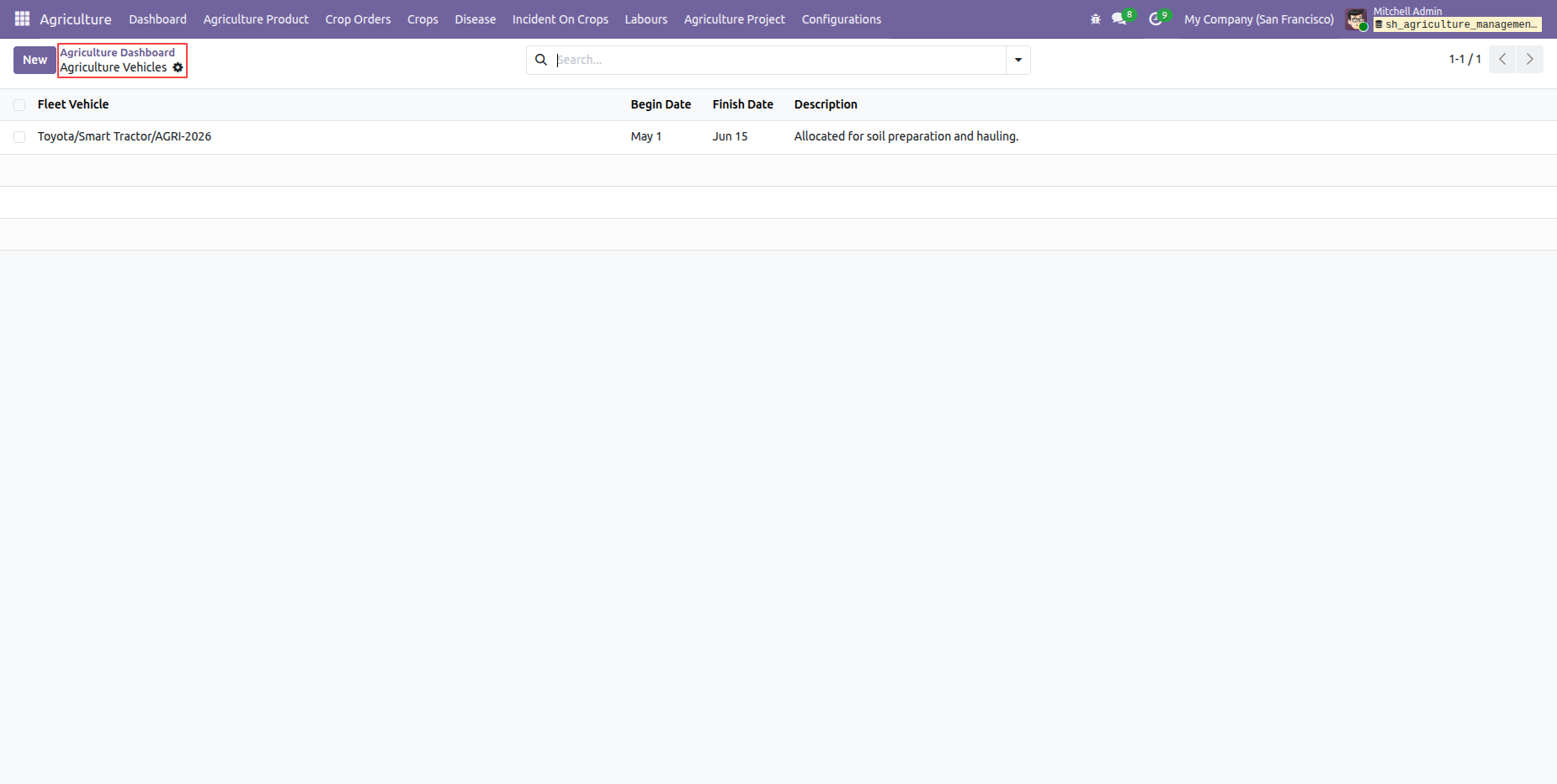
By clicking on vehicles tile from dashboard will open agriculture vehicles list view.
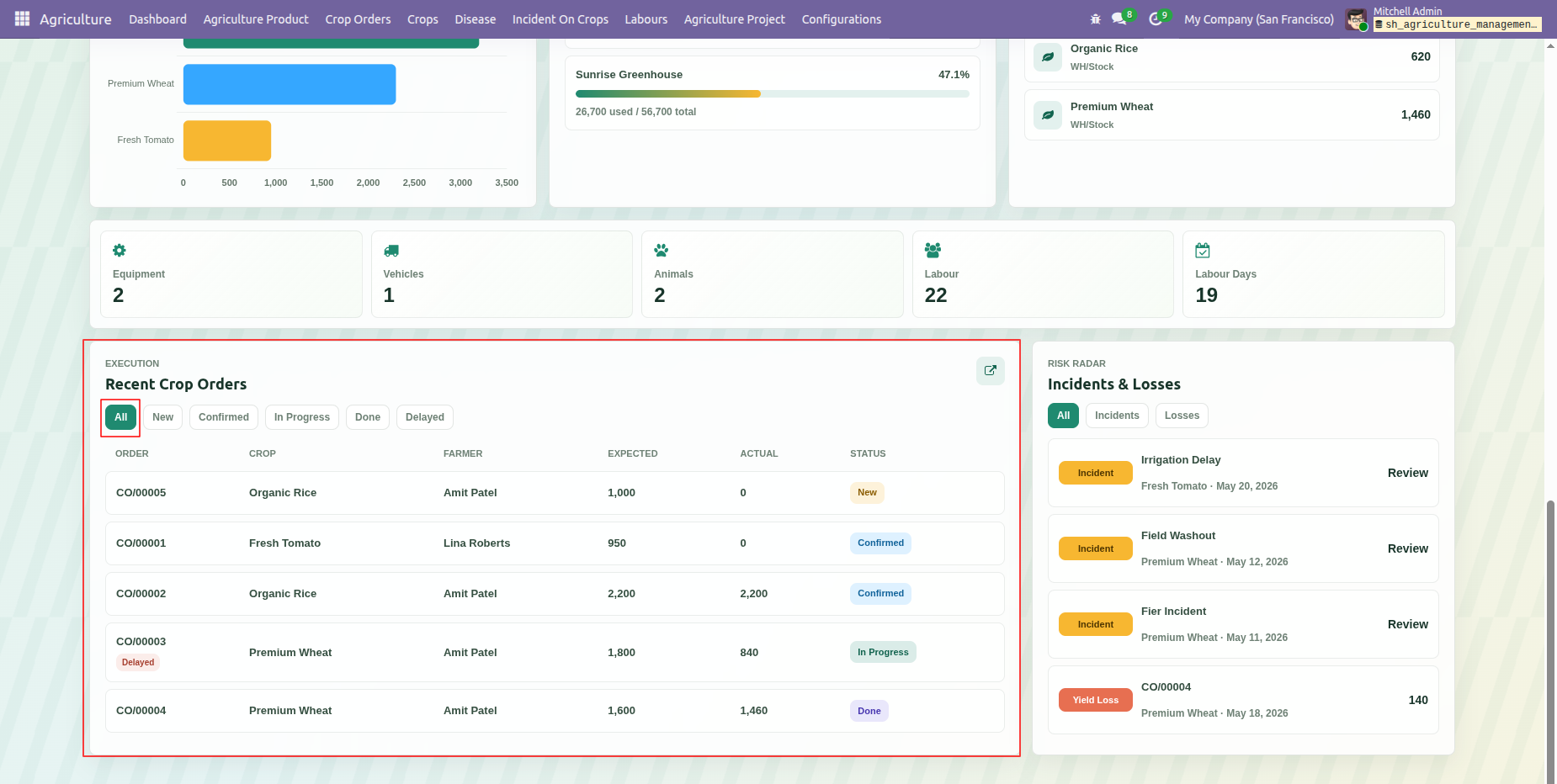
Recent crop orders are listed with order details, statuses, and related crop information with All filter option.
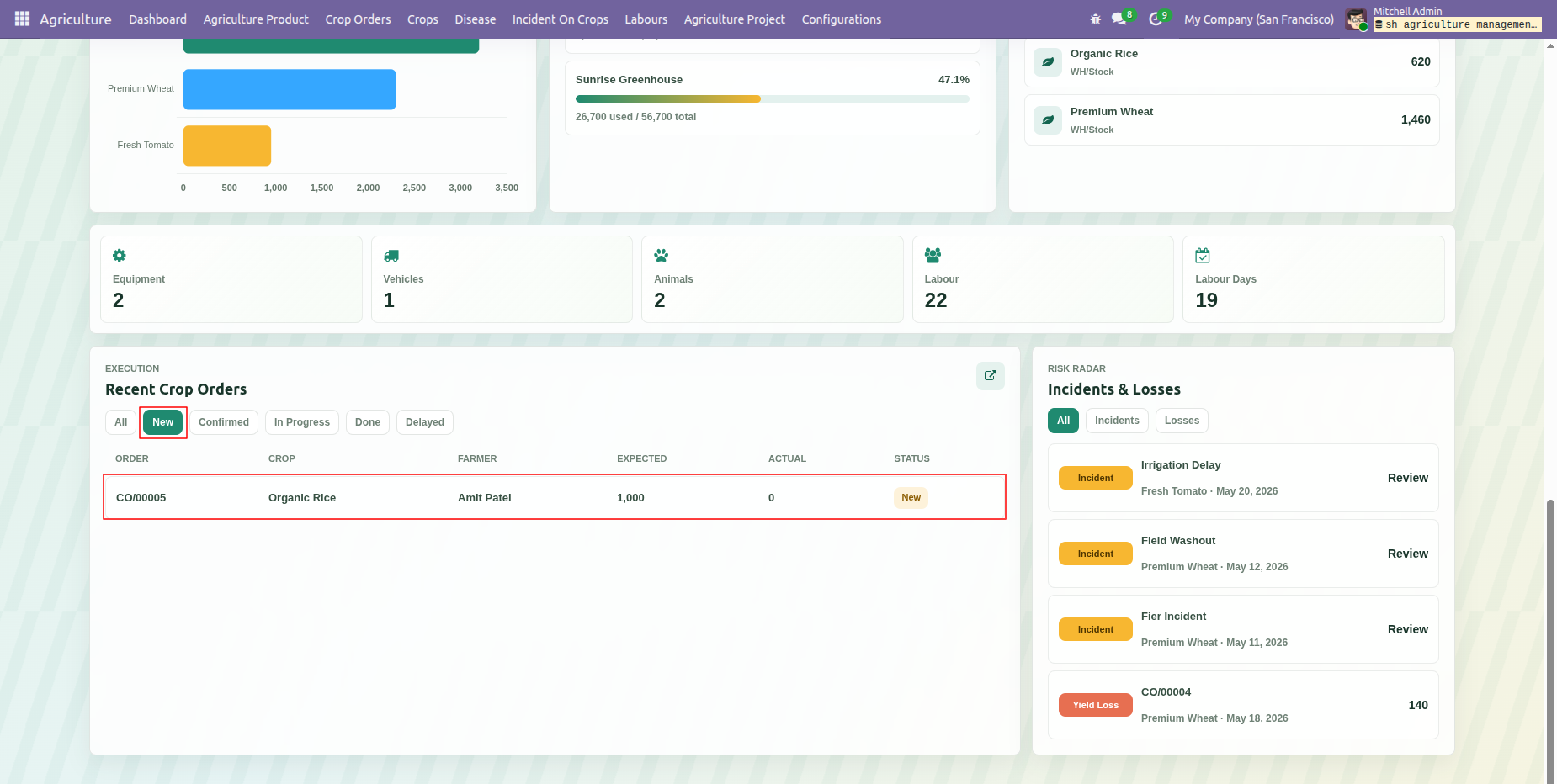
Recent crop orders are listed with order details, statuses, and related crop information with New filter option.
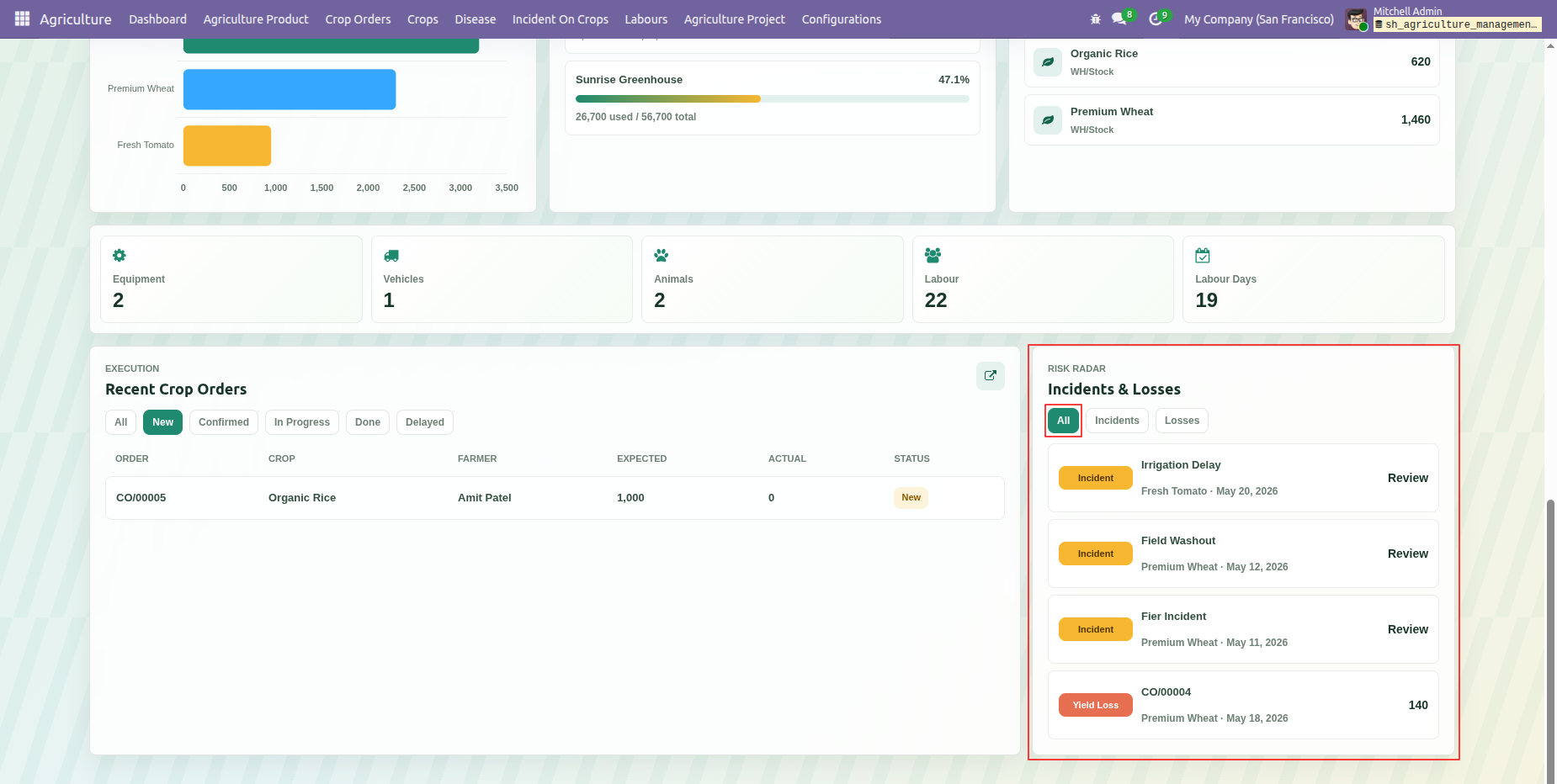
Dashboard displays Incidents & Losses with All filter option.
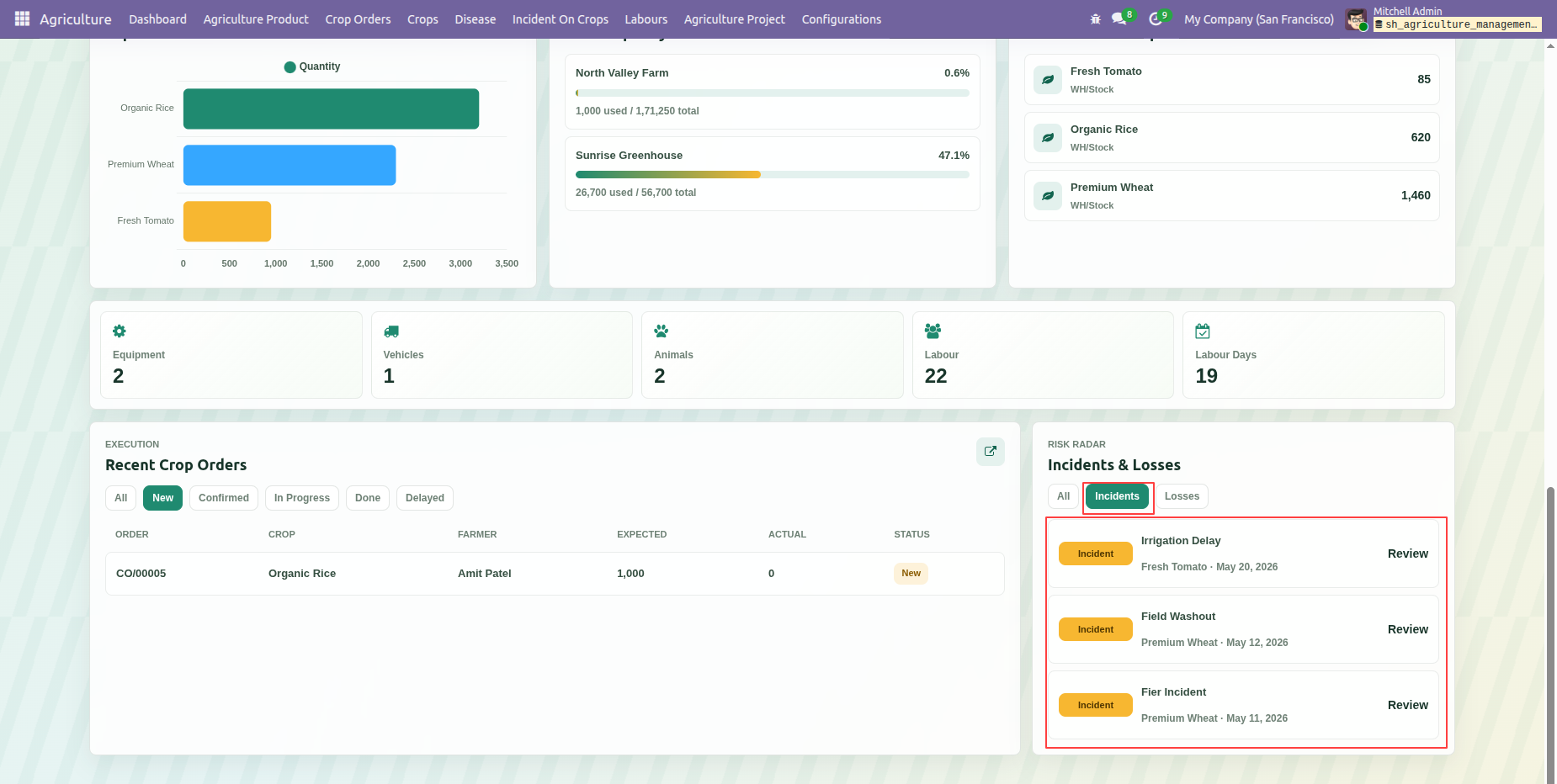
Dashboard displays Incidents & Losses with Incidents filter option.
Dashboard can filtered with date range and summary cards provide a focused view of current farm operation information based on filetred date.
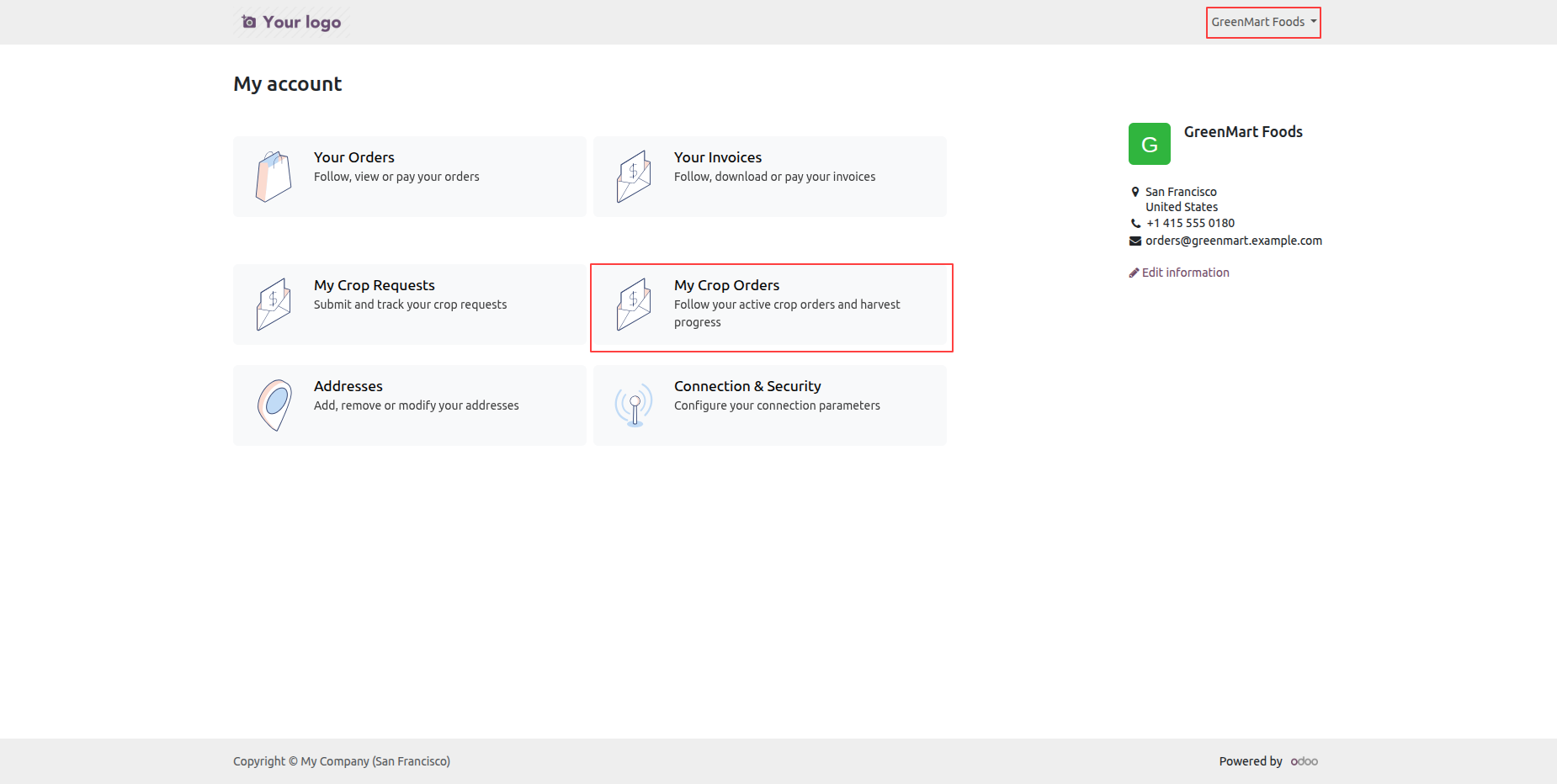
Review the portal flow for Crop Orders and Crop Requests from the My Account area through request and order details.
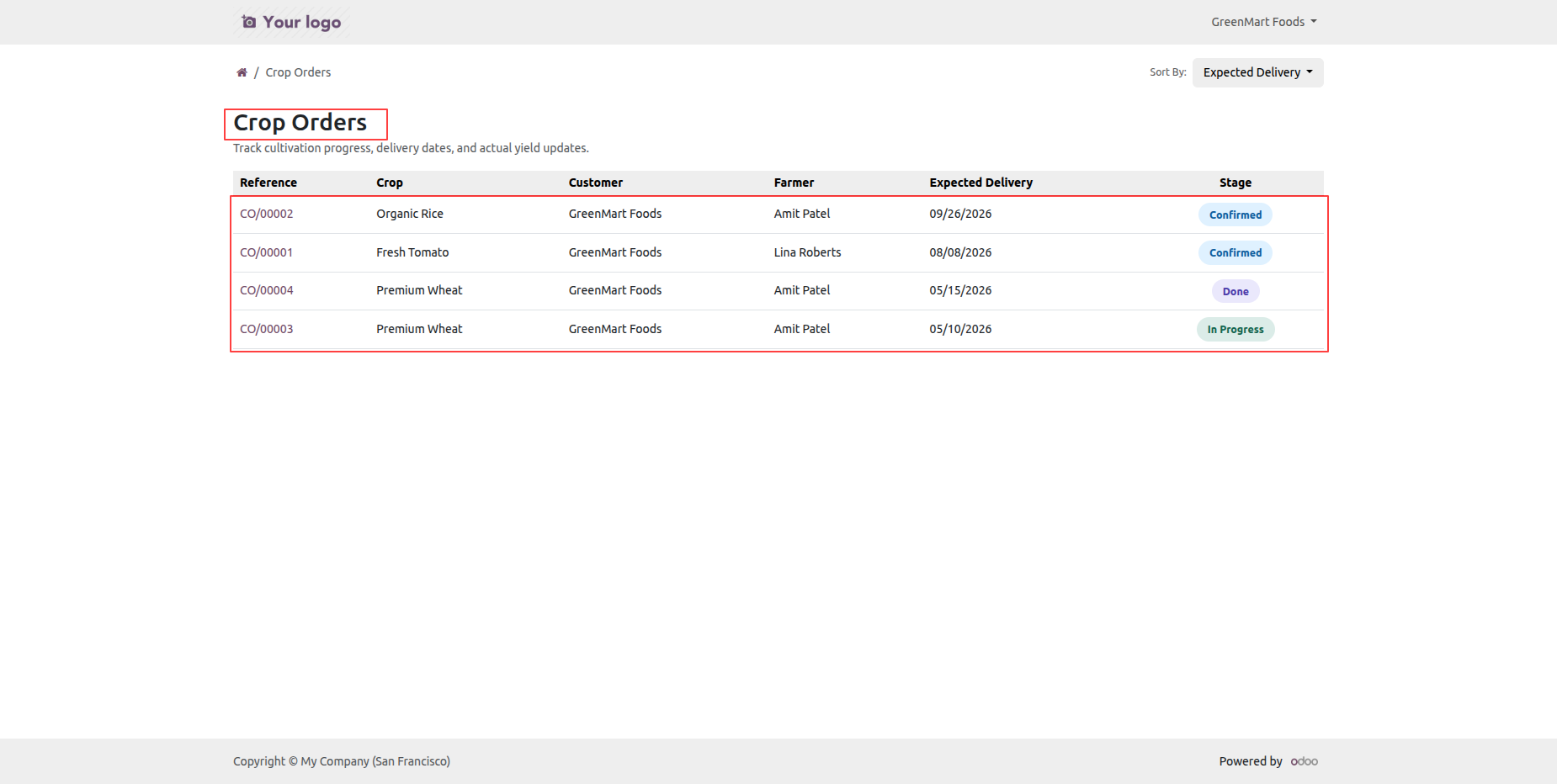
The portal Crop Orders list displays available orders with customer, crop, quantity, and status information.
The portal My Account page shows available account sections including Crop Orders and Crop Requests.
The portal Crop Orders page lists submitted crop orders with visible order details and statuses.
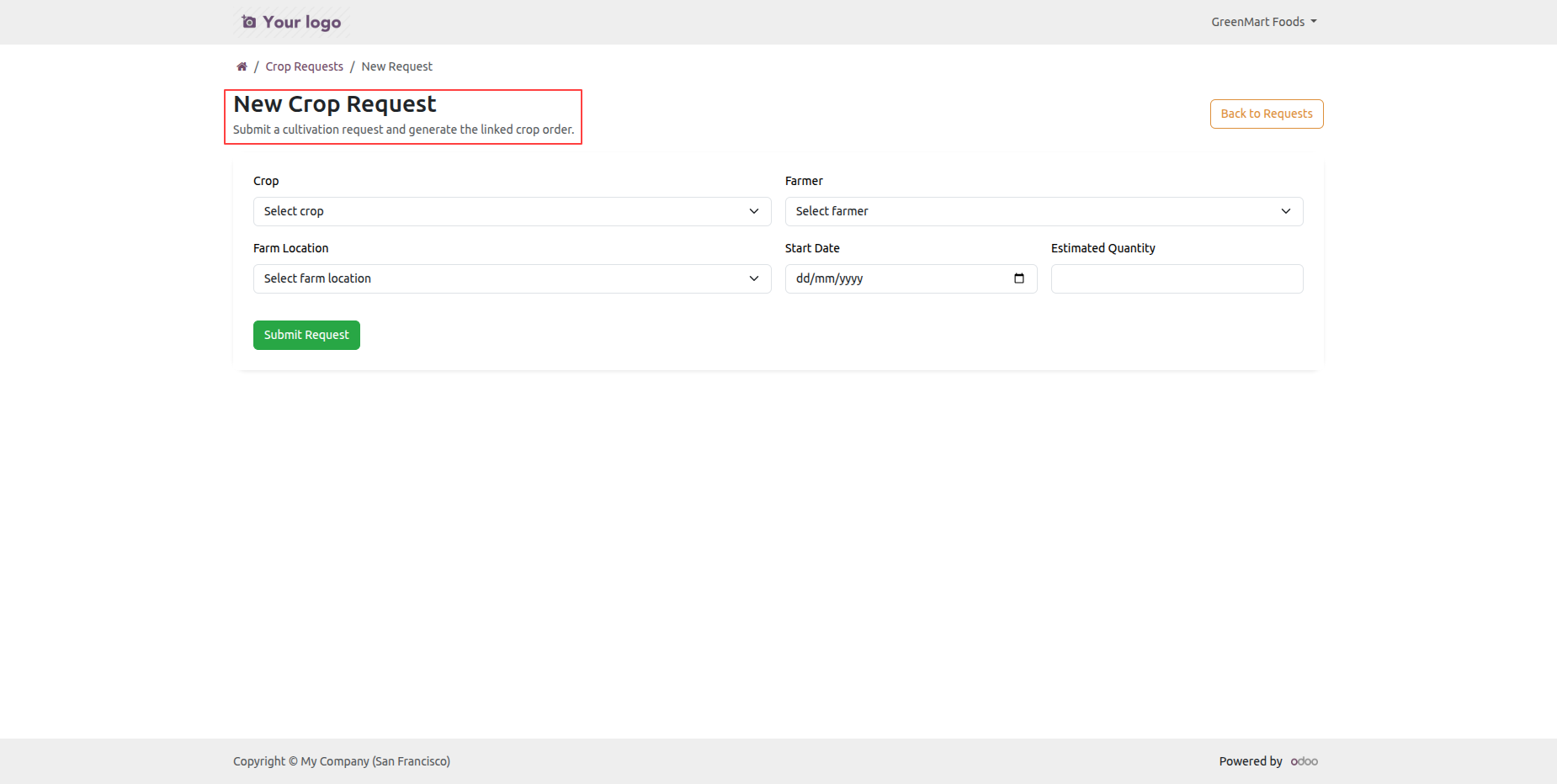
A portal crop order opens to a detail page showing order information and order lines.
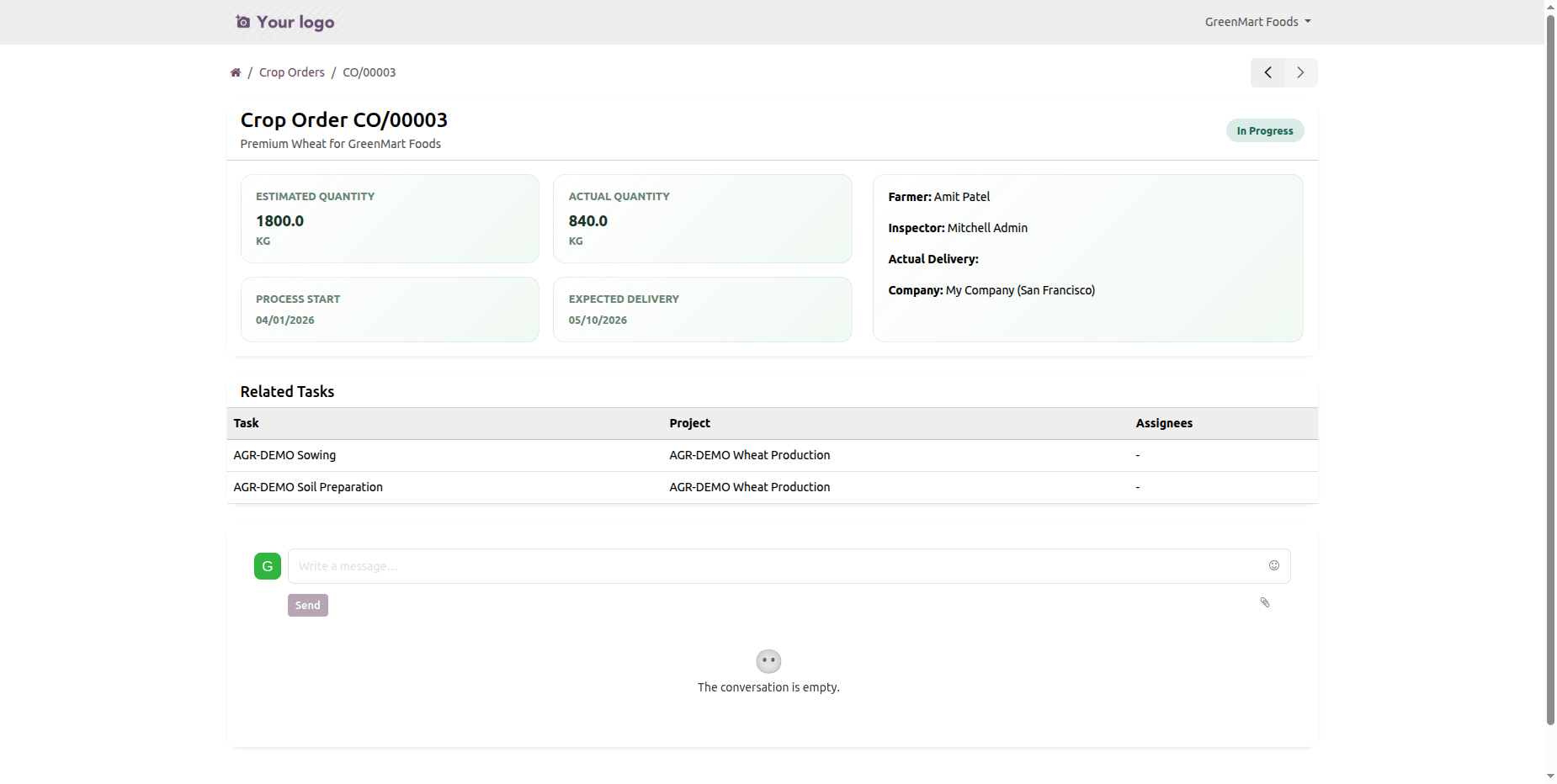
The portal My Account page highlights the Crop Requests option for submitting and reviewing requests.
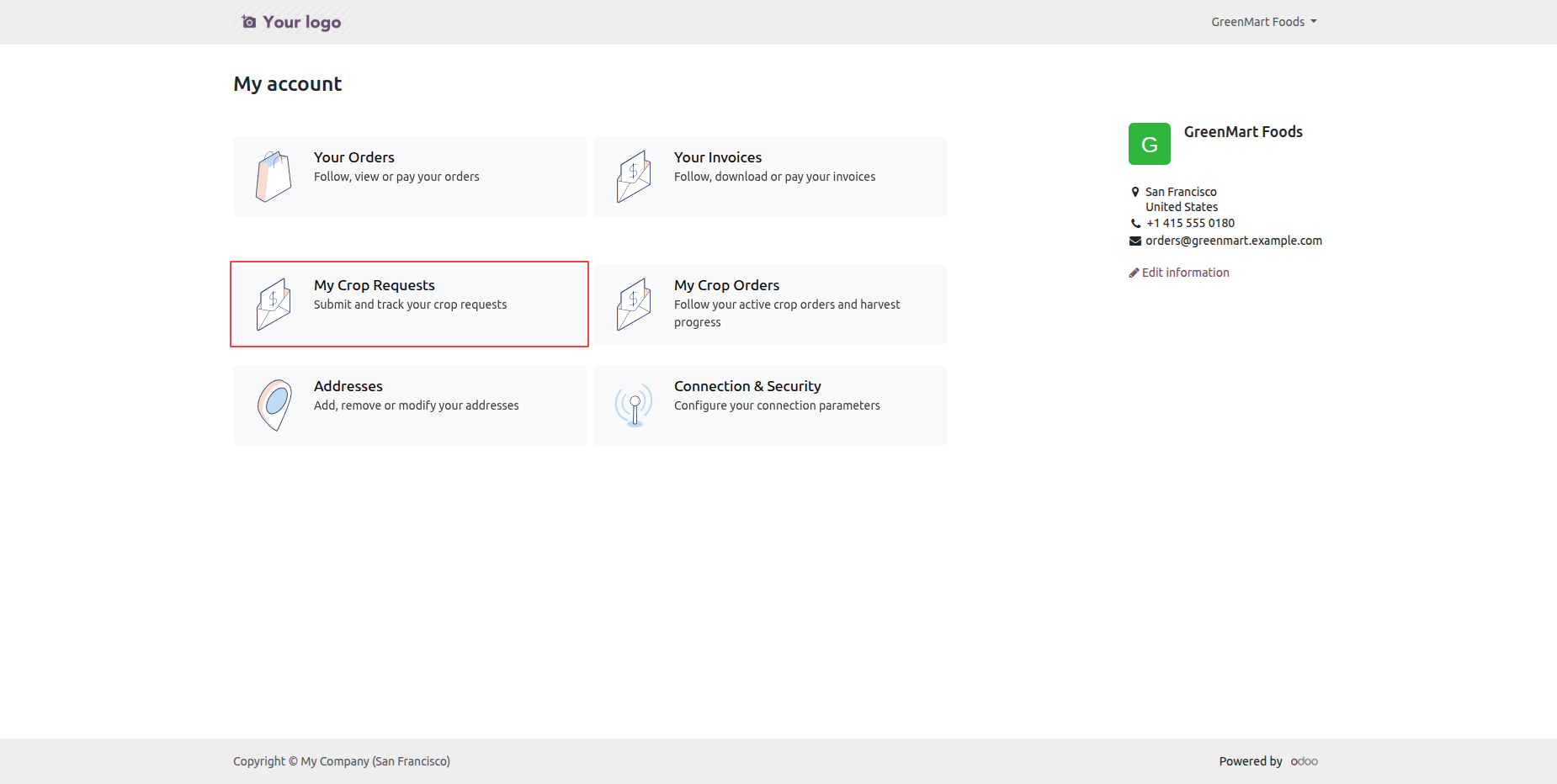
The Crop Requests portal page lists existing requests with their visible details and statuses.
Click on New Crop Request button.
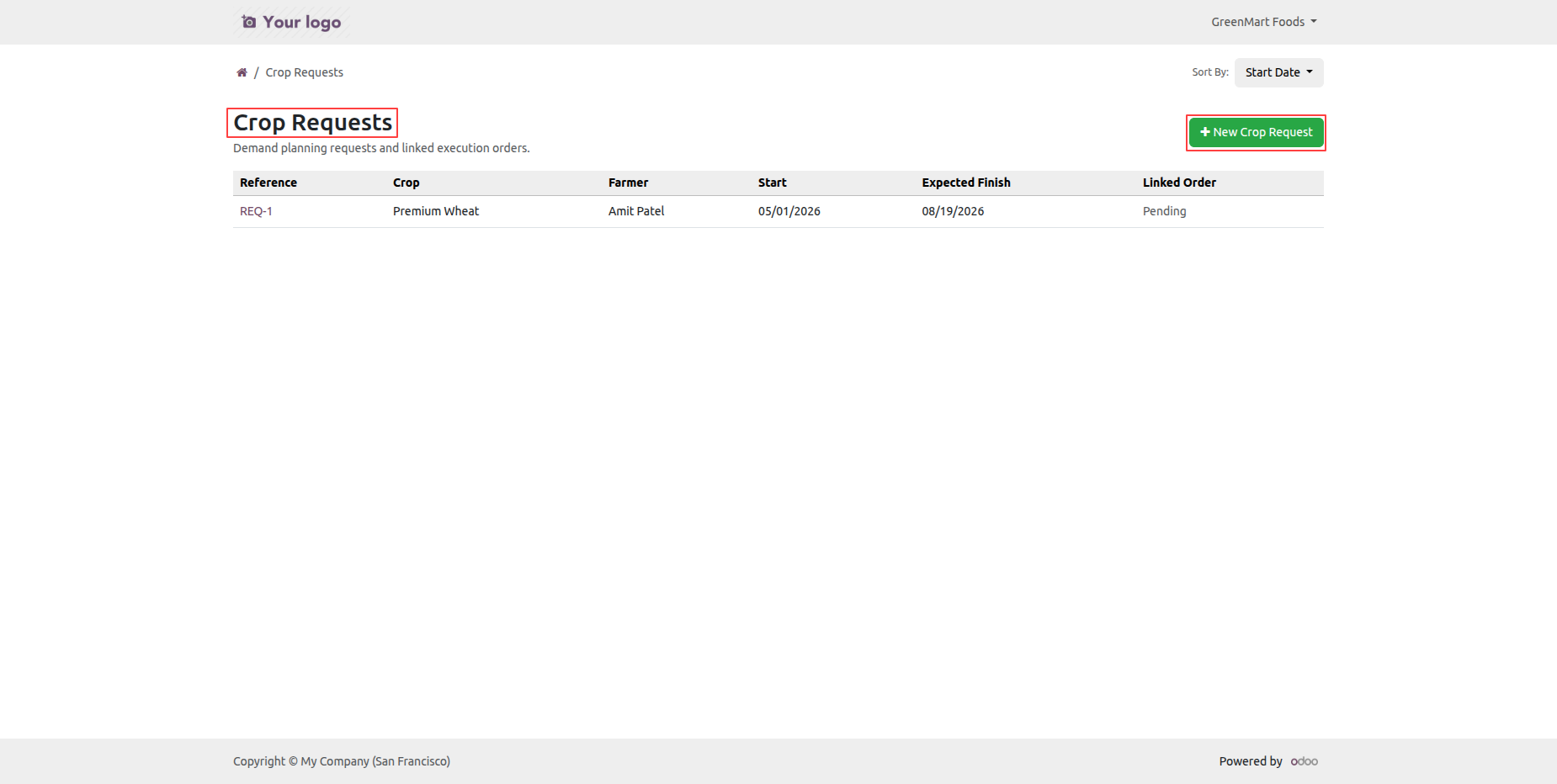
The New Crop Request form will open for entering crop request information and submitting it.
Add relavent details and click on Submit Request button.
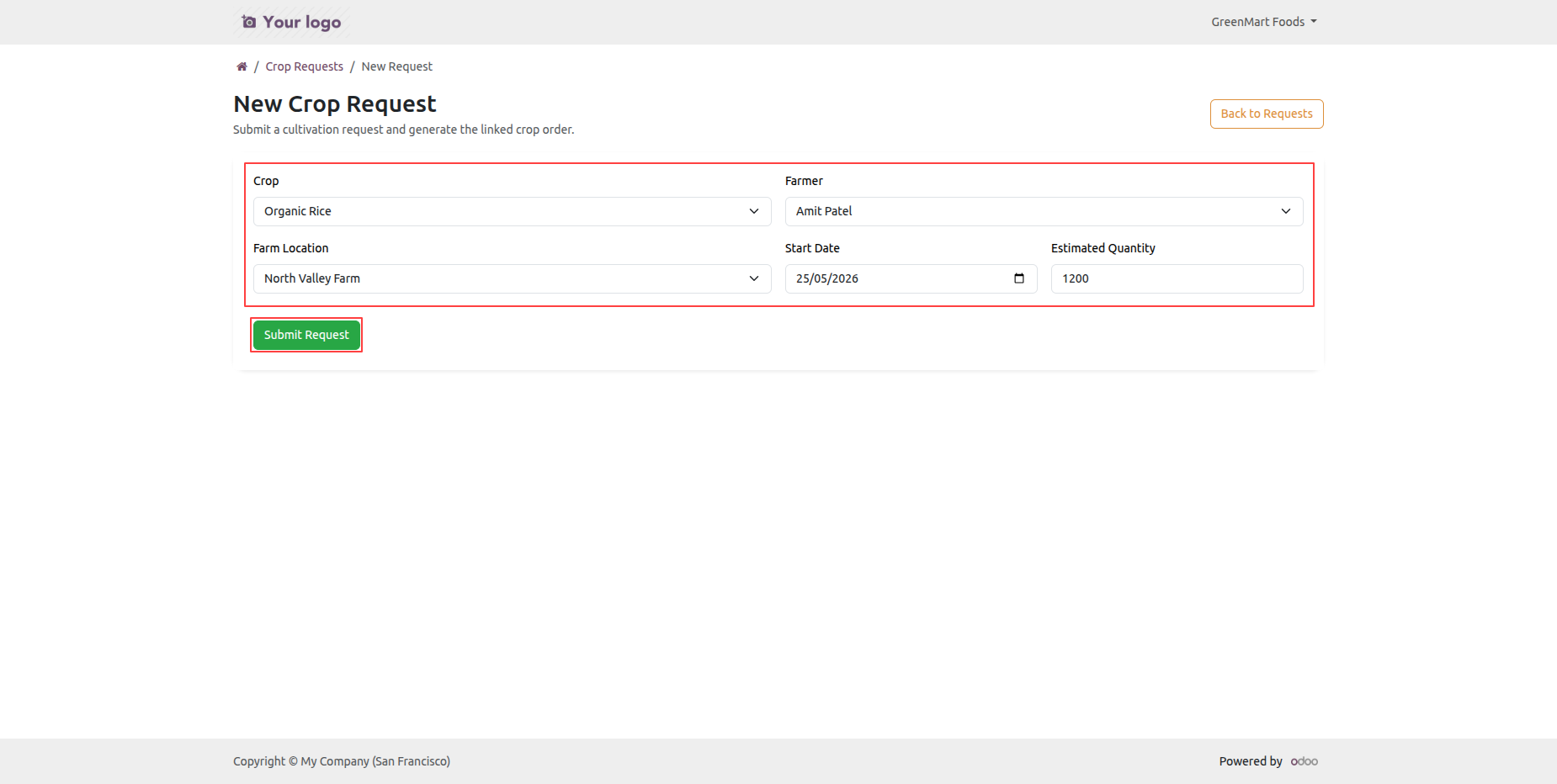
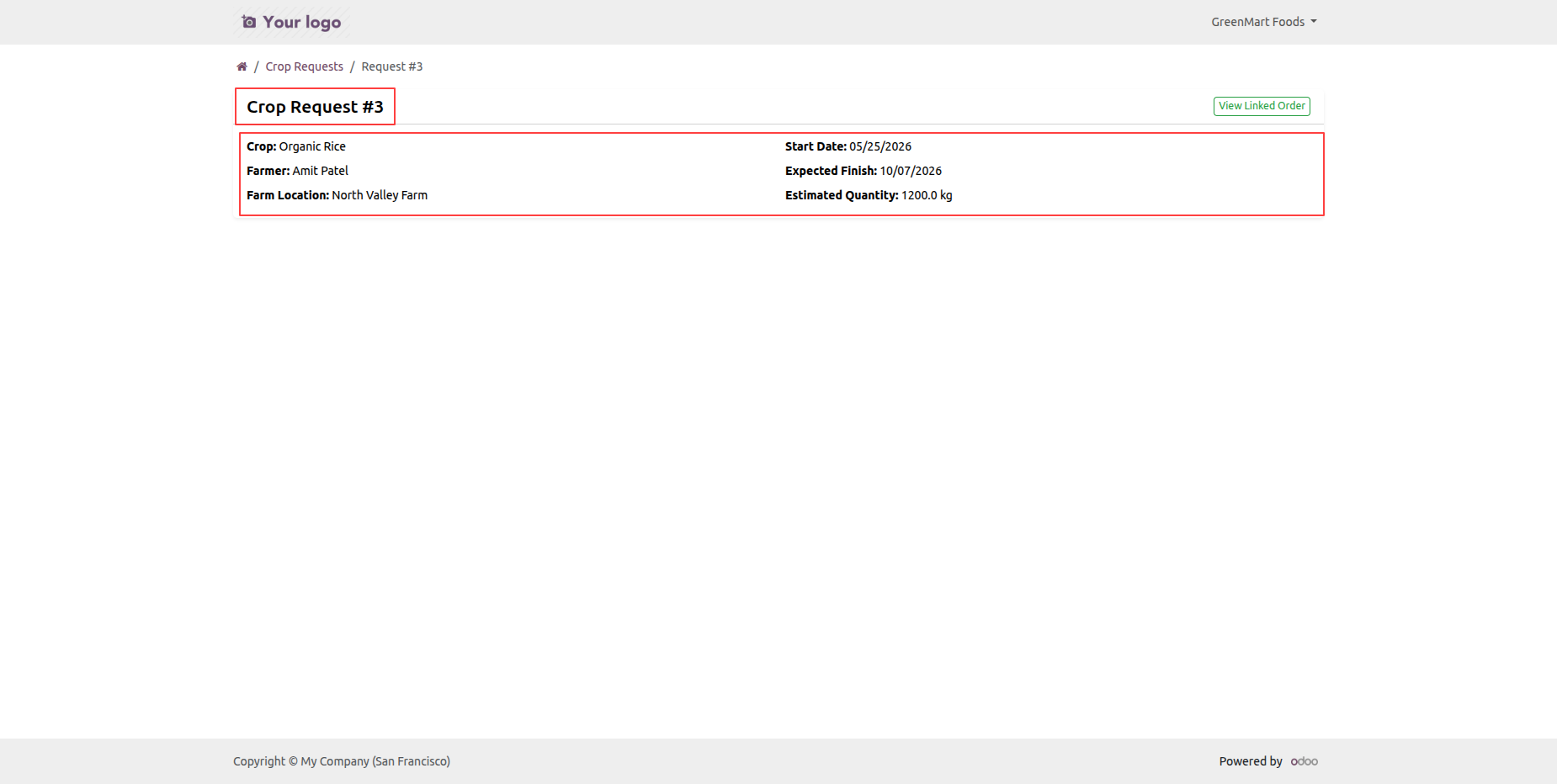
The portal request detail view presents crop request information.
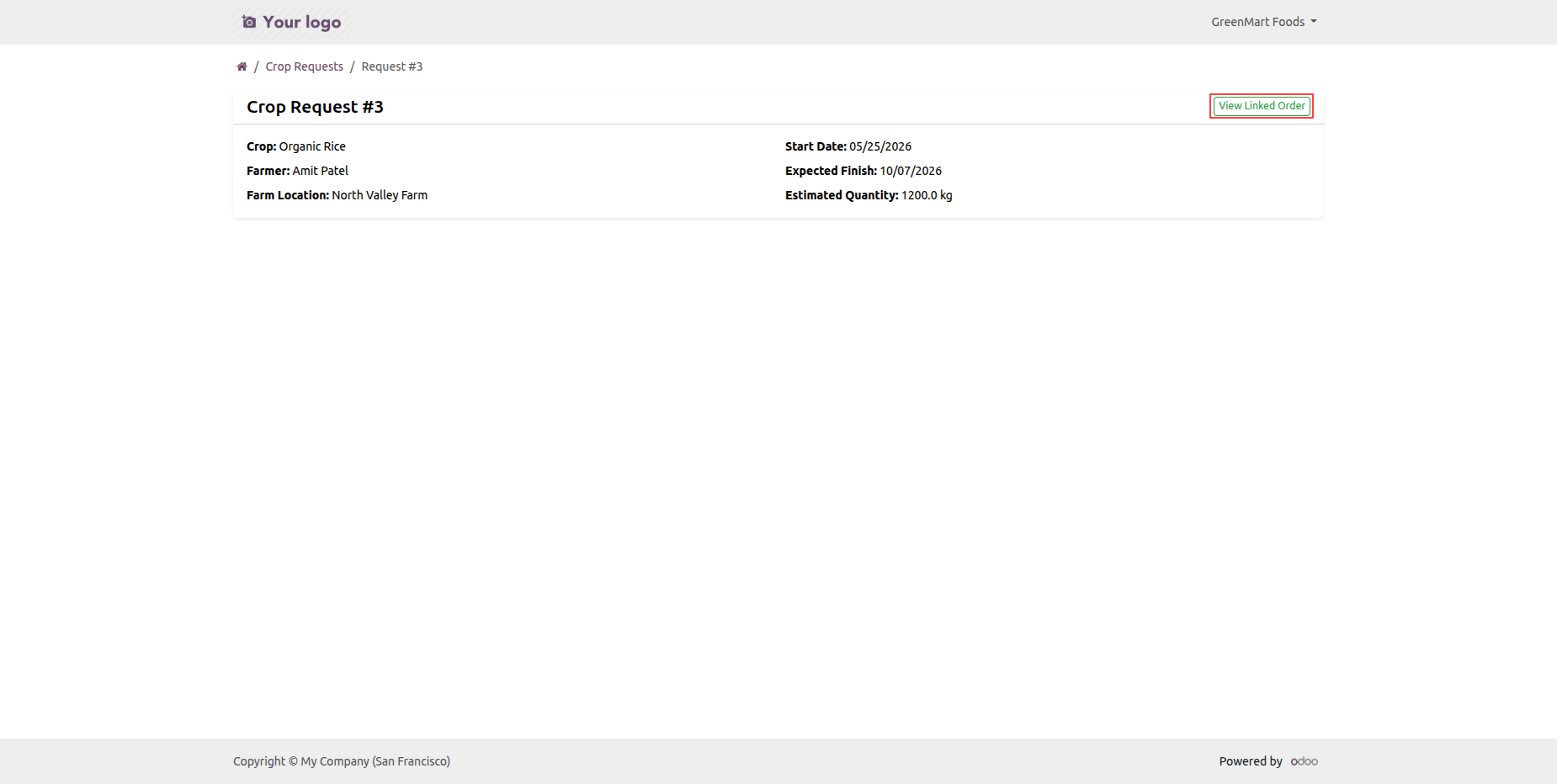
Click on the view linked order button from the Crop request form view.
Linked Crop Order detail page will open.
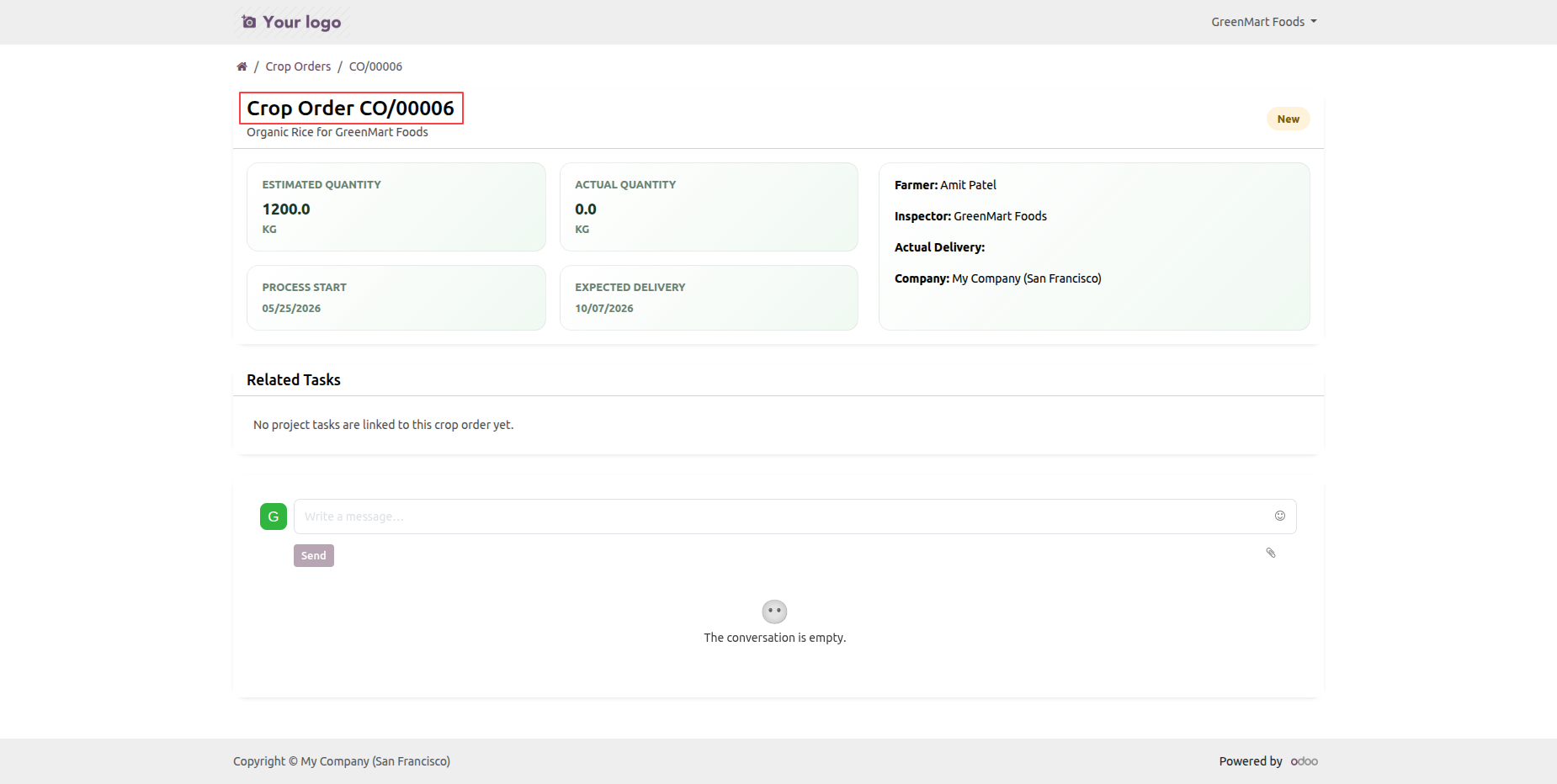
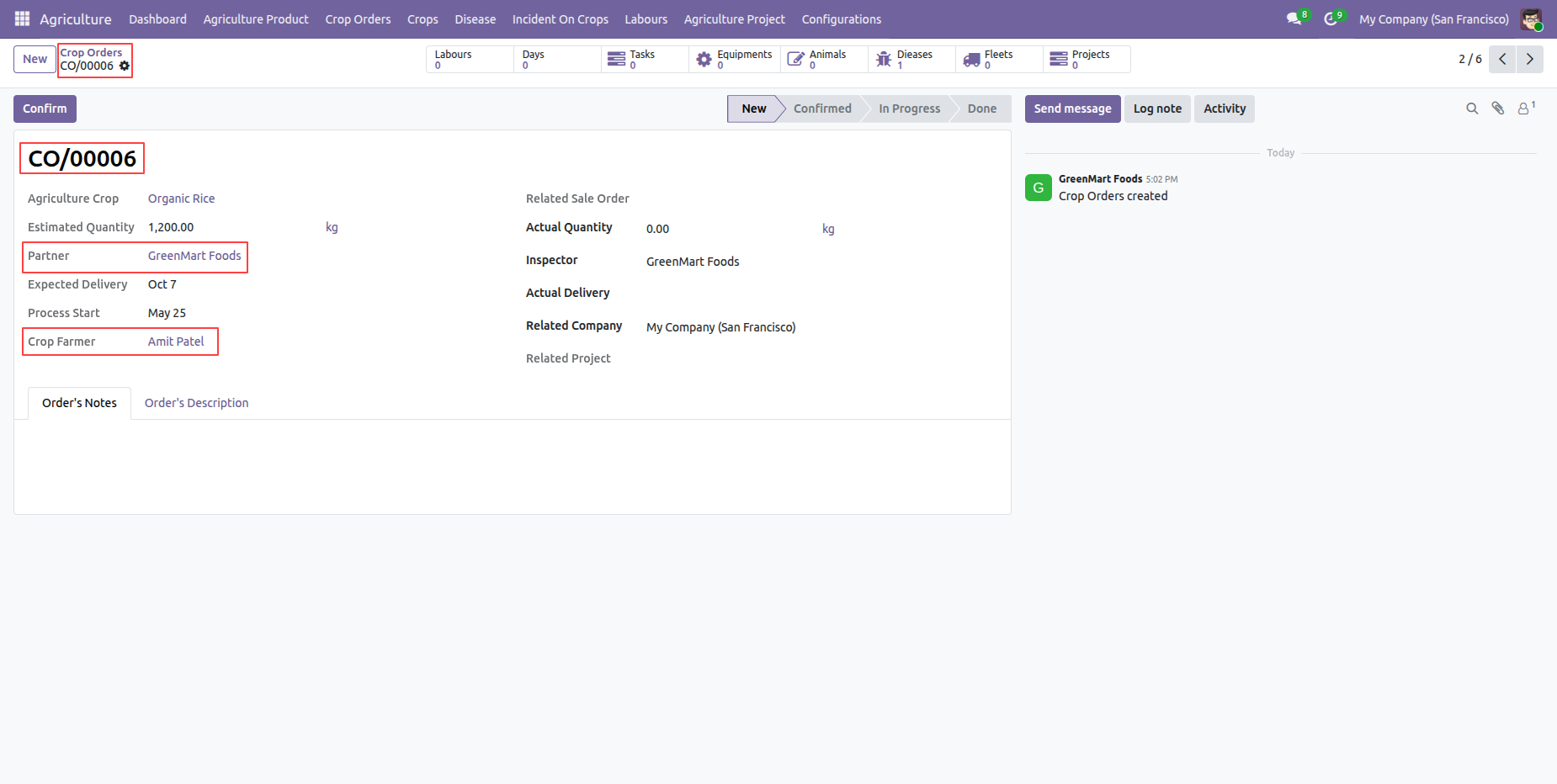
The backend crop order record shows its reference, customer, crop farmer, and related details.
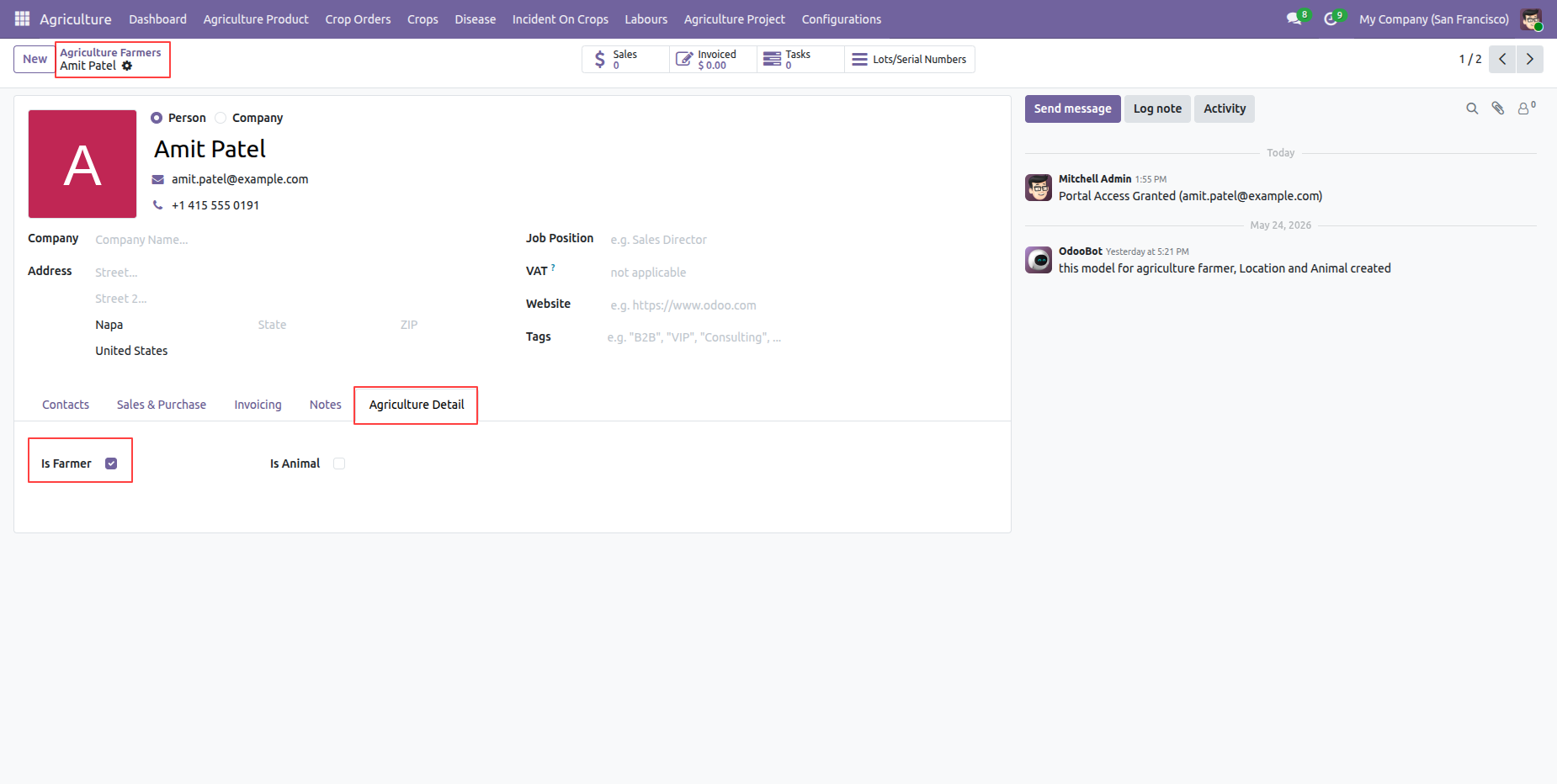
The farmer account page displays profile information and is farmer boolean enabled in the agriculture detail tab.
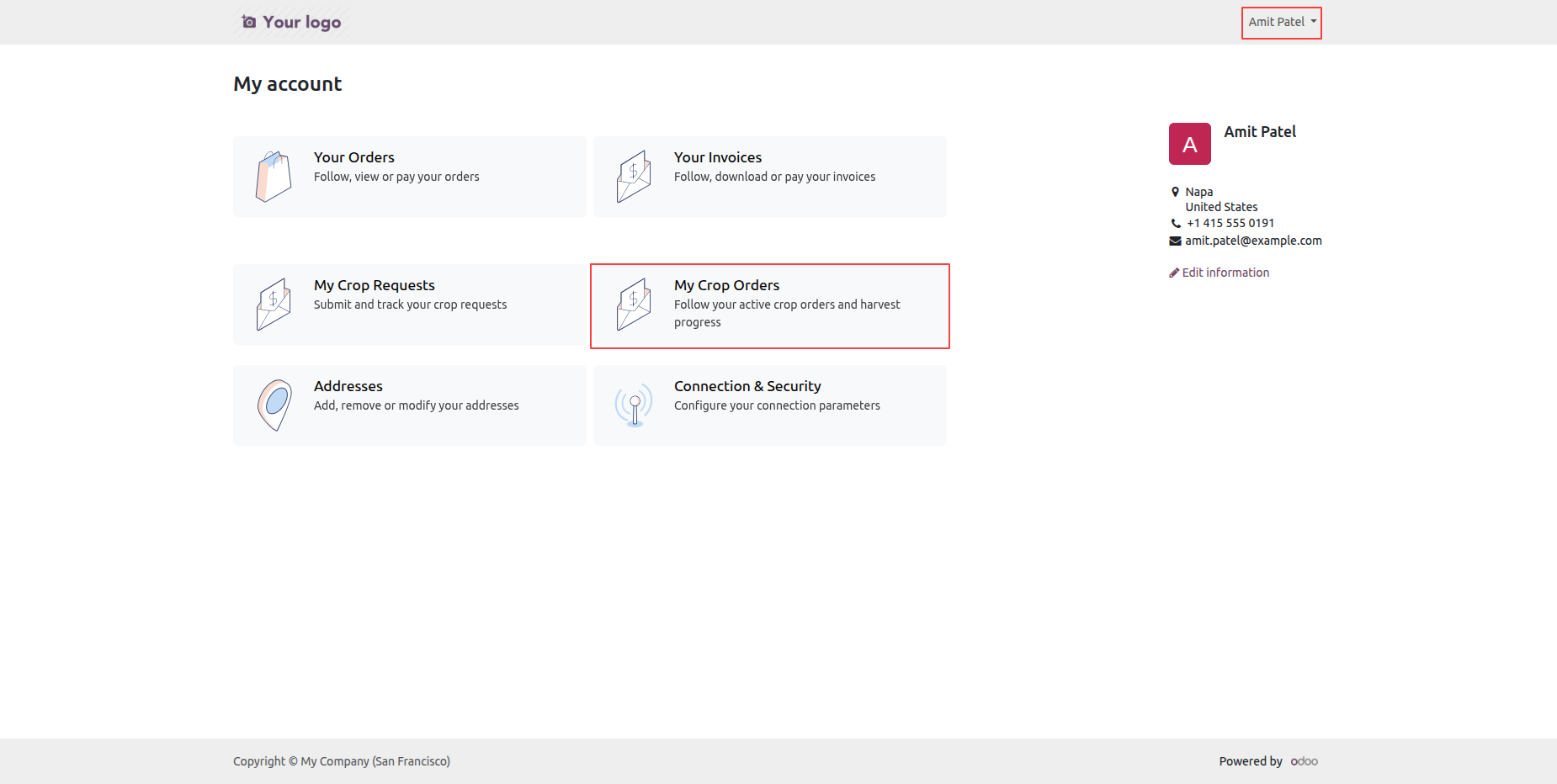
Login with the farmer portal Account, click on My Crop Orders.
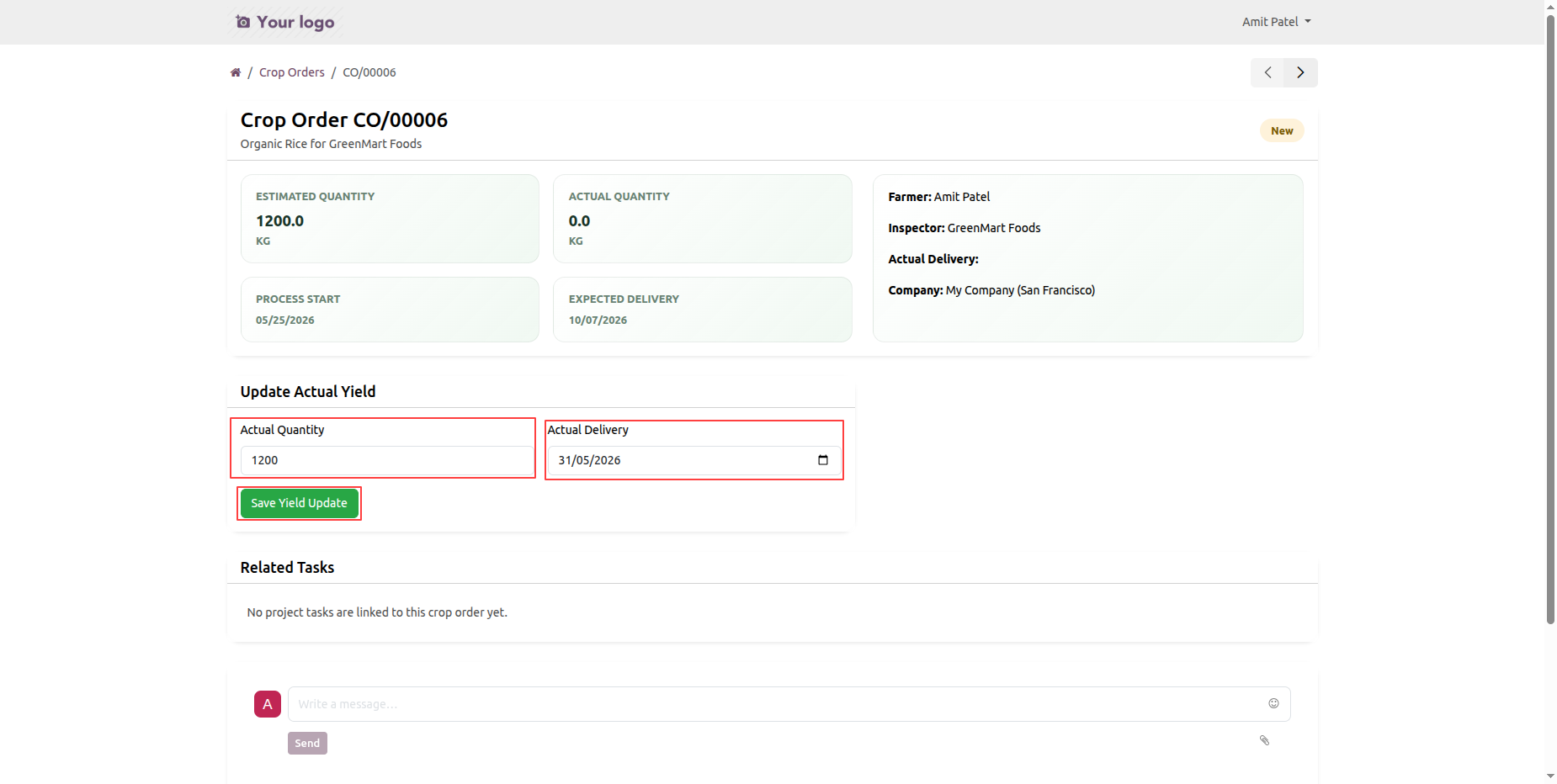
Portal farmer can update the actual quantity and actual delivery date.
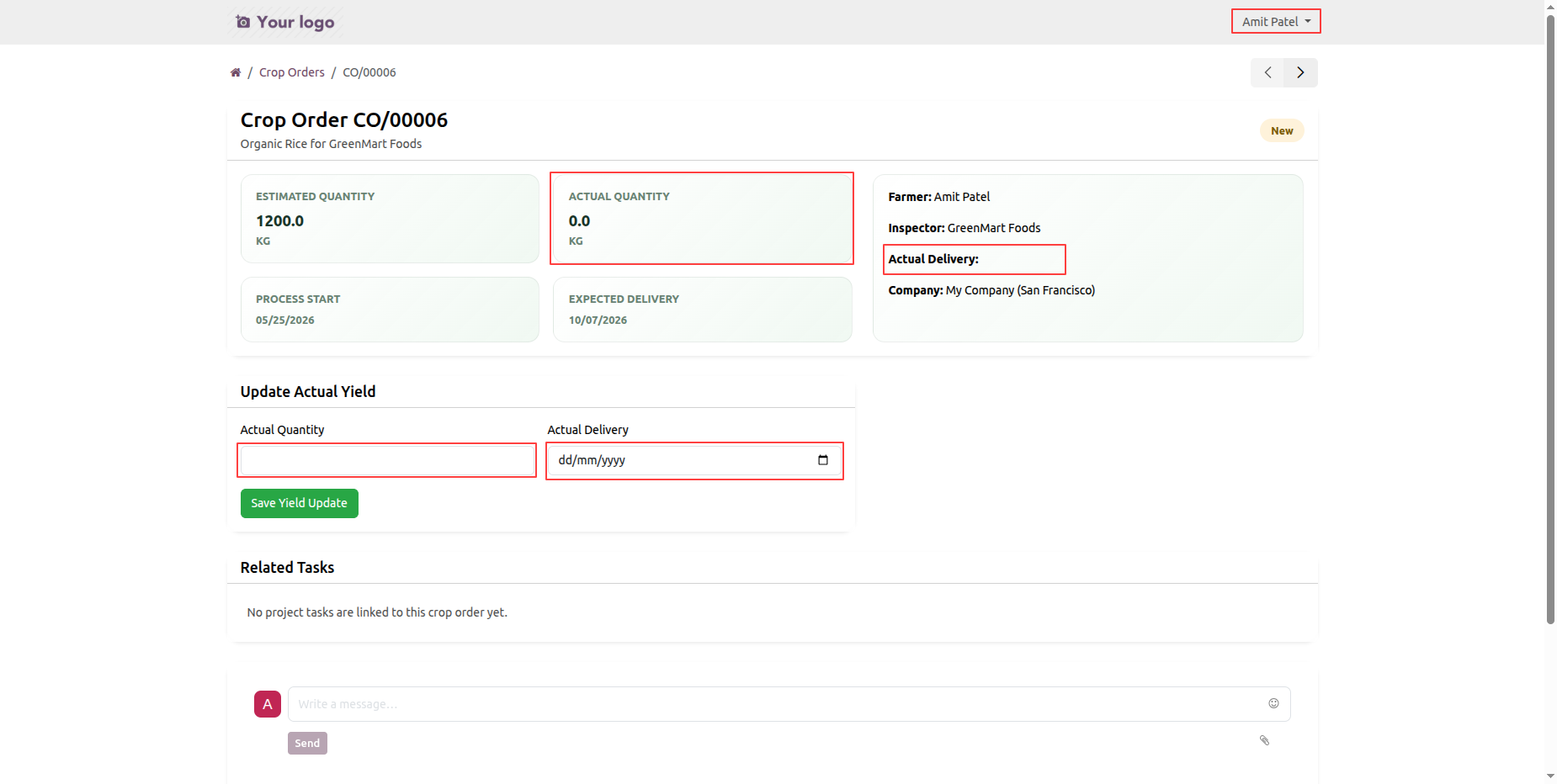
Add the actual quantity and actual delivery date. Click on Save Yield Update button.
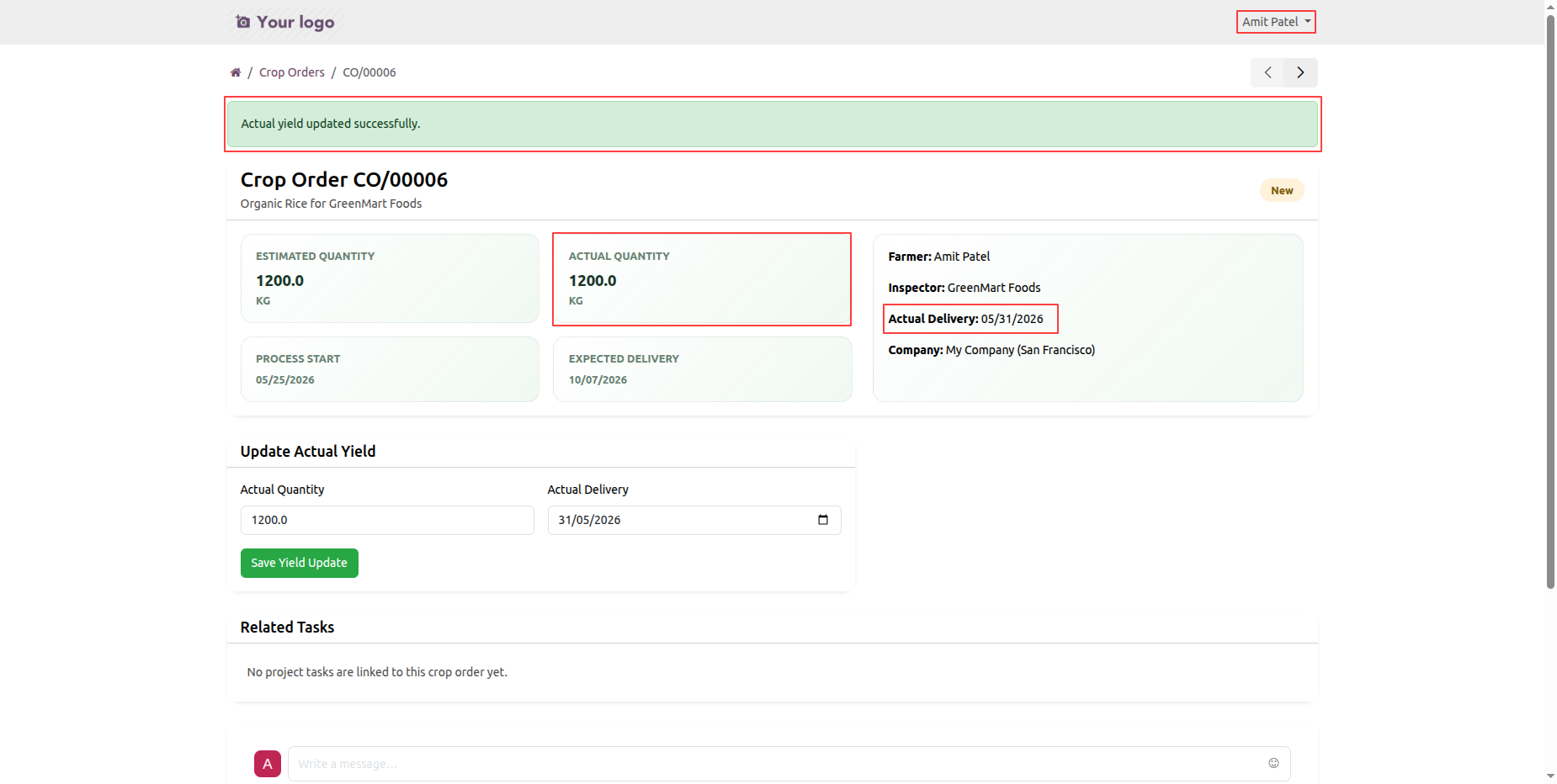
The final crop order view presents Actual Quantity and Actual Delivery Date information.
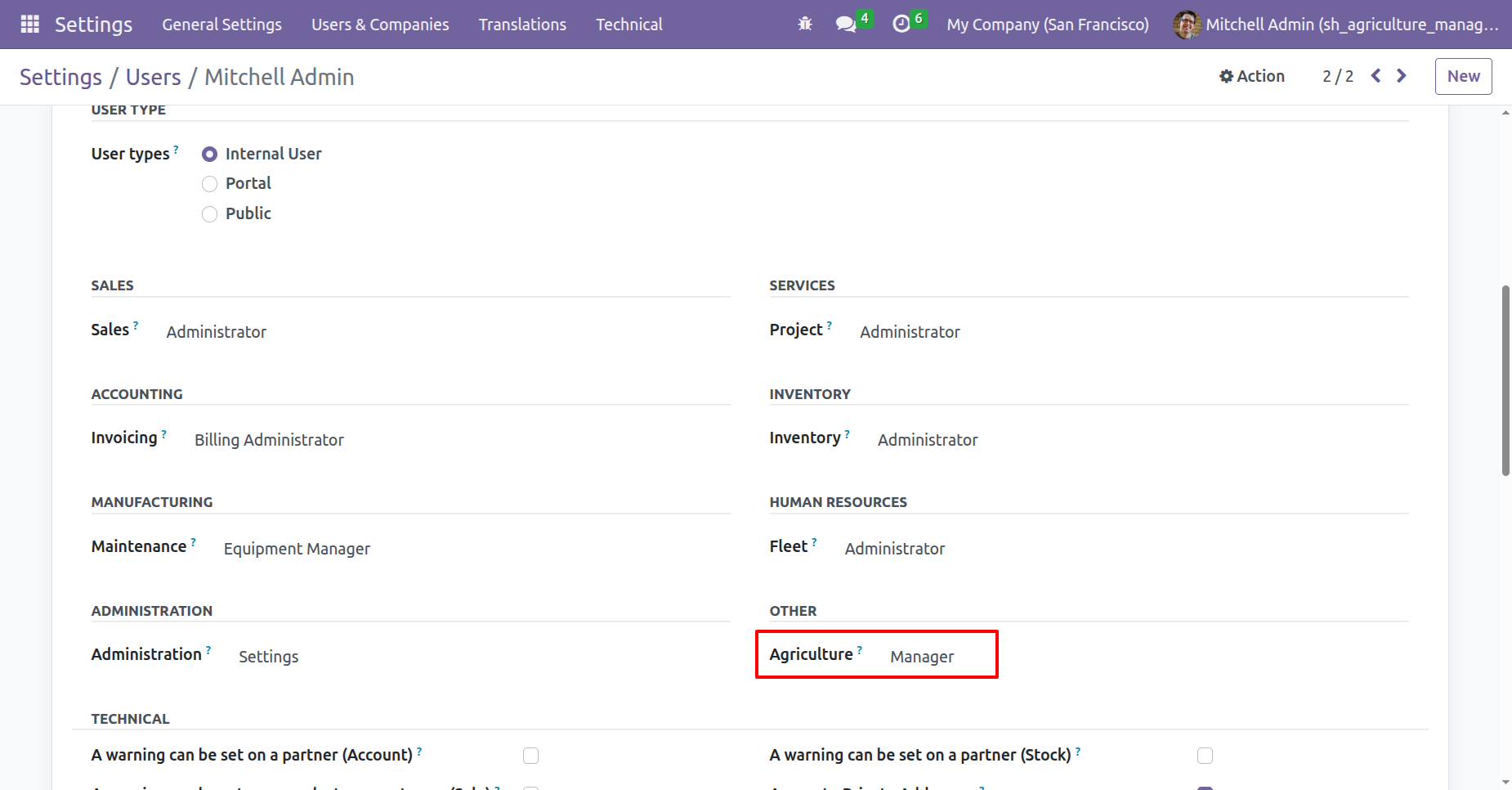
Go to User Settings and assign the role Agriculture: Manager.
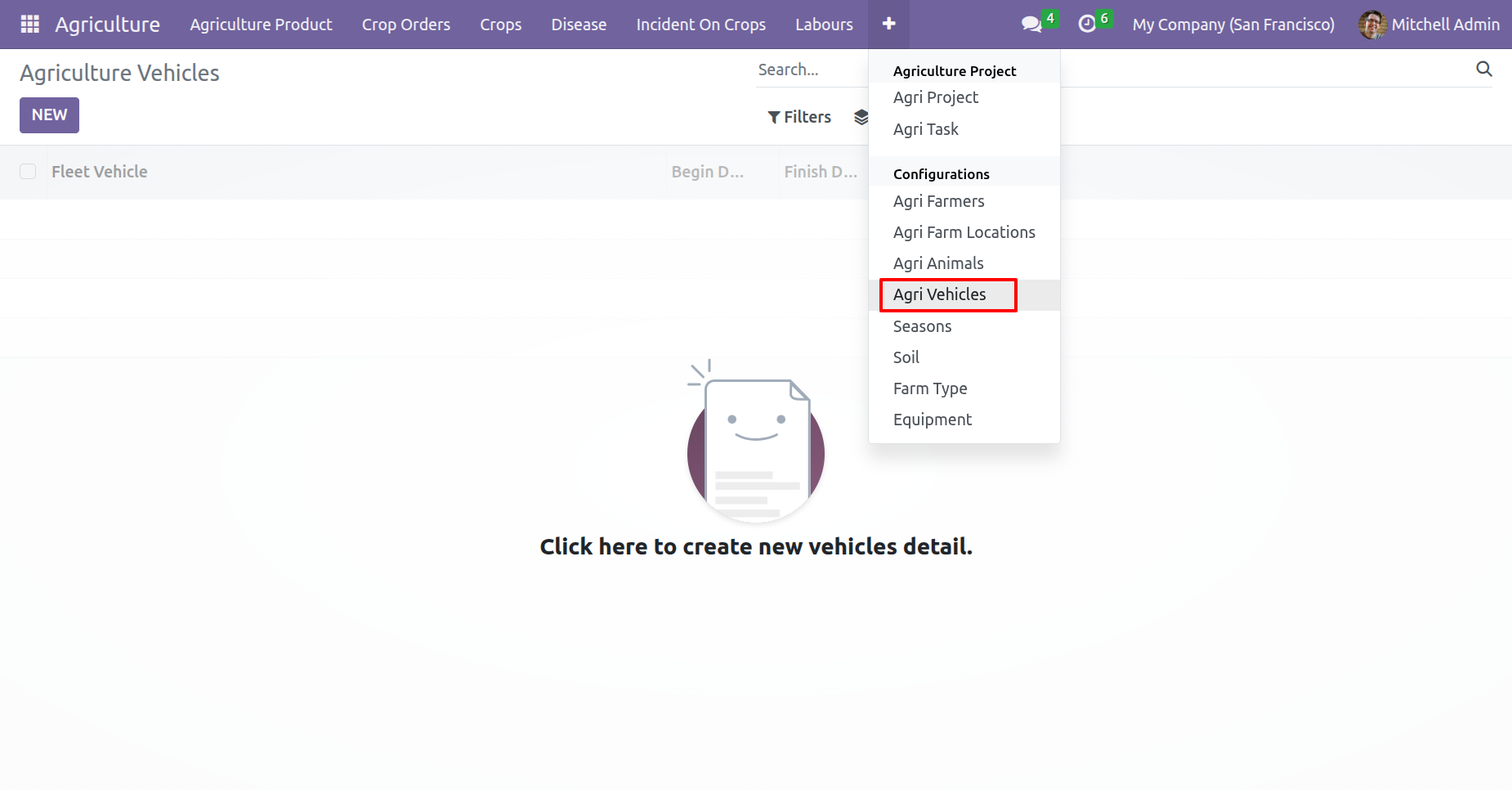
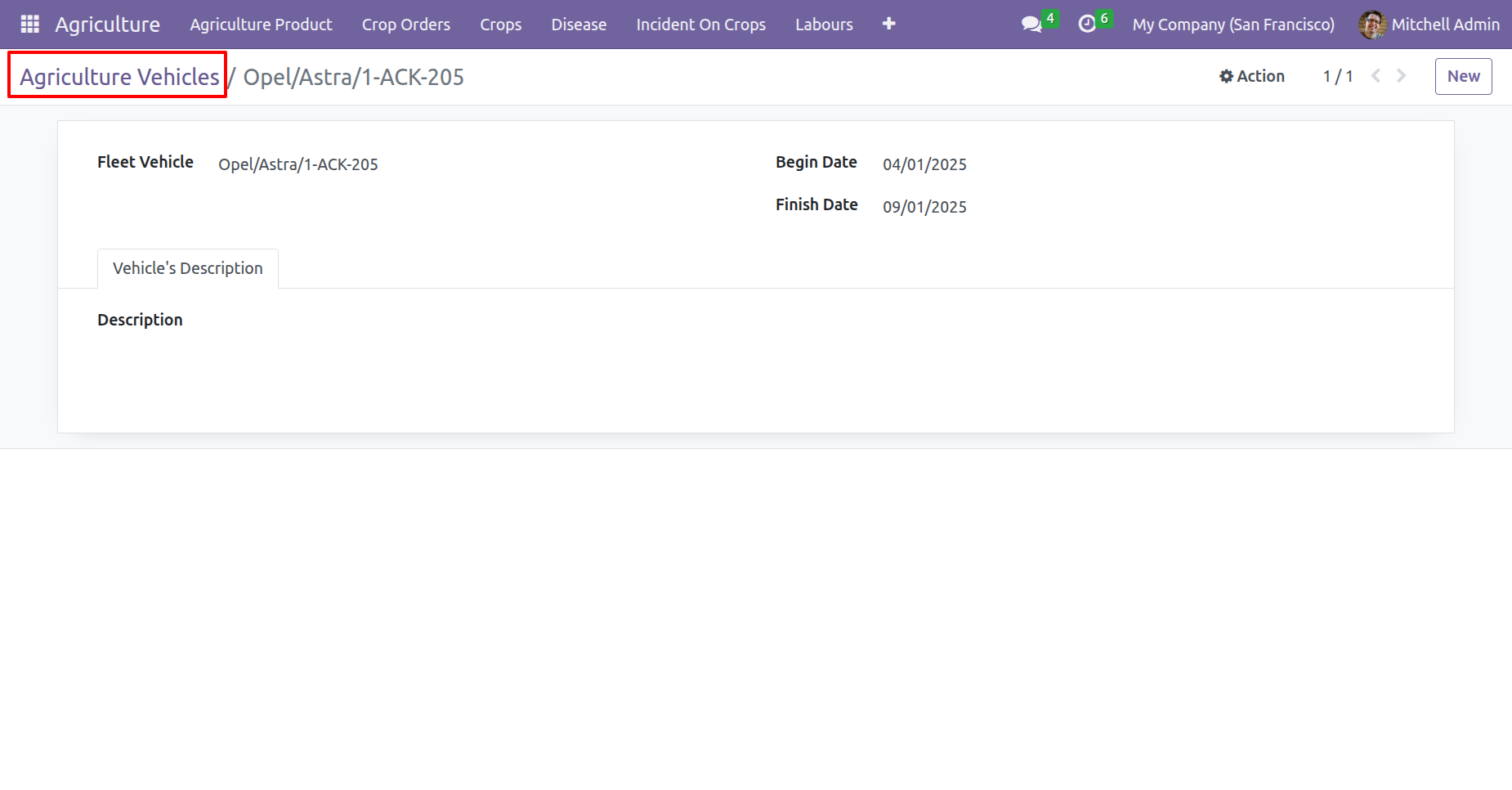
Agriculture vehicles menu and kanban view.
Form view of the Agriculture vehicles.
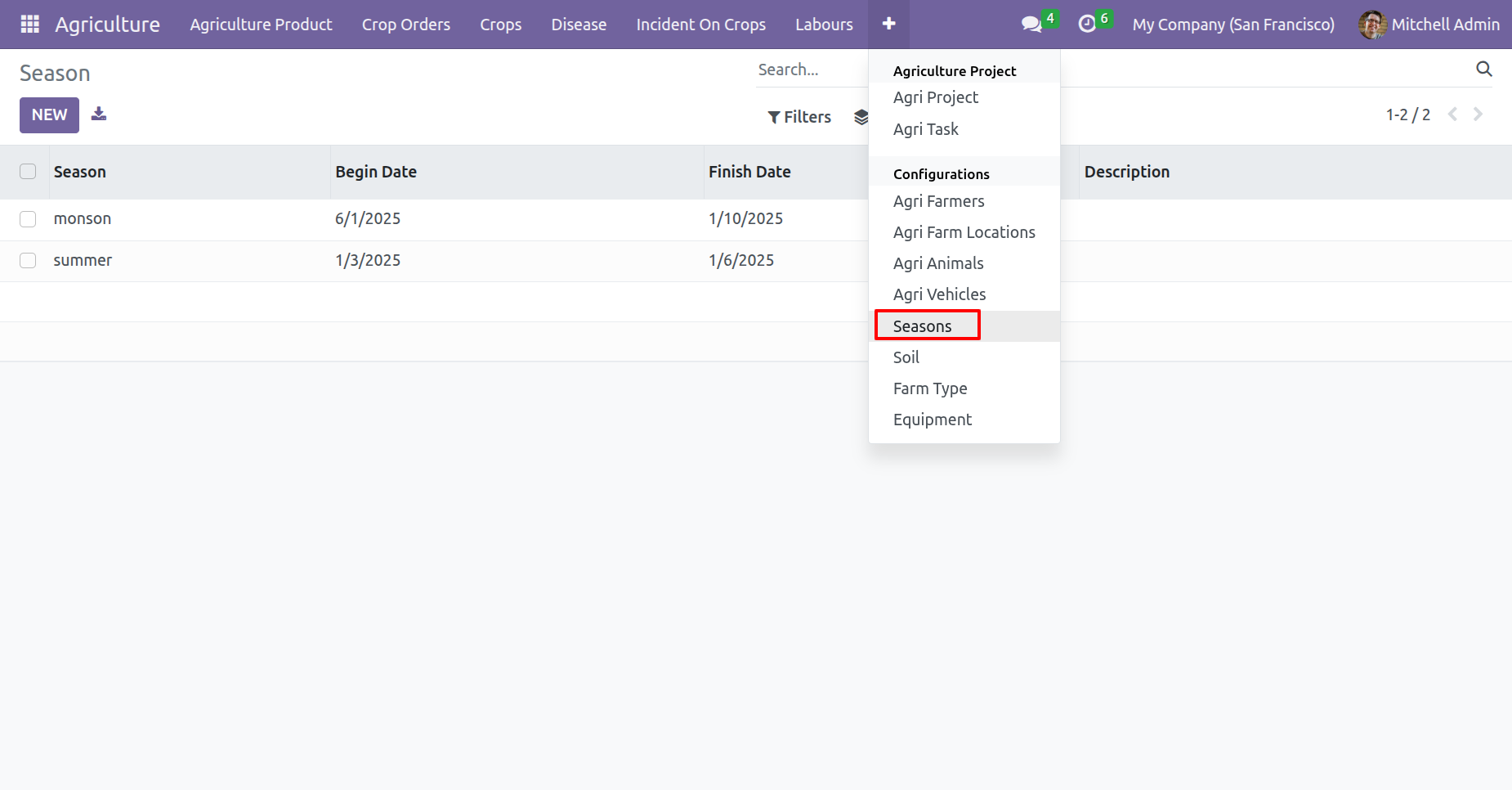
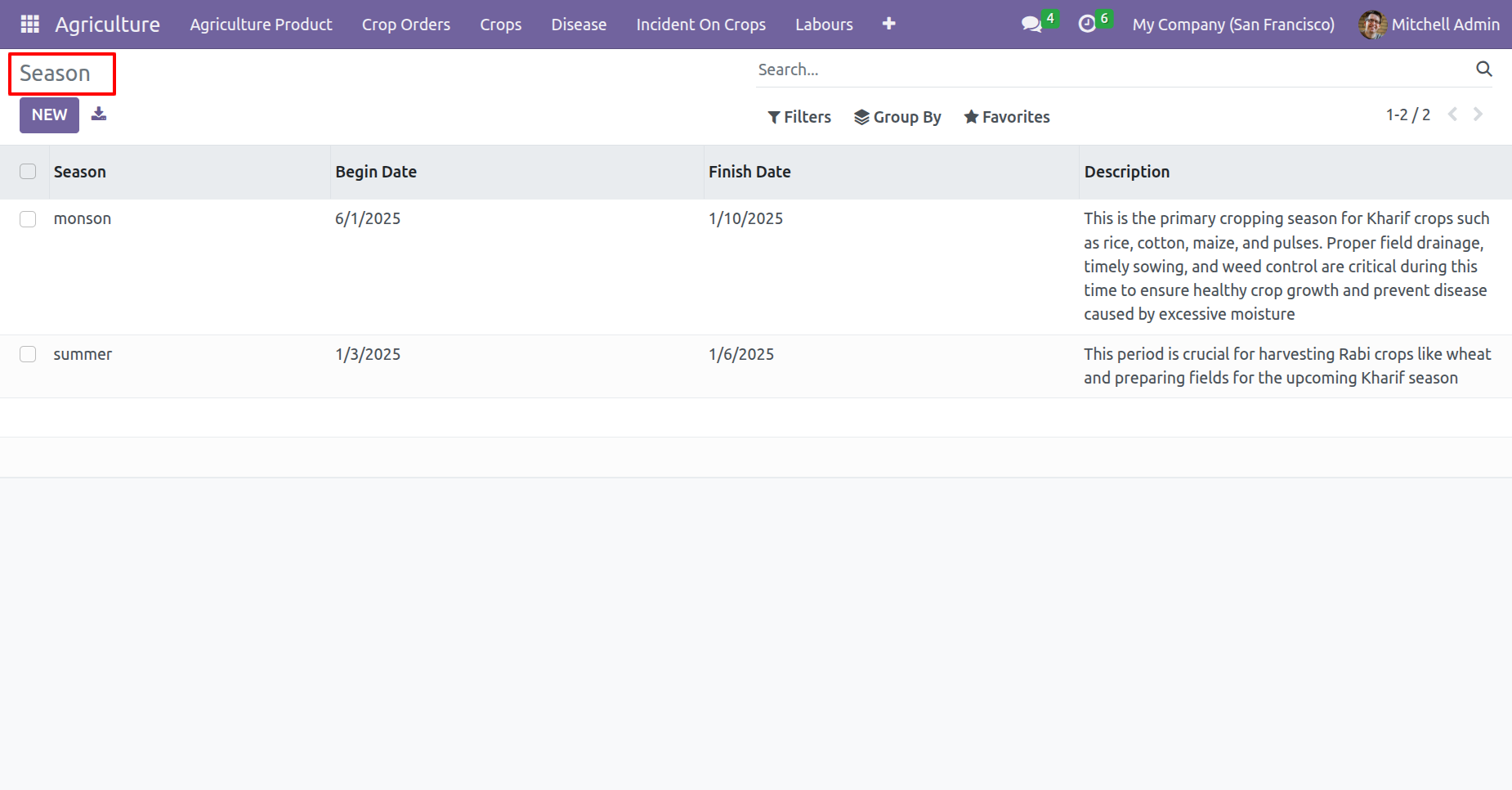
Seasons menu and list view.
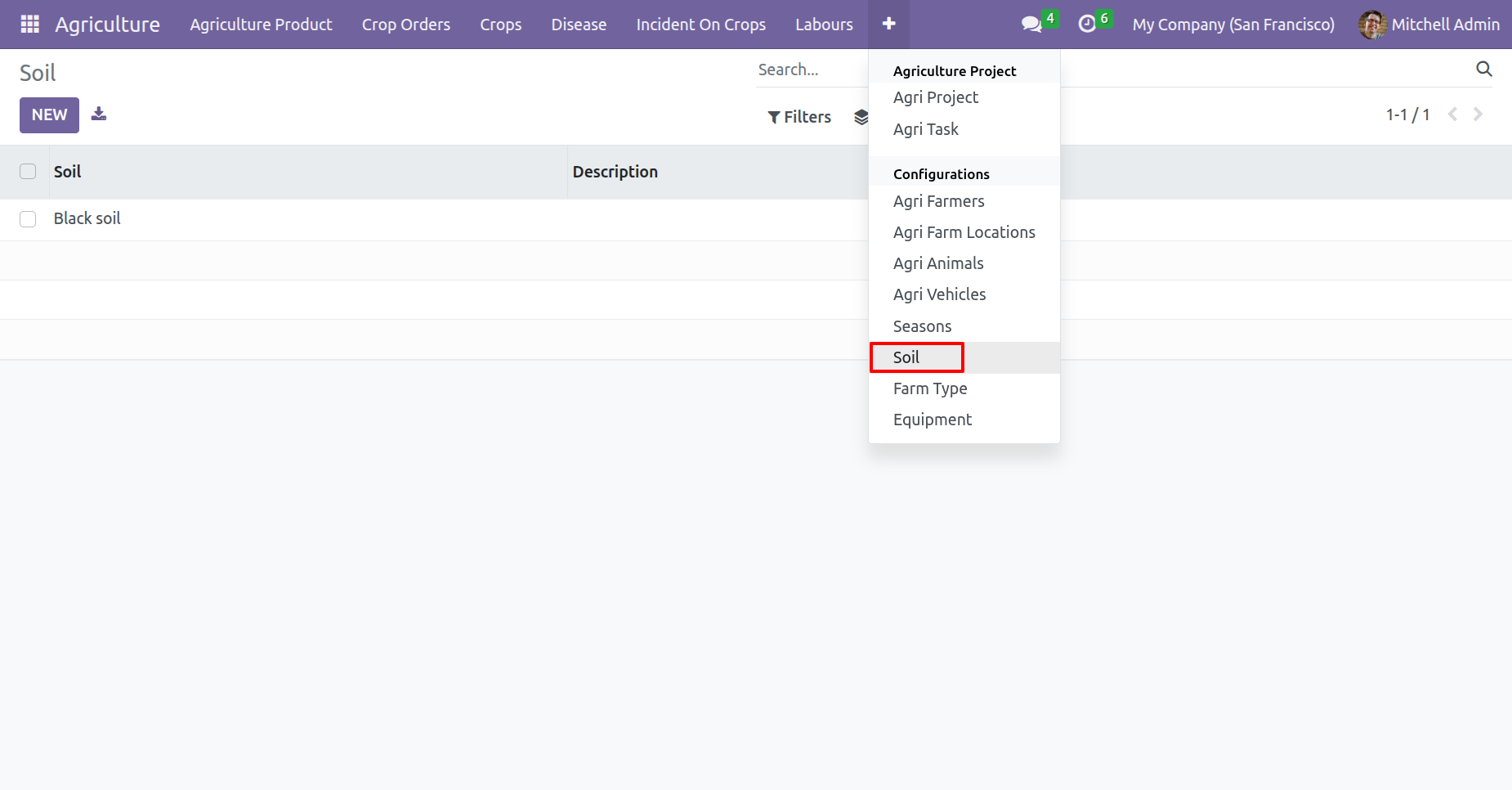
Soil menu and list view.
Form view of the 'Soil'.
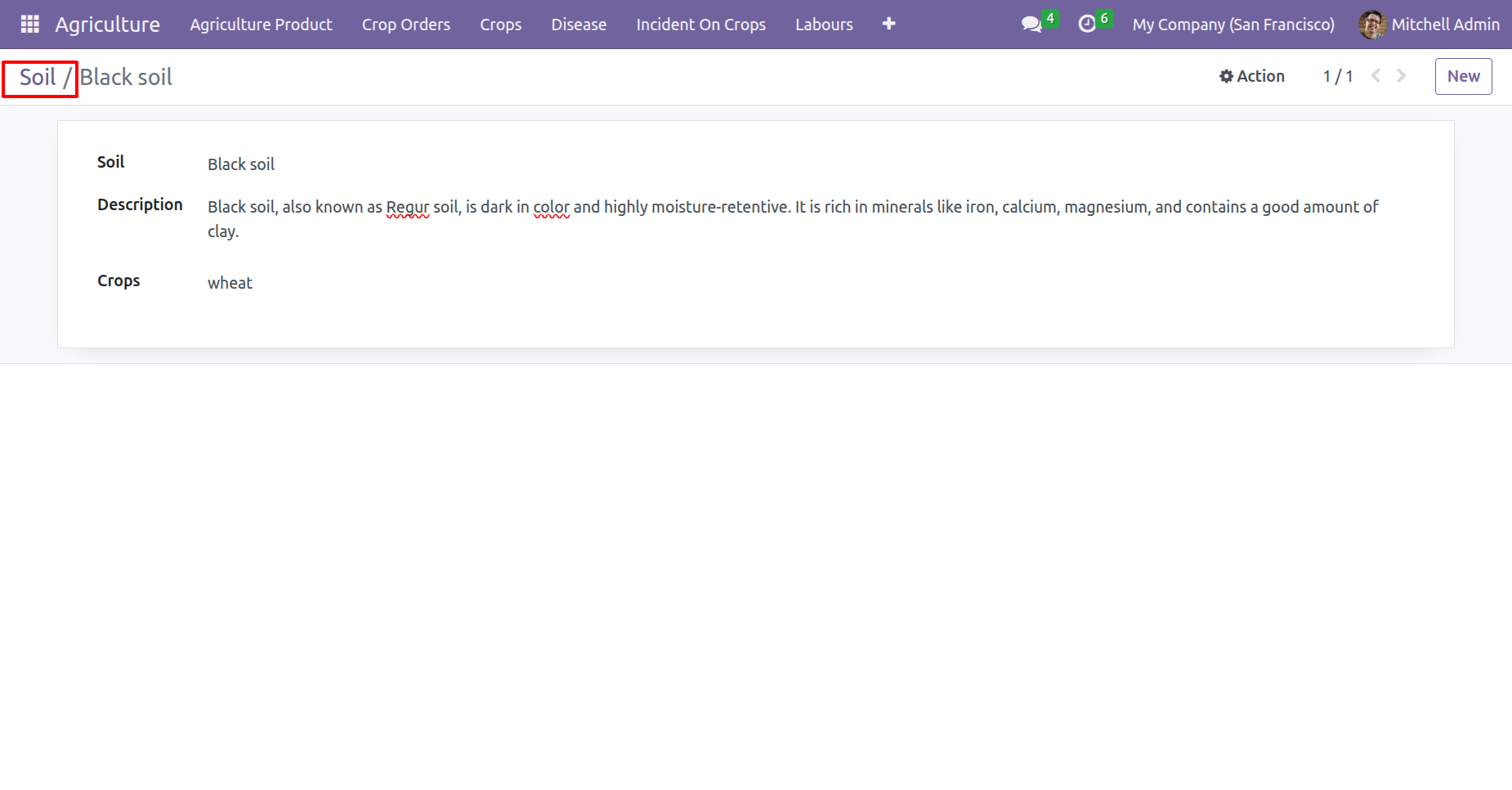
Farm Type menu and list view.
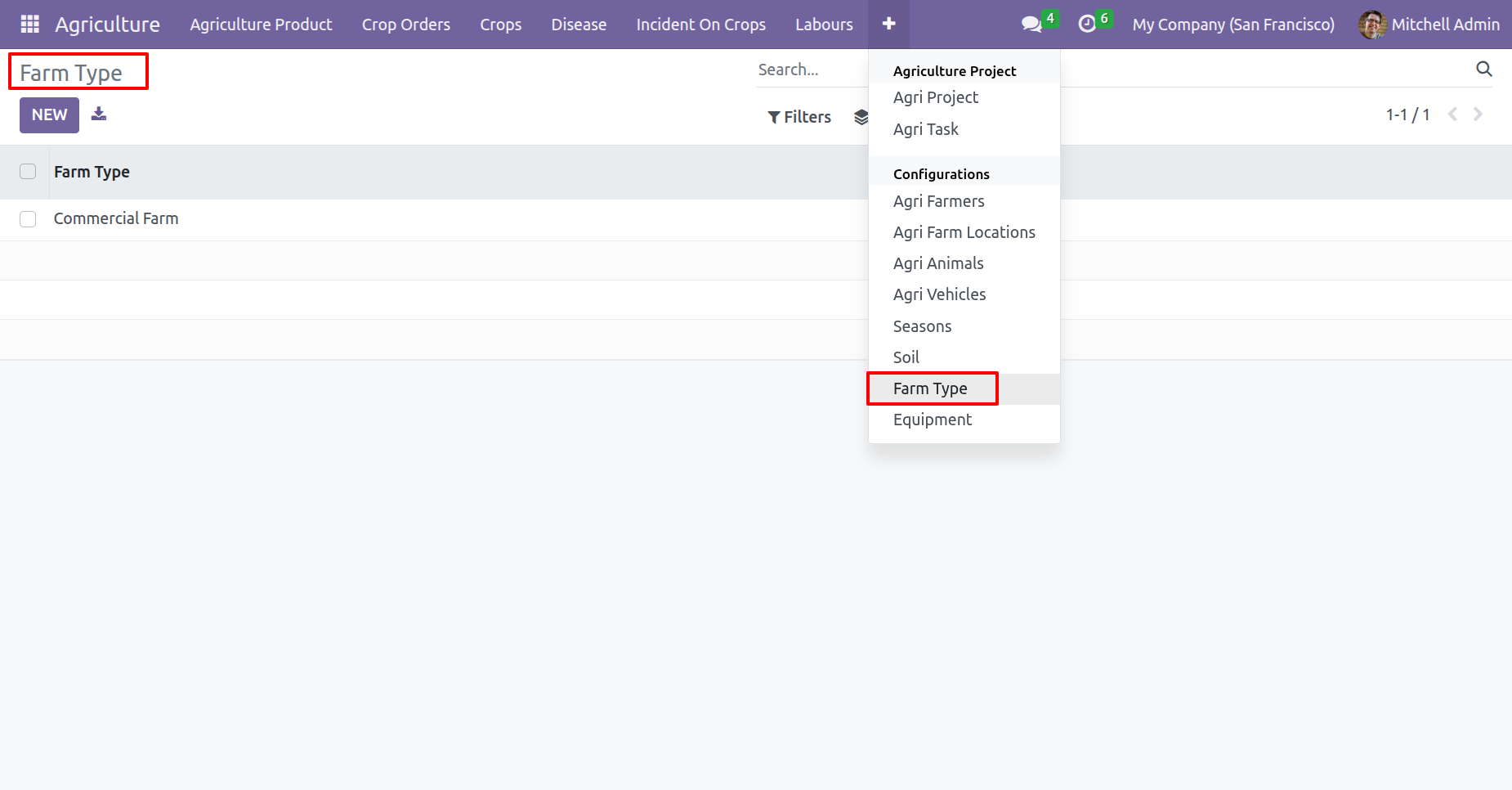
'Equipments' menu.
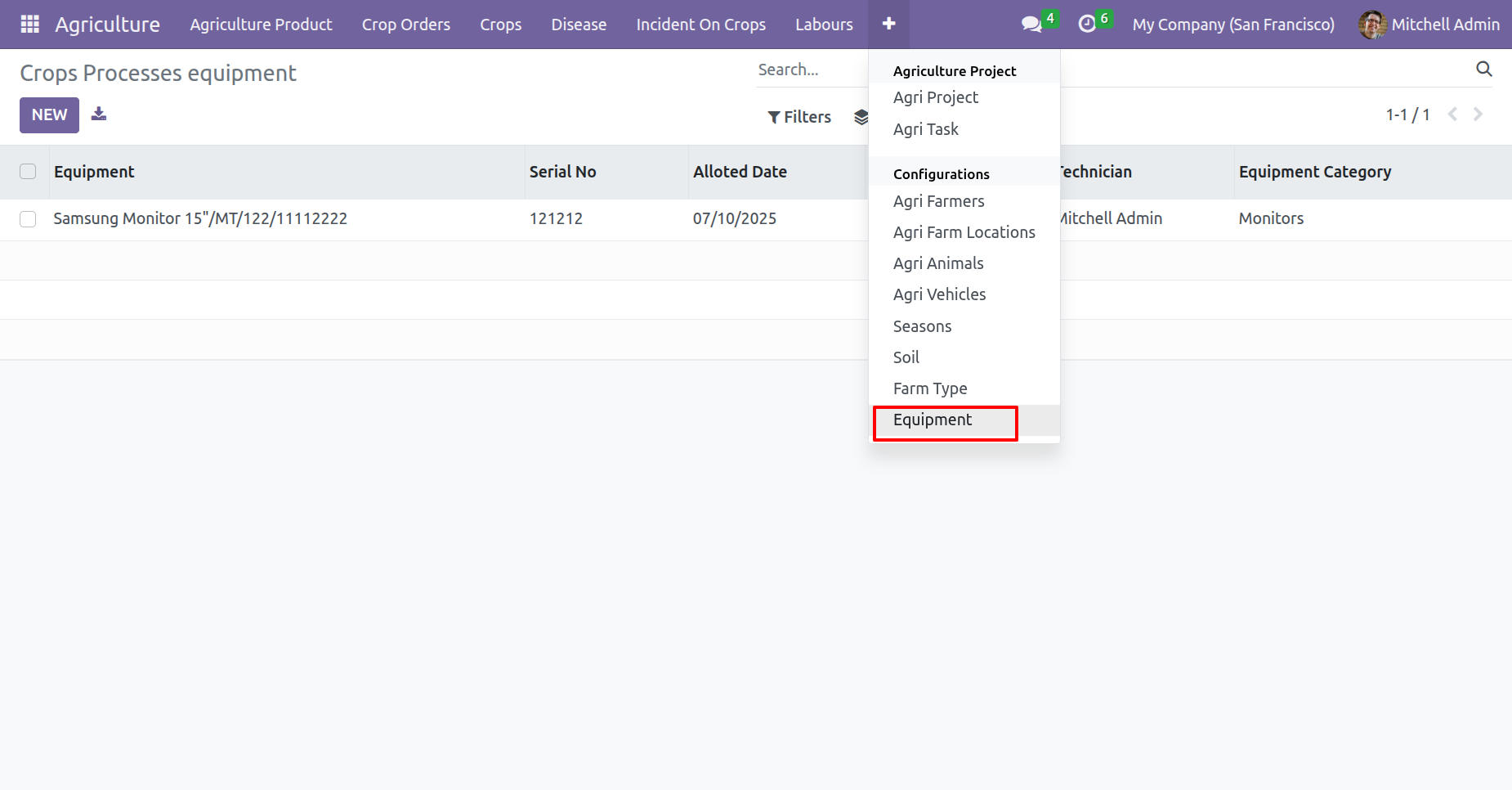
list view of the 'Equipment'.
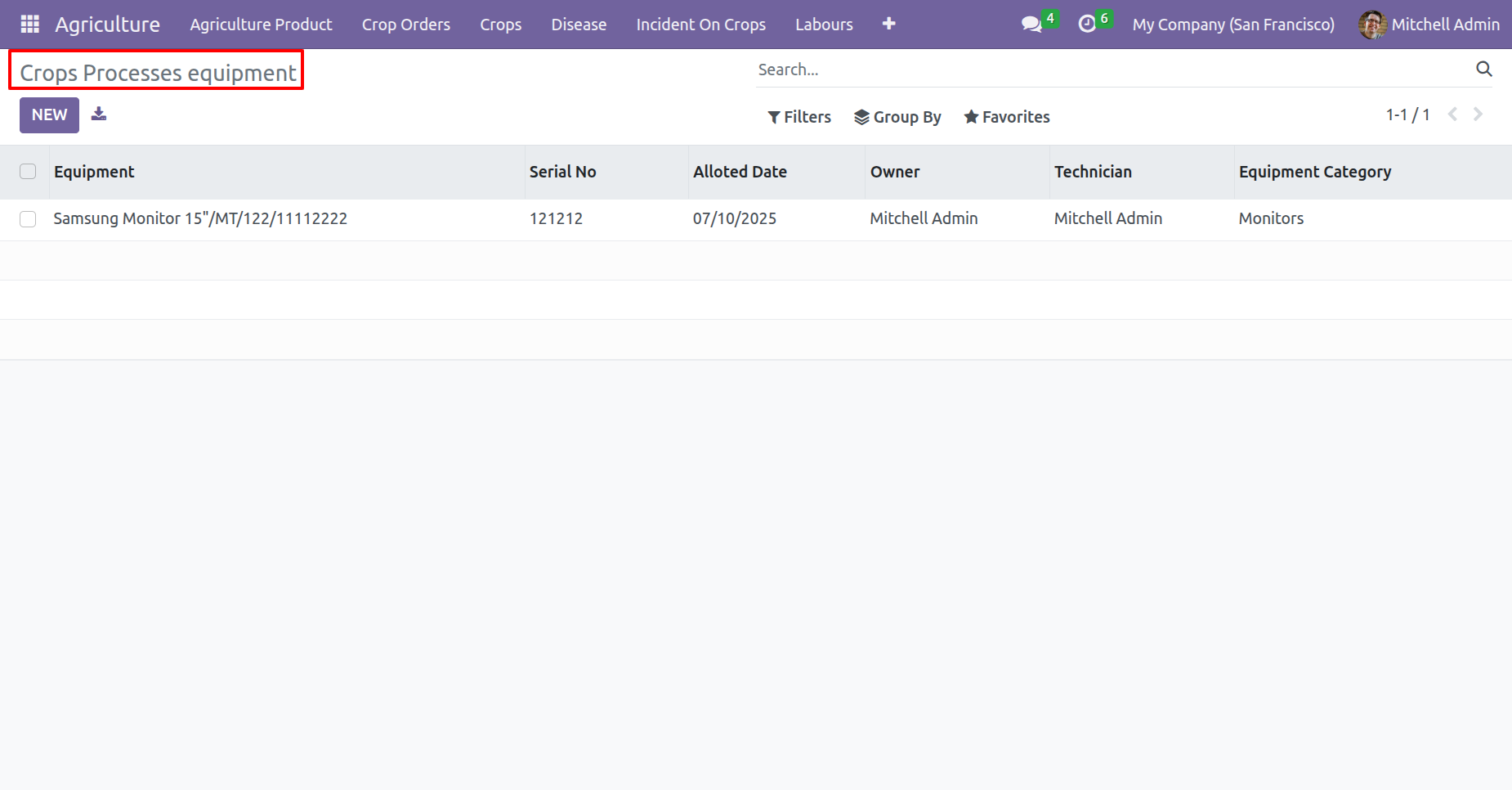
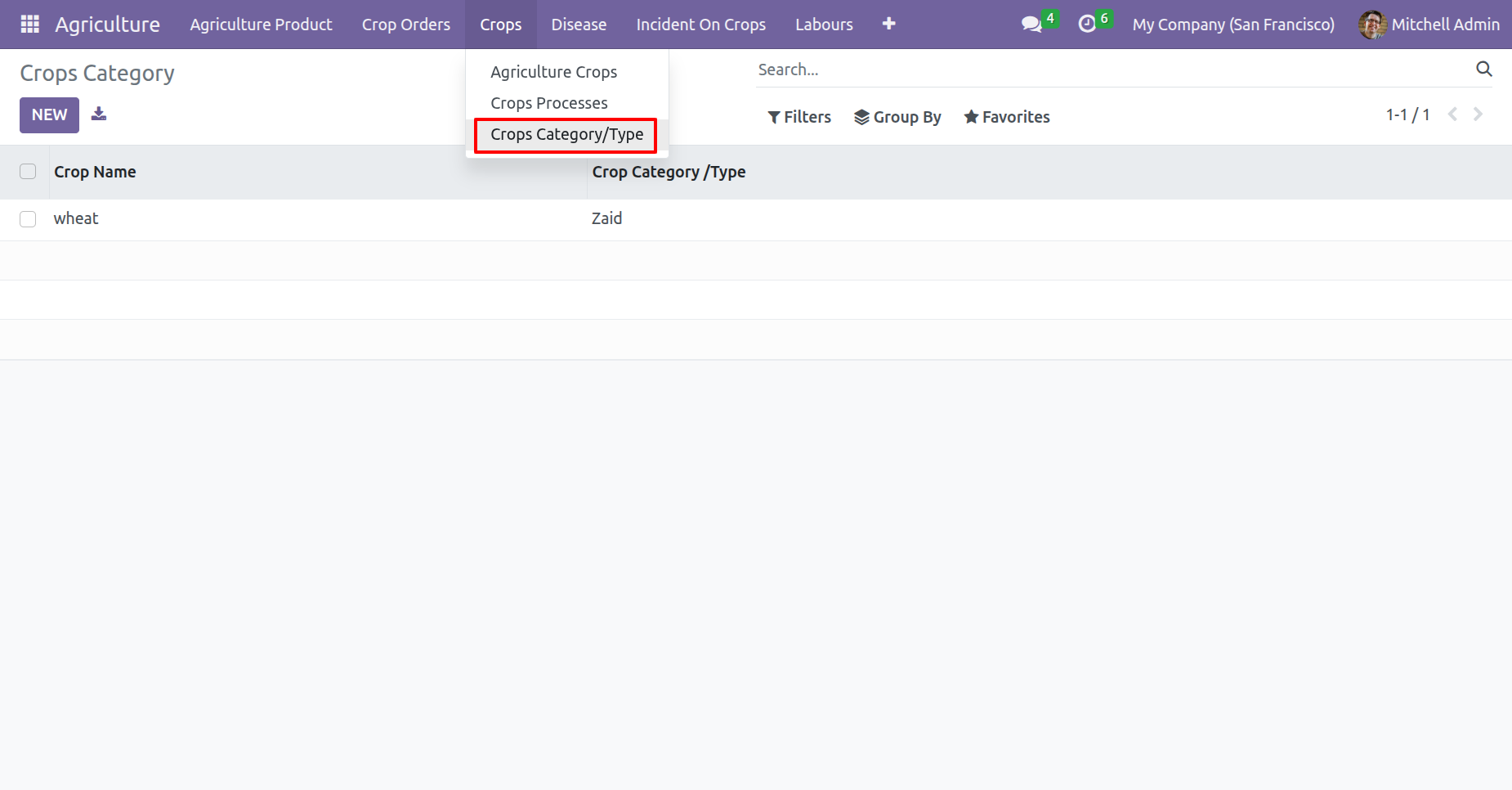
'Crops Category/Type' menu and list view.
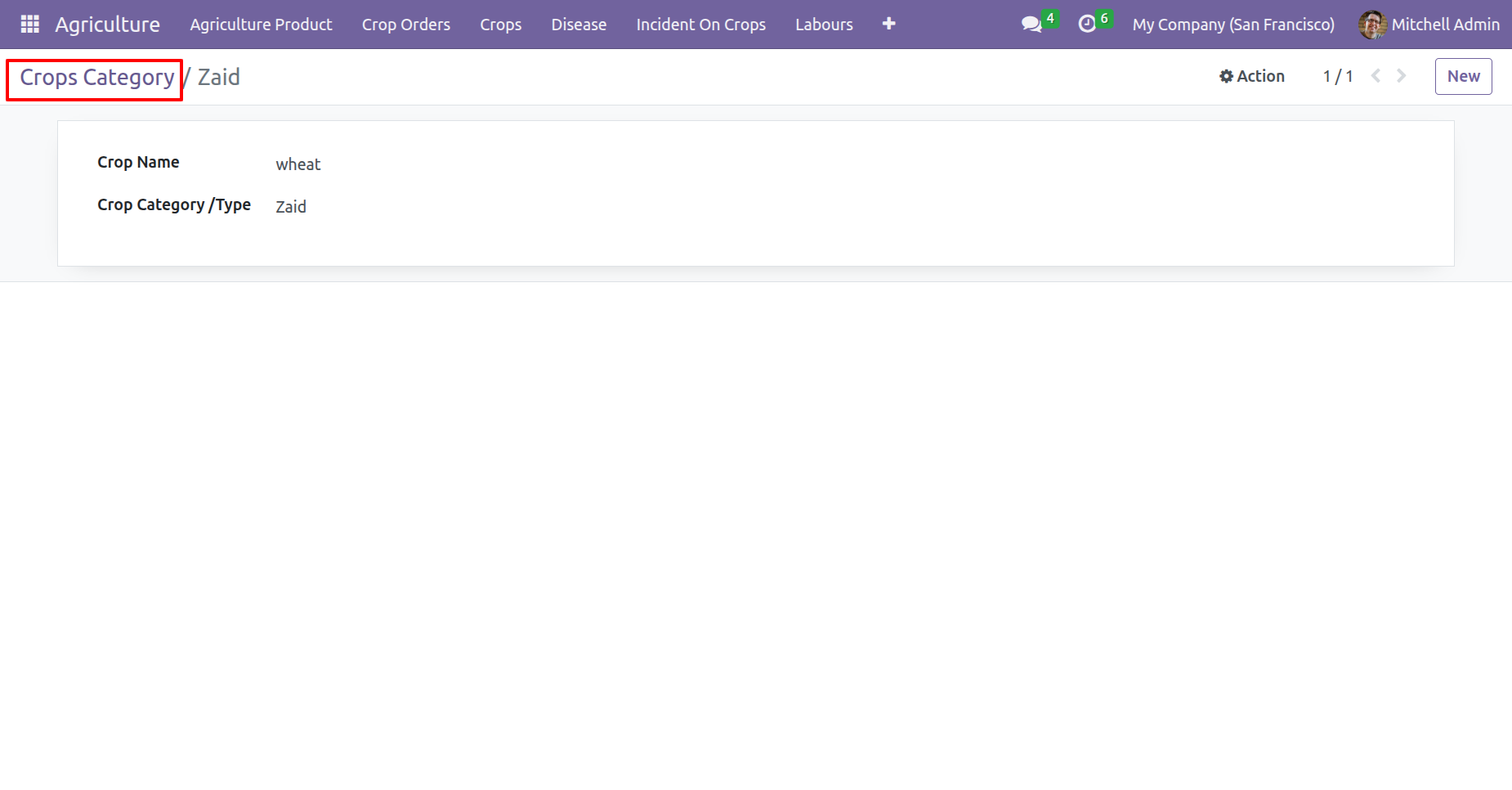
Form view of the 'Crops Category'.
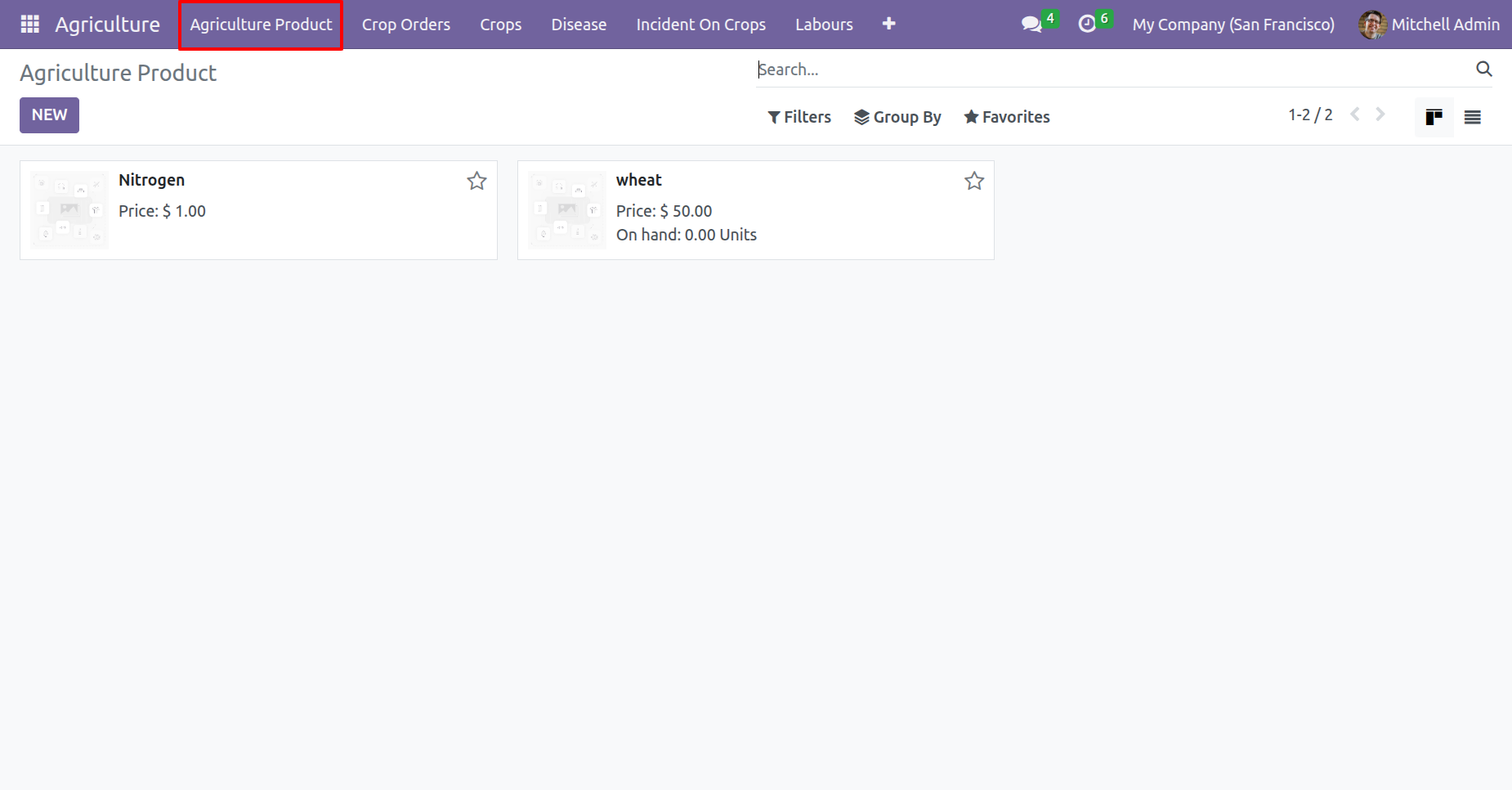
'Agriculture Product' menu and kanban view.
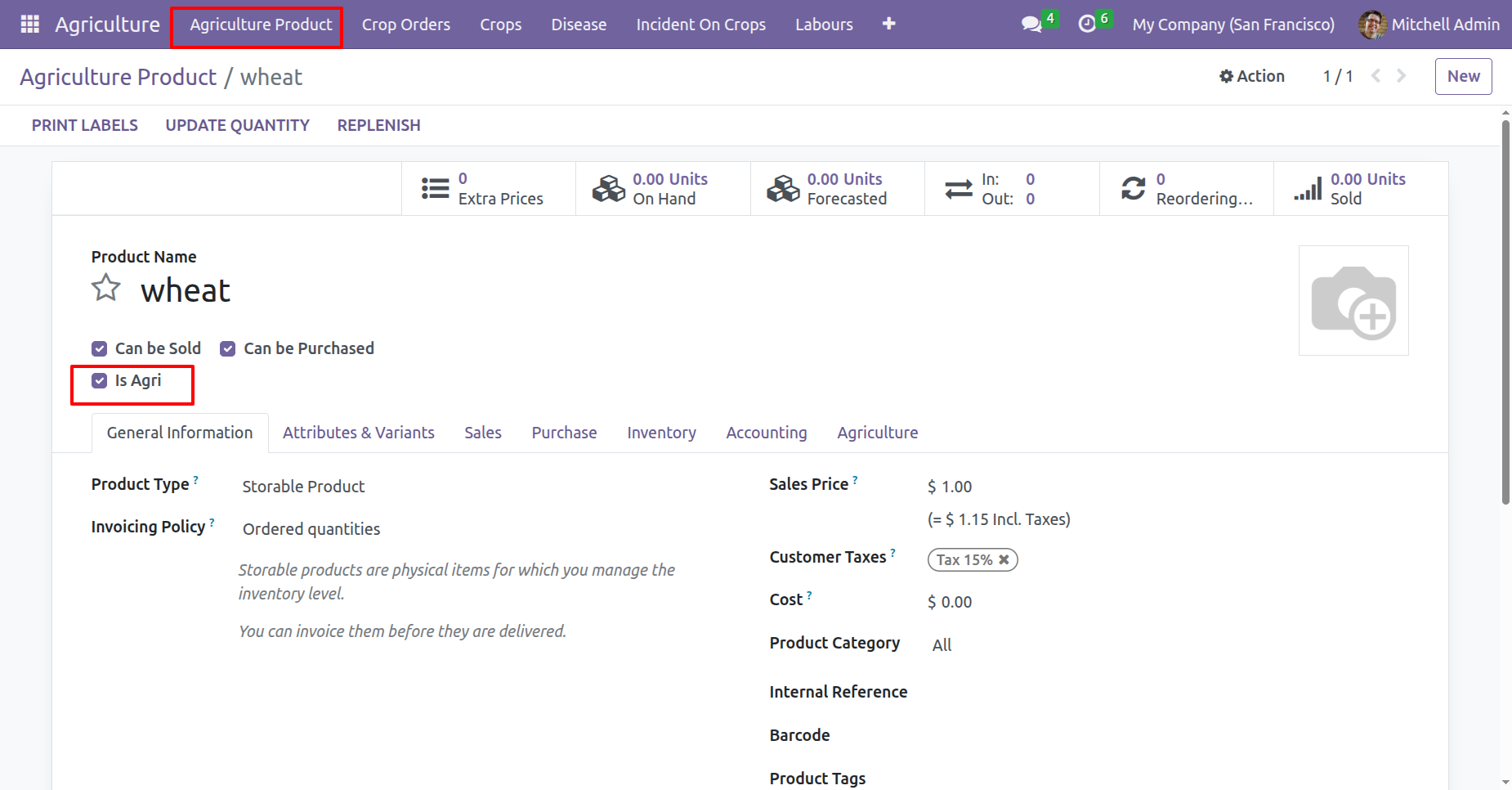
In the Agriculture product, tick the 'Is Agri' boolean.
In the Agriculture tab, enable the 'Agri Crop' boolean if the product is a crop.
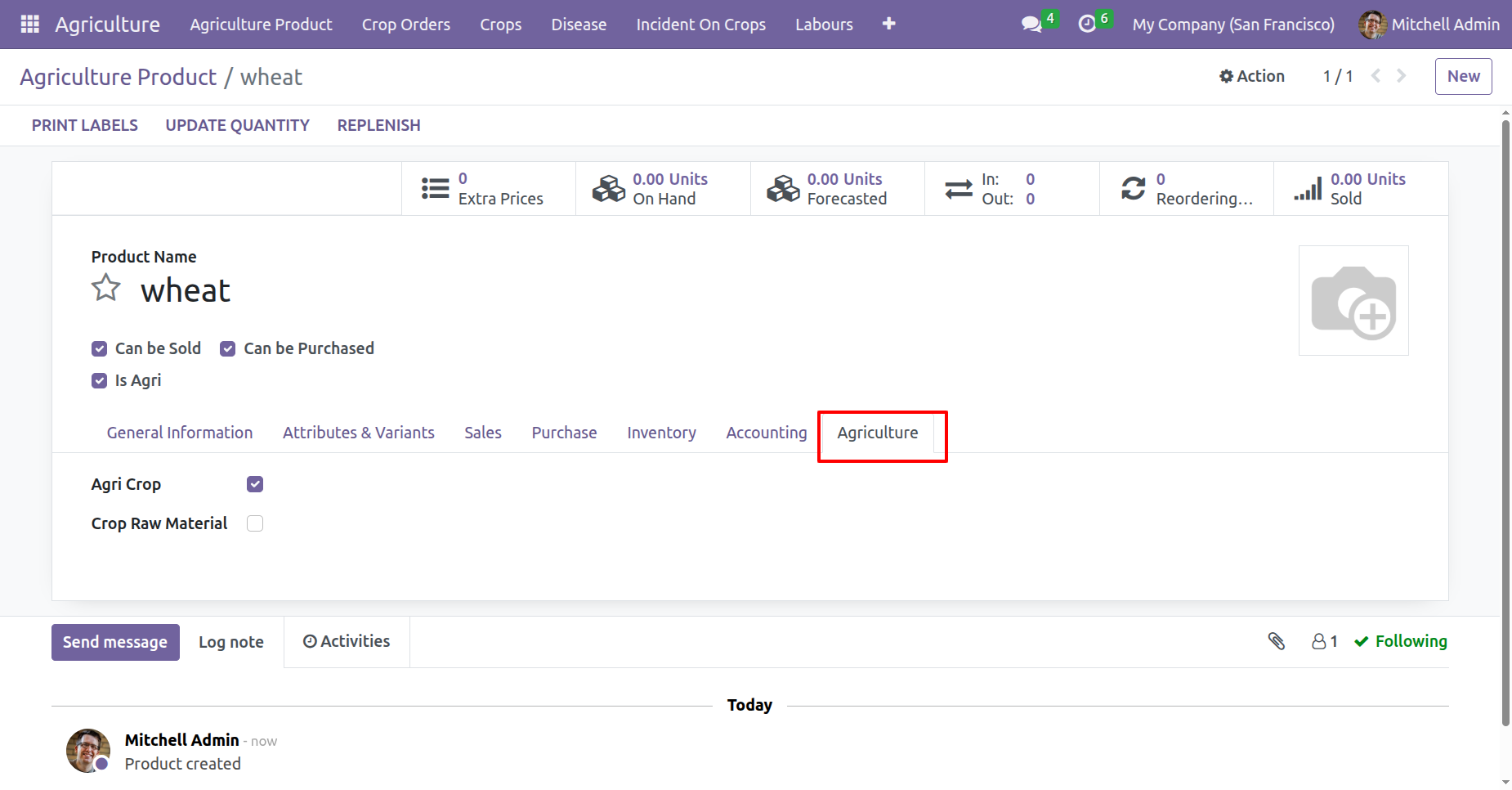
Agriculture Animal menu and kanban view.
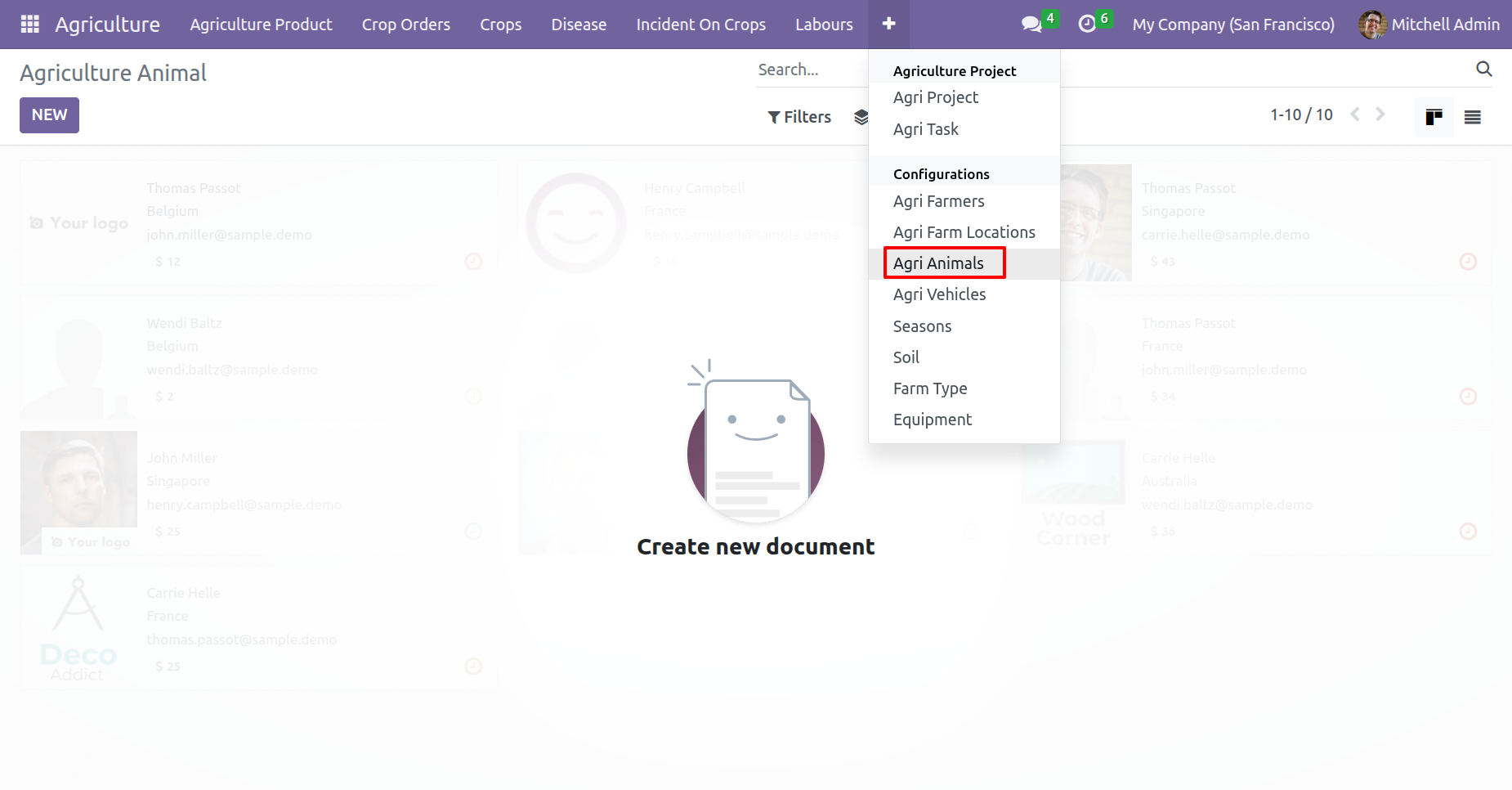
In the agriculture animal form, open the Agriculture Detail tab and tick the 'Animal' boolean.
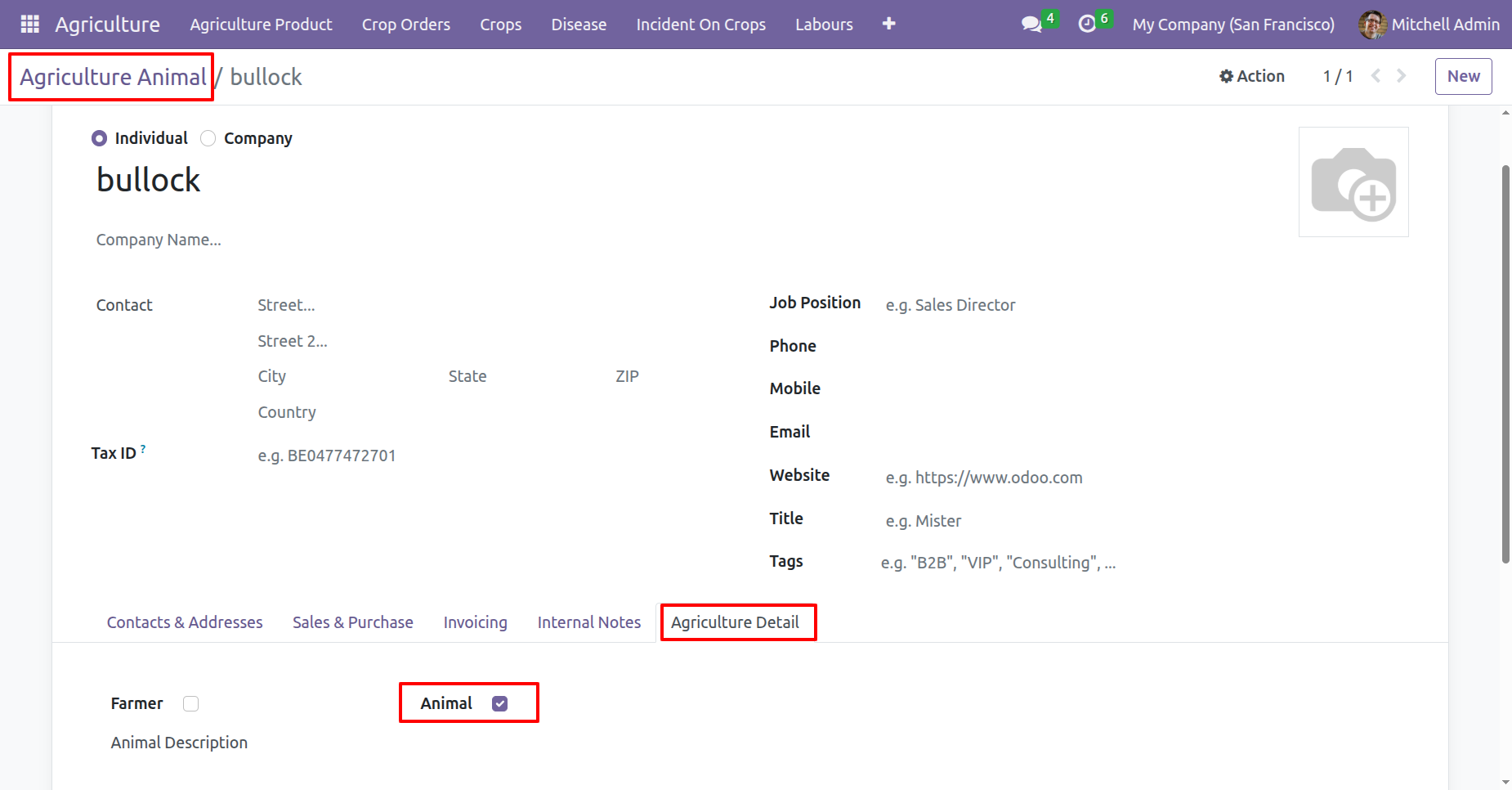
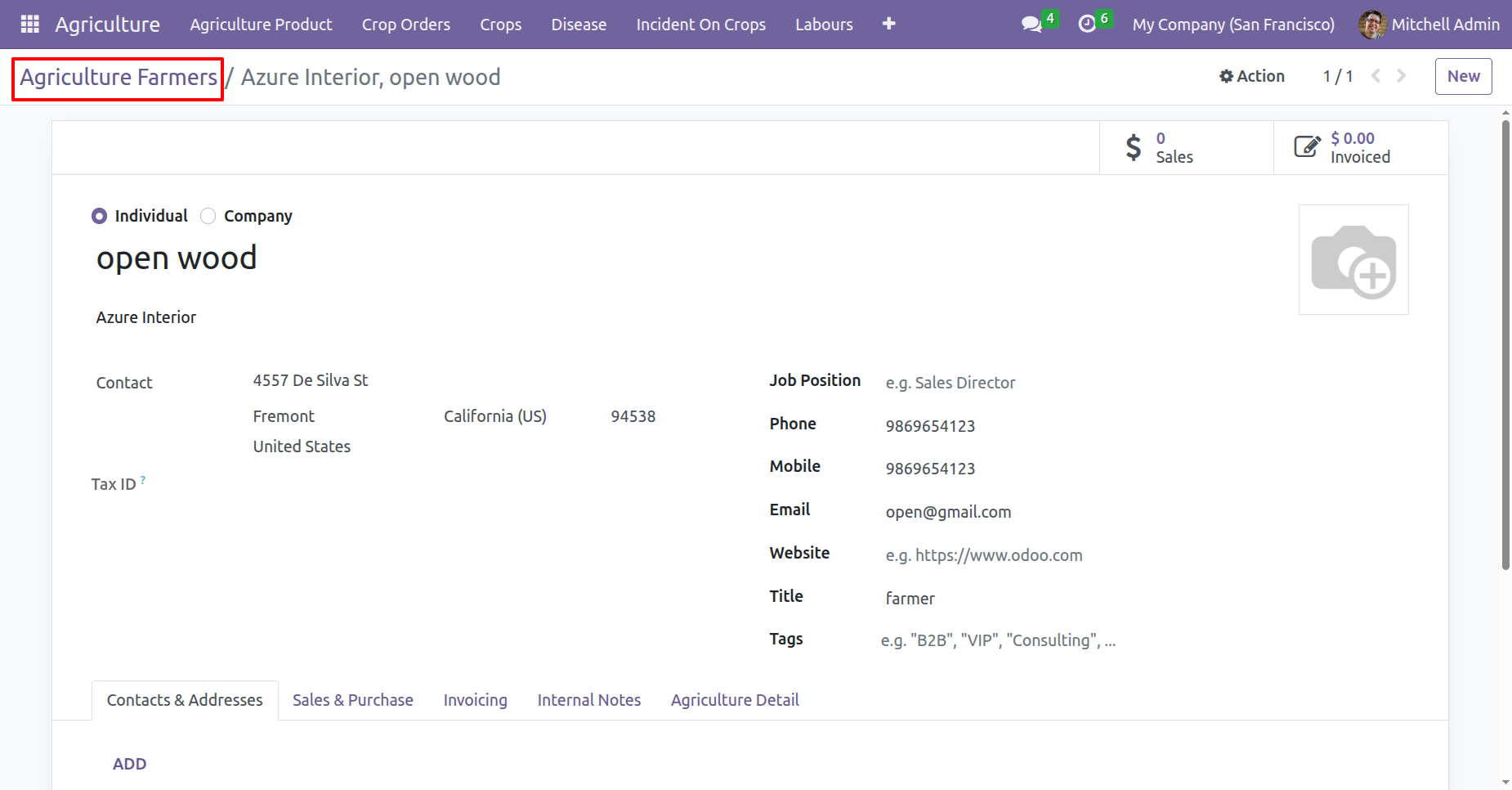
Agri Farmers menu and kanban view.
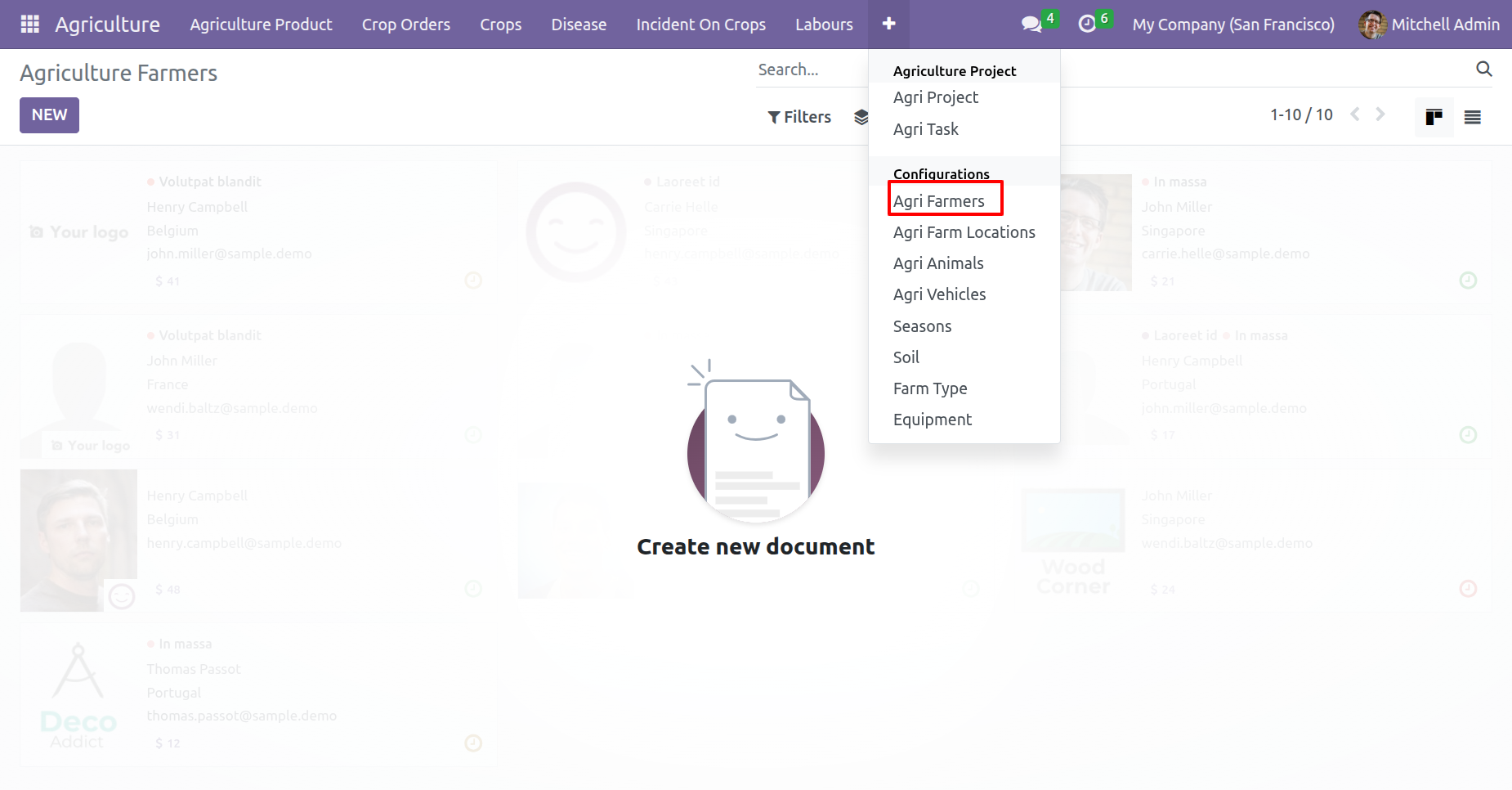
Create an agriculture farmer.
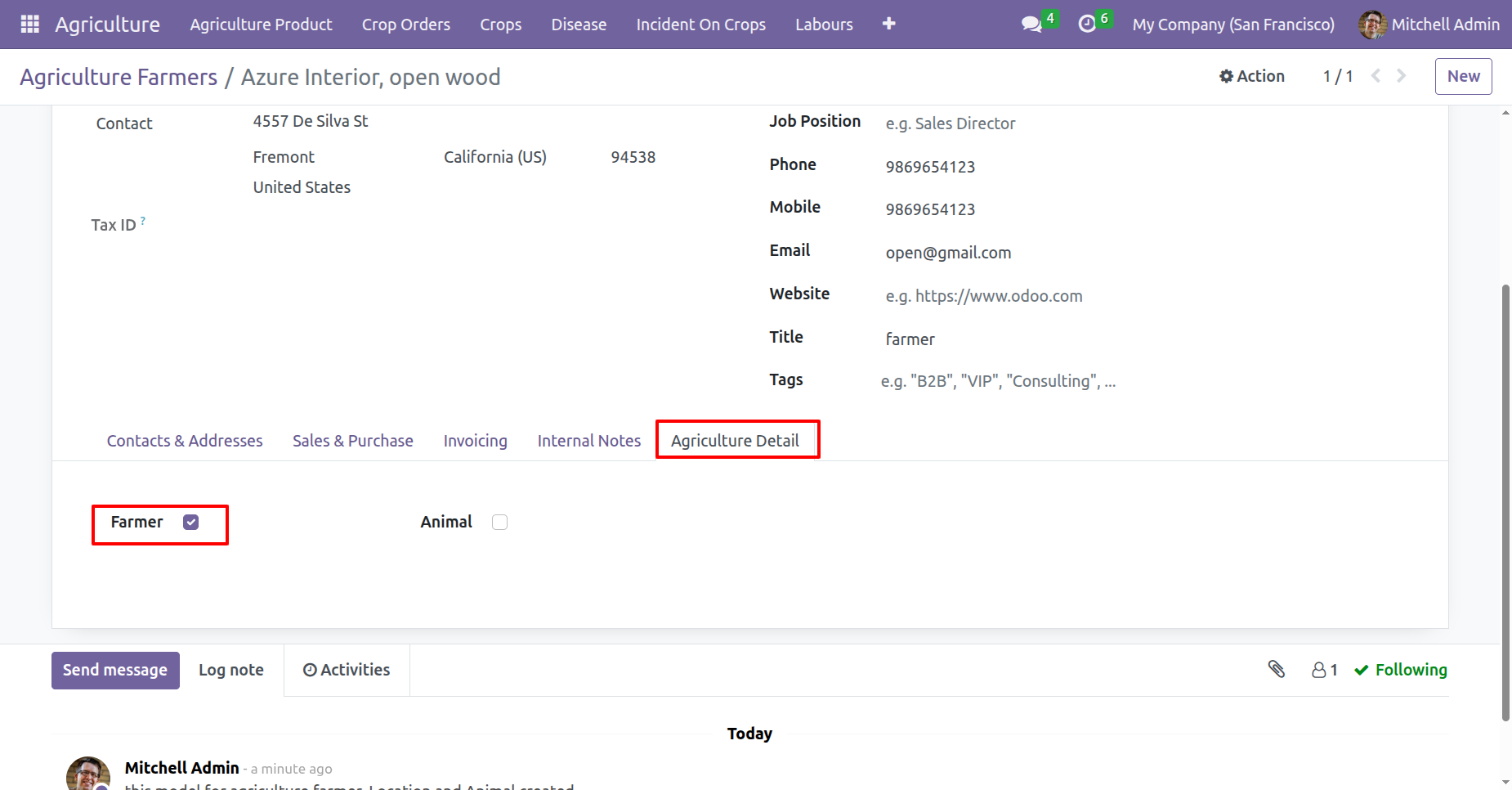
In the Agriculture Detail tab, enable the 'Farmer' boolean.
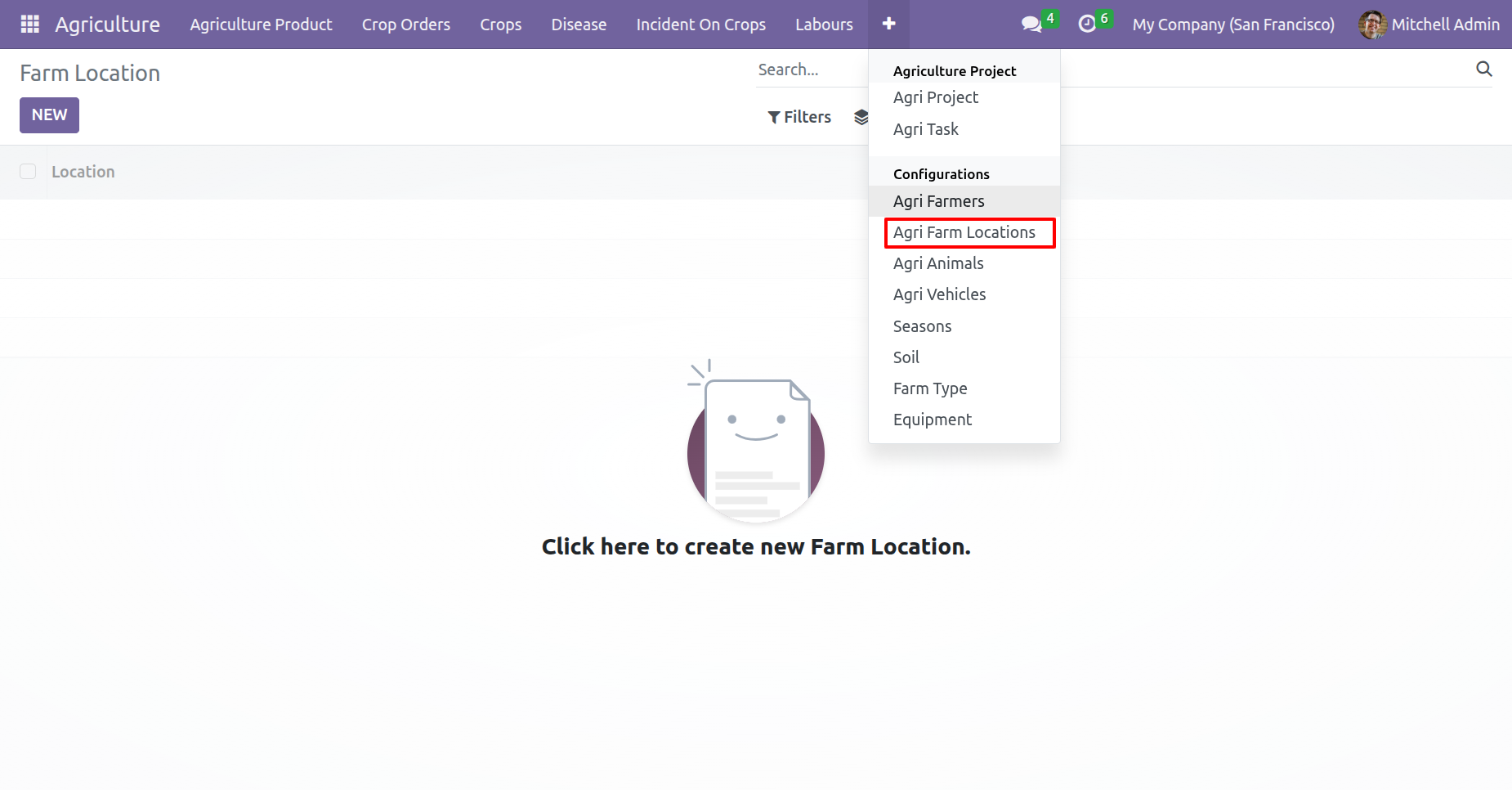
Agri Farm Locations menu and kanban view.
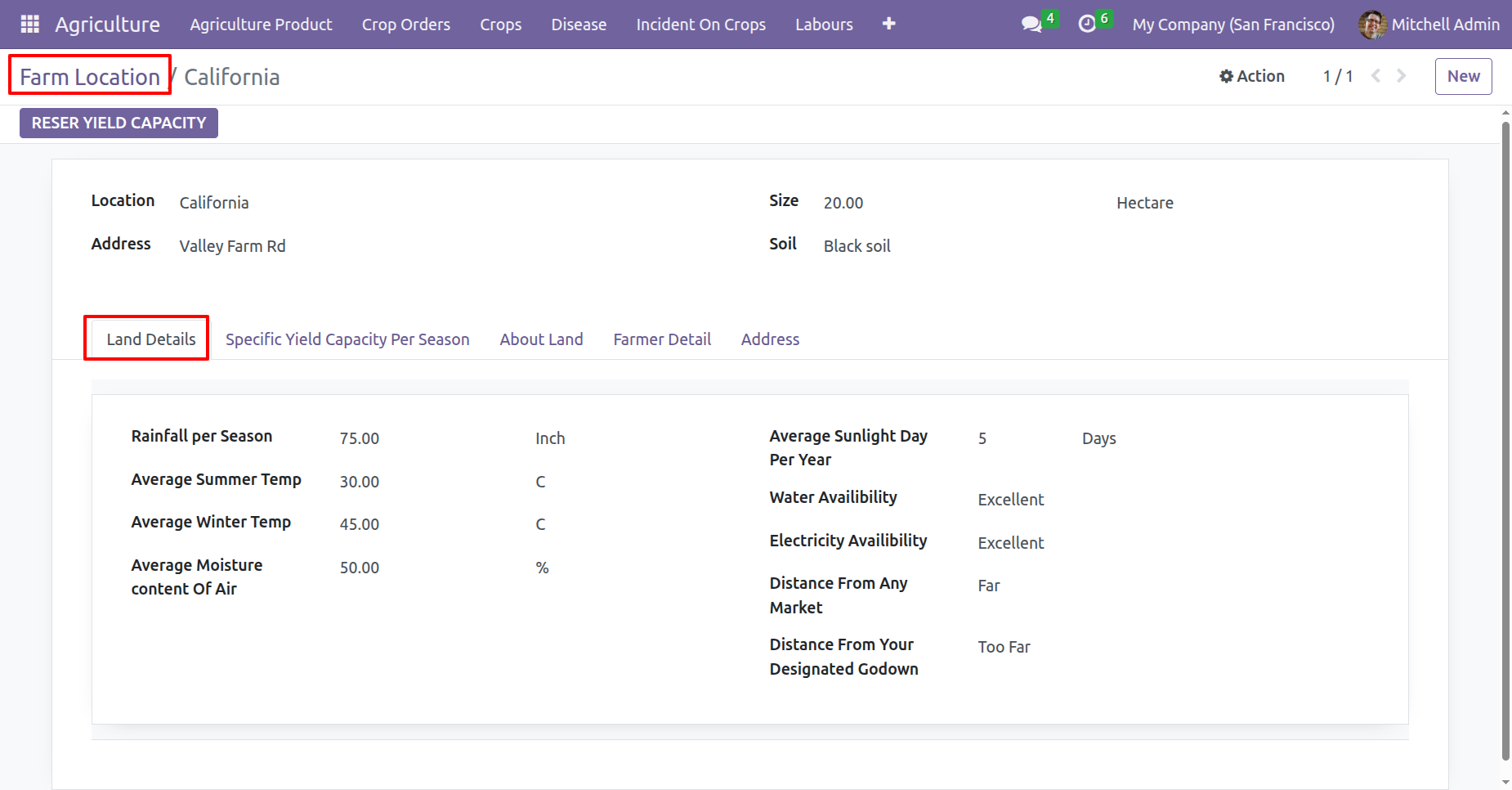
In the farm location form view, fill the land details.
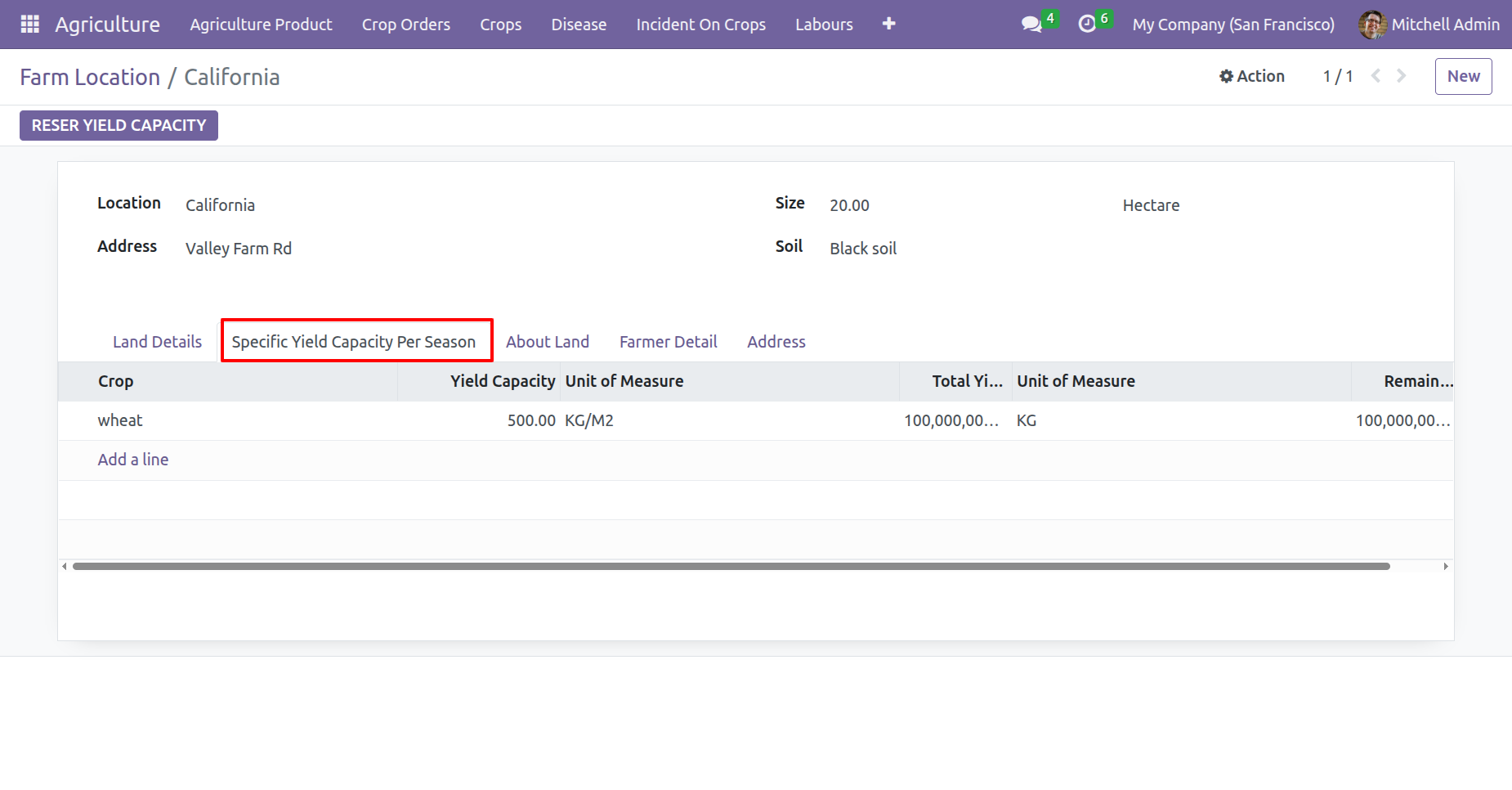
Add details under the 'Specific Yield Capacity Per Season' tab.
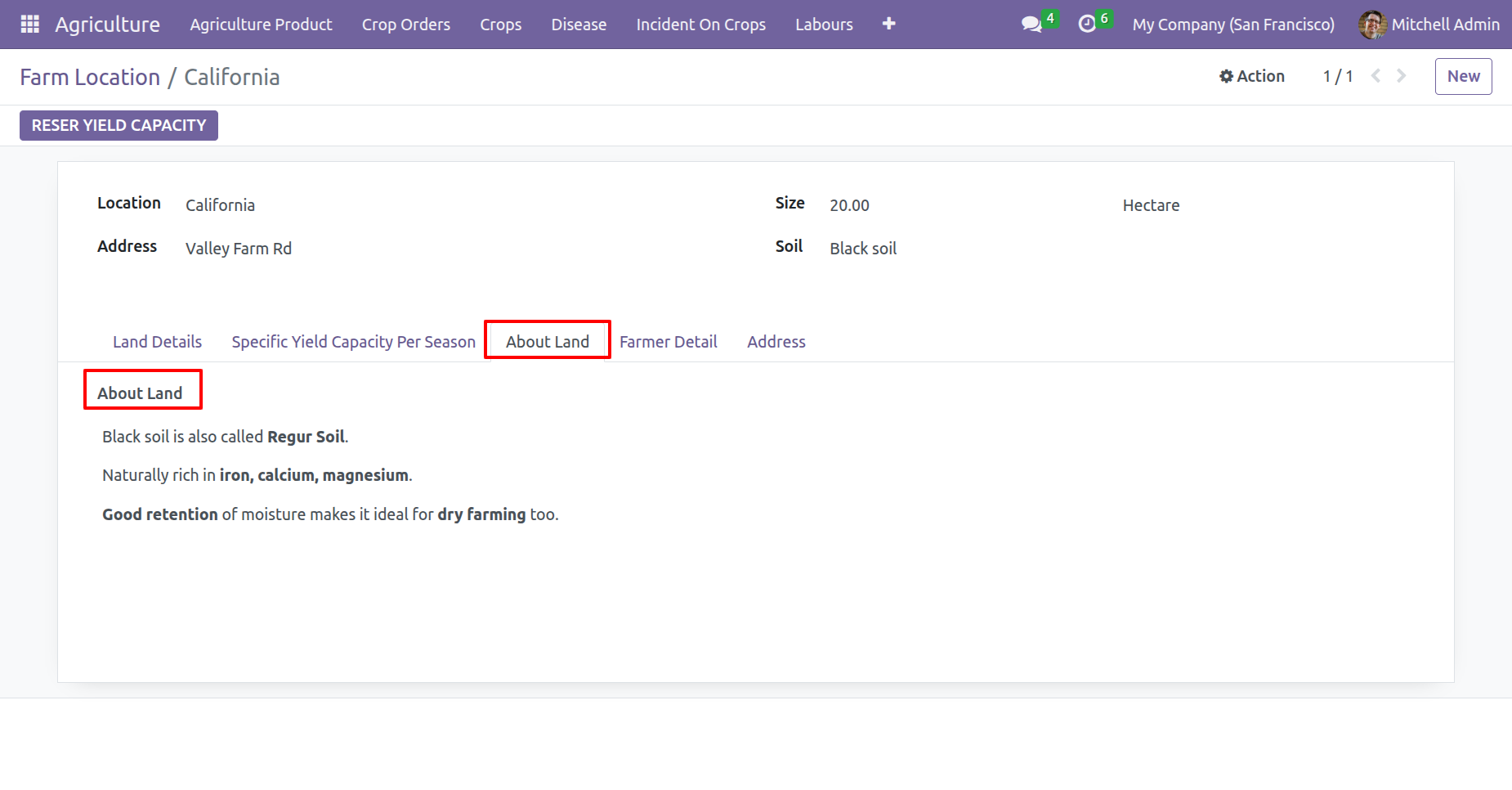
Add land information under the 'About Land' tab.
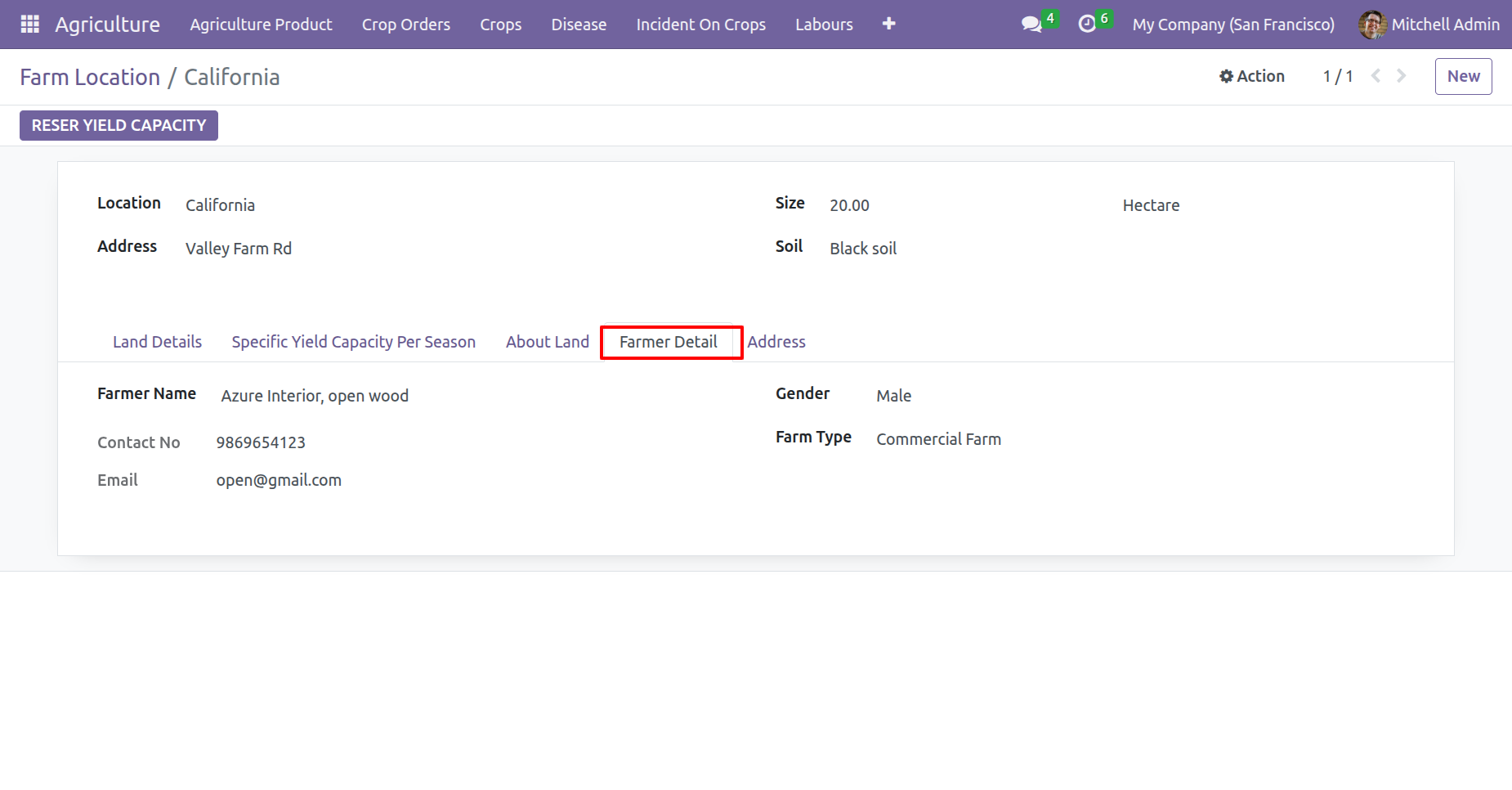
Add farmers information in the 'Farmer Detail' tab.
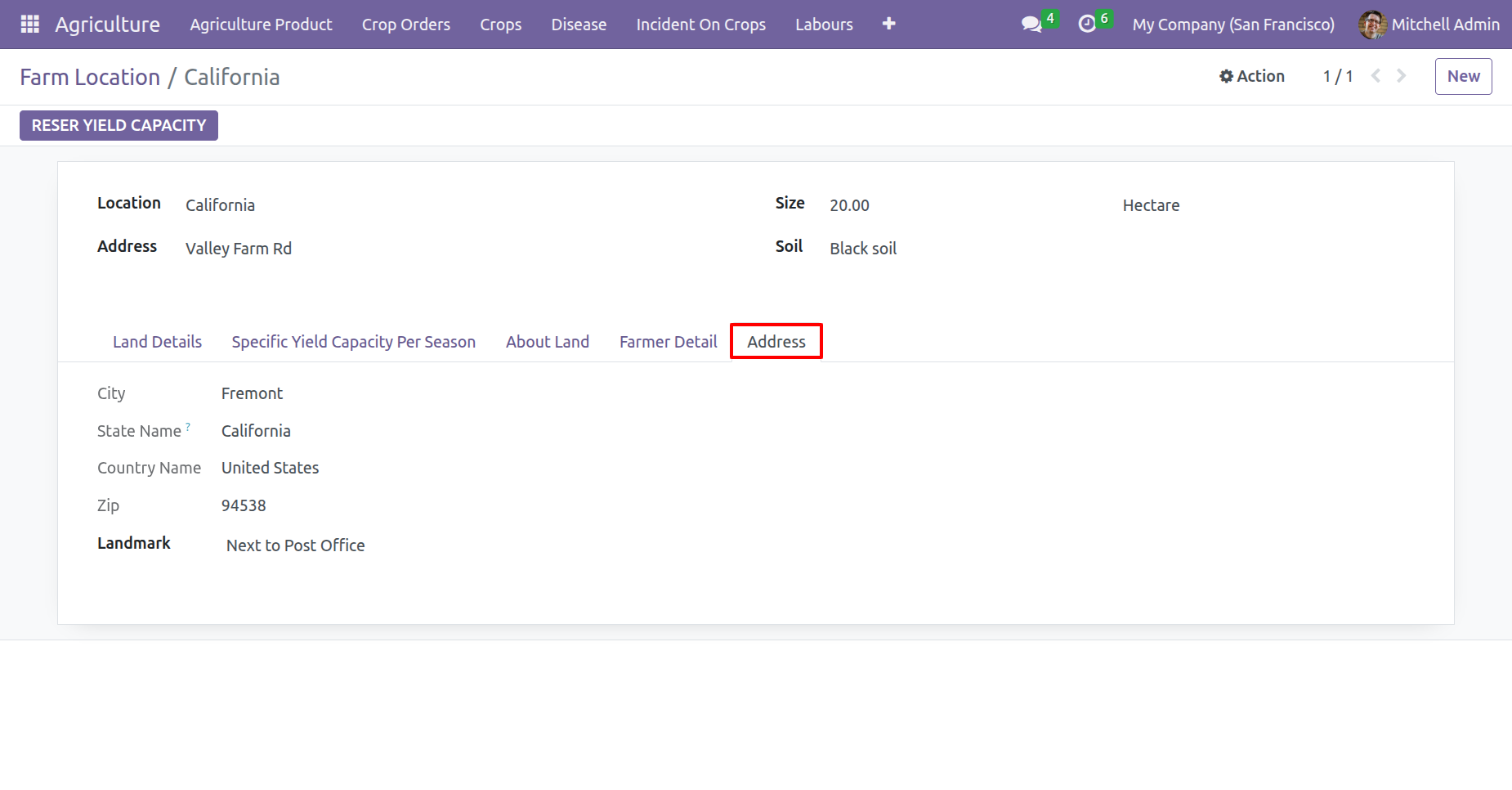
Specify the farm address in the 'Address' tab.
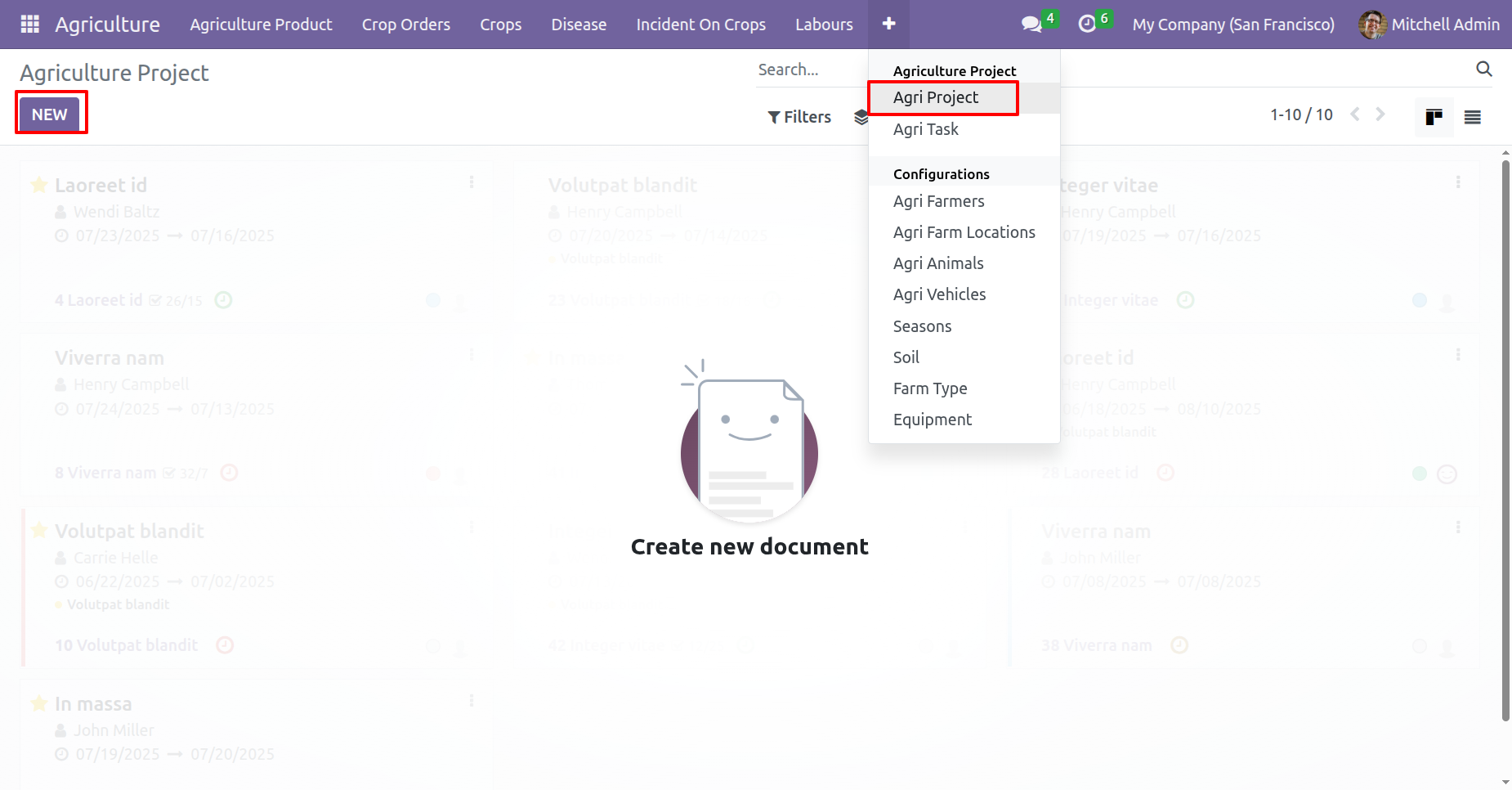
Go to the Agriculture Project menu and click on the 'New' button to create a project.
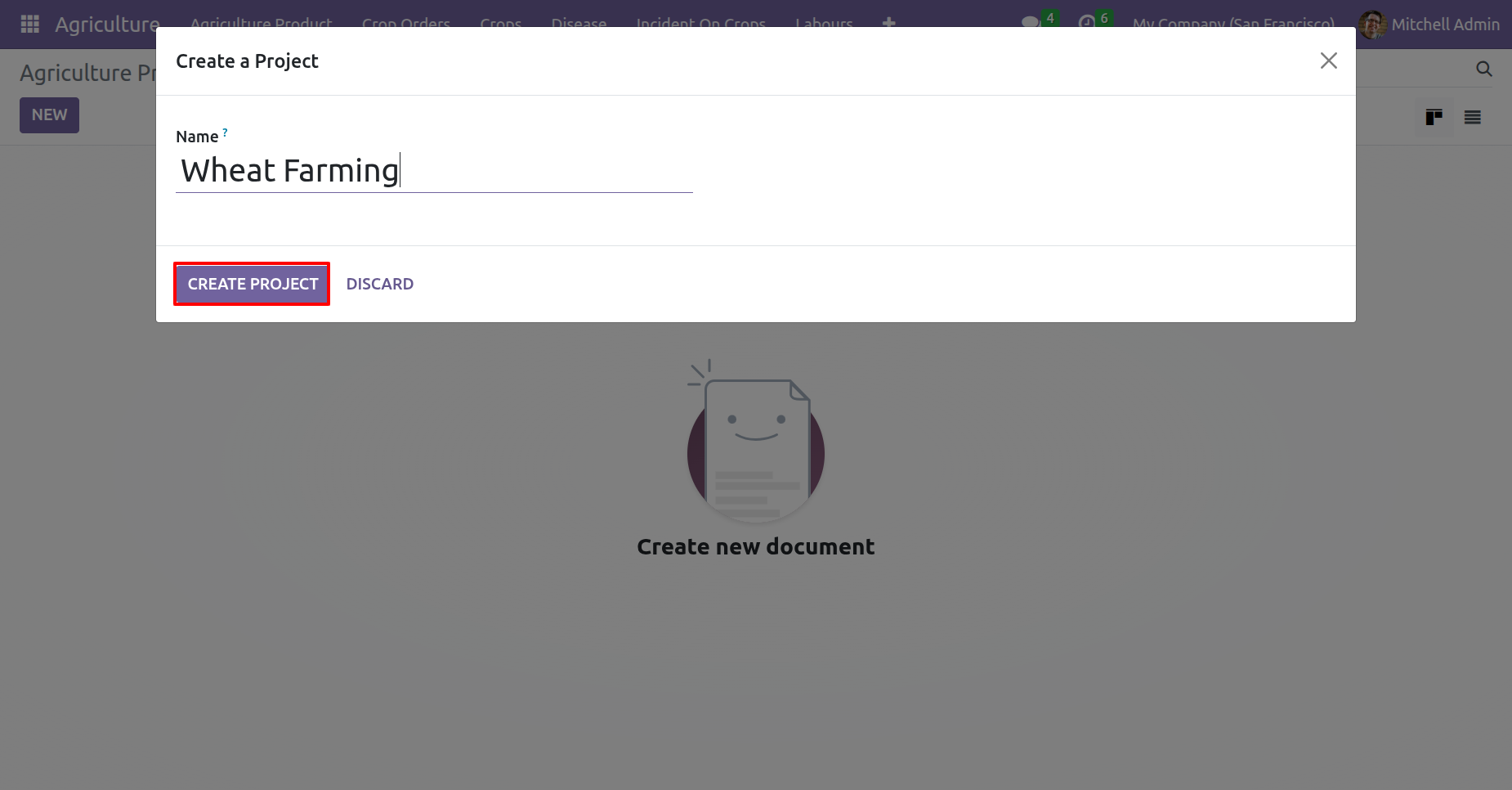
The project creation wizard will appear. Fill the details and click on the 'Create Project' button.
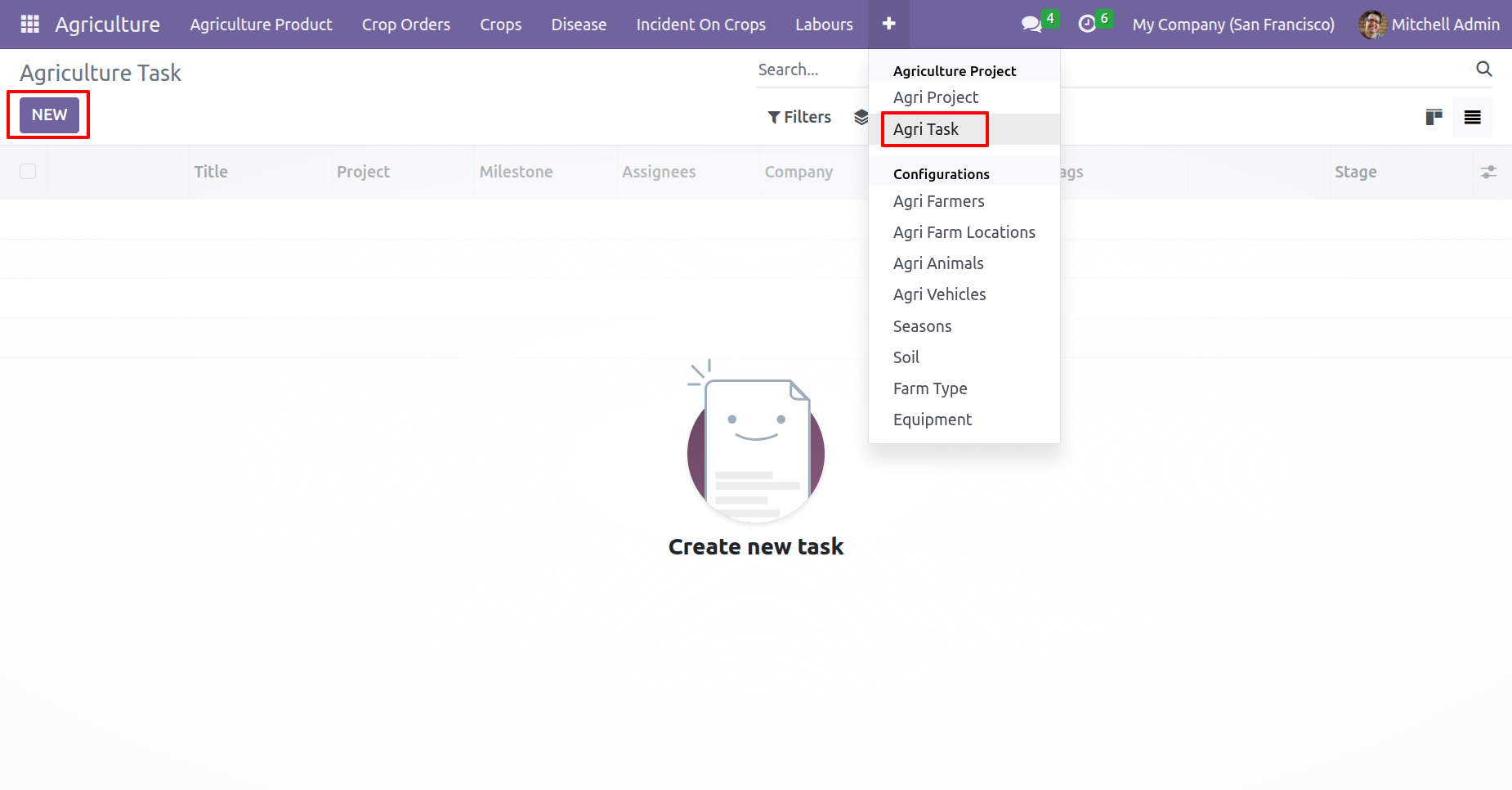
Agriculture Task menu and kanban view.
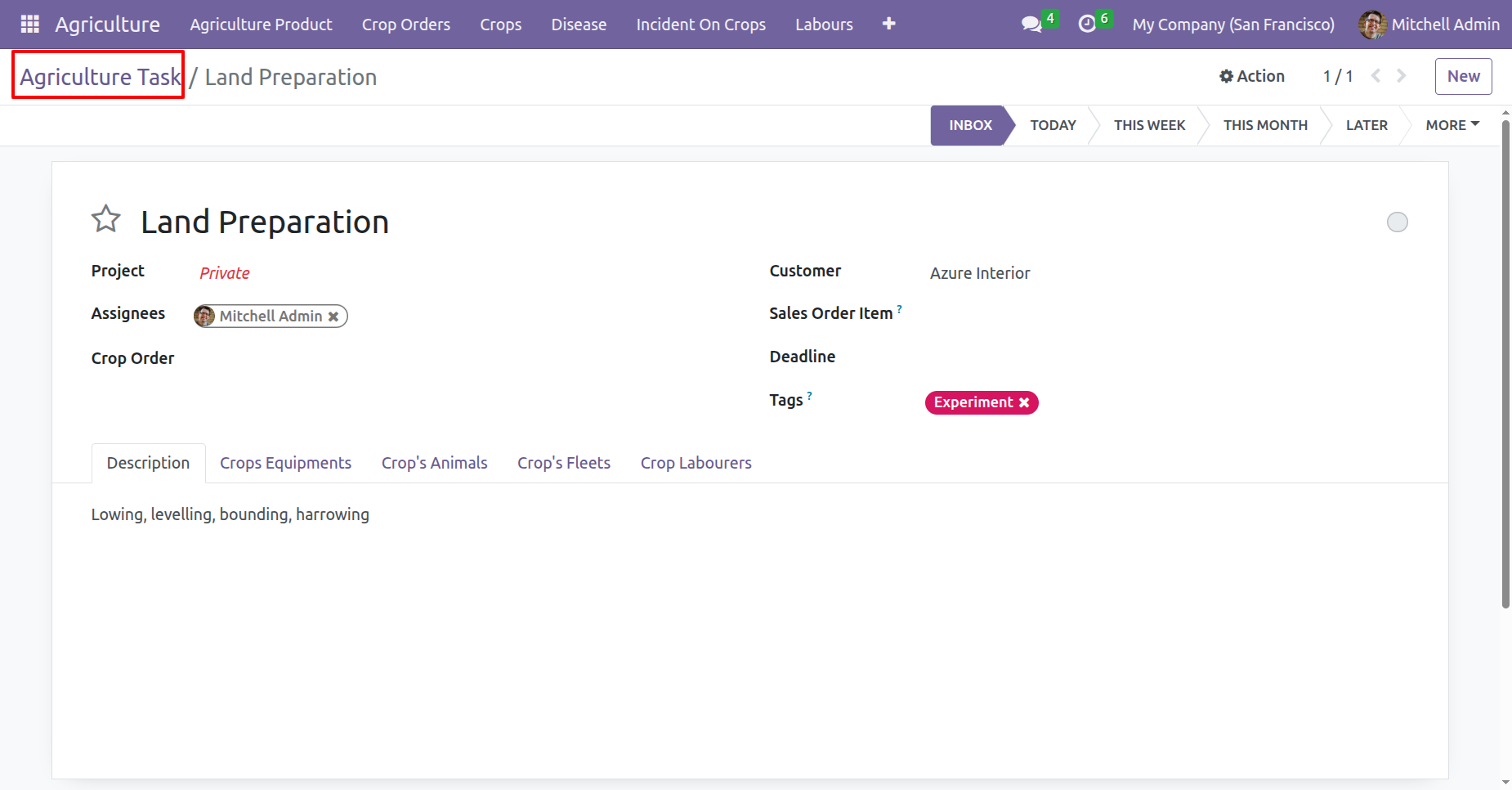
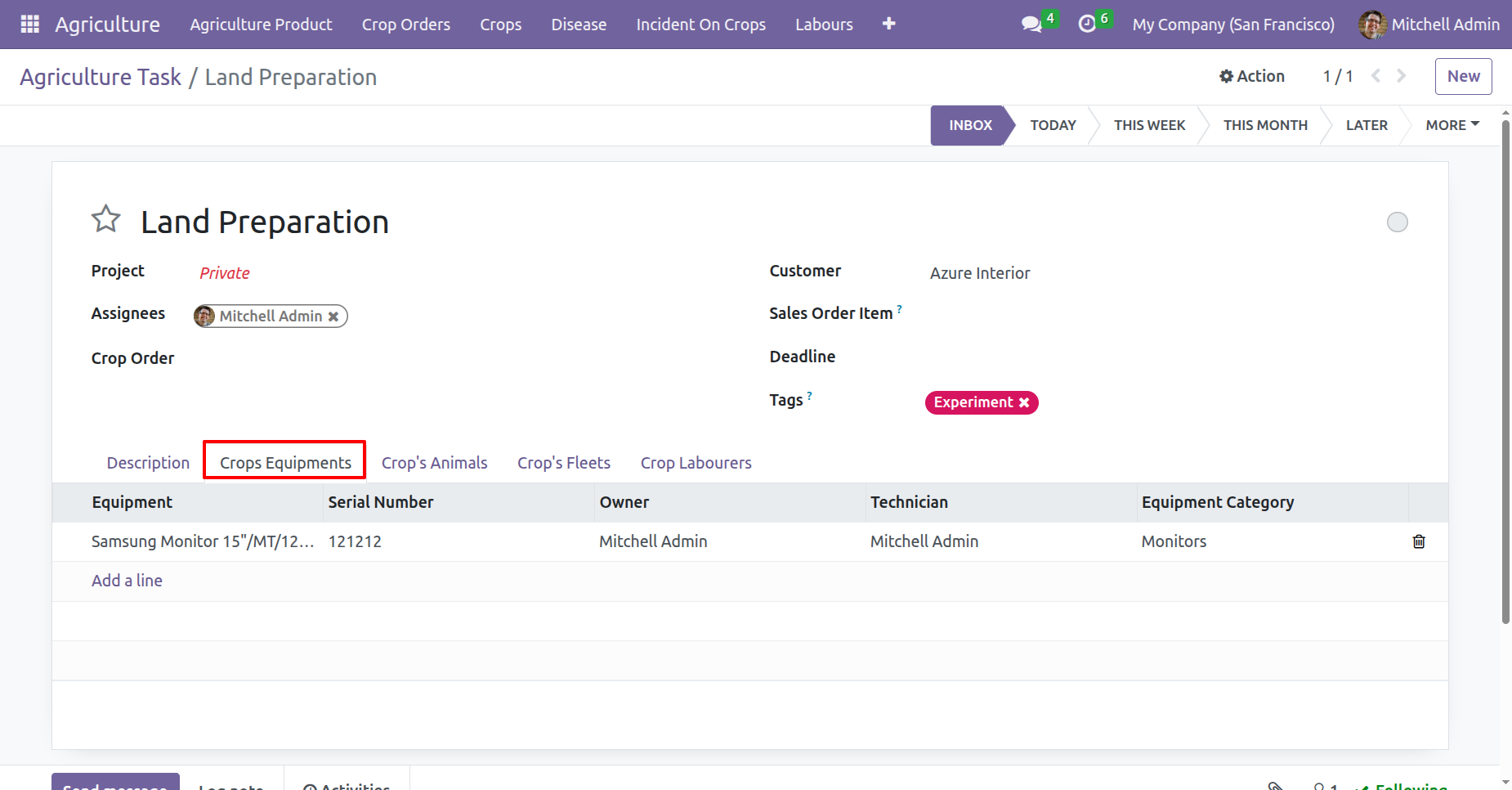
Form view of the Agriculture Task.
Add equipment information under the 'Crops Equipments' tab.
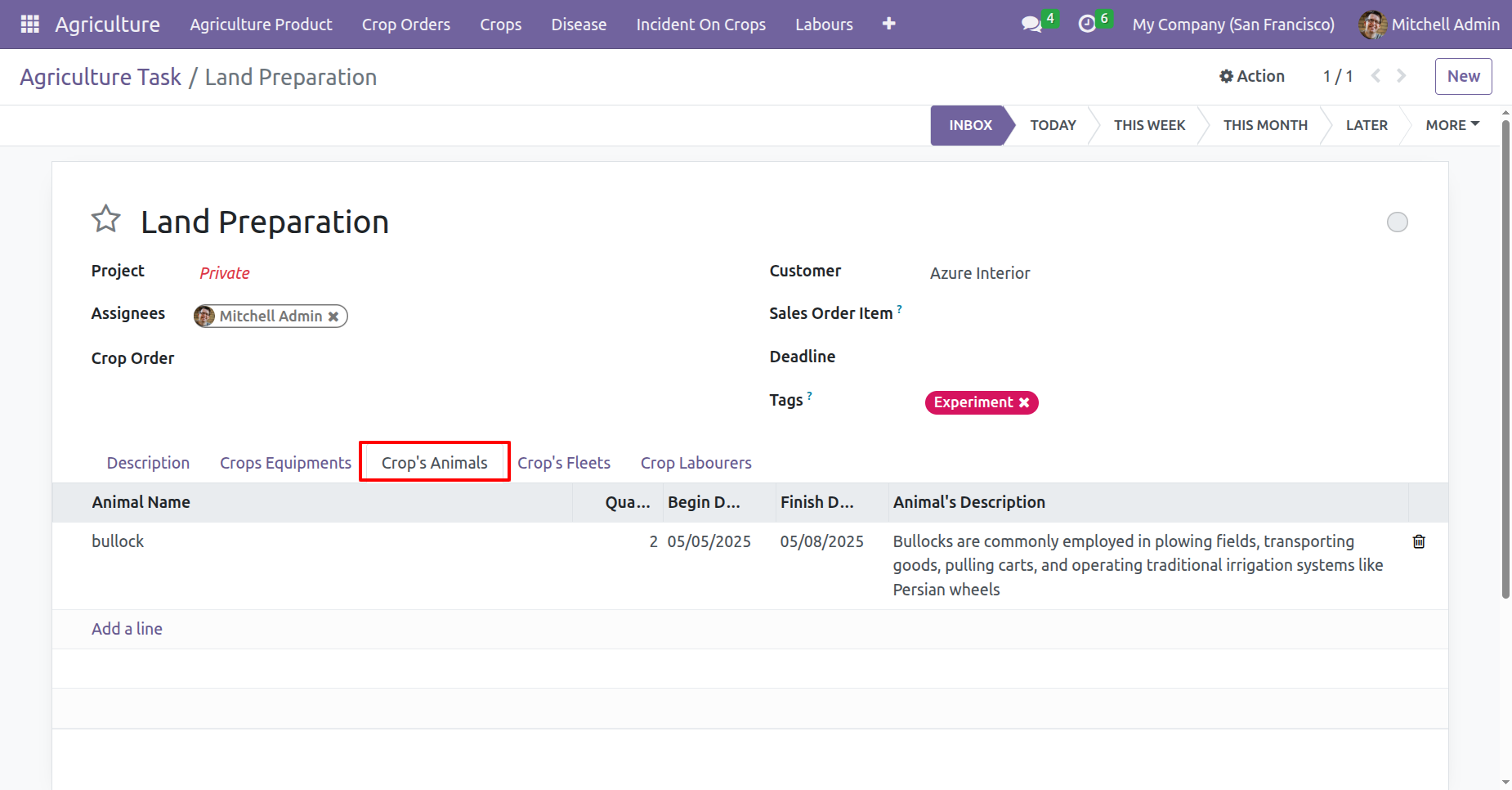
Add animal information under the 'Crops Animal' tab.
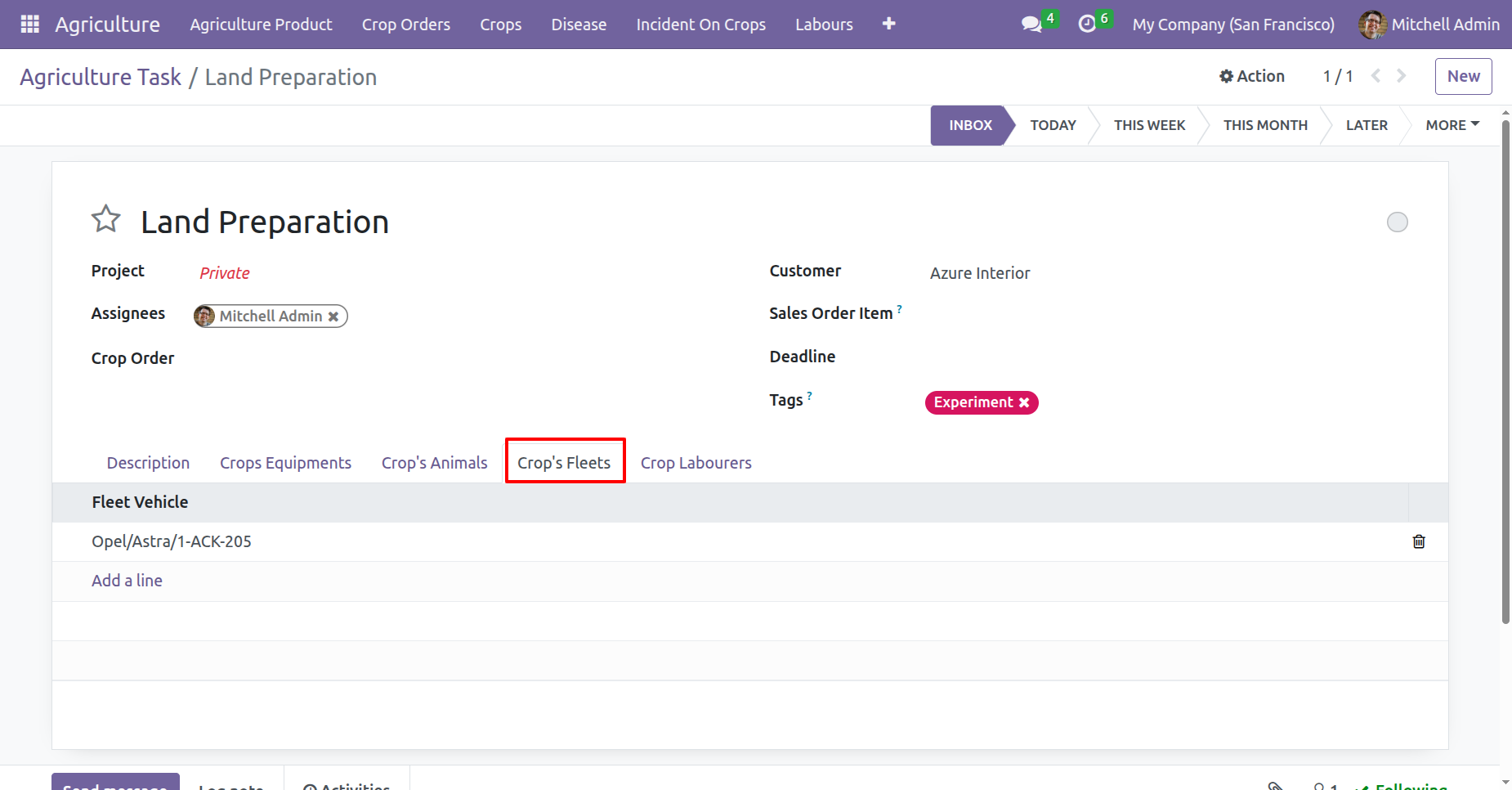
Add fleet information under the 'Crops Fleets' tab.
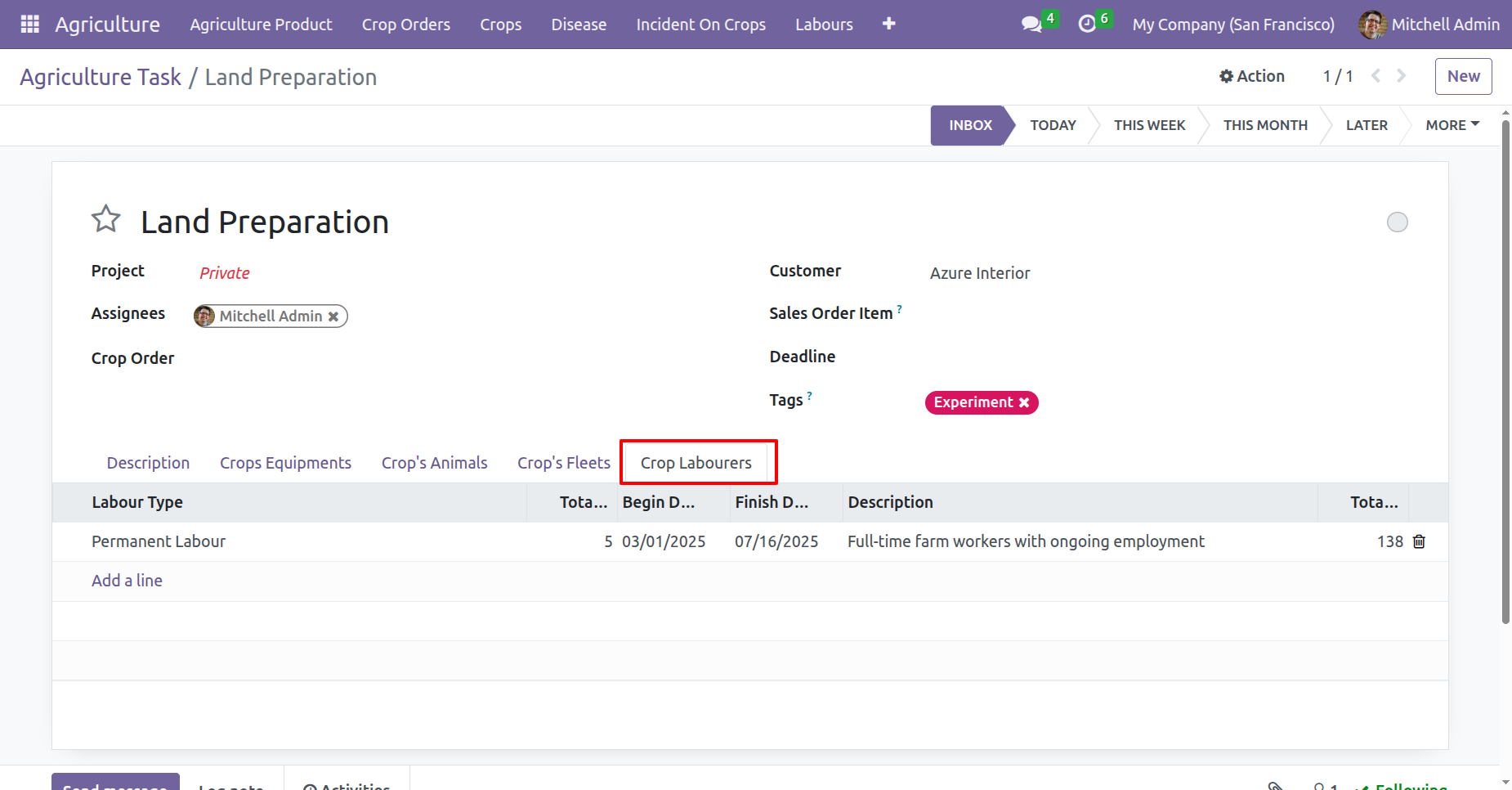
Add labourers information under the 'Crops Labourers' tab.
'Agriculture Crops' menu and kanban view.
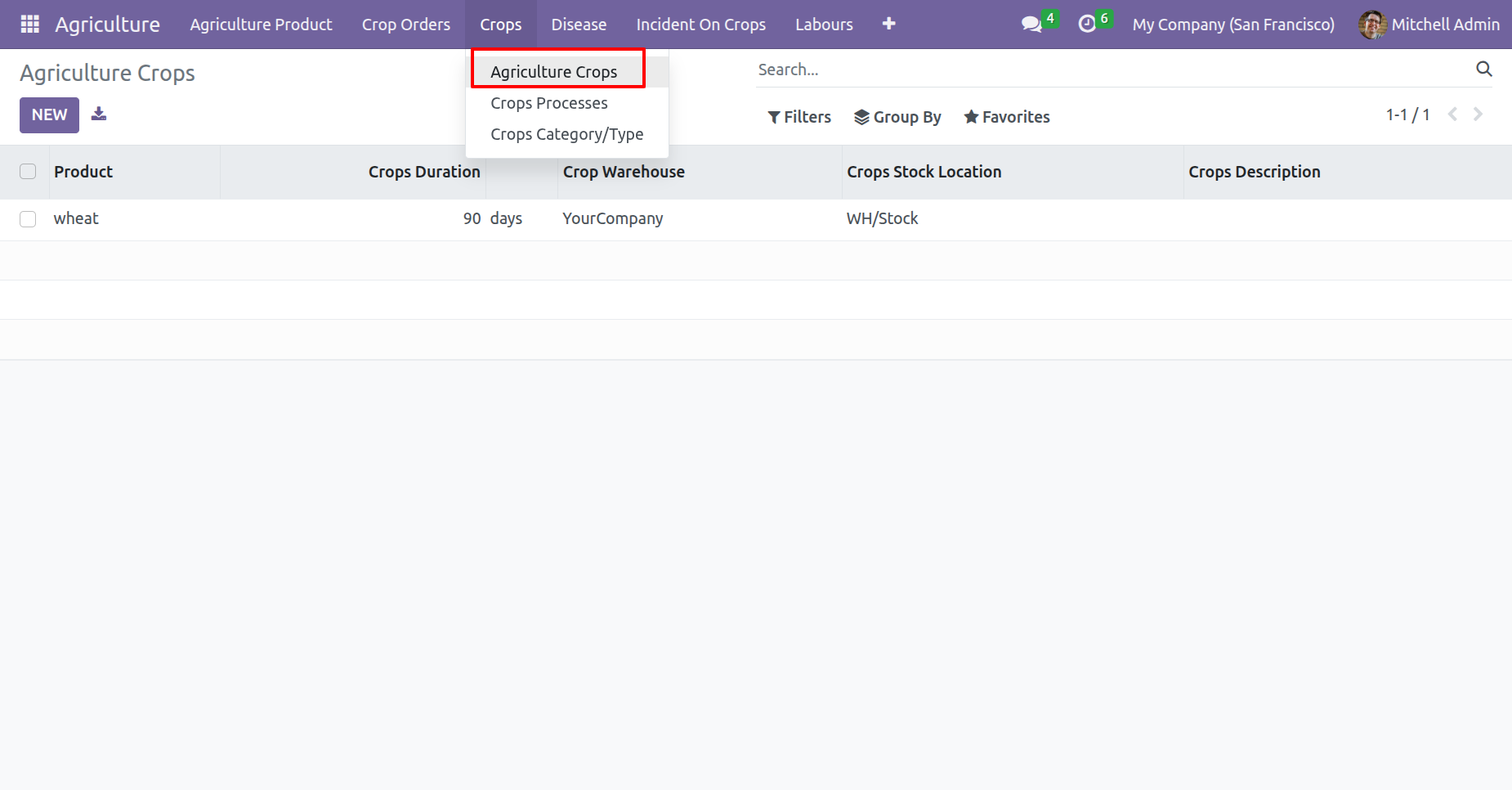
Form view of the 'Agriculture Crops'.
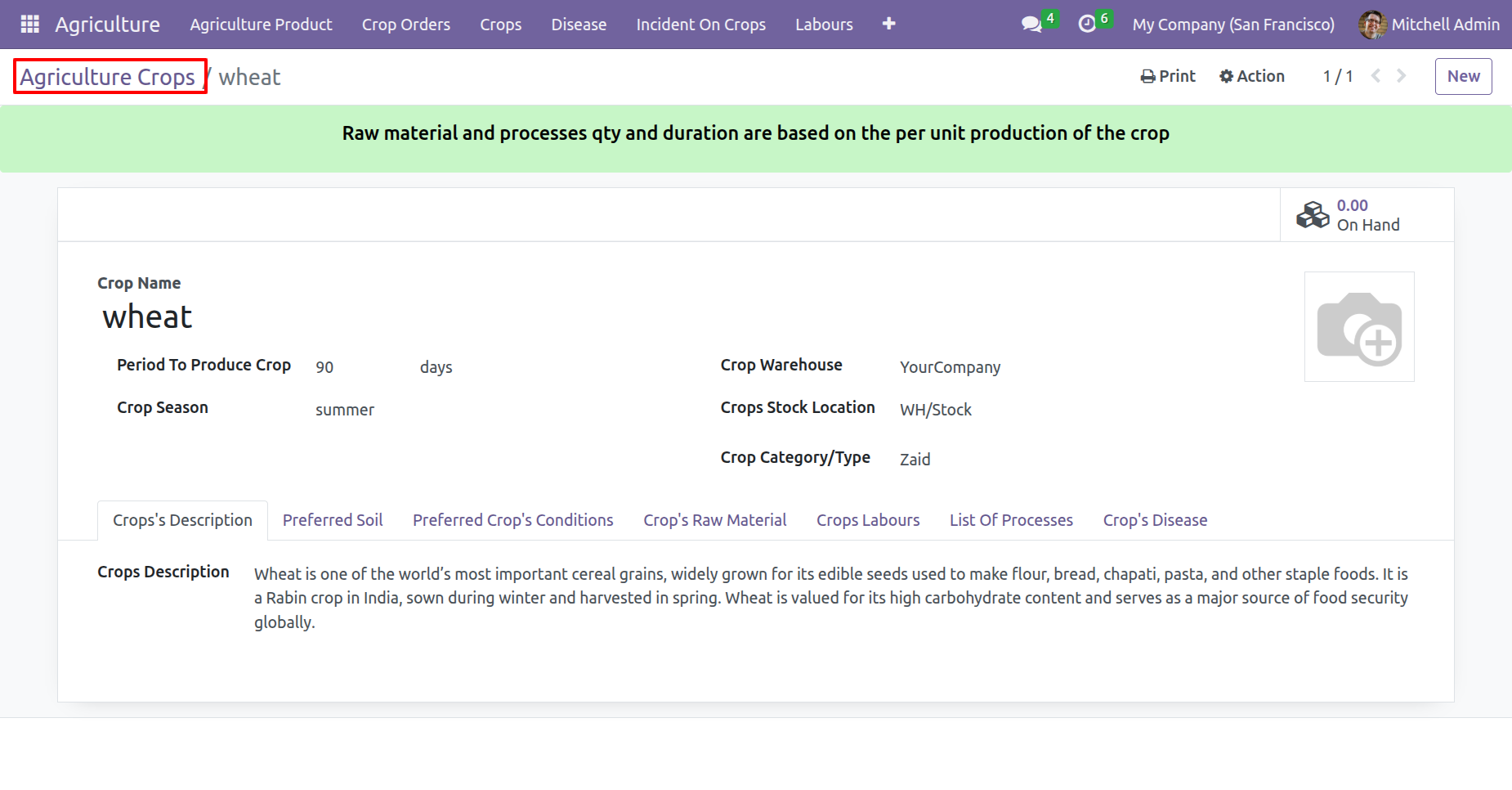
Add soil information under the 'Preferred Soil' tab.
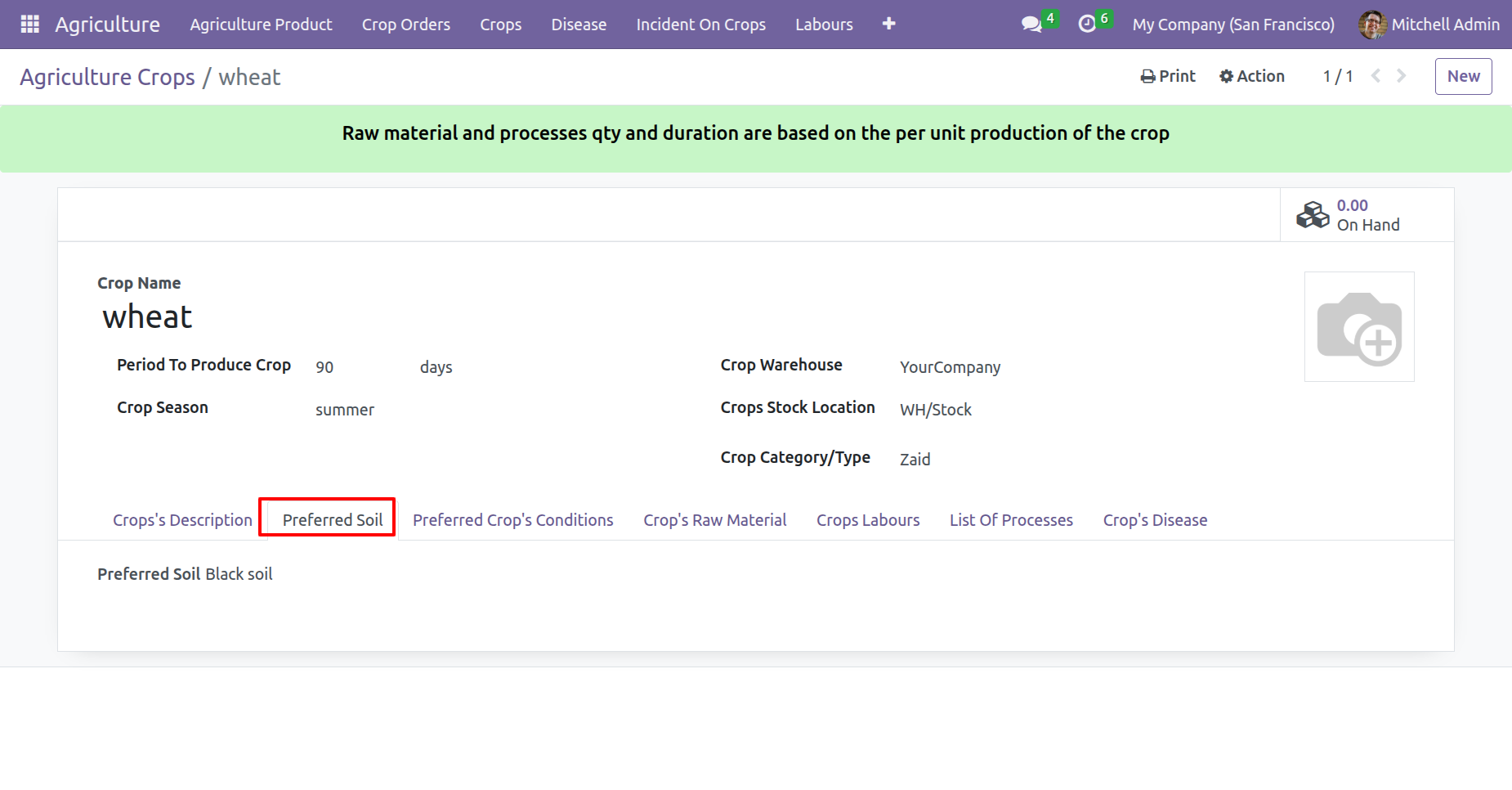
Add conditions under the 'Preferred Crops Conditions' tab.
Add row materials under the 'Crops Row Material' tab.
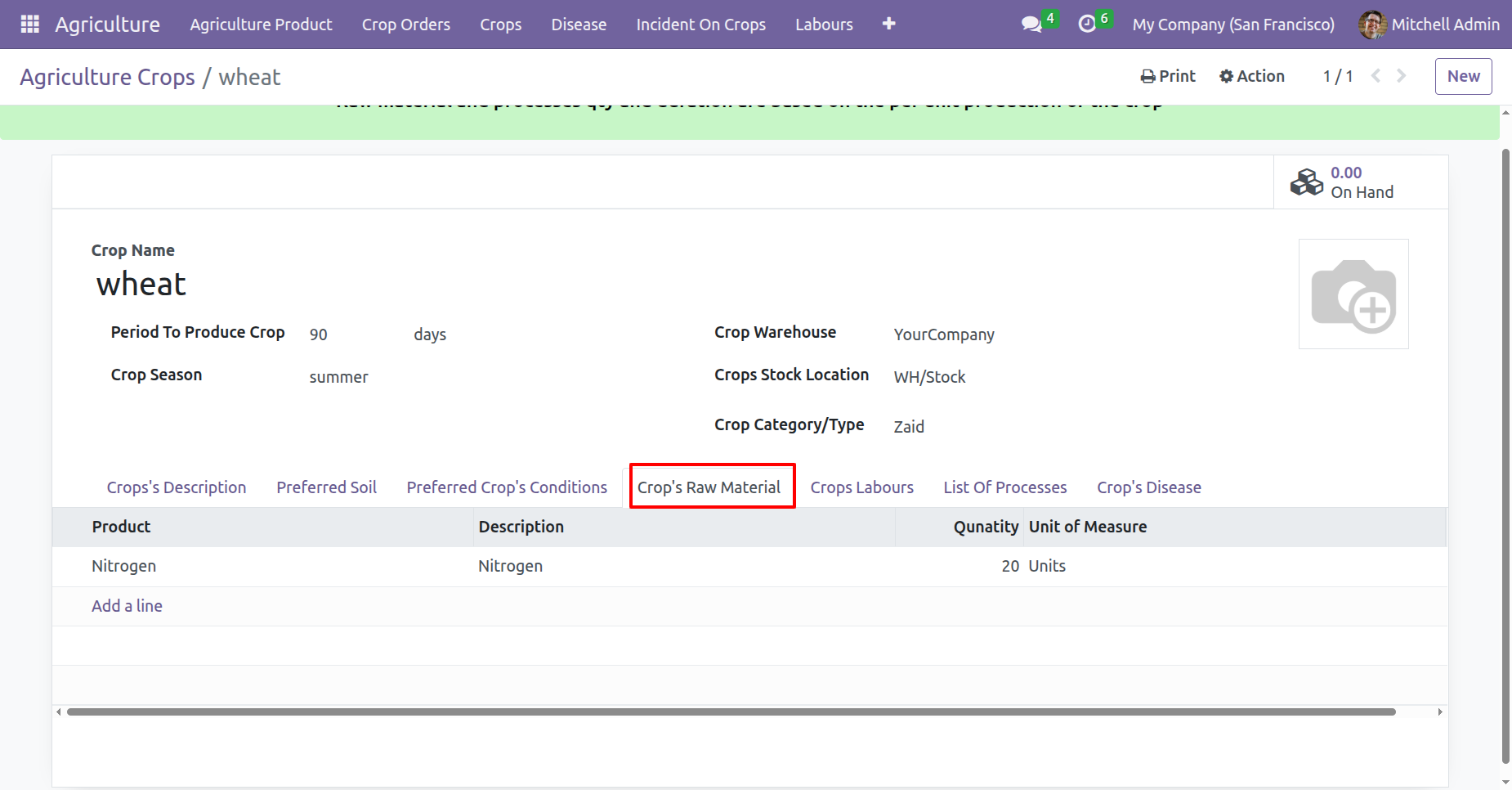
Add labours information under the 'Crops Labours' tab.
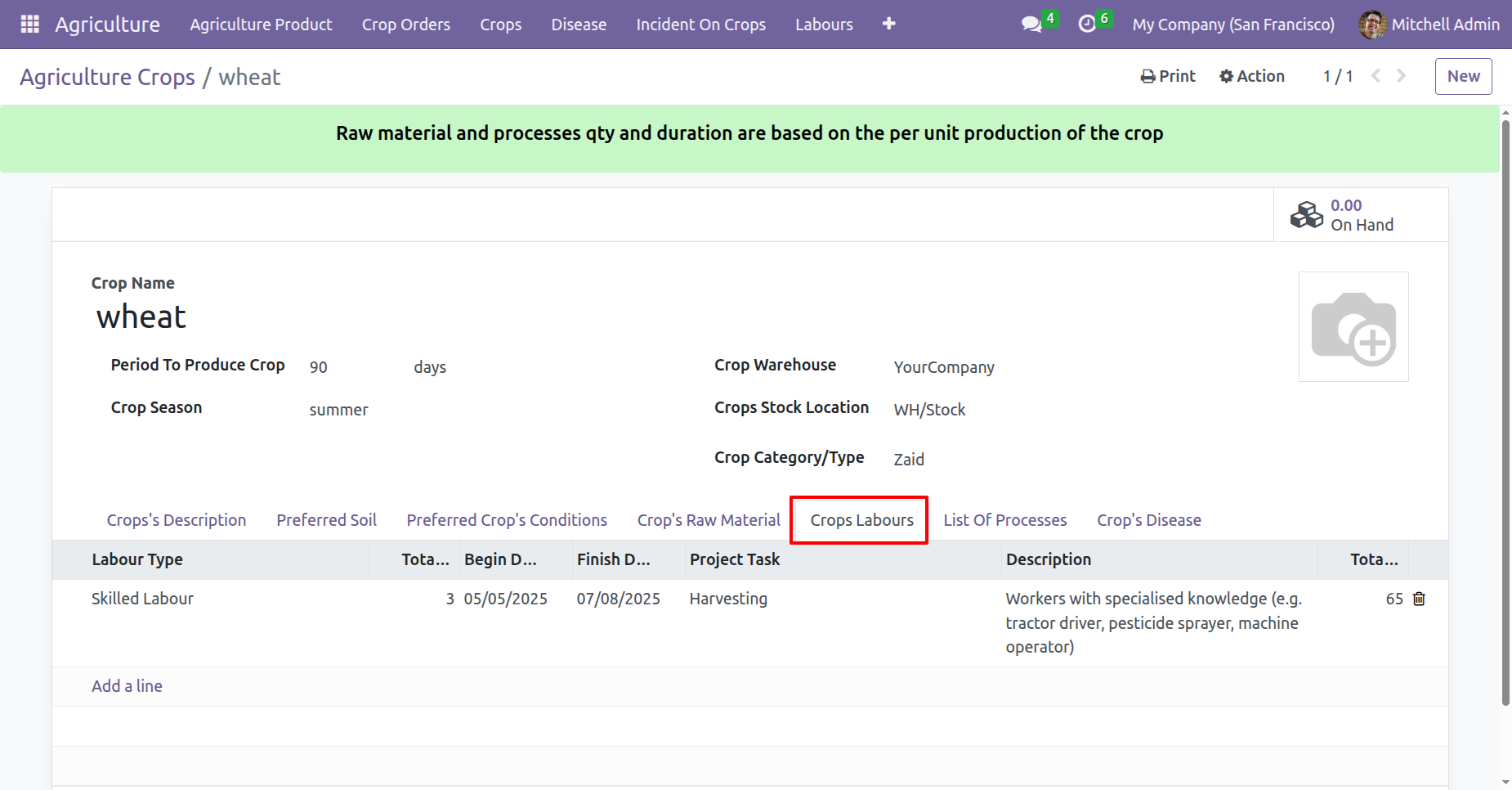
Add processes under the 'List Of Processes' tab.
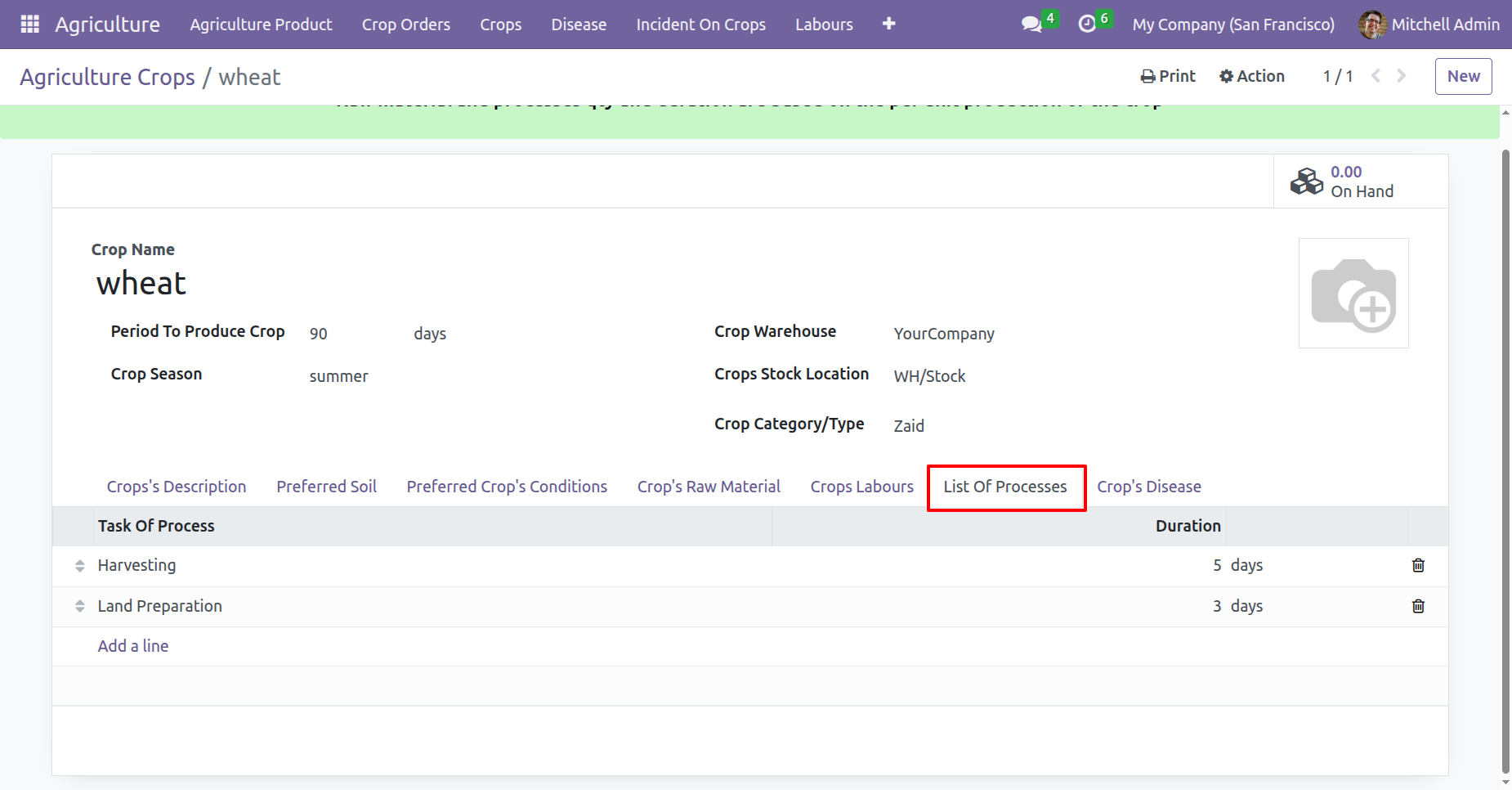
Add disease under the 'Crops Disease' tab.
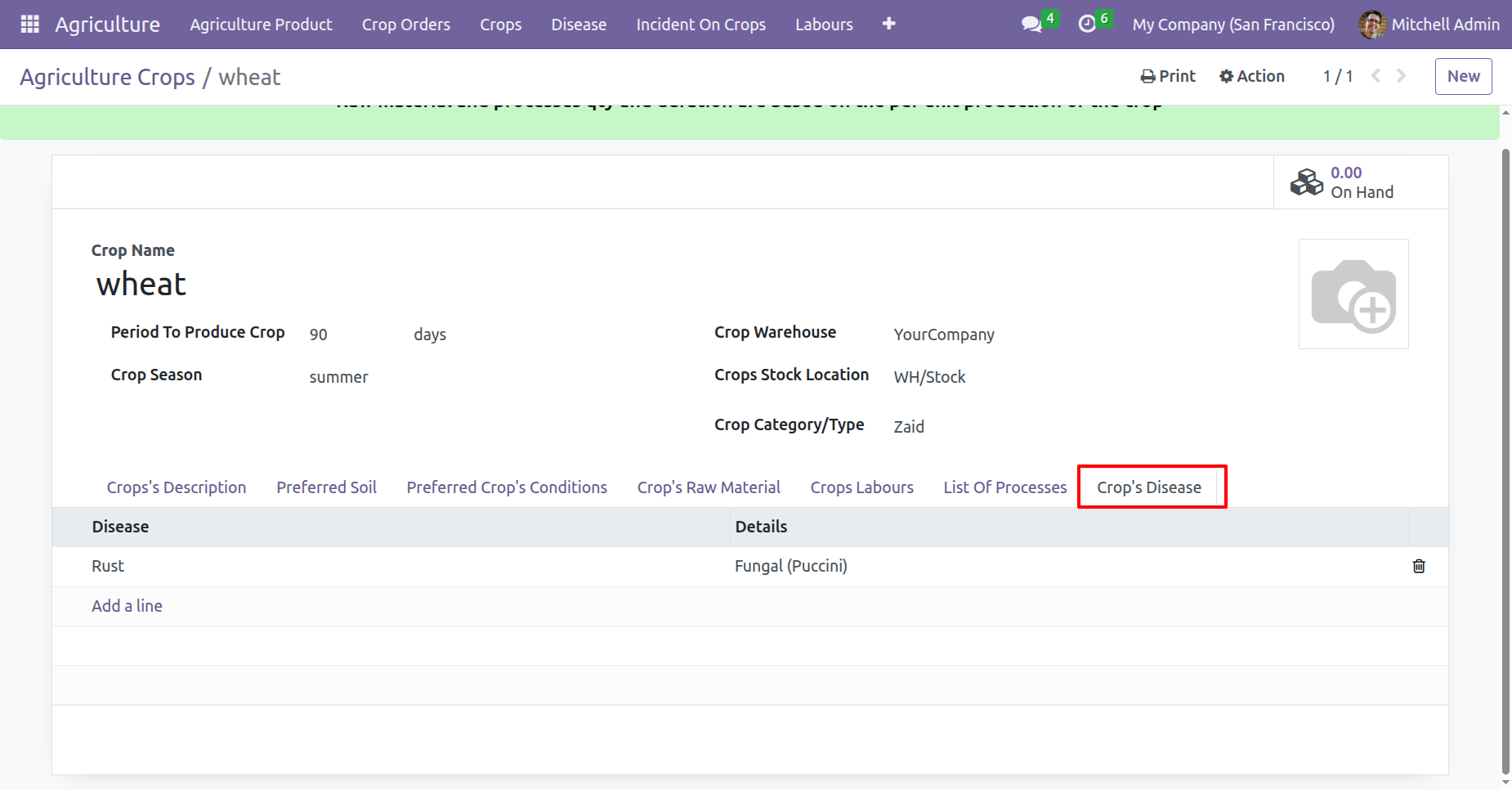
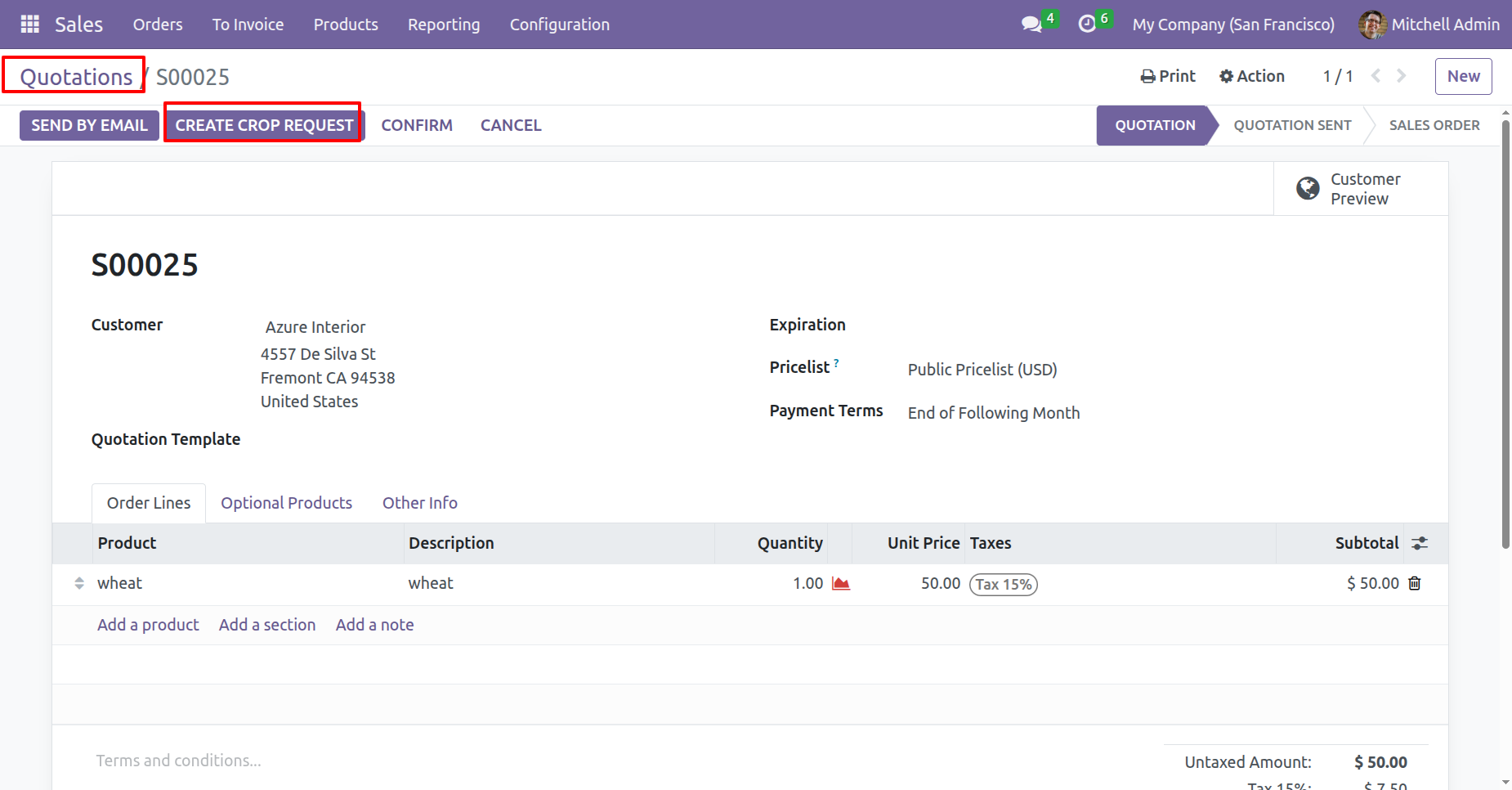
Click on the 'Create Crop Request' button to initiate a new crop request.
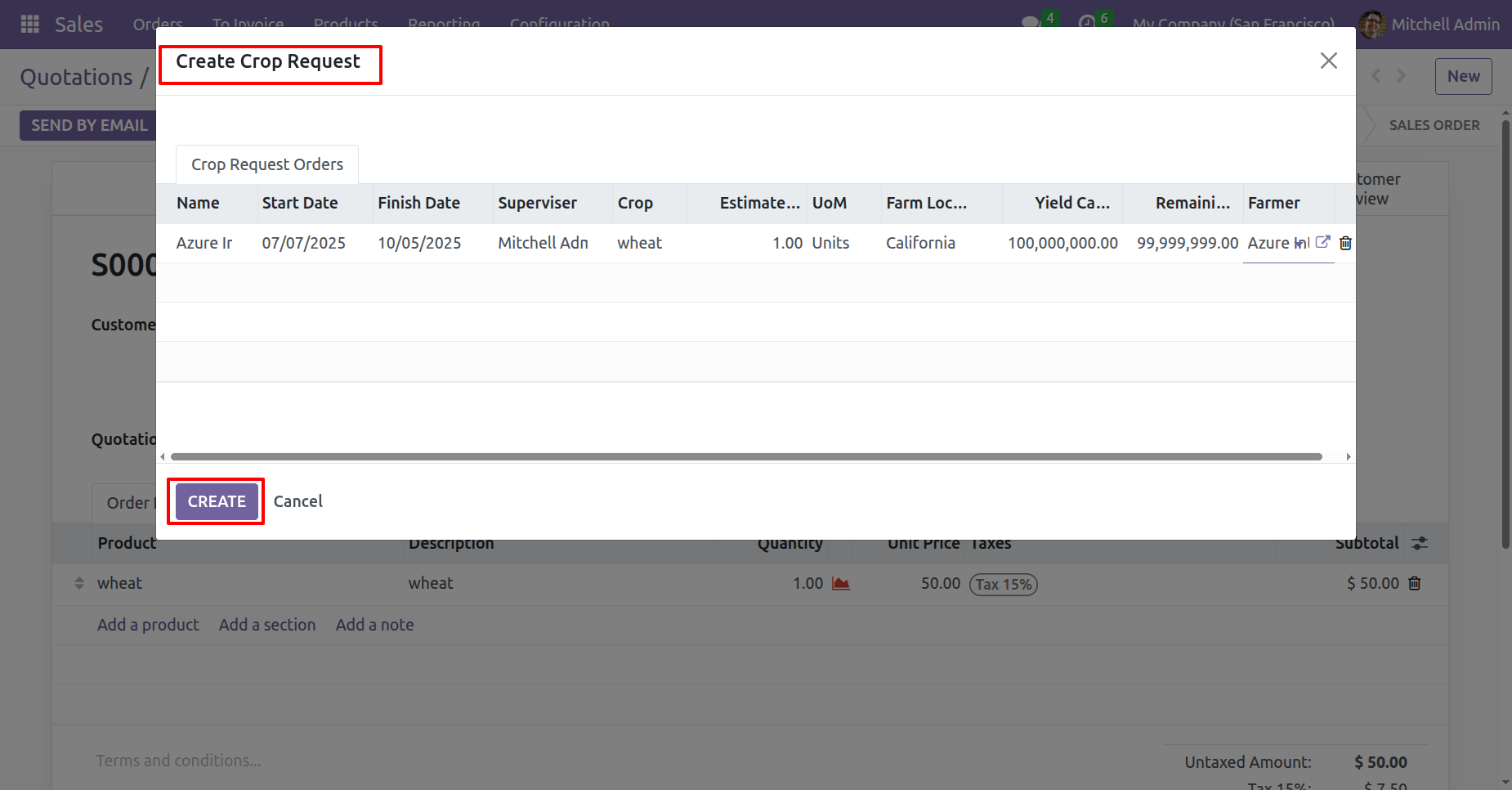
After that, the Crop Request wizard will appear. Review the details and click on the 'Create' button.
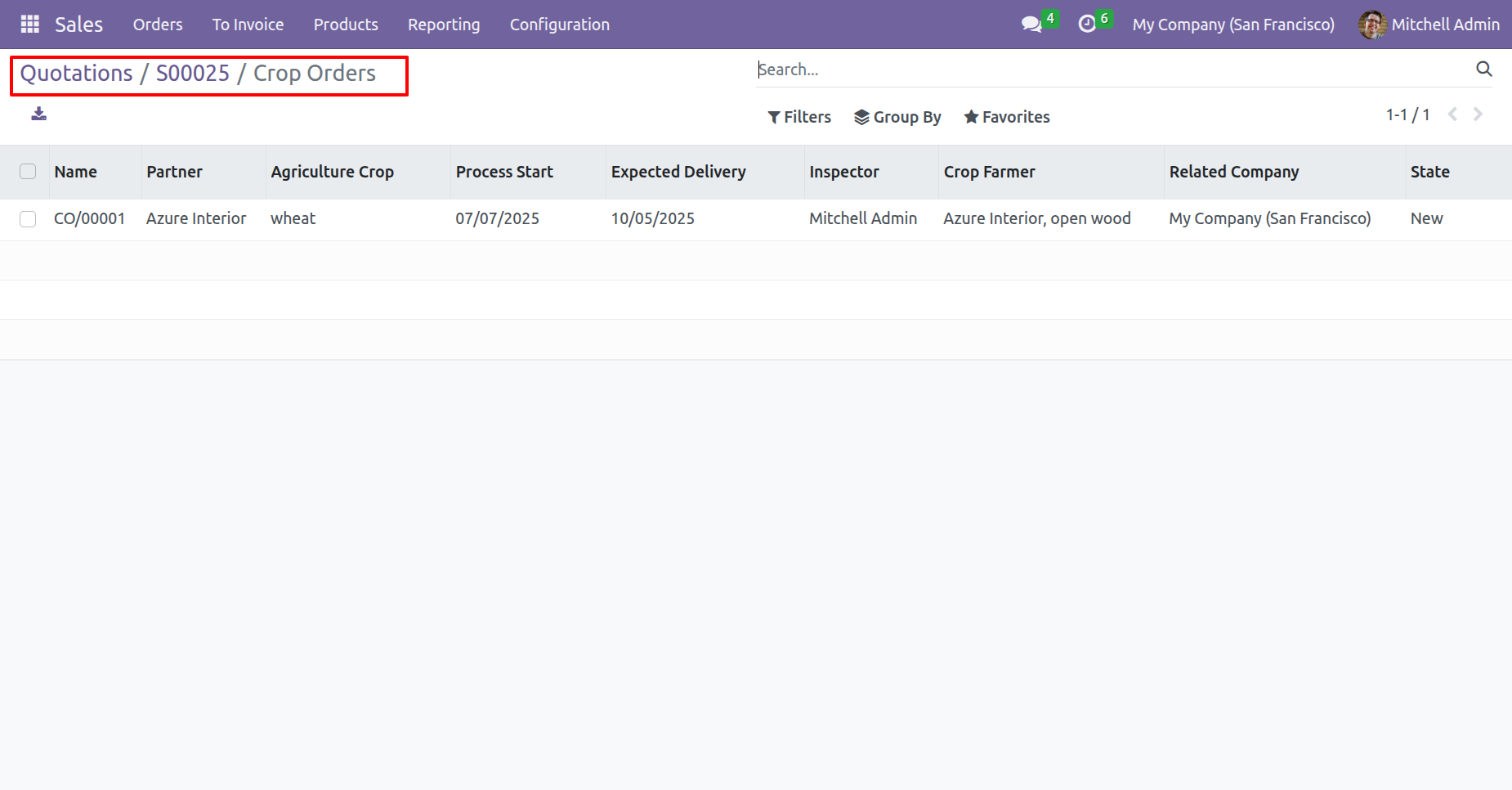
Here, you can see that the crop order has been created.
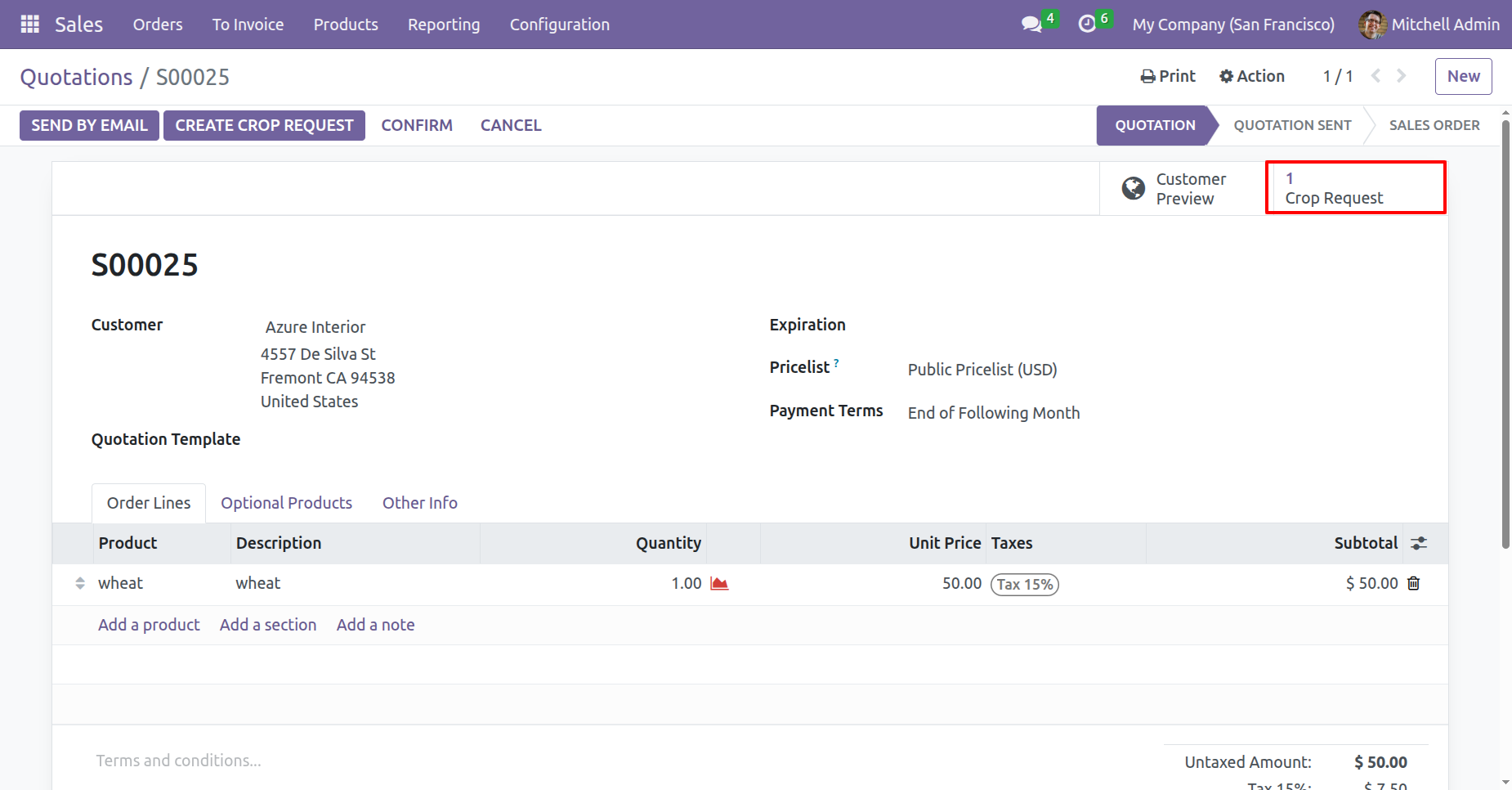
In the Sales Order, the Crop Request smart button will be available.
'Crop Orders' menu and kanban view.
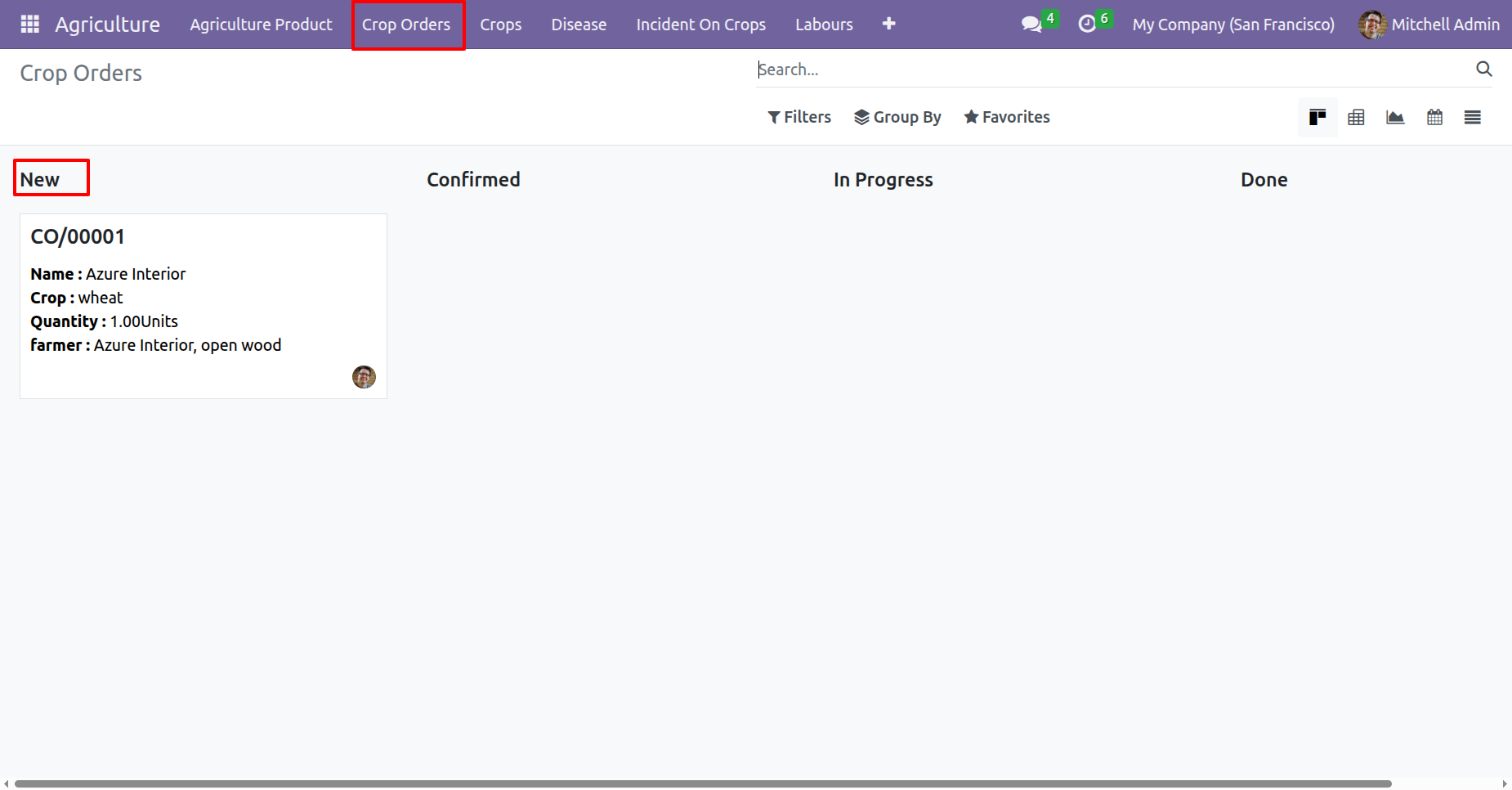
Form view of the crop orders. Click on the 'Confirm' button.
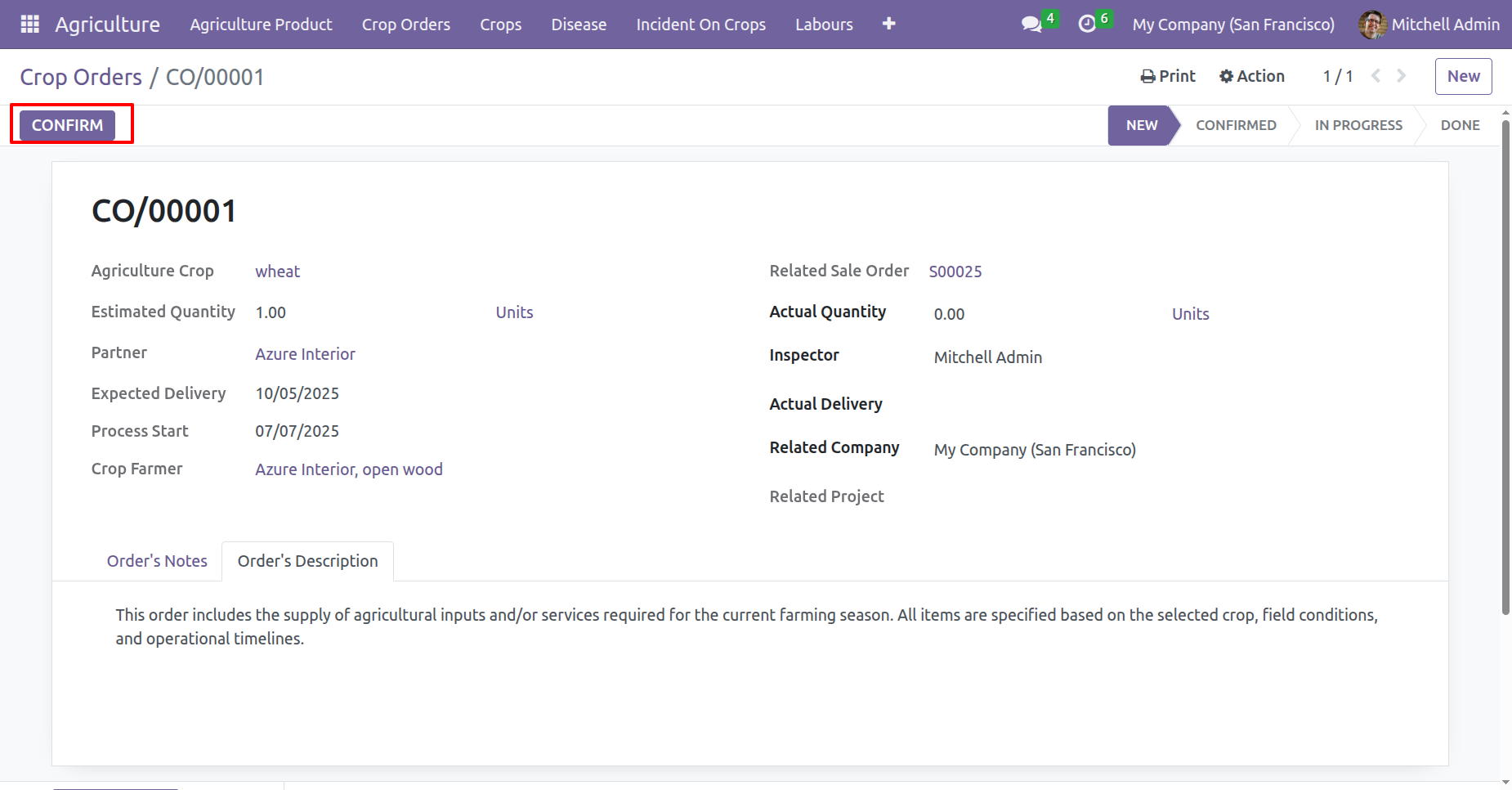
Click on the 'In Progress' button.
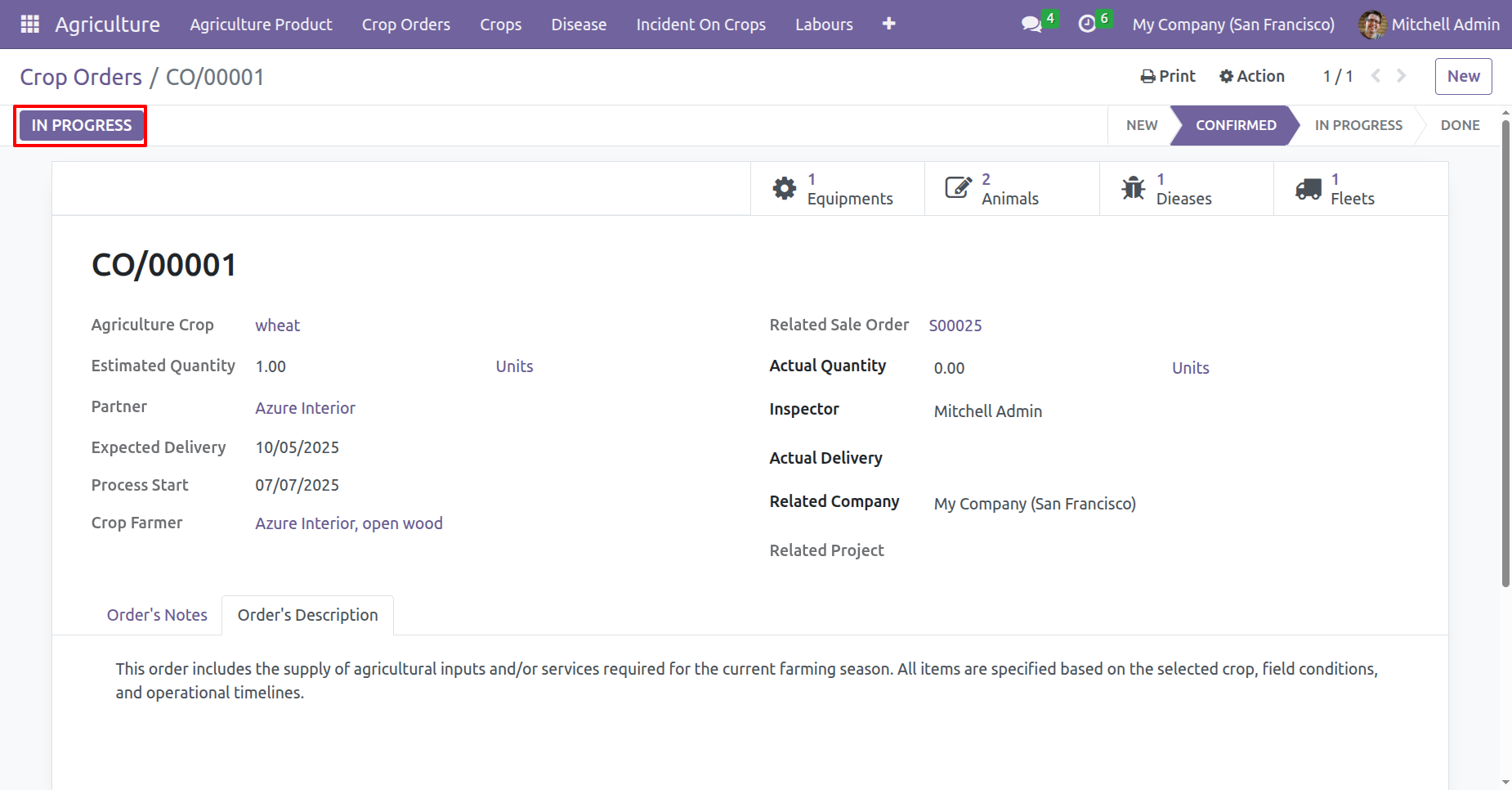
Click on the 'Done' button.
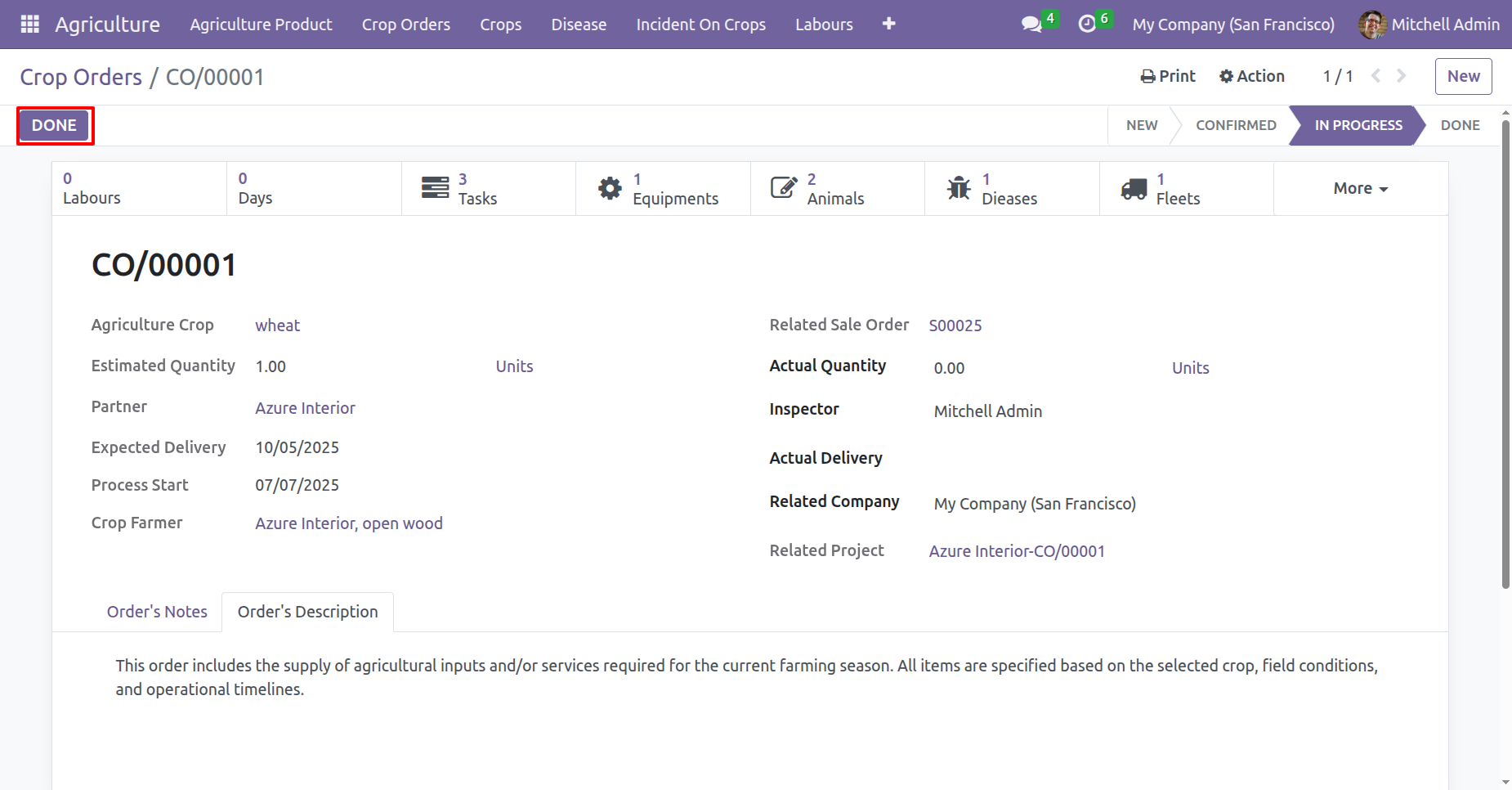
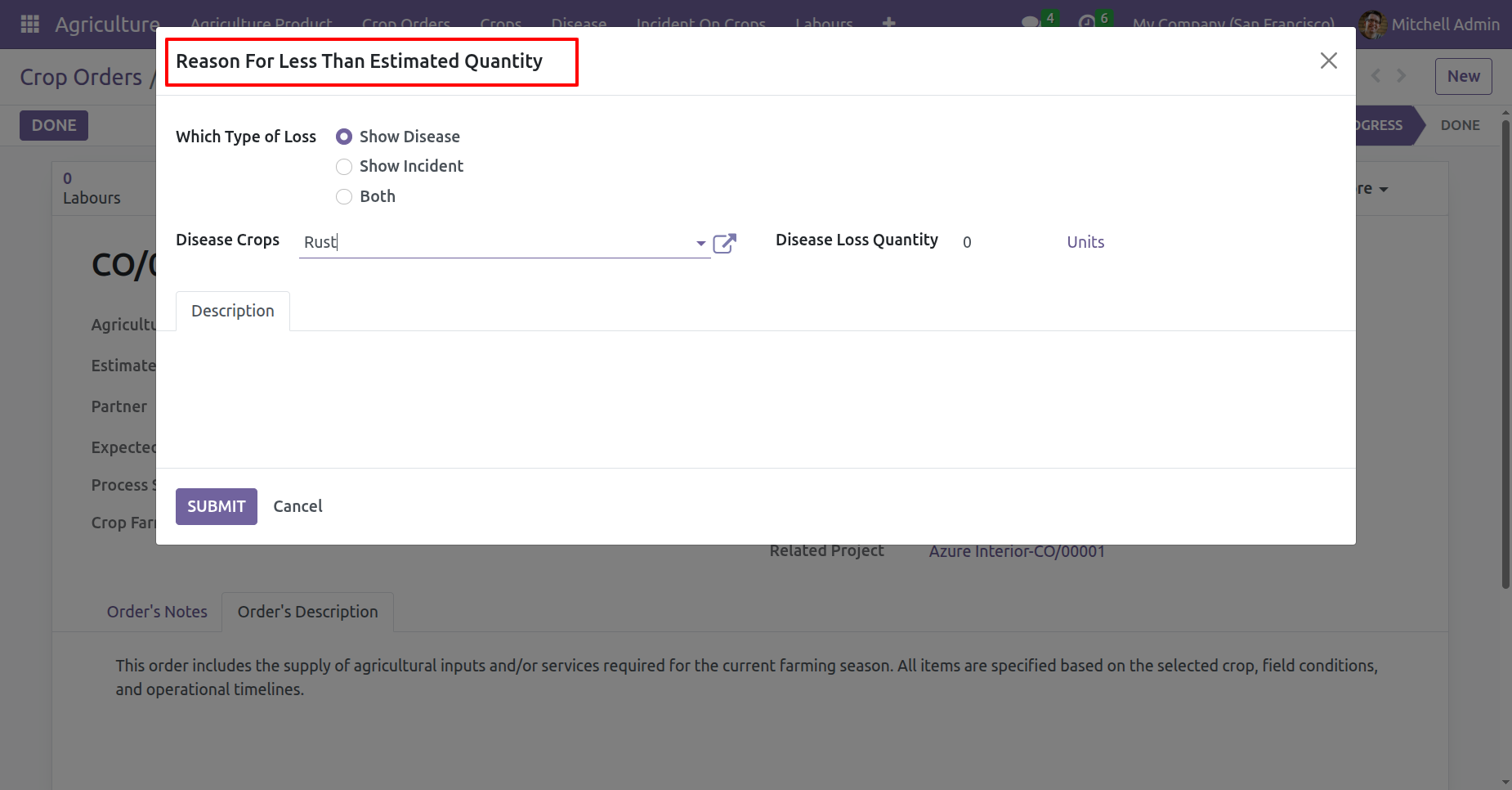
If the actual quantity is less than estimated quantity, a wizard will appear. Fill the details and click on the 'Submit' button.
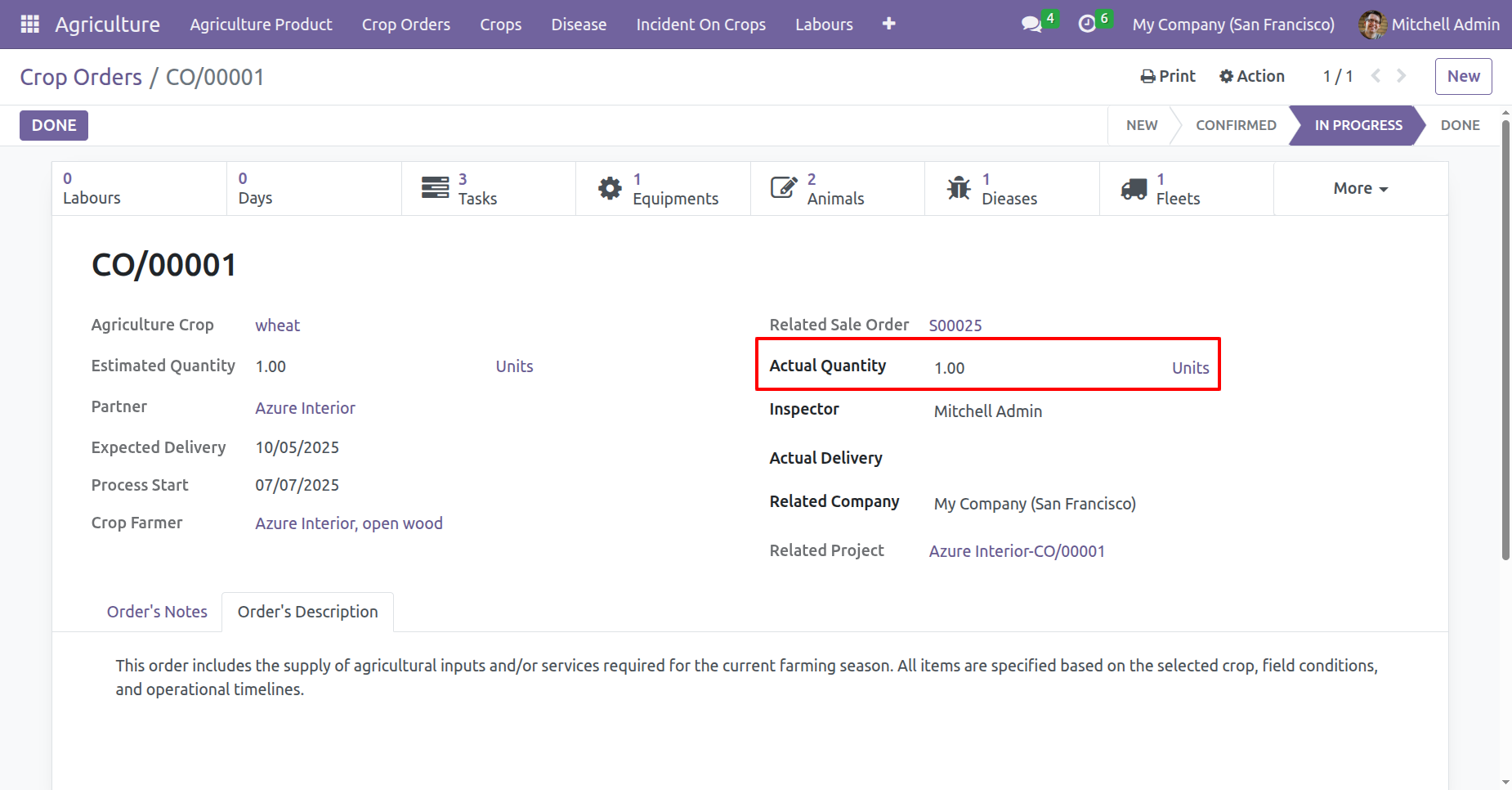
Add Actual Quantity and click on the 'Done' buton..
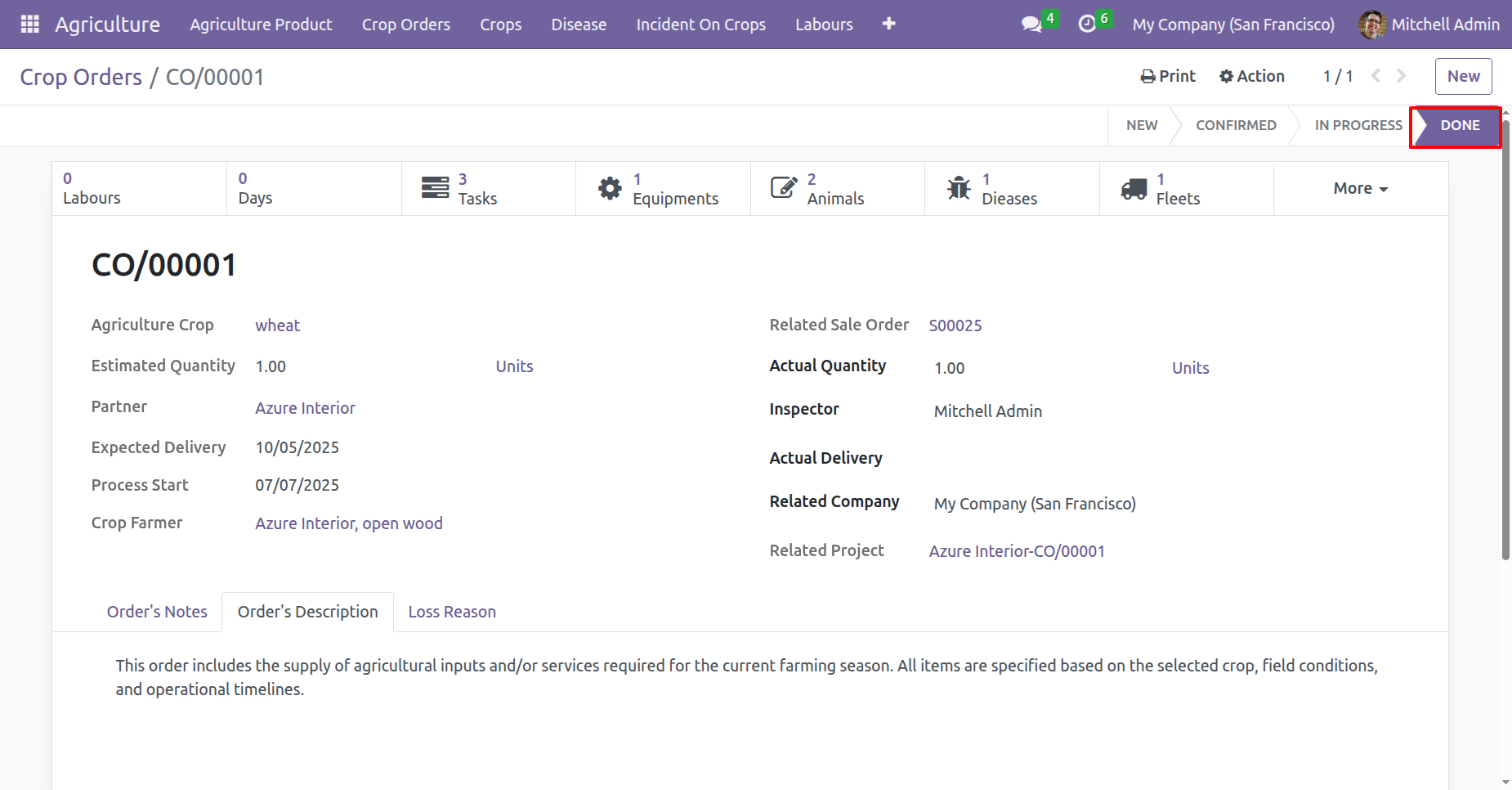
The crop order is now marked as Done.
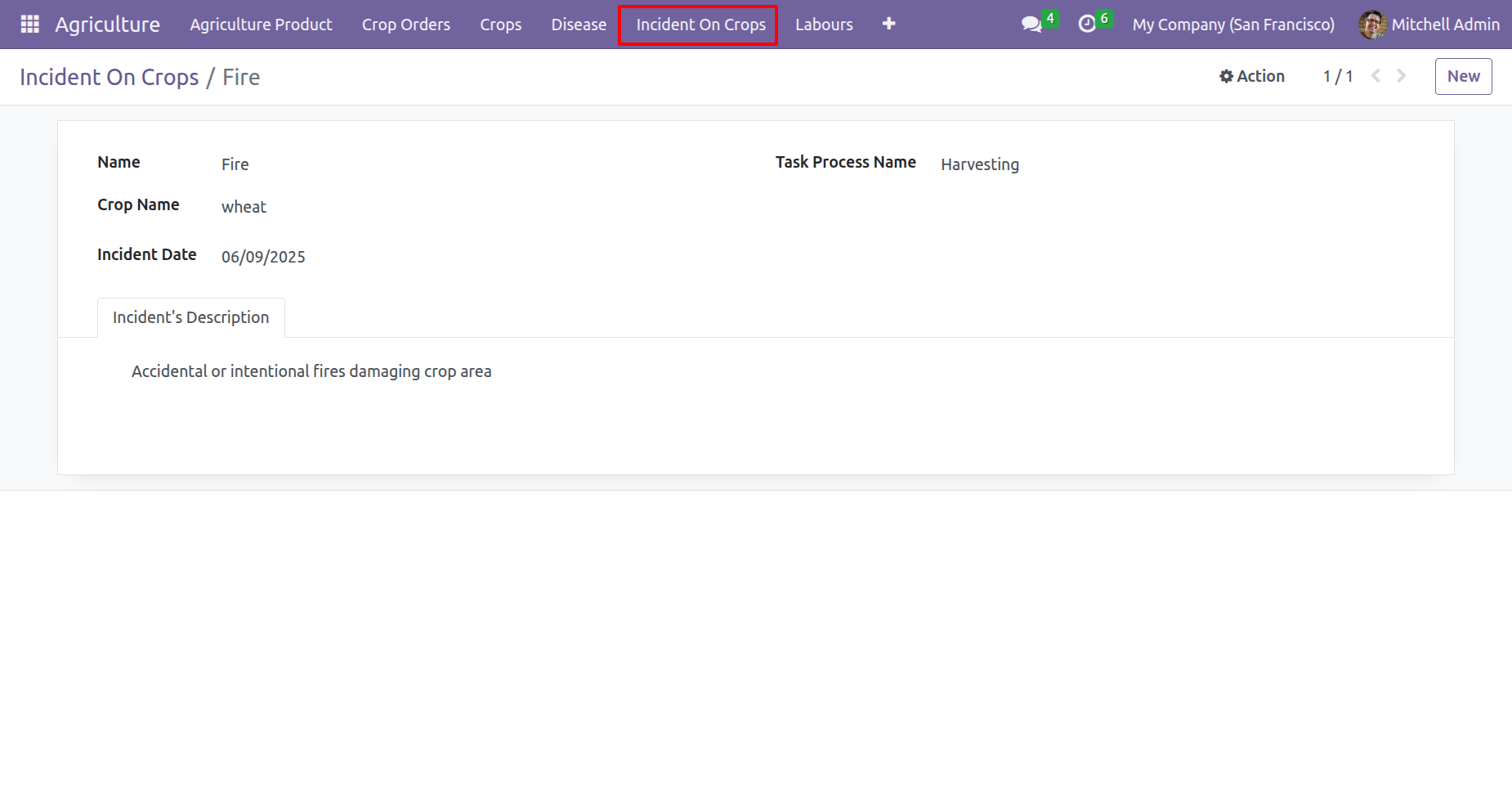
Form view of the 'Incident On Crops'.
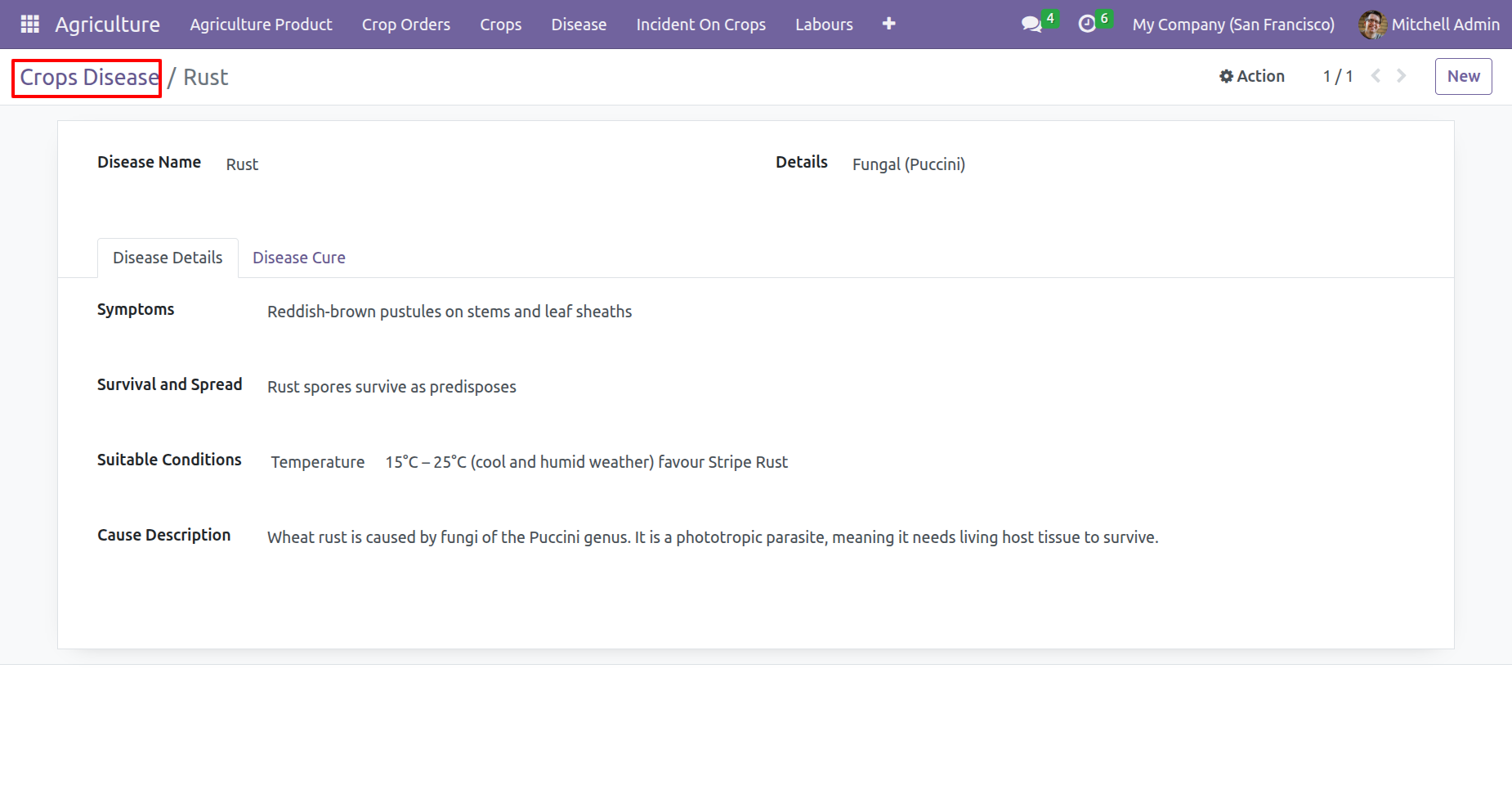
Form view of the 'Crops Disease'.
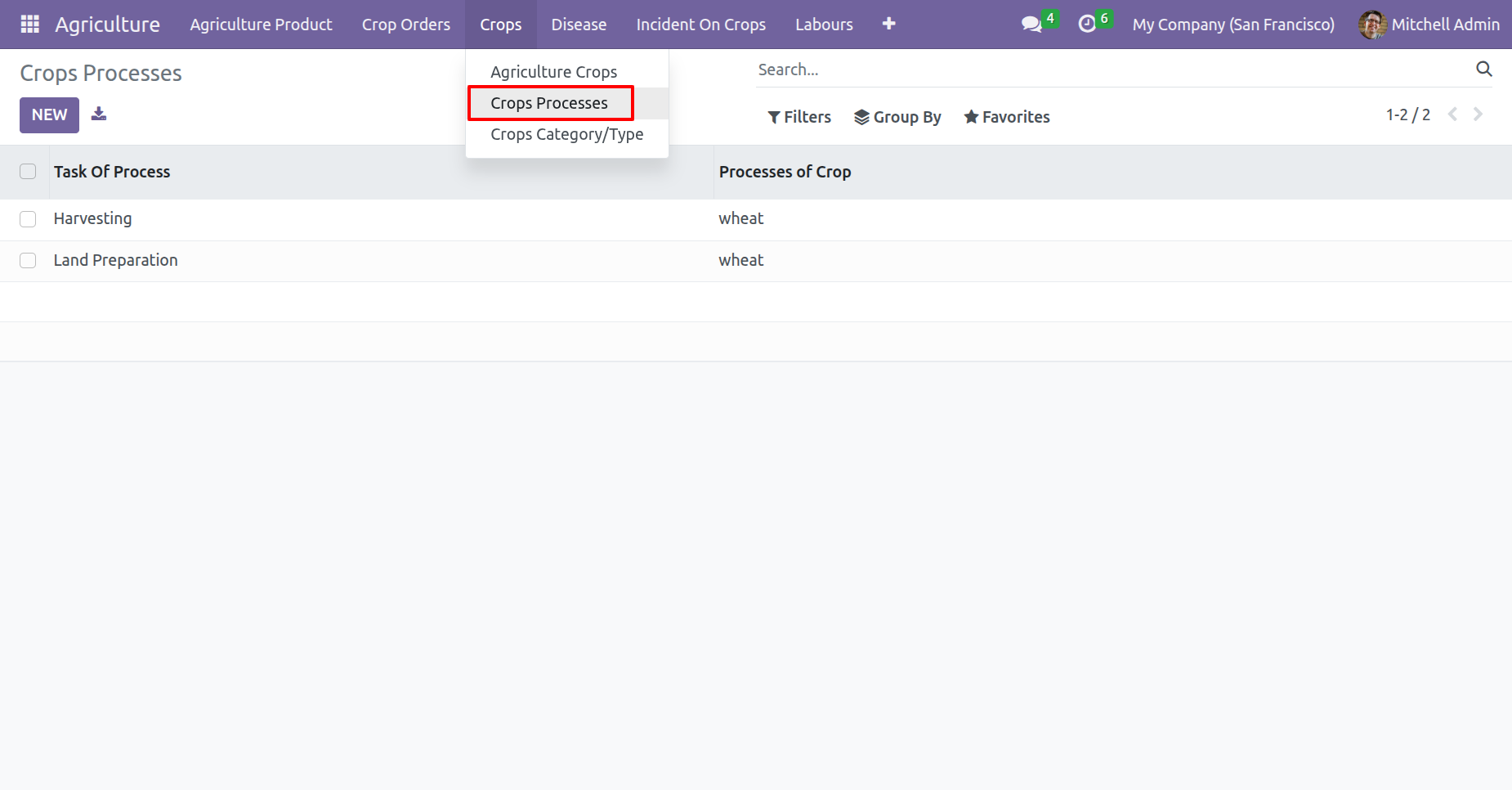
'Crops Processes' menu and list view.
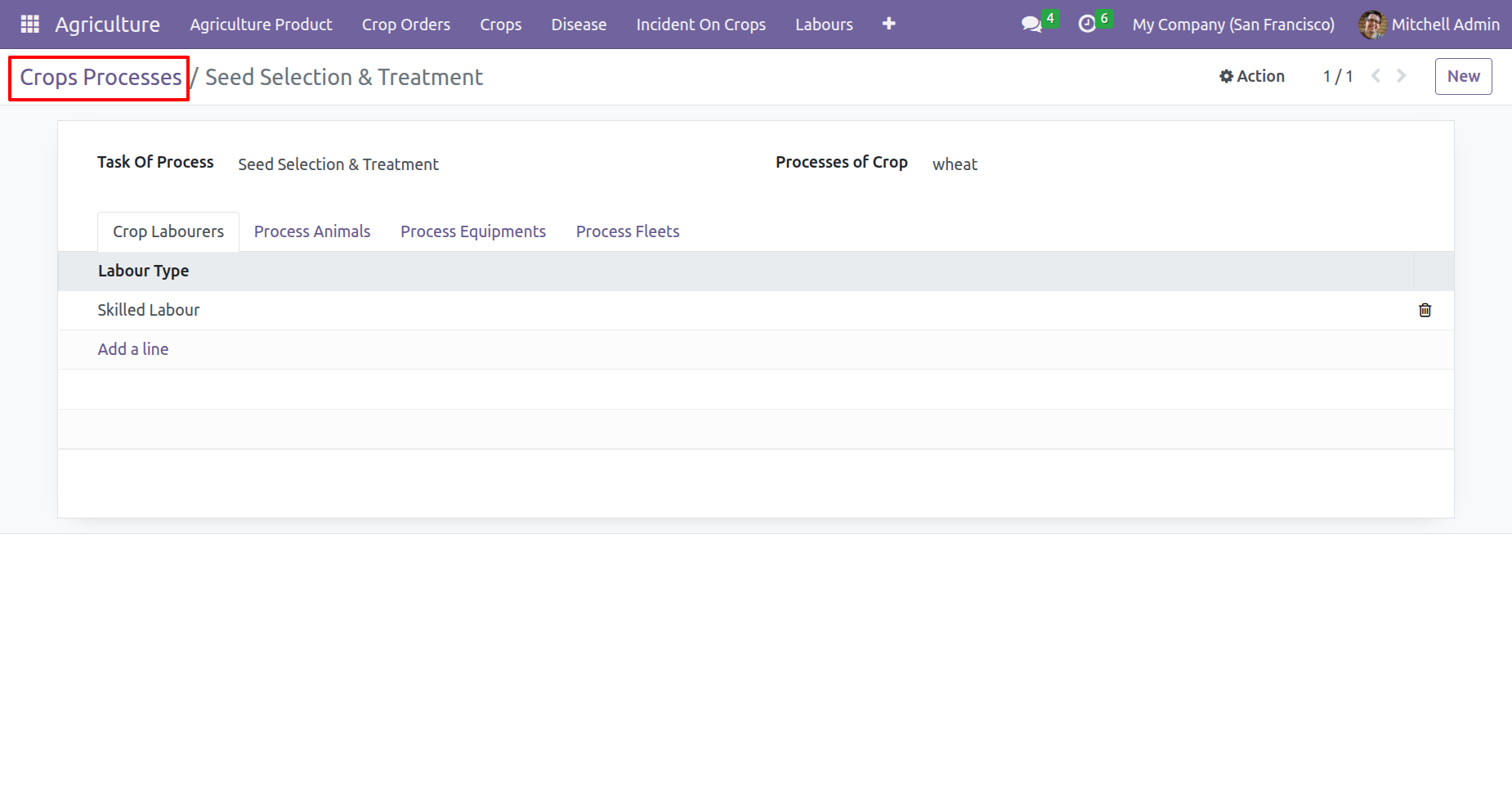
Form view of the 'Crops Processes'.
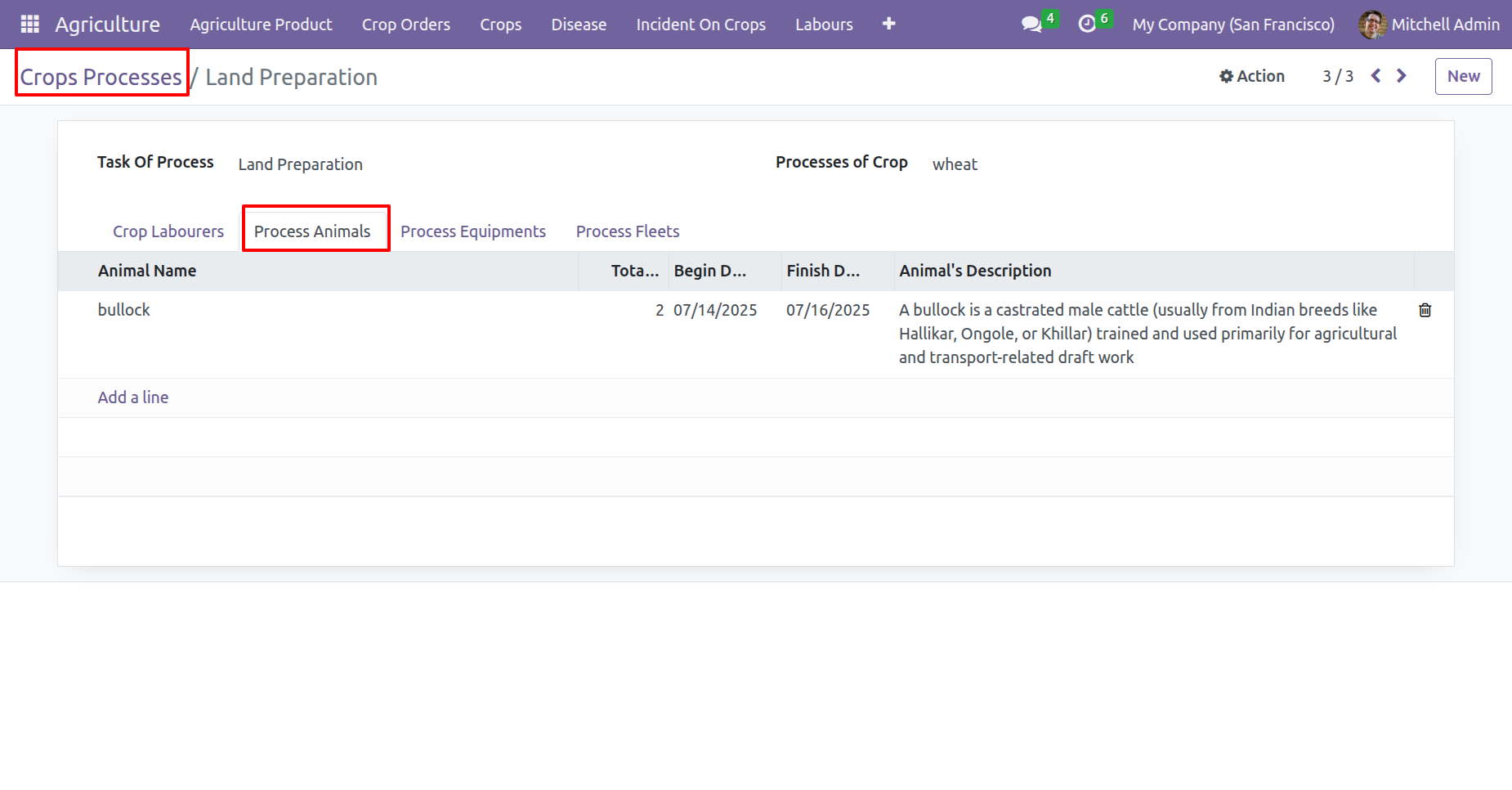
Add animal information under the 'Process Animals' tab.
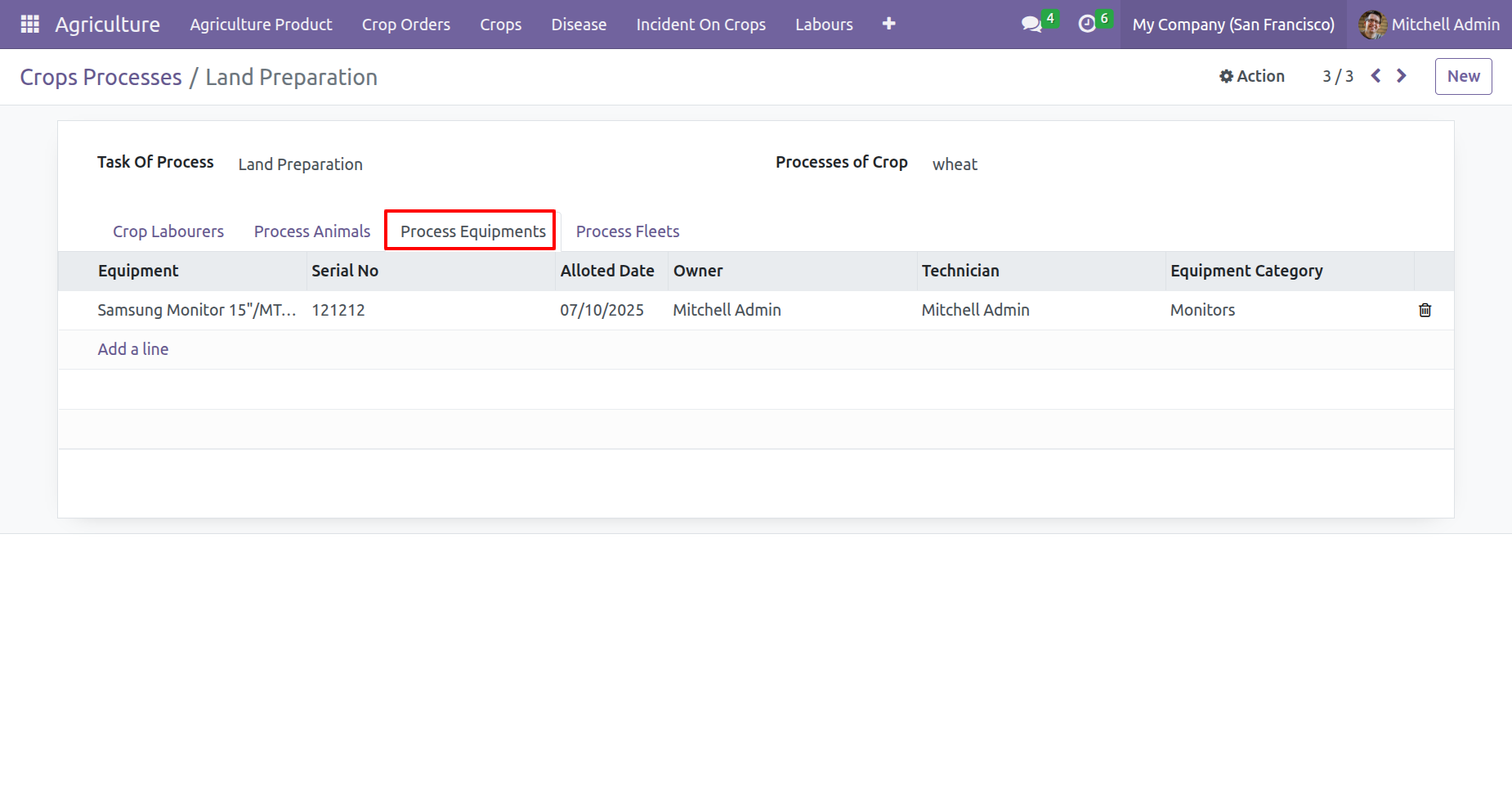
Add Equipment information under the 'Process Equipments' tab.
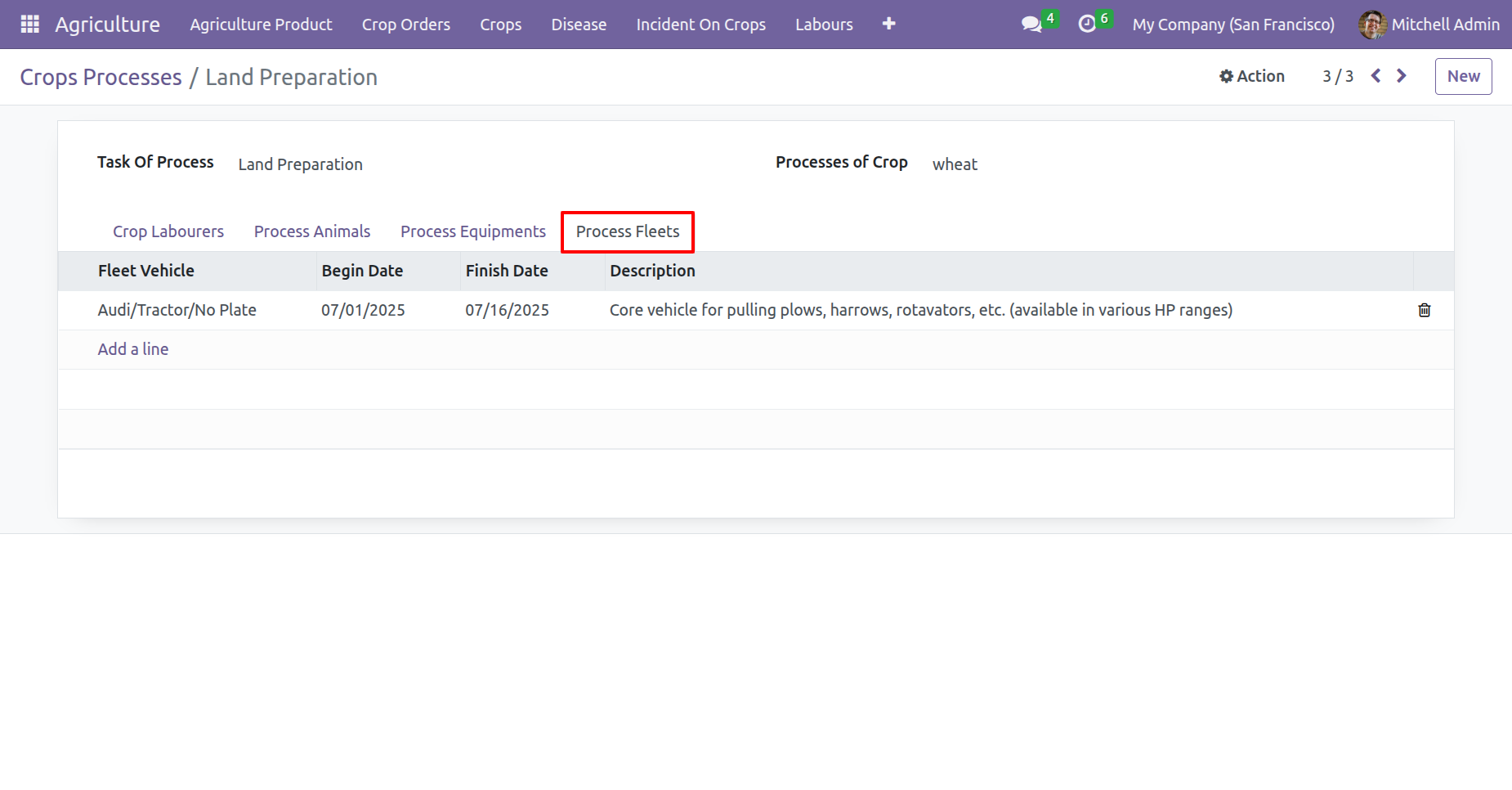
Add Fleets information under the 'Process Fleets' tab.
Release Notes
Track every update, enhancement, and new feature across all versions.
Version 18.0.2.0.0 | Released on : 08th September 2026
Version 19.0.1.0.0 | Released: 10th February 2026


 Buy Once, Supported Forever


 Scan to email sales






 Your Ideas Shape Our Roadmap
 Got an Idea? We'll Build It
Frequently Asked Questions
Everything you need to know before getting started.
Trusted by Businesses Worldwide


Abdulhamid Abdulwaheed
Best module for our online store. Highly adaptable, exceptional customer service, and very advanced modules.
Factura Venta POS
They have everything you need. Technical support is excellent, responds quickly, and keeps the module updated. 100% recommended!
Mehmet Muhanna
Great company and support team. Had a problem in my local Odoo server - they solved it in 5 minutes. Highly recommend.
Billy Jeffs
Customised an Odoo app for me which works perfectly. Many requirements, got it right every time. Very confident in their ability.
HP
Consistently excellent service over years of working together. Knowledge and commitment to keeping clients informed truly sets them apart.
Michal Kolasinski
Multiple addons + two custom modules. Communication always friendly and precise. Delivered on time, worked out of the box. Highly recommended!

Multi-Language
8 built-in translations







You May Also Like
Discover more Softhealer modules that integrate seamlessly with your Odoo environment.







Most Demanded Apps
The Softhealer modules our customers reach for most — trusted across 100+ countries.
Activities Management
Manage, schedule, and automate Odoo activities across all departments from one view.
View Module
Access Management
Granular access control over menus, fields, buttons, and records for every user role.
View Module
Backdate Advanced
Backdate any transaction across invoices, journals, pickings, and more with full audit.
View Module
All-in-One Helpdesk
Full-featured customer support with tickets, SLA, and customer portal built for Odoo.
View Module
All-in-One Mobile Backend
Access your full Odoo backend from any mobile device with an optimized interface.
View Module
All-in-One Import
Import any Odoo model data from CSV, Excel, and JSON files with mapping and validation.
View Module
Our Services
End-to-end Odoo expertise - from setup to scale.

AI & Business Integration

Odoo Implementation

Odoo Customization

Support & Maintenance

Mobile Apps

Migration Service

Third-Party Integration

Odoo Training
Ready to automate Agriculture Management System?
Join 10,000+ businesses - Softhealer, 11+ years of Odoo gold partnership expertise across 100+ countries.

