












Website Fast Order

This module quickly add products in to cart at website by uploading CSV, XML, ODS, XLSX file or paste product information with comma separated value in text area. You can add products in cart using product name, barcode or internal reference number as well.

Features
Fast Order Page on Website
Allow customers to quickly place bulk orders directly from a dedicated fast order page.
Add Products by Product Name
Search and add products to the cart easily using the product name.
Add Products by Internal Reference
Add products instantly by entering their internal reference number.

Add Products by Barcode
Enable fast product addition using barcode values.

Bulk Product Import via File Upload
Upload product order details using CSV, XML, XLSX, or ODS files.
Drag and Drop File Upload
Upload order files easily using drag-and-drop functionality.

Paste Order Data Directly
Paste comma-separated product data to add multiple products at once.

Add and Remove Row as Required
Add or remove product rows dynamically on the fast order screen.

Product Not Found Alerts
Show notifications when entered products are not found in the system.

Sample File Download Support
Download sample files to understand the correct import format.

Clear All Order Lines
Remove all added products from the fast order page with a single click.

Validation for Incorrect Data
Display warnings for invalid product values or incorrect file data.

Shopping List (Wishlist)
Users can easily add products to their shopping list and view all added items in one place.

Wishlist Category in Fast Order View

Organize and manage wishlist products directly from the Fast Order view.

Fast Order from Past Orders & Templates
Quickly create fast orders from previous orders and save reusable fast order templates.

Fast order menu.
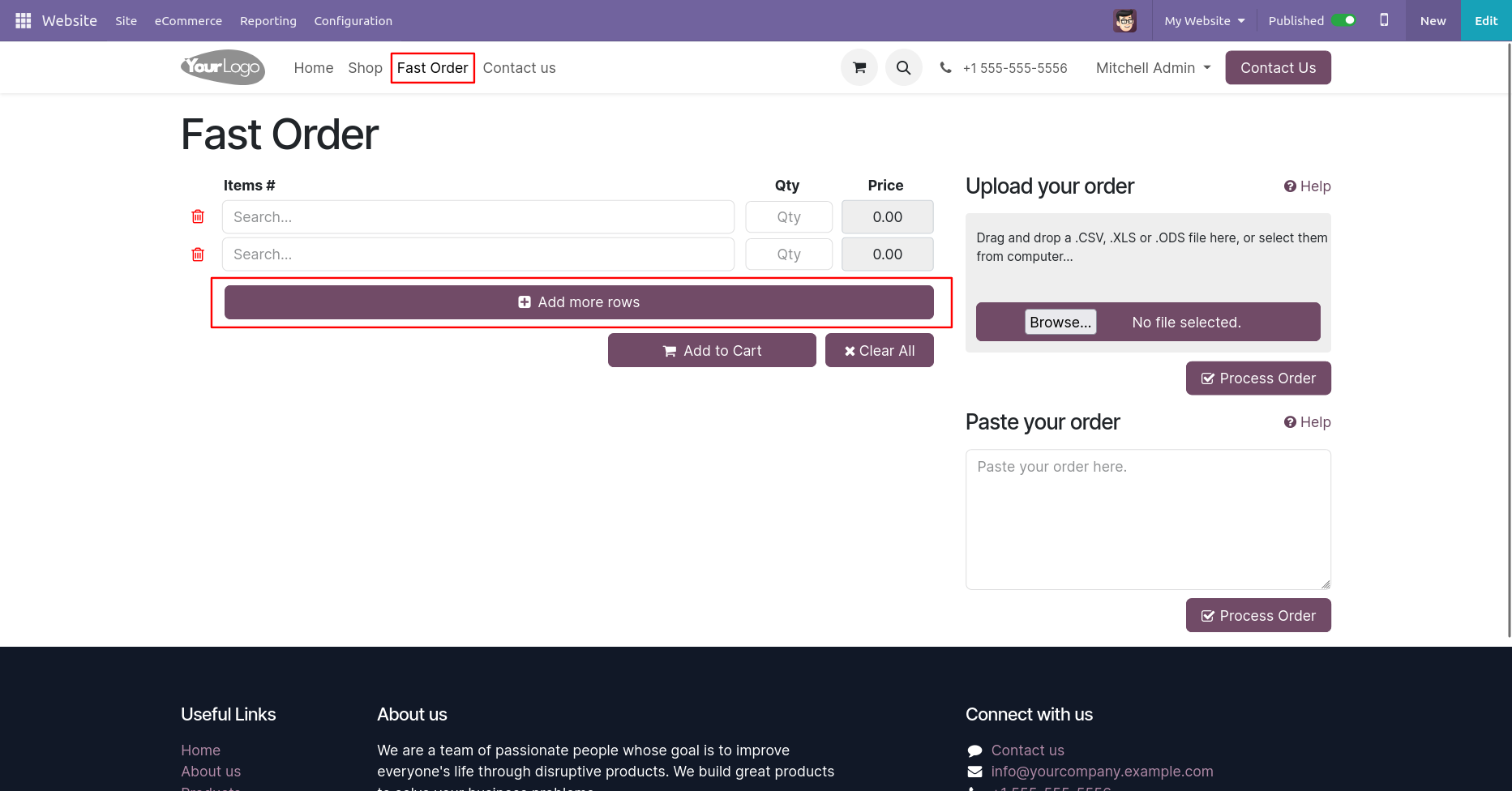
You can add or remove rows as per requirement.
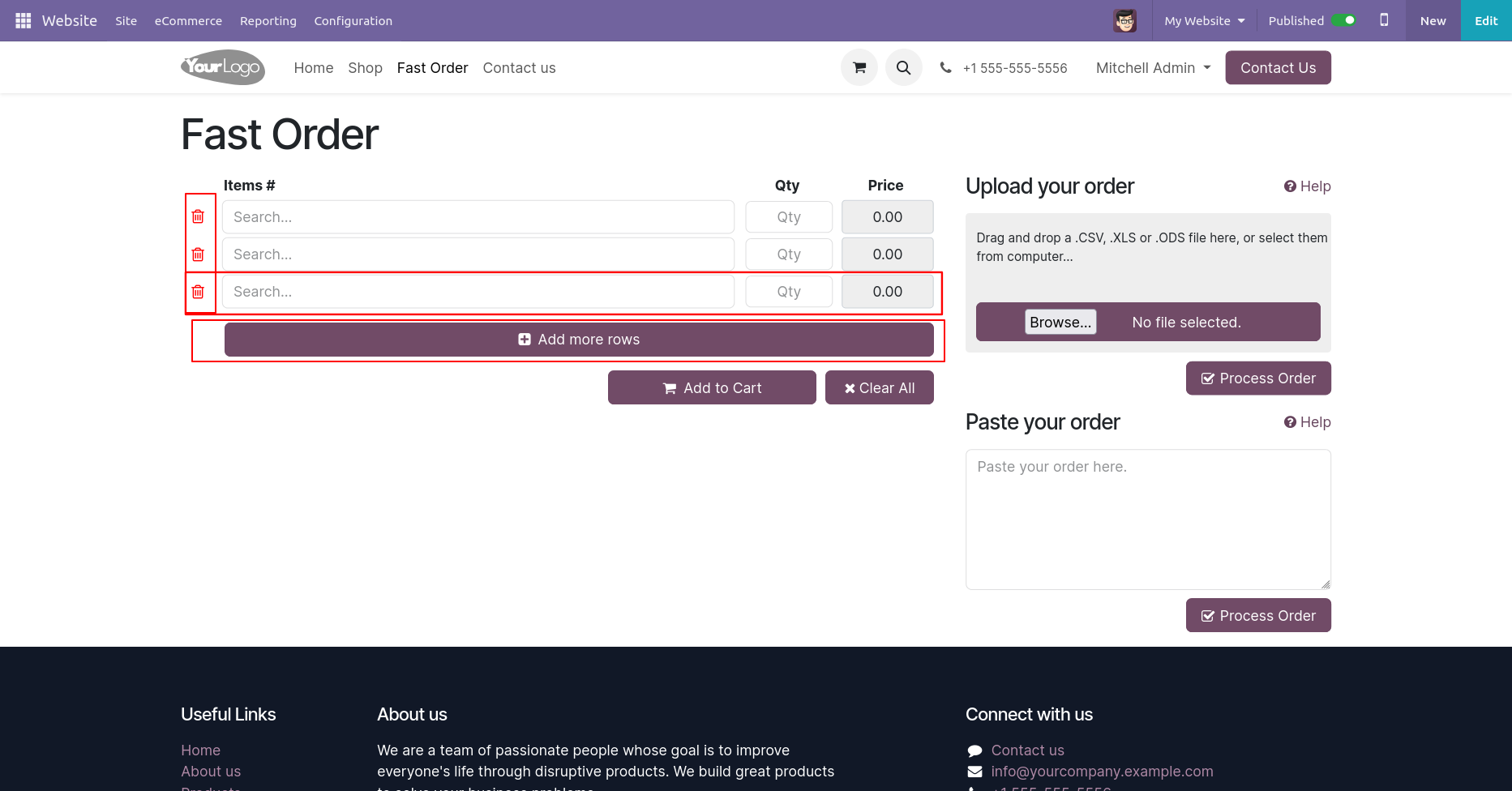
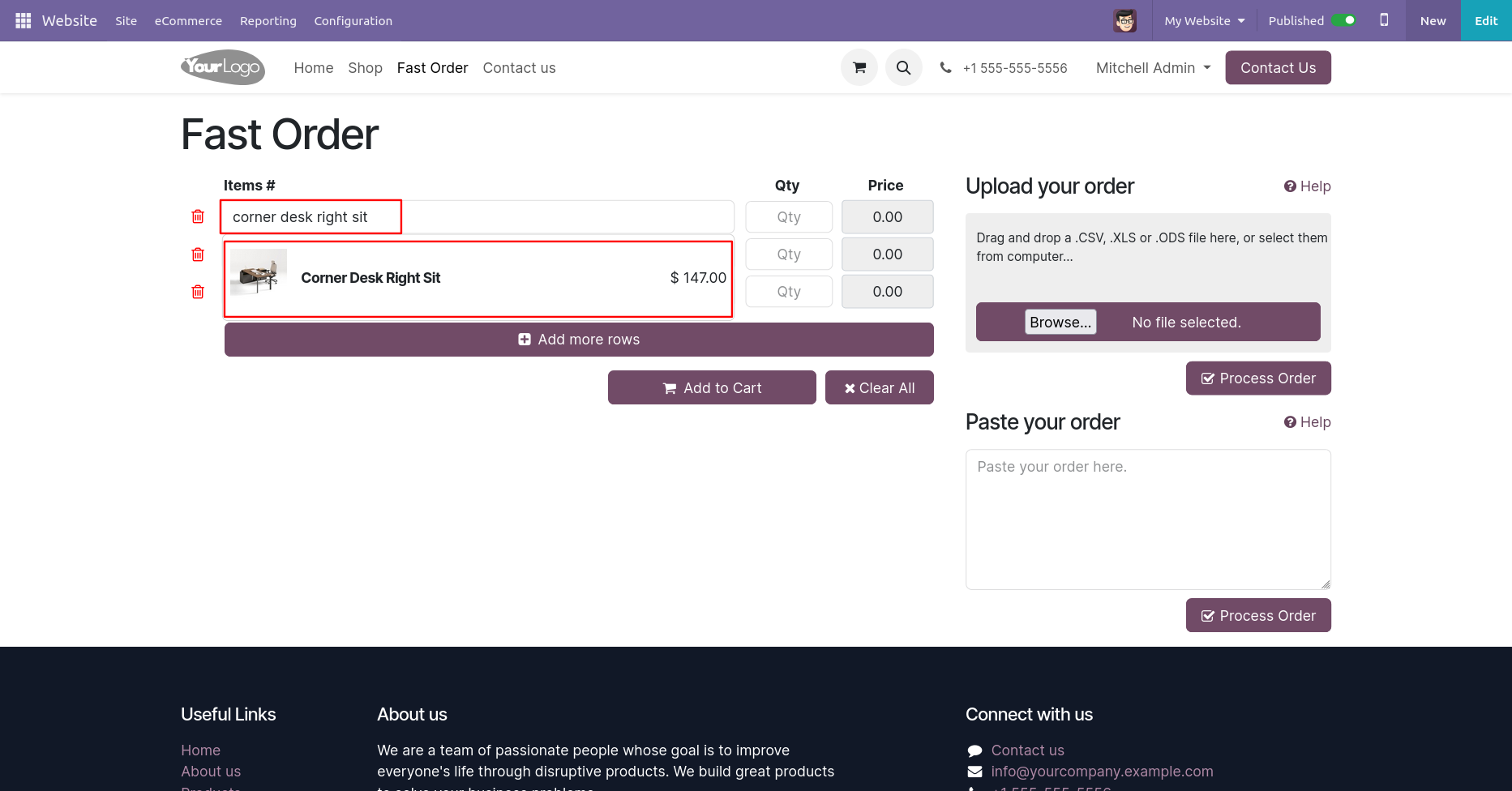
You can add products in cart using product name, barcode or internal reference number.
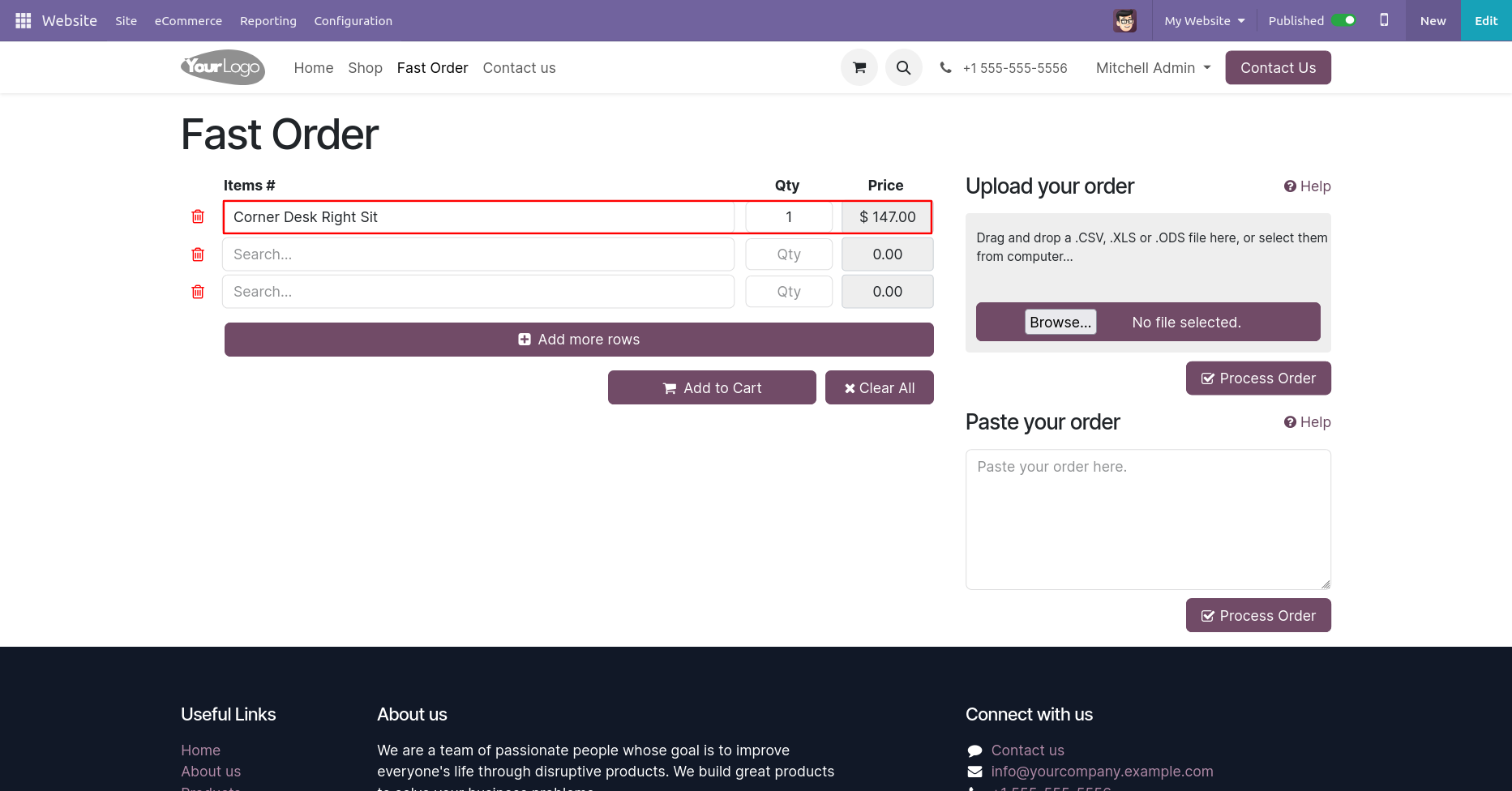
You can remove order by clicking on 'Delete' icon.
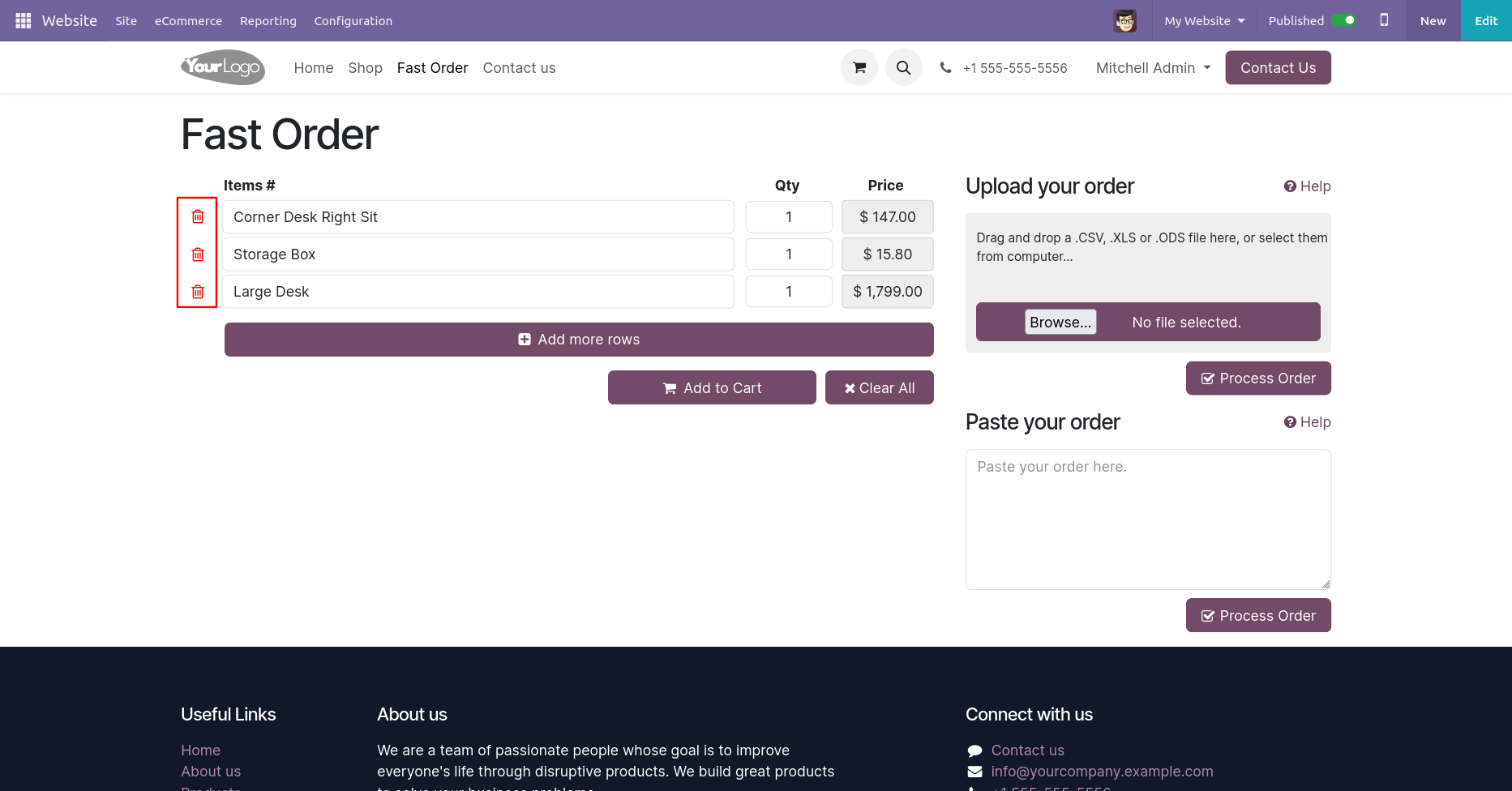
You can clear all the orders by clicking on 'Clear All' button.
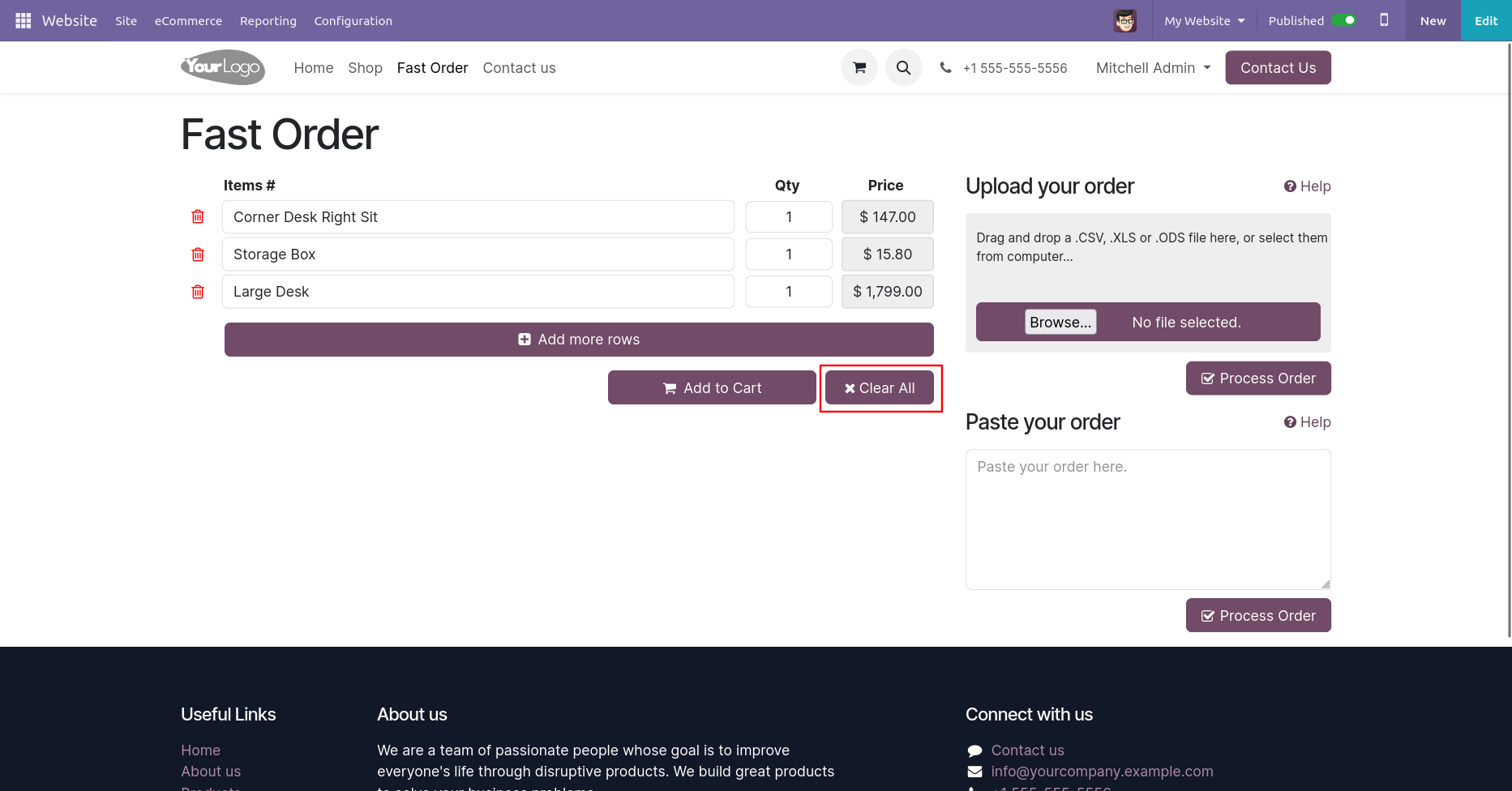
Here you can see the all order data are clears.
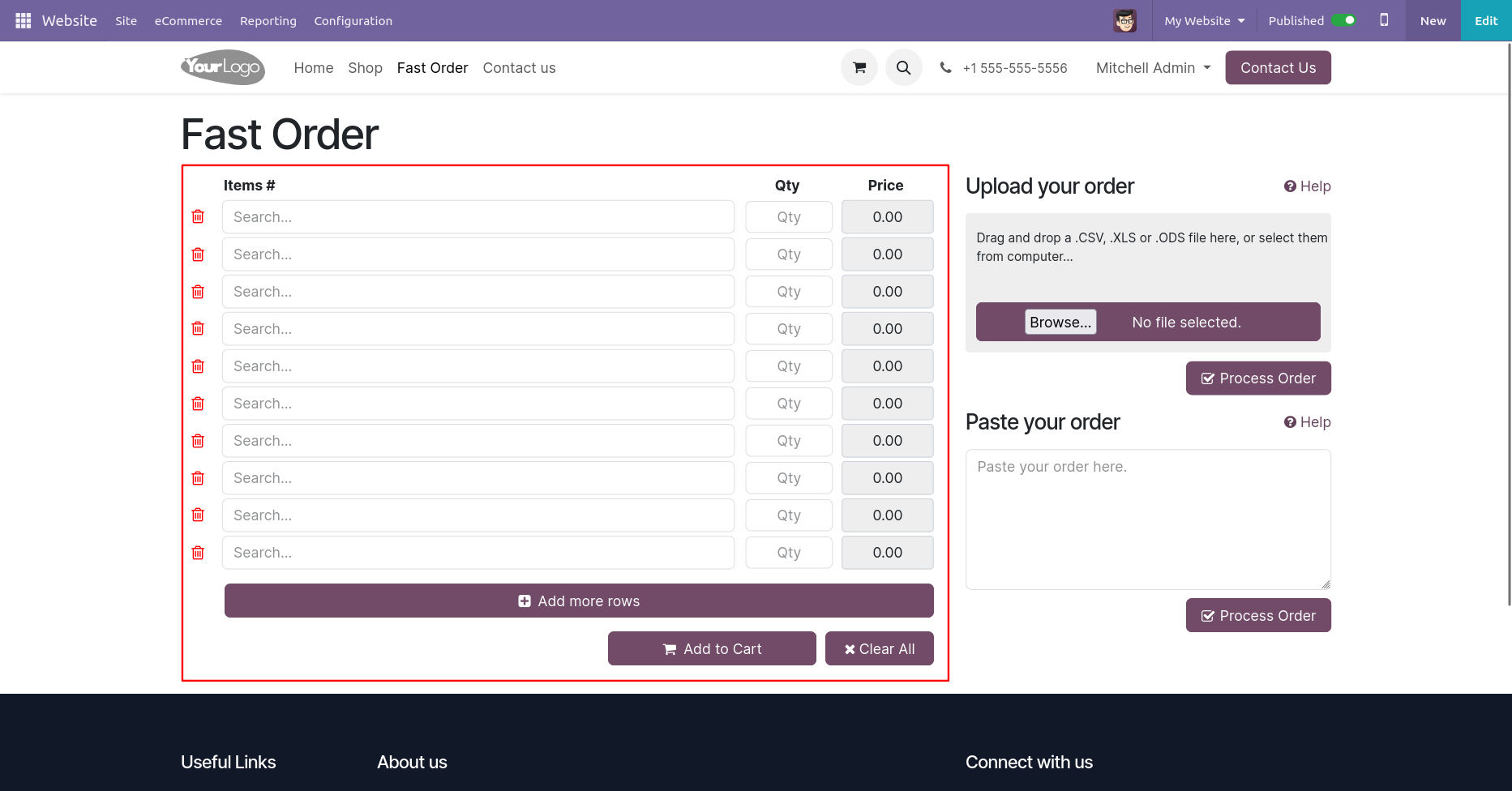
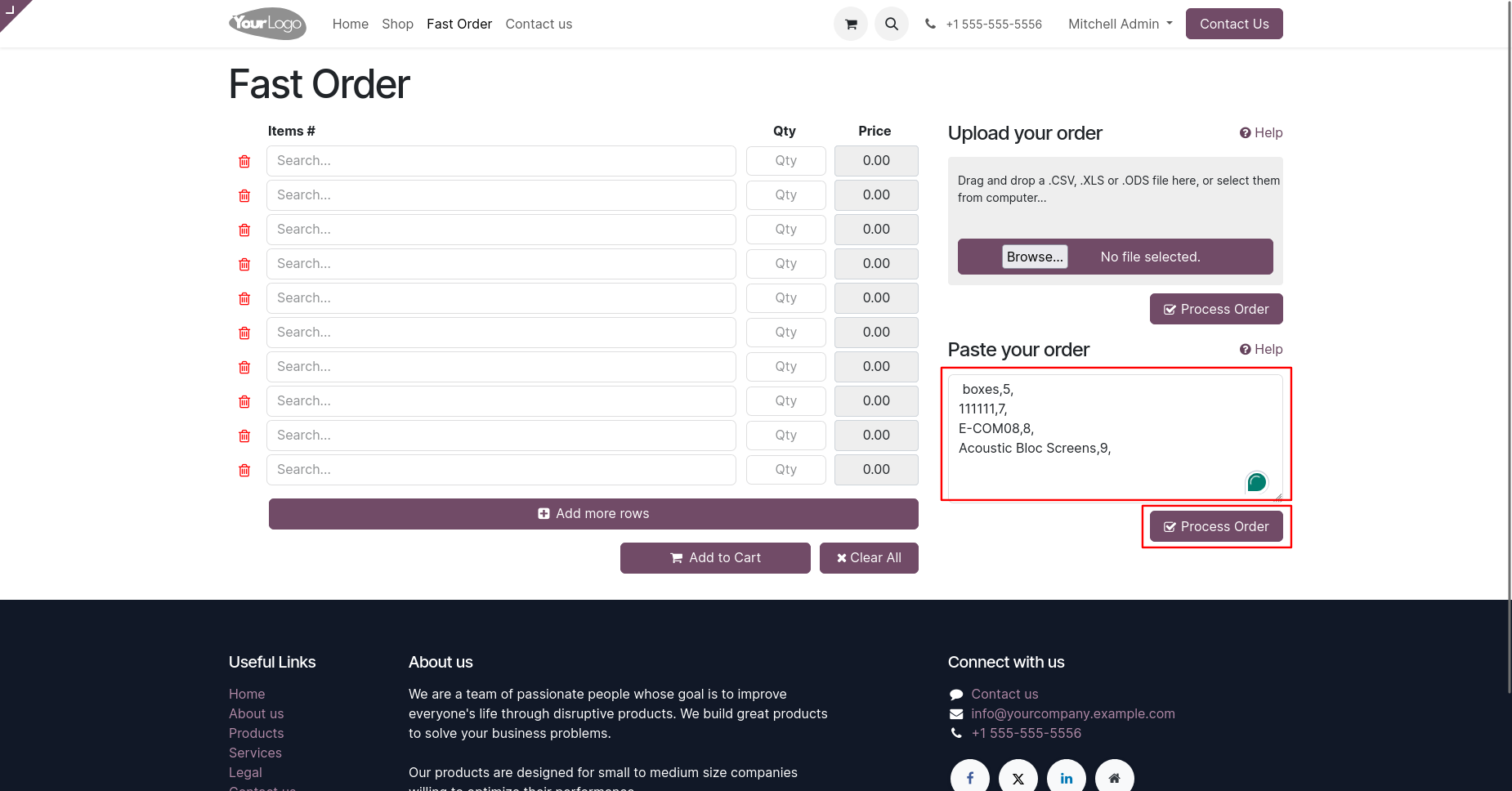
You can add products to cart by uploading CSV, XML, ODS, XLSX file or paste product information with comma separated value in text area.
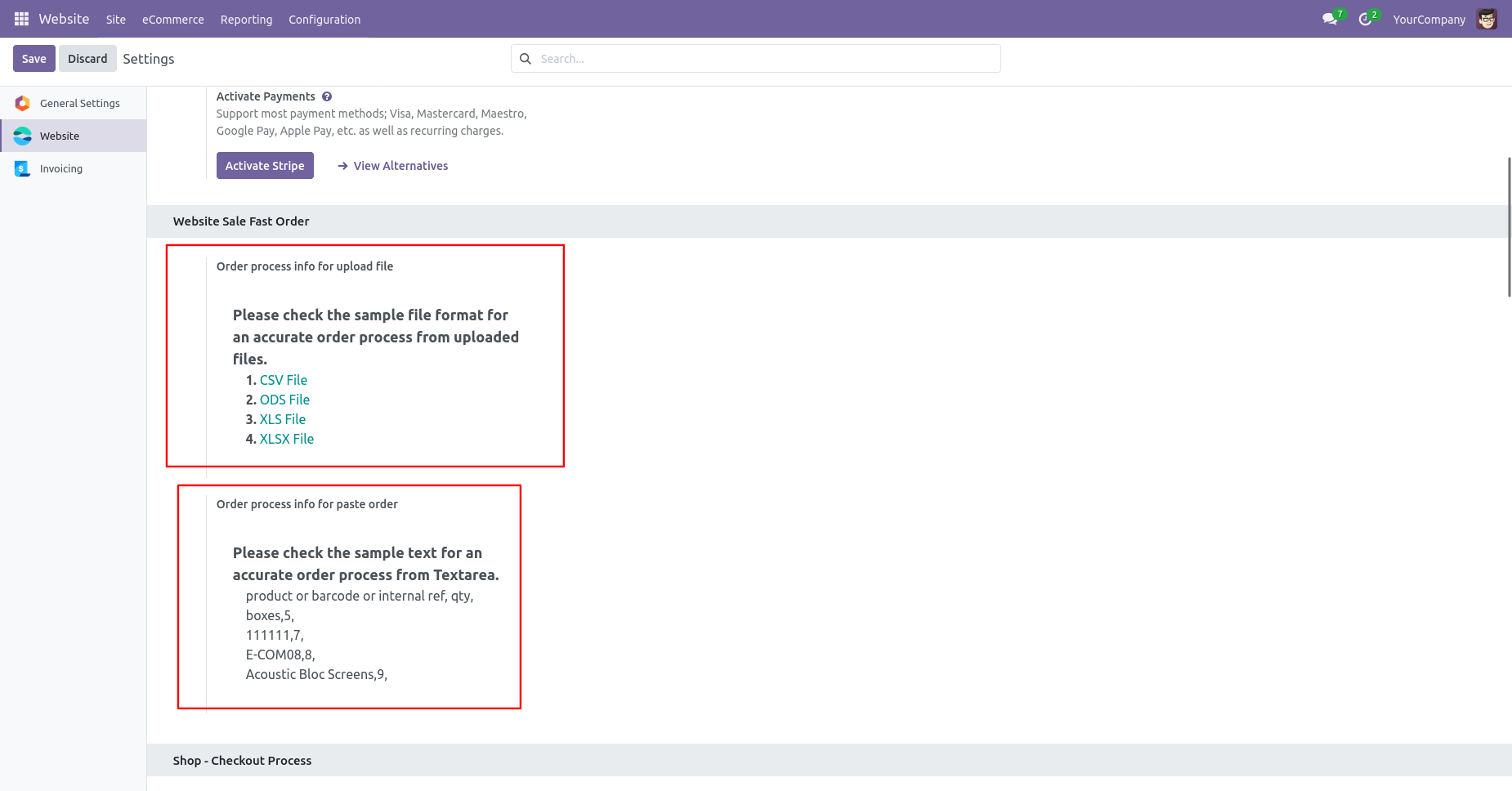
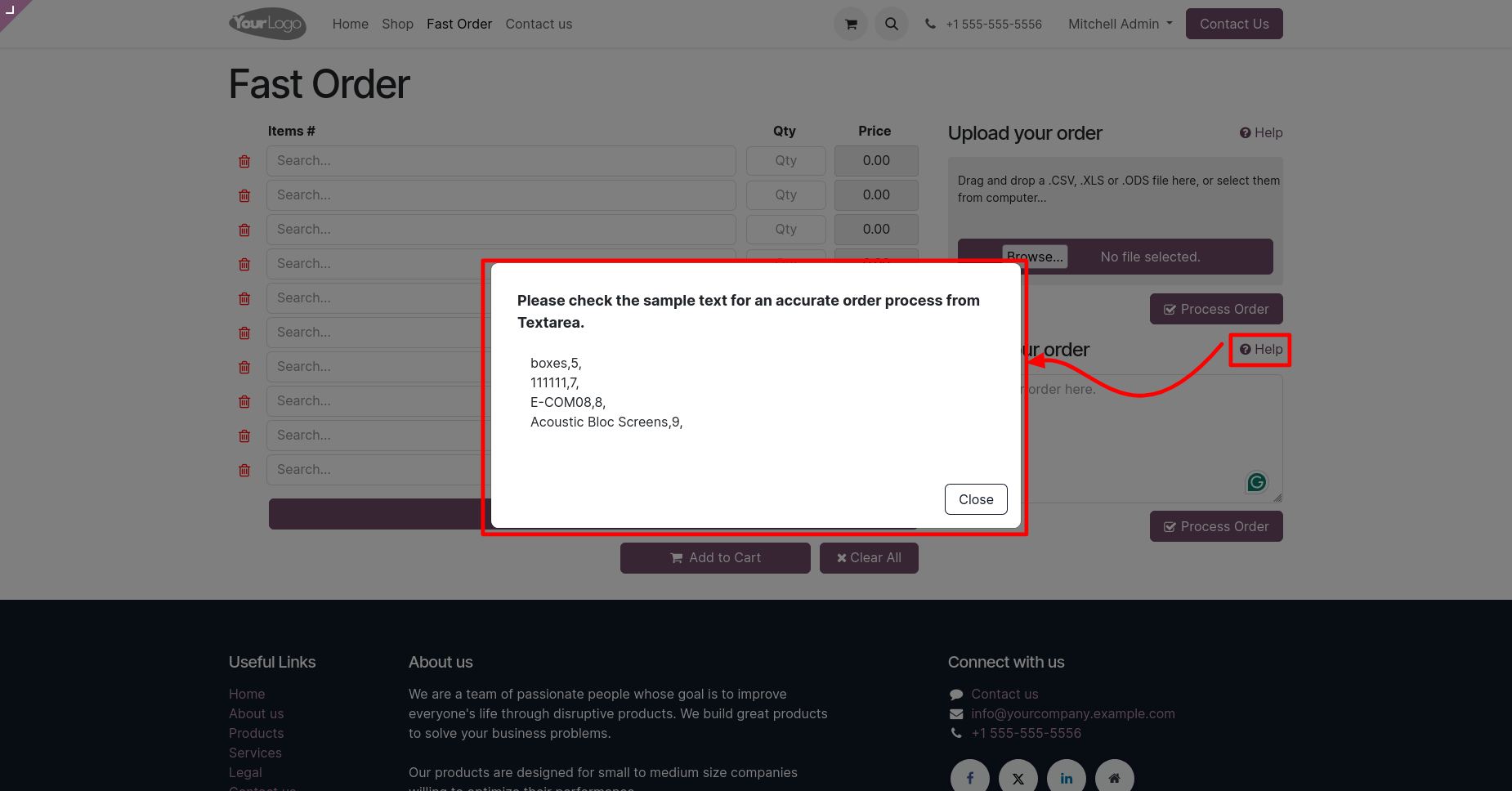
You can see sample files from 'Help'.
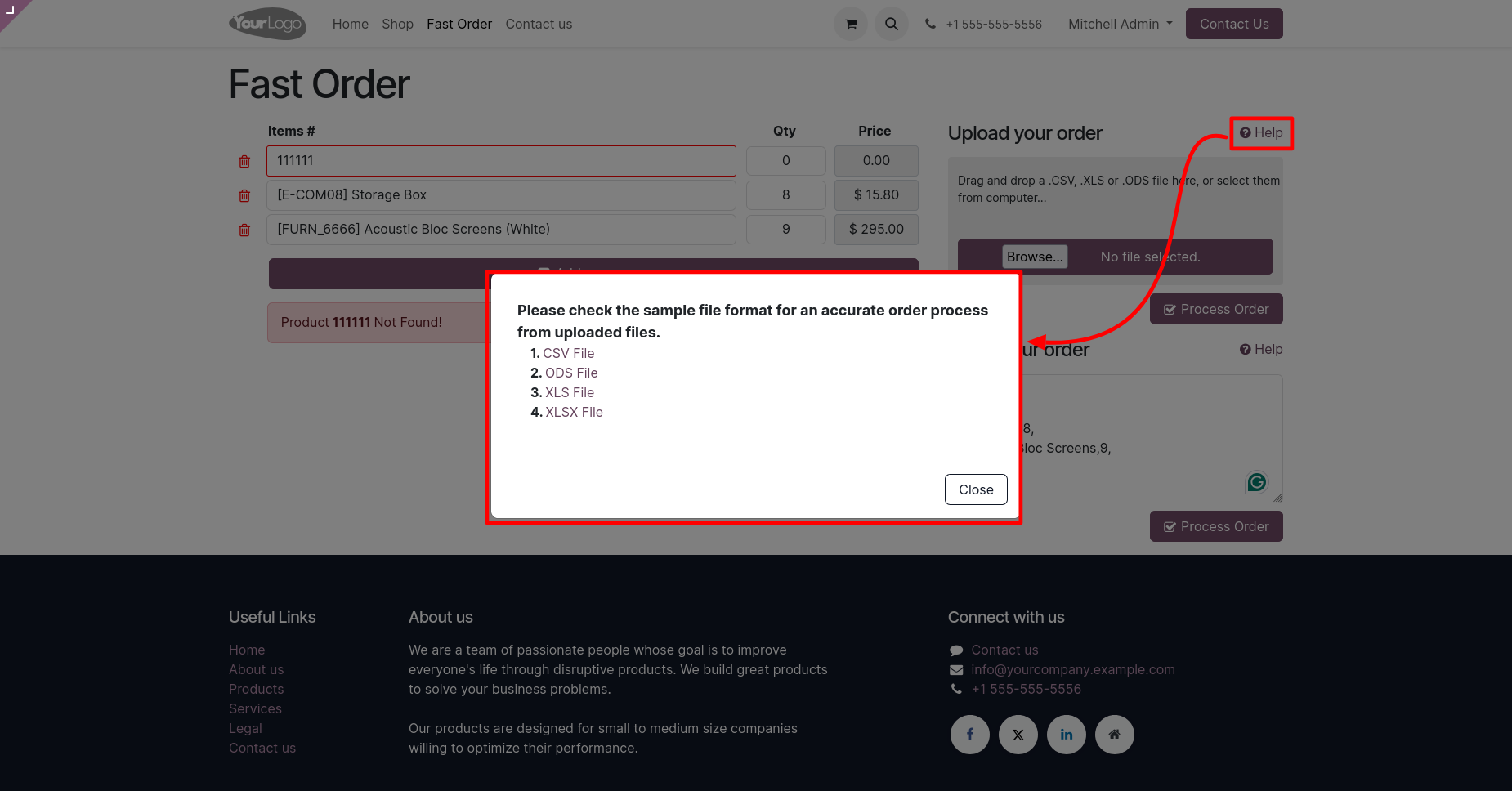
You can upload file or drag & drop file here.
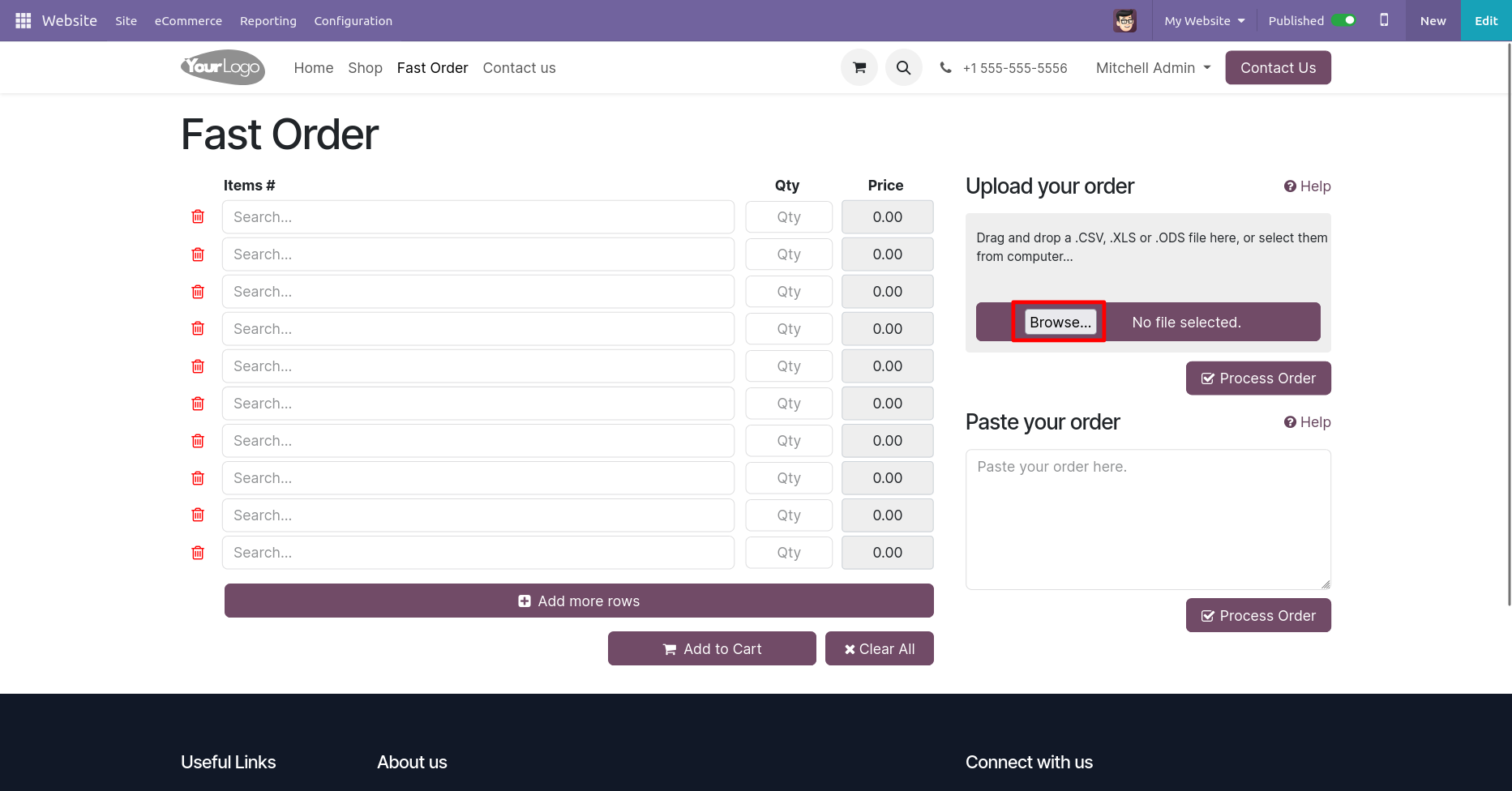
After adding a file, click on the 'Process Order' button.
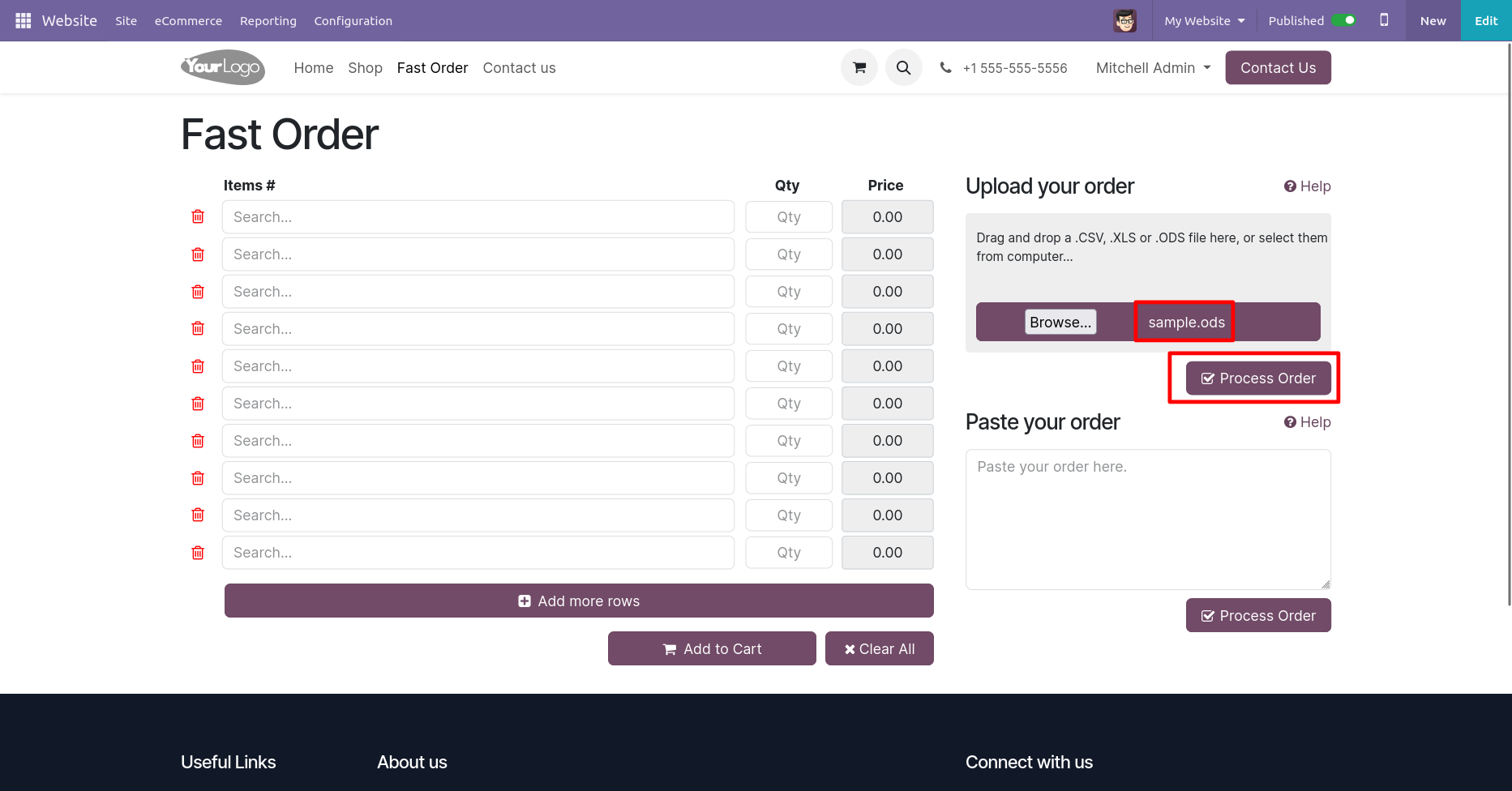
Add products and then press add to cart.
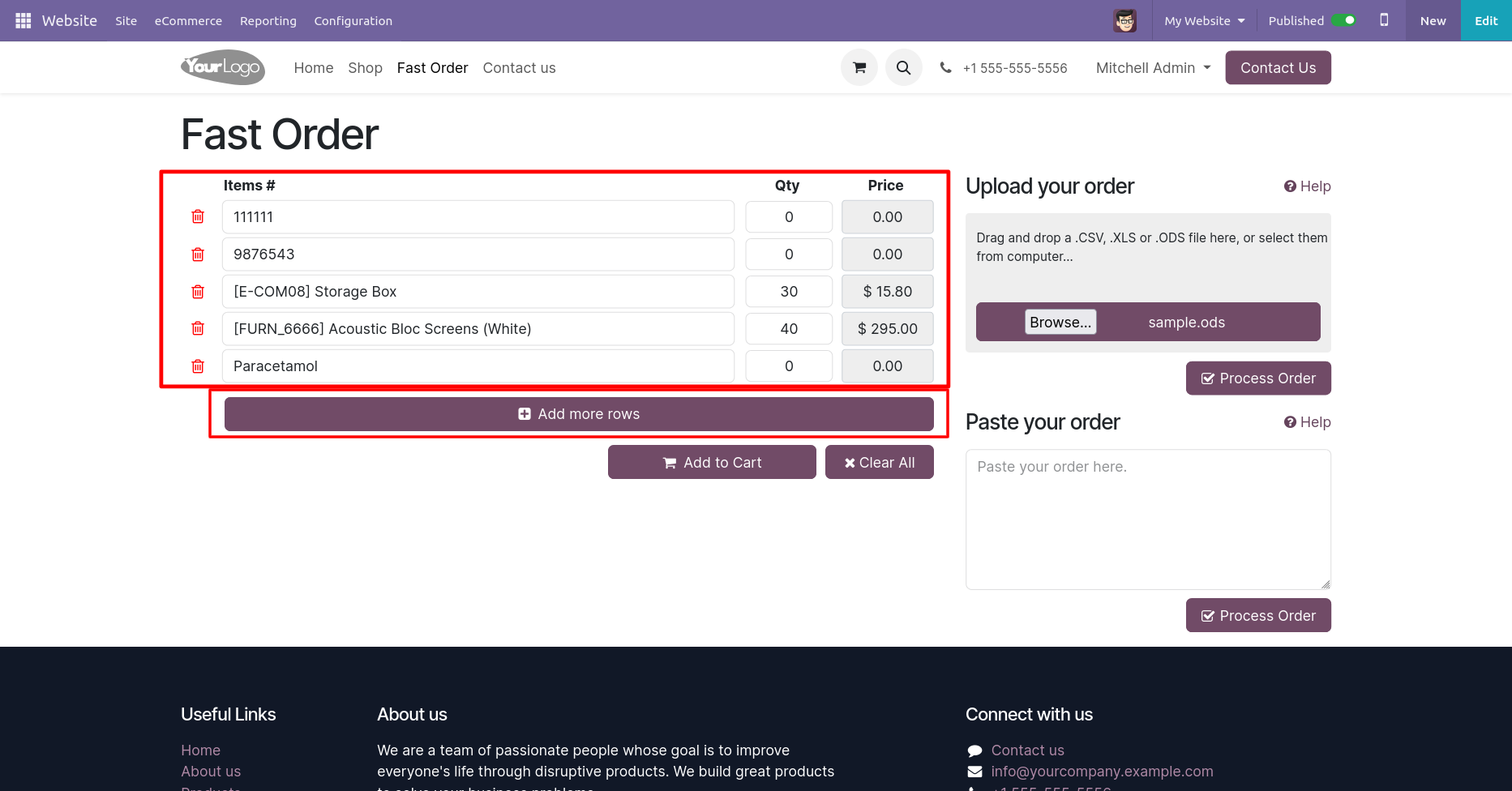
If any products not found then it shows a warning message.
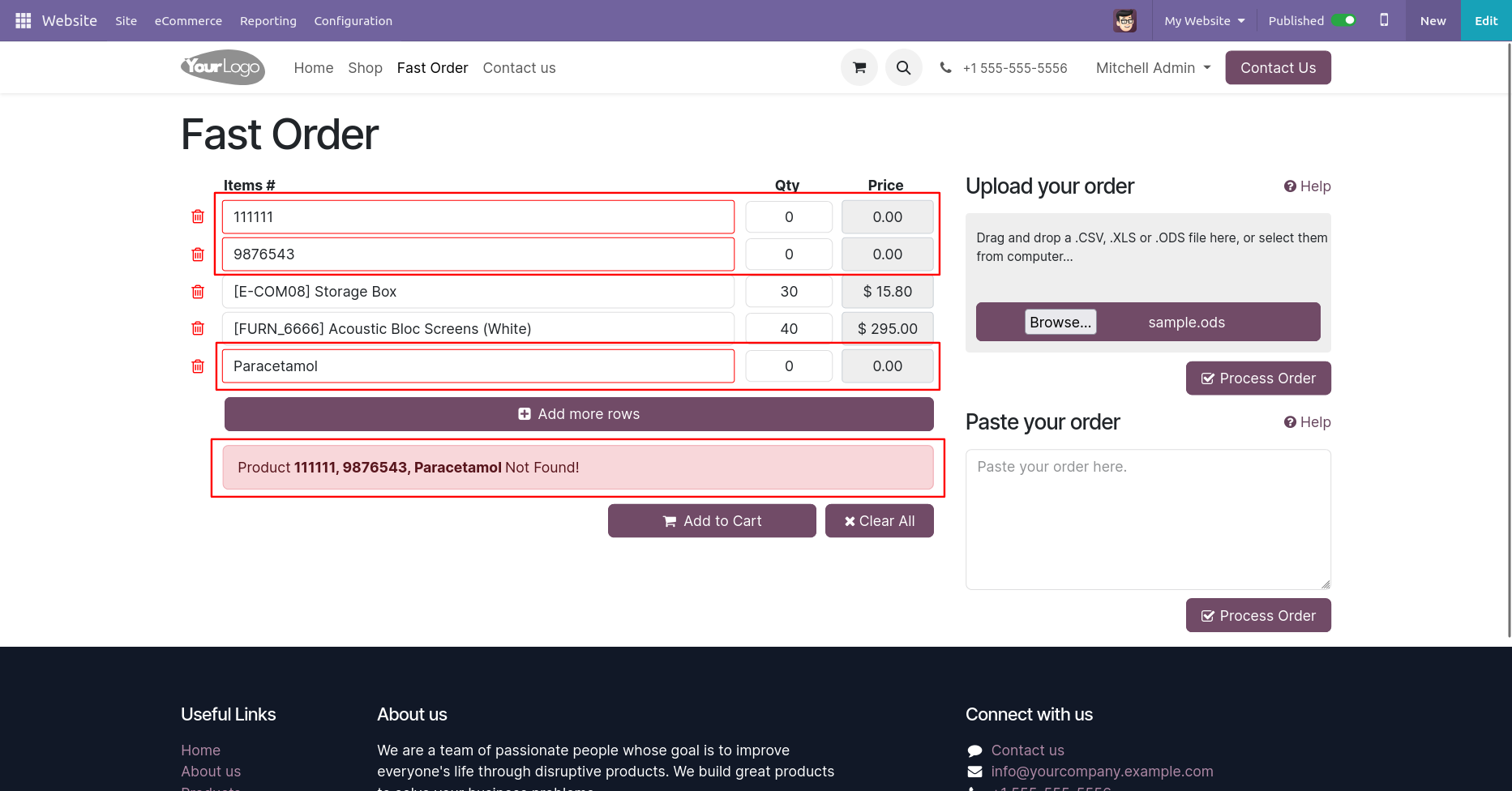
Add a file, click on the 'Process Order' button.
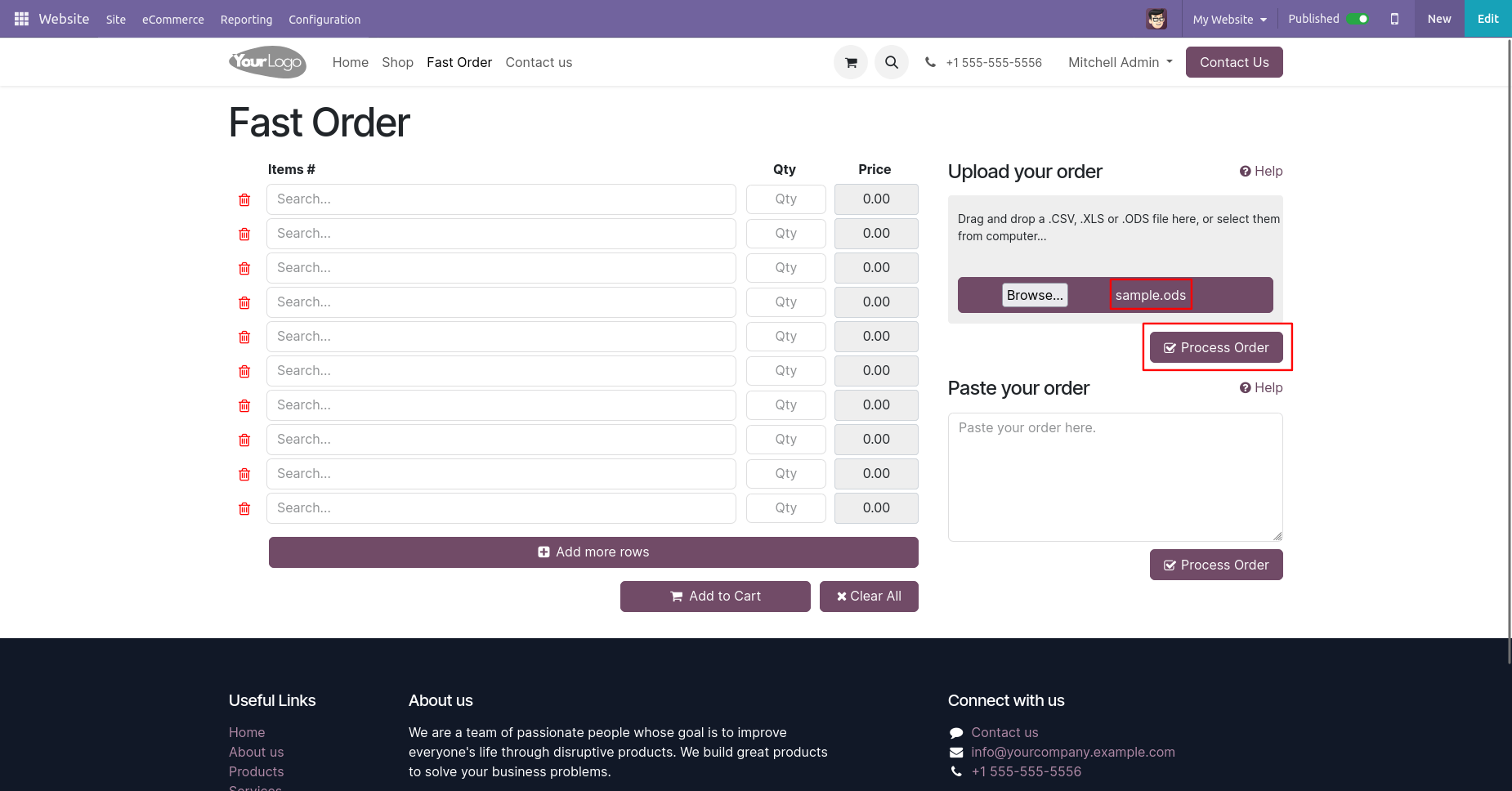
Check added products and click on the 'Add To Cart' button.
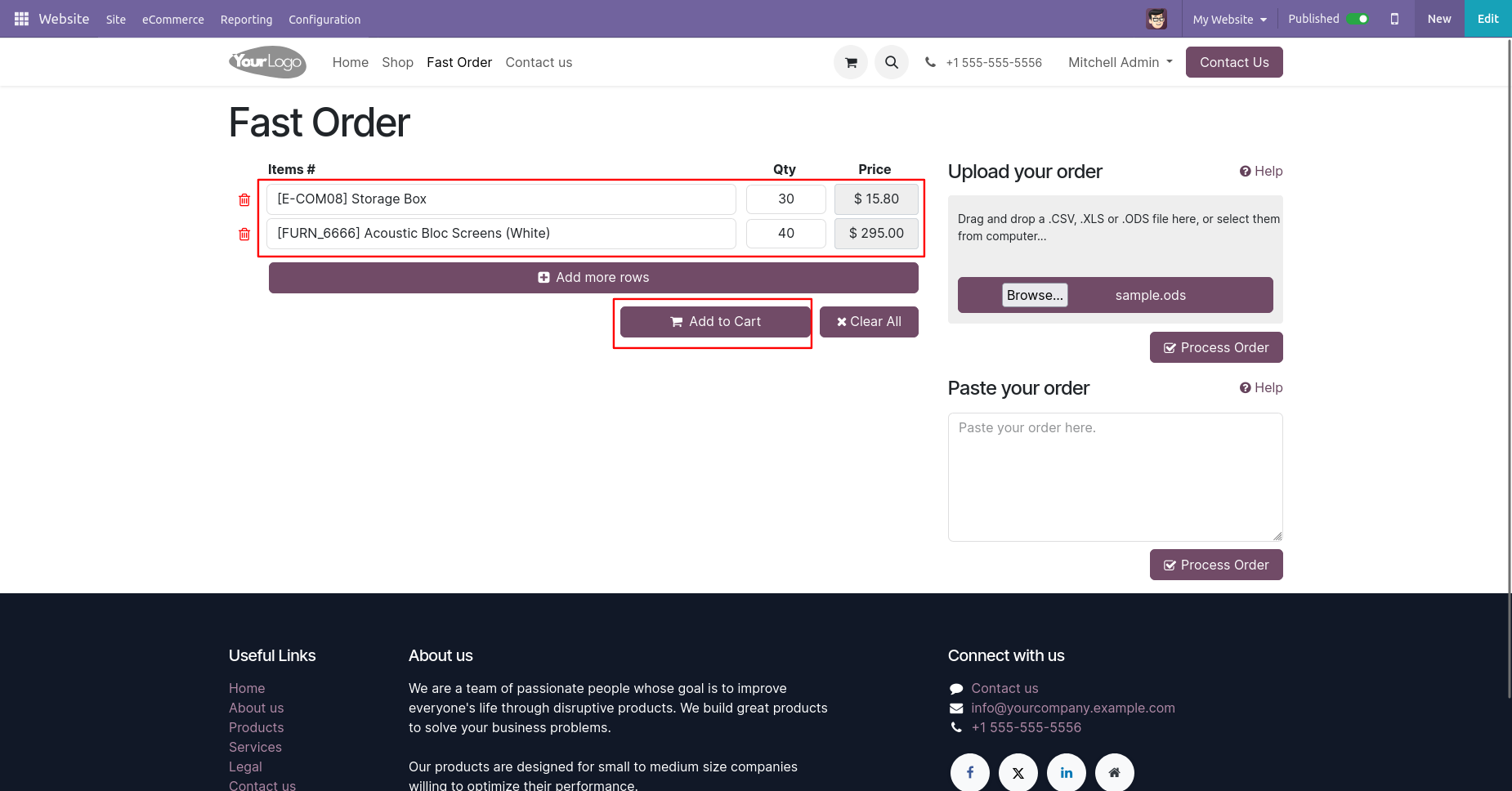
All Products added to the cart.
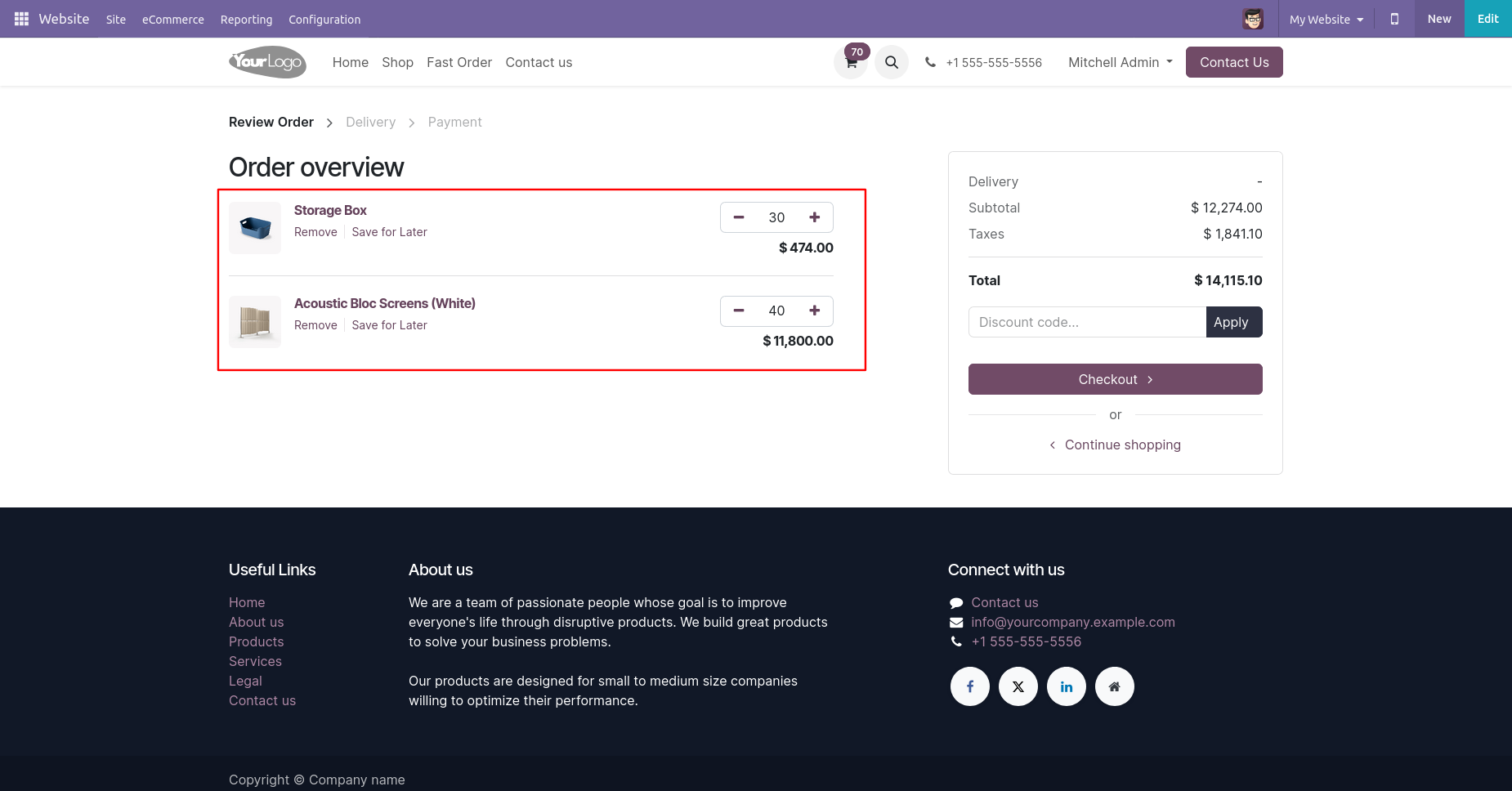
You can see sample text for product details from 'Help'.
It shows warning if you enter improper value.
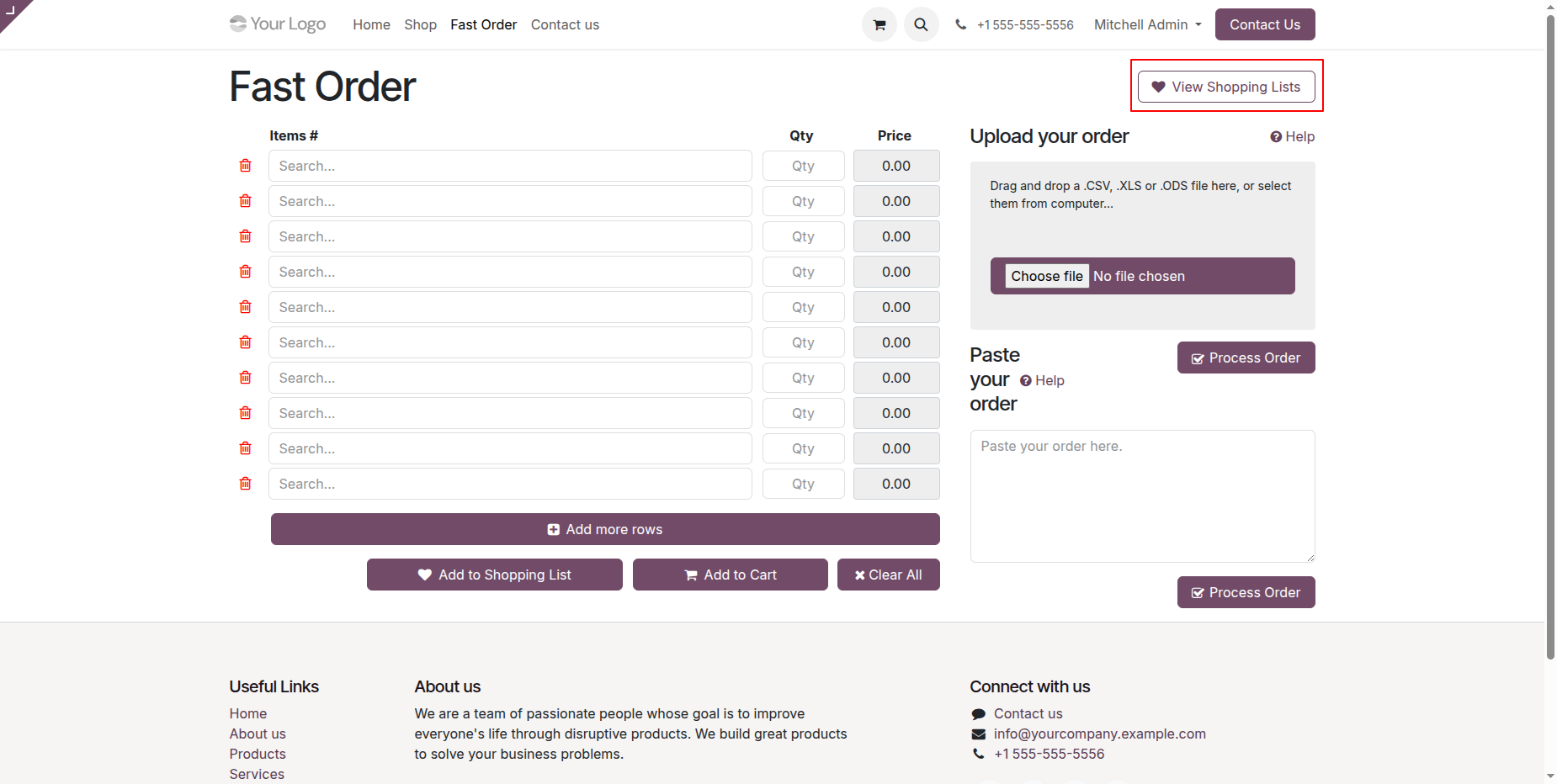
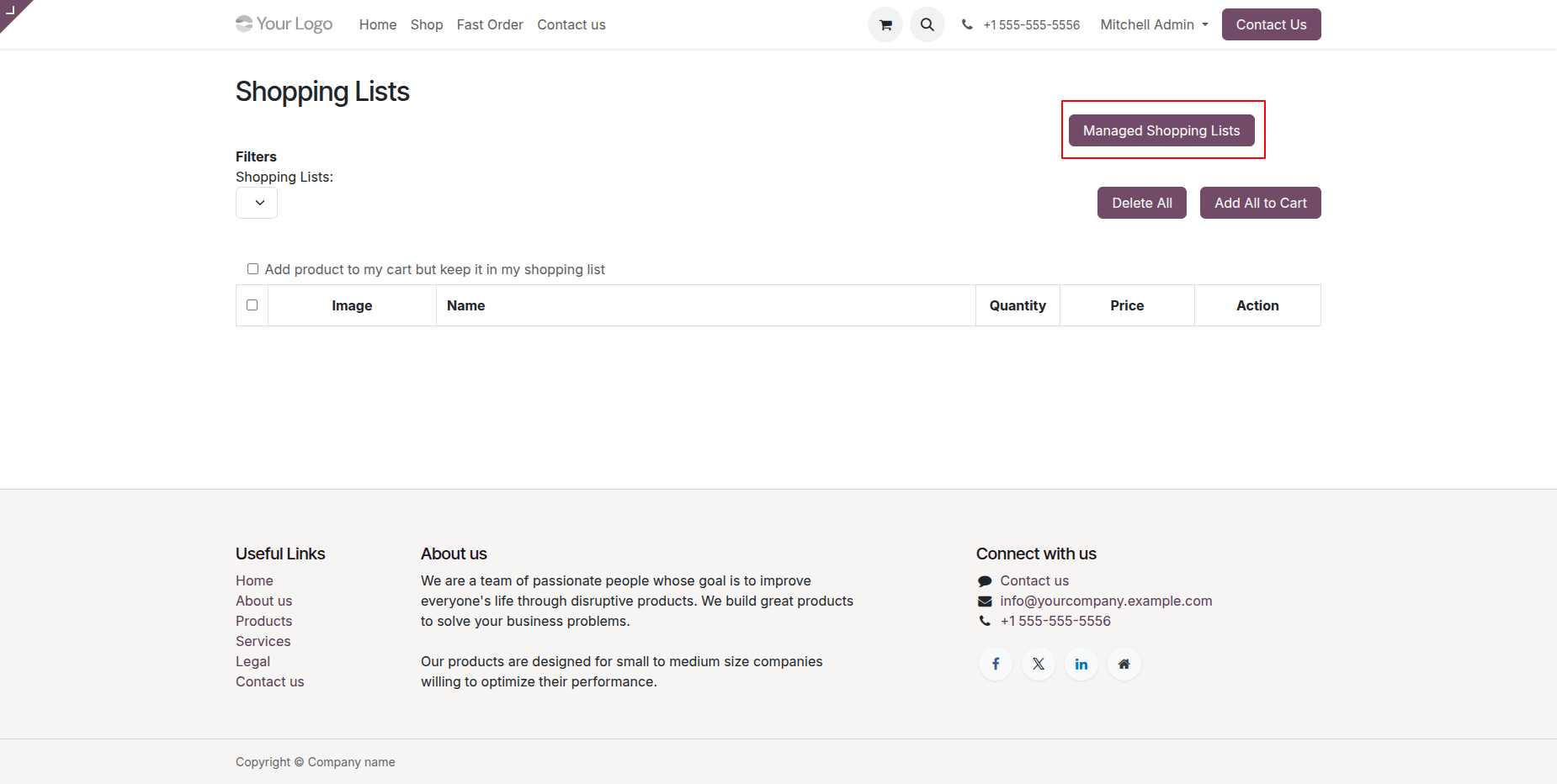
Fast order menu. Click on the 'View Shopping Lists'.
Click on the 'Manage Shopping Lists' button.
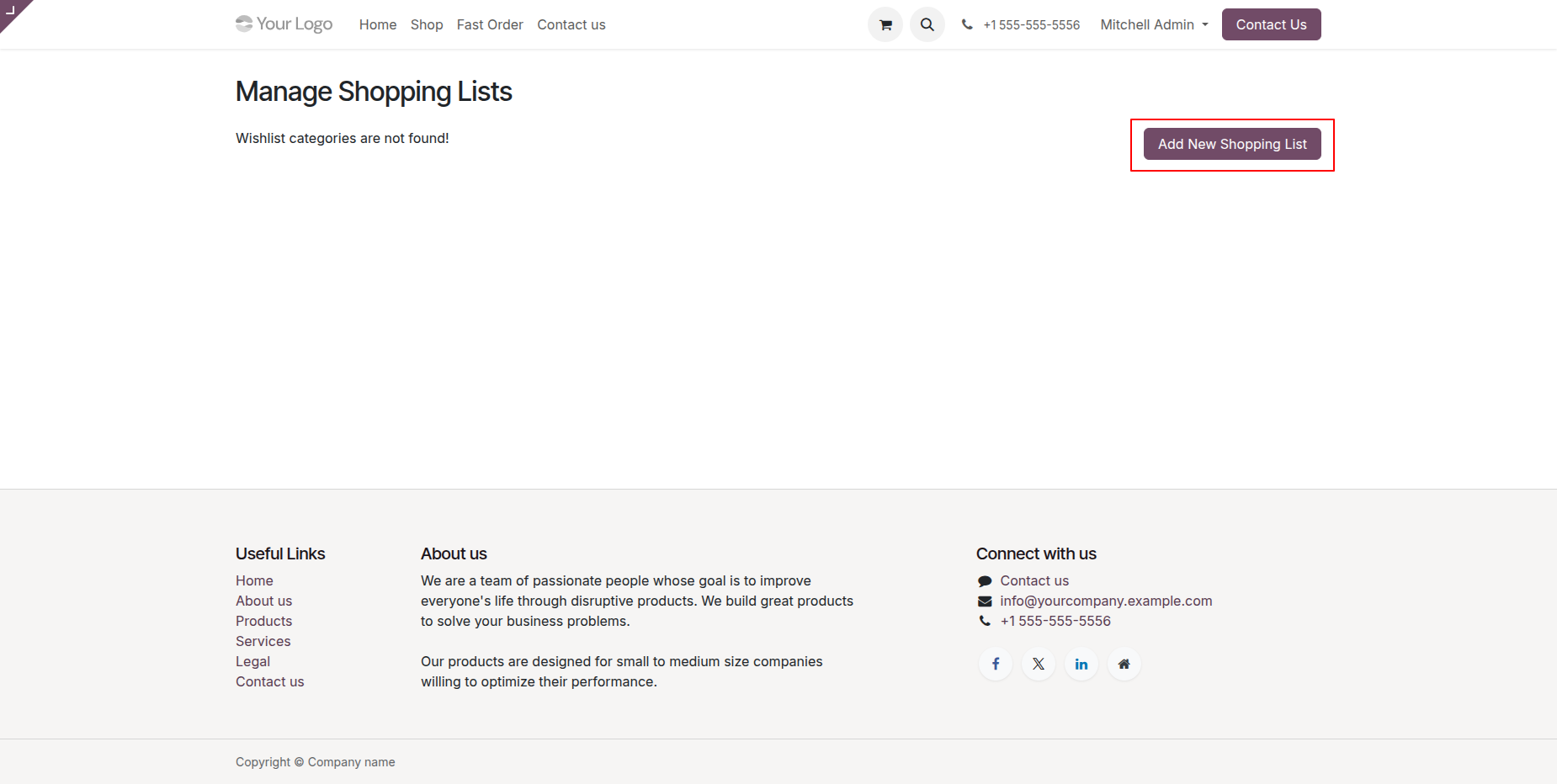
To create a new shopping list, click the 'Add New Shopping List' button.
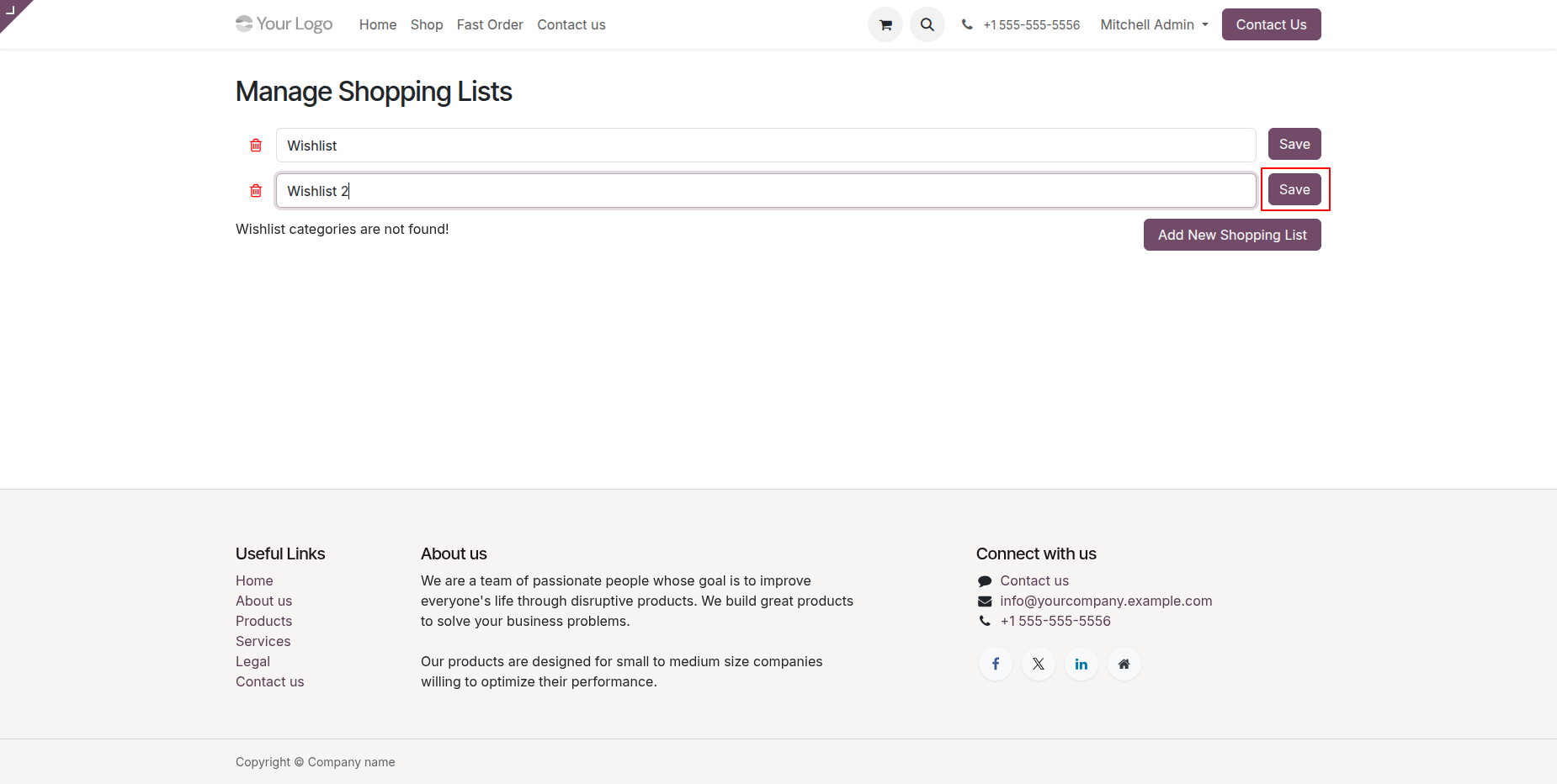
Add a new shopping list and click pn the 'Save' button.
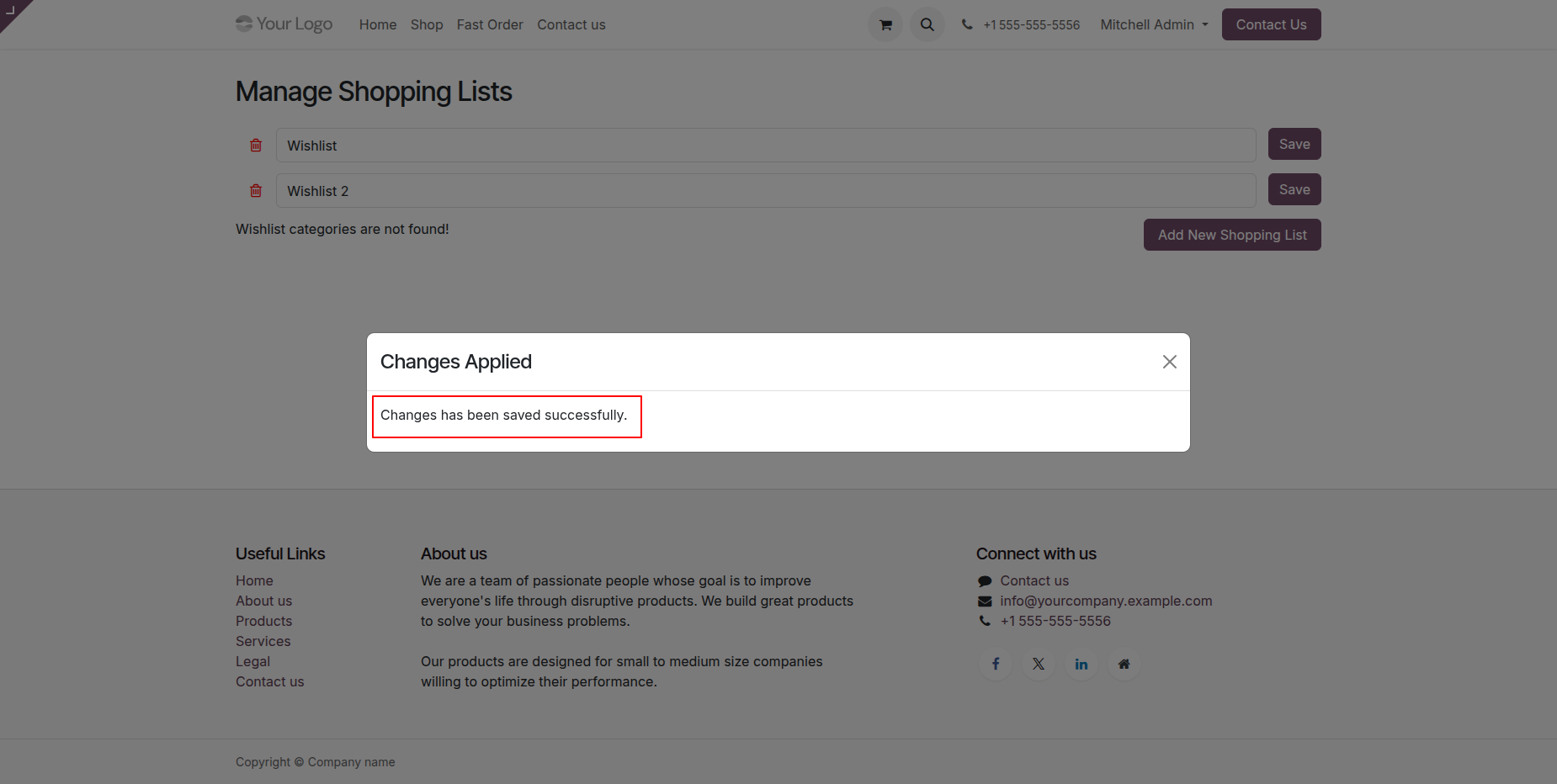
After that, you will receive the 'Changes Applied notification popup.
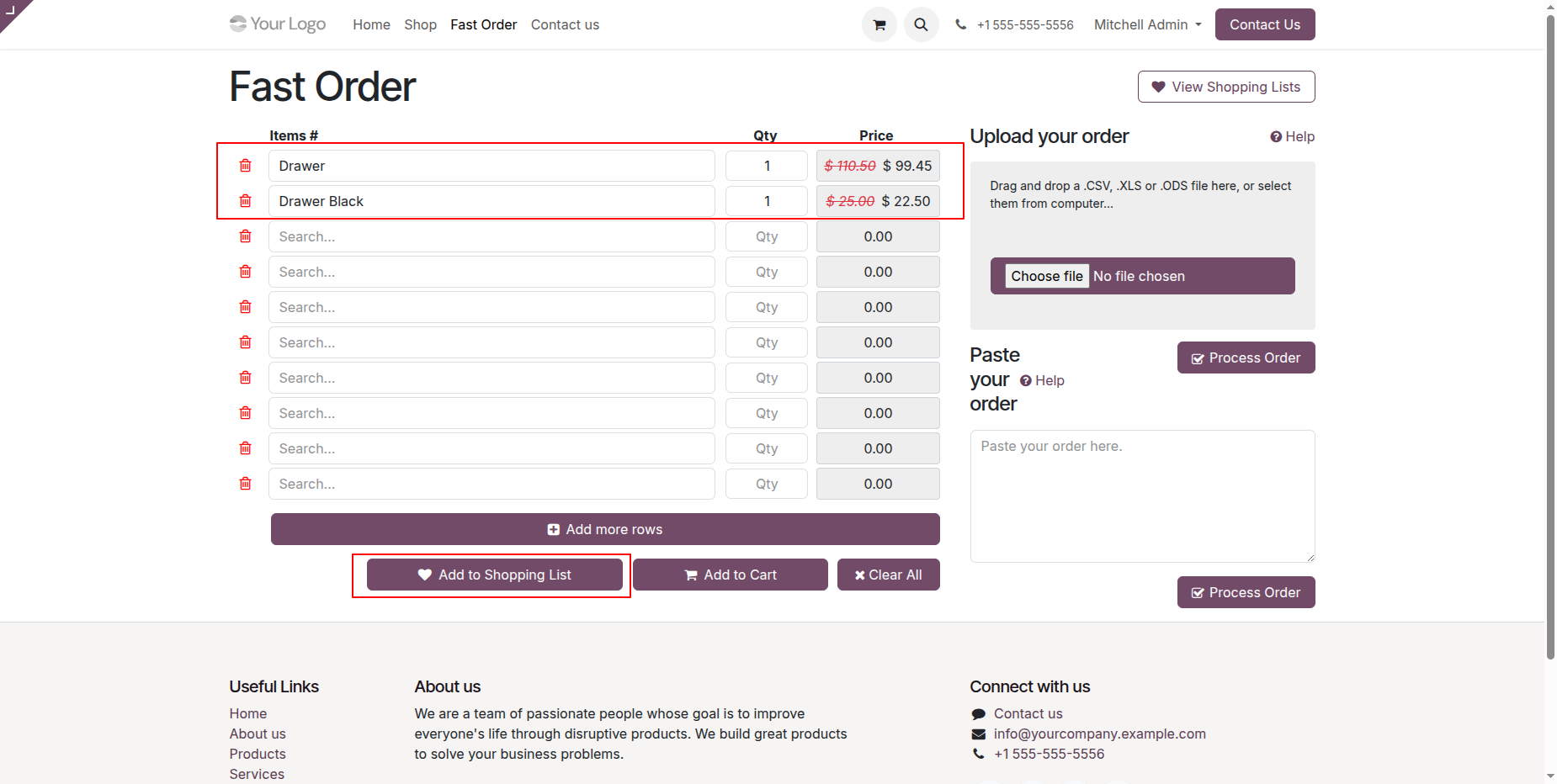
Add items and click on the 'Add To Shpping List' button.
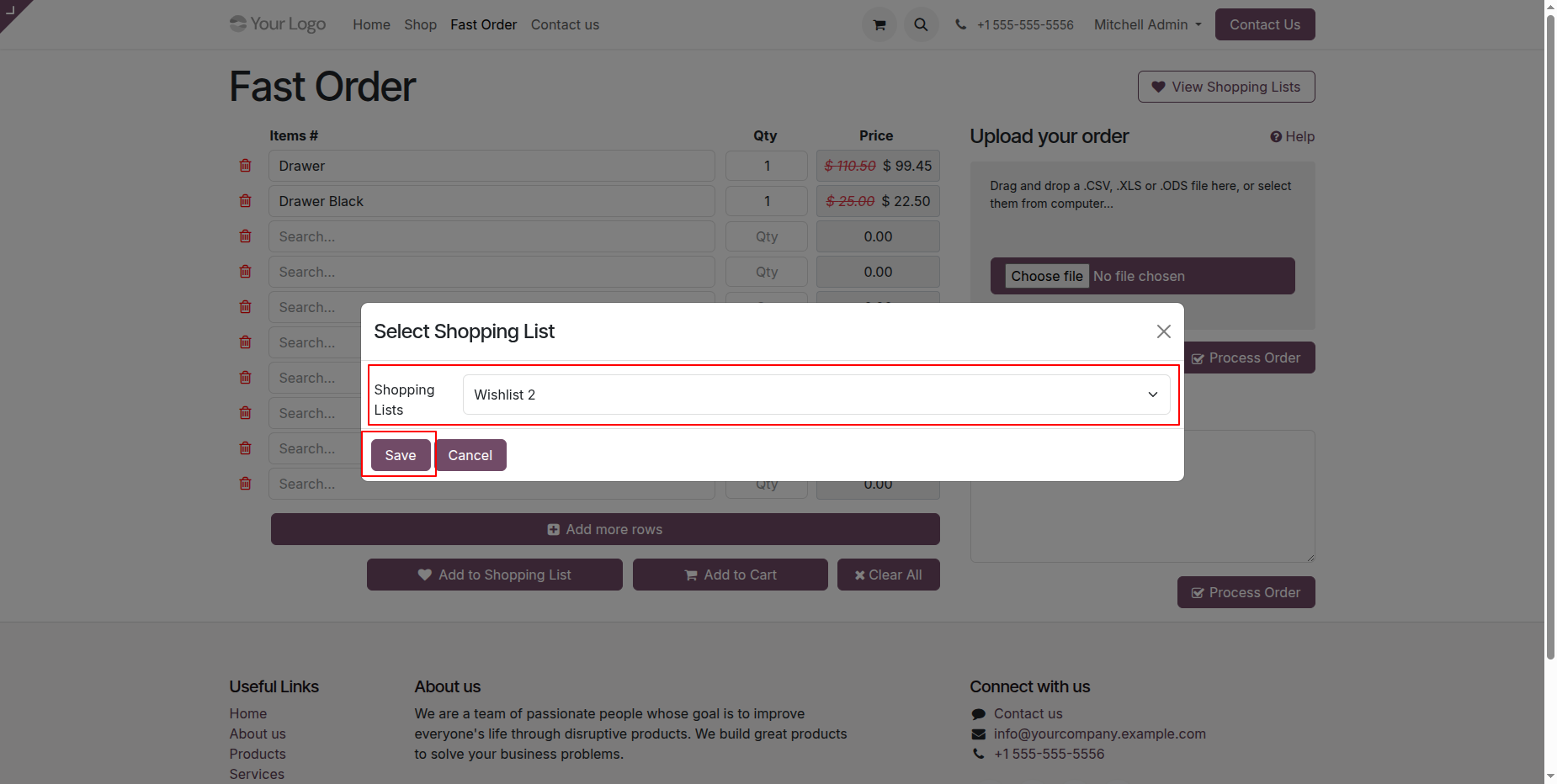
Select the shopping list and click on the 'Save' button.
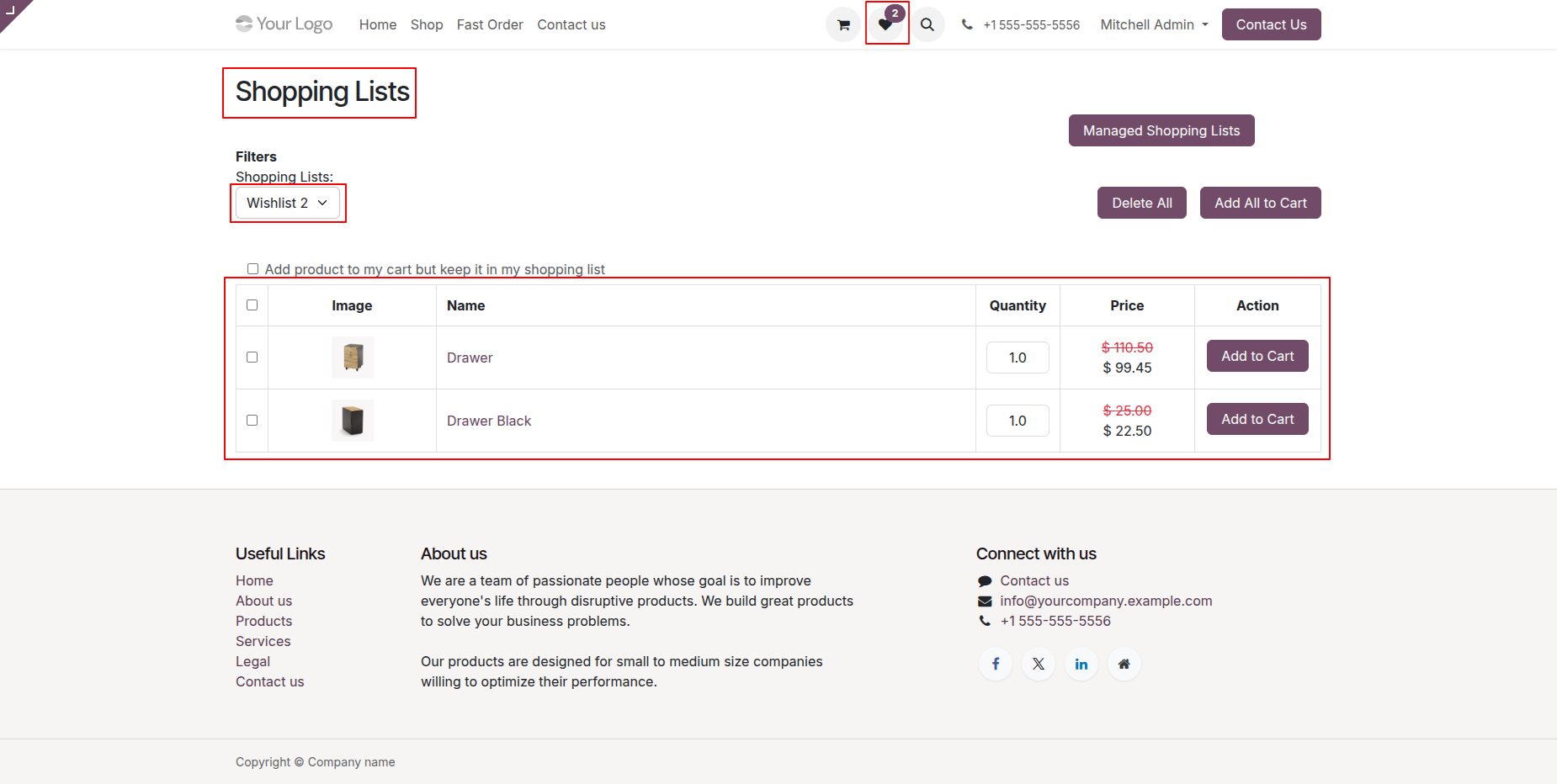
You can view the shopping list products by clicking on the 'Shopping List' icon.
Here, you can see the two items that were added to the shopping list.
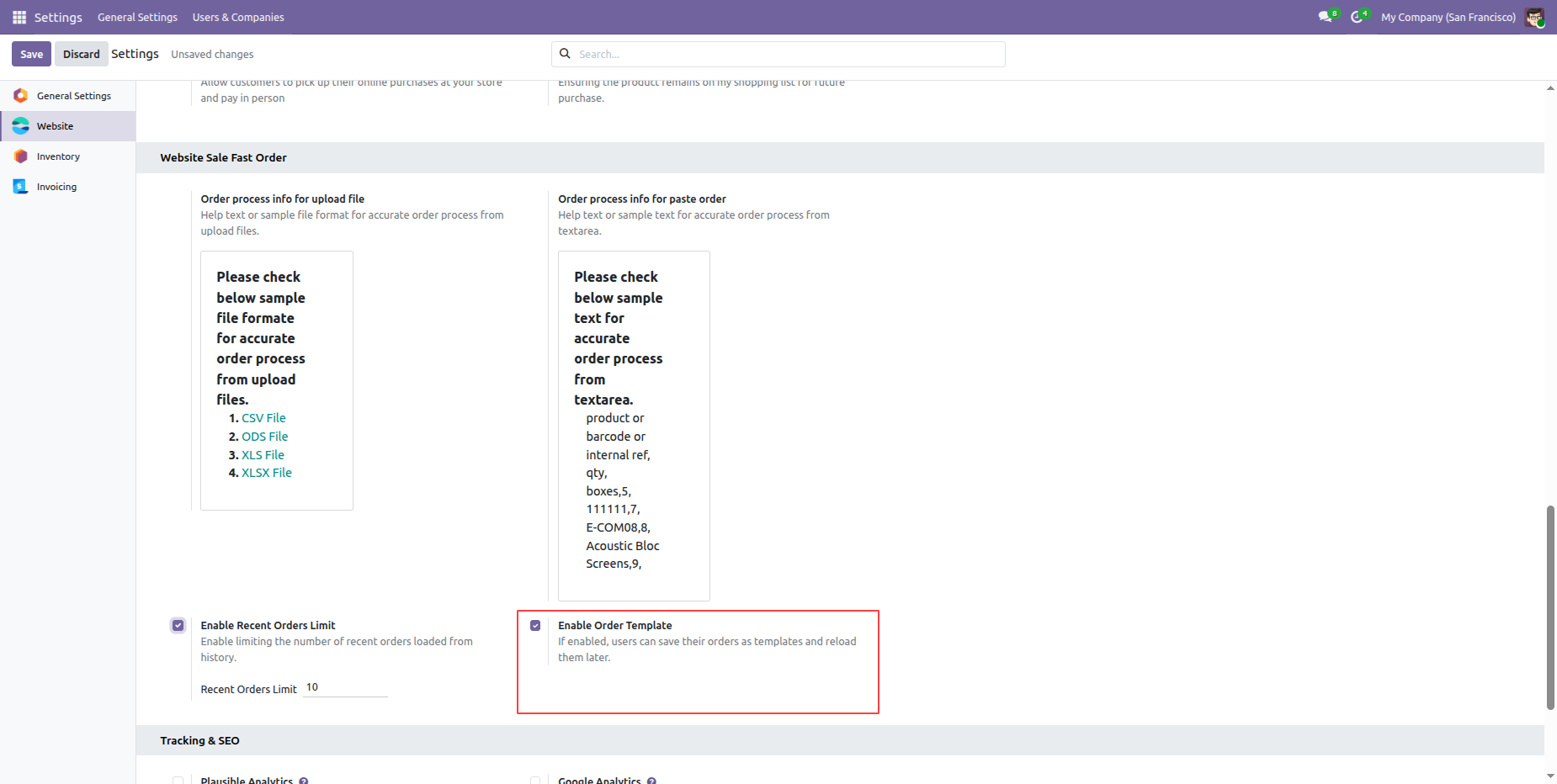
Enable the Order Template option from the Website Settings.
Add products in the Fast Order screen and click the 'Save Template' button to store the selected products as a reusable template.
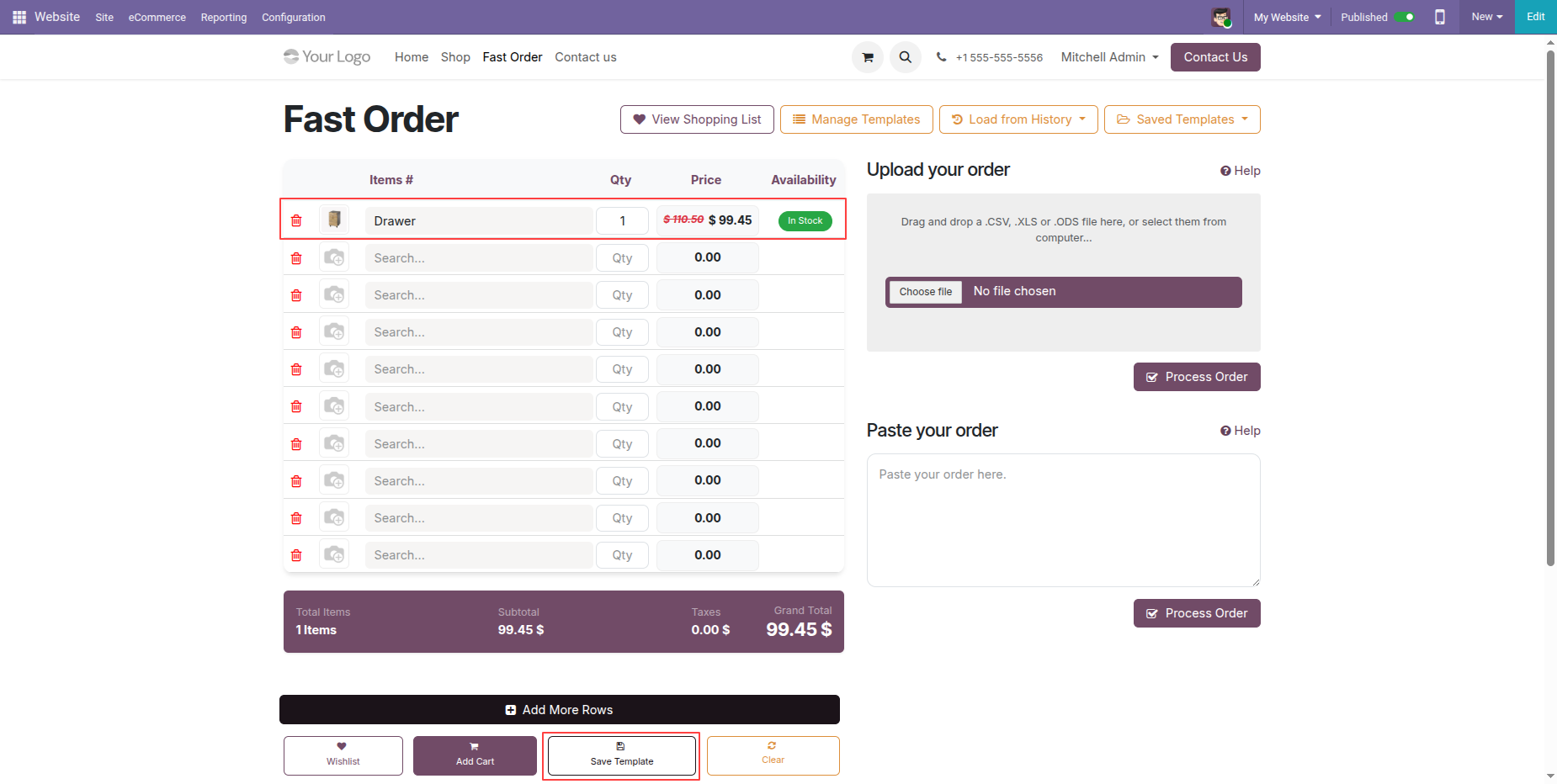
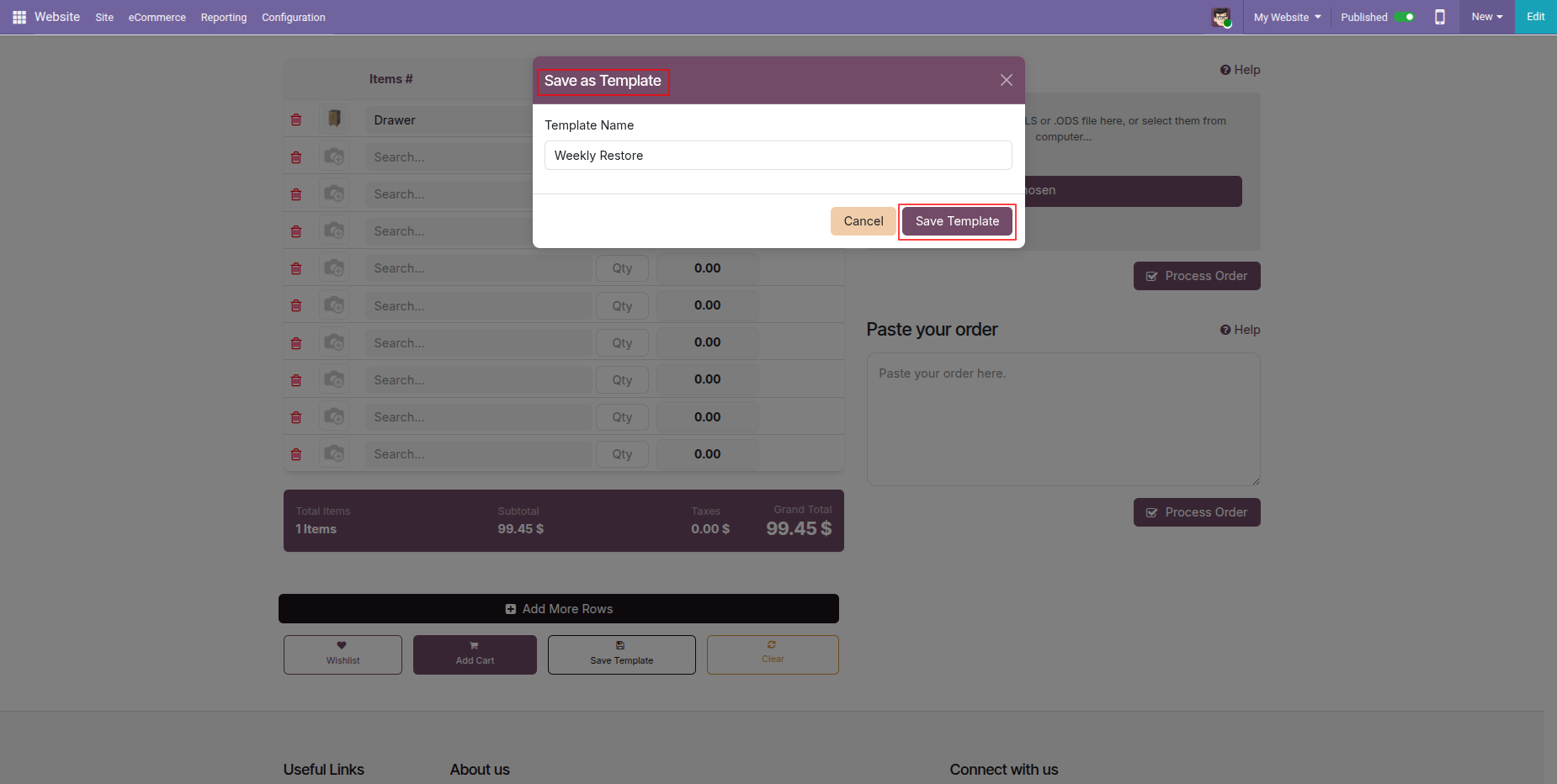
By clicking the 'Save Template' button, a wizard will open to enter the template name.
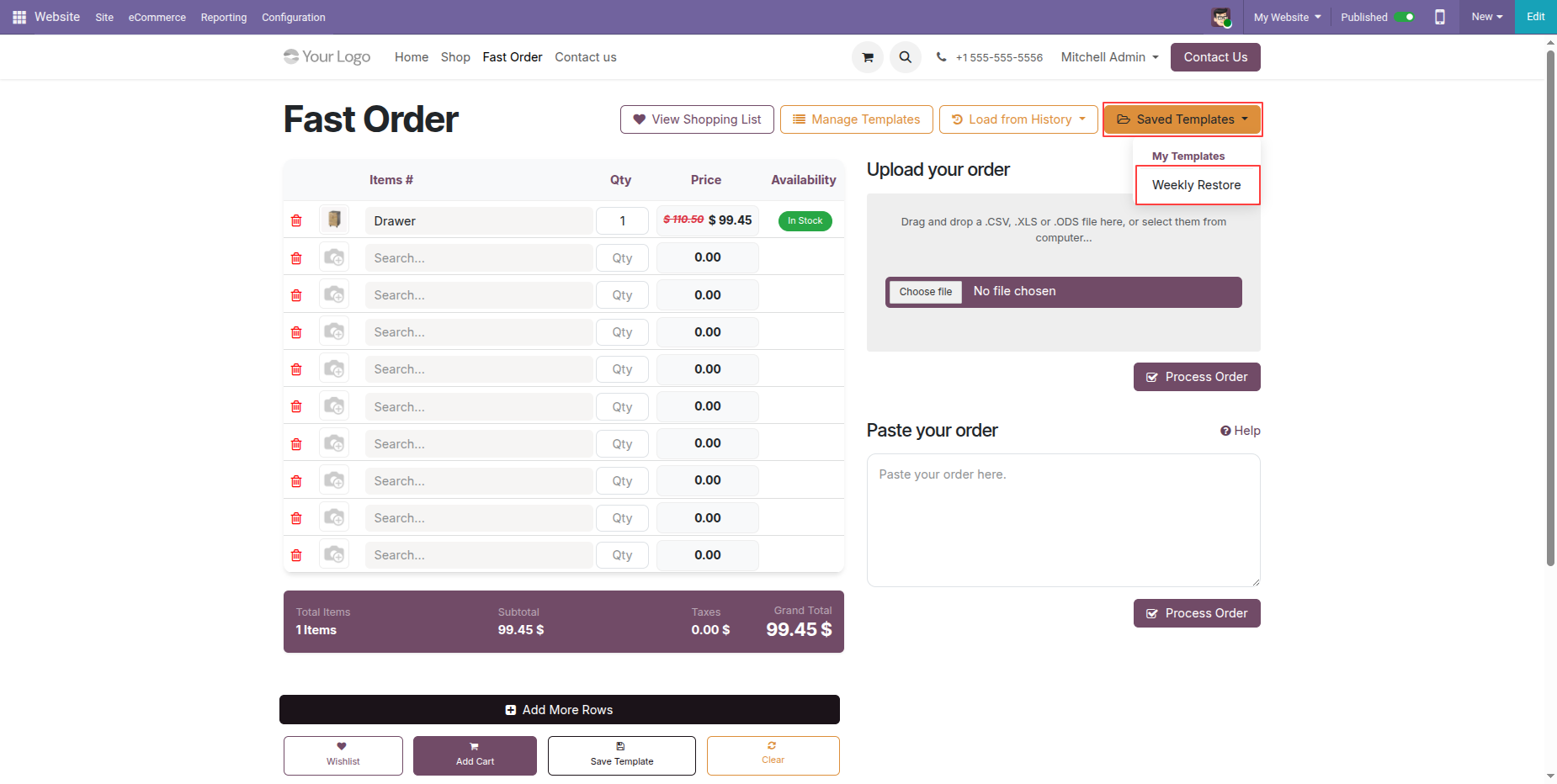
Users can view all saved templates under the 'My Templates' section.
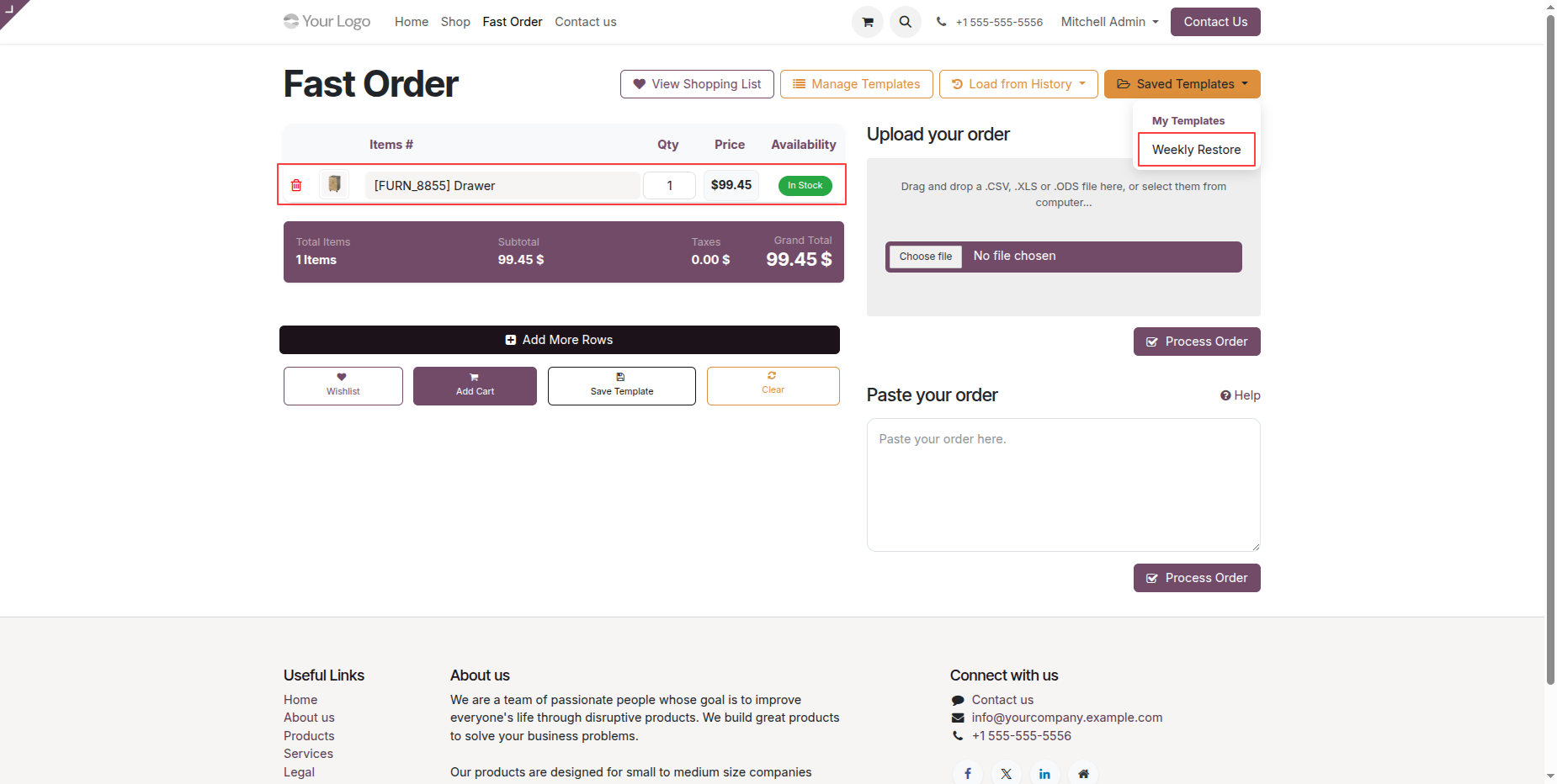
To add products from a saved template, click on the template name under 'My Templates.' This will load all products saved in the selected template.
To manage saved templates, click on the 'Manage Template' option from the Fast Order screen.
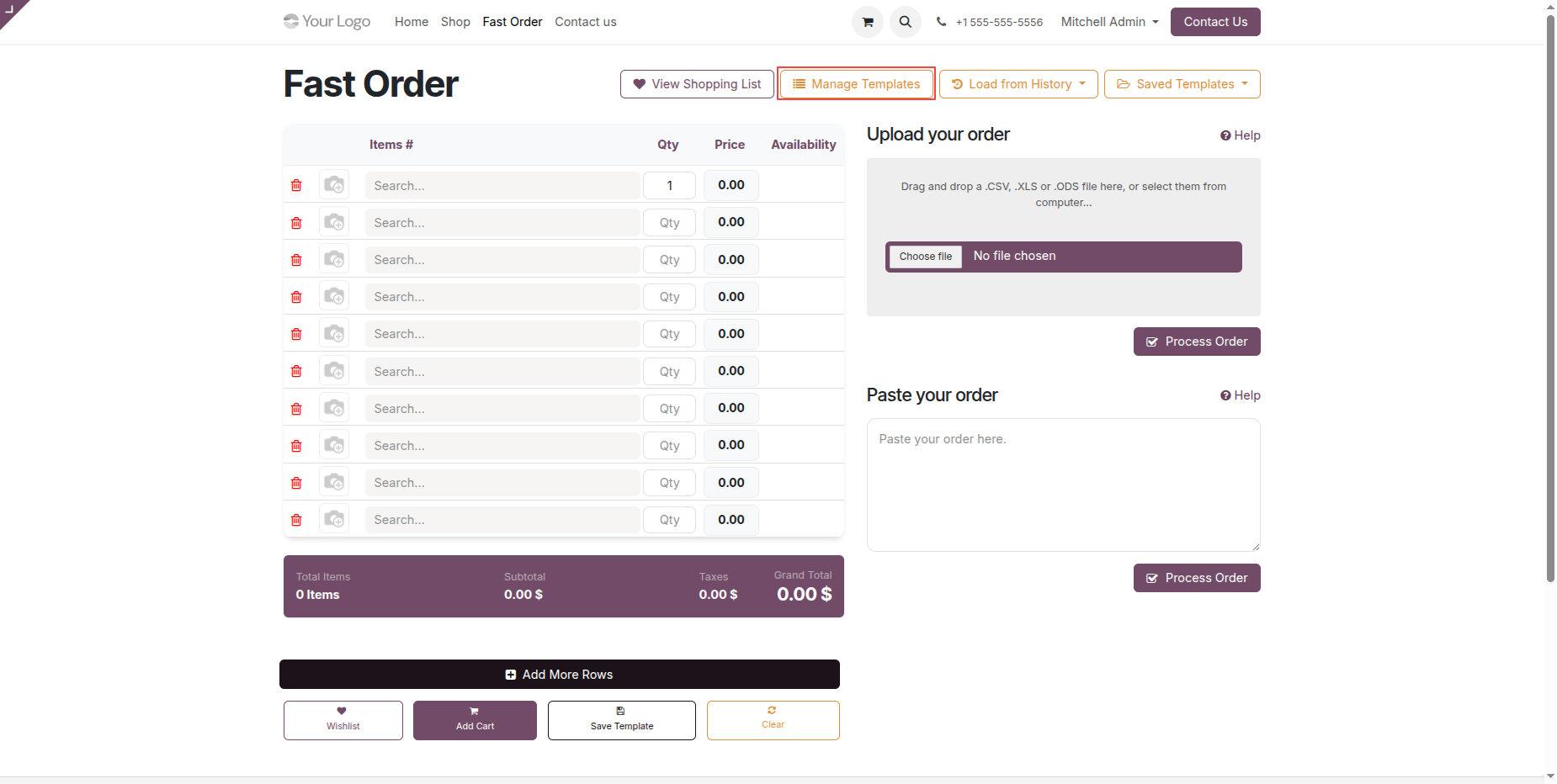
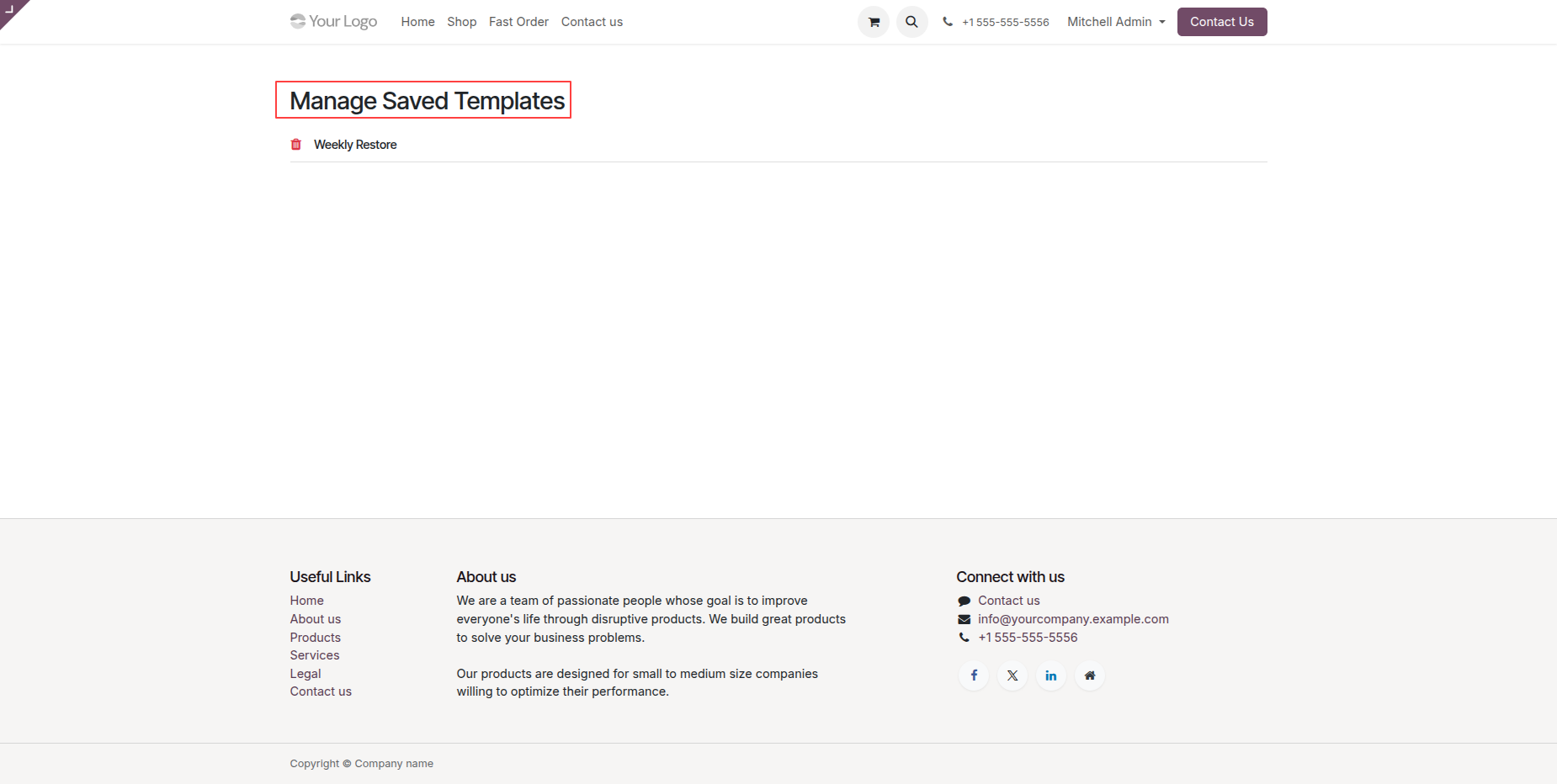
By clicking on 'Manage Template,' a list of all saved templates will open for management.
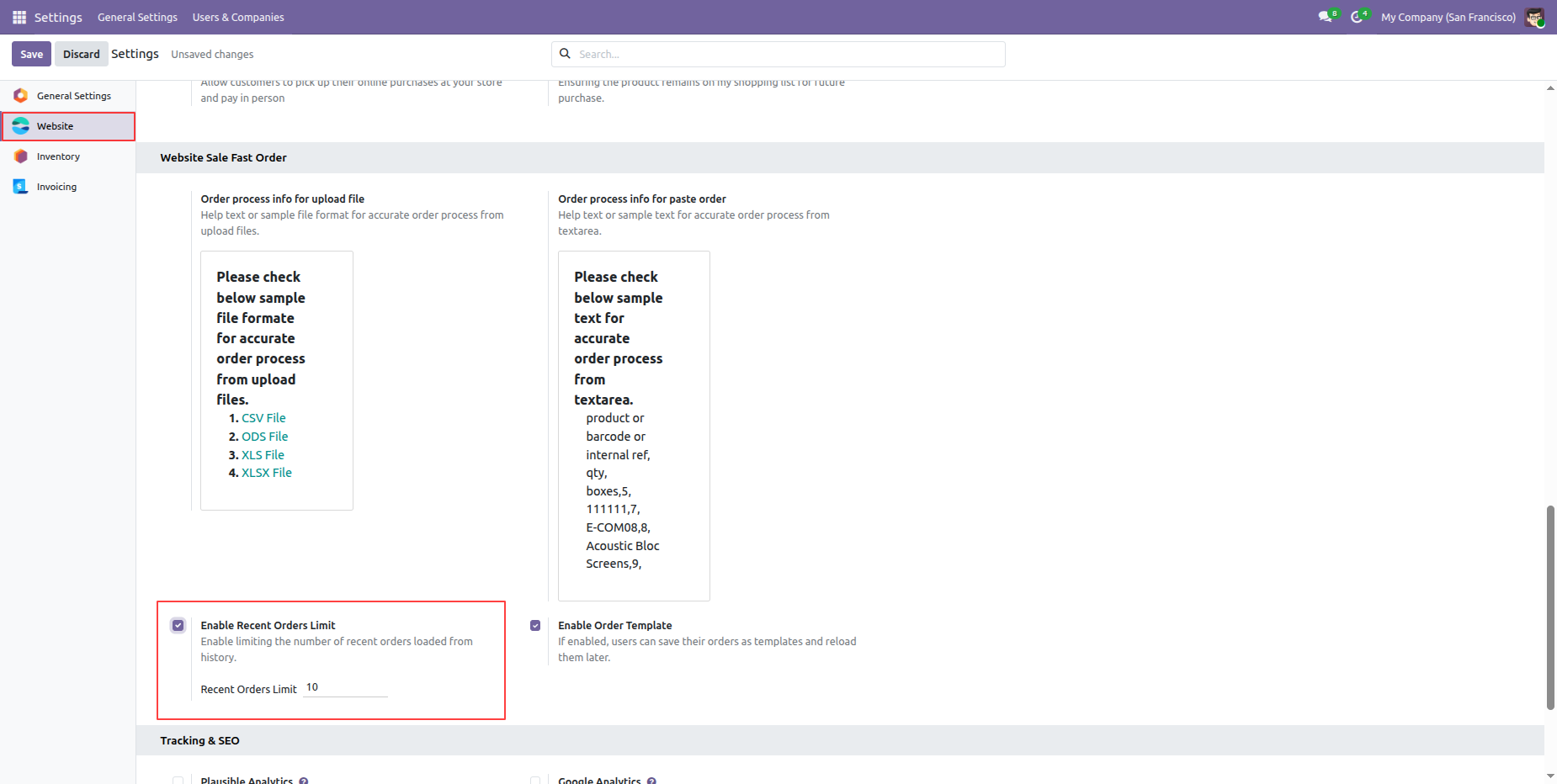
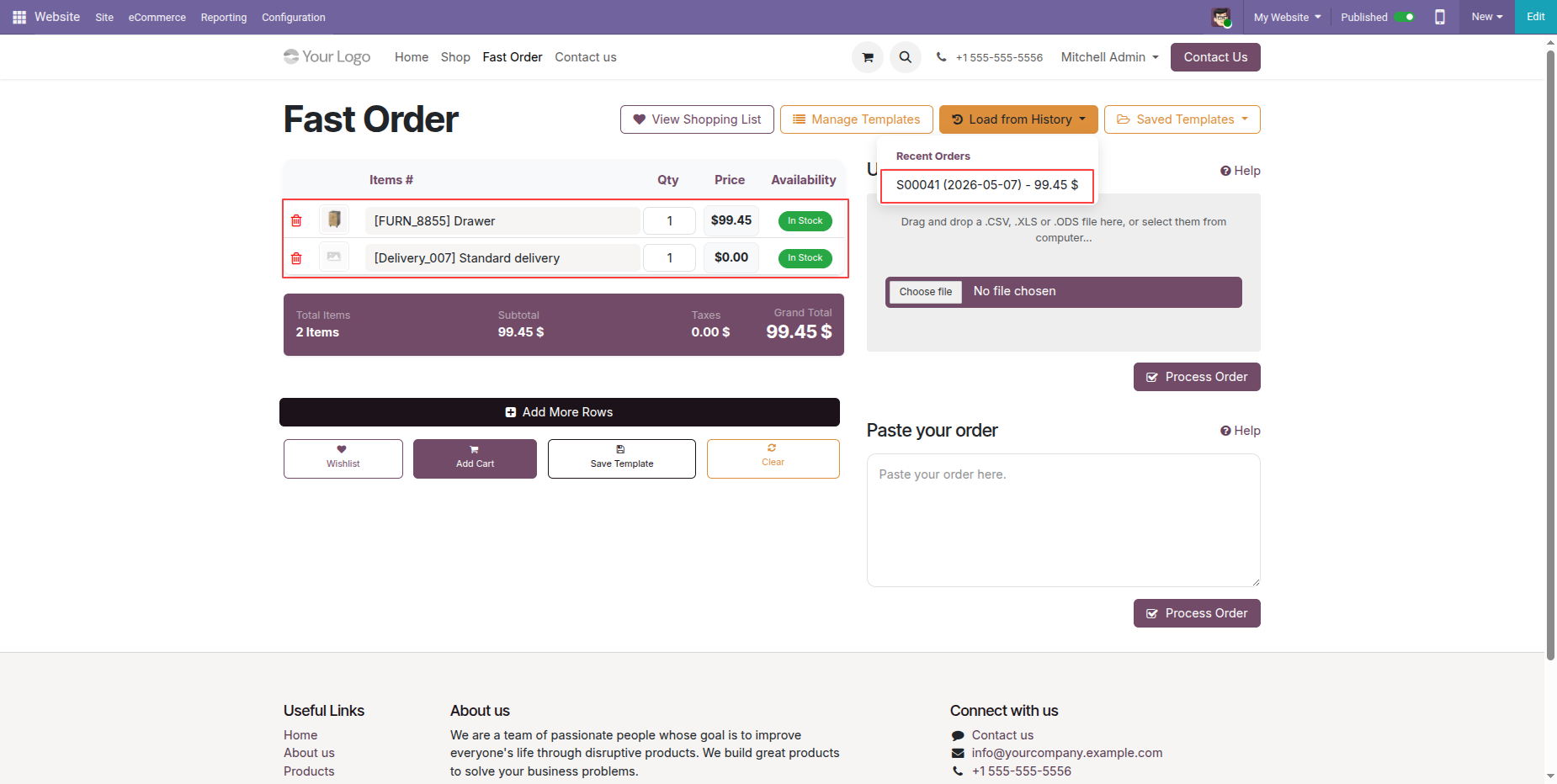
Enable the recent orders limit from the Website Settings.
Click the 'Last from History' button to view recent order history. Select a record from the recent history to add the same order again.
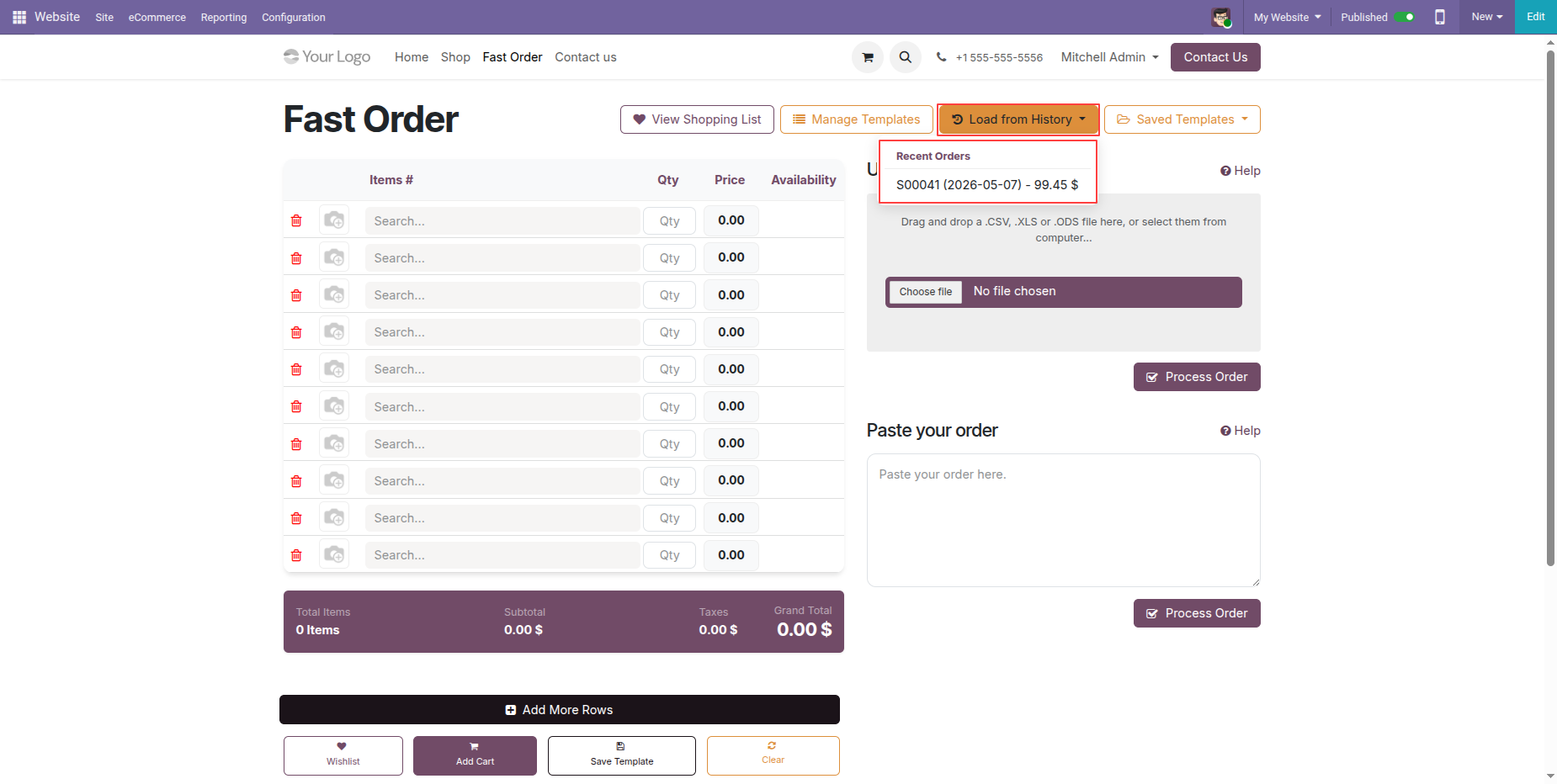
Products are added from the last order history by clicking the recent orders.
Version 19.0.4.0.0 | Released on : 28th May 2026
Version 19.0.3.0.0 | Released on : 9th January 2026
Version 19.0.2.0.0 | Released on : 25th November 2025
Version 19.0.1.0.0 | Released on : 18th November 2025
- Yes, this app works perfectly with Odoo Enterprise (Odoo.sh & Premise) as well as Community.
- No, this application is not compatible with odoo.com(odoo saas/Odoo Online)
- Yes, to test this module, please contact us at sales@softhealer.com.
- Please contact us at sales@softhealer.com to request customization.
- Yes, we provide free support for 365 days from the date of purchase.
- Yes, you will receive lifetime free updates for the version of the module you purchased.
- No, there is no need to install any additional libraries.
- Yes, for version 12 and above, you need to purchase the module separately for each version you intend to use.
- No, exchanges or refunds are not allowed. Please make sure to select the correct version before purchasing.
- You can contact us at support@softhealer.com for language translation support. We use Google Translator tools to provide translations in multiple languages, so the accuracy may vary. We welcome your suggestions to help improve translations.
Discover Our Latest Apps