












Vendor Account Statements

The account statement
is the summary report of the financial activities. Statements show how much money is spent within a
specific time period. An account statement is basically an overview of your financial performance. The
statement is one type of tool for vendors. Vendor get a reminder for the due amount.
This module allows vendors to see statements as well as overdue statement details.
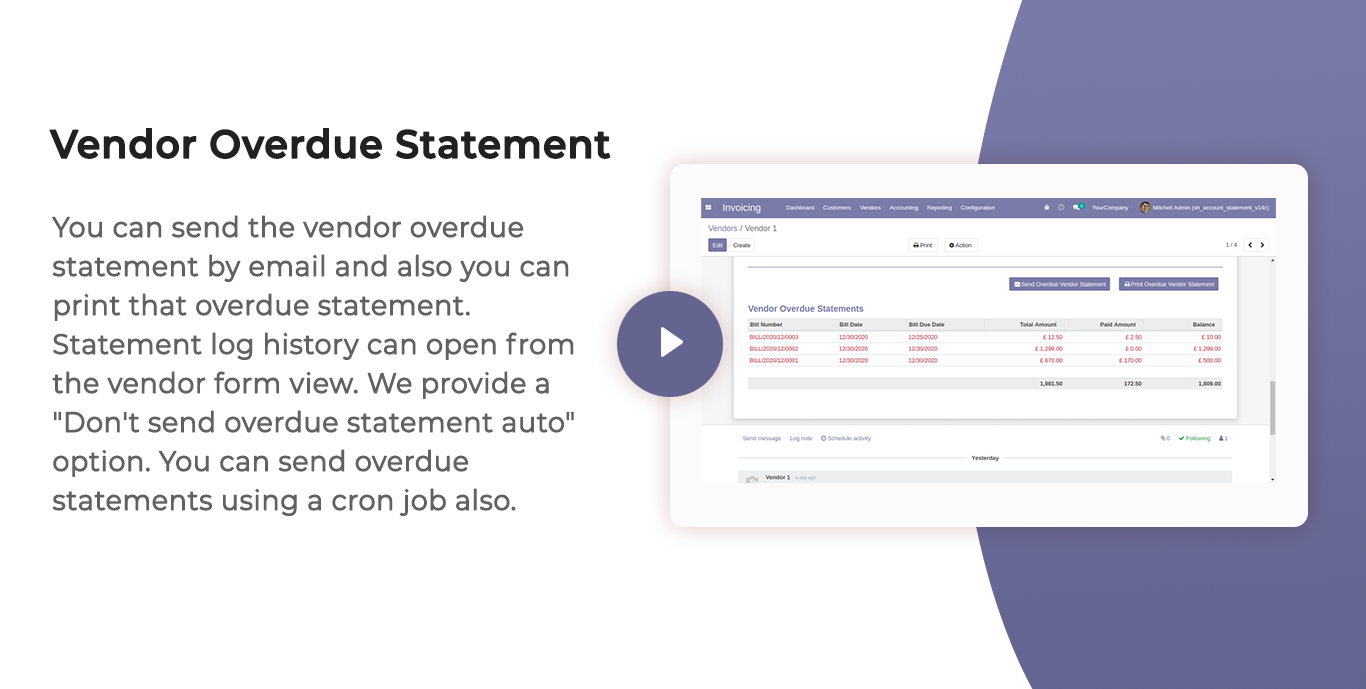
You can send statements by email to the vendors. You can also see vendors mail log history with
statements and overdue statements.
You can also send statements automatically weekly, monthly & daily using cron job also.
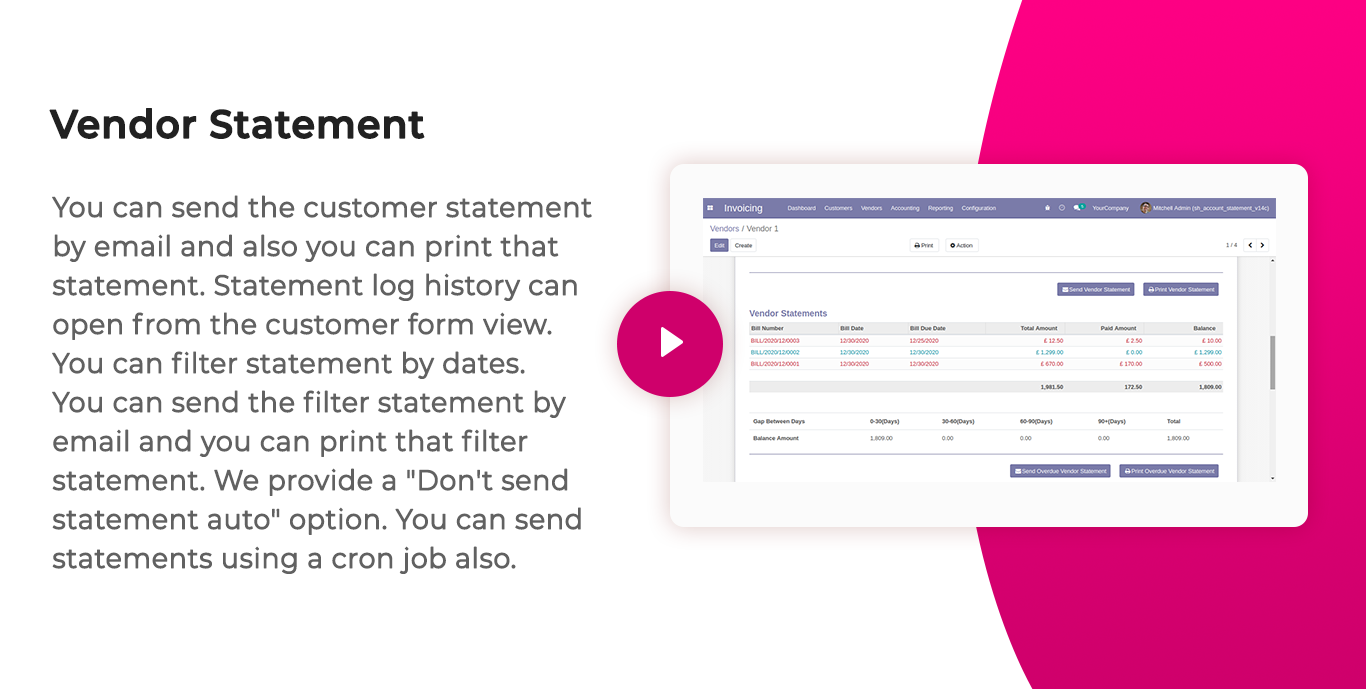
You can filter statements by dates, statements & overdue statements.
You can Also filter statements based on their configuration, such as Not Paid, In Payment, Paid, ETC...
You can group by statements by the statement type, mail sent status & vendors.
You can print statements and overdue statements.
Why account statement is important?
The importance of account statements is that show everything about transactions, like date, due date, total amount, paid amount & balance. The statements can be used when we have a misunderstanding or miss management about our transactions. The account statement's purpose is to review your account transactions that where you spent your money and how much money you spent.
Related Modules
Key Features
Features

Vendor Statement Configuration
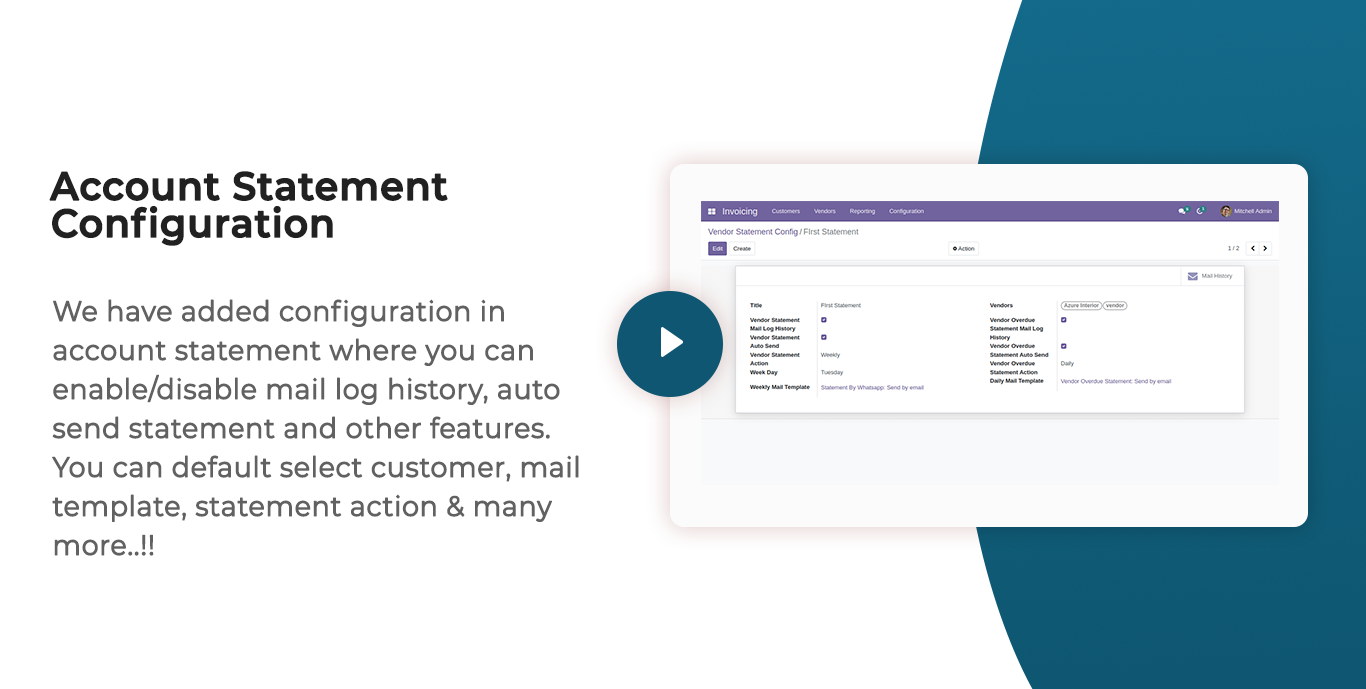
Easily configure statement settings, including template design, default filters, email content, log history, and scheduling preferences.

Vendor Statement Filters
Easily filter statements with defined criteria.

Email Statement to Vendor
Send account statements directly to vendors via email.

Email Overdue Statements
Automatically or manually send overdue statements to remind vendors for pending dues.

Auto Email Scheduler
Schedule automatic statement emails at daily, weekly, monthly, or yearly intervals.

Manual Email Sending
Send statements instantly with a single click whenever needed.

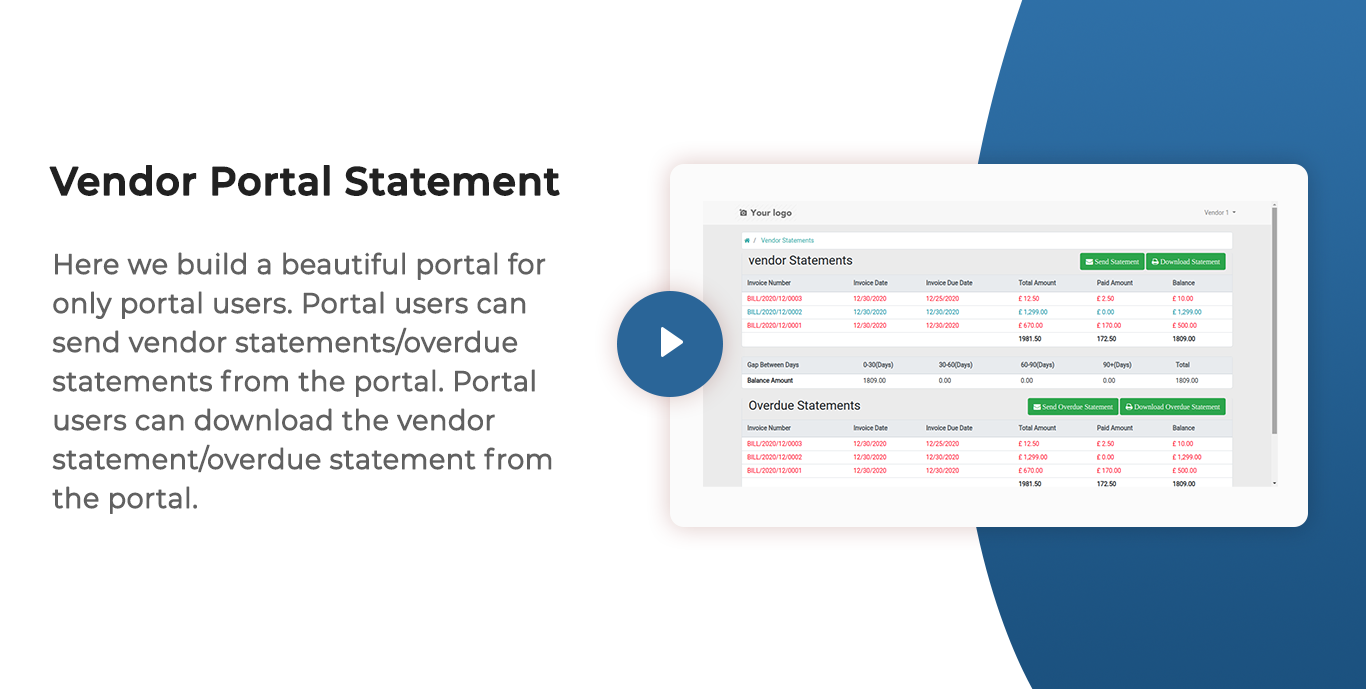
Portal Statement Access
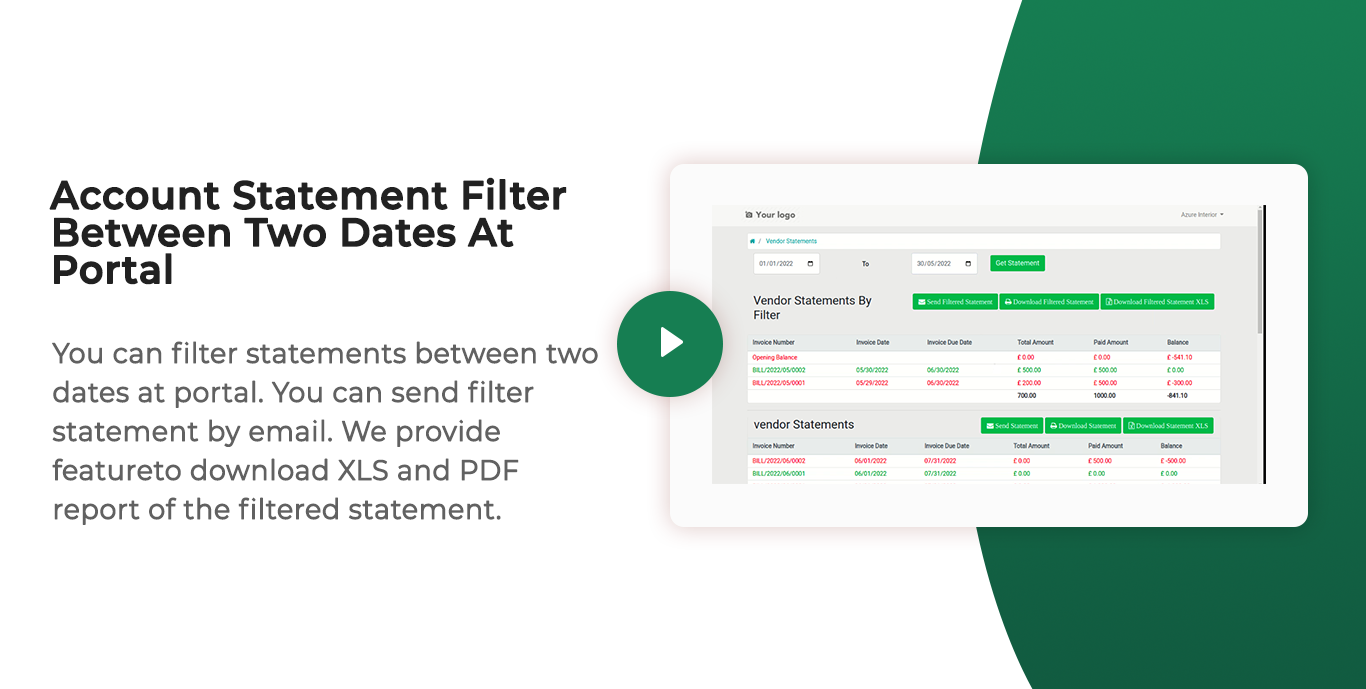
Allow vendors to view and download their statements directly from the portal.

Bulk Statement Sending
Send statements to multiple vendors in a single batch.

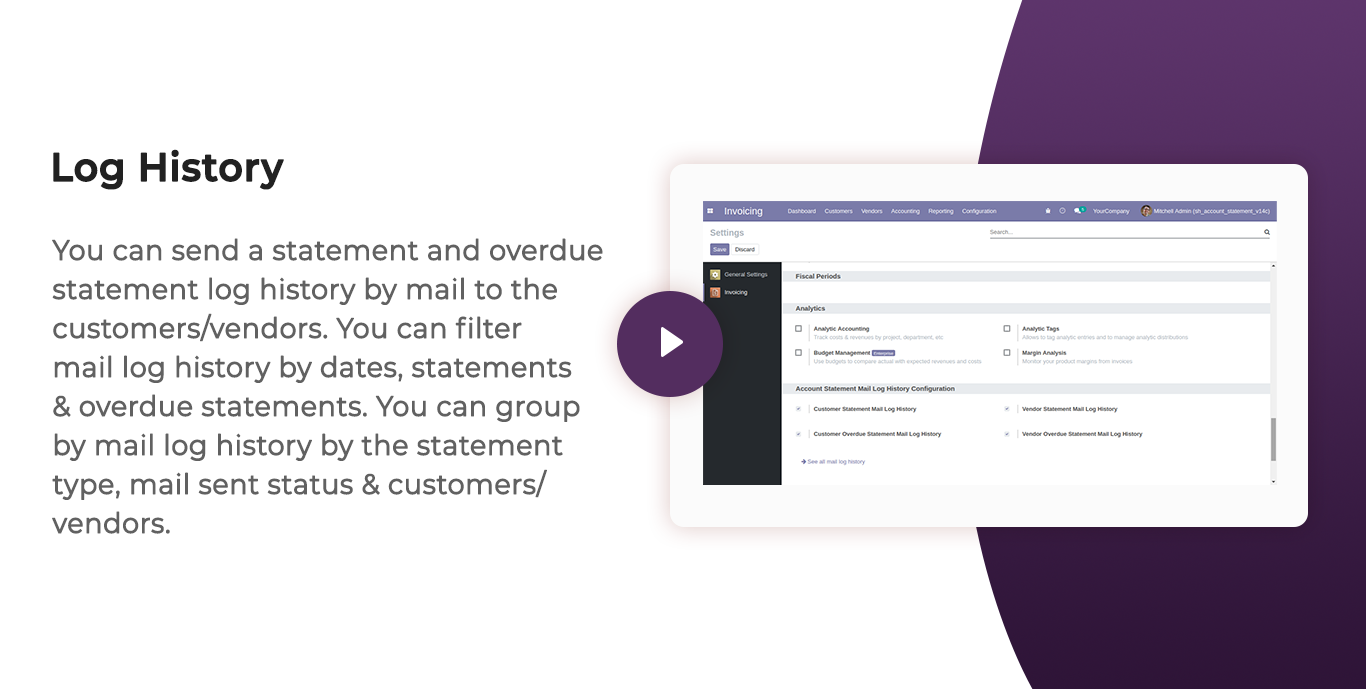
Mail Log Tracking
Track all sent statements with a detailed email history and timestamps.

WhatsApp Statement Sending
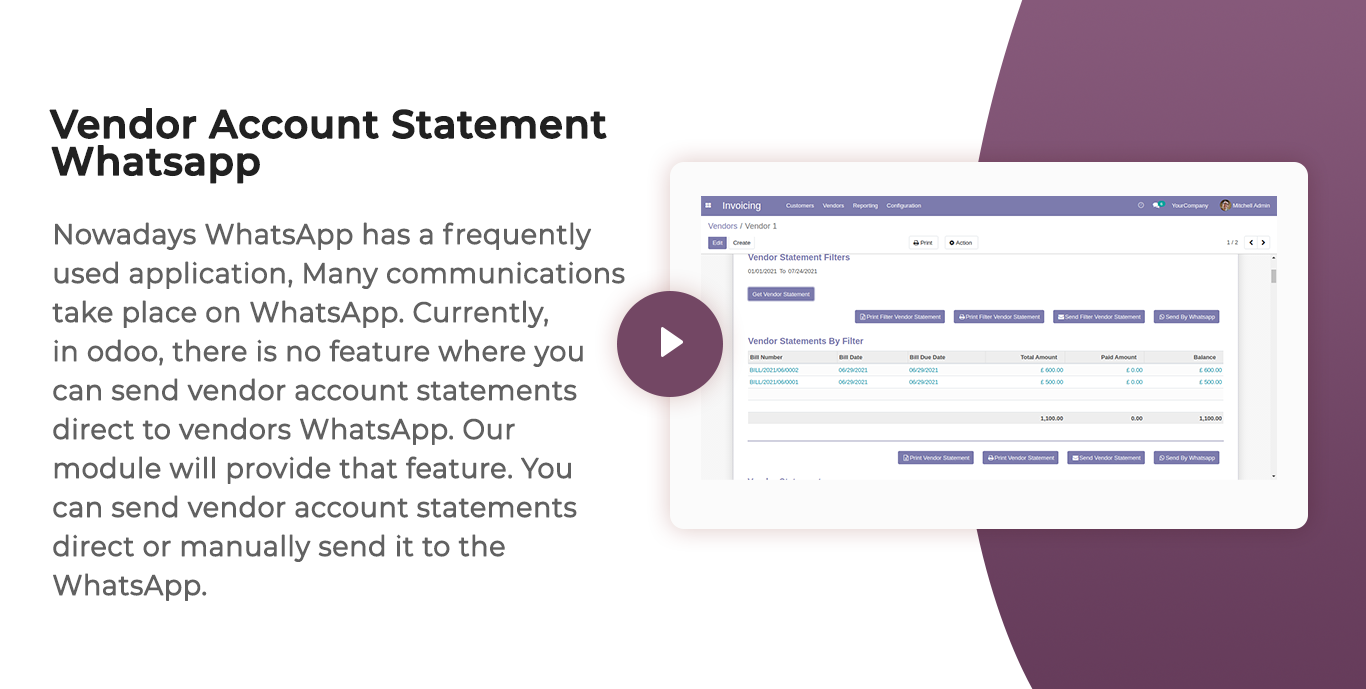
Send vendor statements through WhatsApp.

Statements with Address Details
Generate statements including vendors address information.

Export to PDF & XLS
Download or print statements in professional PDF or XLS formats.

Statement Ageing Buckets
Display outstanding bills grouped by ageing periods ( 0-30, 30-60, 60-90, 90+ days) for better tracking of pending payments.
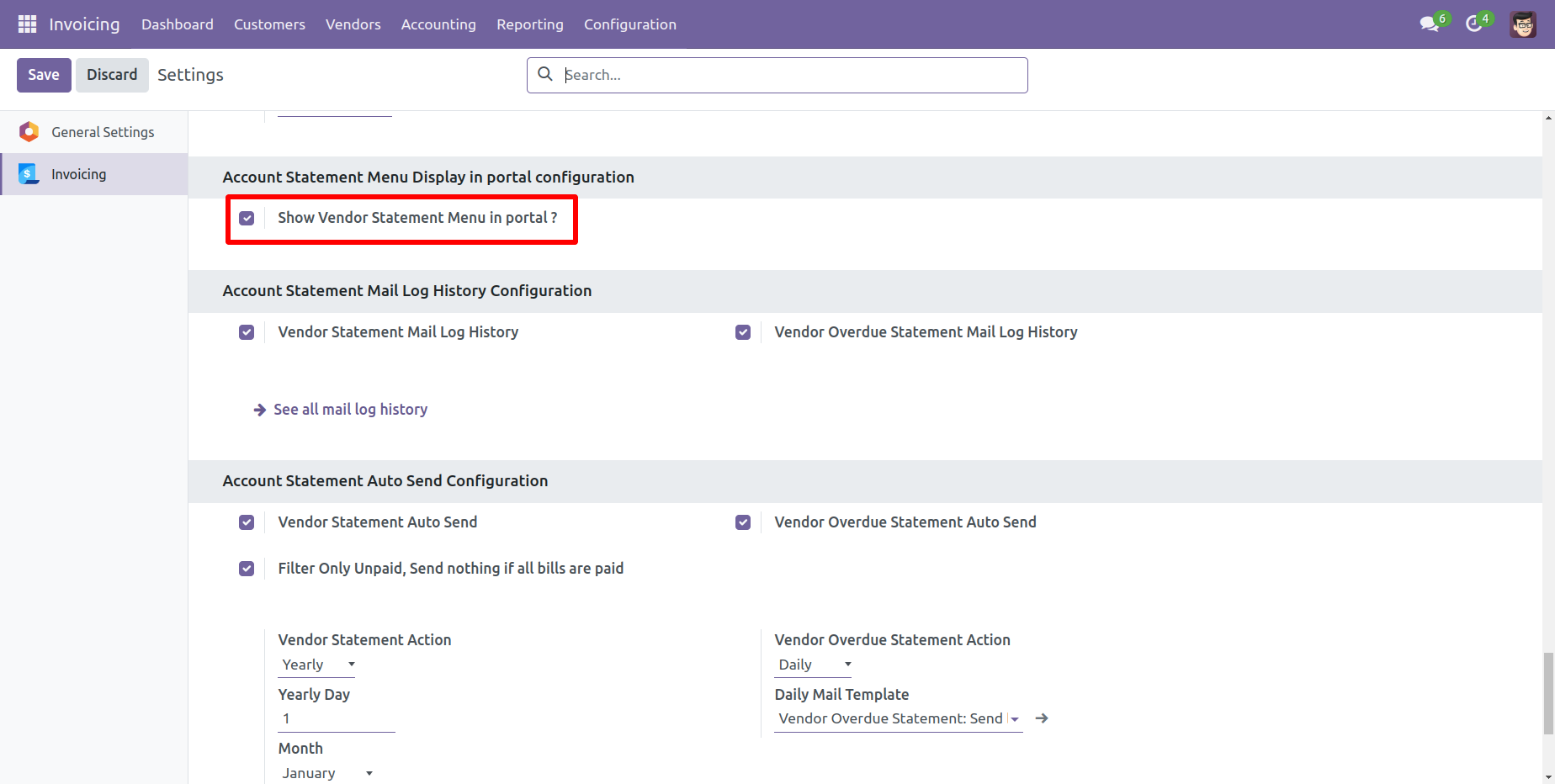
Now tick 'Show Vendor Statement Menu In Portal'.
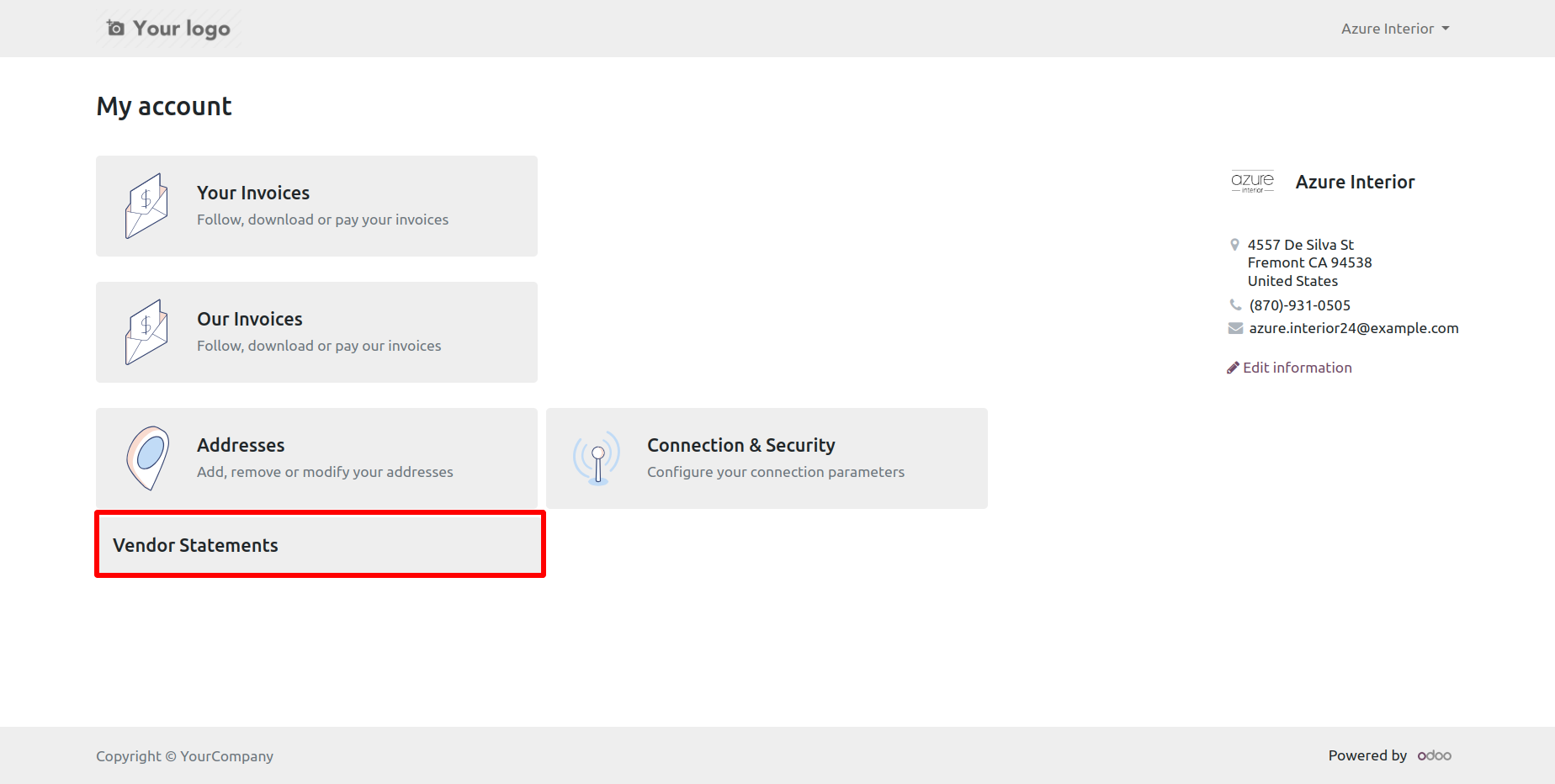
After go to the portal => vendor statement.
You can get vendor statement from the port.
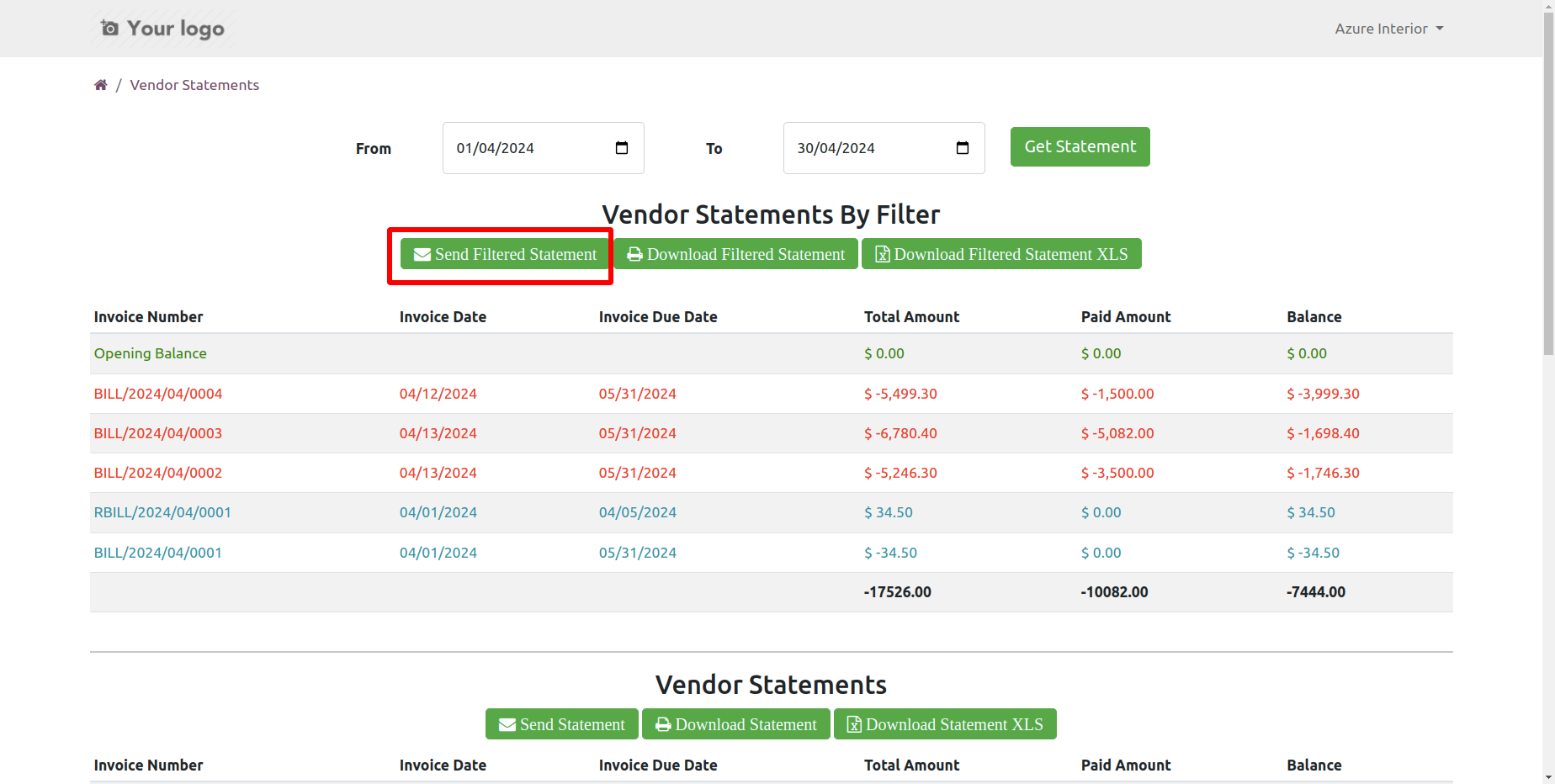
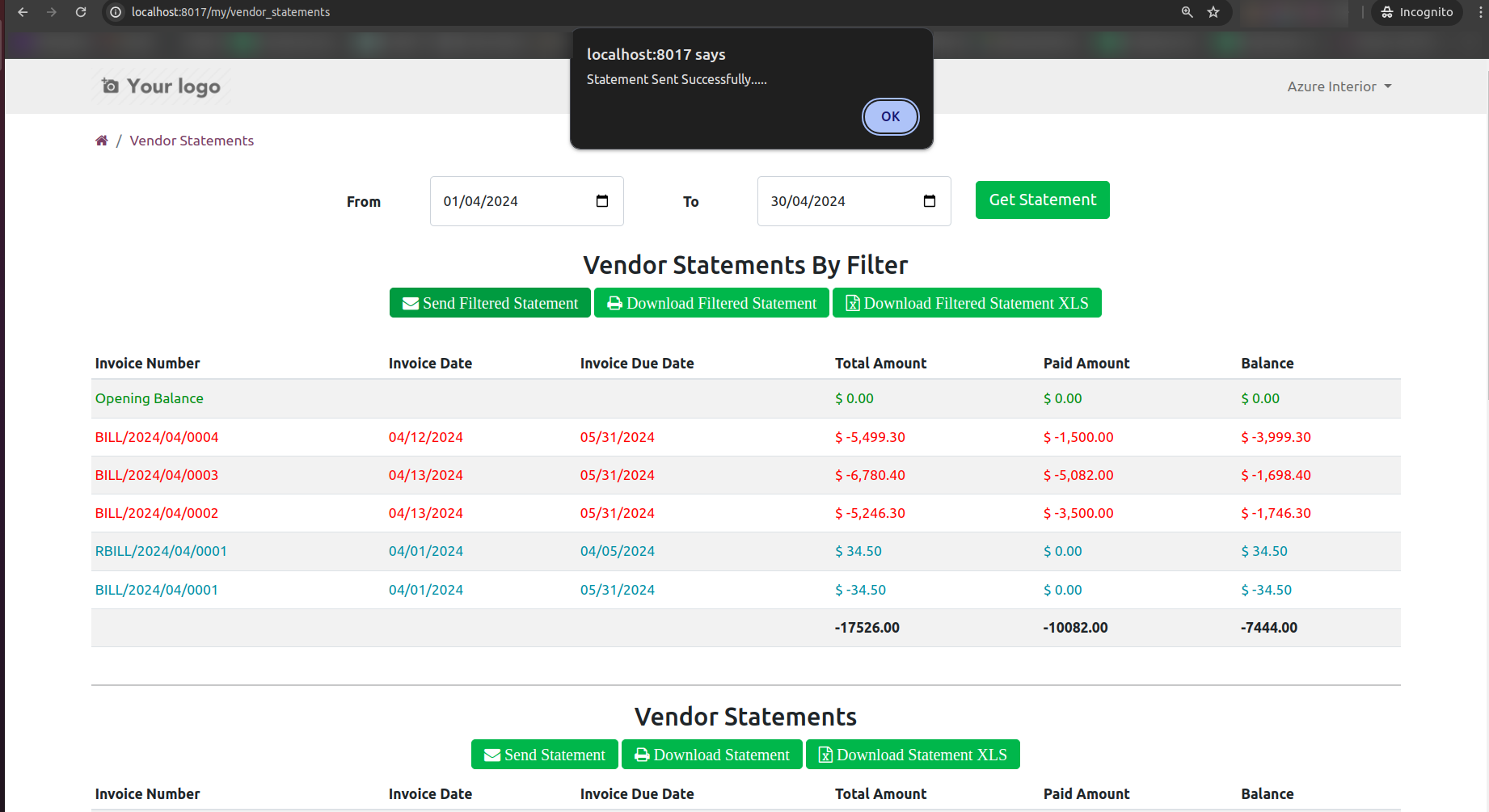
You can send vendor statements from the portal.
It shows a popup after successfully send vendor statements.
The statement sent by mail.
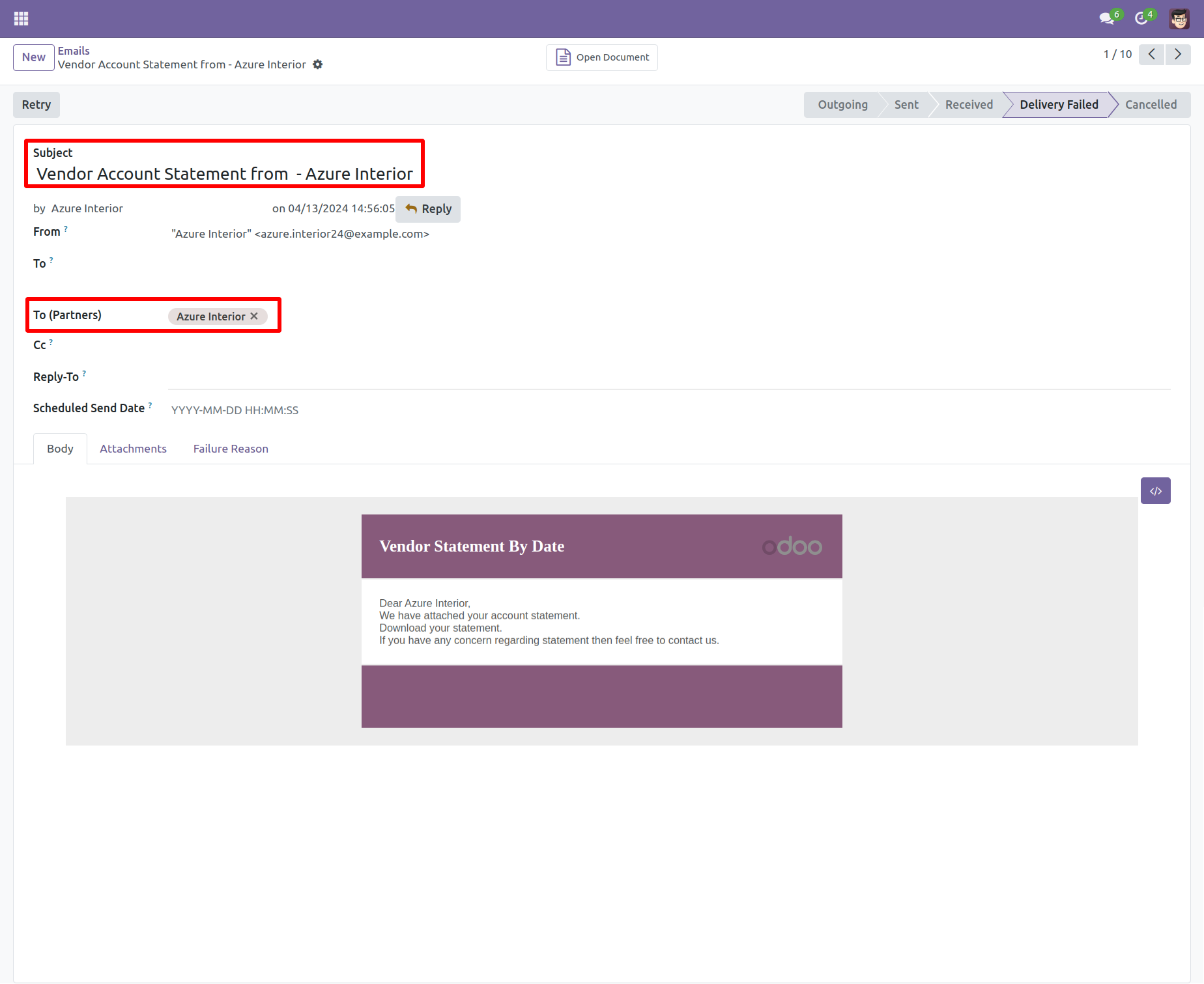
Email statement form view.
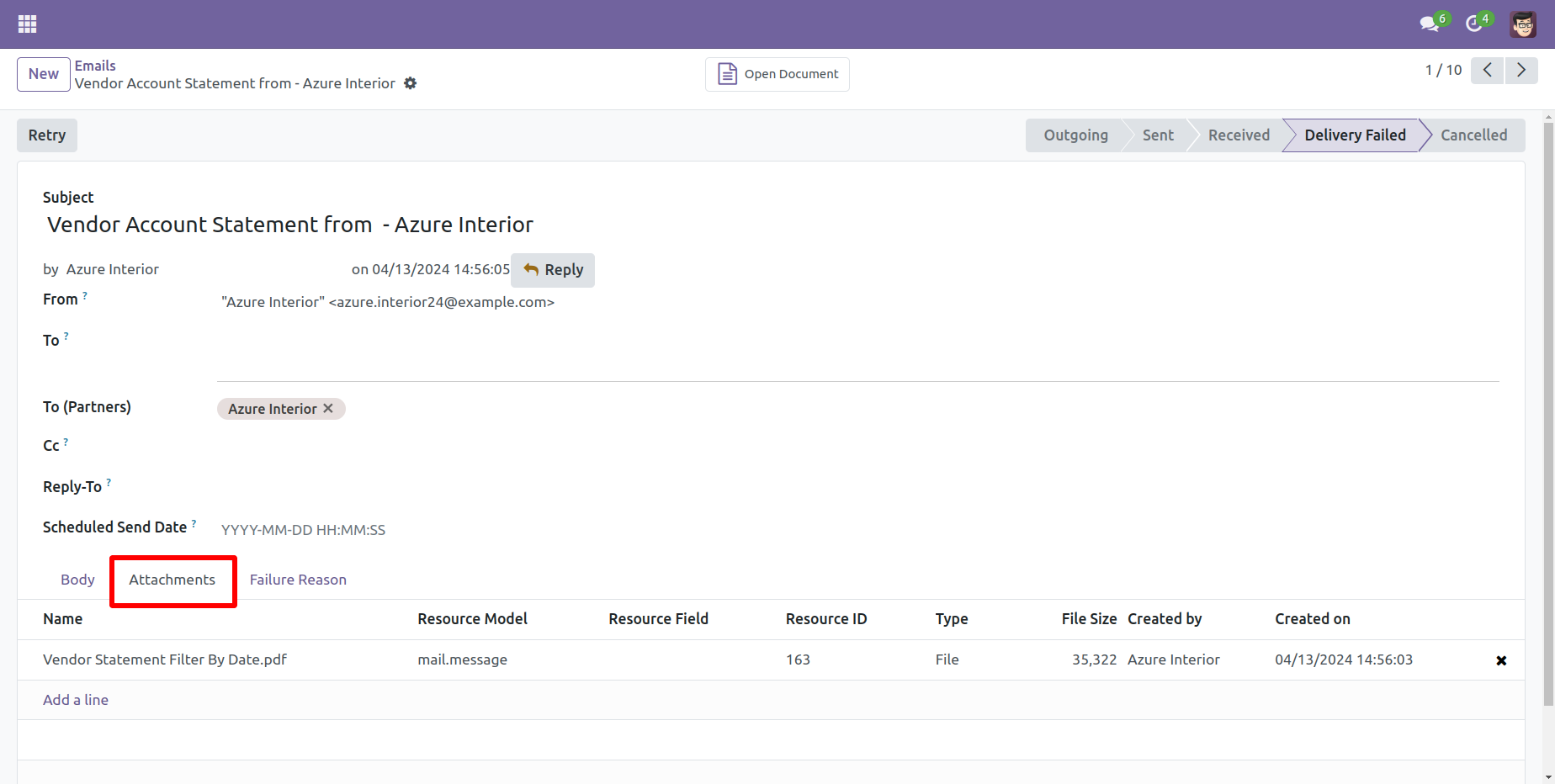
You can see the statement attachment from an email.
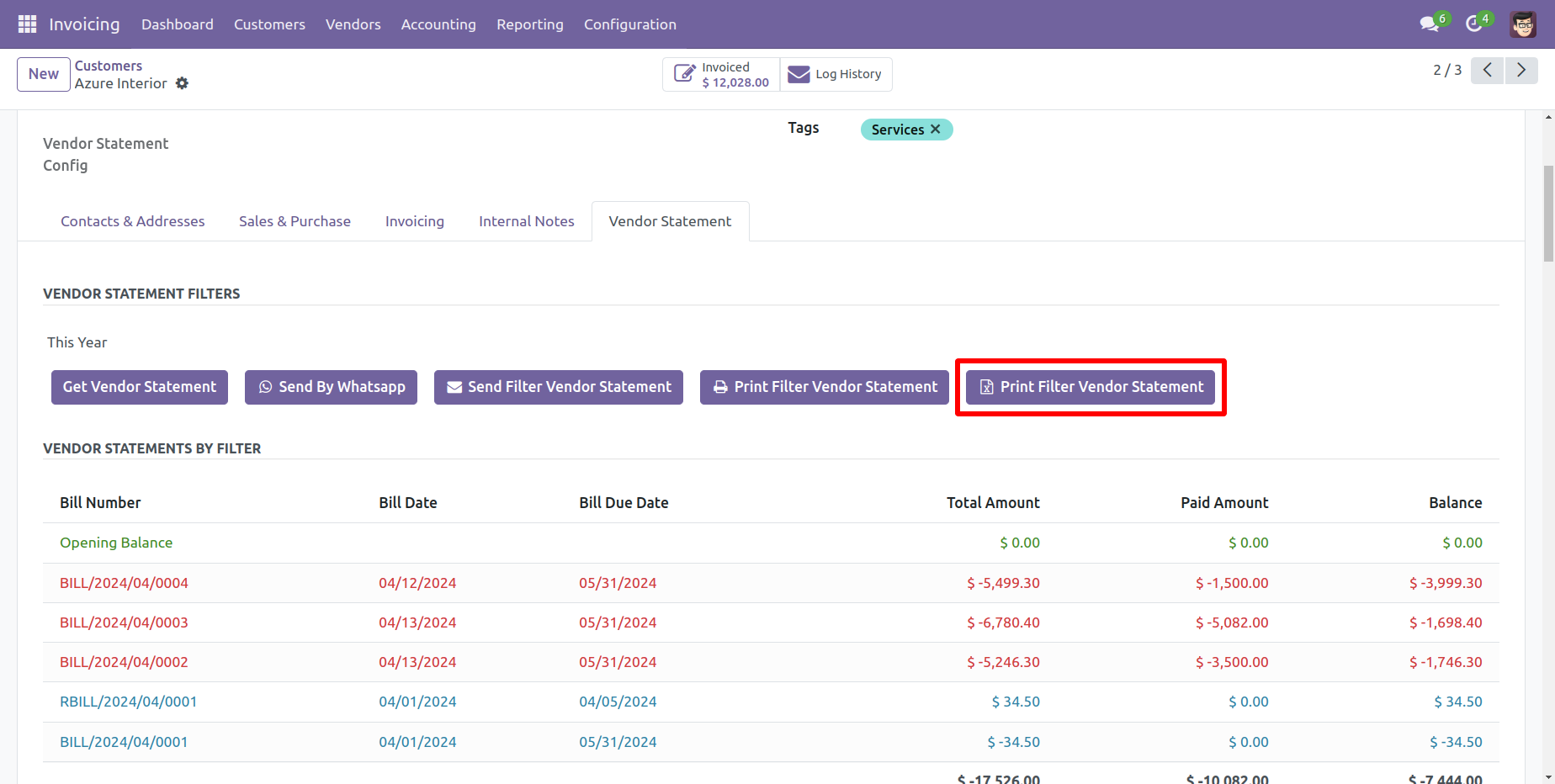
You can print an XLS report of the vendor filter statement.
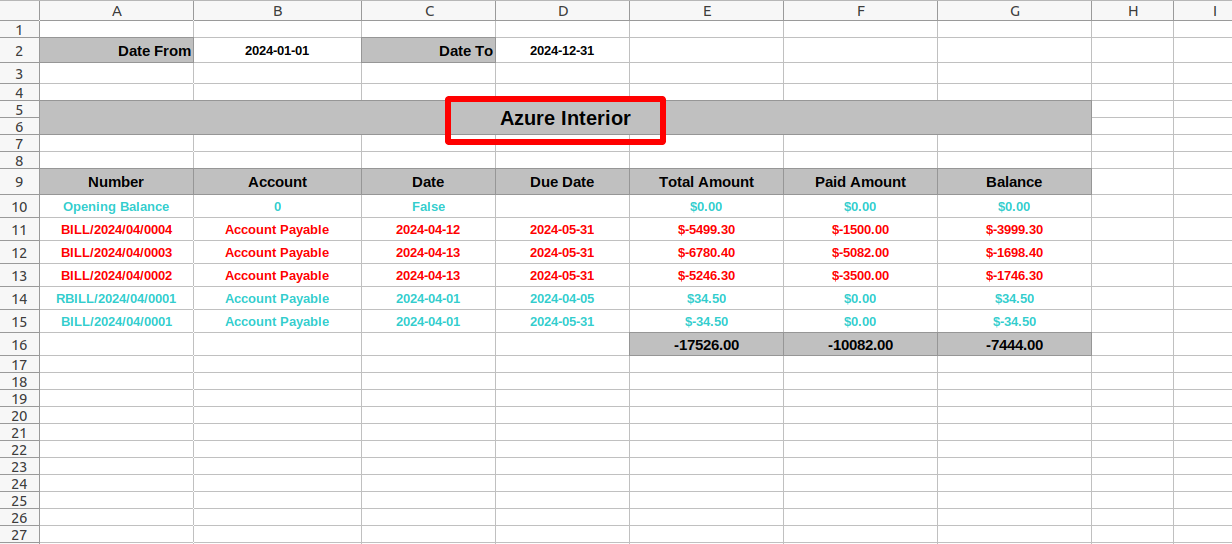
Vendor filter statement XLS report looks like this.
You can print an XLS report of the vendor statement.
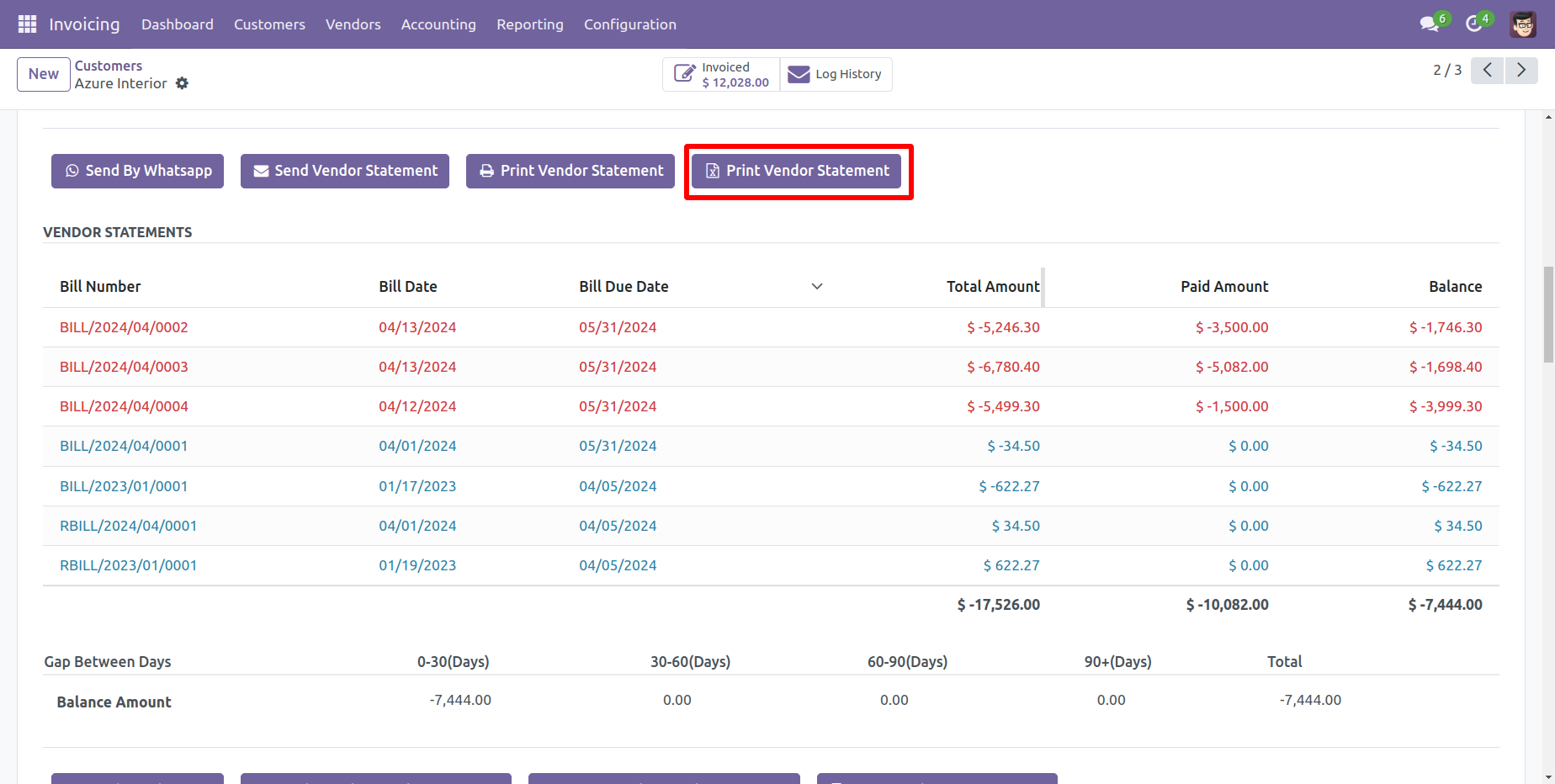
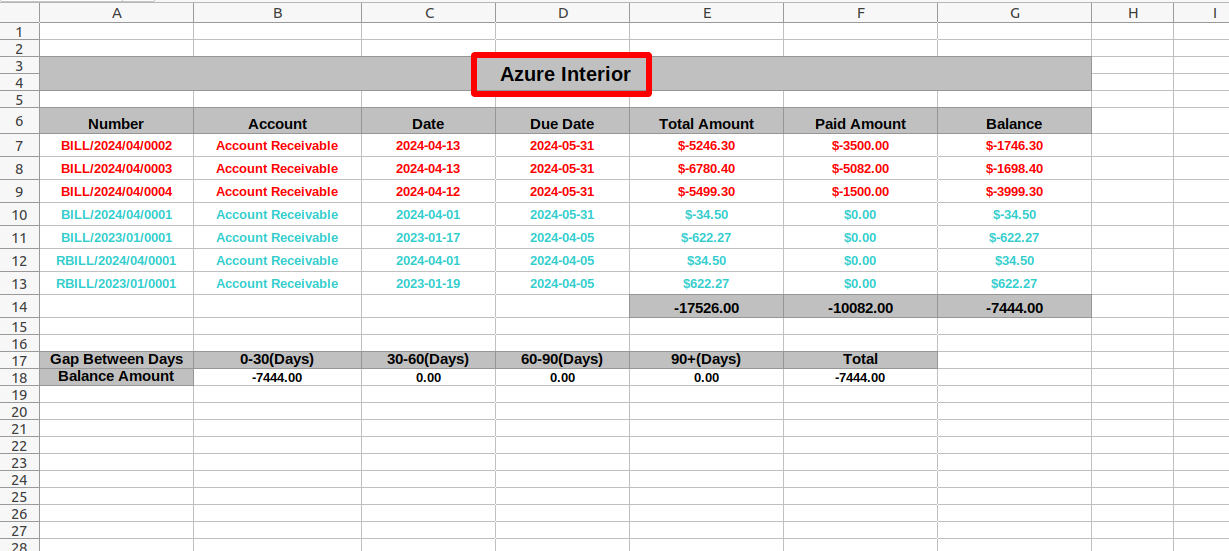
Vendor statement XLS report looks like this.
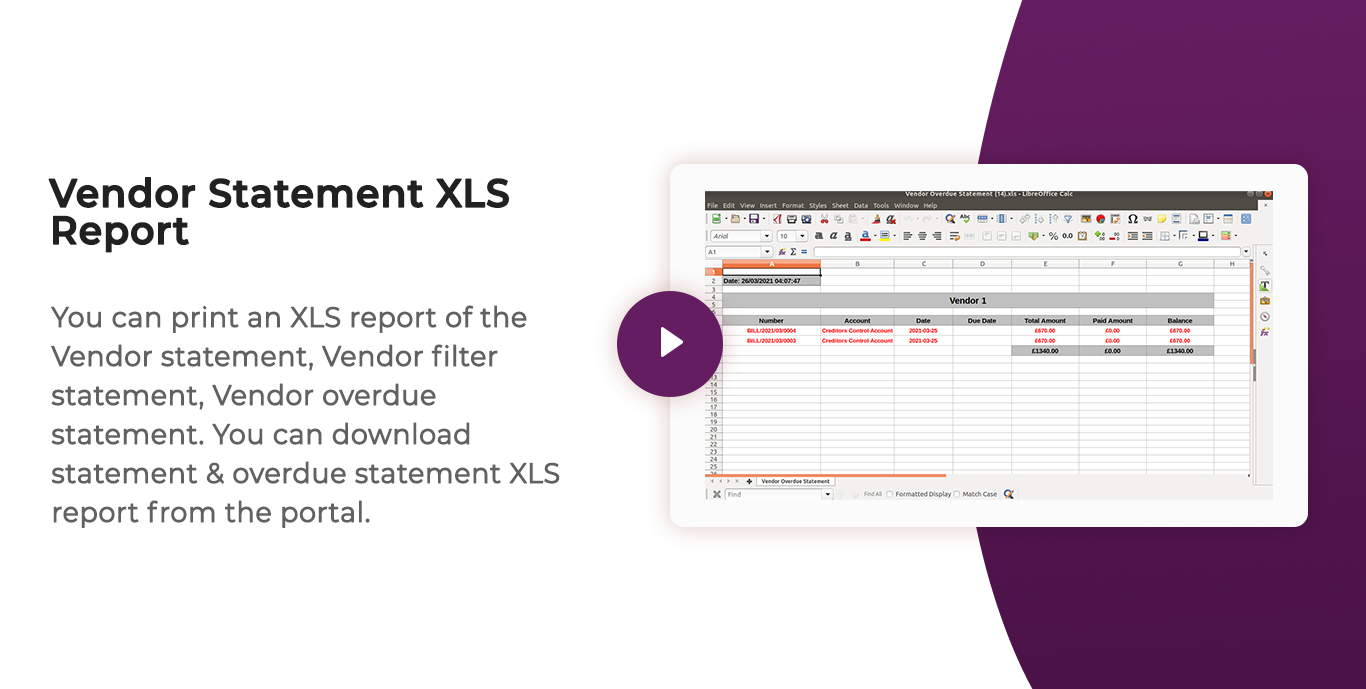
You can print an XLS report of the vendor due statement.
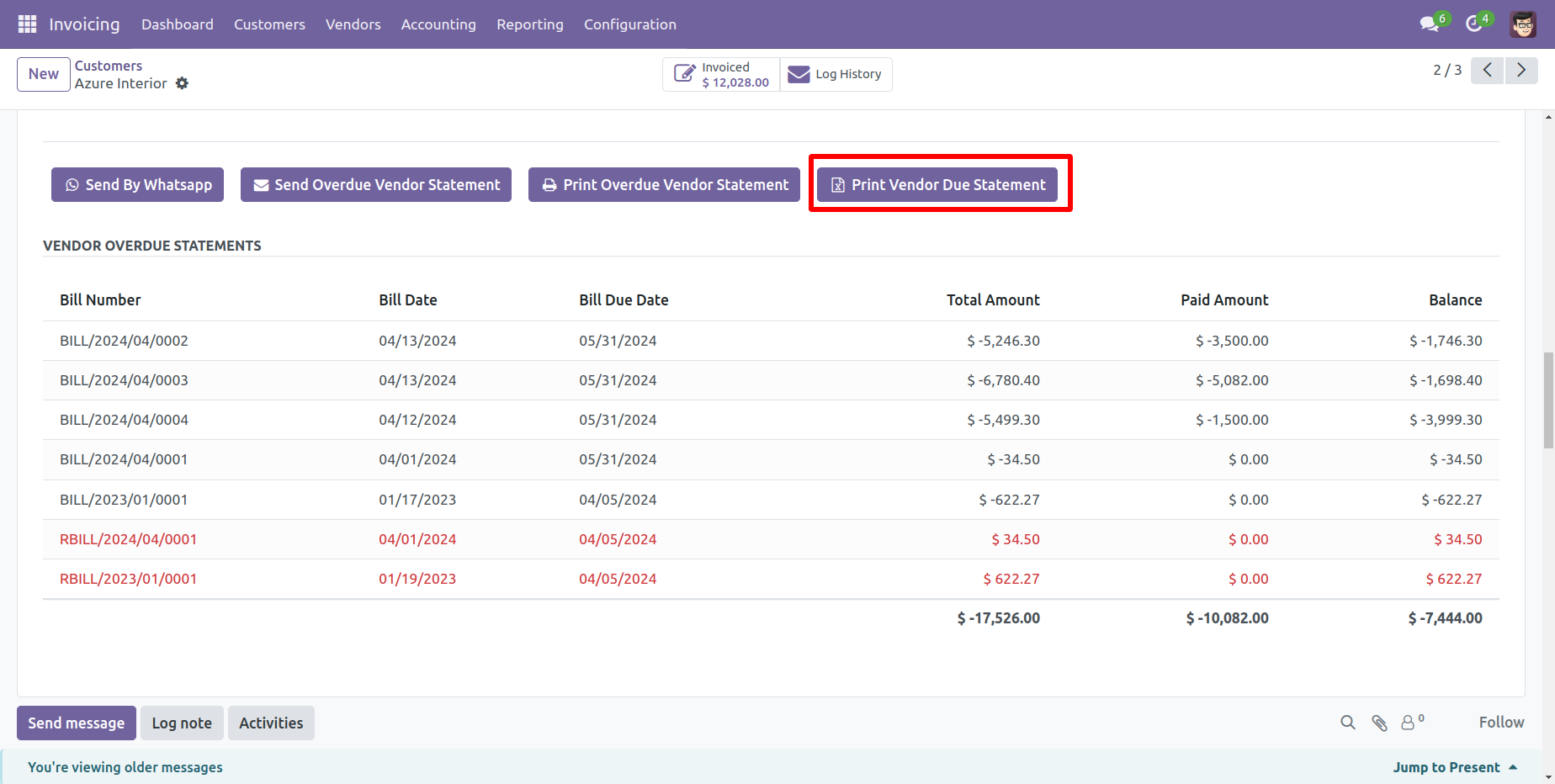
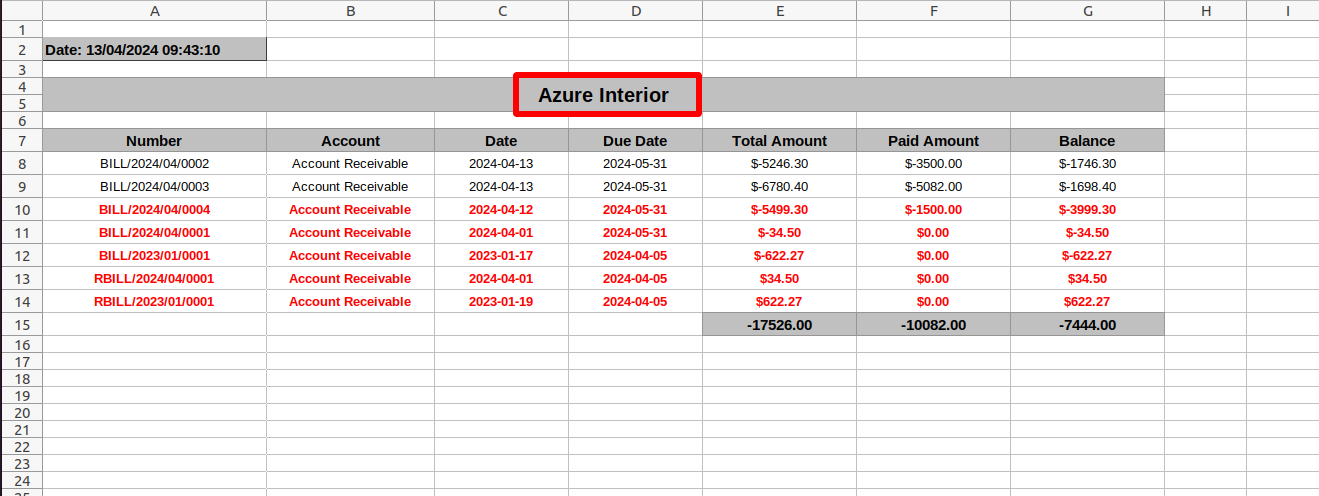
Vendor due statement XLS report looks like this.
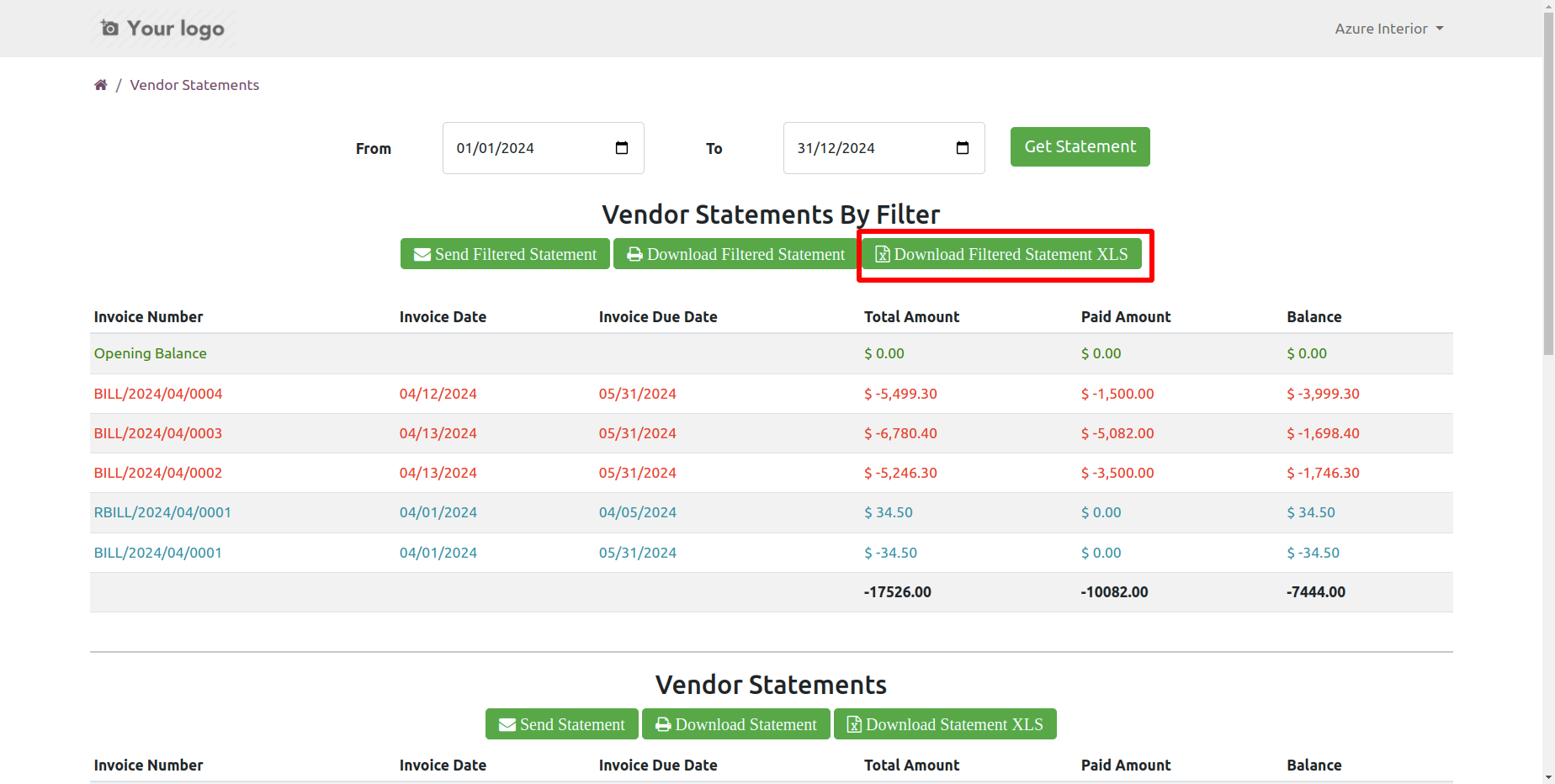
You can 'Download Filtered Statement XLS' from the portal.
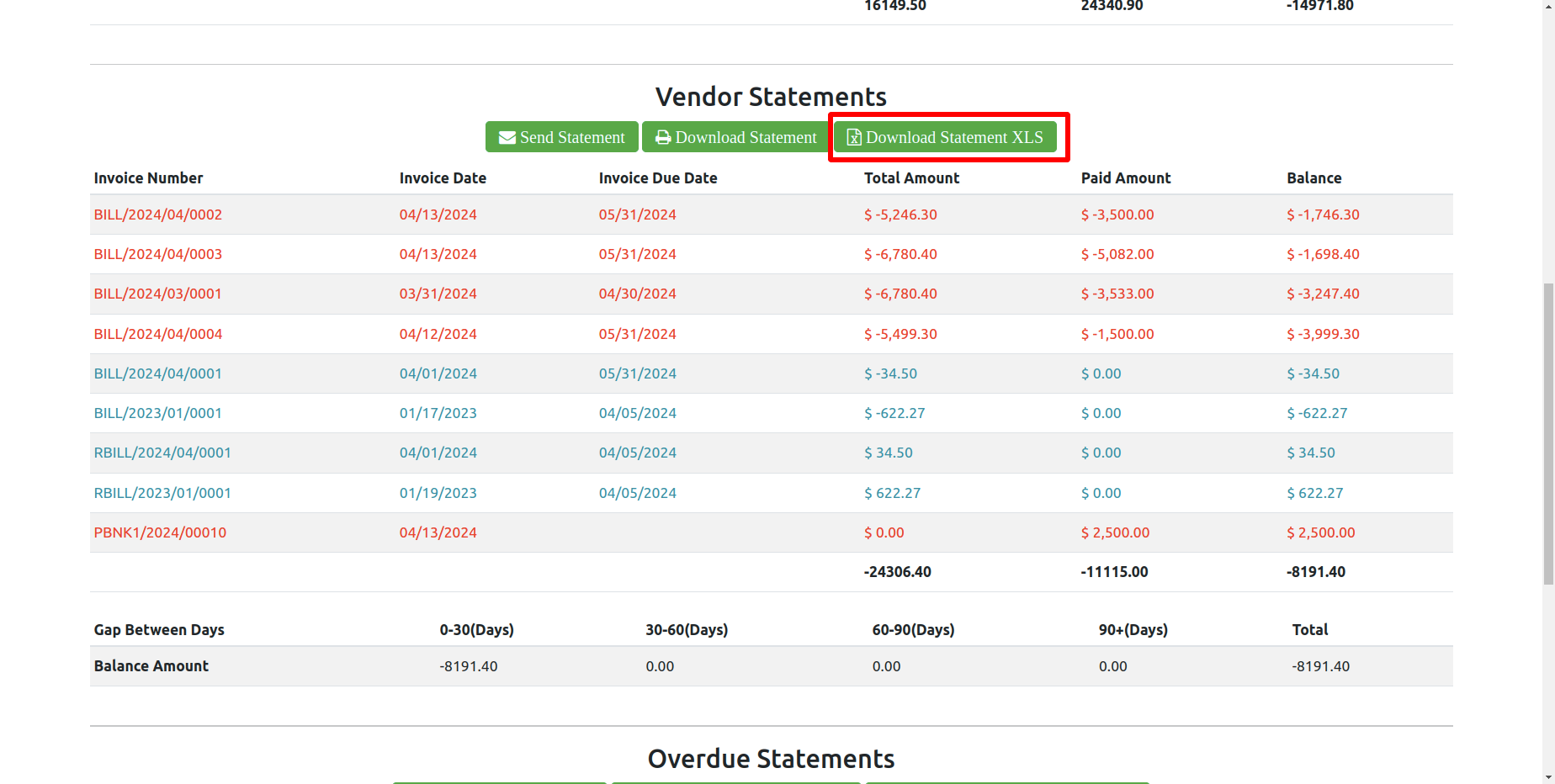
You can 'Download Statement XLS' from the portal.
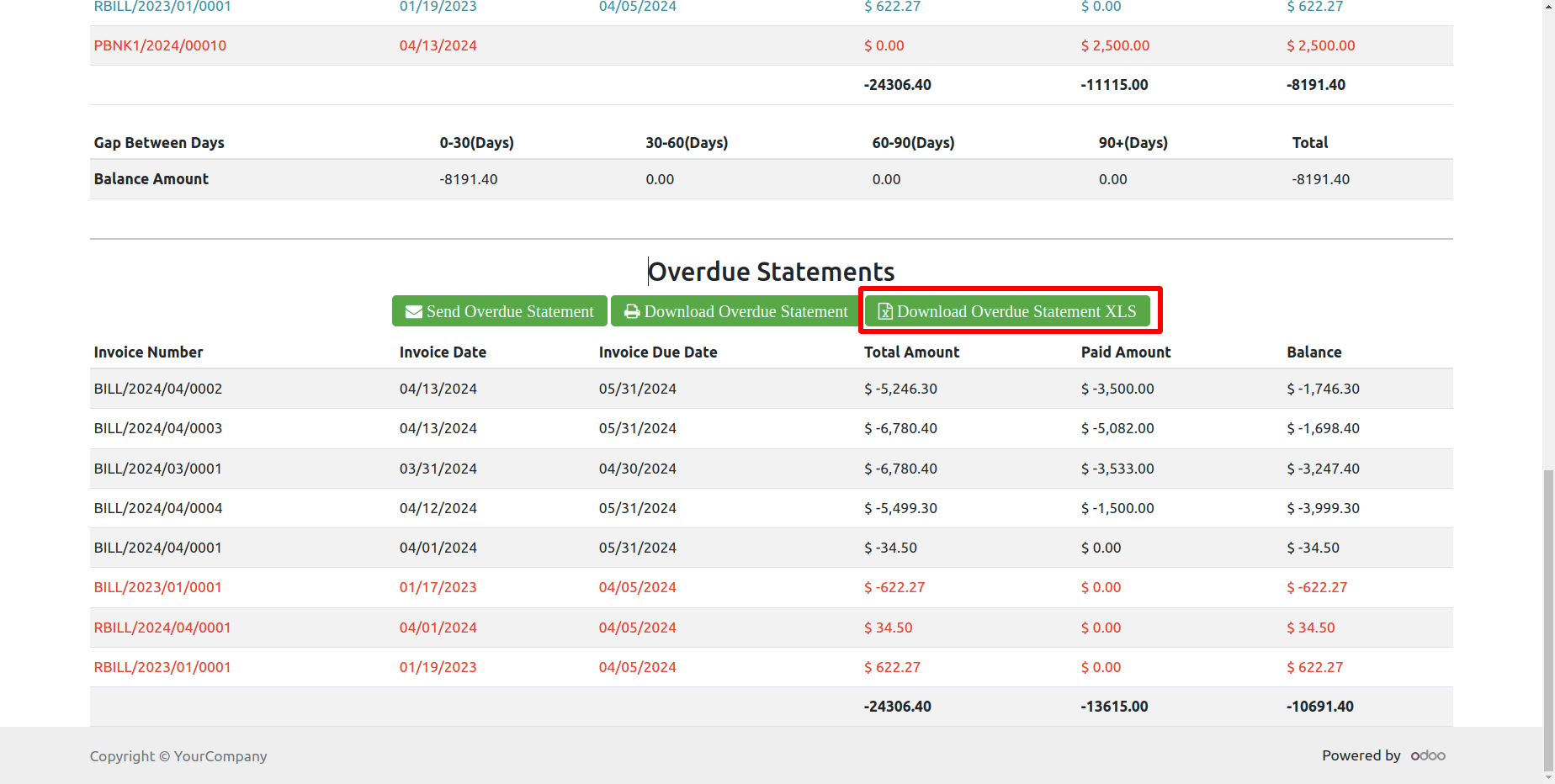
You can download the vendor overdue statement XLS report from the portal.
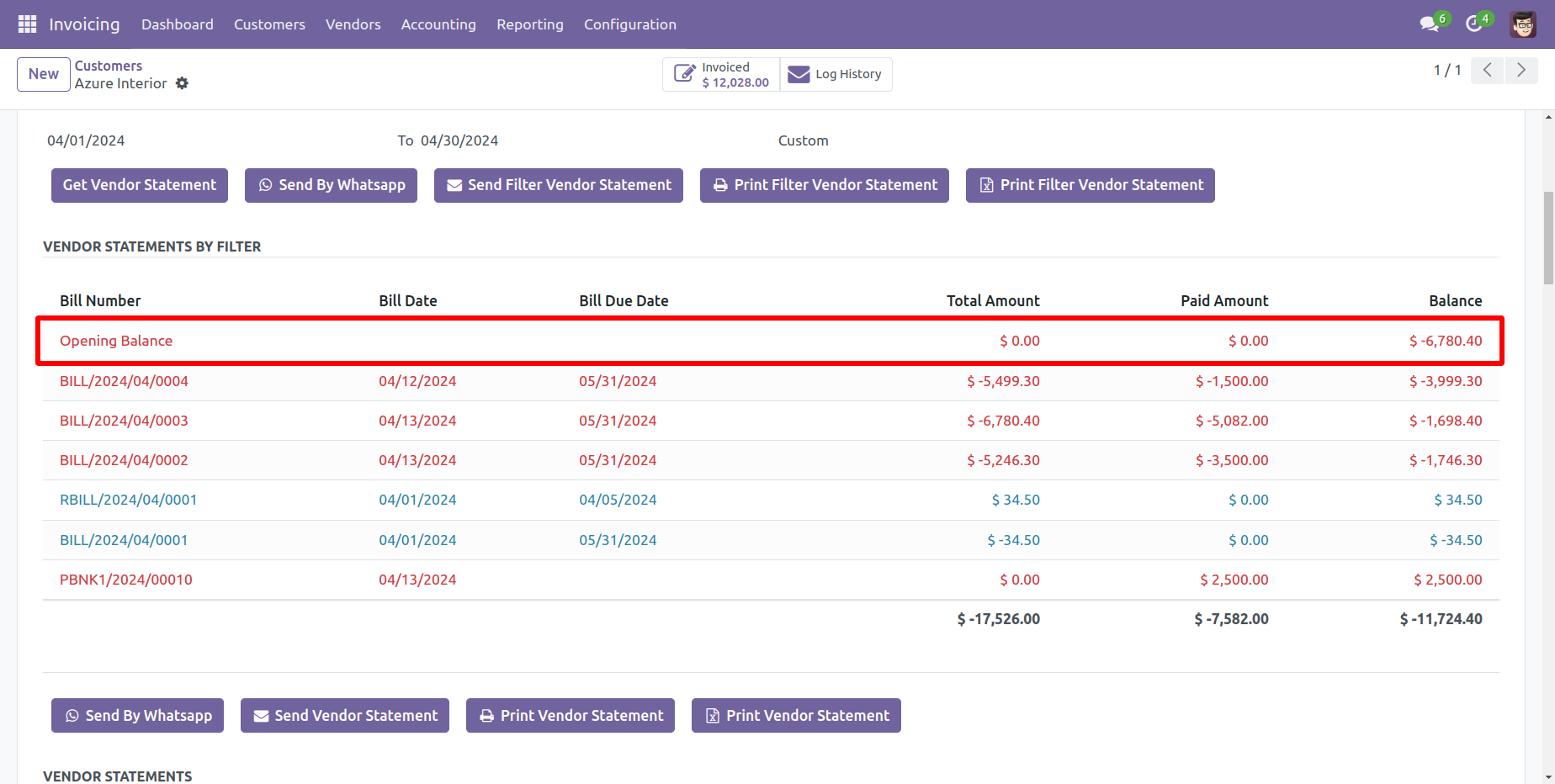
Today's opening balance is yesterday's closing balance. Manual journal entries for opening balances appear as the next day's opening balance in the balance column but are not included in the total or paid amount column on the same date.
Customer filter statement PDF report with address looks like this.

You can print an XLS report of the customer filter statement with address.

Customer filter statement XLS report with address looks like this.

You can print an PDF report of the customer statement with address.

Customer statement PDF report looks like this.

You can print an XLS report of the customer statement with address.

Customer statement XLS report looks like this.

You can print an PDF report of the customer overdue statement.

Customer Overdue statement PDF report looks like this.

You can print an XLS report of the customer overdue statement.

Customer Overdue statement XLS report looks like this.

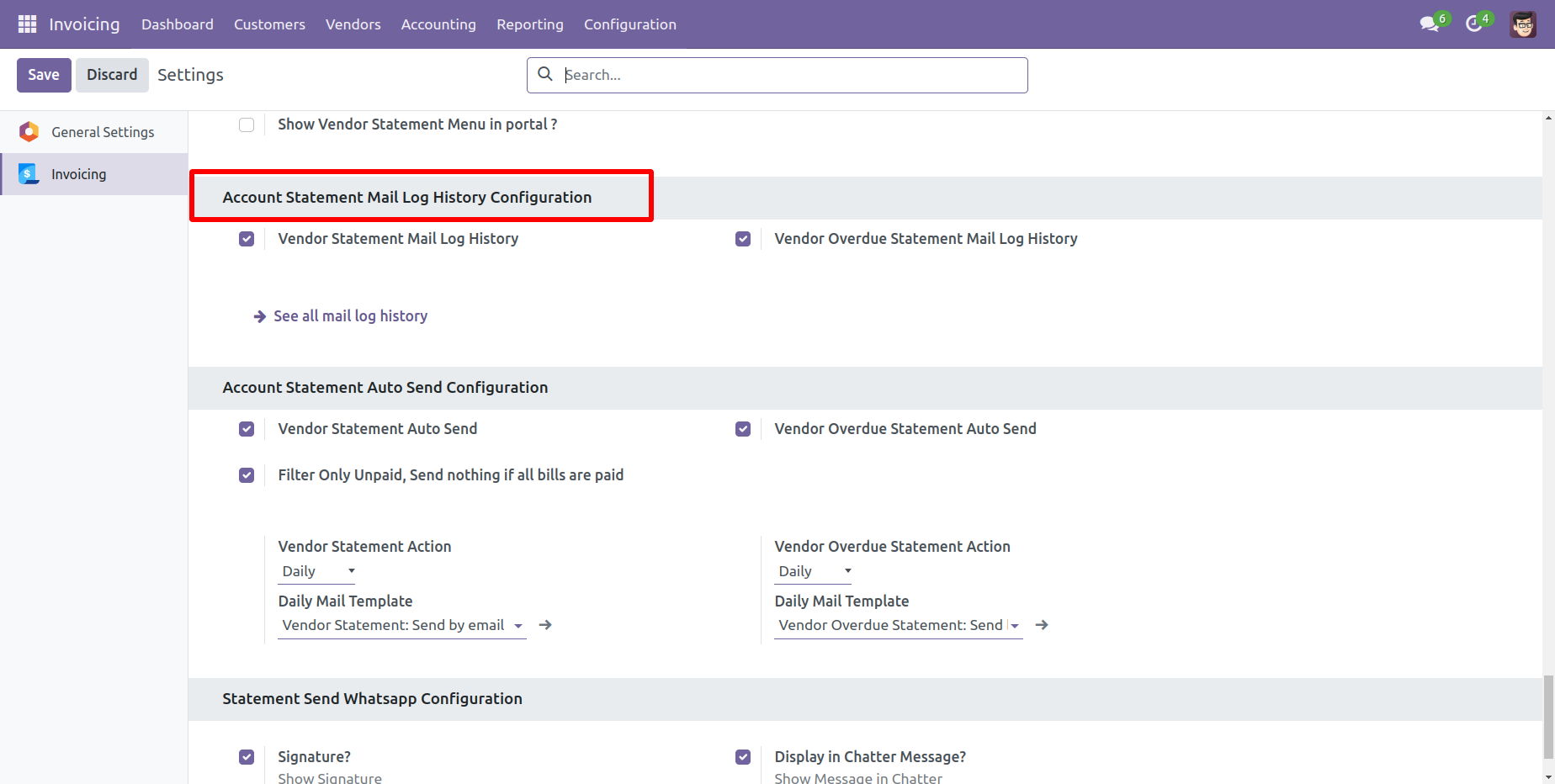
The statement log history configuration, you can see mail log history from the 'See all mail log history'.
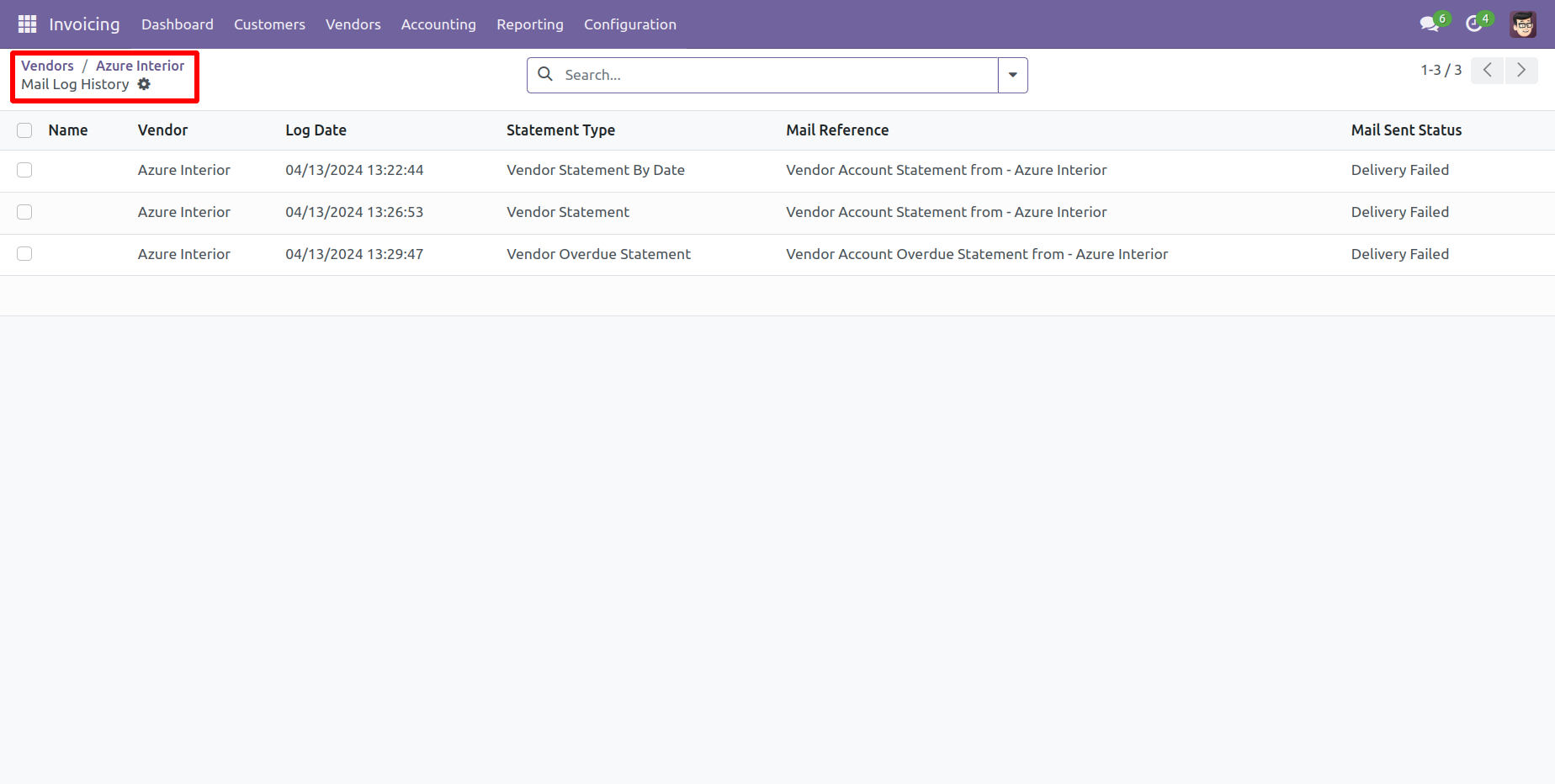
The statement log history tree view.
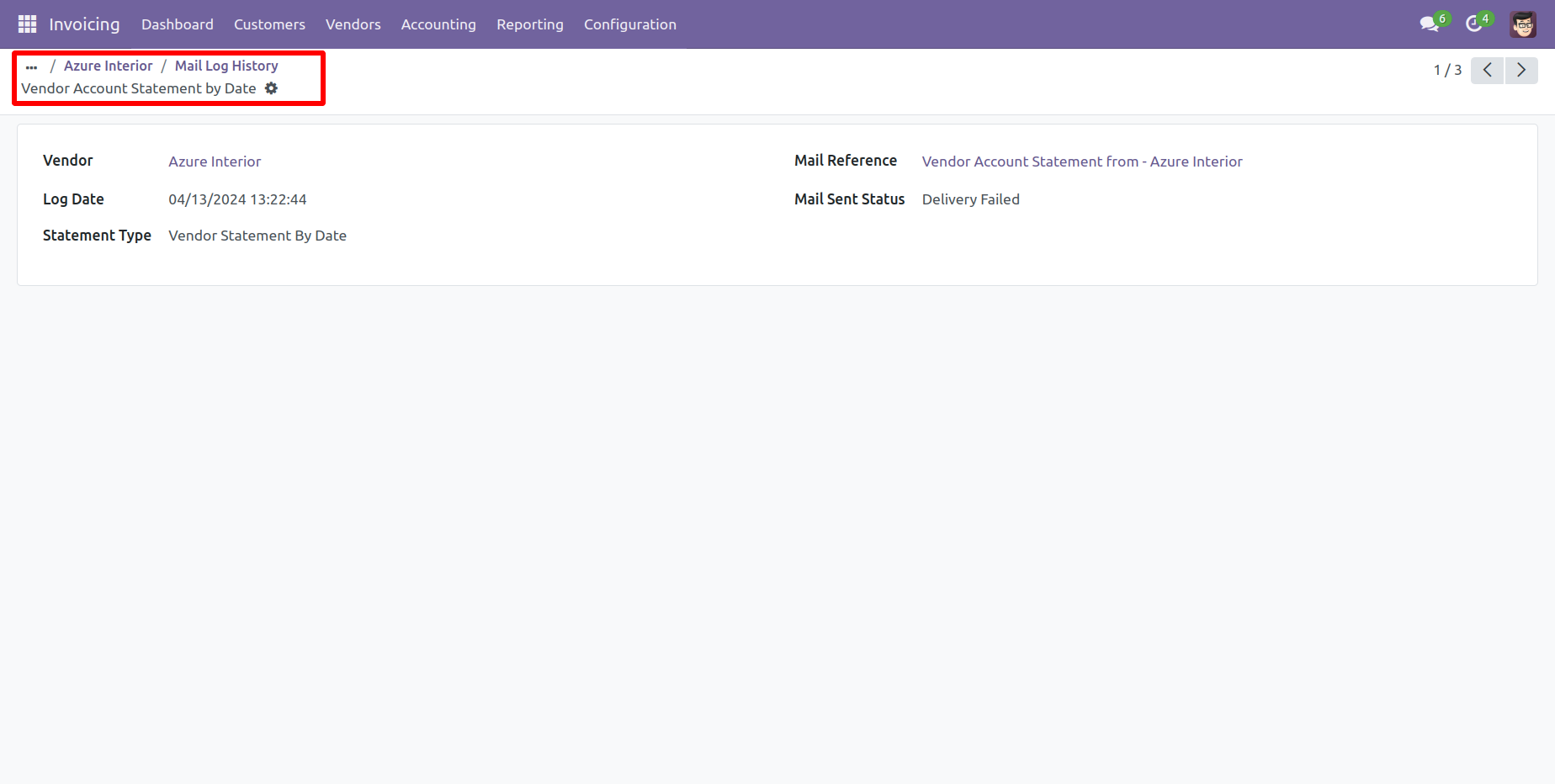
Statement log history form view.
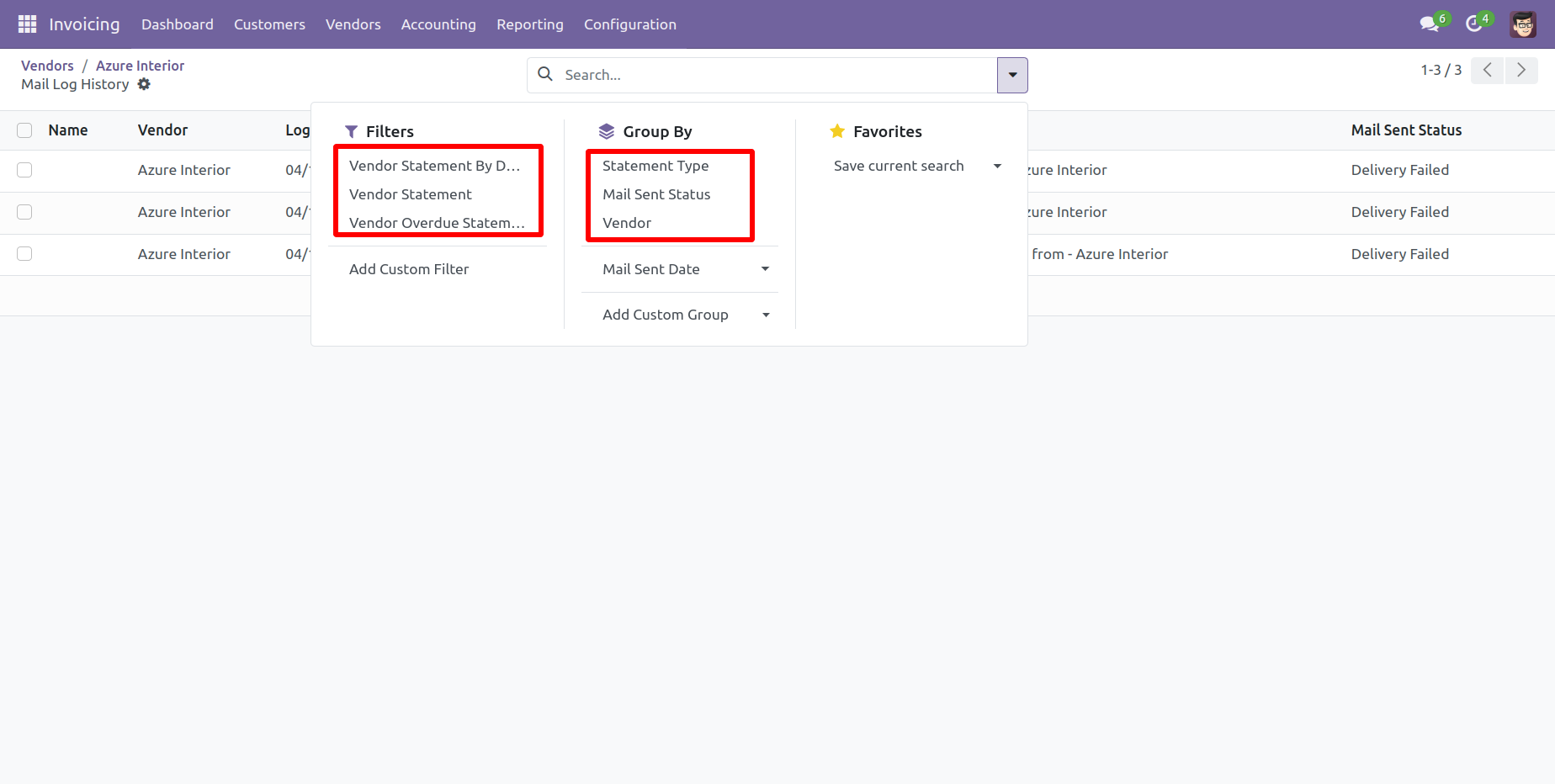
You can filter and group by statements by the provided list.
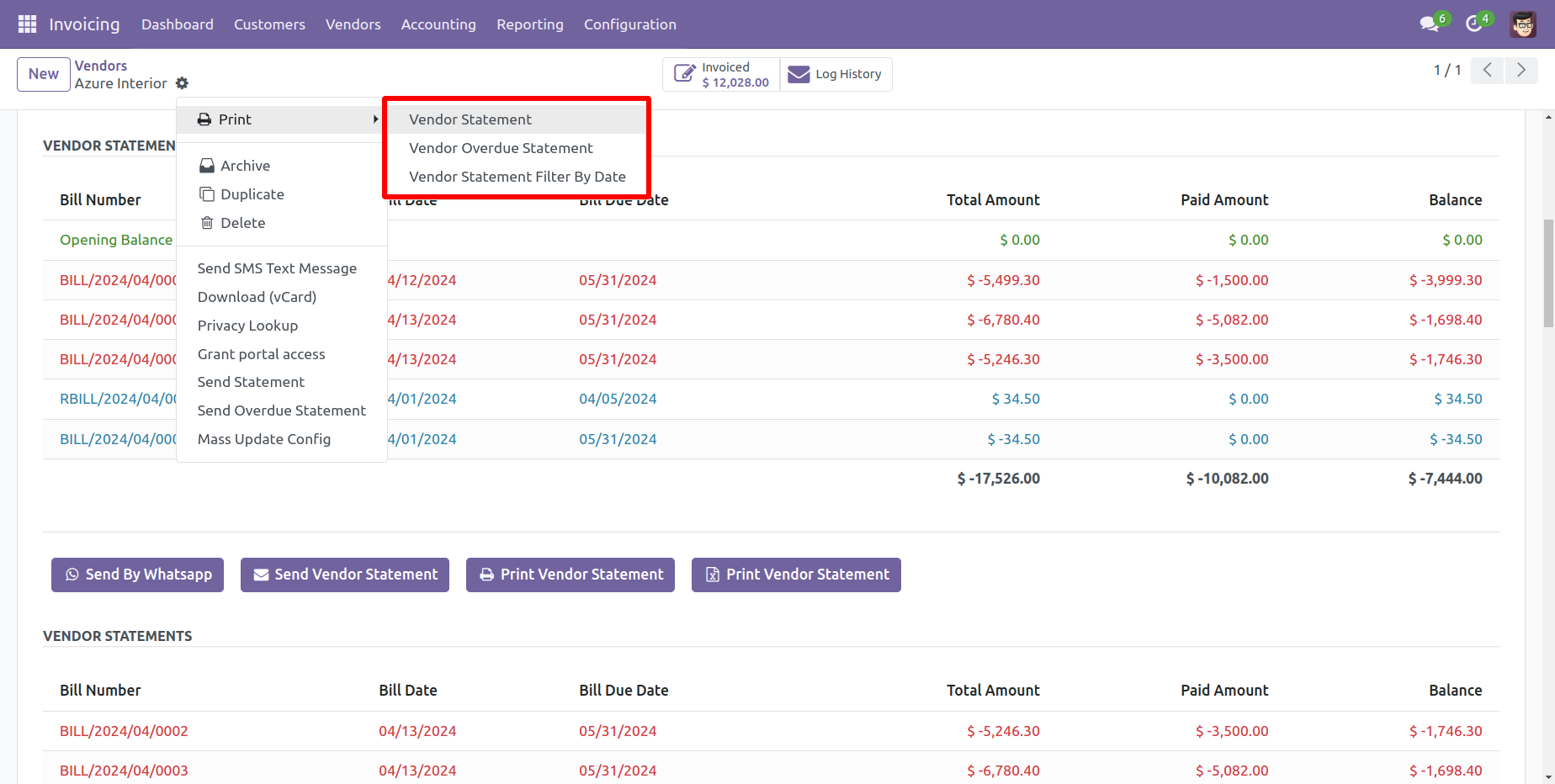
You can print statements from the 'Action'.
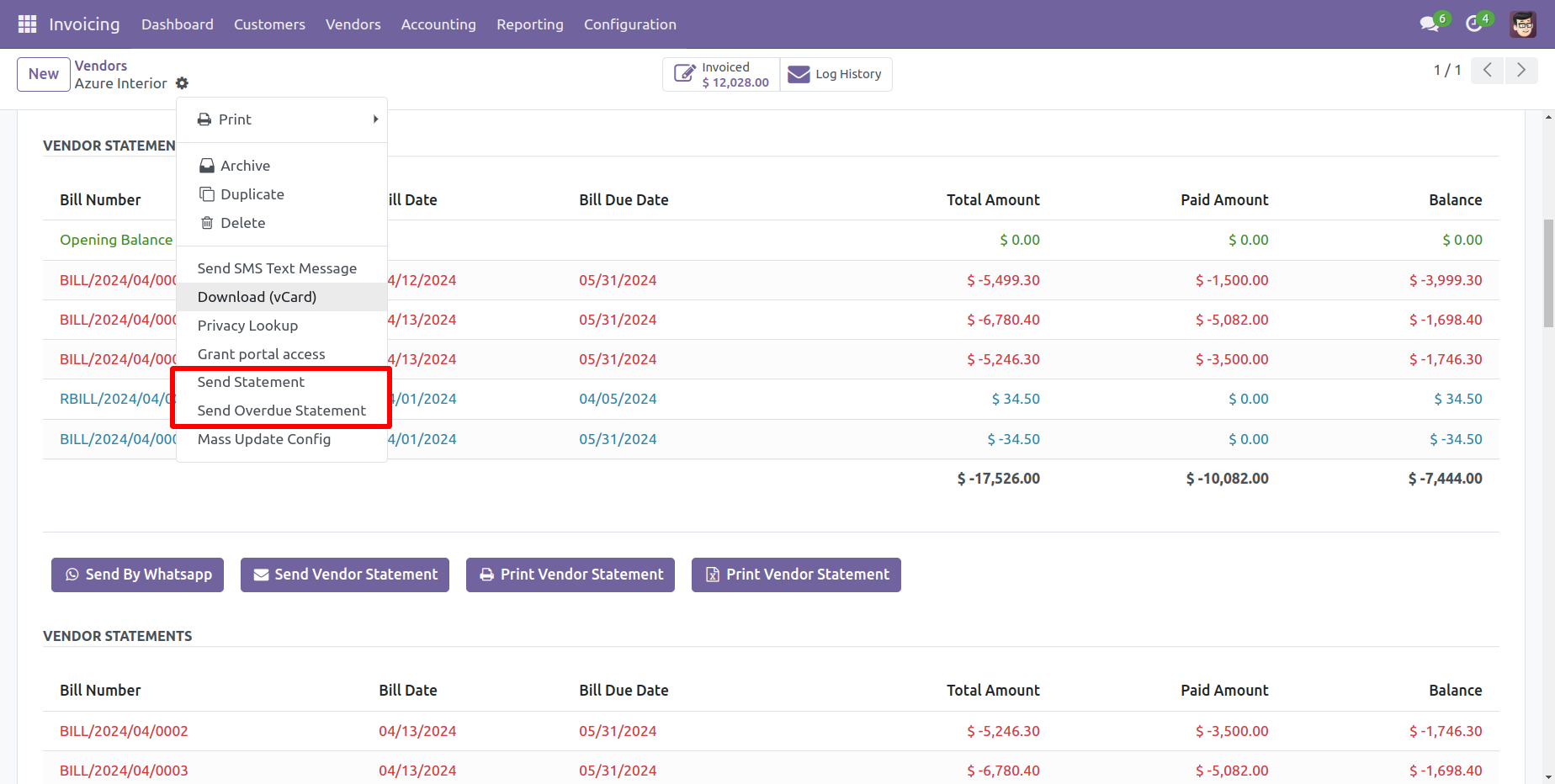
You can send a statement/overdue statement from the 'Action' button.
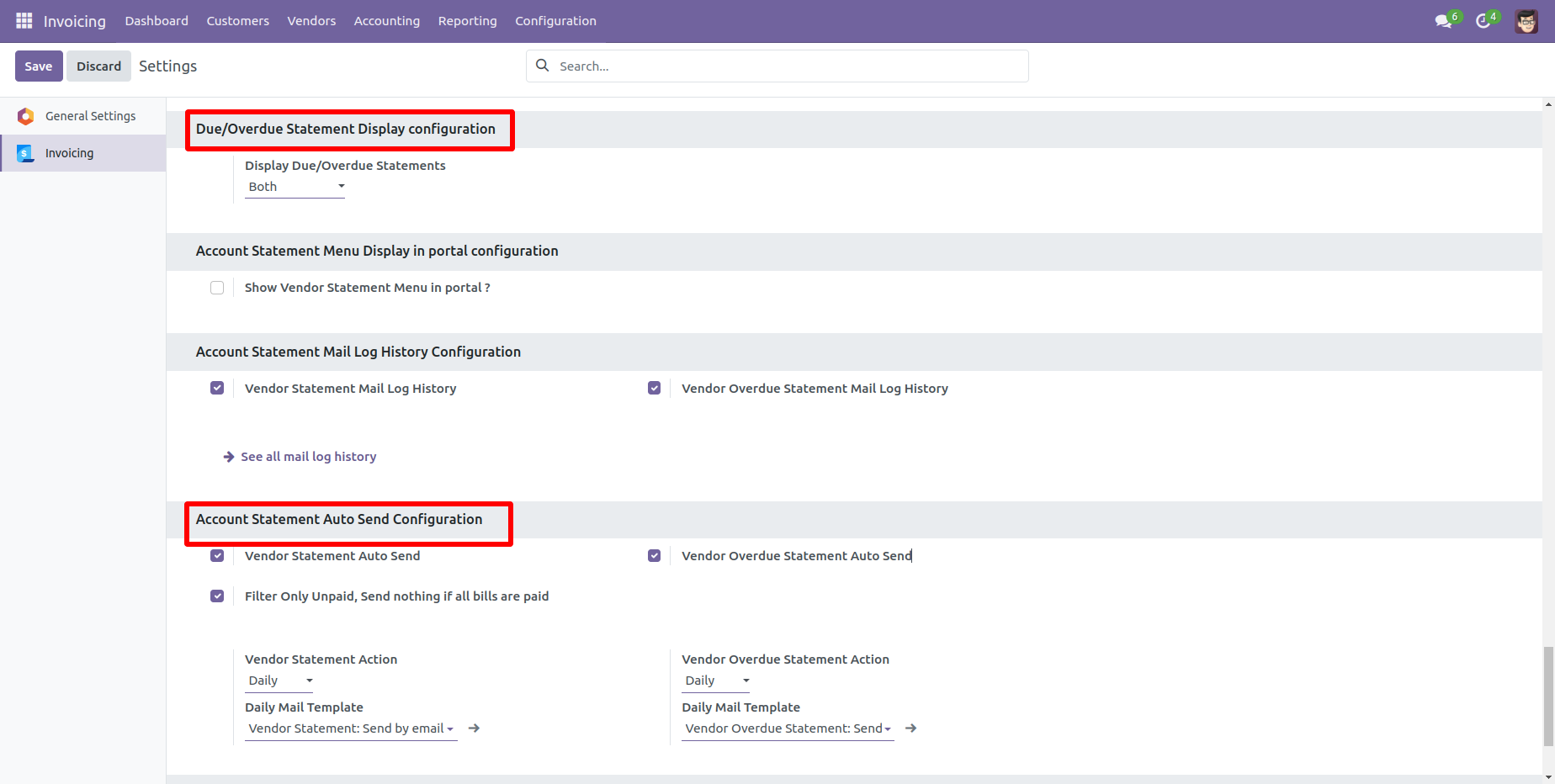
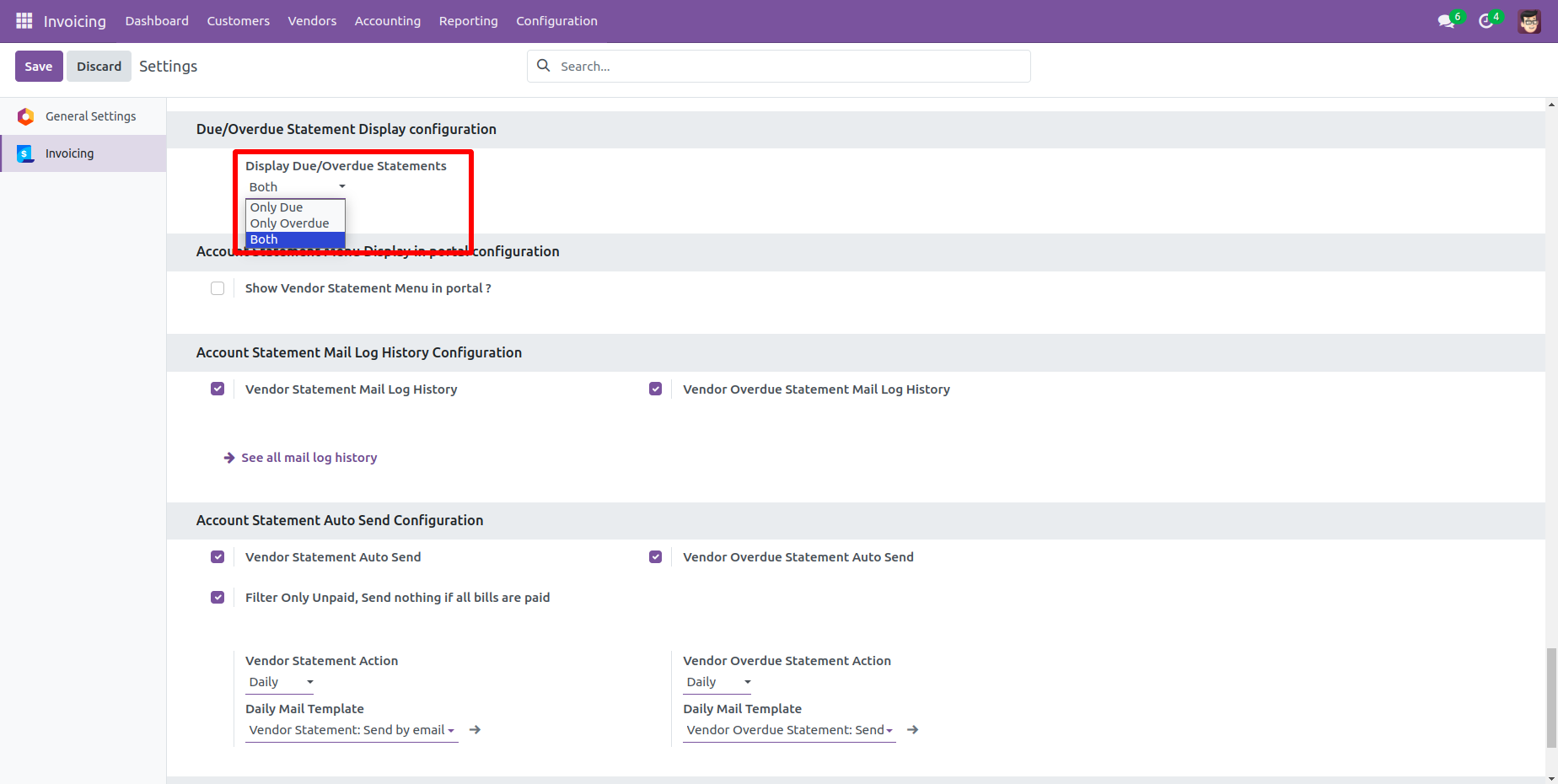
Account Statement Configurations.
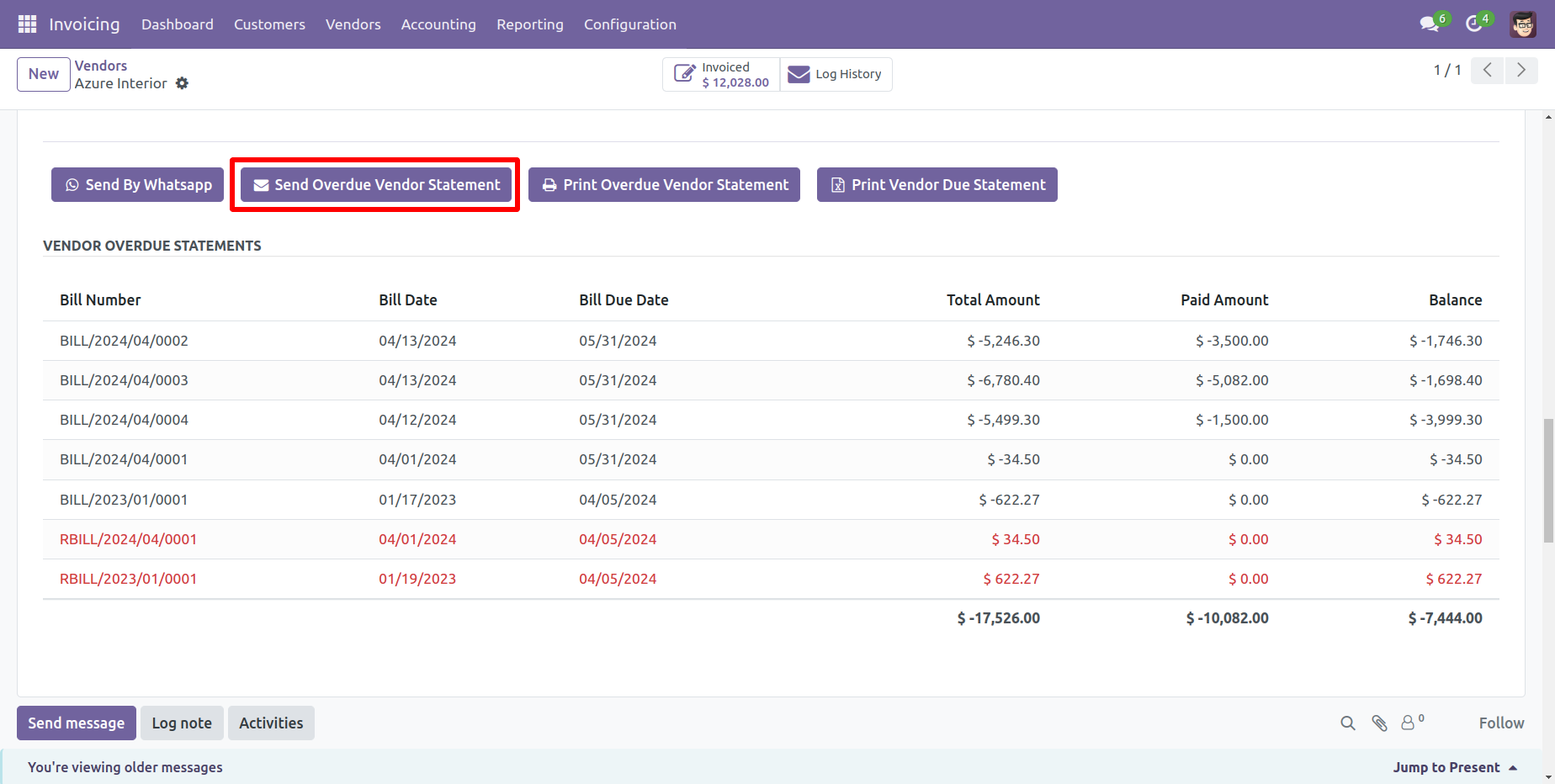
Go to the vendor => vendor statement, press 'Send Overdue Vendor Statement' to send the statement by mail and press 'Print Overdue Vendor Statement' to print the statement.
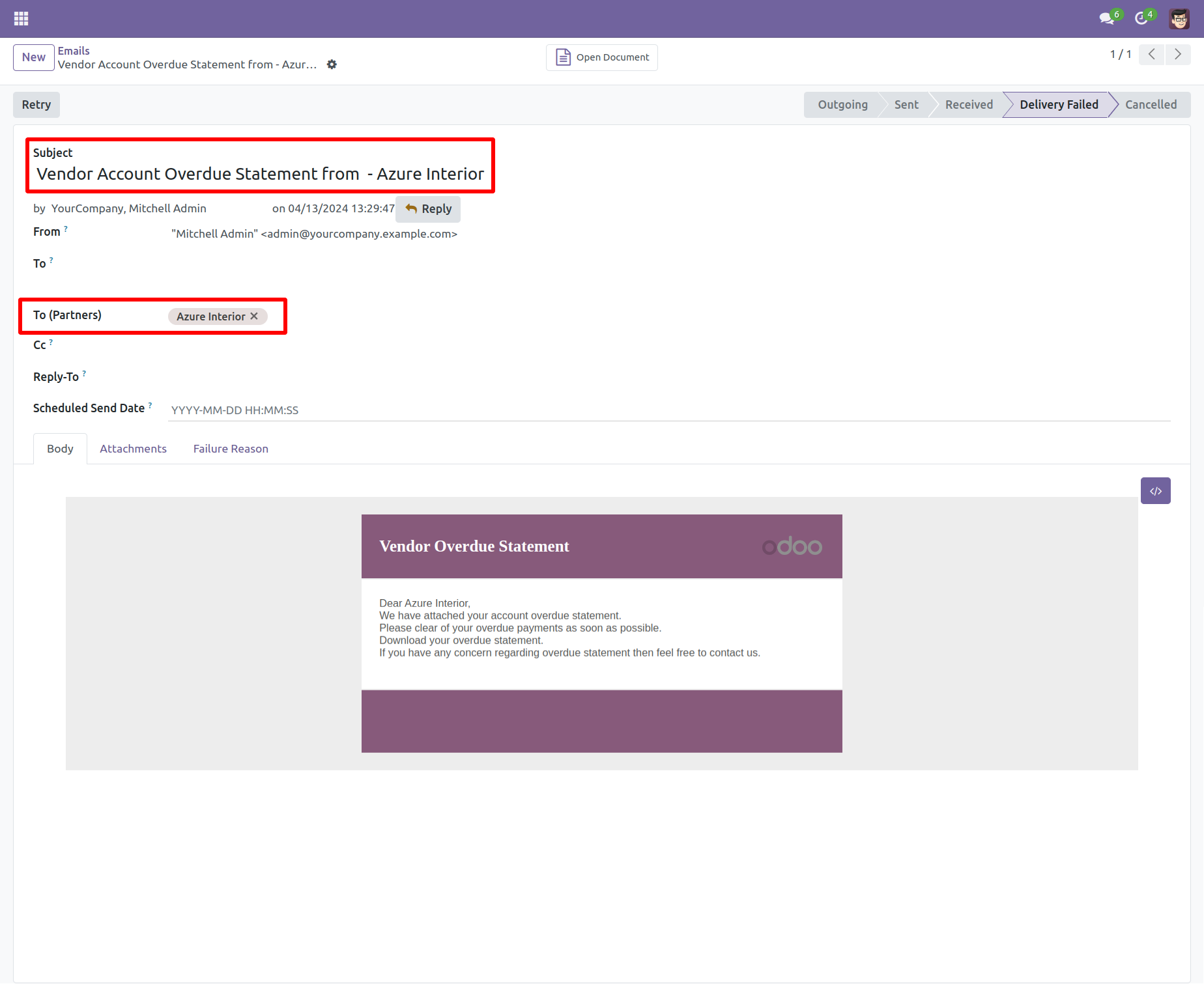
Vendor filter statement sent by mail.
Email statement form view.
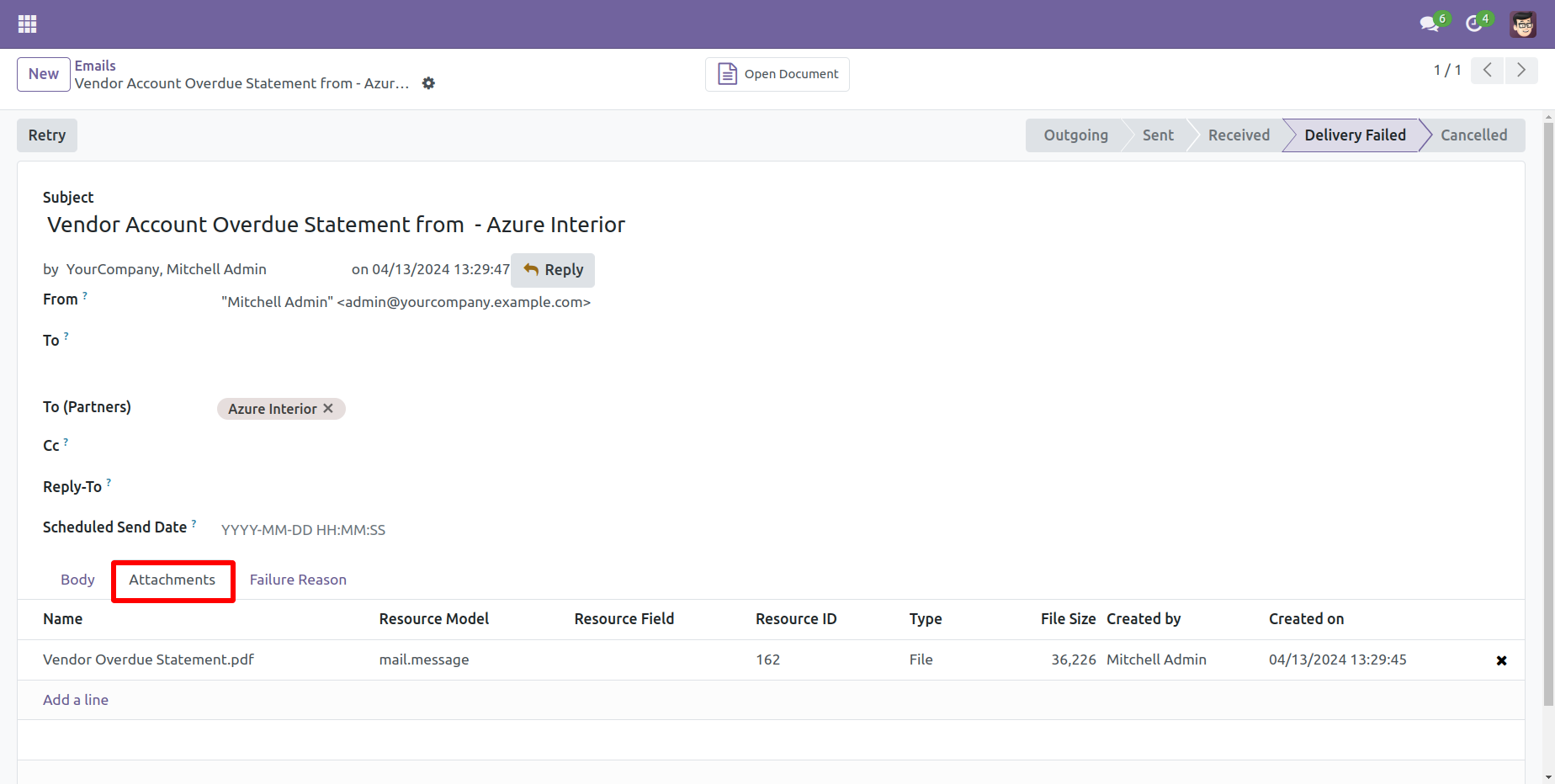
You can see the statement attachment from an email.
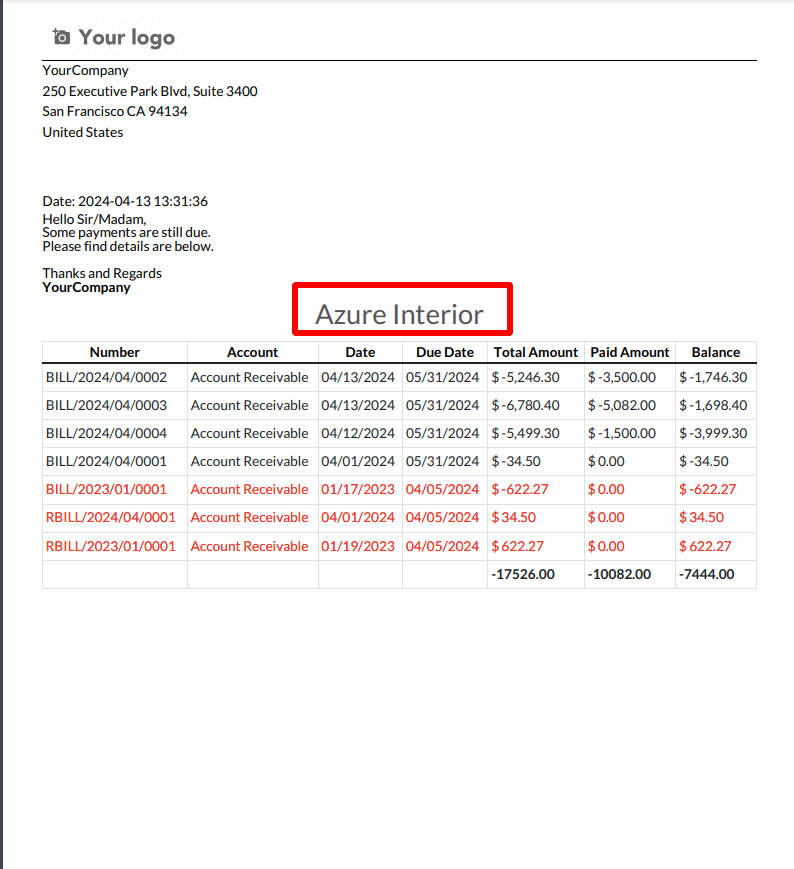
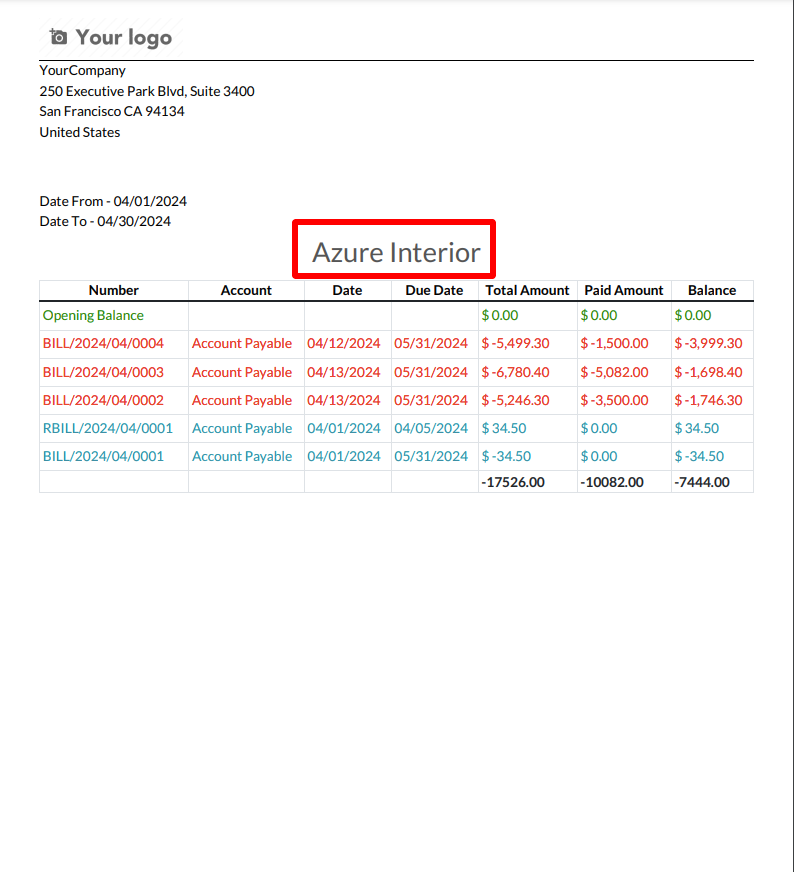
The statement looks like this.
Go to the vendor => vendor statement, press 'Send Vendor Statement' to send the statement by mail and press 'Print Vendor Statement' to print the statement. You can also send filter statements by whatsapp.
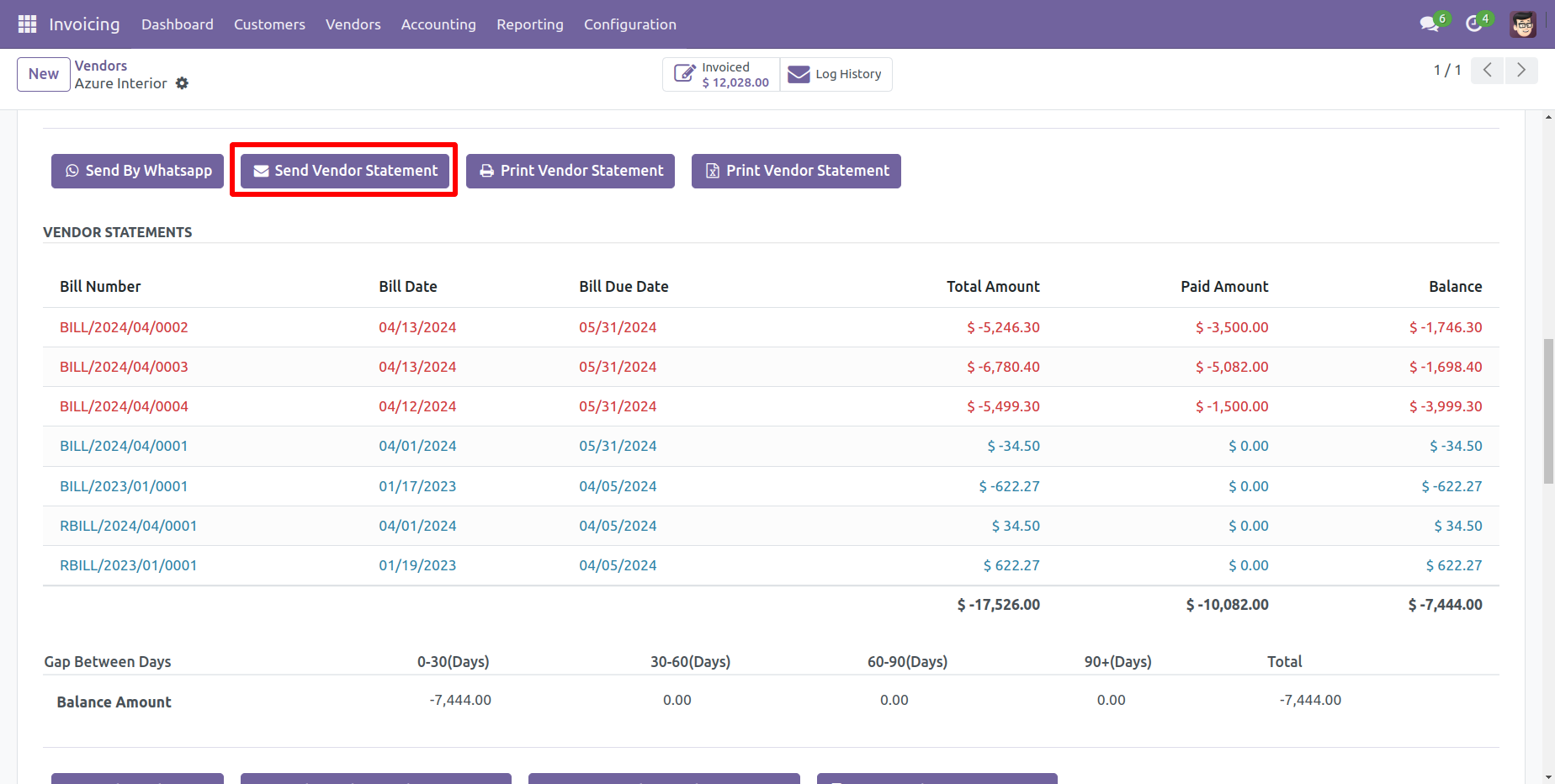
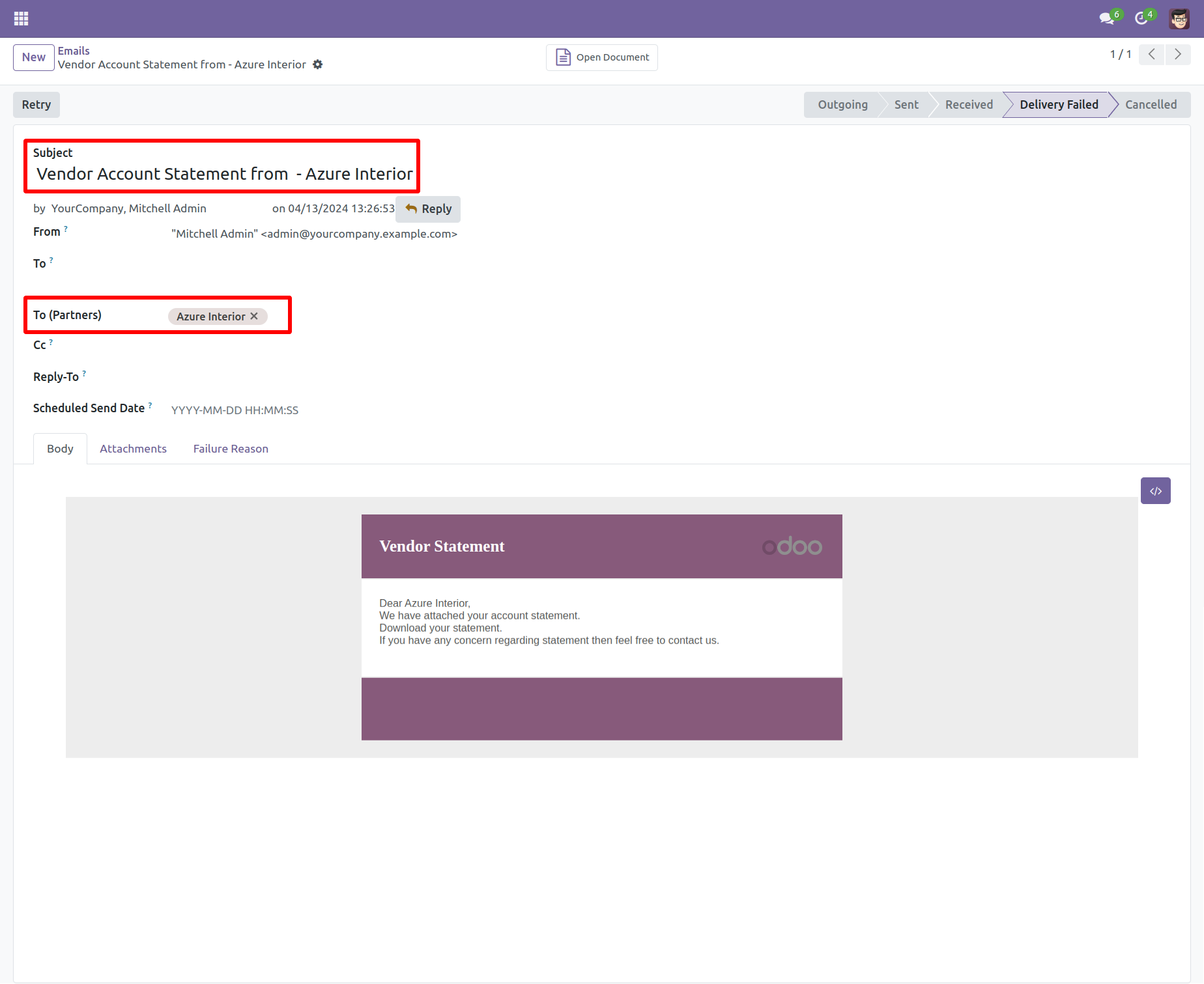
Vendor filter statement sent by mail.
Email statement form view.
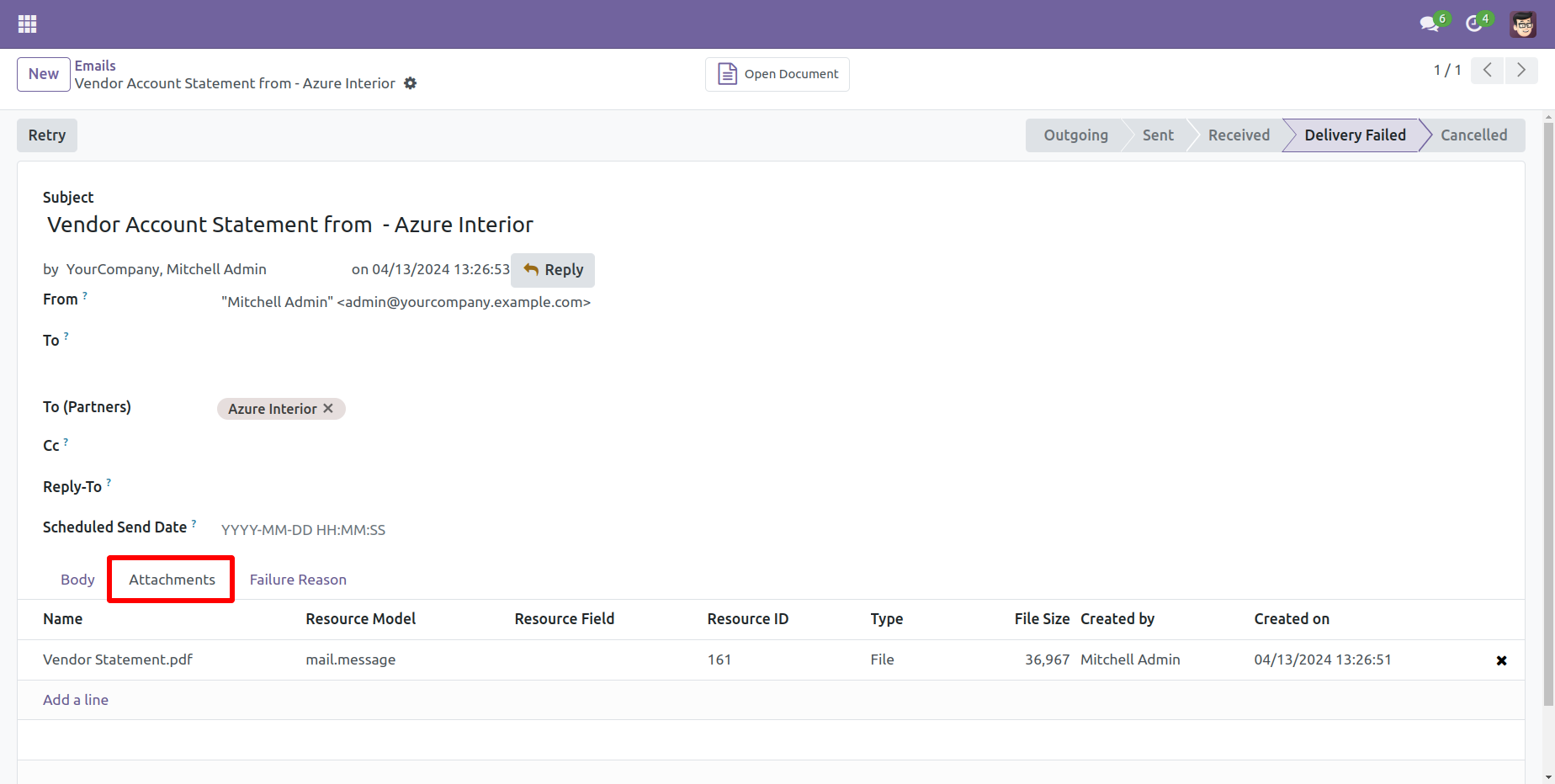
You can see the statement attachment from an email.
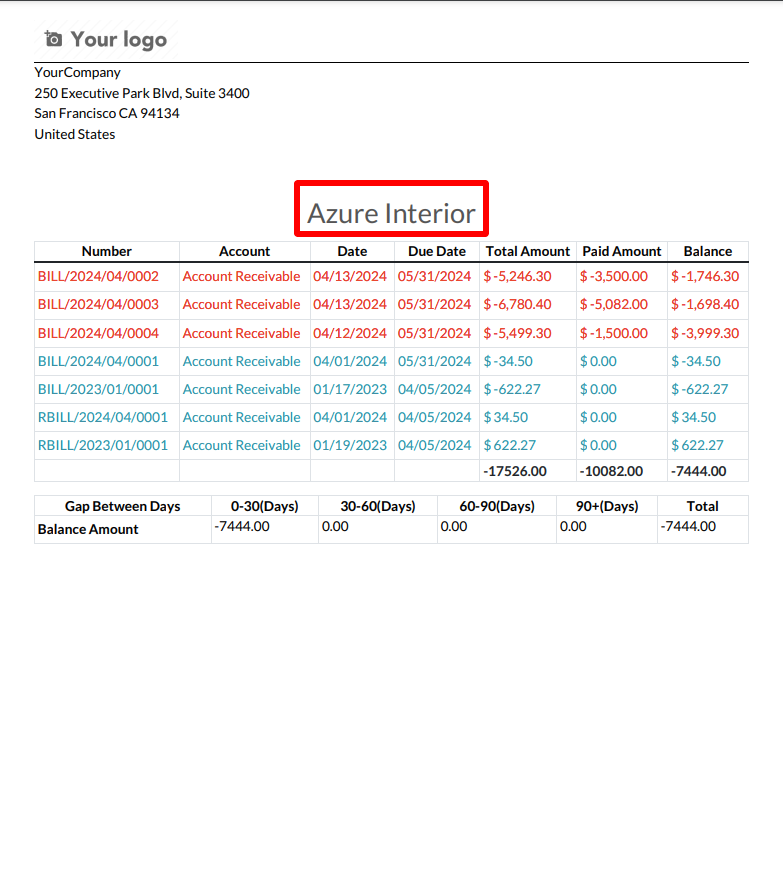
The statement looks like this.
Press 'Get Vendor Statement'.
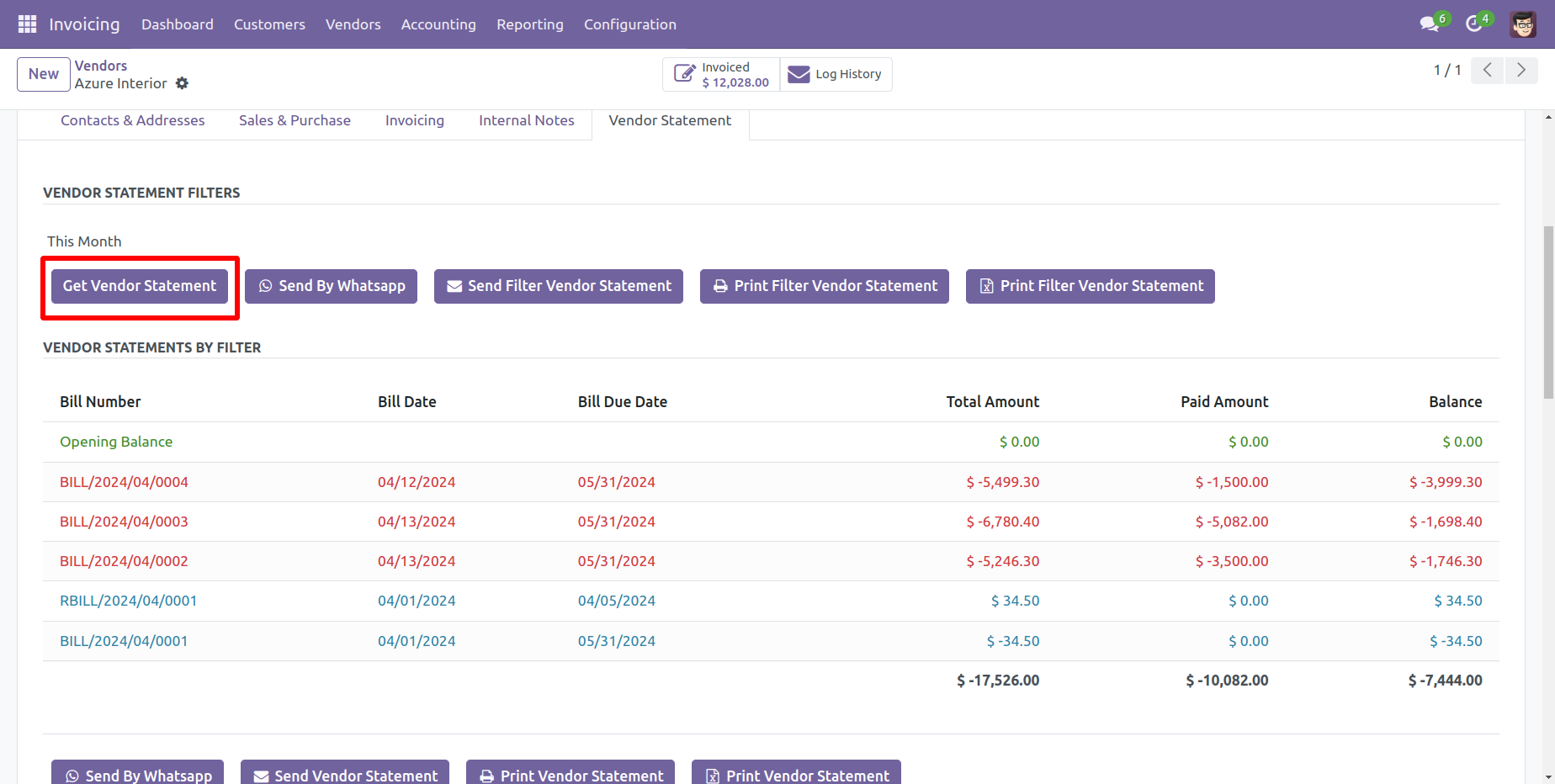
You can send filter statements by mail, so press 'Send Filter Vendor Statement' and press 'Print Filter Vendor Statement' to print filter vendor statement. You can also send filter statements by whatsapp.
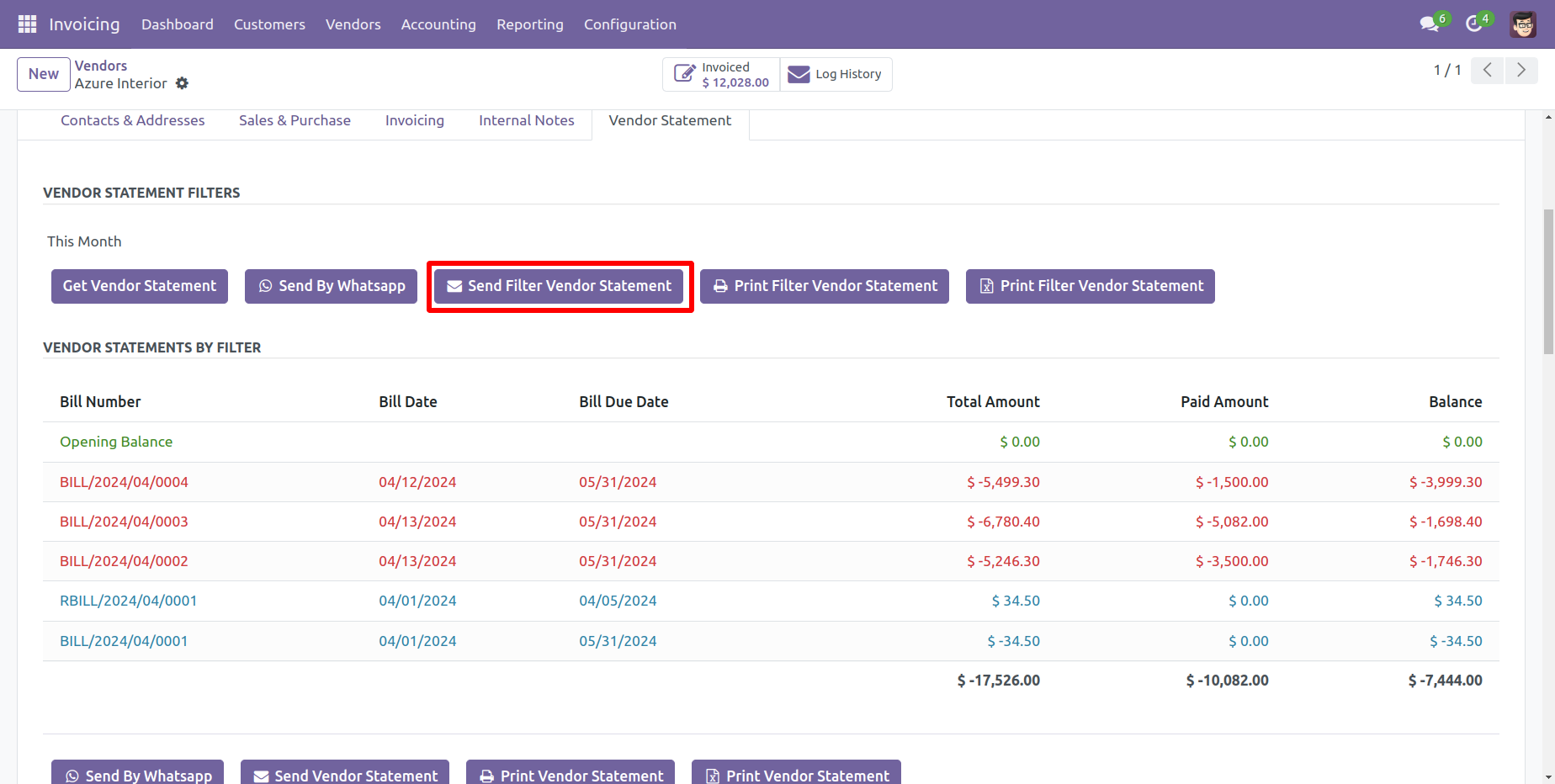
Vendor filter statement sent by mail.
Email statement form view.
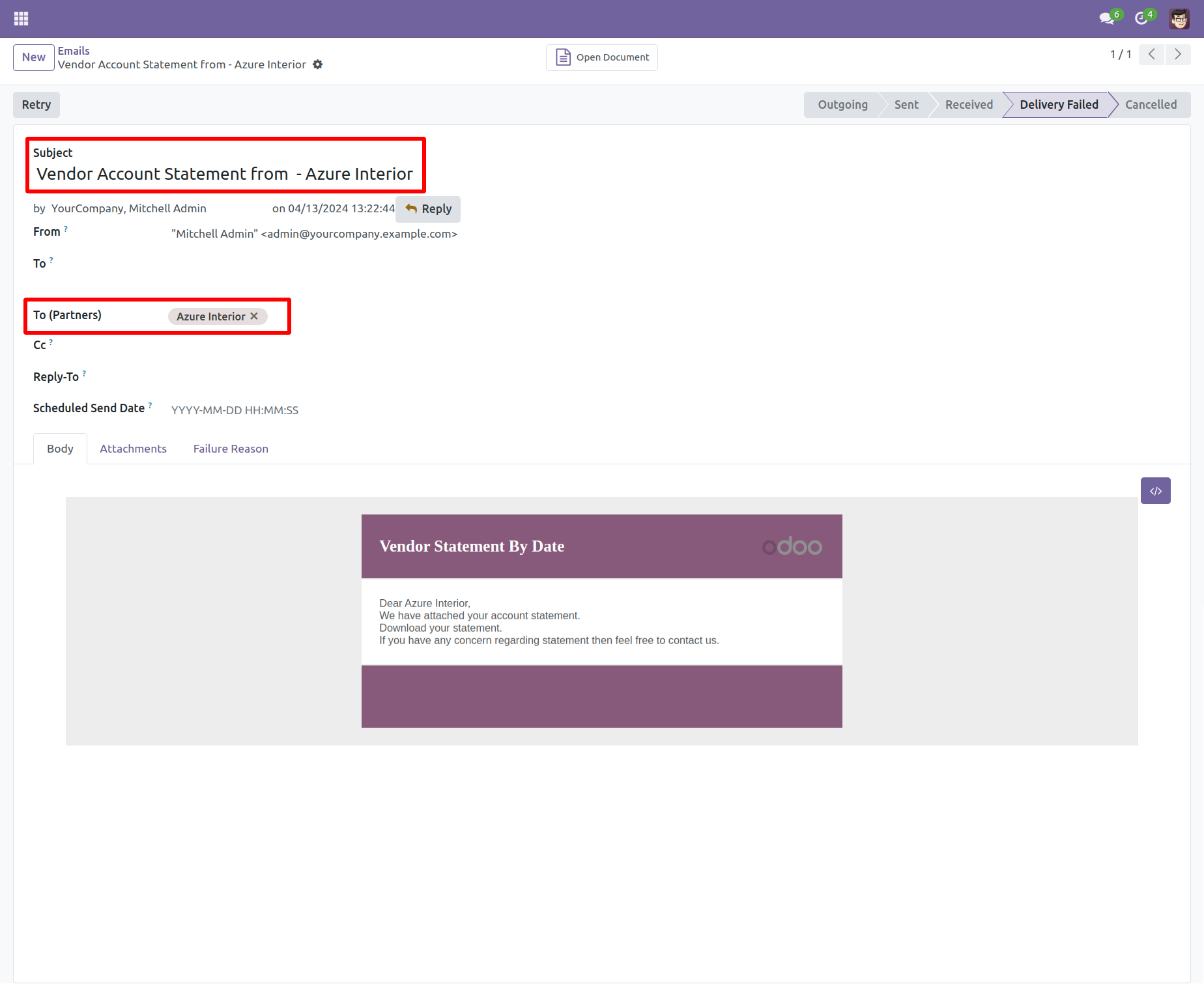
You can see the statement attachment from an email.
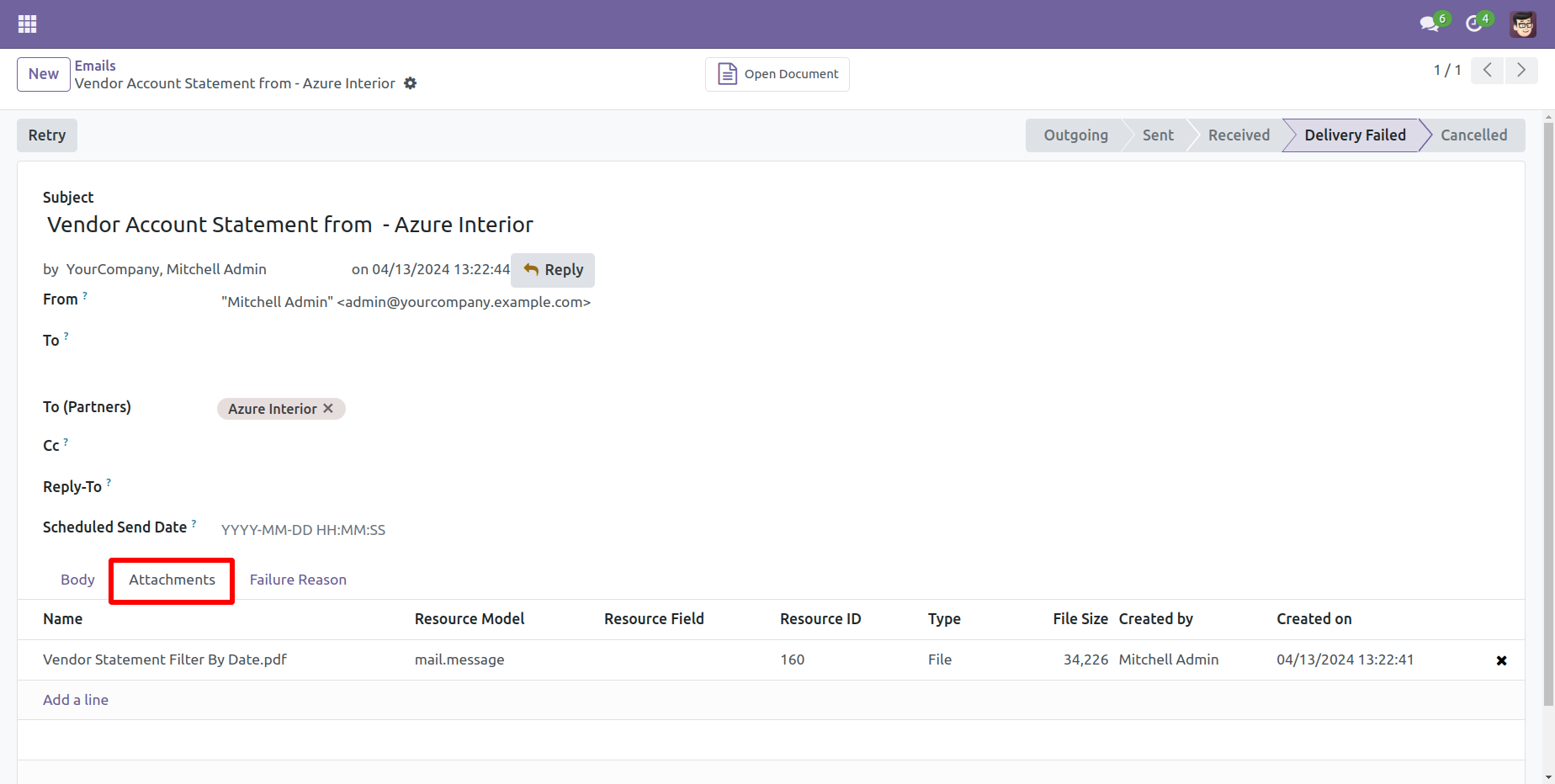
The statement looks like this.
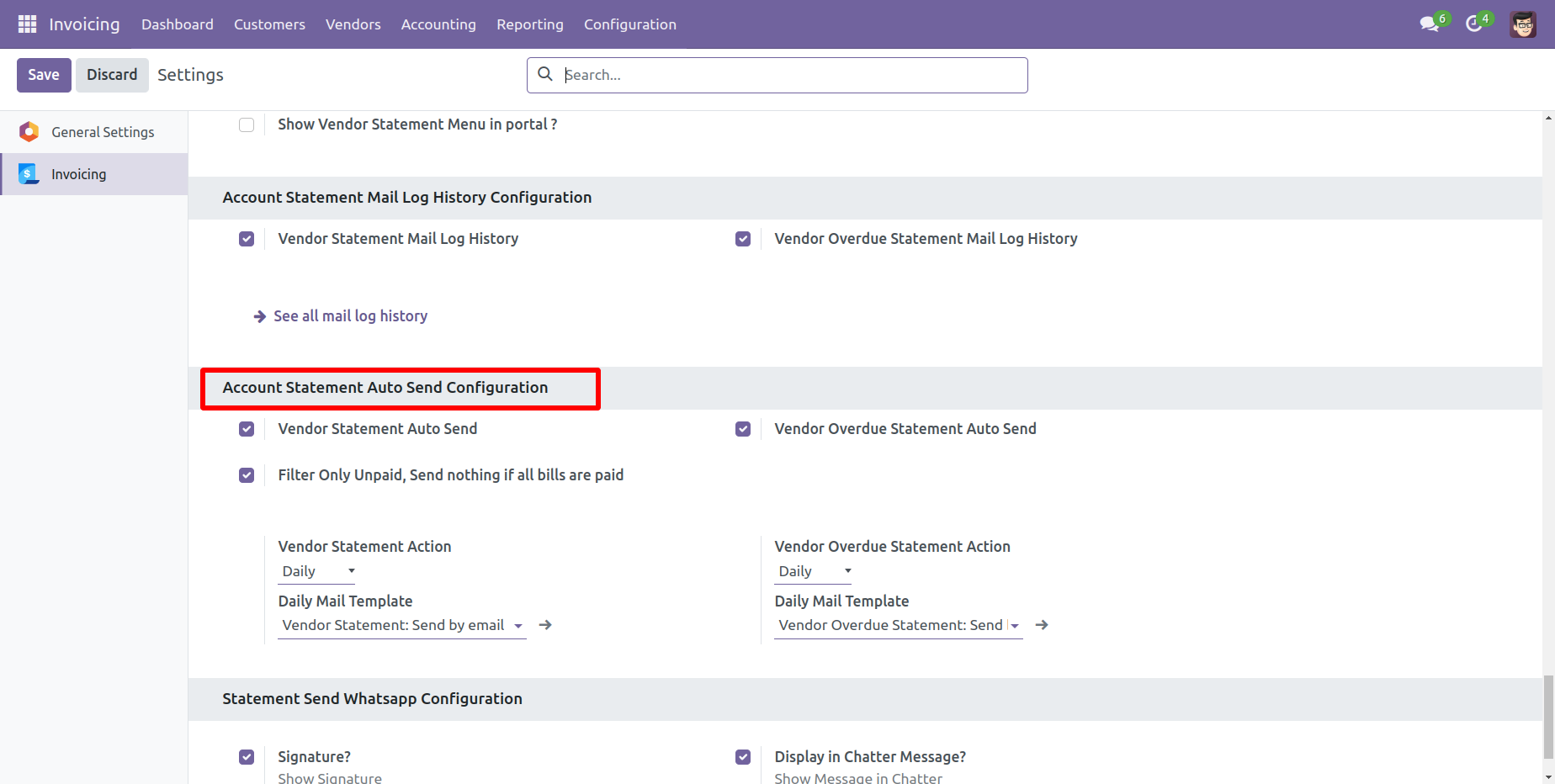
Vendor auto-send statements/overdue statements configuration.
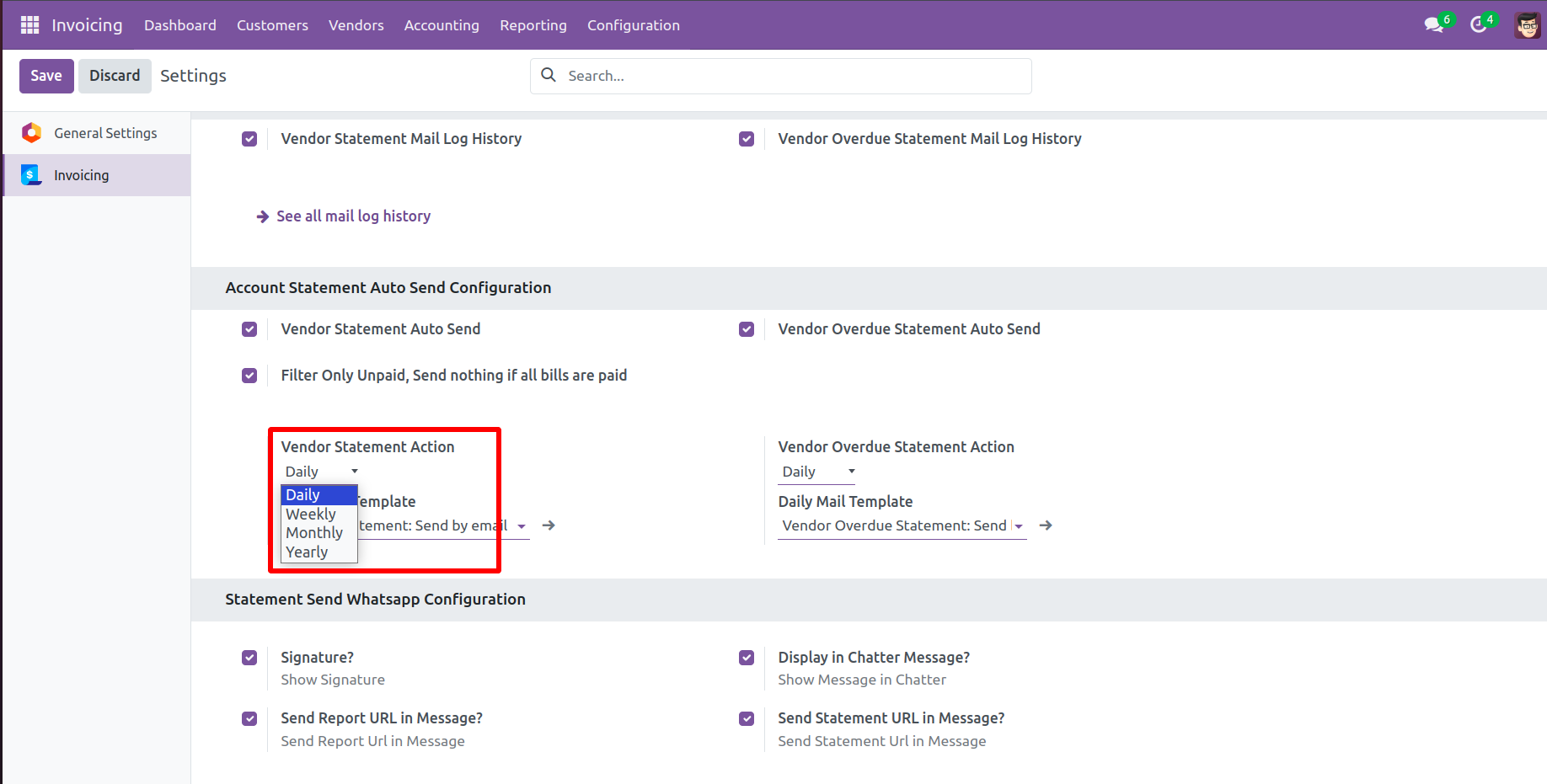
You can daily auto-send vendor statements.
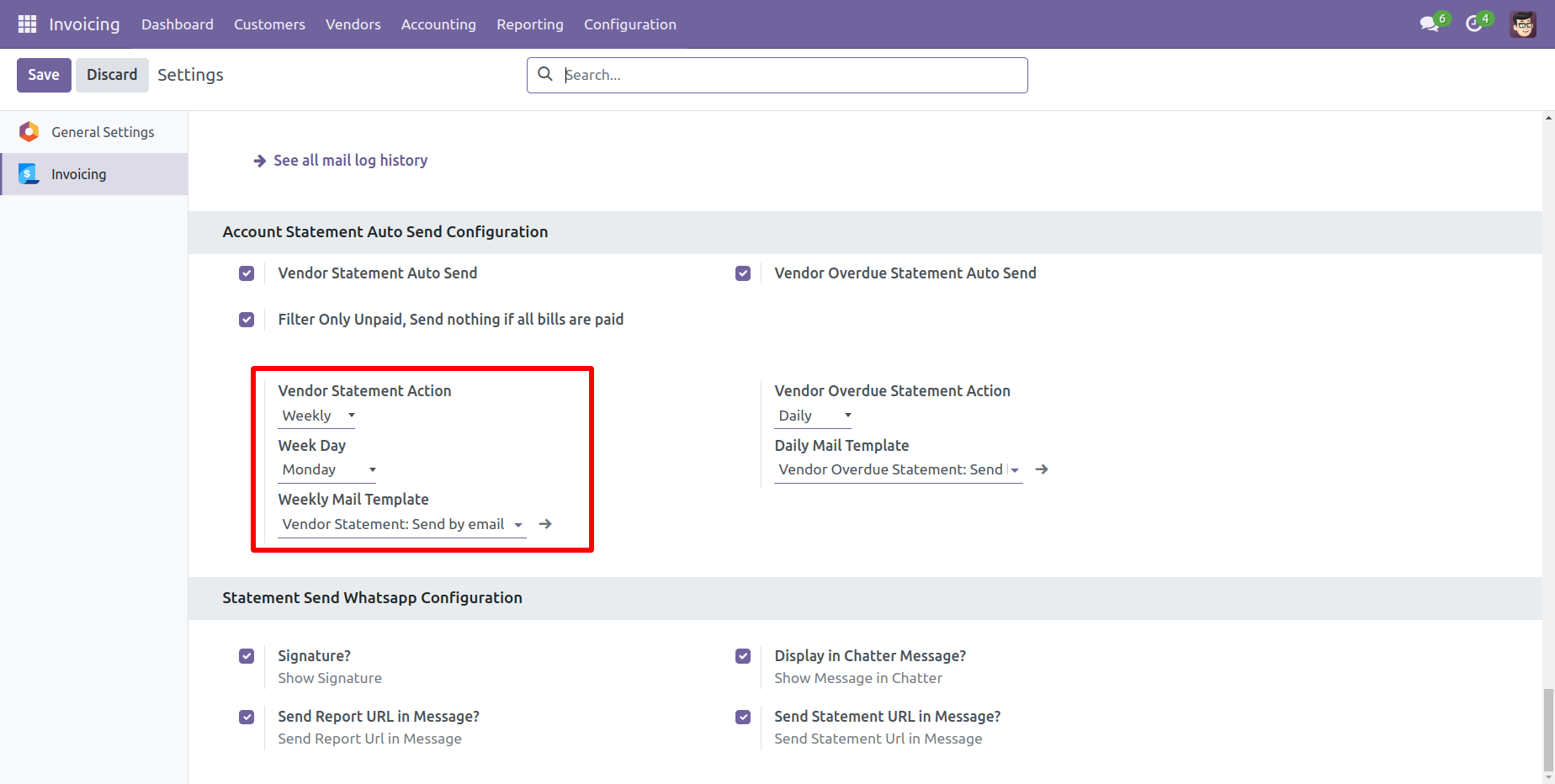
You can weekly auto-send vendor statements.
You can monthly auto-send vendor statements, you can select monthly days.
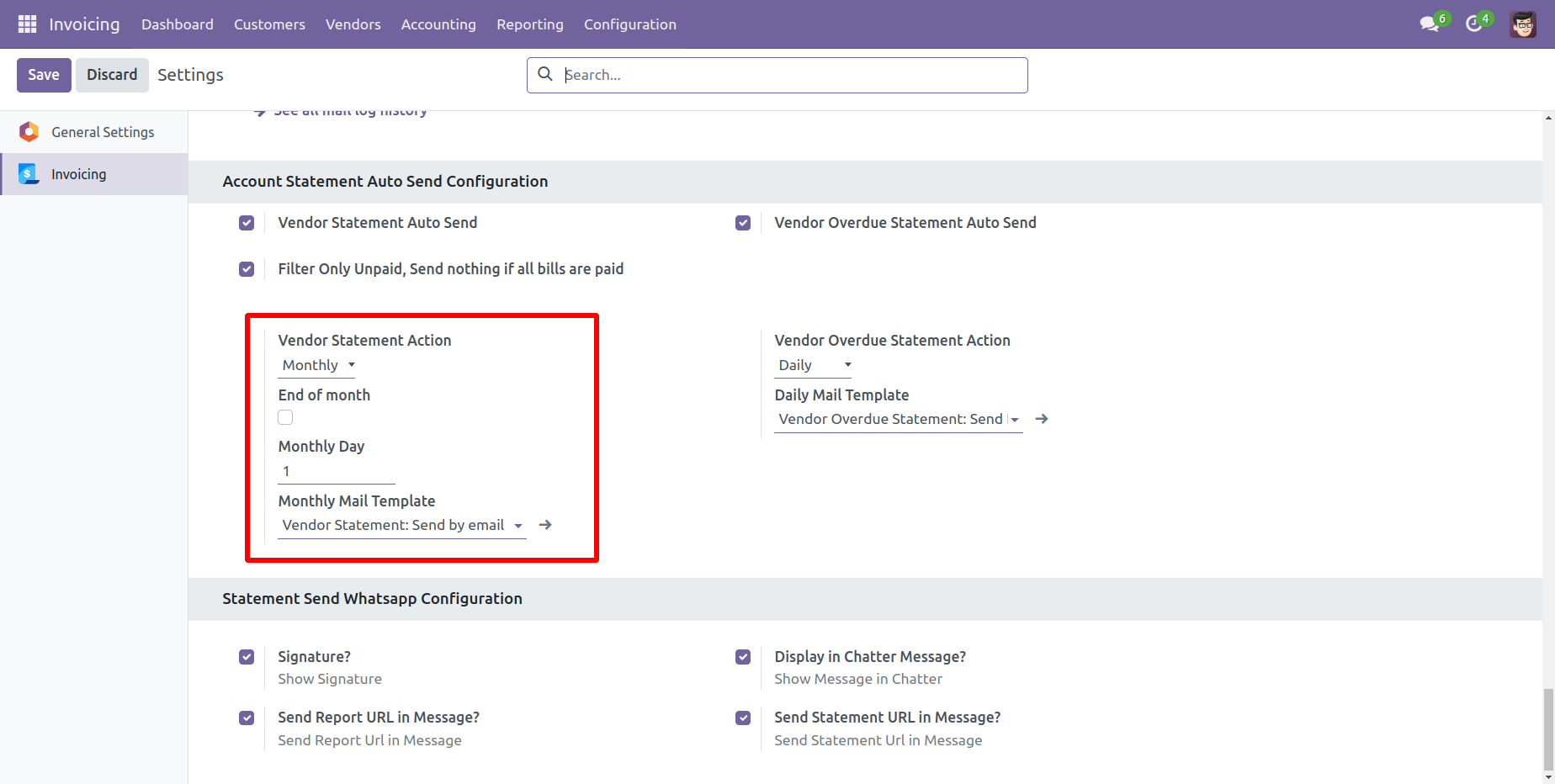
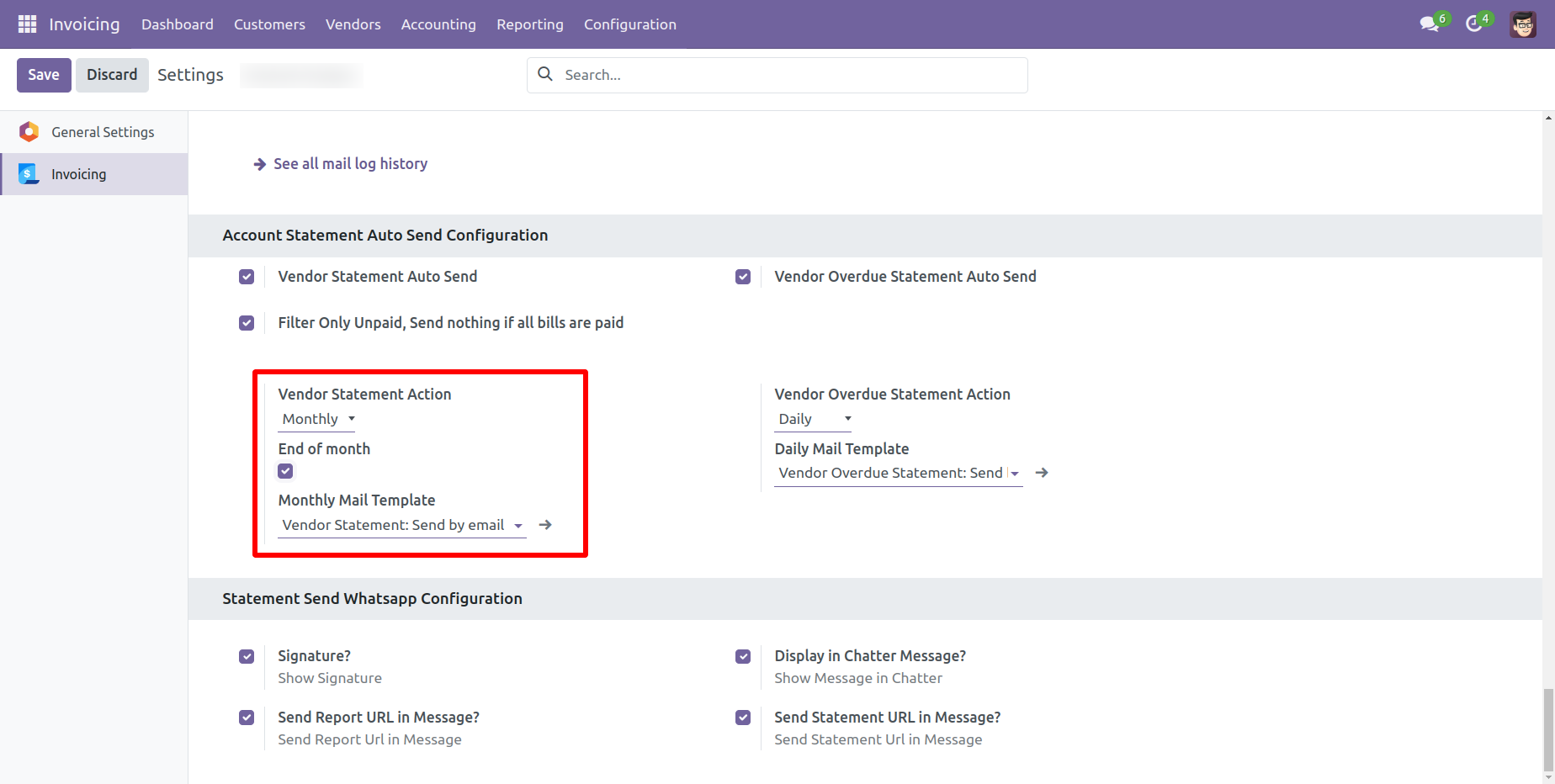
You can auto-send vendor statements by end of the month.
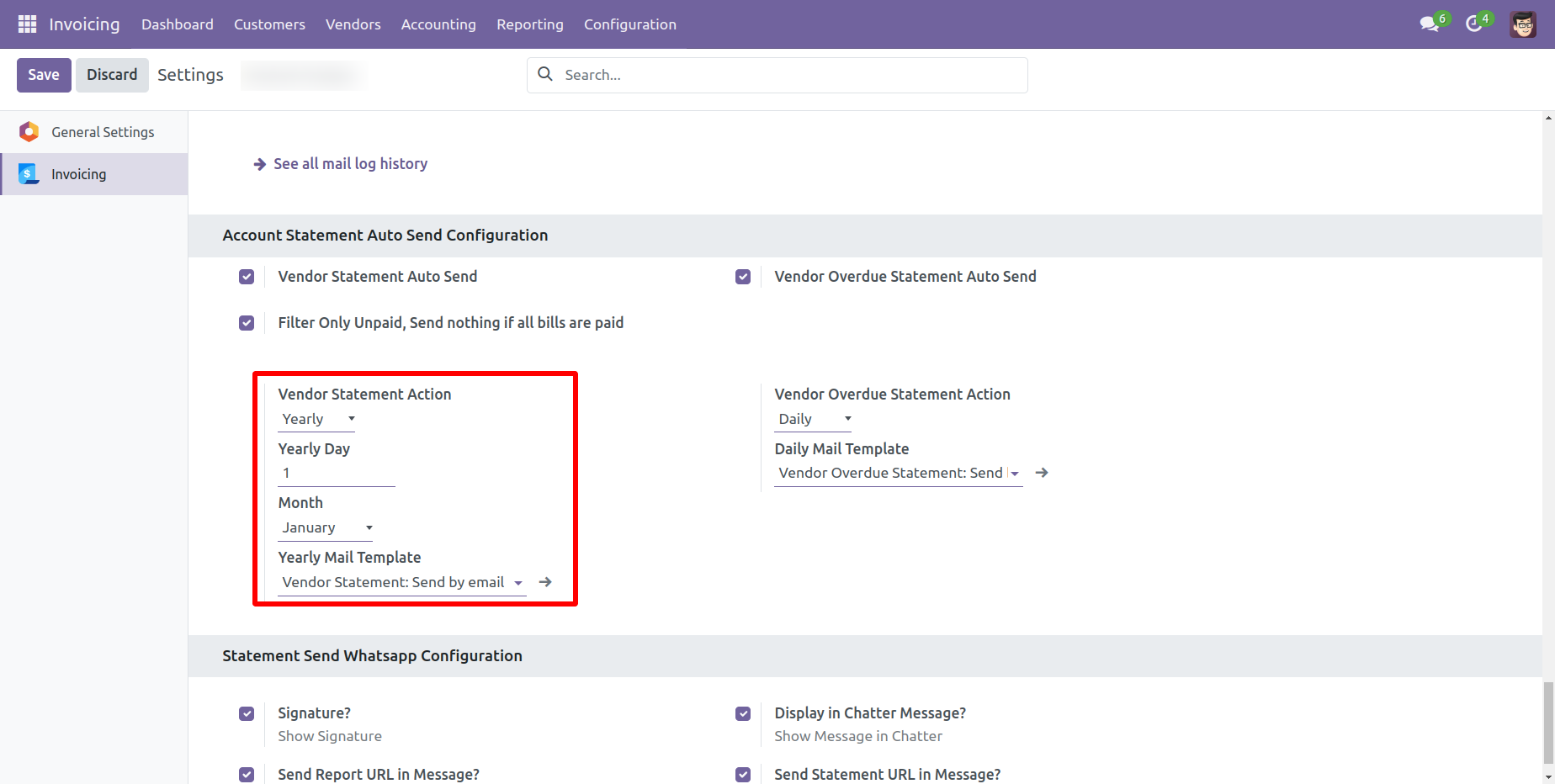
You can yearly auto-send vendor statements.
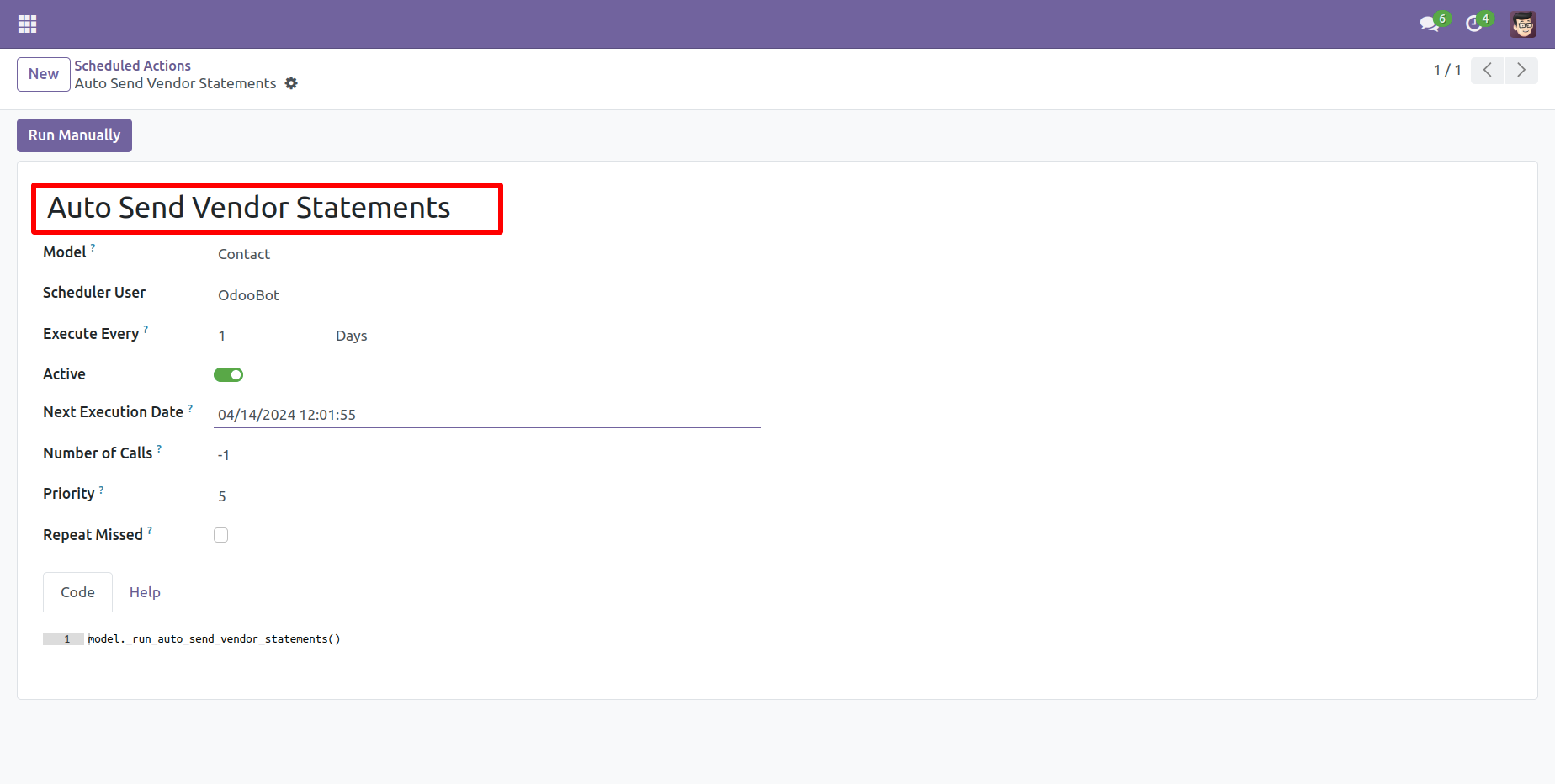
You can send statements by scheduled action(cron job).
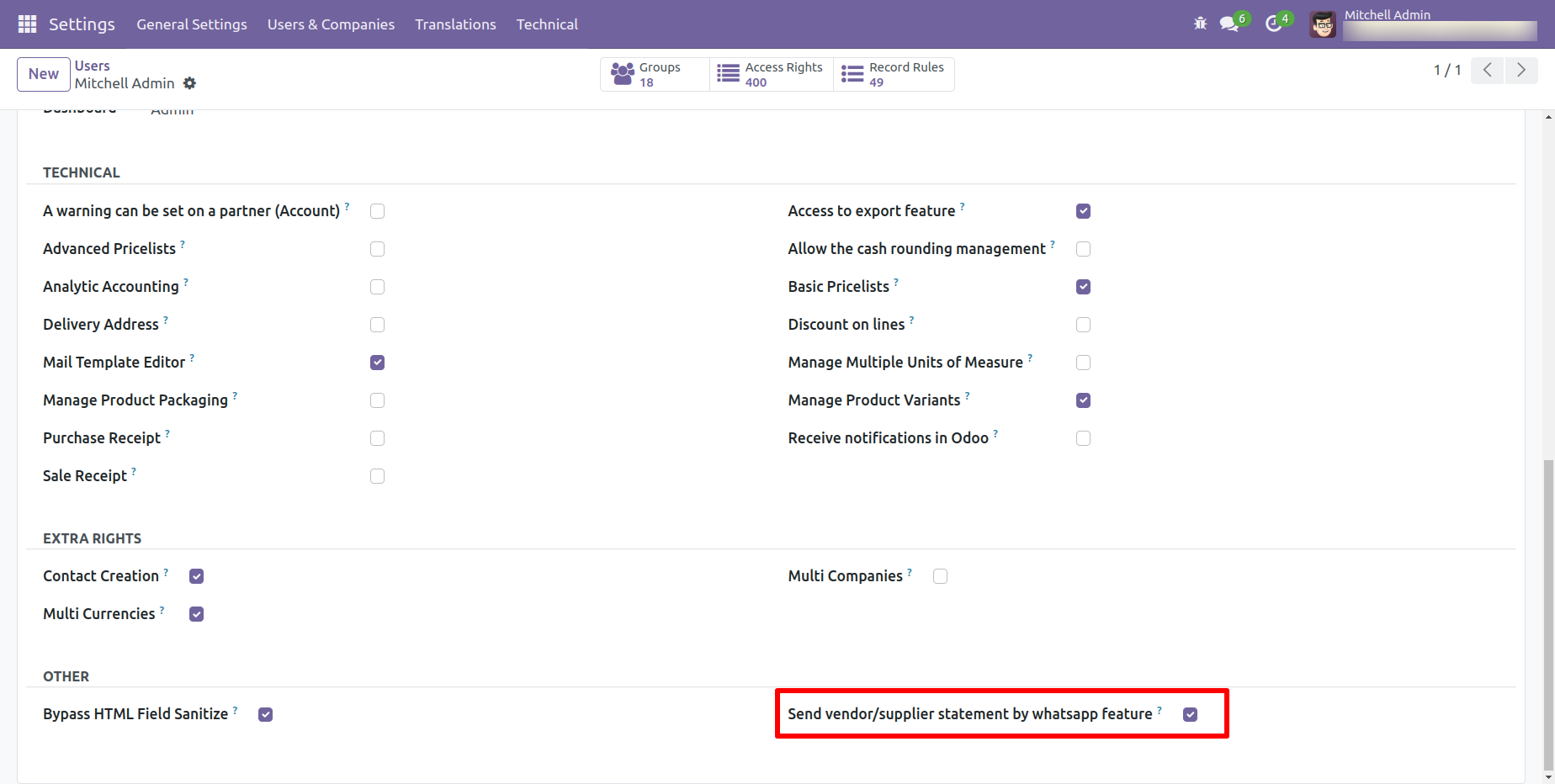
In 'User', enable the 'Send Vendor/Supplier Statement By Whatsapp Feature' option.
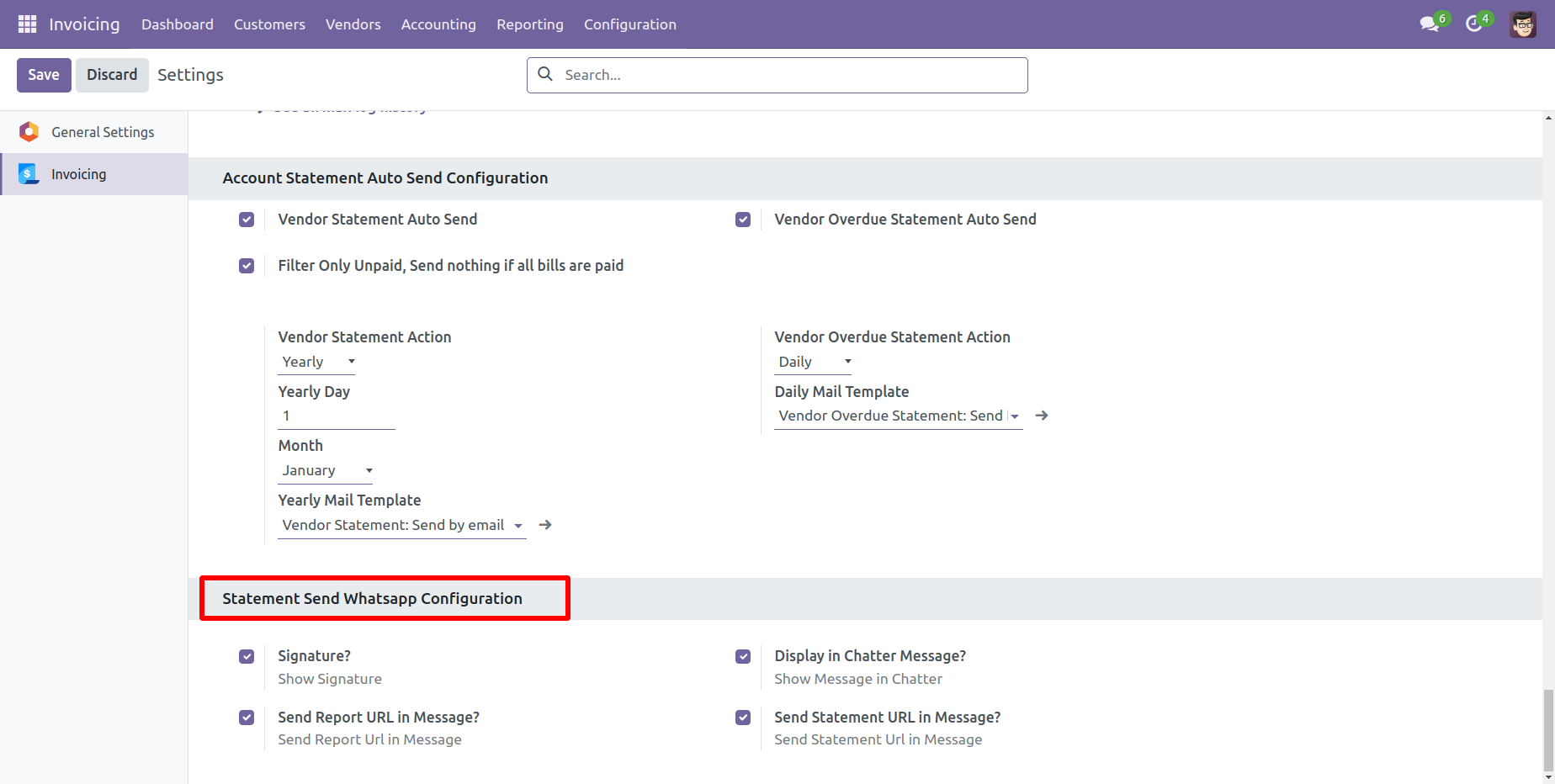
Whatsapp message description with the configuration setting.
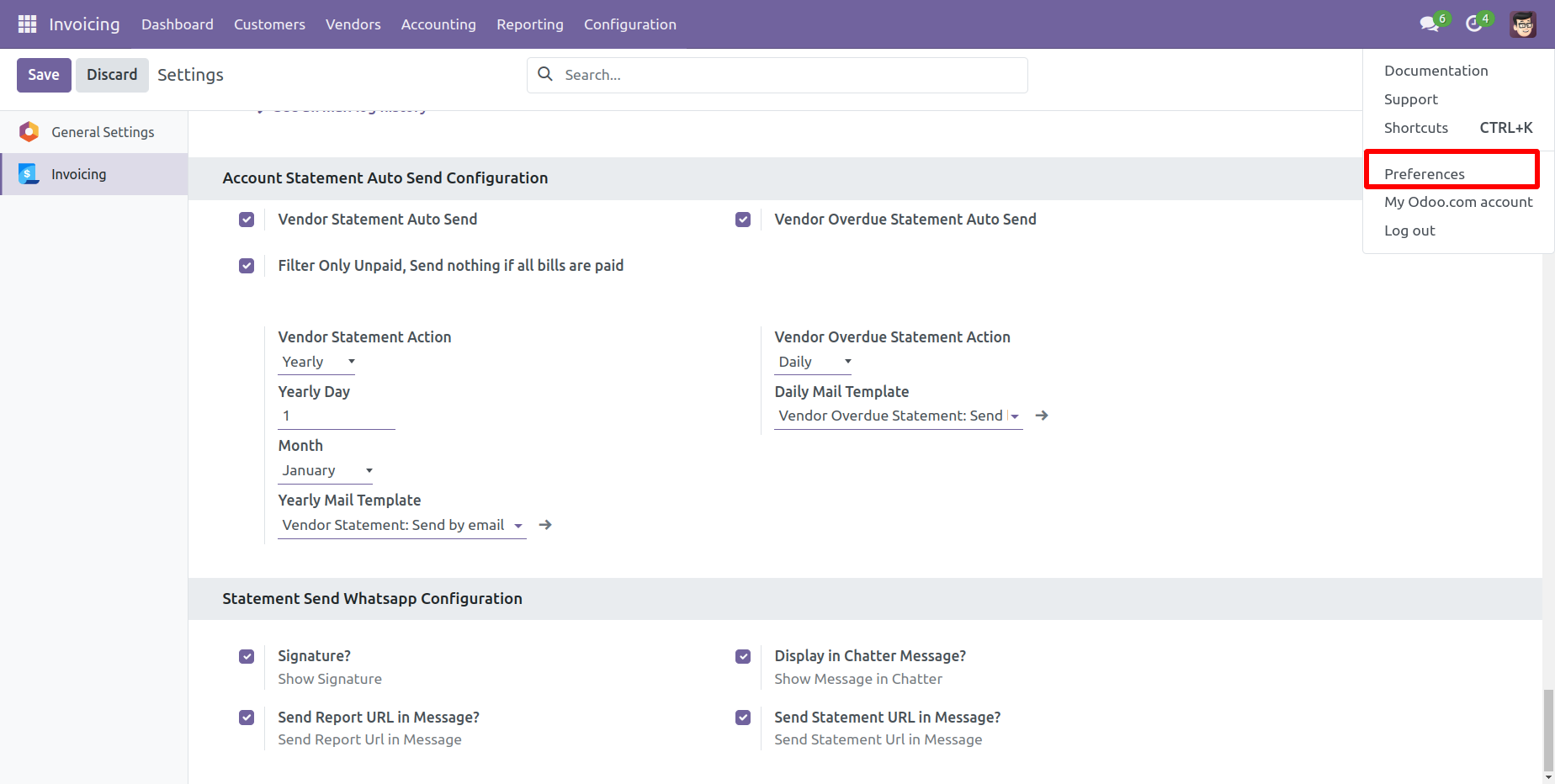
Set the signature in the message, 1) Go to Preferences.
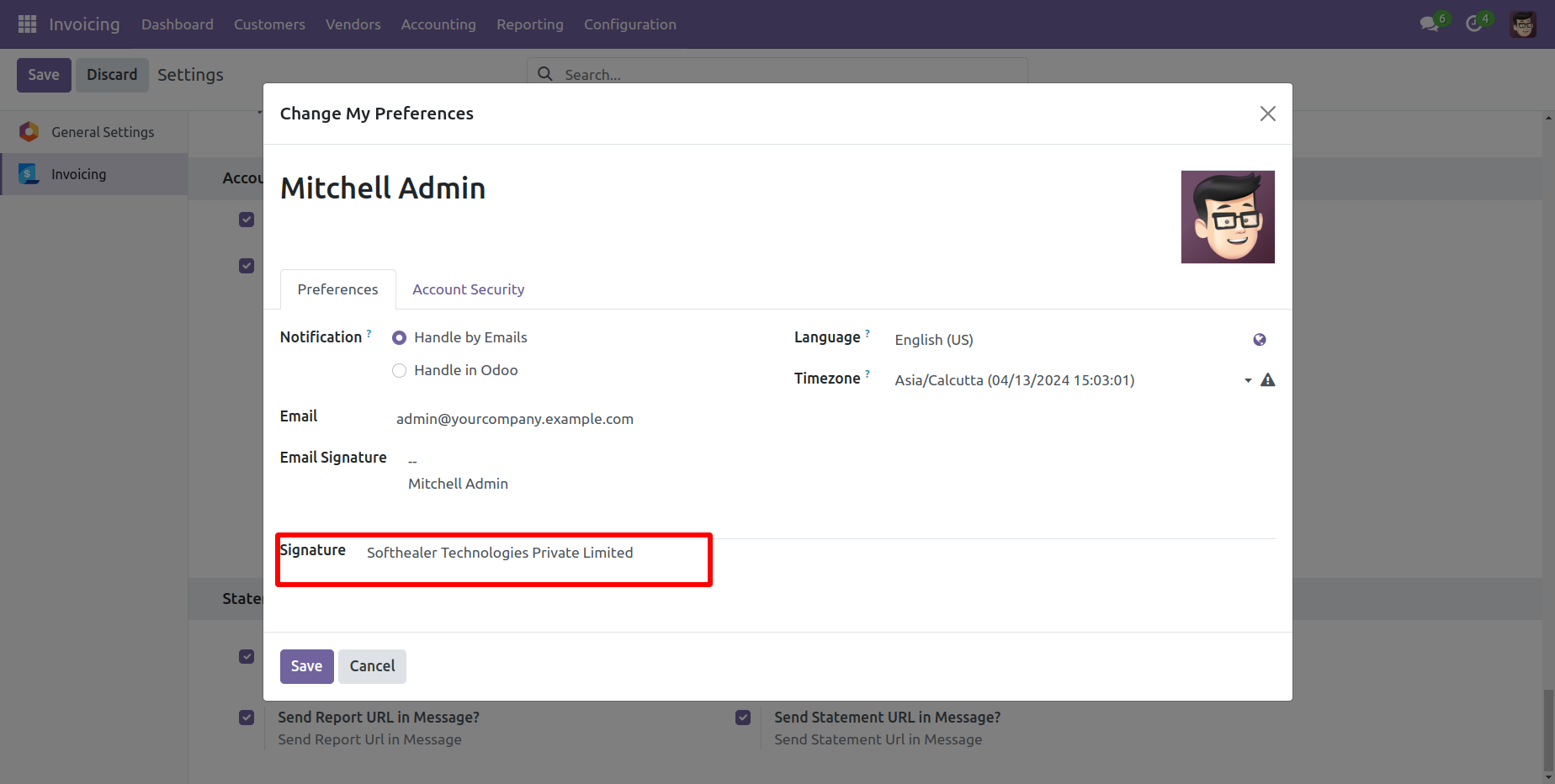
2) Add Signature.
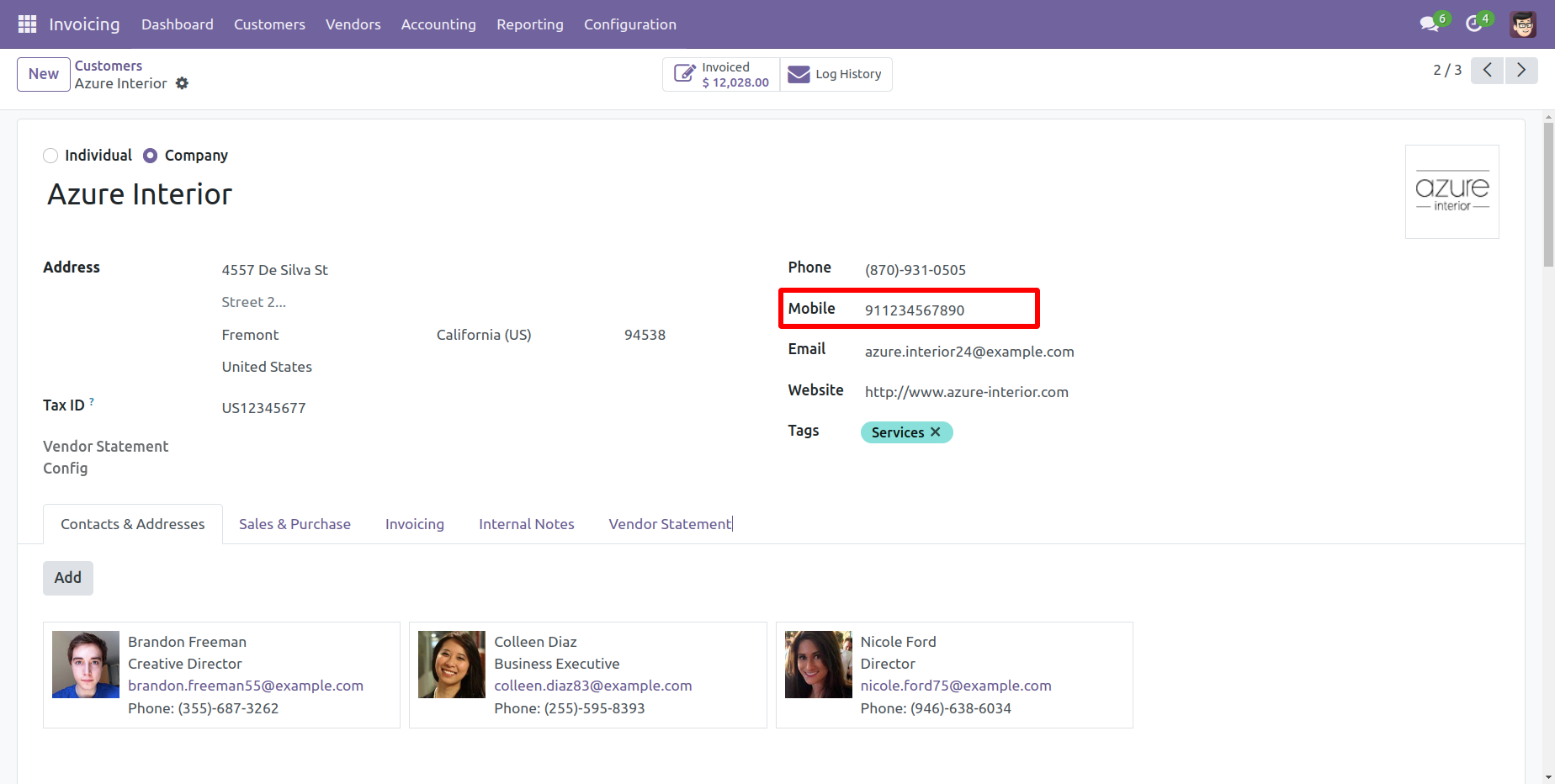
Add number in the 'Mobile' field.
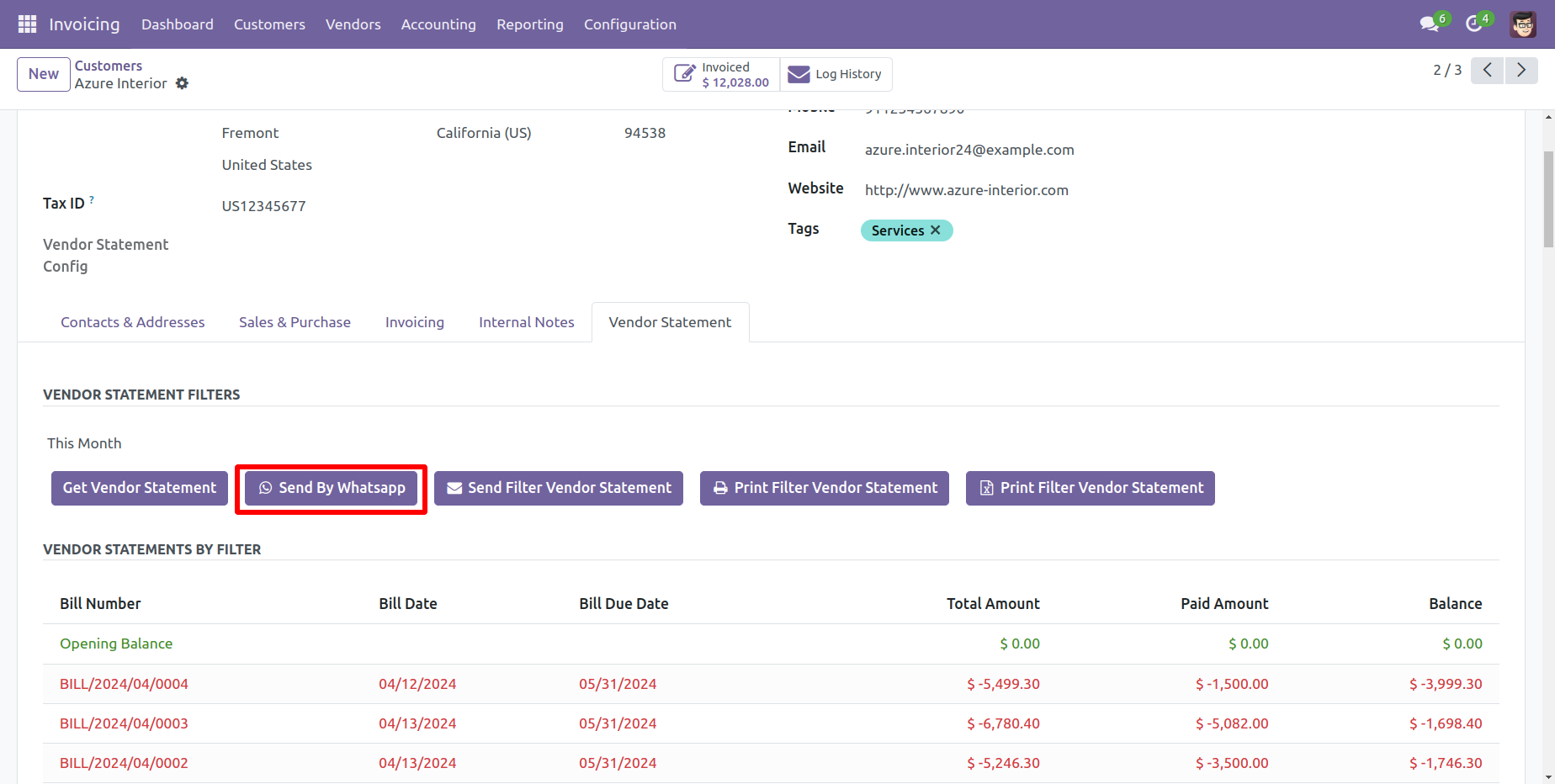
Click the 'Send By WhatsApp' Button.
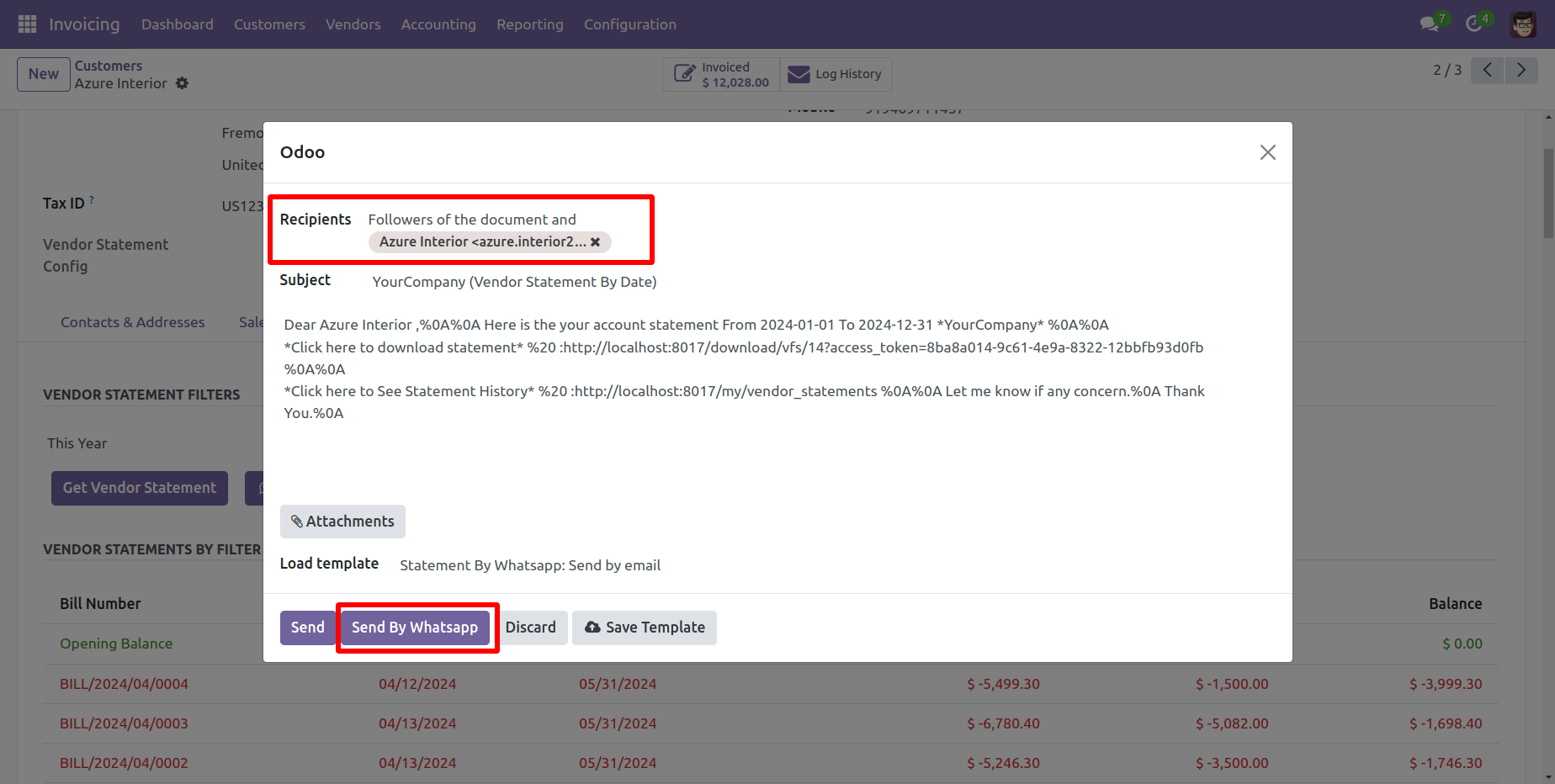
Choose recipient and edit message as required and click send by WhatsApp.
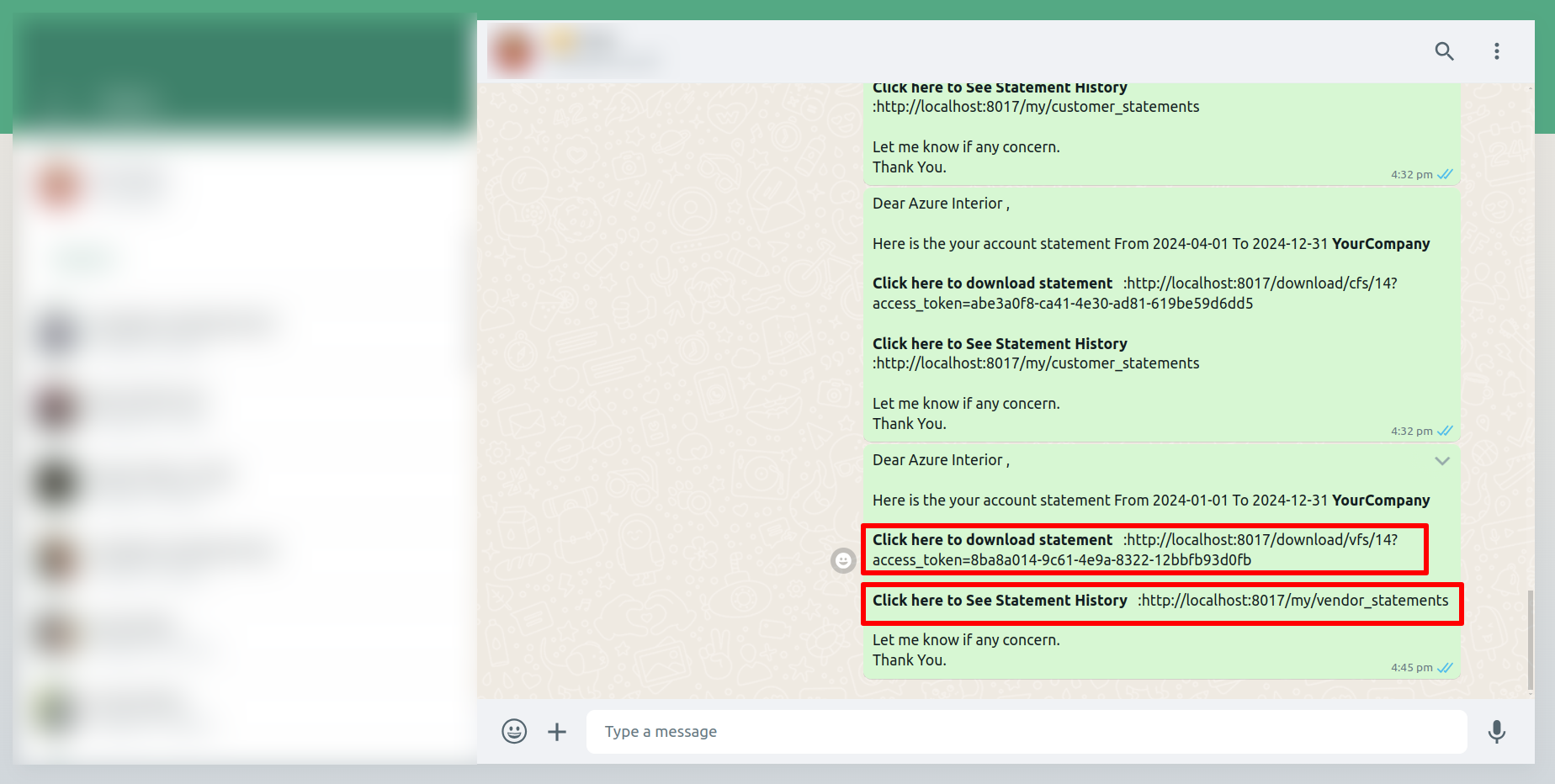
This is the output shown in the WhatsApp messenger.
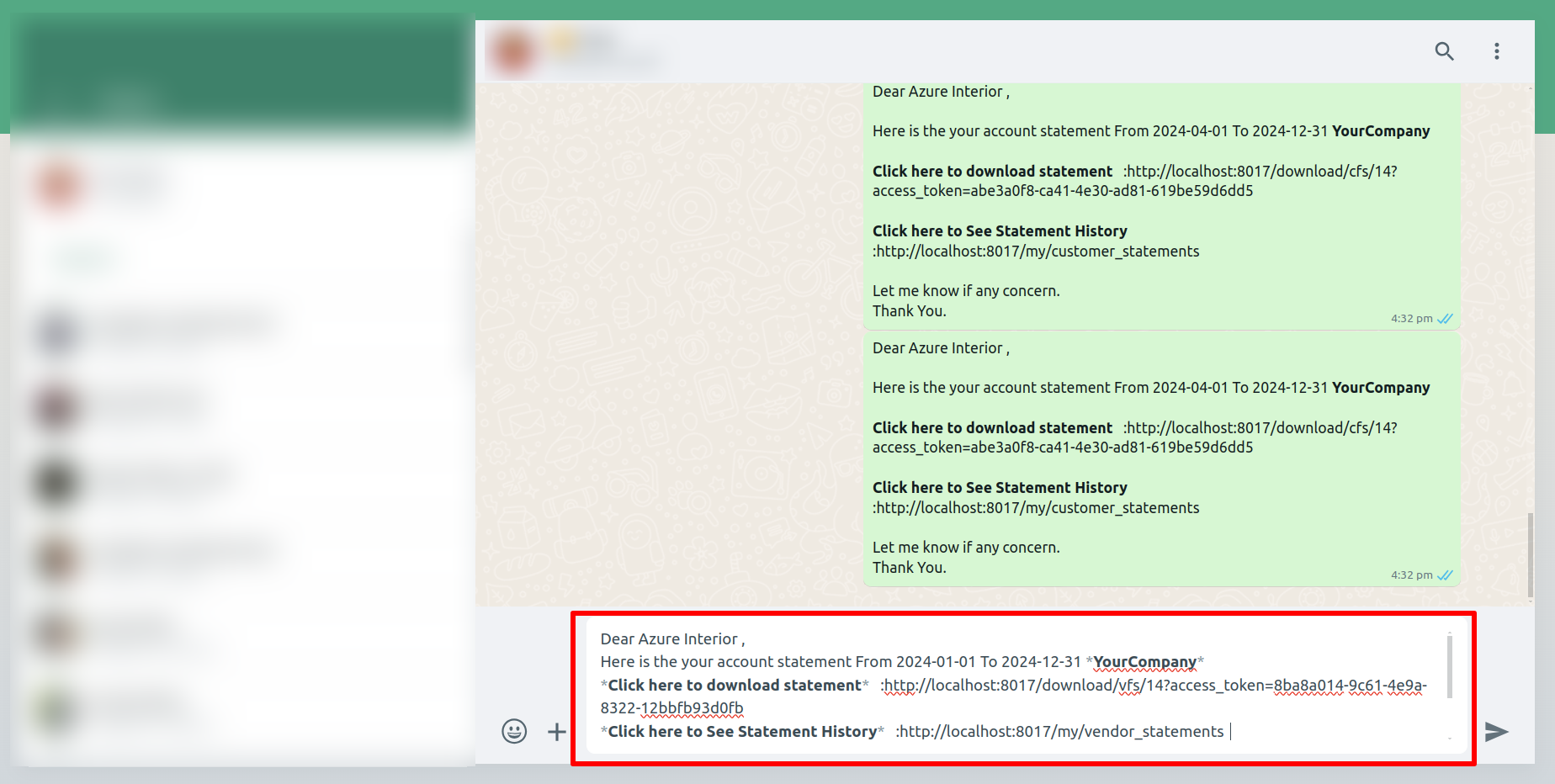
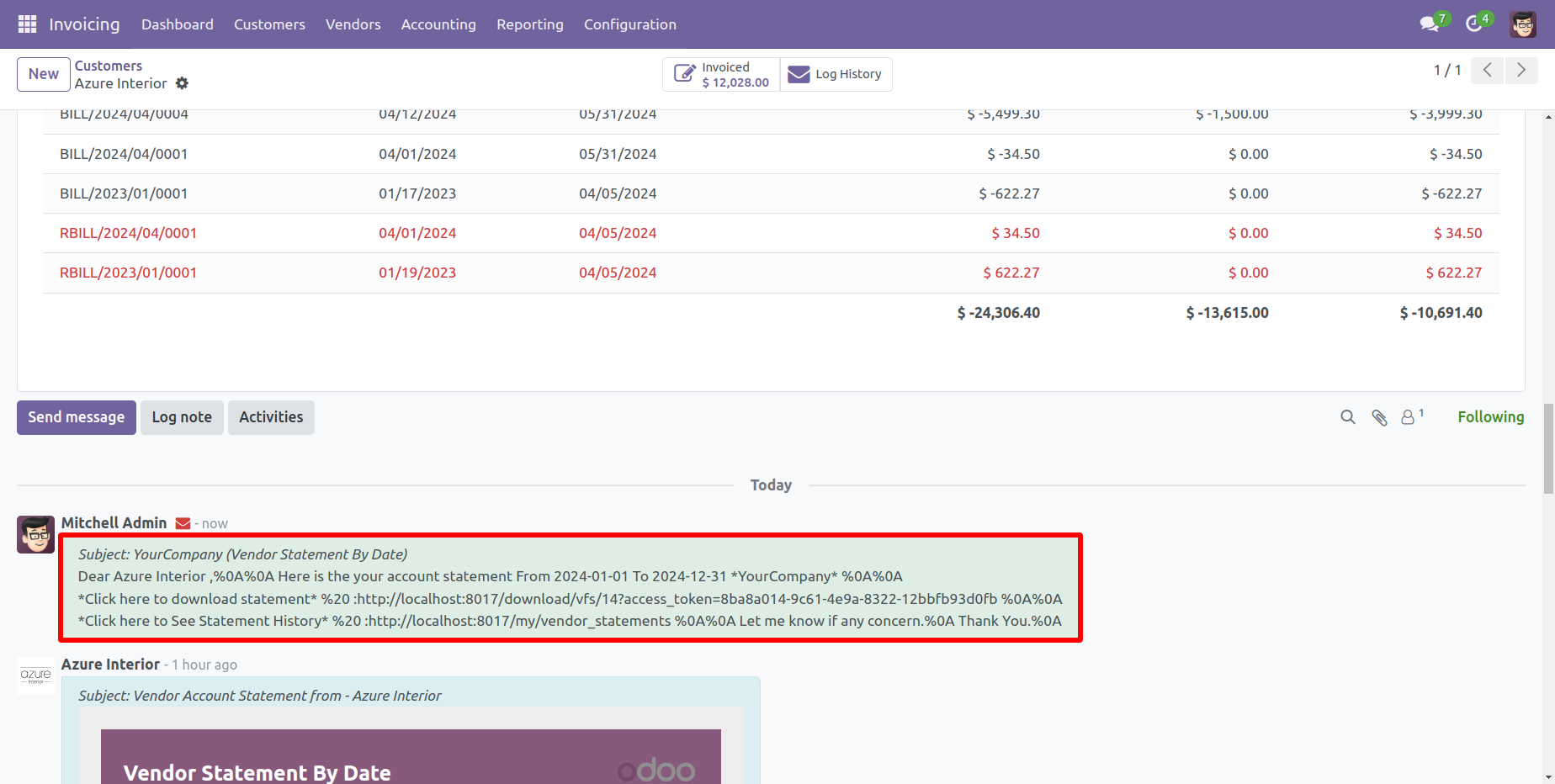
In the chatter, you can see the message which is sent.

A colorful dashboard appears as below.

Go to the Helpdesk Stages form view and set the color you wish to display on the dashboard.

Go to invoice setting >> Enable the 'Account Statement Auto Send Configuration' according to
your preferences.
Select the "Filter Only Unpaid, Send nothing if all bills are paid."

Here, you can see the vendor form view.
In the vendor statement tab, you have the option to filter vendor statements based on
specific time periods, such as monthly, quarterly, yearly, or custom.

In the vendor statement tab, you can filter vendor statements based on their configuration, such as Not Paid, In Payment, Paid, ETC...

Version 18.0.2 | Released on : 28th October 2024
Version 18.0.1 | Released on : 14th September 2024
- Yes, this app works perfectly with Odoo Enterprise (Odoo.sh & Premise) as well as Community.
- Please Contact Us at sales@softhealer.comto request customization.
- No, currently it does not work if the product type is selected as a combo product. For more details, please contact our support team at support@softhealer.com.
- Yes, we provide free support for 100 days.
- Yes, you will get free update for lifetime.
- No, you don't need to install addition libraries.
- No, this application is not compatible with odoo.com(odoo saas).
- Yes, You have to download module for each version (13,14,15) except in version 12 or lower.
- No, We do not provide any kind of exchange.
