

 Easy to Manage
 Dedicated Support















 Scan to email sales



Vehicle Trade Management System

This app makes buying and selling cars easy. You can add all the important details about the car, like its brand, model, and year and even upload pictures. It helps you keep track of things like the car's history, any accidents, and insurance. You can also describe the car's condition and get experts to check it if needed. You can create invoices and bills within the app, and print out reports as PDFs. It is a convenient tool that makes buying and selling cars safer and simpler for everyone.


Related Modules
Features
Vehicle Information Management
Maintain detailed vehicle information, including specifications, condition, and technical details.
Vehicle Image Gallery
Upload and manage multiple vehicle images from different angles for better documentation.
Vehicle Purchase & Sales Management
Manage vehicle purchases and sales with vendor bill and customer invoice generation.
Buyer & Seller Management
Store and manage complete buyer and seller information for every vehicle transaction.
Vehicle History Management
Record service history, ownership history, and insurance details for each vehicle.

PDF Report Generation
Generate and print comprehensive vehicle reports in PDF format.
Vehicle Trade Dashboard

Monitor vehicle purchases, sales, inventory, trade status, and business performance from a centralized dashboard.

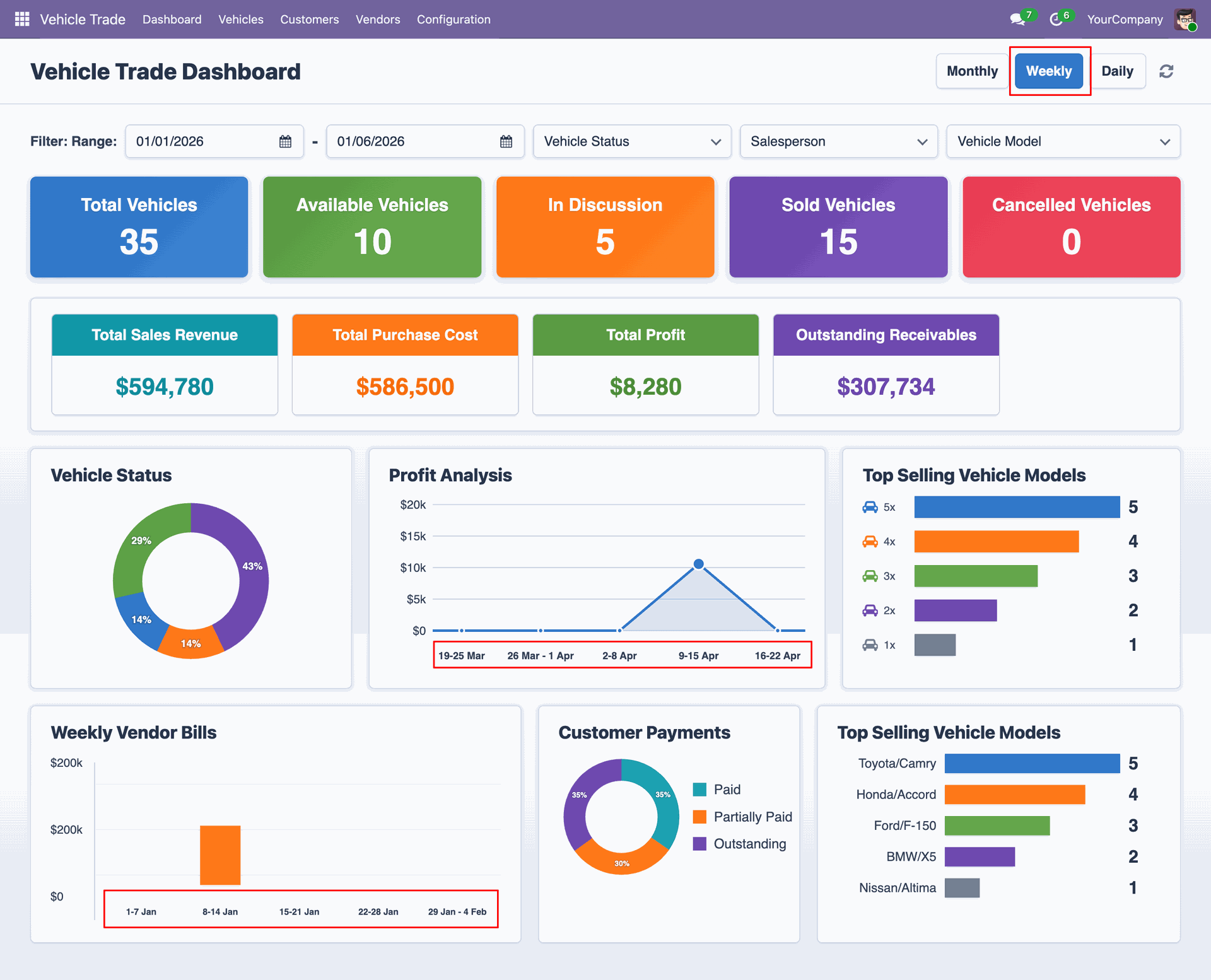
The dashboard displays key metrics, including Total Vehicles, Available Vehicles, Vehicles in Discussion, Sold Vehicles, and Cancelled Vehicles, along with Total Sales Revenue, Purchase Cost, Total Profit, and Outstanding Receivables.
Gain valuable business insights through interactive charts for Vehicle Status, Profit Analysis, Top-Selling Models, Customer Payments, and Monthly Vendor Bills.
Users can easily filter dashboard data by Daily, Weekly, or Monthly periods, as well as by custom date range, vehicle status, salesperson, and vehicle model for detailed performance analysis.
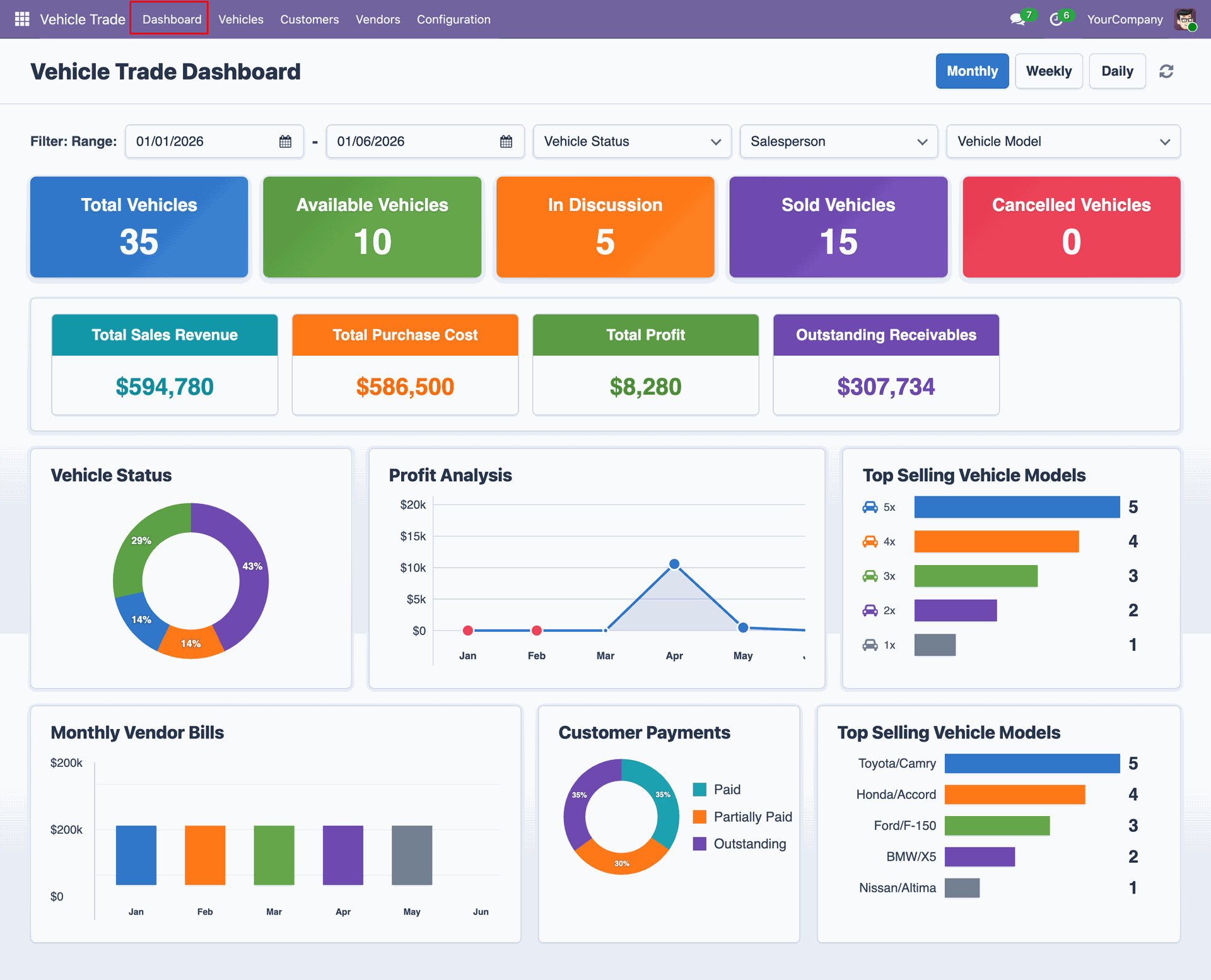
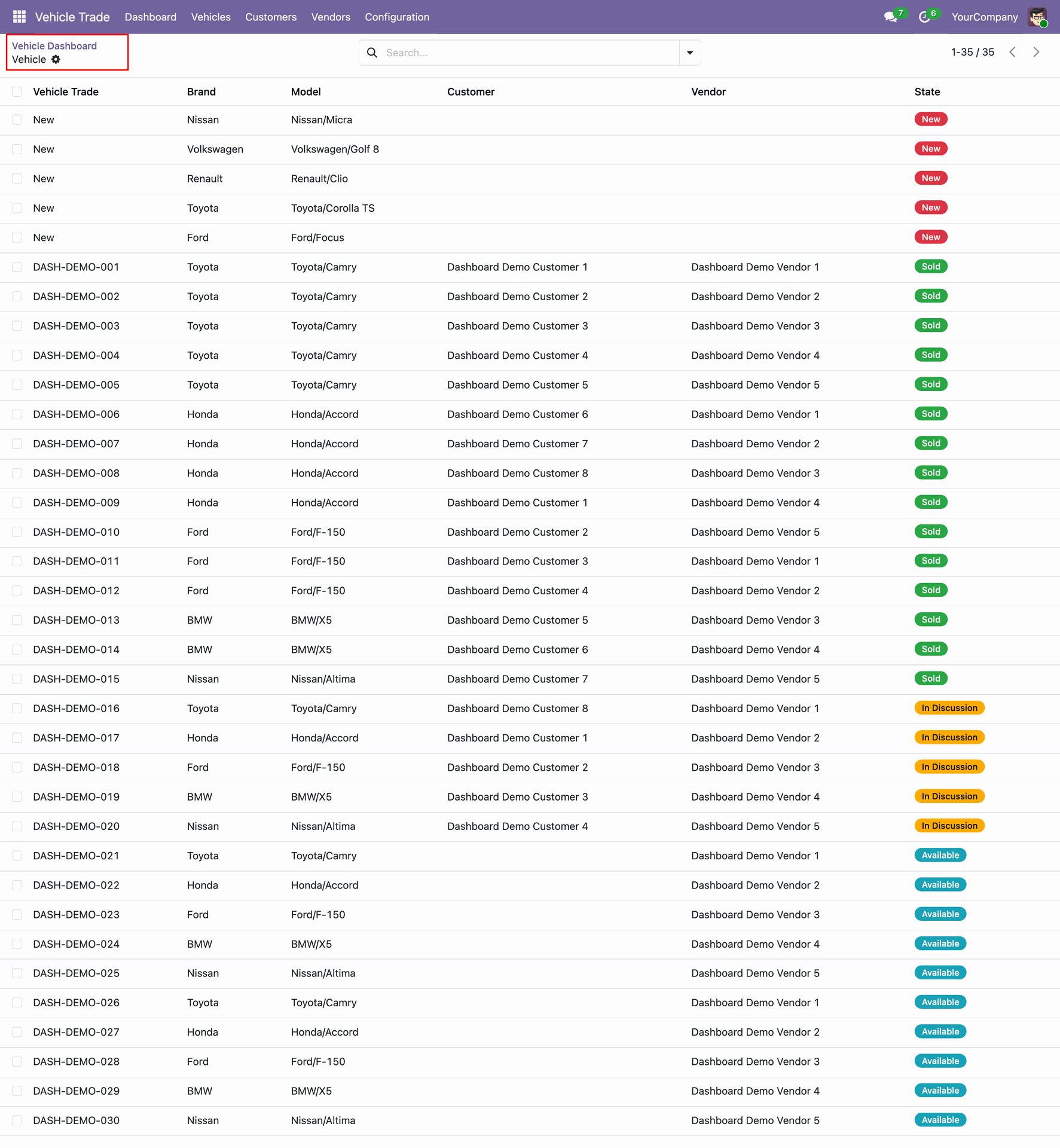
Click on Total Vehicle tile from the dashboard.
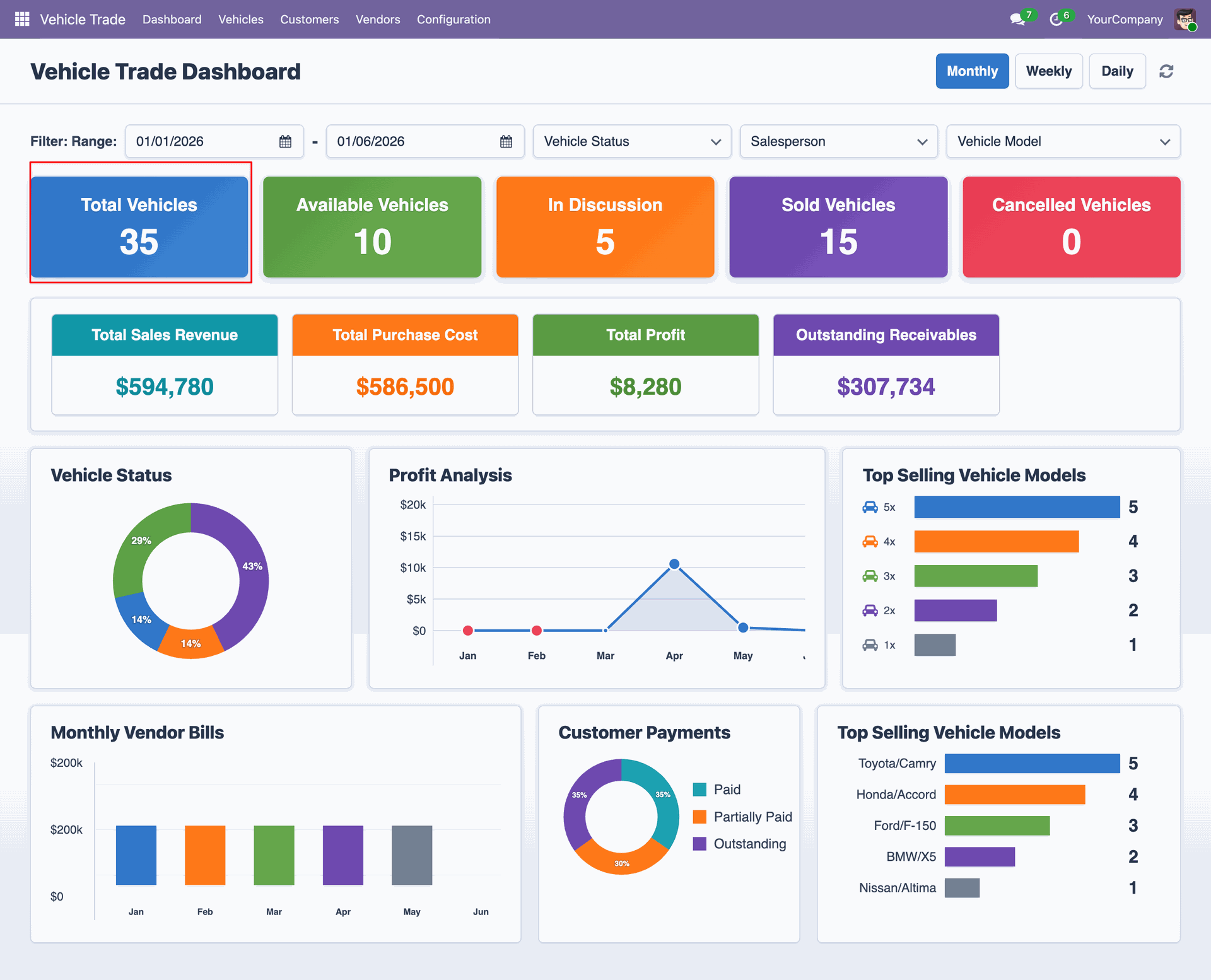
By clicking on total vehicle tile will open a vehicle list view.
Click on the Weekly filter to view Weekly Profit Analysis and Vendor Bills from the dashboard
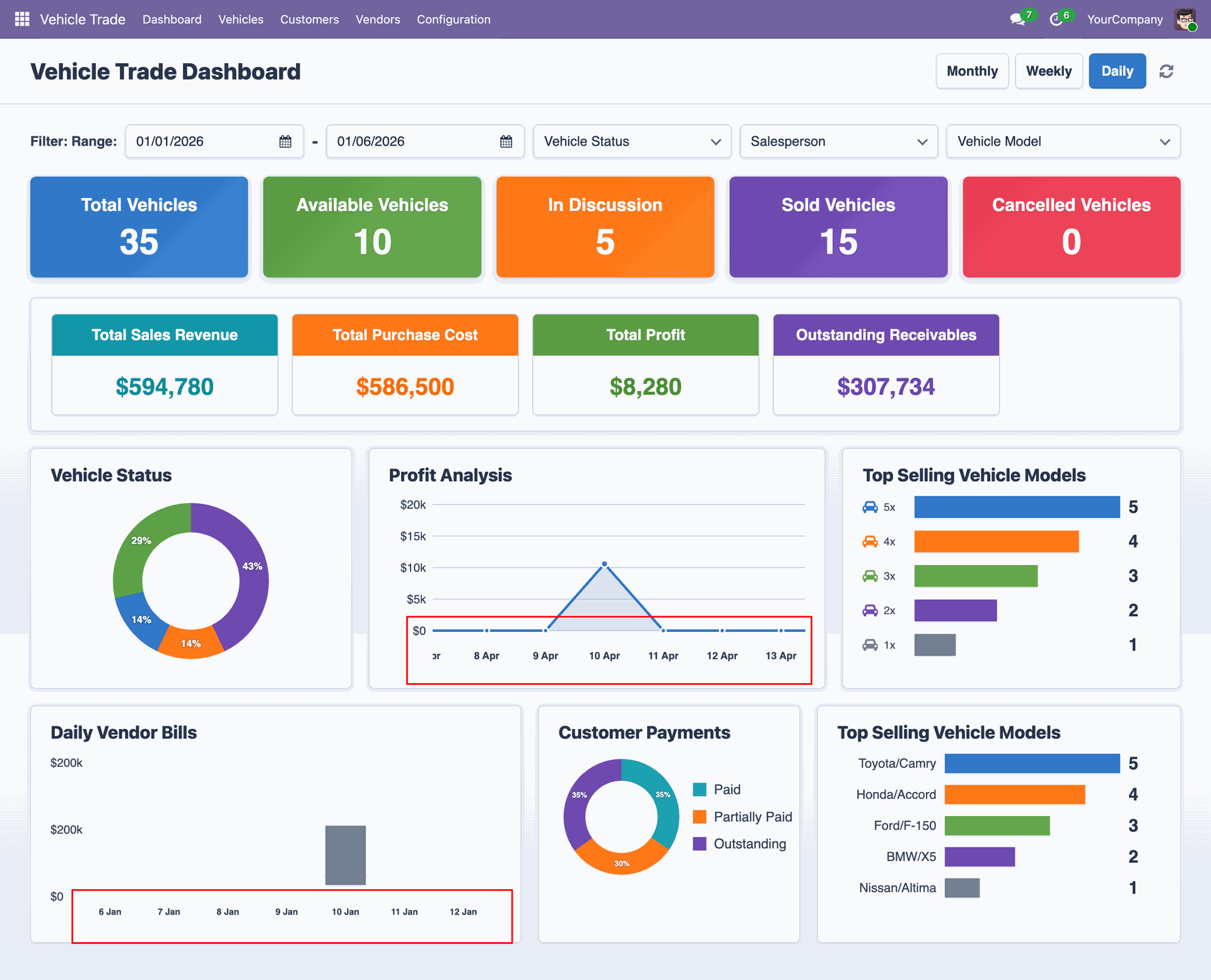
Click on the Daily filter to view Daily Profit Analysis and Vendor Bills from the dashboard.
Users can easily filter dashboard data by custom date range, vehicle status, salesperson, and vehicle model for detailed performance analysis.
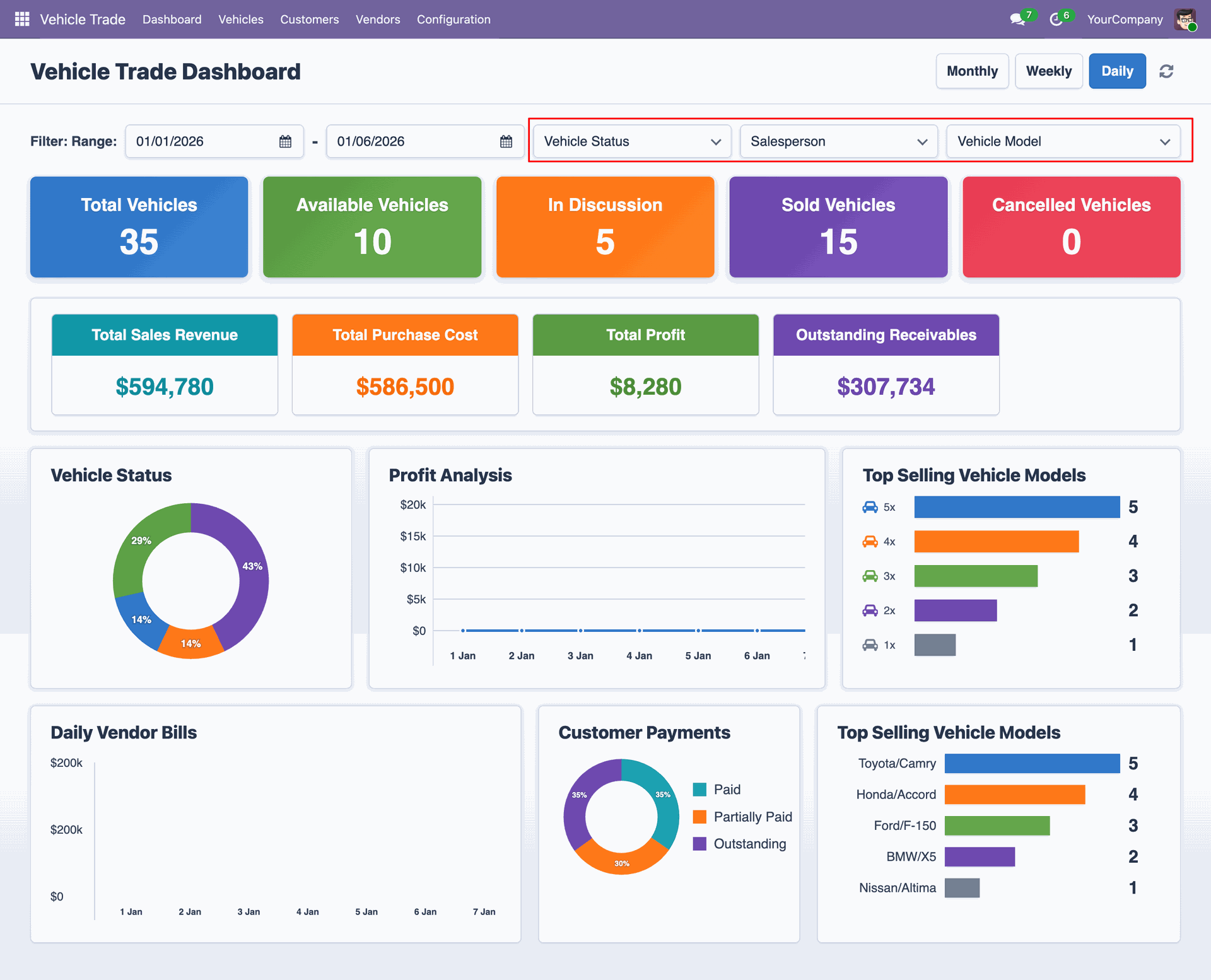
Select the Vehicle Status, Salesperson, and Vehicle Model filters on the dashboard. The dashboard records, metrics, and charts will be updated to display data based on the selected filter criteria.
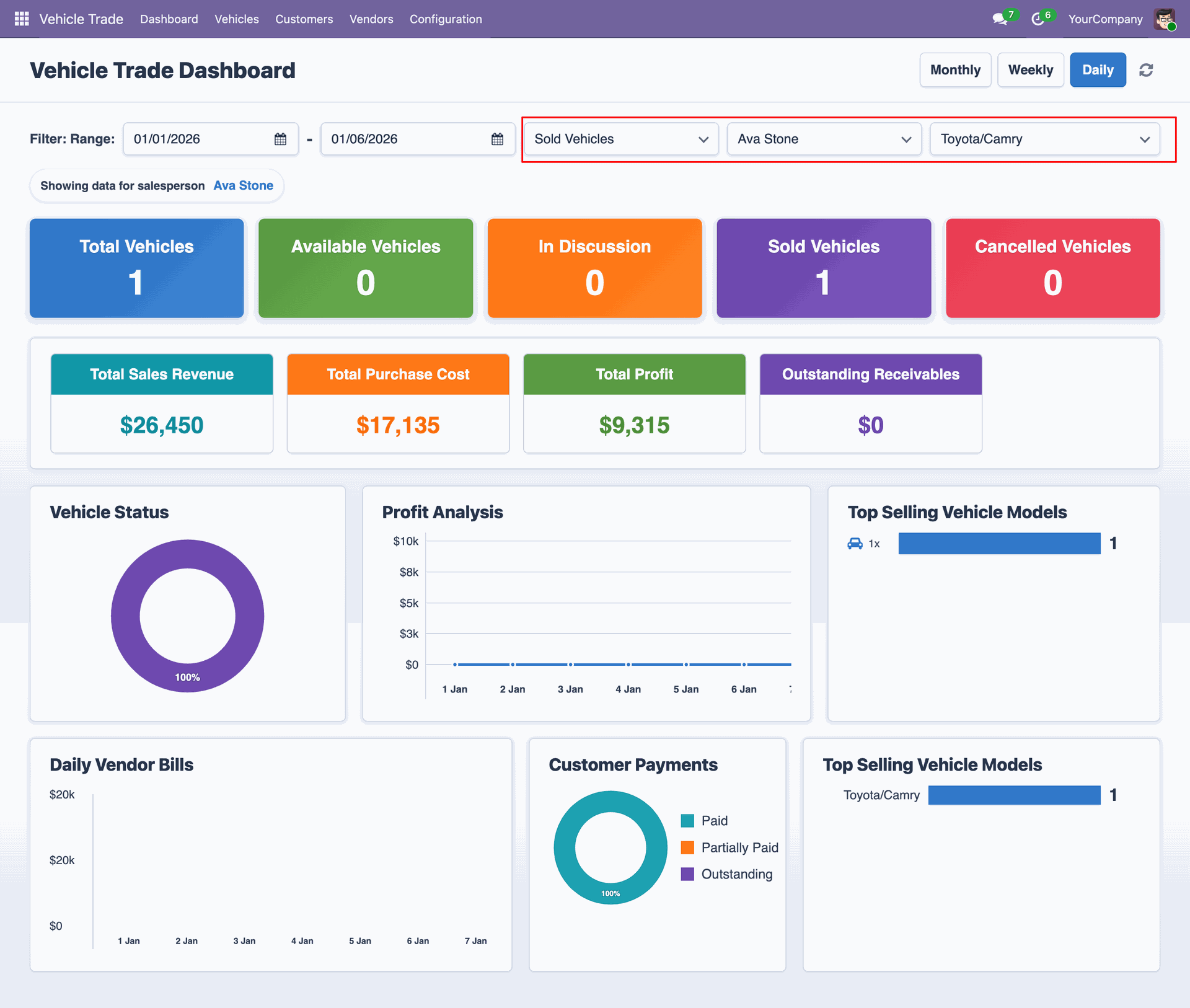
Go to user settings and select fleet administrator.
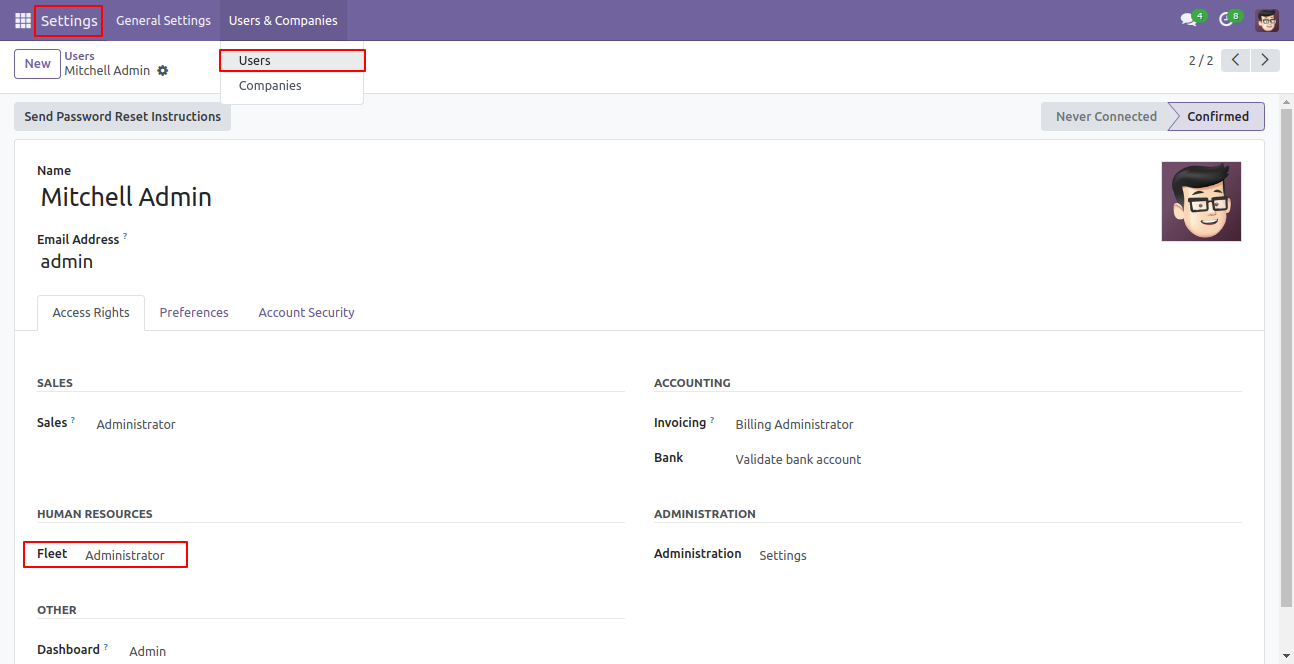
Go to fleet settings, select vehicle as product and vehicle trade completed as an email template.
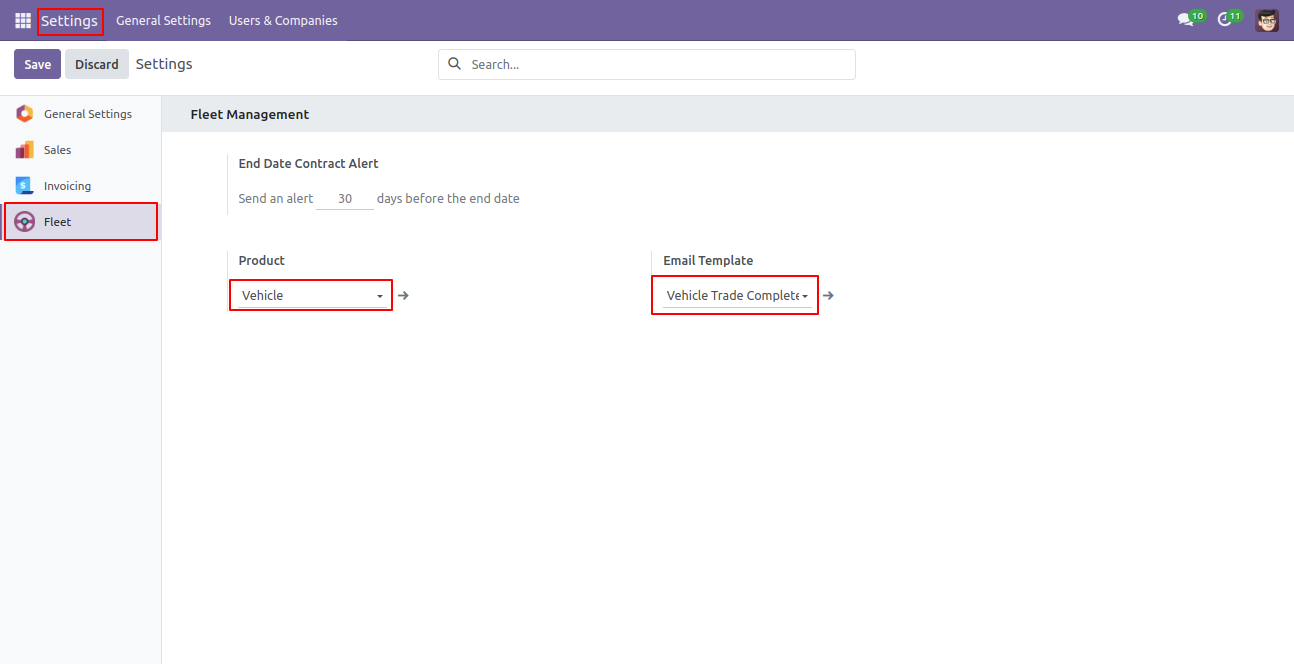
Vehicle models.
Vehicle specifications view.
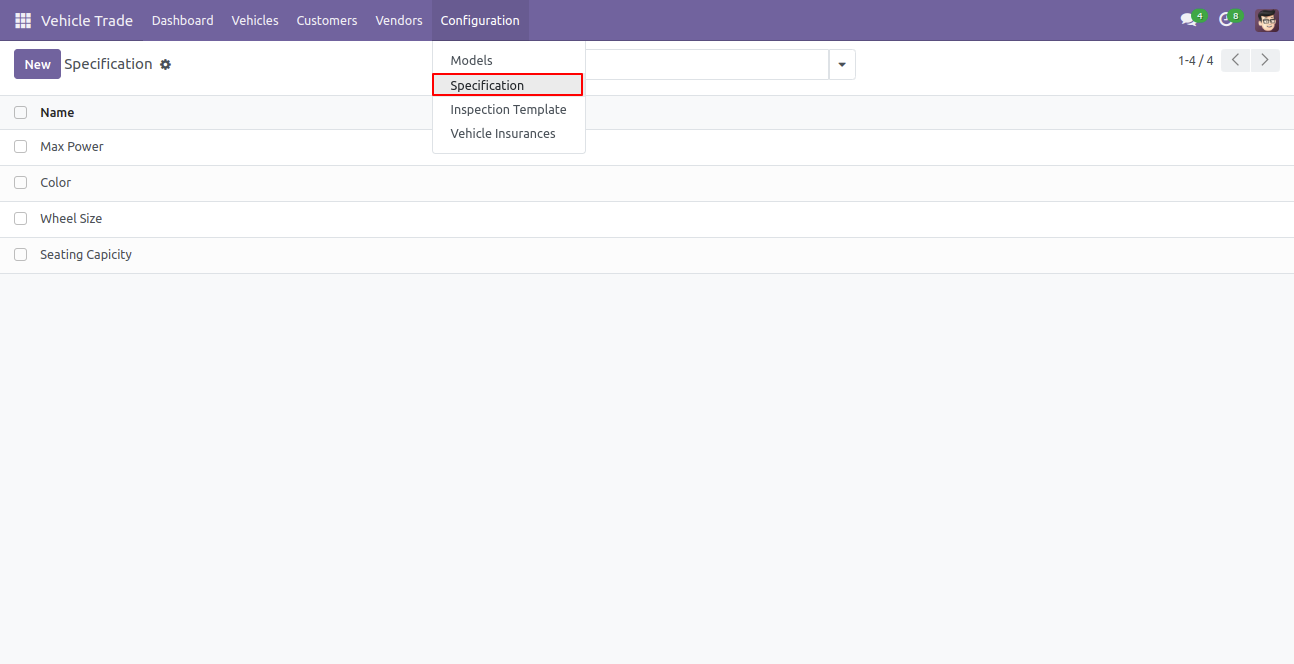
Create a vehicle inspection template from the vehicle trade configurations.
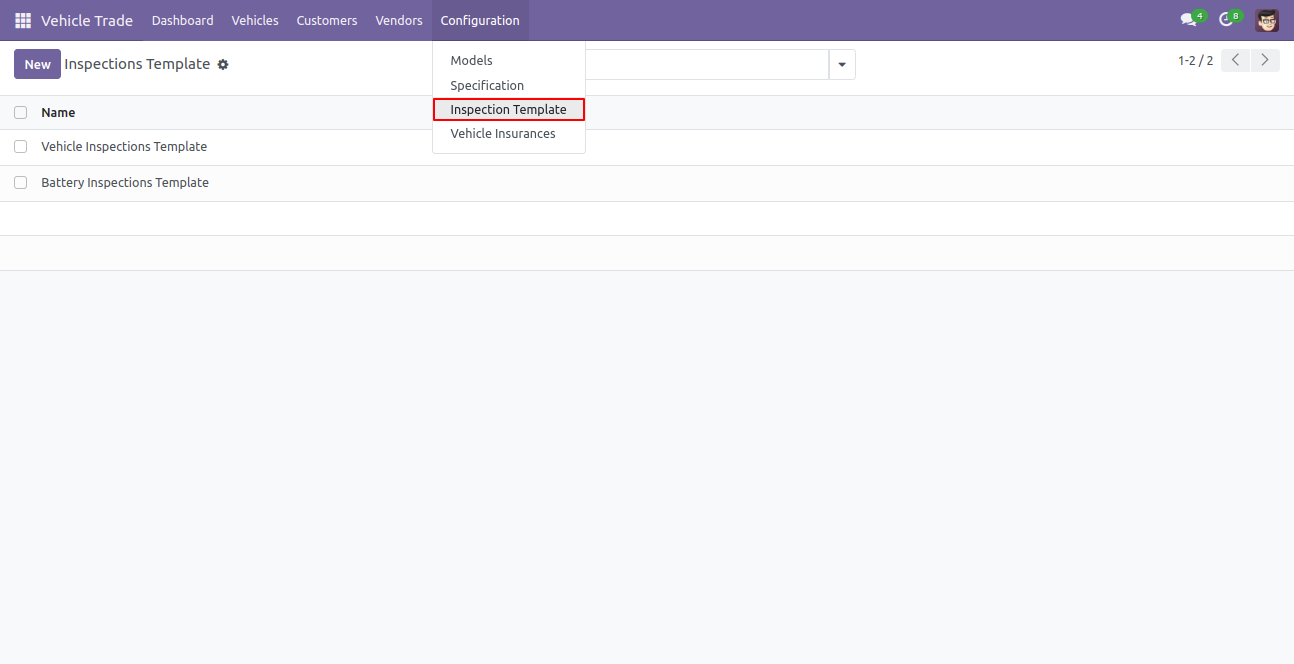
Vehicle inspection template form view.
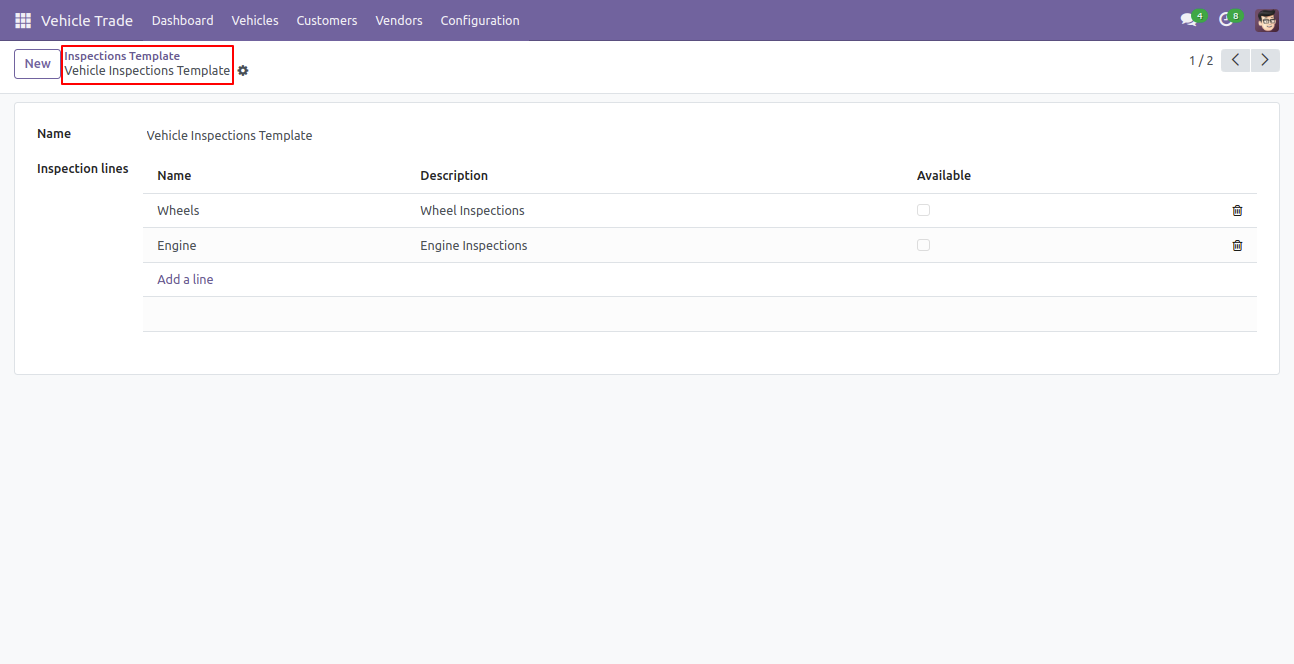
Vehicle insurance.
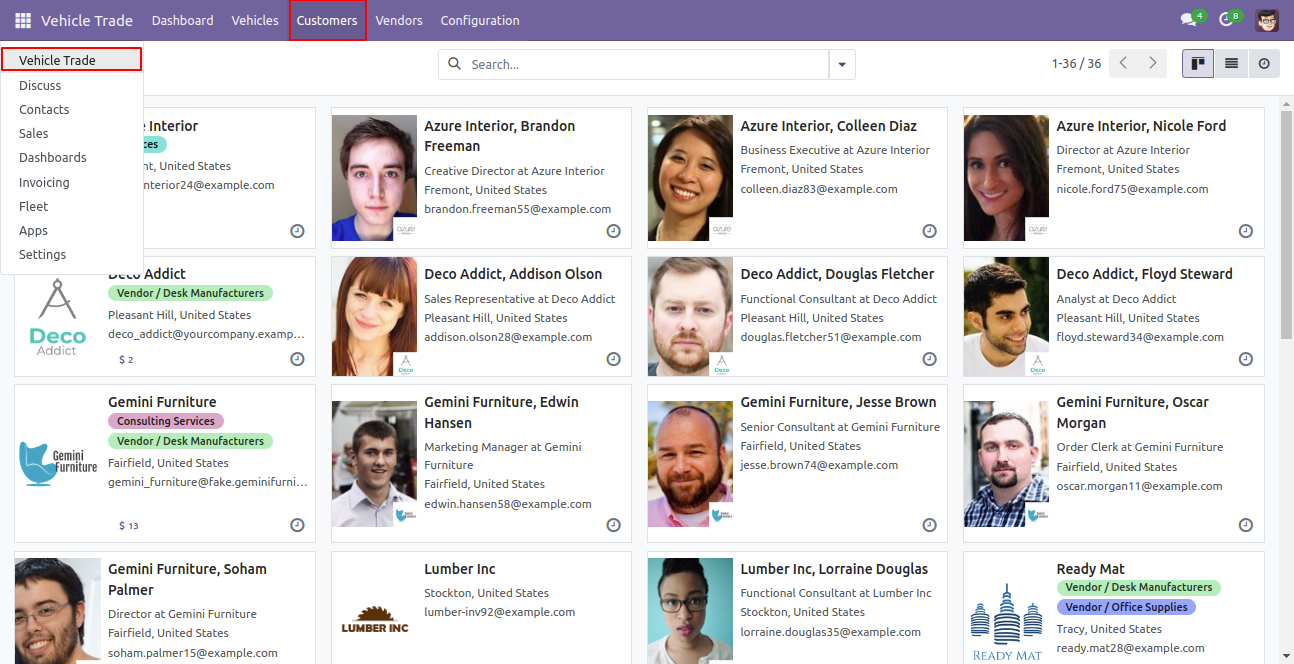
Vehicle Trade Customers.
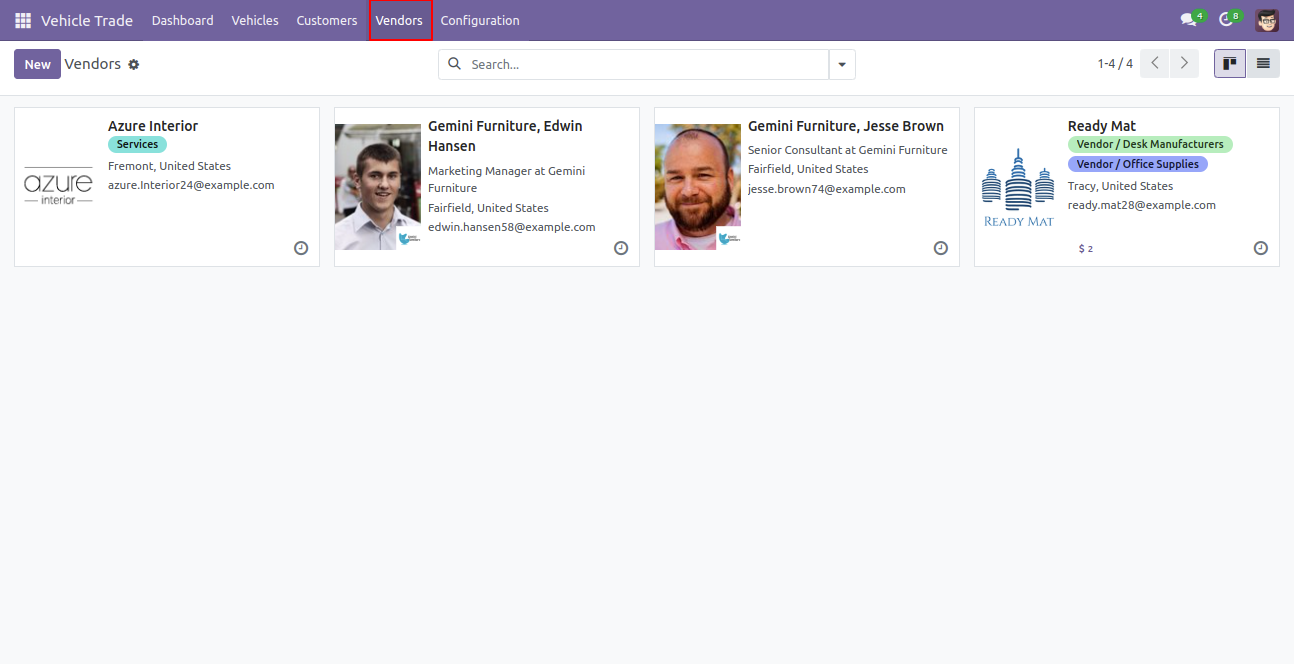
Vehicle Trade Vendors.
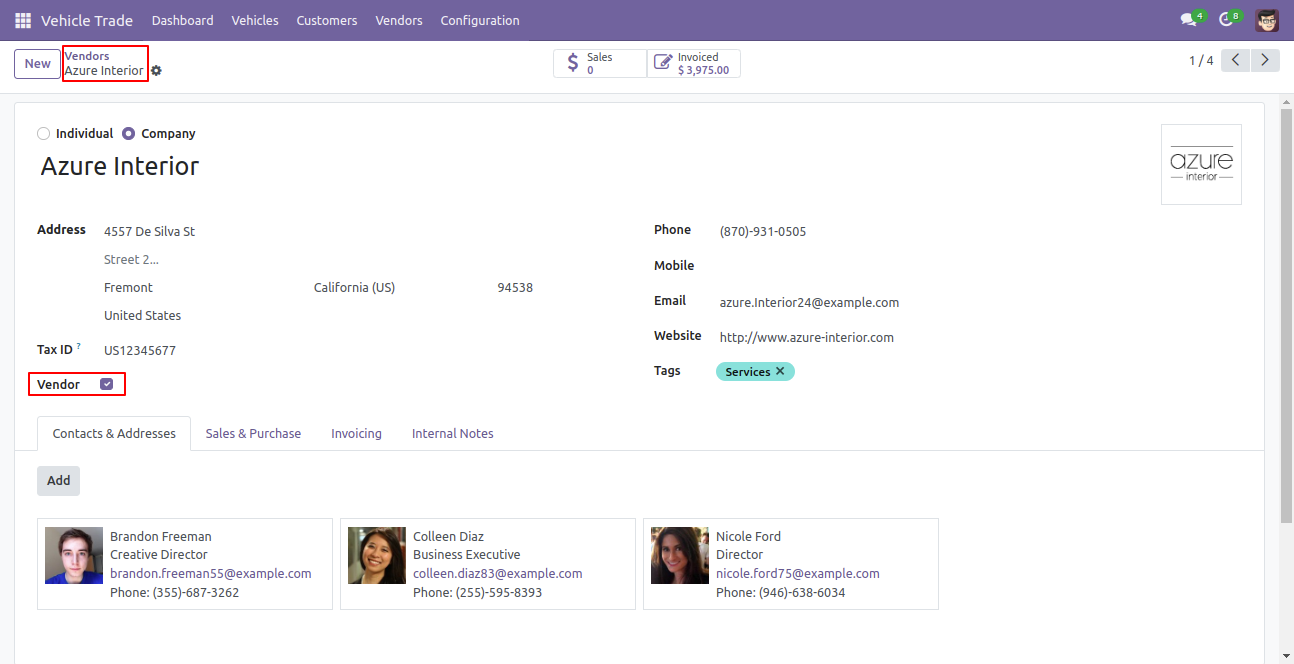
Form view of the vendor, tick the vendor boolean.
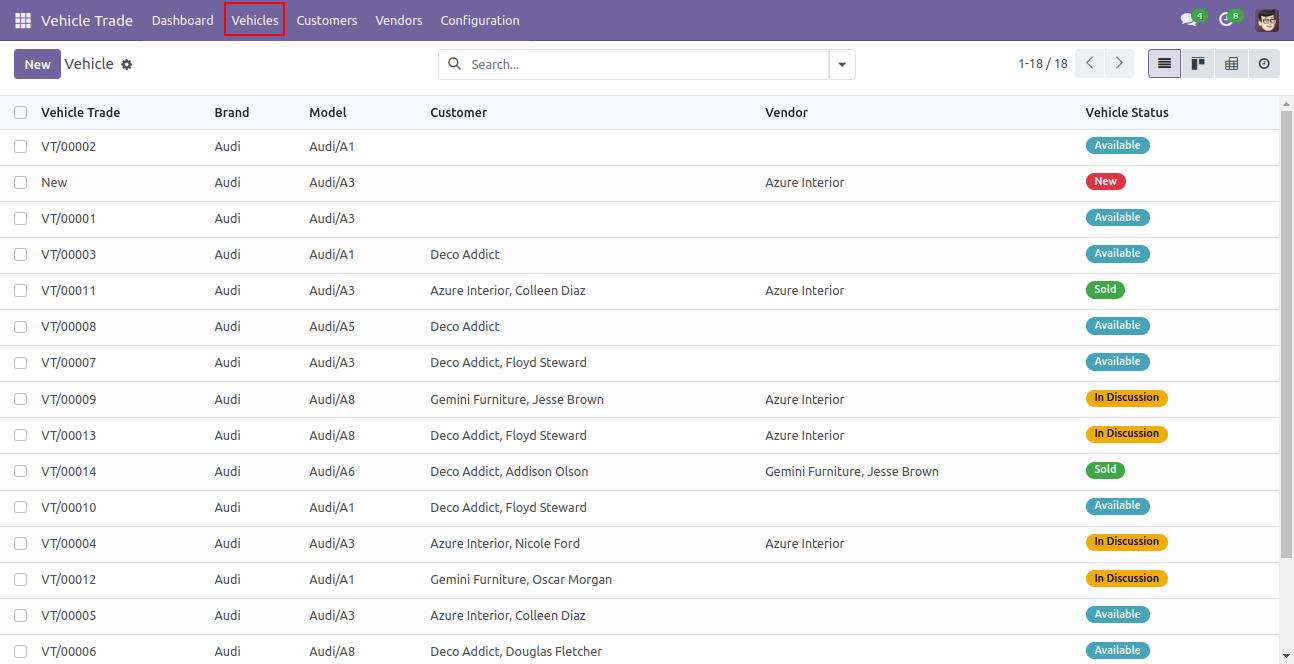
Vehicles list view.
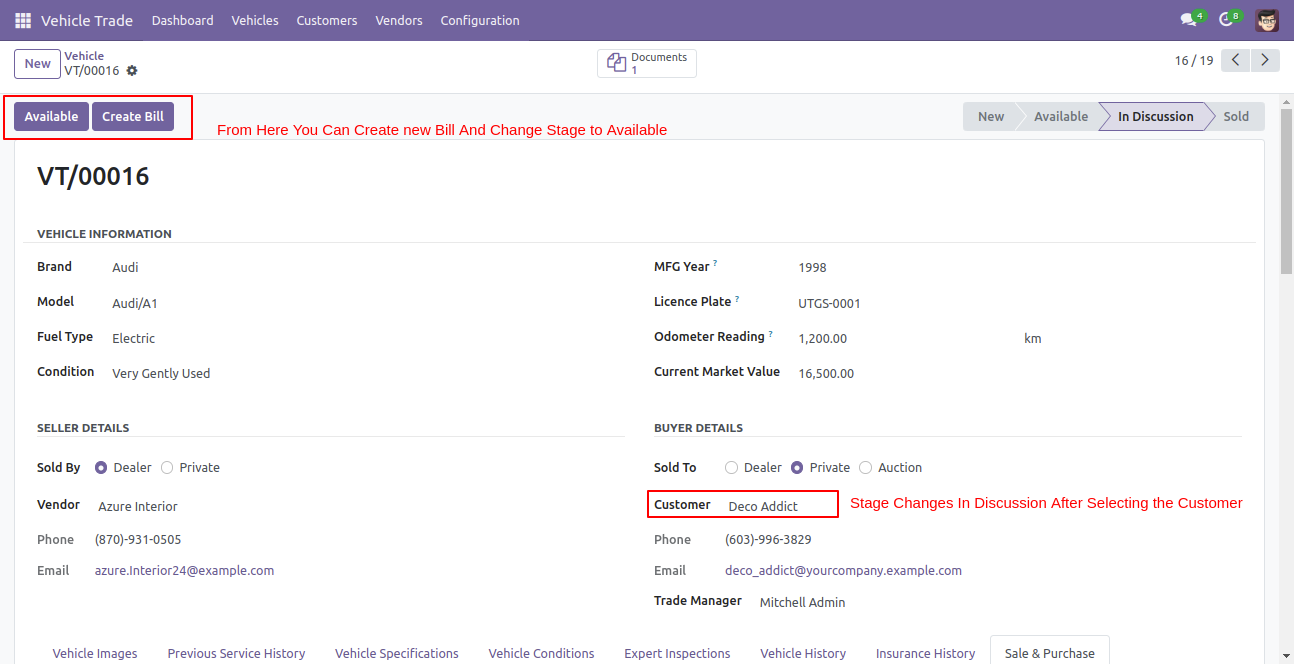
Add vehicle details and seller details for trading in the new stage click on the documents button and then click on the available button.
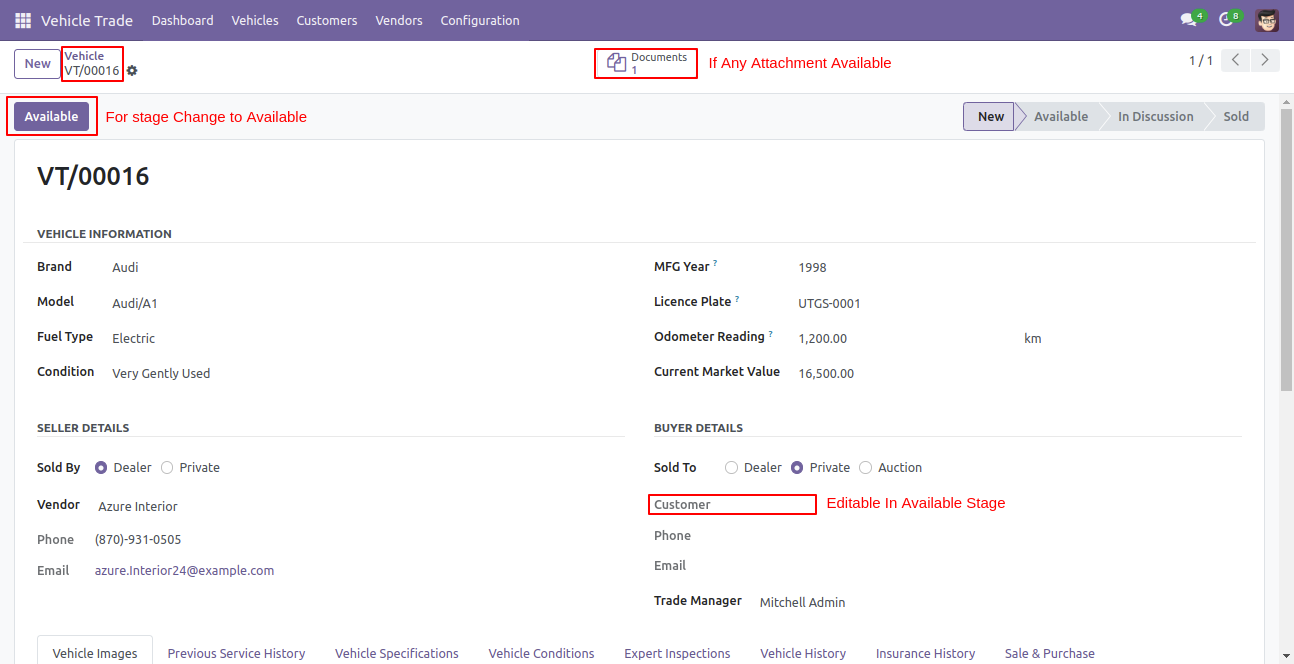
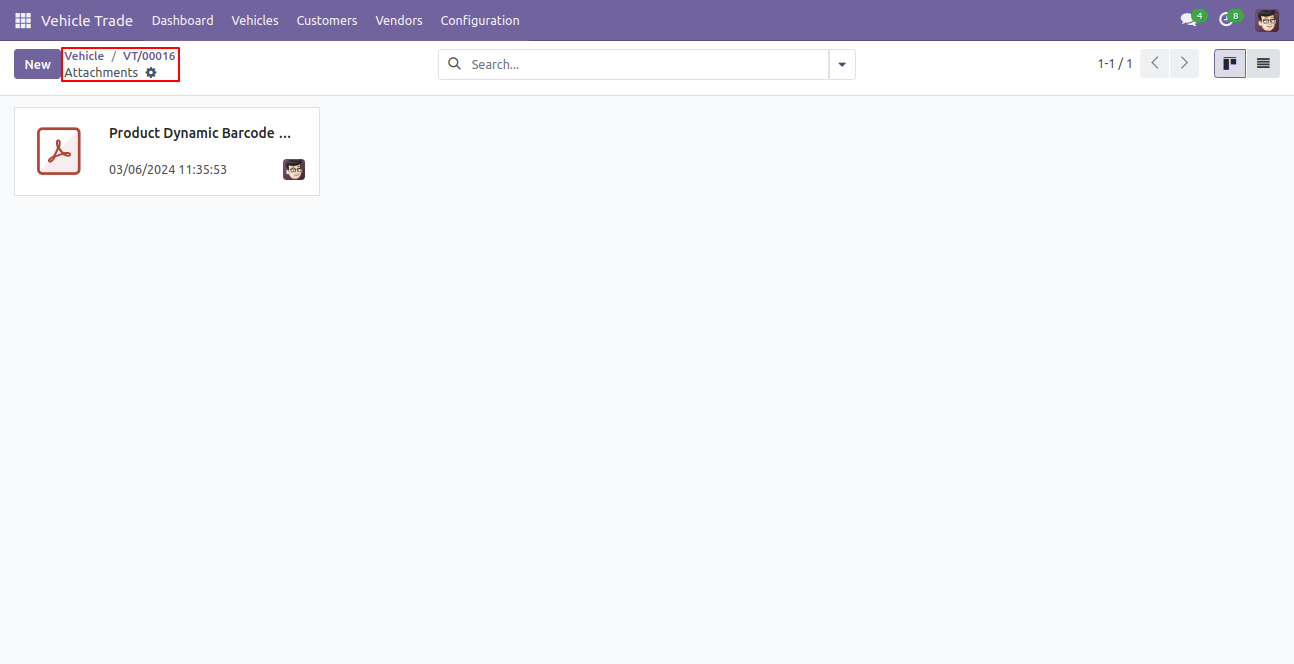
By clicking on documents, it will open the attached documents in kanban view and also attach new documents from here.
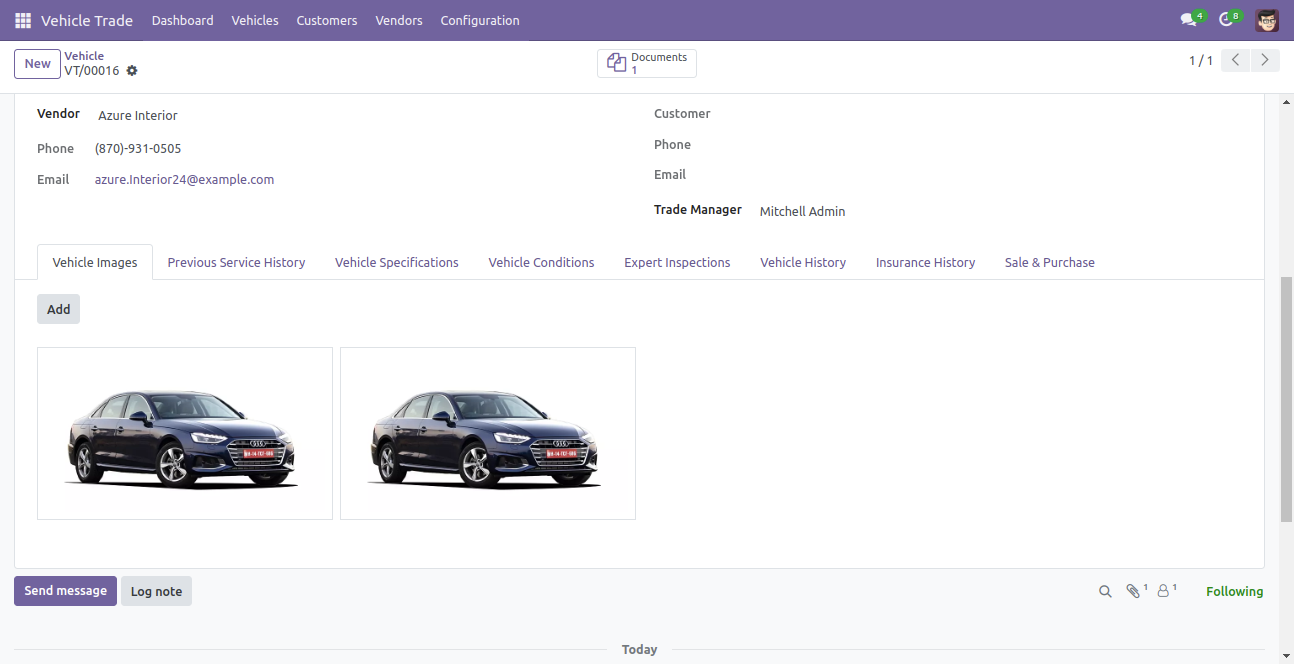
Upload multiple images of the vehicle.
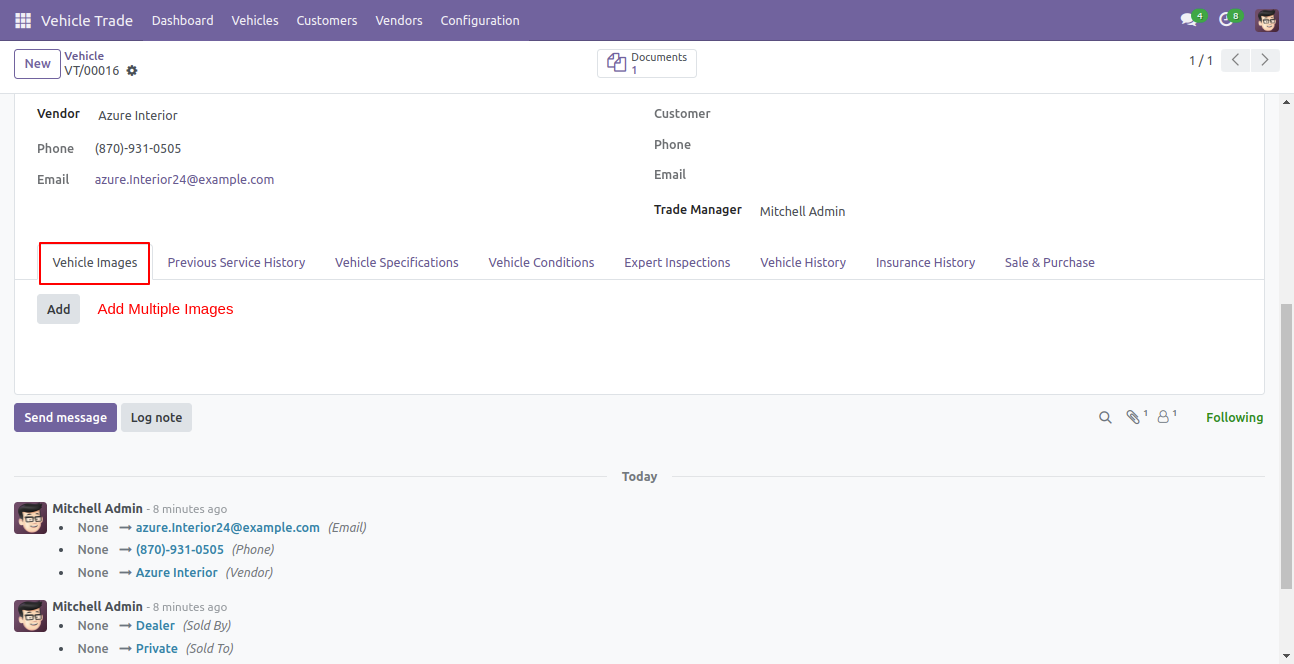
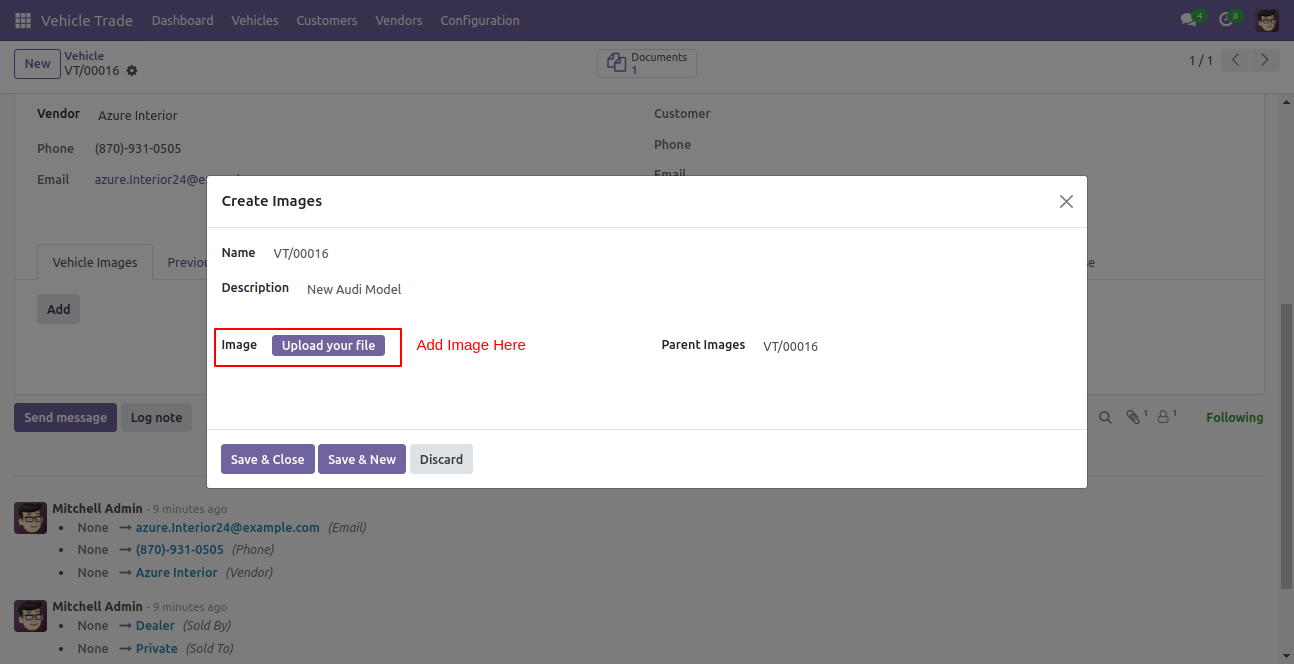
Click on the Add button to add images, it will open a "Create Images" wizard and upload the image file here.
You can see uploaded images.
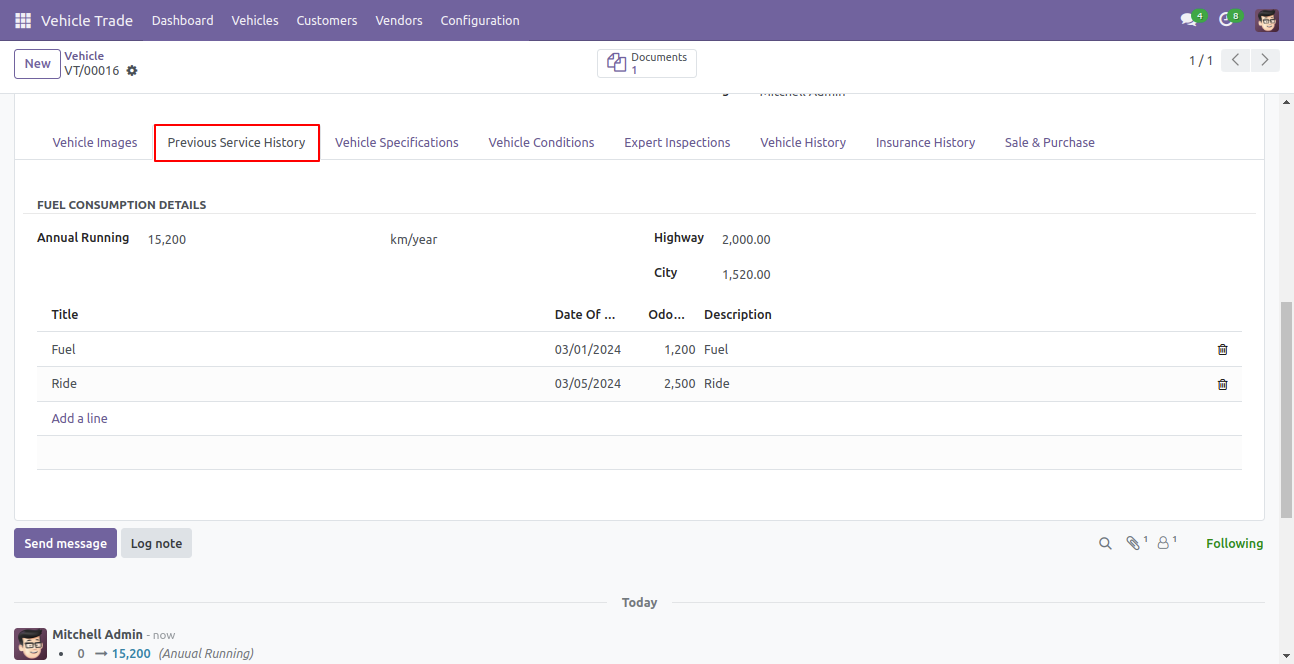
Add the previous service history of the vehicle.
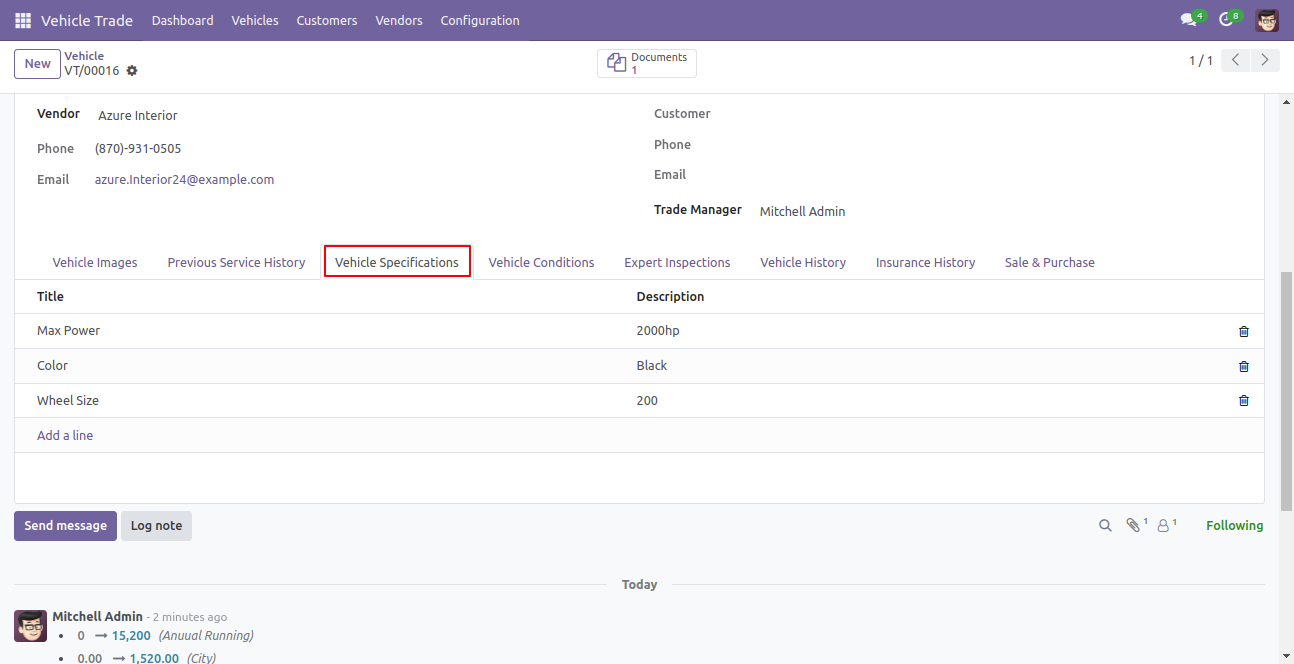
Add vehicle specifications.
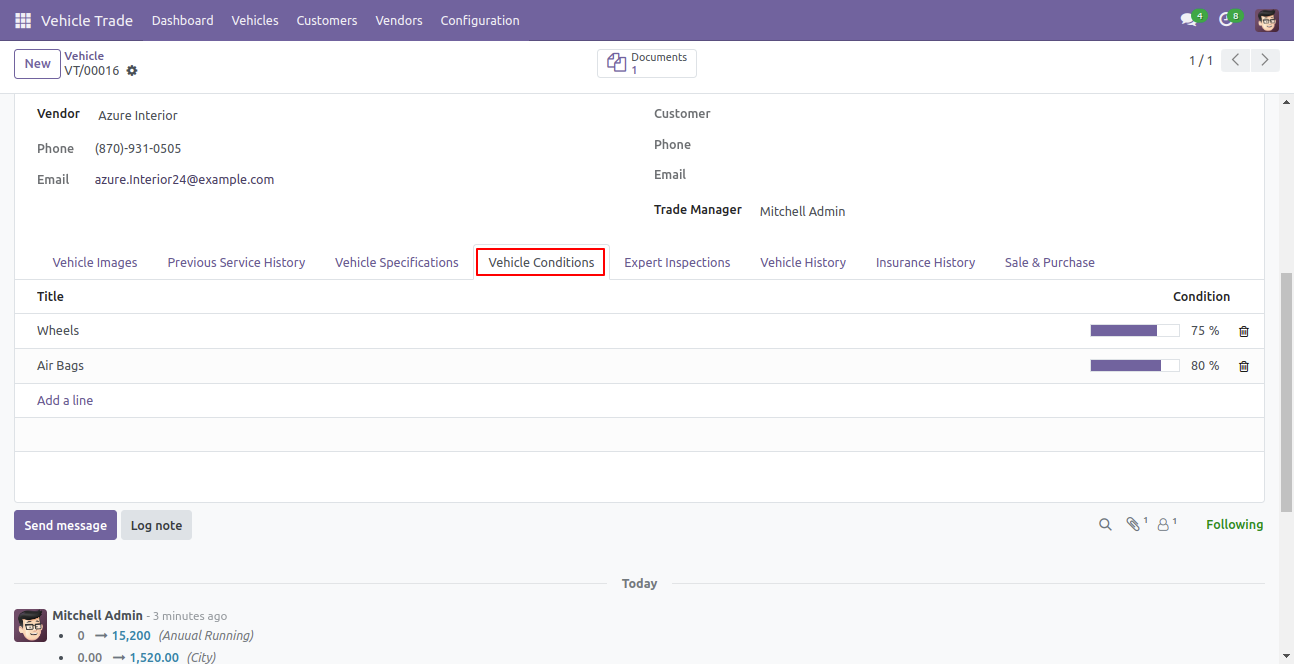
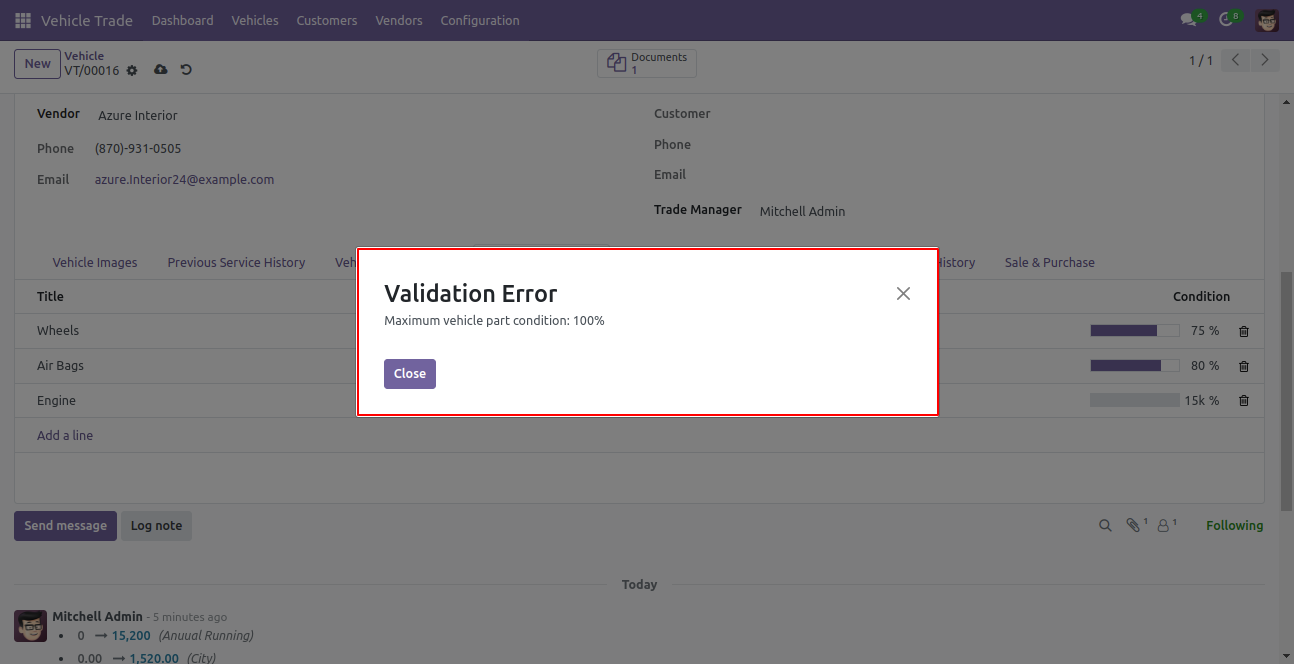
Add vehicle conditions upto 100 percent.
Create vehicle conditions and enter conditions greater than 100.
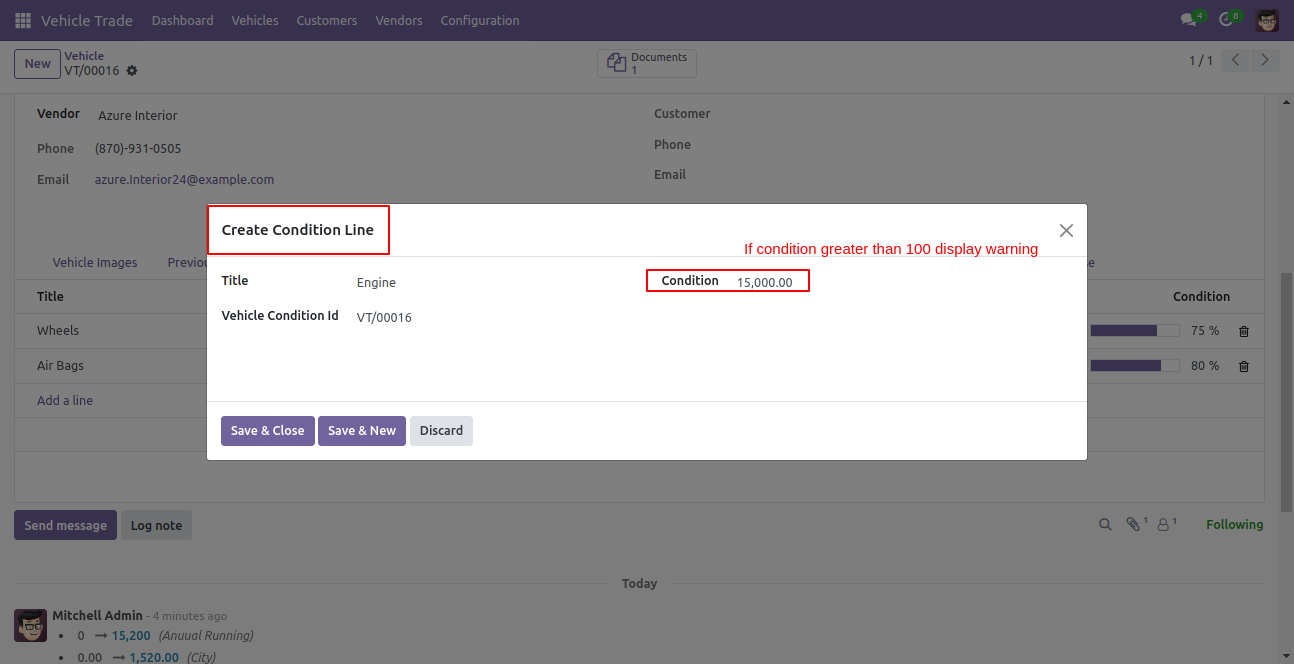
Validation error popup looks like below.
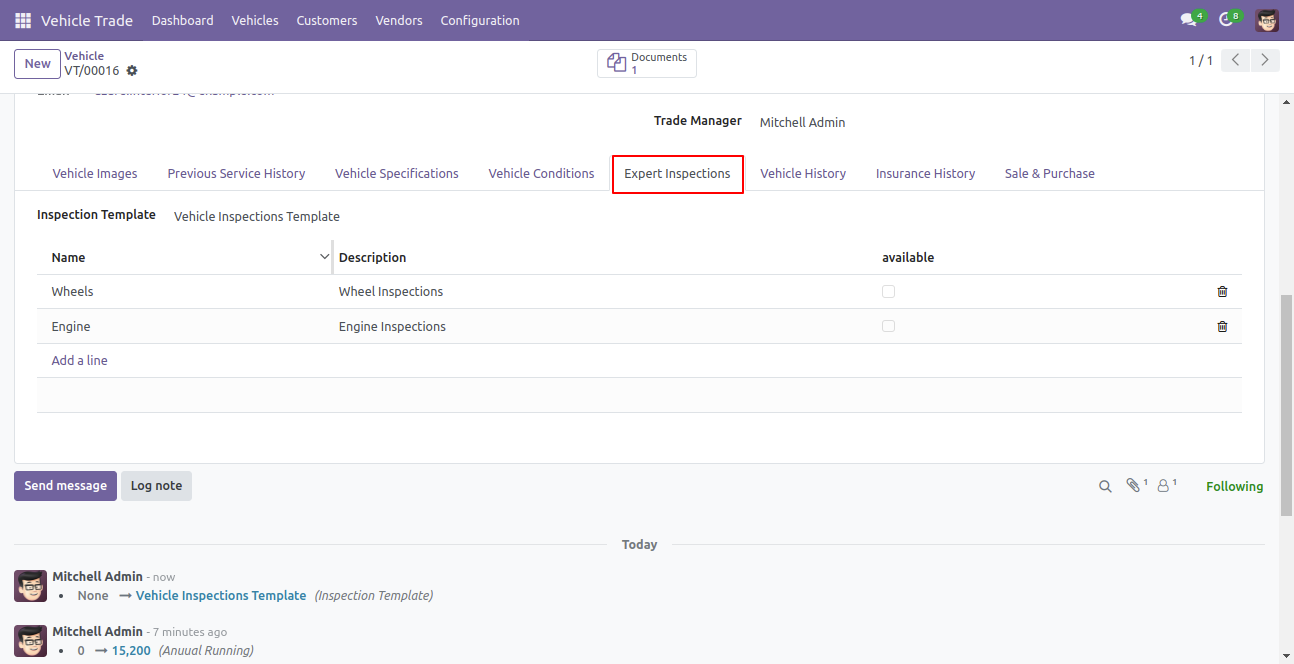
Enter vehicle expert inspection details and you can also add details by creating inspection templates.
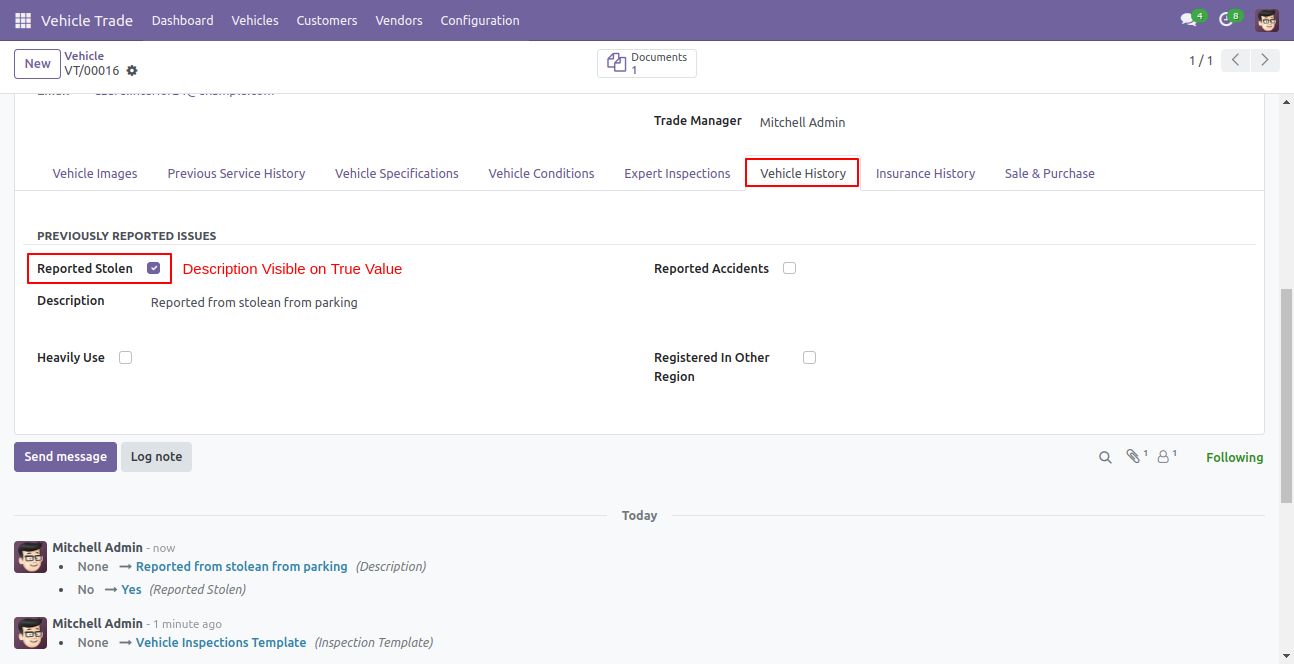
Add vehicle history with description.
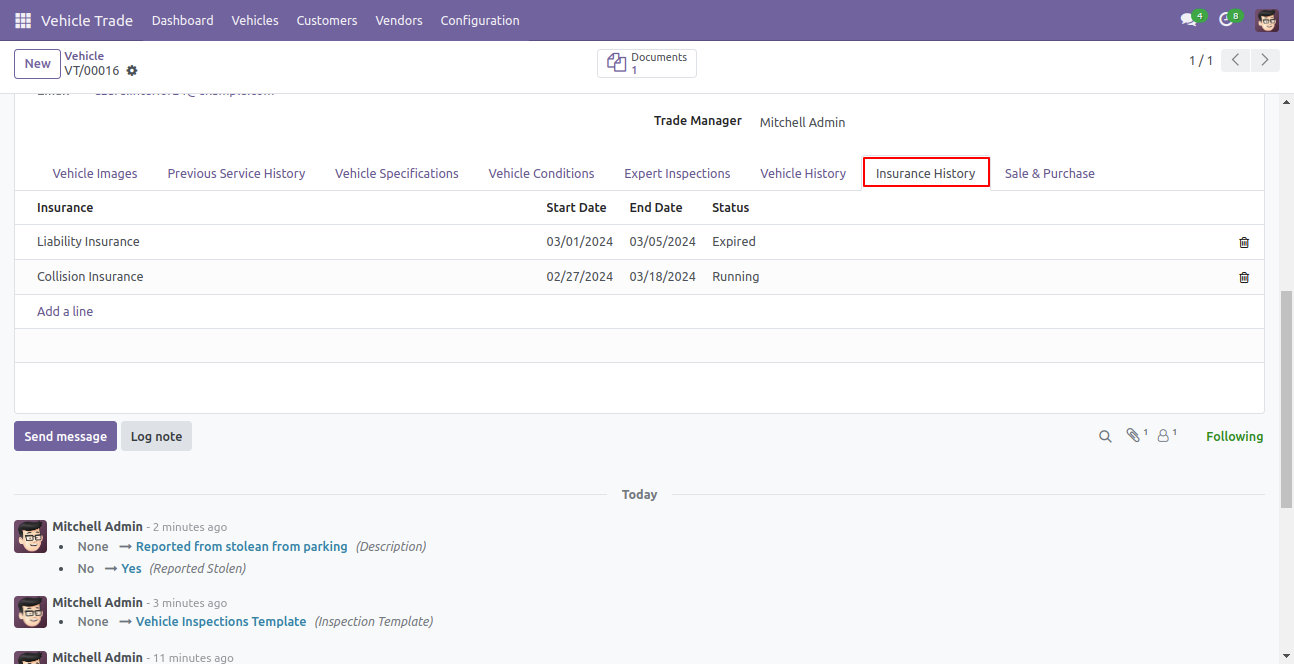
Add vehicle insurance policy history.
Add vendor bill details.
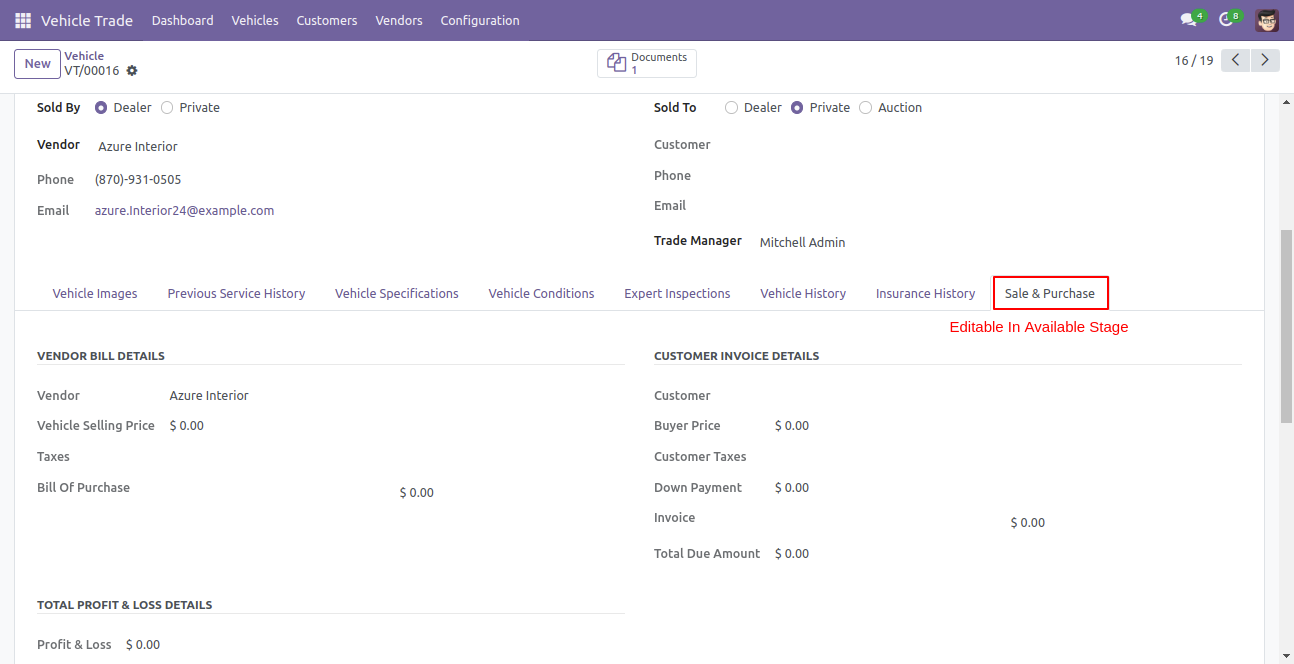
You can not add customer invoice details in the available stage.
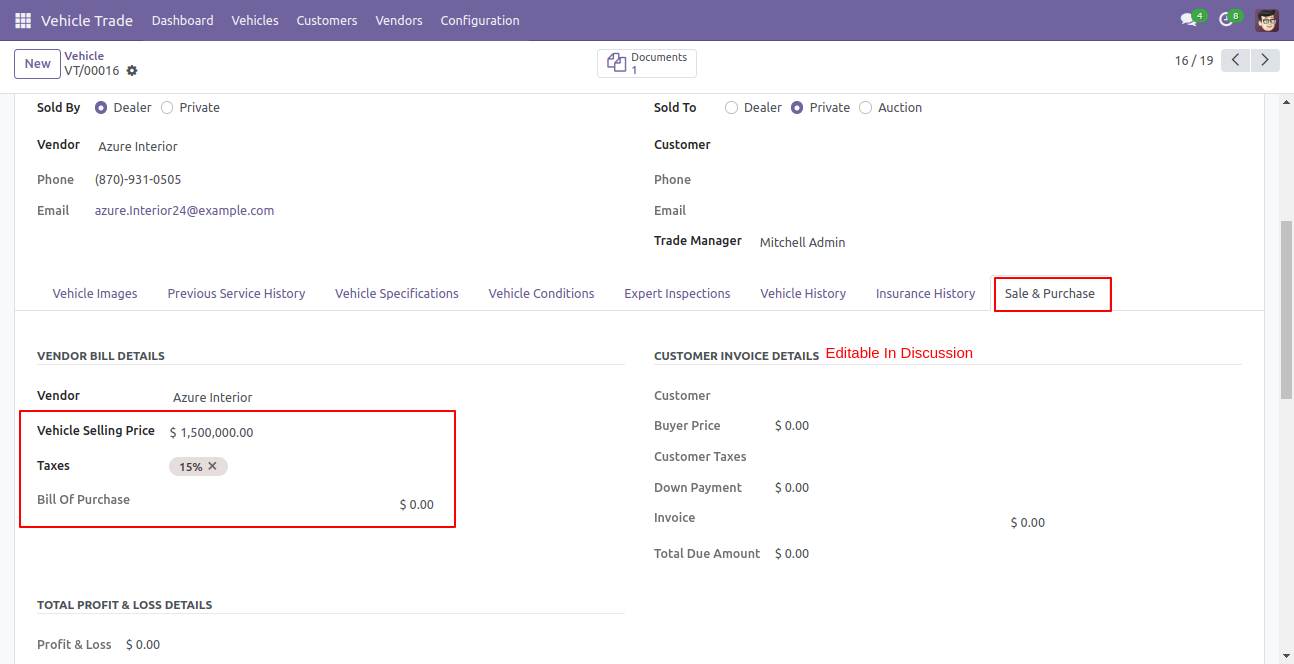
Stage change in discussion after selecting the customer..
Create a vendor bill with taxes, you can see bill reference number and total payable amount to the vendor.
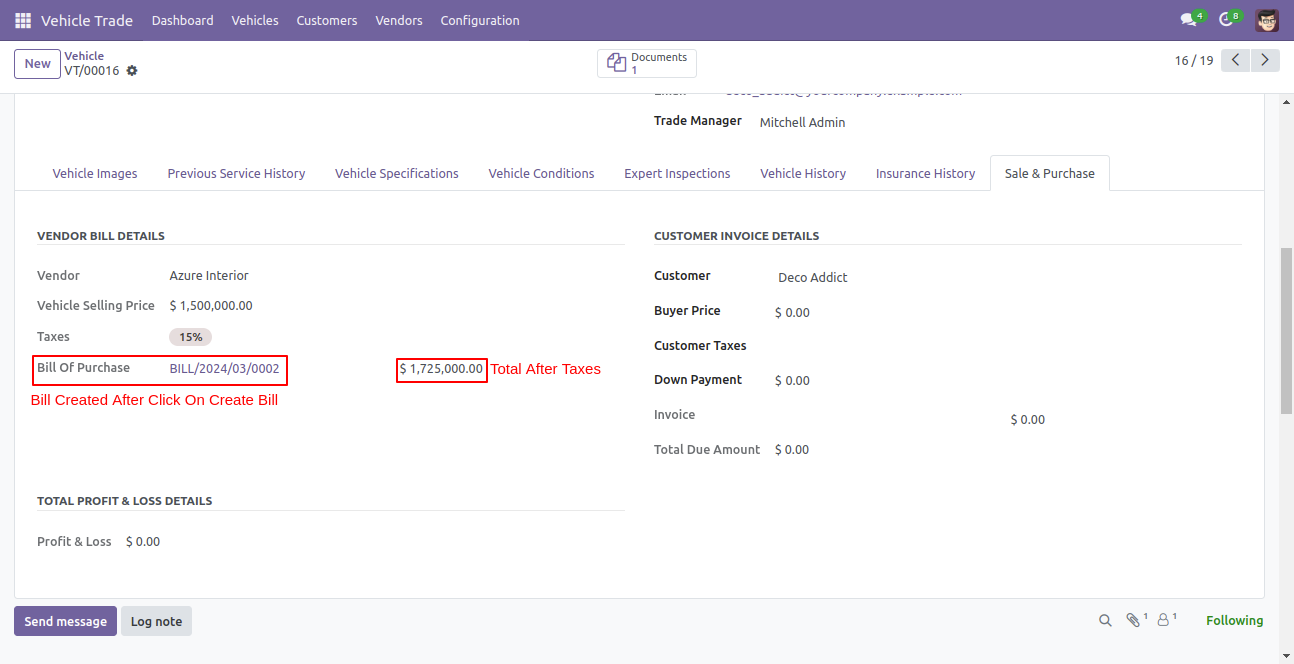
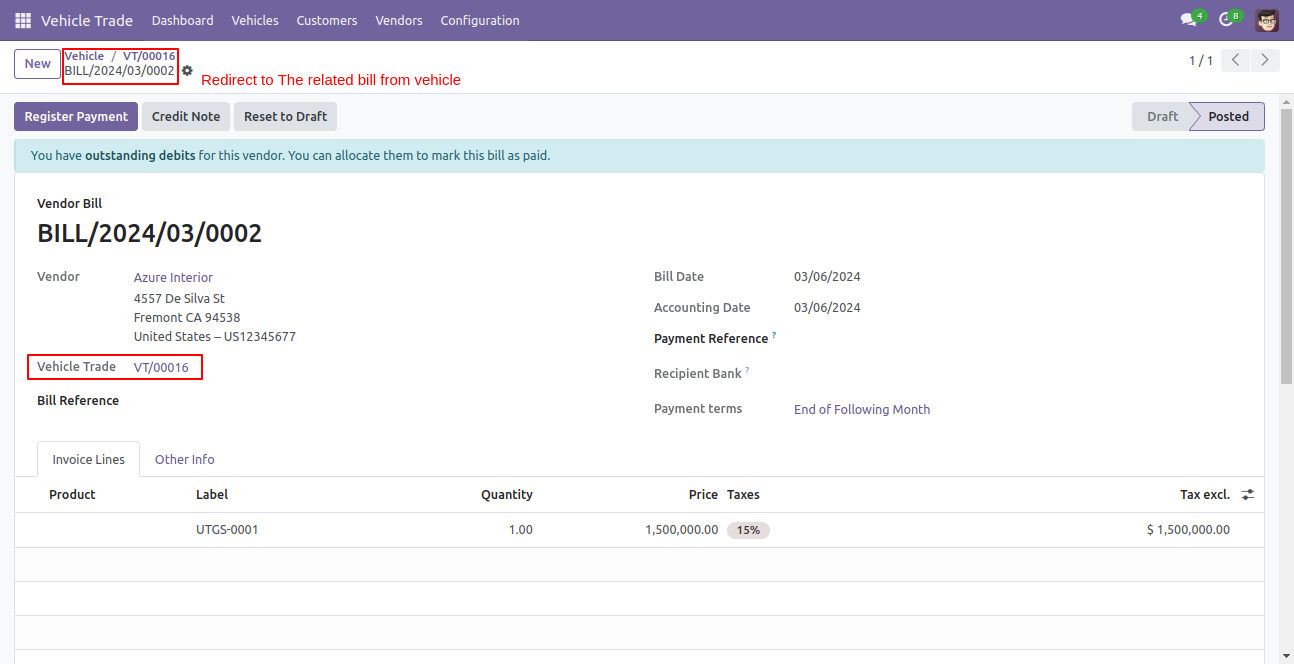
By clicking on the create bill, it will redirect to the bills form view and you can see the trade reference number from here.
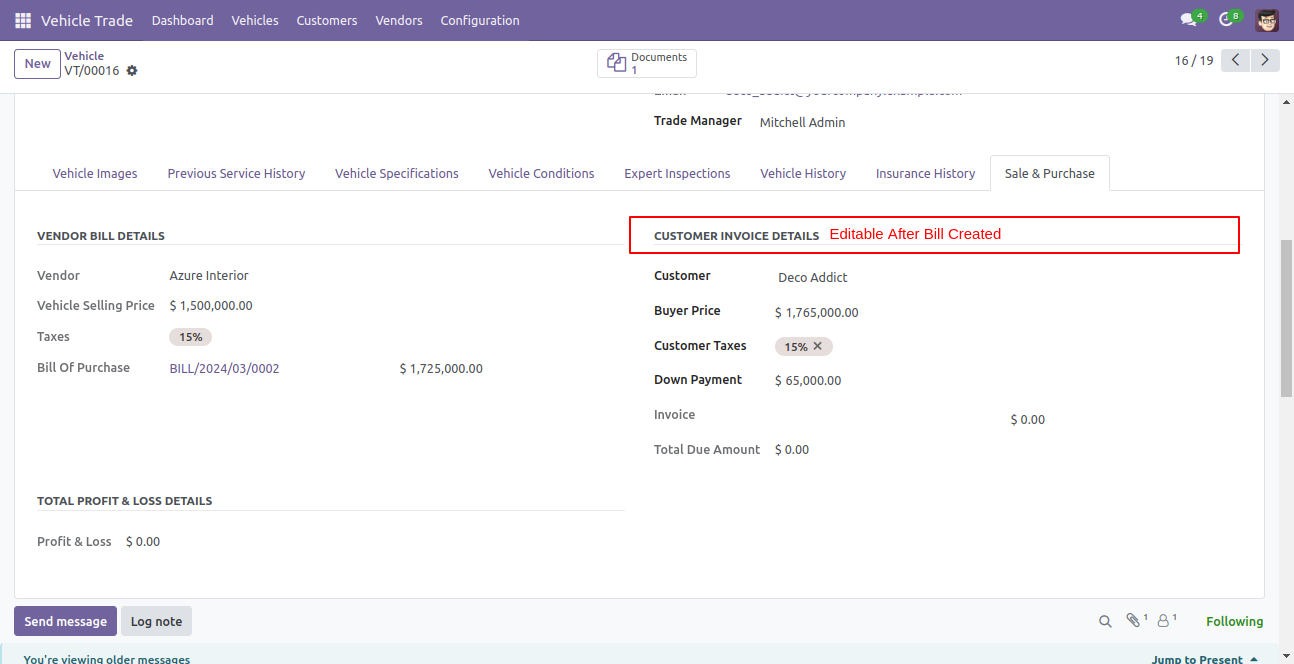
You can add customer invoice details after the creation of the bill.
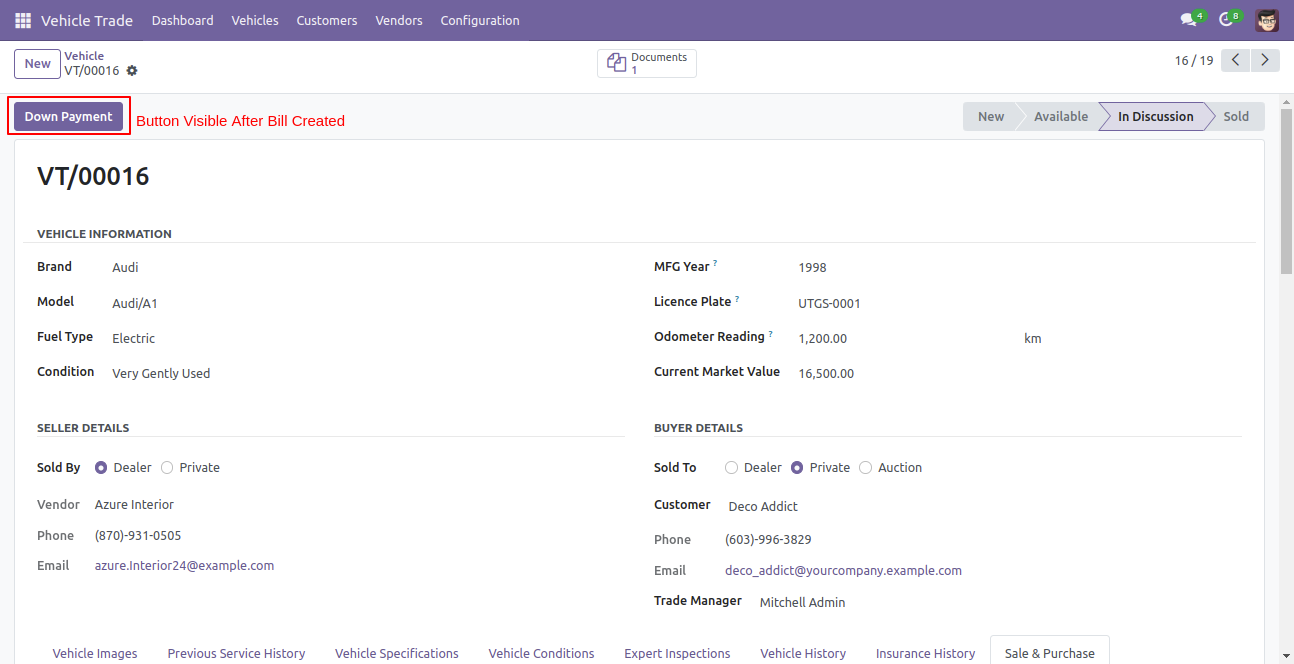
You can see the downpayment button after bill creation and the buyer can pay the downpayment from here.
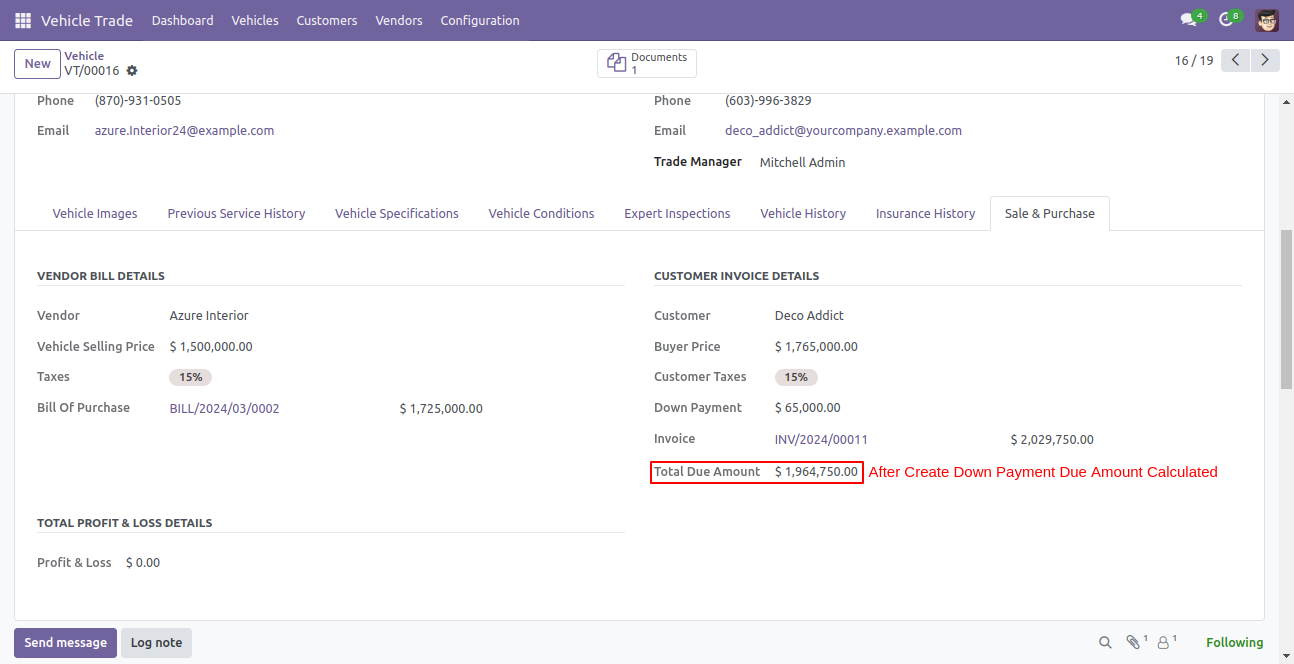
You can see the remaining due amount after paid downpayment amount and invoice reference number.
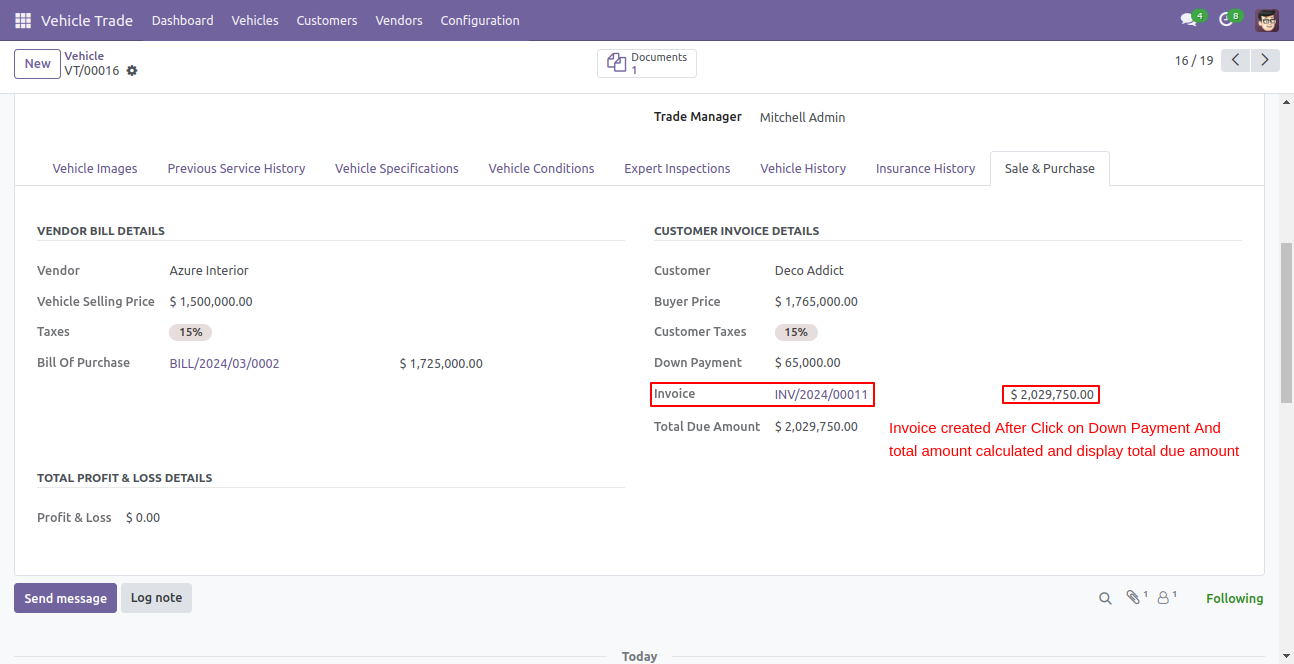
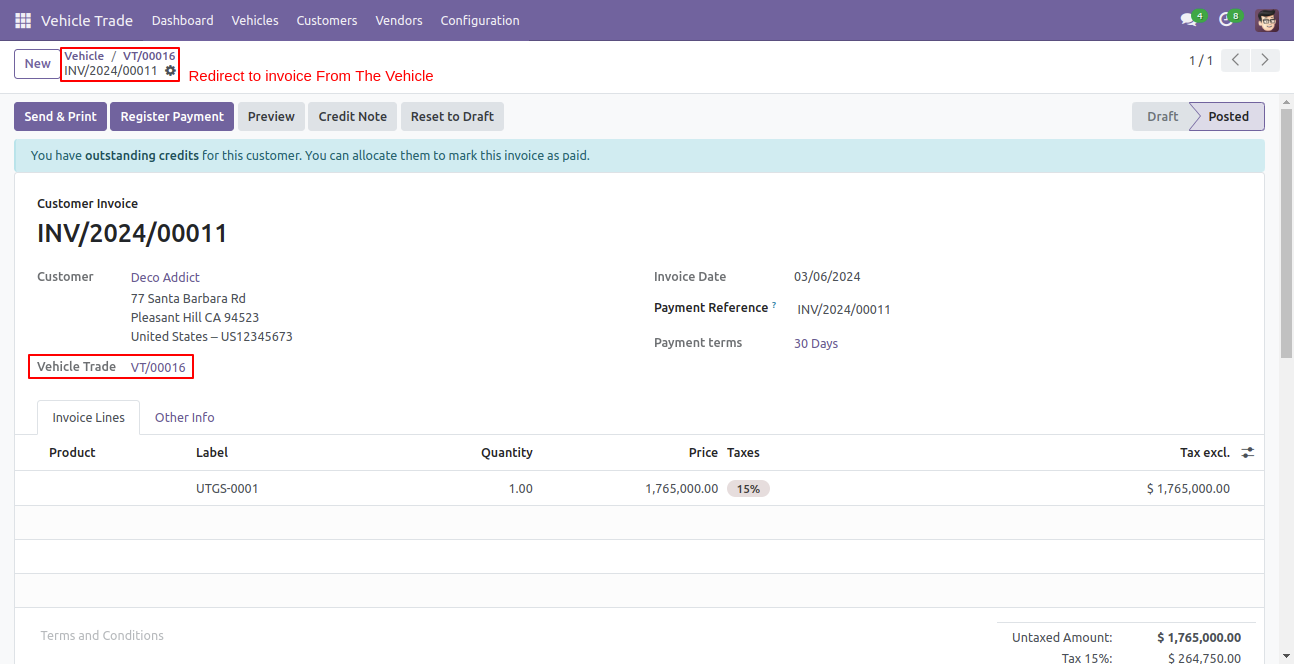
Clicking the downpayment button will redirect you to the invoice form view with the full amount and you can see the vehicle trade reference number in the invoice.
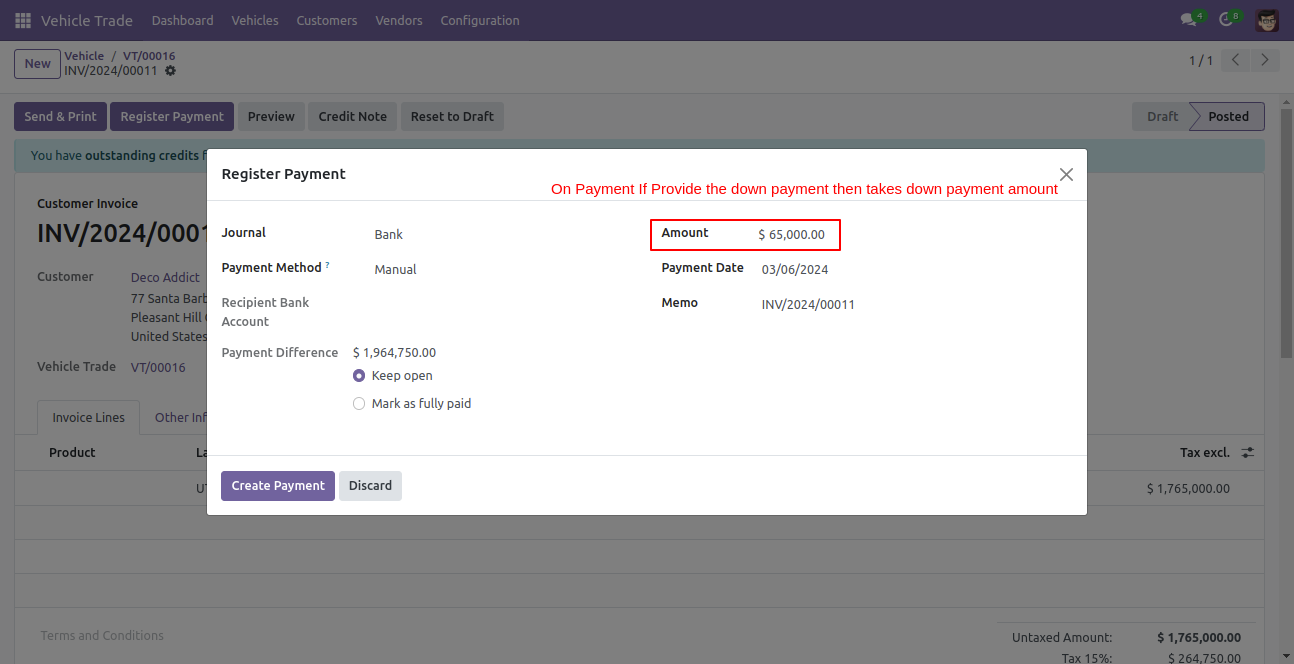
Click on the register payment button pay the downpayment amount and set the payment difference amount as a keep open.
After the downpayment is paid, you can see the total due amount in the vehicle trade form view.
You can send an invoice to the buyer by clicking on the send buyer invoice button.
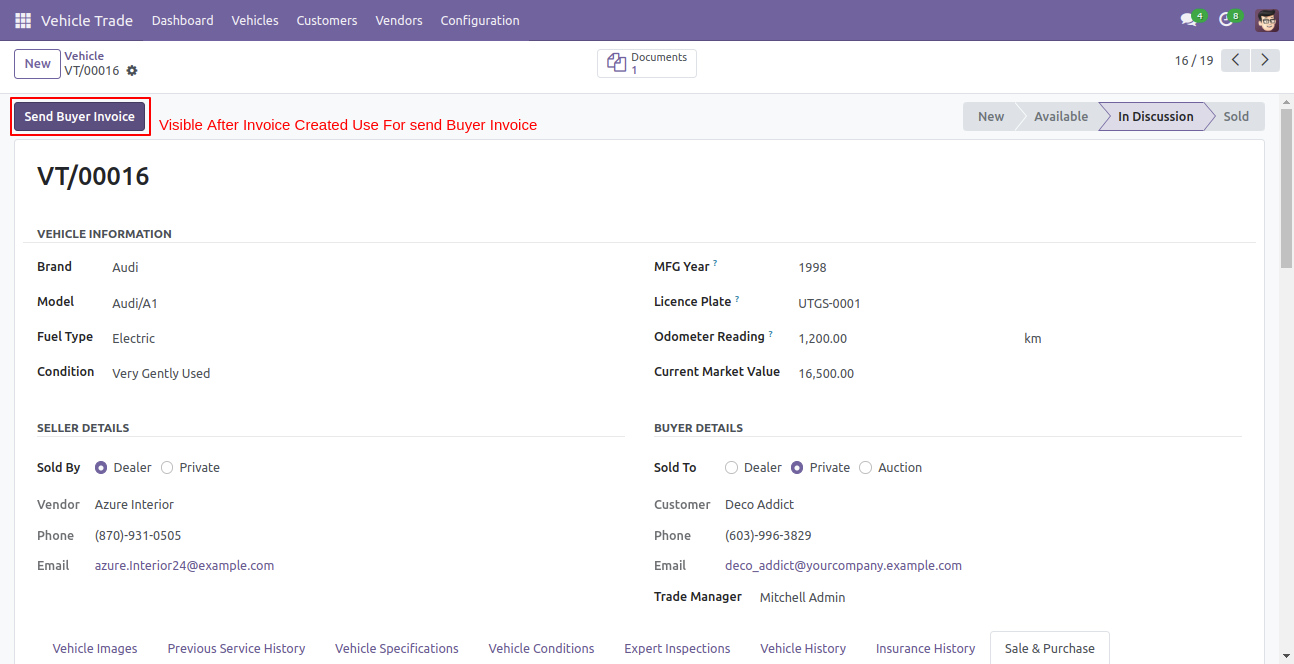
After sending an invoice to the buyer, profit and loss will be calculated here which is occurring from the trading and the stage will be moved to sold.
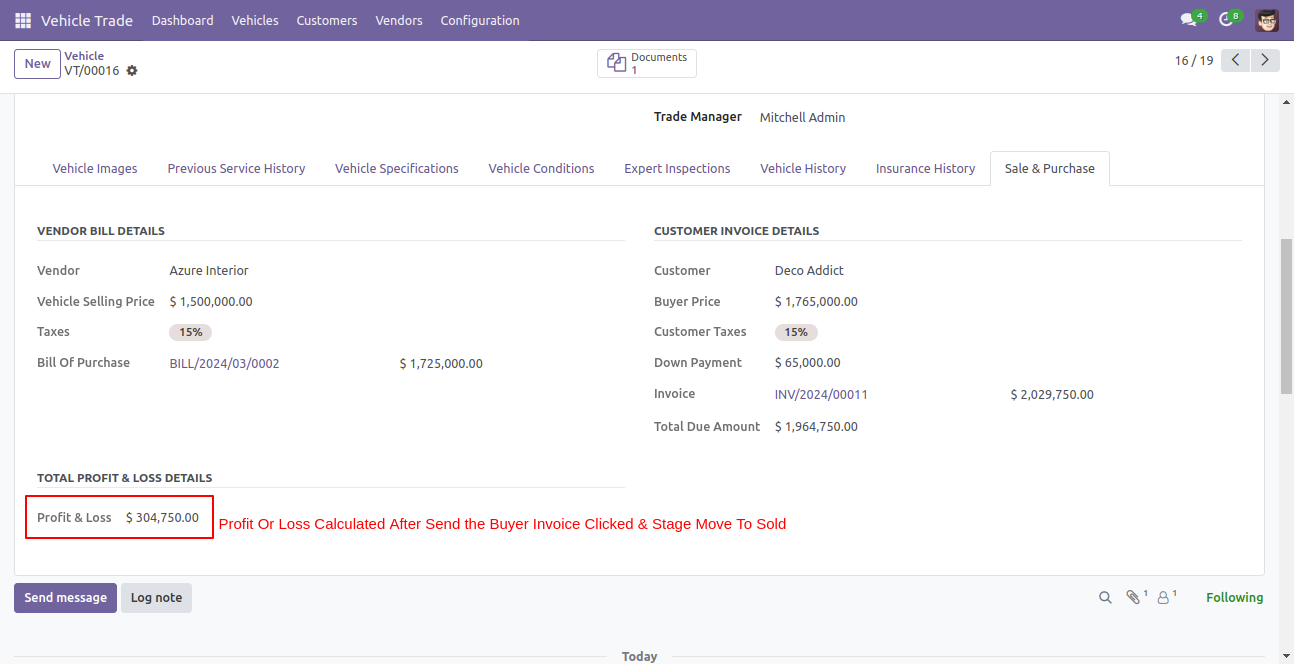
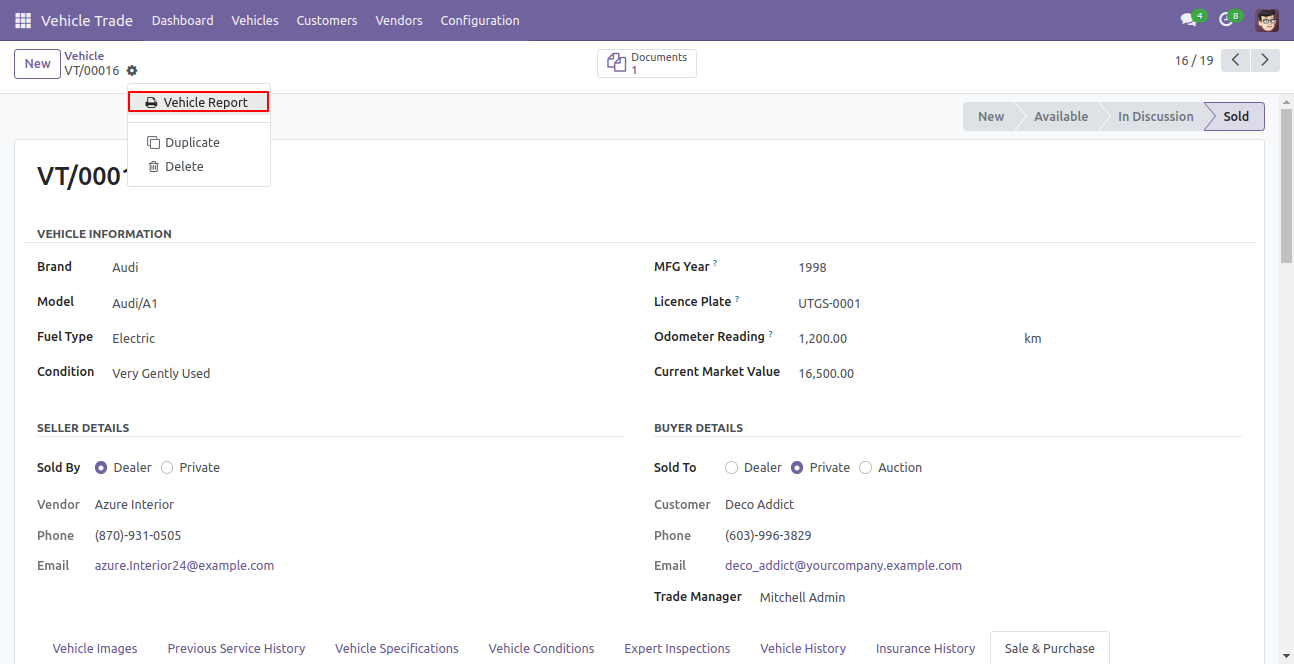
You can print vehicle reports in PDF format.
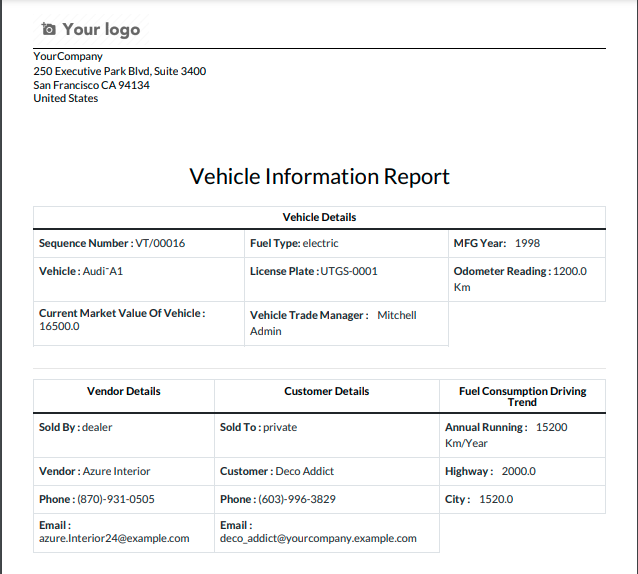
Detailed vehicle information report in PDF format.
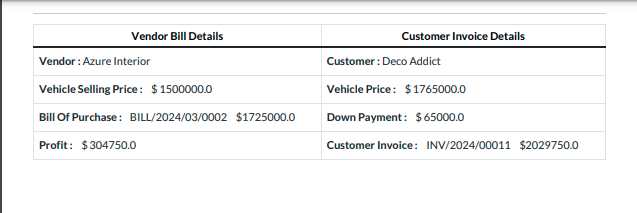
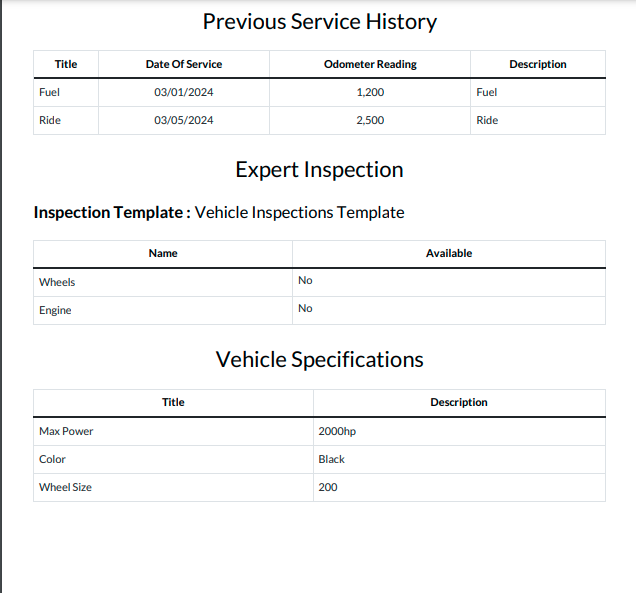
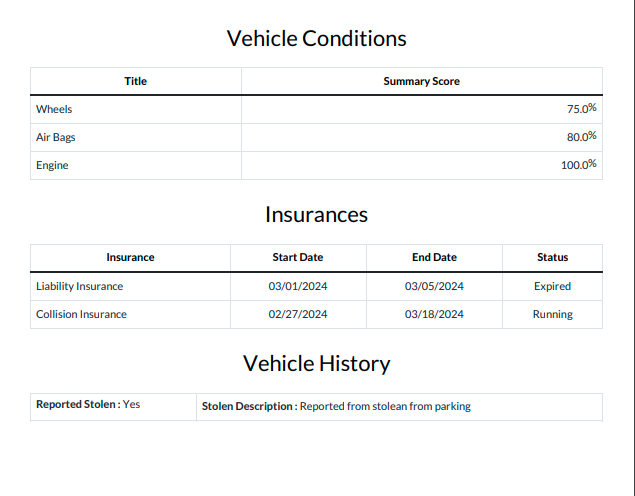
You can search vehicle group by vendor.
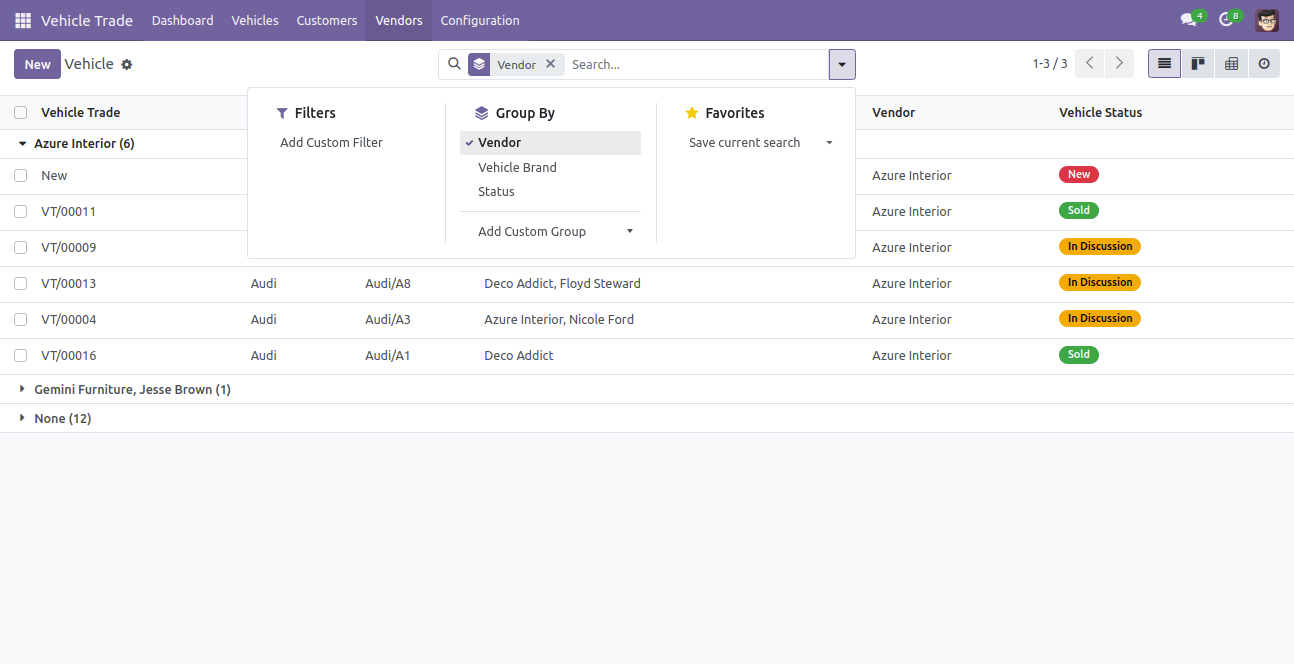
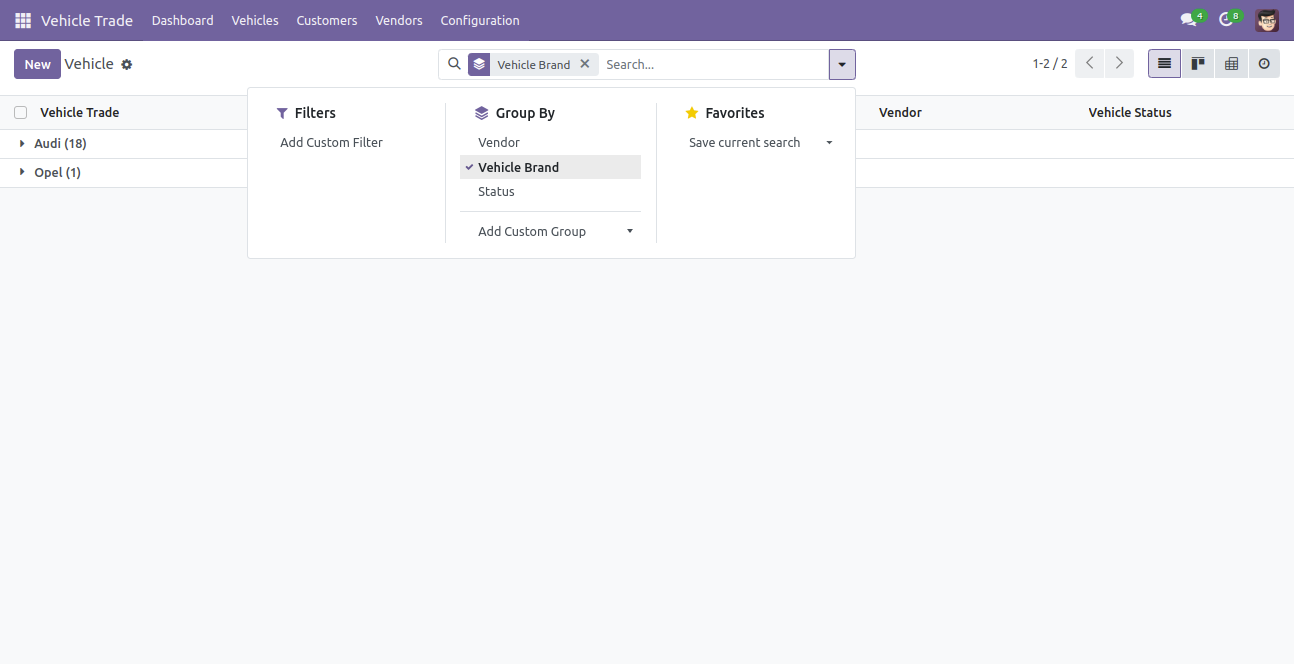
Search vehicle group by vehicle brand.
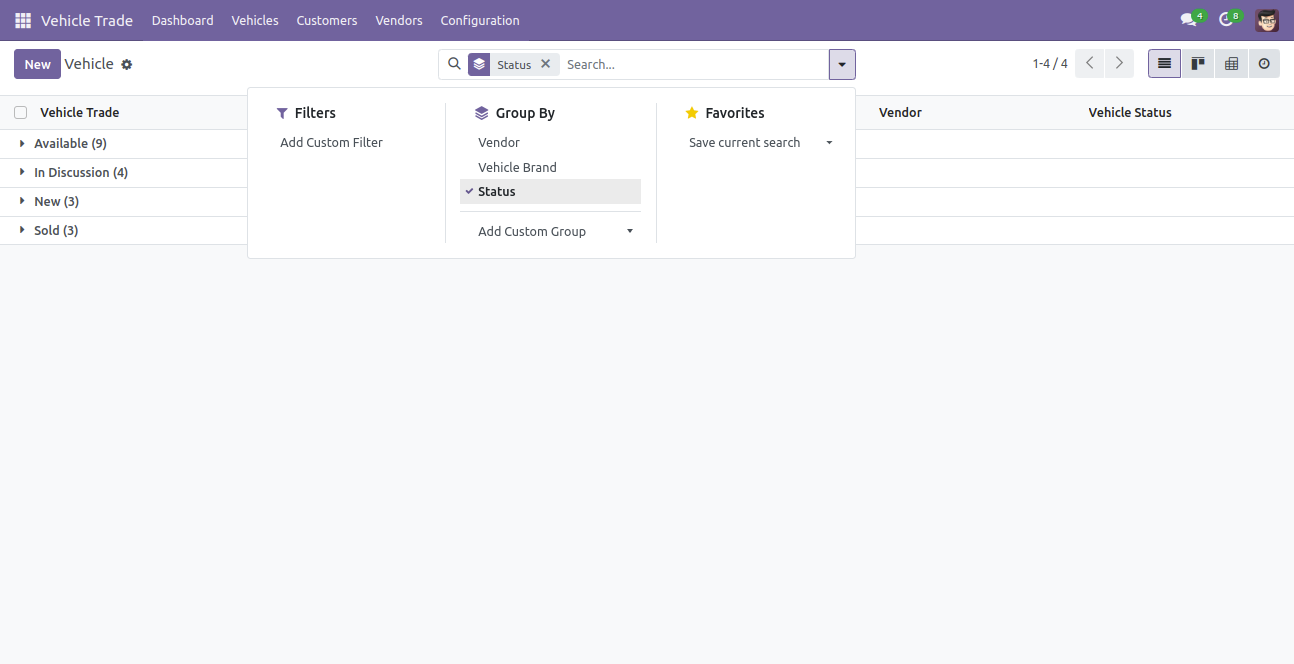
Search vehicle group by status.
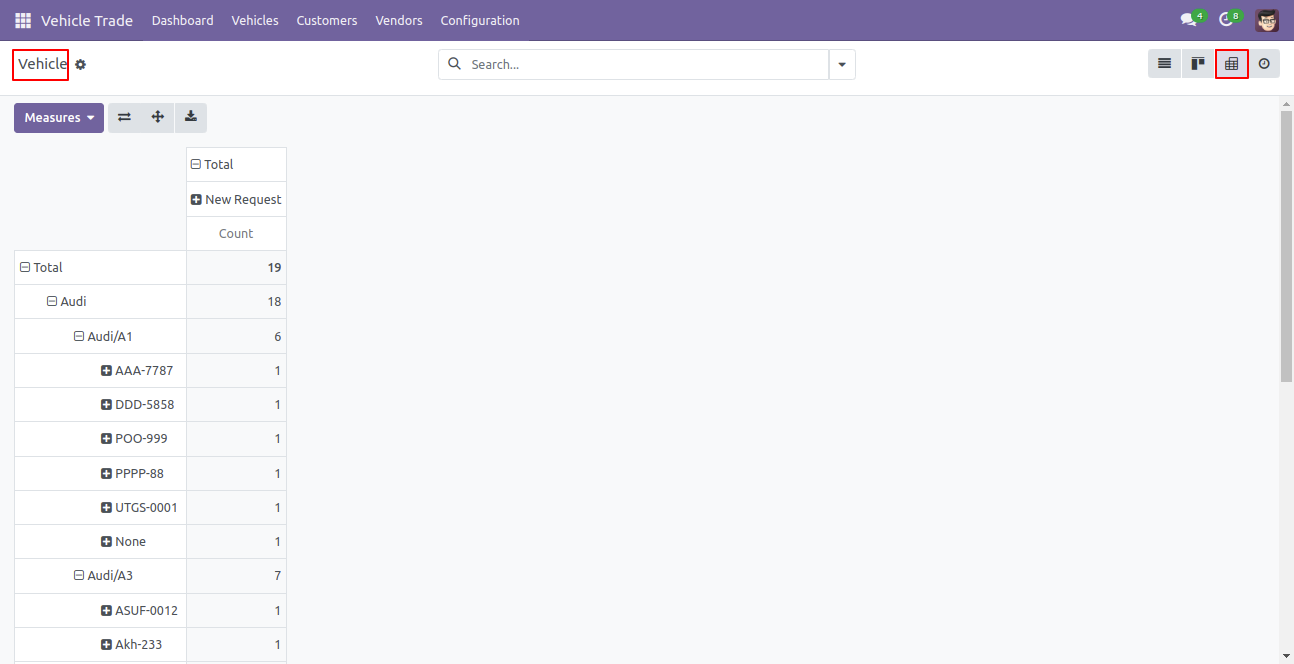
Vehicle in pivot view.
Version 19.0.2.0.0 | Released on : 30th July 2026
Version 19.0.1.0.0 | Released on : 9th September 2025
- No, Yes, this app works perfectly with Odoo Enterprise (Odoo.sh & Premise) as well as Community.
- No, this application is not compatible with odoo.com(odoo saas/Odoo Online)
- Yes, to test this module, please contact us at sales@softhealer.com.
- Please contact us at sales@softhealer.comto request customization.
- Yes, we provide free lifetime support for the version you purchased.
- Yes, you will receive lifetime free updates for the version of the module you purchased.
- No, there is no need to install any additional libraries.
- Yes, for version 12 and above, you need to purchase the module separately for each version you intend to use.
- No, exchanges or refunds are not allowed. Please make sure to select the correct version before purchasing.
- You can contact us at support@softhealer.com for language translation support. We use Google Translator tools to provide translations in multiple languages, so the accuracy may vary. We welcome your suggestions to help improve translations.
Discover Our Latest Apps