
 Easy to Manage
 Dedicated Support















 Scan to email sales



Vehicle Rental Management System Website

A user-friendly website for managing vehicle rentals, allowing customers to browse available vehicles, check rental details, submit booking requests, and manage their rentals. Streamline vehicle, customer, booking, pricing, and rental operations from a centralized Odoo backend.

Features
Browse Available Vehicles
Browse available vehicles and view their details before making a rental request.

Smart Vehicle Filters
Quickly find vehicles using filters such as vehicle name, type, city and current availability status.

Online Vehicle Booking
Allow customers to browse vehicles and submit rental bookings directly from the website.

Driver Requirement Options
Select and manage driver requirements based on the customer's rental needs.

Easy Booking Management
Easily manage vehicle bookings, including customer details and rental periods.
Vehicle Availability Status
Easily track the availability of vehicles in real time.

Cancellations
Easily handle booking cancellations
Rental Types
You can define rental types by days, km, or miles.

Automated Rental Calculation
Total rental charges are automatically calculated based on type selected
Vehicle Images
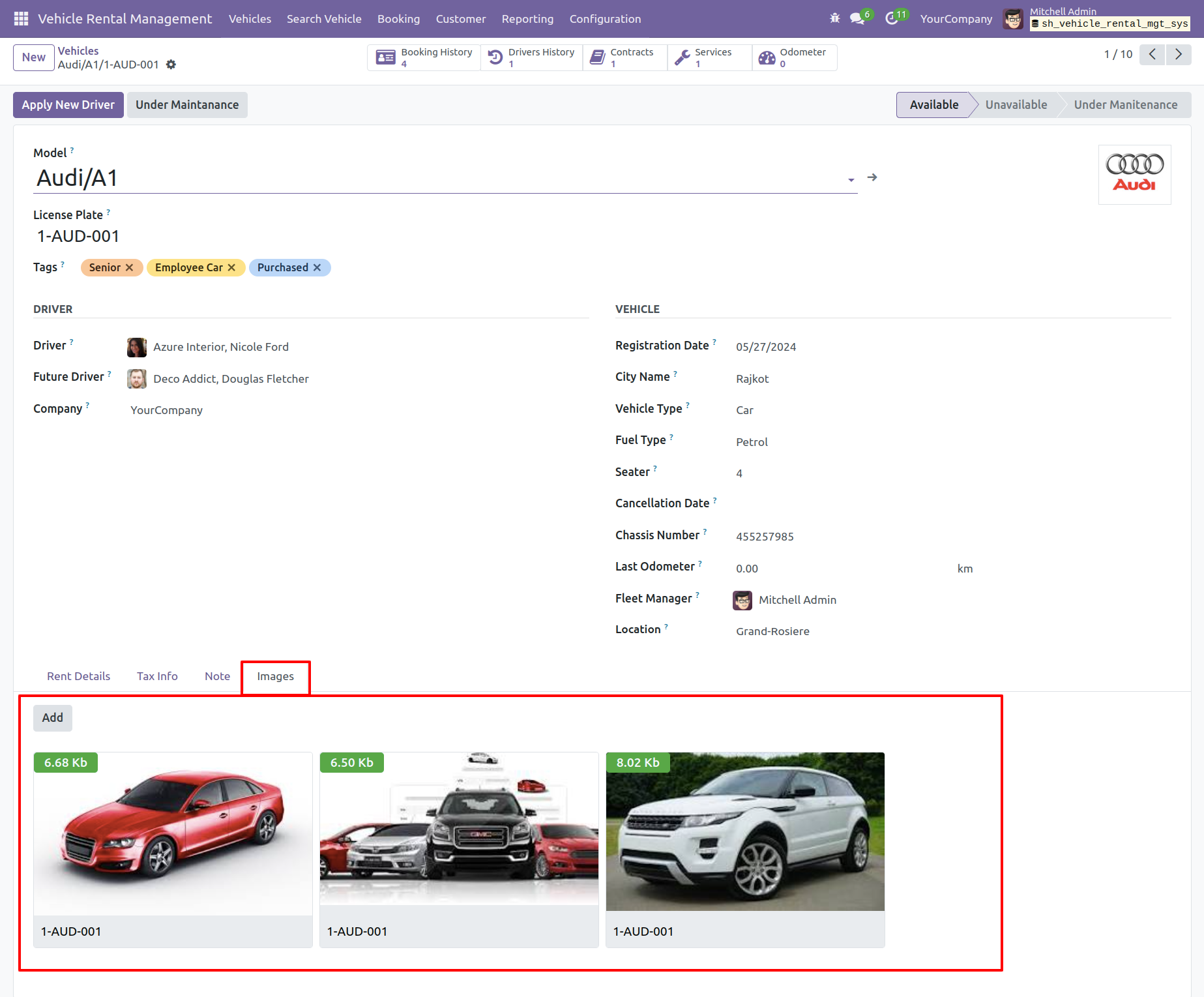
You can add vehicle pictures/images under the Images tab. This lets you store and view multiple images of each vehicle.
Manage Driver Charges
You can manage driver charges
Manage Other Charges
The system has the capability to handle "extra charges"
Vehicle Types
The module includes a Vehicle Type configuration menu, letting you manage and categorize vehicles by type.

Fuel Types
There is also a Fuel Type setup menu for defining fuel categories (e.g., petrol, diesel).
User Groups
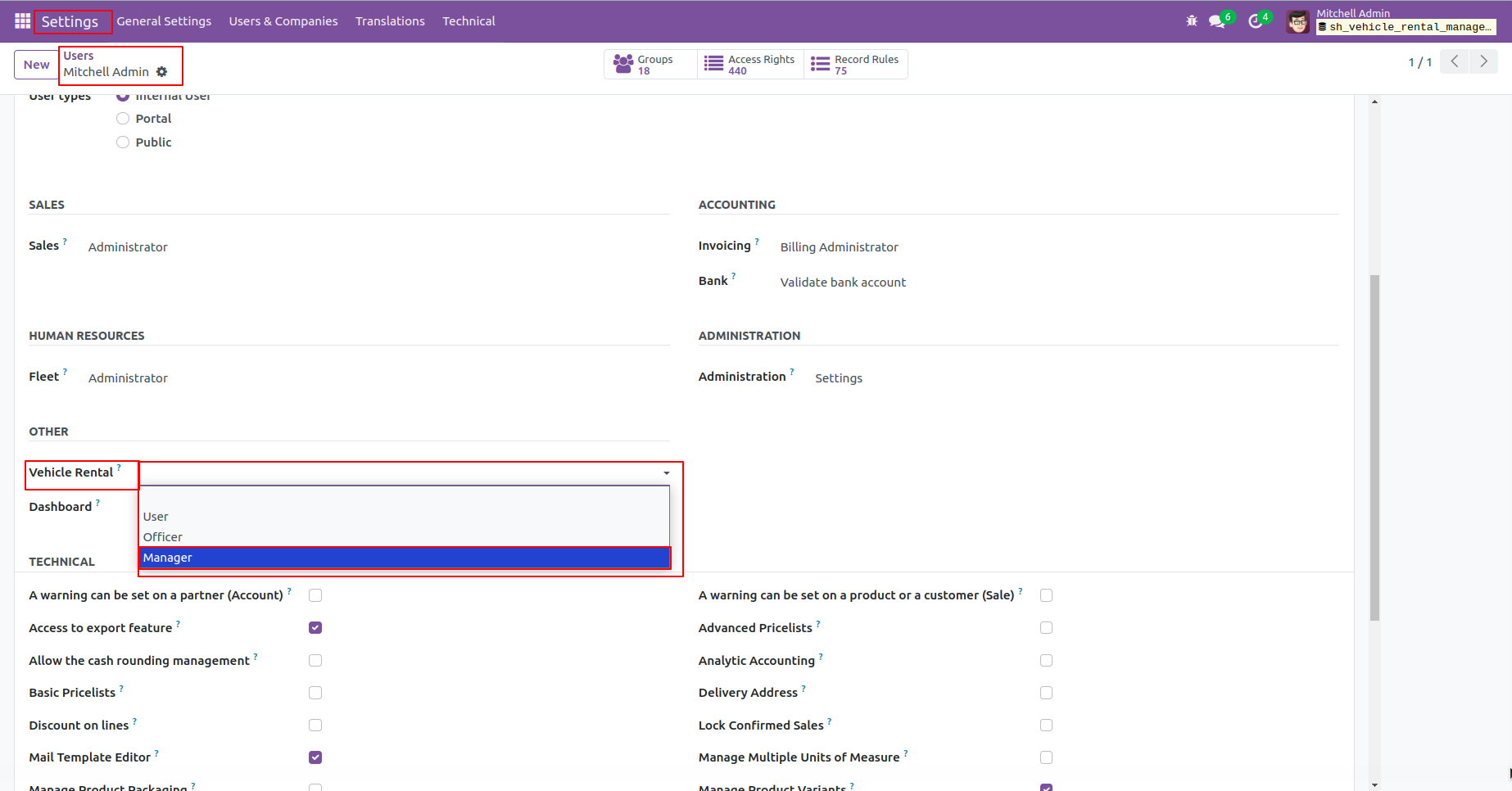
The module uses user settings permissions: User, Officer and Manager
Vehicle Return Process
Return the vehicle with a fast, smooth process and track the return by return date.
Vehicle Booking Report
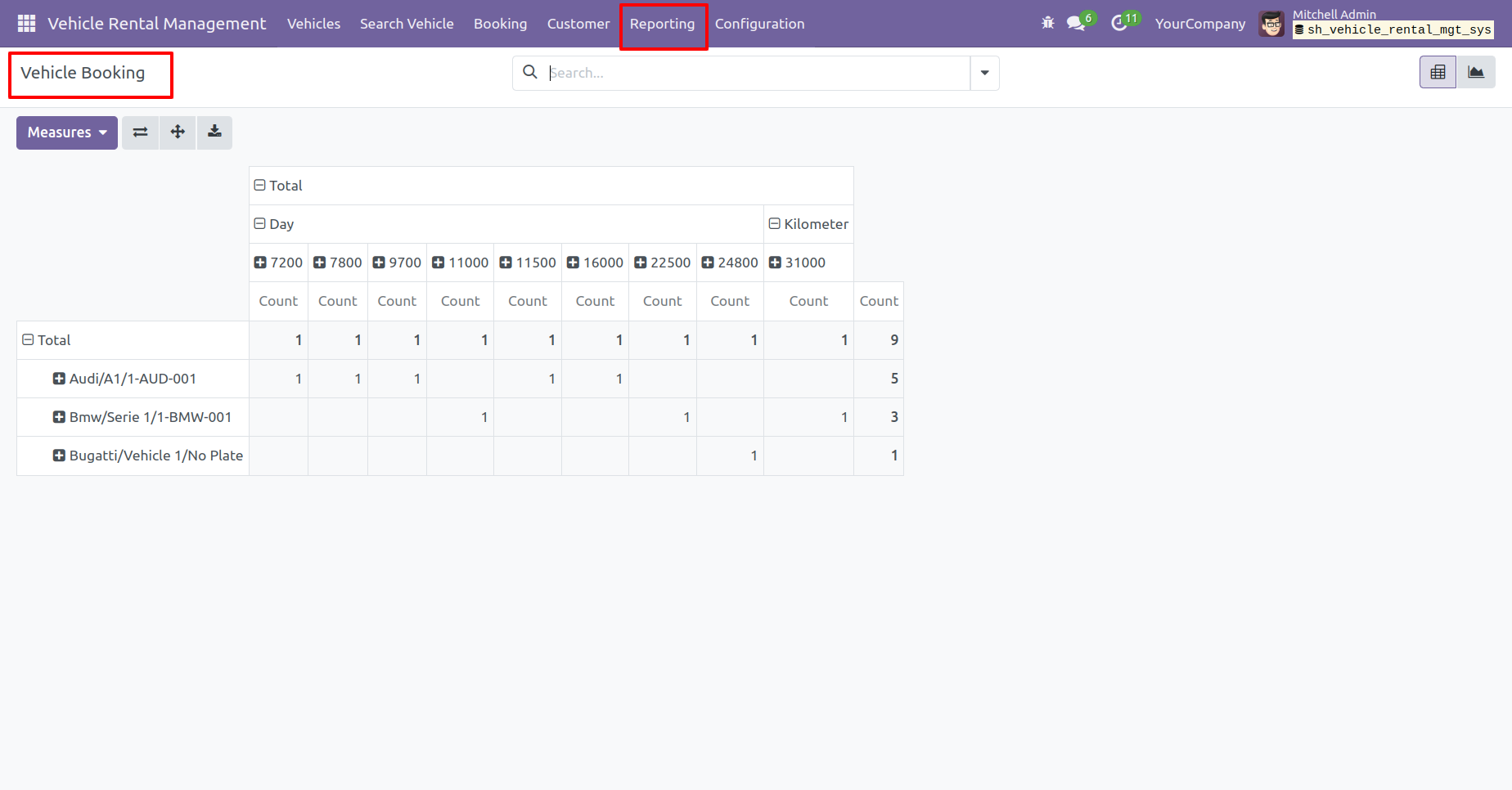
View vehicle booking reports in a pivot format.

Portal Booking
Allows users to create and manage bookings directly from the portal.
Vehicle Dashboard
Provides a centralized view to track and manage bookings and related activities in one place.
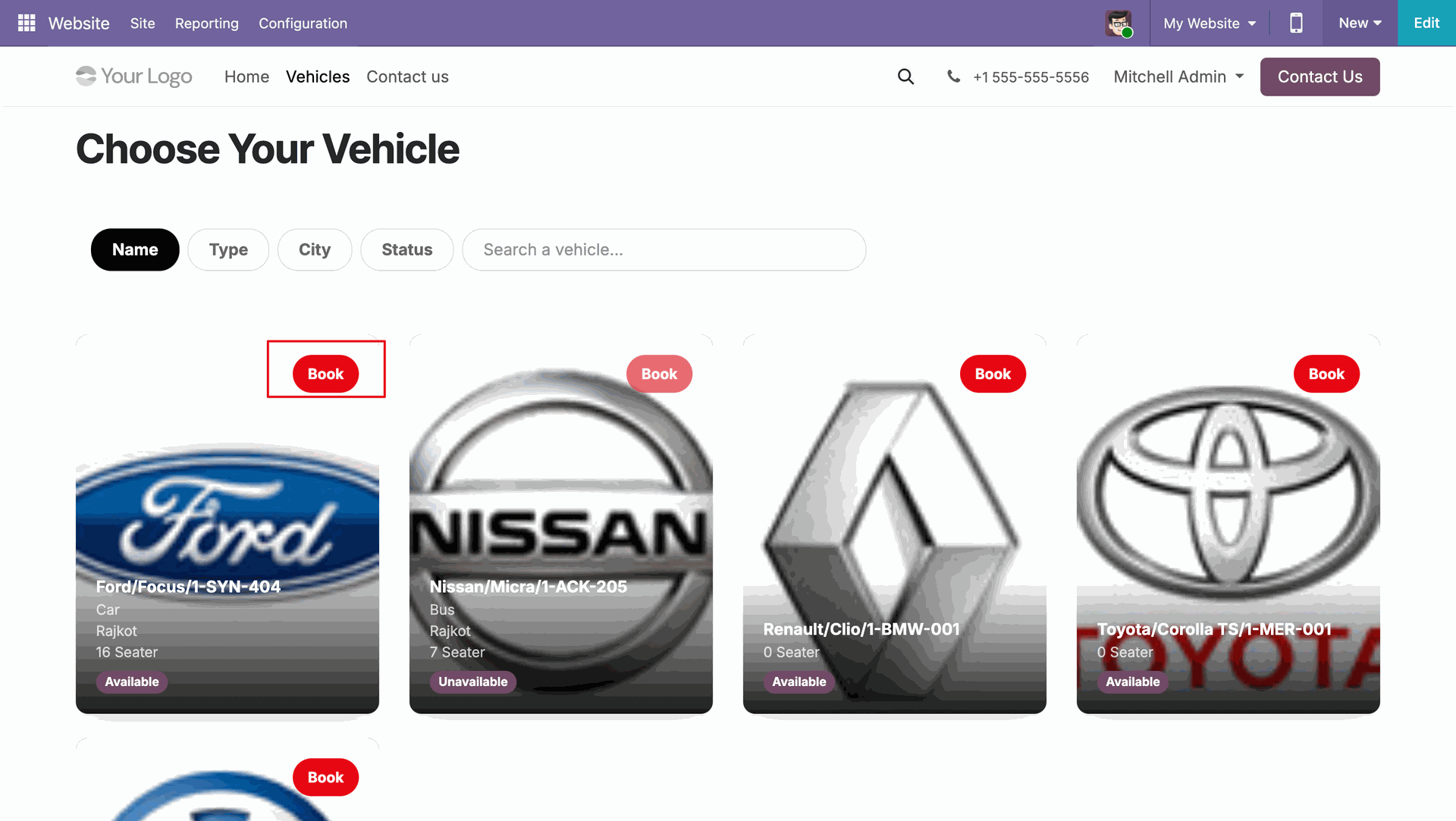
Users can browse available vehicles on the Vehicle page of the website, making it
easy to explore and select suitable vehicles.
Click the Book button on the Vehicle page to start the vehicle booking
process.
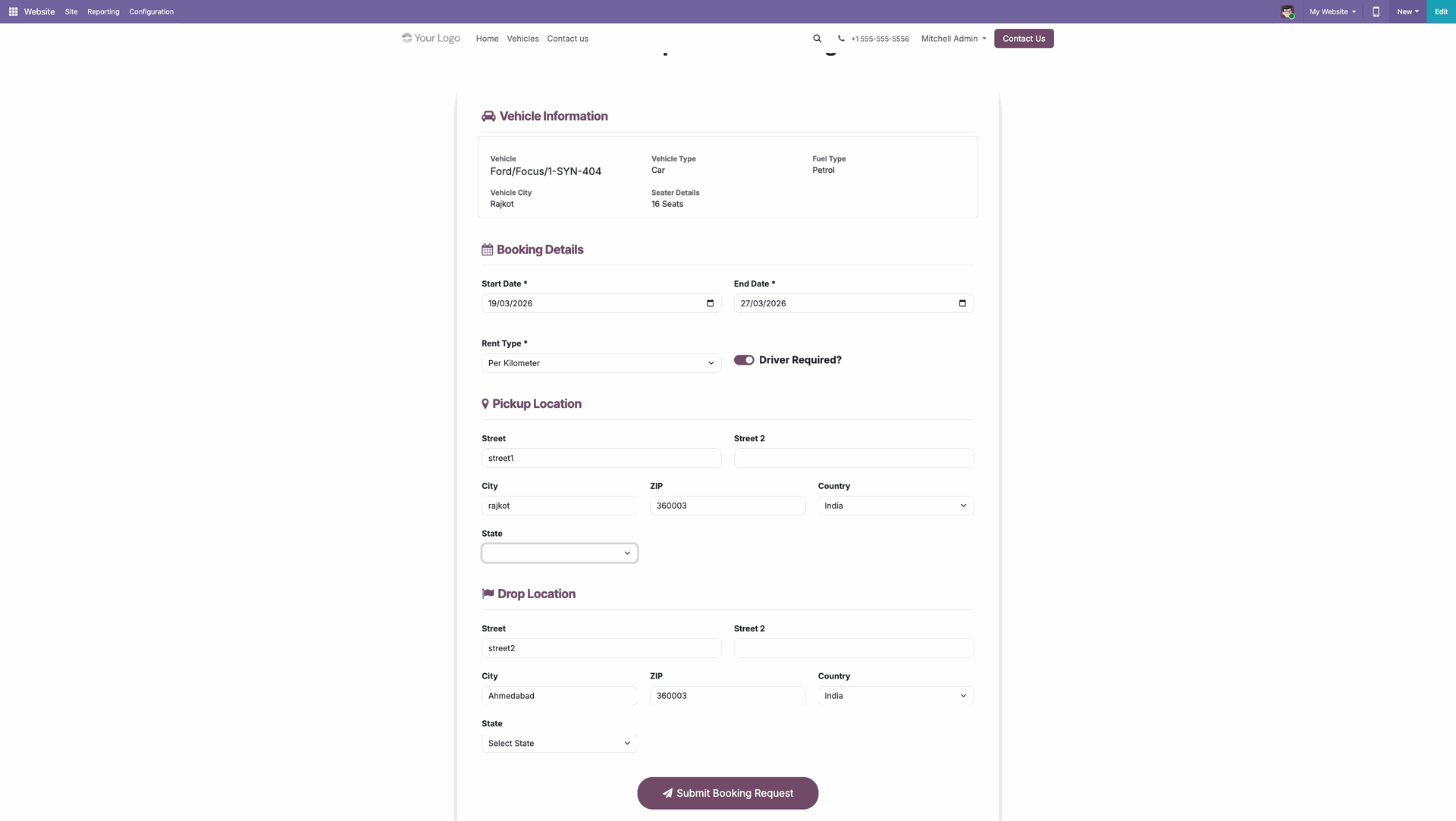
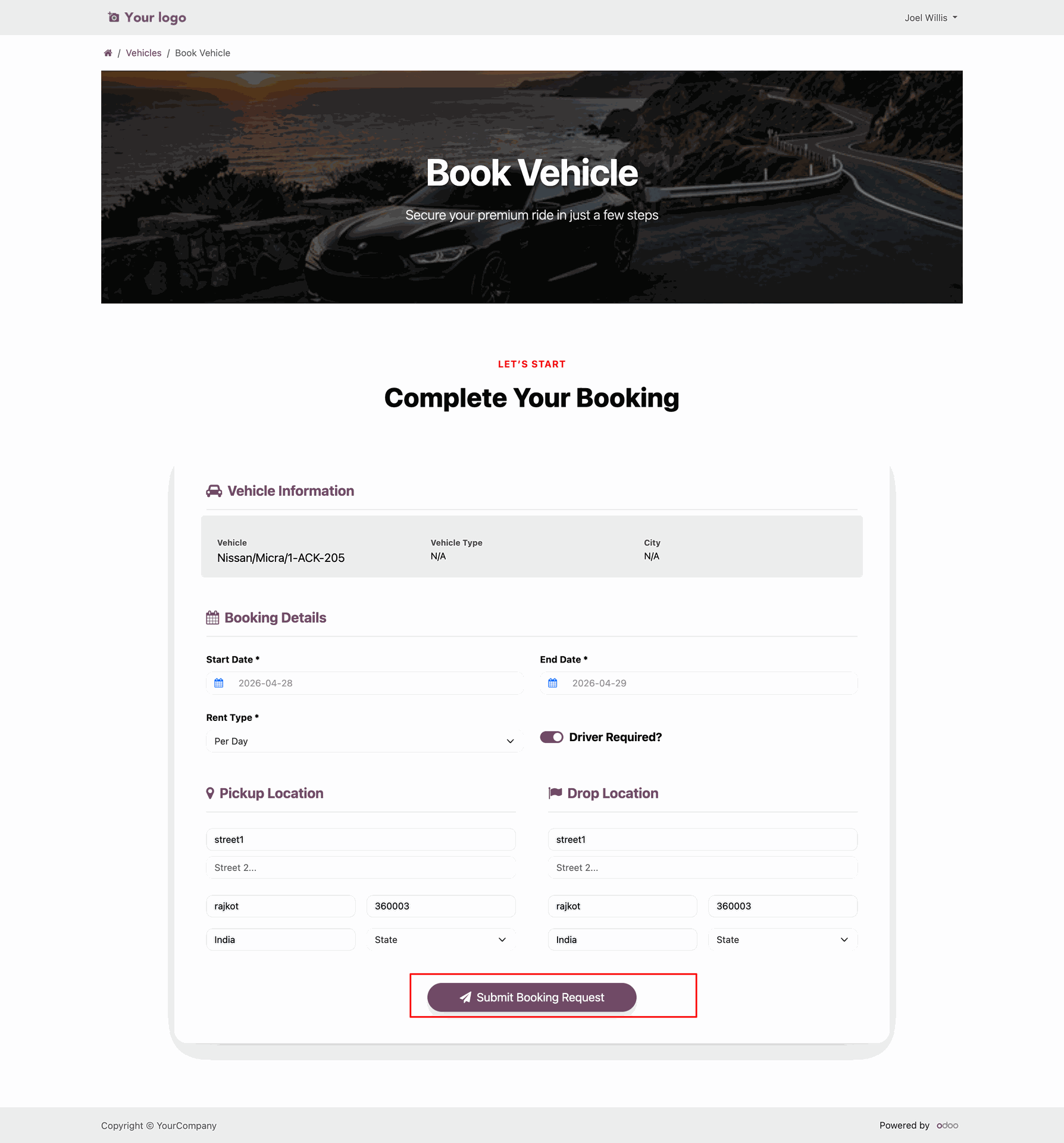
The Vehicle Booking Request form opens with the selected vehicle information displayed. Enter the required booking details, pickup location, and drop-off location, then click Submit to send the booking request.
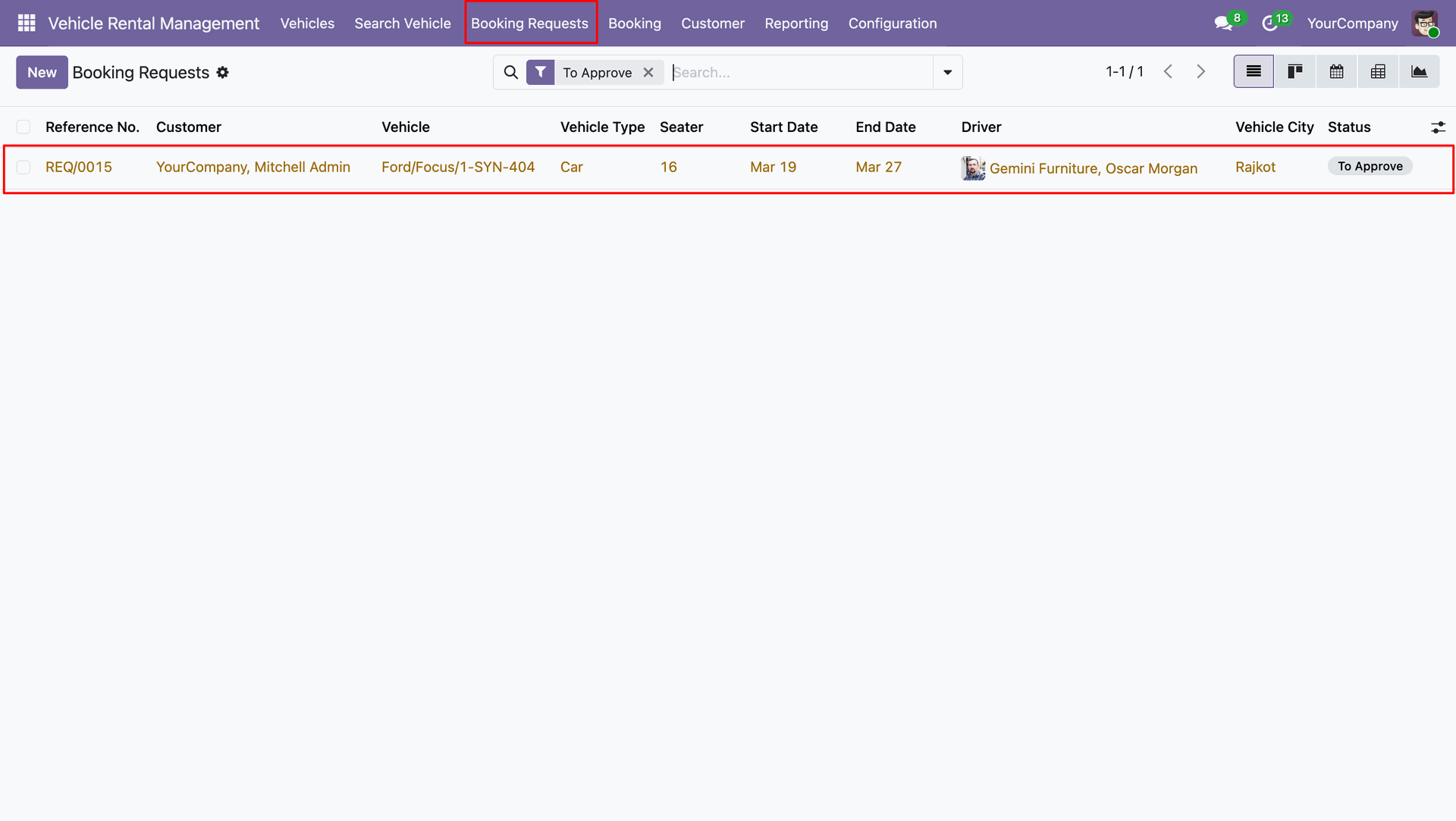
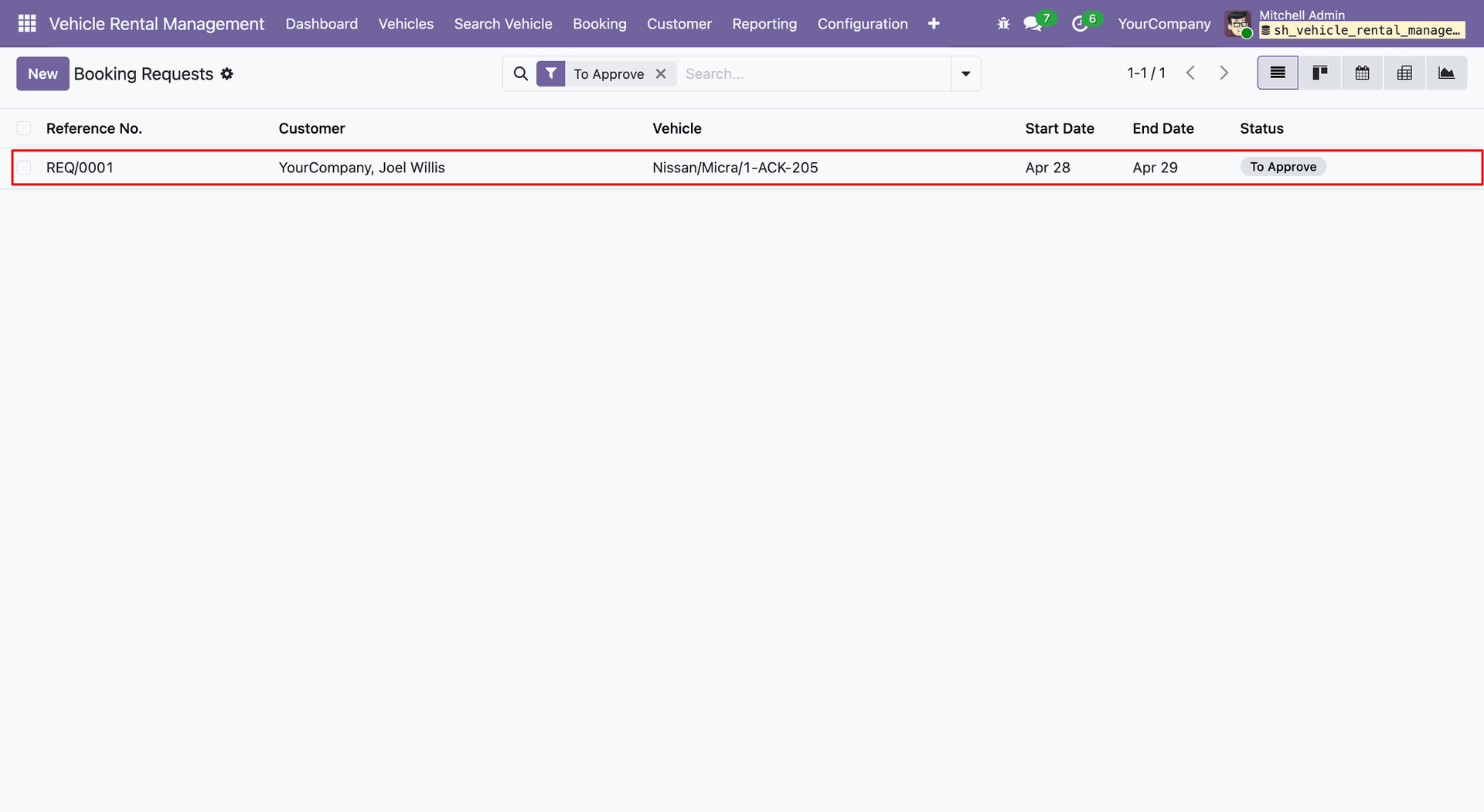
Go to Vehicle Rental Management -> Booking Requests from the backend to view and manage submitted vehicle booking requests.
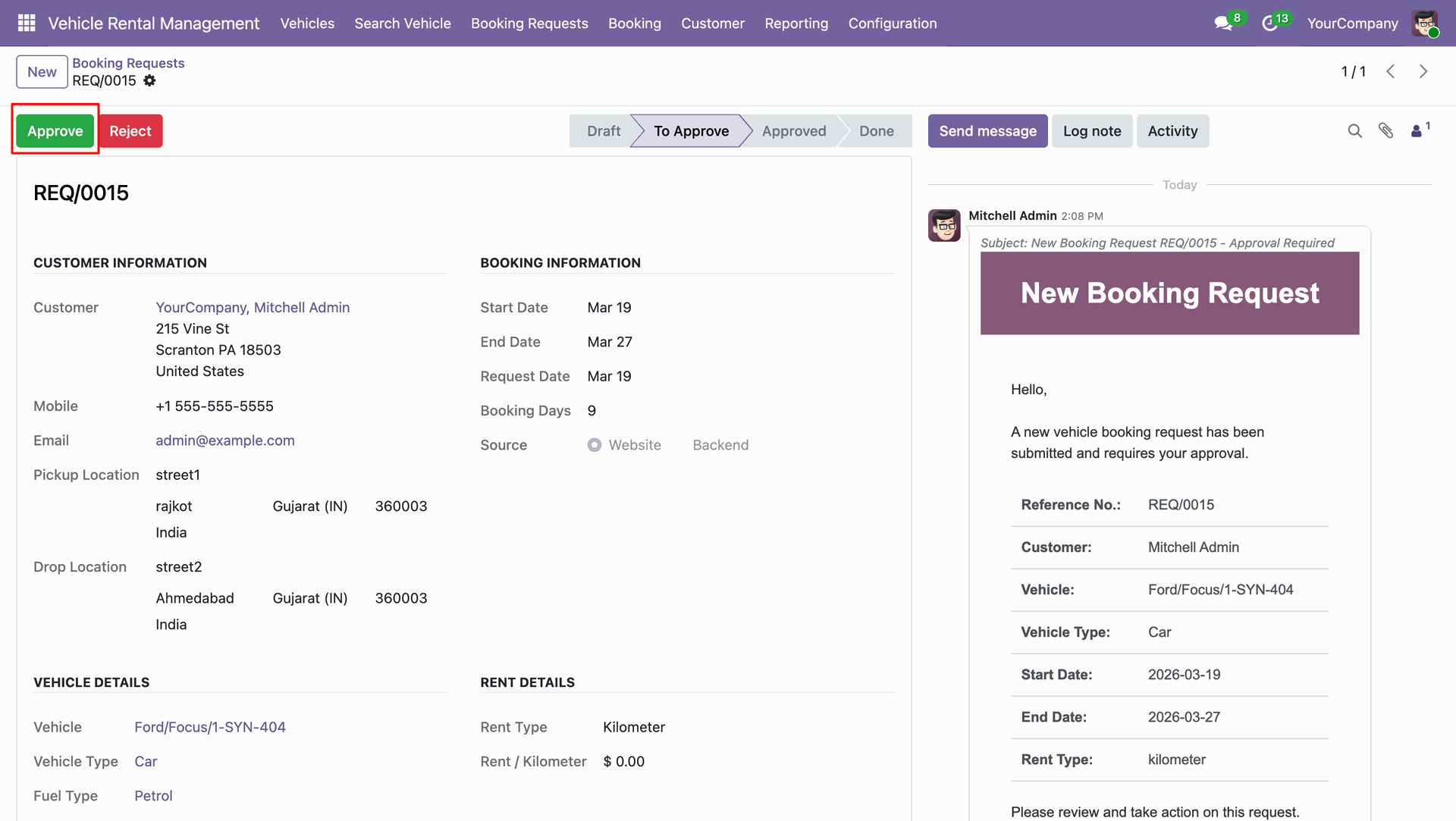
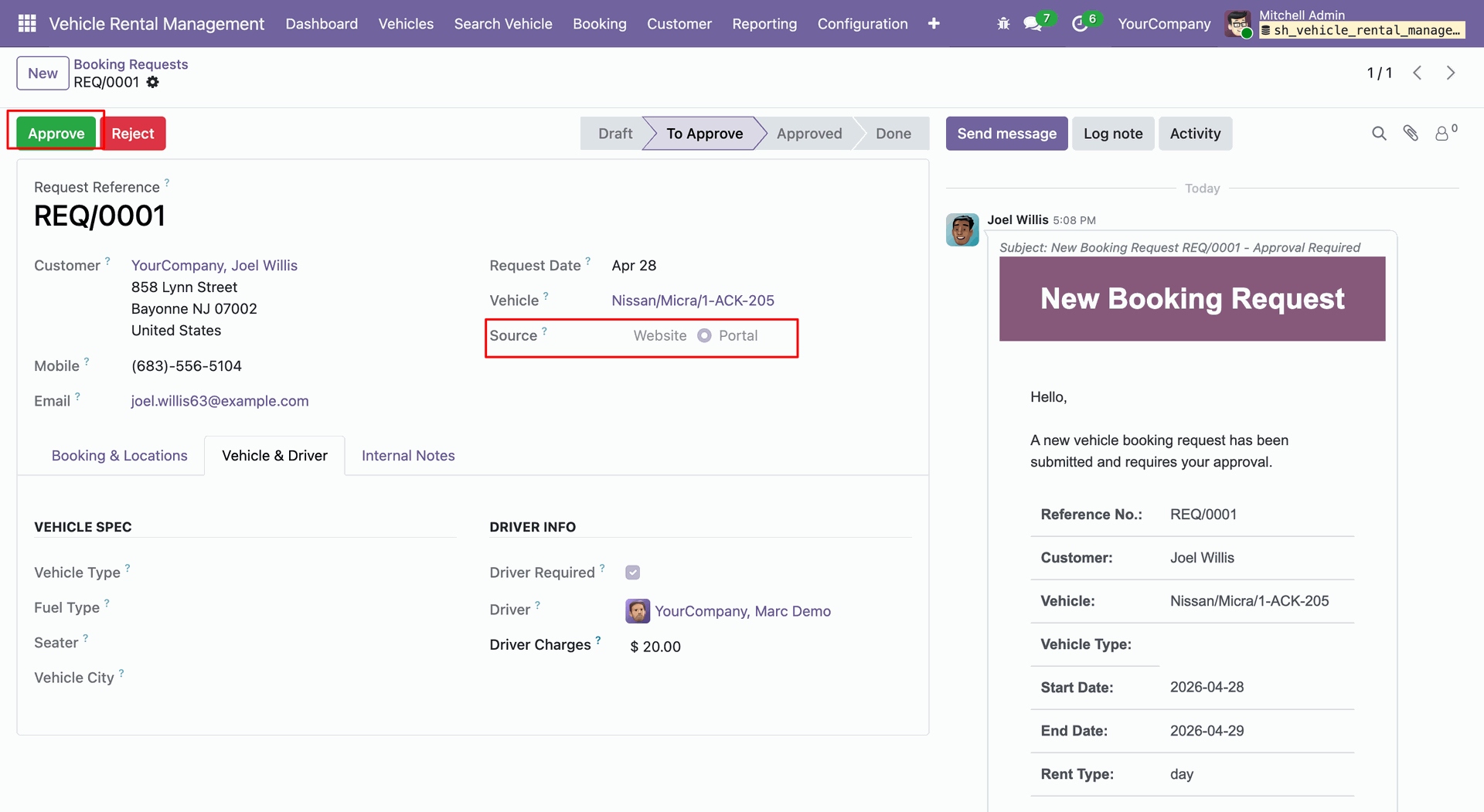
Open the Booking Request form to review the submitted details, then click the Approve button to approve the vehicle booking request.
Once the request is approved, click the Book button to confirm the selected vehicle for the specified date and location.
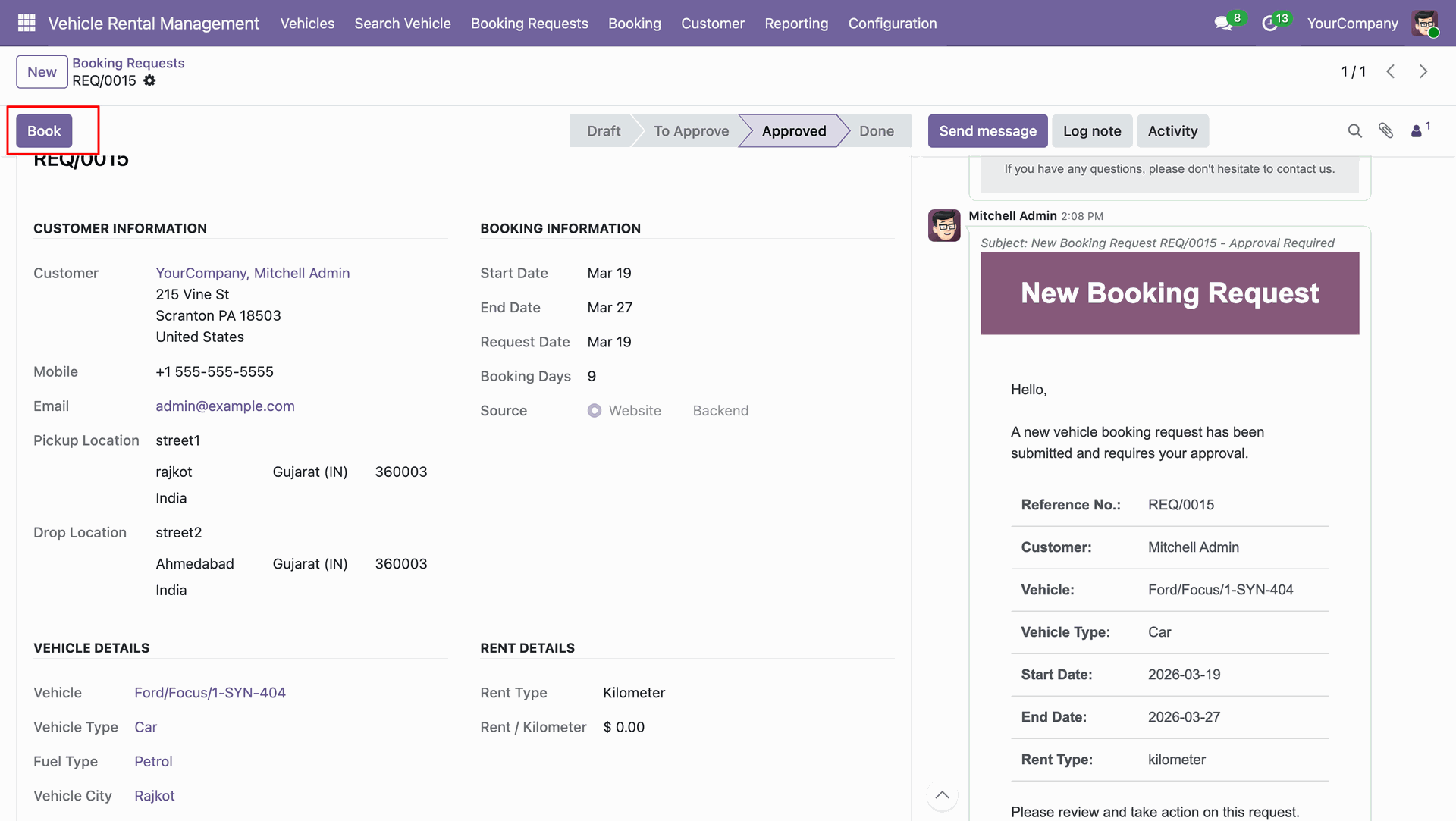
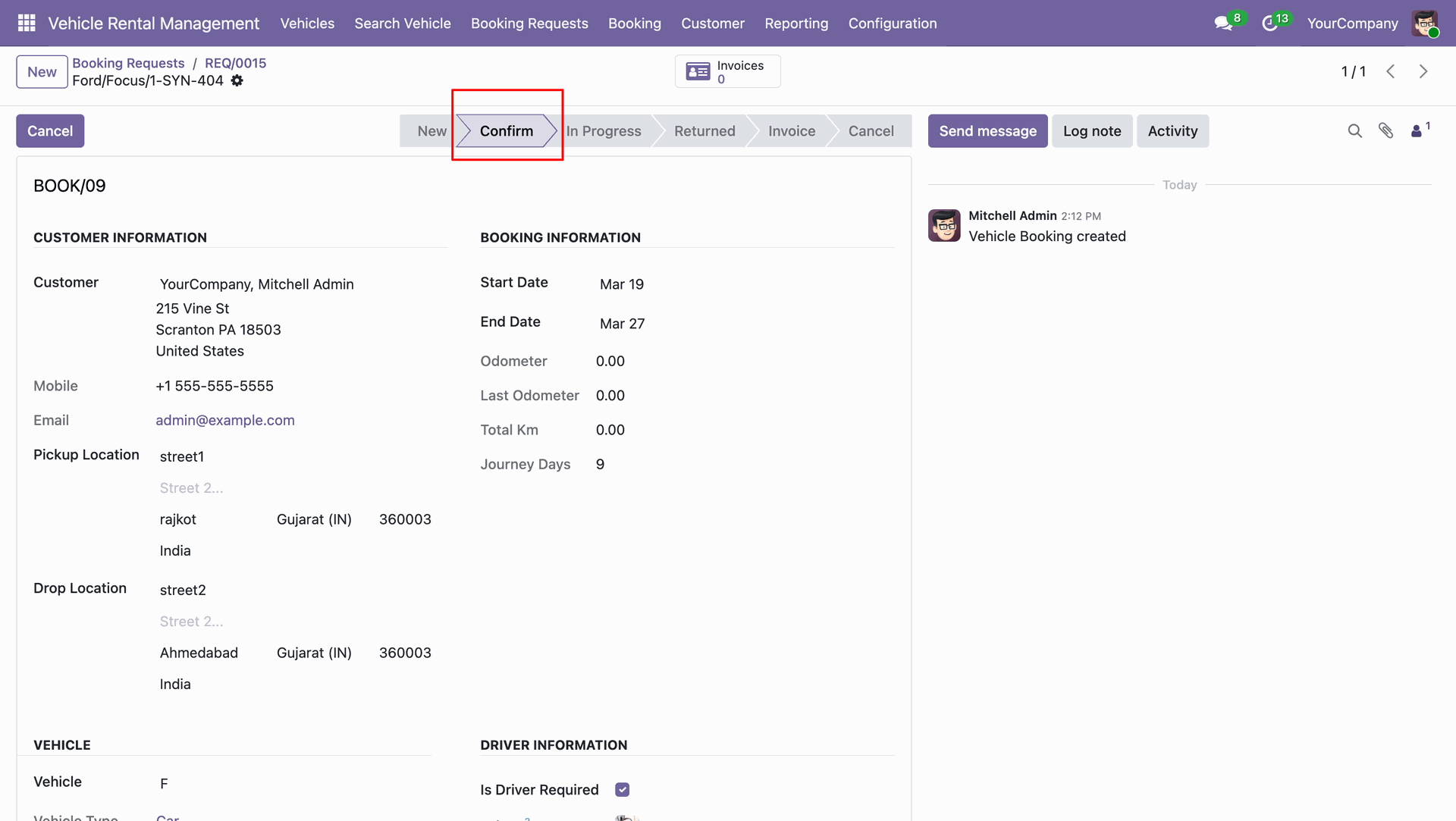
Clicking the Book button creates the Booking Order and automatically sets it to the Confirmed stage.
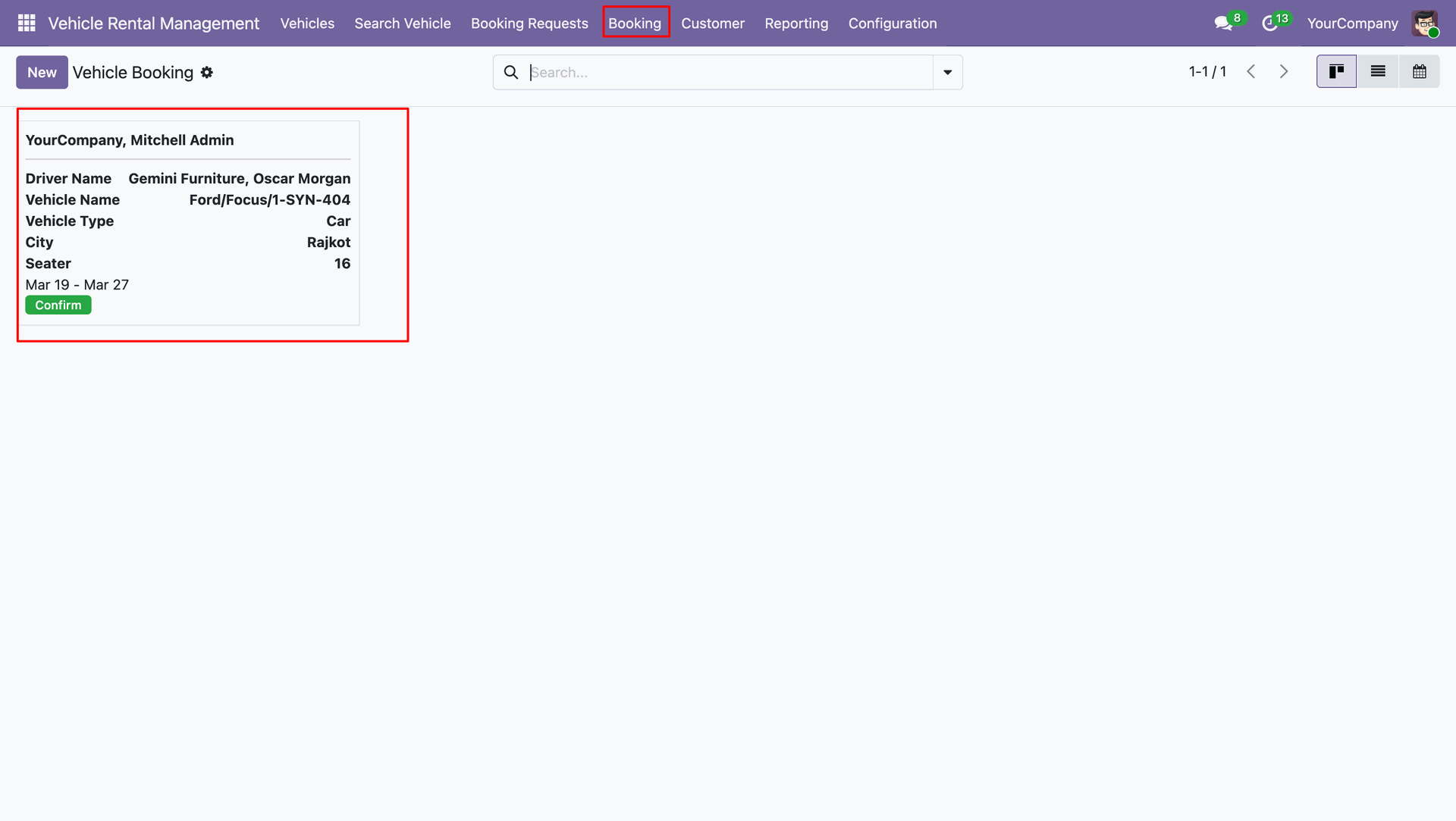
The Booking Order is available under the Booking menu in the backend.
Go to users setting select user and set vehicle rental manager.
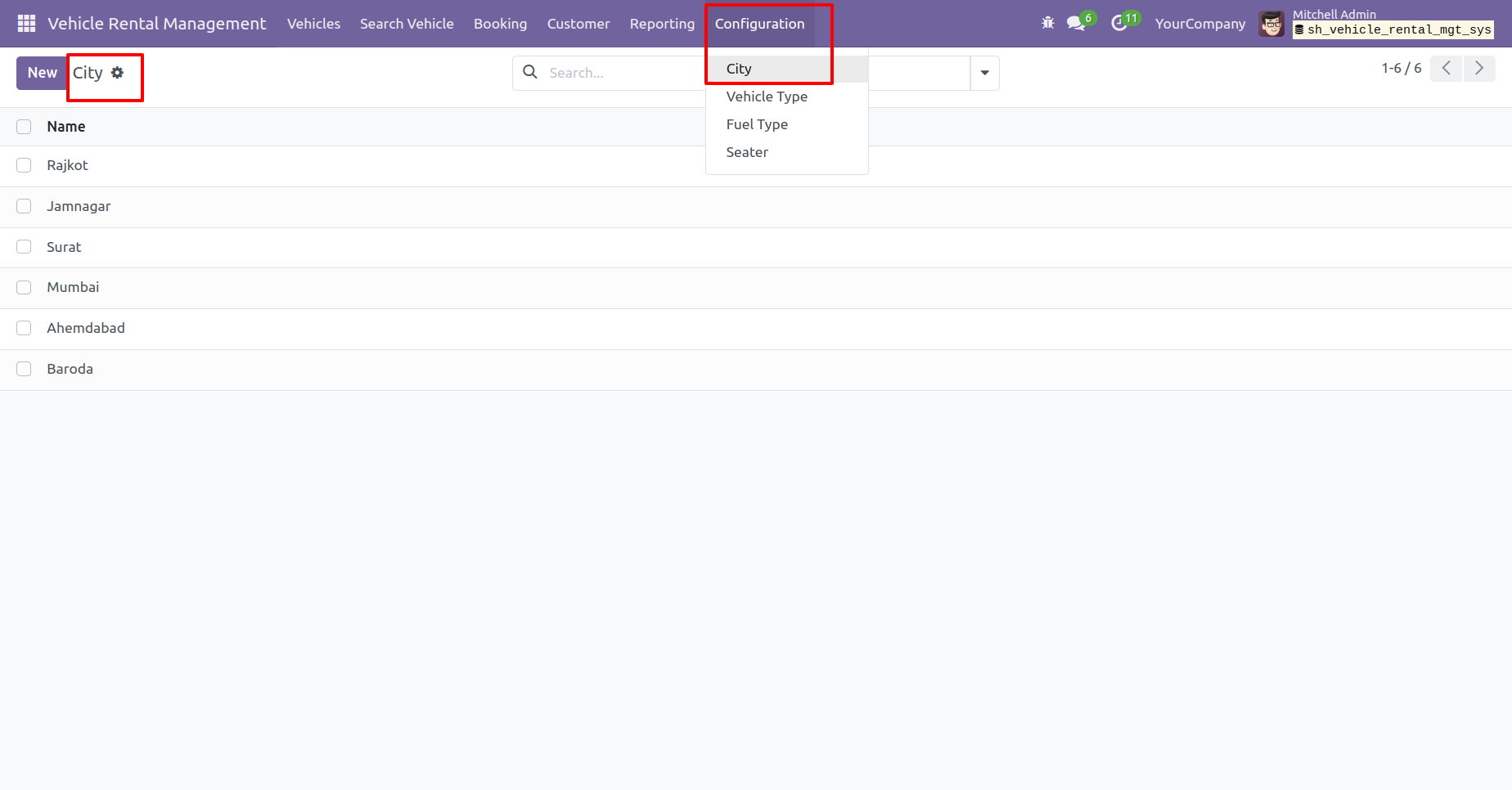
City menu and list view.
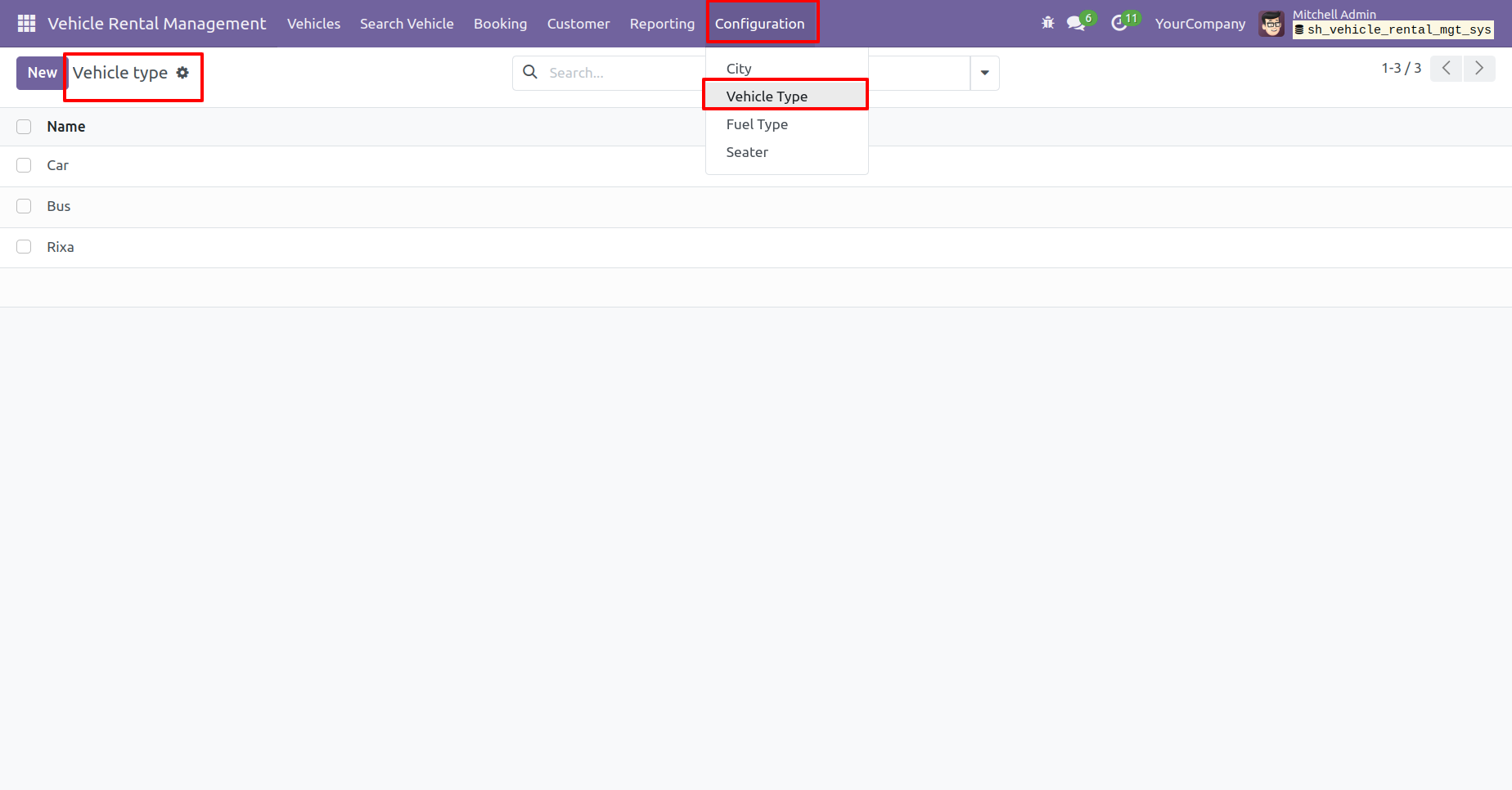
Vehicle type menu and list view.
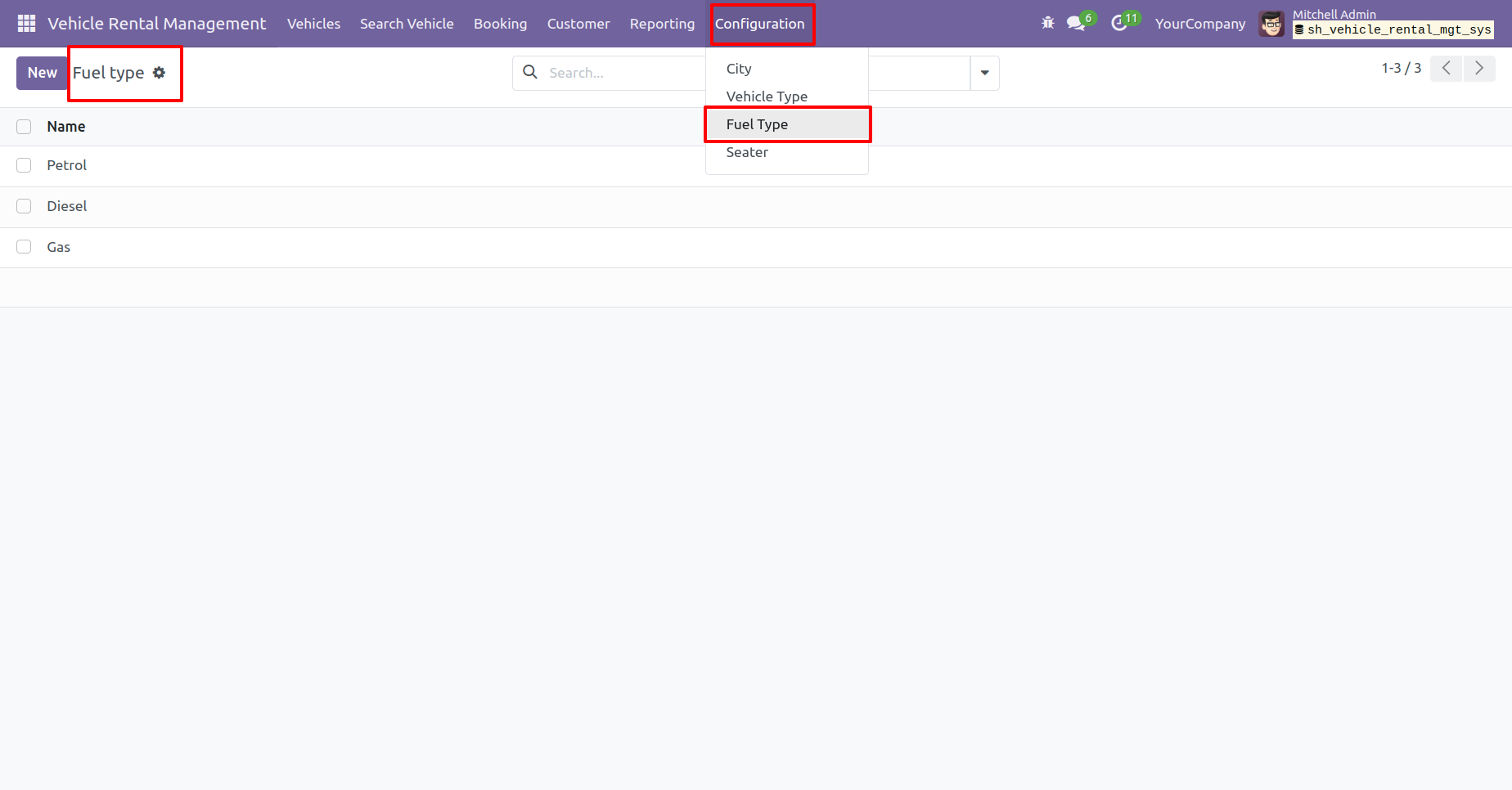
Fuel type menu and list view.
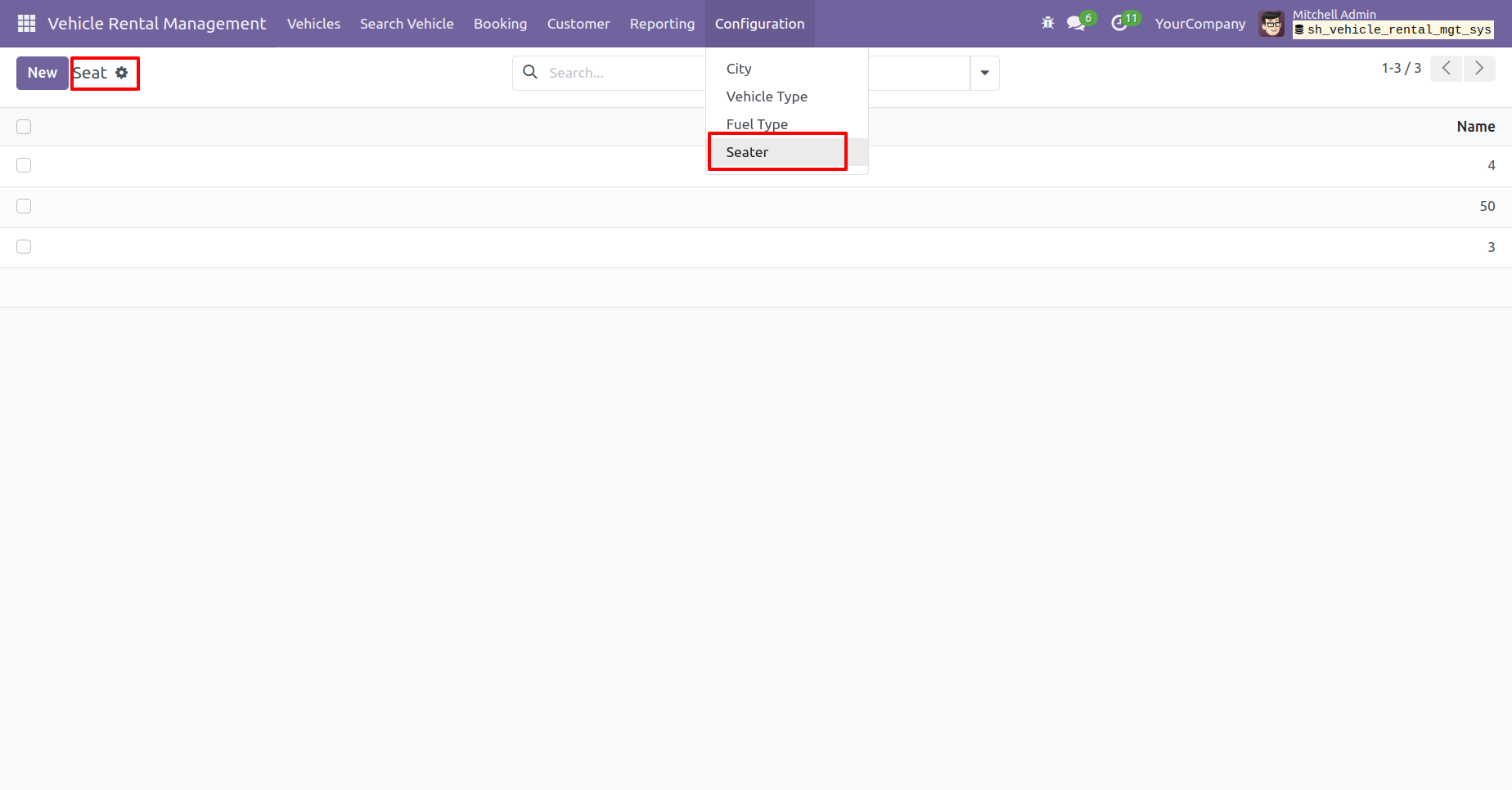
Seater menu and list view.
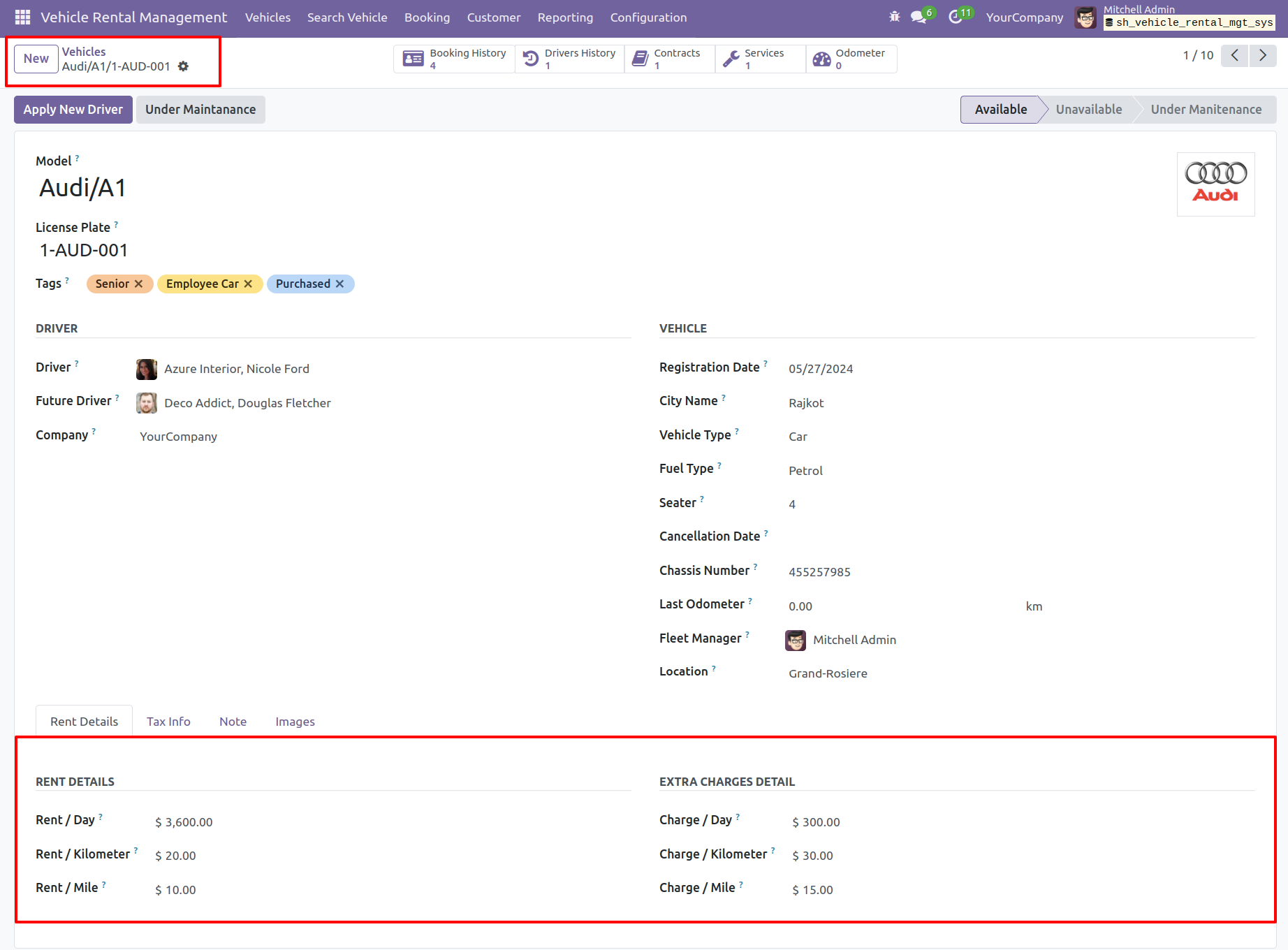
In 'Vehicles' form view add Vehicles details. Add rental information in the Rental Details tab.
In the images tab, you can add a pictures of the vehicle.
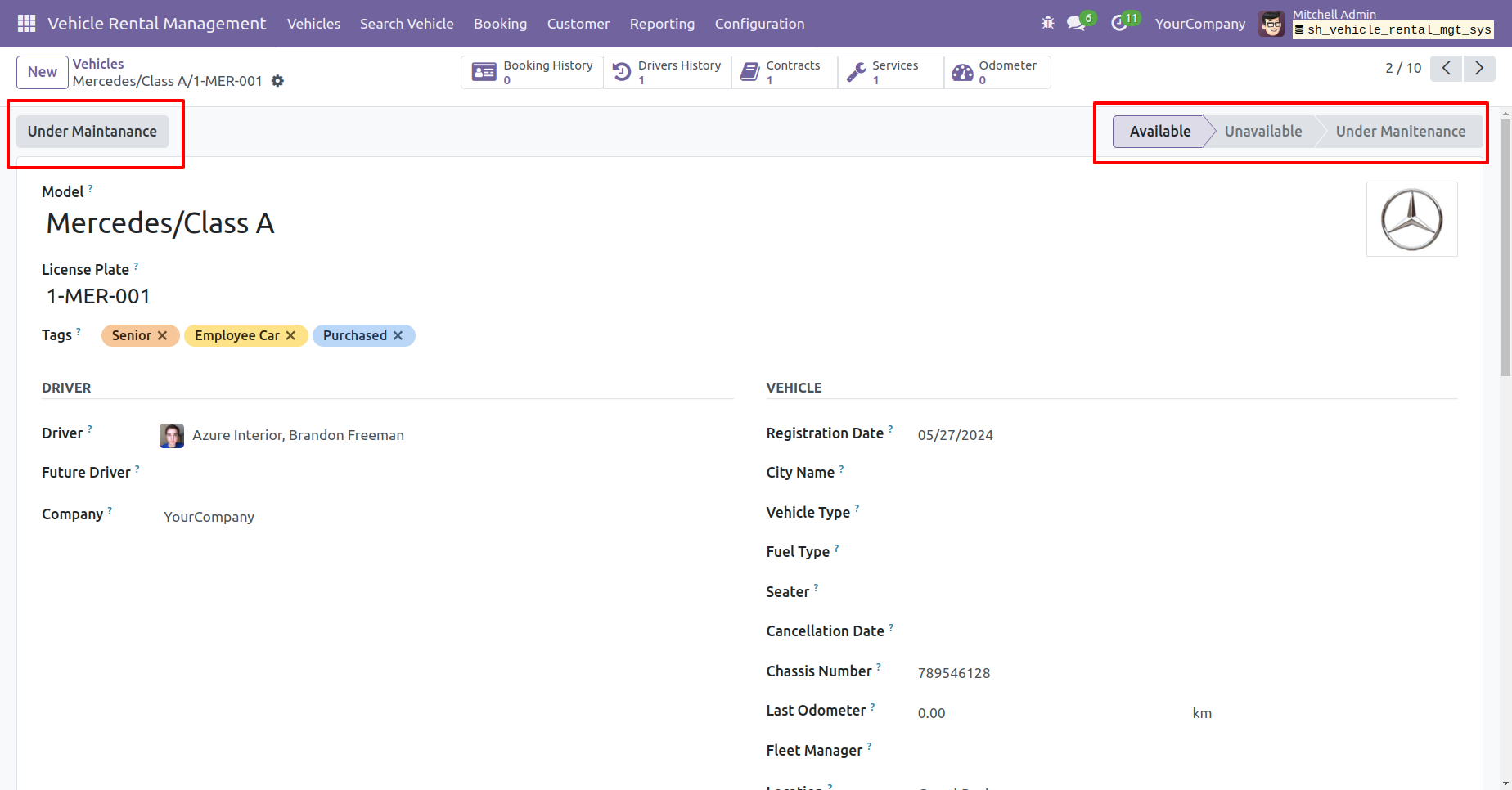
Here, you can view the vehicle stages. Click the 'Under Maintenance' button to move the vehicle to the maintenance stage.
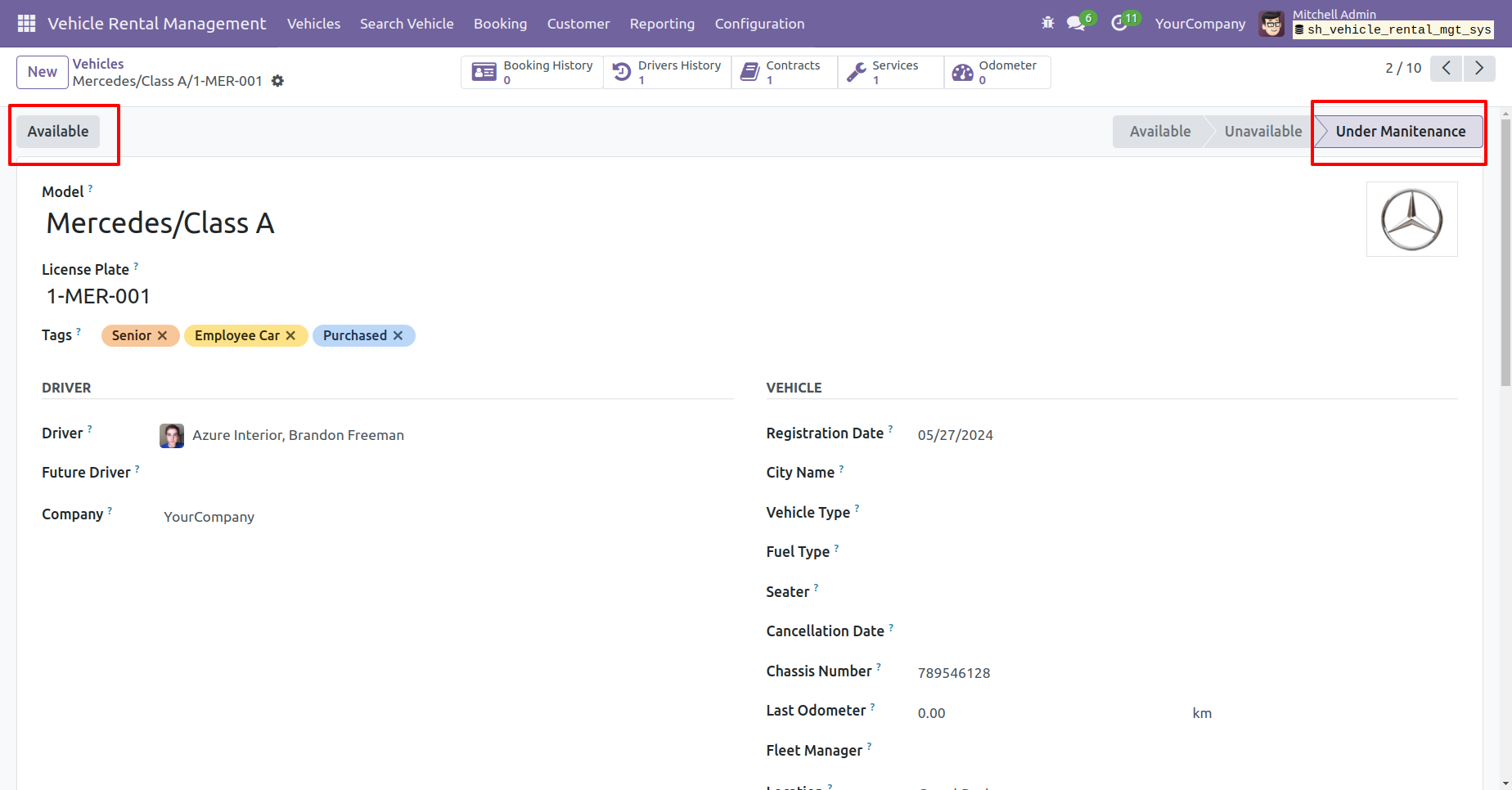
The stage has been changed to 'Under Maintenance.' Click the 'Available' button to make the vehicle available.
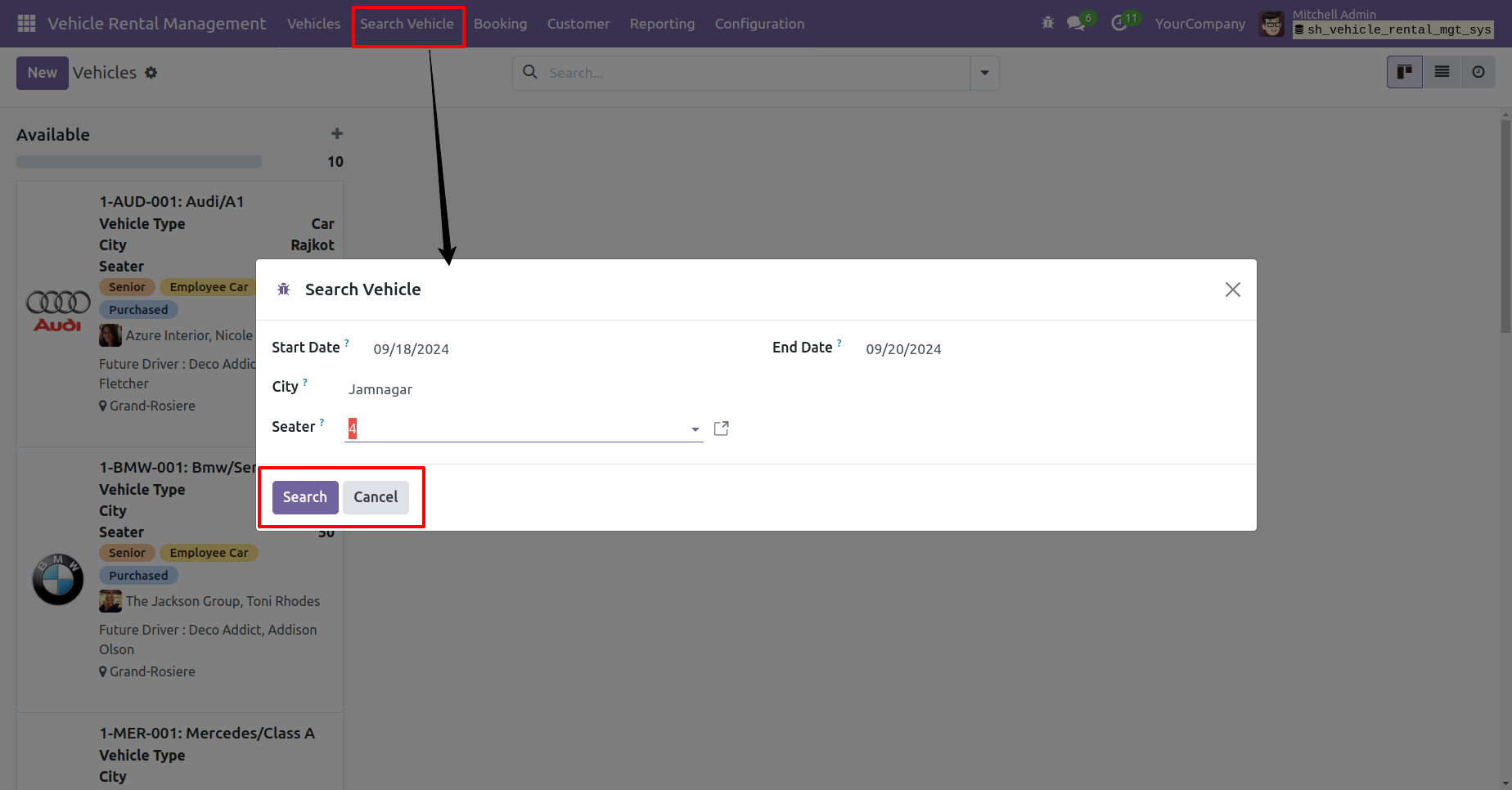
You can search for a vehicle by clicking the 'Search Vehicle' menu. In the wizard, select the start and end dates, city, and seat capacity, then click the search button.
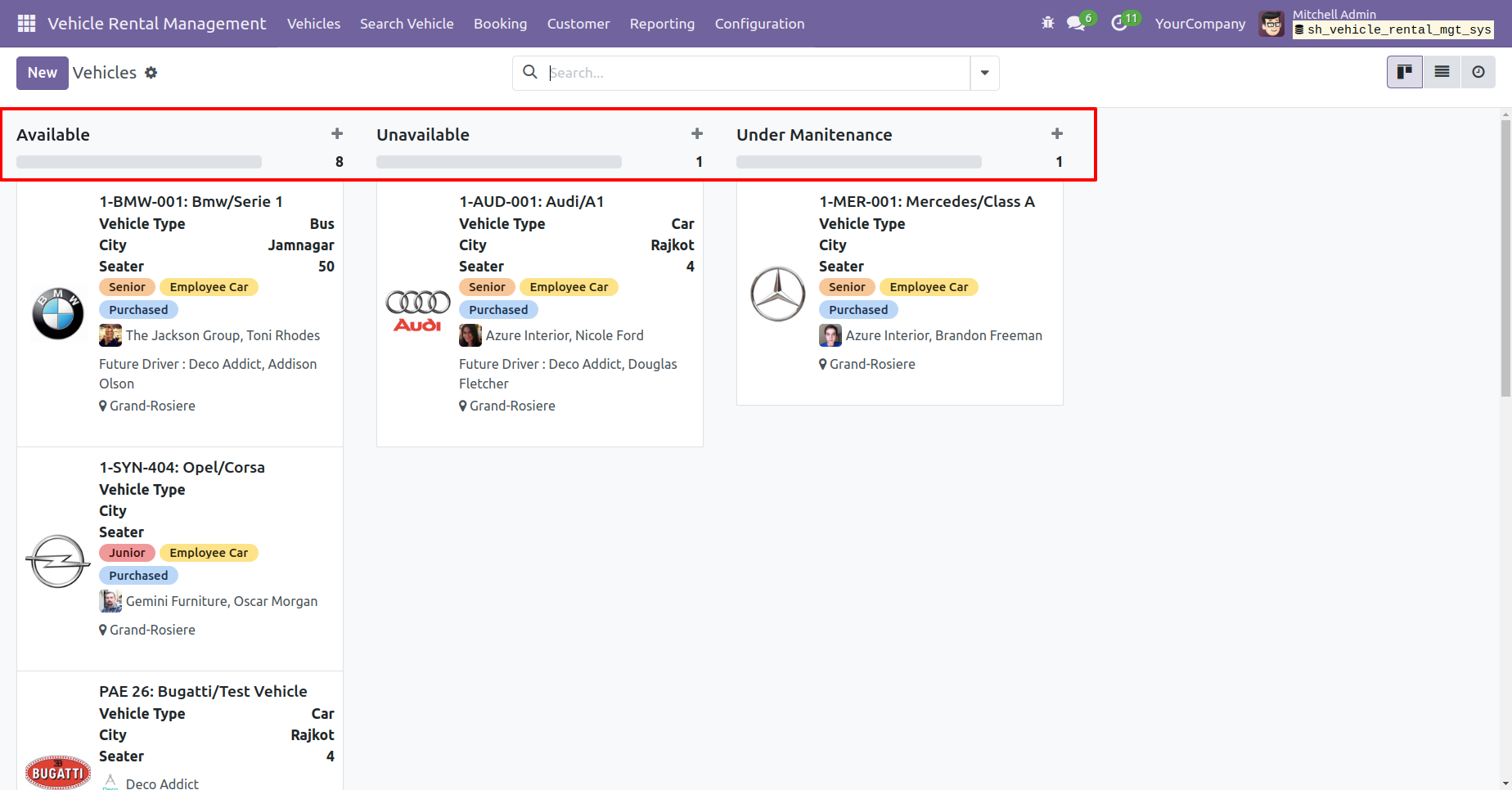
Kanban view of the vehicles.
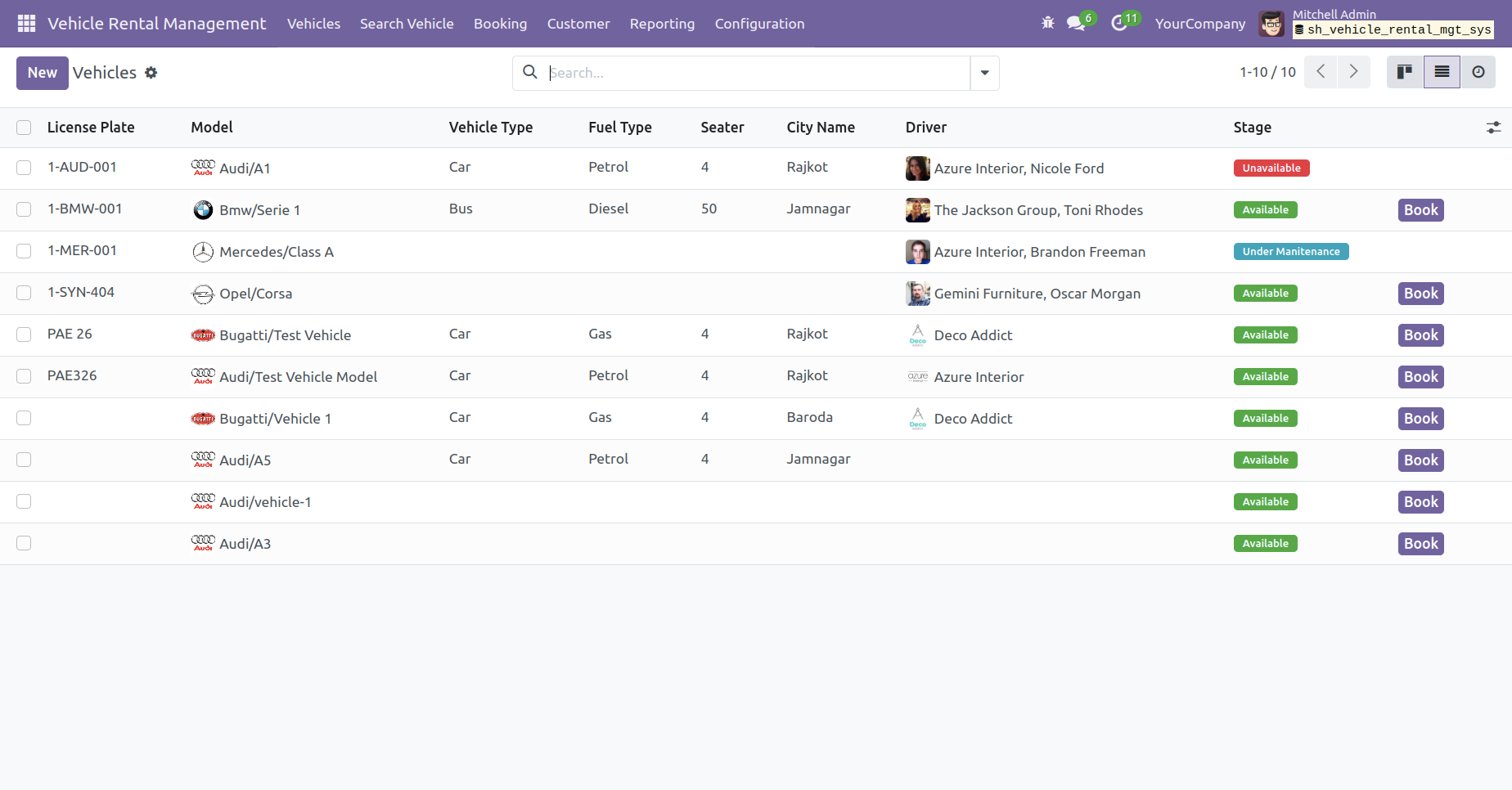
Tree view of the vehicles.
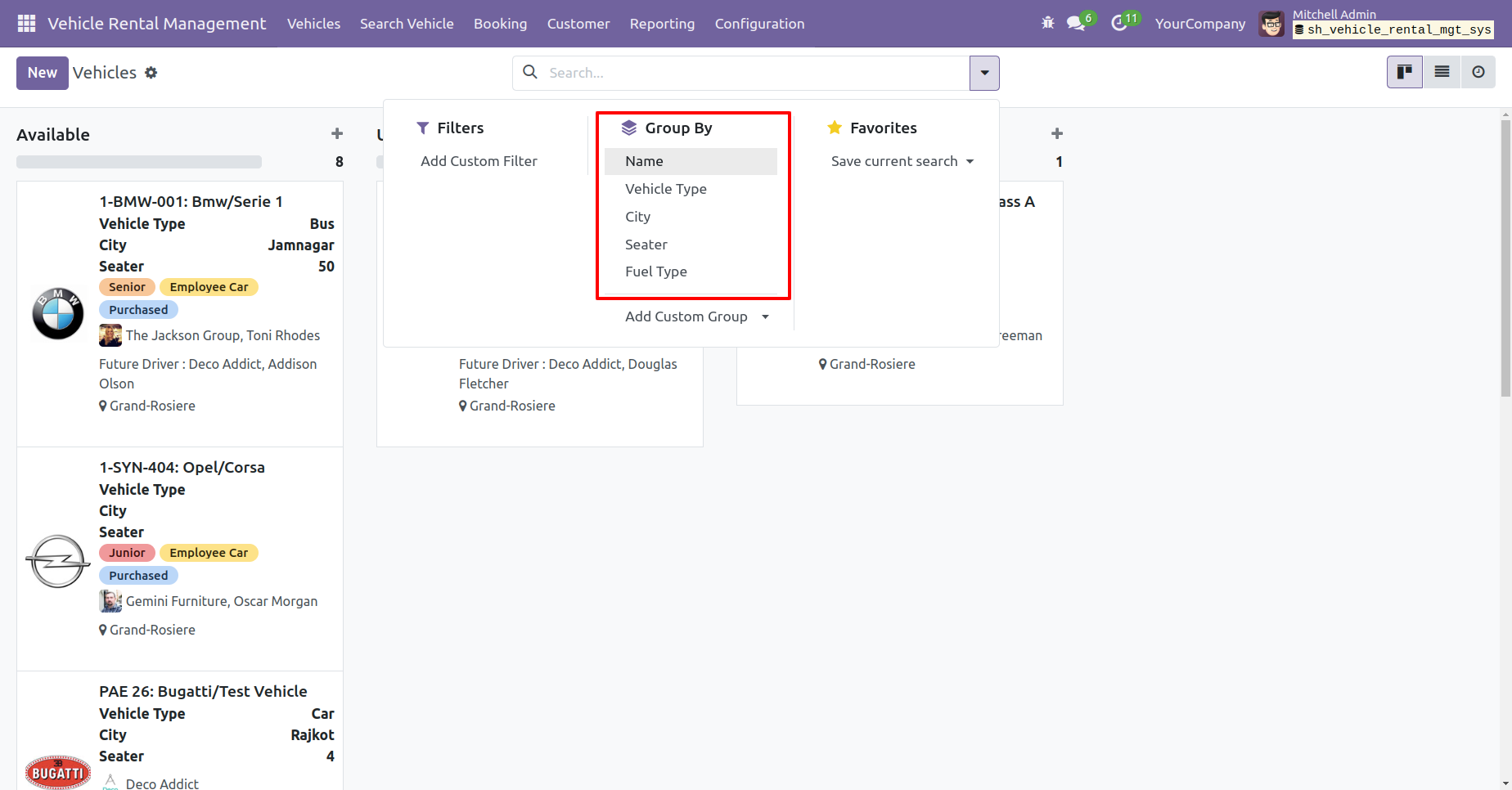
You have the option to group by the vehicles.
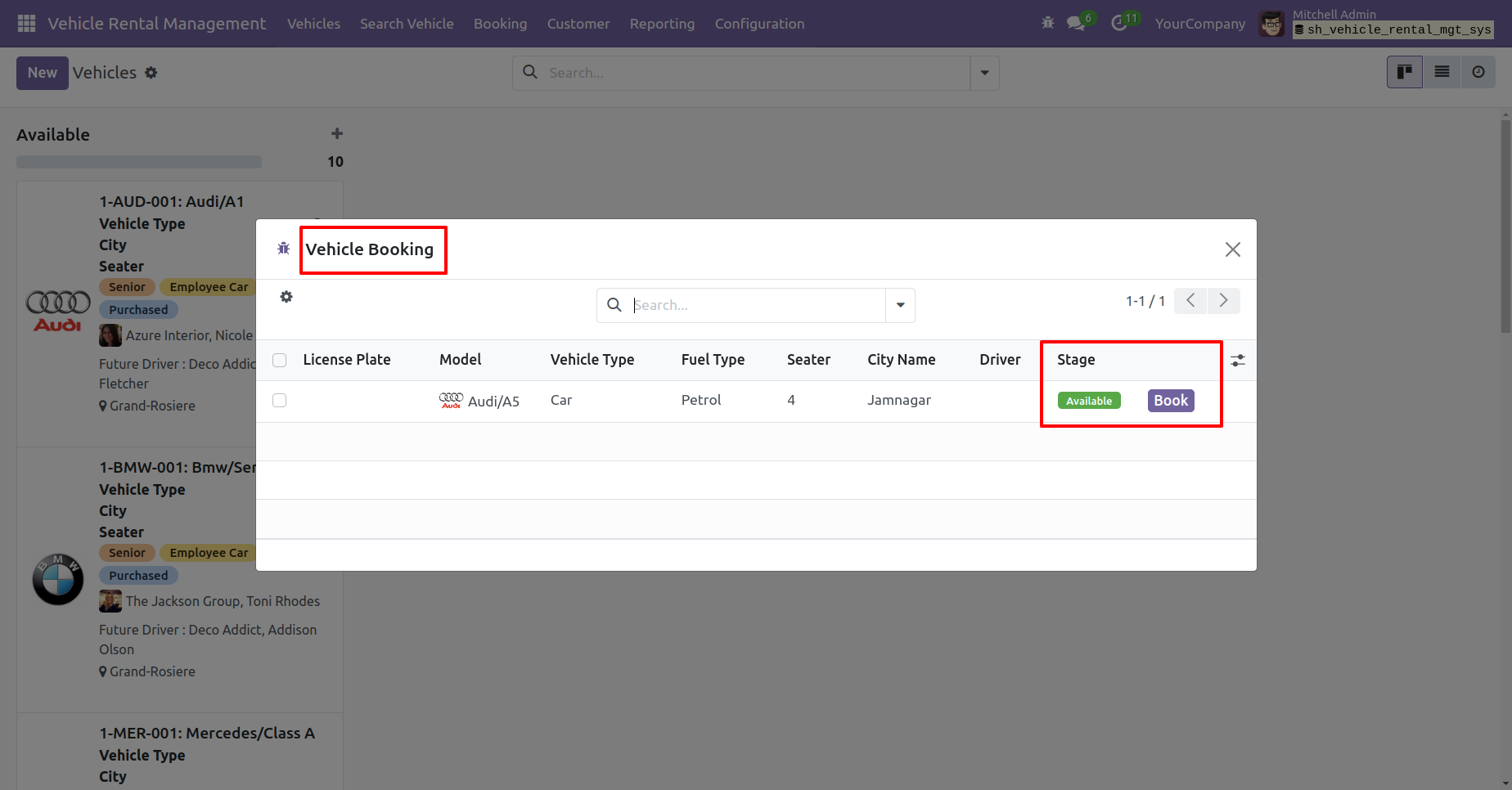
You will see the list of searched vehicles in the booking wizard. Click on 'Book' button to reserve a vehicle.
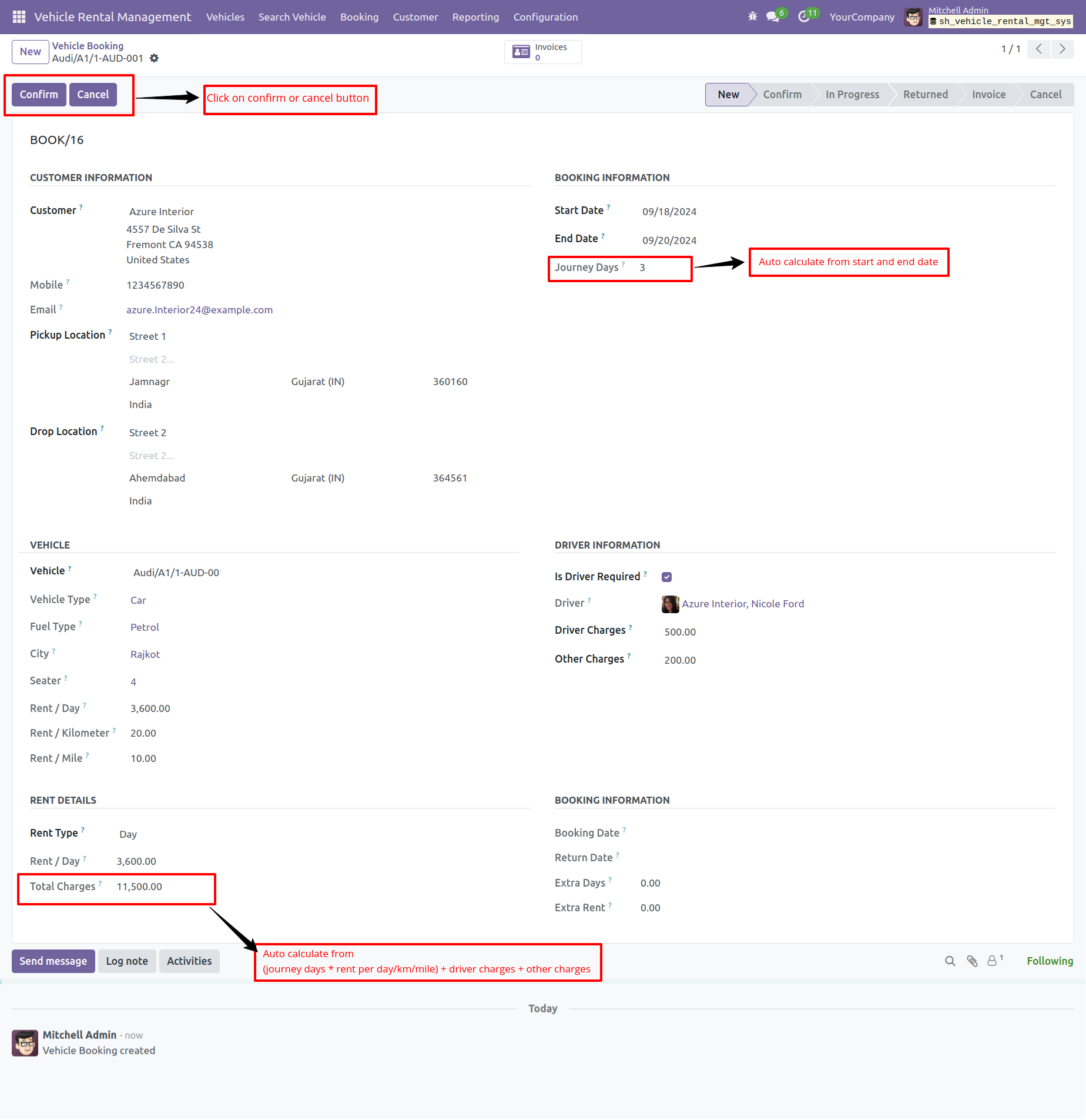
After that you will redirect to the vehicle booking form view. Add details. Click on the 'Confirm' button.
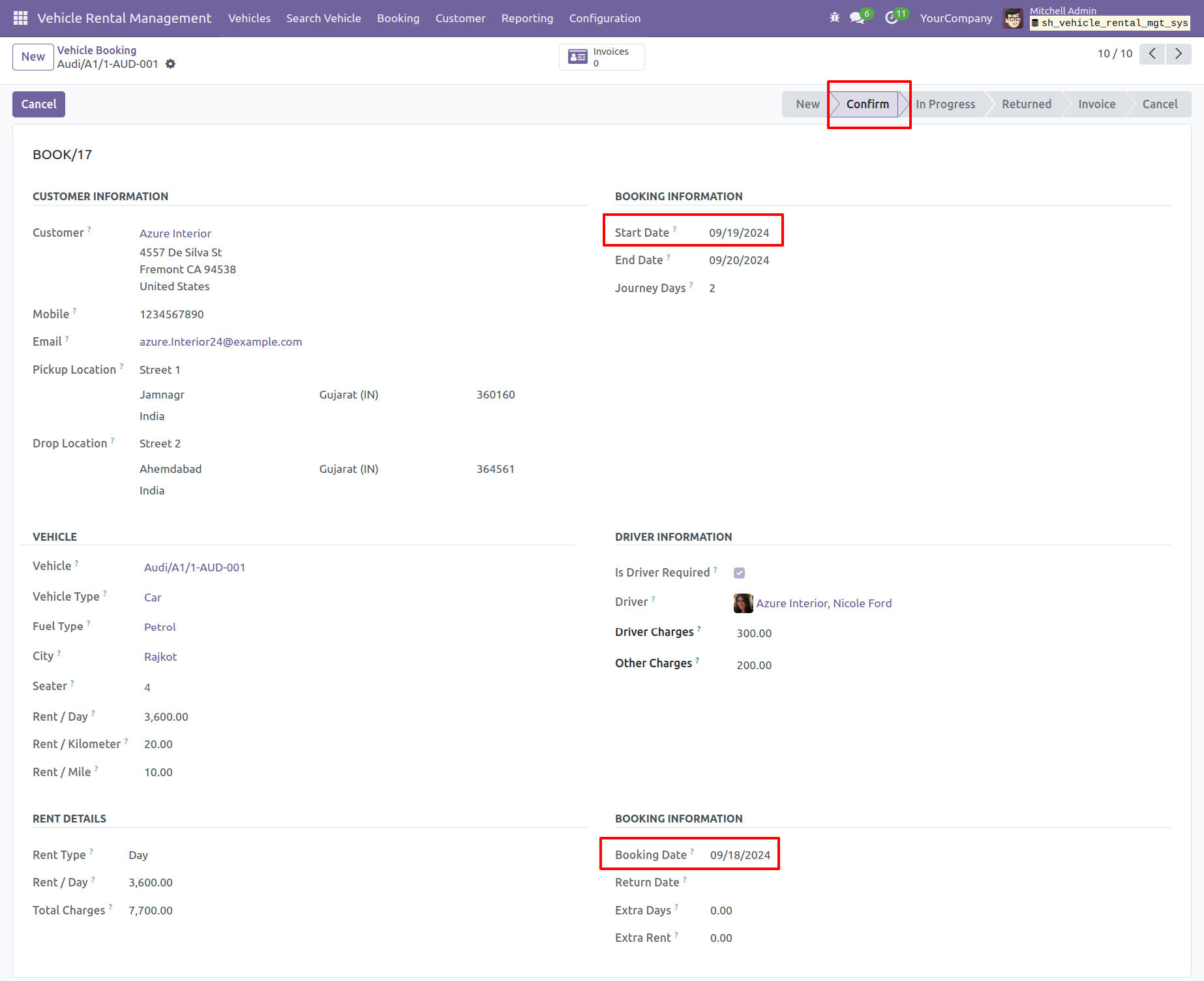
The booking order is now in the 'Confirm' stage. You can see the booking date here.
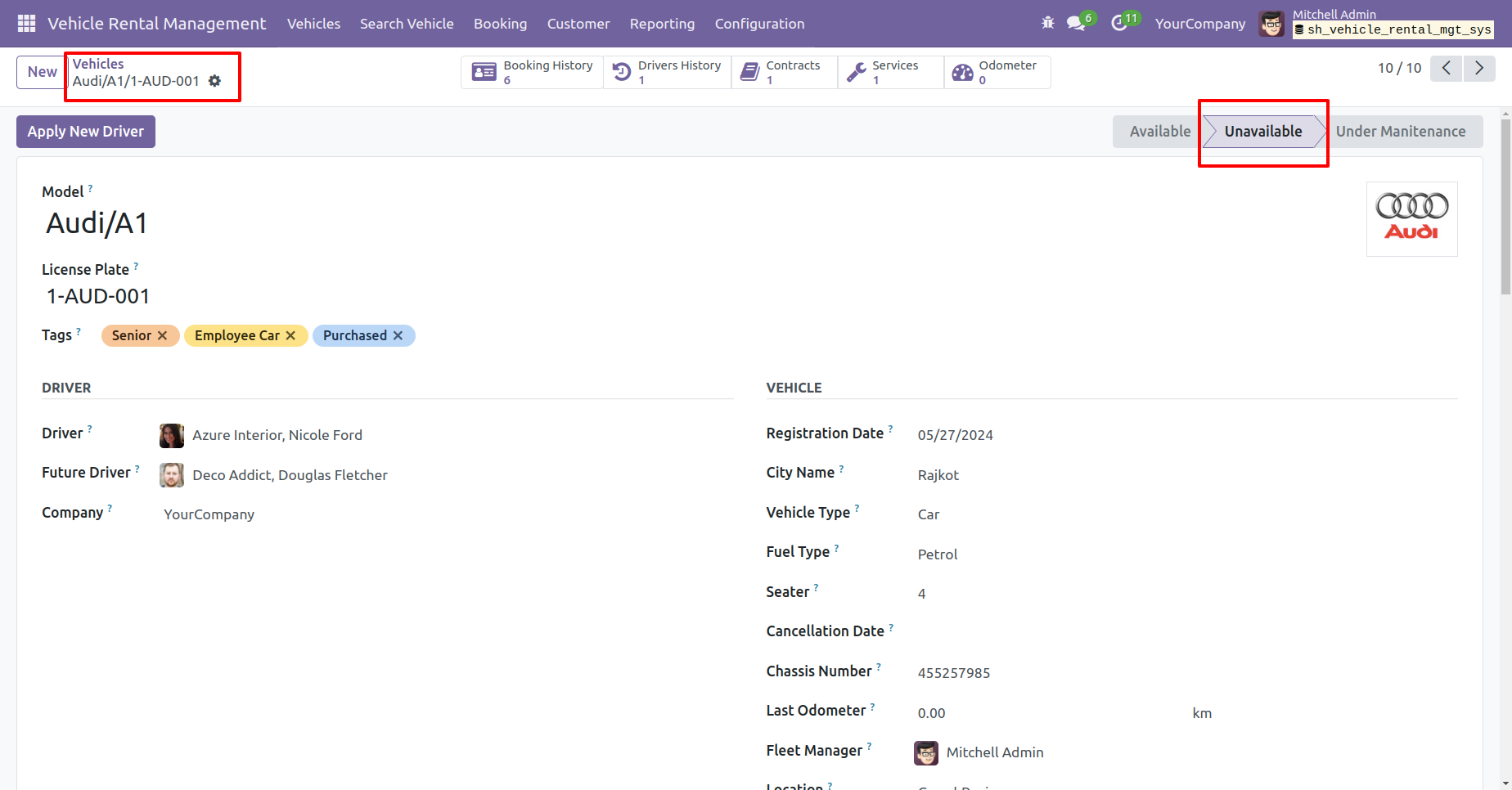
Here, you can see the vehicle is in the 'Unavailable' stage.
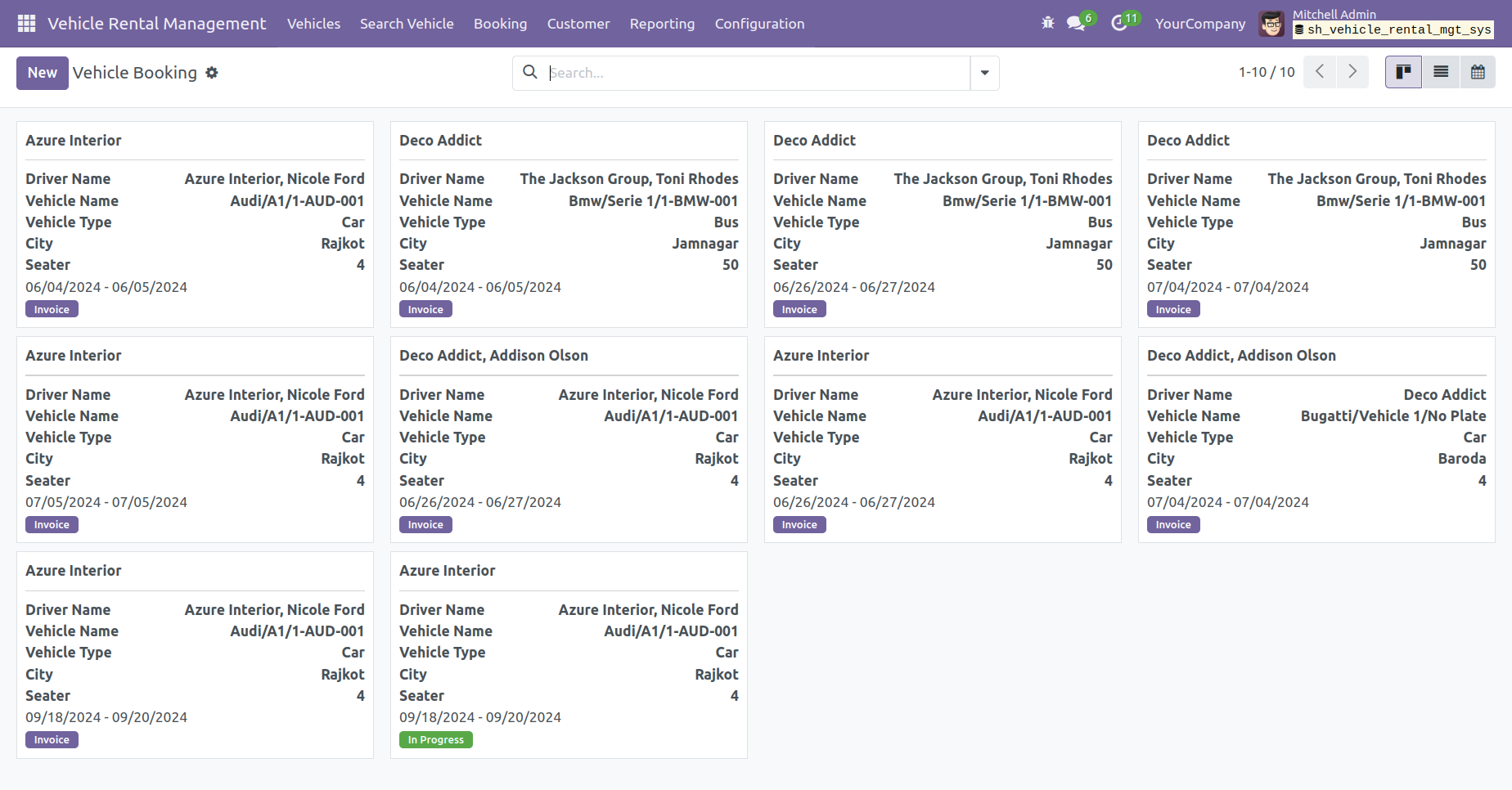
Kanban view of the vehicle booking.
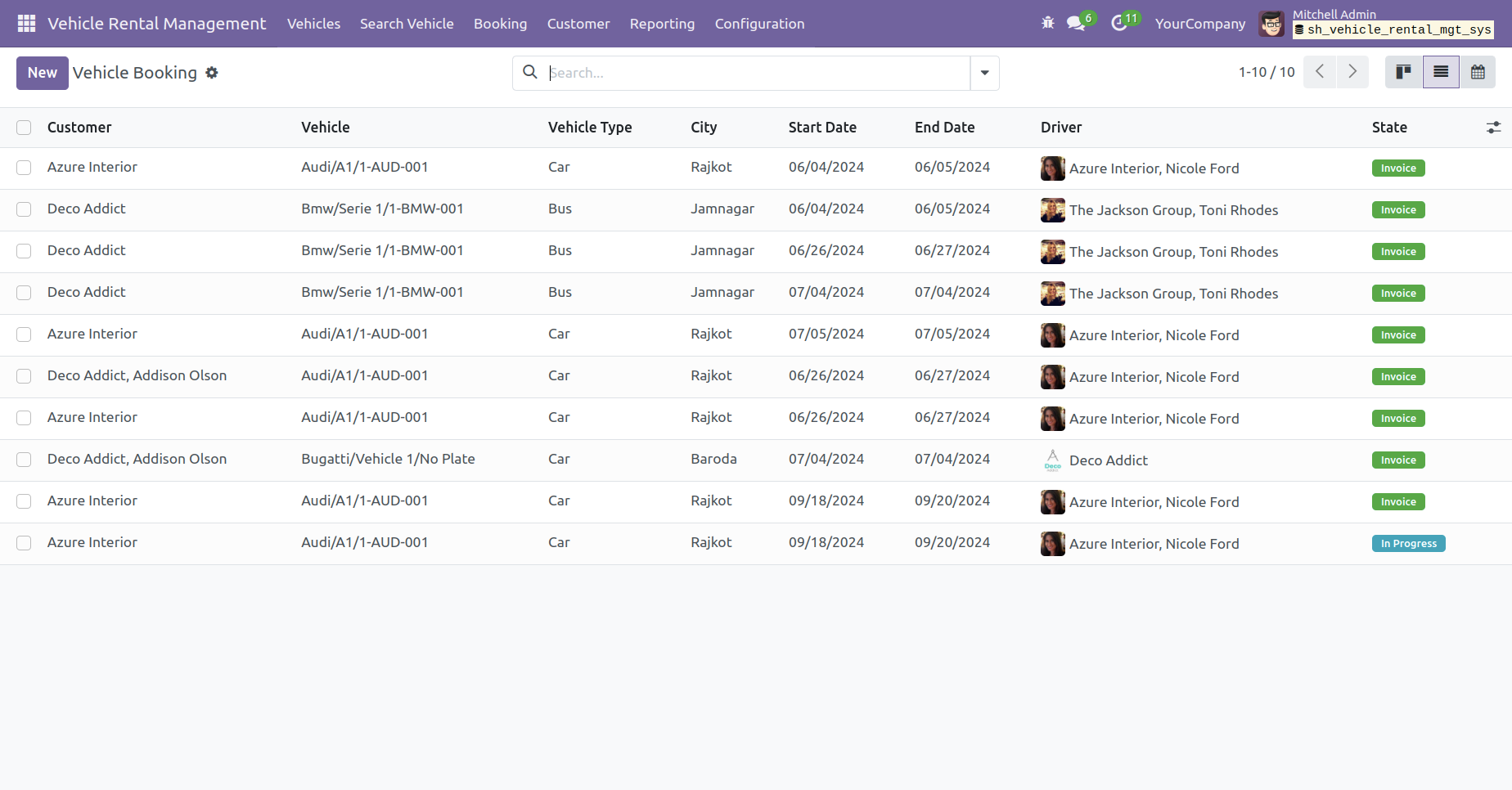
Tree view of the vehicle booking.
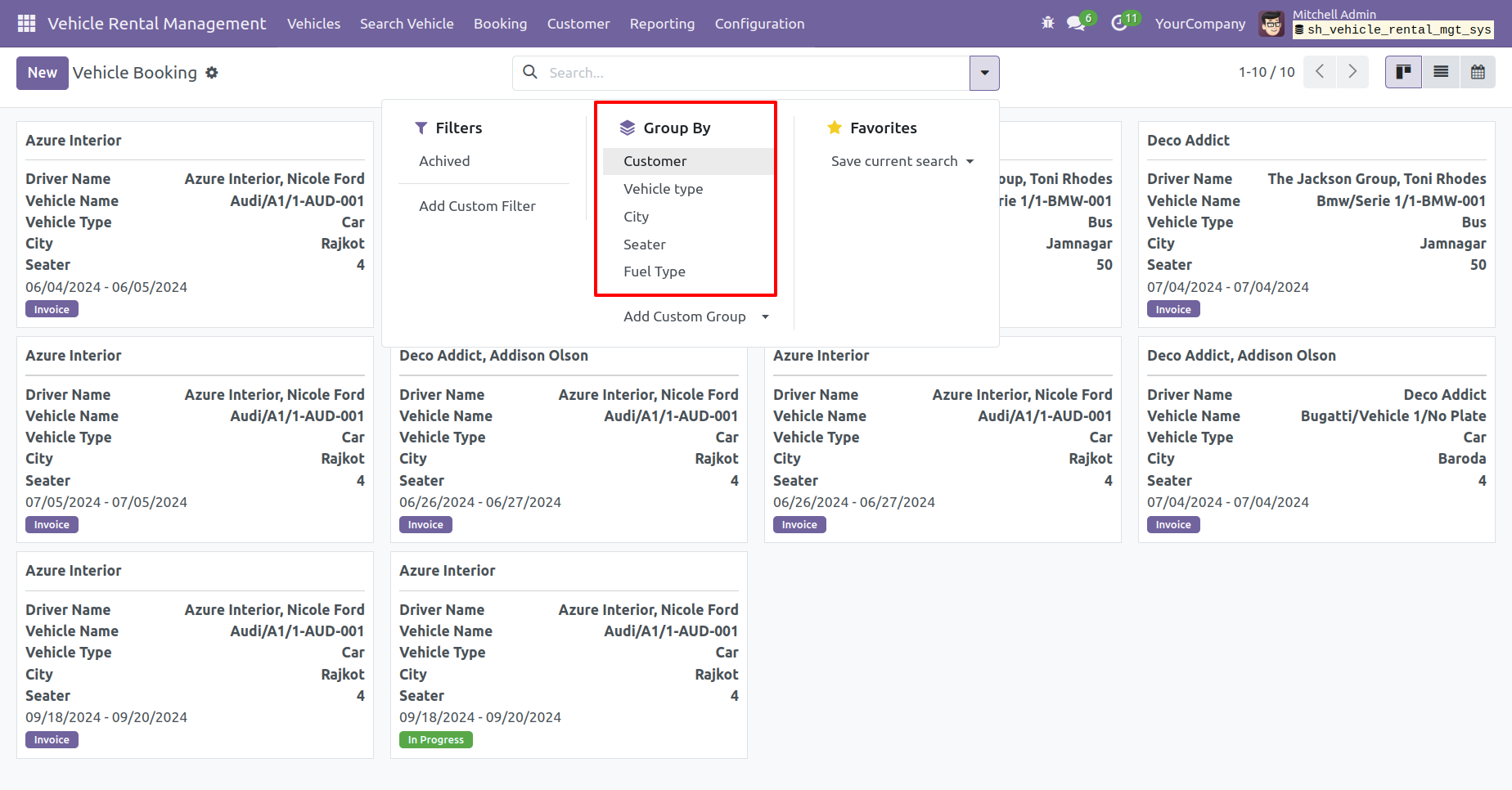
You have the option to group by vehicle booking.
You can view the vehicle booking report from the 'Reporting' menu.
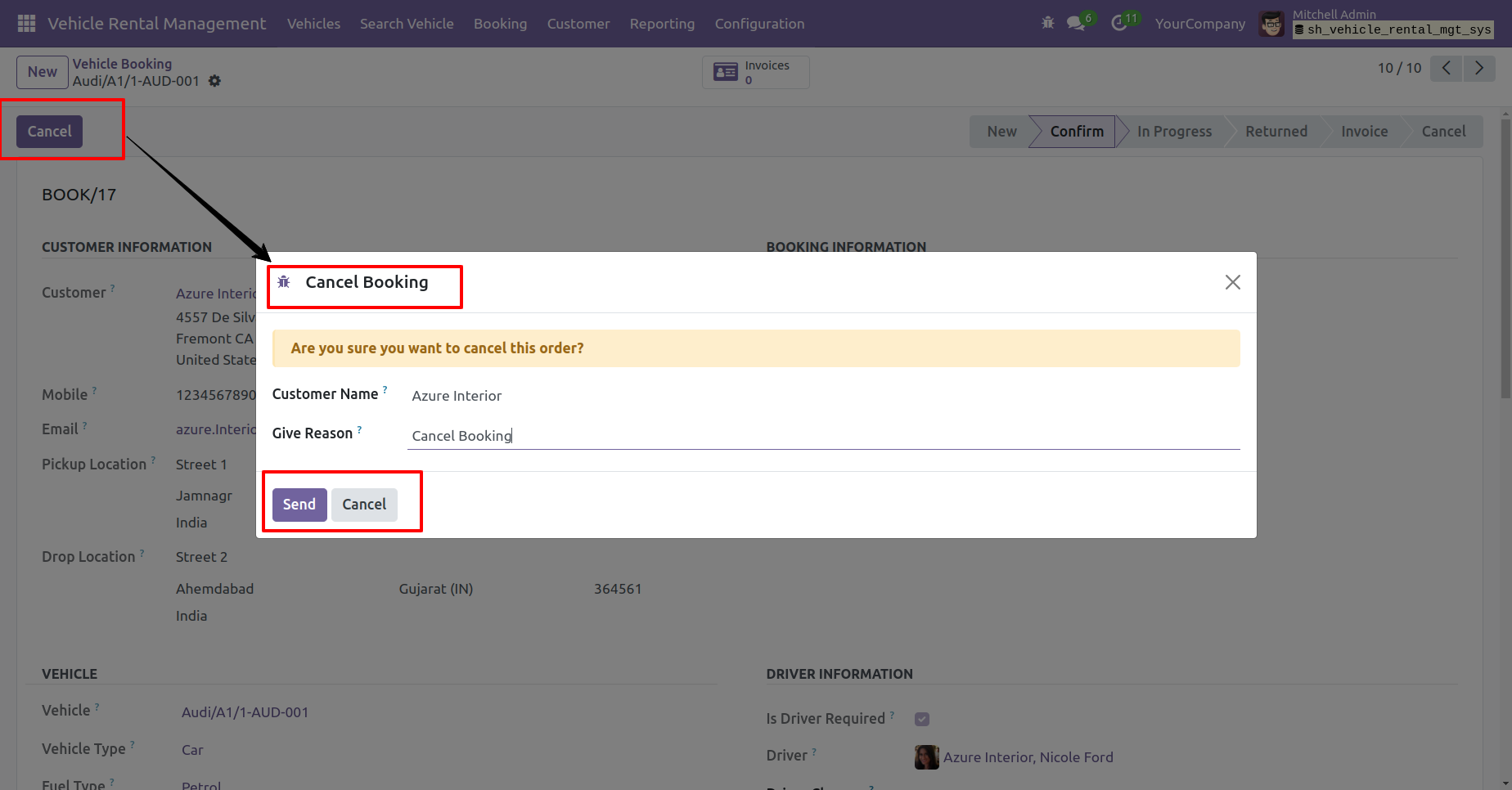
You can cancel the vehicle booking by clicking on 'Cancel' button. Add a reason in the 'Cancel Booking' wizard and click the 'Send' button.
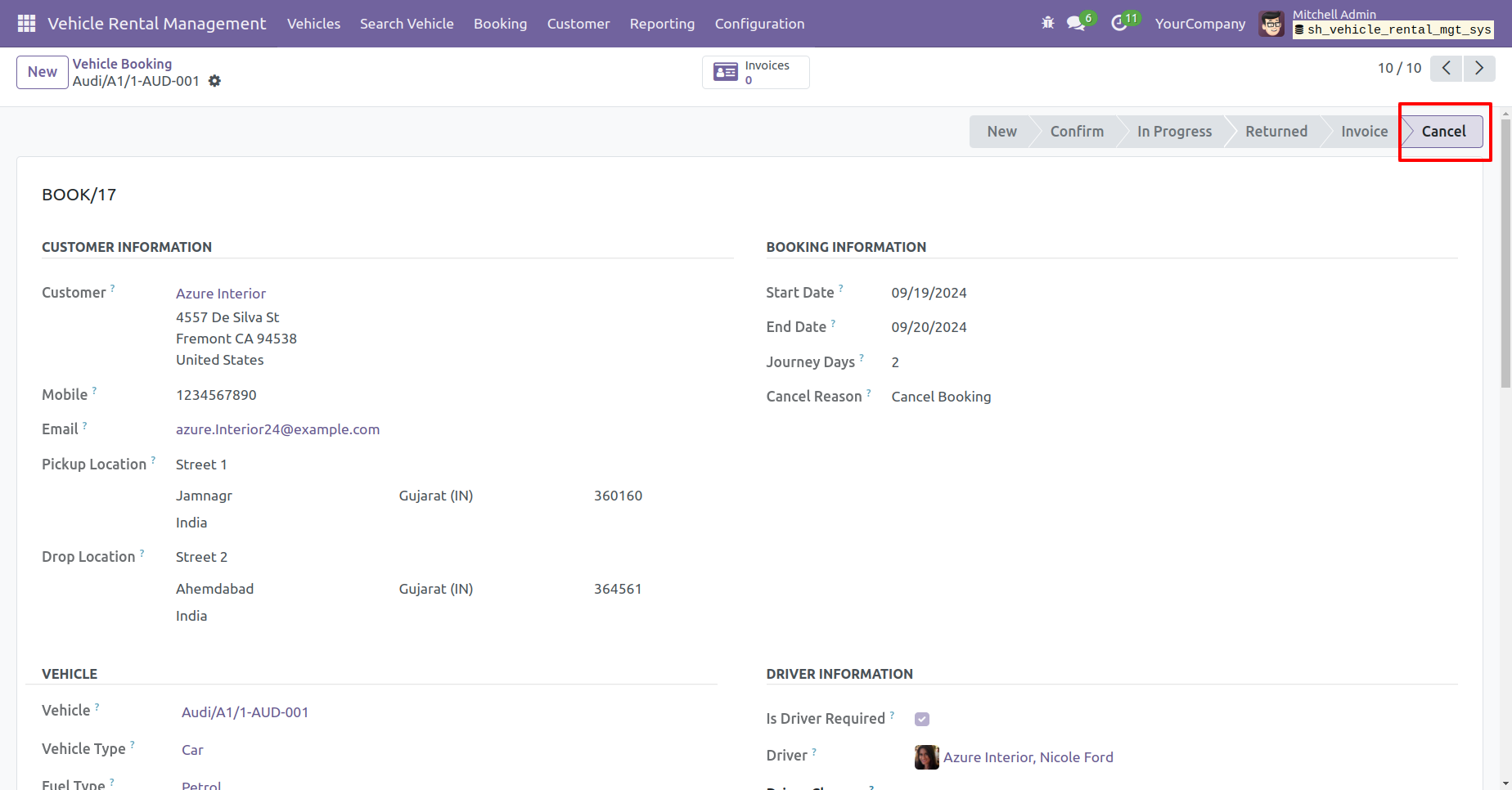
The booking order is now in the 'Cancel' stage.
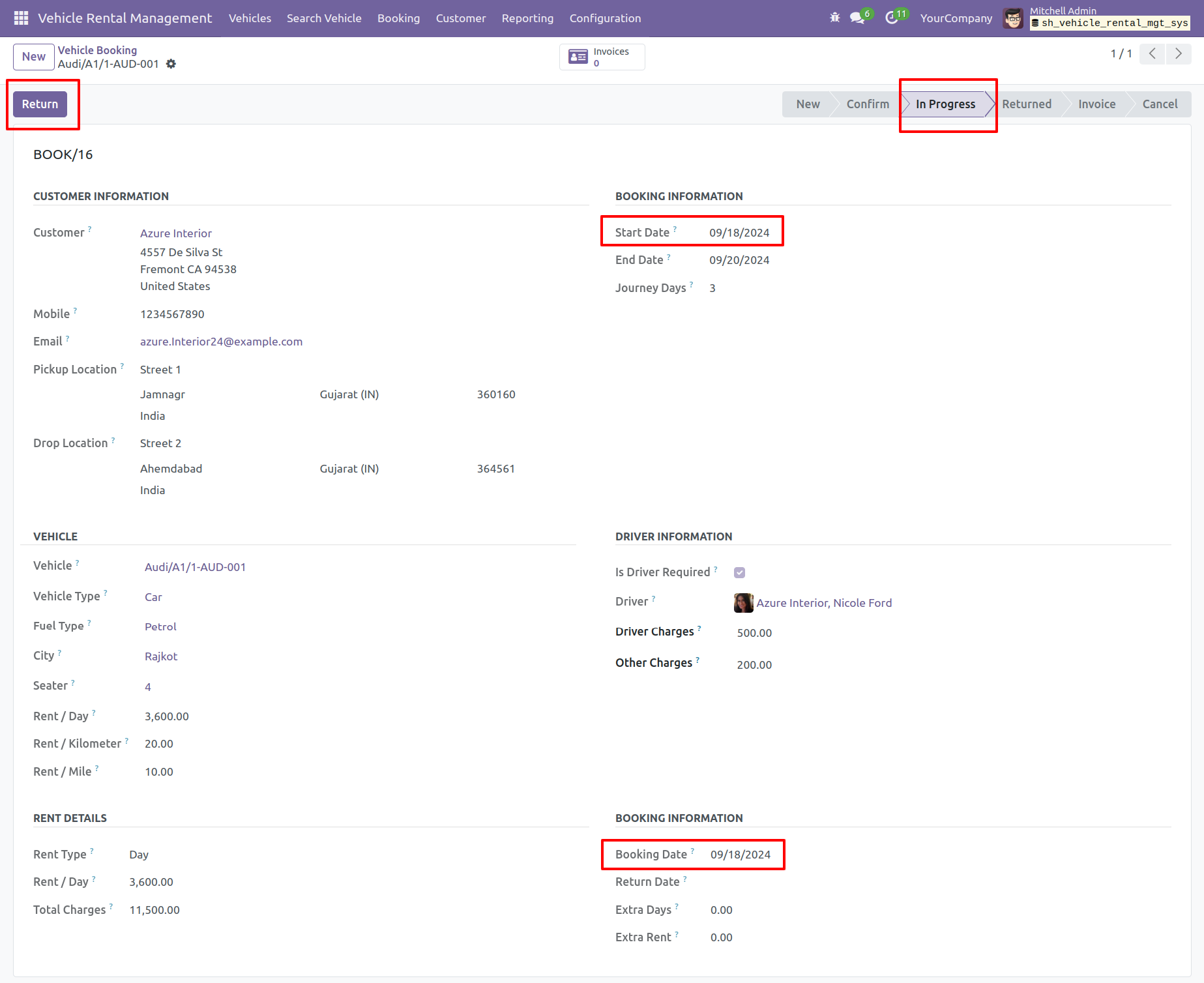
Click the 'Return' button to return the vehicle.
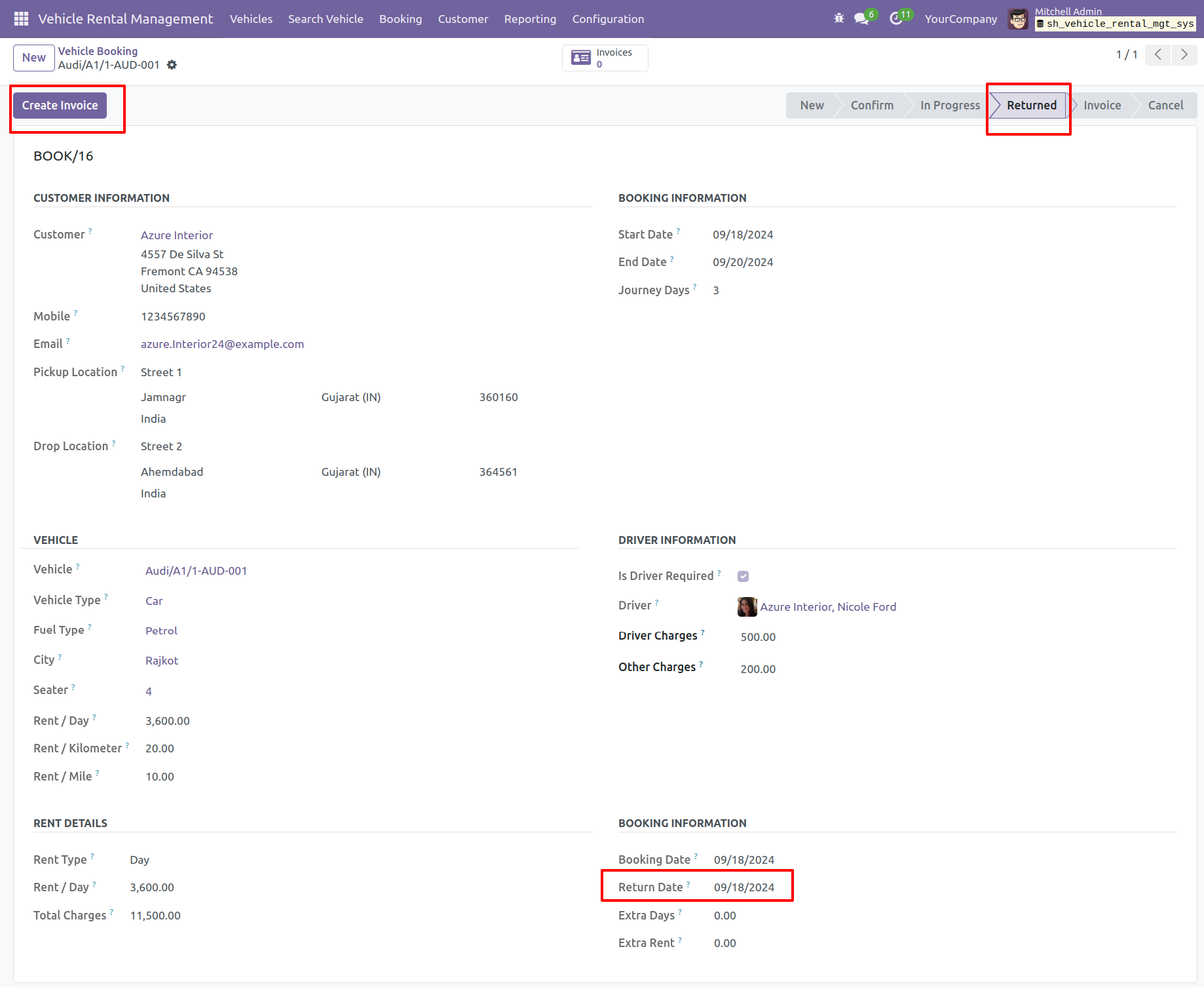
You can see the return date here. The booking order is in the return stage. To generate an invoice, click the 'Create Invoice' button.
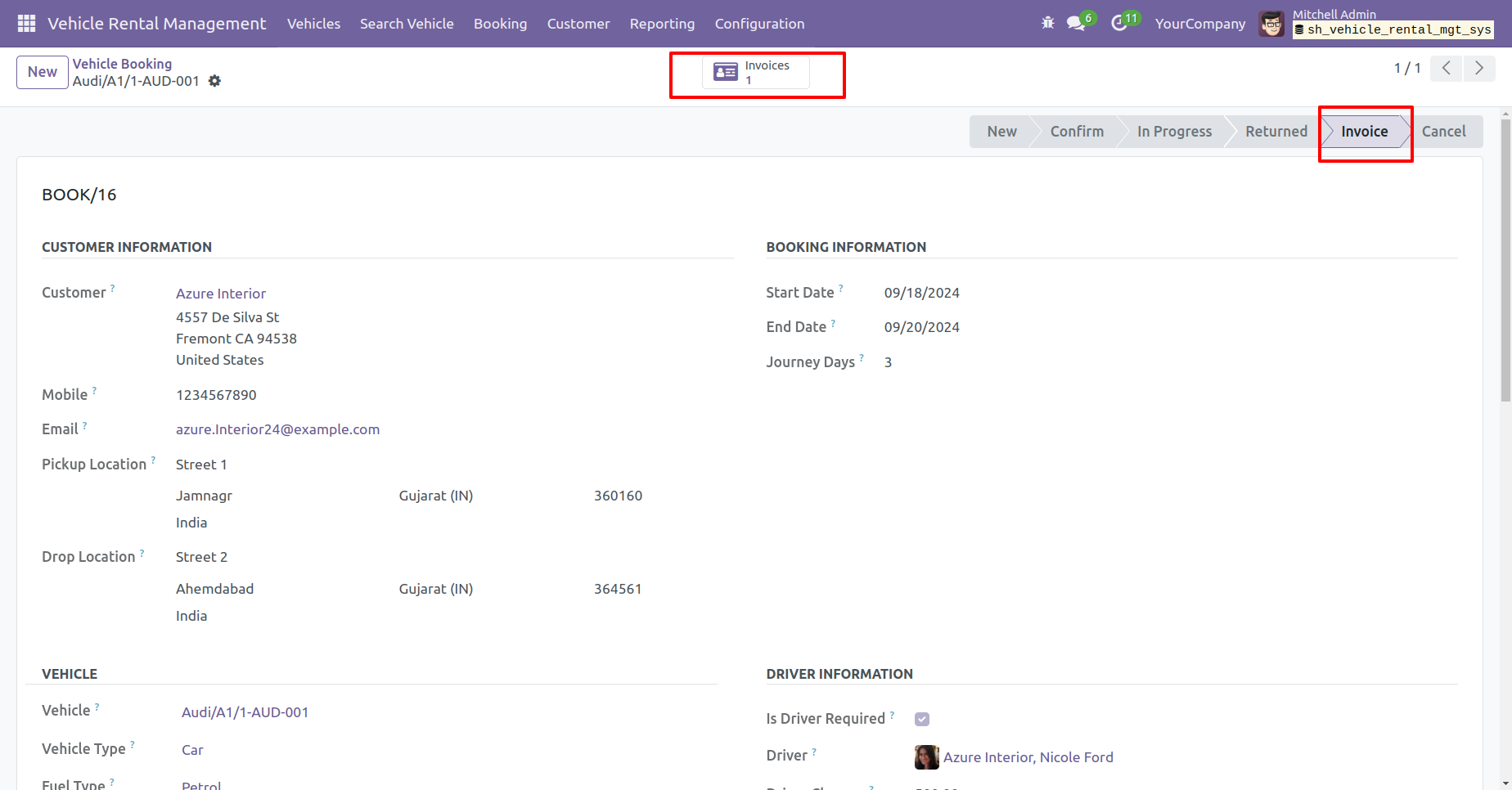
The booking order is now in the 'Invoice' stage. Click the 'Invoice' smart button.
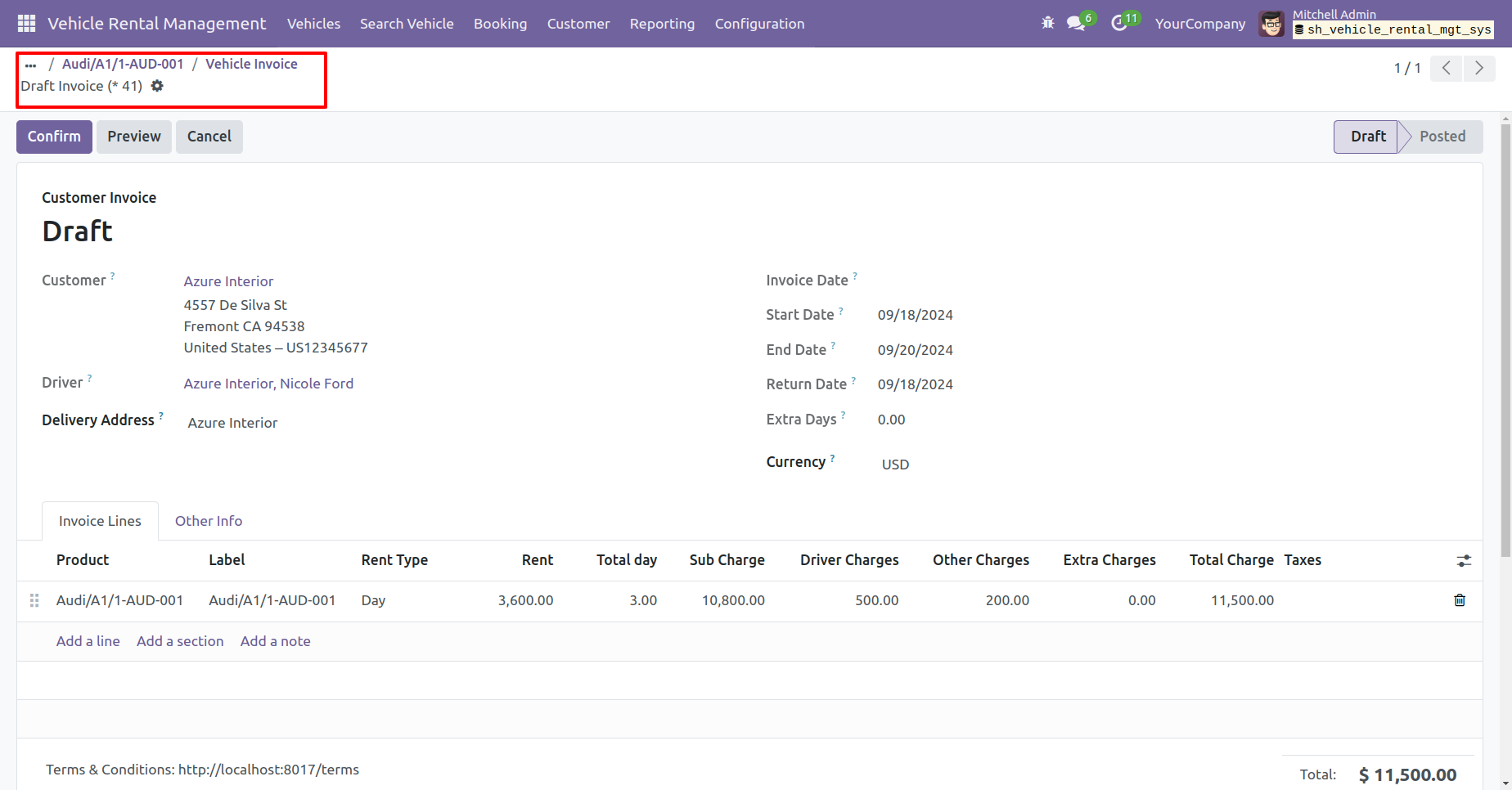
After that, You will be redirected to the invoice form view. Confirm the invoice.
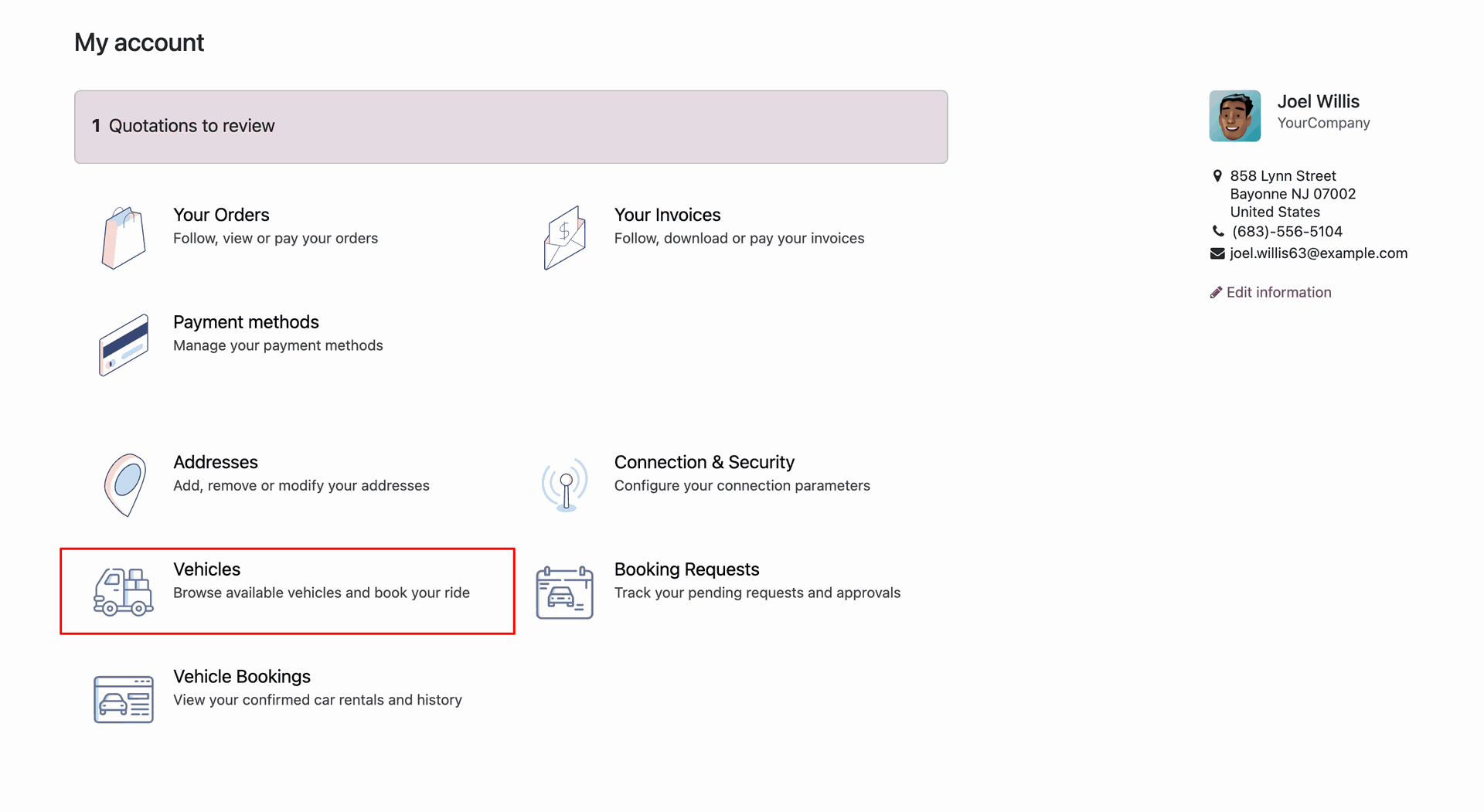
The customer portal dashboard features dedicated sections for 'Vehicles', 'Booking Requests', and 'Vehicle Bookings'.
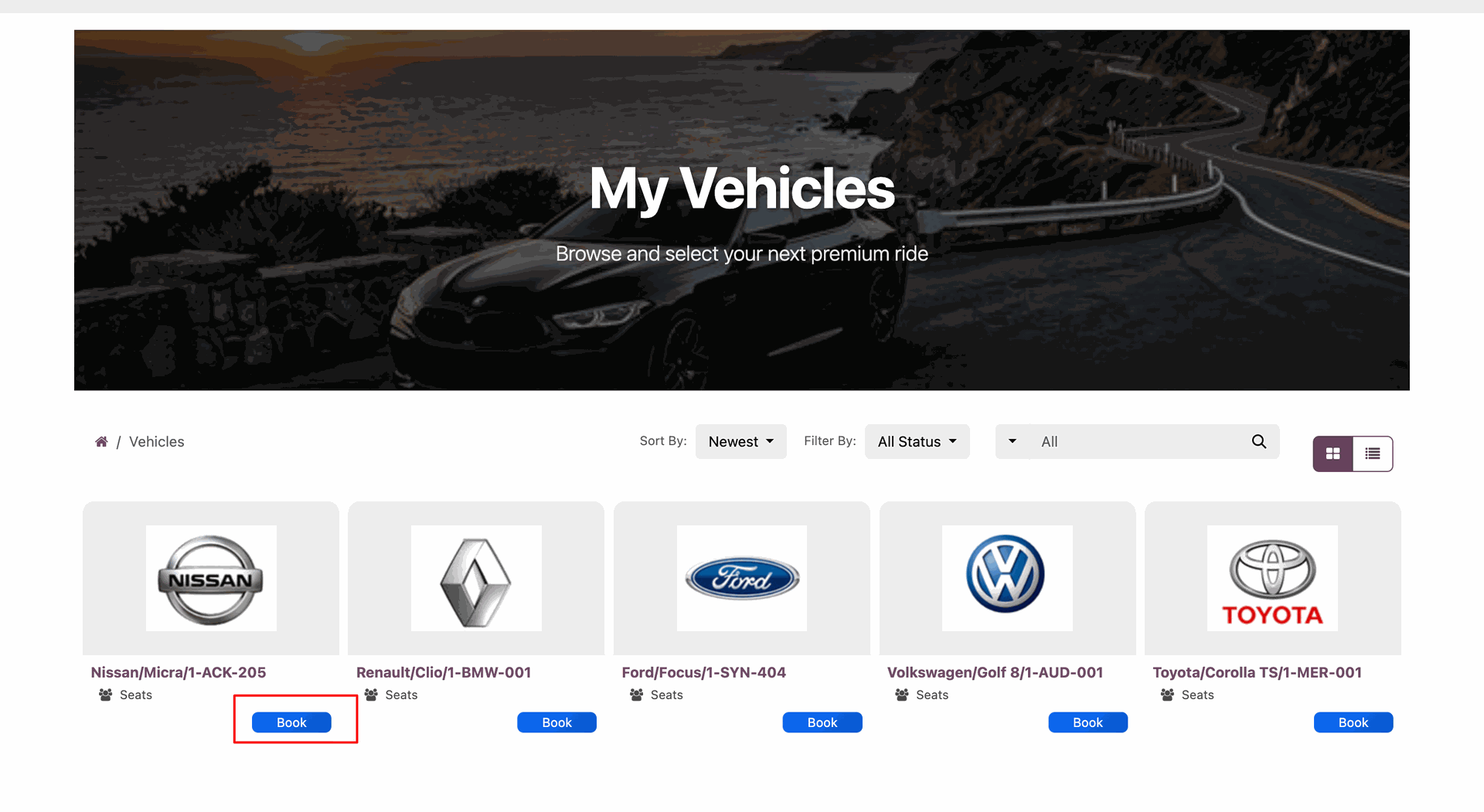
Customers can browse available vehicles in a kanban view, showing a "Book" button for quick reservation.
A simple booking request form allows customers to enter pickup and drop-off locations to initiate a rental request.
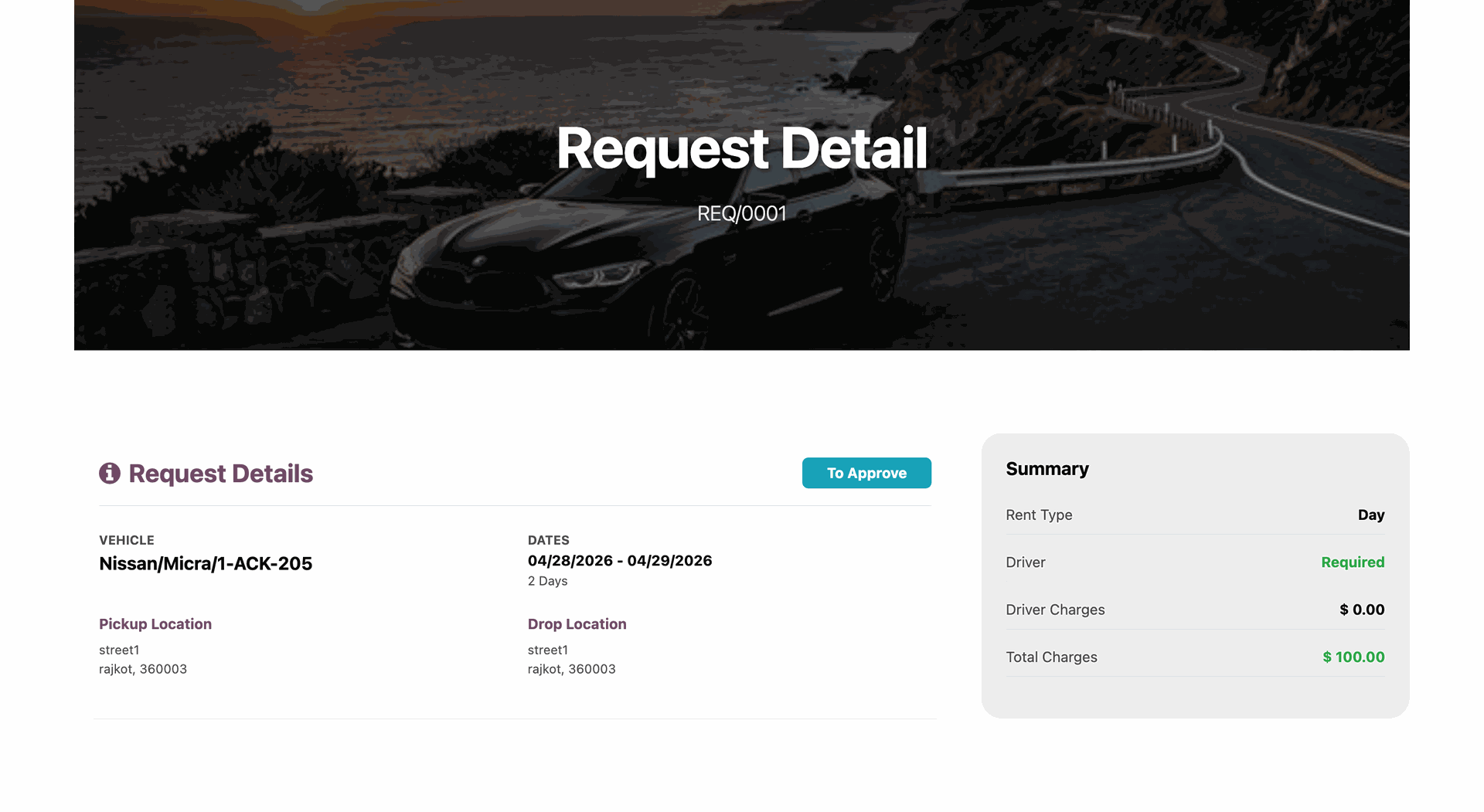
Once the request is submitted, customers can track its status and view booking details directly from their portal account.
Managers can view and manage all pending portal booking requests in the booking request list view.
Managers can access the approval form to review the request details and either Approve or Reject it.
Once the booking request is approved, the portal user can view the updated status, and a Pay Now button will be displayed.
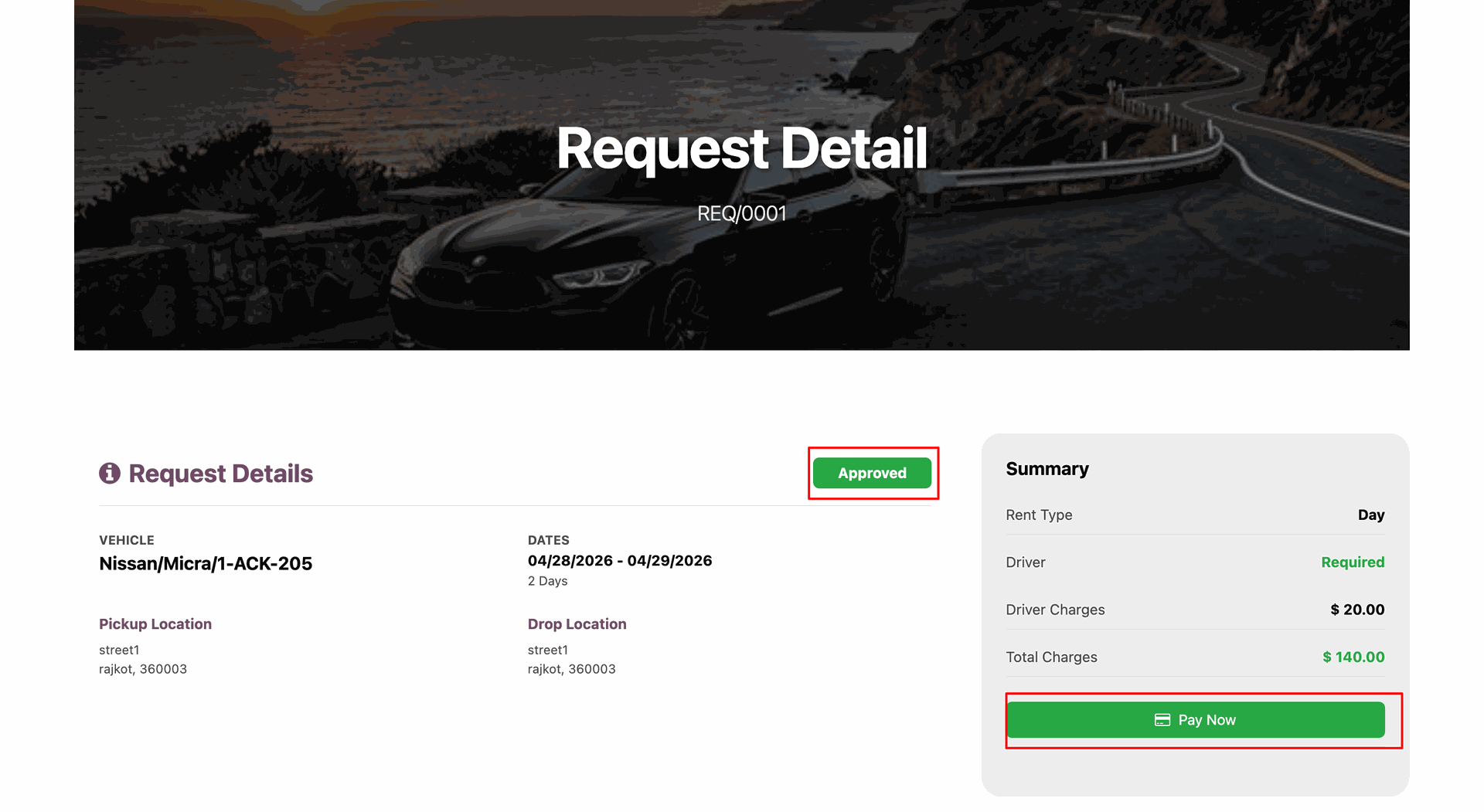
Upon clicking Pay Now, the system generates an invoice for the booking. The customer can complete payment online.
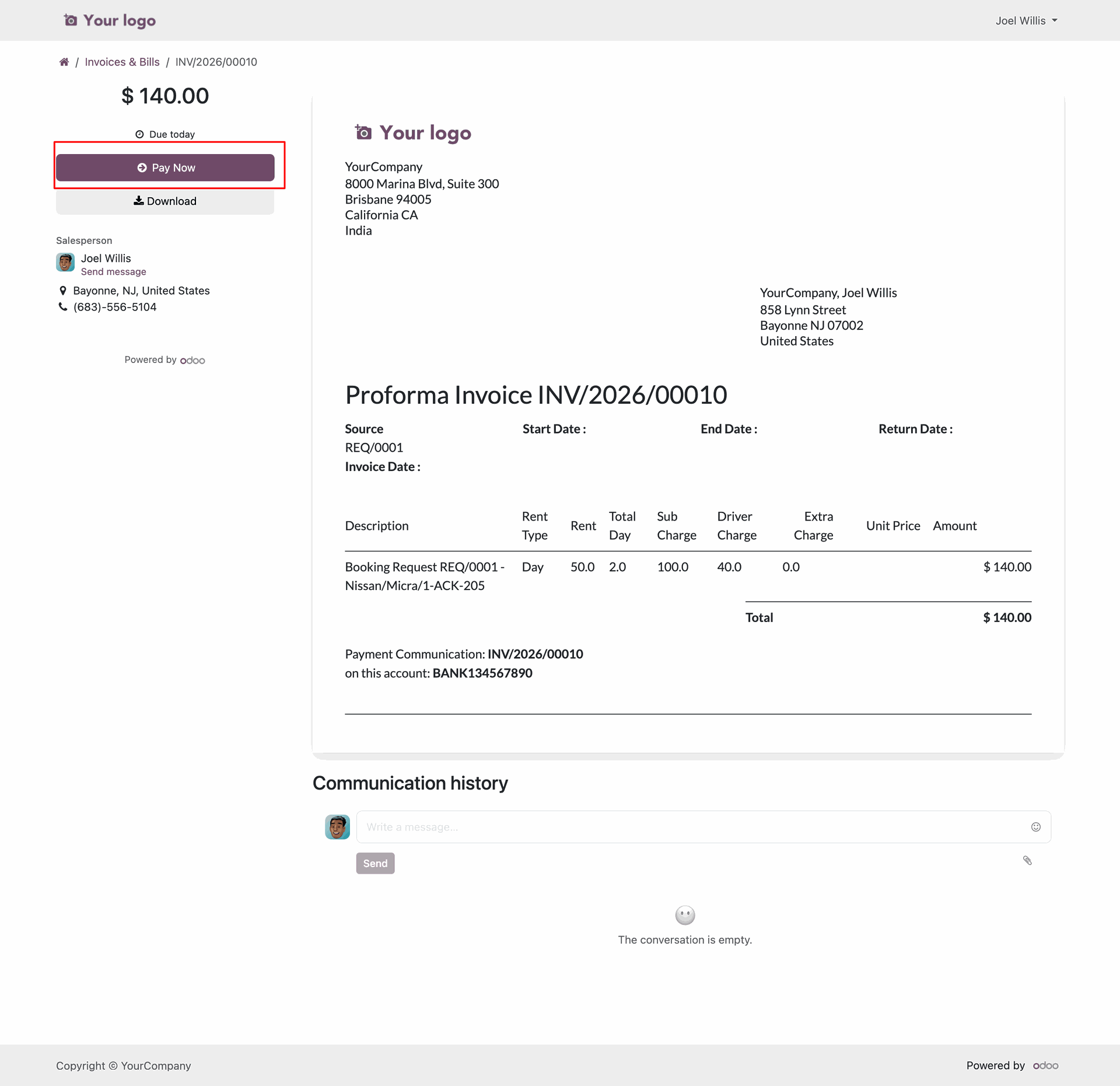
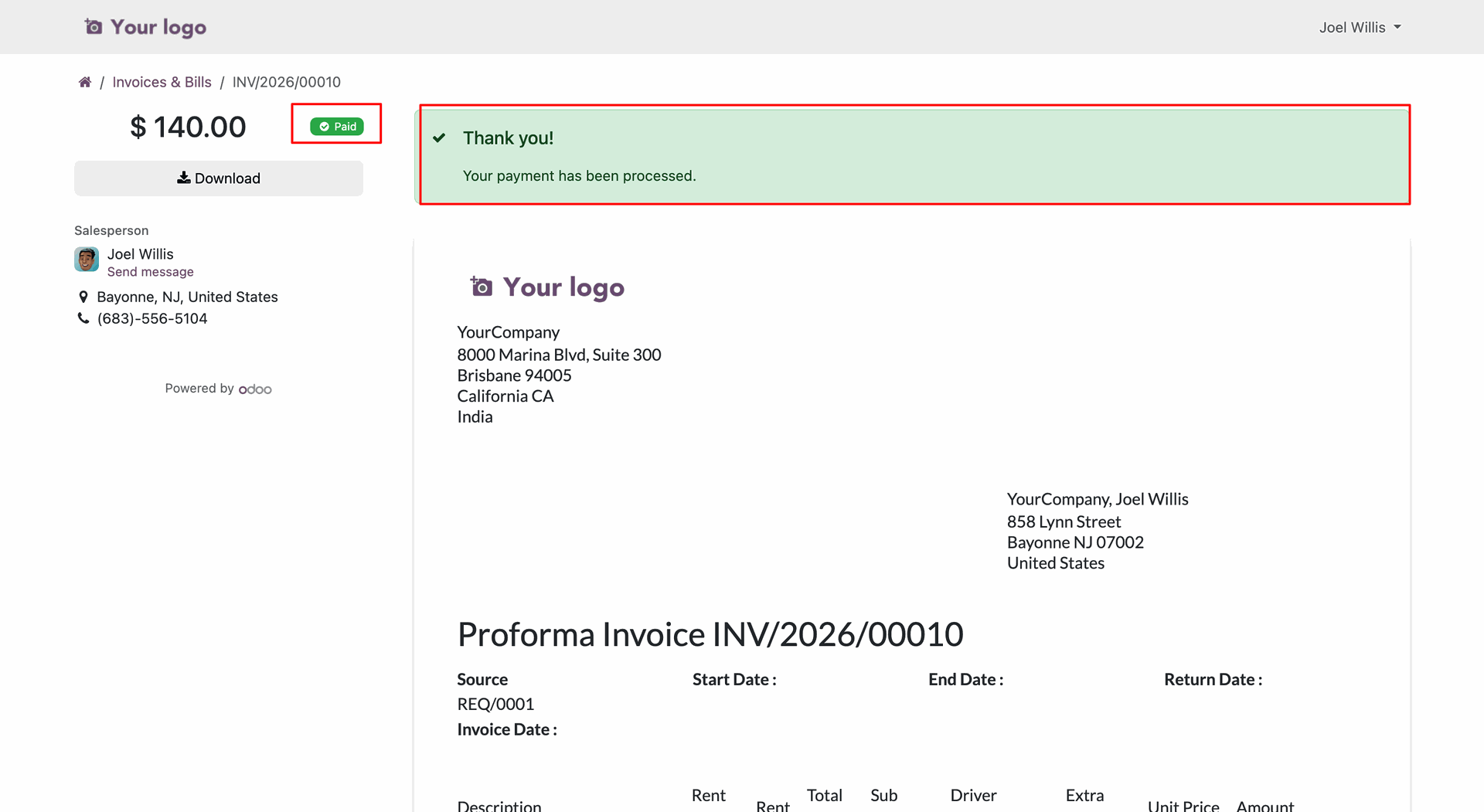
Once paid, the invoice status is automatically updated to Paid on the portal.
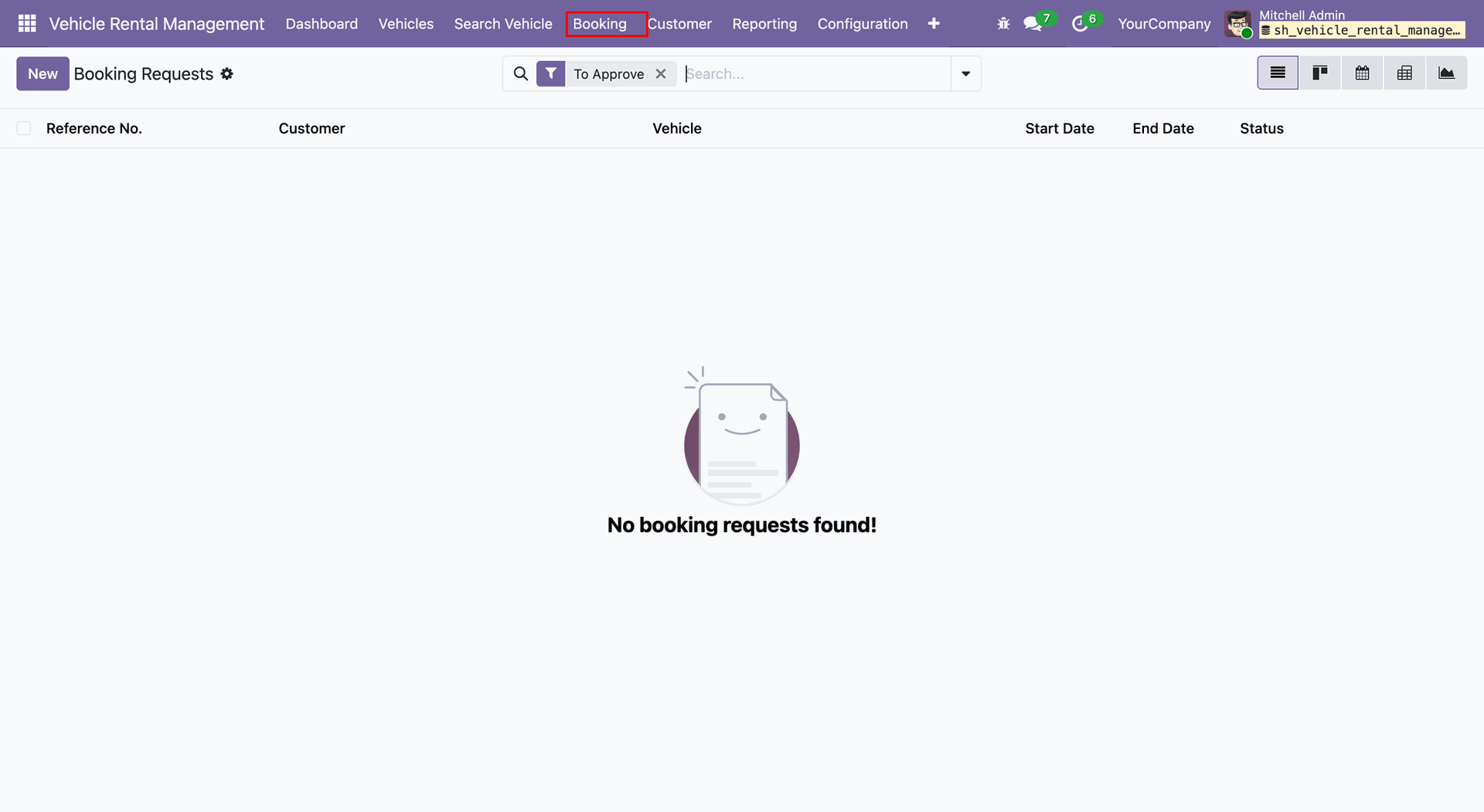
Once the payment is completed, the manager verifies the details and clicks the Book button to confirm the booking.
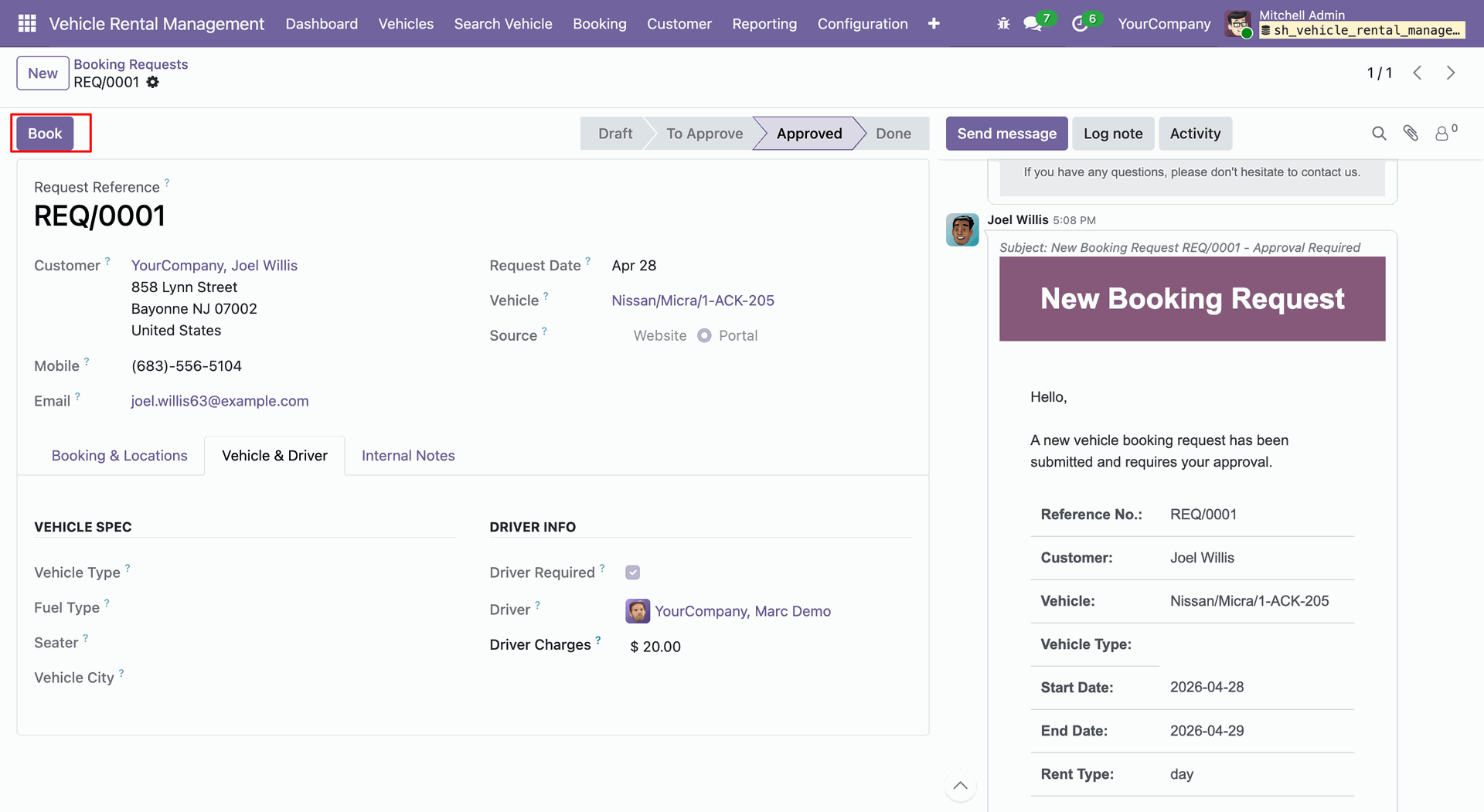
Once booked, it is removed from the Booking Request menu.
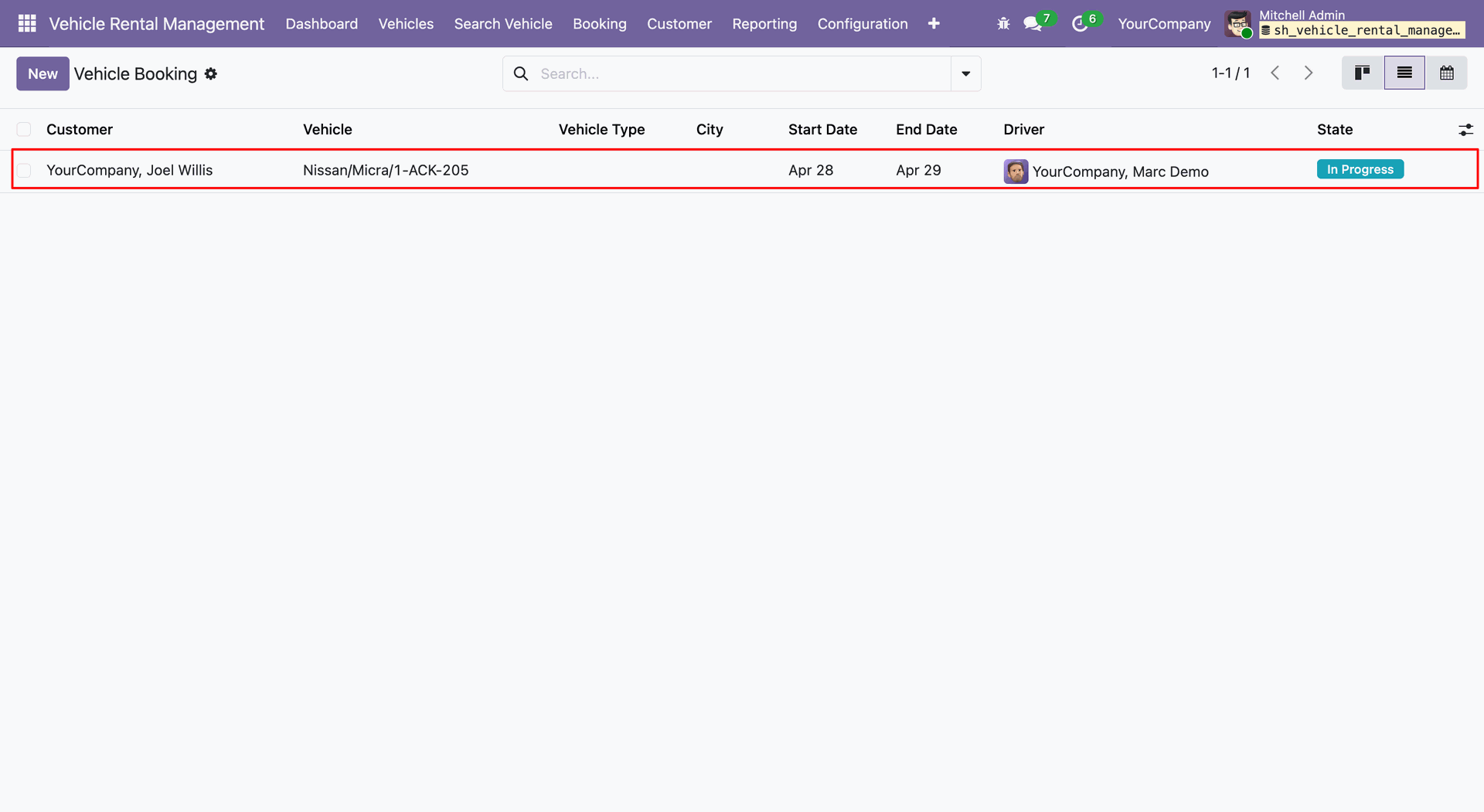
Booked vehicles are visible under the Vehicle Booking menu.
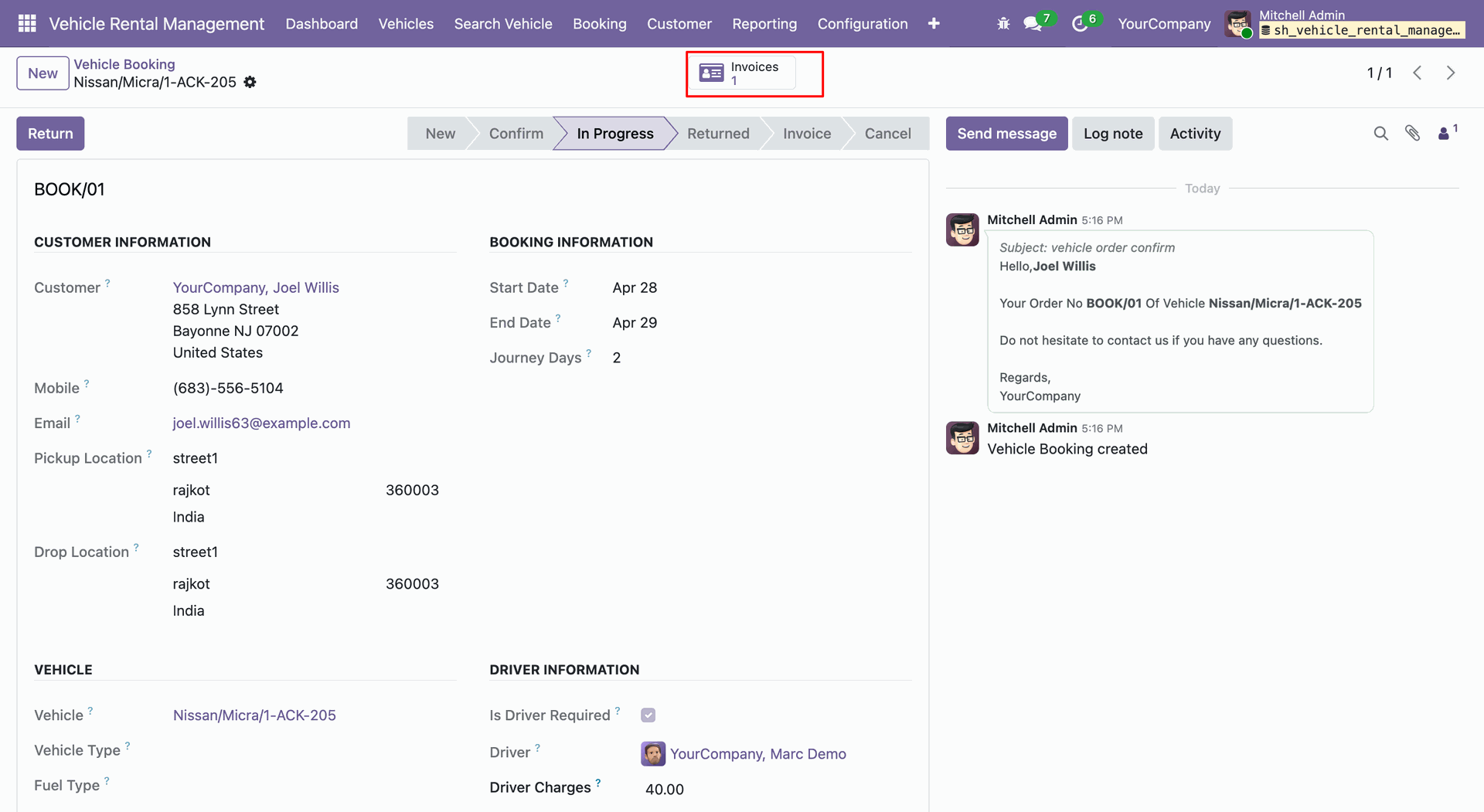
The invoice paid from the portal is linked directly to the corresponding booking form view.
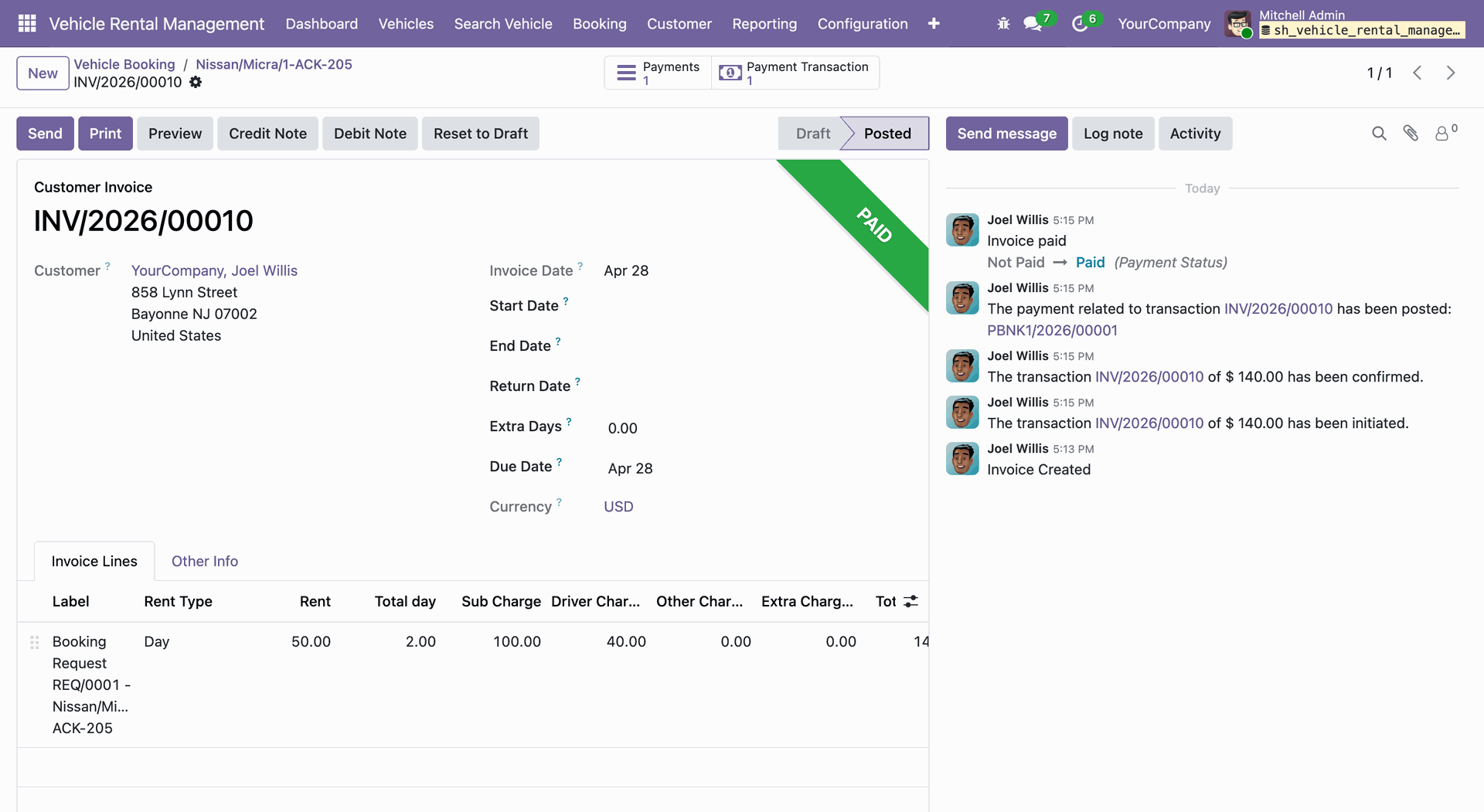
Clicking the invoice smart button opens the invoice and transaction details.
The dashboard provides KPIs such as Total Fleet, Rented, Available, and Maintenance statuses.
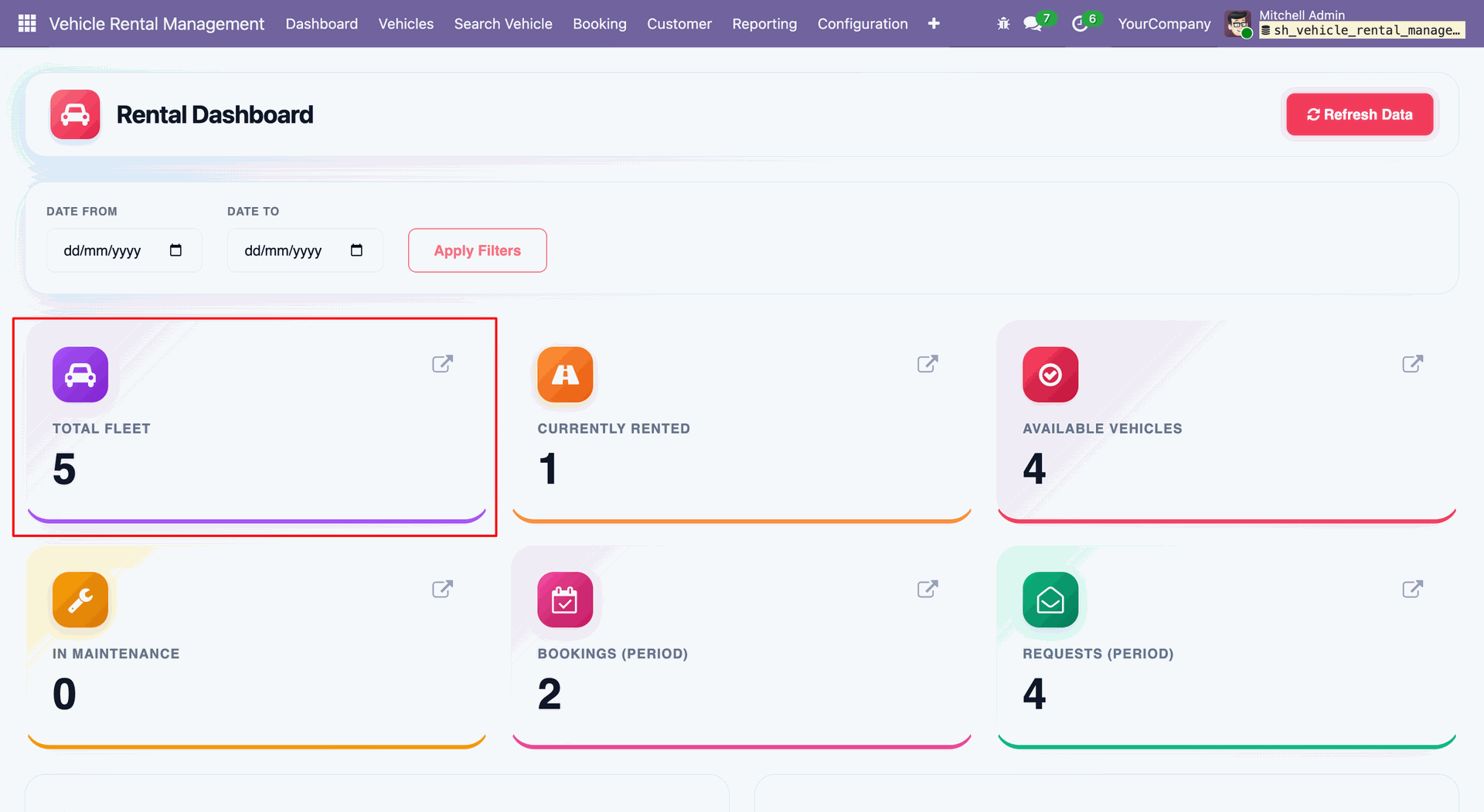
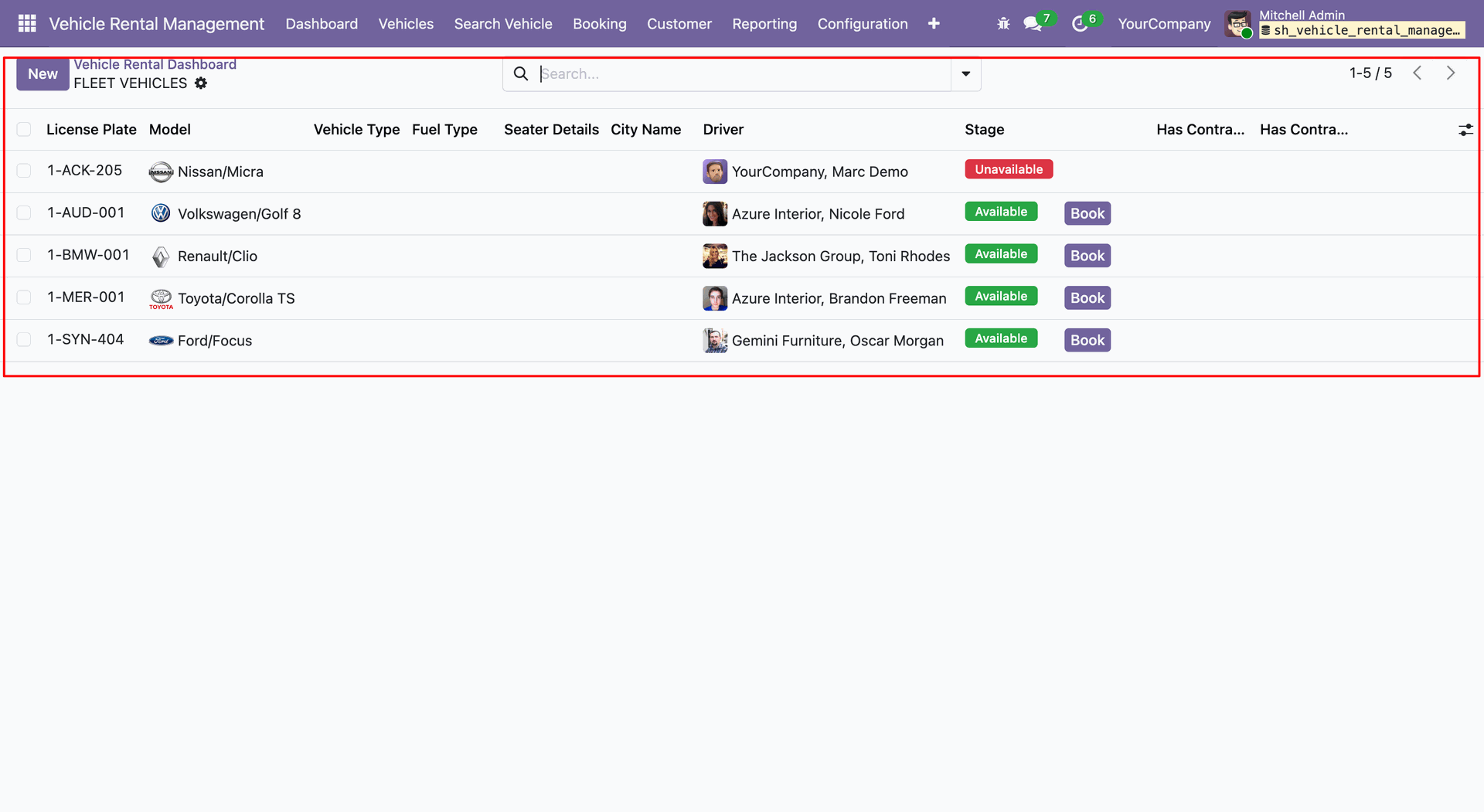
Clicking Total Fleet tile from the dashboard opens the list view of all vehicles.
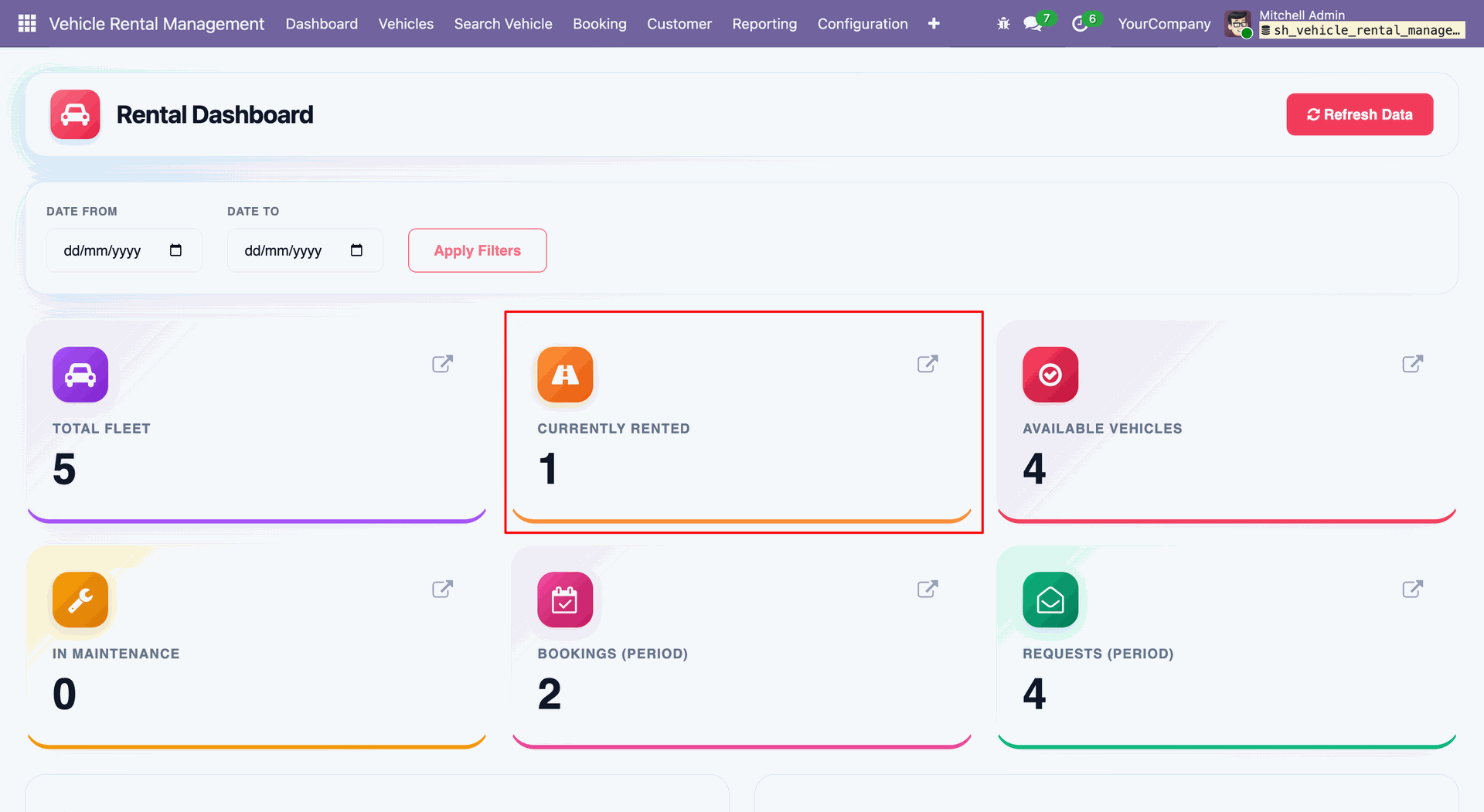
To view currently rented vehicles, click on the Currently Rented tile from the dashboard.
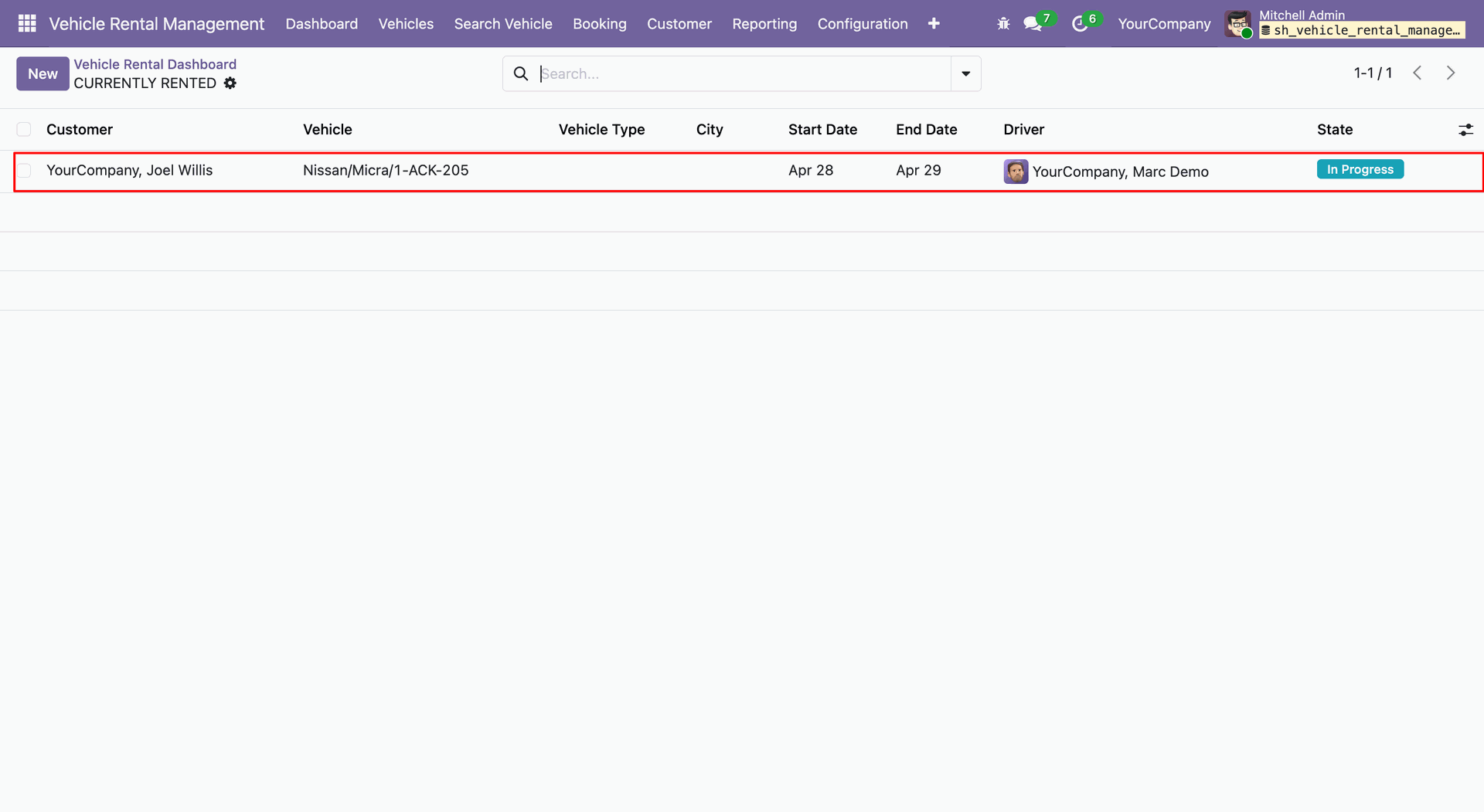
Clicking Currently Rented tile opens a list view of vehicles in In Progress stage.
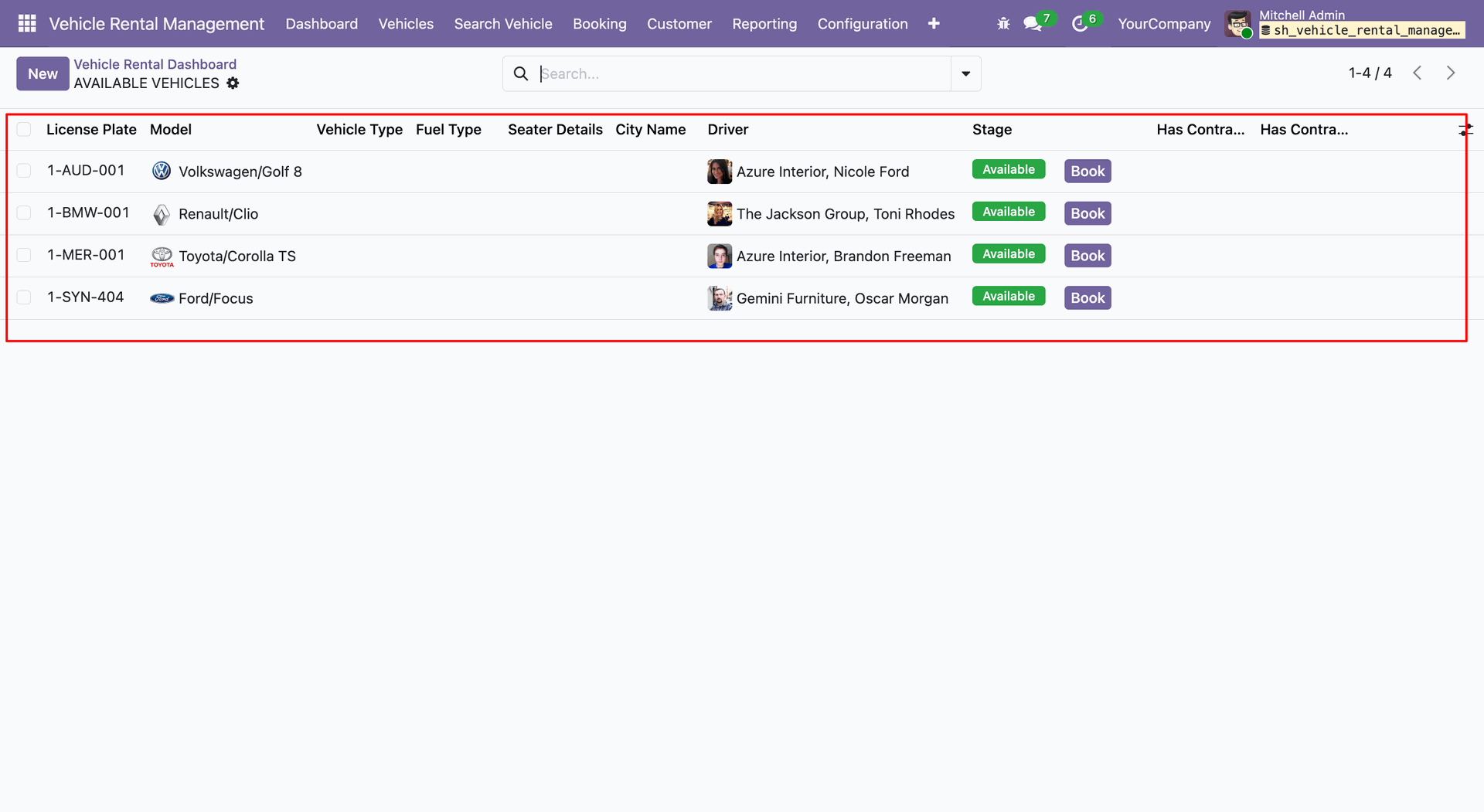
To view available vehicles, click on the Available Vehicles tile.
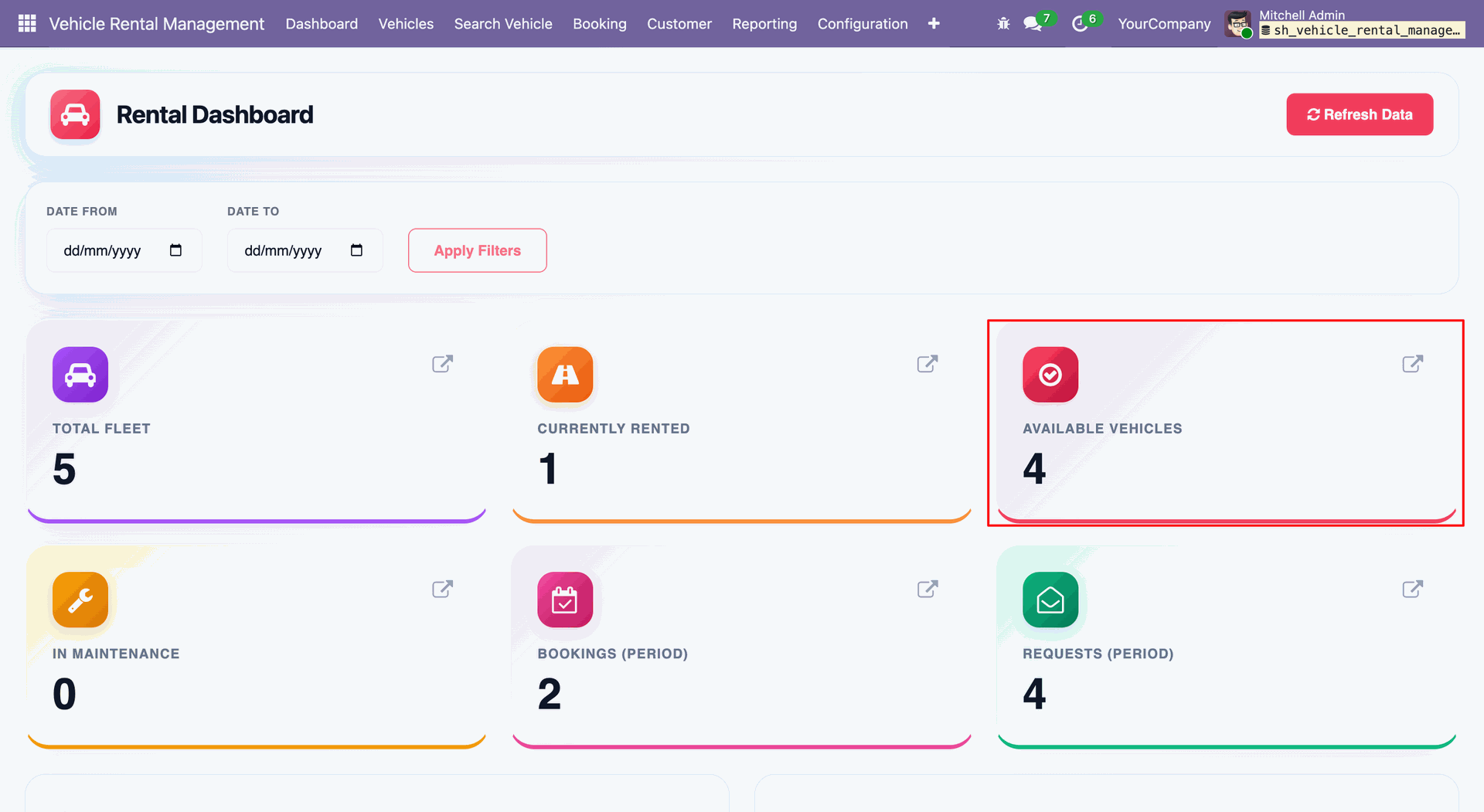
Available Vehicles tile opens vehicles in Available stage.
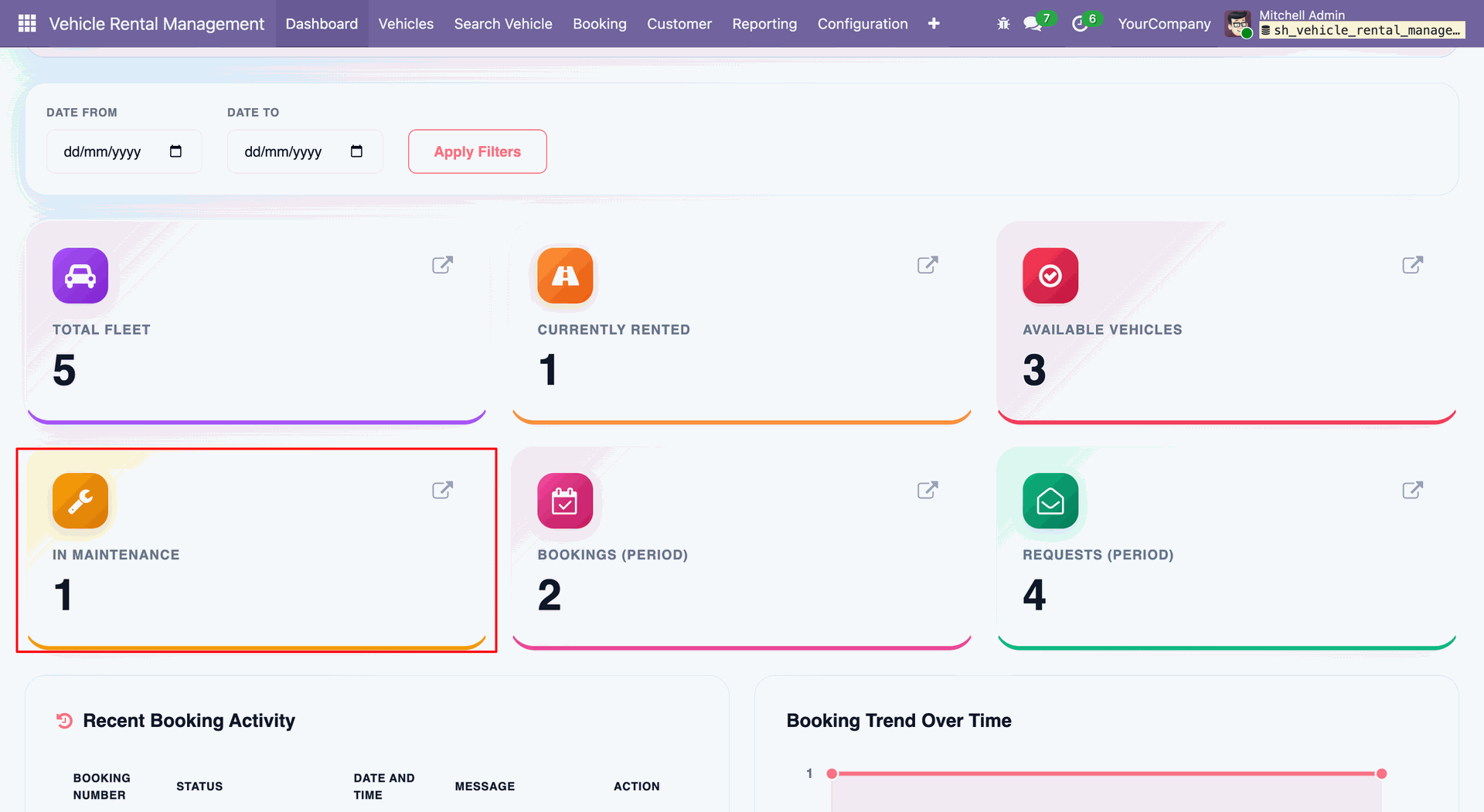
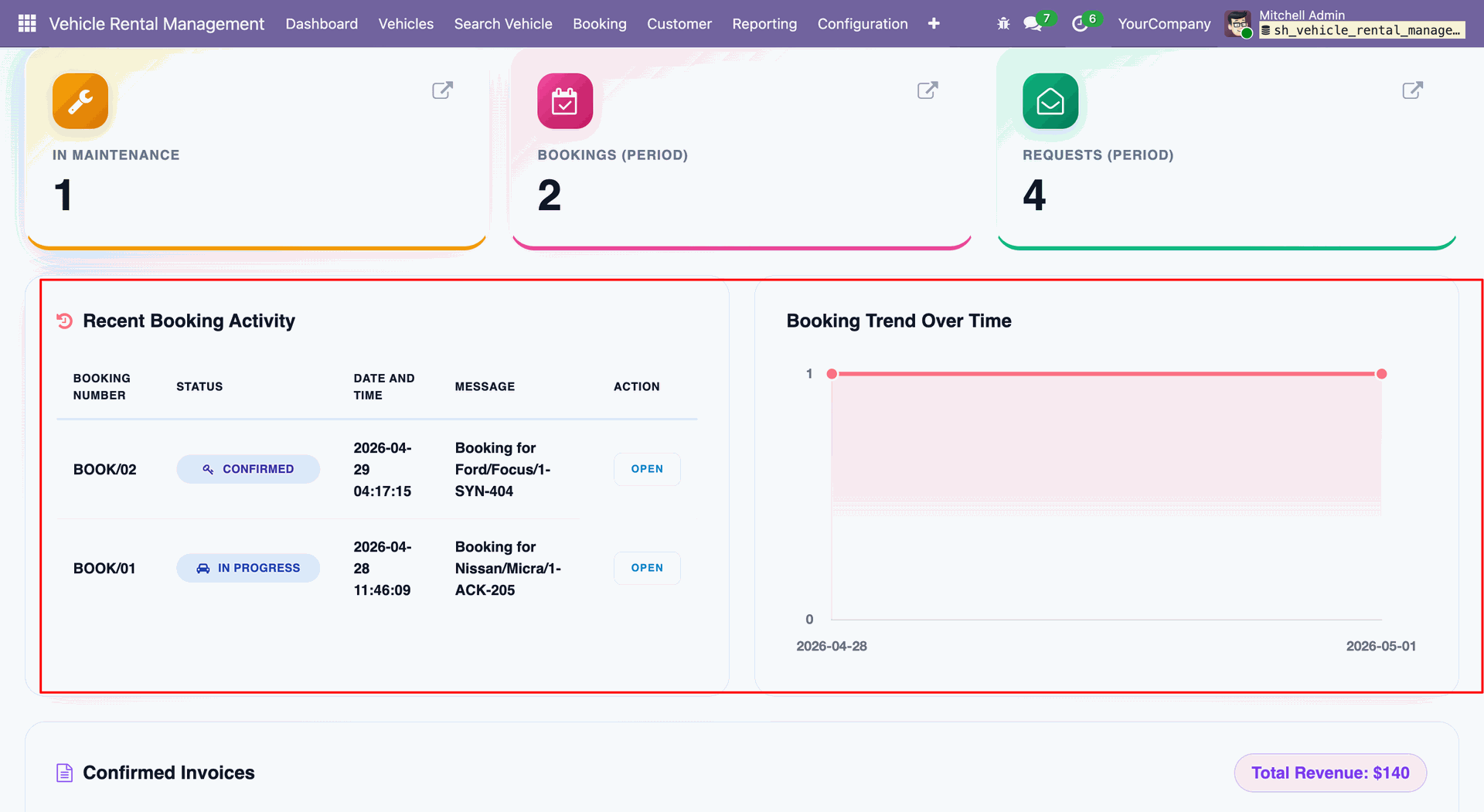
To view vehicles under maintenance, click on the In Maintenance tile.
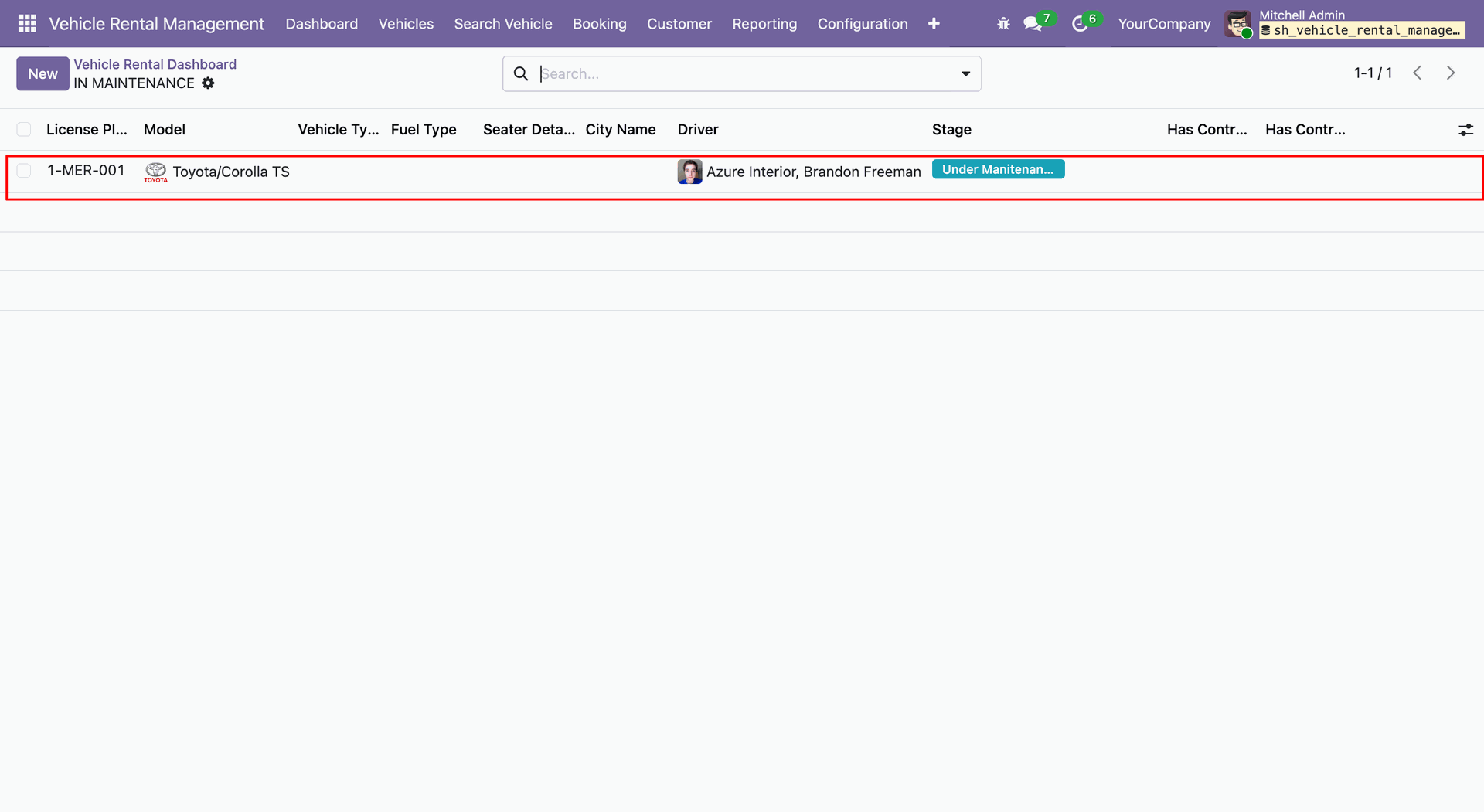
In Maintenance tile opens list of vehicles under maintenance.
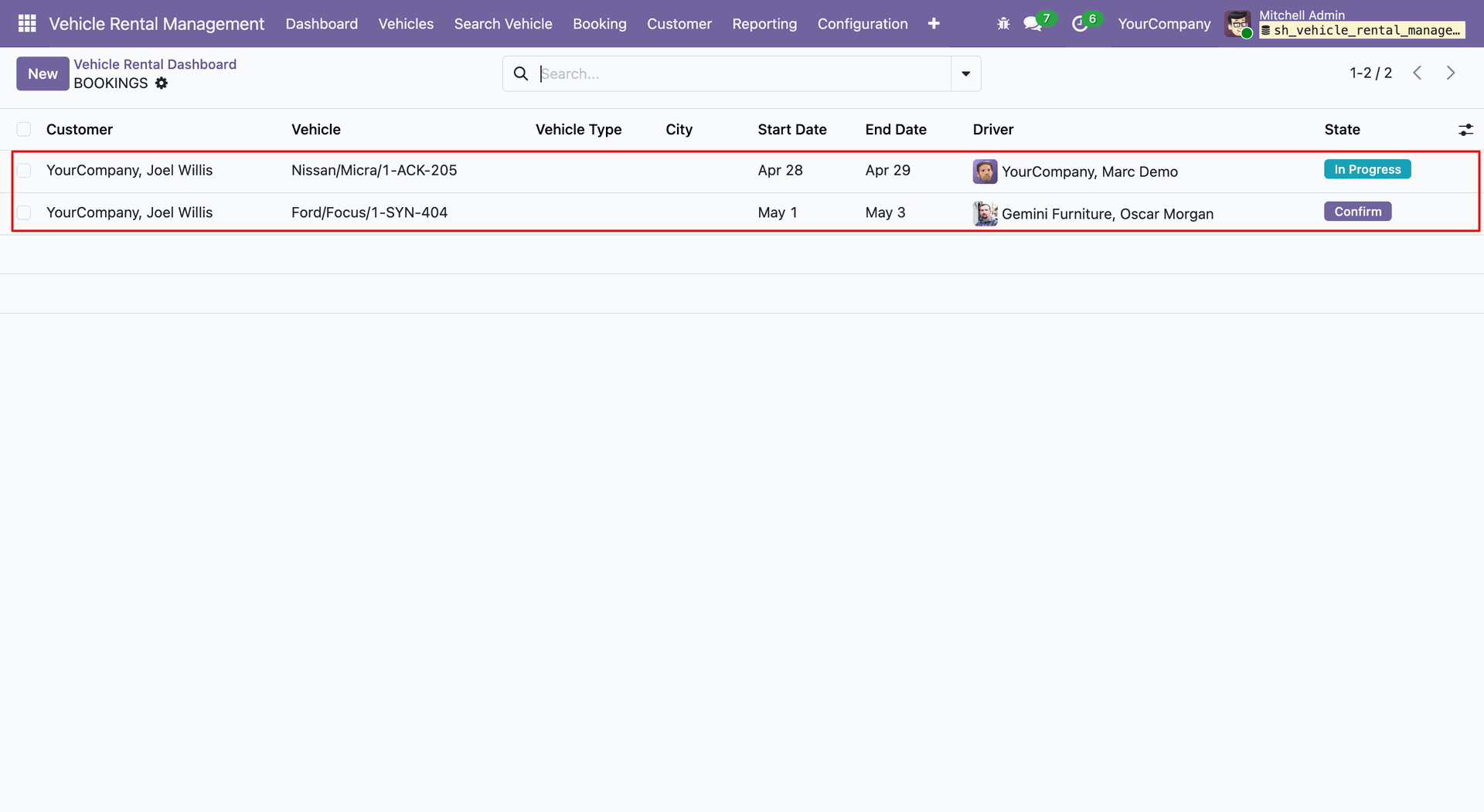
To view confirmed bookings, click on the Booking Period tile.
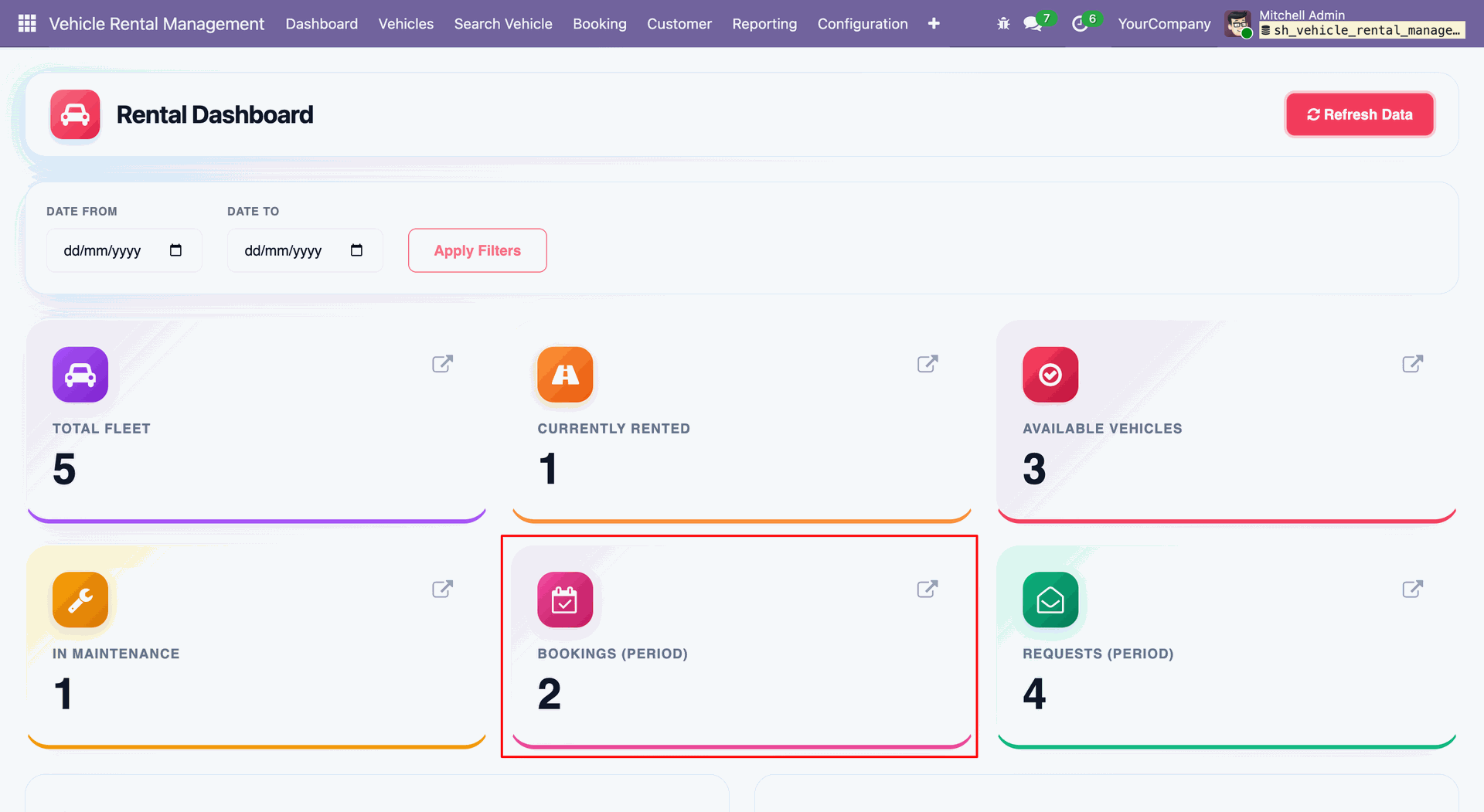
Booking Period tile opens bookings with confirmed vehicles.
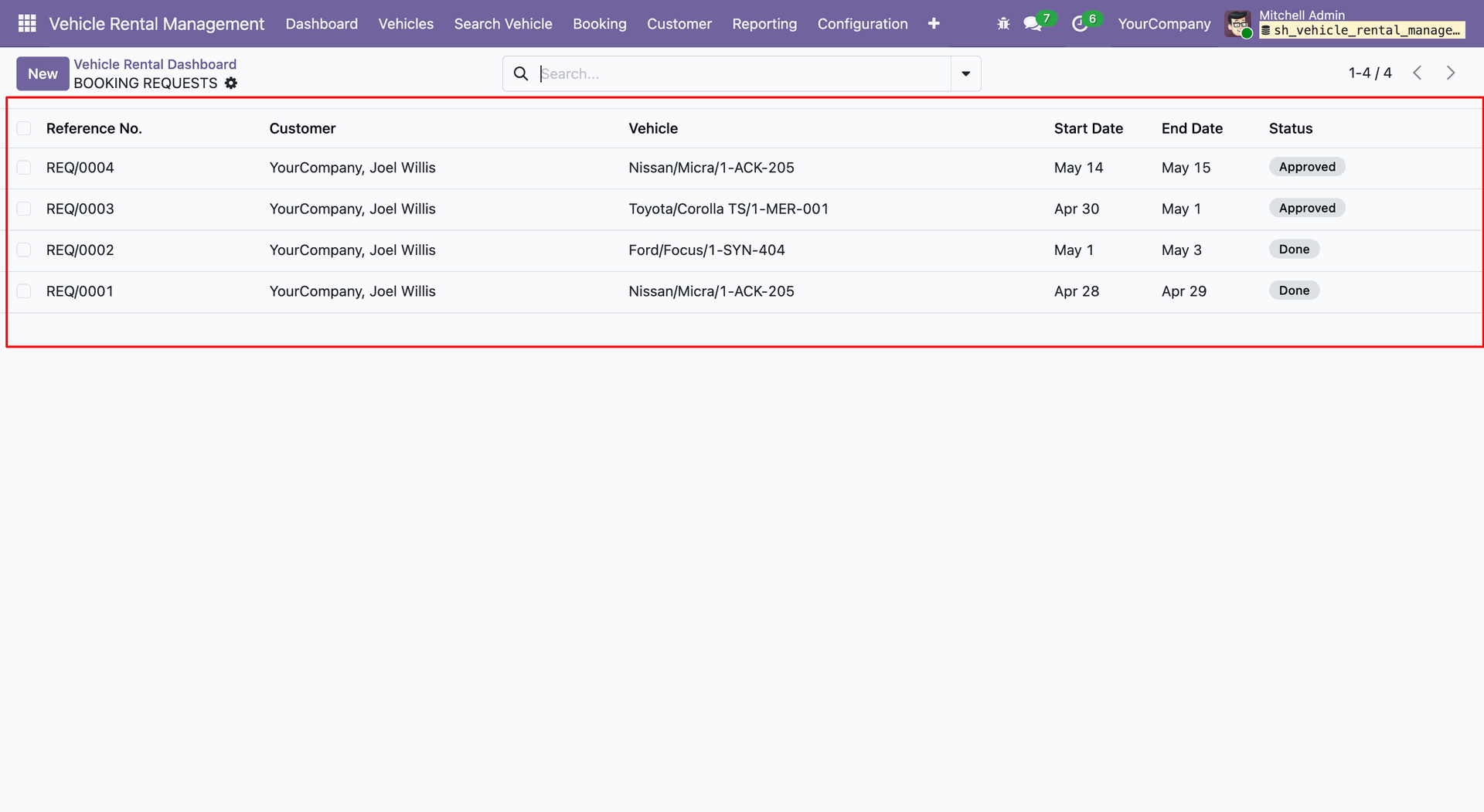
To view booking requests, click on the Requests Period tile.
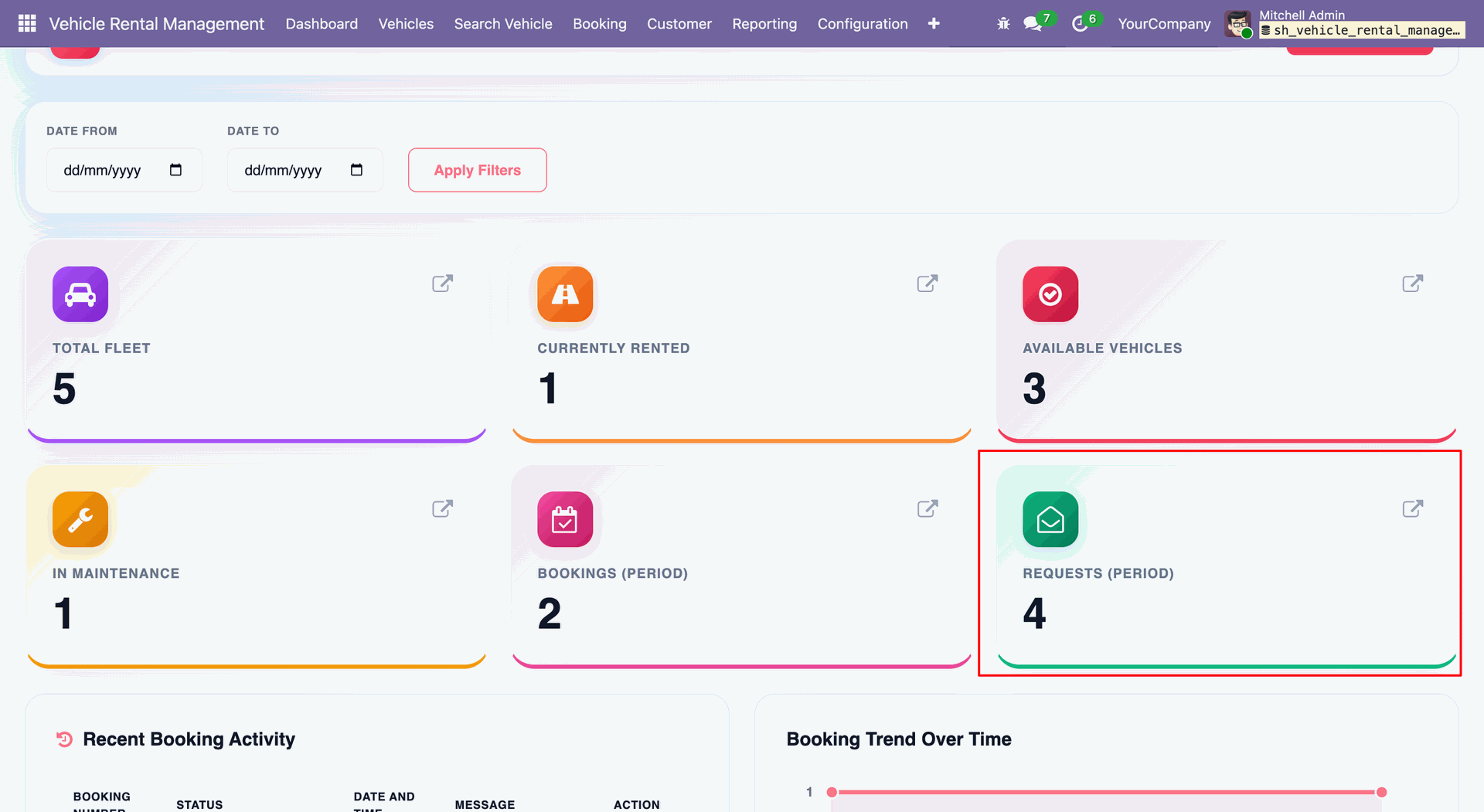
Requests Period tile opens list view of booking requests.
Users can view recent booking activity and booking trend charts.
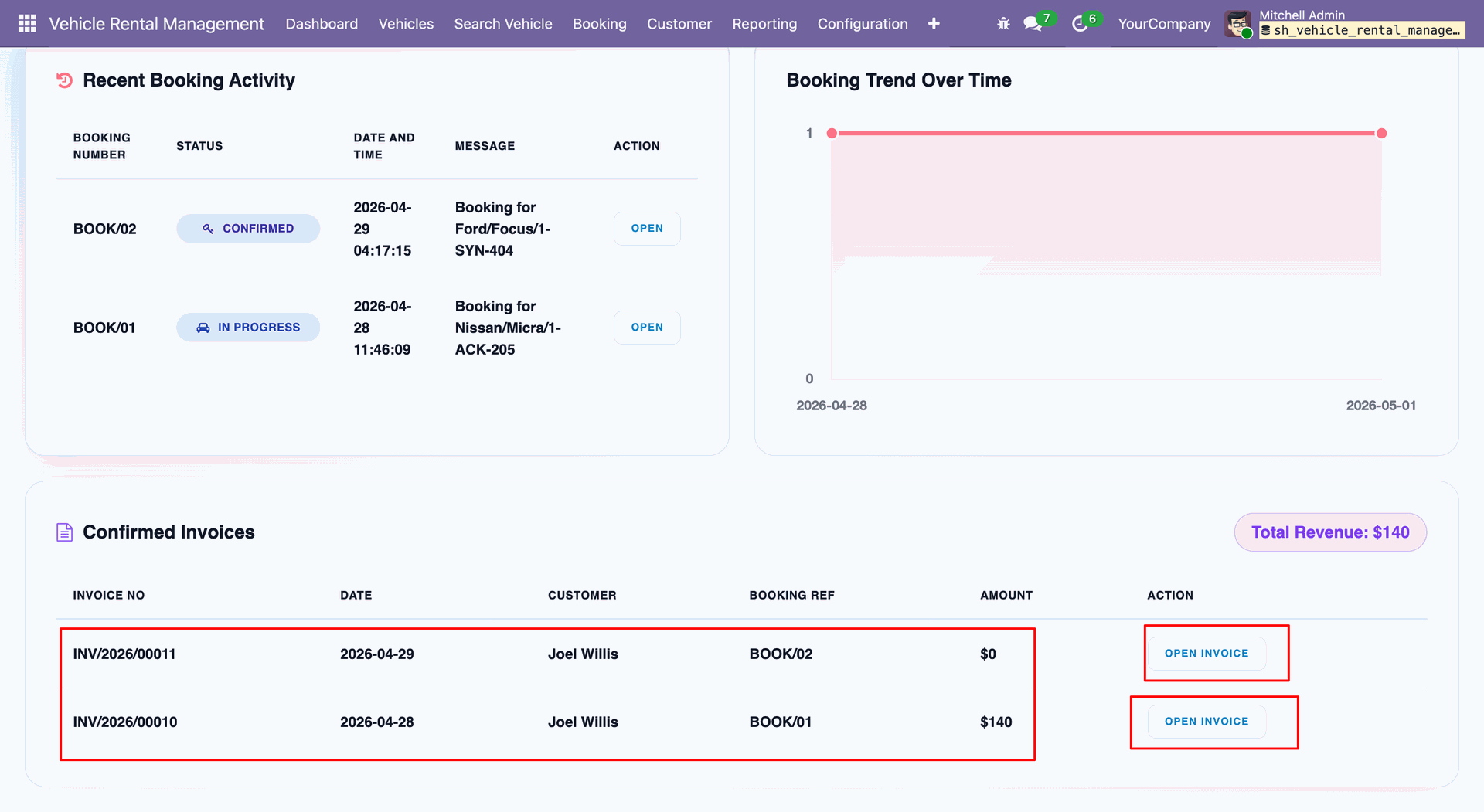
Users can view confirmed invoices and open them by clicking the Open Invoice button.
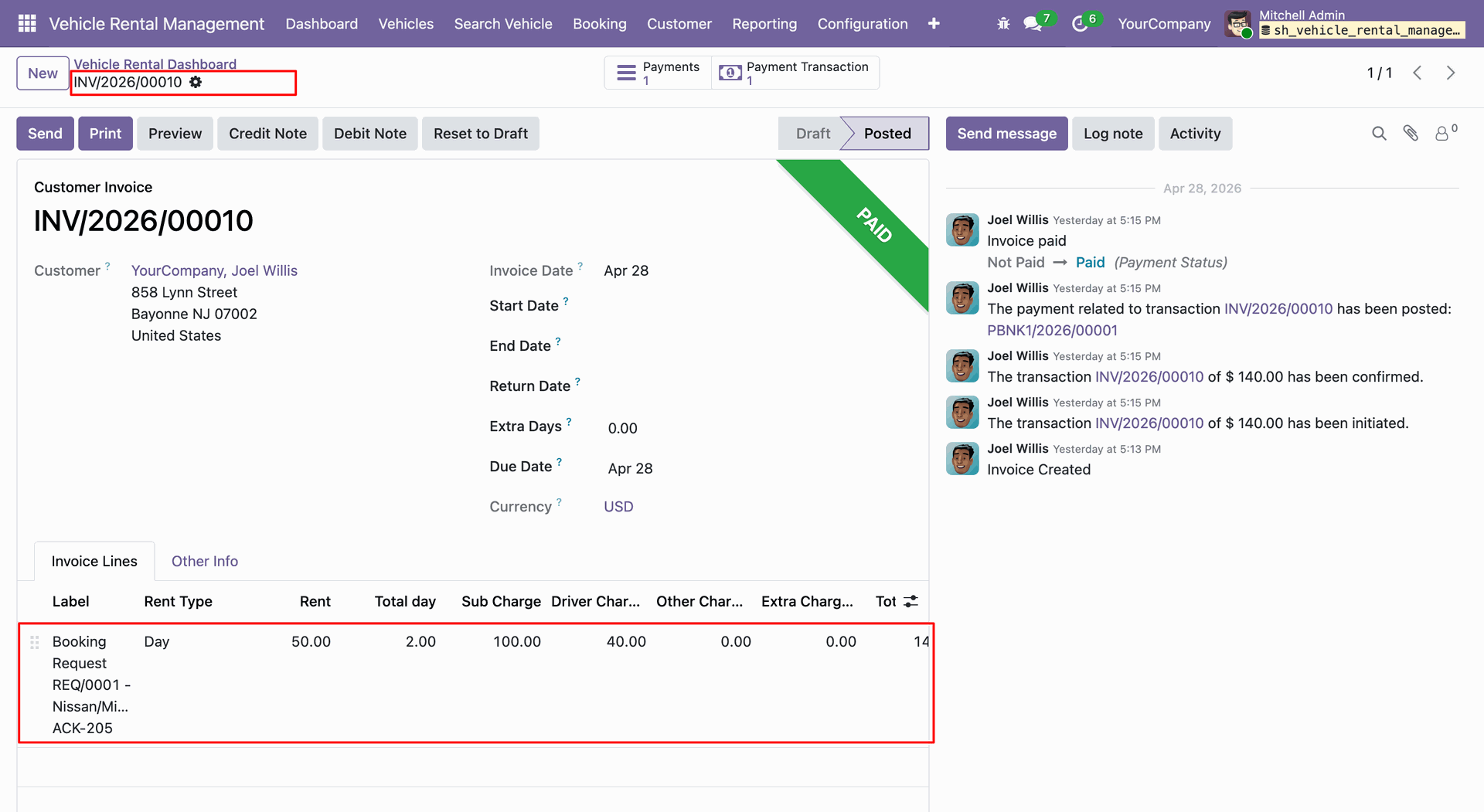
Clicking Open Invoice button opens invoice form view.
Version 19.0.1.0.0 | Released on : 12th August 2026
- Yes, this app works perfectly with Odoo Enterprise (Odoo.sh & Premise) as well as Community.
- No, this application is not compatible with odoo.com(odoo saas/Odoo Online)
- Yes, to test this module, please contact us at sales@softhealer.com.
- Please contact us at sales@softhealer.com to request customization.
- Yes, we provide free lifetime support for the version you purchased.
- Yes, you will receive lifetime free updates for the version of the module you purchased.
- No, there is no need to install any additional libraries.
- Yes, for version 12 and above, you need to purchase the module separately for each version you intend to use.
- No, exchanges or refunds are not allowed. Please make sure to select the correct version before purchasing.
- You can contact us at support@softhealer.com for language translation support. We use Google Translator tools to provide translations in multiple languages, so the accuracy may vary. We welcome your suggestions to help improve translations.
Discover Our Latest Apps