












Vehicle Rental Management System

Tired of managing vehicle rental data manually? It's time to say goodbye to manual data entry! Our module enables you to efficiently manage vehicle bookings, cancel, and returns. It allows users to easily track vehicle availability, handle bookings, manage customer details, and generate reports. Additionally, it helps manage vehicle rents, extra charges, and track both operational vehicles and those under maintenance, providing comprehensive oversight for rental businesses.

Related Modules
Features

Easy Booking Management
Easily manage vehicle bookings, including customer details and rental periods.

Vehicle Availability Status
Easily track the availability of vehicles in real time.

Cancellations
Easily handle booking cancellations
Rental Types
You can define rental types by days, km, or miles.

Automated Rental Calculation
Total rental charges are automatically calculated based on type selected

Vehicle Images
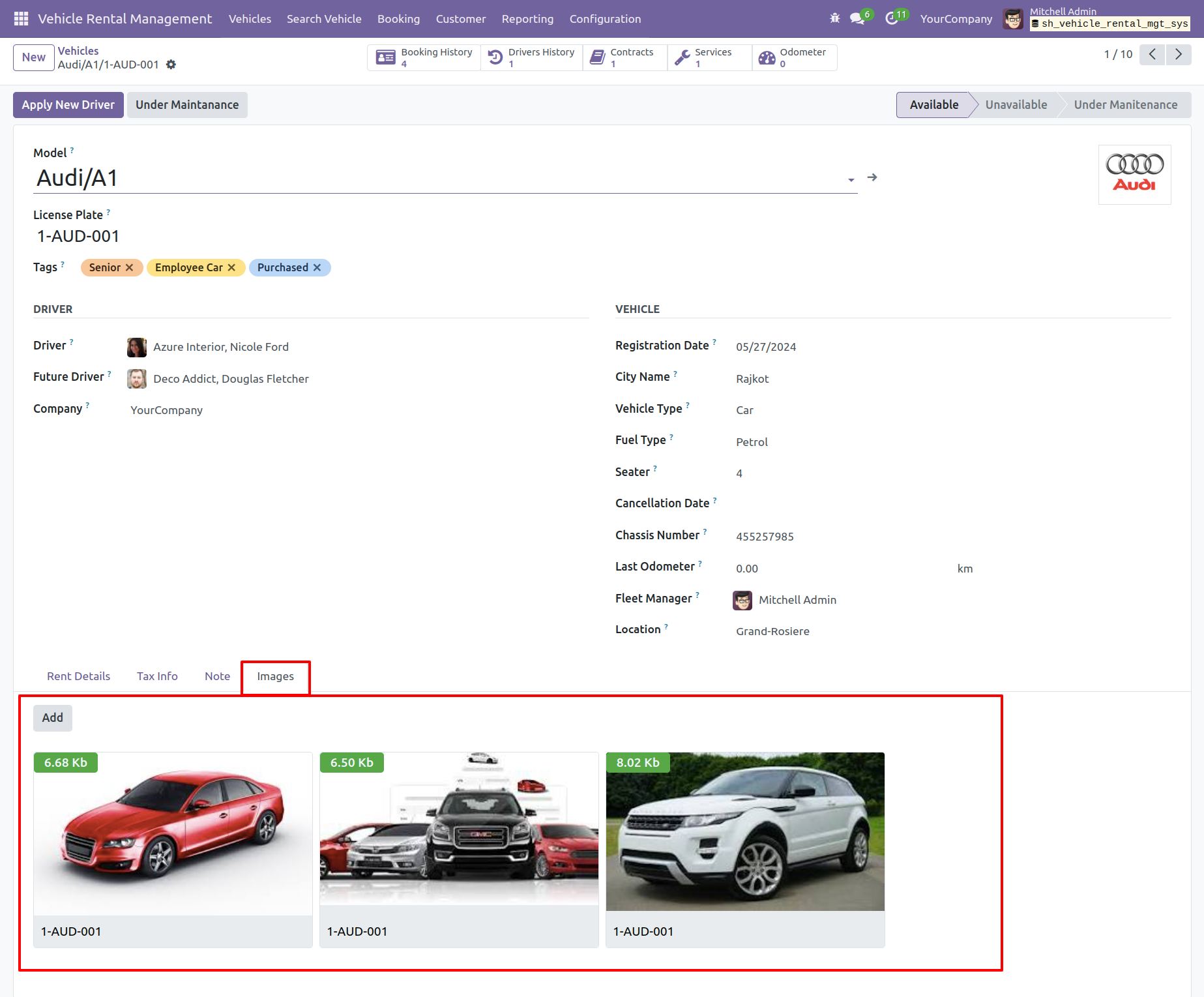
You can add vehicle pictures/images under the Images tab. This lets you store and view multiple images of each vehicle.
Manage Driver Charges
You can manage driver charges
Manage Other Charges
The system has the capability to handle "extra charges"
Vehicle Types
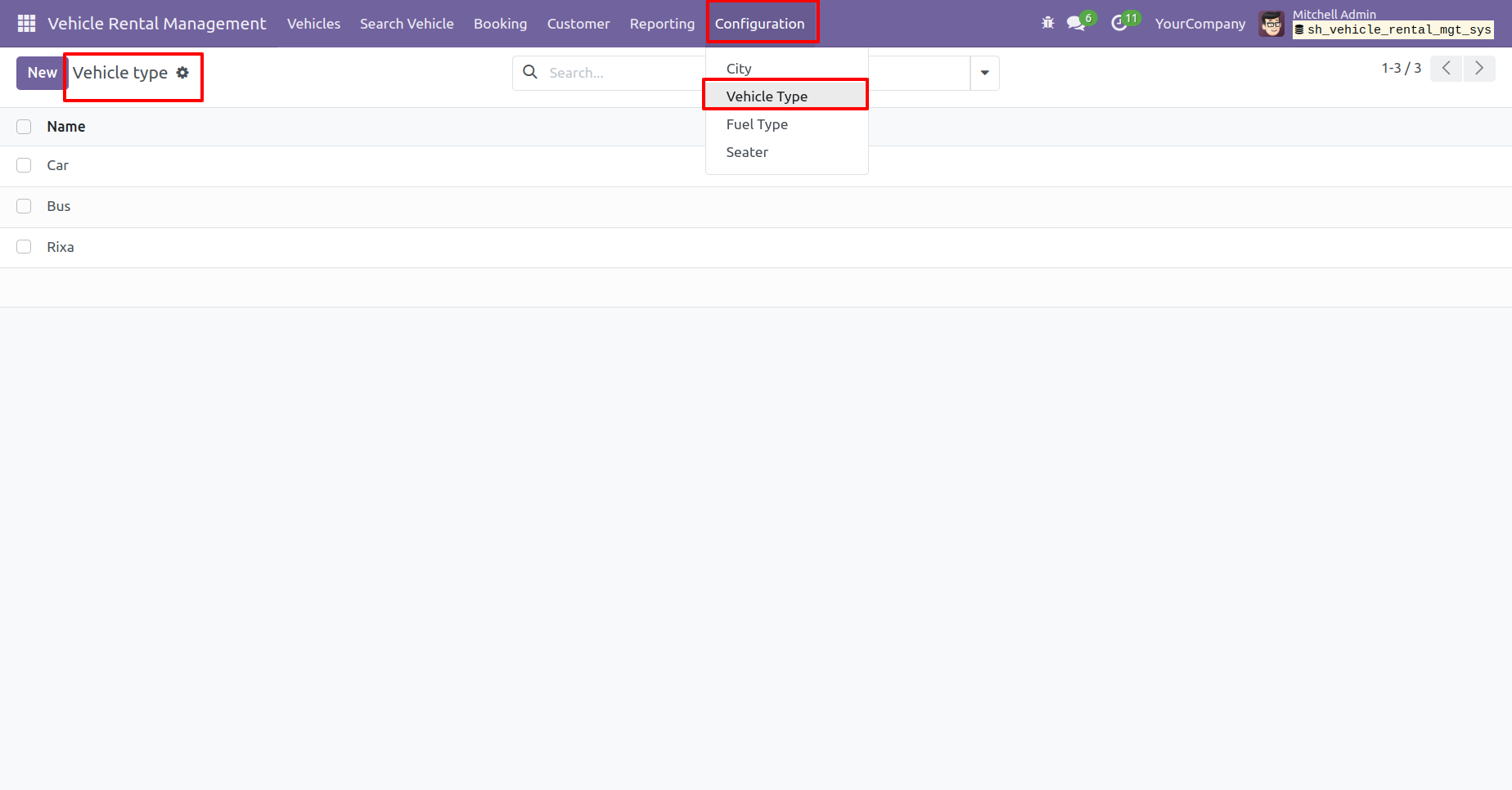
The module includes a Vehicle Type configuration menu, letting you manage and categorize vehicles by type.

Fuel Types
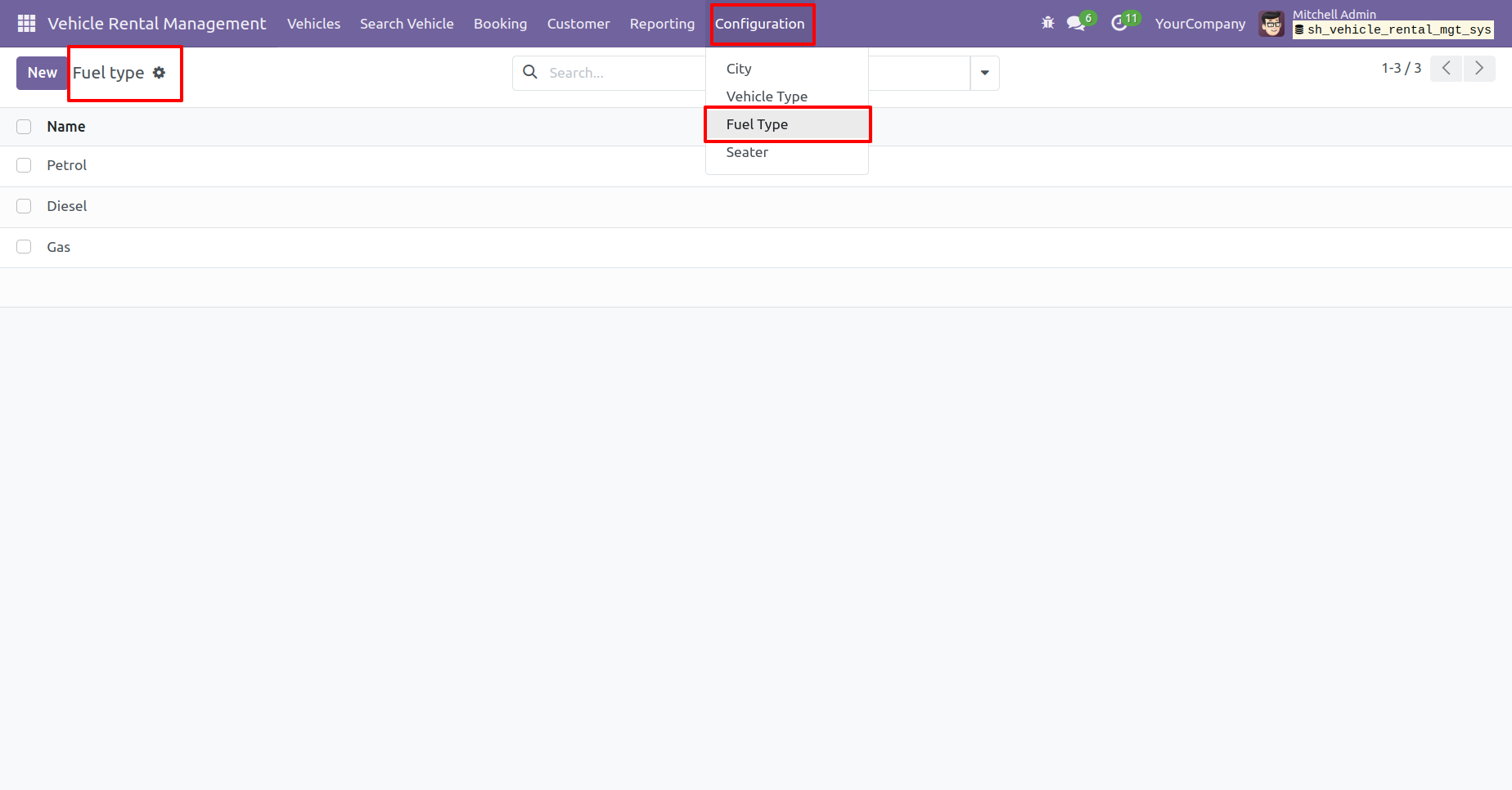
There is also a Fuel Type setup menu for defining fuel categories (e.g., petrol, diesel).

User Groups
The module uses user settings permissions: User, Officer and Manager

Vehicle Return Process
Return the vehicle with a fast, smooth process and track the return by return date.
Vehicle Booking Report
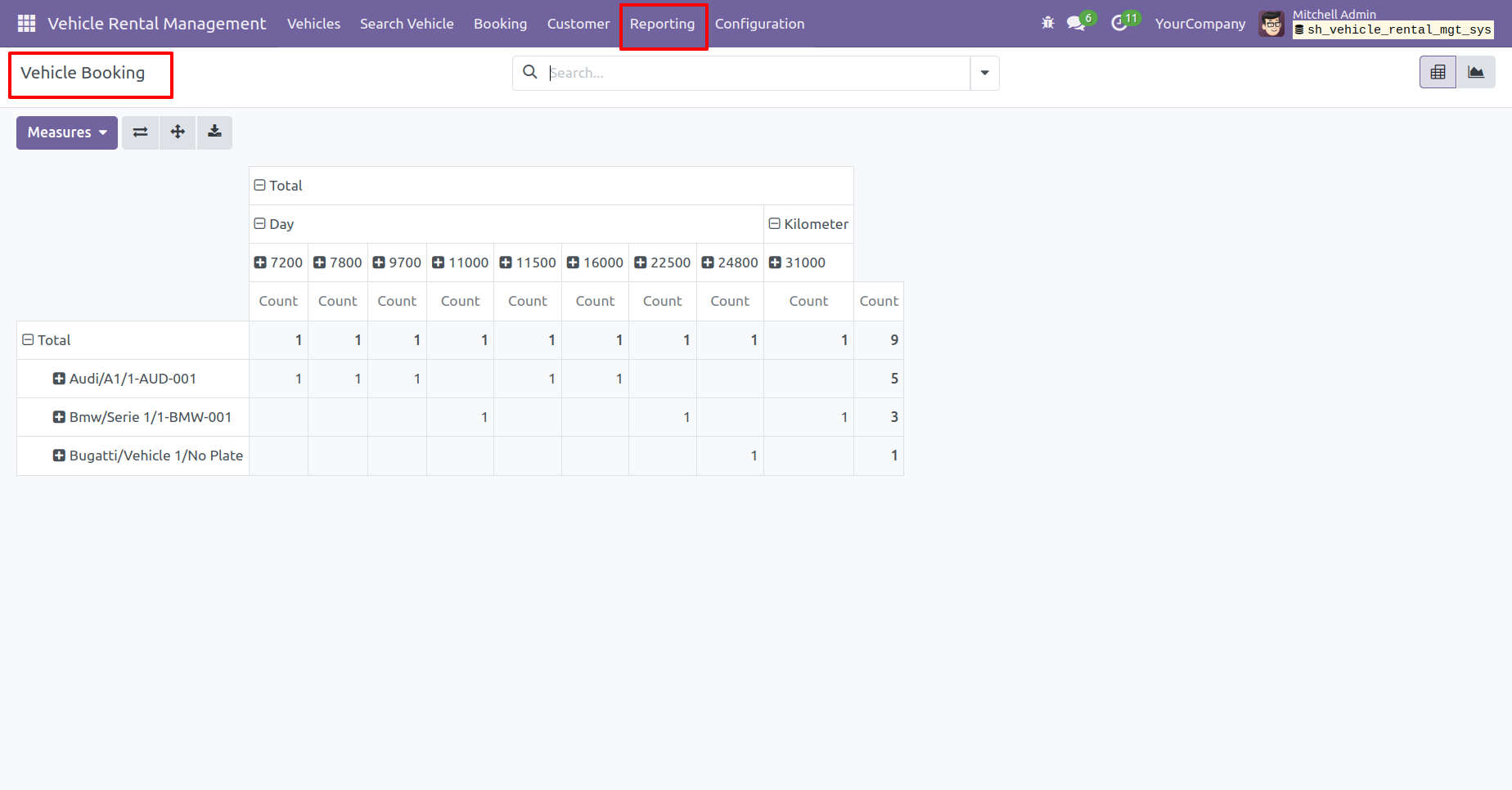
View vehicle booking reports in a pivot format.

Portal Booking 
Allows users to create and manage bookings directly from the portal.
Vehicle Dashboard
Provides a centralized view to track and manage bookings and related activities in one place.

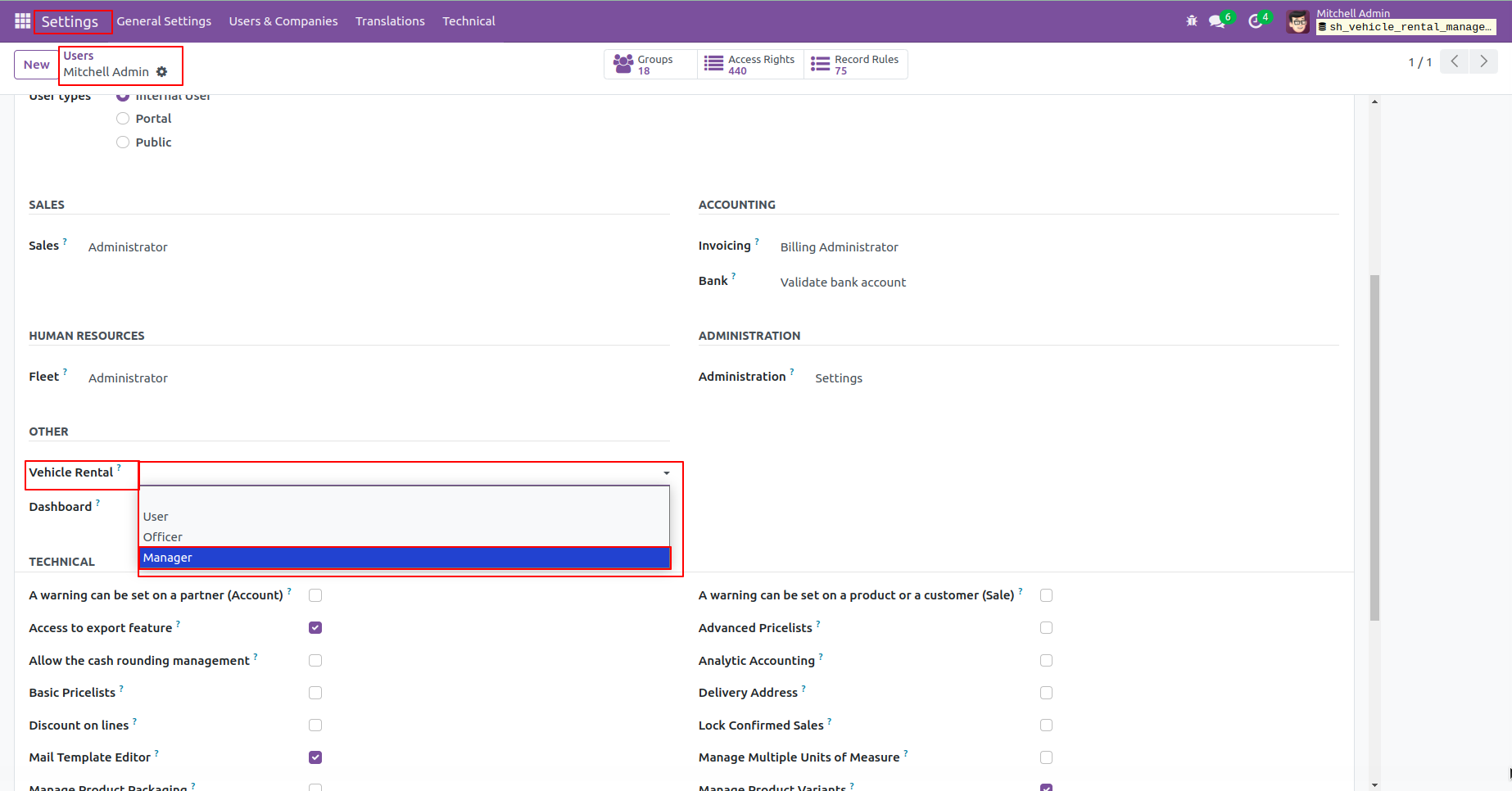
Go to users setting select user and set vehicle rental manager.
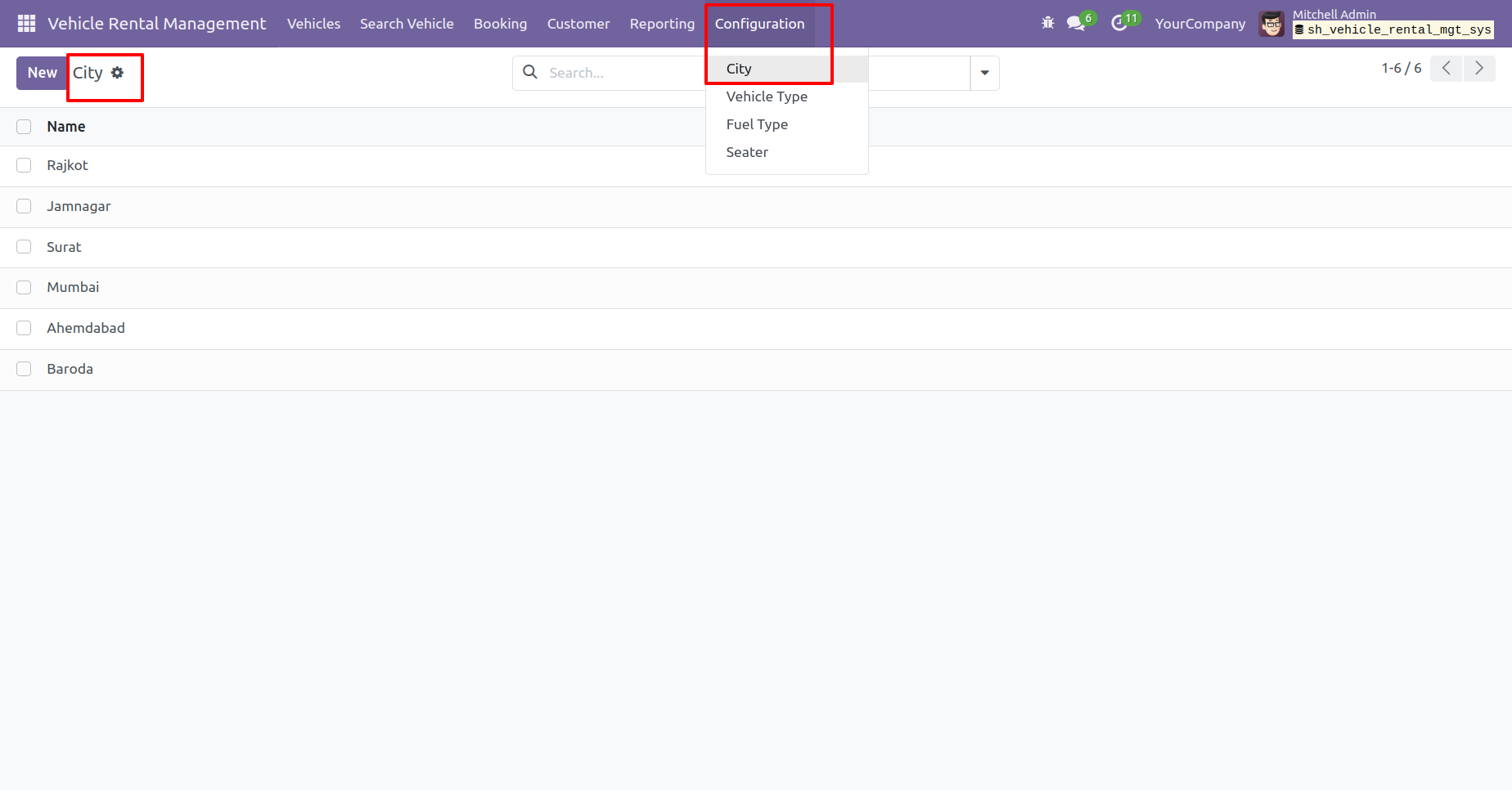
City menu and list view.
Vehicle type menu and list view.
Fuel type menu and list view.
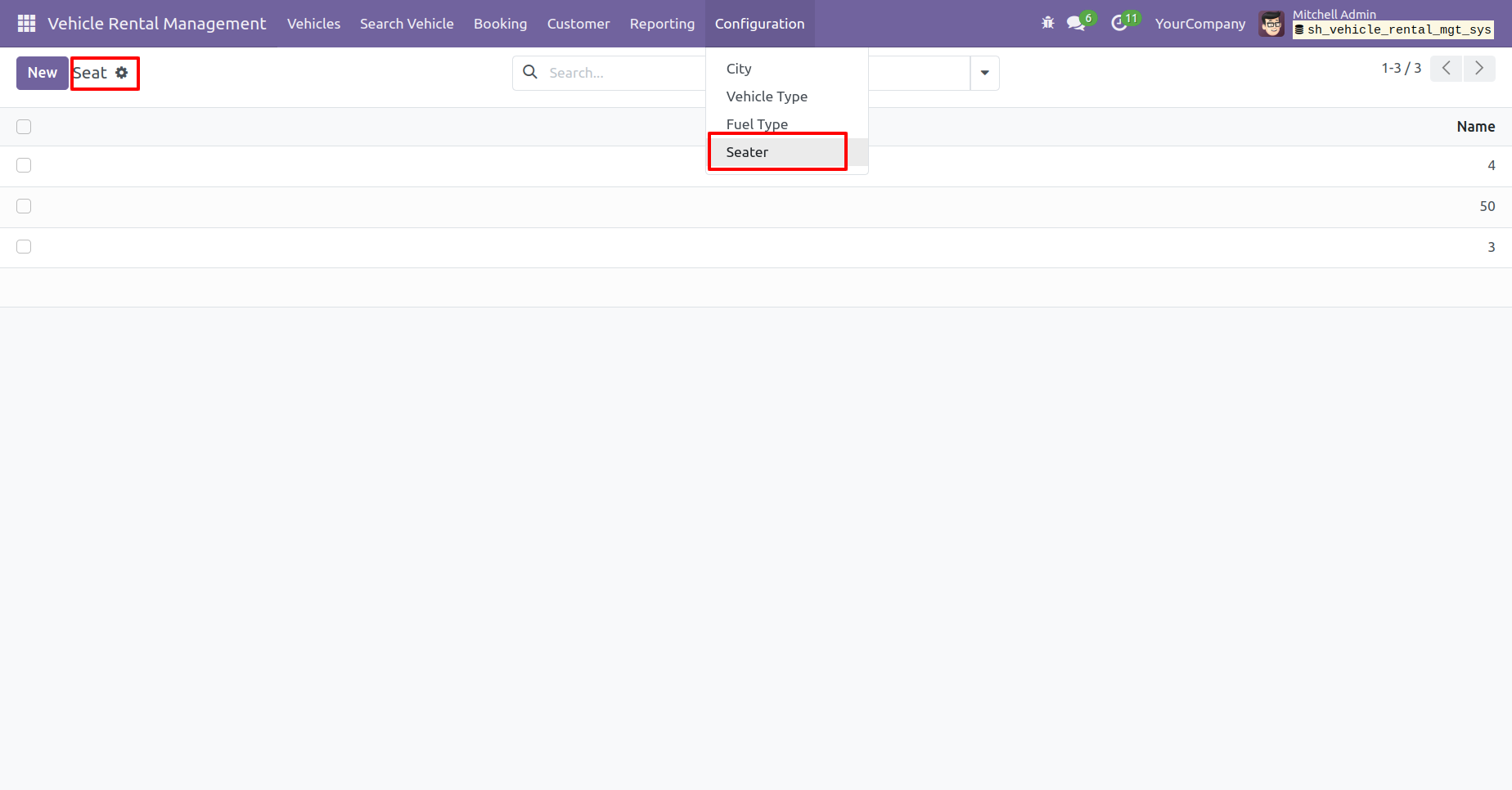
Seater menu and list view.
In 'Vehicles' form view add Vehicles details.
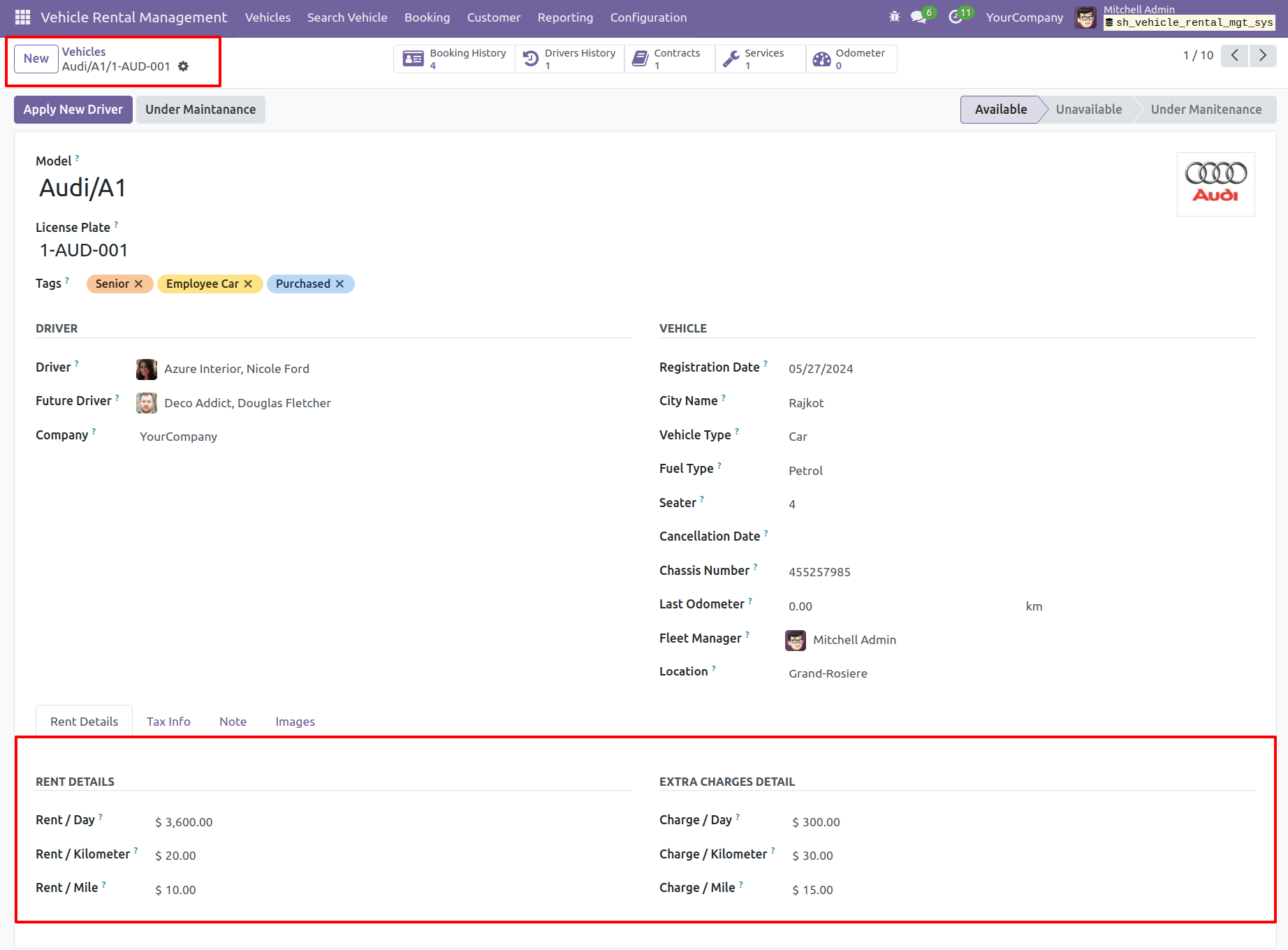
Add rental information in the Rental Details tab.
In the images tab, you can add a pictures of the vehicle.
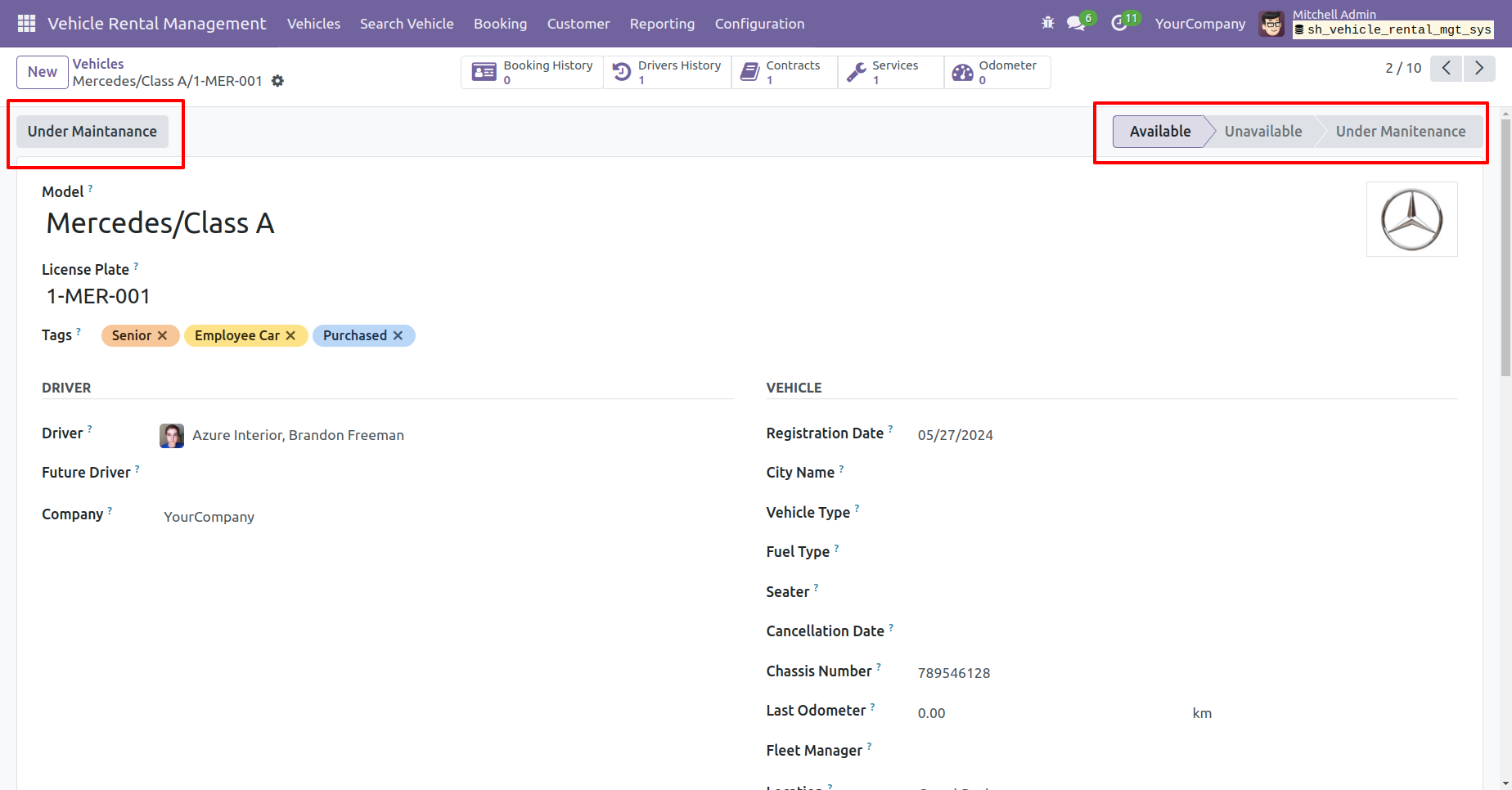
Here, you can view the vehicle stages. Click the 'Under Maintenance' button to move the vehicle to the maintenance stage.
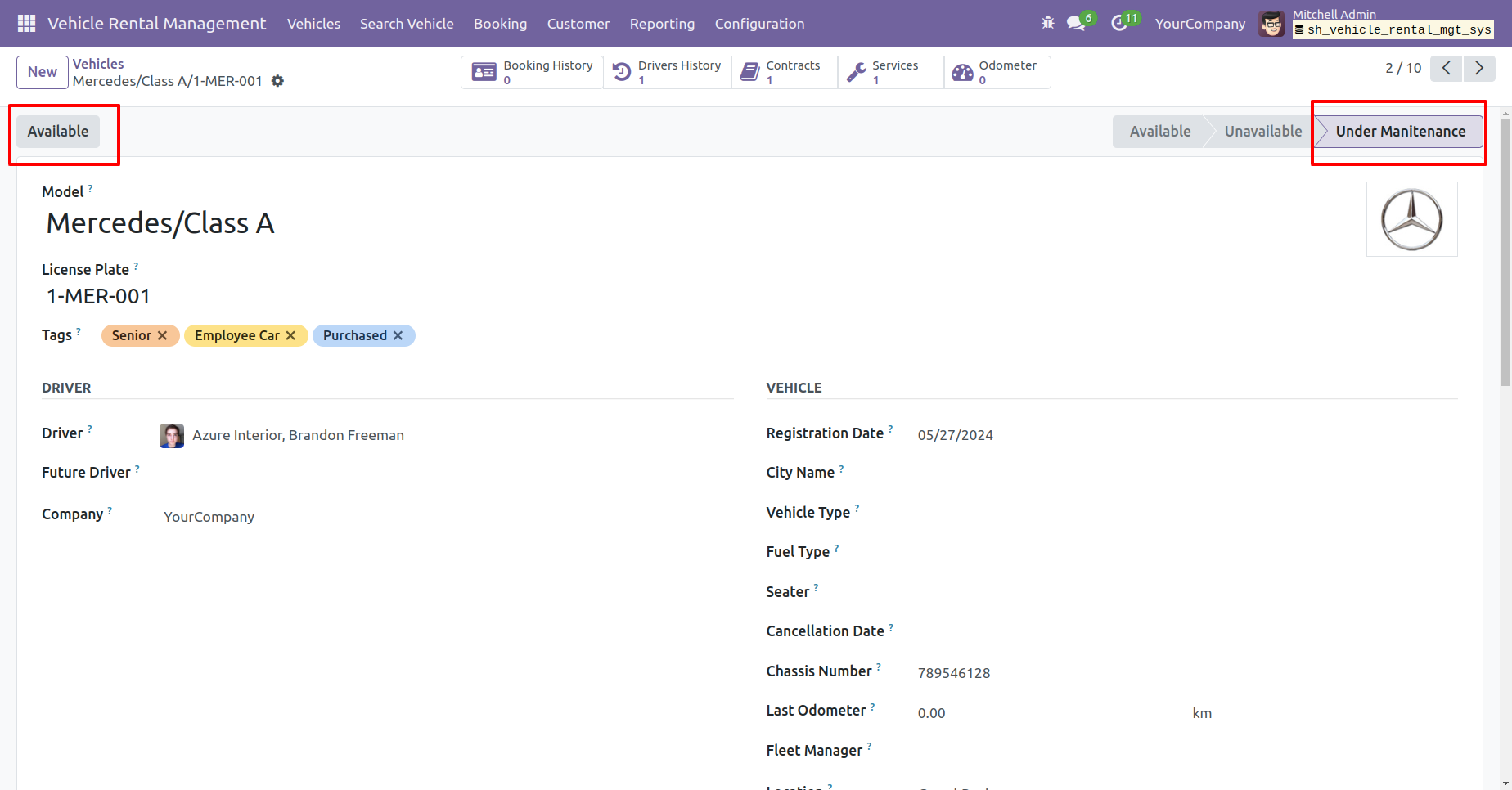
The stage has been changed to 'Under Maintenance.' Click the 'Available' button to make the vehicle available.
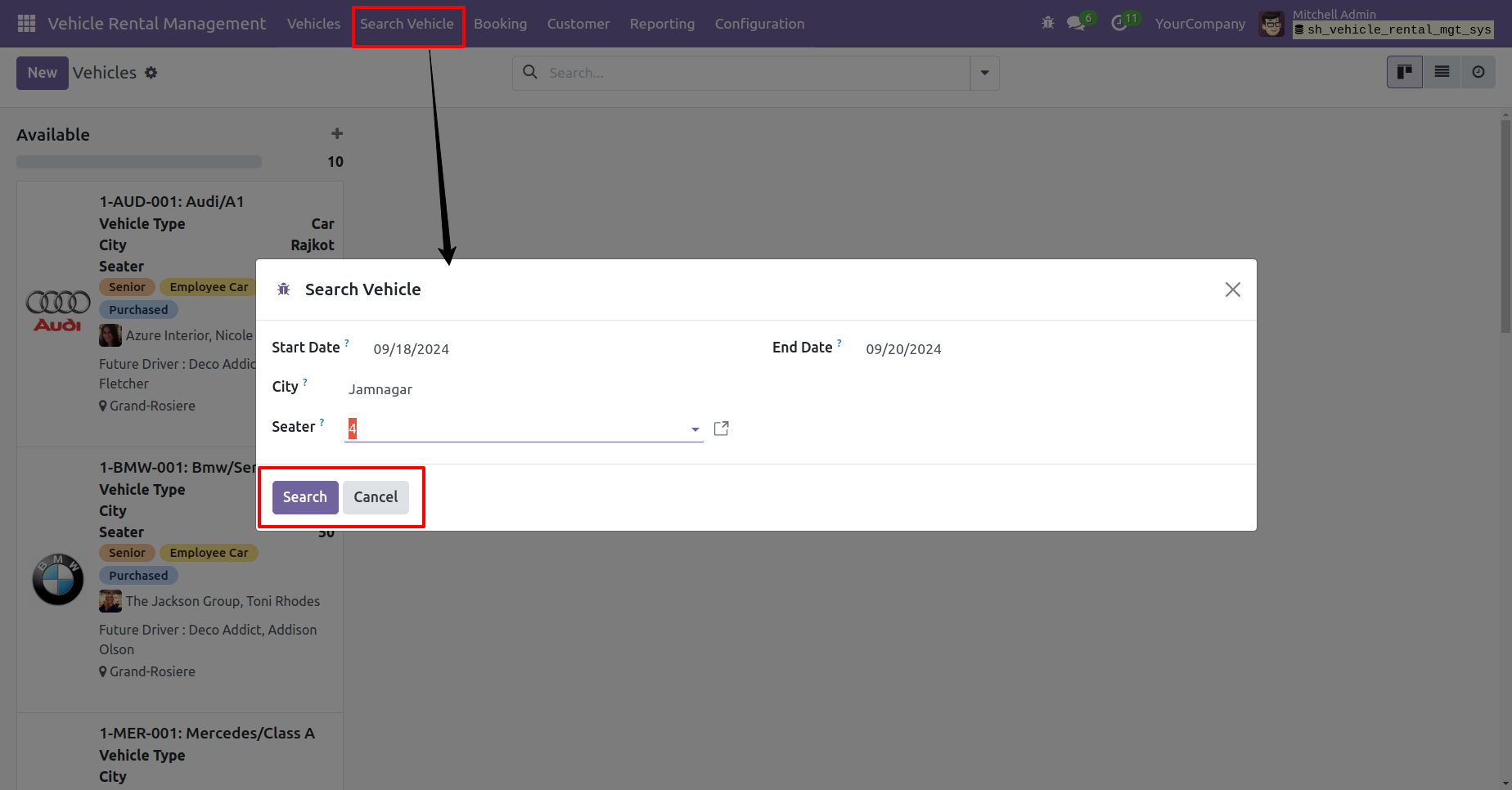
You can search for a vehicle by clicking the 'Search Vehicle' menu. In the wizard, select the start and end dates, city, and seat capacity, then click the search button.
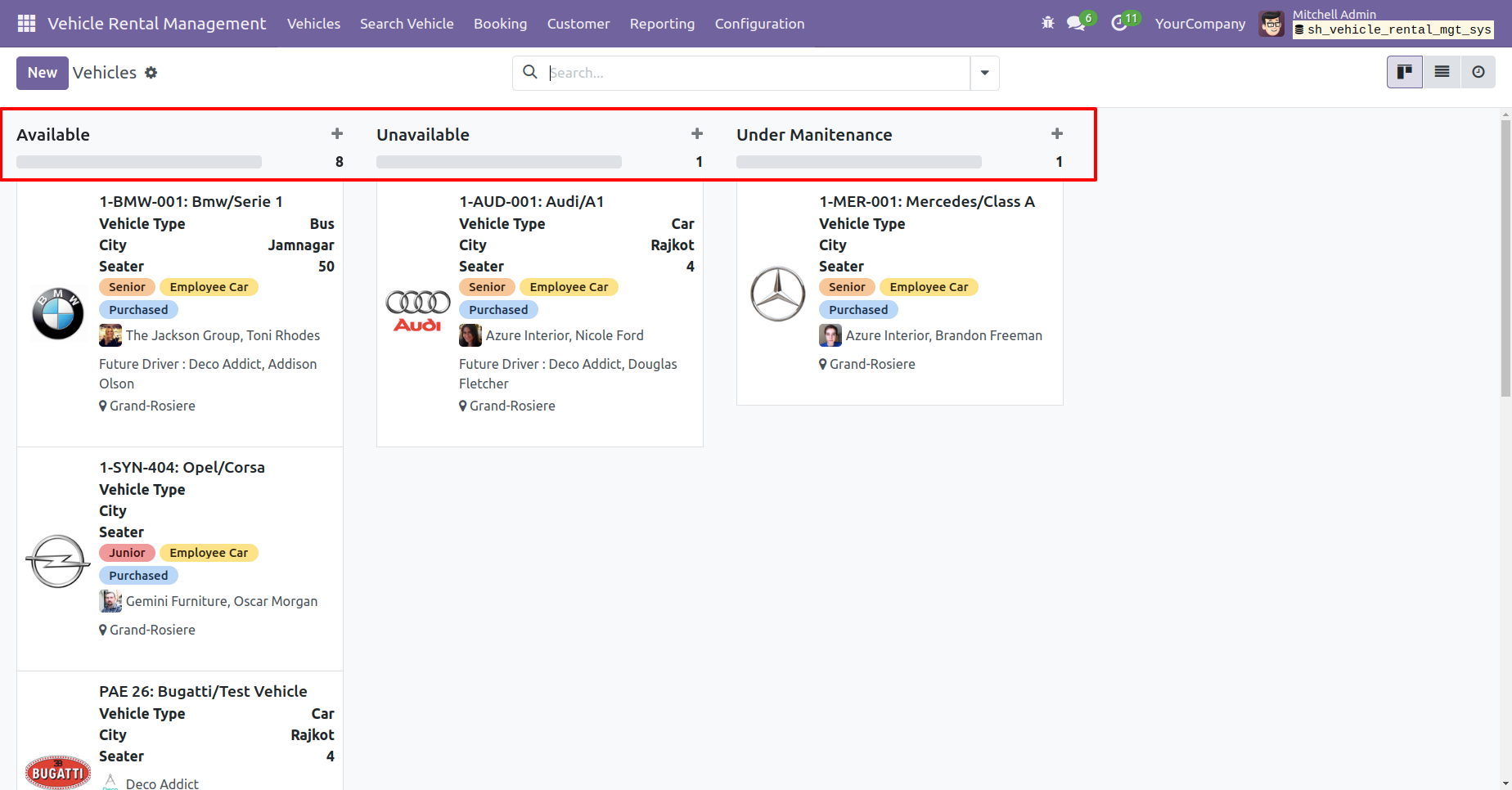
Kanban view of the vehicles.
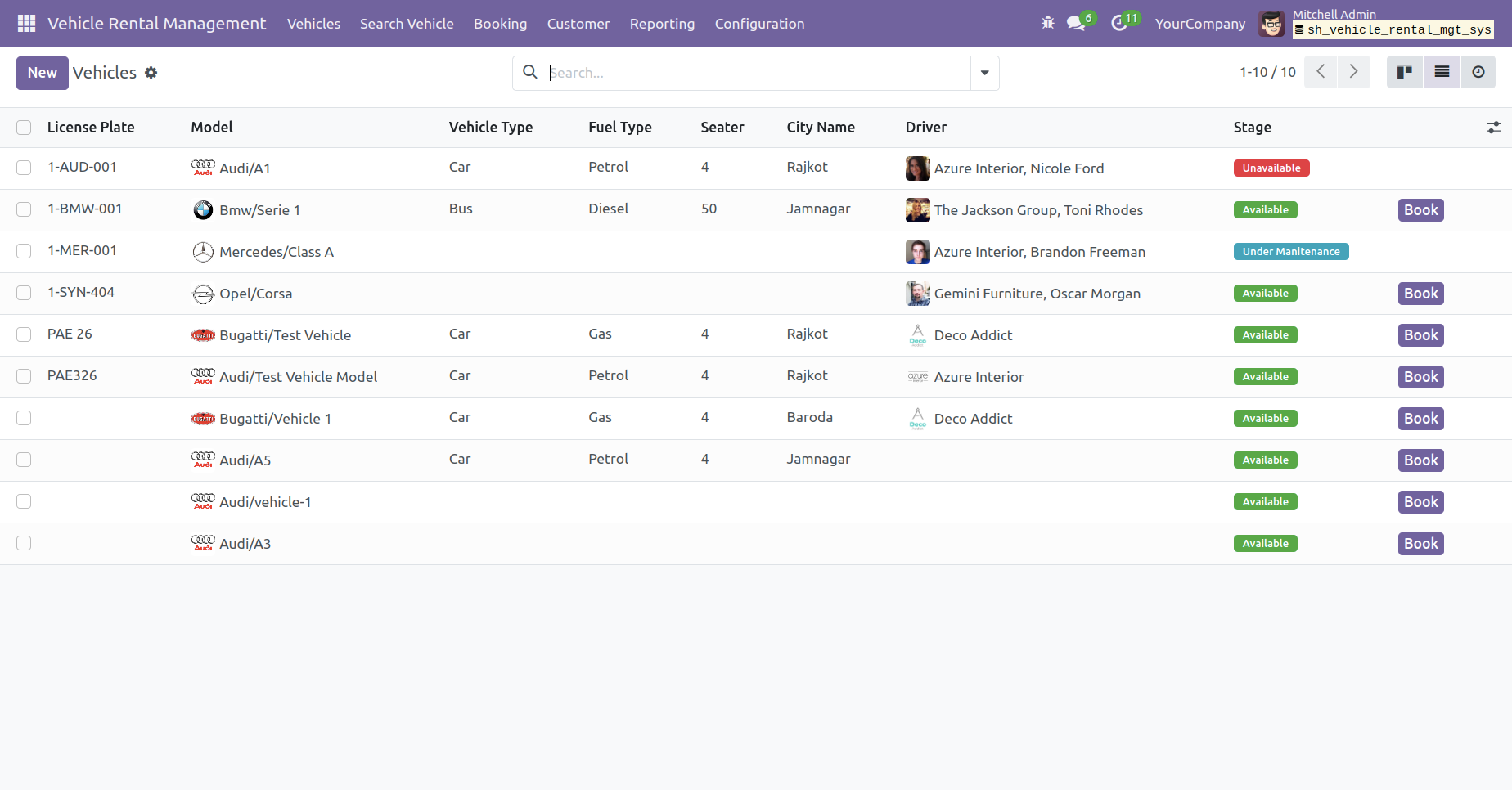
Tree view of the vehicles.
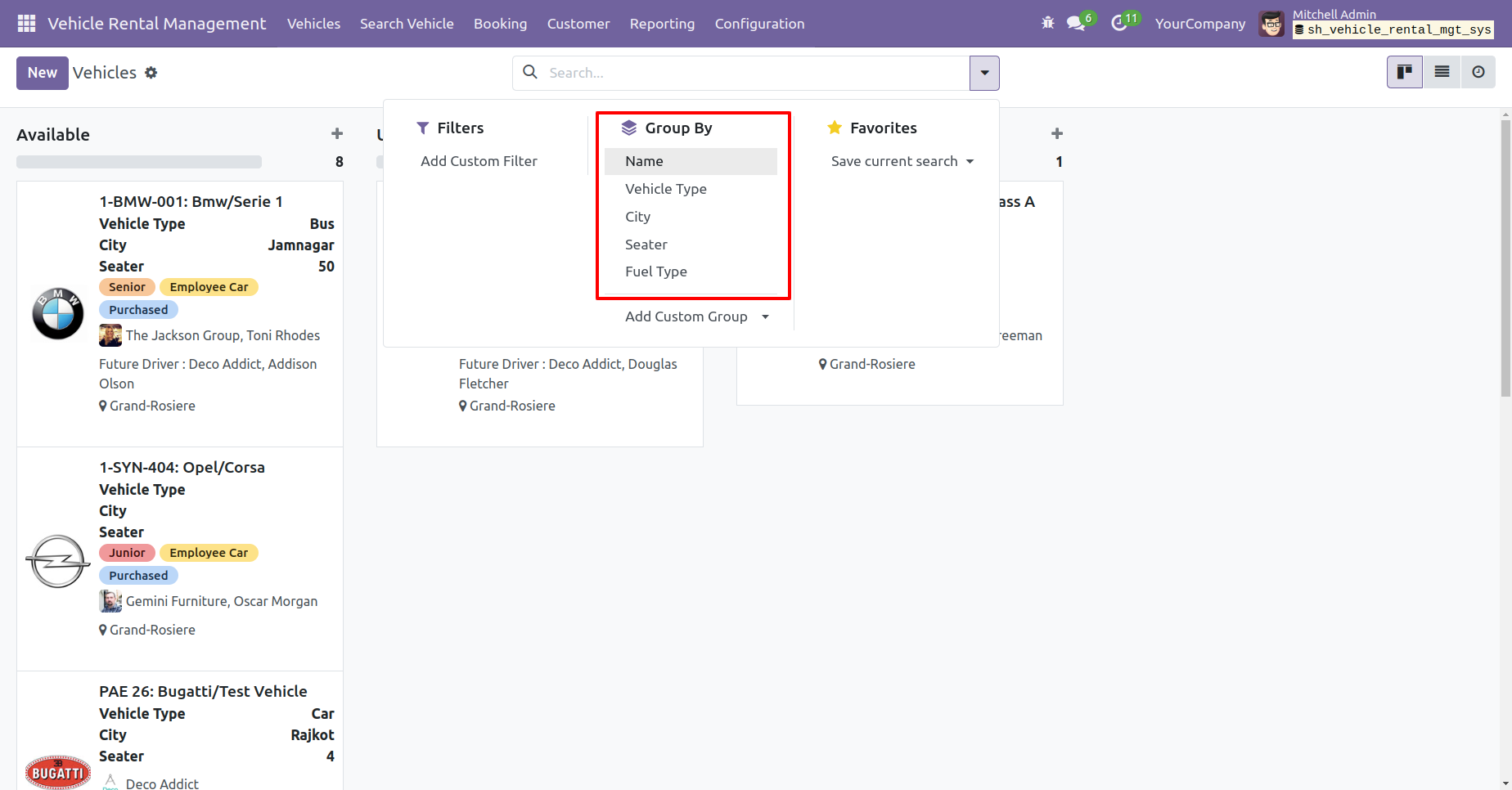
You have the option to group by the vehicles.
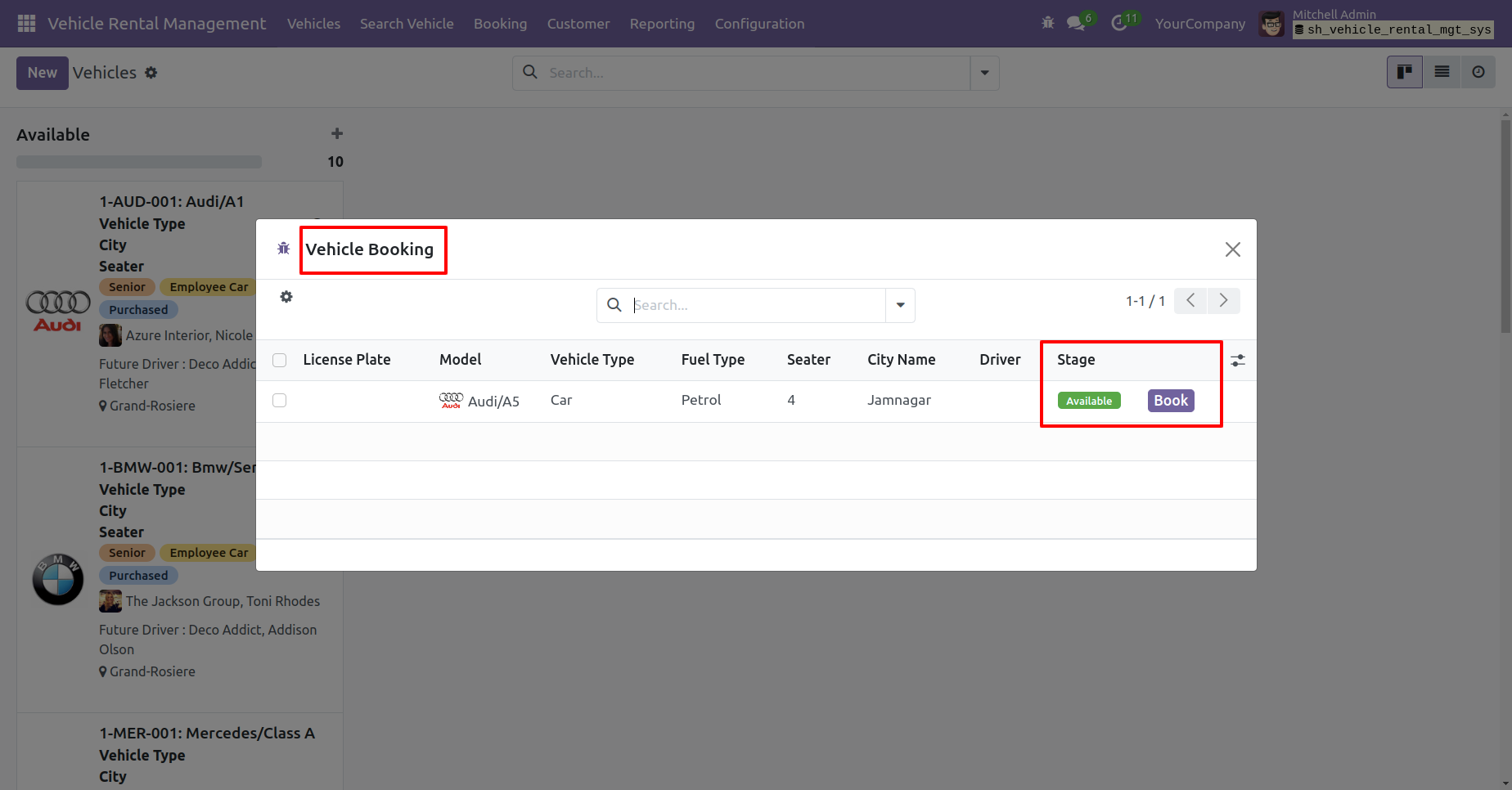
You will see the list of searched vehicles in the booking wizard. Click on 'Book' button to reserve a vehicle.
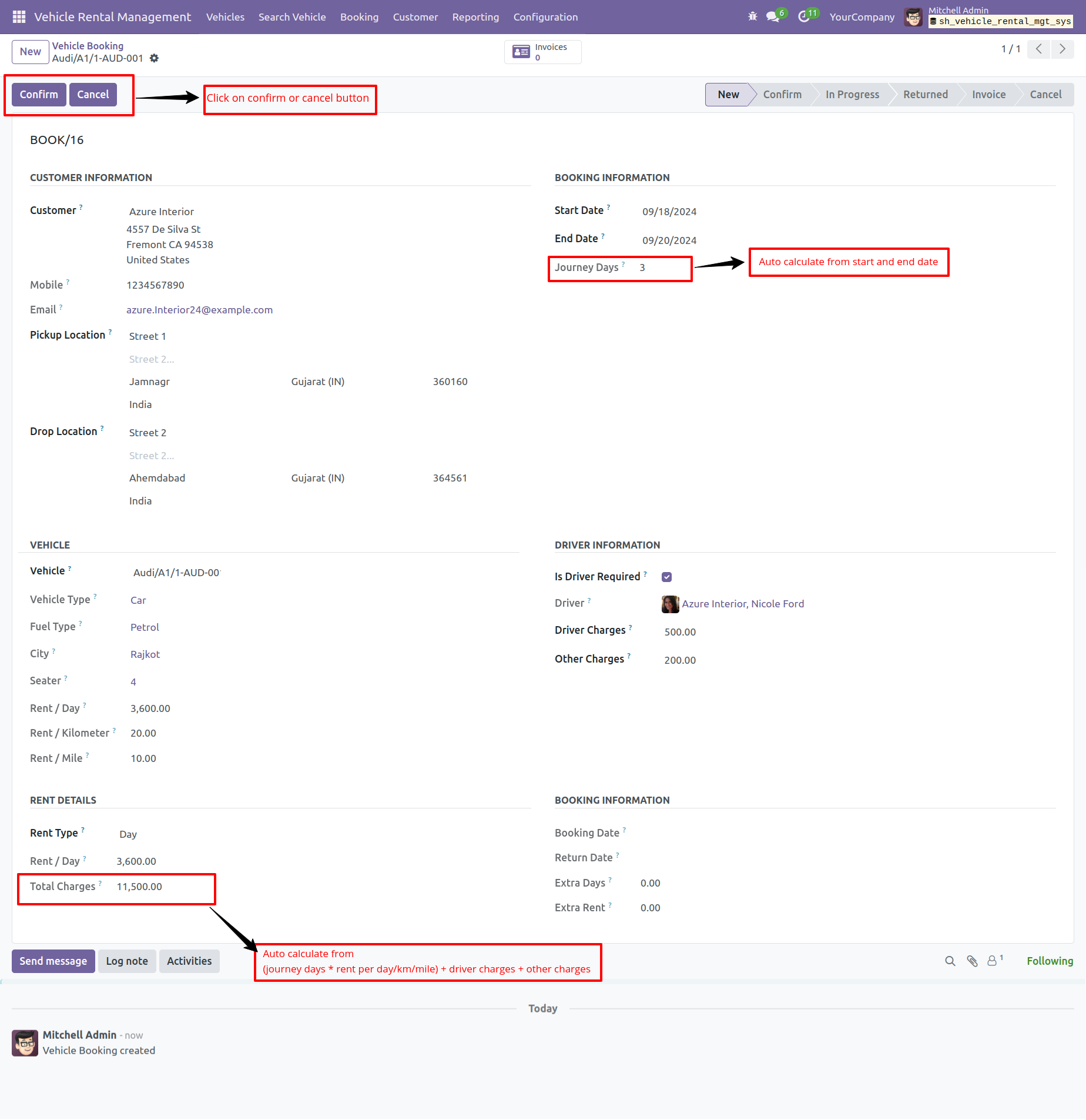
After that you will redirect to the vehicle booking form view. Add details. Click on the 'Confirm button.
Note: The journey days are calculated based on the start and end dates.
The total rental charges are automatically calculated based on the rental type.
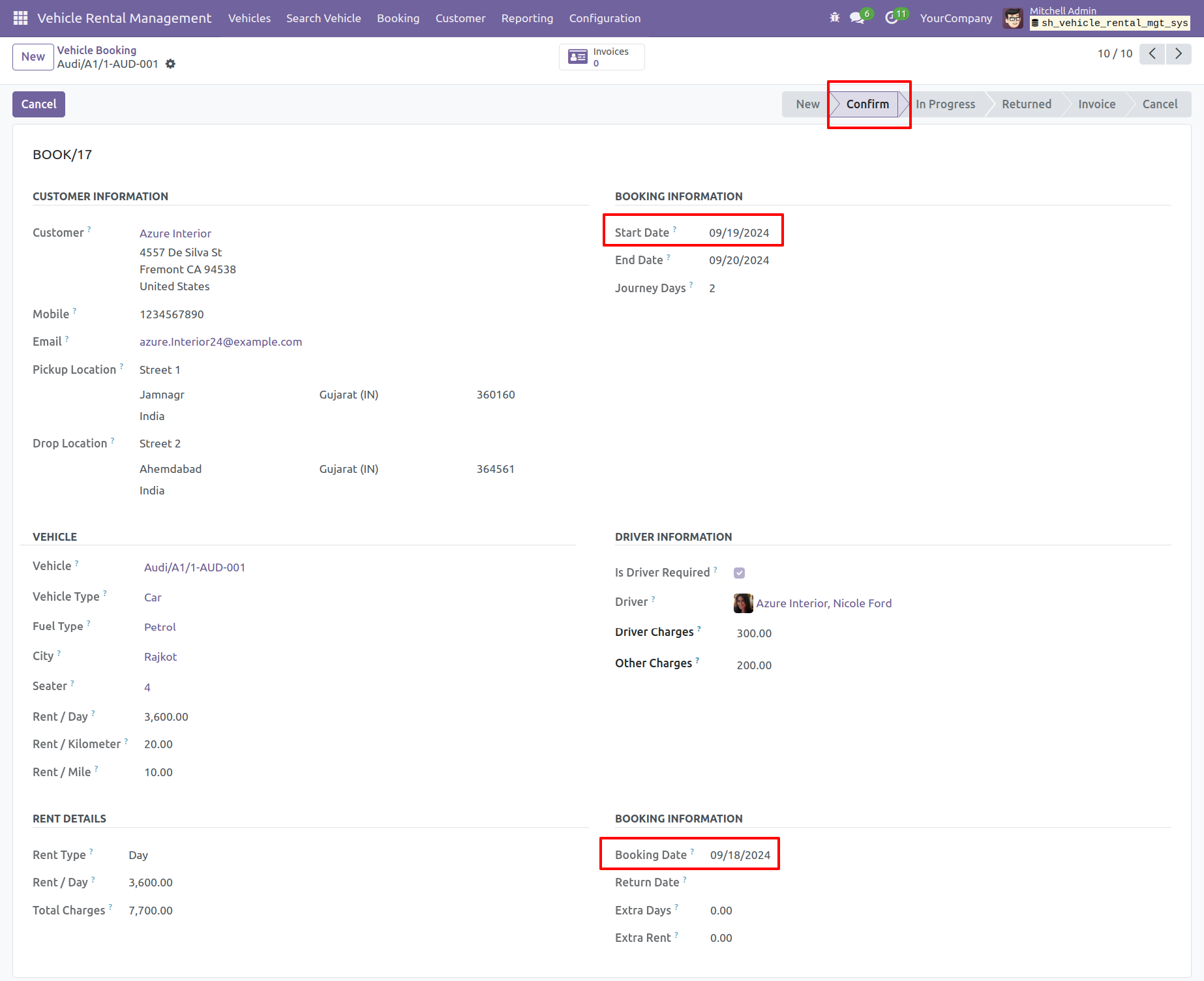
The booking order is now in the 'Confirm' stage. You can see the booking date here.
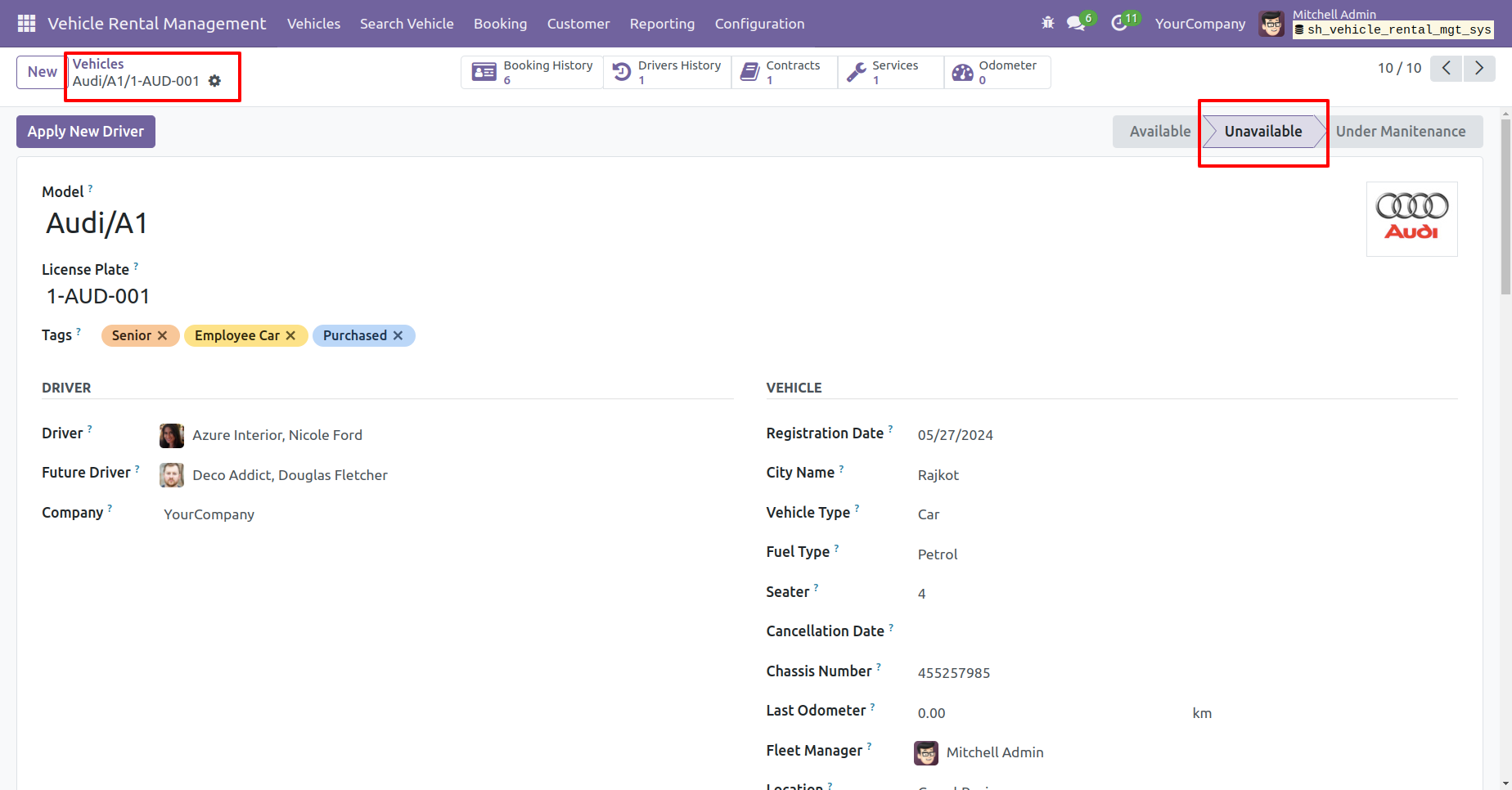
Here, you can see the vehicle is in the 'Unavailable' stage.
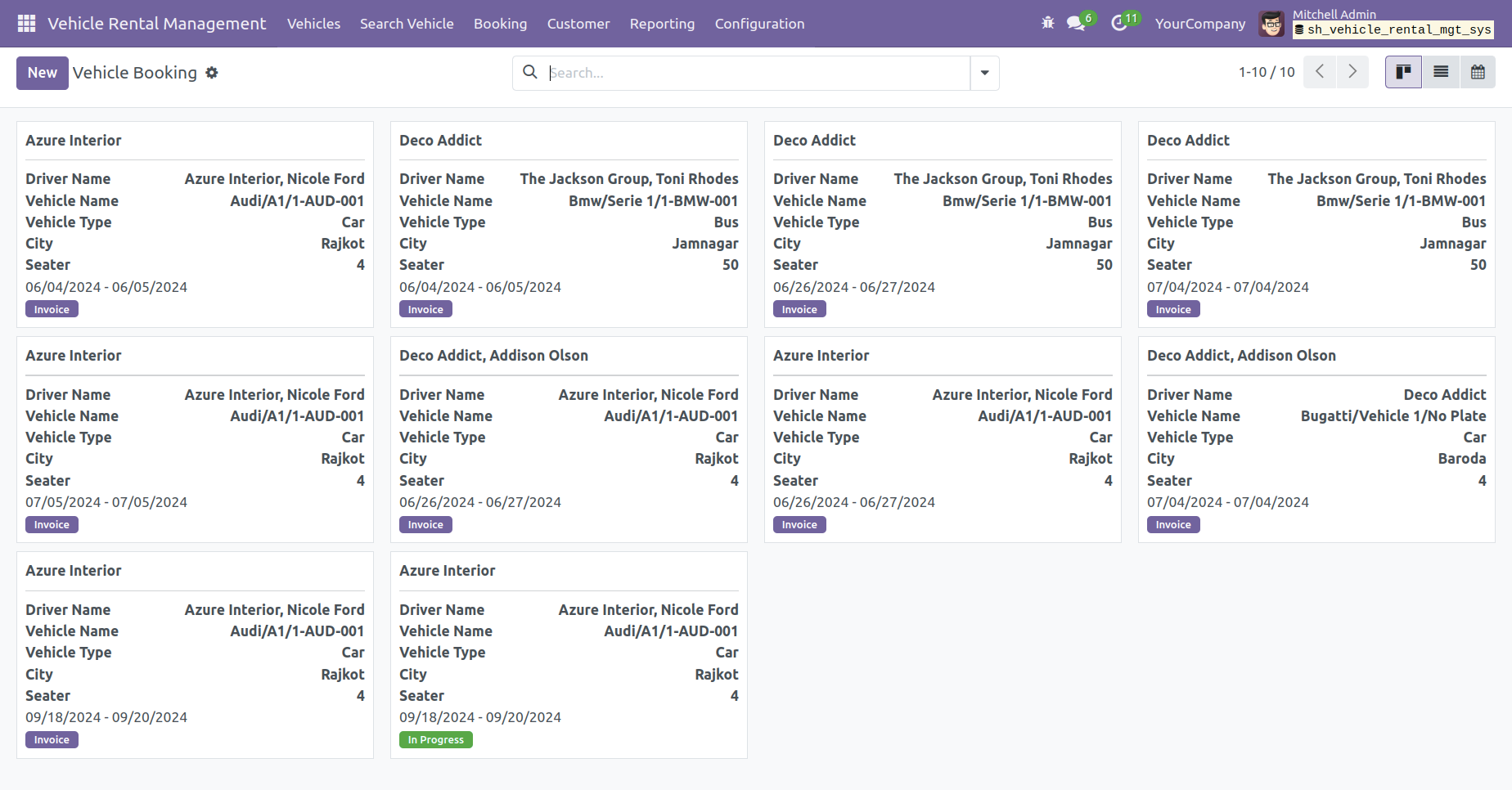
Kanban view of the vehicle booking.
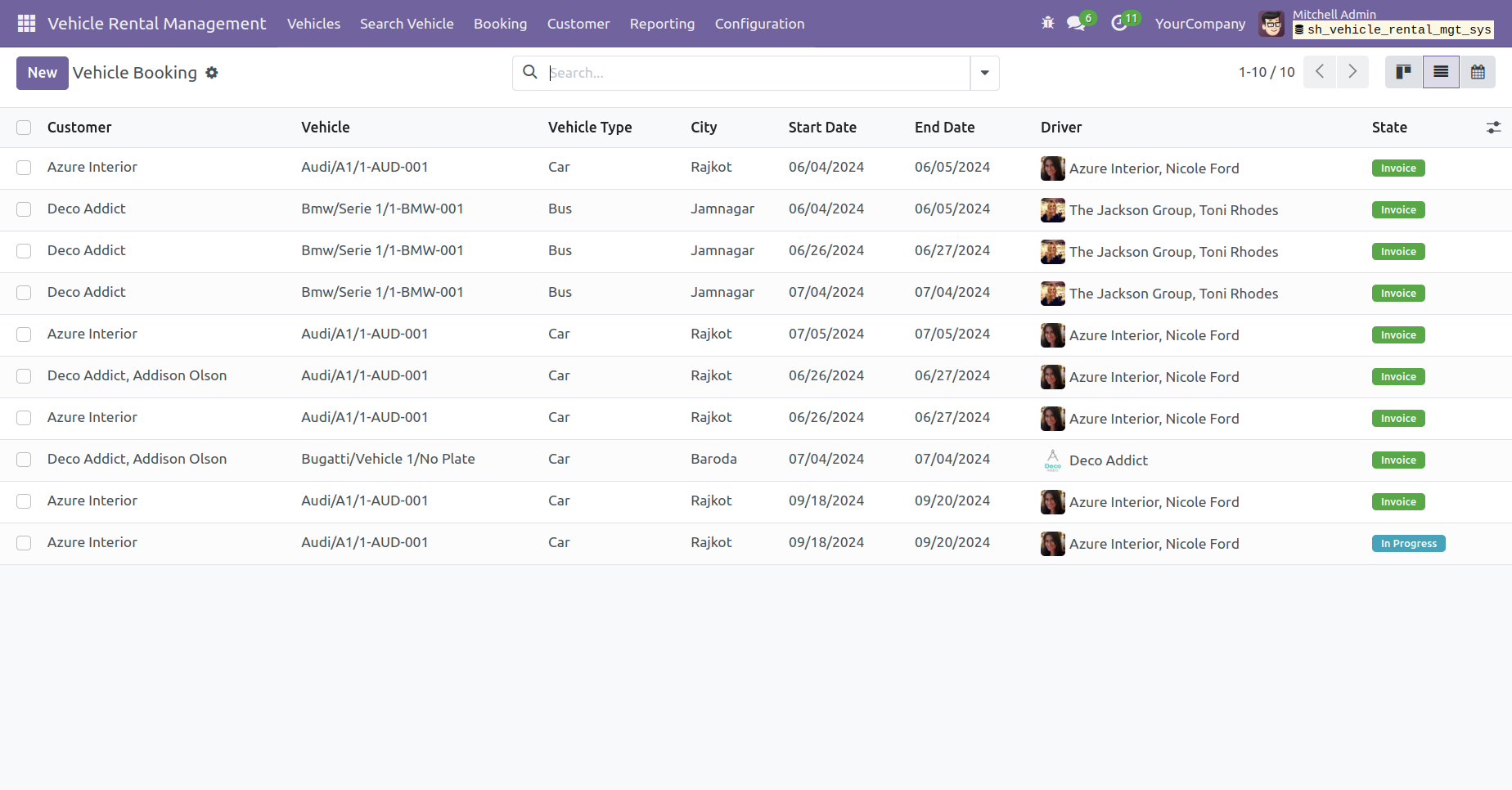
Tree view of the vehicle booking.
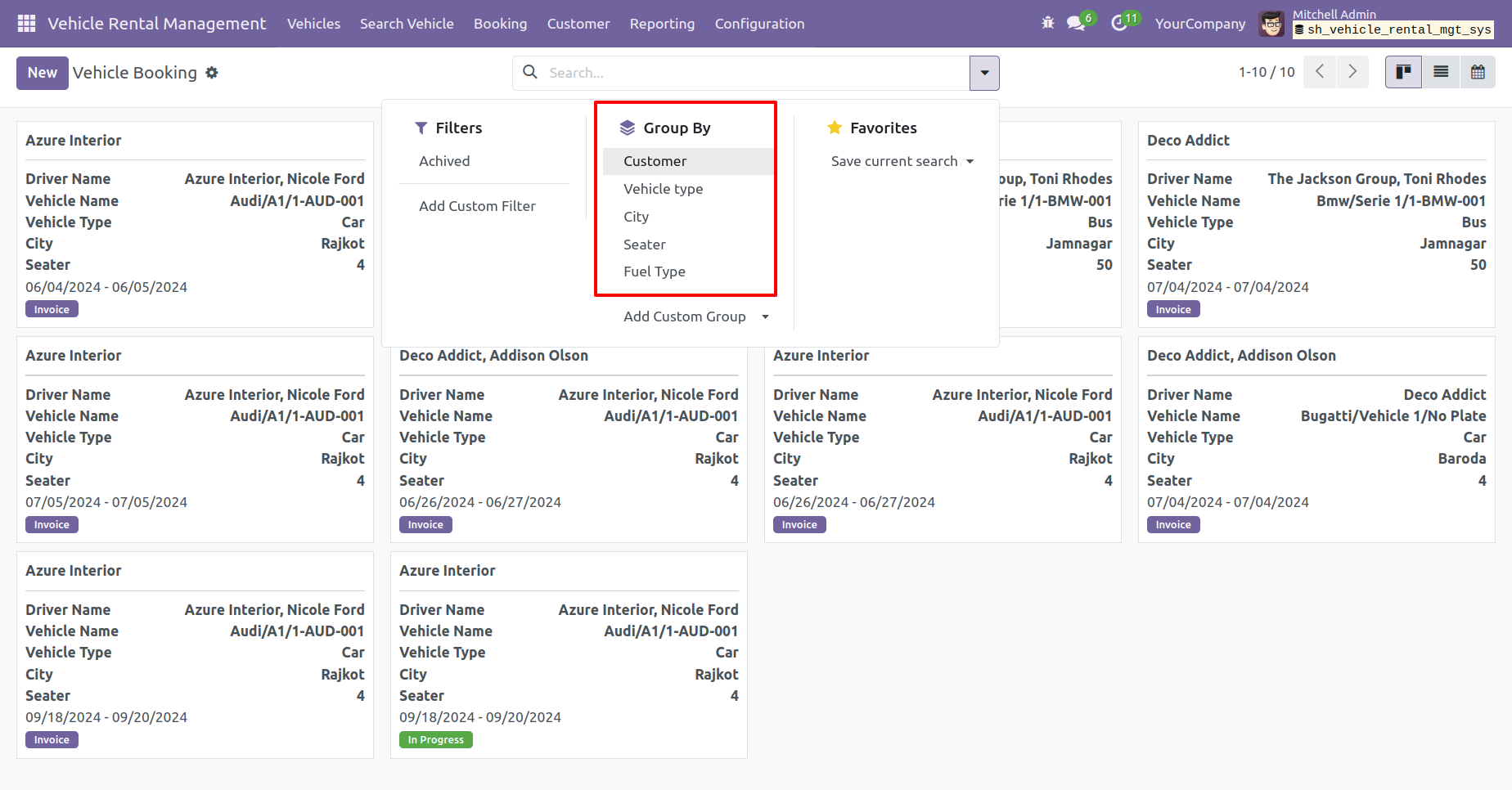
You have the option to group by vehicle booking.
You can view the vehicle booking report from the 'Reporting' menu.
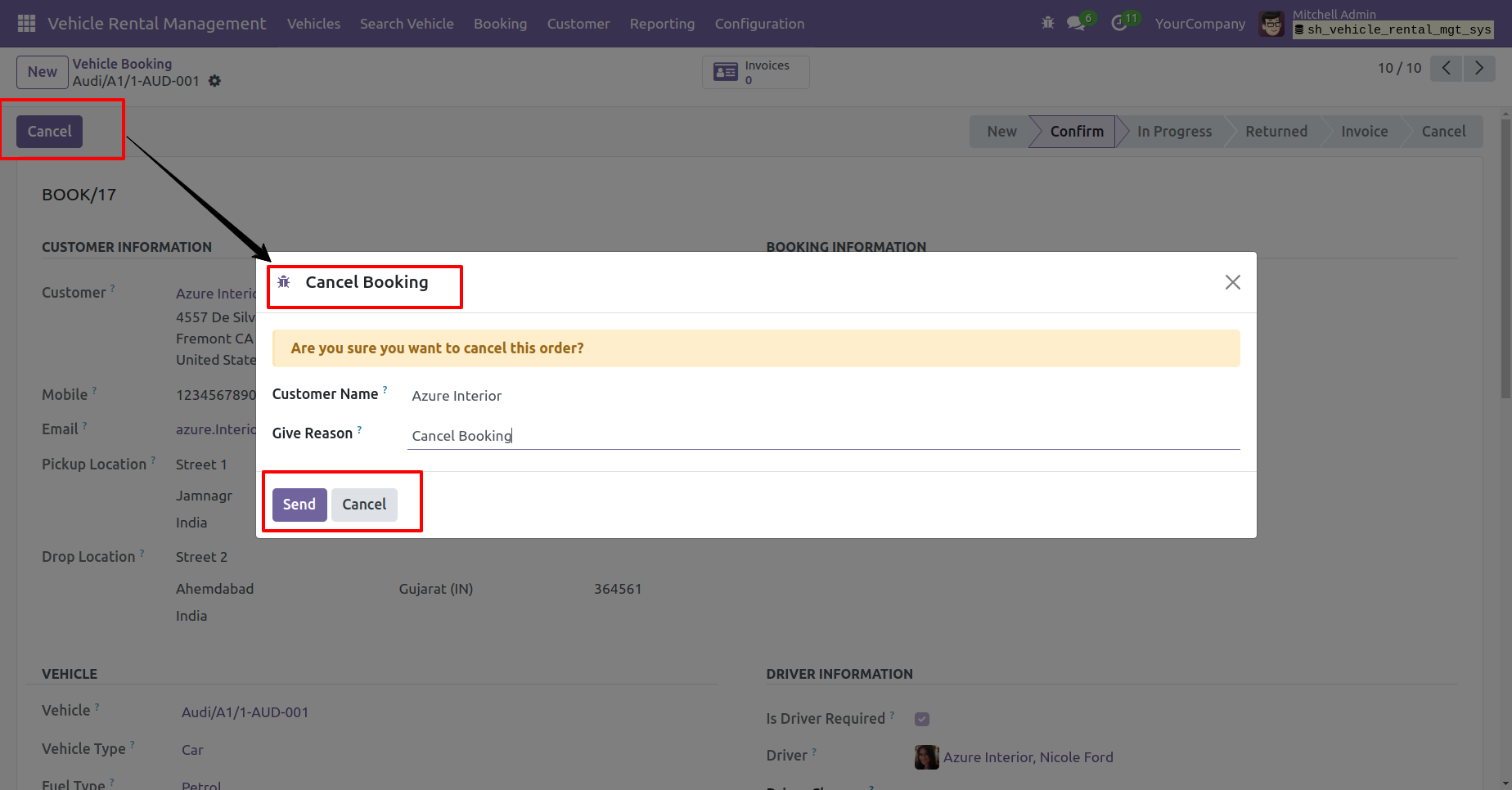
You can cancel the vehicle booking by clicking on 'Cancel' button.
Add a reason in the 'Cancel Booking' wizard and click the 'Send' button.
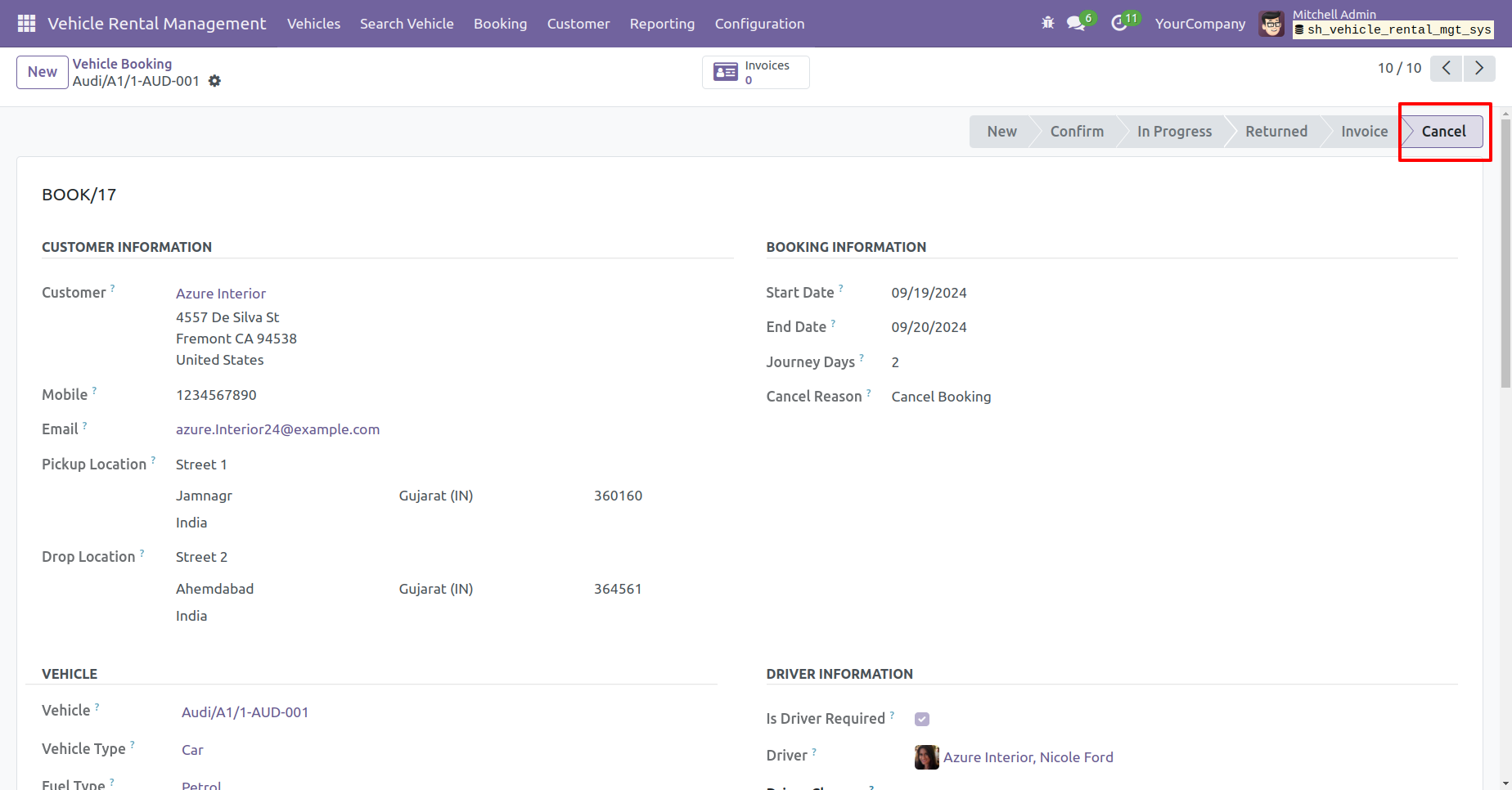
The booking order is now in the 'Cancel' stage.
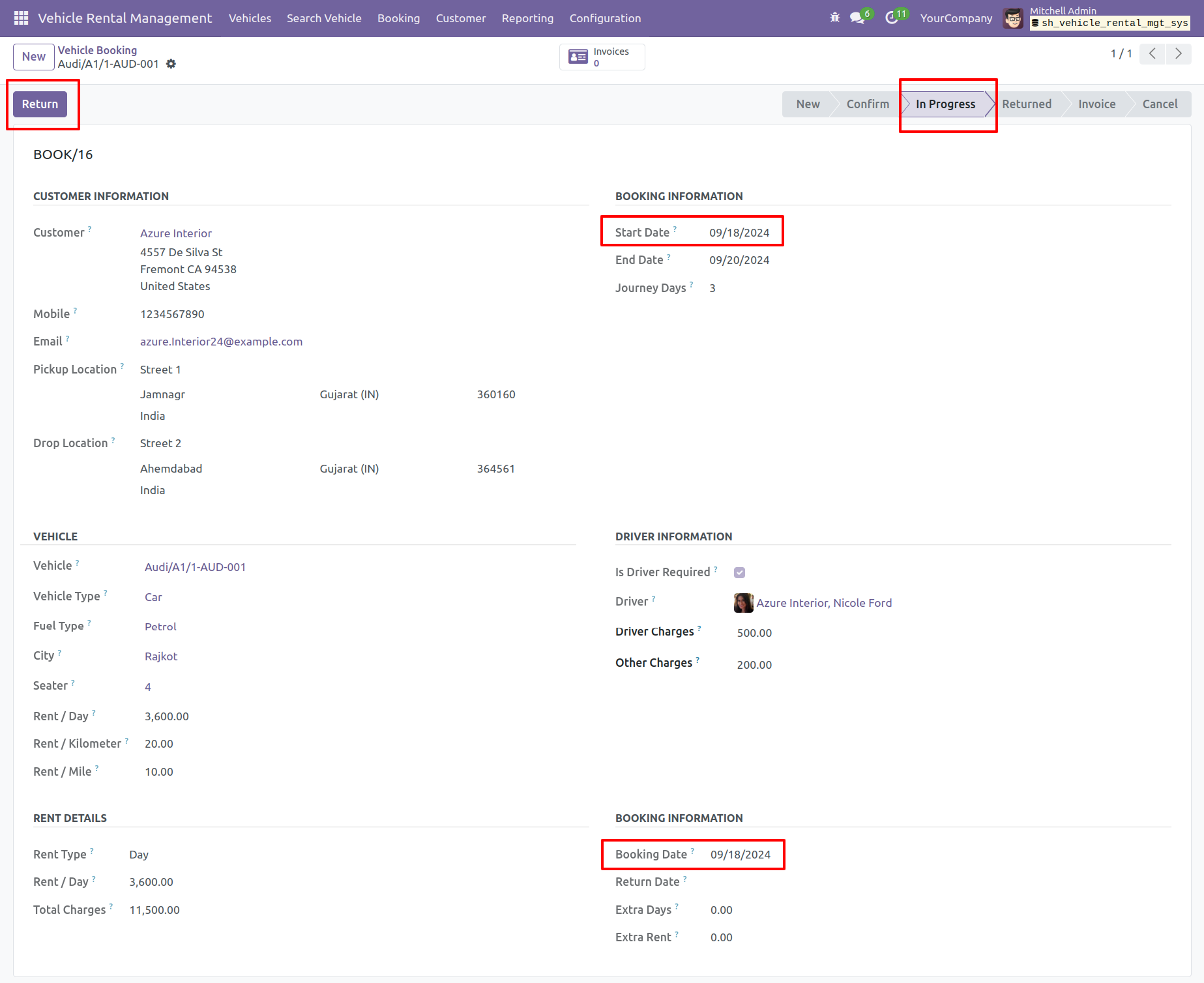
Click the 'Return' button to return the vehicle.
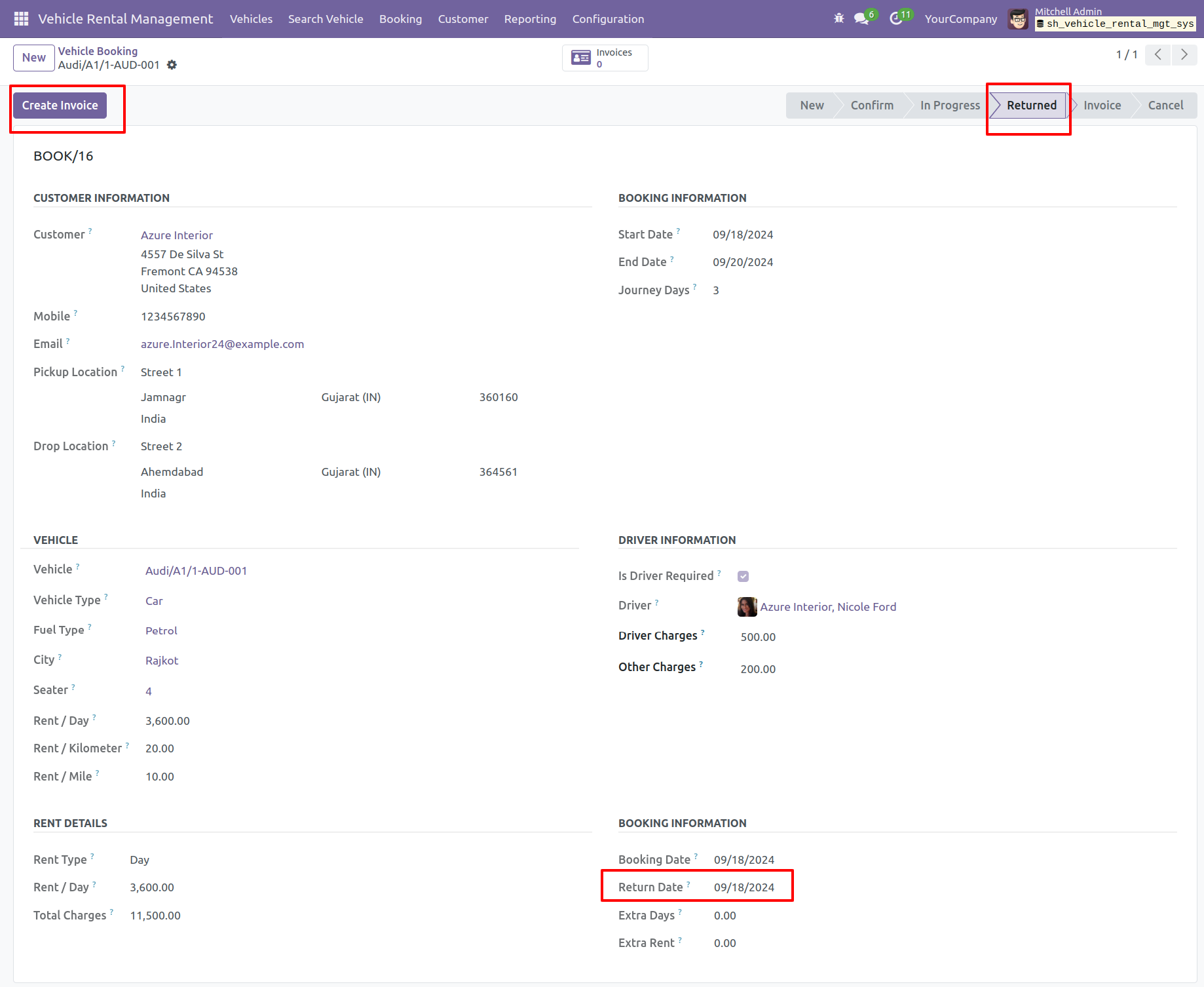
You can see the return date here.
The booking order is in the return stage. To generate an invoice, click the 'Create Invoice' button.
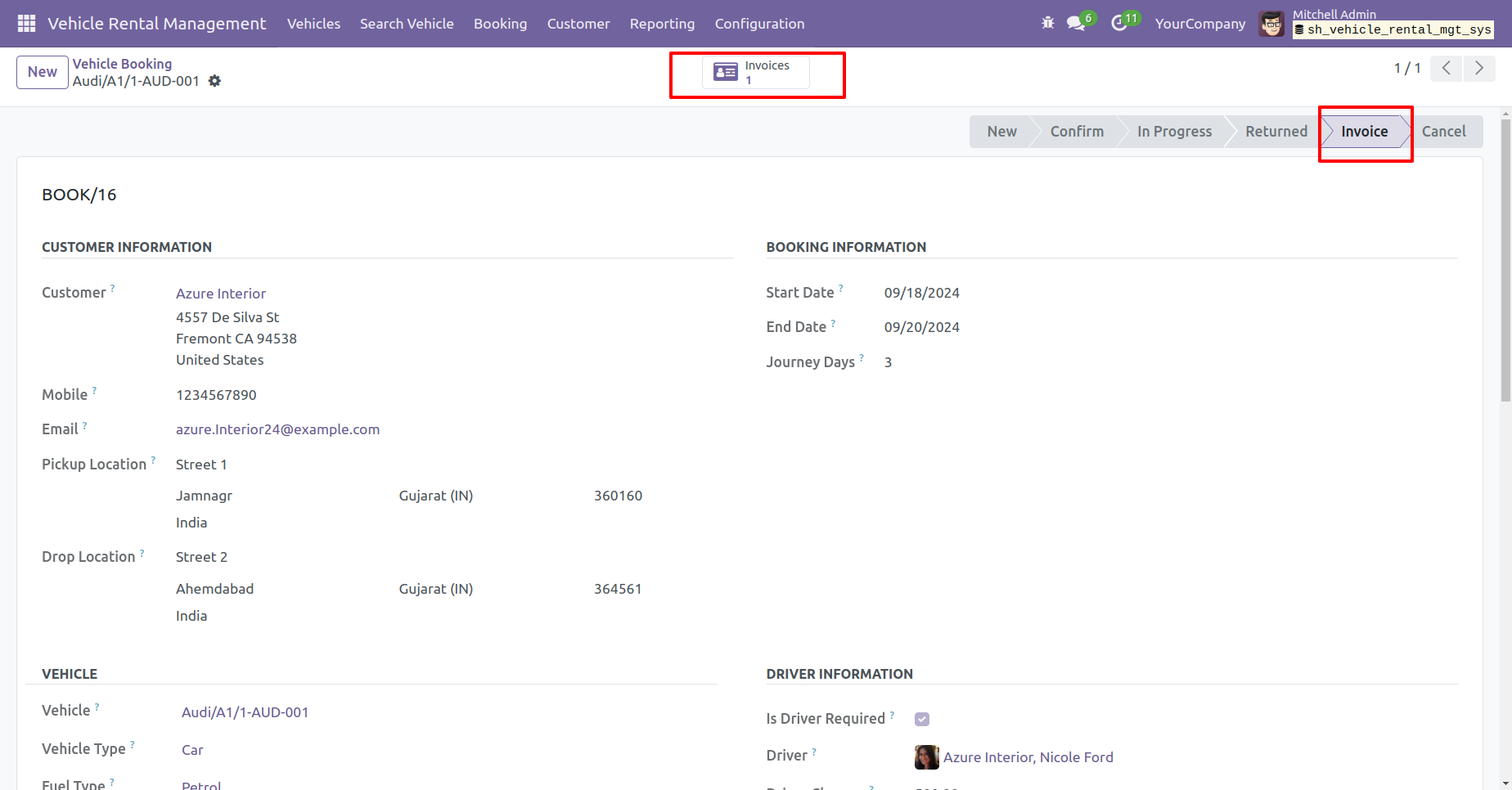
The booking order is now in the 'Invoice' stage. Click the 'Invoice' smart button.
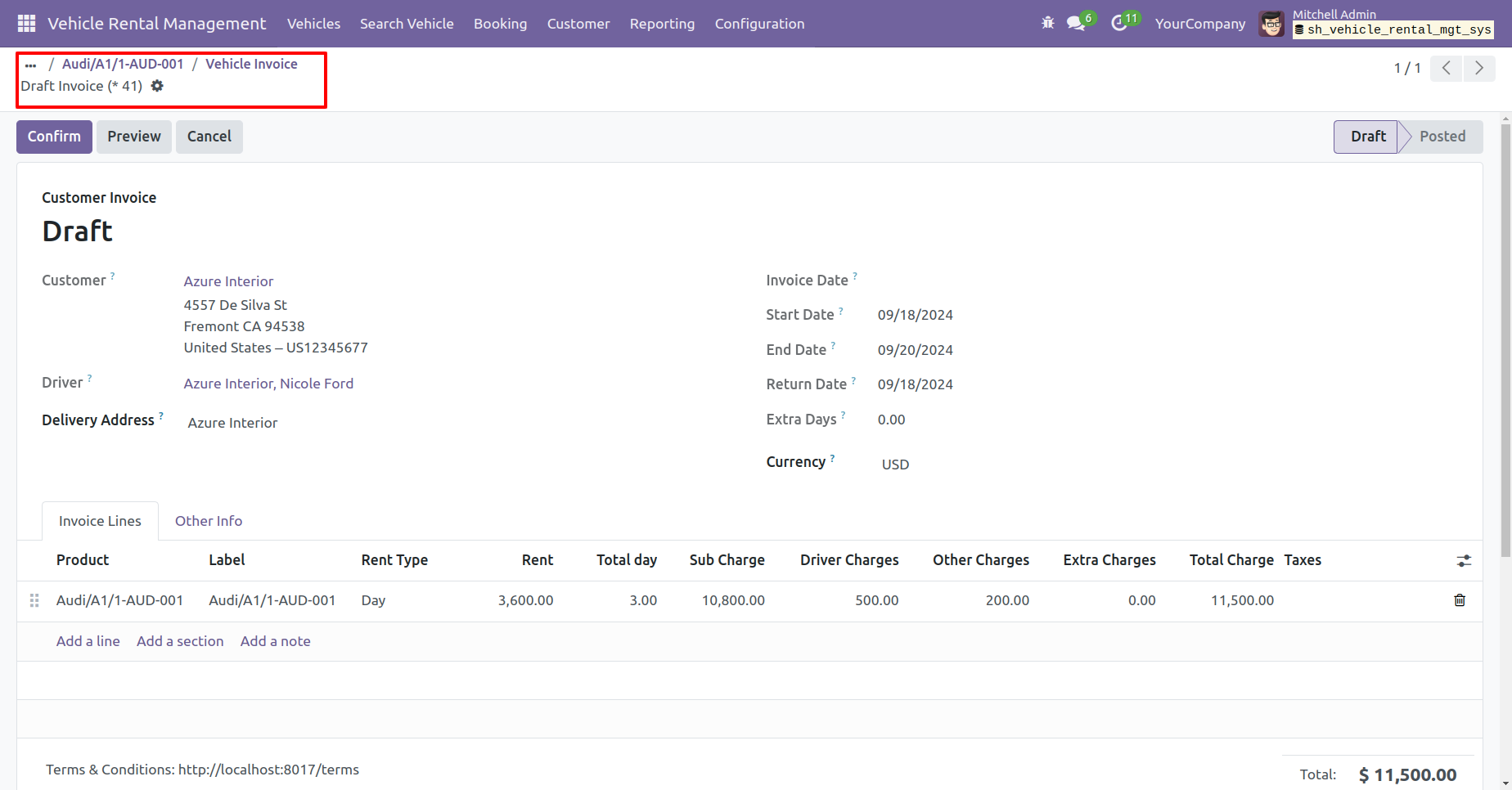
After that, You will be redirected to the invoice form view. Confirm the invoice.
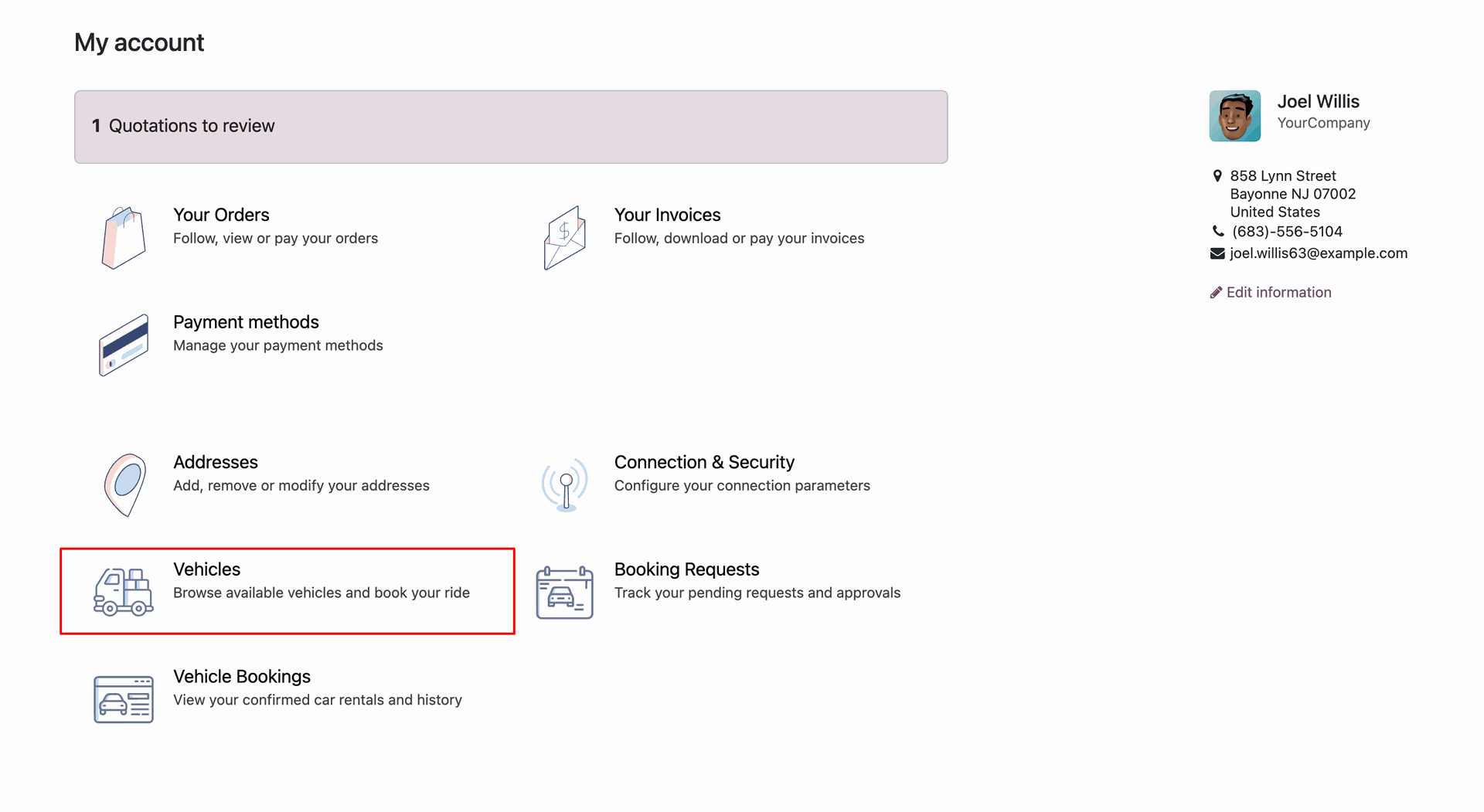
The customer portal dashboard features dedicated sections for 'Vehicles', 'Booking Requests', and 'Vehicle Bookings', allowing users to manage their rentals easily.
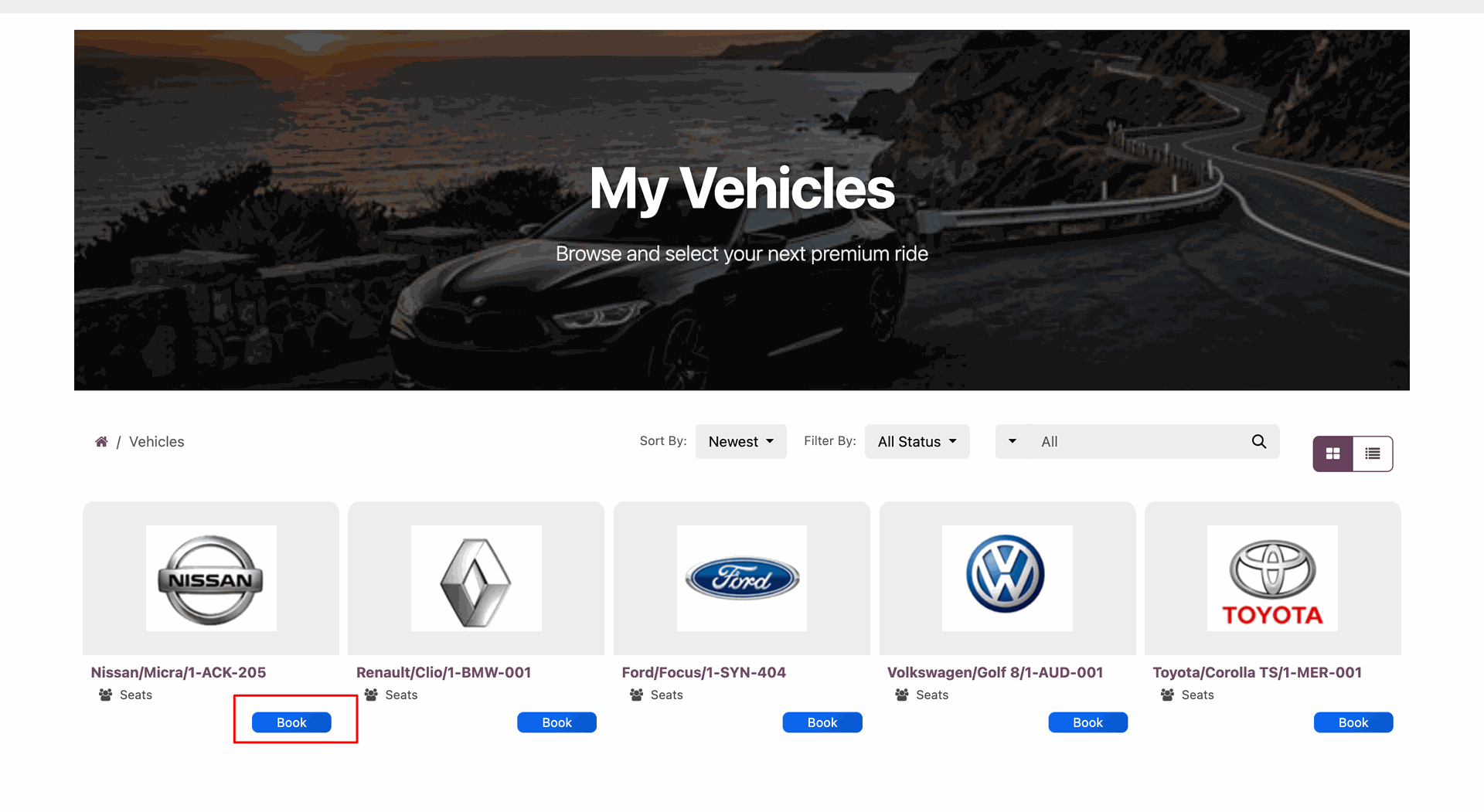
Customers can browse available vehicles in a kanban view, showing a "Book" button for quick reservation.
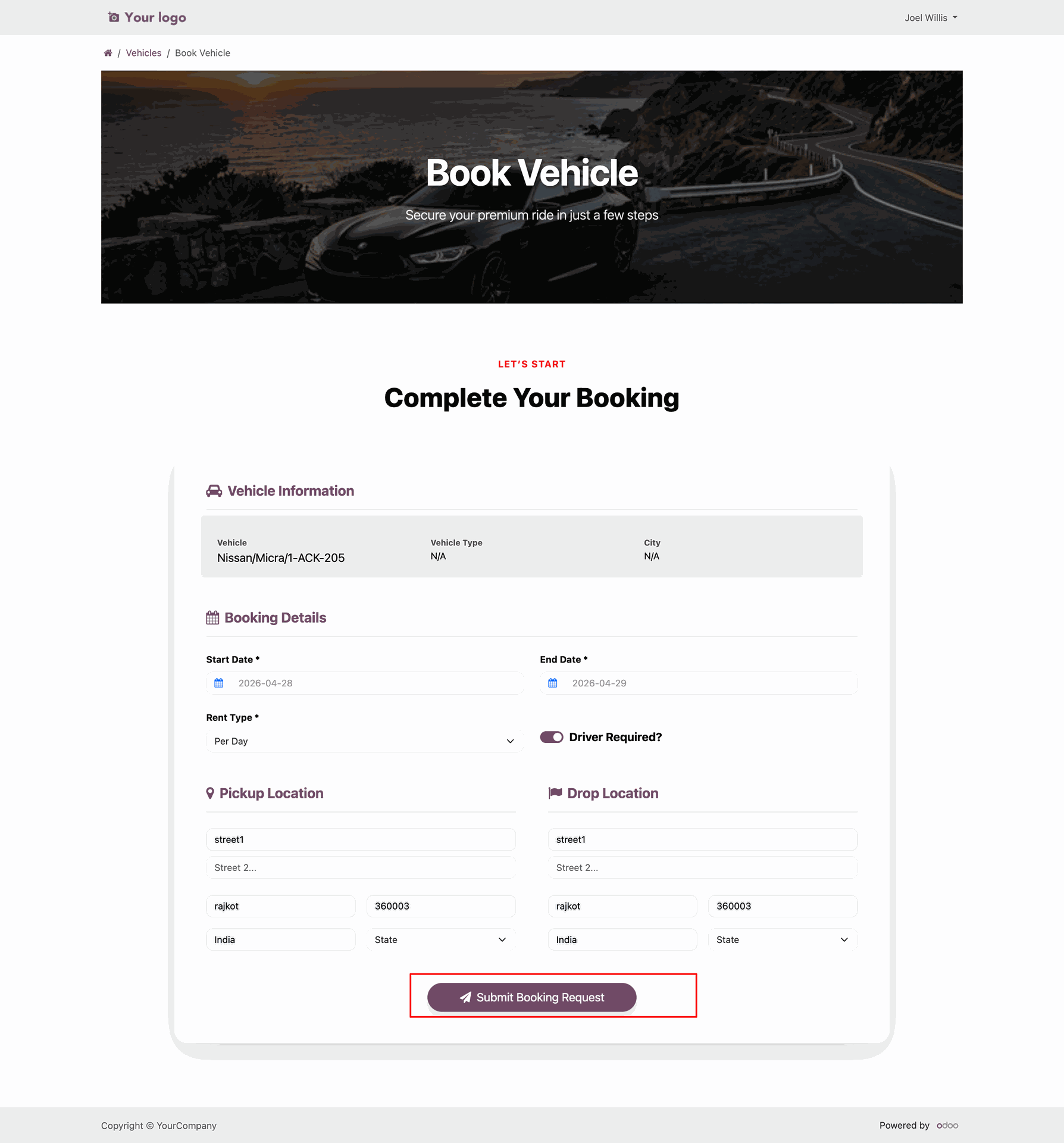
A simple booking request form allows customers to enter pickup and drop-off locations to initiate a rental request. After filling in all the required details, users can click the Submit Request Booking button to complete and submit their request.
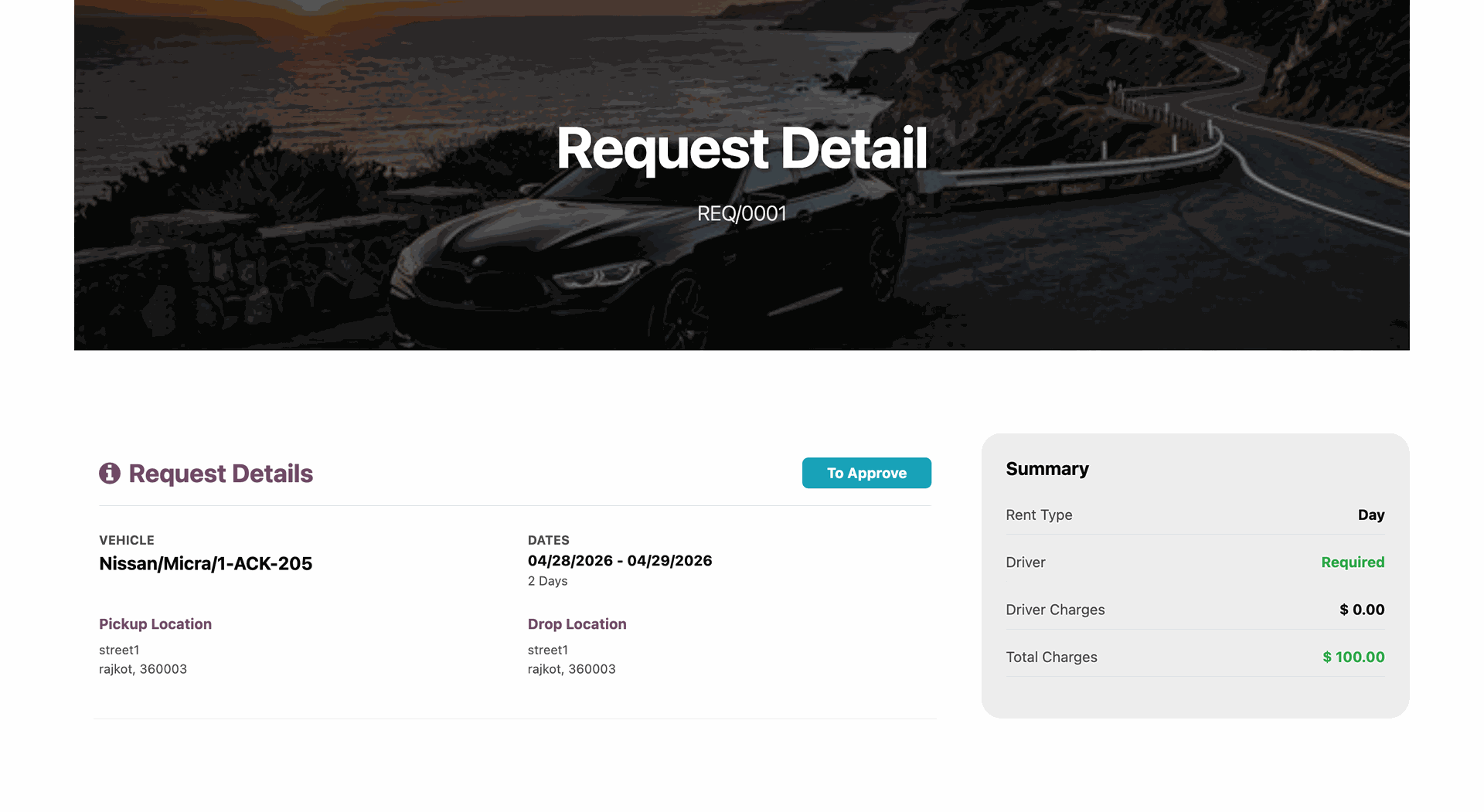
Once the request is submitted, customers can conveniently track its status and view booking details directly from their portal account.
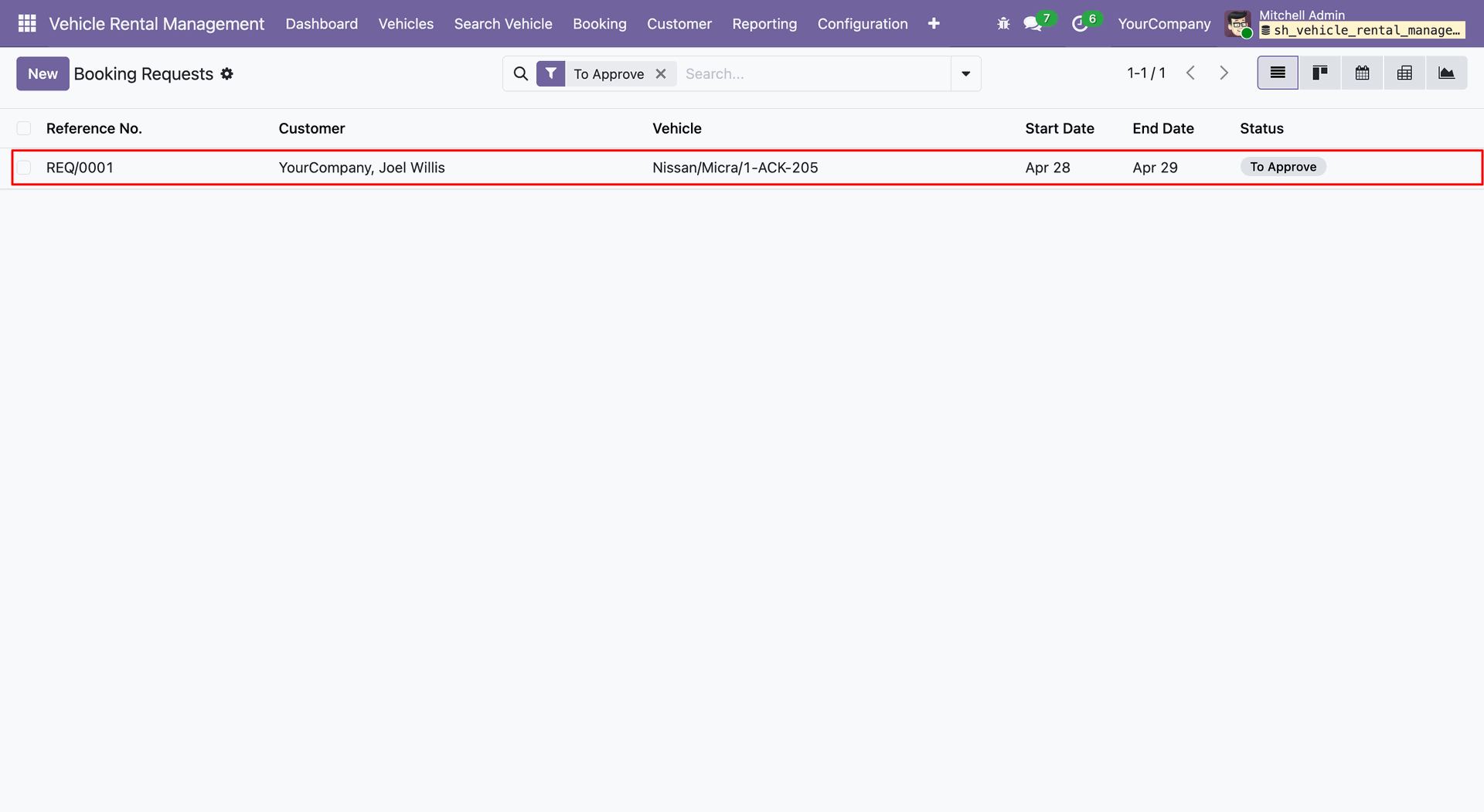
Managers can view and manage all pending portal booking requests in the booking request list view.
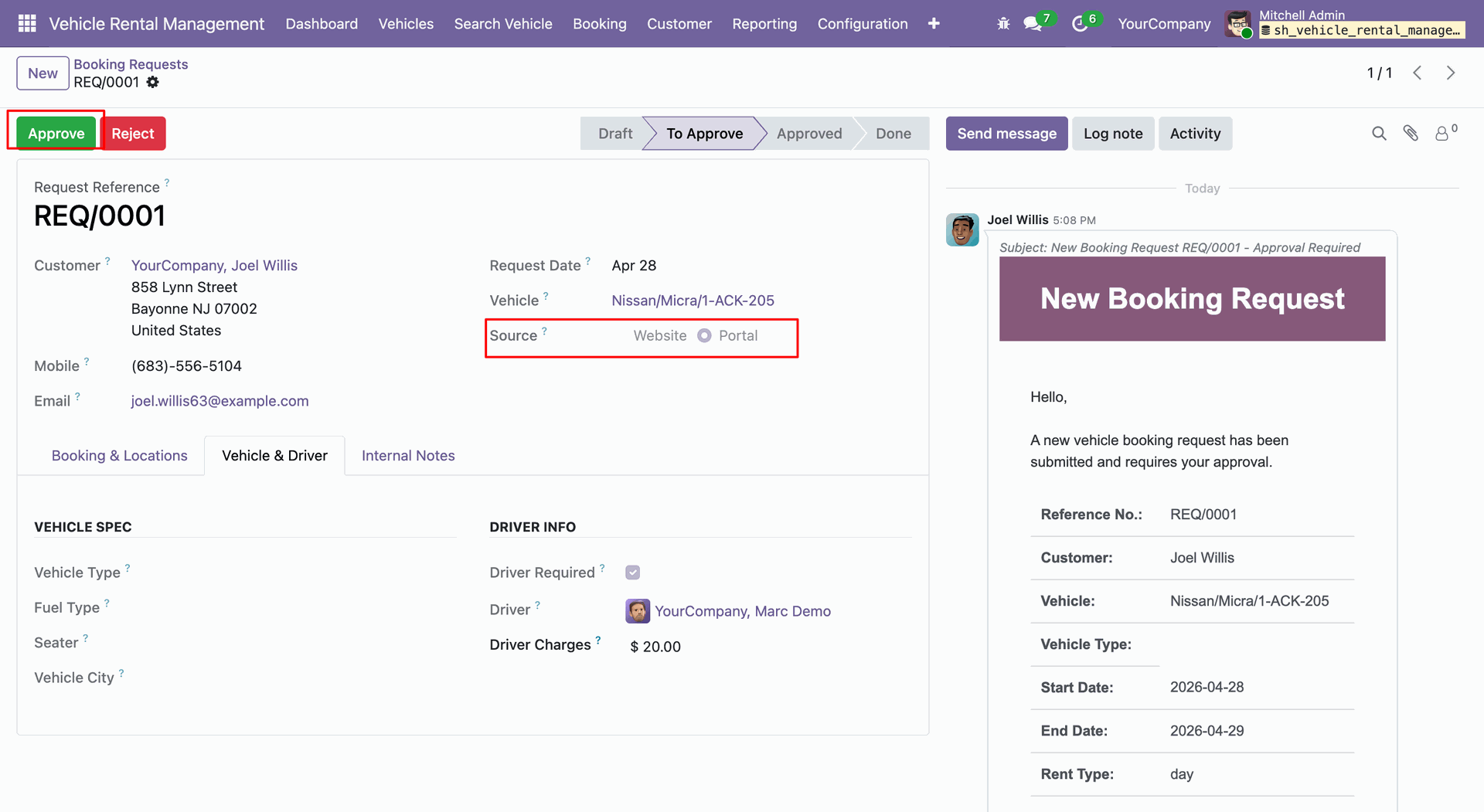
Managers can access the approval form to review the request details and either Approve or Reject it. They can also view the booking source as Portal Booking Request in the booking request form.
Once the booking request is approved, the portal user can view the updated status in their account, and a Pay Now button will be displayed to proceed with the vehicle rental payment.
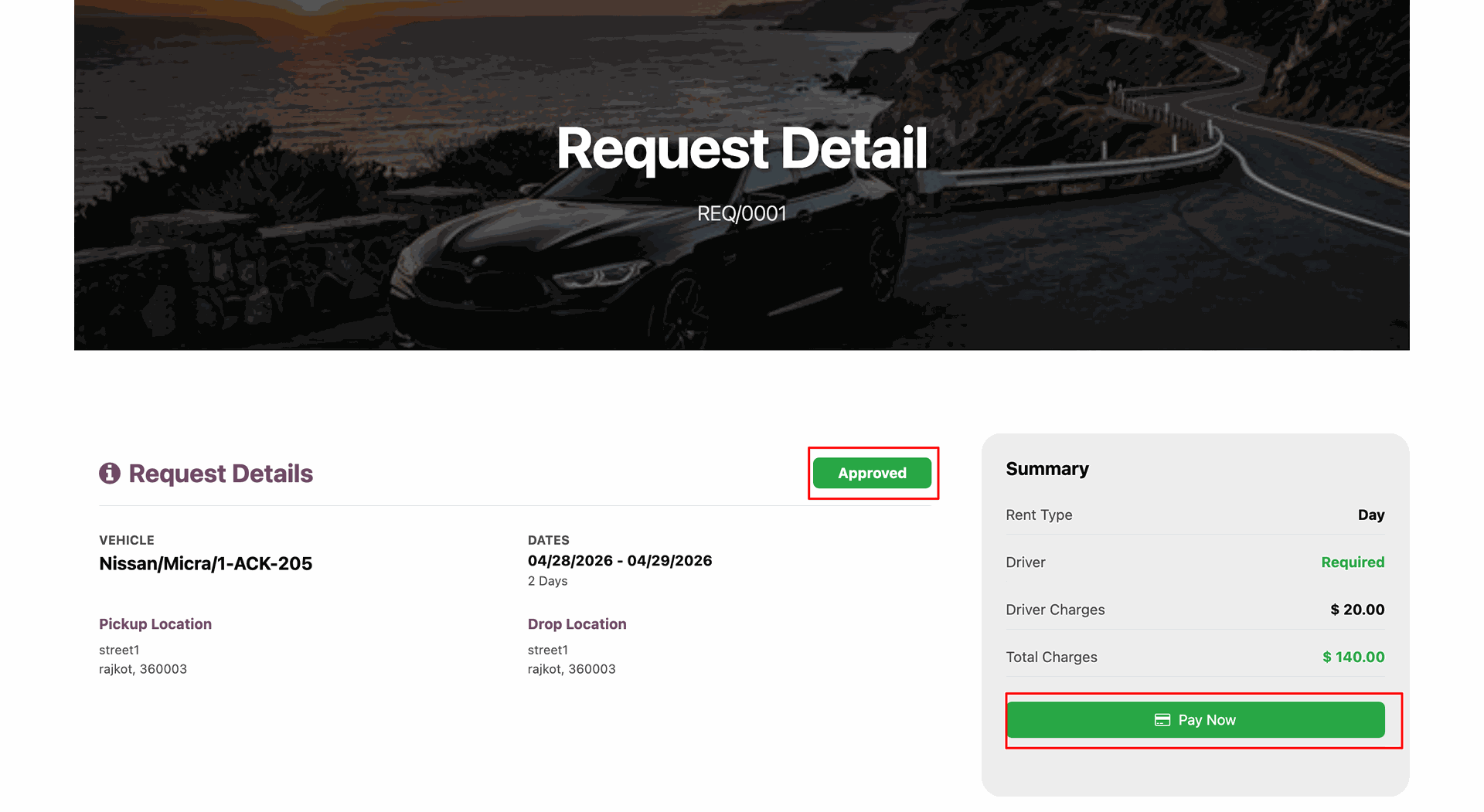
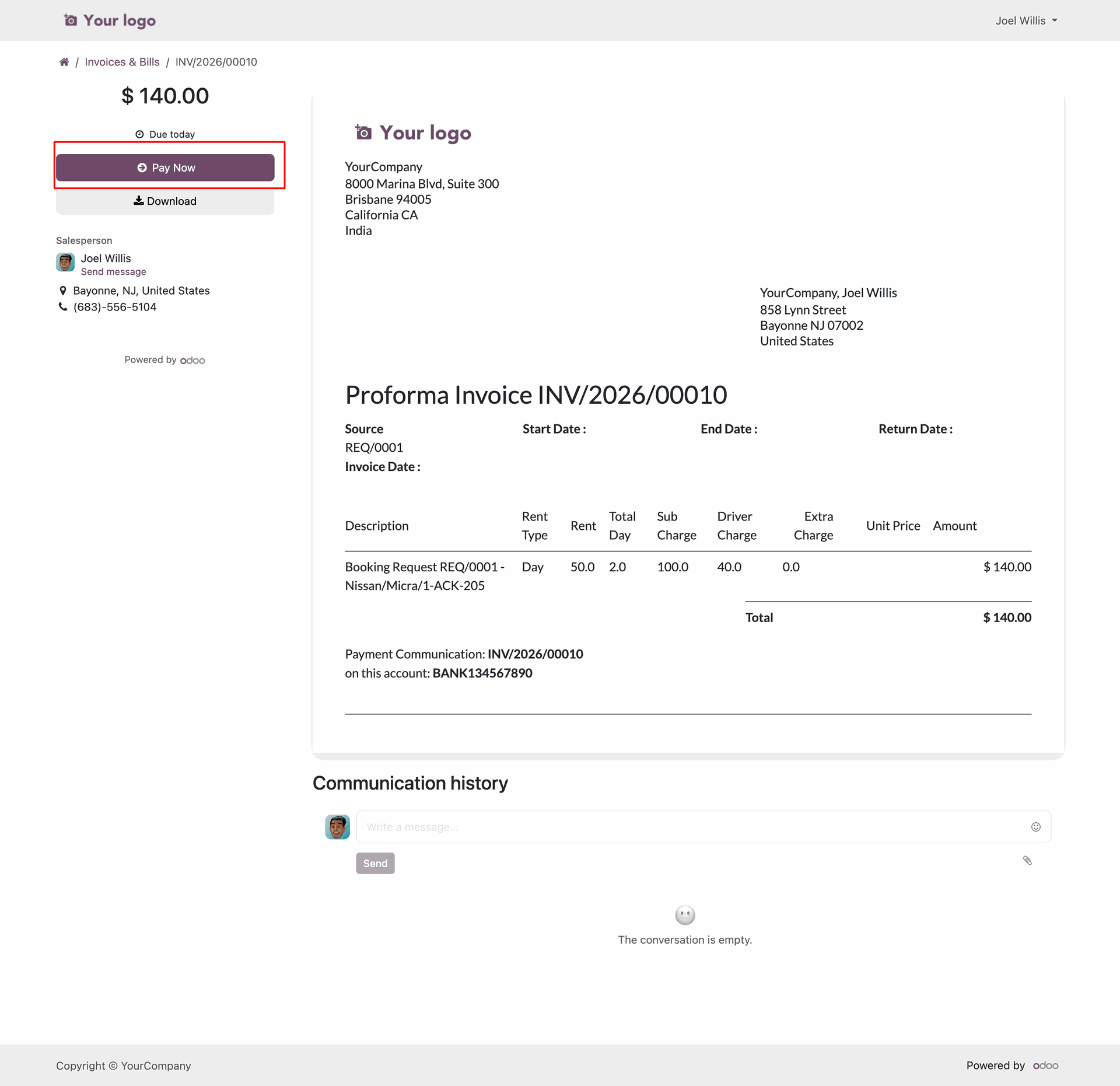
Upon clicking Pay Now, the system generates an invoice for the booking. The customer can complete the payment to confirm the booking.
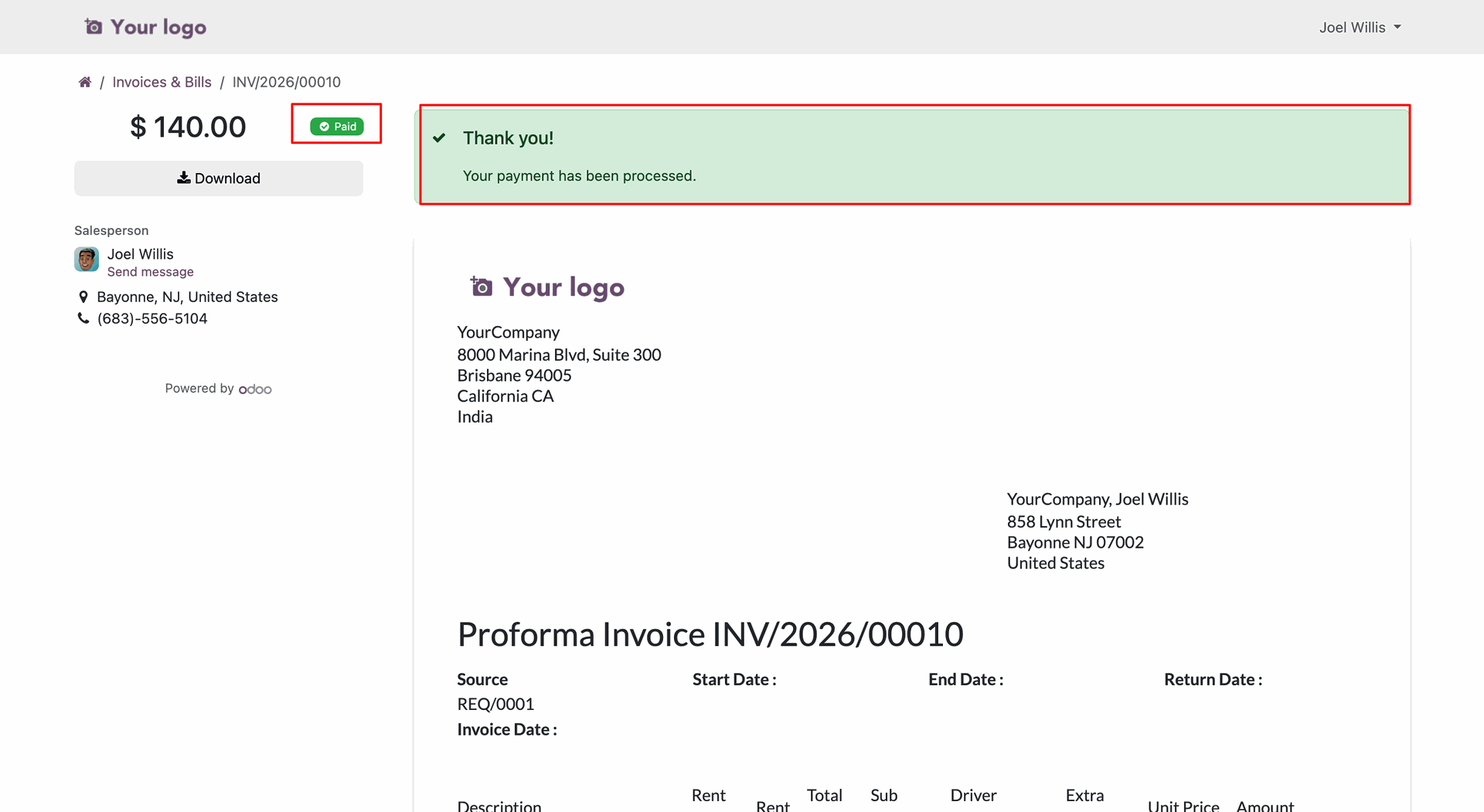
Once the invoice is paid, its status is automatically updated to Paid on the portal.
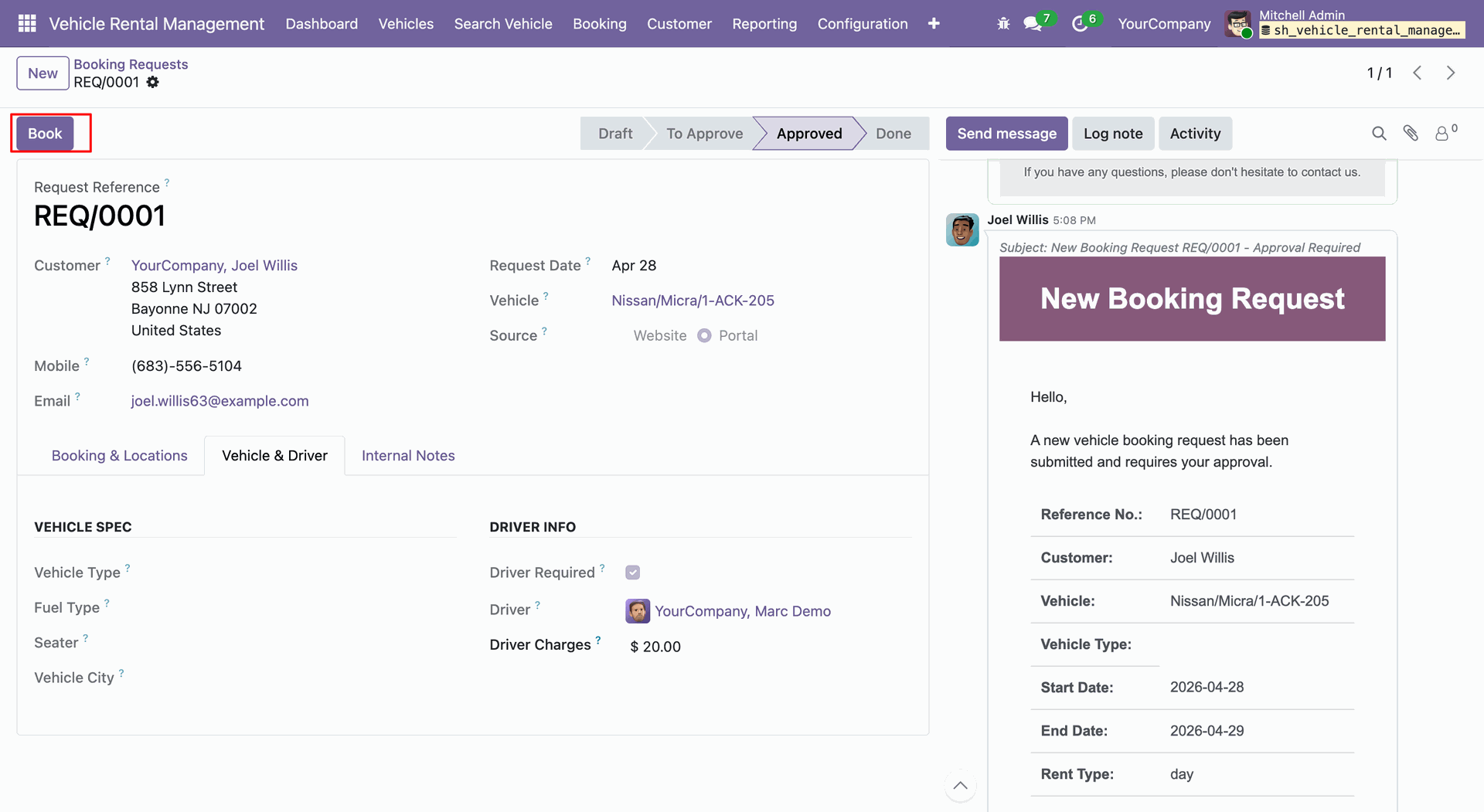
Once the payment is completed from the portal, the manager verifies the details and clicks the Book button on the booking request form to confirm the booking.
Once a vehicle is booked, it is removed from the Booking Request menu.
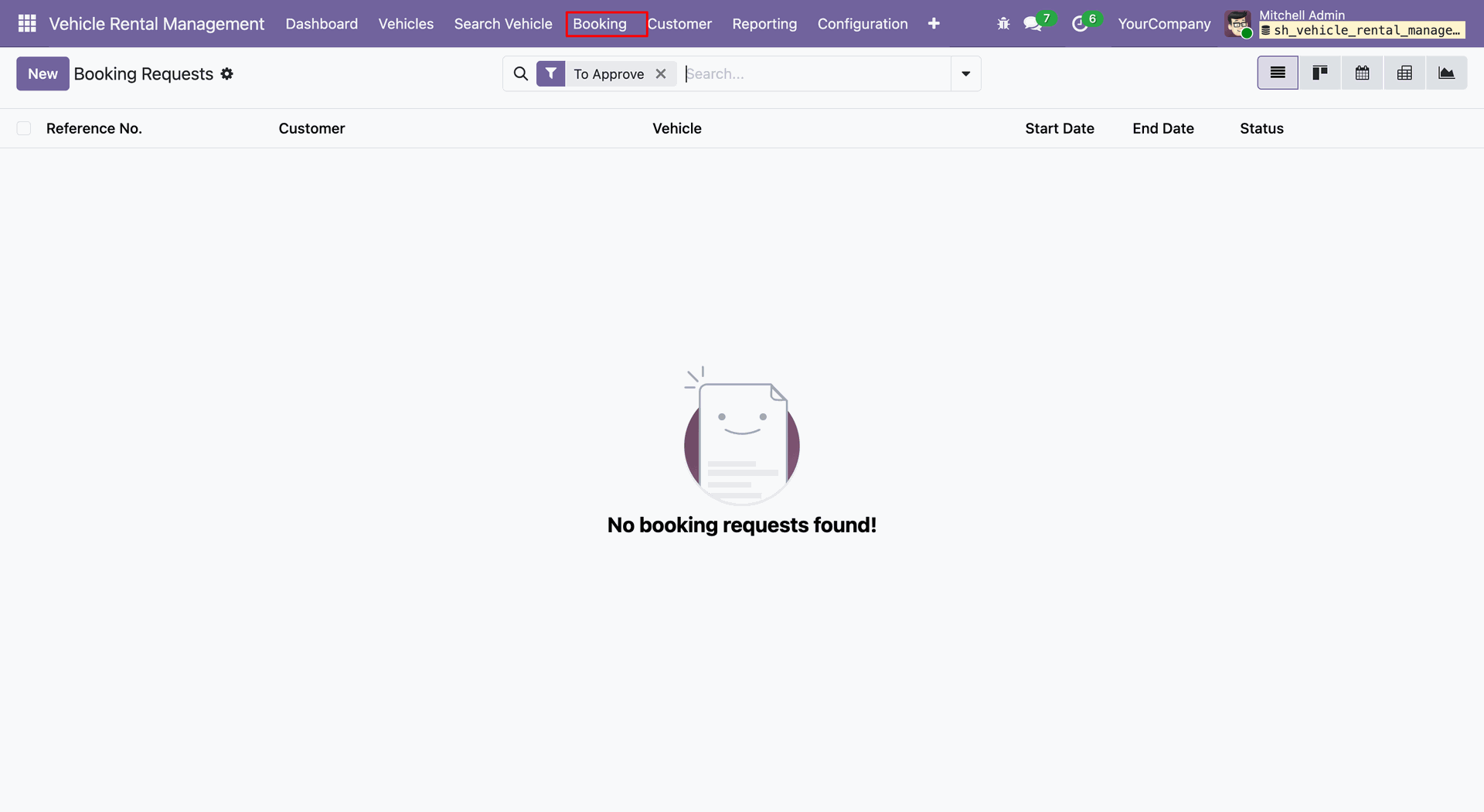
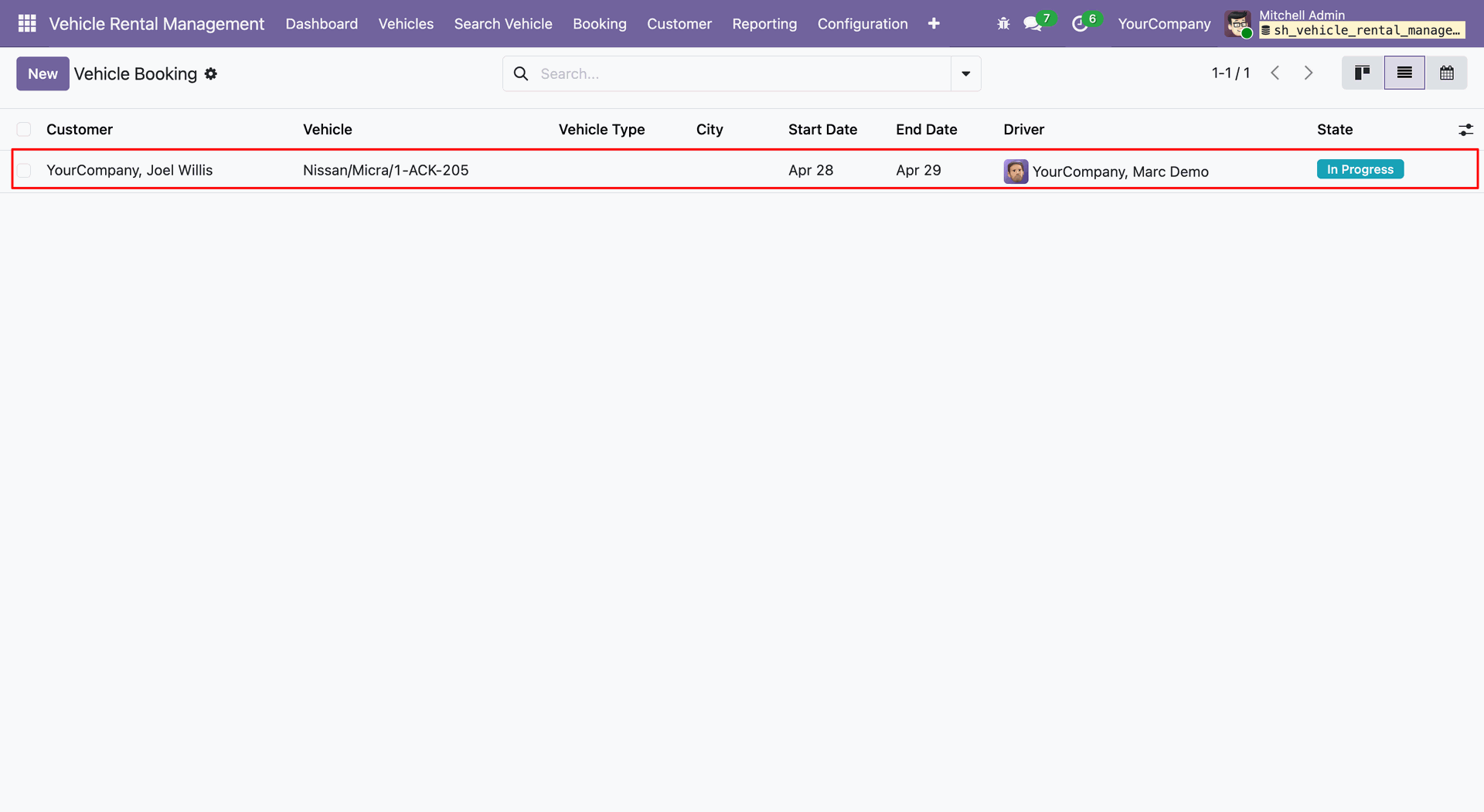
Booked vehicles are visible under the Vehicle Booking menu.
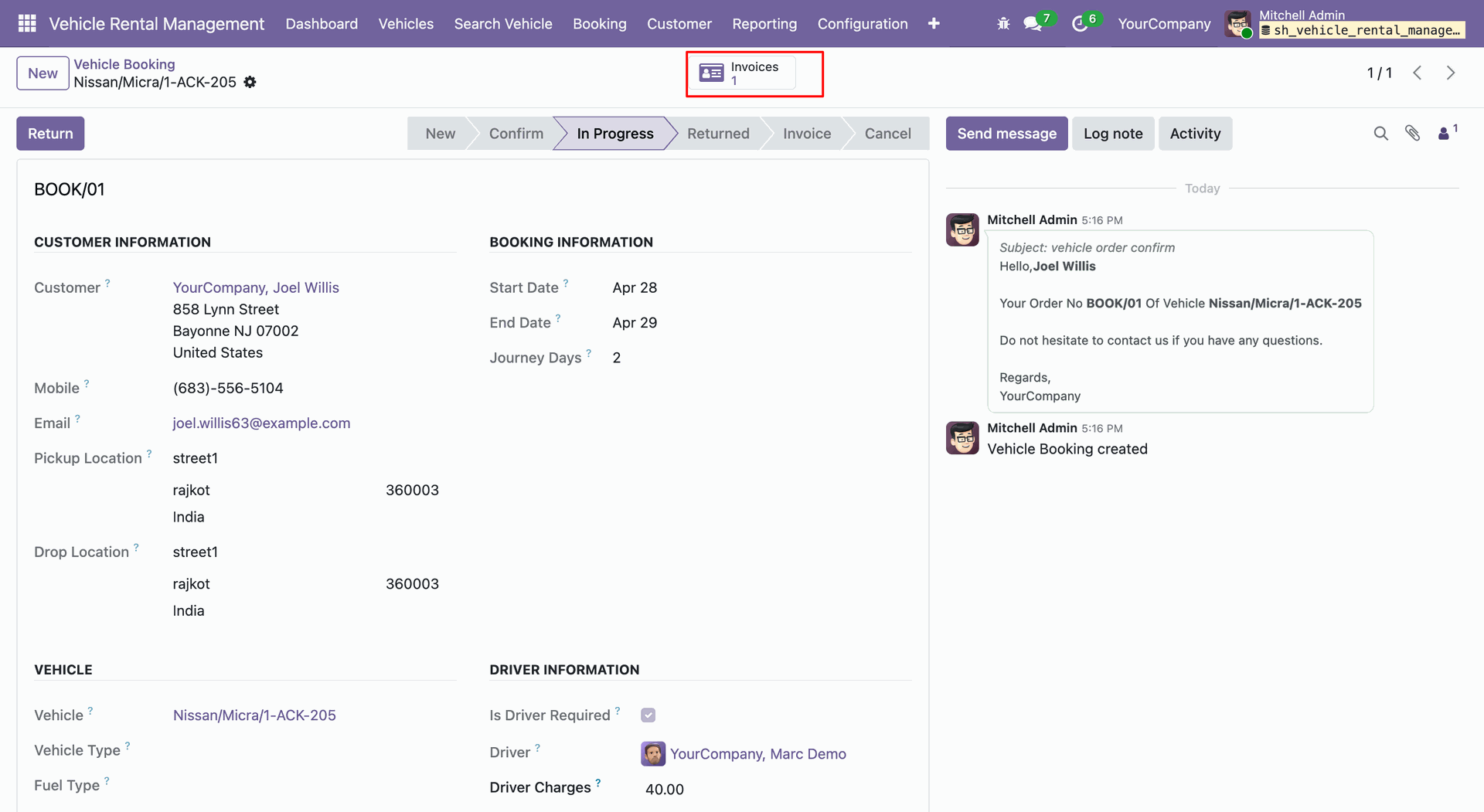
The invoice paid from the portal against the vehicle booking is attached and linked to the corresponding booking form view.
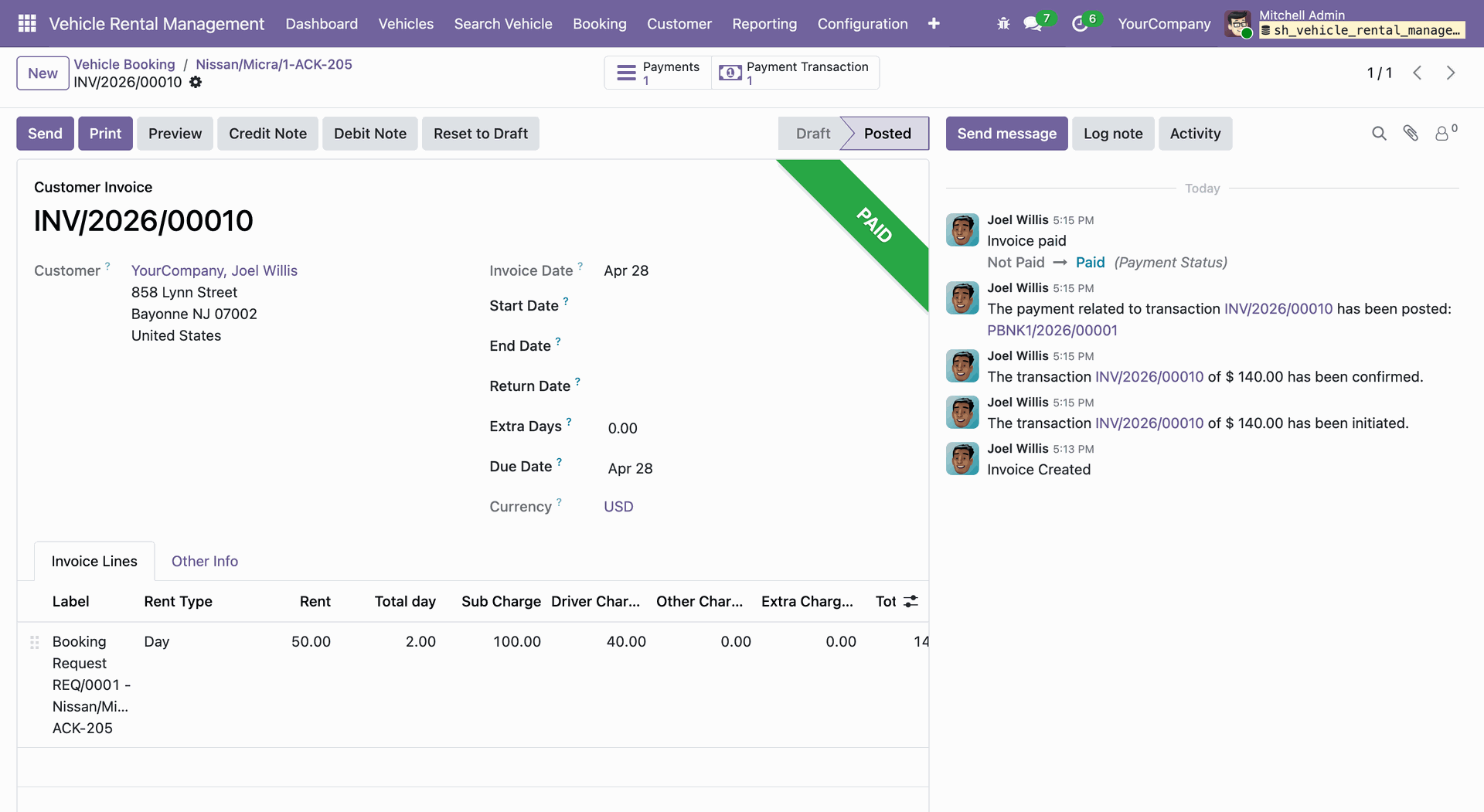
Clicking the invoice smart button opens the invoice, along with related payment and transaction details accessible through the smart buttons.
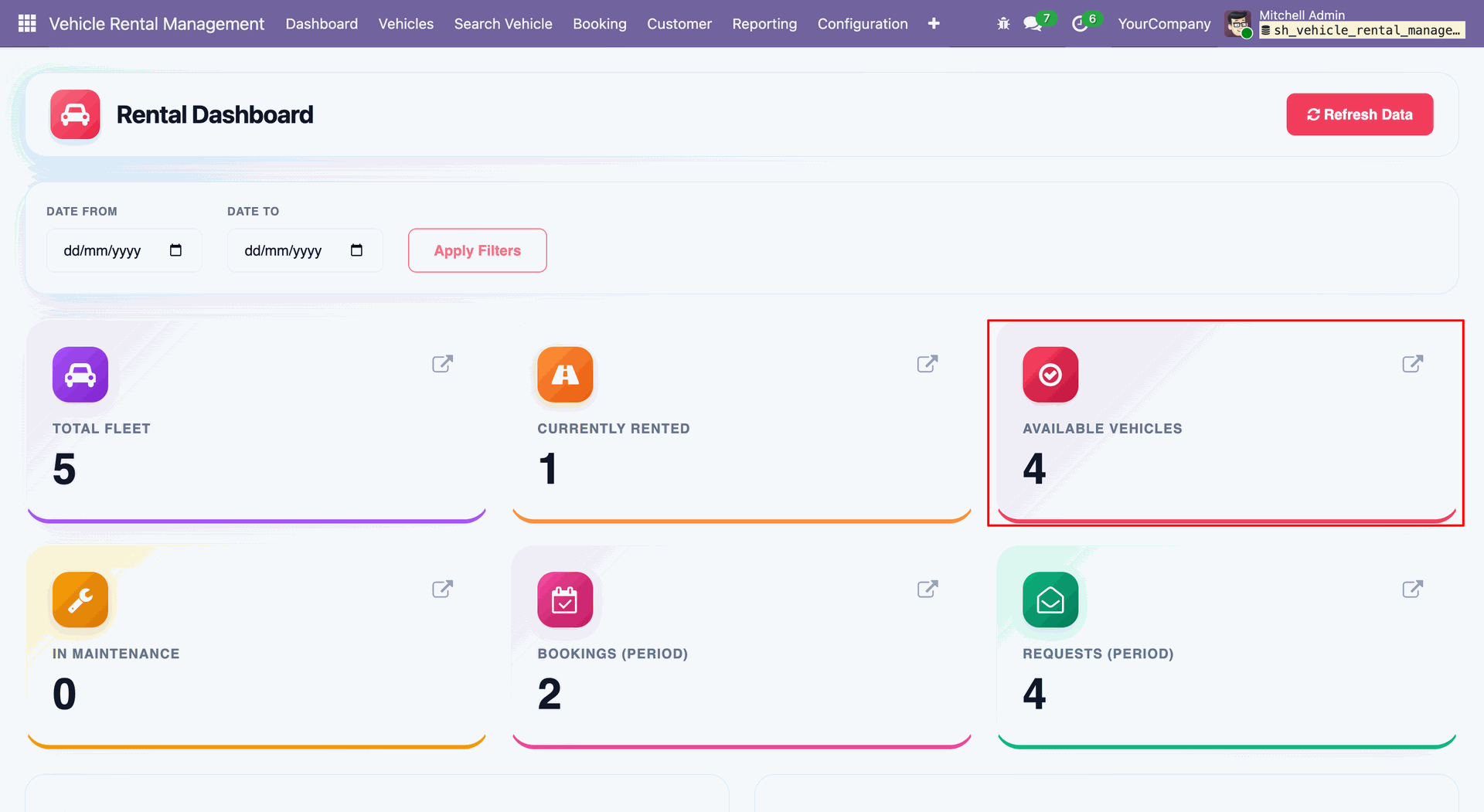
The comprehensive dashboard overview provides key performance indicators such as Total Fleet, Currently Rented, Available Vehicles, and Maintenance status.
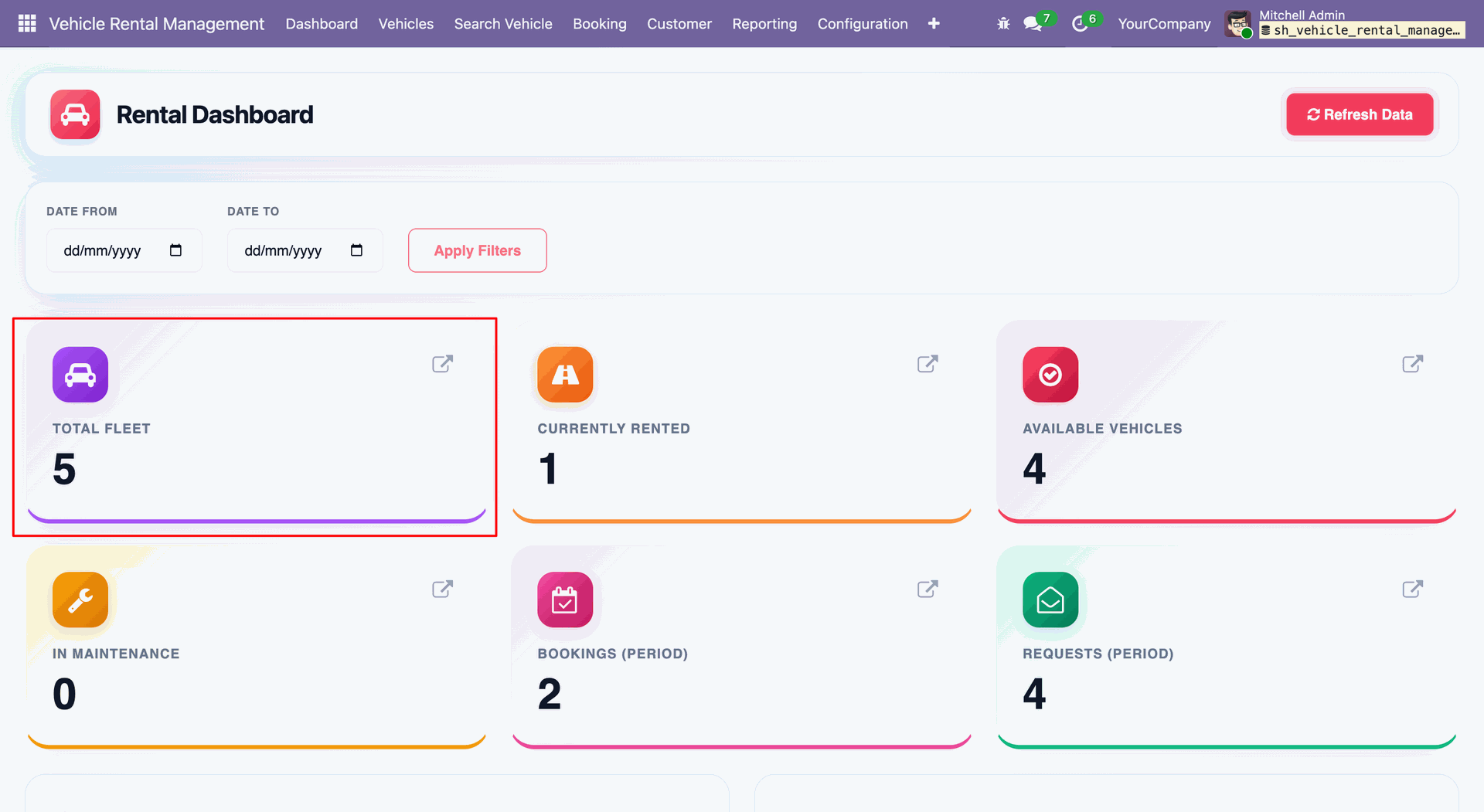
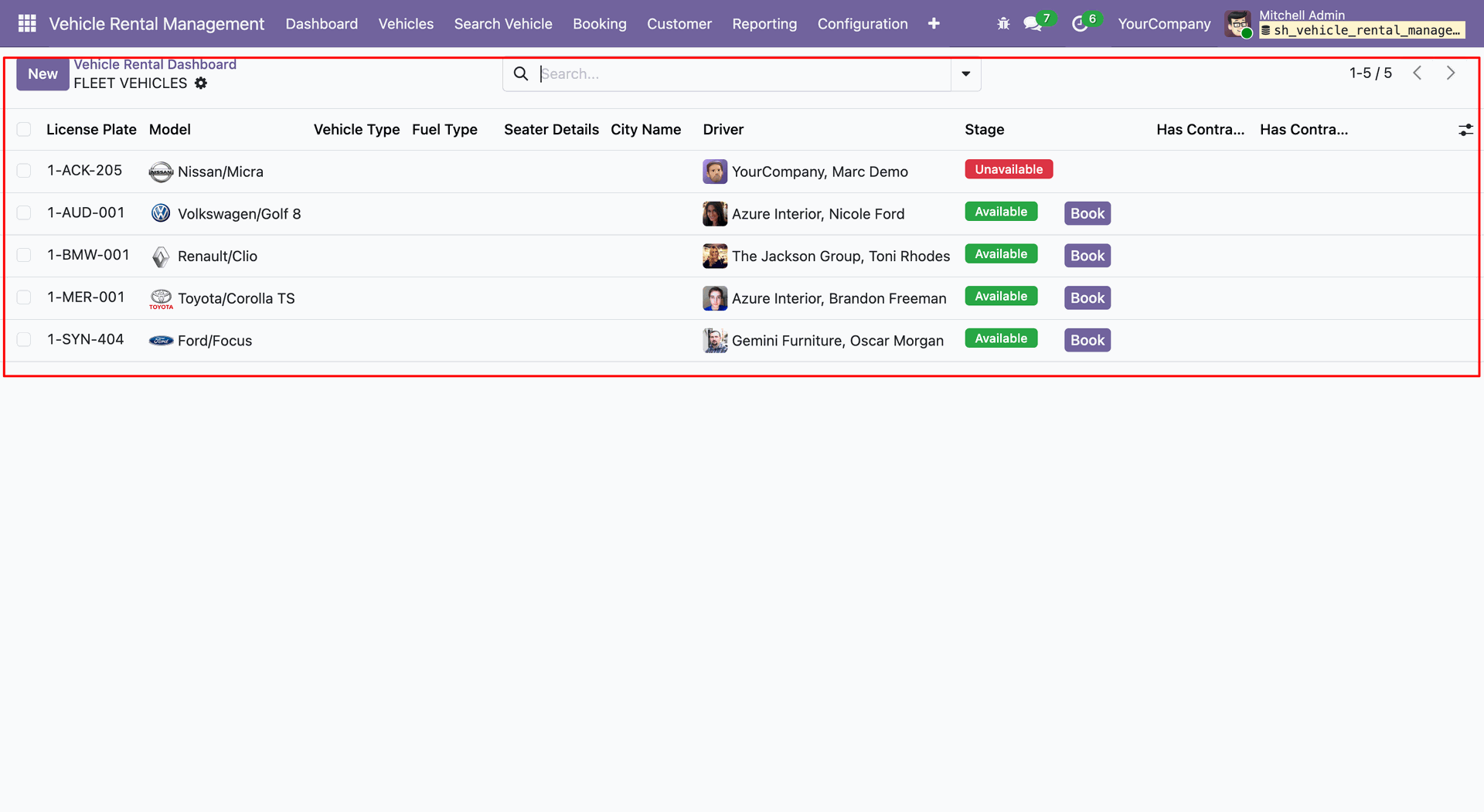
Clicking on the Total Fleet tile from the dashboard opens the list view of all vehicles.
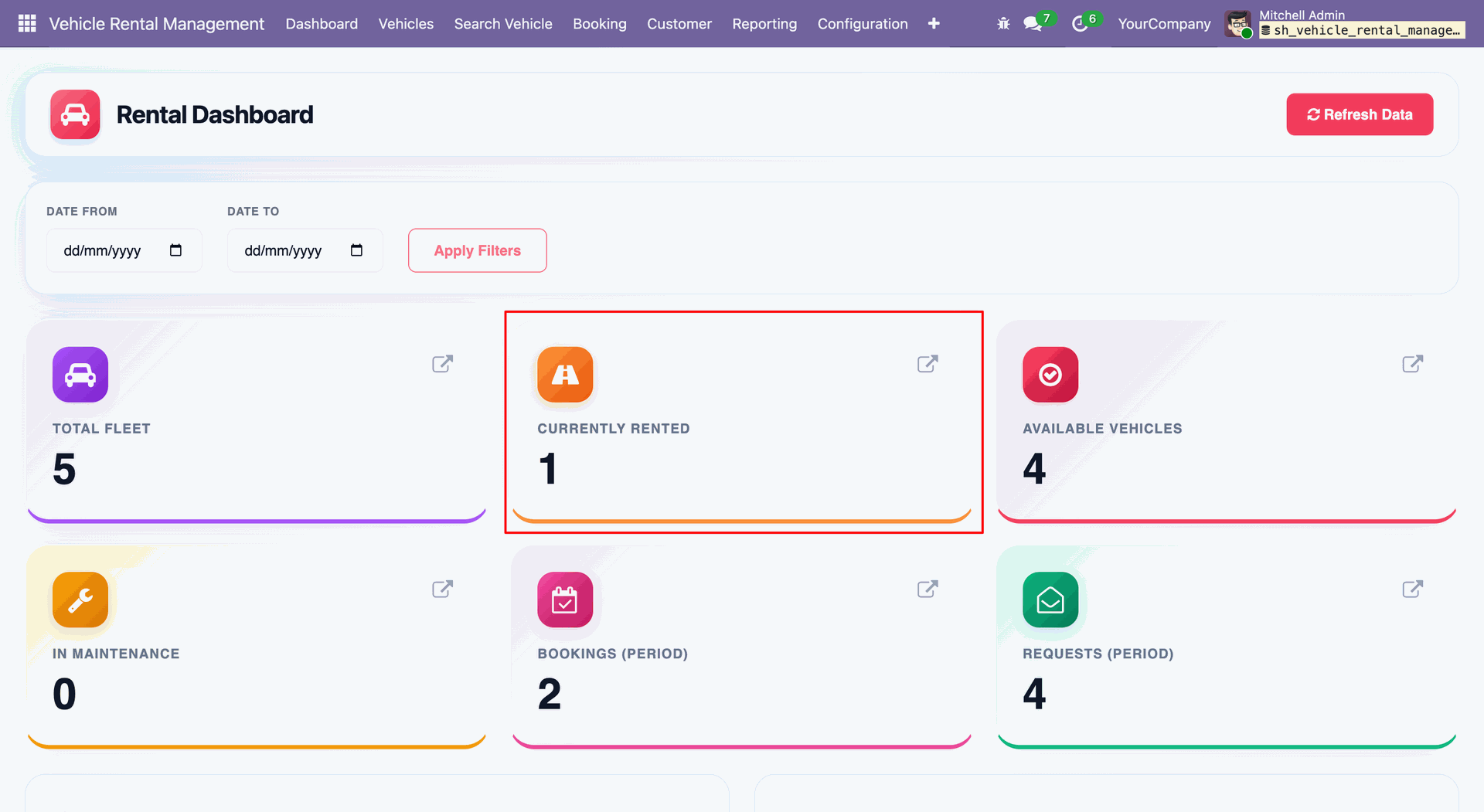
To view currently rented vehicles, click on the Currently Rented tile from the dashboard.
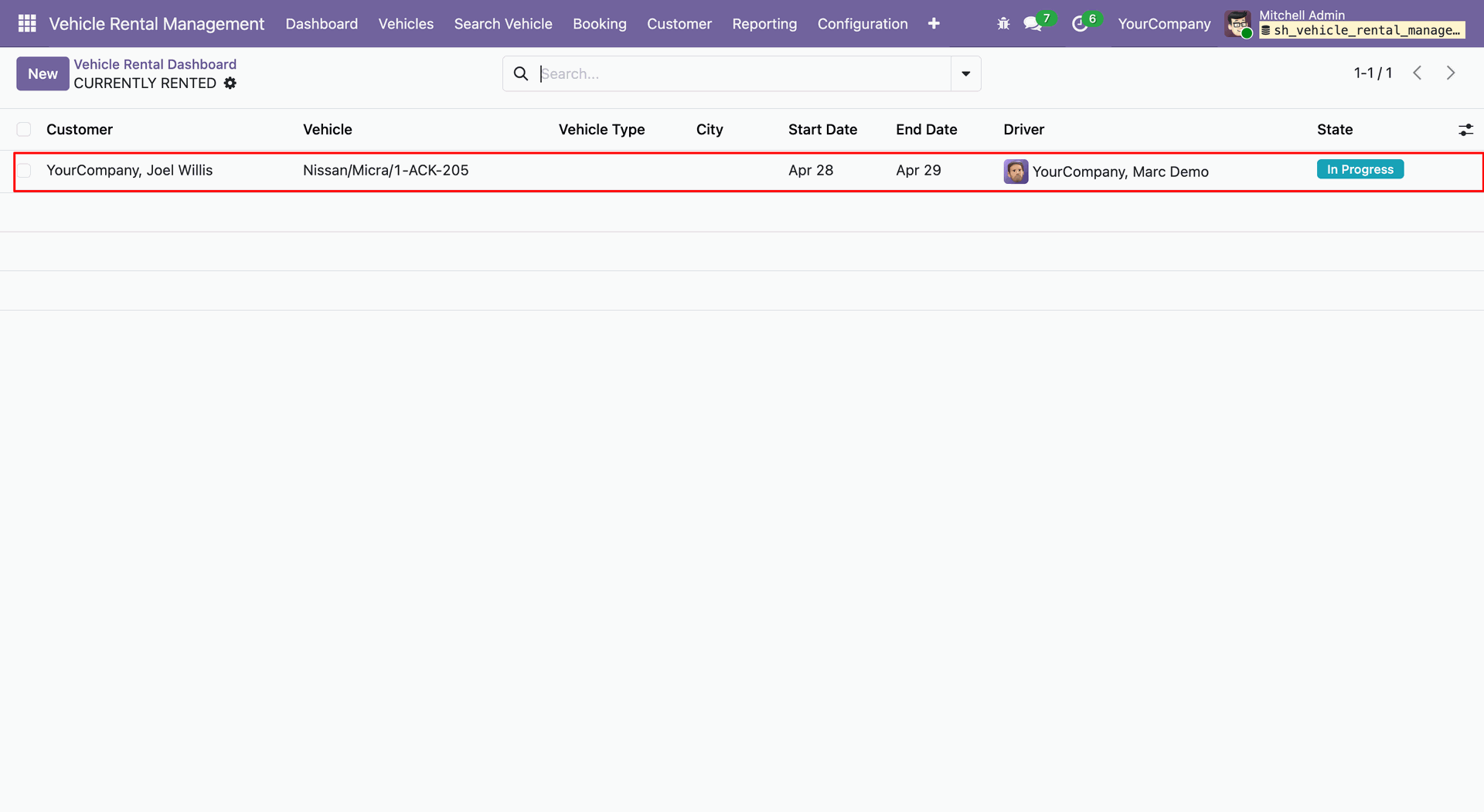
Clicking on the Currently Rented tile from the dashboard opens a list view of vehicles that are currently in the In Progress stage.
To view available vehicles, click on the Available Vehicles tile from the dashboard.
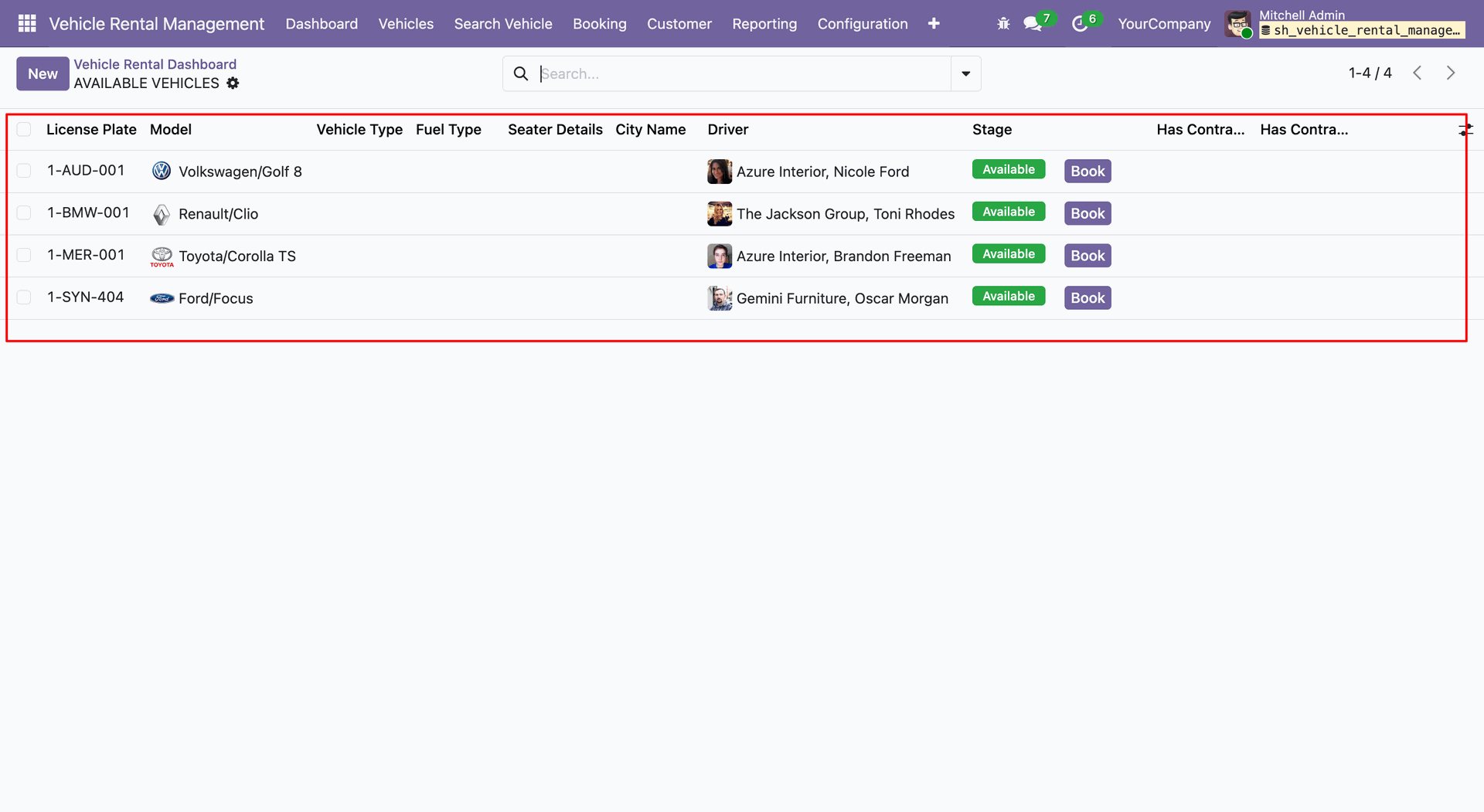
Clicking on the Available Vehicles tile from the dashboard opens a list view of vehicles that are currently in the Available stage and ready for booking.
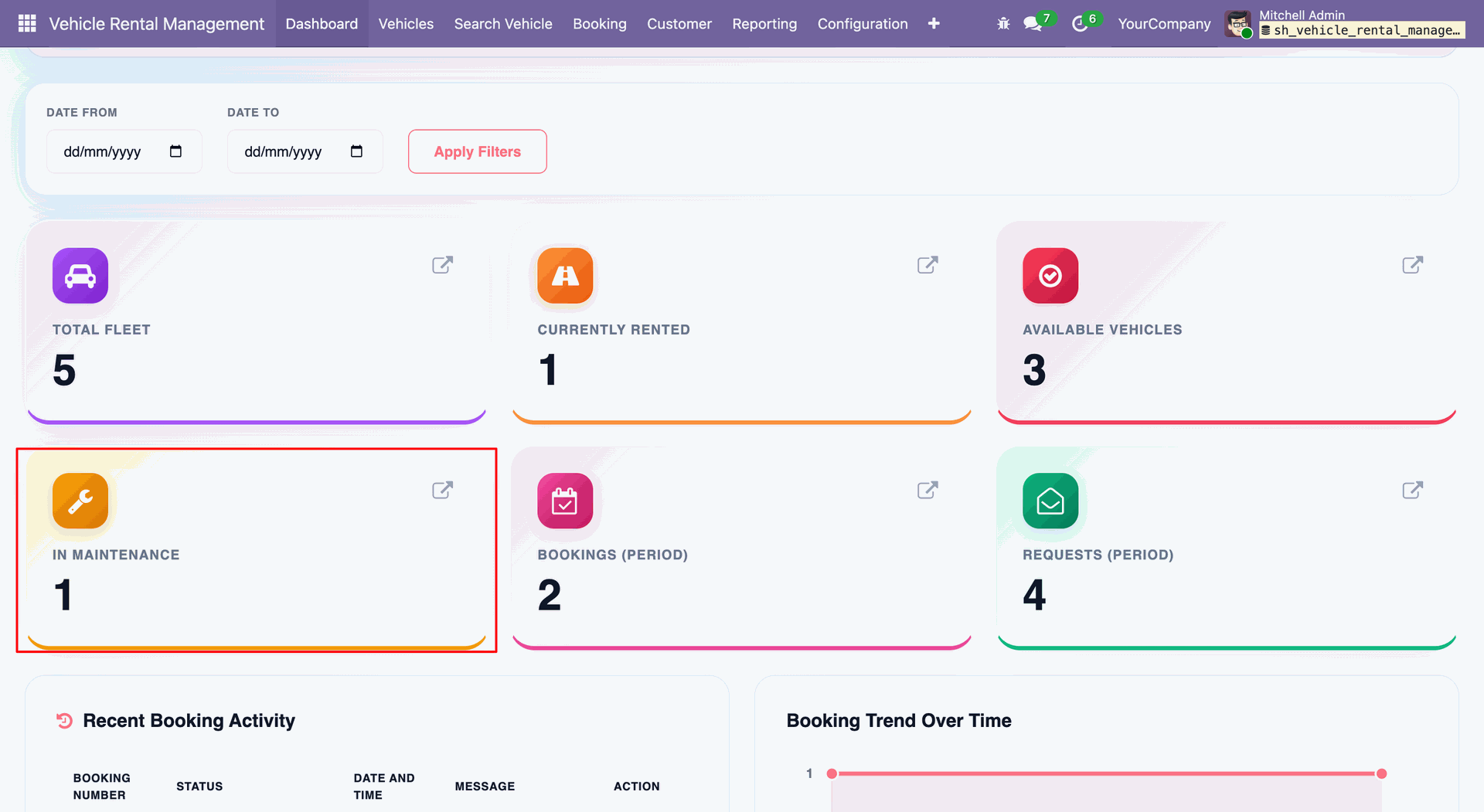
To view vehicles under maintenance, click on the In Maintenance tile from the dashboard.
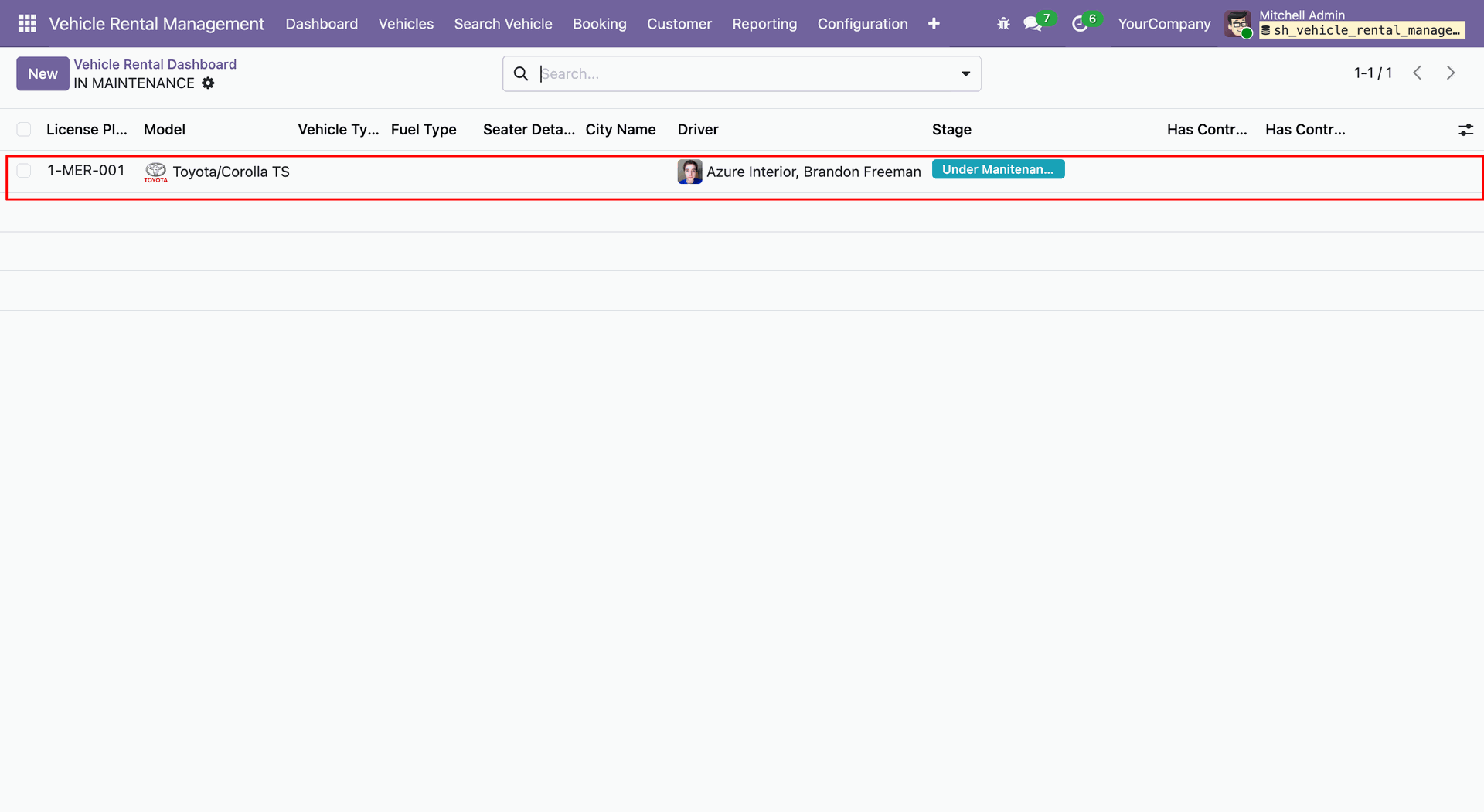
Clicking on the In Maintenance tile from the dashboard opens a list view of vehicles that are currently under maintenance.
To view confirmed bookings, click on the Booking Period tile from the dashboard.
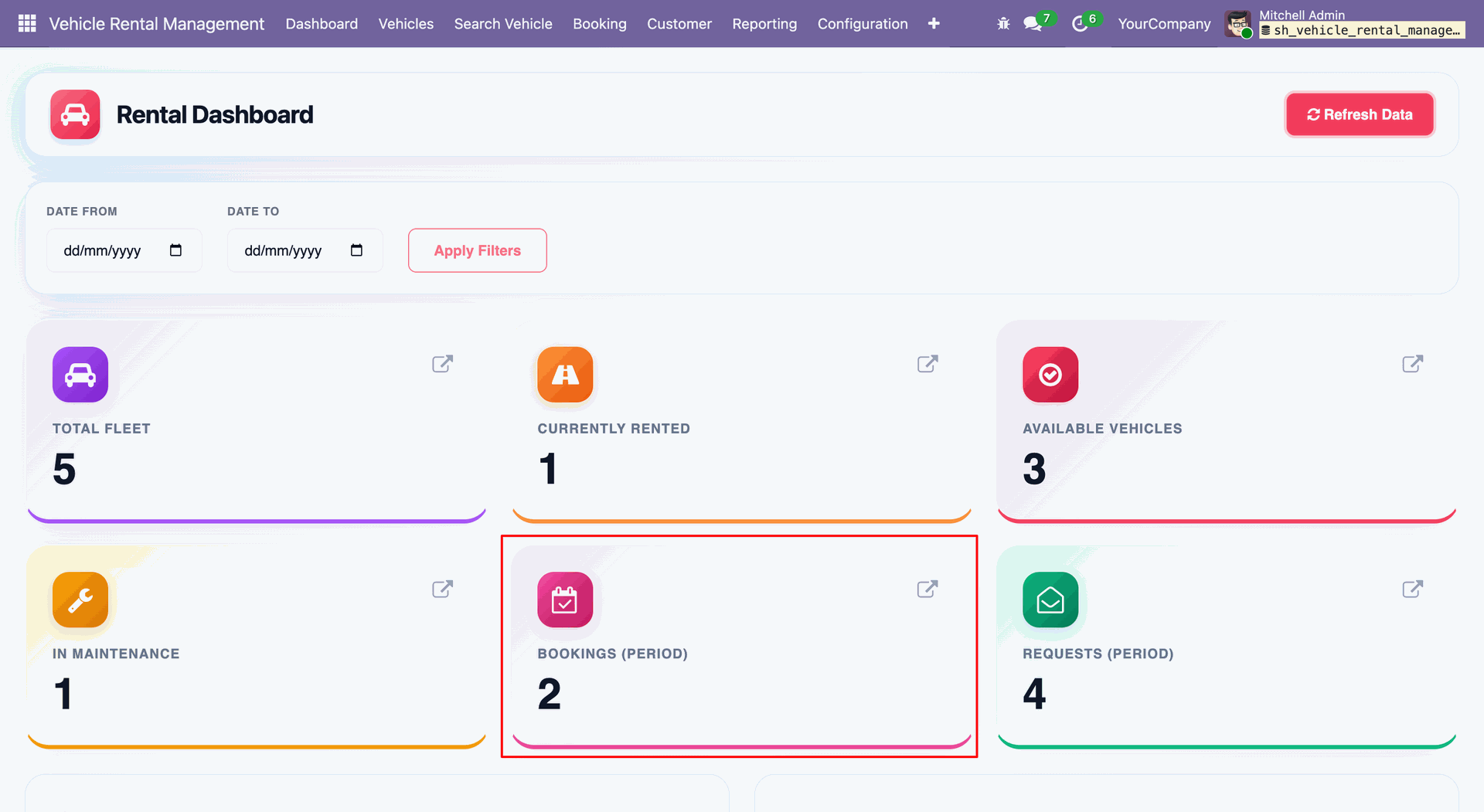
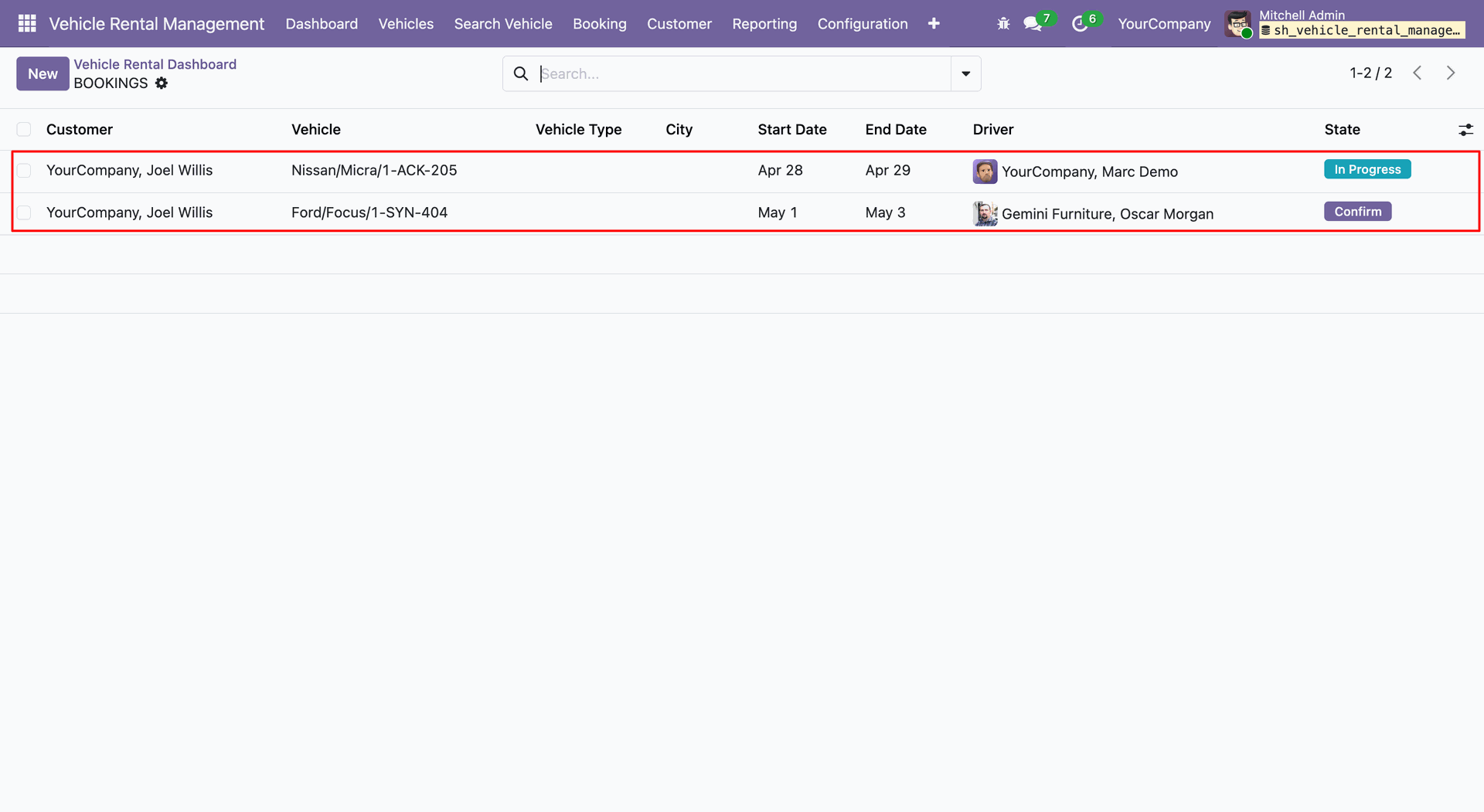
Clicking on the Booking Period tile opens a list view of bookings with confirmed vehicles.
To view booking requests, click on the Requests Period tile from the dashboard.
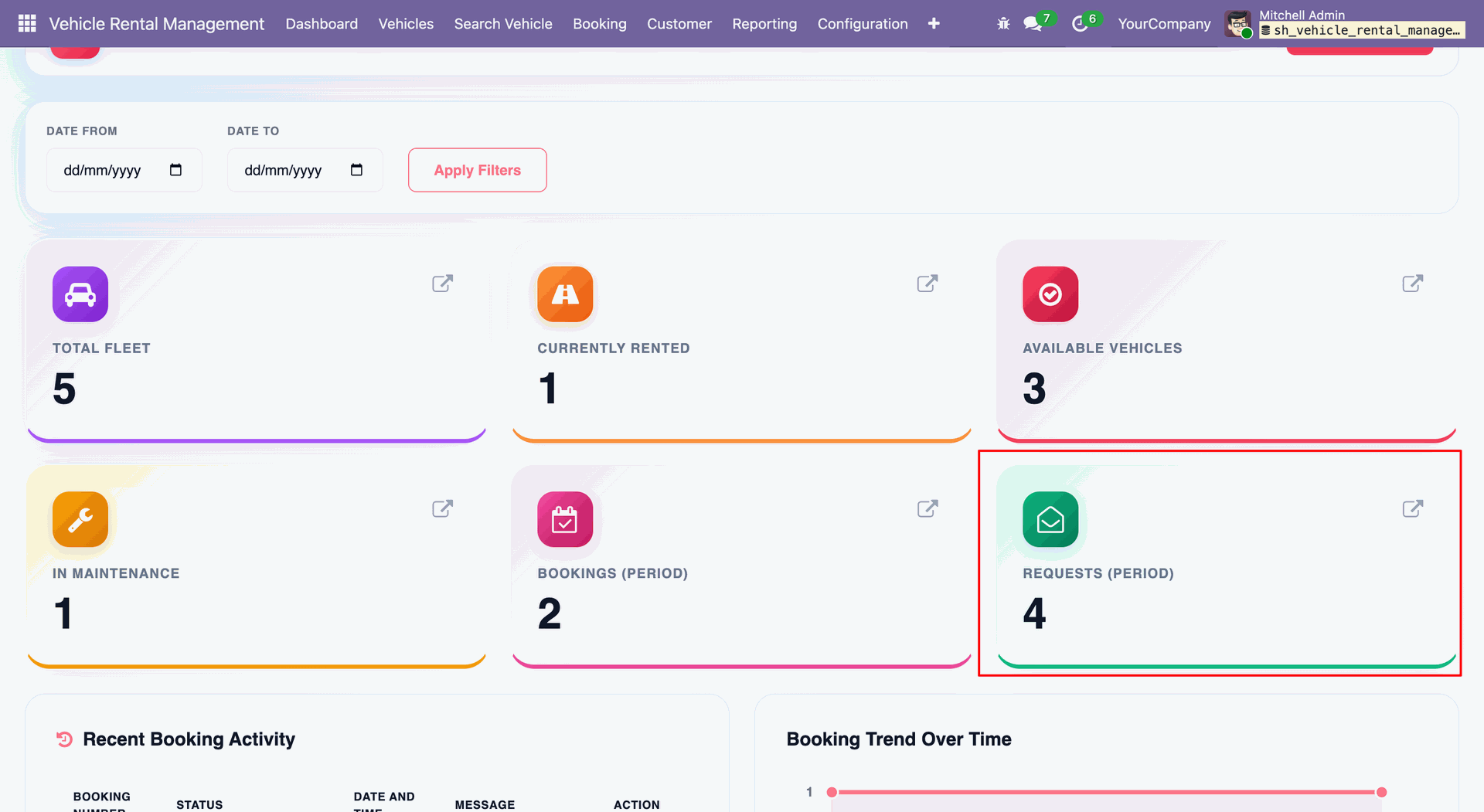
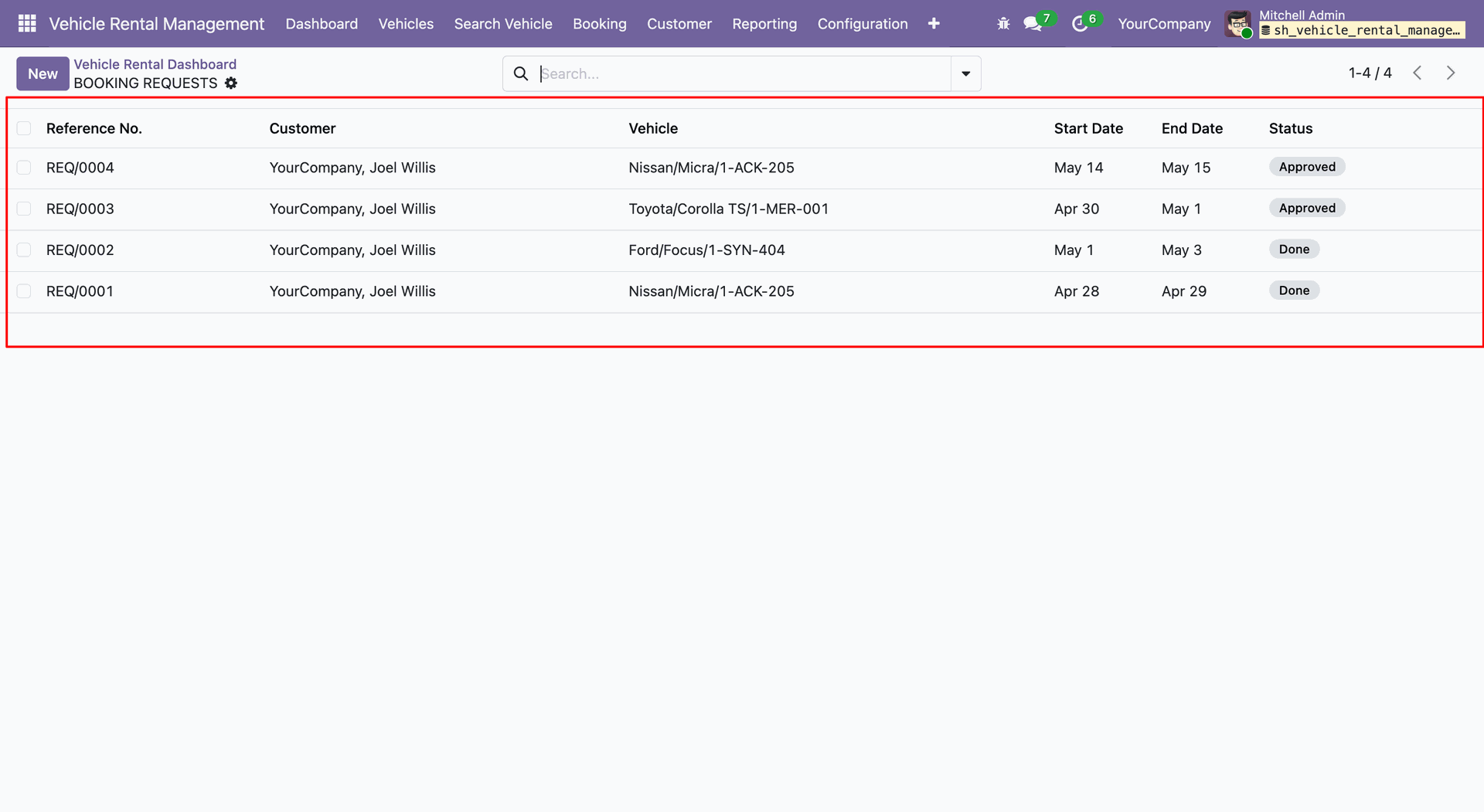
Clicking on the Requests Period tile opens a list view of booking requests.
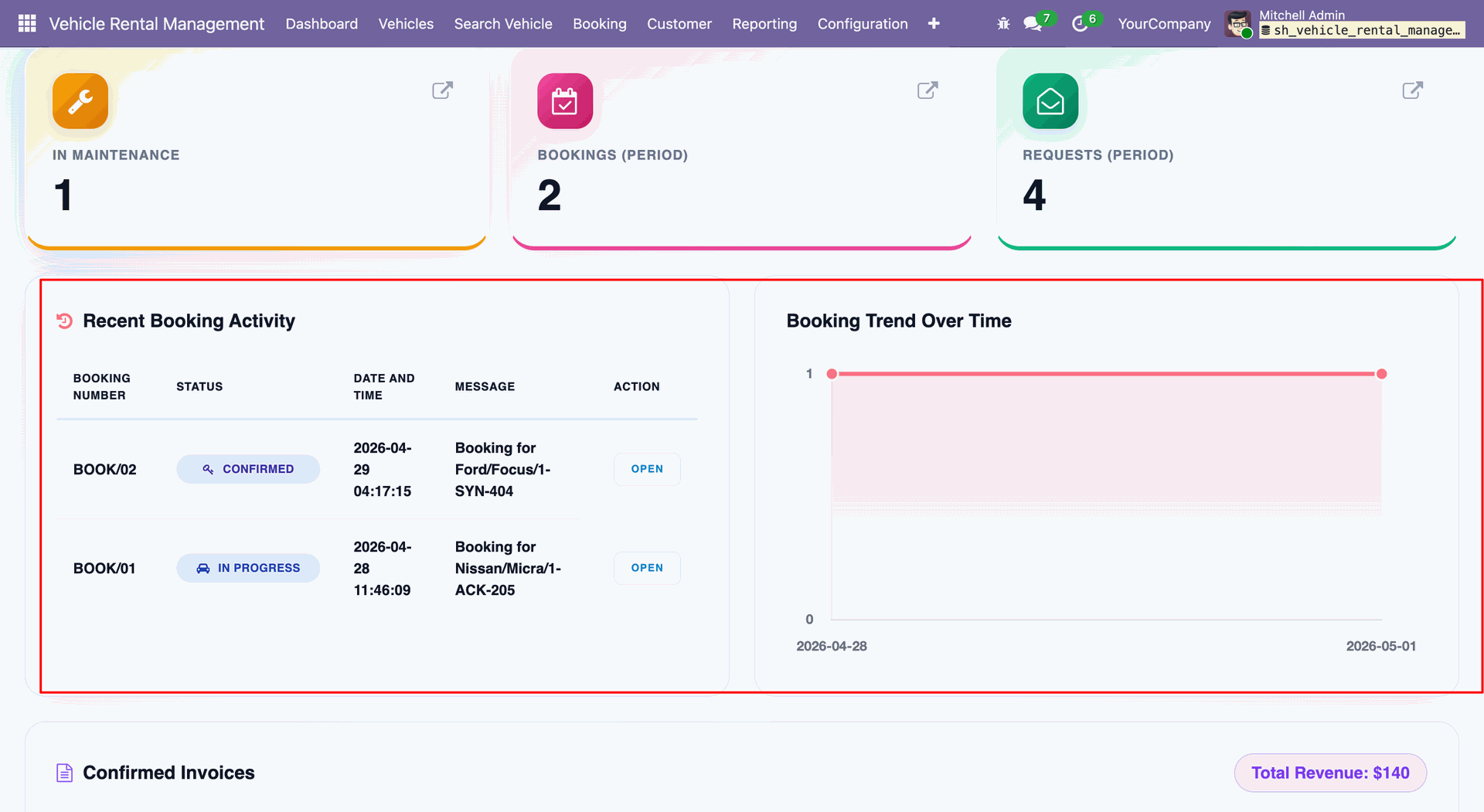
Users can view recent booking activity and booking trend charts directly from the dashboard.
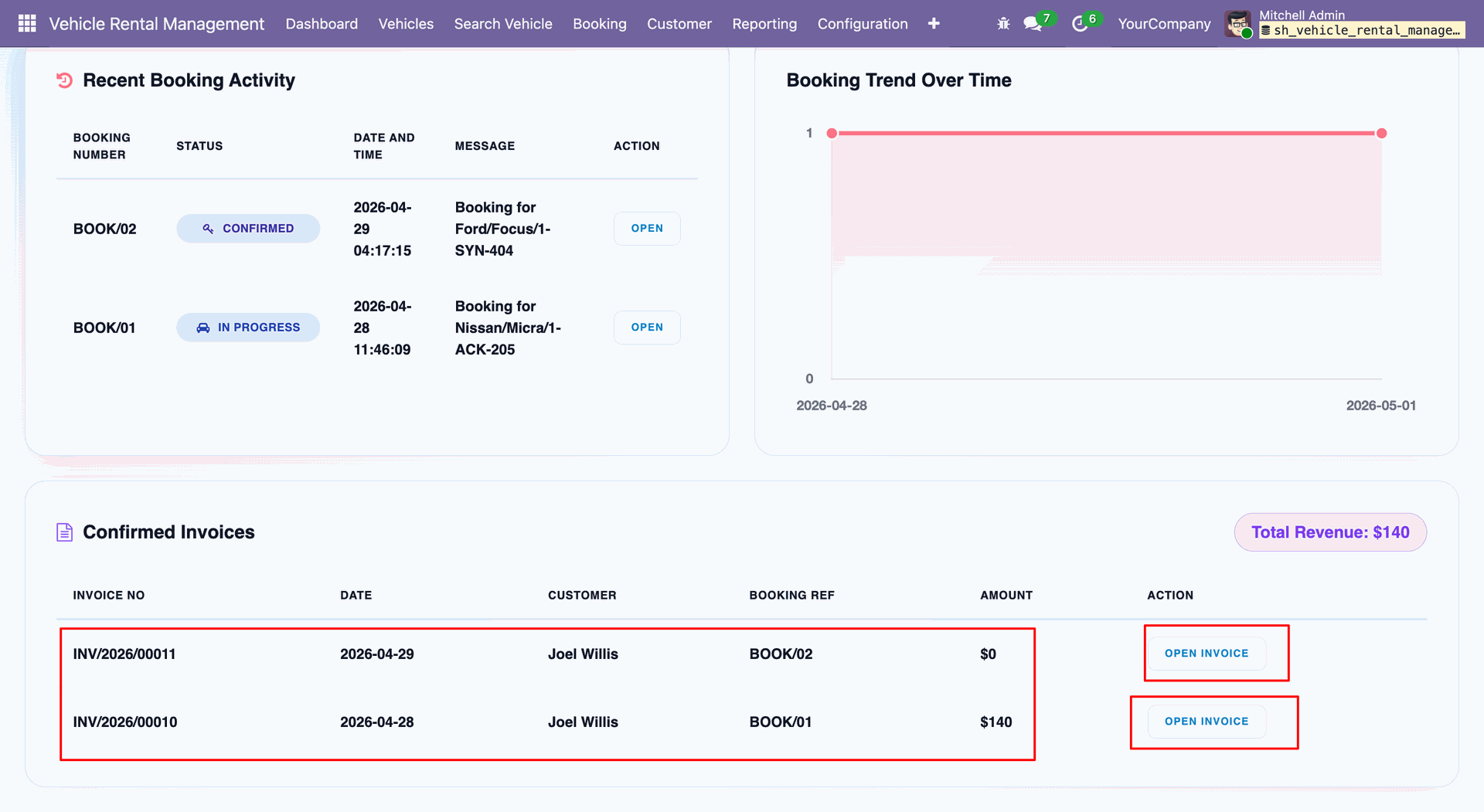
Users can view confirmed invoices directly from the dashboard and open them by clicking the Open Invoice button.
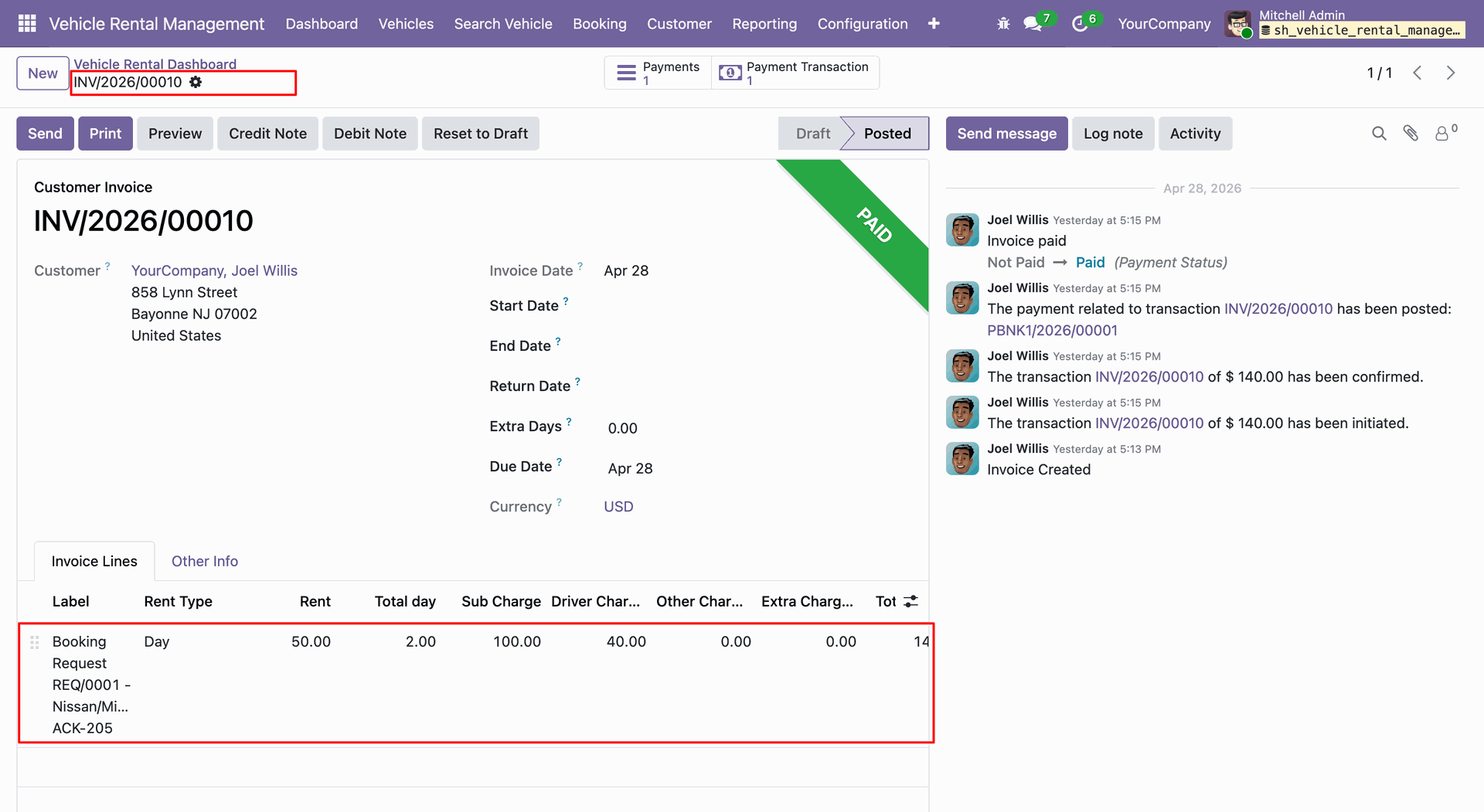
Clicking the Open Invoice button opens the invoice form view.
Version 18.0.2.0.0 | Released on : 01st June 2026
Version 18.0.1 | Released on : 13th September 2025
- Yes, this app works perfectly with Odoo Enterprise (Odoo.sh & Premise) as well as Community.
- No, this application is not compatible with odoo.com(odoo saas/Odoo Online)
- Yes, to test this module, please contact us at sales@softhealer.com.
- Please contact us at sales@softhealer.comto request customization.
- Yes, we provide free lifetime support for the version you purchased.
- Yes, you will receive lifetime free updates for the version of the module you purchased.
- No, there is no need to install any additional libraries.
- Yes, for version 12 and above, you need to purchase the module separately for each version you intend to use.
- No, exchanges or refunds are not allowed. Please make sure to select the correct version before purchasing.
- You can contact us at support@softhealer.com for language translation support. We use Google Translator tools to provide translations in multiple languages, so the accuracy may vary. We welcome your suggestions to help improve translations.
Discover Our Latest Apps