













User Hide Menu & Group Allocation

In this module, You can generate a template for user's access rights groups and hide menu items. Once you've established a template, you can assign it to users, which will immediately enable access groups as well as hide menus for that user. You can also utilize the mass action to update several user groups quickly.

Hot Features
Features
- You can create a template for access rights groups.
- You can create a template to hide menu items.
- Easy to hide any menu(root menu or submenu etc.) to any user.
- You can create a template from the form view as well as the tree view.
- Using a template, you can assign multiple groups and hide menus at once.
- Using mass action, you can update the access groups of multi-users.
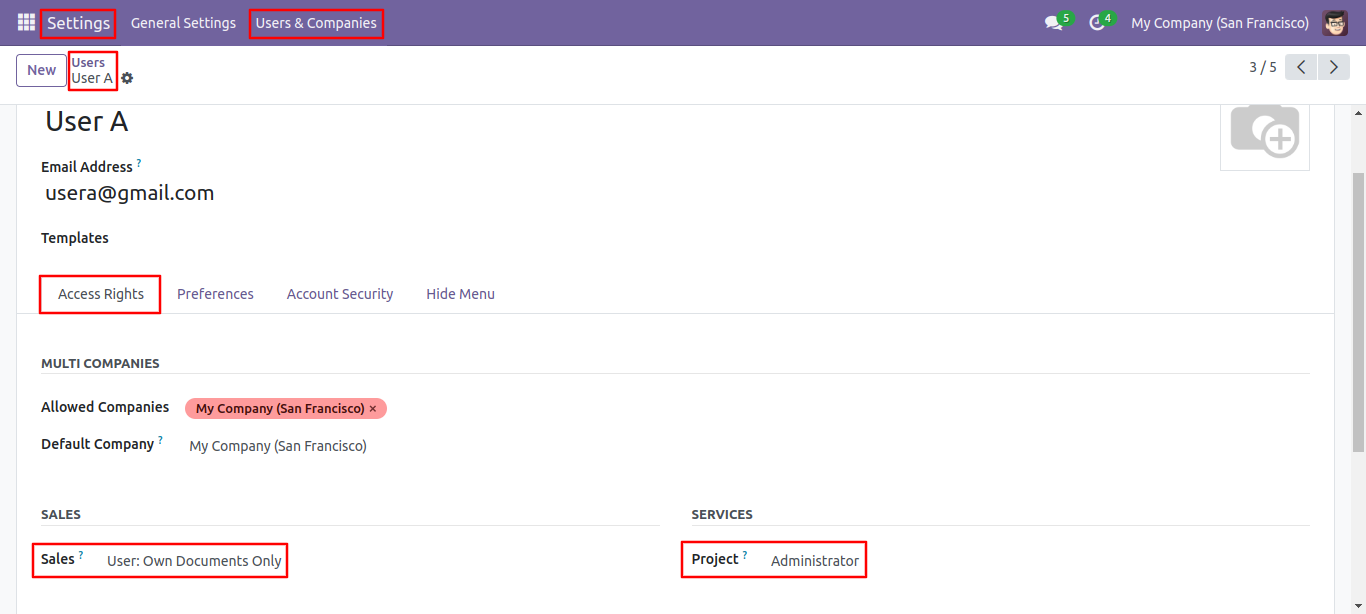
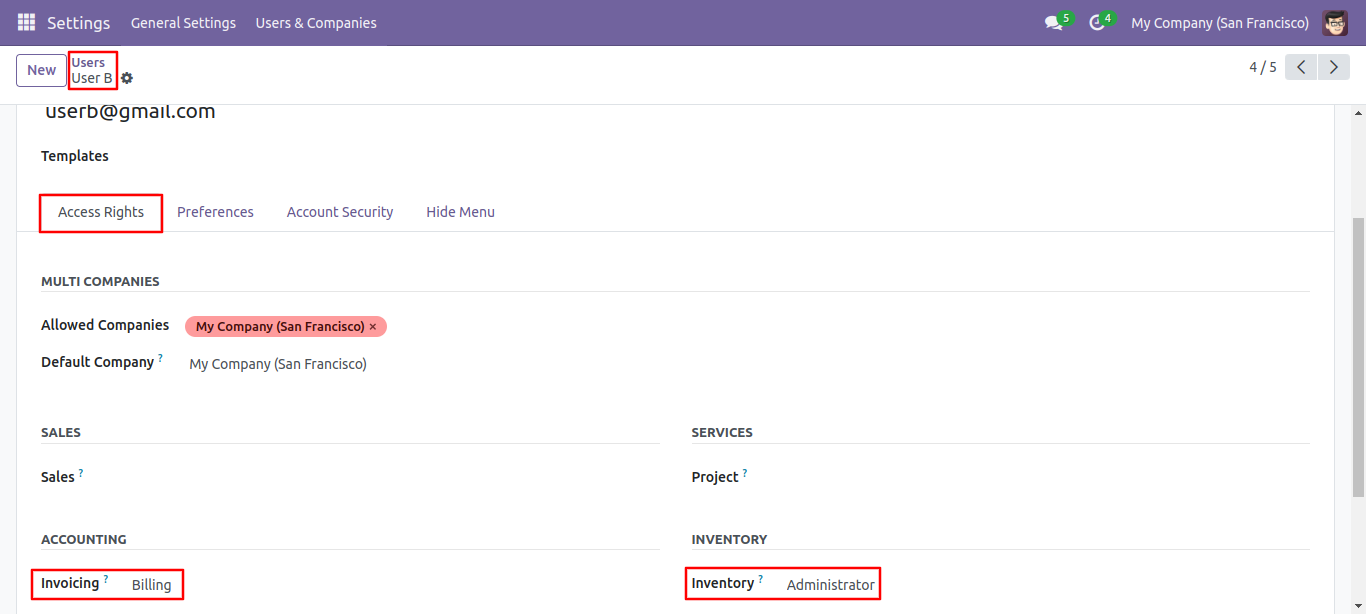
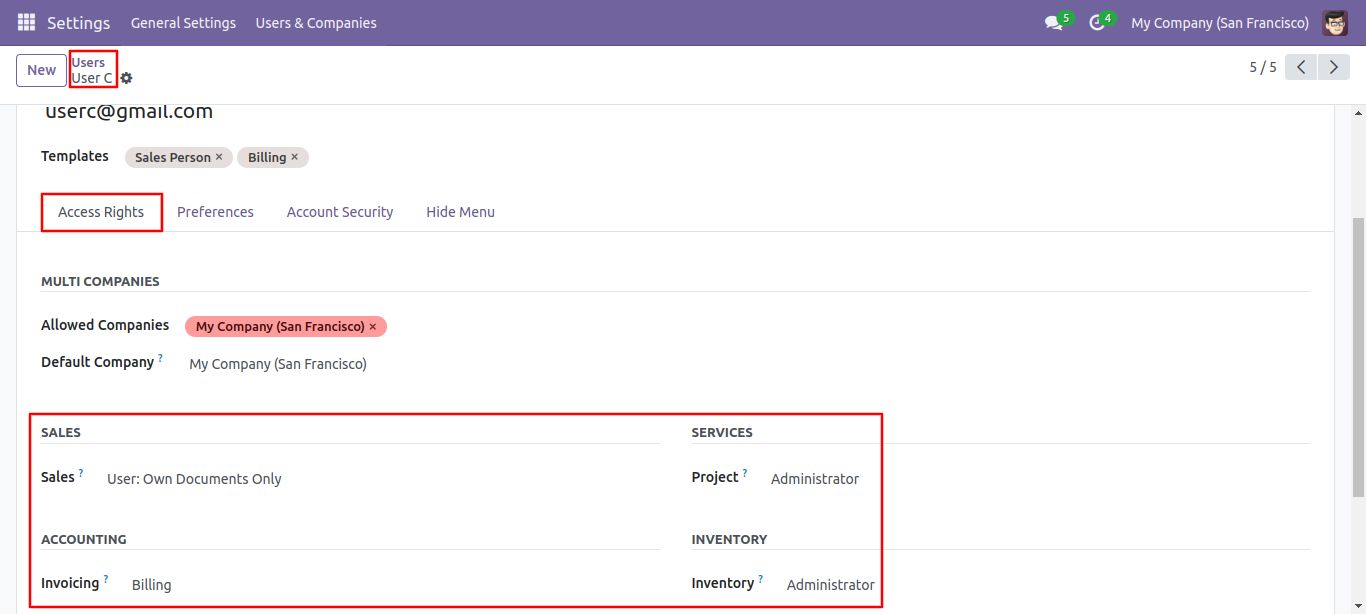
Go to the user and give access rights.
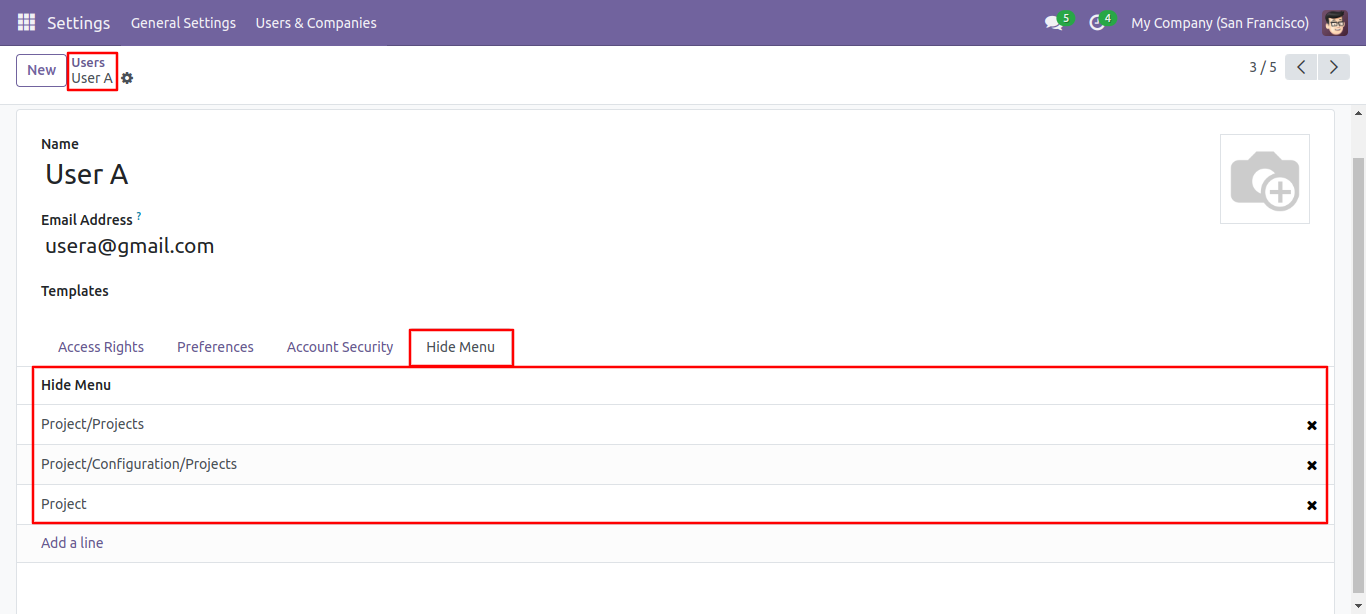
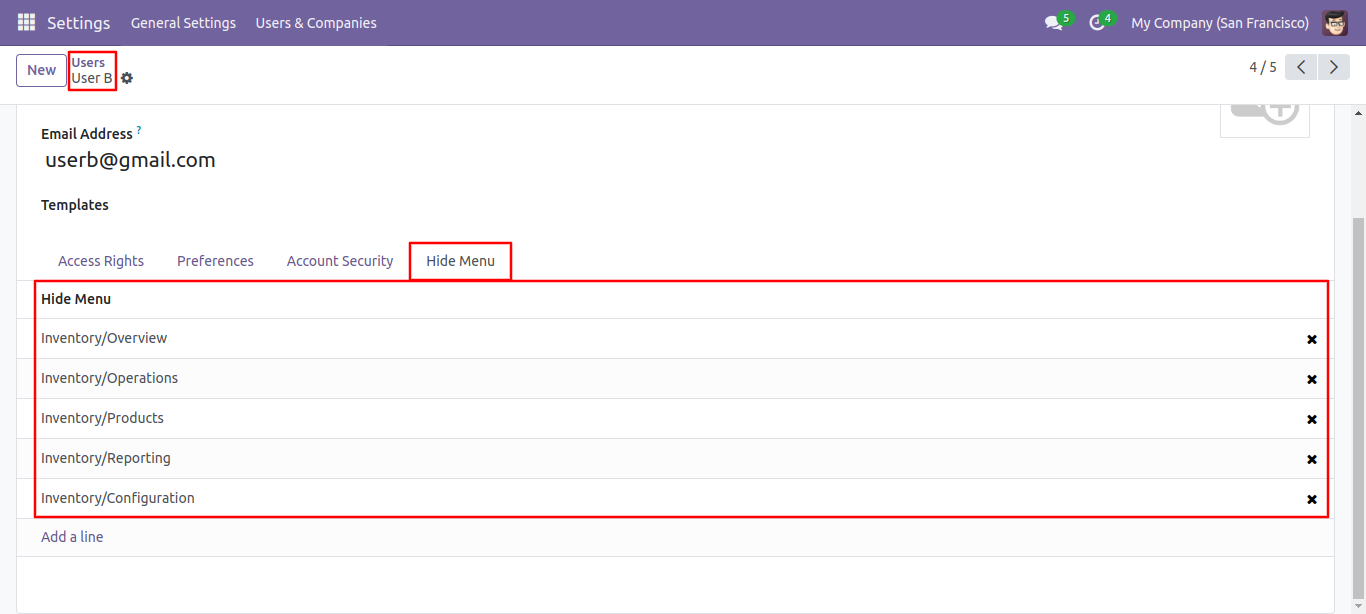
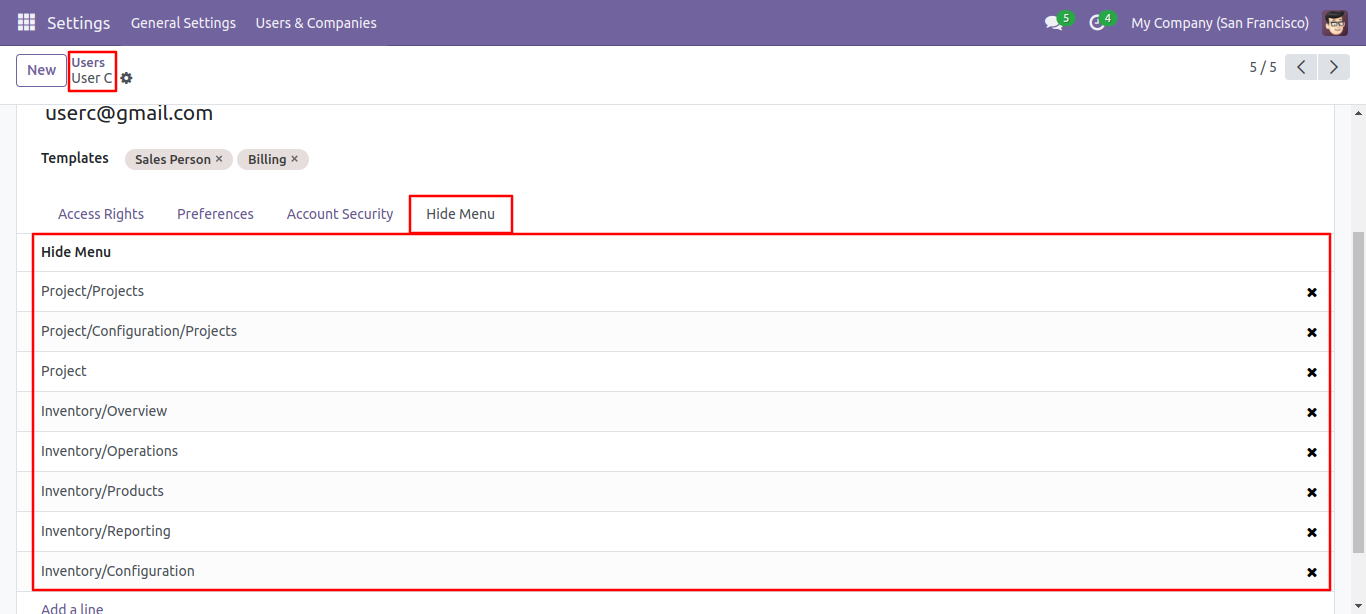
Add a menus you want to hide in the hidden menu tab.
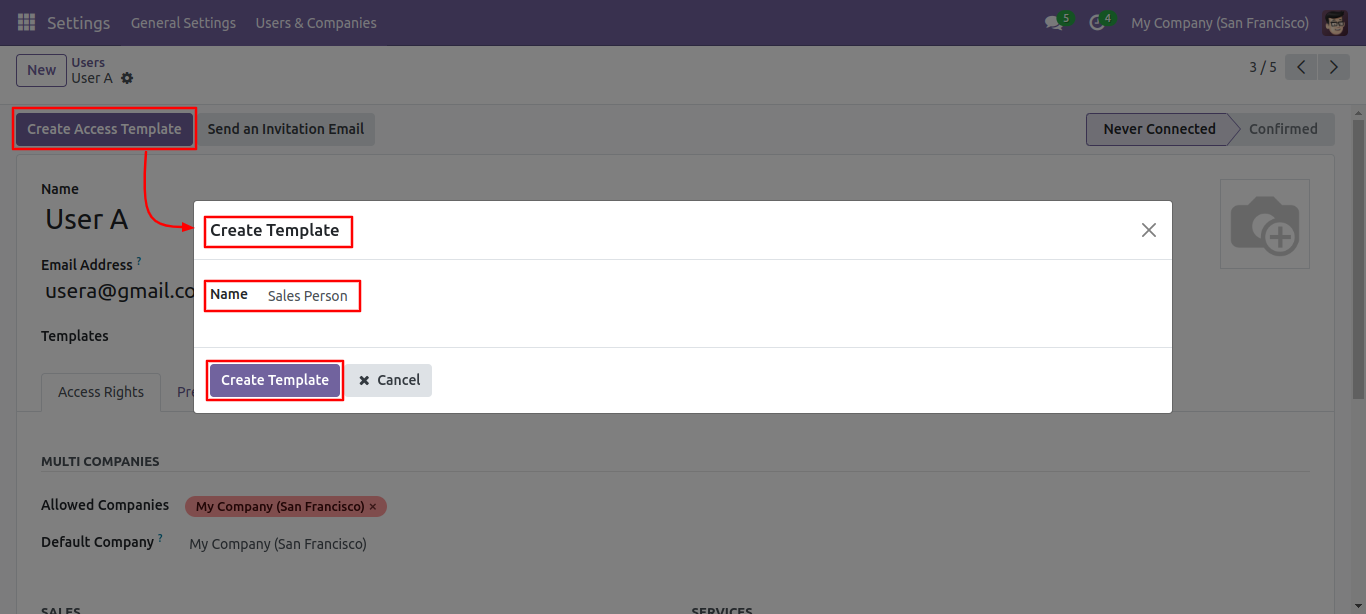
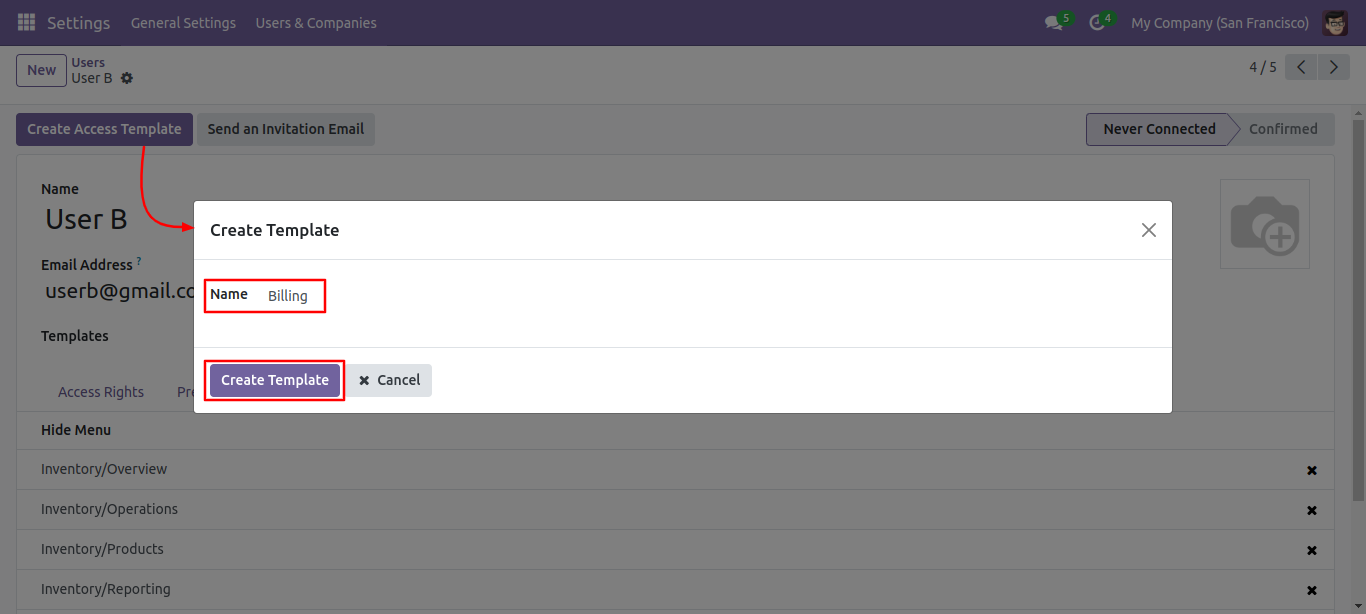
You can create a template directly from the form view also, by click on the 'Create access
template' button.
Enter template name and press 'Create Template'.
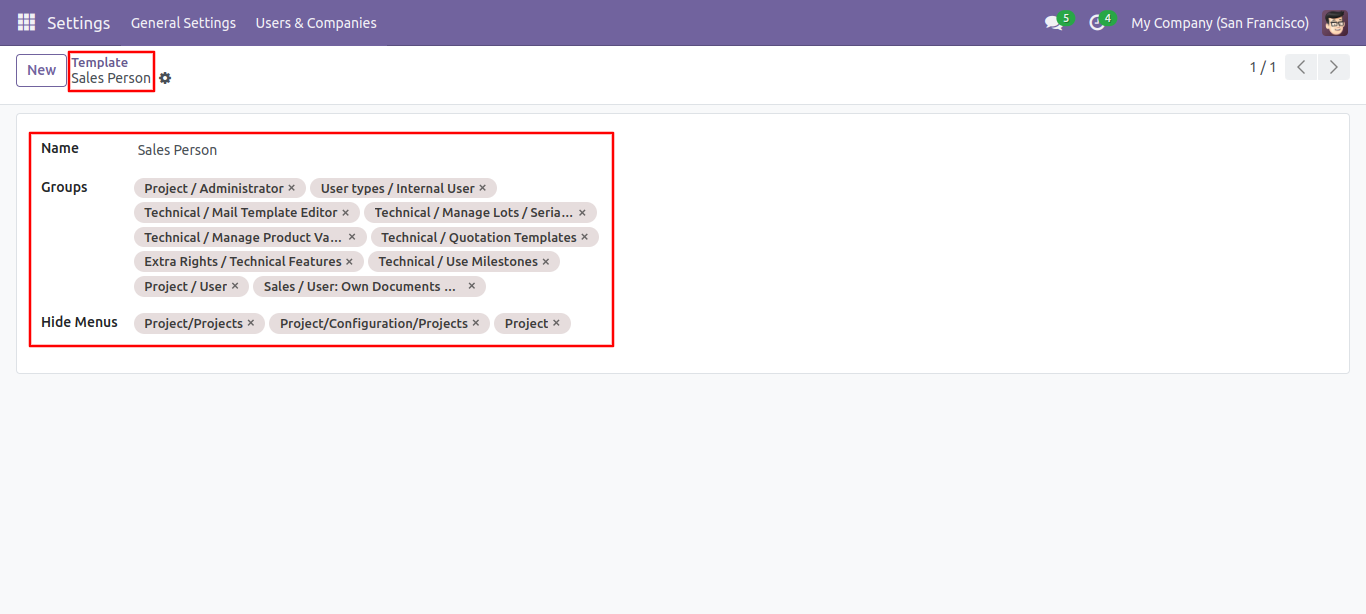
Now we create a template, so go to the 'Users & Companies' => 'Template'.
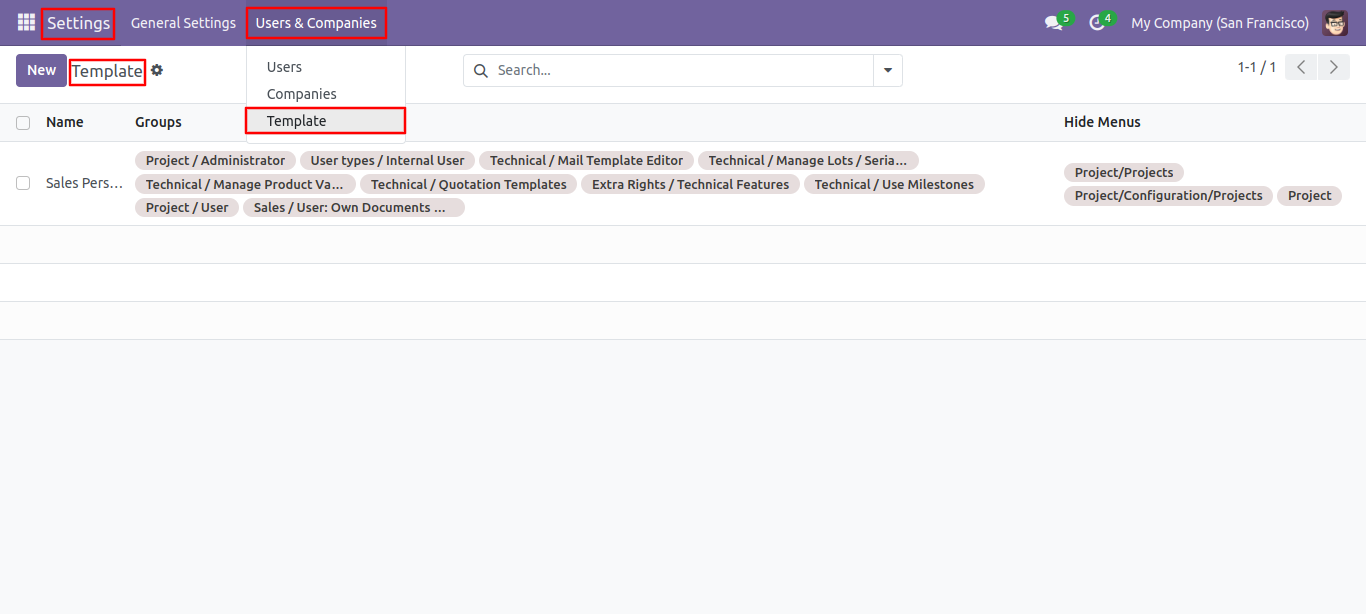
Template form view looks like this, enter details and create a template.
Go to the user and give access rights.
Add a menus you want to hide in the hidden menu tab.
You can create a template directly from the form view also, by click on the 'Create access
template' button.
Enter template name and press 'Create Template'.
Now we create a template, so go to the 'Users & Companies' => 'Template'.
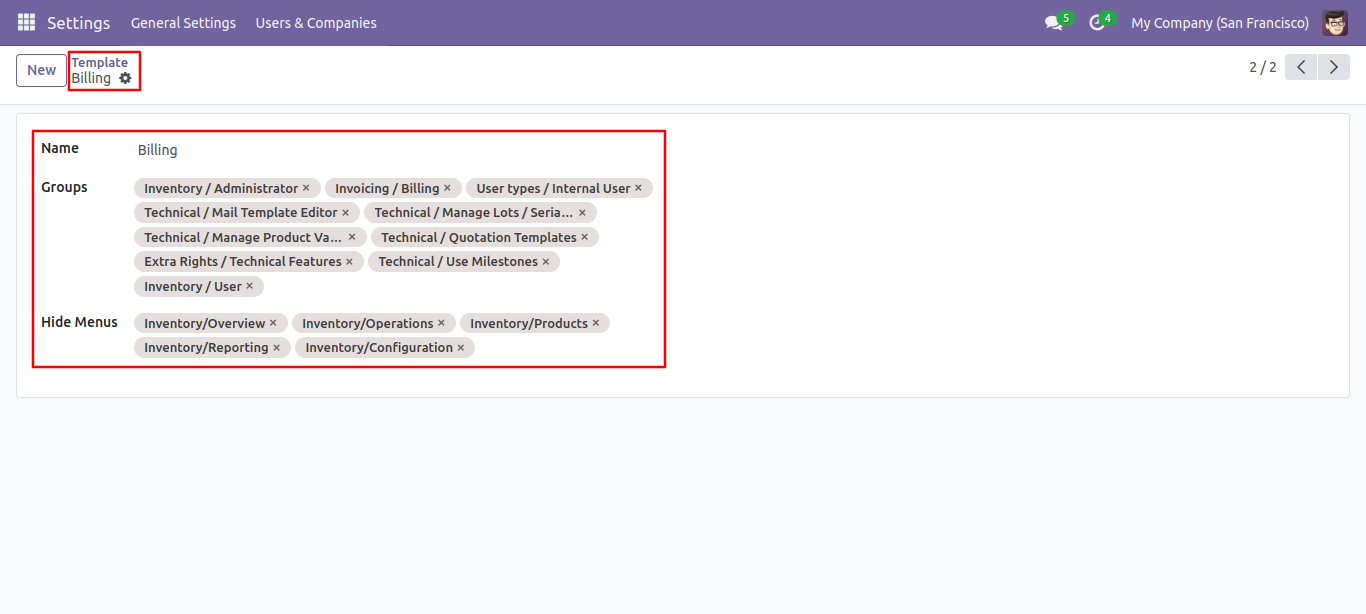
Once you've established a group template, you can assign it to users, which will immediately enable access groups as well as hide menus for that user.
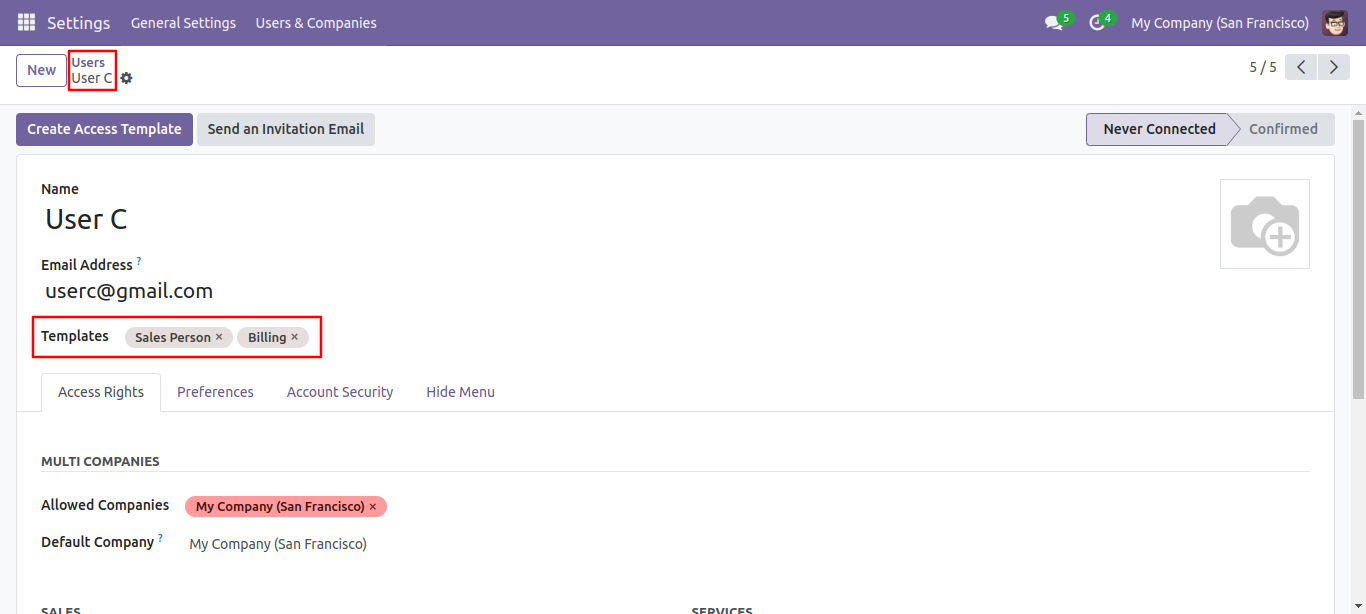
Go to the user and give access rights.
Add a menus you want to hide in the hidden menu tab.
Version 18.0.1 | Released on : 12th August 2024
- Yes, this app works perfectly with Odoo Enterprise (Odoo.sh & On-Premise) as well as Community.
- No, this application is not compatible with odoo.com(odoo saas/Odoo Online).
- Please Contact Us at sales@softhealer.com to request customization.
- Yes, you will get free update for lifetime.
- No, you don't need to install addition libraries.
- For version 12 or upper, you will need to purchase the module for each version that you want to use.
- Yes, we provide free support for 100 days.
- No, We do not provide any kind of exchange.
