











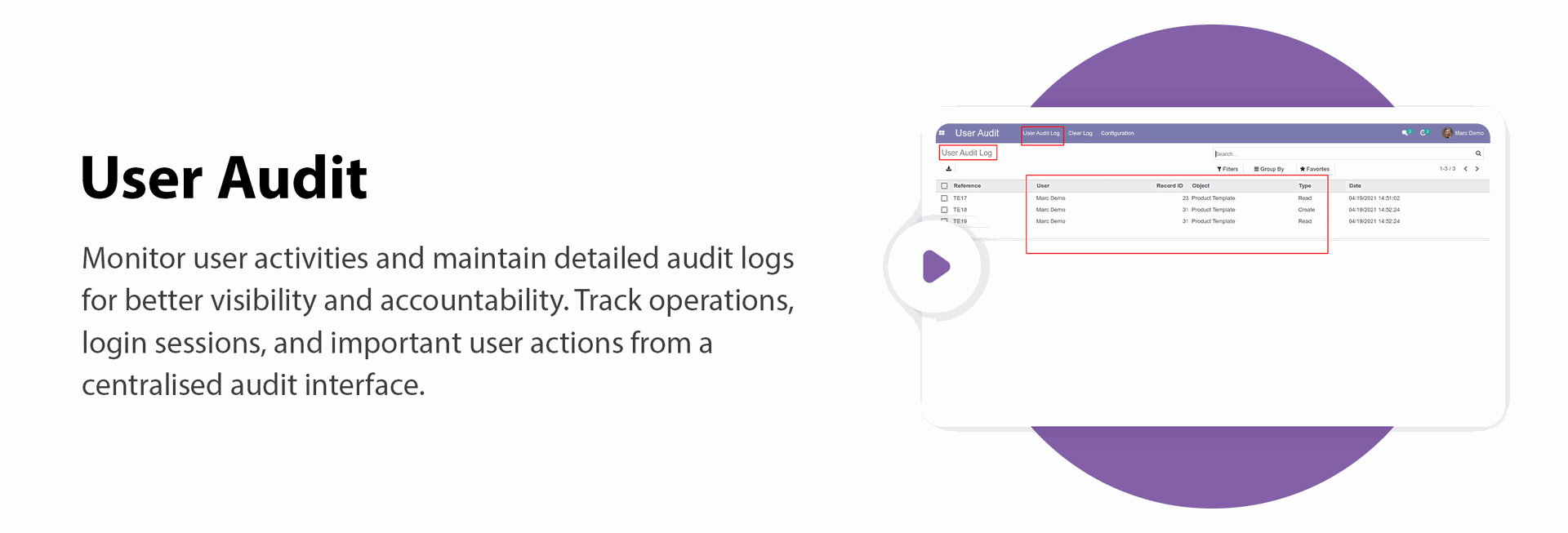
User Audit

This module allows to track all user's operations performed on data models such as create, read, write and delete. You can track every user's activity on all the objects of the system. You can group by audit logs with different dimensions like user, object & type. The log view contains details about each operation like date, record id, record object name, user name, type, old and new values of each modified field, etc.
Key Features
Features
User Audit Log Access
Allow users to view their available audit log records.
Audit Log Access Groups
Control audit log access with separate User and Manager access rights.
User Operation Tracking
Automatically track and record all operations performed by users.
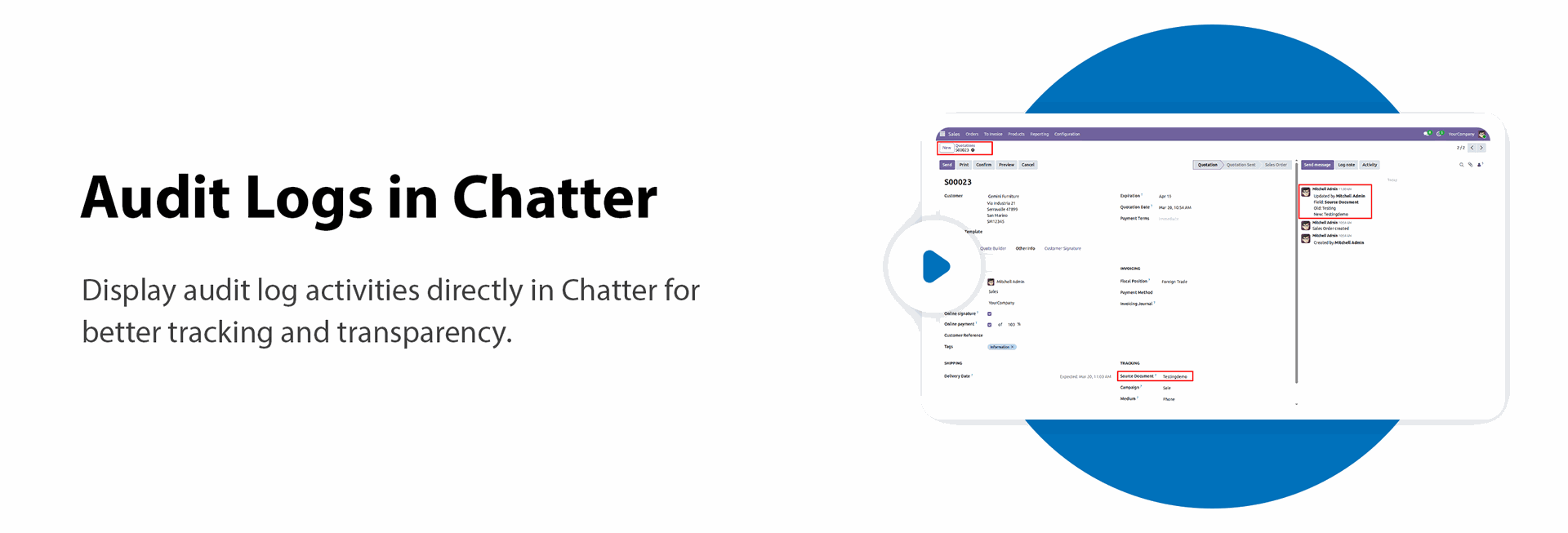
Audit Logs in Chatter
Display audit log activities directly in the chatter for better tracking and transparency.
Session-Wise Audit Logs

Track user activities and system actions separately for each session.
Impossible Travel Detection
Detect suspicious logins when a user appears to access the system from locations that cannot reasonably be reached within the recorded time.
Automatic Audit Log Cleanup
Automatically delete old audit logs after the configured number of days.
Manager Audit Log Access
Allow managers to view user audit logs, clear logs, and create new audit log records.
CRUD Operation Management
Monitor and manage Create, Read, Write, and Delete operations performed by users.
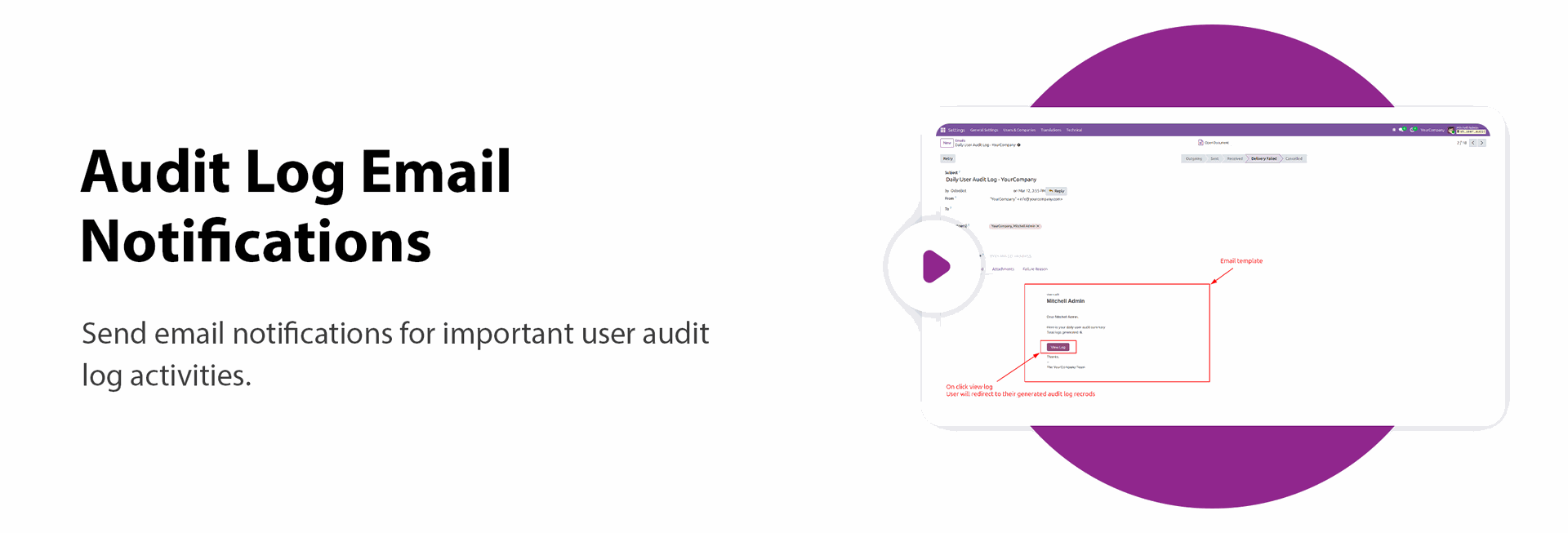
Audit Log Email Notifications
Send email notifications for important user audit log activities.
User Session Management
Monitor and manage active and past user sessions from a centralized view.

Login Email Notification
Send an email notification when a user logs in to Odoo.
Failed Login Tracking
Track failed login attempts with relevant details to help monitor and identify suspicious access attempts.
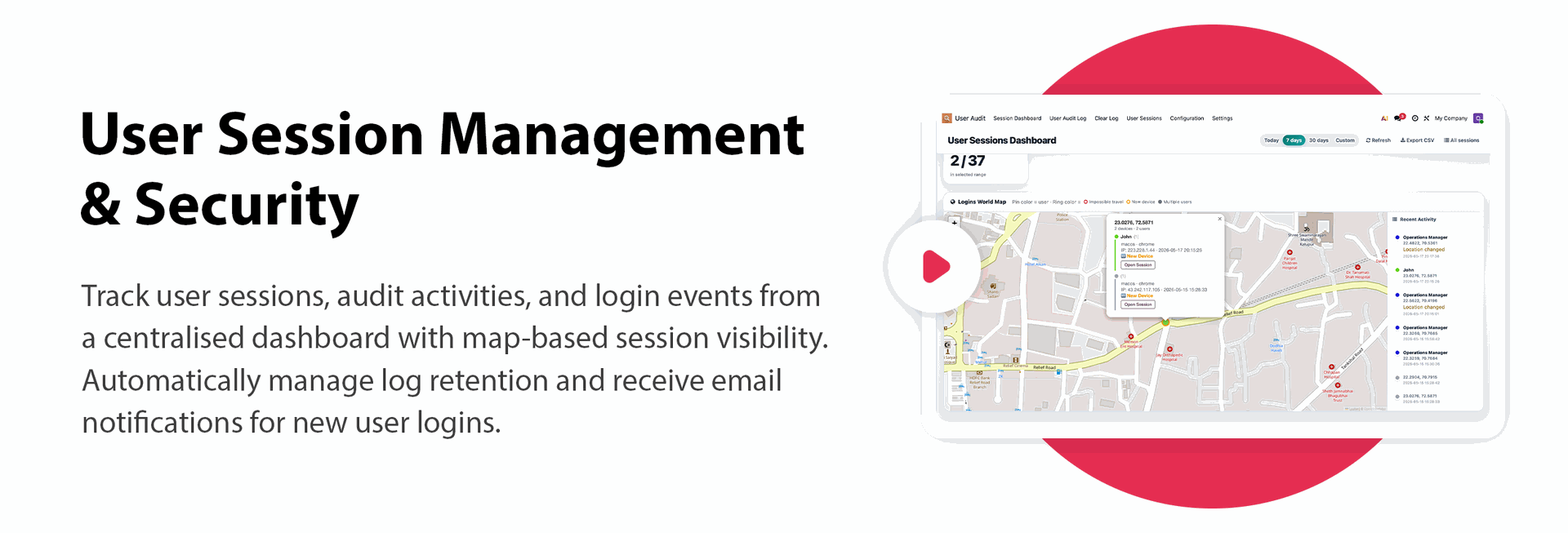
User Session Dashboard & Map View
View session details and user login locations on an interactive dashboard with a map.

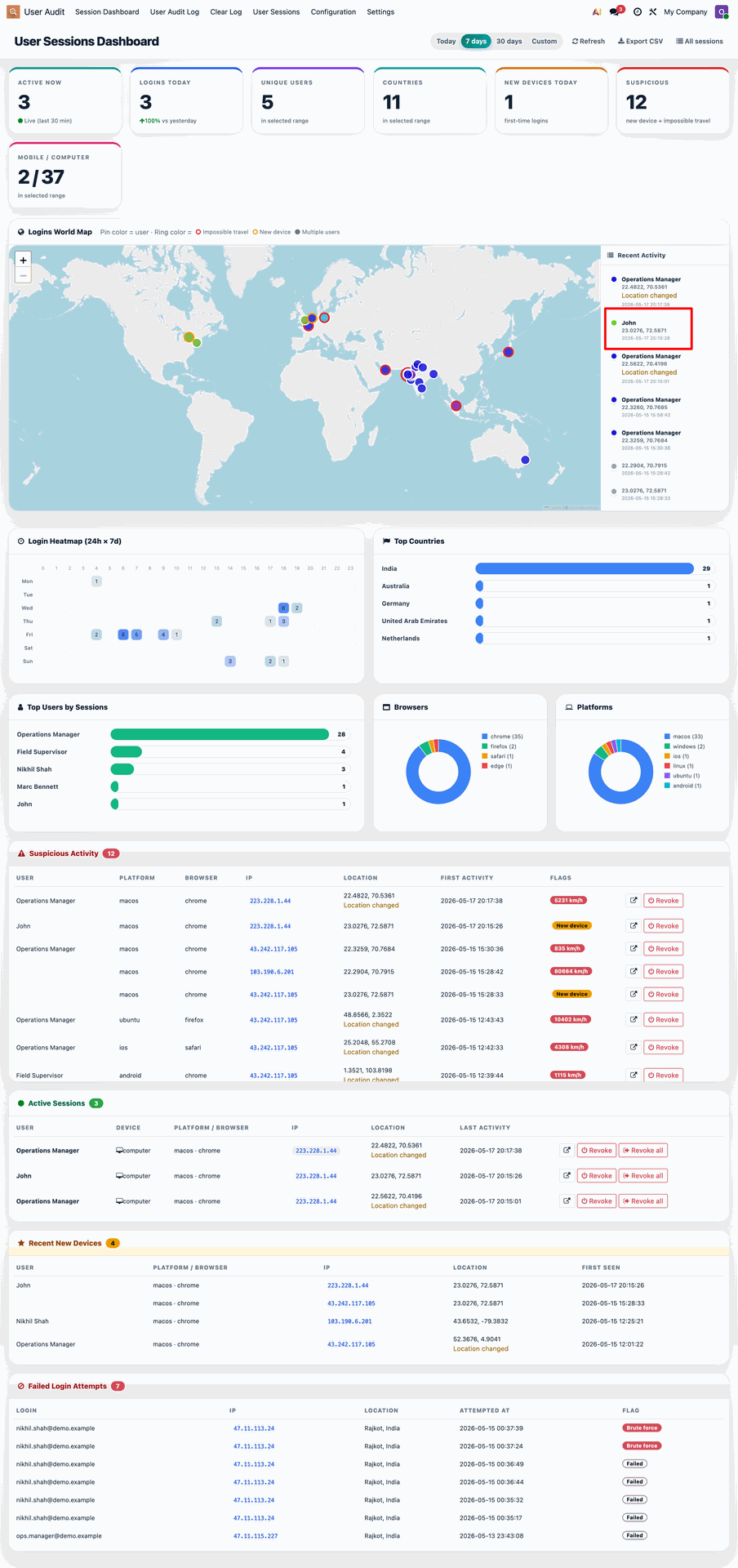
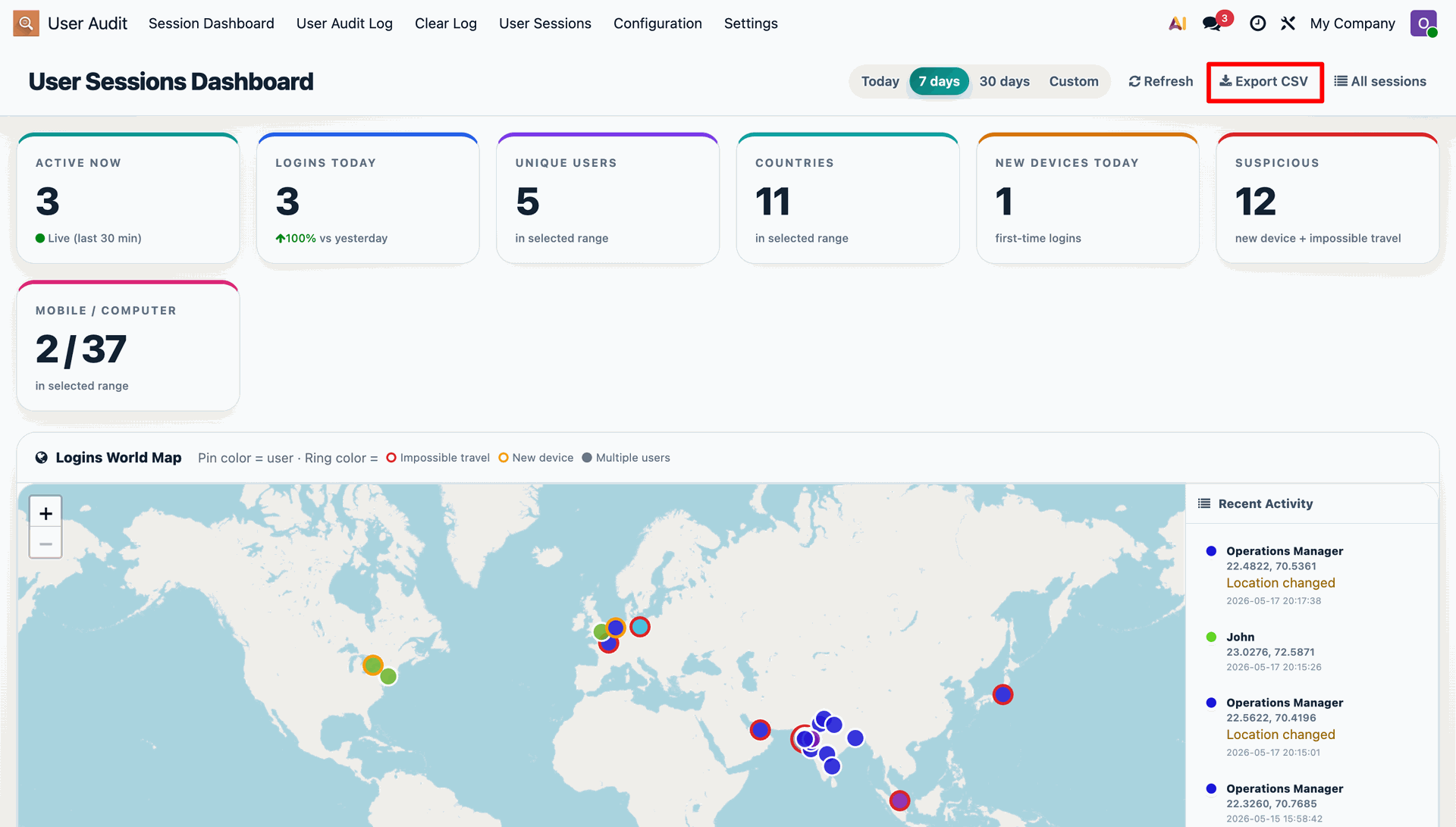
User Sessions Dashboard provides an overview of active sessions, login activity, unique users, countries, new devices, and suspicious activity with an interactive world map.
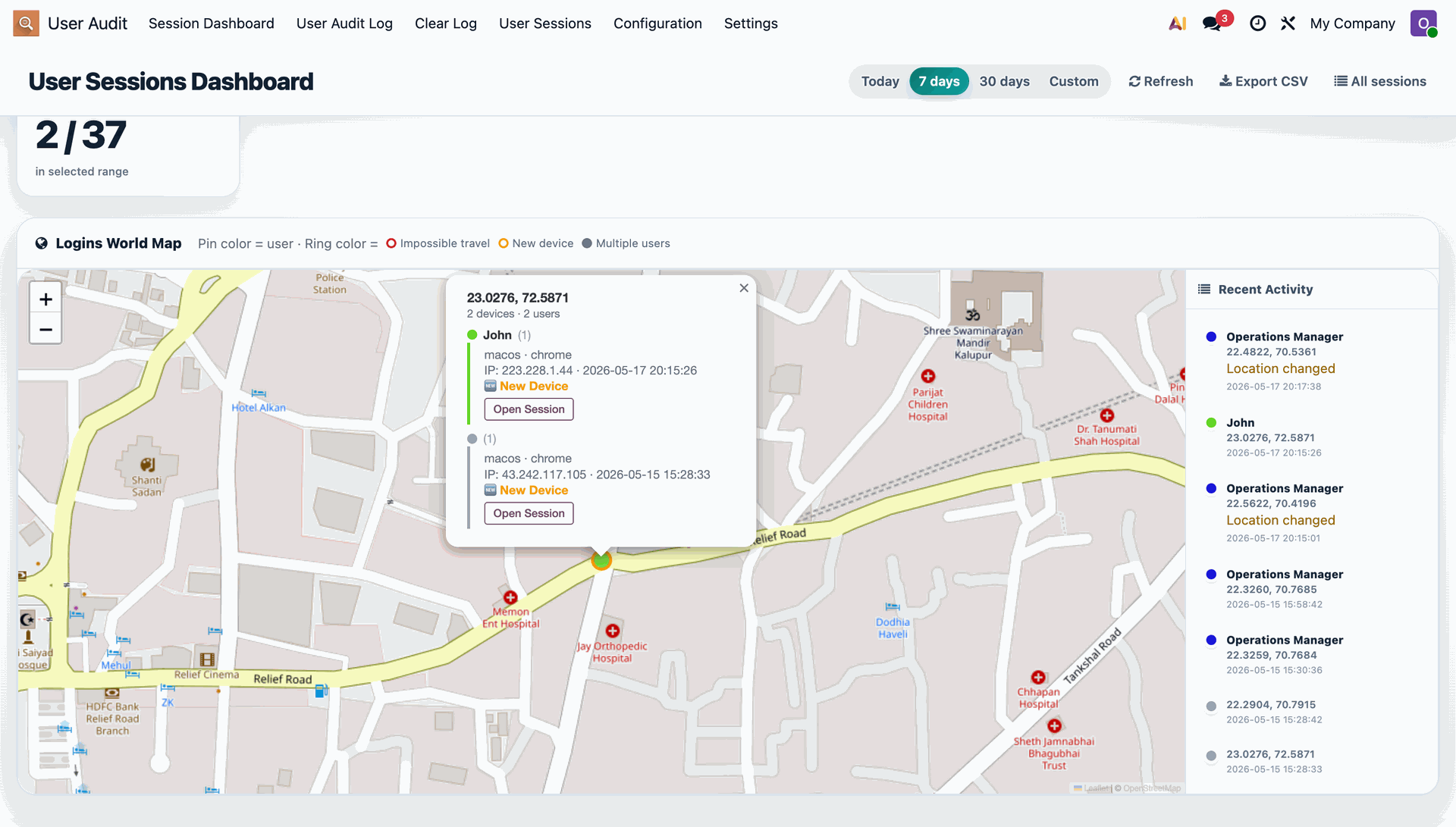
The detailed map view displays user login locations and recent activity, allowing administrators to inspect session locations and open individual session details.
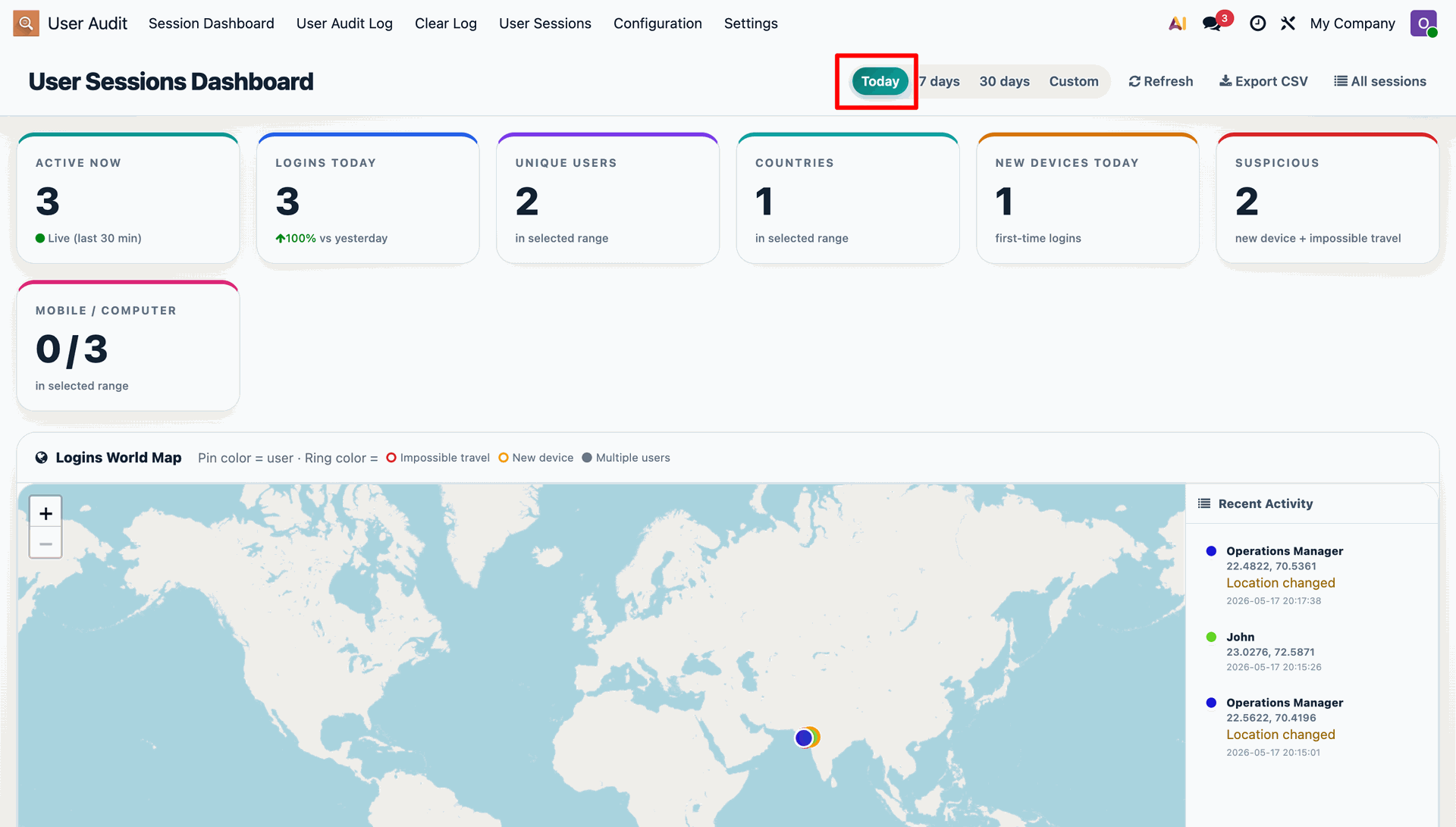
Use the Today filter to view session activity for the current day and review key login and device statistics at a glance.
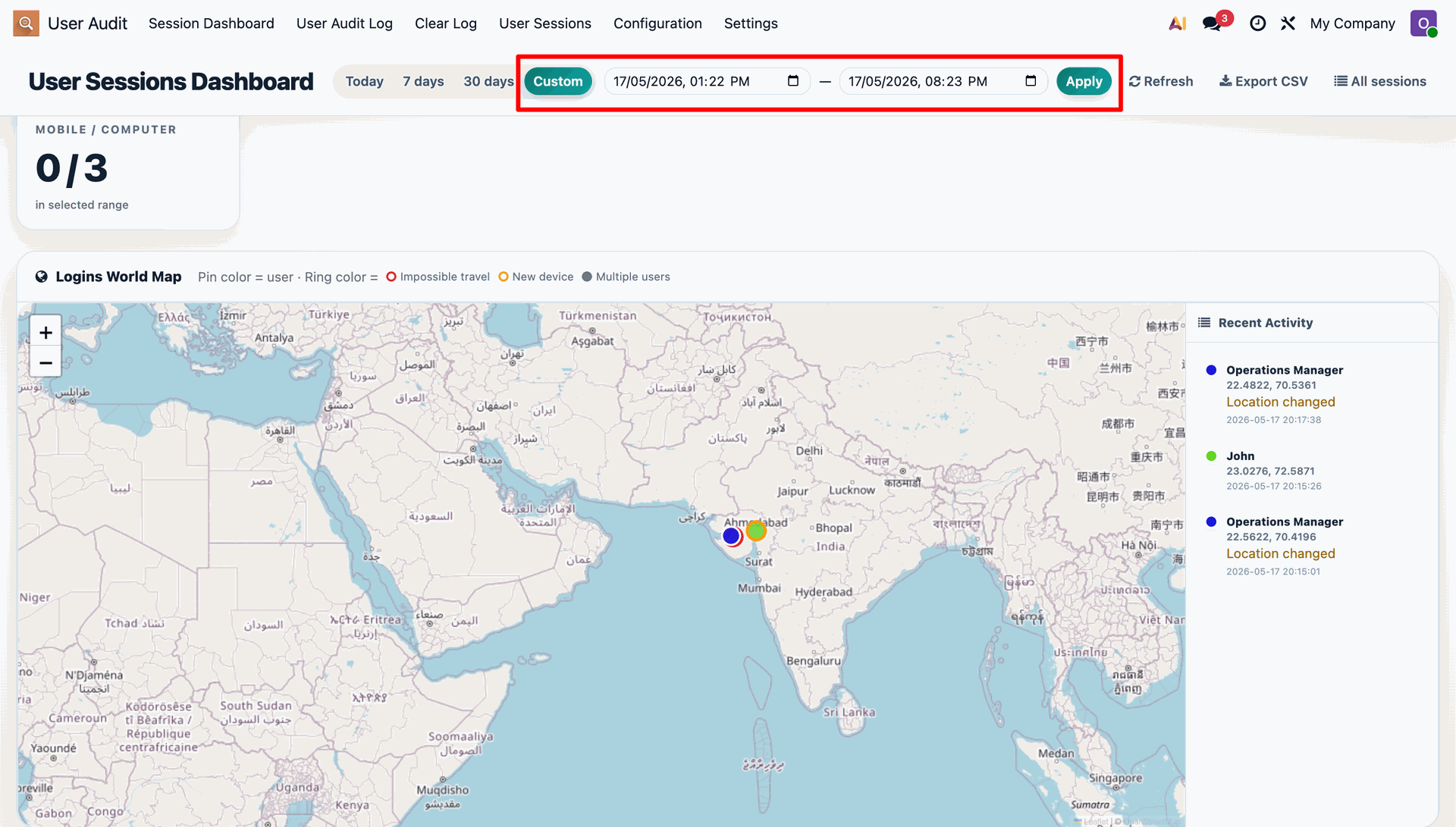
Use the Custom date range filter to analyze user session activity for a specific period and apply the selected date range to the dashboard.
Review the dashboard with multiple session locations and use Export CSV to download the displayed session data for further analysis.
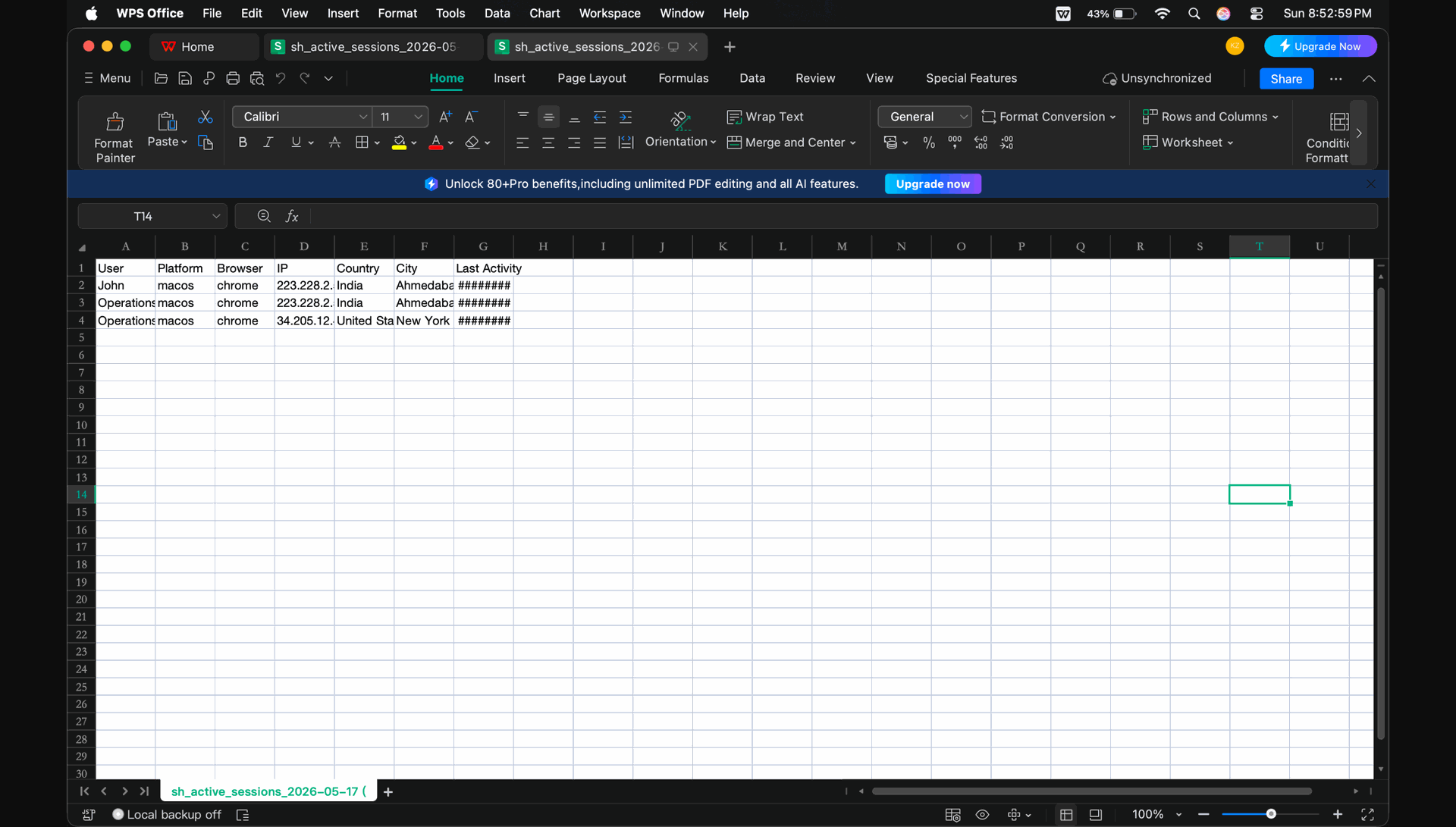
The exported session data can be opened in a spreadsheet application, providing a tabular view of users, platforms, browsers, locations, and activity details.
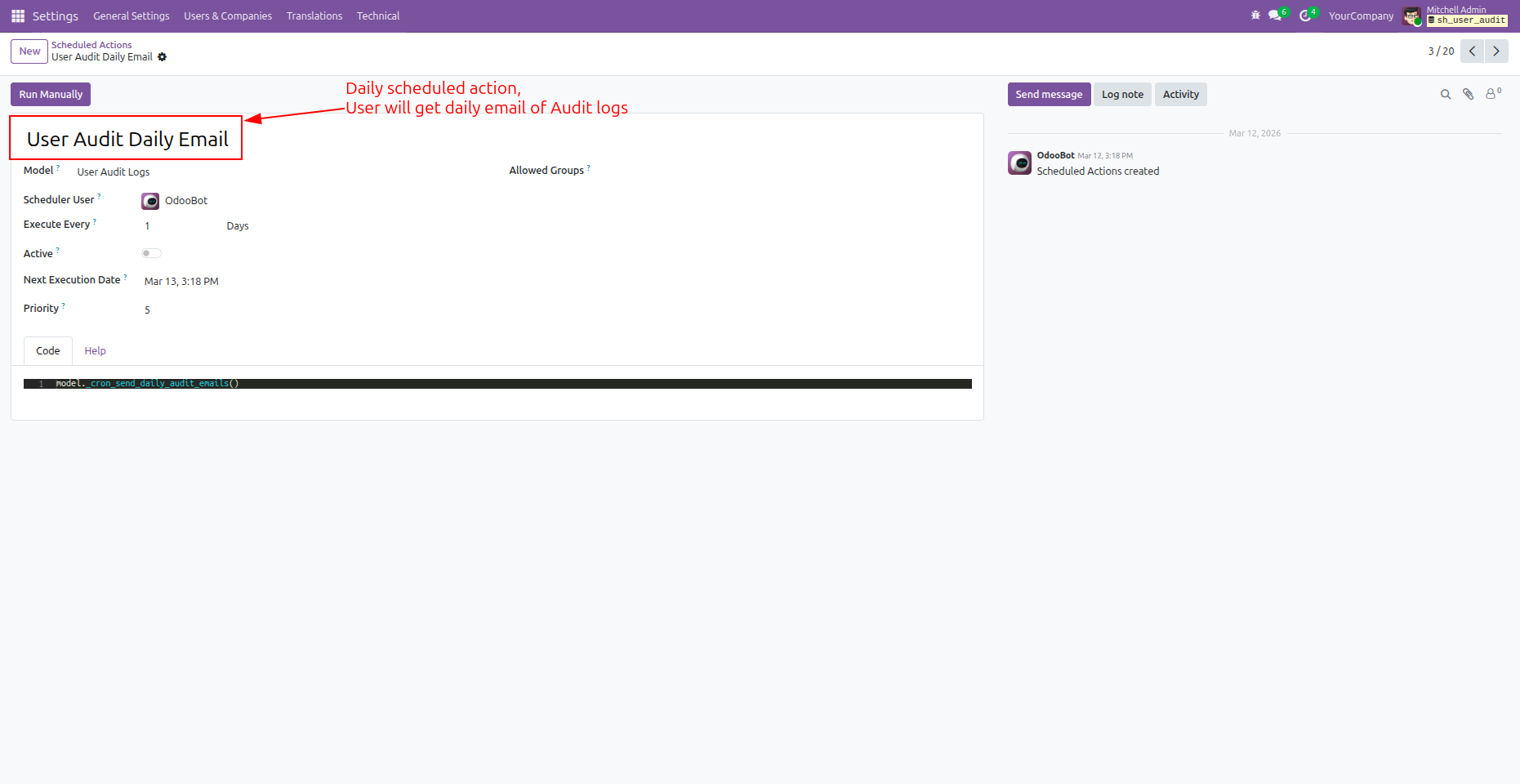
Configure the User Audit Daily Email to run the audit-log notification manually or on a scheduled basis for selected recipients.
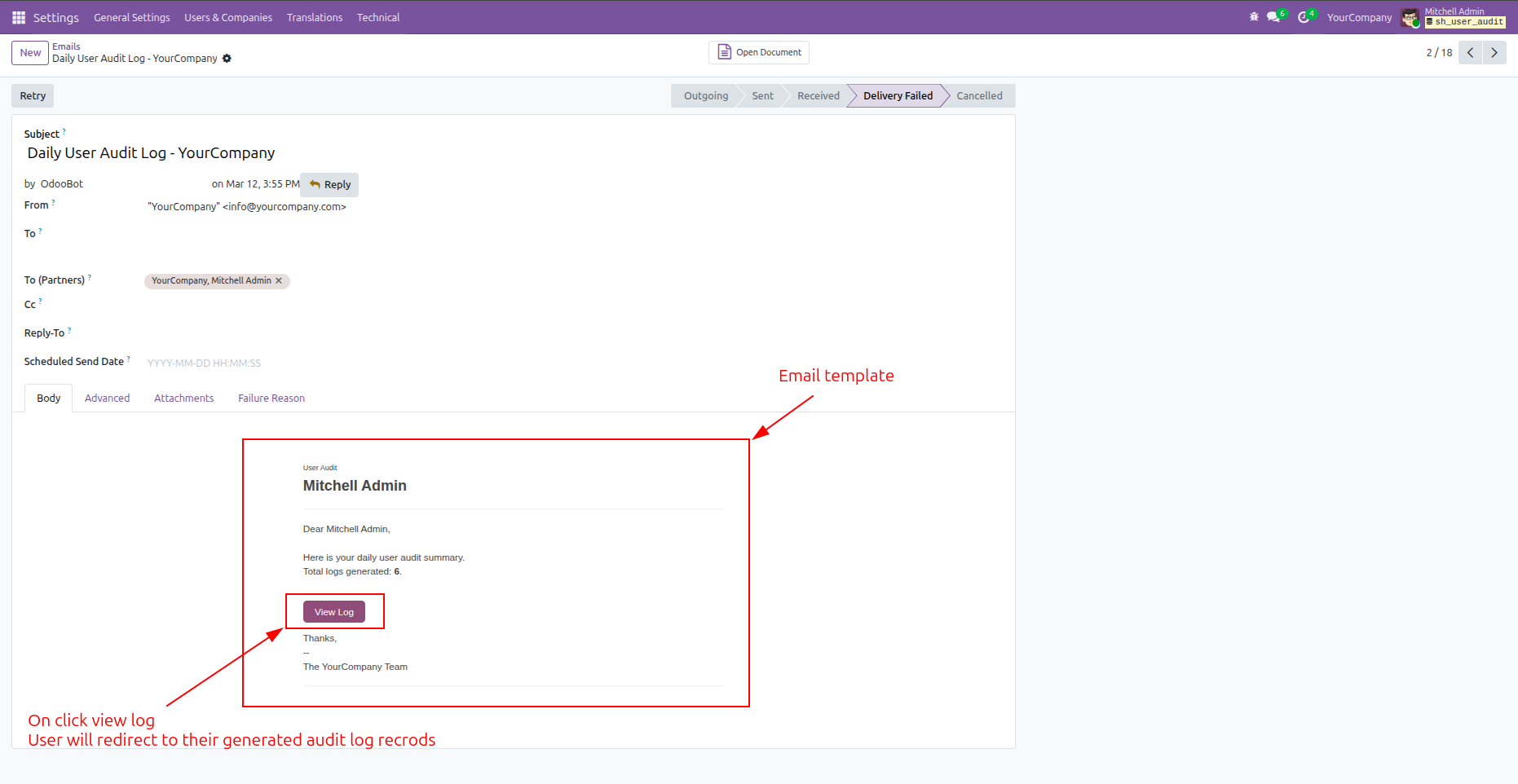
The generated daily audit email contains a View Log button that takes the recipient directly to the corresponding audit log records.
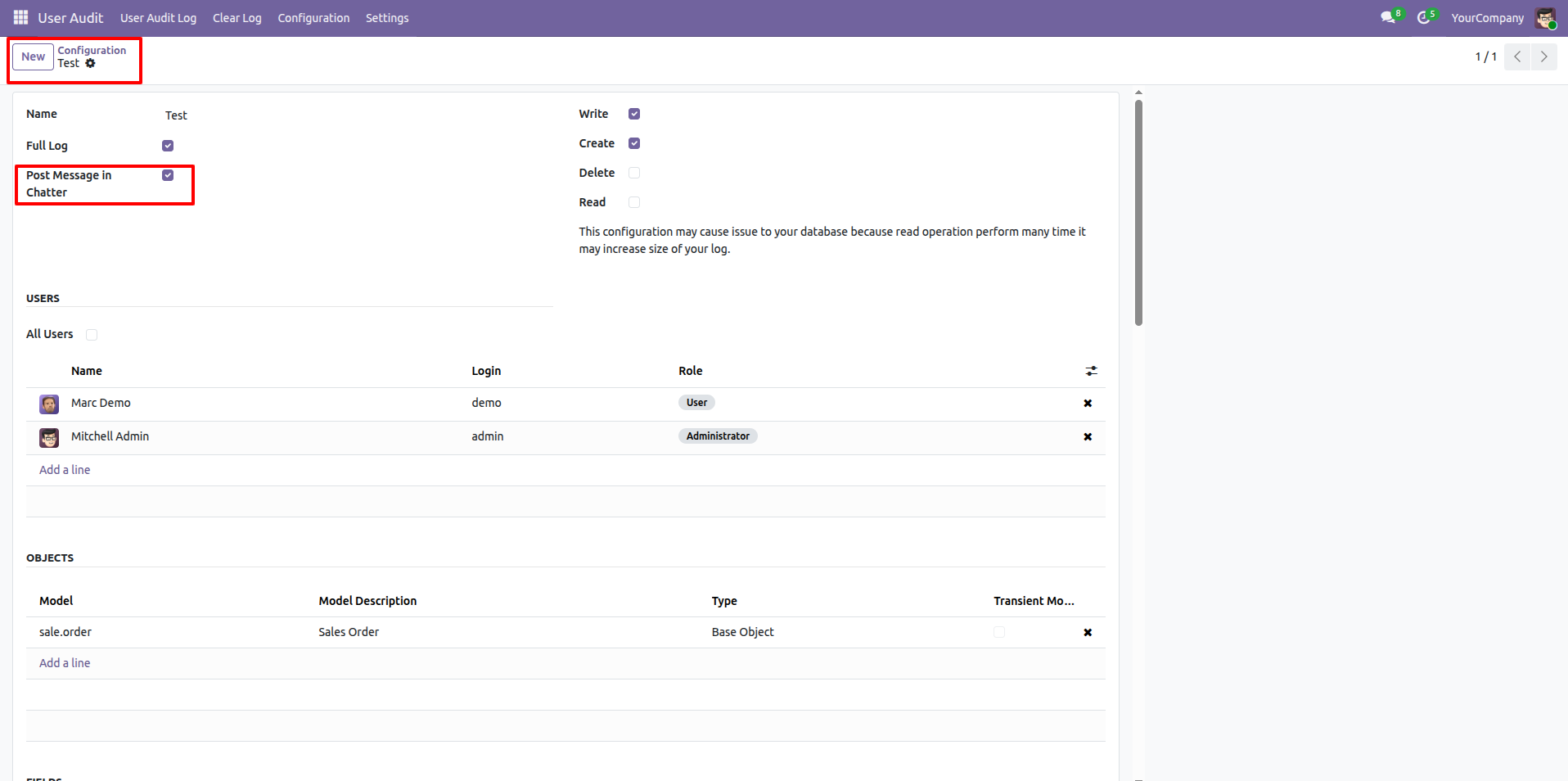
Enable Post Message in Chatter from the User Audit configuration to automatically post audit activity to the related record's chatter.
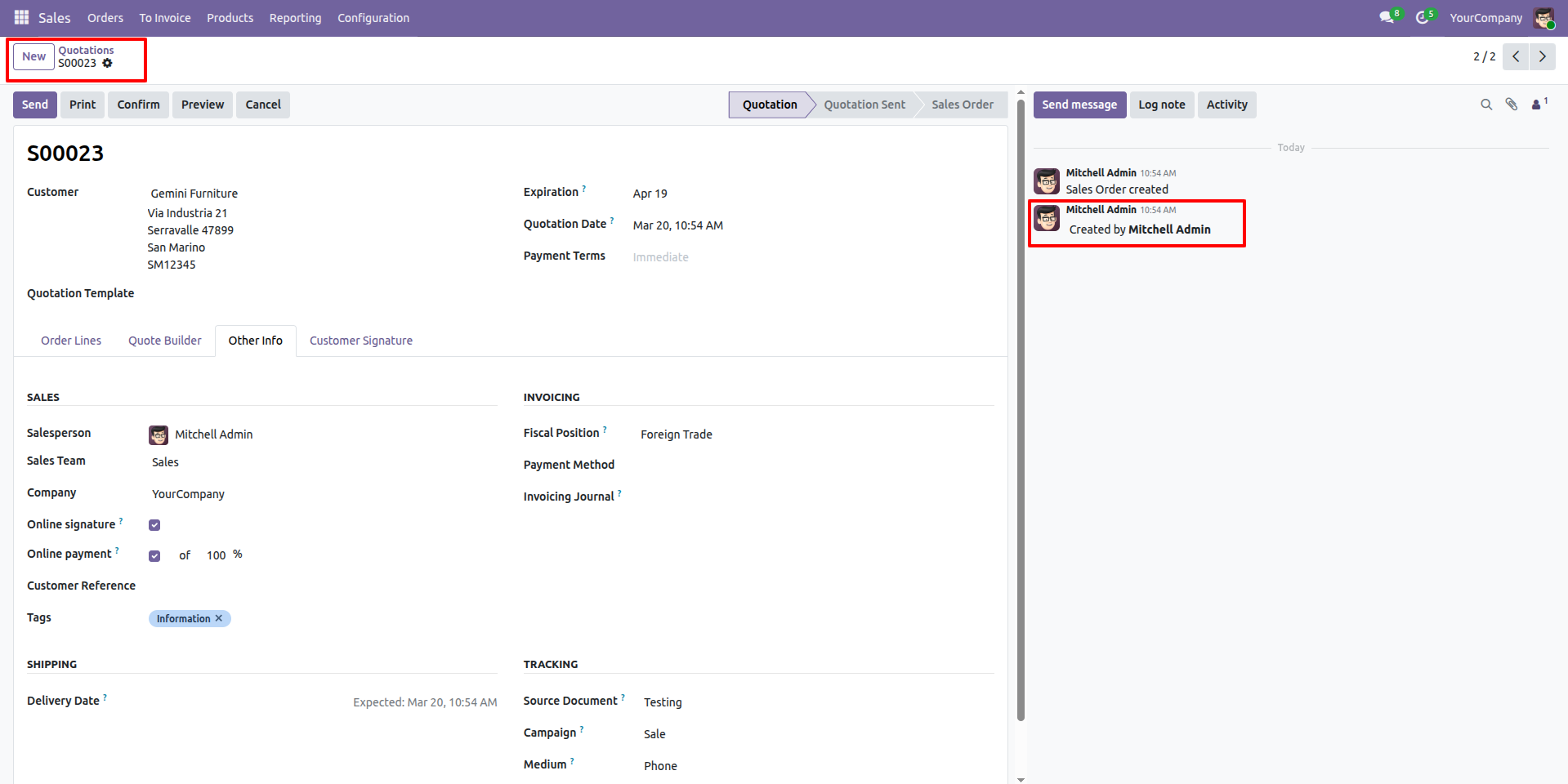
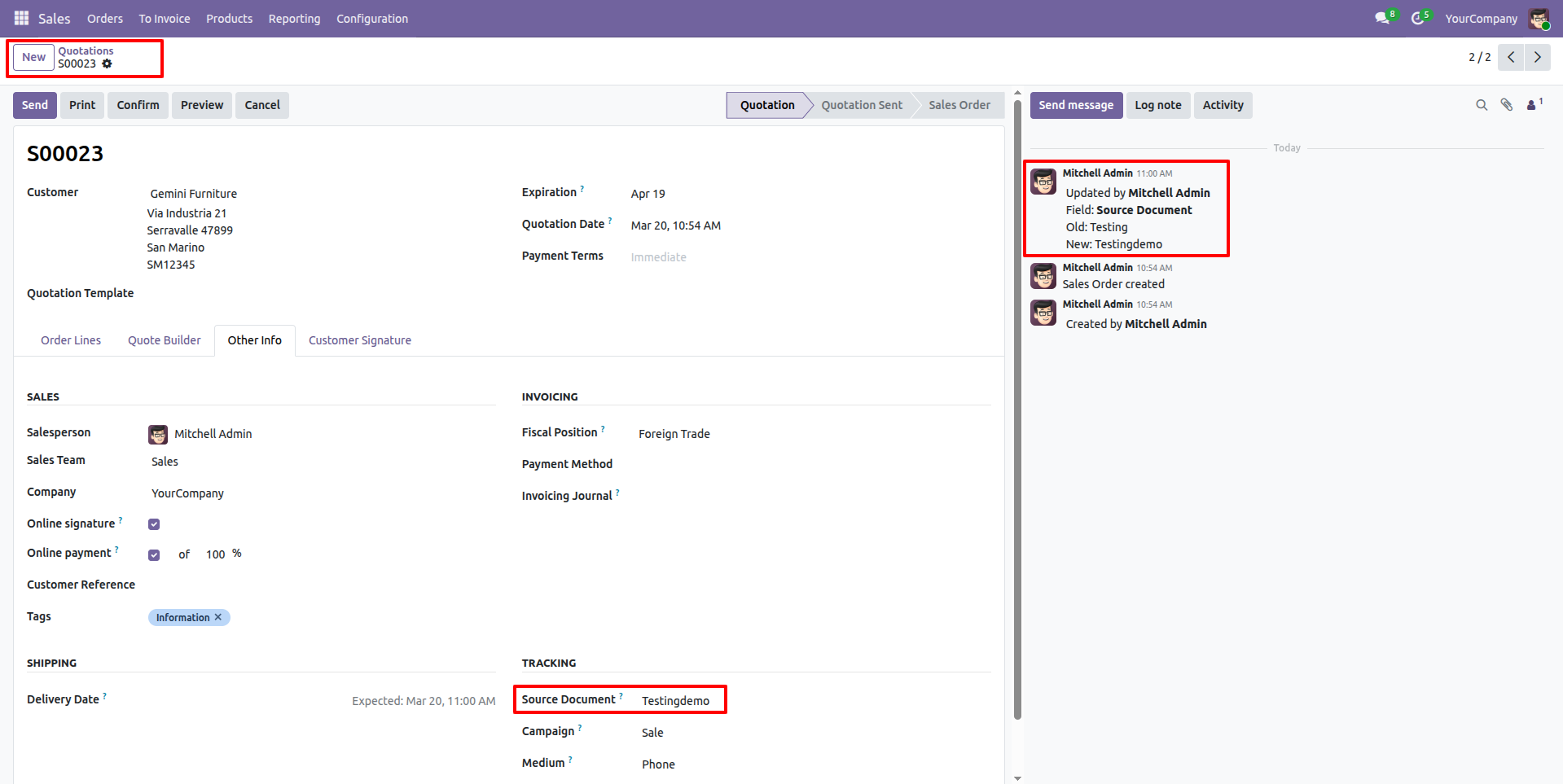
After an operation is performed, the audit message is displayed in the record's chatter with details of the tracked activity.
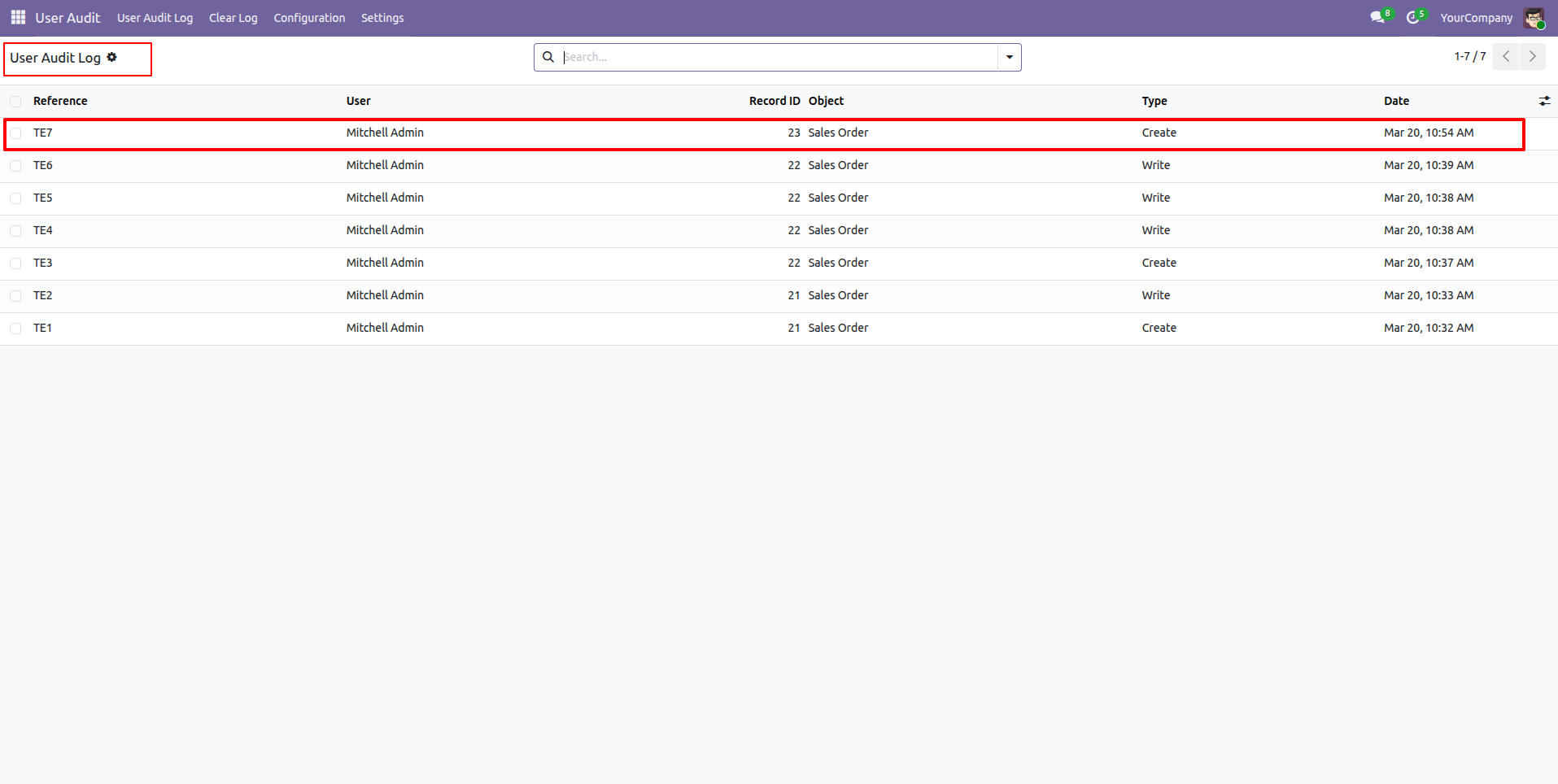
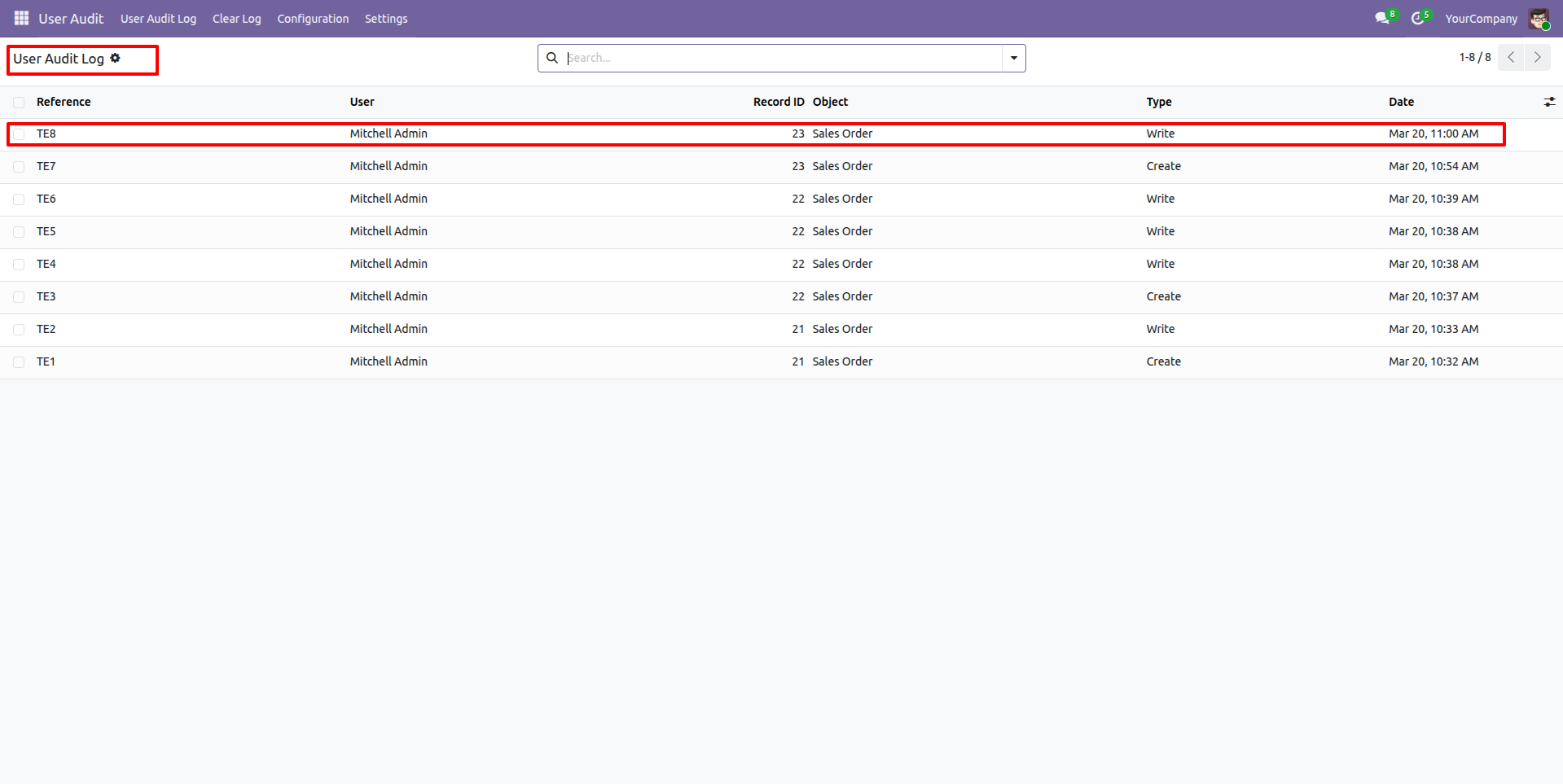
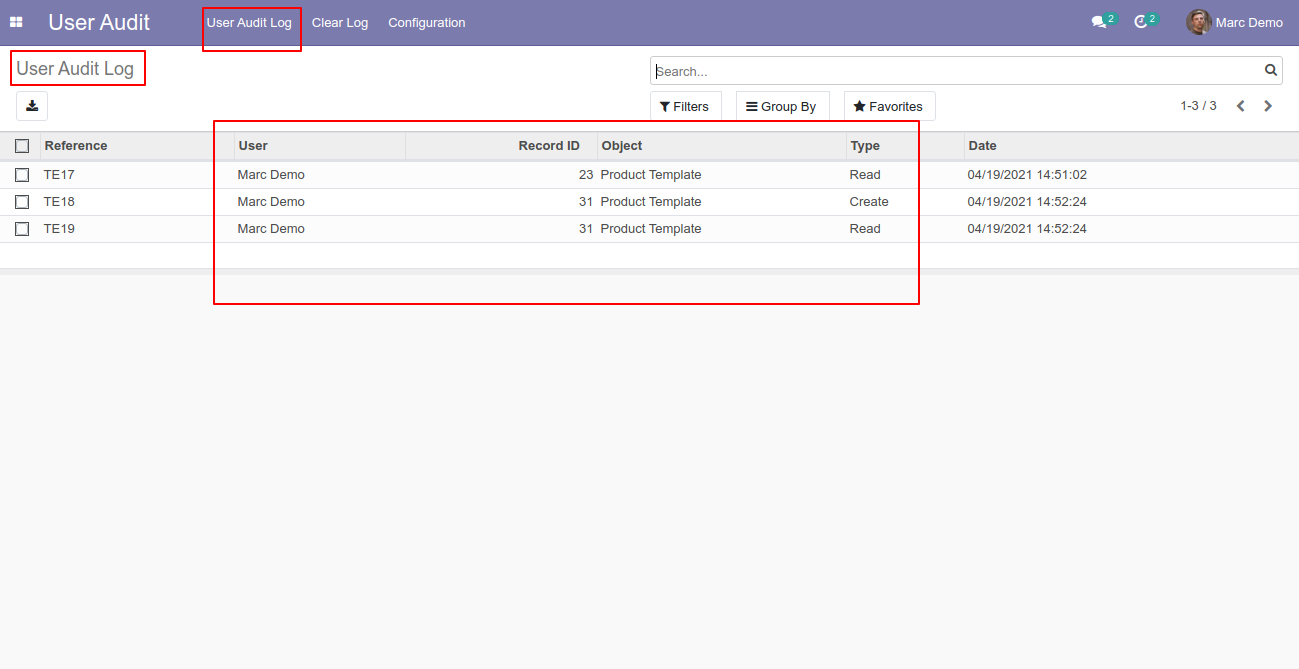
The User Audit Log list displays tracked operations with reference, user, record/object, operation type, and date information.
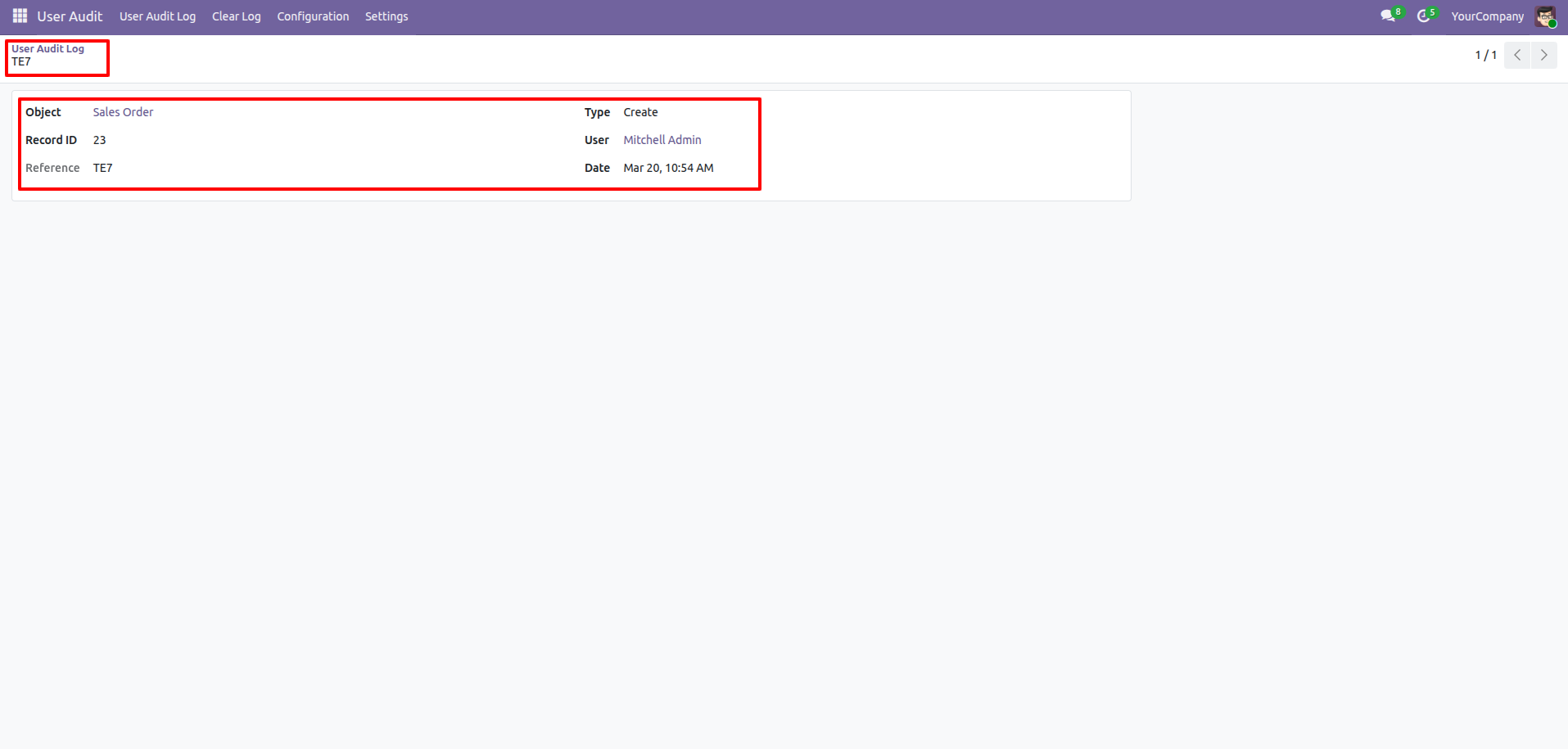
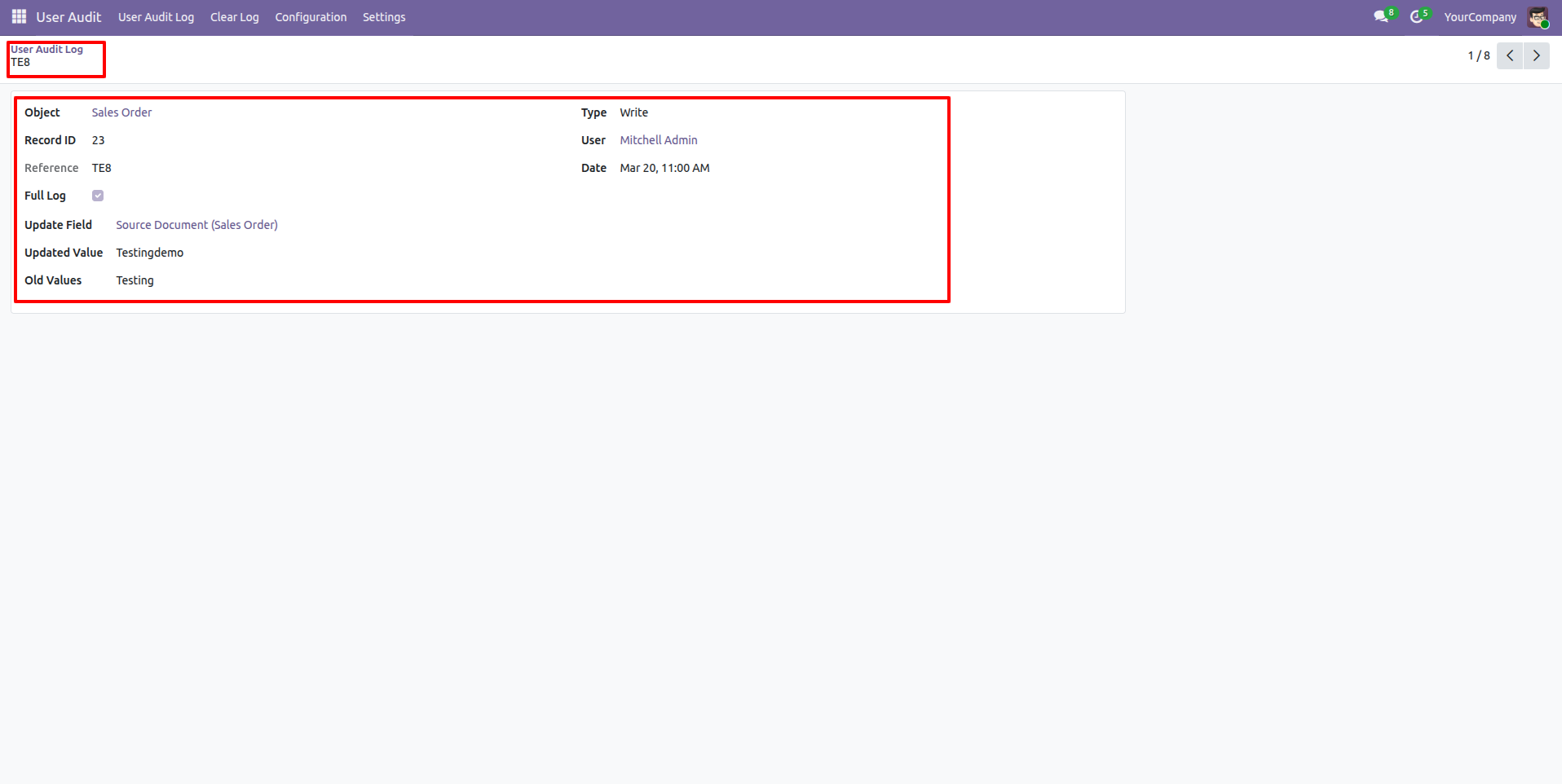
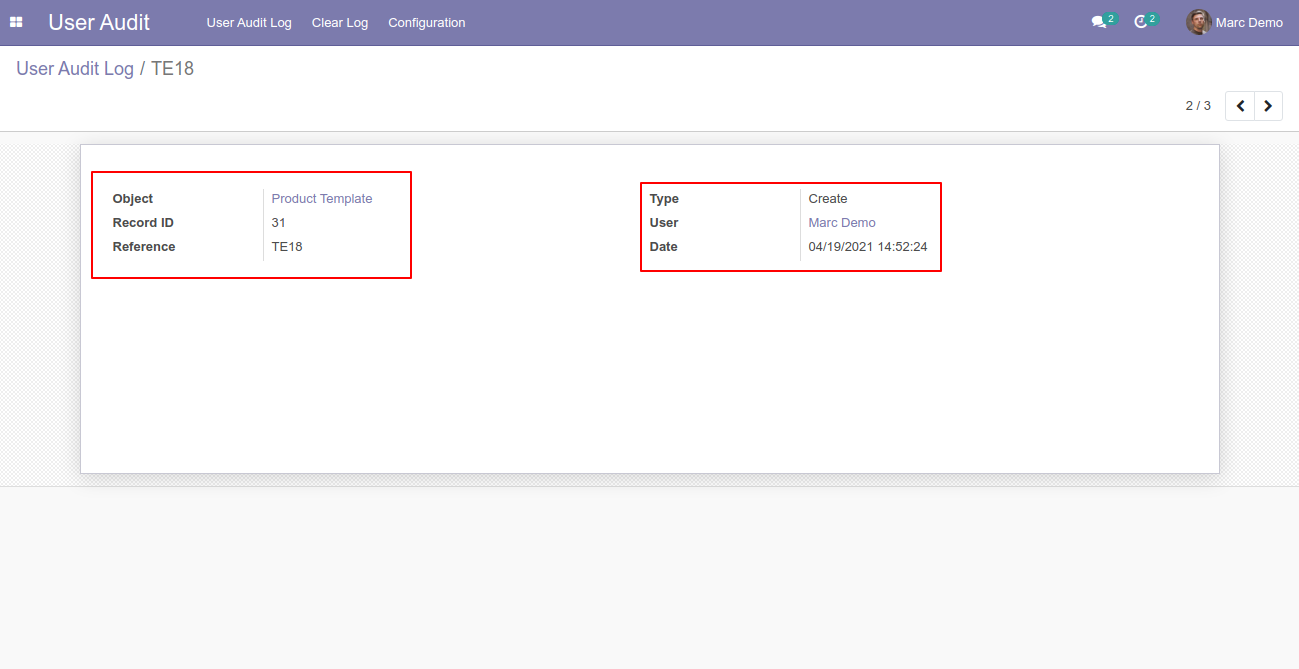
Open an audit log record to view detailed information about the tracked operation, including the affected object, record, user, and timestamp.
The related Sales Order chatter shows the audit message generated after the record is updated, providing the change history directly on the document.
The User Audit Log list records multiple operations performed on the Sales Order, including create, write, and other tracked activities.
Open the audit log detail to review the changed field information, including the updated value and the previous value captured by the audit trail.
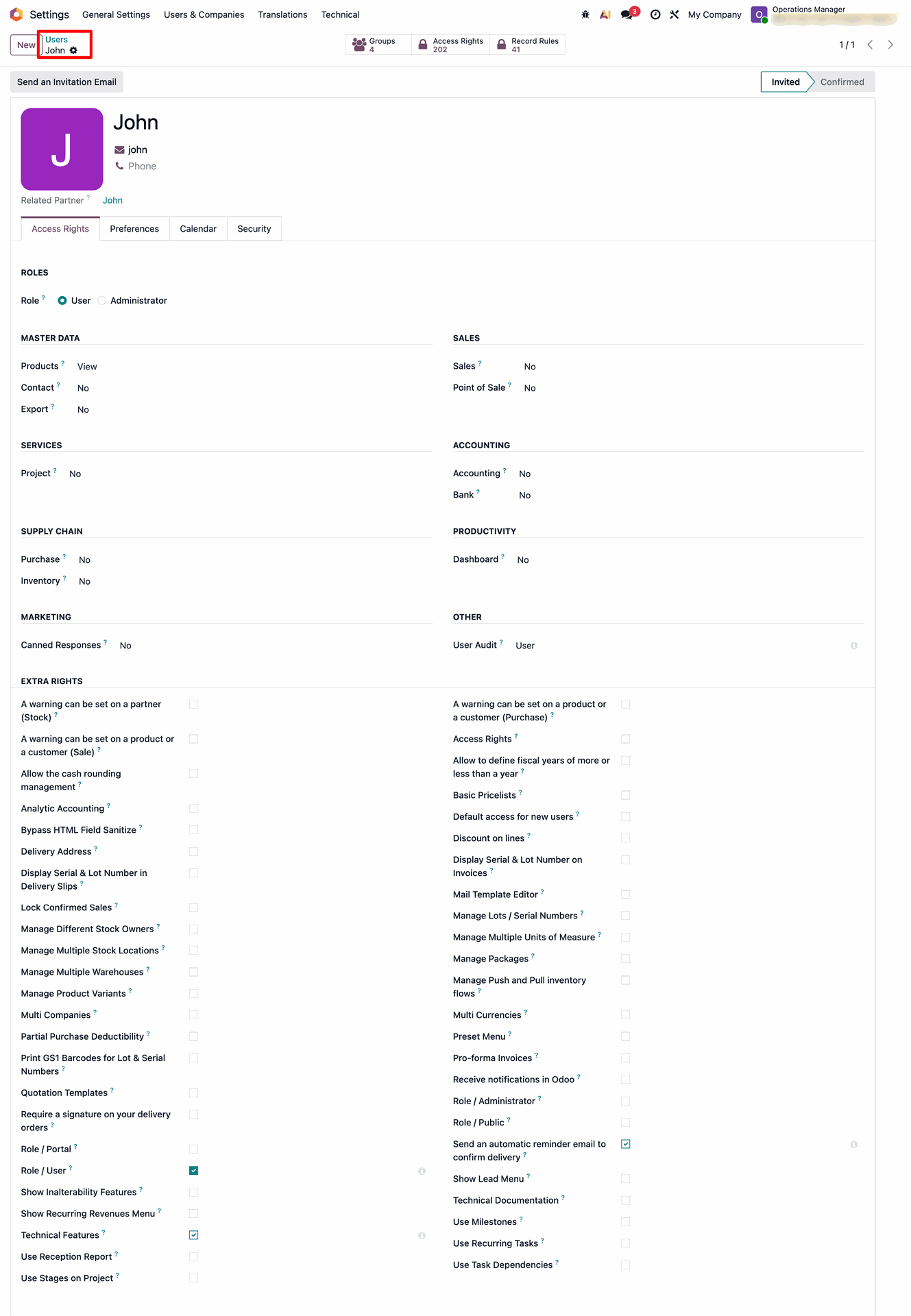
Create a new user account to demonstrate how the system detects new logins and sends email notifications for security purposes.
Login with the new created user account to trigger the new login detection.
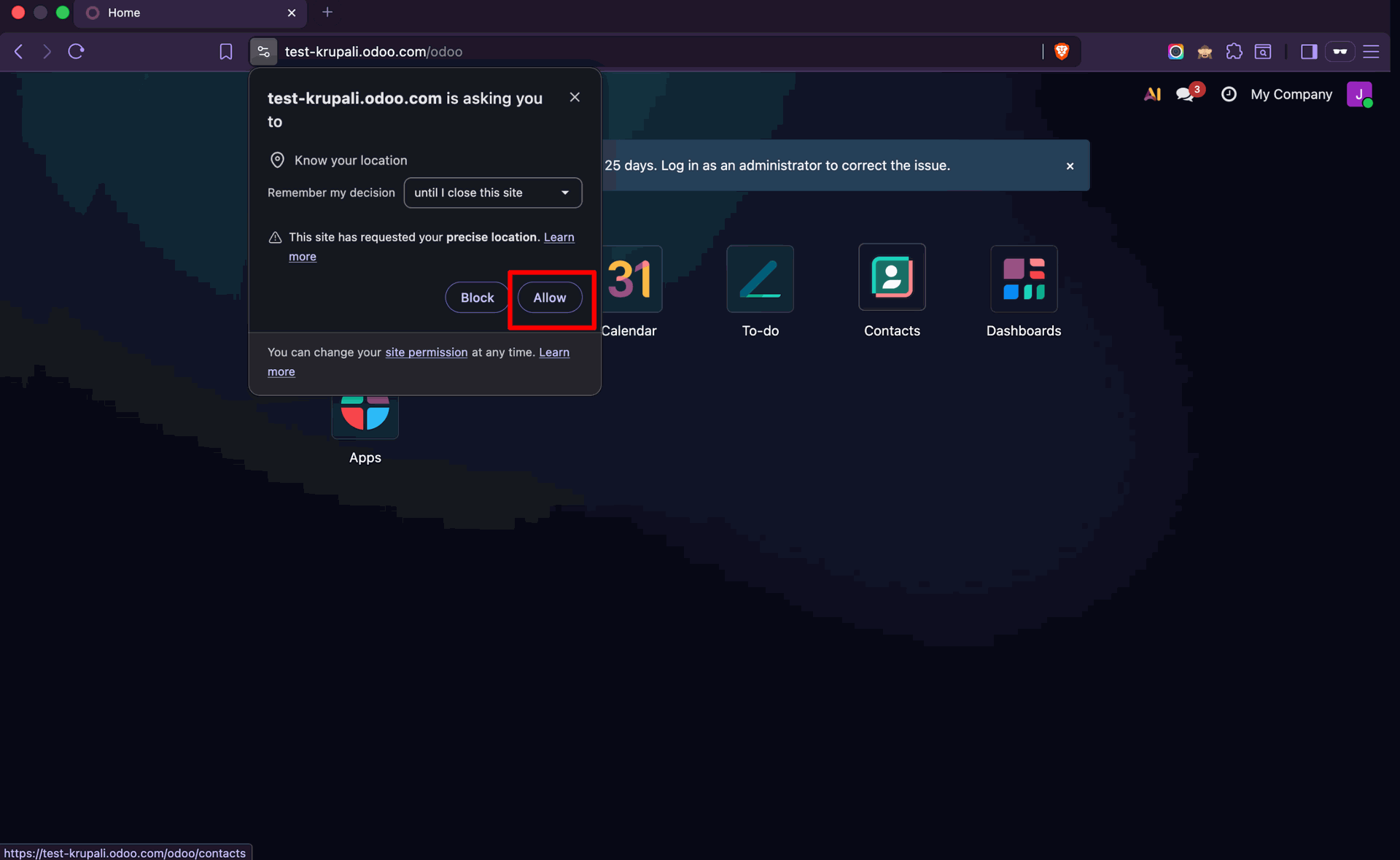
When a new login is detected, the browser may request permission to share the user's location so the session can capture location information.
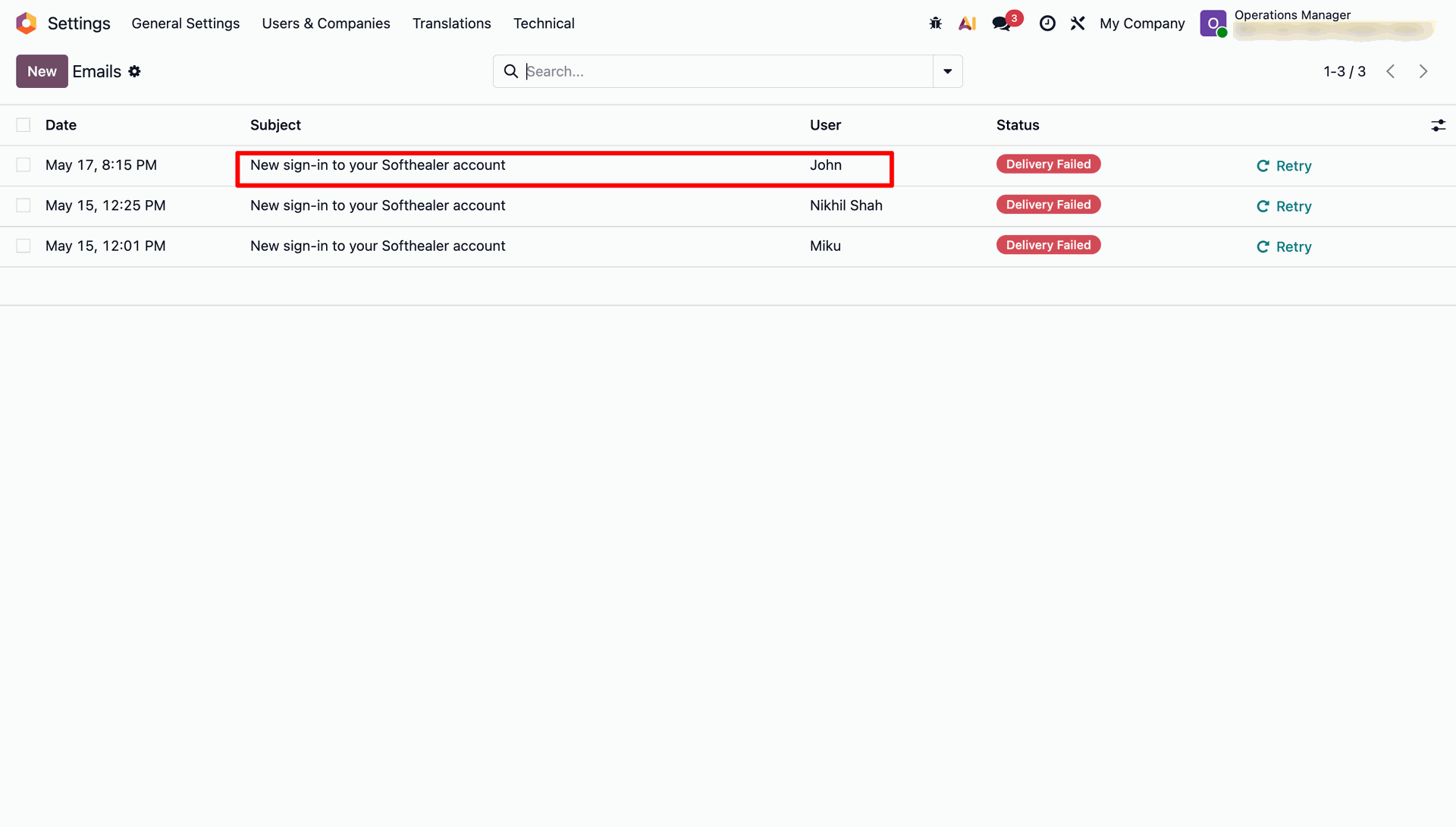
New login notification emails are listed with the subject, recipient user, delivery status, and retry option for failed notifications.
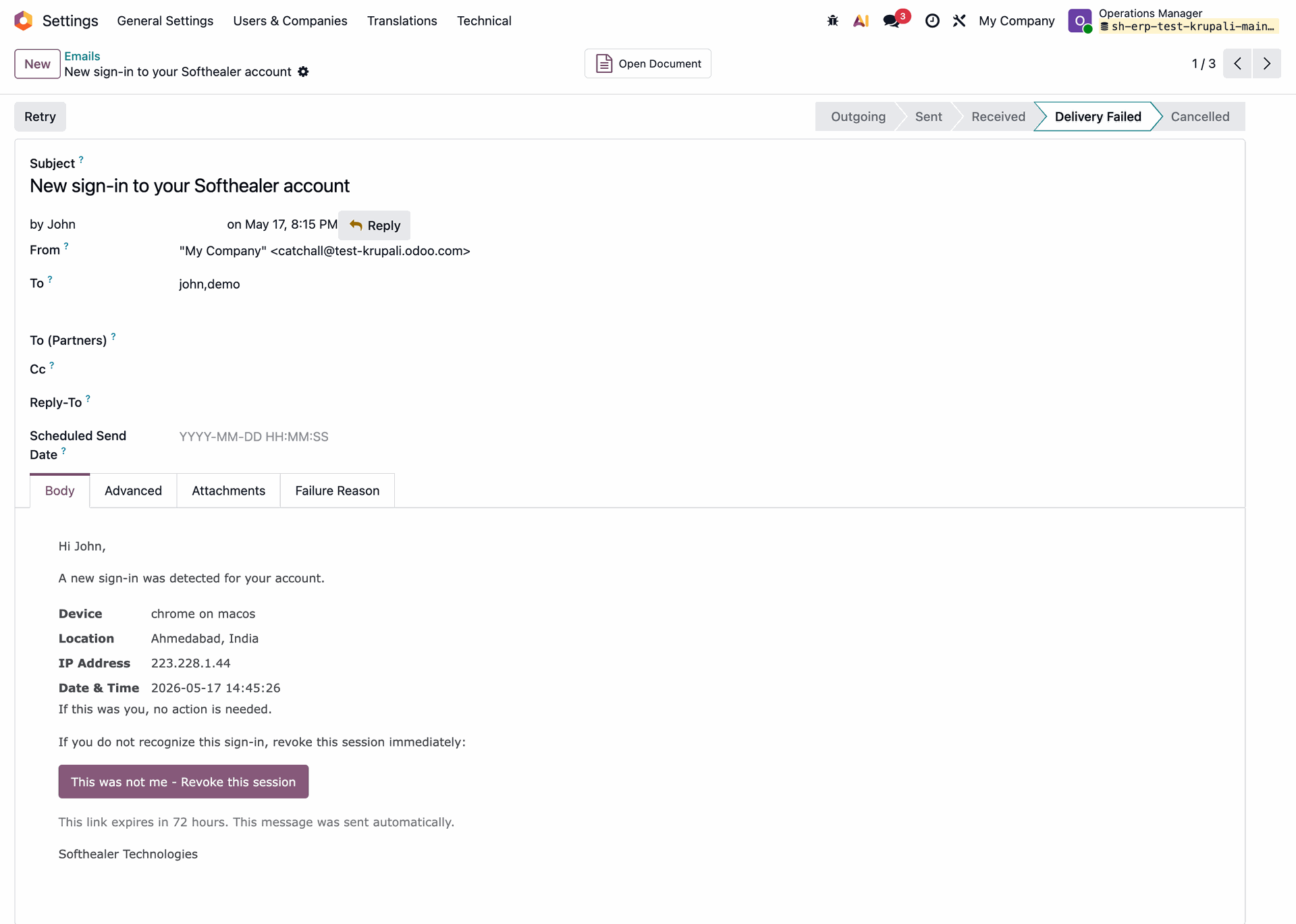
Open the new-login notification email to review the detected login details and the notification content sent to the user or administrator.
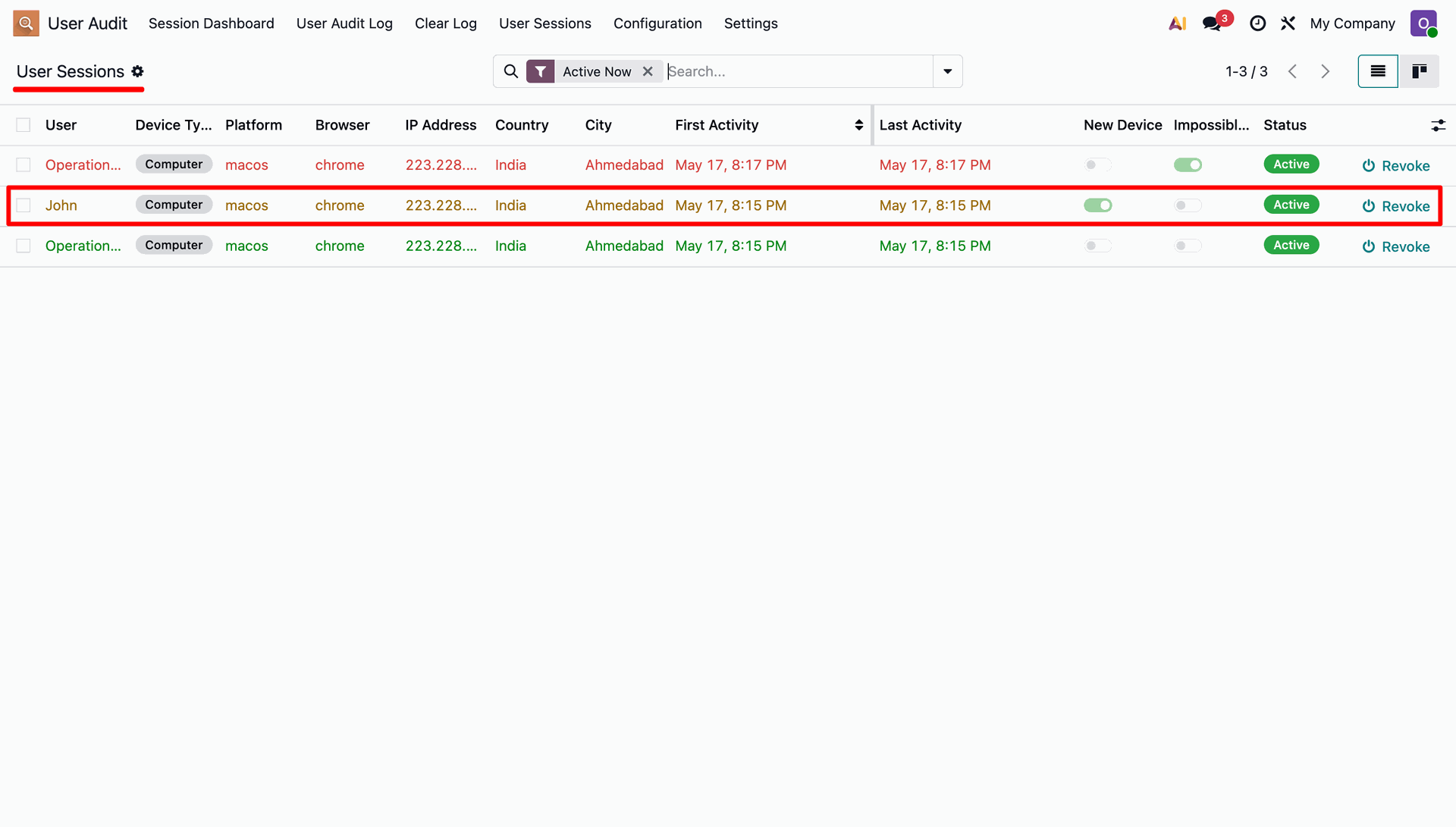
The User Sessions list provides an overview of logged-in devices with user, device type, platform, browser, IP address, location, activity, and session status.
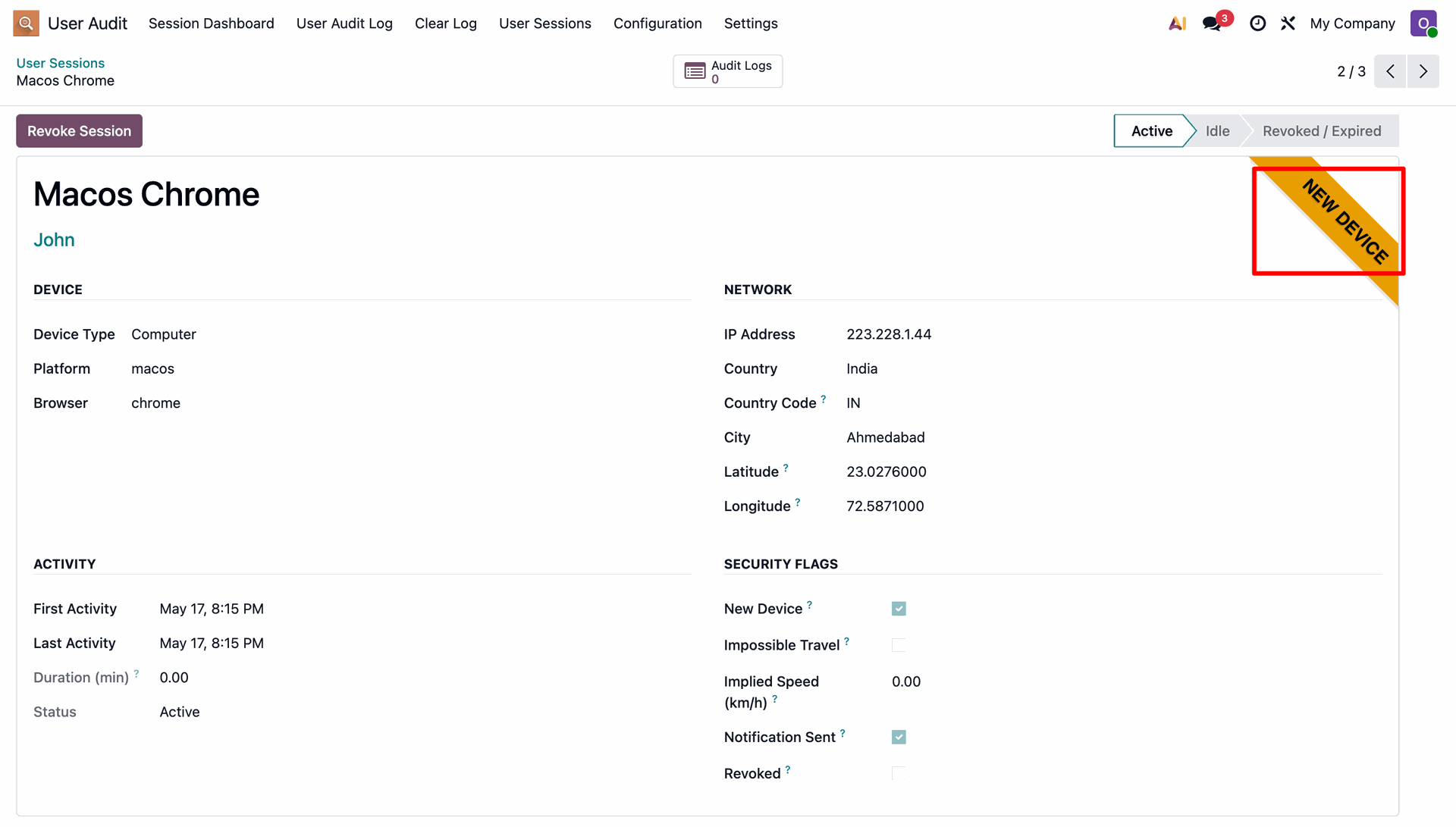
Open a session record to review device, network, activity, and security information, including the New Device indicator for a newly detected login.
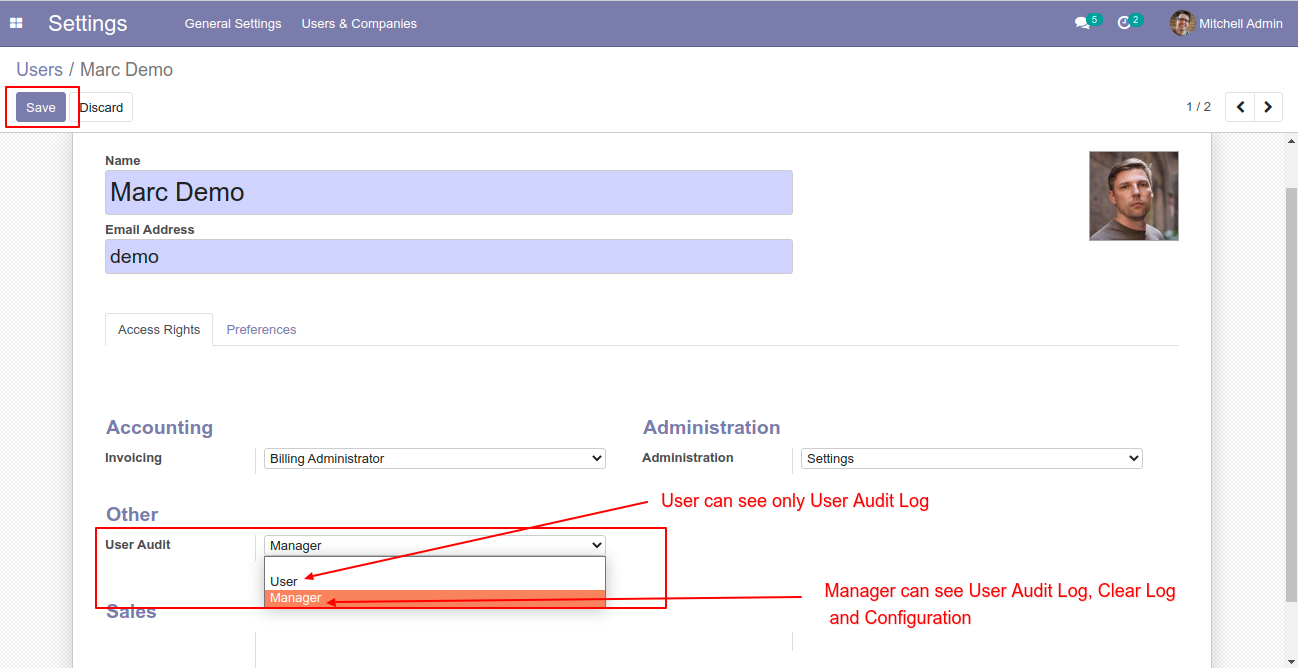
Configure User Audit access rights by assigning the appropriate User or Manager access group.
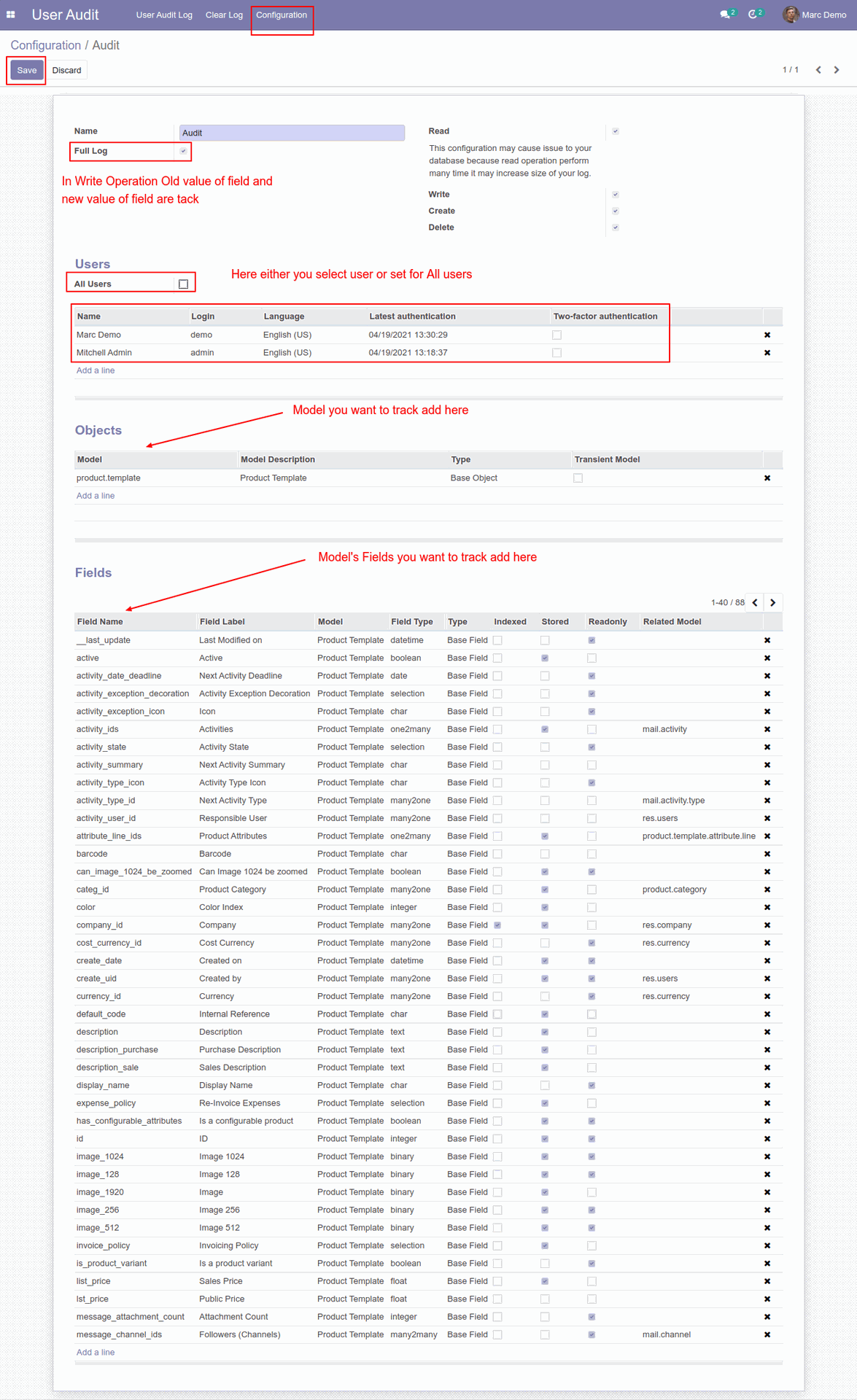
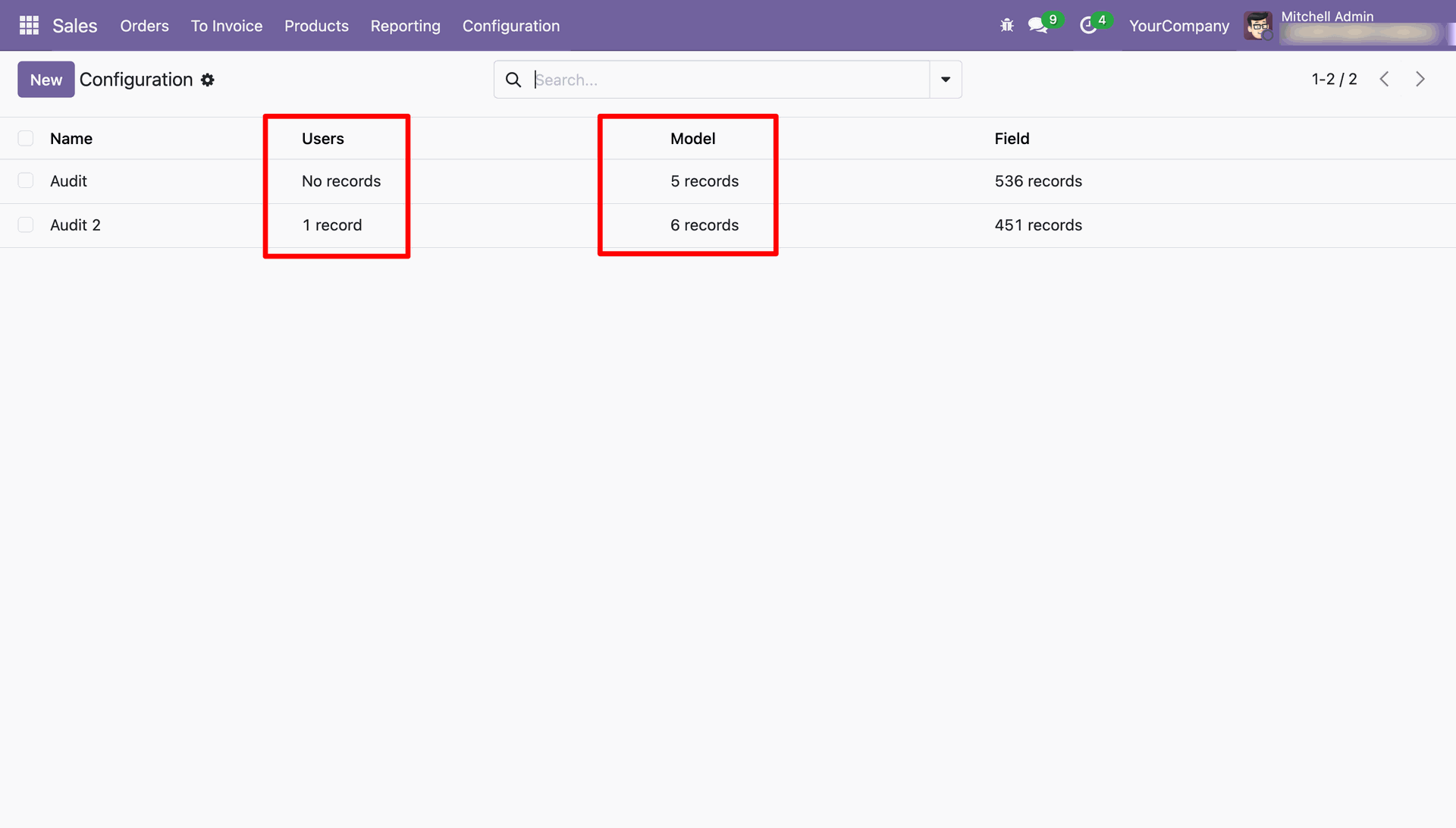
Create a User Audit configuration record from the Configuration menu and define the settings used to track audit activity.
Create a new product record to demonstrate how record operations are captured by the User Audit Log.
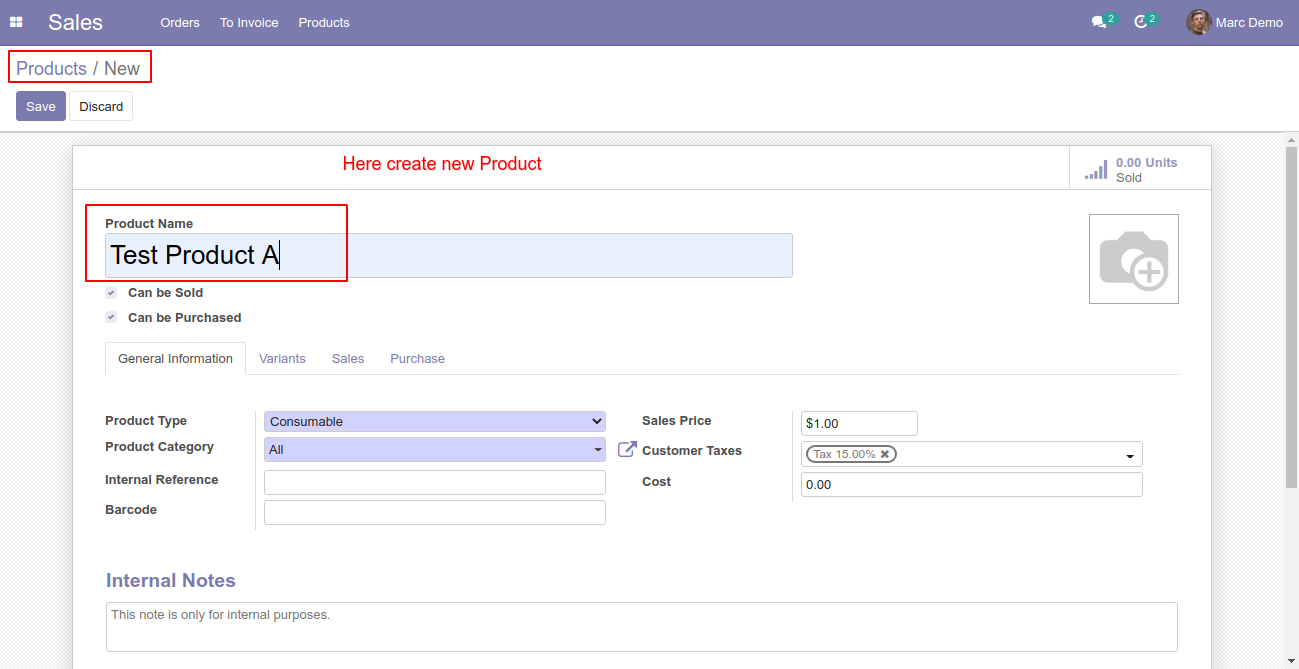
The product creation operation is automatically recorded in the audit log for traceability.
Open the generated audit log record to review the details captured for the product creation operation.
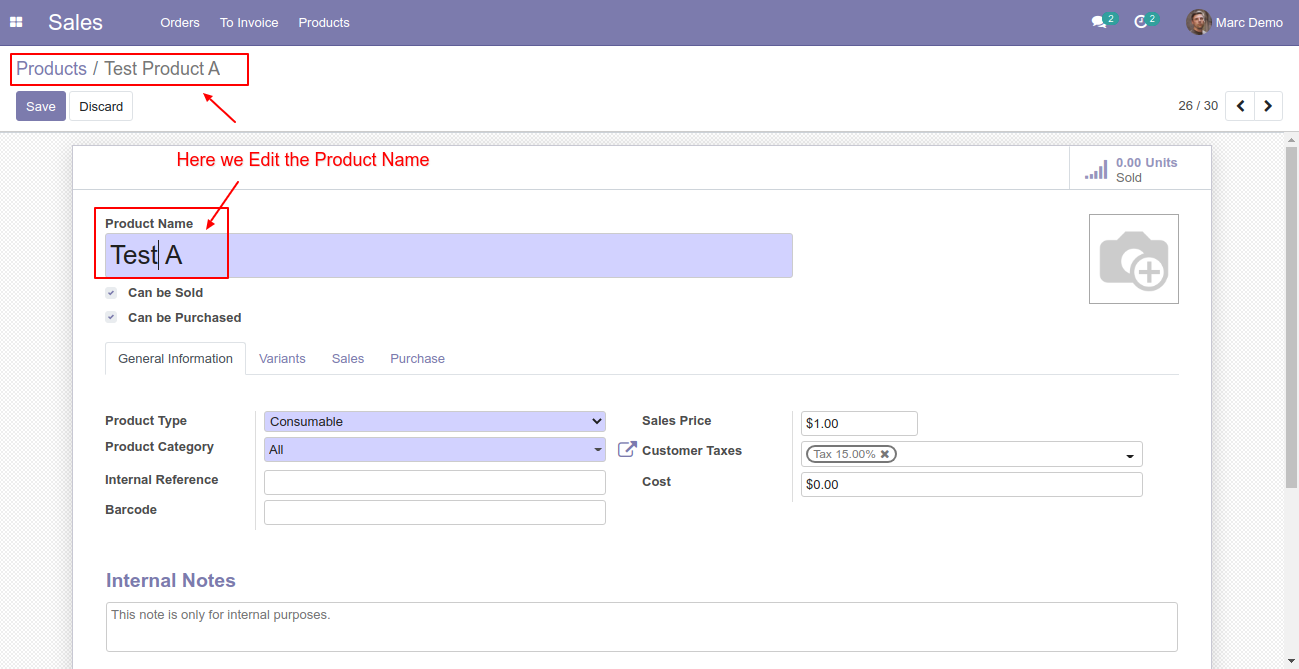
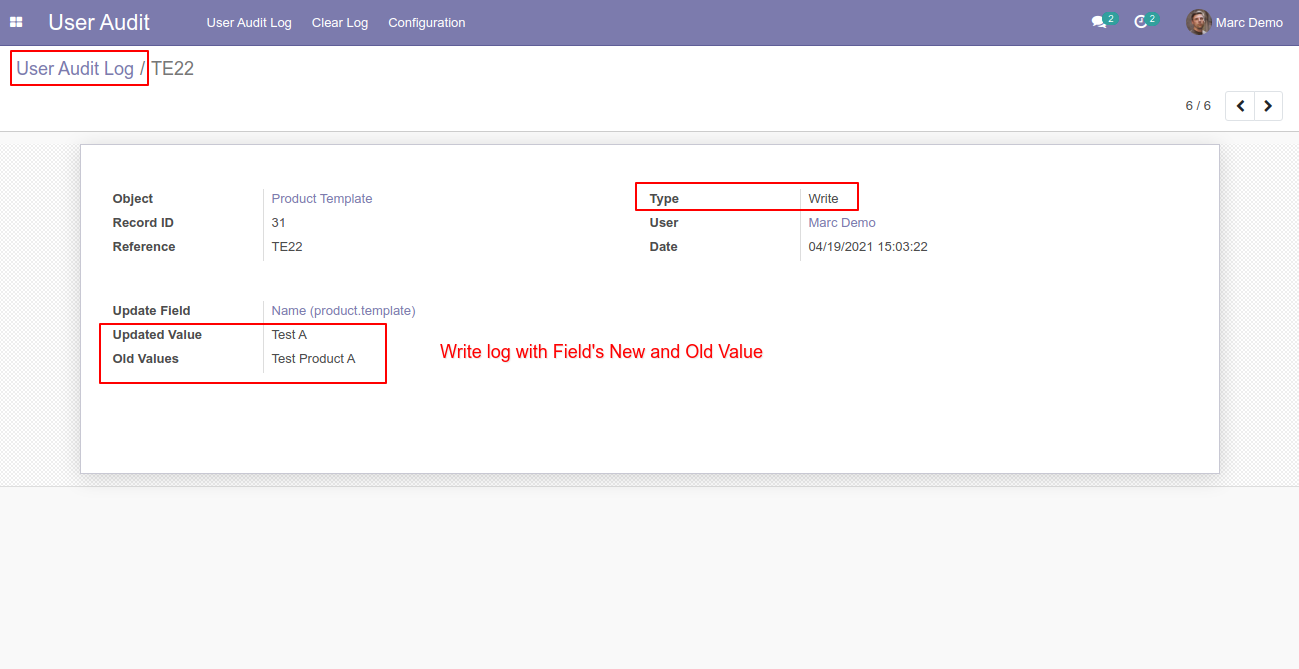
Edit the product record, such as changing the product name, to generate a new tracked update.
The update is recorded with details such as the date, record ID, object, user, operation type, and old and new field values.
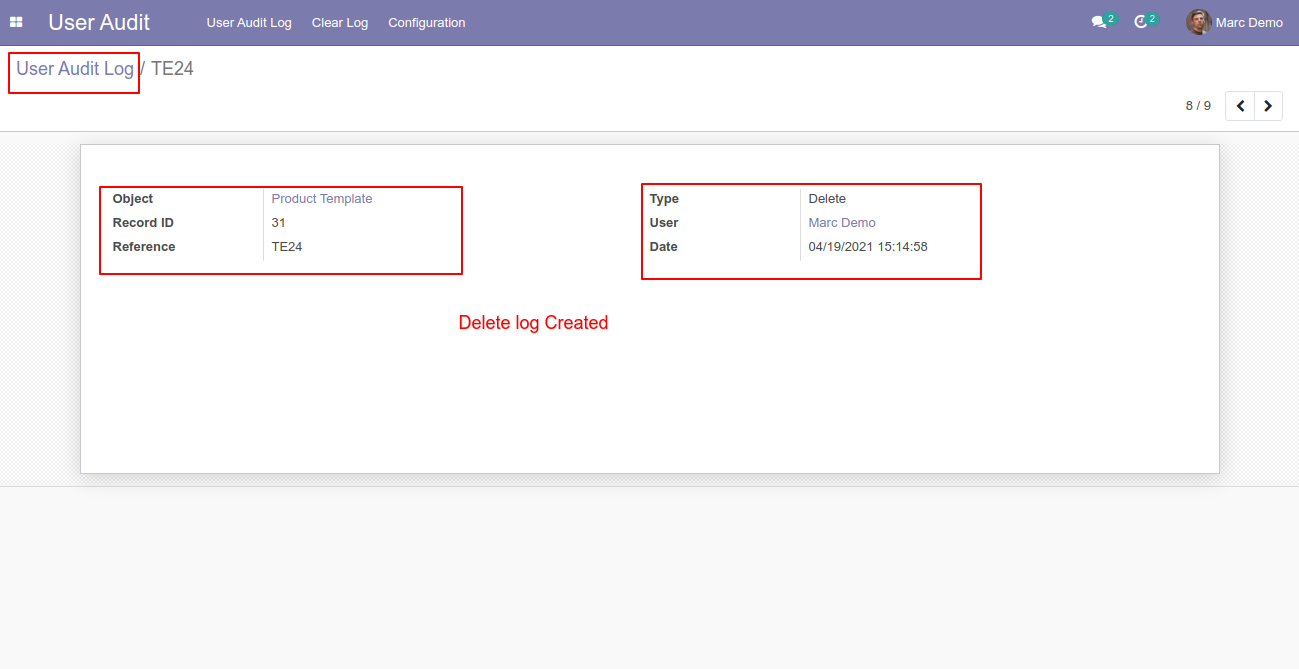
Delete the product record to demonstrate how deletion activity is captured by the audit trail.
The product deletion operation is automatically added to the User Audit Log with the related record and operation details.
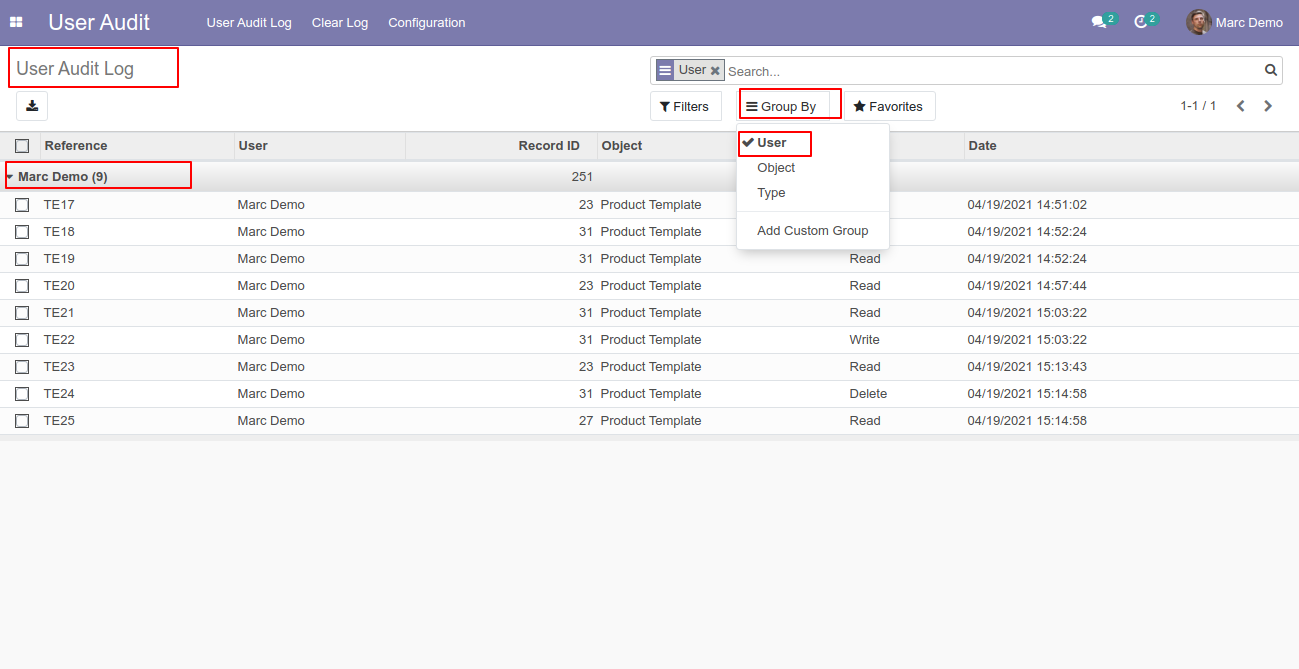
Use Group By > User to organize audit log records according to the user who performed each operation.
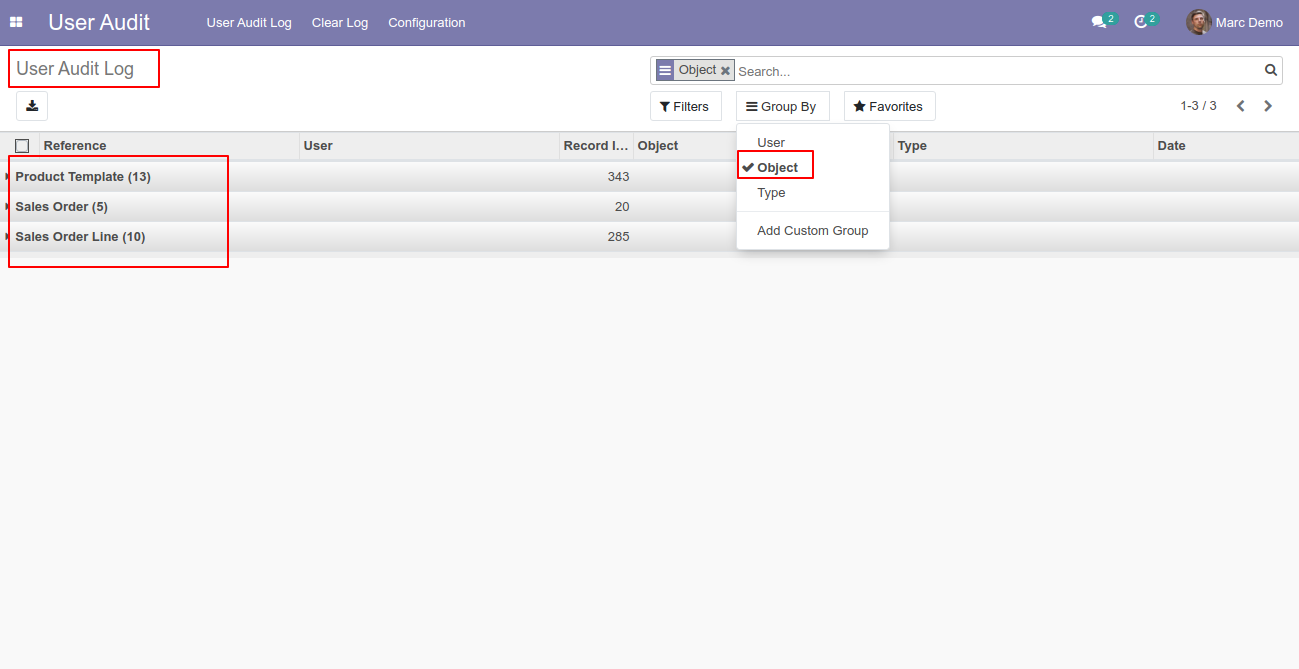
Use Group By > Object to organize audit log records according to the Odoo model or object that was affected.
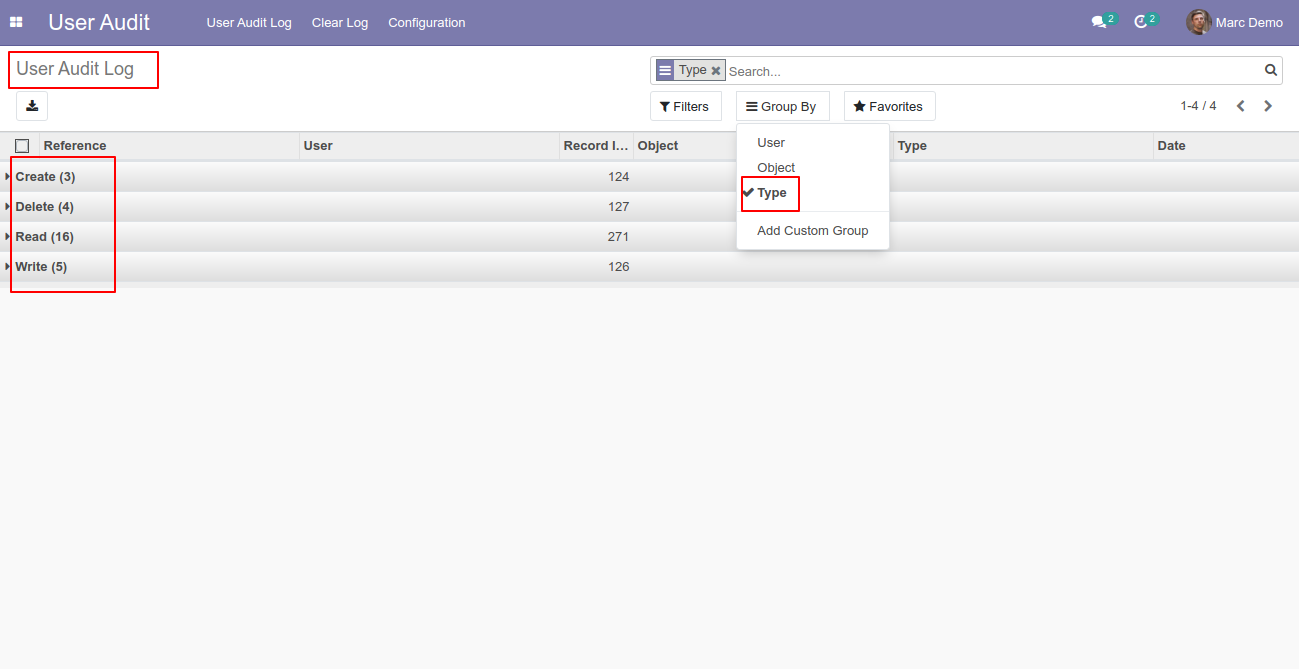
Use Group By > Type to group audit records by operation type, such as Read, Create, Write, or Delete.
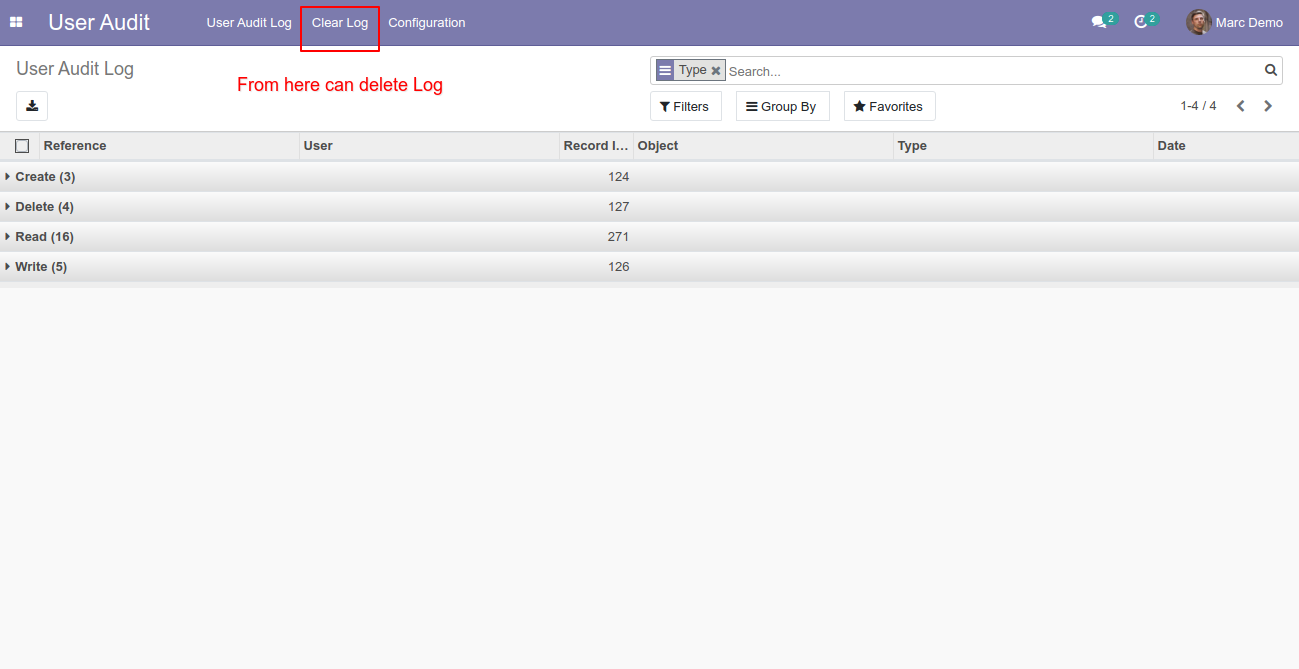
Managers can open the Clear Log option to remove selected audit records or clear logs according to defined criteria.
The Clear Log wizard allows administrators to choose whether to clear all logs or only logs matching selected models and conditions.
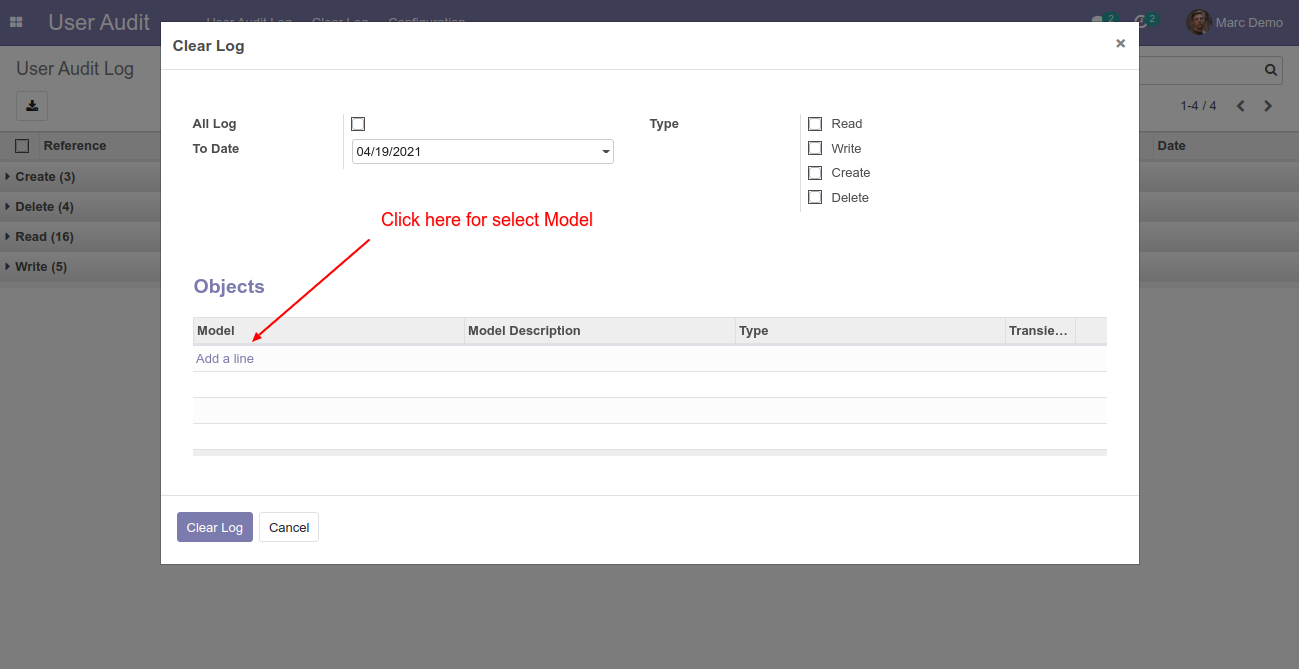
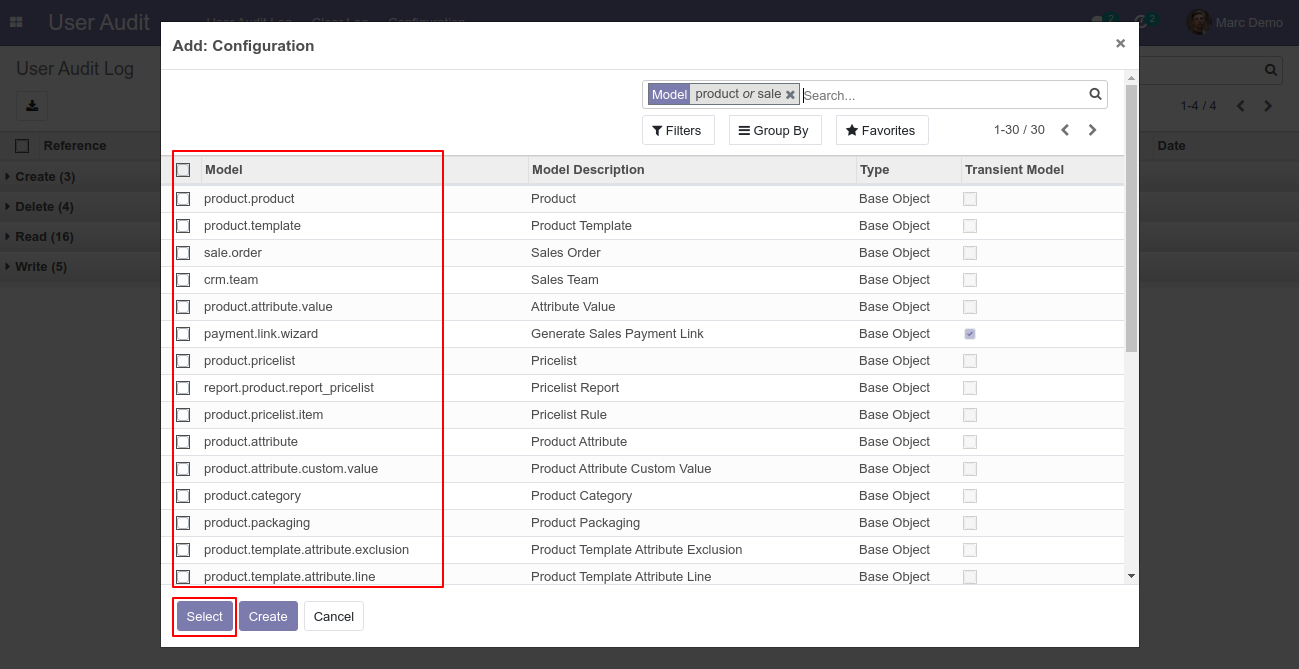
Add a model line in the Clear Log wizard and select the model whose audit records should be removed.
Use the log-type options to clear audit records for specific operation types.
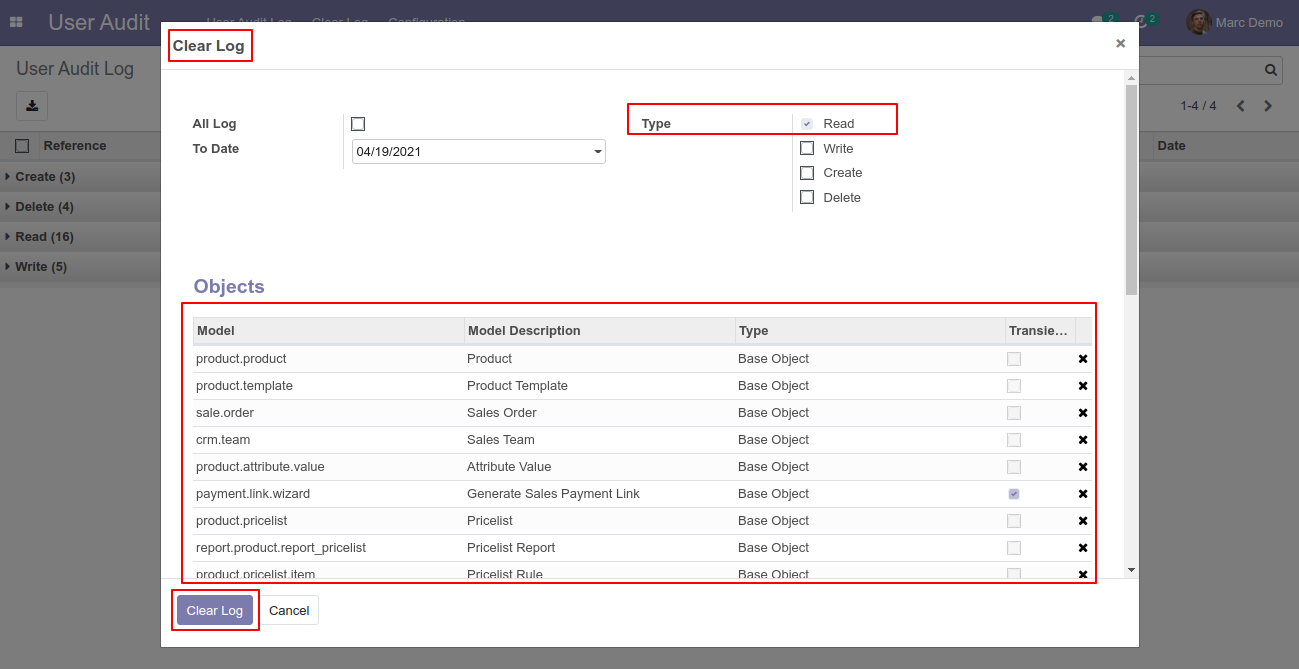
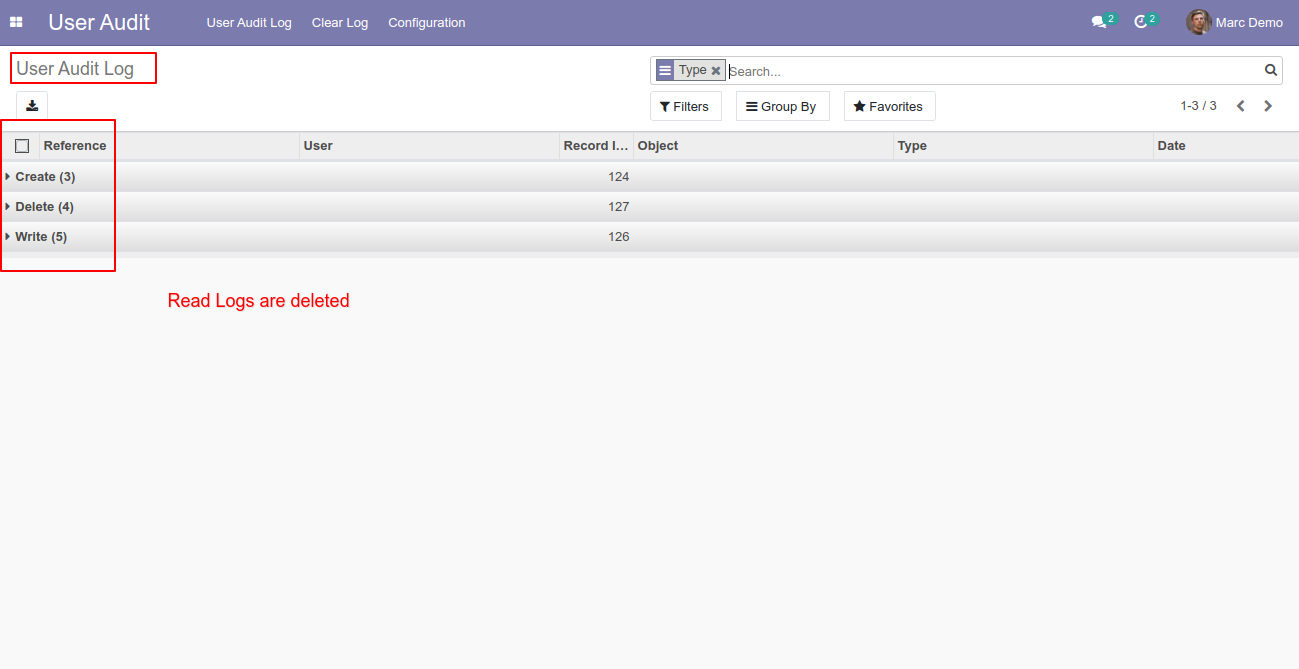
After the clear operation is confirmed, the selected Read Type audit log records are removed from the log list.
Enable All Log to clear all matching audit records instead of limiting the operation to a selected log type.
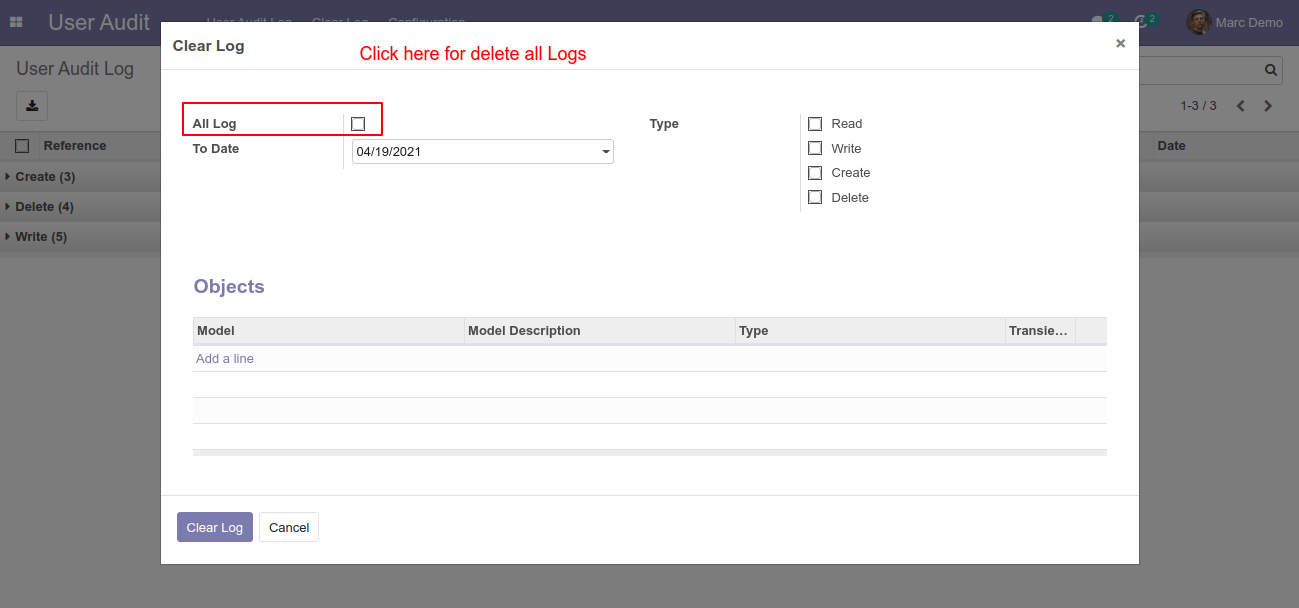
After the clear operation is confirmed, the selected audit log records are removed from the log list.
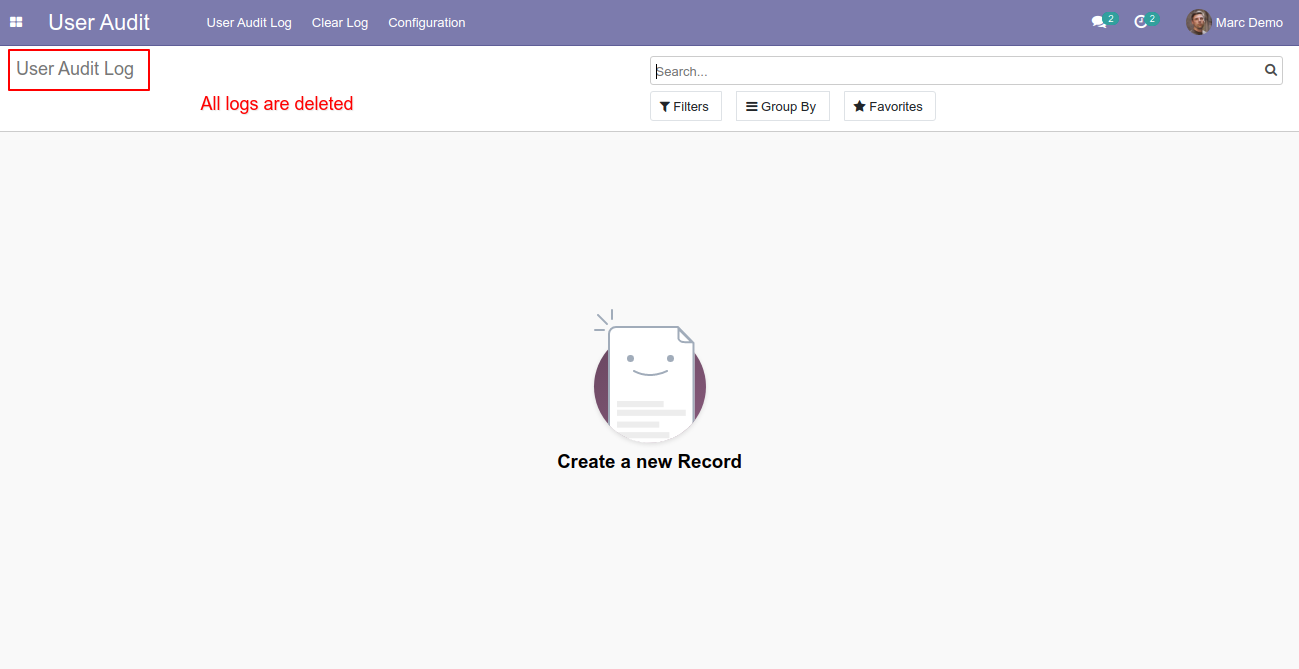
Use Filters and Group By on the User Sessions list to quickly find sessions by status, user, country, platform, browser, device type, and other session attributes.
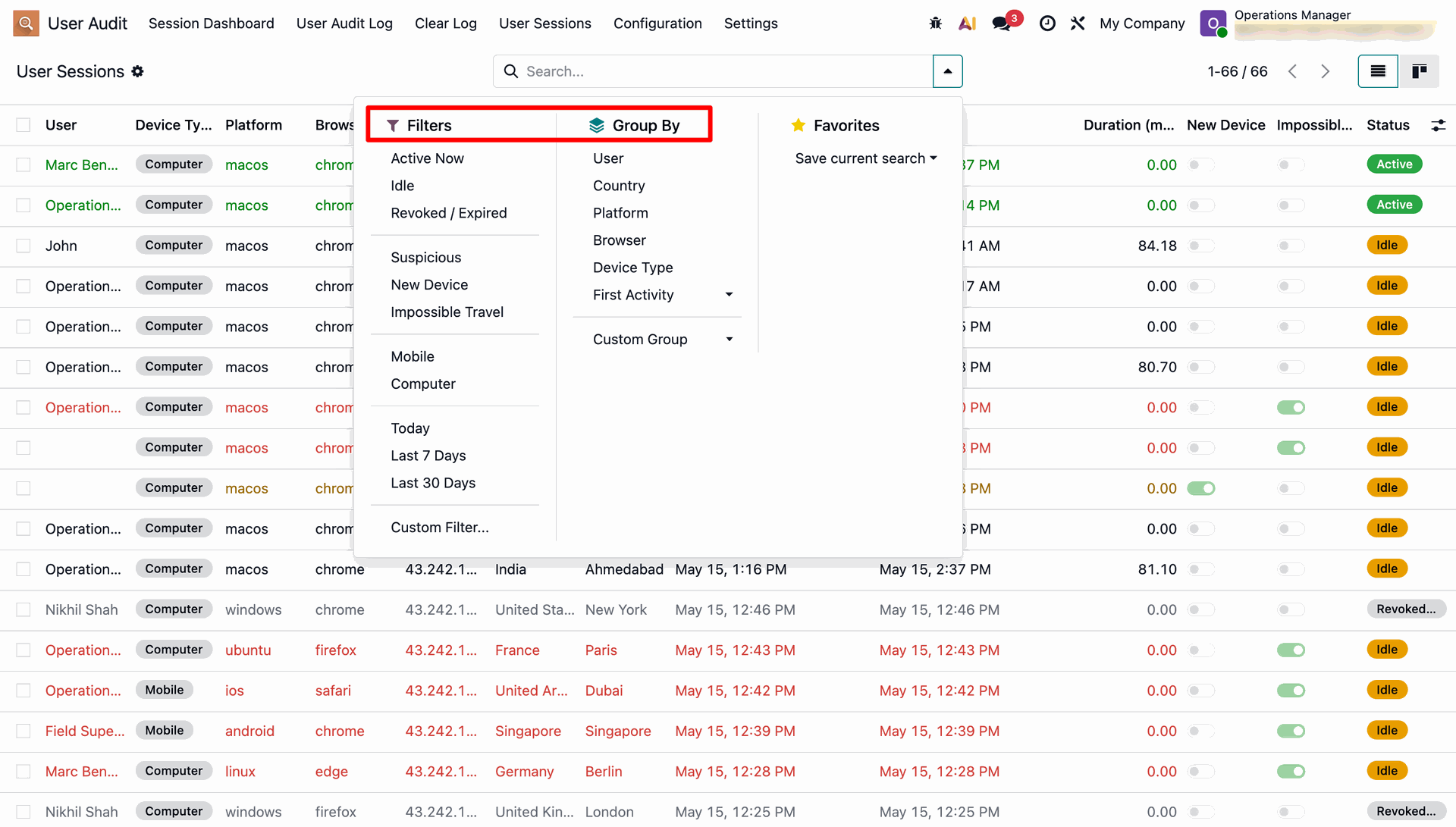
Switch to the kanban view to review user sessions as individual cards showing device, user, location, last activity, and security status.
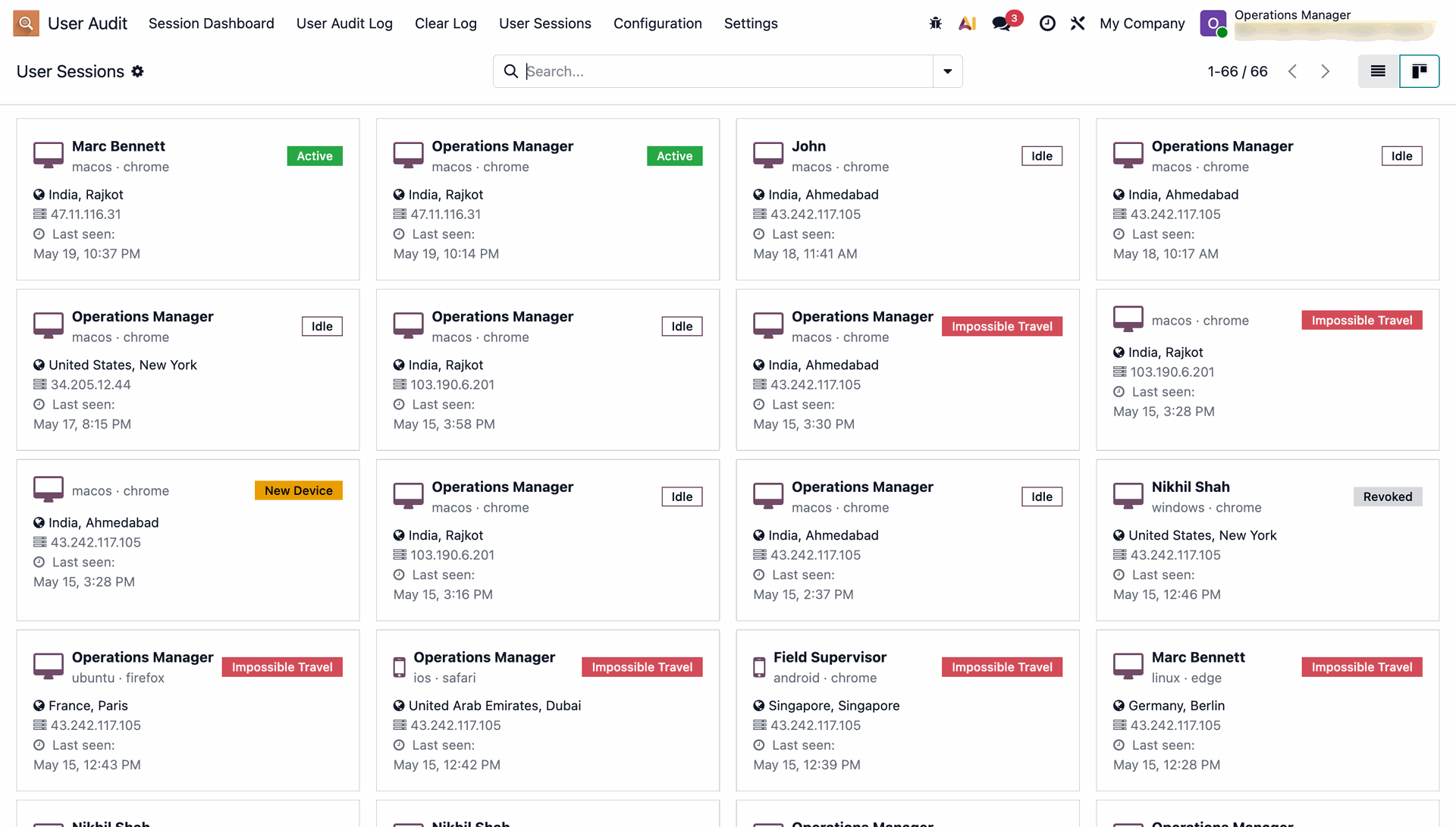
Open a session record to review device, network, activity, and security information, with the Revoke Session action available for active sessions.
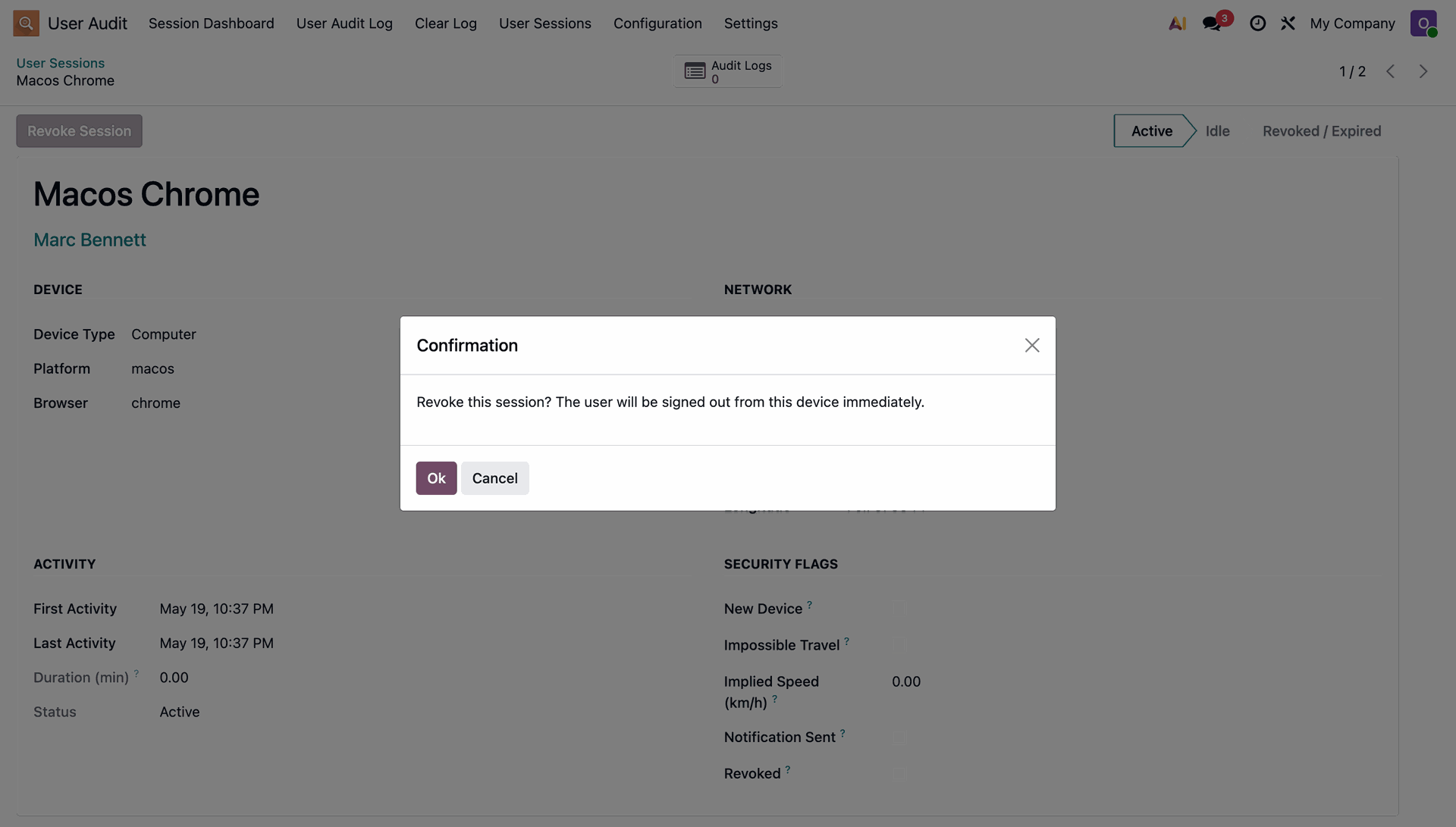
Confirm the Revoke Session action to immediately sign the user out from the selected device and invalidate that session.
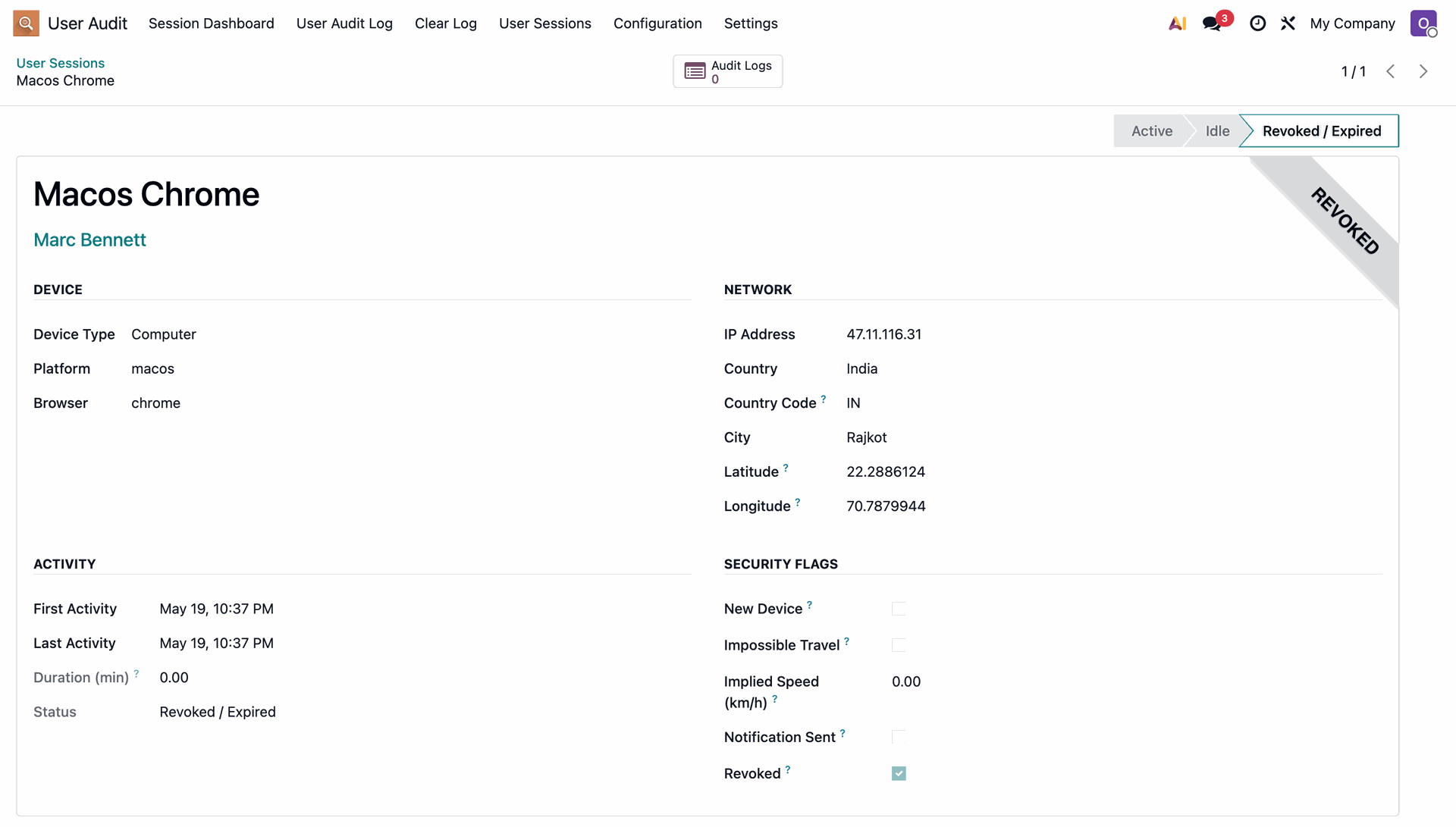
After revocation, the session record is marked Revoked/Expired, allowing administrators to identify sessions that are no longer active.
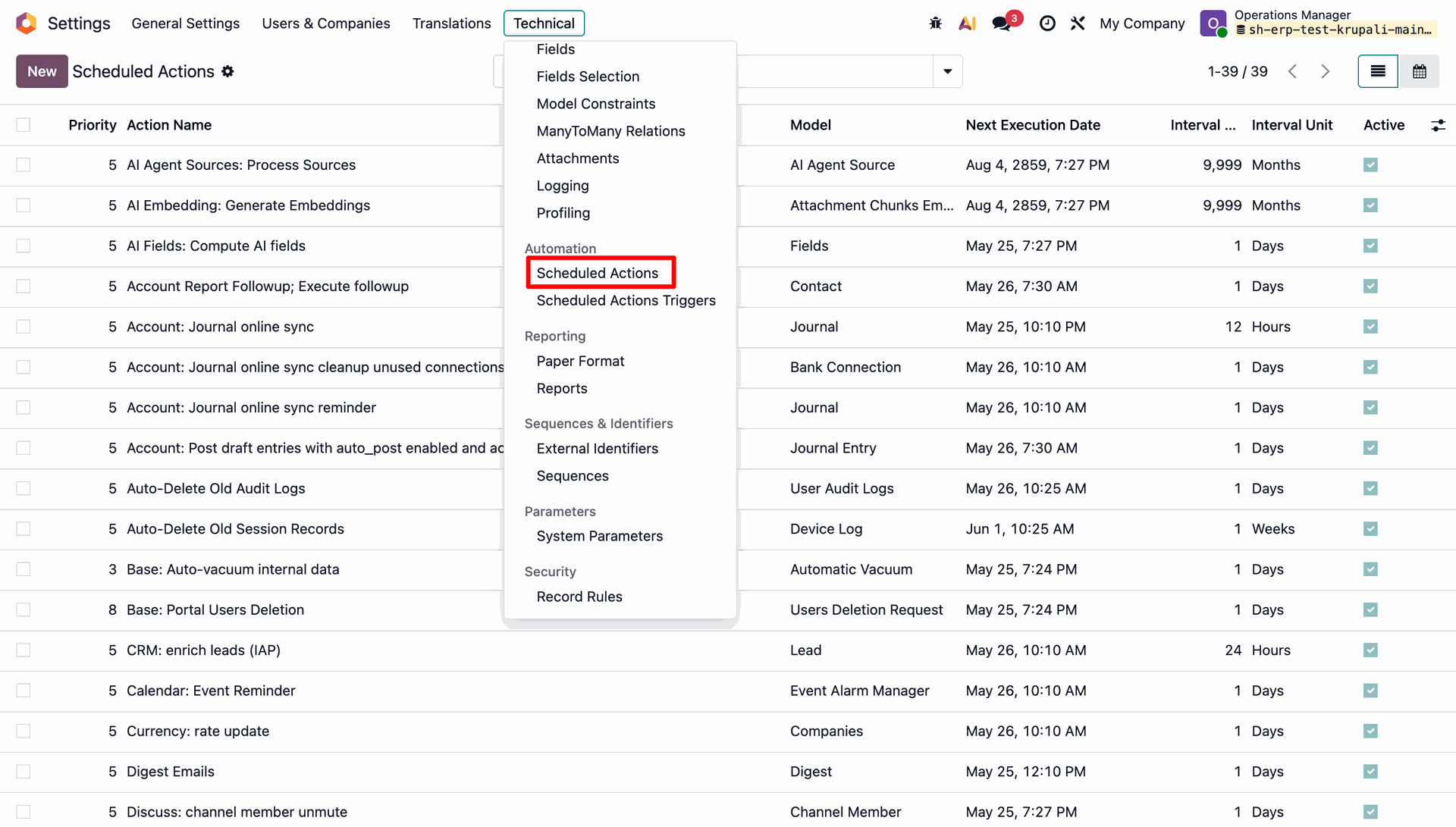
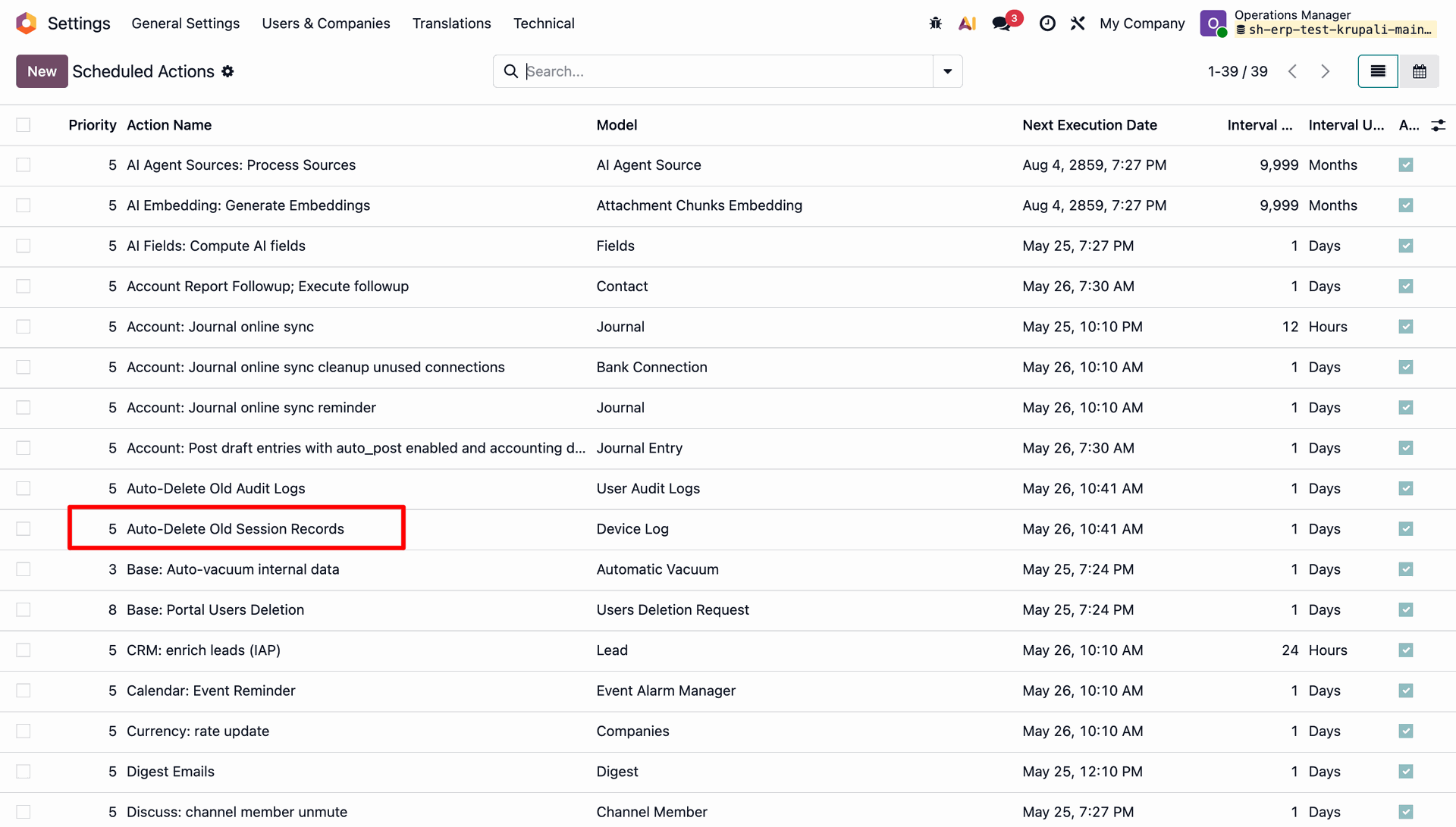
Open Technical > Scheduled Actions and locate the scheduled action configured to remove User Audit Logs automatically.
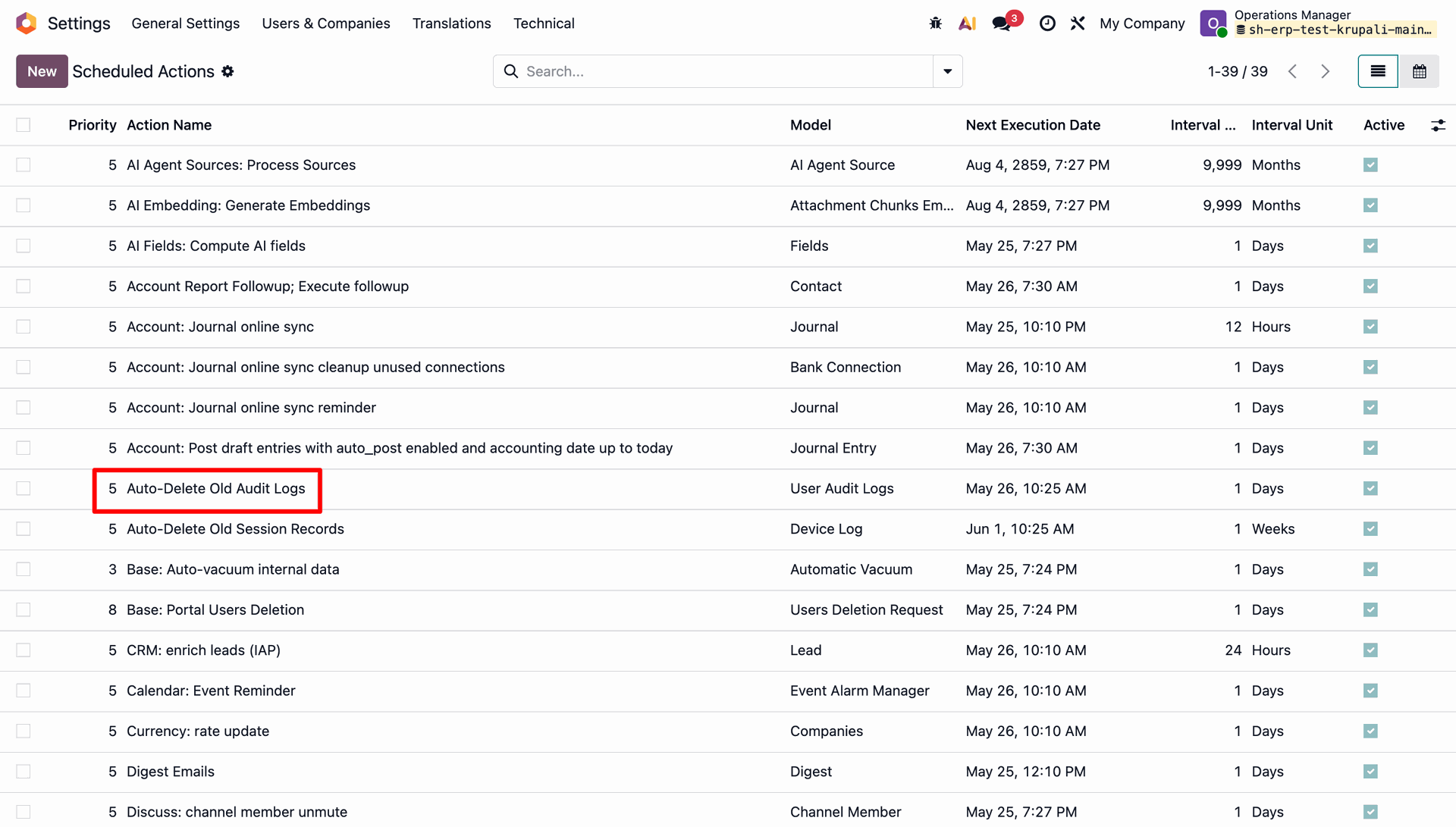
Select the automatic audit-log deletion scheduled action to review its execution settings and identify the User Audit Logs model.
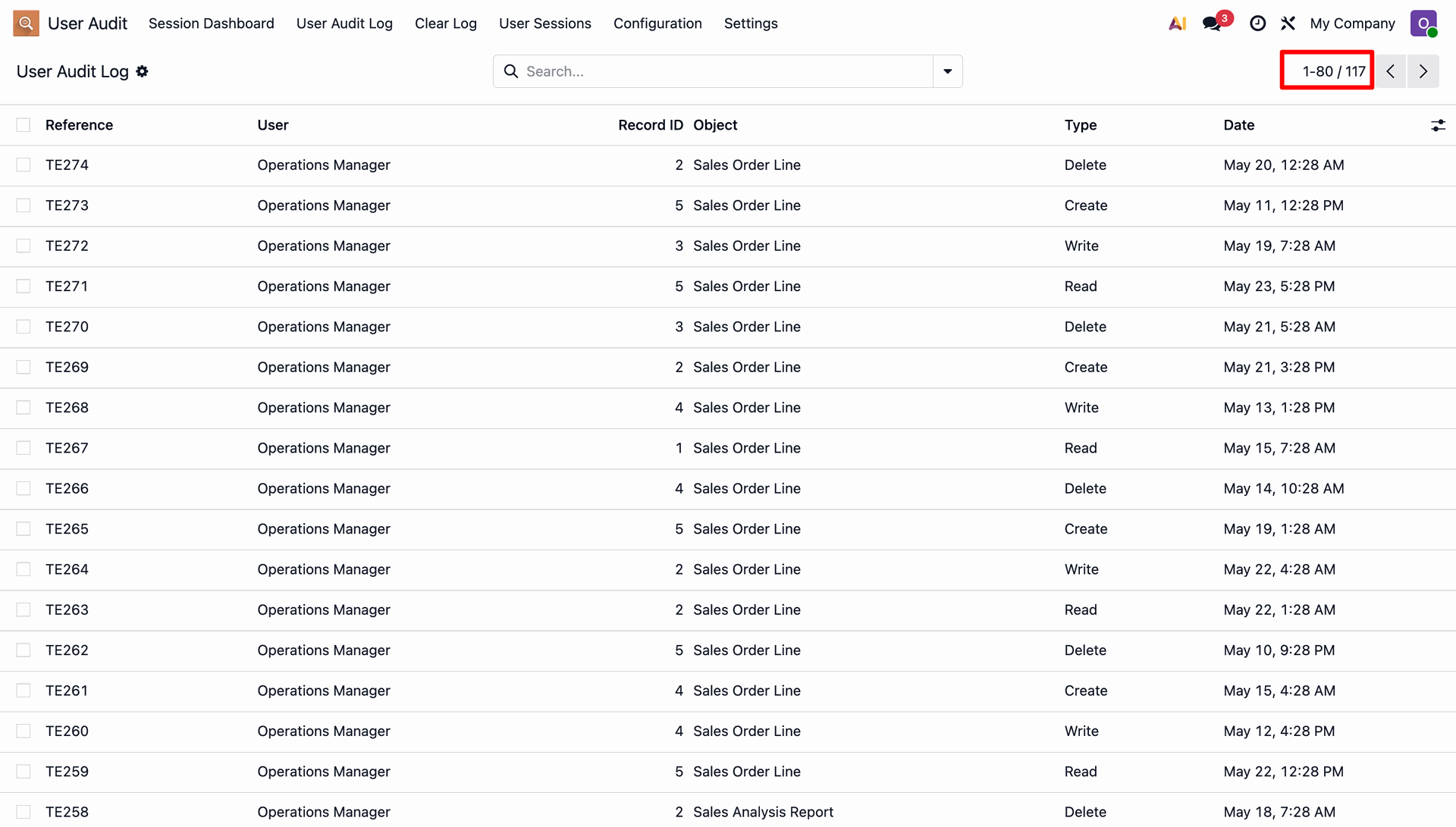
Review the User Audit Log list to see the audit records that are retained before the scheduled cleanup runs.
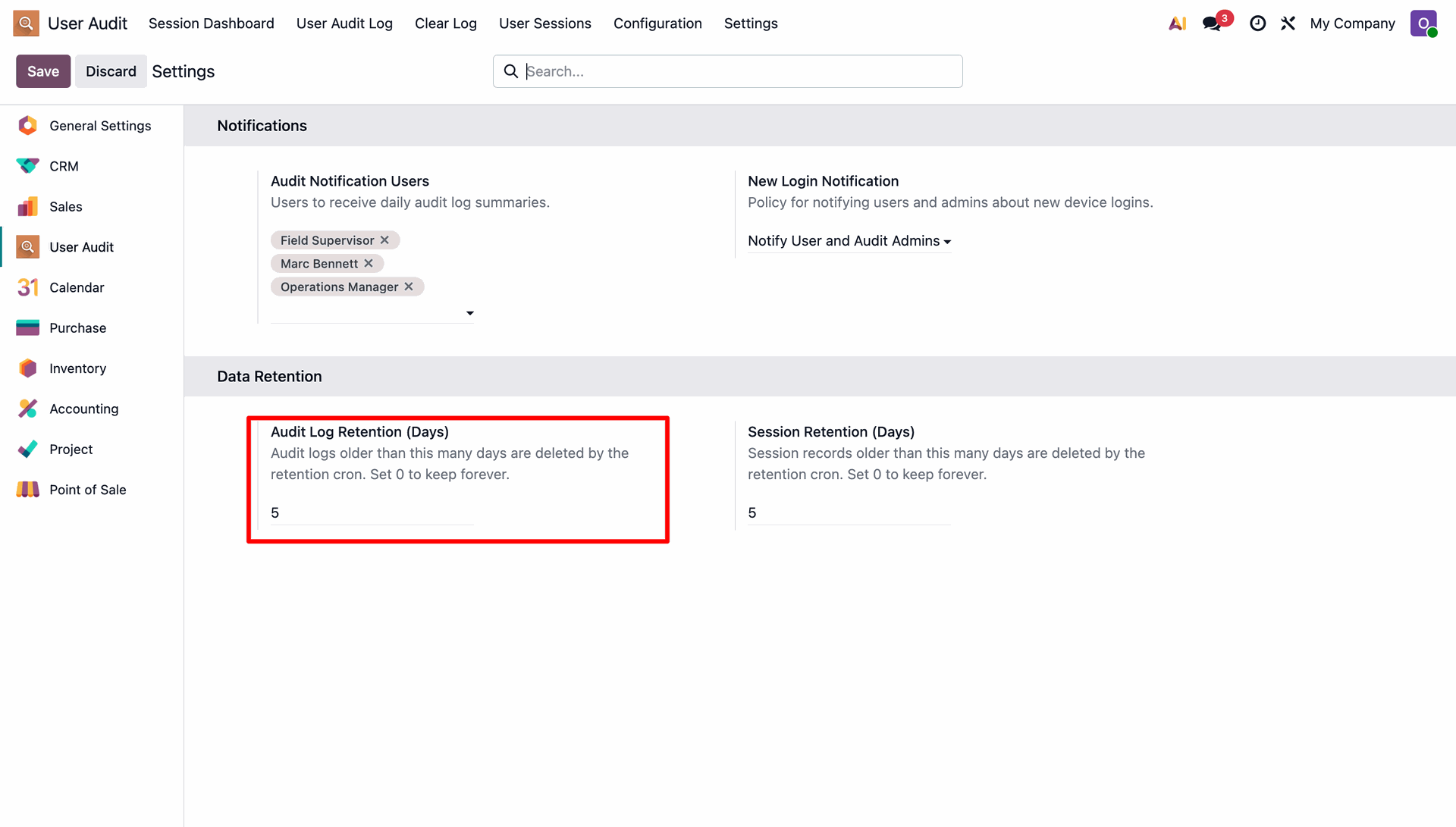
Configure Audit Log Retention (Days) in User Audit settings to define how long audit records should be kept before automatic deletion.
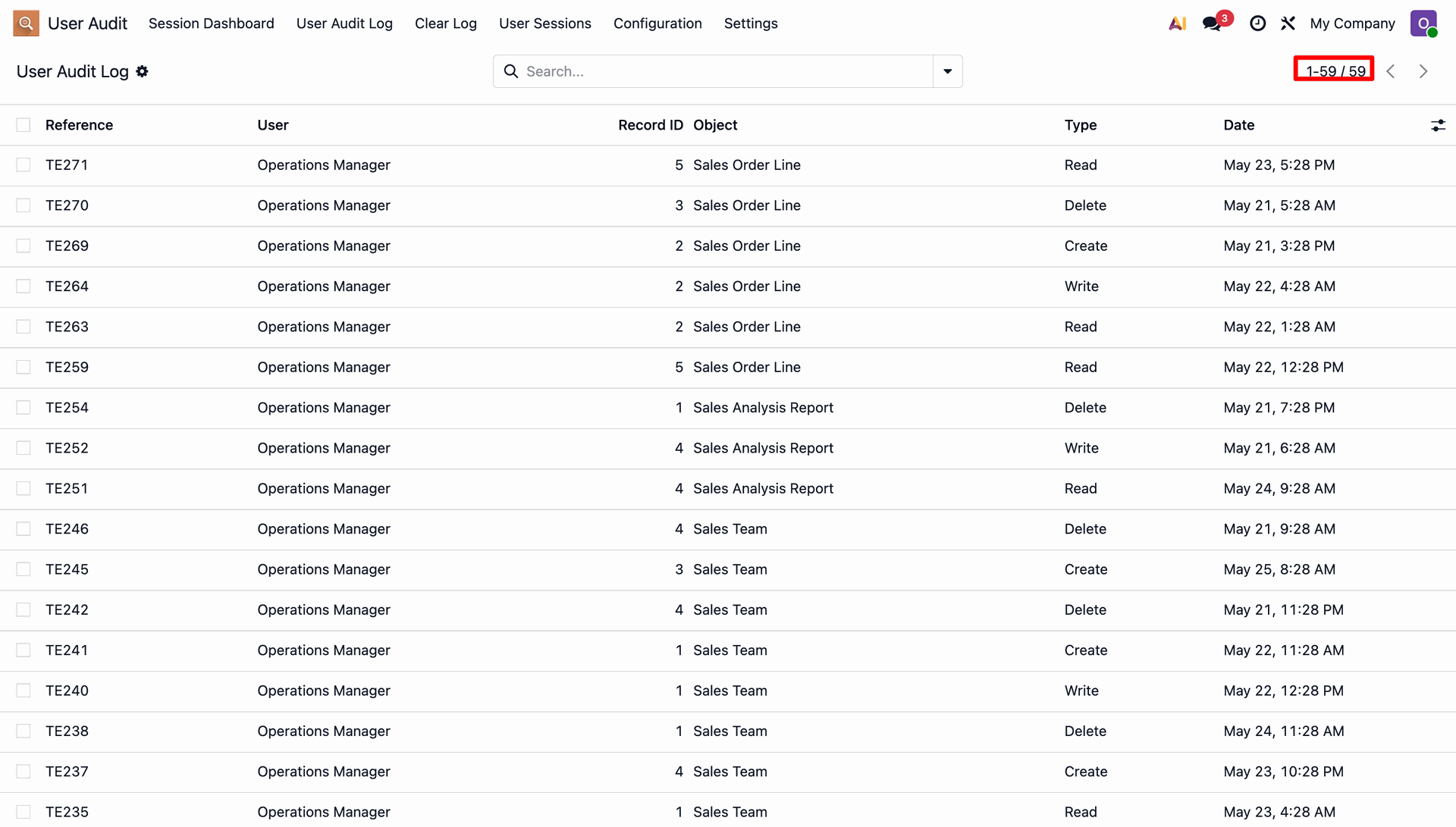
After cleanup, the User Audit Log list reflects the retained records based on the configured audit-log retention period.
Review the scheduled action configuration for automatic deletion of User Audit Logs and its execution interval.
Open User Sessions to review active and historical session records that are subject to session-data retention.
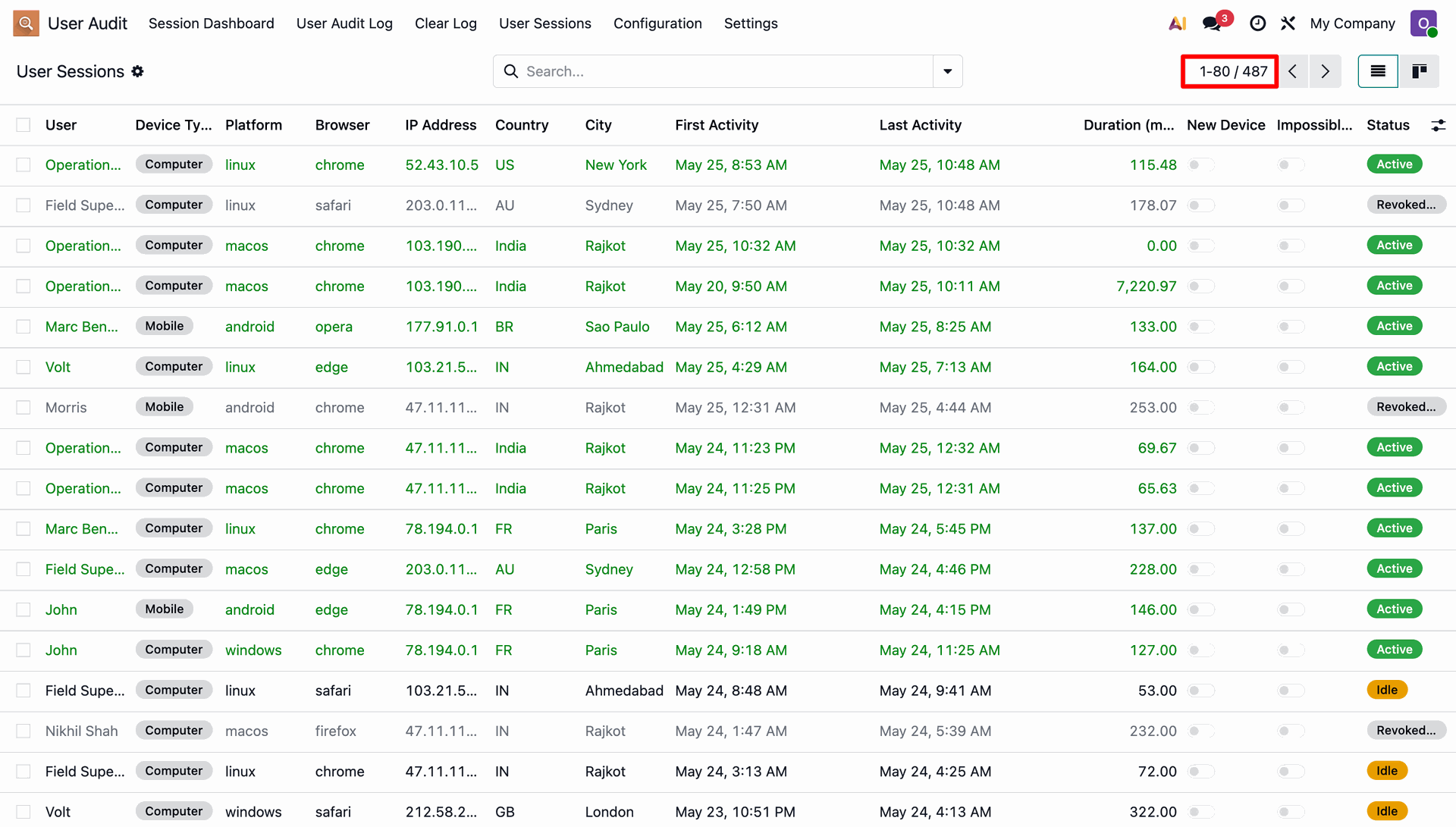
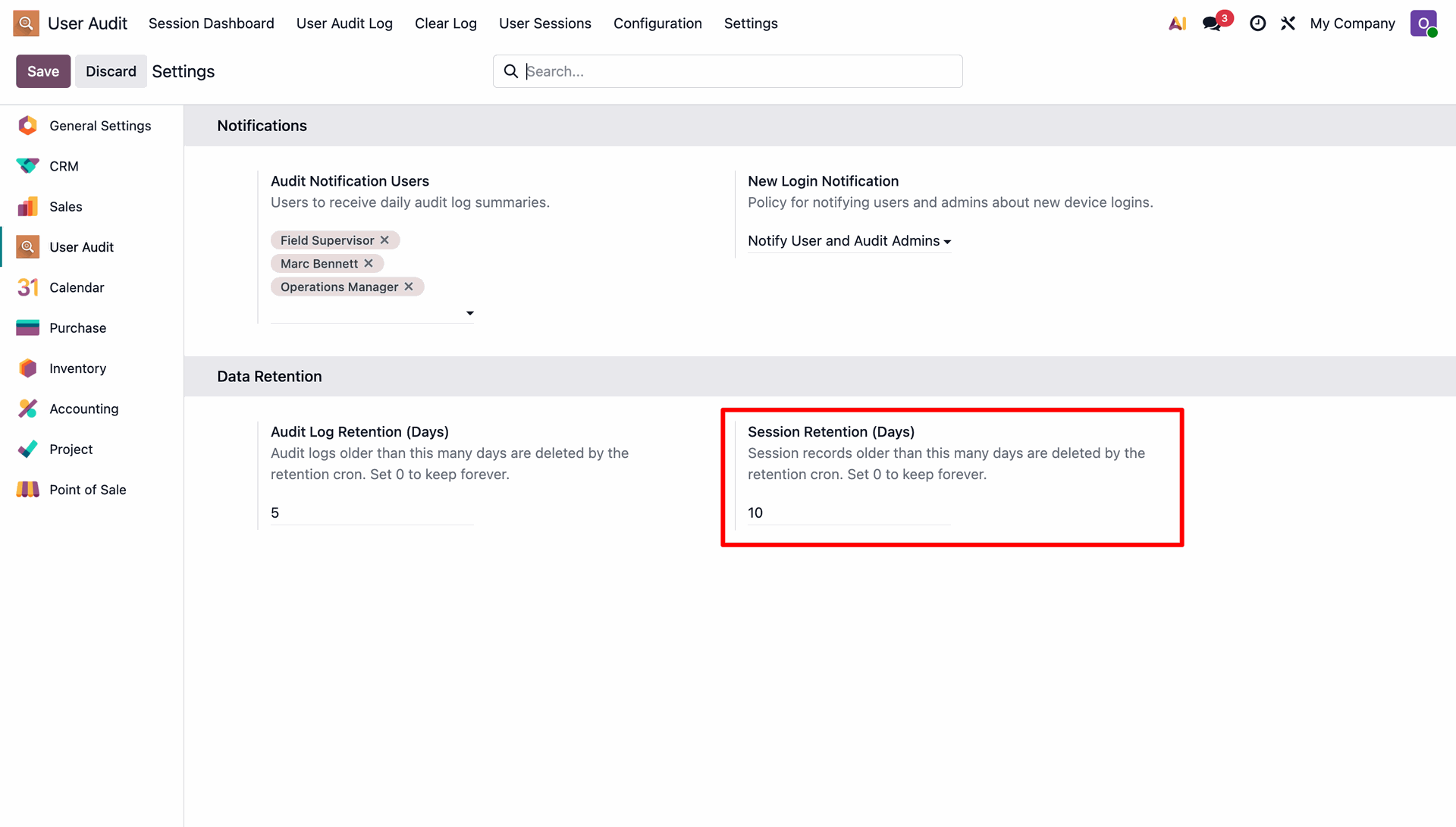
Configure Session Retention (Days) in User Audit settings to define how long session records should be retained.
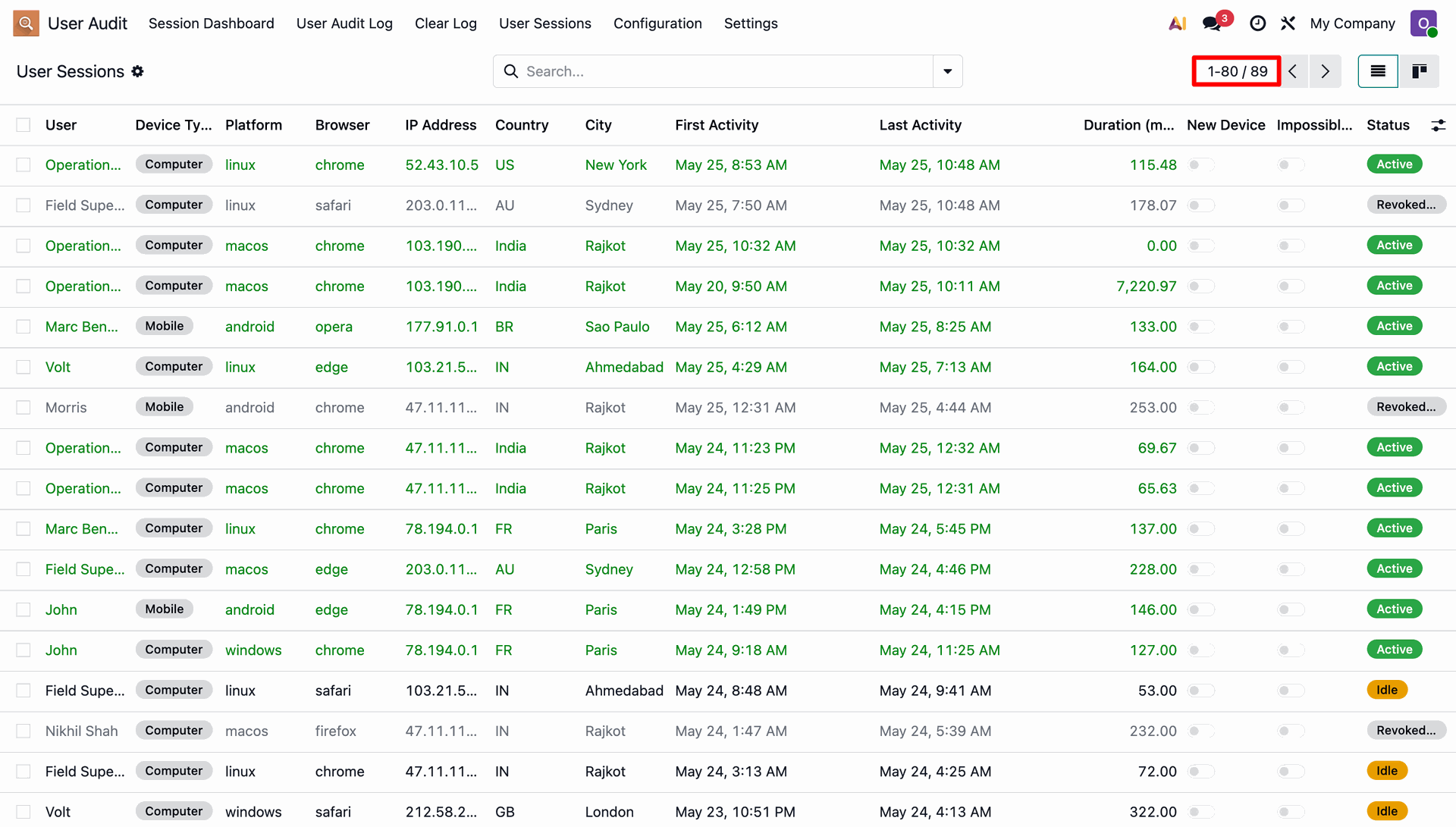
The User Sessions list shows the session records retained according to the configured session-retention period.
Version 18.0.3.0.0 | Released on : 17th September 2026
Version 18.0.2.0.0 | Released on : 8th April 2026
Version 18.0.1.0.0 | Released on : 7th October 2024
- Yes, this app works perfectly with Odoo Enterprise (Odoo.sh & Premise) as well as Community.
- No, this application is not compatible with odoo.com(odoo saas/Odoo Online)
- Yes, to test this module, please contact us at sales@softhealer.com.
- Please contact us at sales@softhealer.comto request customization.
- Yes, we provide free lifetime support for the version you purchased.
- Yes, you will receive lifetime free updates for the version of the module you purchased.
- No, there is no need to install any additional libraries.
- Yes, for version 12 and above, you need to purchase the module separately for each version you intend to use.
- No, exchanges or refunds are not allowed. Please make sure to select the correct version before purchasing.
- You can contact us at support@softhealer.com for language translation support. We use Google Translator tools to provide translations in multiple languages, so the accuracy may vary. We welcome your suggestions to help improve translations.
Discover Our Latest Apps