











User Account Sharing For Multiple Employees

This module allows multiple employees to share a single Odoo user account securely. With unique PIN codes, employees log in and perform actions under their own identity. Odoo tracks messages and activities to the actual employee, while ensuring accountability and security.

Related Modules
Features
Shared User Accounts
Securely share a single Odoo user profile among multiple employees, allowing authorized users to access the same account.
Individual PIN Authentication
Each employee uses a unique security PIN to sign in and authenticate their session securely.
Access Group Permissions
Configure restricted access group permissions for each employee to control their menu visibility and actions.

Employee-Specific Tracking
Track chatter history, record updation, state changes, and messages under the individual employee’s name who performed each action.
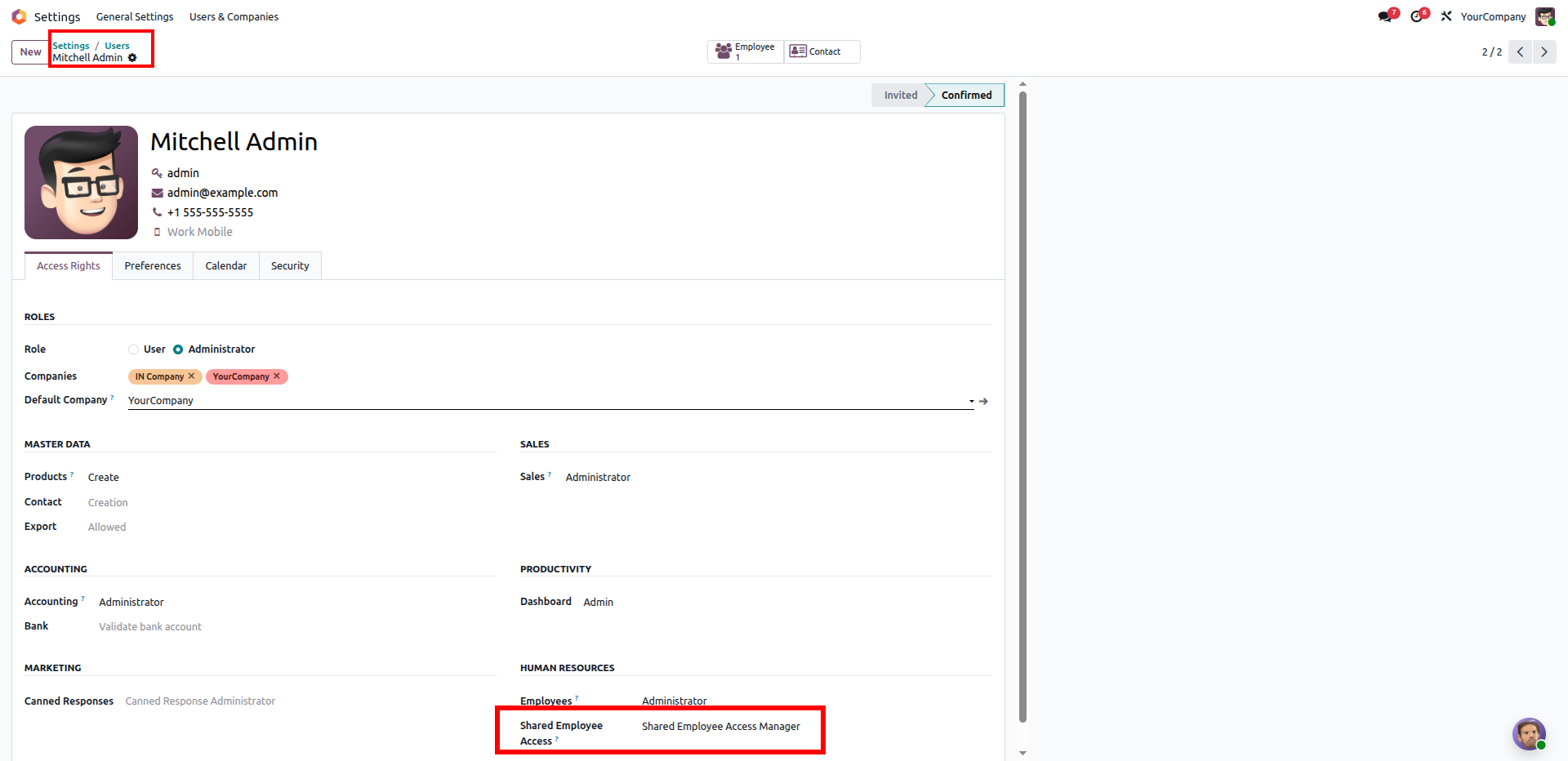
In Settings > Users & Companies > Users, configure the administrator user (e.g. Mitchell Admin) with the "Shared Employee Access Manager" role under the Human Resources section.
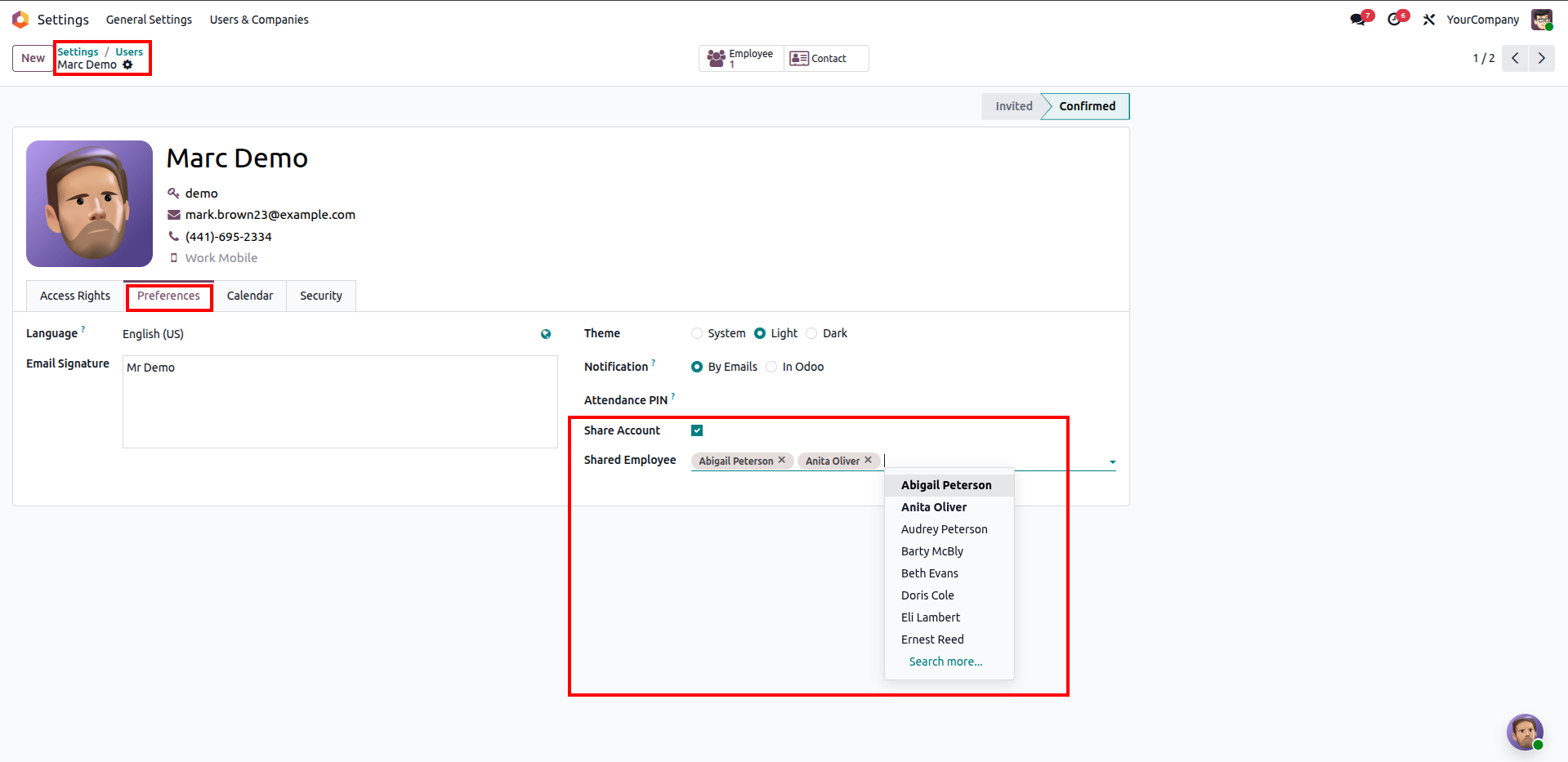
Open the user record of the shared account (e.g. Marc Demo). Under the "Preferences" tab, check the "Share Account" box and add the allowed employees (e.g. Abigail Peterson and Anita Oliver) to the "Shared Employee" list.
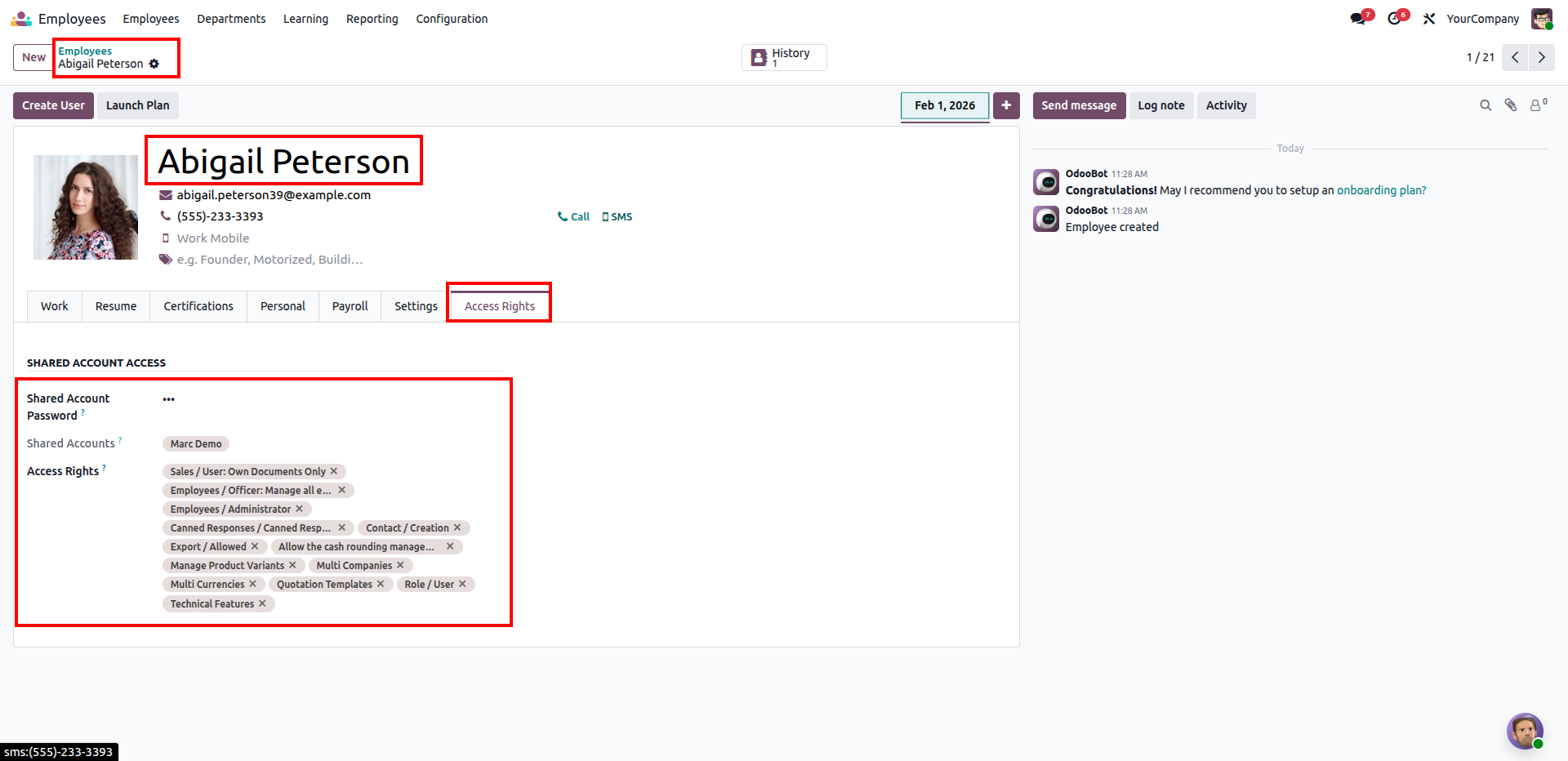
Open the Employee profile (e.g. Abigail Peterson) in the Employees module. Go to the new "Access Rights" tab and configure a unique PIN code in the "Shared Account Password" field, link it to the shared user account, and define their specific Odoo security access rights.
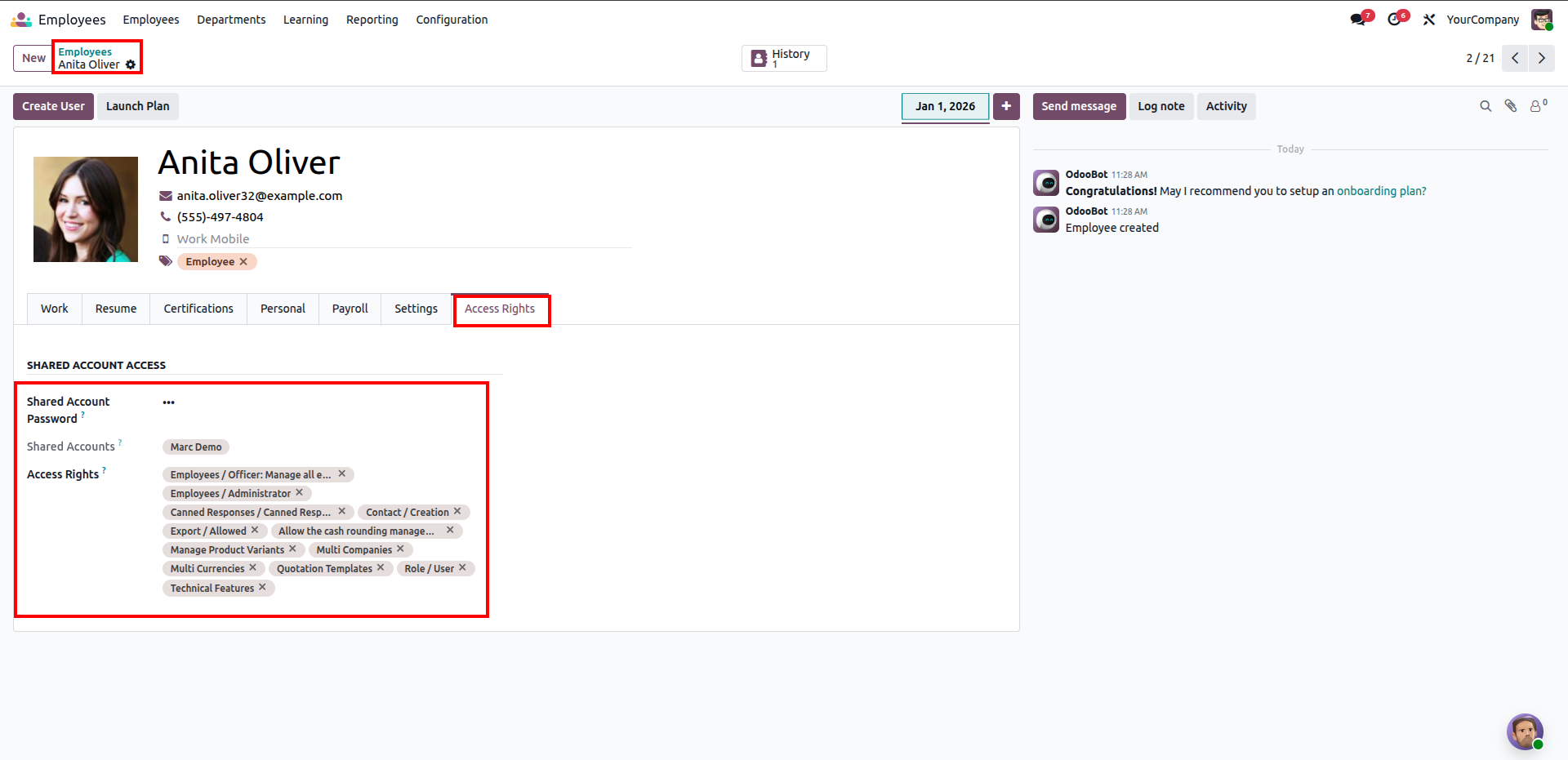
Configure the employee profile for another employee (e.g. Anita Oliver) under the "Access Rights" tab with a separate PIN code, linked to the same shared user account, and assign their specific allowed access rights.
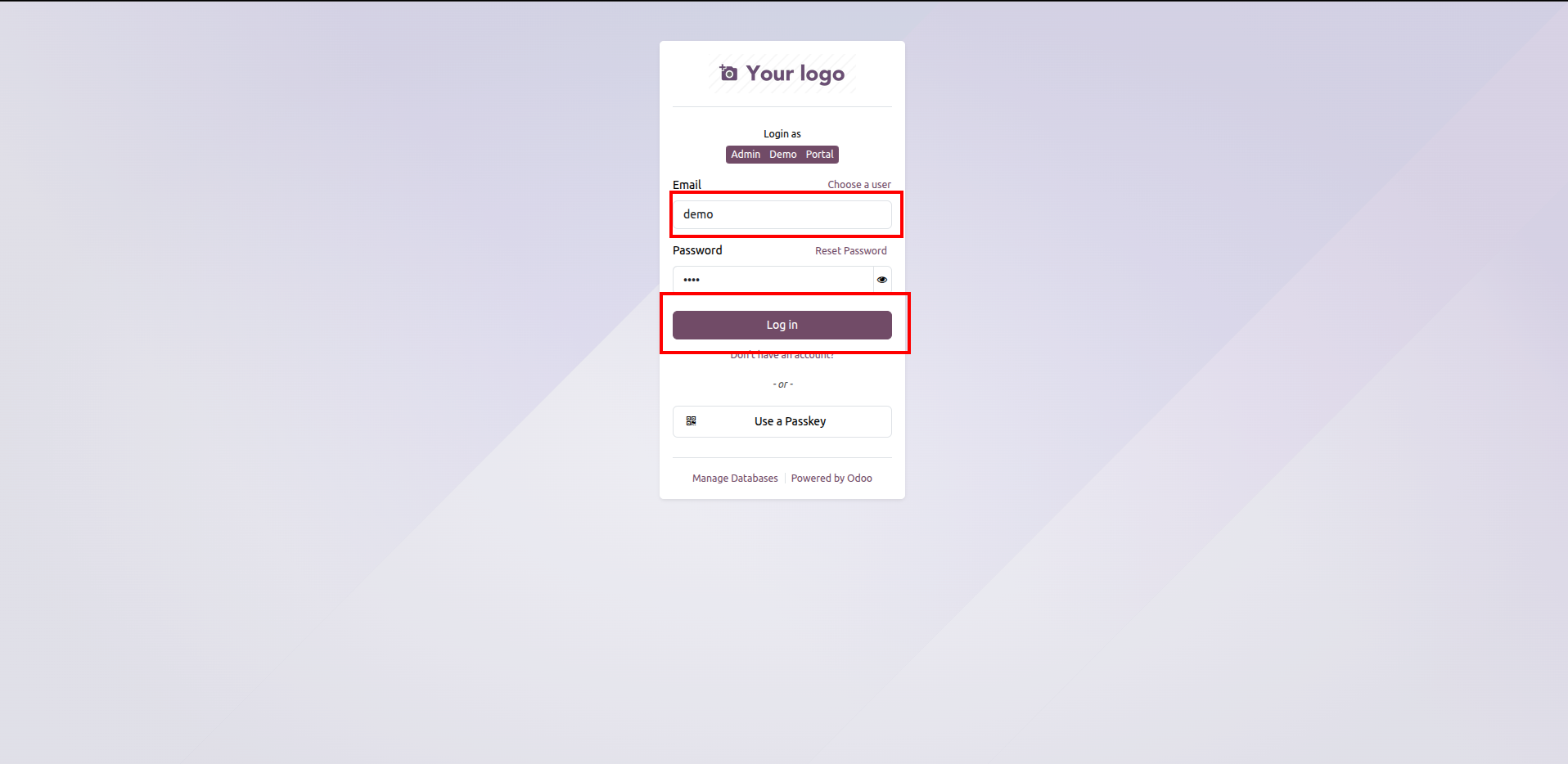
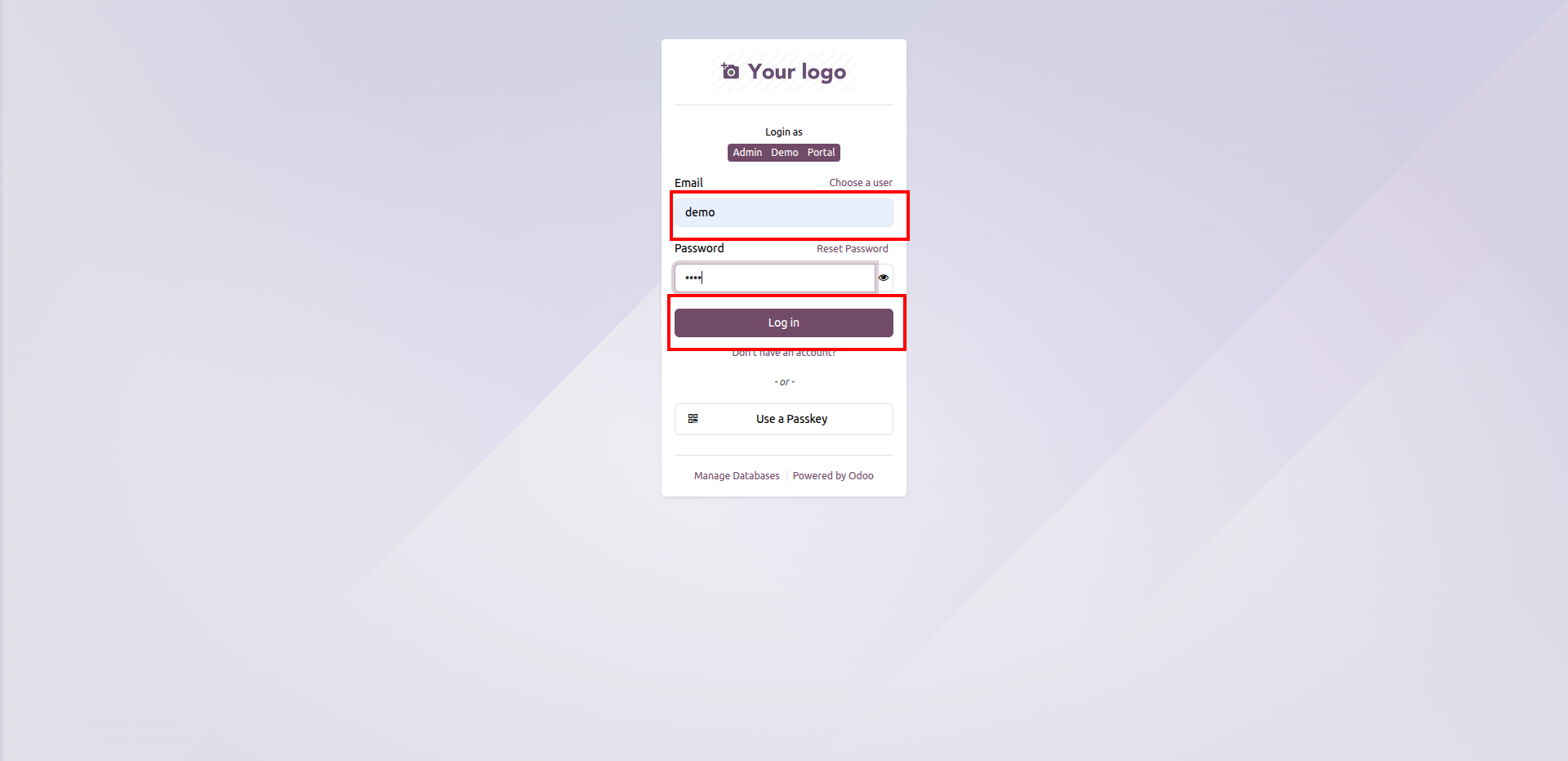
When a user logs in via the standard Odoo login screen using the shared account credentials (e.g. Email: demo, Password: ****).
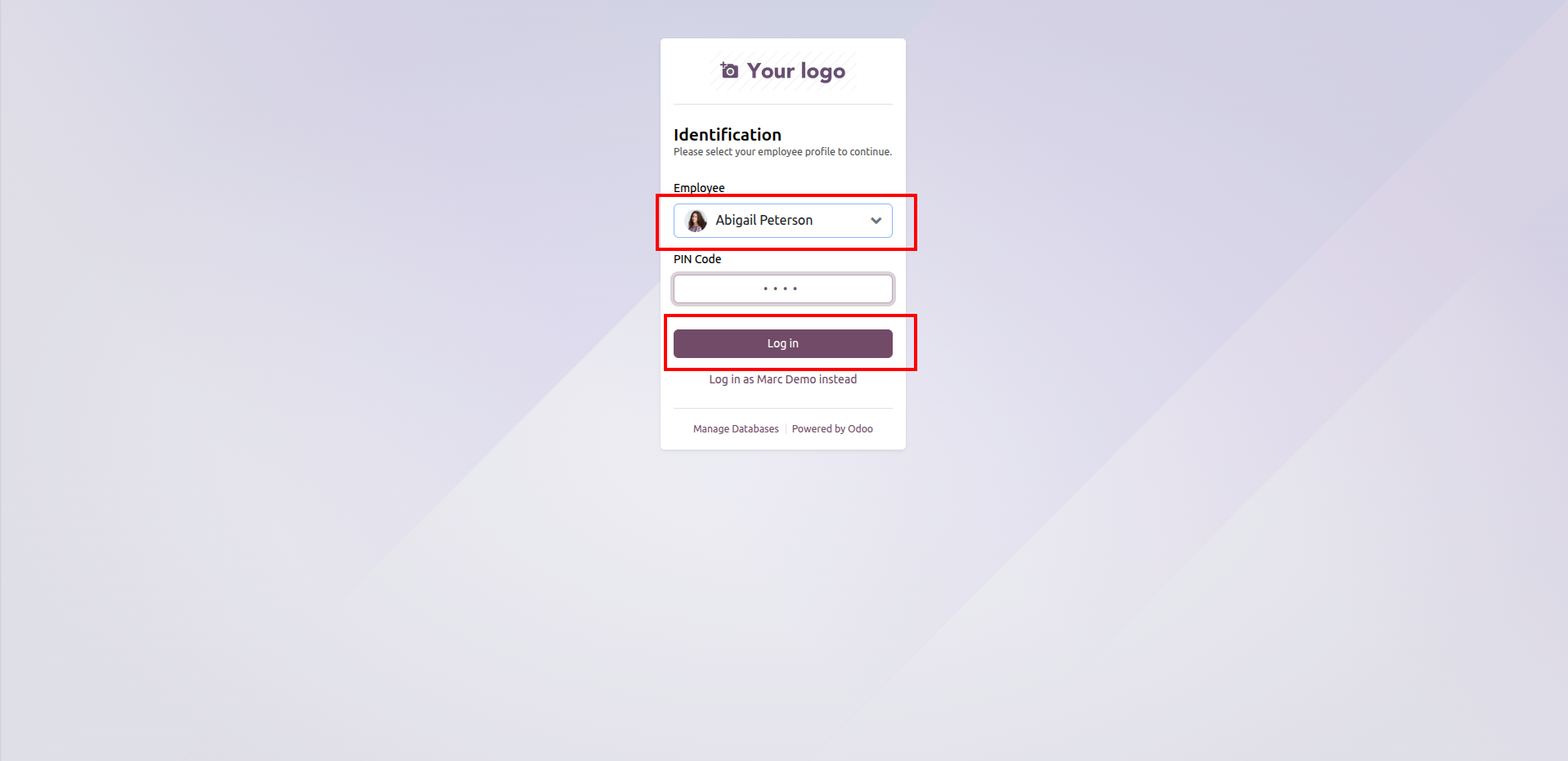
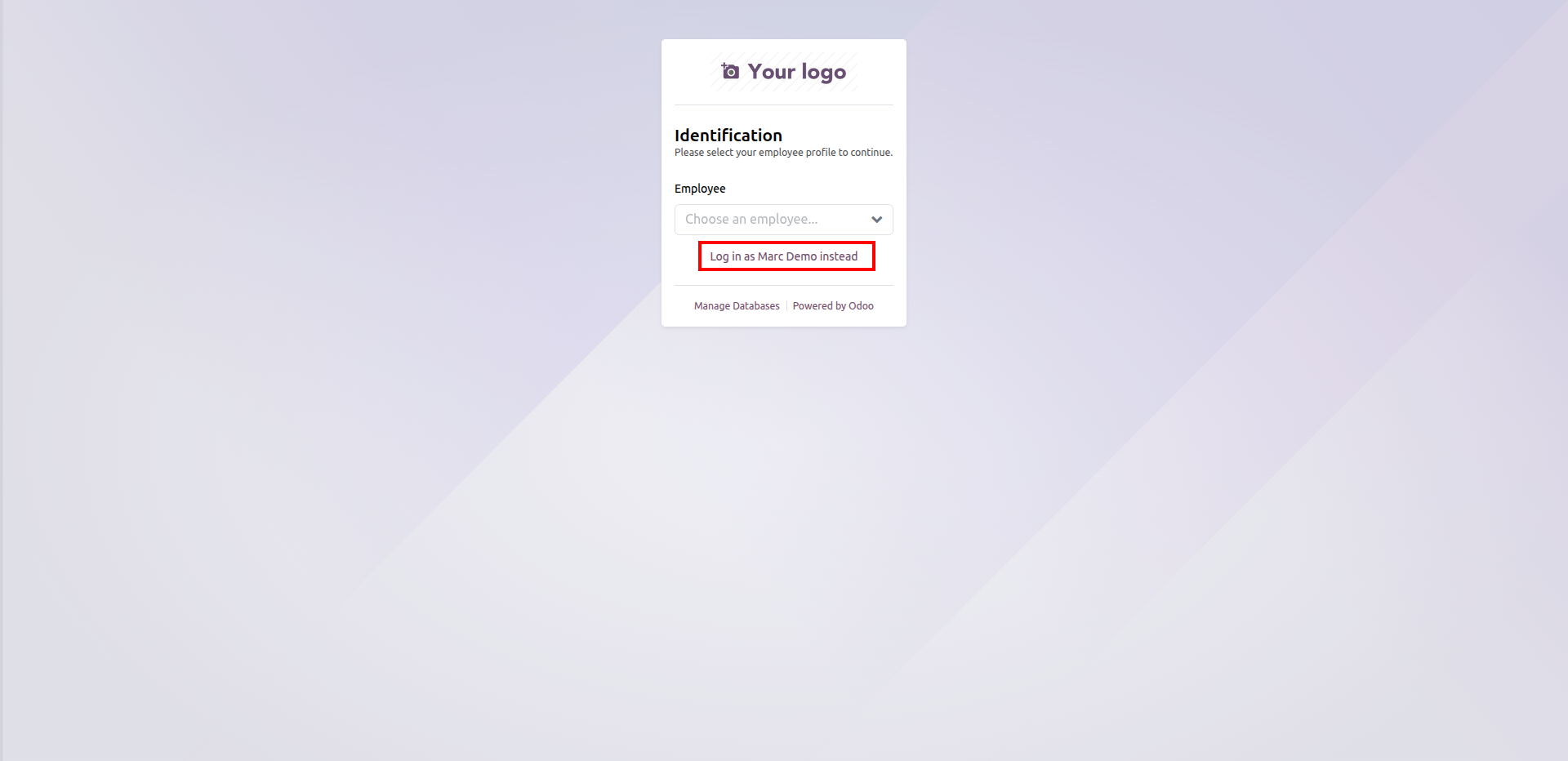
The user is redirected to the custom Identification page. Select the employee profile (e.g. Abigail Peterson), enter the employee's security PIN code, and click "Log in".
Once logged in, the active employee's avatar is displayed in the top-right header menu. Click on the user dropdown menu to open options, including "My Preferences".
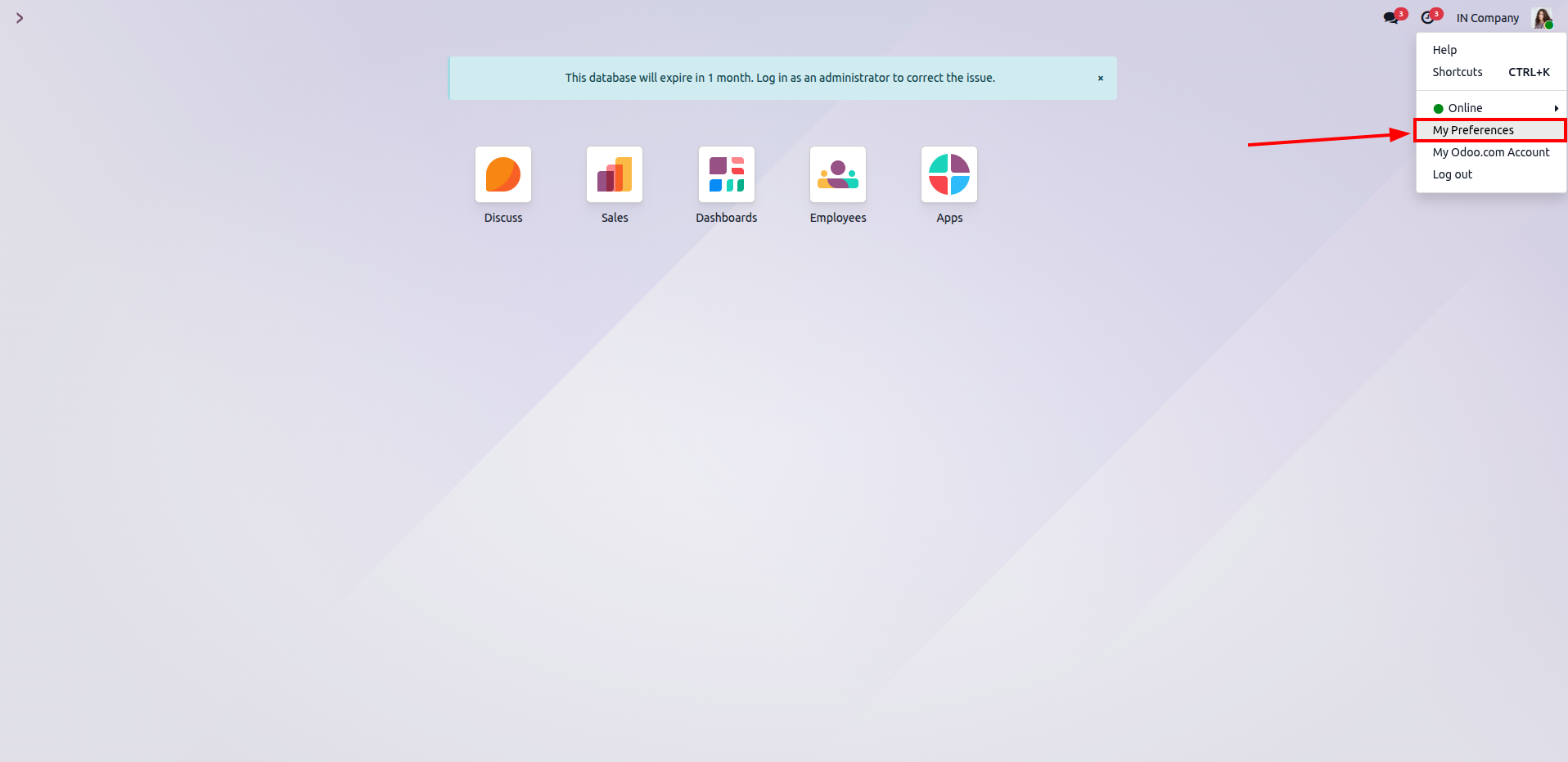
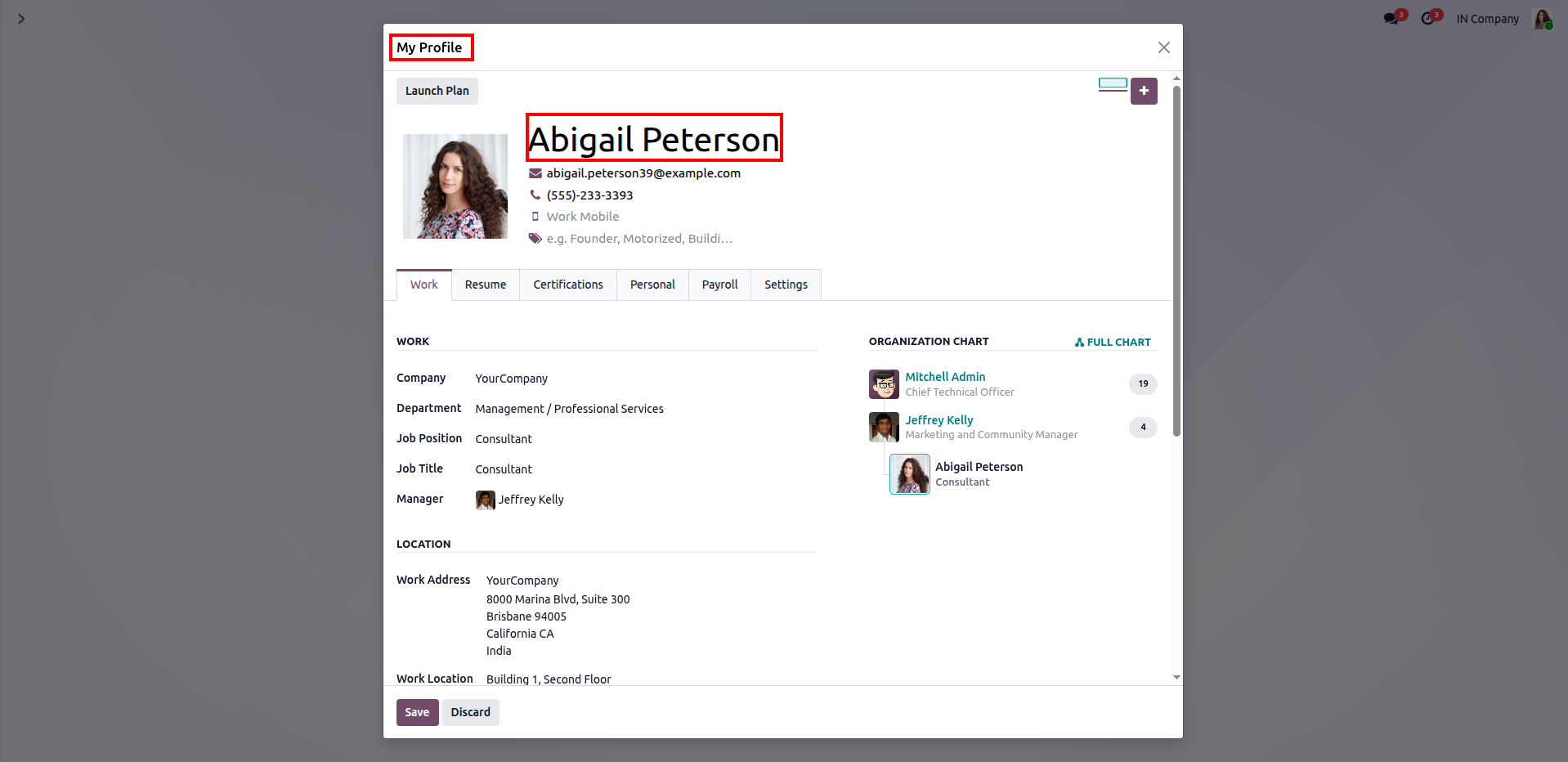
Clicking "My Preferences" intercepts the action for the shared employee session and opens their profile.
In the Discuss app, direct messages sent by the employee are automatically tracked and displayed under the employee's name (e.g. Abigail Peterson or Anita Oliver) and avatar.
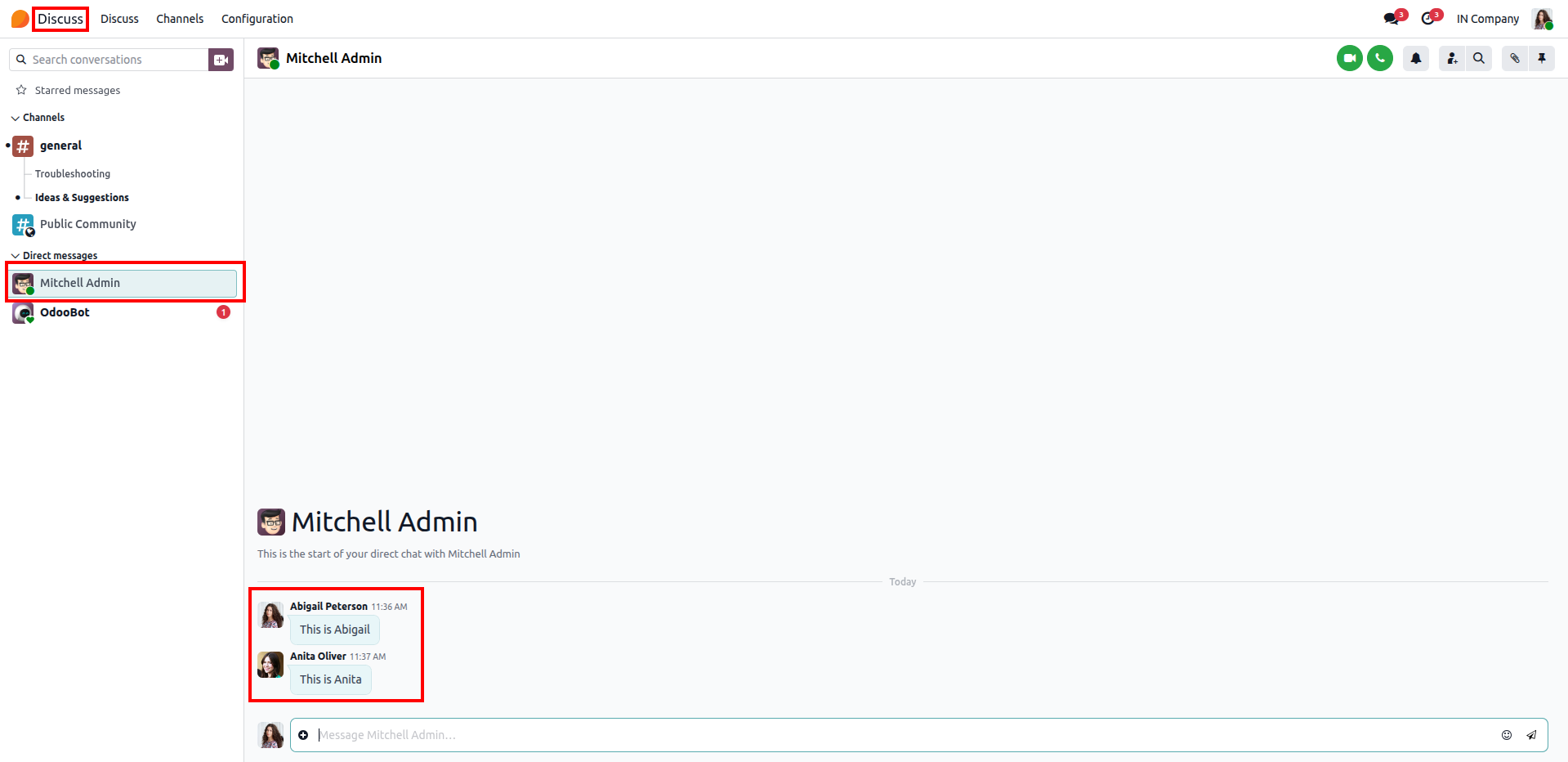
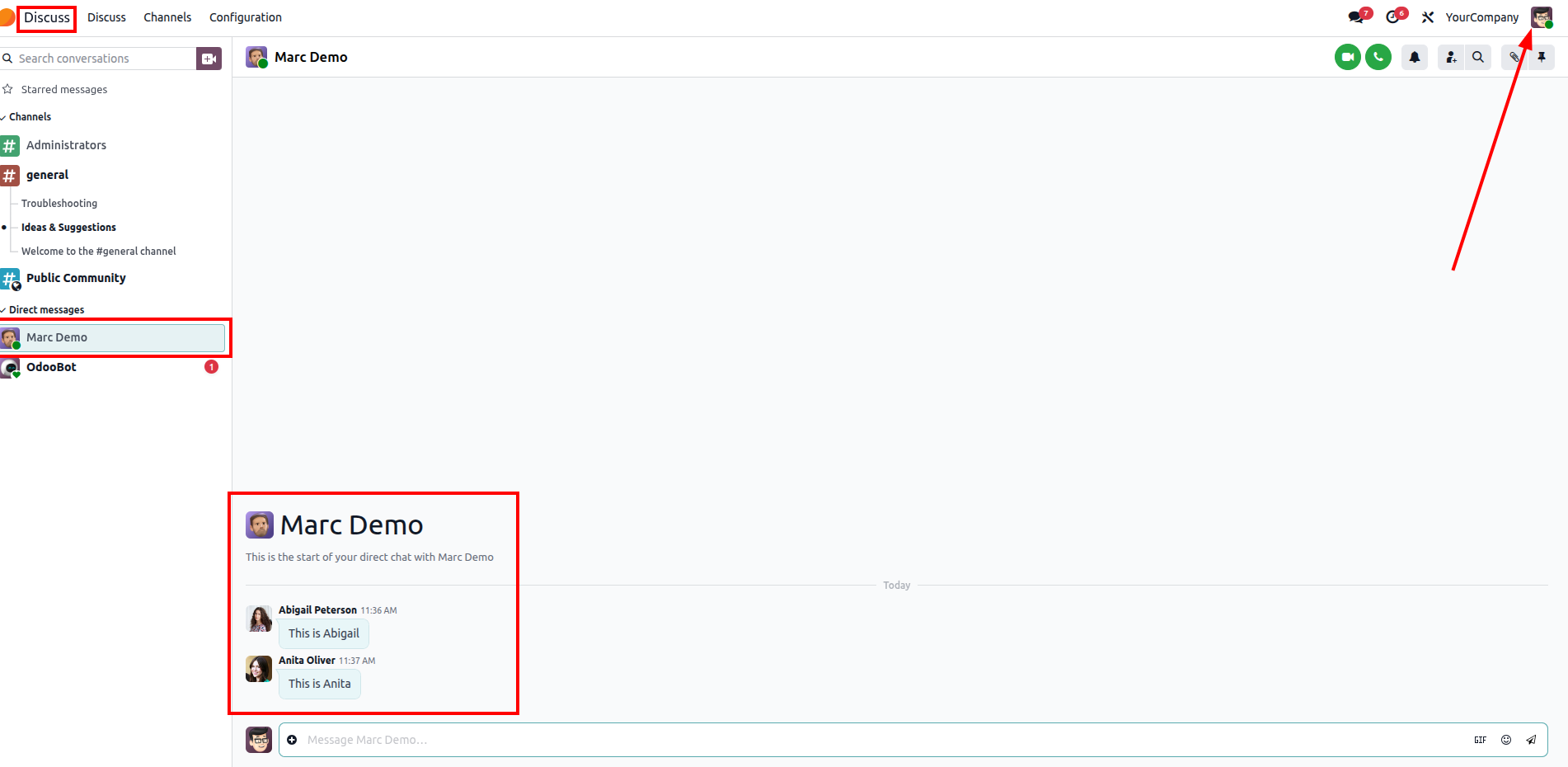
Messages in direct channels display and track the individual employee identities (Abigail Peterson and Anita Oliver next to their messages) even within the shared user session chat window.
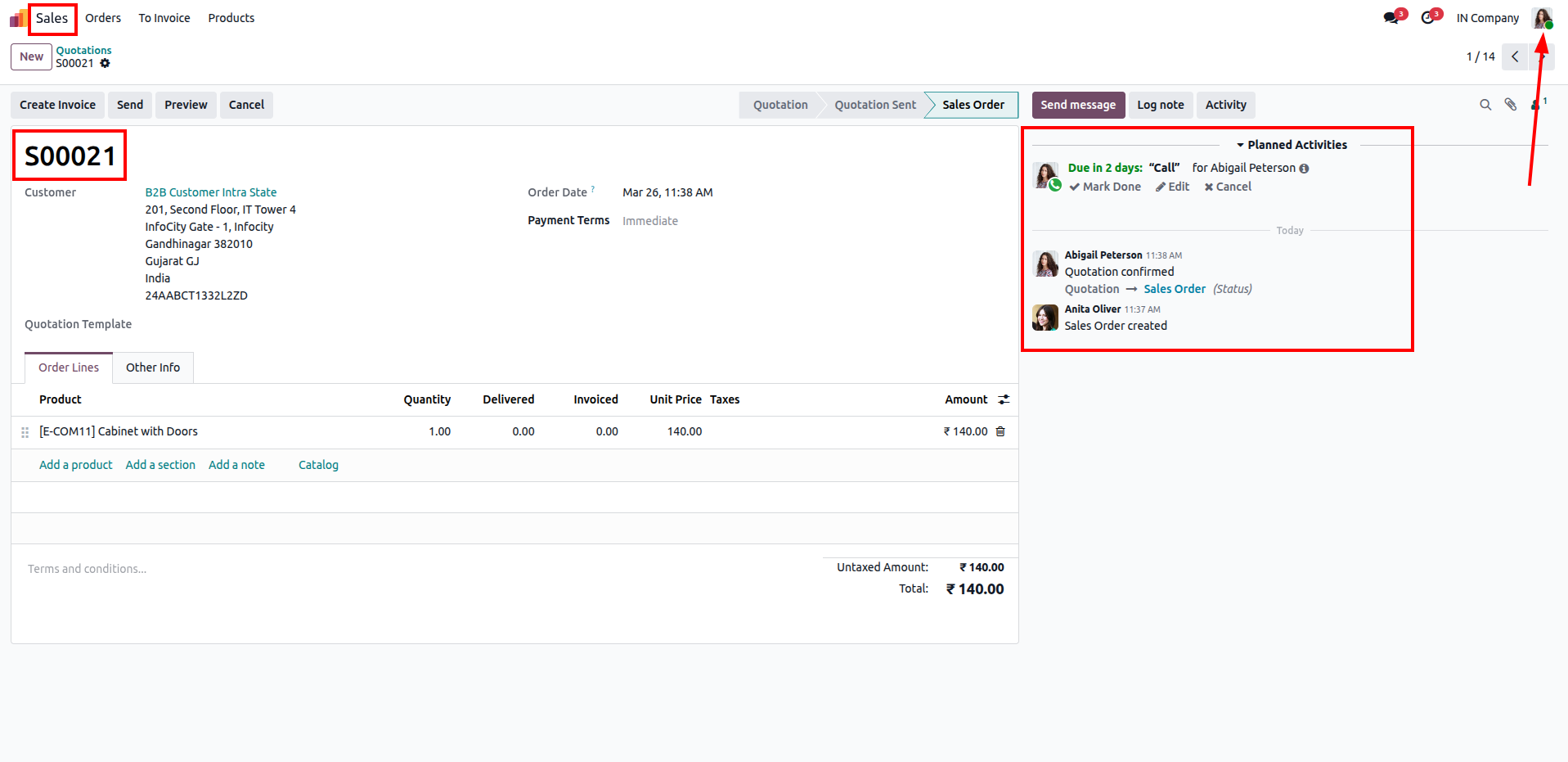
On any record (e.g. Sales Order S00021), all chatter history, creation updates, state changes, and planned activities are tracked under the individual employee name who performed the action.
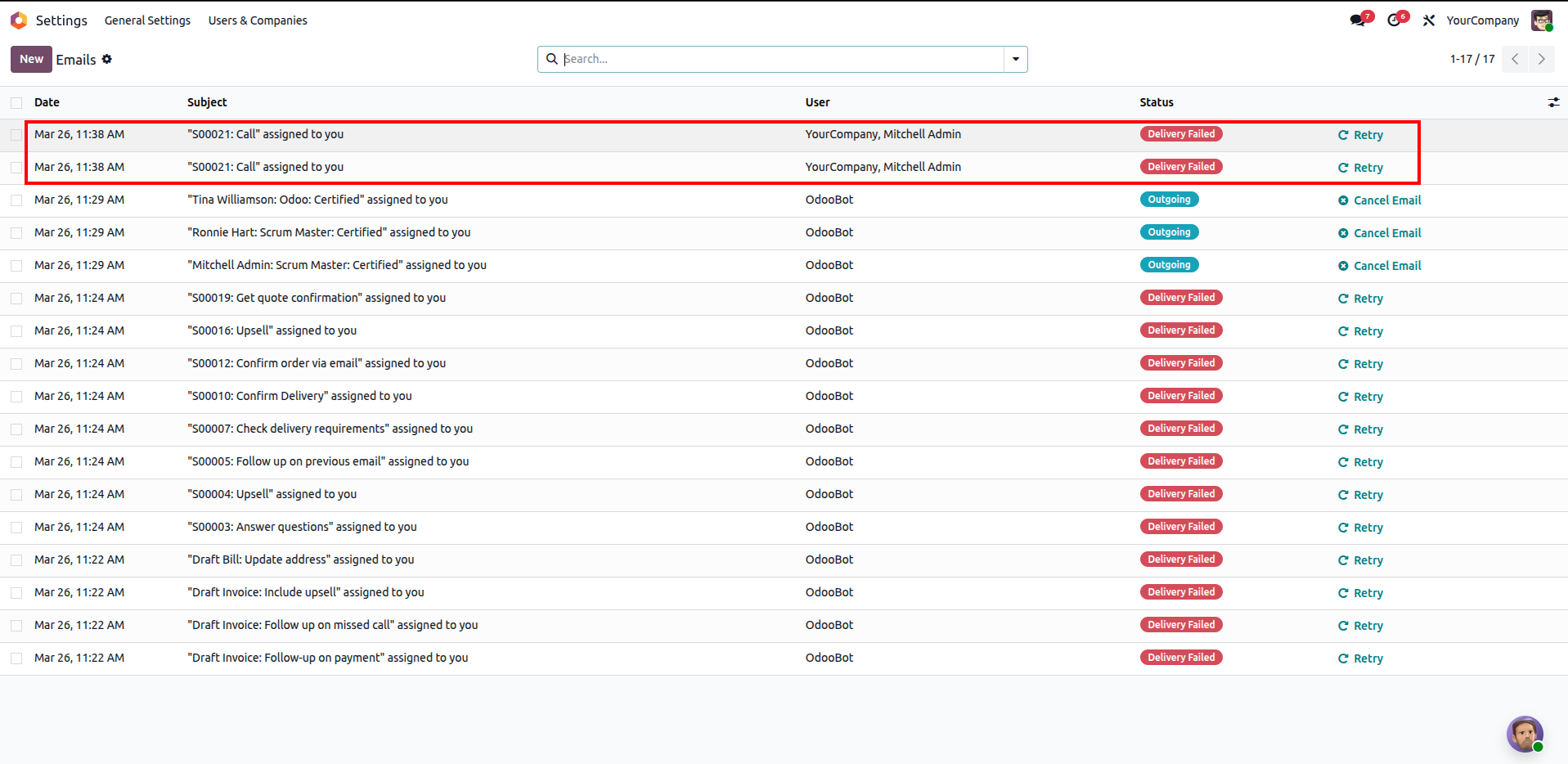
Go to Settings > Technical > Emails to view email notifications generated for assigned activities.
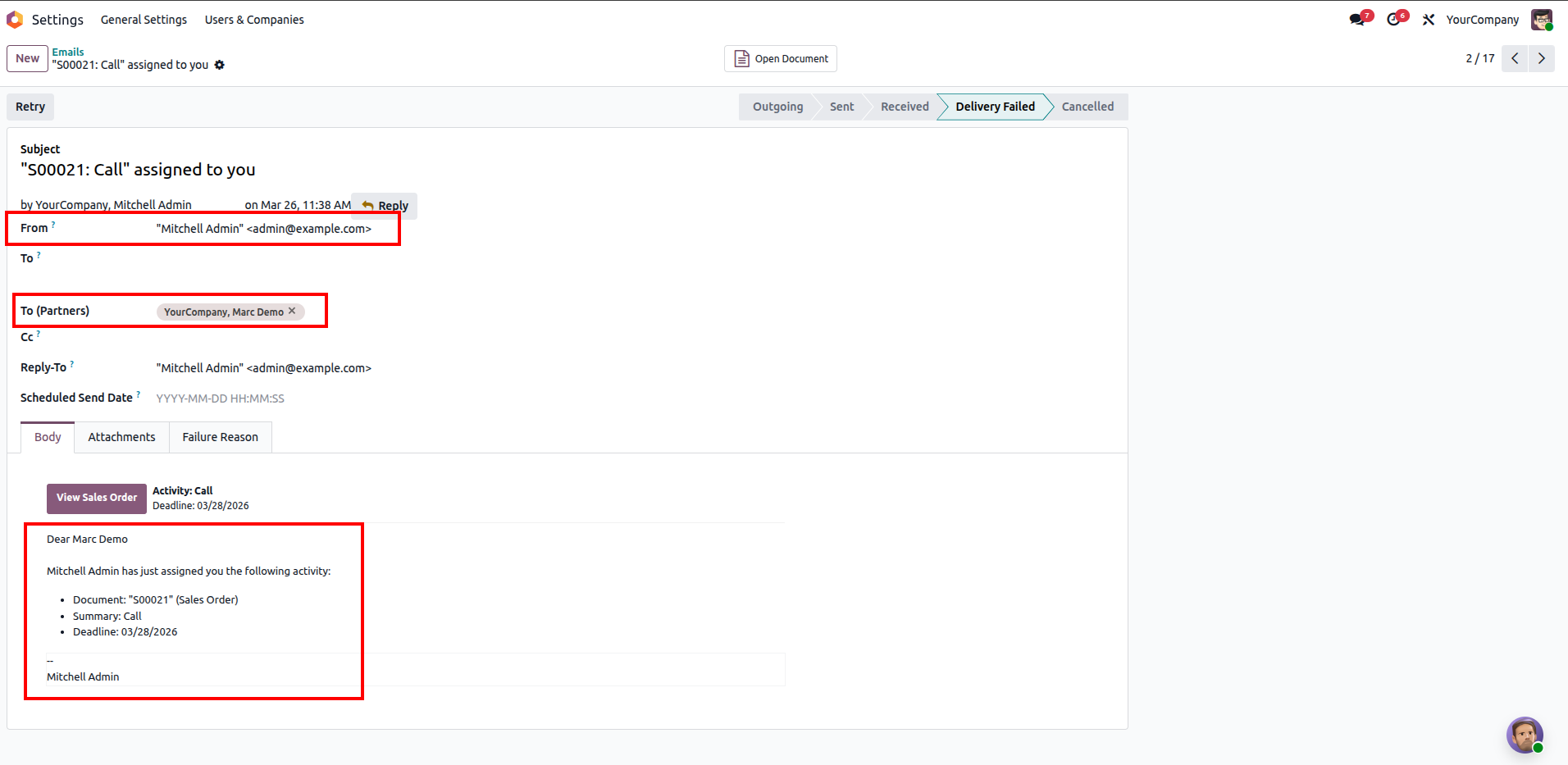
View details of activity email notifications sent to partners, showing the correct generic user as the sender.
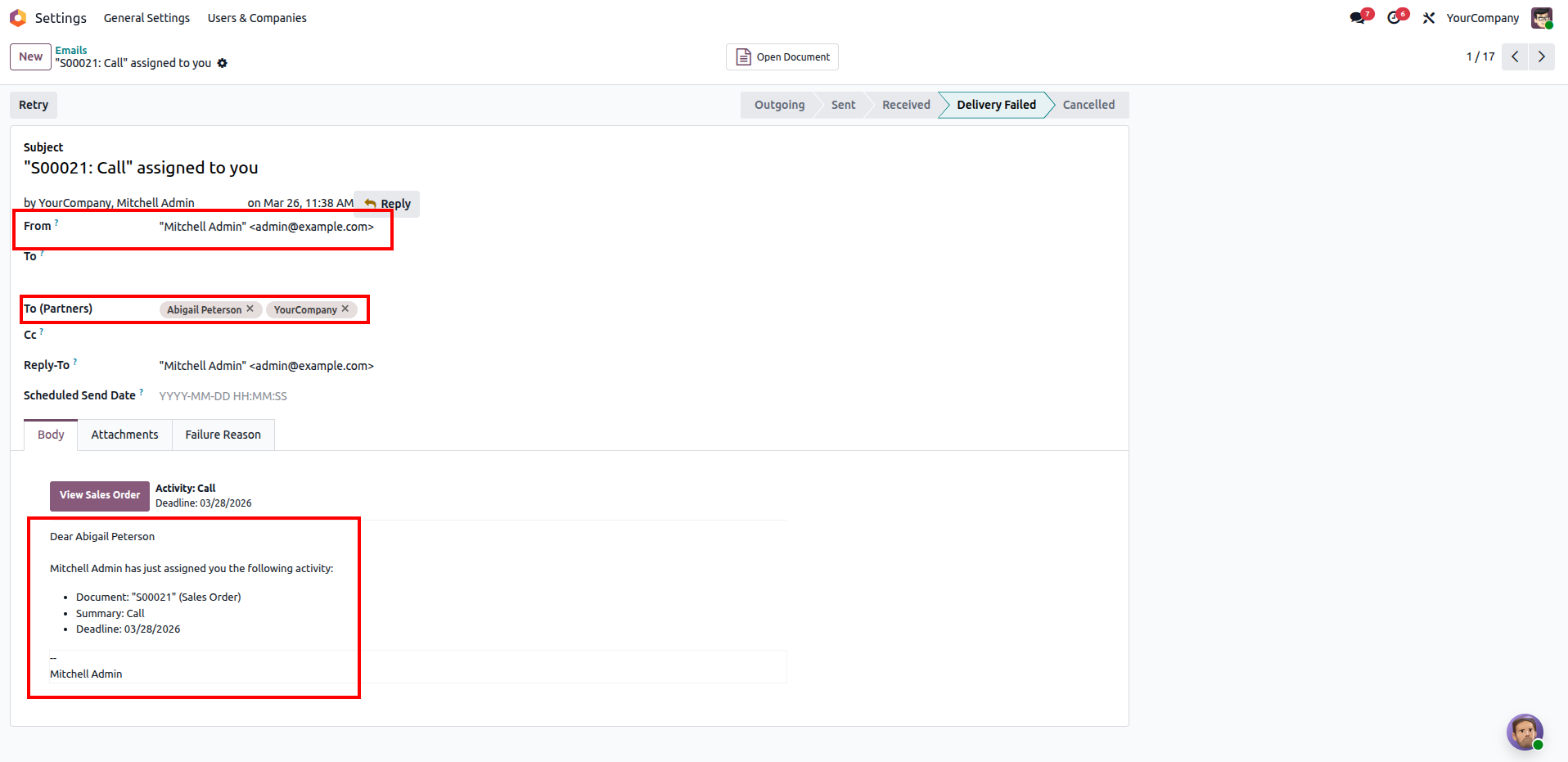
Inspect email notifications assigned to the shared employee, verifying that the email body correctly addresses the active employee (e.g. Dear Abigail Peterson).
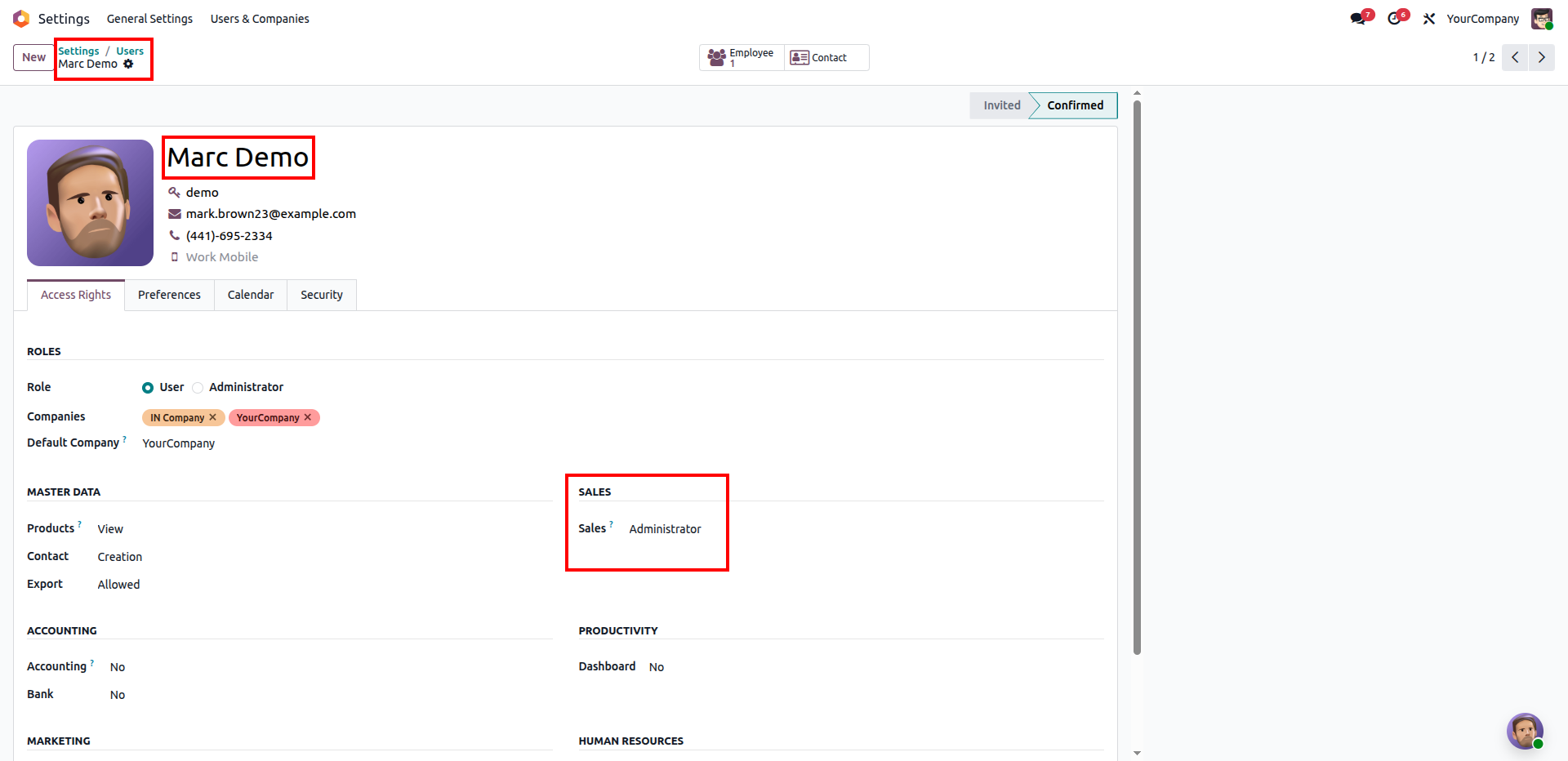
On the User form of the shared user (e.g. Marc Demo), verify that their base access rights are set to high levels (e.g. Sales: Administrator).
Log in with the shared user credentials on the Odoo login screen.
The Identification page displays a "Log in as Marc Demo instead" shortcut link for administrative override.
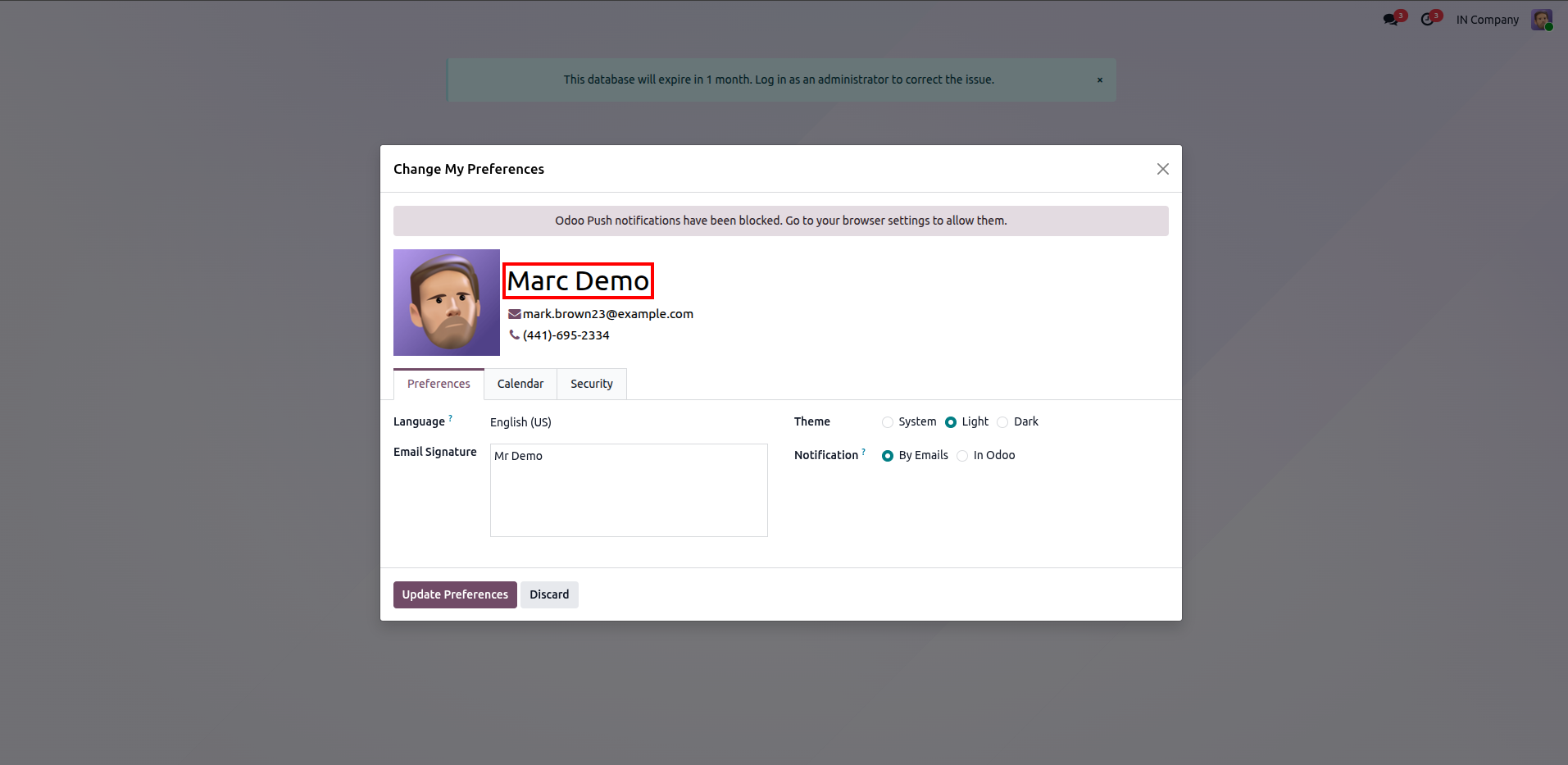
When logged in using the override link, clicking "My Preferences" opens the standard Odoo preferences modal for Marc Demo instead of the employee profile.
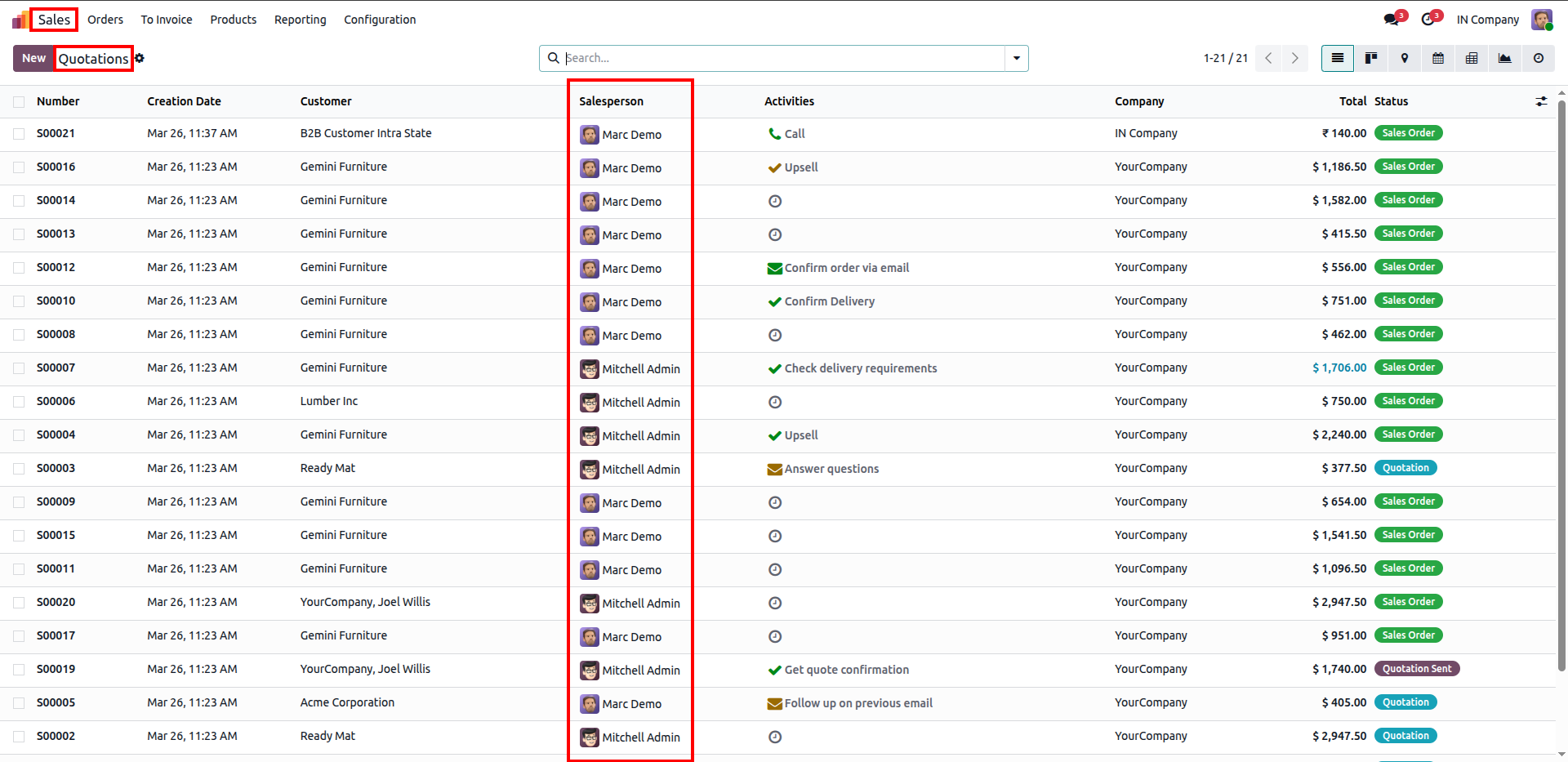
Logged in directly as Marc Demo (with full administrator rights), the user can view all quotations from all salespersons in the system.
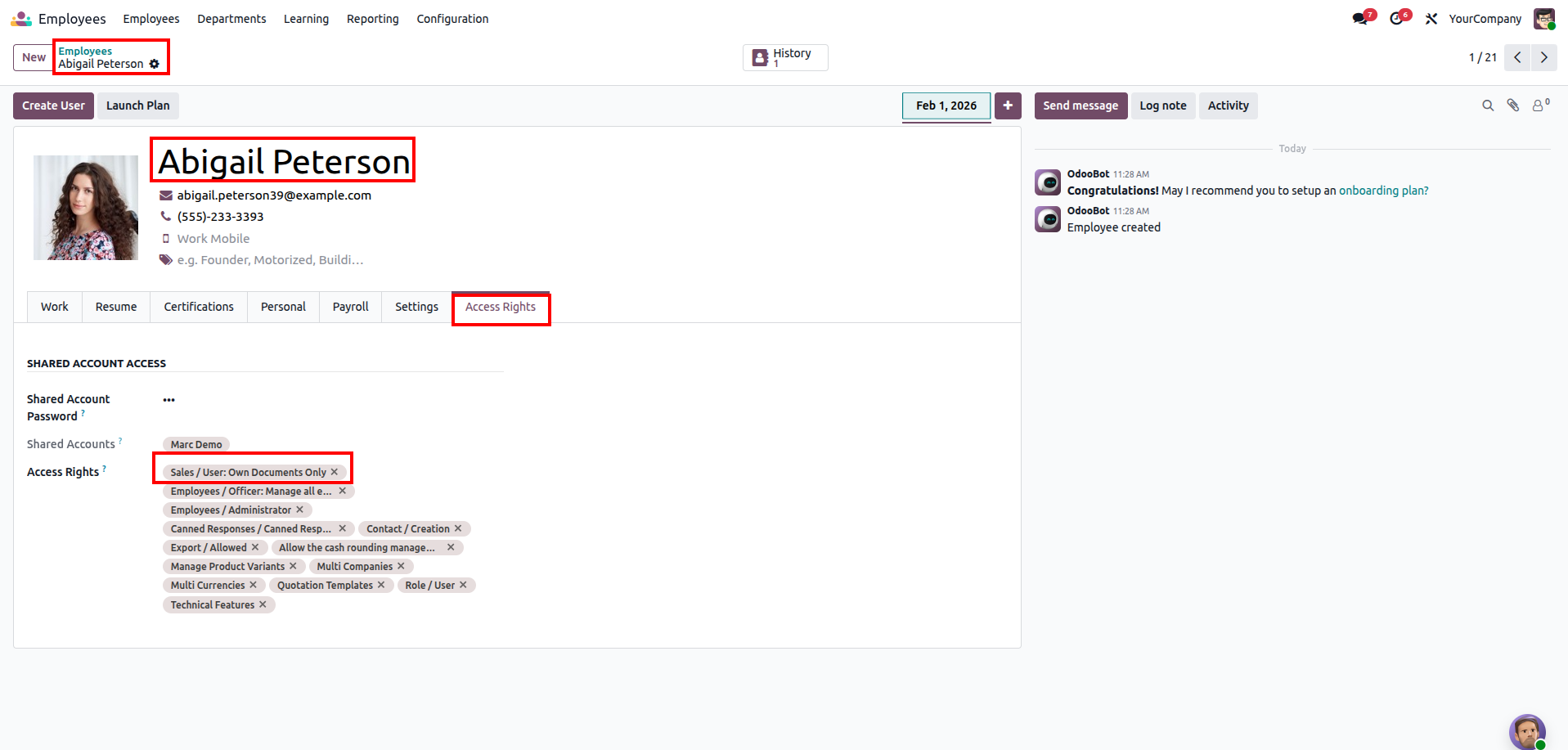
Go back to Abigail Peterson's Employee profile and set her specific access rights to a restricted level (e.g. Sales / User: Own Documents Only).
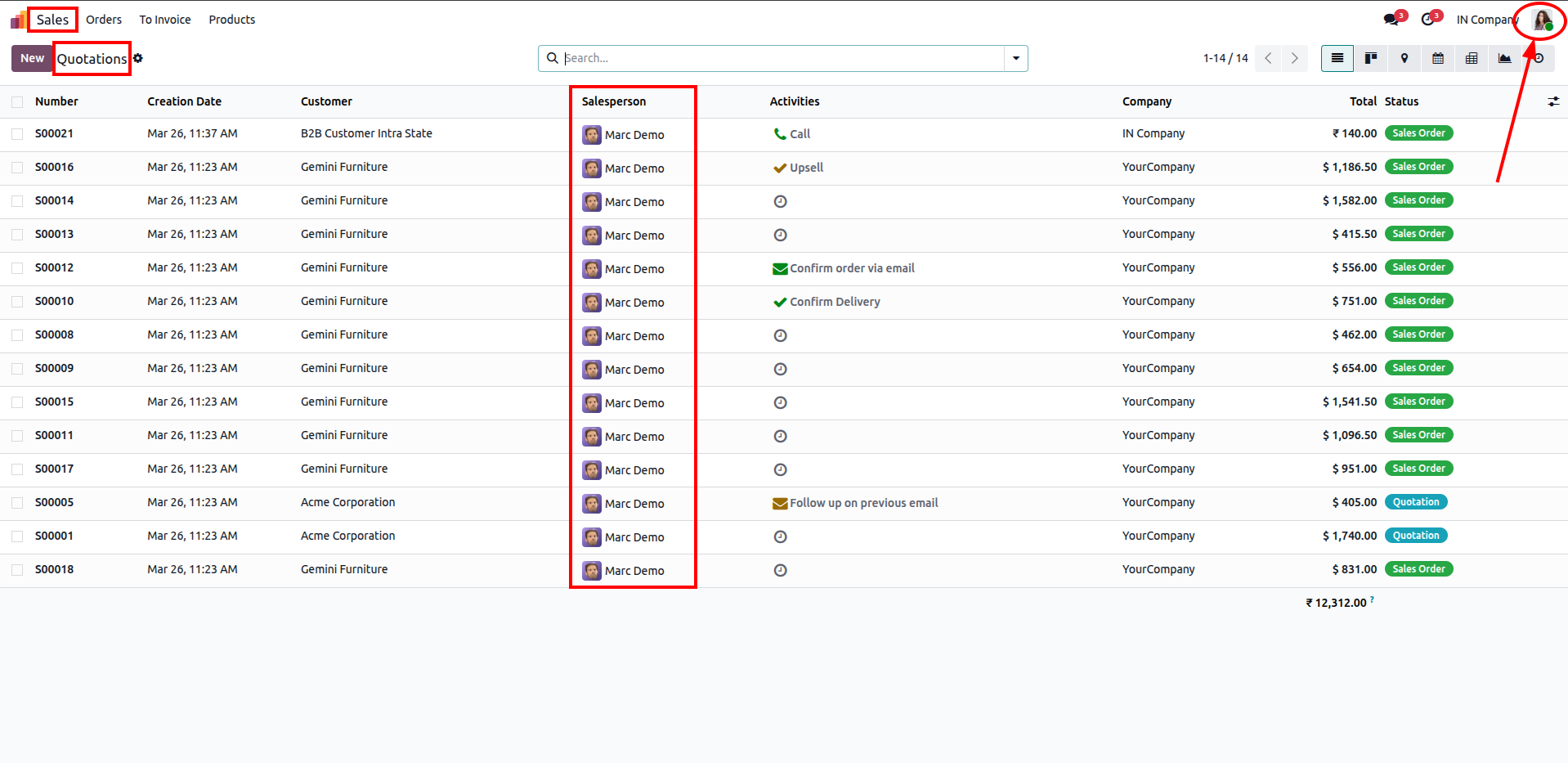
Log in as Abigail Peterson. Because of her restricted access groups, the list view dynamically applies Odoo's record rules: she only sees quotations where the salesperson is Marc Demo.
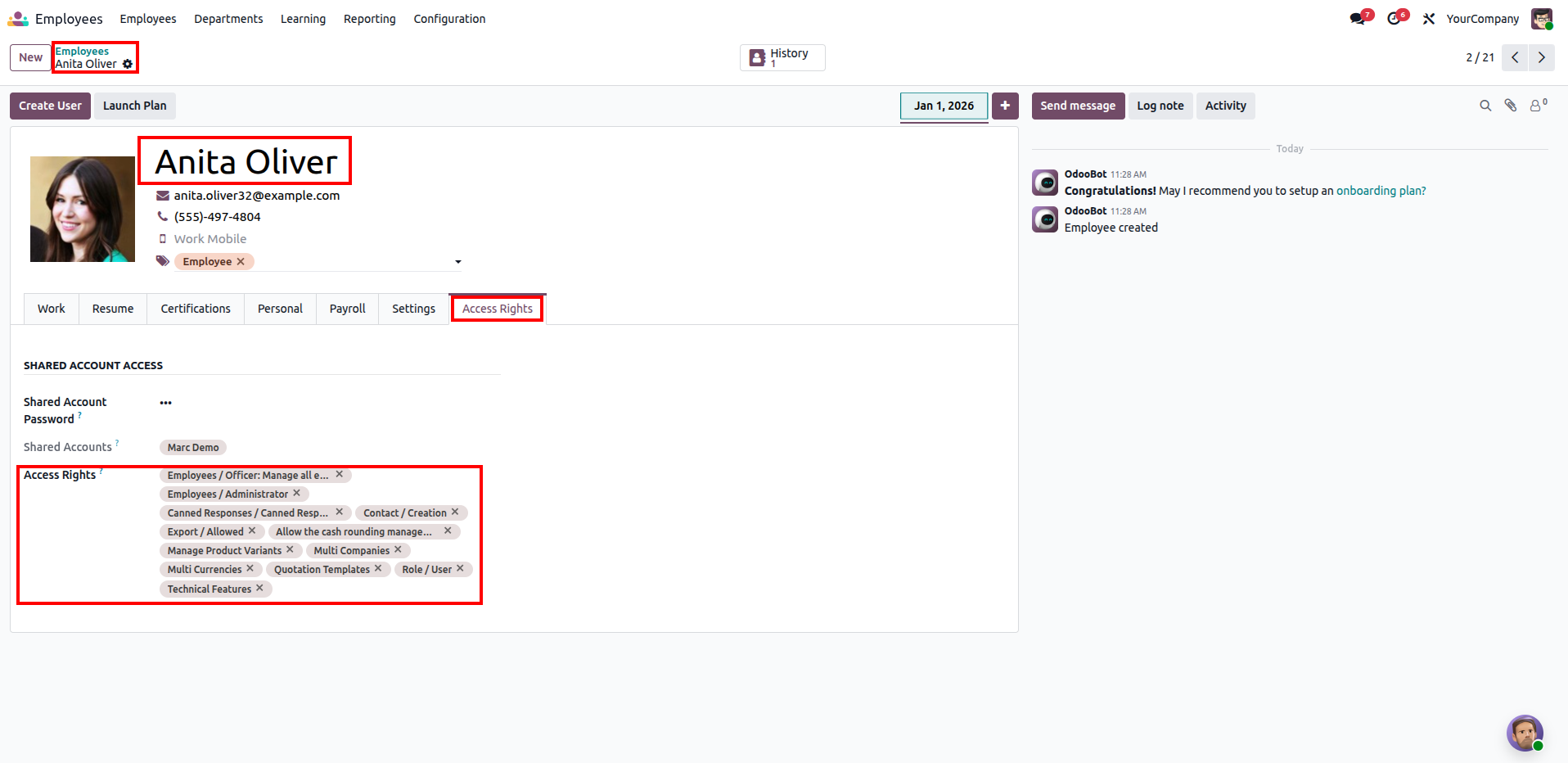
Open the Employee profile for Anita Oliver. Under her Access Rights tab, note that no Sales access groups are selected.
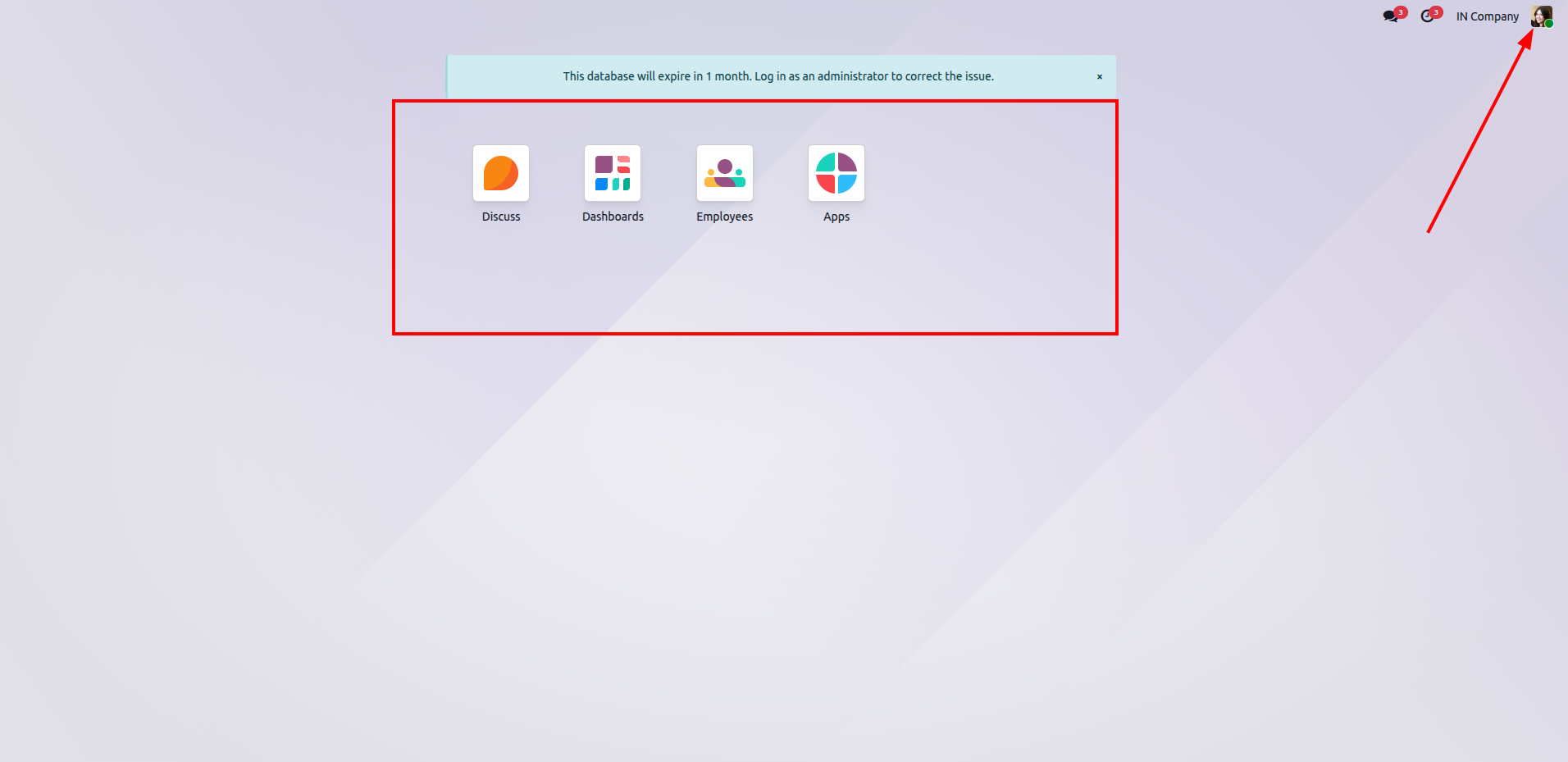
Log in as Anita Oliver. Since she has no Sales access rights assigned, the Sales app is completely hidden on her home screen dashboard.
Version 19.0.1.0.0 | Released on : 1st June 2026
- No, this app works perfectly with Odoo Enterprise (Odoo.sh & Premise) only.
- No, this application is not compatible with odoo.com(odoo saas/Odoo Online)
- Yes, to test this module, please contact us at sales@softhealer.com.
- Please contact us at sales@softhealer.com to request customization.
- Yes, we provide free support for 365 days from the date of purchase.
- Yes, you will receive lifetime free updates for the version of the module you purchased.
- No, there is no need to install any additional libraries.
- Yes, for version 12 and above, you need to purchase the module separately for each version you intend to use.
- No, exchanges or refunds are not allowed. Please make sure to select the correct version before purchasing.
- You can contact us at support@softhealer.com for language translation support. We use Google Translator tools to provide translations in multiple languages, so the accuracy may vary. We welcome your suggestions to help improve translations.
Discover Our Latest Apps