










Trello-Odoo Connector

Trello is a project management and team collaboration tool. Trello has a similar appearance to a board with sticky notes - projects and tasks can be organized into columns and moved around easily to indicate workflow, project ownership, and status. This app will provide a facility to import and export your trello project and task with odoo.

Related Modules
Features
Trello Project & Task Sync
Sync projects and tasks between Trello and Odoo in both directions.

Task Attachment & Message Sync
Sync task attachments and messages between Trello and Odoo.
Bi-directional Synchronization
Keep Trello and Odoo data synchronized with two-way data exchange.

Automatic Stage Creation
Automatically create project stages when importing tasks from Trello.
Automatic Import & Export
Create scheduled actions to automatically import and export data between Trello and Odoo.
Import & Export Logs
Easily track import and export activities with detailed logs.

One-Click Task Refresh
Sync project tasks instantly with a single Refresh button.
Member Synchronization (Import)
Link Trello members with Odoo users for better task assignment.
Project Synchronization (Import/Export)
Import and export projects between Trello and Odoo to keep project data updated.
Task Synchronization (Import/Export)
Import and export tasks between Trello and Odoo with ease.
Tag Synchronization (Import/Export)
Import and export tags between Trello and Odoo for better task organisation.
Checklist Synchronization (Import/Export)
Import and export task checklists between Trello and Odoo.
Timesheet Synchronization (Import/Export)
Import and export timesheet data between Trello and Odoo.
Webhook Integration
Receive real-time updates from Trello using webhook integration.
Multi-Company Support
Sync Trello data separately for multiple Odoo companies.
Trello Dashboard
Monitor Trello synchronisation activities and status from a central dashboard.
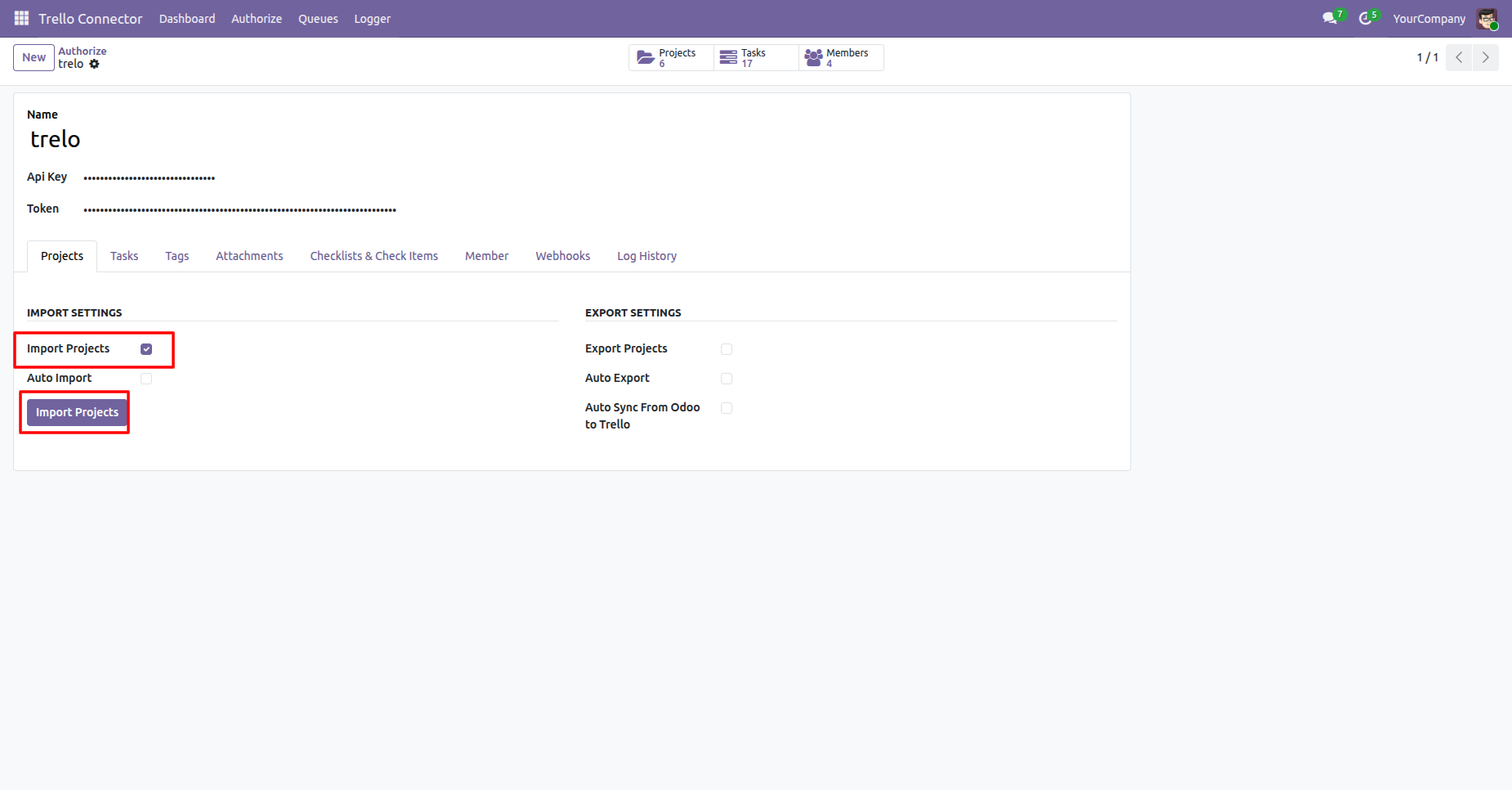
Enable the Import Projects and click on Import Projects button, it will fetch all the projects from Trello and create them in Odoo.
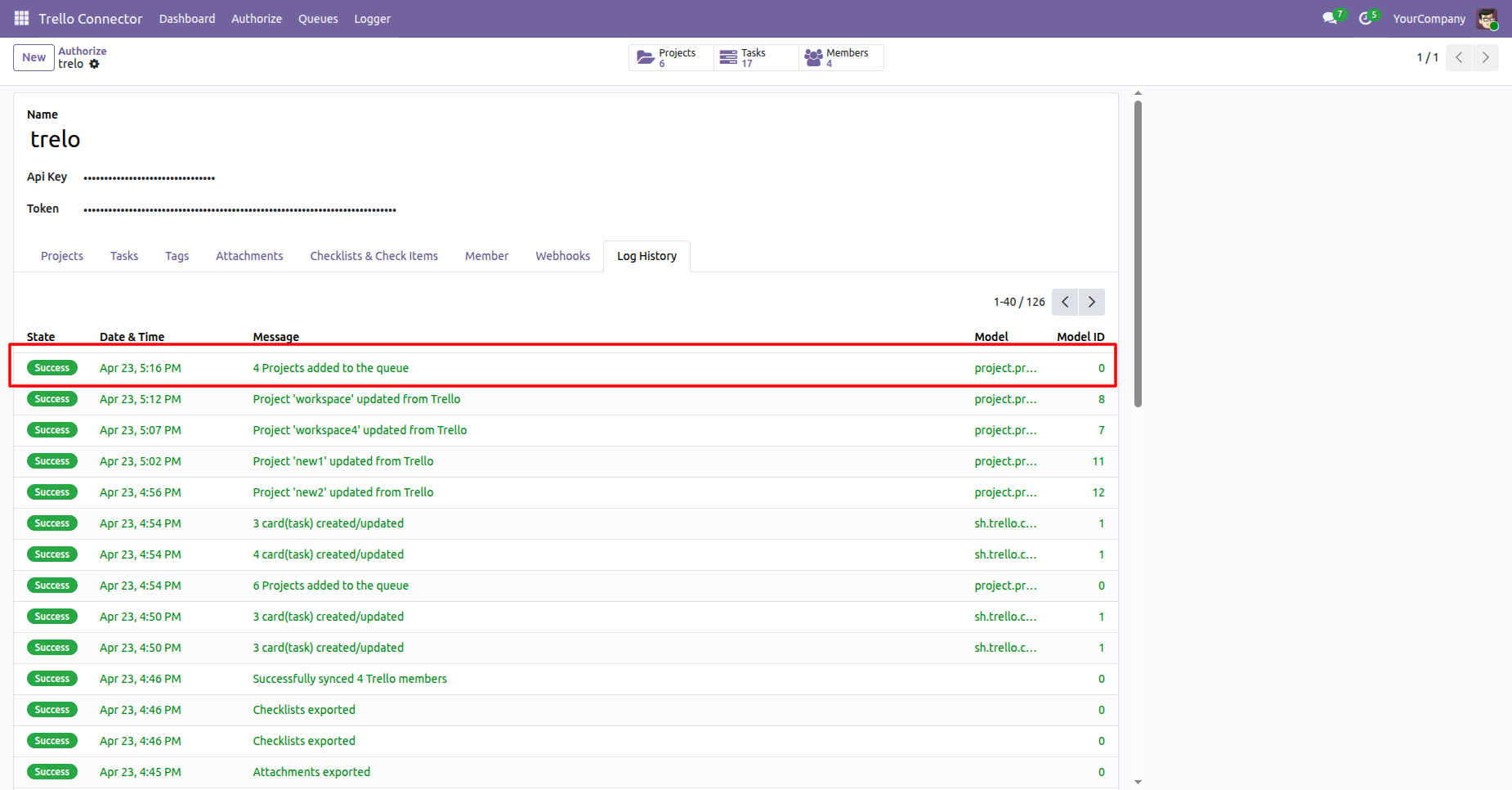
User can see the logs for number of projects added to the queue that are to be imported from Trello to Odoo.
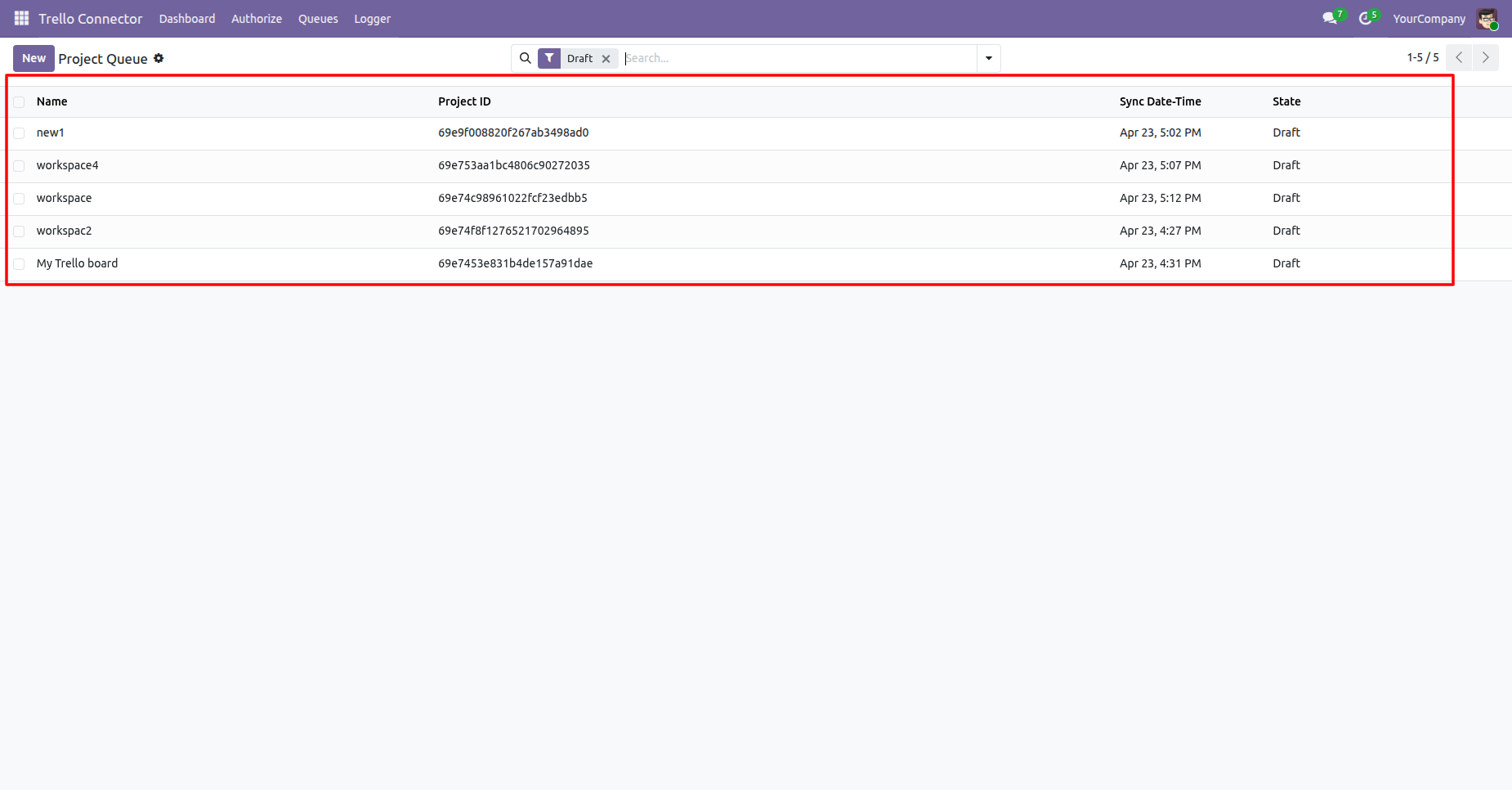
Project queue list view.
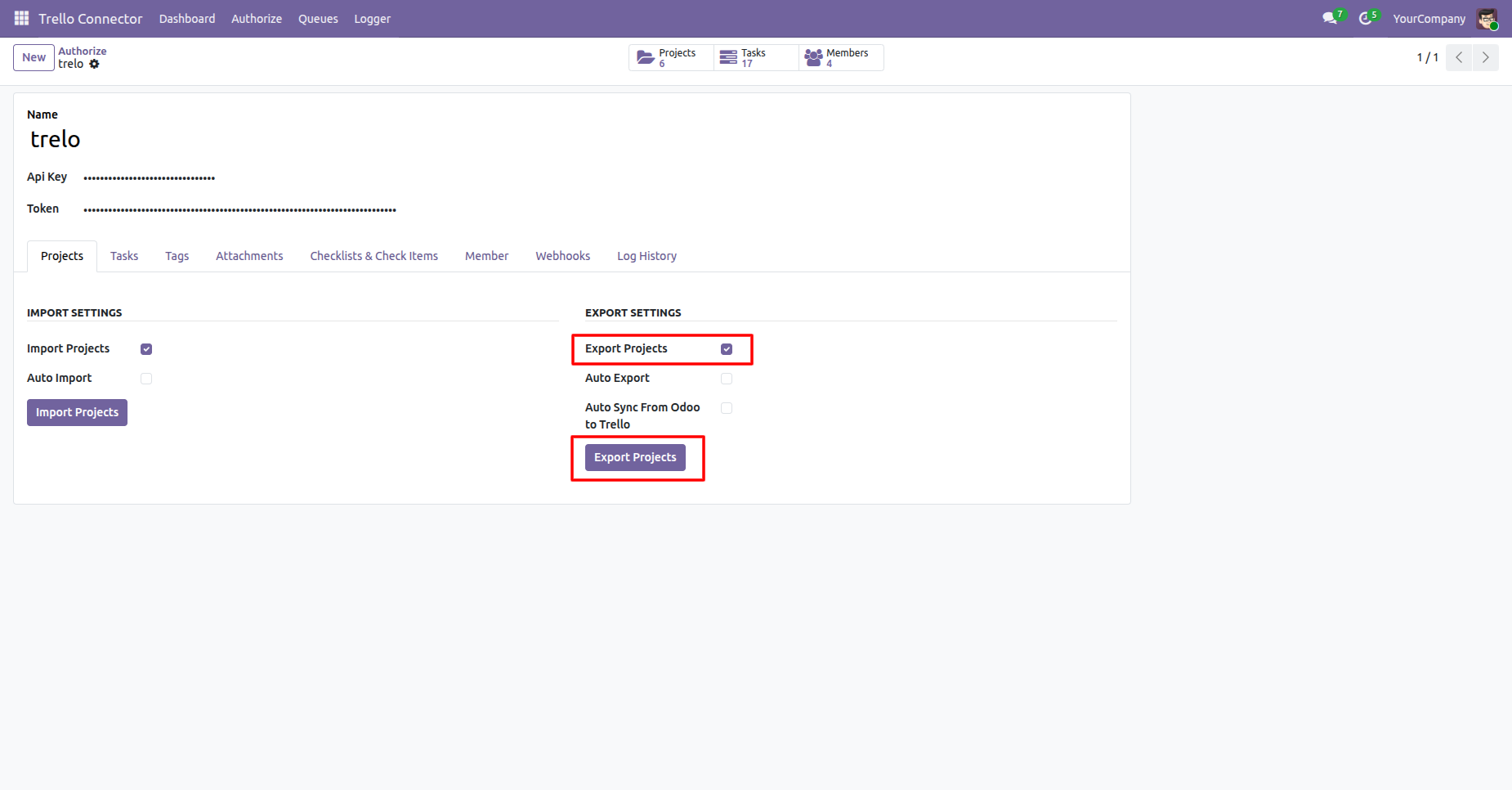
Enable the Export Projects and click on Export Projects button, it will fetch all the projects from Odoo and create them in Trello.
In Trello, User can see the projects added from Odoo.
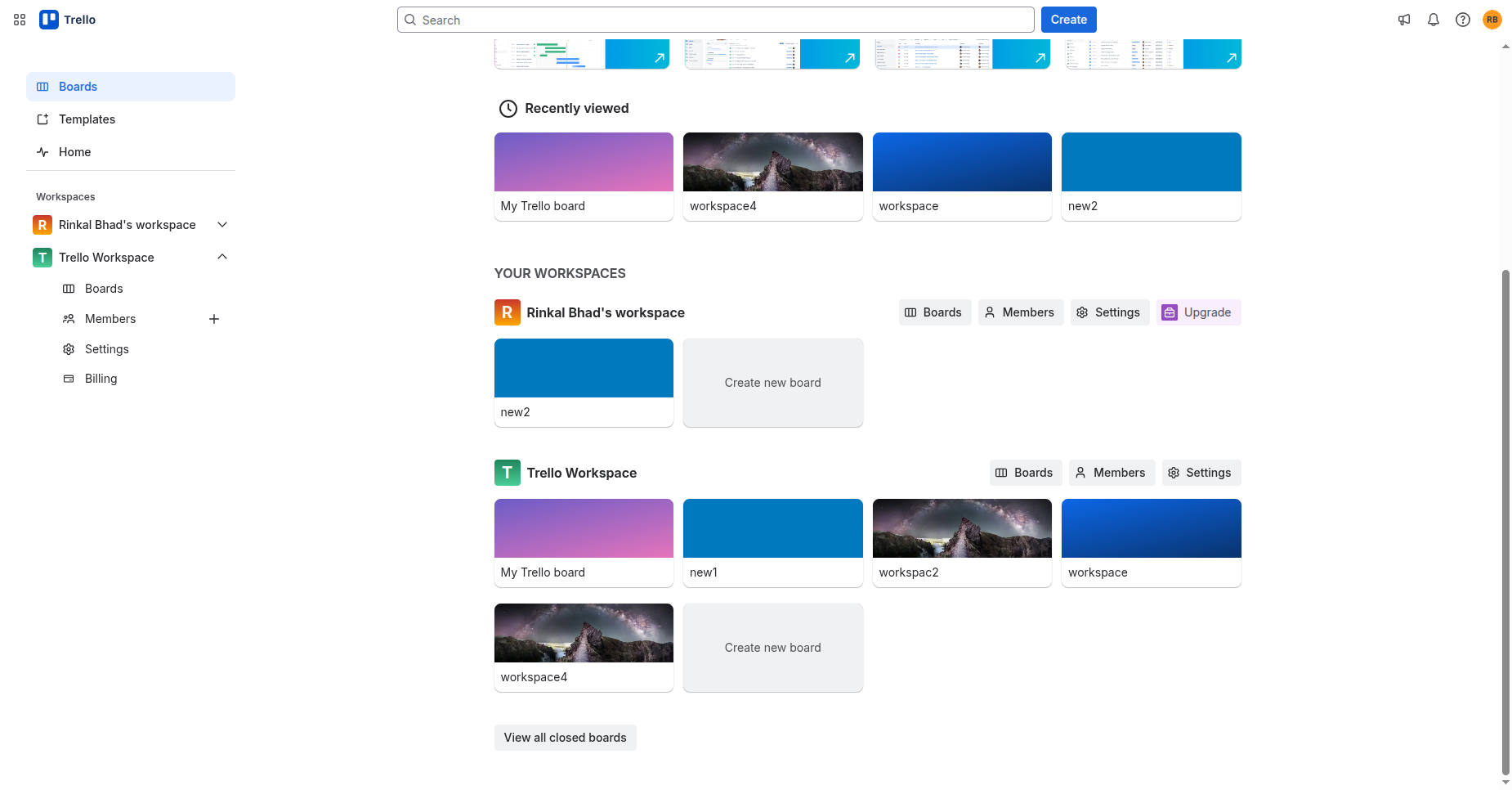
Enable from Auto Sync From Odoo to Trello which synces automatically on Trello upon create/update of records in Odoo.
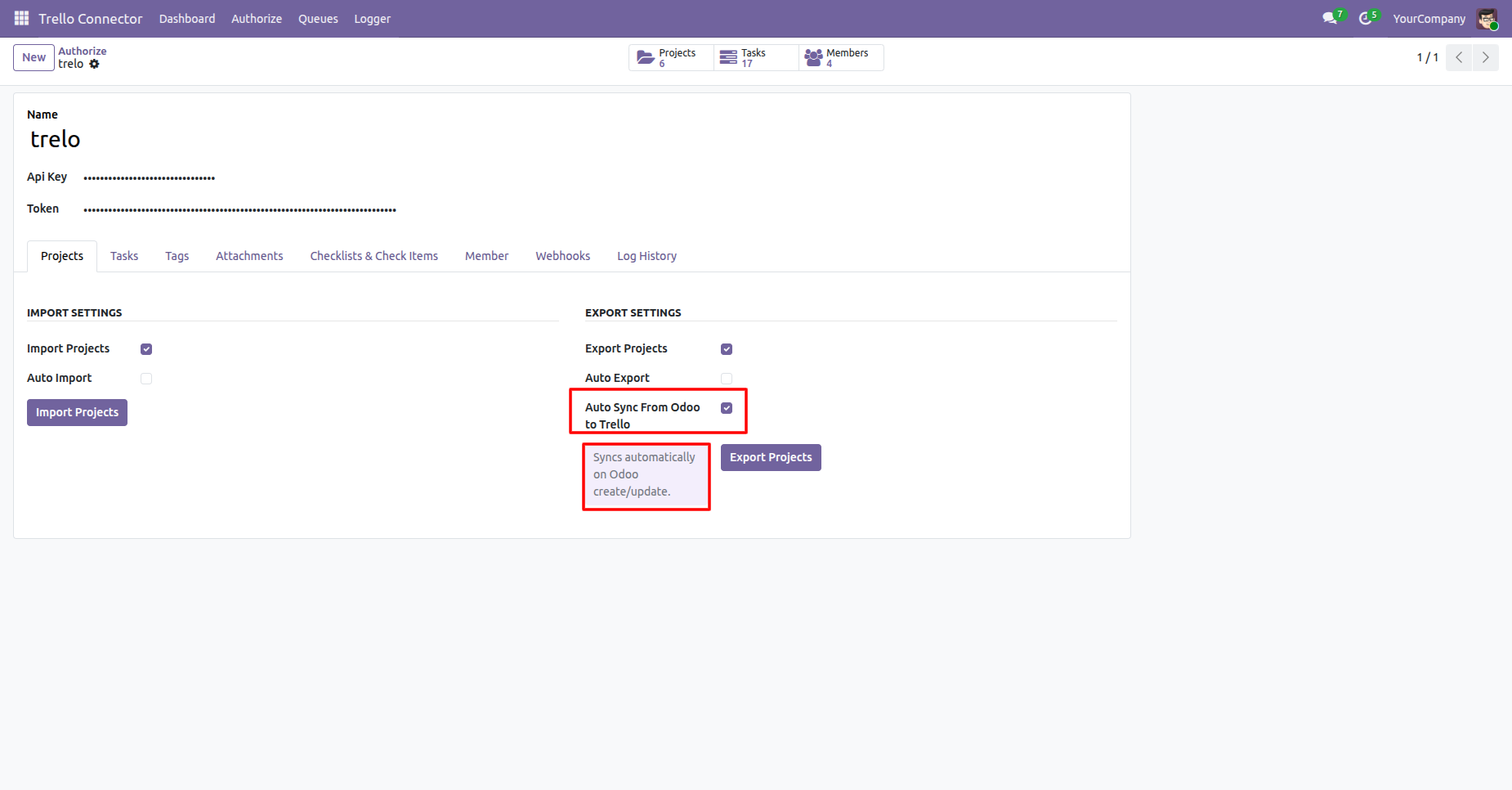
User can see the projects are automatically synced in Trello when created/updated in Odoo.
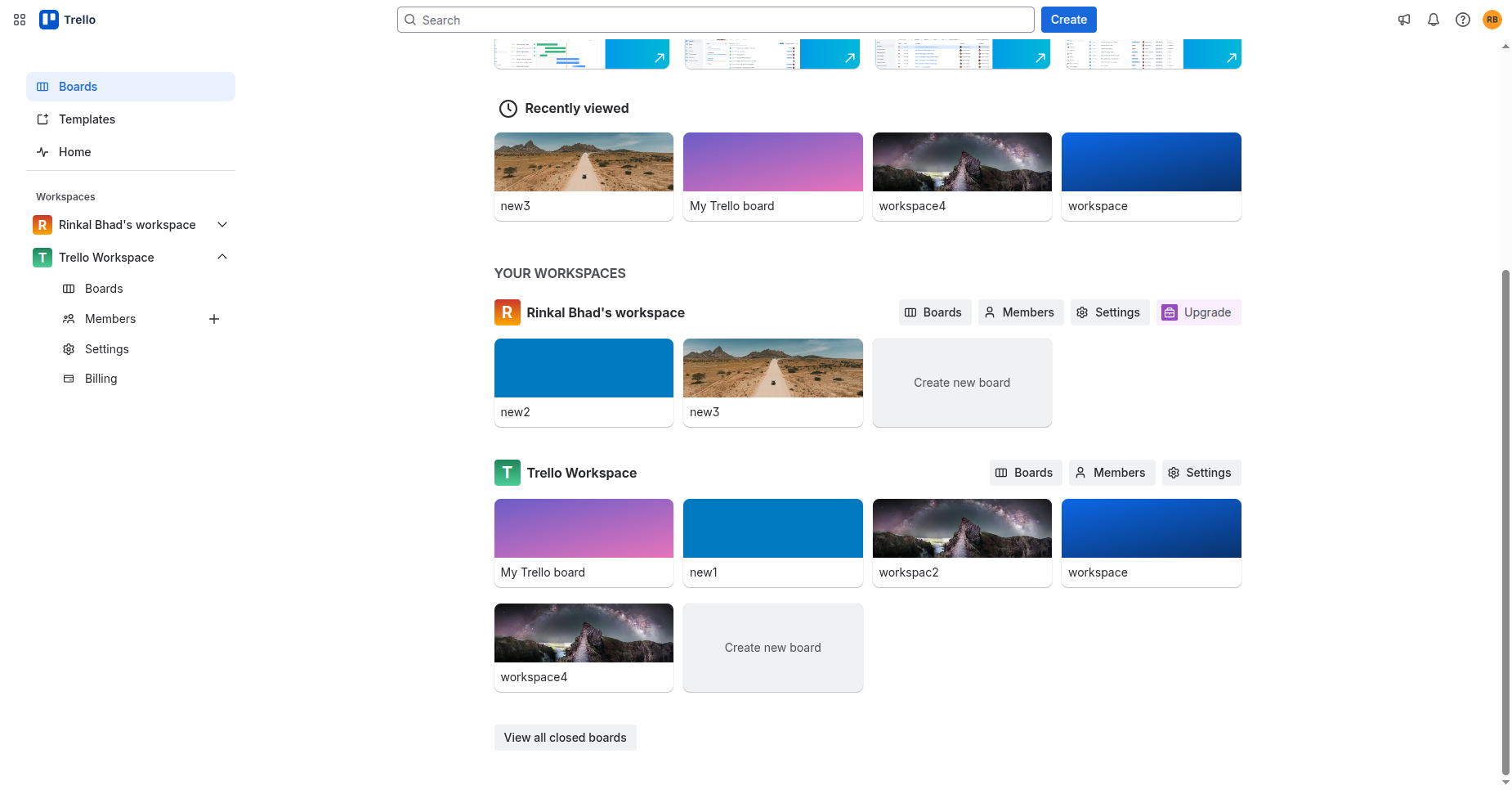
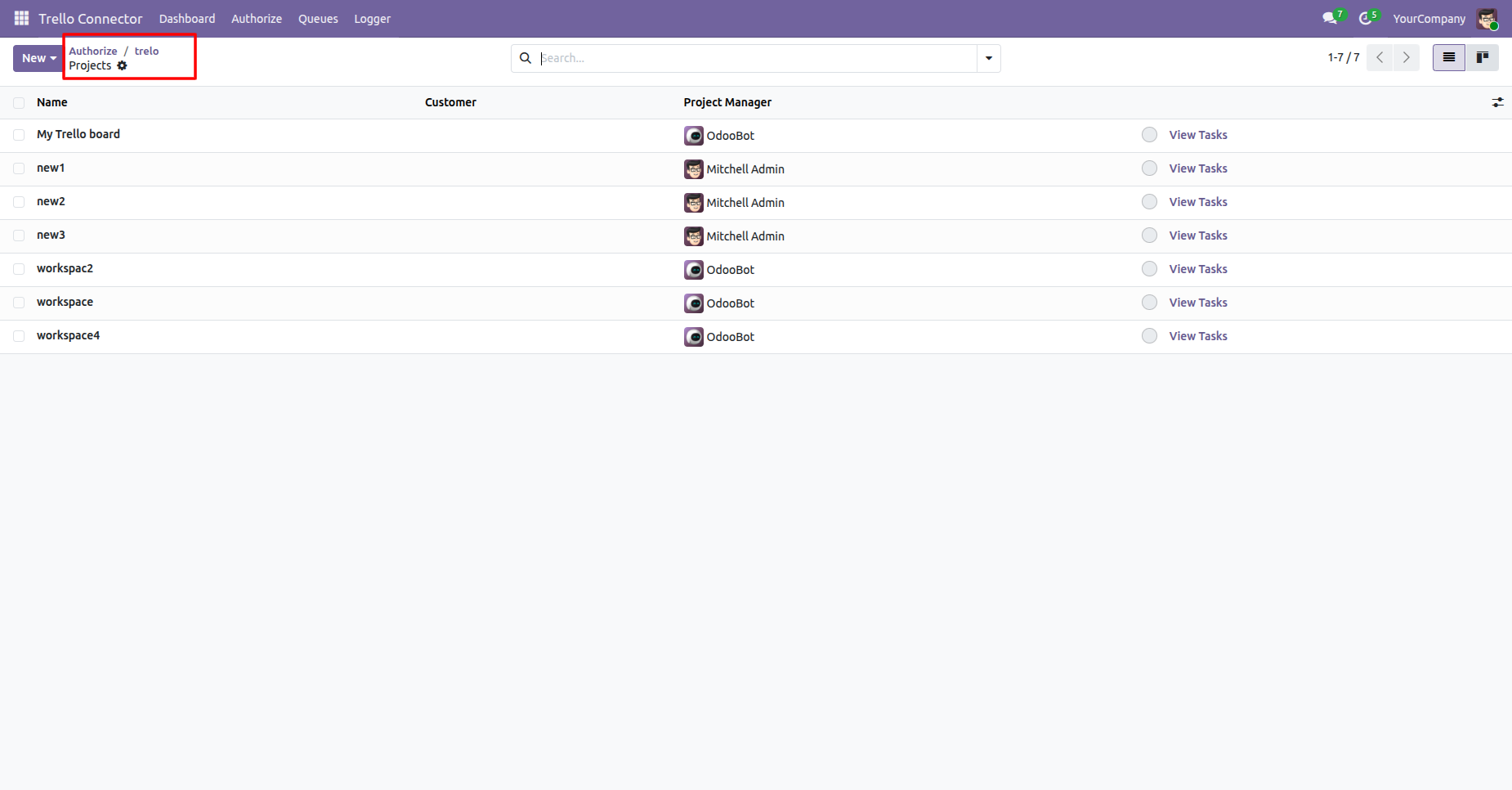
You can navigate to Imported Projects via a Smart Button from the Trello connector configurations in Odoo.
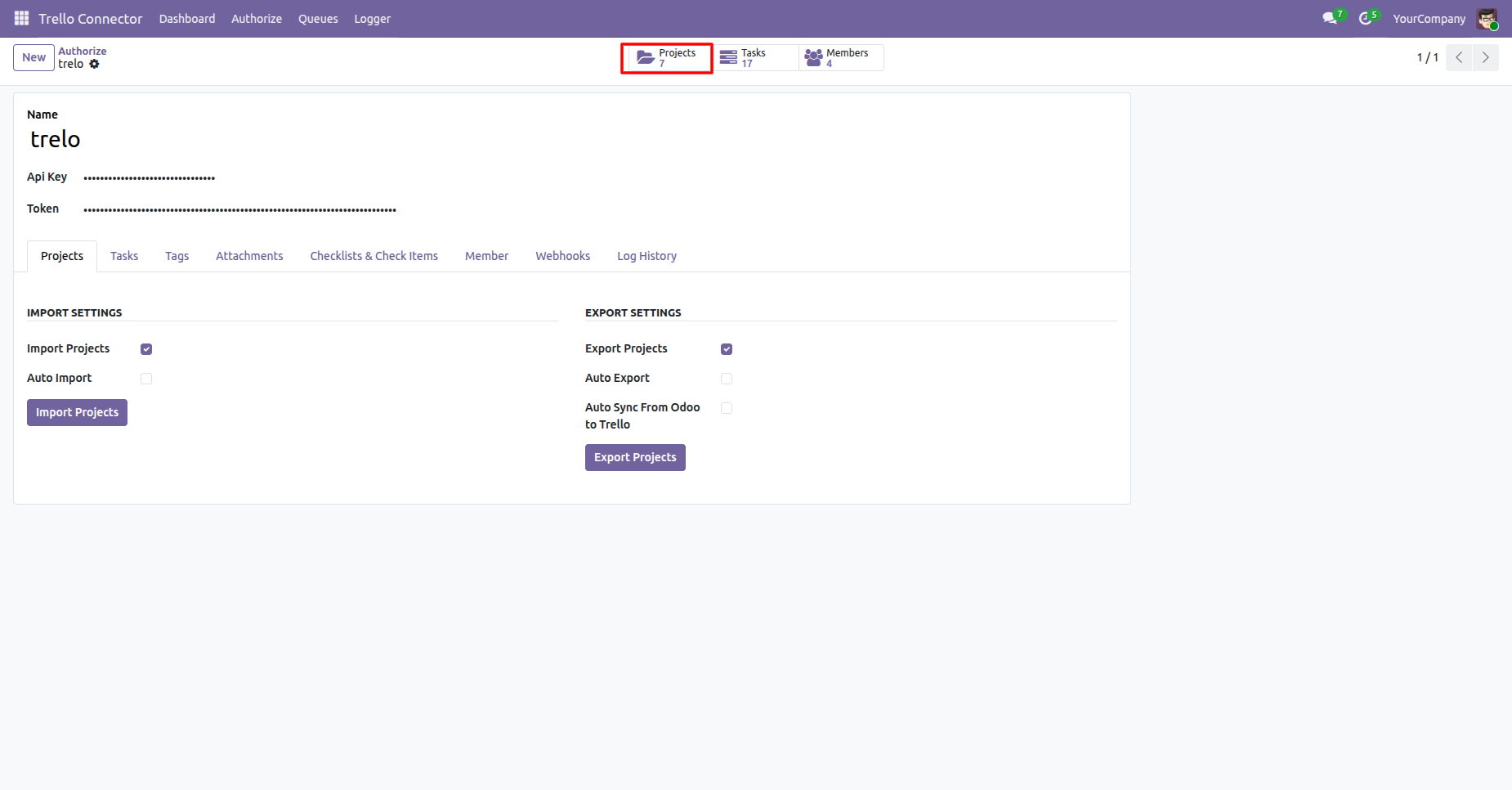
Trello project list view of imported projects from Trello to Odoo.
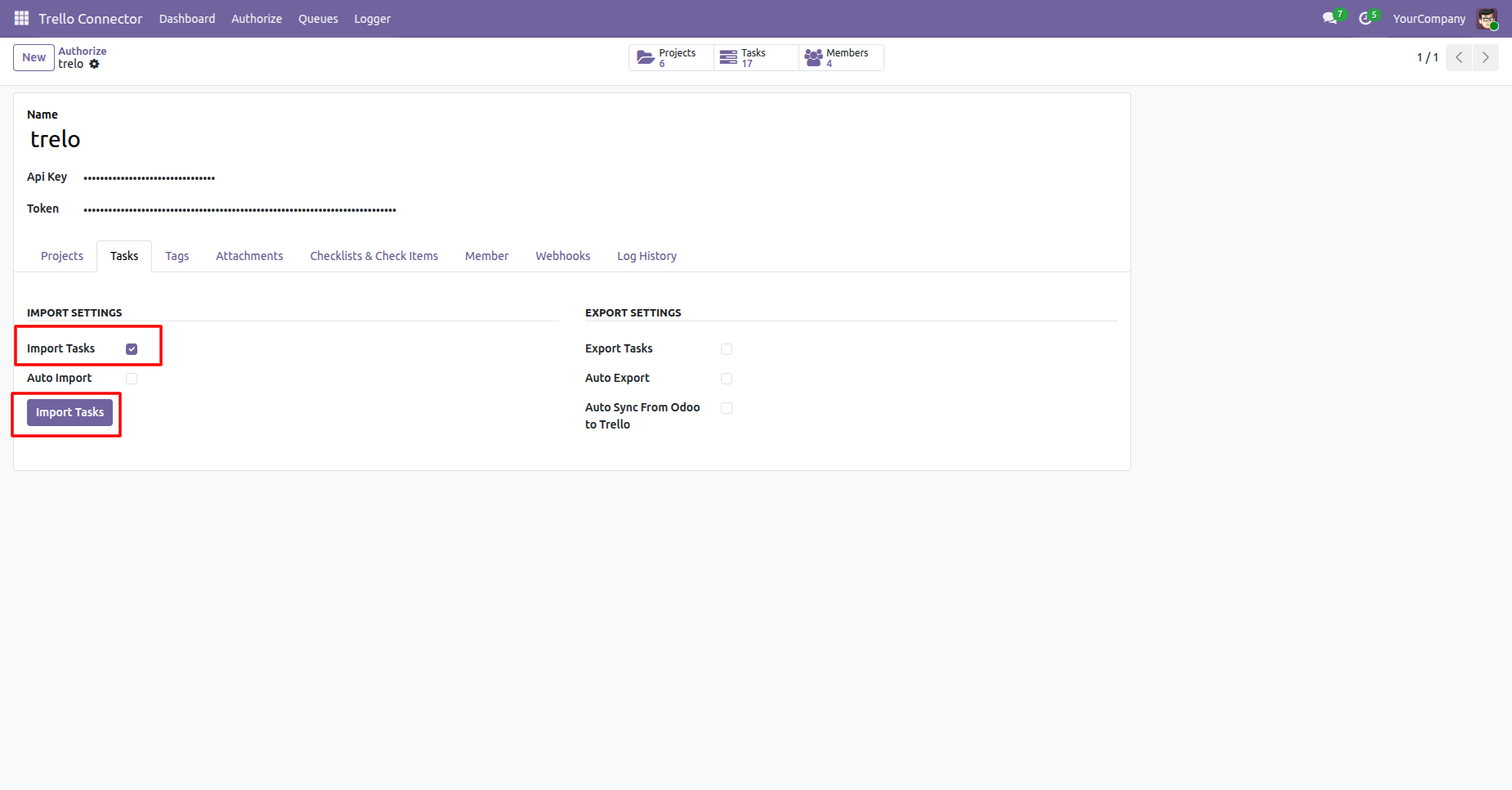
Enable the Import Tasks and click on Import Tasks button, it will fetch all the Tasks from Trello and create them in Odoo.
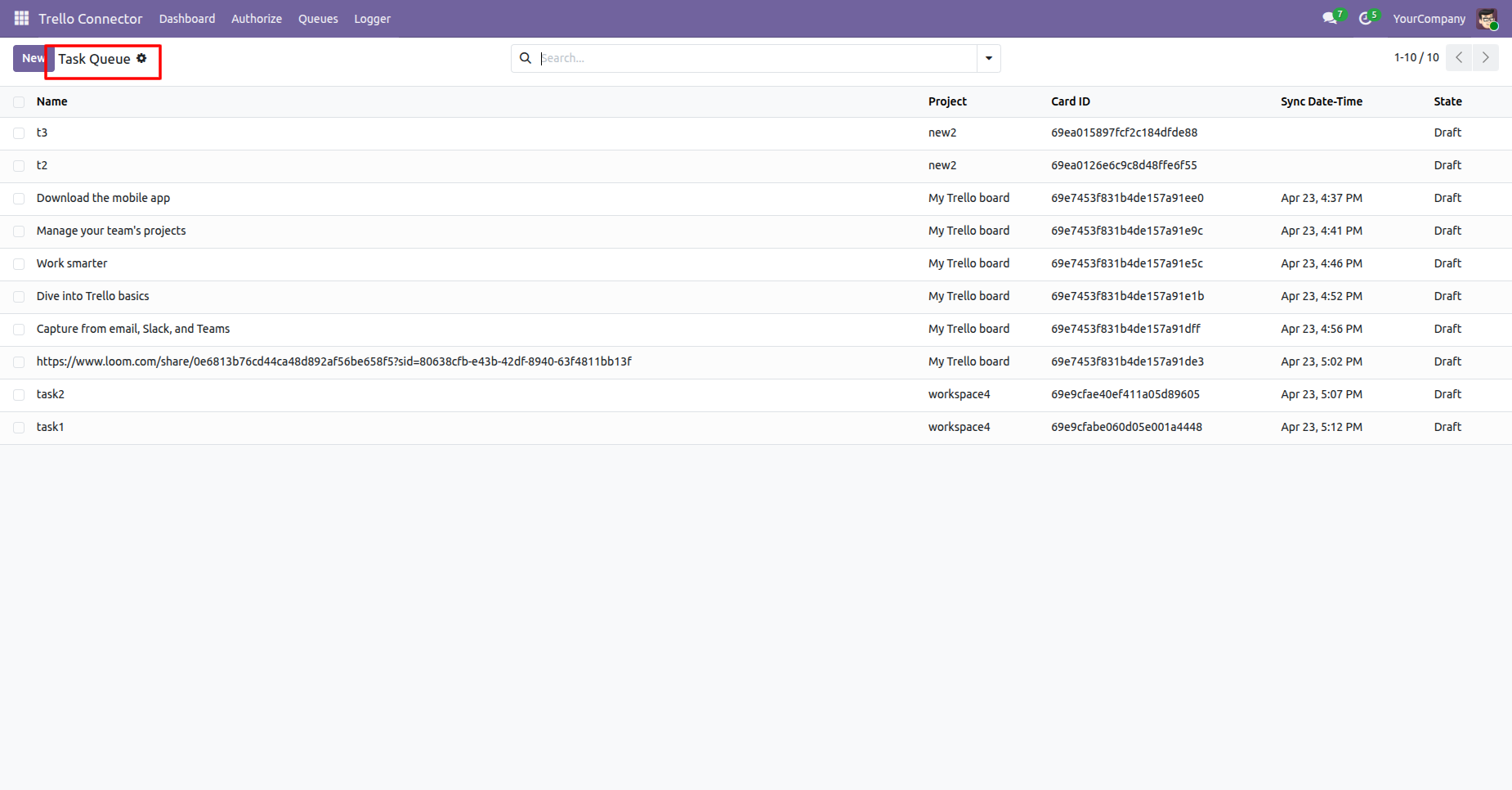
Task queue list view.
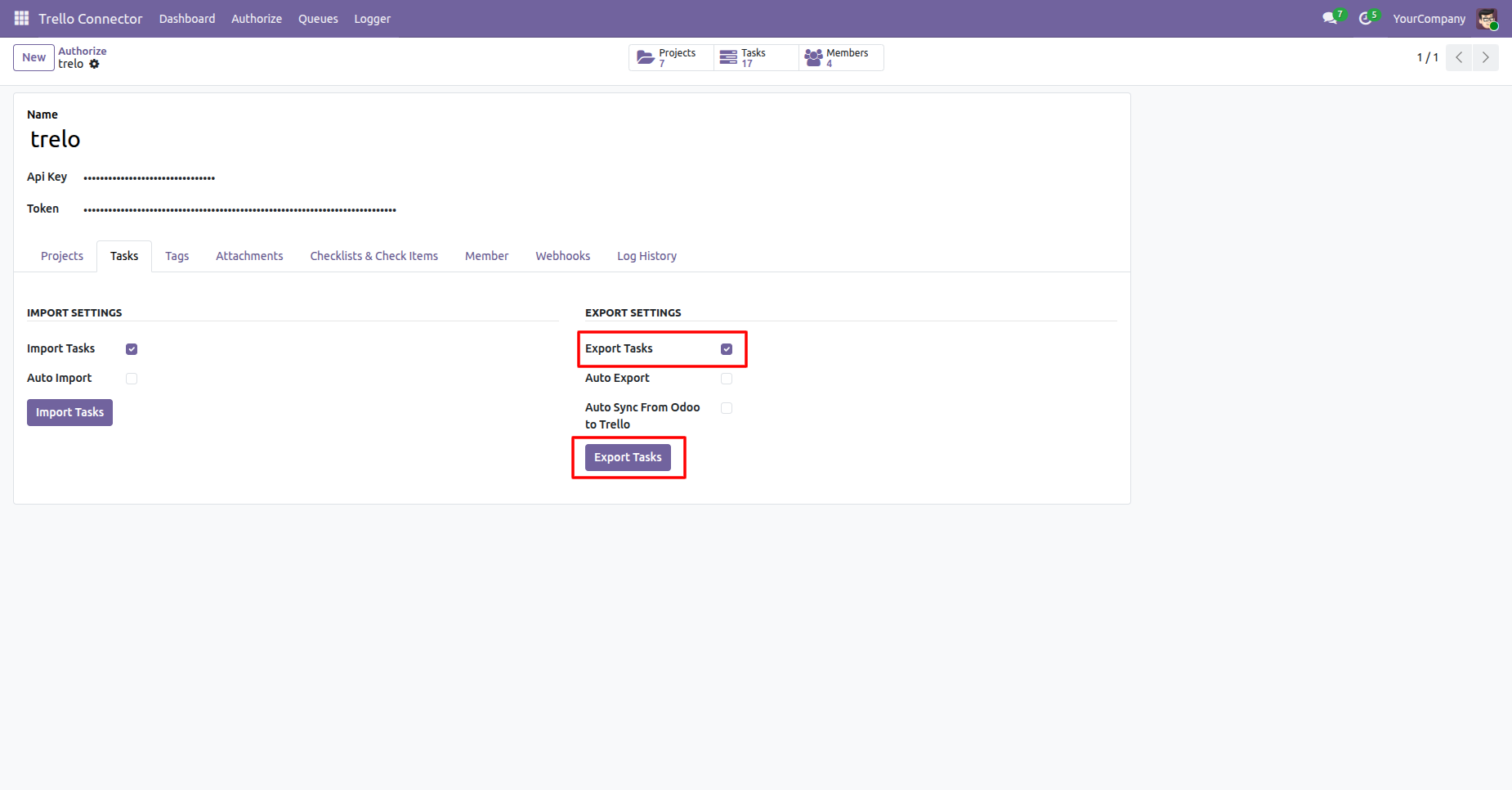
Enable the Export Tasks and click on Export Tasks button, it will fetch all the tasks from Odoo and create them in Trello.
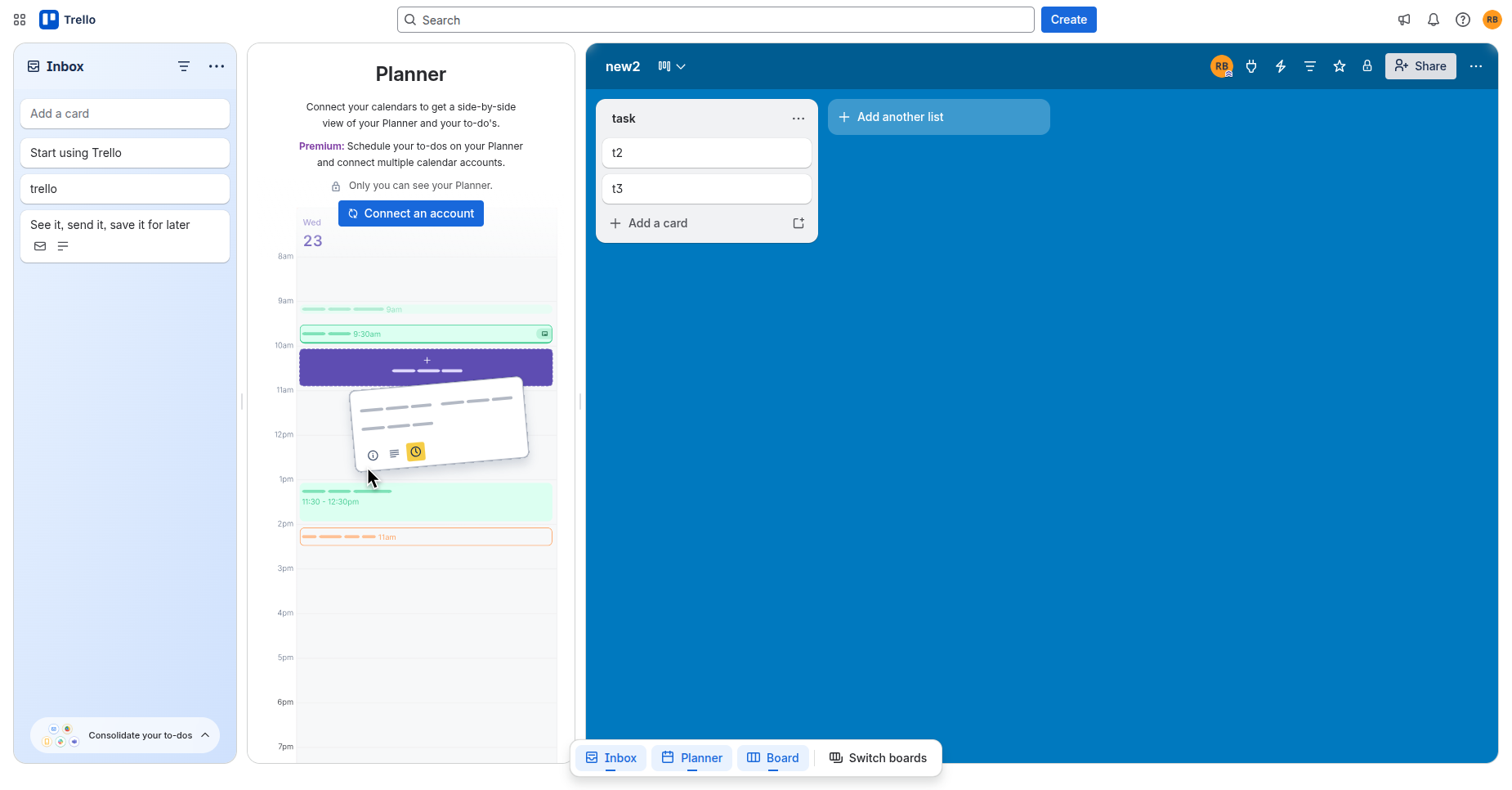
In Trello, we can see the Tasks added from Odoo.
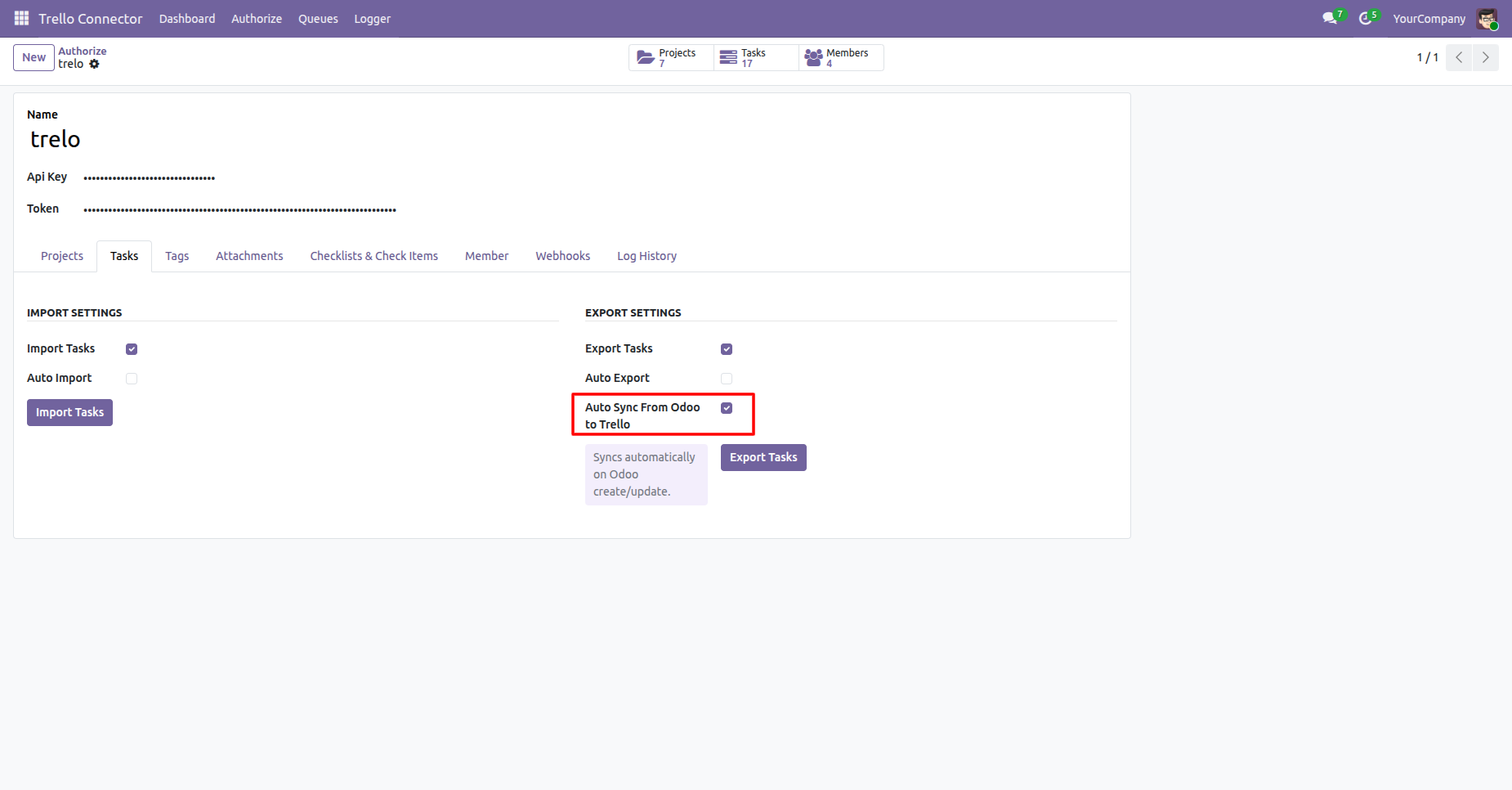
Enable from Auto Sync From Odoo to Trello which synces automatically on Trello upon create/update of records in Odoo.
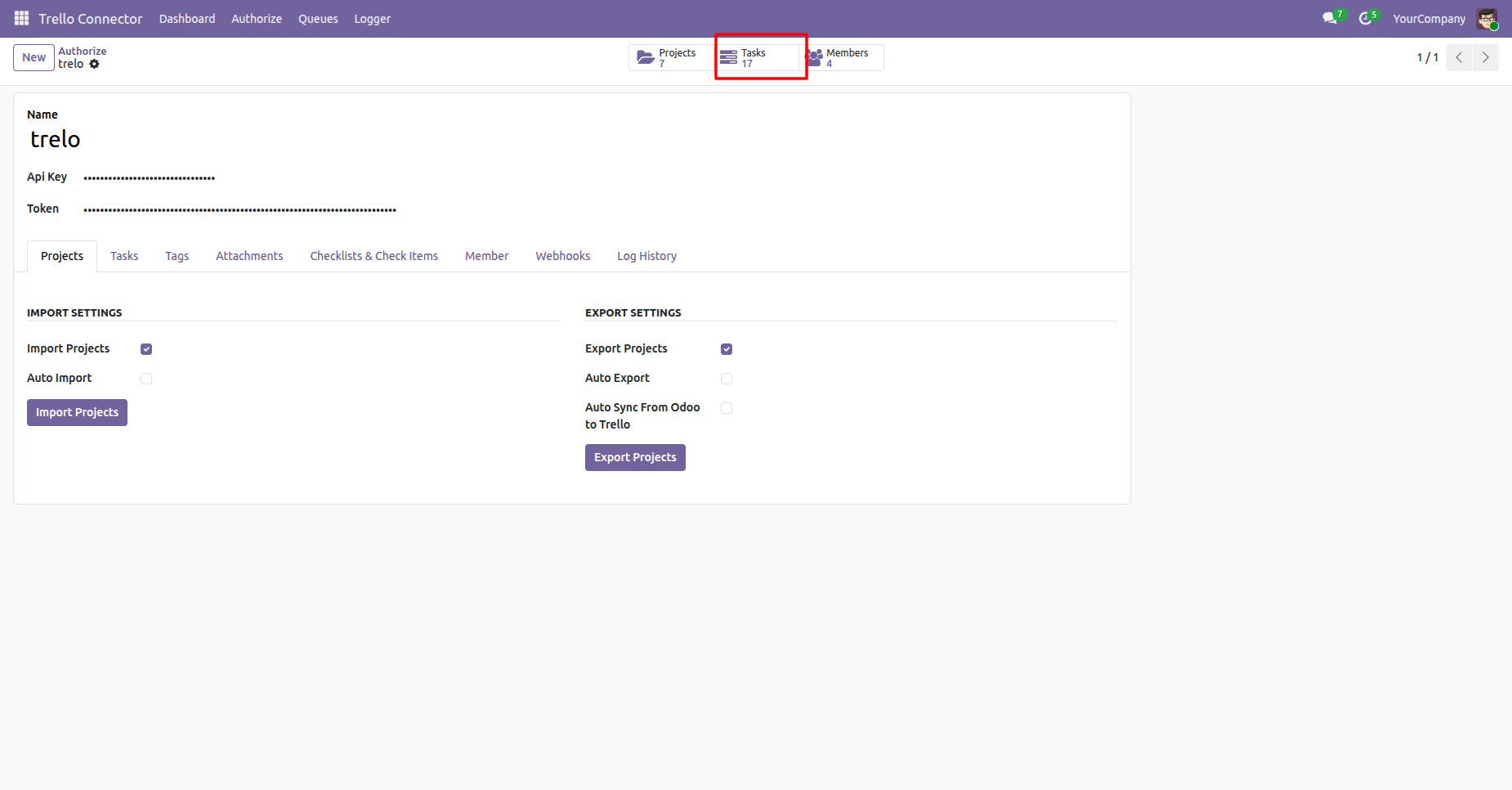
You can navigate to Imported Tasks via a Smart Button in the Trello connector.
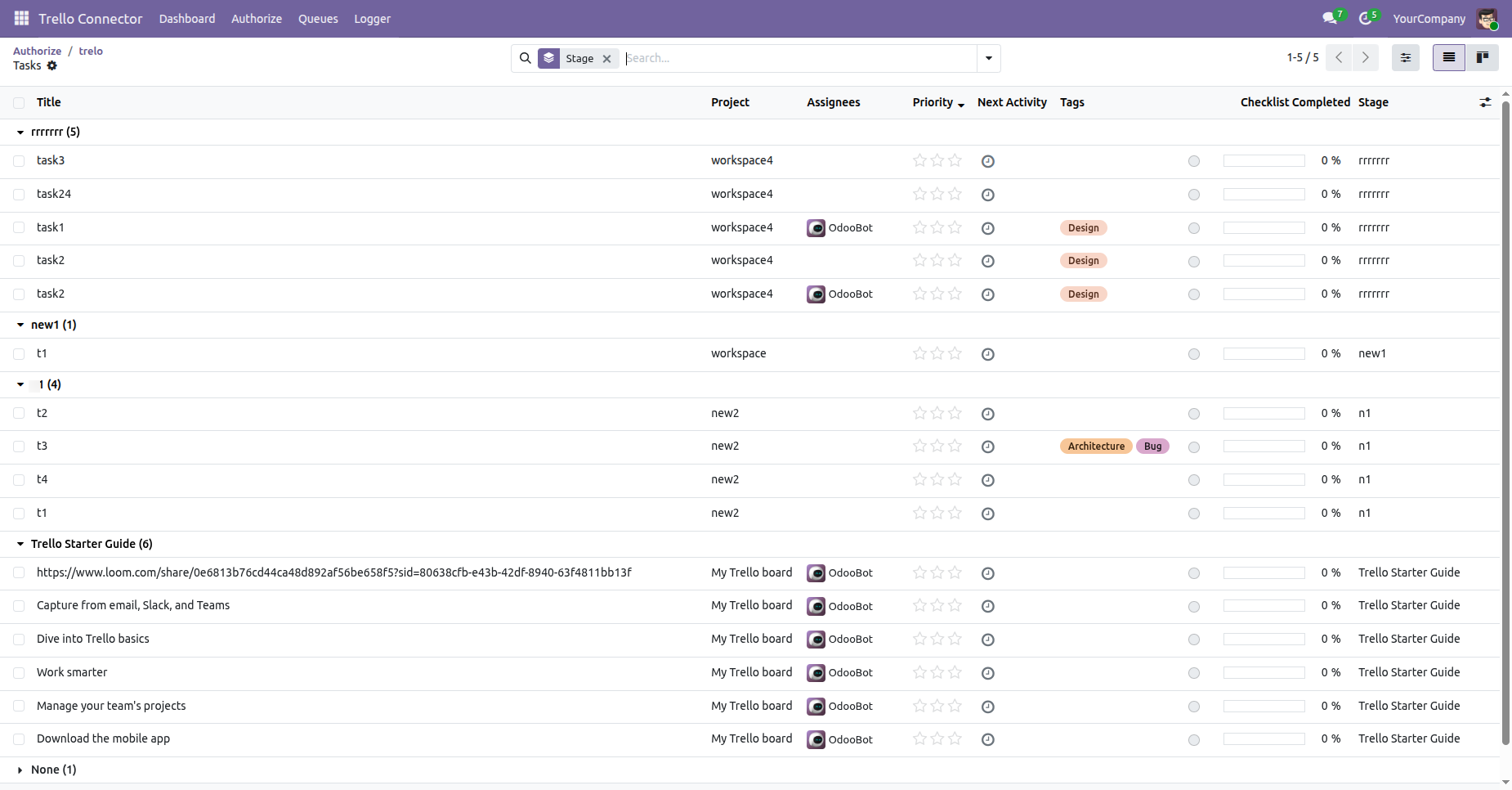
Trello tasks list view of imported tasks from Trello to Odoo.
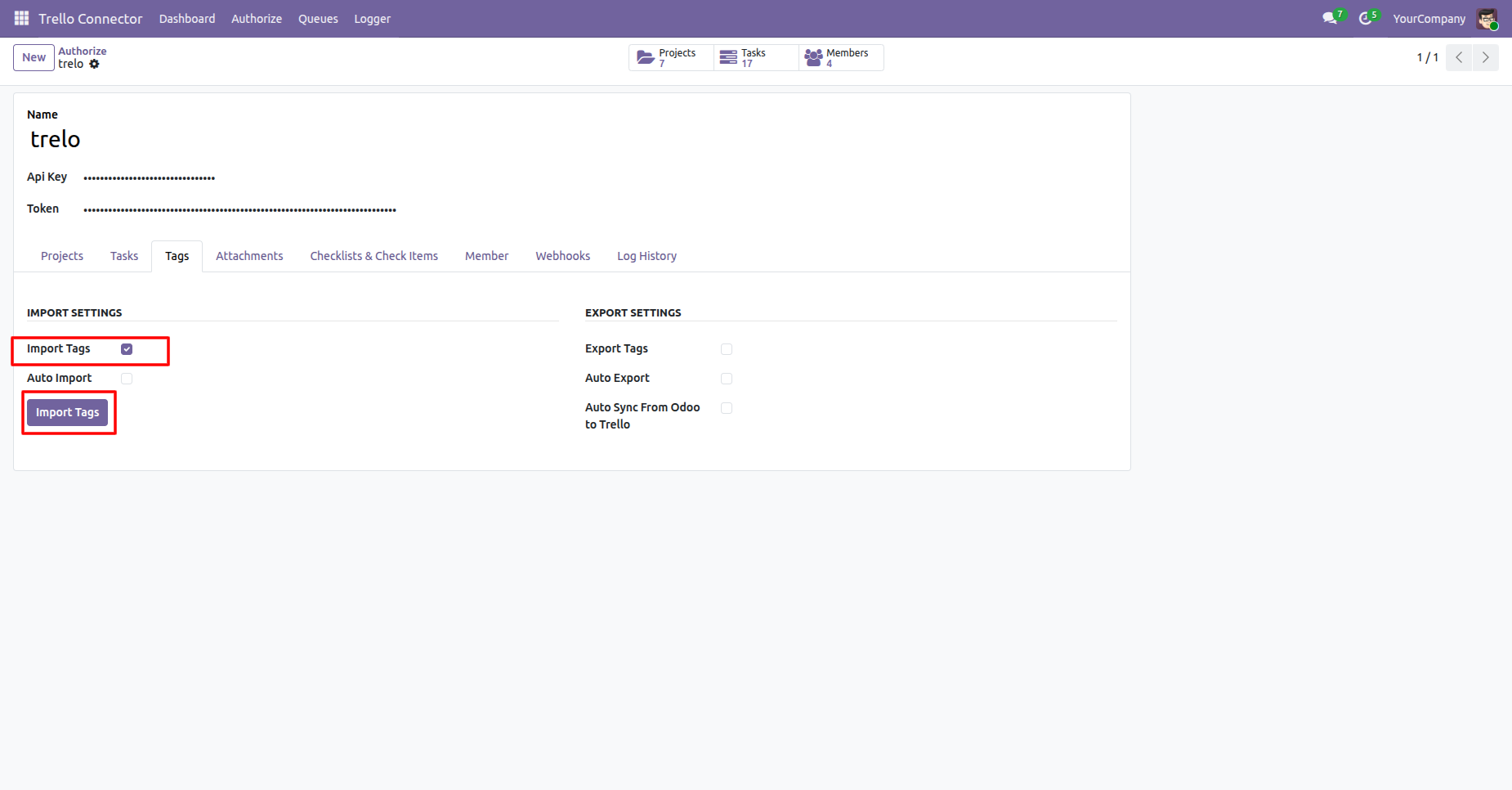
Enable the Import Tags and click on Import Tags button, it will fetch all the Tags from Trello and create them in Odoo.
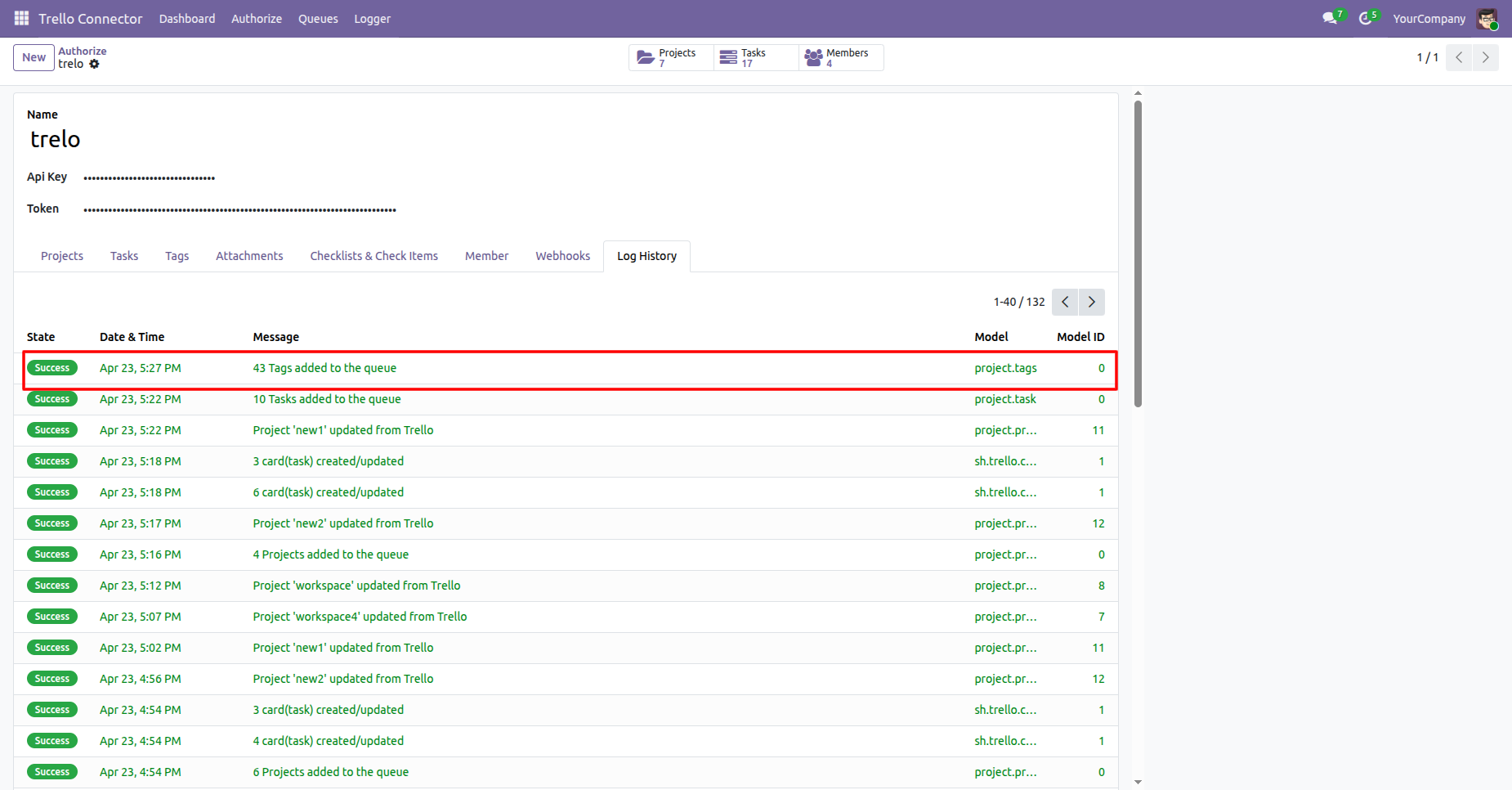
USer can see the logs for number of Tags added to the queue that are to be imported from Trello to Odoo.
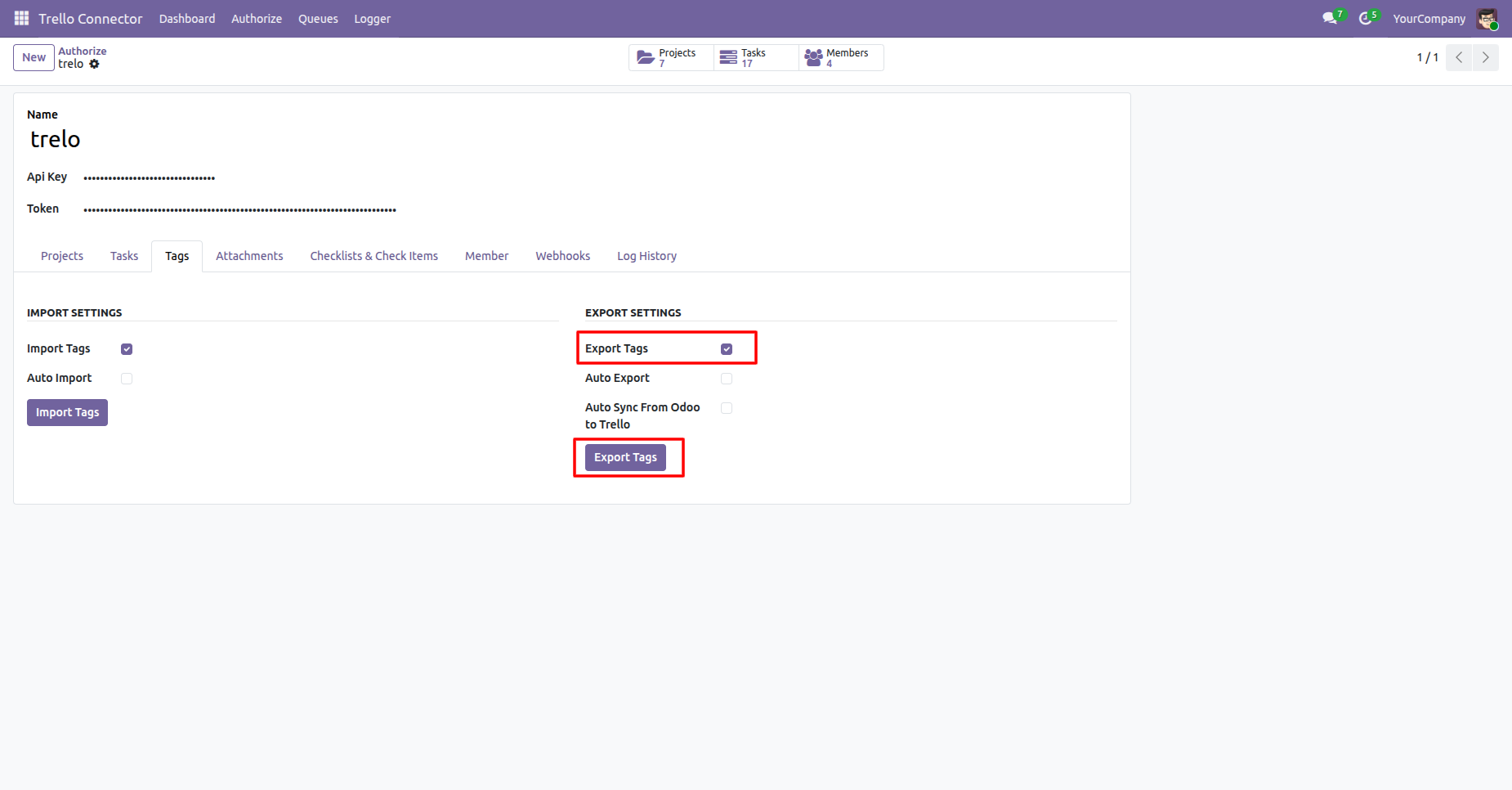
Enable the Export Tags and click on Export Tags button, it will fetch all the tags from Odoo and create them in Trello.
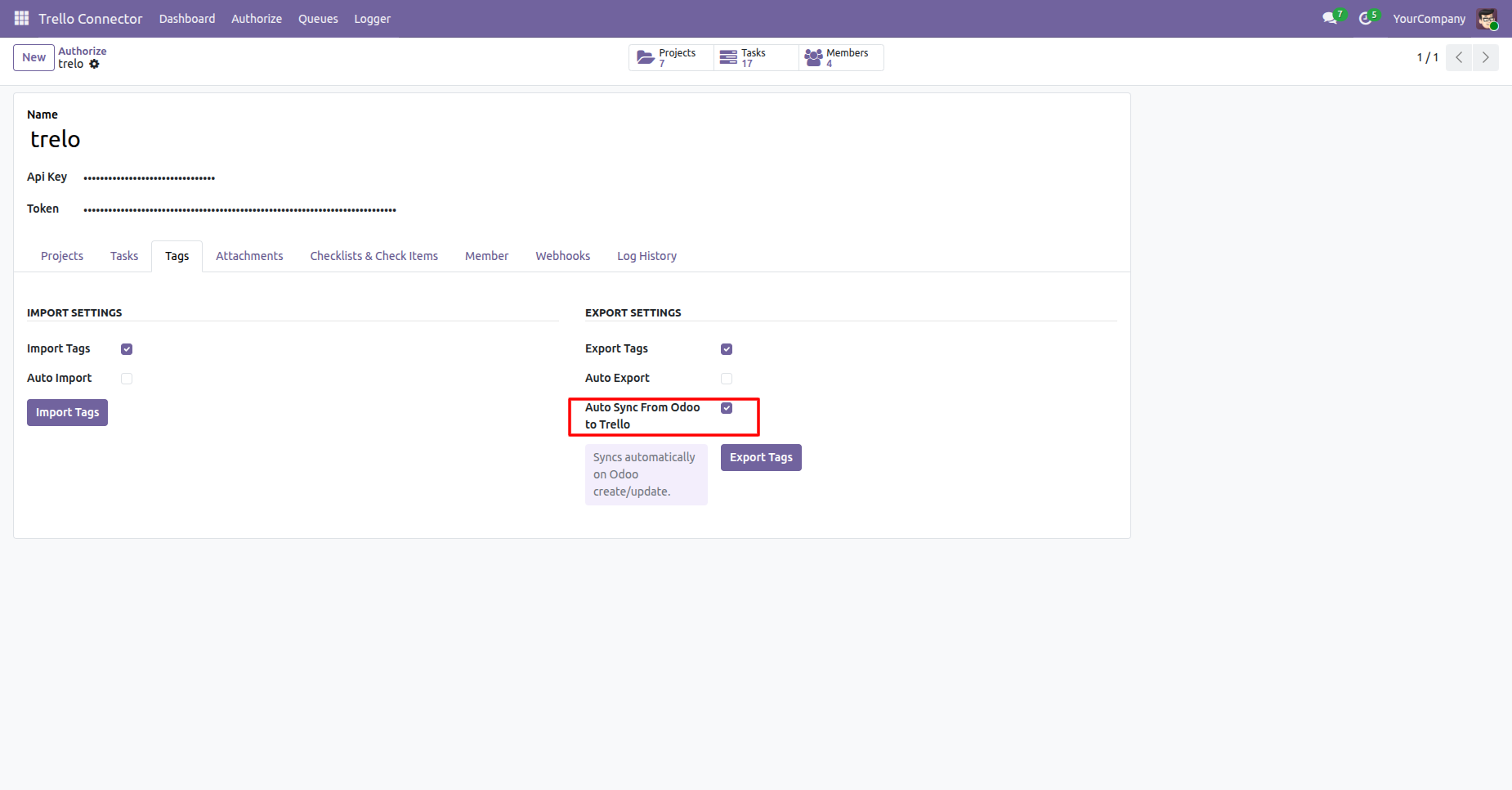
Enable from Auto Sync From Odoo to Trello which synces automatically on Trello upon create/update of records in Odoo.
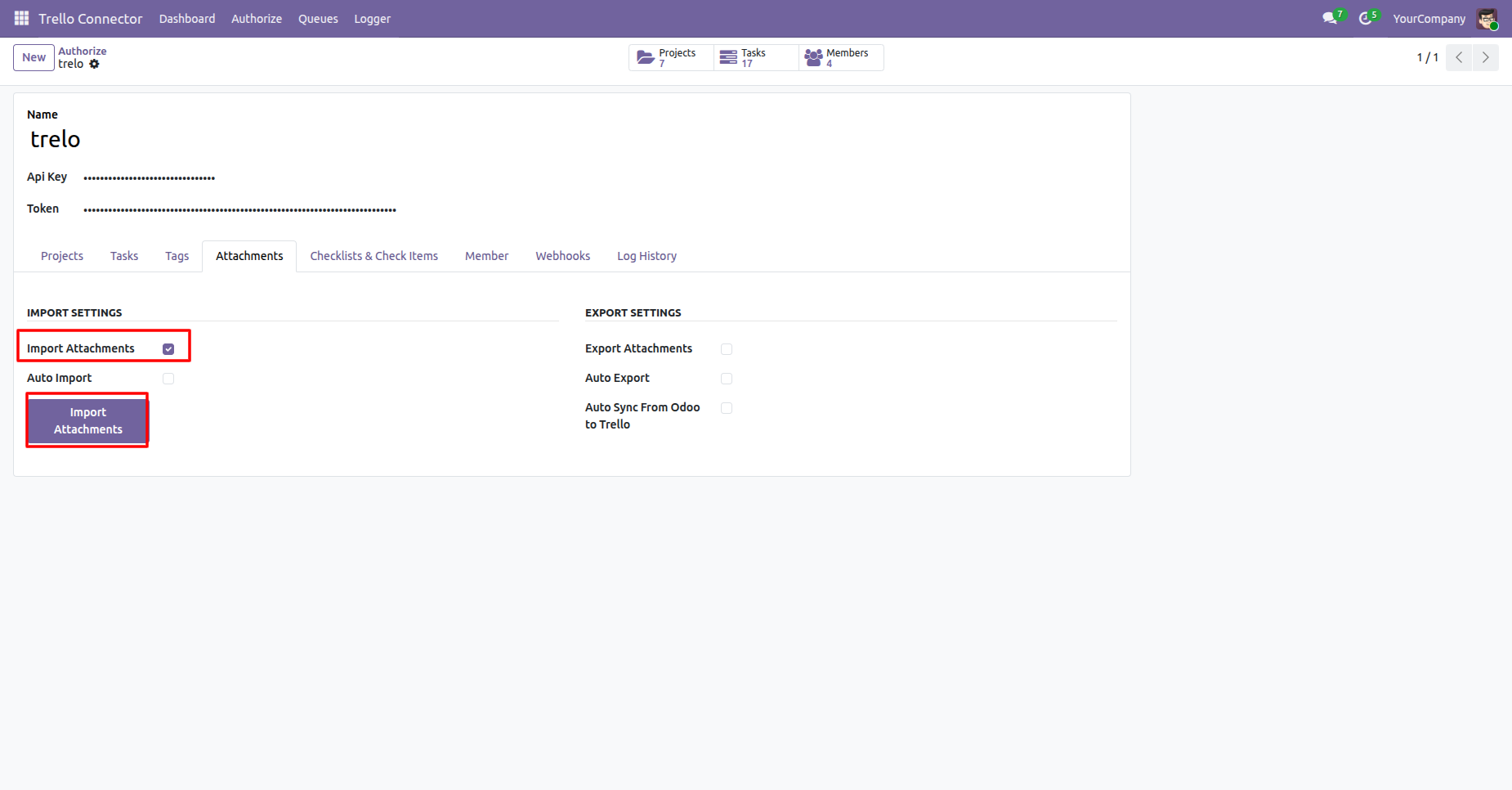
Enable the Import Attachments and click on Import Attachments button, it will fetch all the attachments from Trello and create them in Odoo.
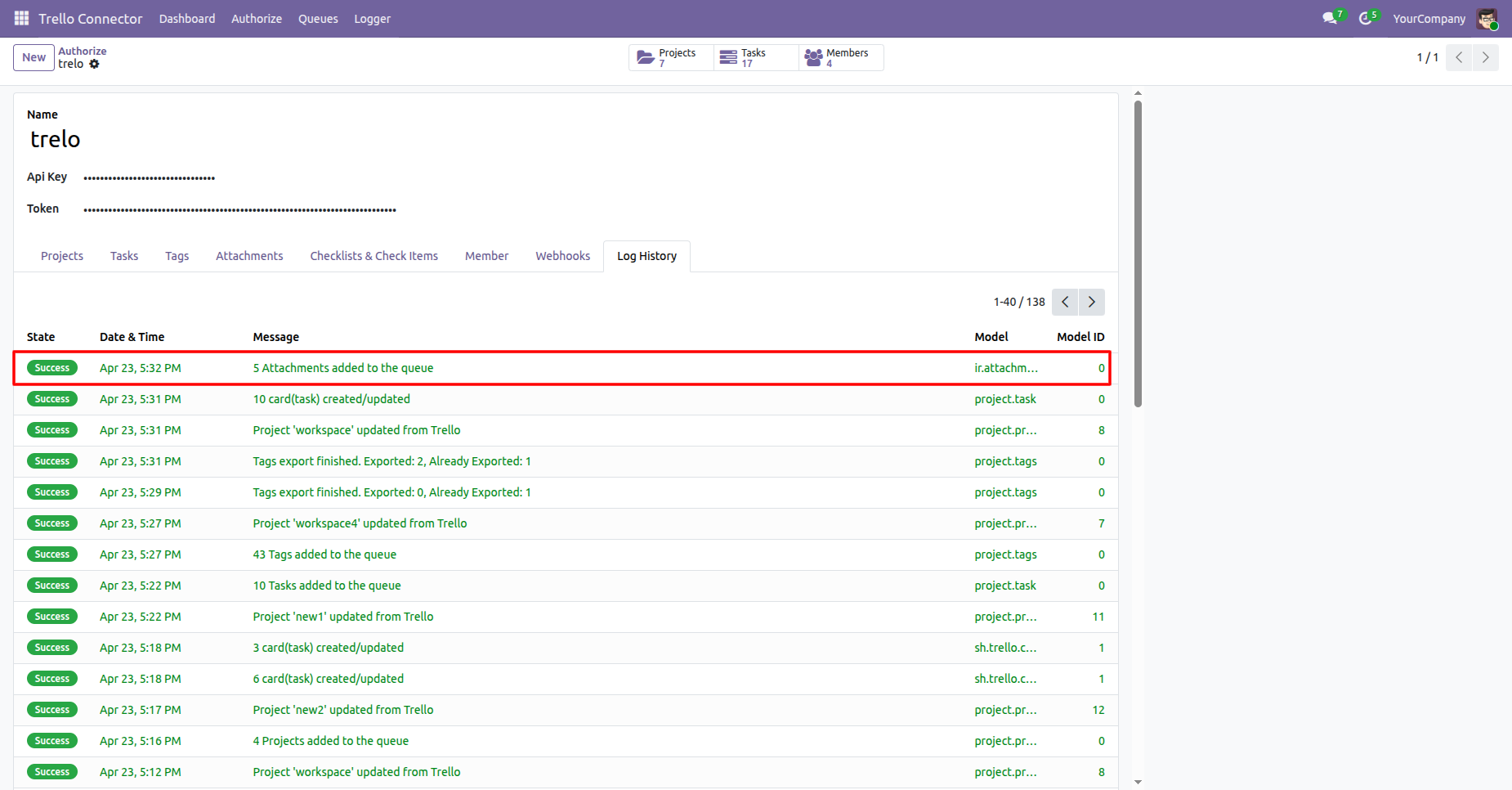
User can see the logs for number of attachments added to the queue that are to be imported from Trello to Odoo.
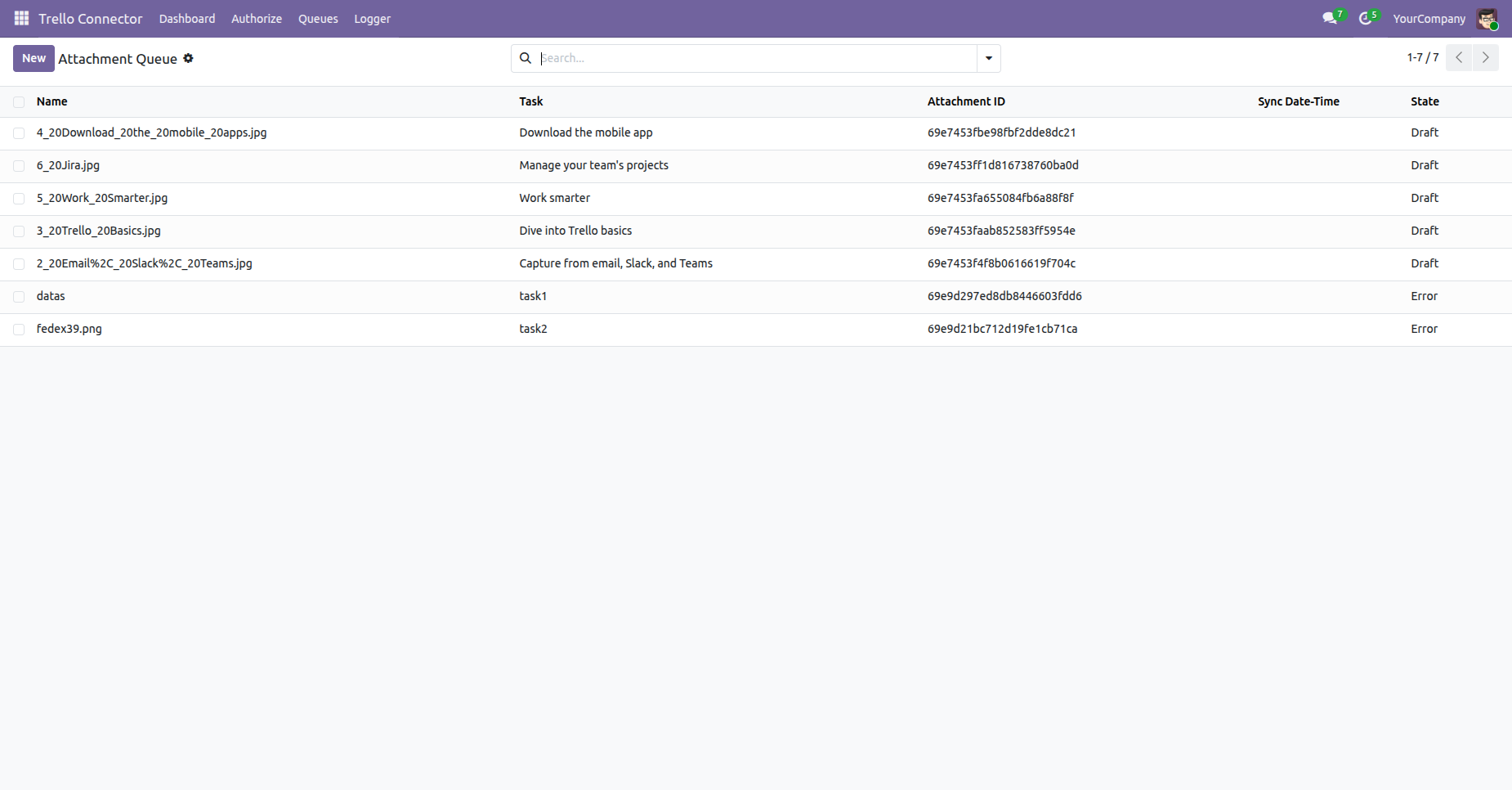
Attachment queue list view.
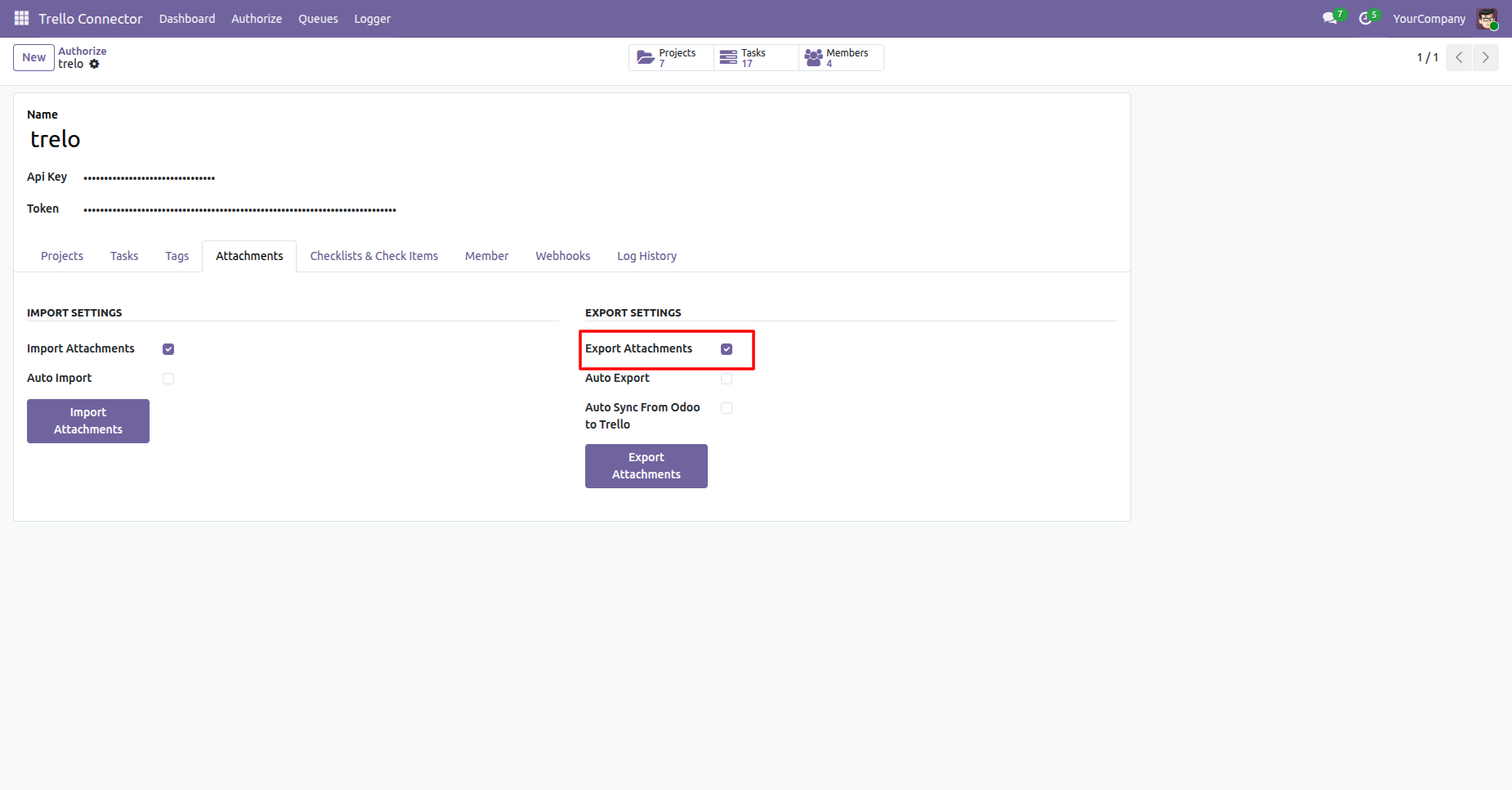
Enable the Export Attachments and click on Export Attachments button, it will fetch all the attachments from Odoo and create them in Trello.
In Trello, we can see the attachments added from Odoo.
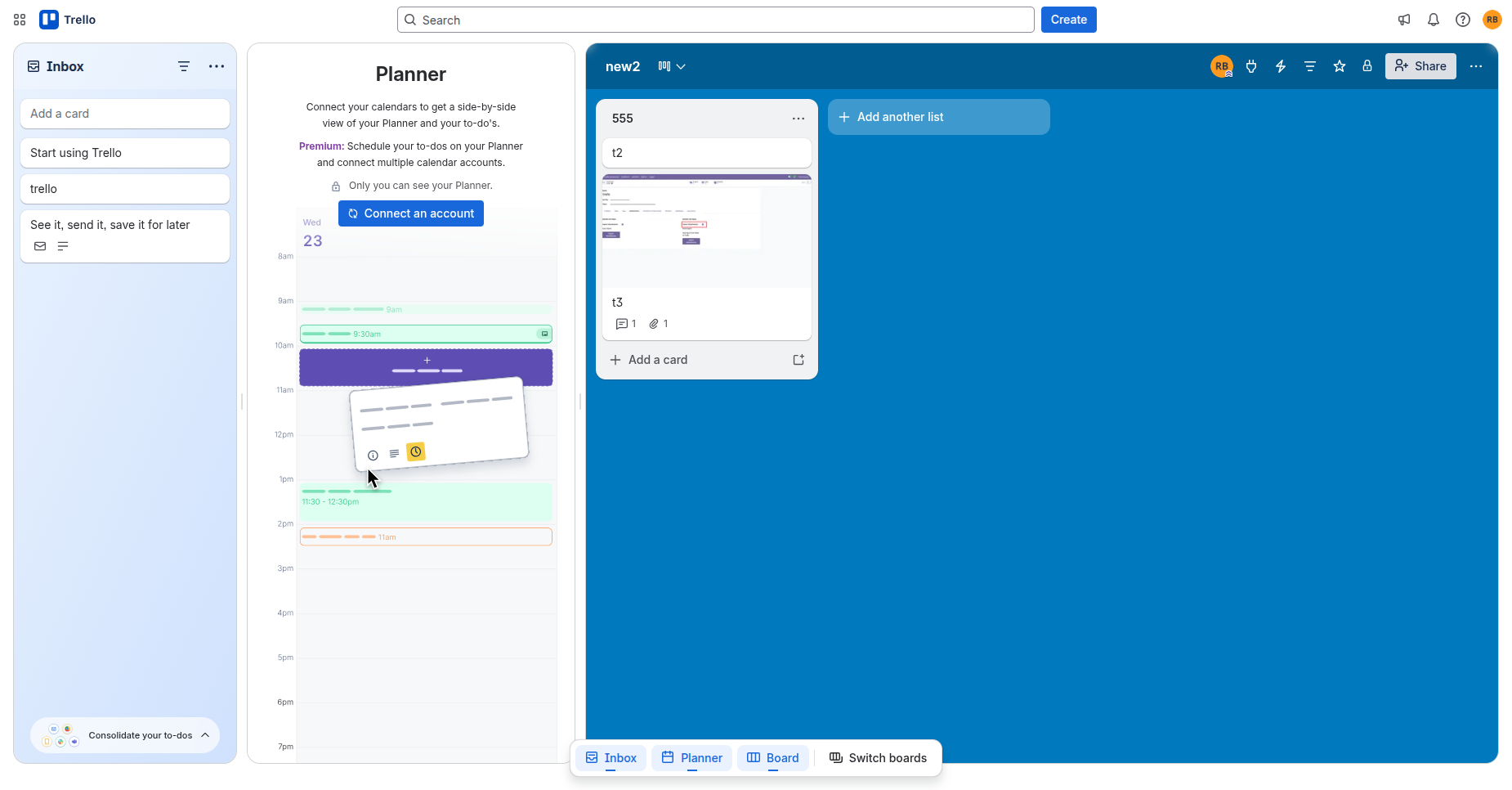
Enable the Import Checklists and click on Import Checklists button, it will fetch all the checklists from Trello and create them in Odoo.
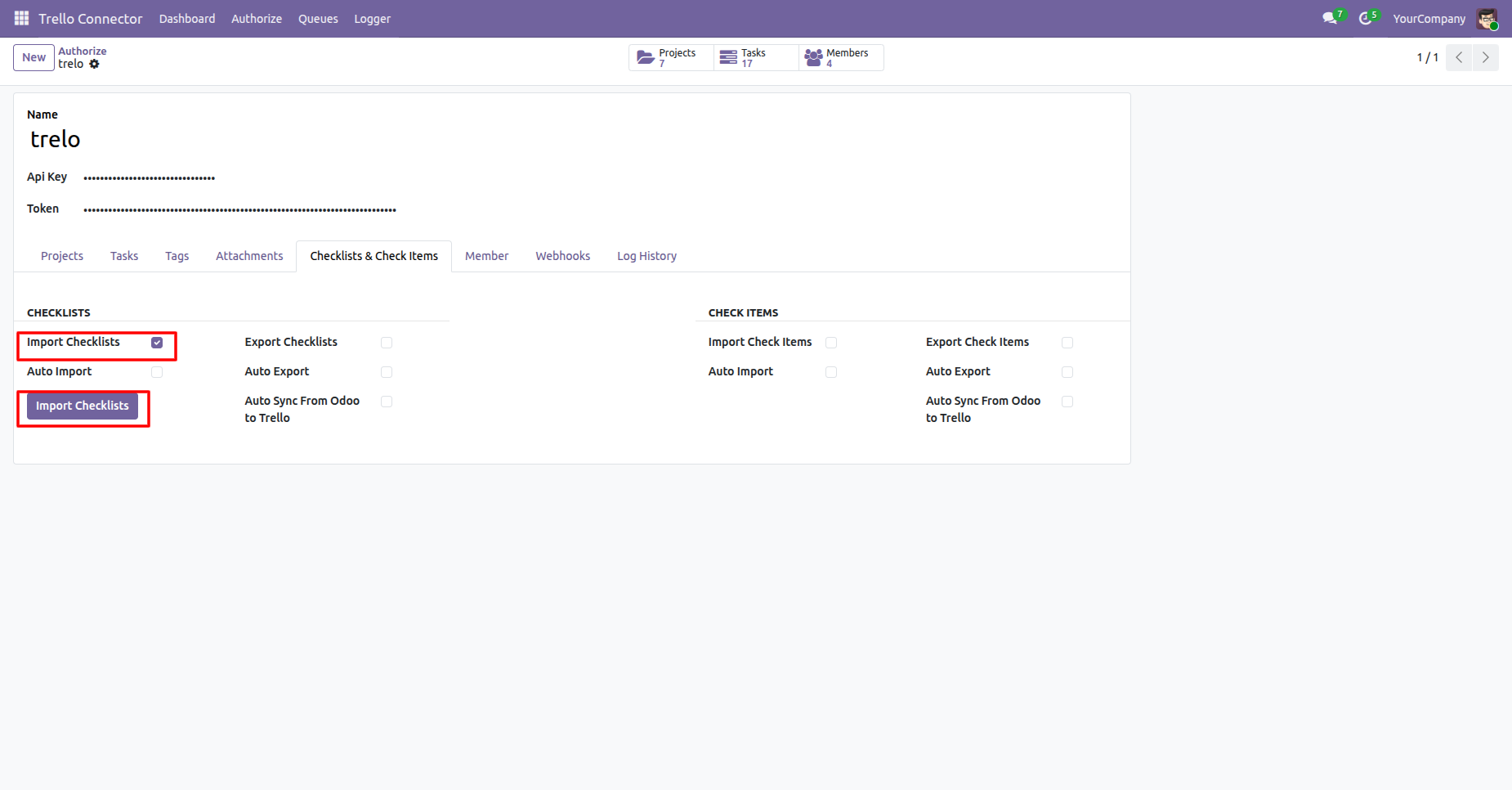
Checklists queue list view.
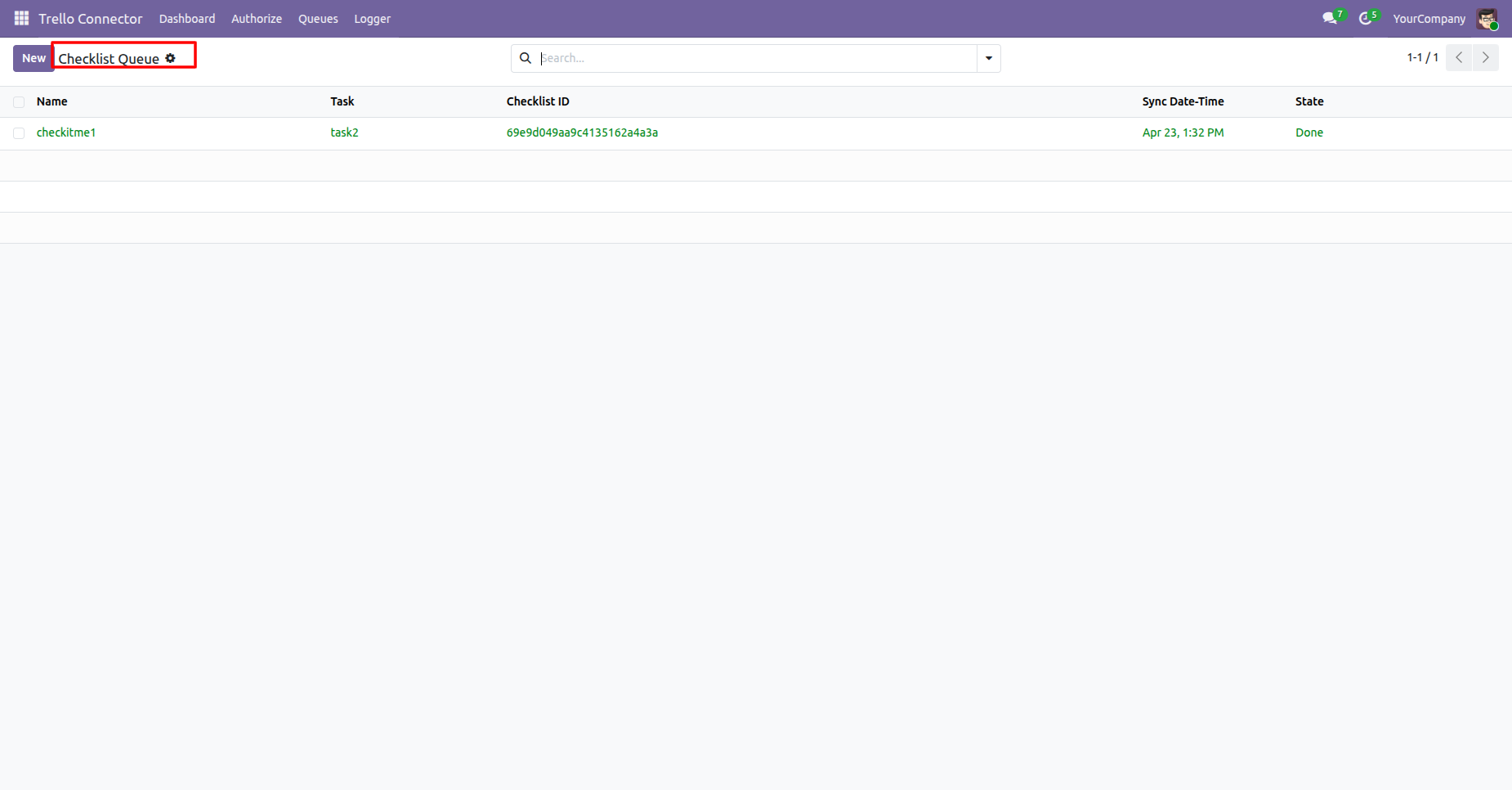
Enable the Export Checklists and click on Export Checklists button, it will fetch all the checklists from Odoo and create them in Trello.
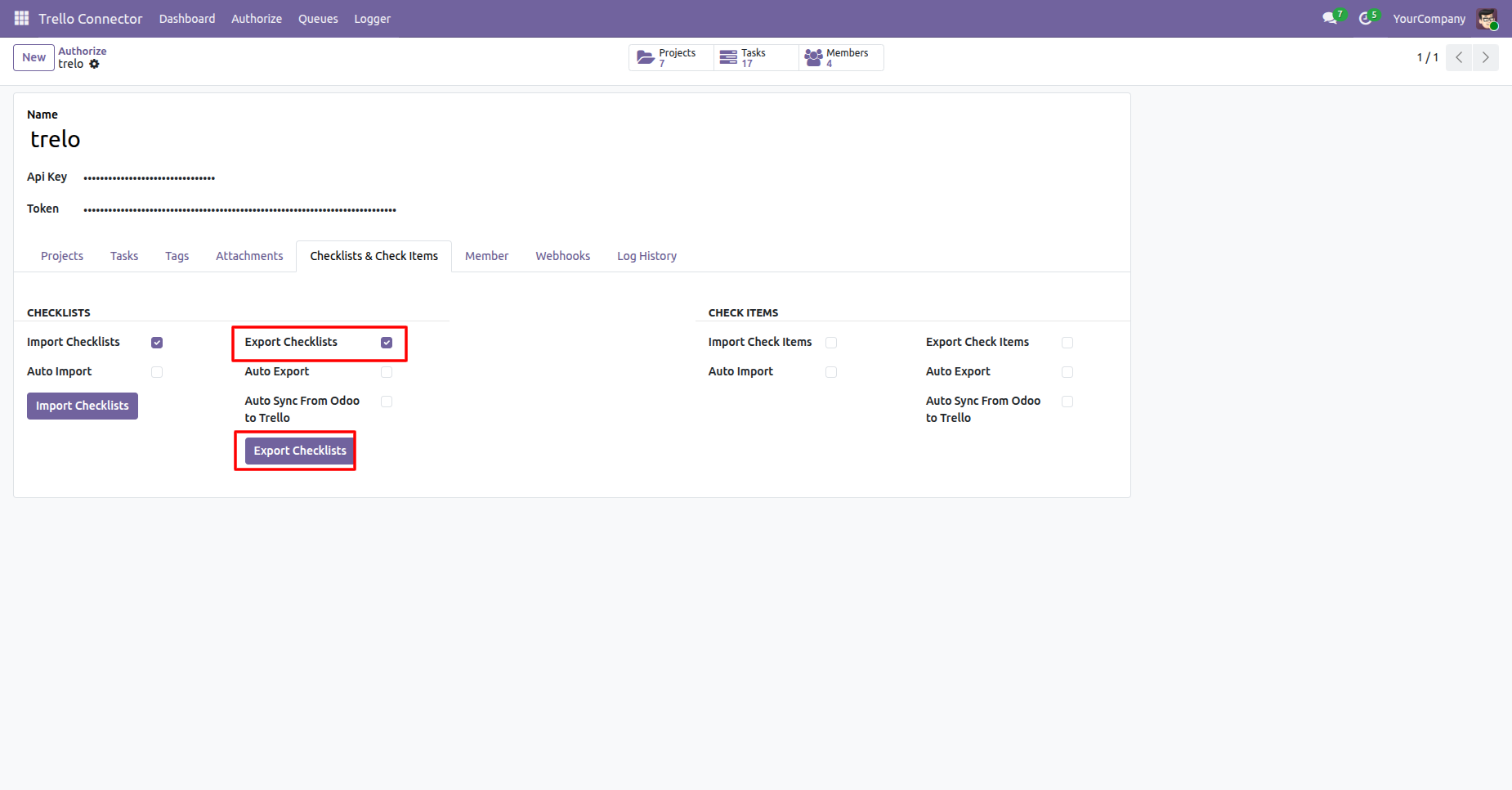
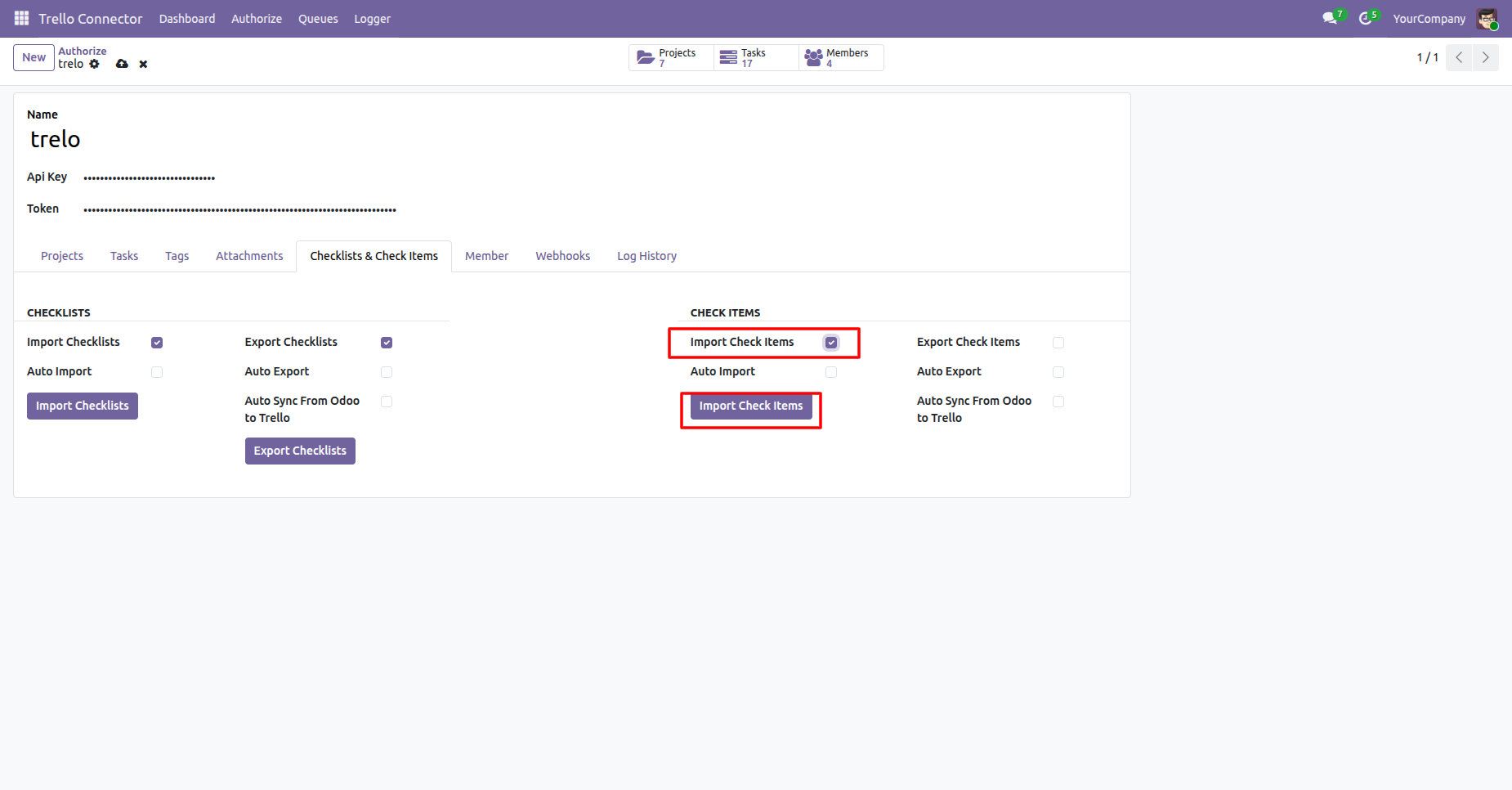
Enable the Import Check Items and click on Import Check Items button, it will fetch all the check items from Trello and create them in Odoo.
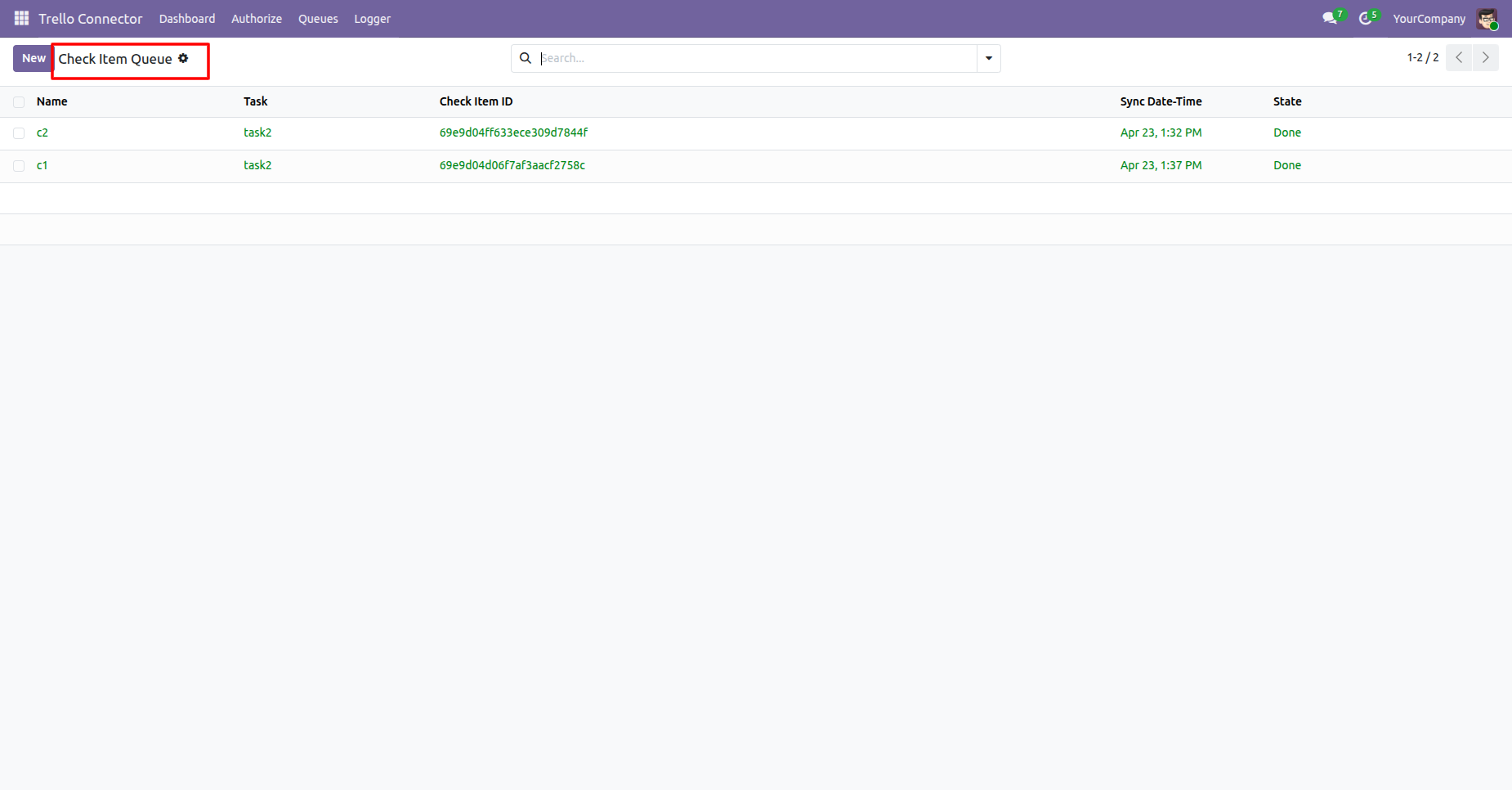
Check Items queue list view.
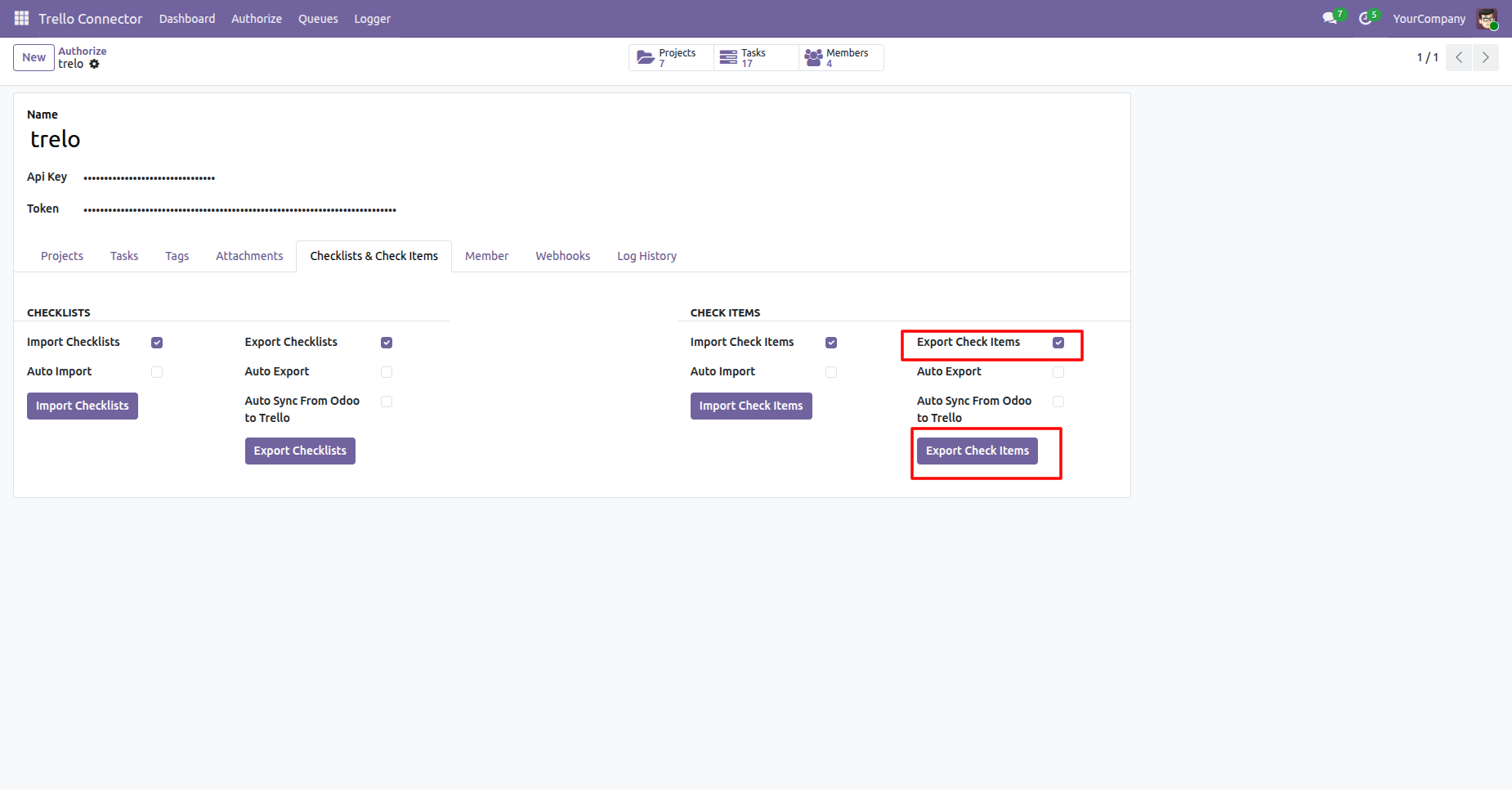
Enable the Export Check Items and click on Export Check Items button, it will fetch all the check items from Odoo and create them in Trello.
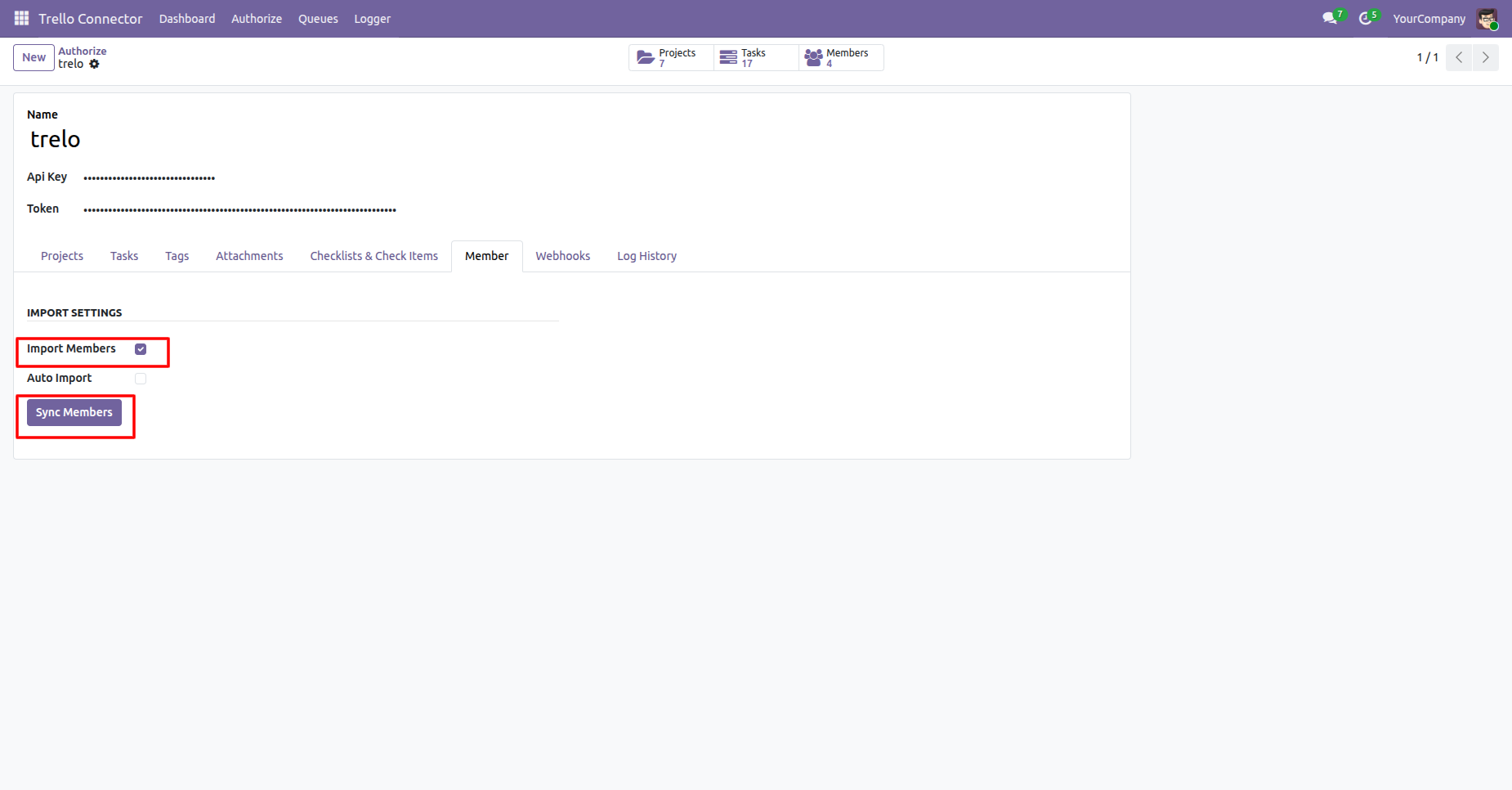
Enable the Import Members and click on Sync Members button, it will sync all the members from Trello.
You can navigate to Synced Members via a Smart Button in the Trello connector configurations.
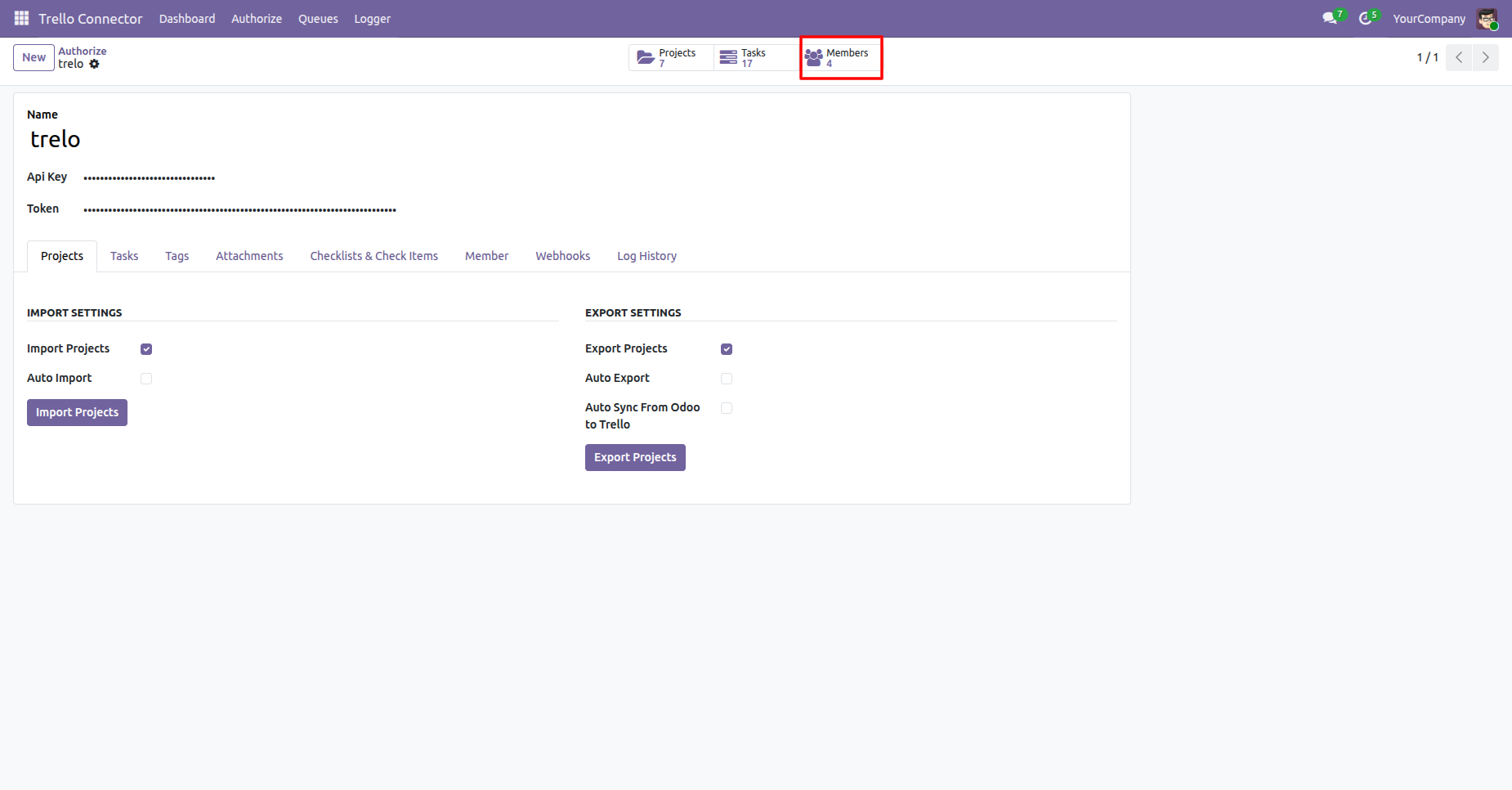
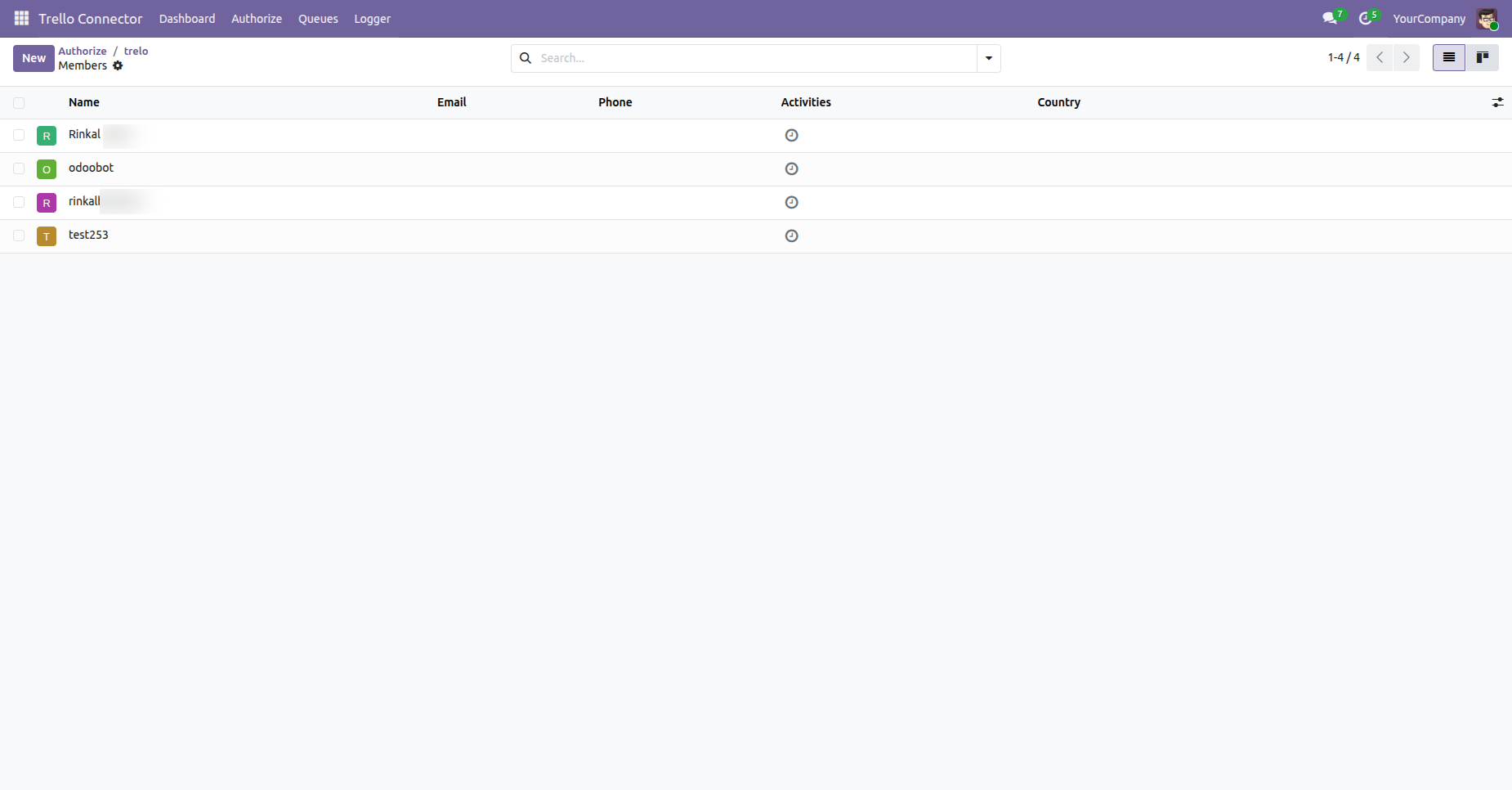
Trello member list view of synced members from Trello to Odoo.
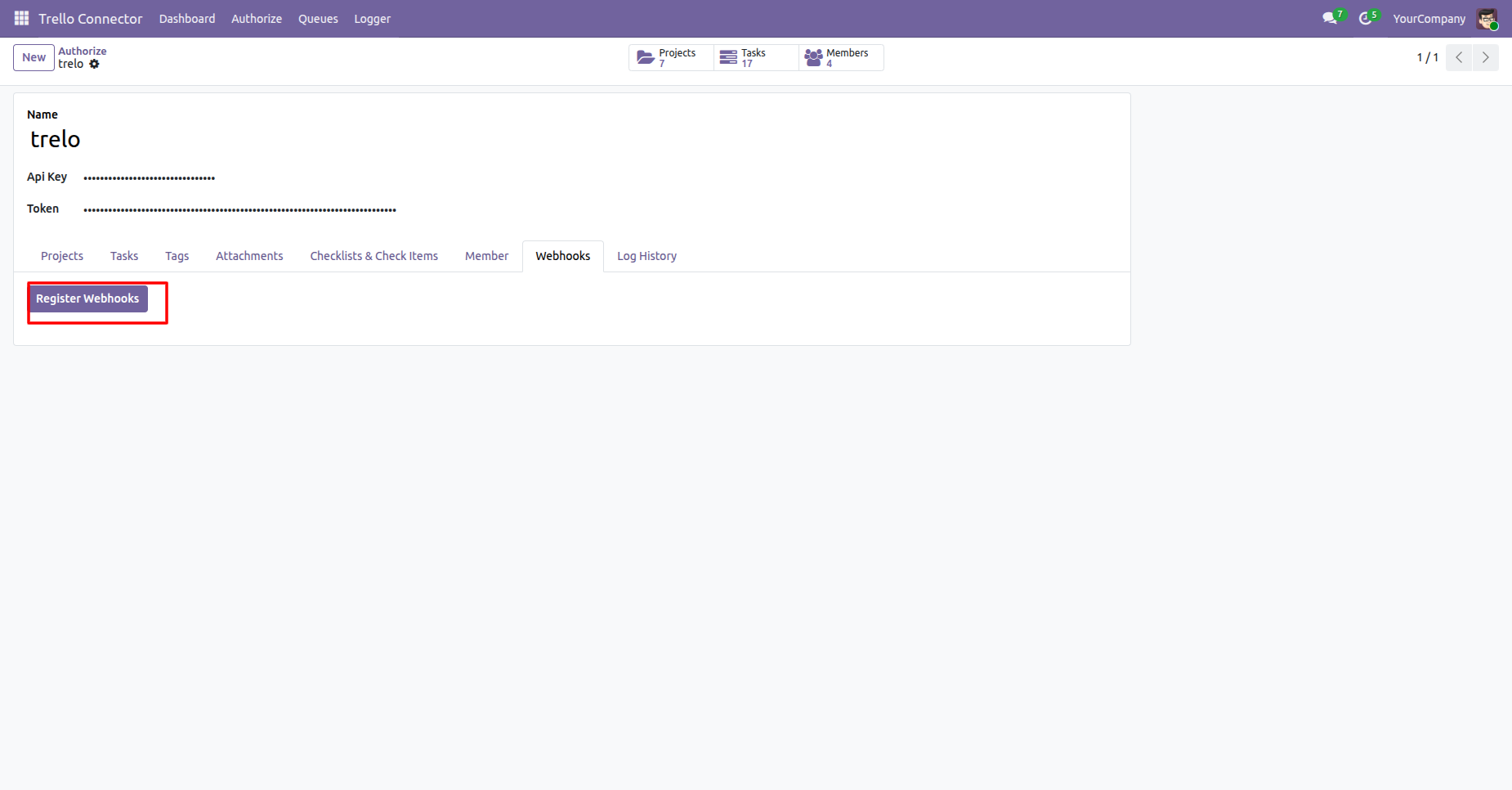
Click the Register Webhooks button, it will register webhooks.
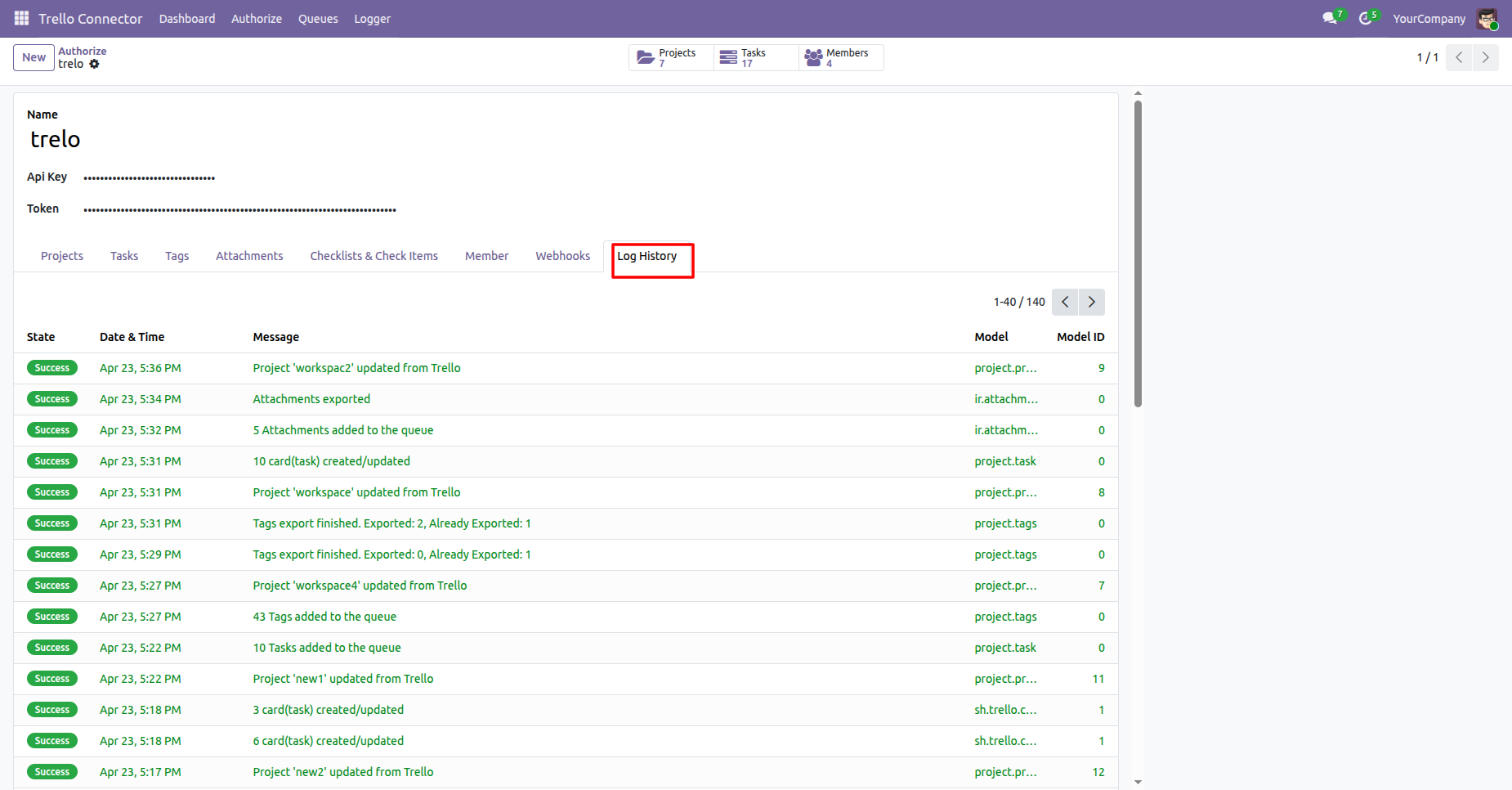
We can see the Log History in Trello Connector Configurations Log History Tab.
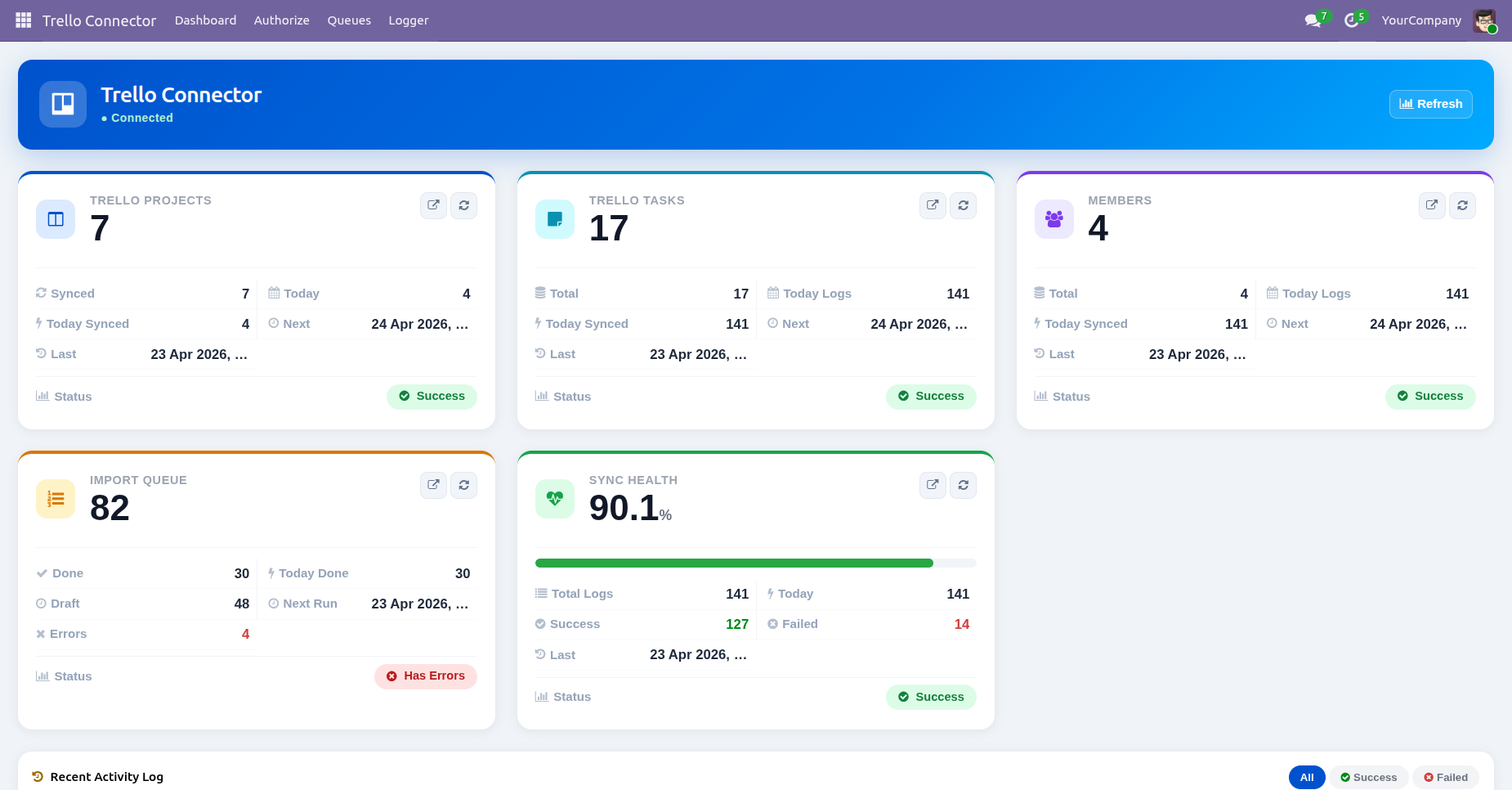
The Trello Connector Dashboard displays key information such as Trello Projects, Tasks, Members, Import Queue, and Sync Health, providing a quick overview of the connector and synchronization status.
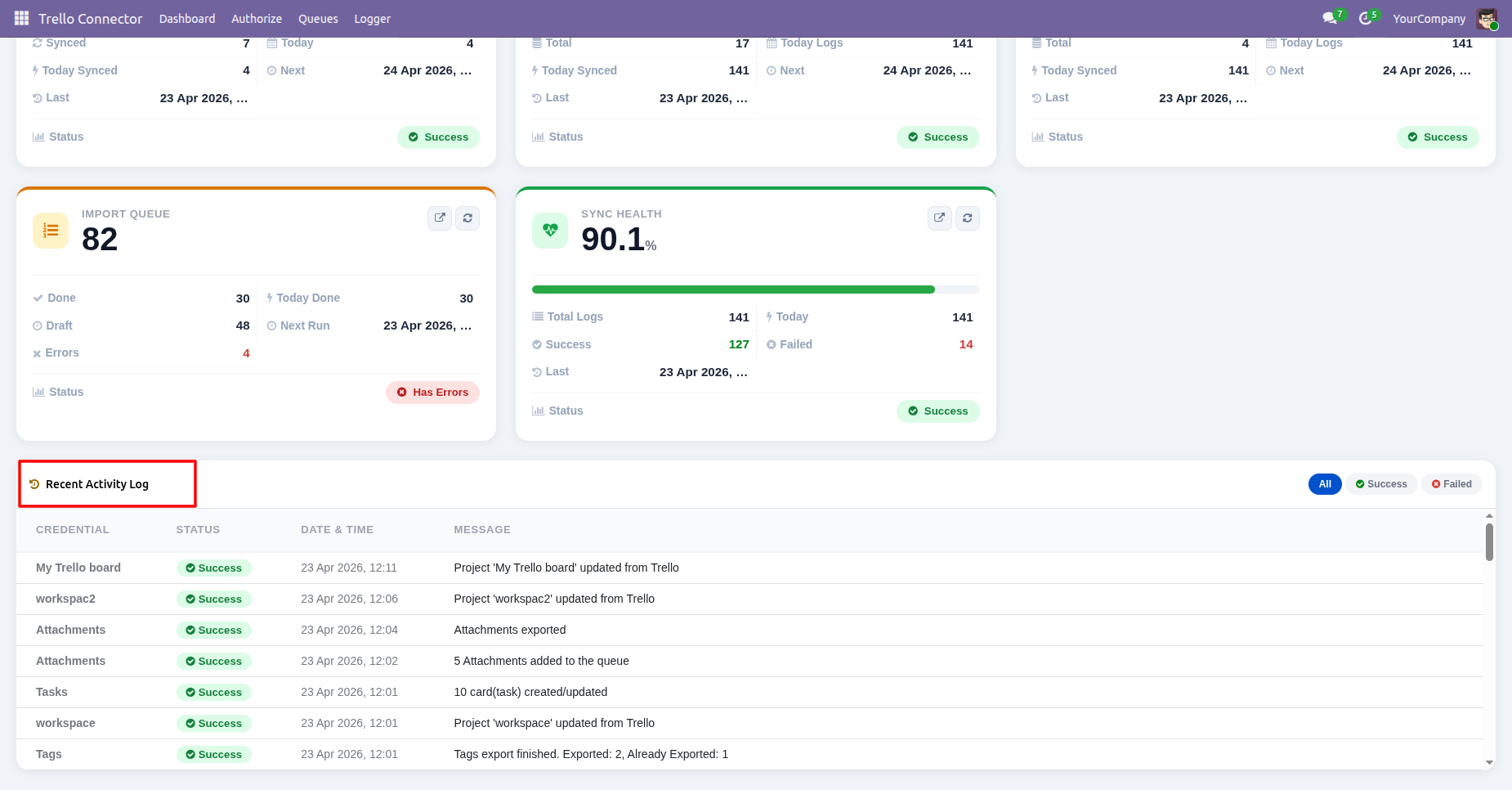
The Trello Connector Dashboard also displays Recent Activity Logs, allowing users to quickly monitor the latest synchronization and connector activities.
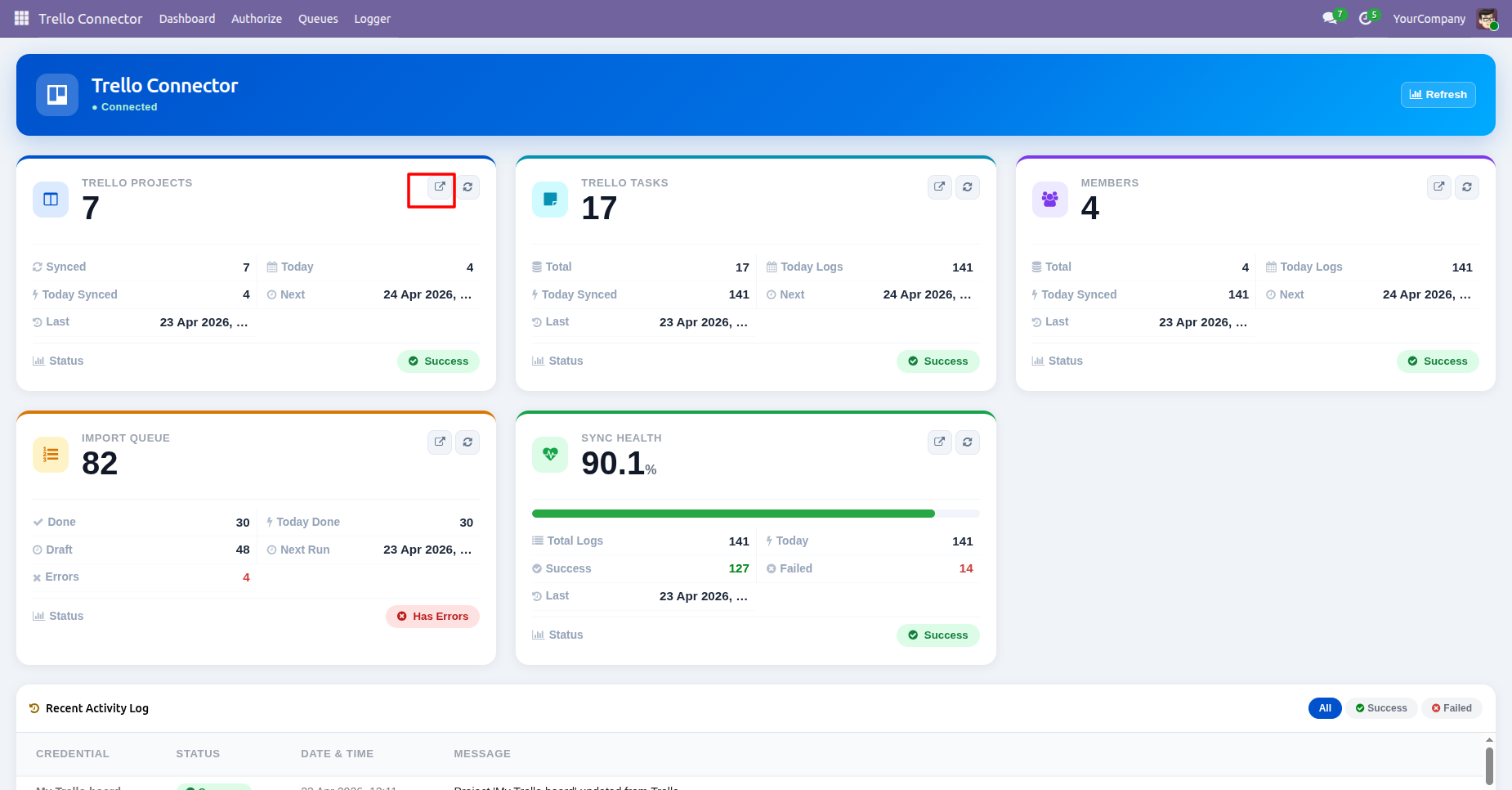
Click the Trello Projects tile on the dashboard to open the list of synchronized Trello projects.
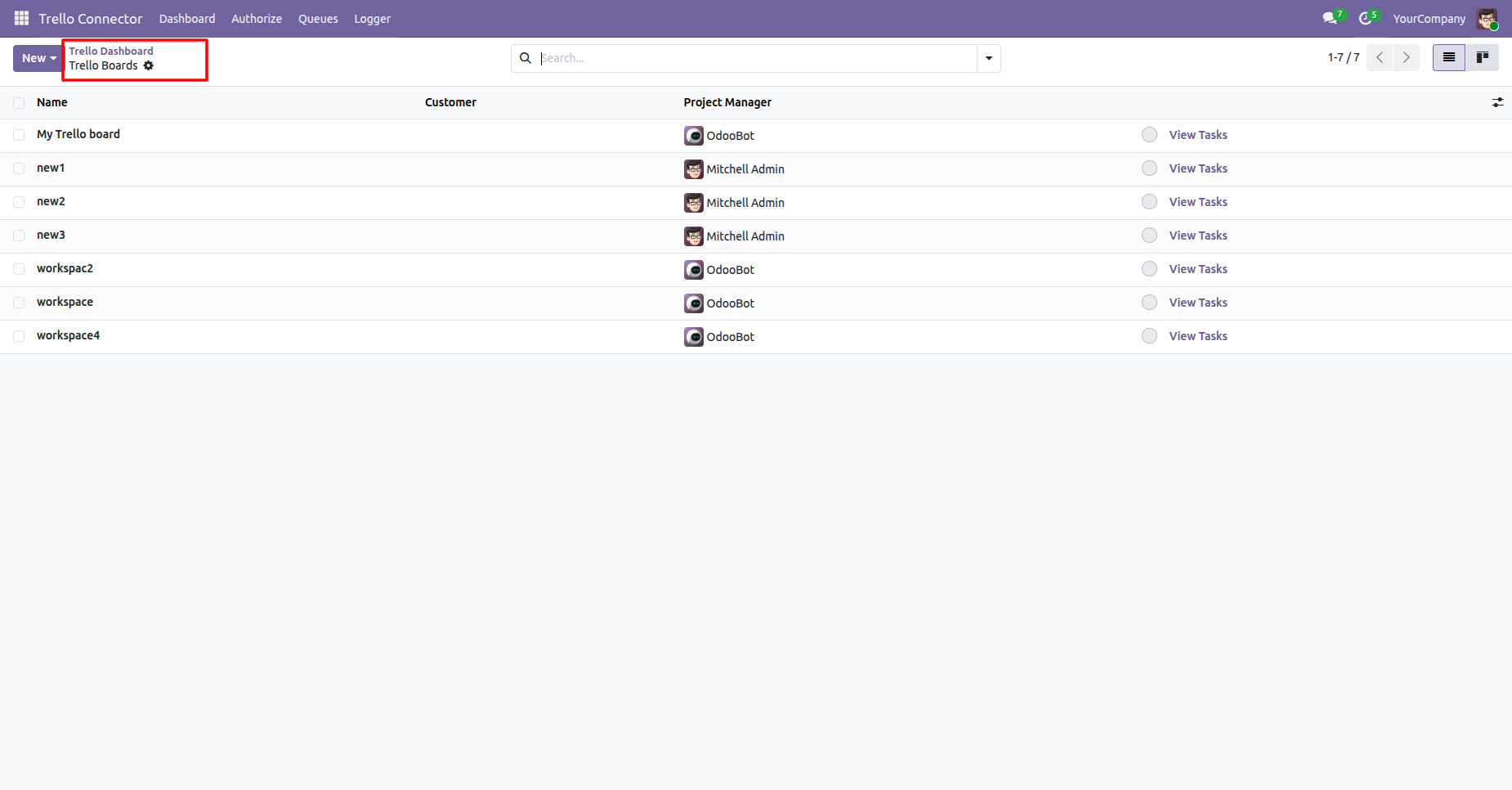
Clicking the Trello Projects tile opens the Trello Board/Projects list view, where users can view and manage the synchronized Trello boards.
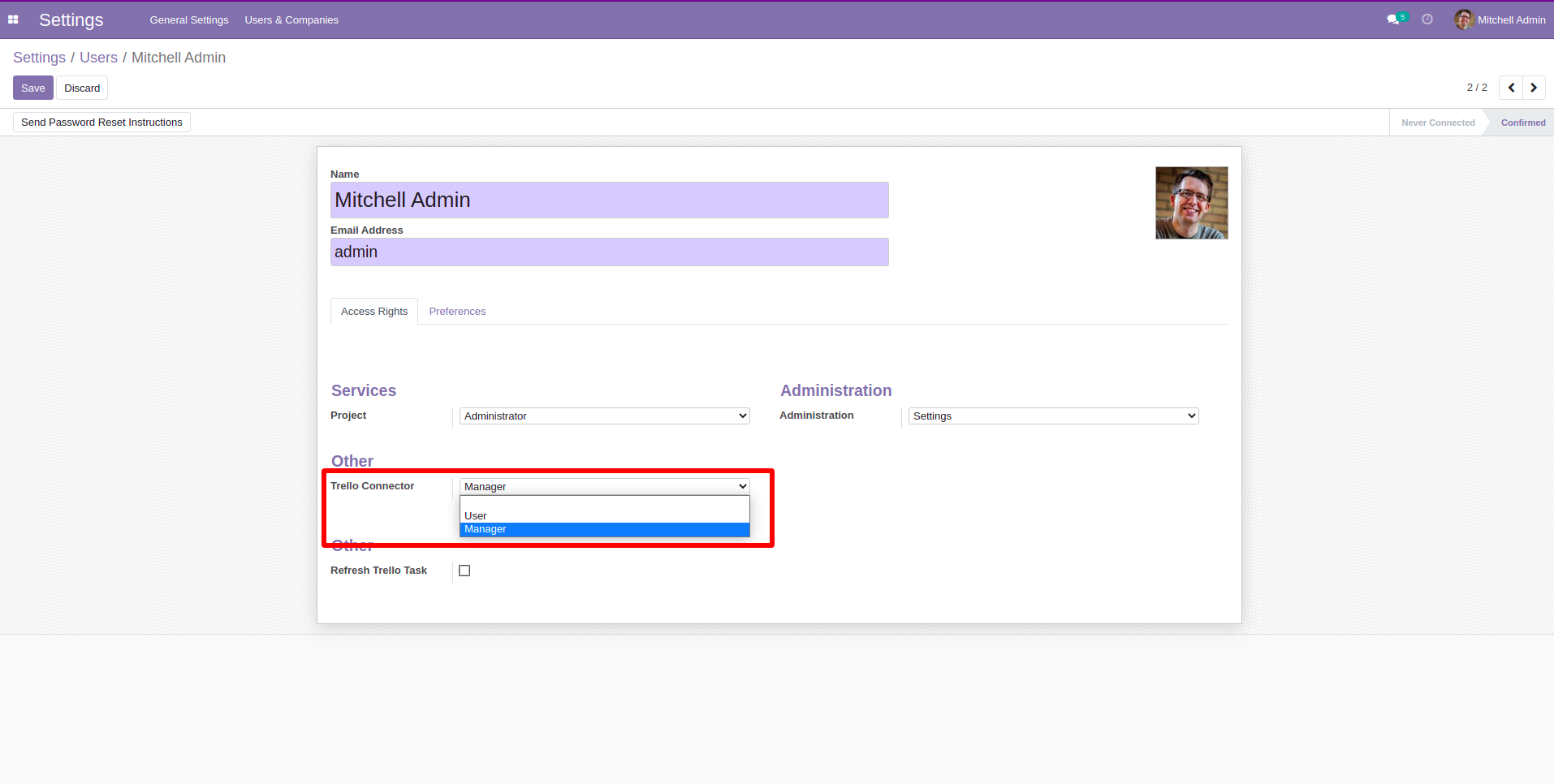
Allow User access right, so that user can create and see only his own trello workspaces. Manager can see whole workspaces.
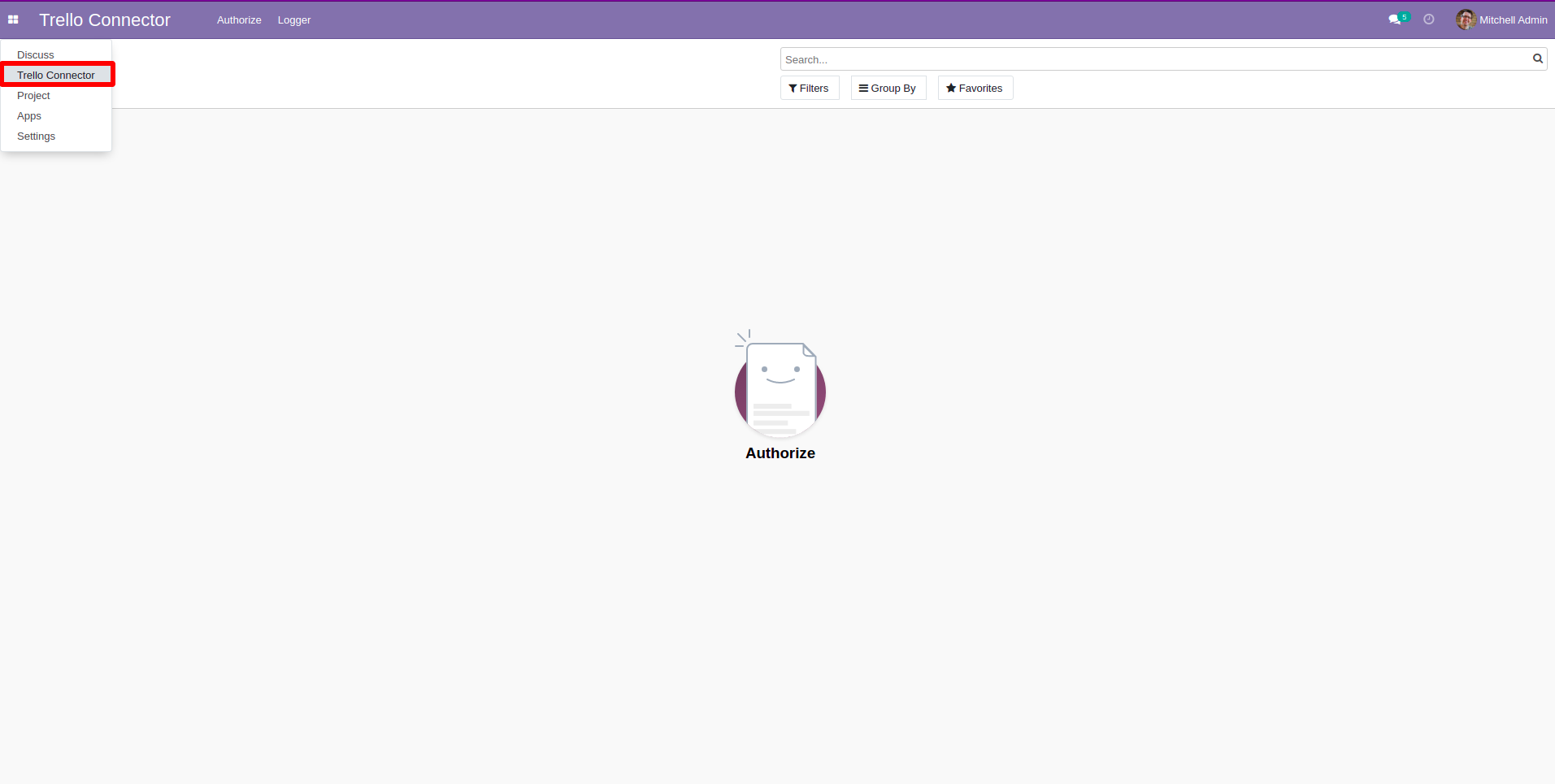
Trello Connector Menu and list view.
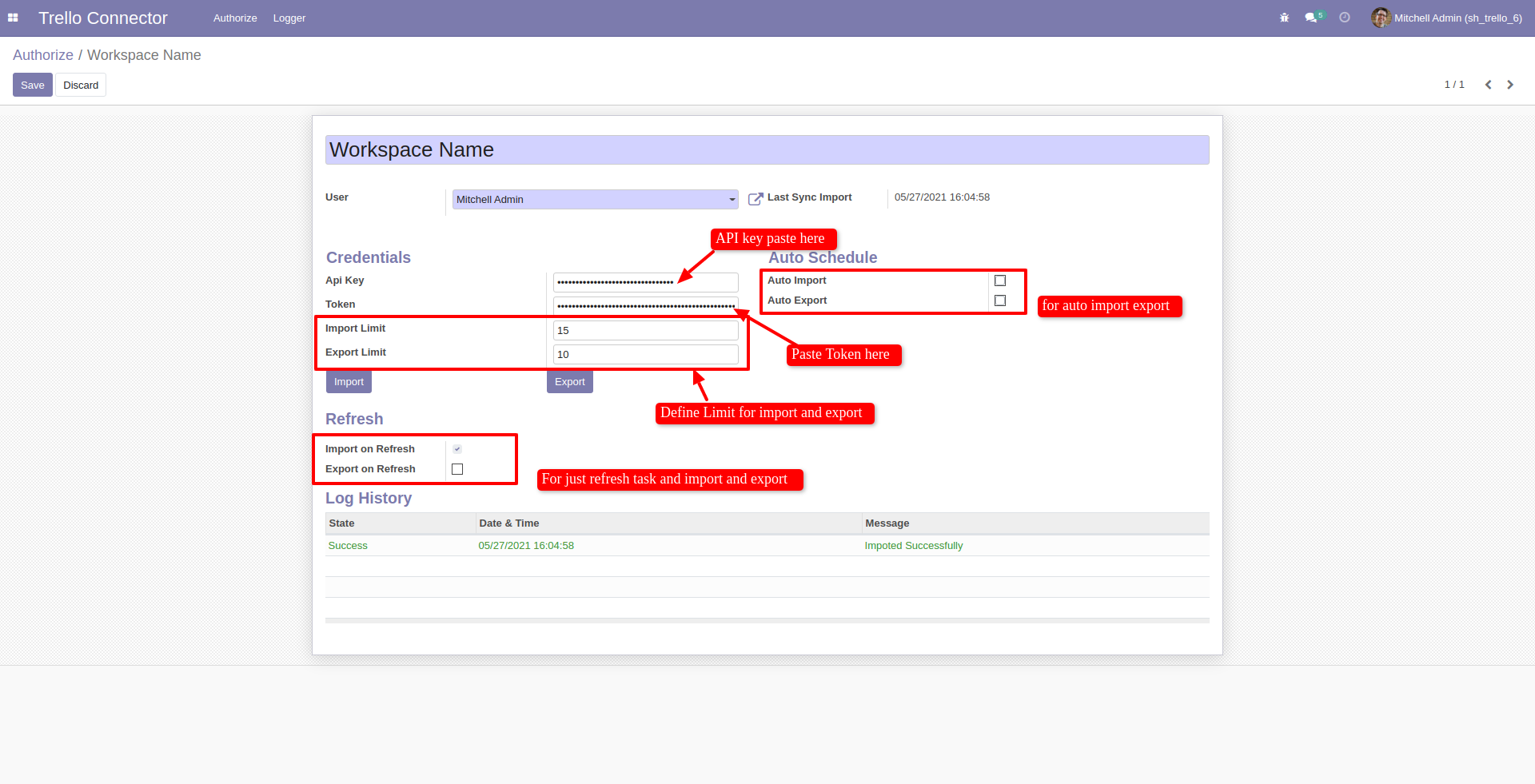
Trello Connector Form view. Fill the details and click import or export.
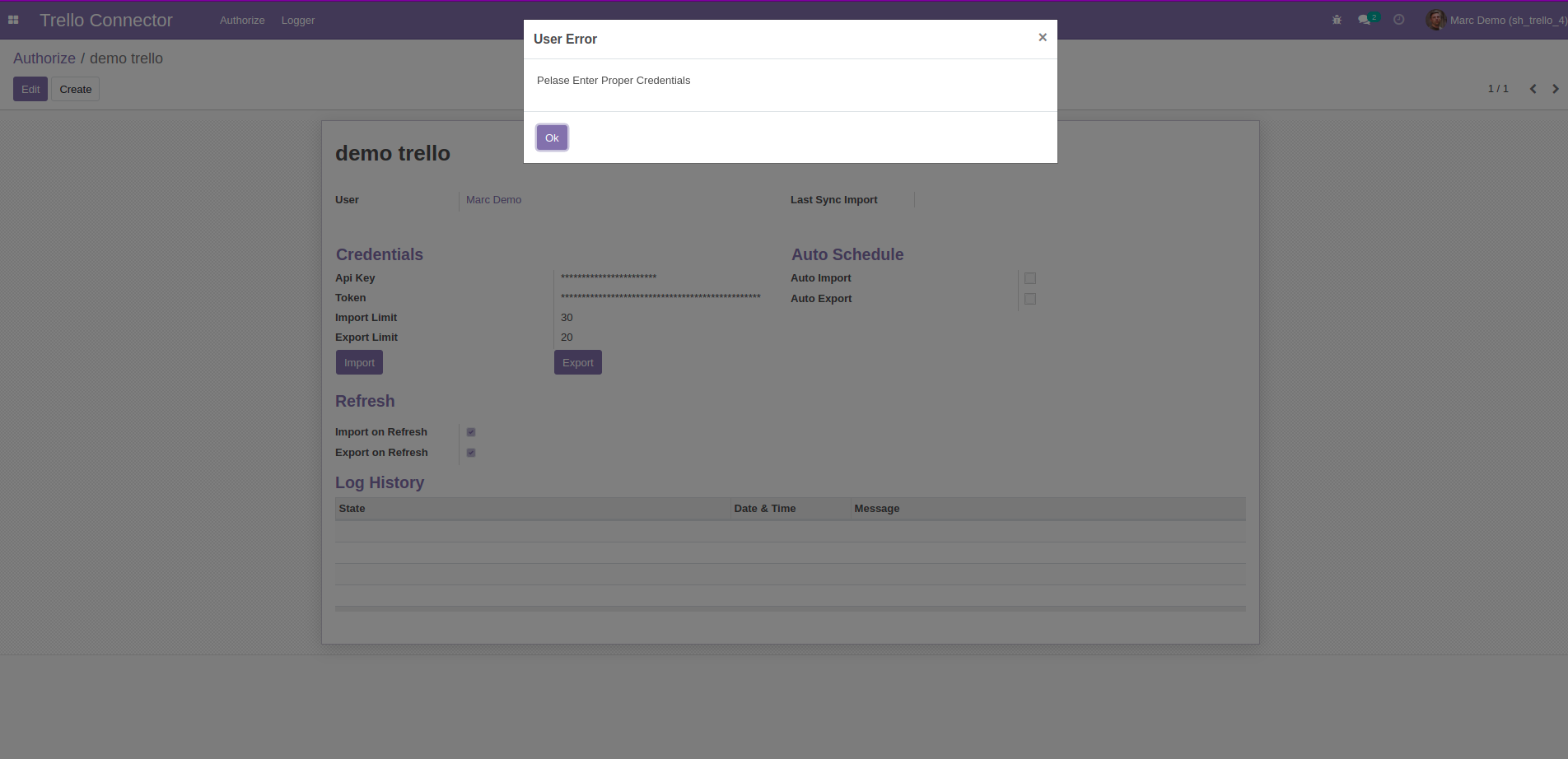
If fill credential details are wrong.
Trello project (Board) view.
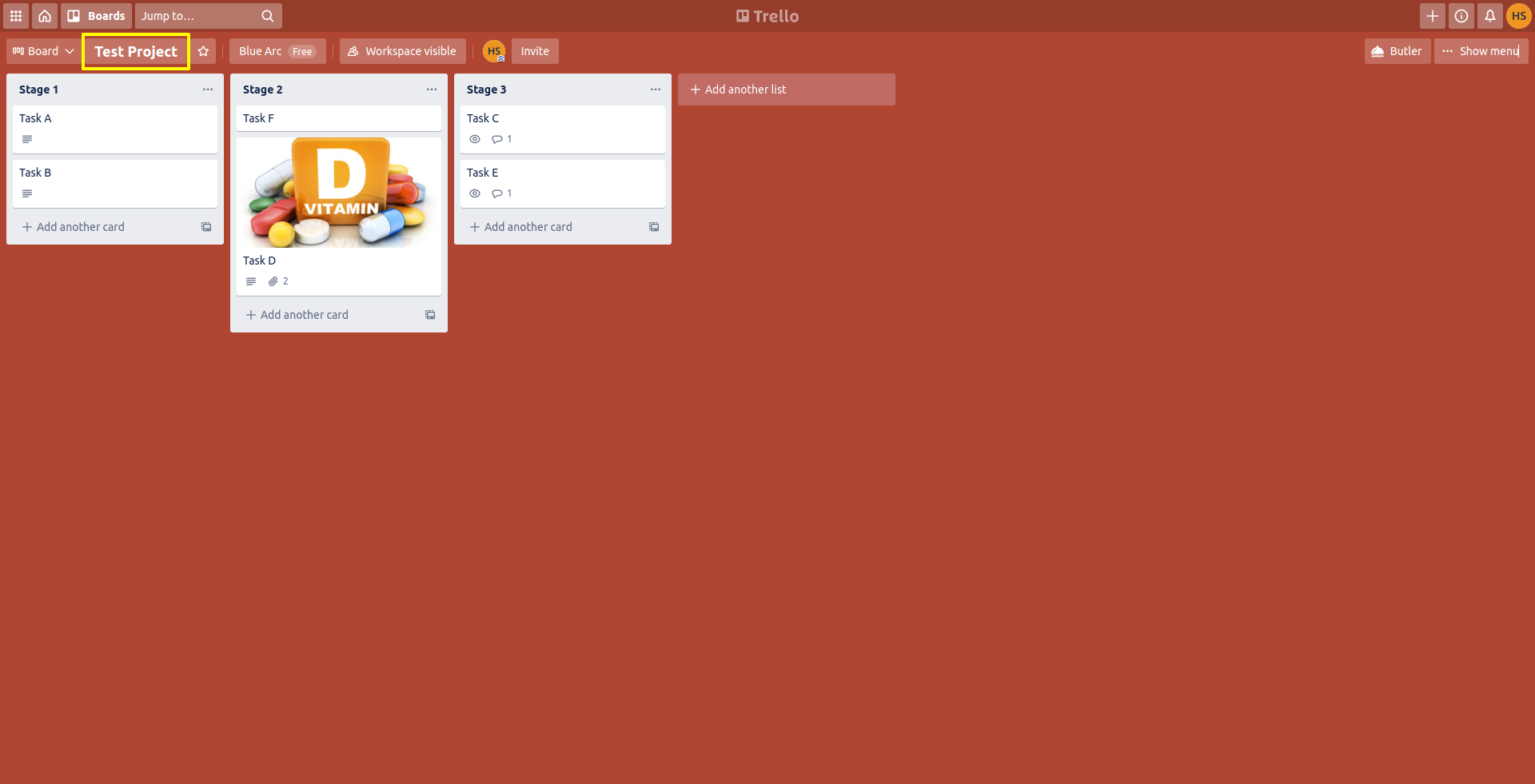
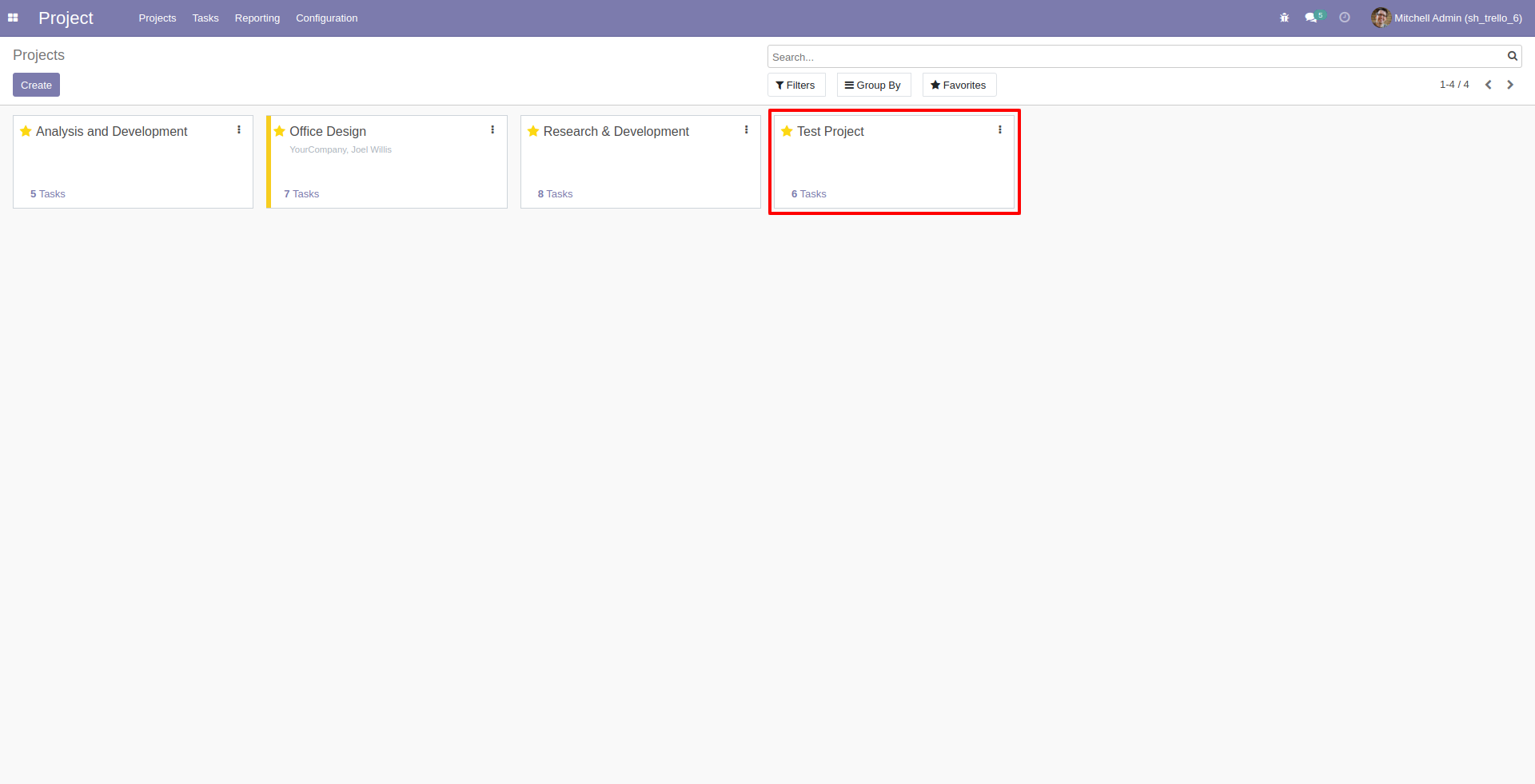
After Import successfully you can see that project in odoo.
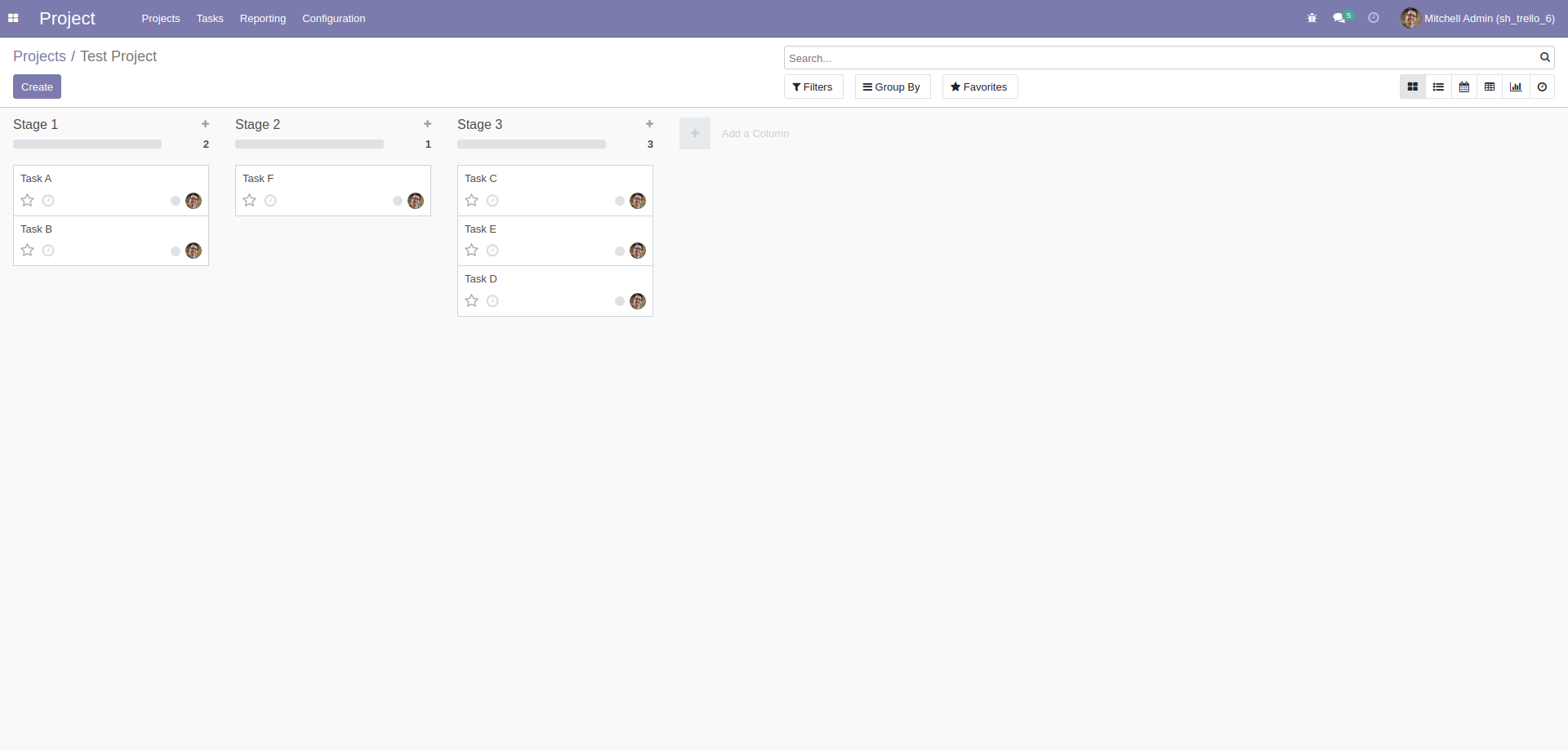
All task import successfully with stages.
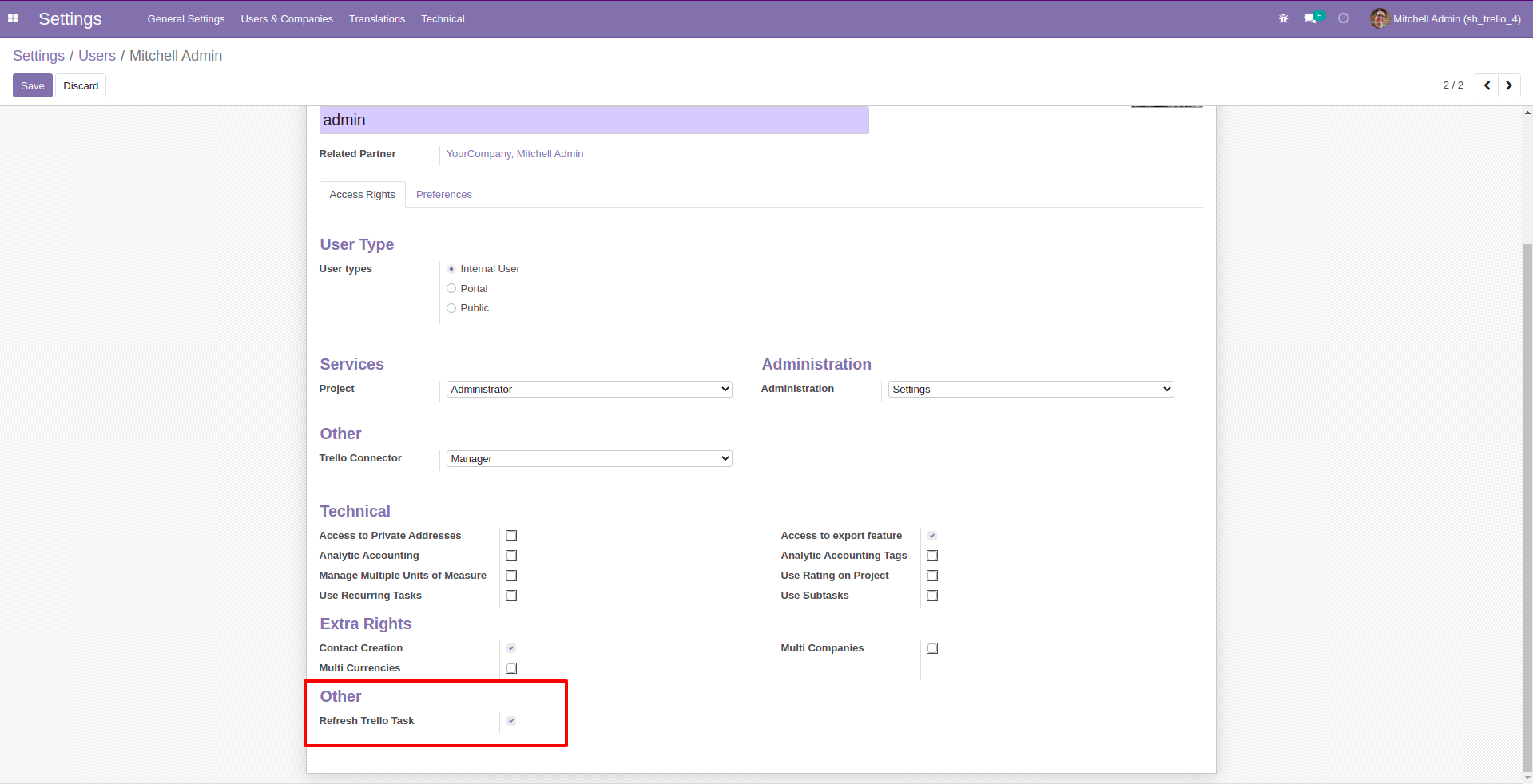
Enable this group. If you want to sync task from task list view.
Goto in task list view and click 'Refresh'.
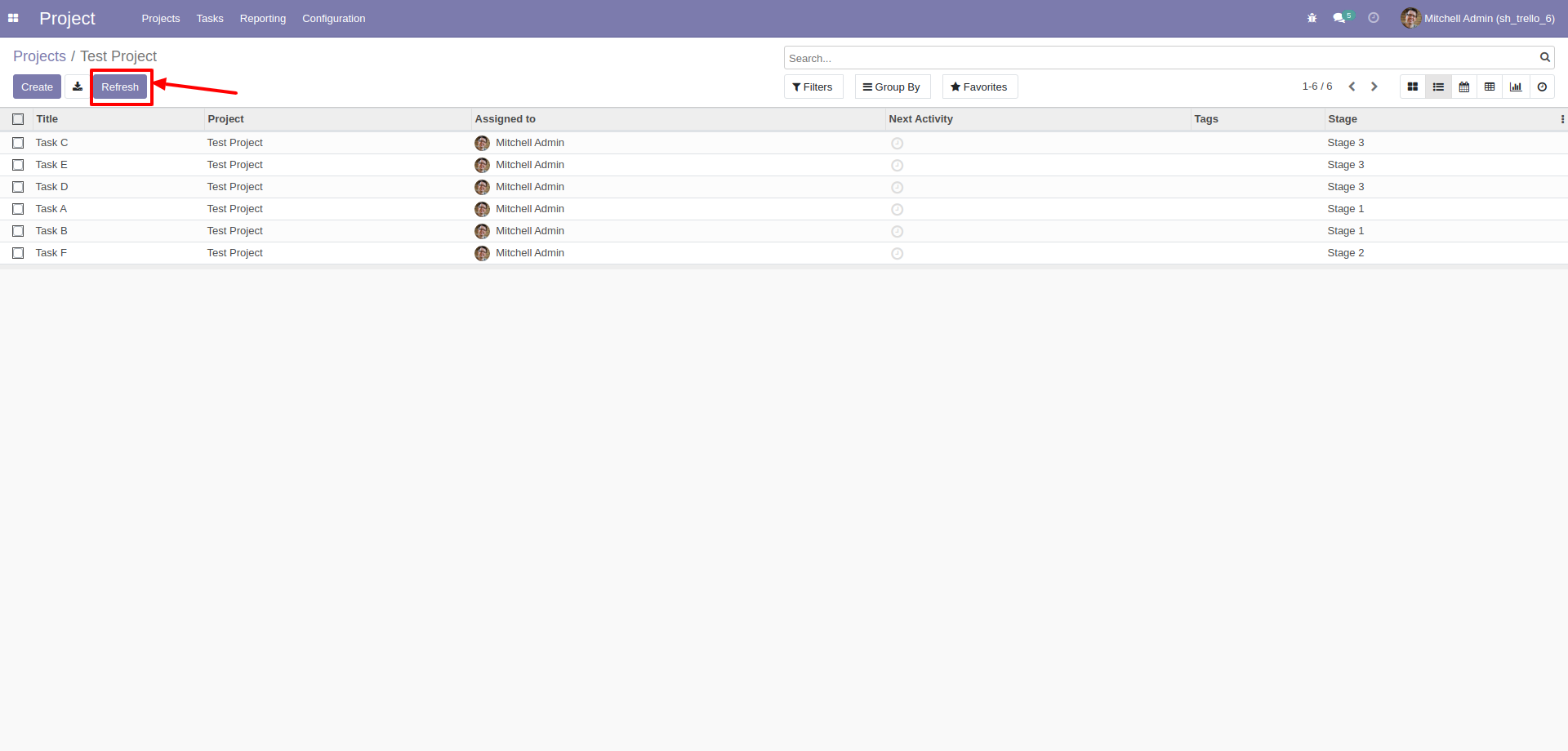
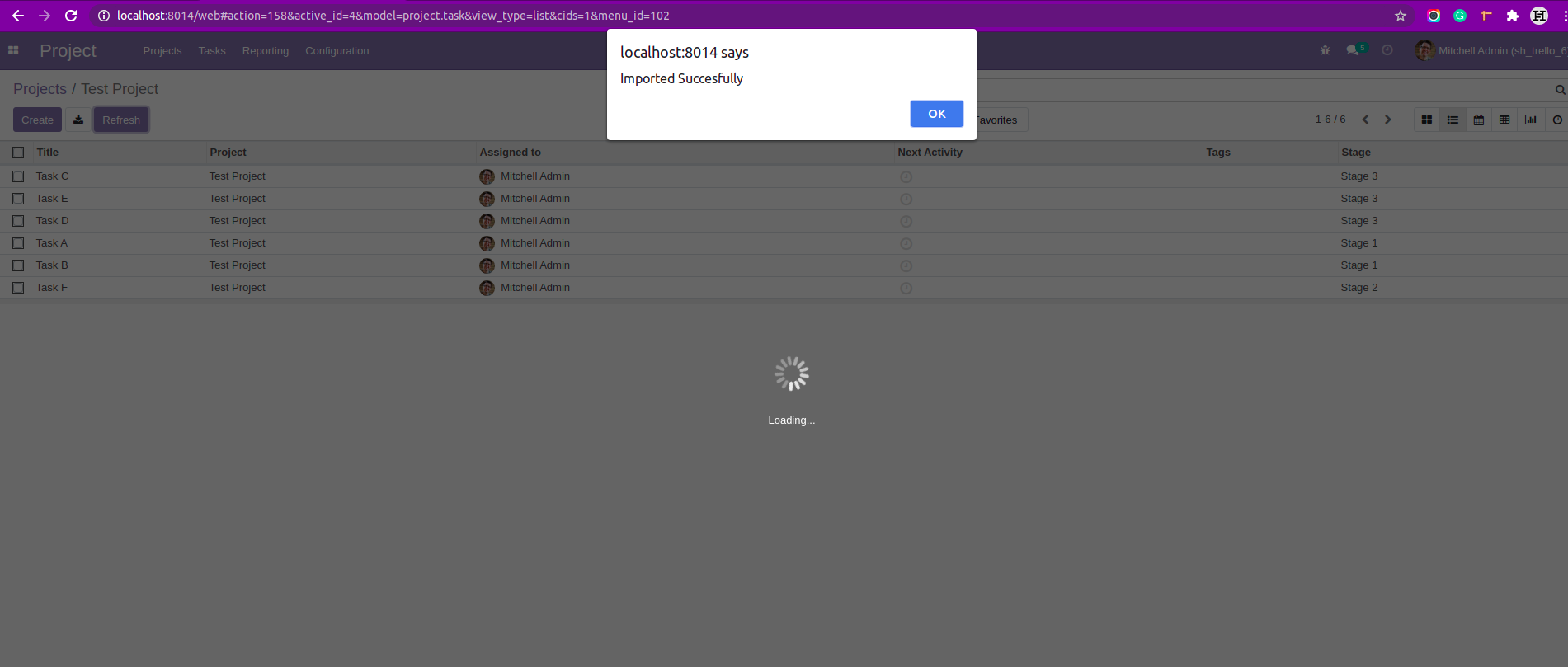
After importing successfully
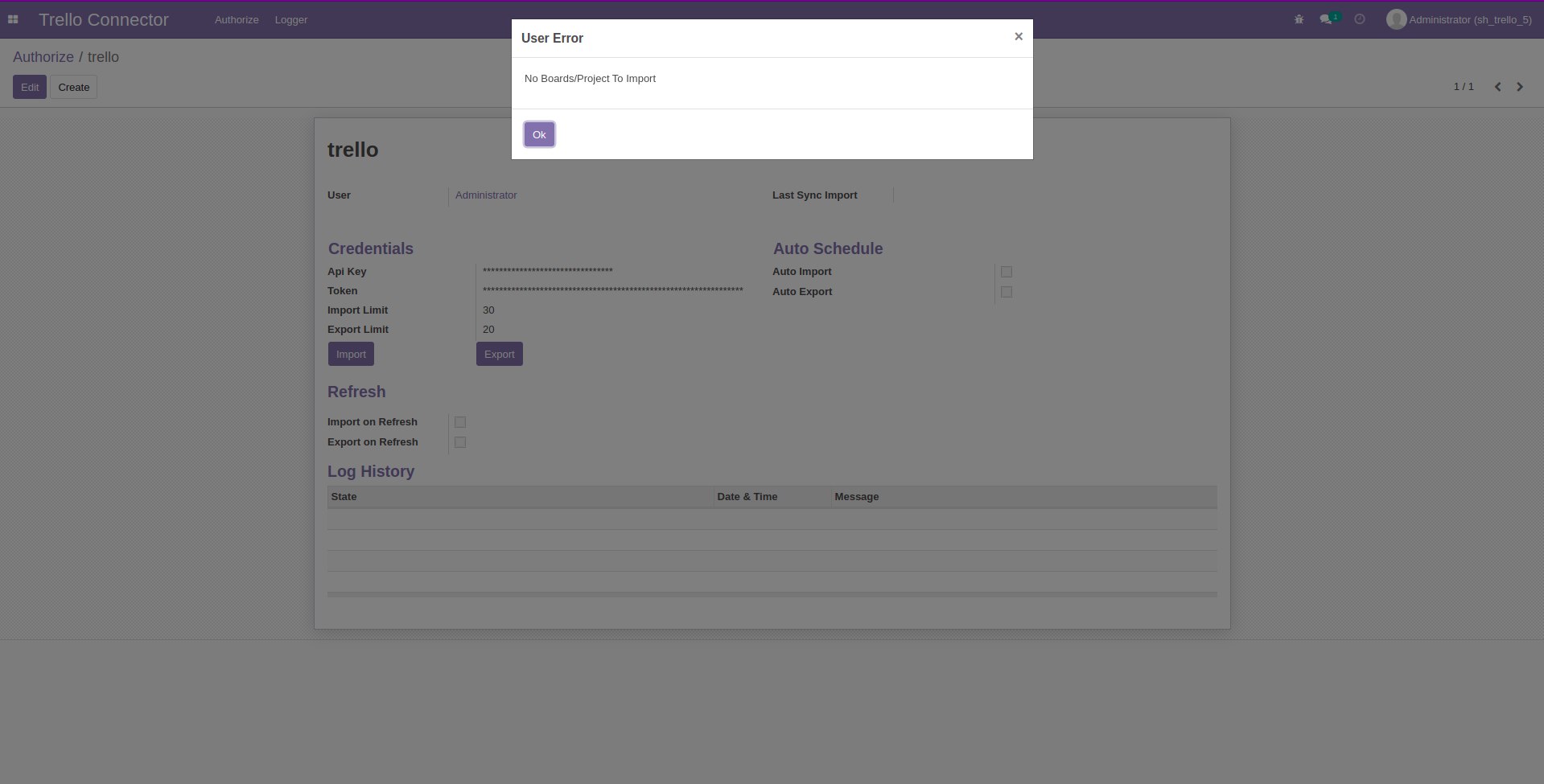
When you try to import project from blank trello board.
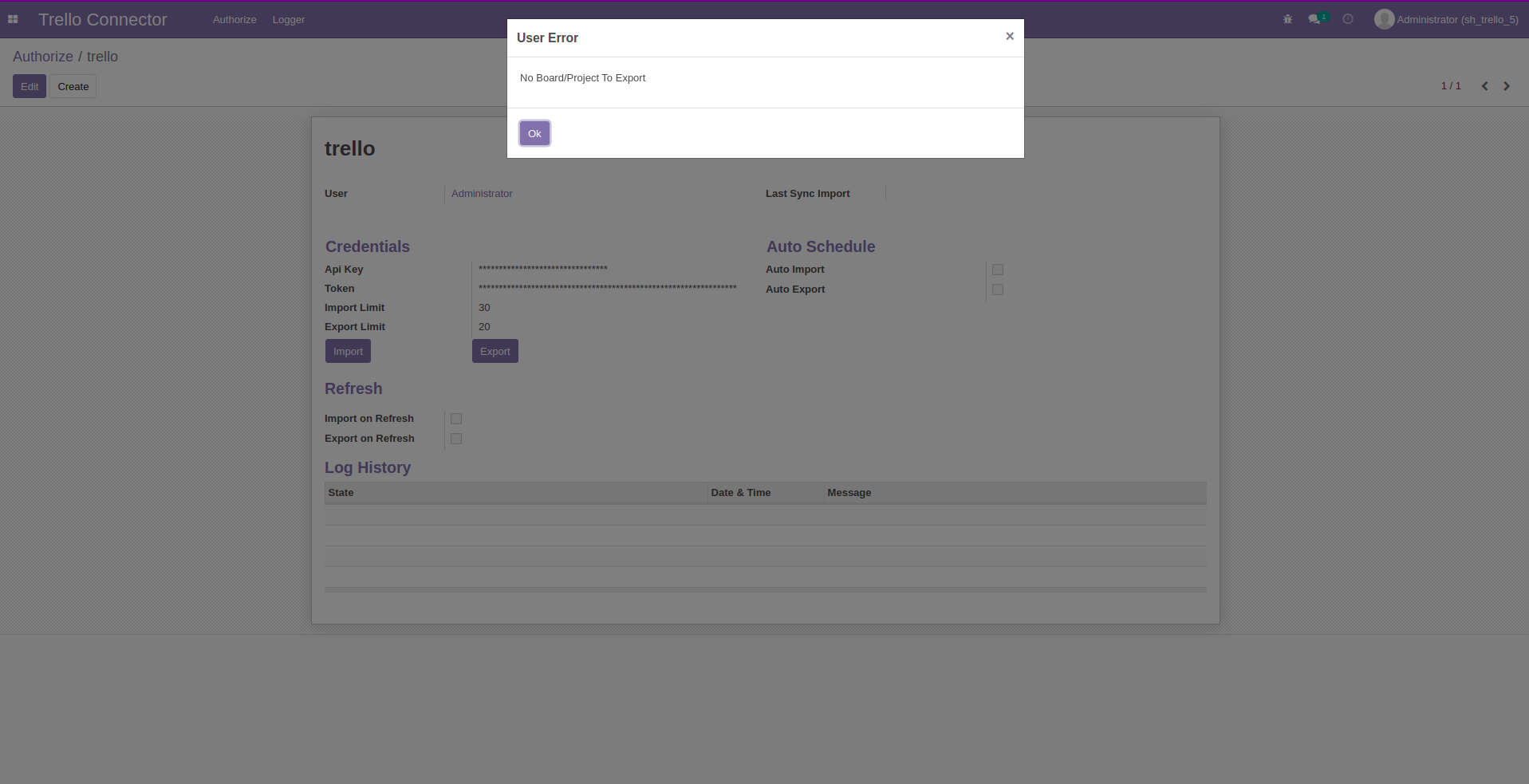
When you click export while odoo projects is blank.
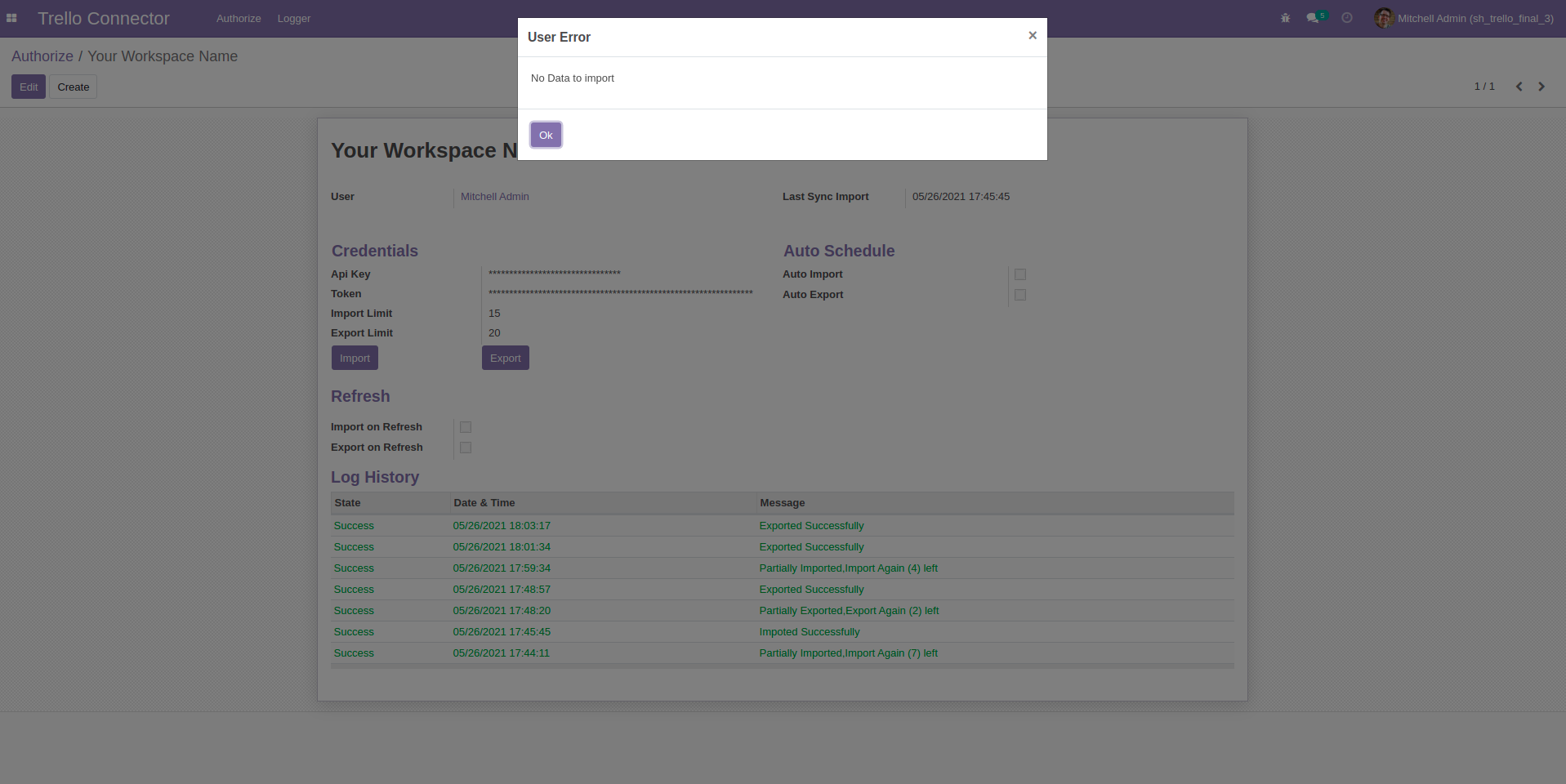
If there is nothing to import that time you can see this popup.
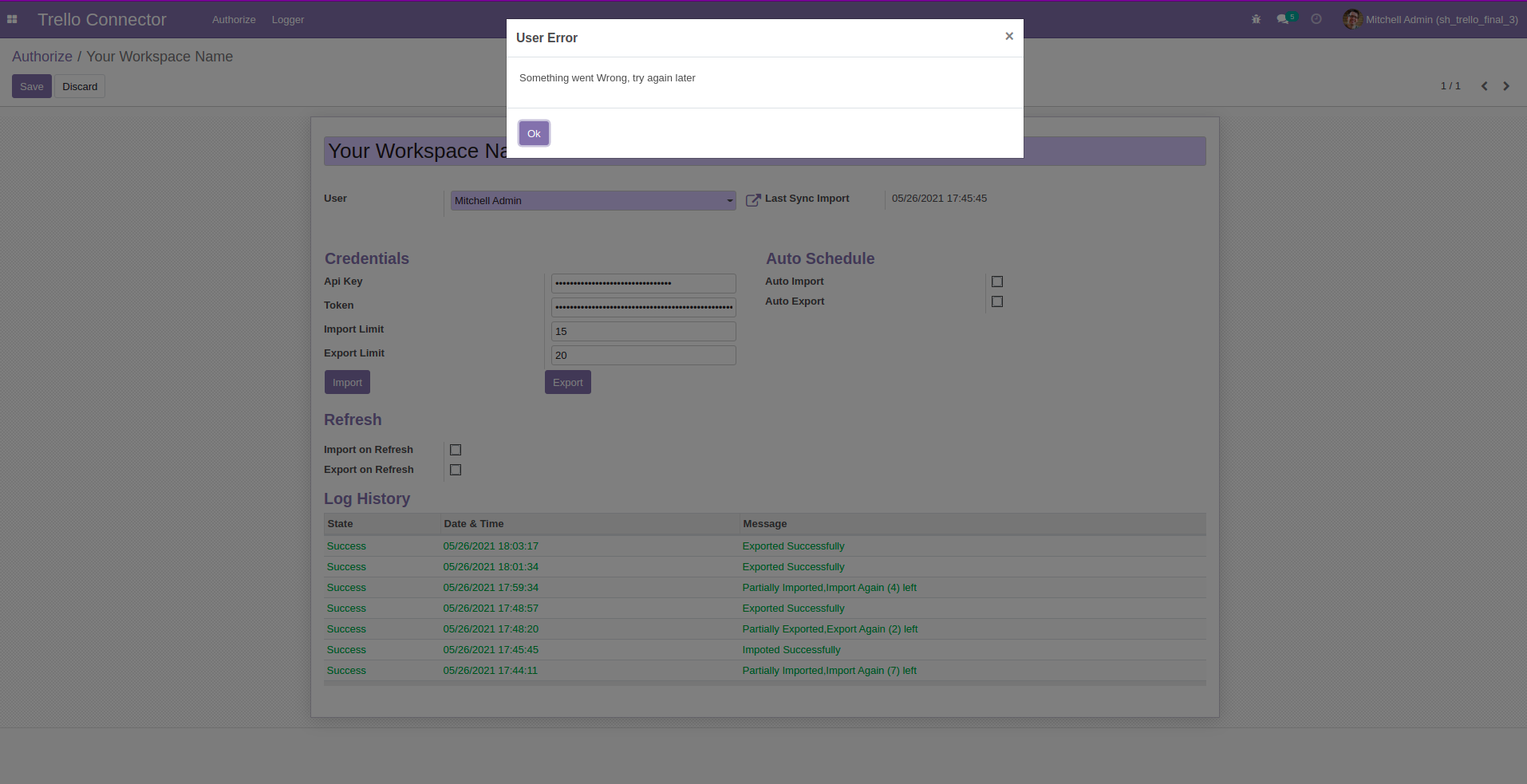
If there is network issue.
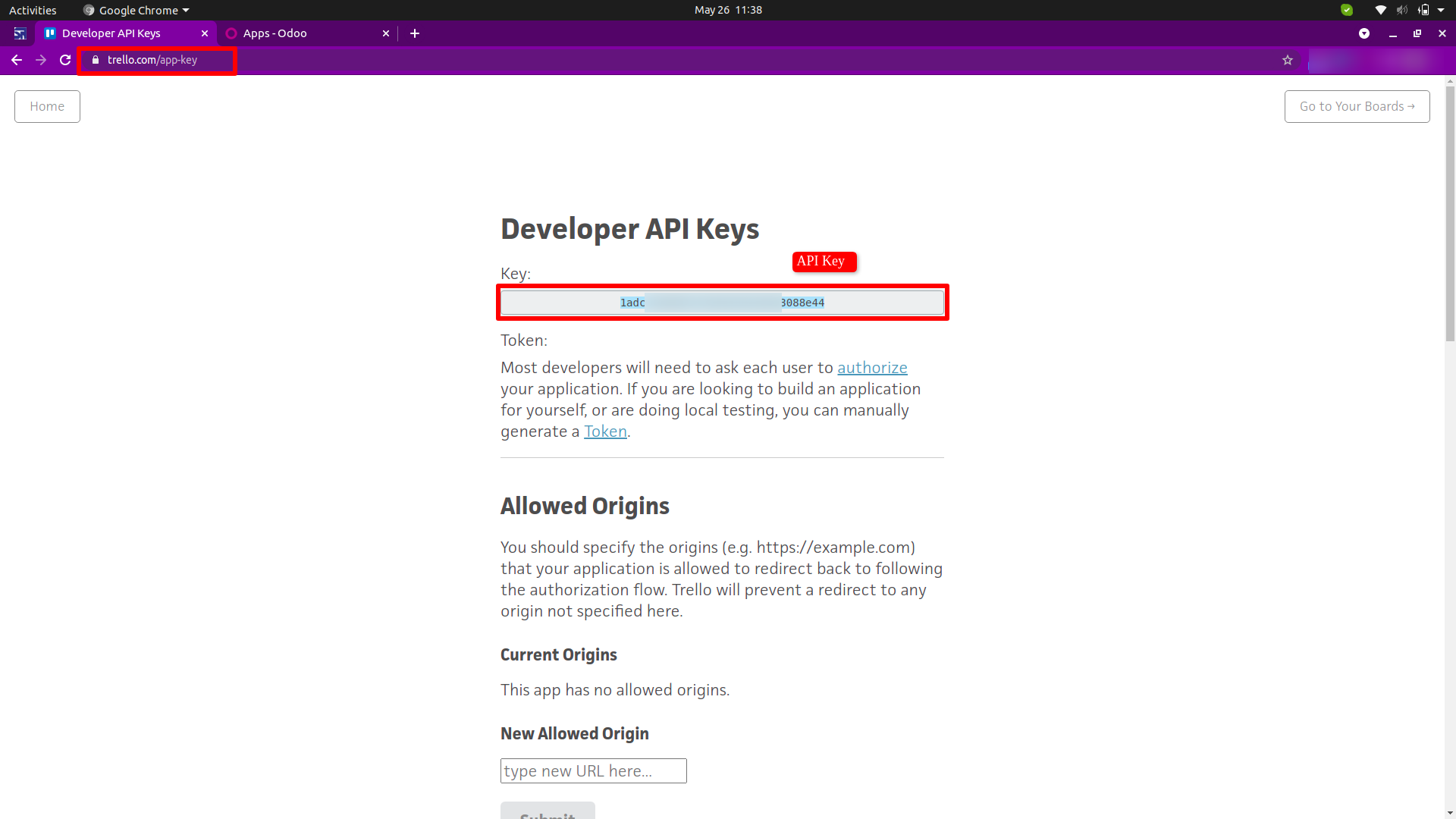
Goto trello app-key and copy 'Api Key'. Now Click on 'Token' and it will redirect to another page.
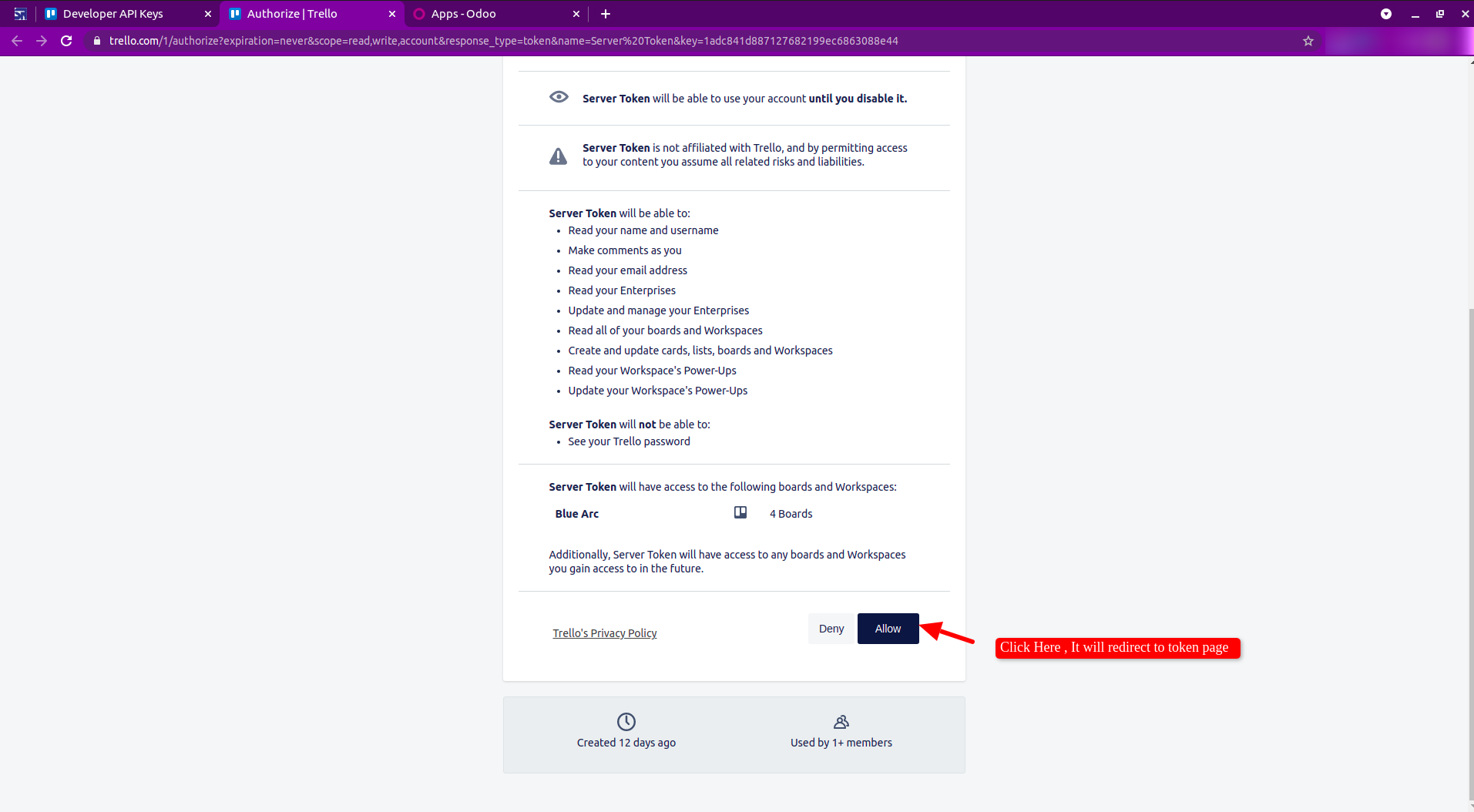
Here just click 'Allow' button.
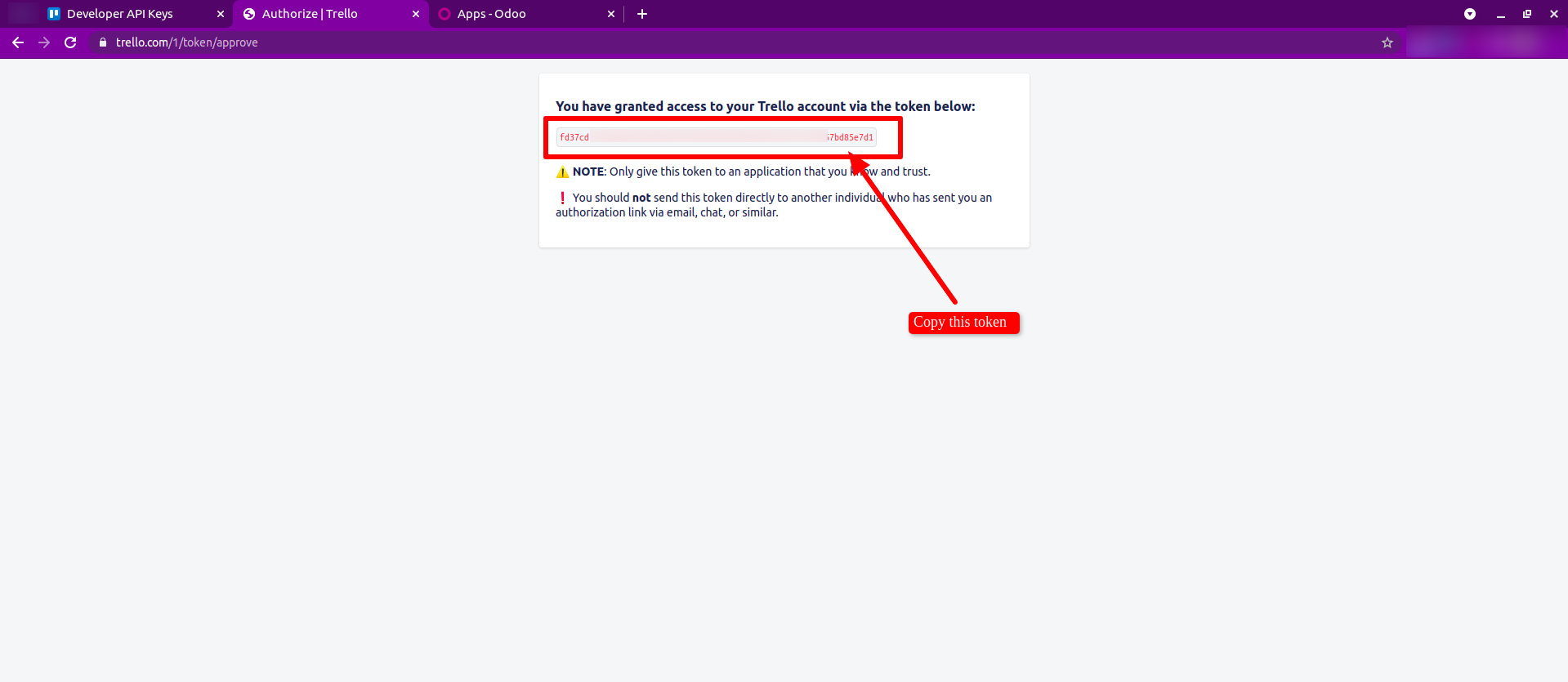
After click on 'Allow' button, you can see this page copy 'Token'.
Version 20.0.1.0.0 | Released on : 1st September 2026
- Yes, this app works perfectly with Odoo Enterprise (Odoo.sh & Premise) as well as Community.
- No, this application is not compatible with odoo.com(odoo saas/Odoo Online)
- Yes, to test this module, please contact us at sales@softhealer.com.
- Please contact us at sales@softhealer.comto request customization.
- Yes, we provide free lifetime support for the version you purchased.
- Yes, you will receive lifetime free updates for the version of the module you purchased.
- No, there is no need to install any additional libraries.
- Yes, for version 12 and above, you need to purchase the module separately for each version you intend to use.
- No, exchanges or refunds are not allowed. Please make sure to select the correct version before purchasing.
- You can contact us at support@softhealer.com for language translation support. We use Google Translator tools to provide translations in multiple languages, so the accuracy may vary. We welcome your suggestions to help improve translations.
Discover Our Latest Apps