












Traccar Tracking Integration With Odoo Fleet

Seamlessly integrate Odoo Fleet with Traccar GPS tracking platform to monitor real-time vehicle positions, speed, and battery levels on interactive maps. Fetch detailed trip history, route history, driver location tracking logs, and Traccar server events directly into Odoo chatter and logs to optimize fleet operations and security.
Features

Traccar Odoo Integration
Connect Odoo Fleet with Traccar using API tokens and configure the Traccar integration for vehicle tracking.

Real-Time Vehicle Tracking
View live vehicle location, speed, battery percentage, and online status directly on interactive maps.
Trip History Synchronization
Fetch and log completed vehicle trips with start/end times, distance, average speed, and trip maps in chatter.

Route History Tracking
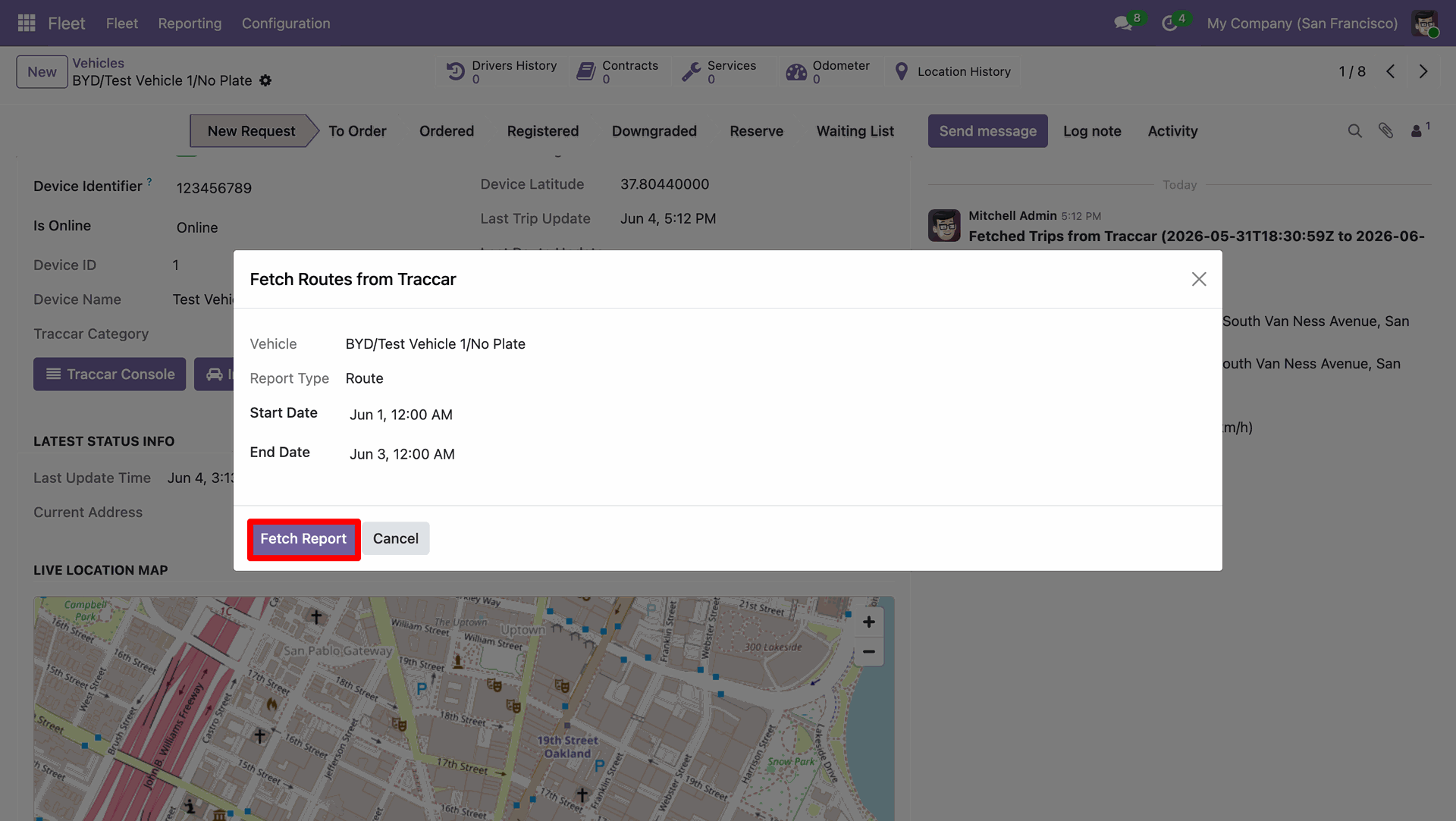
Import vehicle routes by selecting a specific start and end date to retrieve route tracking data for the chosen period.
Traccar Tracking Management
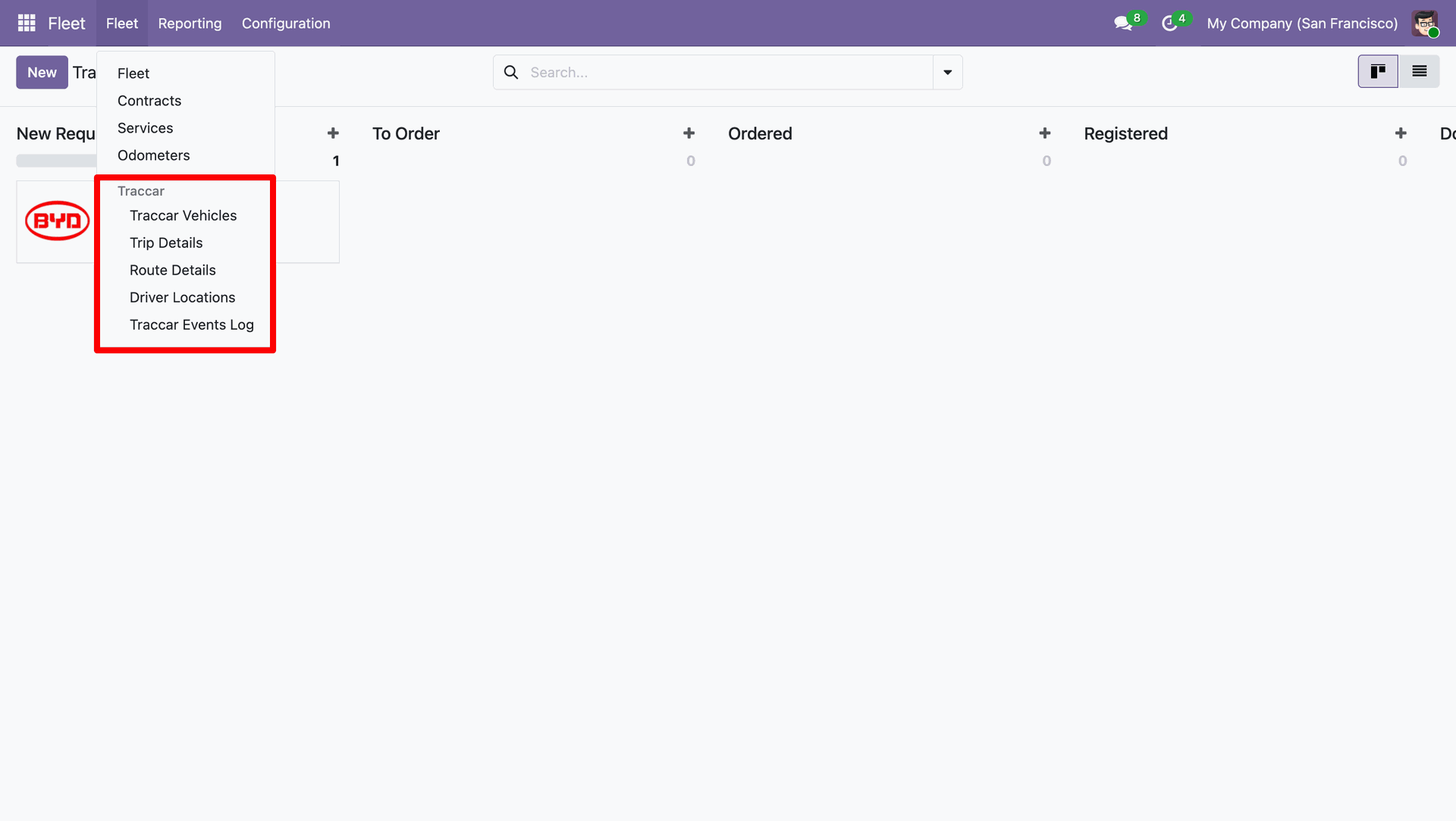
Access Traccar Vehicles, Trip Details, Route Details, Driver Locations, and Traccar Events Logs directly from the Odoo Fleet menu.
Embedded Traccar Console
Access the native Traccar web tracking console directly from vehicle form views in Odoo.

Workflow
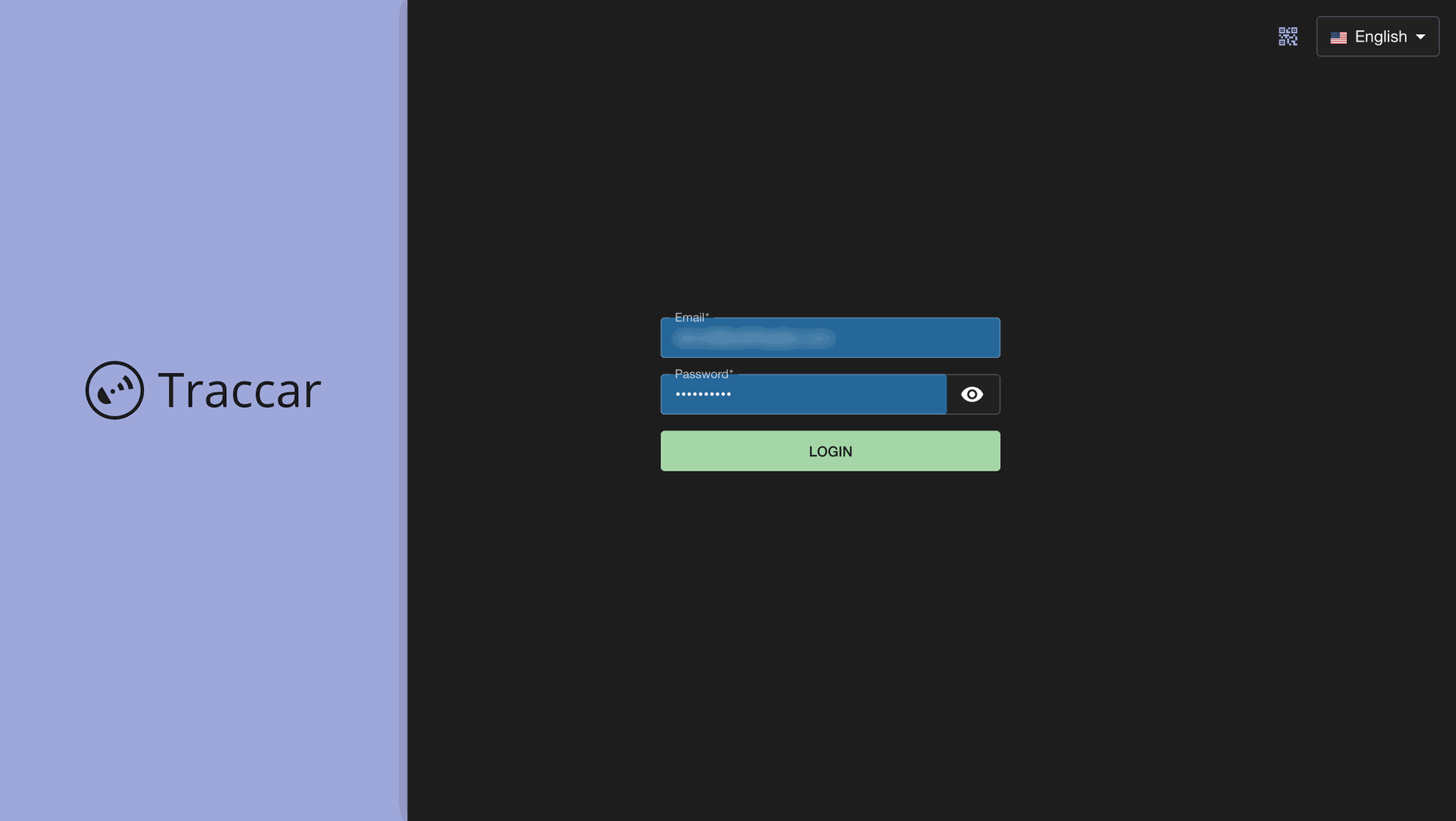
Enter your admin email and password on the Traccar login screen to access the system.
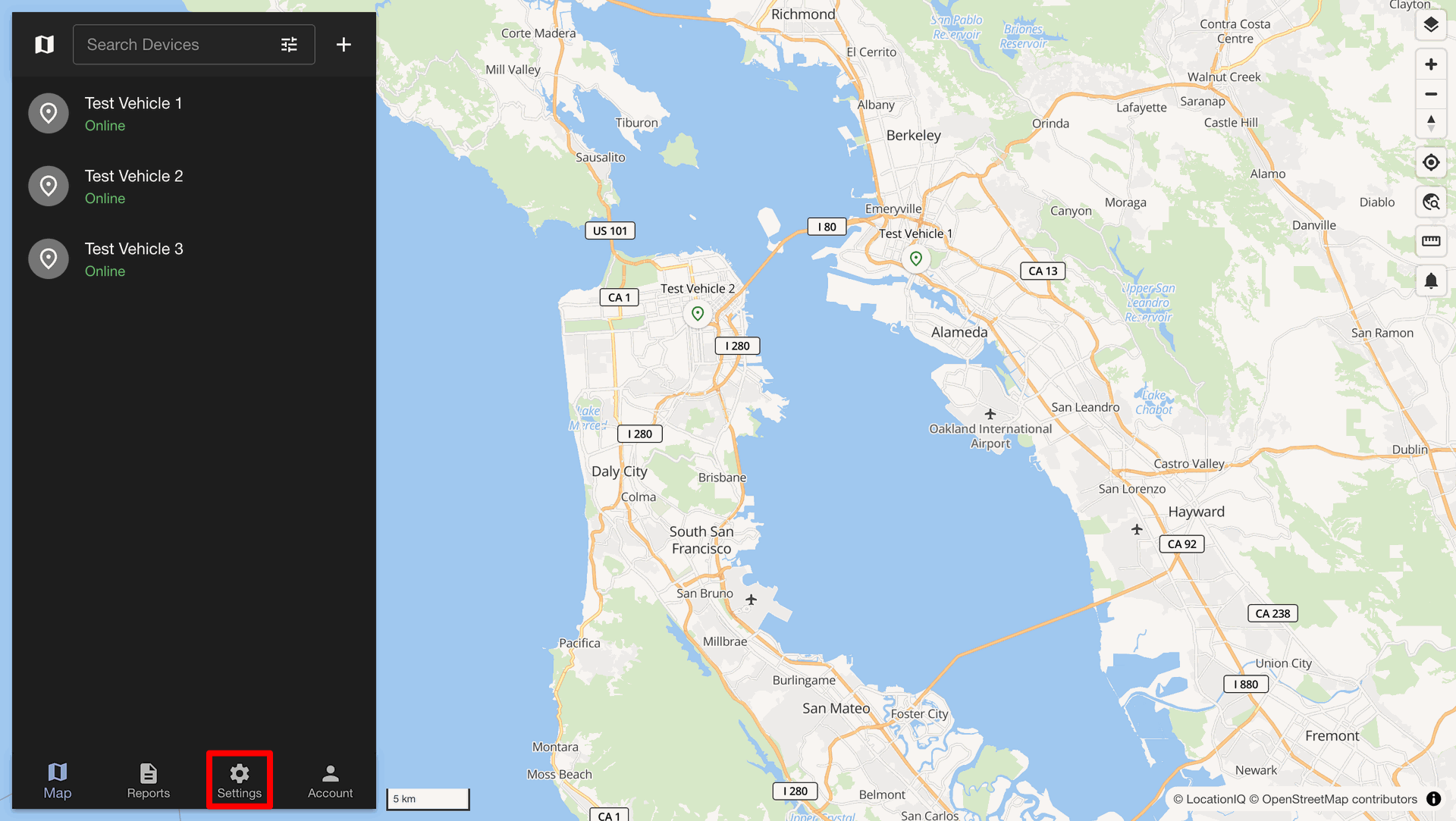
Click the Settings icon in the bottom menu bar of the Traccar console.
Click the Tokens menu option inside the Traccar settings side panel.
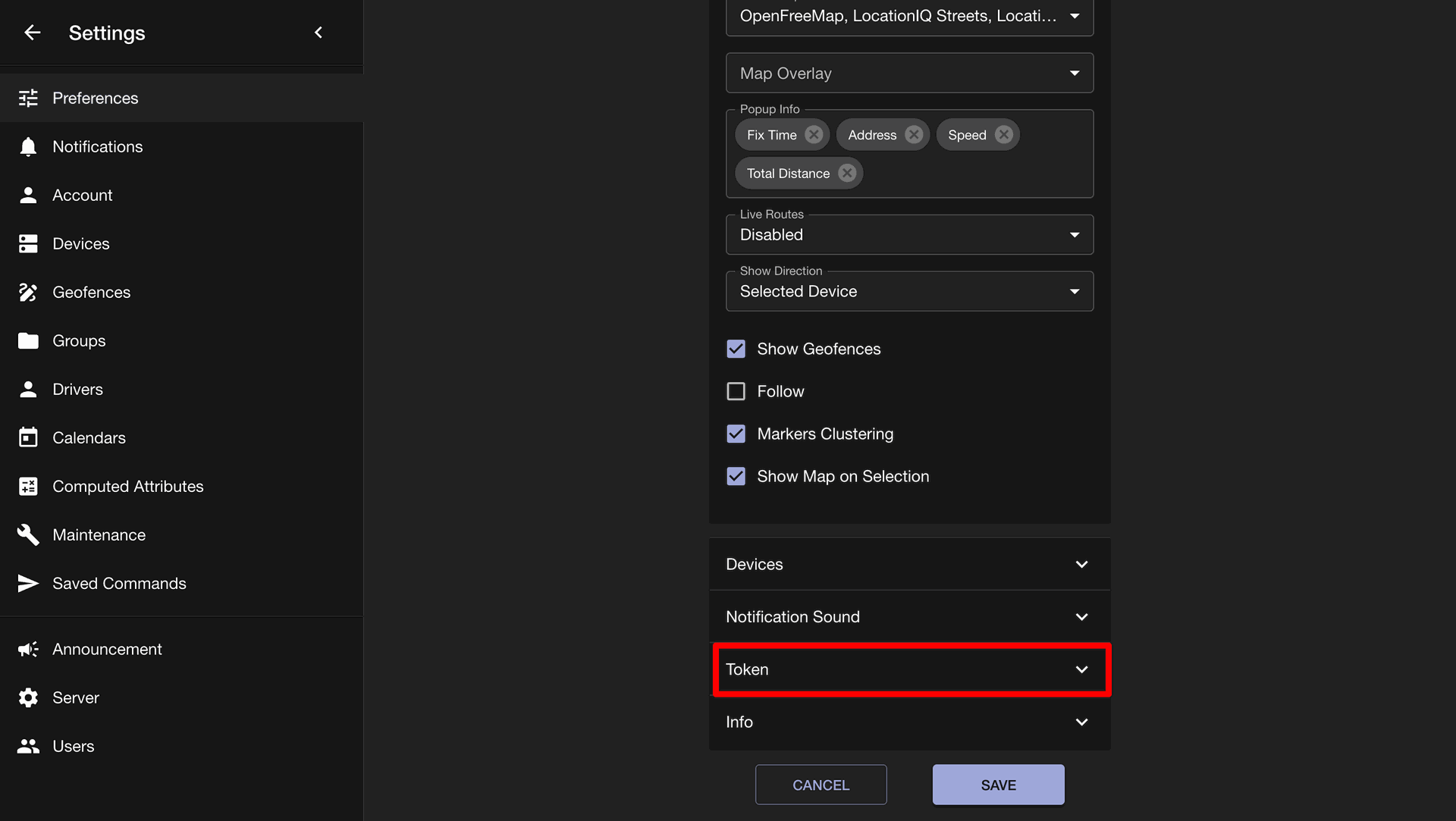
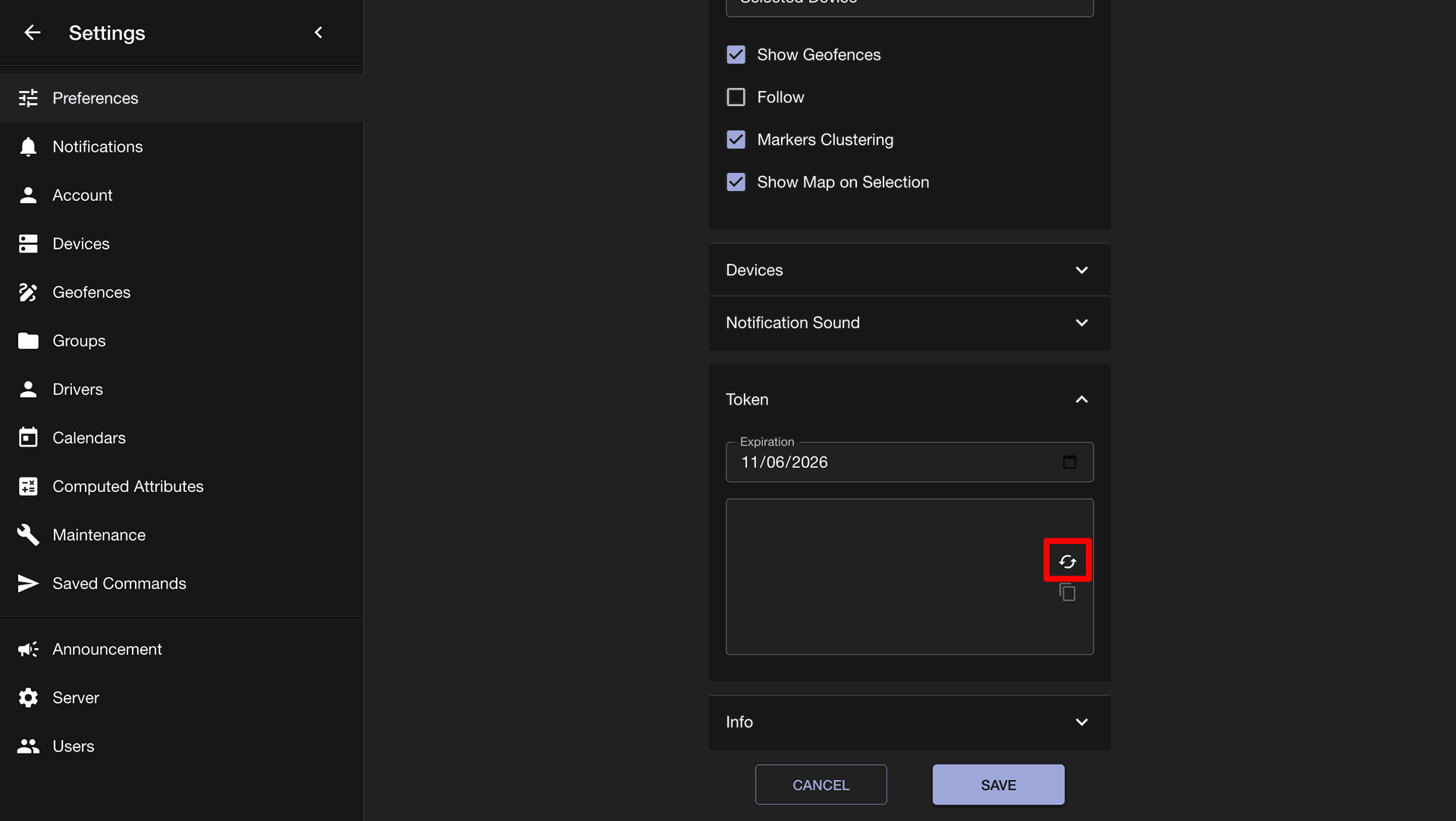
Click the red highlighted button in the Tokens section to generate a user token.
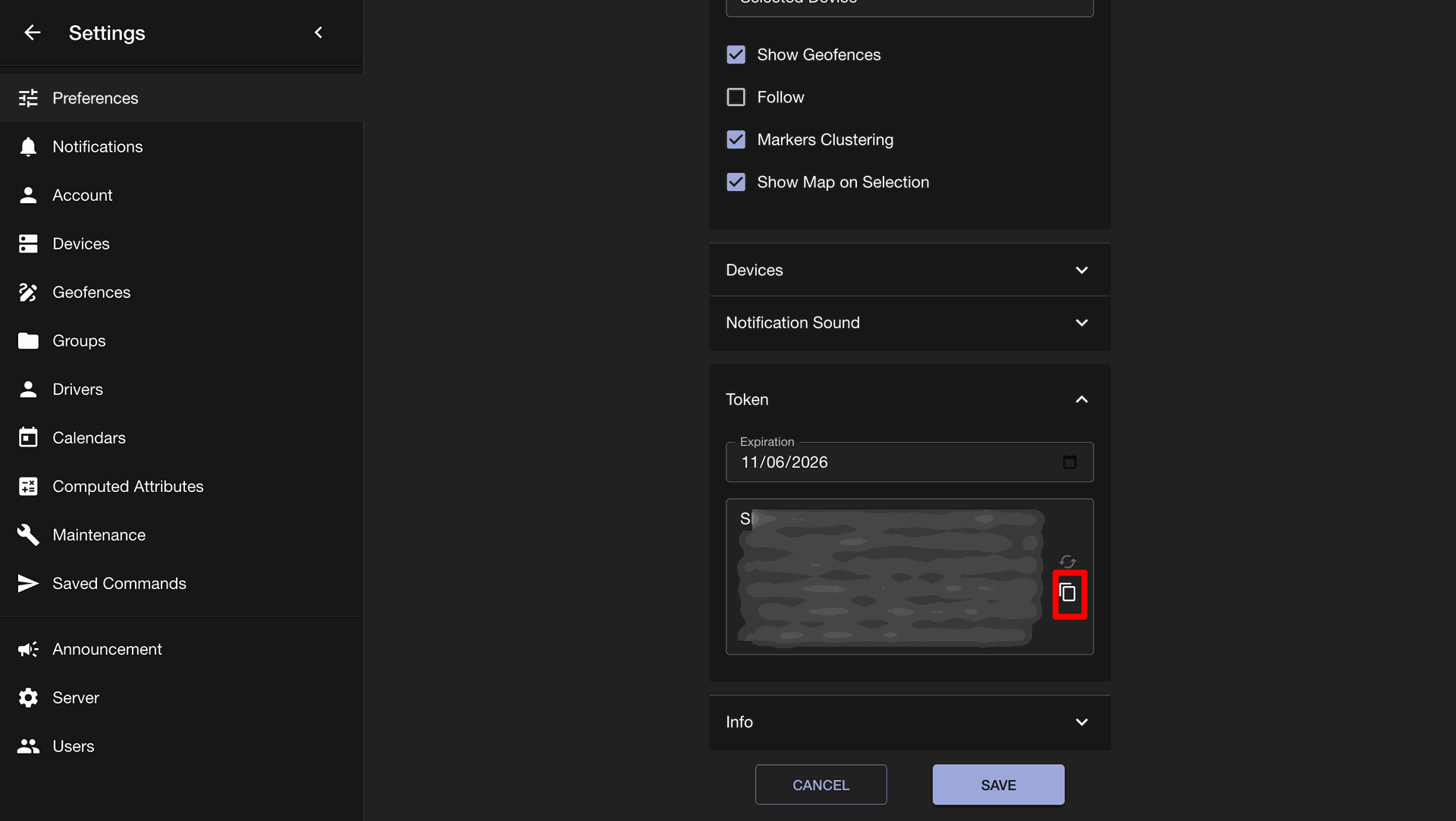
Click the copy icon button to copy the generated secret API user token.
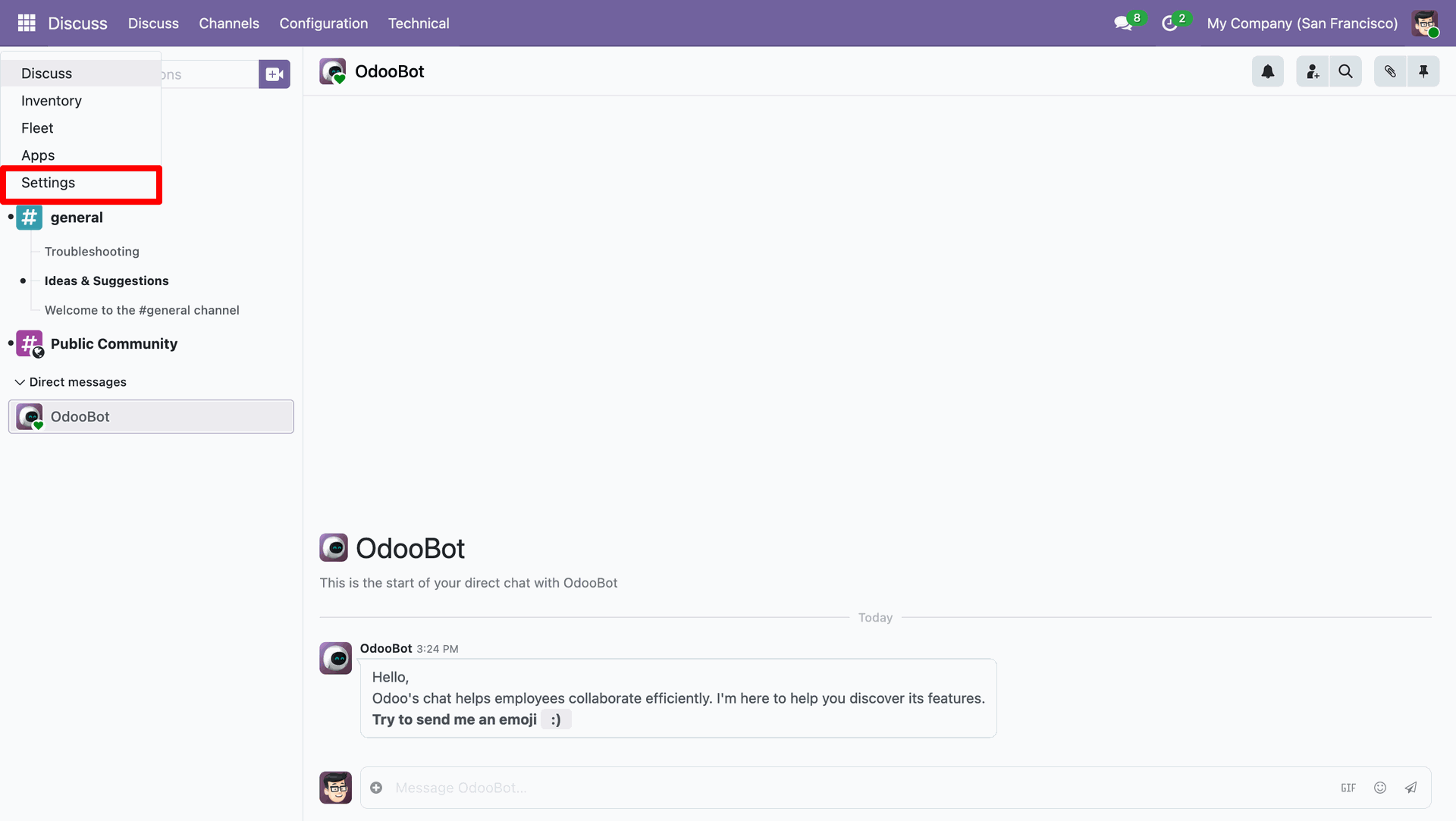
Click the Settings app icon from the Odoo main menu.
Click the Fleet menu tab in Odoo Settings to configure vehicle tracking settings.
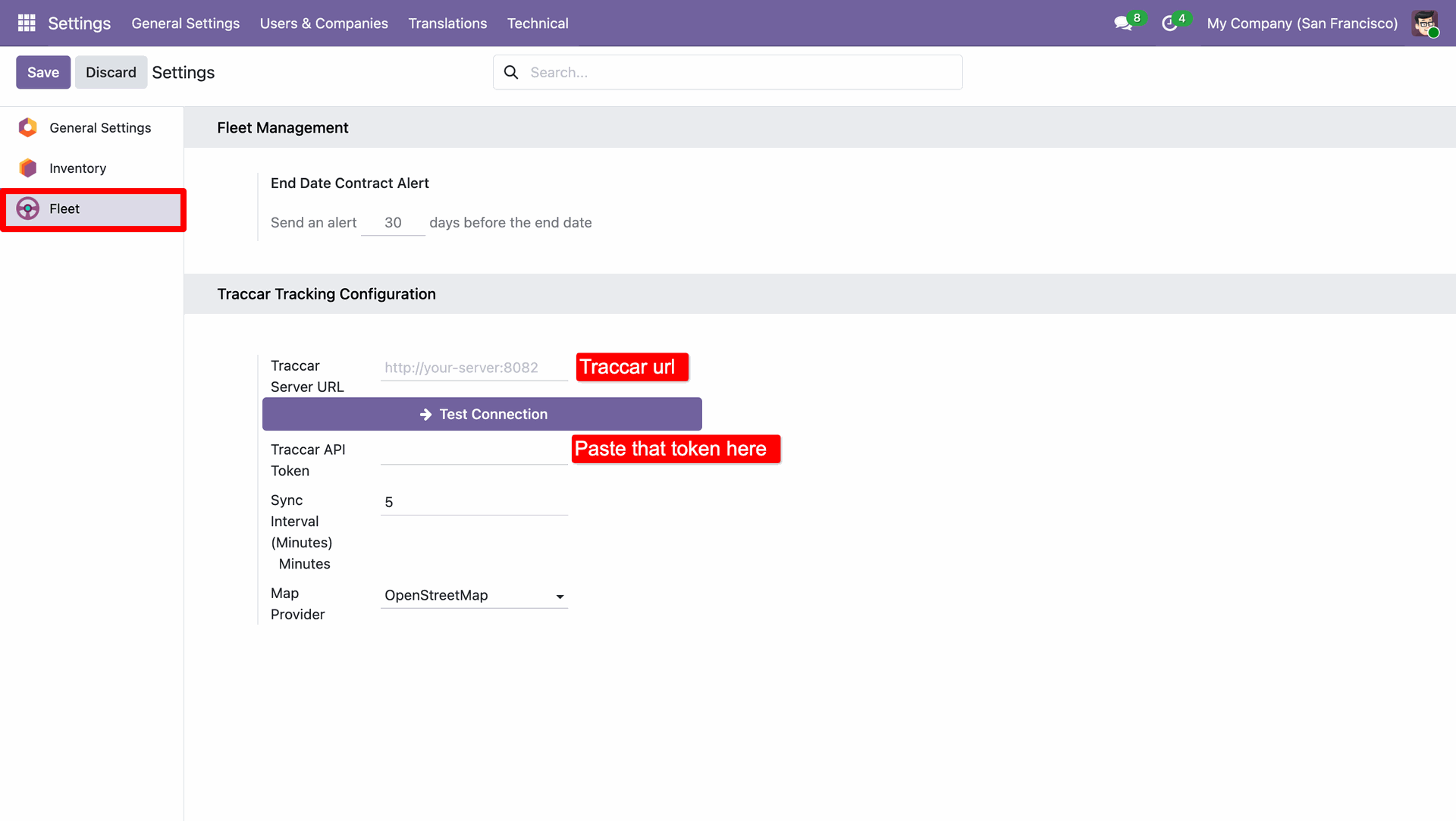
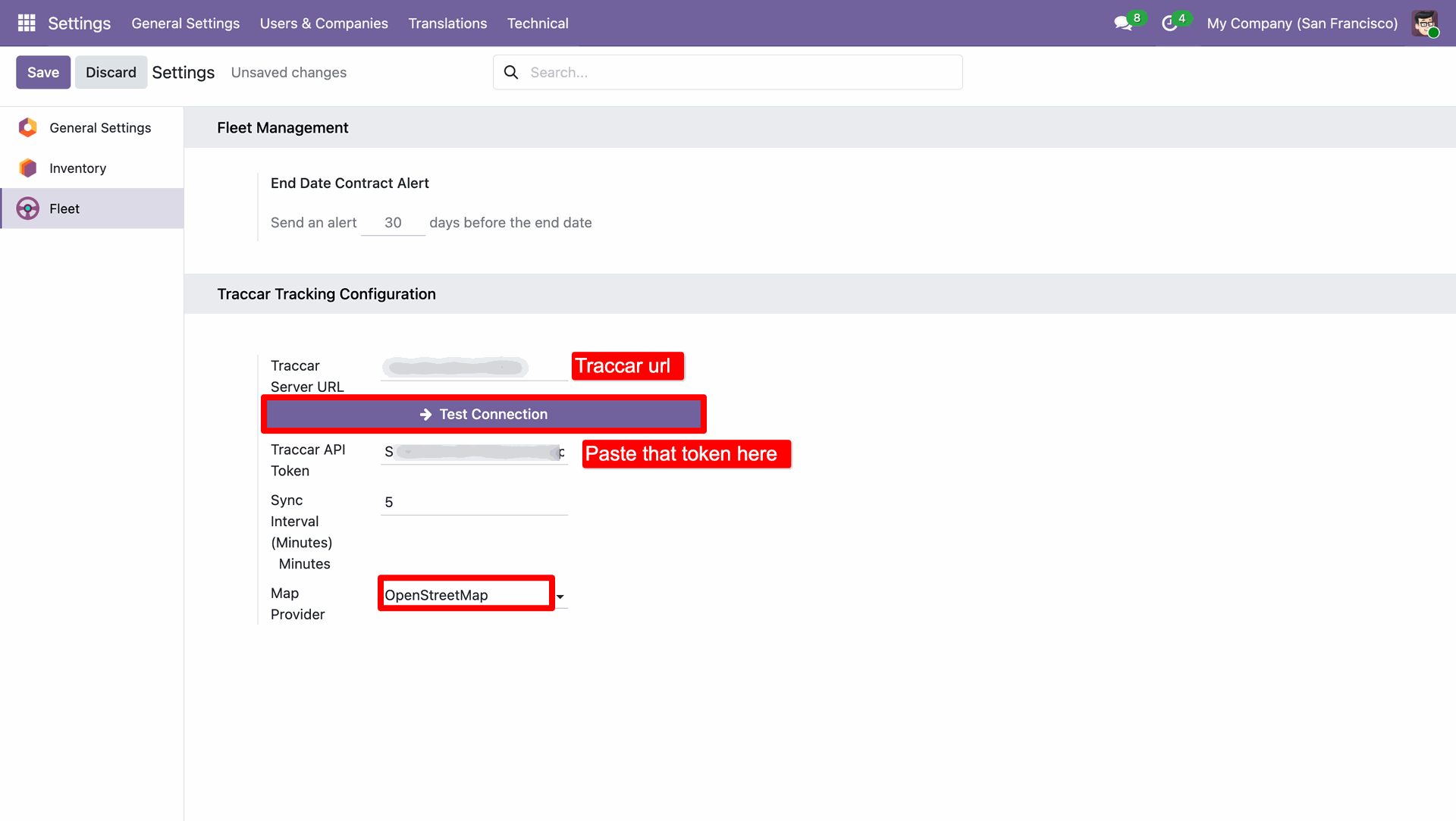
Click the Test Connection button after entering server details and API user token.
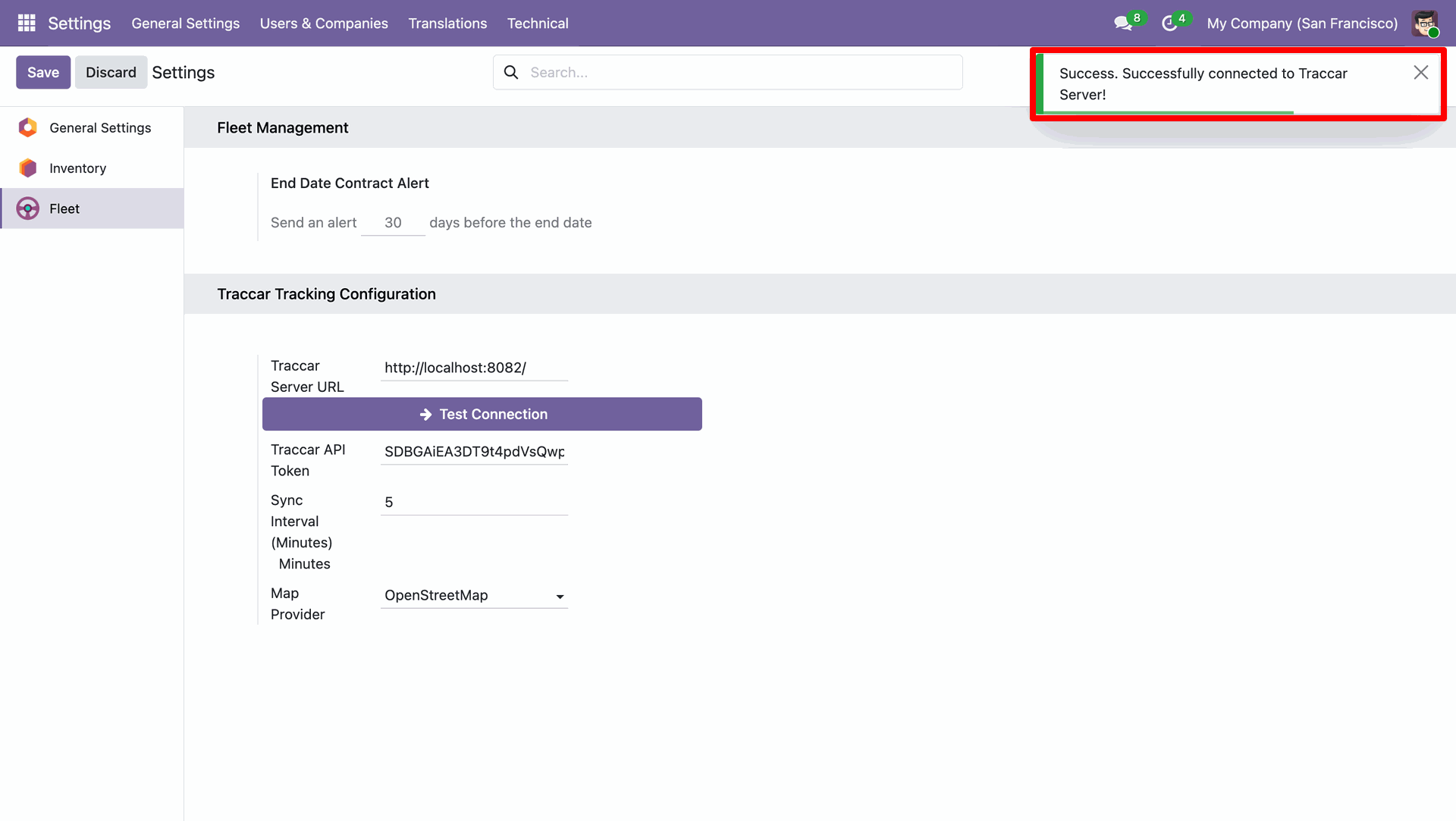
View the green toast notification confirming successful connection with the Traccar server.
Click the navigation menu to open APIs and Services in Google Cloud Console.
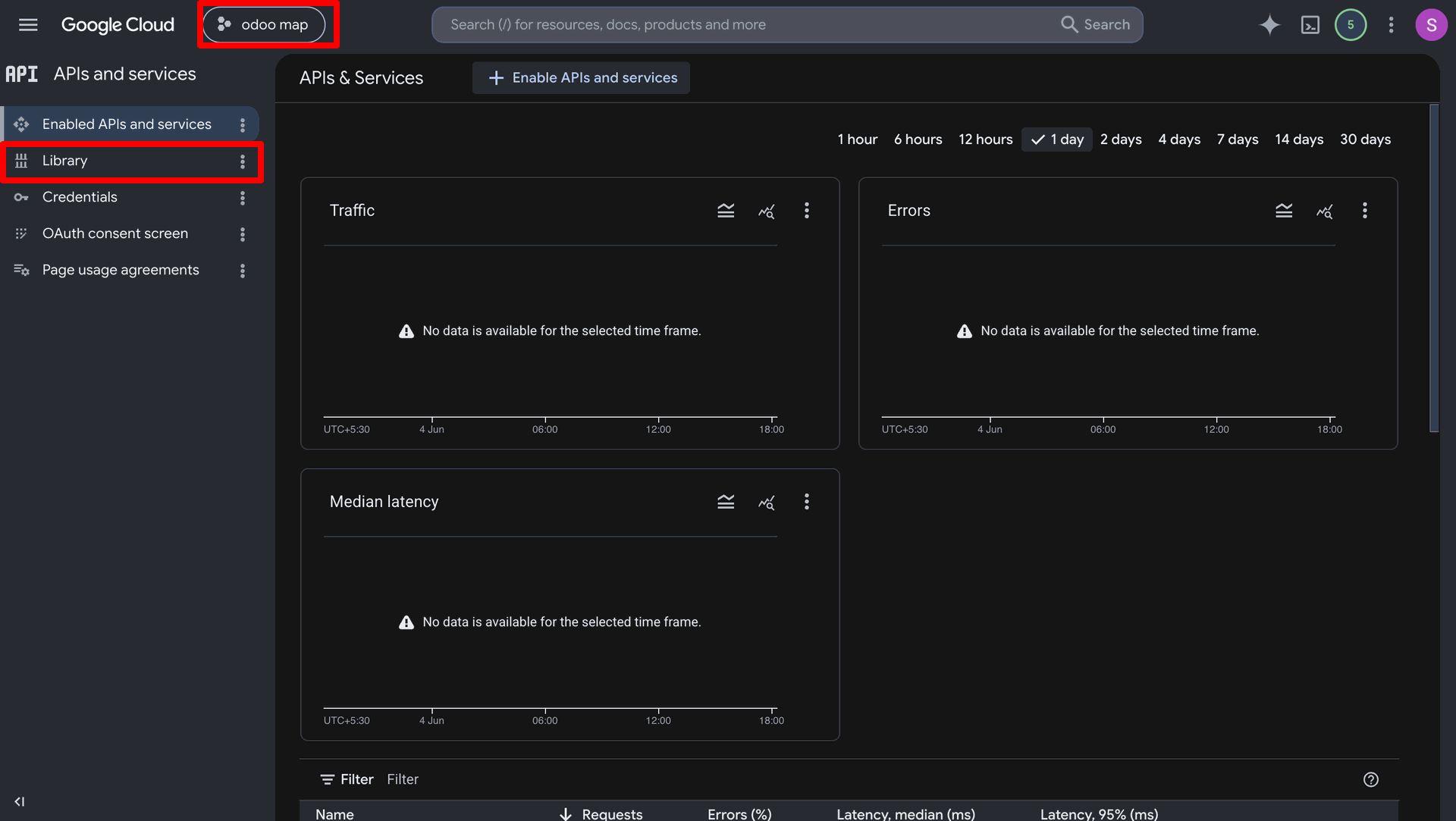
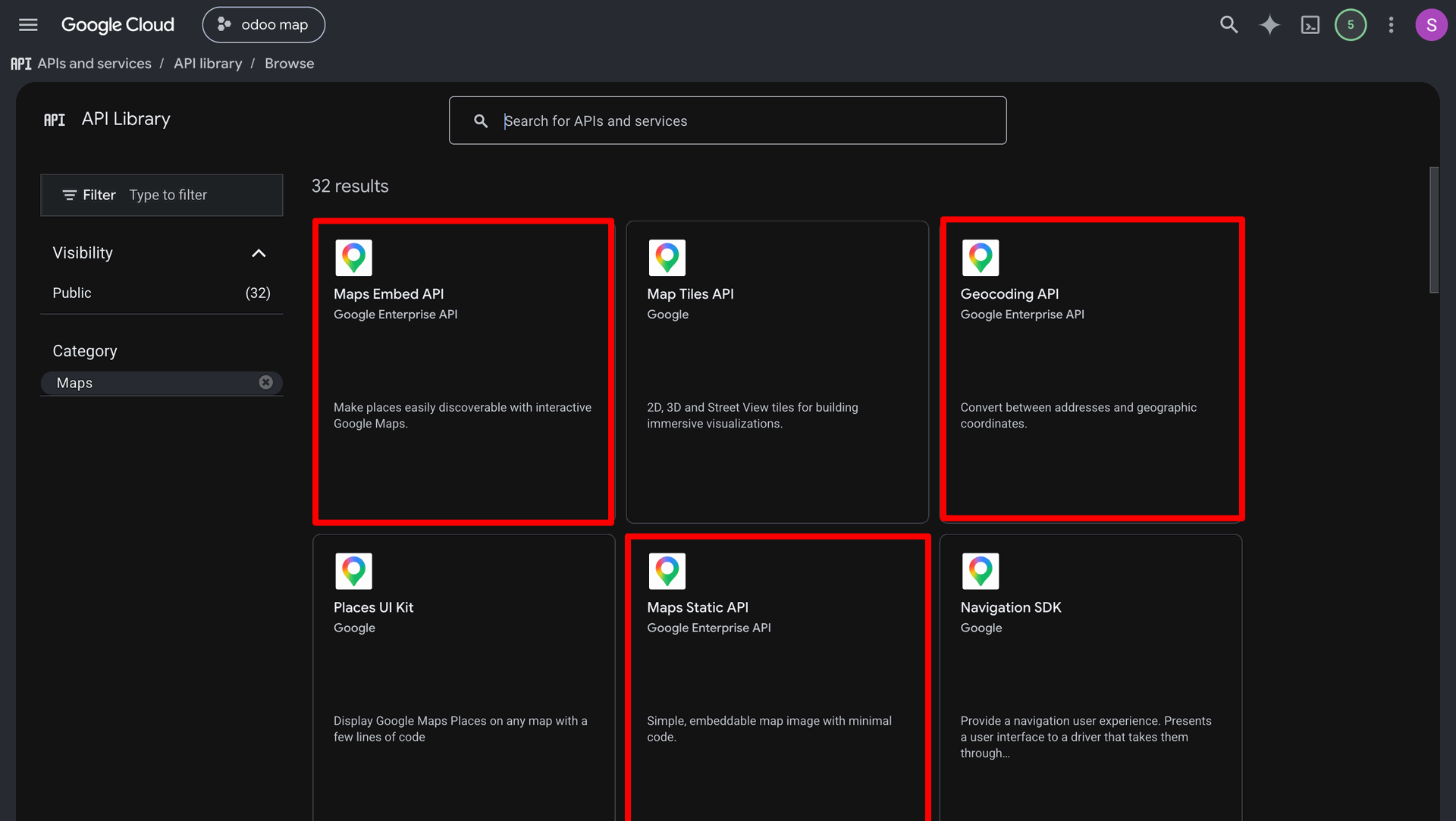
Select the Maps Embed, Geocoding, and Static Maps API cards in Google Library.
Click the Create Credentials button and choose API Key from dropdown menu.
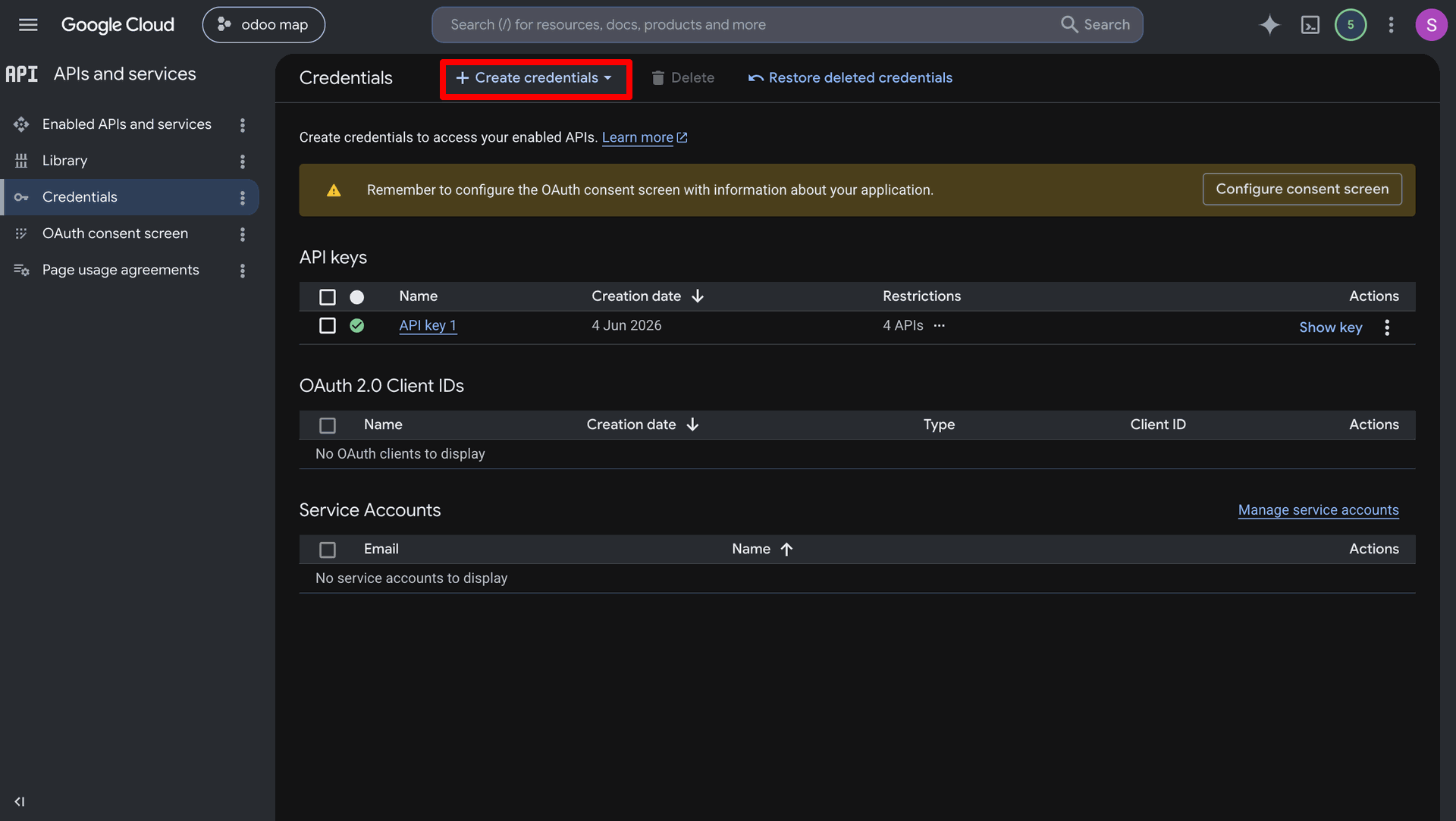
Click the Create button in the drawer panel to generate your API key.
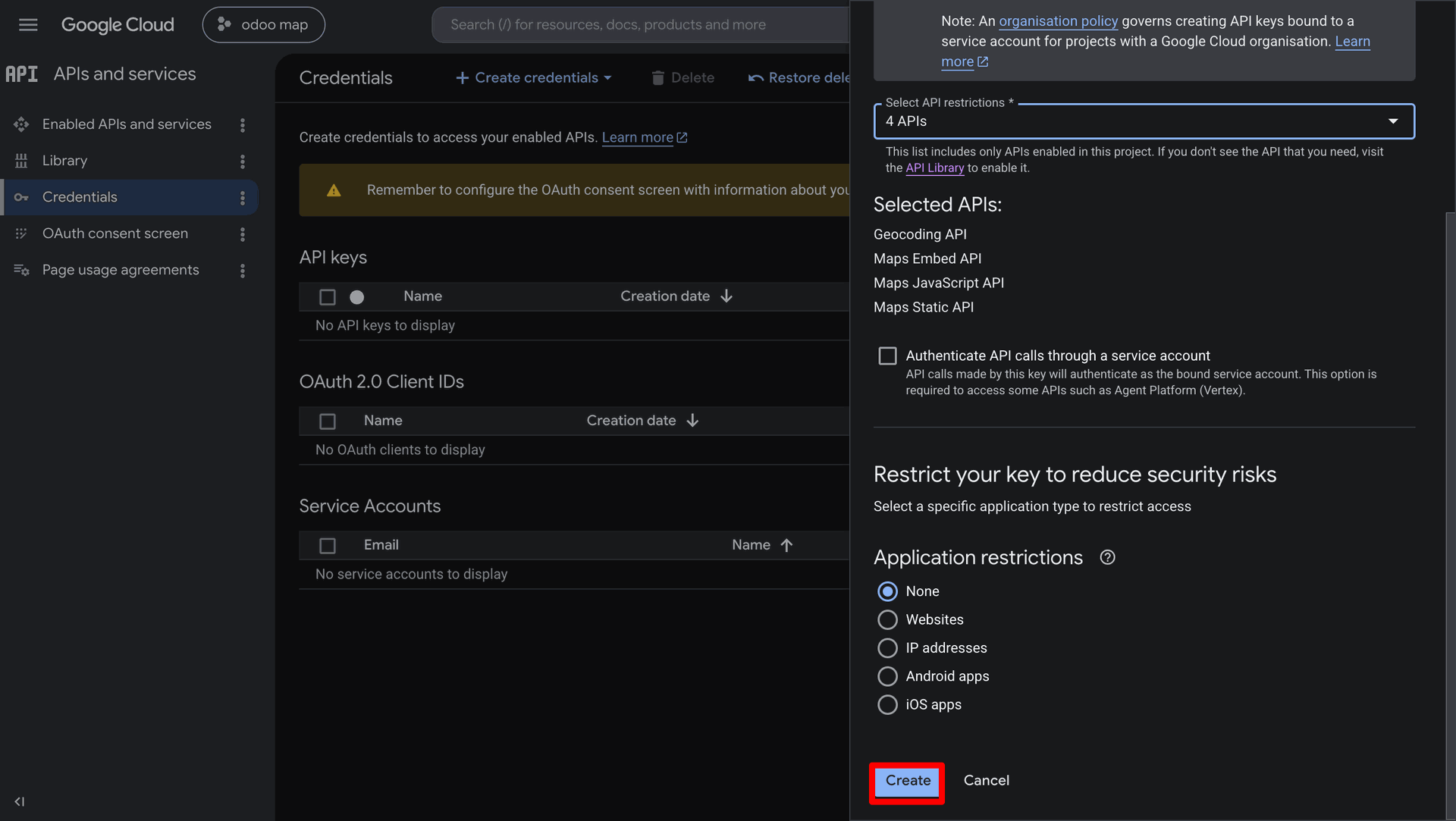
Copy the generated API key displayed inside the field on popup dialog.
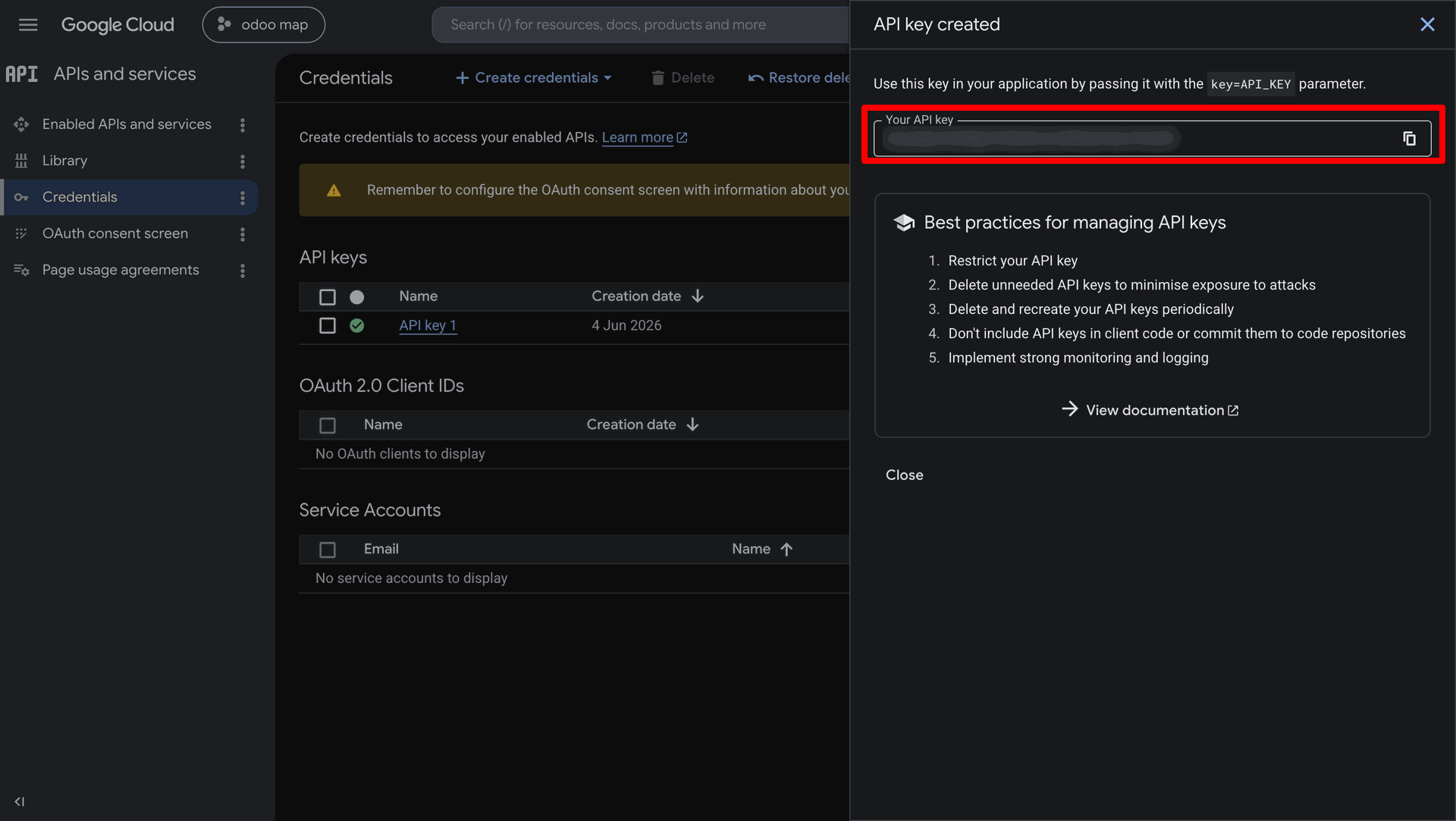
Workflow
Click the Fleet top menu or New button to manage vehicle records.
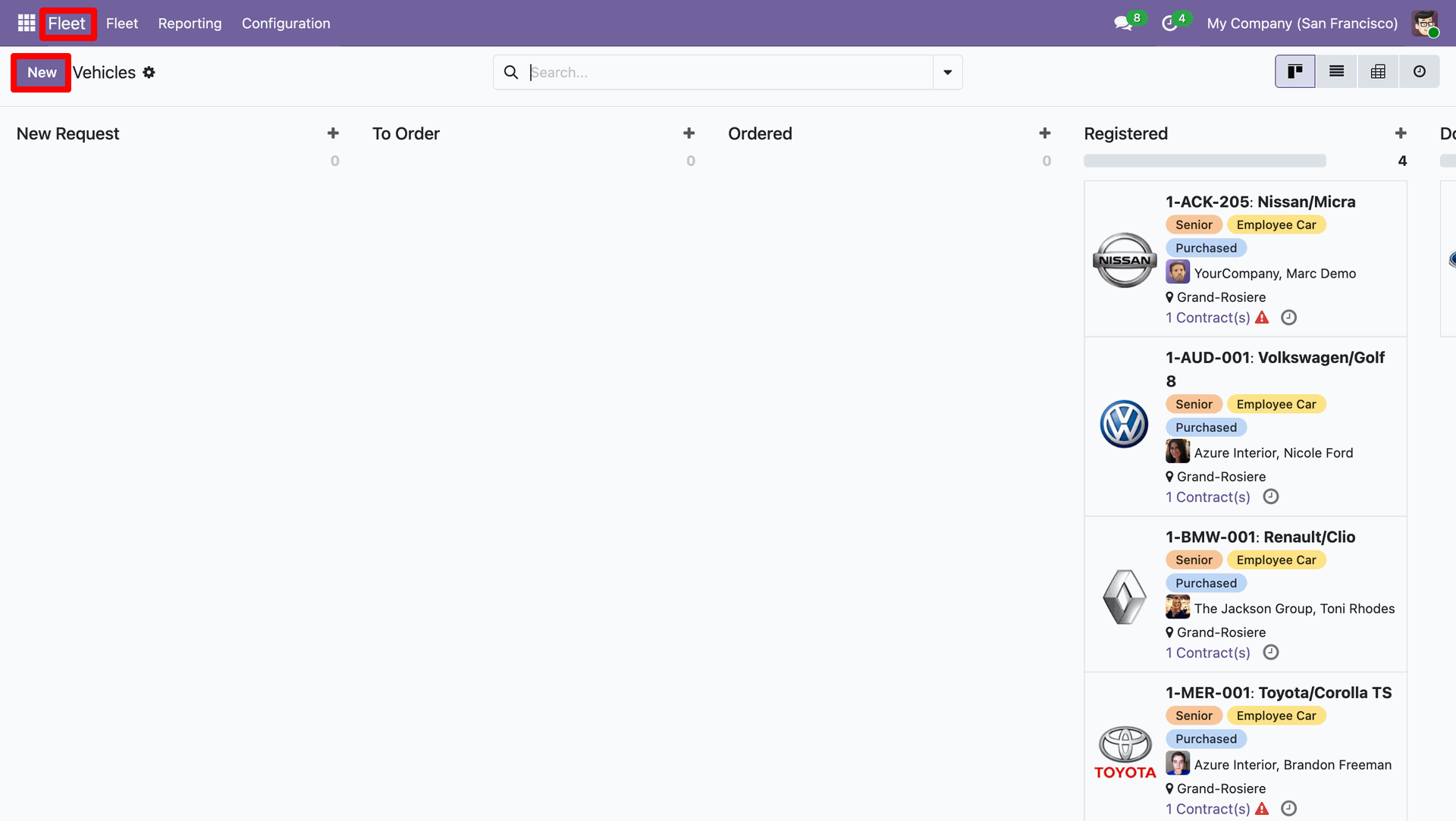
Open a vehicle form and click the Traccar Tracking tab to continue.
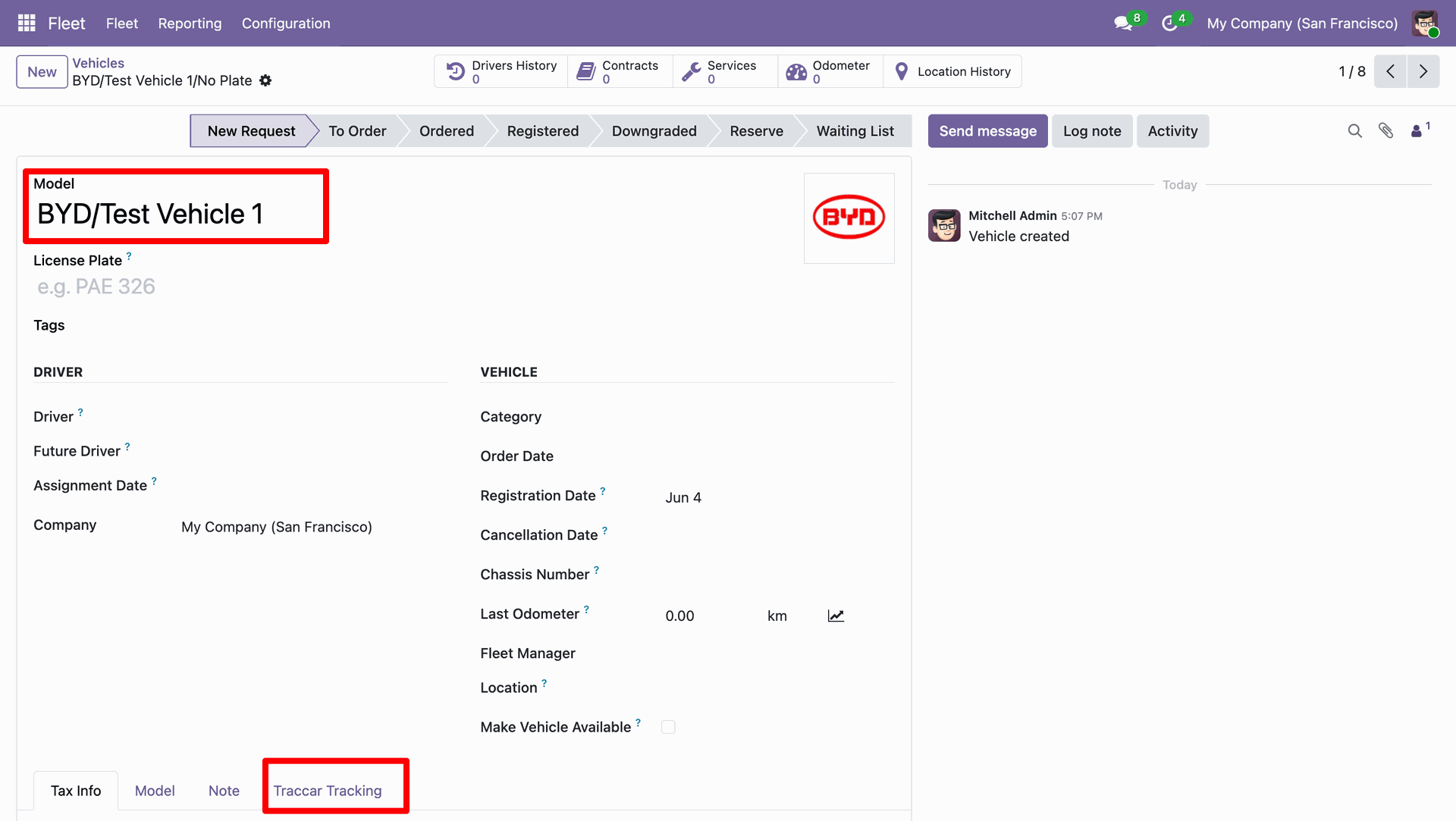
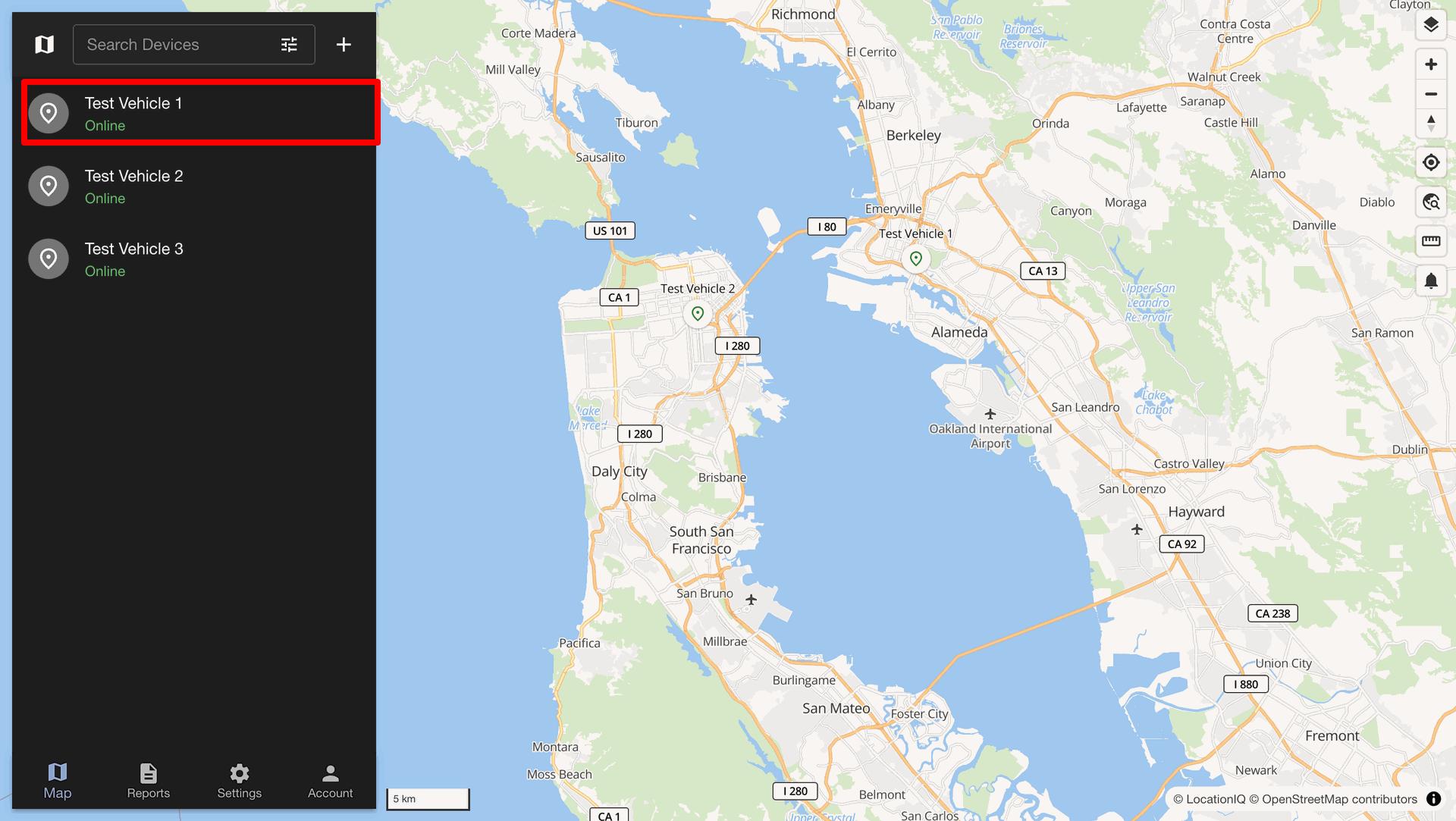
Select the vehicle entry in the Traccar devices panel on left side.
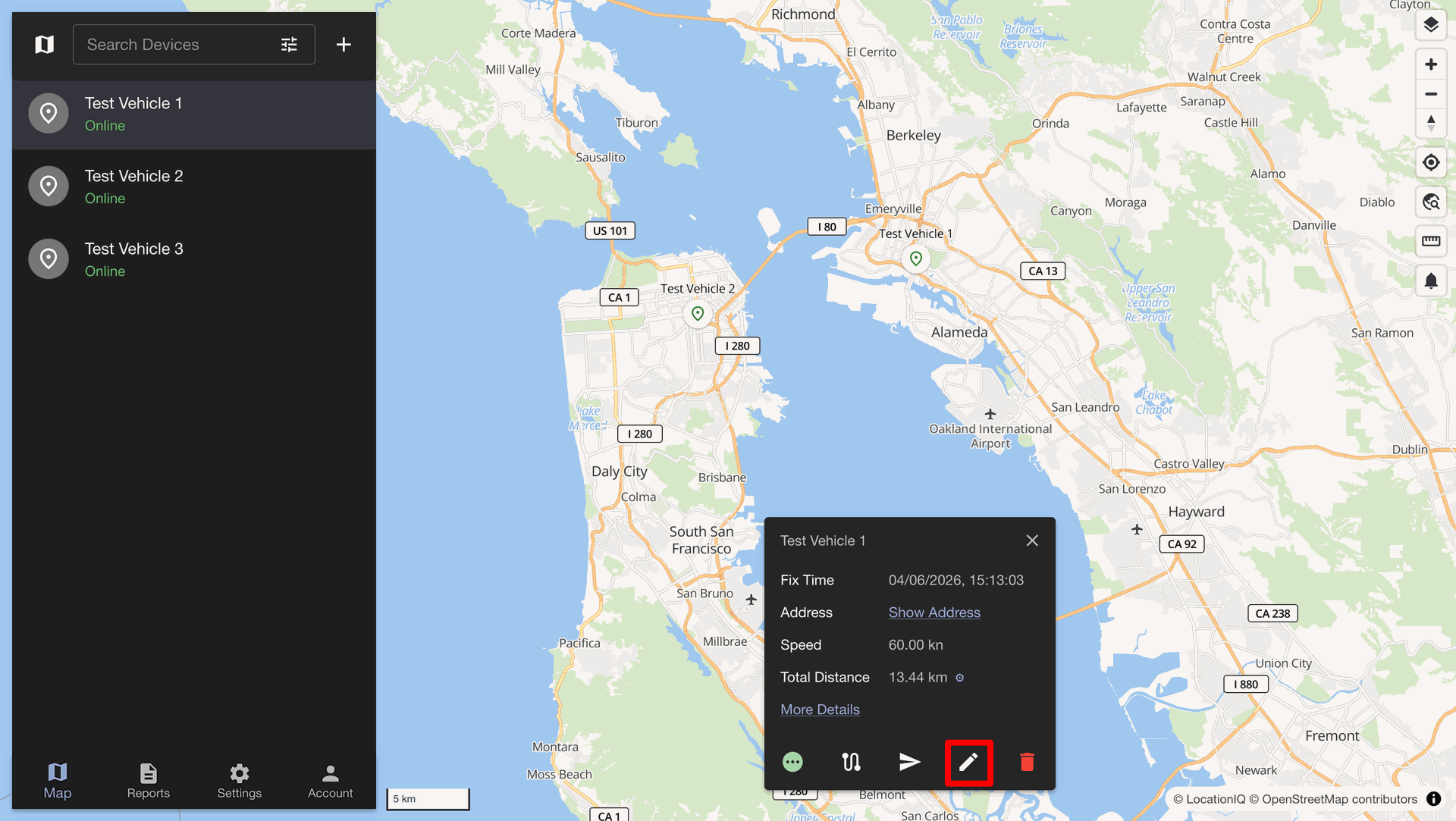
Click the pencil edit icon in the vehicle detail popup dialog card.
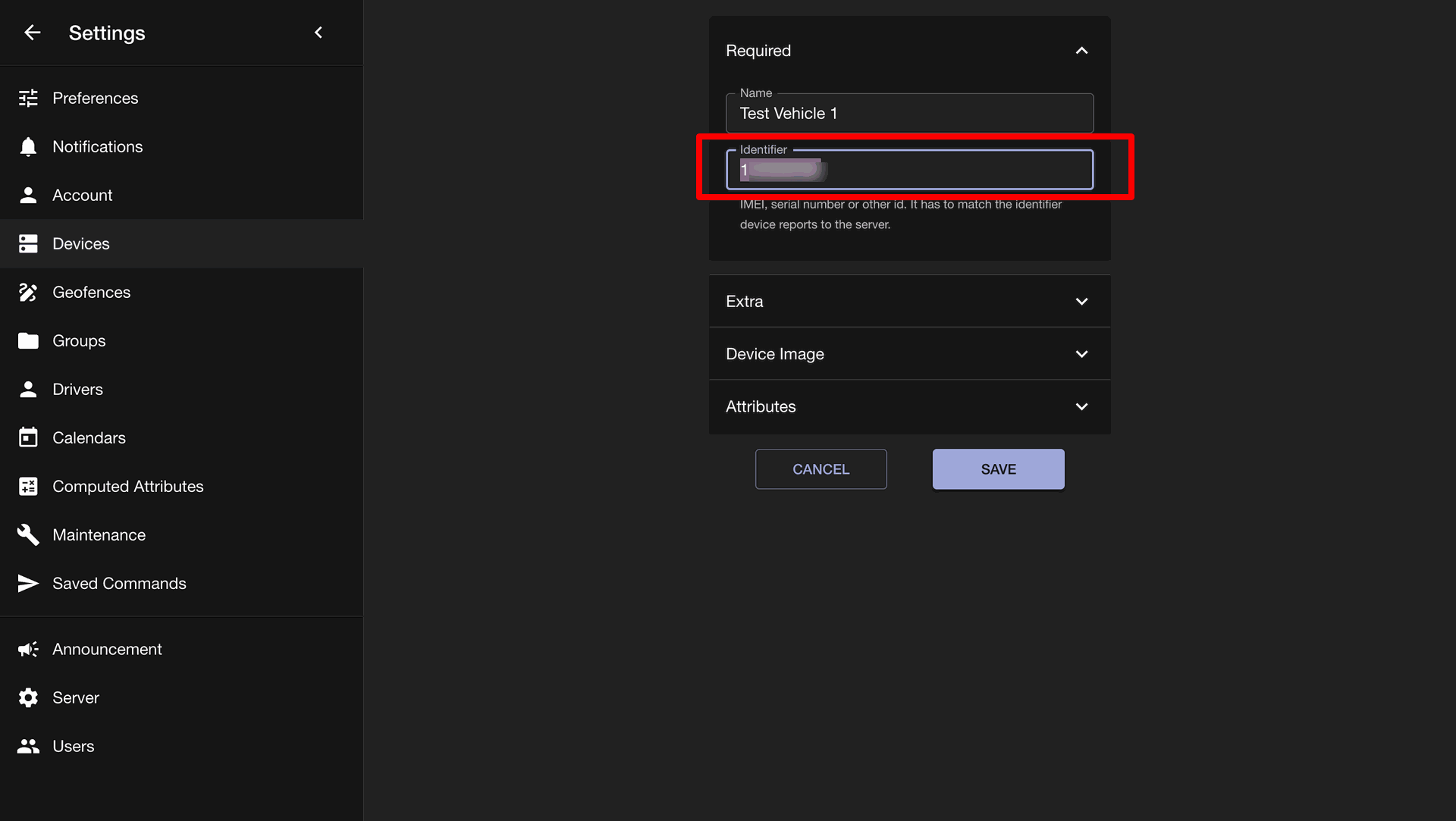
View the unique device code inside the Identifier field in Traccar popup.
Enter the matching Traccar device code into the Device Identifier input field.
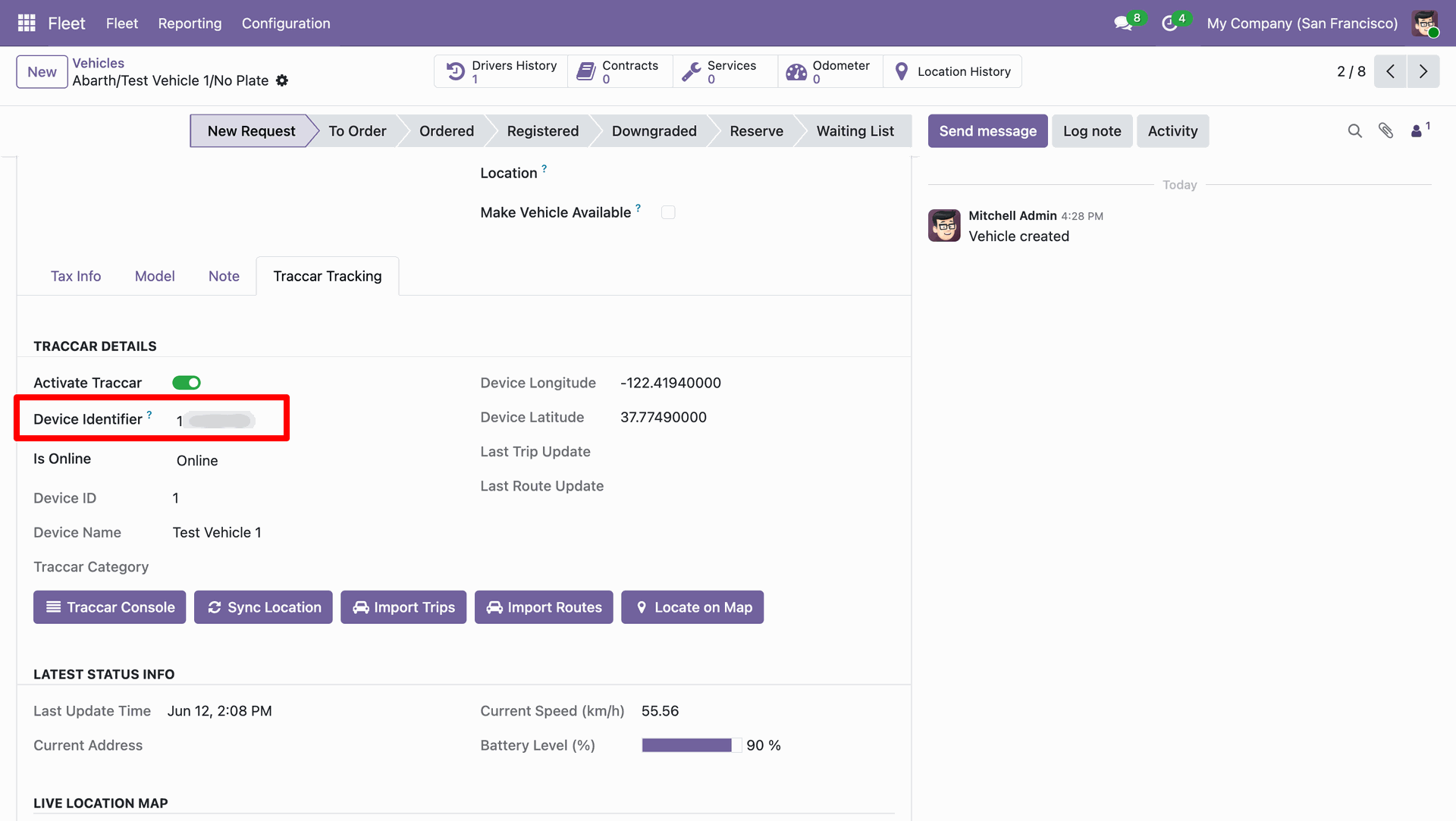
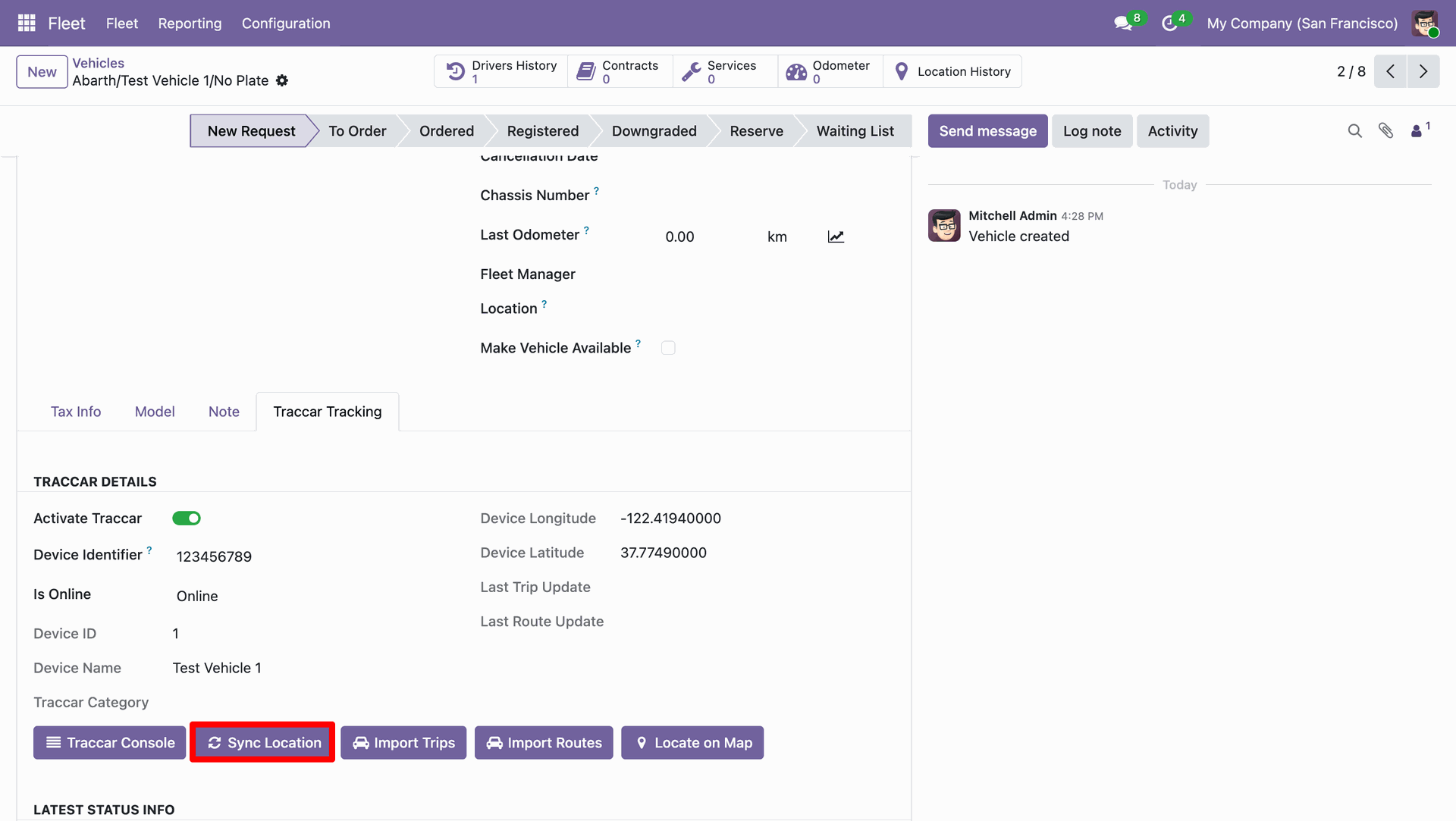
Click the Sync Location button on vehicle form to refresh telemetry data.
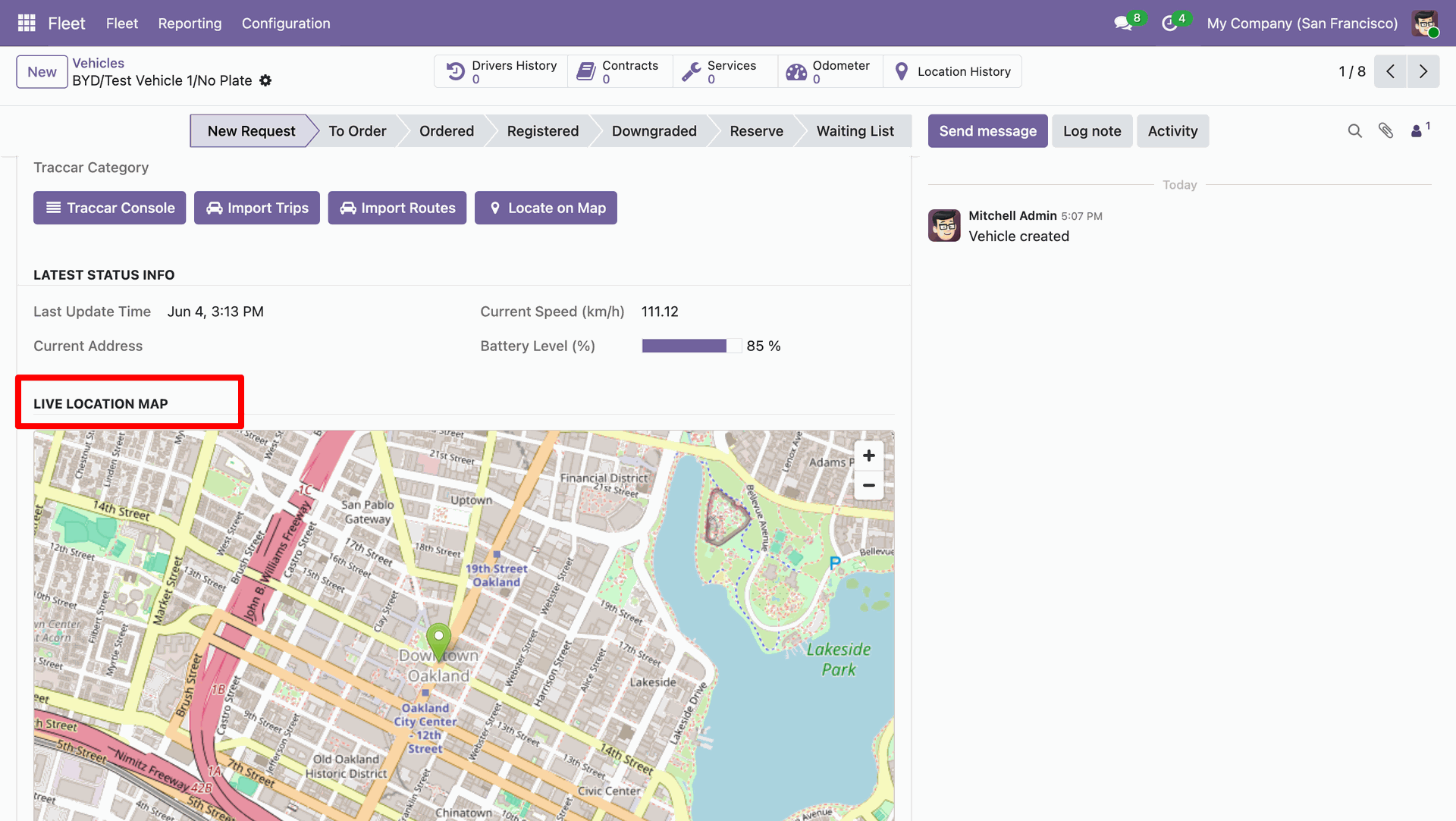
View real time vehicle telemetry and map marker under section header.
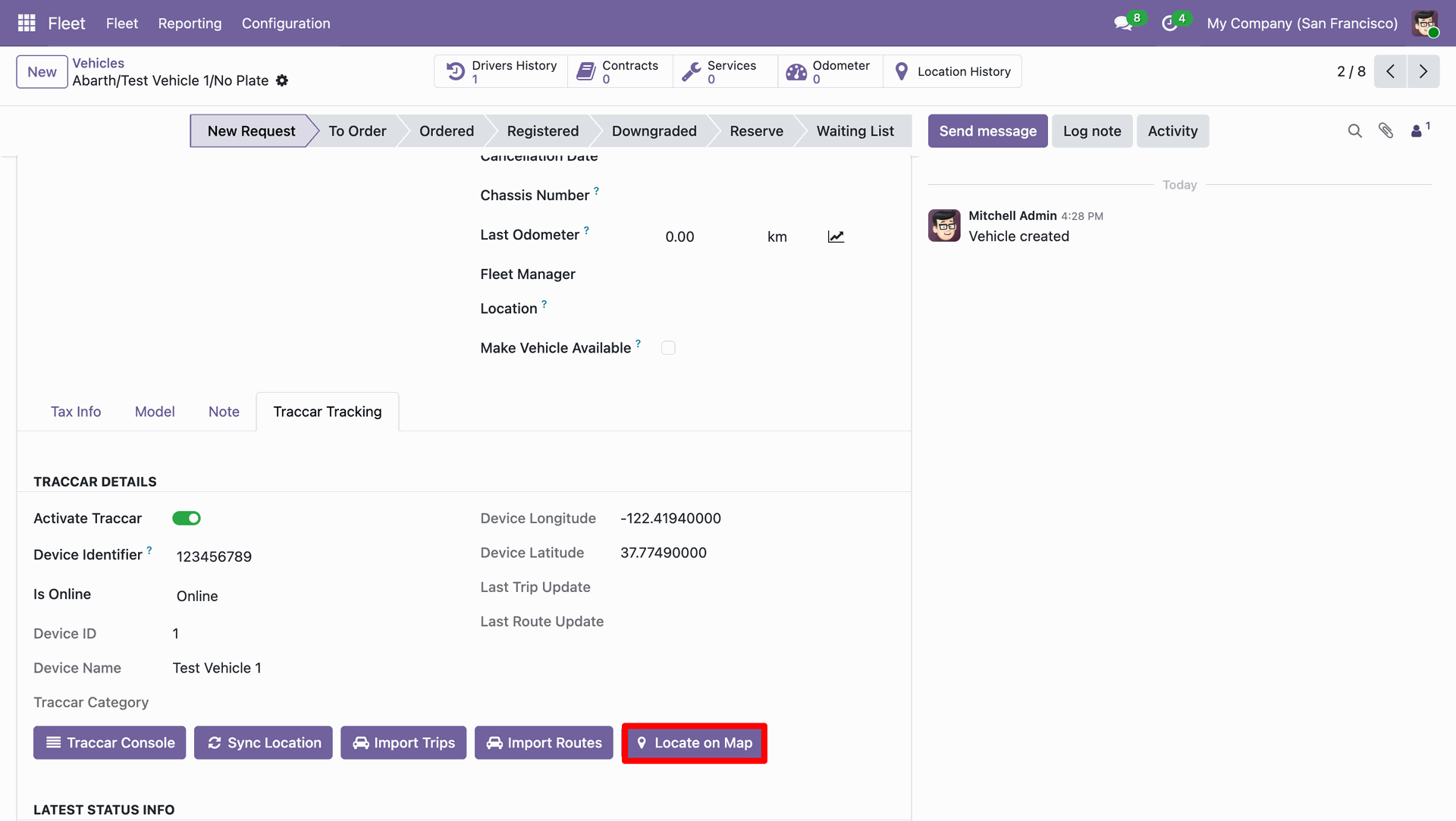
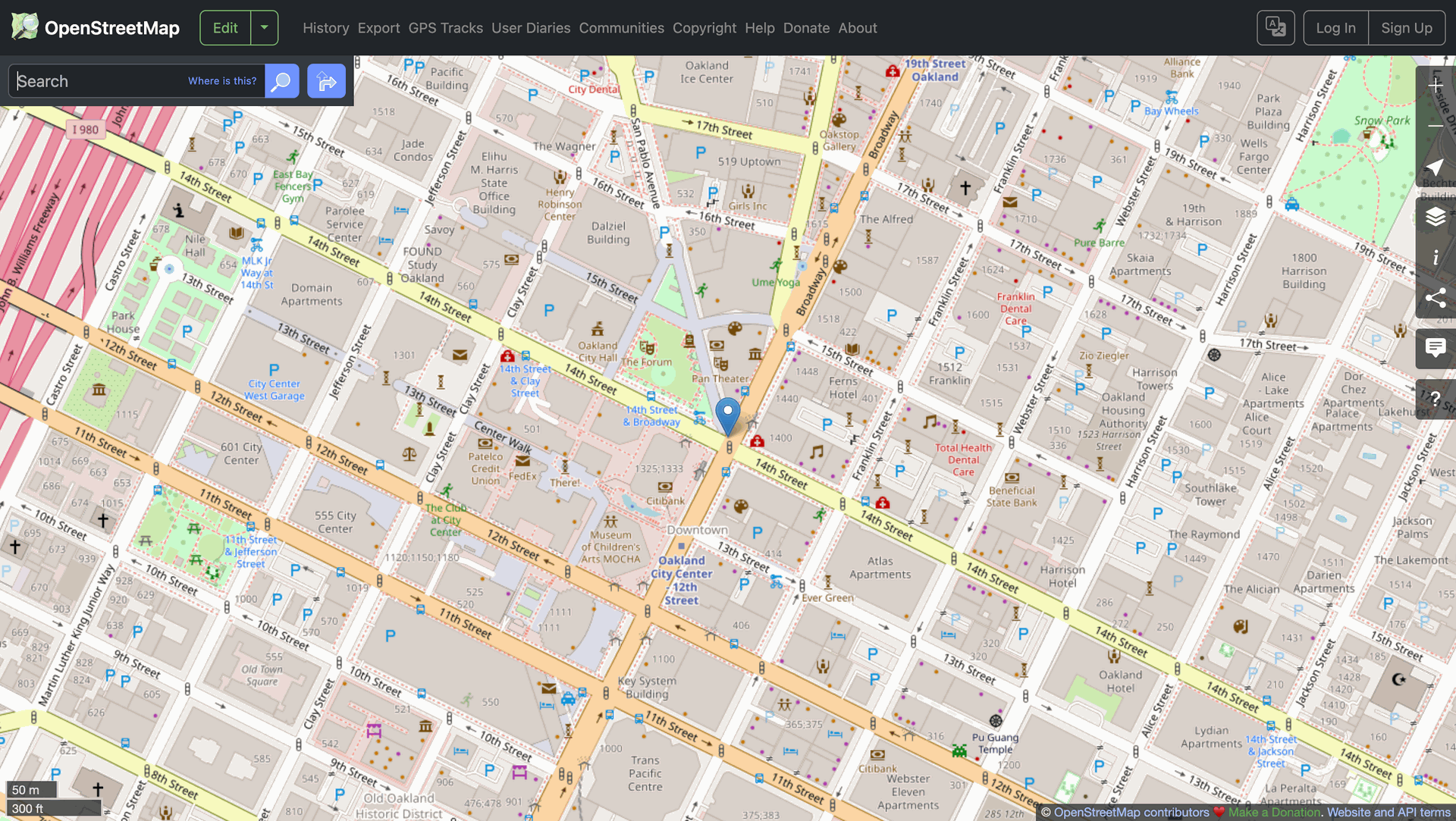
Click the Locate on Map button to view vehicle position on map.
View vehicle location marker pin on interactive full screen OpenStreetMap browser window page.
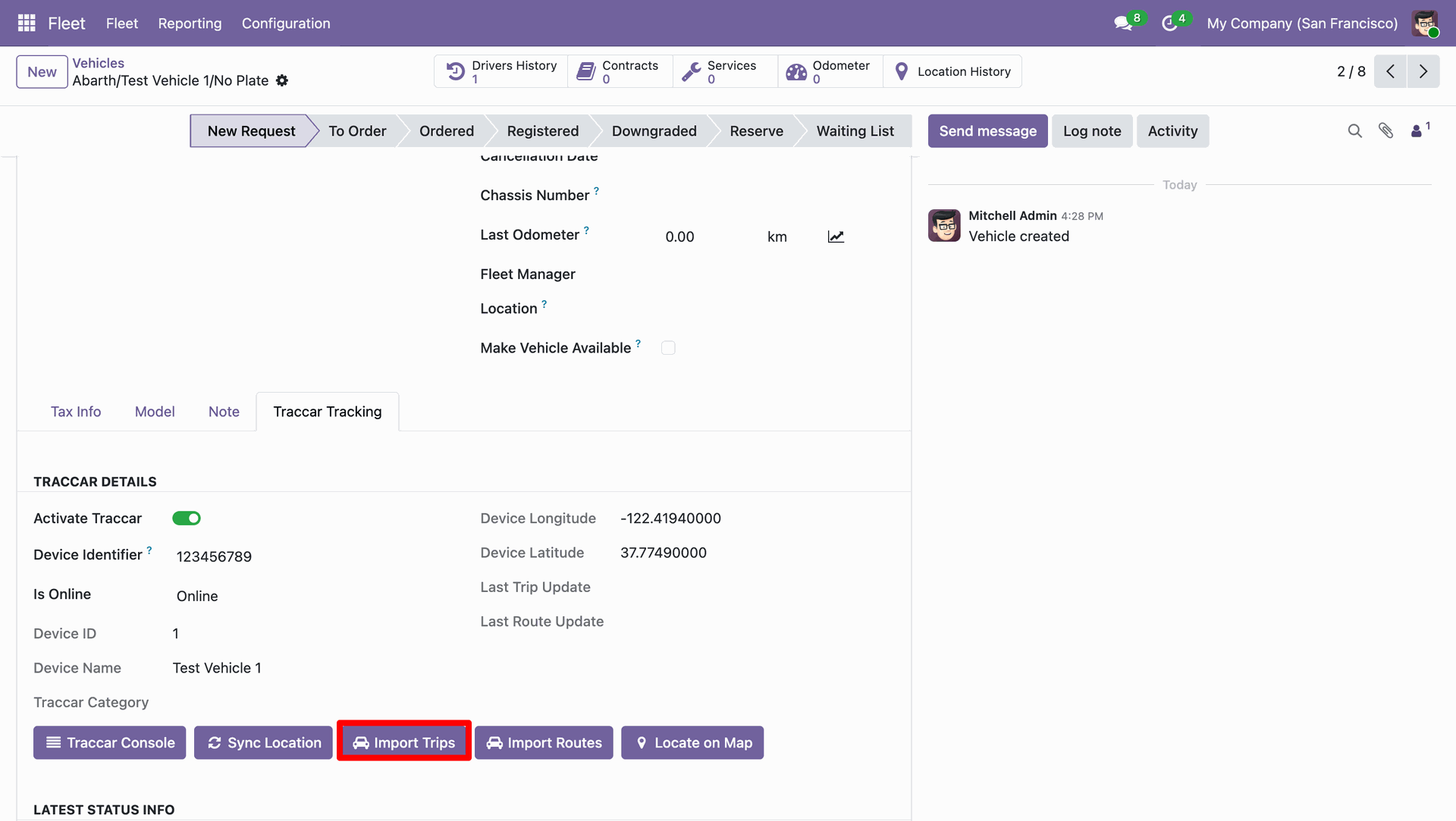
Workflow
Click the Import Trips button on vehicle form to initiate trip fetch.
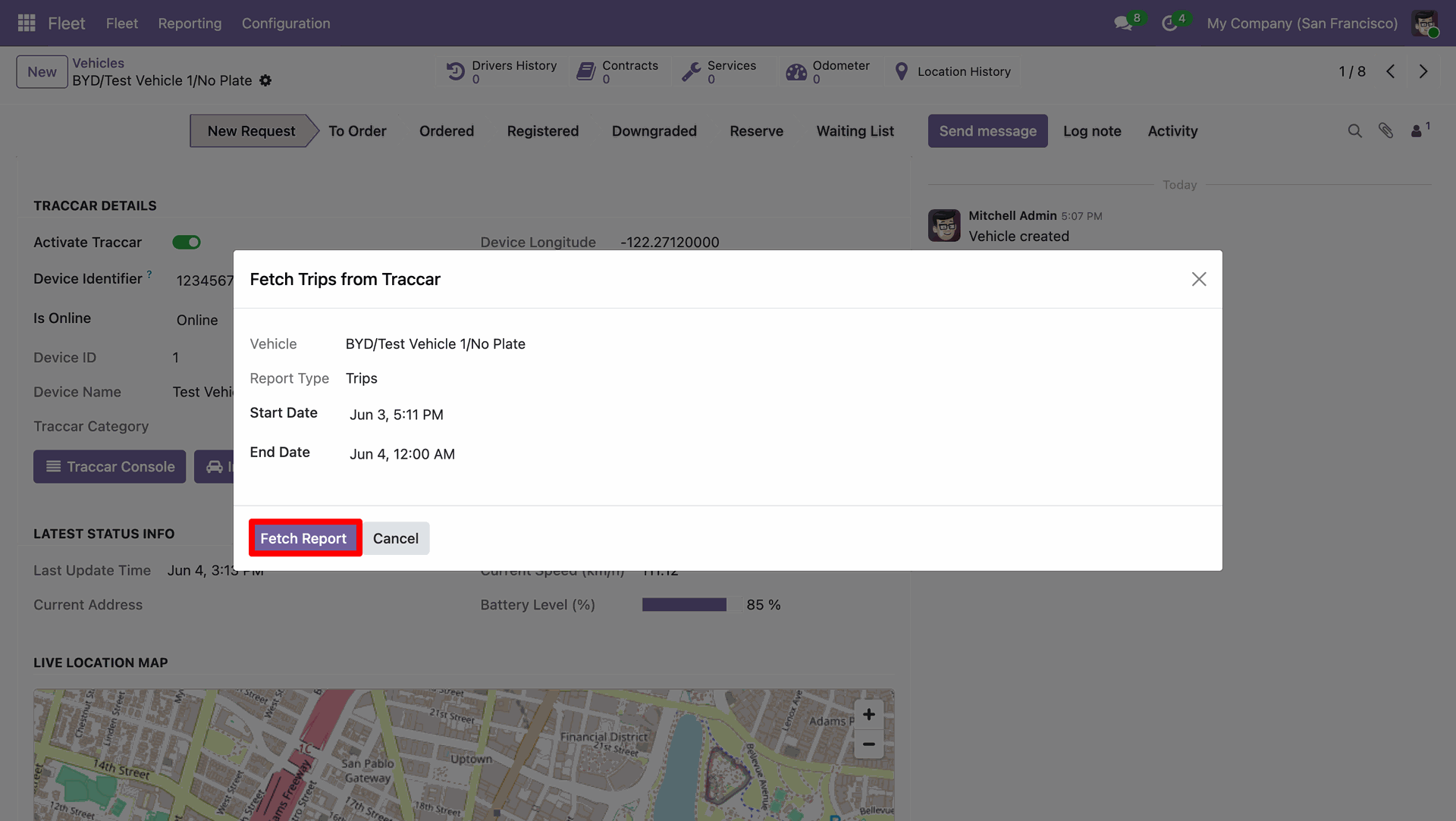
Select date range and click the Fetch Report button in wizard popup.
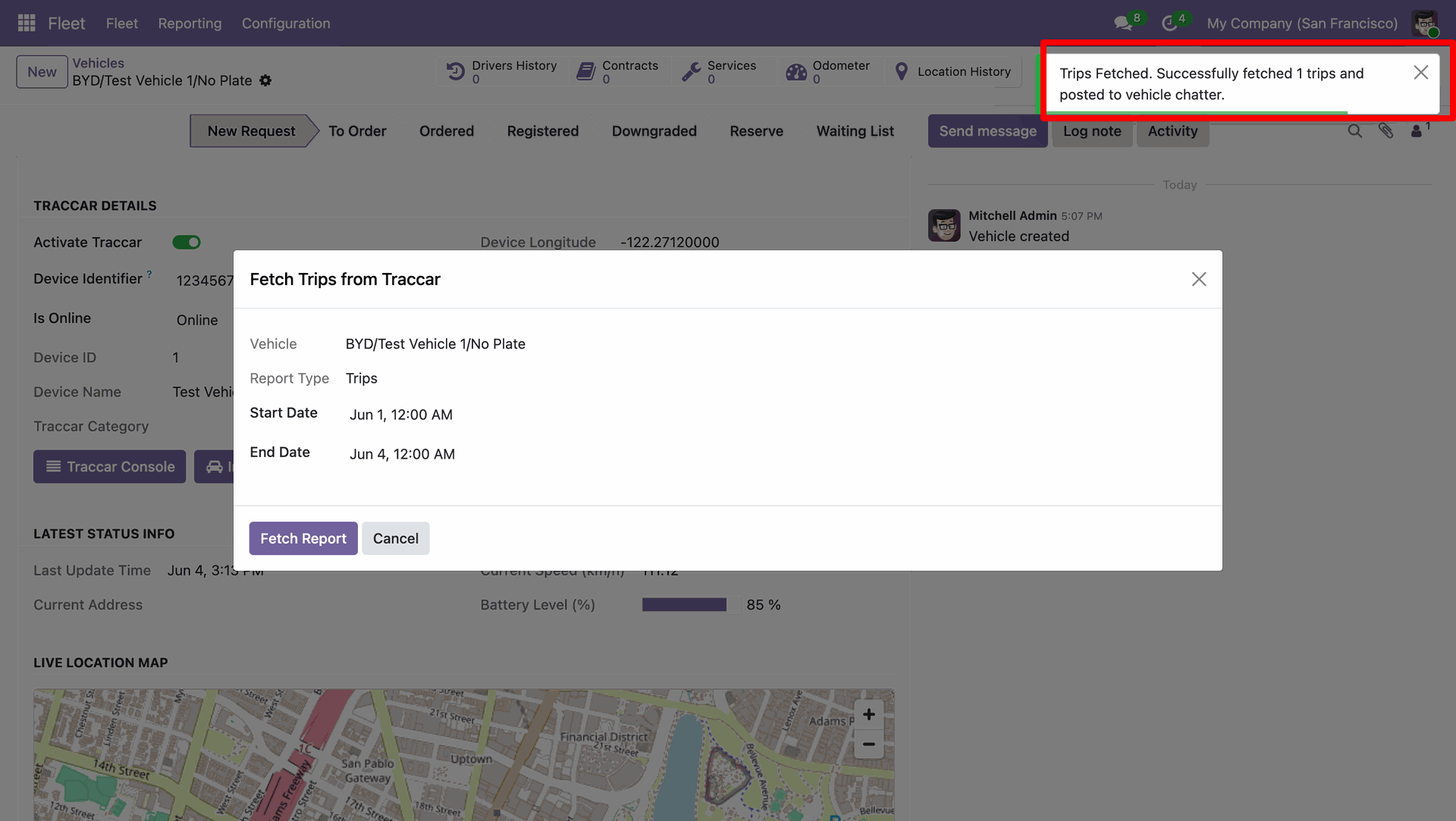
View the green toast notification confirming trip history logs were successfully fetched.
Review imported trip summary details posted inside the vehicle chatter log section.
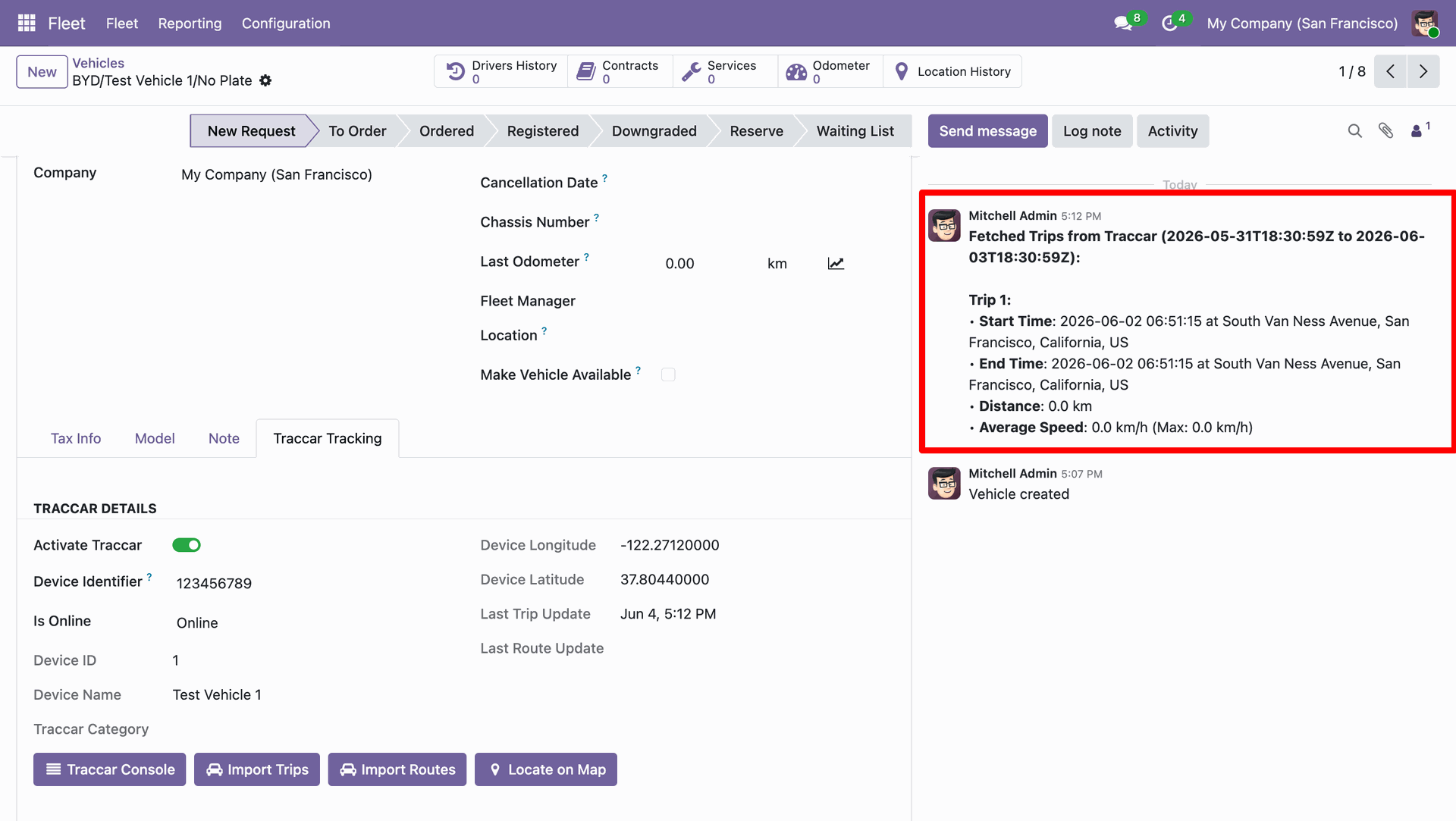
Workflow
Click the Import Routes button on vehicle form to open fetch wizard.
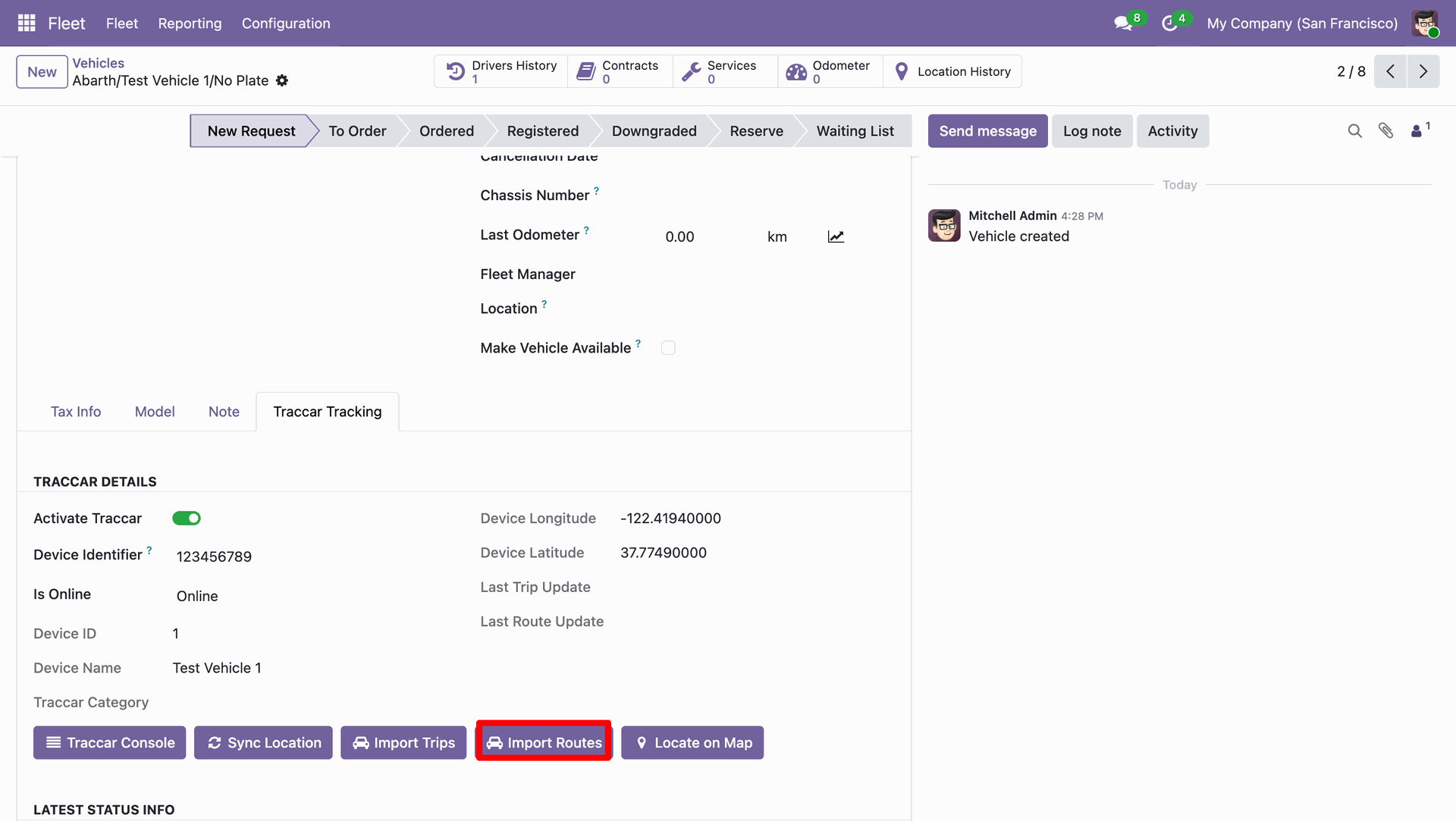
Choose date parameters and click the Fetch Report button inside popup wizard.
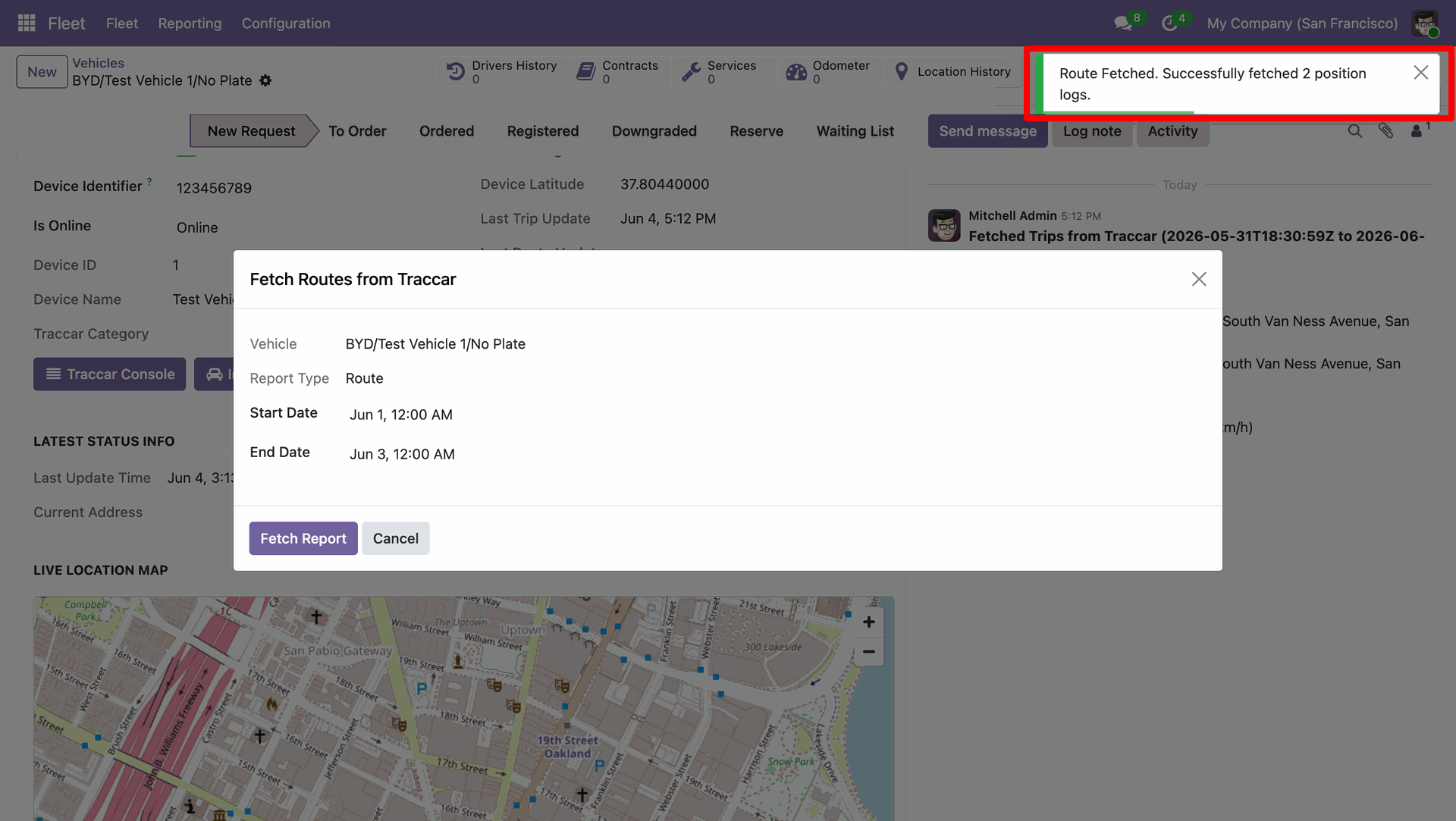
View the green toast message confirming vehicle route logs were fetched successfully.
Click the Route Details menu option under Fleet top navbar dropdown menu.
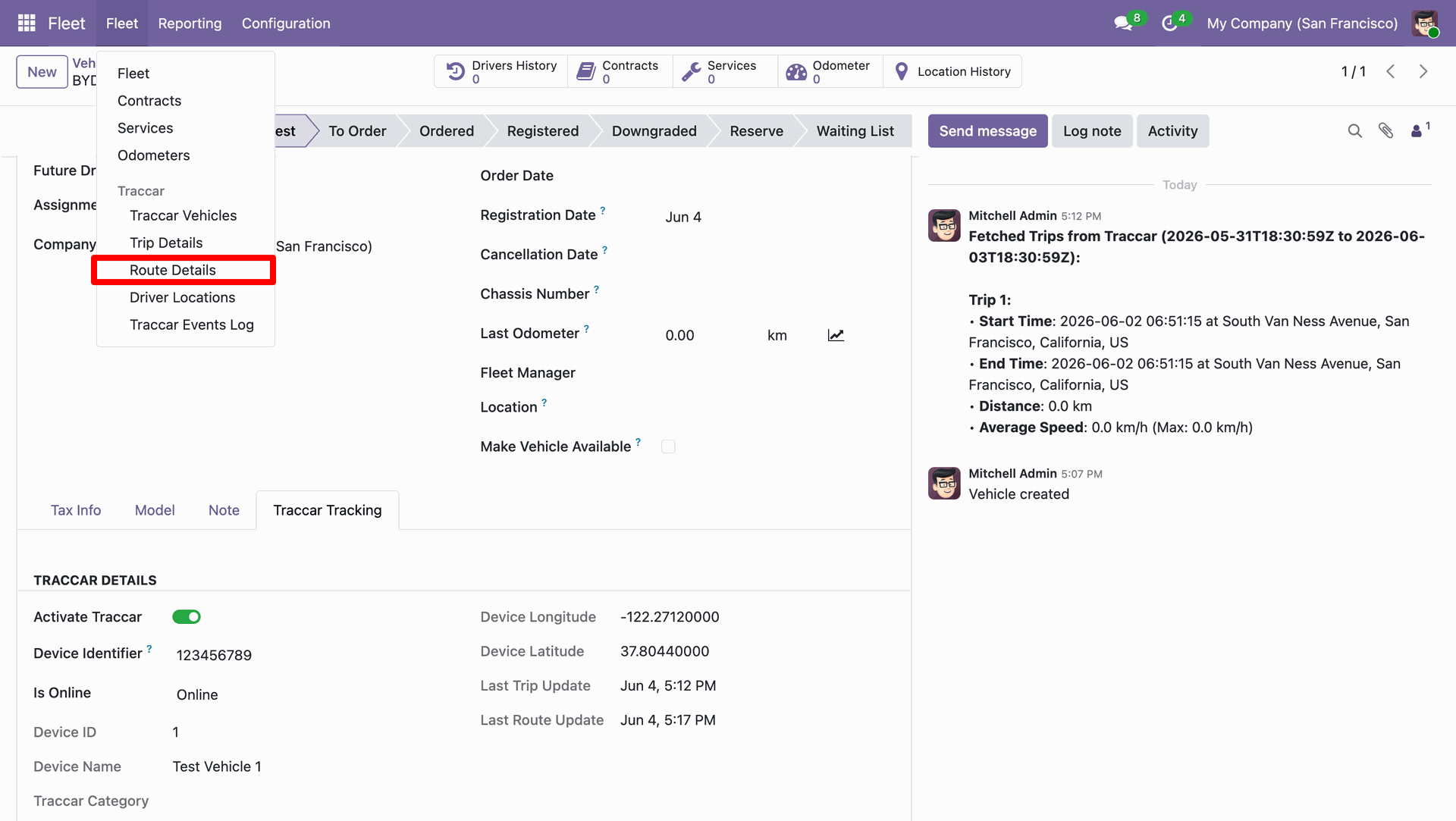
Workflow
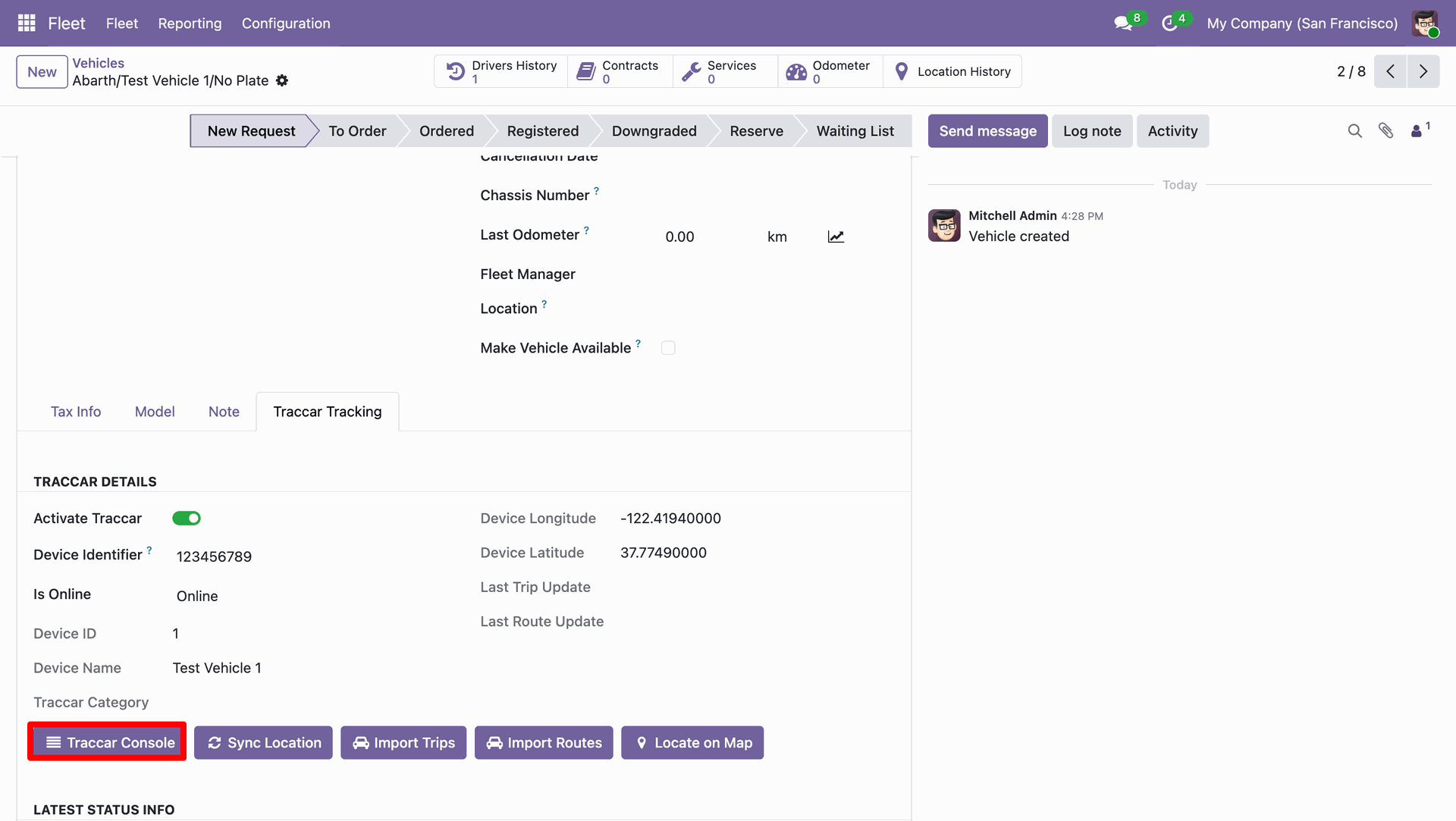
Click the Traccar Console button on vehicle form to access web dashboard.
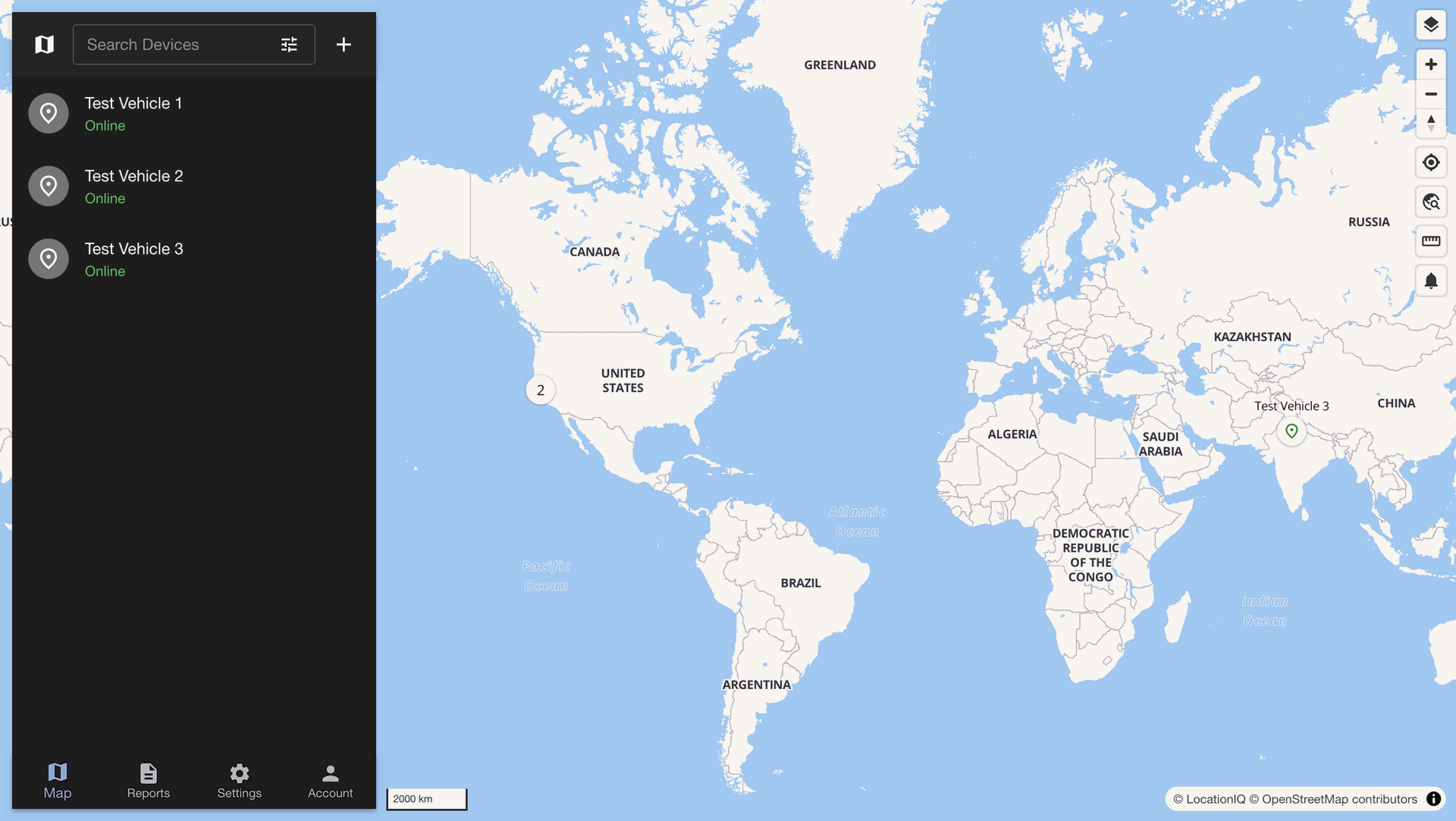
Monitor active vehicles and live positions on the interactive Traccar web console dashboard.
Workflow
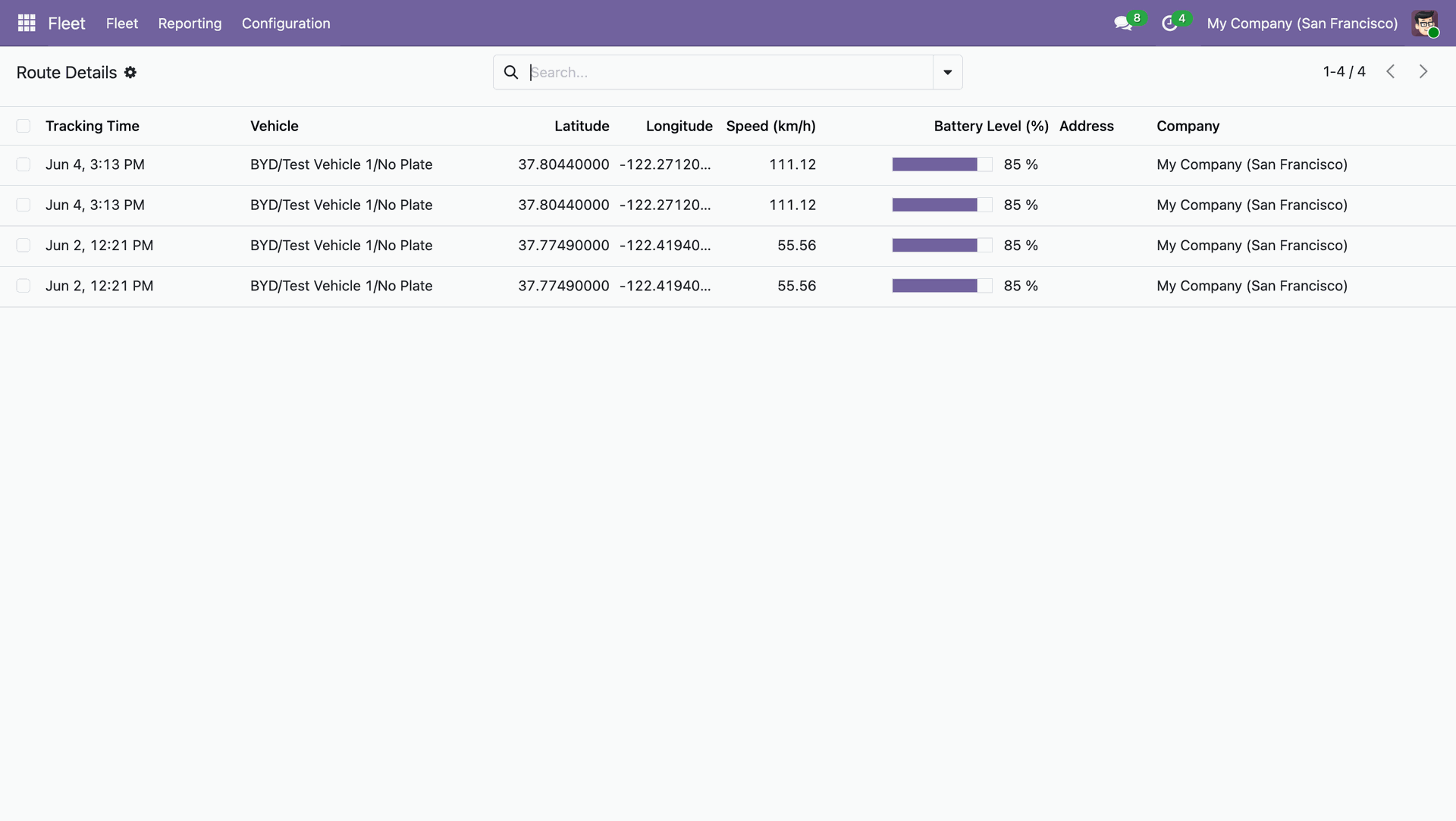
Access the Traccar sub menu items under the Fleet main navbar menu.
View comprehensive route history records list containing speed, battery level, and tracking time.
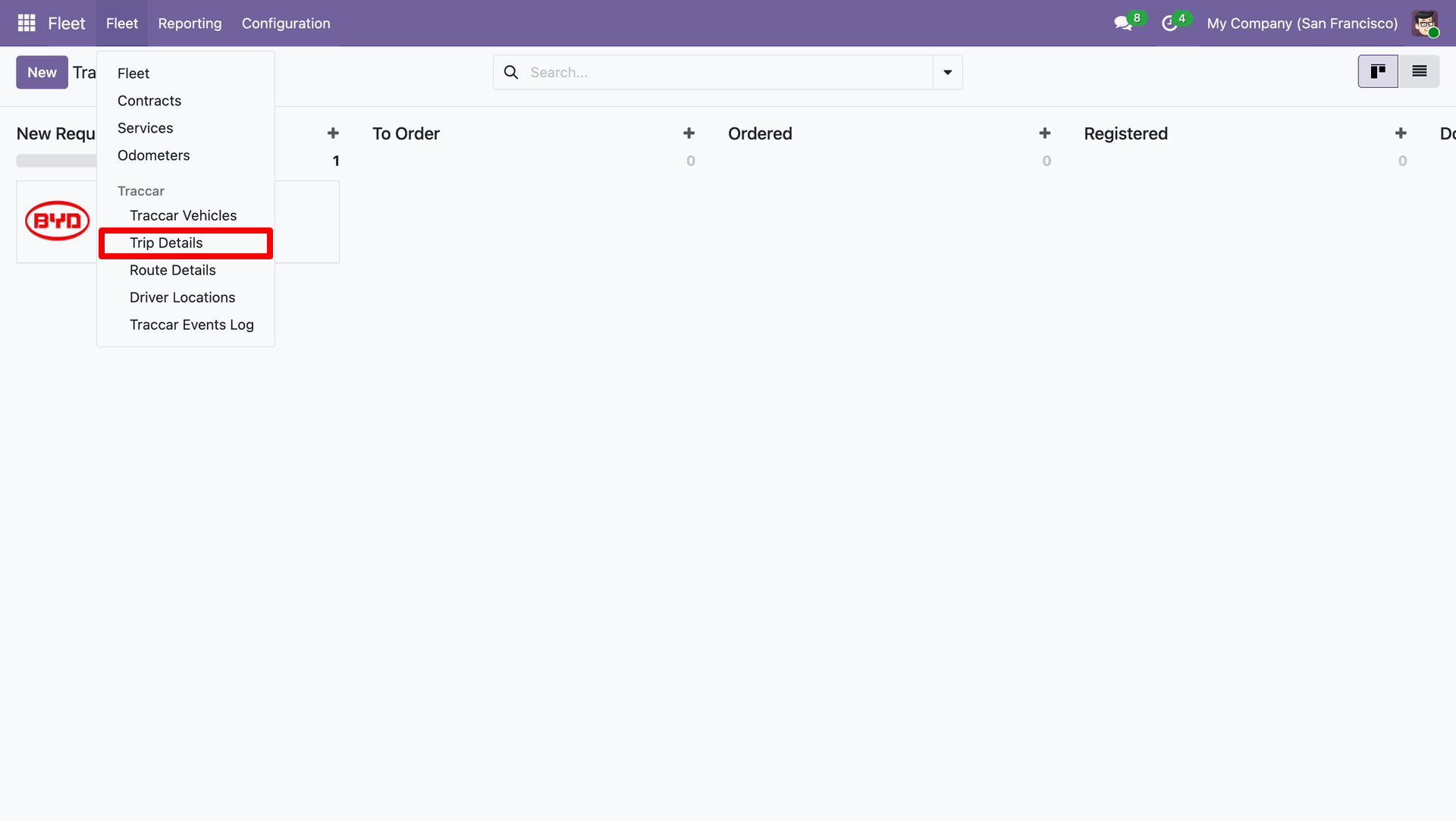
Click the Trip Details menu option under the Fleet main top menu.
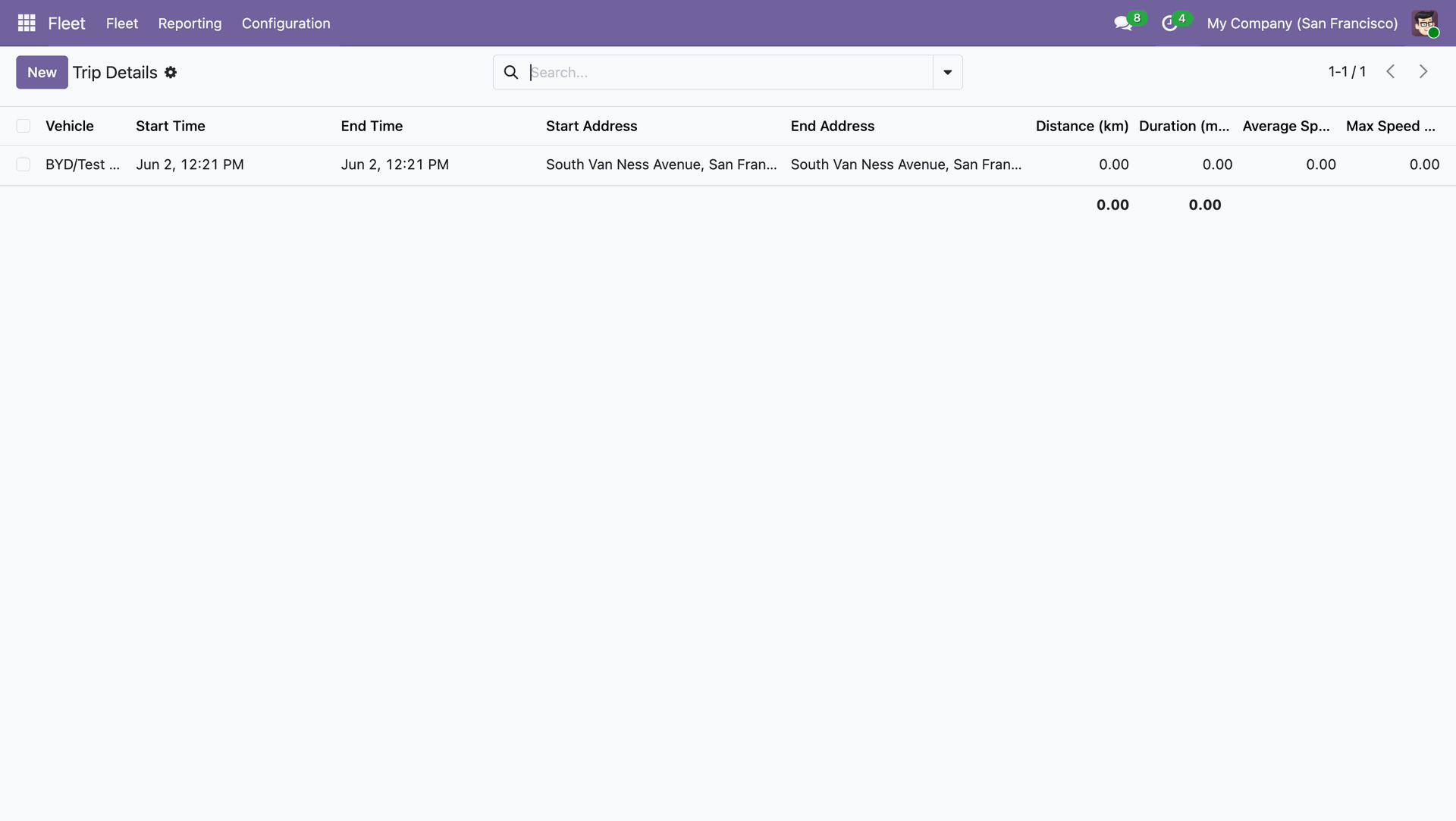
View list of recorded vehicle trips with start end times, locations, and distance.
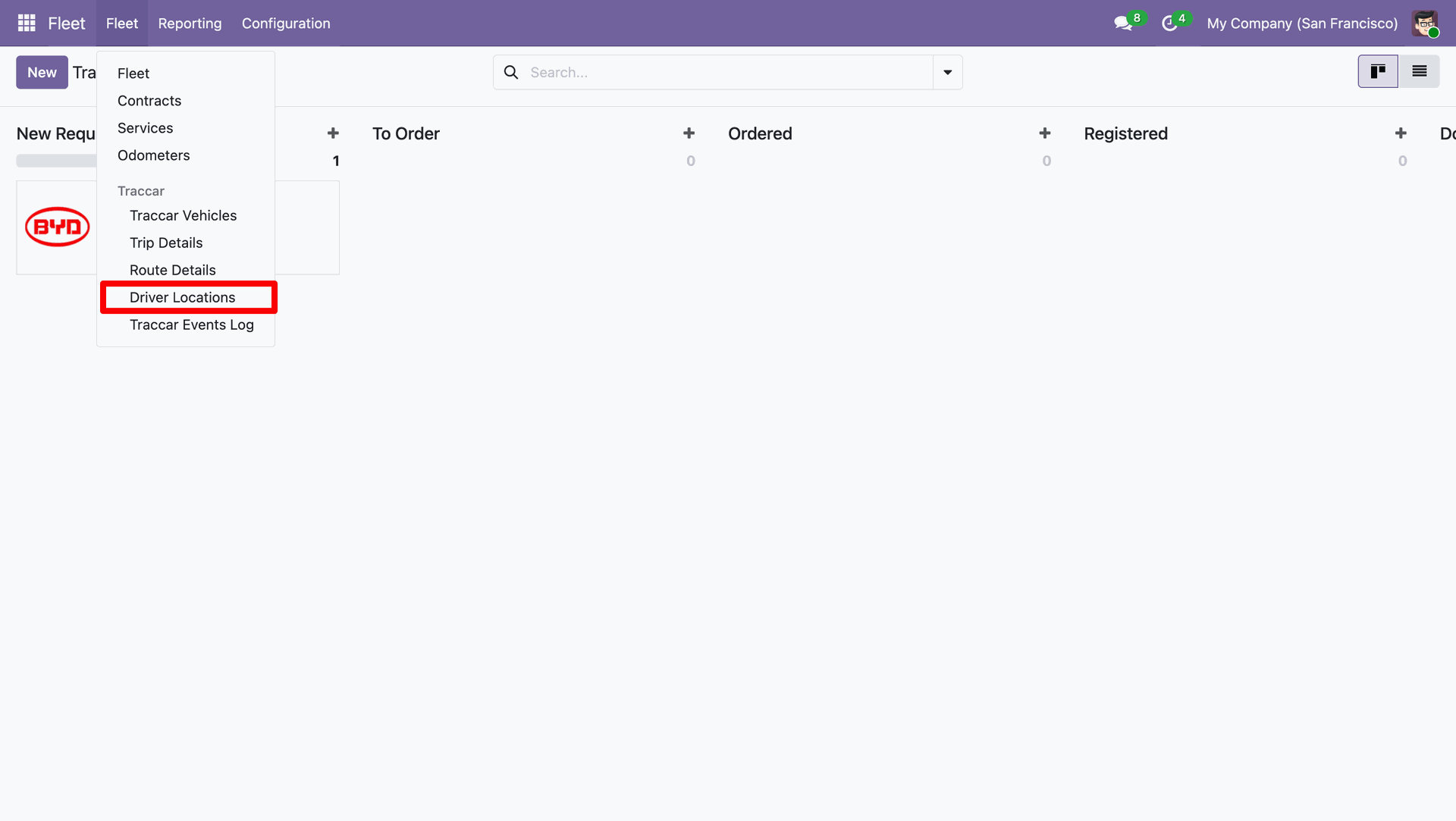
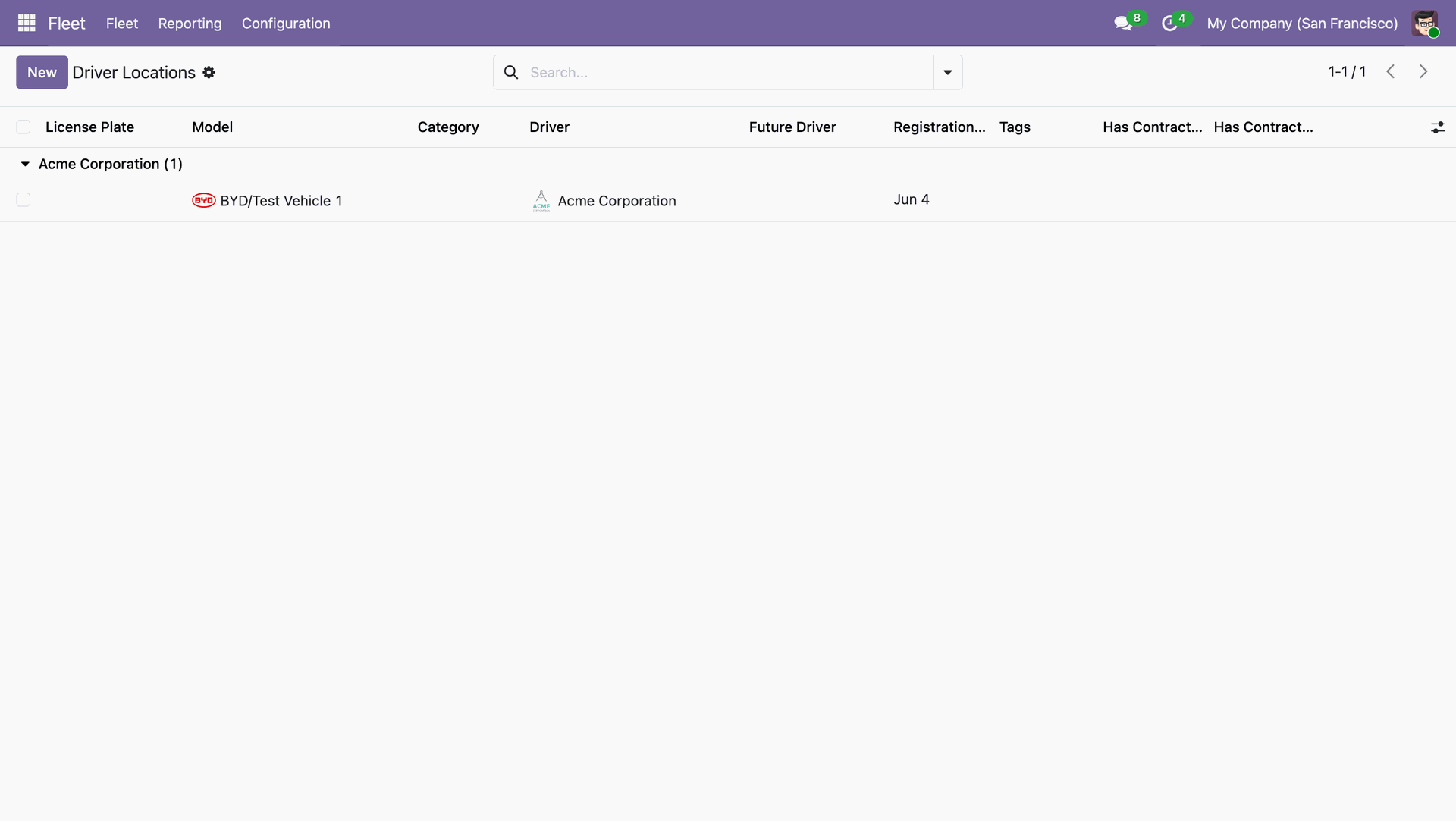
Click the Driver Locations menu option under the Fleet main top dropdown.
View list of driver location records grouped by company with vehicle assignment details.
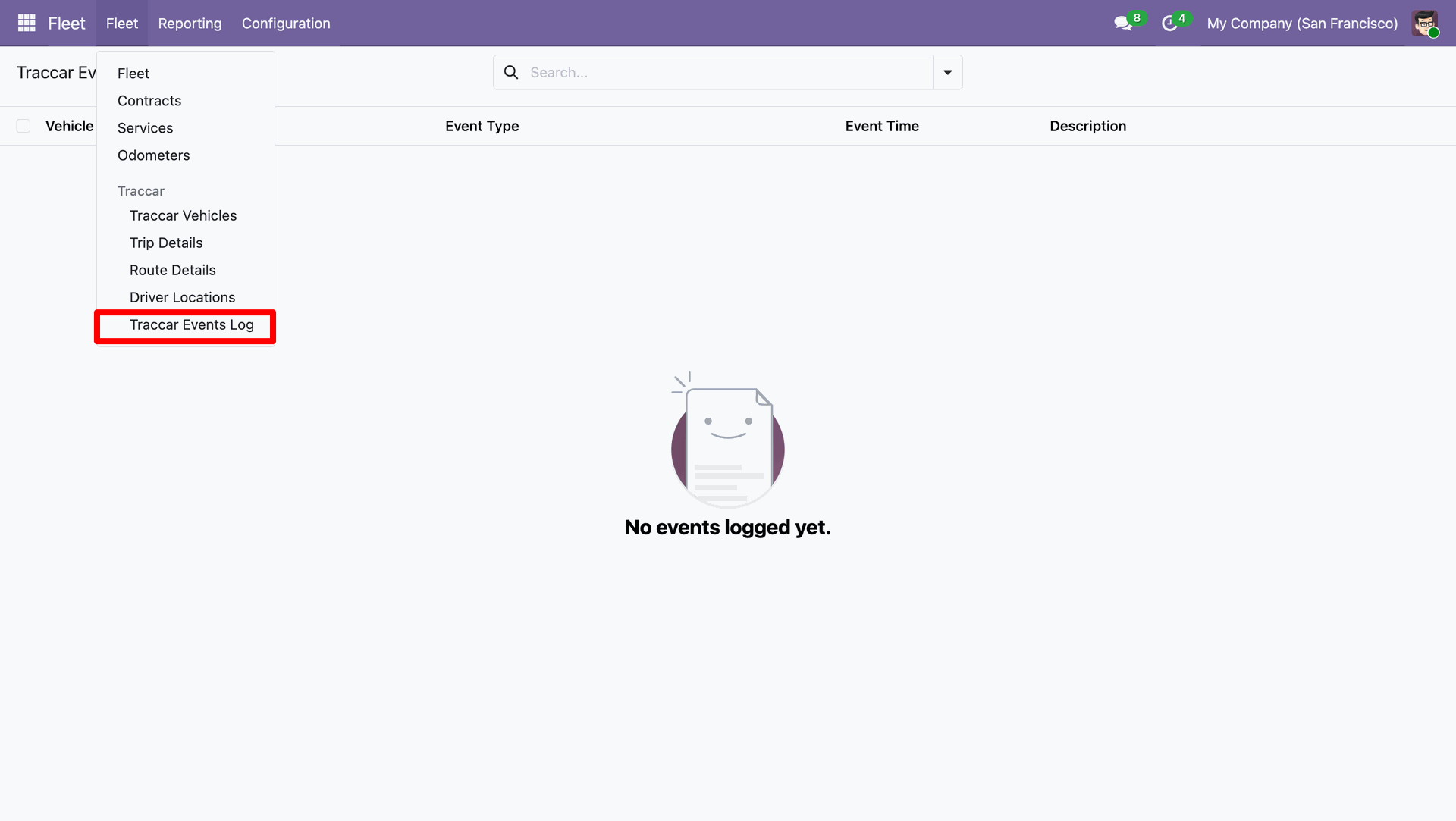
Click the Traccar Events Log menu option under Fleet top navbar dropdown.
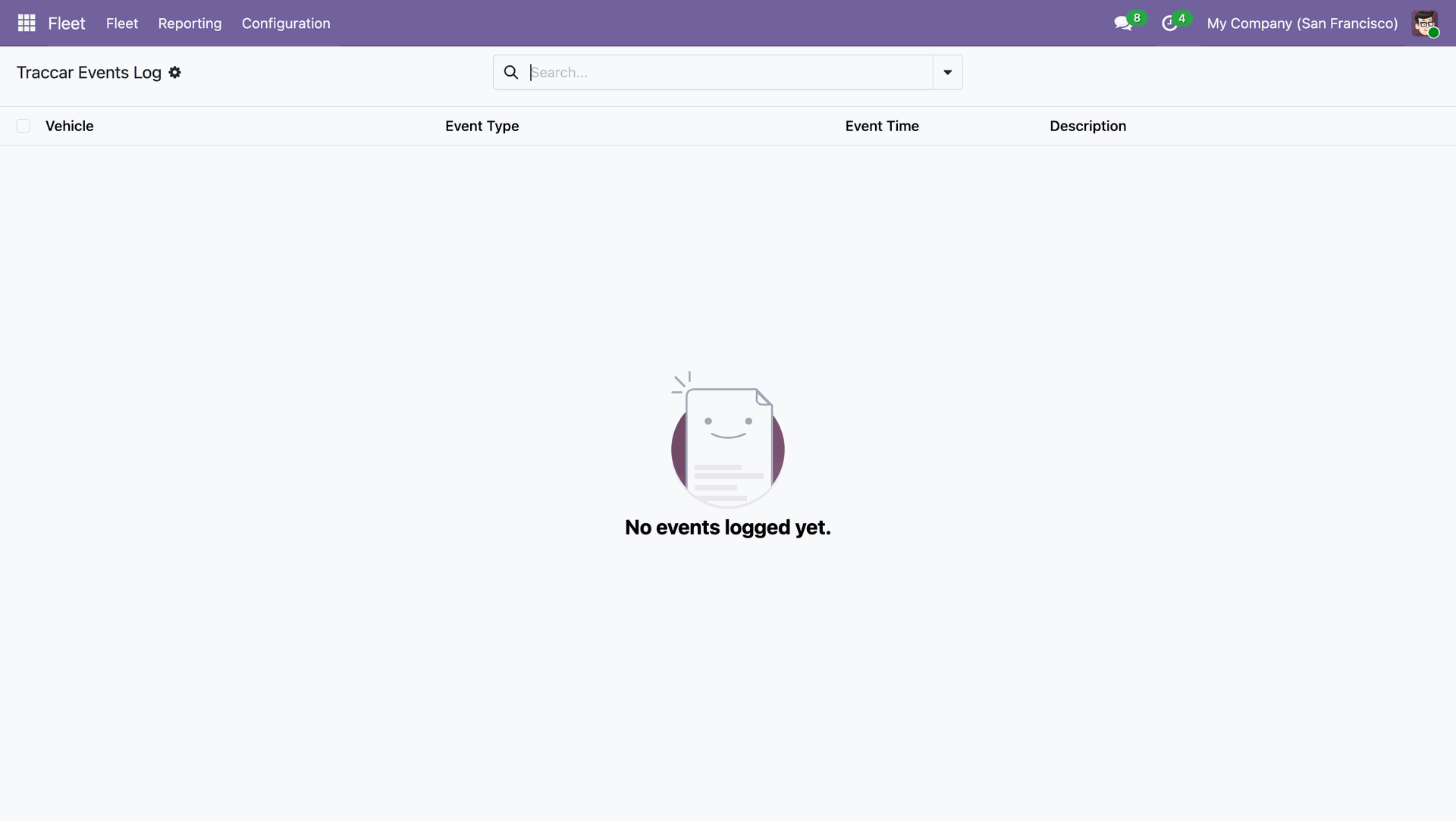
View the Traccar Events Log page displaying event types, timestamps, and vehicle tracking information.
Version 18.0.1.0.0 | Released on : 23rd October 2026
- Yes, this app works perfectly with Odoo Enterprise (Odoo.sh & Premise) as well as Community.
- No, this application is not compatible with odoo.com(odoo saas/Odoo Online).
- Yes, to test this module, please contact us at sales@softhealer.com.
- Please contact us at sales@softhealer.com to request customization.
- Yes, we provide free support for 365 days from the date of purchase.
- Yes, you will receive lifetime free updates for the version of the module you purchased.
- No, there is no need to install any additional libraries.
- Yes, for version 12 and above, you need to purchase the module separately for each version you intend to use.
- No, exchanges or refunds are not allowed. Please make sure to select the correct version before purchasing.
- You can contact us at support@softhealer.com for language translation support. We use Google Translator tools to provide translations in multiple languages, so the accuracy may vary. We welcome your suggestions to help improve translations.
Discover Our Latest Apps