












Tax information on lines Sales, Purchases, Accounting

If you want to display a tax amount field in the sale order/purchase order/invoice and Vendor bills lines and PDF report. You can do that thing using this module. Here it is a module that helps to set tax amount field in sale order/purchase order/invoice and vendor bills lines and PDF report. This module provides a boolean field 'Show in Report' in sale order/purchase order/invoices and Vendor bills form view so it will easy to hide and show tax amount field in PDF report.

Features
- In relative configuration settings to tick right on 'Show Taxes in sale order/purchase order/invoice/bill'.
- Show tax amount field in sale order/purchase order/invoice and Vendor bills lines and PDF report.
- Easy to hide and show tax amount field in sale order/purchase order/invoice and Vendor bills PDF Report.
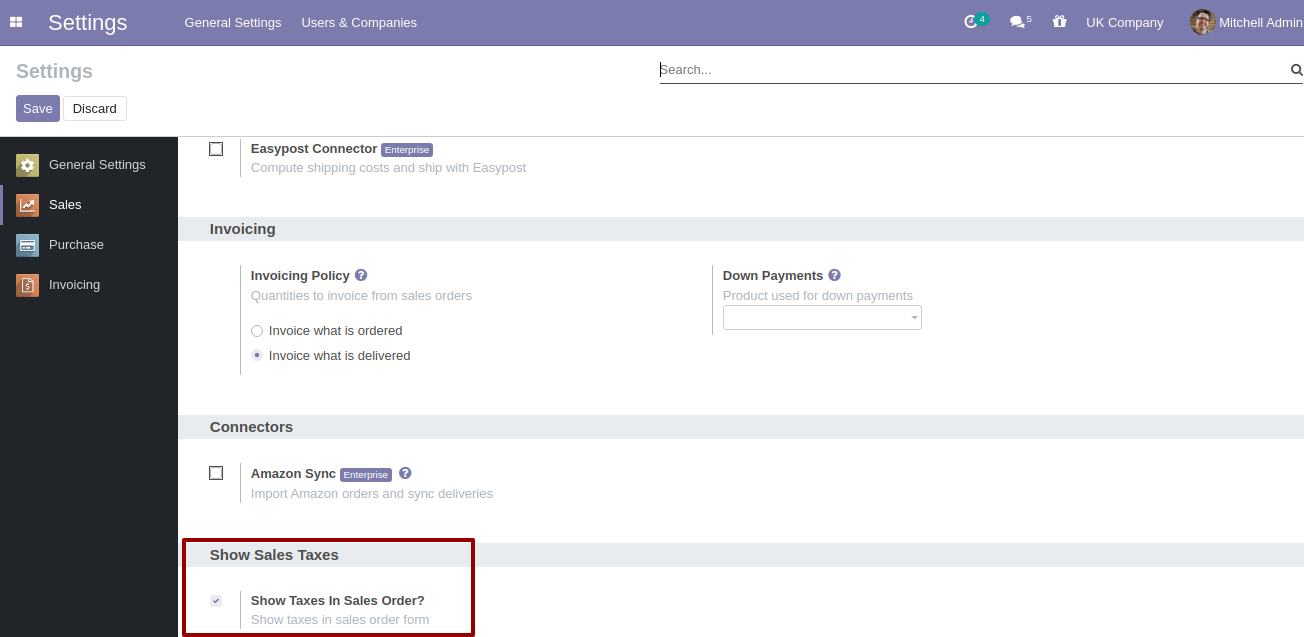
Inside sales setting set "Show Taxes in Sales Order" to True.
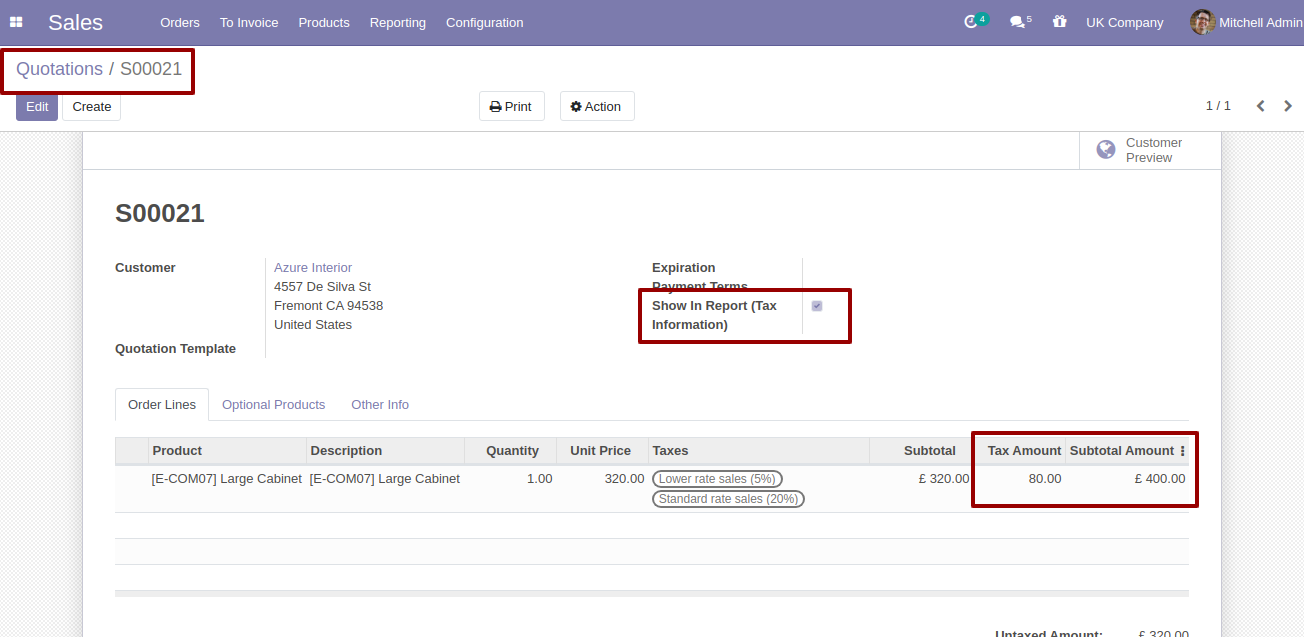
Inside Sales Order/Quotation line there are two new fields created for separate tax calculation product wise, and Subtotal Amount by adding Tax Amount to Subtotal on each line separately.
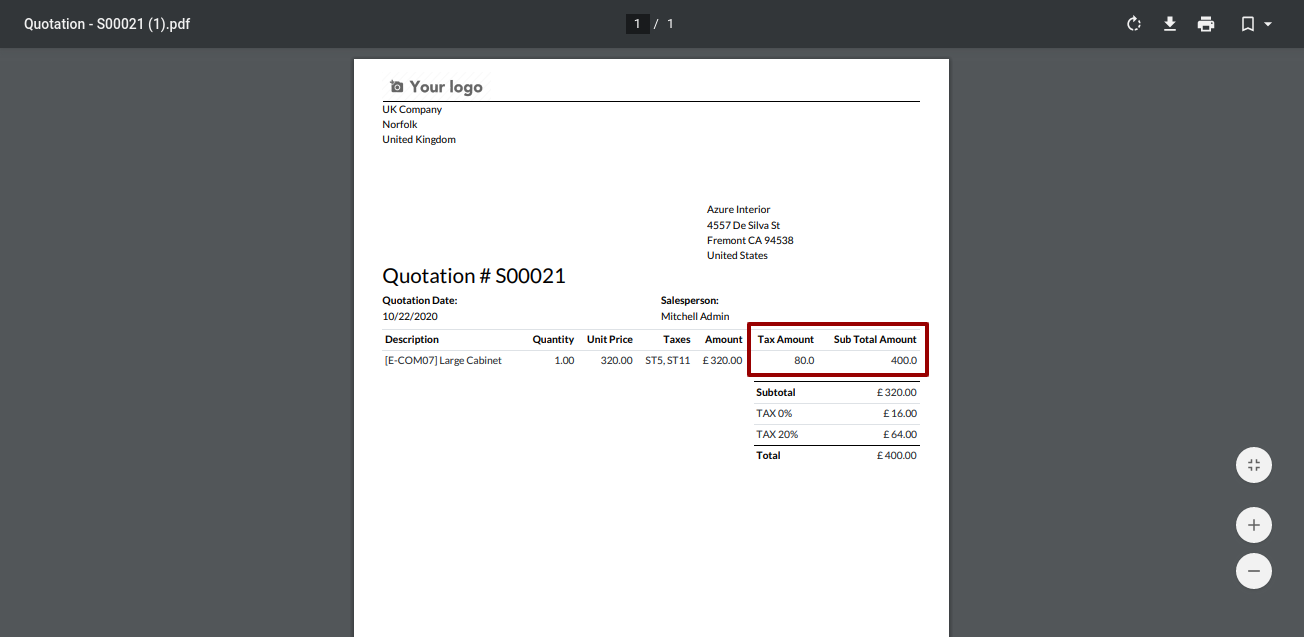
If You set "Show In Report (Tax Information)" to True, than Tax Amount and Subtotal Amount would be added in Report Product Line.
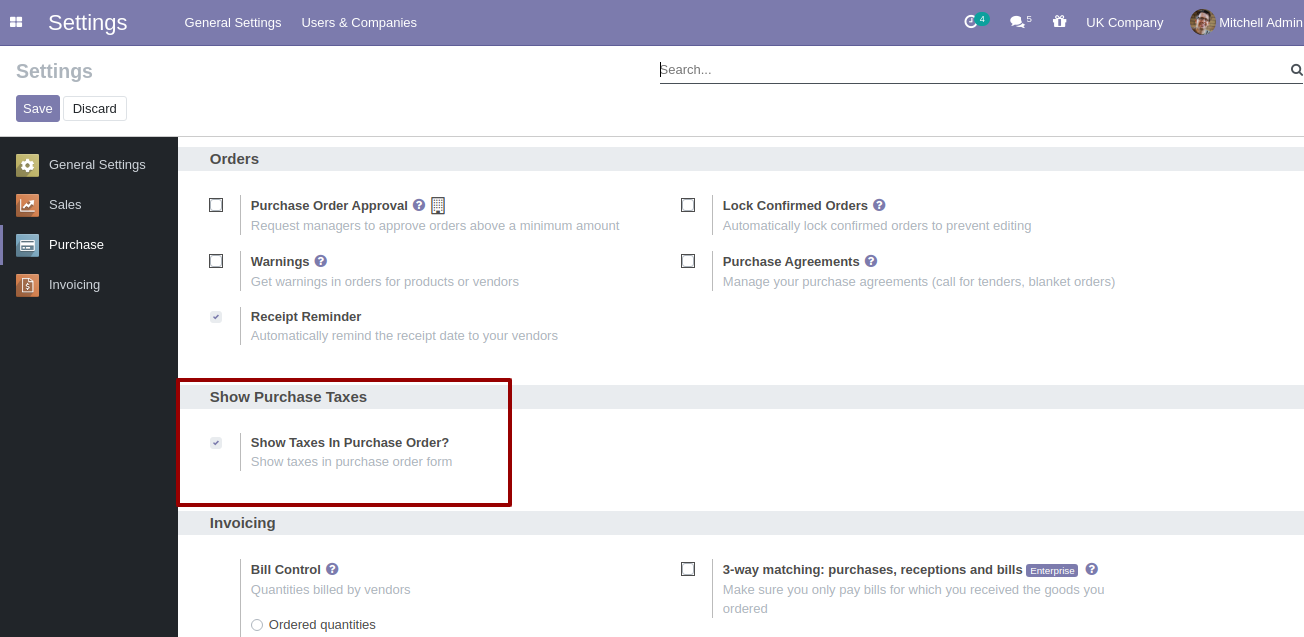
Inside purchase setting set "Show Taxes in Purchase Order" to True.
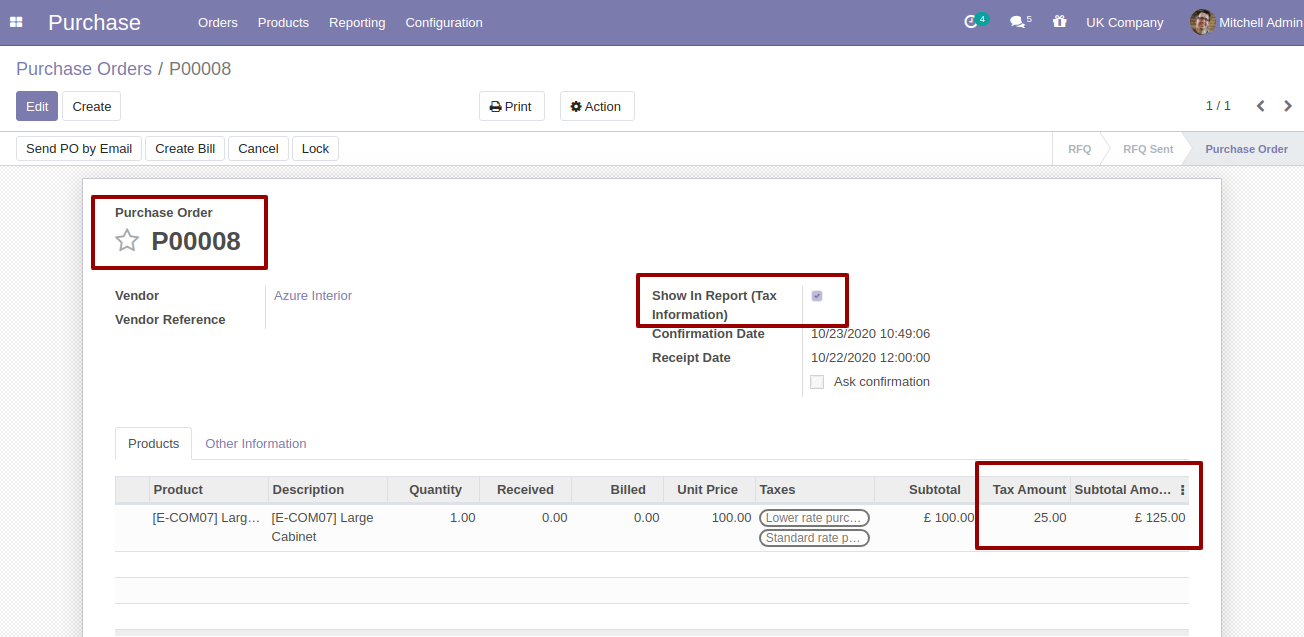
Inside Purchase Order/RFQ line there are two new fields created for separate tax calculation product wise, and Subtotal Amount by adding Tax Amount to Subtotal on each line separately.
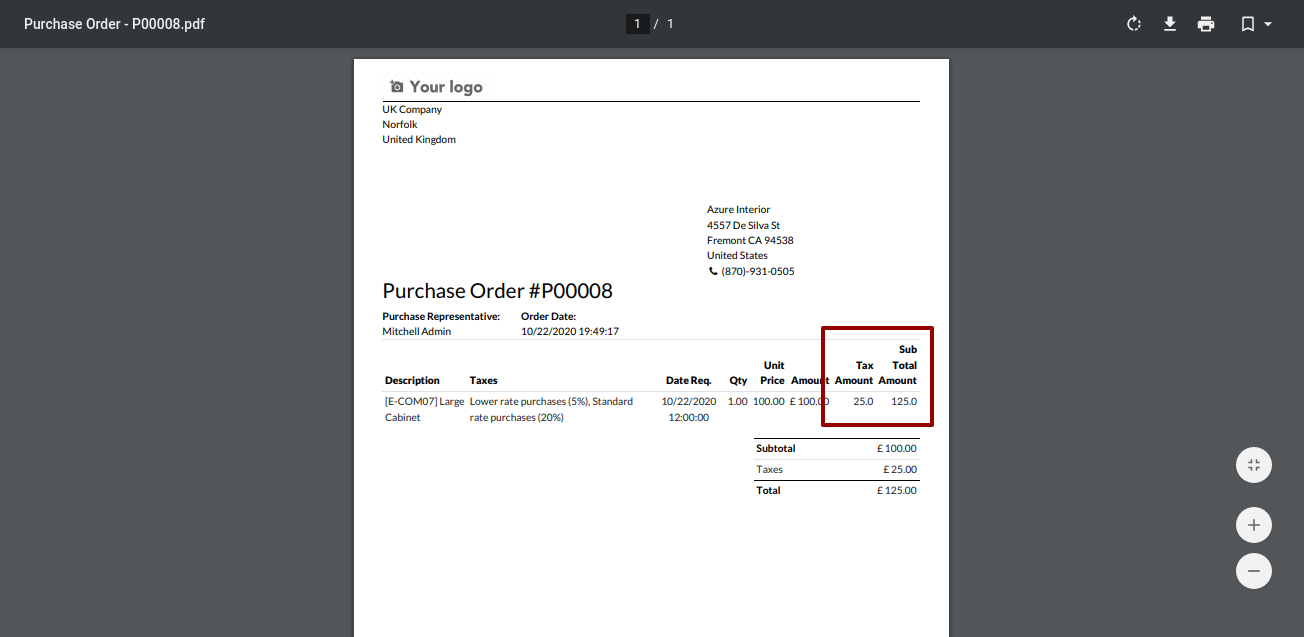
If You set "Show In Report (Tax Information)" to True, than Tax Amount and Subtotal Amount would be added in Report Product Line.
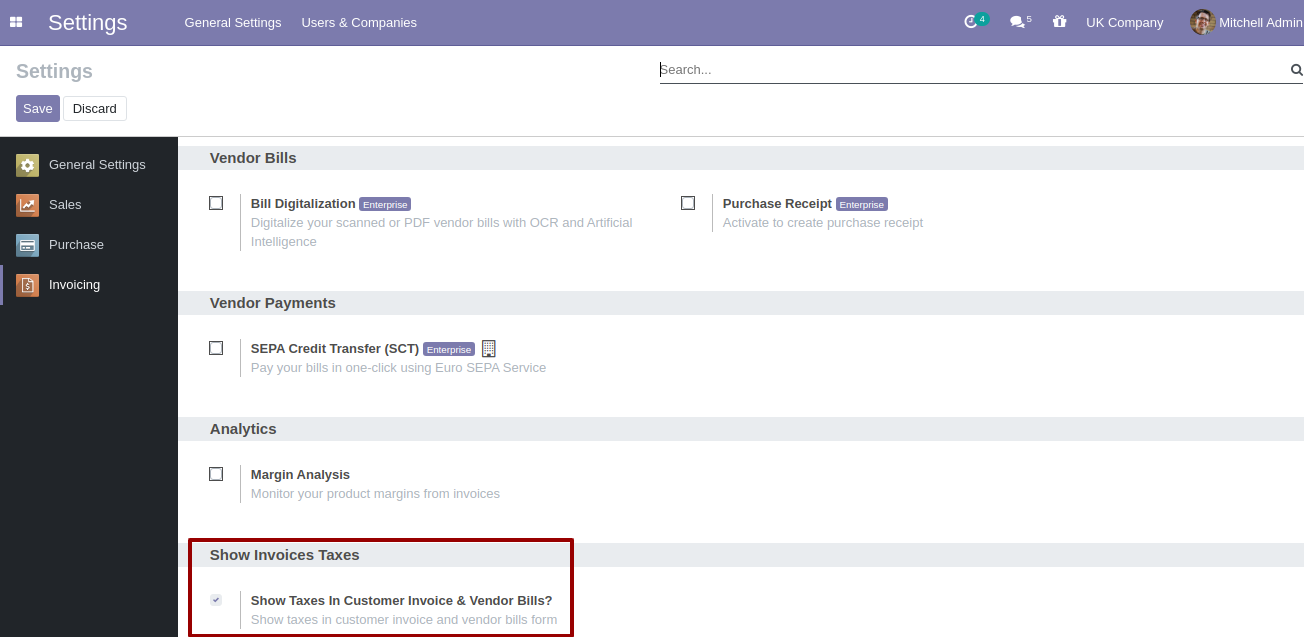
Inside invoicing setting set "Show Taxes in Customer Invoice and Vendor Bills" to True.
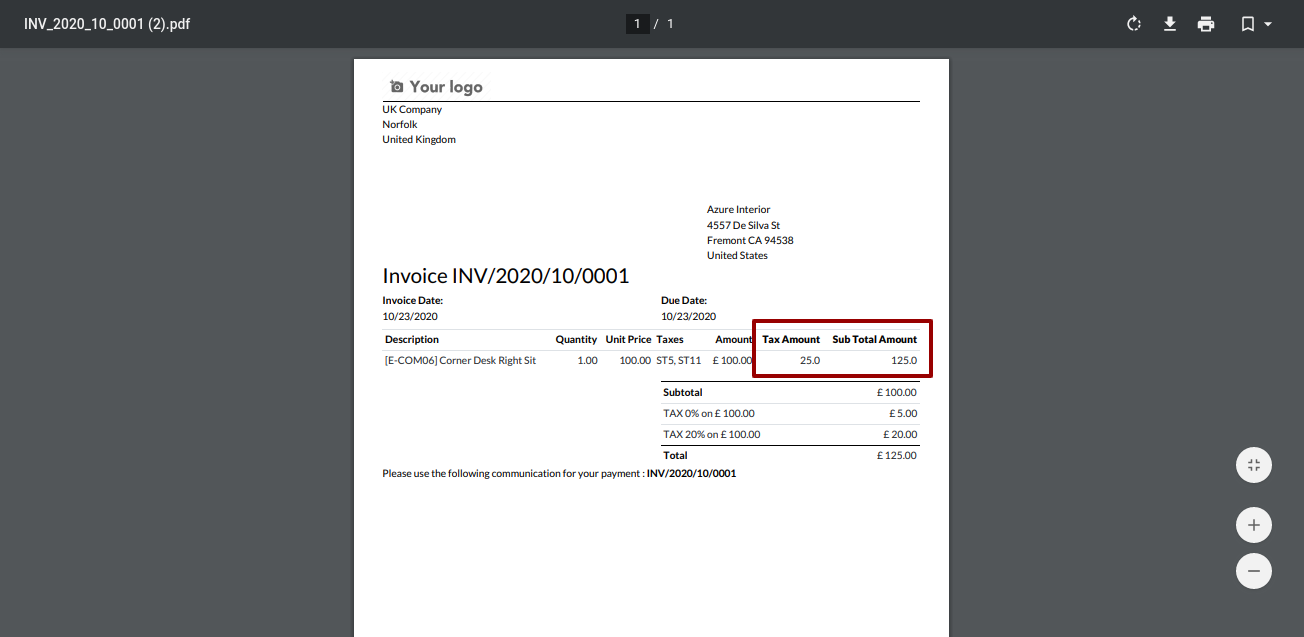
Inside customer invoices line there are two new fields created for separate tax calculation product wise, and Subtotal Amount by adding Tax Amount to Subtotal on each line separately.
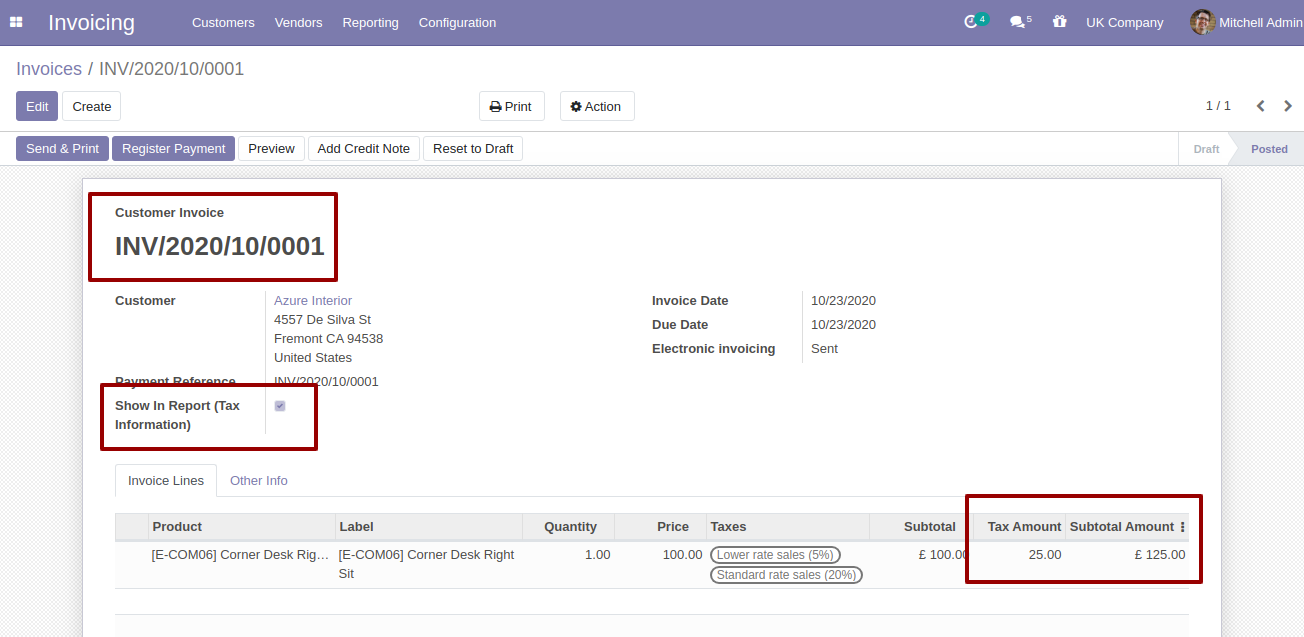
If You set "Show In Report (Tax Information)" to True, than Tax Amount and Subtotal Amount would be added in Report Product Line.
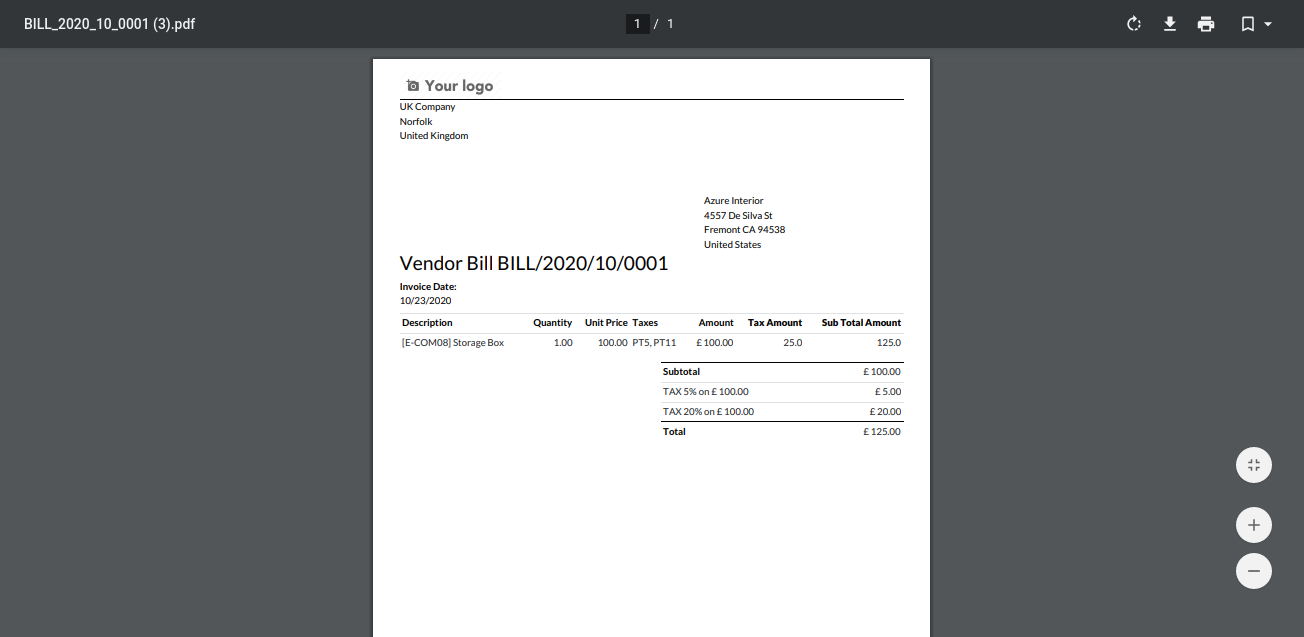
Inside Vendor Bills Bill lines there are two new fields created for separate tax calculation product wise, and Subtotal Amount by adding Tax Amount to Subtotal on each line separately.
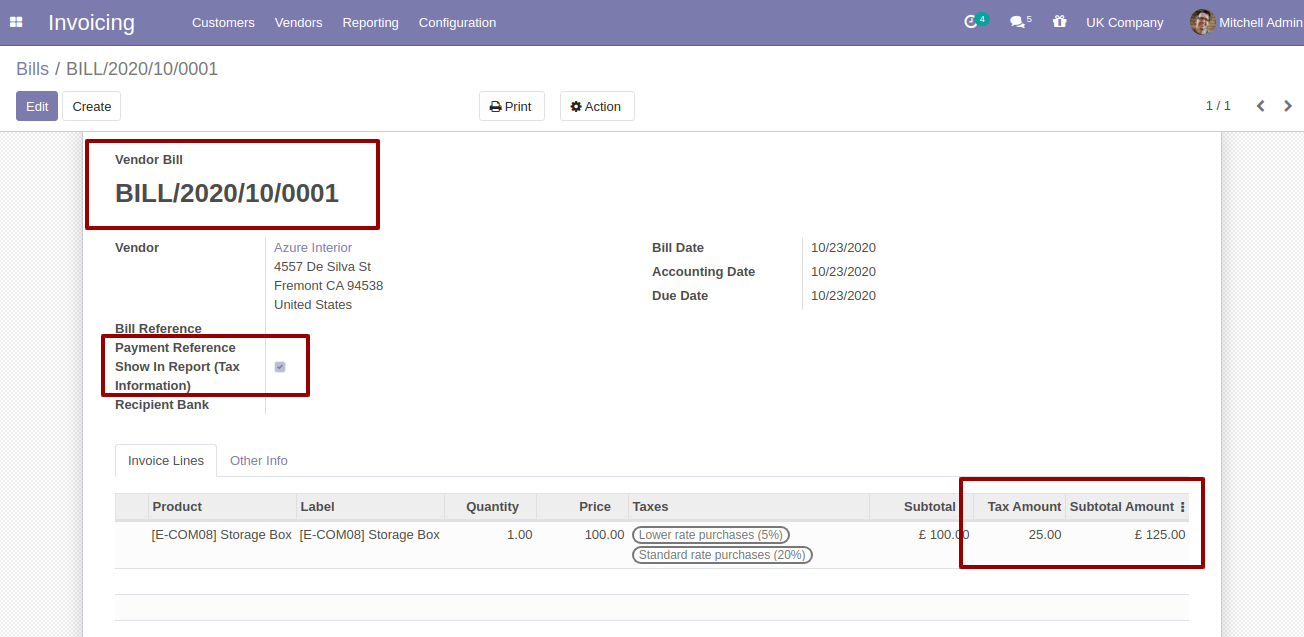
If You set "Show In Report (Tax Information)" to True, than Tax Amount and Subtotal Amount would be added in Report Product Line.
Version 19.0.1 | Released on : 8th September 2025
- Yes, this app works perfectly with Odoo Enterprise (Odoo.sh & Premise) as well as Community.
- No, this application is not compatible with odoo.com(odoo saas/Odoo Online)
- Yes, to test this module, please contact us at sales@softhealer.com.
- Please contact us at sales@softhealer.comto request customization.
- Yes, we provide free support for 365 days from the date of purchase.
- Yes, you will receive lifetime free updates for the version of the module you purchased.
- No, there is no need to install any additional libraries.
- Yes, for version 12 and above, you need to purchase the module separately for each version you intend to use.
- No, exchanges or refunds are not allowed. Please make sure to select the correct version before purchasing.
- You can contact us at support@softhealer.com for language translation support. We use Google Translator tools to provide translations in multiple languages, so the accuracy may vary. We welcome your suggestions to help improve translations.
Discover Our Latest Apps