












Tabby Payment Integration For POS

This module seamlessly integrates the Tabby Payment Method into your Odoo POS system, enabling smooth and secure transactions. Customers can select Tabby as a payment option, verify payments using mobile number authentication, and track payment statuses directly in the order form.

Features
- Customers can easily complete purchases using Tabby.
- Secure transactions with OTP authentication.
- View and manage payment statuses in the order form.
- Warning popups for update price or add a percentage after payment.
- Warning popups for attempted cancellations of paid orders.
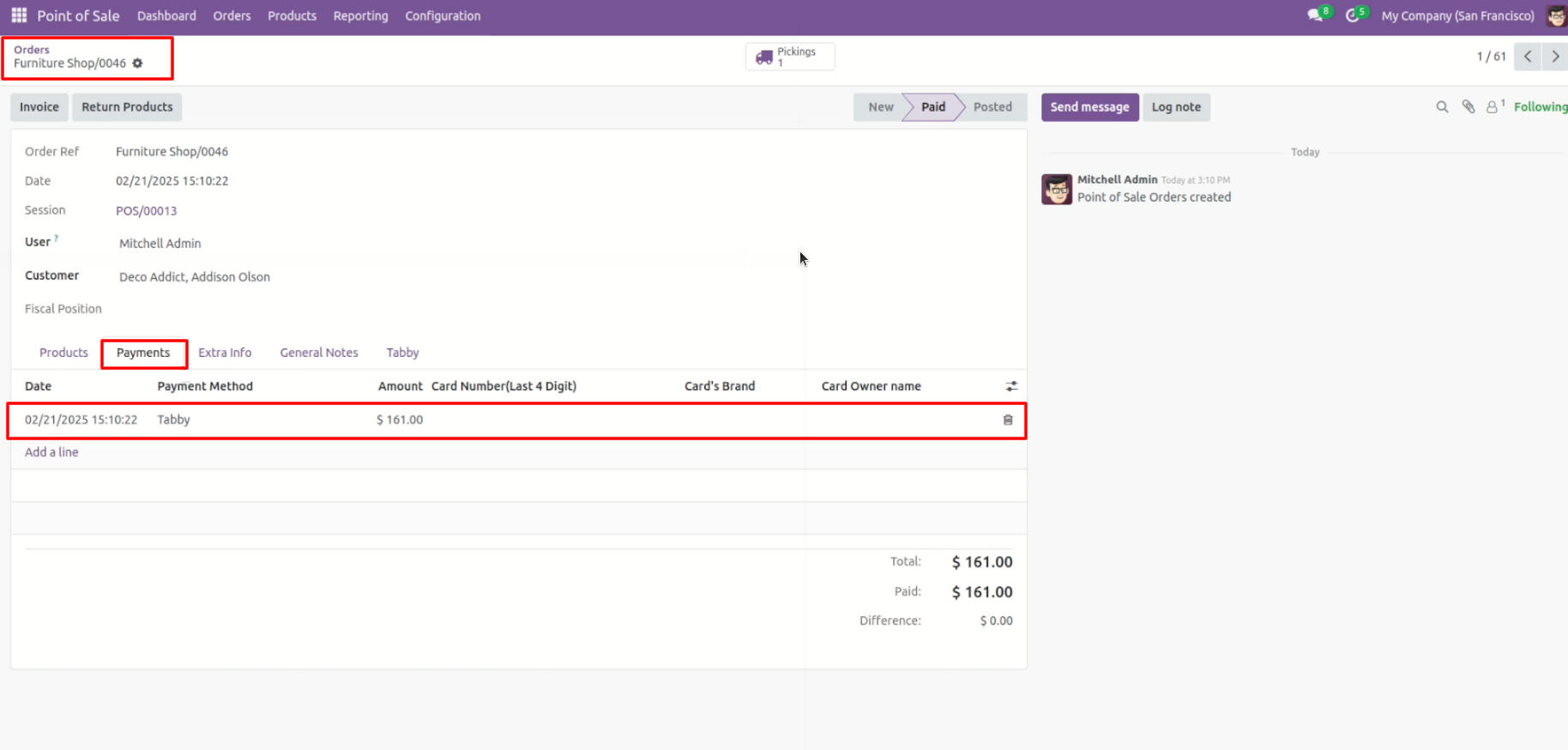
- Access full transaction details under the 'Payment' tab for transparency and easy tracking.
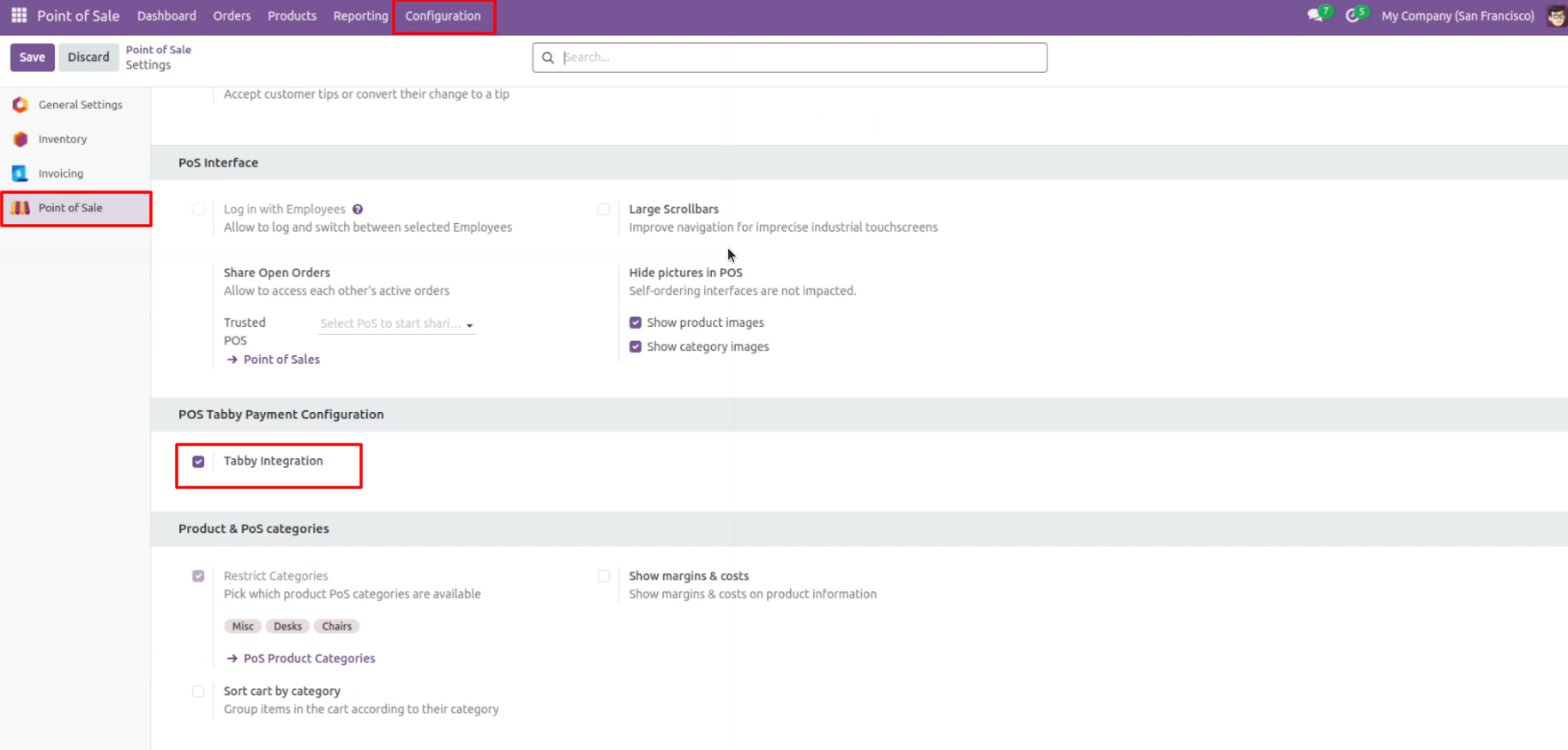
Go to POS configurations >> Enable 'Tabby Integration'.
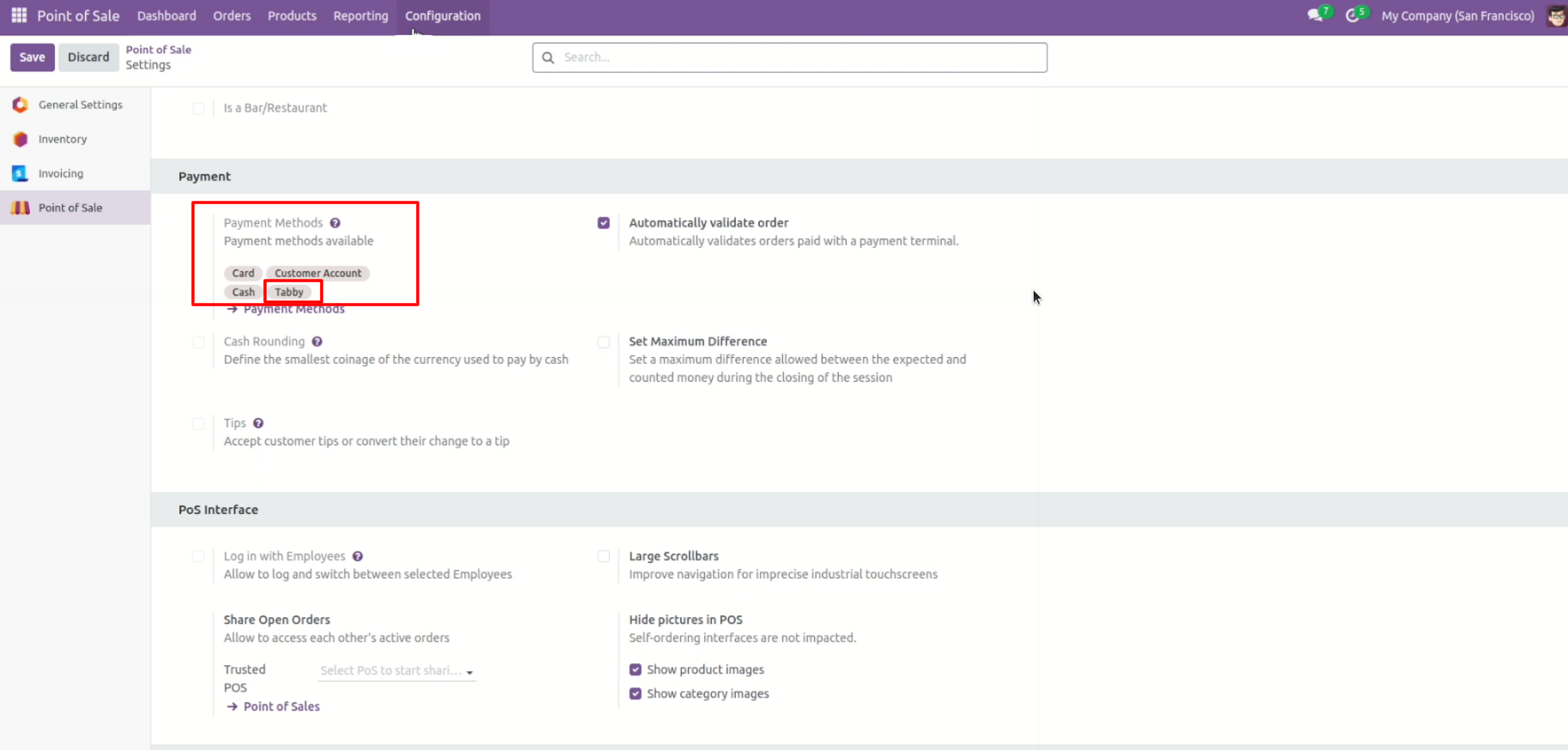
Select 'Tabby' as a payment method.
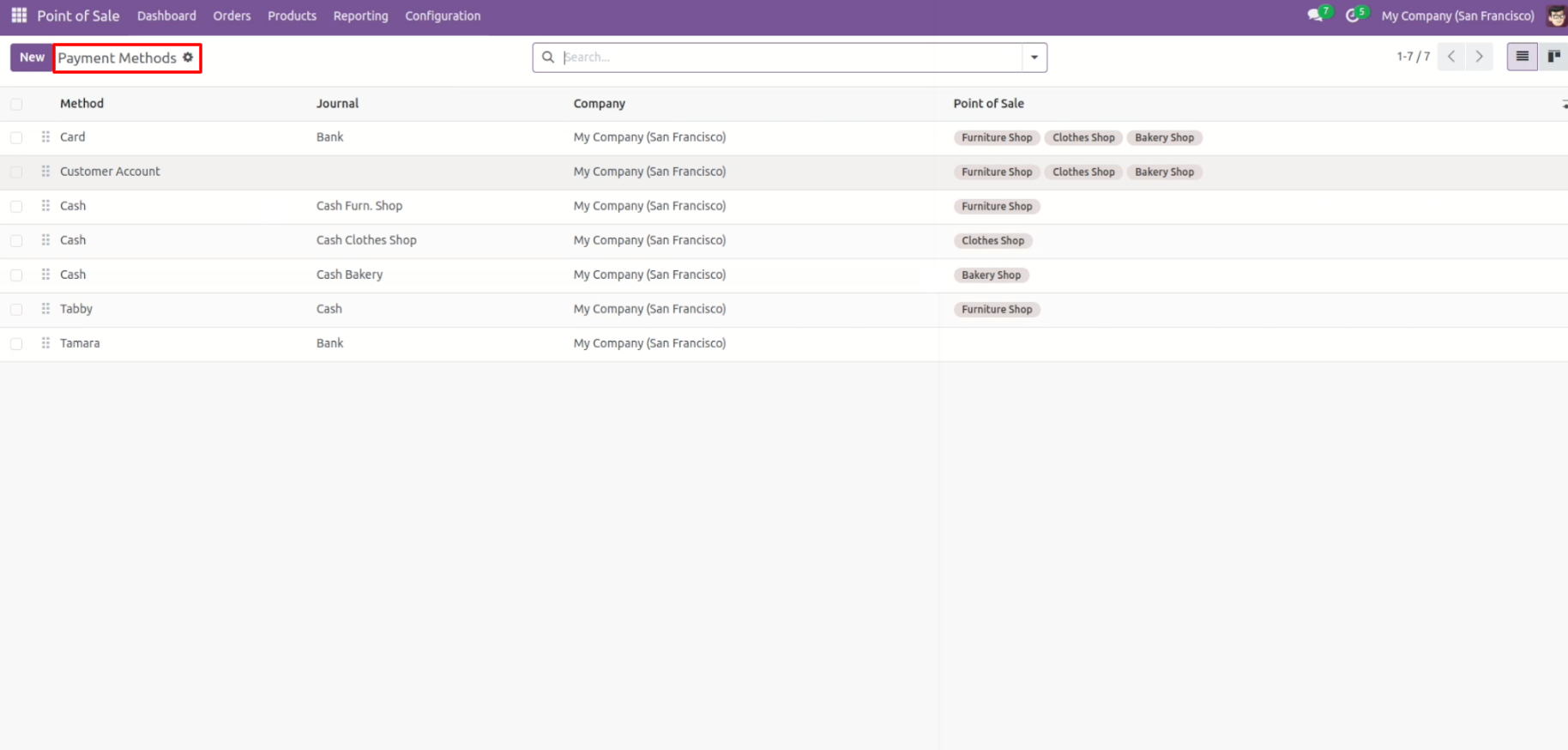
Go to the 'Payment Methods' from the configurations menu.
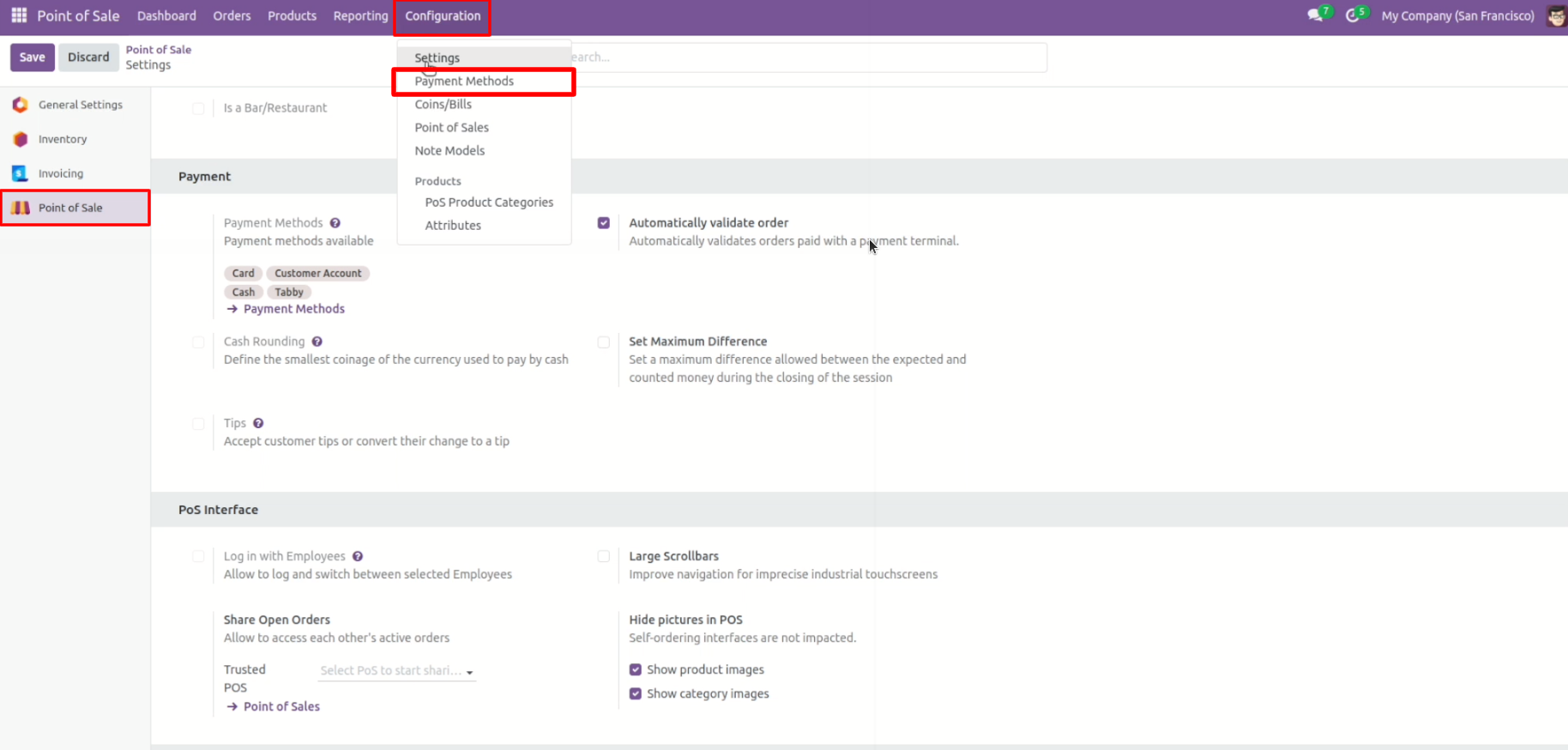
Tree view of the Payment Methods.
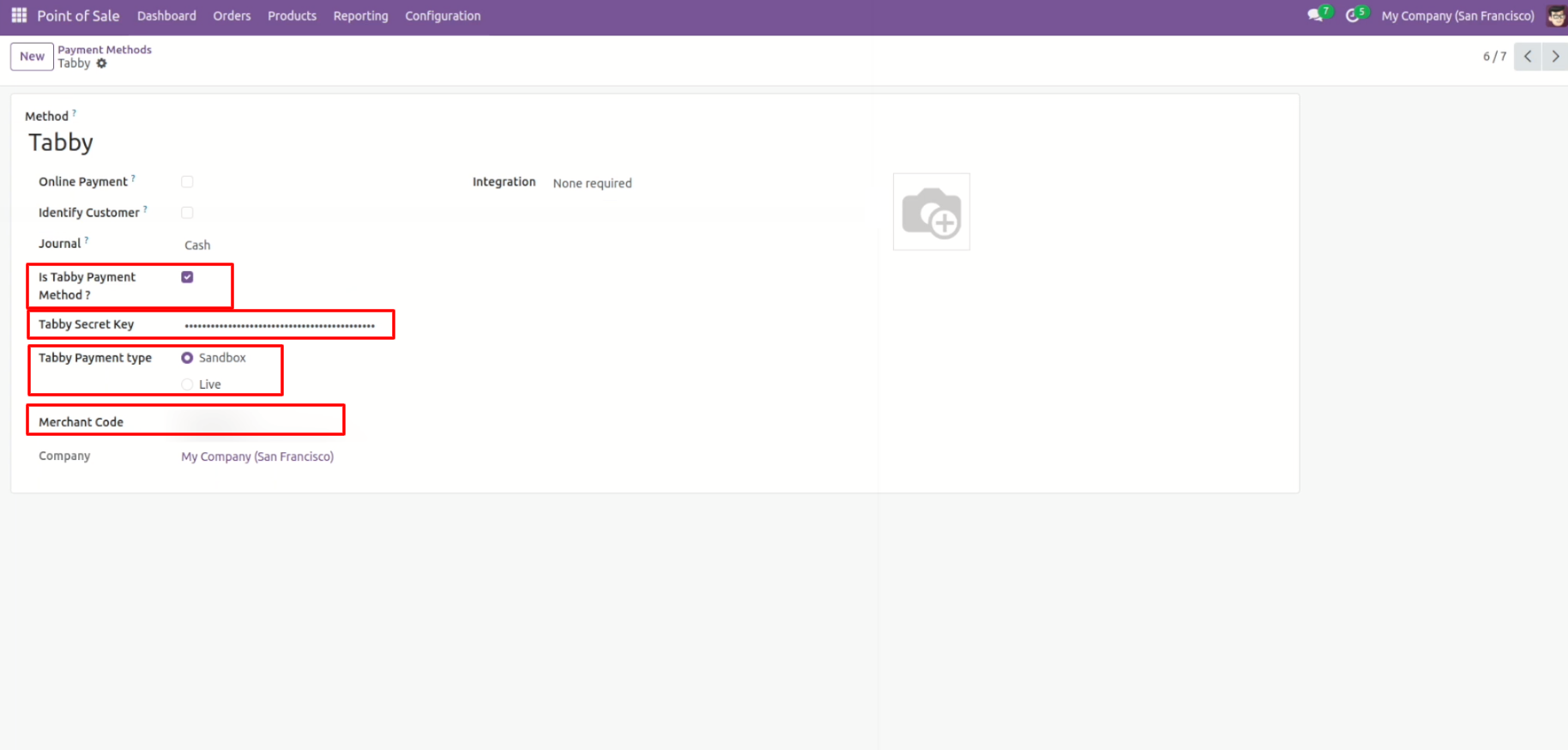
In the payment methods form view, select the option 'Is Tabby Payment Method?' and enter the 'Tabby Secret Key'. Complete the form by adding other required details.
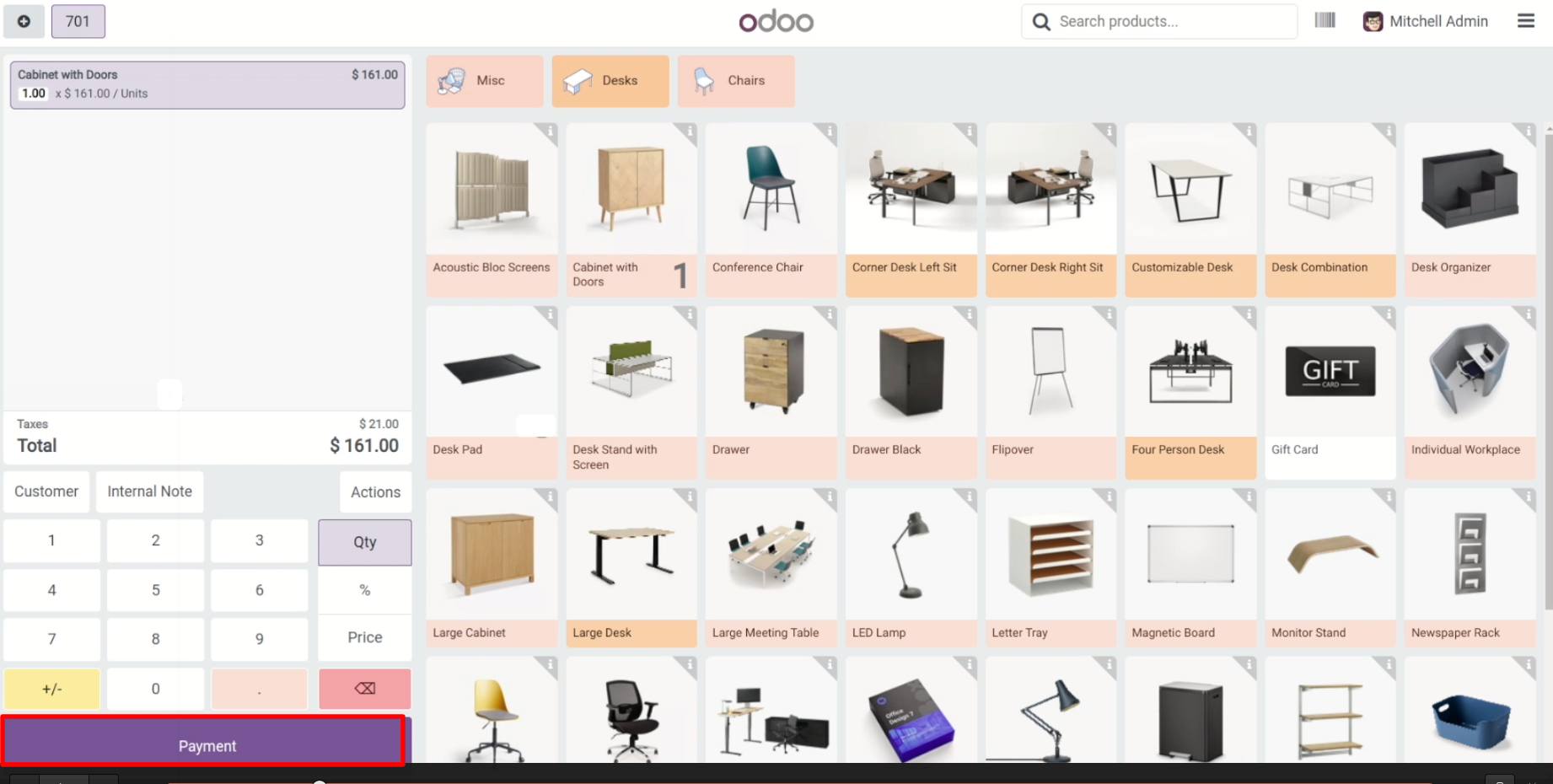
Place an order and click on the the 'Payment' button.
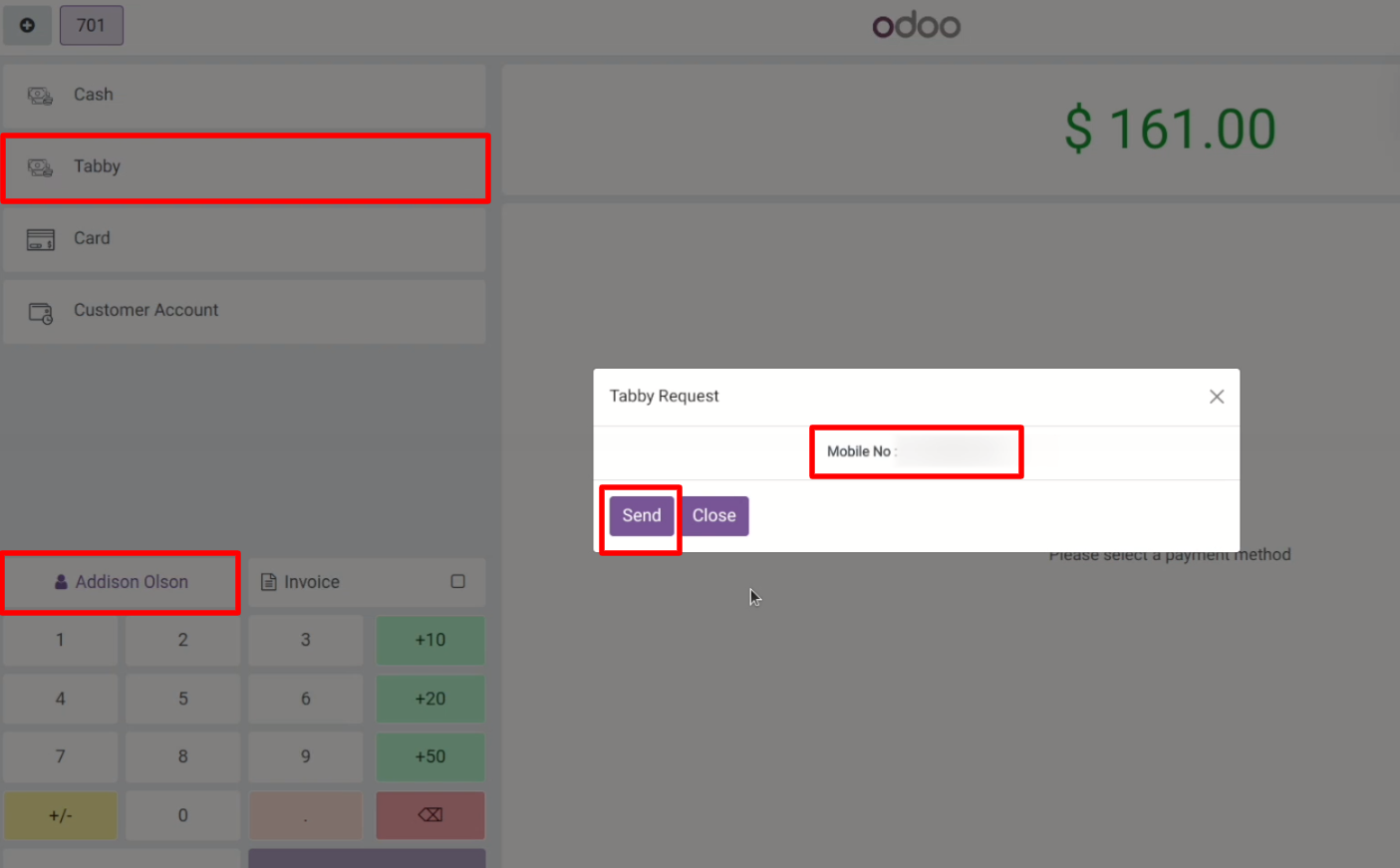
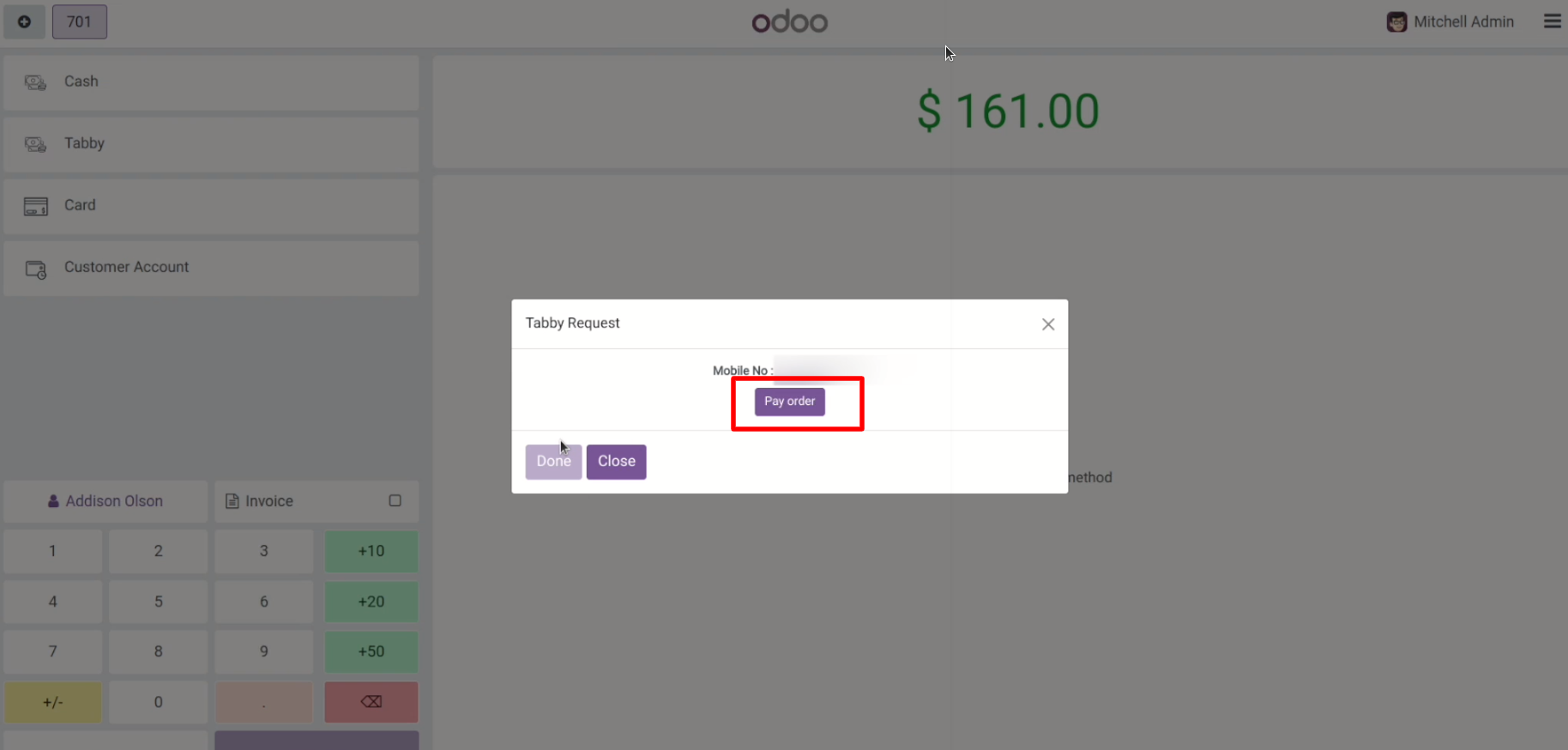
Click on the 'Tabby' payment method. After that this wizard will appears.
Enter a mobile number and click on the 'Send' button.
Click on the 'Pay Order' button.
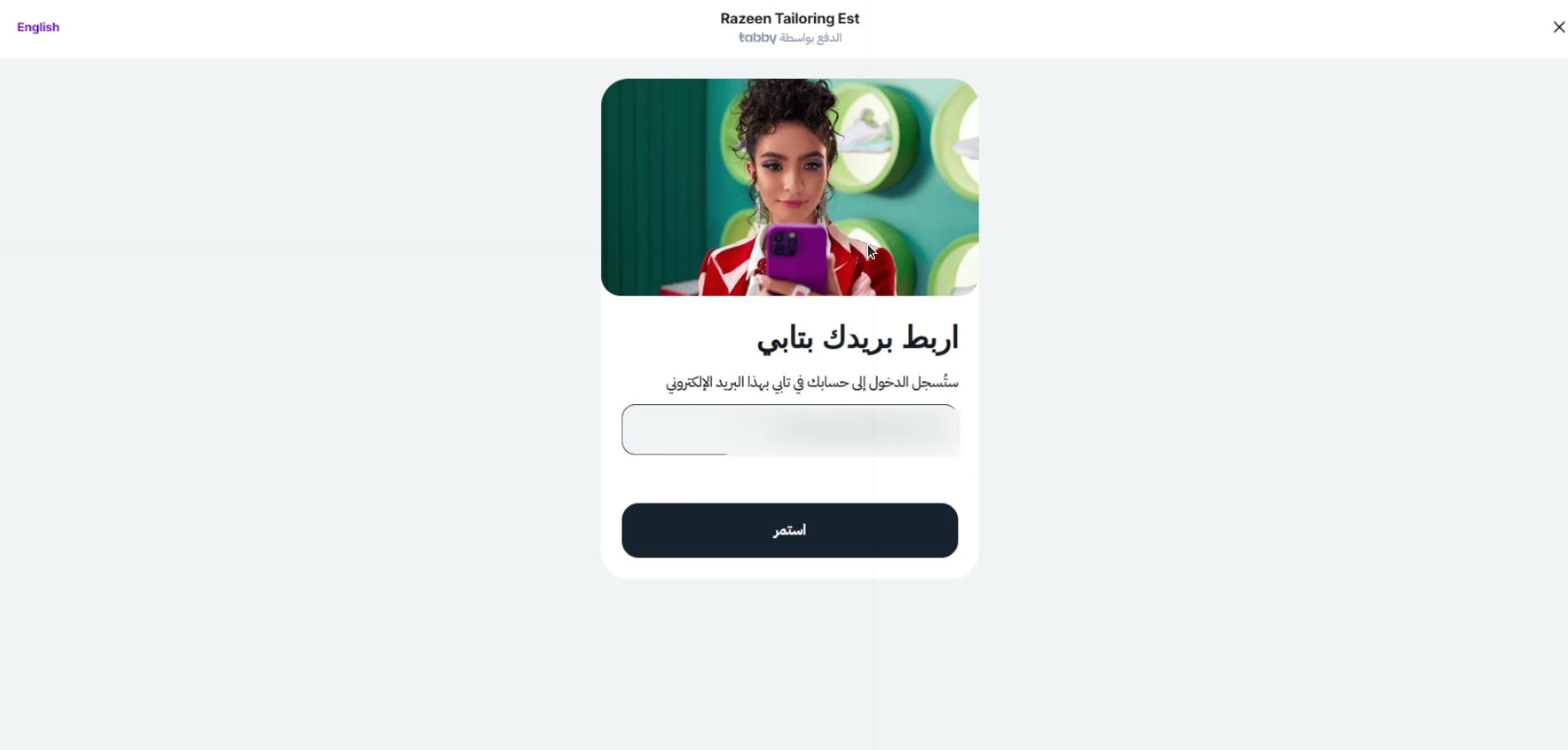
Enter your valid details, such as email and phone number.
Then, proceed with the payment process.
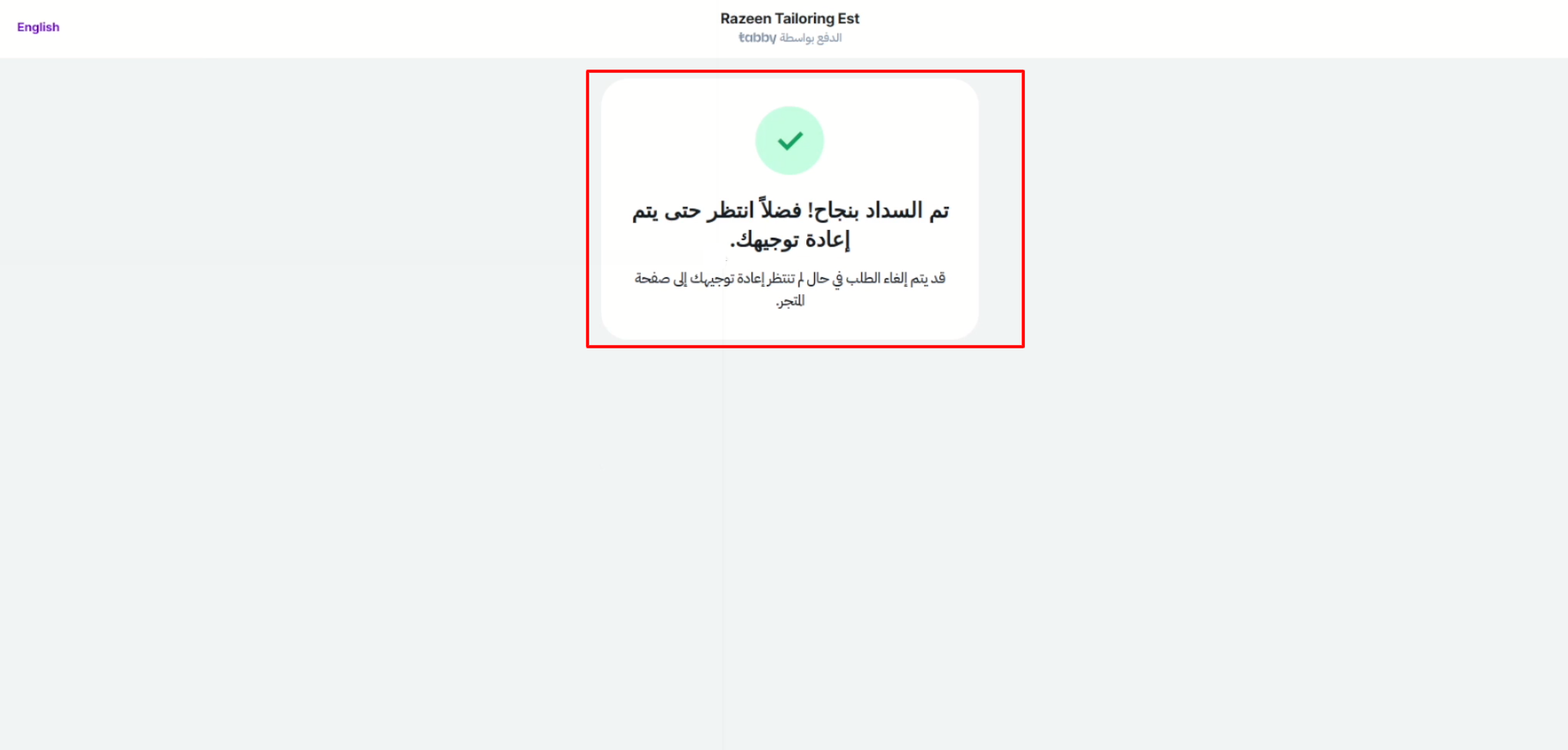
'Payment Successful!' notification popup looks like below.
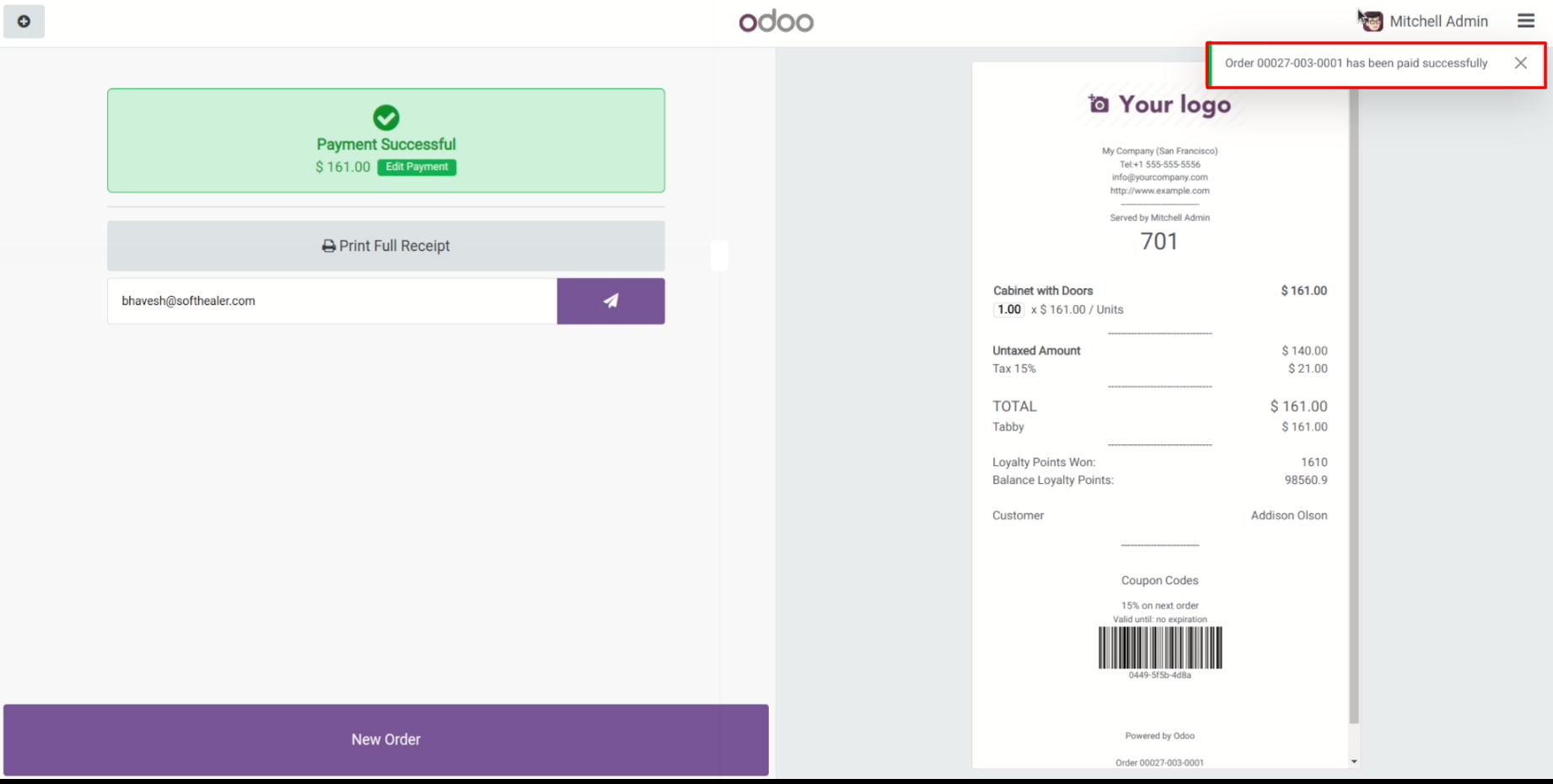
Once the payment is successful, Odoo will automatically validate it and generate a receipt.
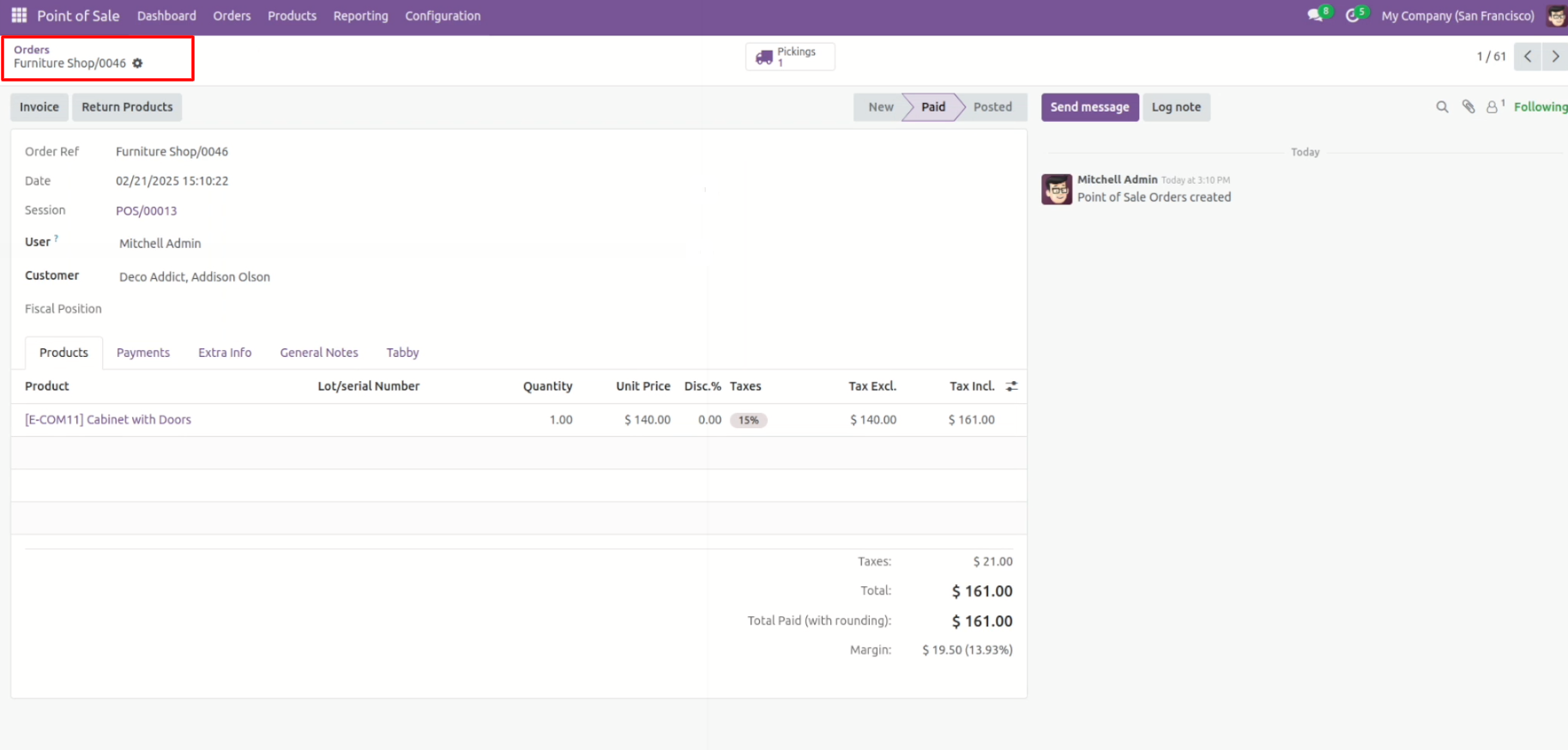
In the order form, you can see that the order status is 'Paid'.
You can view the payment details under the 'Payment' tab.
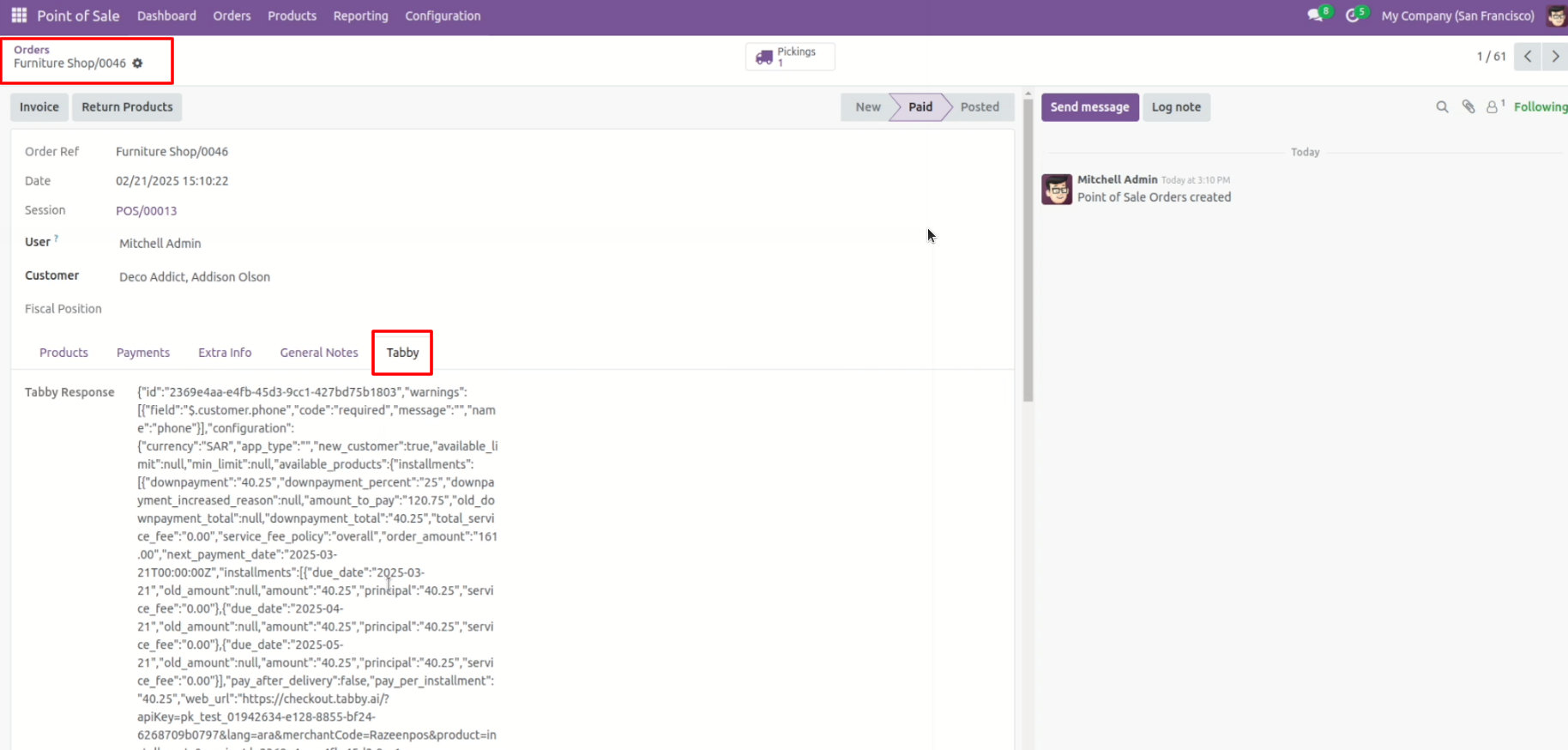
You can view the tabby response under the 'Tabby' tab.
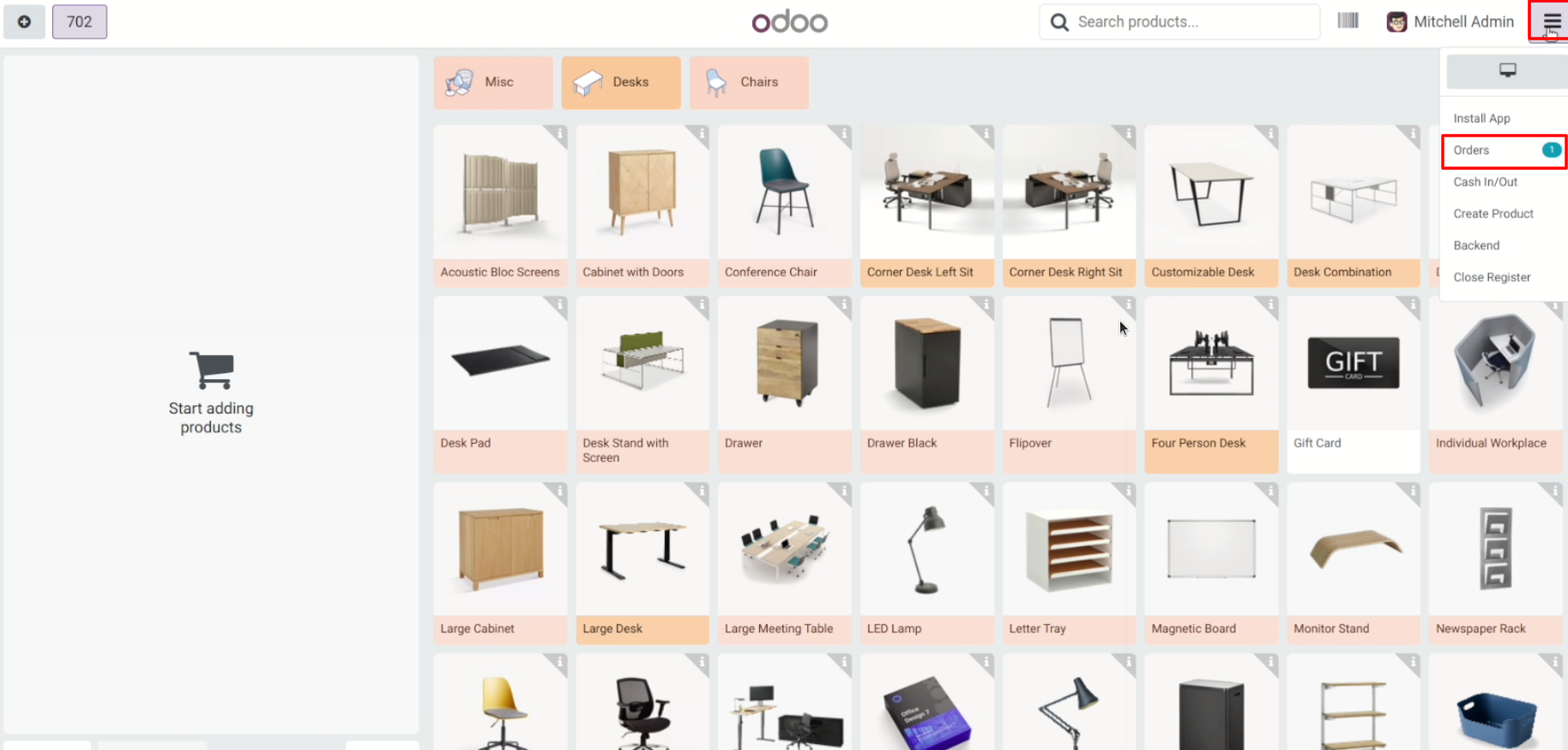
Go to the orders.
Click on the 'Tabby Orders' from the 'All Active Orders' menu.
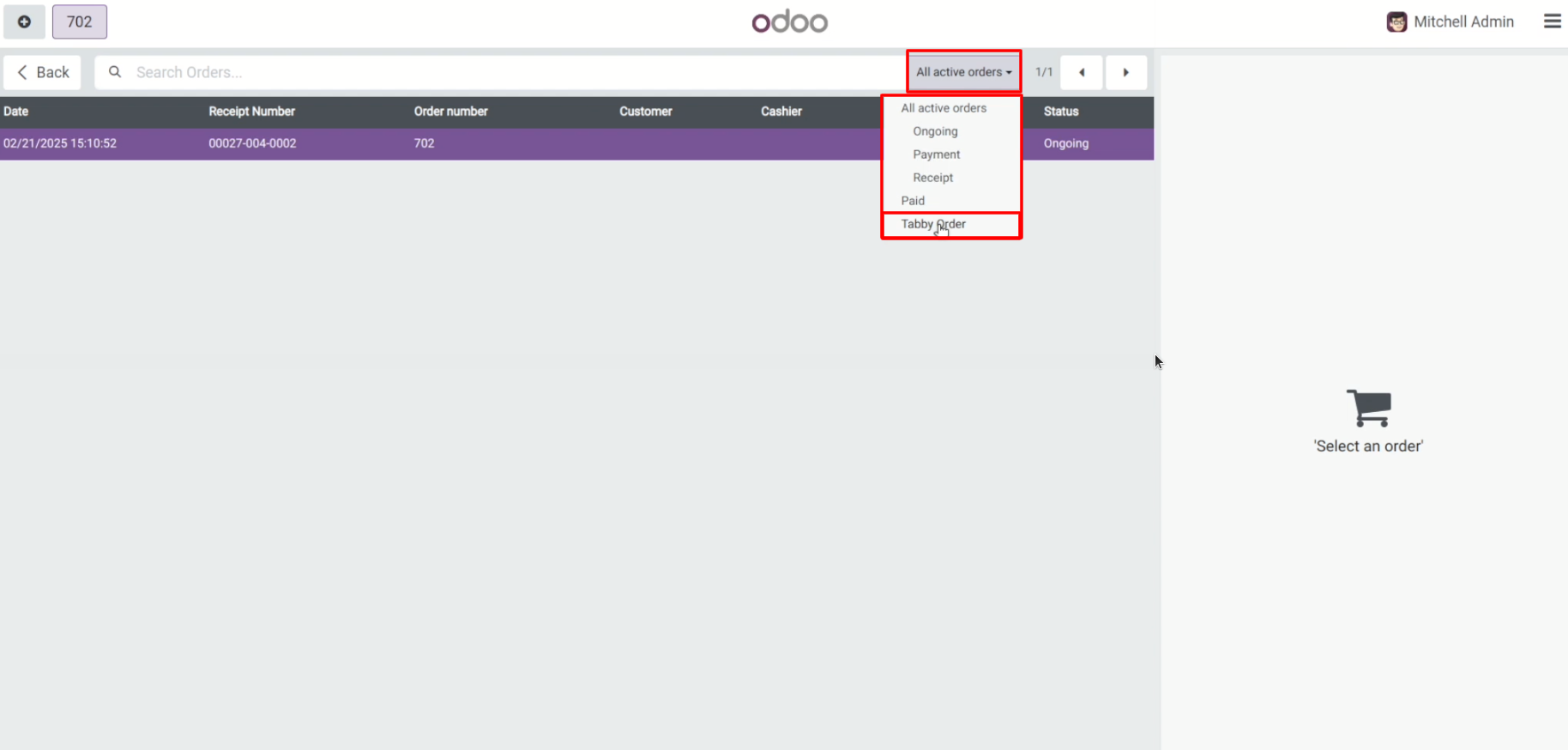
Tree view of the tabby orders.
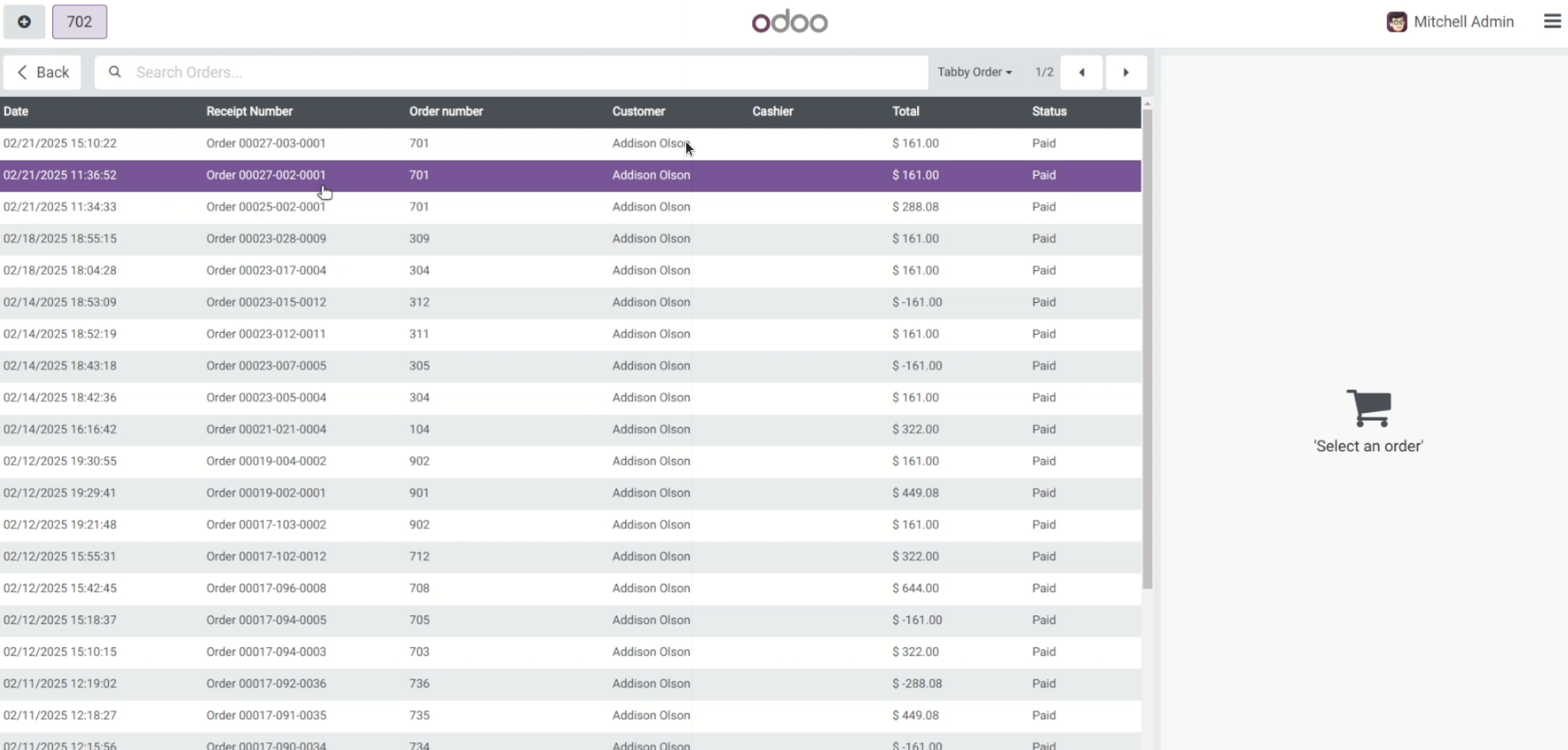
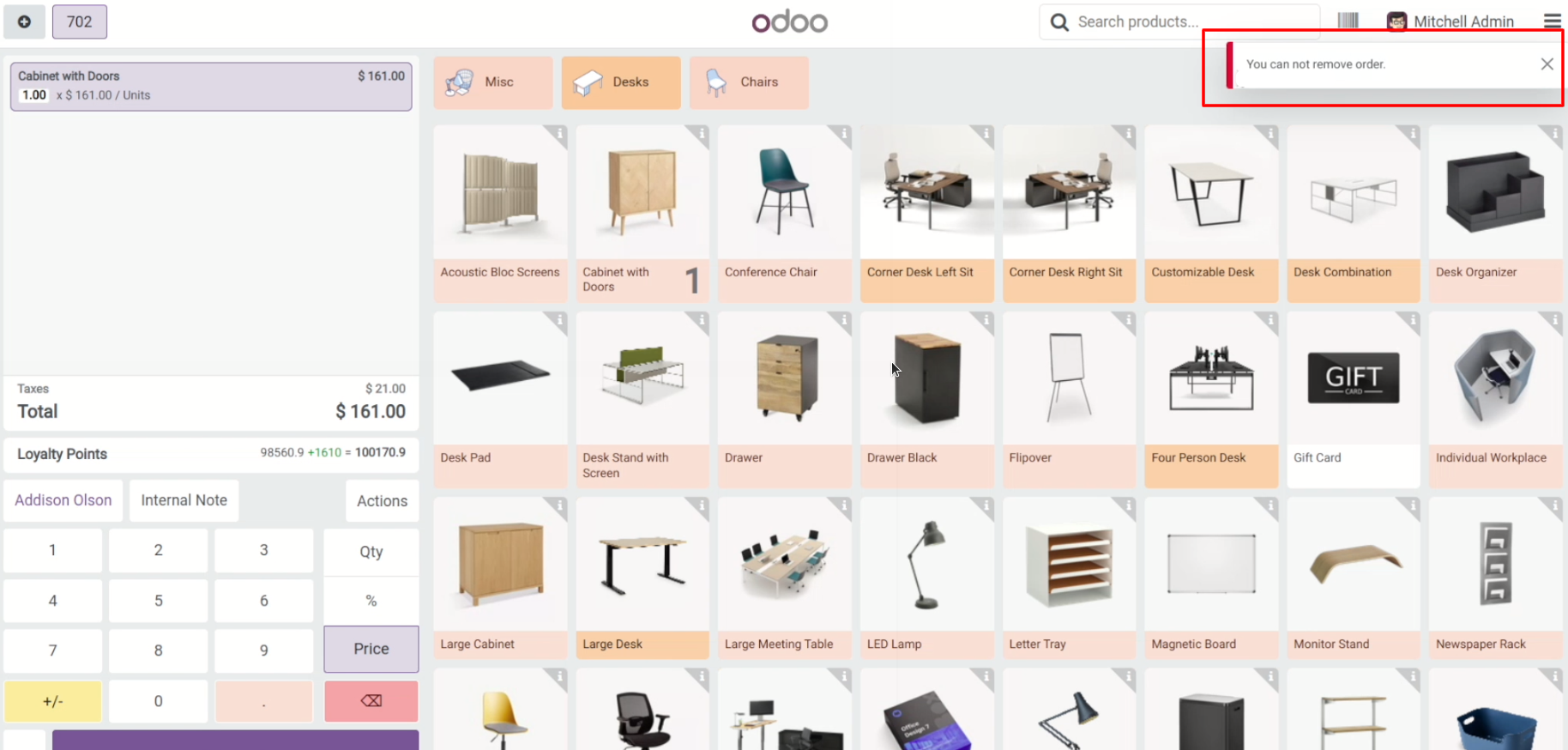
On the POS screen, if you attempt to add a percentage after the order has been paid, a warning popup will appear.
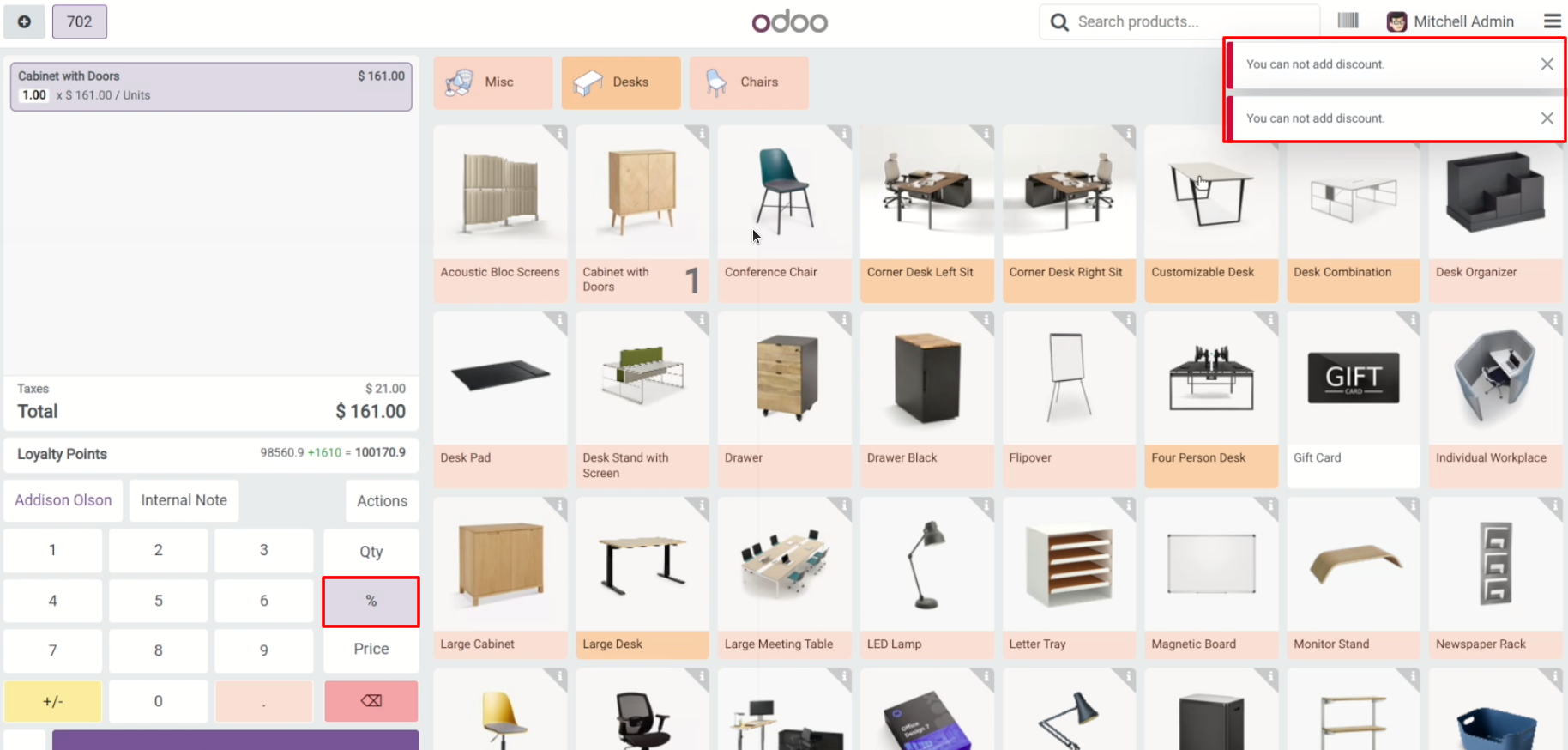
On the POS screen, if you try to change the price after the order has been paid, a warning popup will appear.
Click on the 'Action' button, then select 'Cancel Order'.
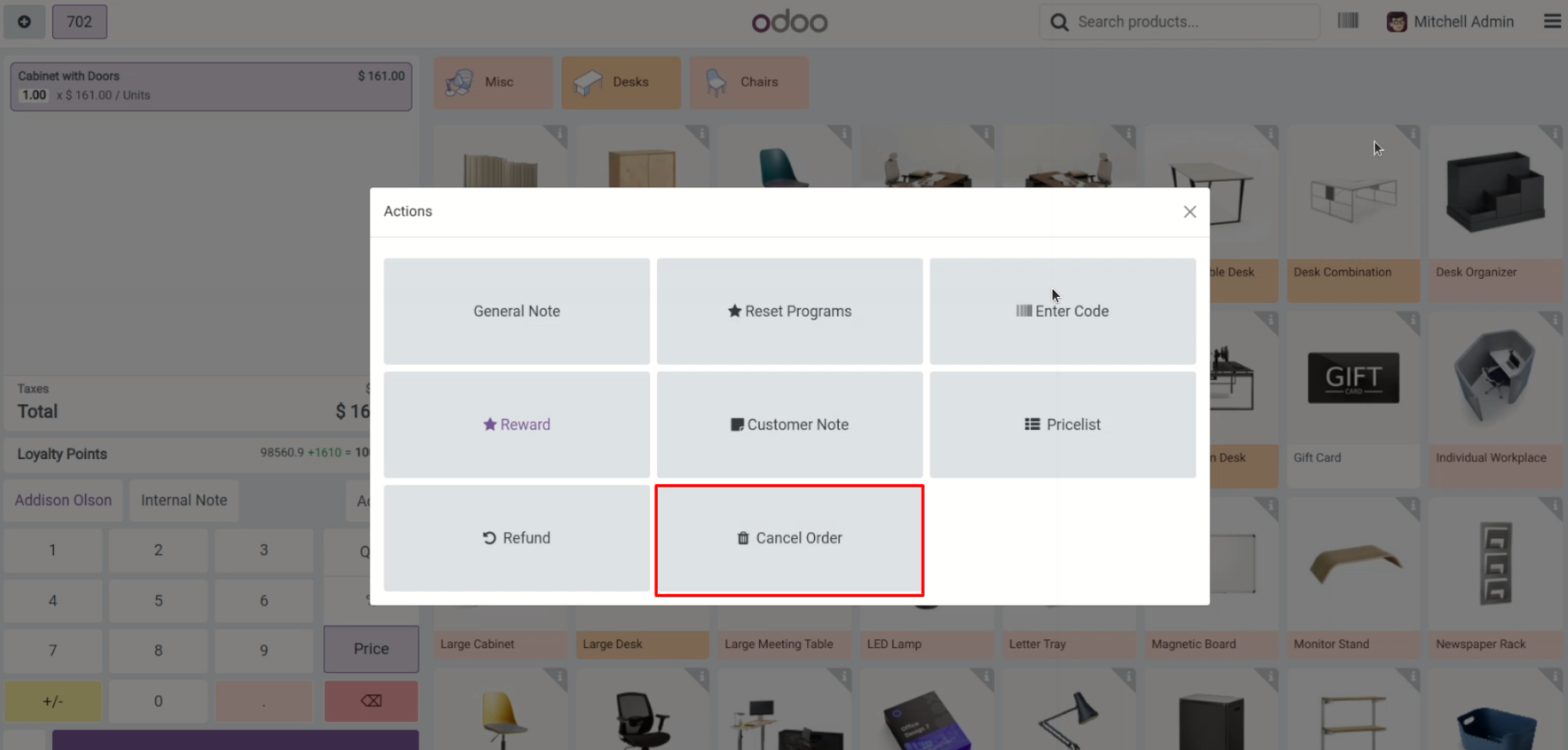
If you attempt to cancel the order after it has been paid, a warning popup will appear.
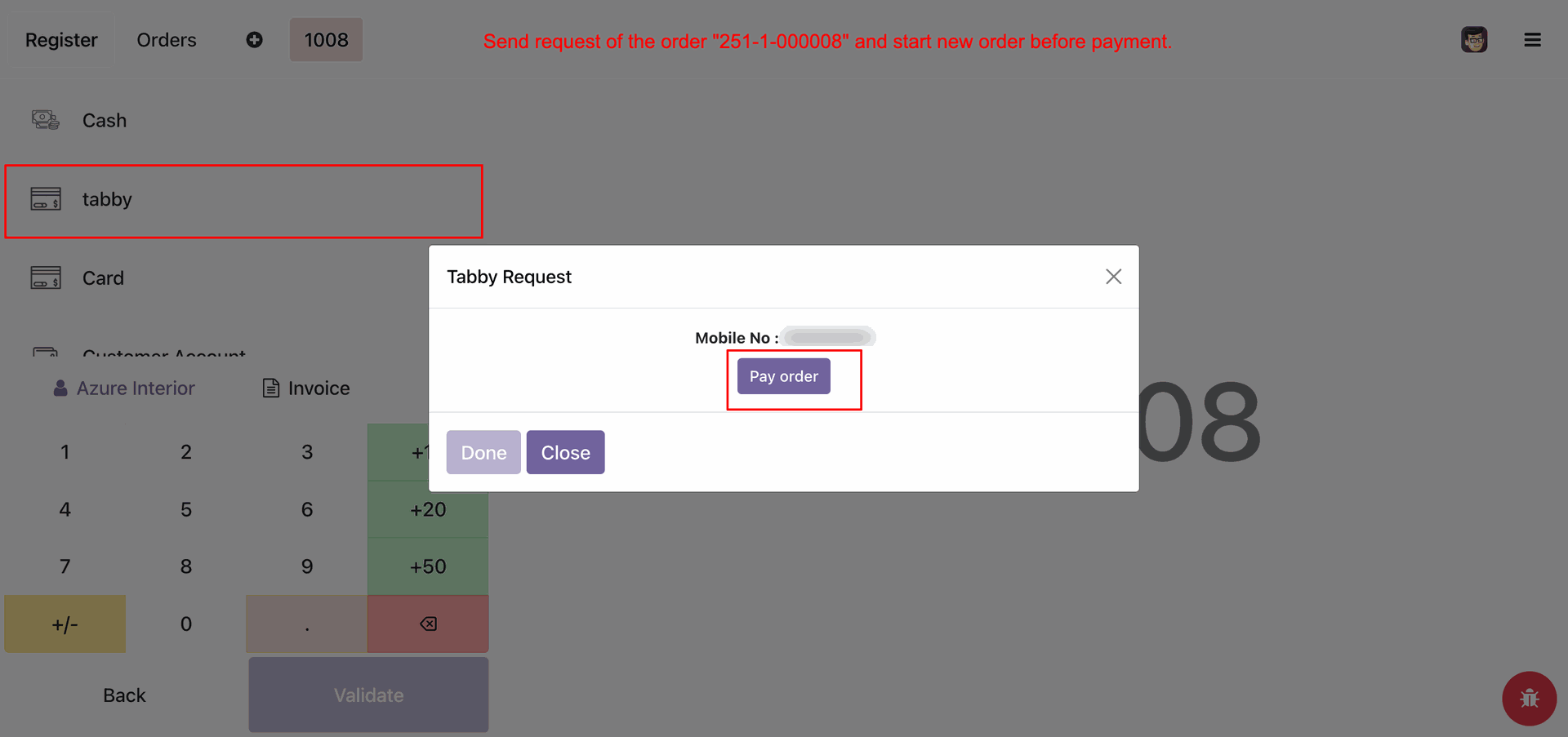
Click on the "Tabby" payment method.
After that, the "Tabby Request" wizard will appear. Enter the mobile number and click on the
"Pay Order" button.
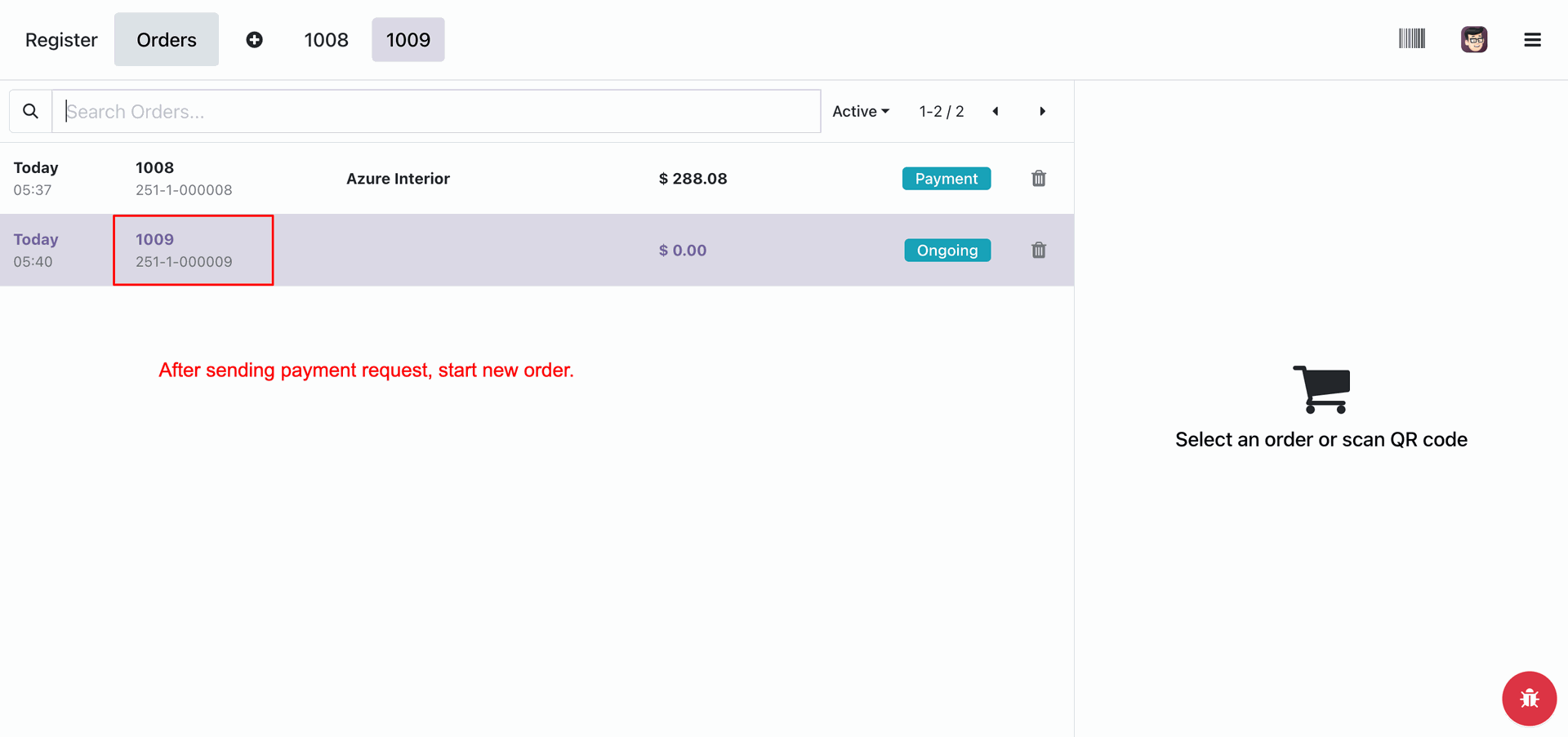
Here you can see the order number.
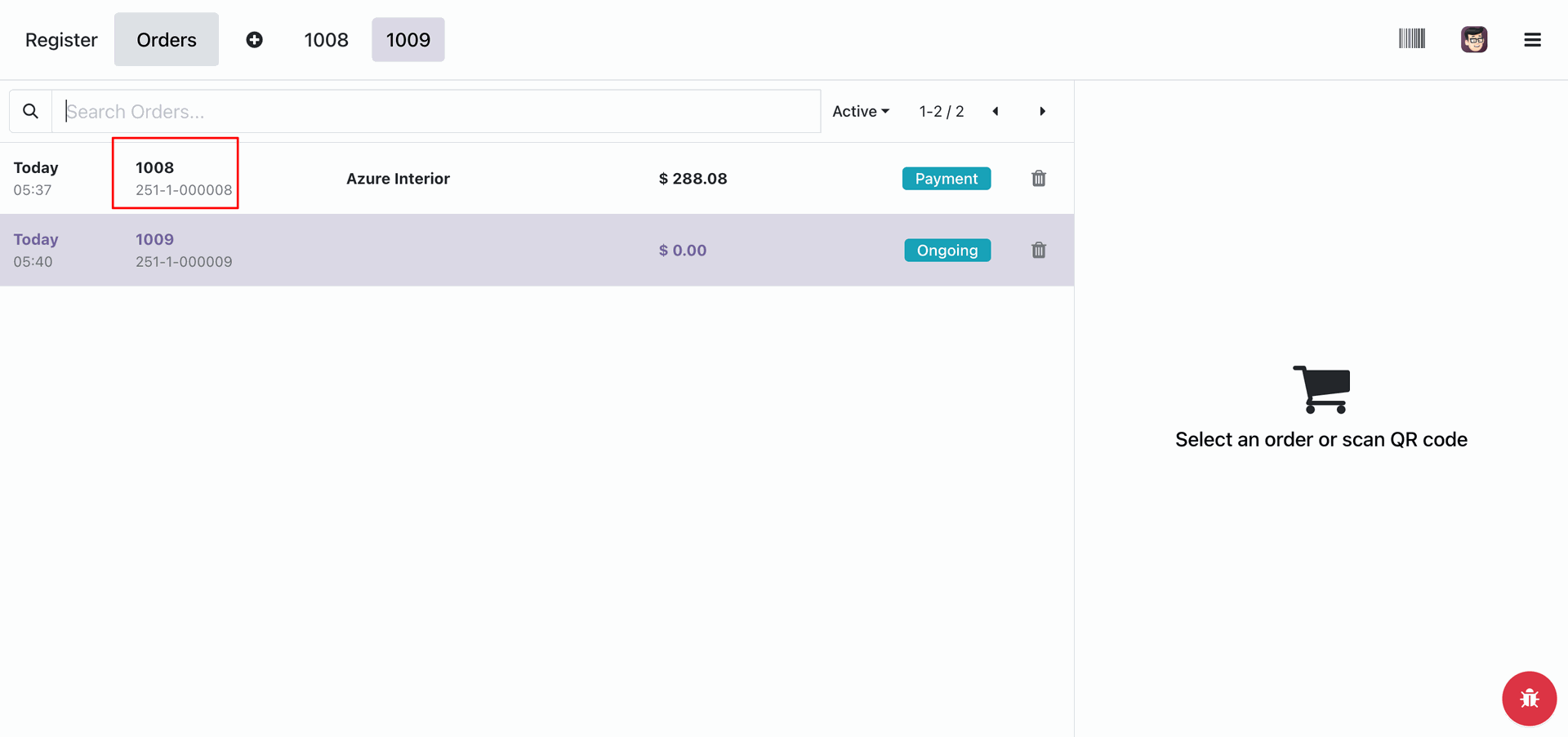
After sending the payment request, a new order will start.
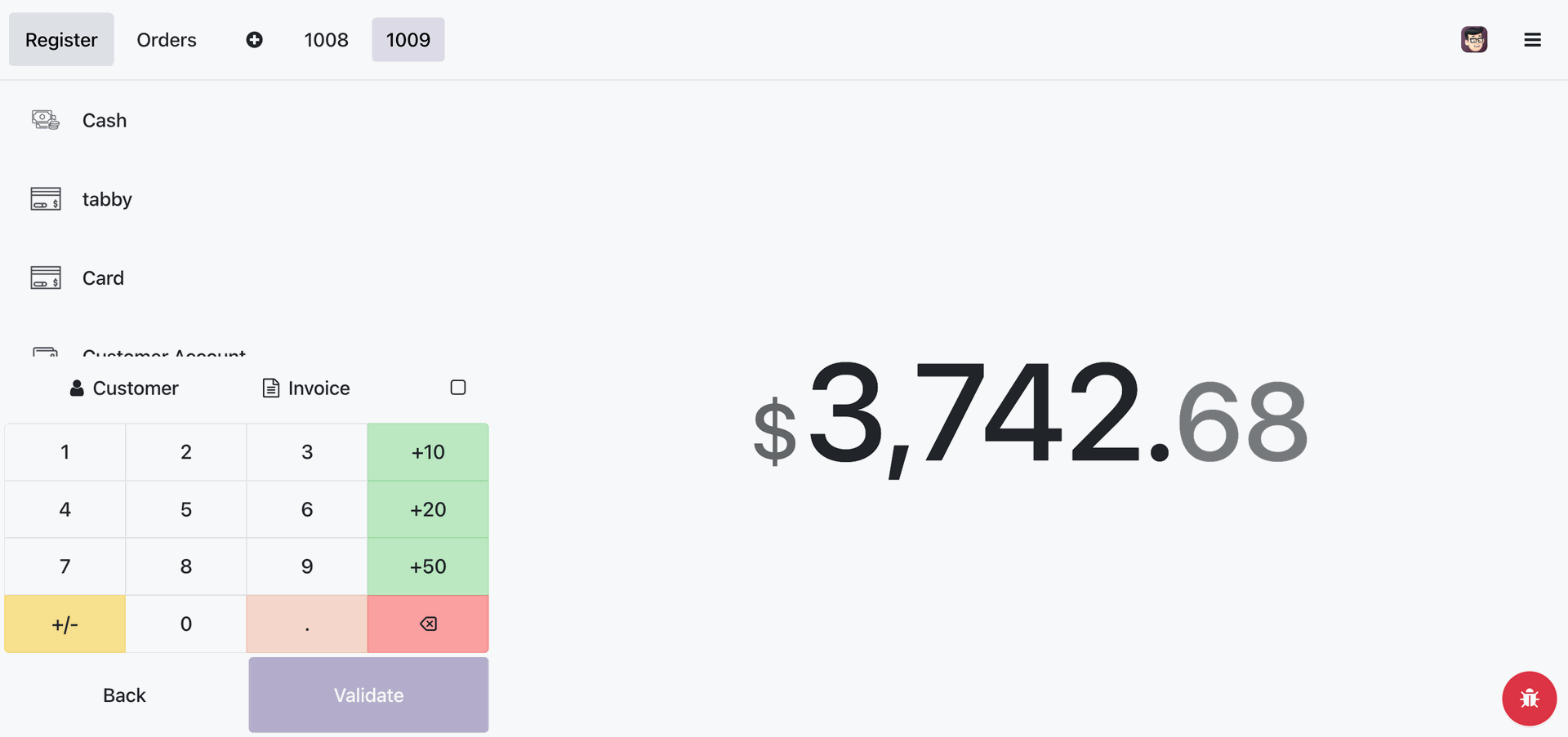
Here you can see the payment amount.
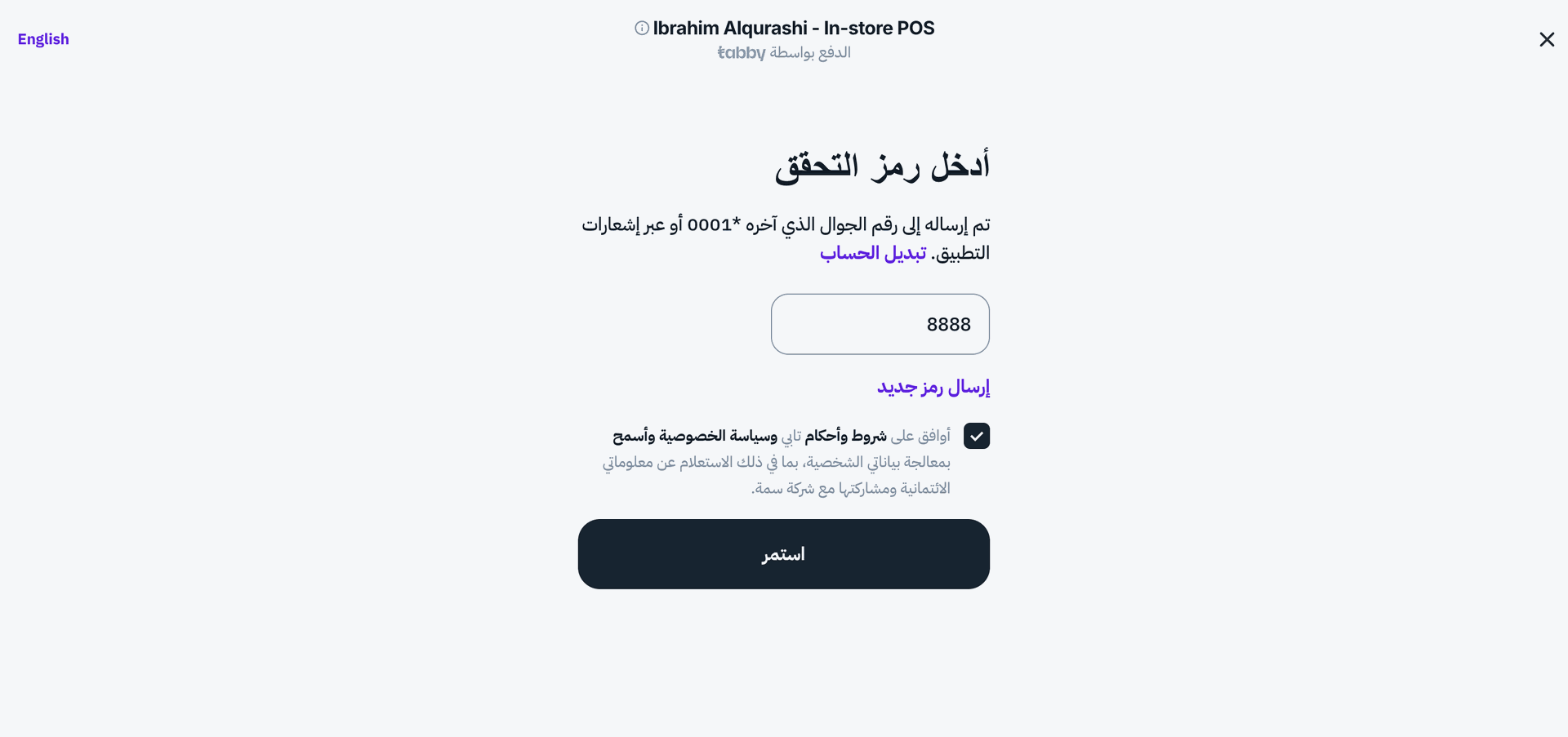
Add details and click on the "continue" button.
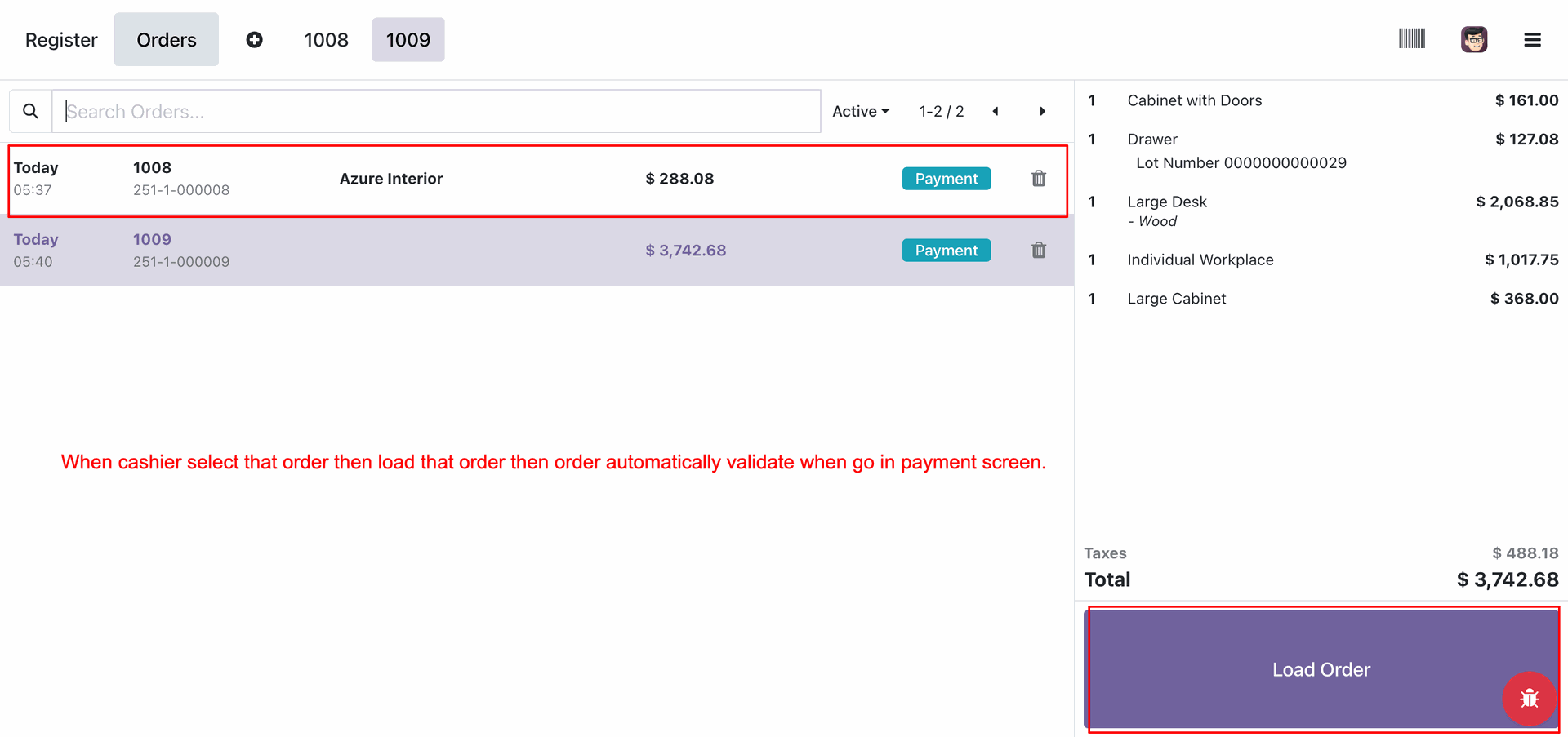
Meanwhile, if the payment for the old order is completed, the system will display a notification.
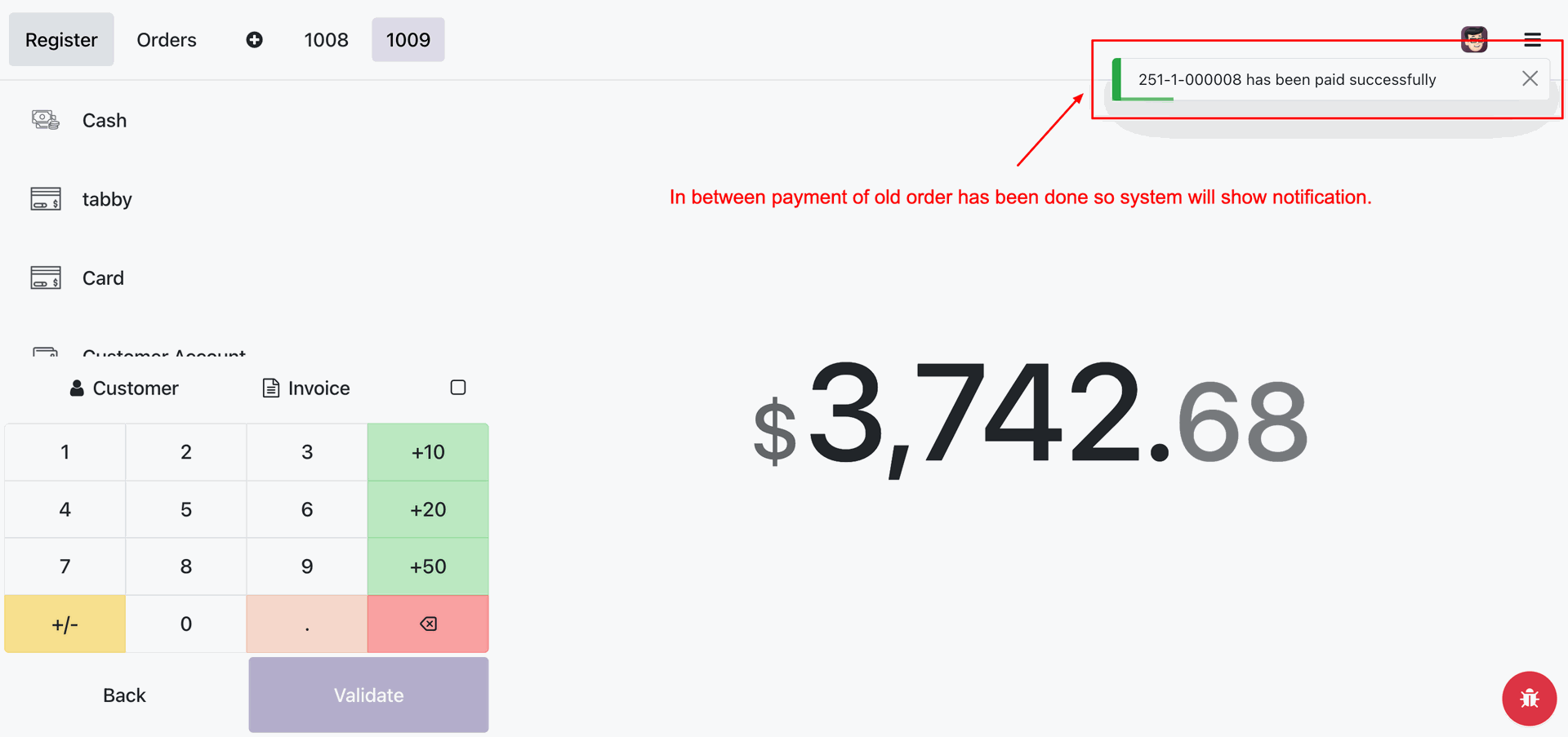
When the cashier selects that old order, it will be automatically validated when they go to the payment screen.
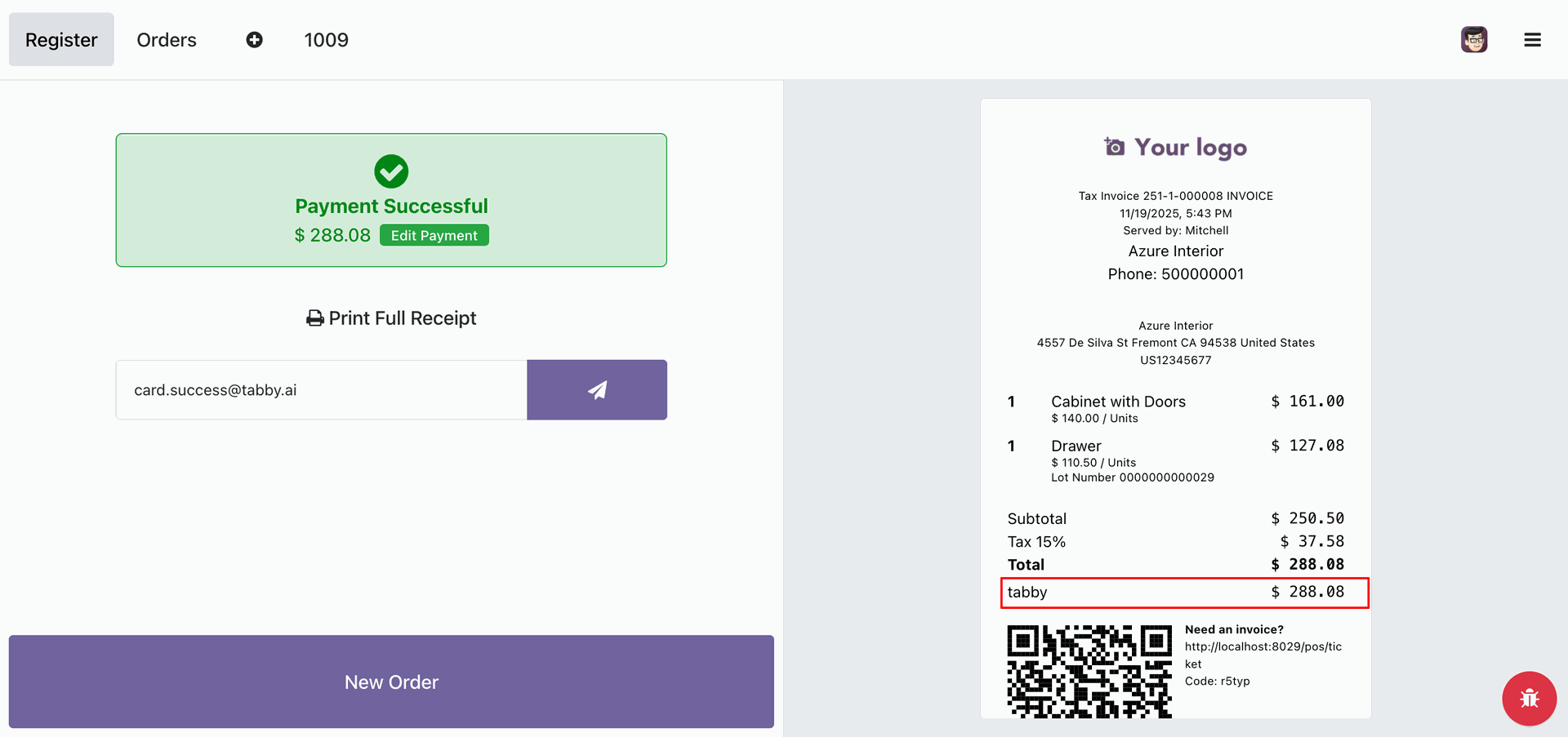
You can see the “Tabby” payment method on the receipt.
Version 20.0.1.0.0 | Released on : 15th September 2026
- Yes, this app works perfectly with Odoo Enterprise (Odoo.sh & Premise) as well as Community.
- No, this application is not compatible with odoo.com(odoo saas/Odoo Online)
- Yes, to test this module, please contact us at sales@softhealer.com.
- Please contact us at sales@softhealer.com to request customization.
- Yes, we provide free support for 365 days from the date of purchase.
- Yes, you will receive lifetime free updates for the version of the module you purchased.
- No, there is no need to install any additional libraries.
- Yes, for version 12 and above, you need to purchase the module separately for each version you intend to use.
- No, exchanges or refunds are not allowed. Please make sure to select the correct version before purchasing.
- You can contact us at support@softhealer.com for language translation support. We use Google Translator tools to provide translations in multiple languages, so the accuracy may vary. We welcome your suggestions to help improve translations.
Discover Our Latest Apps