

 Easy to Manage
 Dedicated Support
















 Scan to email sales





Sync Google Contacts (Import / Export)

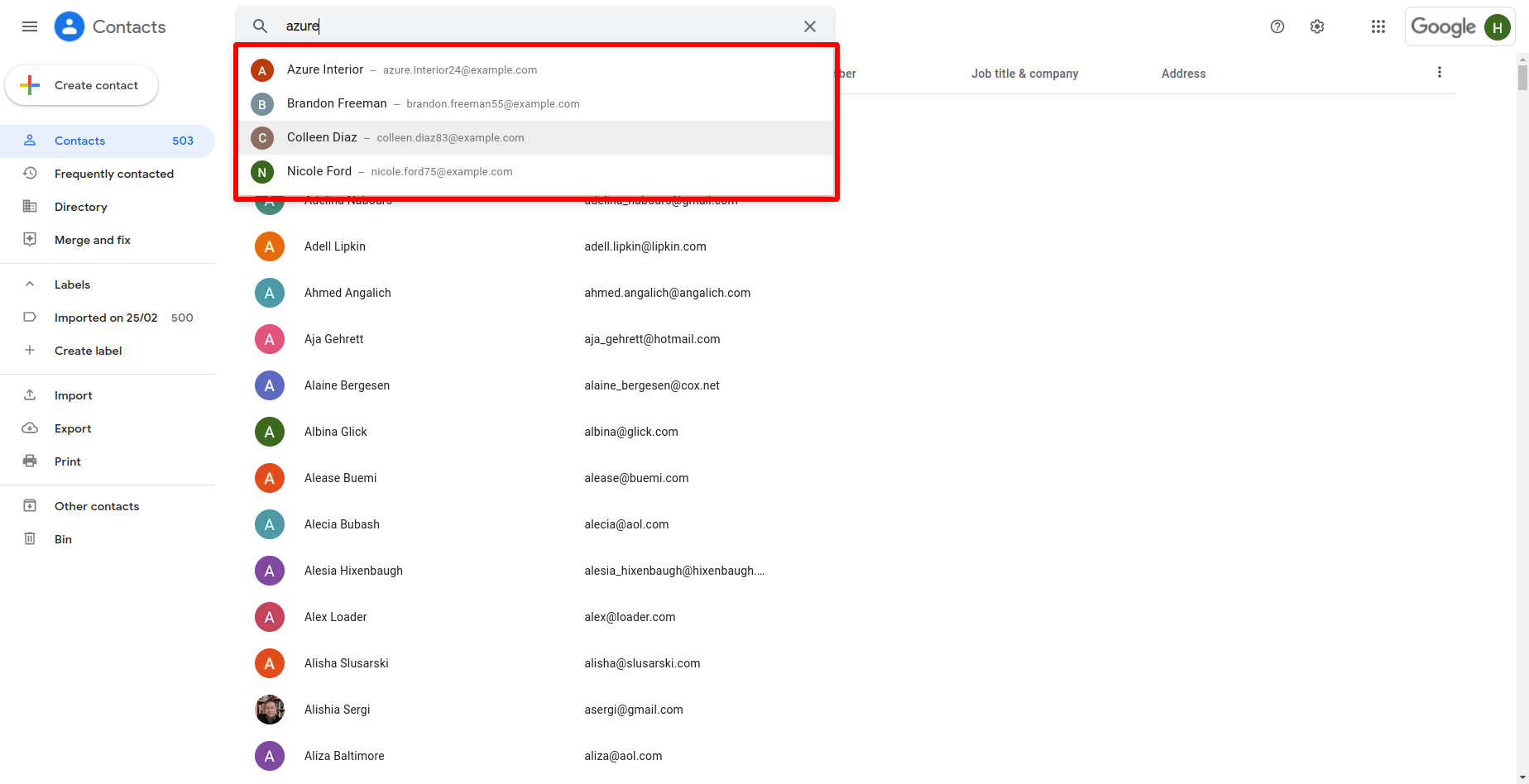
Google is the most popular for its free services like google photos, contacts, etc. Using this module you can import contacts from Google contacts to odoo contacts. In this module, you have one beautiful feature that is imported all contacts in one click and added to the queue. After that action, it will create contacts in the odoo contacts list. Also, you can export the contacts manually from the list.

Features
- Map Odoo contact fields with the corresponding Google contact fields. New
- Export updated Odoo contacts to Google Contacts. New
- Automatically import Google contacts into Odoo on a scheduled basis. New
- Update linked Odoo contact fields with the latest data from Google Contacts. New
- Easy to import all contacts in one click.
- Easy export contacts manually from the contacts list.
- When a contact is created, it will automatically be exported.
- Imported contacts are listed in the queue. It will help to reduce import time.
- Easy to import contacts manually from queue to odoo contacts list.
- Easy to use, just install config and ready to go.
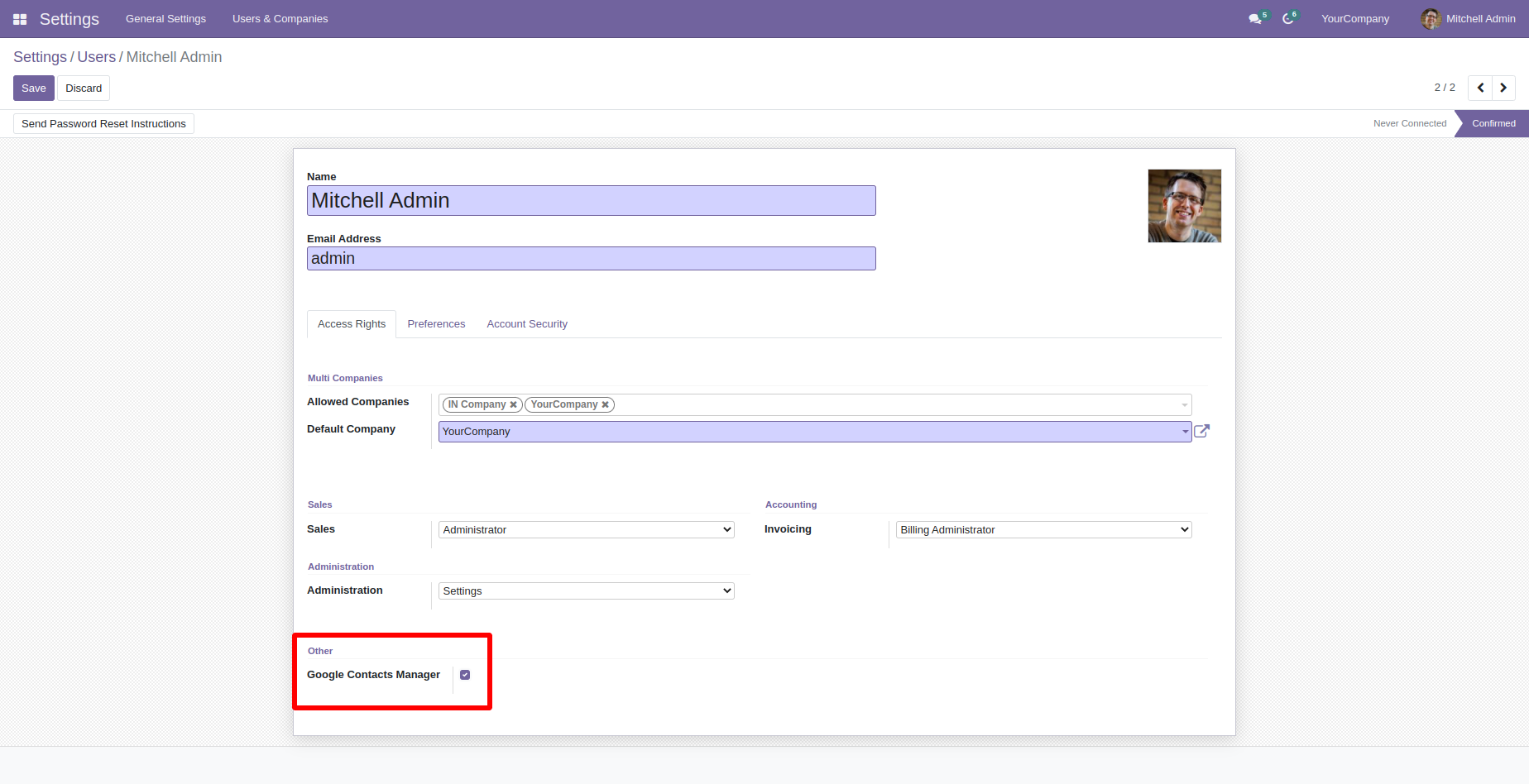
Enable user rights for the google contacts.
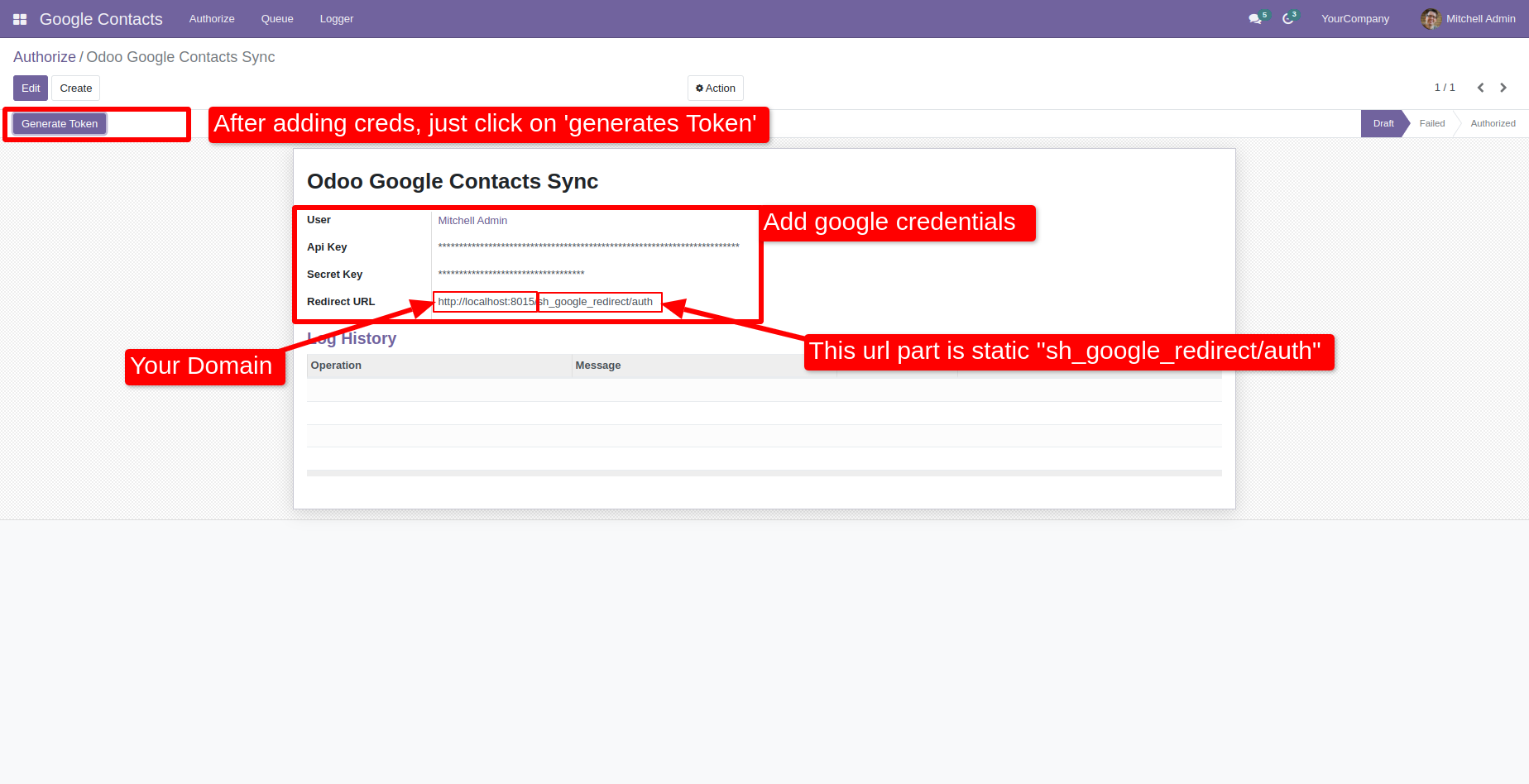
Add your google credentials and click on the 'Generate Token'.
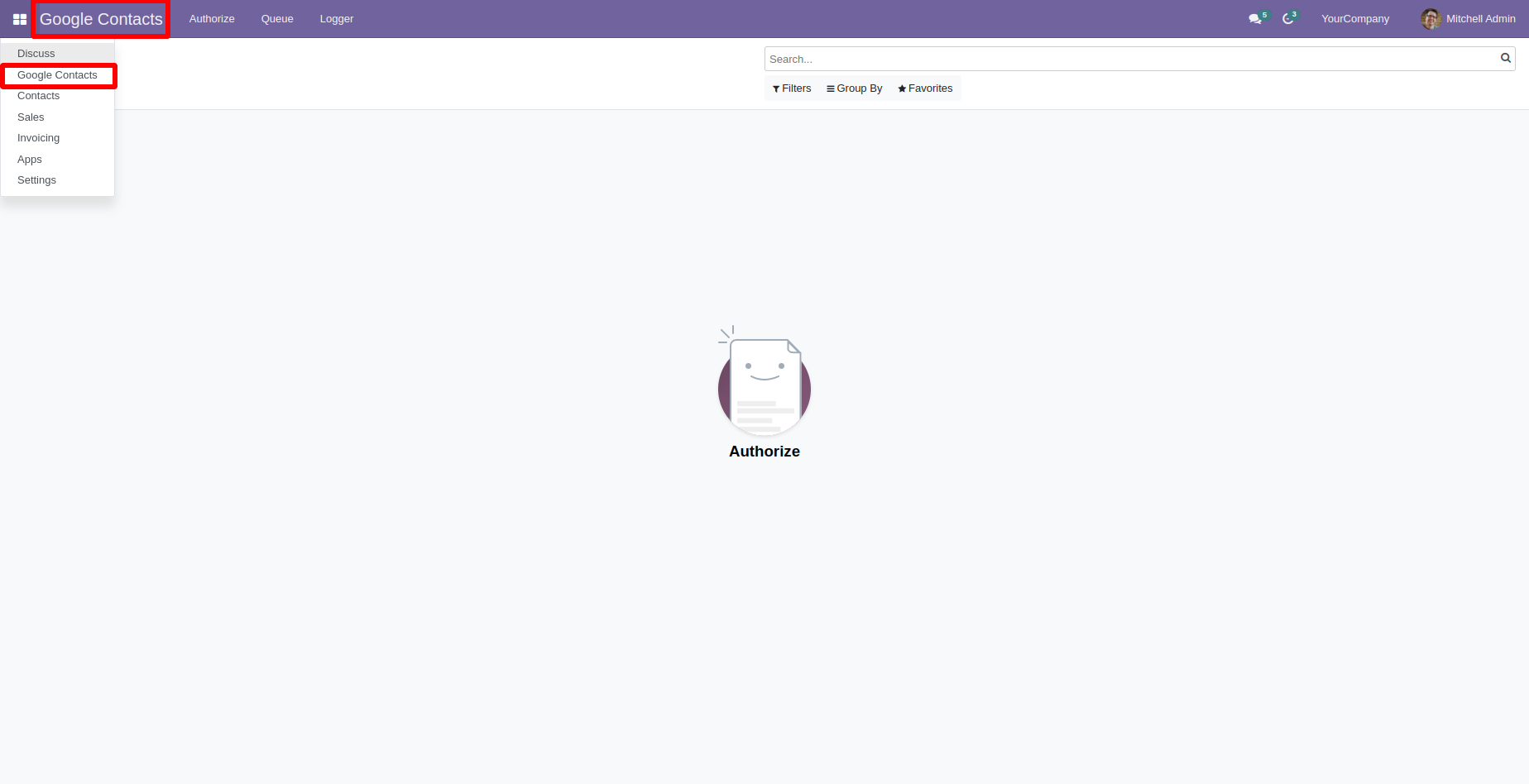
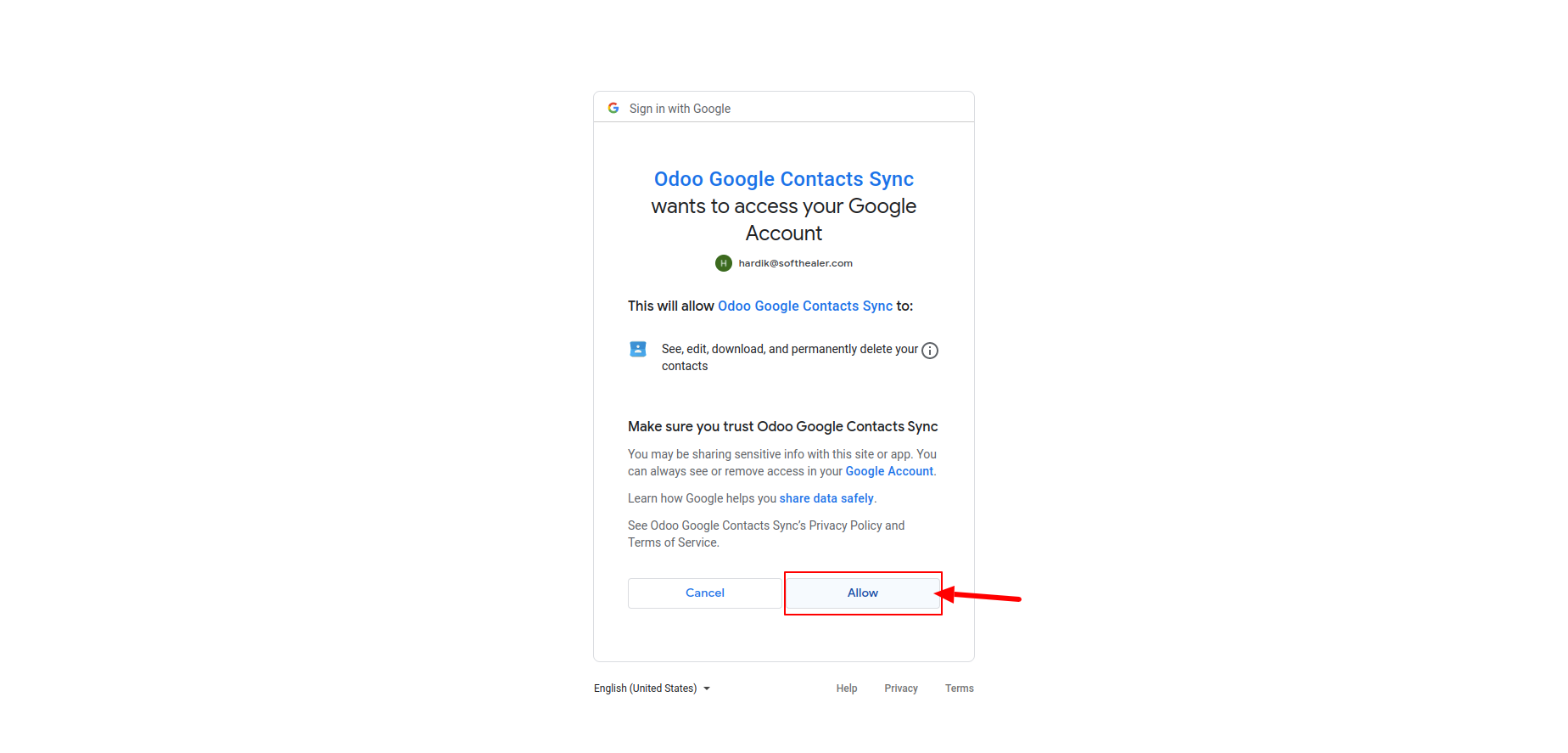
You have to allow access to sync google contacts with your API.
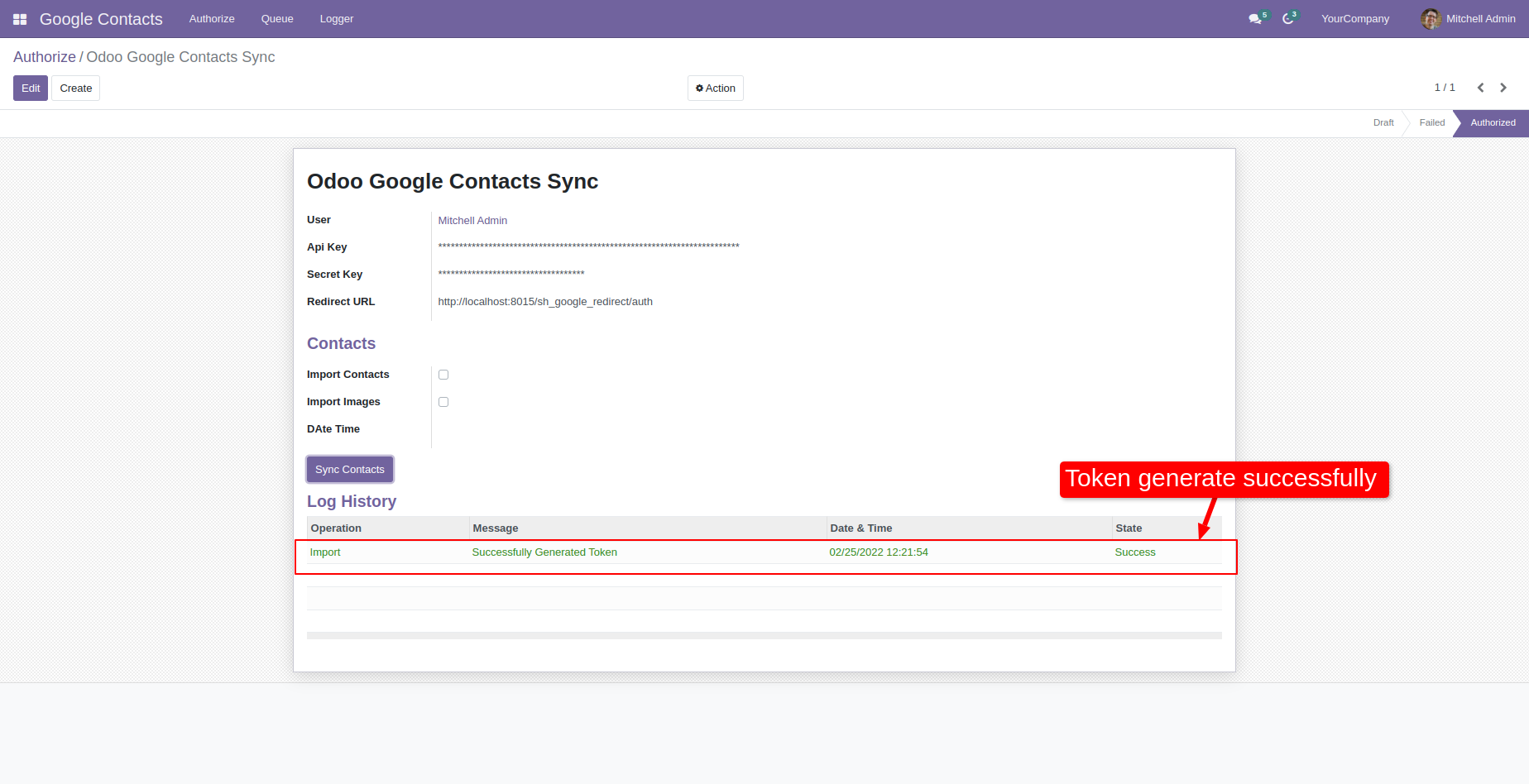
After generating the token successfully you get the success log in log notes. After generating the token successfully, just enable import contacts and click sync contacts. After clicking that button it will import all the contacts from your Google account and added into the queue.
All imported contacts are listed in the queue, it will create automatically in the odoo contacts list with help of a cron.
Field mappings.
Log history.
Also, you can manually import contacts from the queue list, just select contacts and click action 'Manually Import'.
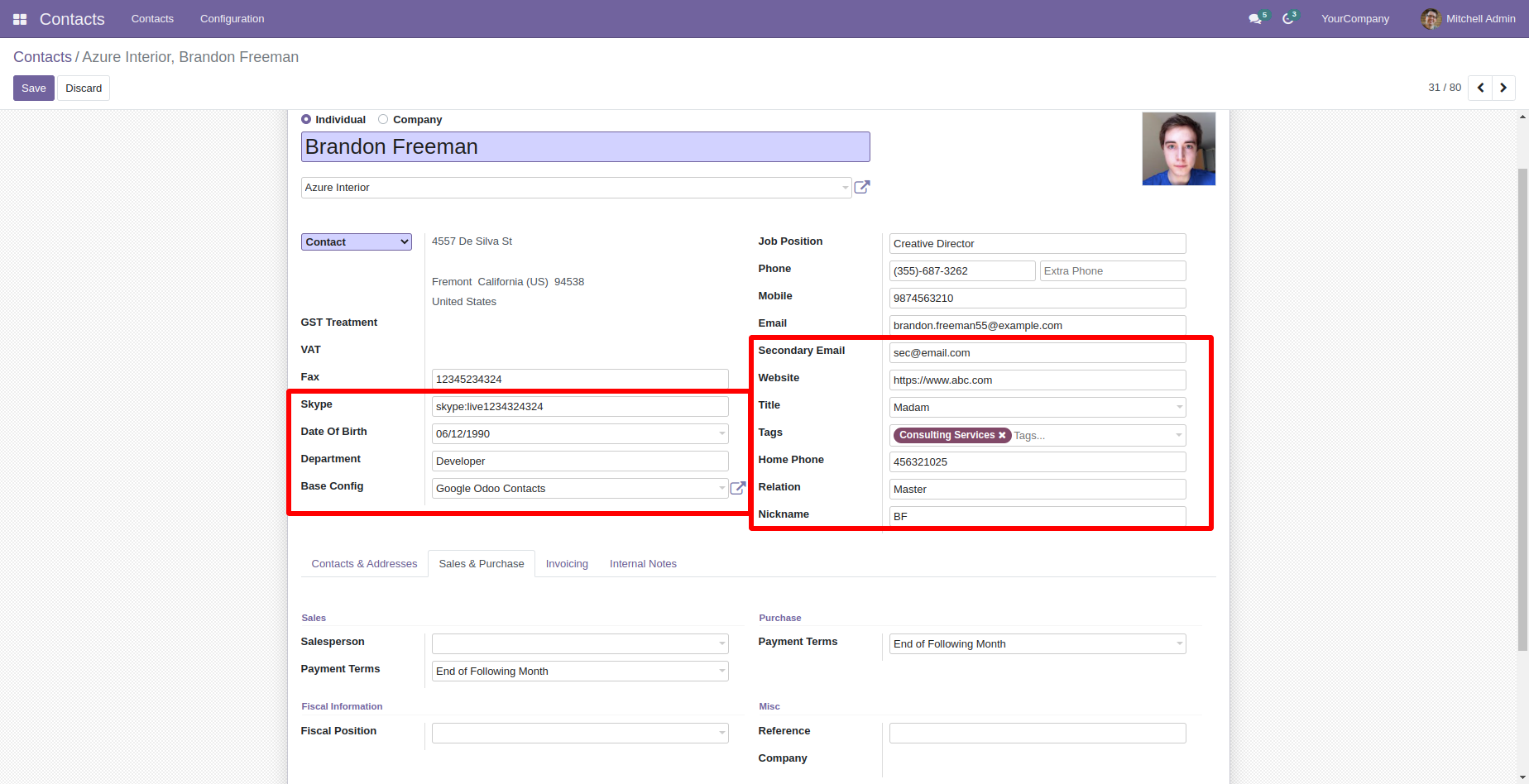
Imported google contacts in odoo contacts.
Enable 'Auto Import Contacts'.
Cron for the import contacts.
Enable 'Export When Create'.
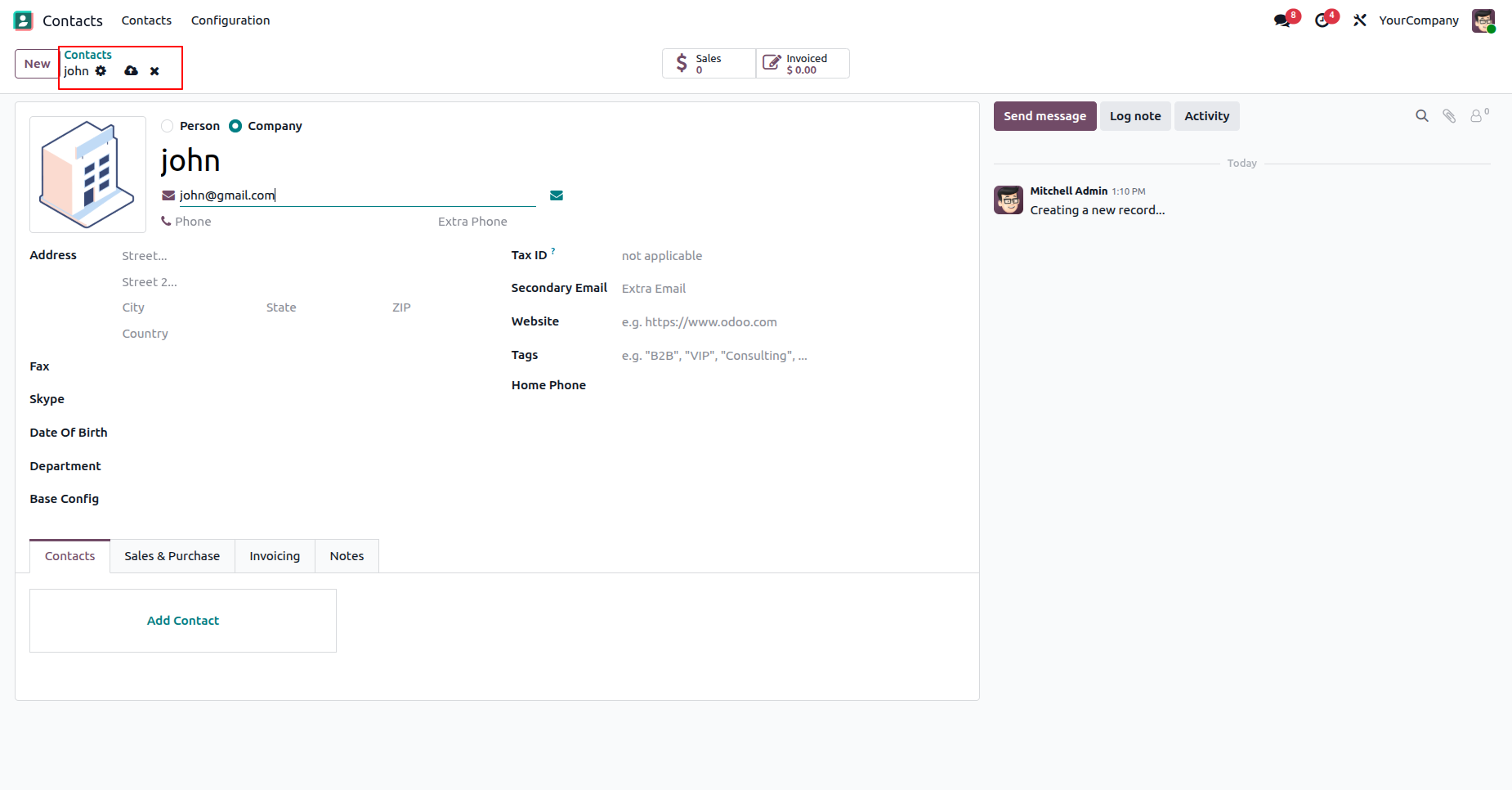
Create new contact.
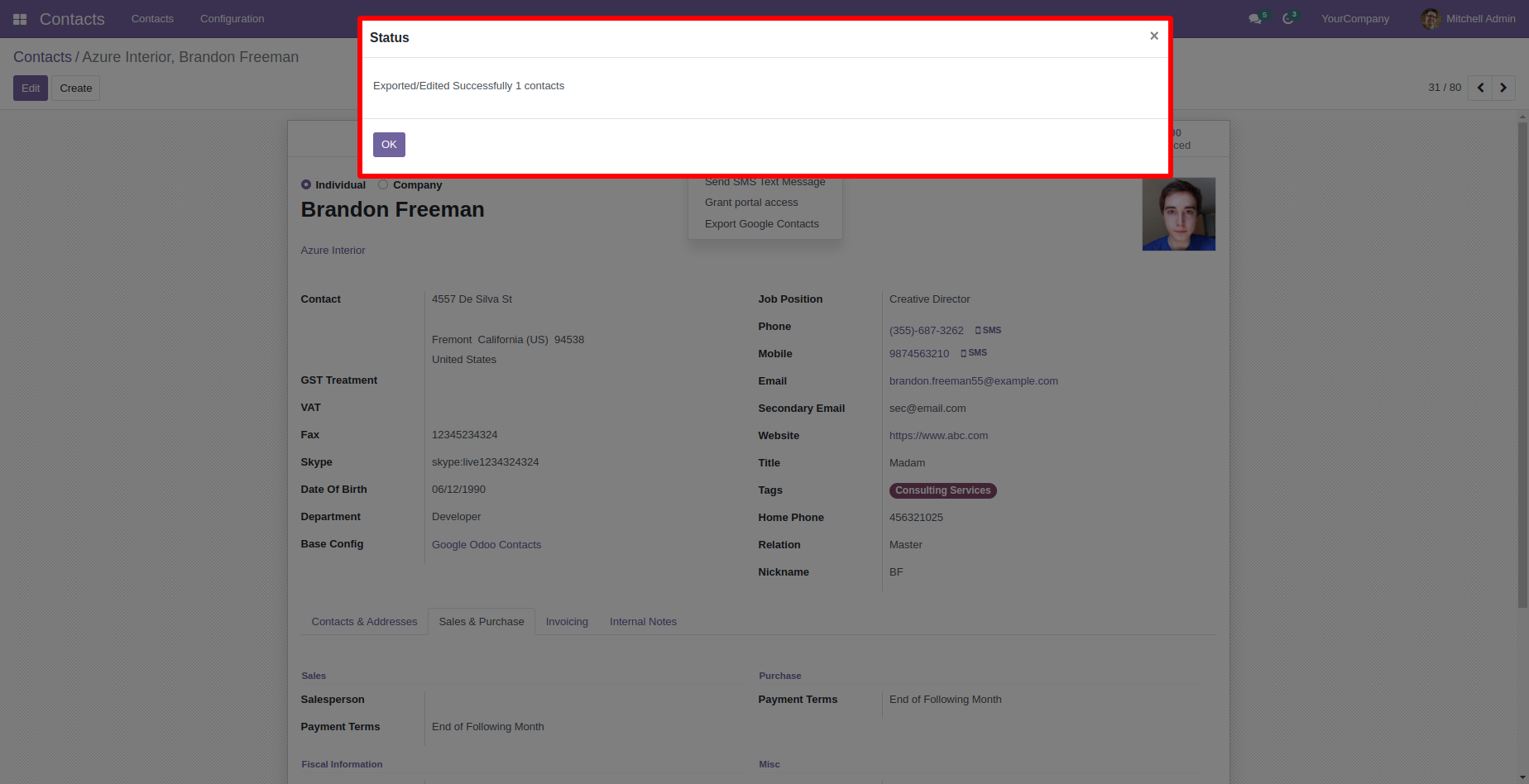
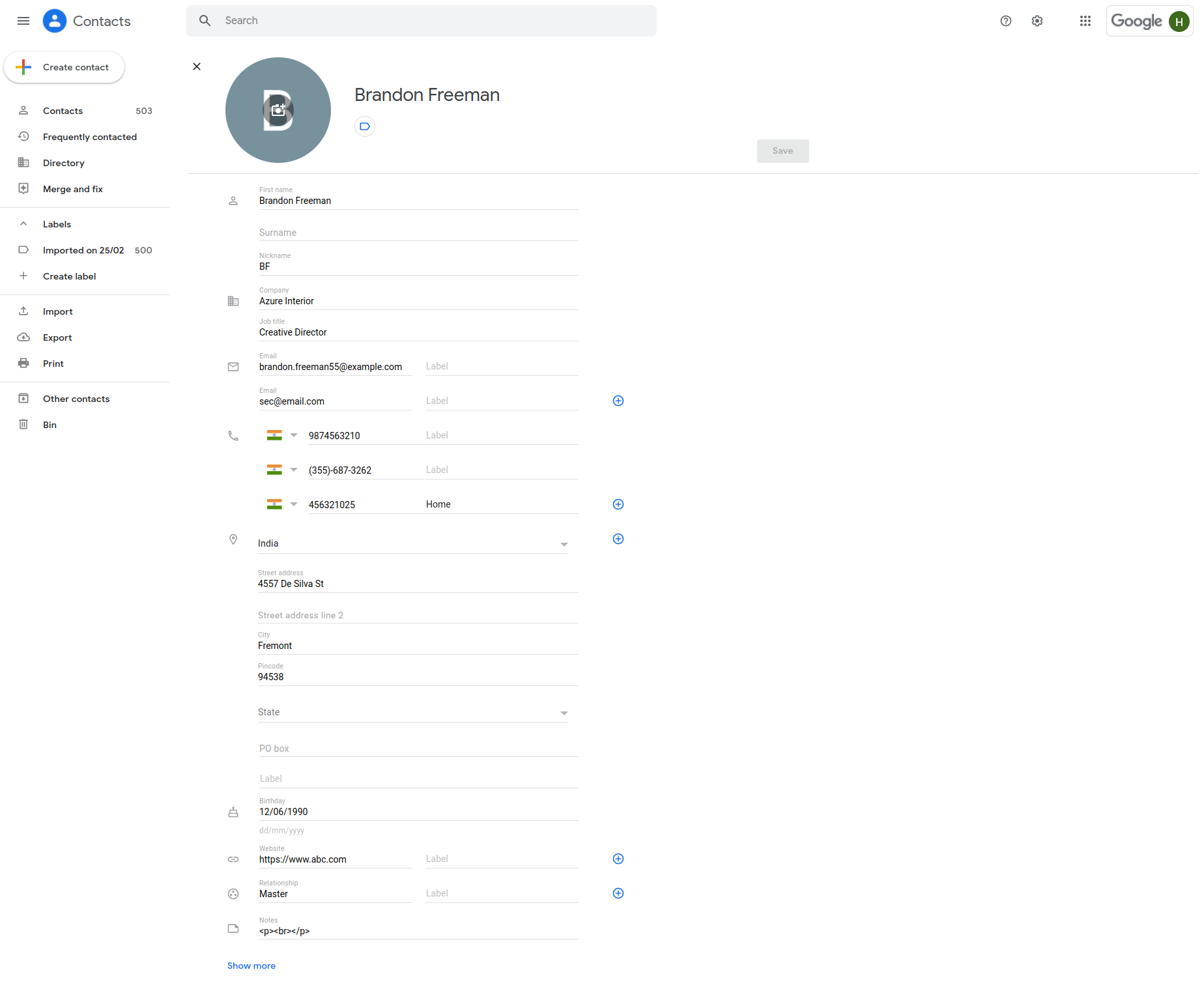
Exported contacts in google contacts with details.
Enable 'Export When Contact Is Updated'.
Update the contact.
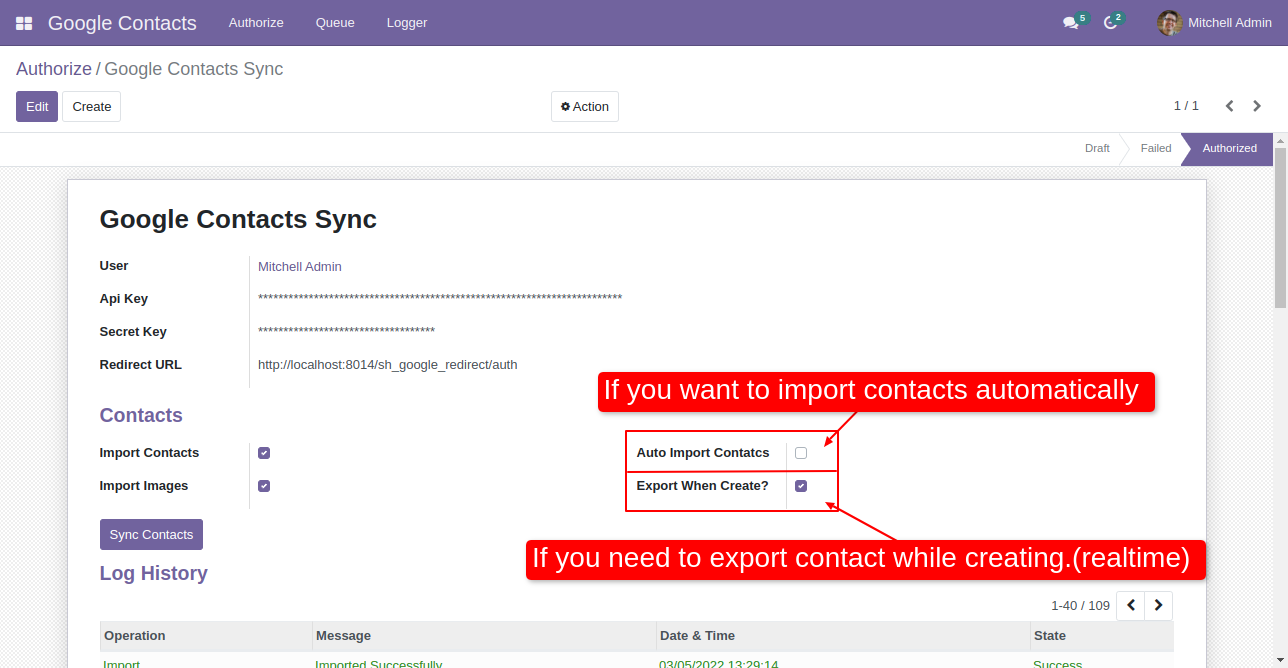
Updated in google.
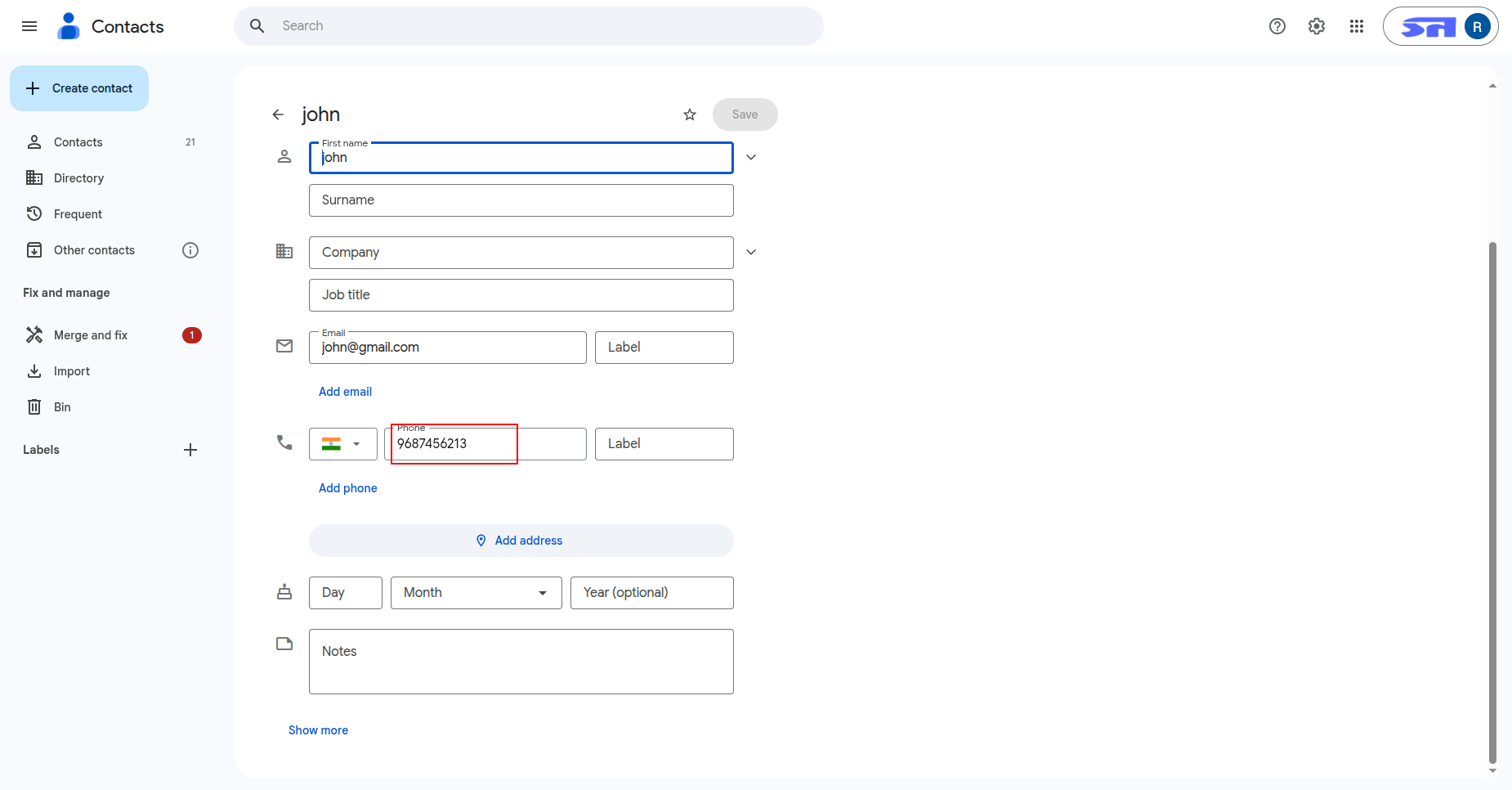
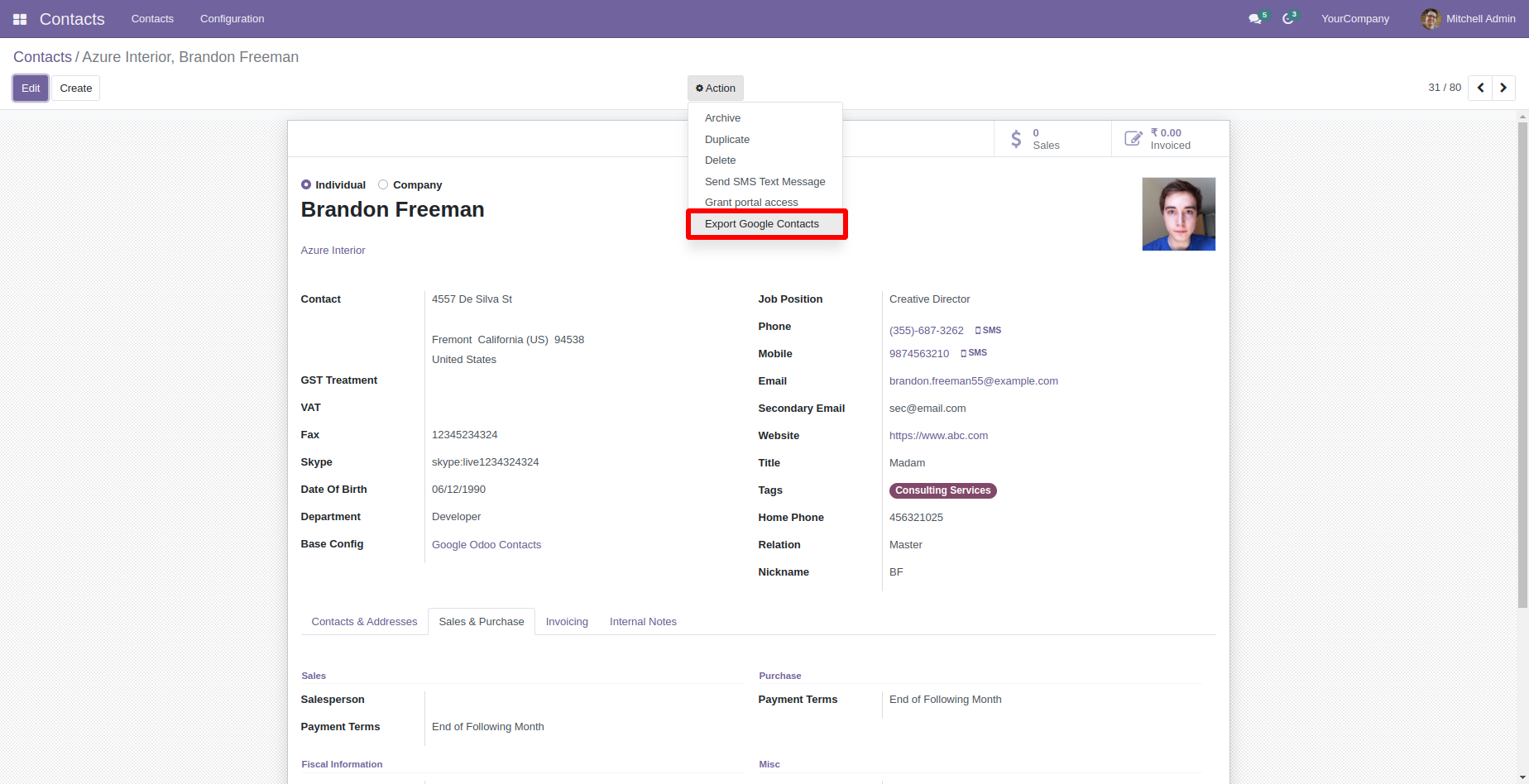
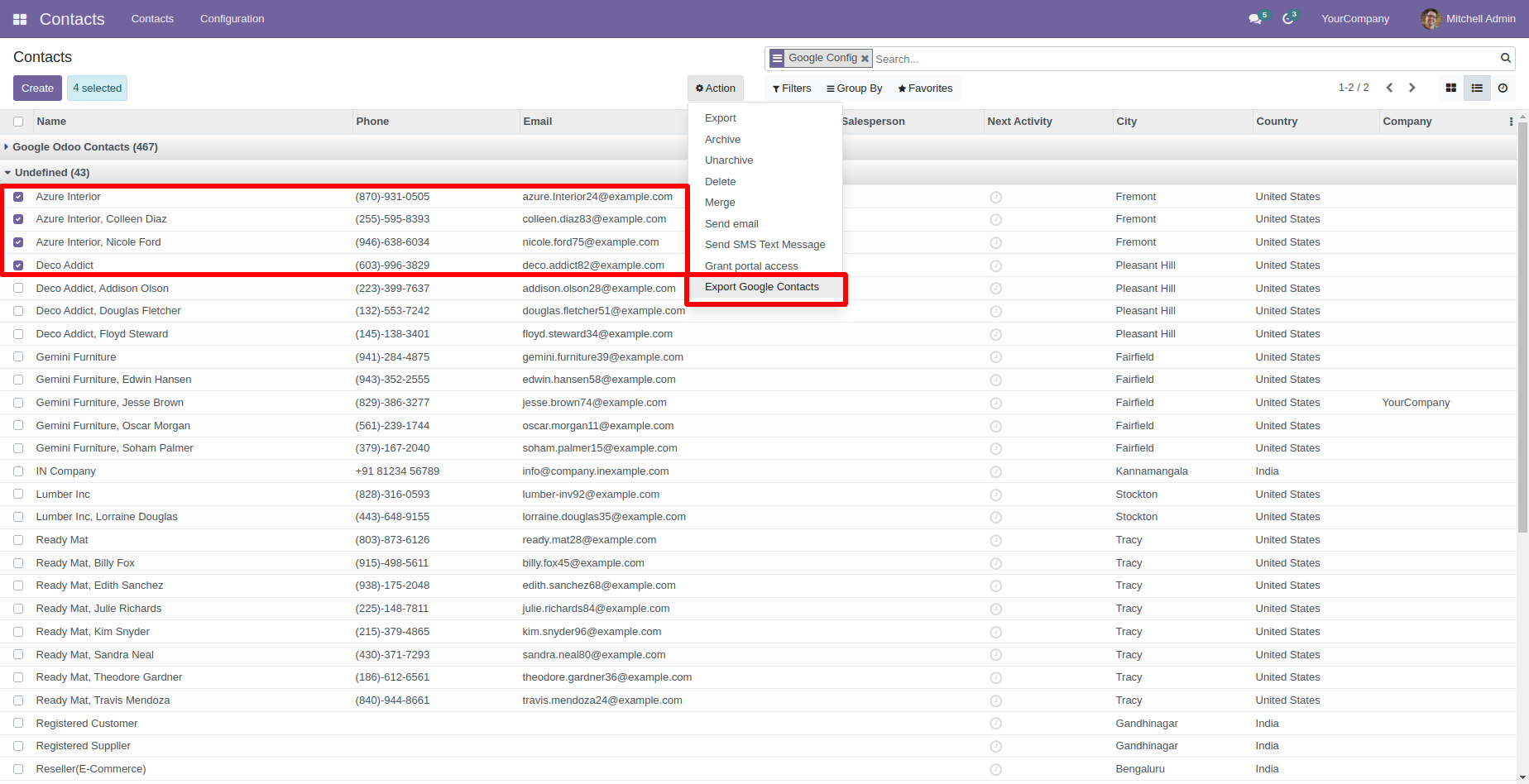
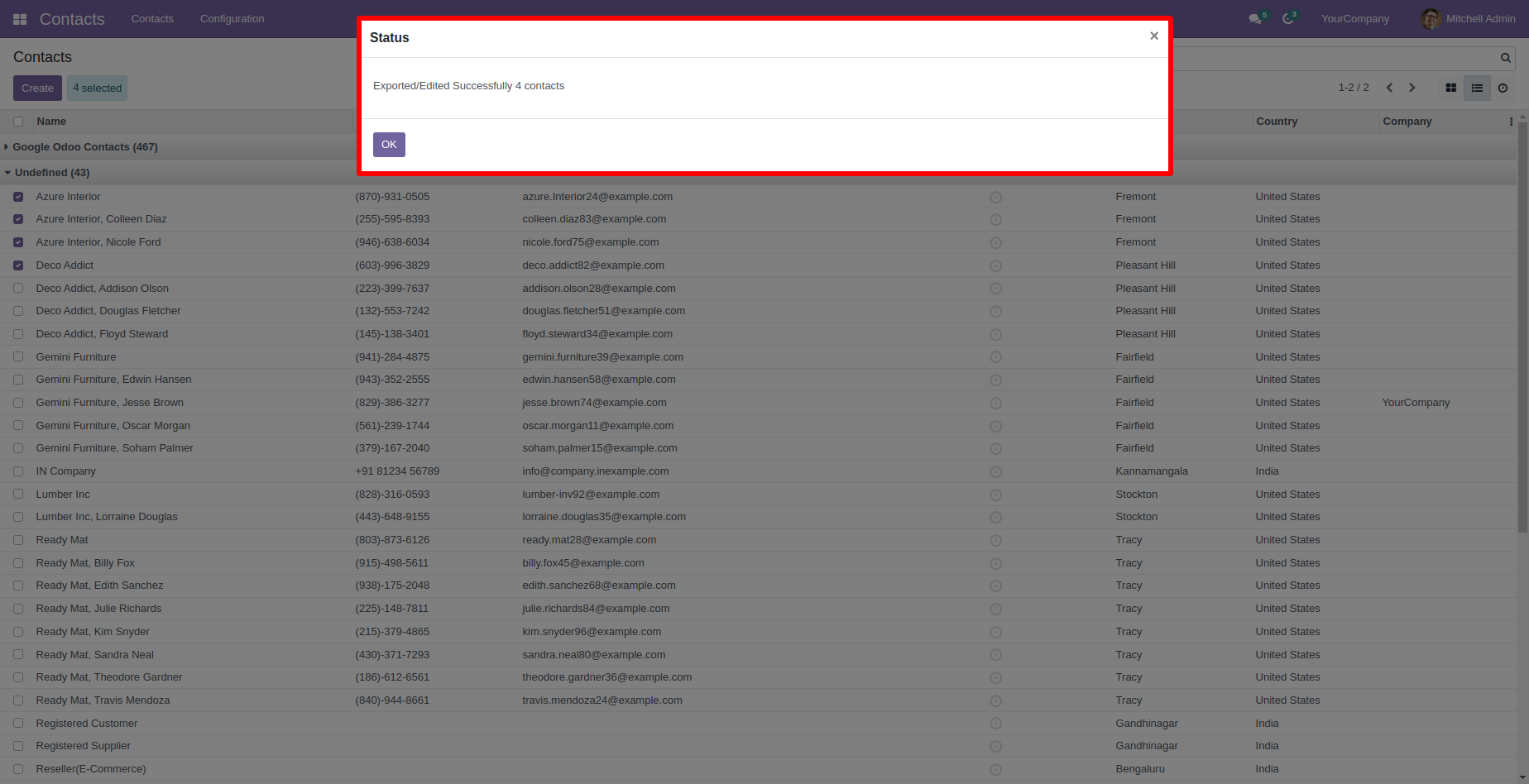
After creating contacts in odoo you can export manually. Just click on the actions button and select "Export Google Contacts".
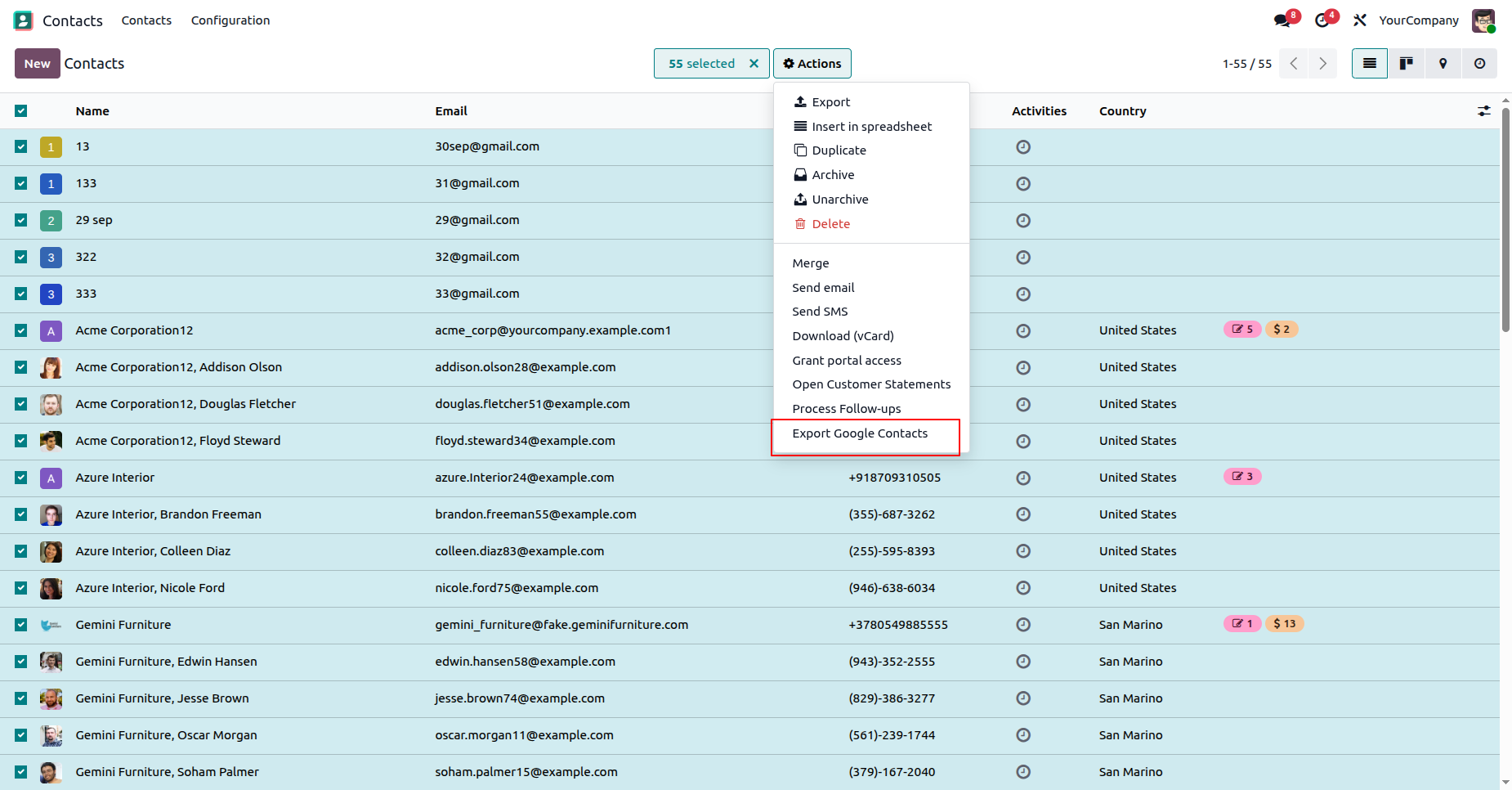
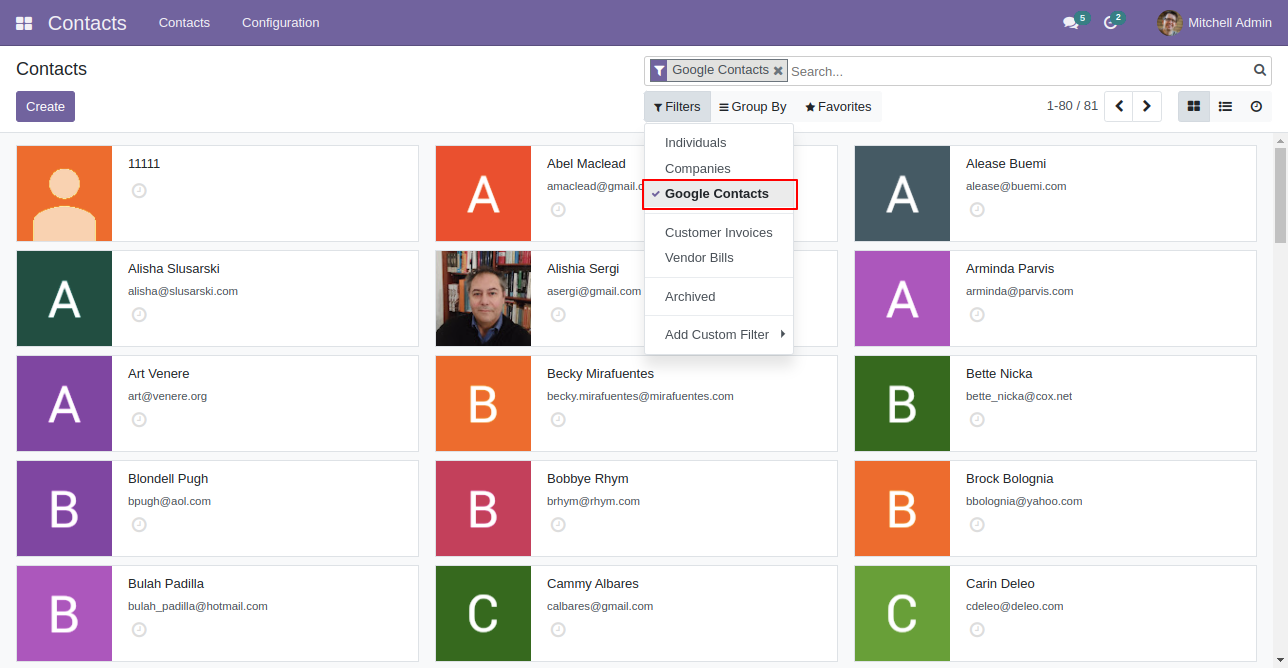
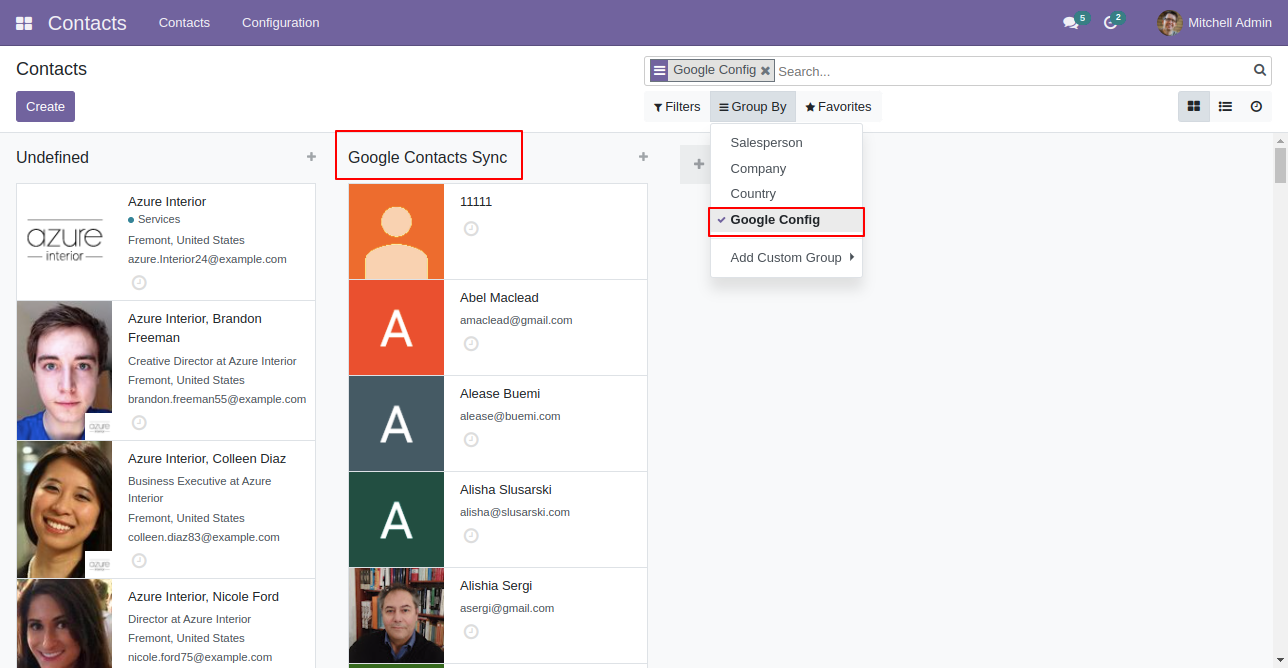
Filters & Group by.
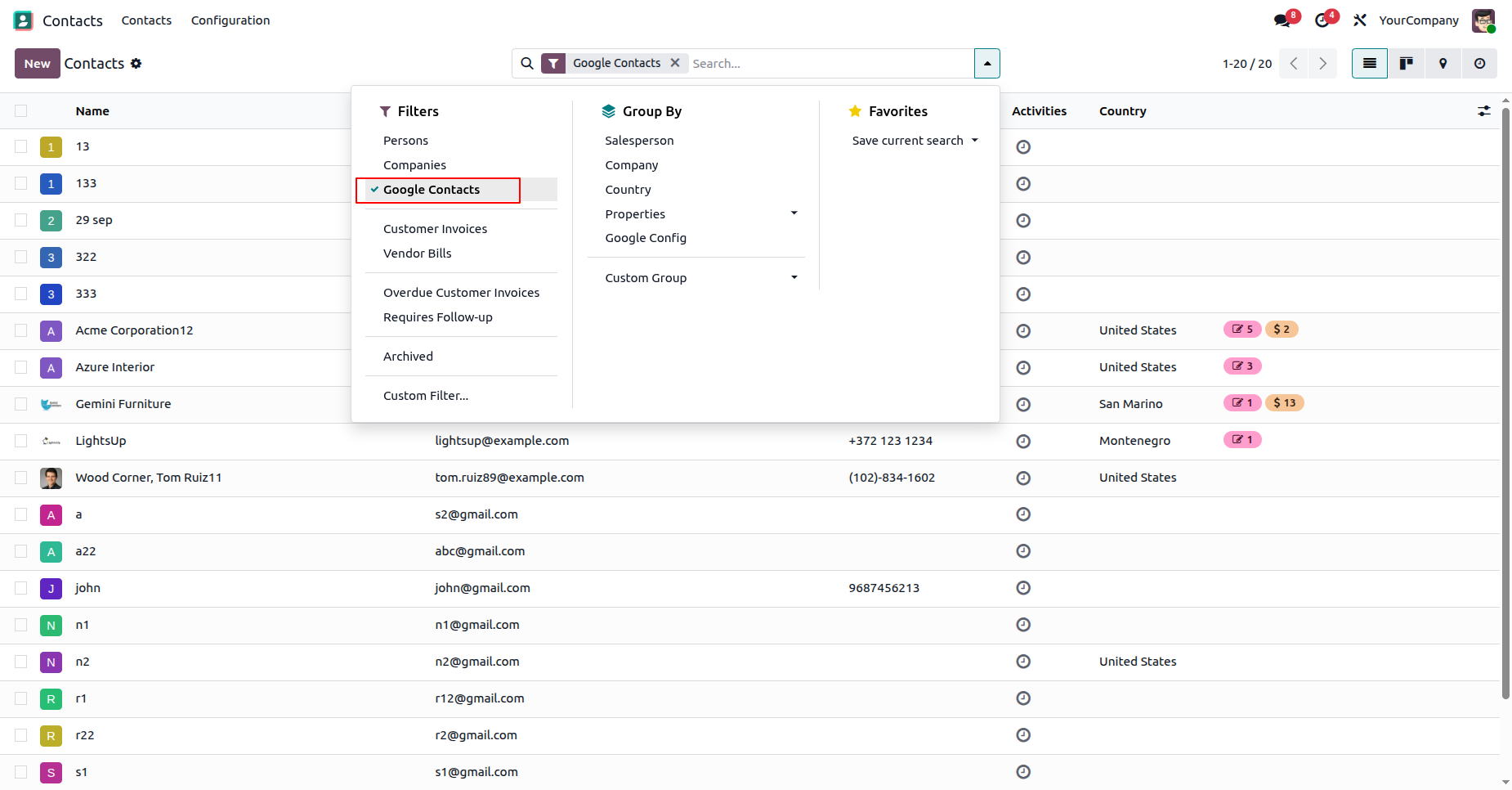
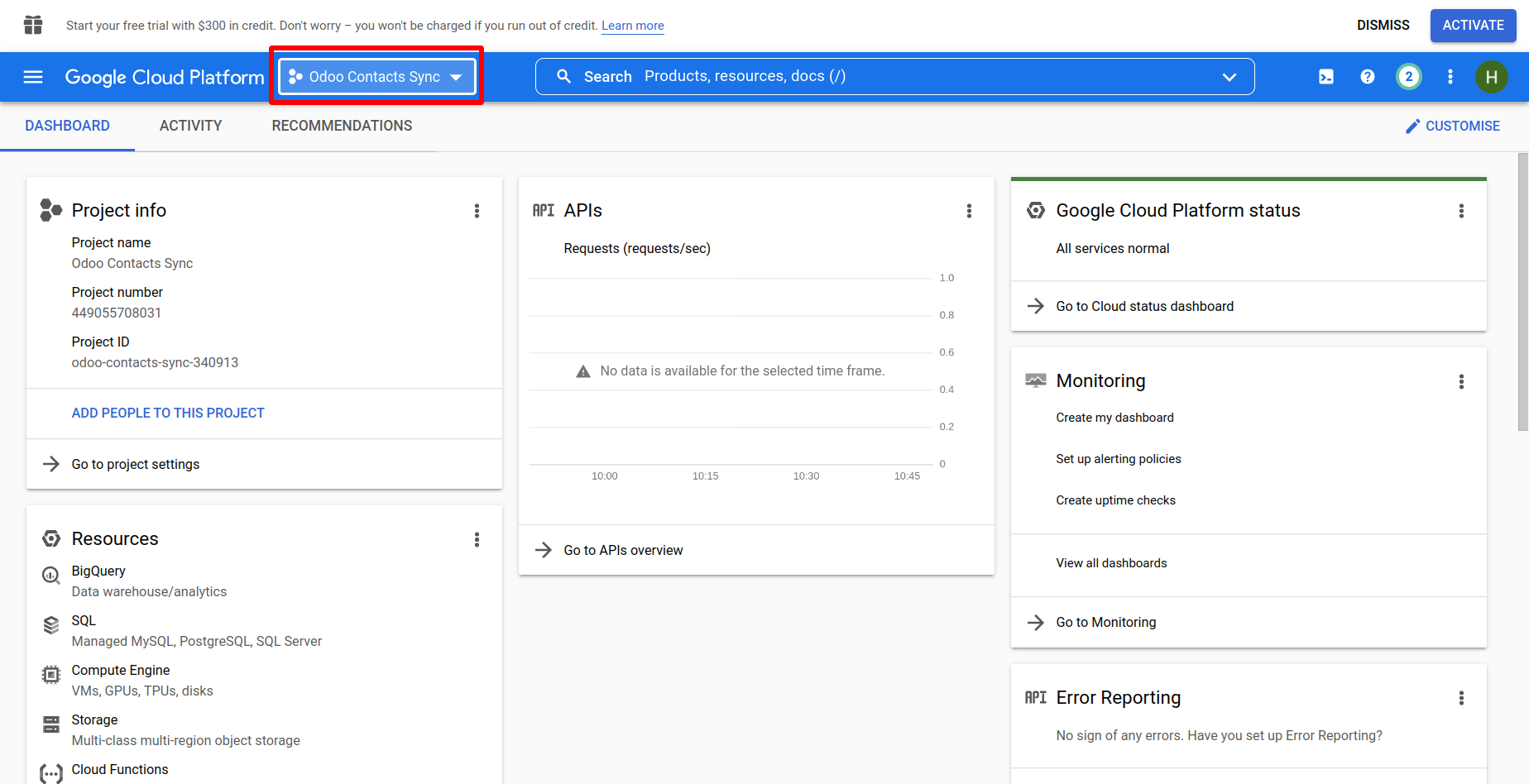
Goto google developer console and click on the marked option in the below image.
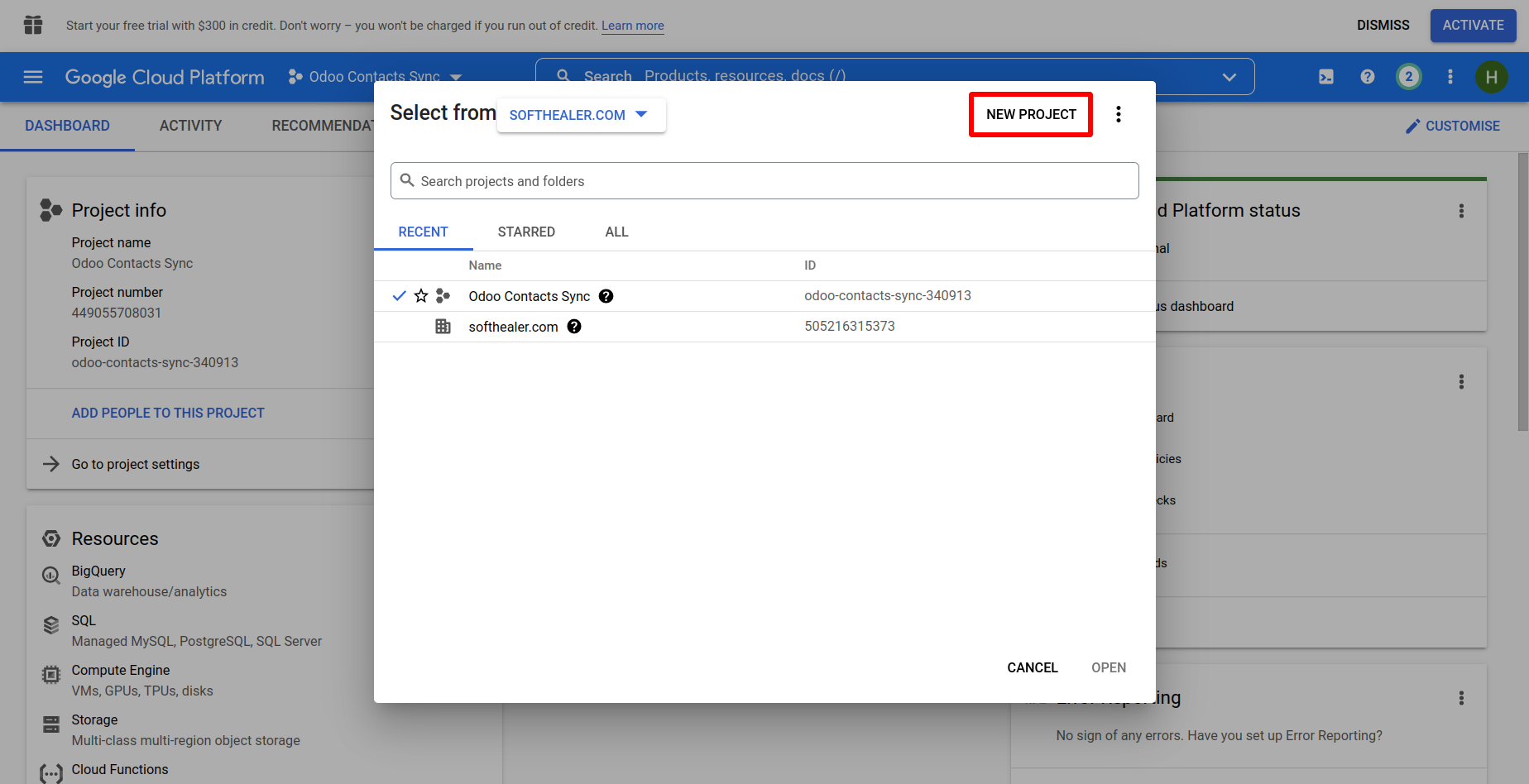
After that click on 'New Project'
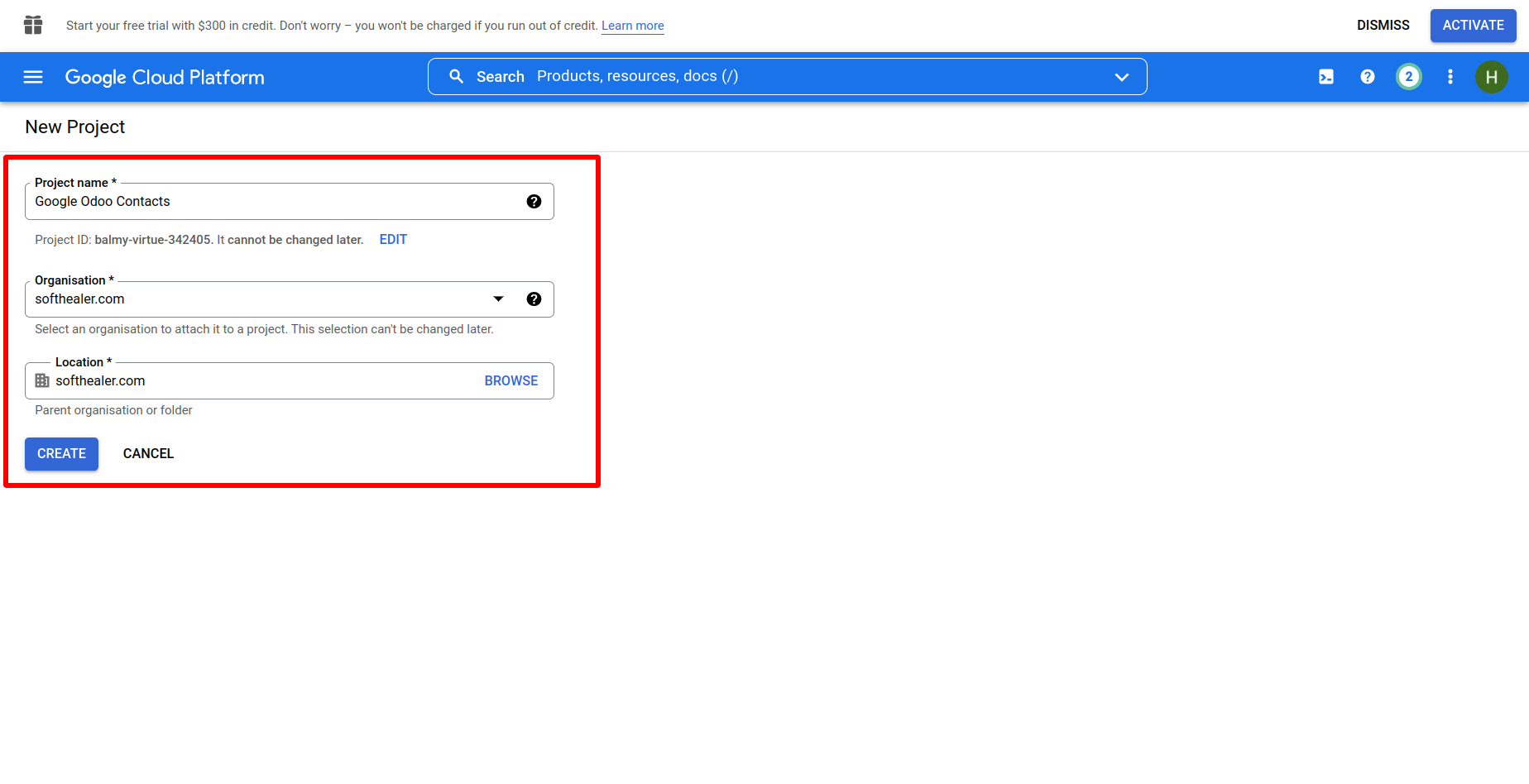
Here create a new project, fill the appropriate details. And then click on 'Create'.
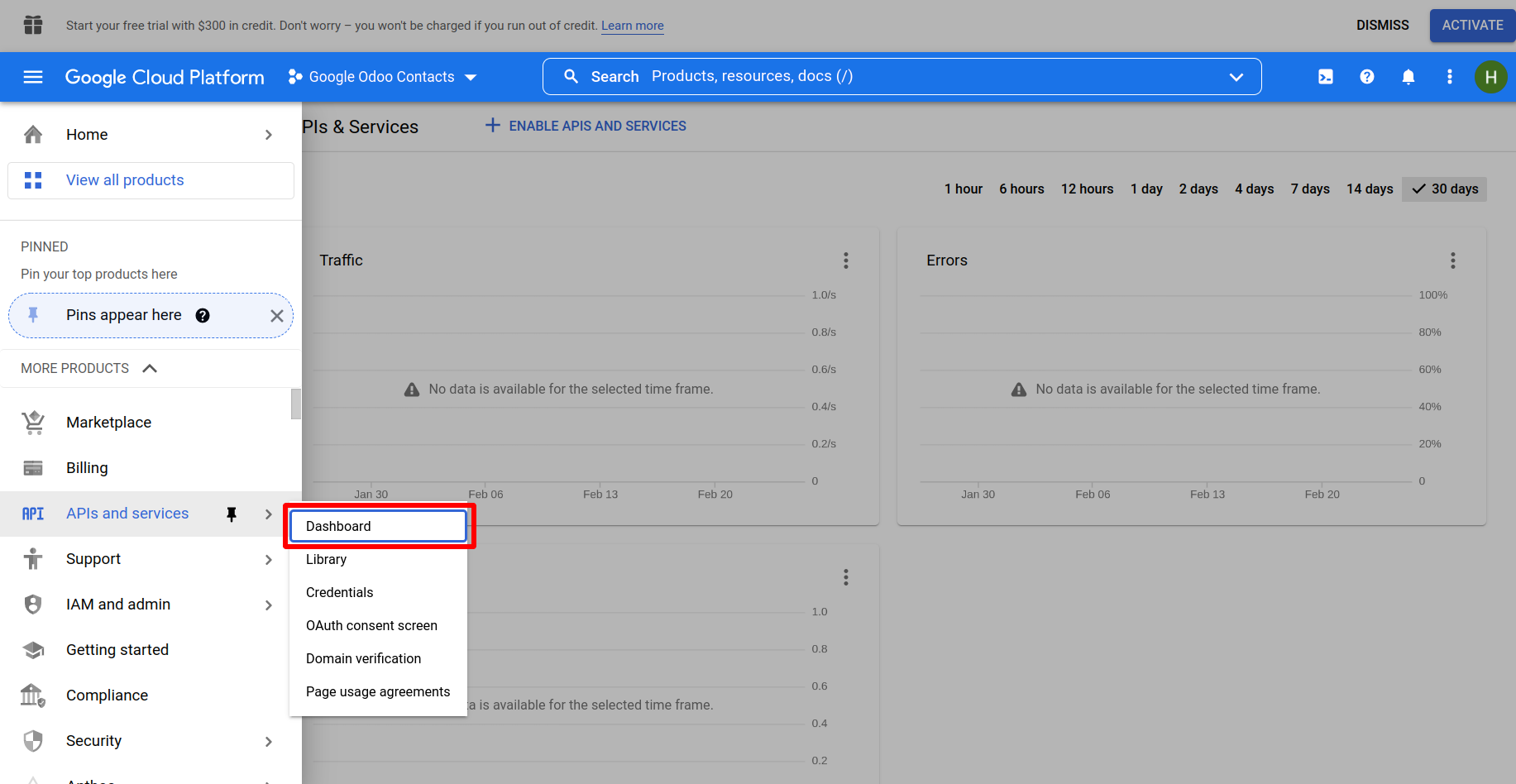
Now click on the sidebar menu and select 'Api and Services' --> 'Dashboard'.
After that just select 'Credential' from the left menu and then click on 'Create Credentials.
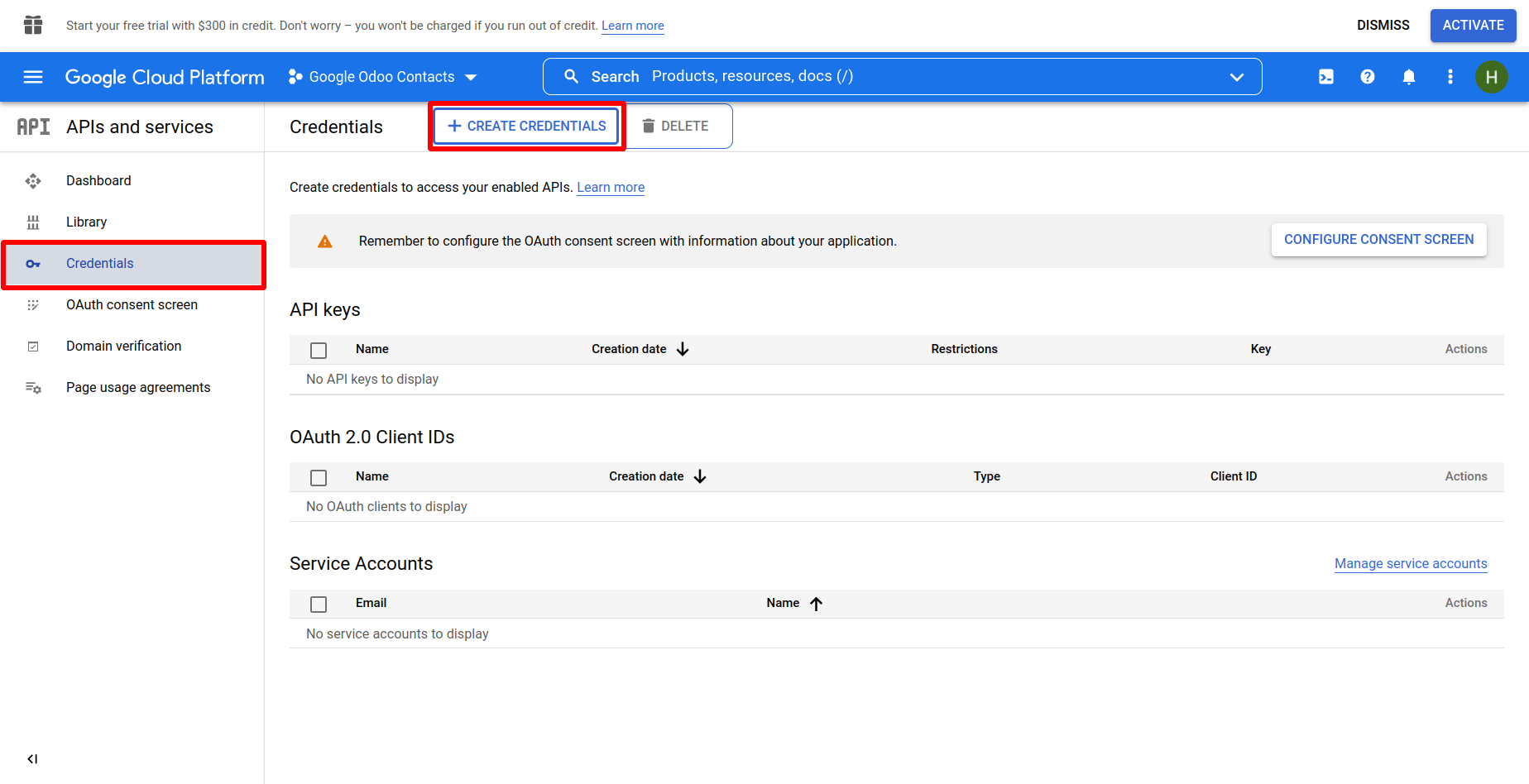
Here select 'OAuth client ID'.
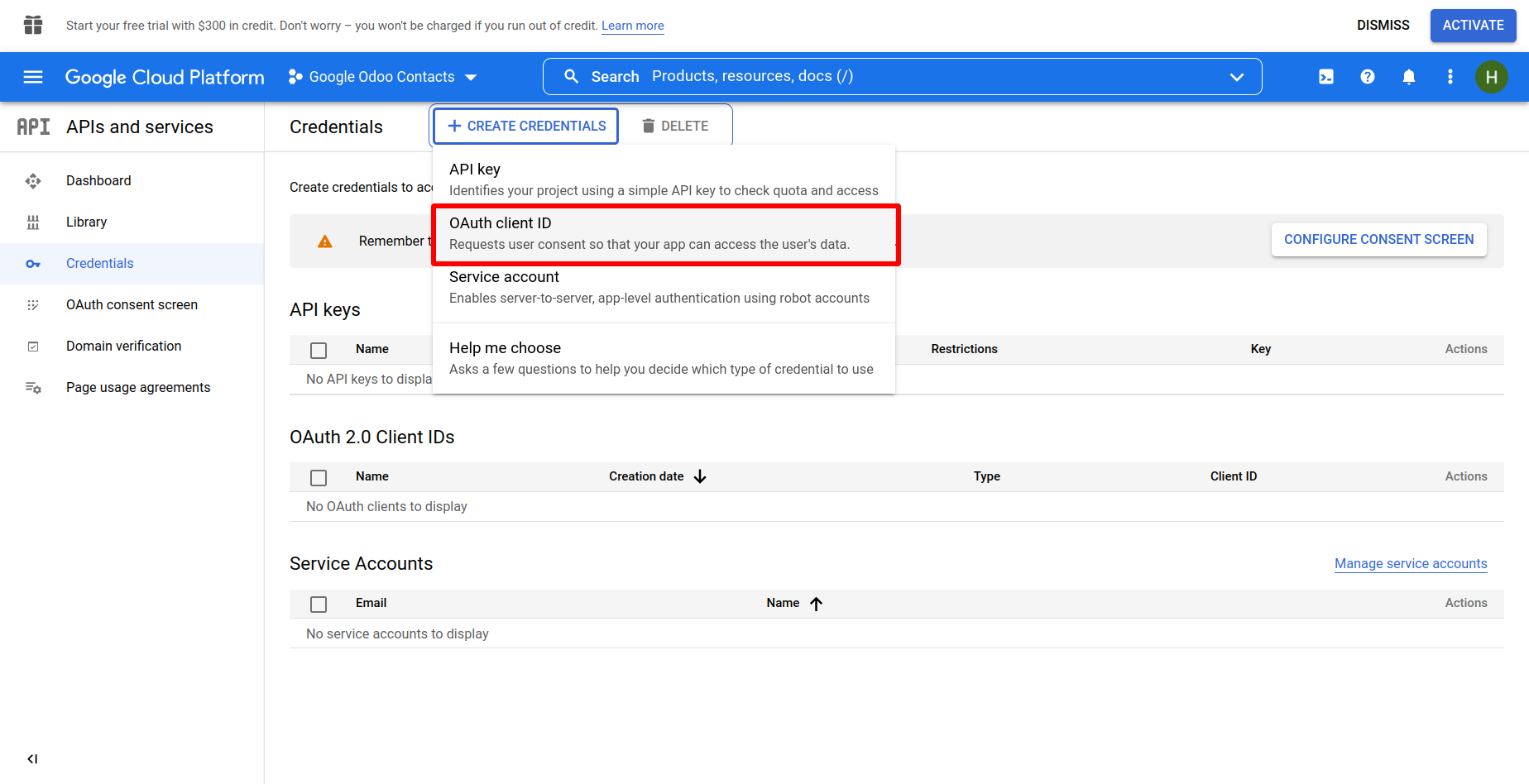
After that click on 'Configure Consent Screen'.
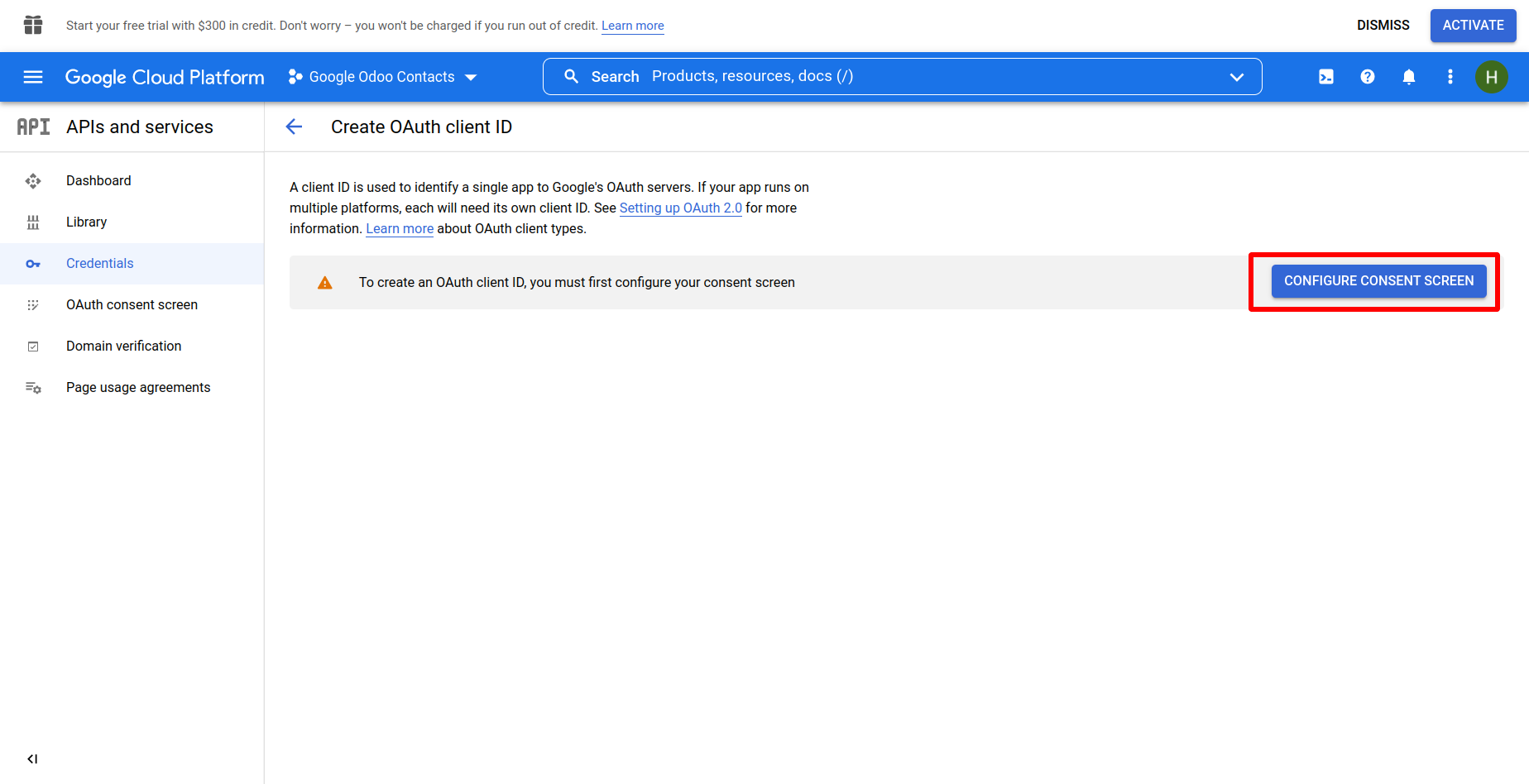
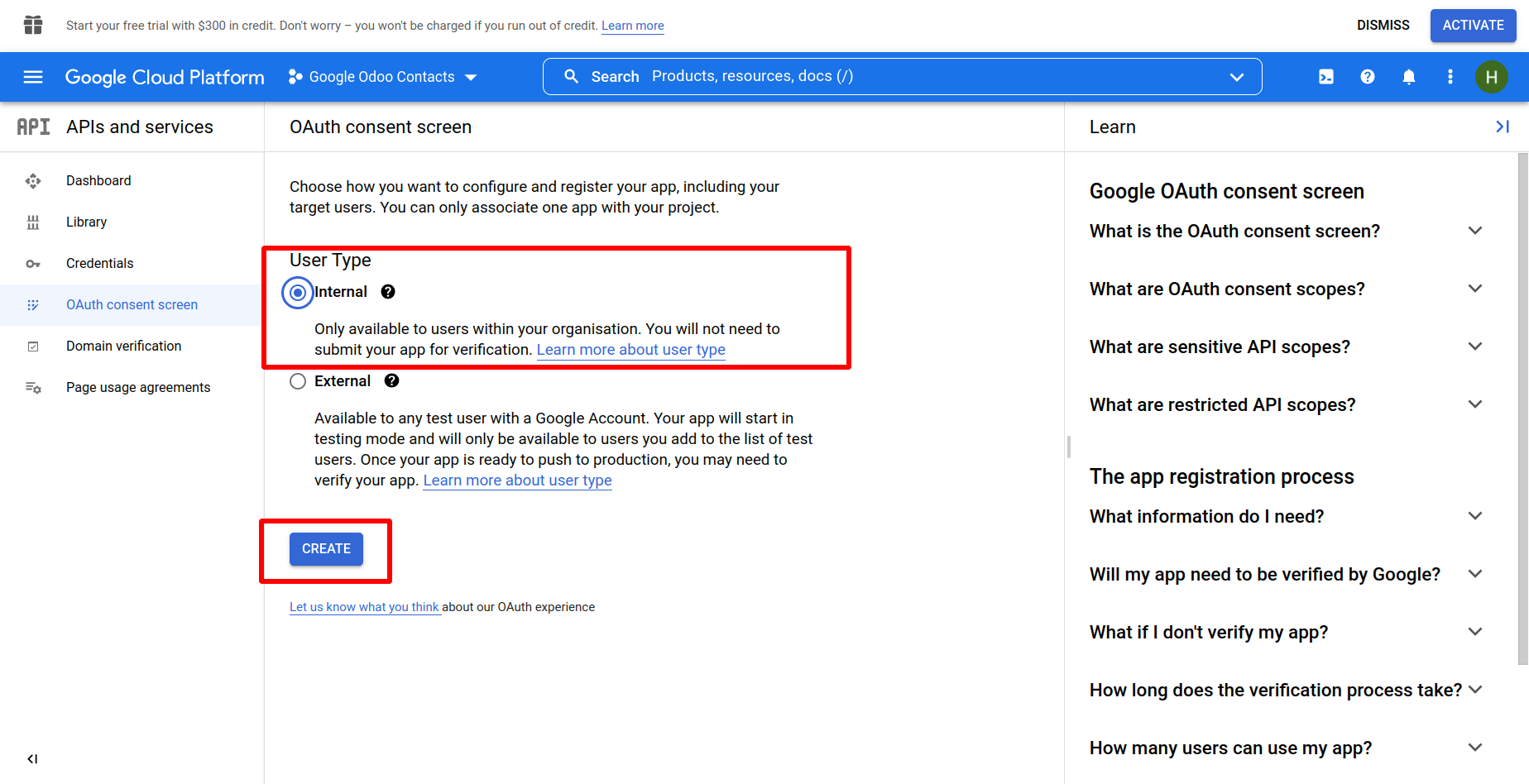
Here just select 'Internal' and then click on create.
After that here just fill the appropriate details and click 'Save and Continue.
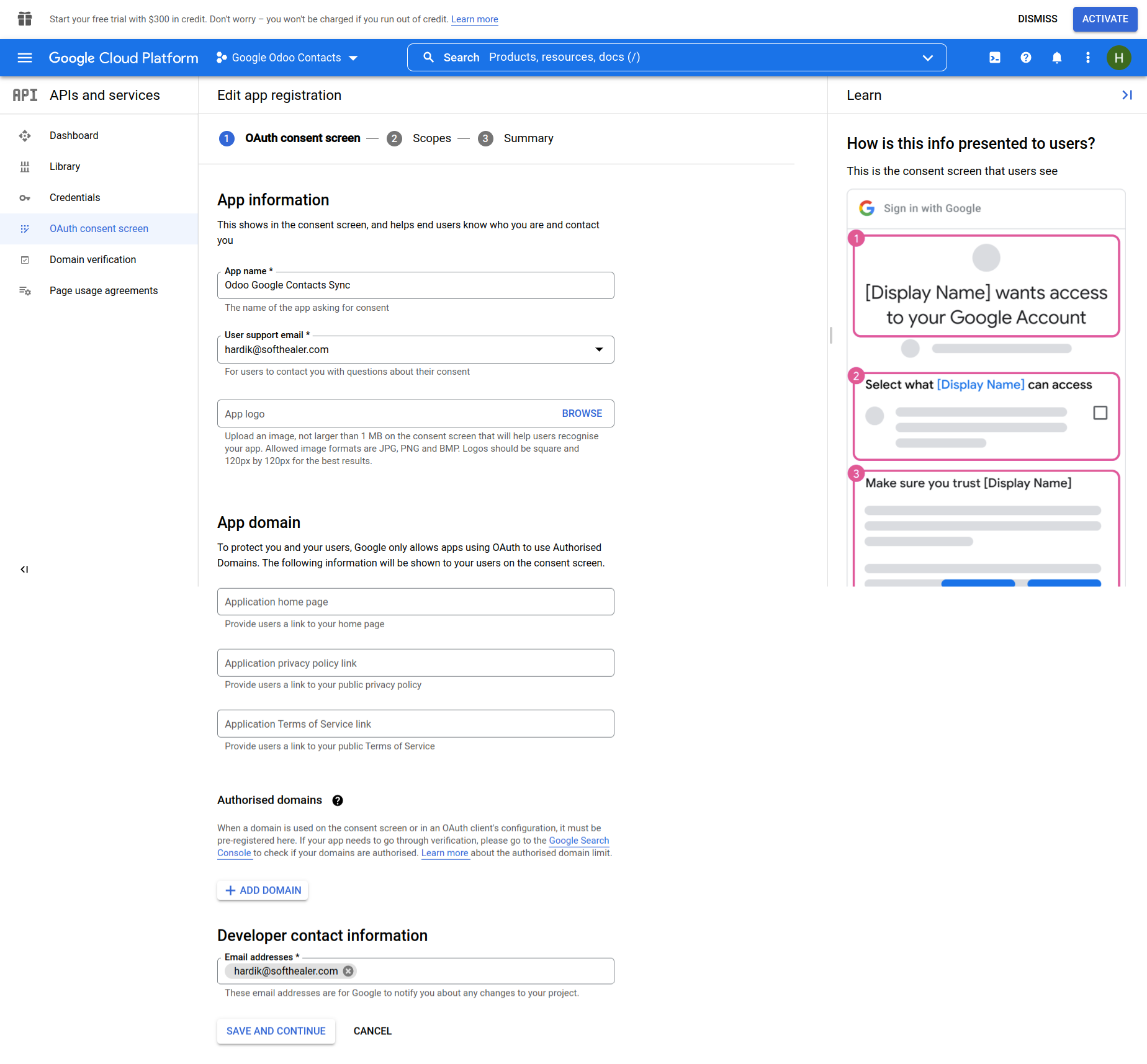
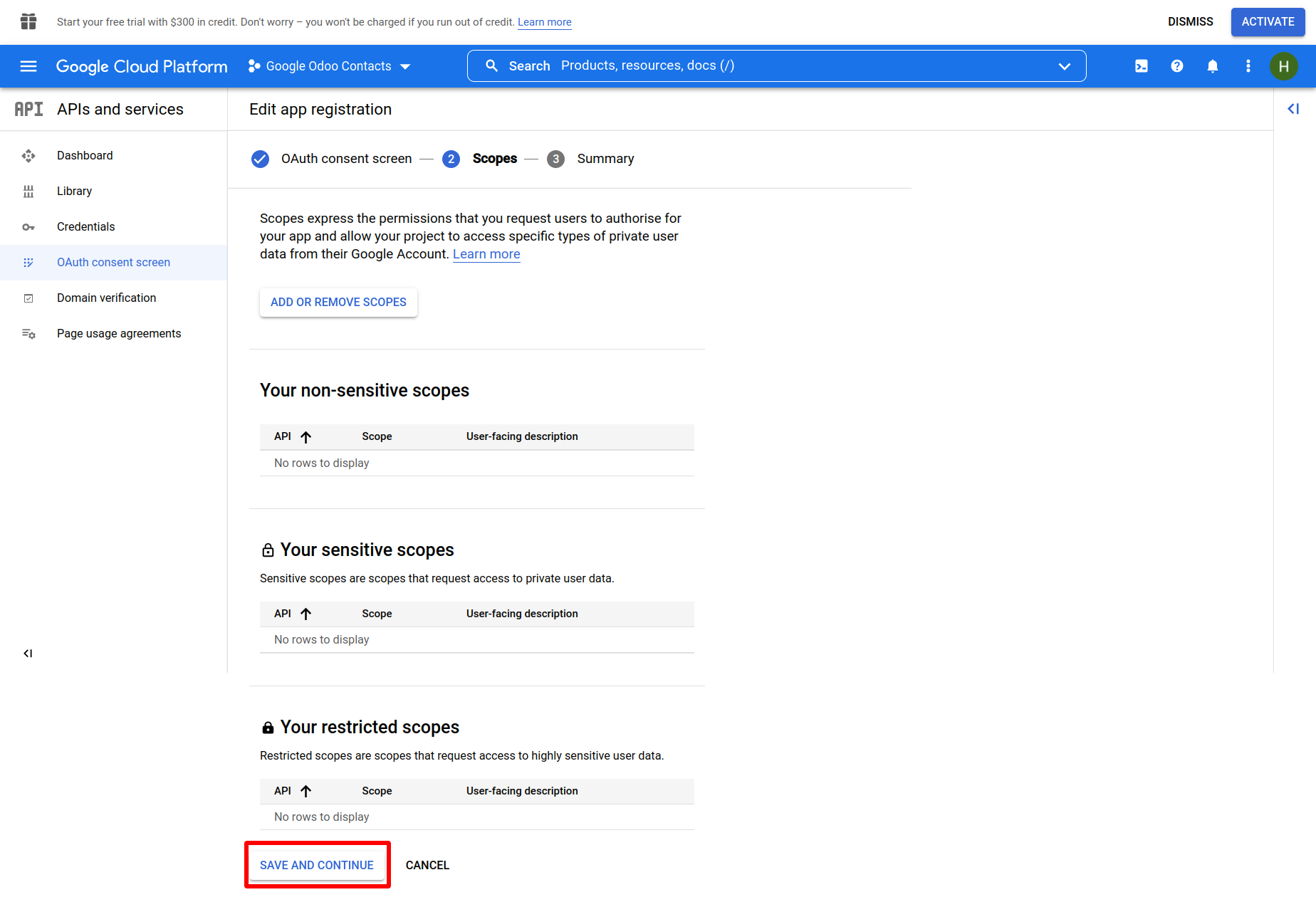
Here do nothing and just click 'Save and Continue.
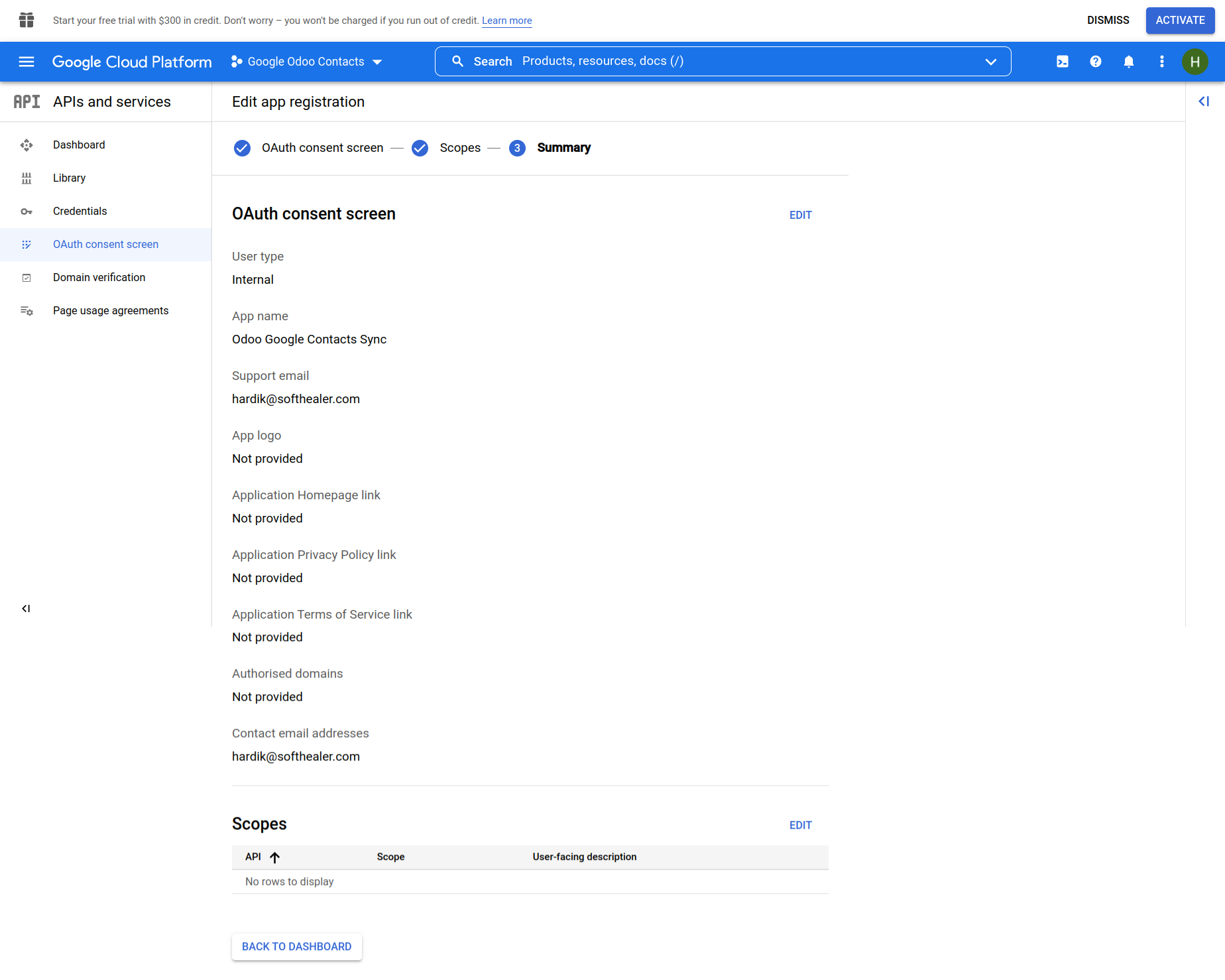
Here just click on 'Back to Dashboard'.
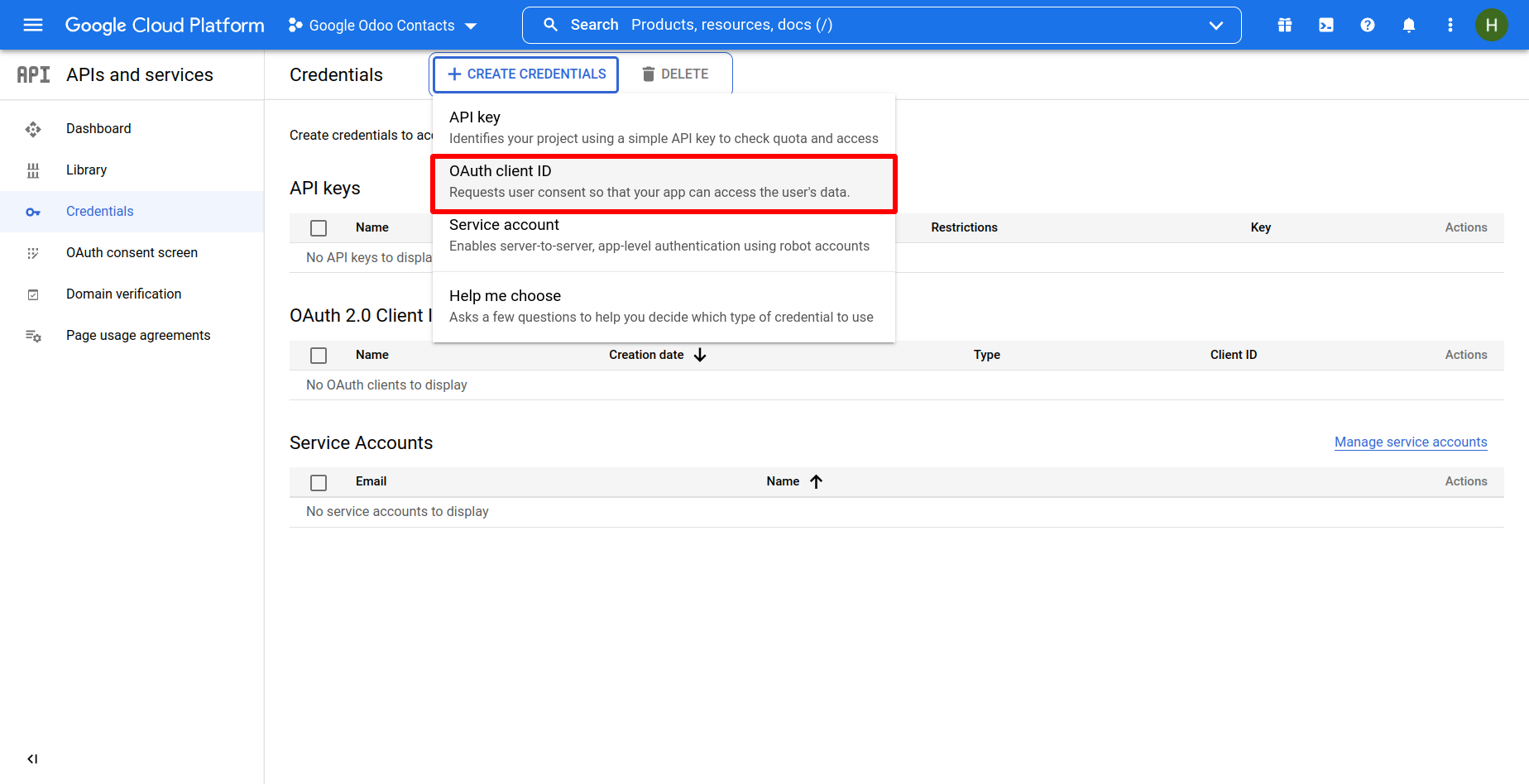
Here in the dashboard just click on 'Create Credentials' and OAuth client ID.
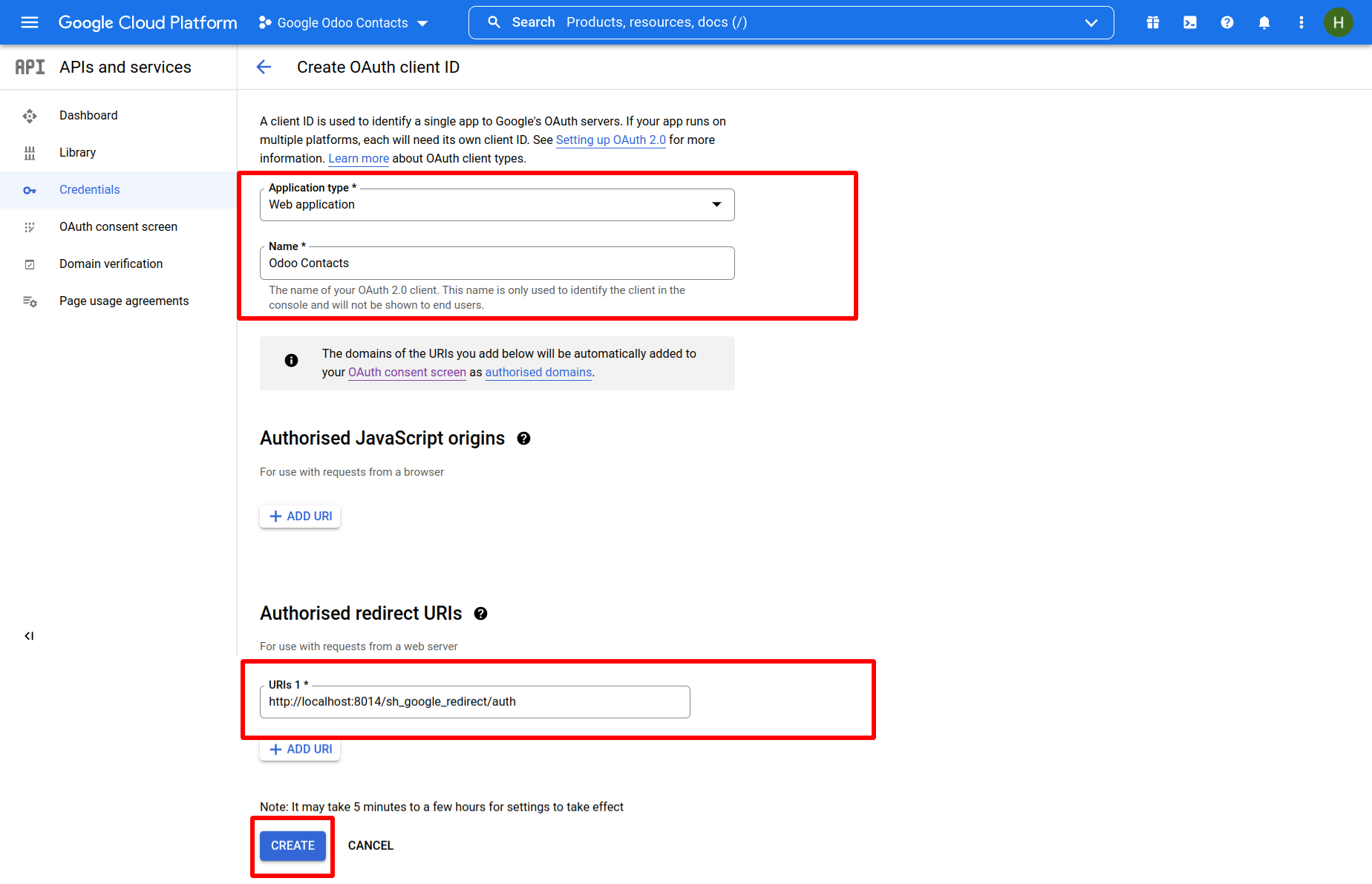
Here select Application type 'Web Application'. Add your app's name. Add redirect URL (formate should be like : your_domain/sh_google_redirect/auth) and then just click on 'Create'.
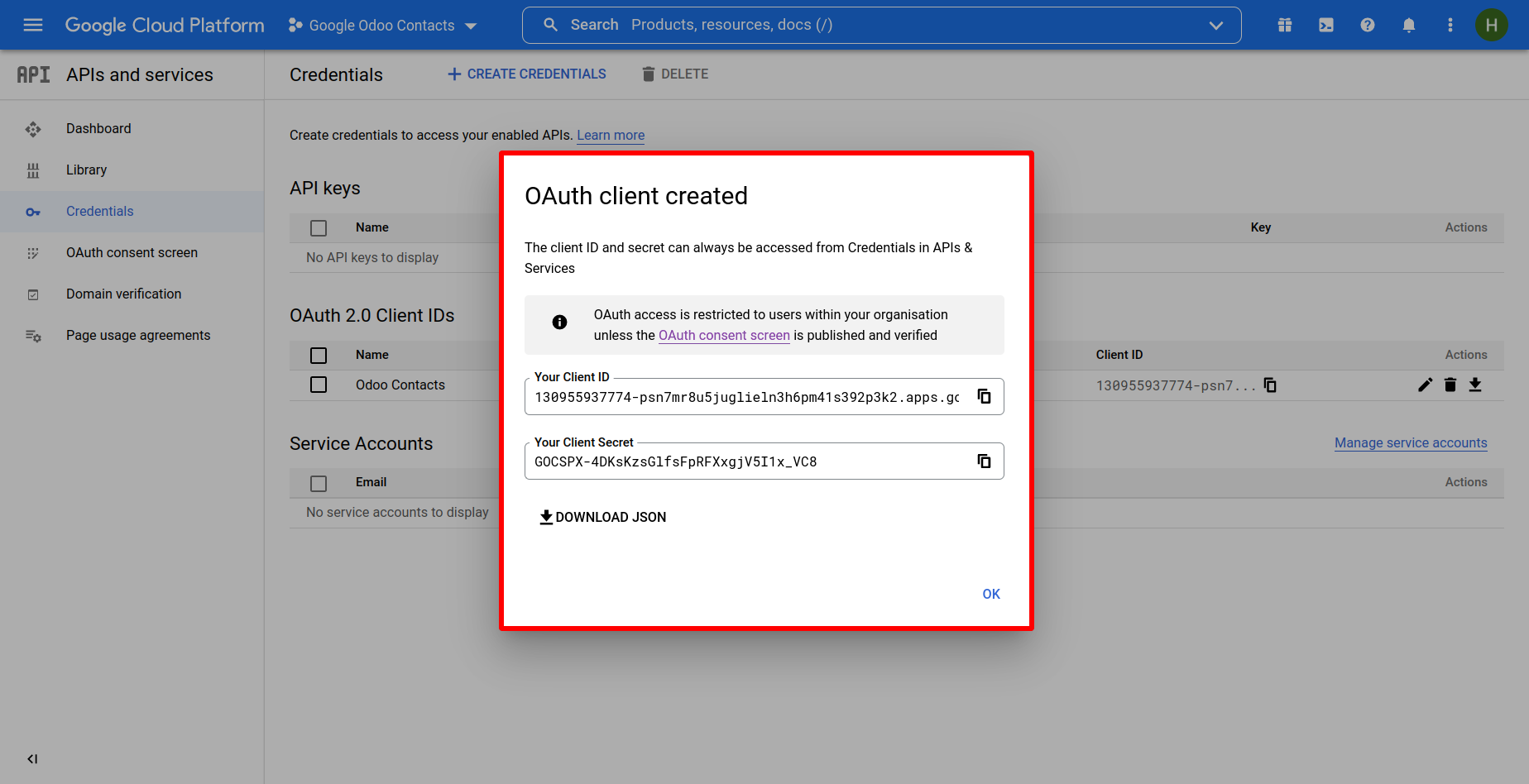
After that, the credential will pop up. just copy the credentials your client id and your client secret.
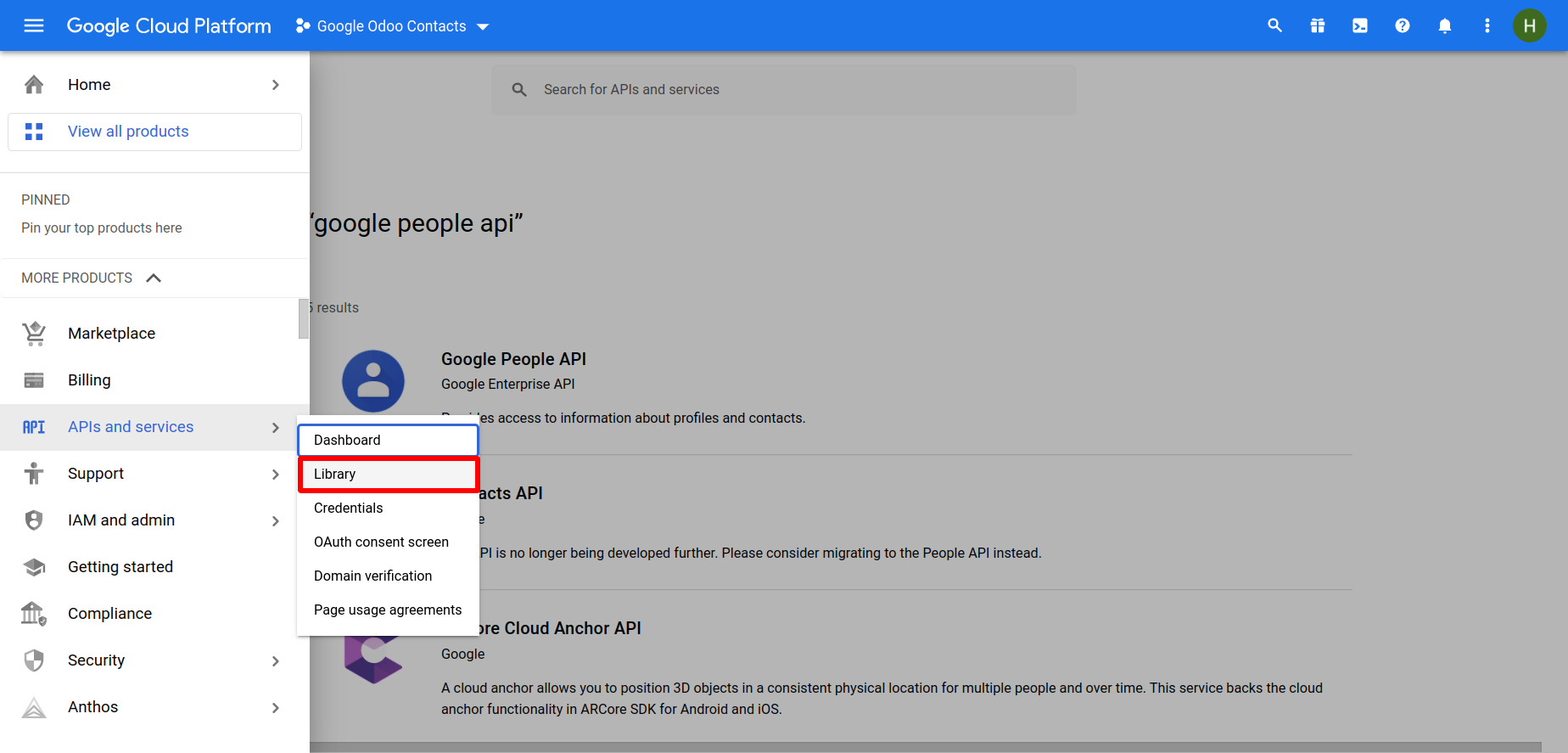
Now go to the dashboard and Select APIs and Services --> Library.
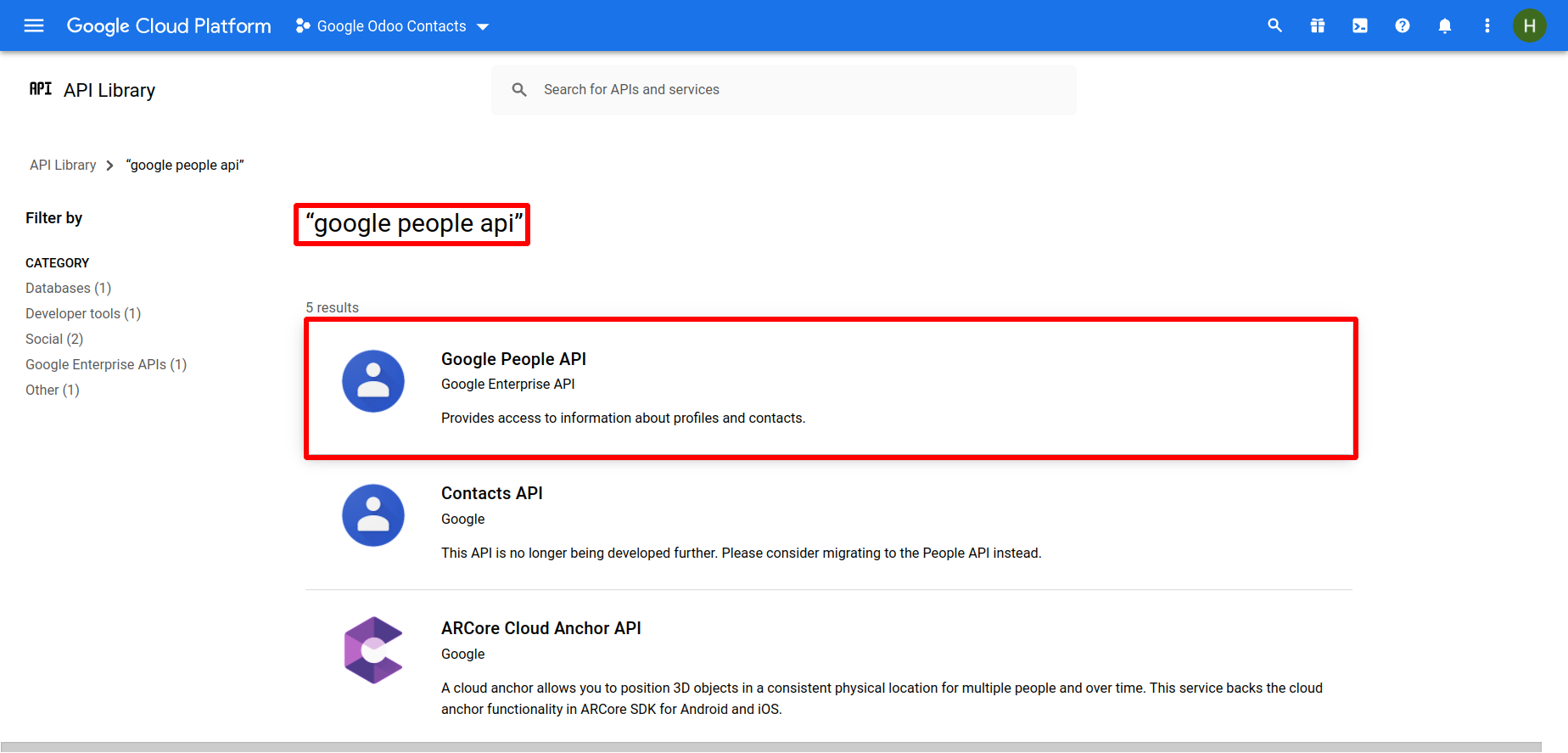
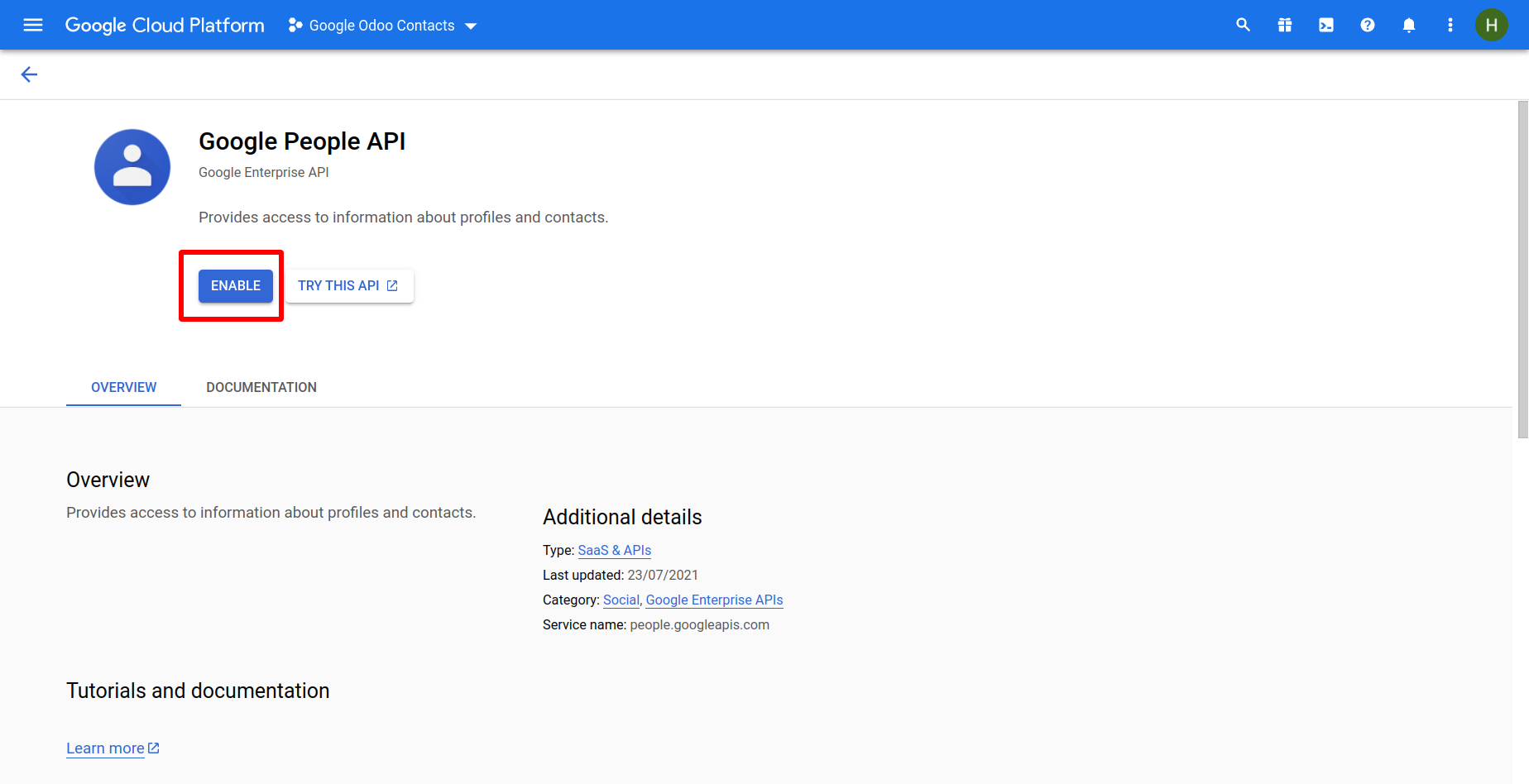
Here just select 'Google People API'.
Just click 'Enable' and go for it.
Version 19.0.2.0.0 | Released on : 29th September 2026
Version 19.0.1.0.0 | Released on : 11th March 2026
- Yes, this app works perfectly with Odoo Enterprise (Odoo.sh & Premise) as well as Community.
- No, this application is not compatible with odoo.com(odoo saas/Odoo Online)
- Yes, to test this module, please contact us at sales@softhealer.com.
- Please contact us at sales@softhealer.com to request customization.
- Yes, we provide free support for 365 days from the date of purchase.
- Yes, you will receive lifetime free updates for the version of the module you purchased.
- No, there is no need to install any additional libraries.
- Yes, for version 12 and above, you need to purchase the module separately for each version you intend to use.
- No, exchanges or refunds are not allowed. Please make sure to select the correct version before purchasing.
- You can contact us at support@softhealer.com for language translation support. We use Google Translator tools to provide translations in multiple languages, so the accuracy may vary. We welcome your suggestions to help improve translations.
Discover Our Latest Apps