










Sticky Notes

Boost productivity and collaboration in Odoo with this module, a smart way to add reminders and contextual information directly to any record or document. Create sticky notes instantly by clicking the pin icon in every form view, ensuring important details are never missed. Capture information using rich text or quick audio notes, organize them visually with color-coded cards and drag-and-drop ordering, and control visibility with flexible sharing options. Whether you want to keep notes private, collaborate with specific users, or share important updates with your entire team, this module keeps communication clear, organized, and always at hand.

Features

Works Across All Odoo Records
Attach sticky notes to any Odoo form view, including Sales Orders, Contacts, Tasks, Invoices, and more.

One-Click Note Creation
Create sticky notes instantly by using the sticky notes view or by clicking the pin icon of every form view.

Context-Aware Display
Notes appear directly at the top of the form view, ensuring important information is always visible.

Rich Text Formatting
Write detailed notes using rich-text formatting to highlight key information clearly.

Audio Voice Notes
Record and play voice notes directly from the sticky note card for fast, hands-free reminders.

Note Deletion
Permanently remove unwanted notes from the database to keep your workspace clean and clutter-free.

Group By Options
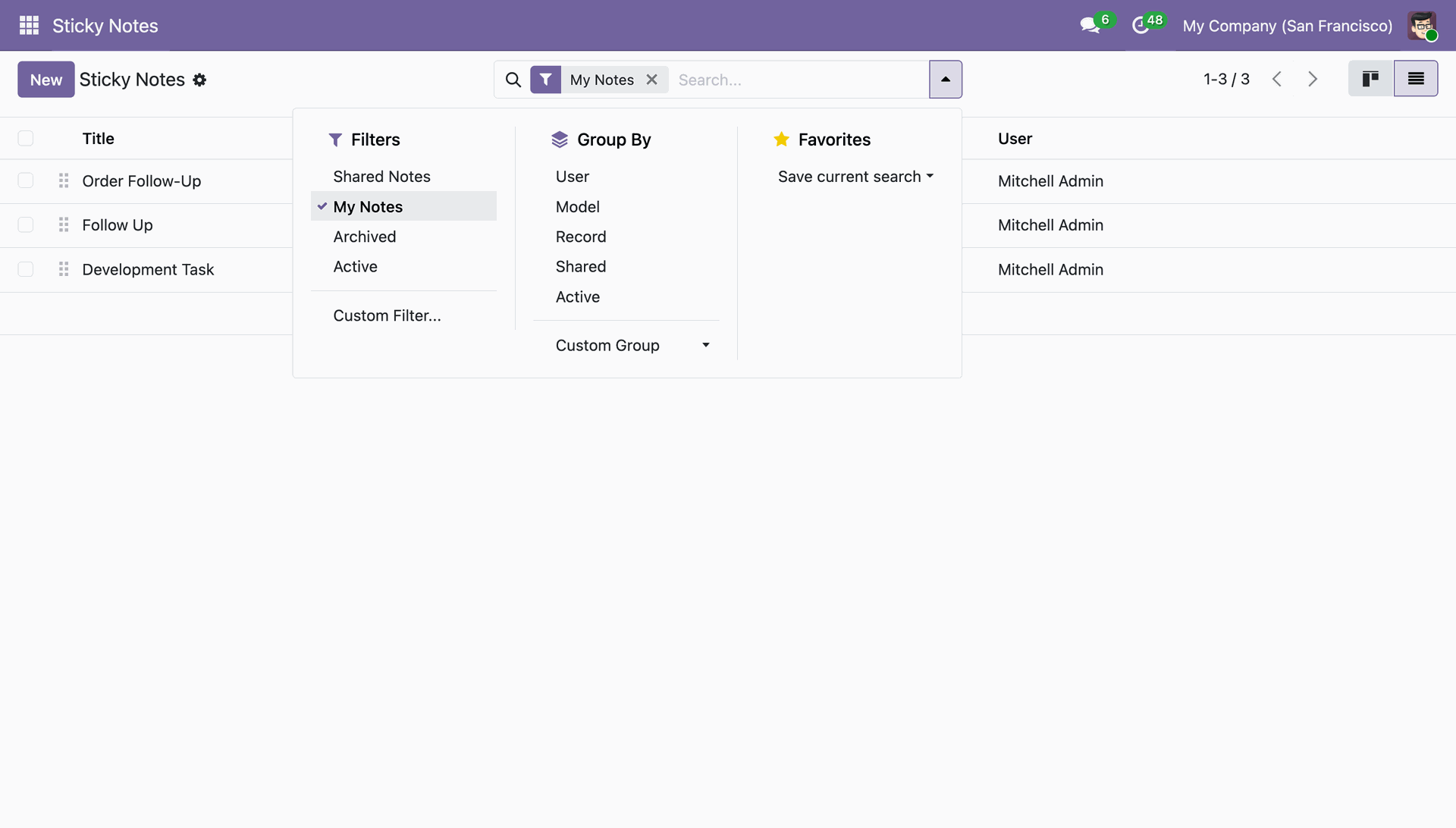
The view allows grouping notes by User, Model, Record, Shared Status, and Active Status.

Smart Notifications
Receive instant notification alerts for key actions like recording started, audio saved, playback status, and note deletion.

Color-Coded Organization
Use colors to visually organize notes and identify information at a glance.

Drag & Drop Prioritization
Reorder notes easily using drag-and-drop to set priorities and stay organized.

Flexible Sharing Options
Keep notes private, share with selected users, or make them visible to everyone.

Quick Note Editing
Instantly update note content, modify rich text, or change color coding without leaving the current view.

Note Archiving
Temporarily hide completed or irrelevant notes from your view while preserving them in the system for future reference.

Centralized Notes Dashboard
Manage all sticky notes from a dedicated dashboard with List and Kanban views.

Filter Options
The search view includes pre-defined filters for Shared Notes, My Notes, Archived, and Active notes.

Audio Download Capability
Easily download recorded voice notes directly from the dashboard's audio player to save them locally.

Access Rights
The module defines two specific security groups, User and Manager.
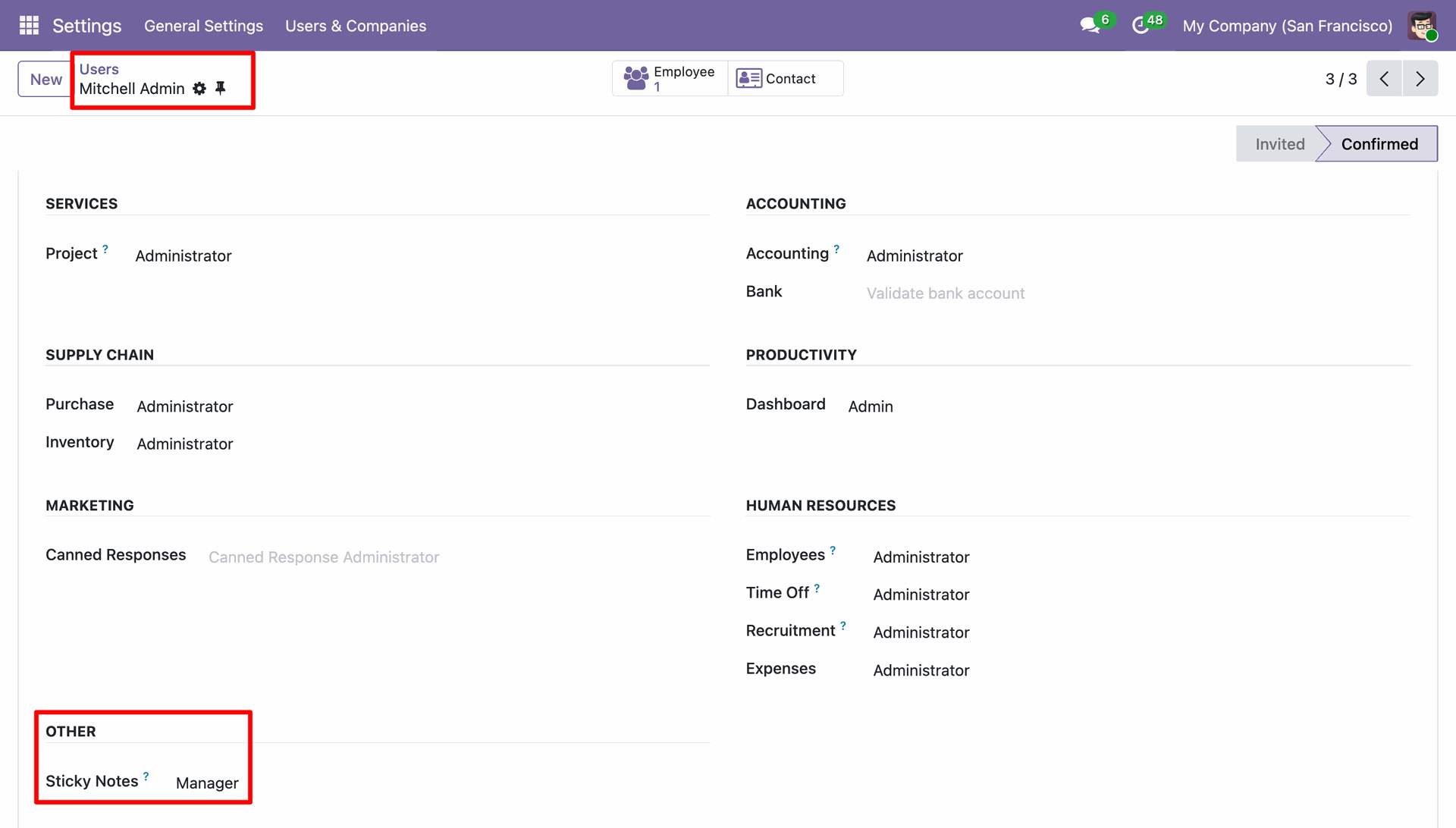
Open the 'Mitchell Admin' record in Settings and assign 'Manager' access to the 'Sticky Notes' application under the 'Other' category.
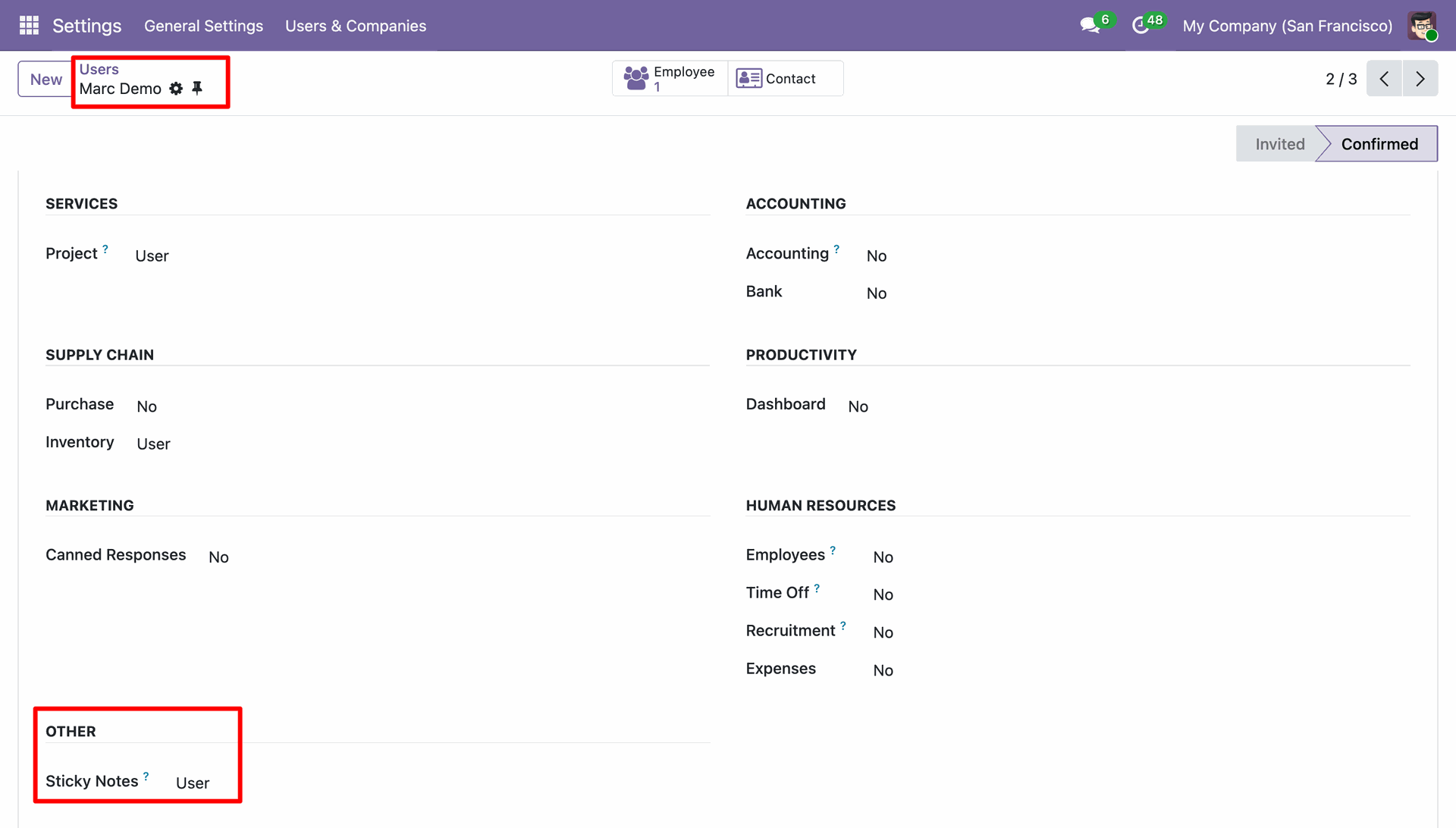
Open the 'Marc Demo' record in Settings and assign 'User' access to the 'Sticky Notes' application within the 'Other' category.
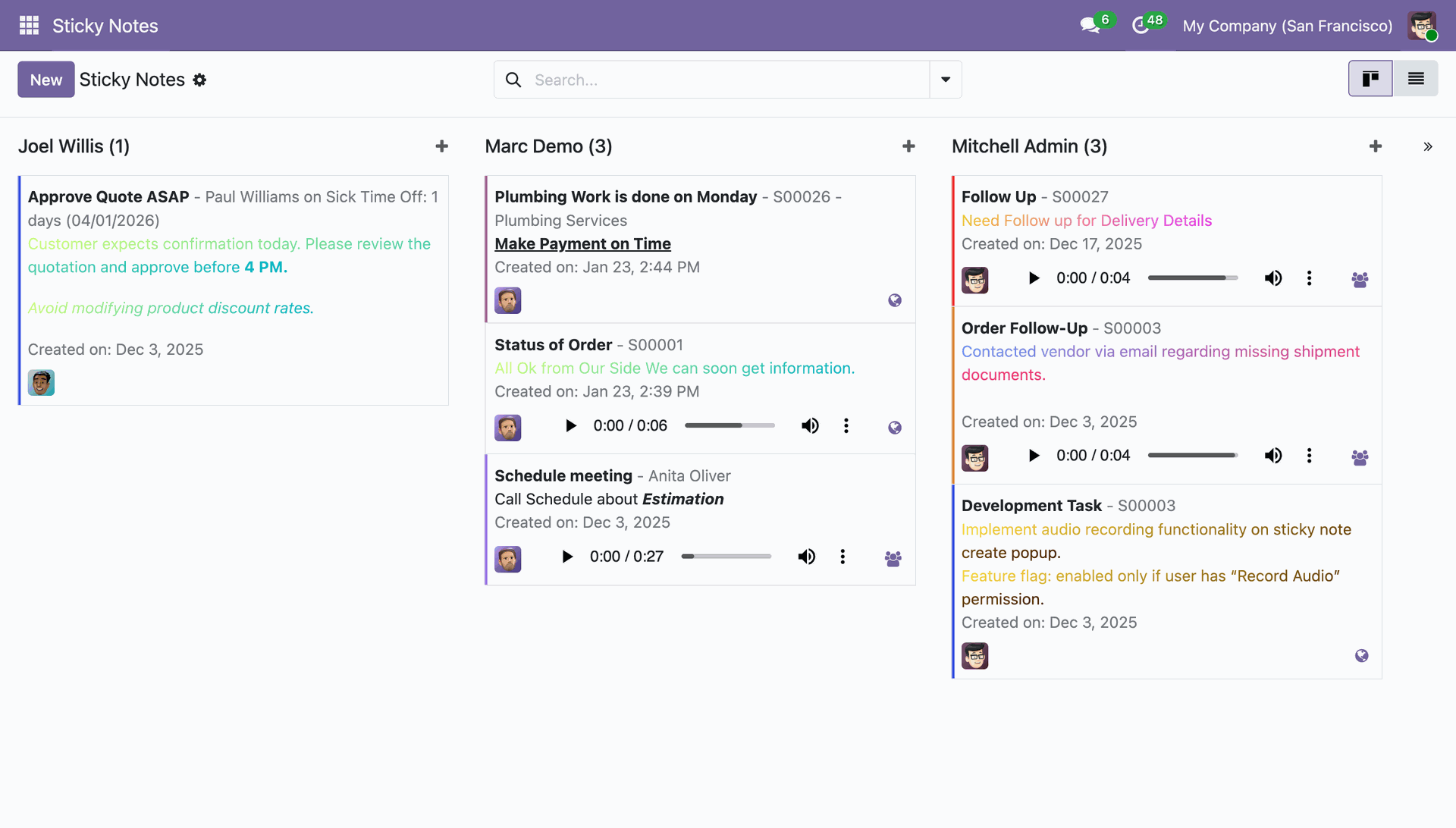
The Sticky Notes dashboard displays a Kanban view, featuring rich text formatting and integrated audio players for voice recordings.
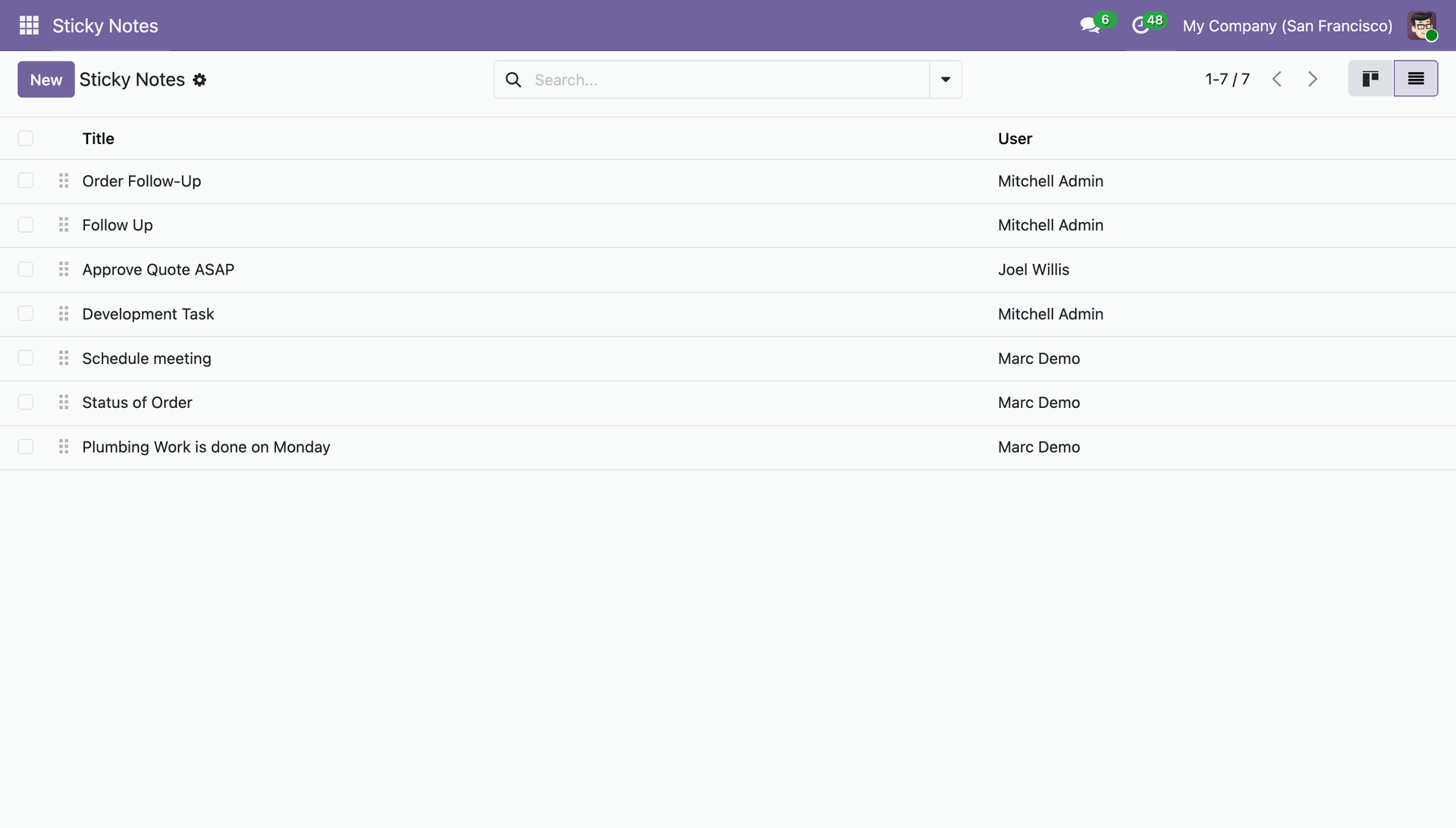
The Sticky Notes list view presents a tabular summary of all notes, detailing the Title and assigned User for efficient task tracking.
The user can filter or group by the sticky notes.
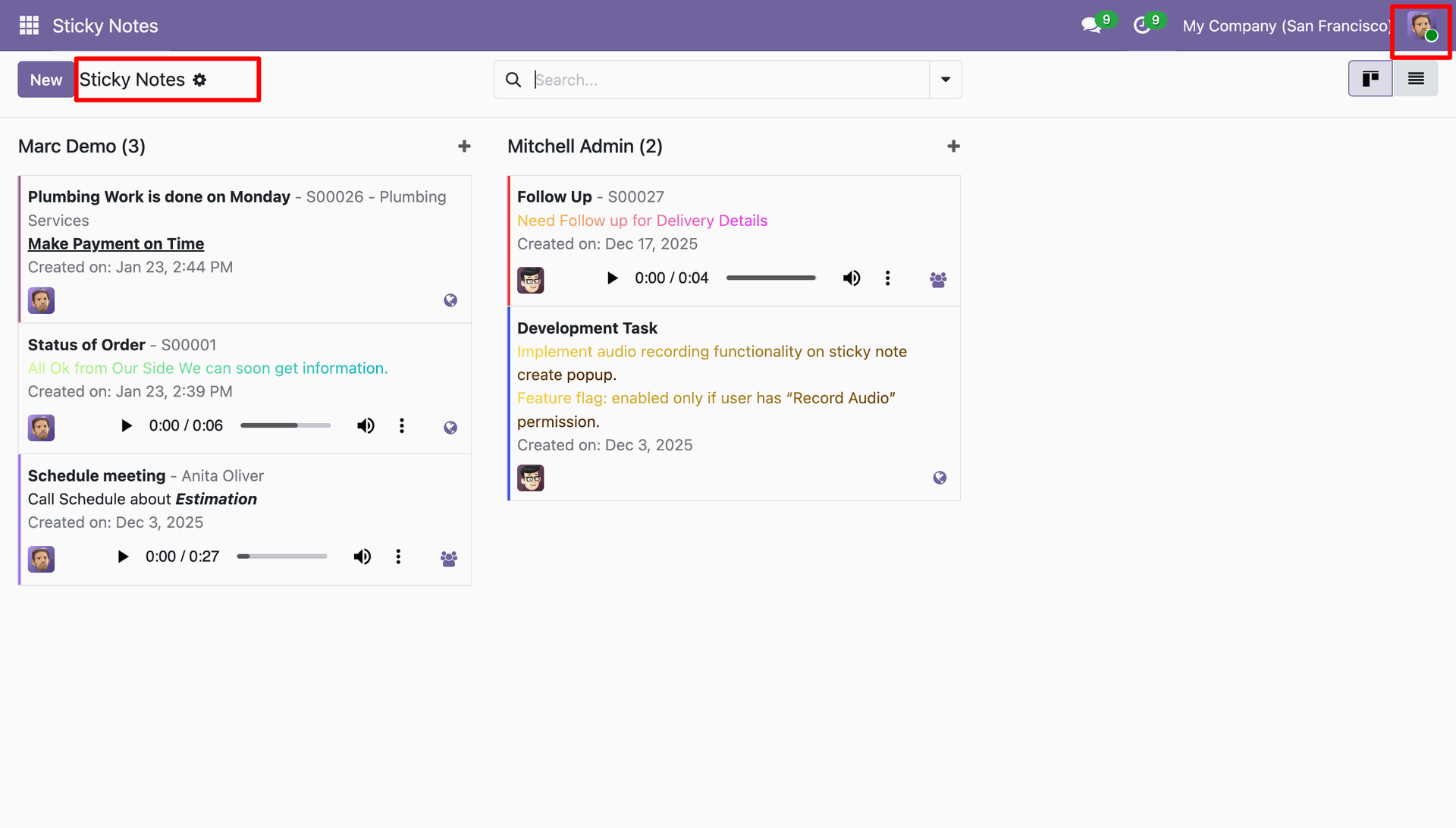
Logged in as Marc Demo, the user views the Sticky Notes Kanban board, which restricts visibility to only his own notes and those shared by the administrator.
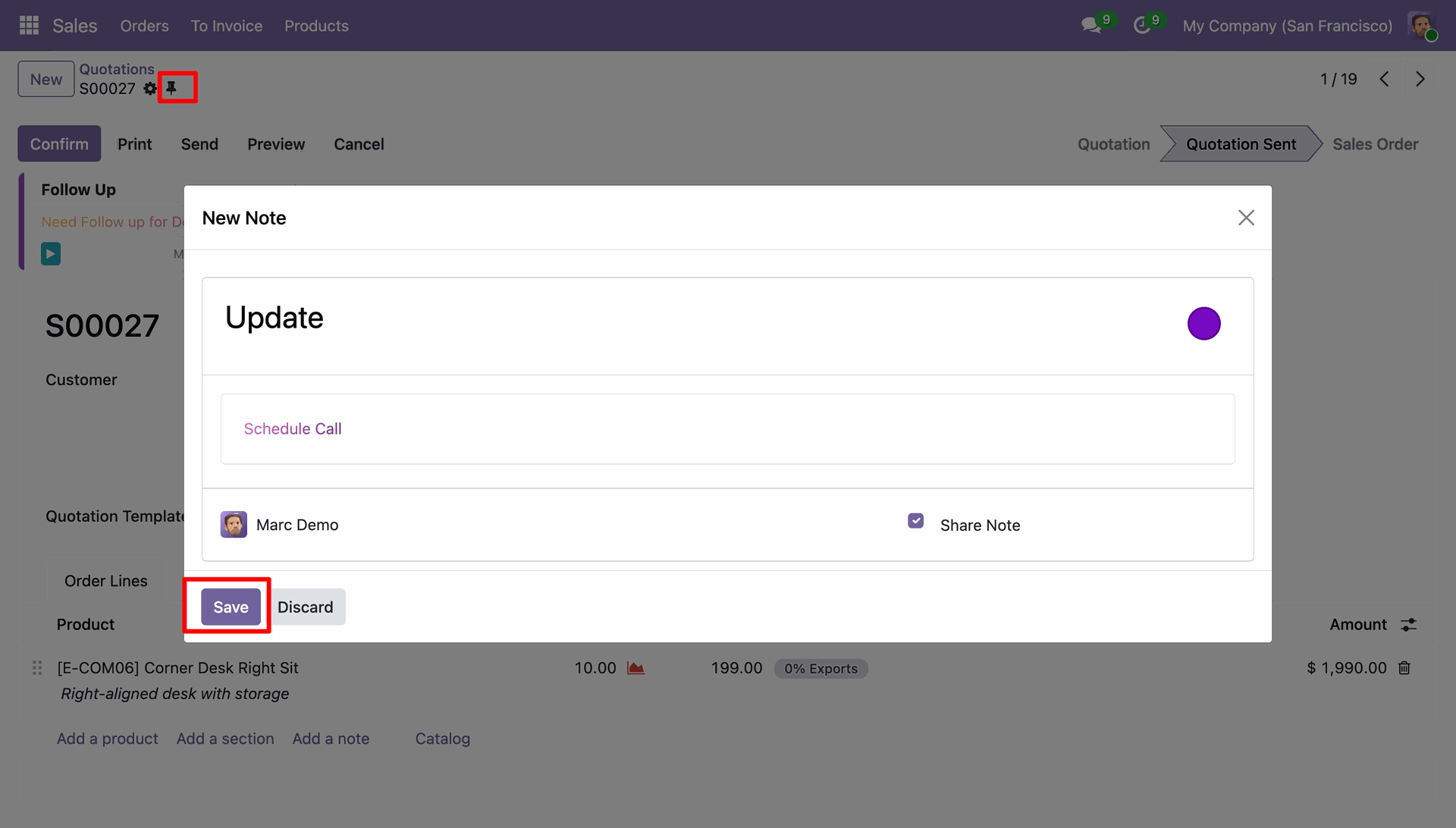
The user clicks the pin icon on record S00027 to open a modal, creates a shared note titled 'Update', and clicks Save to attach it.
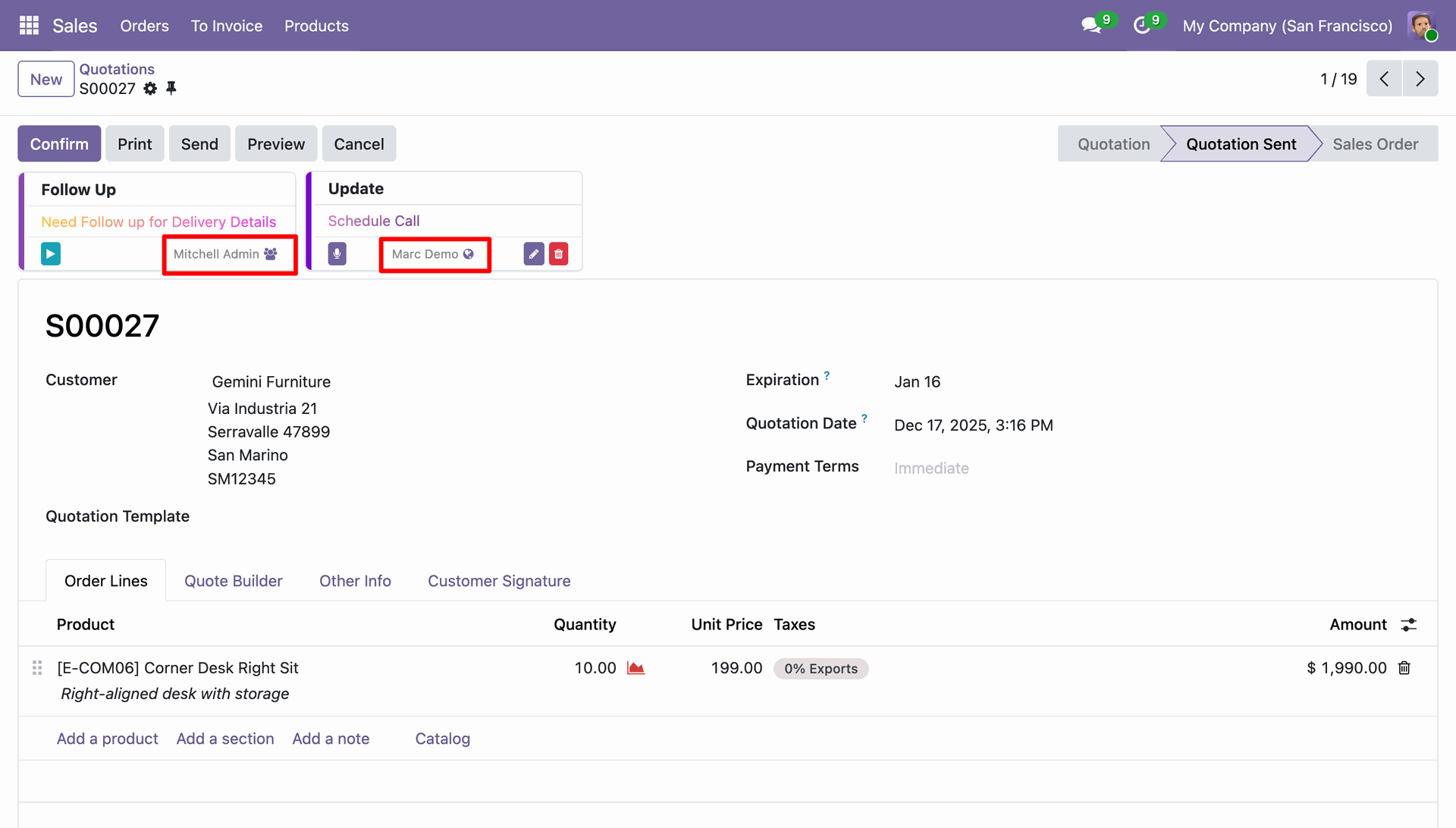
The system displays sticky notes attached to the quotation S00027, highlighting the specific authors (Mitchell Admin and Marc Demo) to facilitate collaborative tracking.
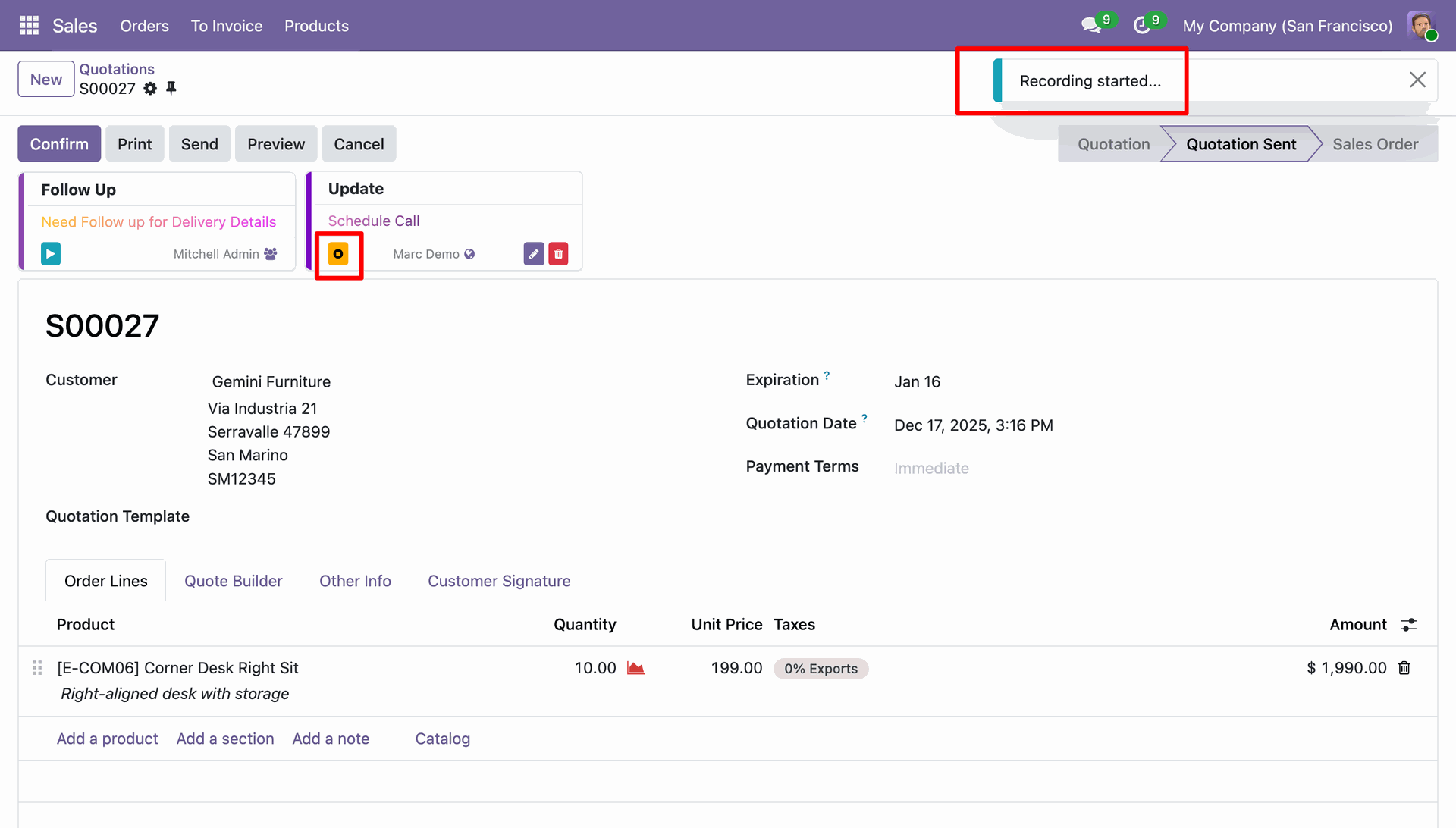
The user starts a voice recording on the 'Update' sticky note, evidenced by the active recording icon and the 'Recording started...' notification.
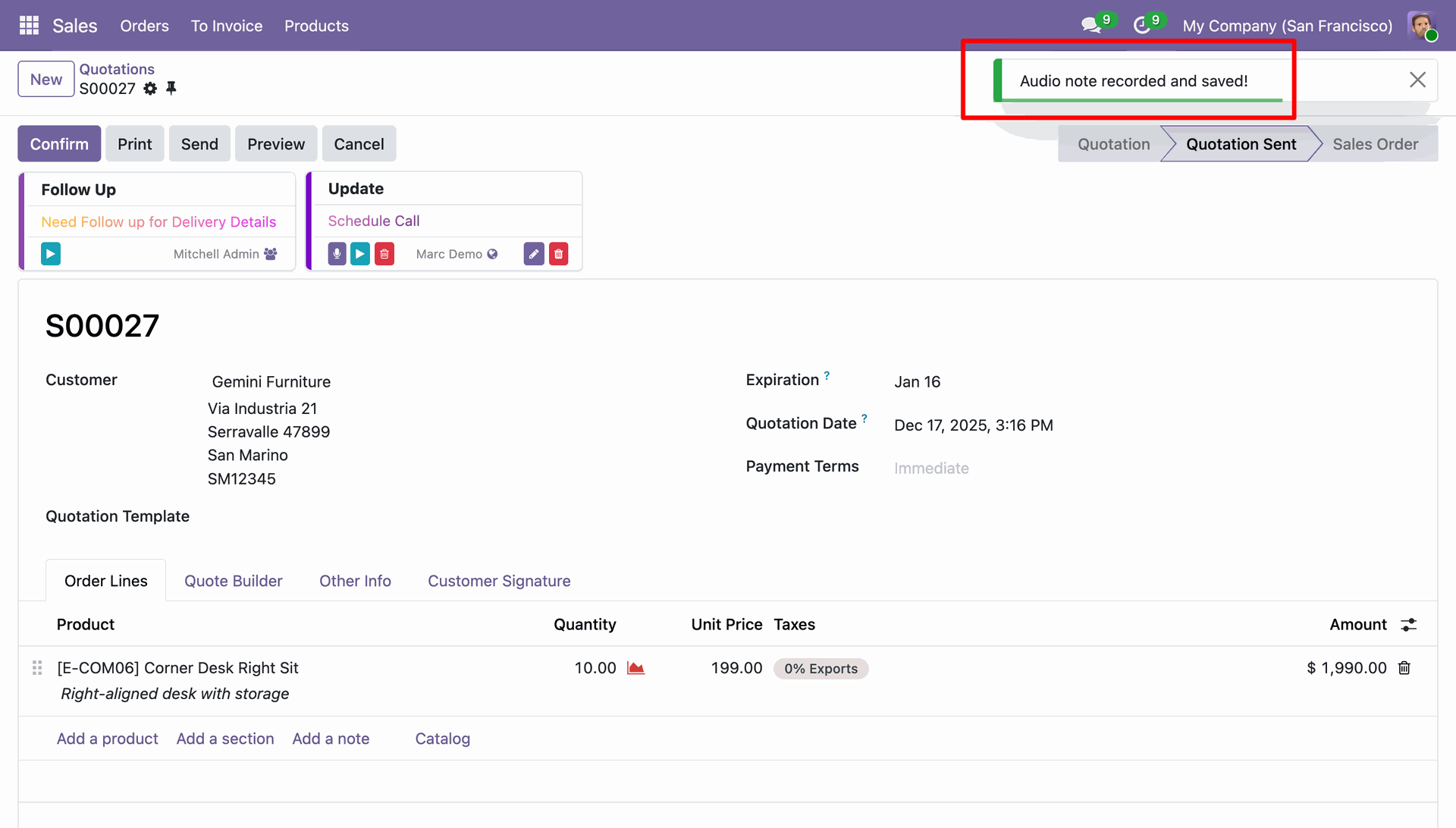
The system displays a green confirmation notification in the top-right corner stating 'Audio note recorded and saved!' to verify the successful capture of the voice memo.
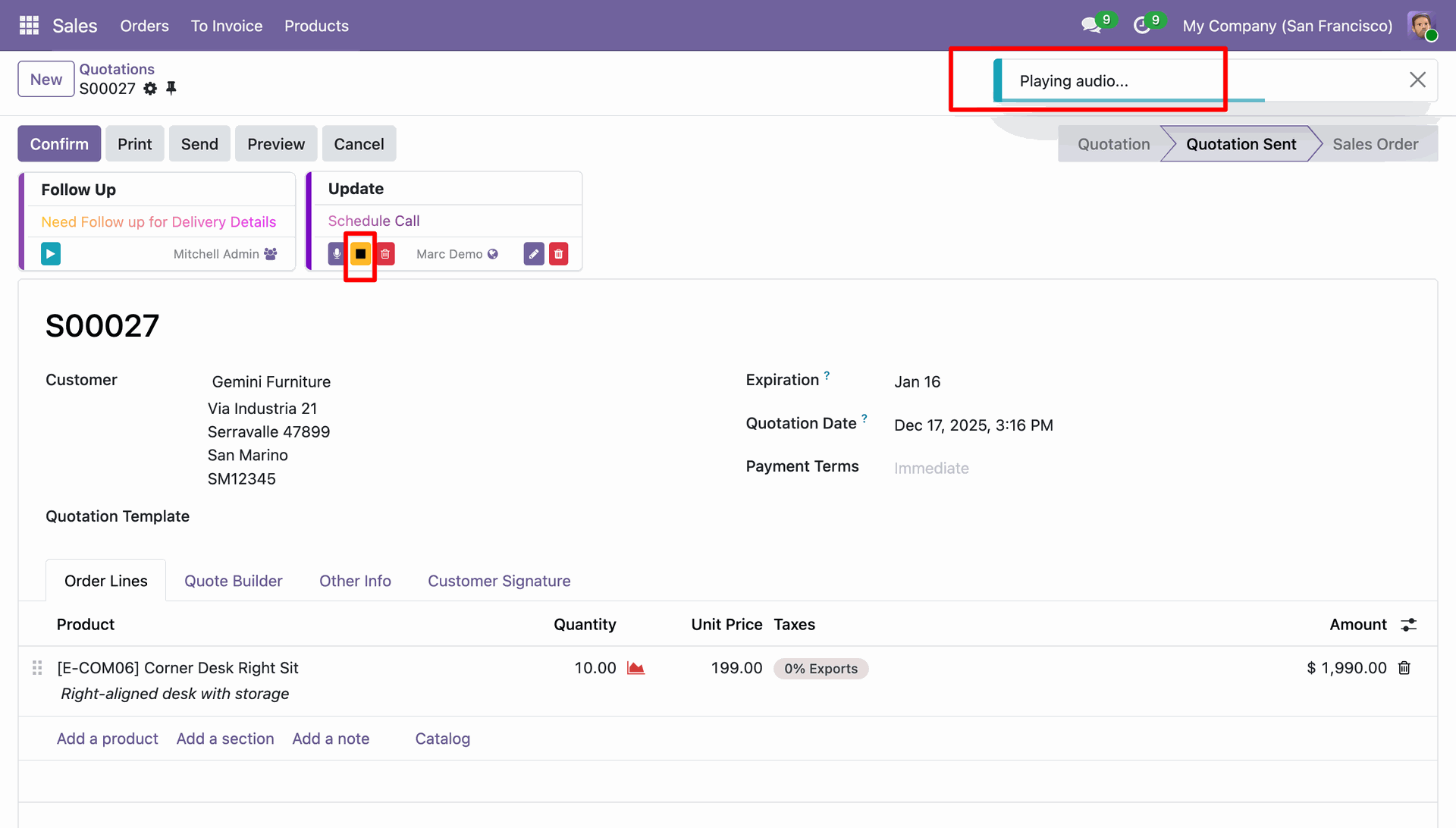
The user plays the audio recording on the 'Update' sticky note, indicated by the active stop button and the 'Playing audio...' notification in the header.
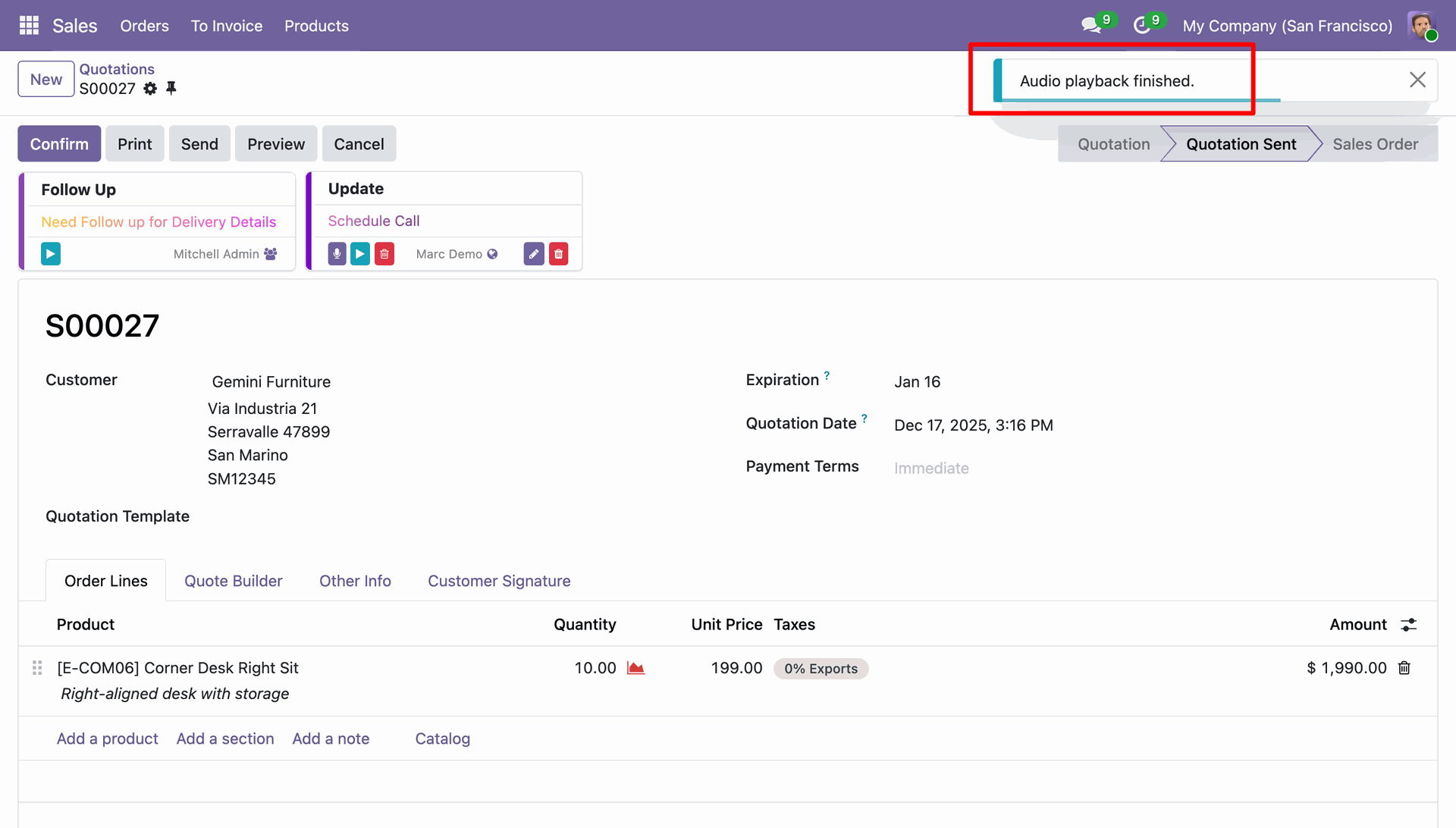
The system displays an 'Audio playback finished.' notification in the top-right corner, confirming that the voice note playback has finished.
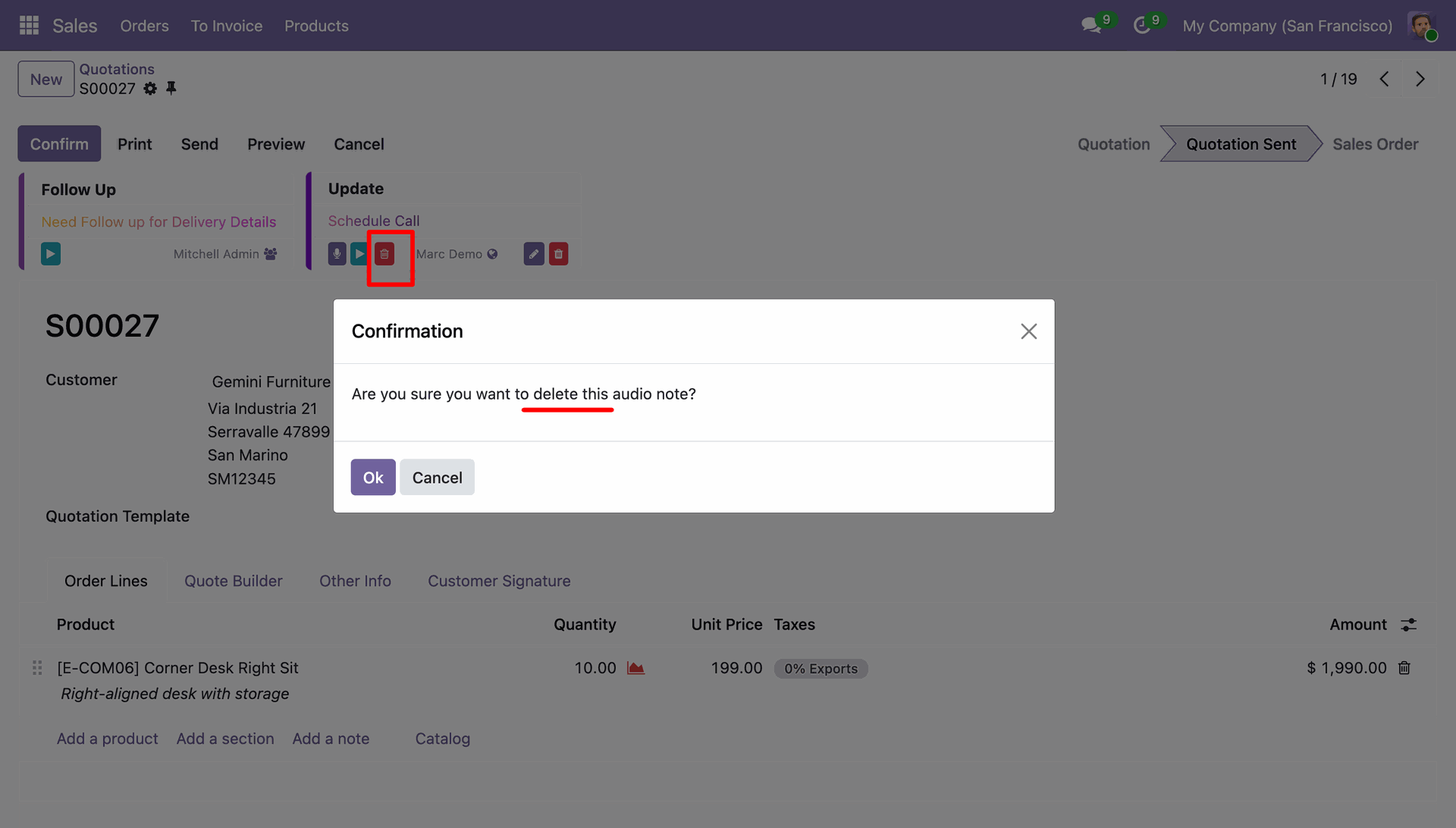
The user clicks the delete icon on the sticky note, prompting a confirmation dialog to verify the removal of the attached audio recording.
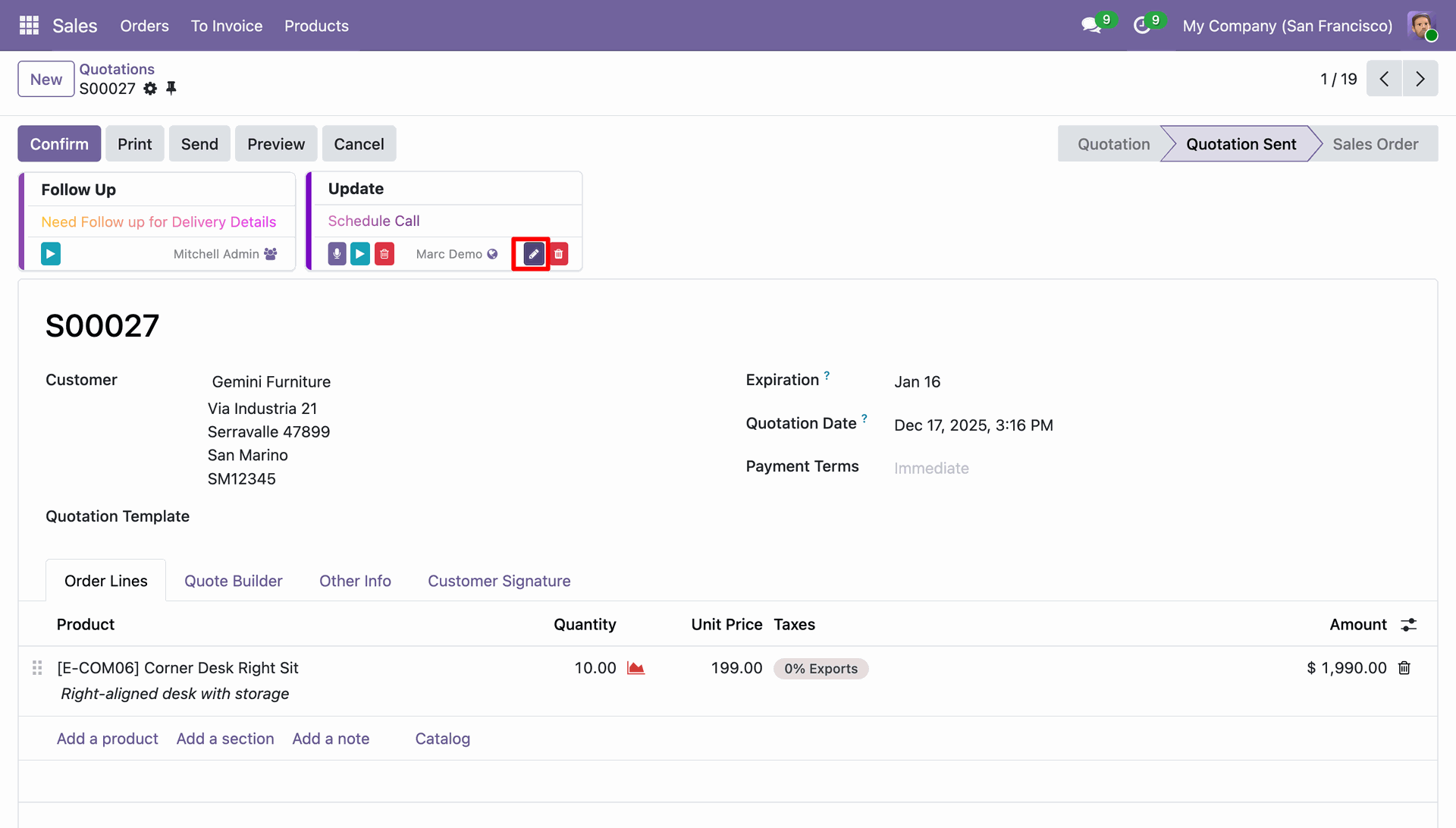
The user clicks the edit icon on the 'Update' sticky note to modify the details of the reminder attached to the quotation record.
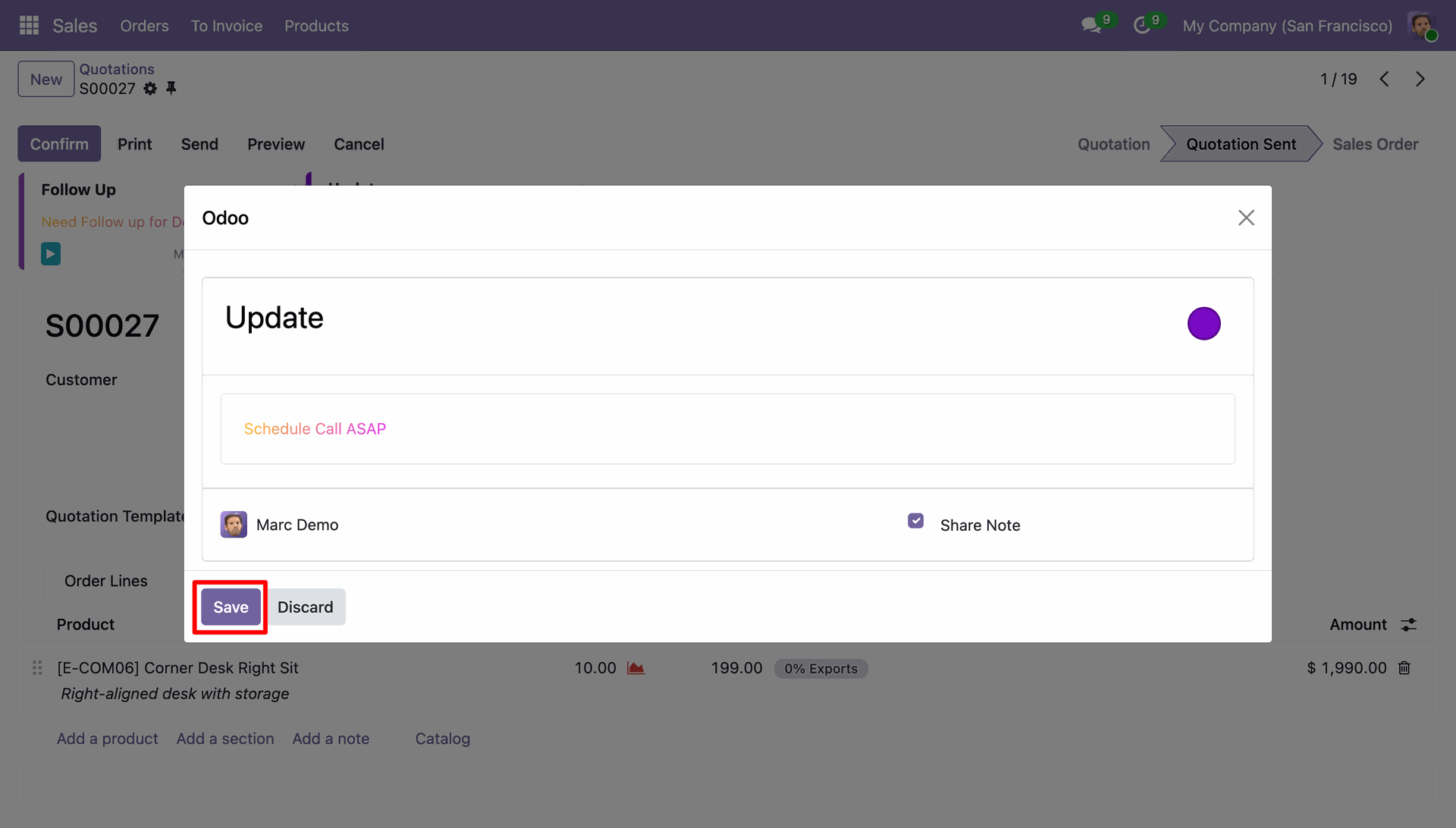
The user updates the note text to 'Schedule Call ASAP' and clicks the Save button in the modal to apply the changes to the record.
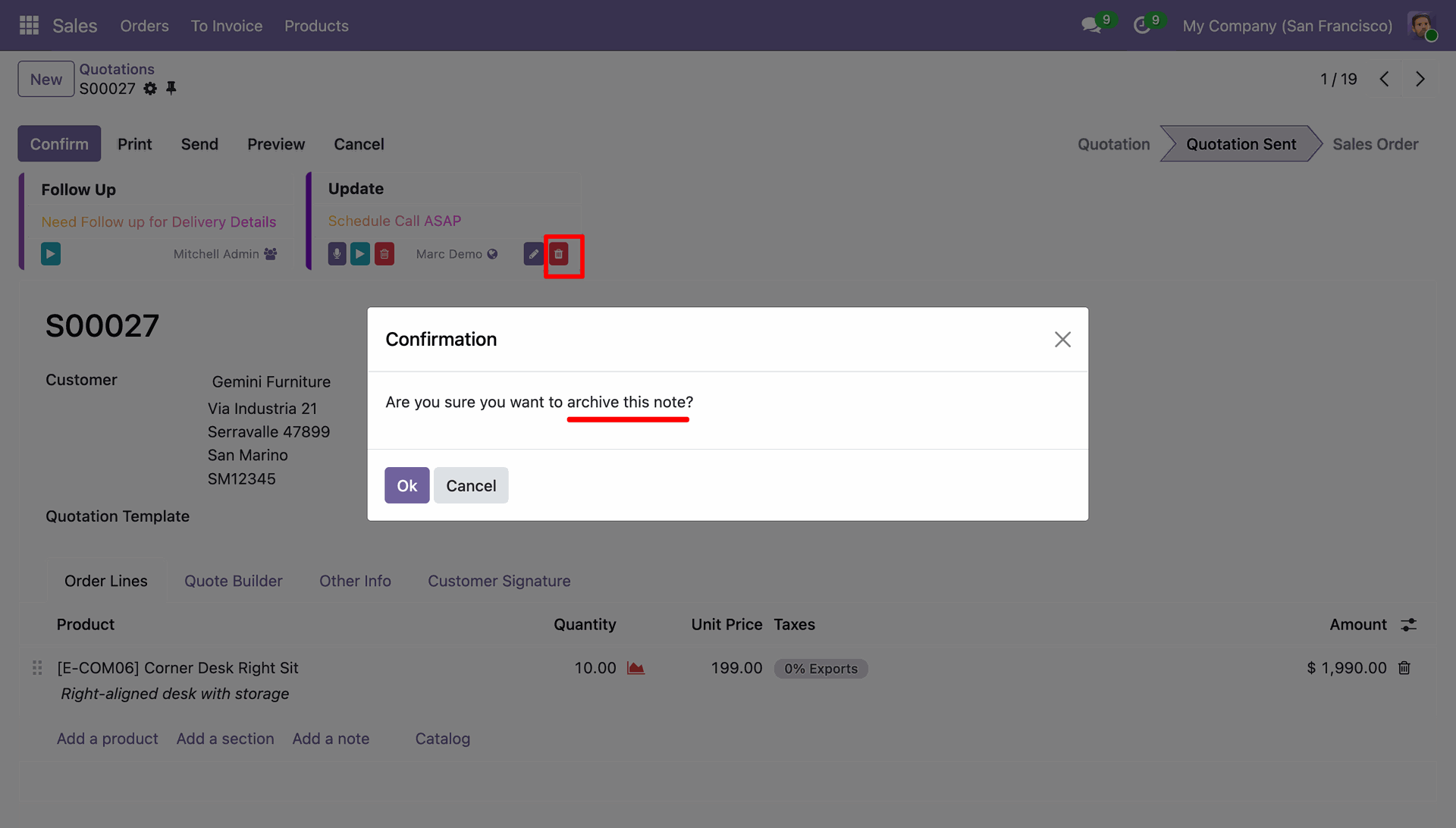
The user clicks the delete icon on the 'Update' sticky note, prompting a confirmation dialog to verify the request to archive the note.
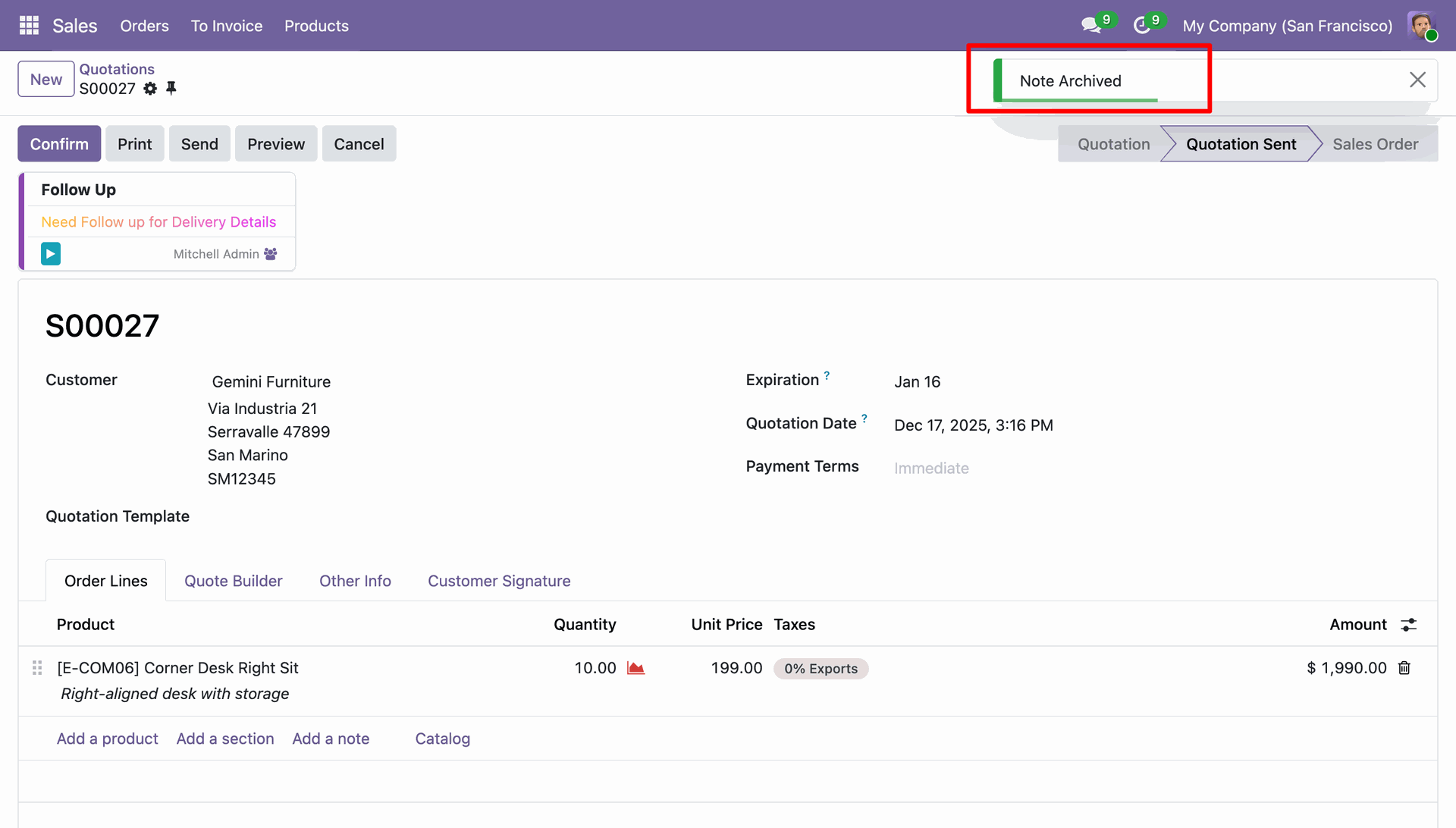
The system displays a green 'Note Archived' notification in the top-right corner, visually confirming the successful removal of the sticky note.
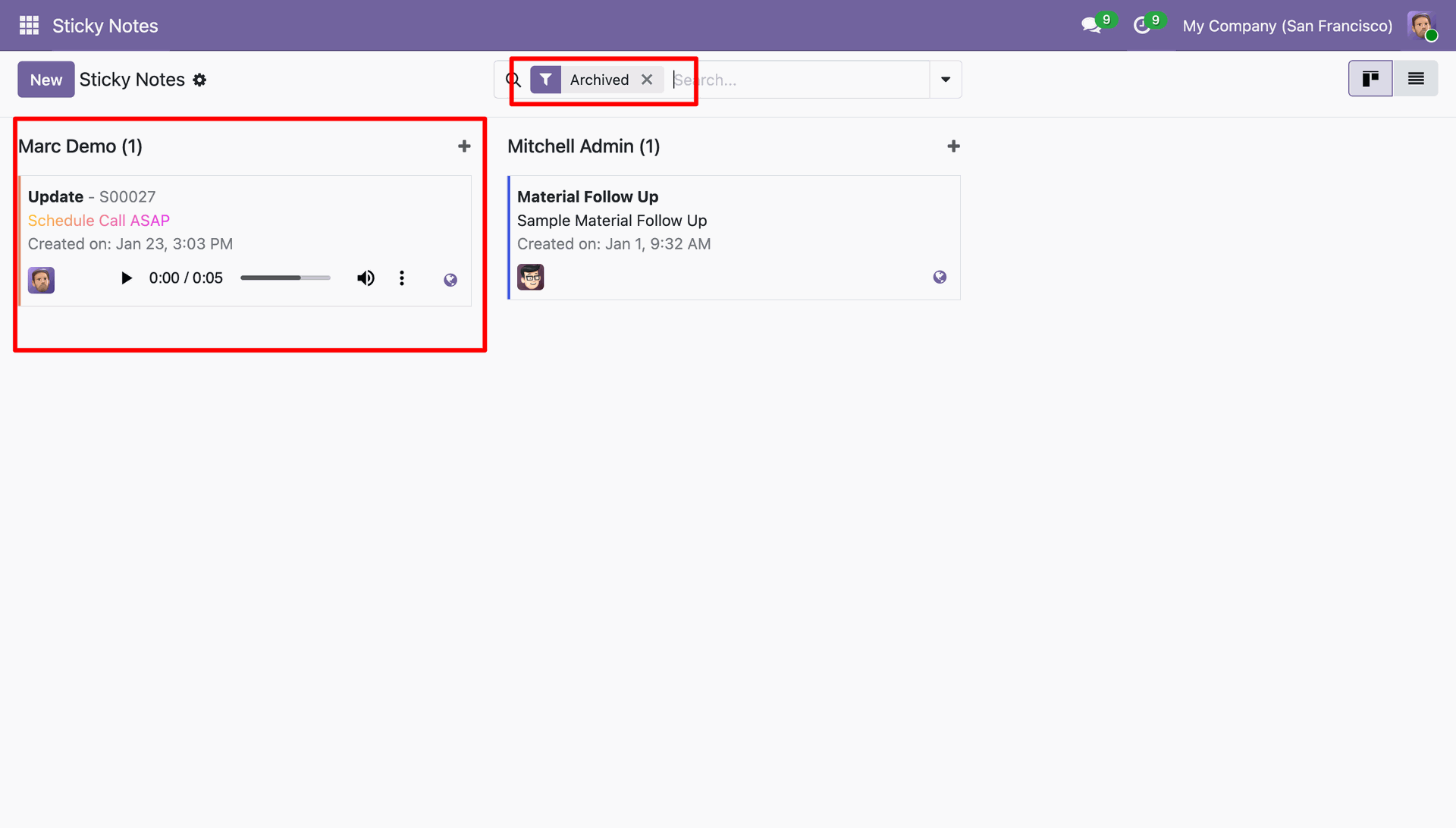
The user filters the dashboard by Archived to locate and review the previously archived note 'Update' under the Marc Demo column.
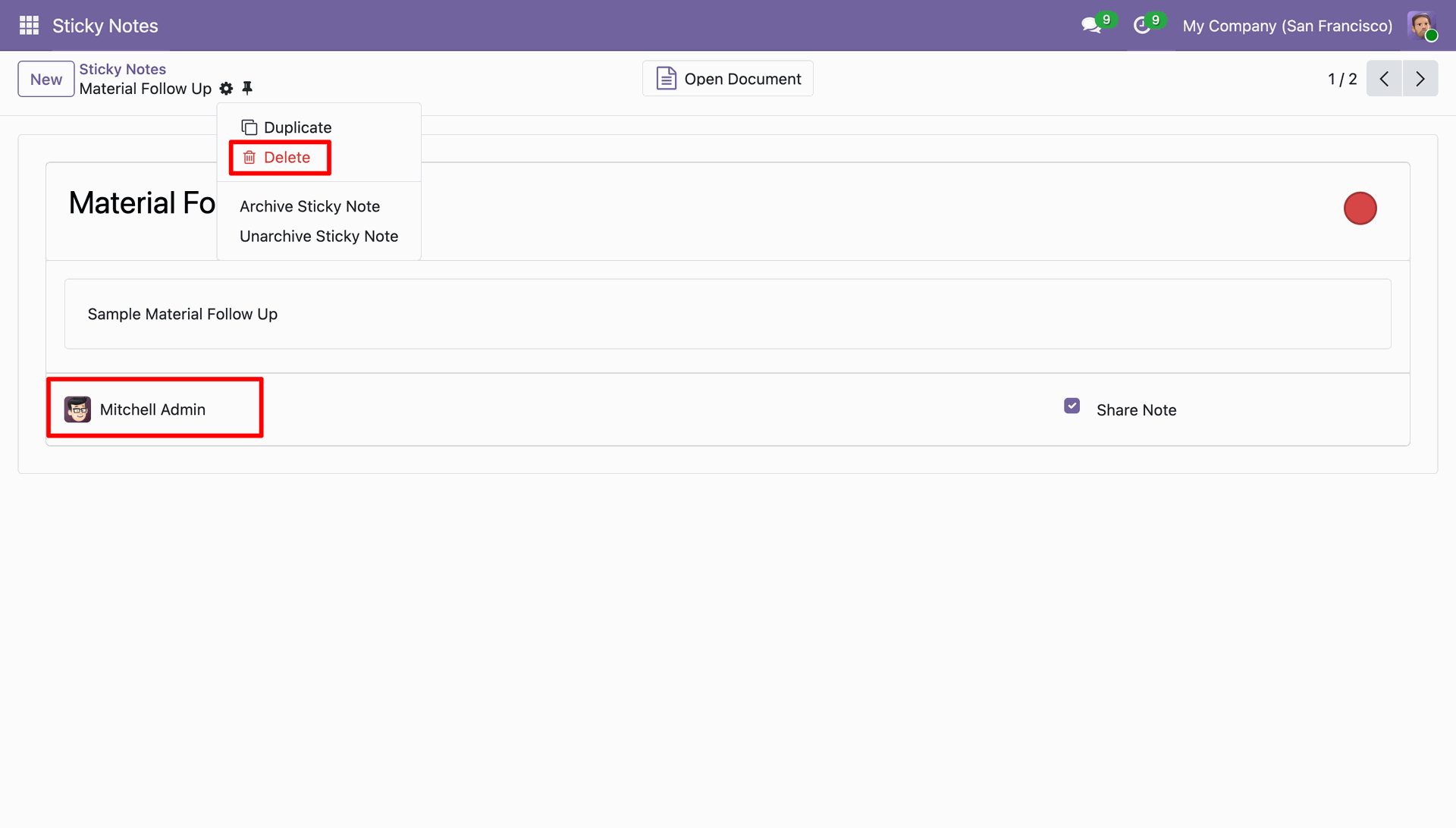
The user opens the 'Material Follow Up' note, clicks the Actions menu, and selects Delete to remove the sticky note created by Mitchell Admin.
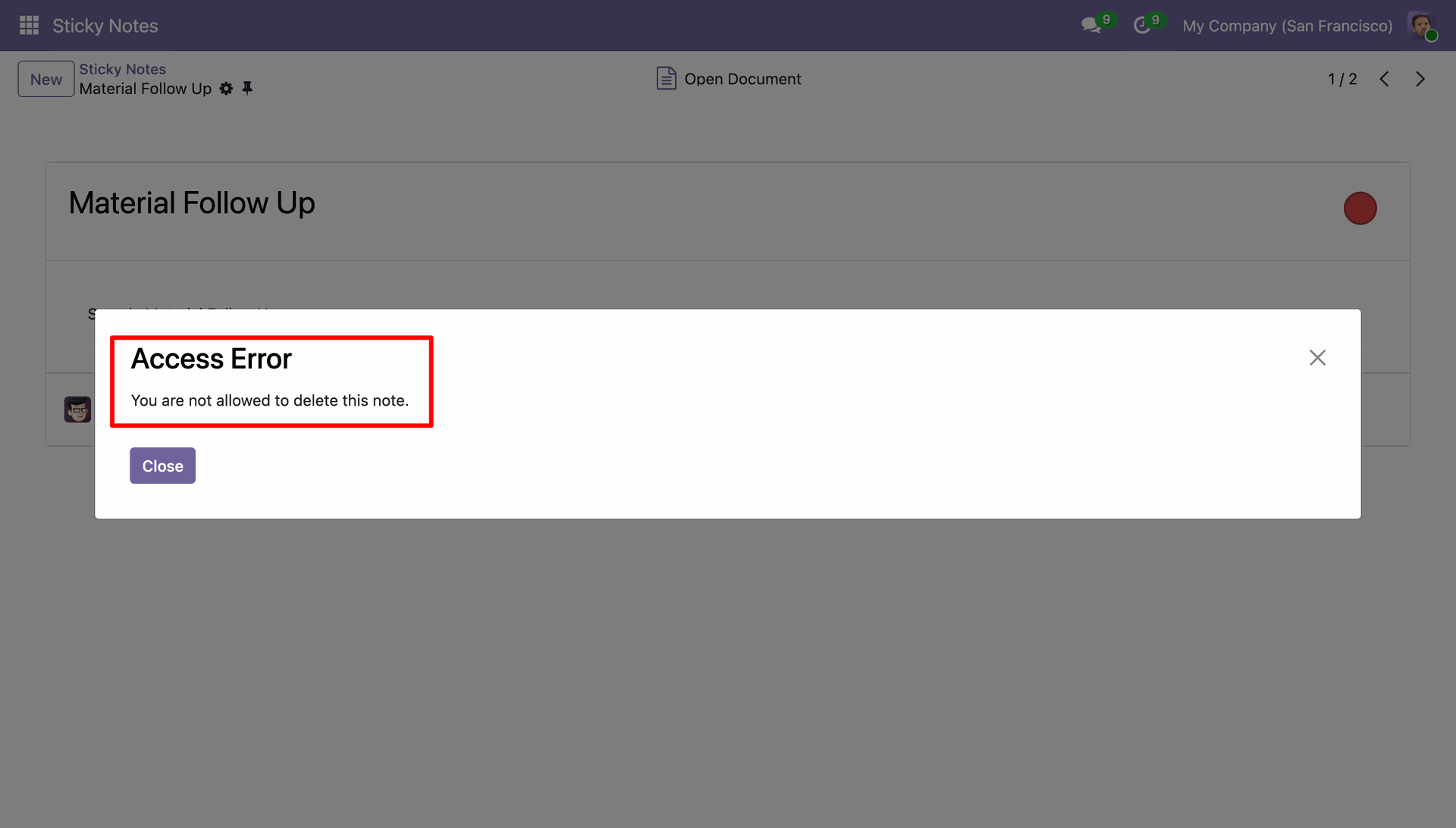
The system displays an Access Error modal with the message 'You are not allowed to delete this note.', preventing the user from removing a record they do not have permission to manage.
Version 16.0.1 | Released on : 3rd April 2026
- Yes, this app works perfectly with Odoo Enterprise (Odoo.sh & Premise) as well as Community.
- No, this application is not compatible with odoo.com(odoo saas/Odoo Online)
- Yes, to test this module, please contact us at sales@softhealer.com.
- Please contact us at sales@softhealer.comto request customization.
- Yes, we provide free support for 365 days from the date of purchase.
- Yes, you will receive lifetime free updates for the version of the module you purchased.
- No, there is no need to install any additional libraries.
- Yes, for version 12 and above, you need to purchase the module separately for each version you intend to use.
- No, exchanges or refunds are not allowed. Please make sure to select the correct version before purchasing.
- You can contact us at support@softhealer.com for language translation support. We use Google Translator tools to provide translations in multiple languages, so the accuracy may vary. We welcome your suggestions to help improve translations.
Discover Our Latest Apps