












ShipStation Odoo Integration

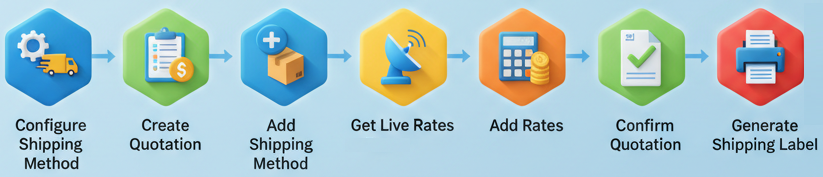
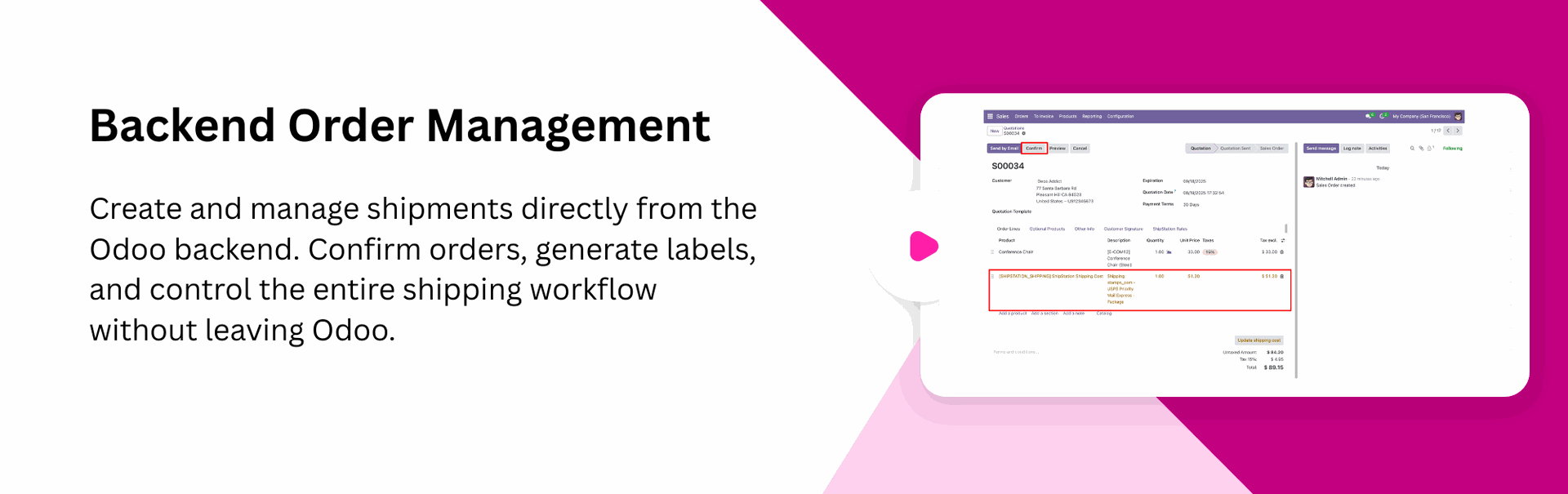
Using this integration, you can seamlessly connect your Odoo system with ShipStation and manage your entire shipping workflow from one place. Create and organize shipments, generate shipping labels and retrieve real-time carrier rates directly within Odoo. The integration simplifies multi-carrier shipping, reduces manual work, streamlines order fulfillment, and helps your business maintain a faster, more efficient, and error-free shipping process.
Related Modules
Key Features
Features

ShipStation Integration
Real-time ShipStation integration for instant data sync between Odoo and ShipStation.
Ship From Location Configuration
Set up and manage ShipStation Ship-From Locations within your workflow to define accurate shipping.

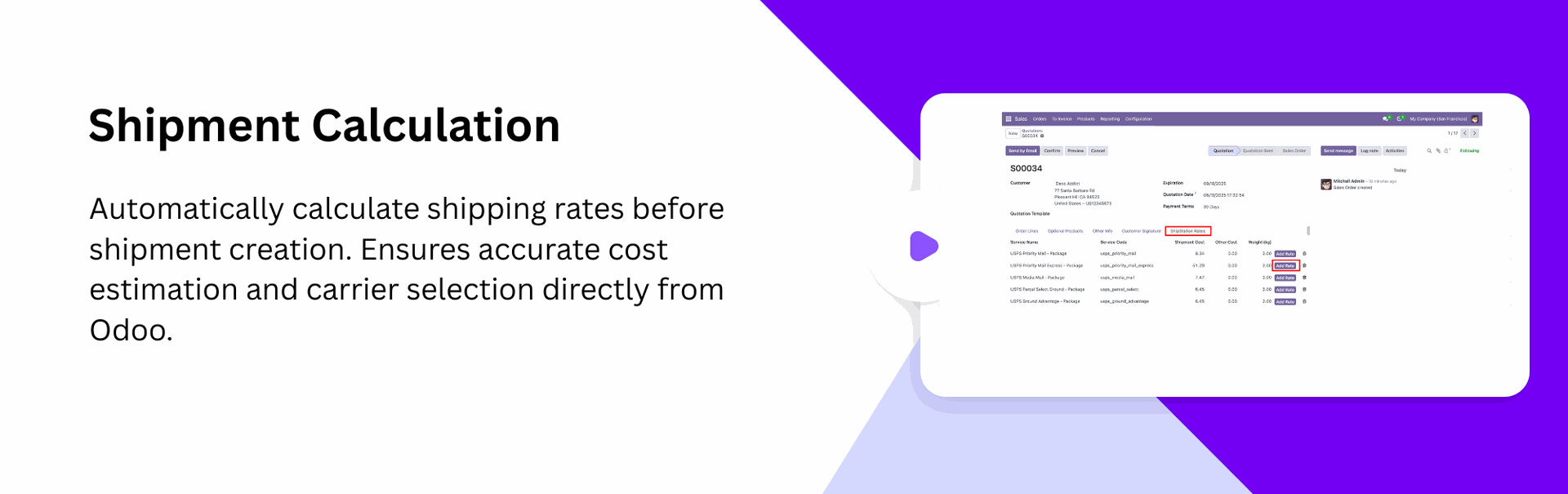
Instant Rate Calculation
Automatic rate fetching to provide live ShipStation shipping prices during Quotation creation.

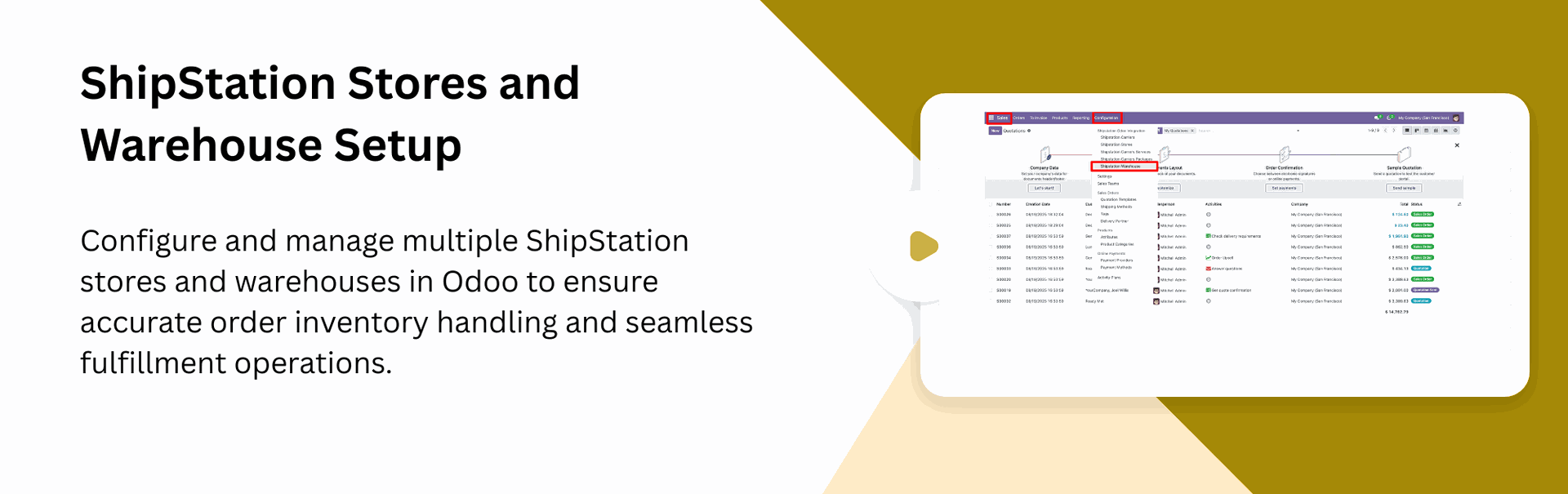
ShipStation Stores Setup
Easily configure and manage ShipStation-connected stores inside Odoo to sync orders smoothly.
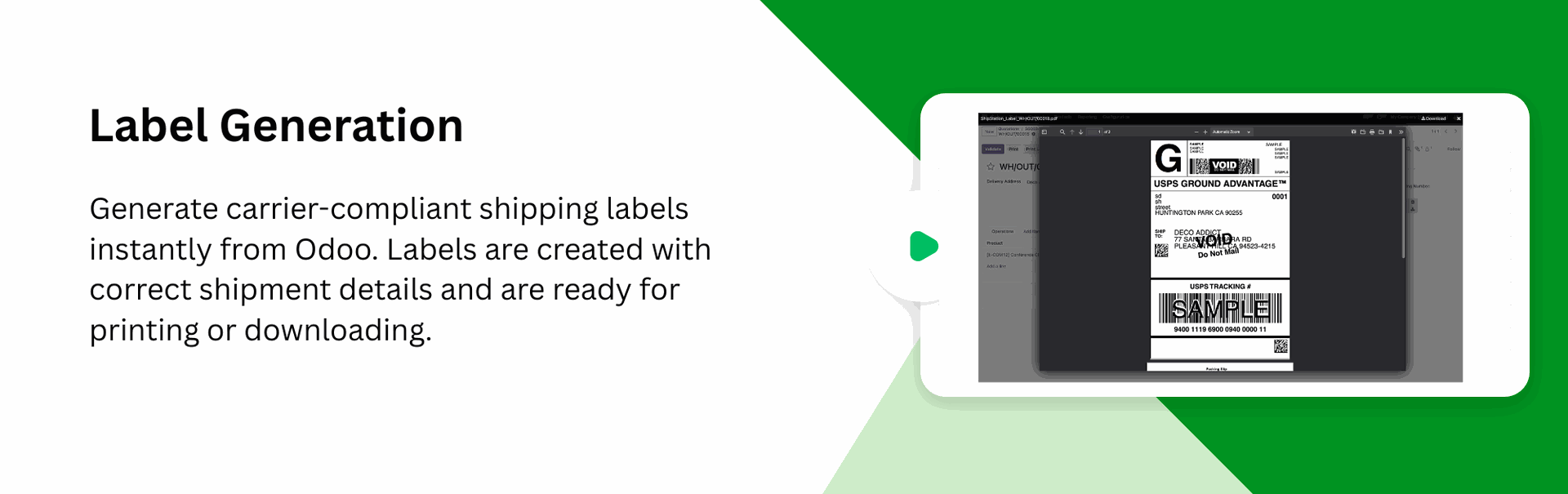
Generate Shipping Labels
One-click label generation and download for seamless ShipStation shipment processing.

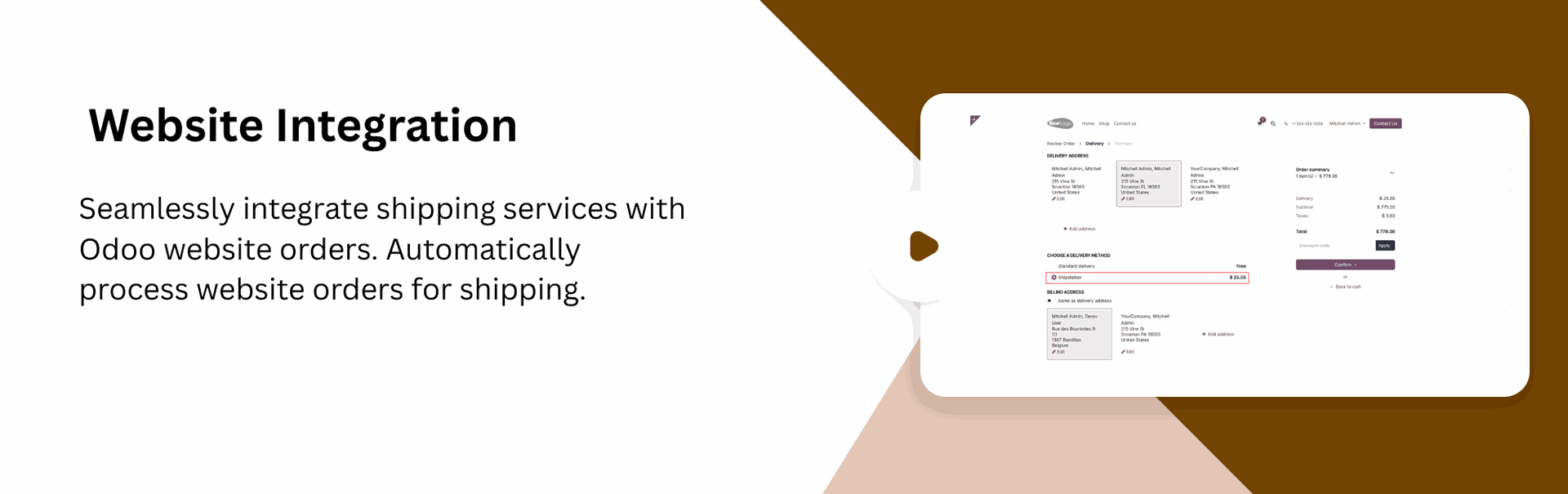
Compatible with Odoo Website
Customers can select ShipStation during the website checkout process.
ShipStation Warehouse Configuration
Connect and configure ShipStation warehouses inside Odoo to maintain accurate fulfillment sources for every outgoing order.
ShipStation Carrier Packages Setup
Set up supported package types provided by ShipStation carriers so each shipment uses the correct packaging and dimensional details.
Multiple Carrier Management
View all fetched rates instantly and apply the best option to your order with just one click.

ShipStation Carrier Services Configuration
Map and configure all available carrier service levels from ShipStation within Odoo.

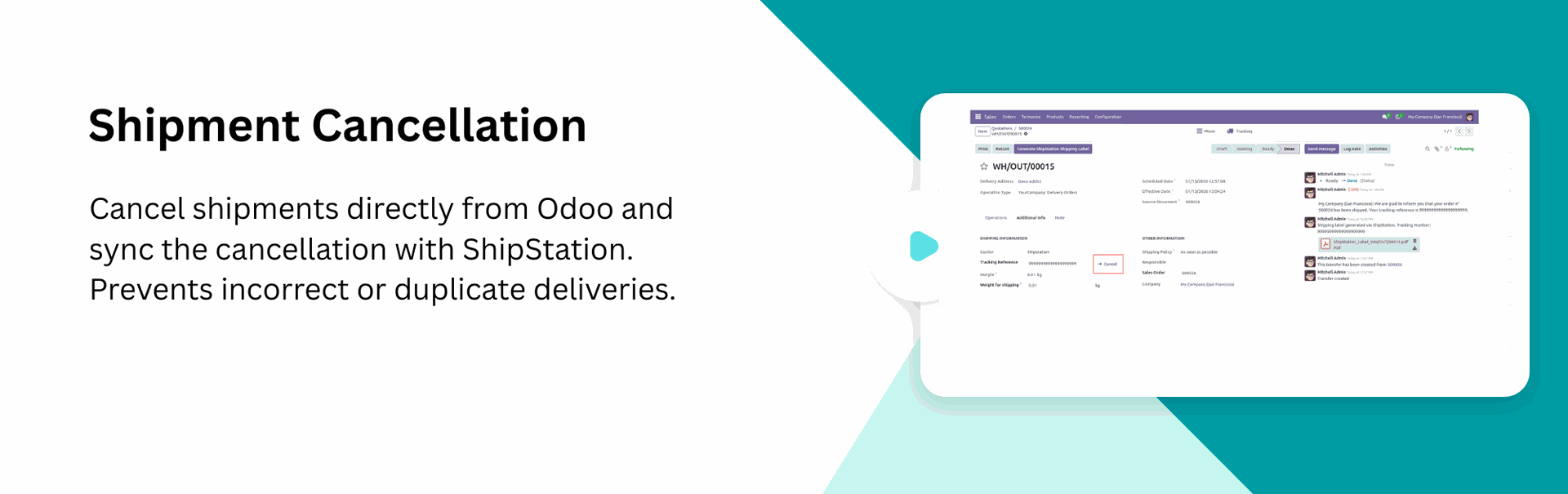
Shipment Cancelation
Cancel shipments directly from Odoo to prevent incorrect deliveries and keep shipping records accurate.

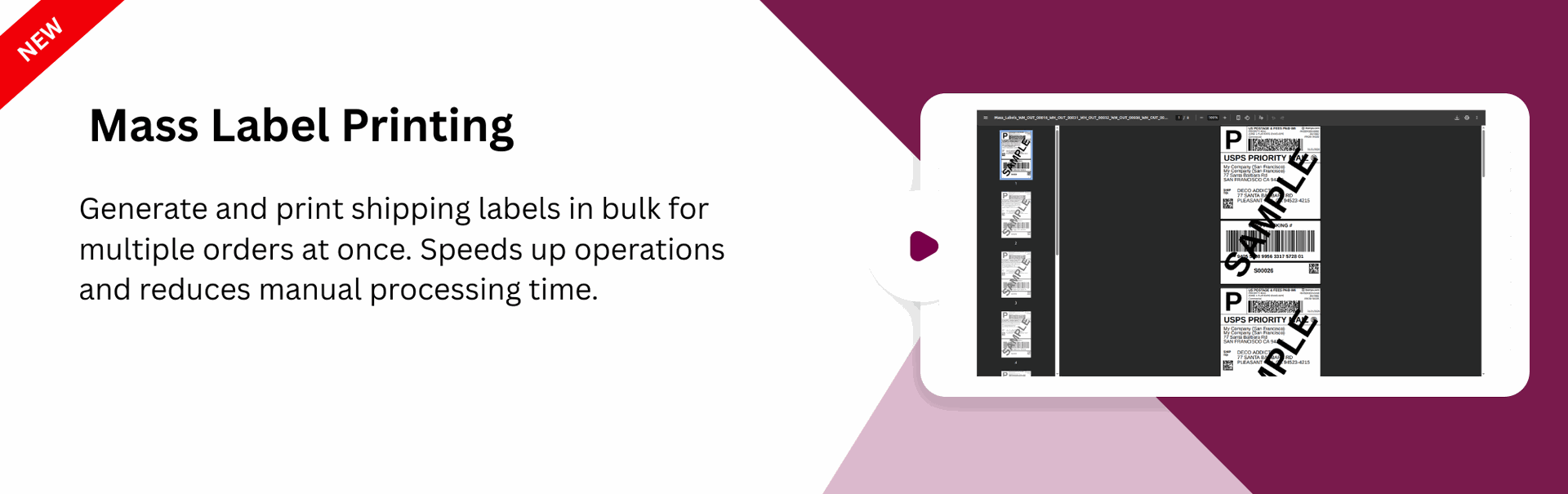
Generate Mass Shipping Labels
Generate multiple shipping labels in one action directly from Odoo, allowing you to process bulk delivery orders faster.

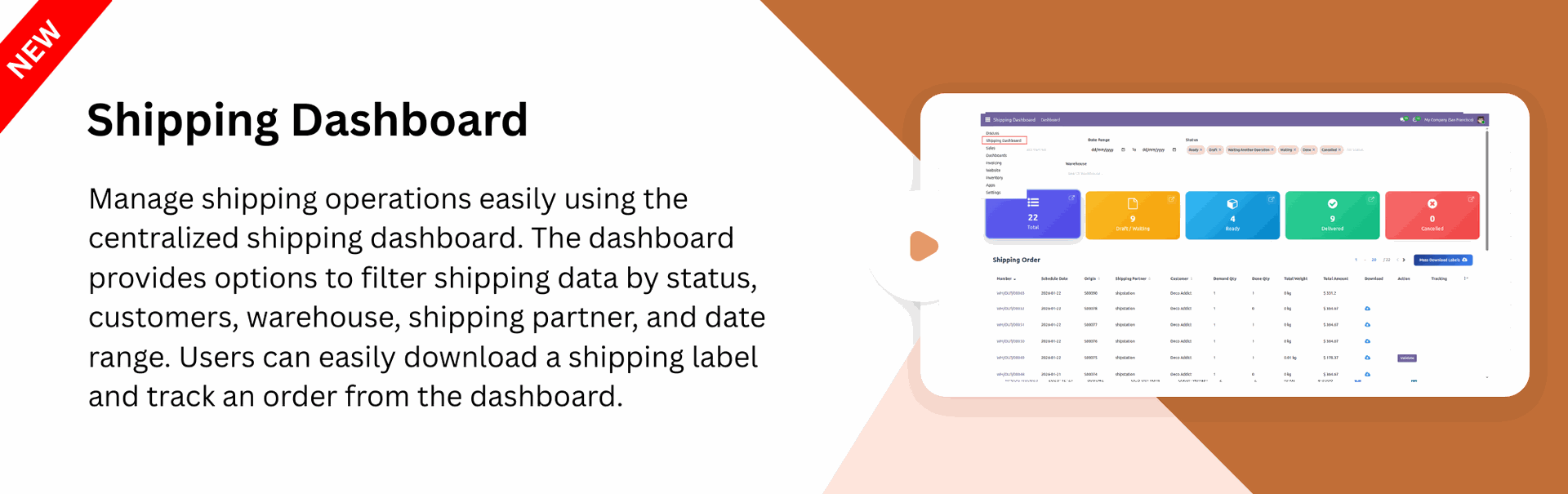
Shipping Dashboard
Get a centralized view of all shipping activities in one place. The dashboard provides quick operational insights.
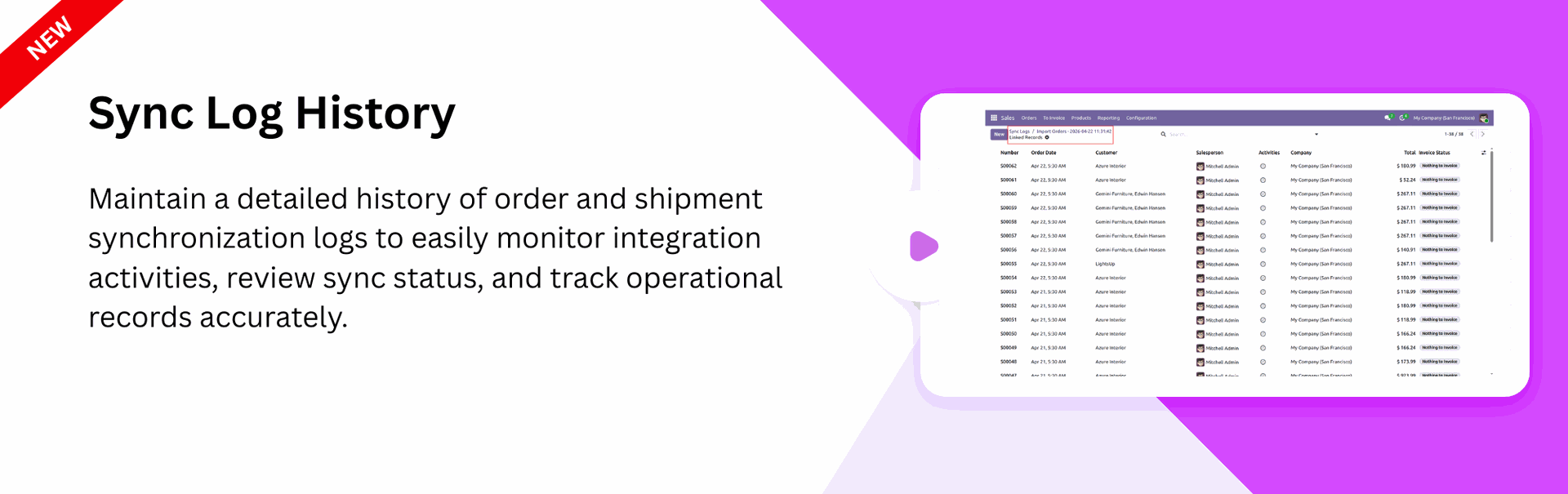
Sync Log History
Maintain detailed synchronization logs for orders and shipments to track every integration activity clearly.
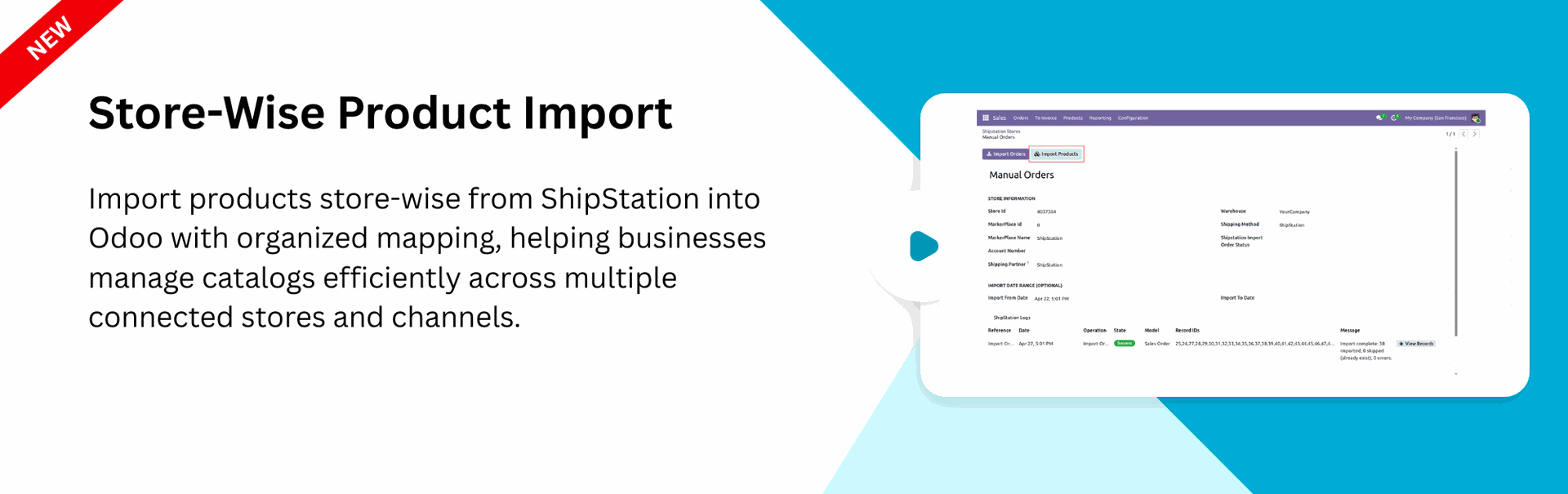
Store-Wise Product Import
Import products store-wise from ShipStation into Odoo for organized and efficient catalog management.
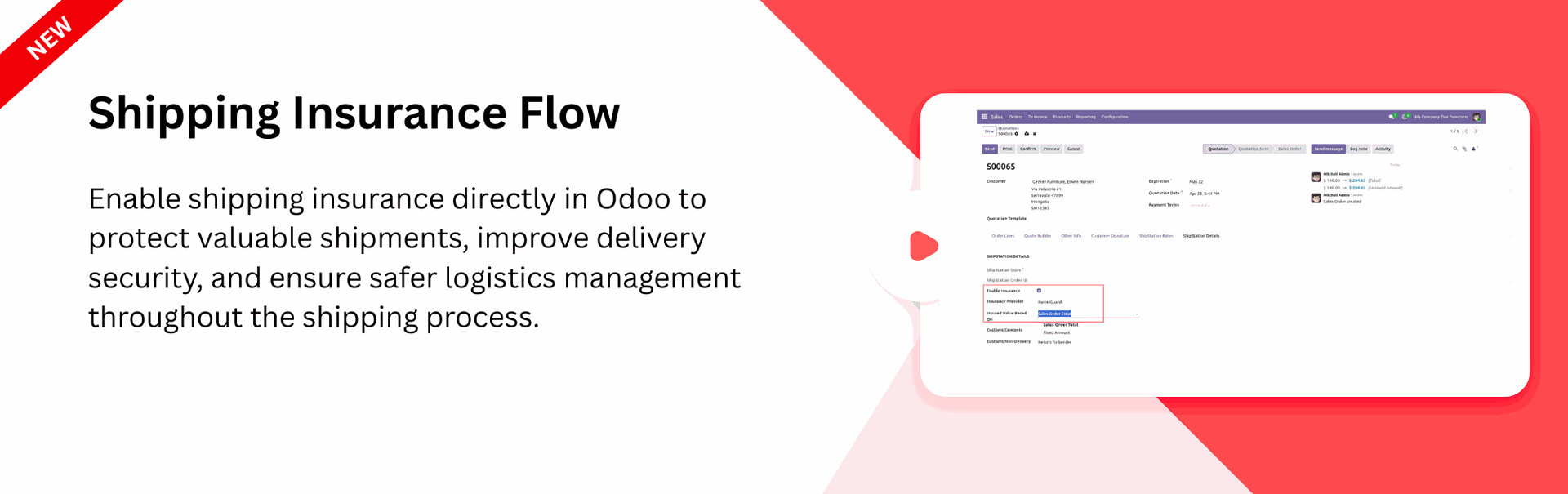
Shipping Insurance Flow
Enable shipment insurance directly in Odoo to provide added protection during the delivery process.
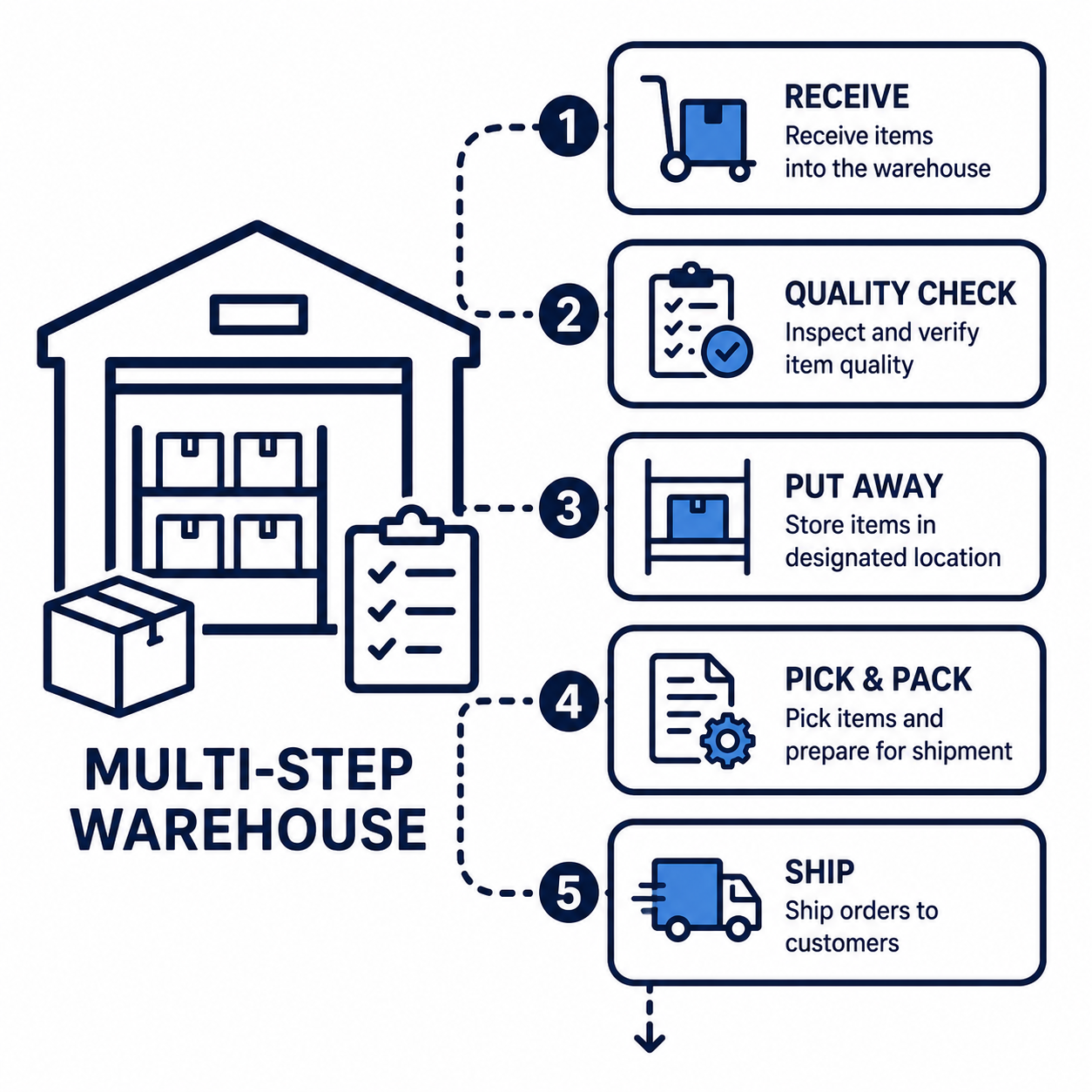
Multi-Step Warehouse

Support multi-step warehouse operations with ShipStation for better order fulfillment.

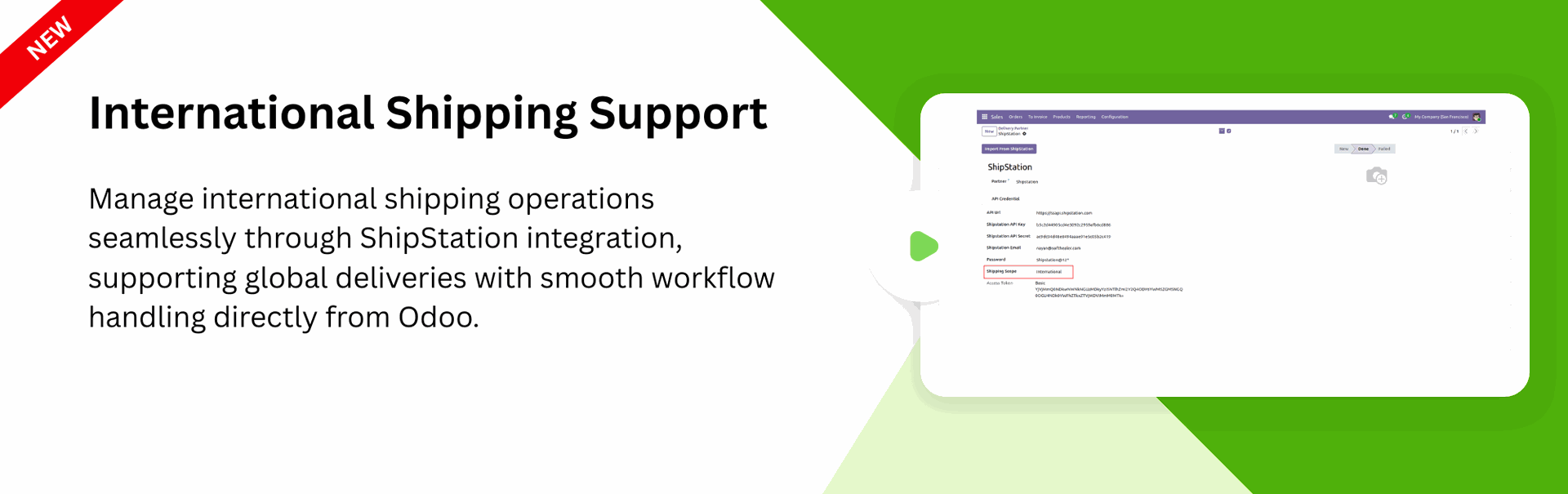
International Shipping Support
Manage international shipping workflows through ShipStation integration directly from your Odoo system.
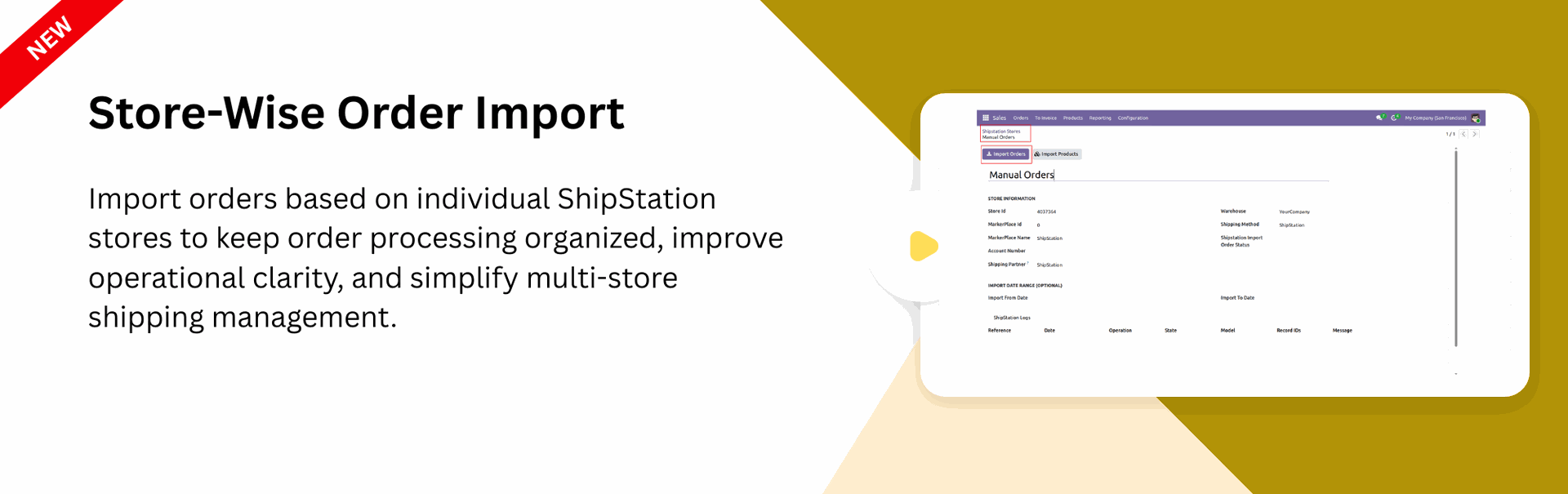
Store-Wise Order Import
Import orders based on individual ShipStation stores for better organization and streamlined processing.
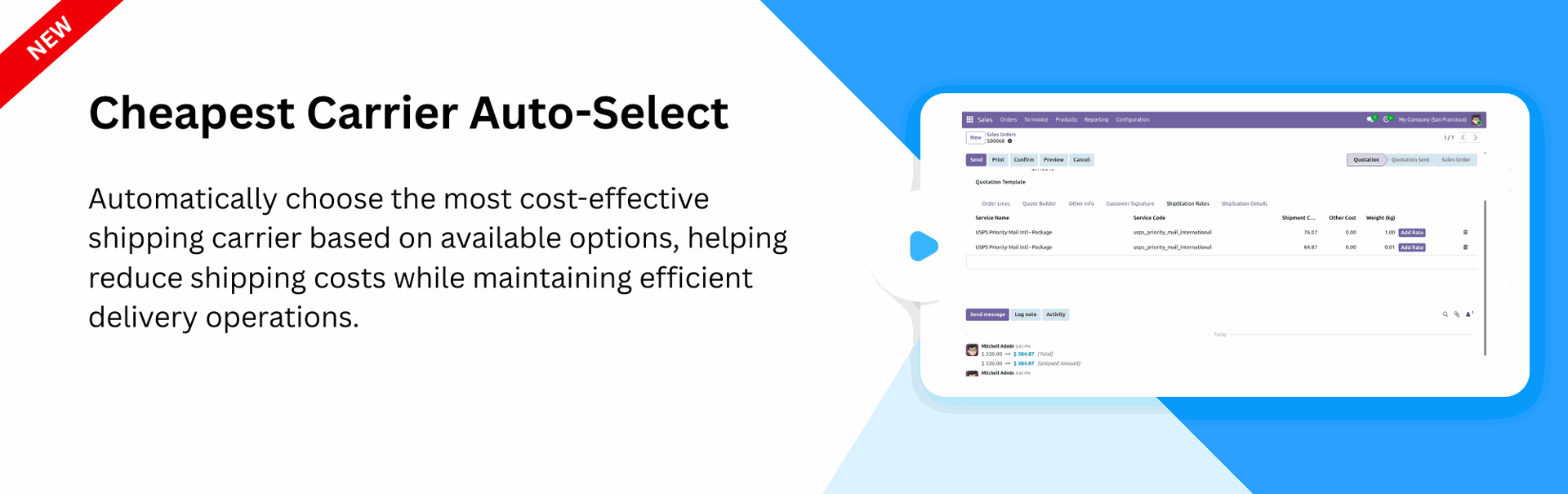
Cheapest Carrier Auto-Select
Automatically choose the most cost-effective shipping carrier to optimize delivery expenses efficiently.

Automated Order Tracking
Track shipment status automatically using scheduled cron jobs for timely delivery updates.
Order Status Synchronization
Sync order statuses between Odoo and ShipStation to keep order information updated.
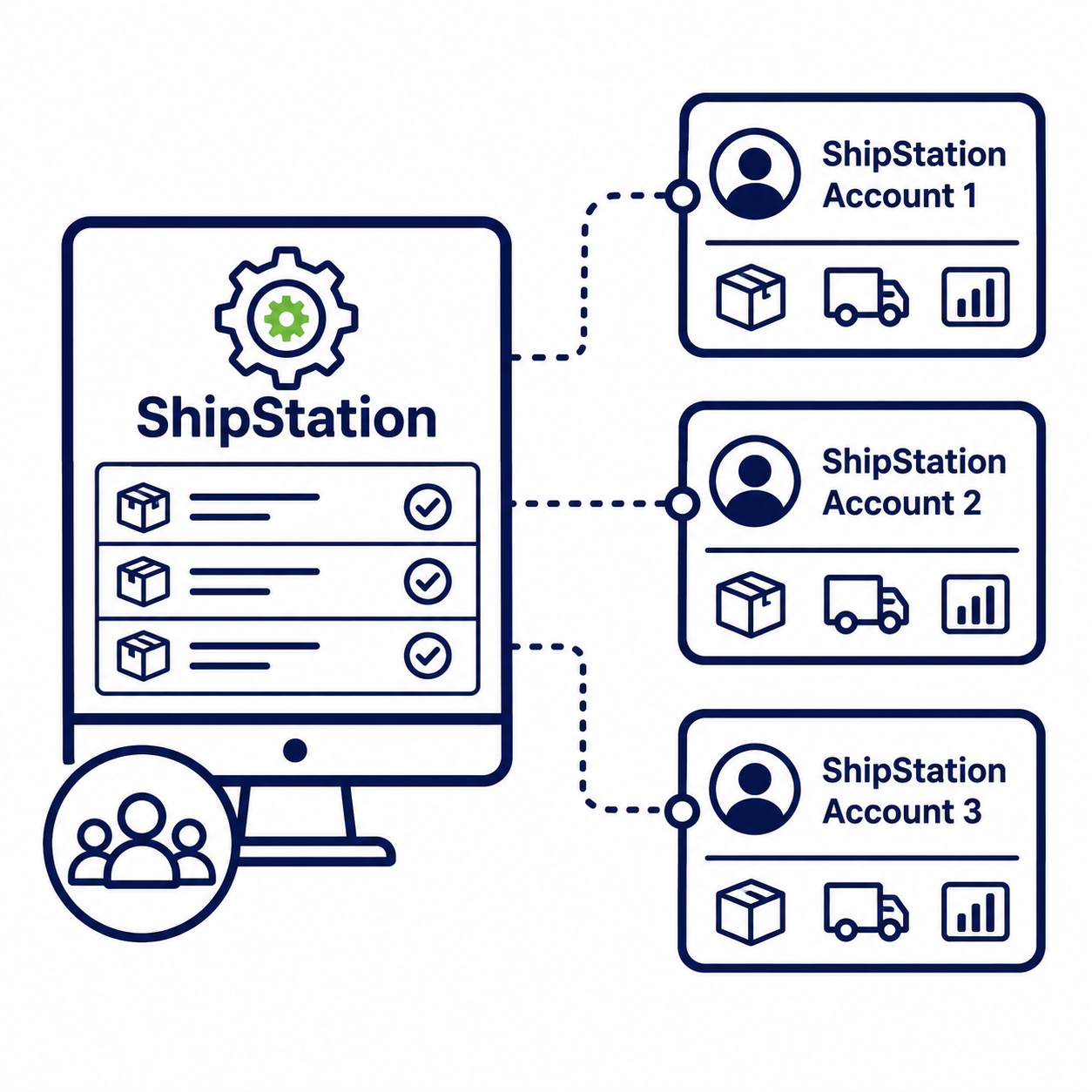
Multiple ShipStation Accounts
Connect and manage multiple ShipStation accounts from Odoo.
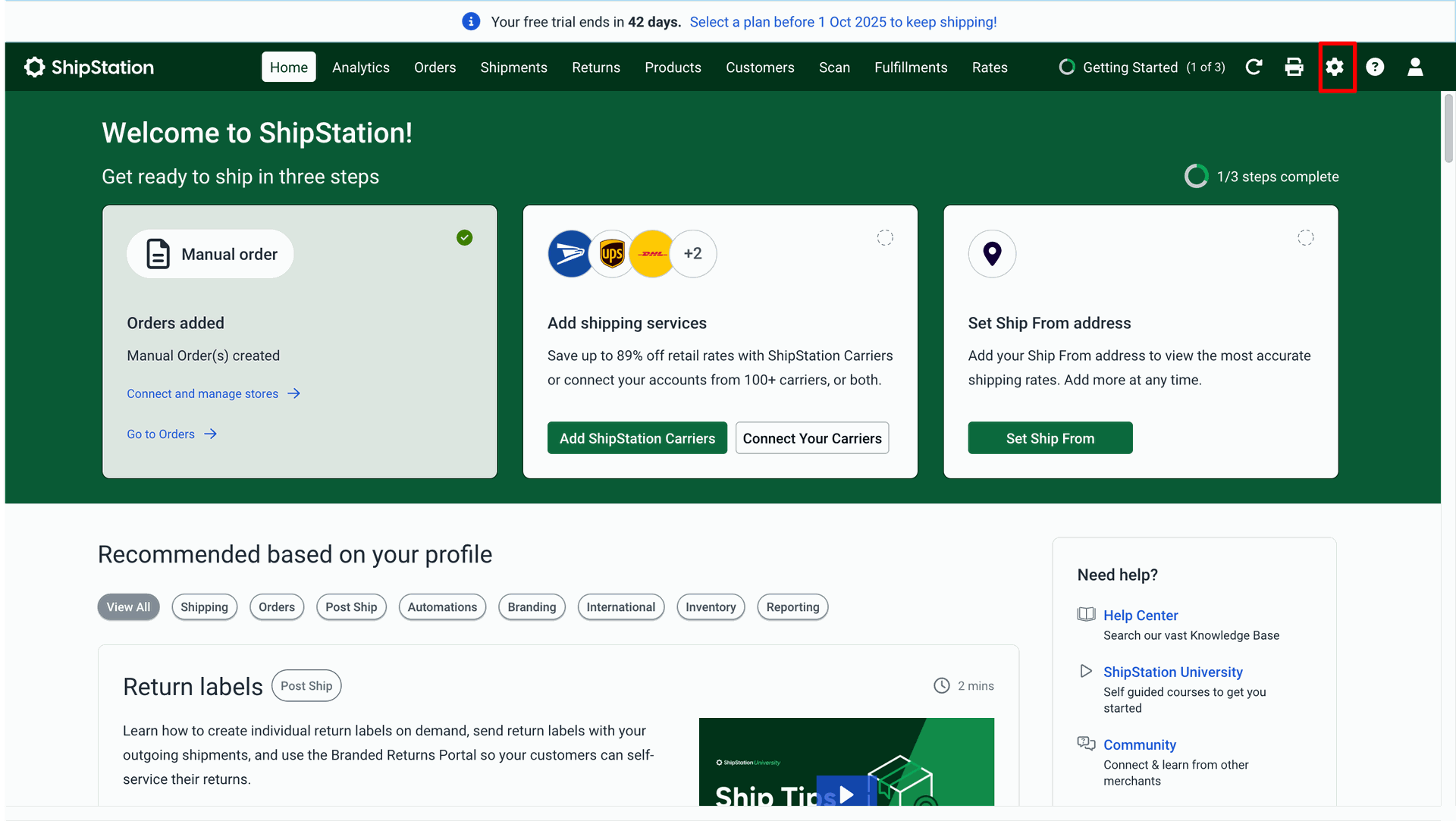
Open ShipStation.
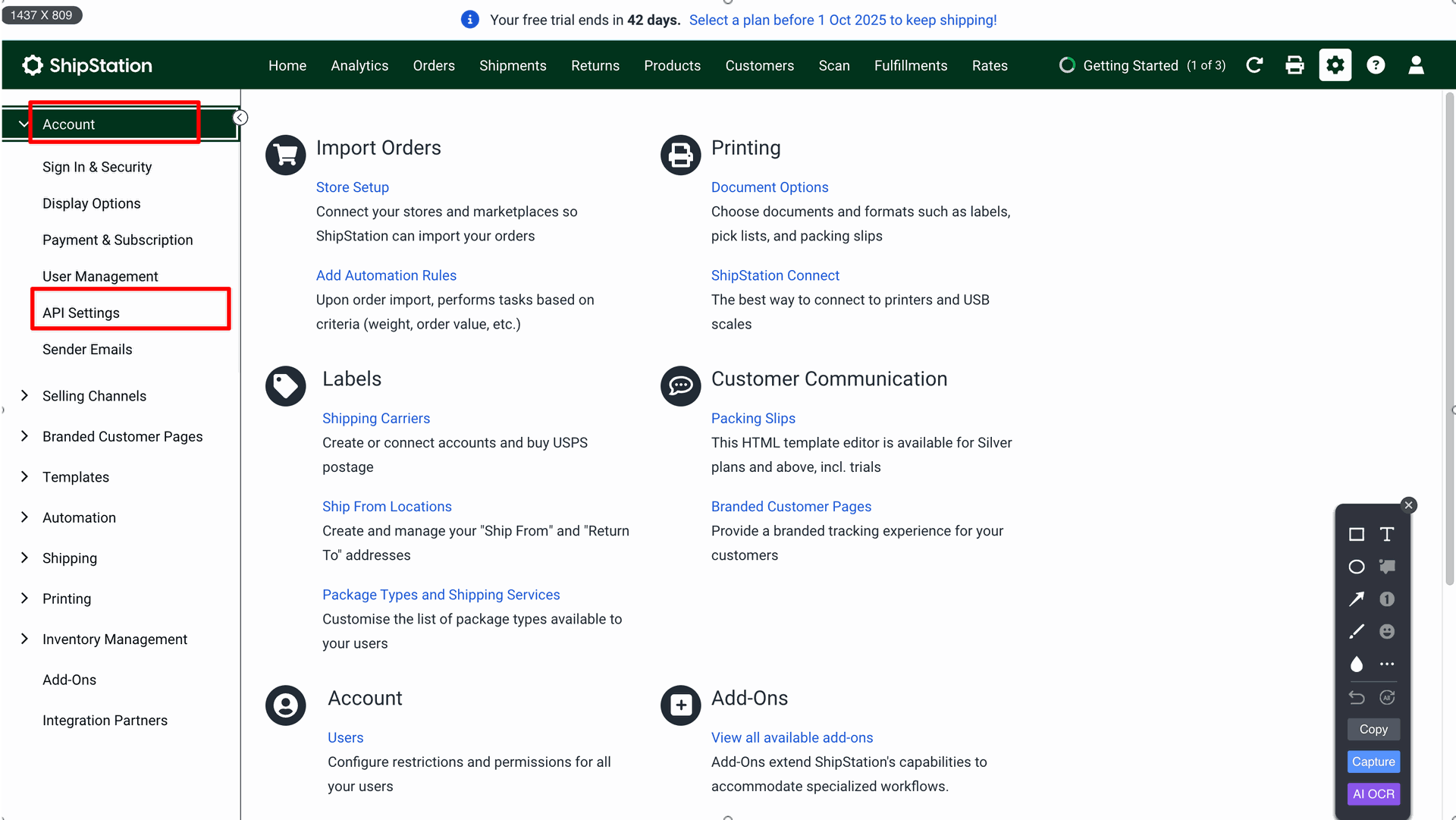
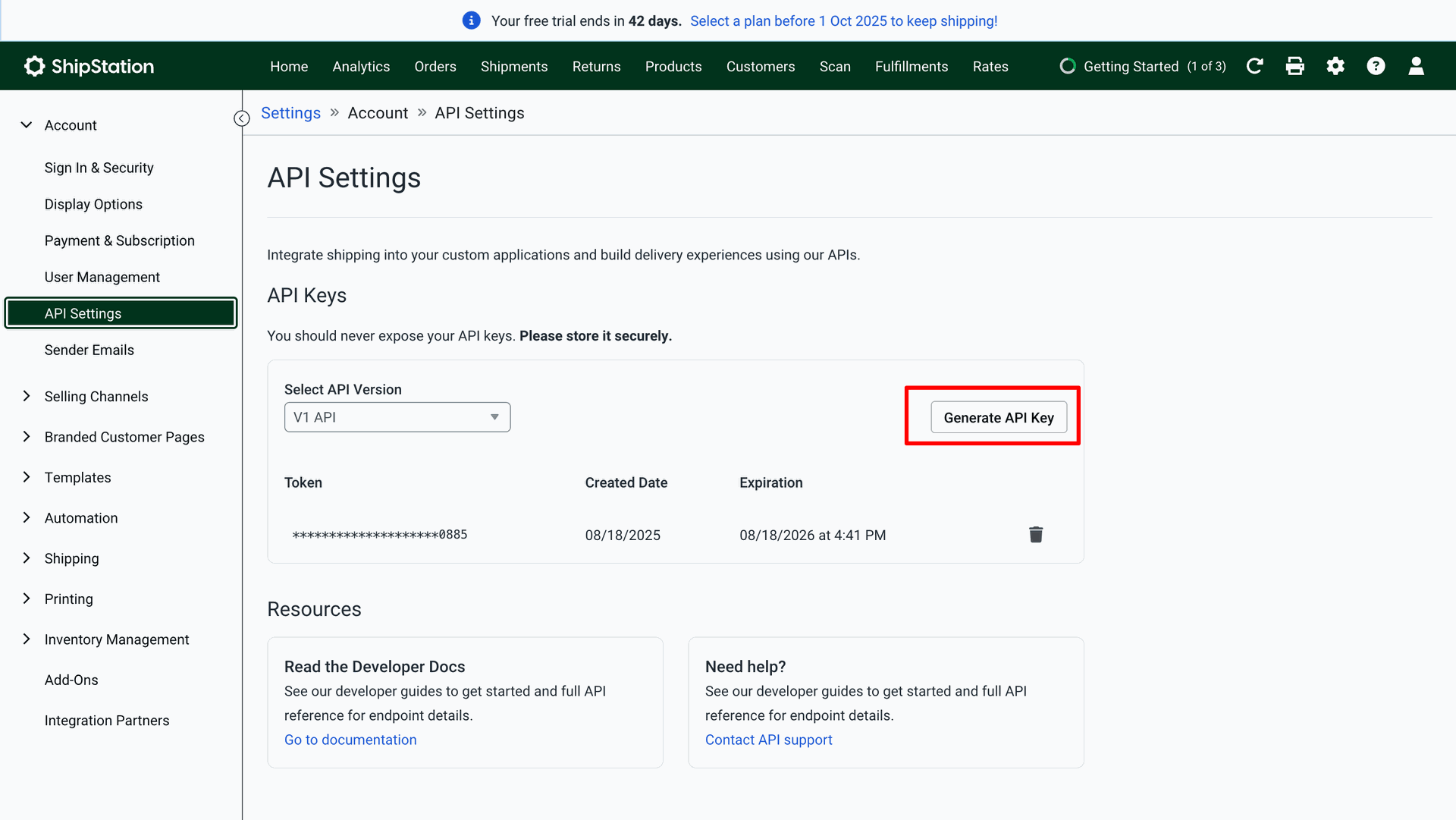
Go to the "Account" ==> API Settings.
To generate the API key, click on the 'Generate API Key' button.
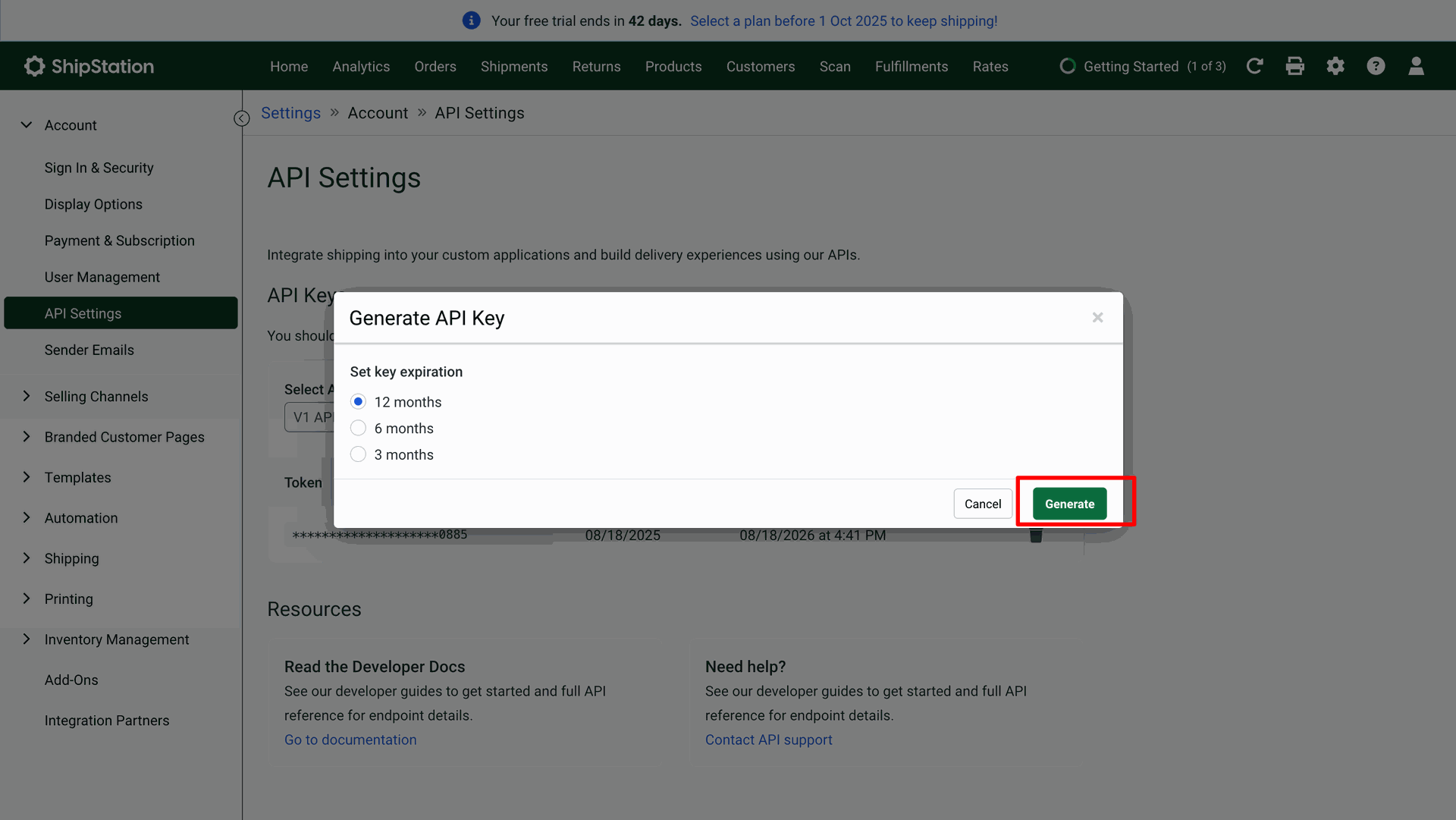
Select the key expiration options and click on the 'Generate' button.
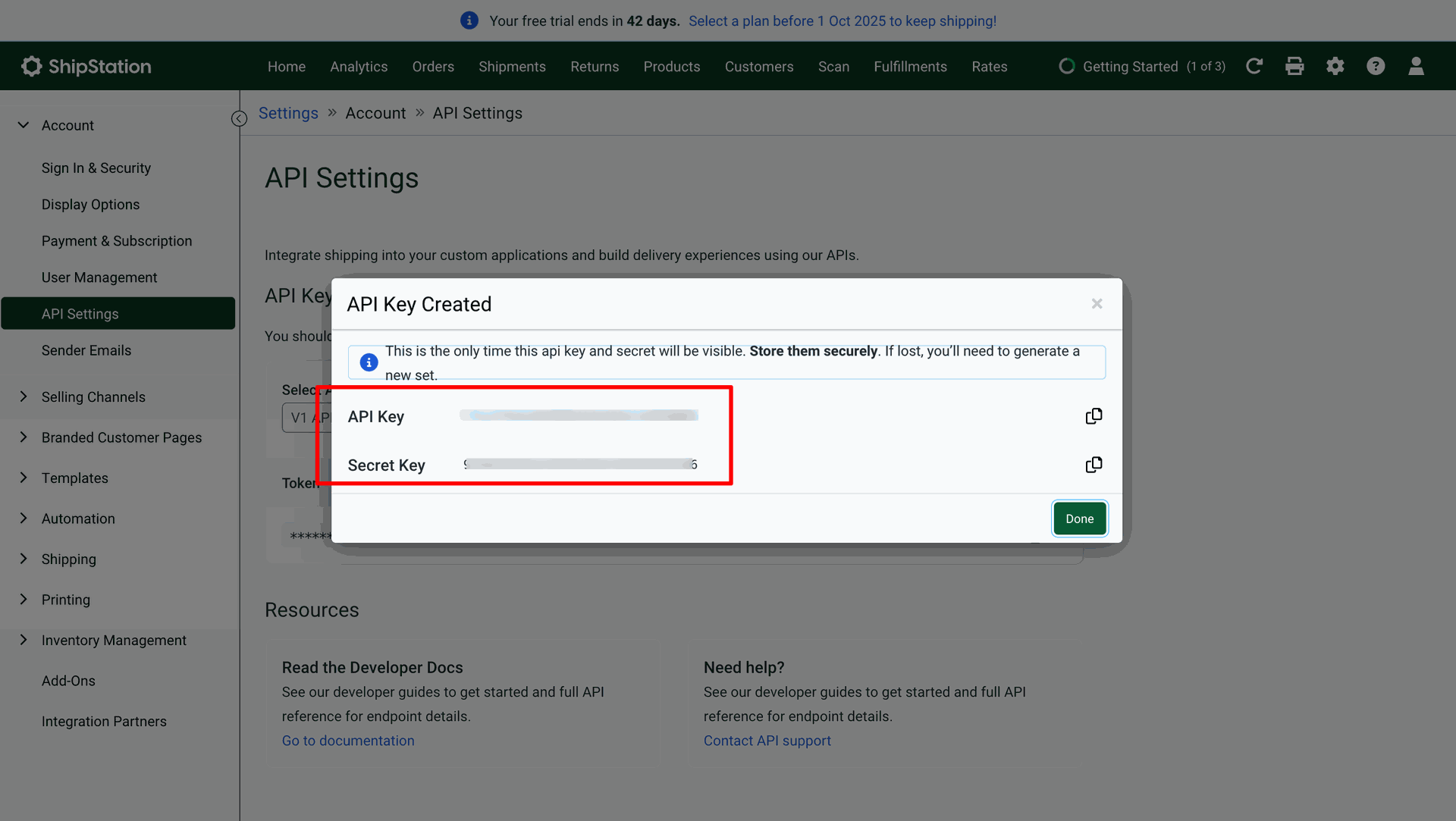
Here you can see the generated API key & Secret key. Click on the 'Done' button.
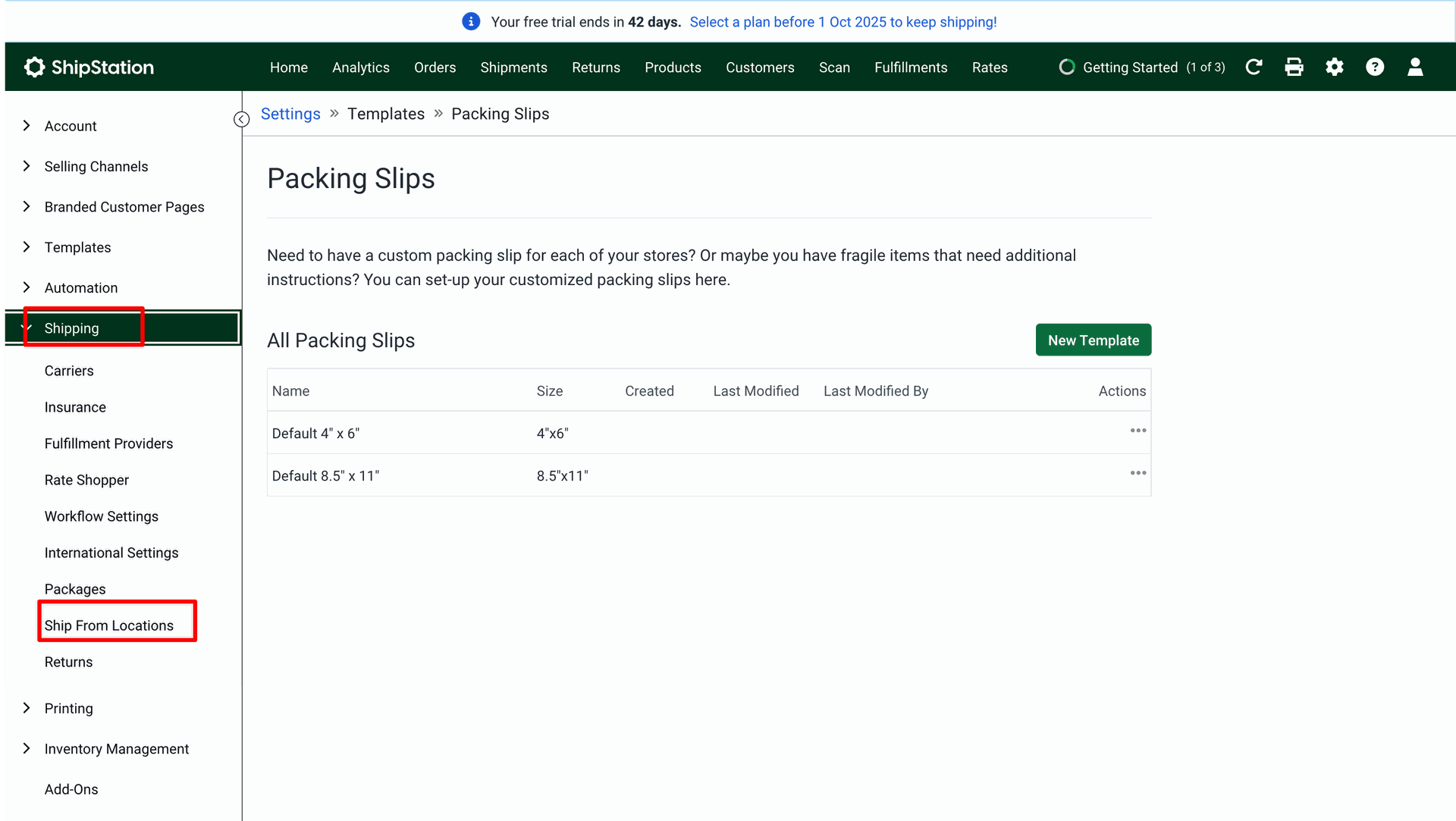
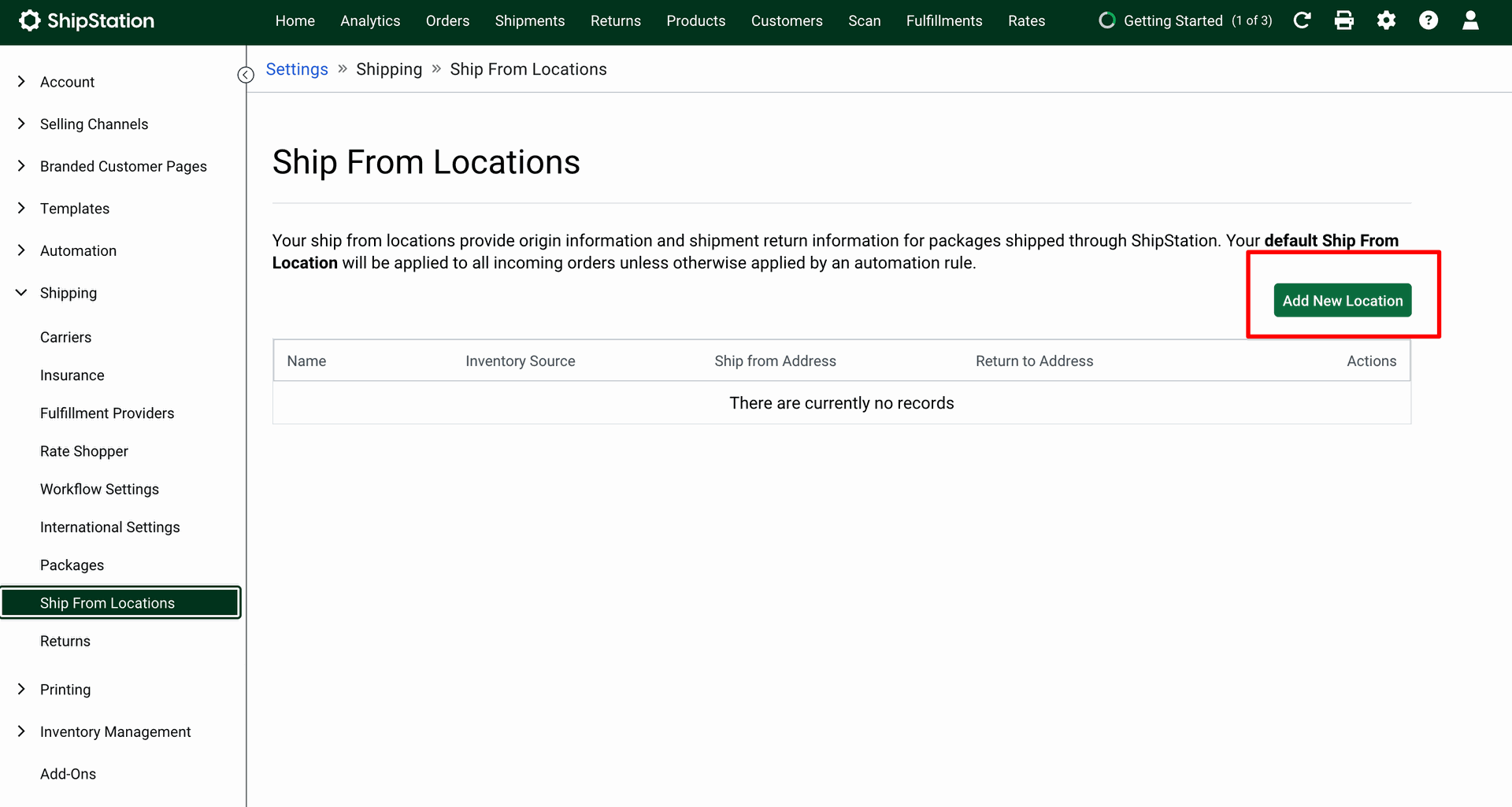
Go to the "Shipping" ==> Ship From Locations.
Click on the 'Add New Location' button to add a location.
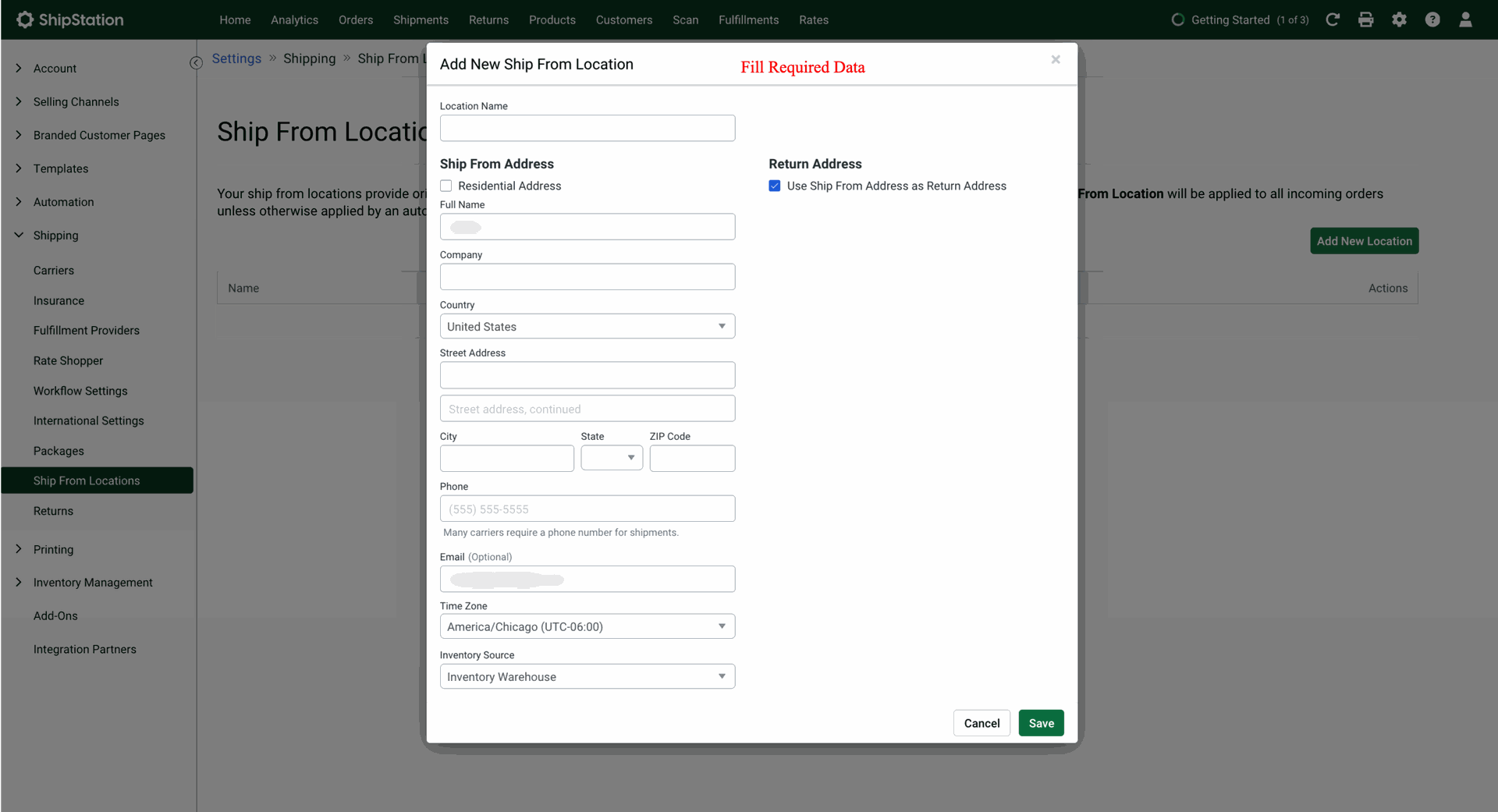
After that, the 'Add New Ship From Location' wizard will appear. Enter the details and click on the 'Save' button.
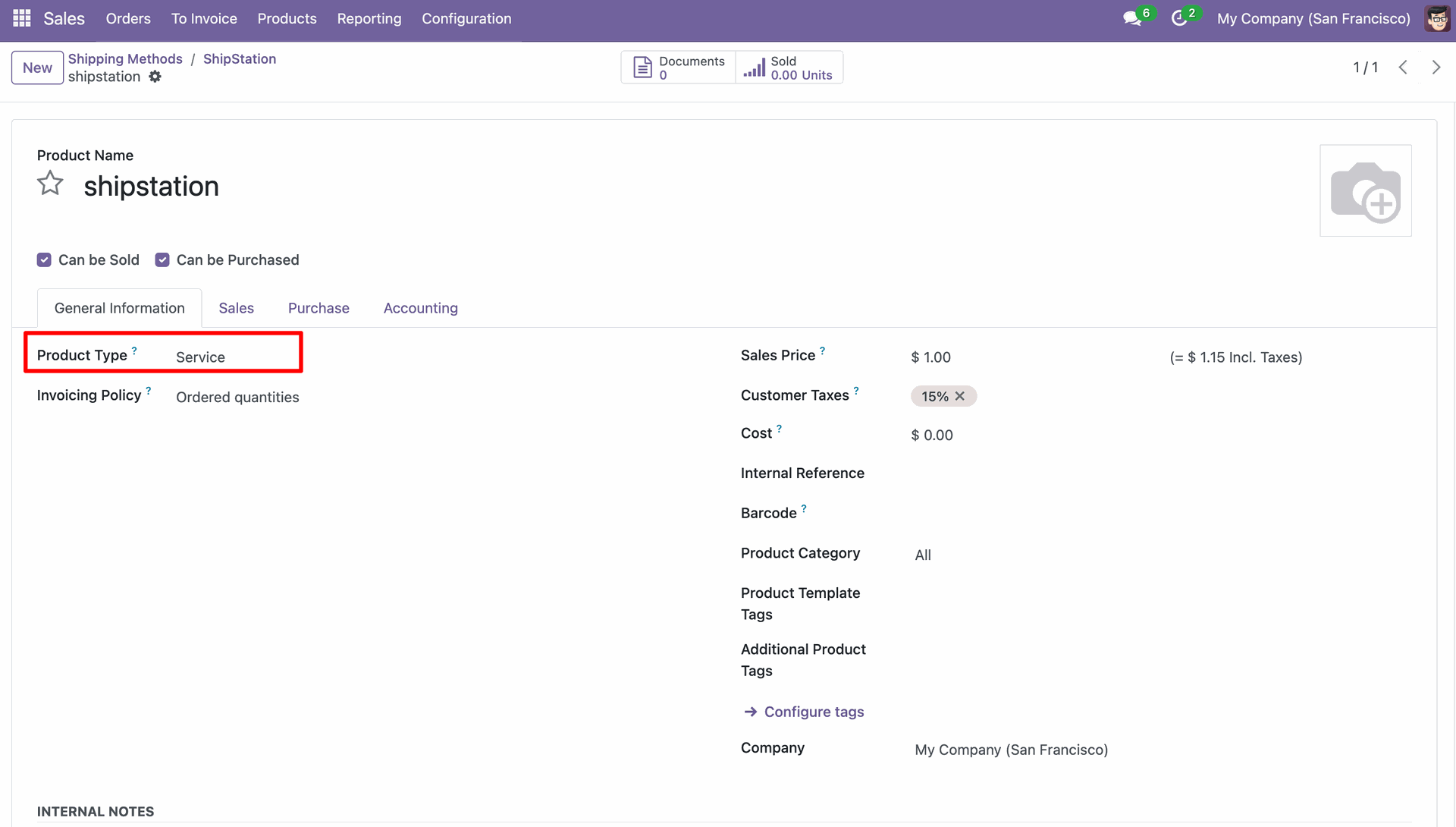
Create a service-type product.
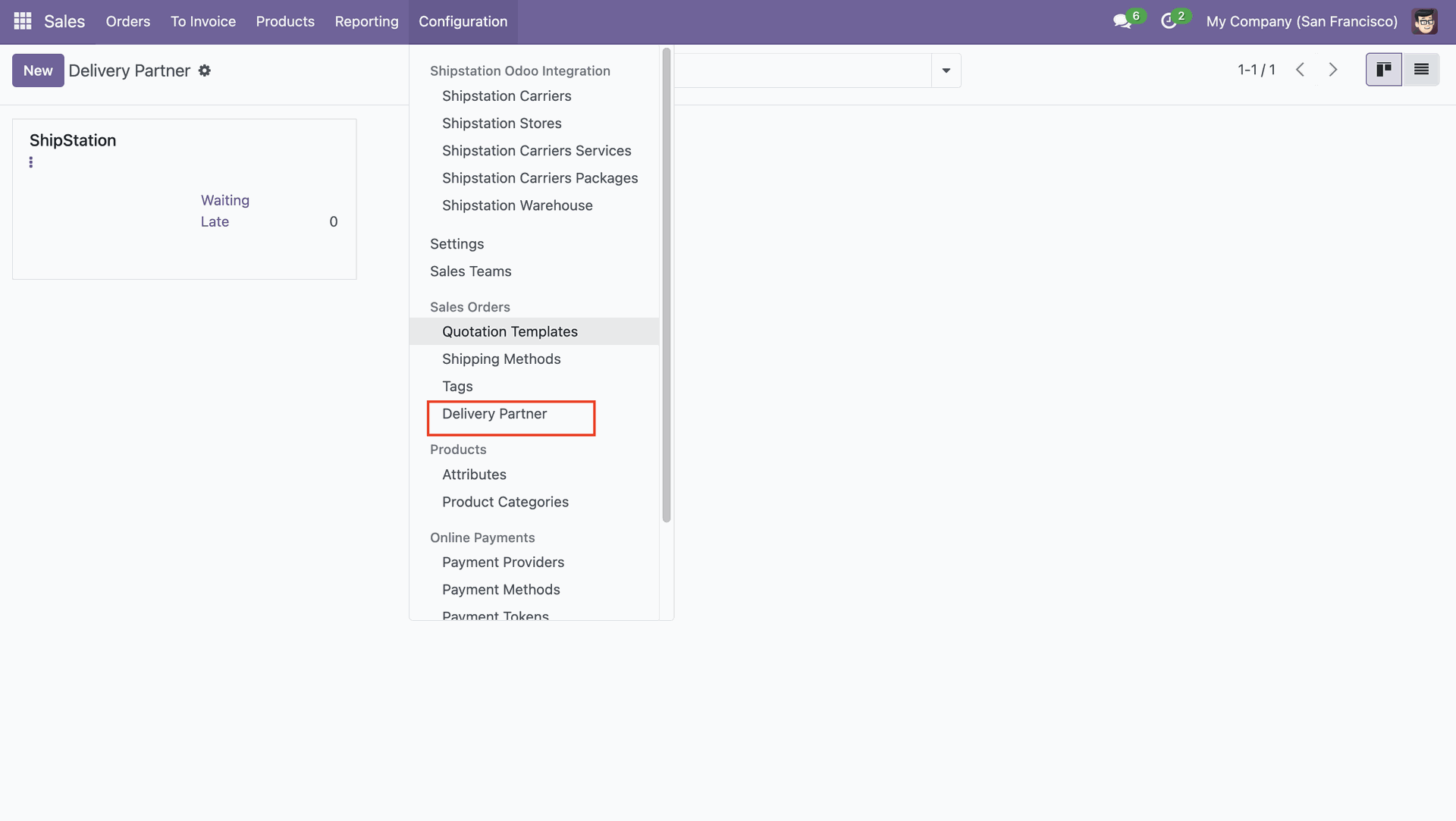
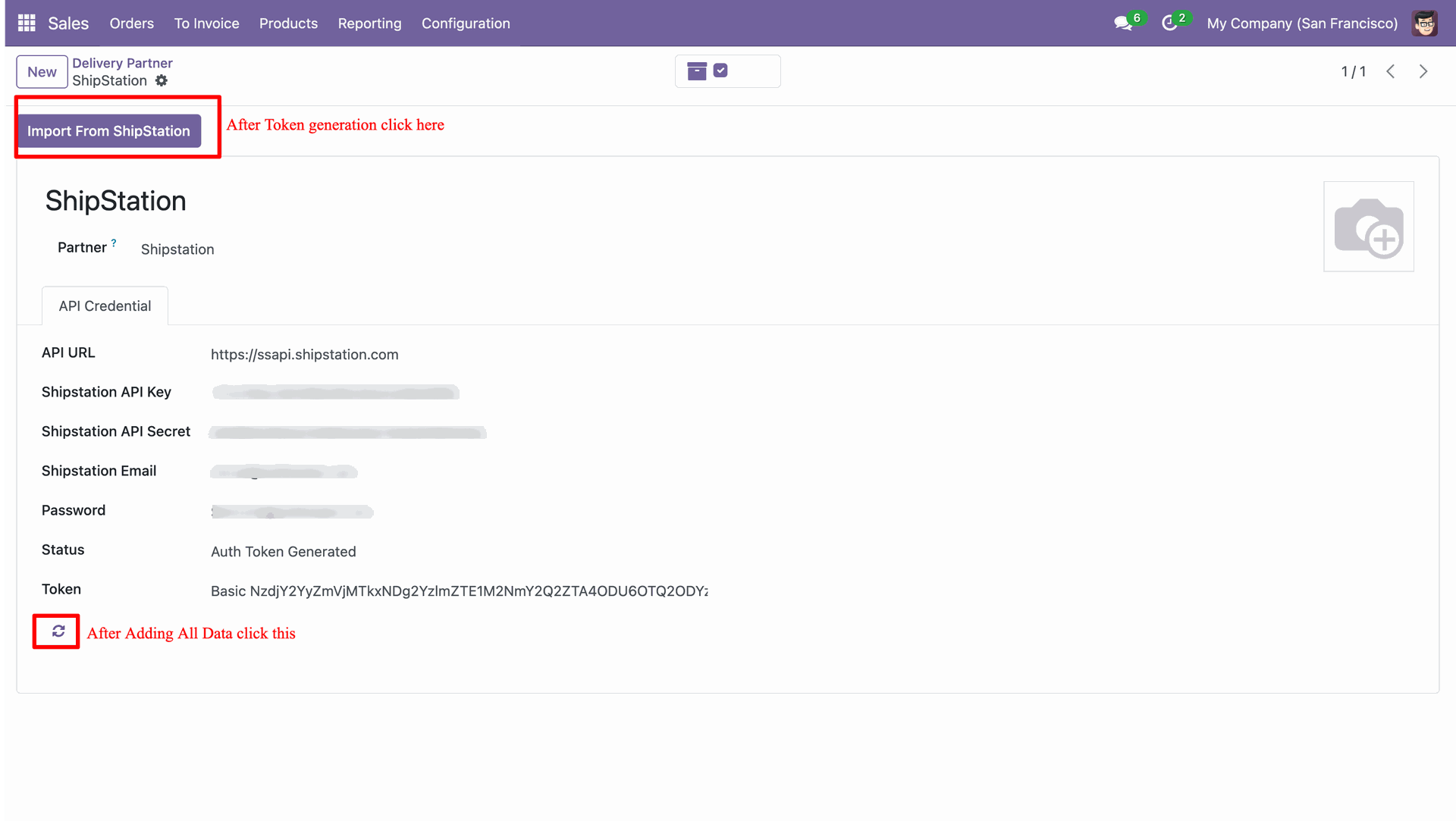
Go to the sales "Configuration" ==> Delivery Partner.
Enter your ShipStation API credentials, generate the authentication token, and then click Import From ShipStation to sync data. After filling in all details, click the refresh button to update and validate the connection.
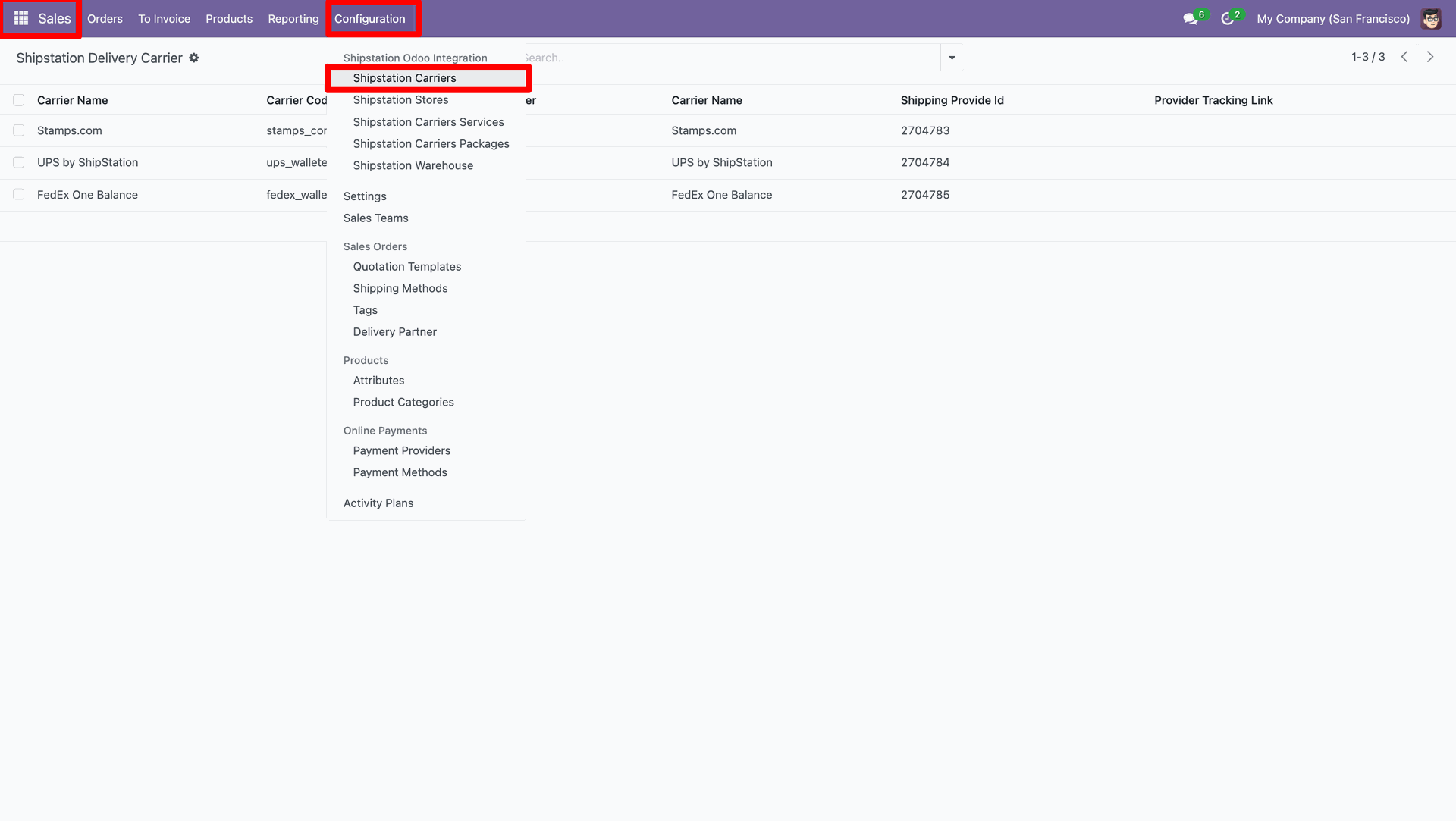
You can view the imported data under the 'ShipStation Carriers'.
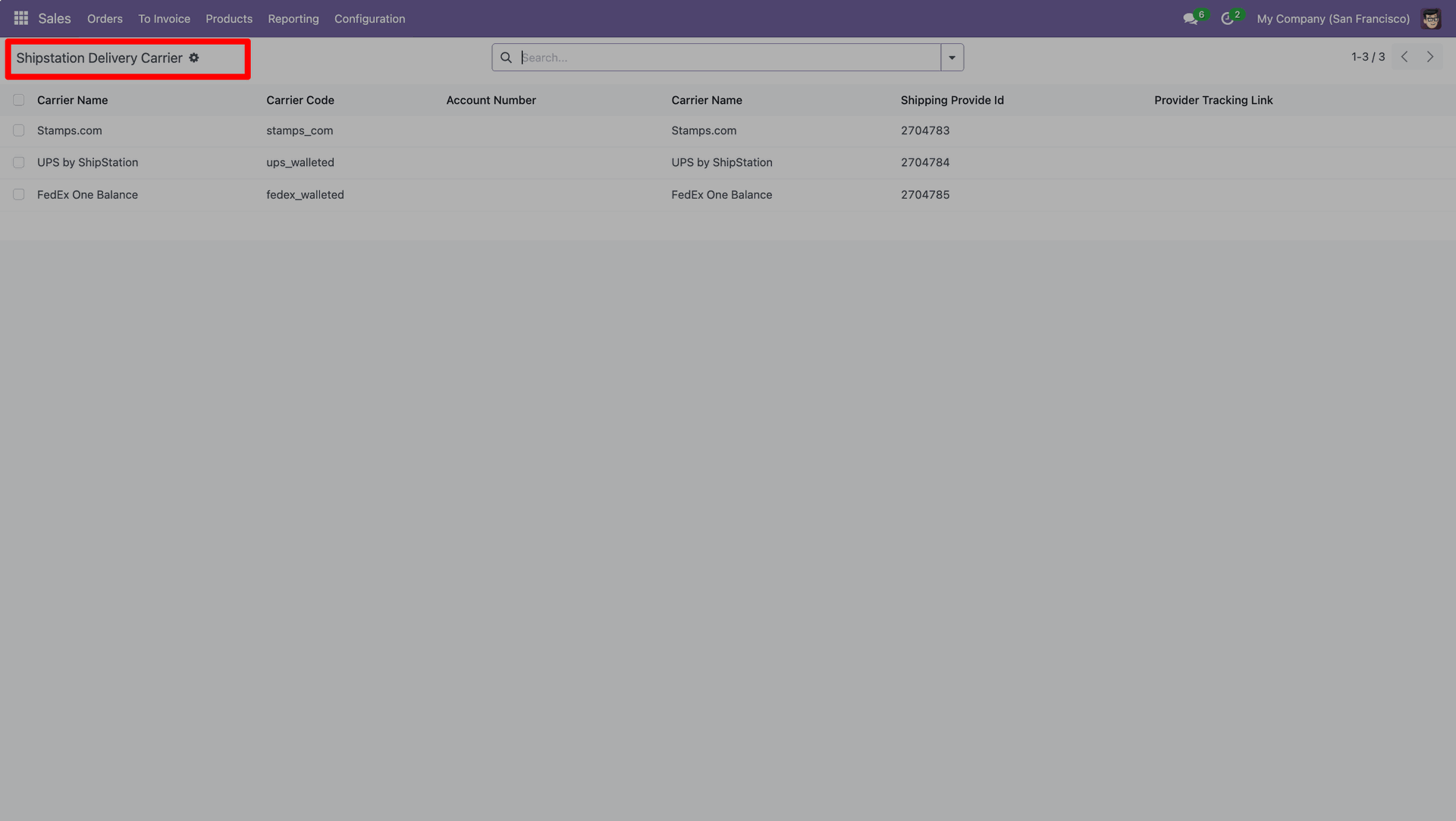
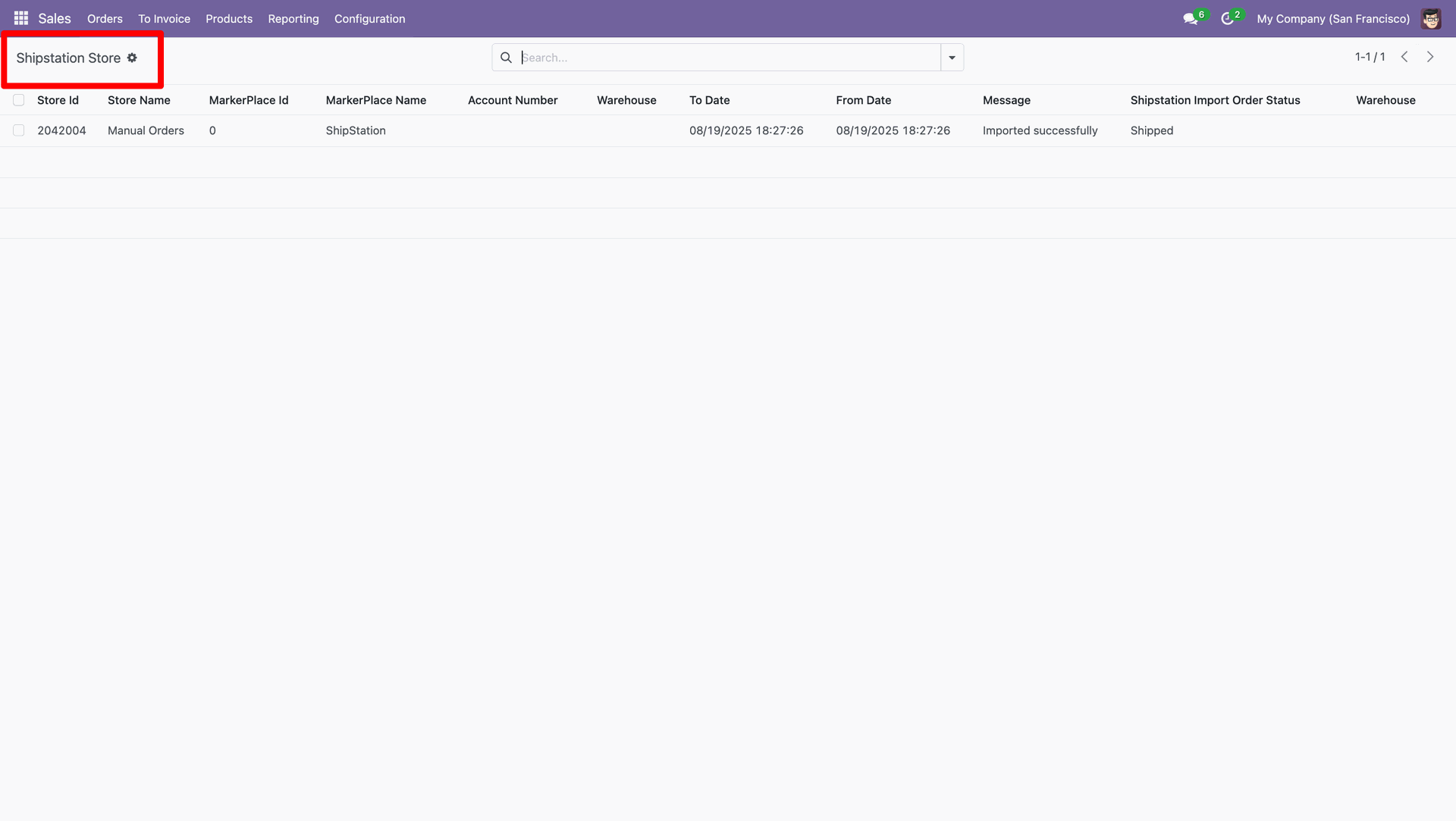
You can view the imported data under the 'ShipStation Stores'.
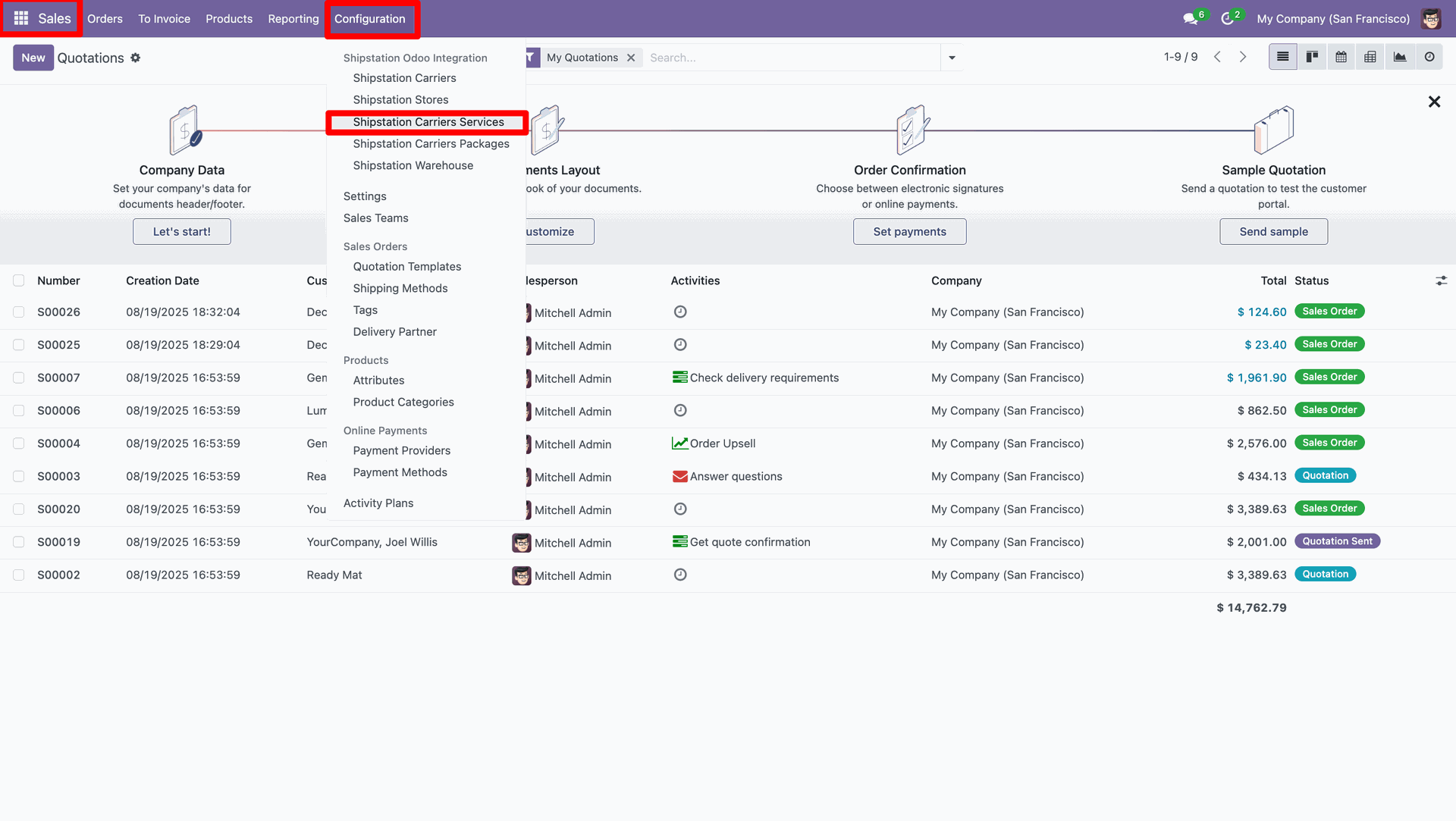
You can view the imported data under the 'ShipStation Carriers Services'.

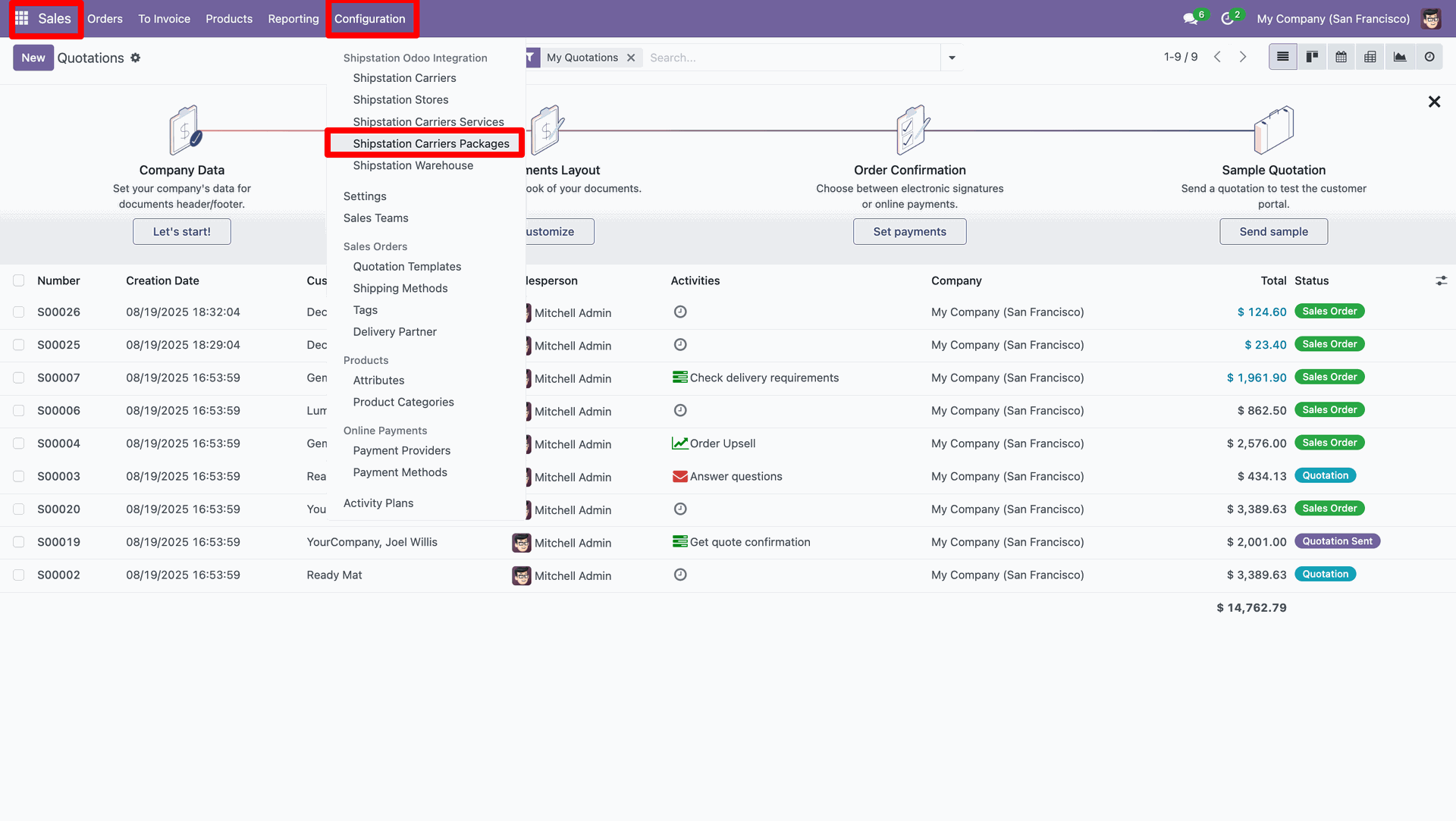
You can view the imported data under the 'ShipStation Carriers Packages'.
You can view the imported data under the 'ShipStation Warehouse'.
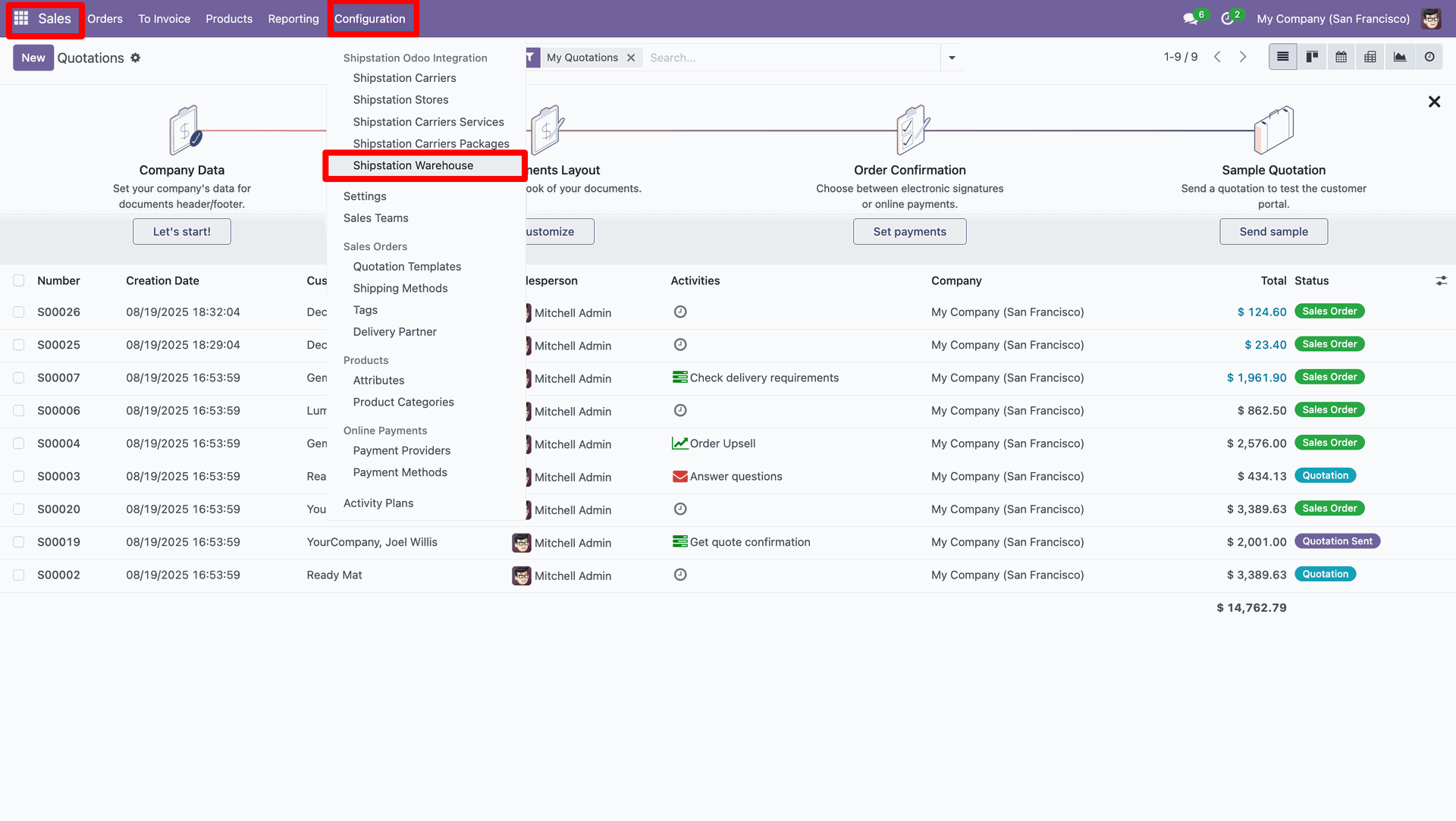
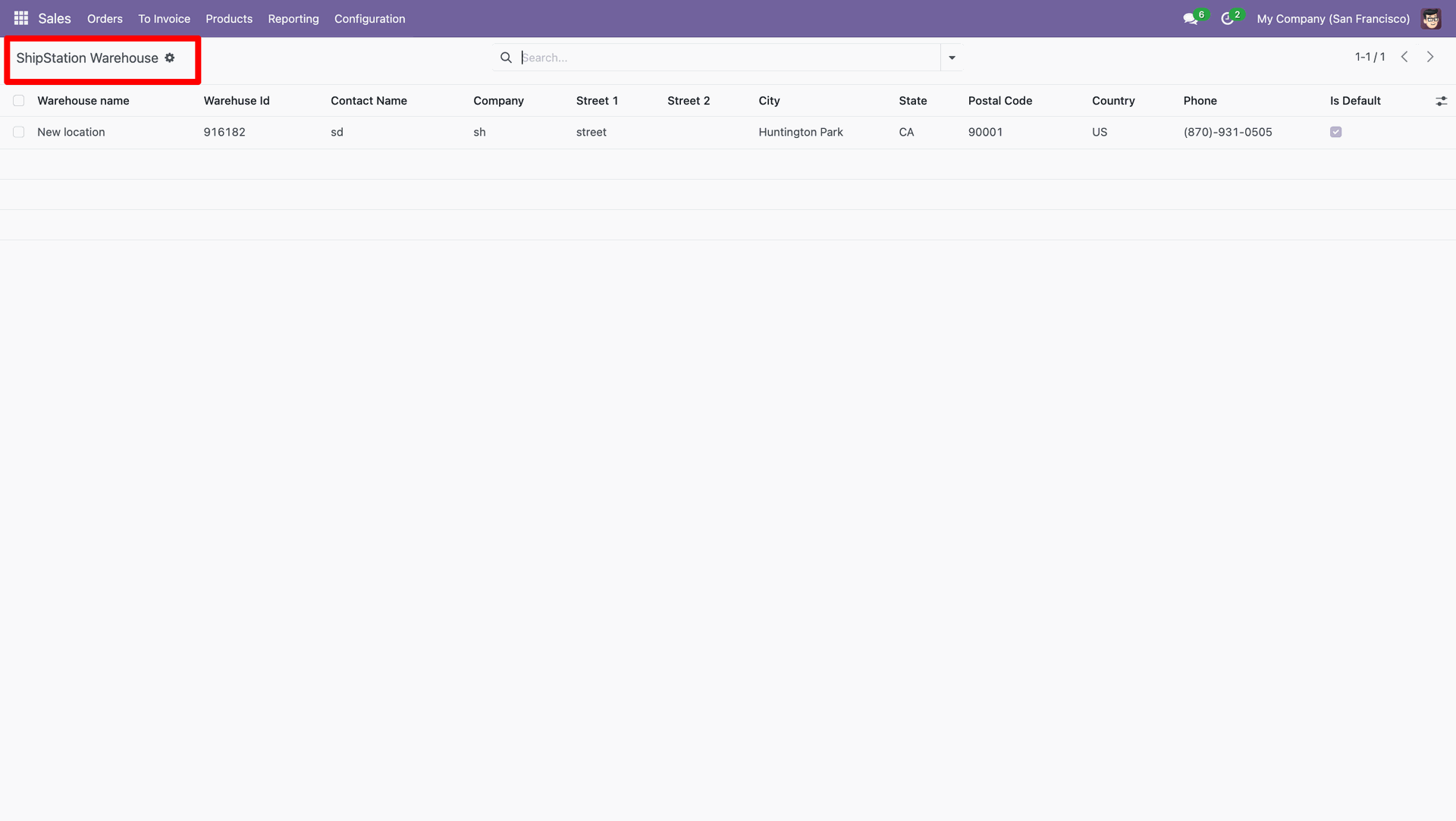
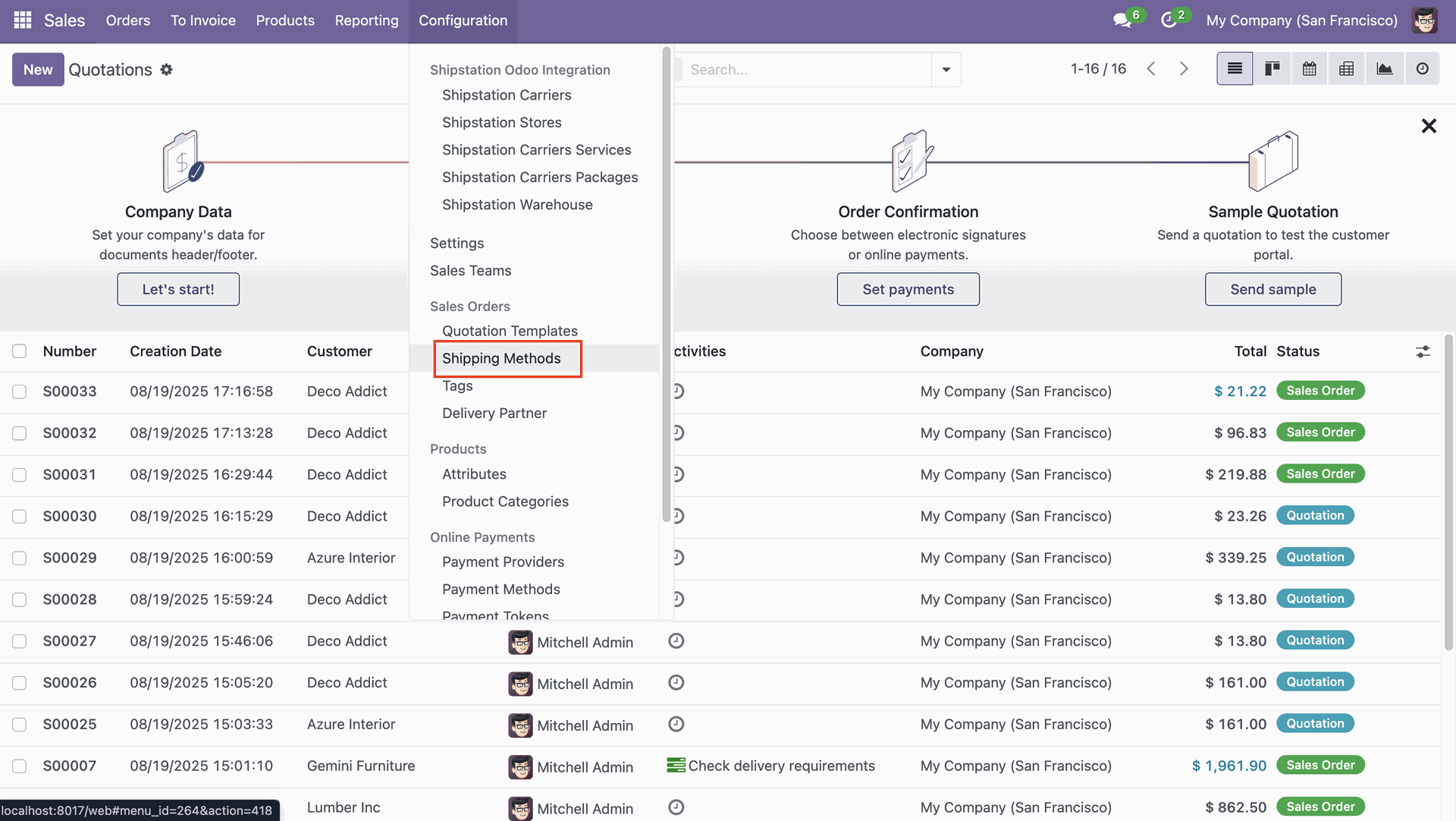
Go to the sales "Configuration" ==> Shipping Methods.
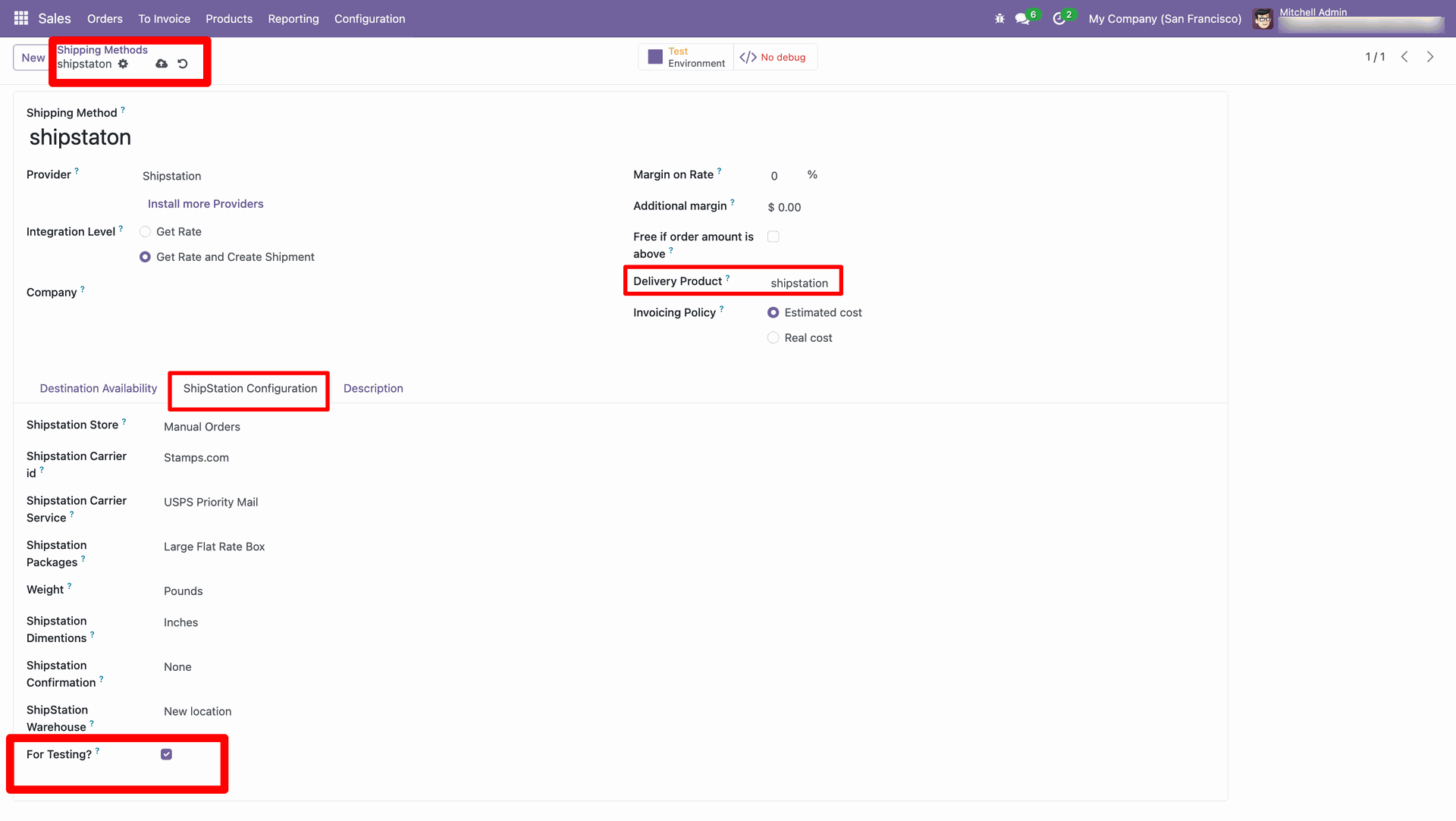
Select the 'Delivery Product'.
Tick the 'For Testing' boolean under the 'ShipStation Configuration' tab and fill
in all other required details.
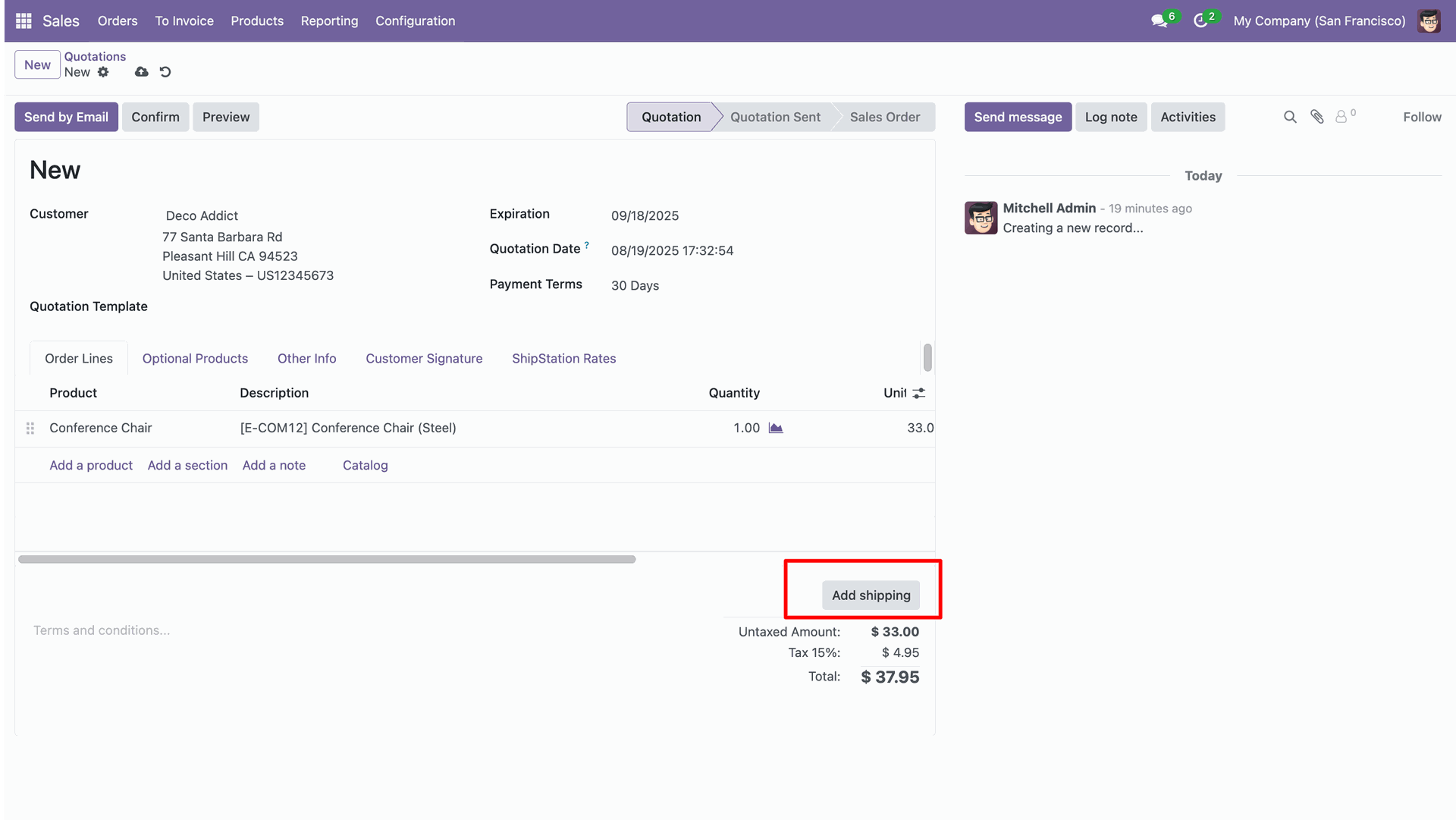
Create a quotation and click on the 'Add Shipping' button.
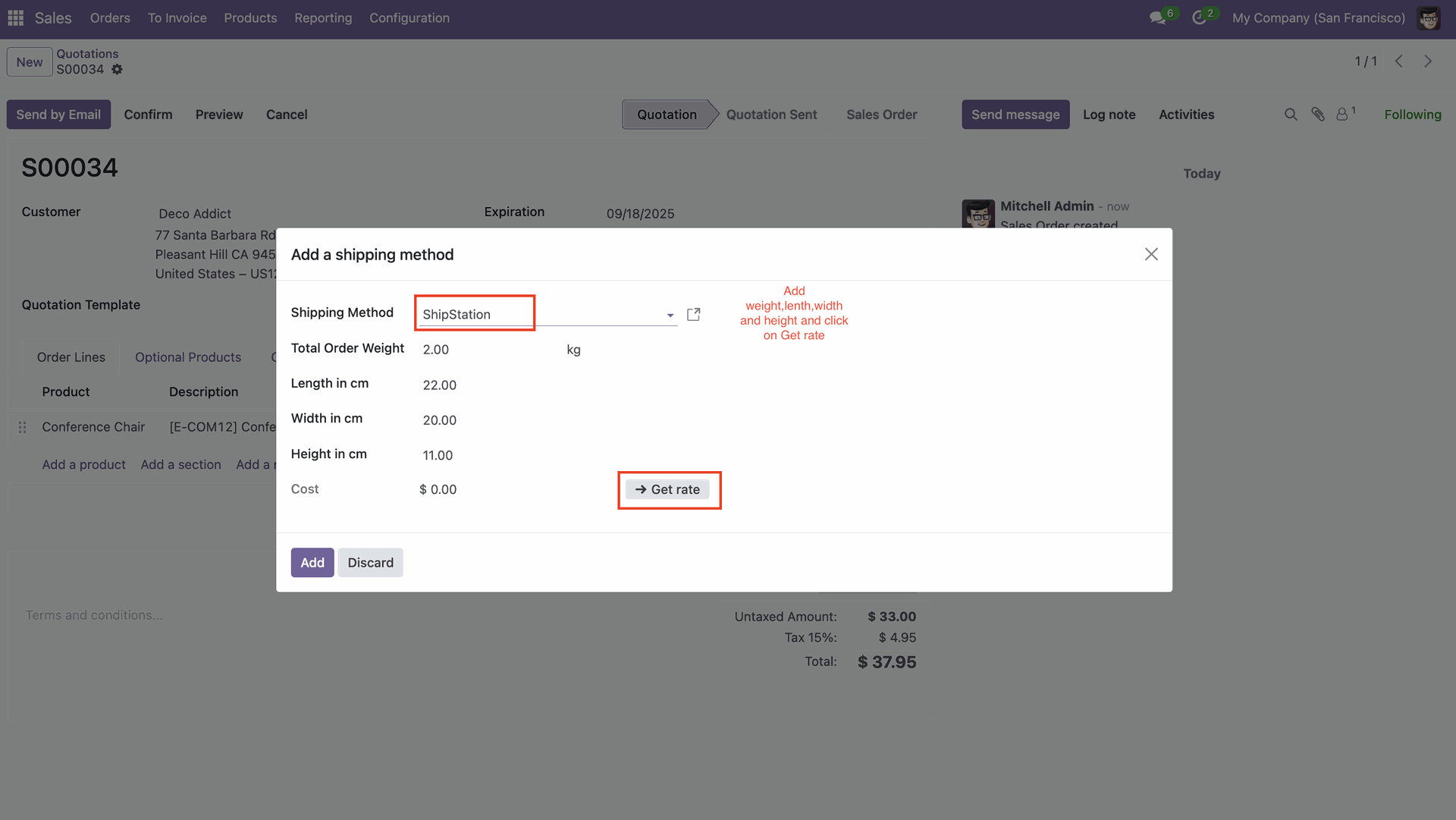
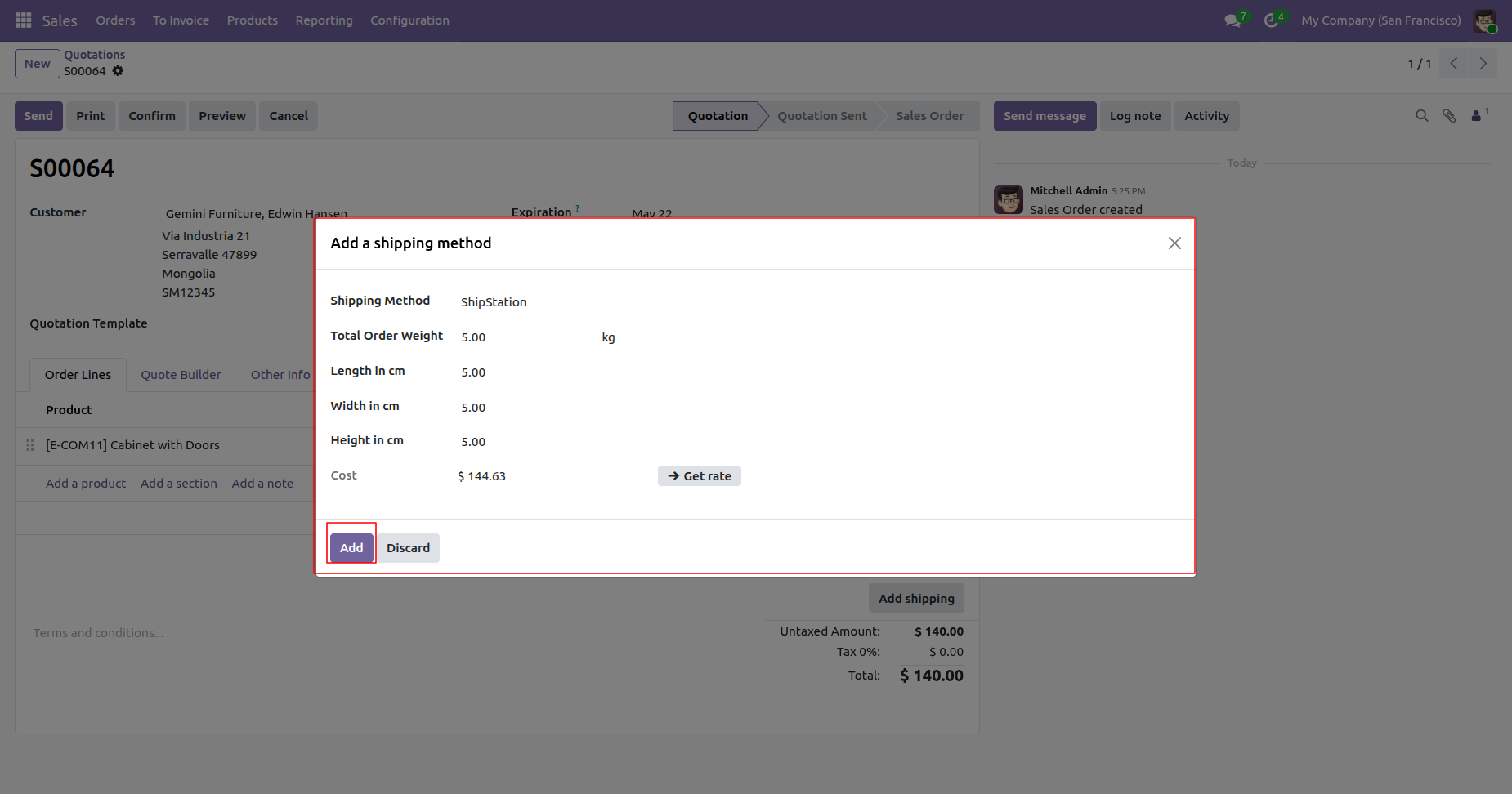
After that, the 'Add a Shipping Method' wizard will appear. Enter all the details and click on the 'Get Rate' button.
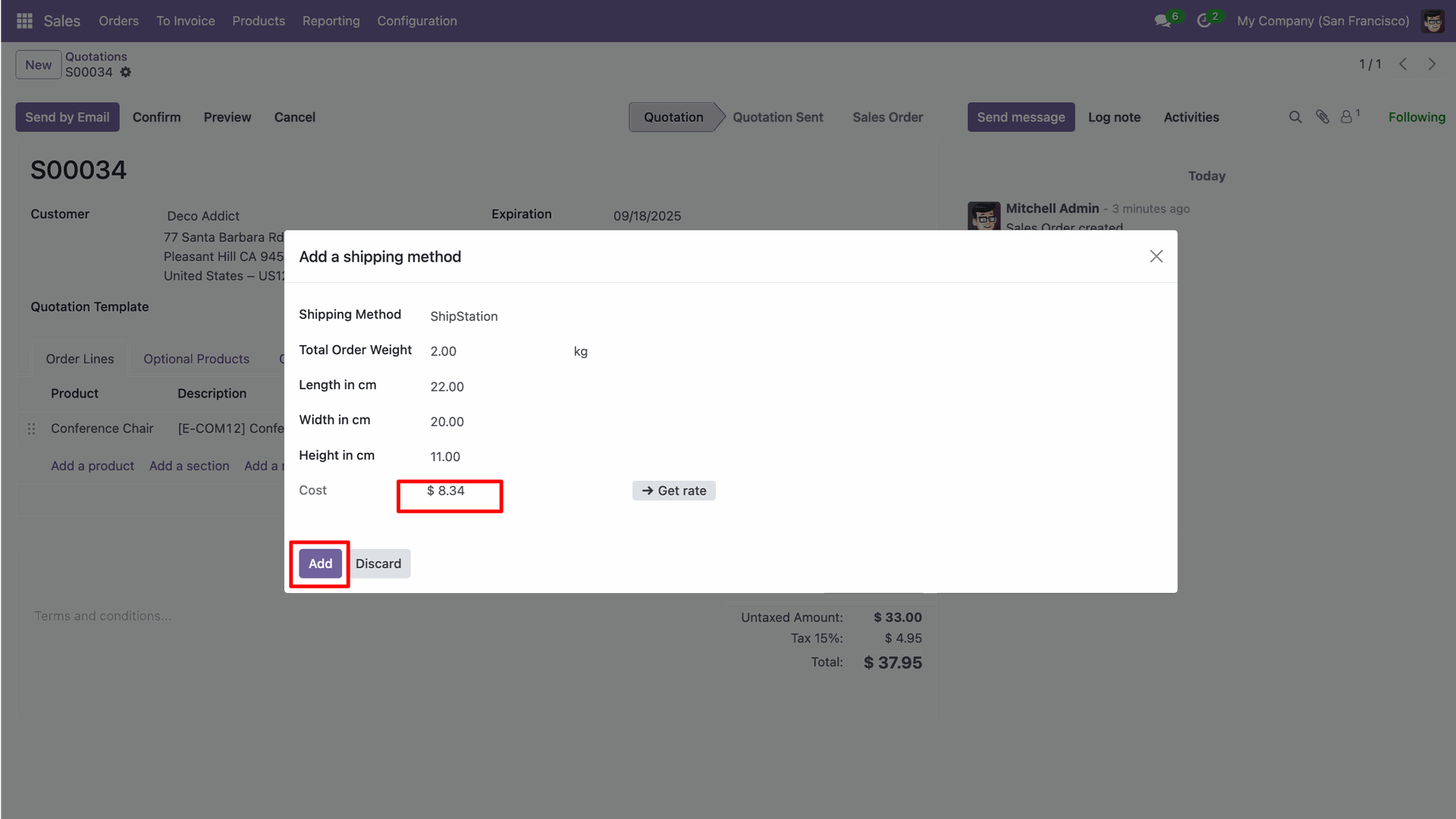
Here you can see the generated cost.
Click on the 'Add' button.
Click on the 'Add Rate' button for the rate you want to add under the 'ShipStation Rates' tab.
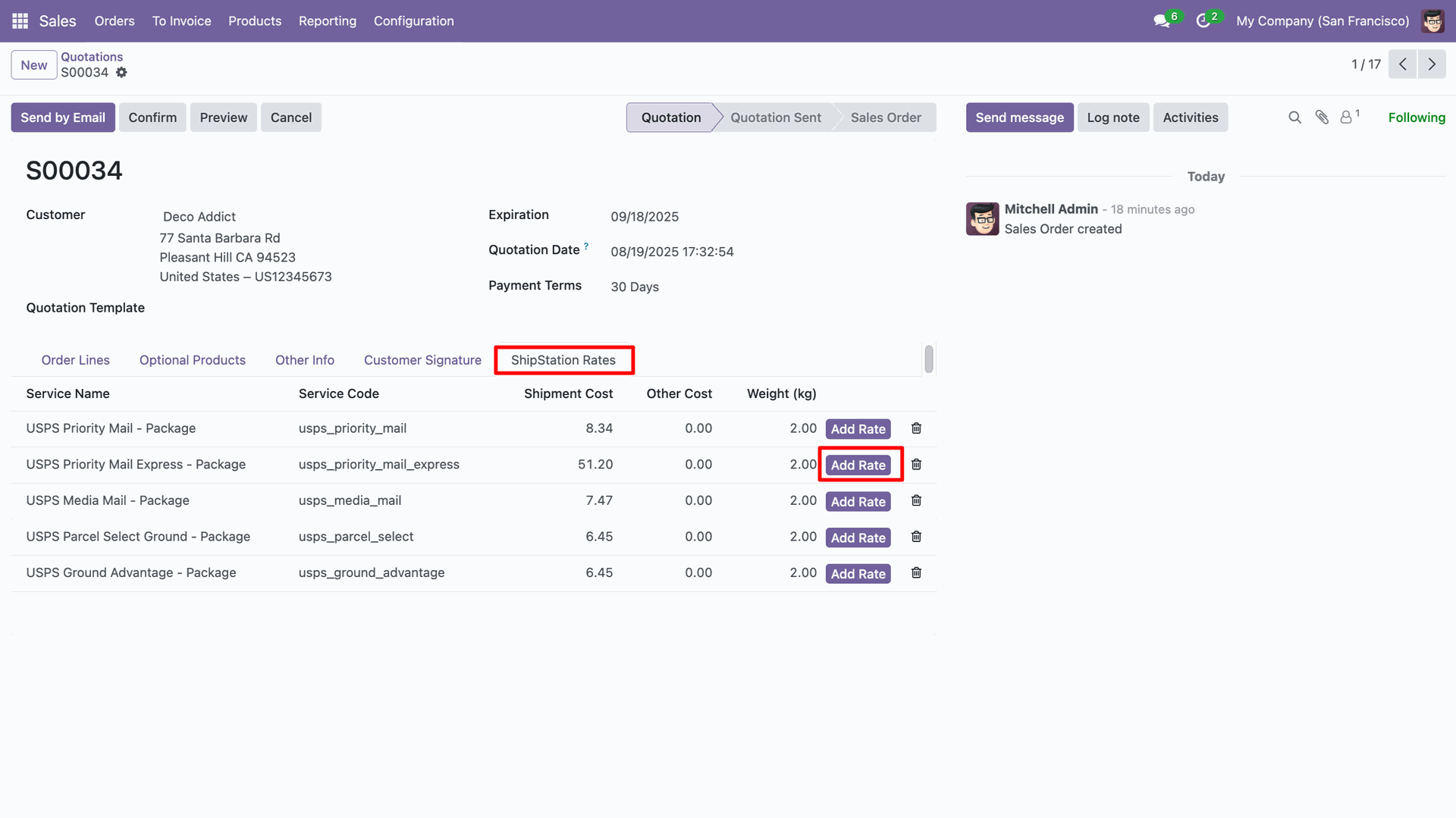
Here you can see the added ShipStation rate.
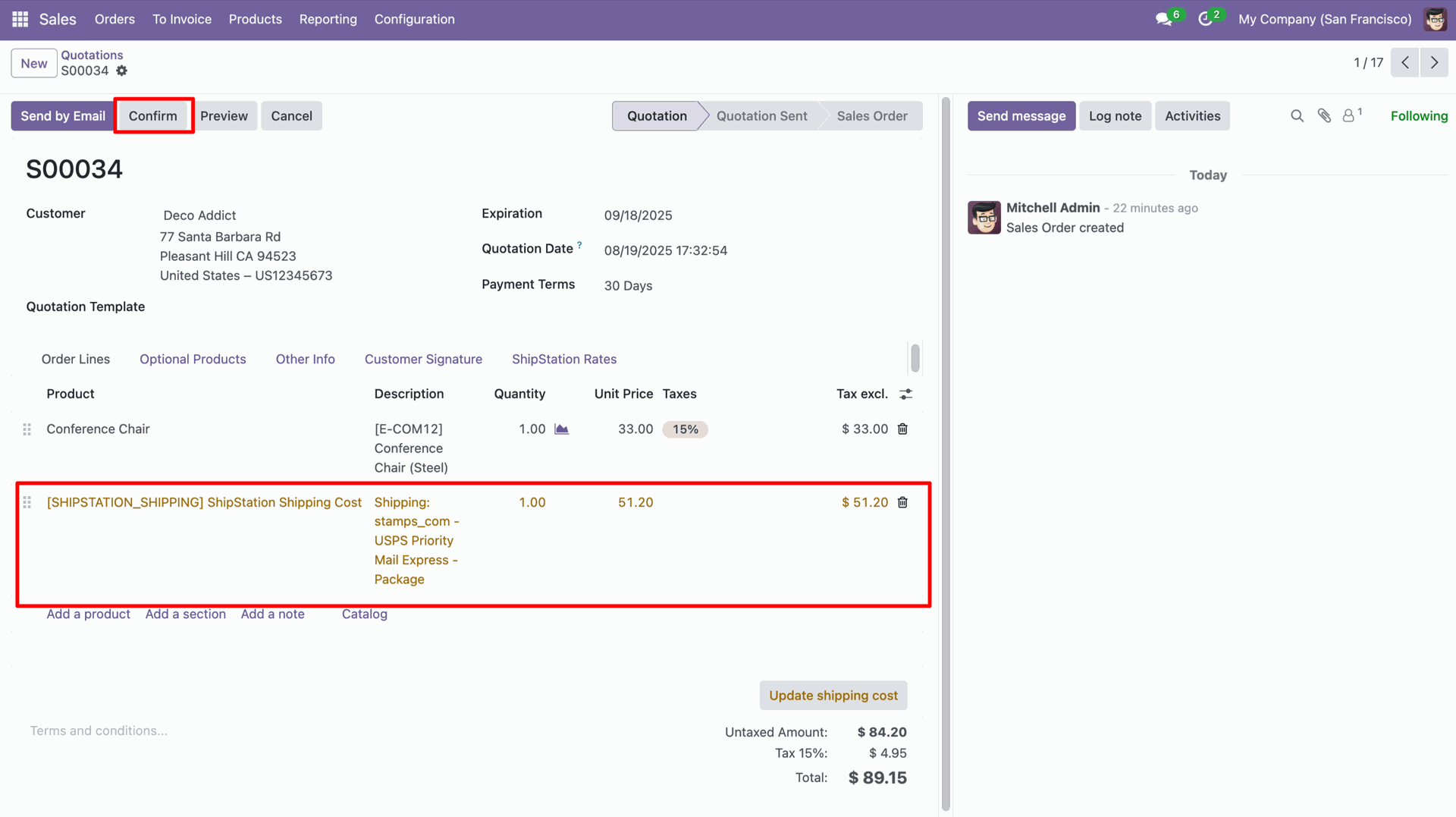
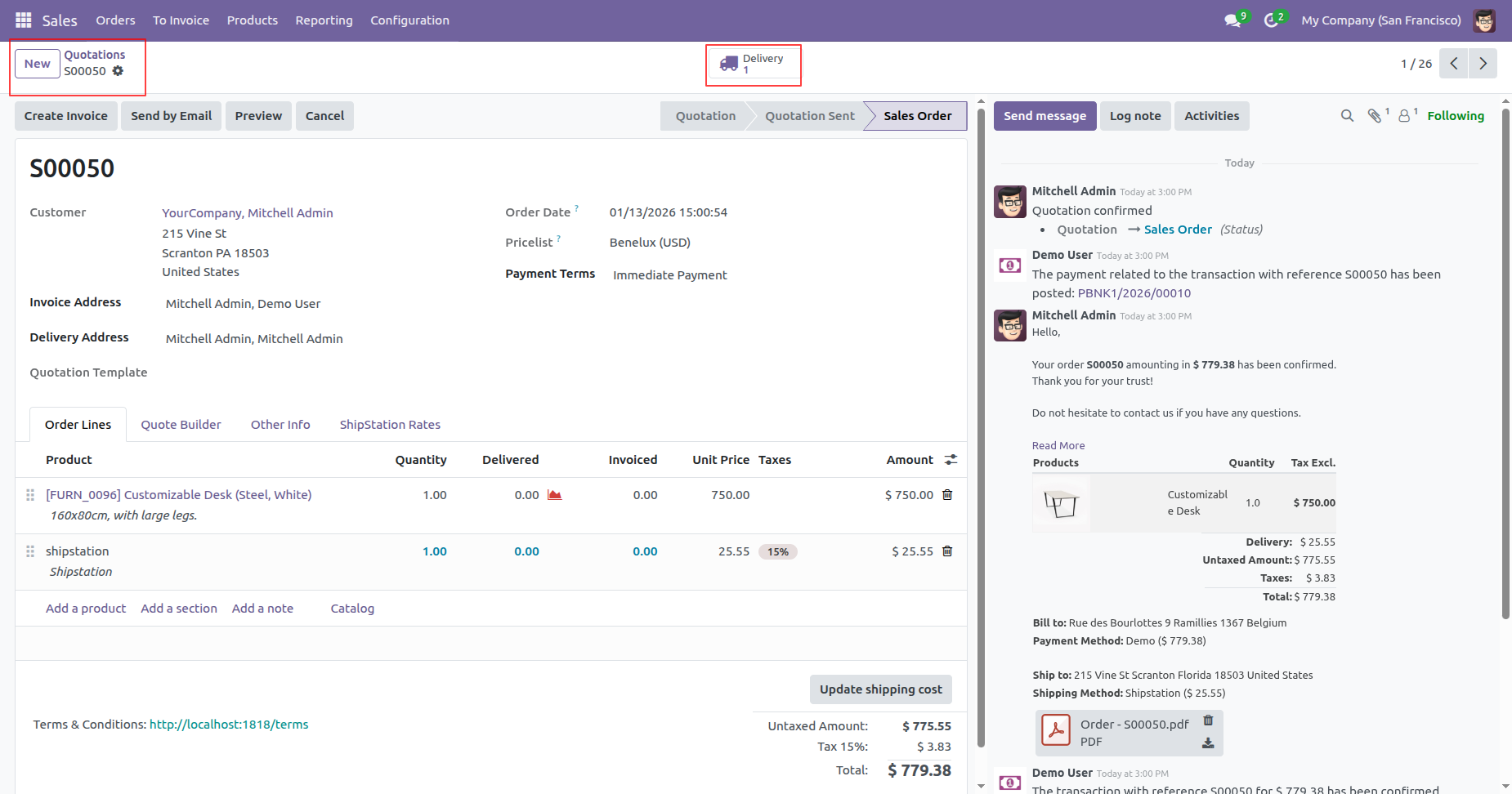
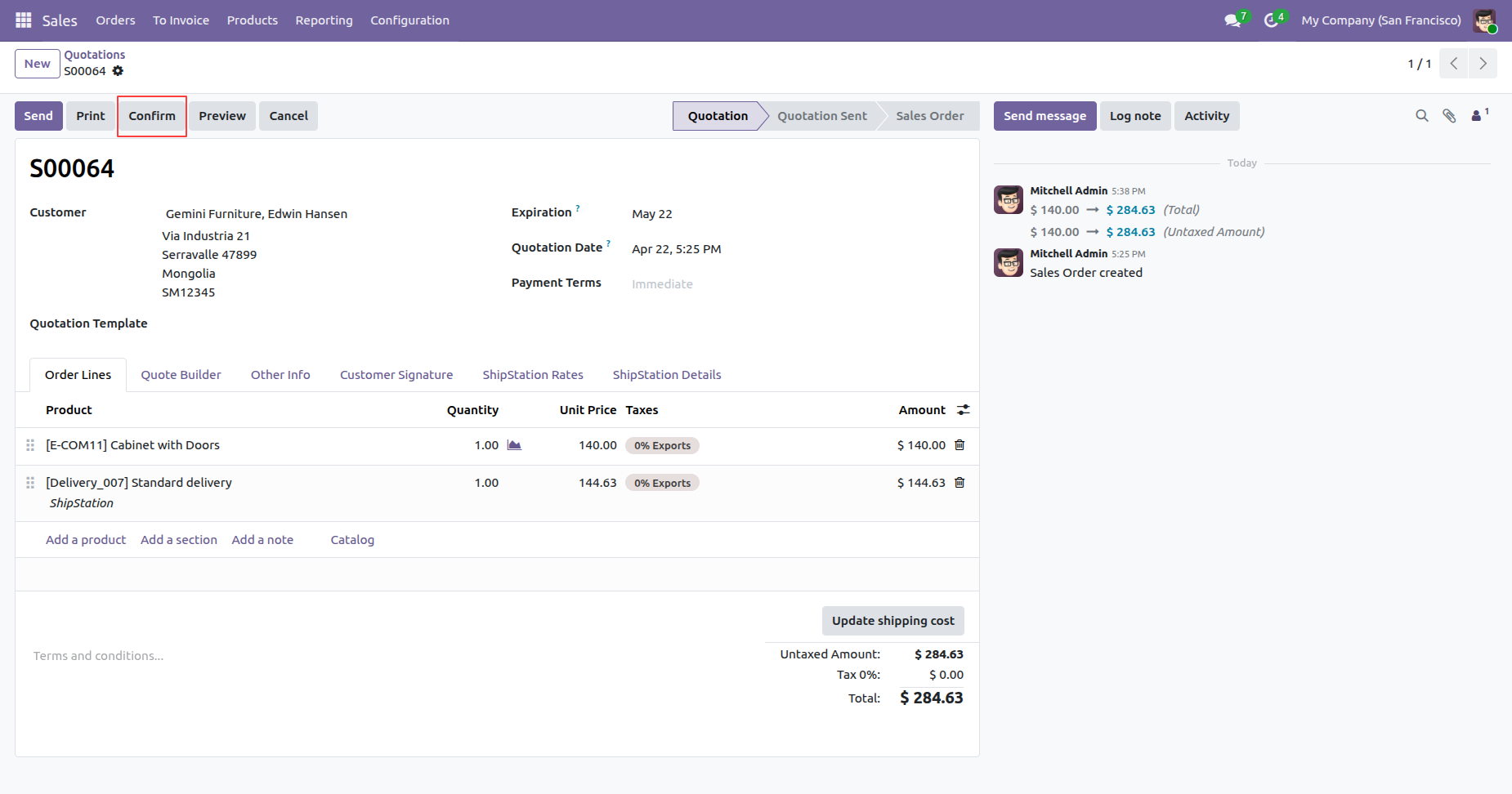
Now confirm the quotation.
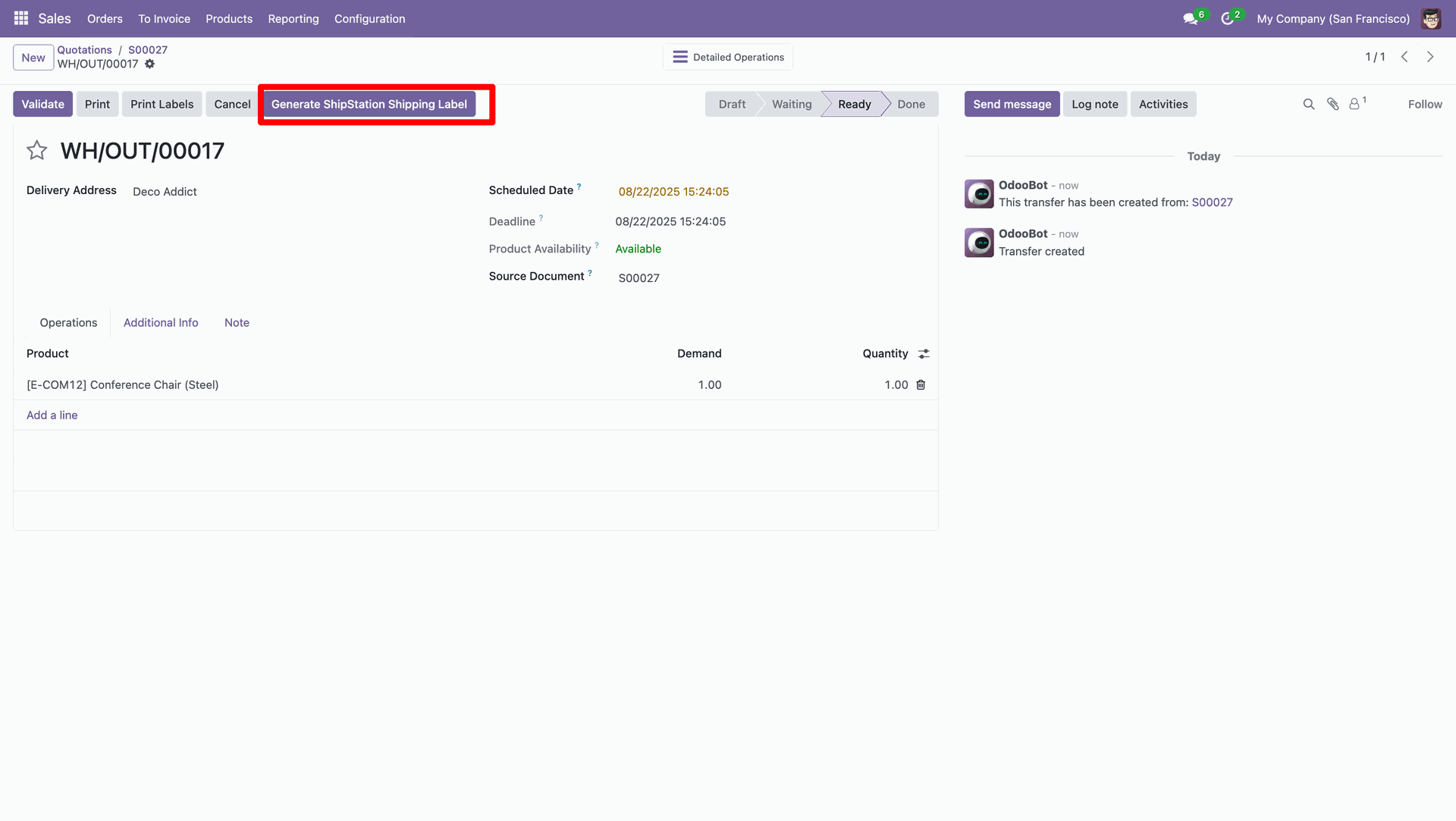
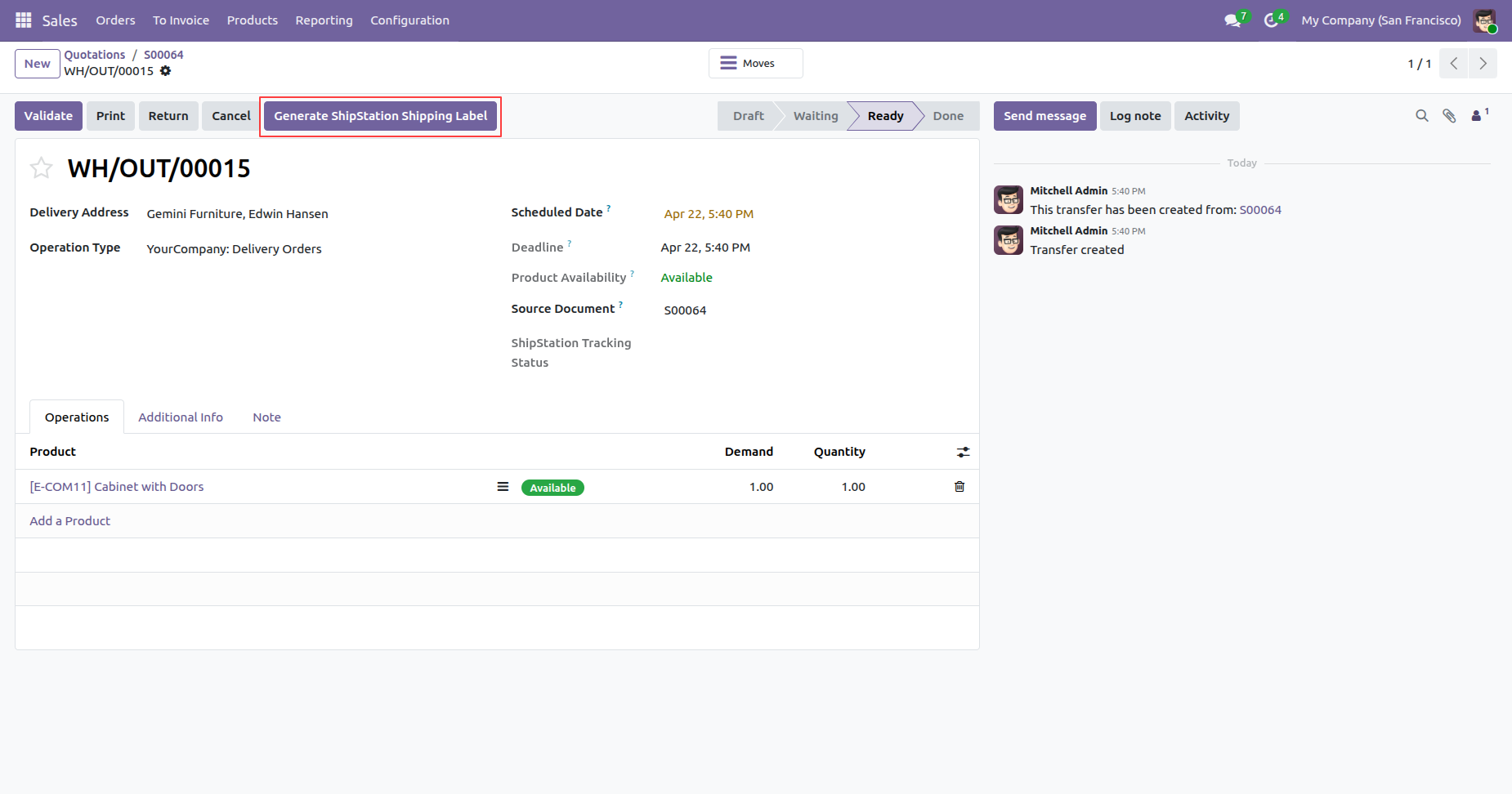
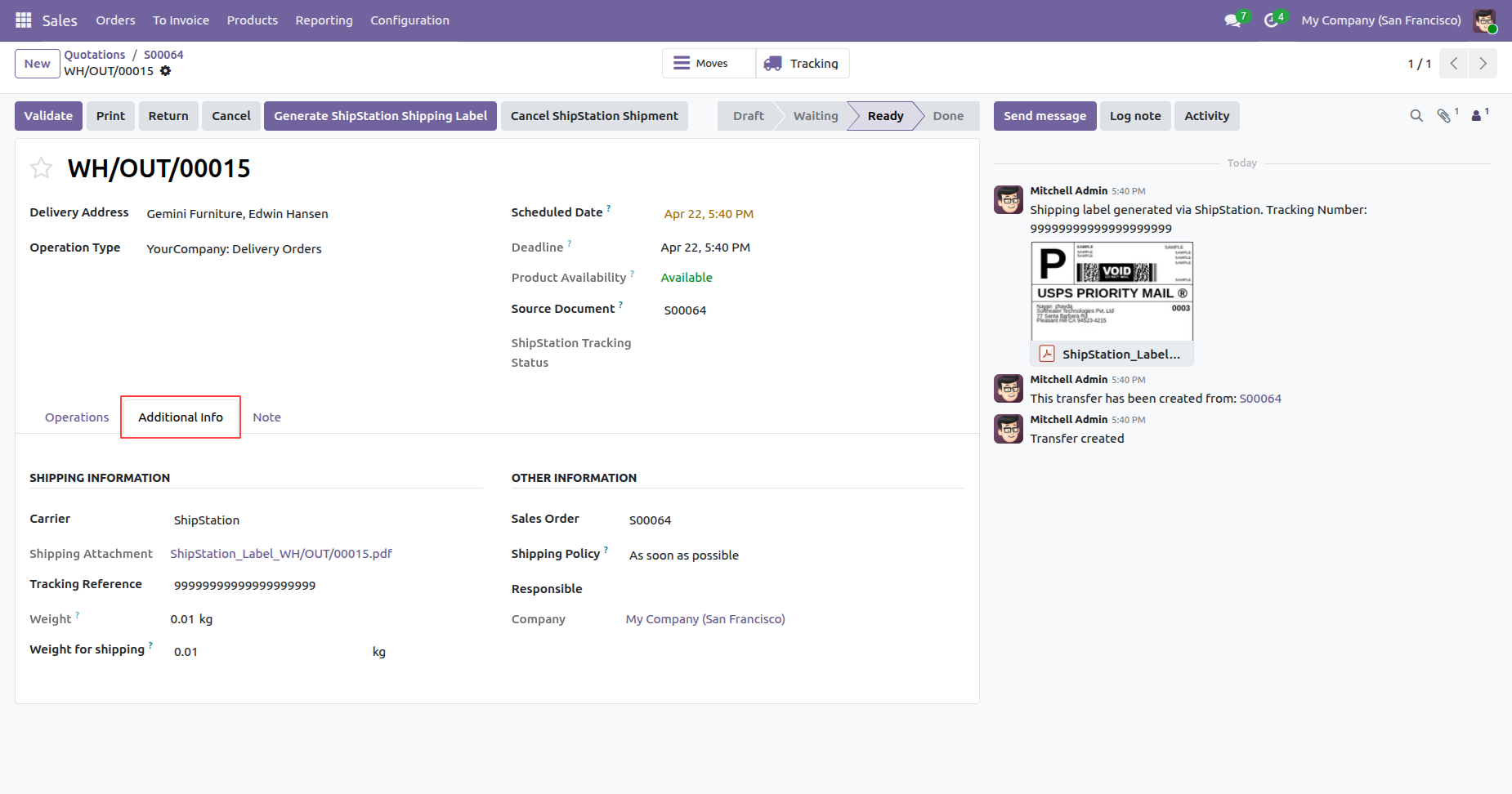
In the delivery order form view, click the 'Generate ShipStation Shipping Label' button.
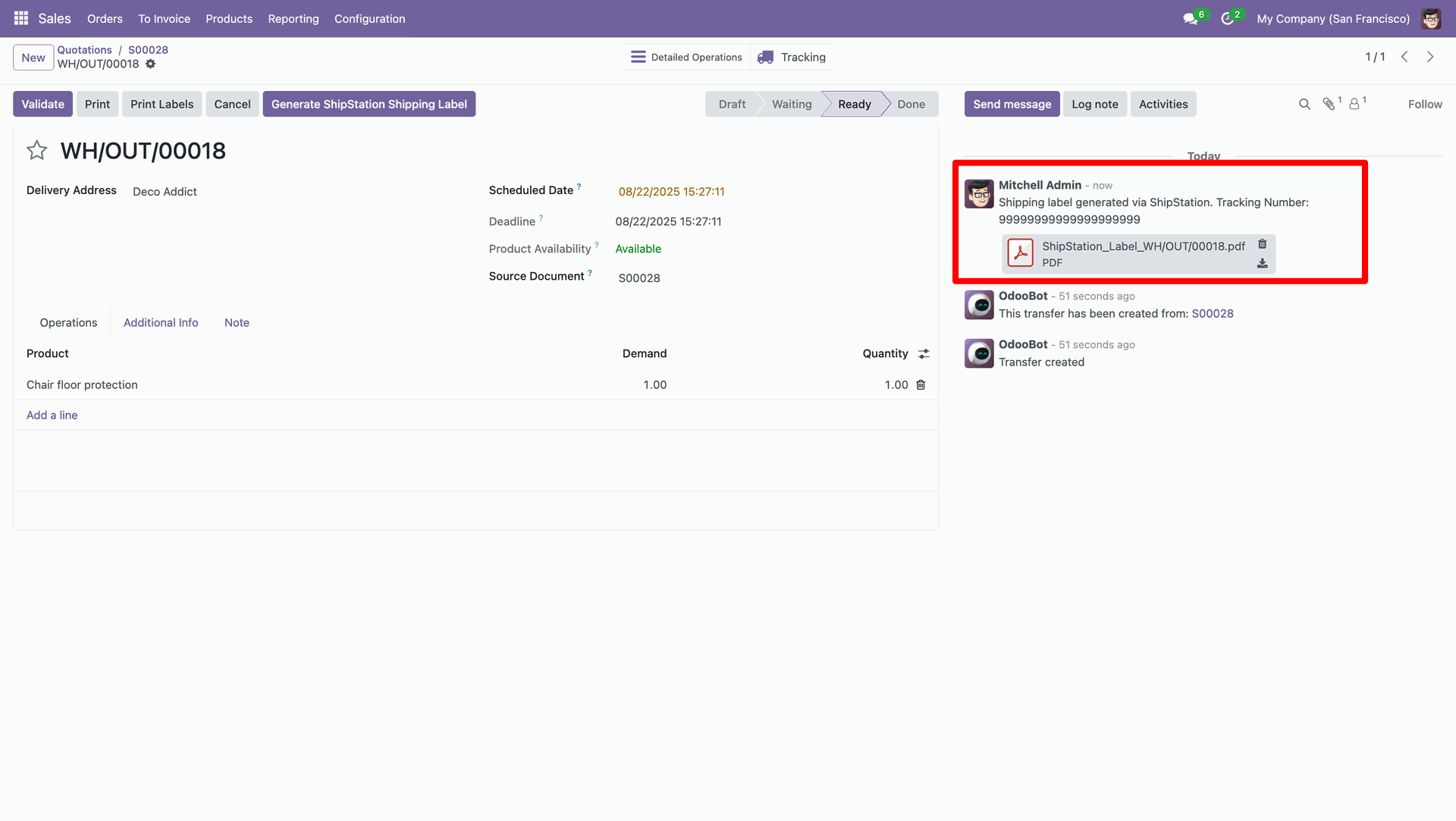
In the log note, it shows that the shipping label was successfully generated, along with a downloadable PDF link.
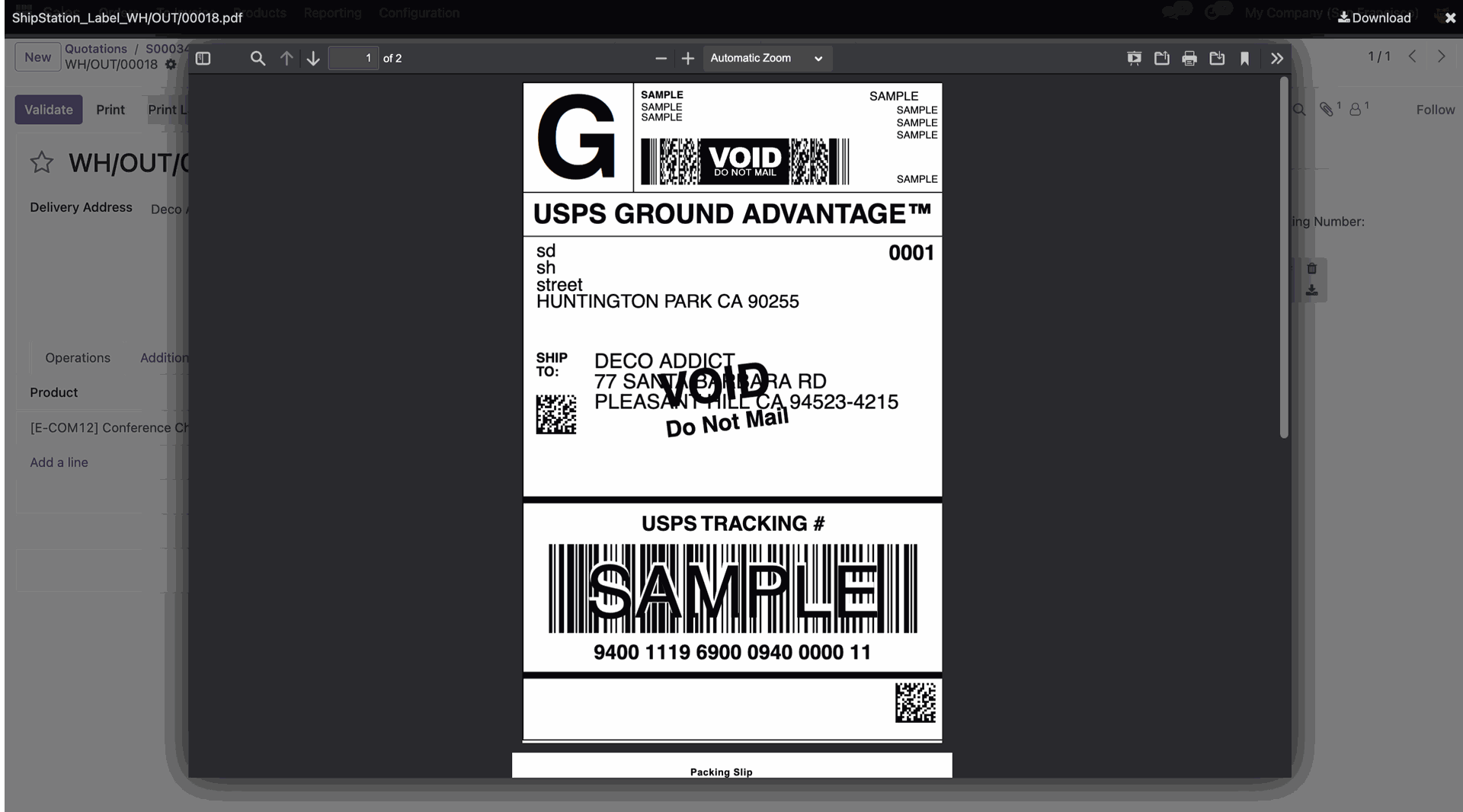
The PDF view looks like this.
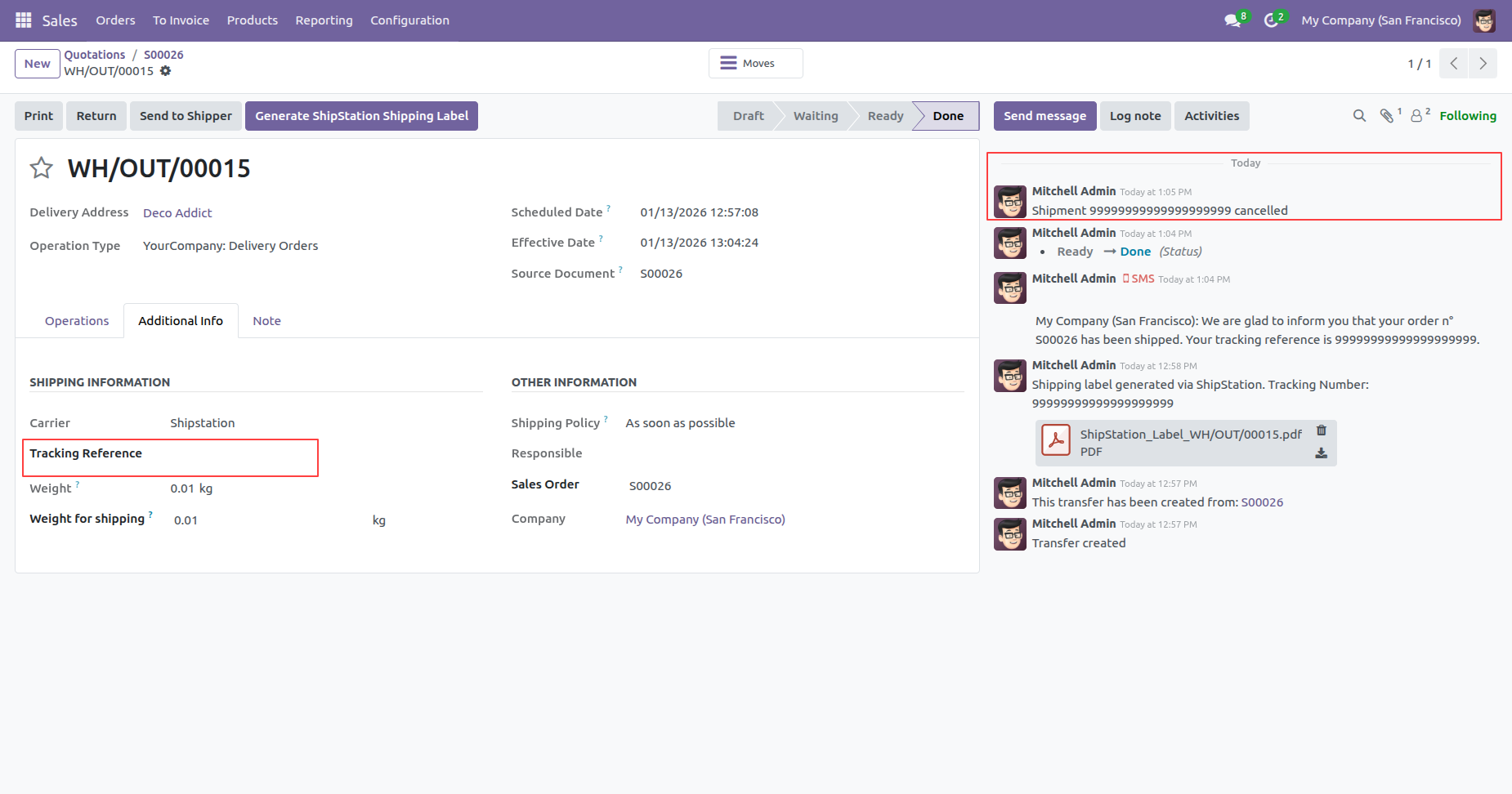
Click on the 'Cancel' to cancel the shipment.
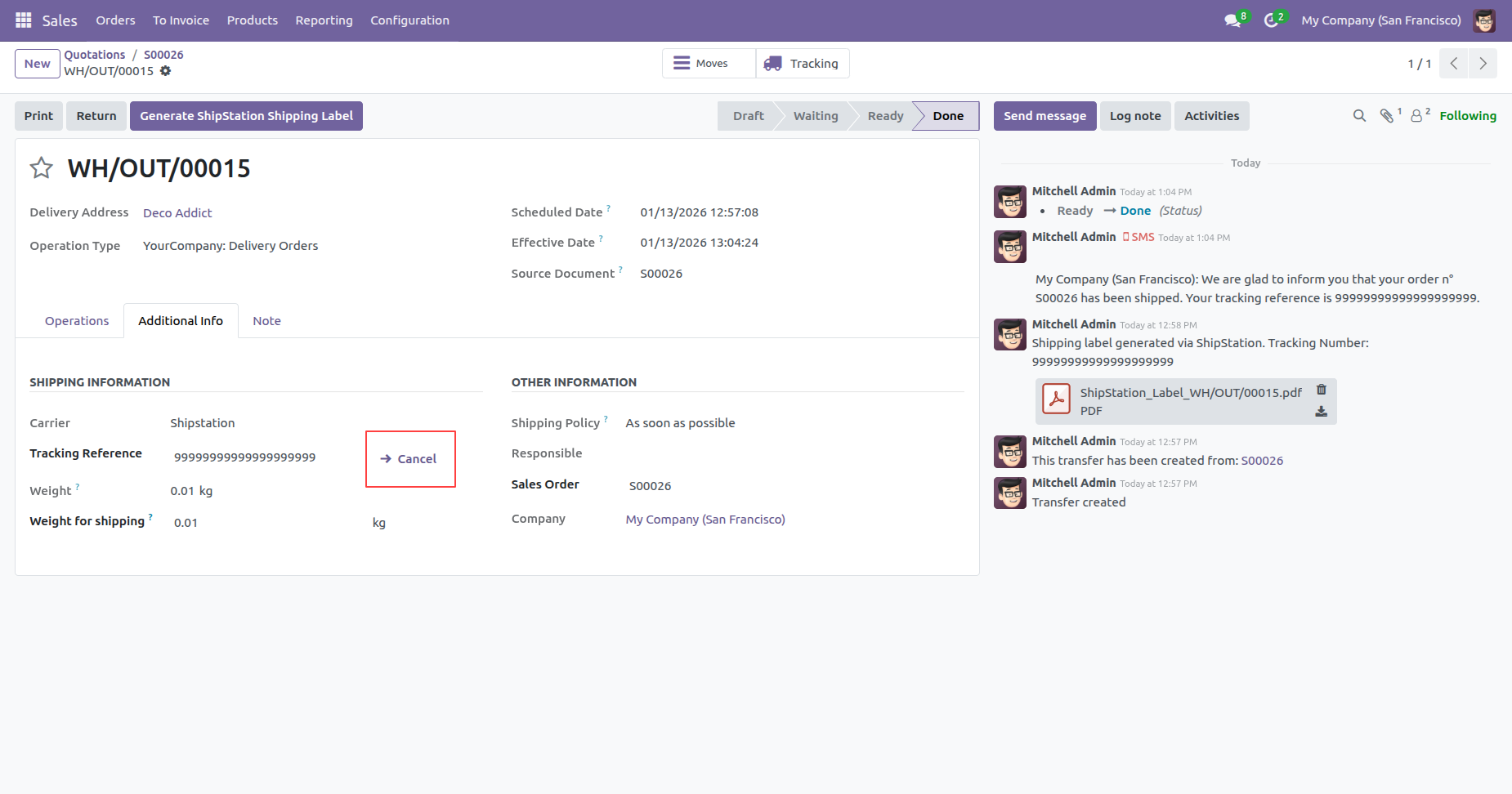
Shipment cancelled with a chatter message. The reference number has also been removed.
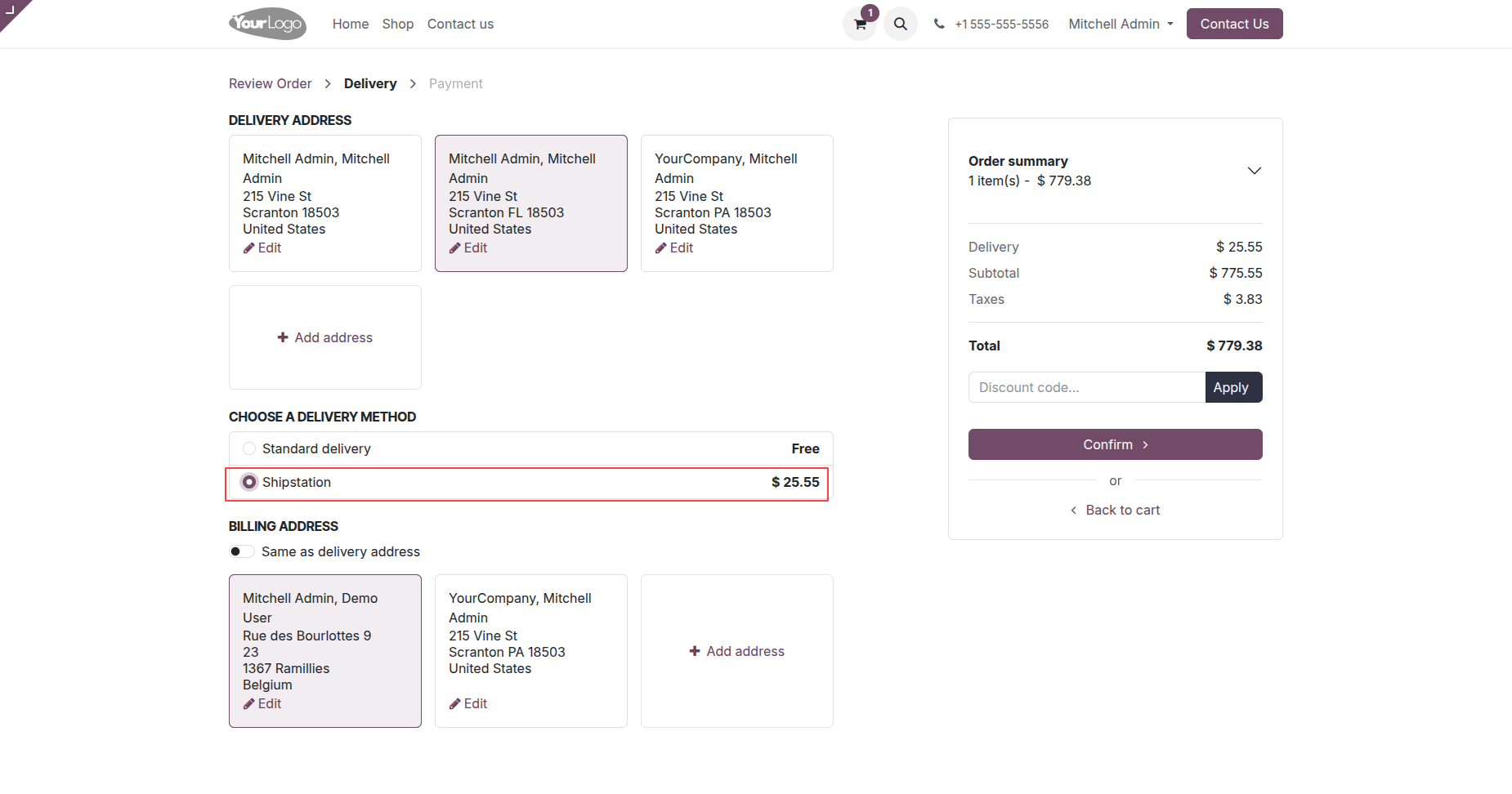
Select Shipstation method.
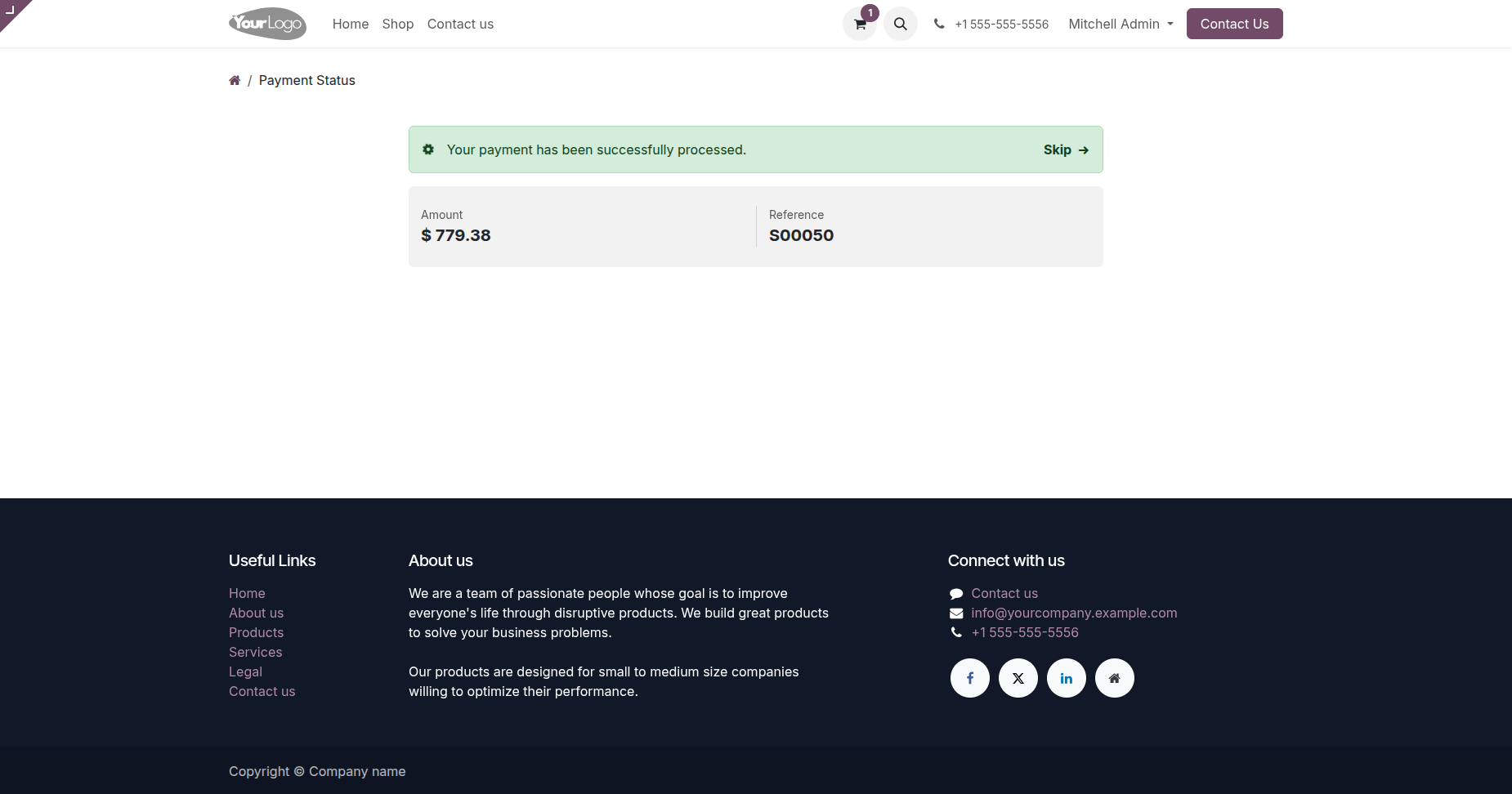
Checkout done successfully.
Backend order created with all details.
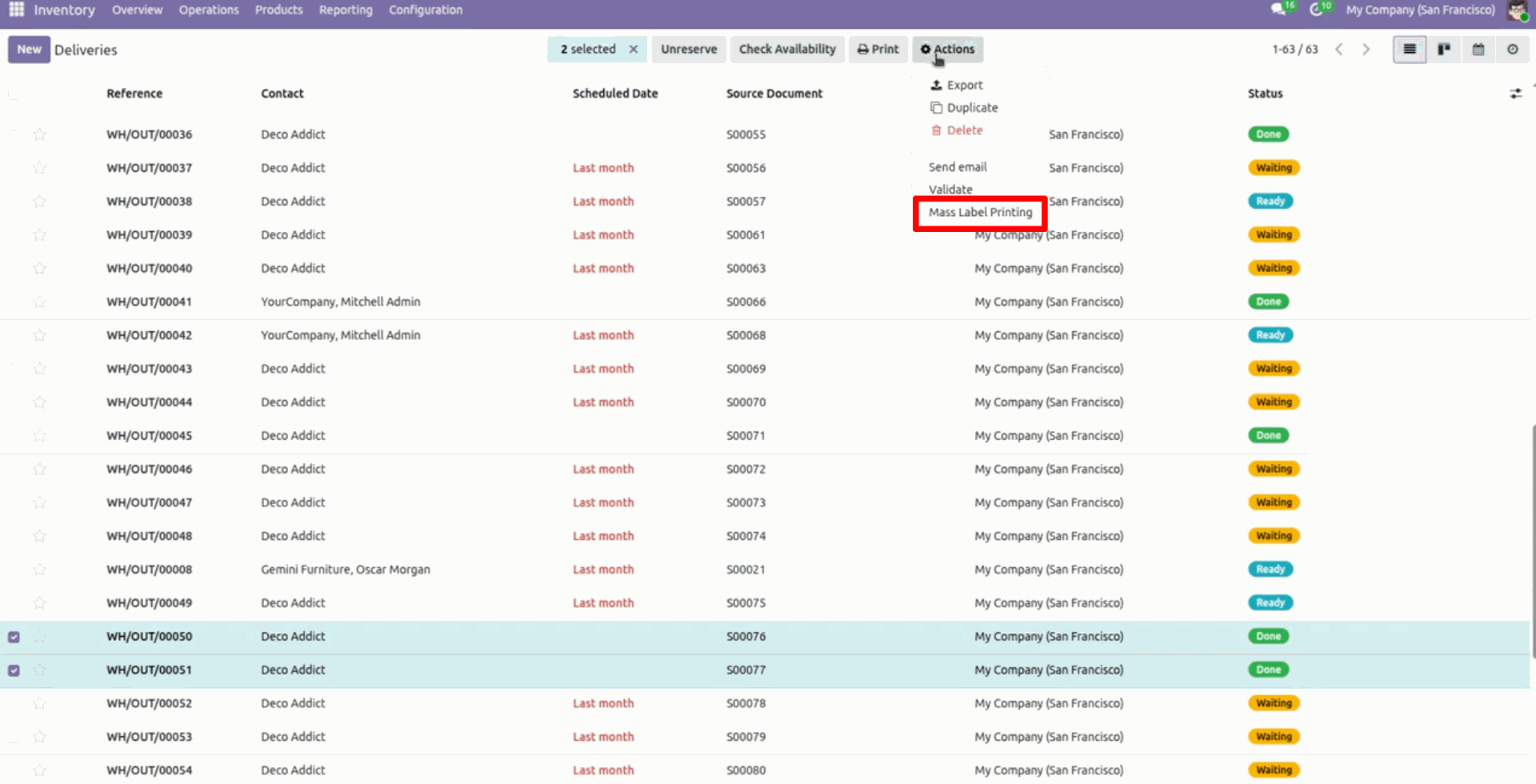
Select deliveries and click Action -> Mass Label Printing.
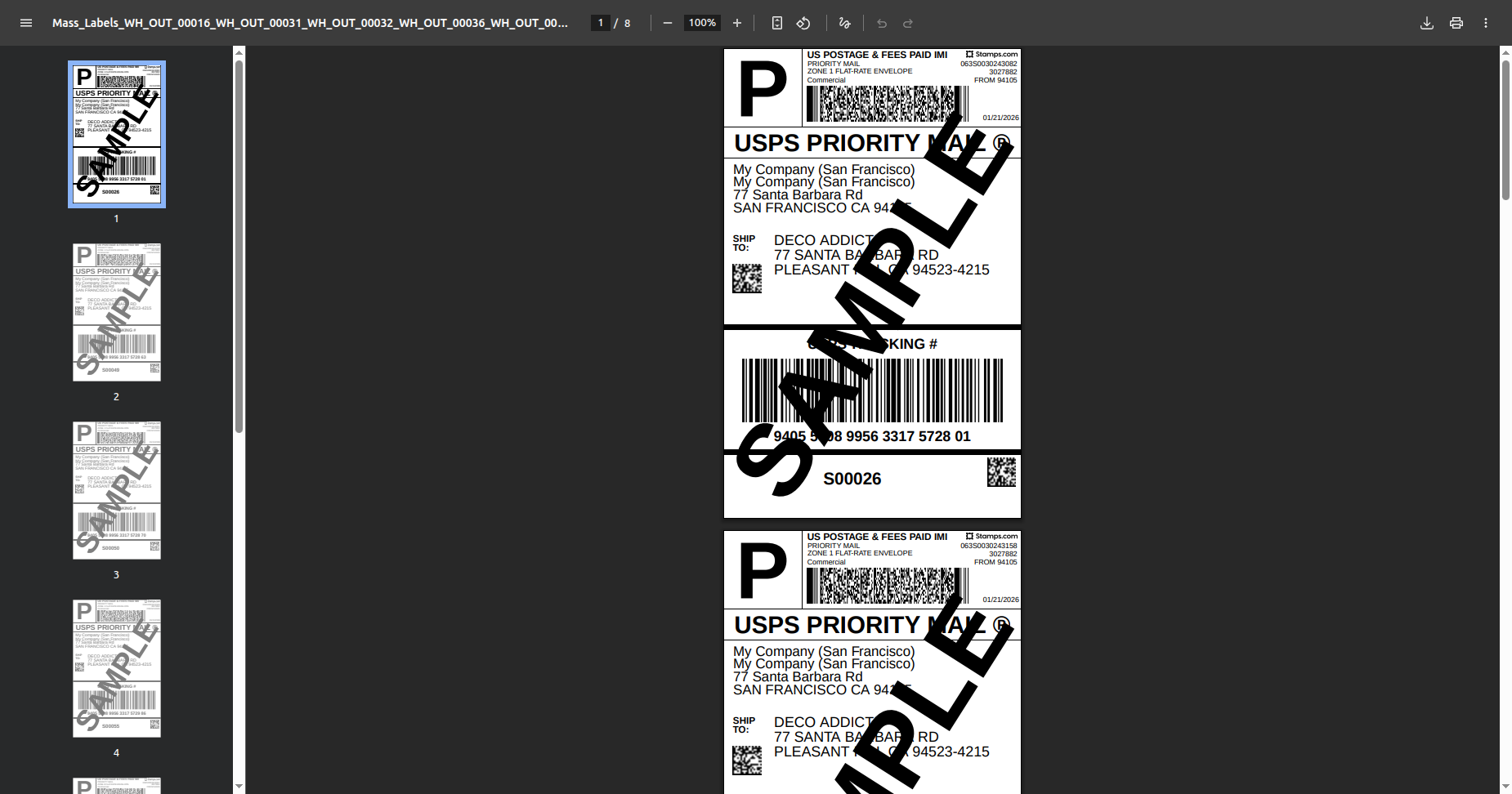
Labels generated.
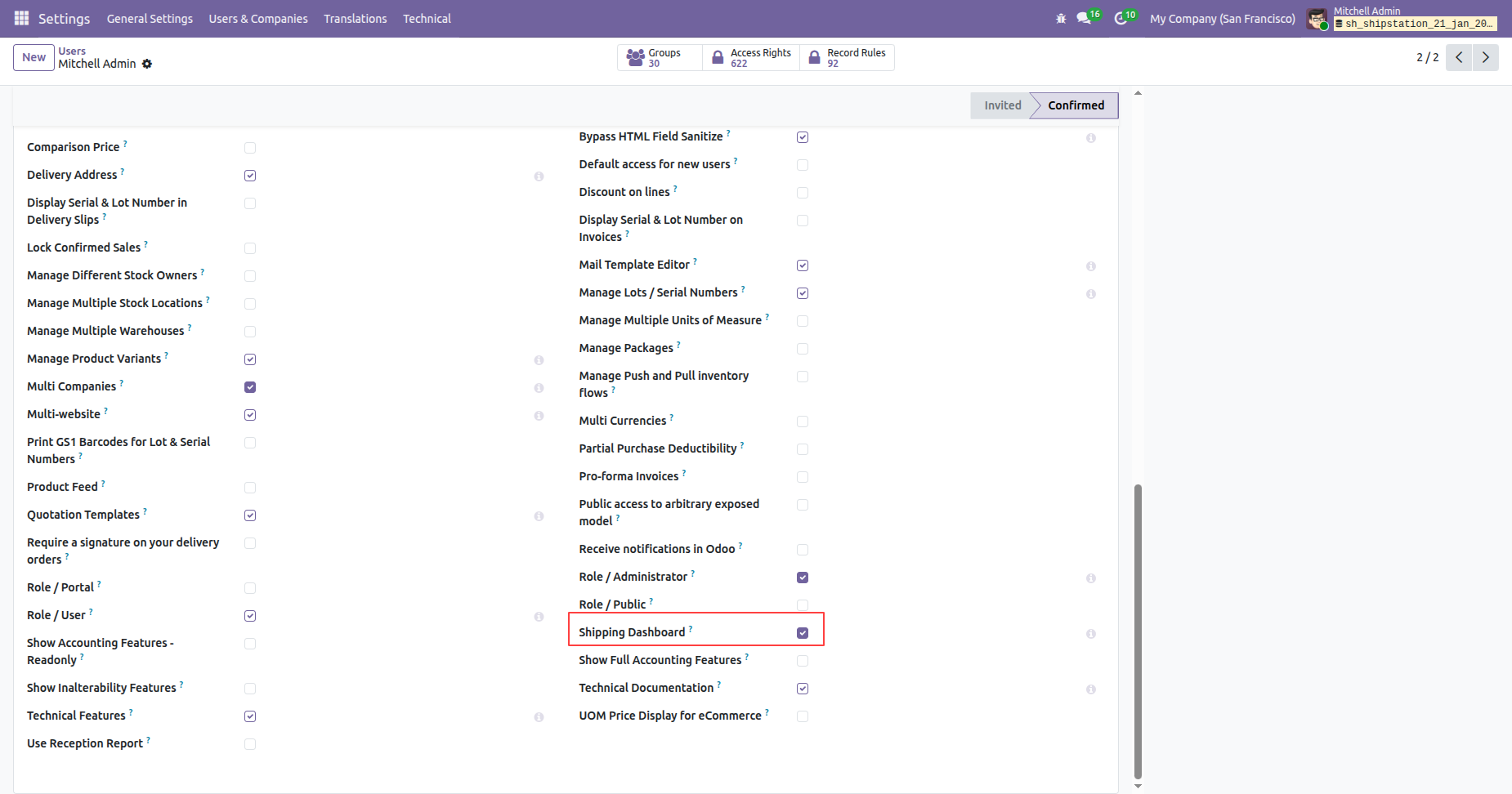
Enable 'Shipping Dashboard'.
Click 'Shipping Dashboard'.
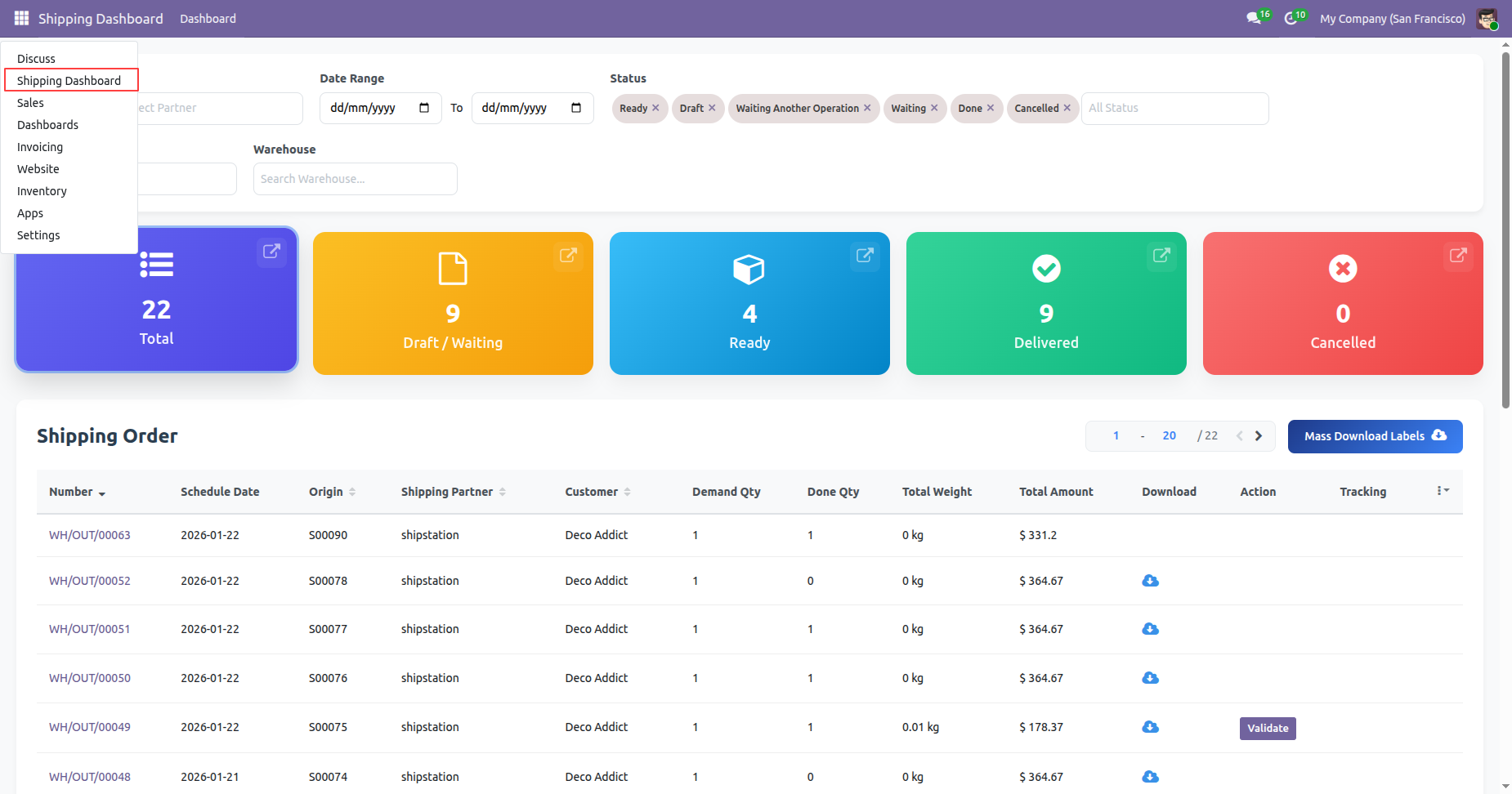
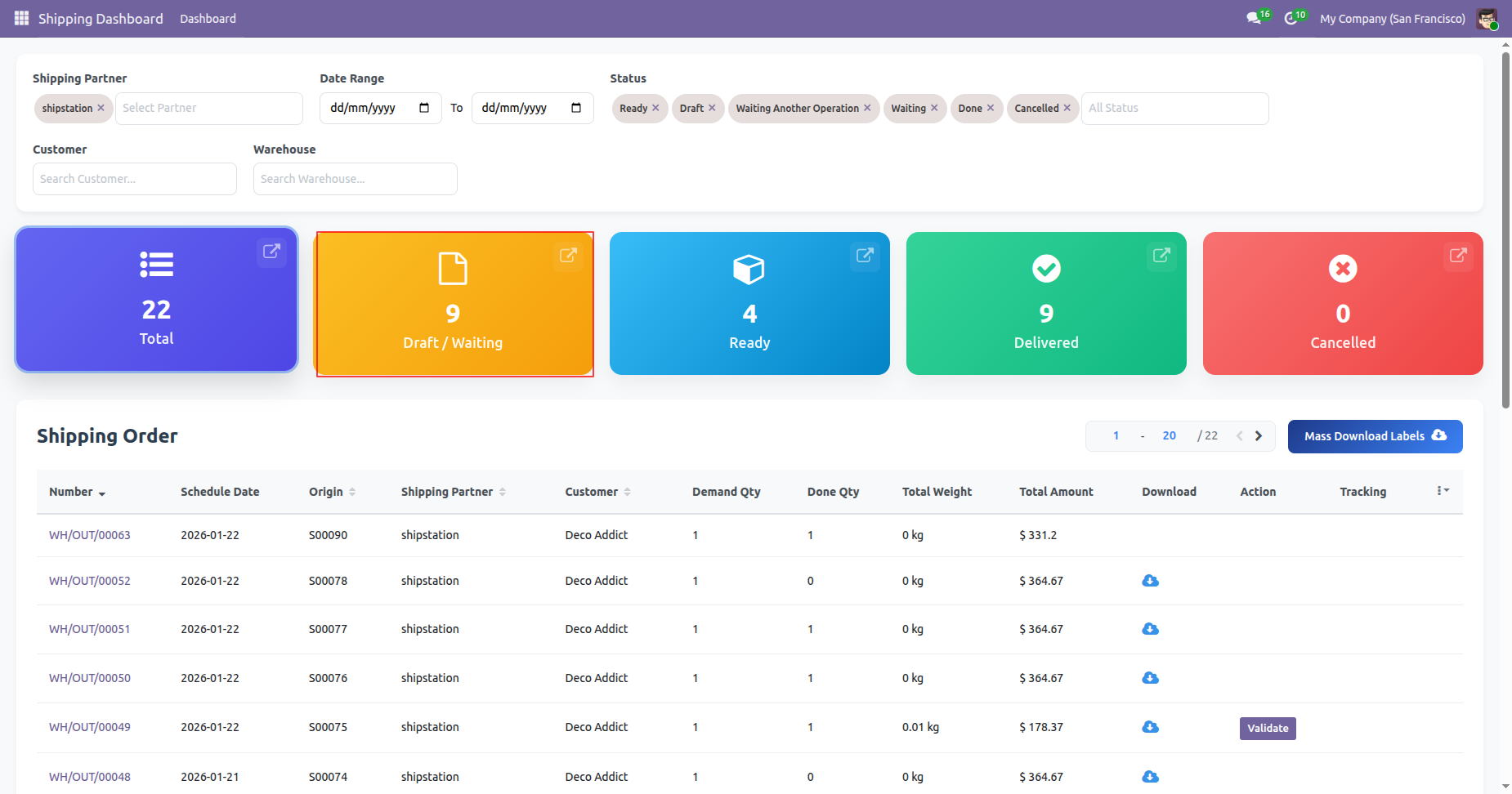
Dashboard view.
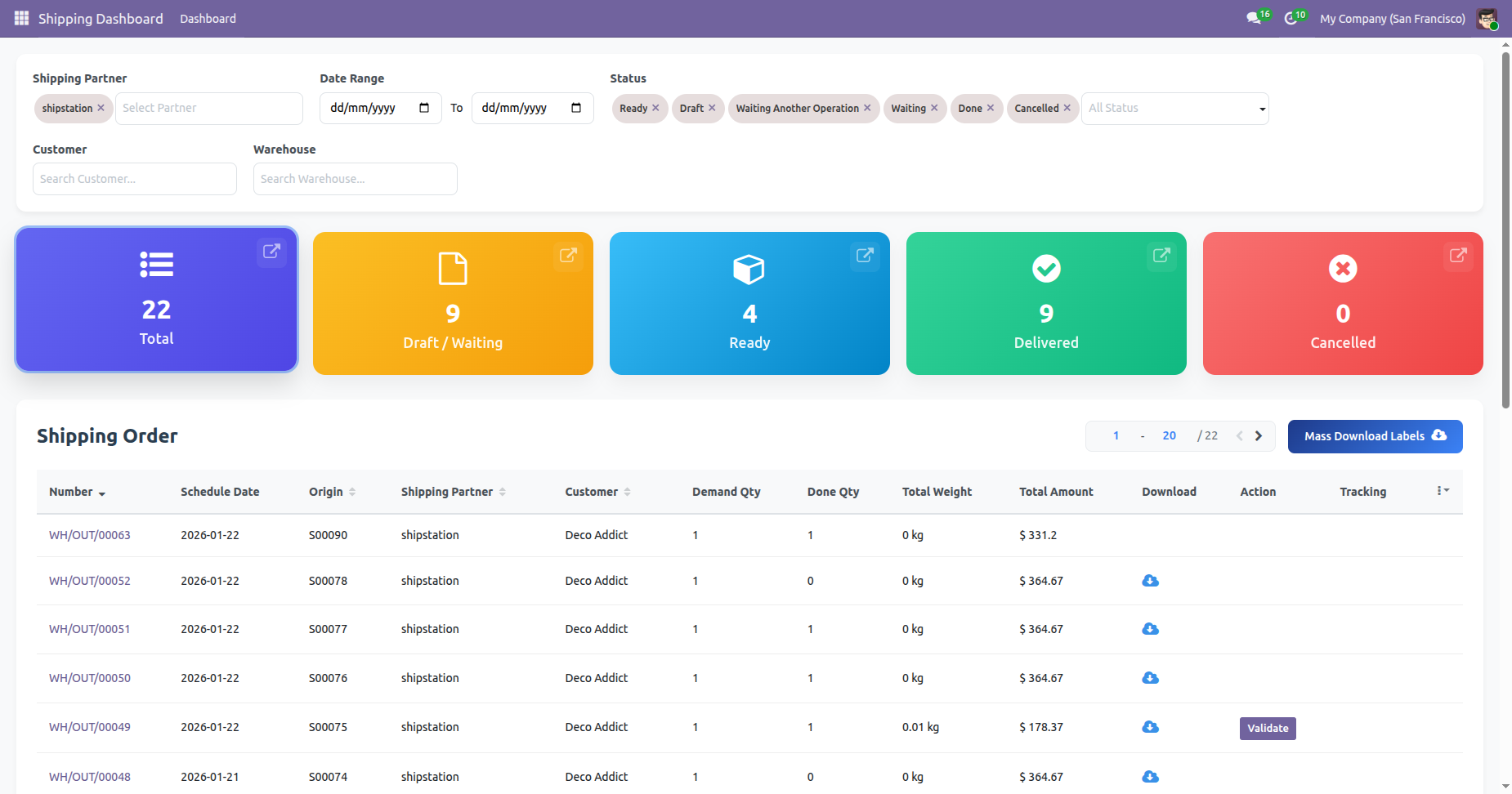
You can select shipping status.
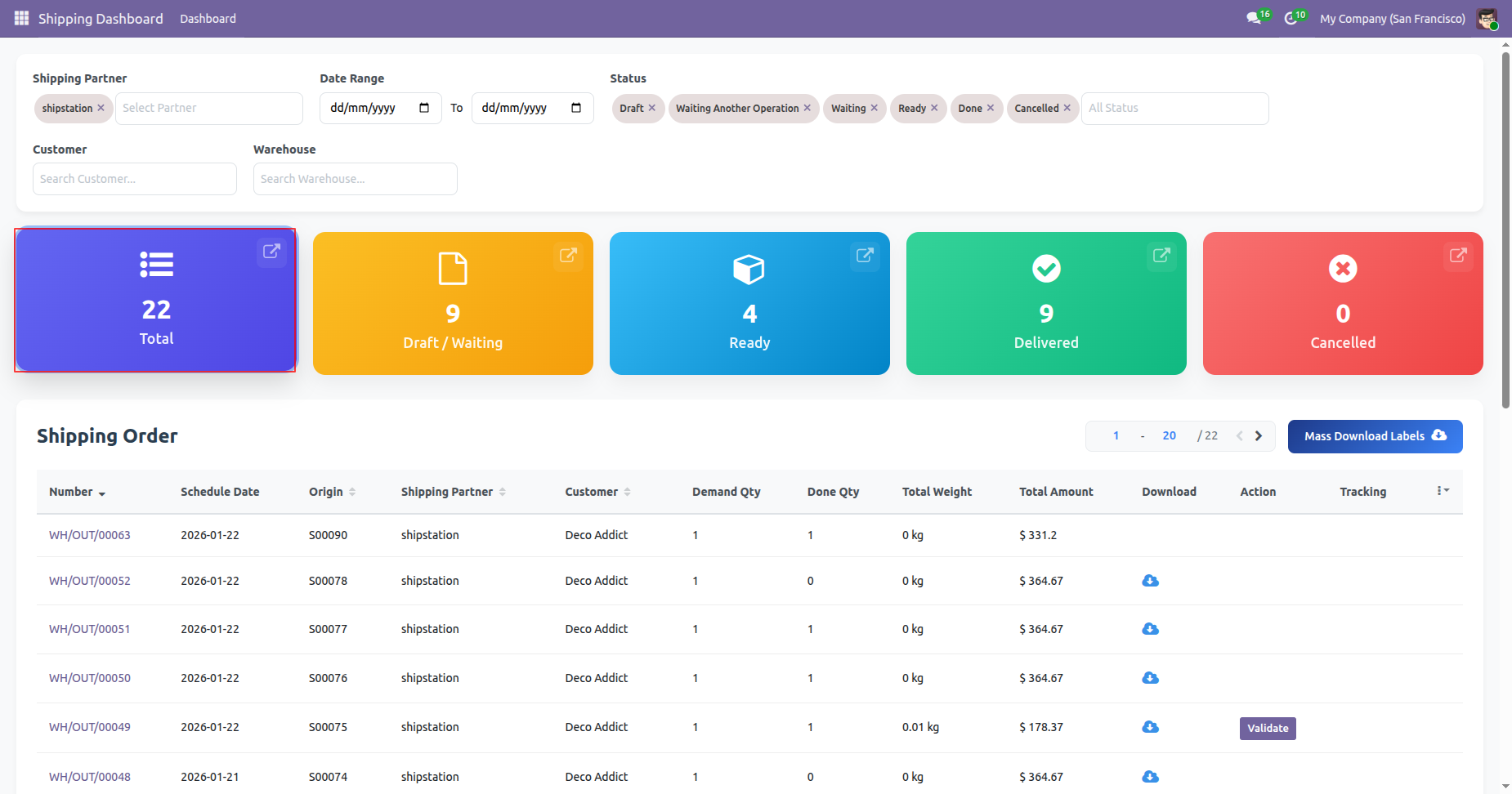
You can select customers from the drop-down.
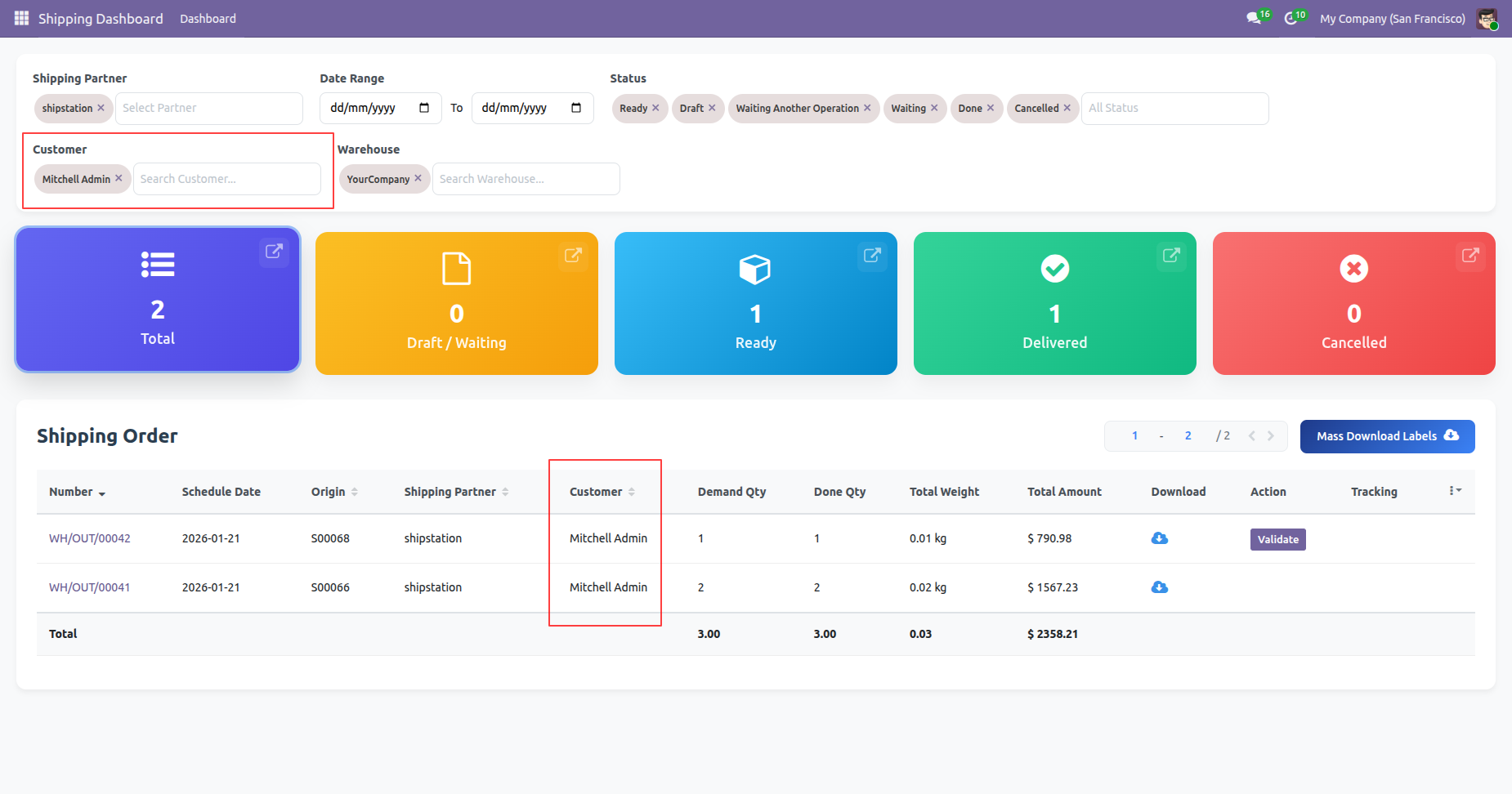
You can select warehouse.
By clicking on a particular status, it shows its own details only on the dashboard.
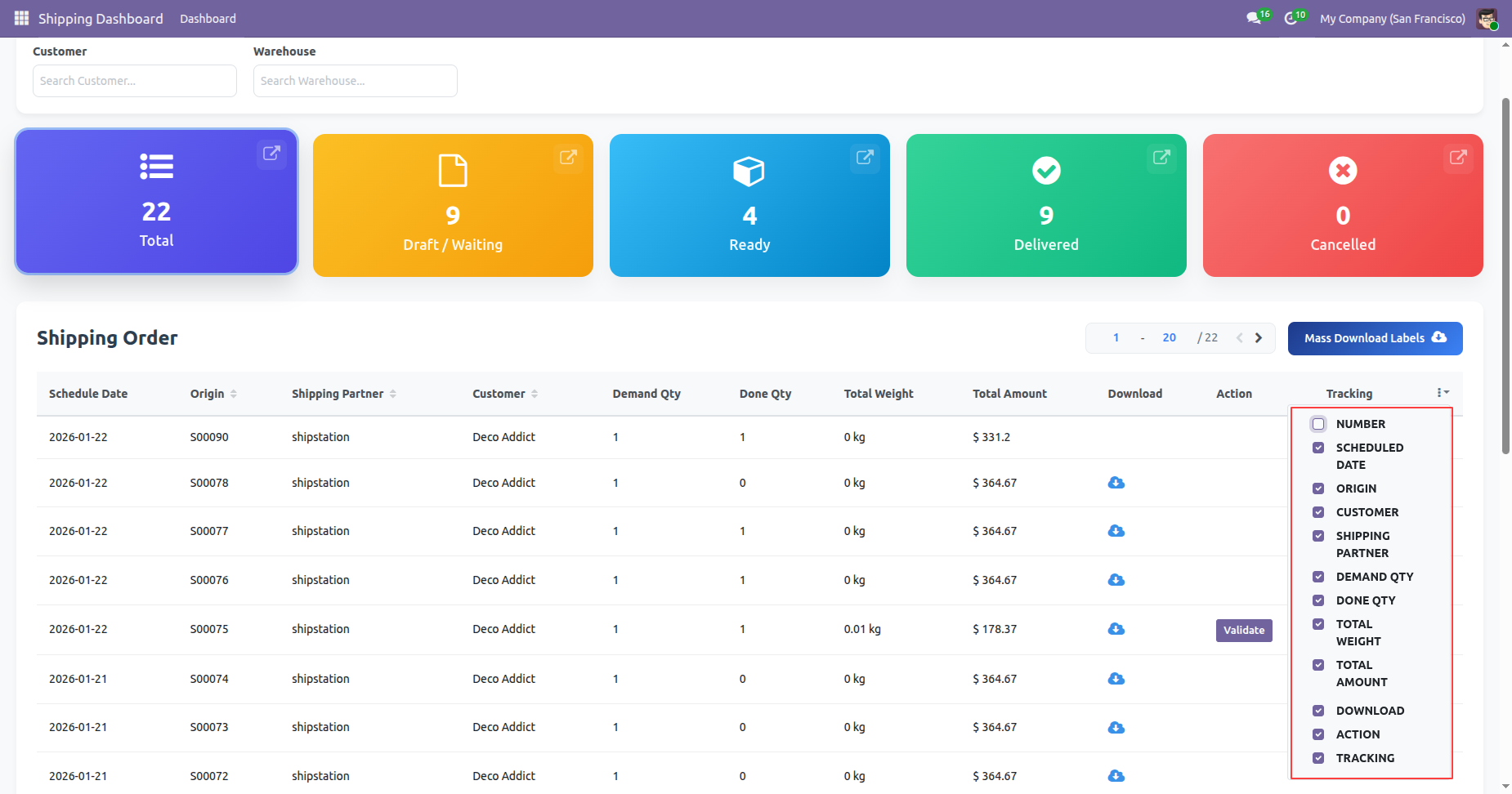
You can set fields by enabling/disable option.
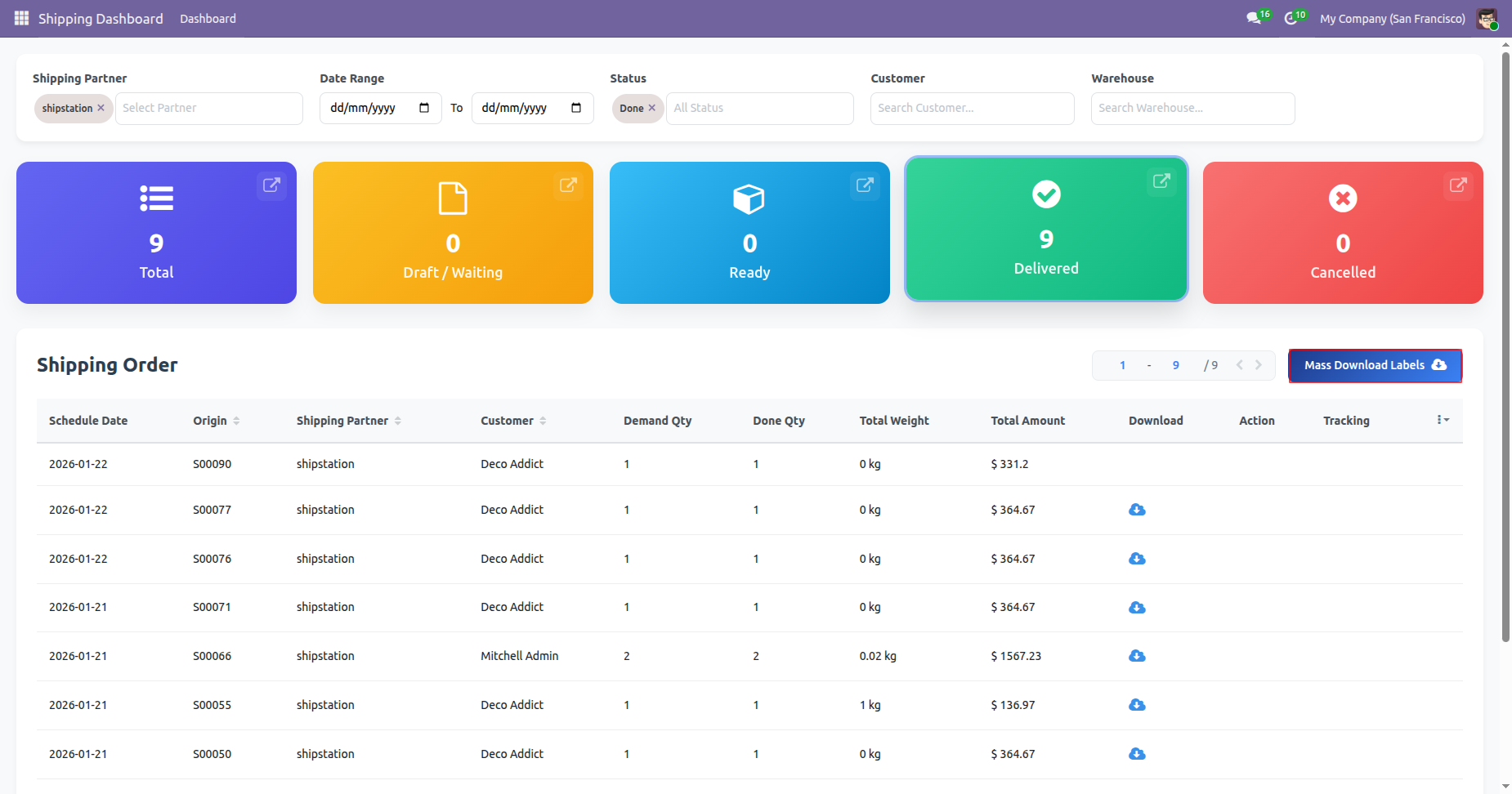
Click 'Mass Download Labels' to download all at single click, You can download and track shipping from the dashboard.
Labels downloaded.
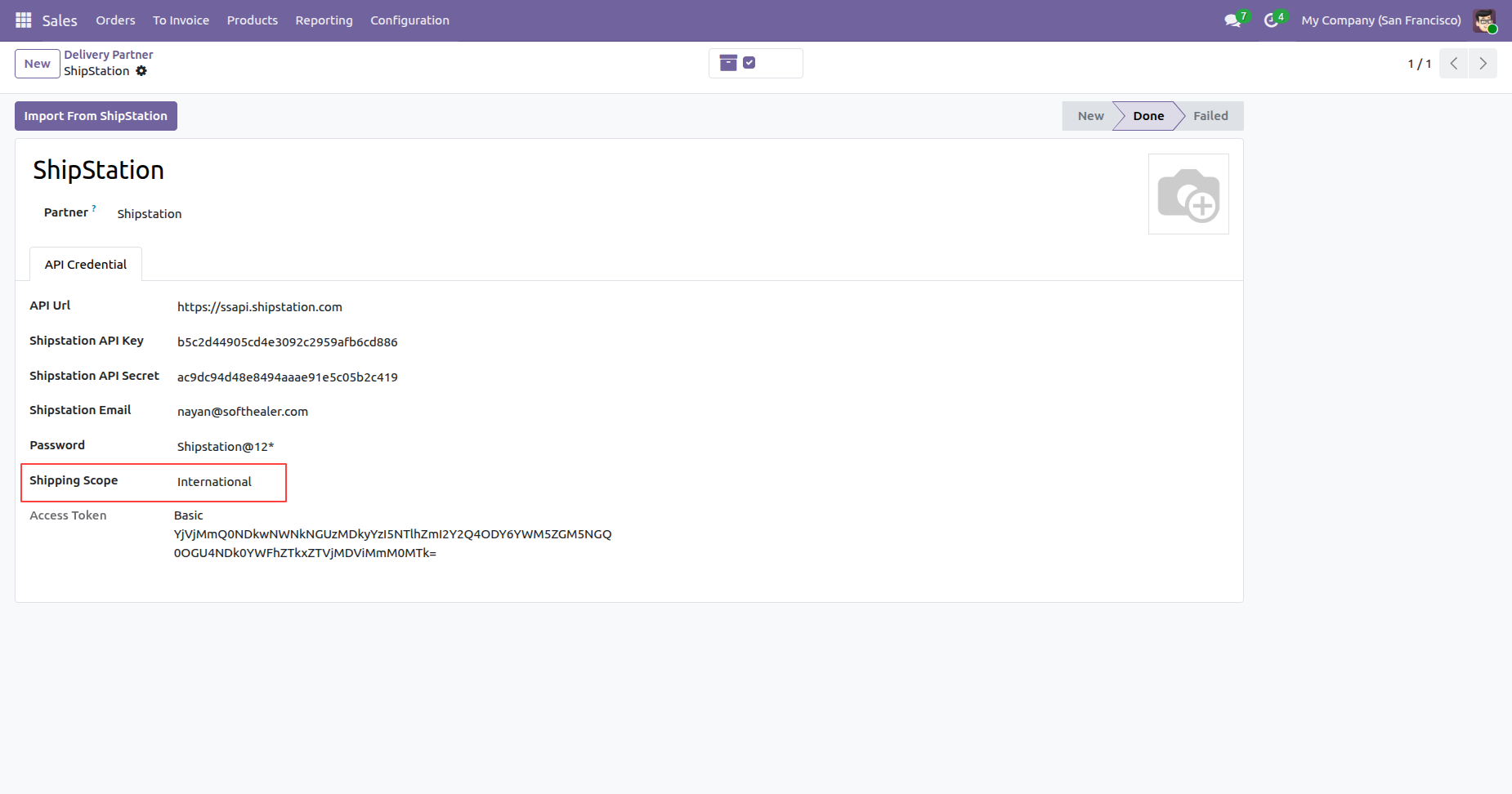
Configure ShipStation API credentials and set the shipping scope to international for global operations.
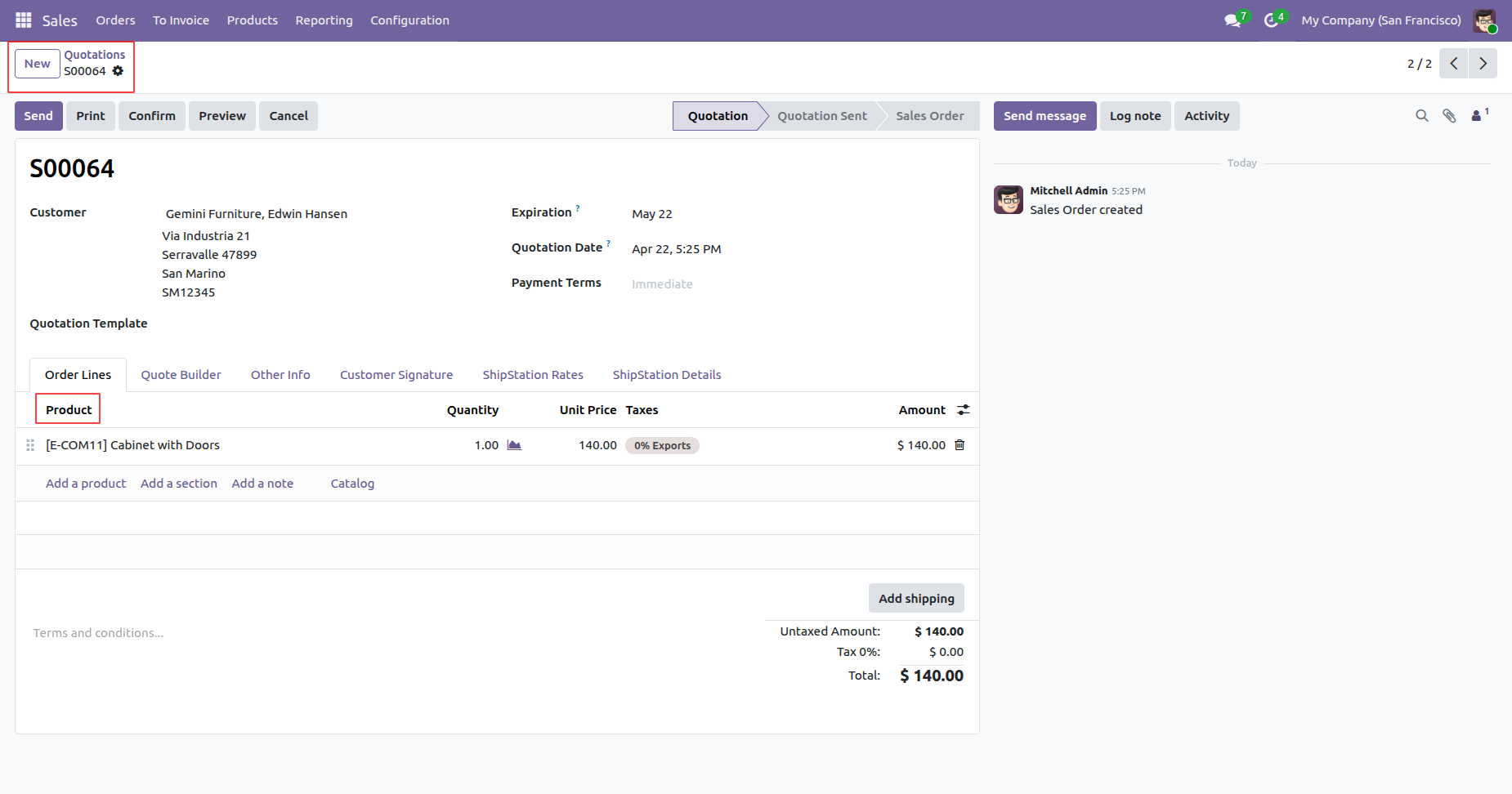
Create and manage sales quotations with specific order lines before processing the shipping method.
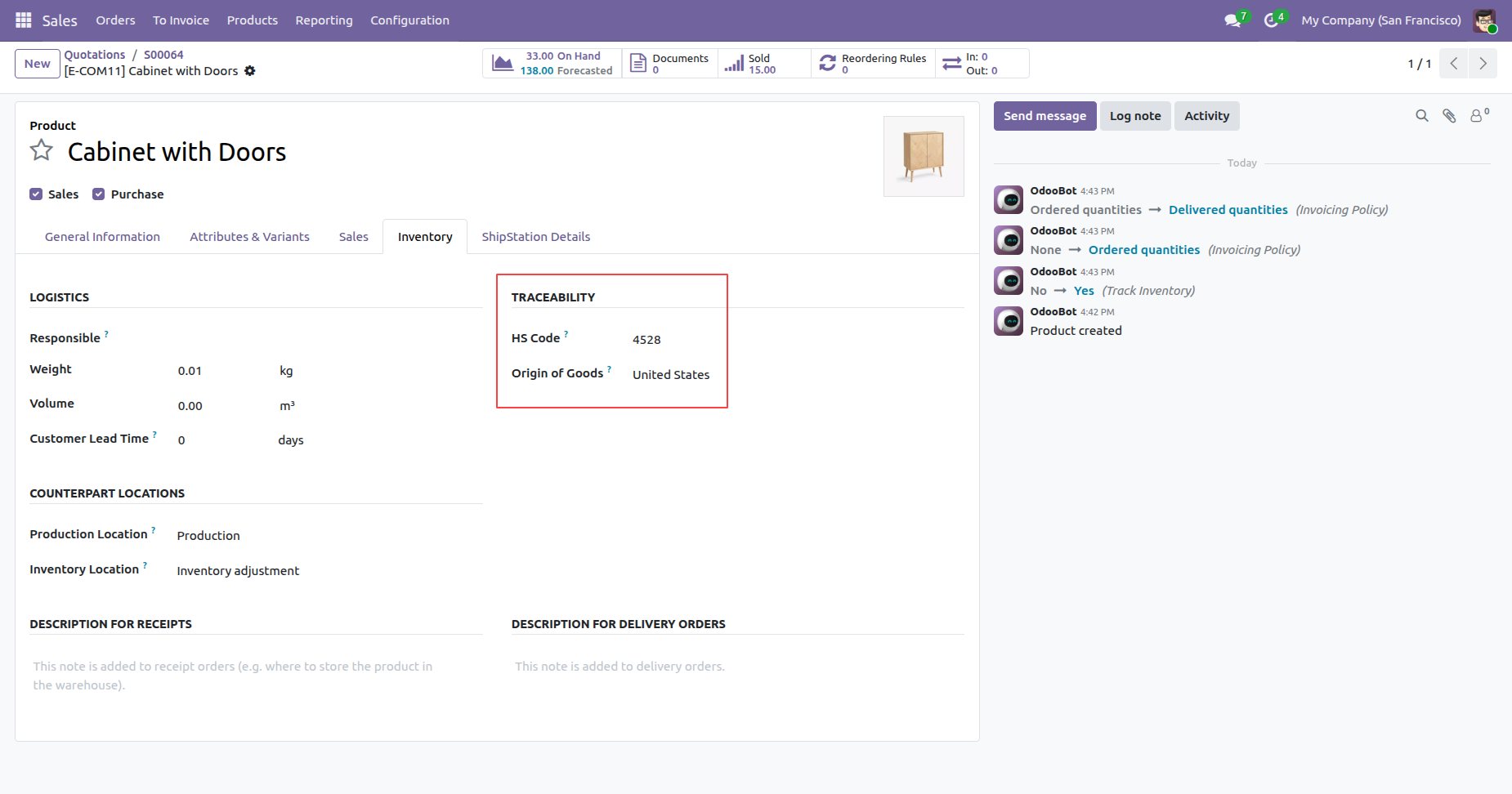
Define product HS codes and origin countries for accurate international shipping and customs documentation.
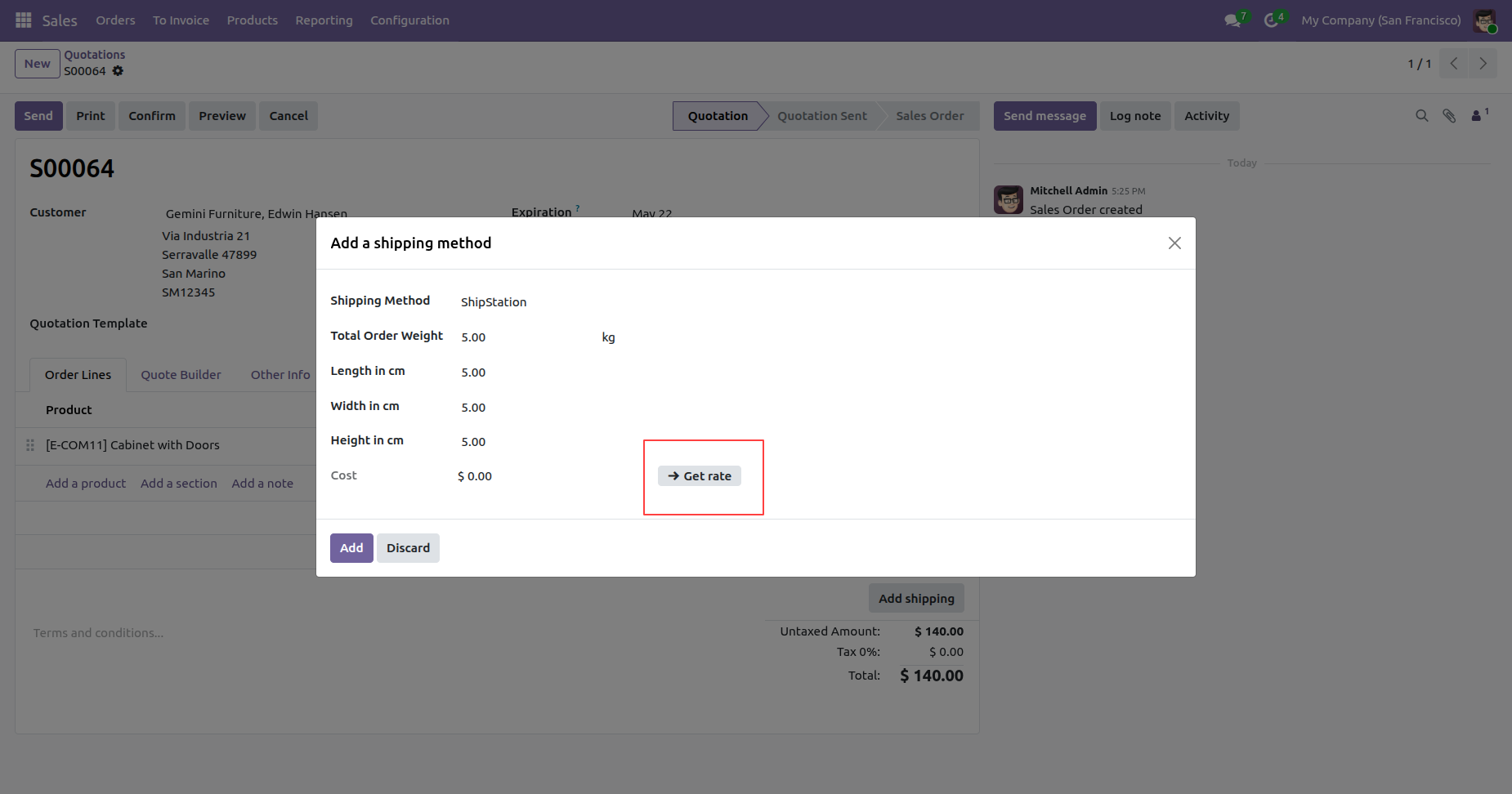
Input package weight and dimensions in the shipping wizard to retrieve real-time carrier rates.
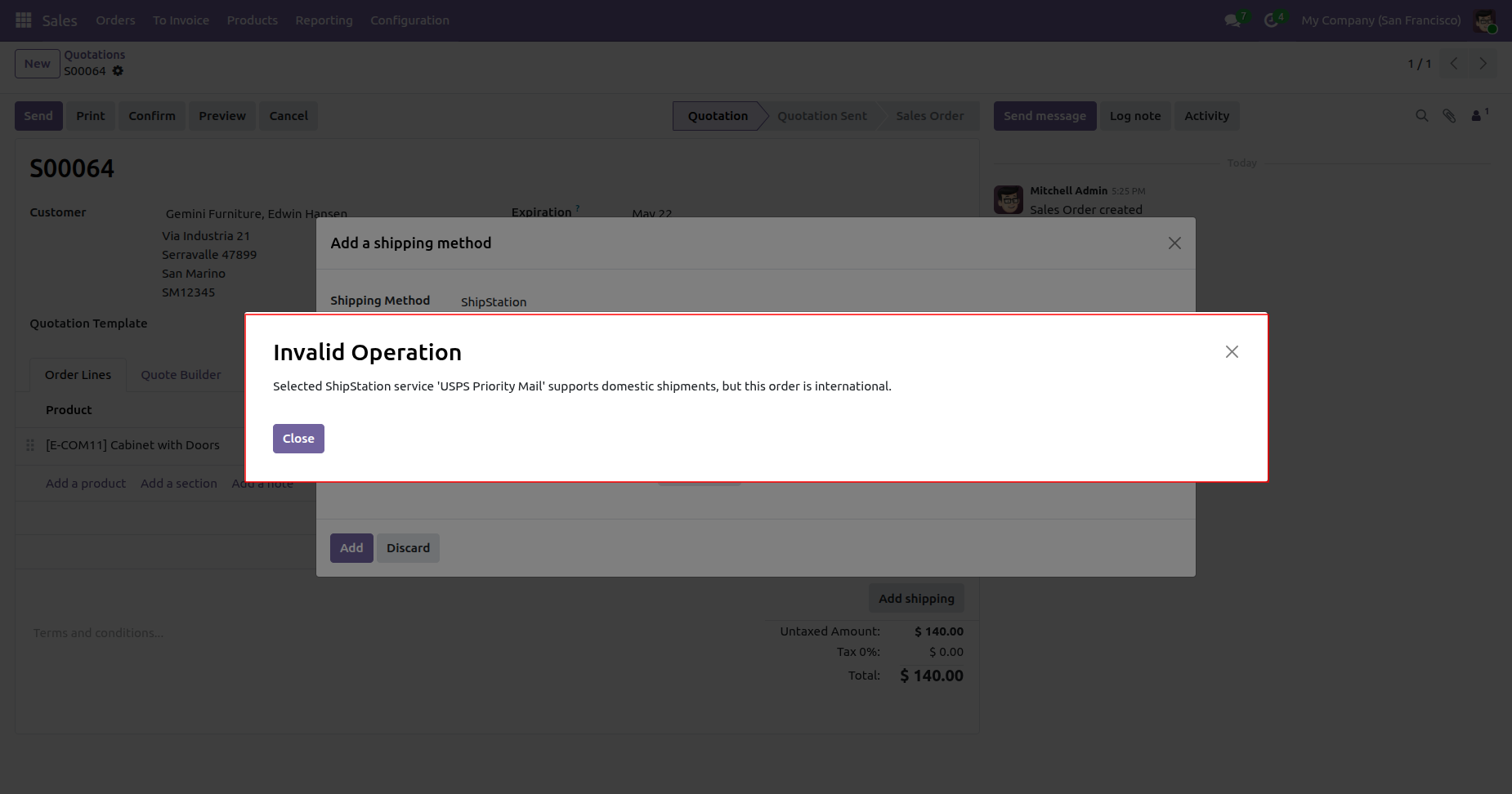
Receive system alerts when selected shipping services do not support international destinations for the order.
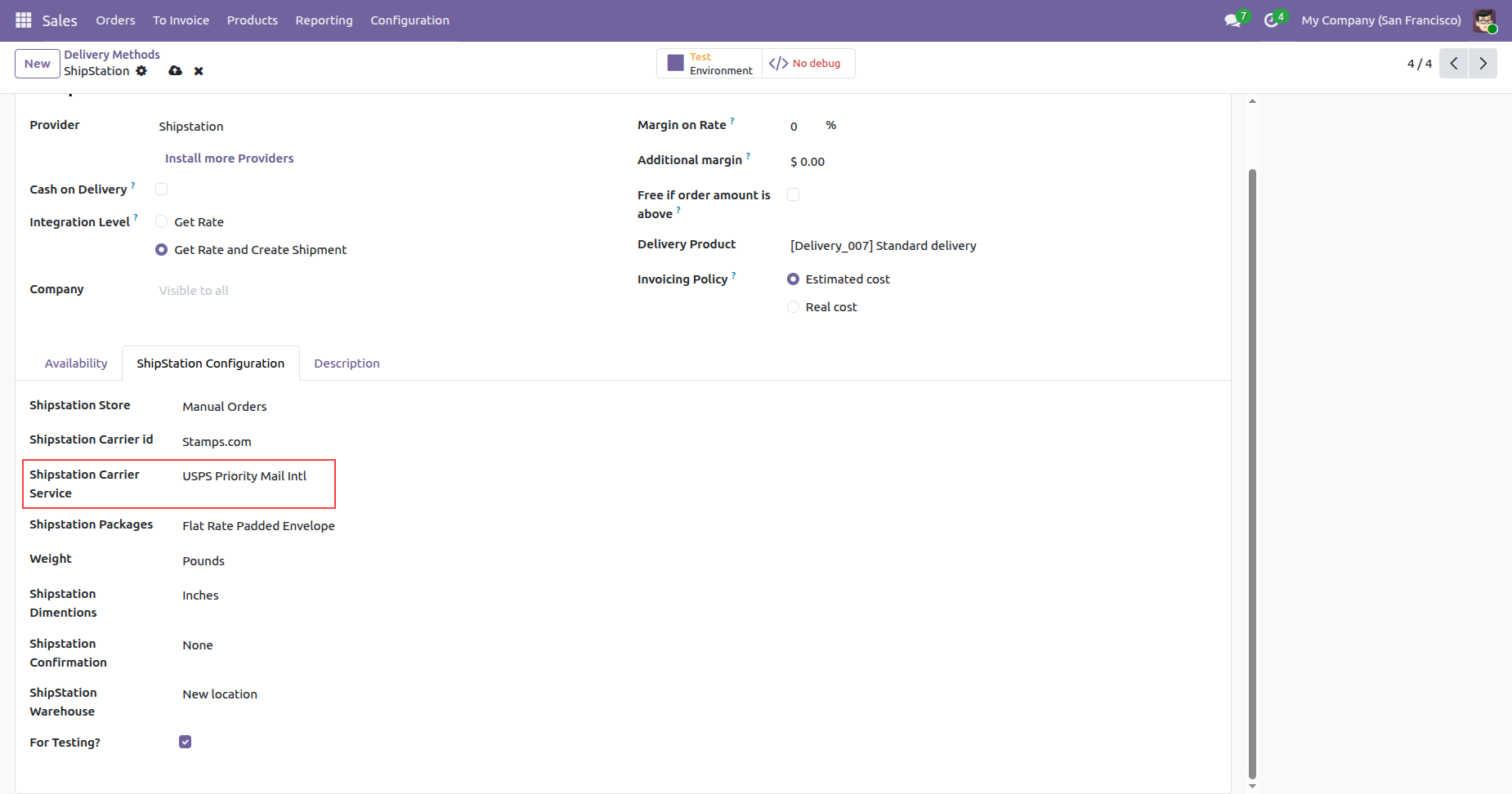
Configure delivery method settings including integration levels and invoicing policies for automated shipment processing.
Review the calculated shipping cost after retrieving real-time rates from the ShipStation integration.
Confirm the sales order with the added shipping service line and updated total amount.
Click the Generate ShipStation Shipping Label button to initiate the label creation process for delivery.
View the generated shipping label and tracking information directly within the Odoo delivery order record.
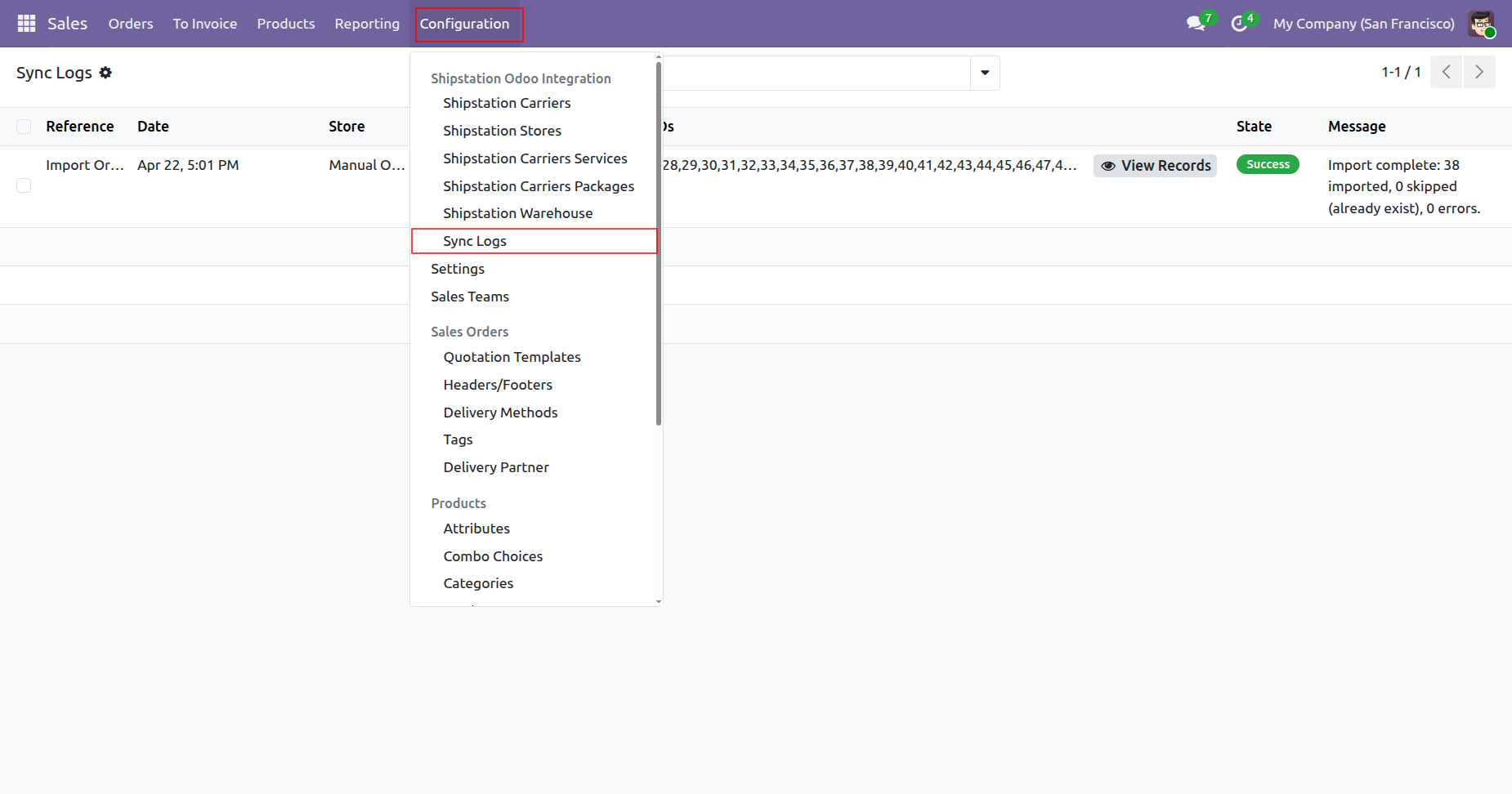
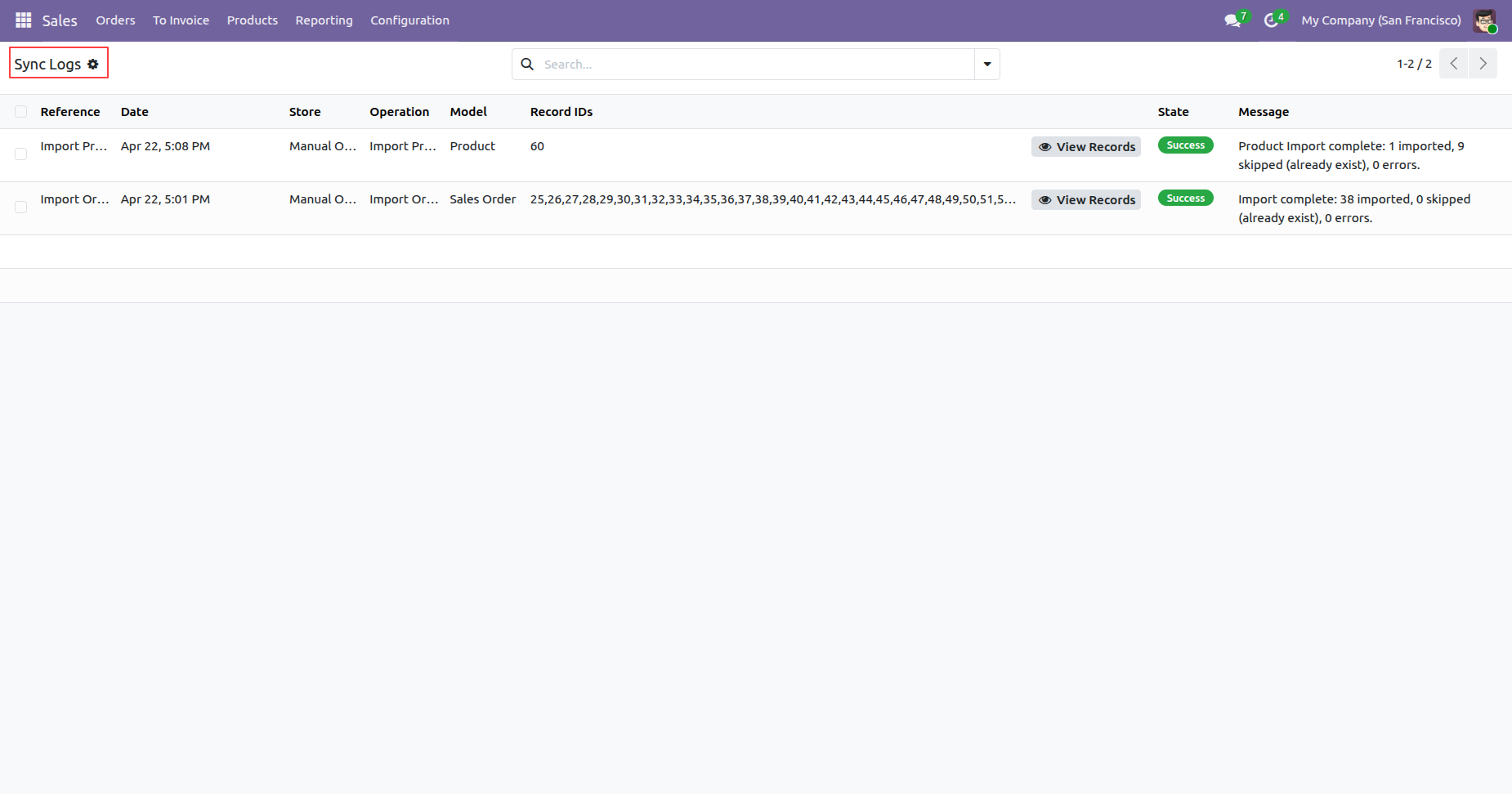
Access the synchronization logs from the ShipStation configuration menu to monitor data exchange history.
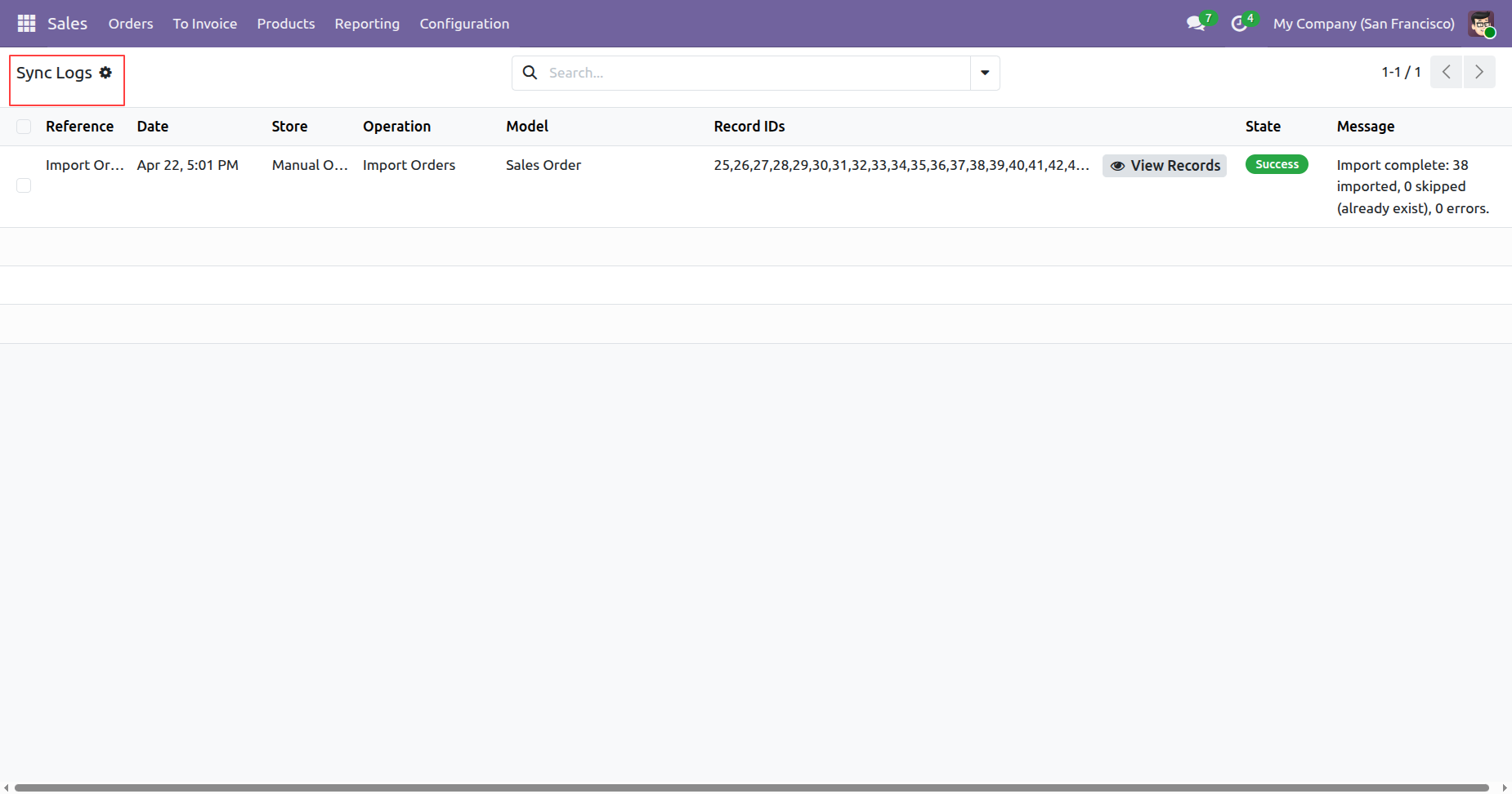
Monitor all order and product synchronization activities with detailed status reports in the sync logs.
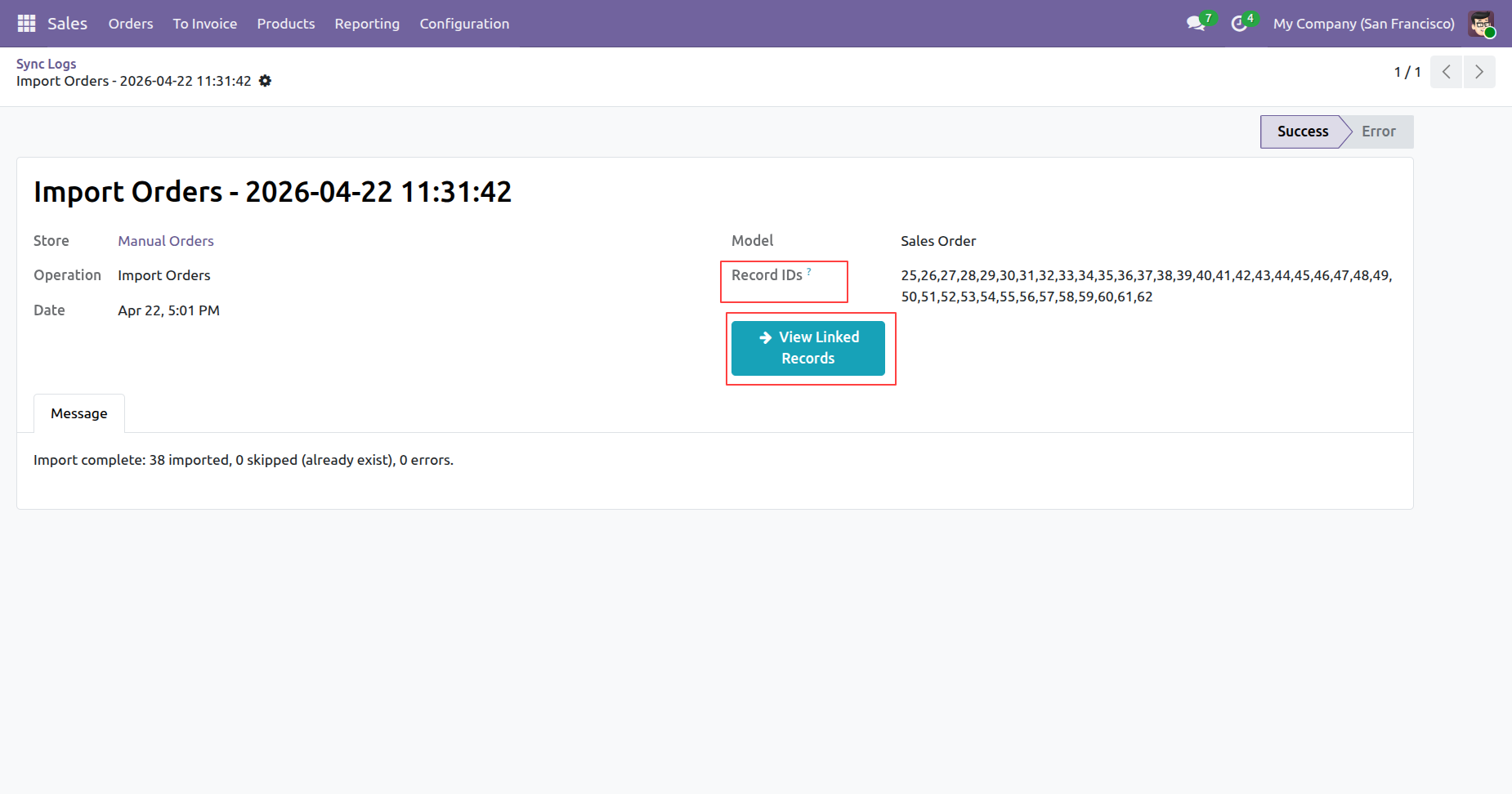
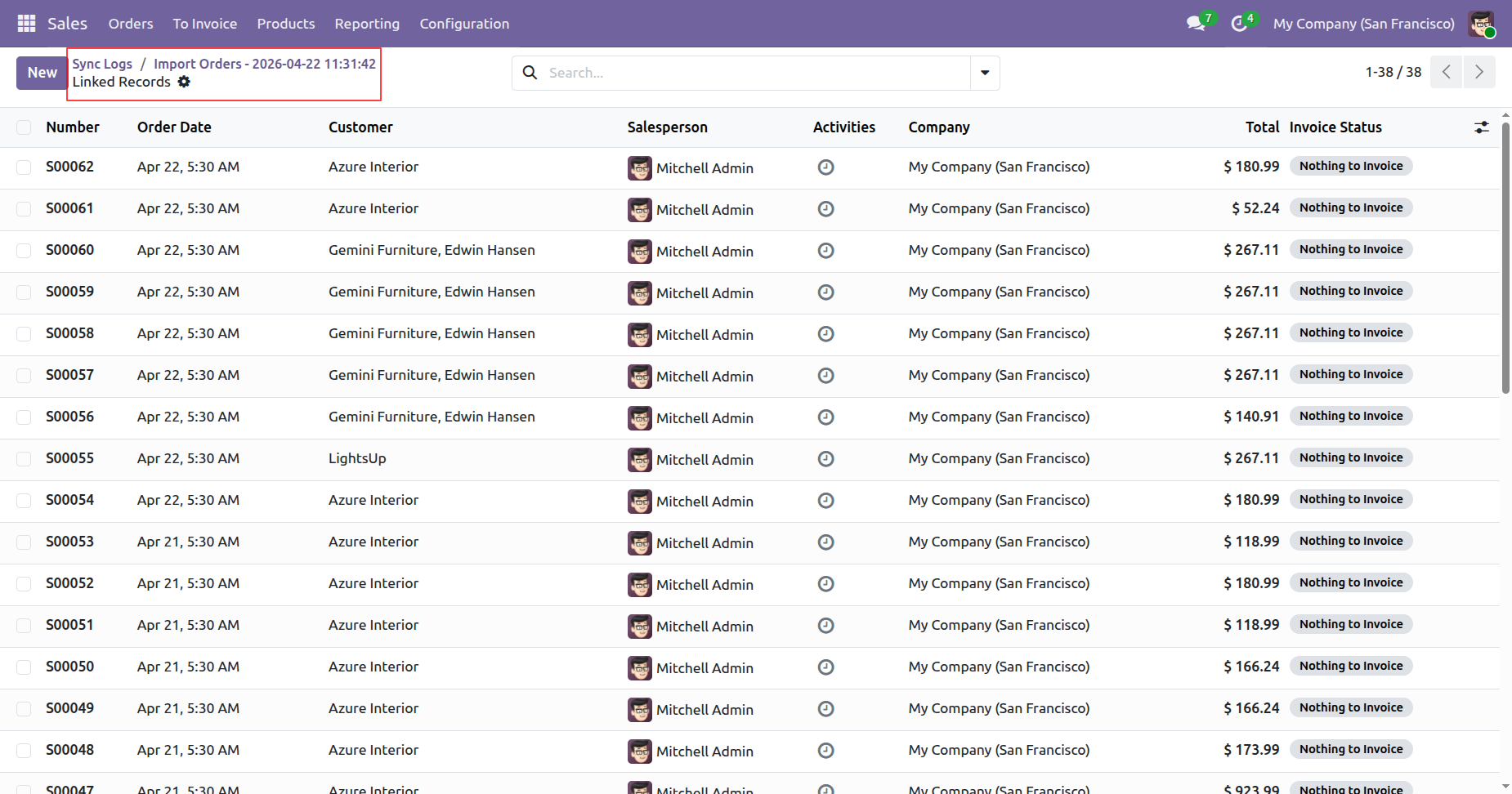
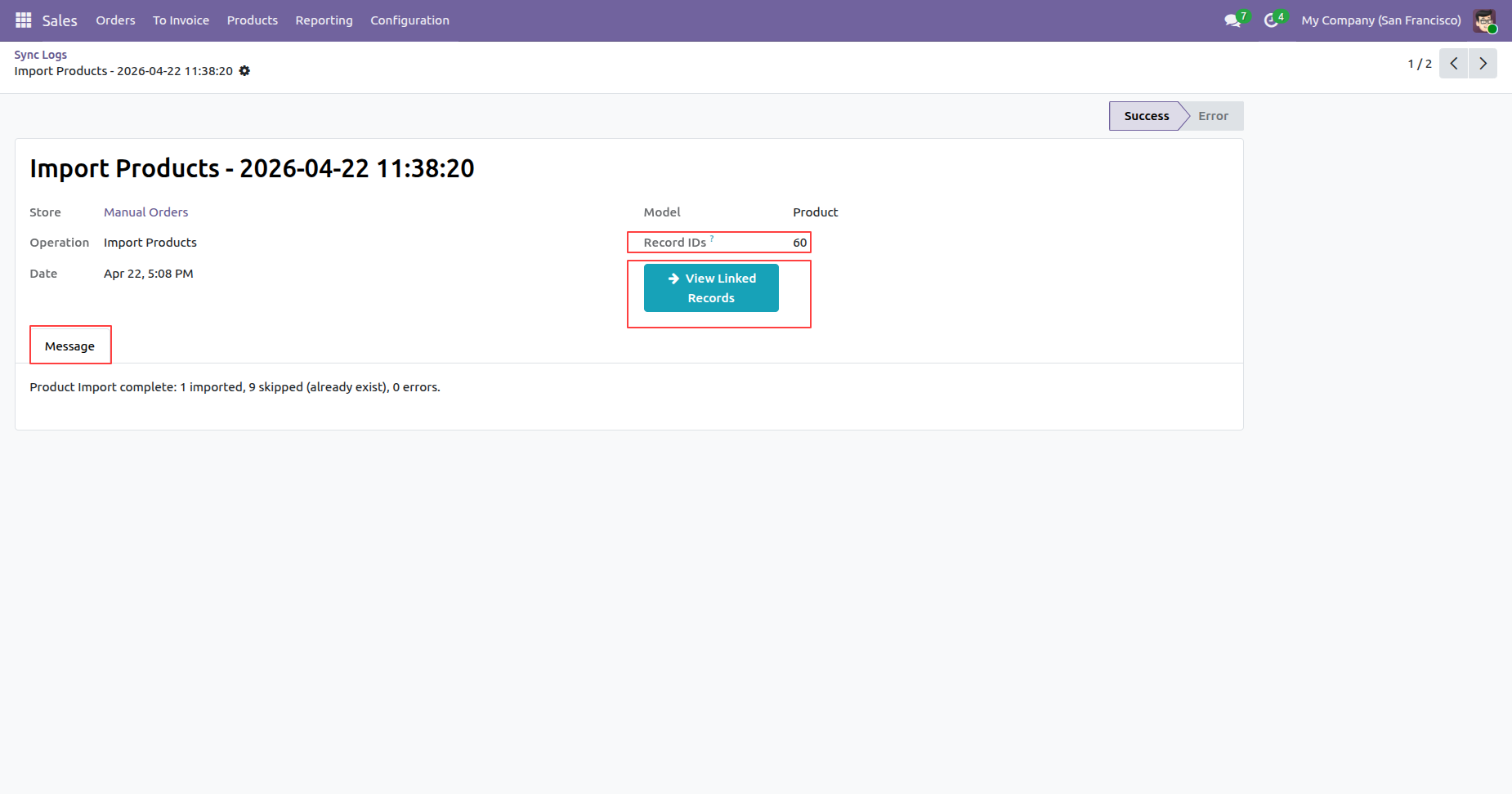
Review specific synchronization details for imported orders and easily access the newly created linked records.
View the full list of sales orders successfully imported from ShipStation into the Odoo system.
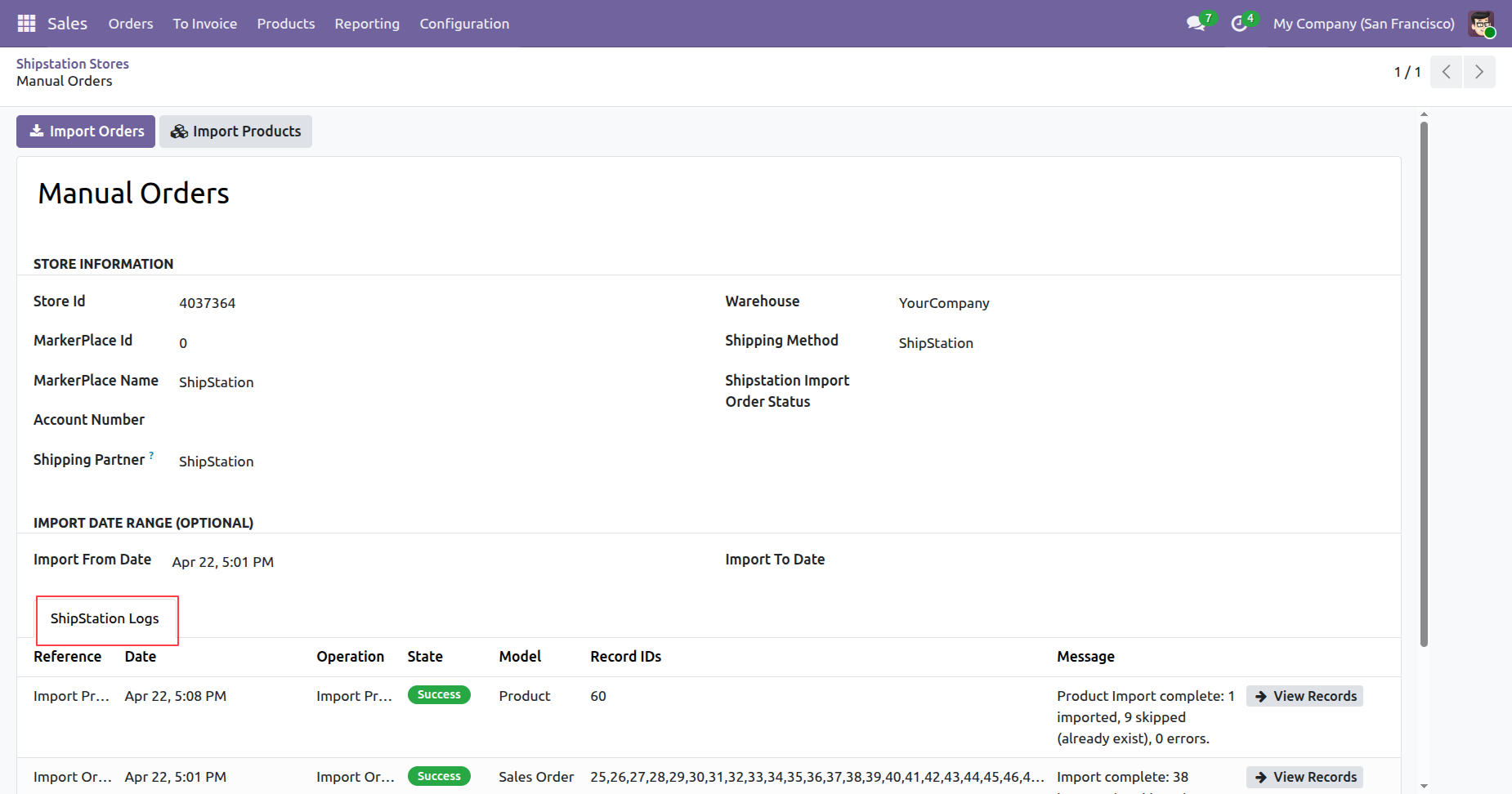
View the ShipStation store configuration and initiate manual order imports for specific date ranges.
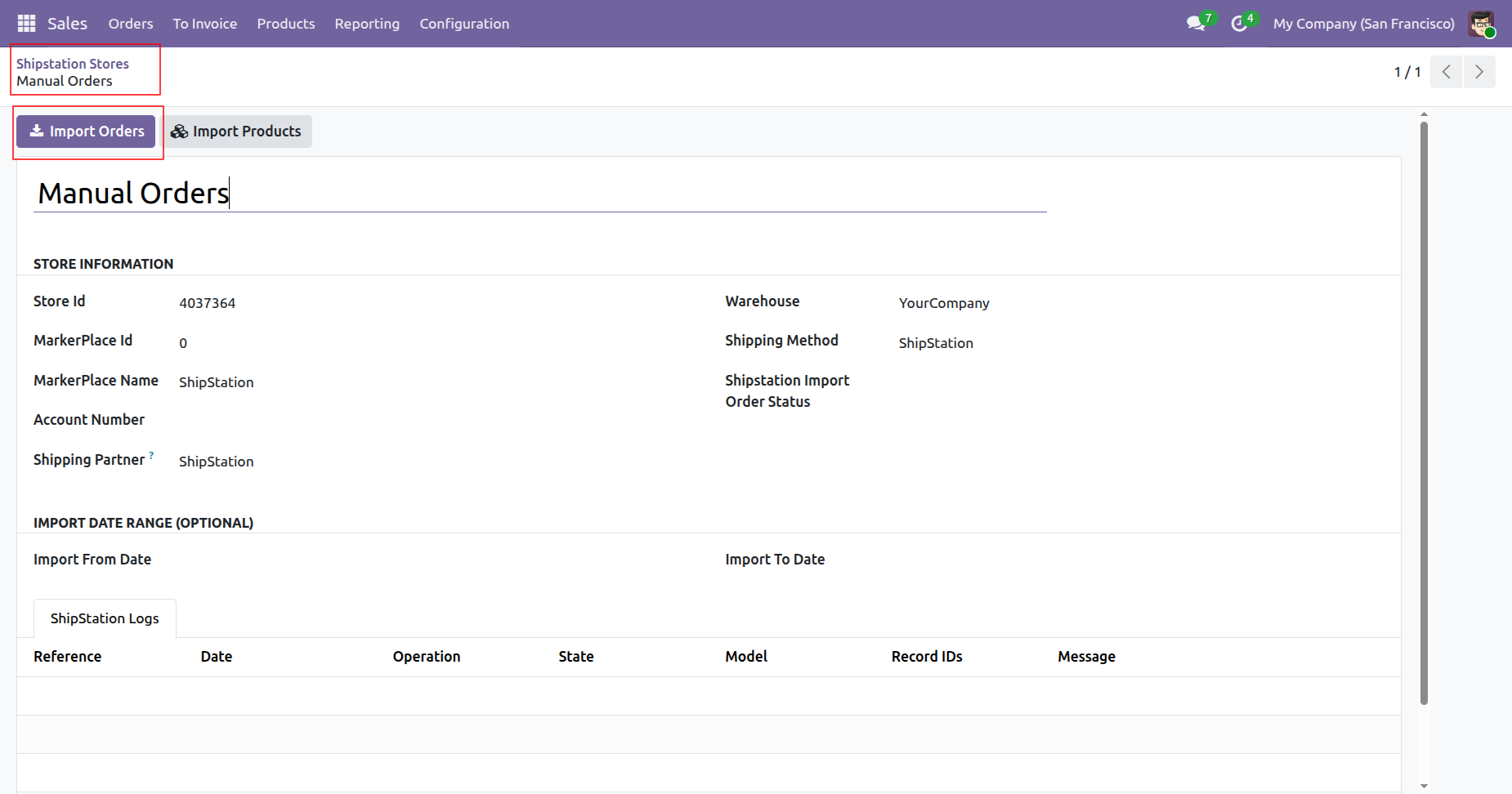
Successfully import manual orders within a defined date range and monitor the import status.
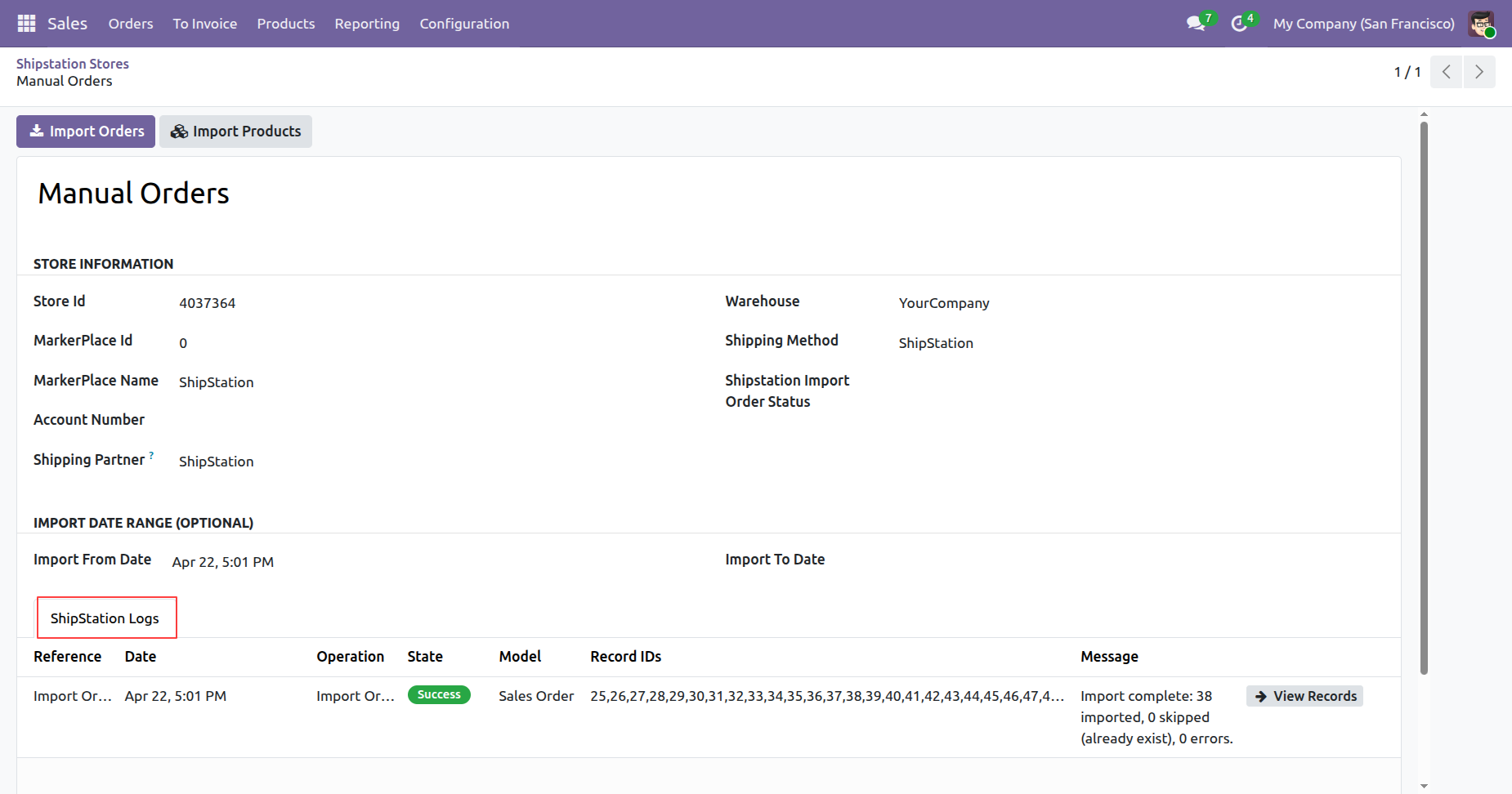
Access the synchronization logs from the ShipStation configuration menu to monitor data exchange history.
Monitor all order and product synchronization activities with detailed status reports in the sync logs.
Review specific synchronization details for imported orders and easily access the newly created linked records.
View the full list of sales orders successfully imported from ShipStation into the Odoo system.
Trigger manual product imports from the ShipStation store to keep your Odoo catalog synchronized.
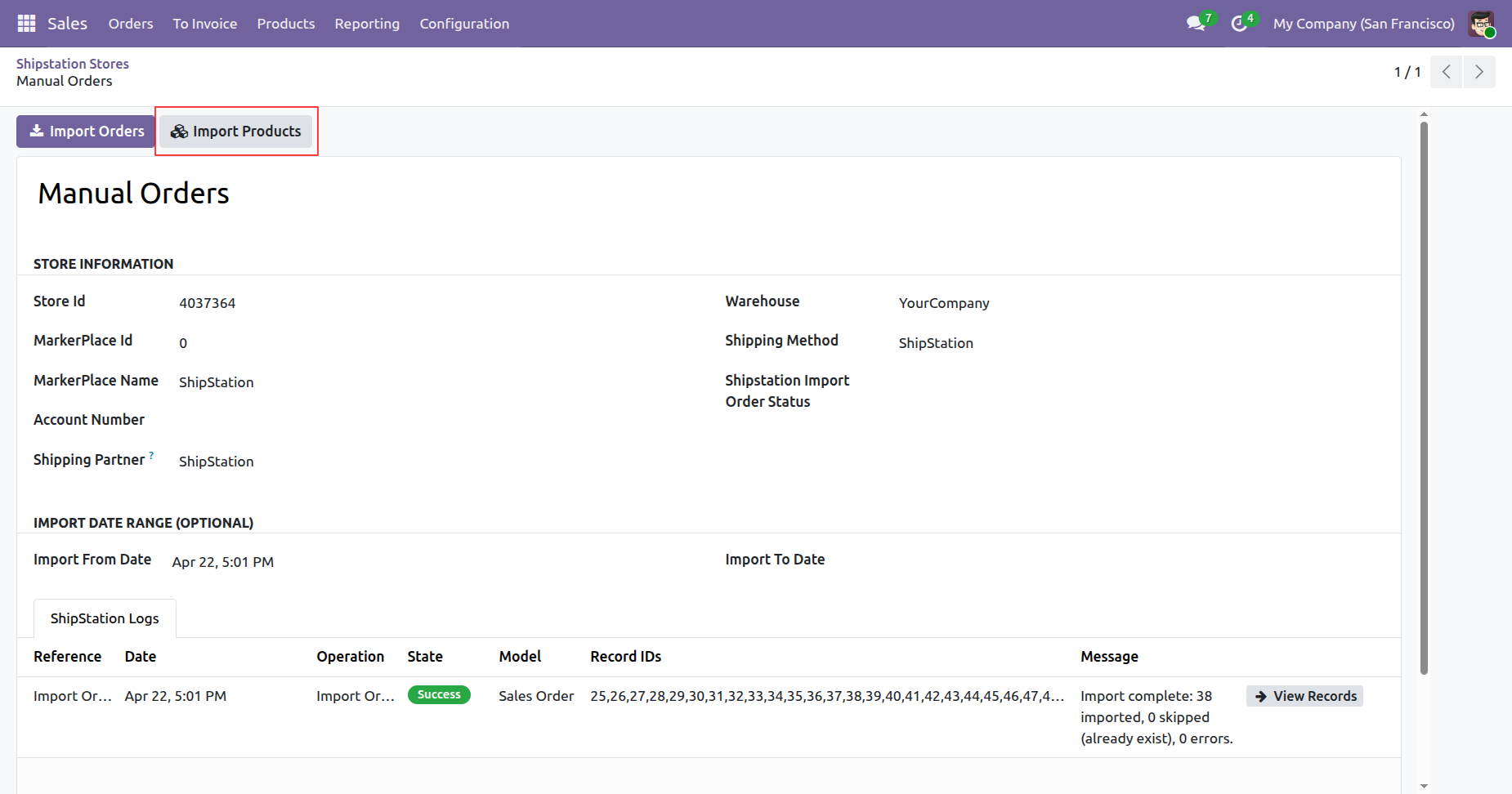
Track both product and order synchronization history within the specific ShipStation store management interface.
Review a summary of all successful product and order import operations within the centralized sync logs.
Check the detailed synchronization report for product imports to ensure all items are updated correctly.
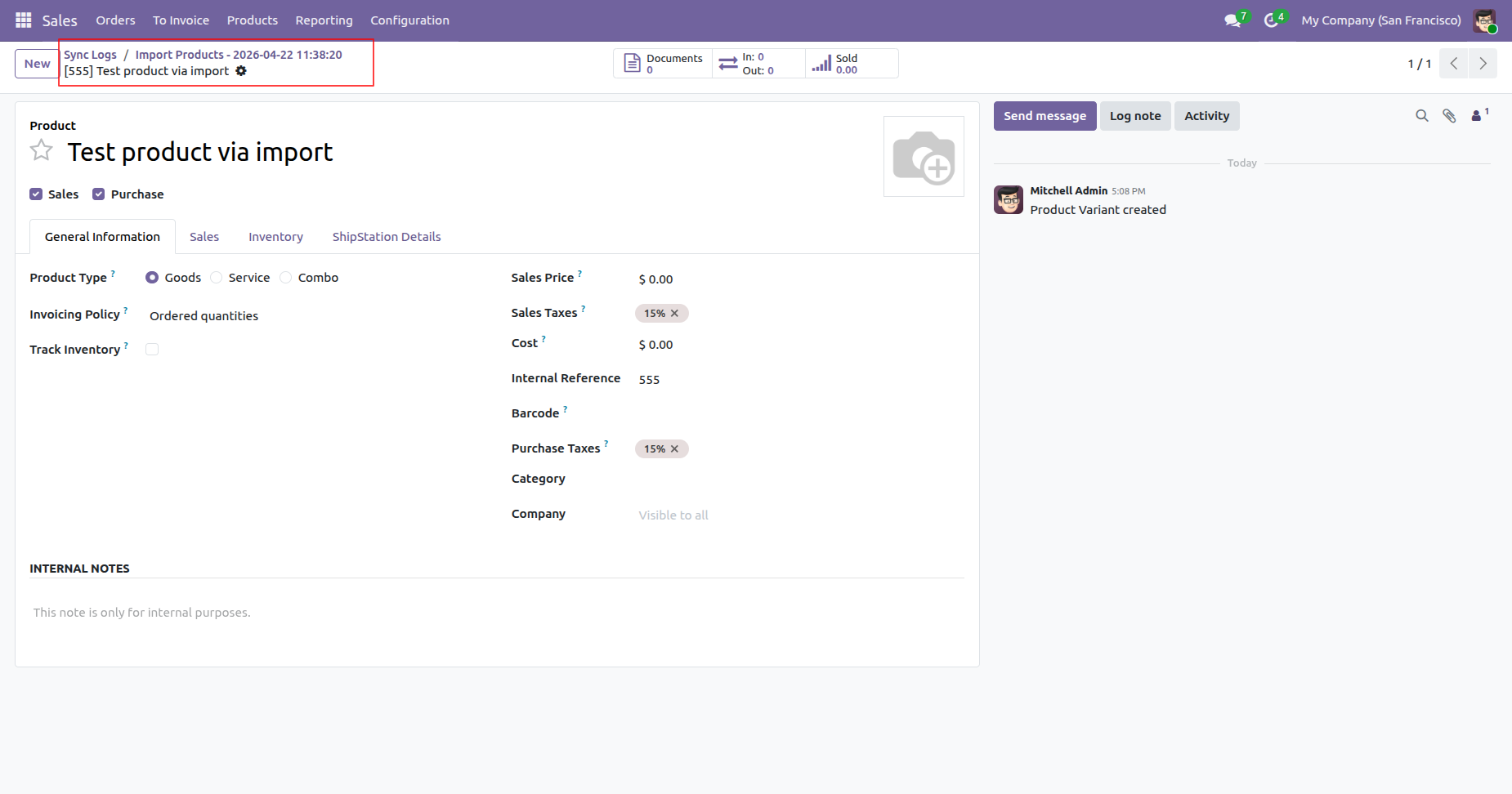
Verify the attributes of products imported from ShipStation to confirm data accuracy within the Odoo system.
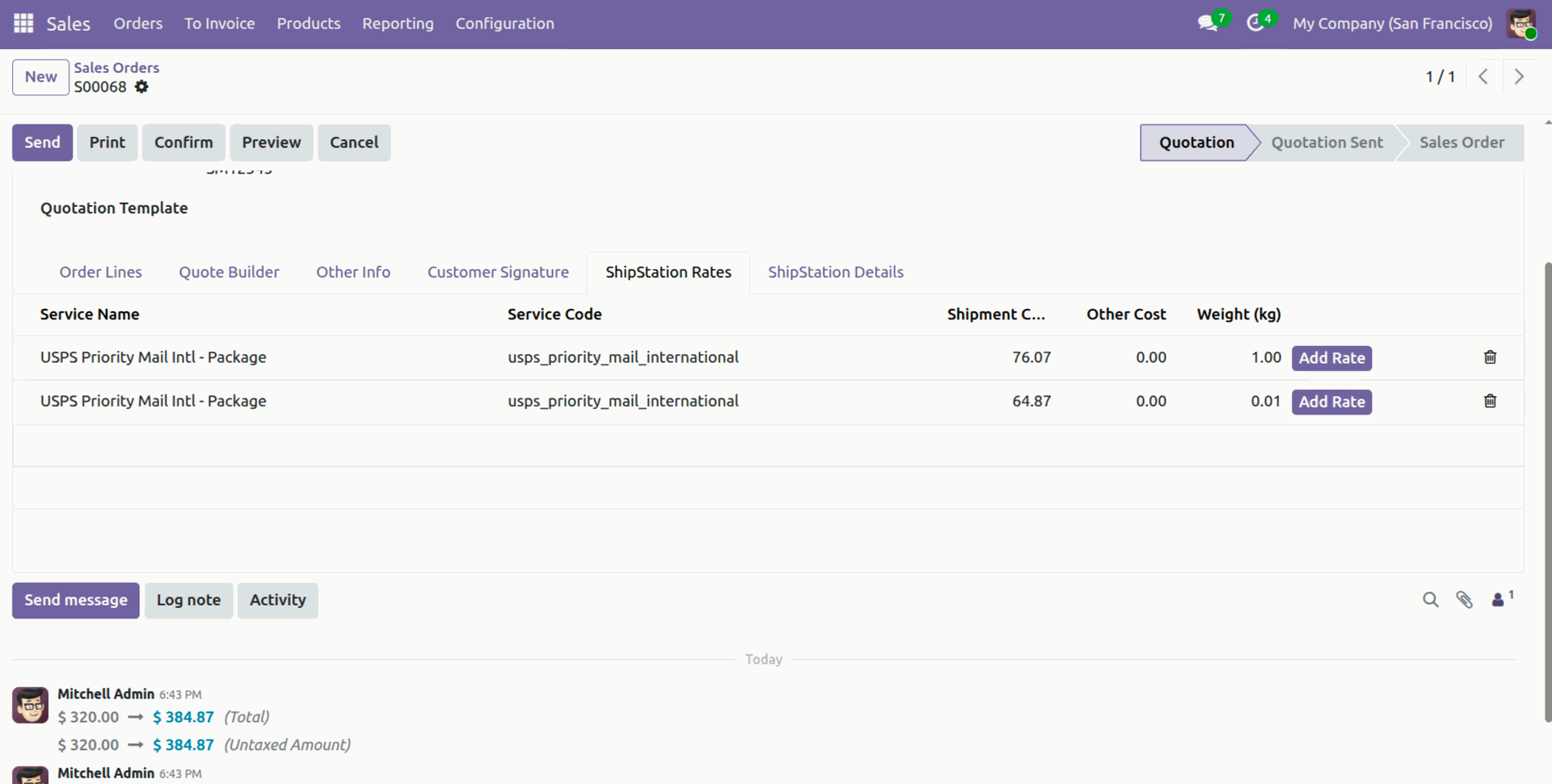
Compare multiple available ShipStation rates and services to choose the most cost-effective shipping option.
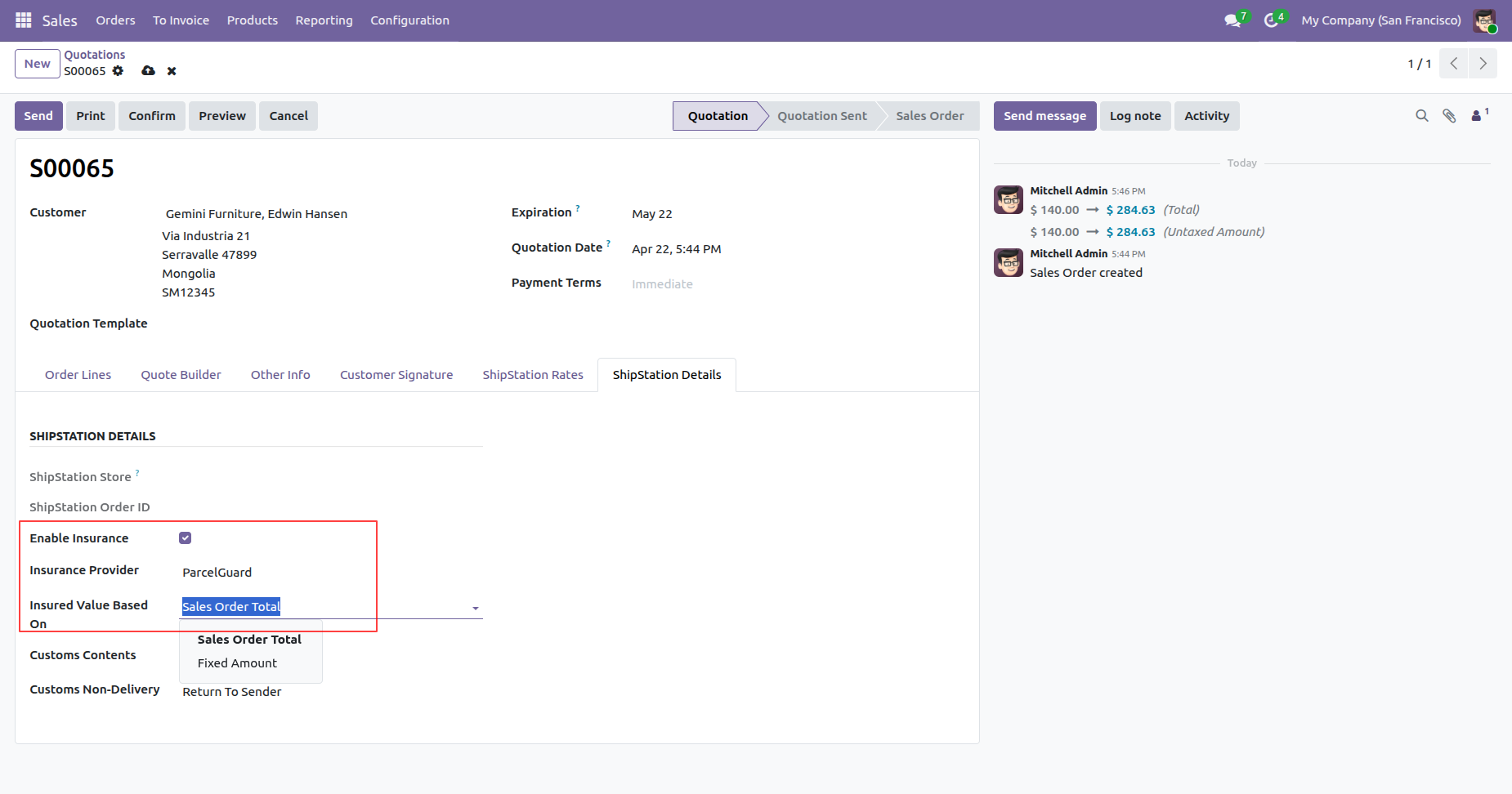
Enable shipping insurance within the ShipStation details tab to protect your high-value shipments during transit.
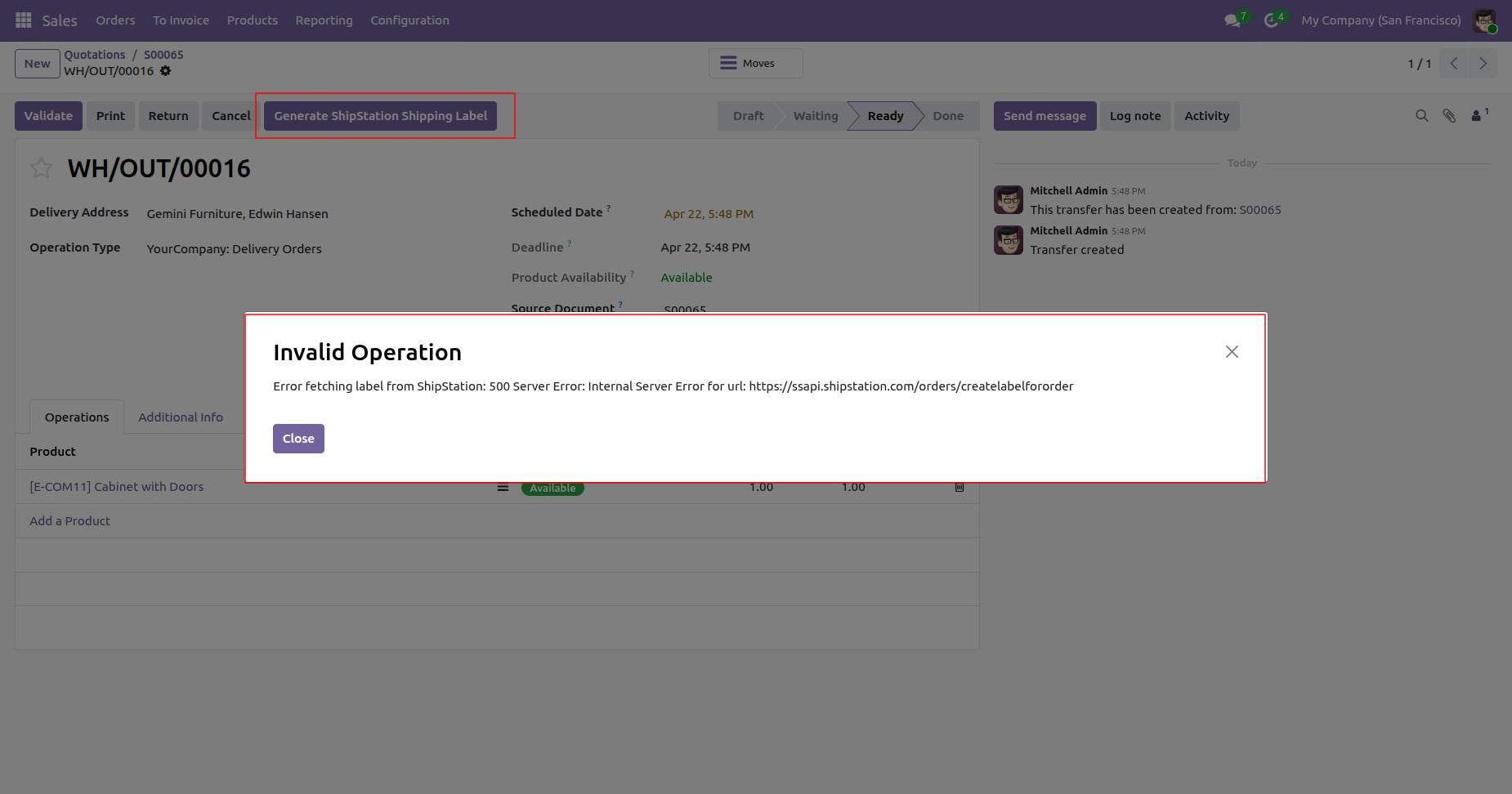
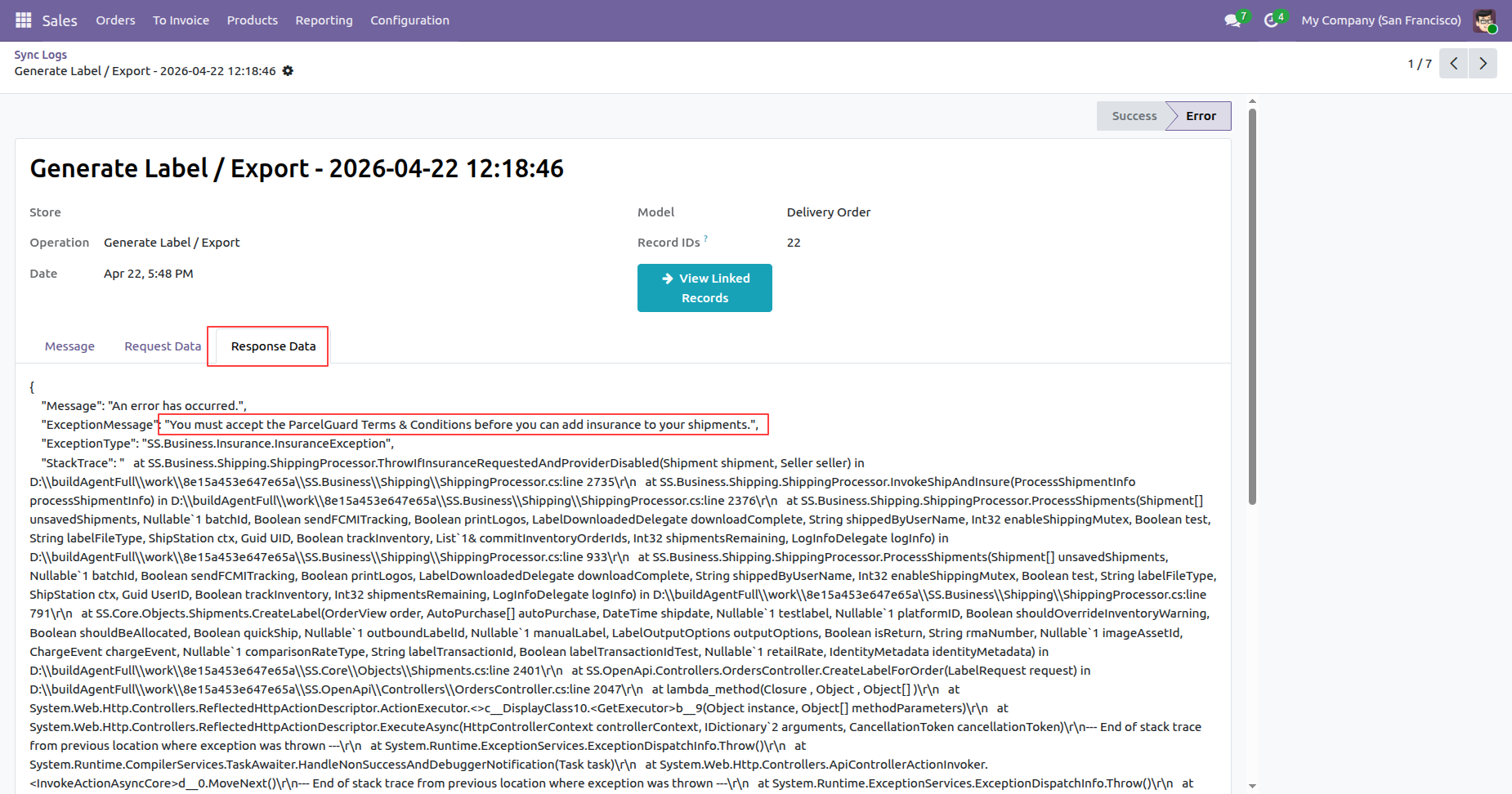
Encounter informative error messages when the ShipStation API experiences server-side issues during label generation.
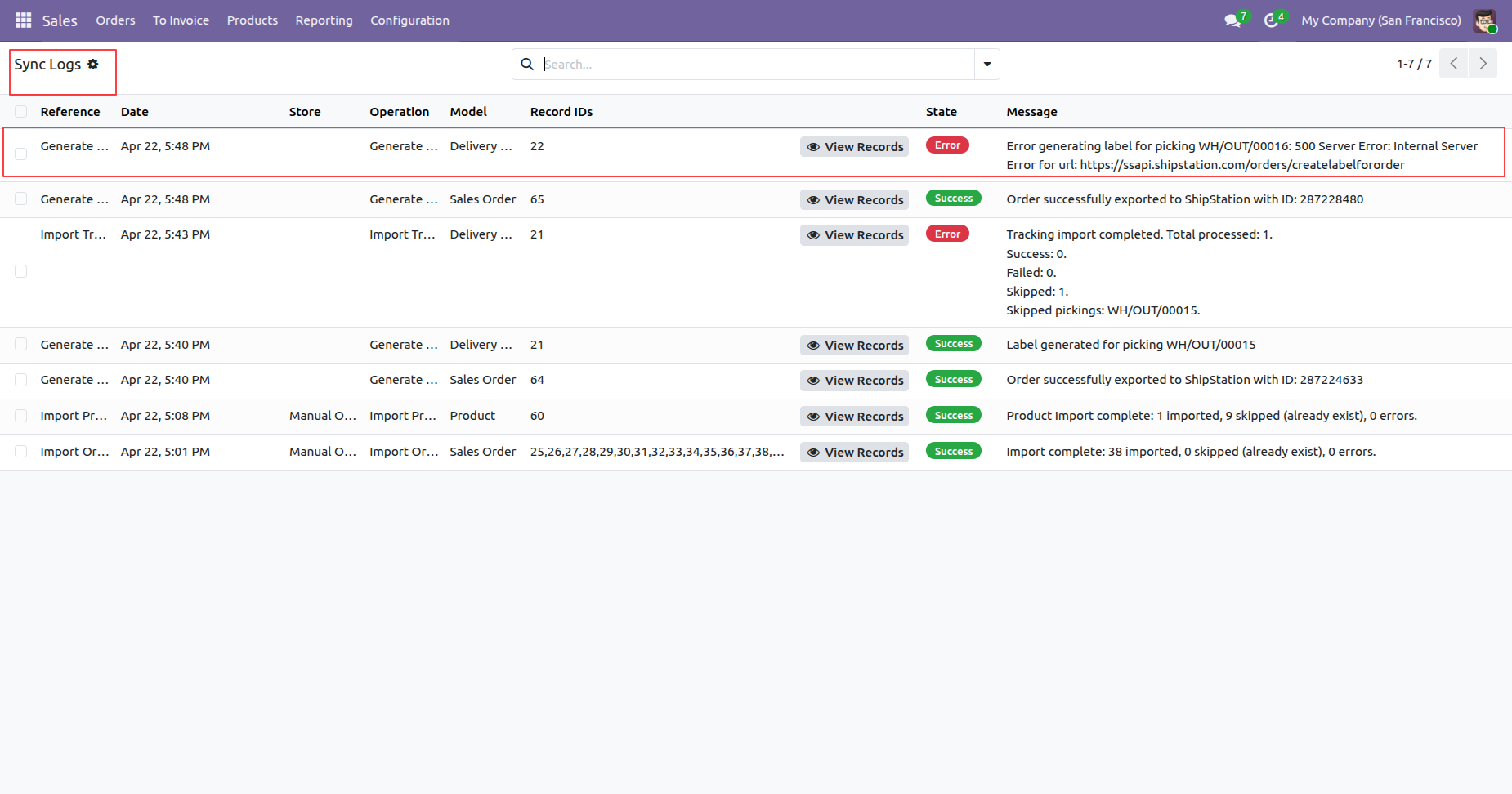
Monitor both successful and failed synchronization attempts to quickly identify and resolve shipping integration issues.
View detailed error logs to understand specific carrier requirements like accepting terms and conditions for insurance.
Version 18.0.5.0.0 | Released on : 26th August 2026
Version 18.0.4.0.0 | Released on : 30th April 2026
Version 18.0.3.0.0 | Released on : 5th March 2026
Version 18.0.2.0.0 | Released on : 12th February 2026
Version 18.0.1.0.0 | Released on : 3rd December 2025
- Yes, this app works perfectly with Odoo Enterprise (Odoo.sh & On-Premise) as well as Community.
- No, this application is not compatible with odoo.com(odoo saas/Odoo Online).
- Please Contact Us at sales@softhealer.com to request customization.
- Yes, you will receive lifetime free updates for the version of the module you purchased.
- No, you don't need to install addition libraries.
- For version 12 or upper, you will need to purchase the module for each version that you want to use.
- Yes, we provide free lifetime support for the version you purchased.
- No, We do not provide any kind of exchange.
Discover Our Latest Apps