












Sales Order Quick Product Search

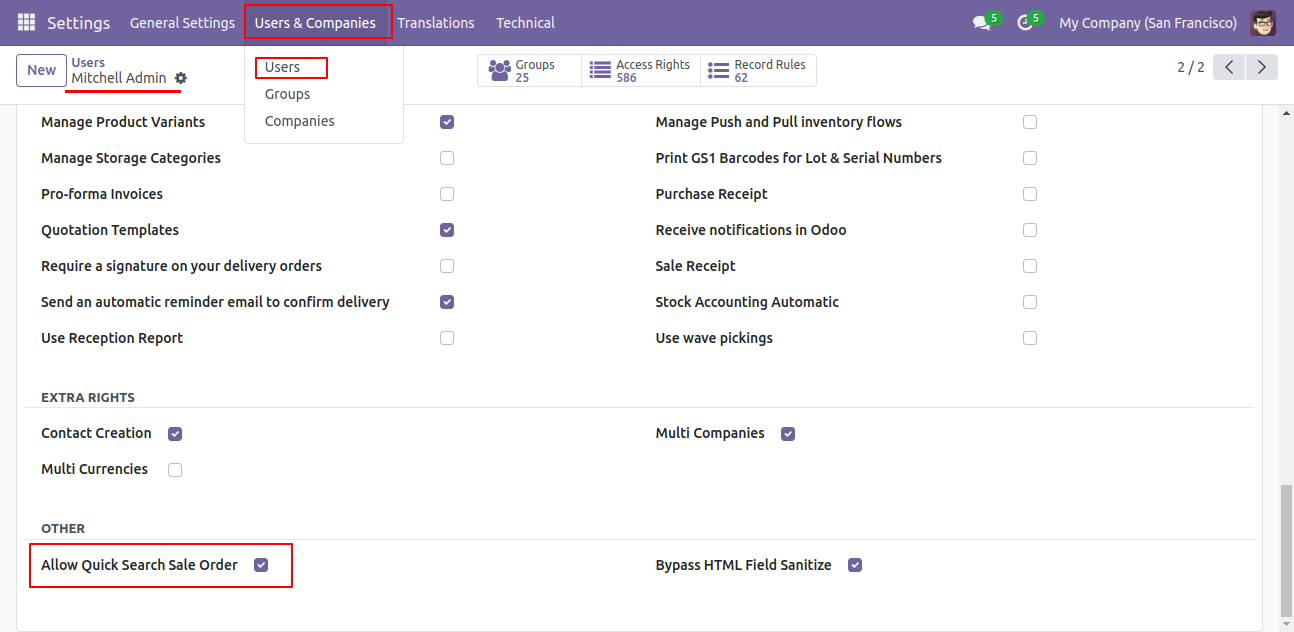
'Sale Order Quick Product Search' is used to search for products in the sale order. You can easily search products by name, barcode, reference no, etc. Easily filter search product list by name, reference, etc. also you can get the on-hand the quantity of each product variant. Users can add multiple products in the sale order by one click. You can enable or disable this feature for the different users for applying group 'Allow Quick Search Sale Order' in user settings.

Features
- Easy to search for products with variants.
- Easy to filter search results like name, reference, and barcode.
- Easy to enable "quick search product" feature for a particular user by allowing the group "Allow Quick Search Sale Order" in the setting.
- Easy to know on hand product quantity.
- Easy to add one by one or multiple search products in the sale order line.
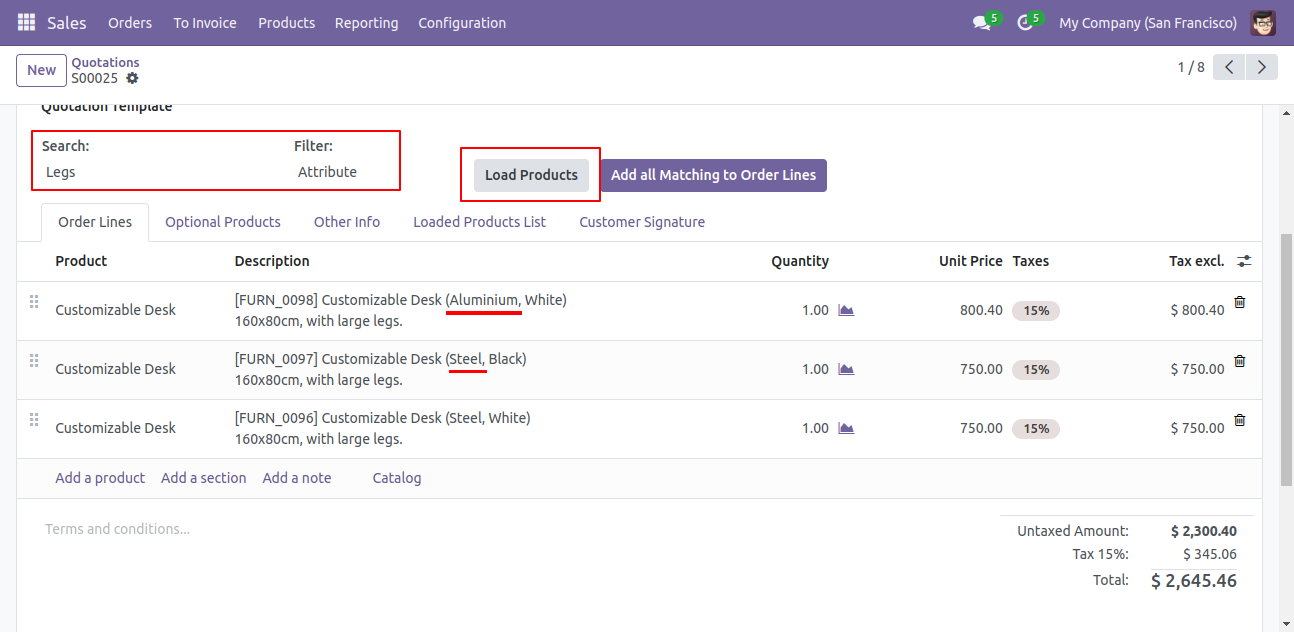
- You can filter search results like product attribute & attribute value.
- You can search for products as per the score in the Sale Order.
Tick 'Allow Quick Search Sale Order' Group in User.
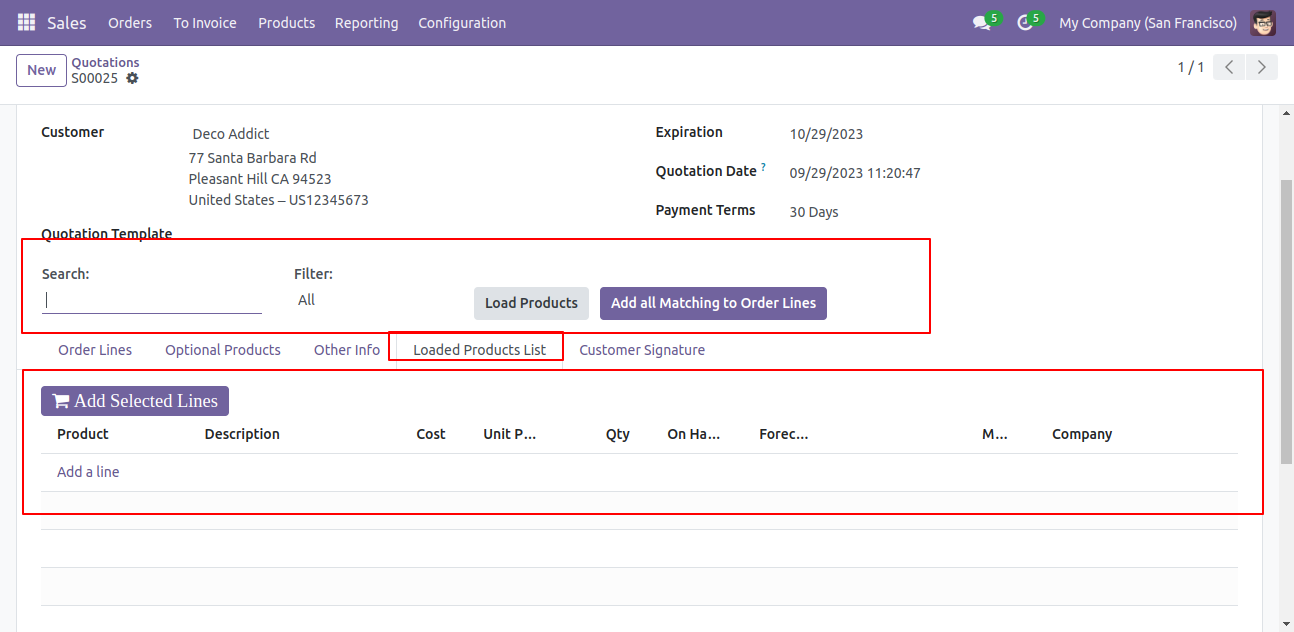
Filter Product with the product name and product category and press 'Load Products' to load Products with all details of products in the Loaded Products List Tab.
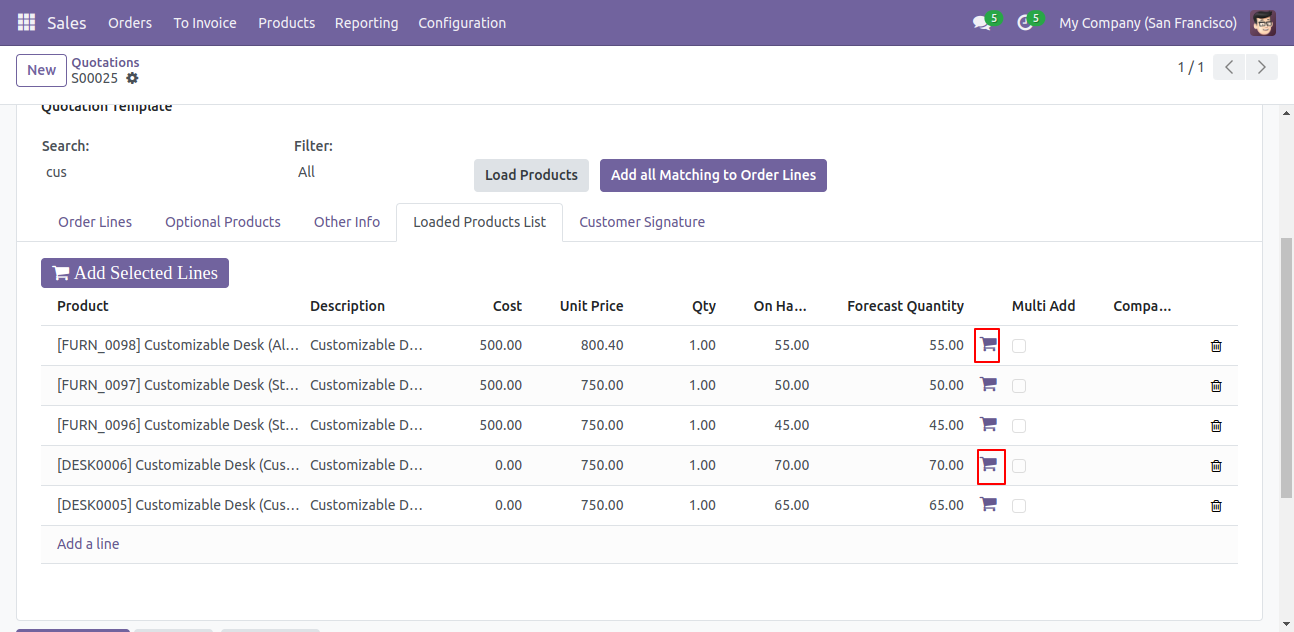
Loaded Products are displayed with all details of the product.
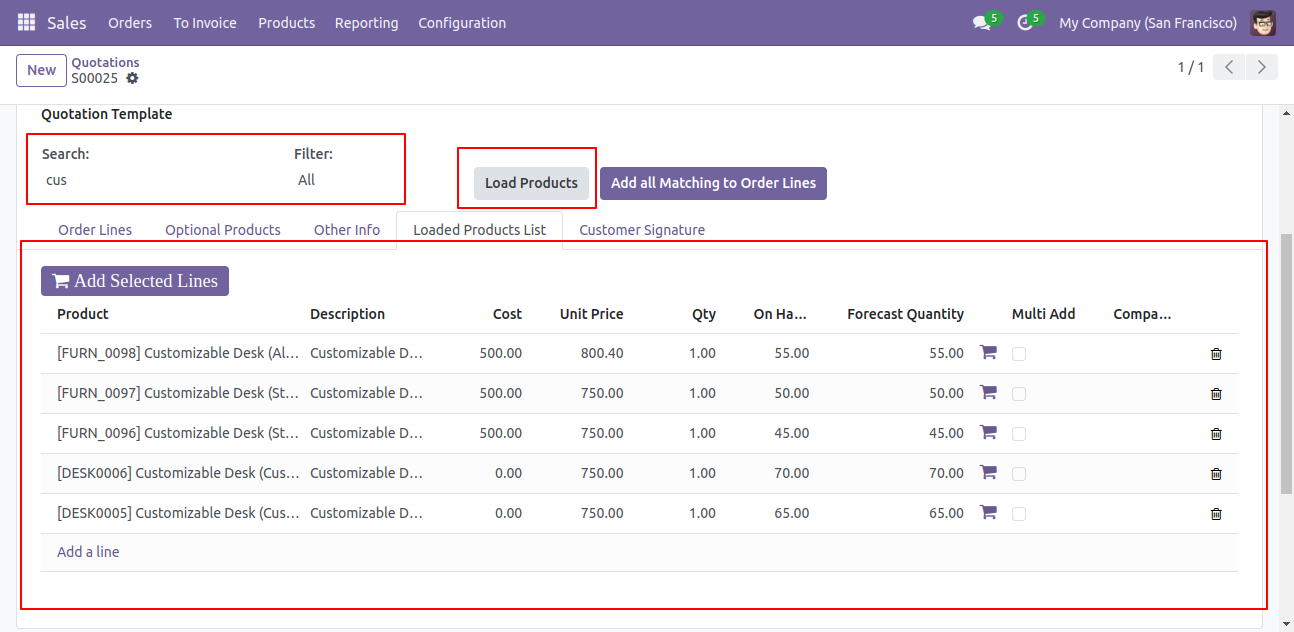
Press "Cart" Icon of Products to add in Order Line.
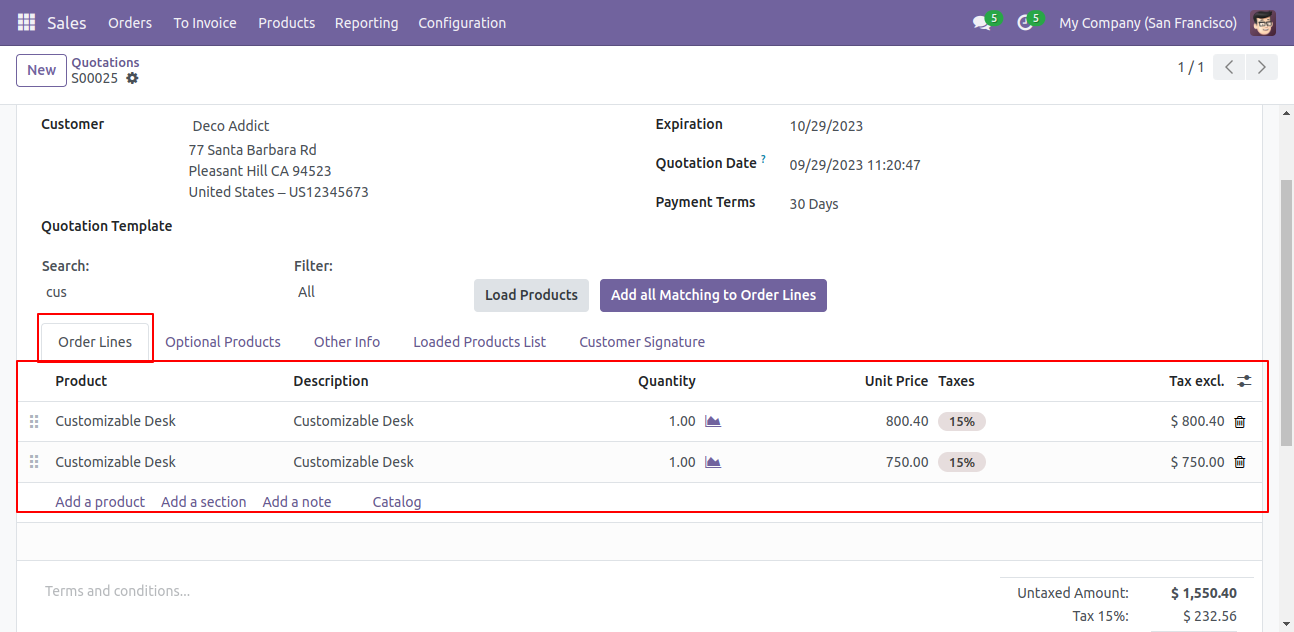
Product added in Order Line.
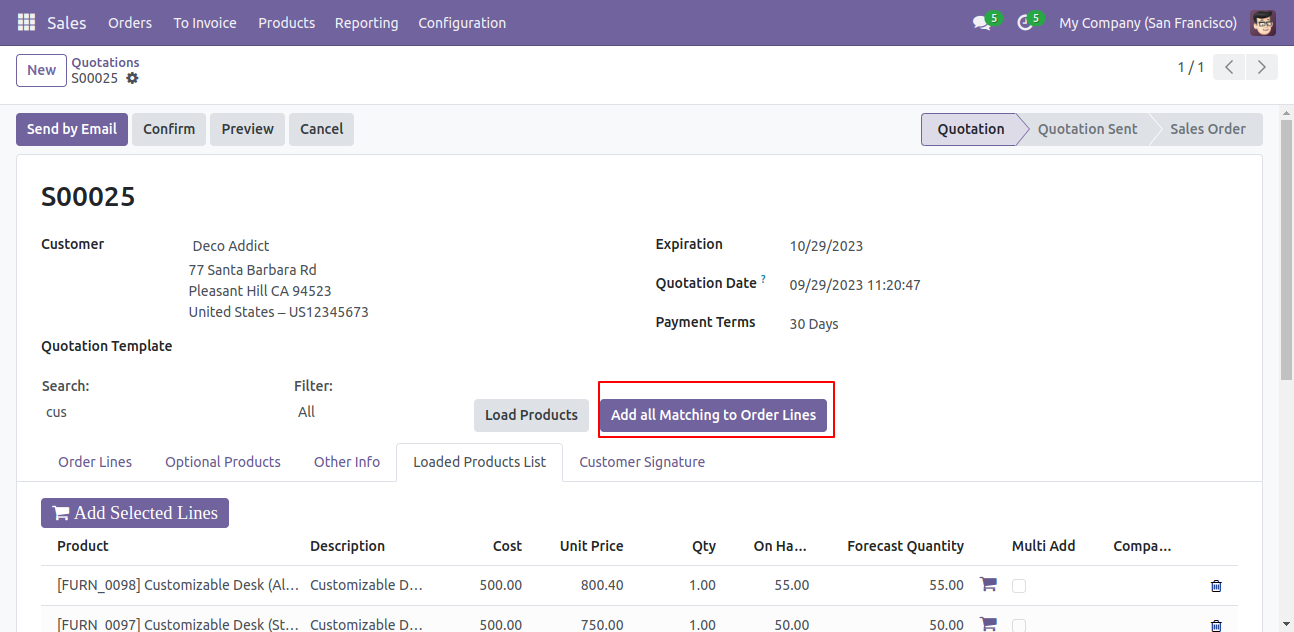
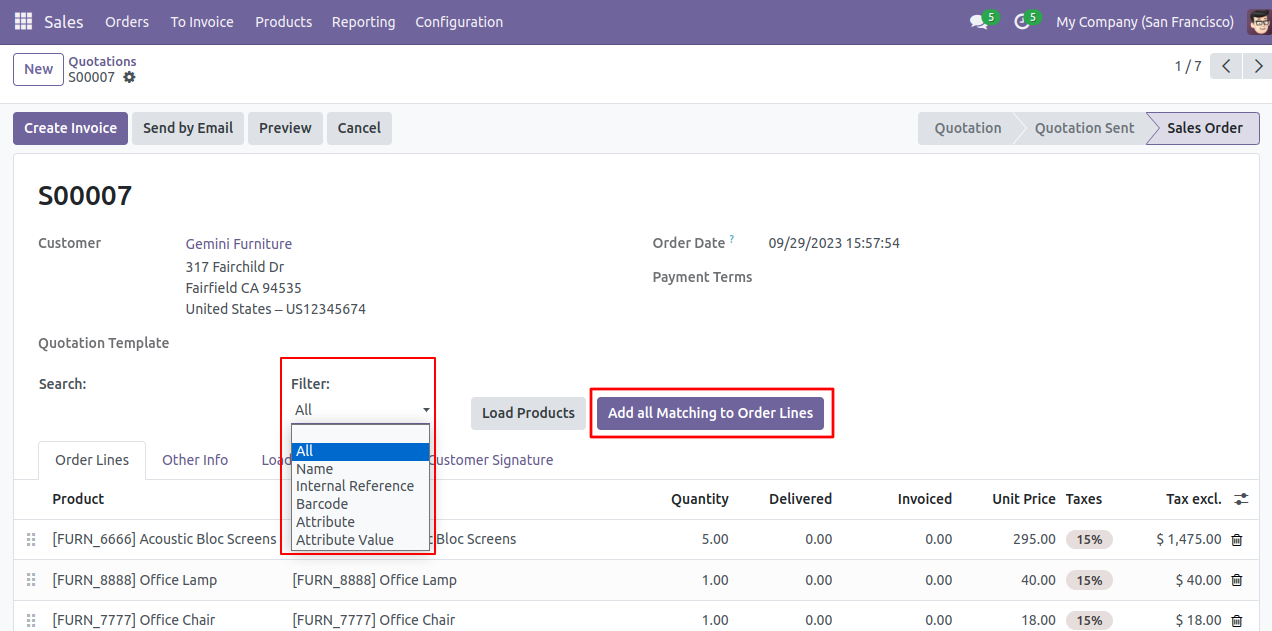
Press 'Add all matching to Order Lines' to Add all products in Order Line based on the given Filter.
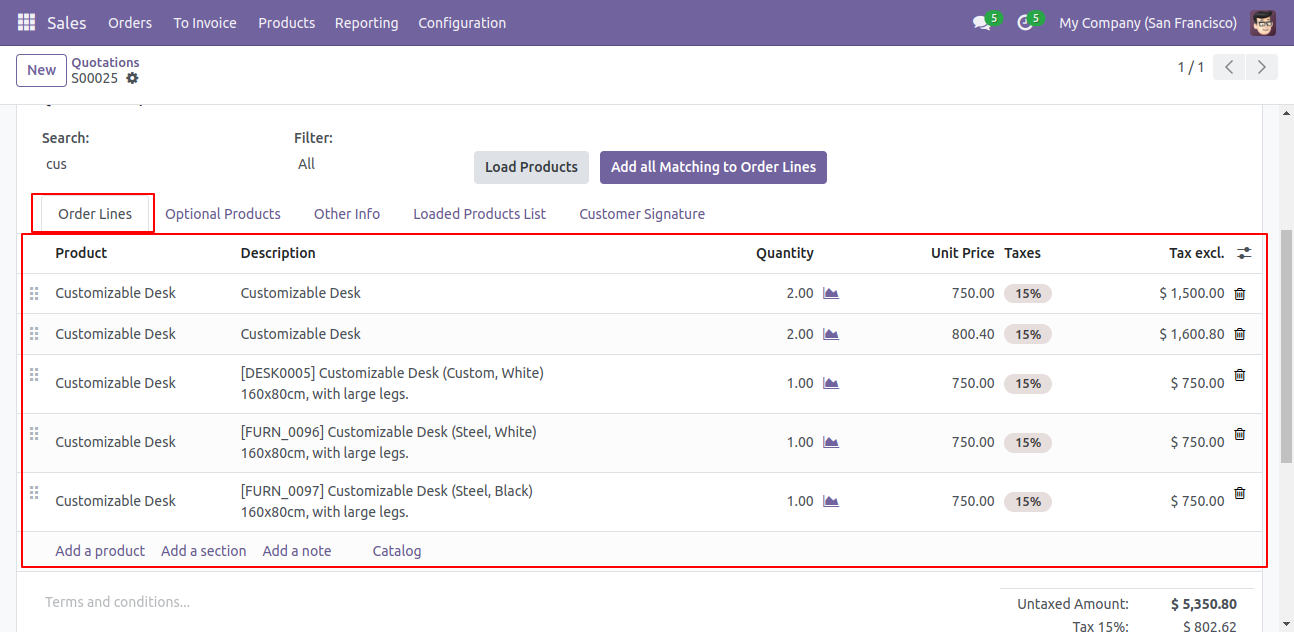
Products are added to Order Line based on the given Filter.
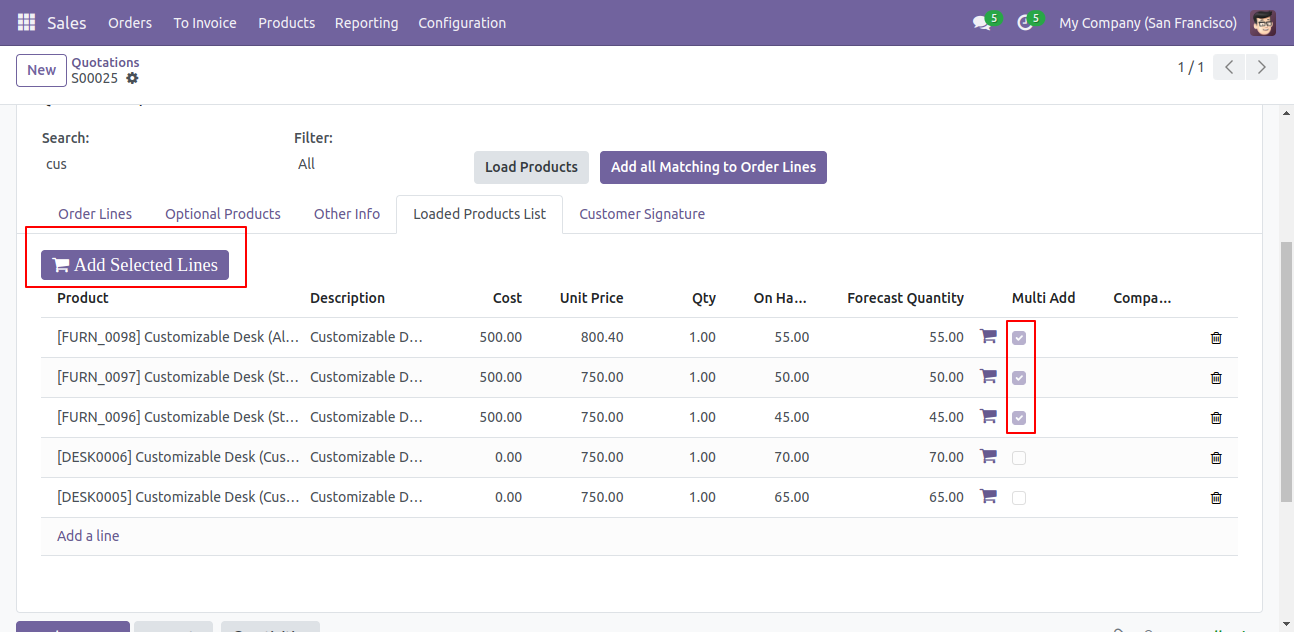
Select Products to add Products in Order Line and Press 'Add Selected Lines'.
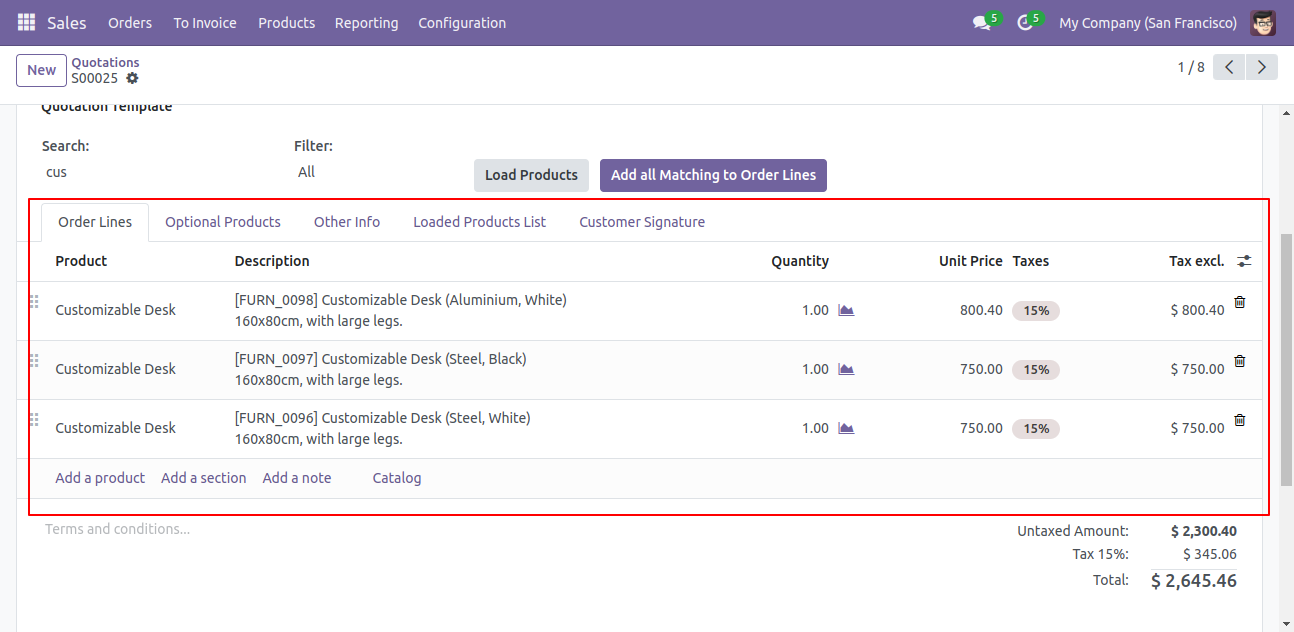
Products are added to the order line.
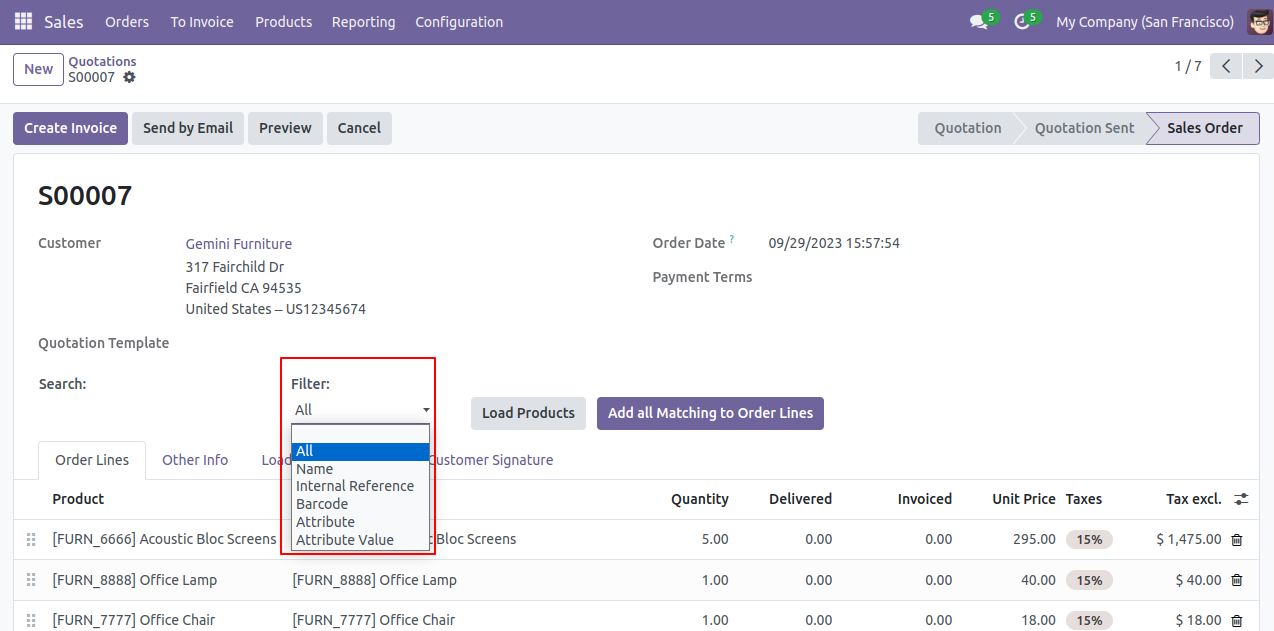
Set the default search filter to 'All'.
Button name 'Add to Order Line' update with 'Add All Matching to Order Lines'.
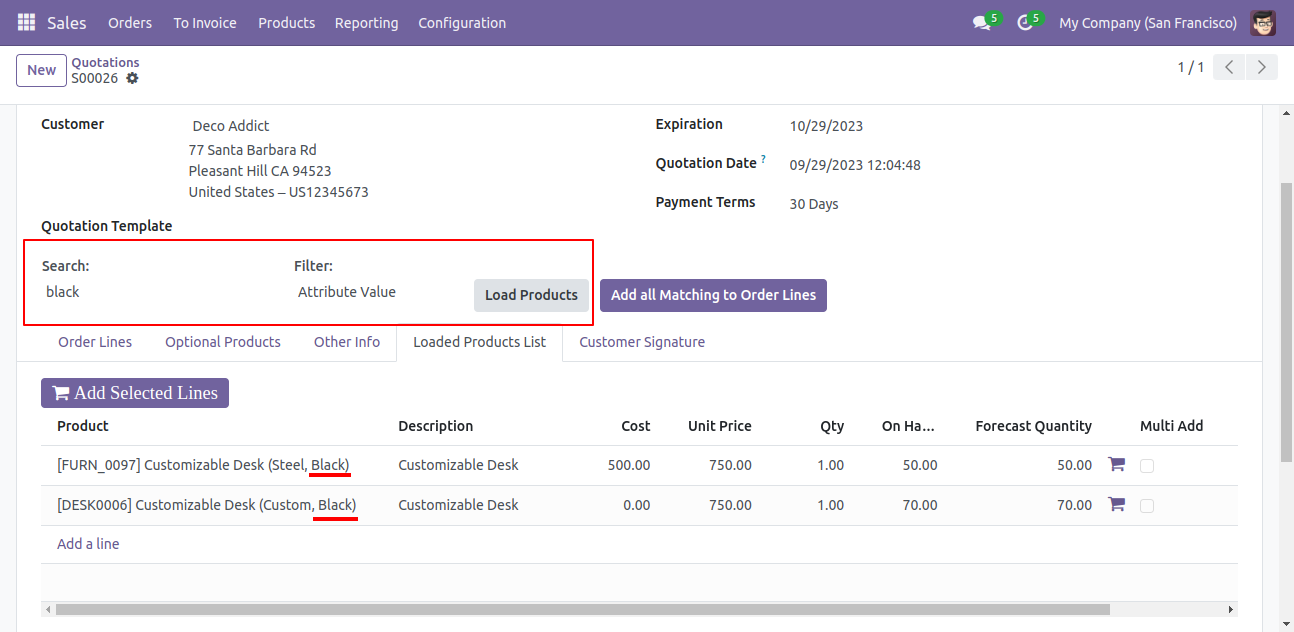
Products displayed with attributes & attributes value.
'Can be Sold' is disabled in products.
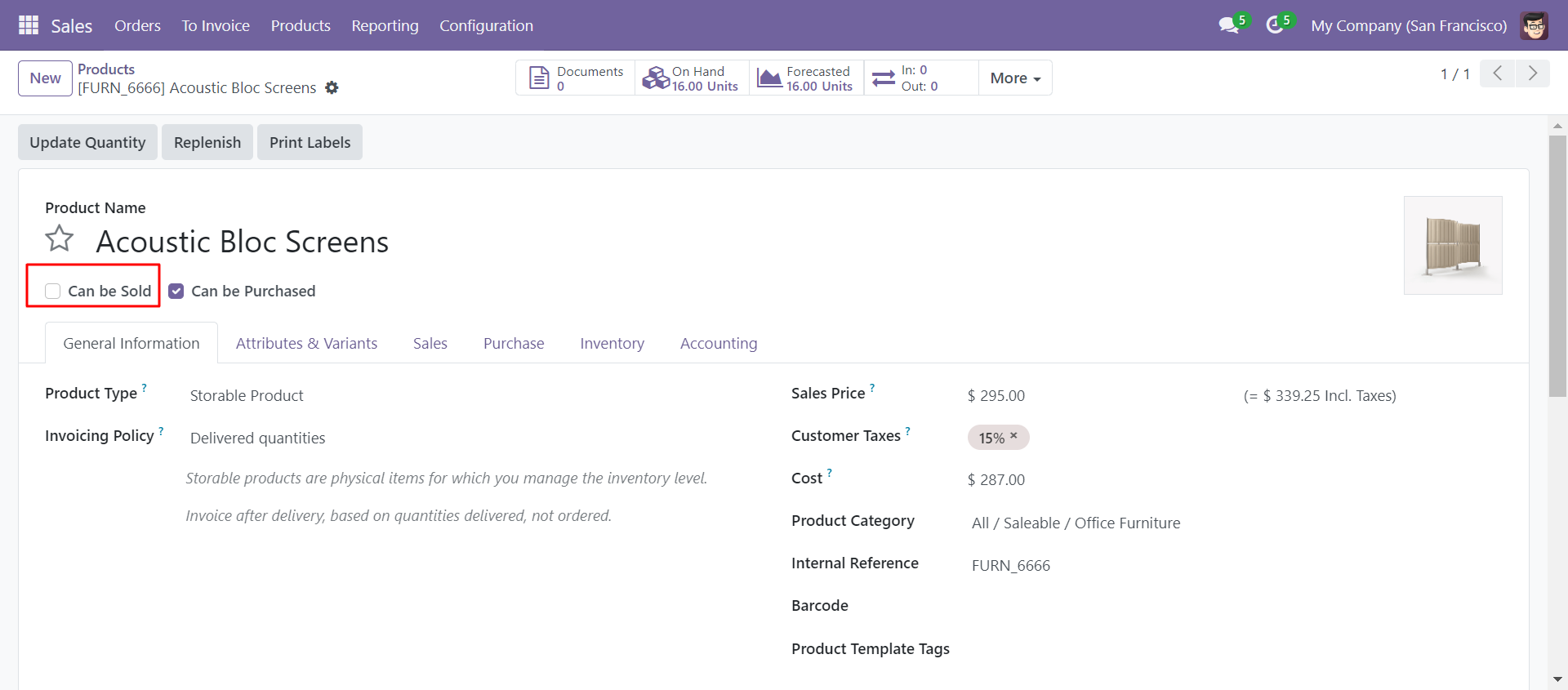
So that not comes in search.
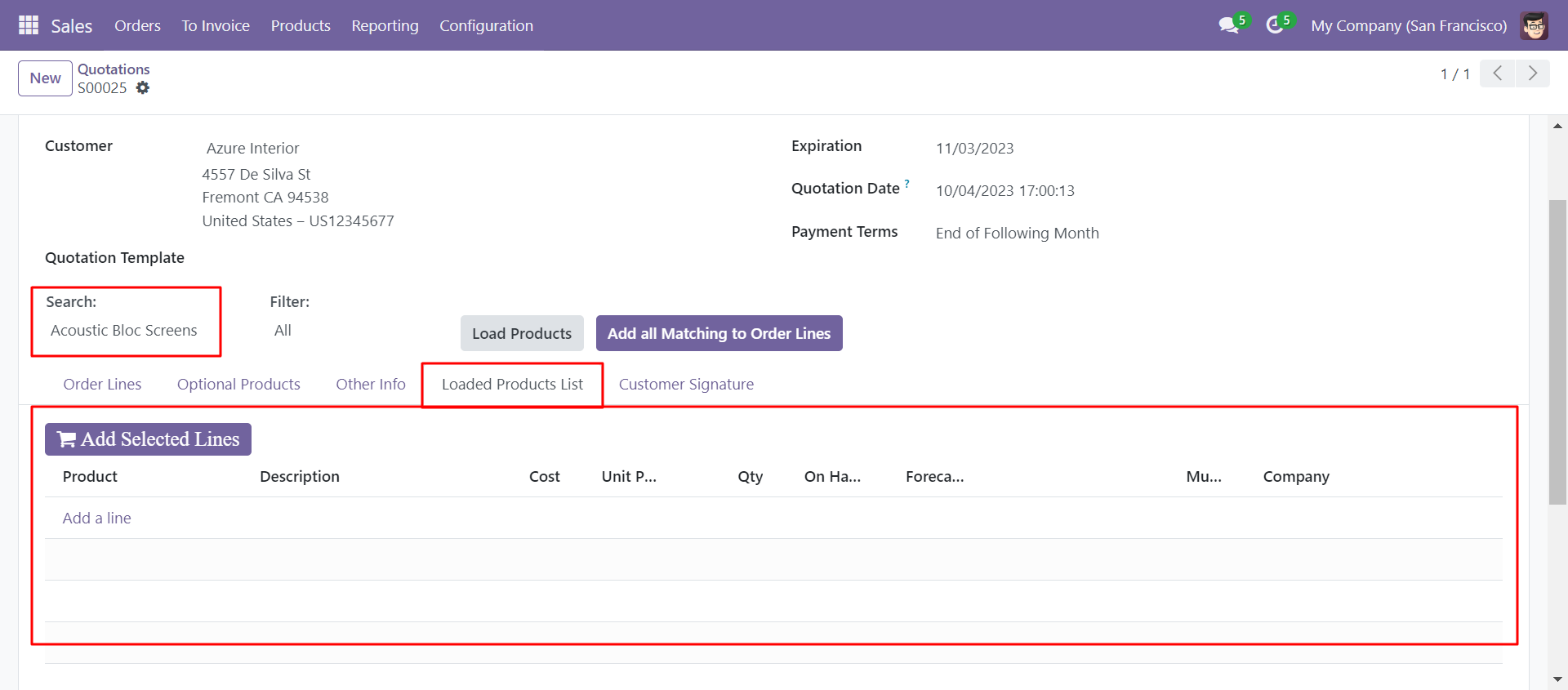
'Can be Sold' enabled products comes in search.
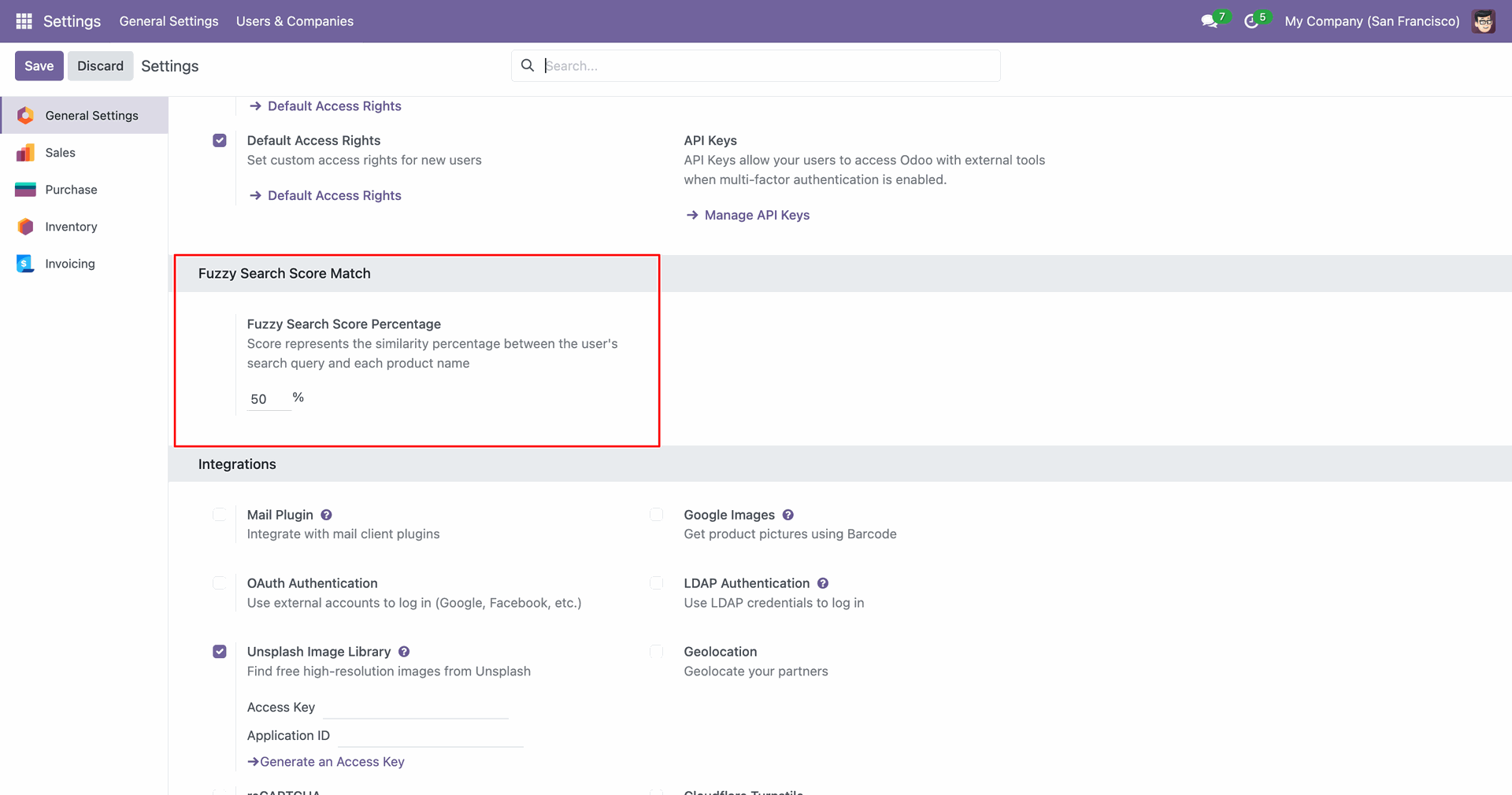
Go to General Settings and set the desired percentage in the Fuzzy Search Score Percentage field: 50 %.
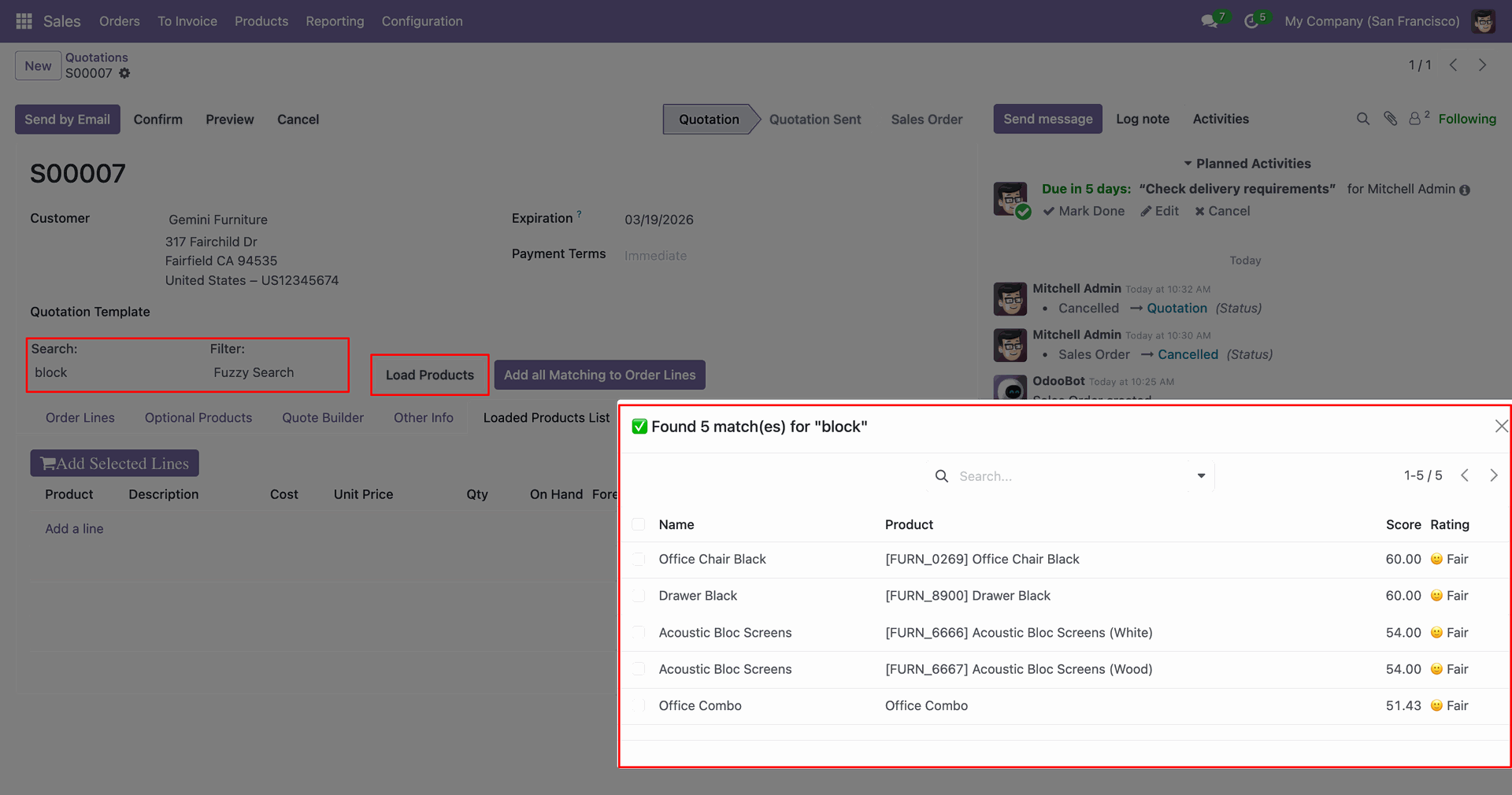
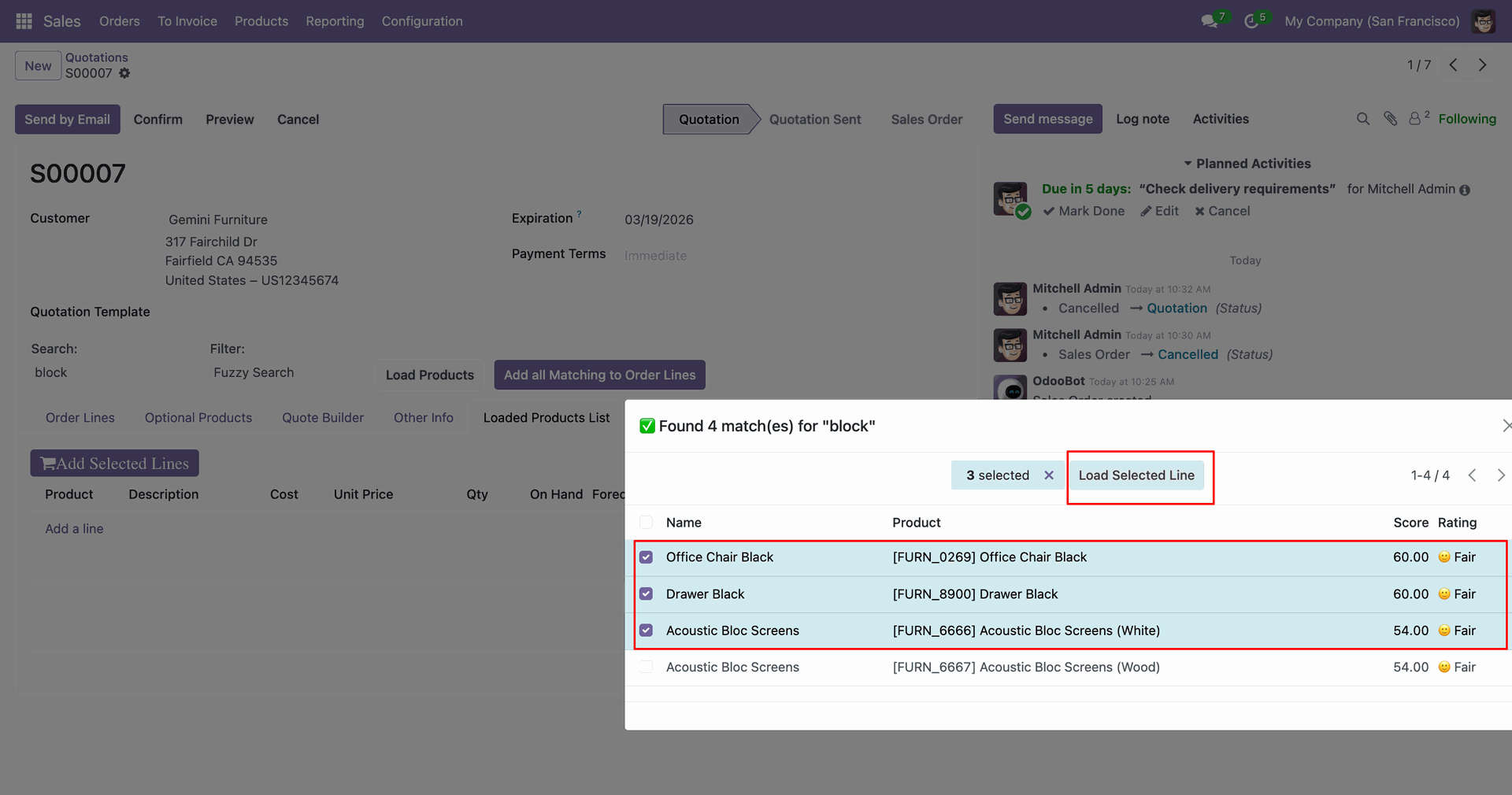
Add Search and Filter: Fuzzy search and click on the 'Load Product' button. After that, a wizard will appear.
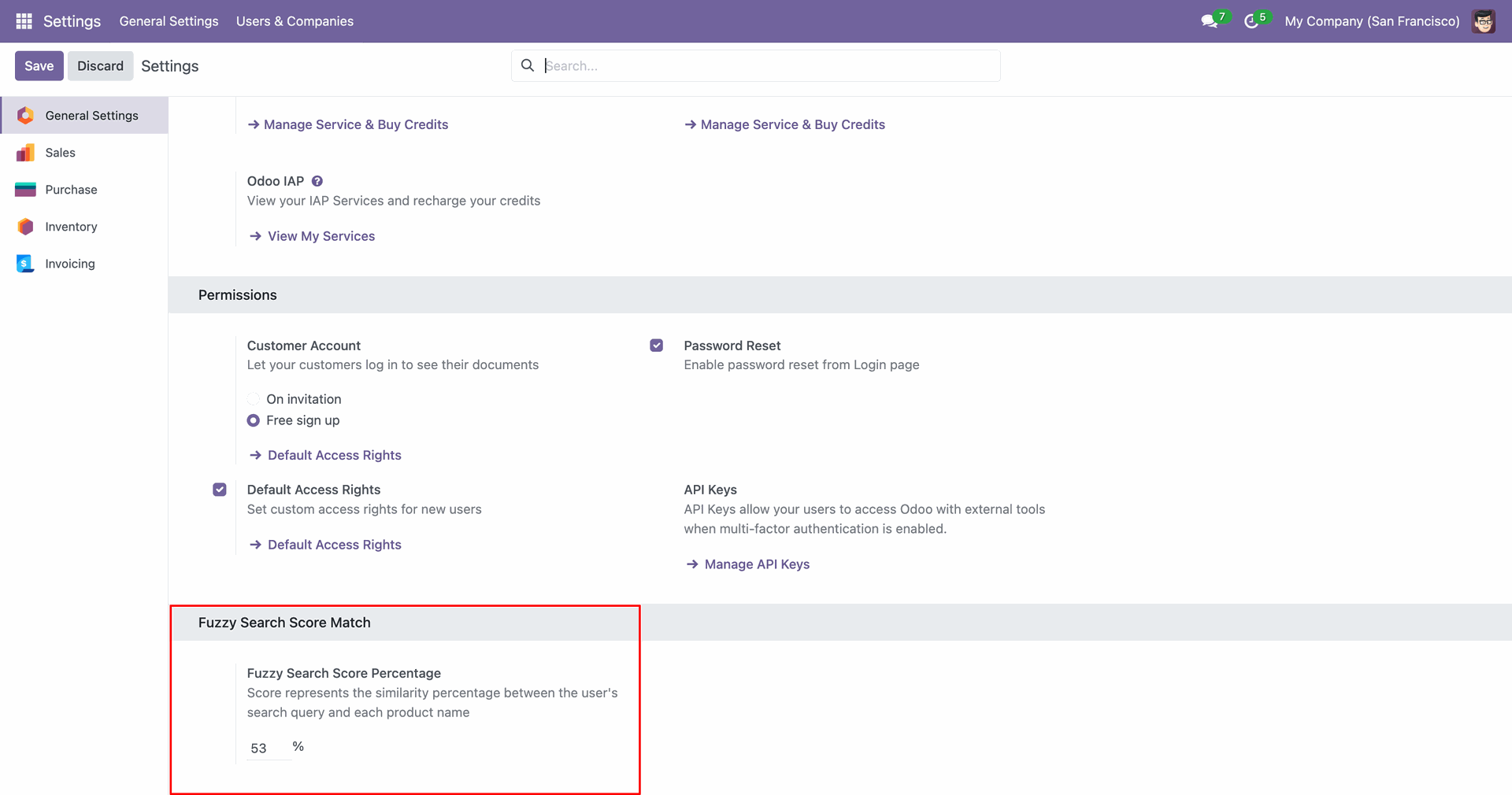
Set the 53% percentage in the Fuzzy Search Score Percentage field.
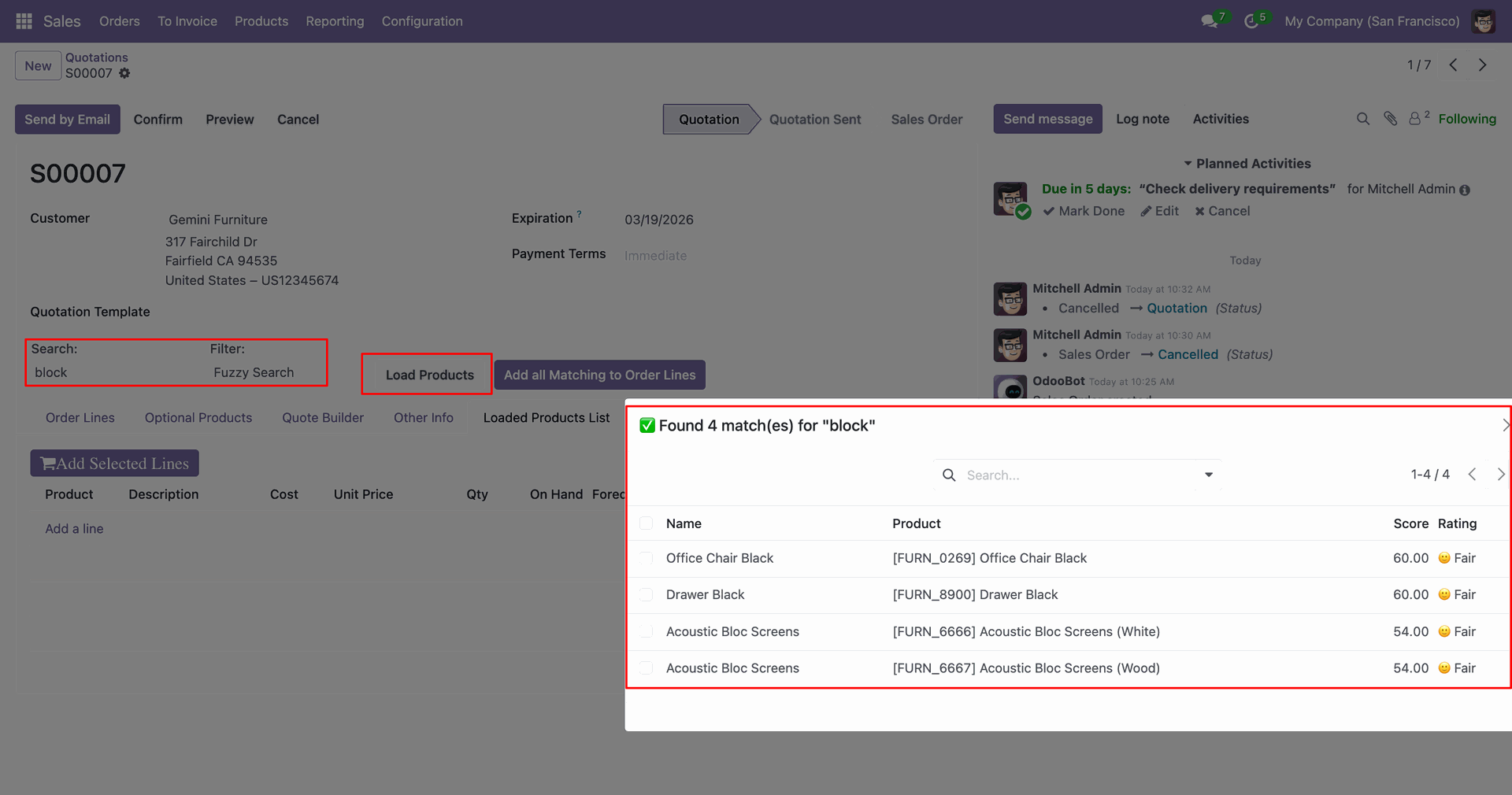
Add Search and Filter: Fuzzy search and click on the 'Load Product' button. After that, a wizard will appear.
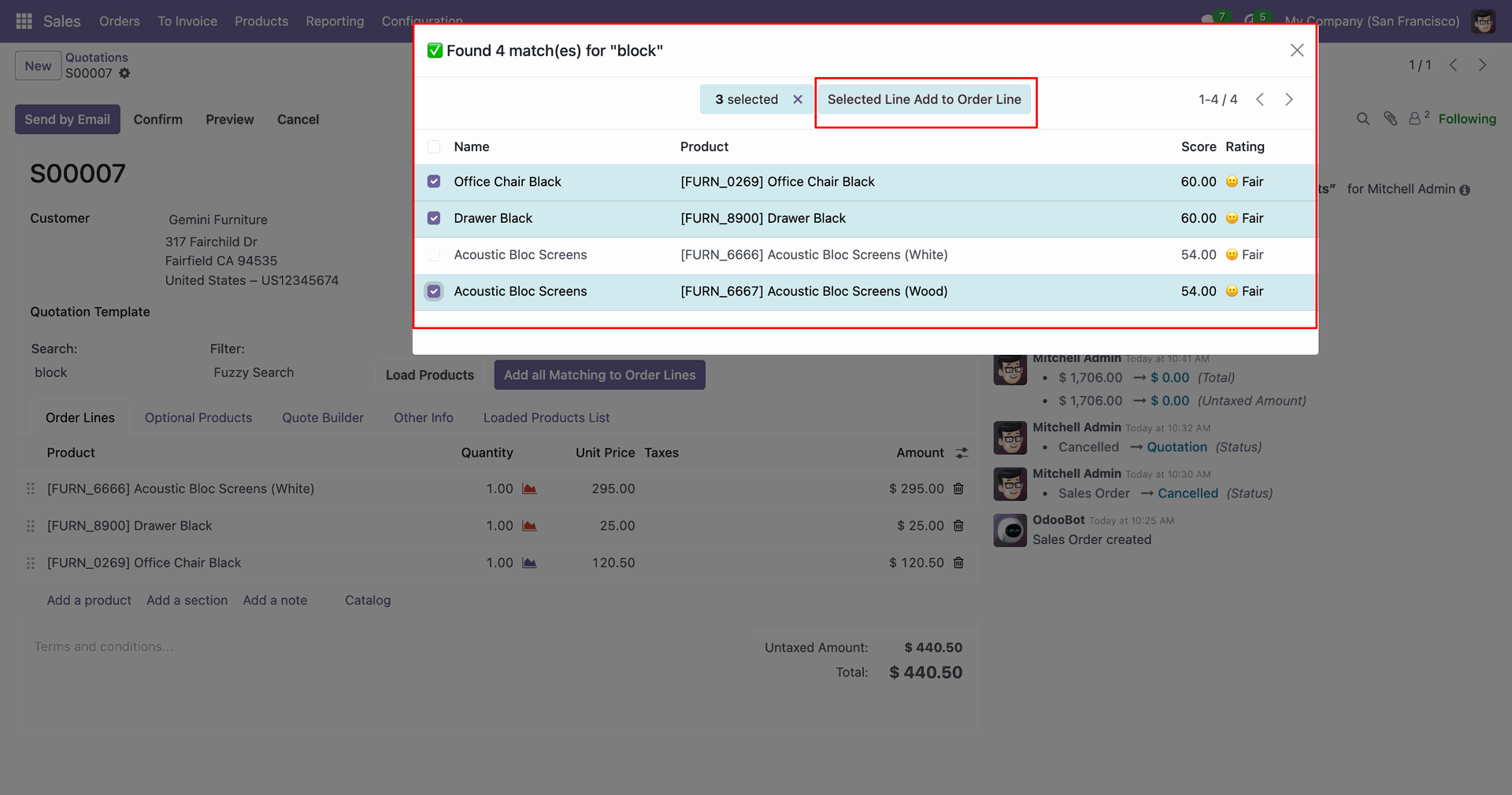
Select the products and click on the 'Load Selected Line' button.
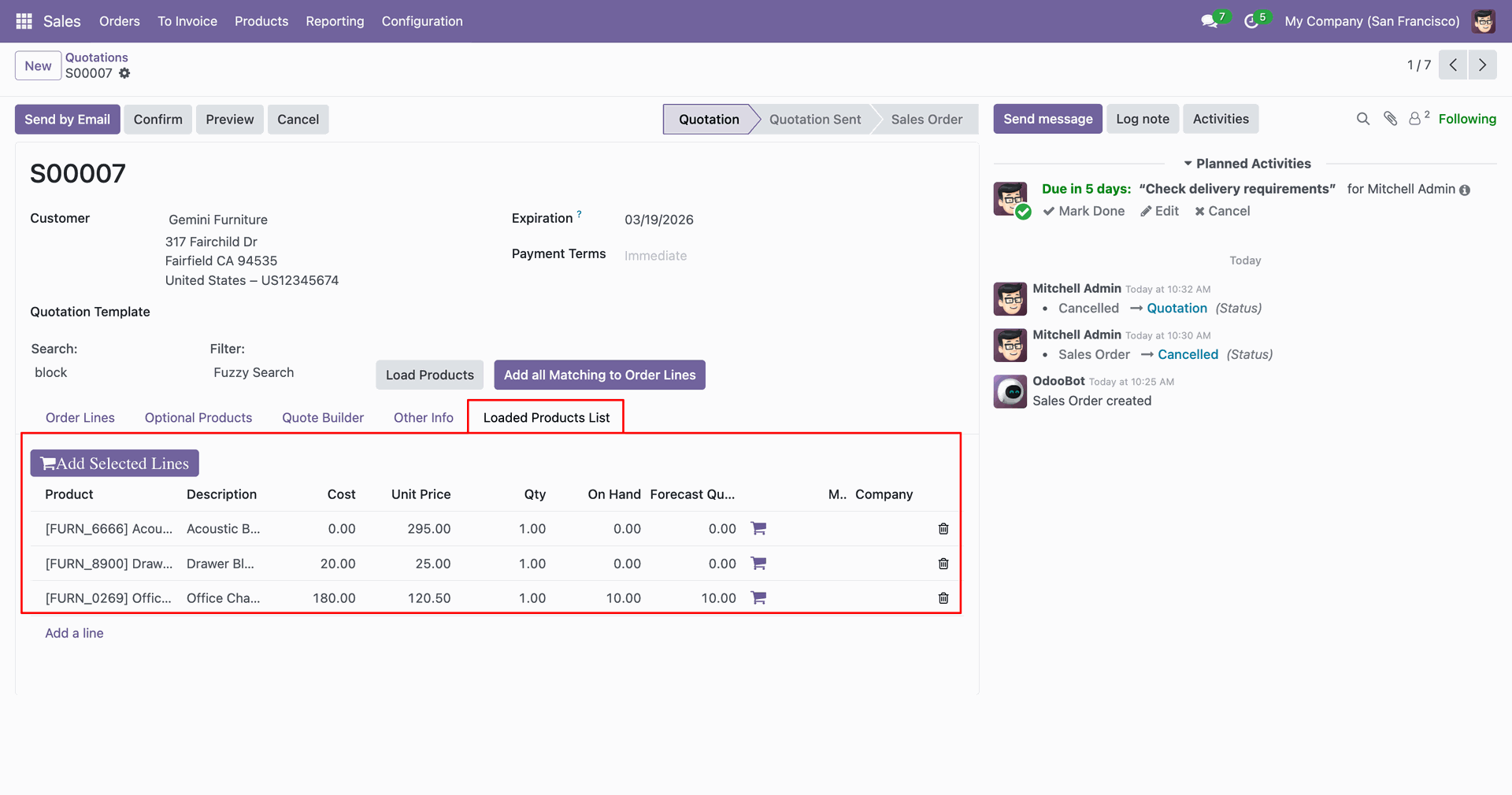
You can view the added products under the 'Loaded Product List' tab.
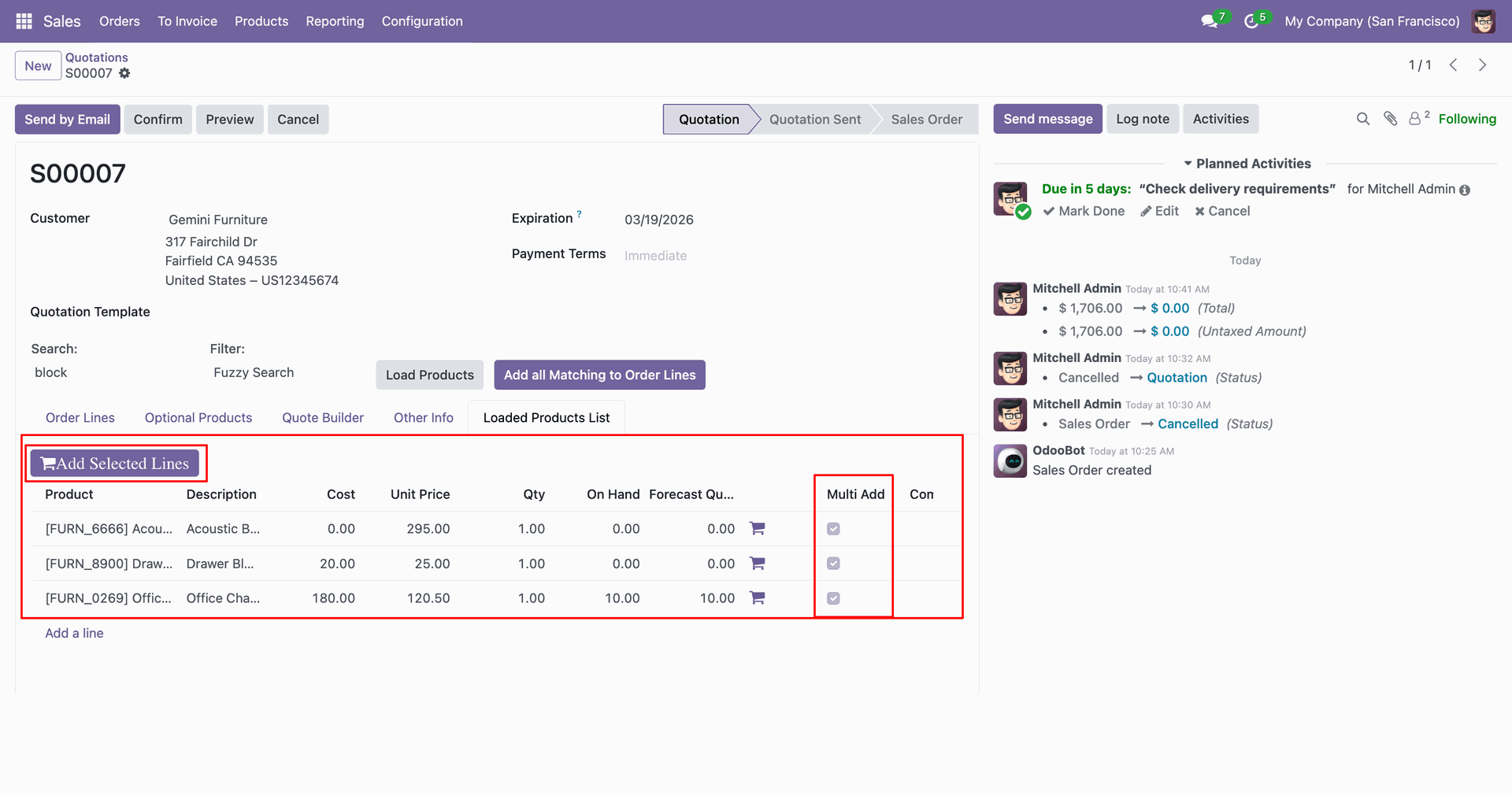
Tick the Multi Add boolean for the products that you want to add to the order line and click on the 'Add Selected Lines'.
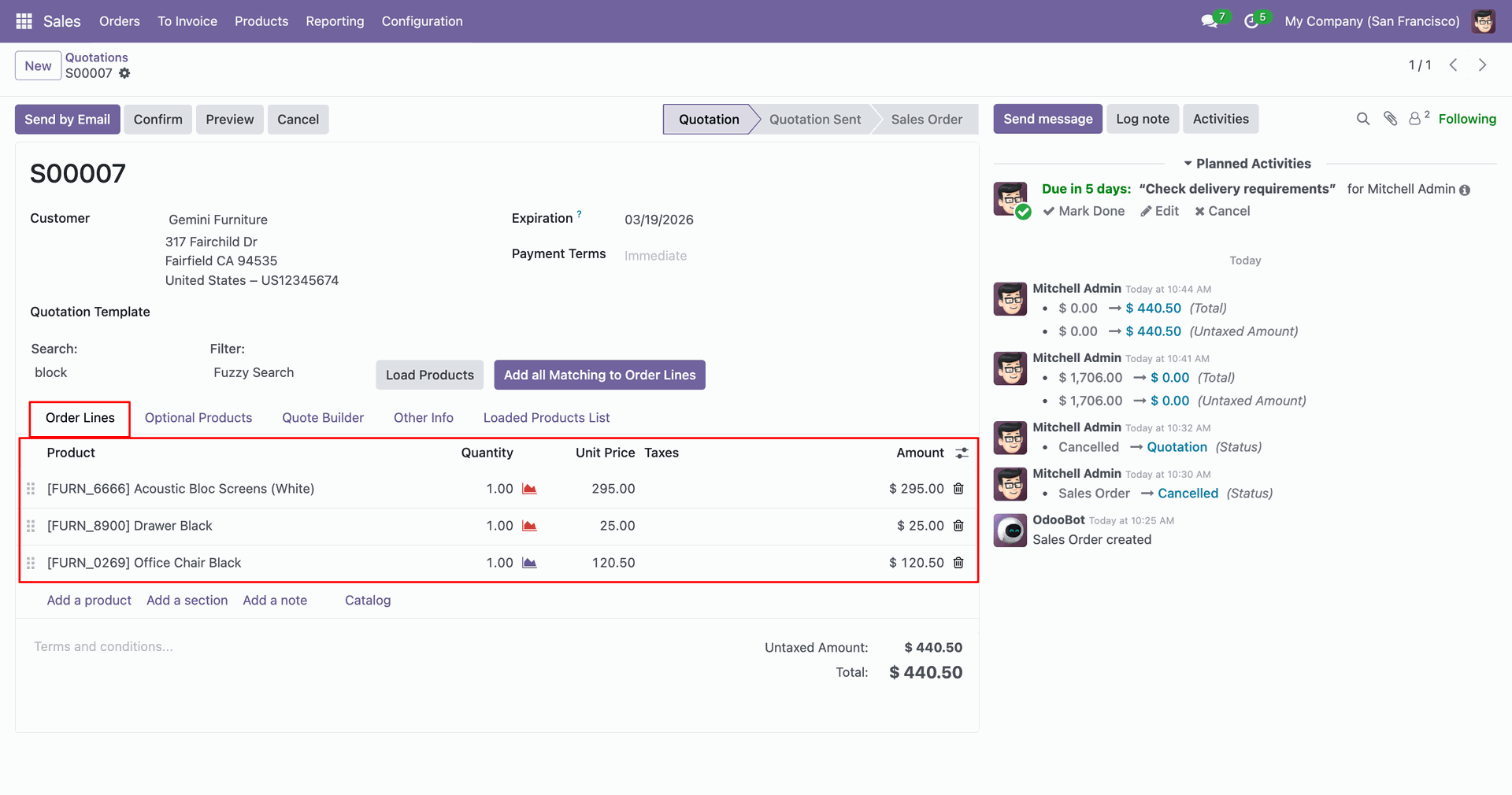
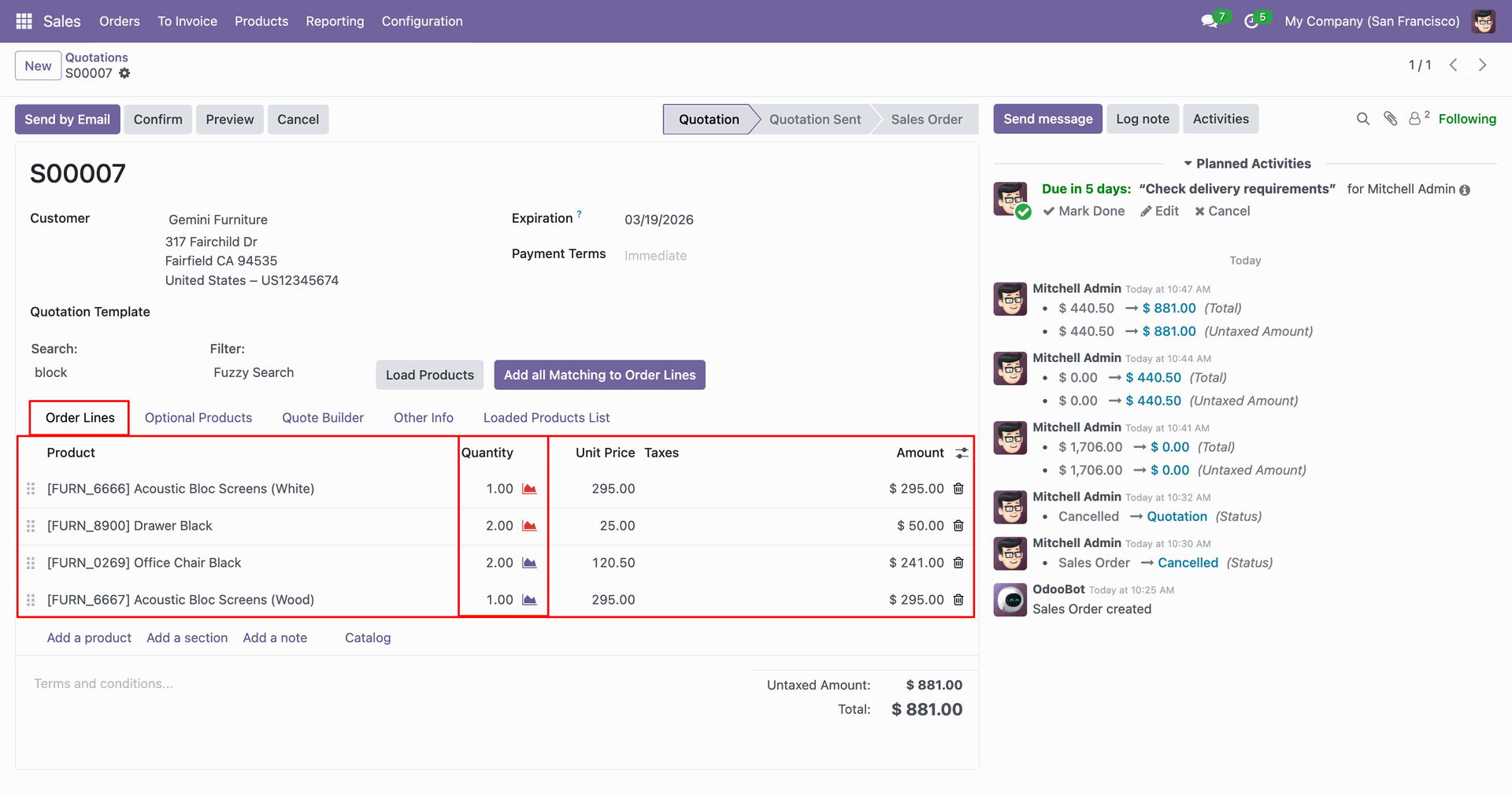
The selected products are added to the order line.
Tick the Multi Add boolean for the products that you want to add to the order line and click on the 'Add Selected Lines'.
The selected products are added to the order line.
Version 20.0.1.0.0 | Released on : 15th September 2026
- Yes, this app works perfectly with Odoo Enterprise (Odoo.sh & Premise) as well as Community.
- No, this application is not compatible with odoo.com(odoo saas/Odoo Online)
- Yes, to test this module, please contact us at sales@softhealer.com.
- Please contact us at sales@softhealer.com to request customization.
- Yes, we provide free support for 365 days from the date of purchase.
- Yes, you will receive lifetime free updates for the version of the module you purchased.
- No, there is no need to install any additional libraries.
- Yes, for version 12 and above, you need to purchase the module separately for each version you intend to use.
- No, exchanges or refunds are not allowed. Please make sure to select the correct version before purchasing.
- You can contact us at support@softhealer.com for language translation support. We use Google Translator tools to provide translations in multiple languages, so the accuracy may vary. We welcome your suggestions to help improve translations.
Discover Our Latest Apps