












Sale Order/Quotation Automatic Workflow

This module helps to create an auto workflow in sale order/quotation. A salesperson can quickly perform all sales-related operations in one shoot. You can create workflows with automatization and apply it to sales orders. When you create a quotation if you select auto workflow then press the "Confirm" button to proceed with workflow as per the configuration. You can configure auto workflow as per the requirement, for example, Automatically create the delivery order, auto-create & validate invoice, default payment journal & default payment method, auto register payments, auto invoice send by email, etc.

Related Modules
Hot Features
Features
- Easy to create the auto workflow for sale order/ quotation.
- You can create an auto workflow based on requirements.
- No need to do each steps manually.
- You can set default workflow as per customers.
- We provide below options for auto workflow : Auto-create delivery order, Auto force transfer, Auto-create invoice, Default sale journal, Auto-validate invoice, Auto-register payment, Default payment journal, Default payment method, Auto invoice send by email.
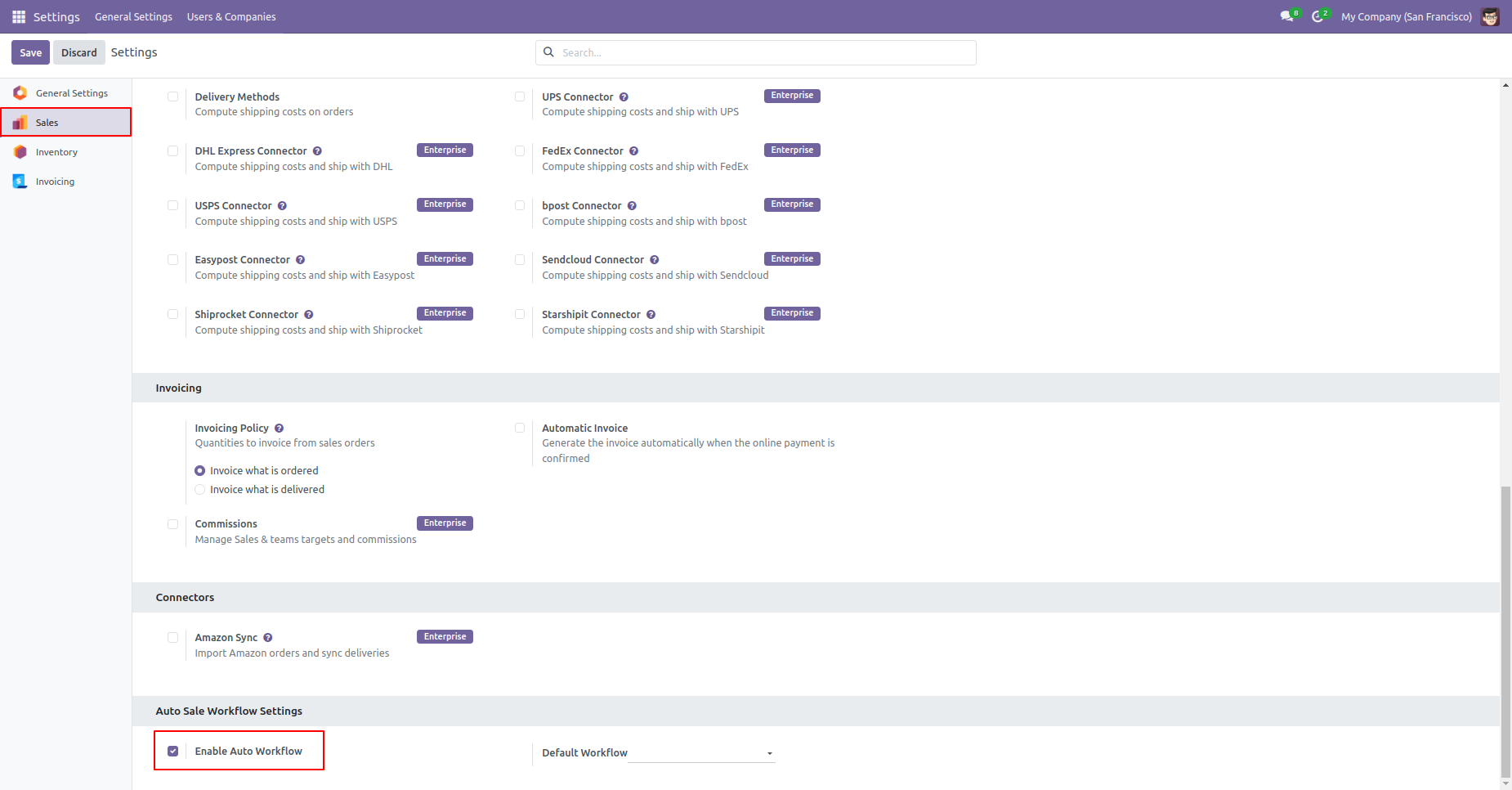
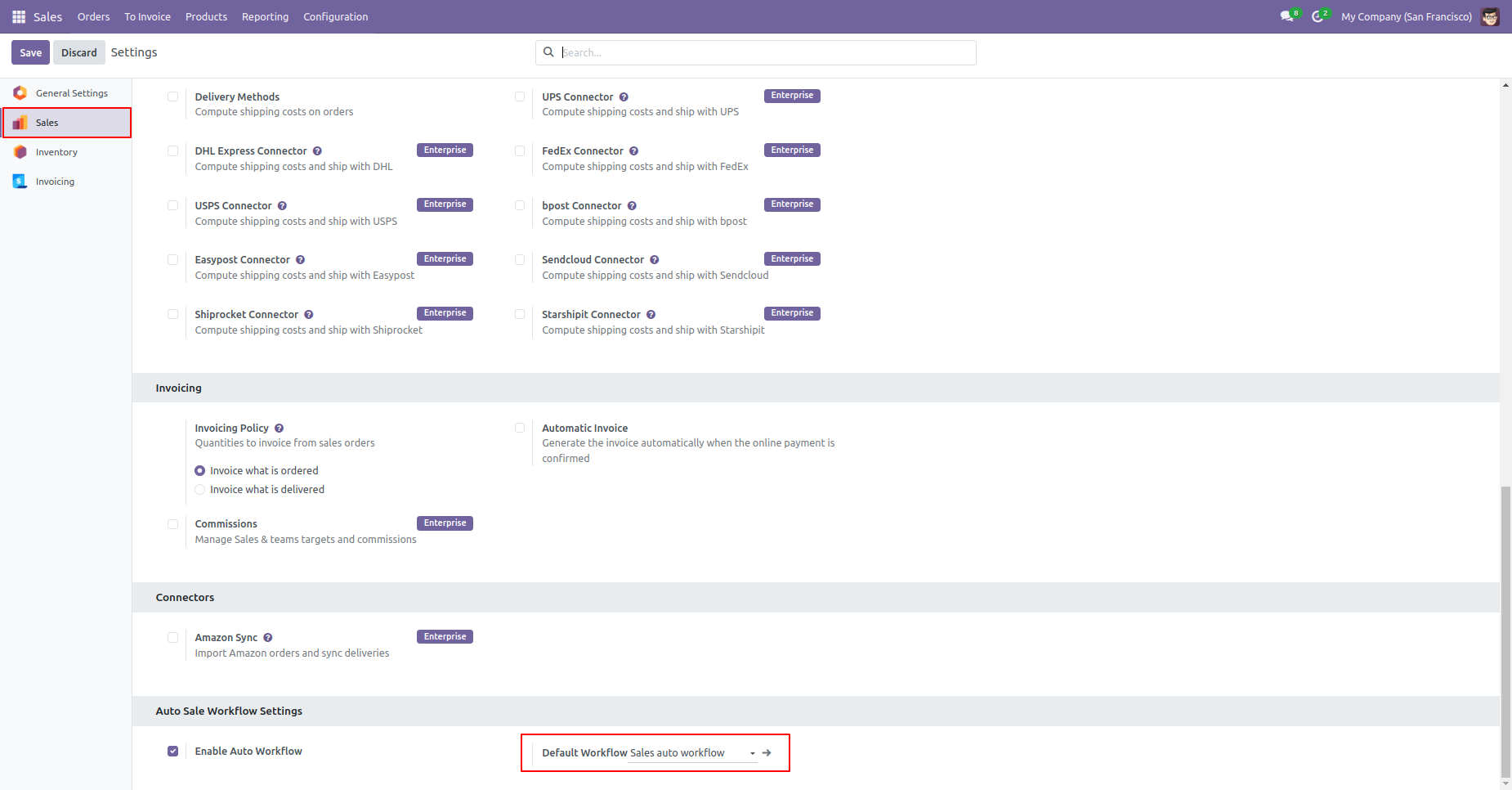
Tick "Enable Auto Workflow" to create the auto workflow for sale order/ quotation. You can choose the default workflow from here or you can choose workflow from quotation/sale order.
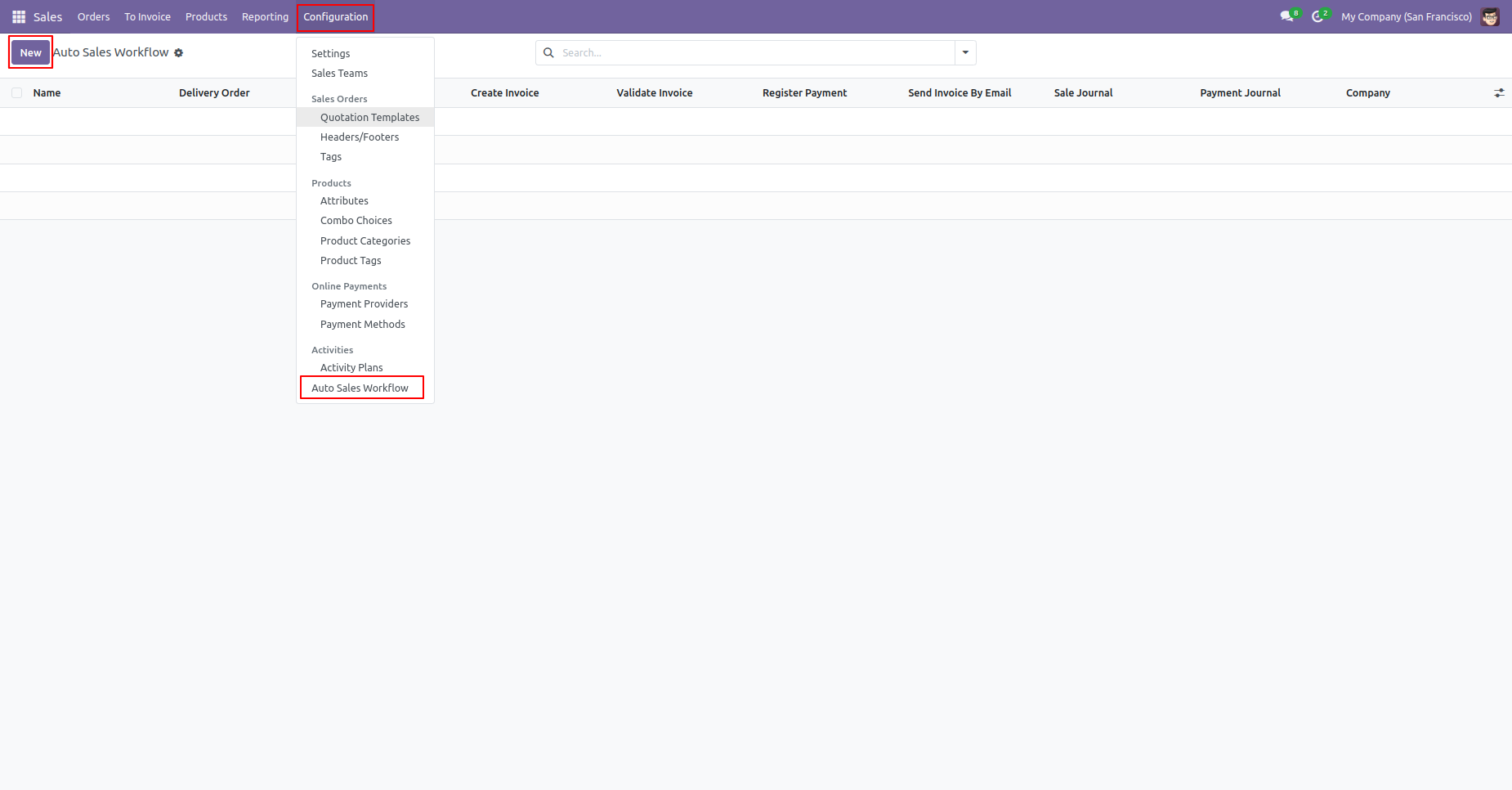
Now go to the "Configuration" => "Auto Sales Workflow".
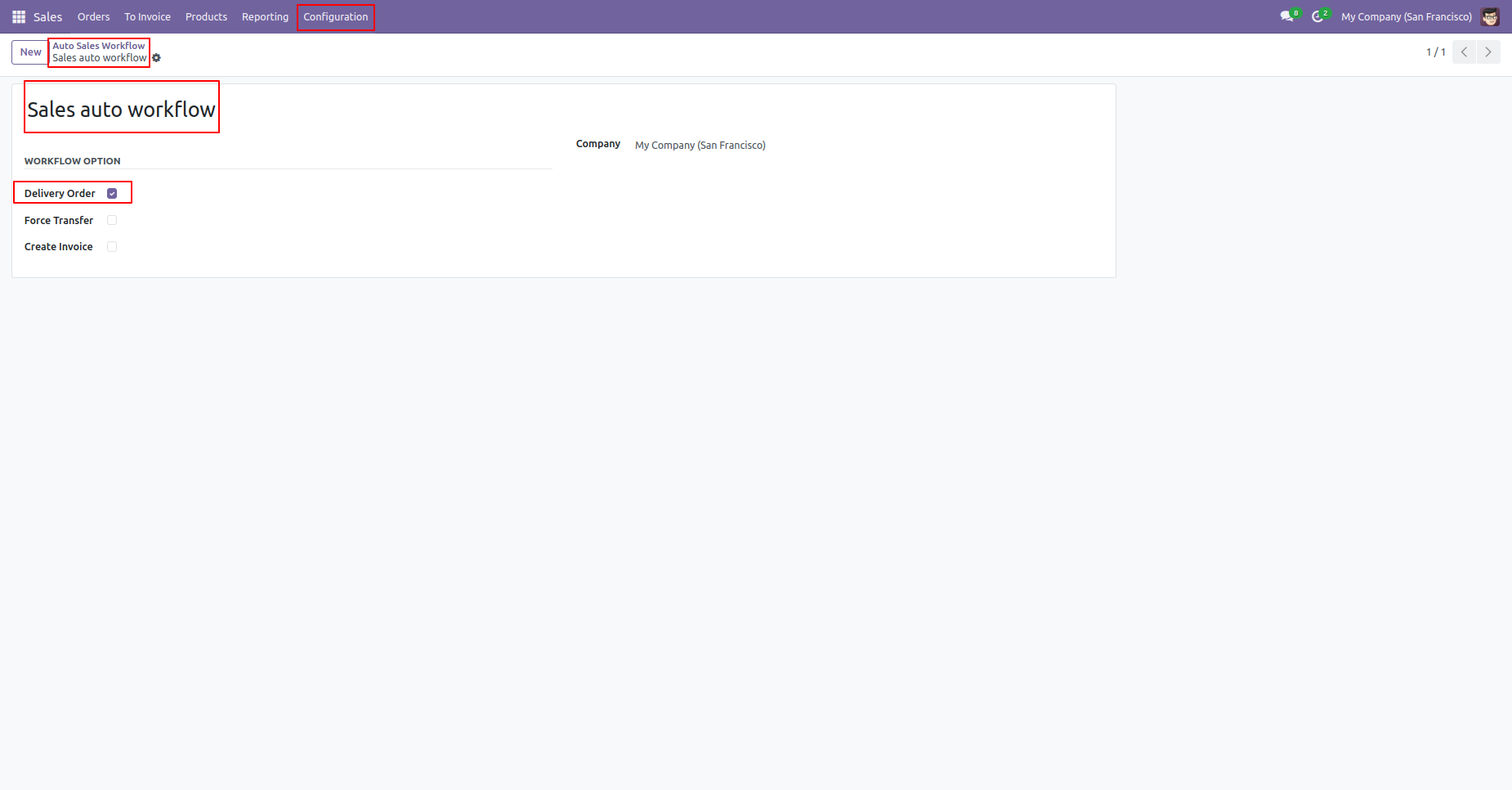
Auto sales workflow form view looks like this. We provide below options for auto workflow, Auto-create delivery order, Auto force transfer, Auto-create invoice.
You can choose created workflow in the default workflow from here.
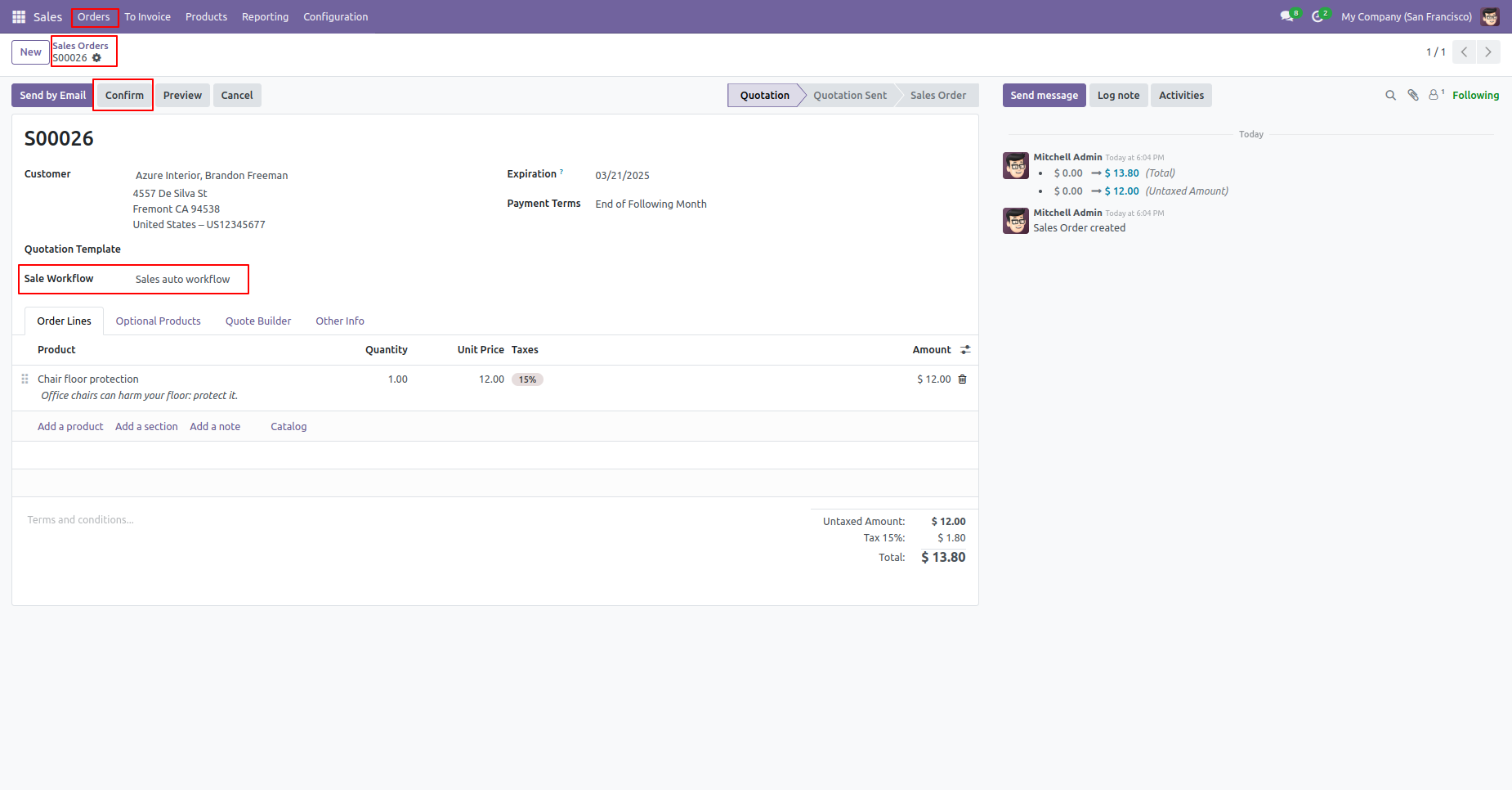
You can also choose workflow from quotation/sale order.
When you create a quotation if you select auto workflow then press the "Confirm" button to
proceed with workflow as per the configuration.
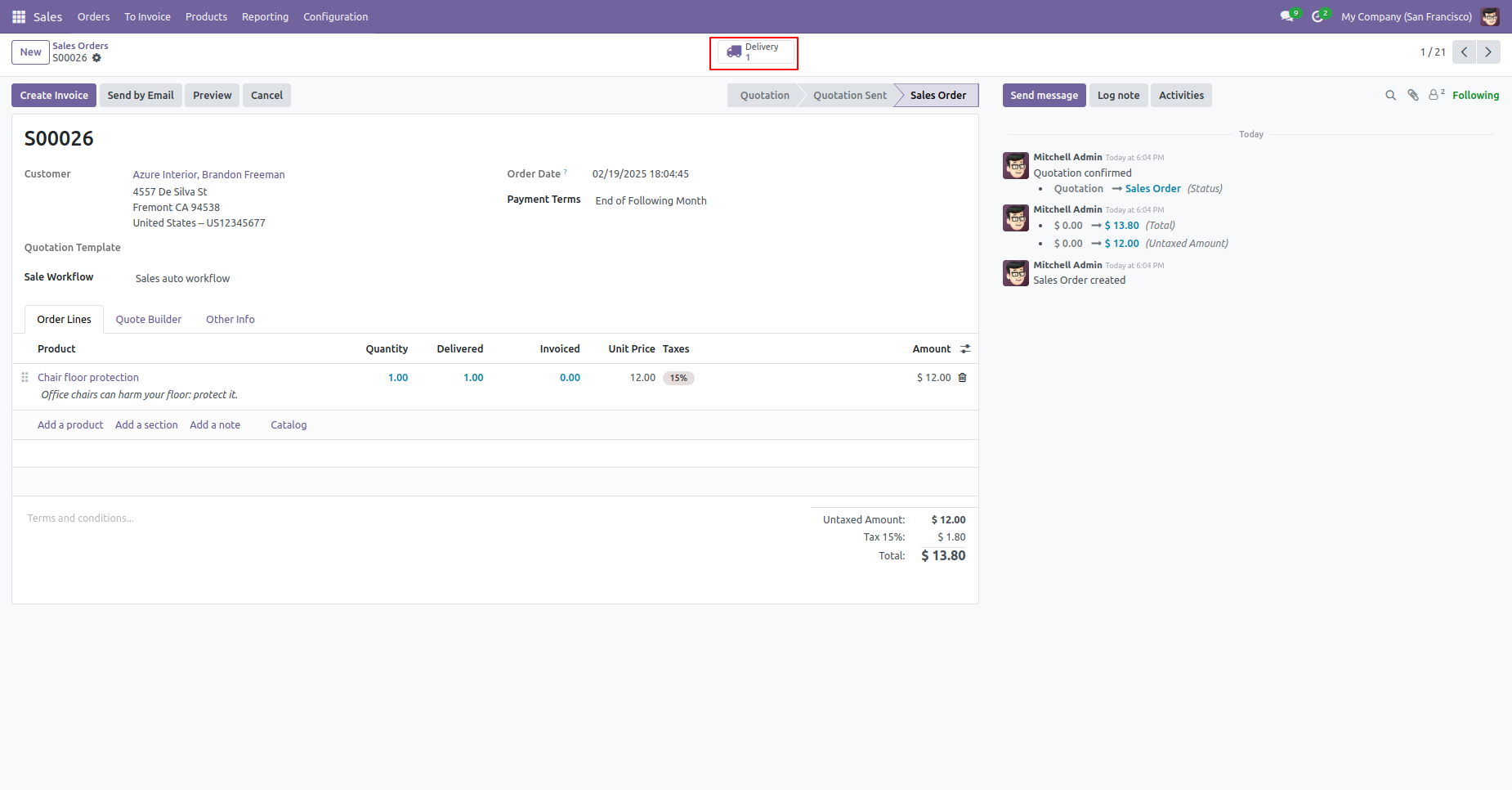
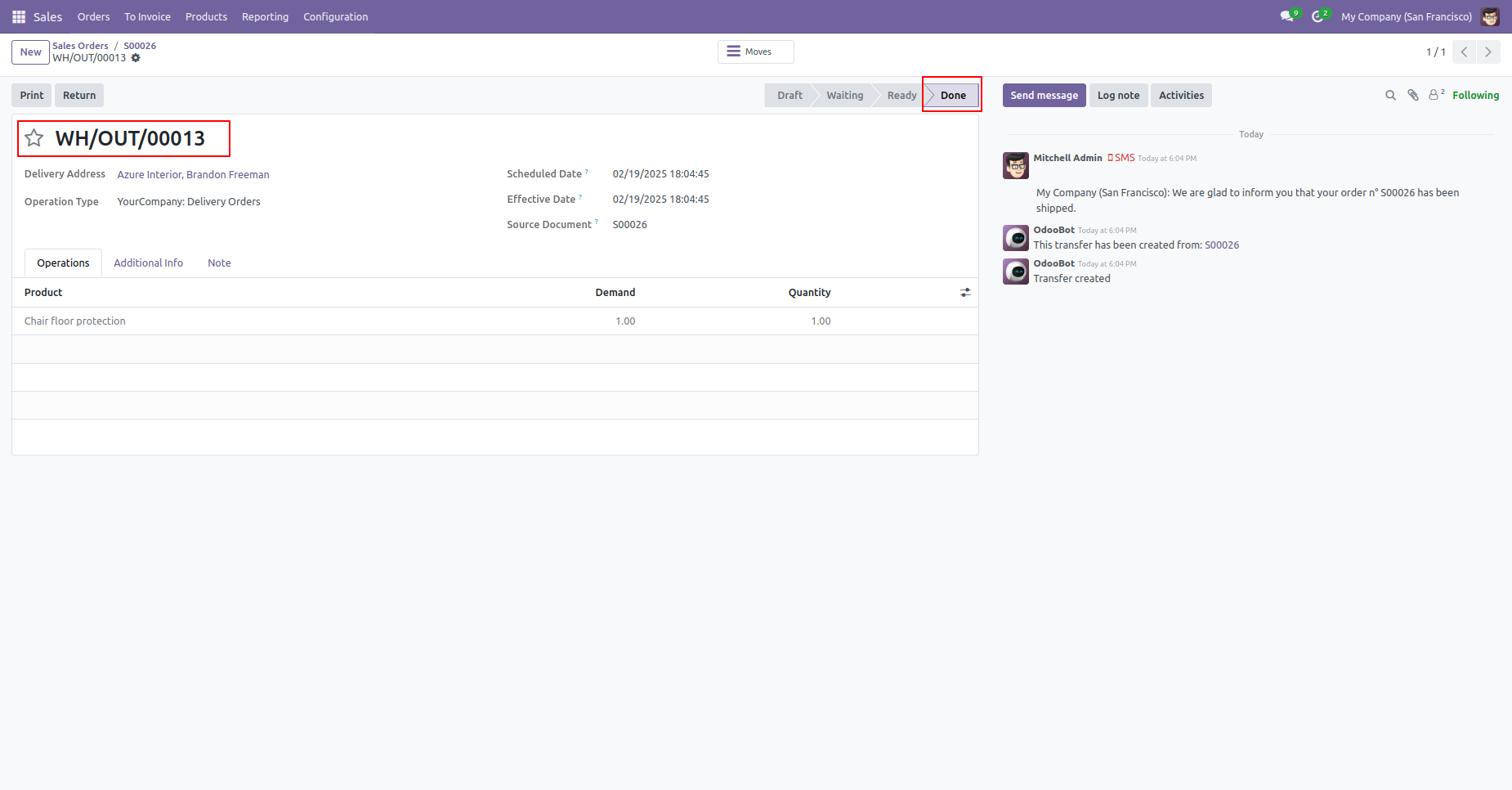
Based on workflow configuration 'Delivery' operation performed quickly.
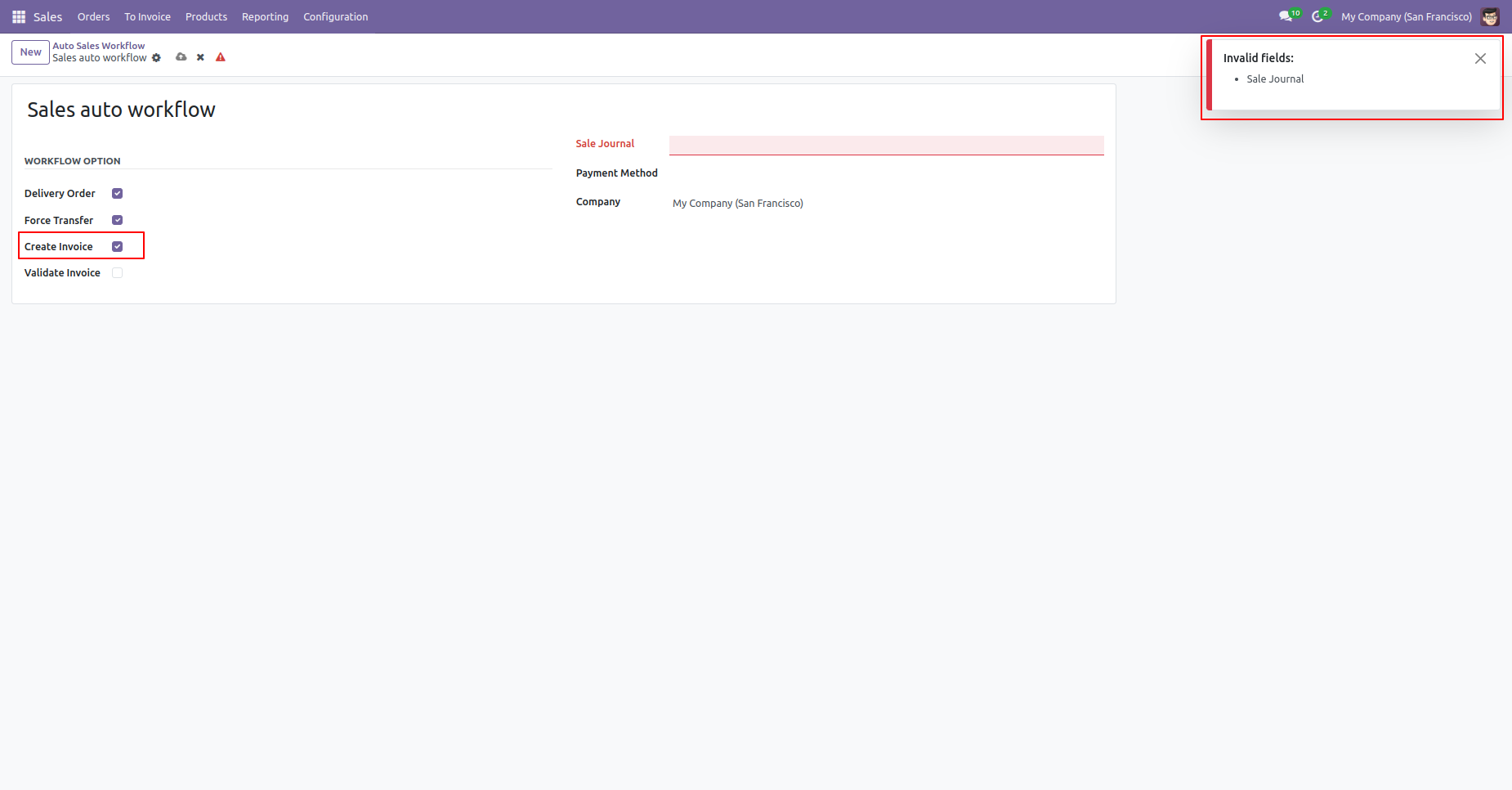
Enable 'Create Invoice' option. If you save the 'Auto Sale Workflow' without specifying a Sales Journal, a warning will be displayed
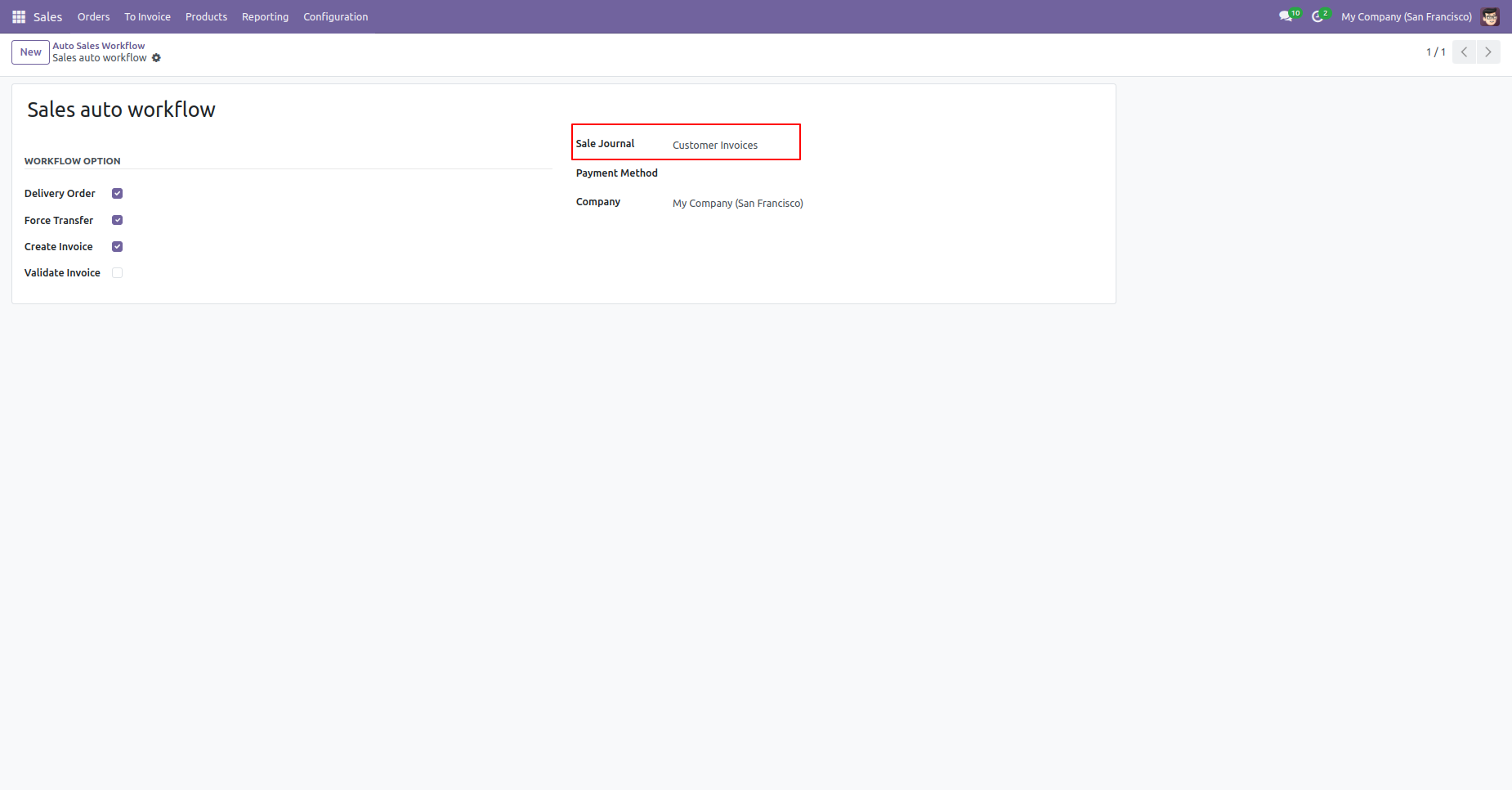
Enter the Sales Journal and save your changes.
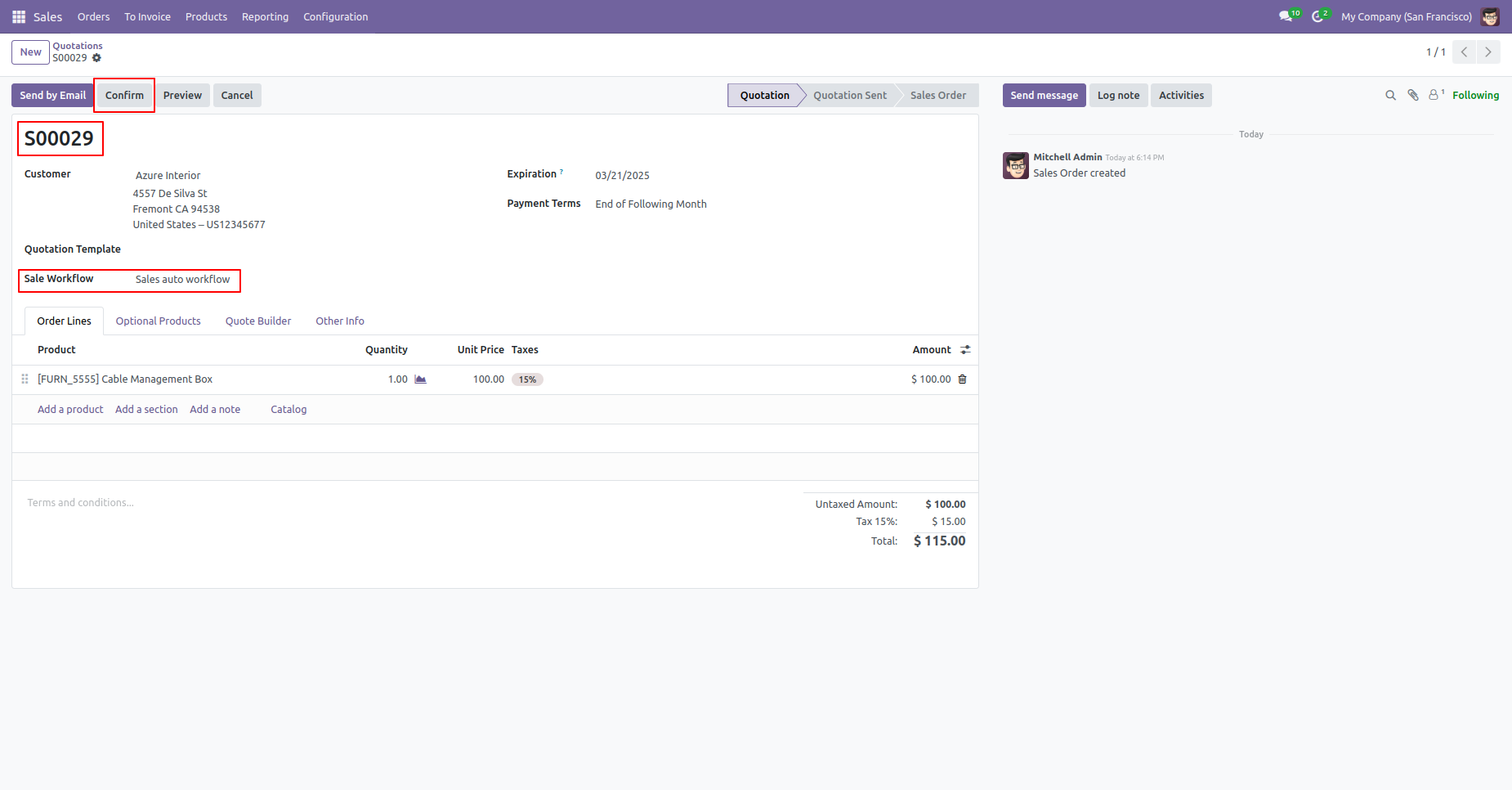
Select the 'Sale Workflow' and confirm the Sales Order.
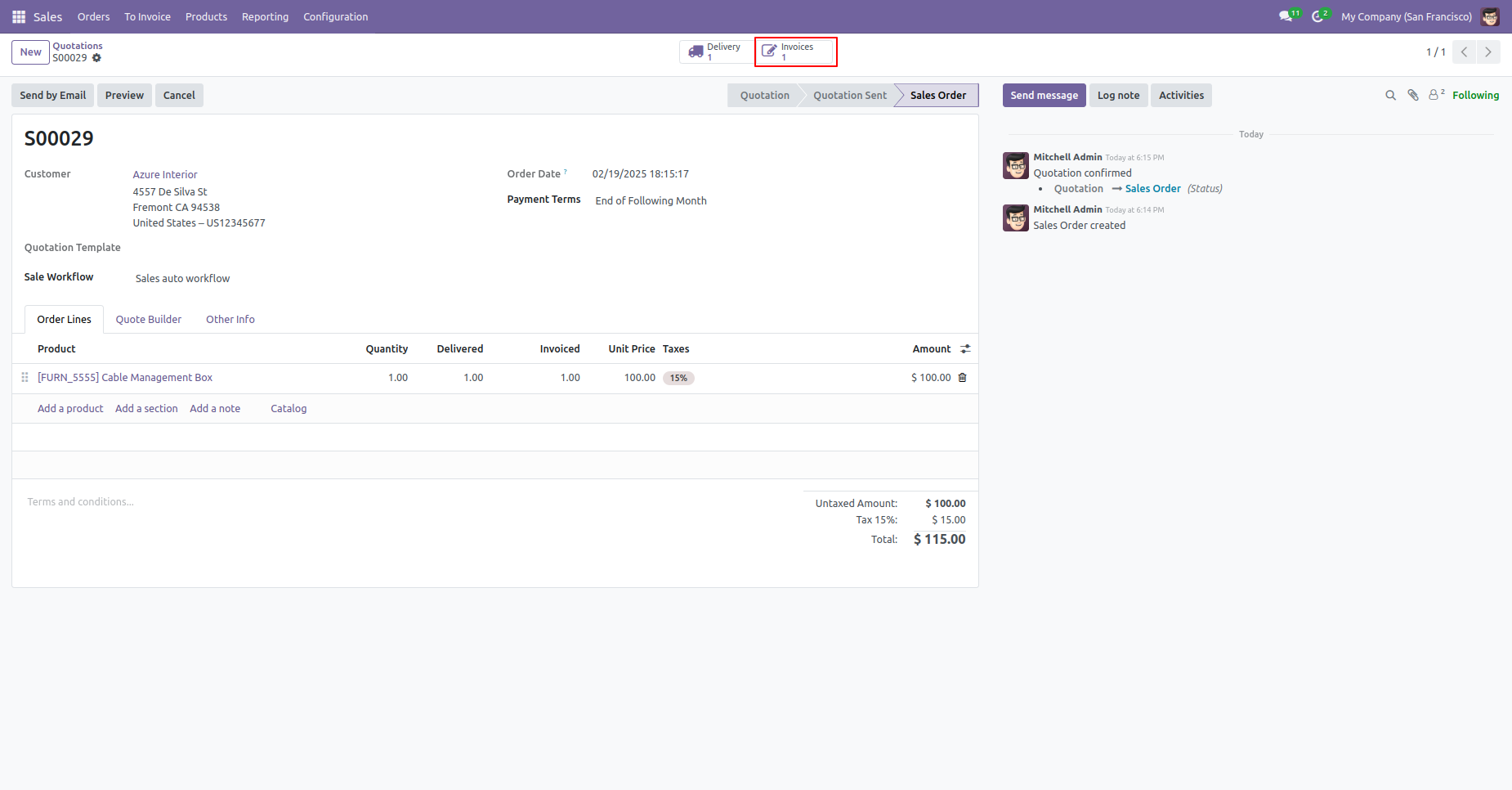
Based on workflow configuration all operations performed quickly.
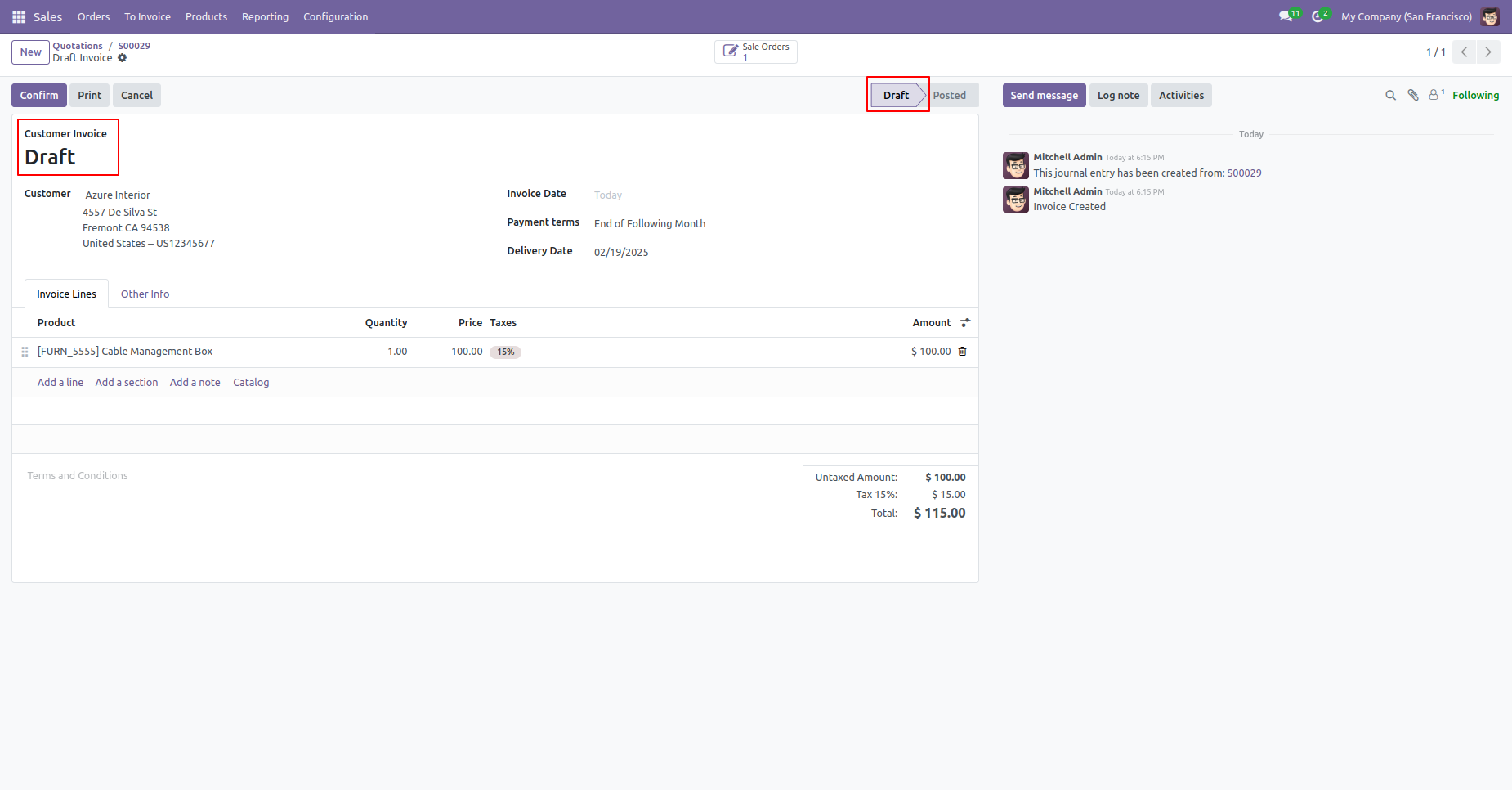
This is the form view of the invoice. As you can see, the invoice is generated based on the workflow configuration.
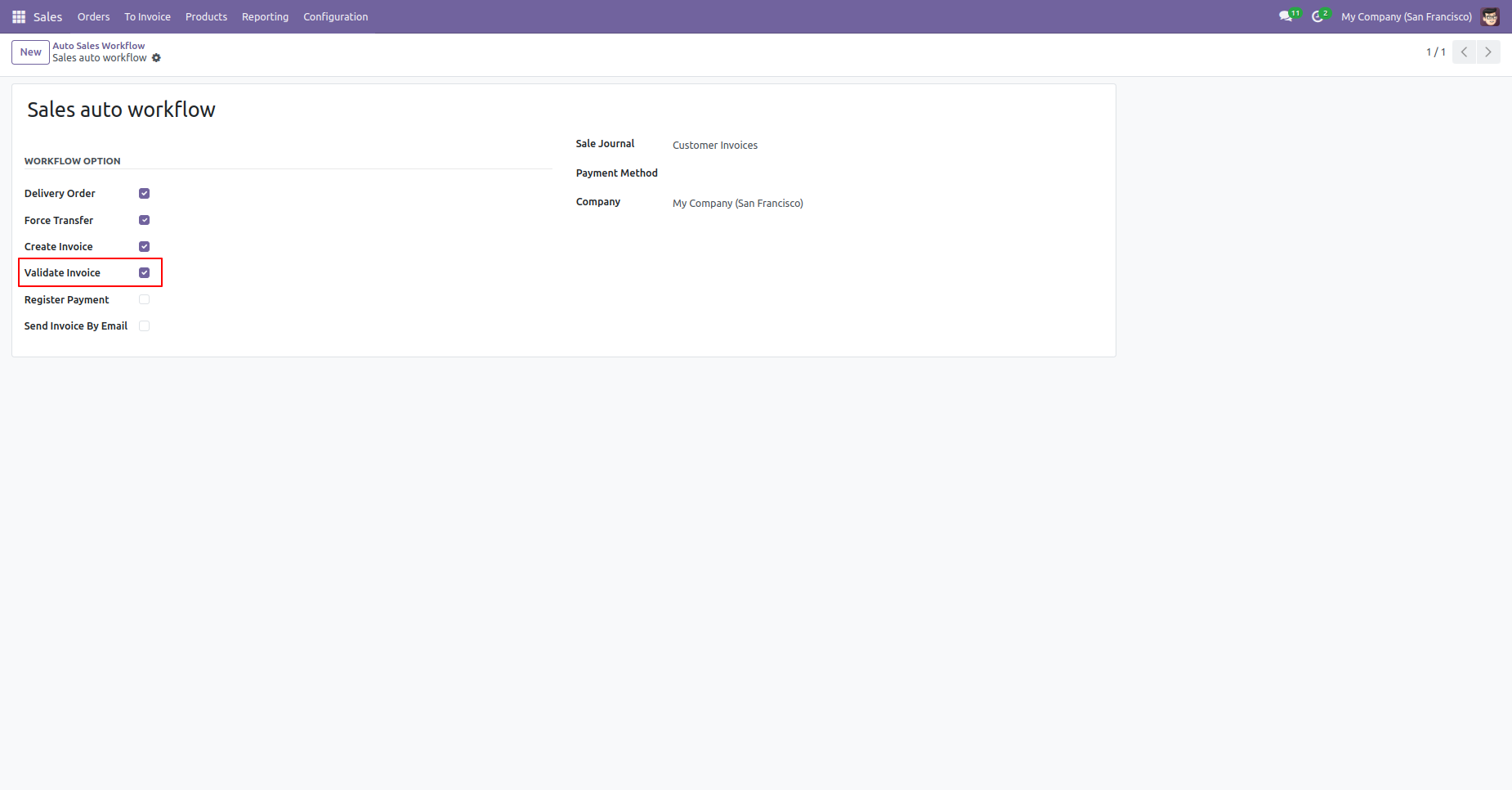
Enable the 'Validate Invoice' option.
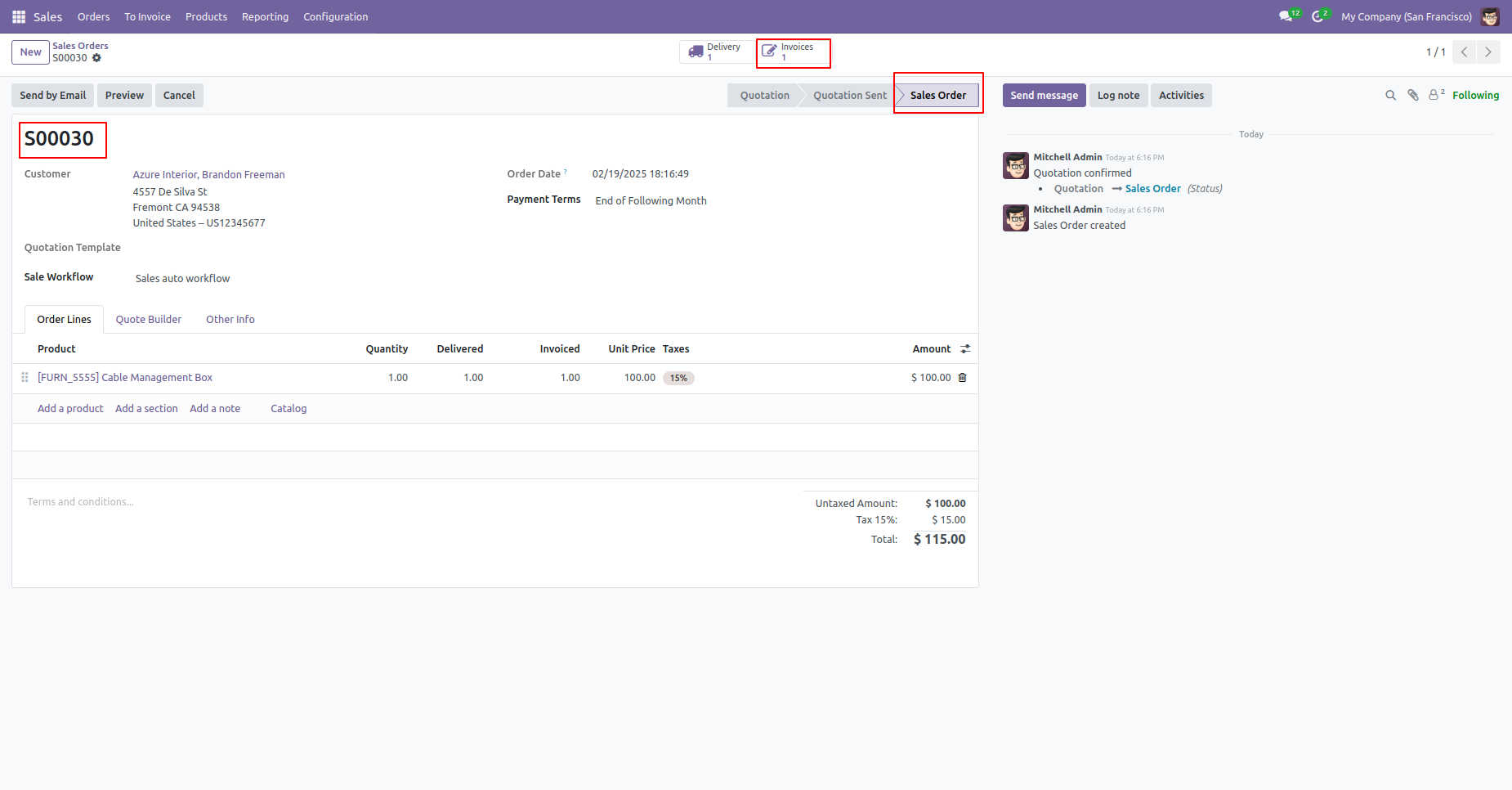
After confirming the Sales Order, all operations are executed automatically based on the workflow configuration.
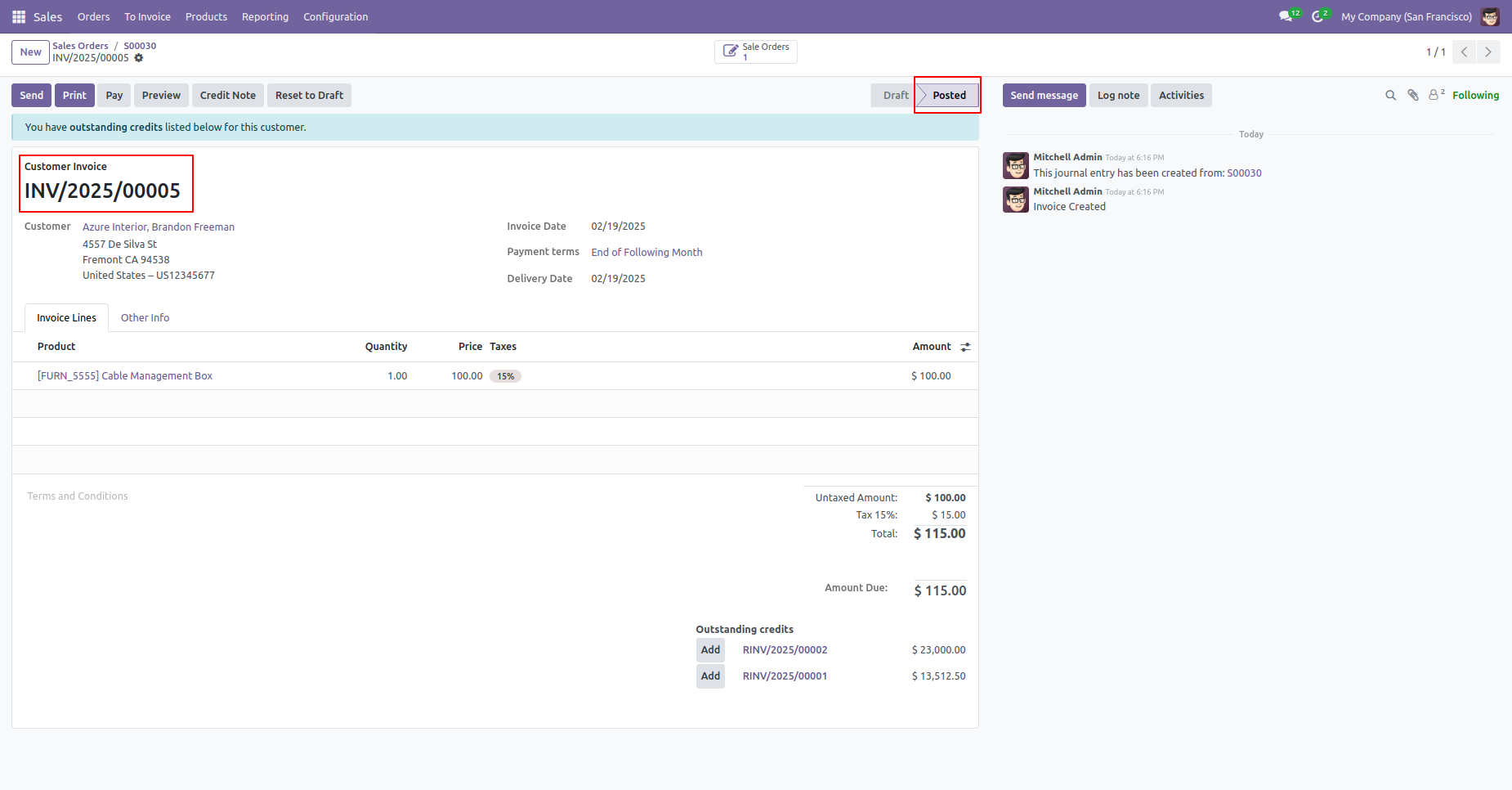
The invoice is automatically posted according to the workflow configuration.
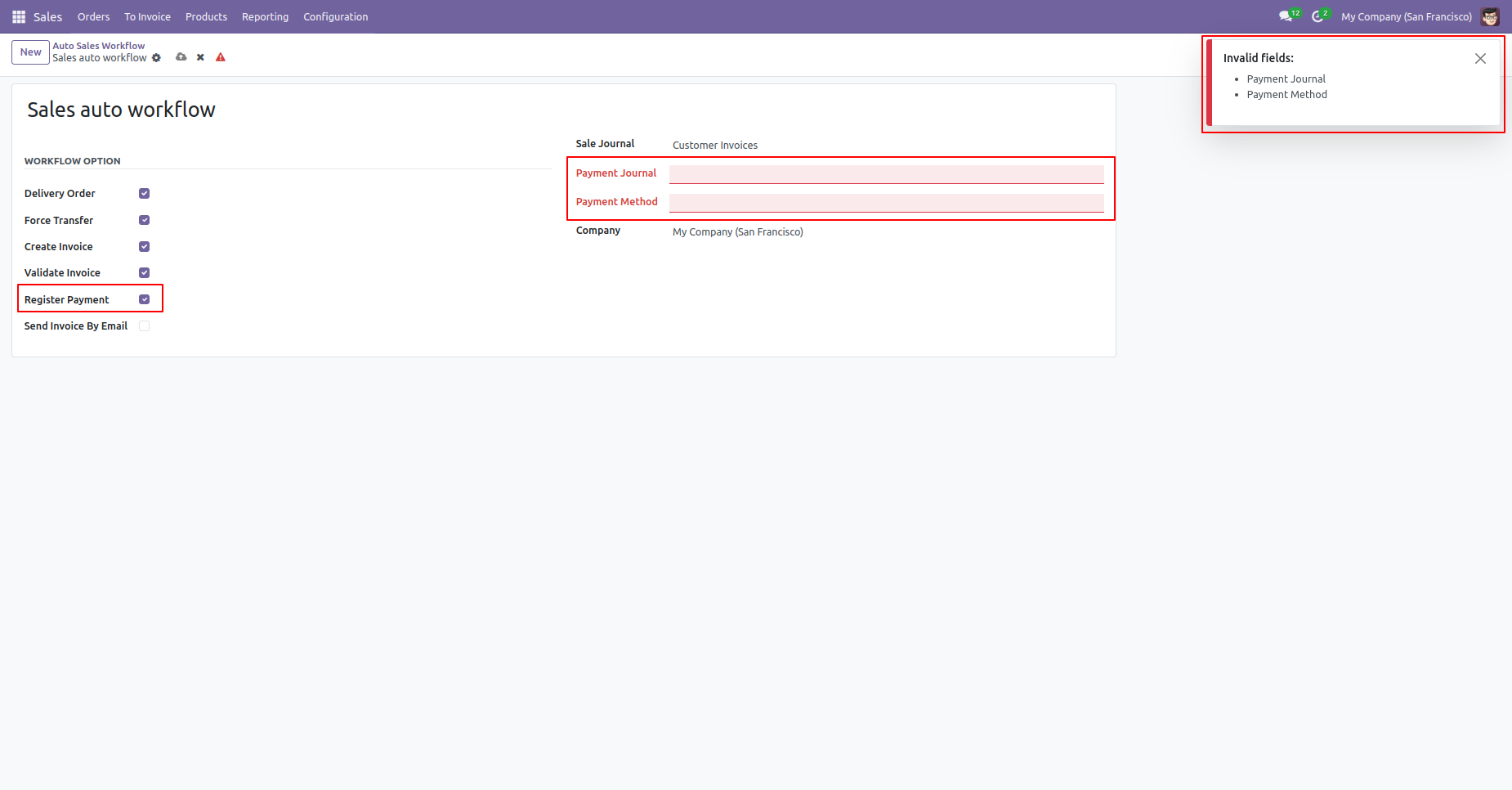
Enable the 'Register Payment' option. If you save the workflow without specifying a payment journal and method, a validation warning will be displayed.
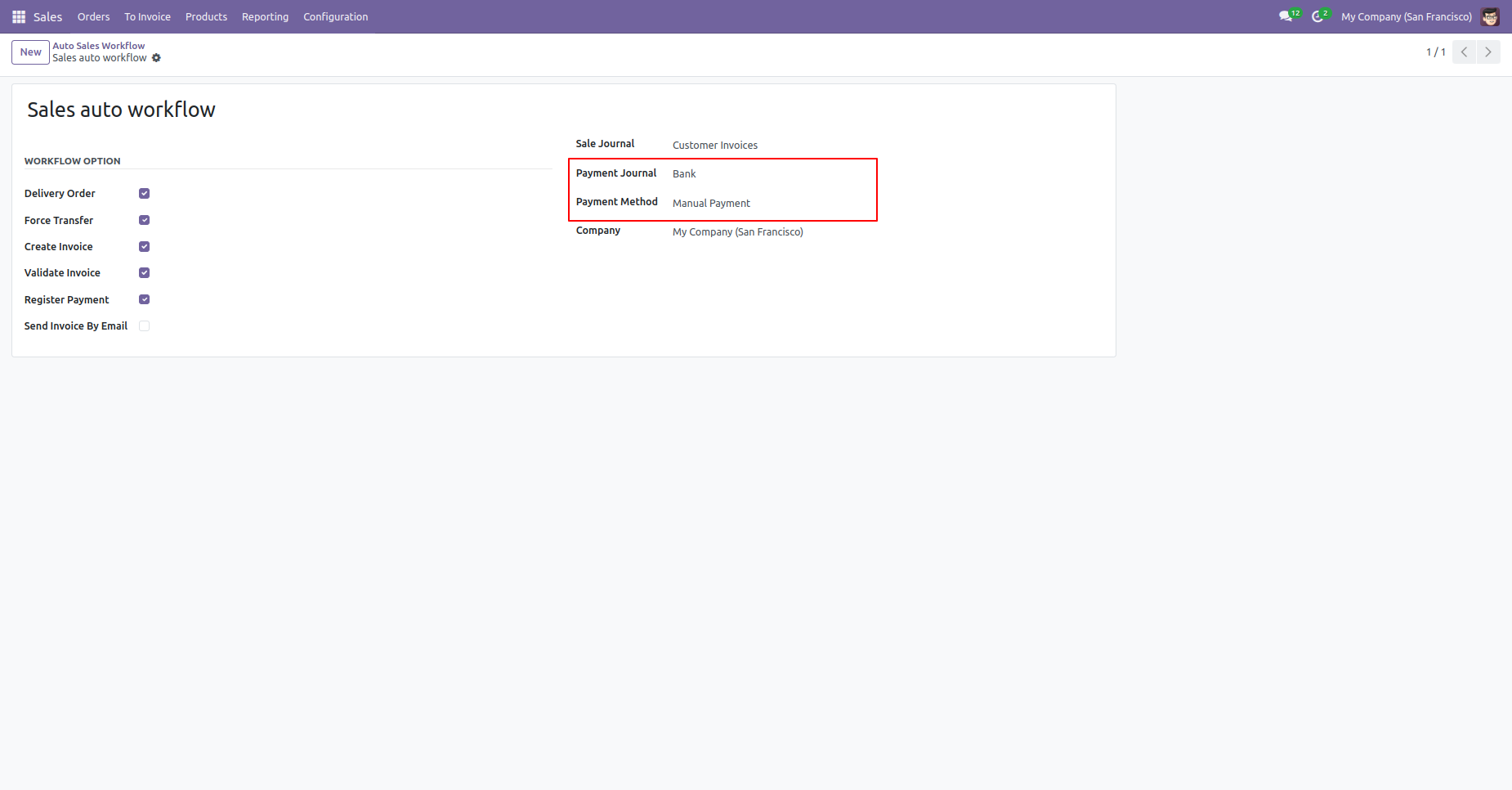
Enter Payment Journal and Method and save it.
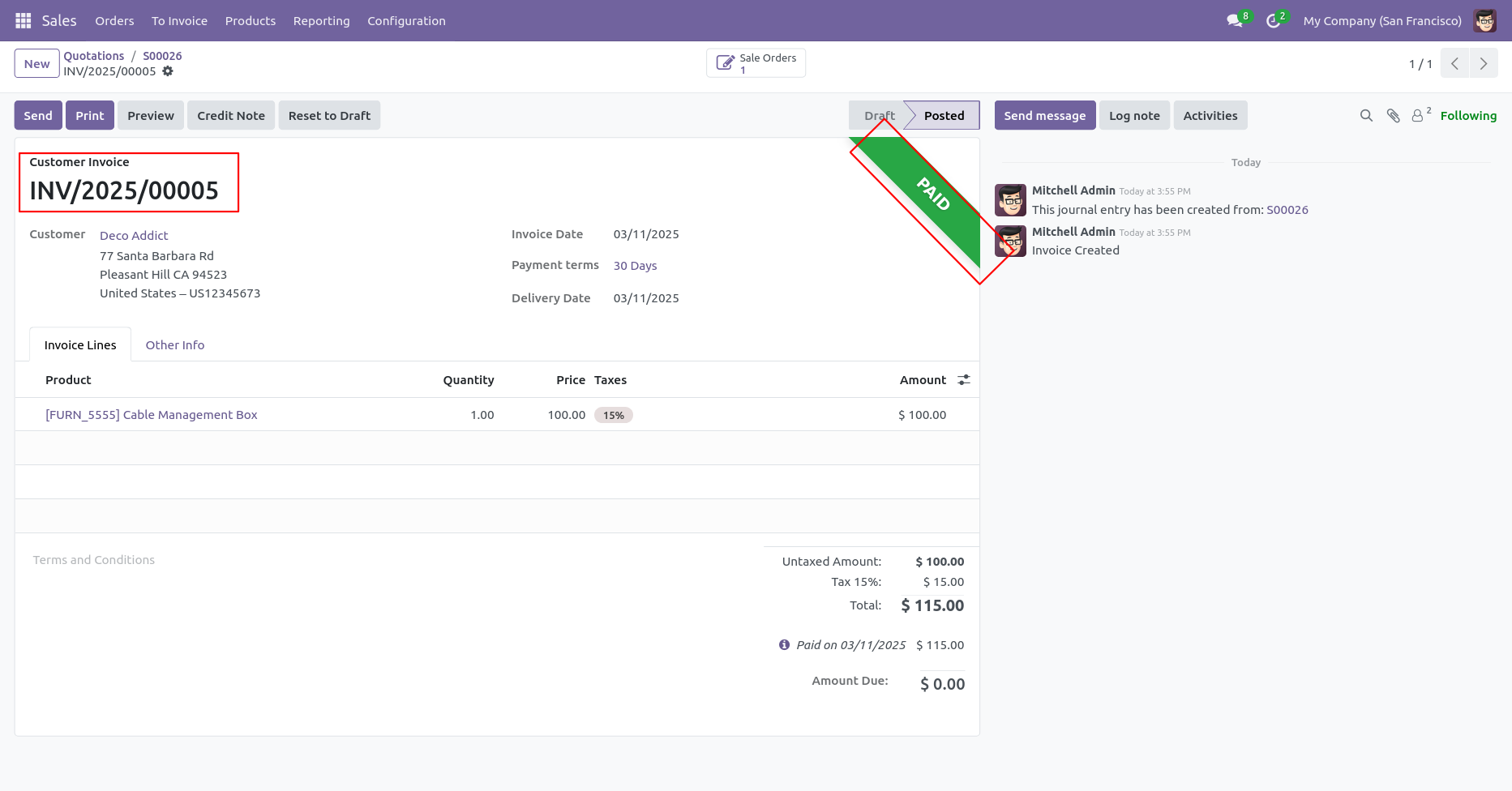
The invoice is automatically marked as paid based on the workflow configuration.
Version 20.0.1.0.0 | Released on : 15th September 2026
- Yes, this app works perfectly with Odoo Enterprise (Odoo.sh & Premise) as well as Community.
- No, this application is not compatible with odoo.com(odoo saas/Odoo Online)
- No, currently it does not work if the product type is selected as a combo product. For more details, please contact our support team at support@softhealer.com.
- Yes, to test this module, please contact us at sales@softhealer.com.
- Please contact us at sales@softhealer.com to request customization.
- Yes, we provide free support for 365 days from the date of purchase.
- Yes, you will receive lifetime free updates for the version of the module you purchased.
- No, there is no need to install any additional libraries.
- Yes, for version 12 and above, you need to purchase the module separately for each version you intend to use.
- No, exchanges or refunds are not allowed. Please make sure to select the correct version before purchasing.
- You can contact us at support@softhealer.com for language translation support. We use Google Translator tools to provide translations in multiple languages, so the accuracy may vary. We welcome your suggestions to help improve translations.
Discover Our Latest Apps