












Register Payment From Payslip

The Register Payment From Payslip module lets you quickly pay your employees directly from their
payslips. With just a few clicks, you can choose your payment method (like Bank or Cash) and instantly
create the matching accounting records. You can pay one employee at a time or process multiple payslips
all at once, and it even supports partial payments. The system keeps track of any remaining balances and
automatically marks the payslip as "Paid" once the full amount is cleared, and keeping your records
accurate.

Features

Direct Payment Registration
Register and generate payments directly from individual employee payslips.

Batch Processing
Select multiple payslips from the list view to process payments in bulk.

Partial Payments
Supports paying partially, with the system automatically calculating and tracking the remaining "Due Amount."

Journal Selection
Choose your preferred payment method by selecting specific journals (Cash or Bank) during the payment process.

Automatic Status Updates
Payslips are automatically moved to the "Paid" state once the accumulated total payments meet or exceed the net wage.

Automated Accounting Entries
Automatically creates, posts, and validates draft accounting payments.
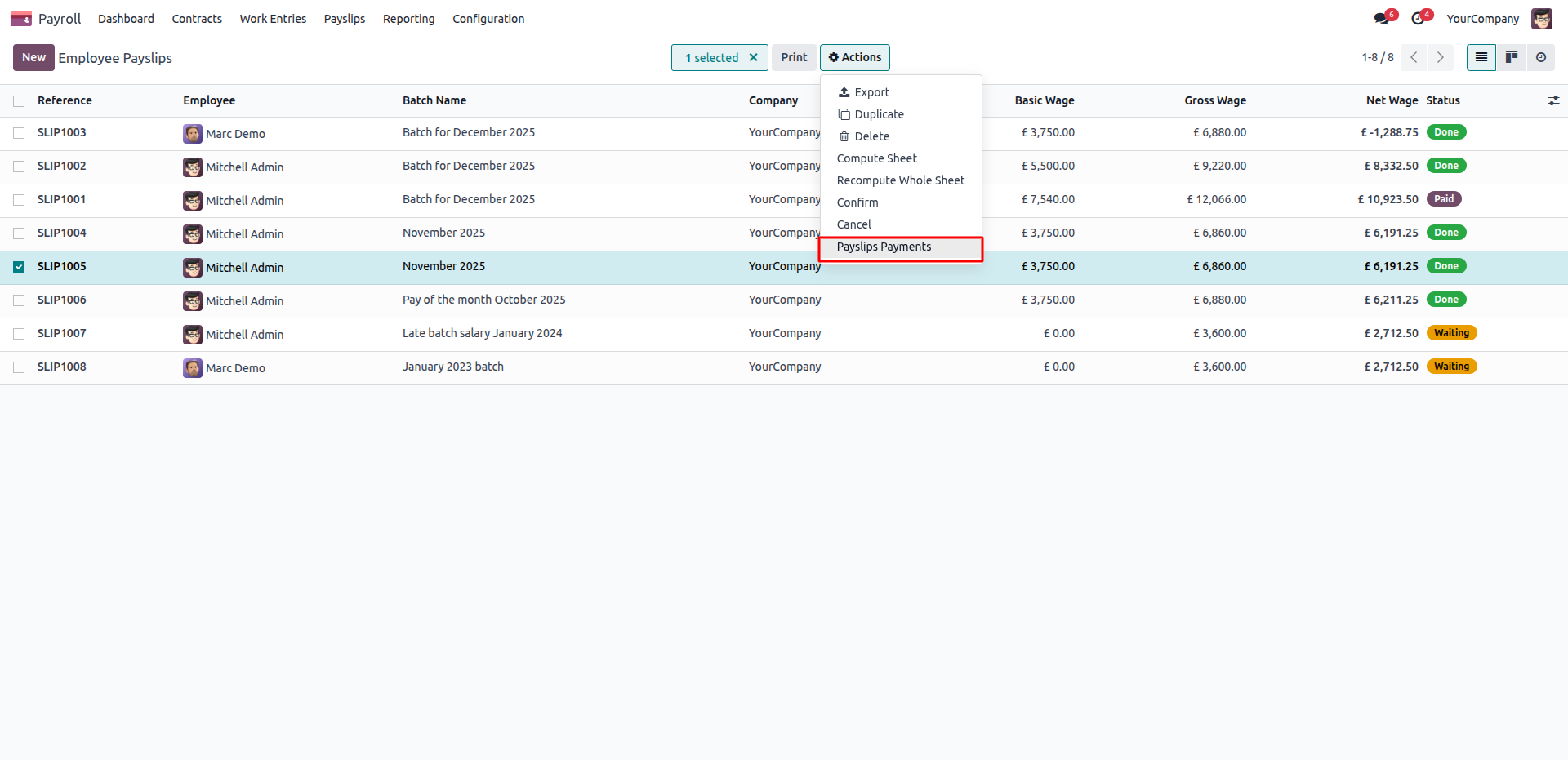
Select a finalized payslip and click 'Payslips Payments' from the Actions menu to quickly initiate the payment process directly from the list view.
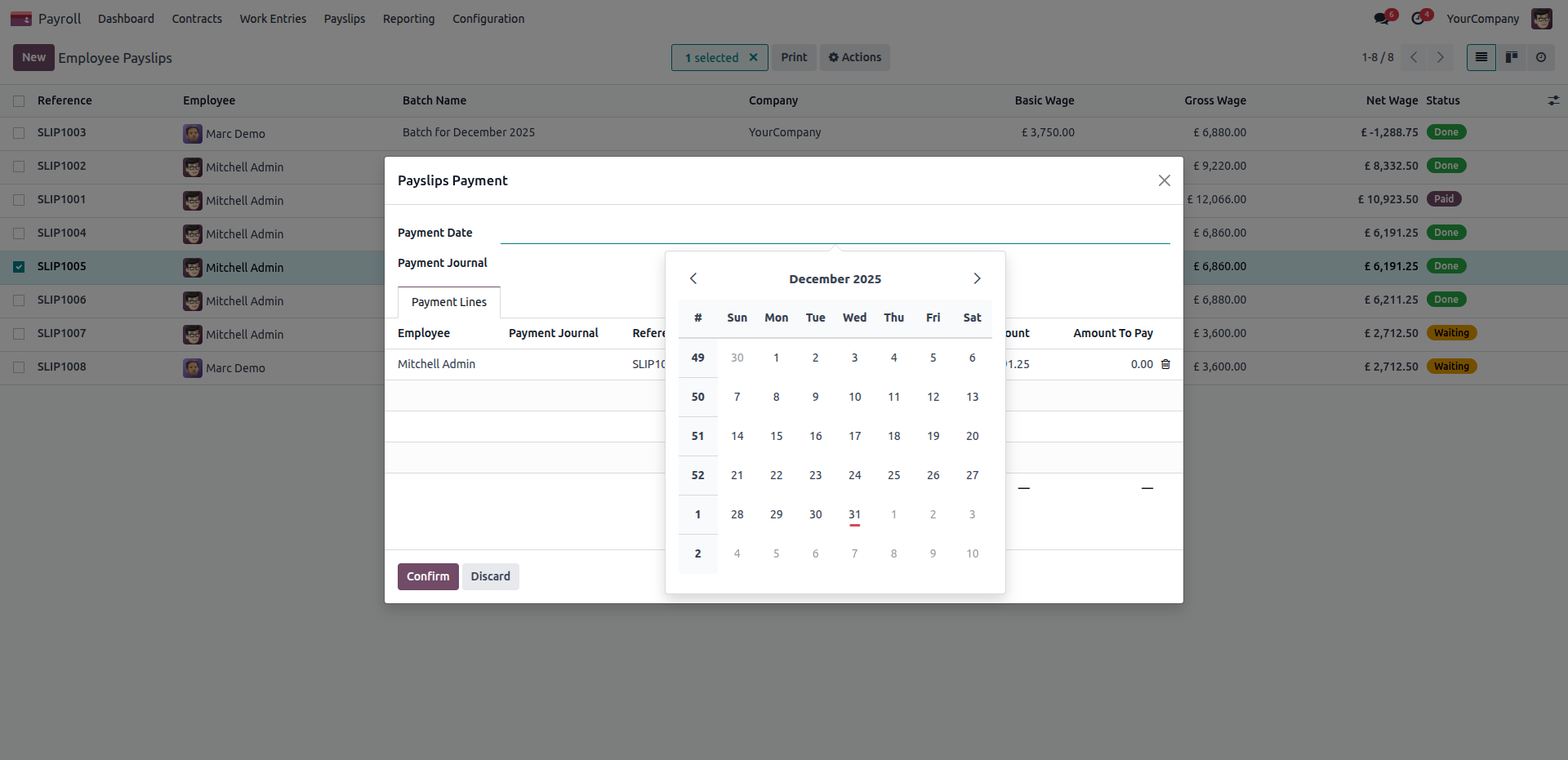
Use the interactive calendar within the Payslips Payment pop-up to accurately designate the official Payment Date for the selected employee's transaction.
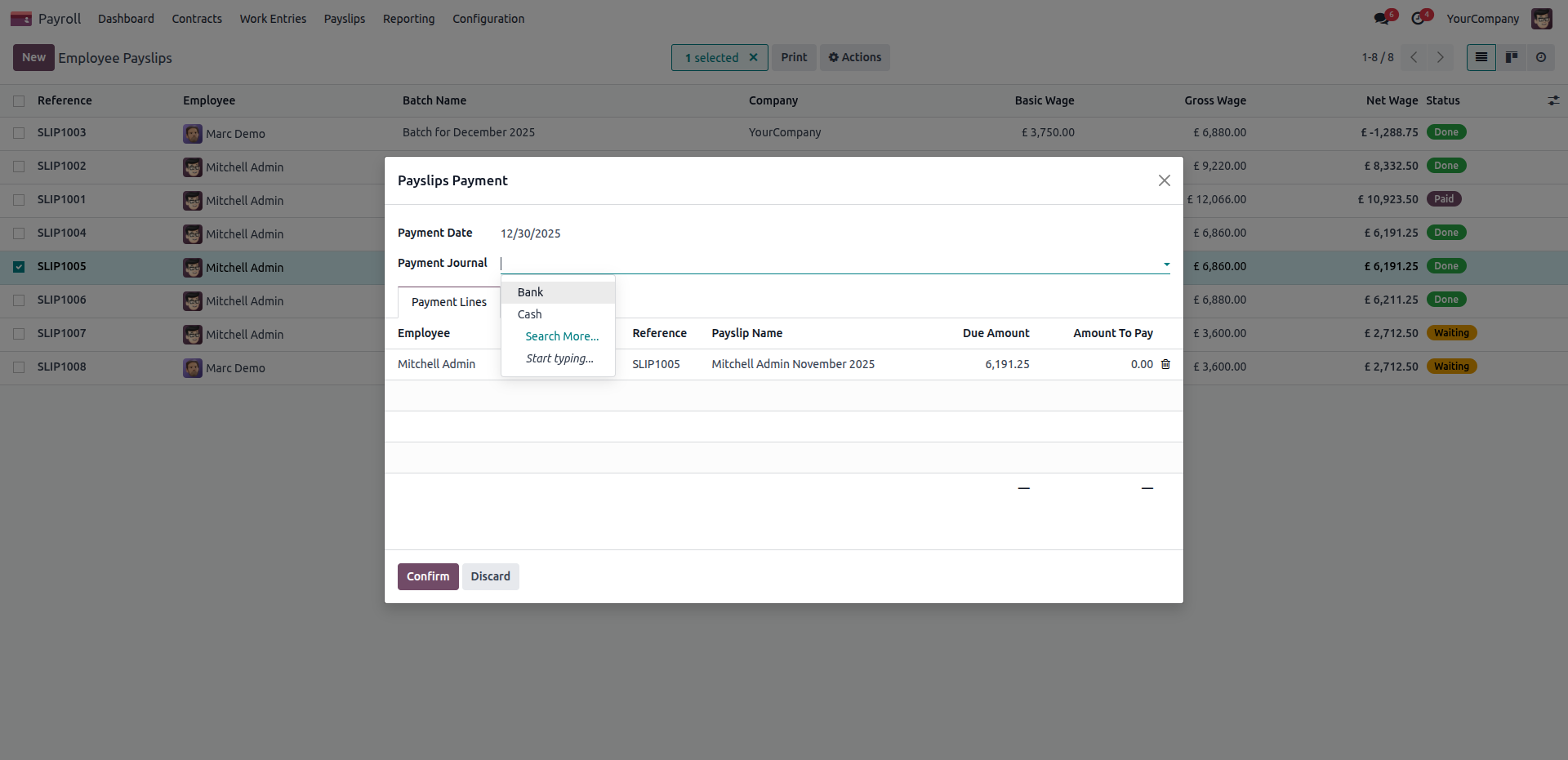
Select the appropriate financial account, such as 'Bank' or 'Cash', using the Payment Journal dropdown menu to accurately record the source of the payroll funds before confirming.
Review and adjust the specific 'Amount To Pay' for the employee's transaction before clicking 'Confirm' to finalize the payslip payment.
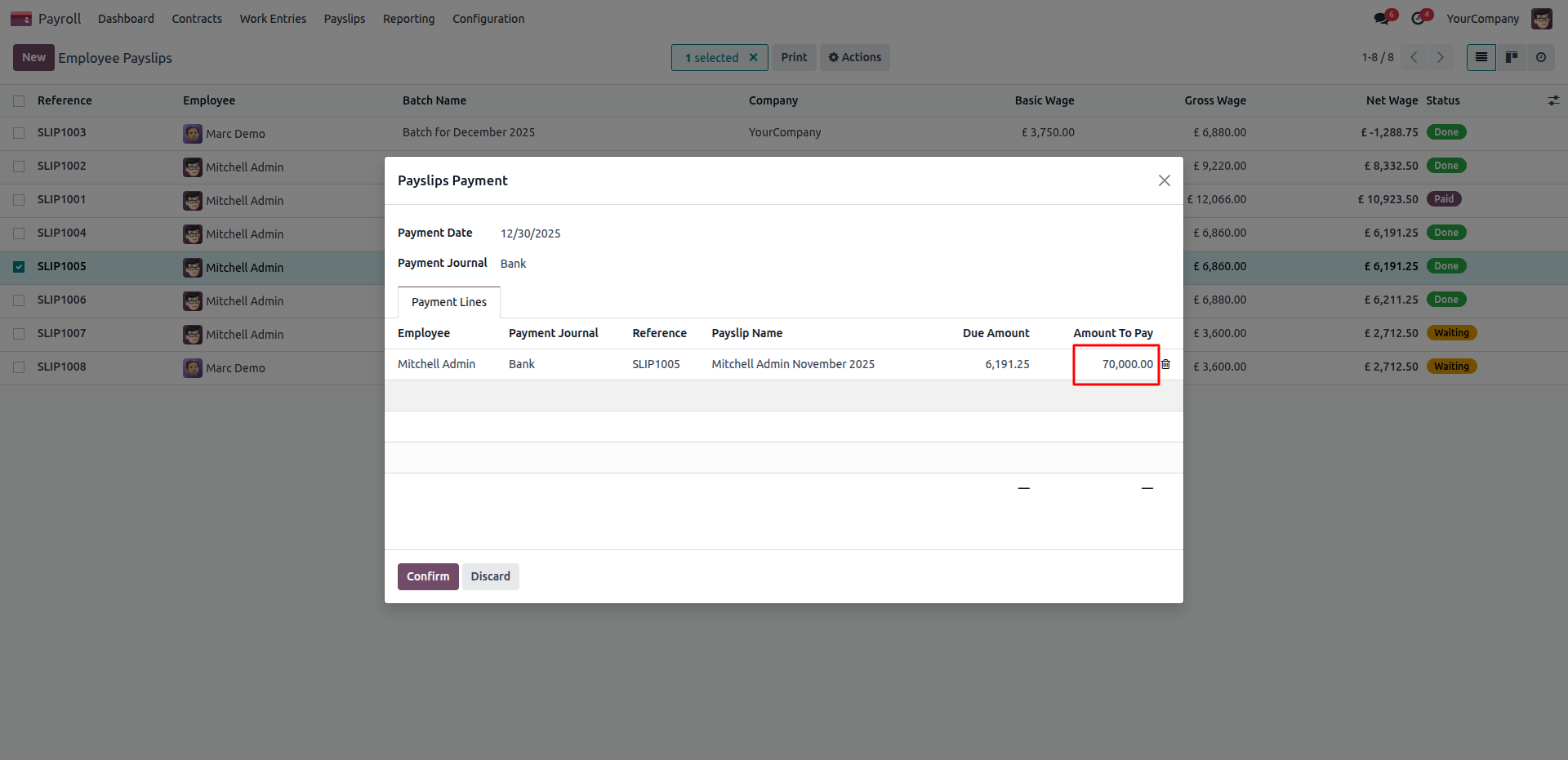
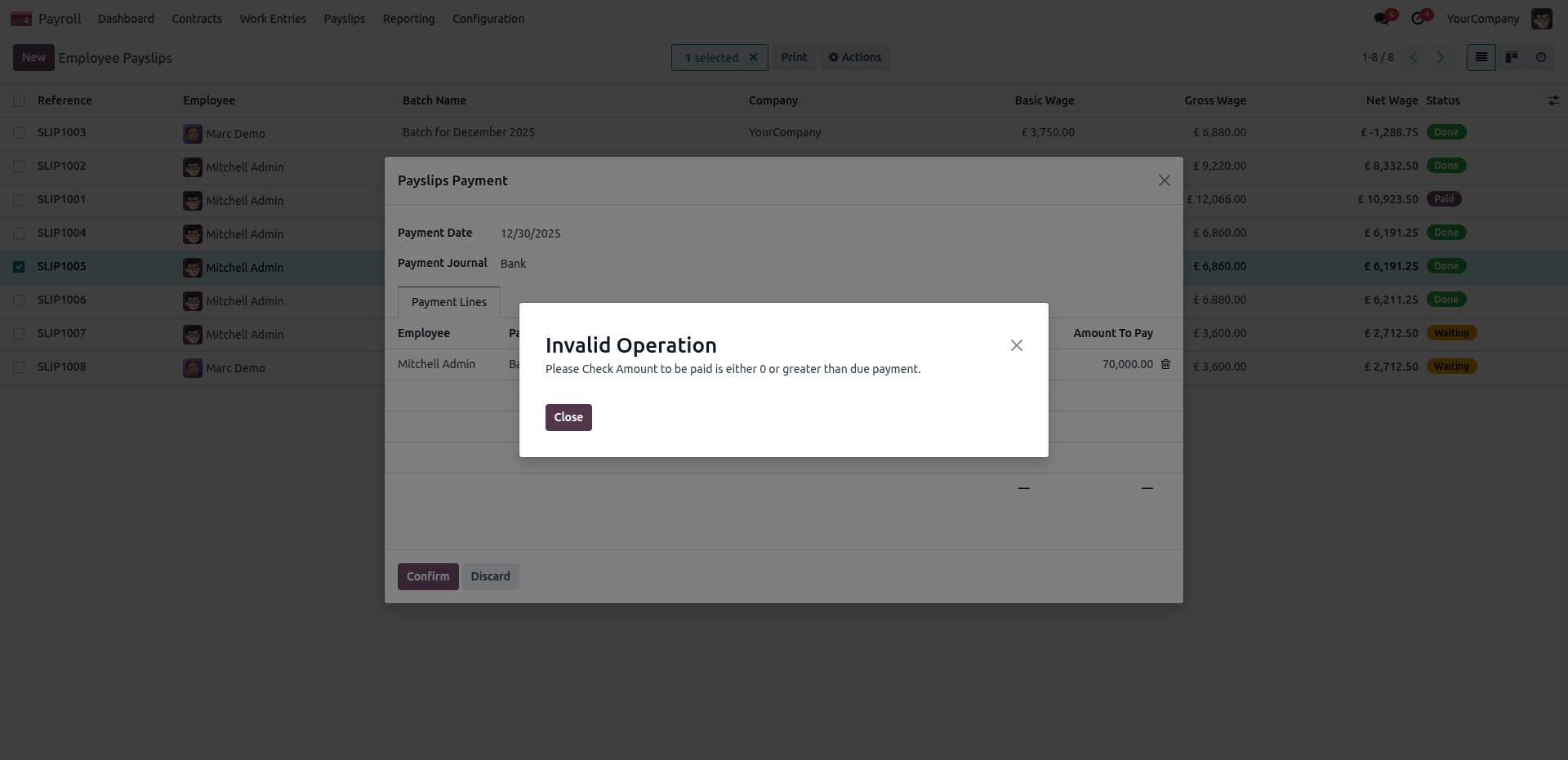
An 'Invalid Operation' warning is triggered if the entered 'Amount To Pay' exceeds the actual 'Due Amount' on the payslip, preventing overpayments.
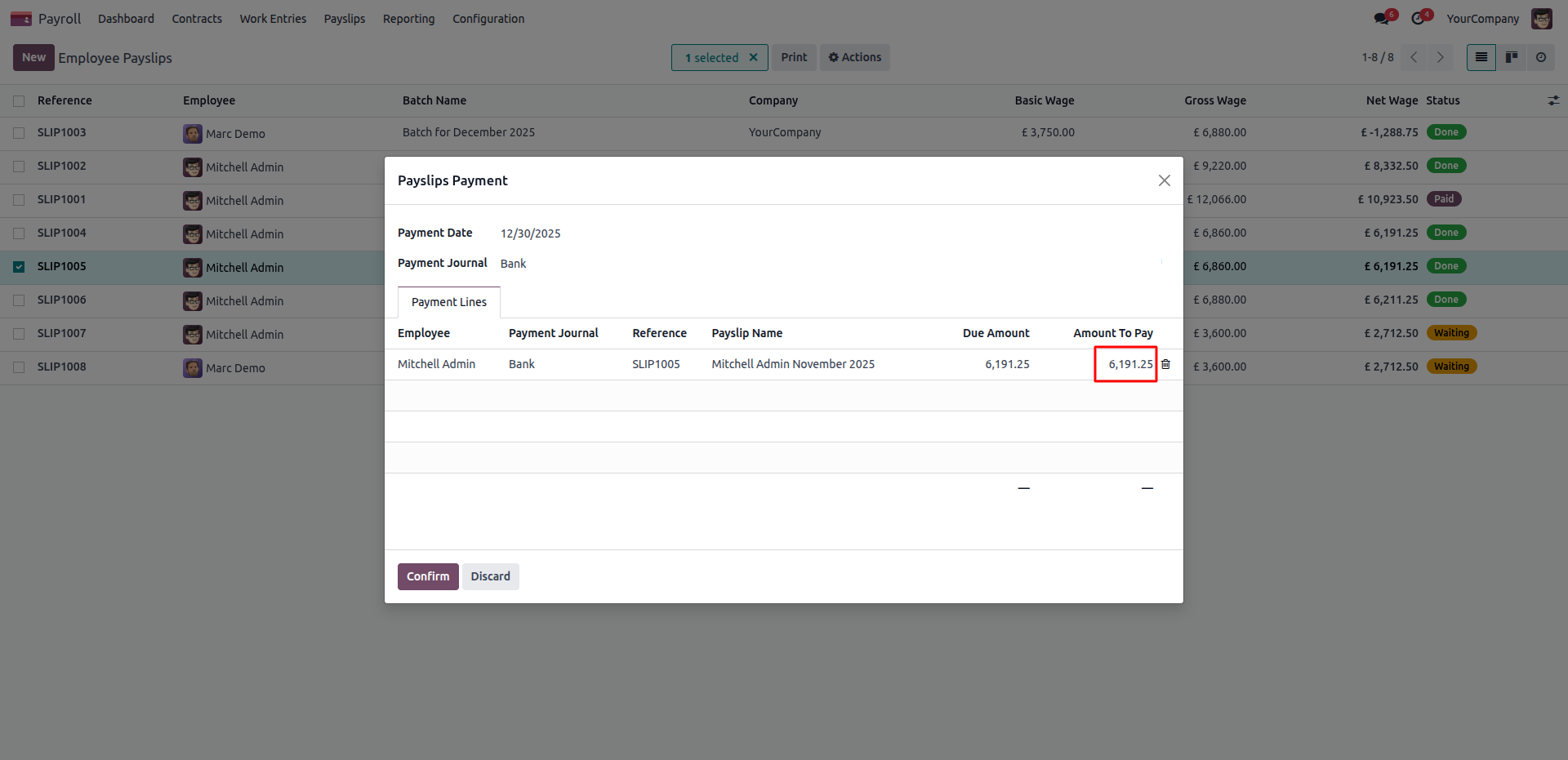
Ensure the 'Amount To Pay' accurately matches the 'Due Amount' to successfully process the employee's full payment without triggering validation errors.
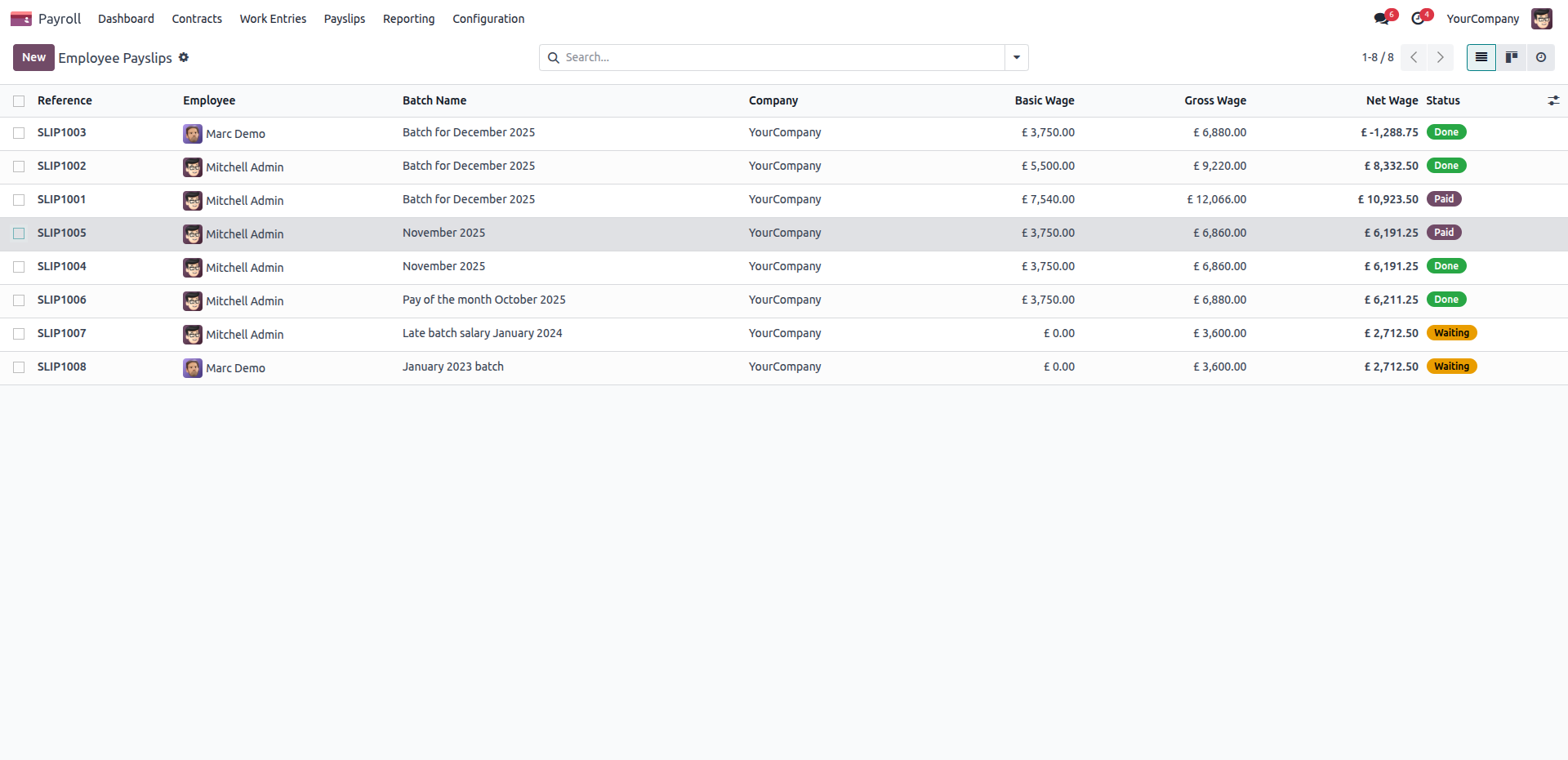
After successfully confirming the transaction details, the employee's payslip status updates to 'Paid' in the list view, completing the payment workflow.
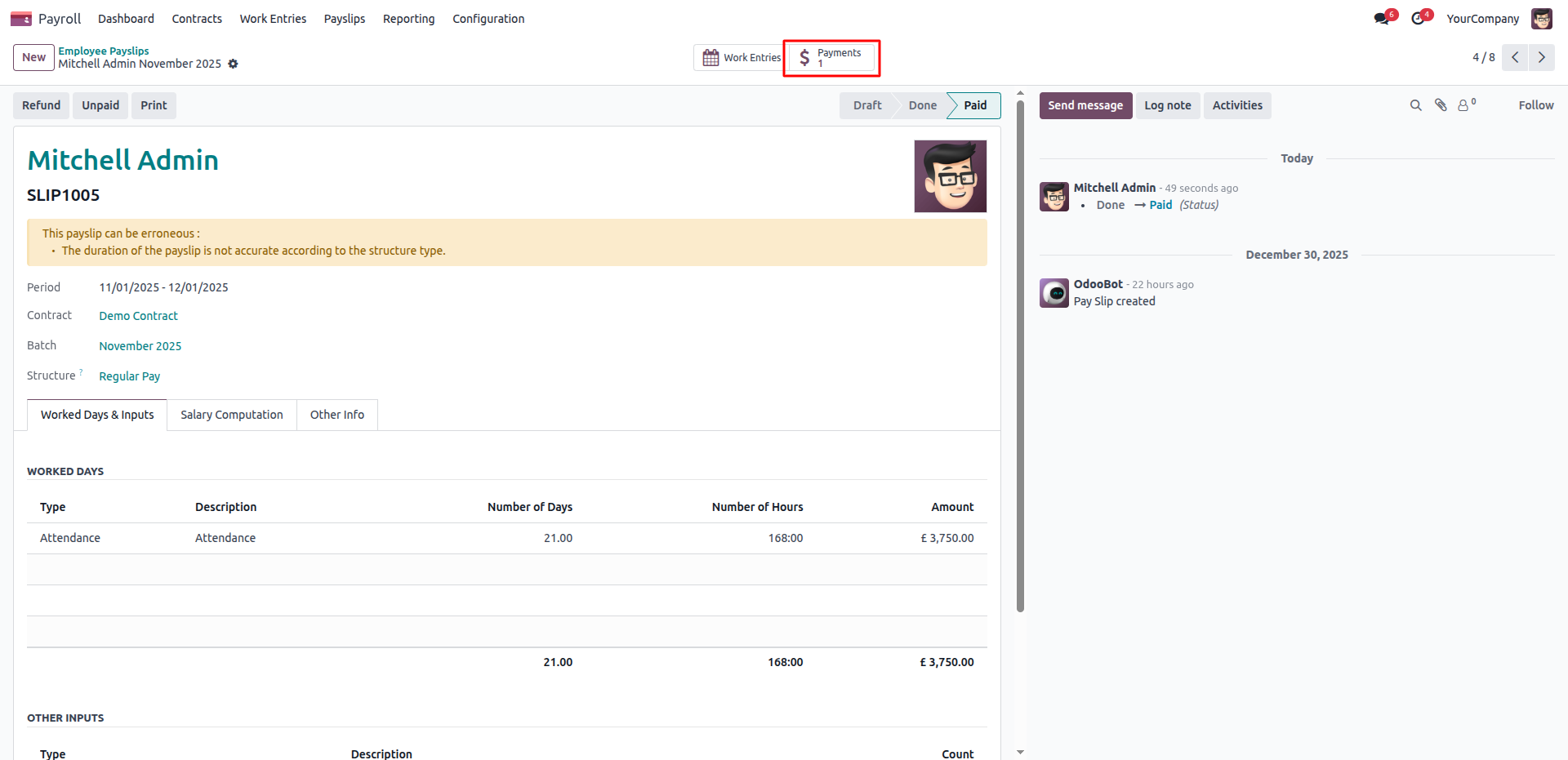
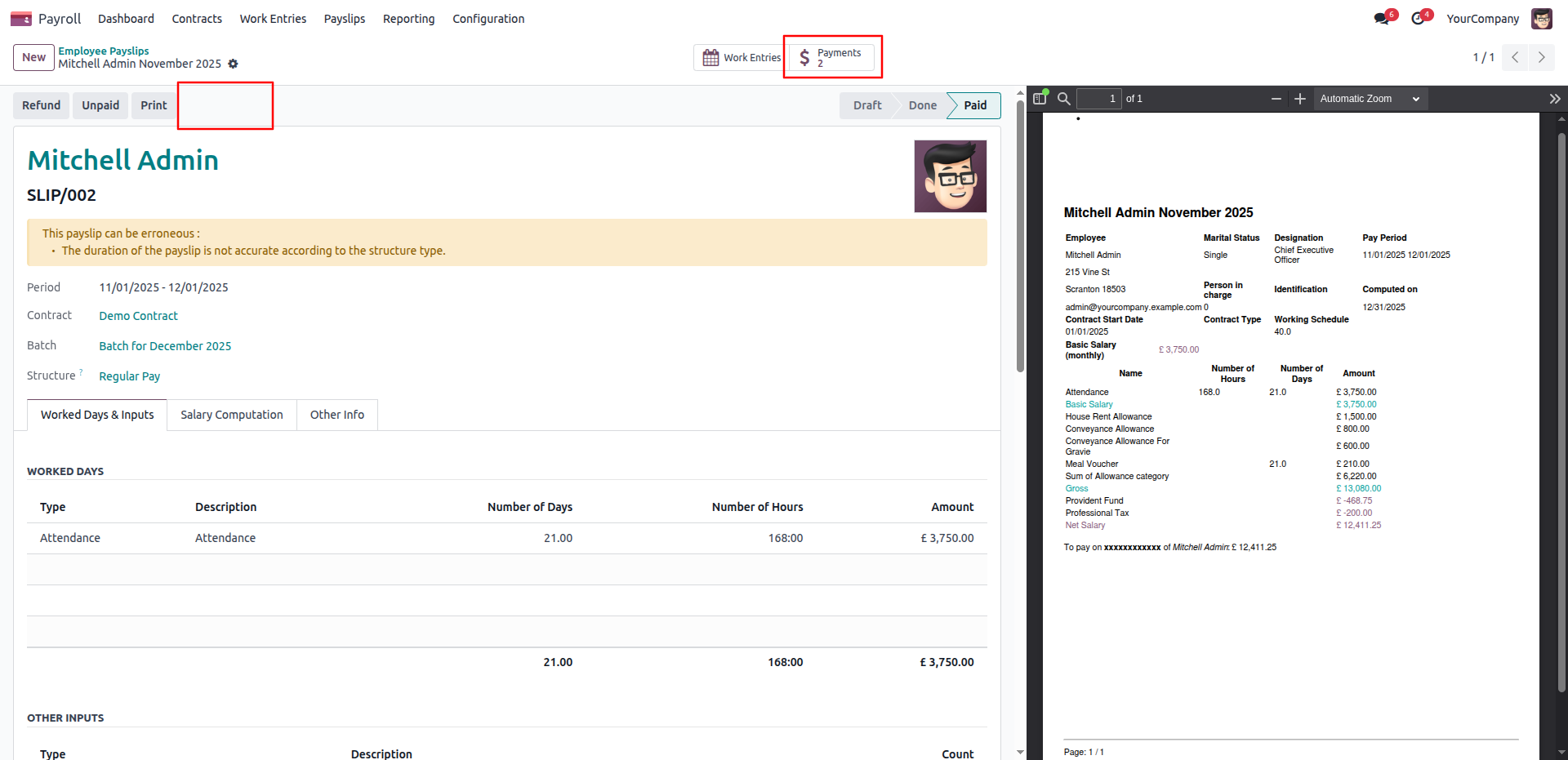
Within the individual paid payslip record, click the highlighted 'Payments' smart button to view the specific accounting transaction details linked to this salary.
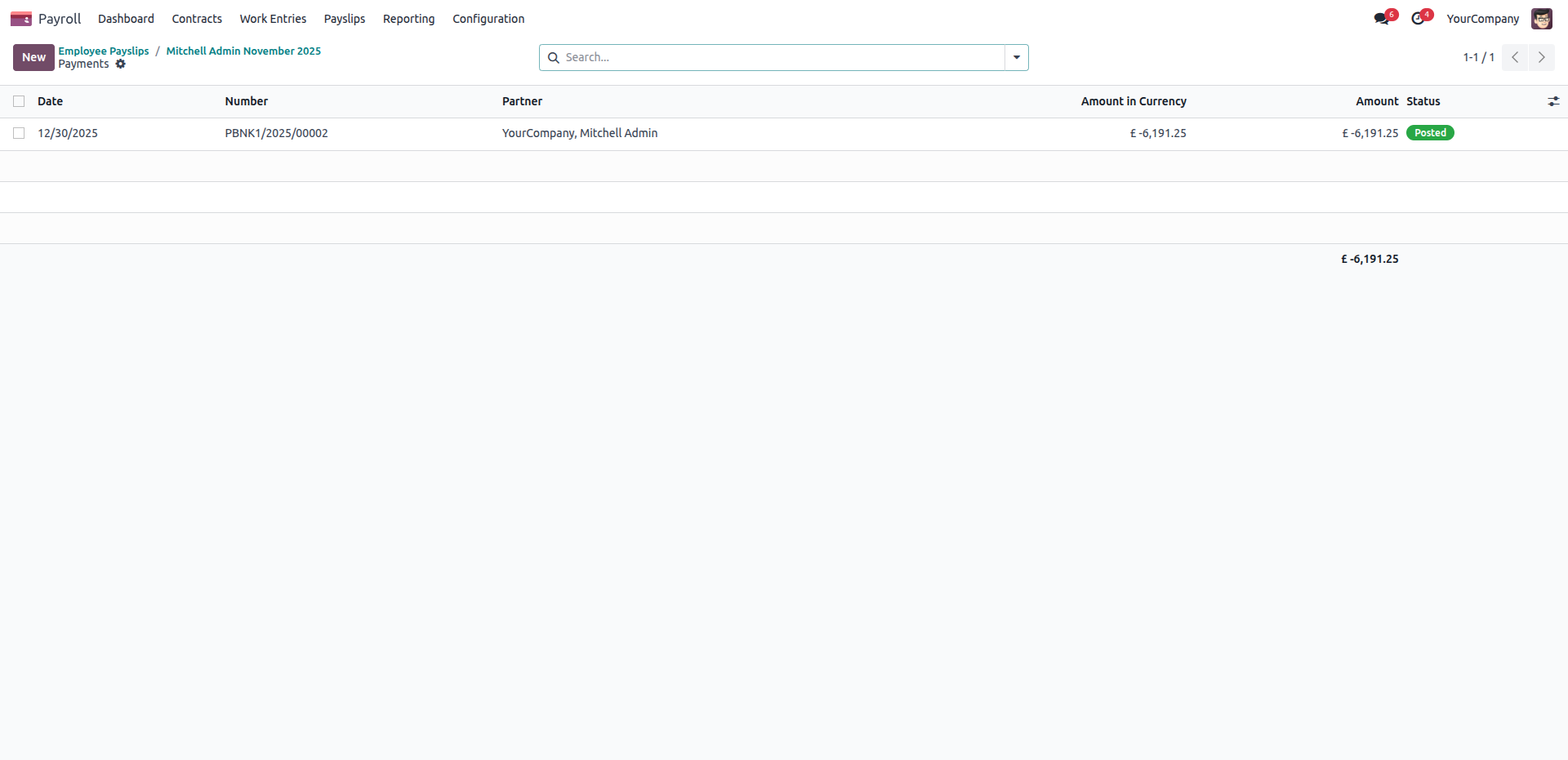
Clicking the 'Payments' smart button reveals the detailed accounting transaction, confirming the transferred amount has been officially 'Posted'.
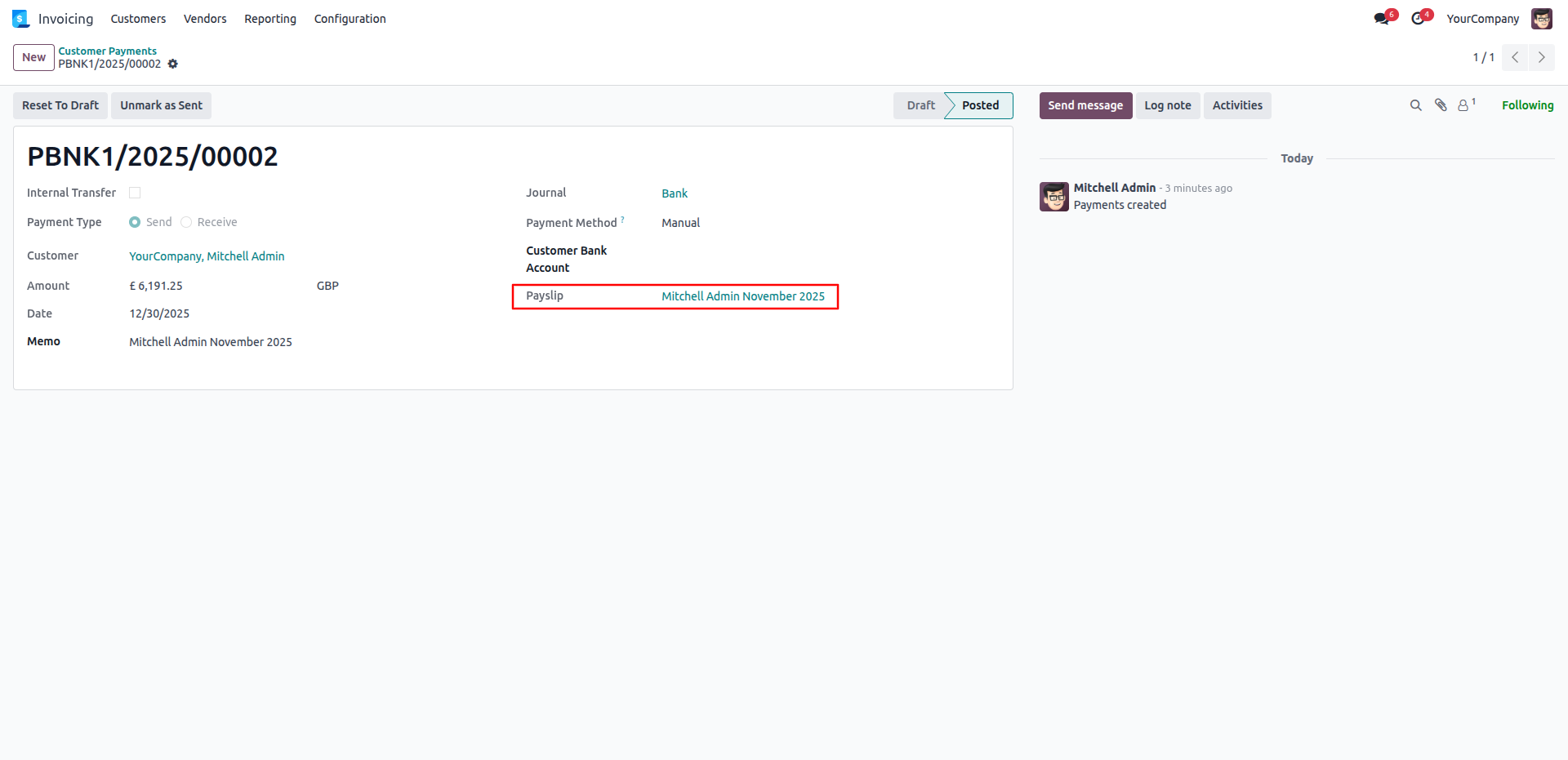
Within the Invoicing application, the posted payment record includes a dedicated, highlighted field that links directly back to the originating payslip for full financial traceability.
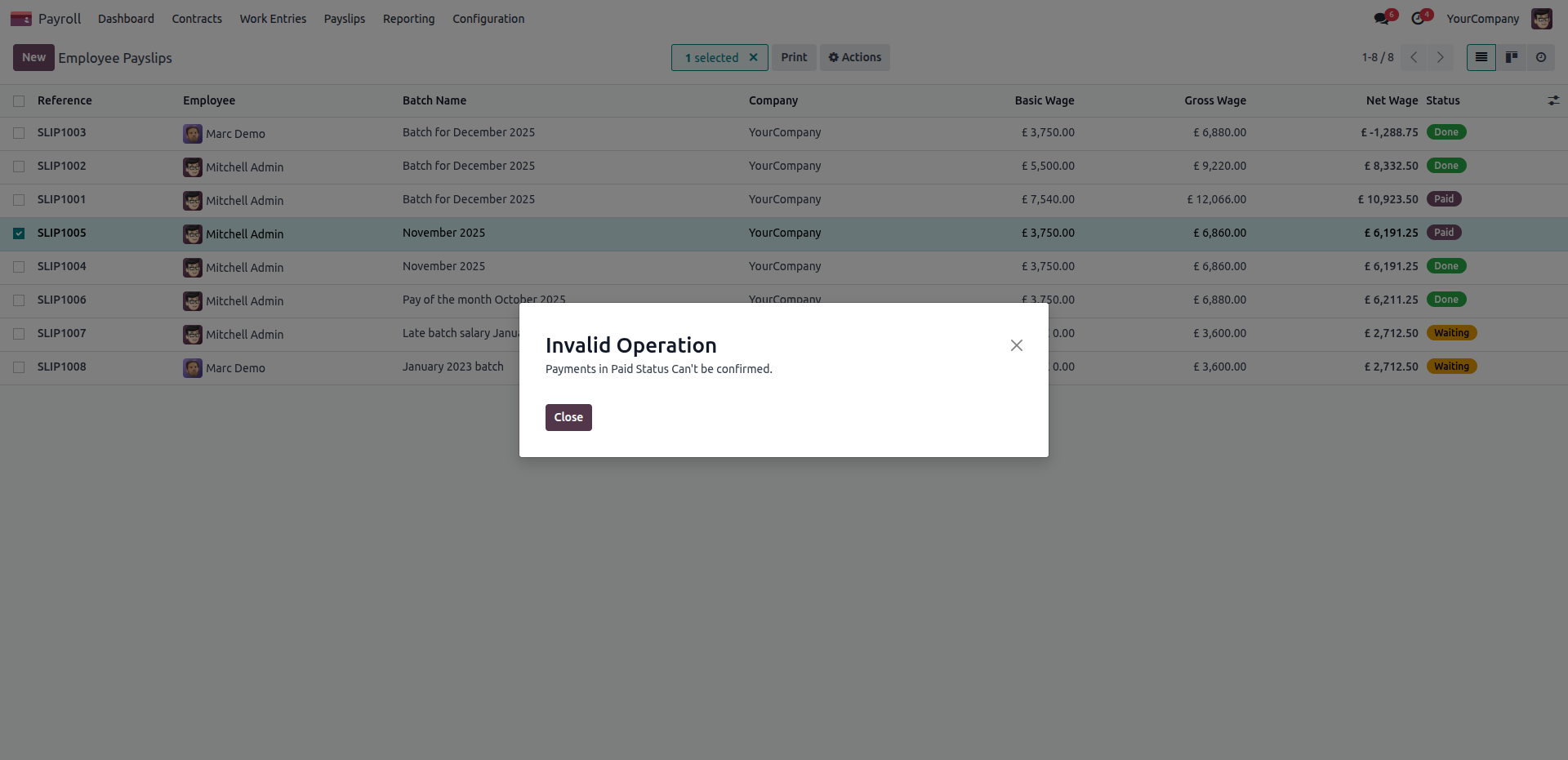
An 'Invalid Operation' warning prevents users from accidentally processing duplicate transactions on payslips that are already in the 'Paid' status.
Attempting to use the 'Payslips Payments' action on a record that is still in the 'Waiting' status, rather than a finalized state.
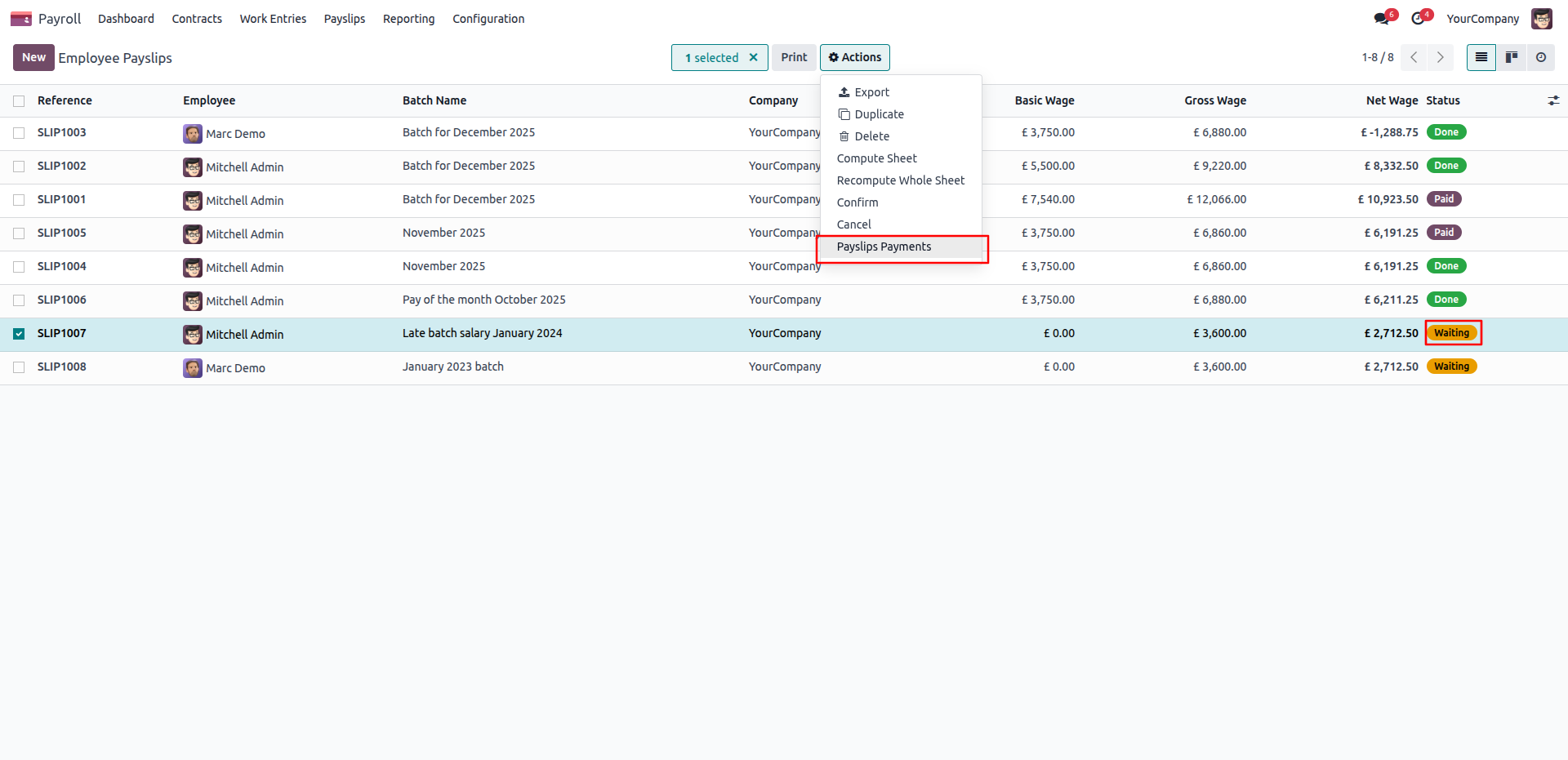
An 'Invalid Operation' error is triggered to prevent users from processing payments on payslips that have not yet been finalized and remain in the pending 'Waiting' stage.
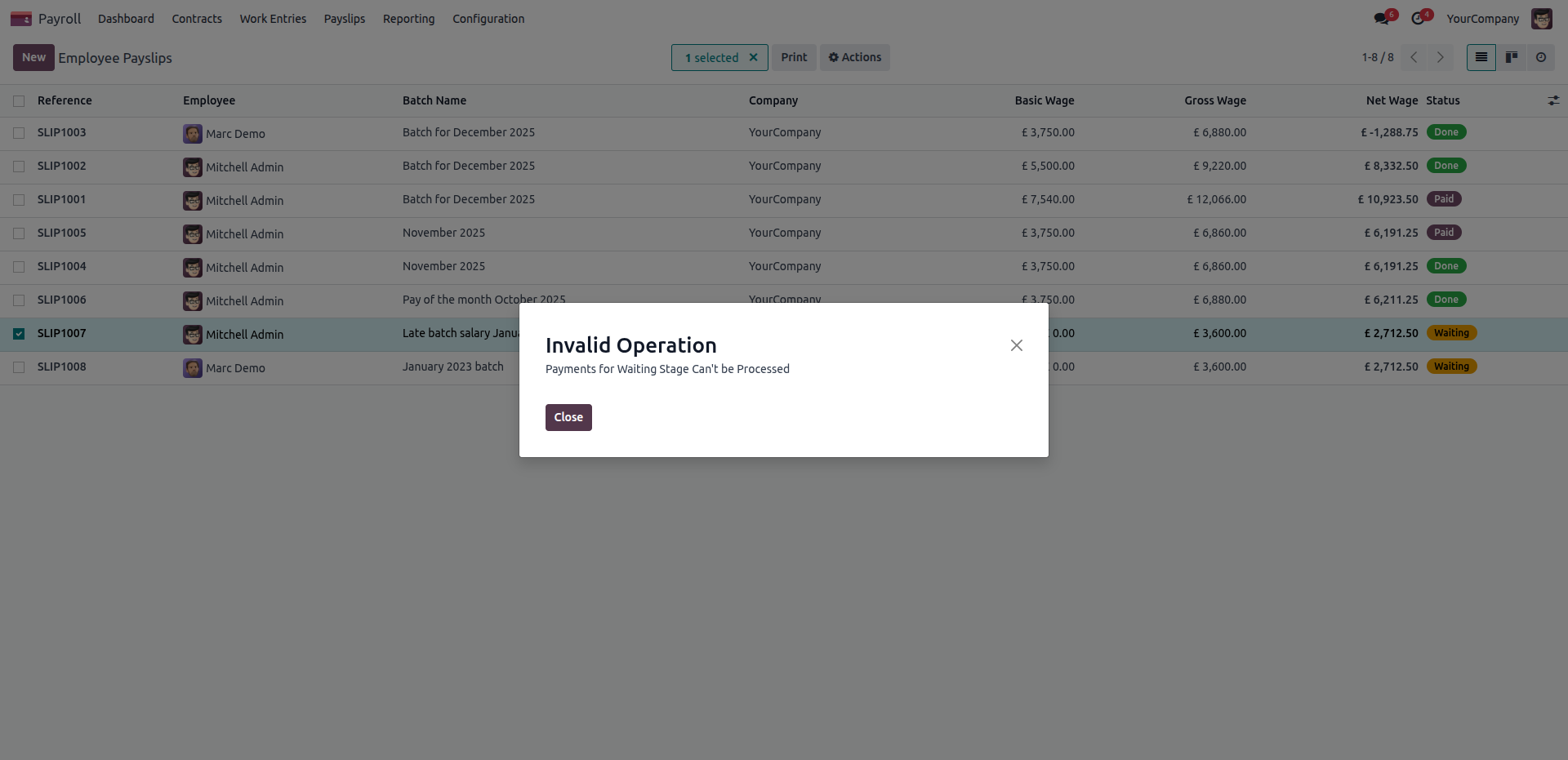
Select multiple finalized payslips simultaneously and use the 'Payslips Payments' action to efficiently process batch transactions for your employees.
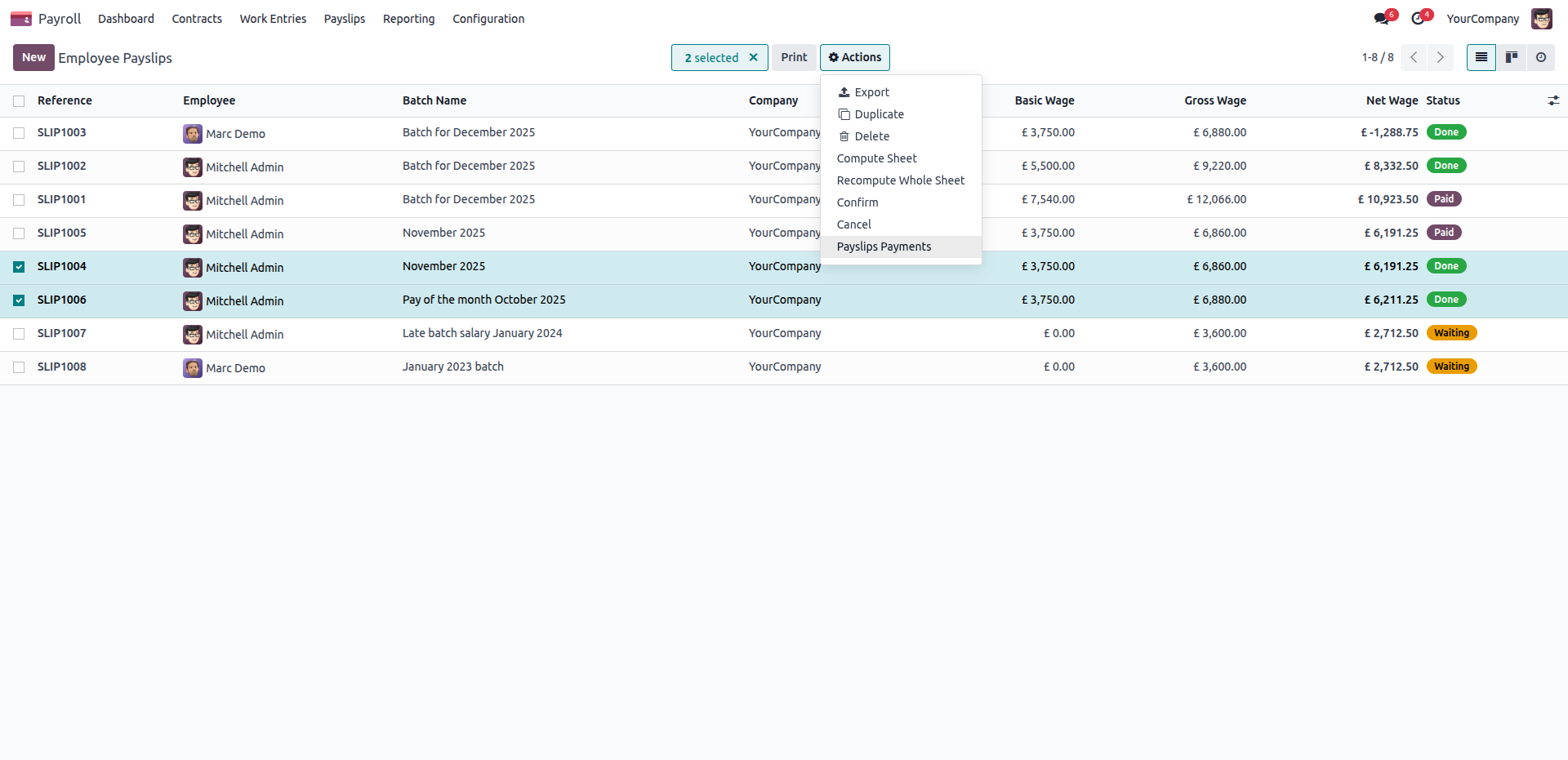
An 'Invalid Operation' warning interrupts a batch payment attempt if the system detects that one of the selected payslips has already been paid.
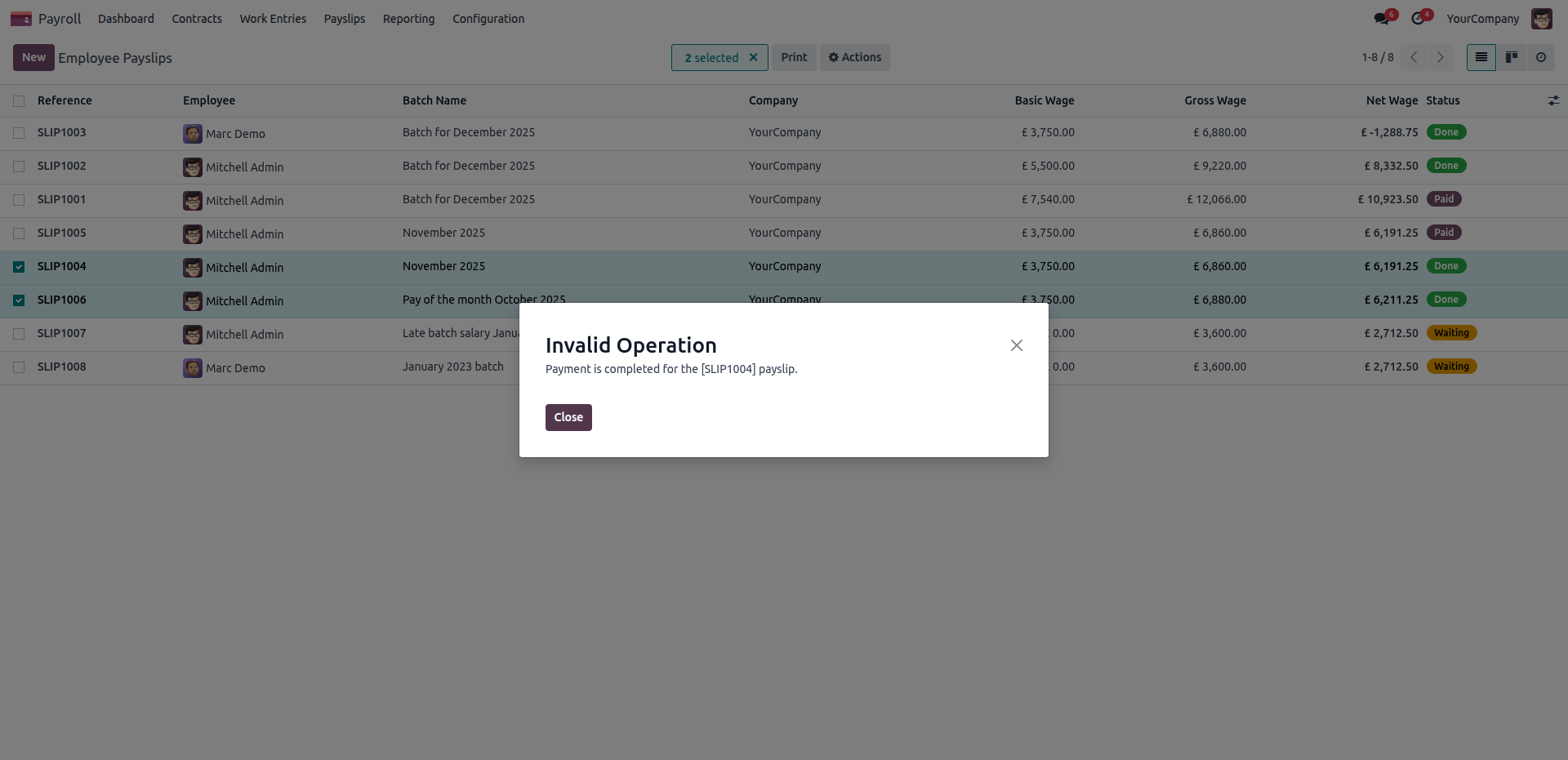
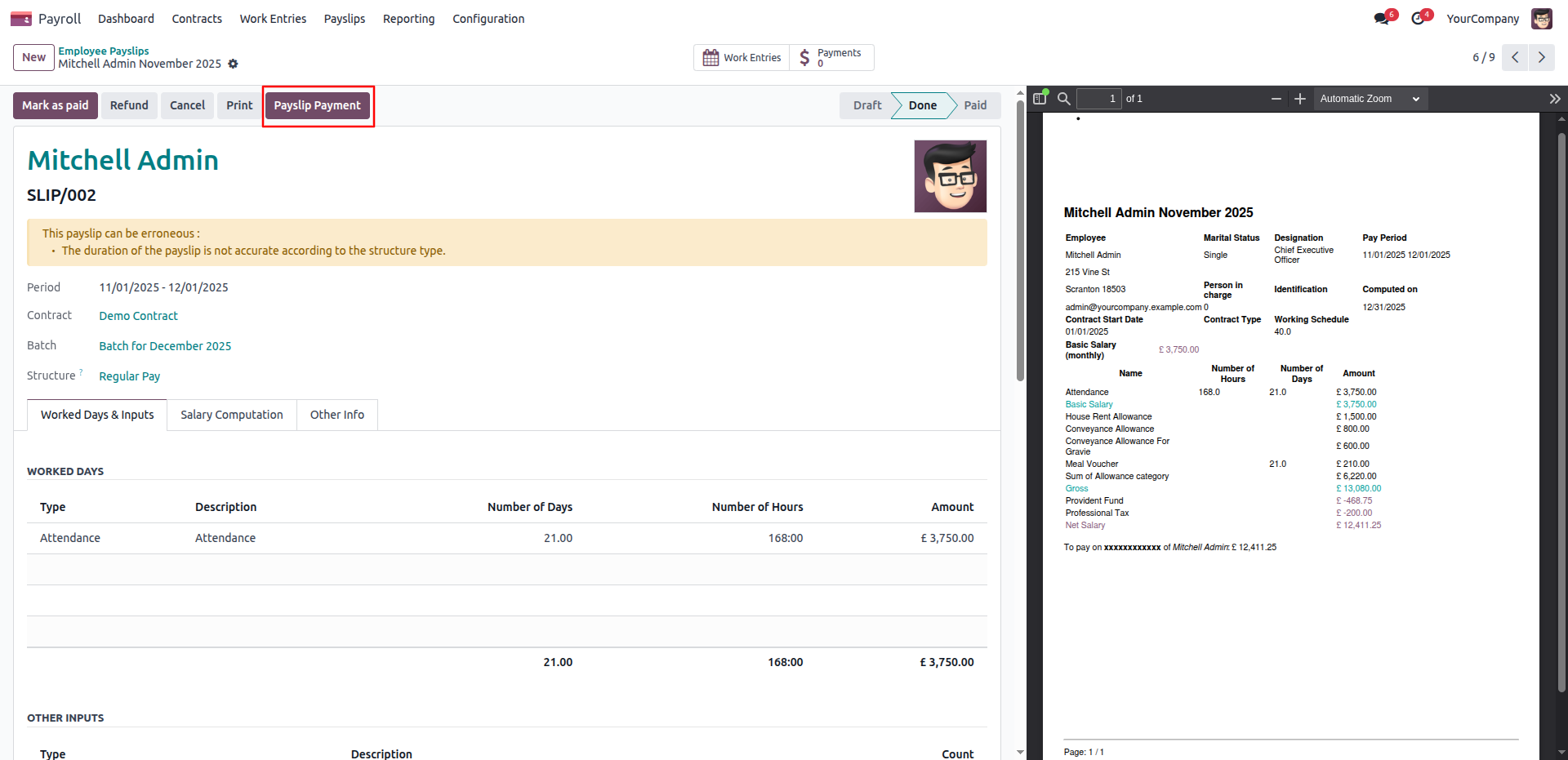
Initiate the transaction for an individual employee by clicking the 'Payslip Payment' button directly within their finalized, 'Done' status payslip record.
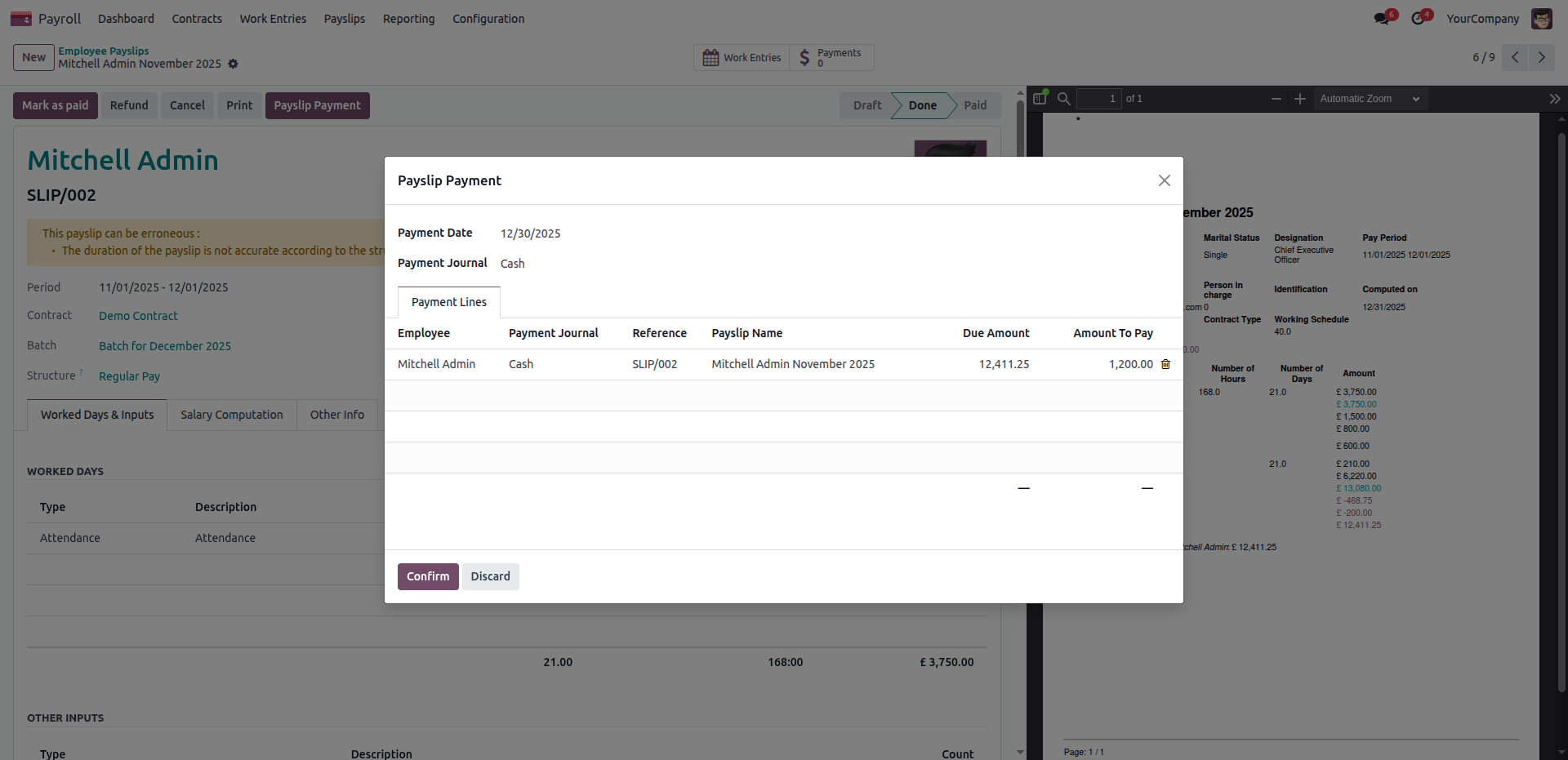
Manually adjust the 'Amount To Pay' field within the payment modal to easily process a partial payment that is less than the total amount due on the employee's payslip.
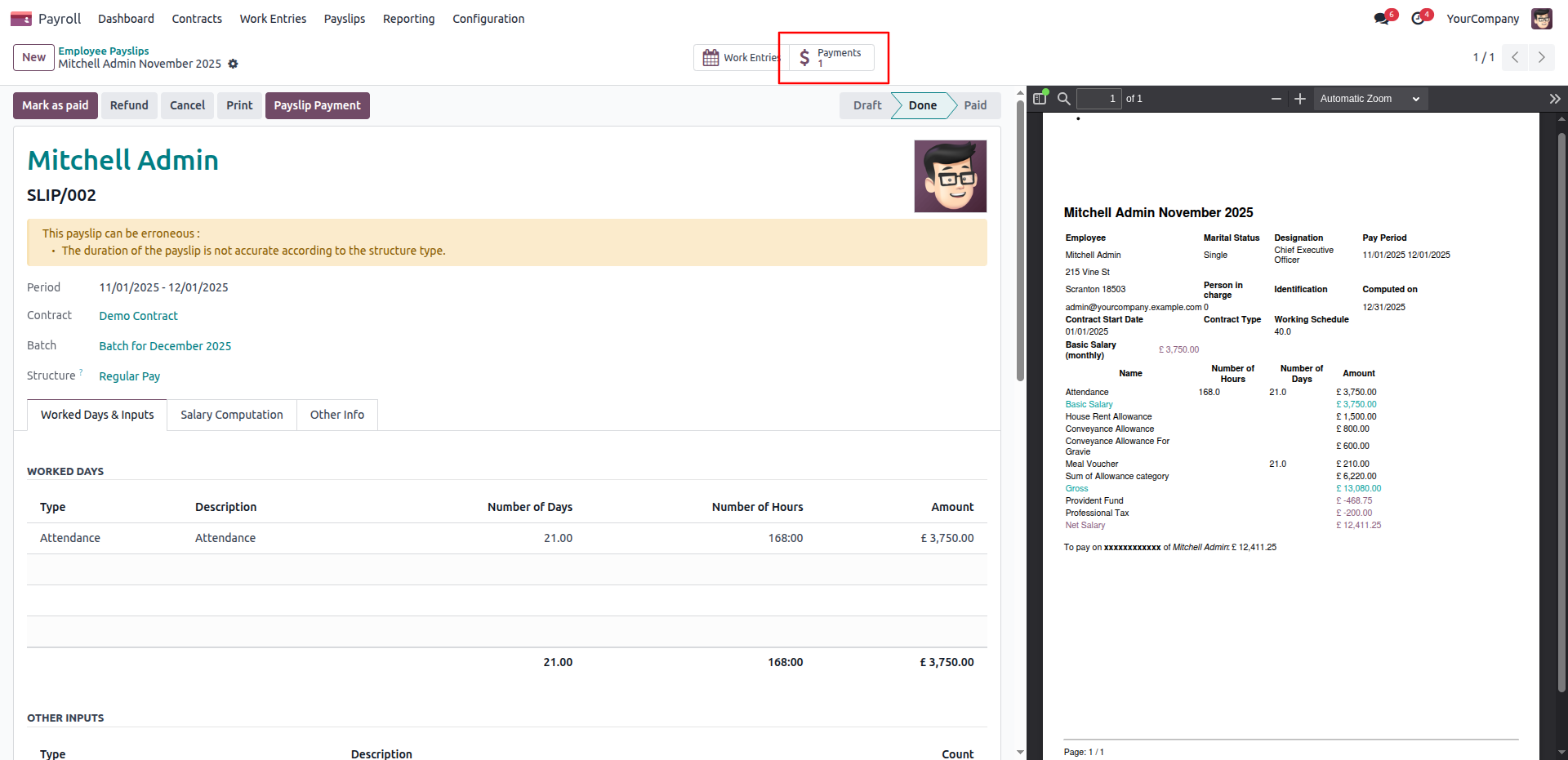
After processing a partial payment, the highlighted 'Payments' smart button updates to reflect the linked transaction, while the overall payslip status remains 'Done' until the full balance is cleared.
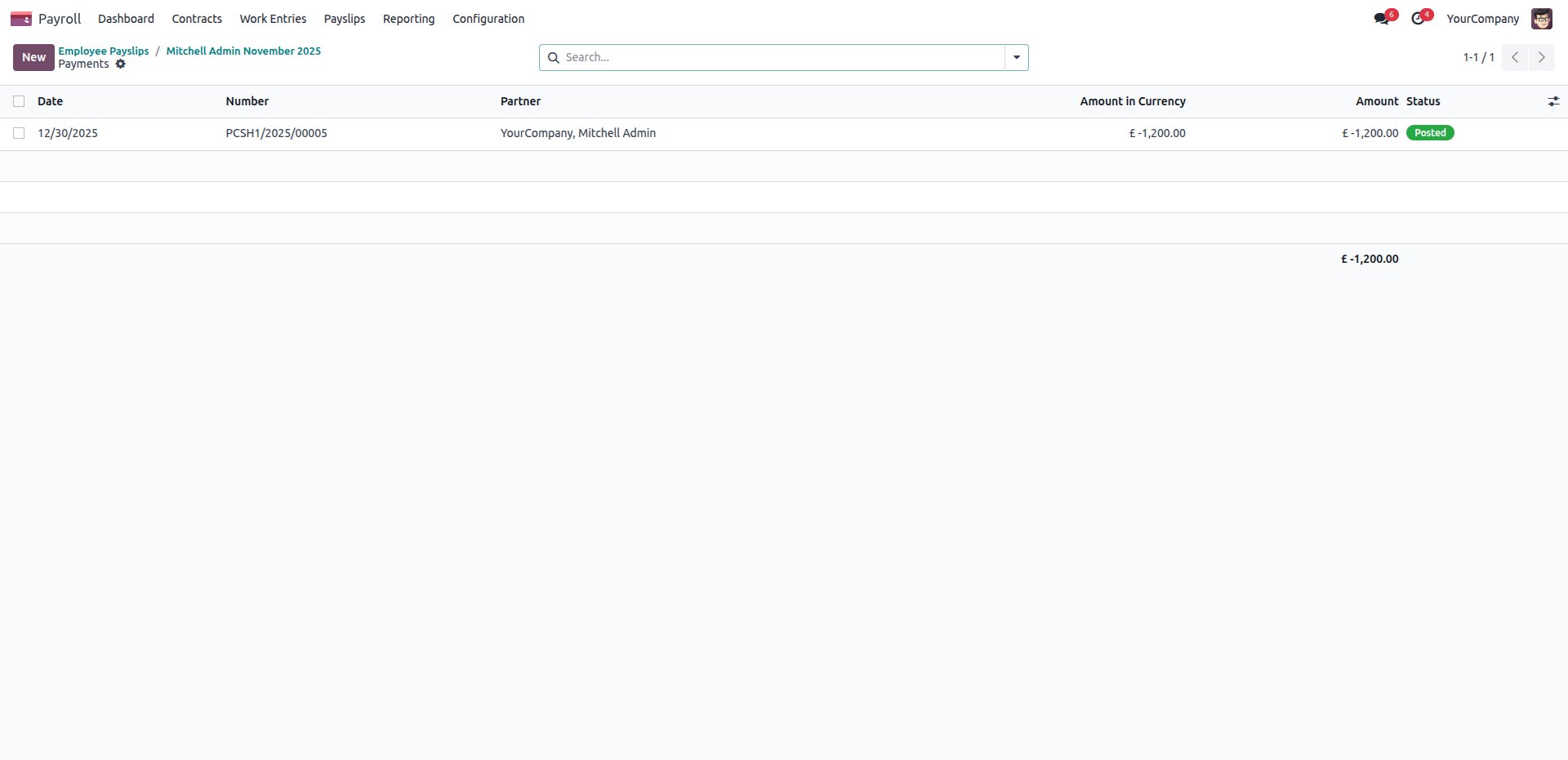
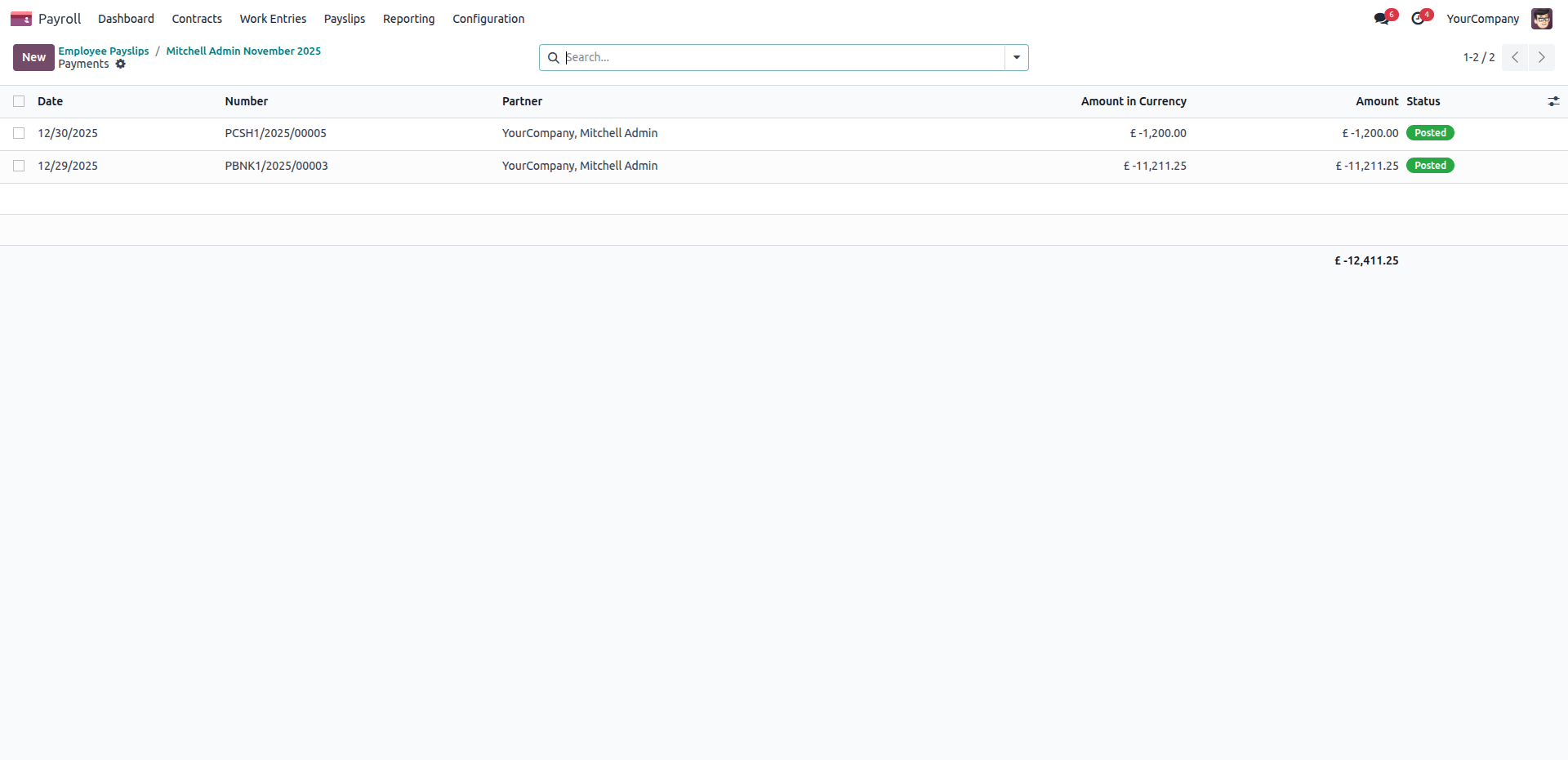
Clicking the 'Payments' smart button reveals the detailed accounting transaction, confirming the partial 1,200.00 payment has been officially 'Posted' to the financial ledger.
Set the final payment details and click 'Confirm' to clear the remaining balance on an employee's payslip following a previous partial payment.
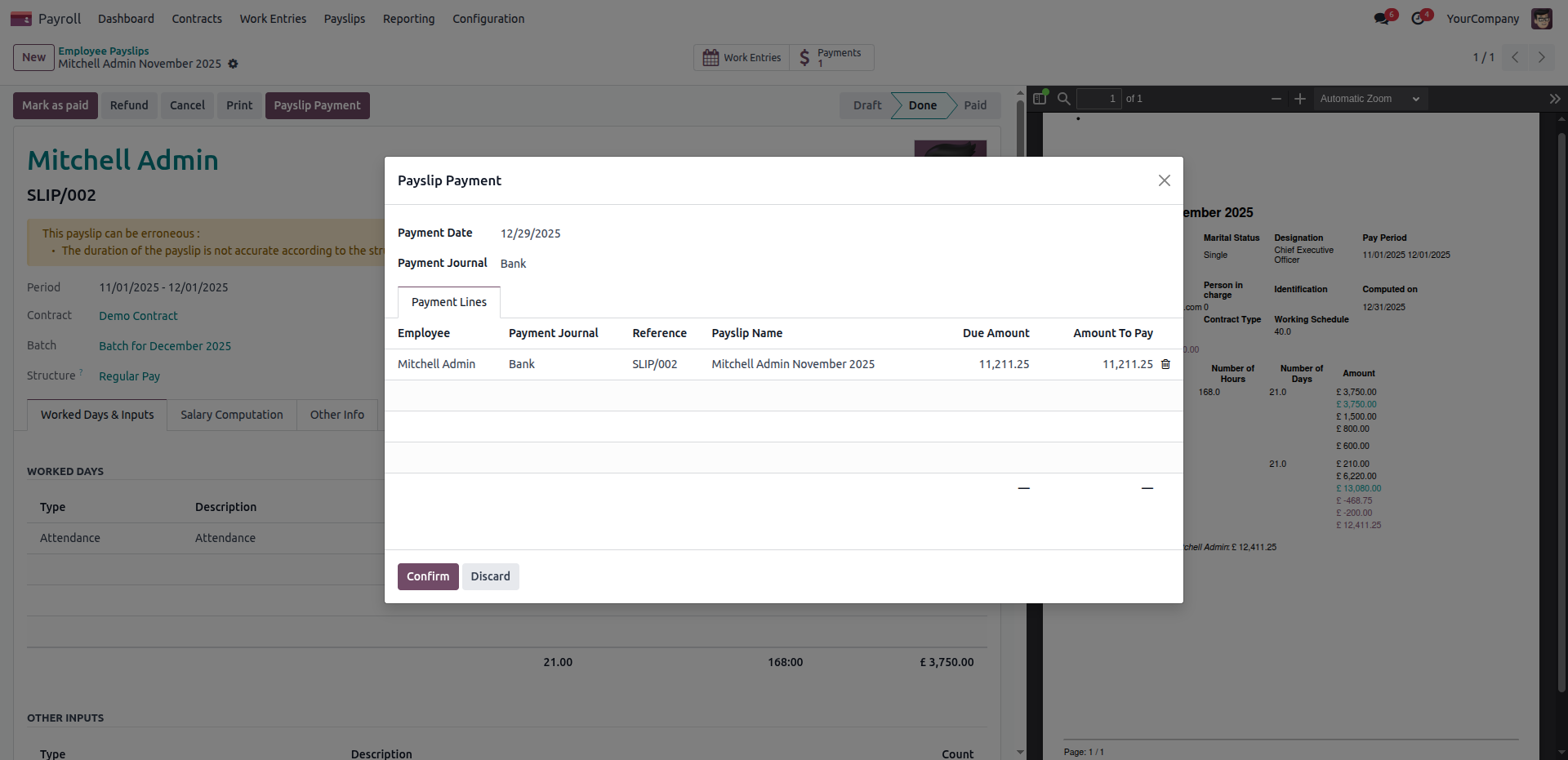
Once the full balance is cleared, the payslip status updates to 'Paid,' and the 'Payments' smart button reflects the total number of transactions linked to the record.
The Payments list view provides a consolidated record of all 'Posted' transactions linked to a single payslip, totaling the full salary amount paid to the employee.
Version 19.0.1.0.0 | Released on : 15th May 2026
- No, this app works perfectly with Odoo Enterprise (Odoo.sh & Premise) only.
- No, this application is not compatible with odoo.com(odoo saas/Odoo Online)
- Yes, to test this module, please contact us at sales@softhealer.com.
- Please contact us at sales@softhealer.comto request customization.
- Yes, we provide free support for 365 days from the date of purchase.
- Yes, you will receive lifetime free updates for the version of the module you purchased.
- No, there is no need to install any additional libraries.
- Yes, for version 12 and above, you need to purchase the module separately for each version you intend to use.
- No, exchanges or refunds are not allowed. Please make sure to select the correct version before purchasing.
- You can contact us at support@softhealer.com for language translation support. We use Google Translator tools to provide translations in multiple languages, so the accuracy may vary. We welcome your suggestions to help improve translations.
Discover Our Latest Apps