












QuickBooks POS Interface | Odoo Point of Sale the look and feel of QuickBooks POS | QuickBooks-Style POS Layout for Odoo

Give your Odoo Point of Sale the look and feel of QuickBooks POS - a familiar, streamlined checkout experience your cashiers already know, with faster billing and fewer clicks. This module reskins the standard Odoo Point of Sale screen into a QuickBooks POS-style interface - so users coming from QuickBooks POS (or who prefer that layout) get an instantly familiar checkout screen inside Odoo. It rearranges the product grid, cart, customer panel, and payment buttons into the same compact, single-screen billing style QuickBooks POS is known for.
Note: This is a UI/UX layout module - it changes how the Odoo POS screen looks and behaves, it does not connect, sync, or integrate with QuickBooks (accounting) software or import/export QuickBooks data if you need module to connect you data please check attached link for same.
Odoo QuickBooks Connector

Features

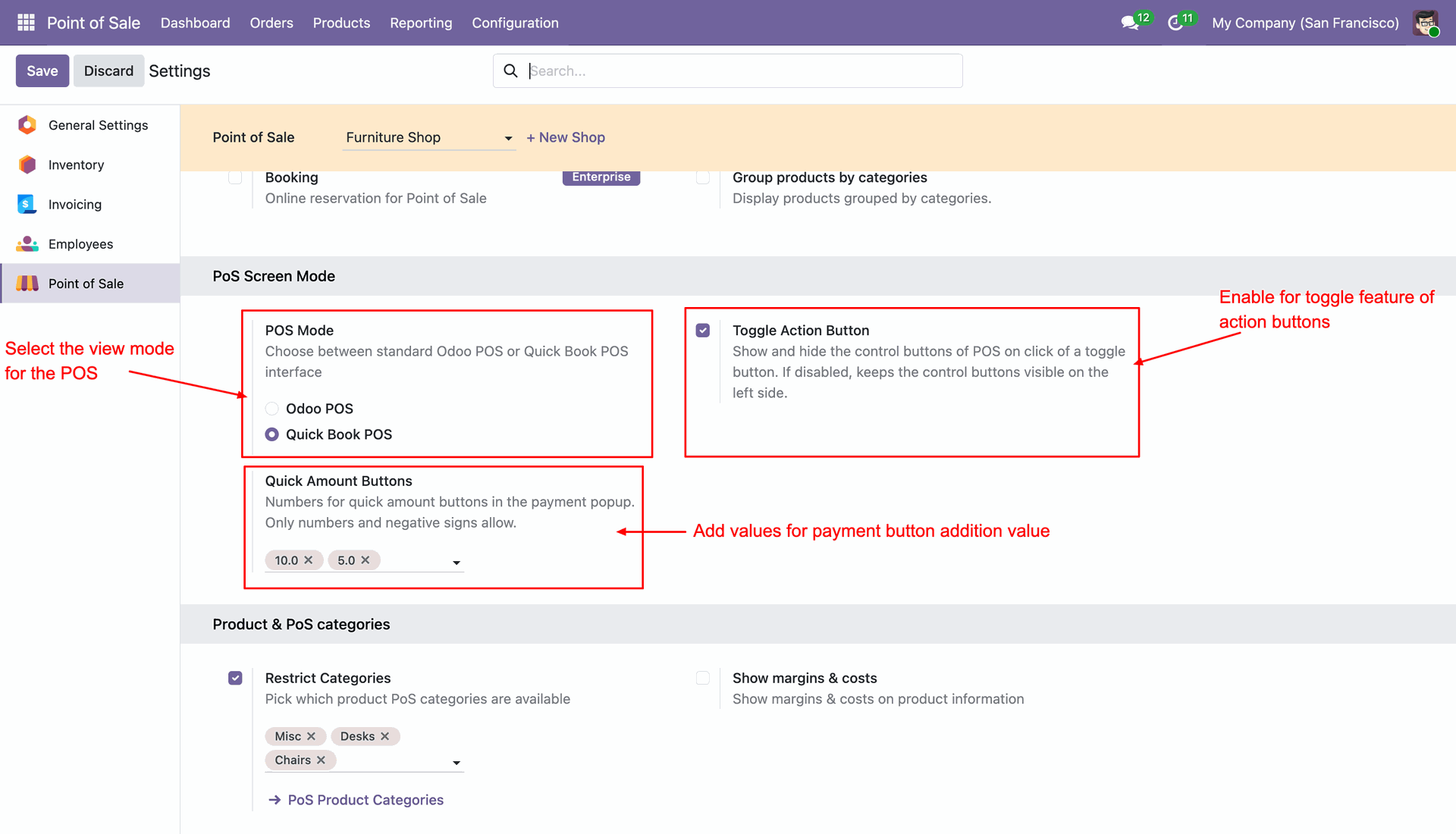
QuickBooks POS Mode
Switch between the standard Odoo POS interface and the QuickBooks POS layout based on your business requirements.
QuickBooks-Style POS Feel & UI
QuickBooks-style checkout experience - product & customer search, a compact editable cart, one-click payments, and save / save & print order actions, all built into an Odoo POS interface styled like QuickBooks POS.

Quick Amount Buttons
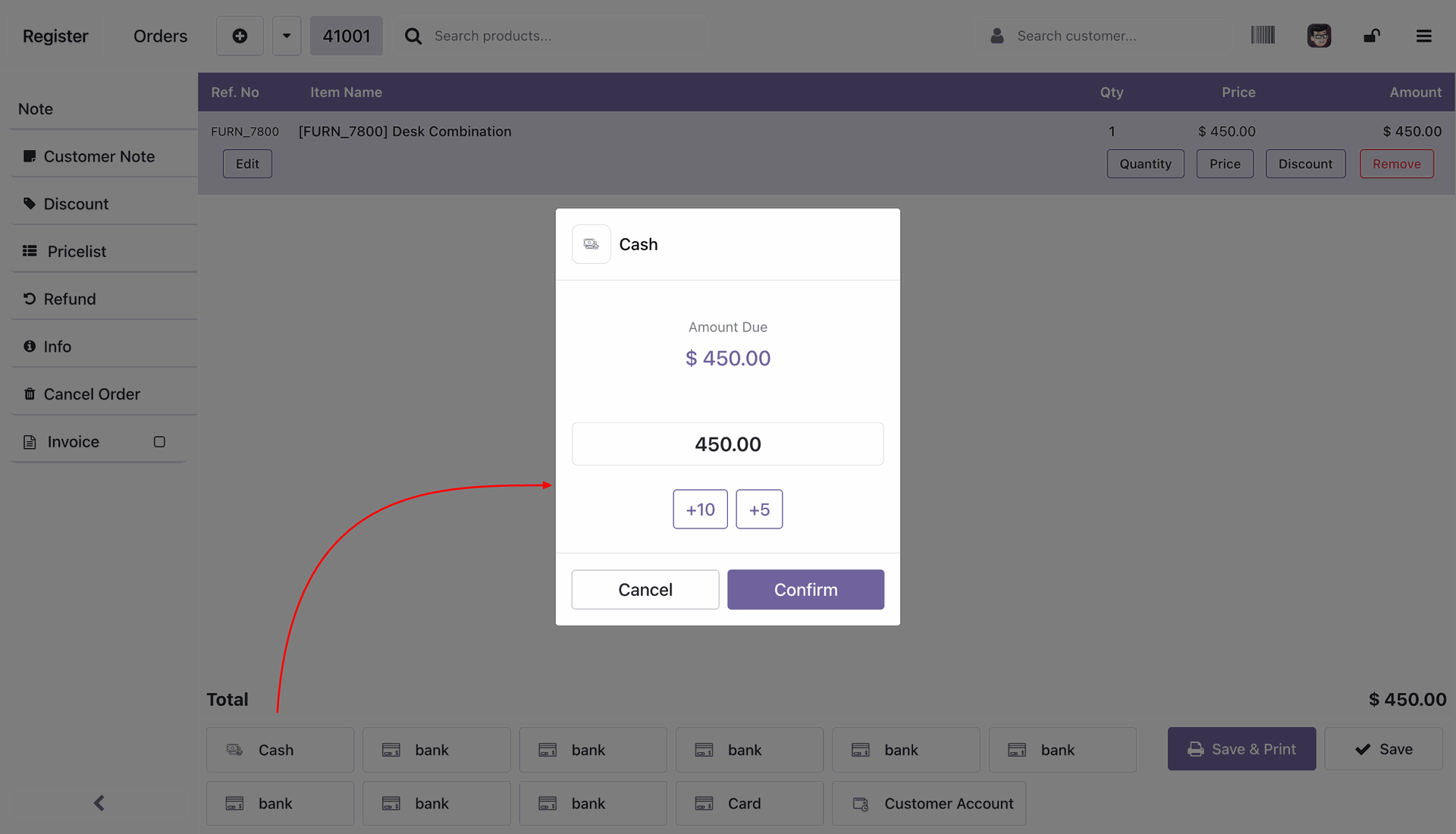
Add fixed quick-cash buttons like +5 and +10 next to the payment screen, so the cashier can just tap to add that amount instead of typing it in every time. Makes cash payments faster and reduces manual typing at checkout.
POS Mode Configuration: Easily switch between Standard and QuickBooks mode in POS settings. Selecting QuickBooks POS, enabling the Toggle Action Button, and setting custom Quick Amount Buttons values.
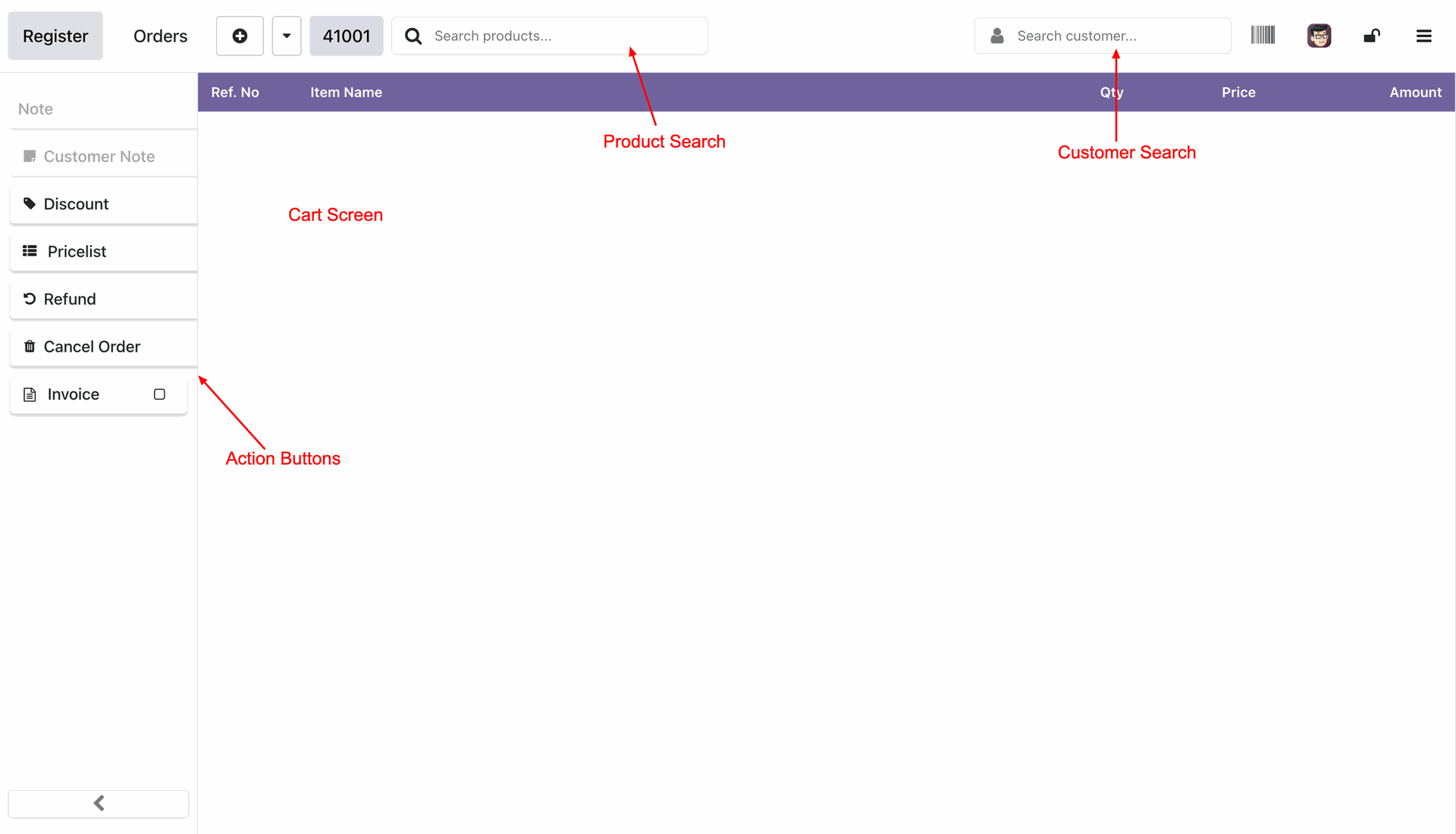
QuickBooks Interface Overview: A clean, unified screen for both product selection and payments.
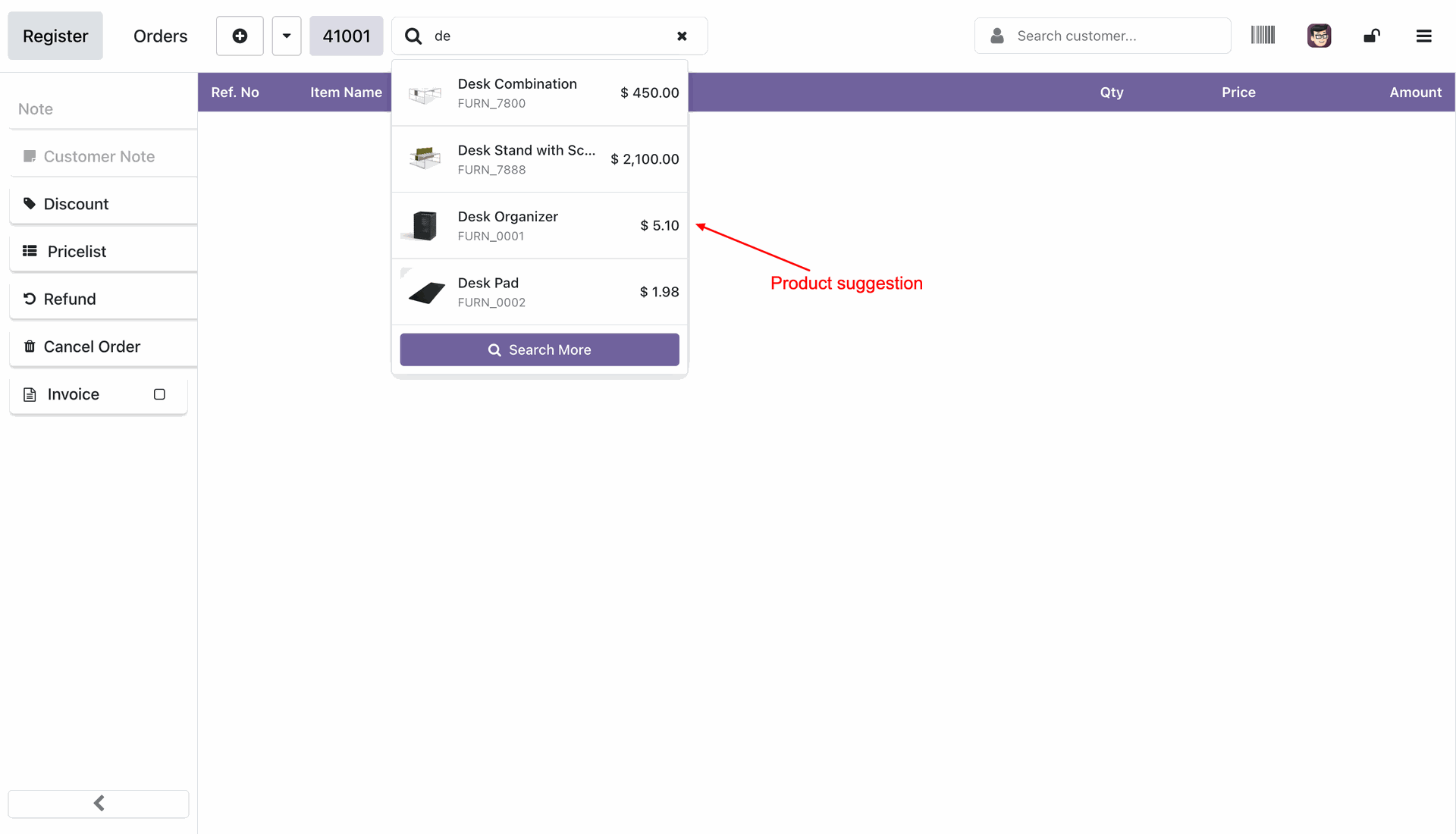
Selecting the Products.
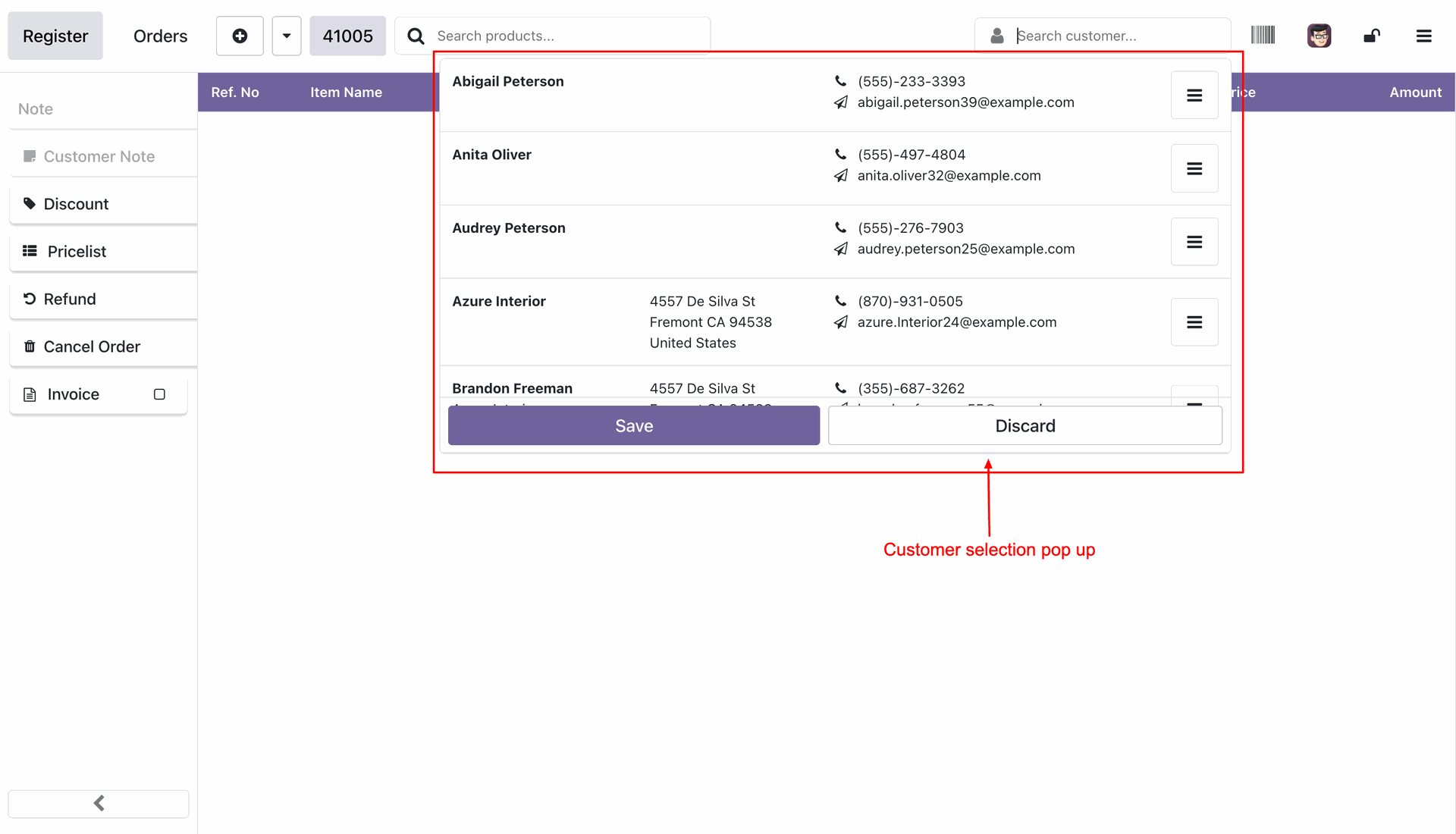
Selecting customer.
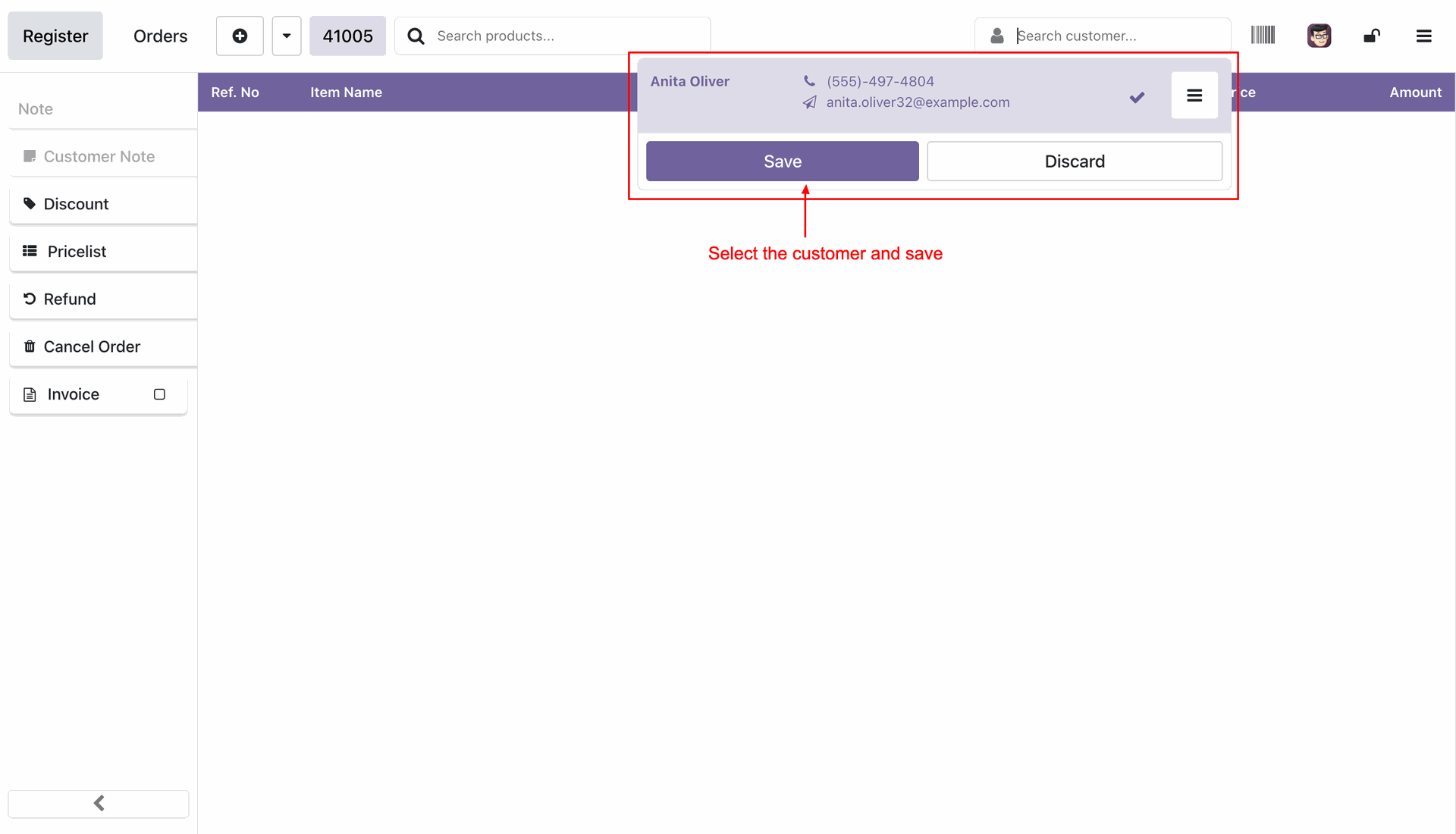
Click save to select the customer.
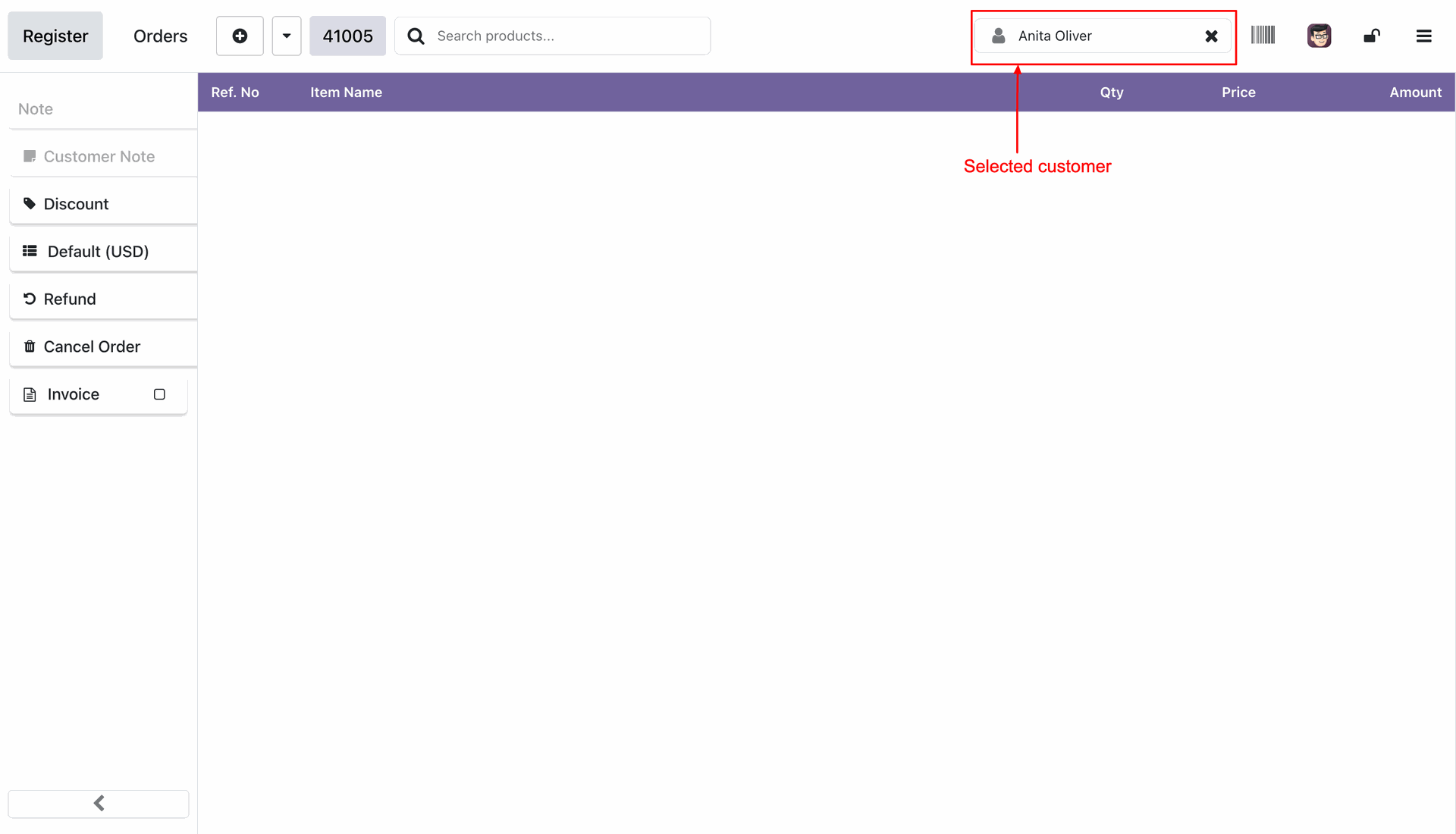
The selected customer then appears on the top status bar.
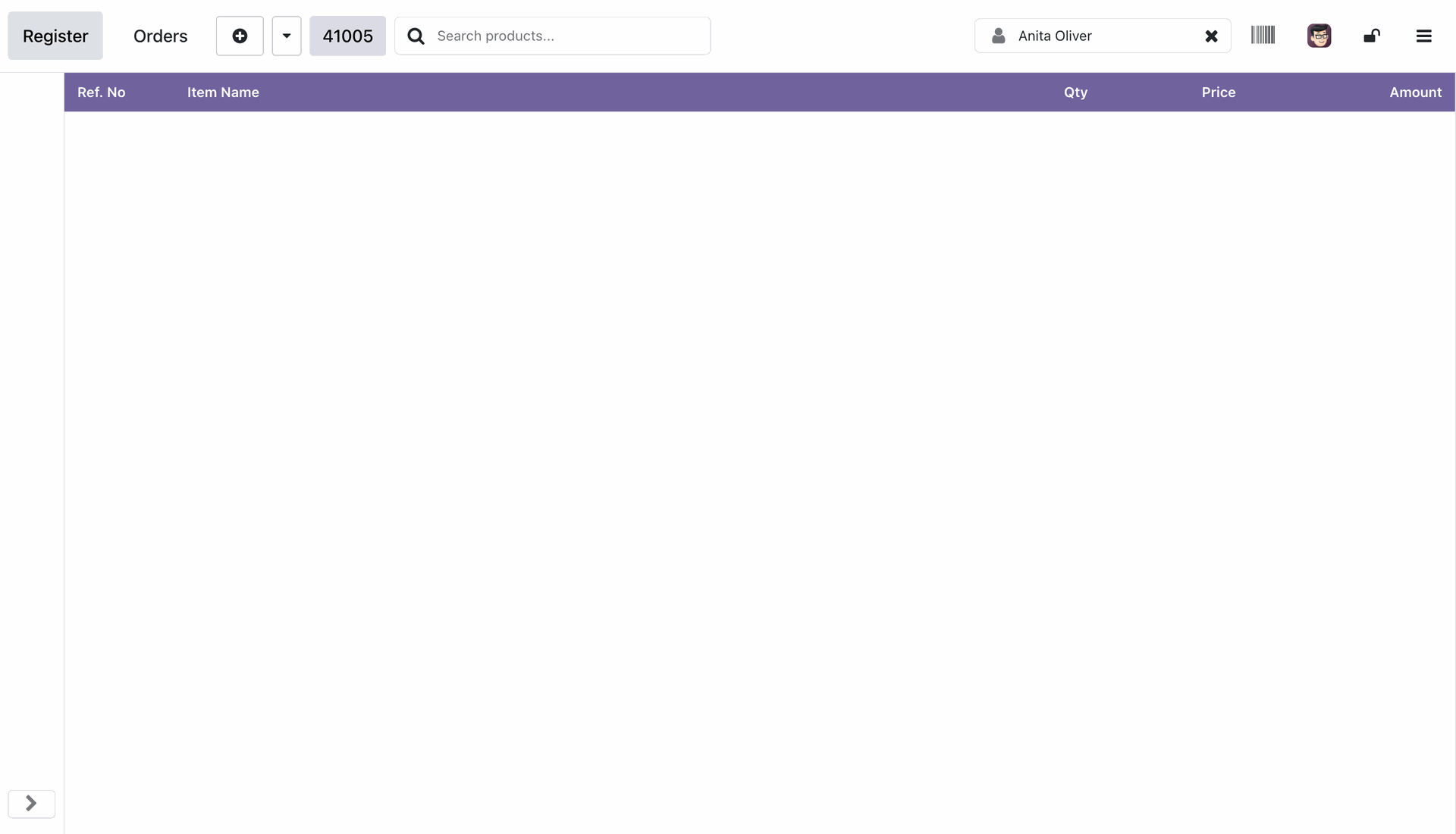
Press the left arrow button to hide the action buttons.
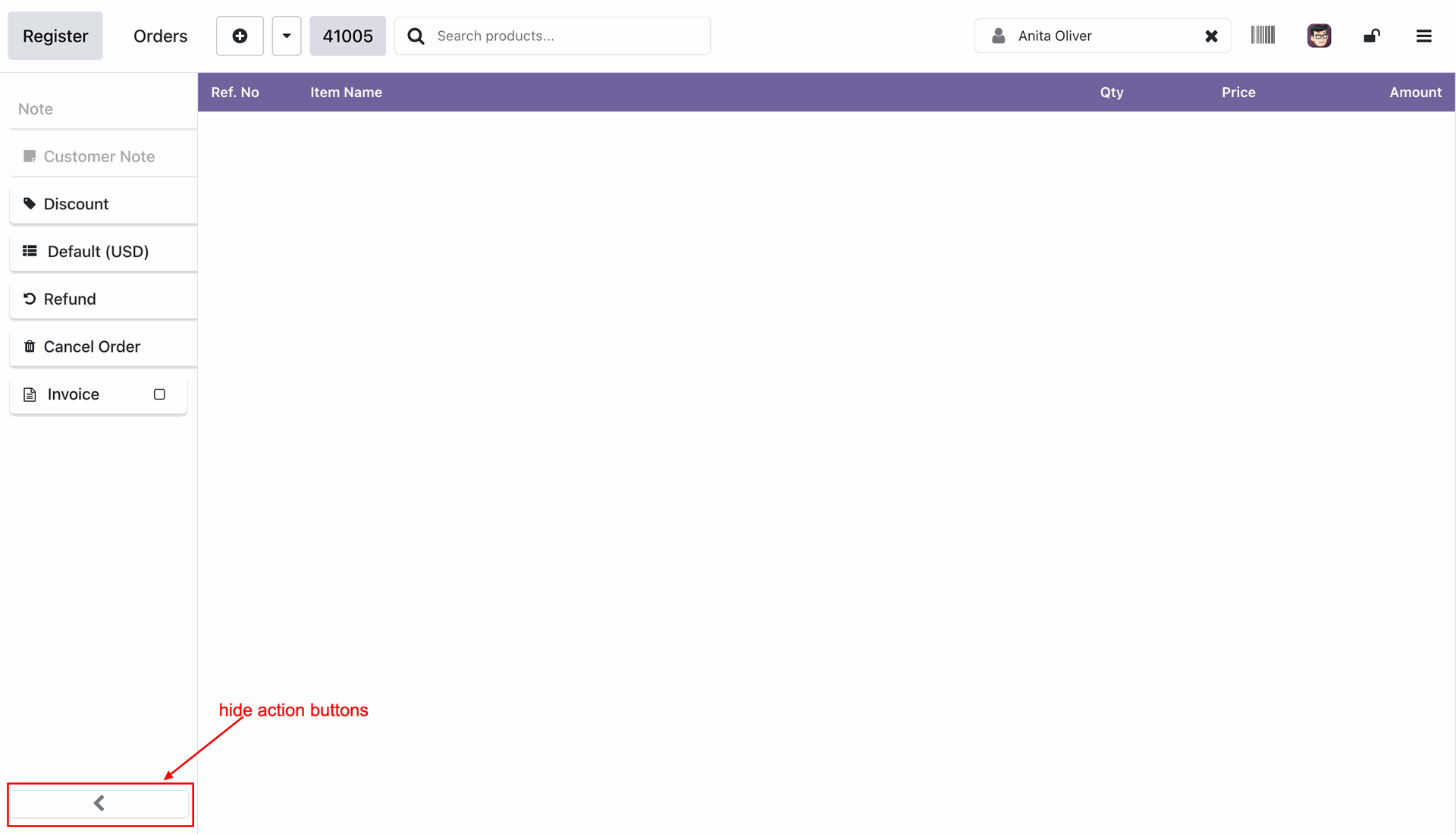
Hidden the unnecessary buttons to maximize product display area.
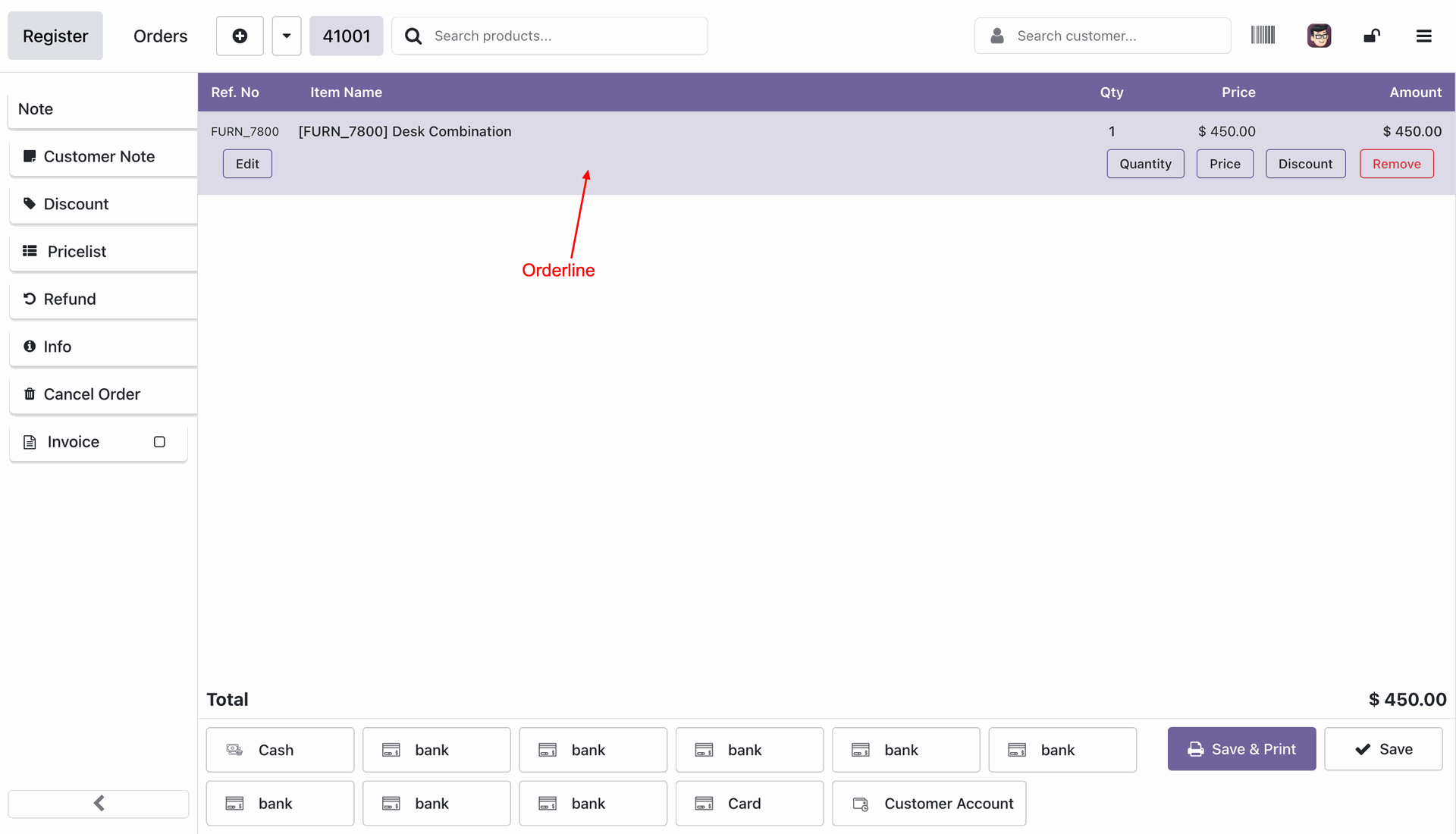
Adding products in to the order.
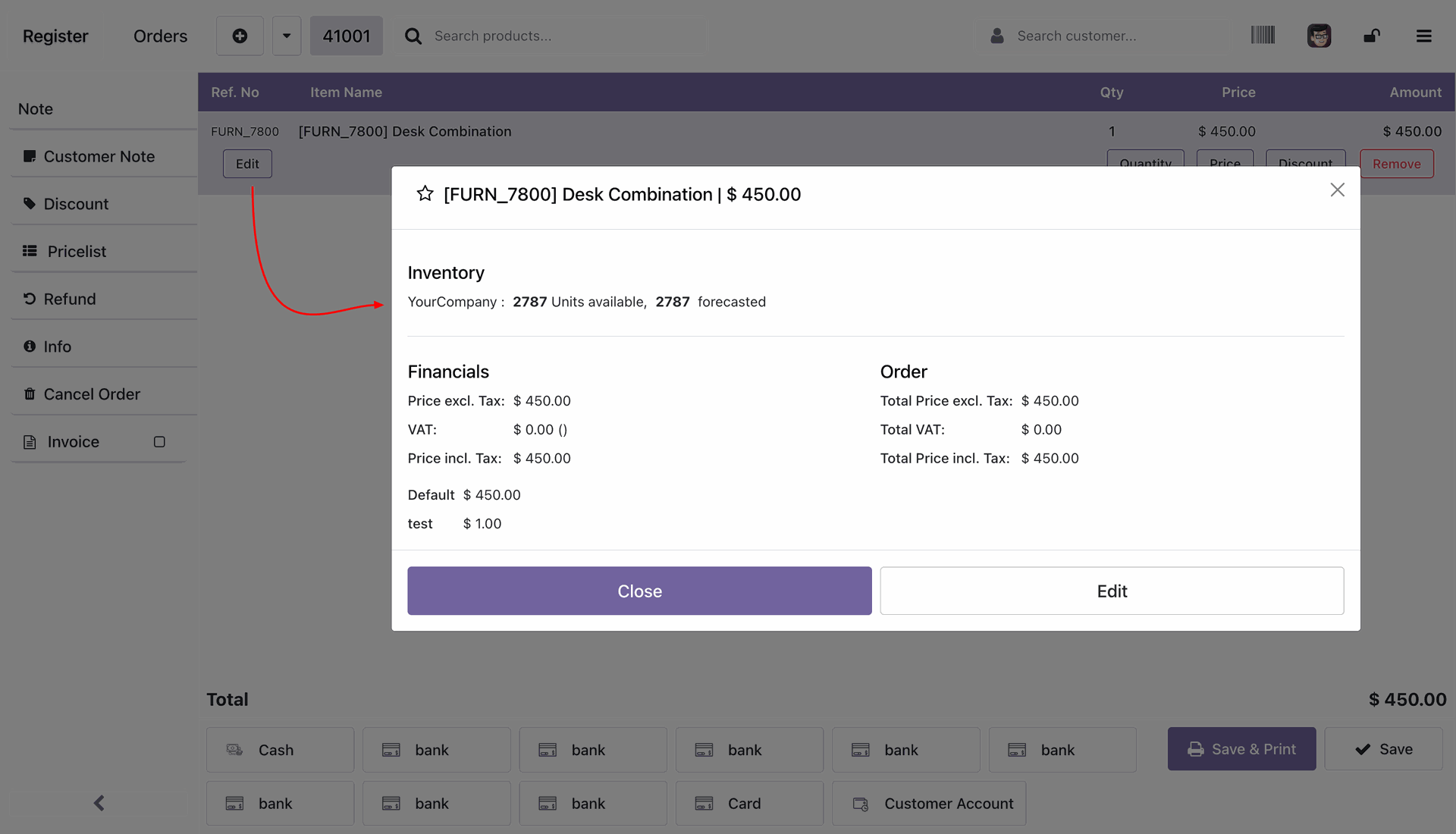
You can edit the product details like price, quantity, etc by clicking the edit button.
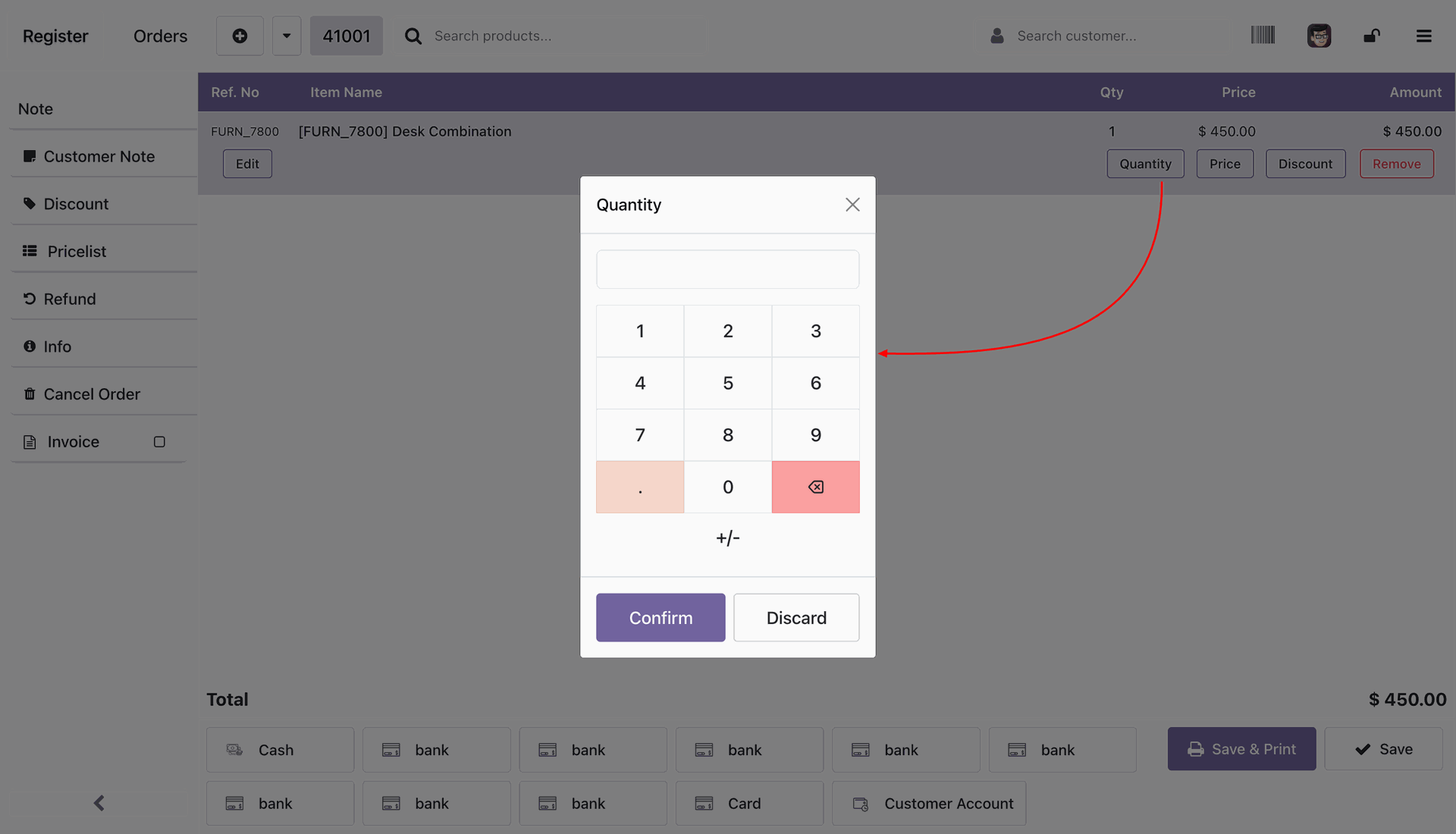
Adding the quantity of the product.
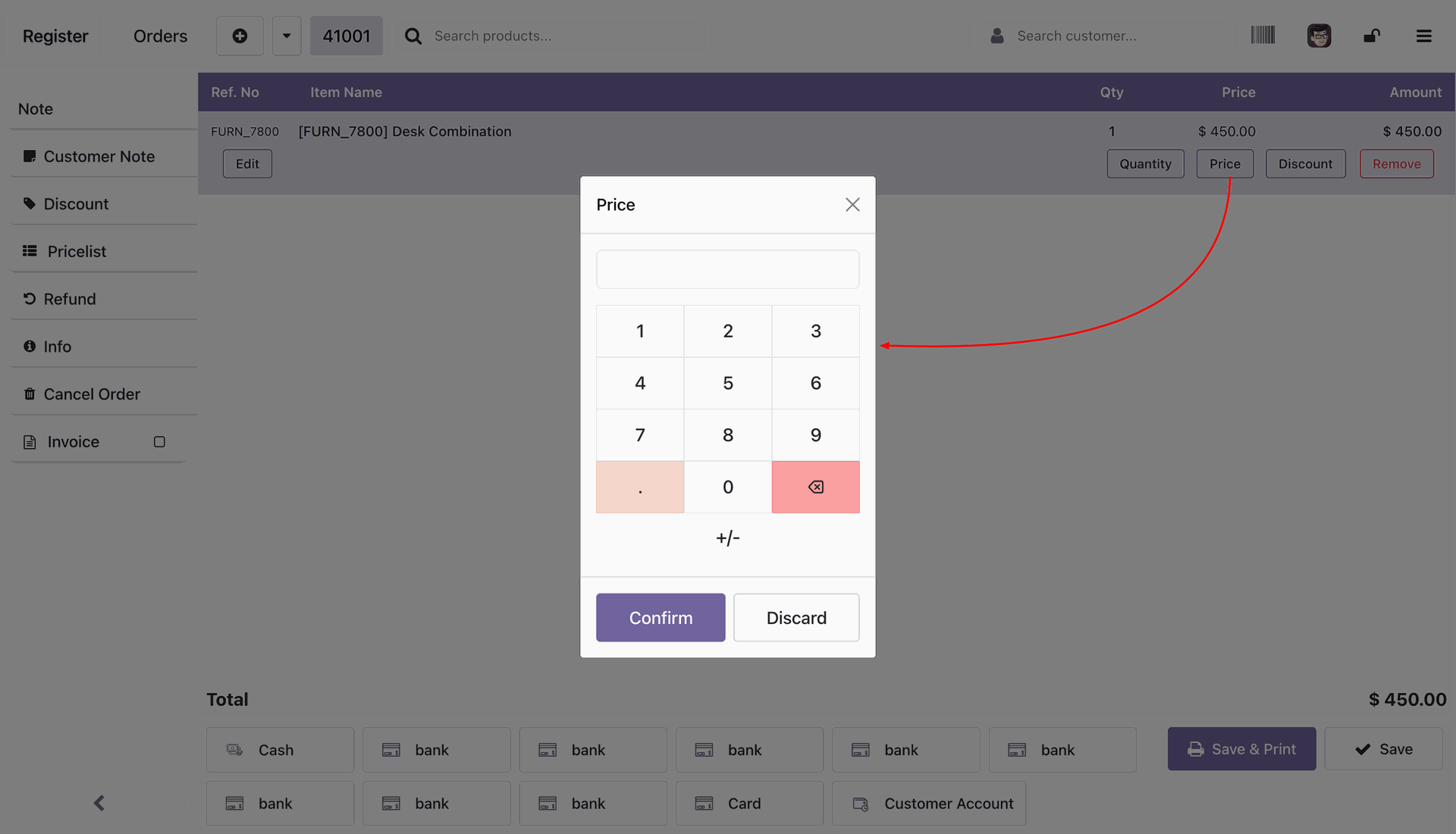
Adding the unit price of the product.
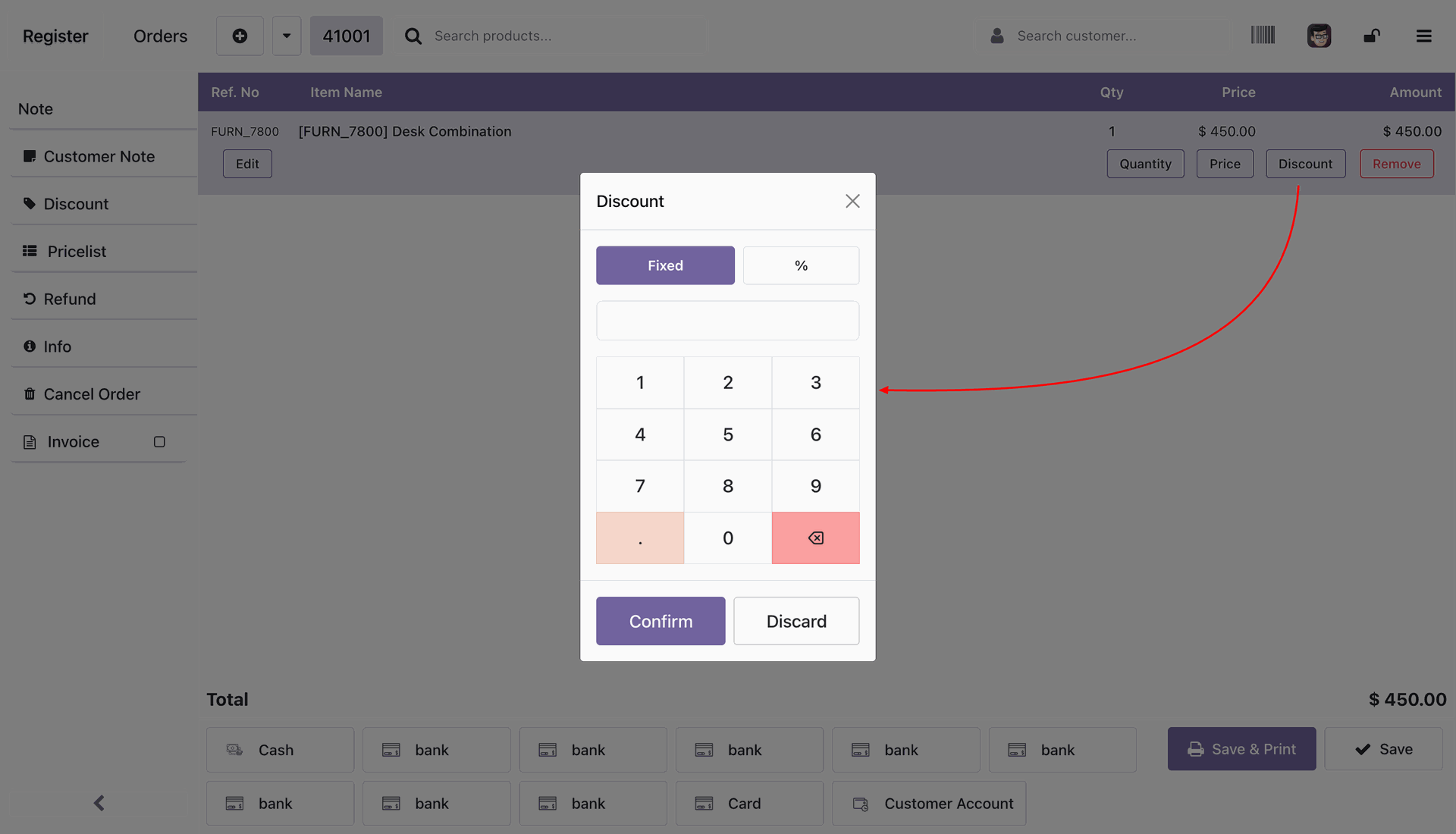
Adding the discount to the product either Fixed or Percentage.
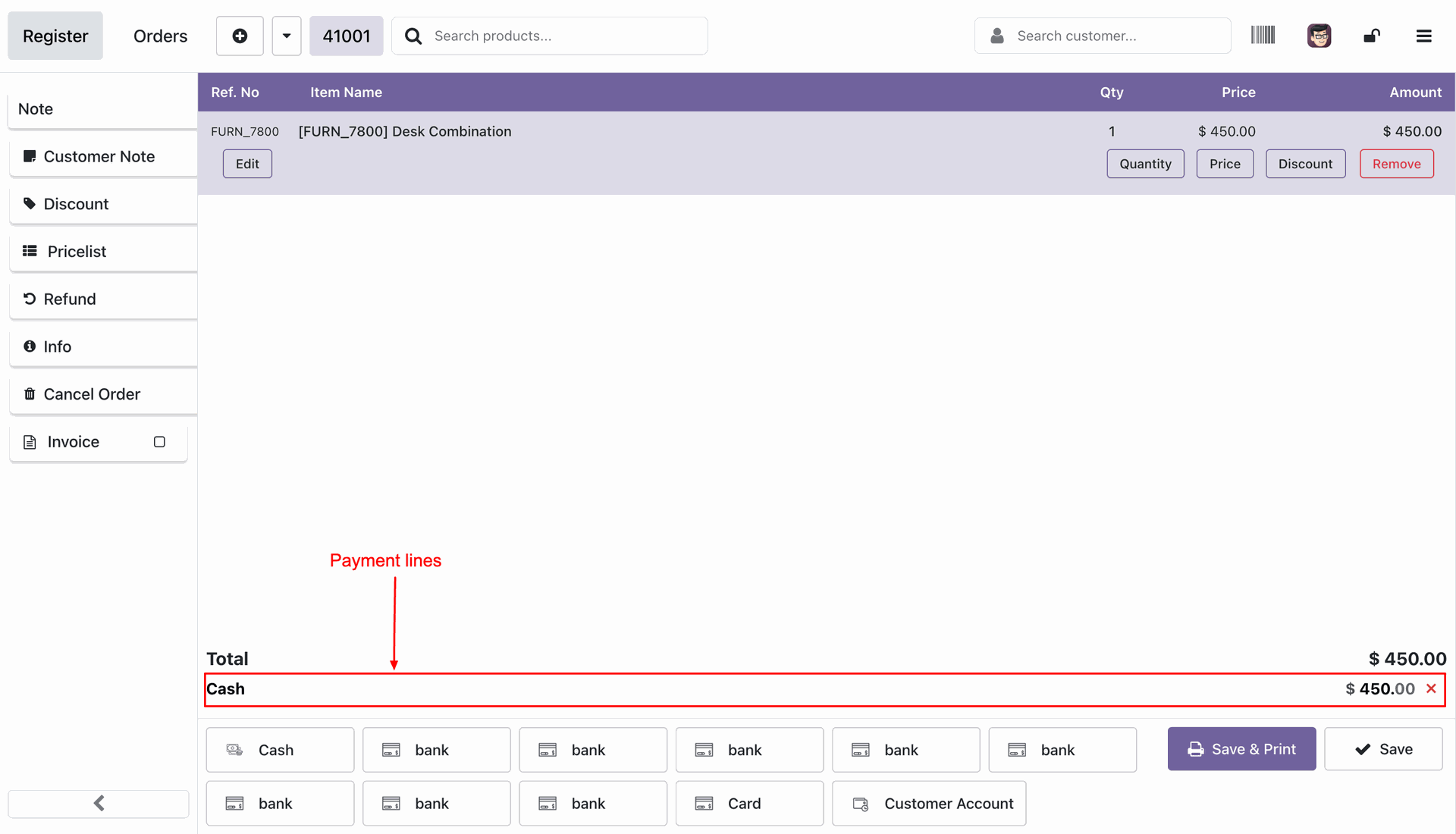
Creating the cash payments by selecting the cash option.
Payment lines at the bottom of the screen.
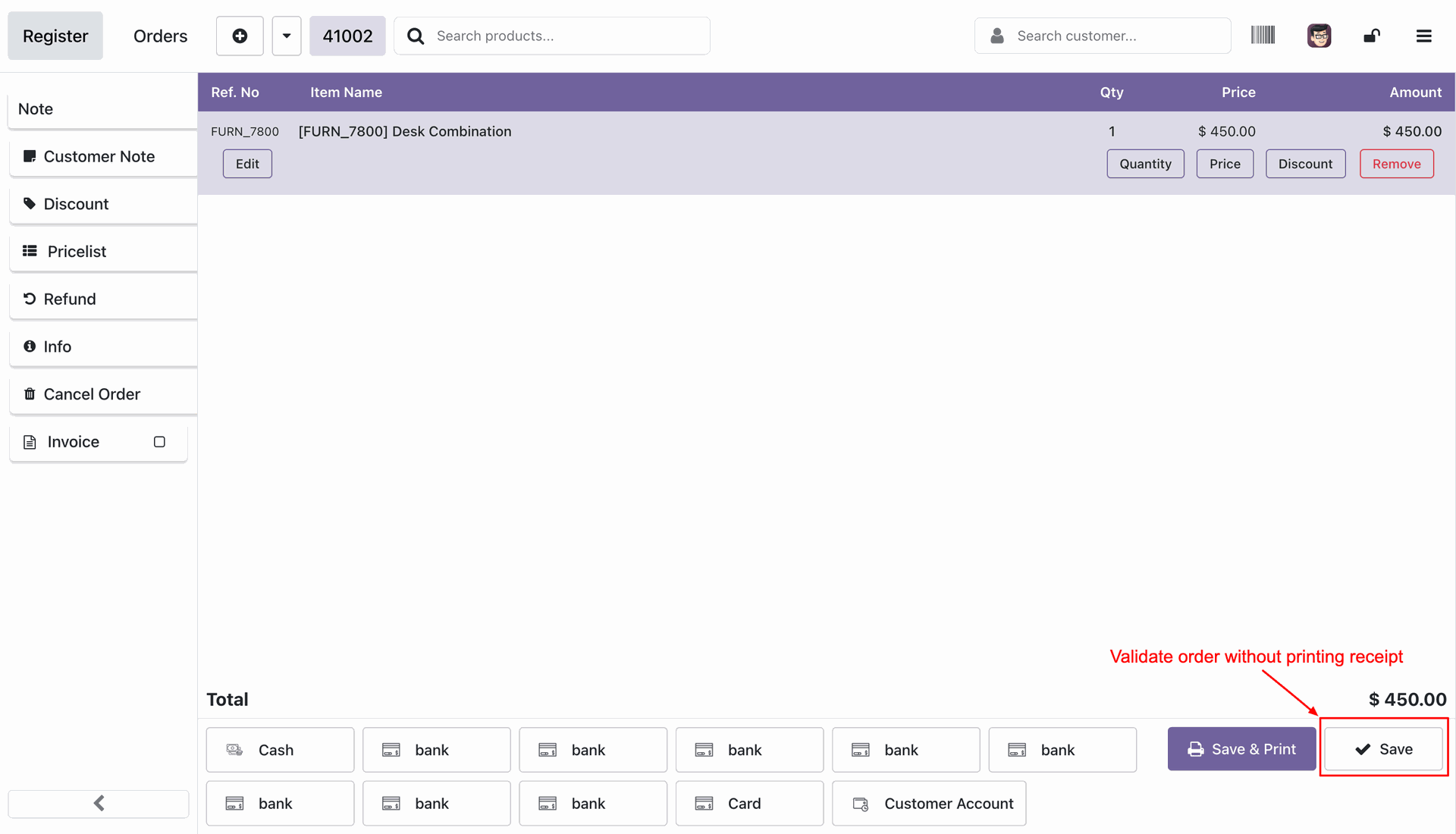
Validating the order without printing the receipt after pressing the Save button at the bottom right corner.
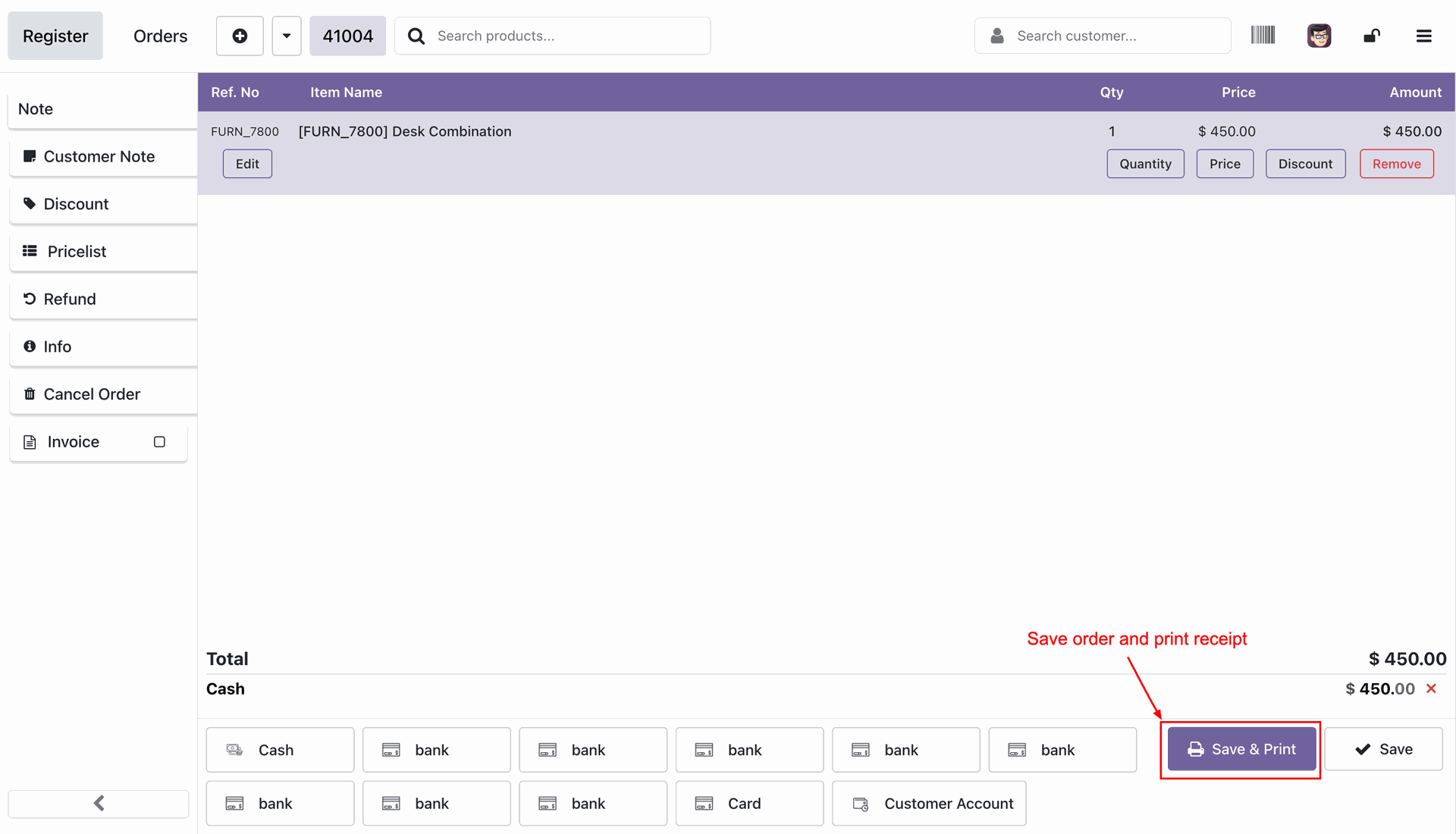
Validating the order with printing the receipt after pressing the Save & Print button at the bottom right corner.
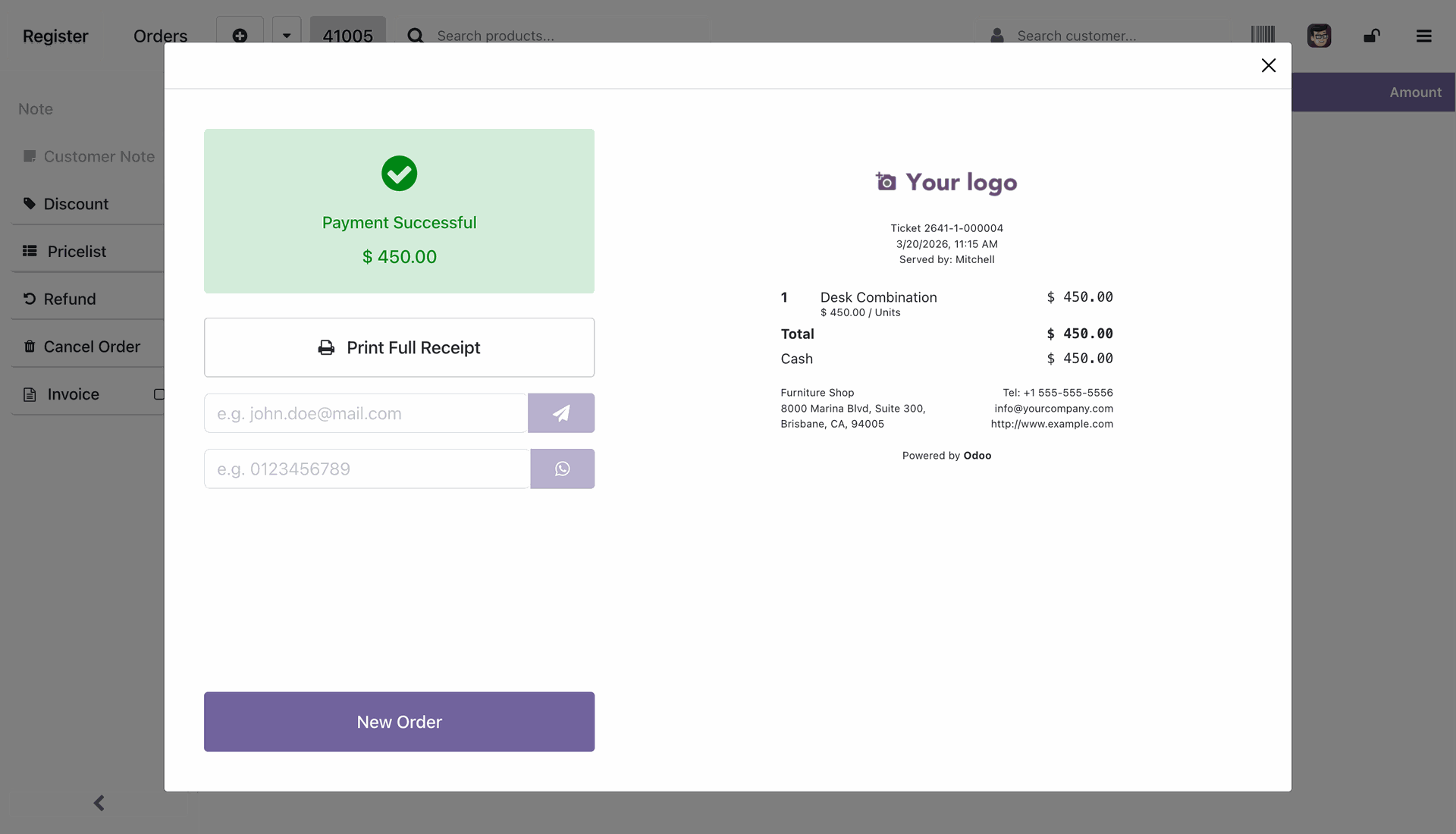
Successful payment upon validating the order.
Version 19.0.1.0.0 | Released on : 02nd July 2026
- Yes, this app works perfectly with Odoo Enterprise (Odoo.sh & Premise) as well as Community.
- No, this application is not compatible with odoo.com(odoo saas/Odoo Online)
- Yes, to test this module, please contact us at sales@softhealer.com.
- Please contact us at sales@softhealer.com to request customization.
- Yes, we provide free support for 365 days from the date of purchase.
- Yes, you will receive lifetime free updates for the version of the module you purchased.
- No, there is no need to install any additional libraries.
- Yes, for version 12 and above, you need to purchase the module separately for each version you intend to use.
- No, exchanges or refunds are not allowed. Please make sure to select the correct version before purchasing.
- You can contact us at support@softhealer.com for language translation support. We use Google Translator tools to provide translations in multiple languages, so the accuracy may vary. We welcome your suggestions to help improve translations.
Discover Our Latest Apps