













Purchase Order Backdate

In odoo, while you confirm the RFQ it will take the current date as confirmation date and you can not change the date after confirming it so our module is useful for confirm purchase orders with selected confirmation backdate. You can put a custom backdate and remarks in the purchase. You can mass assign backdate in one click. When you mass assign backdate, it asks for remarks in the mass assign wizard. This selected date and remarks are also reflects in the receipts, stock moves, product moves, bill & journal entries.

Related Modules
Features
- You can confirm purchase orders with a custom backdate.
- You can select desired confirmation backdate in purchases.
- You can mass assign backdate in purchase.
- While you assign backdate, you can put remarks with it.
- We provide an option for mandatory remarks while assigning backdate.
- Backdate and remarks transfer to the bill and journal entries.
- Backdate and remarks transfer to the receipt.
- Backdate and remarks transfer to the stock moves & product moves.
-
Easily backdate Receipt Date, Bill Date, and Accounting Date in Purchase Orders using Mass Assign
backdate, with the flexibility to update each date separately as per your choice.


Go to the purchase settings and enable the 'Enable Backdate For purchase Order' option.
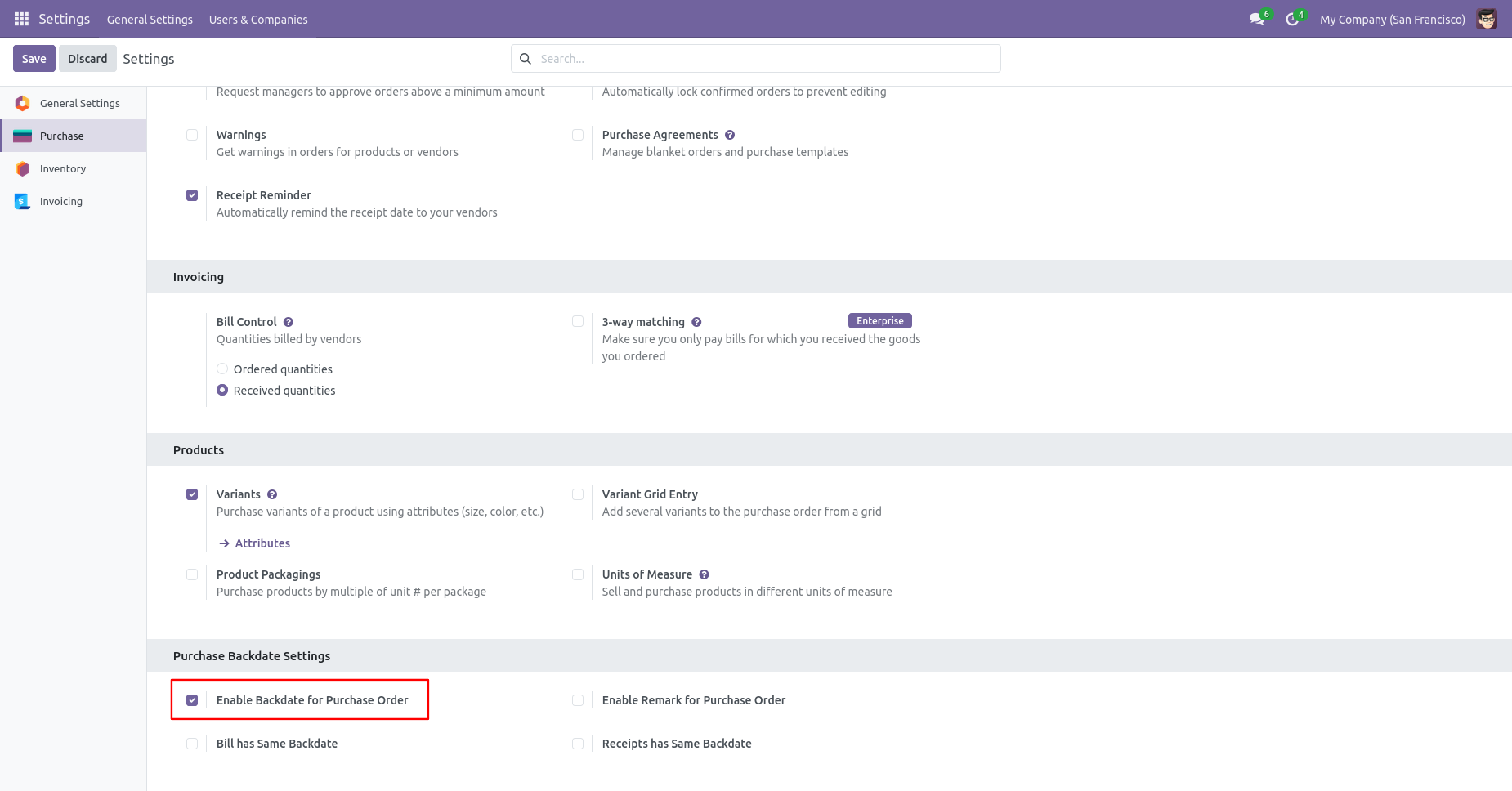
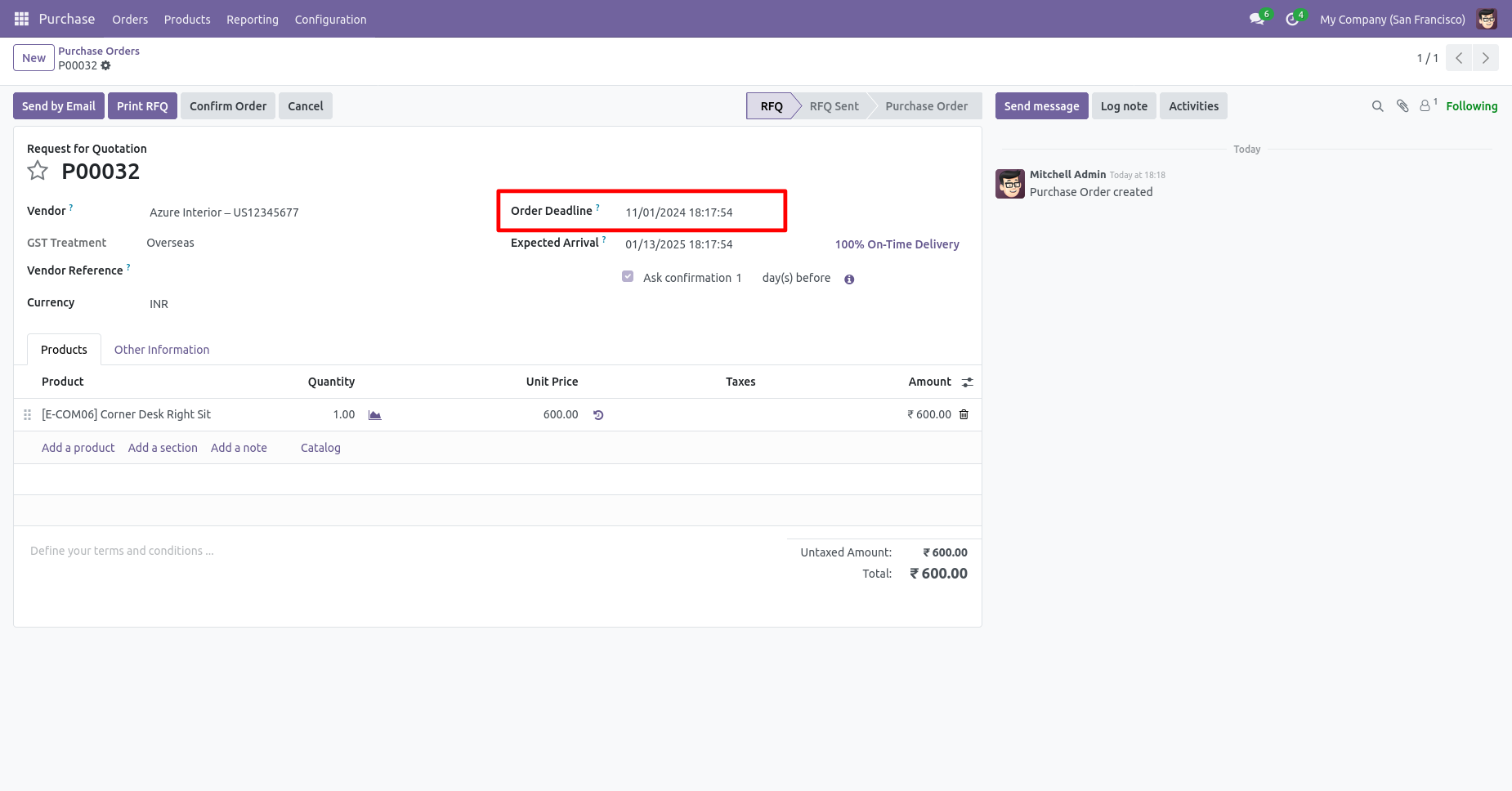
Purchase order form view with backdate.
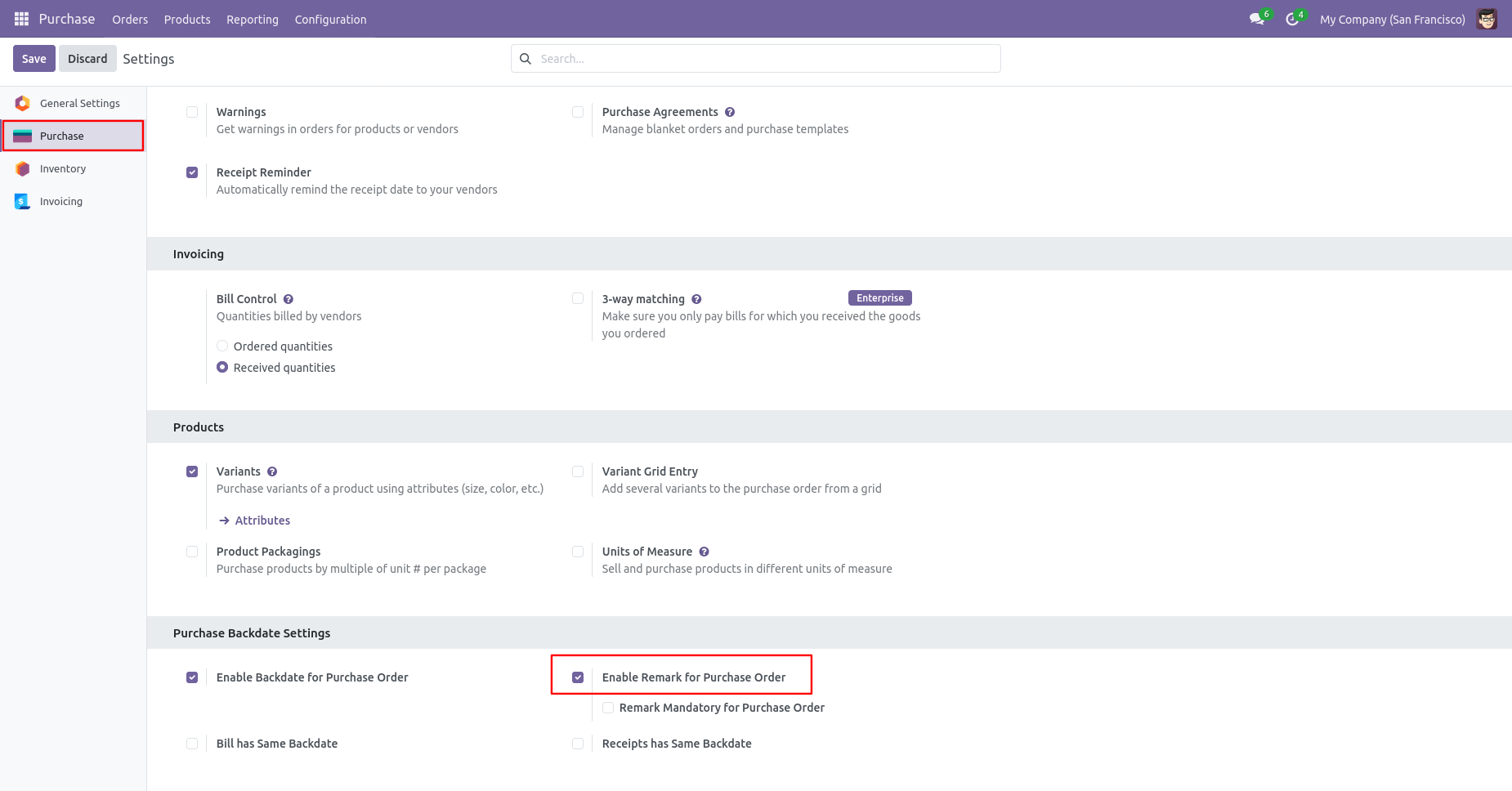
Enable the 'Enable Remark For Purchase Order' option.
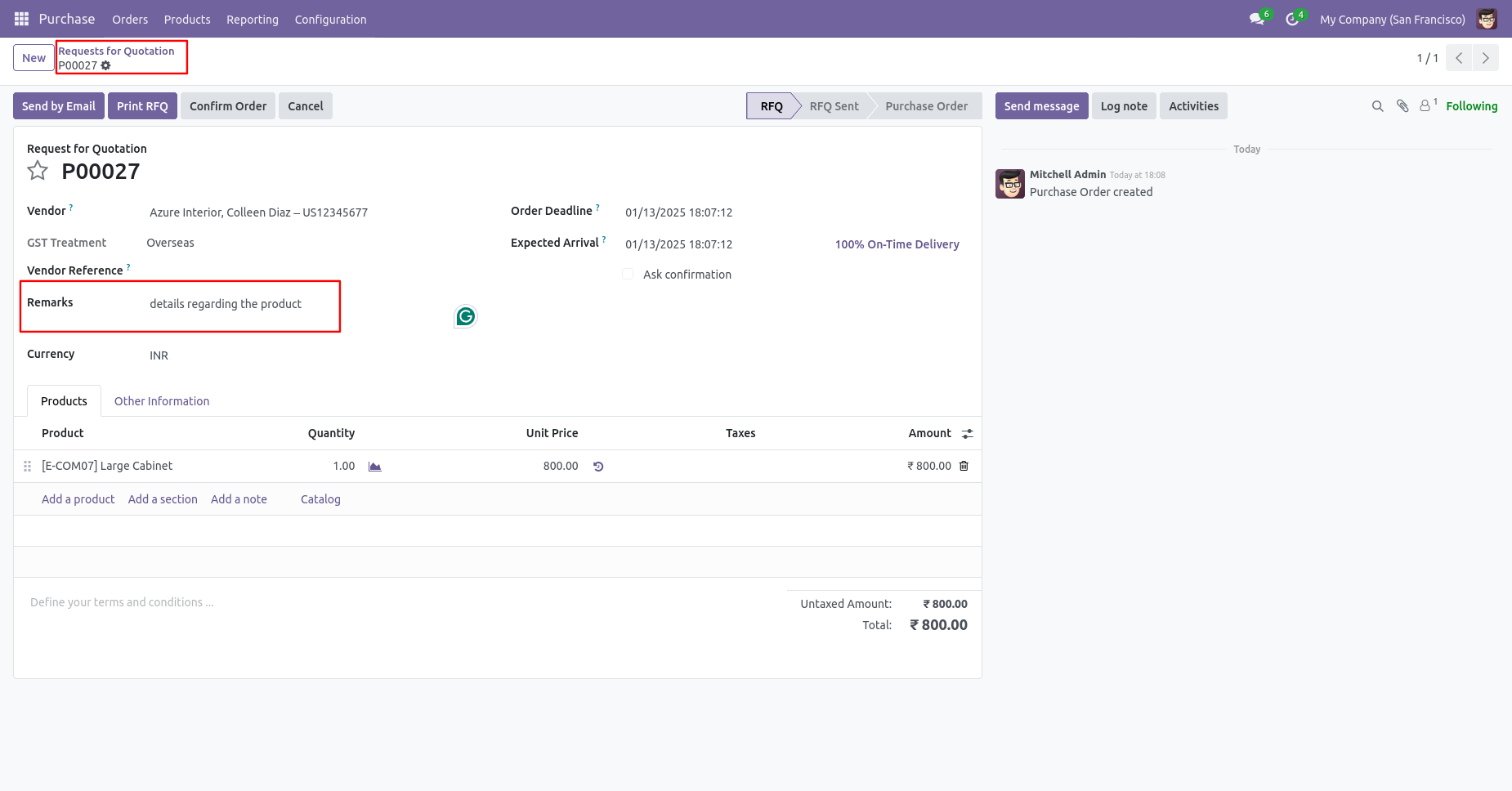
Purchase order form view with remarks.
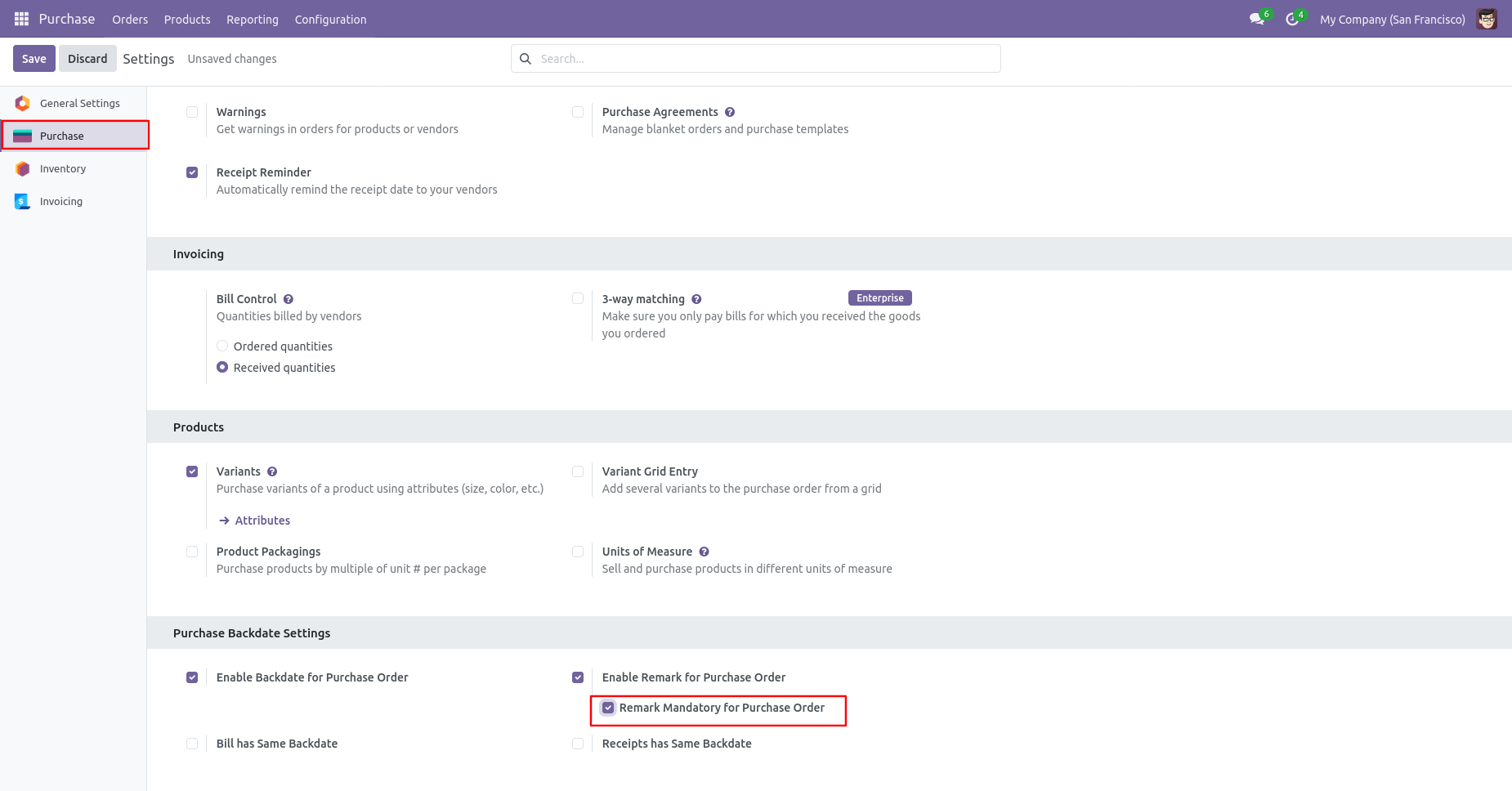
Enable the 'Remark Mandatory For Purchase Order' option.
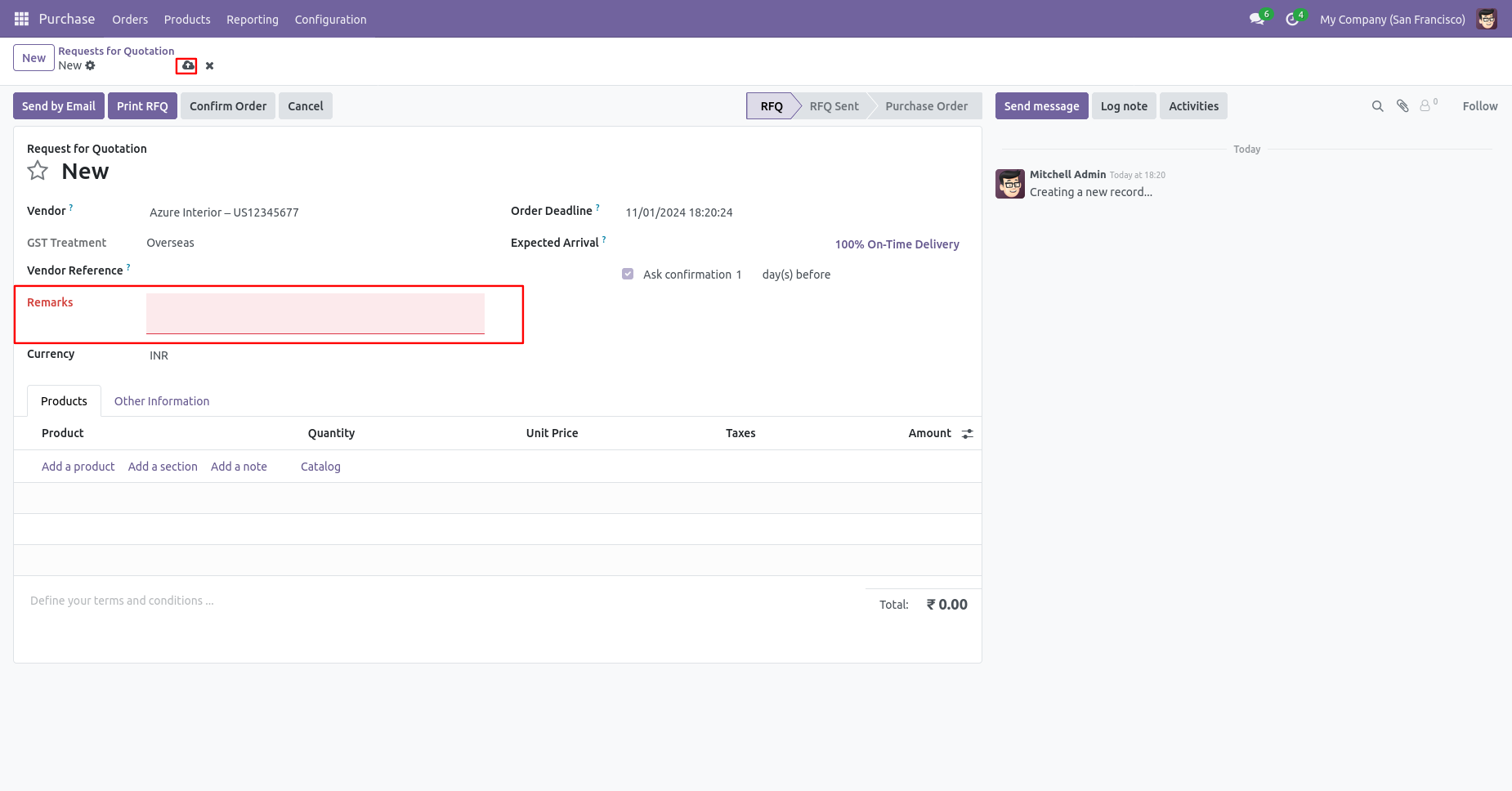
You can't save the PO without entering a remark.
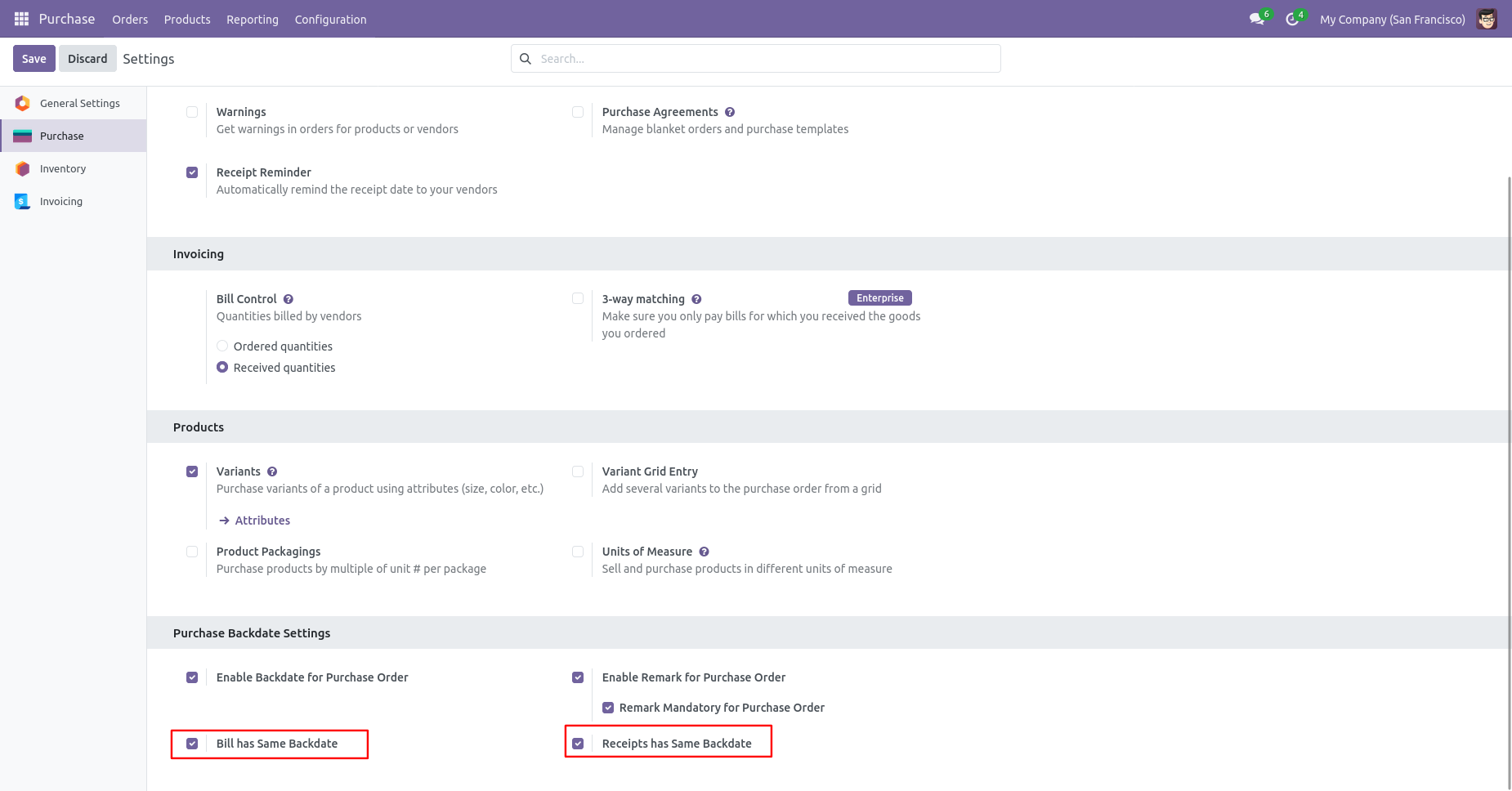
Enable the 'Bill Has Same Backdate' & 'Receipt has Same Backdate' option.
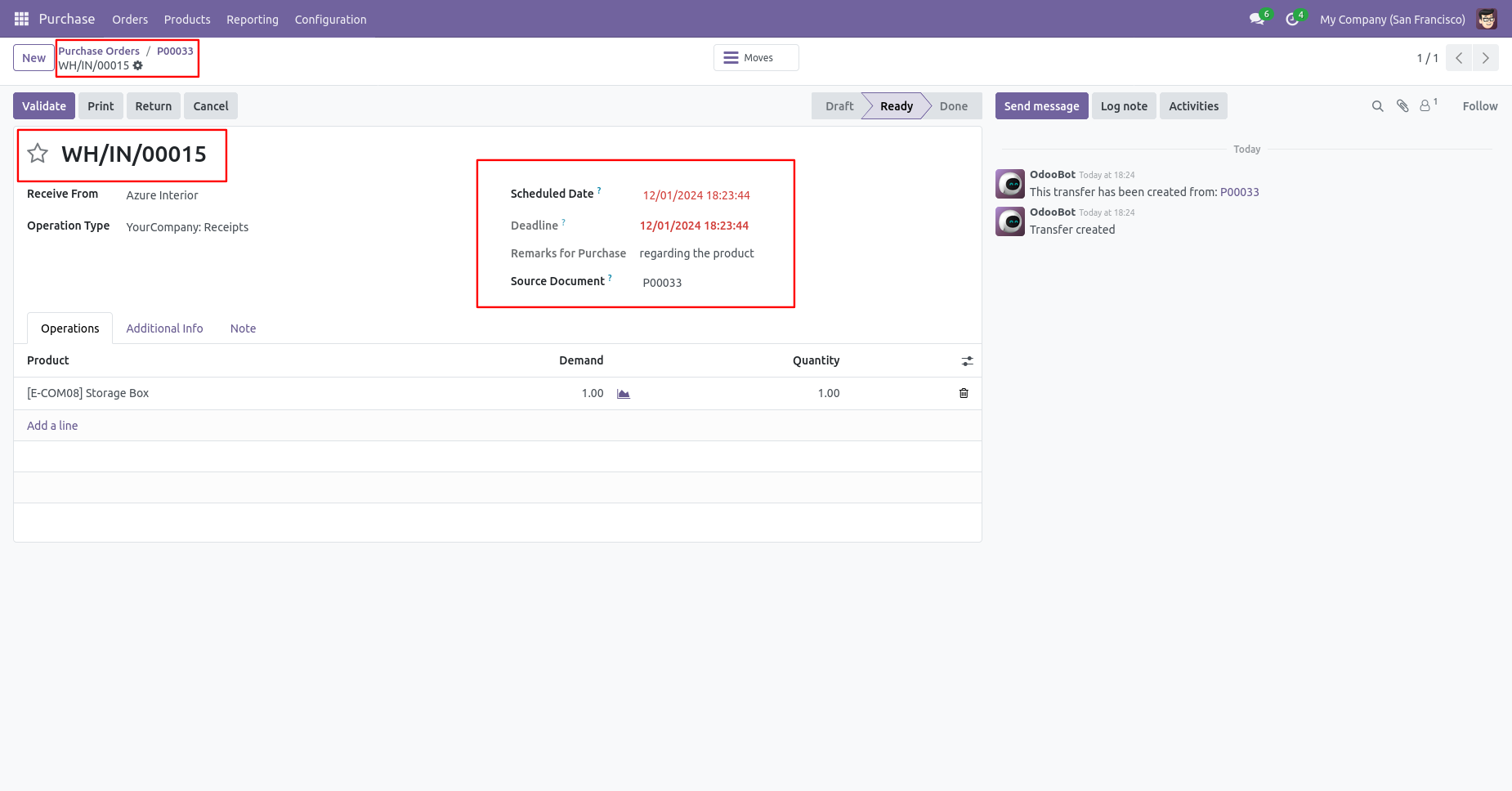
Receipt with backdate and remarks.
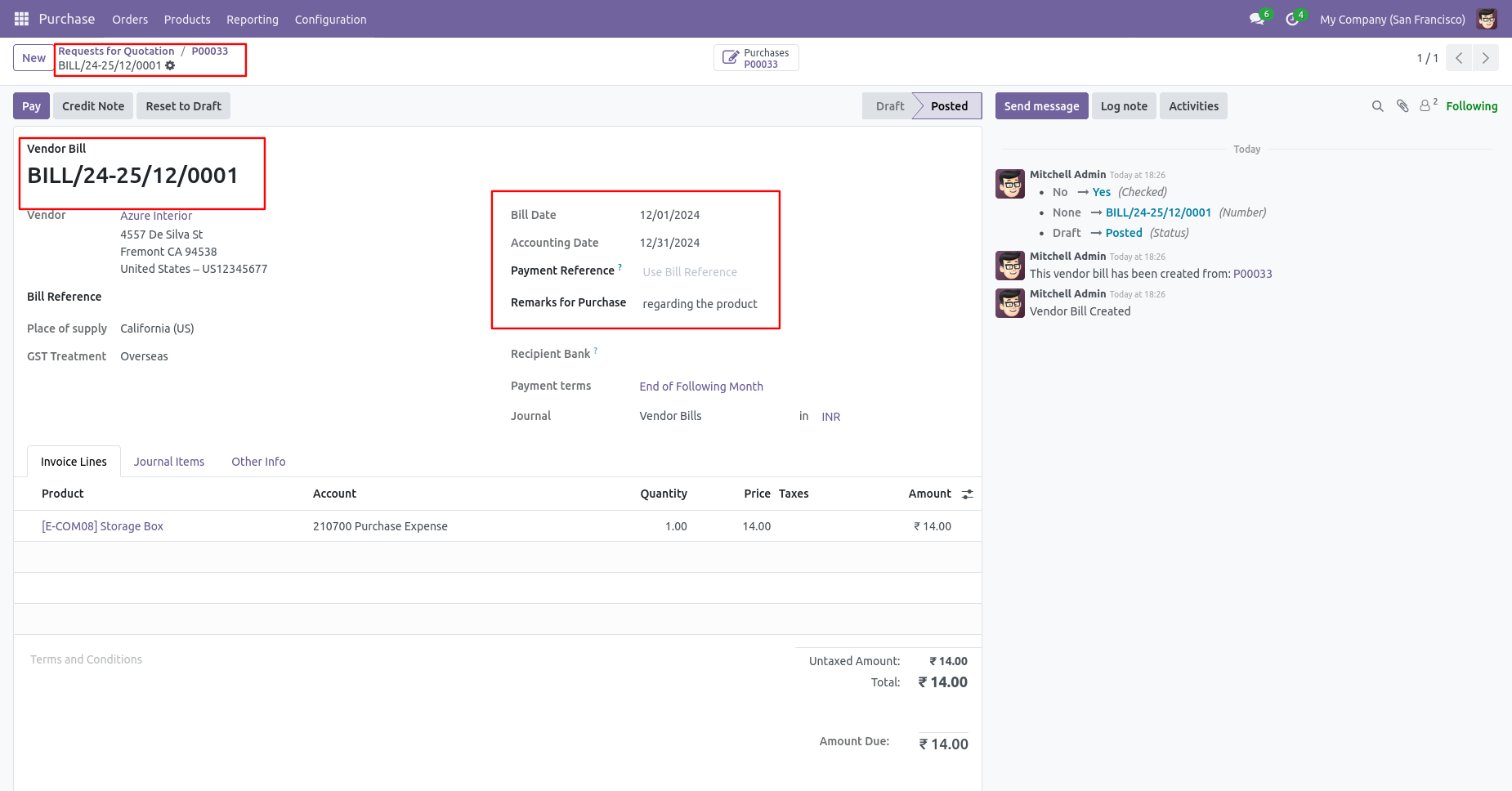
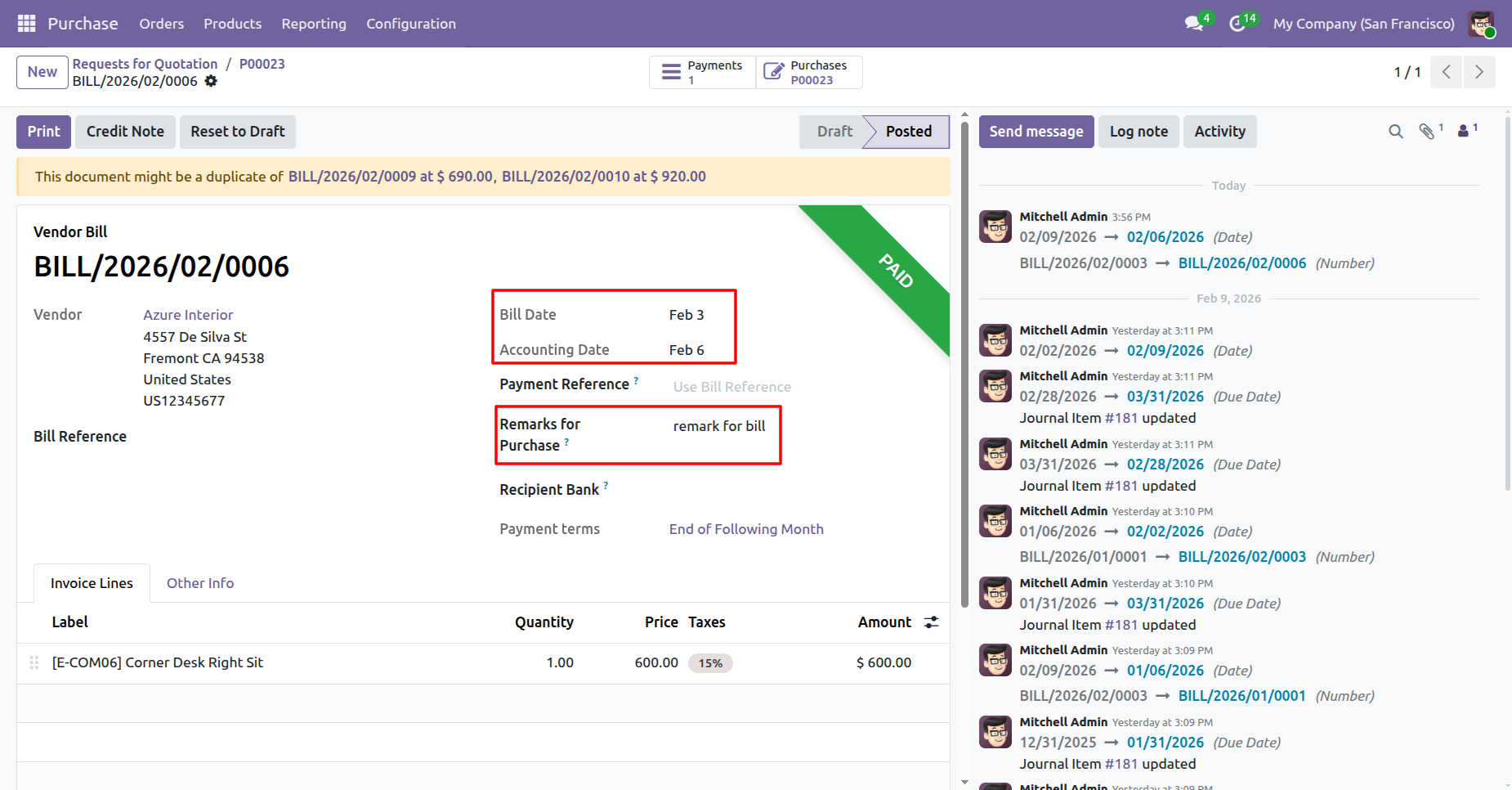
Bill with backdate and remarks.
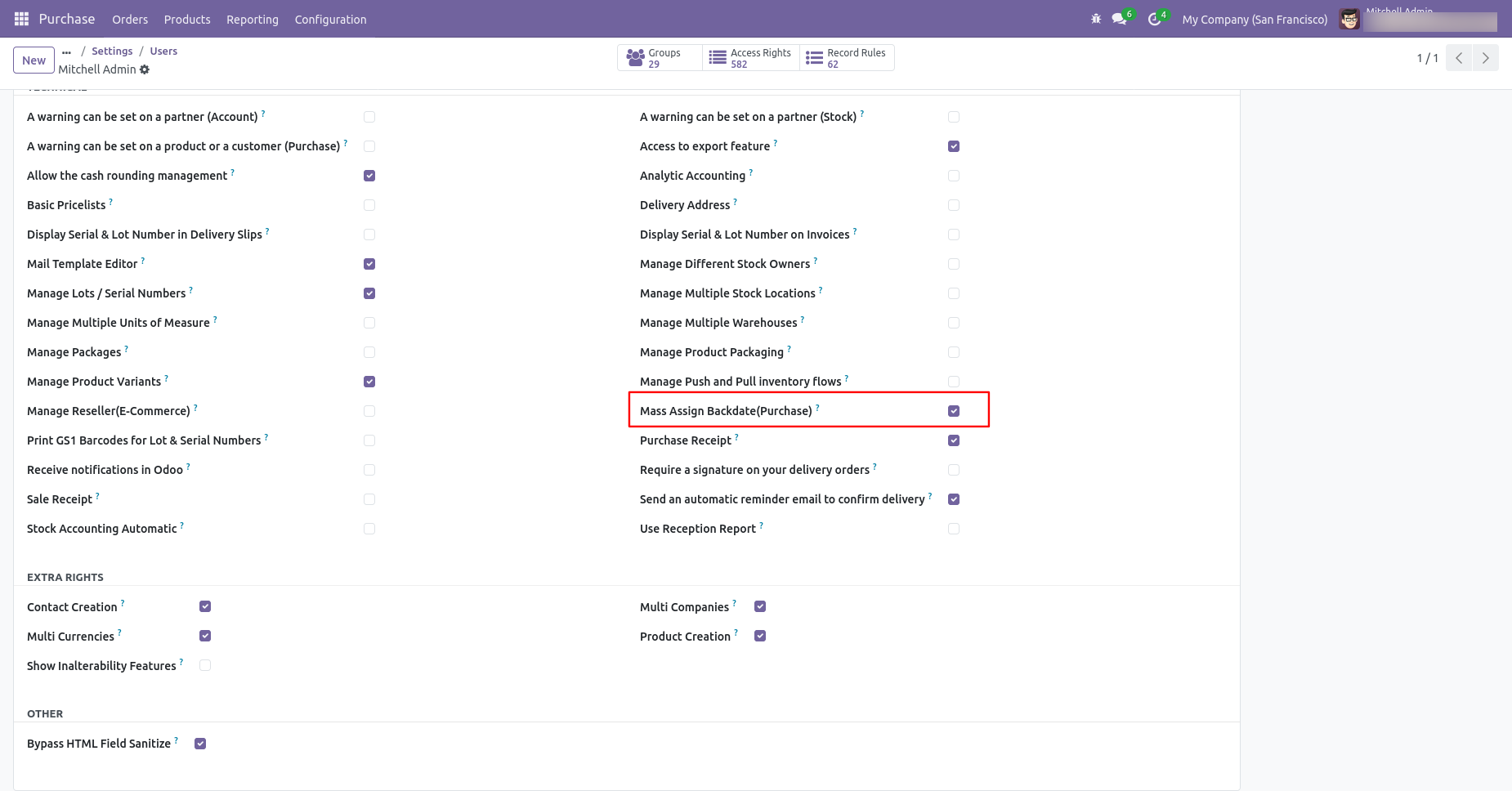
Enabling 'Mass Assign Backdate' allows you to assign backdates in purchase in bulk.
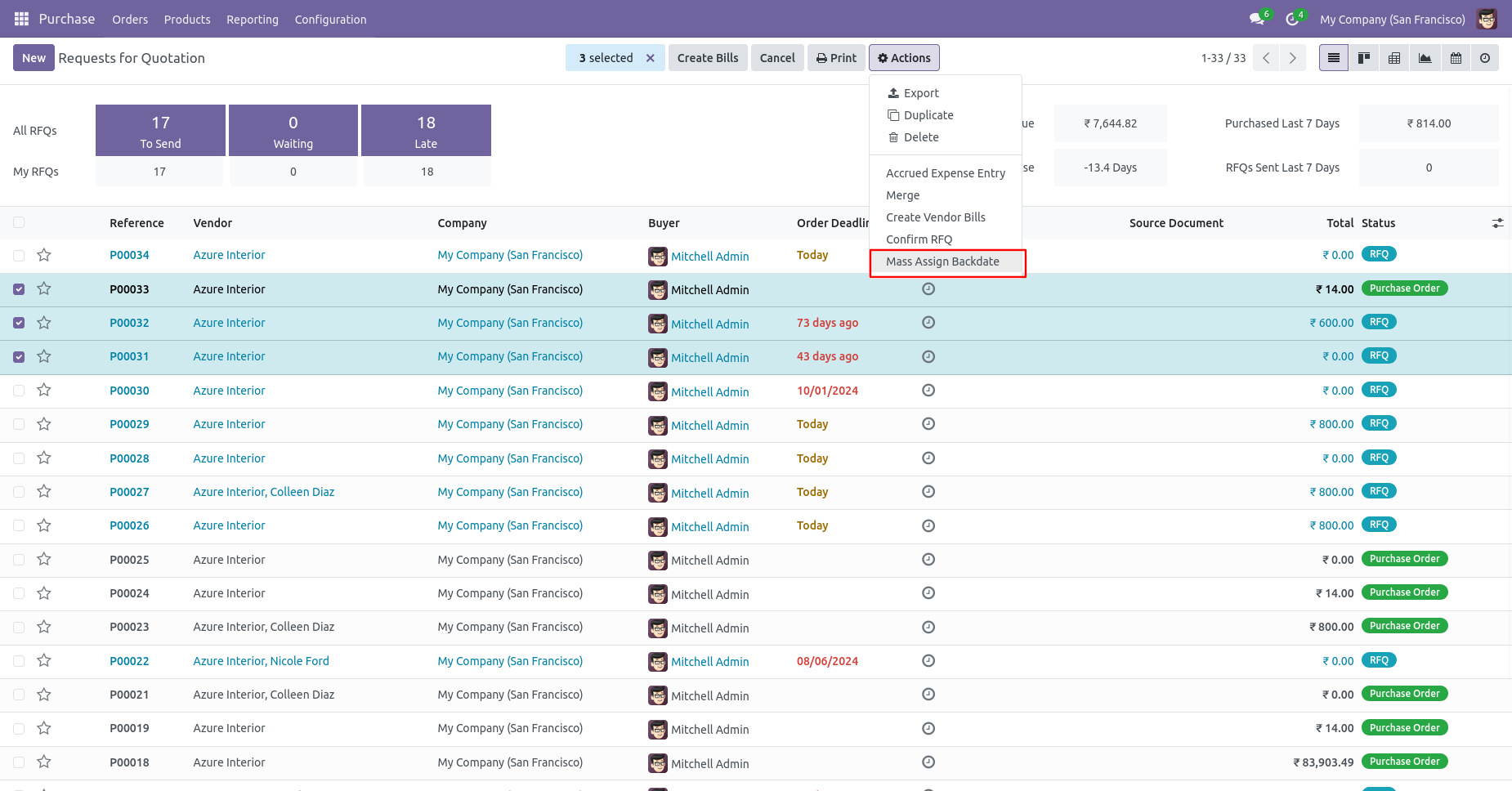
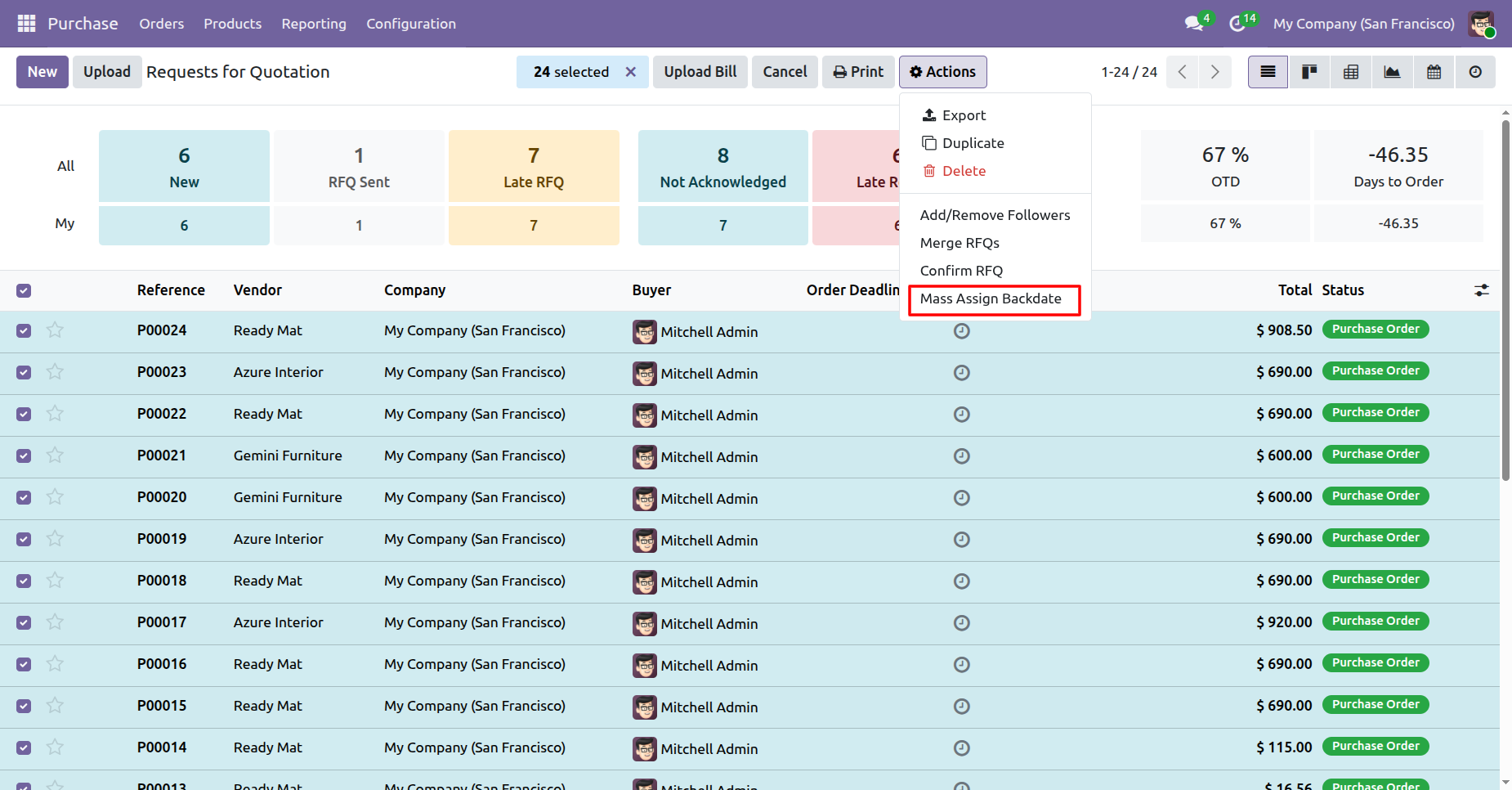
From the list view, select purchase orders/RFQs and click on 'Mass Assign Backdate'.
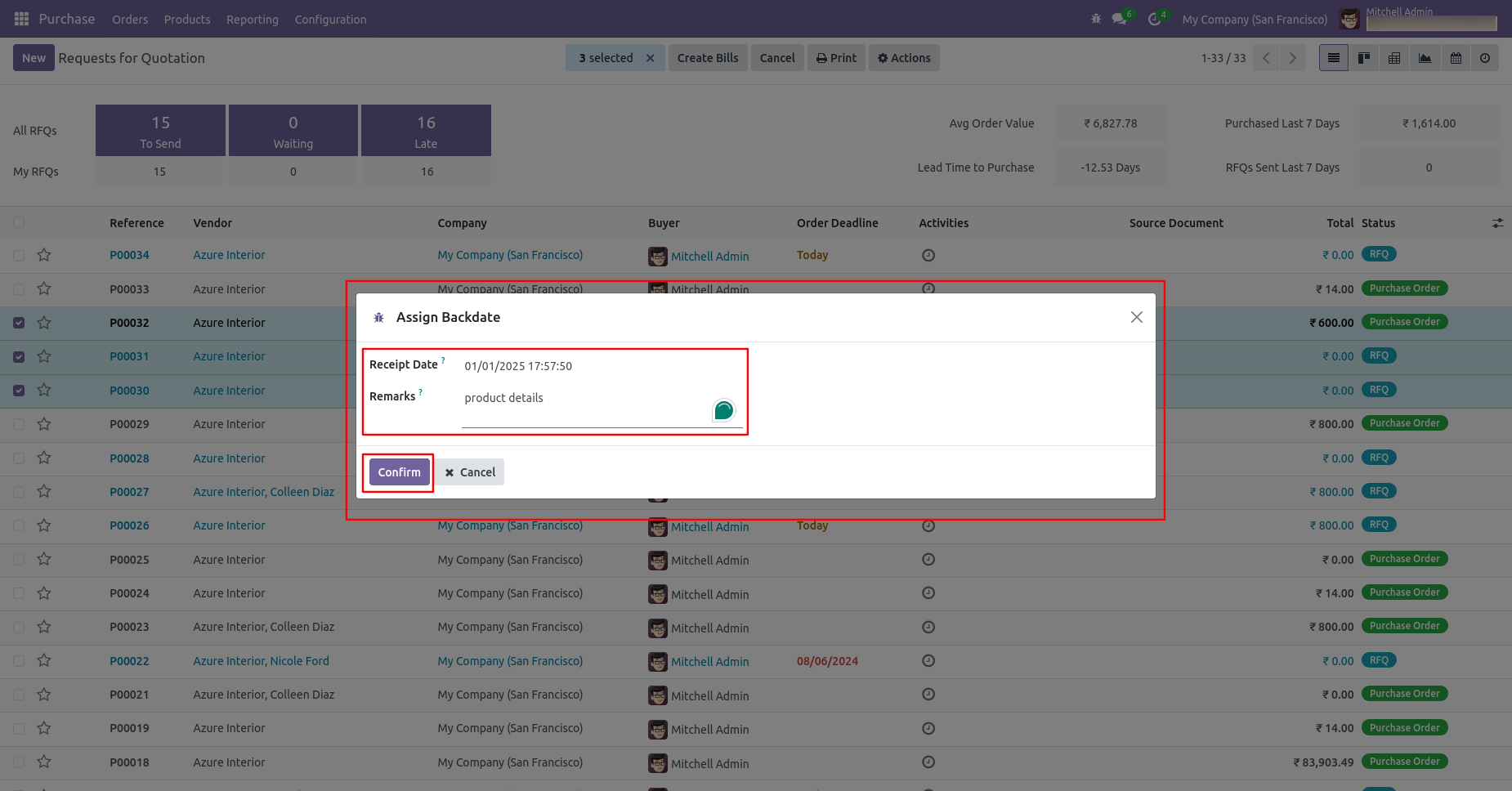
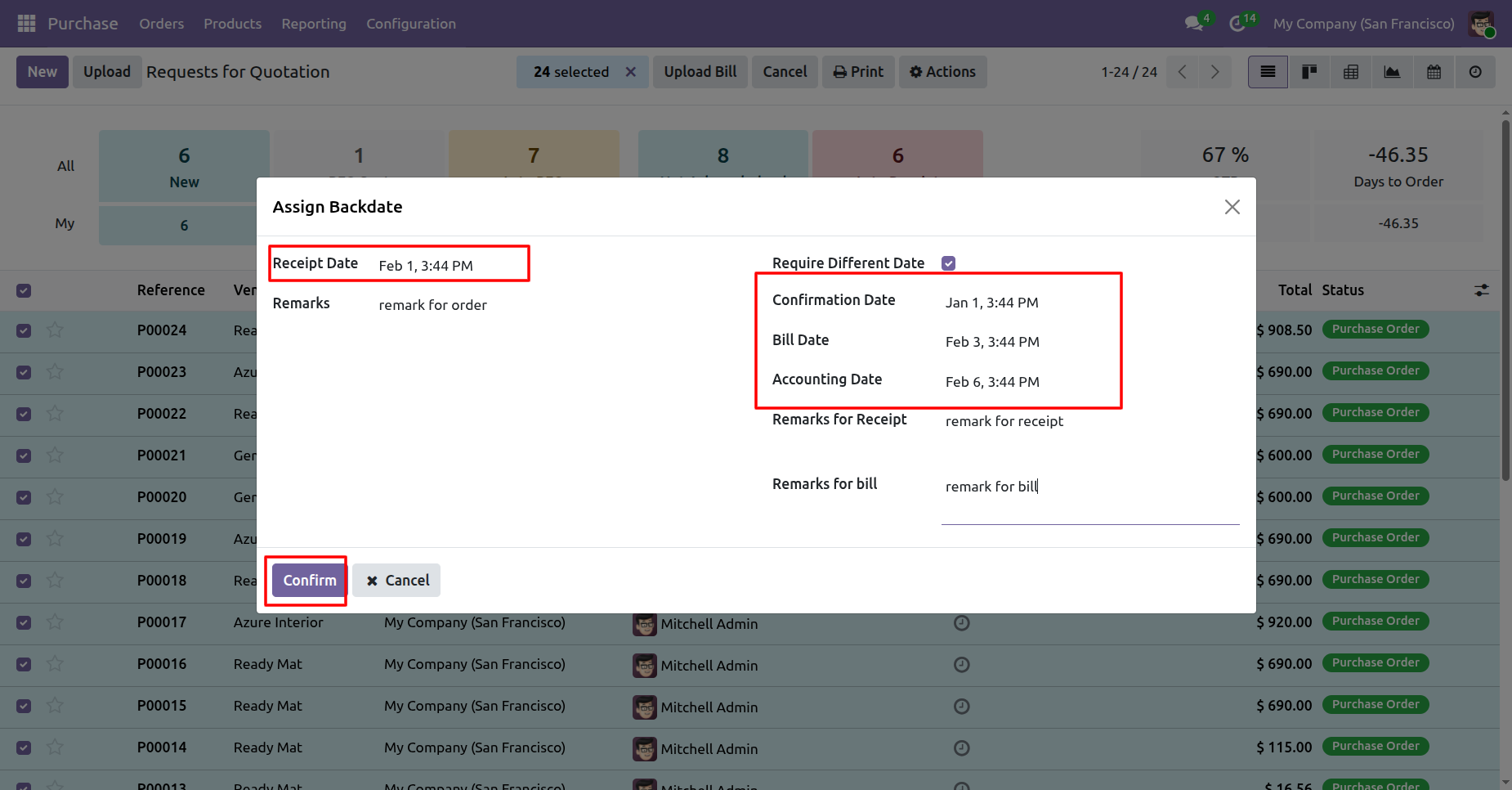
After that, this wizard opens, enters the order date and remarks. Here remarks come if you have enabled that feature.
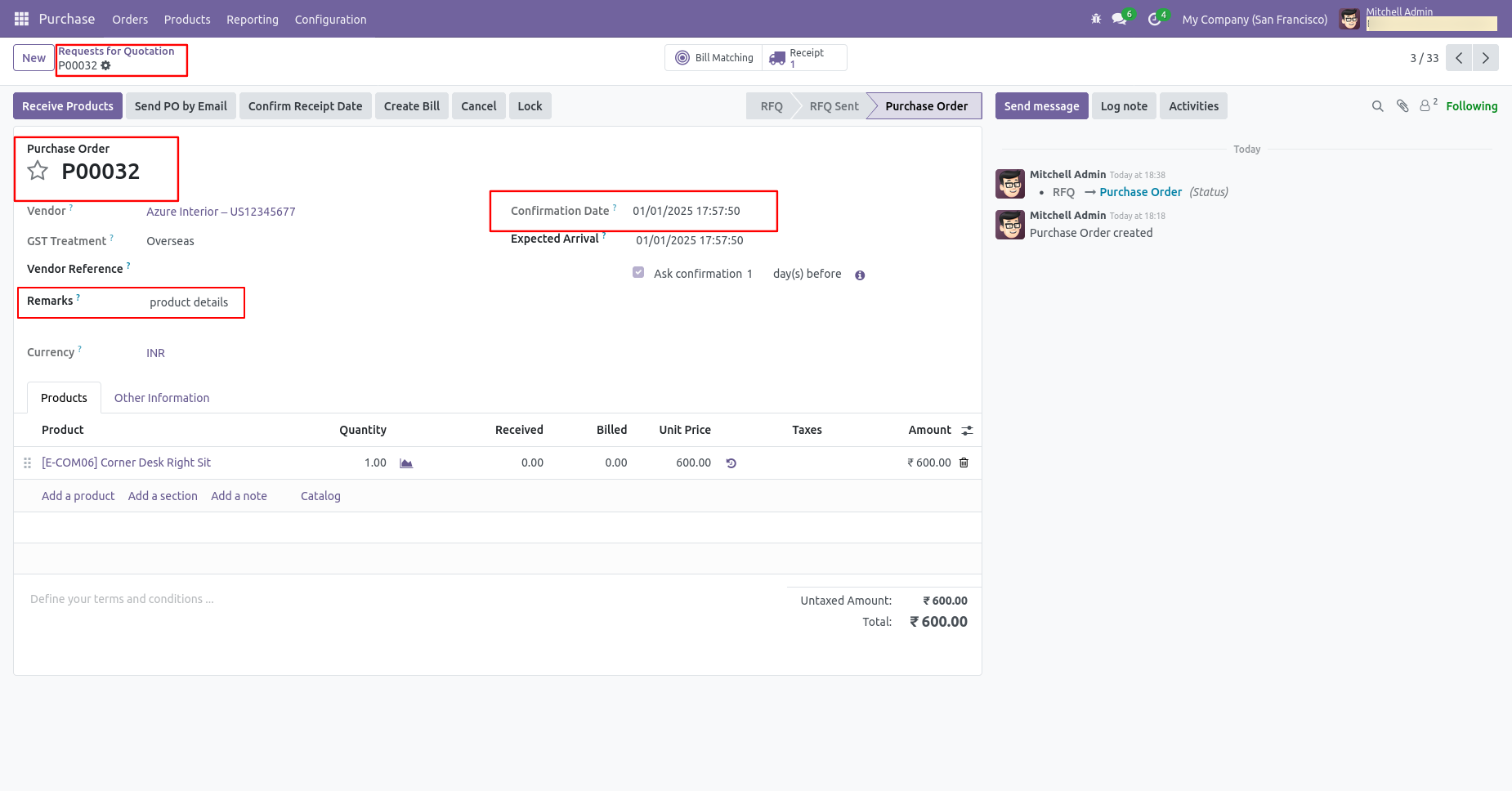
Purchase order form view with backdate and remarks.
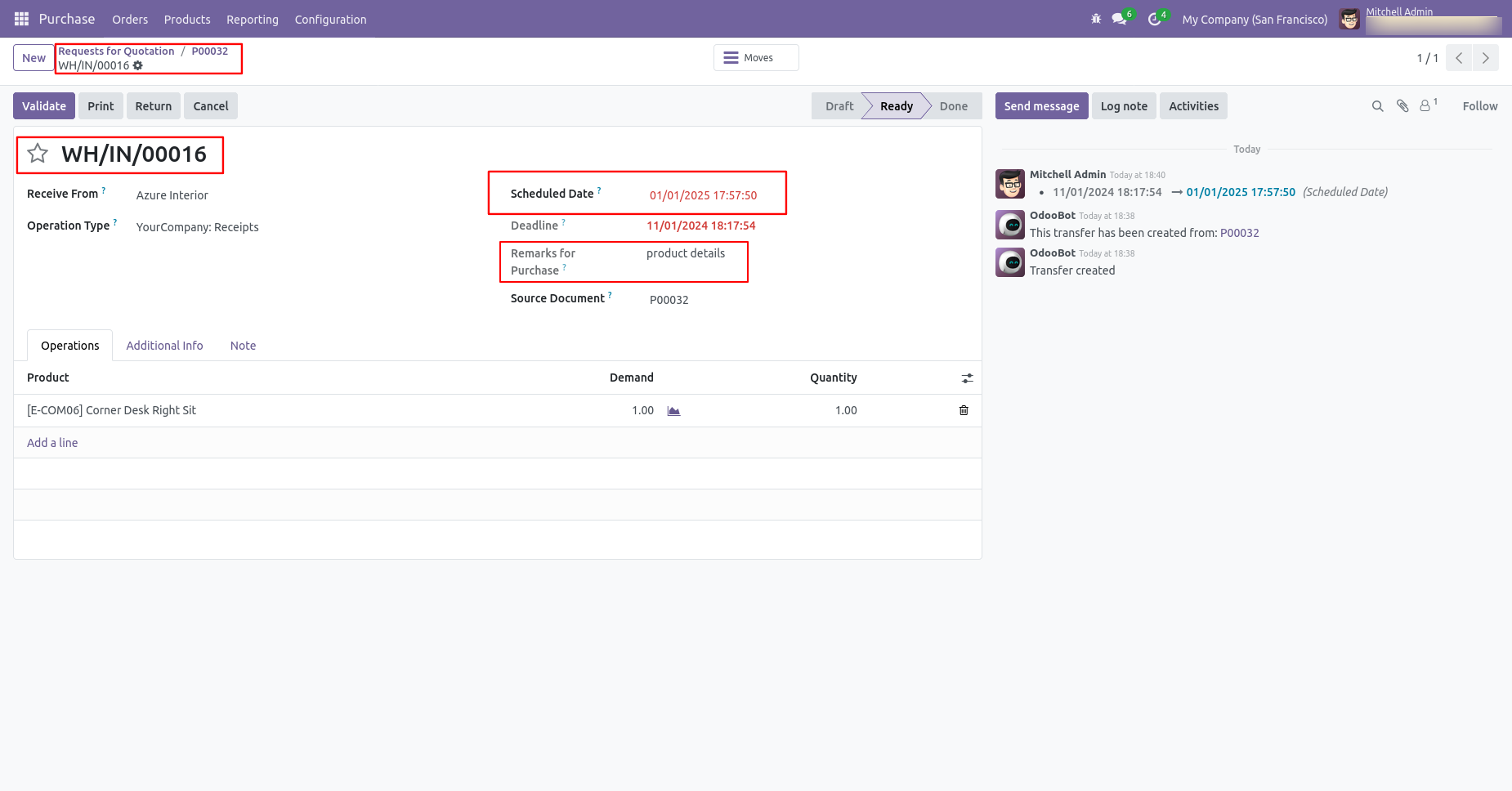
Receipt with backdate and remarks.
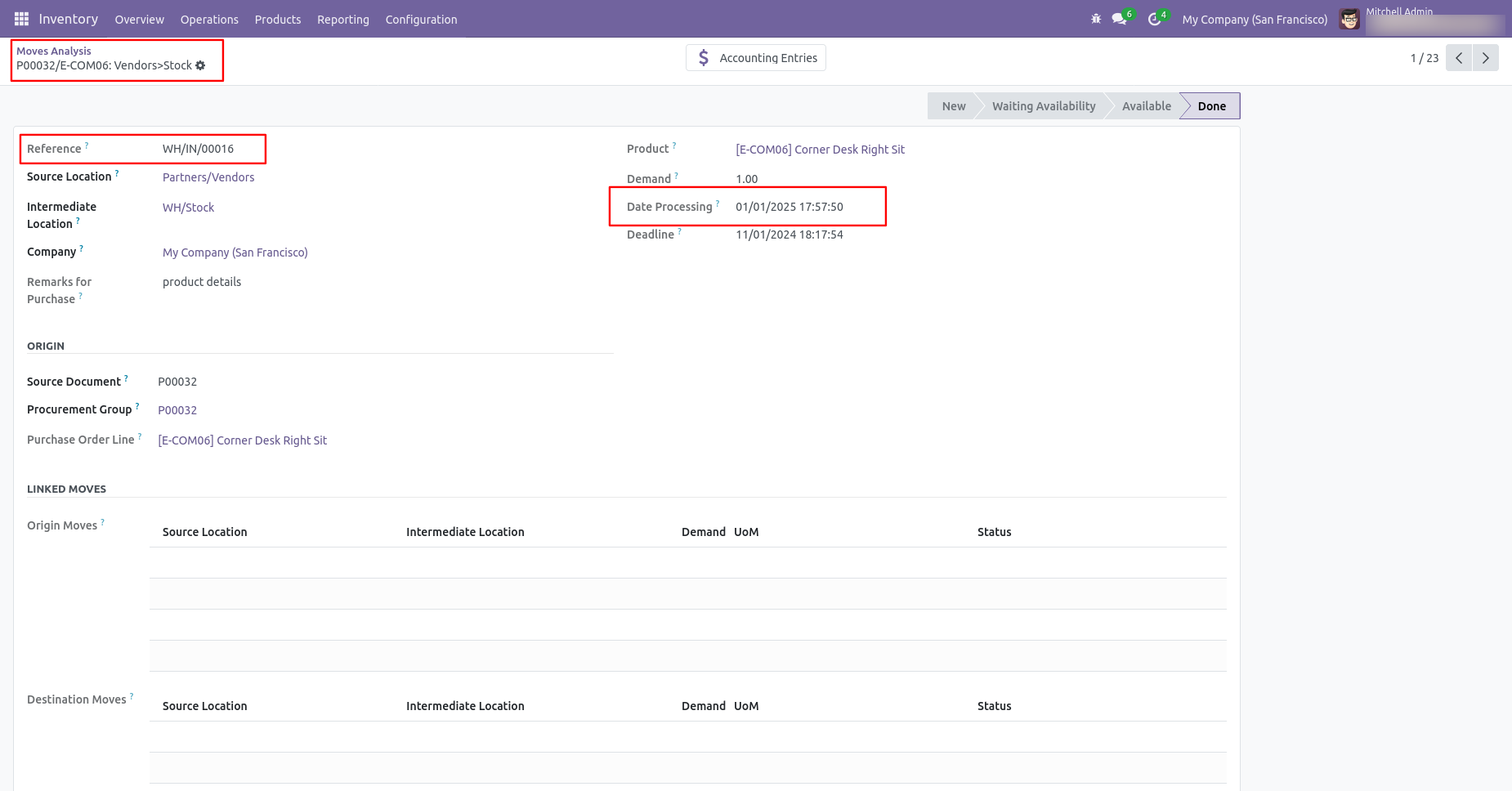
Move analysis with backdate and remarks.
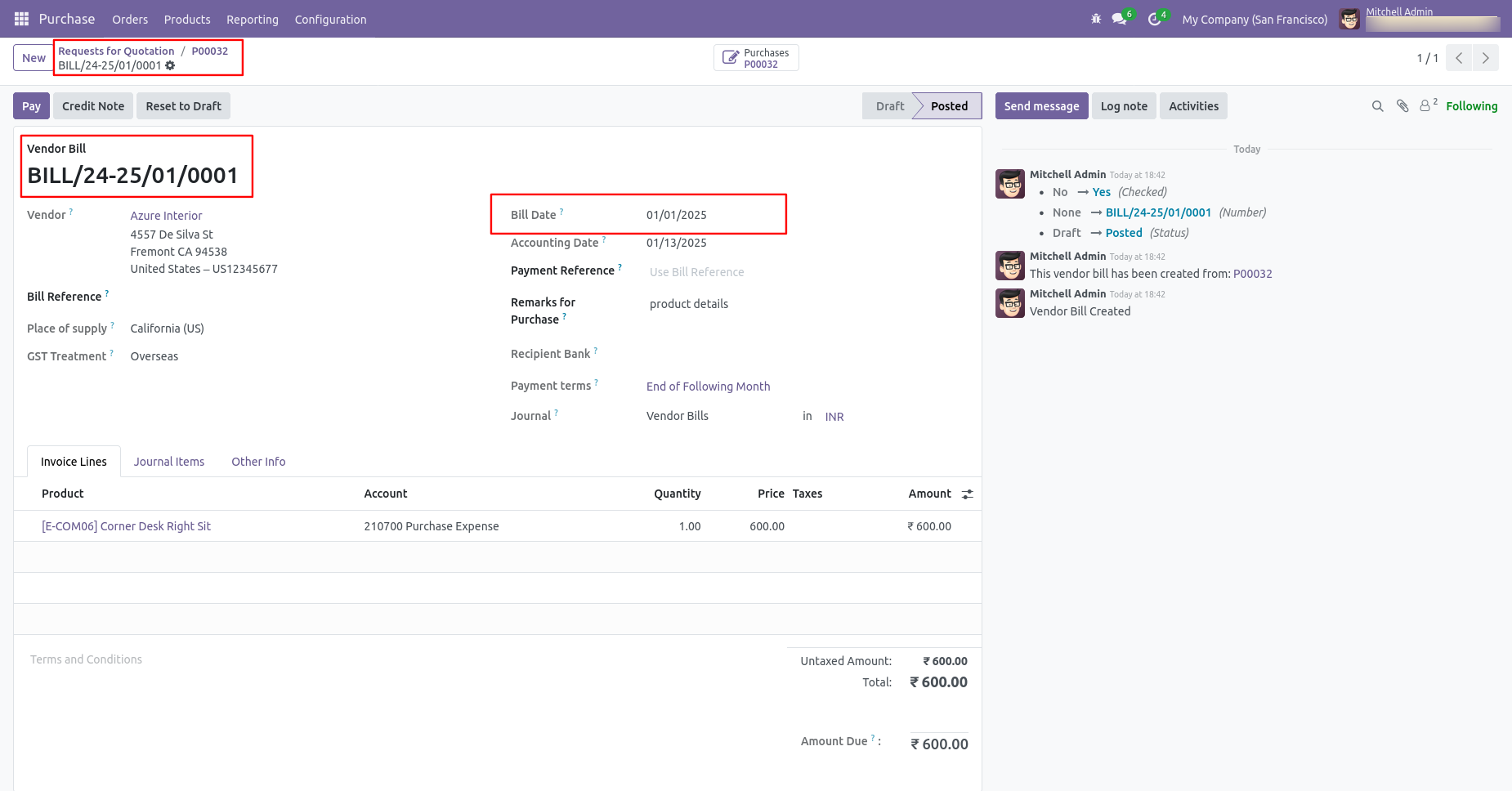
Bill date with backdate and remarks.
Purchase orders from view, click on the 'Mass Assign Backdate' from the action..
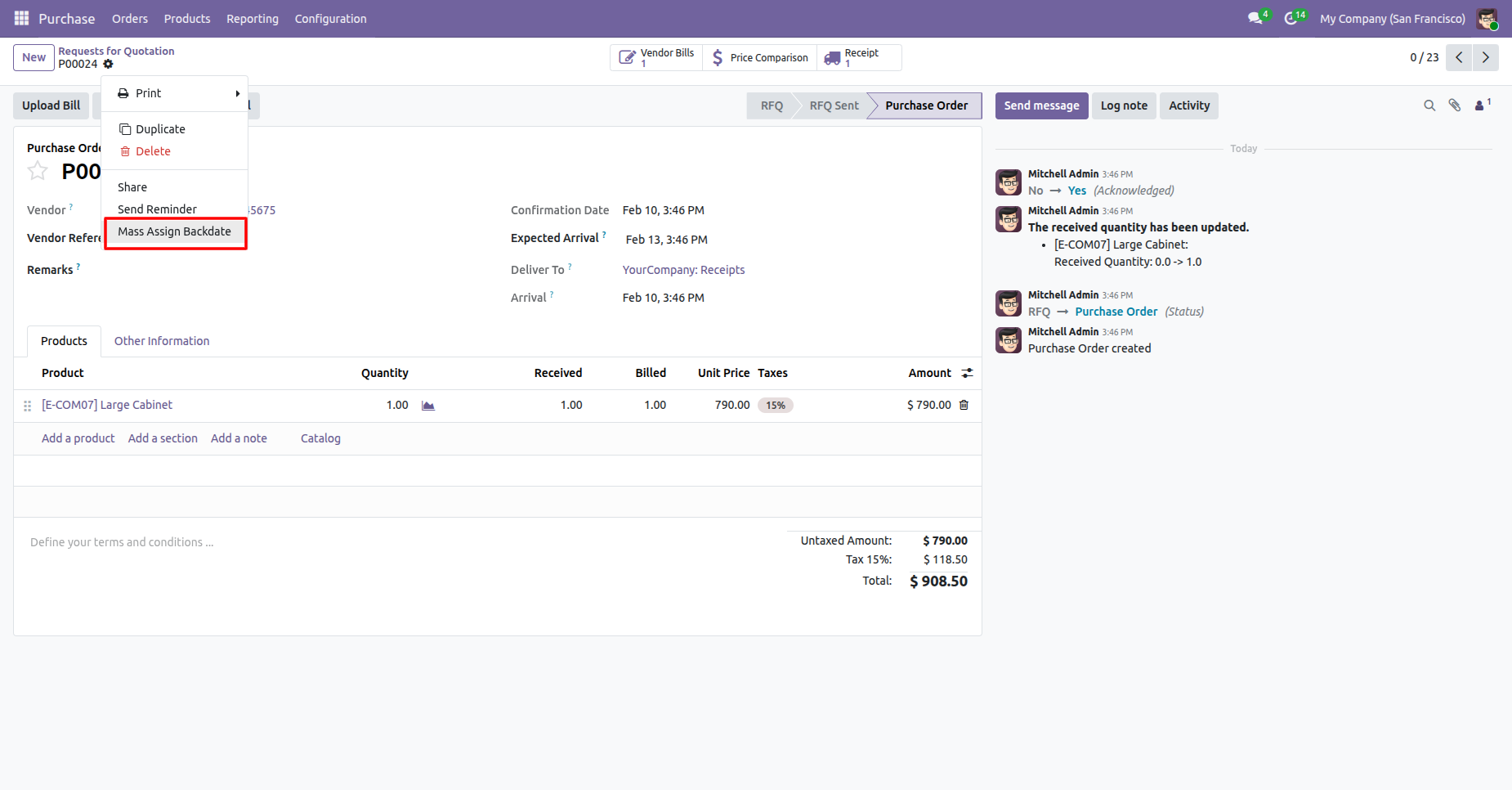
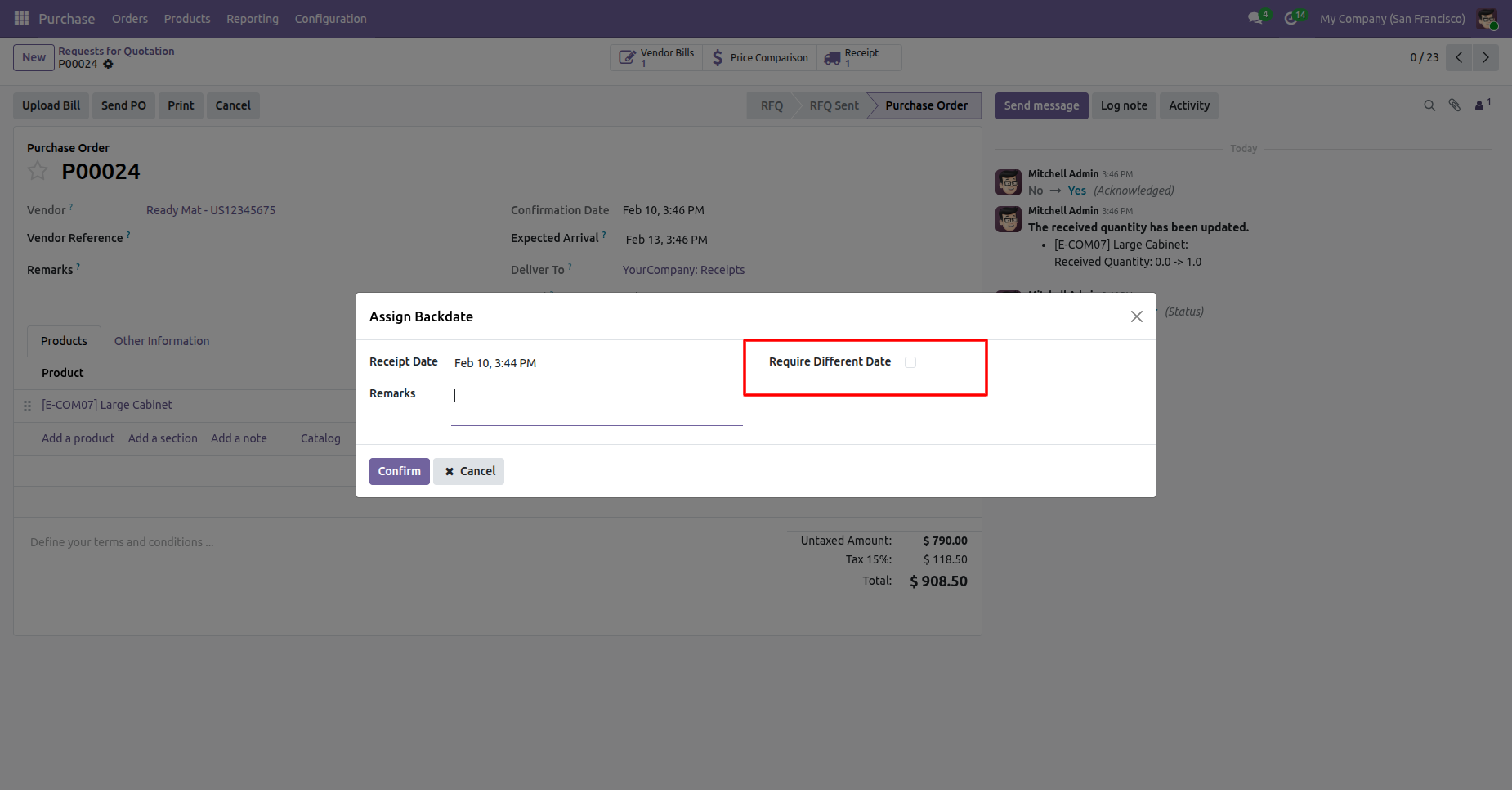
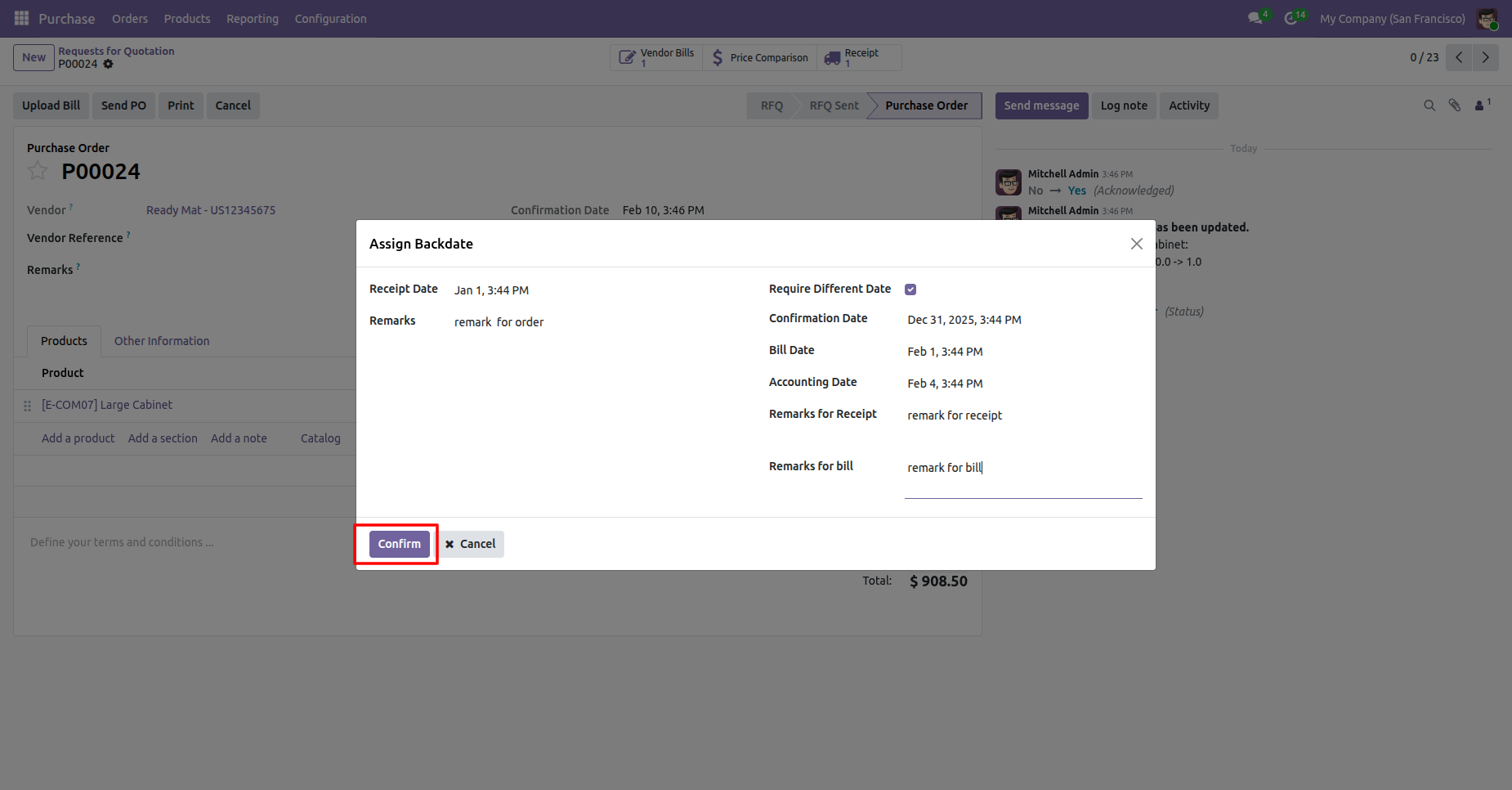
If you want to use a different date for the confirmation, billing, accounting date, enable the 'Require Different Date' boolean option.
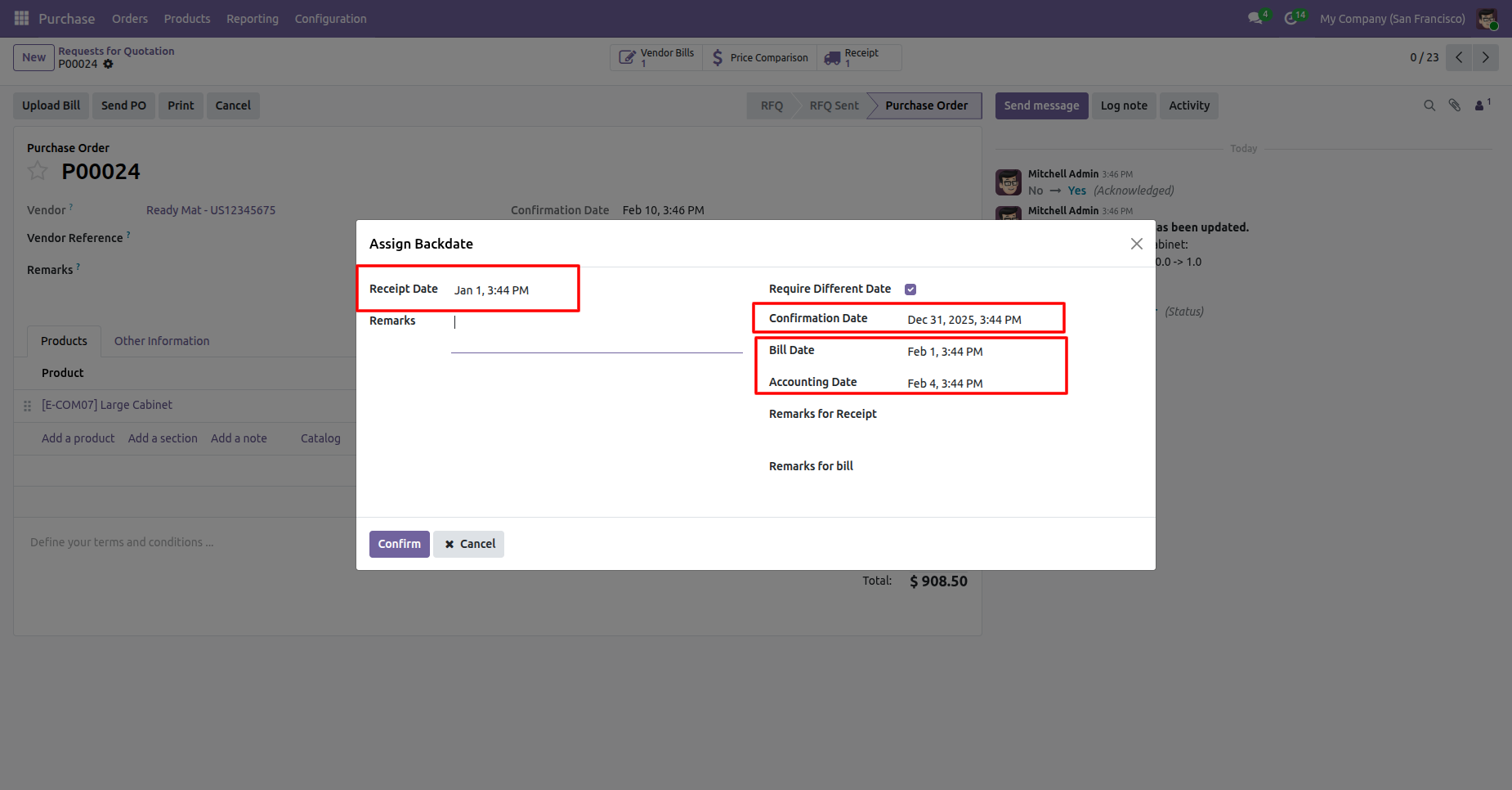
Now add the Receipt Date, Confirmation Date, Bill Date, Accounting Date as per the requirement.
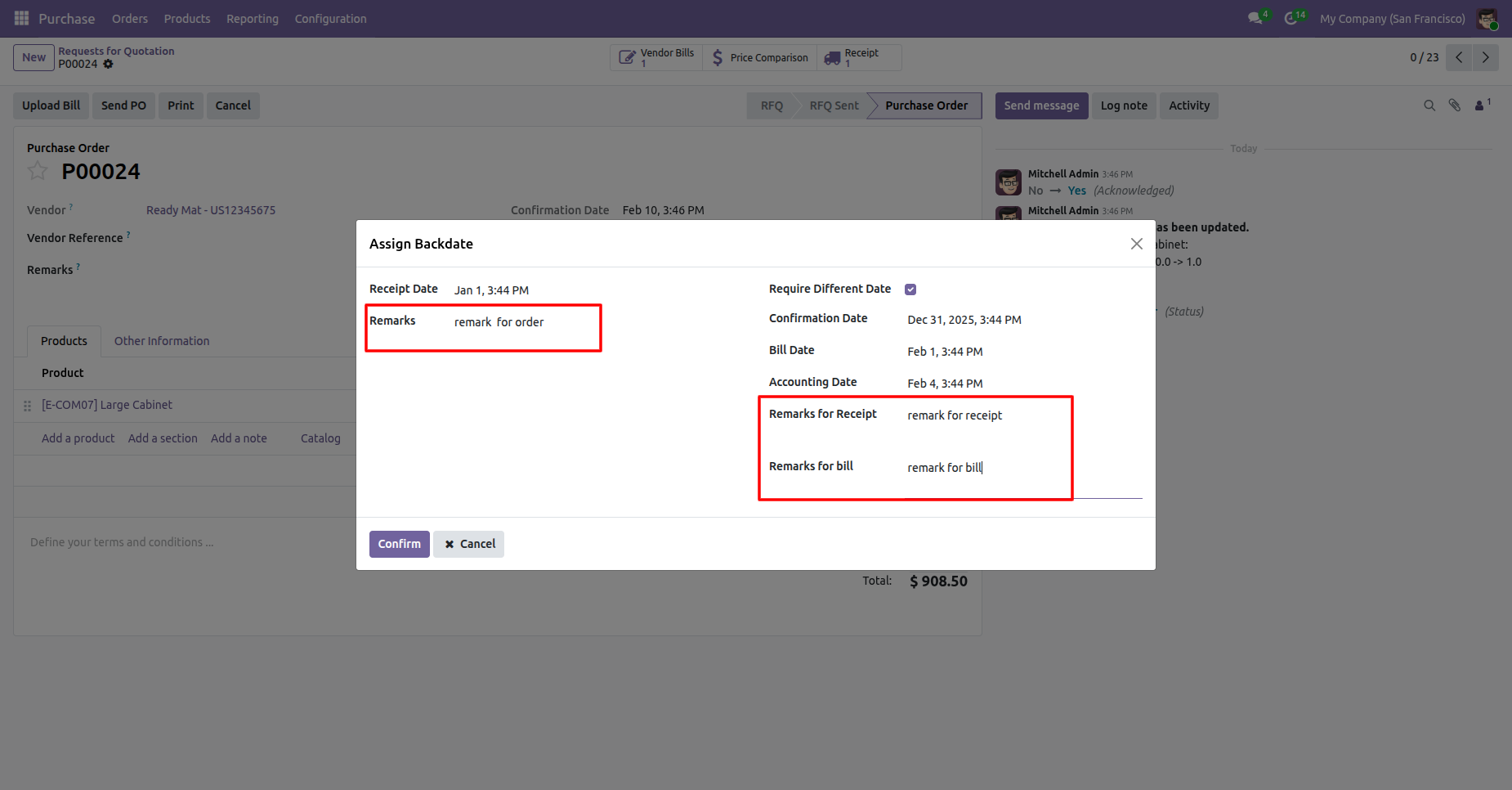
Add remarks and click on the 'Confirm' button.
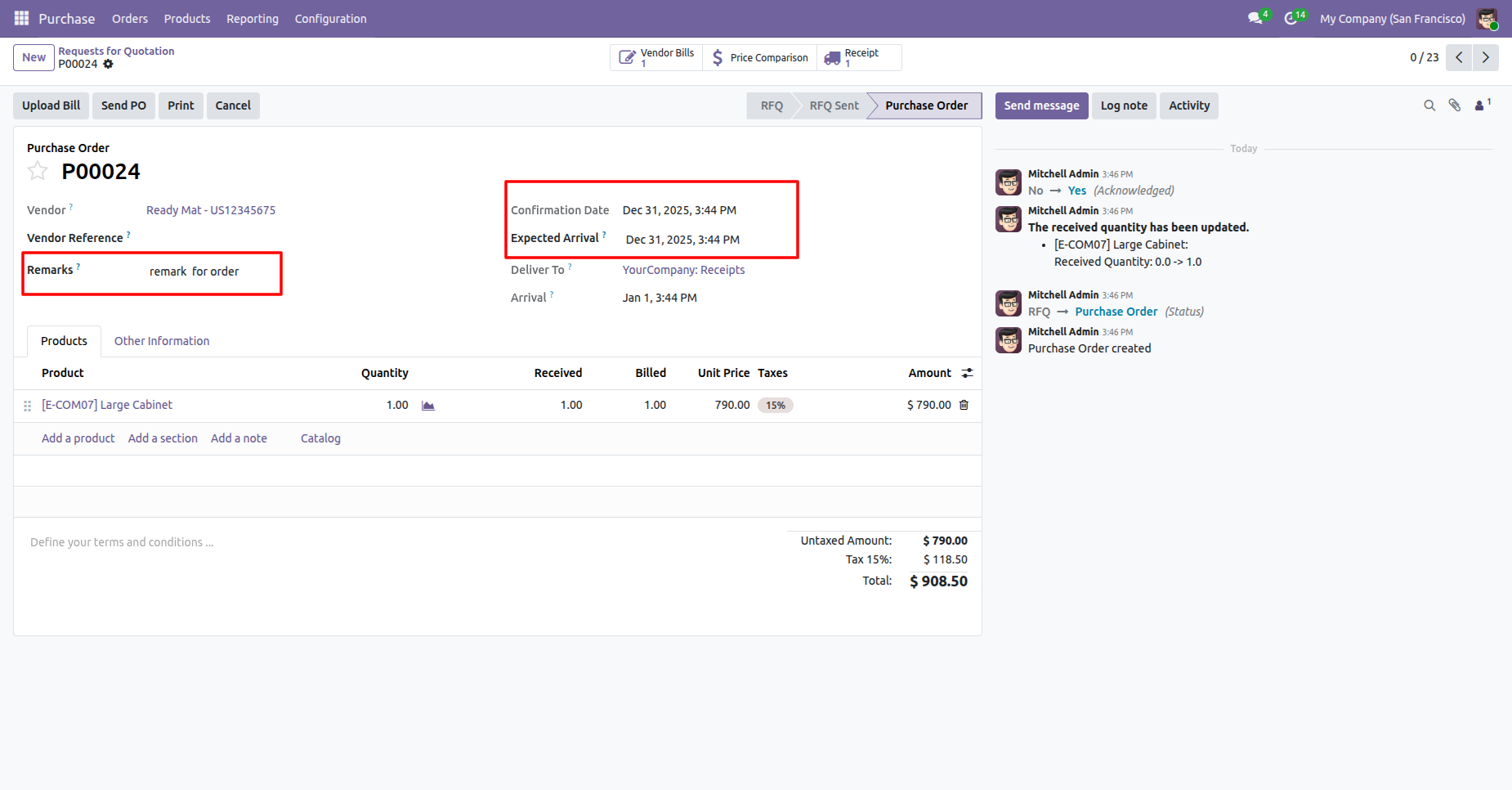
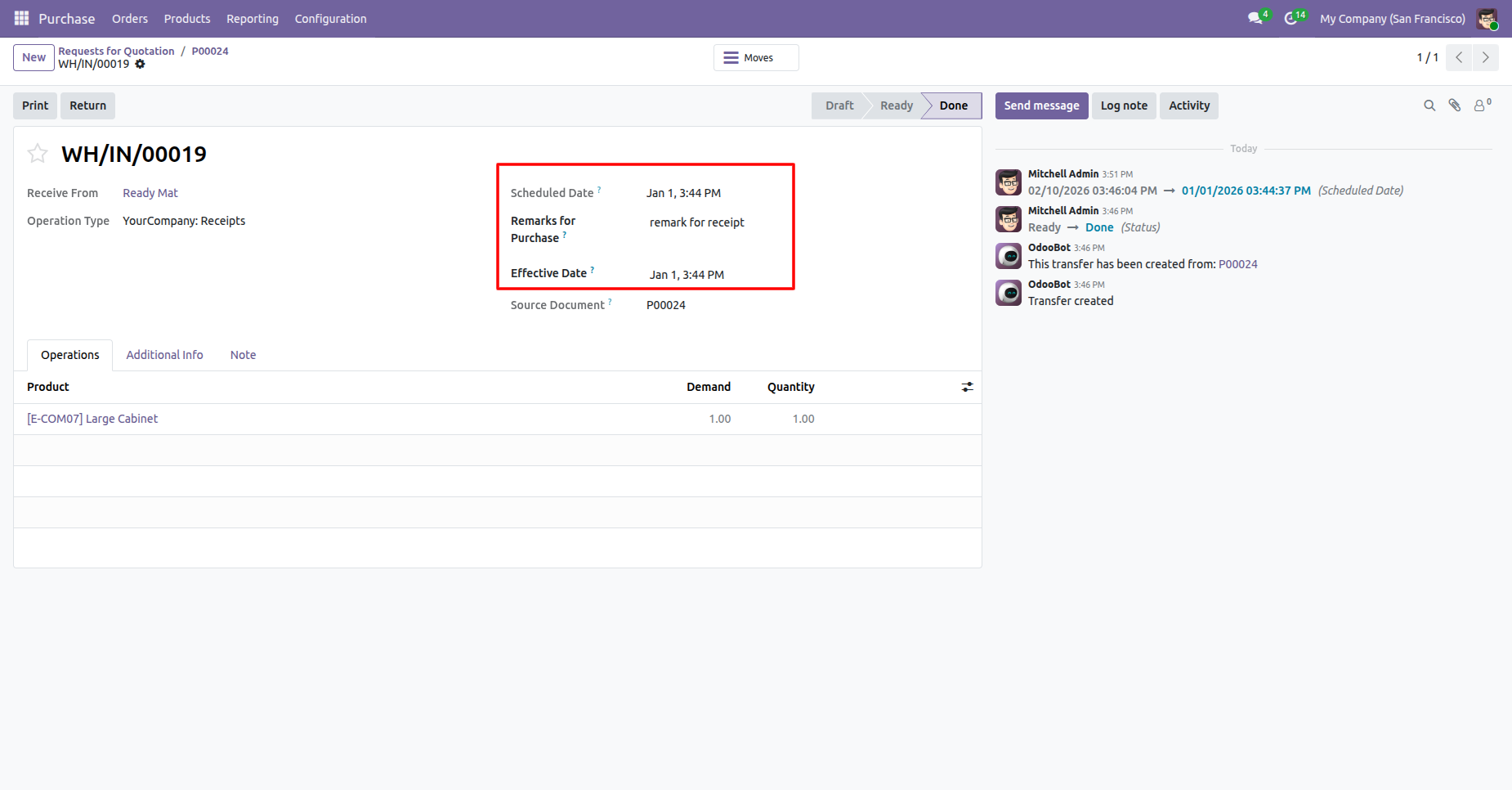
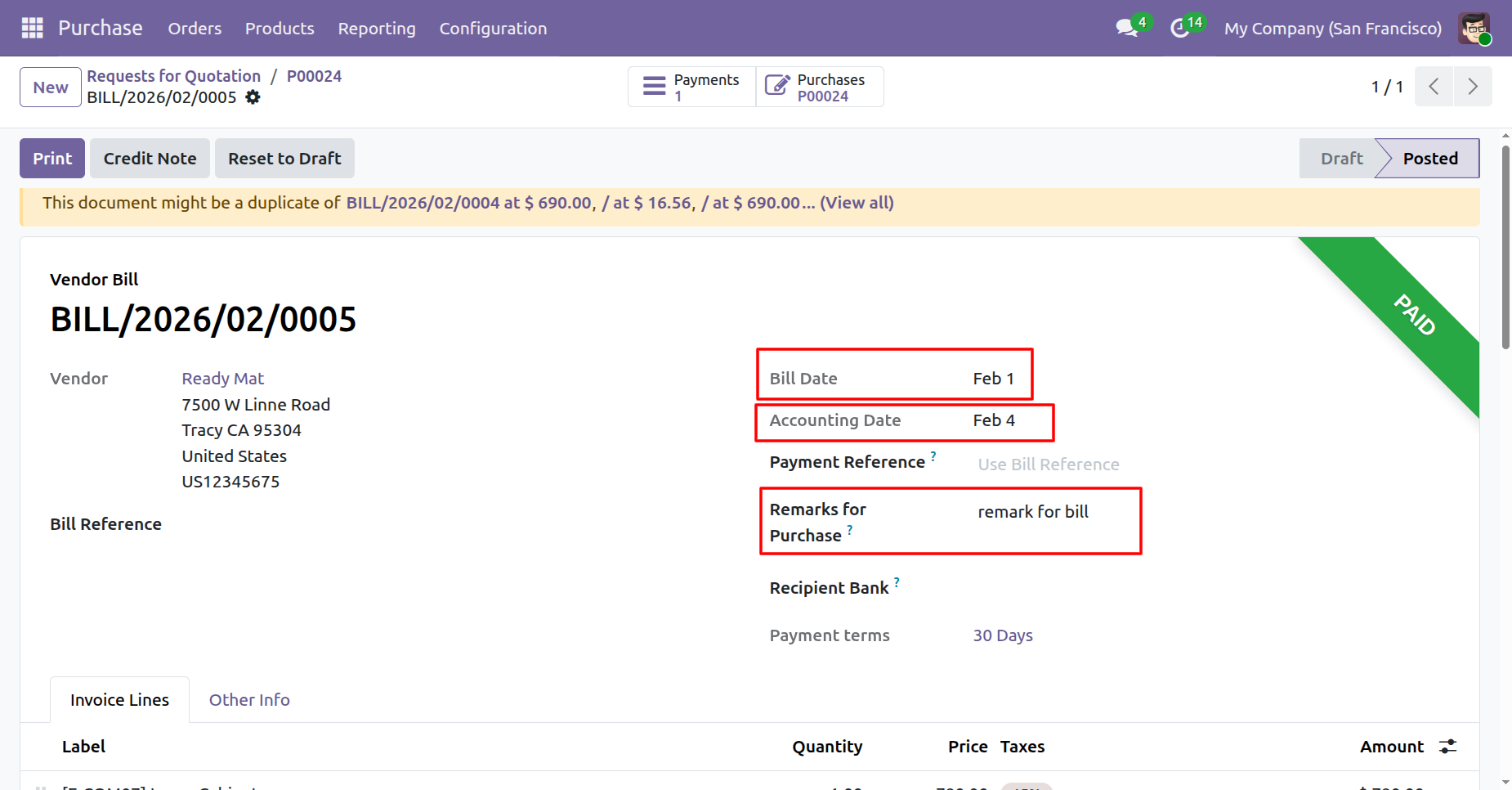
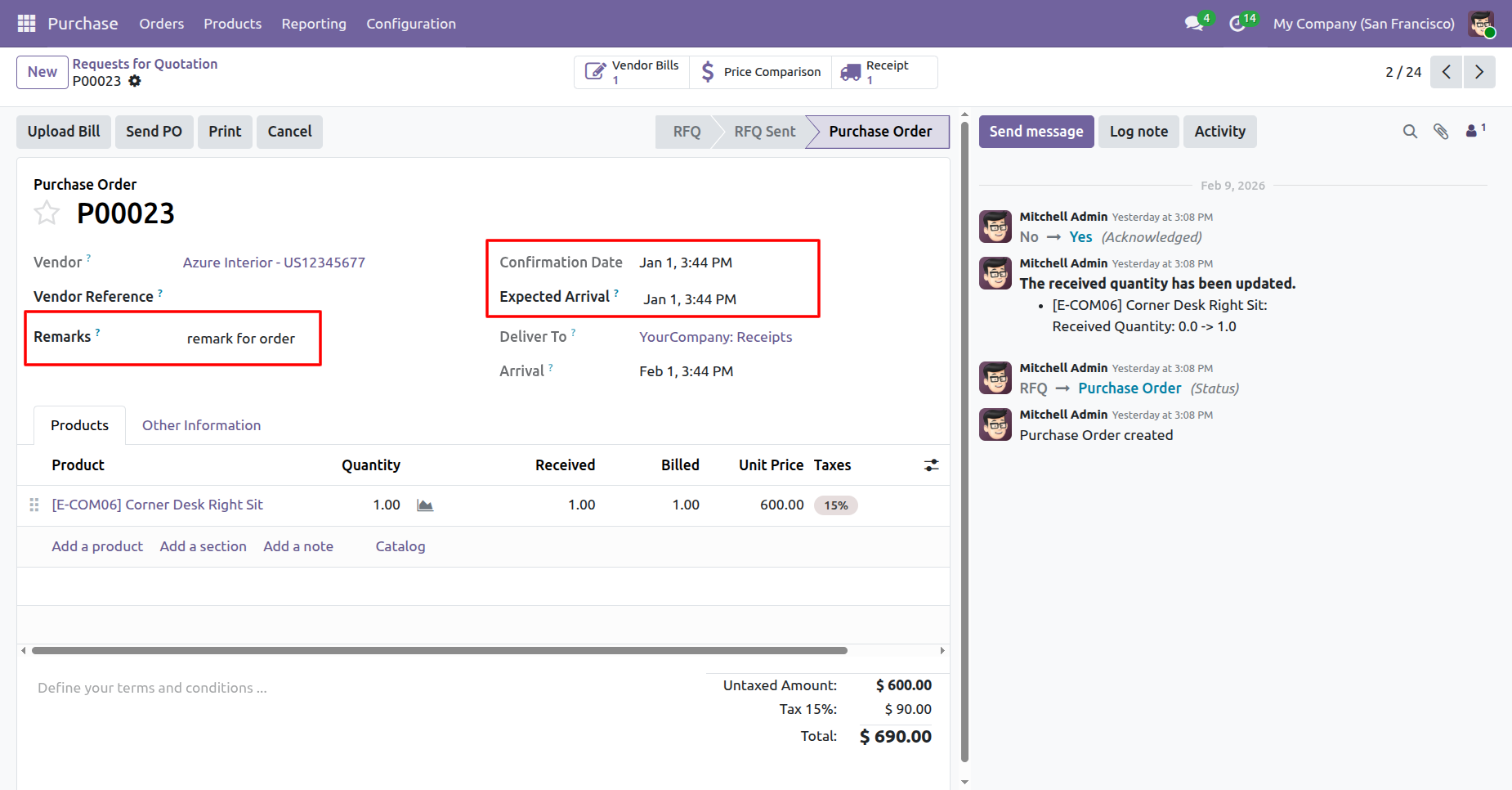
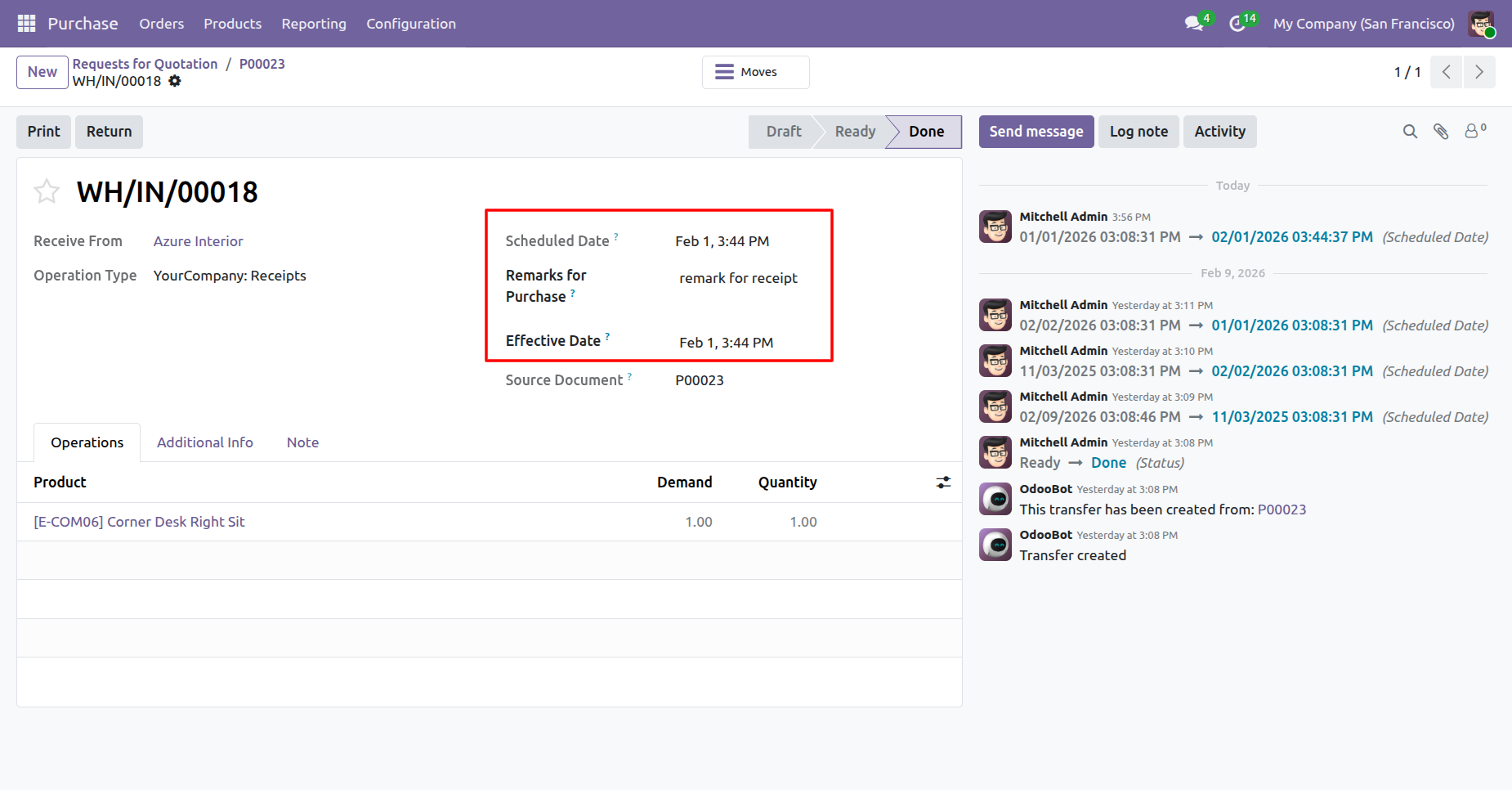
Here, you can view the remarks, and the Confirmation Date, Expected Arrival Date, Scheduled Date, Effective Date, Bill Date, and Accounting Date are updated accordingly.
Select purchase orders from the list view then click 'Mass Assign Backdate'.
Assign backdate and click on the 'Confirm' button.
Here, you can see that the backdate has been assigned.
Version 19.0.2.0.0 | Released on : 11th February 2026
Version 19.0.1.0.0 | Released on : 11th August 2025
- Yes, this app works perfectly with Odoo Enterprise (Odoo.sh & Premise) as well as Community.
- No, this application is not compatible with odoo.com(odoo saas/Odoo Online)
- Yes, to test this module, please contact us at sales@softhealer.com.
- Please contact us at sales@softhealer.comto request customization.
- Yes, we provide free support for 365 days from the date of purchase.
- Yes, you will receive lifetime free updates for the version of the module you purchased.
- No, there is no need to install any additional libraries.
- Yes, for version 12 and above, you need to purchase the module separately for each version you intend to use.
- No, exchanges or refunds are not allowed. Please make sure to select the correct version before purchasing.
- You can contact us at support@softhealer.com for language translation support. We use Google Translator tools to provide translations in multiple languages, so the accuracy may vary. We welcome your suggestions to help improve translations.
