












Project Job Costing Management

Project Job Costing Management enables structured project budgeting and cost tracking in Odoo. Manage planned vs actual costs with multi-level approval workflows, detailed job cost lines, and direct linkage to purchase orders, vendor bills, timesheets, expenses, and inventory stock moves for complete variance visibility and PDF reporting.
Features

User Access Rights
Control user access to job costing features and restrict who can view or manage job cost information.
Comprehensive Job Cost Sheets
Create detailed job cost sheets with job types, cost categories, and multi-stage approval workflow.

Purchase & Vendor Bill Costing
Automatically track actual costs from purchase order lines and vendor bills directly on job cost lines.

Timesheet & Expense Costing
Capture real labor costs from employee timesheets and expense sheets to monitor total project expenditure.

Stock Move Material Costing
Track raw material usage and inventory stock move costs mapped directly to specific job cost lines.

Planned vs Actual Cost Summary
Compare planned budget versus actual costs in real-time with project and task level costing summaries.

Costing Reports
Generate professional PDF job cost sheet reports for clear and organized project cost analysis.

Security Control
Allow designated users to view job costing information without making changes.
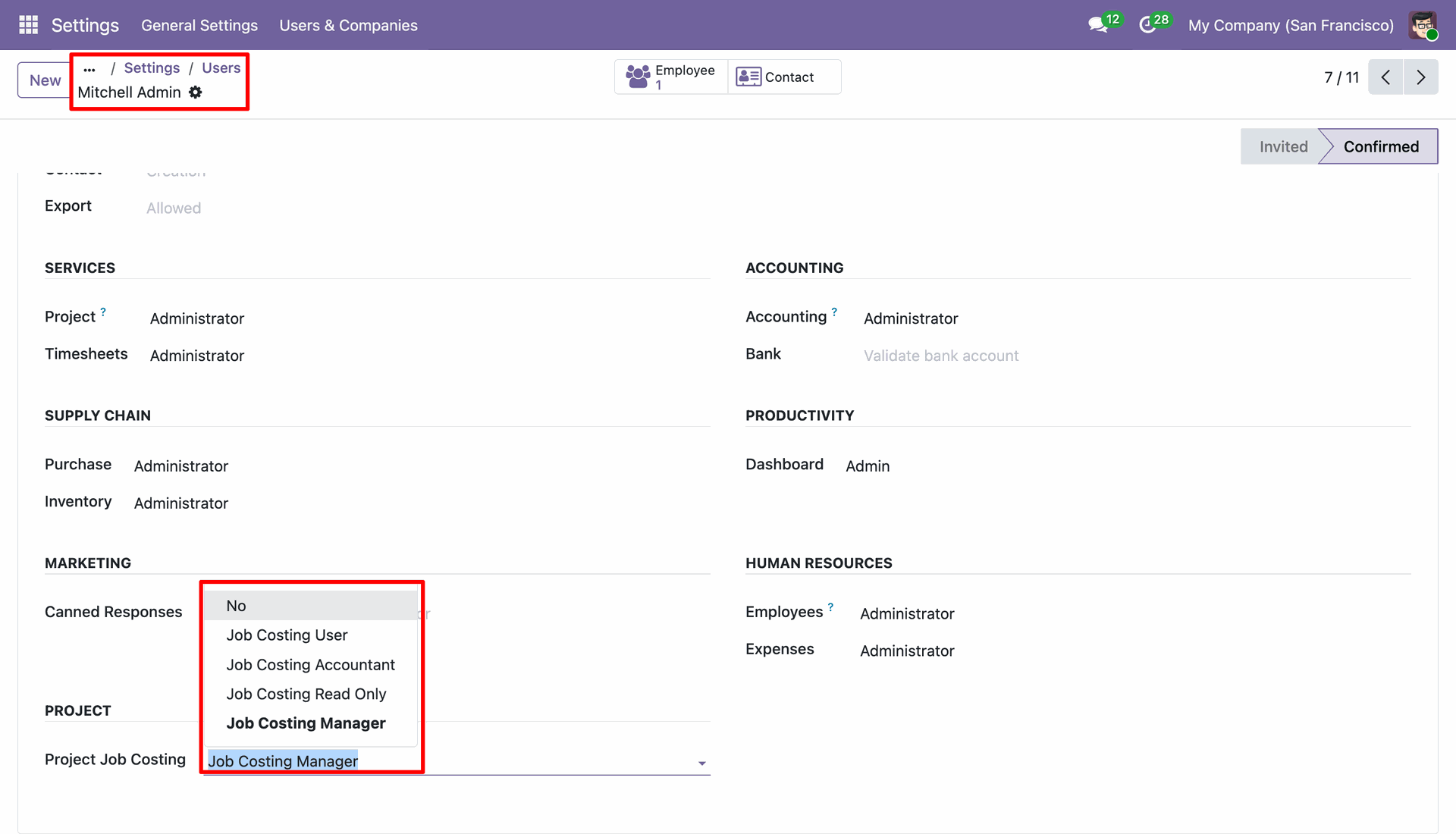
Assign the Job Costing user access rights.

Workflow
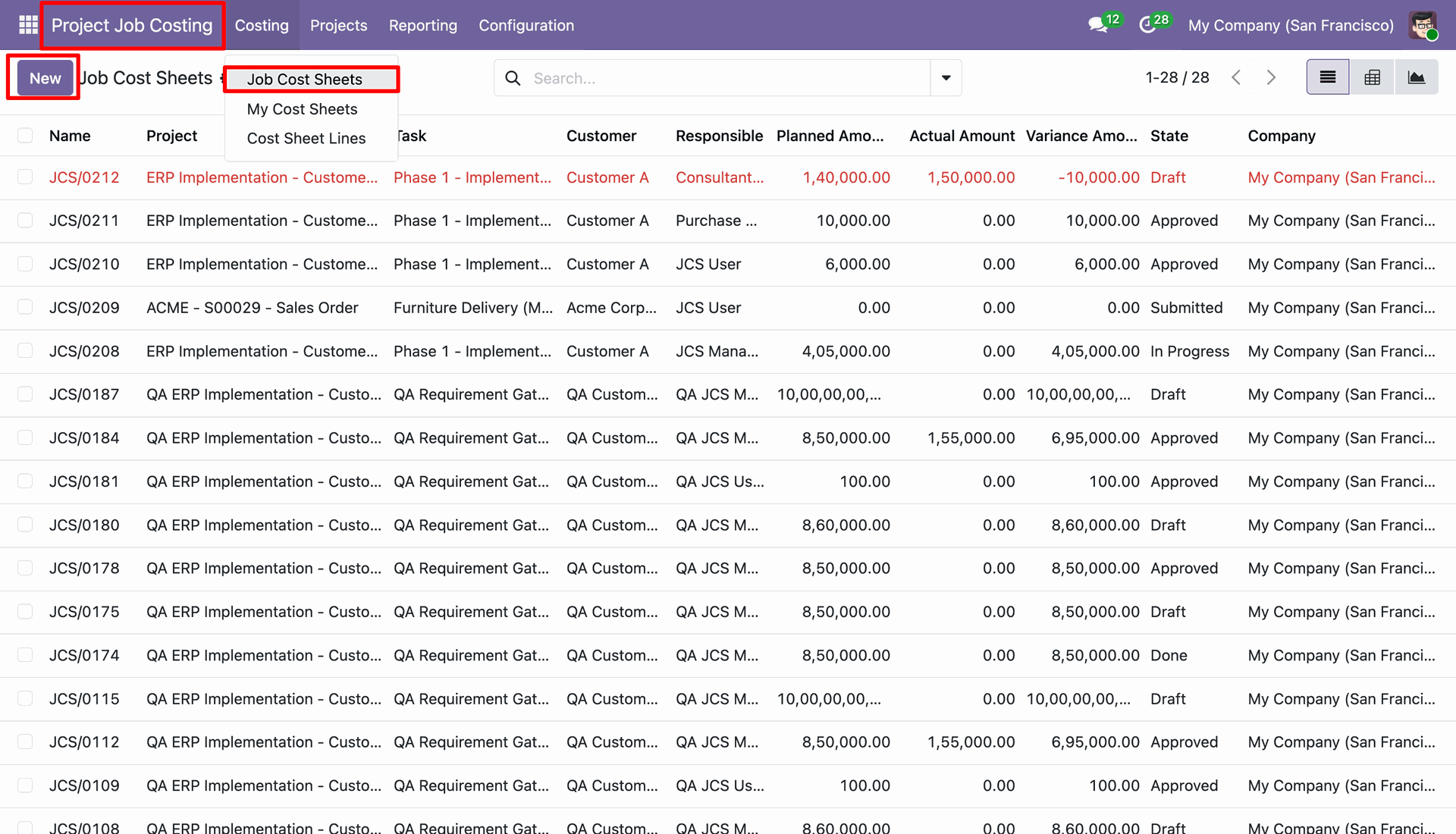
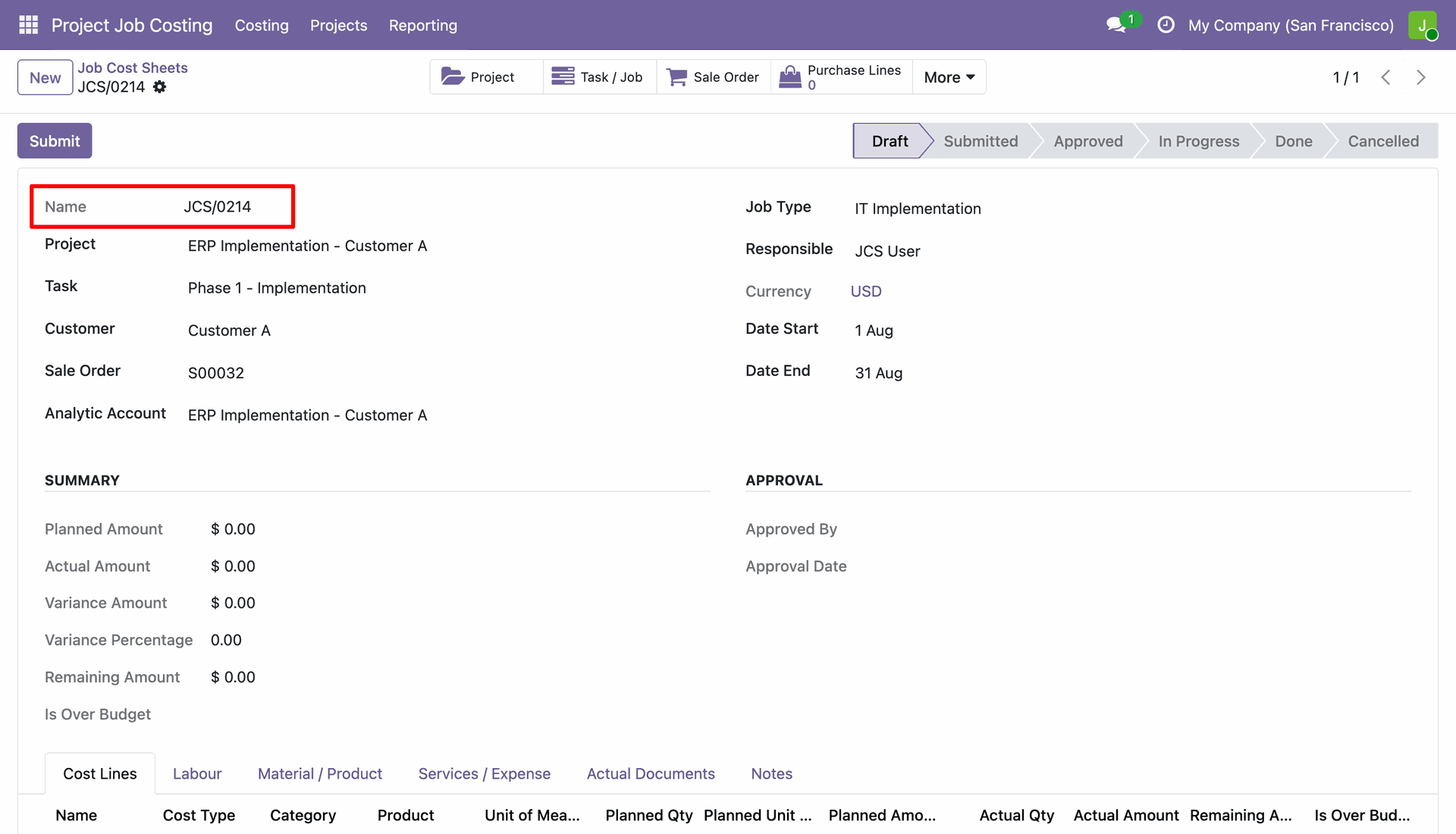
Click the New button in the Job Cost Sheets menu to create a sheet.
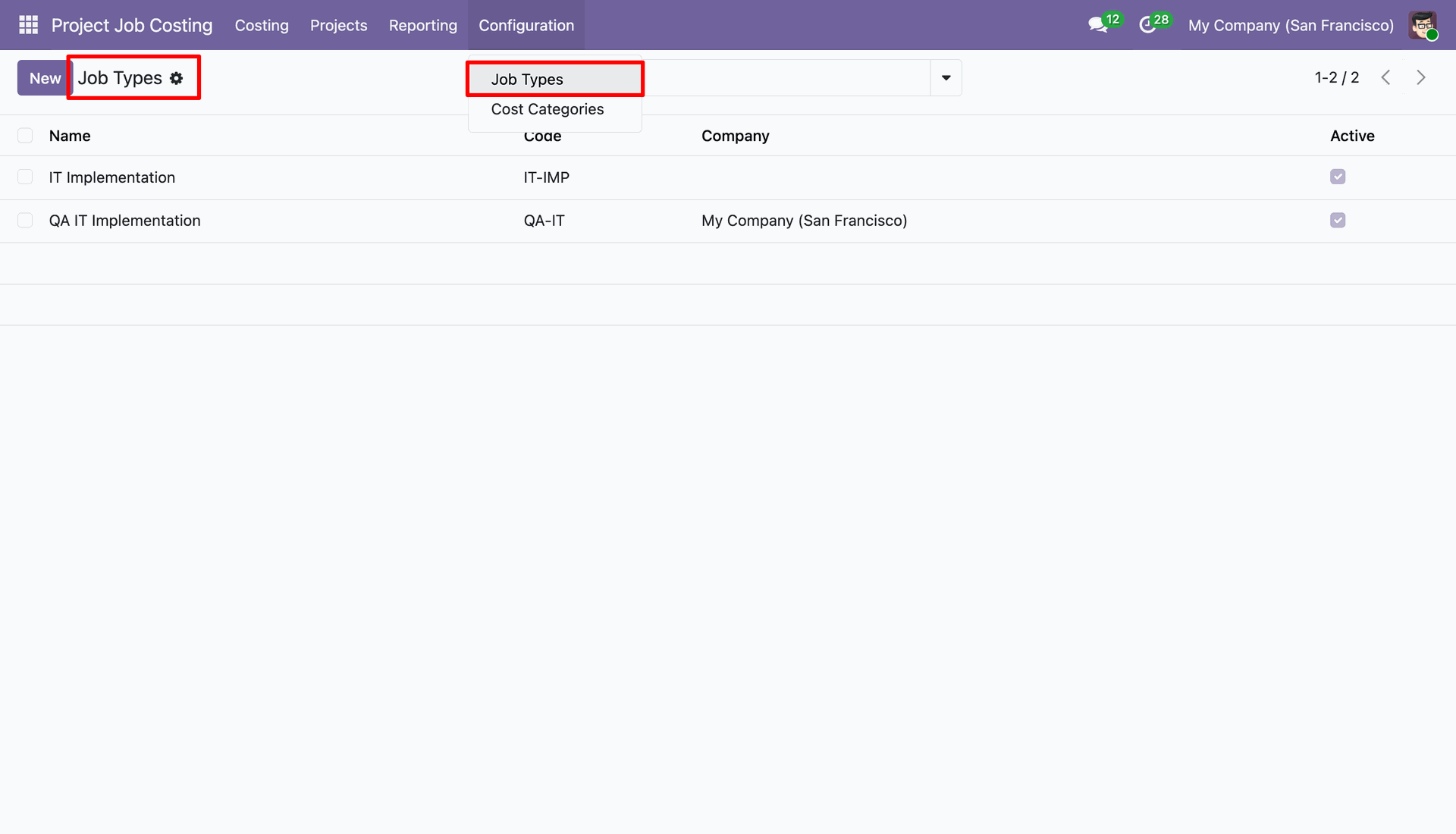
Navigate to Configuration and select Job Types to view and manage existing job types.
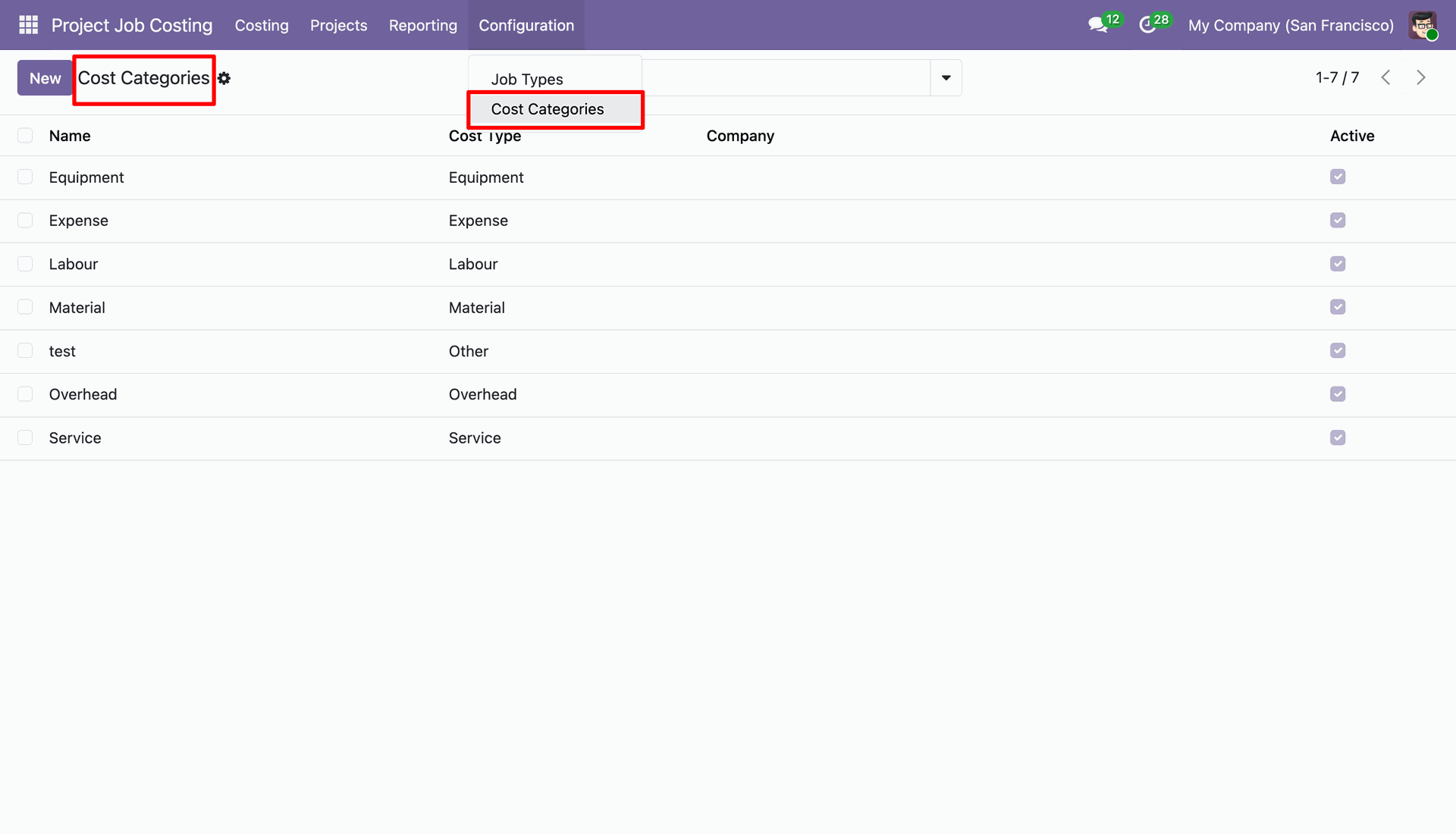
Select Cost Categories under Configuration to view all available project cost categories.
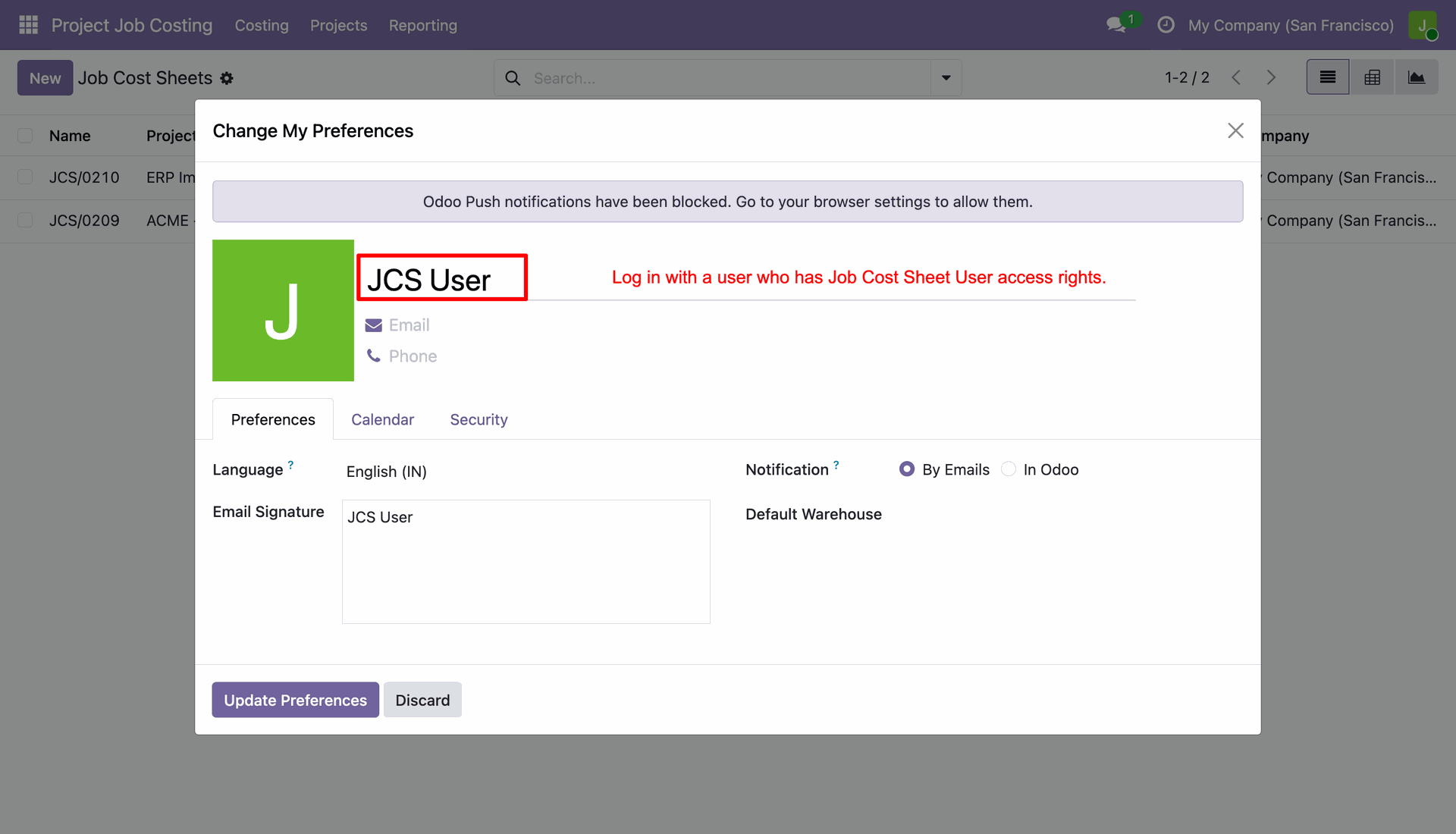
Log in as a user assigned with Job Cost Sheet User access rights.
Enter the project, task, job type, and date range to create a job cost sheet.
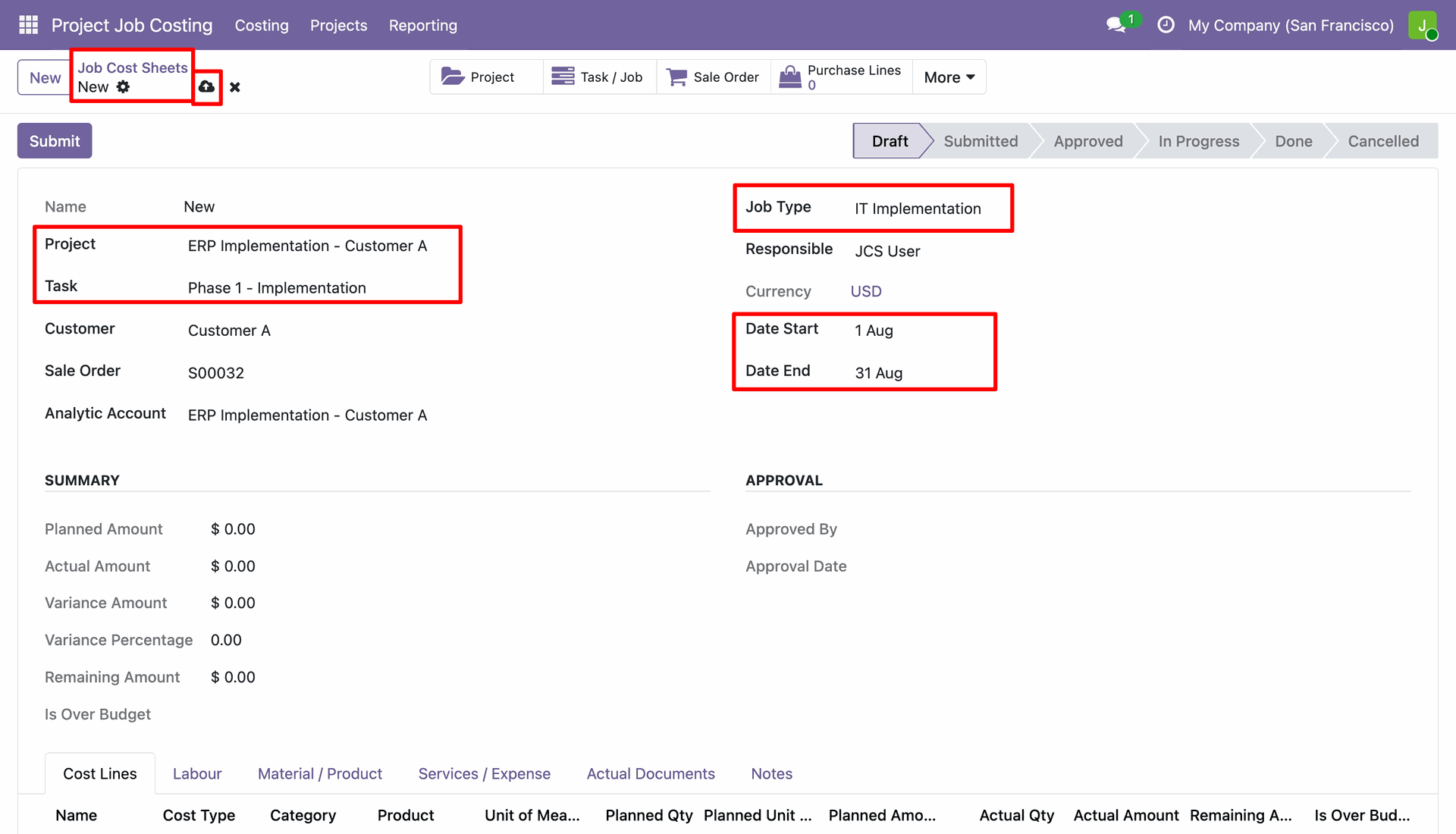
Save the job cost sheet to generate a reference number in draft state.
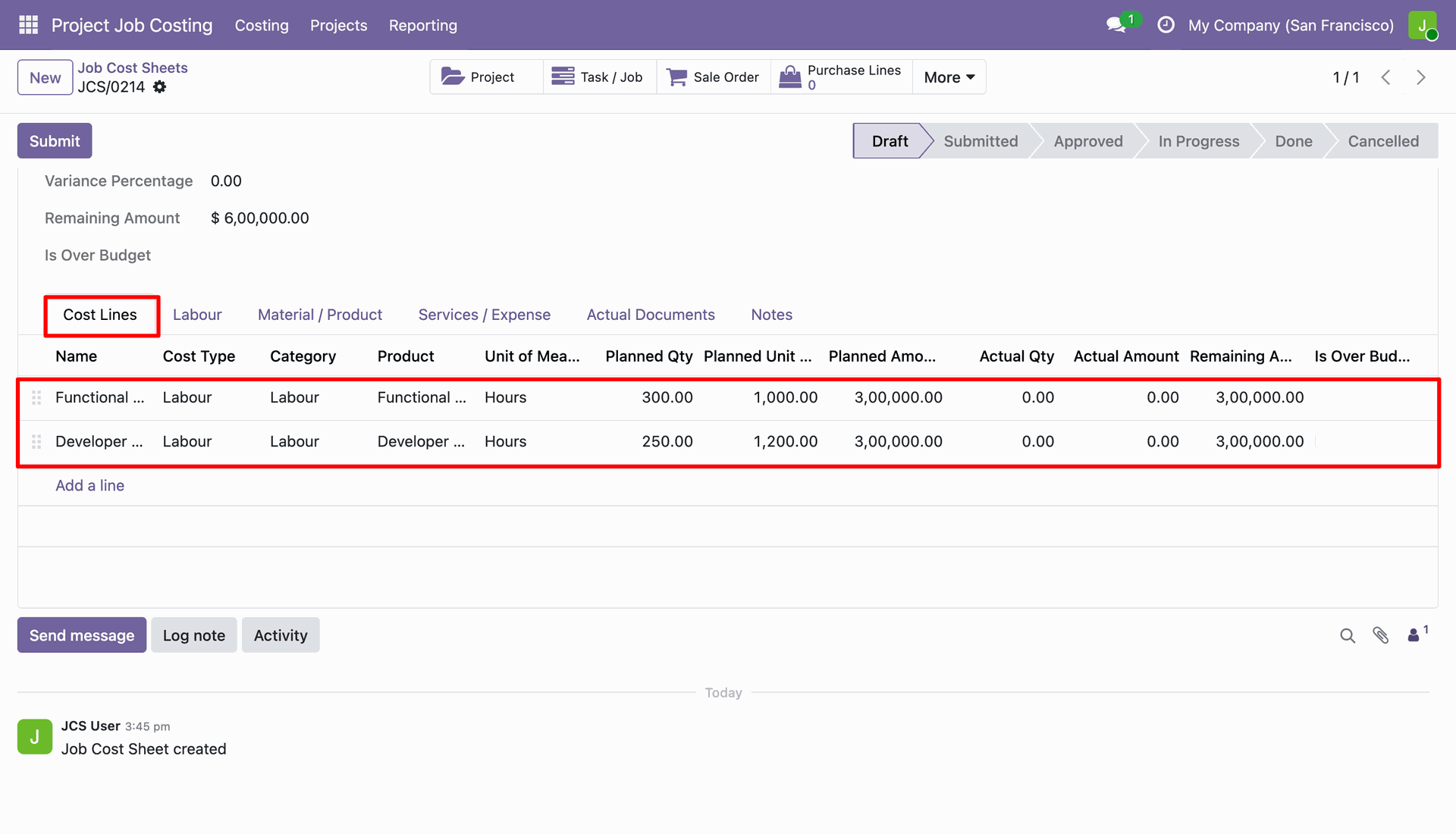
Add planned cost lines under the Cost Lines tab with quantity and unit cost details.
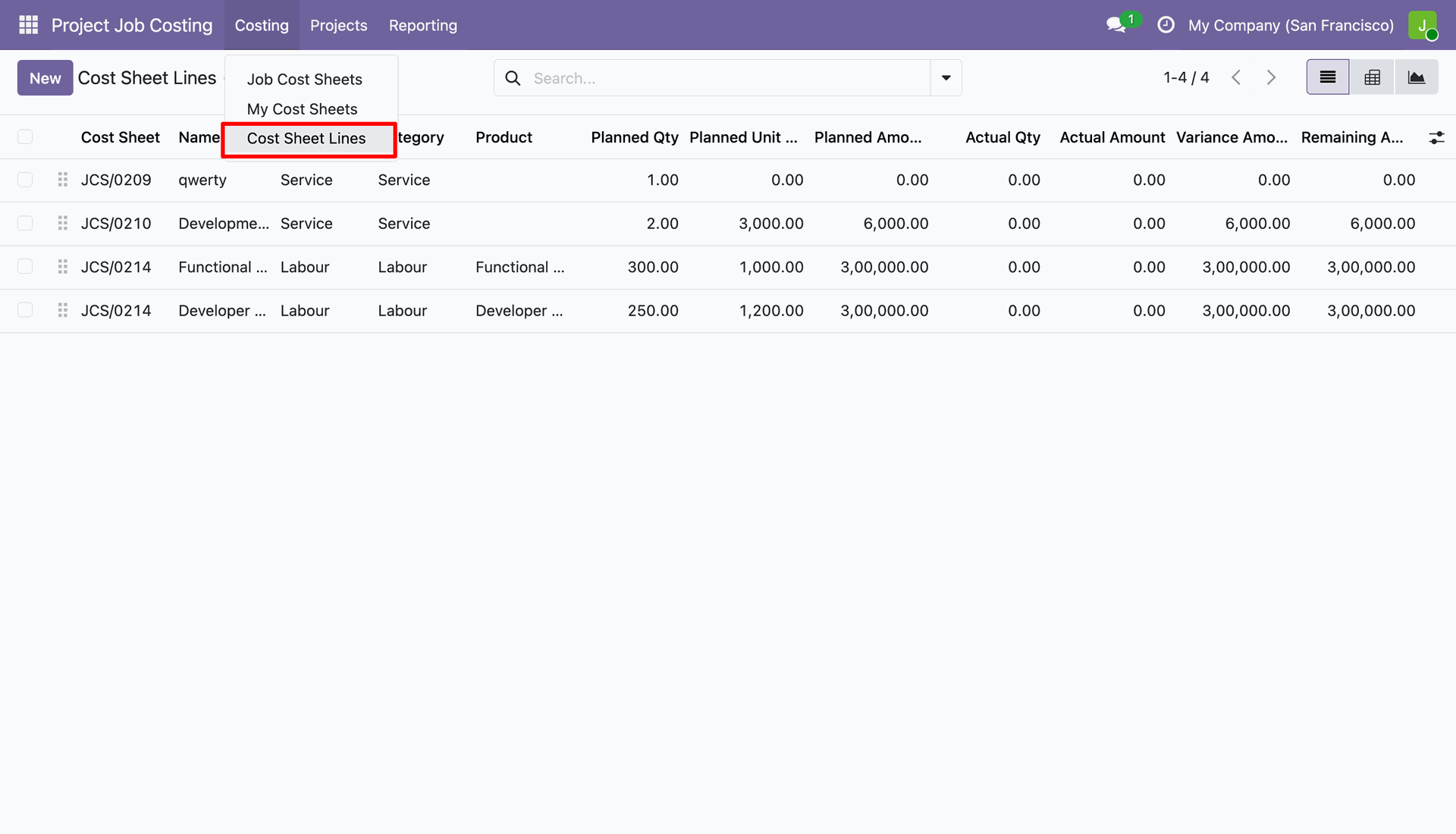
Open Costing menu and select Cost Sheet Lines to view all project cost entries.
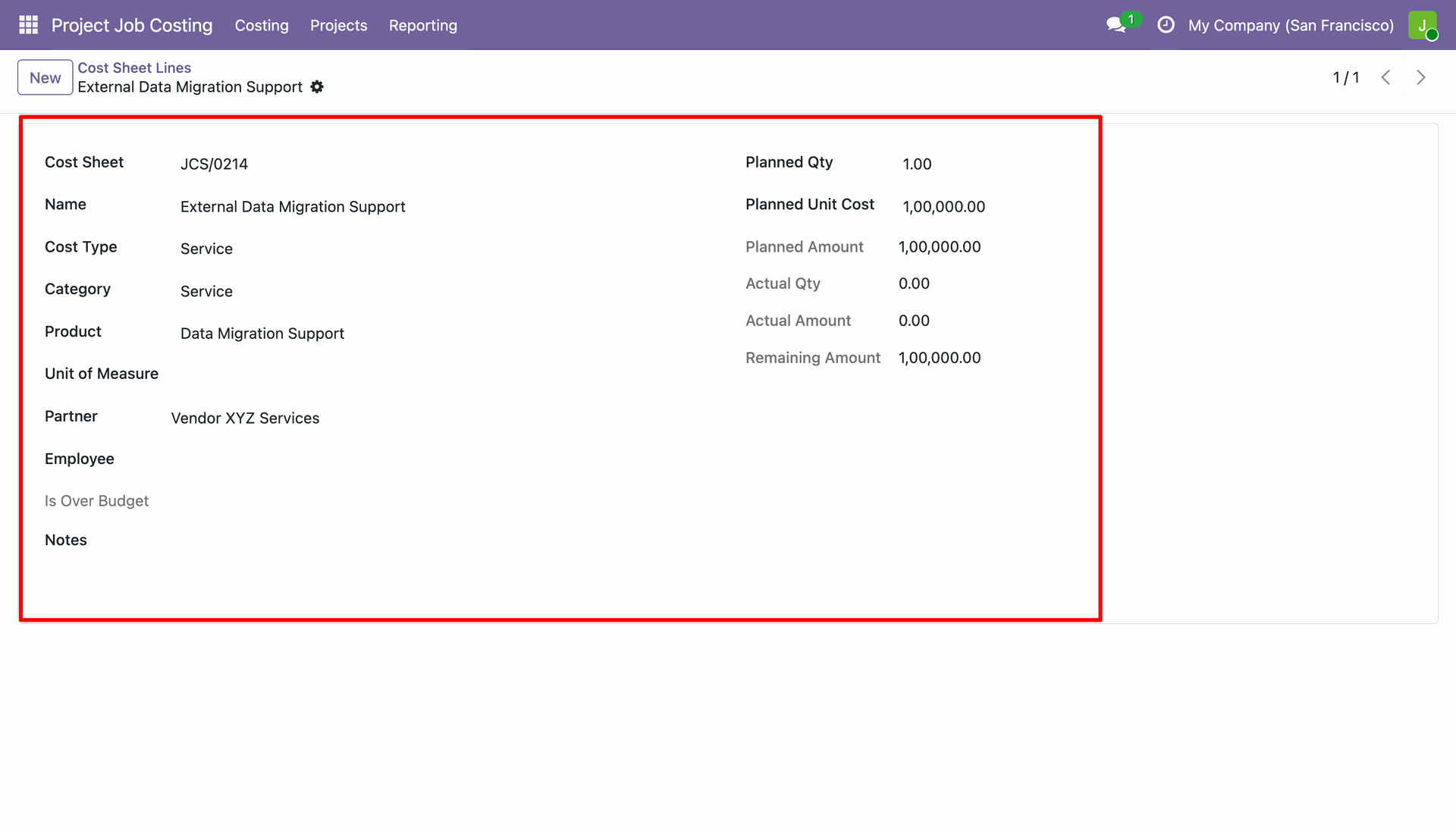
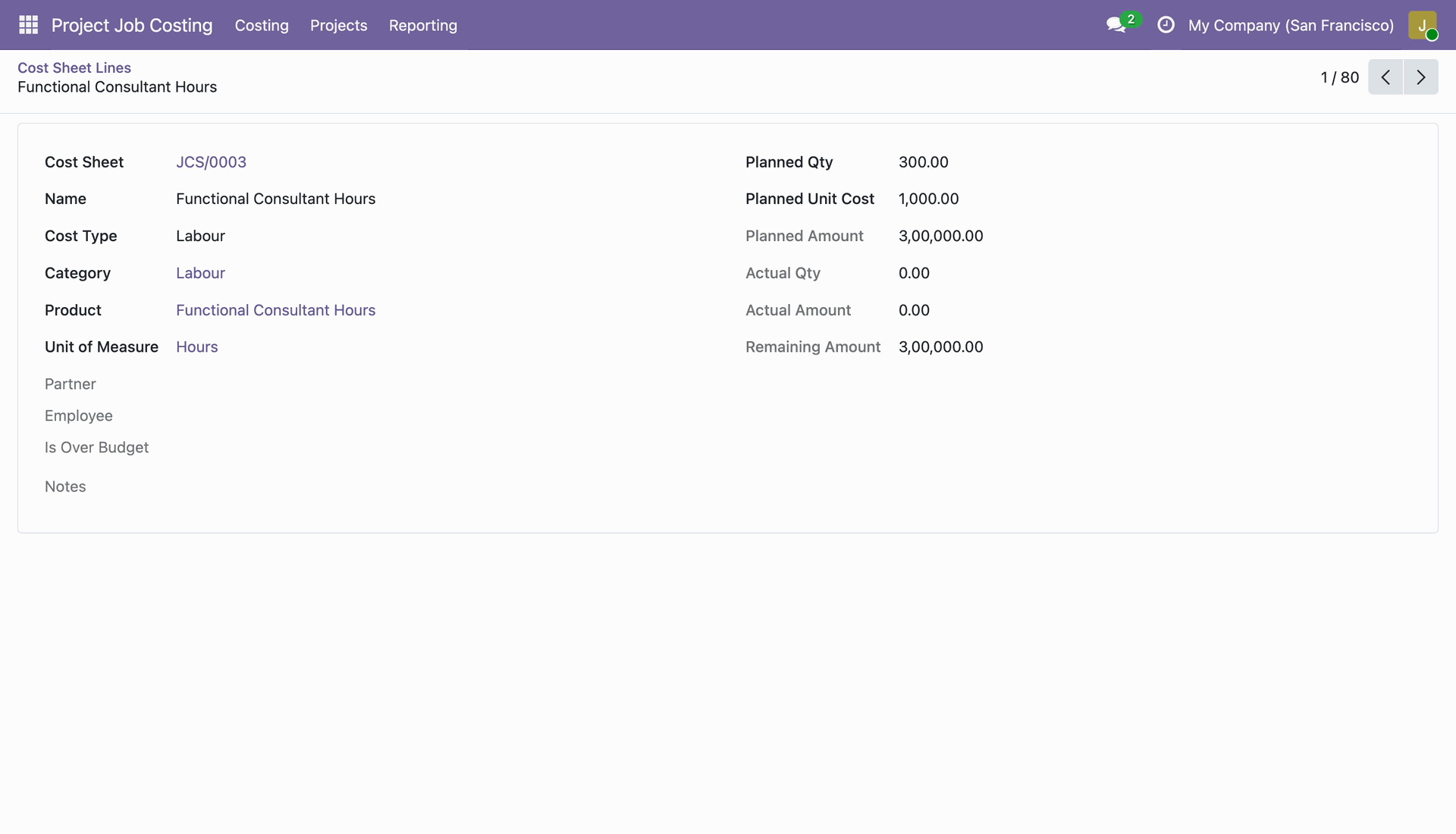
Open an individual cost sheet line form to view complete planned and actual amounts.
Click on a specific cost line row to open and edit its details.
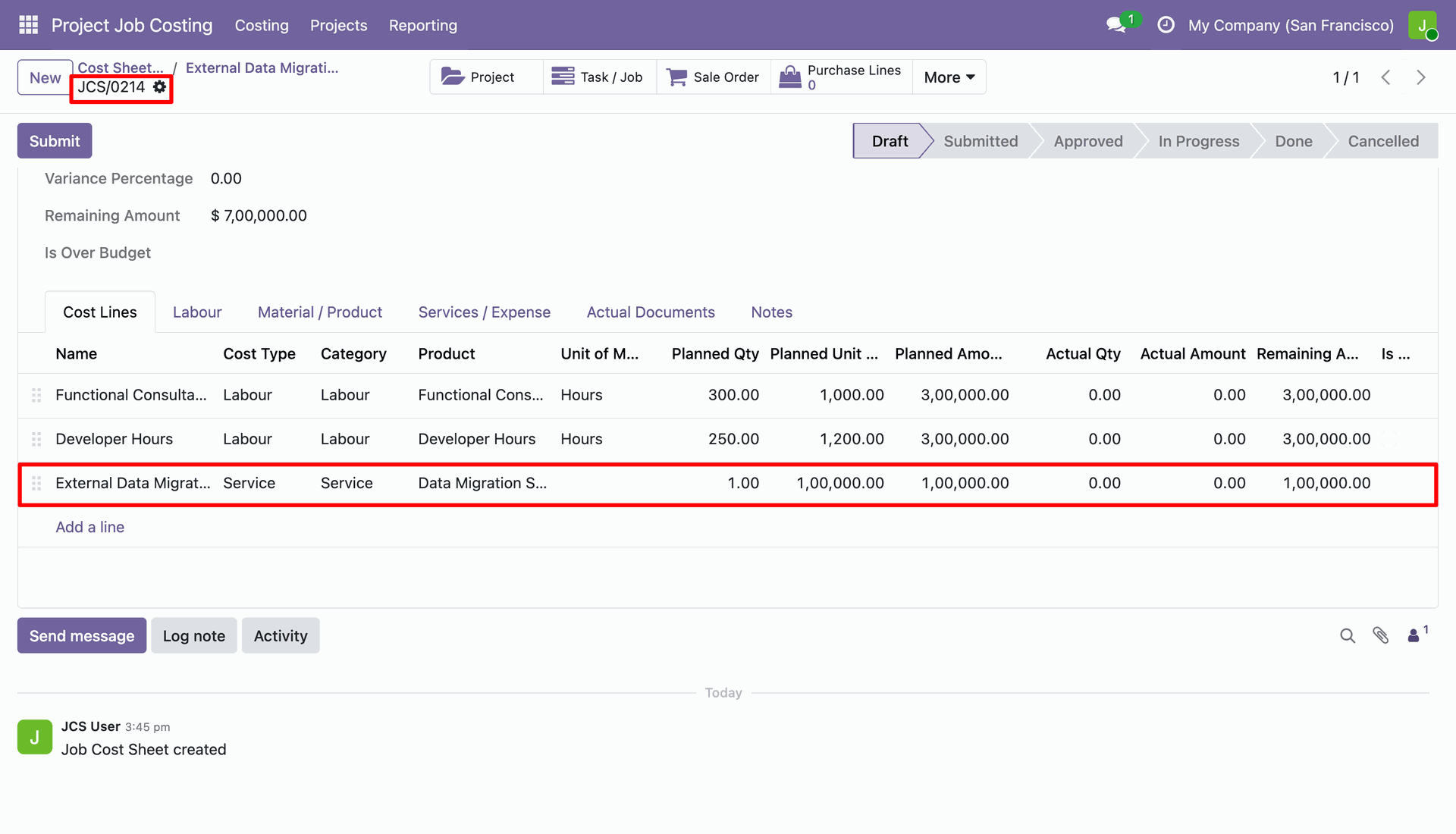
Click the Submit button to send the draft job cost sheet for manager approval.
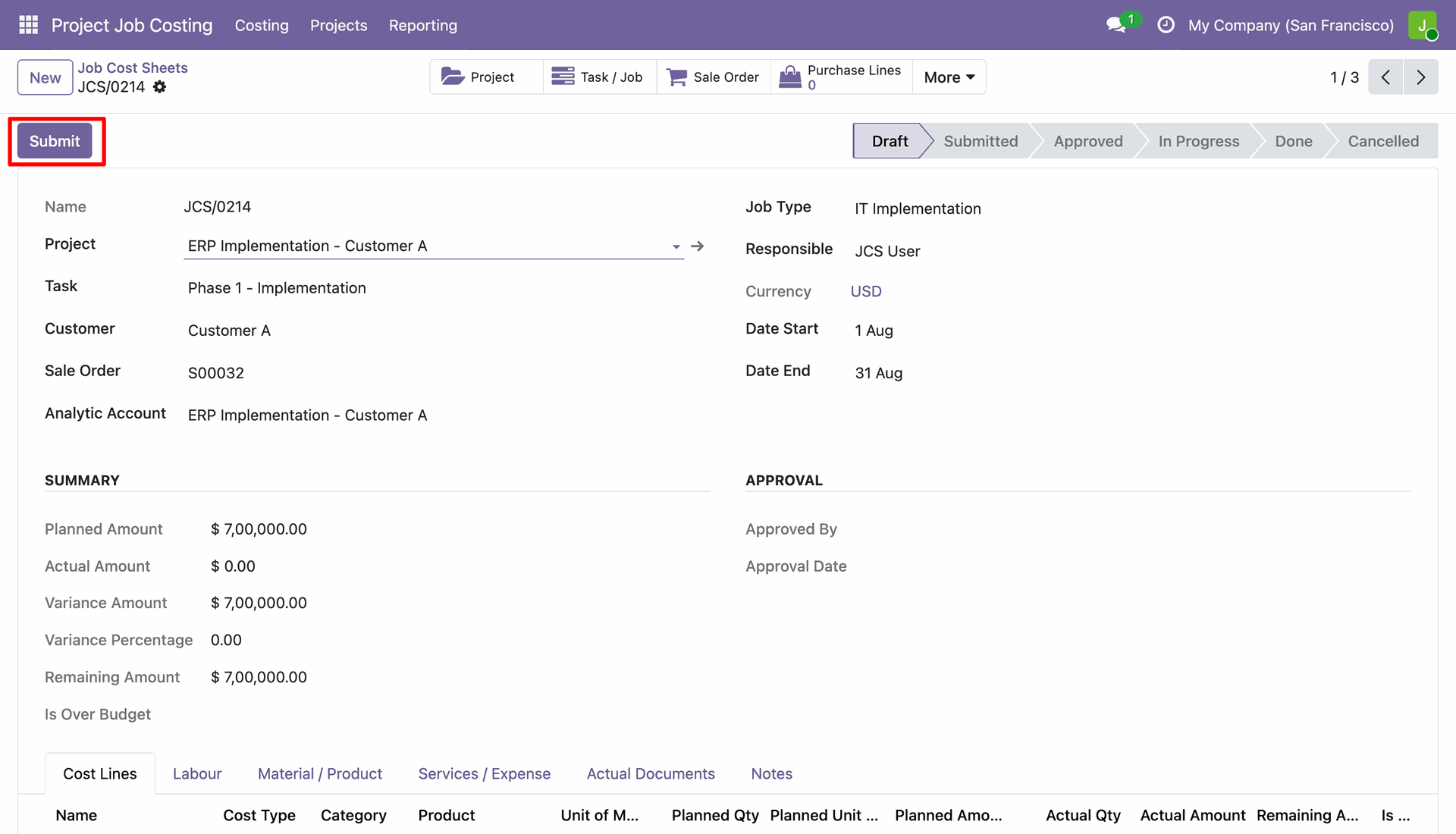
View submitted cost sheet where regular users cannot approve the record directly.
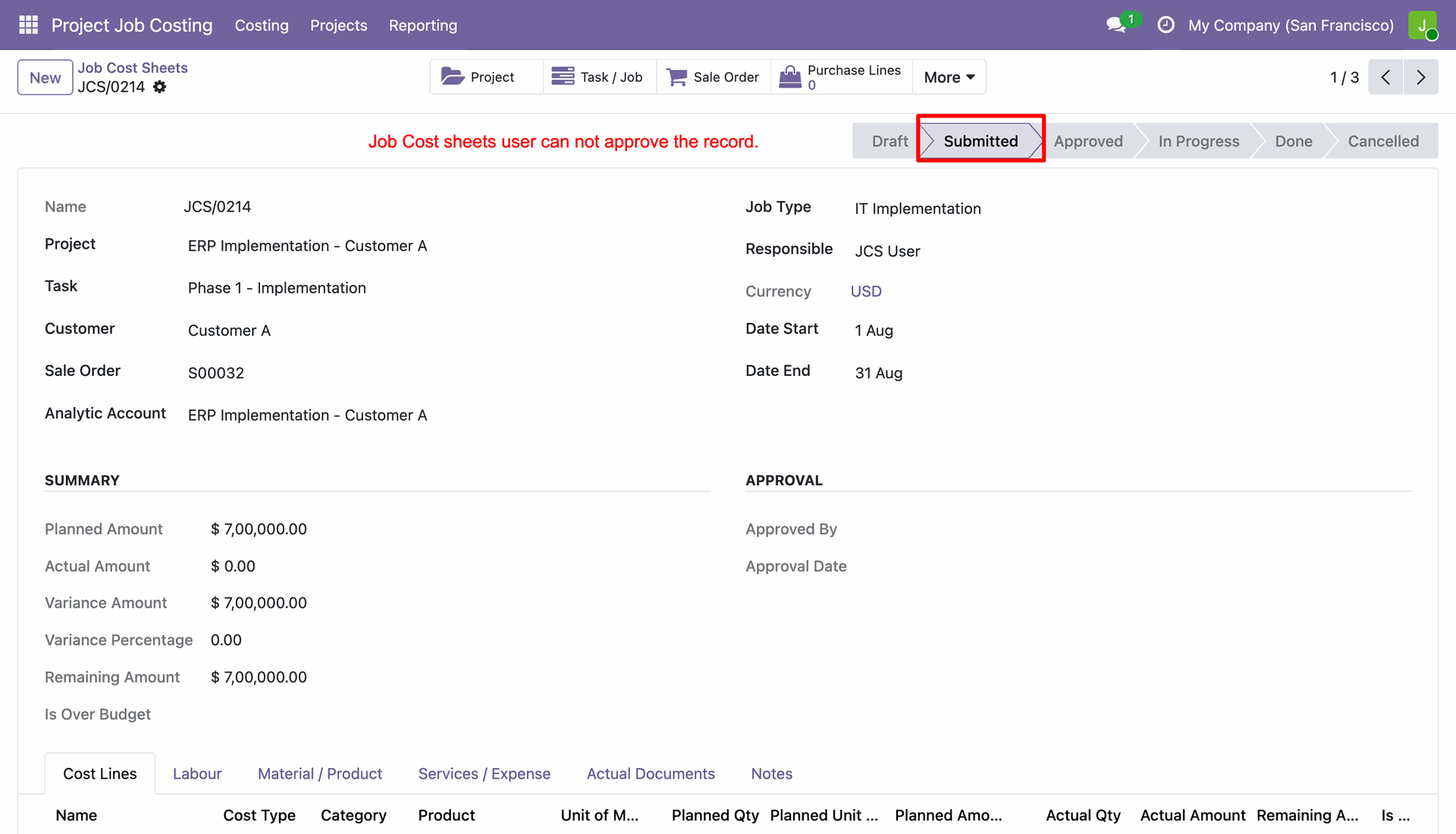
Click the Approve button as a manager to approve the submitted job cost sheet.
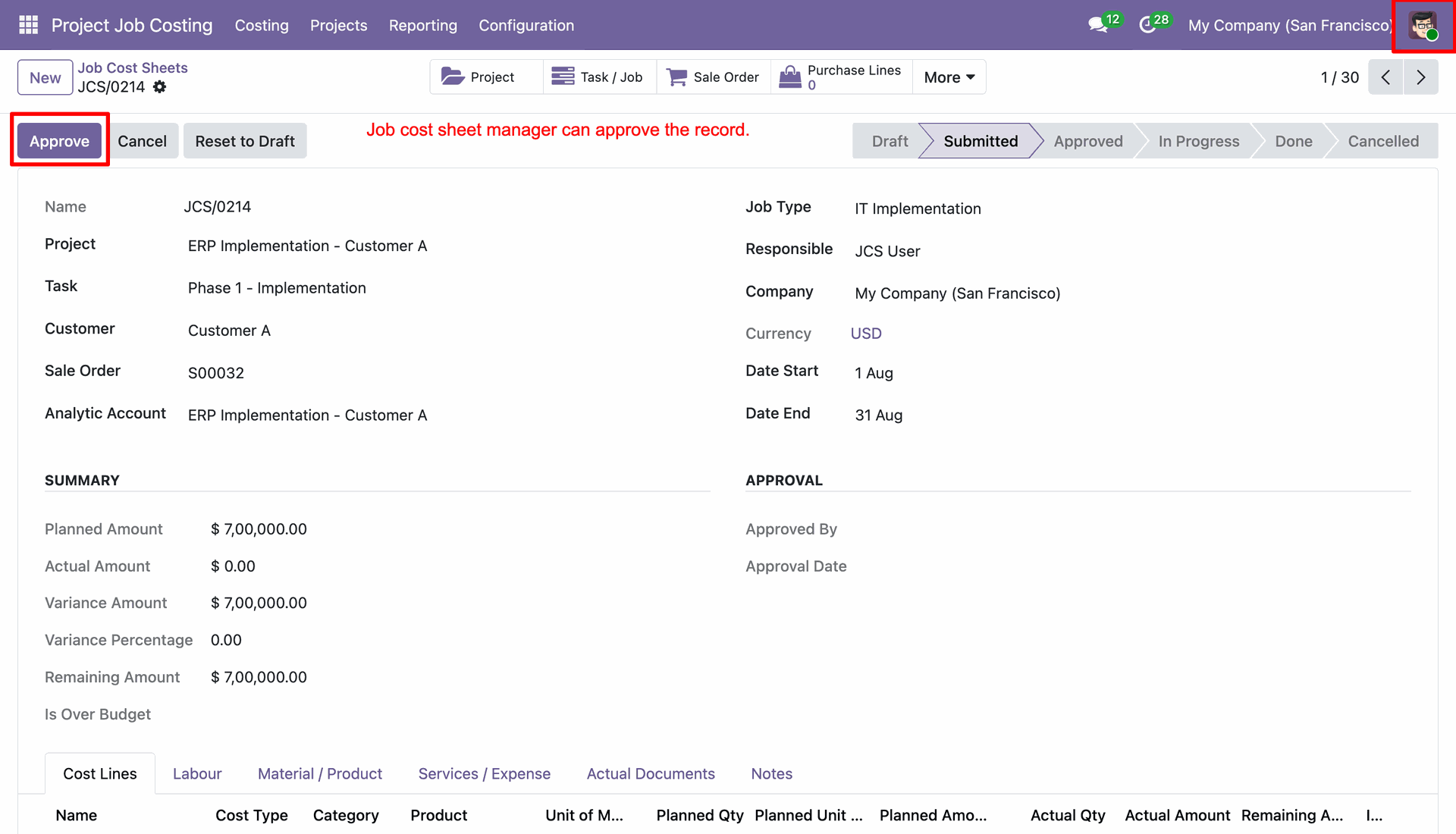
Review the approved job cost sheet showing manager approval details and date timestamp.
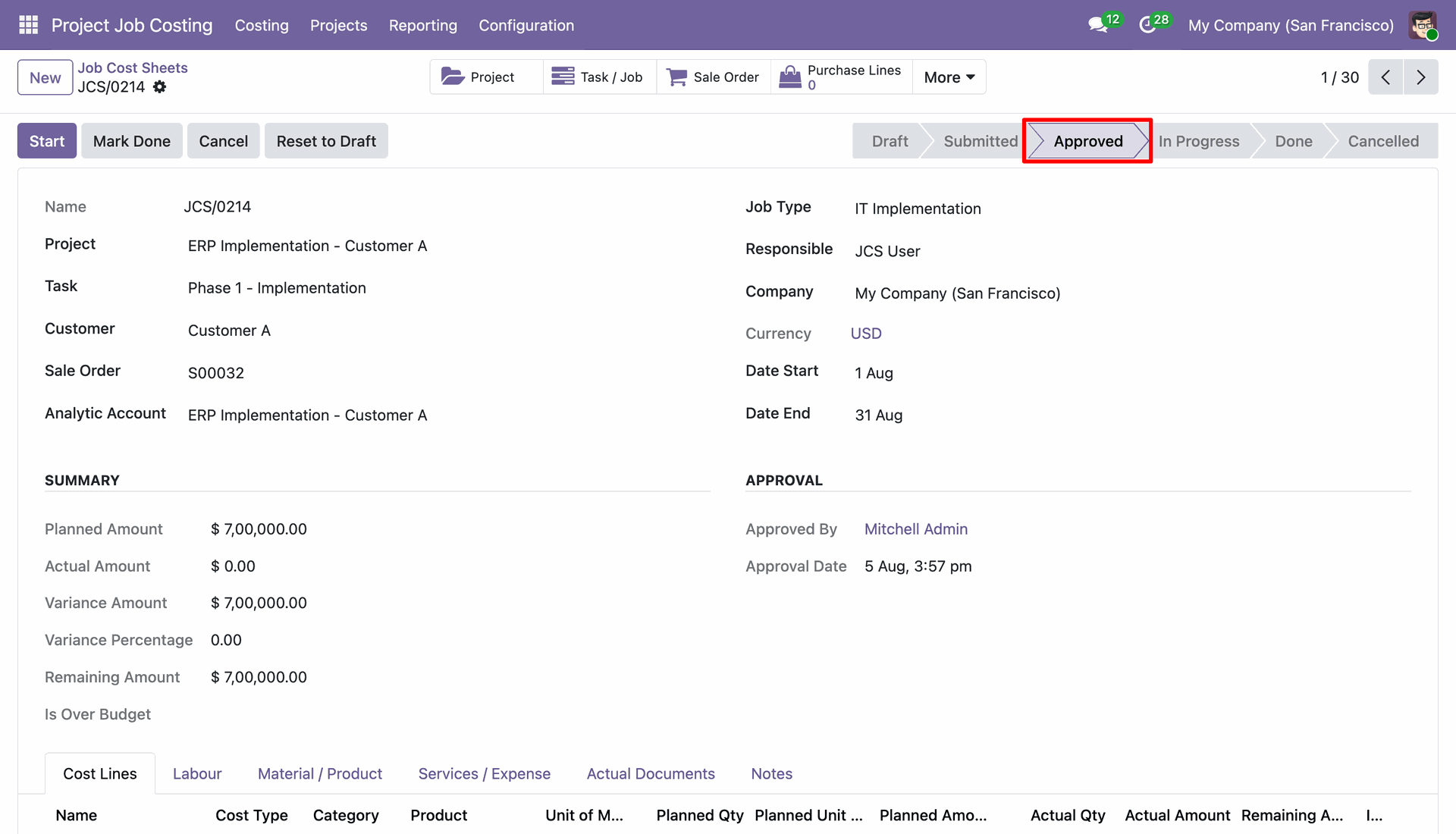
Click the Start button on an approved sheet to begin tracking actual project costs.
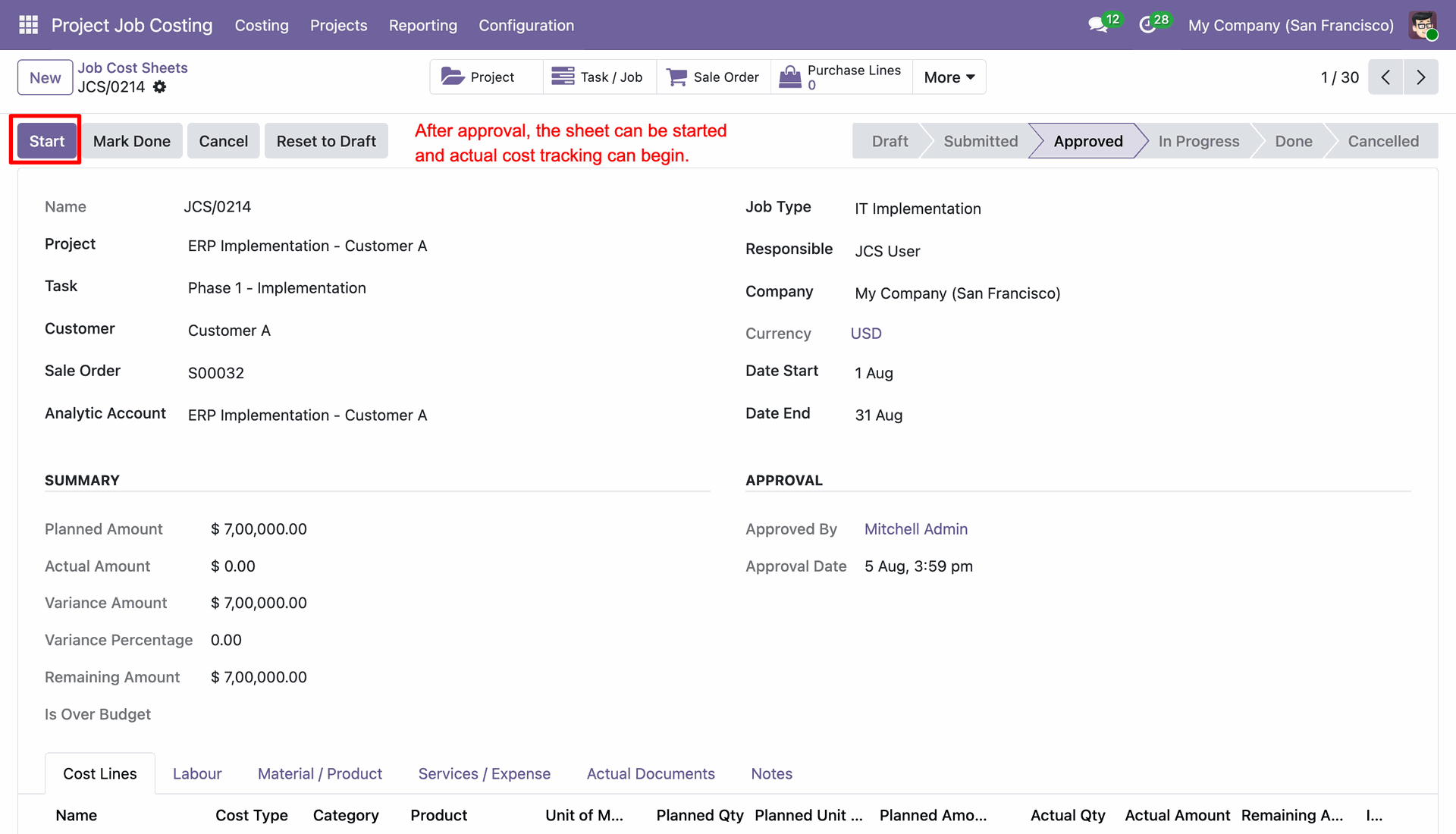
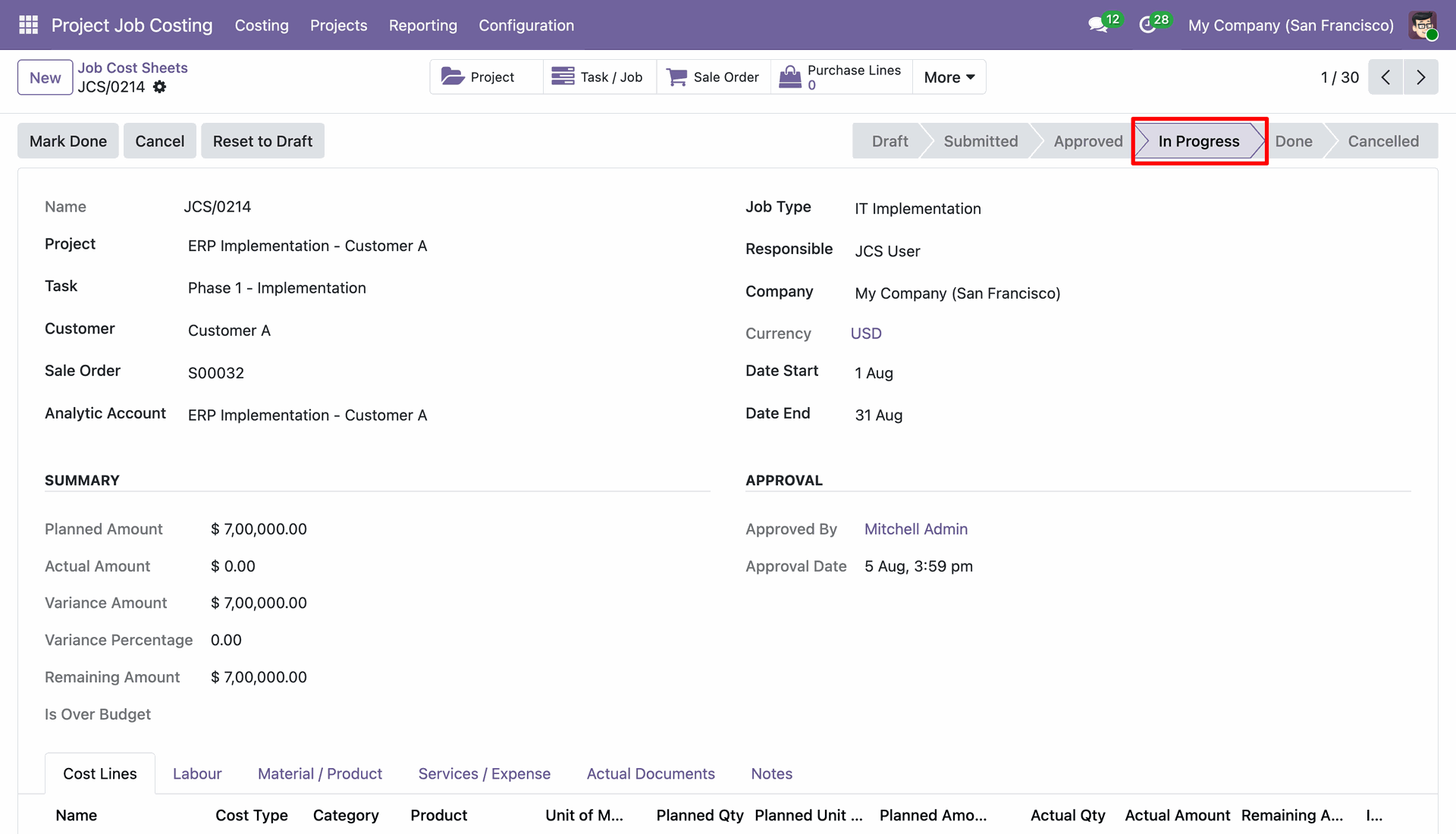
View the job cost sheet status updated to In Progress during active project execution.
Workflow
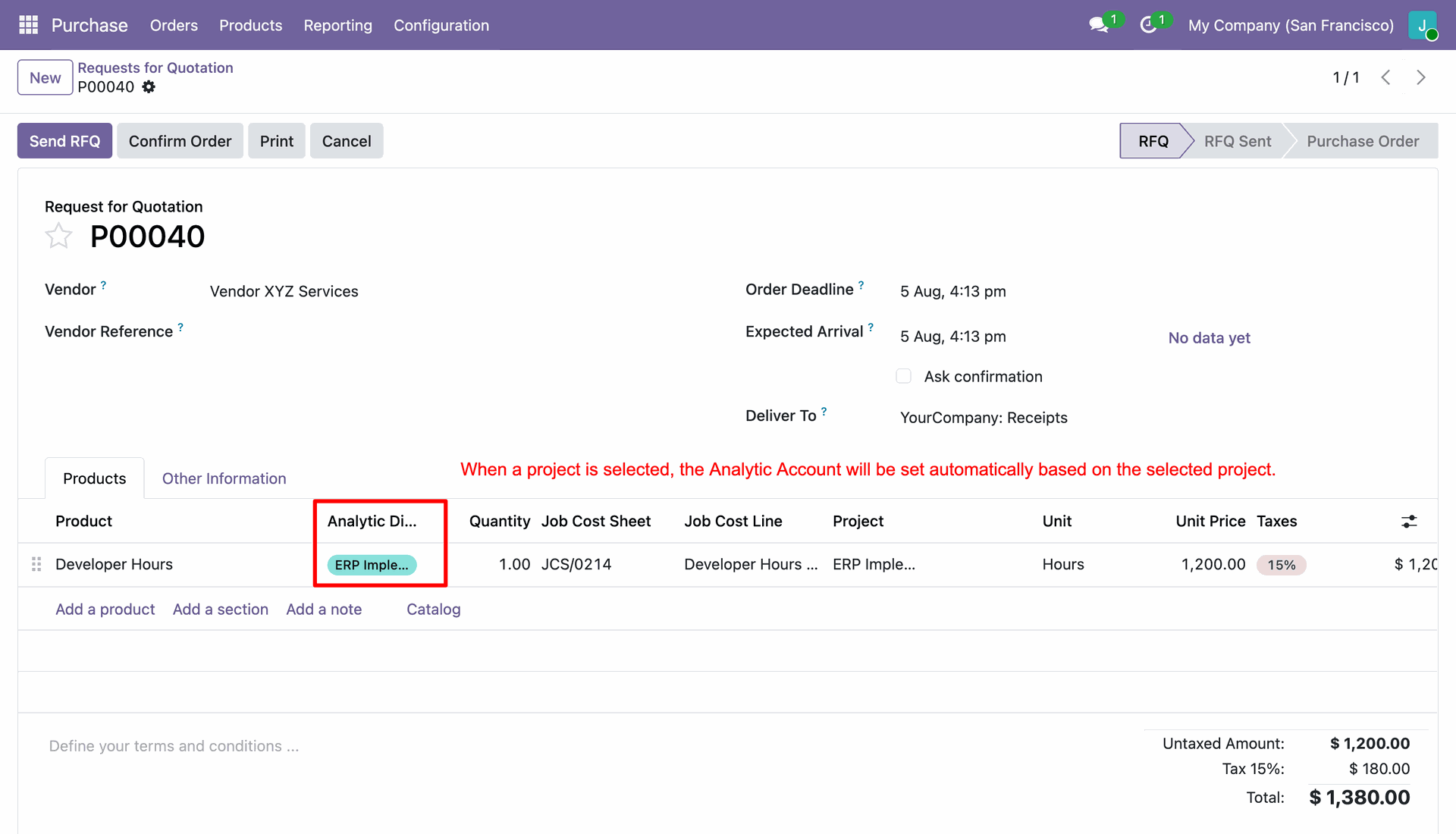
Select job cost sheet, job cost line, and project when creating purchase order lines.
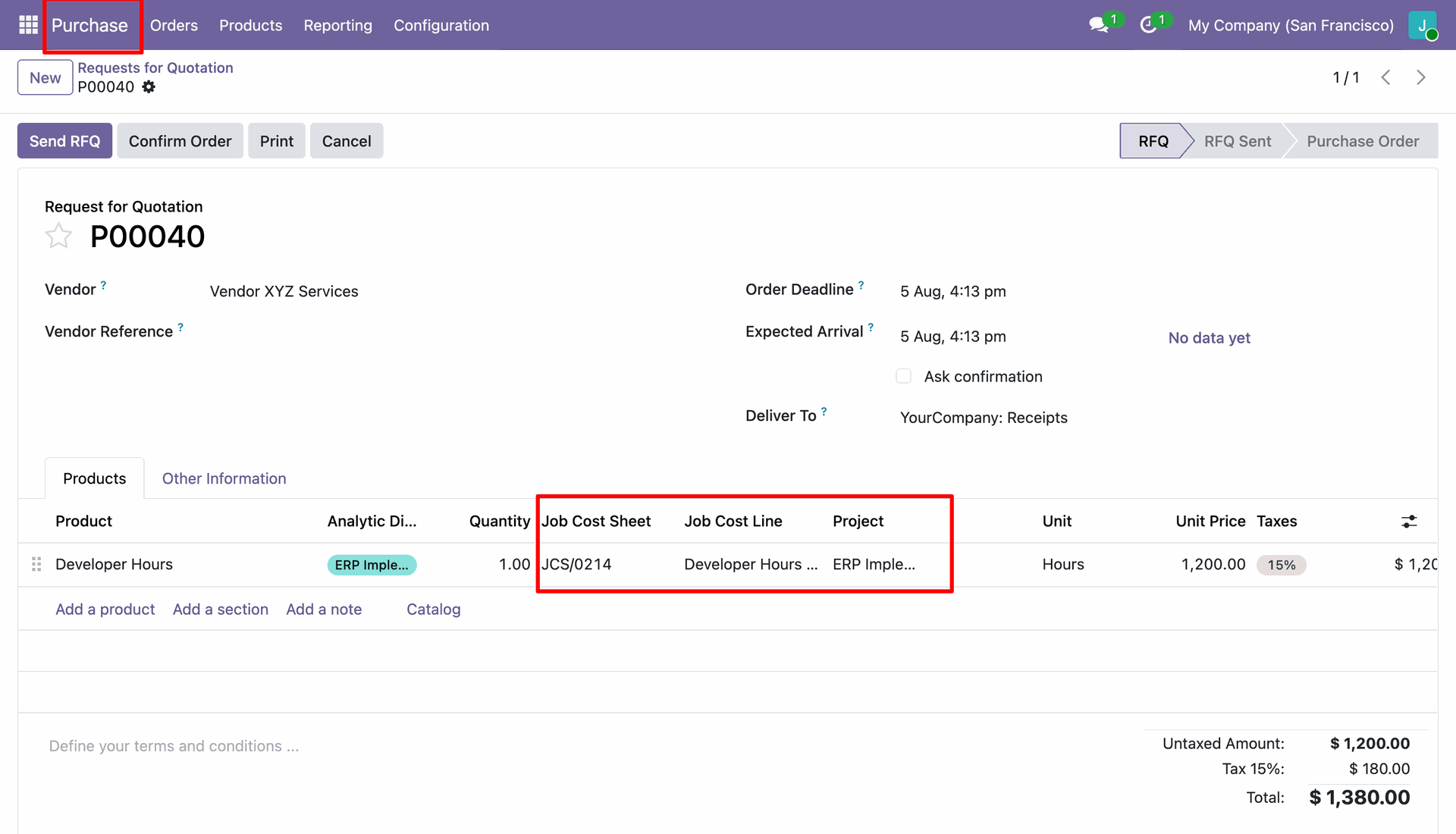
Select a project on purchase line to automatically set the corresponding analytic account details.
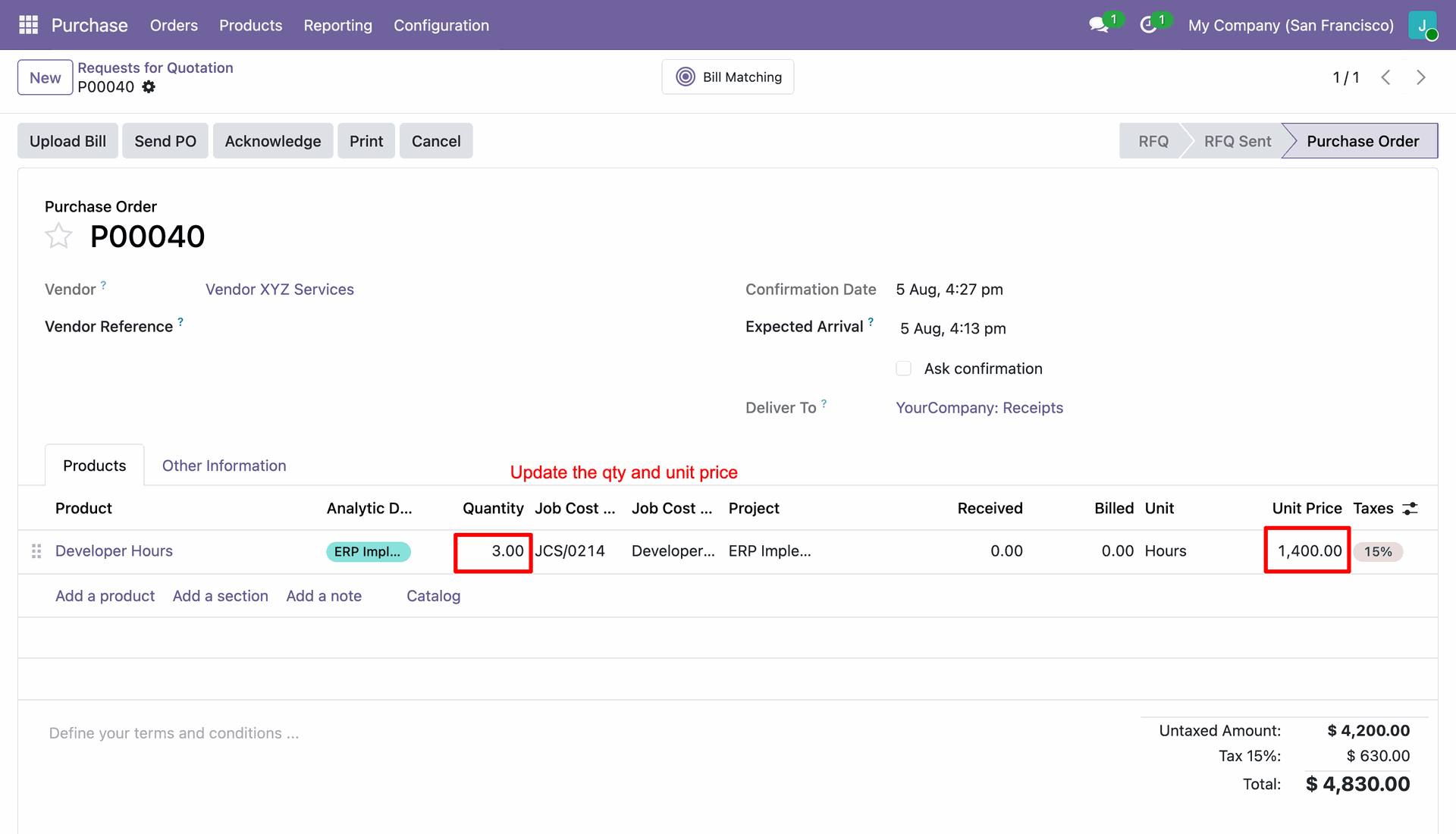
Update quantity and unit price on the confirmed purchase order line to revise total costs.
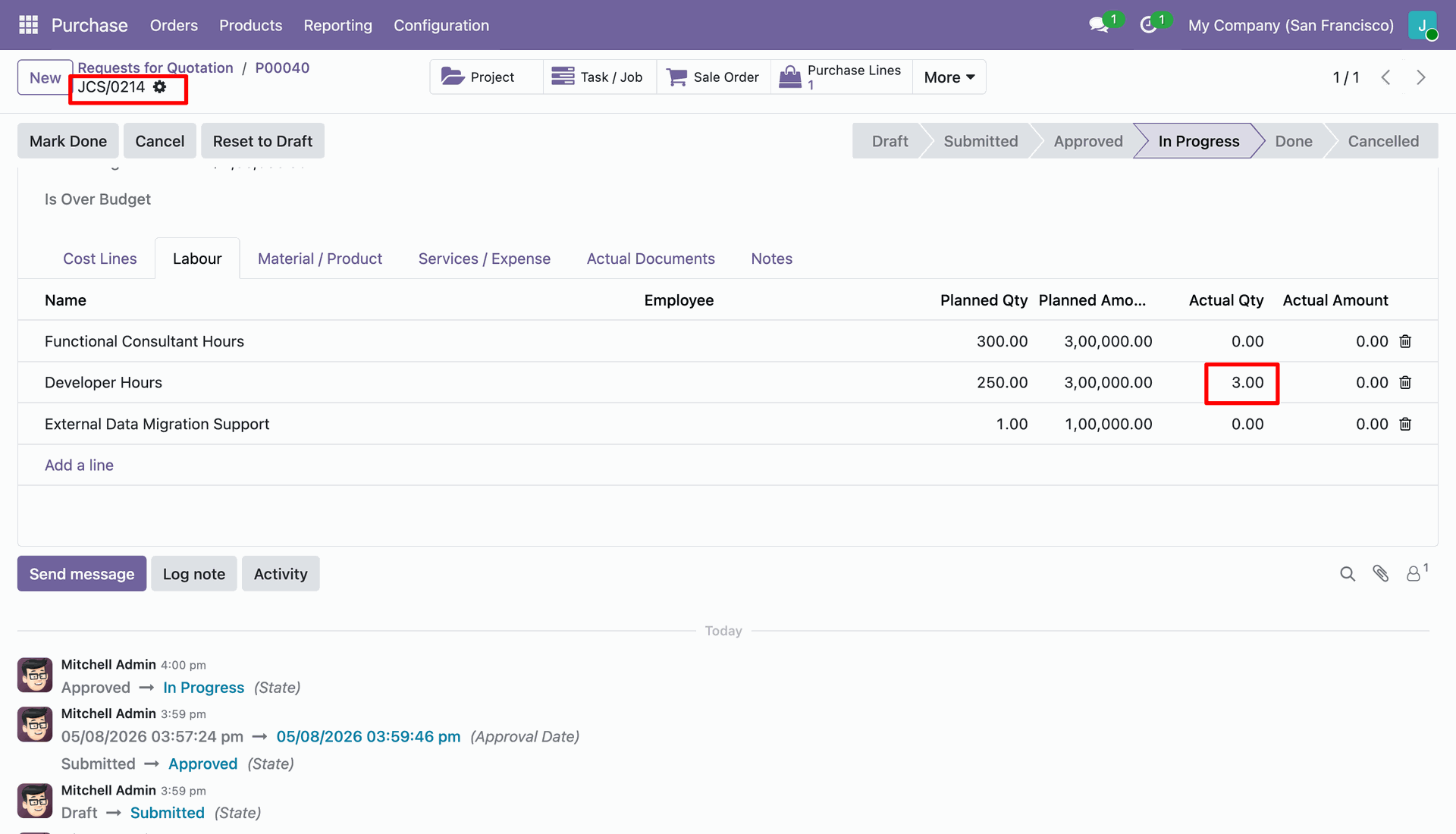
Review the updated actual quantity on the job cost sheet under the Labour tab.
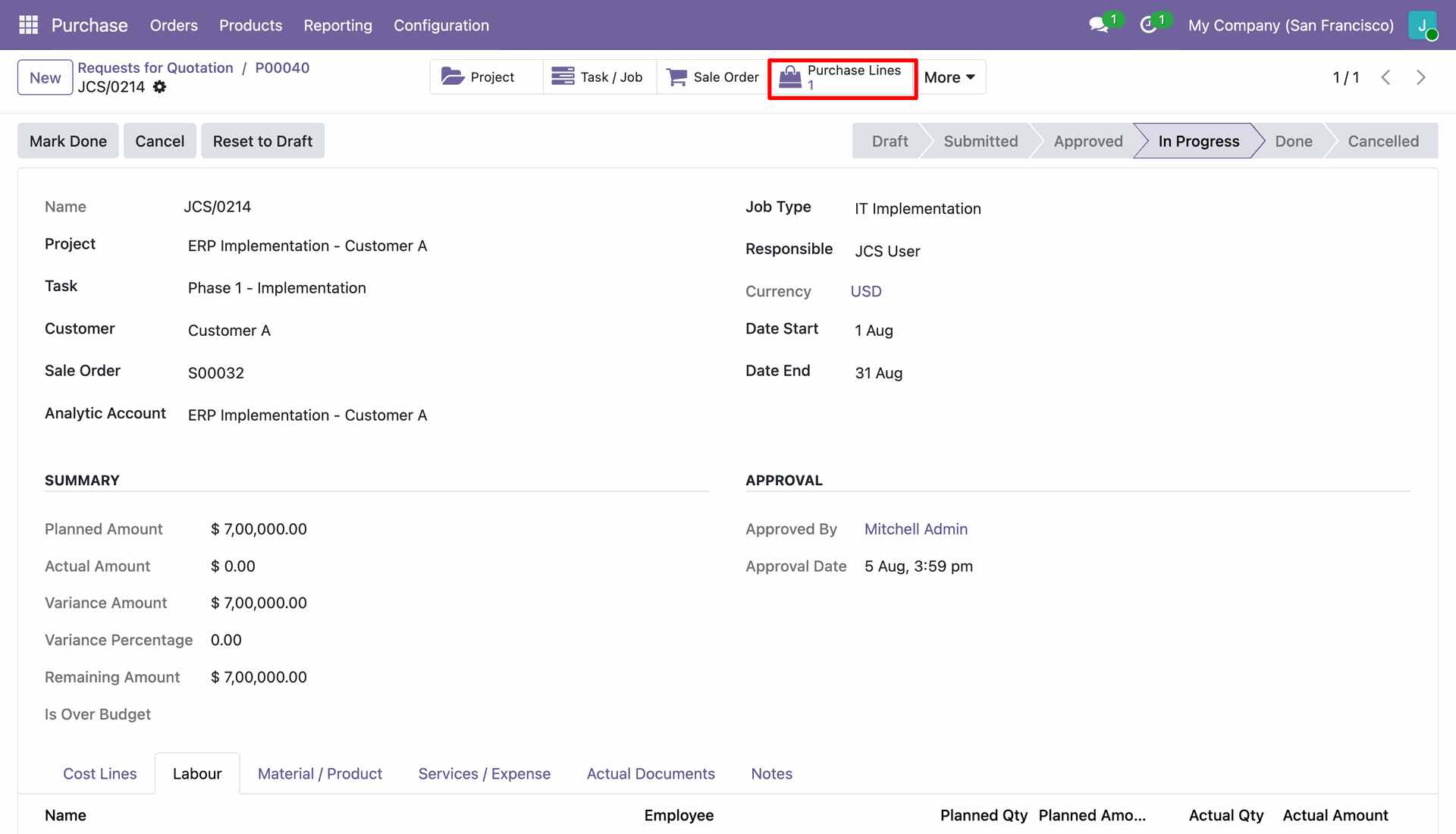
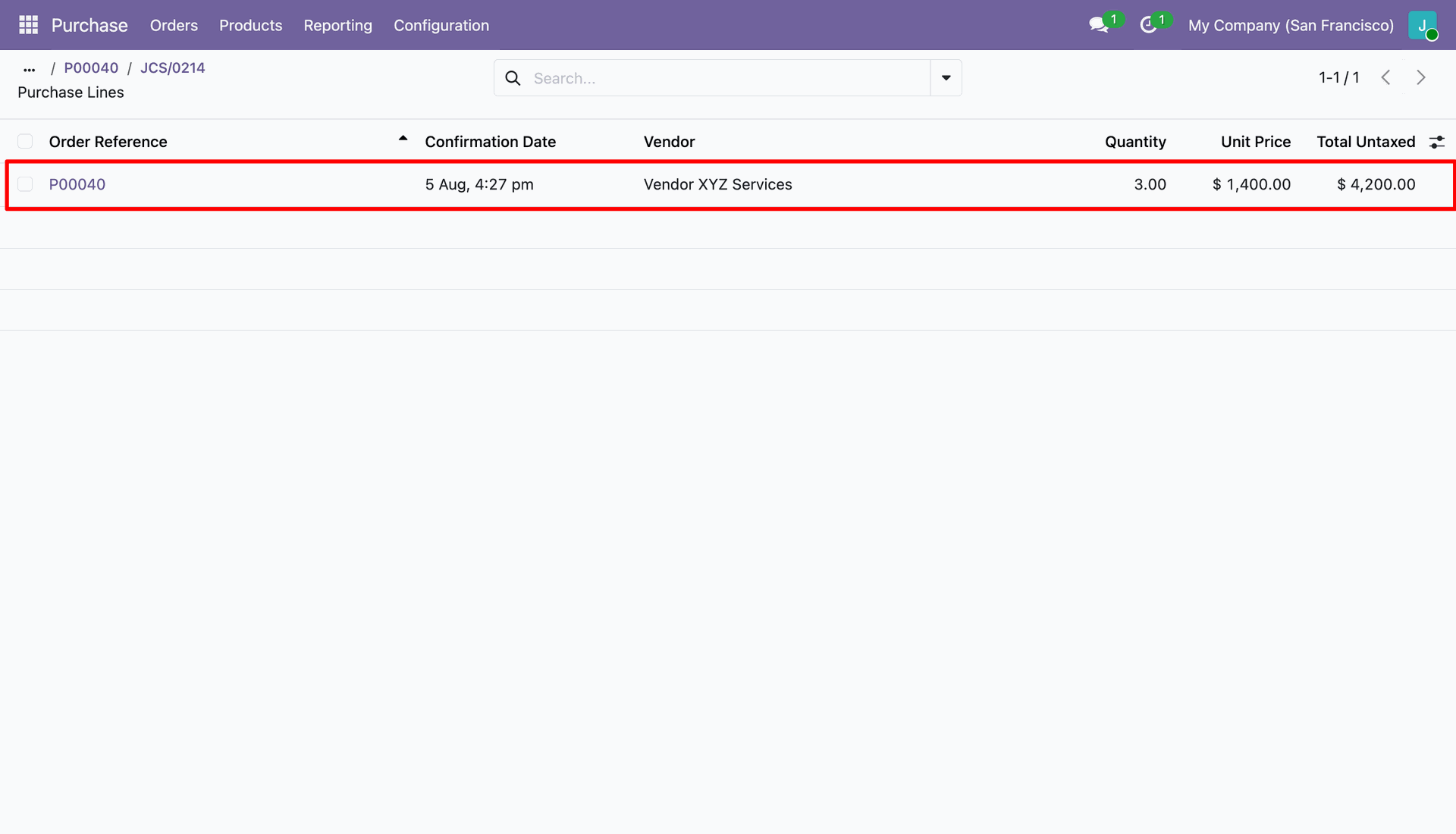
Click the Purchase Lines smart button on job cost sheet to view associated purchase order lines.
View purchase lines list displaying order reference, vendor, quantity, unit price, and total untaxed amount.
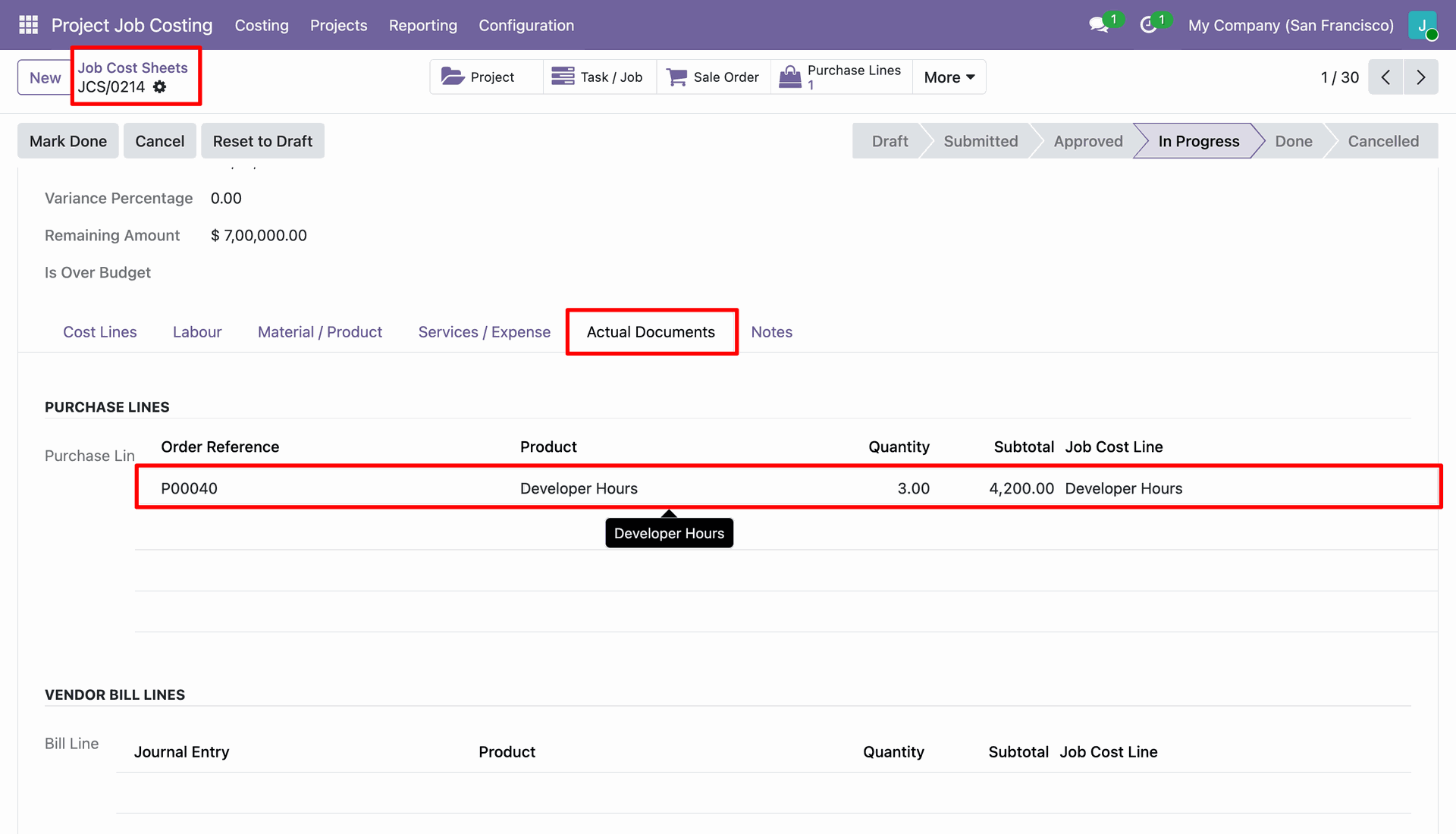
Open Actual Documents tab to inspect linked purchase lines and vendor bill lines for cost tracking.
Workflow
Assign Timesheets and Expenses access rights to the user profile under user settings.
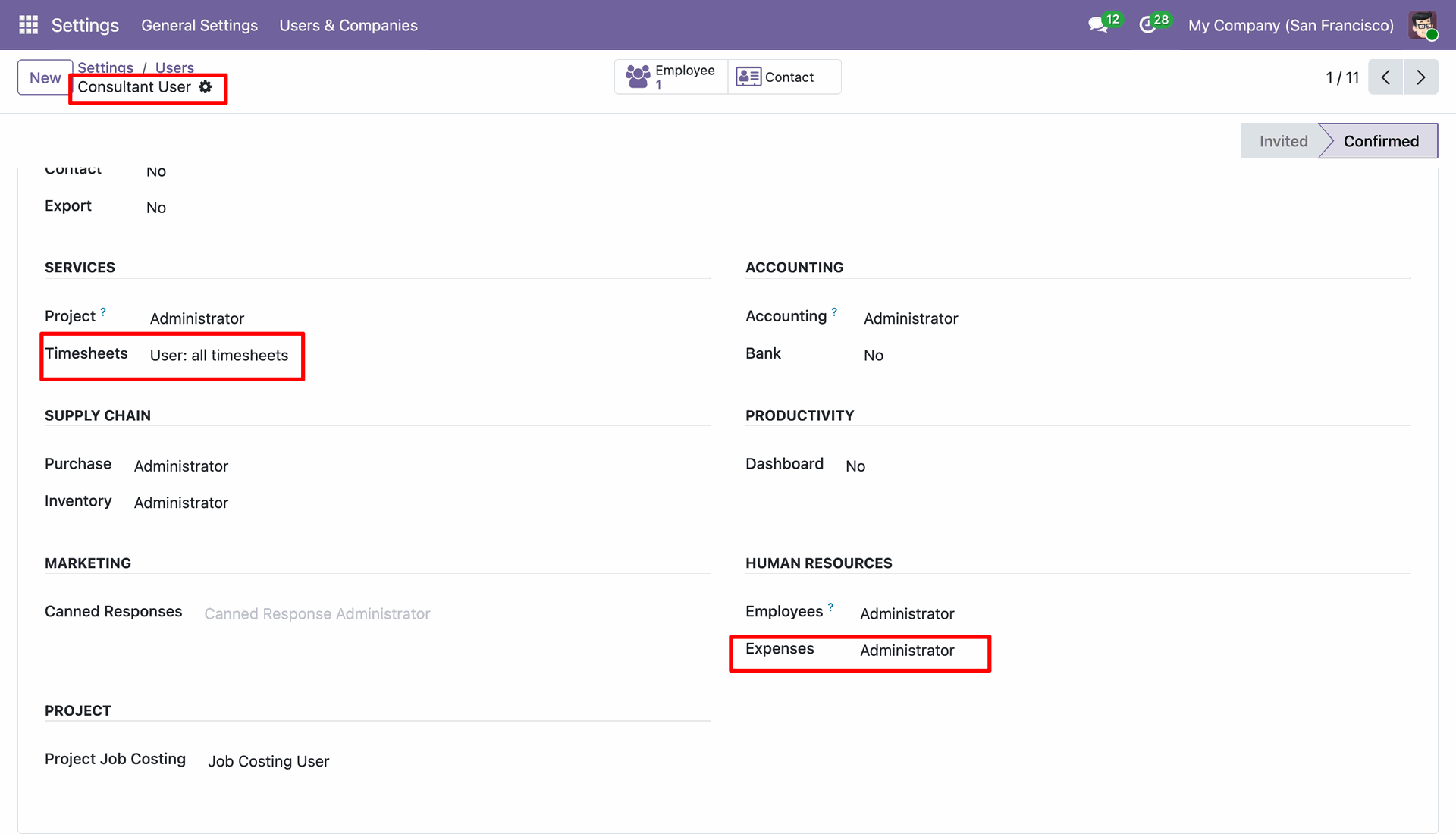
Log in as Consultant User to perform timesheet entries and submit expense requests.
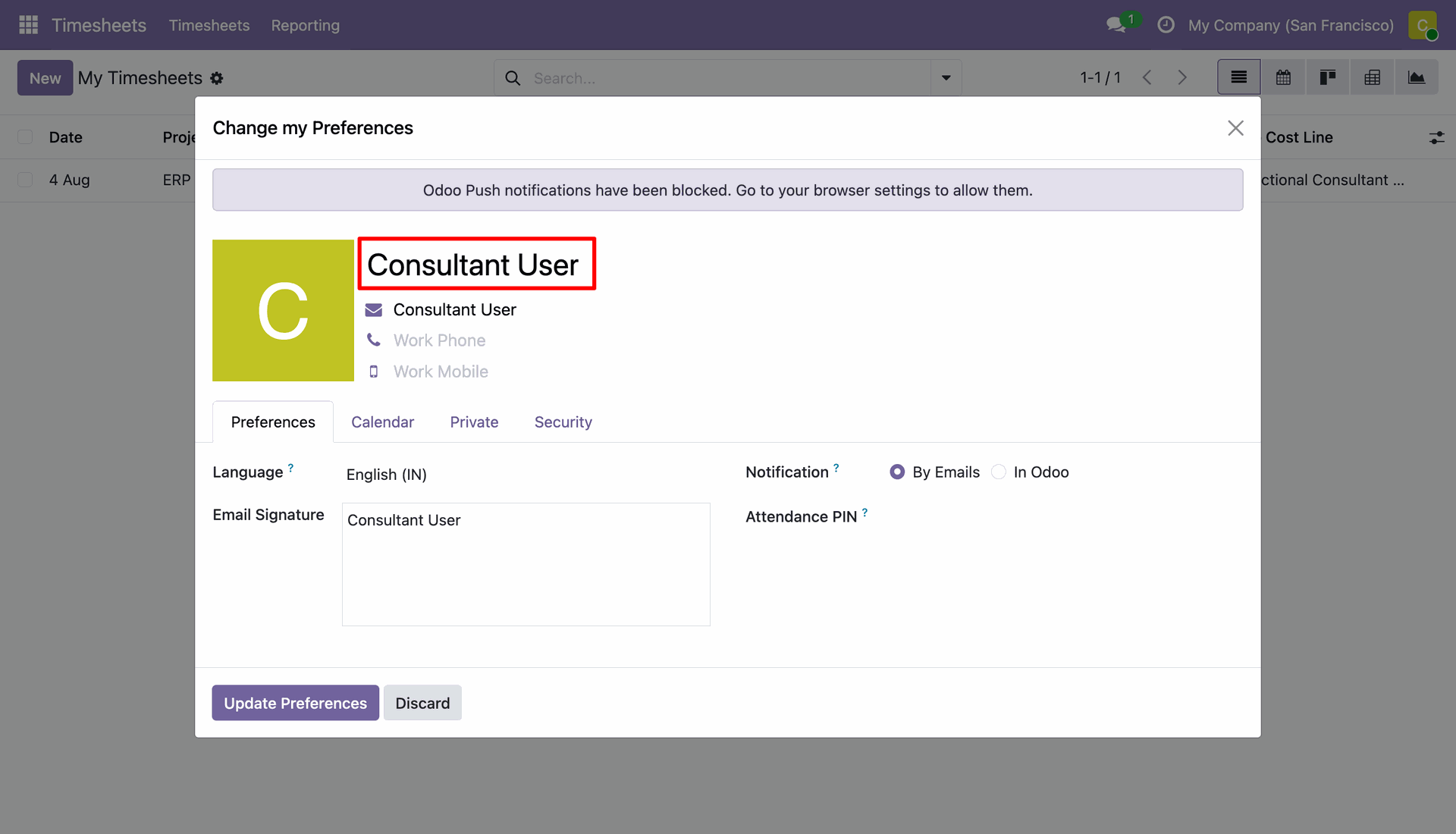
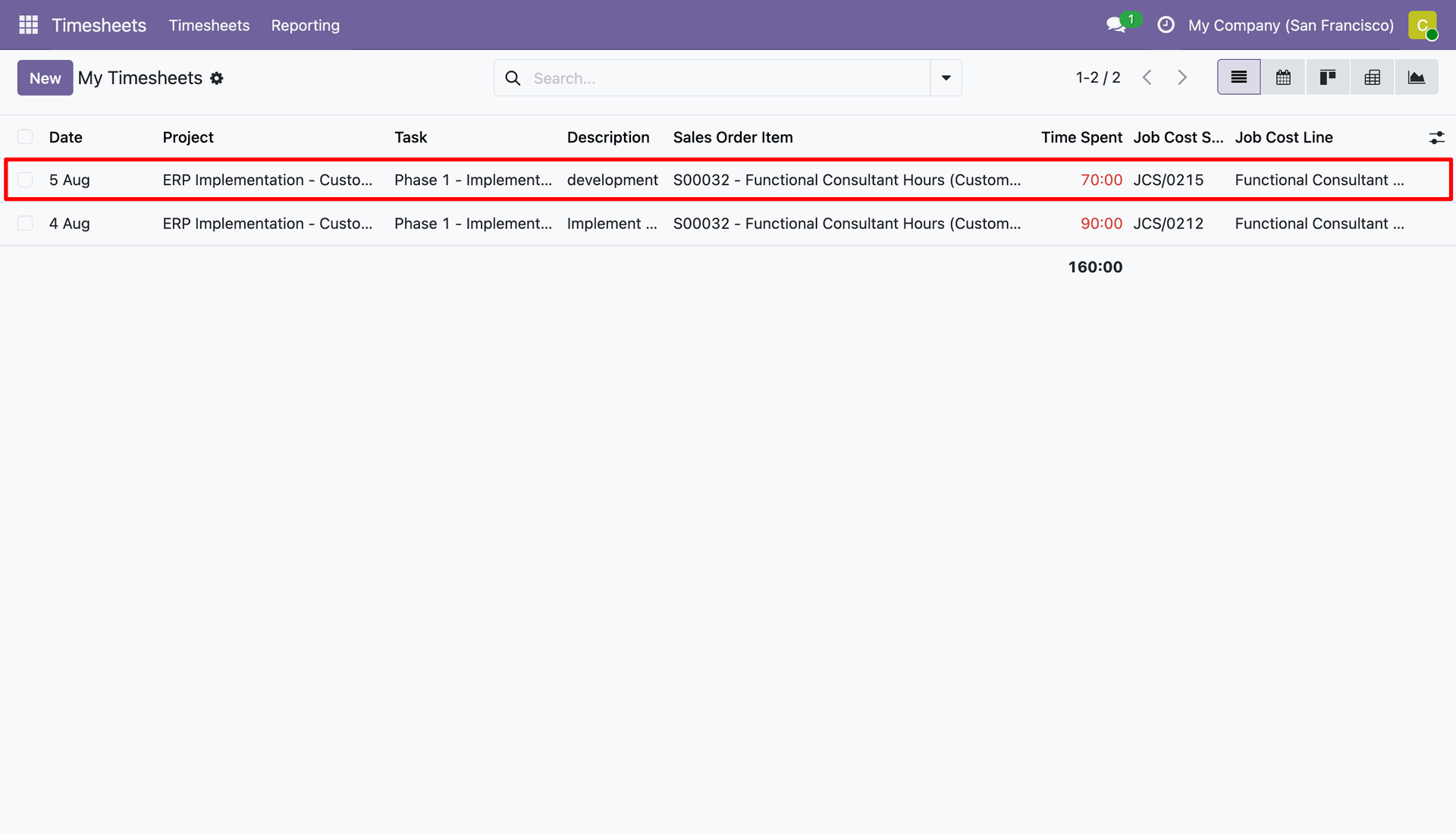
Log timesheet lines with project, task, description, time spent, job cost sheet, and job cost line.
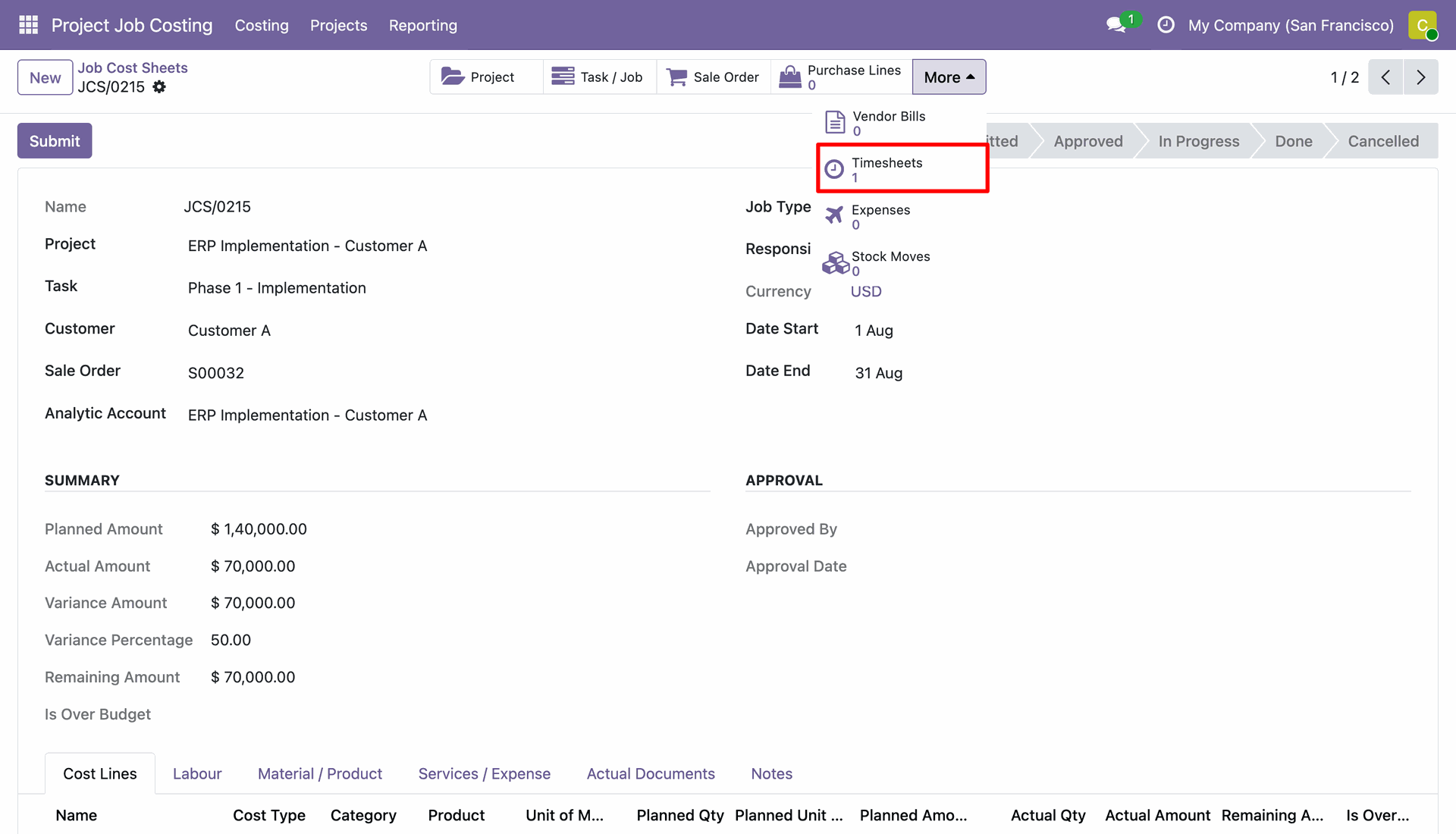
Click the Timesheets smart button on job cost sheet to view recorded timesheet entries.
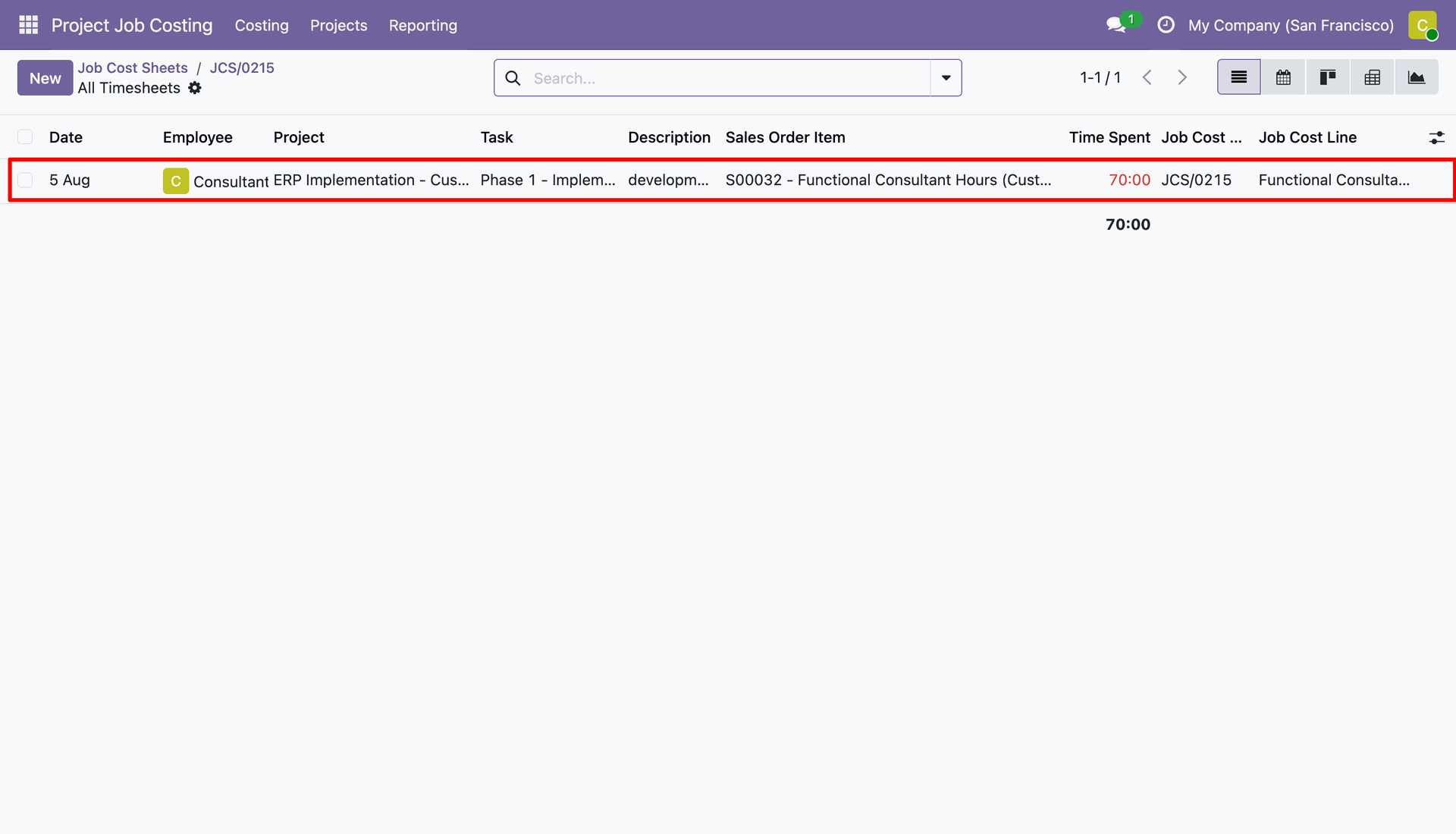
Review all timesheet entries filtered for the selected job cost sheet in list view.
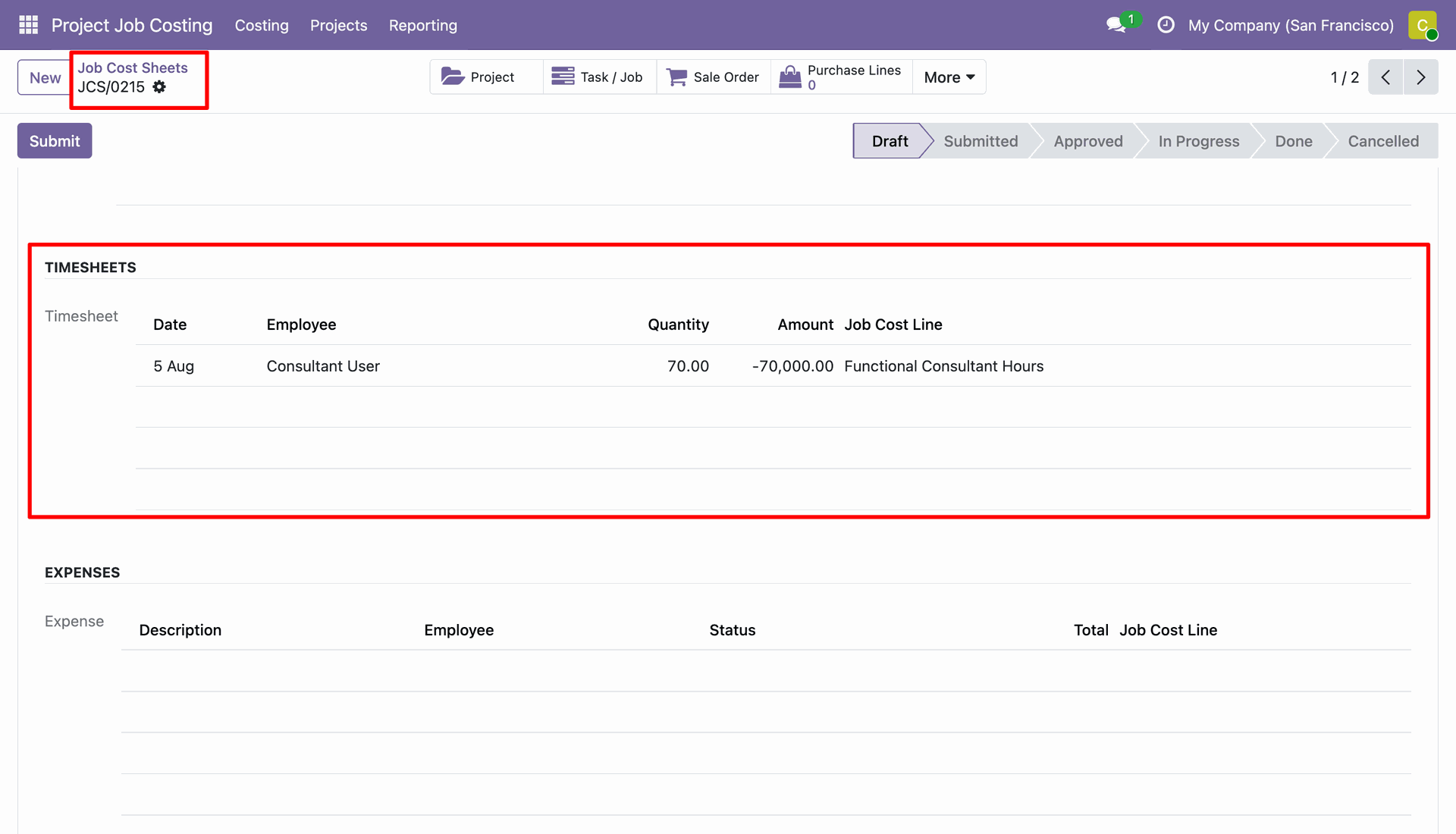
Inspect the TIMESHEETS table under actual documents tab to check logged labor quantity and costs.
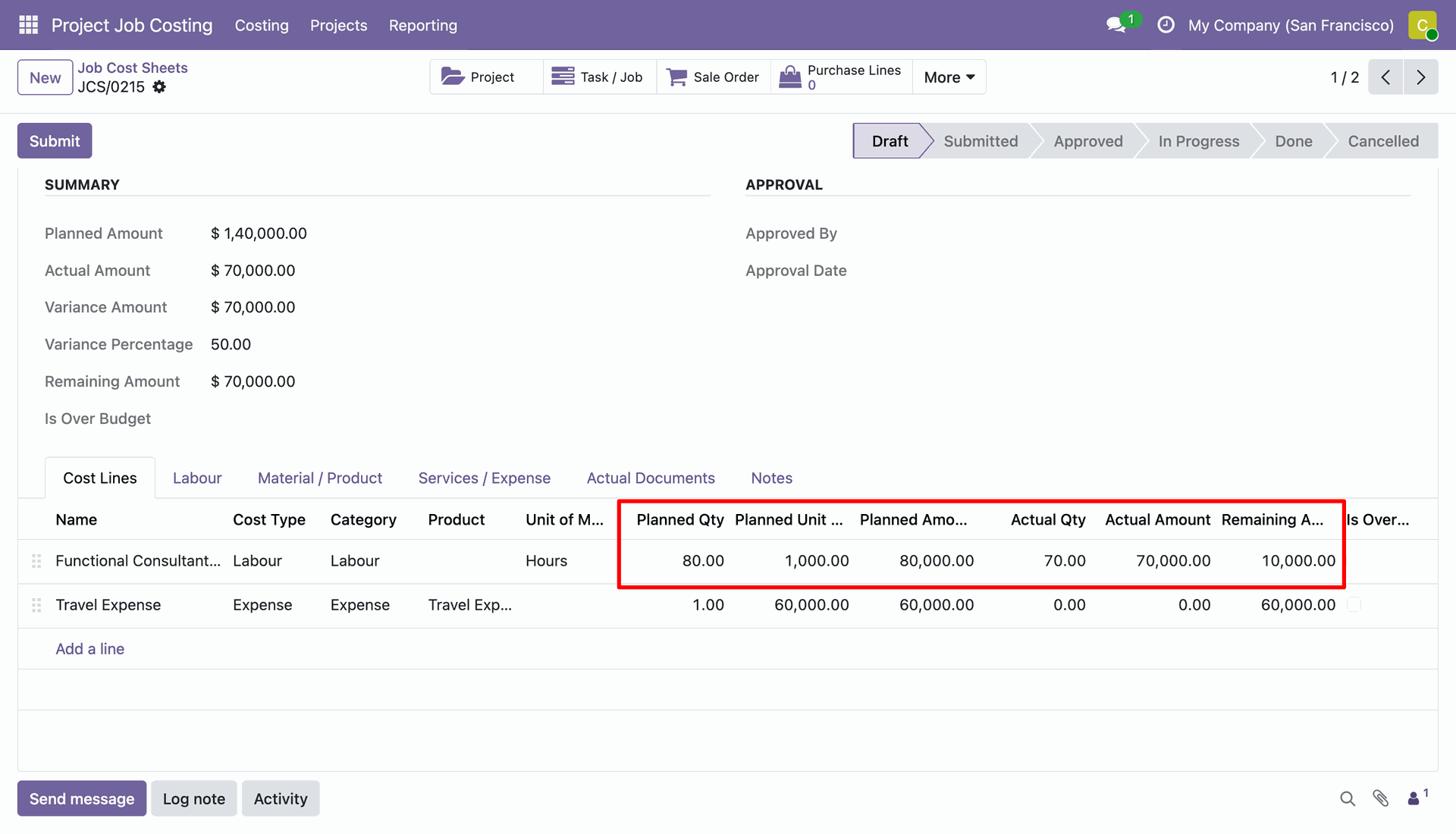
Verify updated actual quantity, actual amount, and remaining amount columns on job cost lines.
Workflow
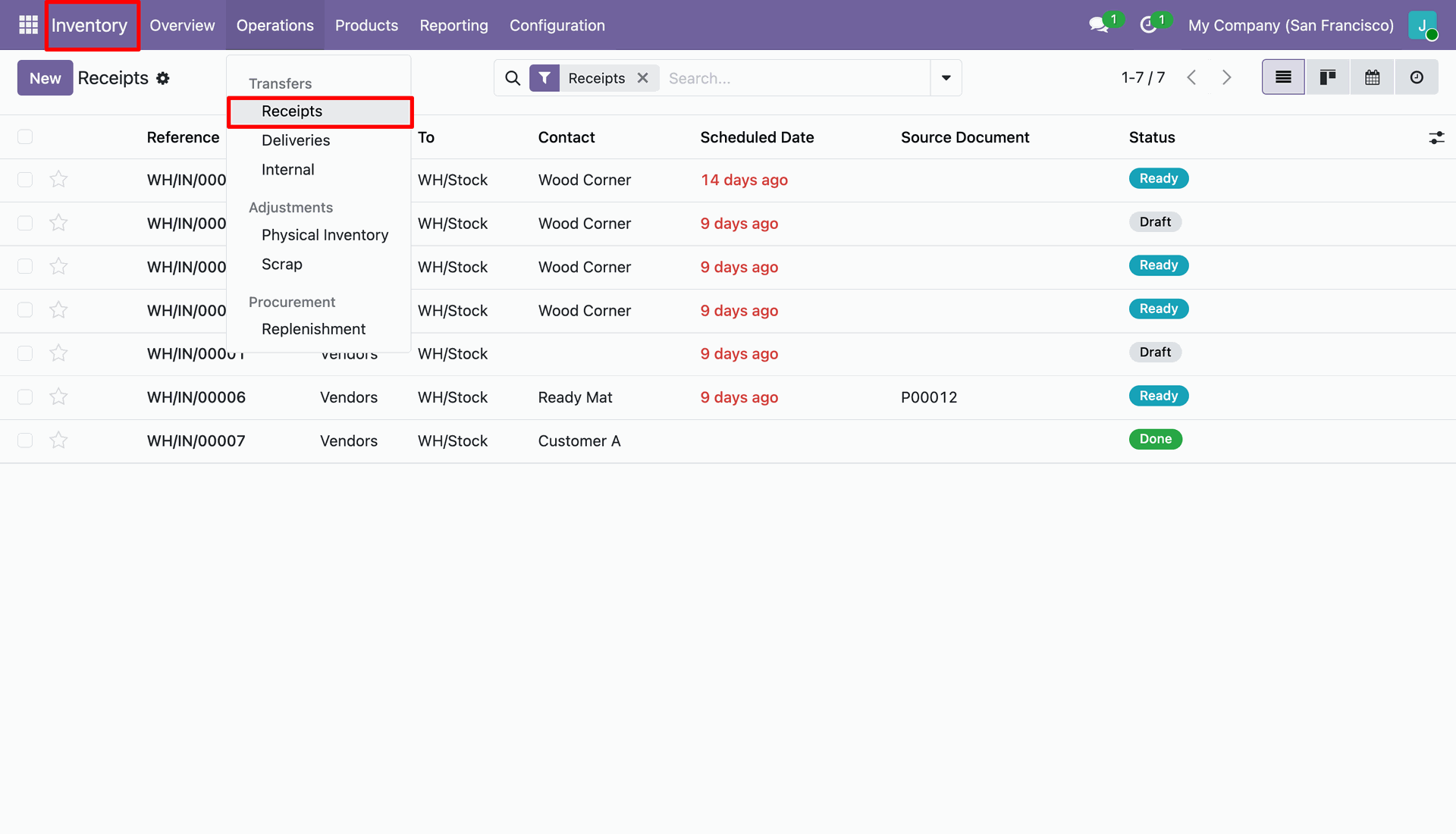
Navigate to Inventory and select Receipts under Operations menu to view incoming stock transfers.
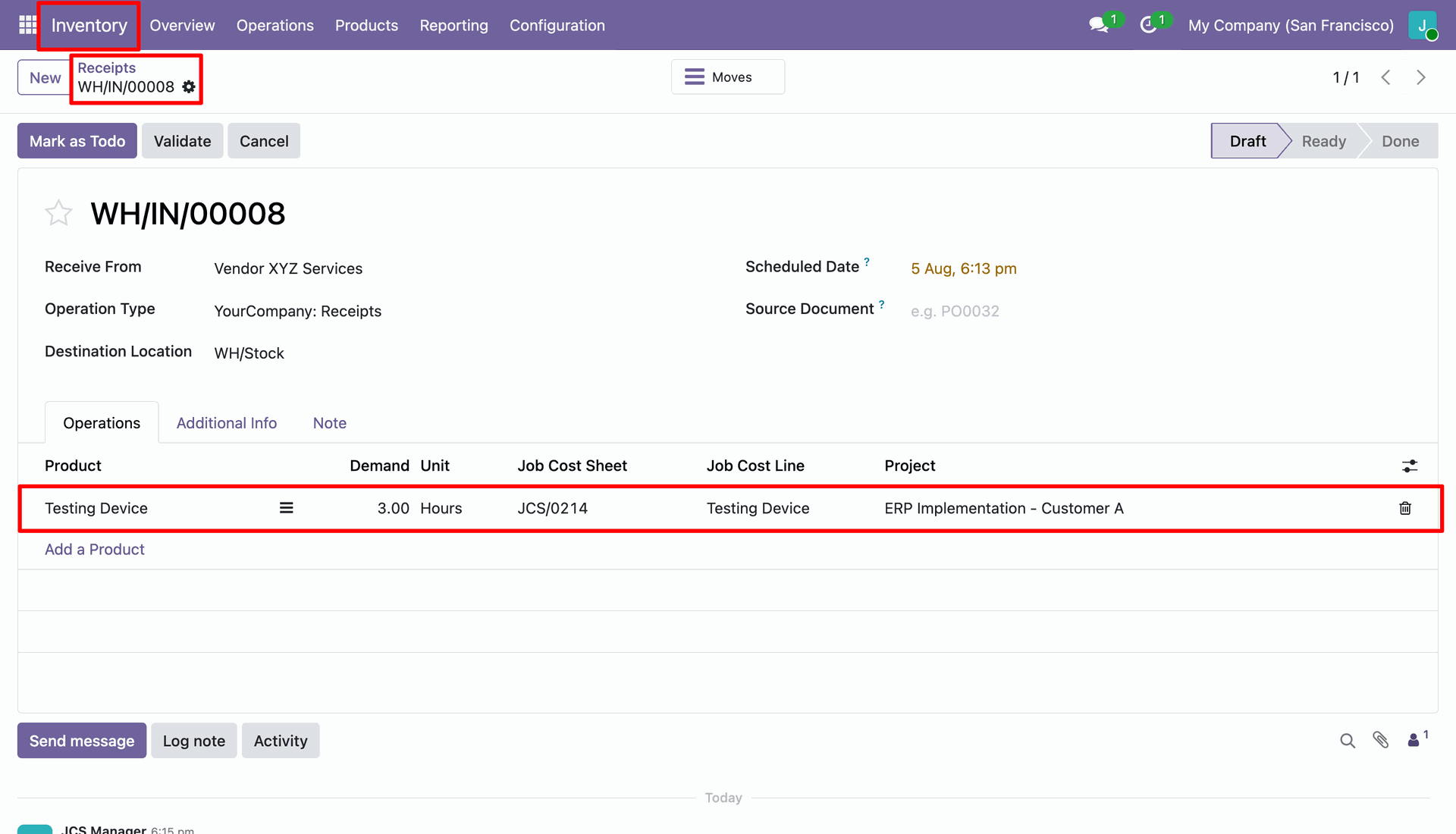
Select job cost sheet, job cost line, and project on stock move operations line.
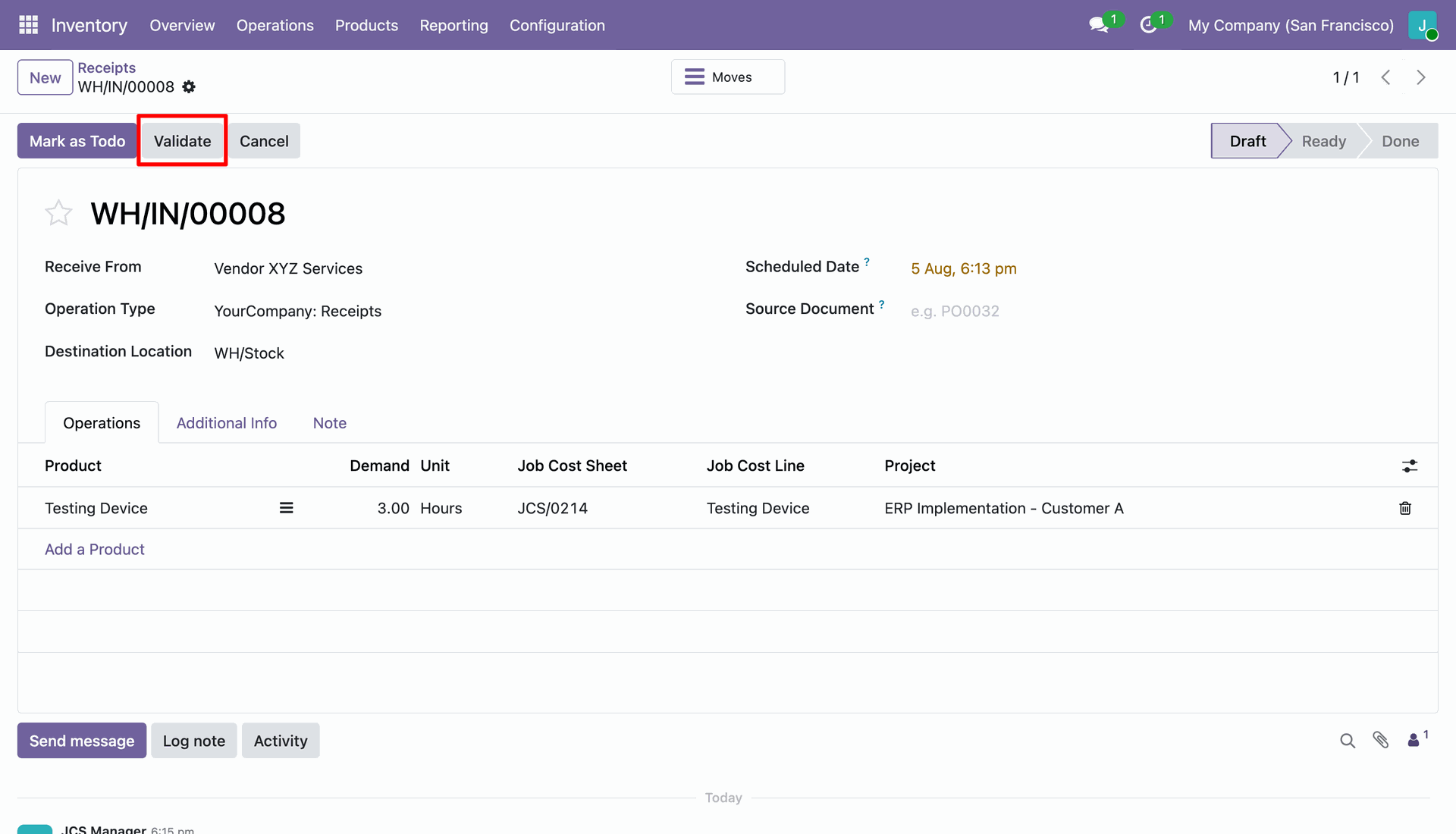
Click the Validate button to process stock transfer and update actual material move costs.
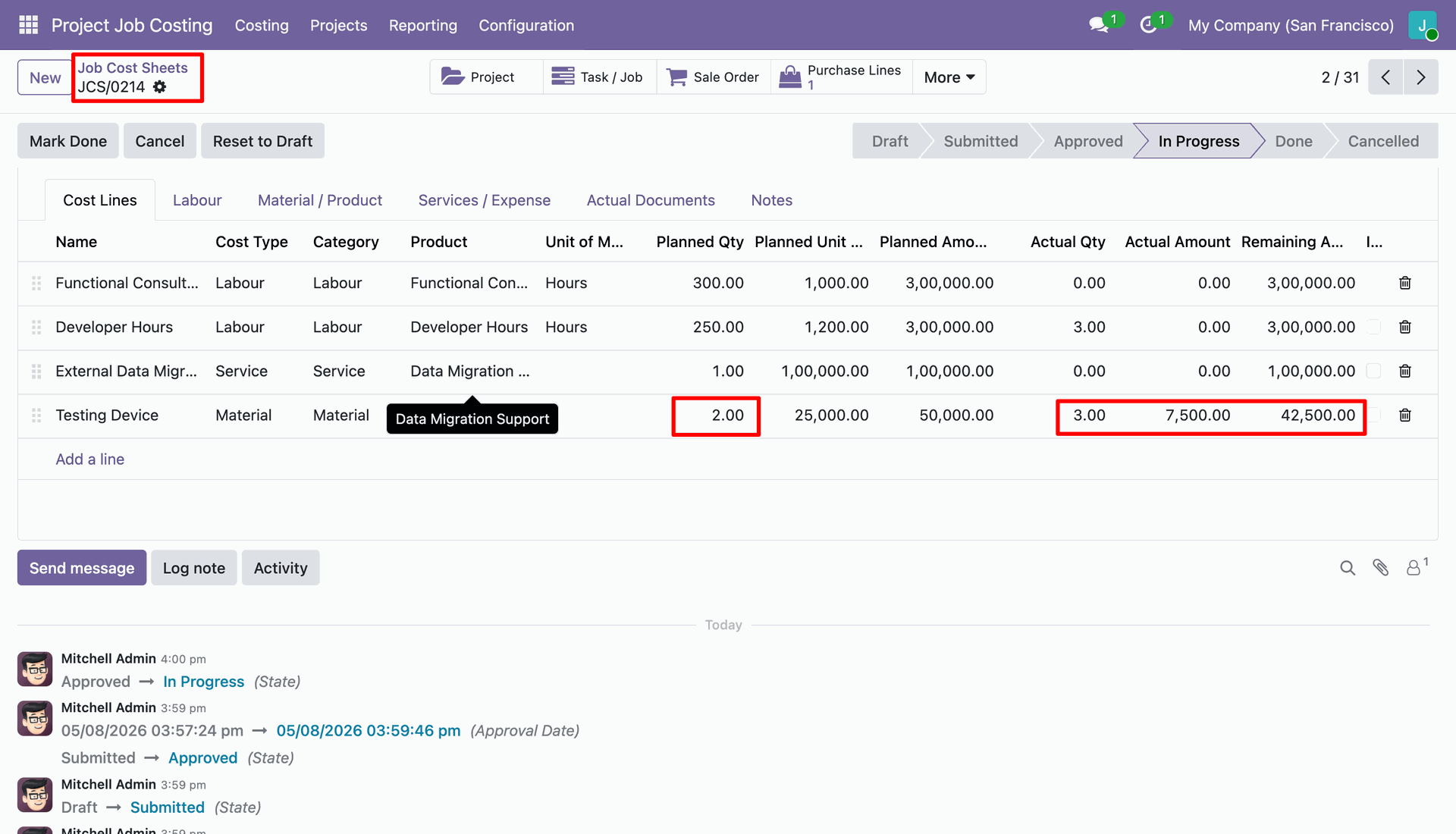
Check updated actual quantity and actual amount on material lines after stock transfer validation.
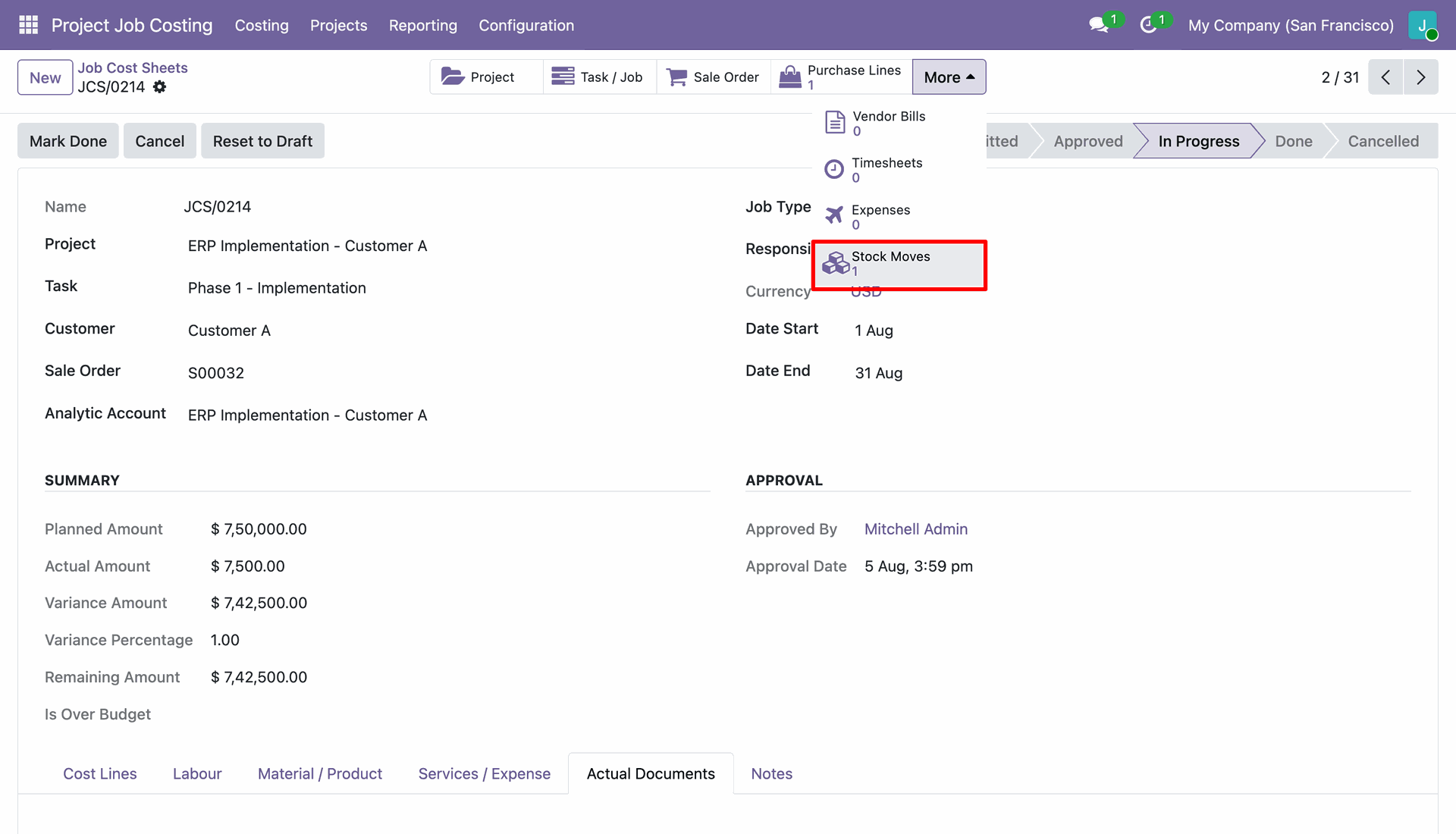
Click the Stock Moves smart button on job cost sheet to view linked inventory moves.
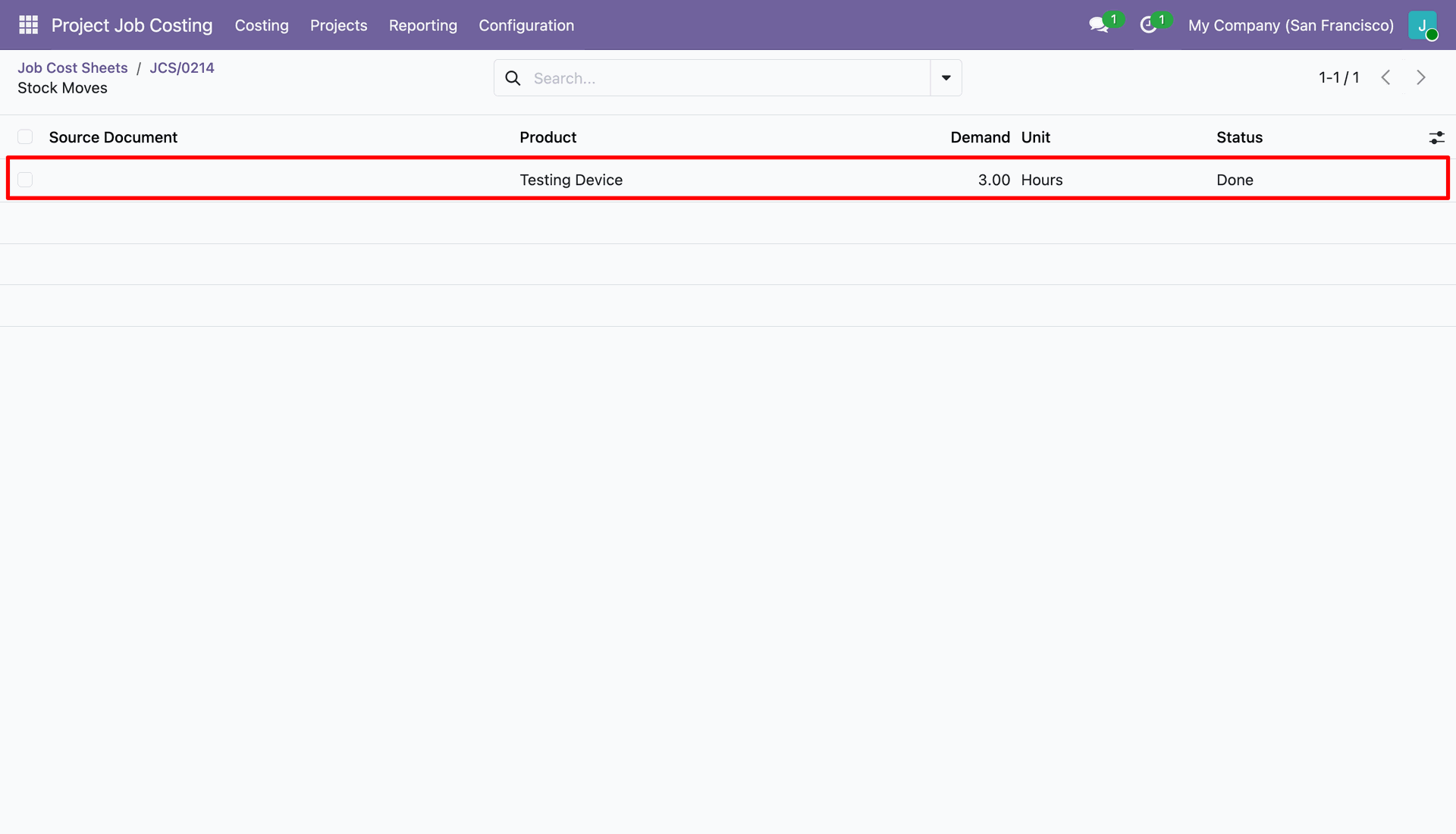
View stock moves list displaying product details, demand quantity, unit, and move status.
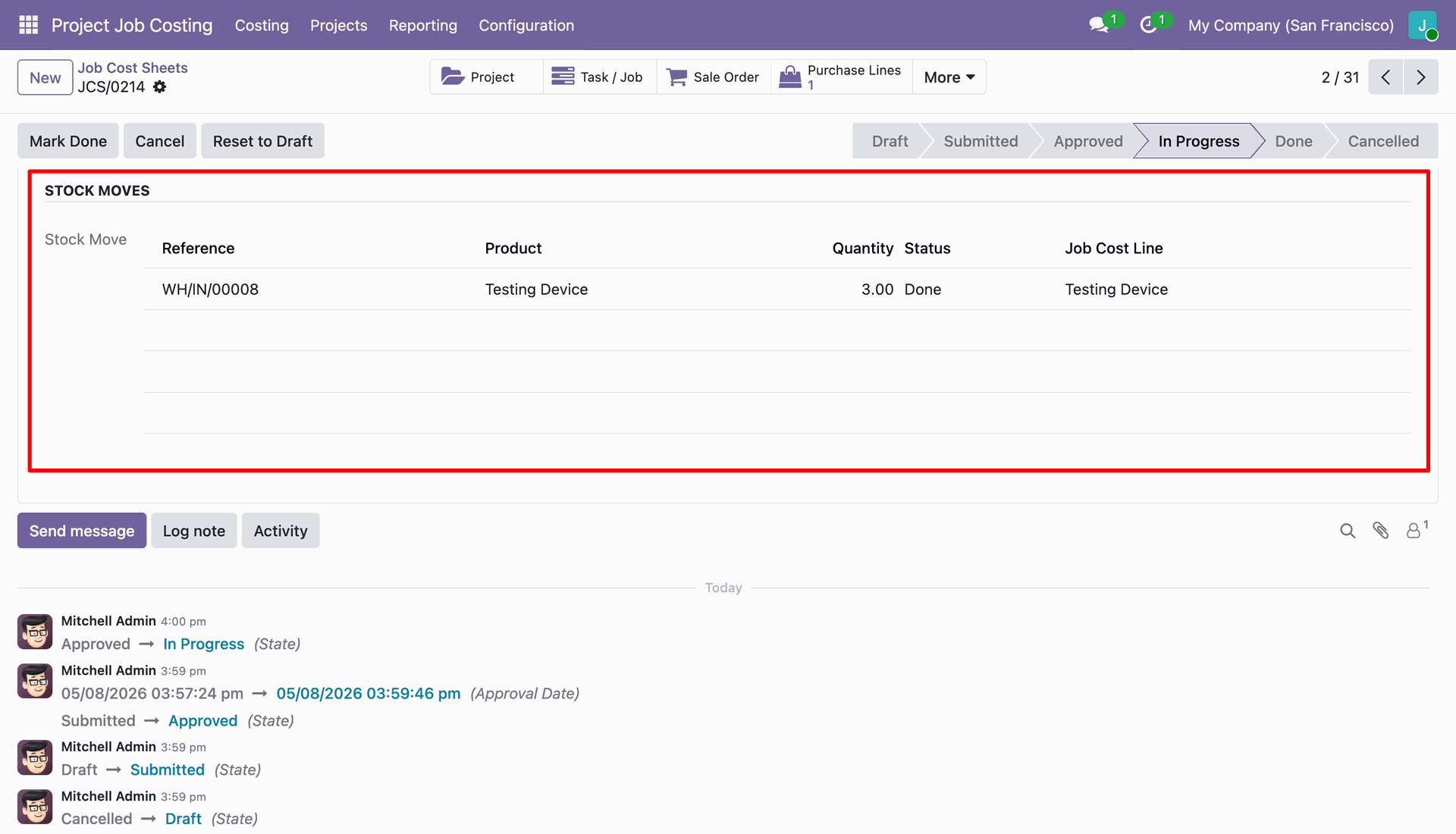
Inspect the STOCK MOVES table under actual documents tab to verify completed inventory transfers.
Workflow
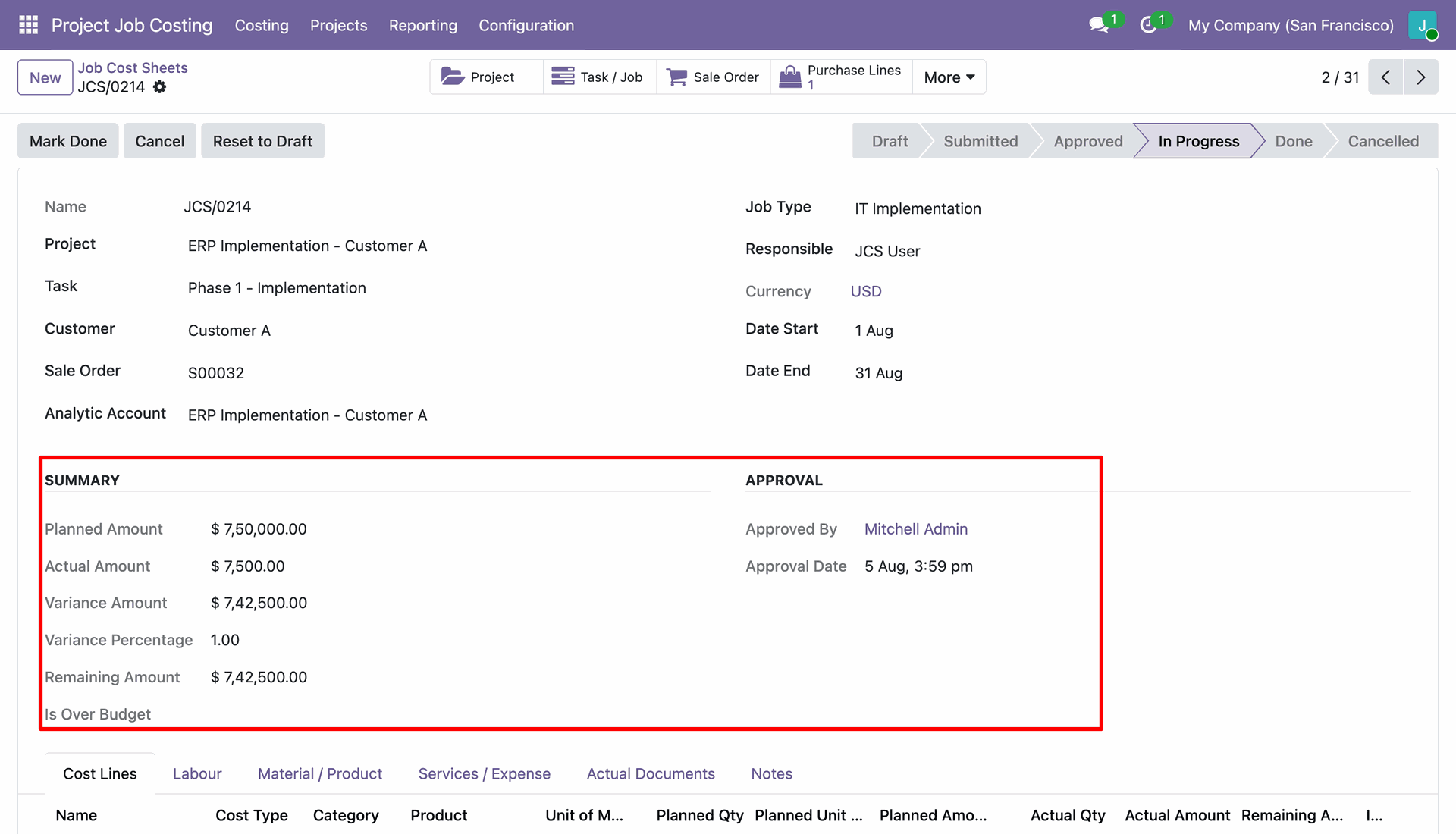
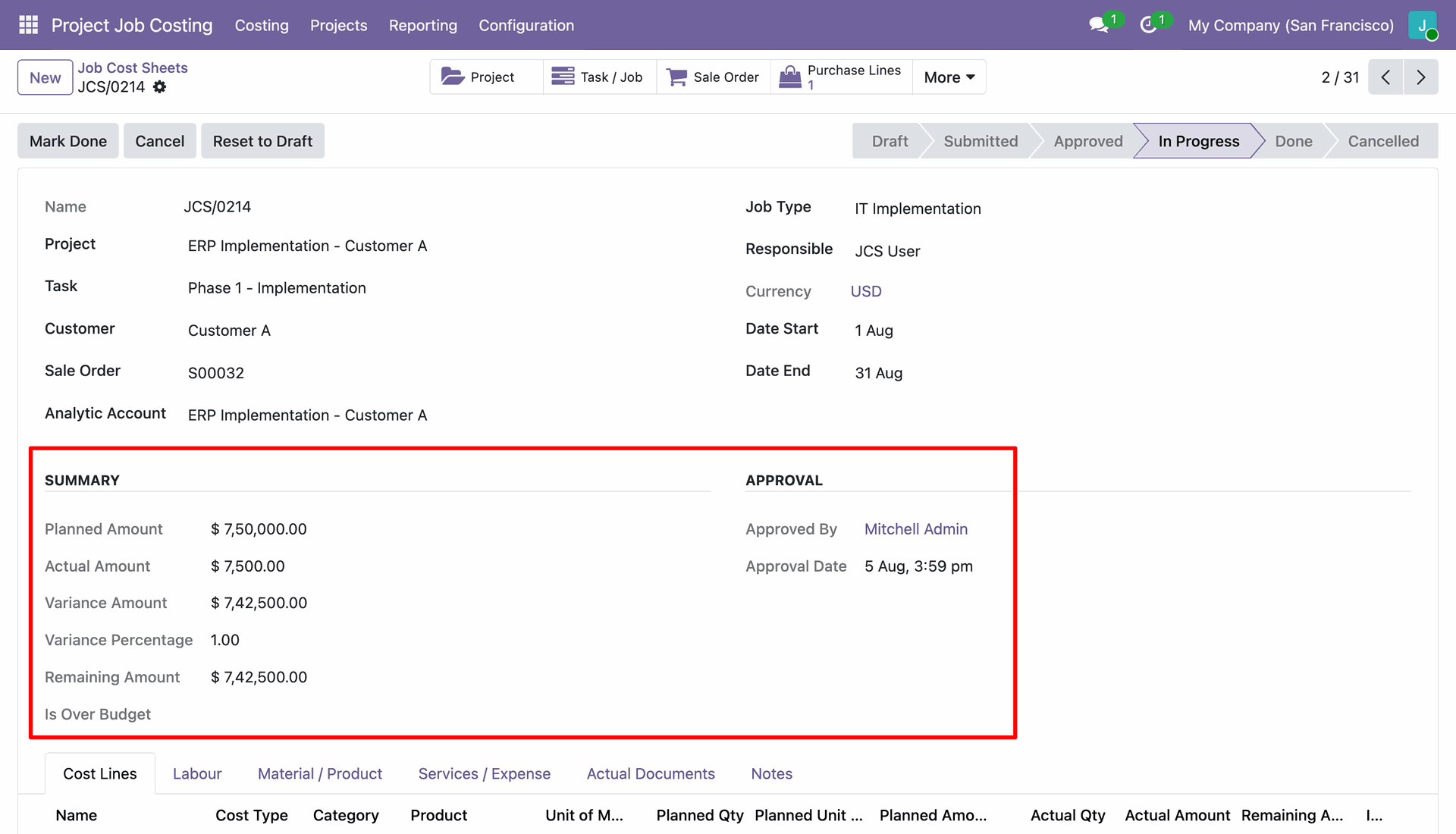
Review overall planned amount, actual amount, variance, remaining amount, and manager approval details.
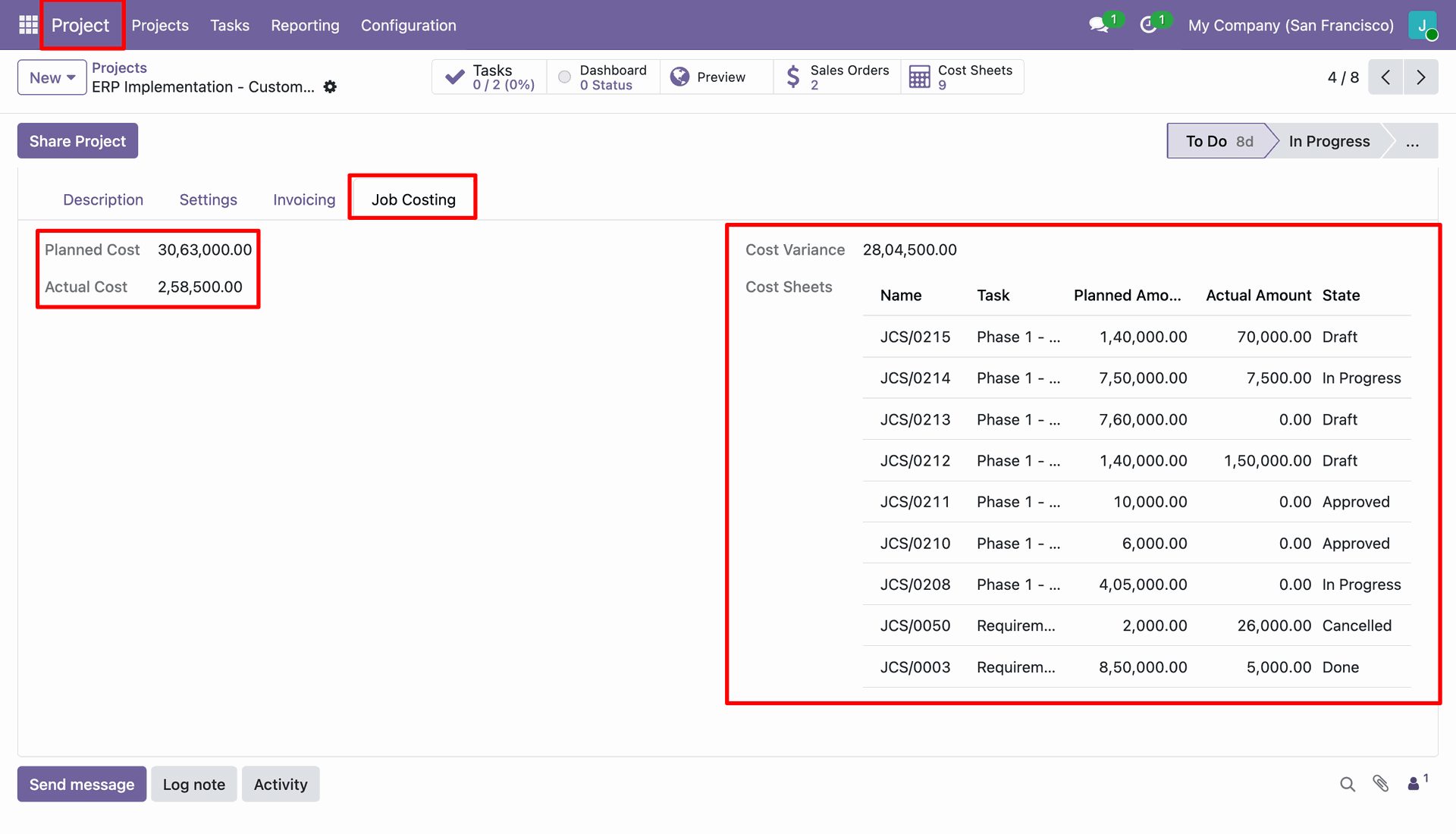
Open Job Costing tab on project form to inspect total planned cost, actual cost, and variance summary.
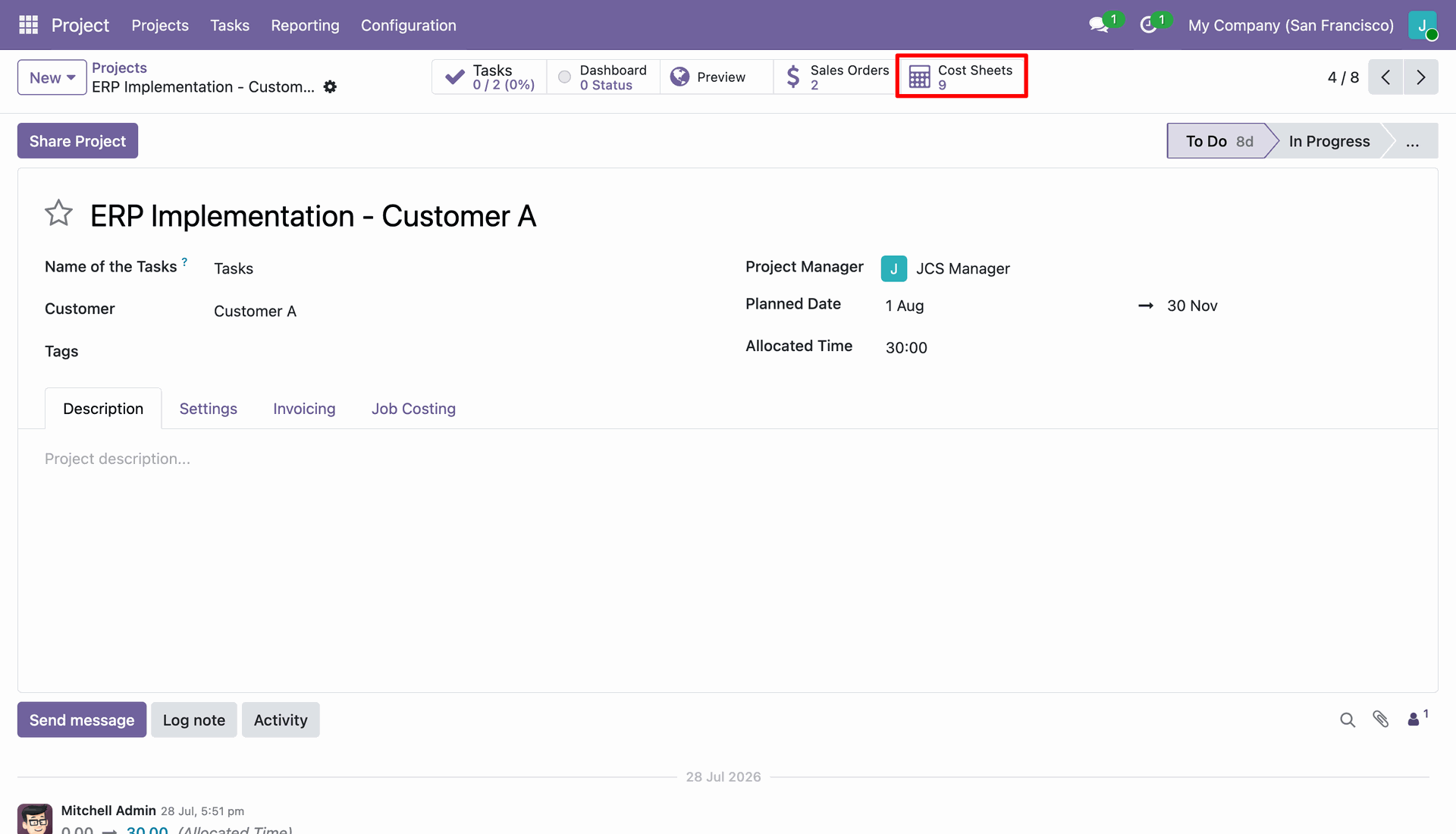
Click the Cost Sheets smart button on project form to view all linked job cost sheets.
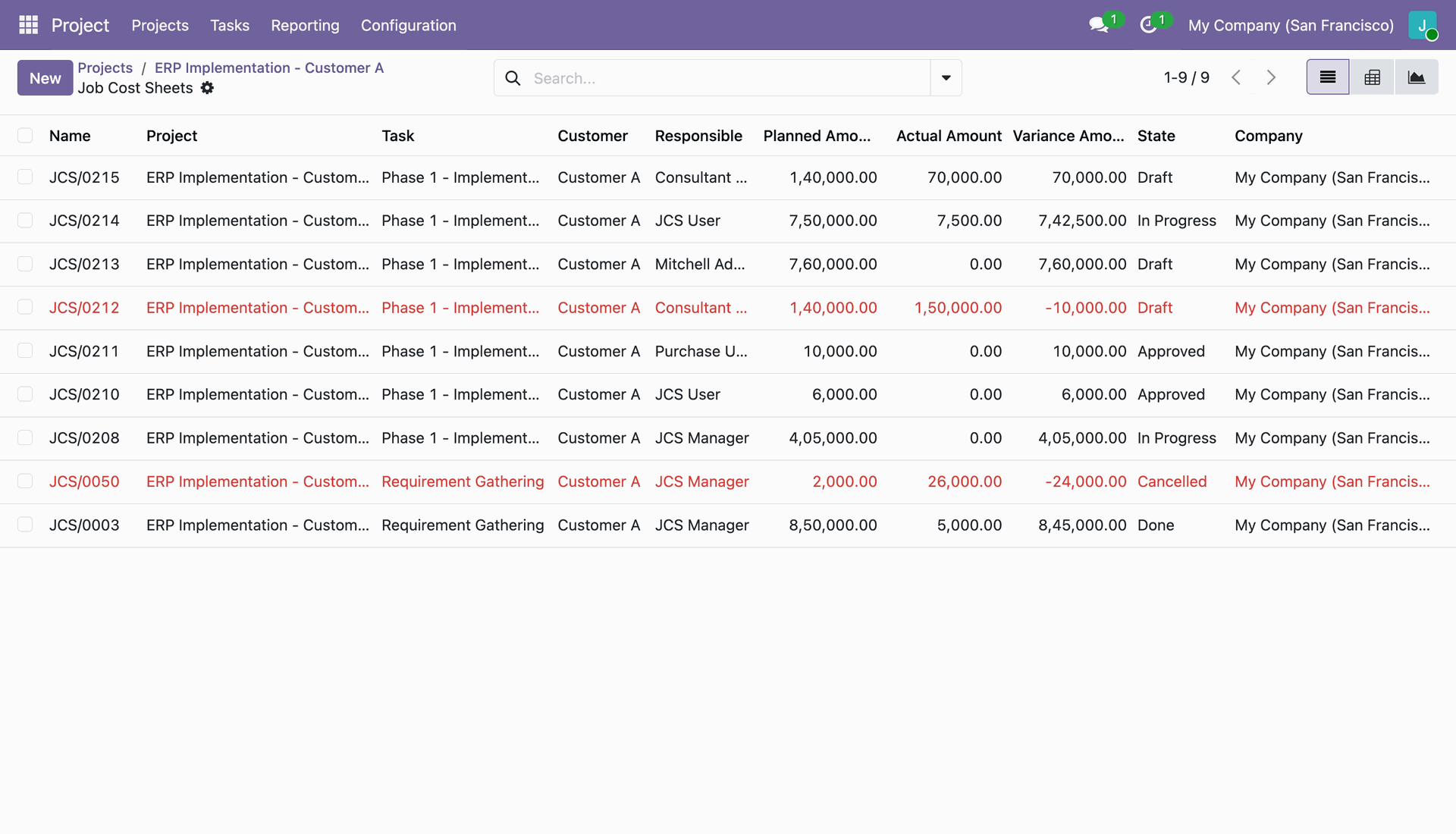
View list of project job cost sheets highlighting over-budget records with negative variance in red.
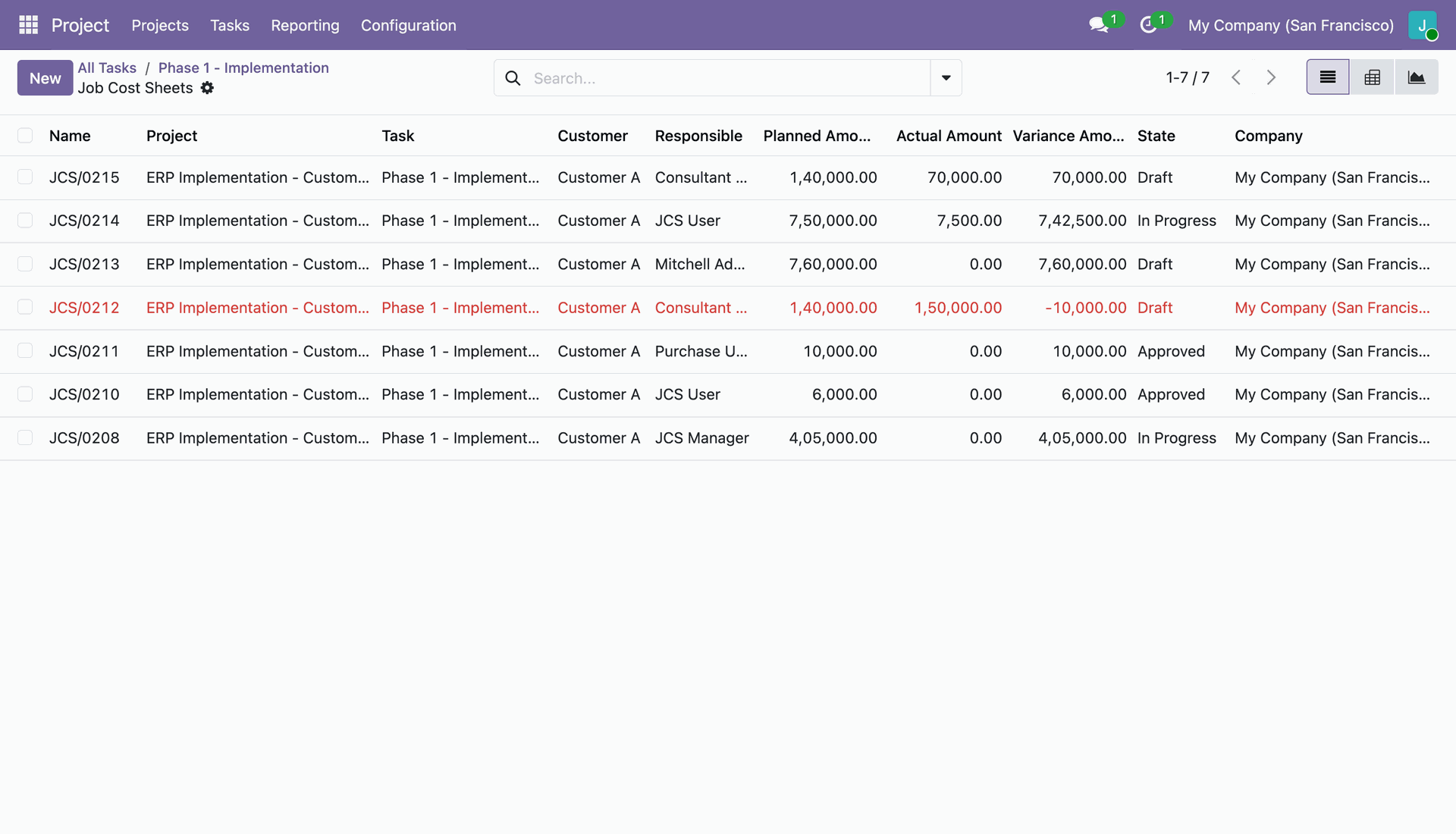
Click the Cost Sheets smart button on project task form to view task-specific job cost sheets.
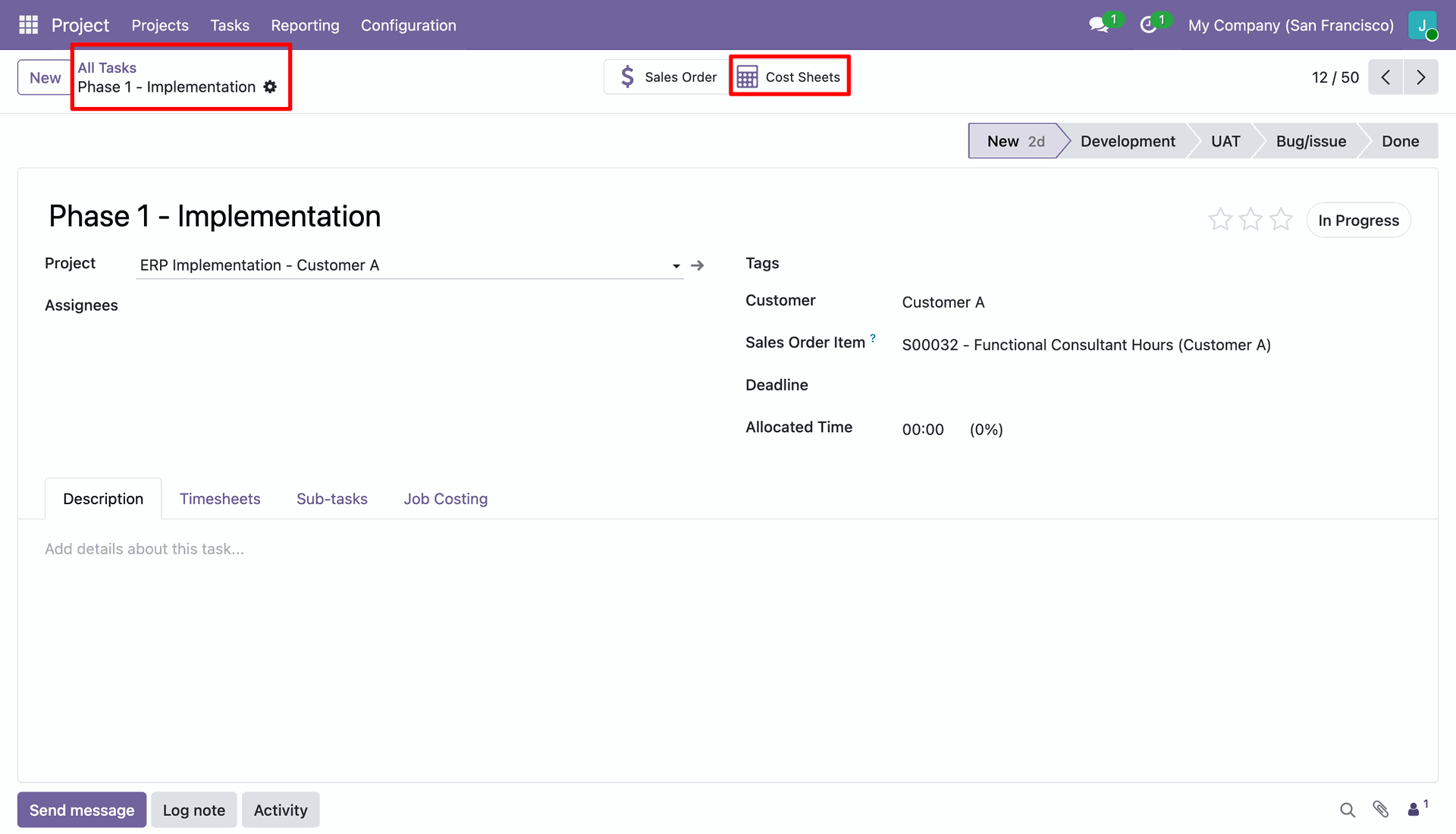
Review job cost sheets linked to the task with over-budget entries highlighted in red text.
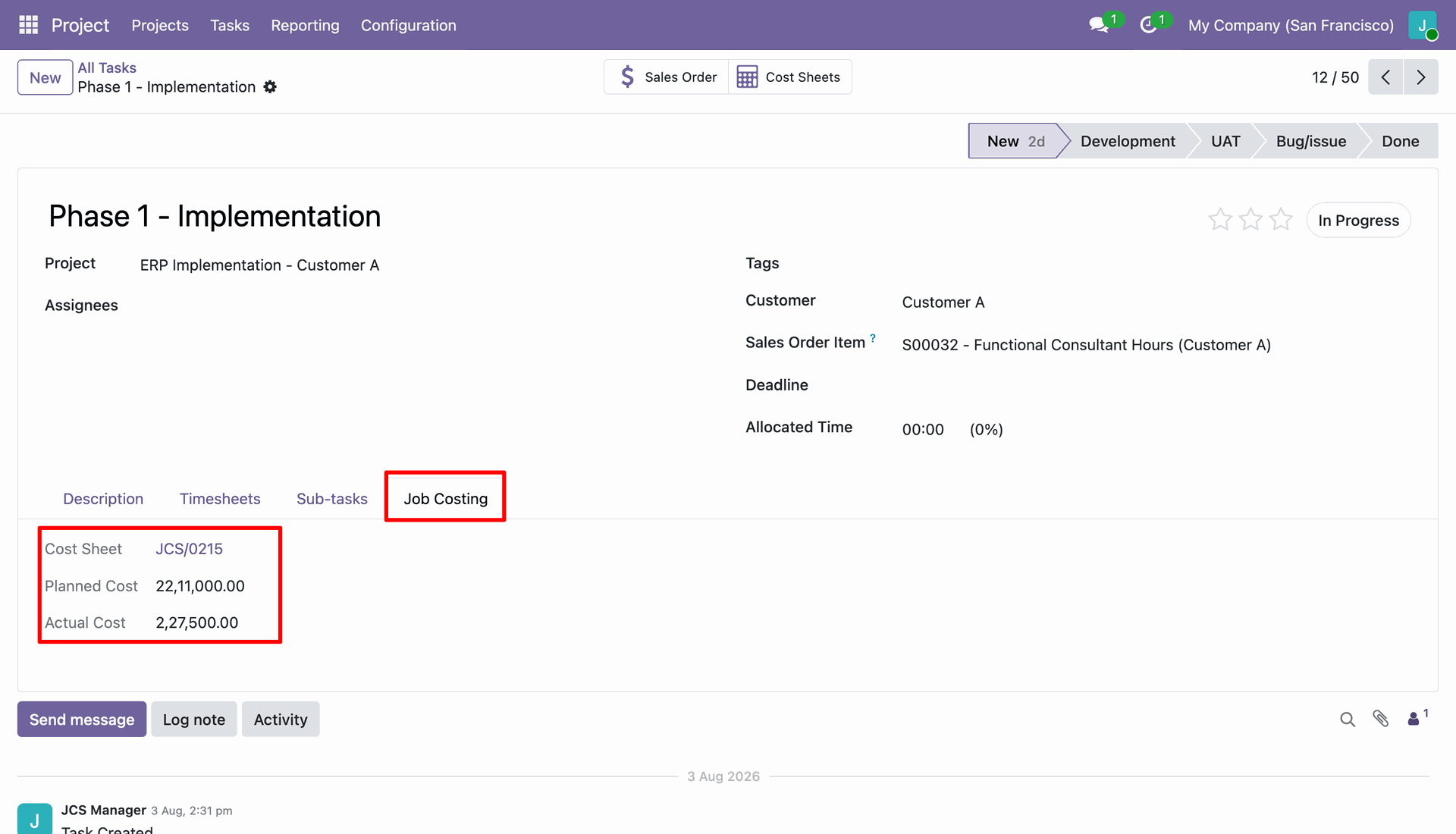
Open Job Costing tab on task form to view linked cost sheet, planned cost, and actual cost.
Workflow
Review the cost summary breakdown and approval details highlighted in the red box on job cost sheet.
Select Planned vs Actual filter under Reporting menu to analyze cost performance across job cost sheets.
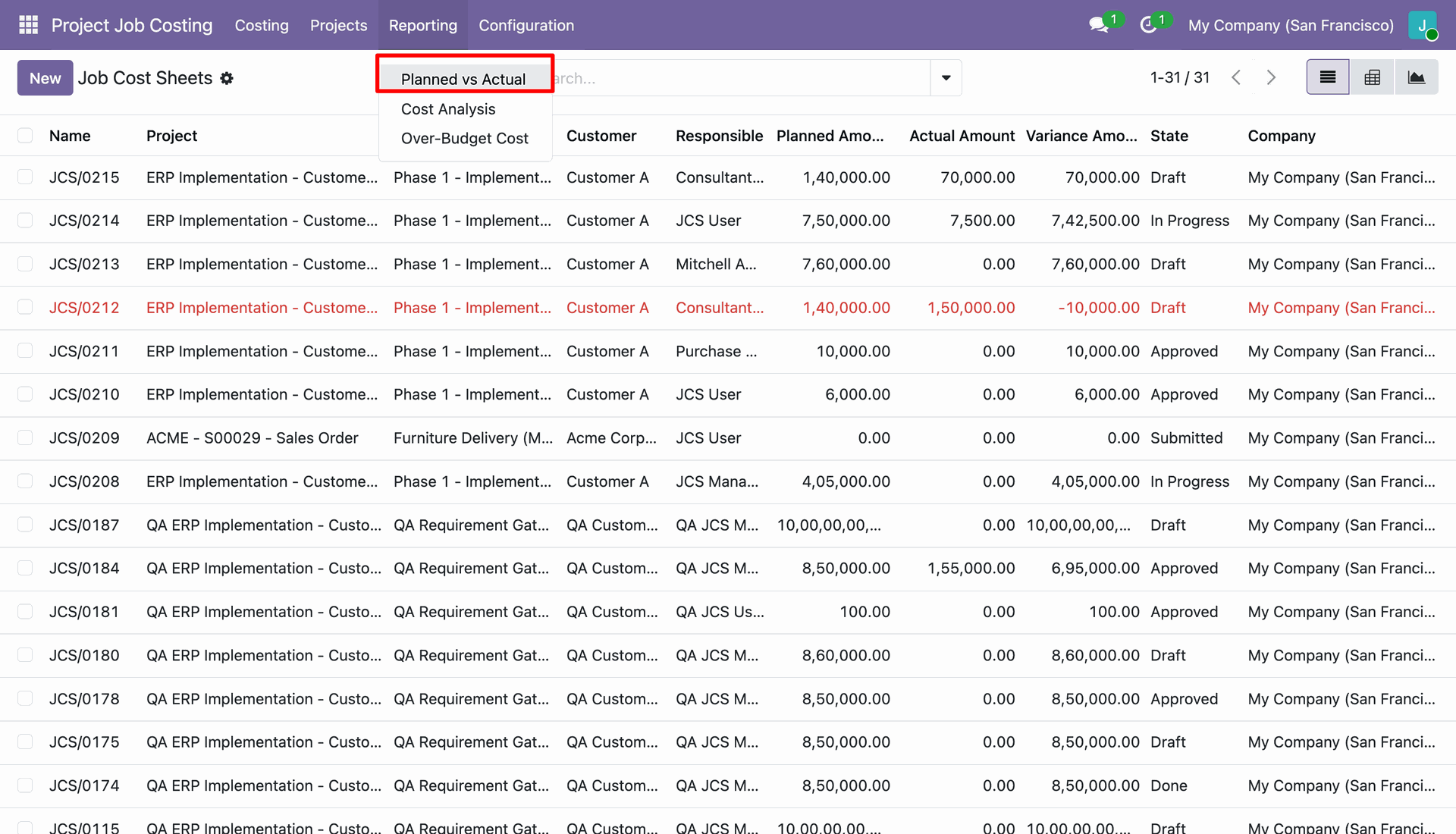
View job cost sheets list with over-budget records highlighted in red text showing negative variance.
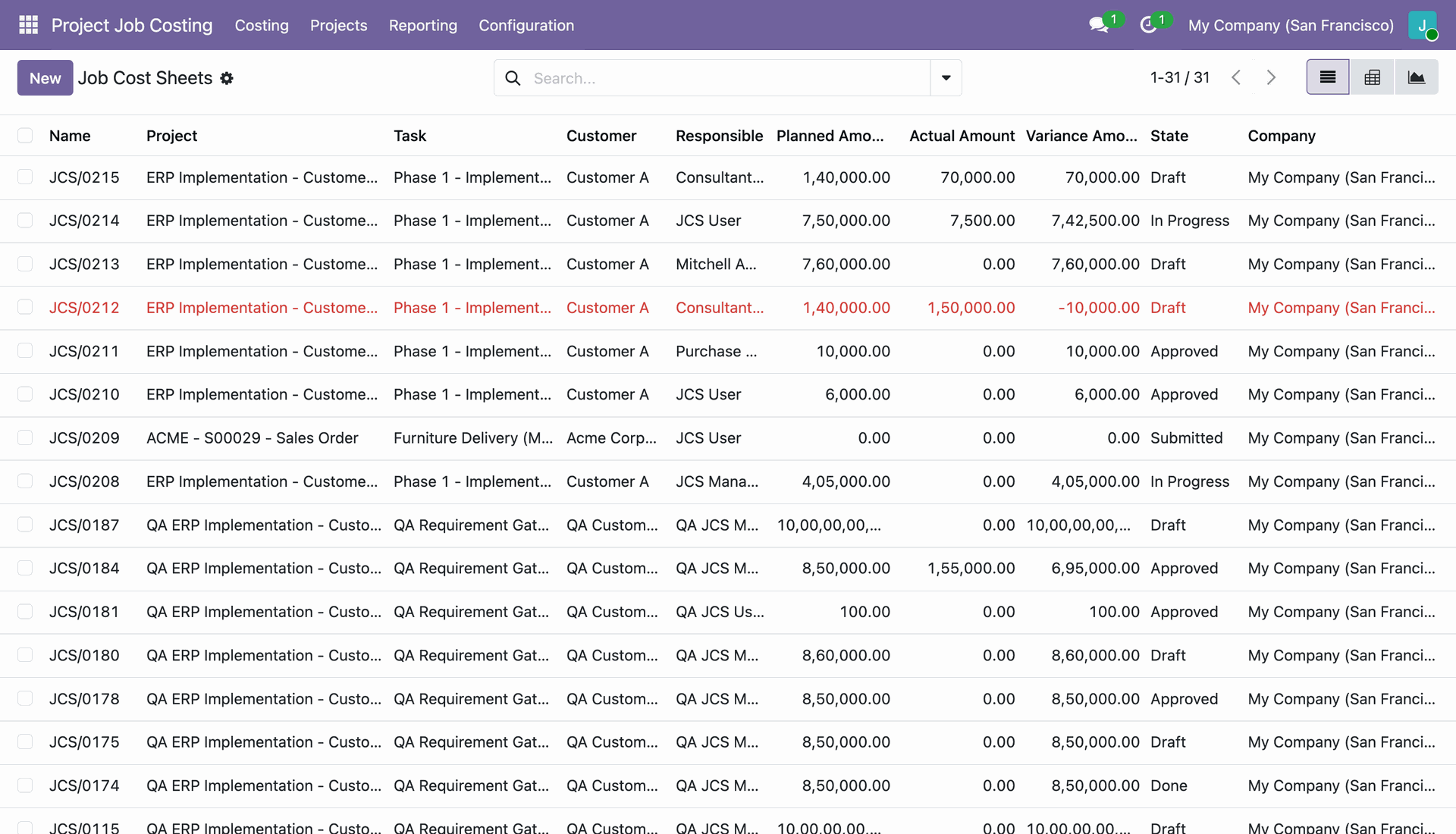
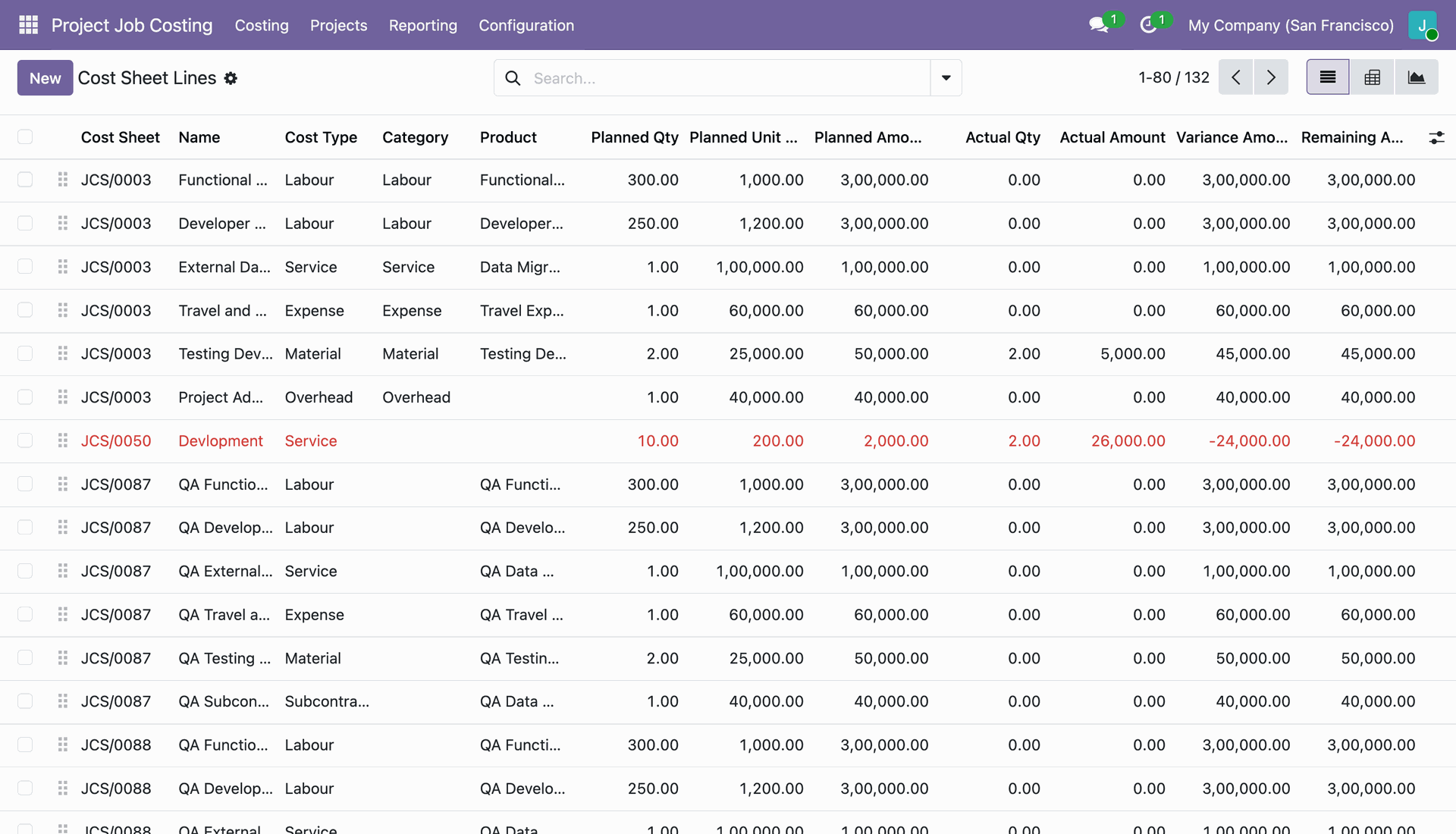
Select Cost Analysis option from the Reporting menu to review detailed project cost breakdowns.
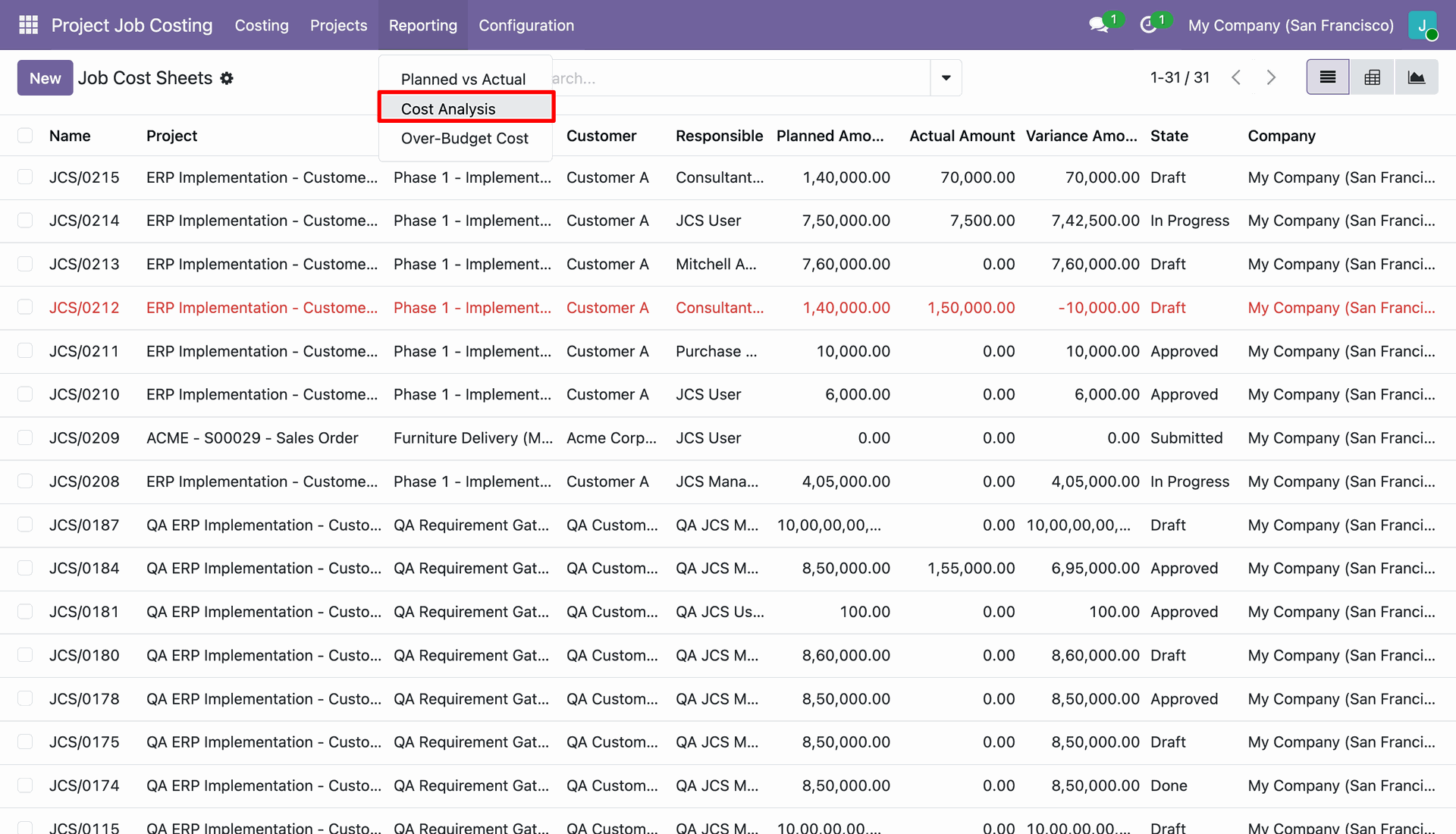
Inspect individual cost sheet lines with planned versus actual quantities, amounts, and variances in list view.
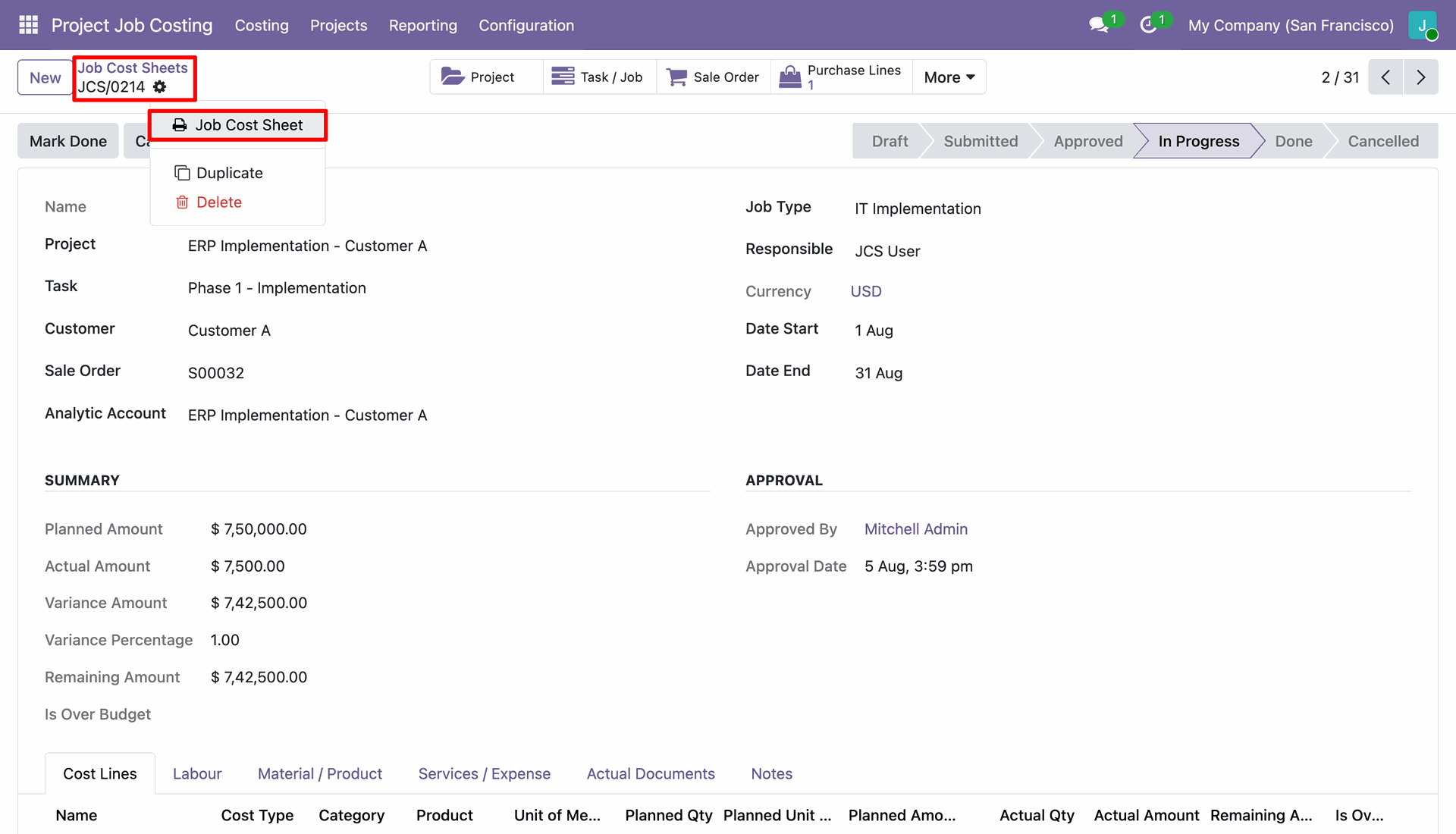
Click the gear icon and select Job Cost Sheet from action menu to print PDF report.
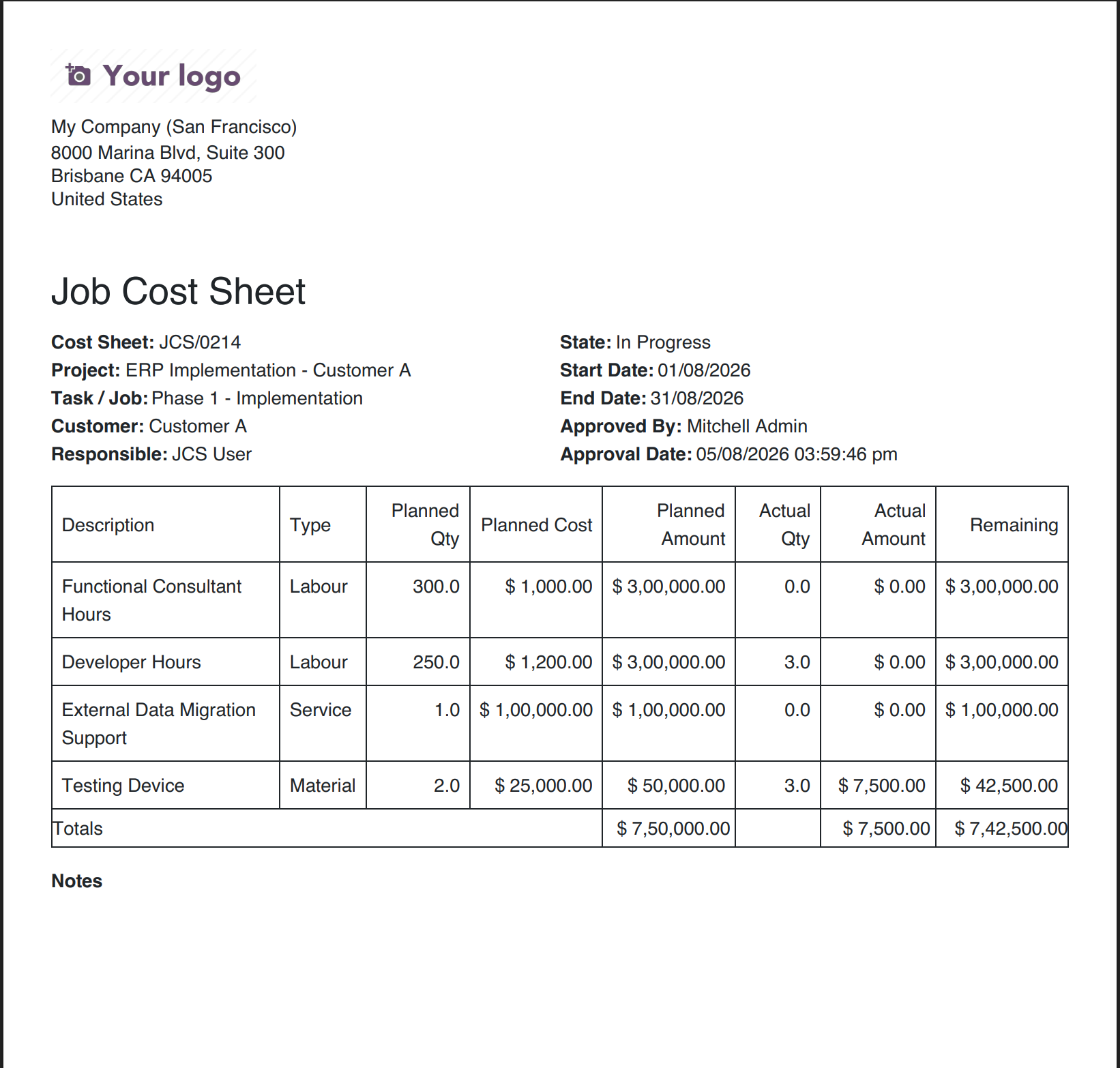
Generate and view printable PDF Job Cost Sheet report summarizing planned and actual cost lines.
Workflow
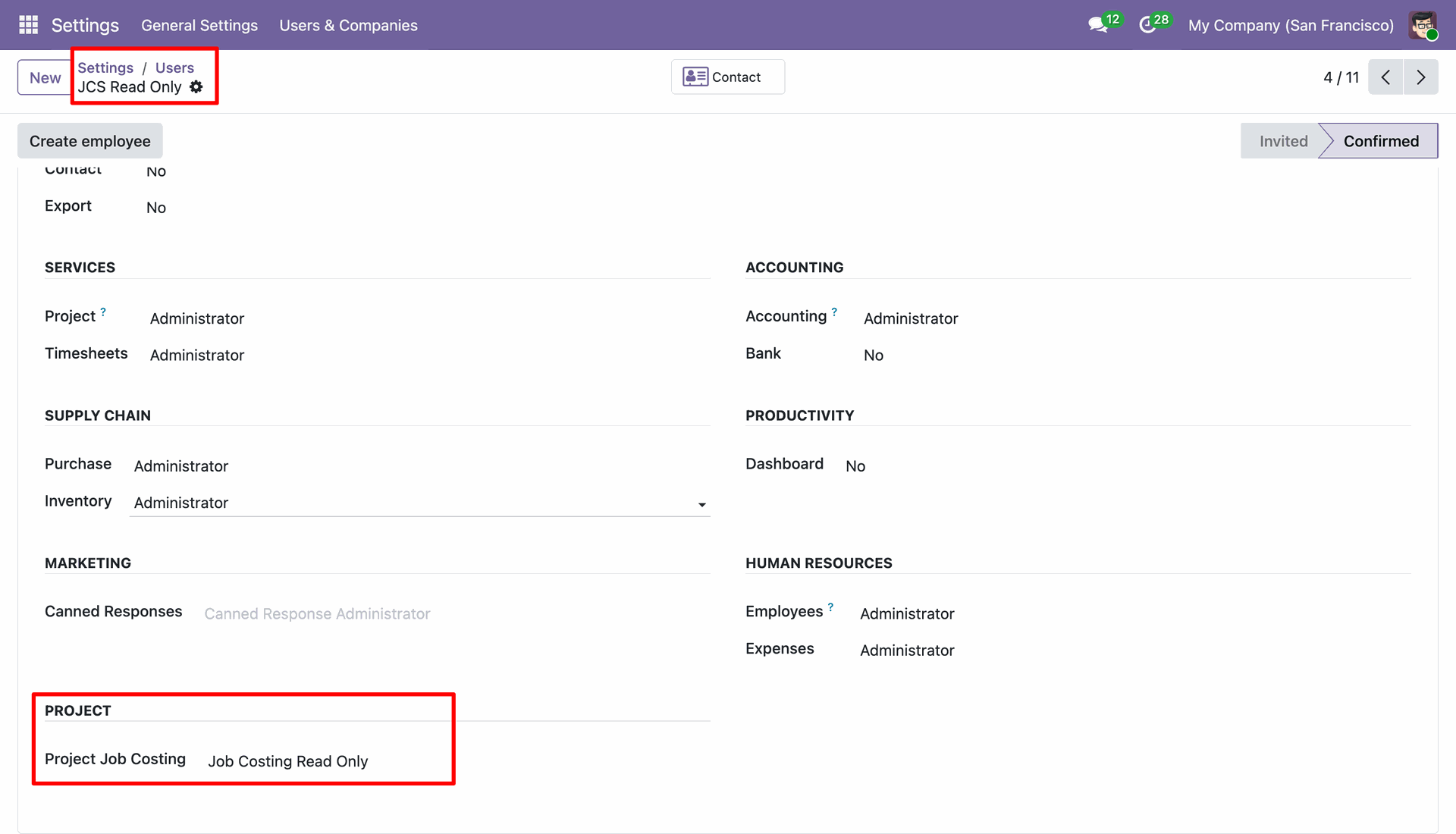
Assign Job Costing Read Only access rights to the user profile under security settings.
View job cost sheet details in read-only mode without edit or modification permissions.
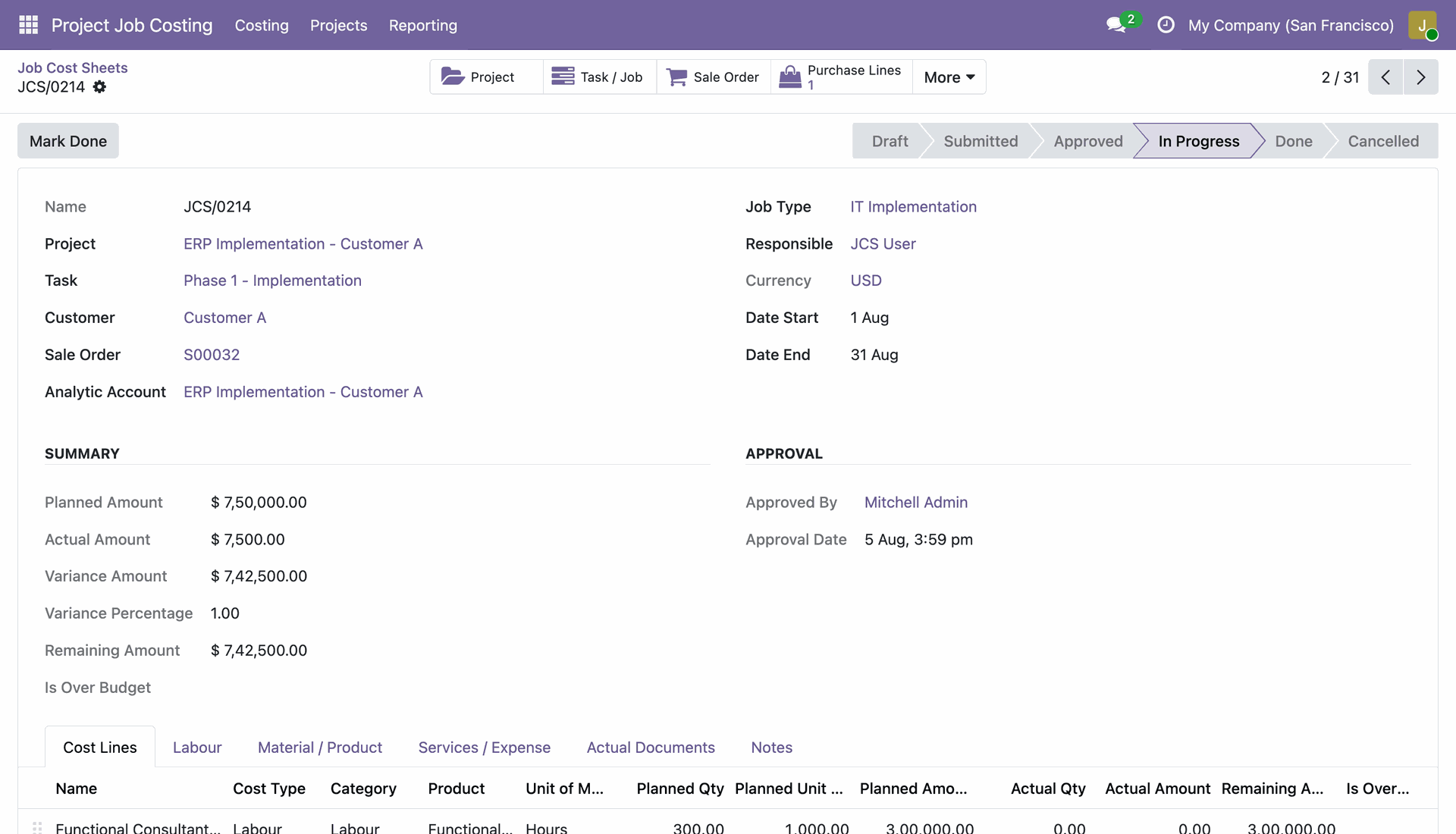
Inspect cost lines entries highlighted in red box in read-only view mode.
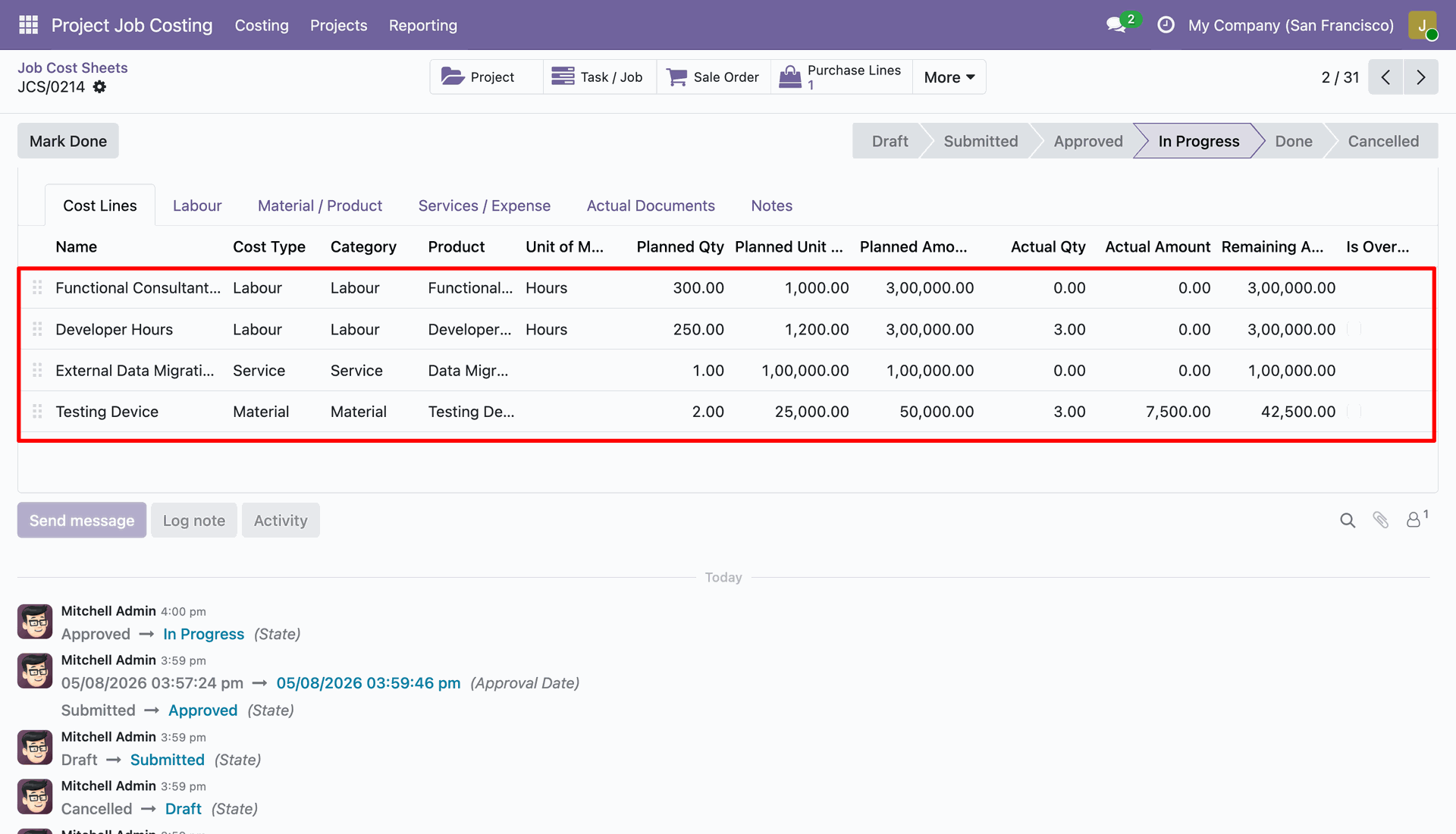
Open individual cost sheet line form in read-only mode to view planned and actual figures.
Version 18.0.1.0.0 | Released on : 23rd September 2026
- Yes, this app works perfectly with Odoo Enterprise (Odoo.sh & Premise) as well as Community.
- No, this application is not compatible with odoo.com(odoo saas/Odoo Online)
- Yes, to test this module, please contact us at sales@softhealer.com.
- Please contact us at sales@softhealer.com to request customization.
- Yes, we provide free support for 365 days from the date of purchase.
- Yes, you will receive lifetime free updates for the version of the module you purchased.
- No, there is no need to install any additional libraries.
- Yes, for version 12 and above, you need to purchase the module separately for each version you intend to use.
- No, exchanges or refunds are not allowed. Please make sure to select the correct version before purchasing.
- You can contact us at support@softhealer.com for language translation support. We use Google Translator tools to provide translations in multiple languages, so the accuracy may vary. We welcome your suggestions to help improve translations.
Discover Our Latest Apps