












Product Price Checker

Do you want to check the product price with product details quickly? This module allows you to check the product price using barcode no. User can enter barcode number by touch keyboard and it will be auto-scan through barcode scanner hardware attached, After a successful scan, You can see product information like product image, product code, product barcode, product sales price, available stock, product specification, product category. It can be useful for the customer also as a customer can easily check product information from the touchscreen or normal screen. we have a virtual keyboard so the user can use in touchscreen. everything is given configurable so the user can easily enable/disable as per his requirement from configuration screen, cheers!

Hot Features

Features
- You can display warehouse-wise stock on the kiosk screen.
- You can search products by multiple fields in the kiosk screen.
- When the product is scanned based on screen delay, it auto-redirects to the main screen.
- User can redirect to kiosk screen while login.
- Get product information from a number of products in just snap time.
- Easy to check the product price with product details.
- You can check the product price using barcode no.
- You can see product details like product image, code, barcode, sales price, available stock, specification, category, show keyboard, company logo & welcome message.
- It shows popup for success/failure.
- You can find a product with full details by product barcode in a single click.
- Fully responsive kiosk(Tablet Screen).
-
You can view all pricelists price with a product directly inside the product information.


When product scanned it auto-redirects to main screen.
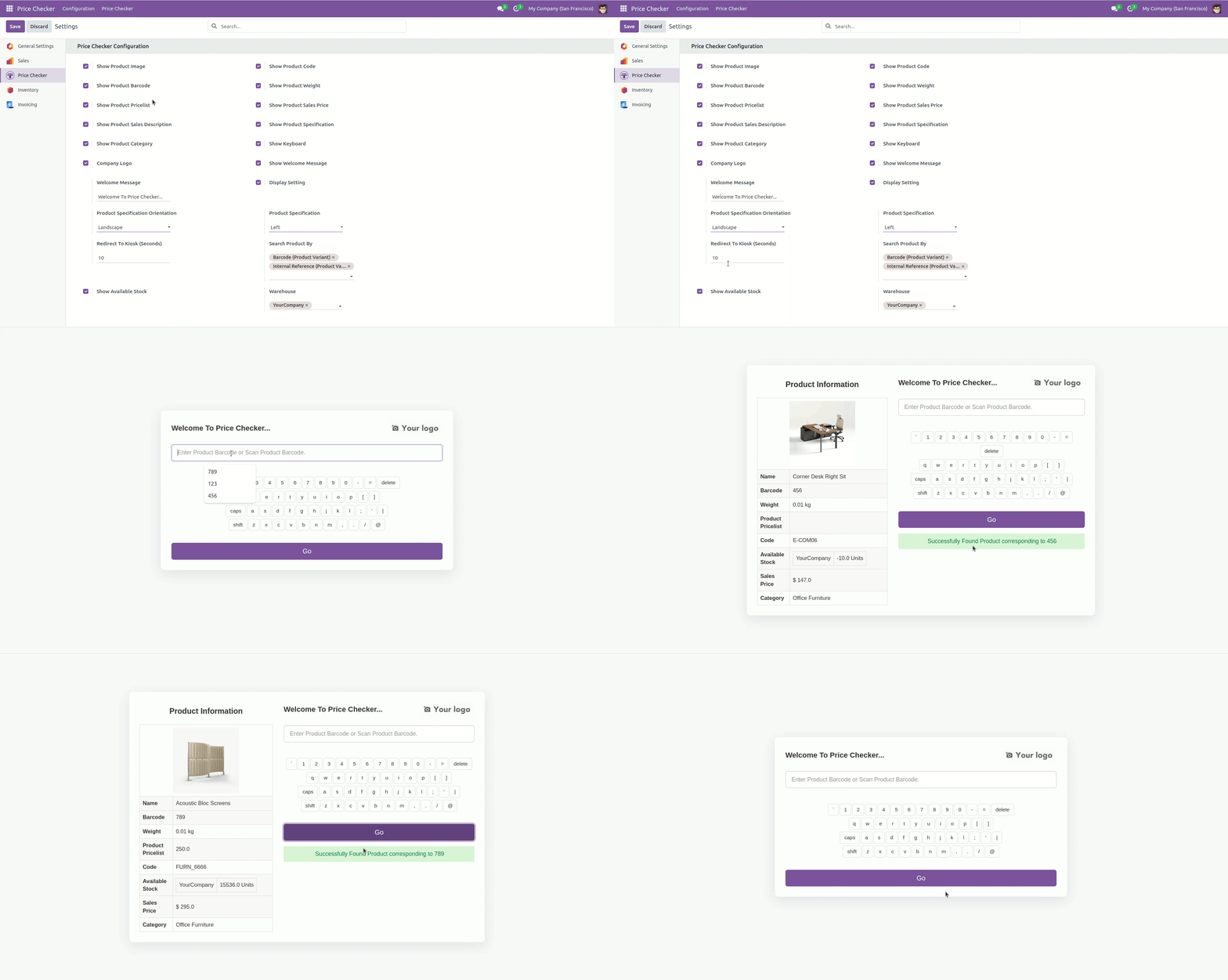
Go to user setting and enable setting as per requirements.
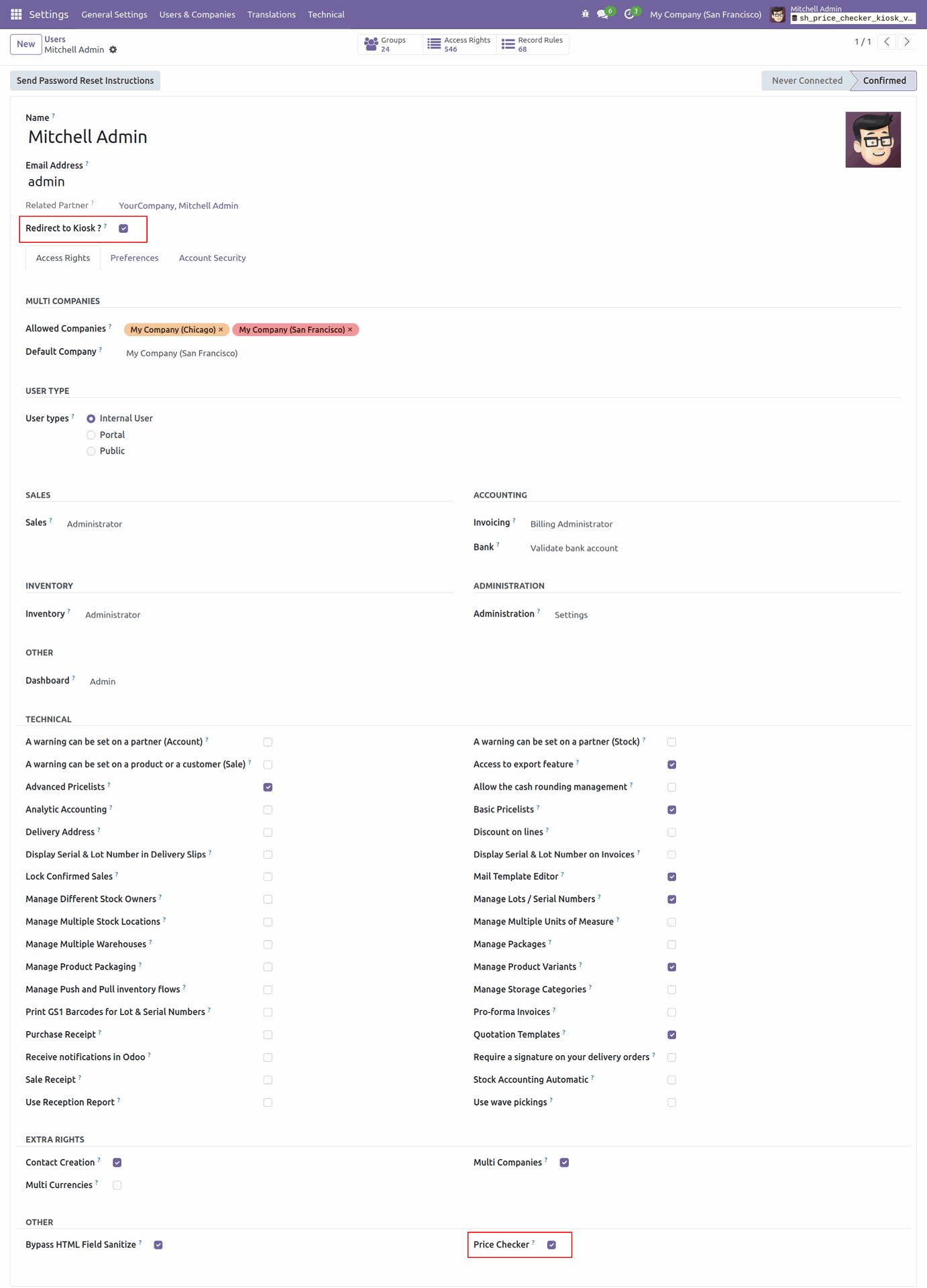
Go to price checker, configuration => settings, You can enable/disable configuration as per requirements. In the price checker, you can see a price checker configuration. you can see product details like product image, code, barcode, sales price, available stock, specification, category, show keyboard, company logo & welcome message using configuration.
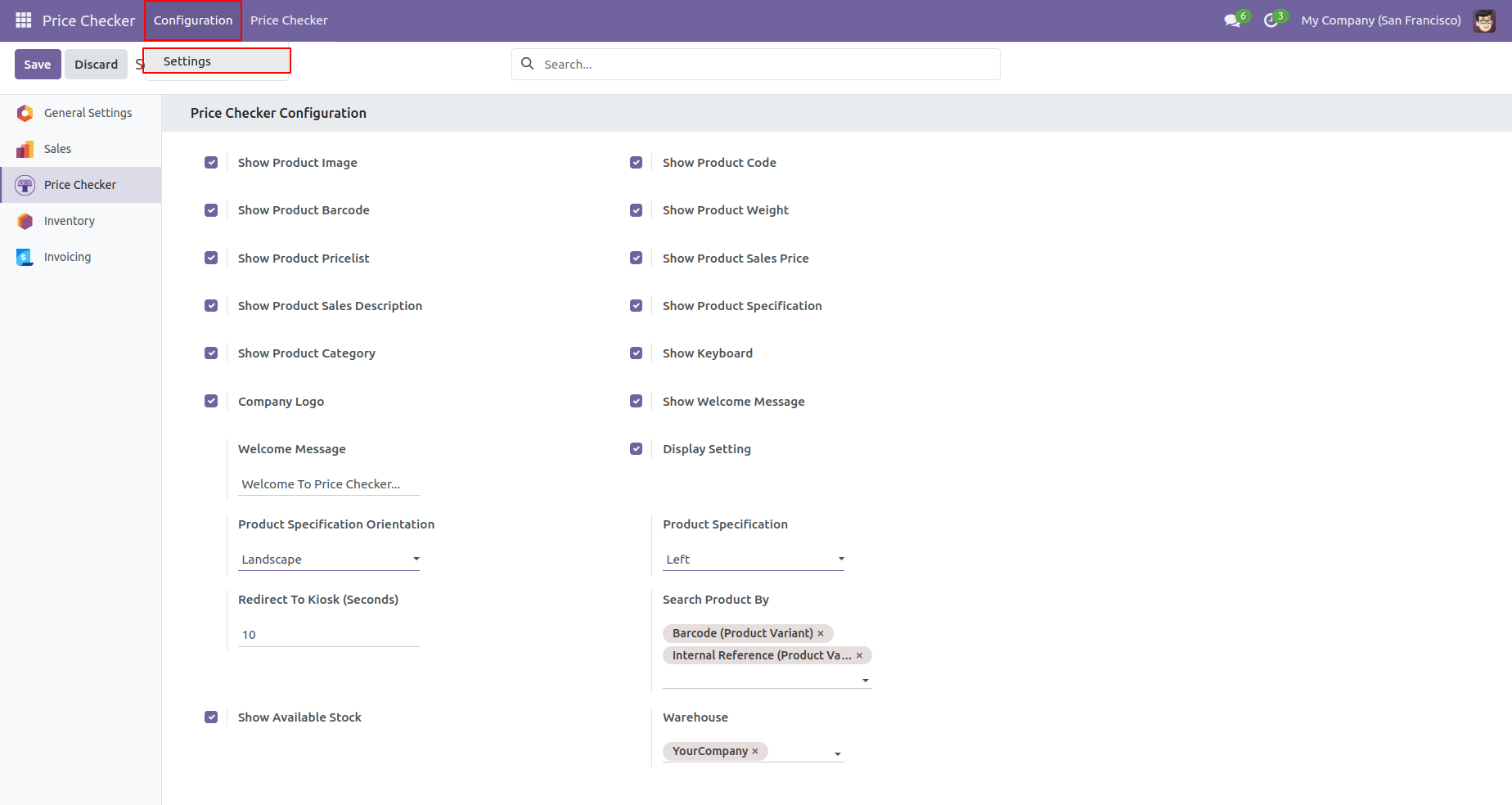
Price Checker Menu.
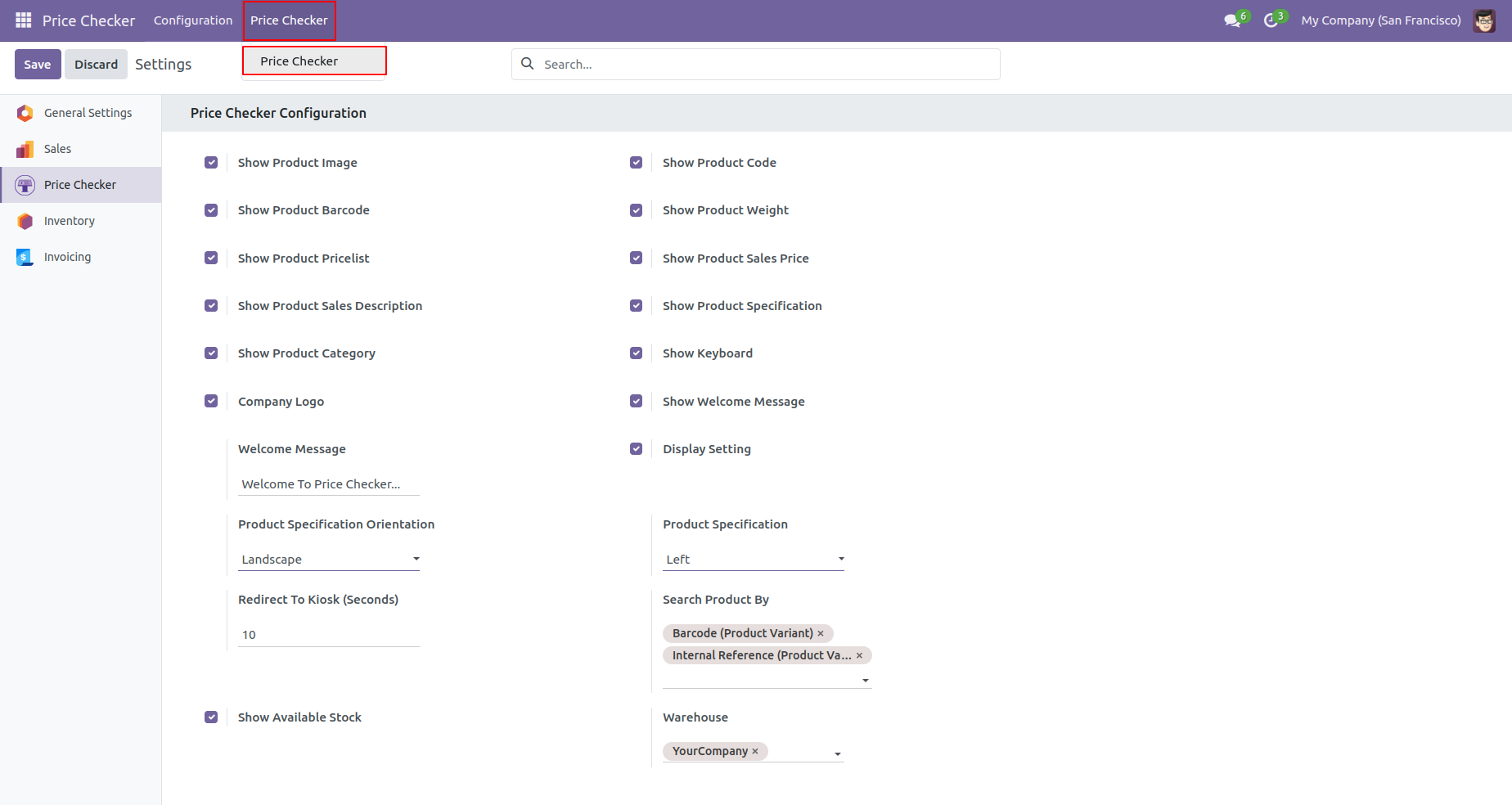
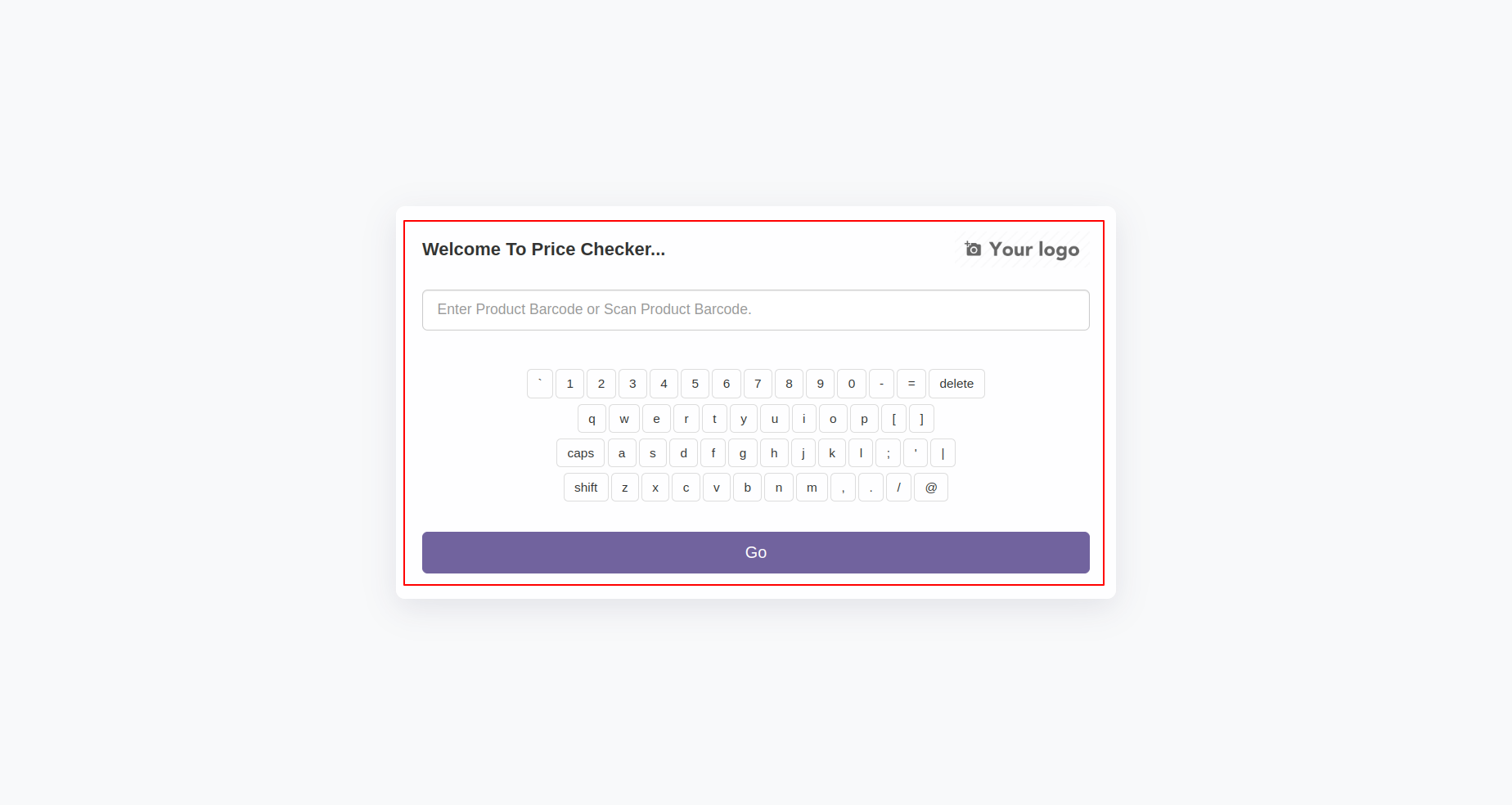
The touch keyboard looks like below and it will be auto-scan through barcode scanner hardware attached.
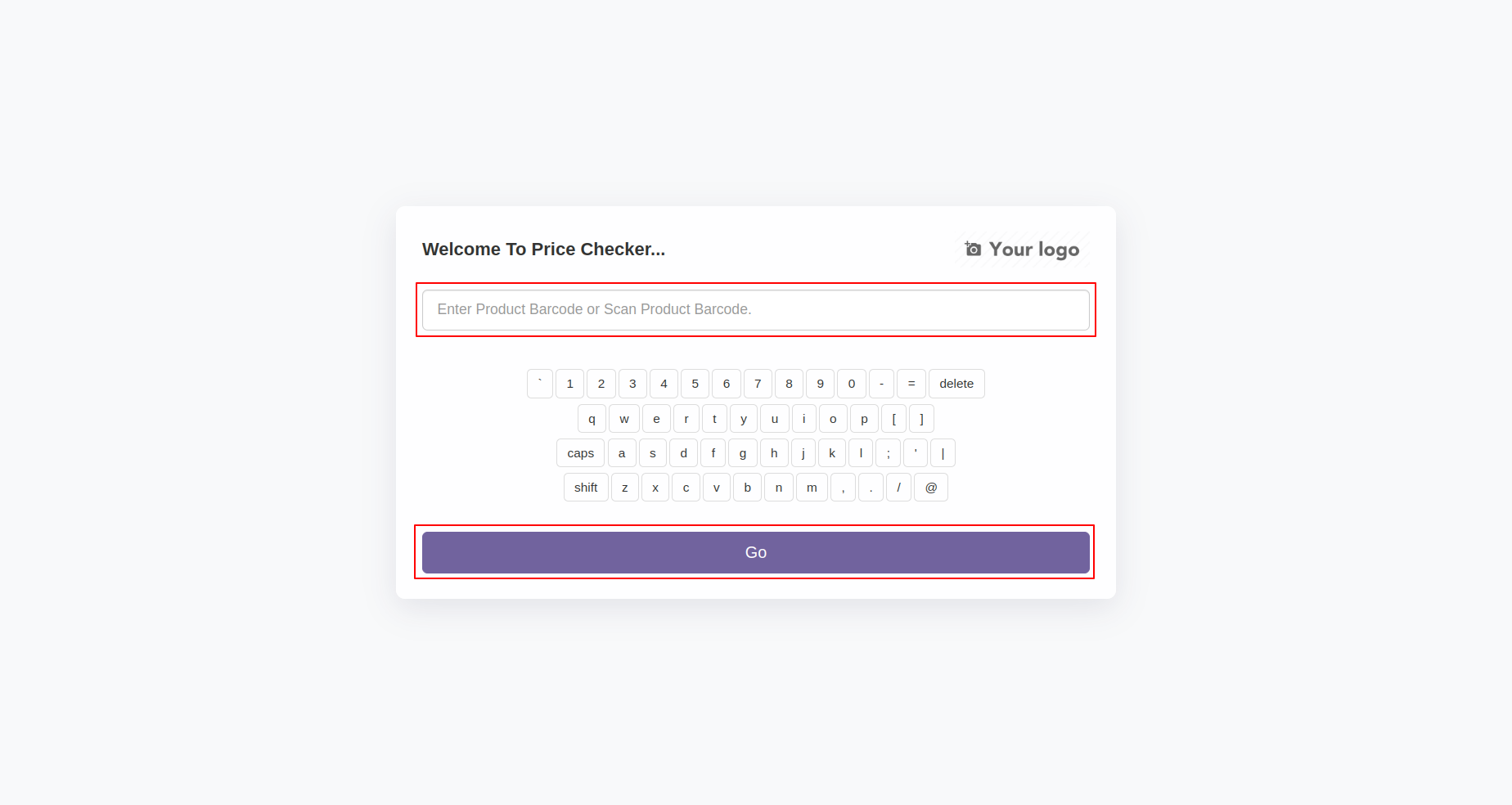
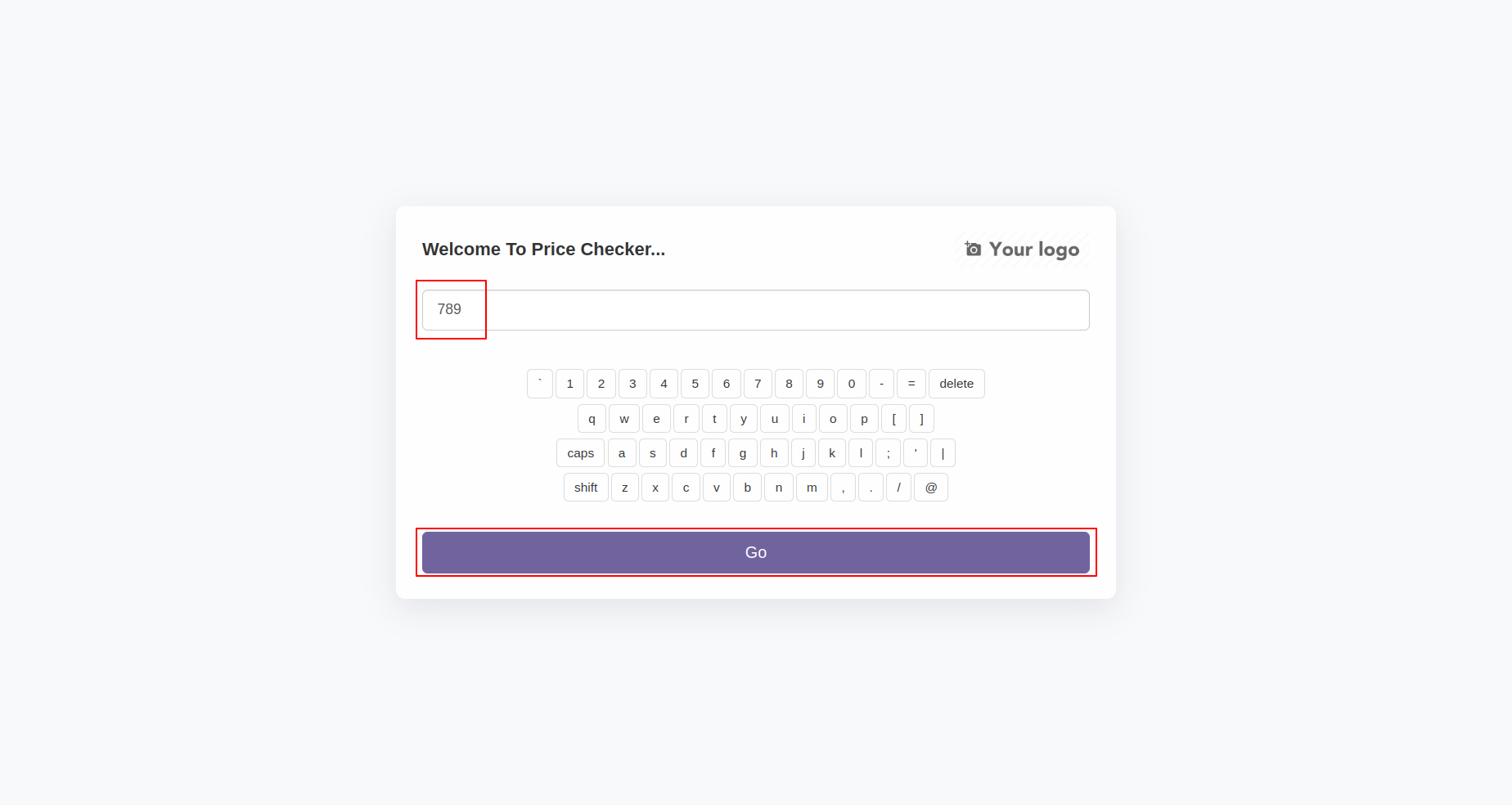
Enter the barcode no and press the "Go" button to find a particular product.
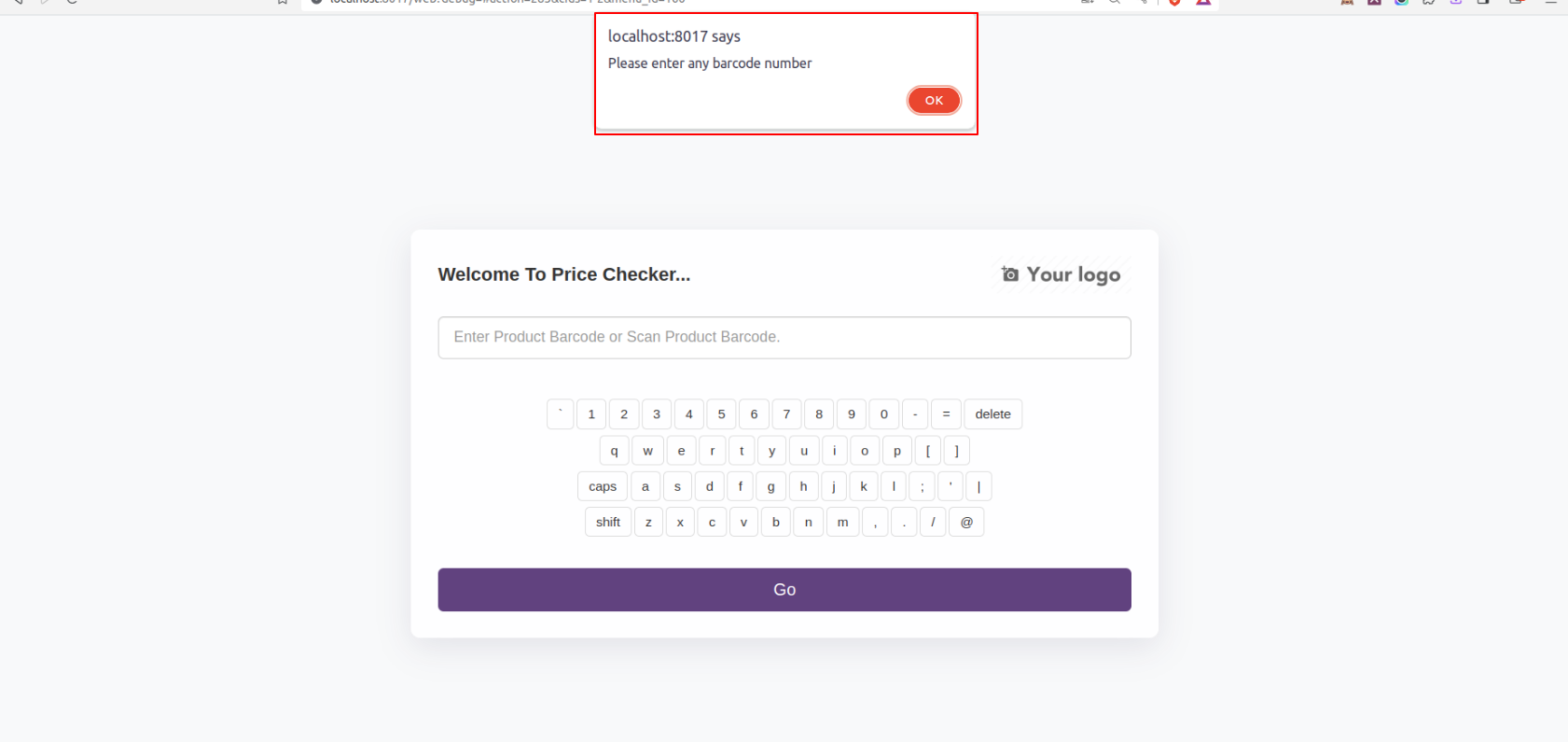
If you no give any value and press the "Go" button then popup comes.
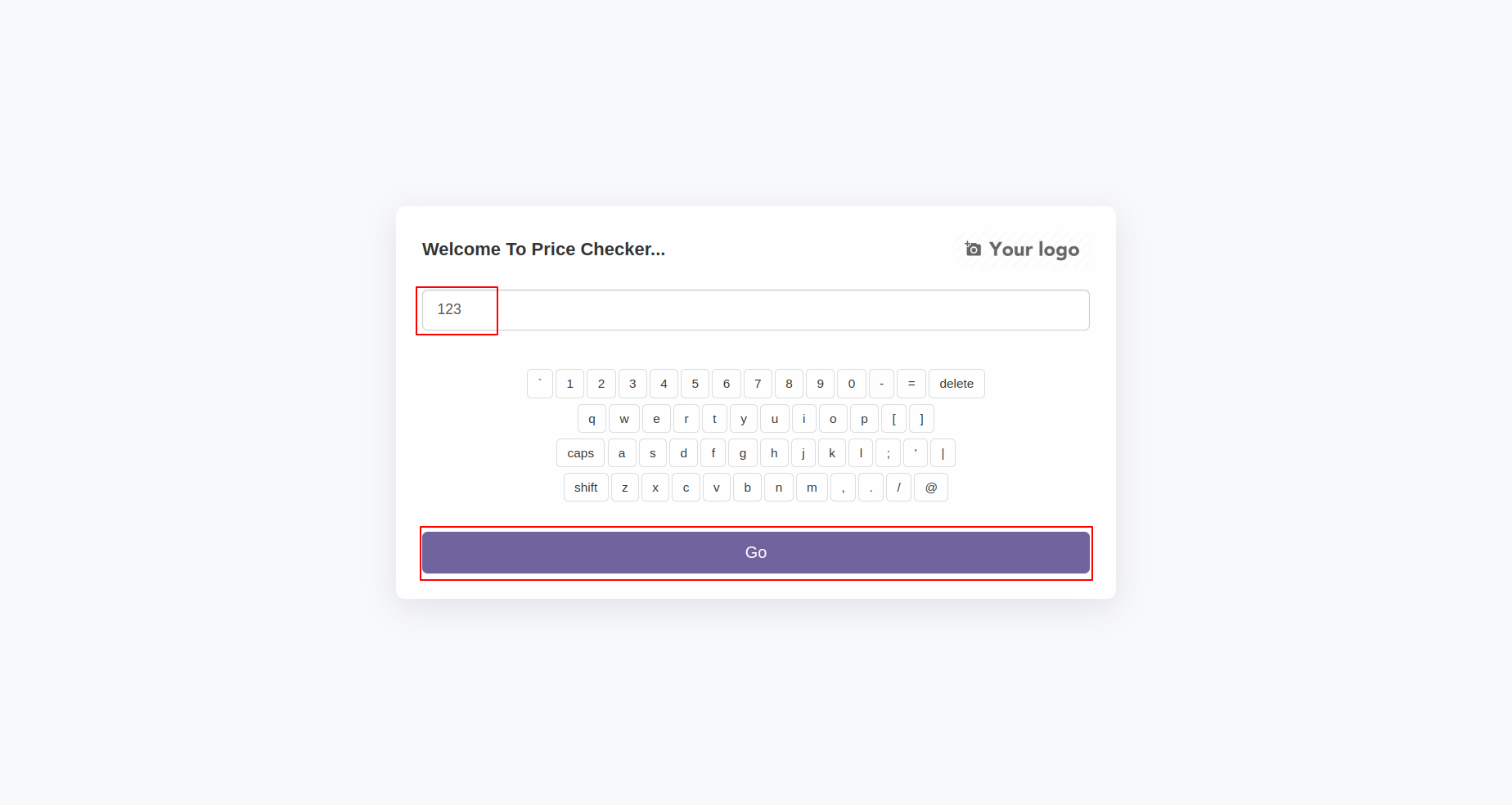
Now we enter the barcode.
If the wrong barcode entered then it shows the alert.
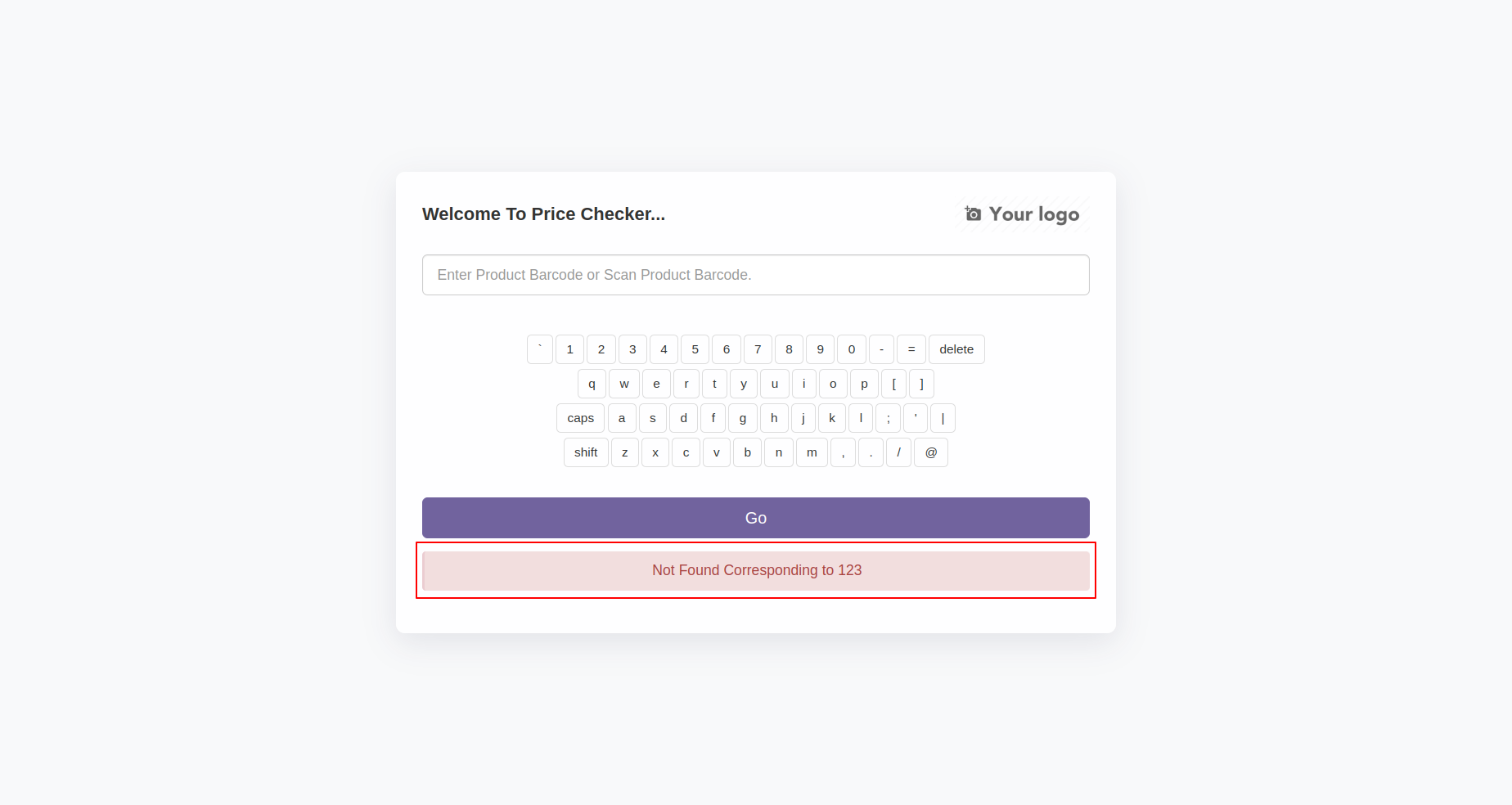
Now we enter the right barcode.
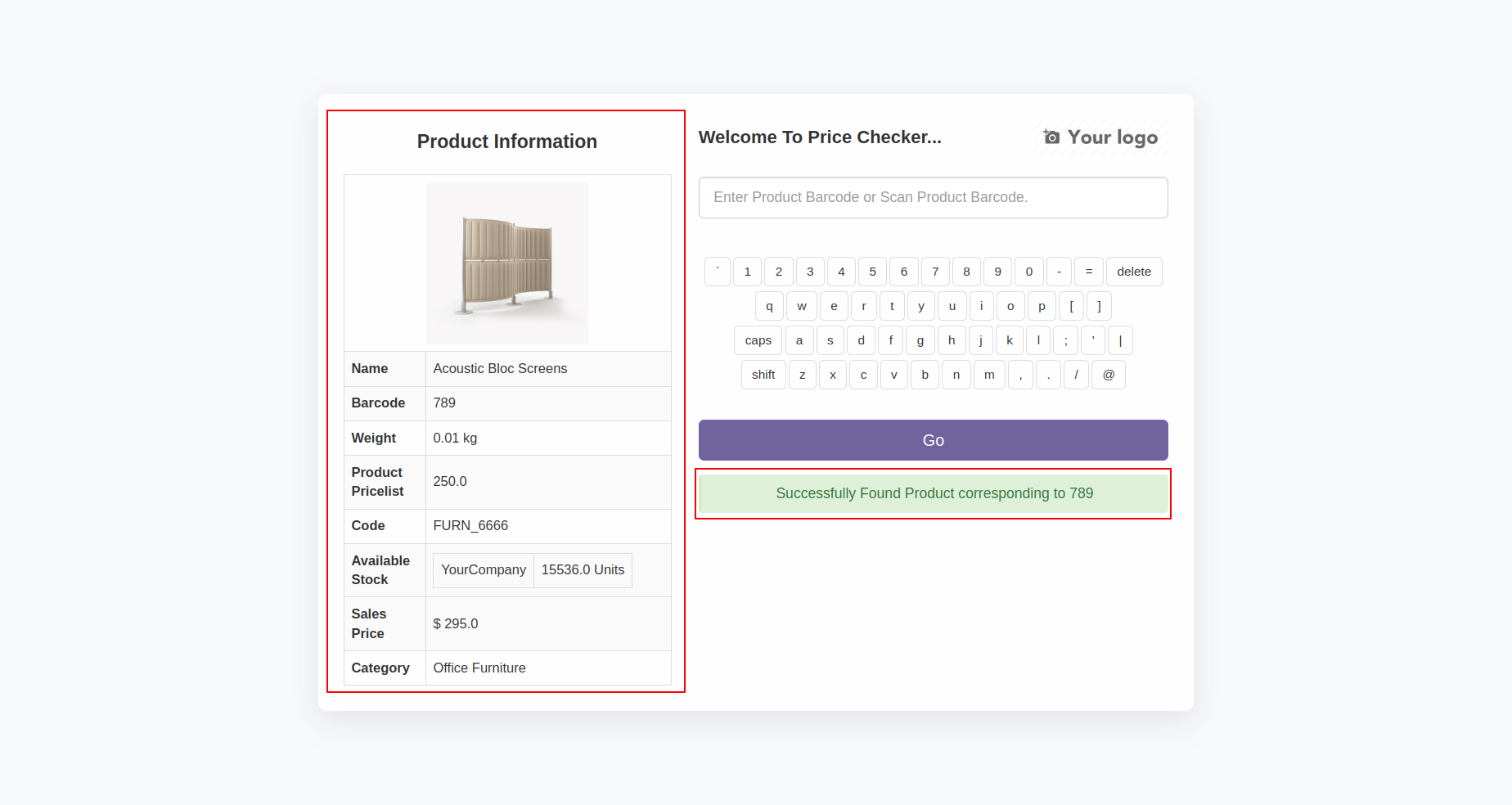
After successfully scan it shows popup and you can see product information like product image, product code, product barcode, product sales price, available stock, product specification, product category like below.
17.0.11.0.0
Go to "Price Checker" ==> Configuration ==> Settings, enable the "Show Product Pricelist" option.
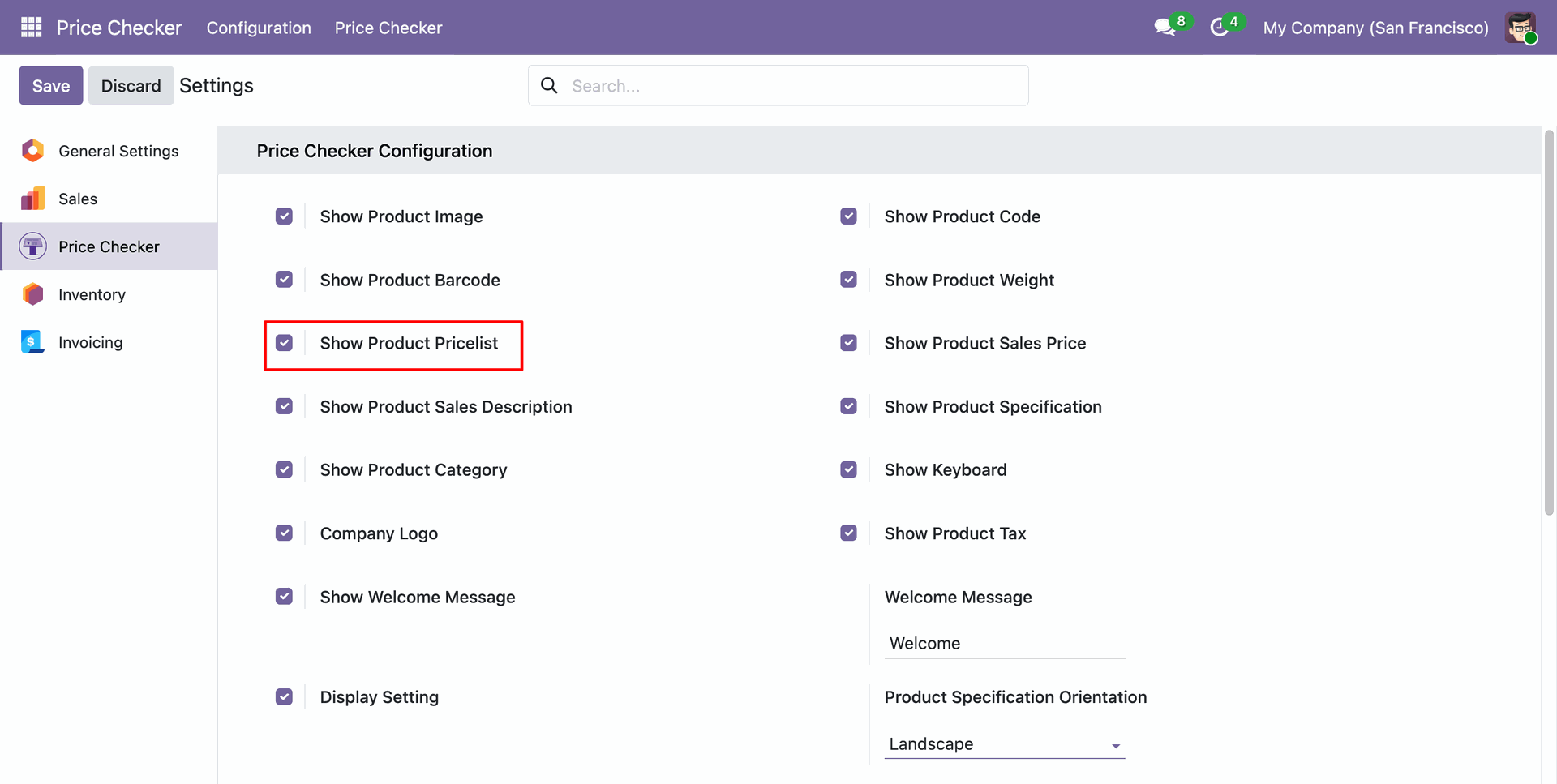
After that, the pricelist selection option is displayed. Select the desired option in the Pricelist field.
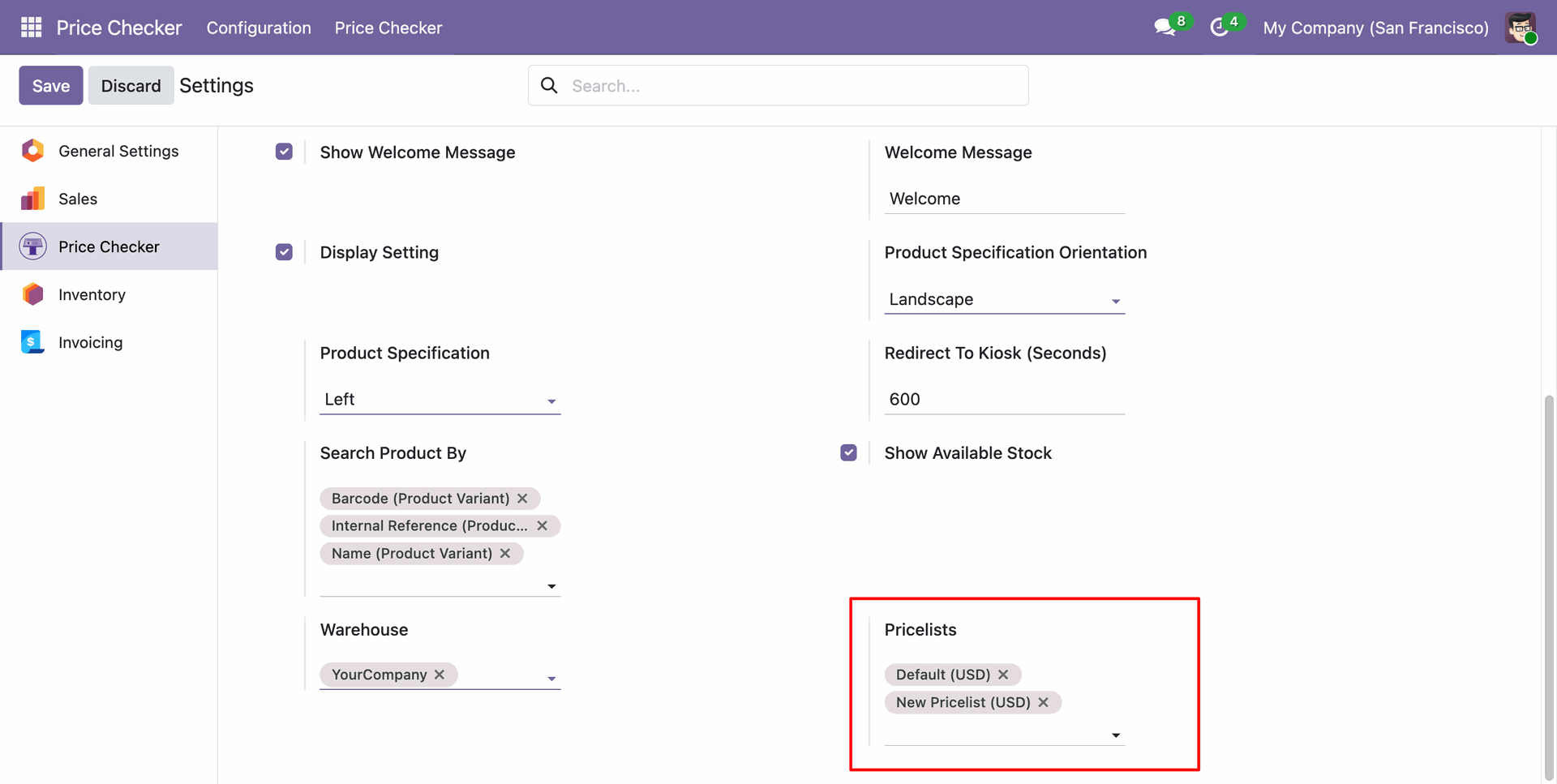
You can view the selected pricelists.
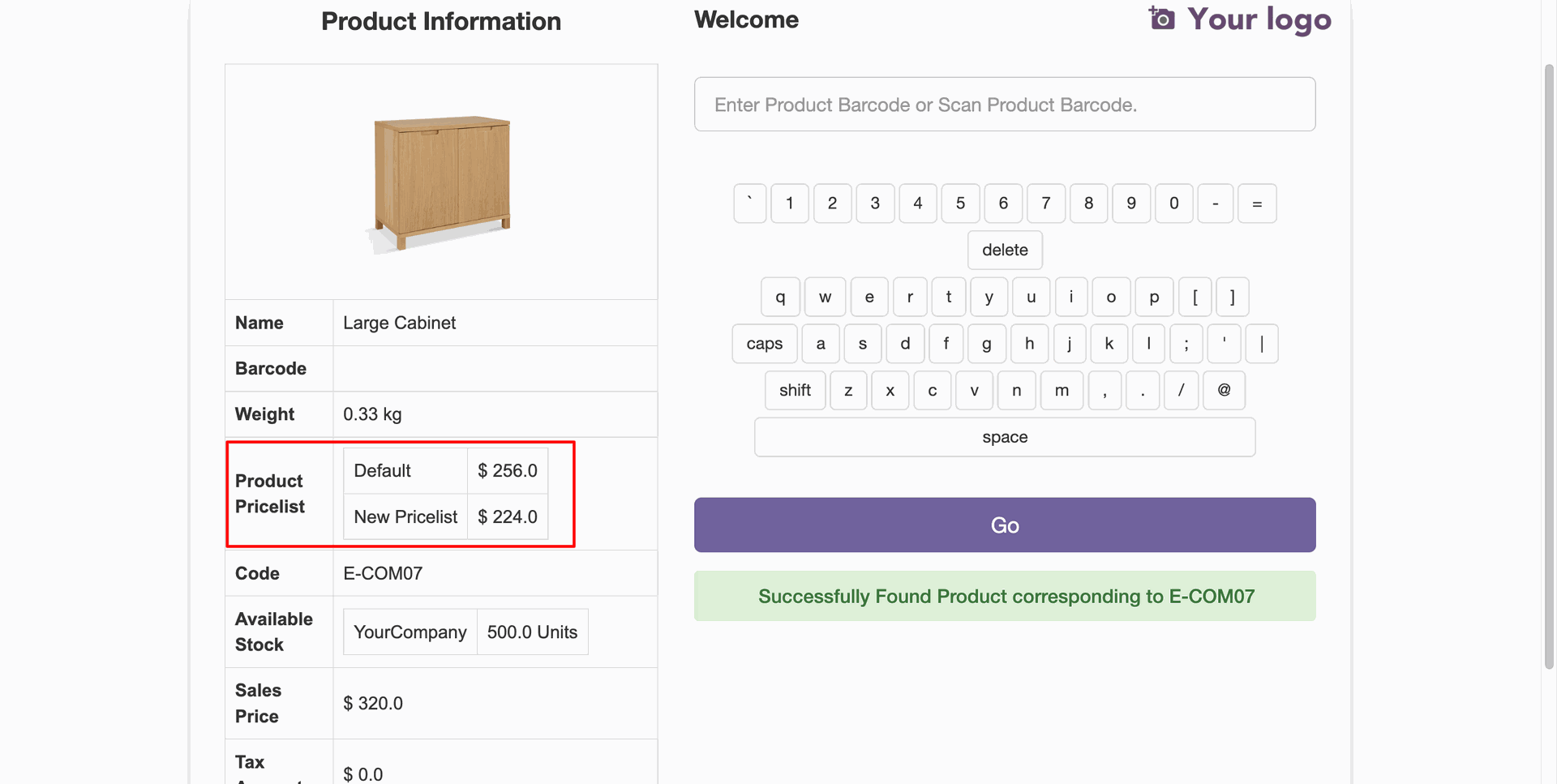
Space Bar In Keyboard.
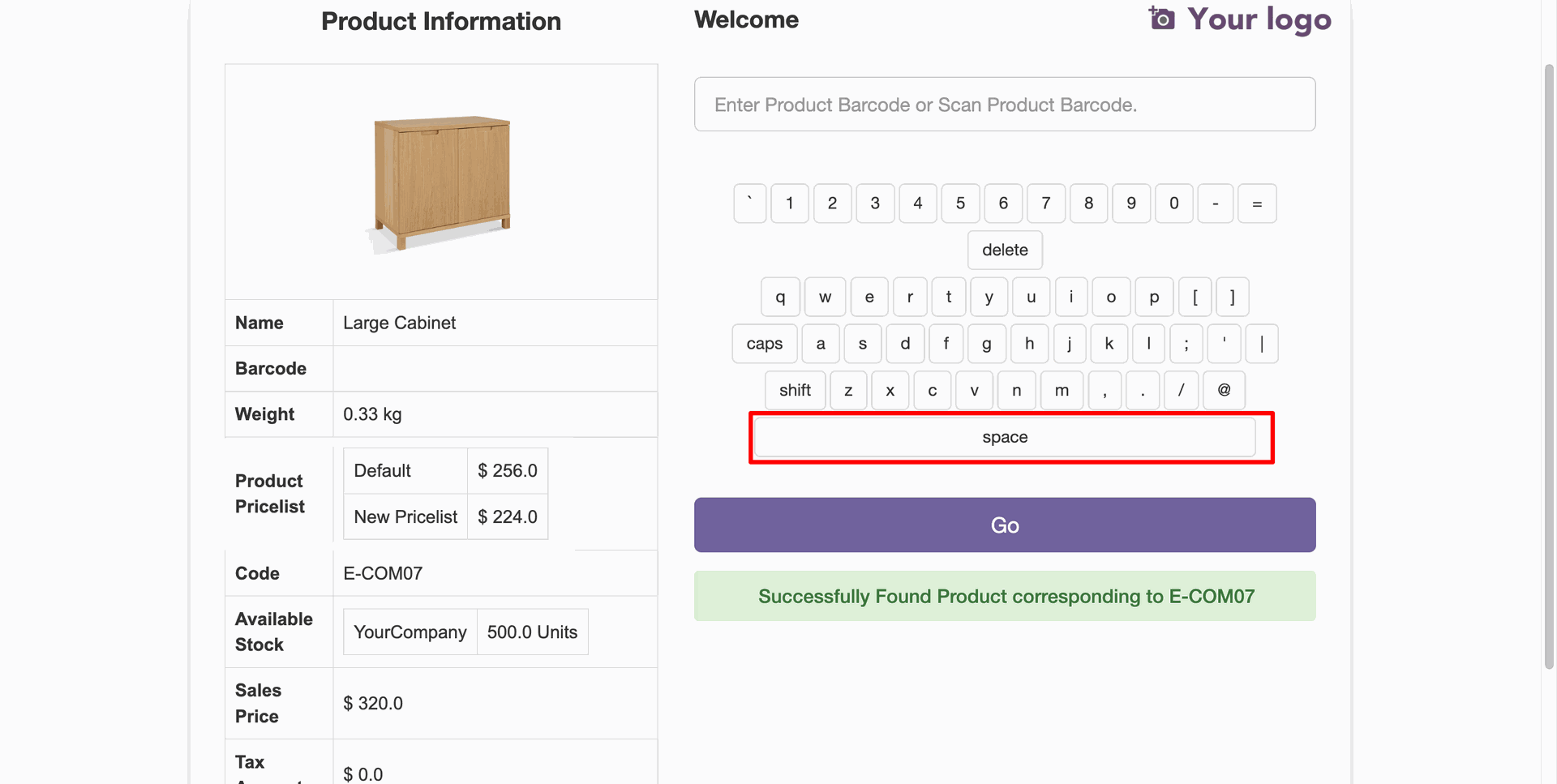
17.0.10.0.0
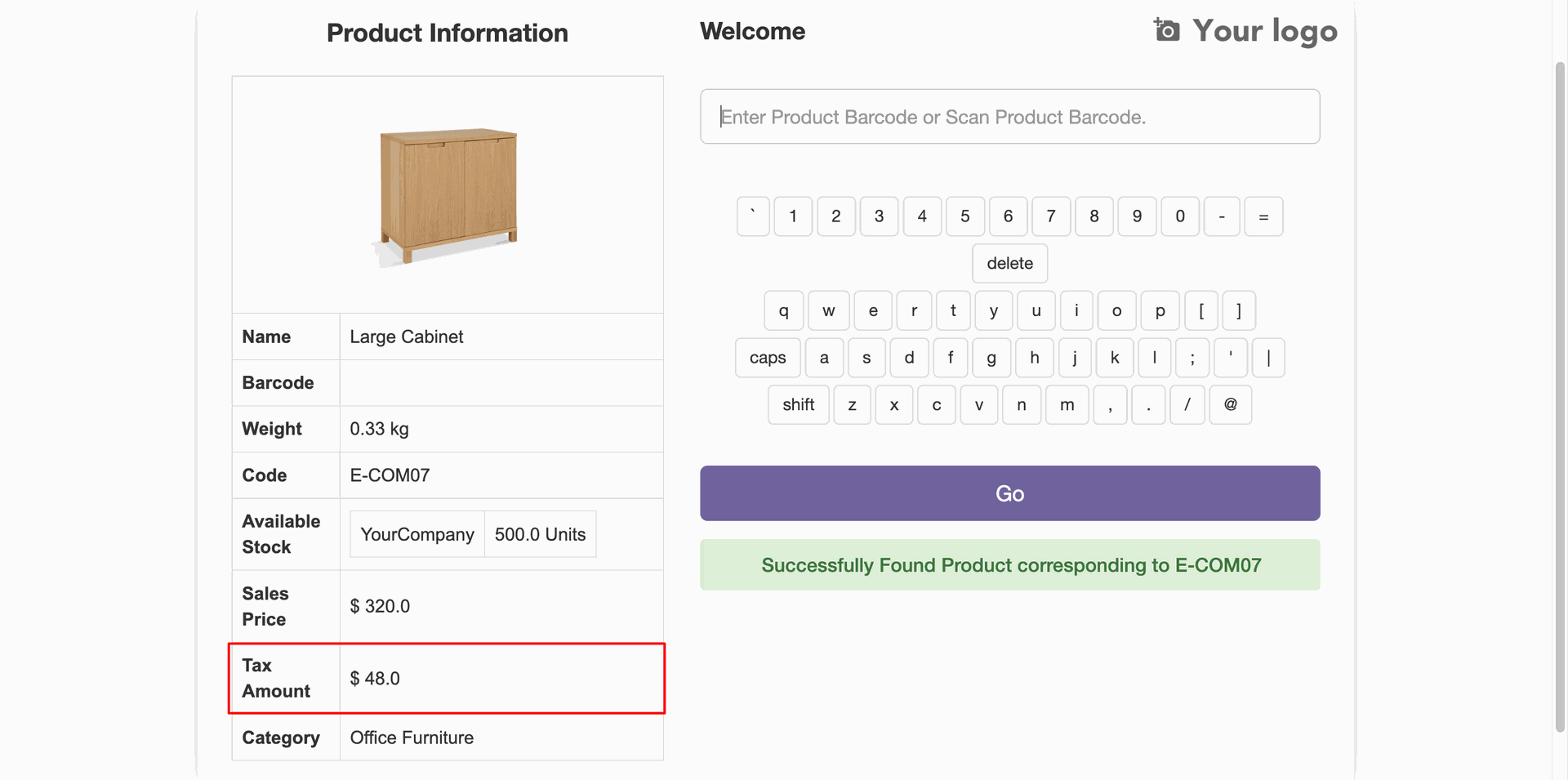
Go to 'Price Checker' ==> Configuration ==> Settings, enable the "Show Product Tax" option, and fill in the necessary details.
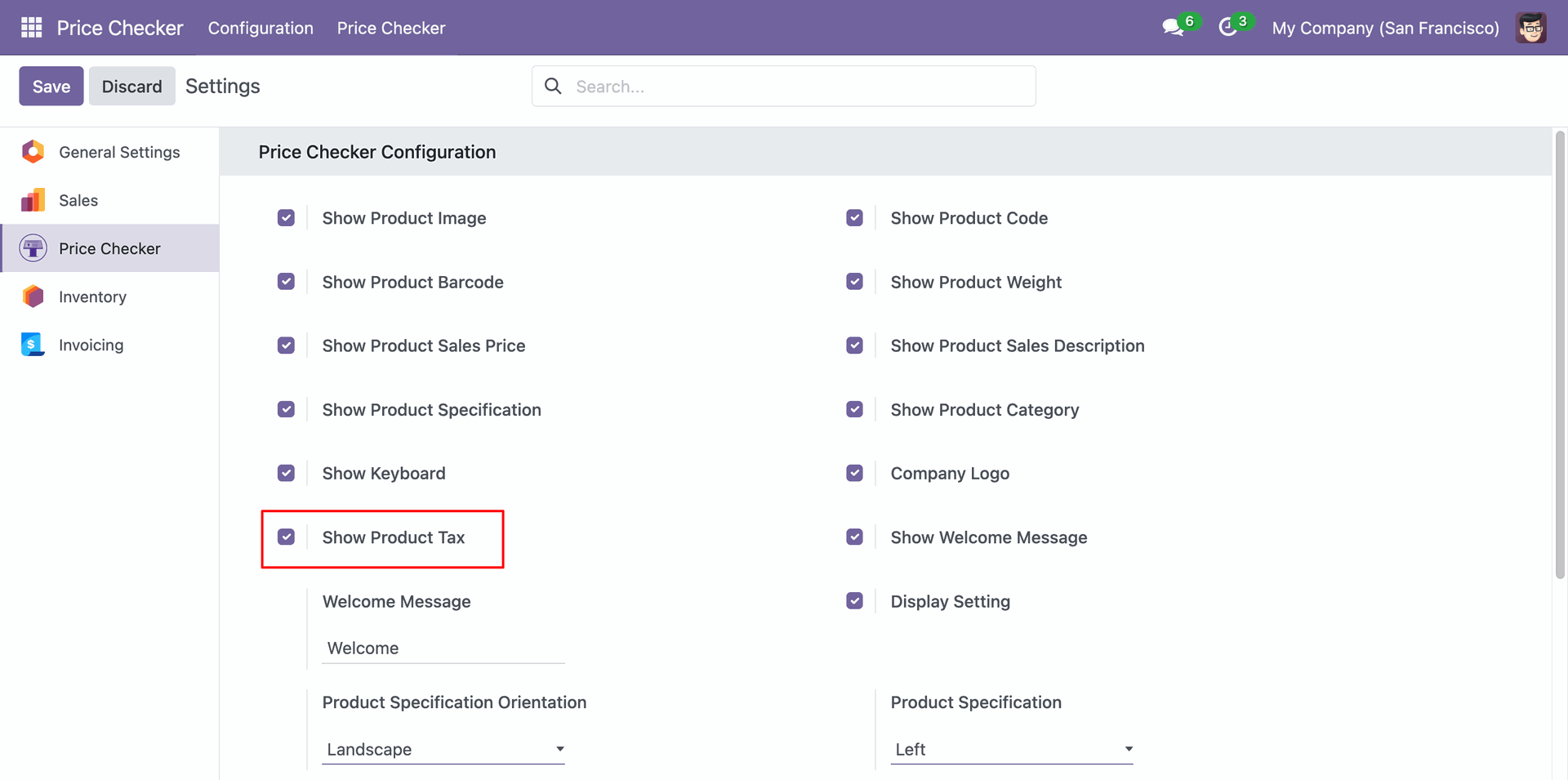
Here you can see the "Tax Amount".
Version 17.0.11.0.0 | Released on : 3rd February 2026
Version 17.0.10 | Released on : 30th January 2026
Version 17.0.9.0.0 | Released on : 30th October 2025
Version 17.0.8.0.0 | Released on : 5th June 2025
Version 17.0.7.0.0 | Released on : 2nd June 2025
Version 17.0.6.0.0 | Released on : 13th January 2025
Version 17.0.5.0.0 | Released on : 10th January 2025
Version 17.0.4.0.0 | Released on : 17th September 2024
Version 17.0.3.0.0 | Released on : 29th July 2024
Version 17.0.2.0.0 | Released on : 18th July 2024
Version 17.0.1.0.0 | Released on : 20th November 2023
- Yes, this app works perfectly with Odoo Enterprise (Odoo.sh & Premise) as well as Community.
- No, this application is not compatible with odoo.com(odoo saas).
- Please Contact Us at sales@softhealer.comto request customization.
- Yes, we provide free support for 100 days.
- Yes, you will get free update for lifetime.
- No, you don't need to install addition libraries.
- Yes, You have to download module for each version (13,14,15) except in version 12 or lower.
- No, We do not provide any kind of exchange.
