












POS Rounding

You feel difficult to round the total amount in POS? so you are at the right place. Cash rounding required at some times. This module automatically rounds the total amount in the POS order. You can round the total amount in all payments as well as any particular payment. We provide features like normal rounding and rounding to fifty. You can print the round amount in the POS report. cheers!


Features

POS Order Total Rounding
Automatically round the total amount of POS orders based on the configured rounding method.

Manual Payment Rounding
Apply rounding to manually entered payment amounts in POS transactions.

POS Receipt Round Amount
Display the rounded amount and rounding adjustment on printed POS receipts.

Configurable Rounding Methods
Choose between Normal Rounding and Rounding to Fifty for POS transactions.
Digit & Decimal-Based Order Rounding

Round the POS order total based on configurable digits or decimal points for flexible pricing.

Original & Rounded Total on Receipt
Display both the original total, rounded total, and rounding difference on the POS receipt for transparency.

Session-Wise Rounding Report
Generate a detailed report of all rounding adjustments made during a POS session.

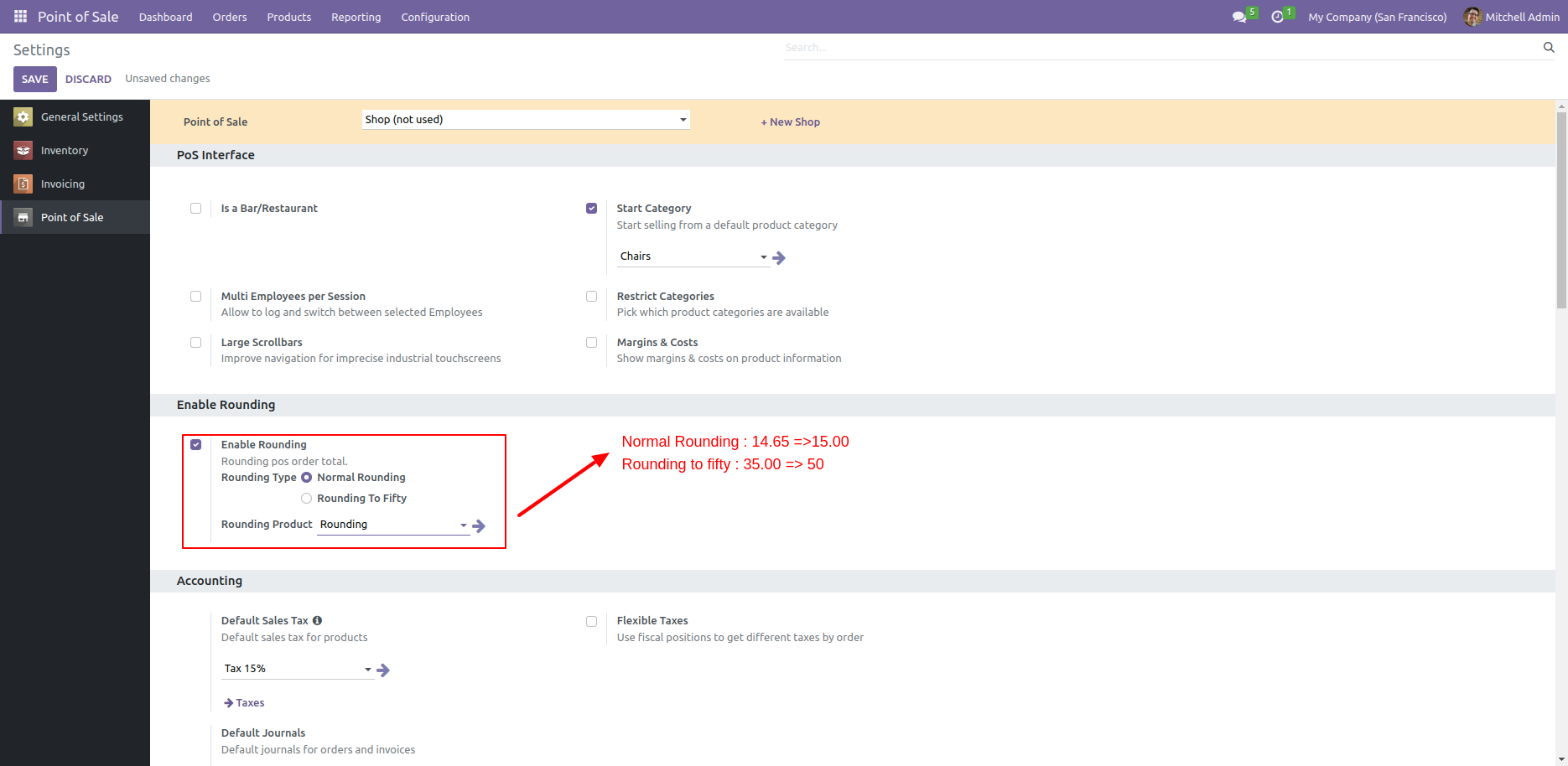
Tick the "Enable Rounding" tickbox to rounding the total amount.
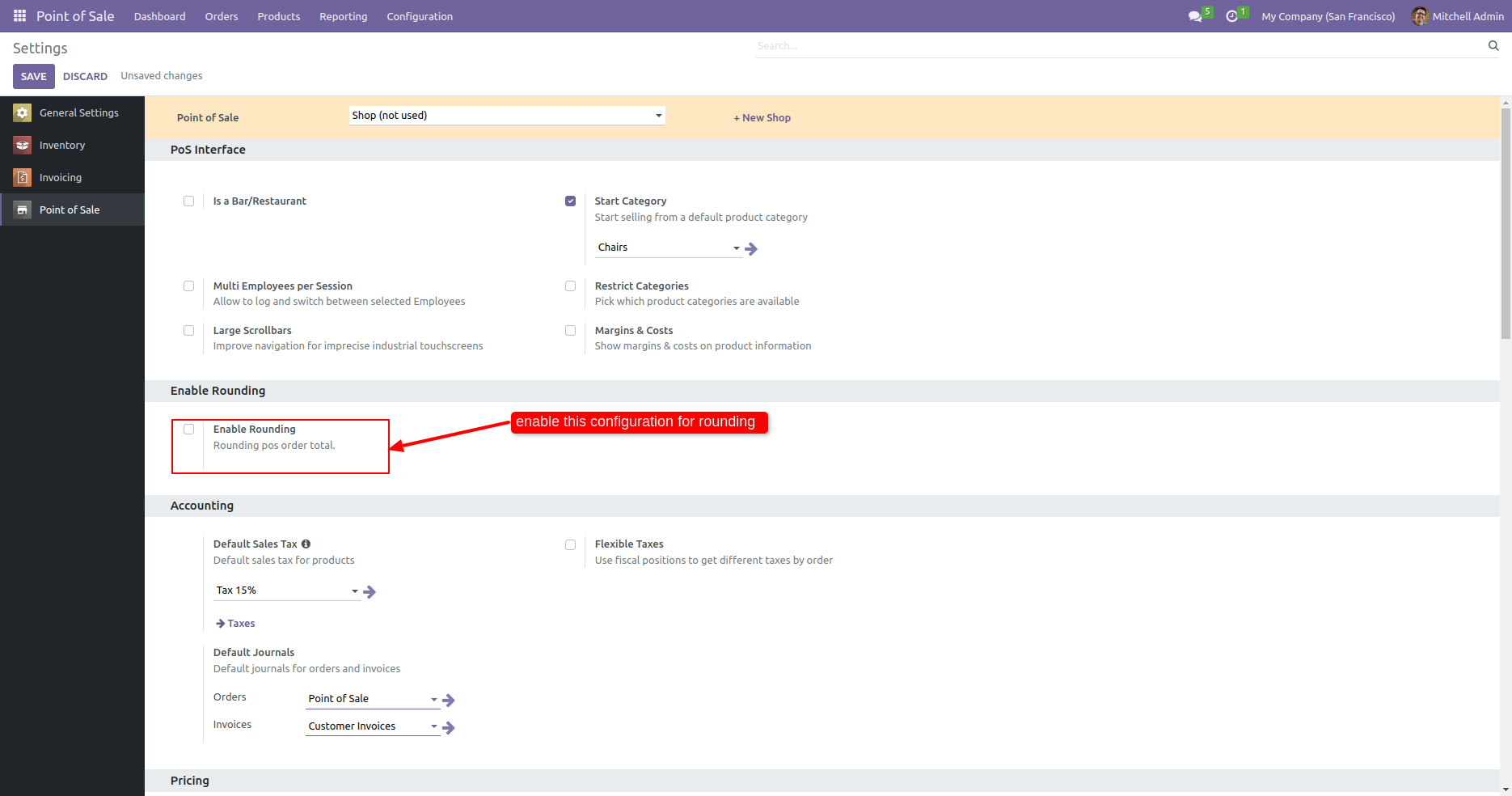
After that, you have two options in the rounding type, choose anyone.
1) Normal Rounding: If you get a total amount "14.65" then the rounding amount will be
"15.00".
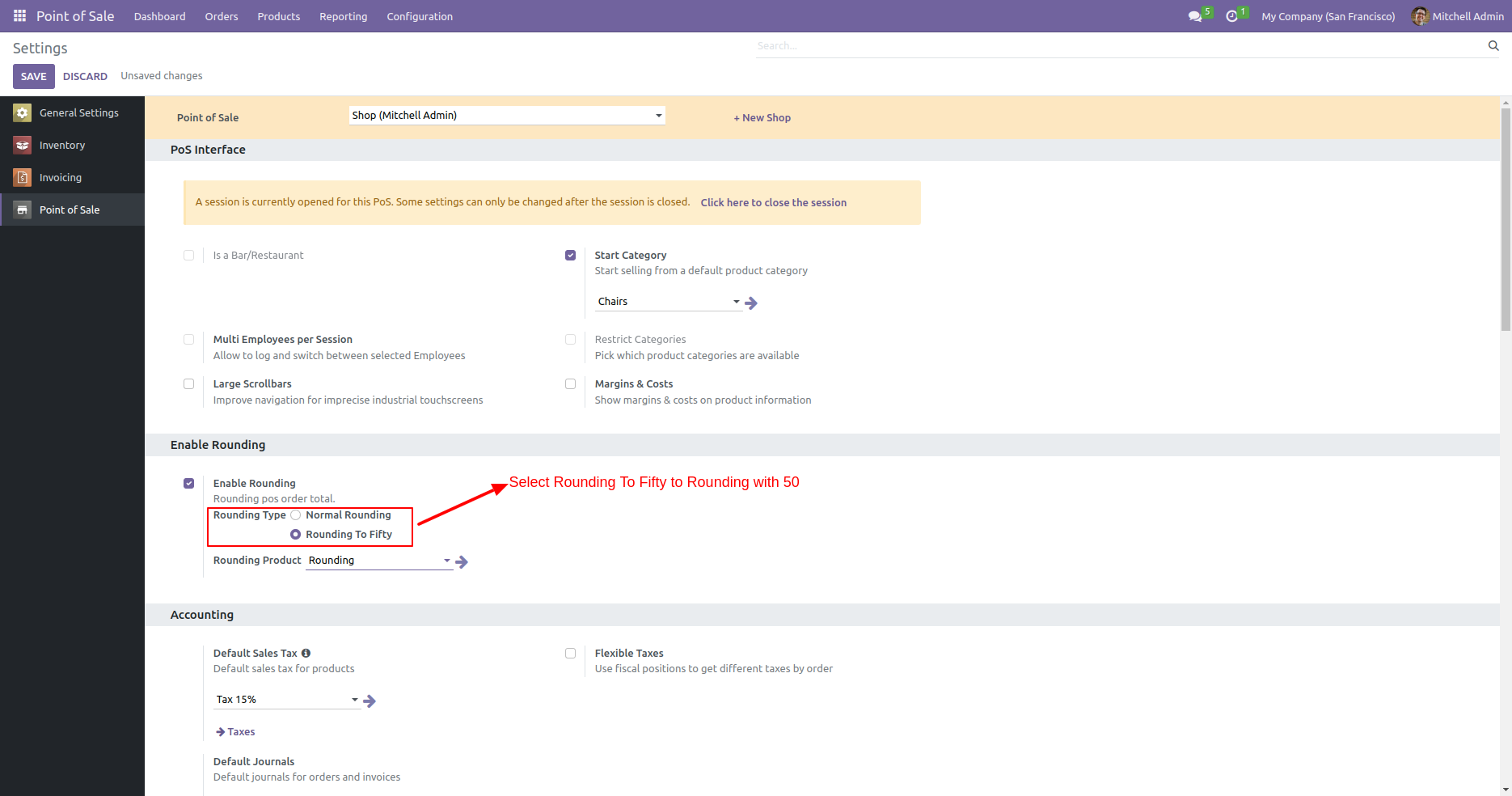
2) Rounding To Fifty: If you get a total amount "35.00" then the rounding amount will be
"50.00".
Here we choose normal rounding.
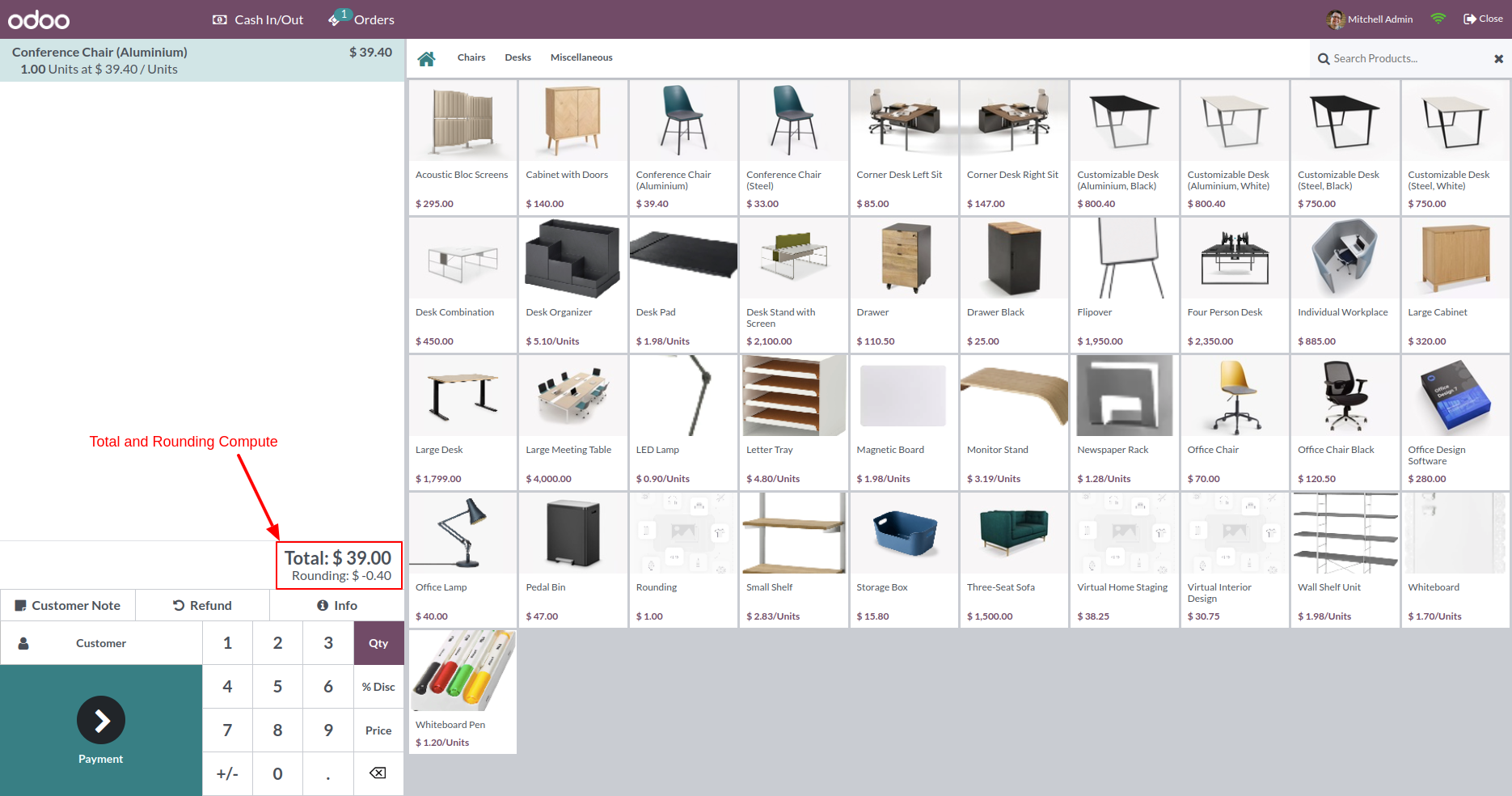
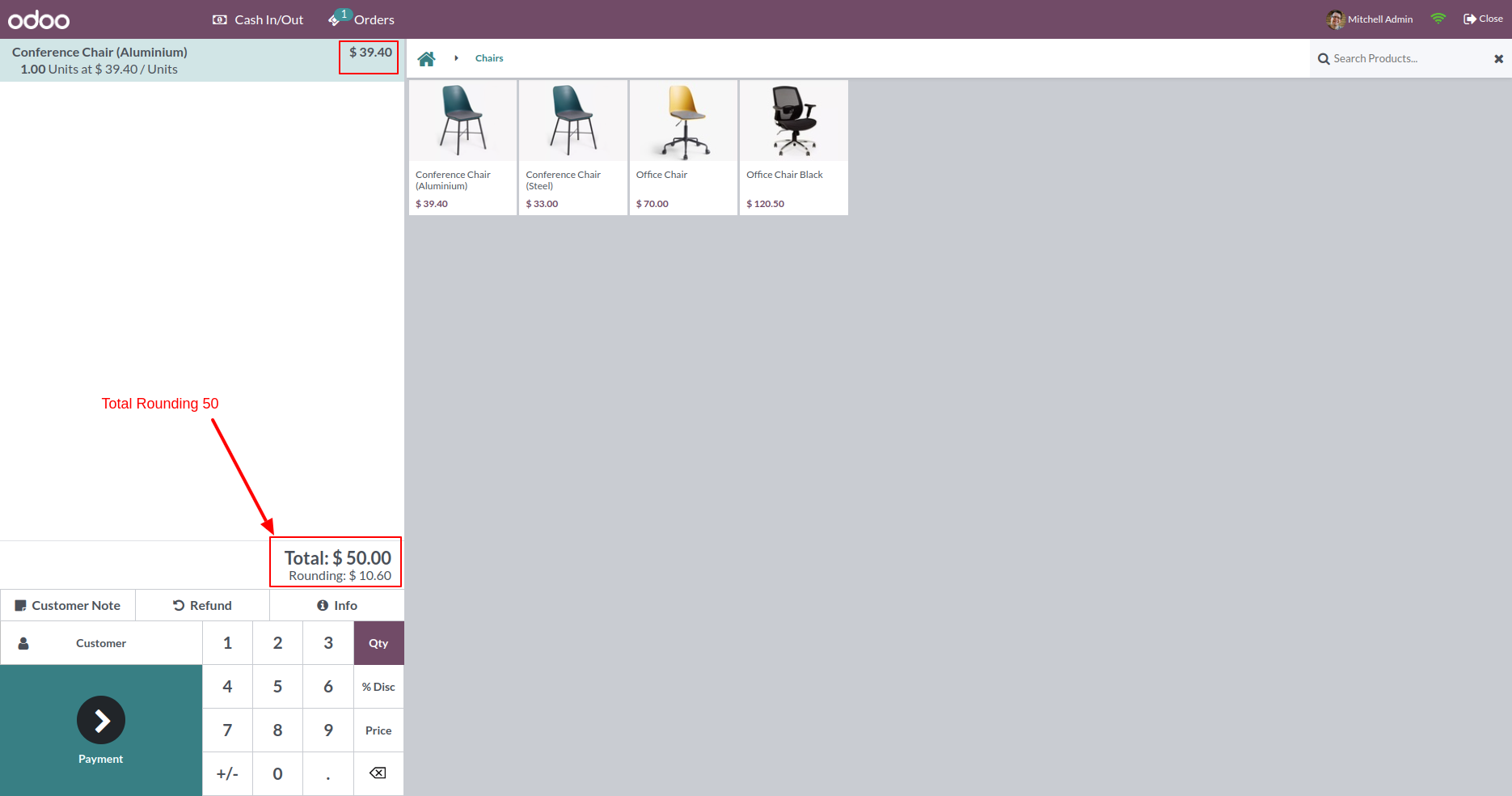
Total value with rounding.
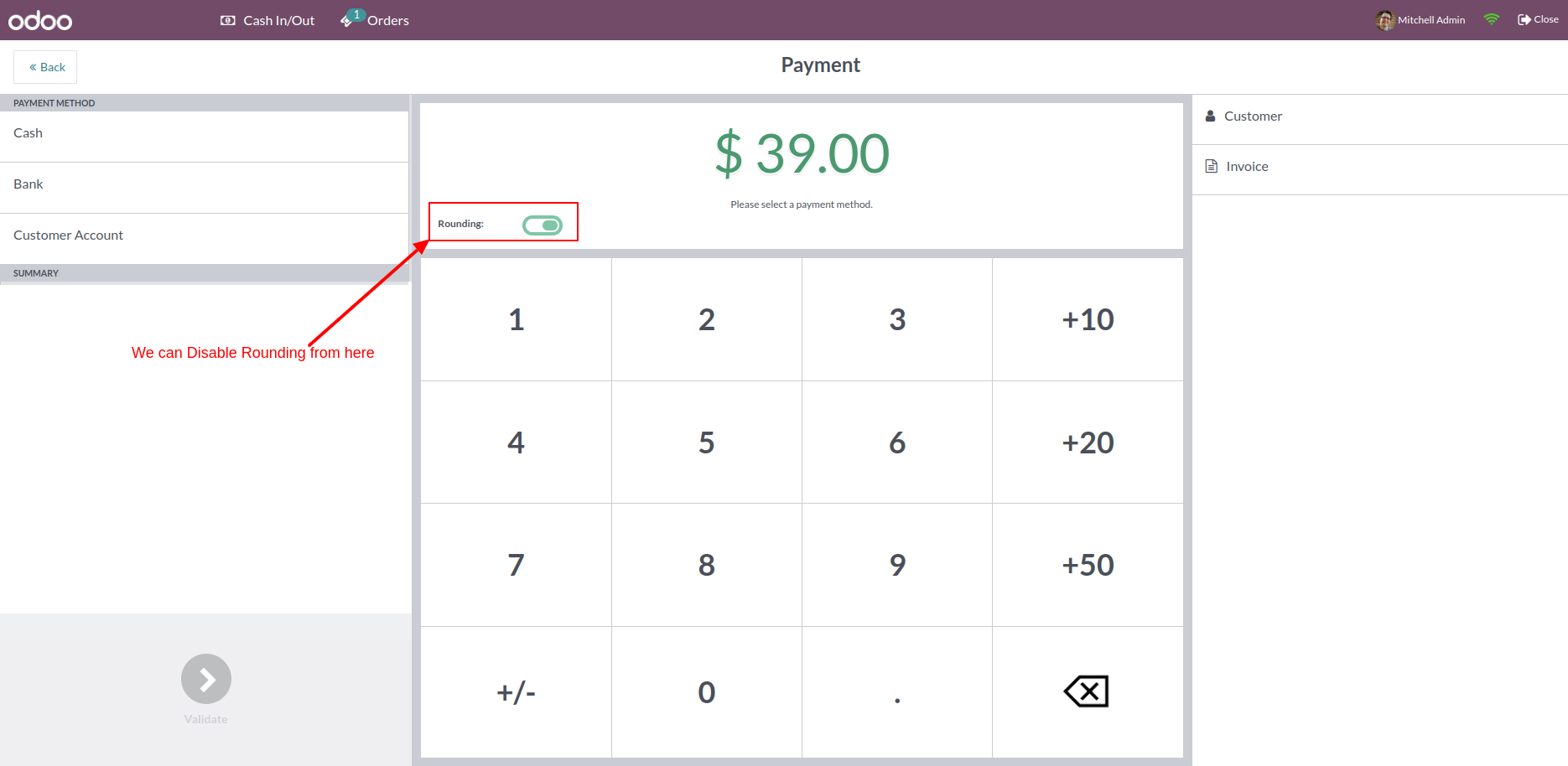
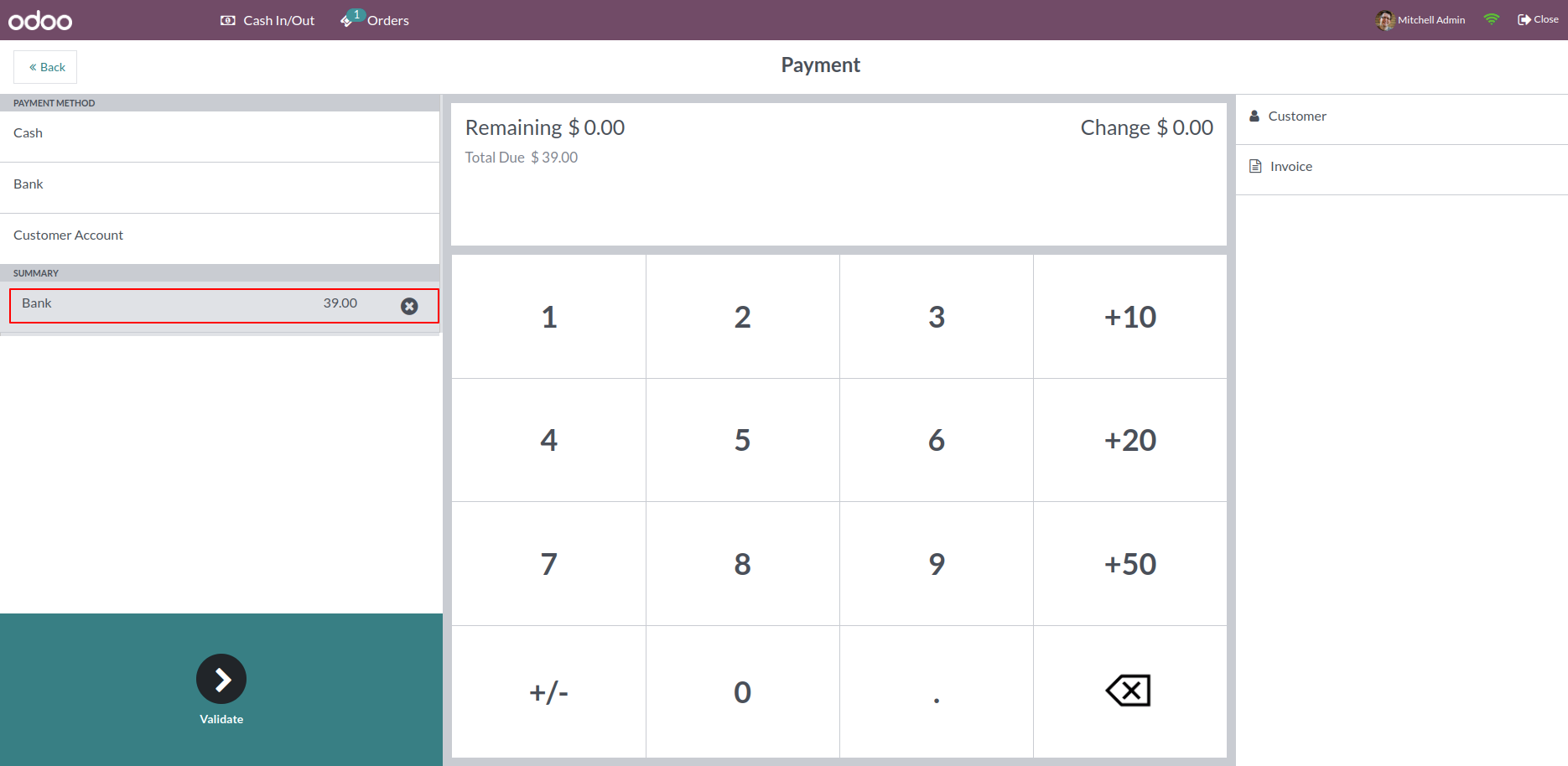
If we have done enabled rounding then it displays rounding total amount in the payment screen. You can also disable rounding from here.
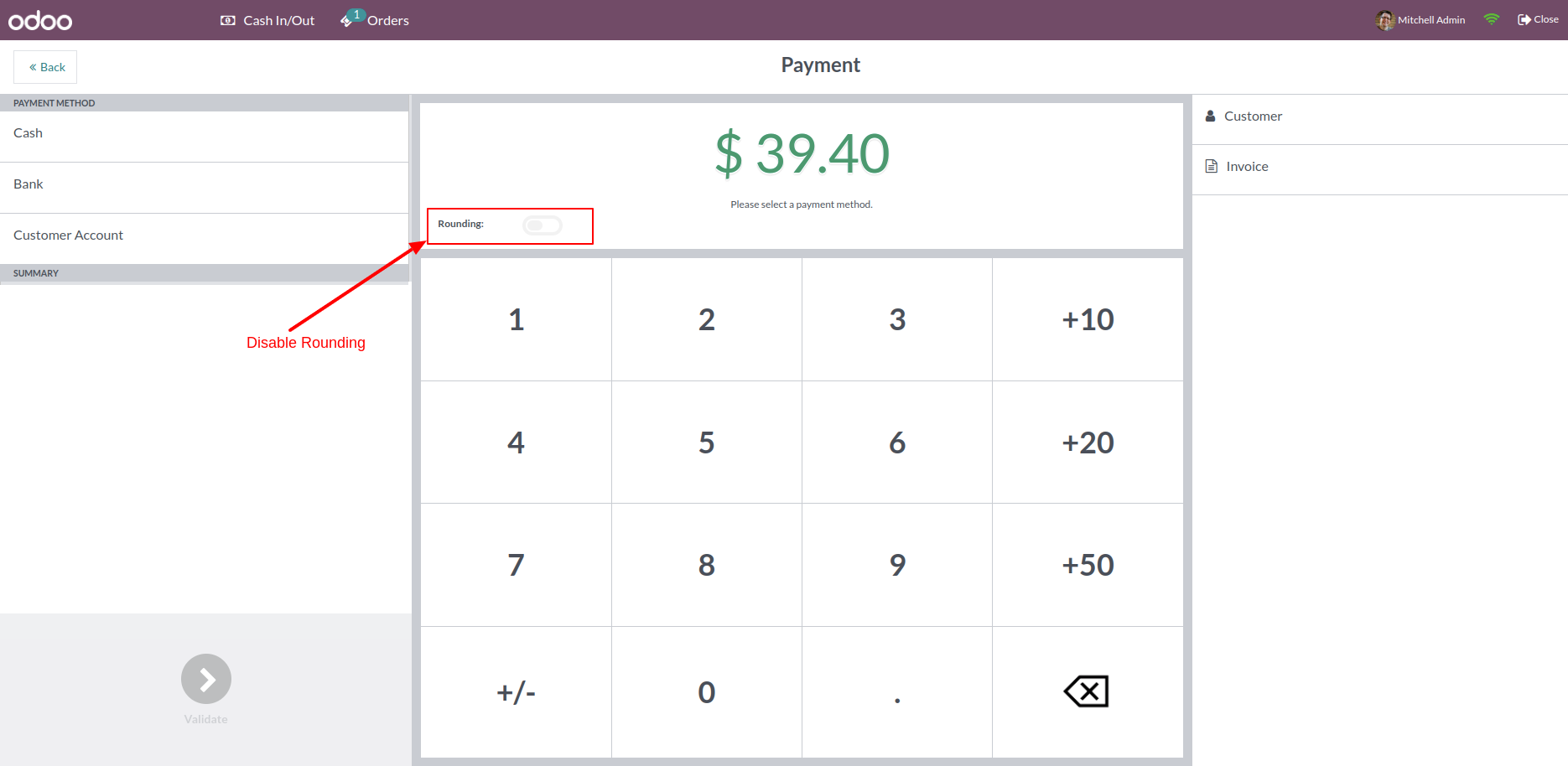
If you disabled rounding from that, then it set to the actual amount.
After that select payment method and then validate that.
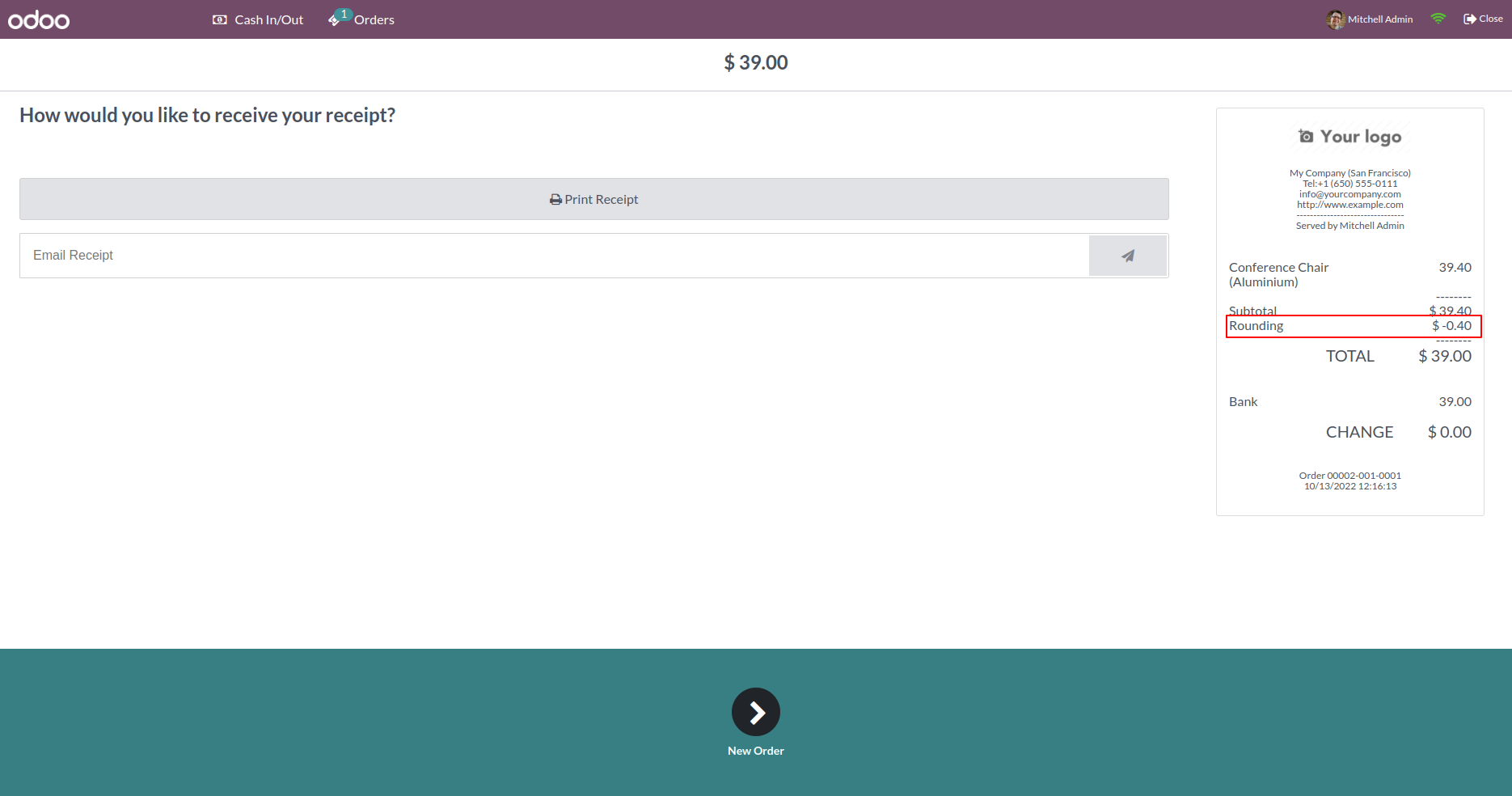
In the POS receipt, the rounding amount will be displayed if you have enabled rounding.
We choose rounding to fifty option in the rounding type.
Total value with rounding.
If we have done enabled rounding then it displays rounding total amount in the payment screen. You can also disable rounding from here.
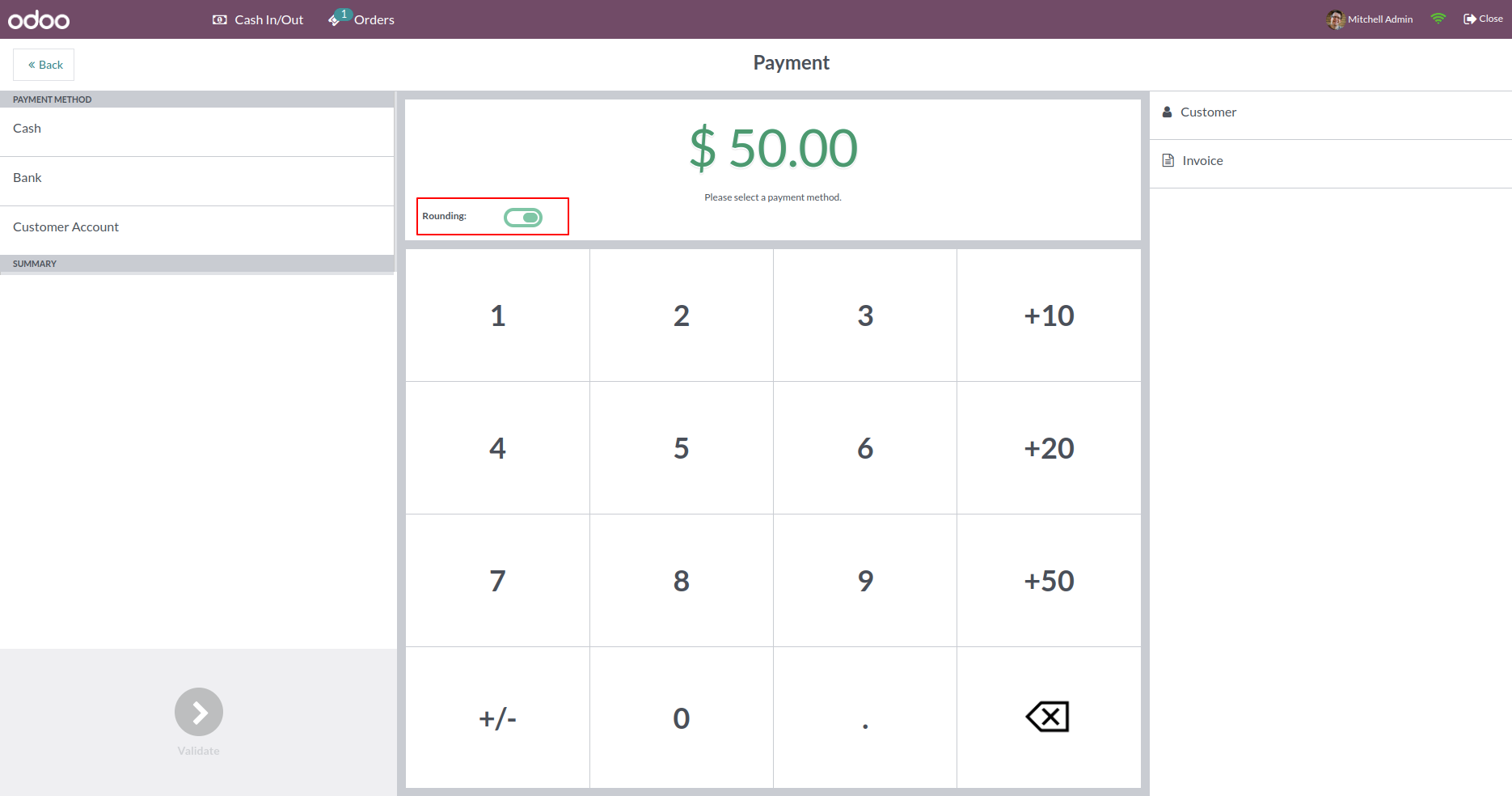
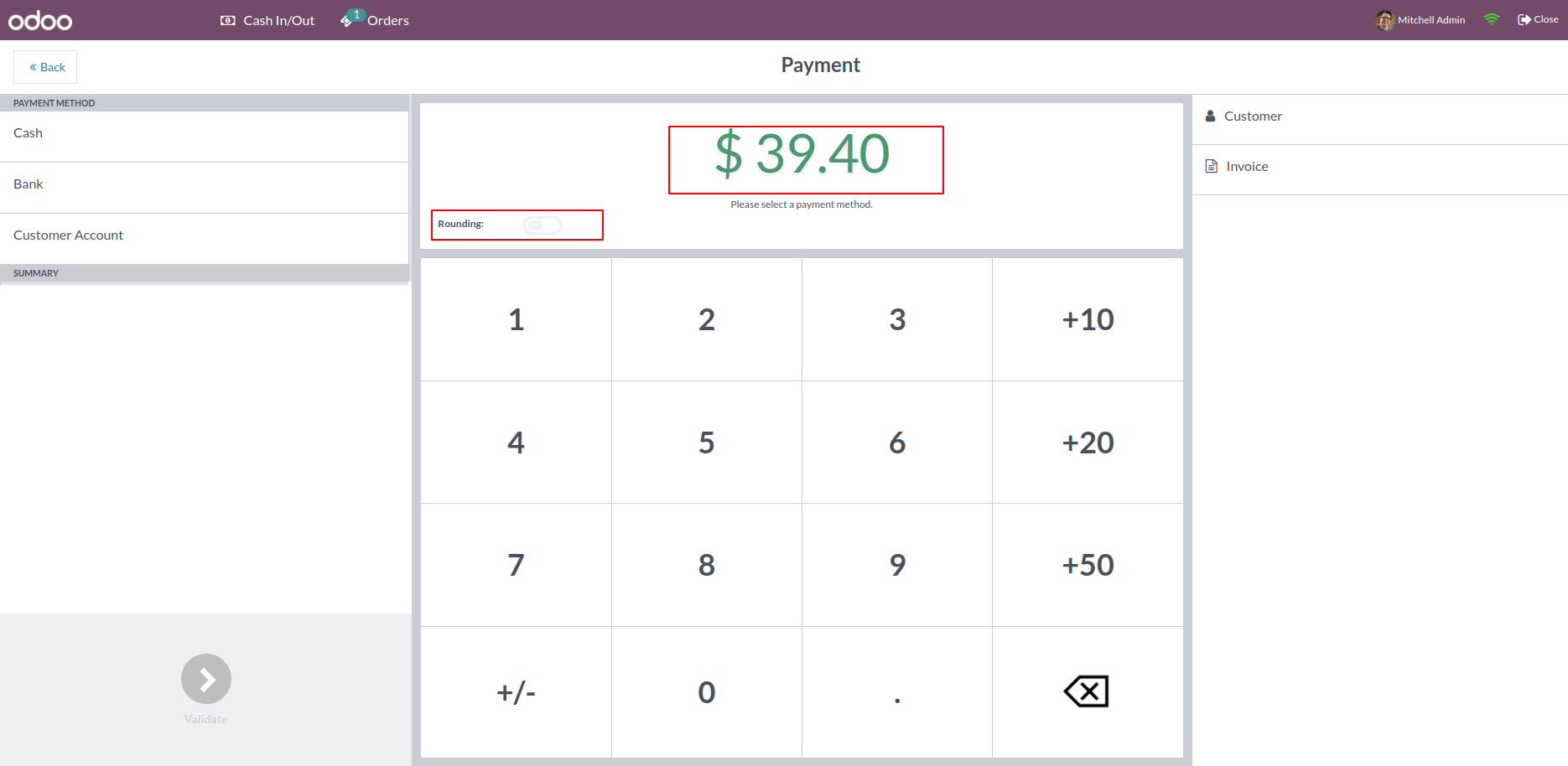
If you disabled rounding from that, then it set to the actual amount.
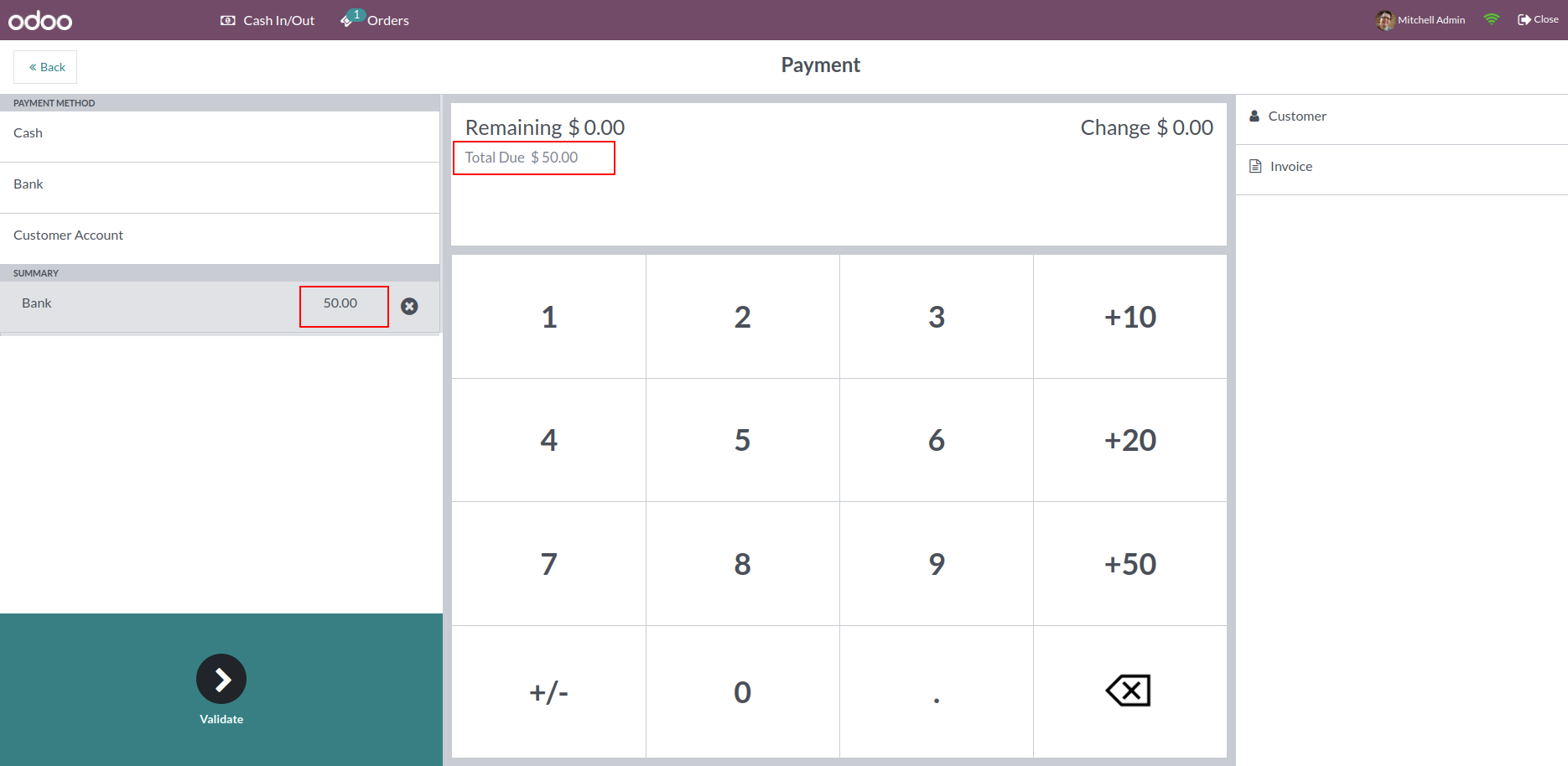
After that select payment method and then validate that.
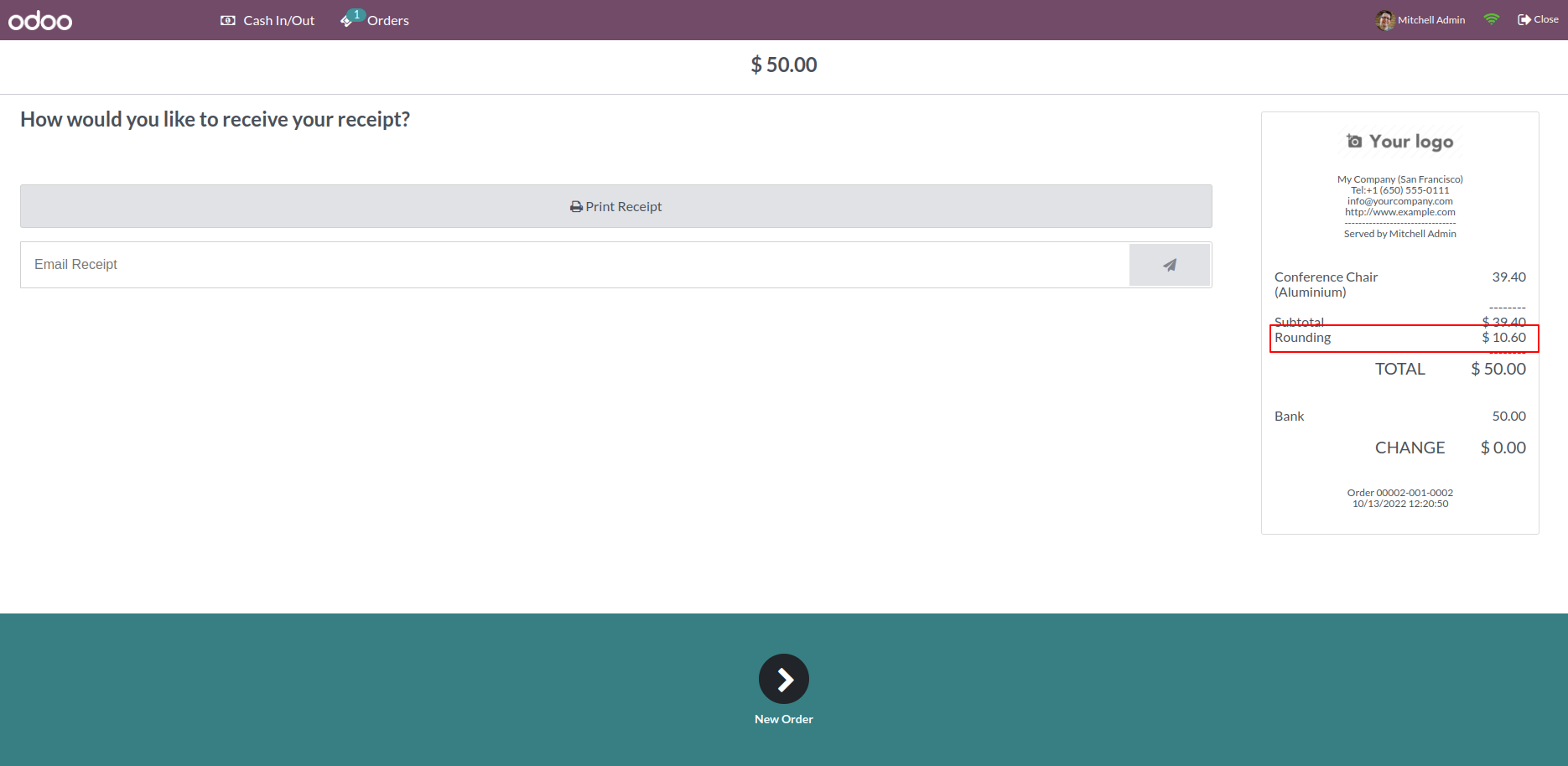
In the POS receipt, the rounding amount will be displayed if you have enabled rounding.
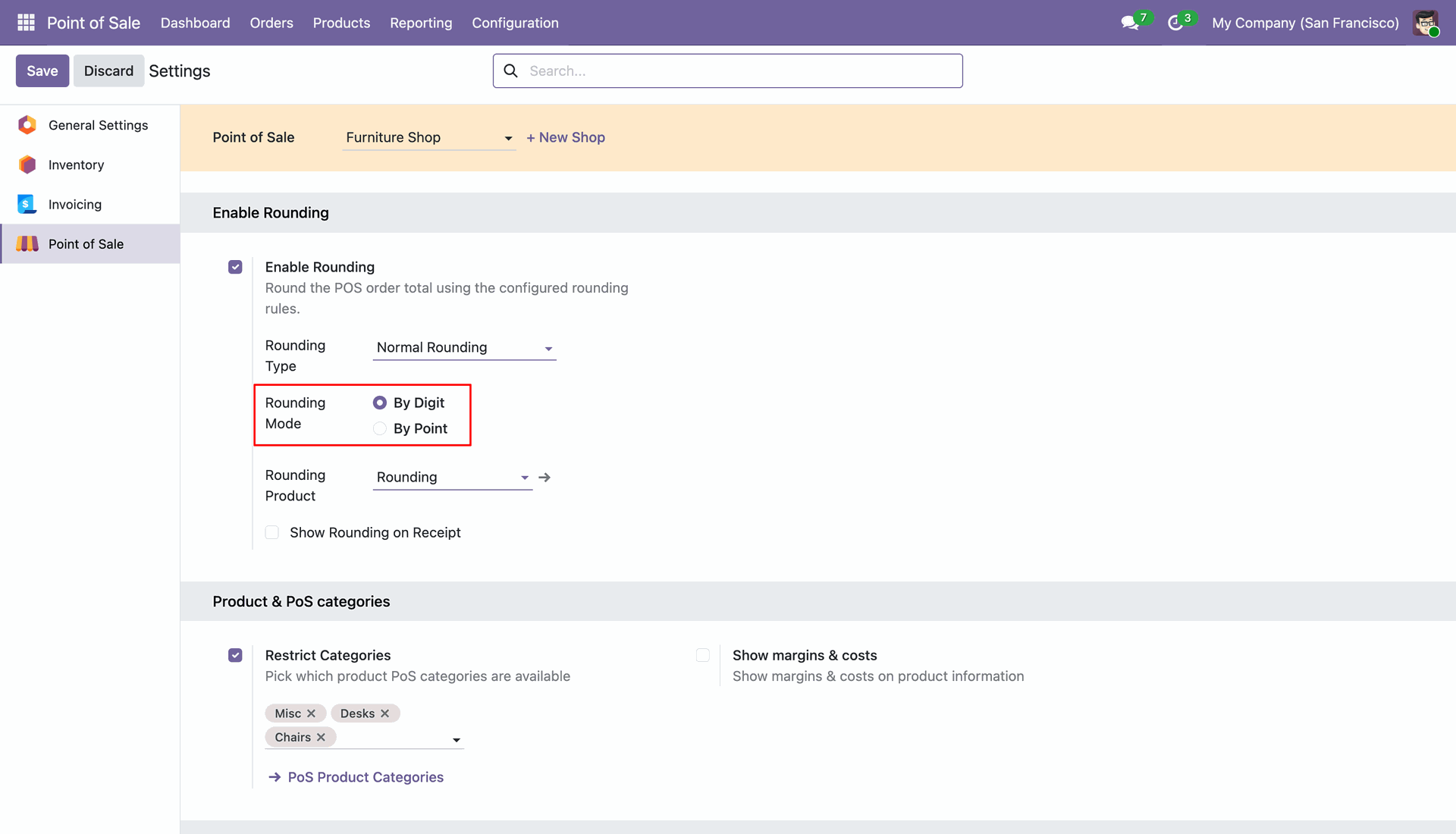
Go to the POS Settings and select the Rounding Mode as By Digit to apply rounding based on the configured number of decimal digits.
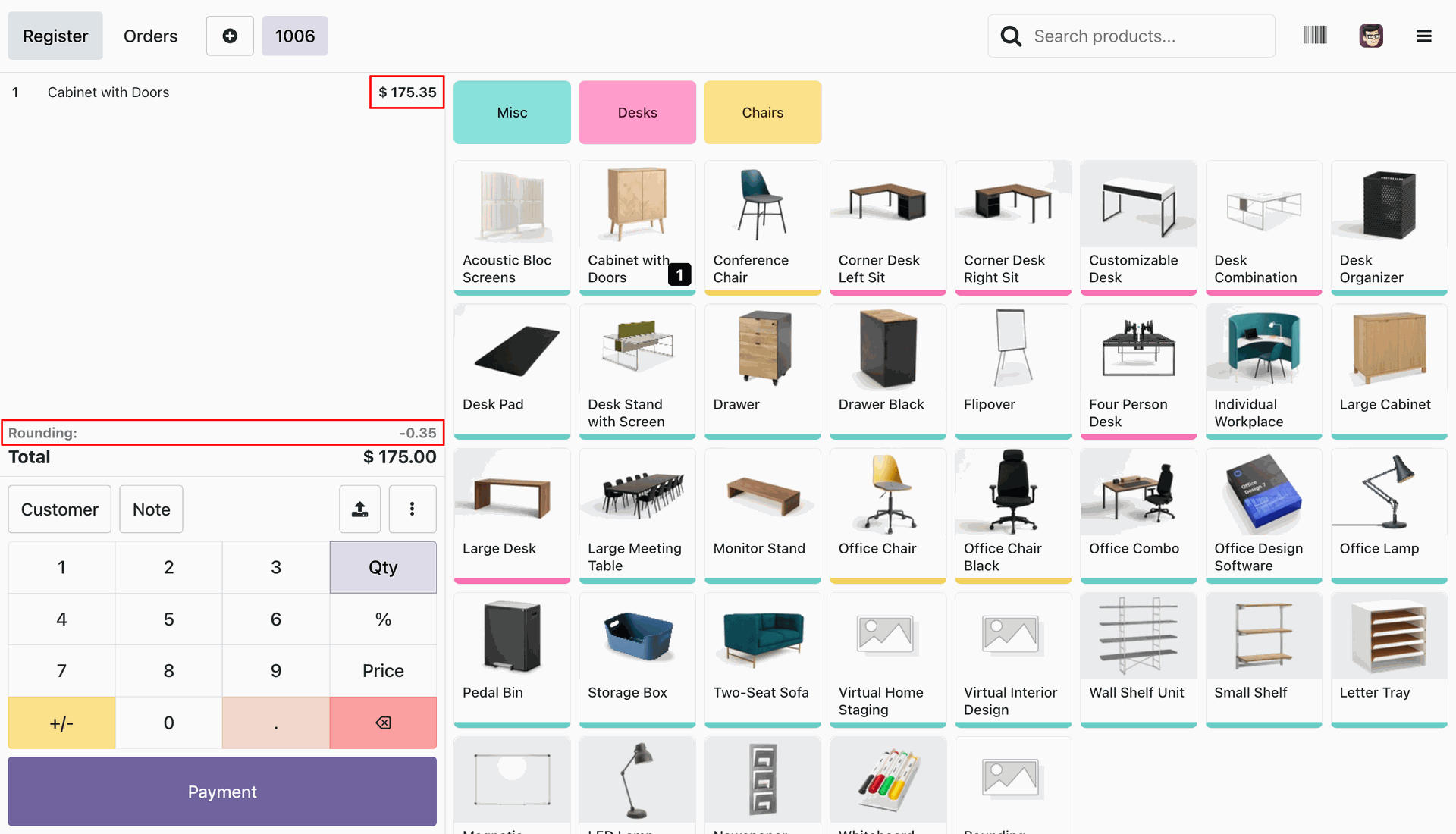
Go to the POS cart and add a product. The total amount is automatically rounded according to the configured digit-based rounding settings,
and the rounded value is displayed in the cart.
If the decimal value is less than 0.50, the amount is rounded down to the previous whole number.
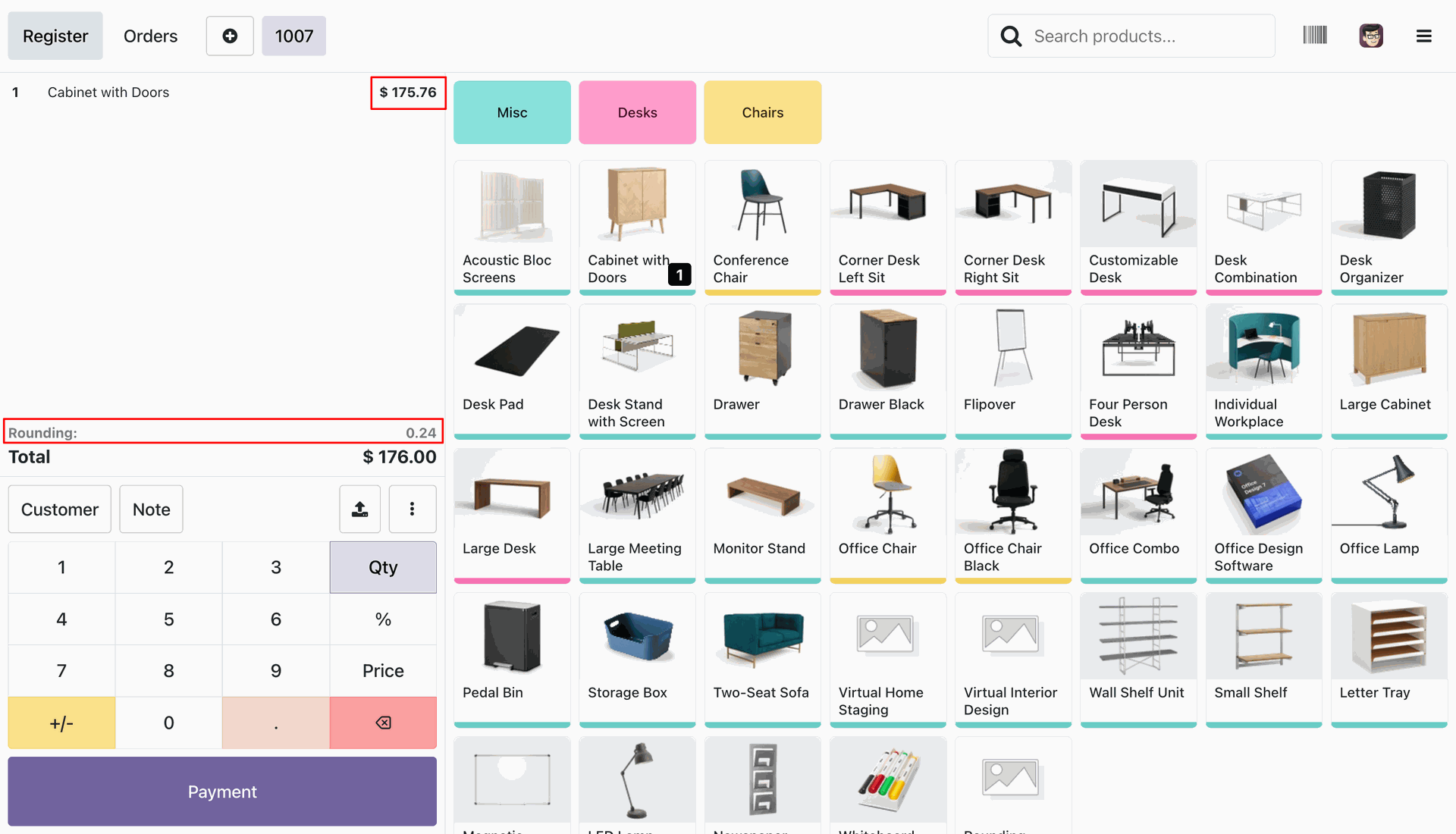
If the decimal value is 0.50 or greater, the amount is rounded up to the next whole number.
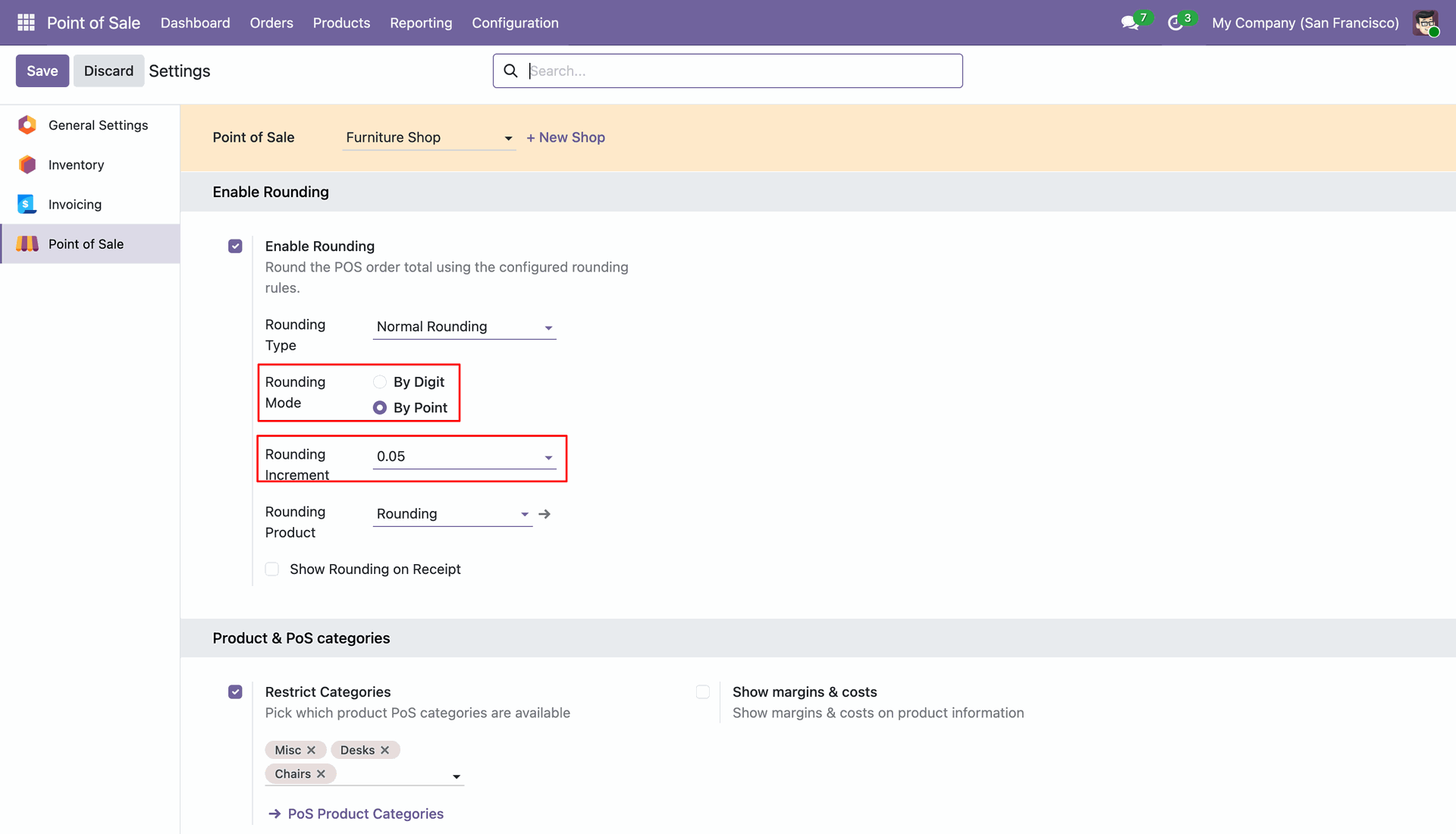
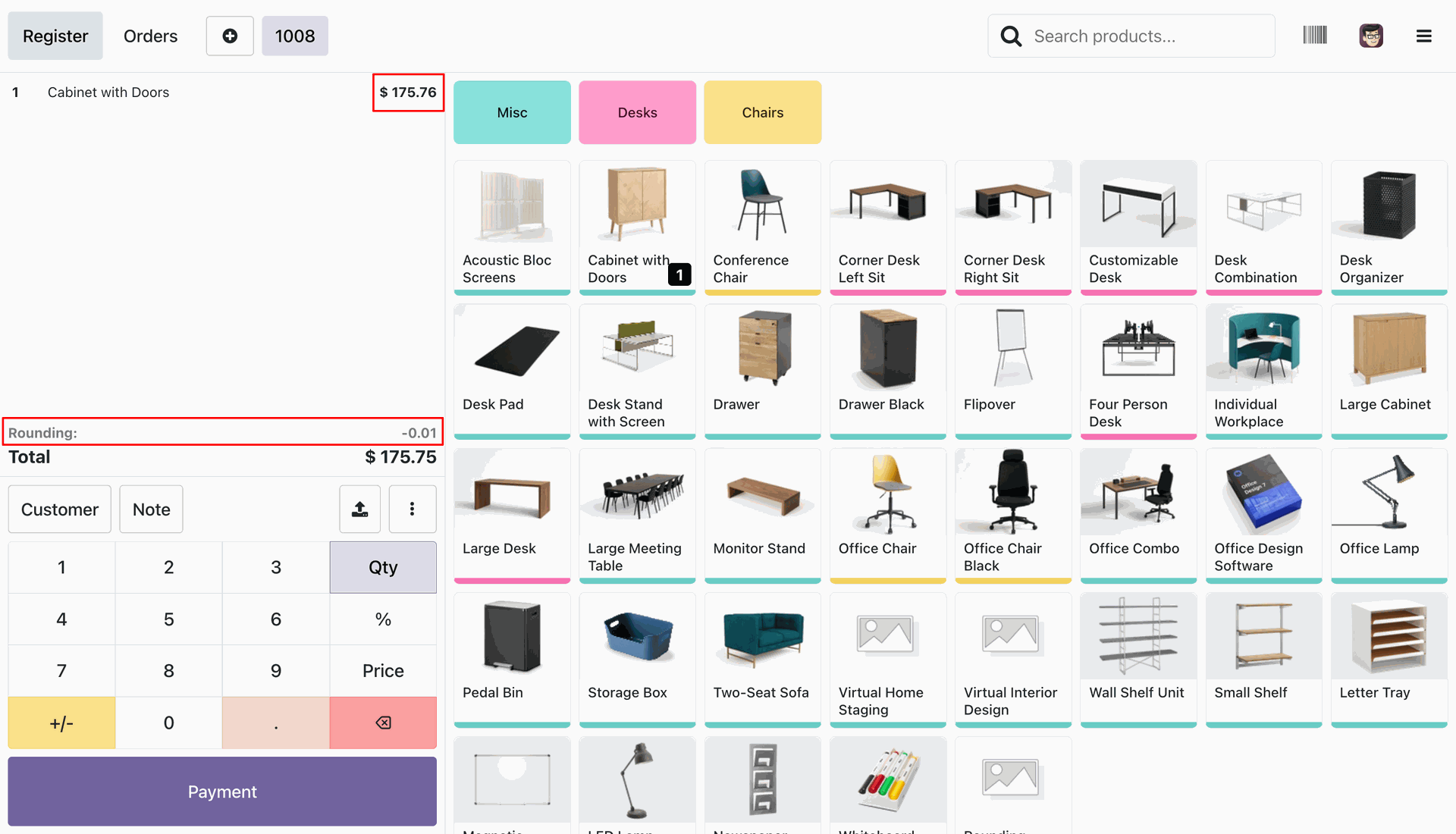
Go to the POS Settings, select the Rounding Mode as By Points, and configure the Rounding Increment to apply amount rounding based on the specified increment.
Go to the POS cart and add a product. The total amount is automatically rounded according to the configured point-based rounding increment, and the rounded value is displayed in the cart.
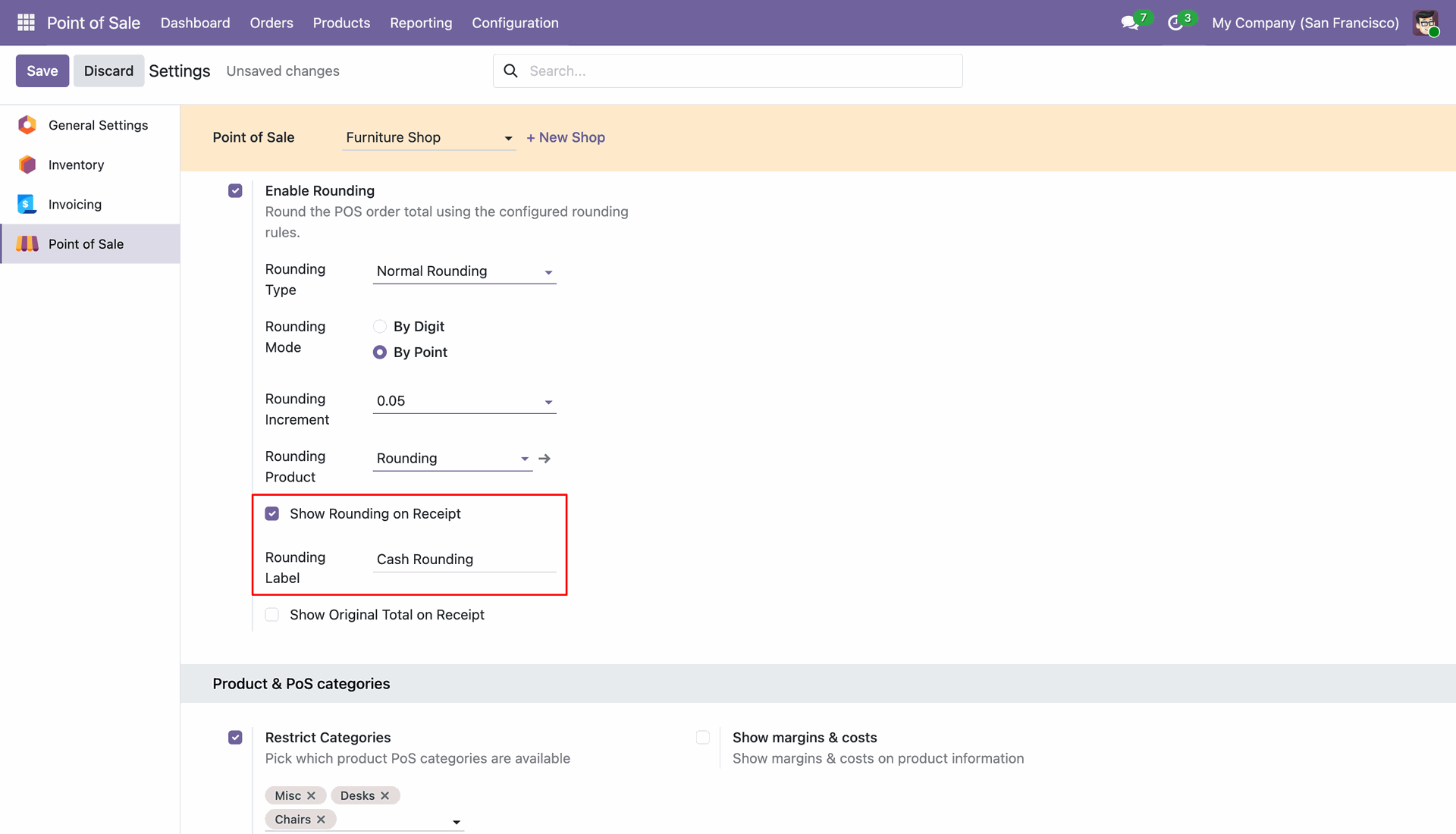
Go to the POS Settings, enable the Show Rounding on Receipt option, and set the Rounding Label to display the rounding adjustment with a label on the printed receipt.
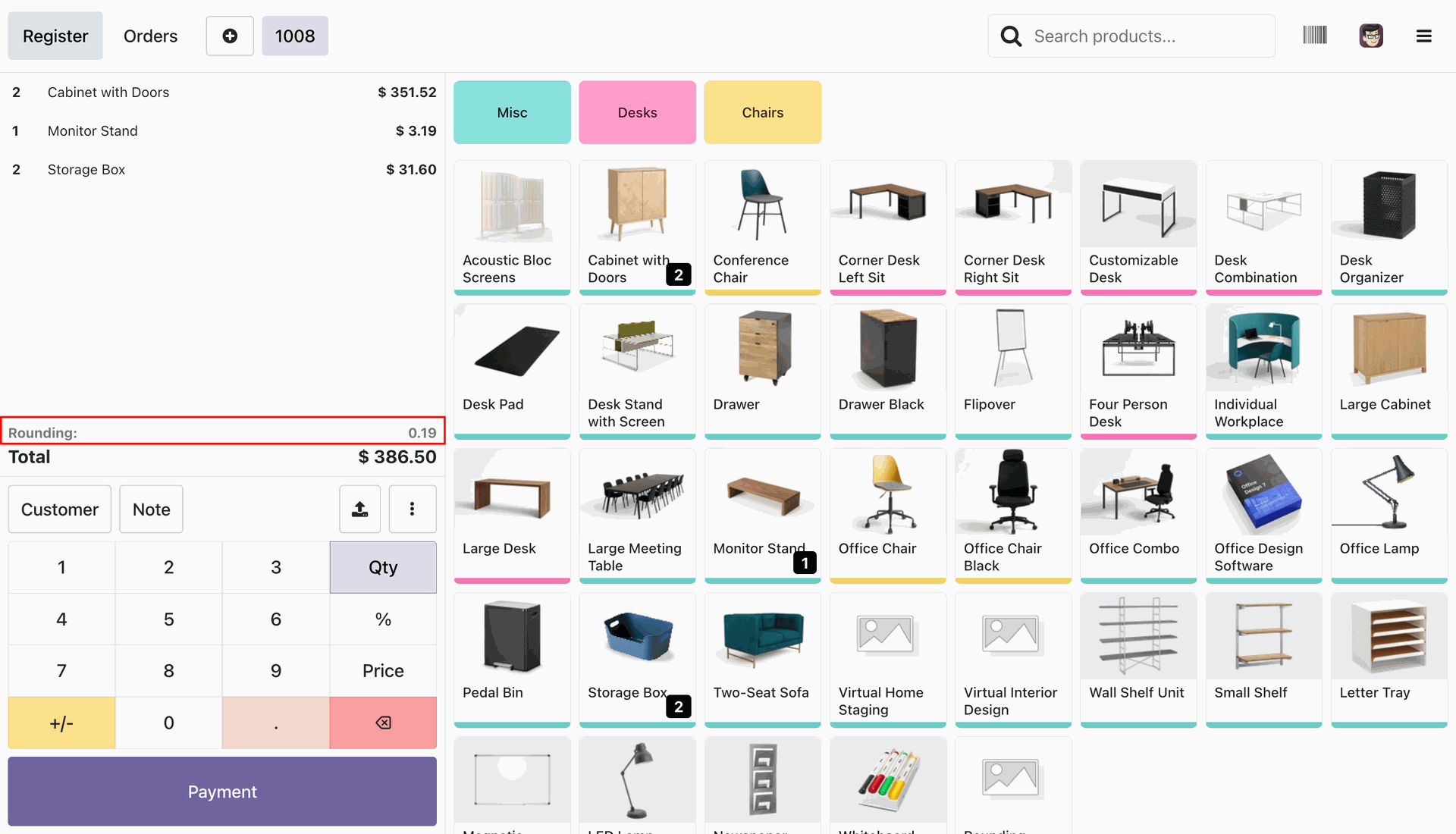
Go to the POS cart, select a product, and complete the payment process.
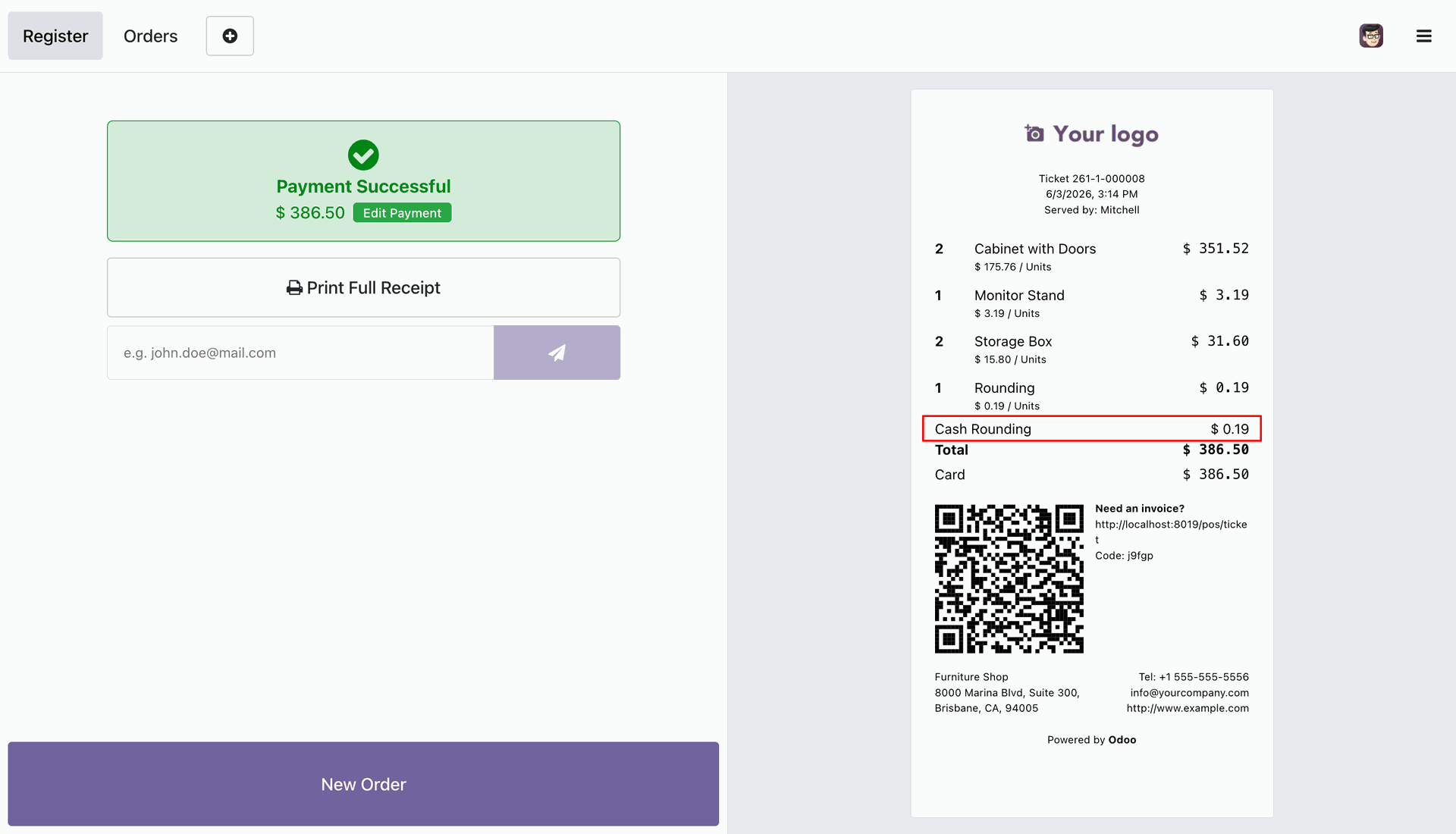
On the POS receipt, the rounding amount is displayed along with the configured Rounding Label, providing a clear breakdown of the applied rounding adjustment.
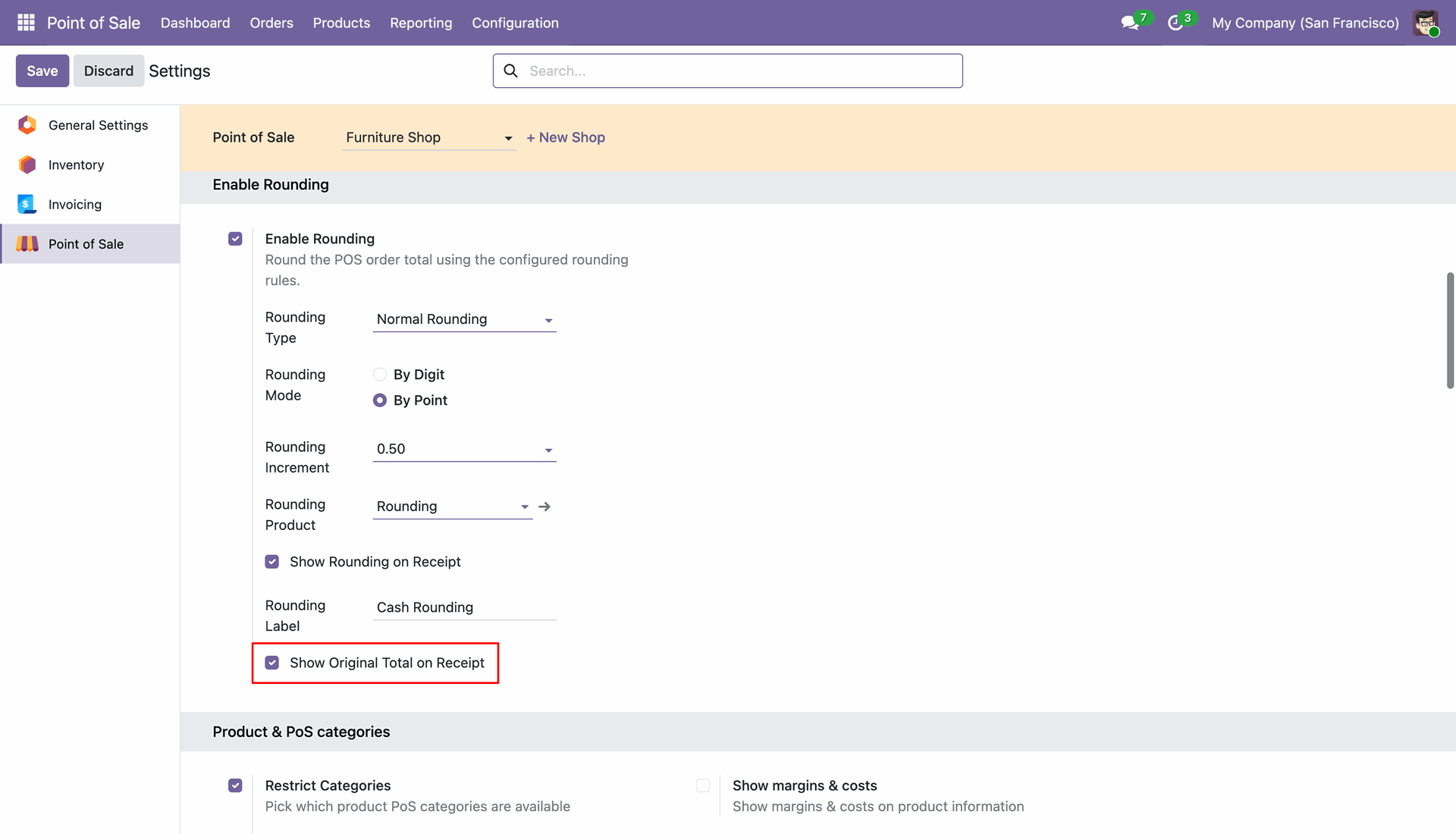
Go to the POS Settings and enable the Show Original Total on Receipt option to display the original total amount before rounding on the POS receipt.
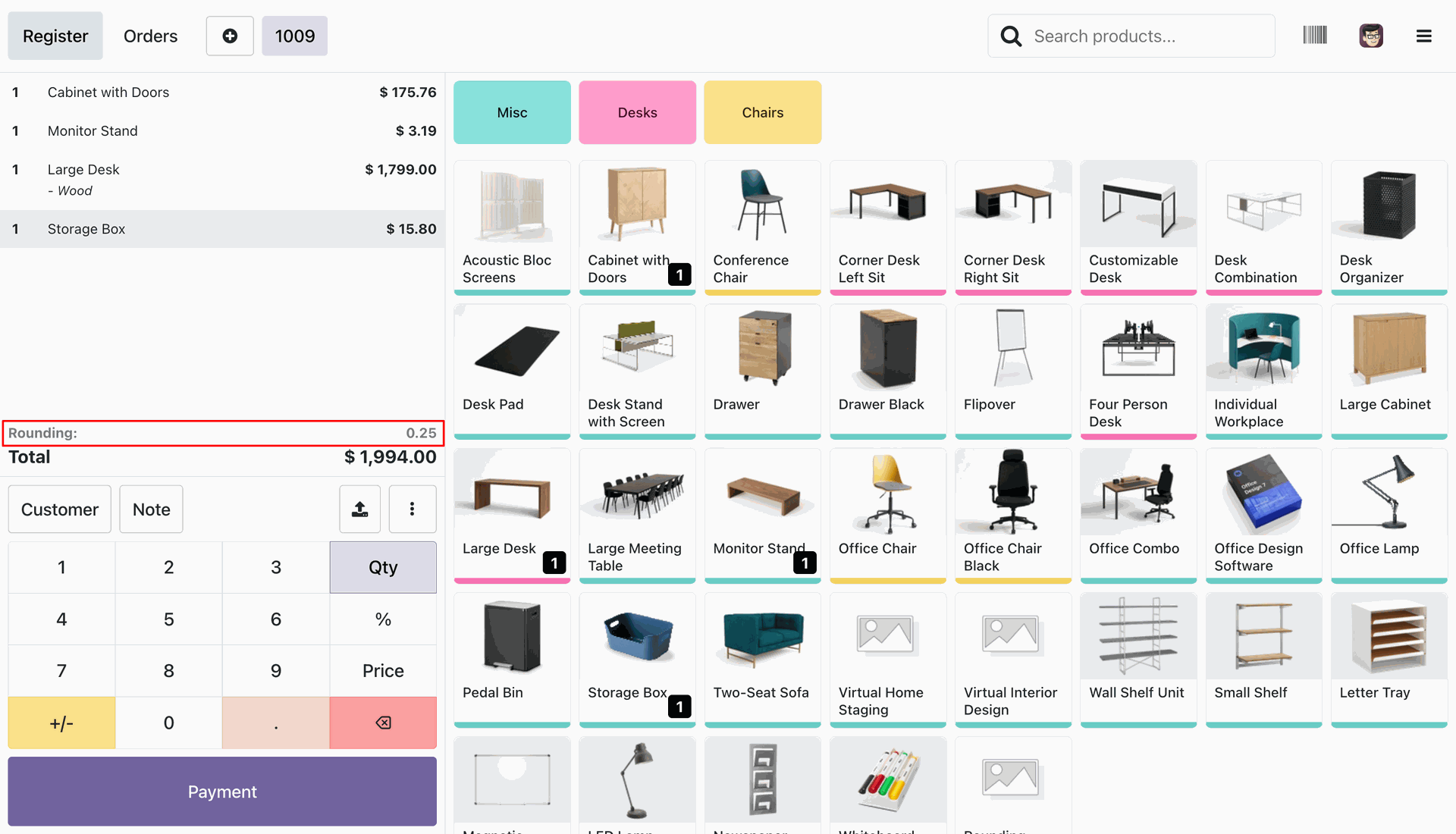
Go to the POS cart, create an order, and complete the payment process.
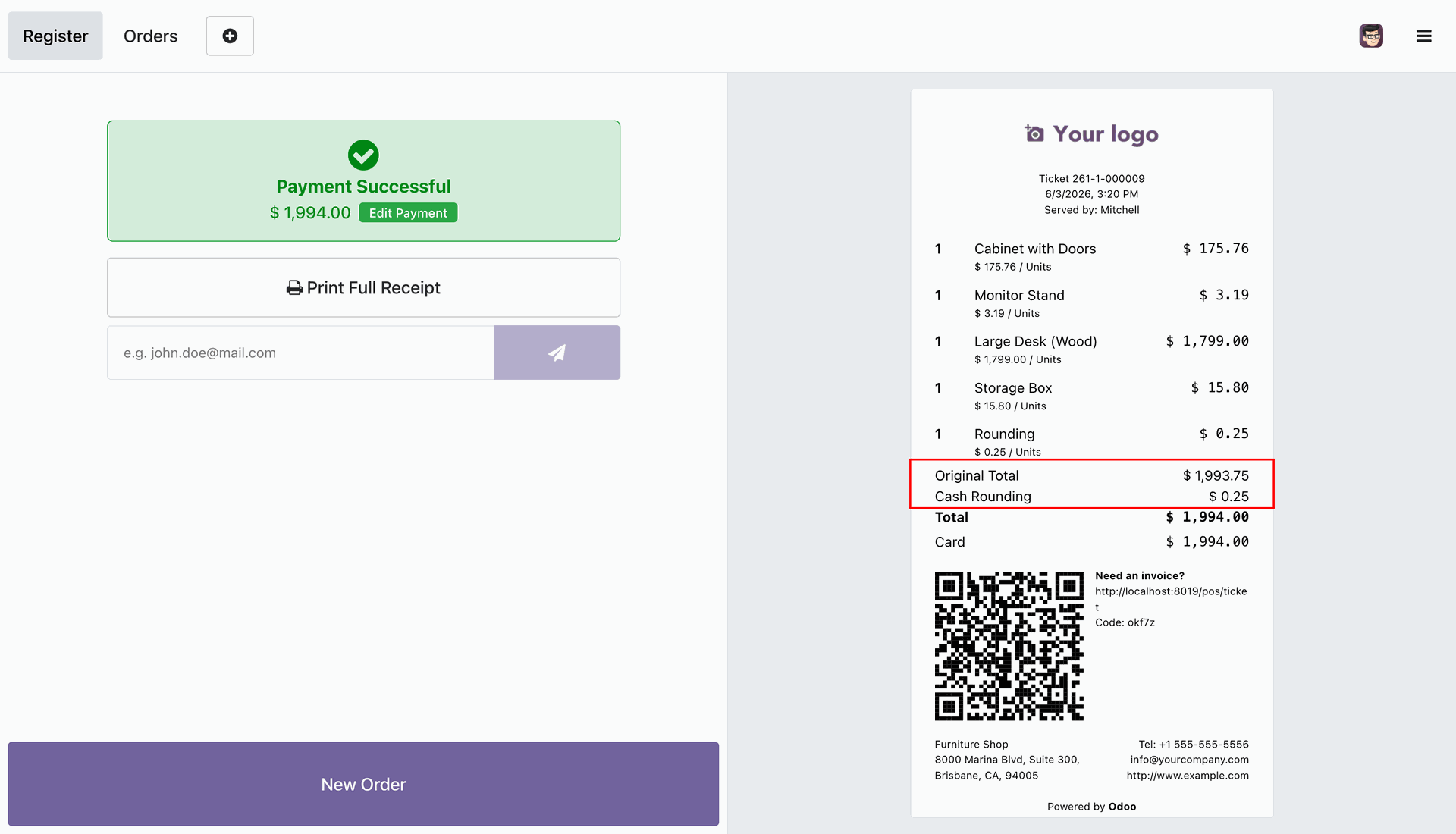
On the POS receipt, you can see the Original Amount, the Rounding Amount, and the Final Total Amount after the rounding adjustment has been applied.
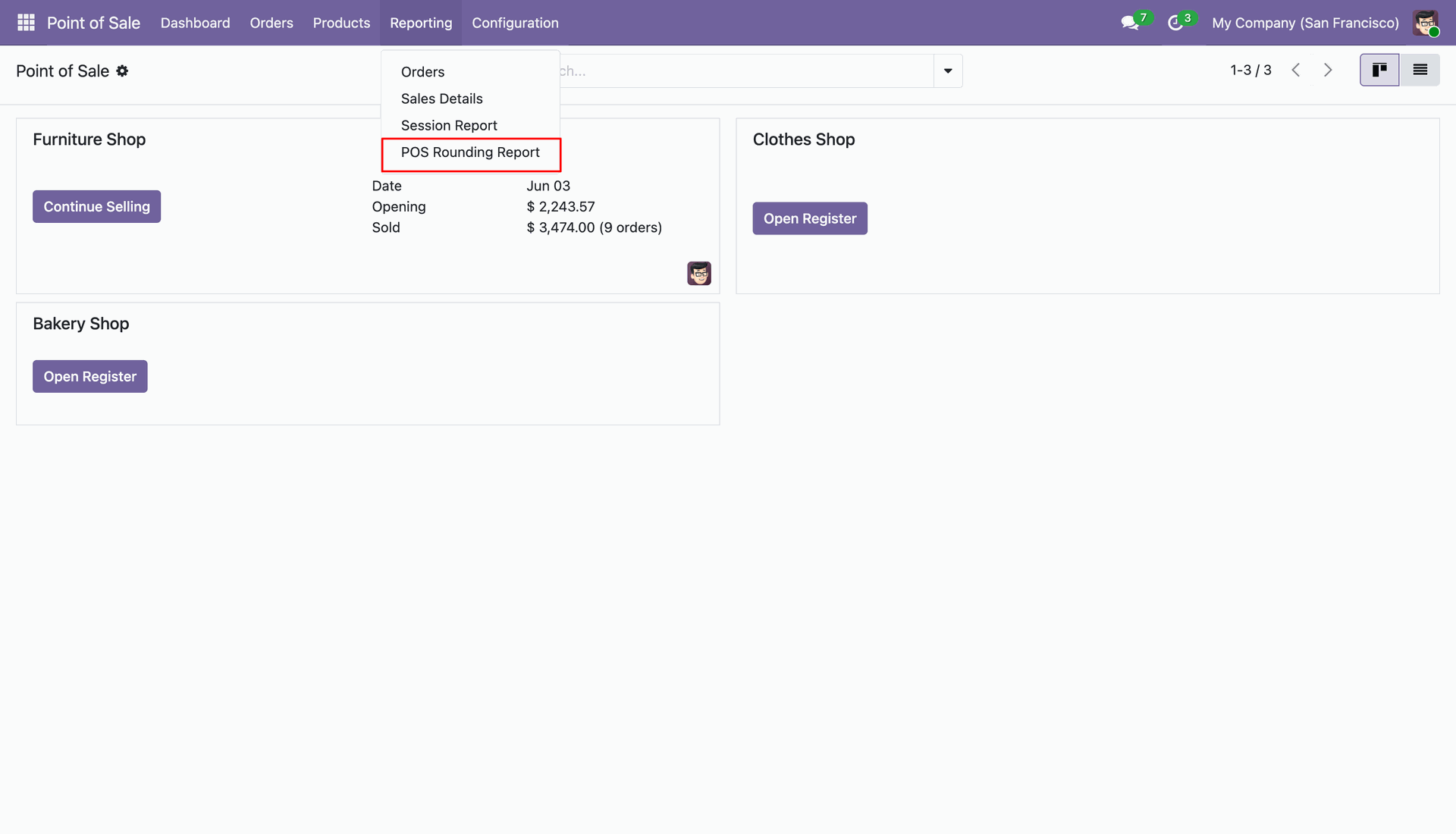
Go to the Reporting menu and select the POS Rounding Report submenu to view detailed information about rounding adjustments applied to POS orders.
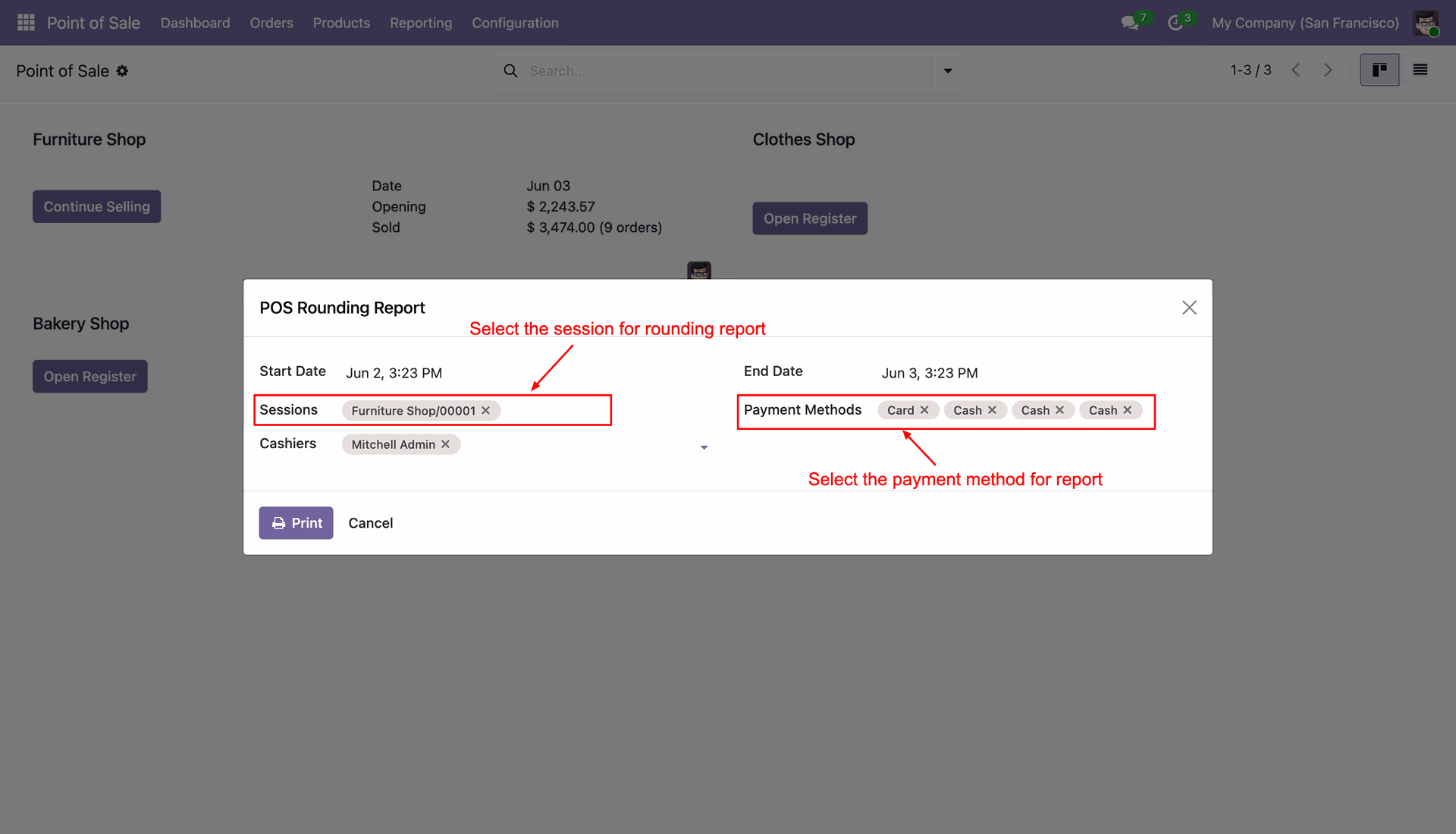
The POS Rounding Report wizard will open. Select the POS Session and Payment Method, then click the Print button to generate the report.
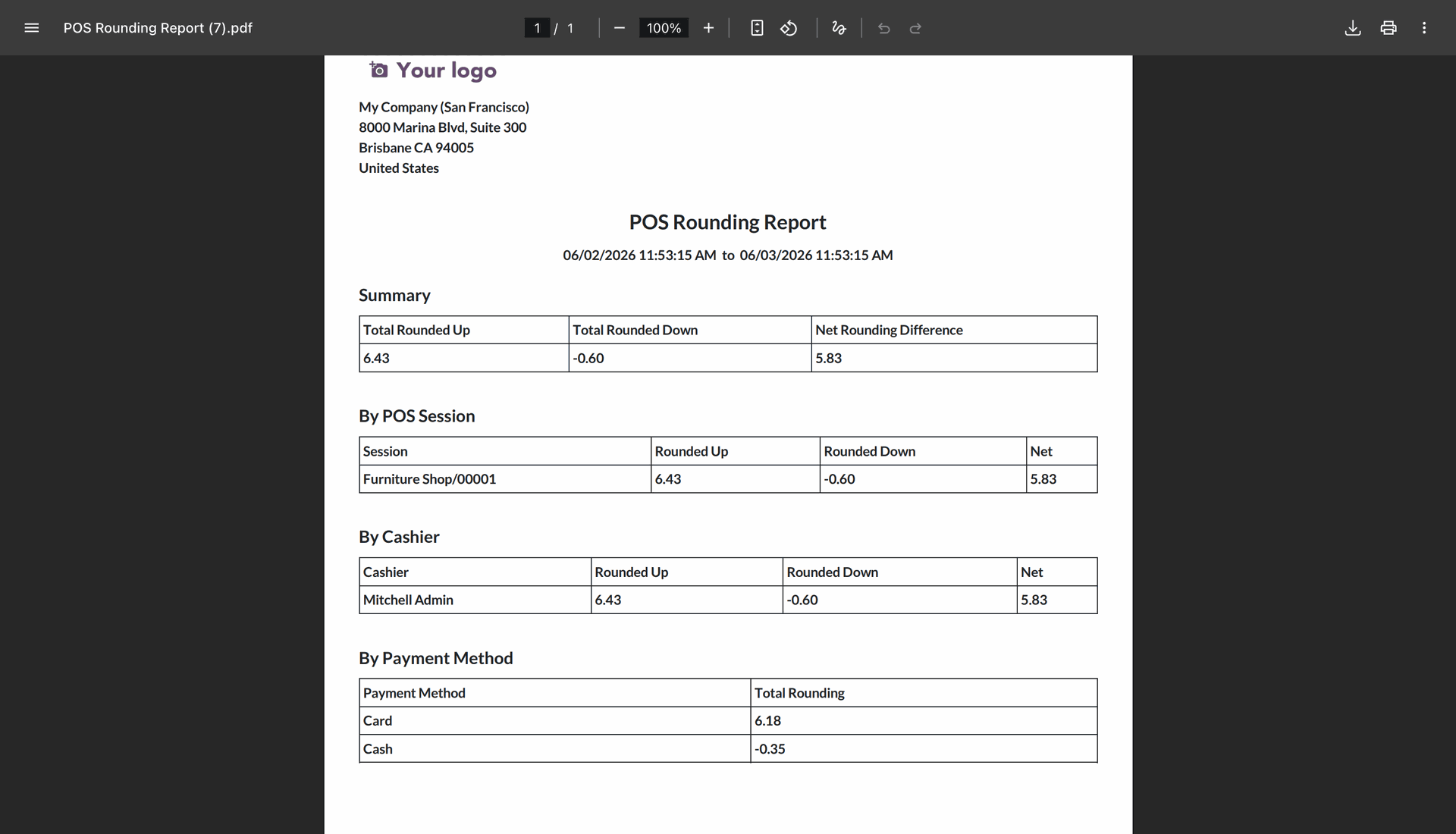
The POS Rounding Report is generated in PDF format, displaying the rounding details for the selected session and payment method.
Version 18.0.2.0.0 | Released on : 03rd August 2026
Version 18.0.1.0.0 | Released on : 4th March 2025
- Yes, this app works perfectly with Odoo Enterprise (Odoo.sh & Premise) as well as Community.
- No, this application is not compatible with odoo.com(odoo saas/Odoo Online)
- Yes, to test this module, please contact us at sales@softhealer.com.
- Please contact us at sales@softhealer.comto request customization.
- Yes, we provide free lifetime support for the version you purchased.
- Yes, you will receive lifetime free updates for the version of the module you purchased.
- No, there is no need to install any additional libraries.
- Yes, for version 12 and above, you need to purchase the module separately for each version you intend to use.
- No, exchanges or refunds are not allowed. Please make sure to select the correct version before purchasing.
- You can contact us at support@softhealer.com for language translation support. We use Google Translator tools to provide translations in multiple languages, so the accuracy may vary. We welcome your suggestions to help improve translations.
Discover Our Latest Apps