












POS Pre Order Management

This solution allows customers to place pre-orders for out-of-stock or upcoming products directly from the Odoo Point of Sale interface. By enabling configurable down payment options (fixed amount or percentage), you can secure commitments and manage cash flow effectively. Cashiers can check real-time stock availability, record customer notes, and establish expected delivery dates on a user-friendly popup. In the backend, the system automatically creates a linked Sales Order to track pre-order progression from draft to fulfillment, manages inventory picking, and triggers email notifications once stock is ready.

Features

POS Pre-Order Configuration
Enable pre-orders with options to toggle stock-ready emails and restrict bookings exclusively to out-of-stock items.
Product-Level Pre-Order Setup
Configure pre-order availability, minimum/maximum order limits, and set down payment rules as fixed amounts or percentages.

POS Catalog Pre-Order Badges
Highlight pre-order eligible items in the POS view using yellow status badges overlaid directly on product cards.

Automated Down Payment Cart Lines
Insert the required down payment amount as a service line into the active POS cart and print deposit receipts.
Centralized Sales & POS Order Integration
Link POS pre-orders with Sales Orders in the backend, complete with cross-model smart buttons and a dedicated POS Pre-Orders menu.

Backend Pre-Order Management
Track expected fulfillment dates and states in the backend sale orders chatter.
POS Pre-Order Retrieval & Search
Retrieve open pre-orders directly from the POS Action screen using a searchable lookup list modal.

Flexible Balance Settlement
Apply further down payments, automatically loading cart items with negative offsets for paid deposits.

Automated Email Notifications
Automatically notify clients via template-based emails once their pre-ordered items are ready.

Native Inventory Delivery Fulfillment
Generate delivery orders automatically in the backend once pre-ordered items are replenished.
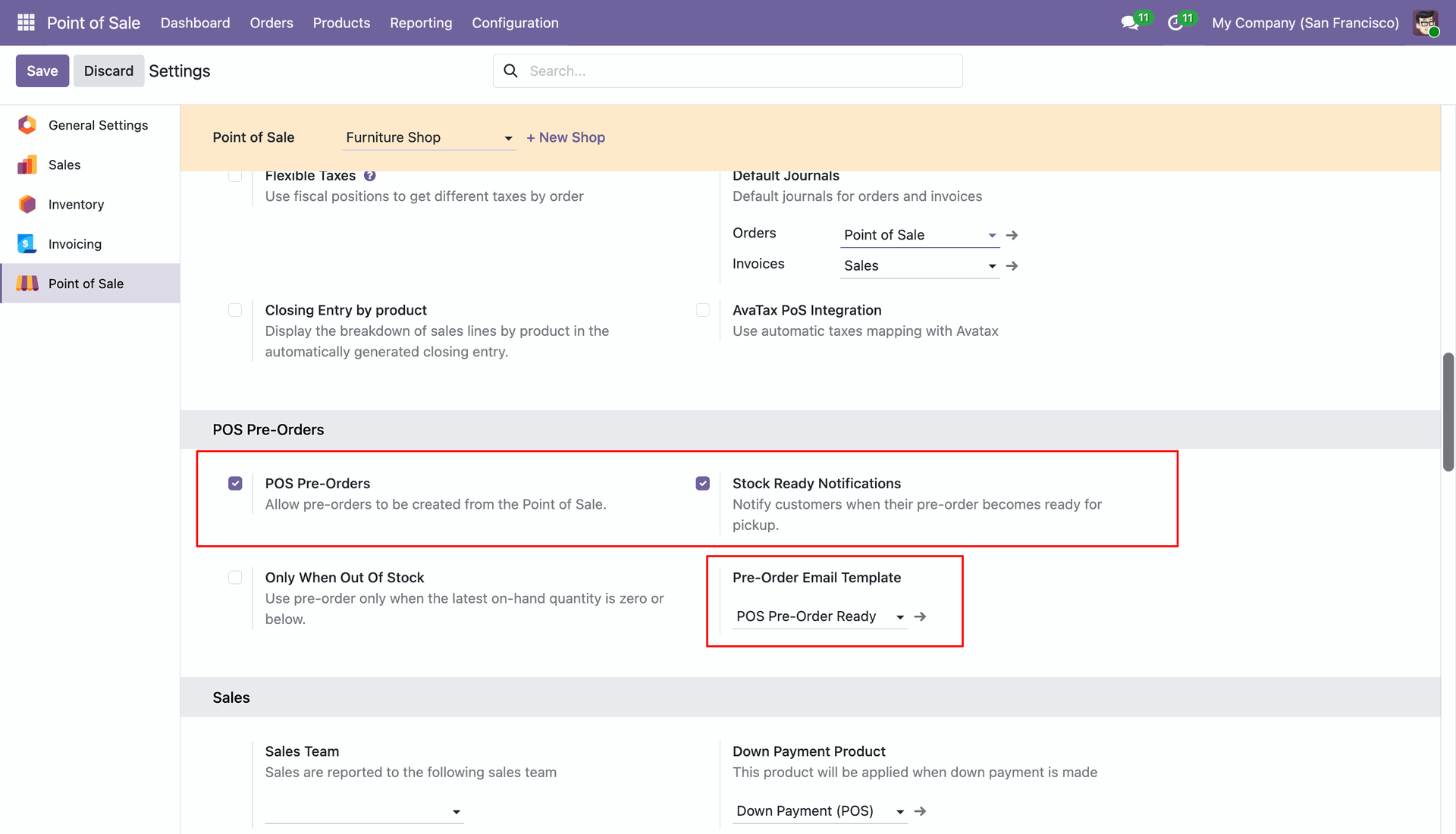
Configure POS Pre-Orders in the POS settings, enabling pre-order functionality, stock ready email notifications, and selecting email templates.
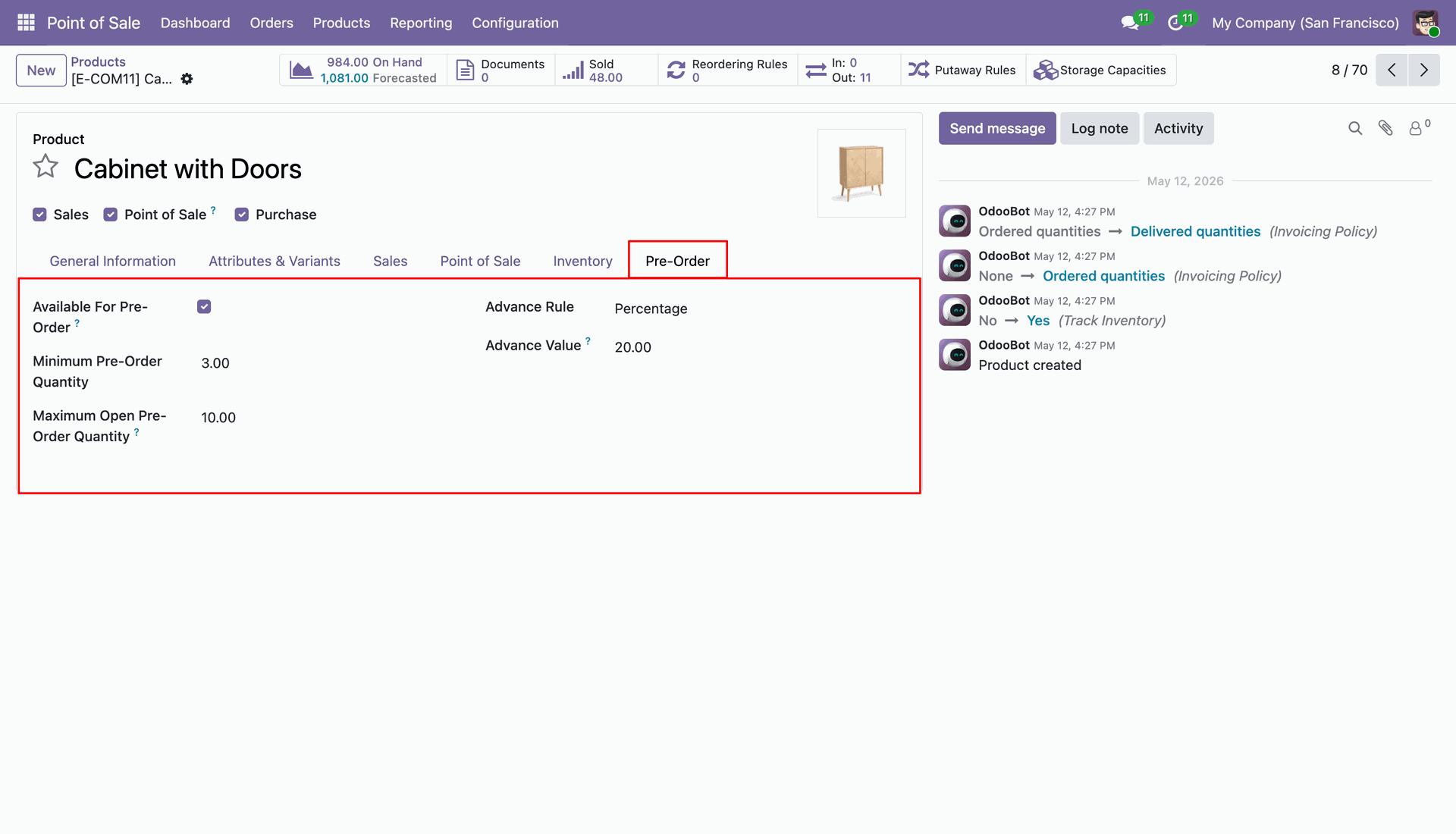
Set up specific pre-order options on the Product Form under the Pre-Order tab, including minimum/maximum quantities, advance payment rules, and percentage/fixed values.
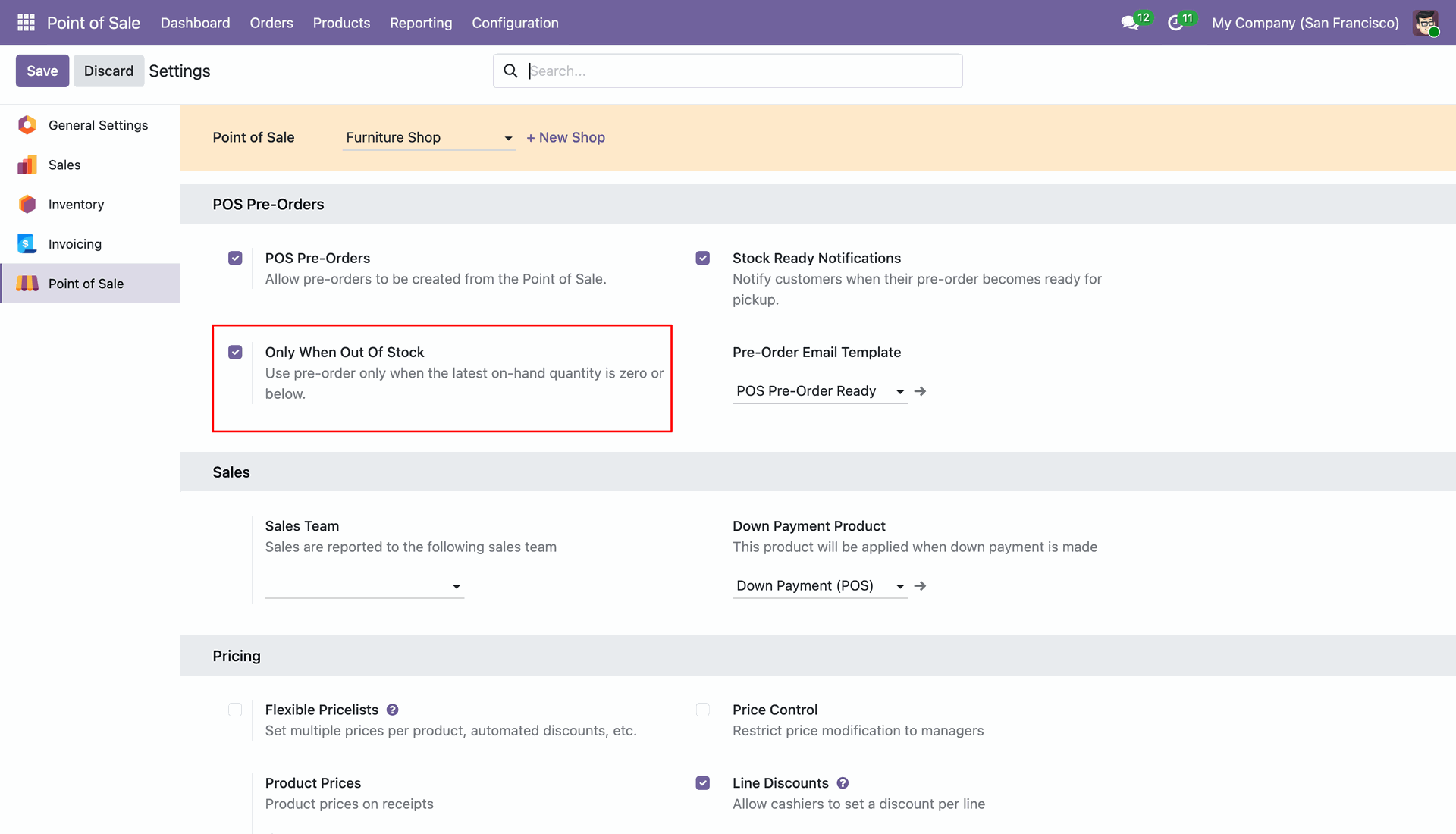
Optionally enable 'Only When Out Of Stock' in the POS settings to restrict pre-ordering exclusively to products that are out of stock.
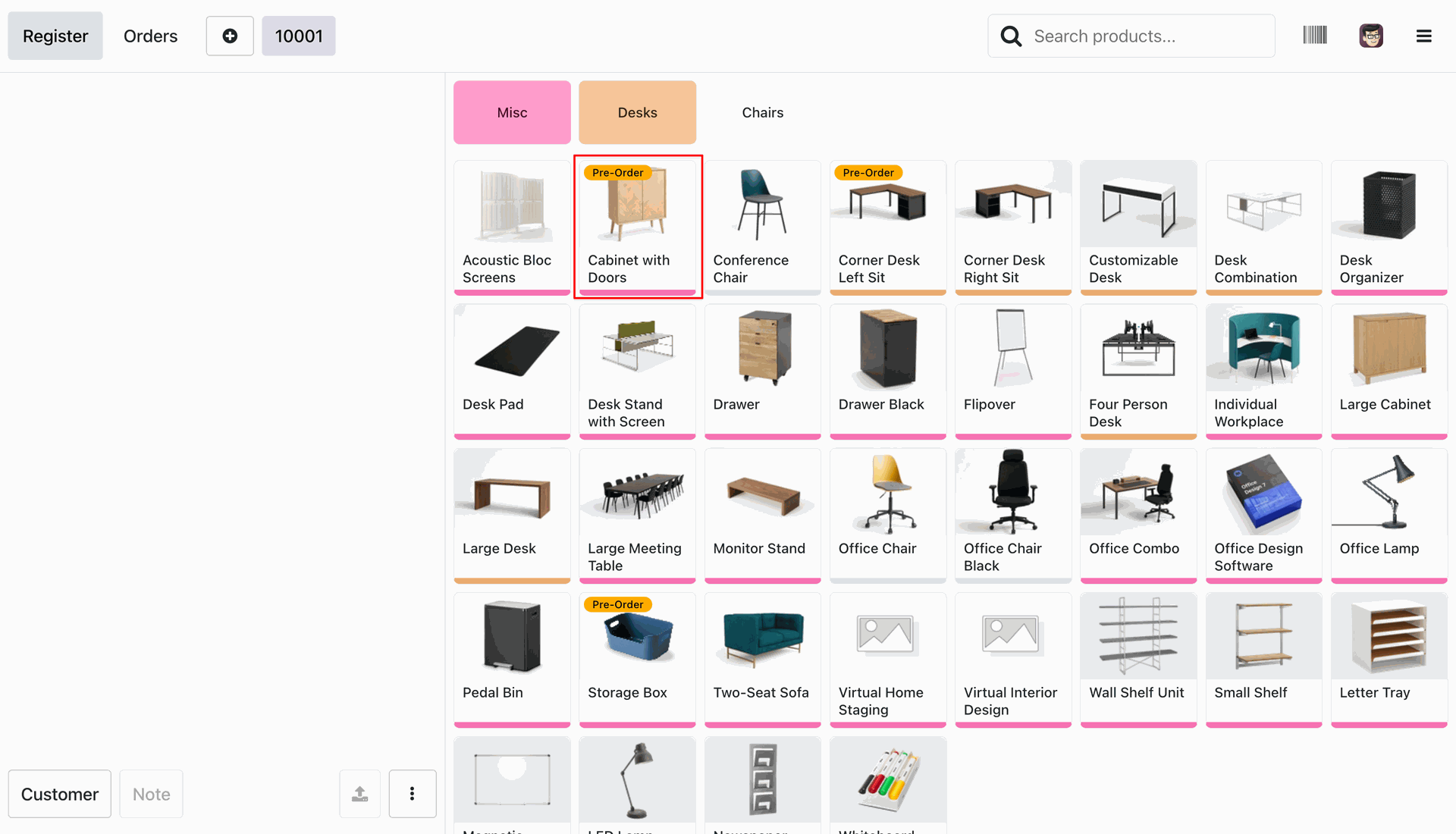
View pre-order enabled products in the POS interface, clearly marked with a yellow 'Pre-Order' badge on each product card.
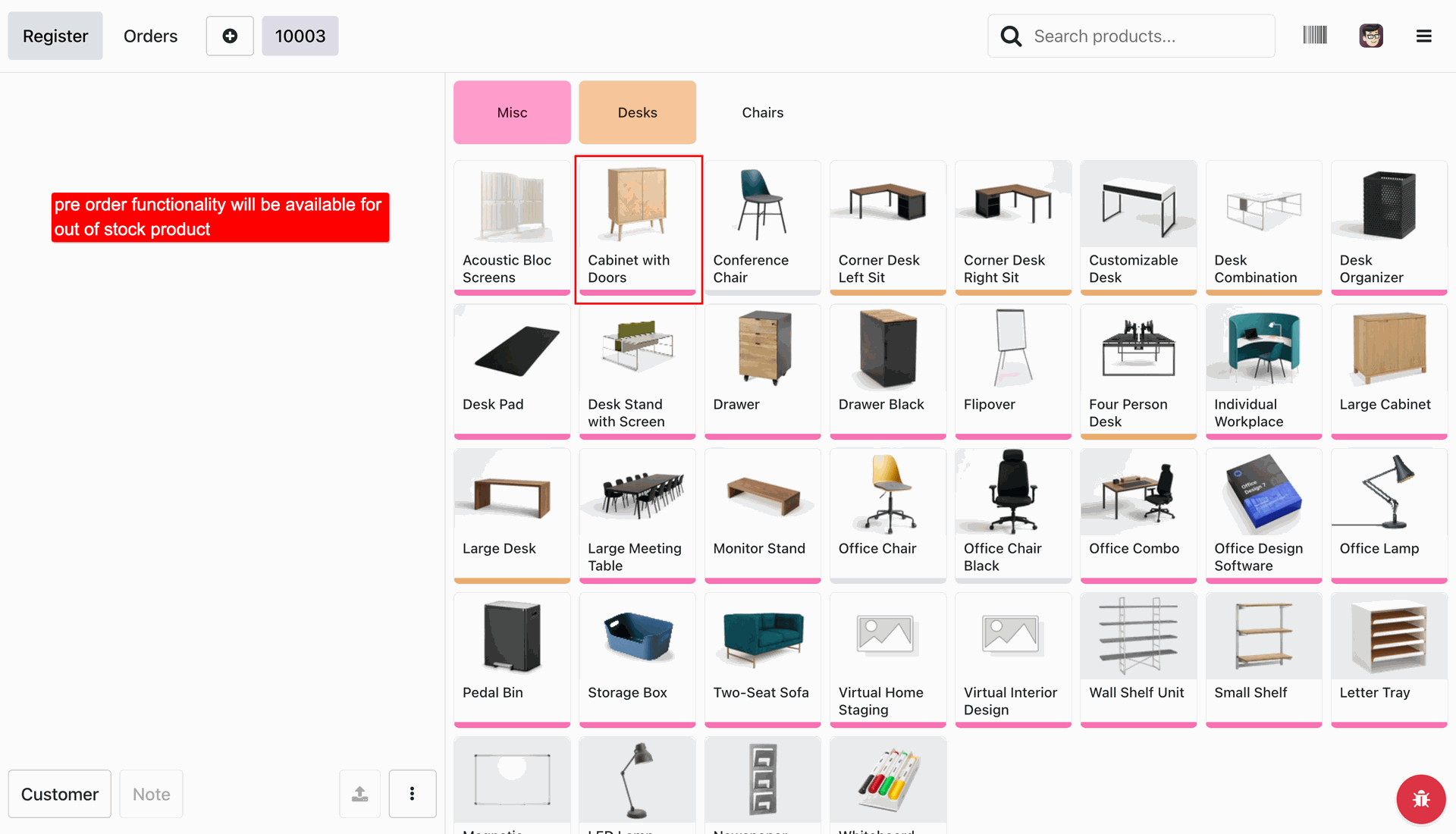
When 'Only When Out of Stock' is enabled, the POS displays a notification reminding the cashier that pre-orders are only available for out-of-stock items.
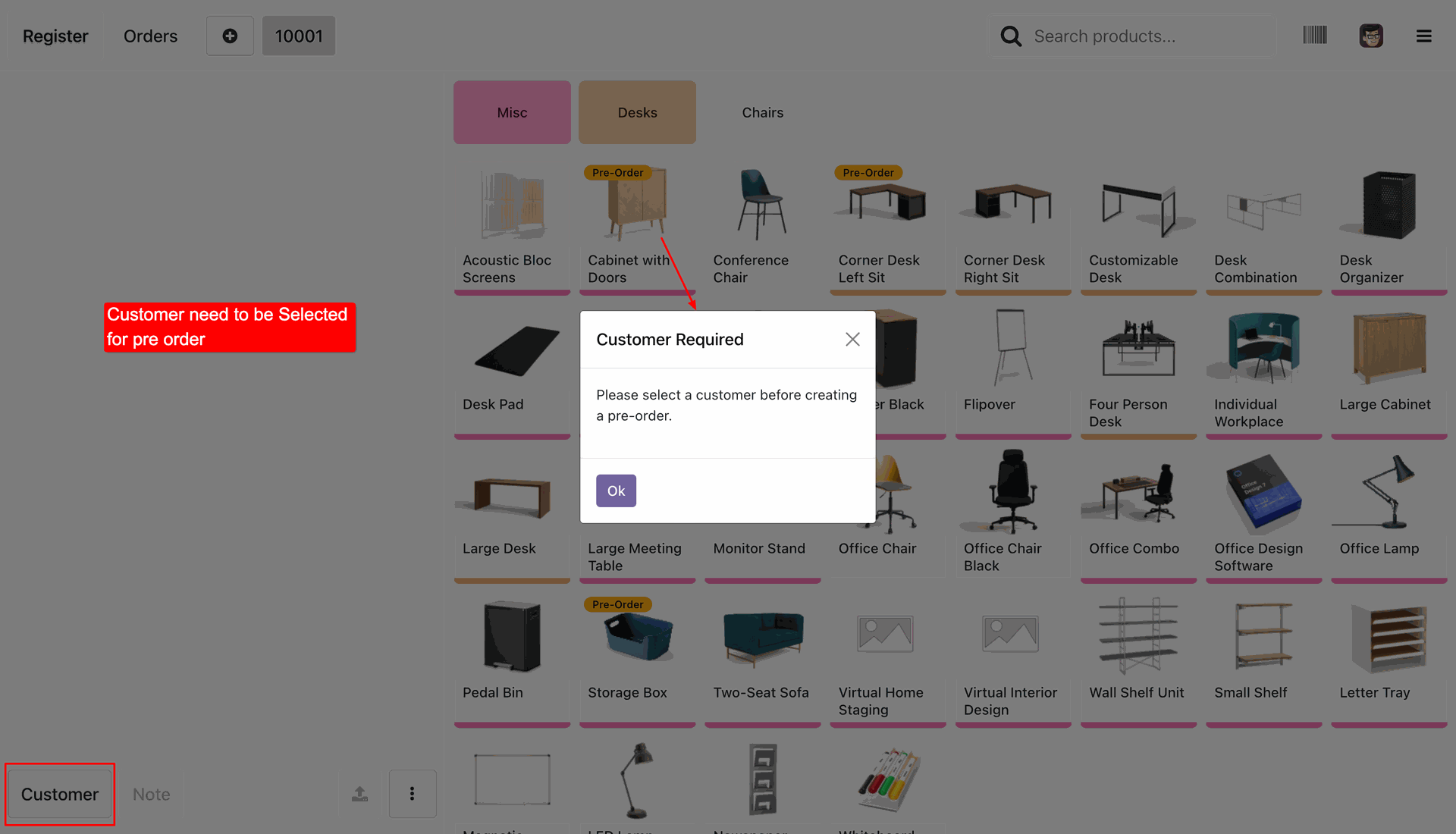
If a cashier attempts to pre-order a product without selecting a customer, a popup is displayed requiring a customer to be selected first.
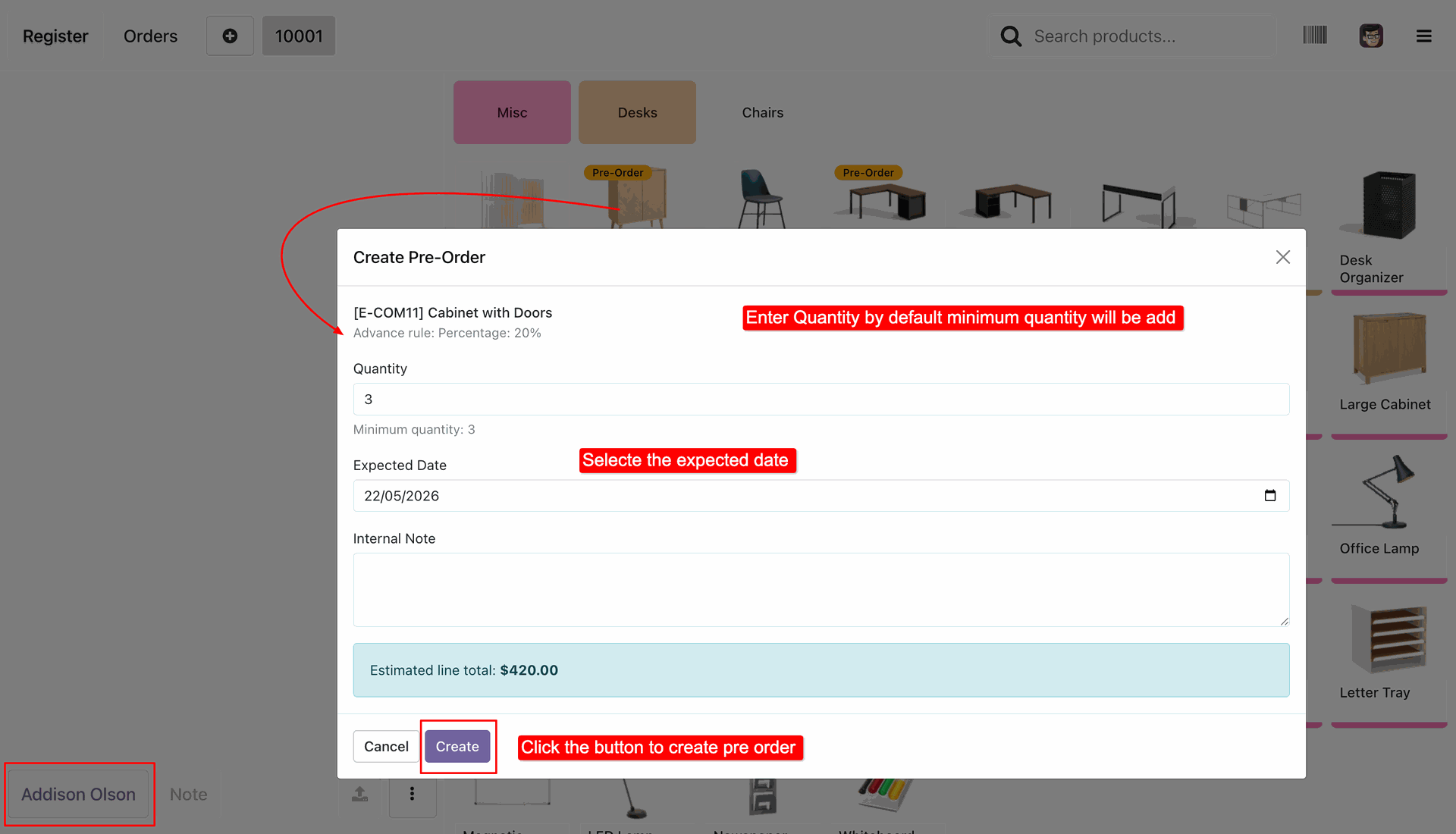
Open the 'Create Pre-Order' in POS to specify the desired quantity, expected delivery date, and internal notes for the pre-ordered product.
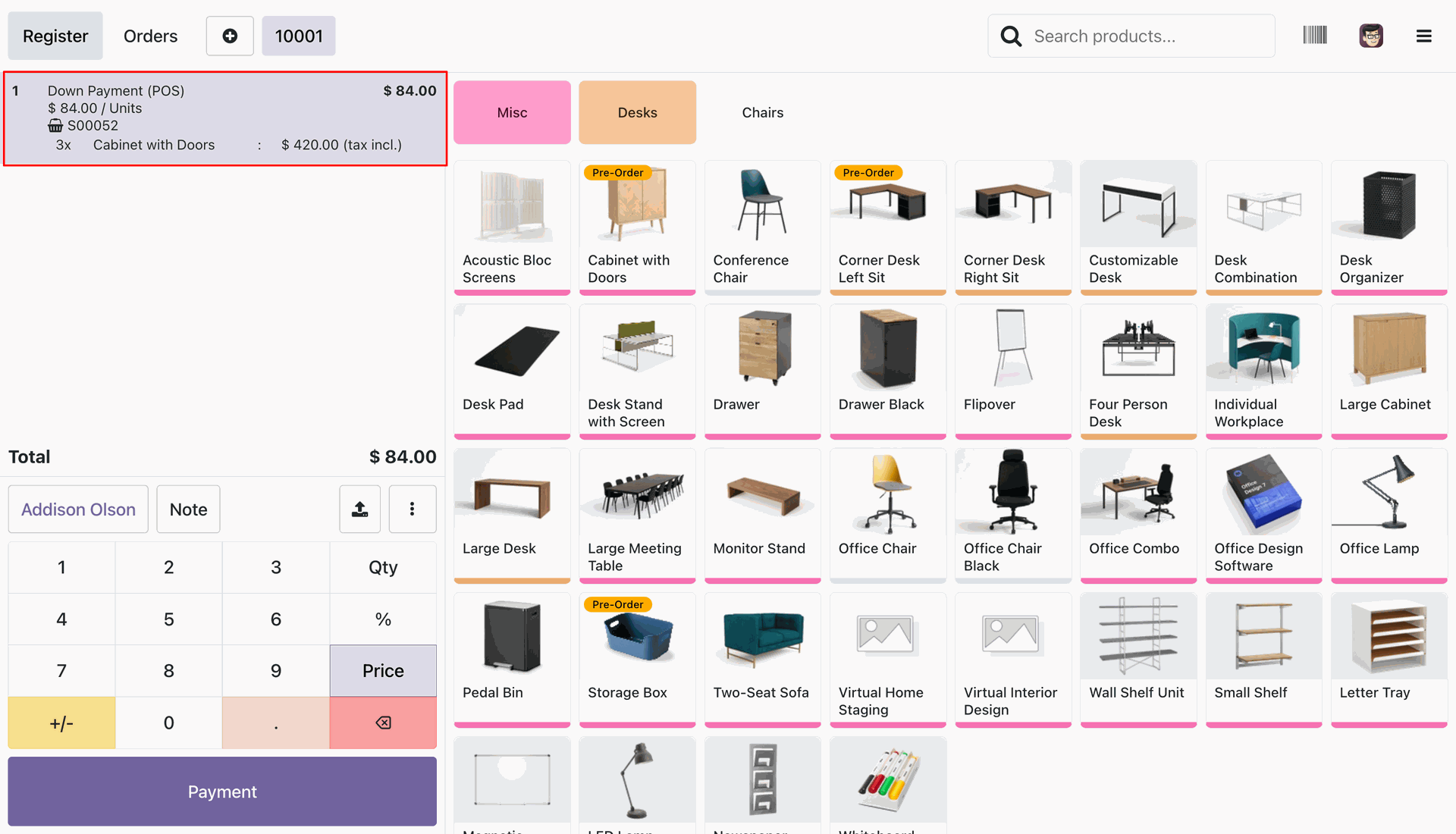
Add the down payment to the POS cart for the pre-order advance amount based on the configured payment rules.
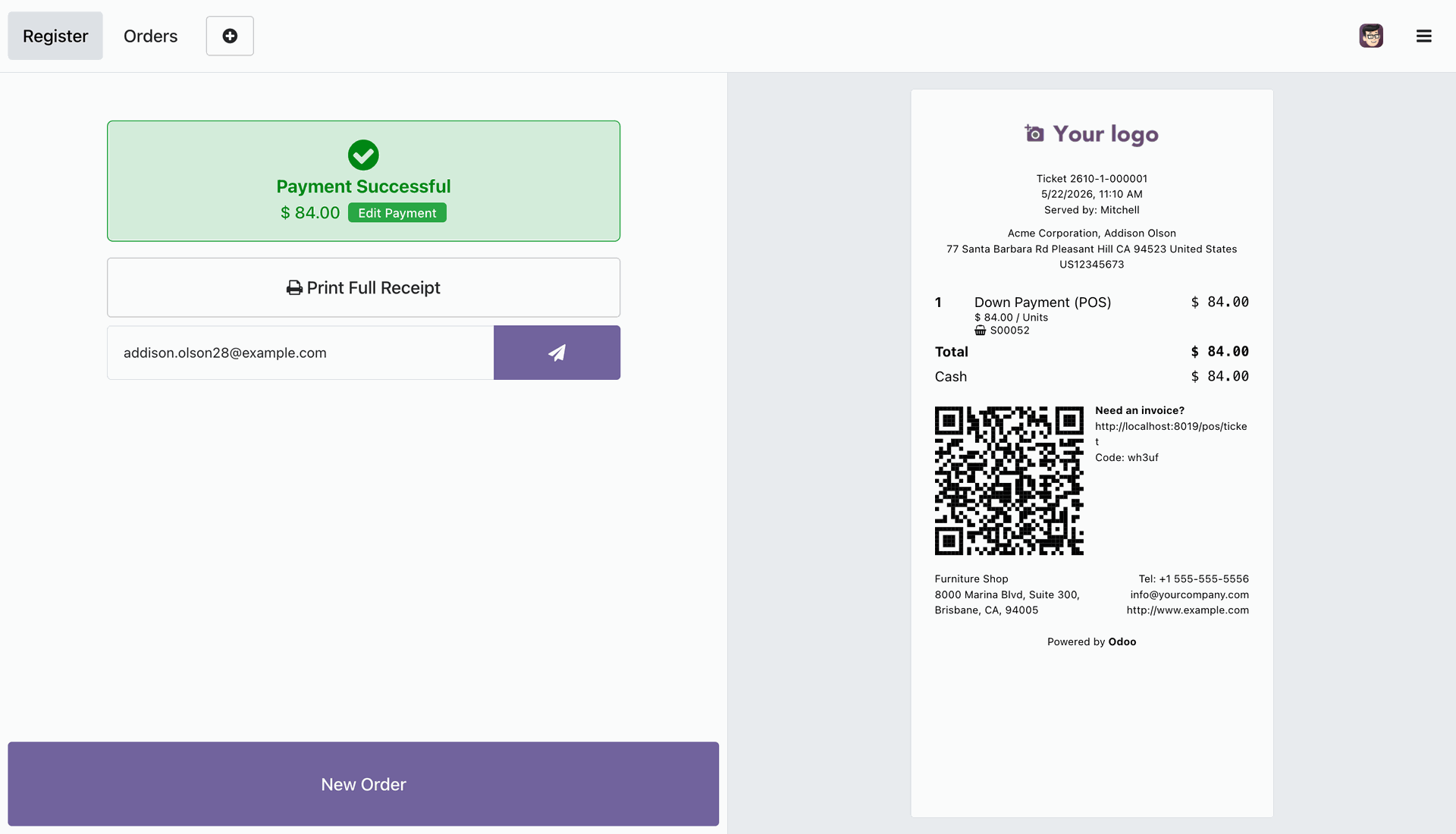
Complete the payment for the down payment and print the receipt reflecting the down payment details and order reference.
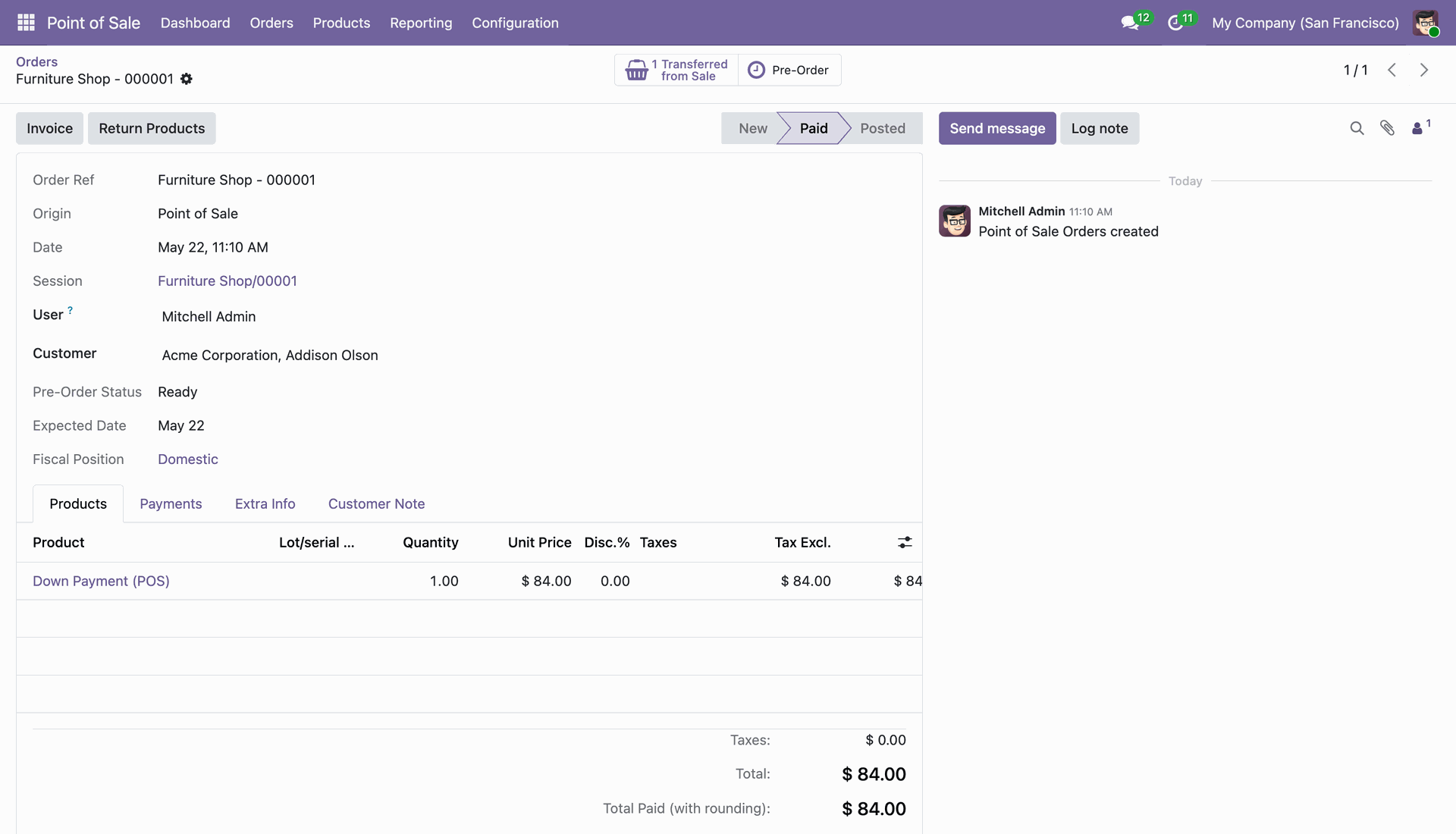
Track the POS pre-order status and down payment details directly on the Point of Sale Order form in the backend.
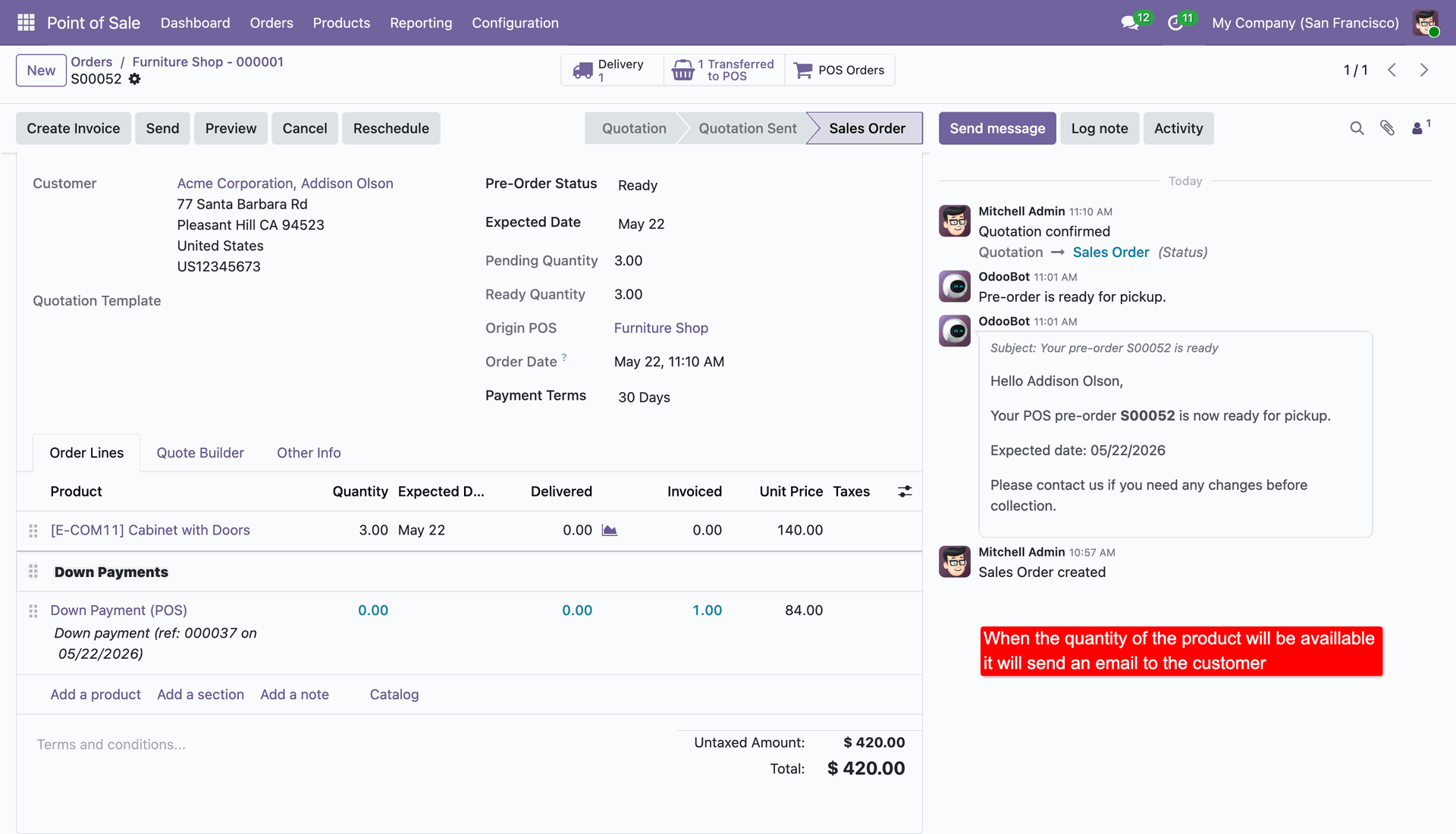
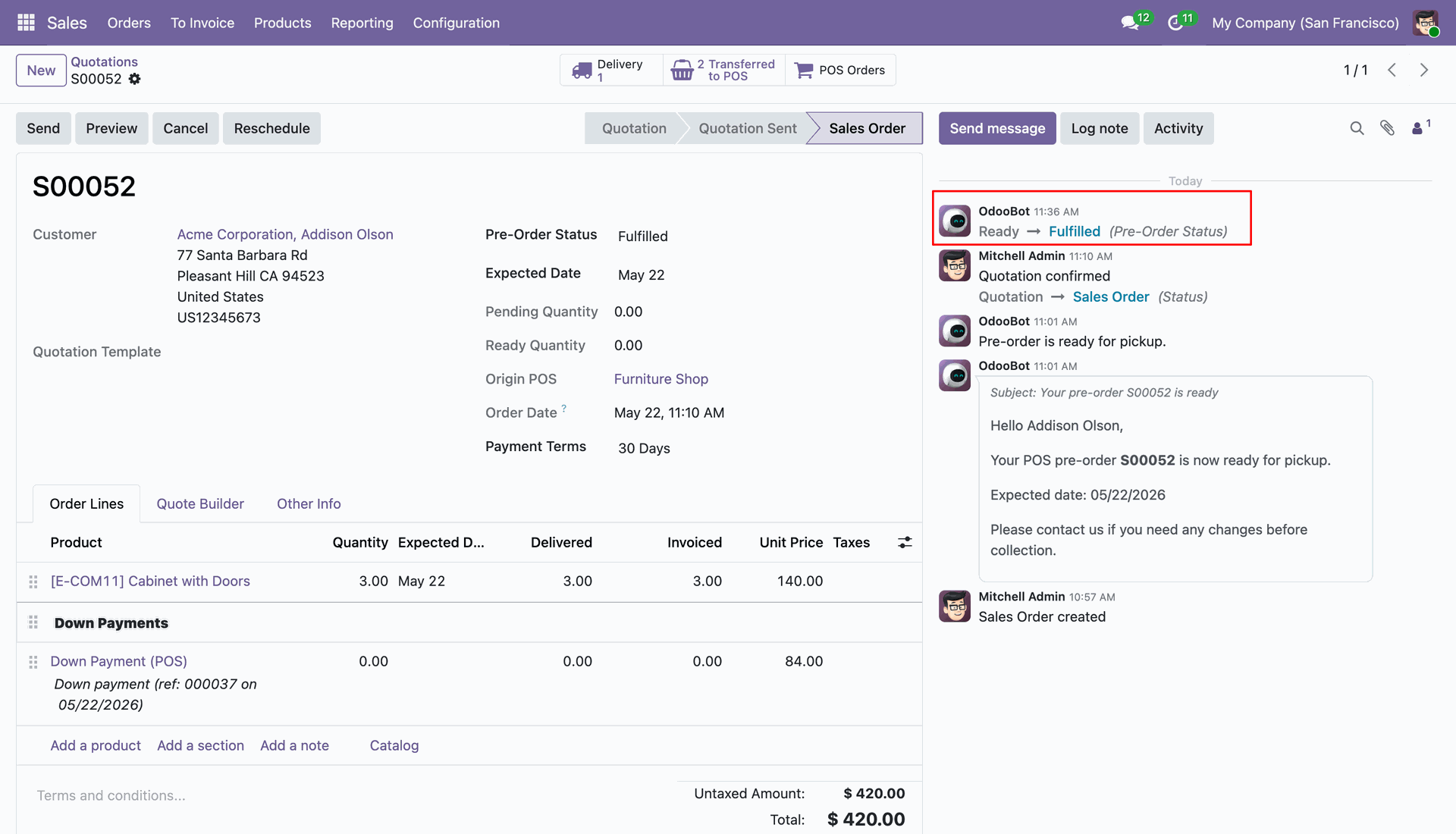
Access the backend Sales Order to monitor pre-order status, track expected delivery dates, and automatically send 'Pre-order ready' email notifications when stock is available.
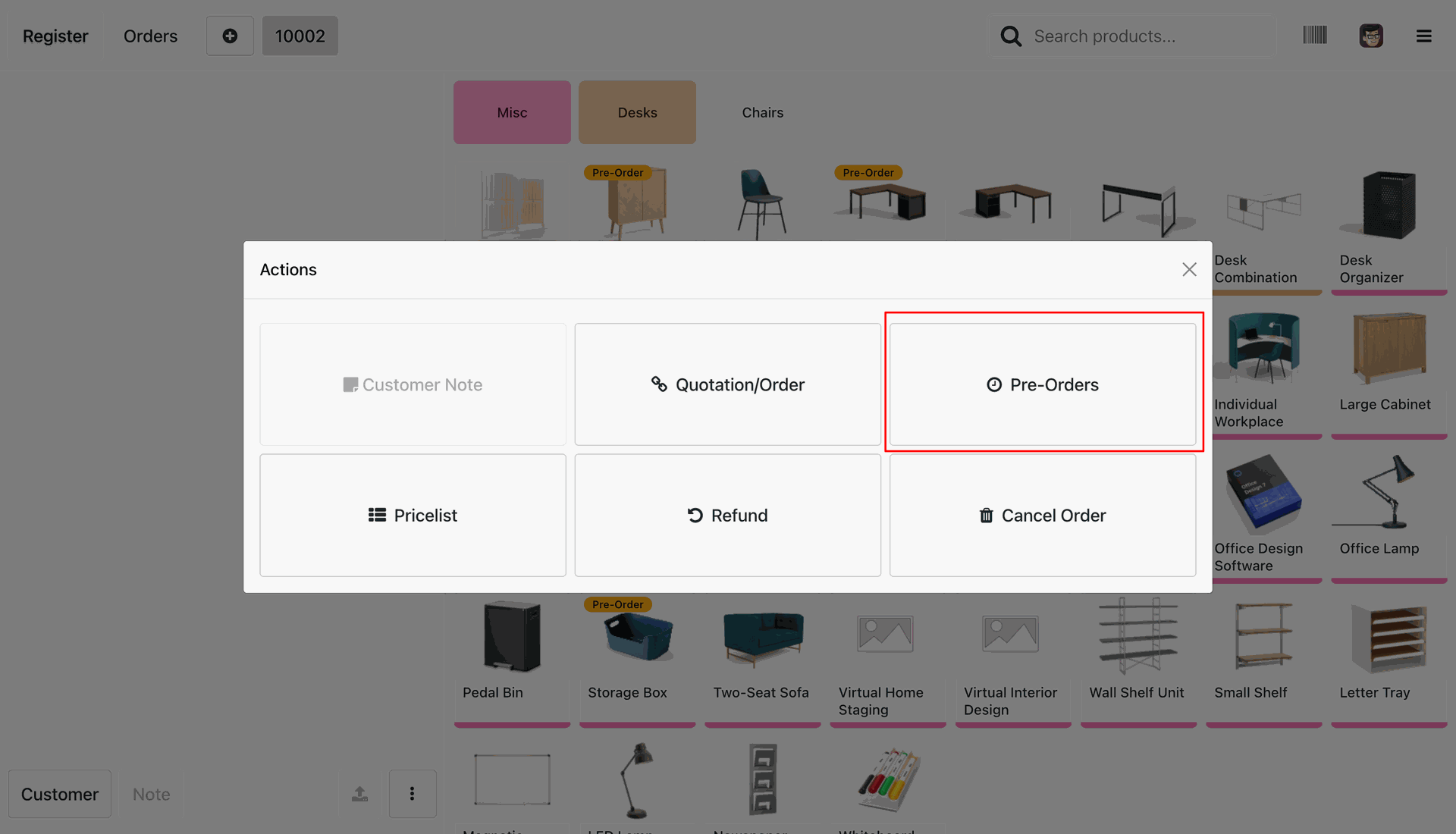
Retrieve and settle existing pre-orders by clicking on the dedicated 'Pre-Orders' button in the POS Action screen.
Search and select the corresponding pre-order from the POS 'Select POS Pre-Order' list view.
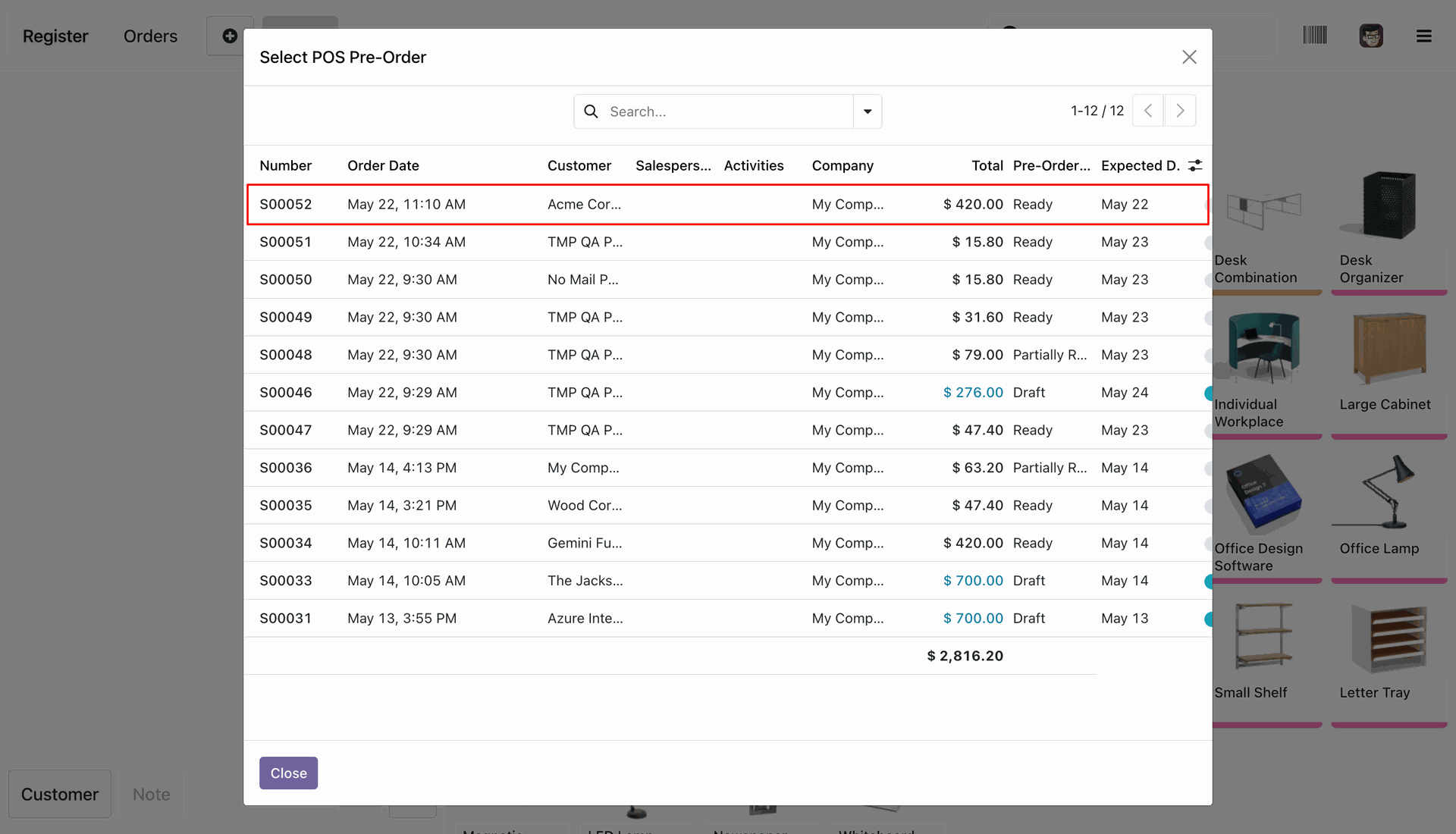
Select the desired action for the pre-order, such as settling the remaining order balance or applying further down payments.
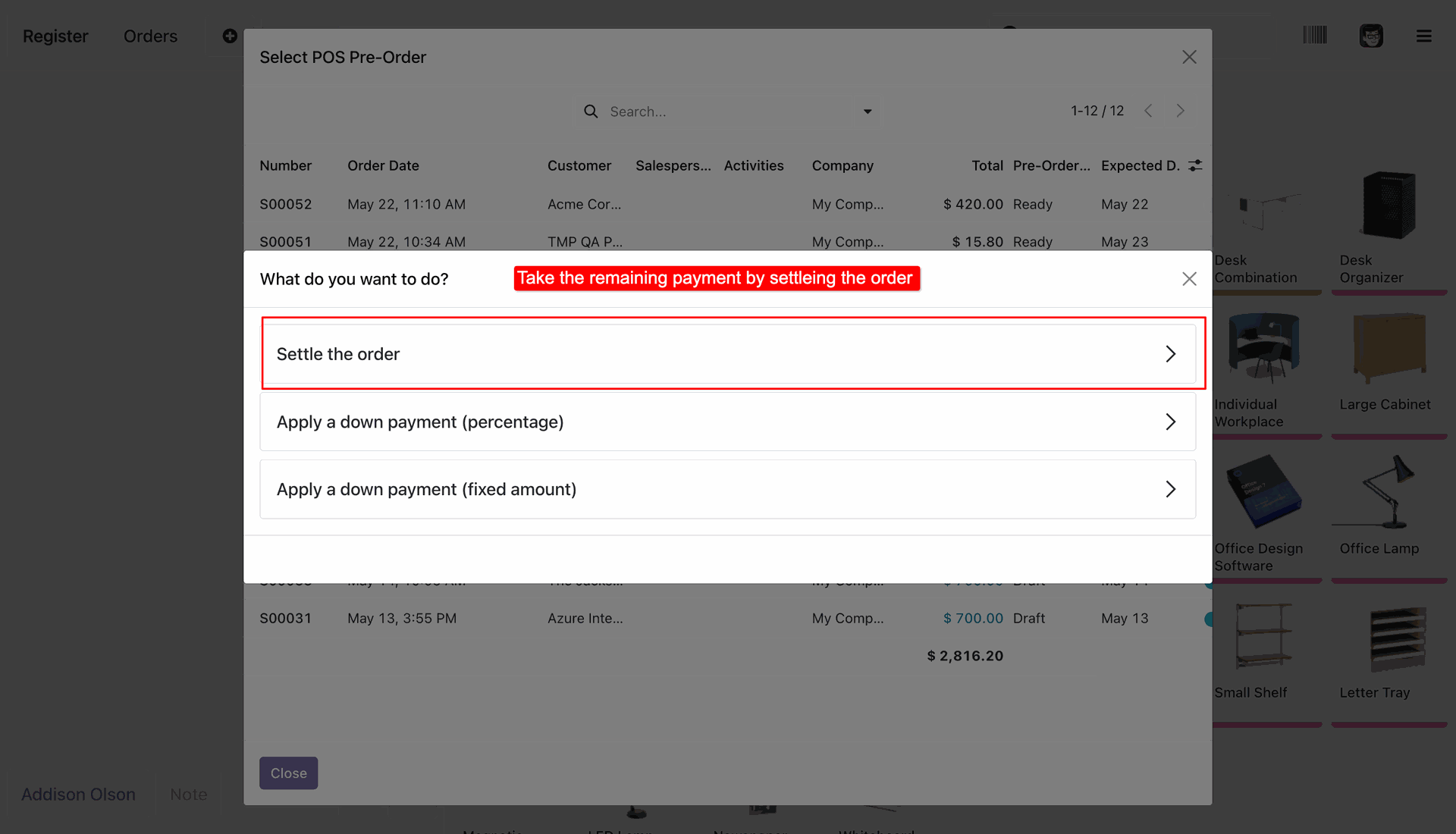
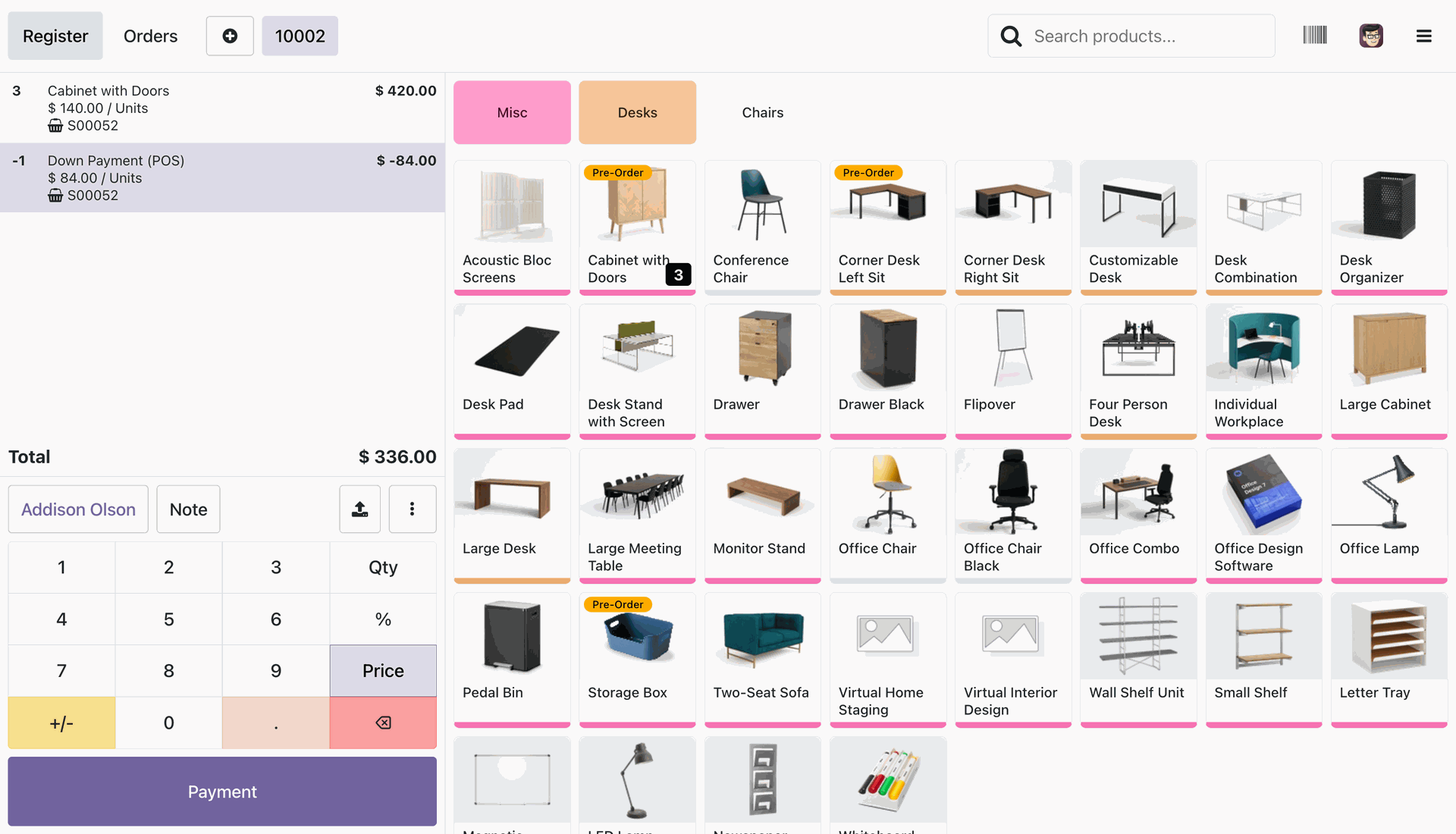
The POS cart automatically populates with the original pre-ordered items while deducting the previously paid down payment amount.
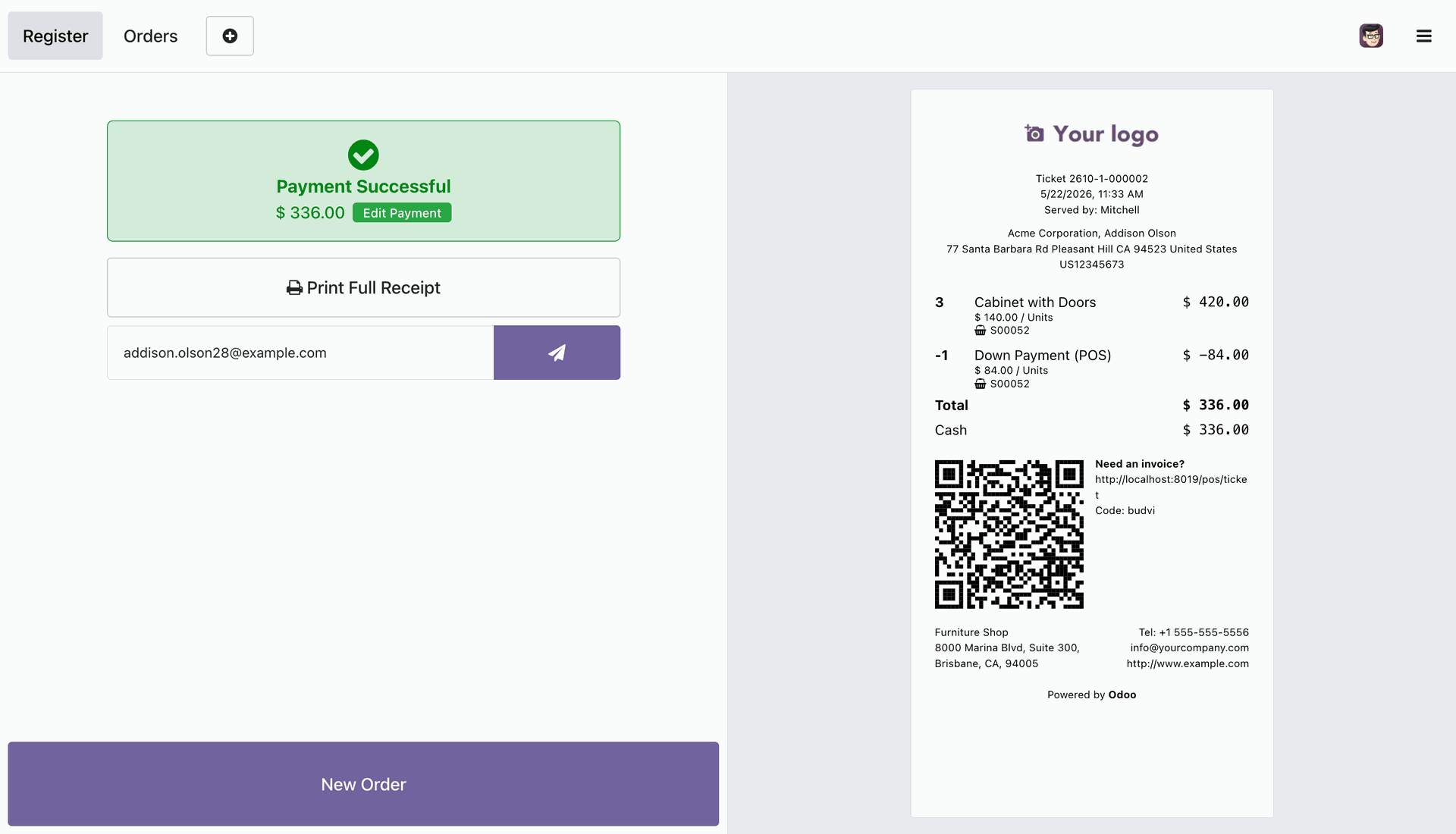
Process the remaining payment balance in POS and print the final receipt showing the full order details and complete settlement.
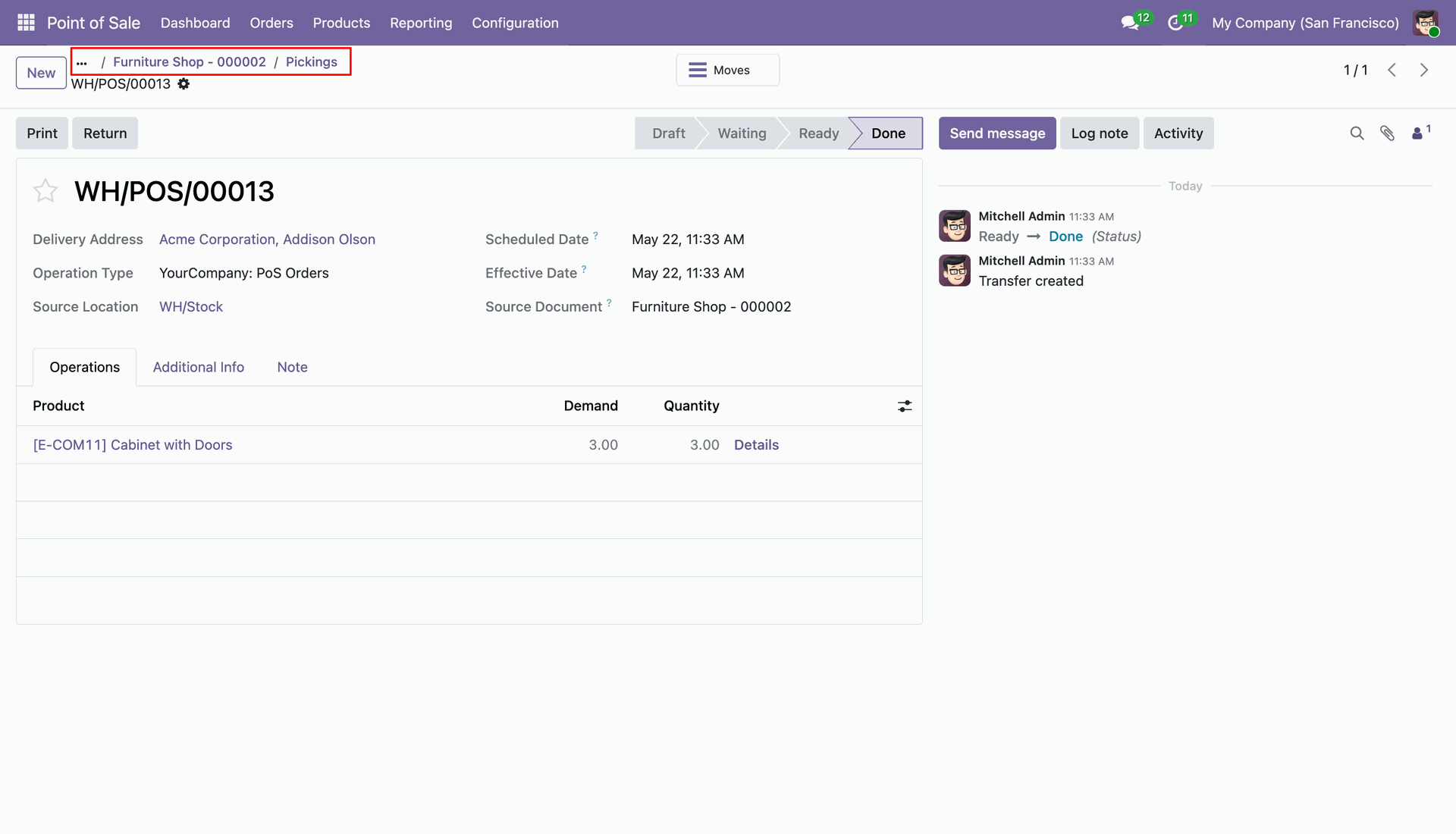
Automatically generate and process the inventory delivery order (stock picking) in Odoo backend when the items are ready for delivery.
Once delivery and balance payment are completed, the backend Sales Order pre-order status is automatically updated to 'Fulfilled'.
Version 19.0.1.0.0 | Released on : 03rd July 2026
- Yes, this app works perfectly with Odoo Enterprise (Odoo.sh & Premise) as well as Community.
- No, this application is not compatible with odoo.com(odoo saas/Odoo Online)
- Yes, to test this module, please contact us at sales@softhealer.com.
- Please contact us at sales@softhealer.com to request customization.
- Yes, we provide free support for 365 days from the date of purchase.
- Yes, you will receive lifetime free updates for the version of the module you purchased.
- No, there is no need to install any additional libraries.
- Yes, for version 12 and above, you need to purchase the module separately for each version you intend to use.
- No, exchanges or refunds are not allowed. Please make sure to select the correct version before purchasing.
- You can contact us at support@softhealer.com for language translation support. We use Google Translator tools to provide translations in multiple languages, so the accuracy may vary. We welcome your suggestions to help improve translations.
Discover Our Latest Apps