












POS Order Delivery Driver Management

POS Delivery Driver is a feature-rich Odoo module designed to assign delivery drivers directly from the Point of Sale interface. It allows POS operators to manage driver details, automatically calculate delivery fee products, print driver information on receipts, enforce driver assignment for delivery orders, and generate detailed PDF and graphical reports for performance analytics.

Features
Easy Driver Registry Management
Maintain delivery driver profiles with contact numbers, vehicle details (car, van, bike, scooter), and license plates.

One-Click Driver Assignment
POS operators can assign or change drivers for active orders directly from the POS interface.

Mandatory Driver Assignment
Require users to assign a delivery driver before validating delivery orders in the POS.

Automatic Delivery Fee Product
Auto-append a delivery fee product to the shopping cart when a driver is assigned to calculate delivery costs.

Print Driver Details on Receipt
Print delivery driver name, phone, vehicle, and license plate on POS customer receipts for clear tracking.

In-Session Revenue PDF Reports
Download detailed driver revenue PDF reports directly from the POS frontend control buttons.

Driver Performance Analytics
Analyze driver performance through a visual reporting view that compares revenue generated by individual delivery drivers.

Flexible Report Filters
Filter the Driver Revenue report by start date, end date, Point of Sale, and one or multiple delivery drivers.
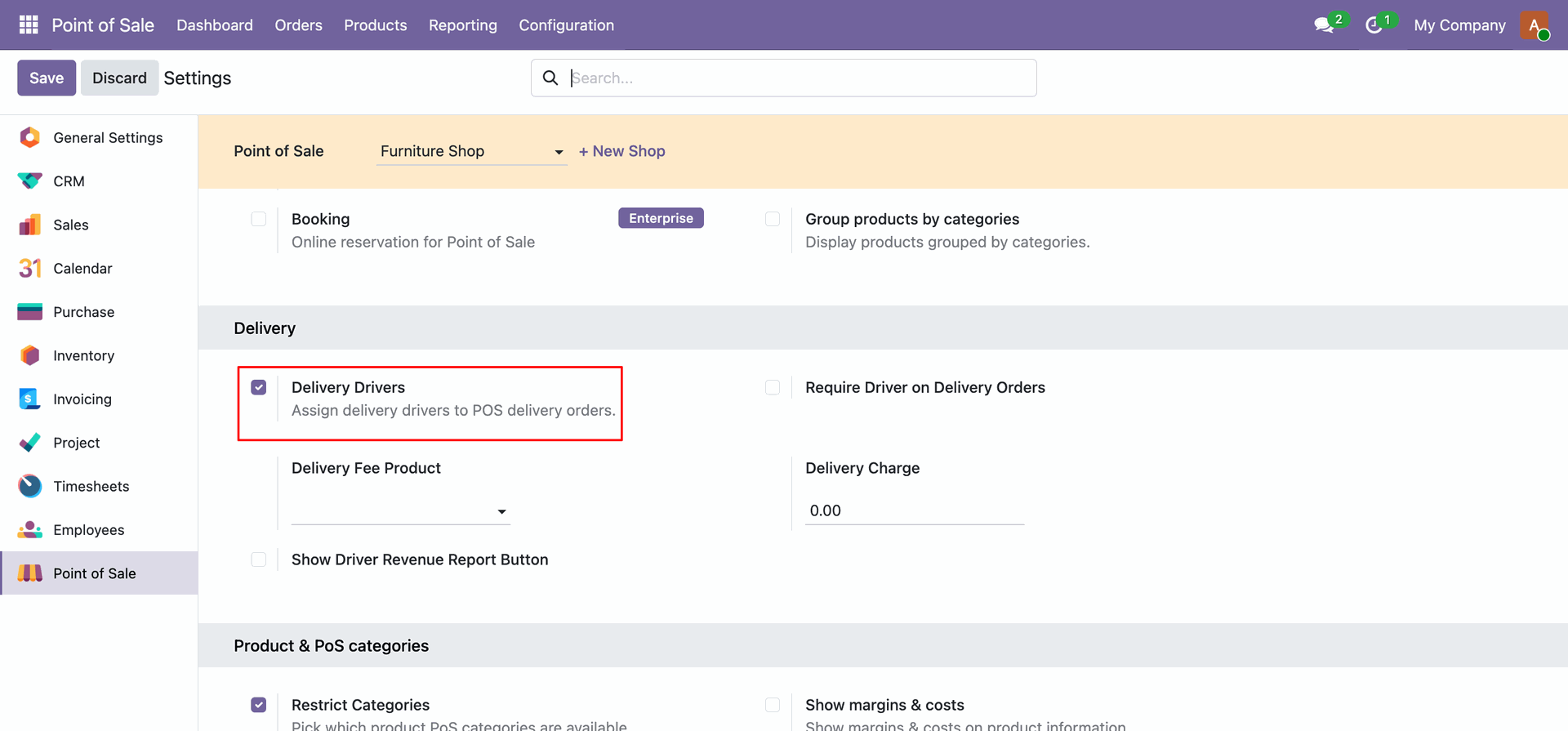
Go to Point of Sale -> Configuration -> Settings. Under the Delivery section, check the Delivery Drivers option to enable driver assignment.
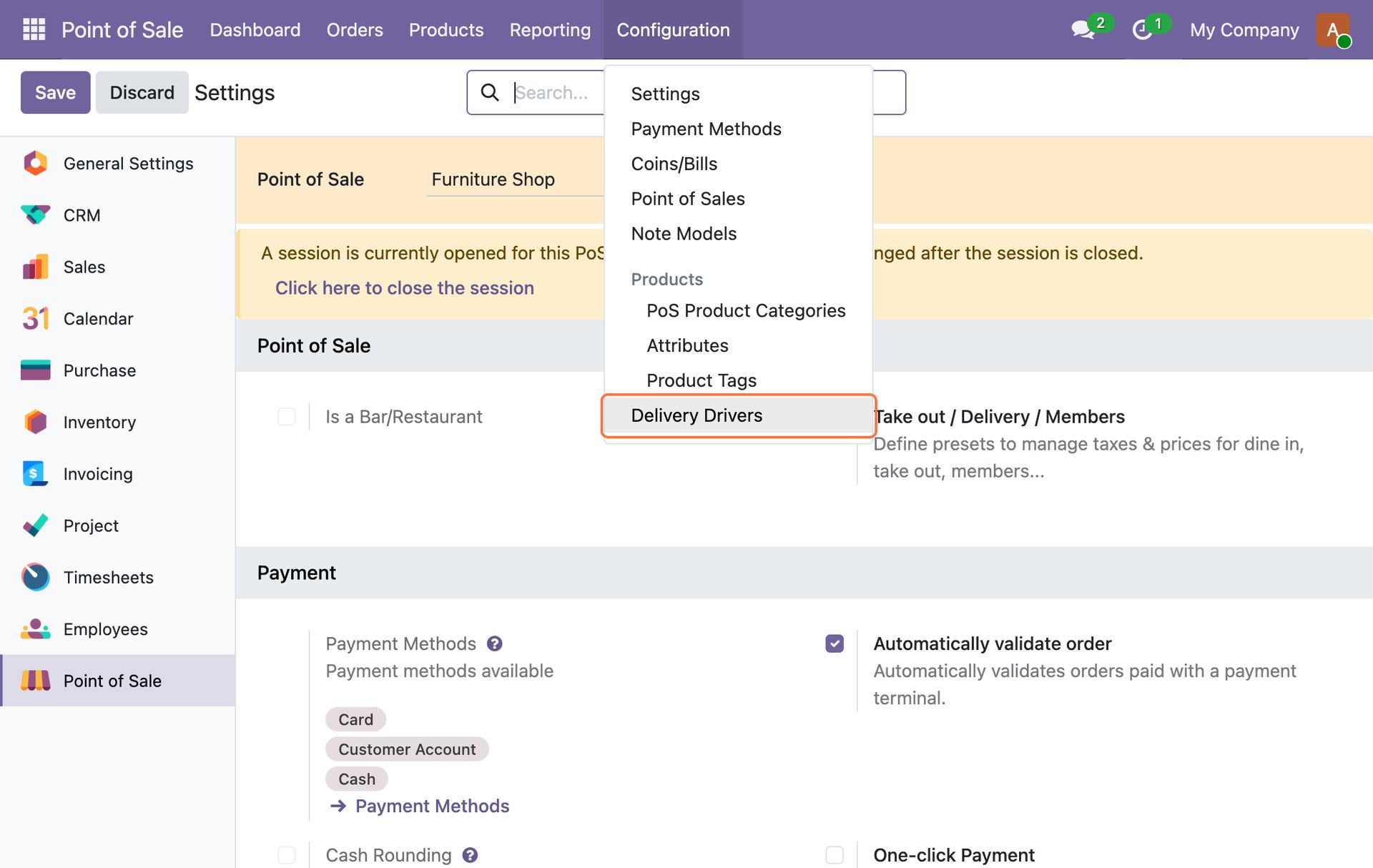
Select the Delivery Drivers sub-menu from the Configuration dropdown menu.
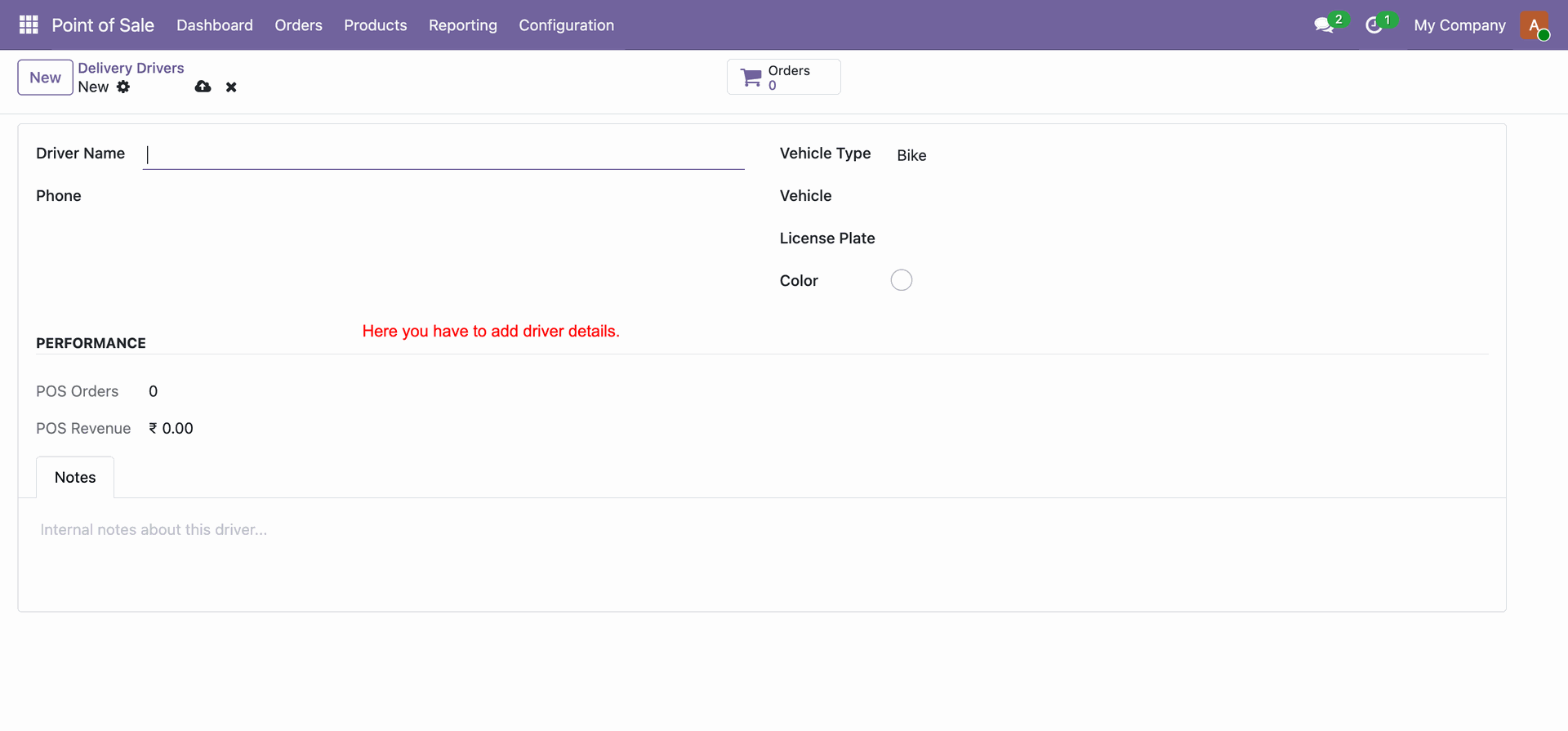
Click the New button to create a new delivery driver, filling in their name, phone, vehicle type, vehicle name, license plate, color, and optional notes.
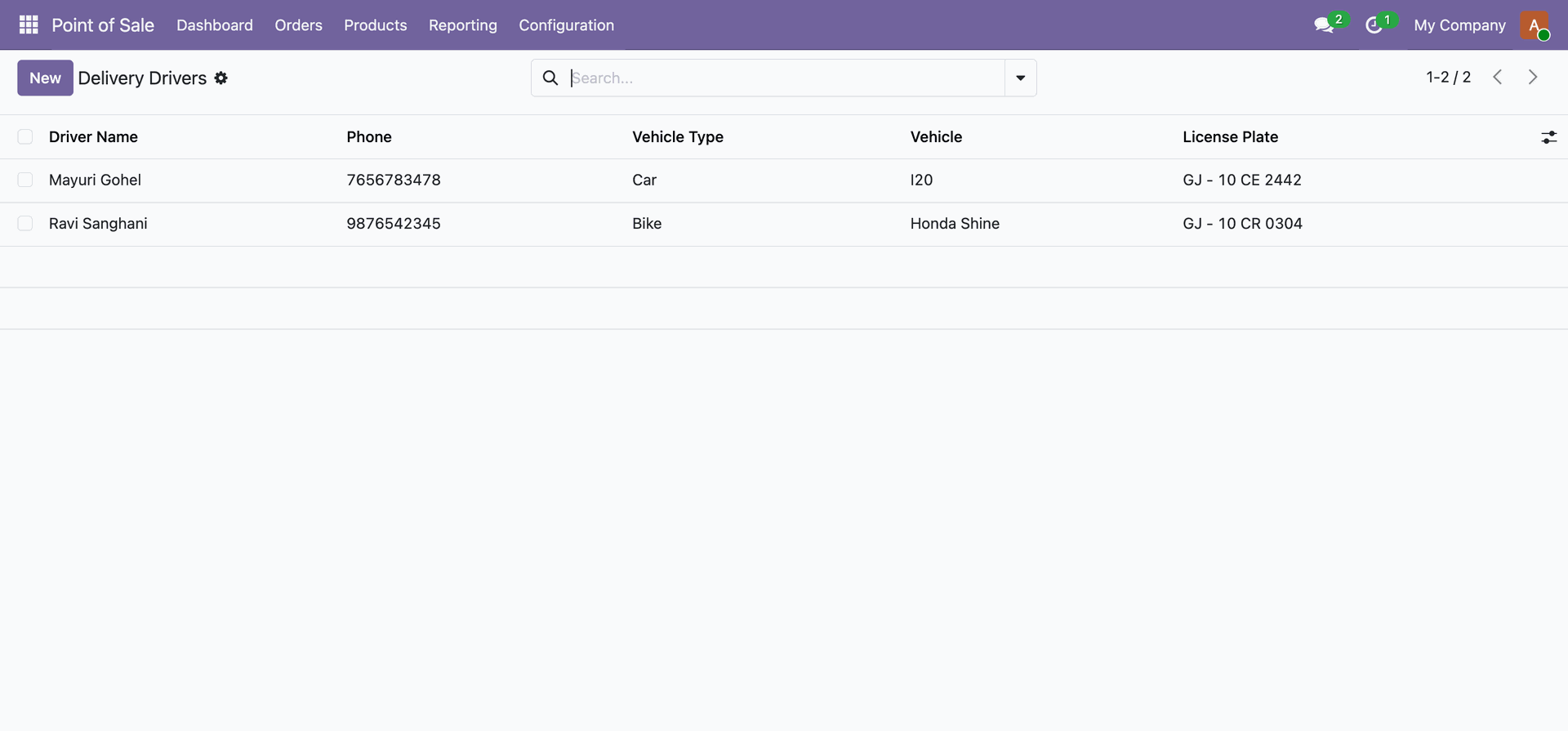
View all registered delivery drivers in the backend list view, including their names, phone numbers, vehicle types, and license plates.
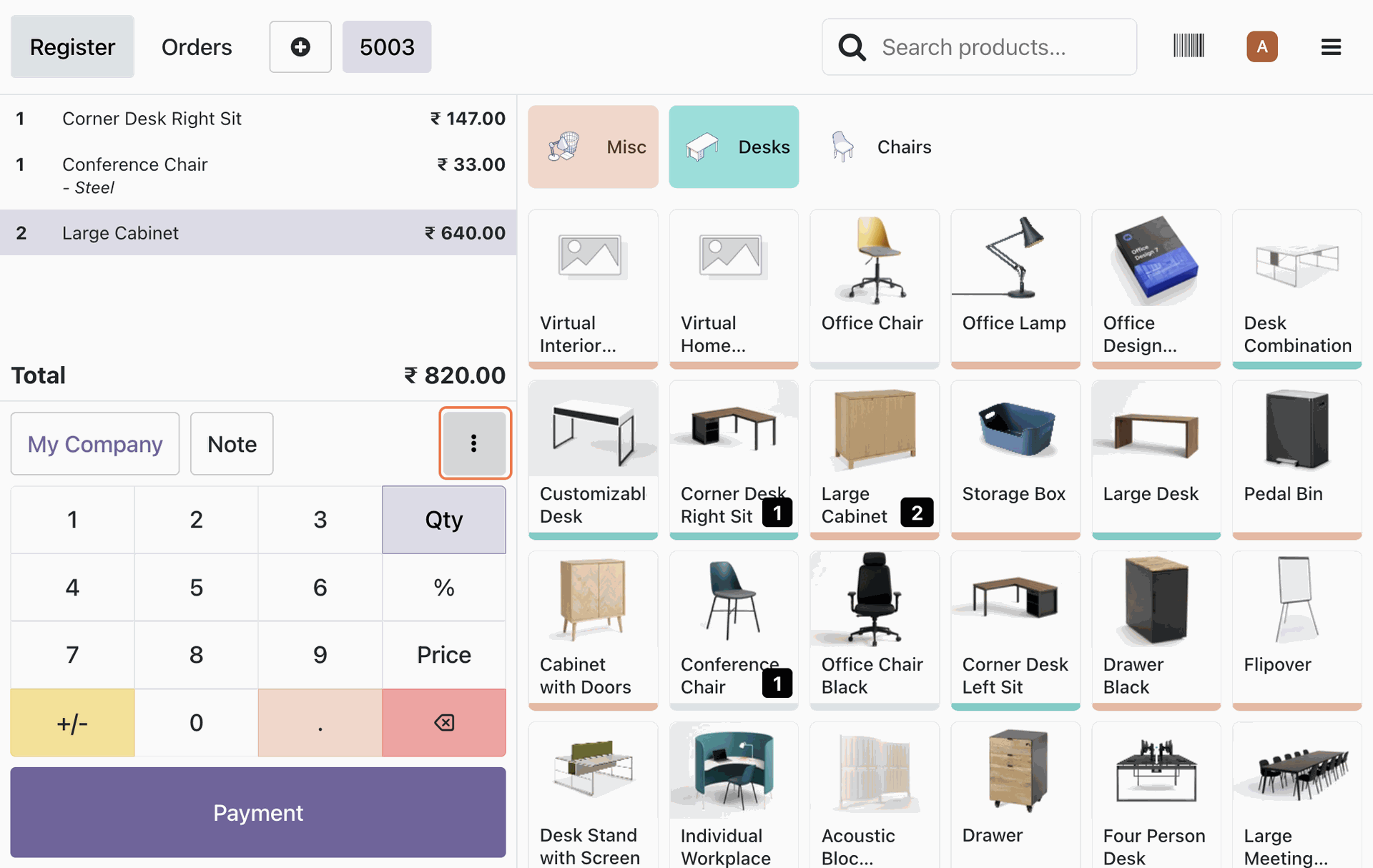
In an active POS session, click the More Actions (three dots) button at the bottom of the checkout controls.
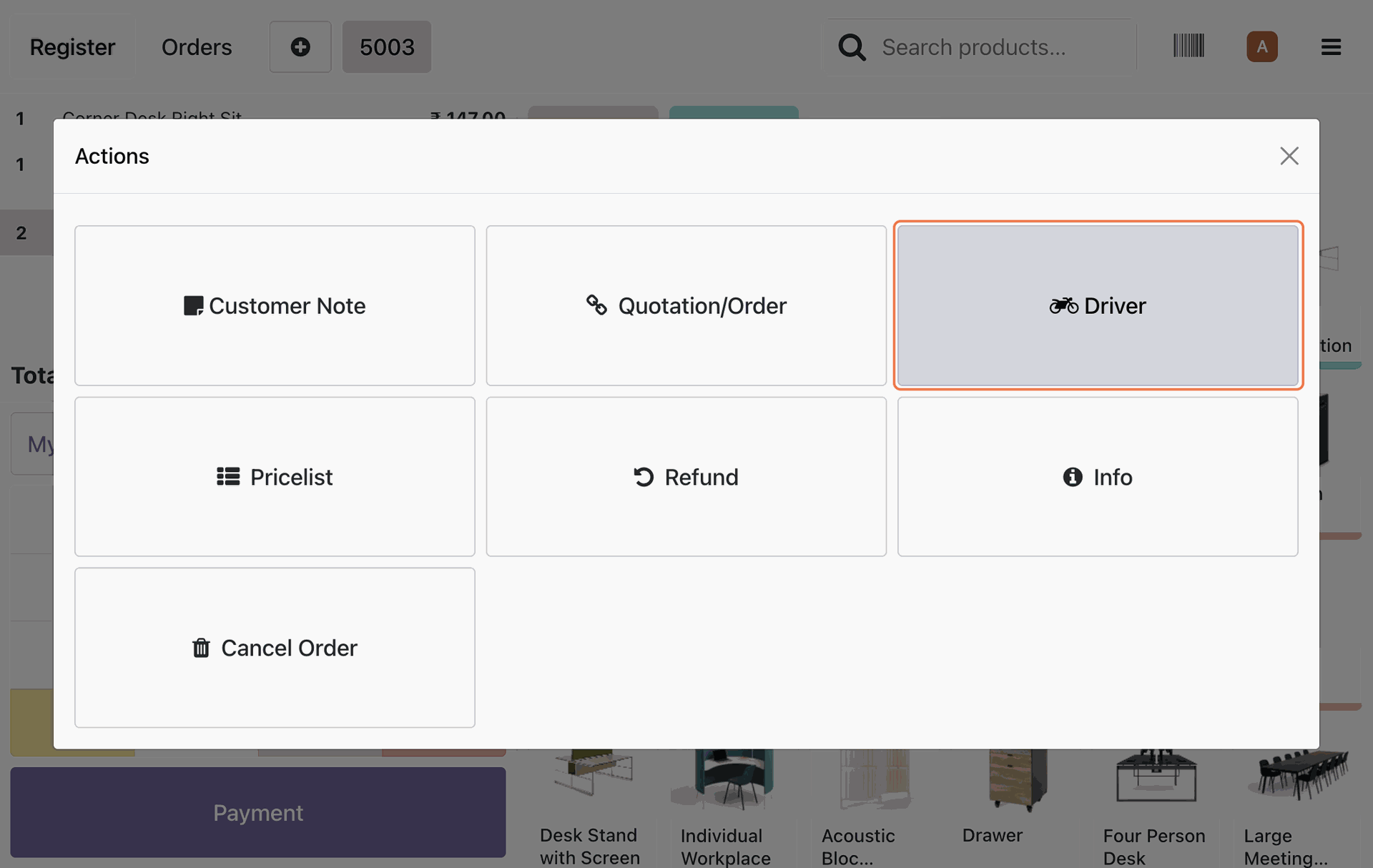
Click the Driver action button (represented by a motorcycle icon) in the actions popup.
The Assign Delivery Driver dialog opens, presenting all active drivers available for selection.
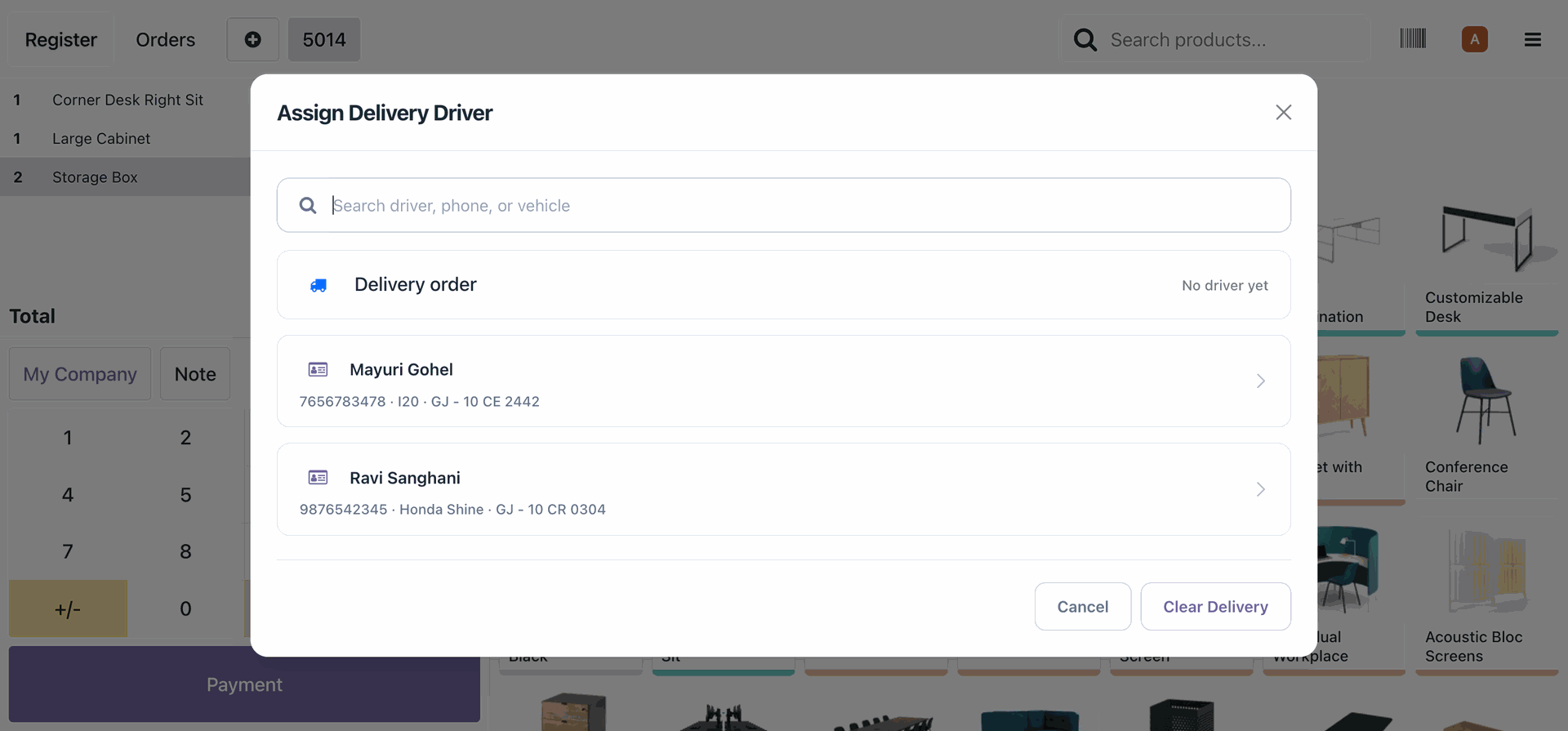
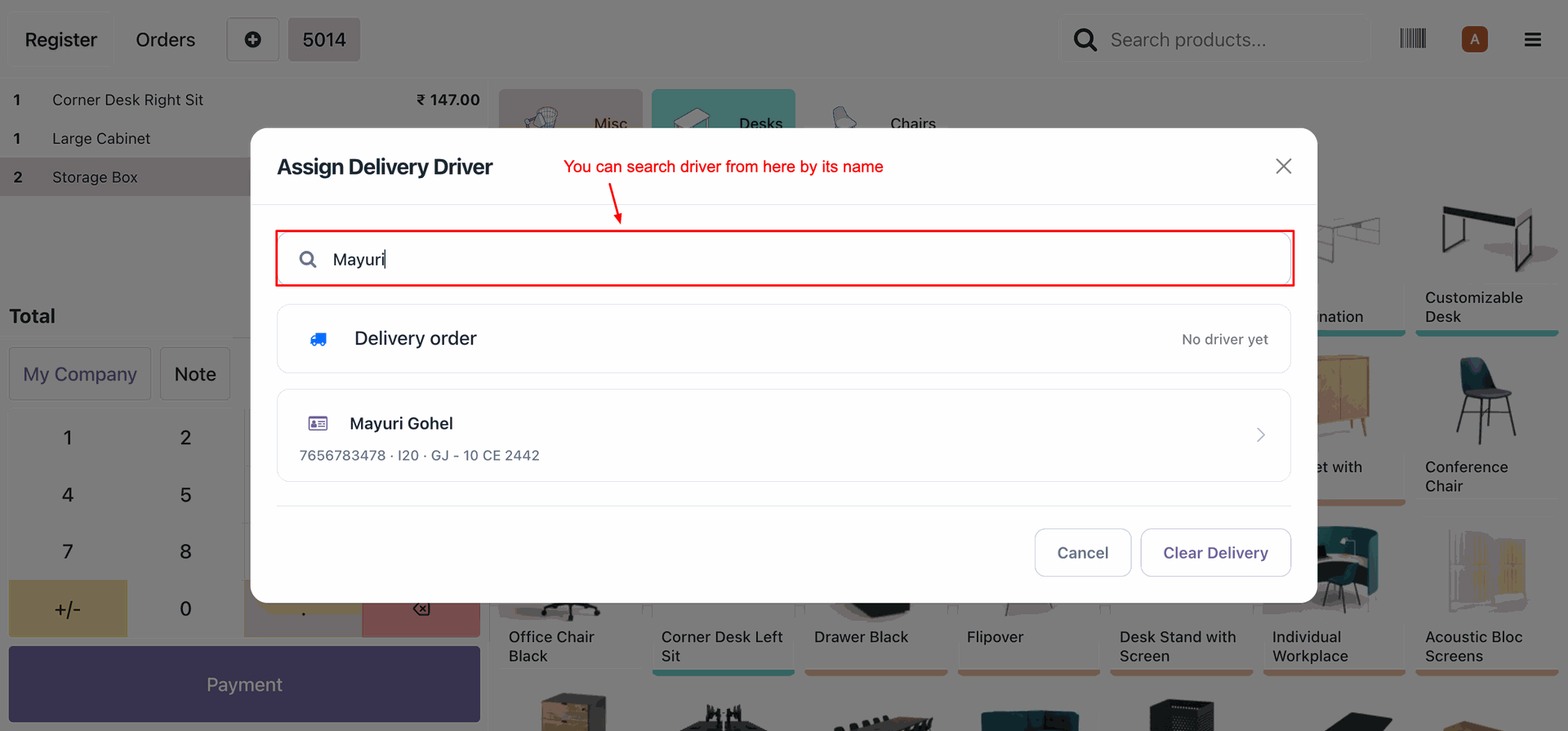
Filter and search for a driver quickly by typing their name, phone number, or vehicle details in the search input field.
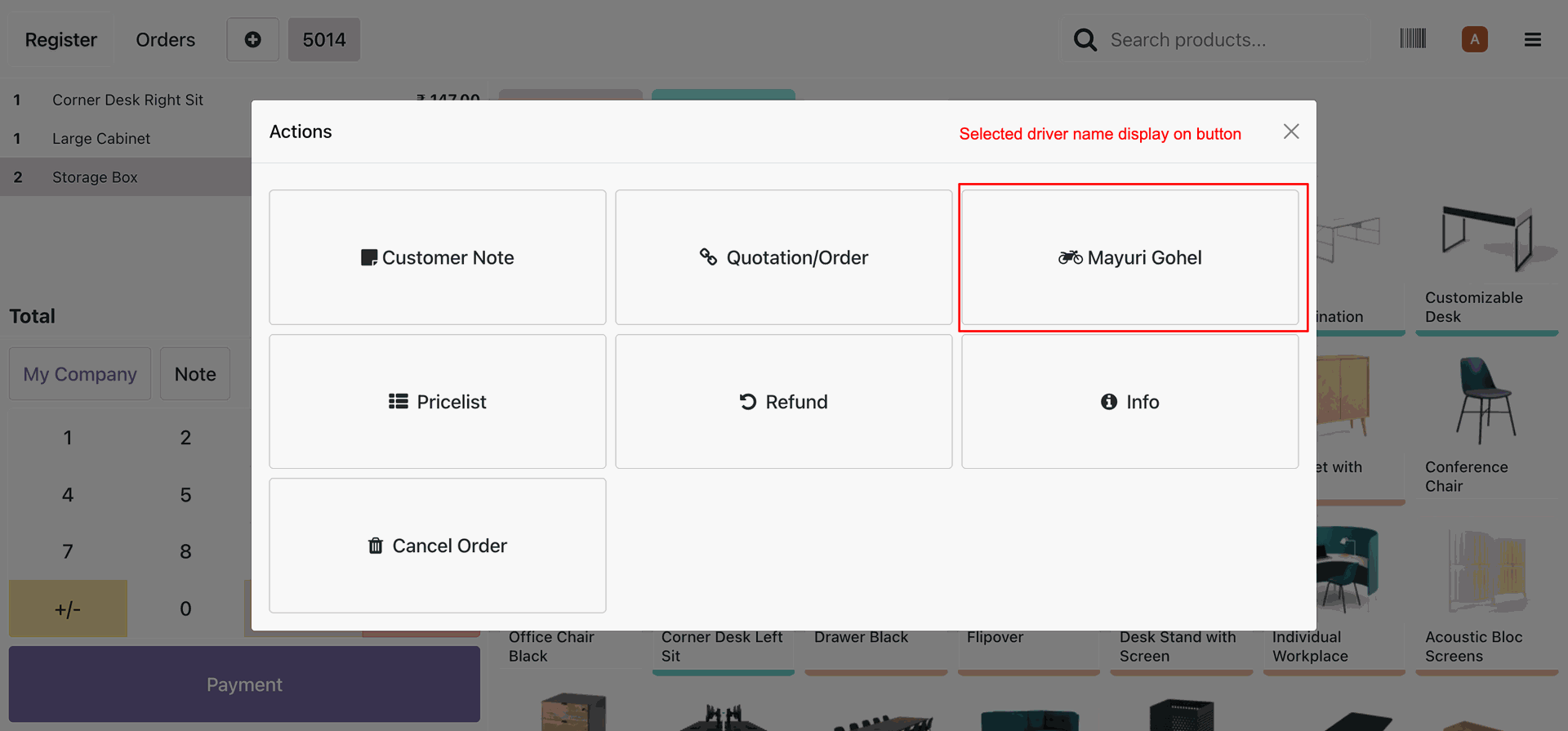
Once assigned, the driver's name is dynamically displayed on the actions panel button.
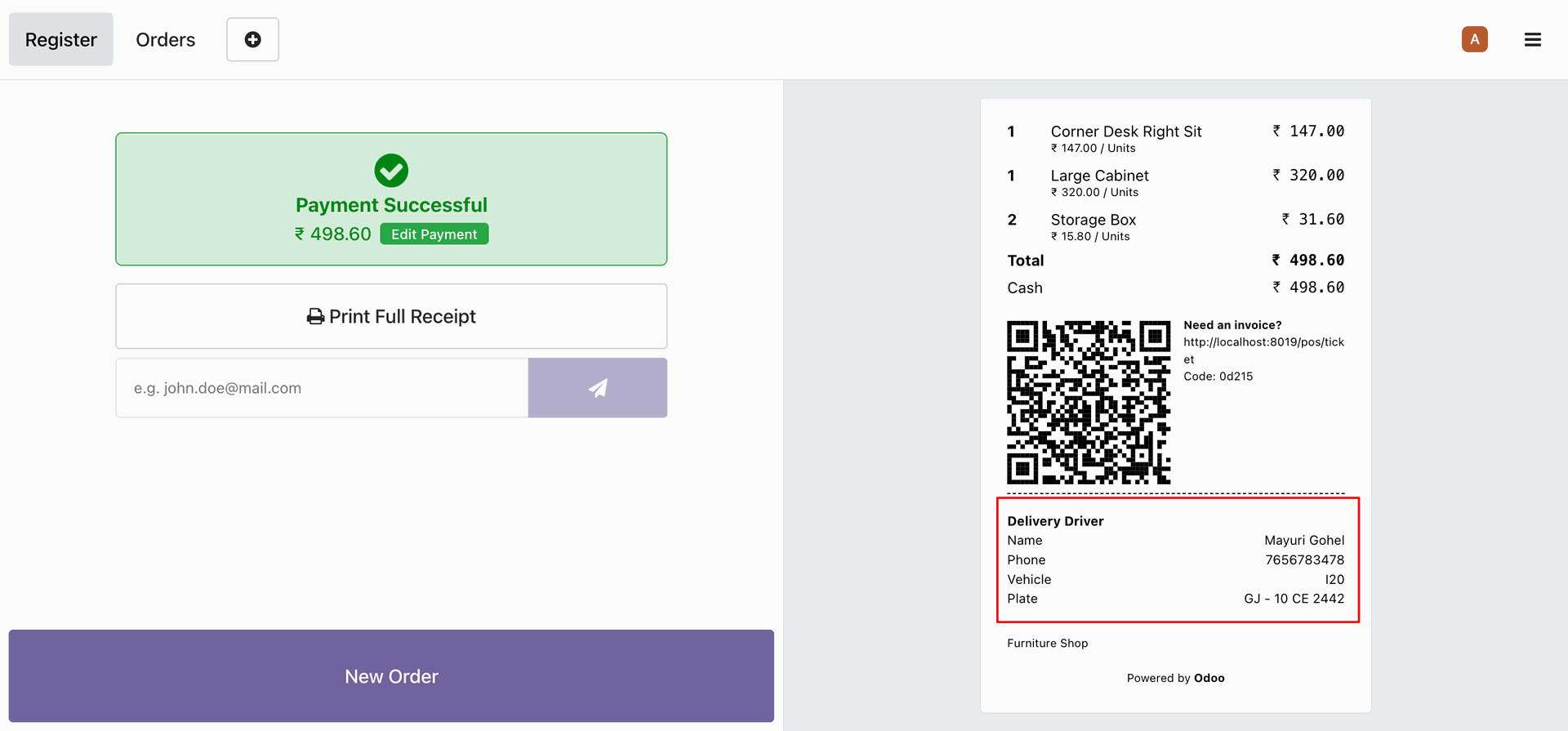
Upon successful checkout, the driver's name, phone, vehicle, and license plate are printed clearly at the bottom of the POS receipt.
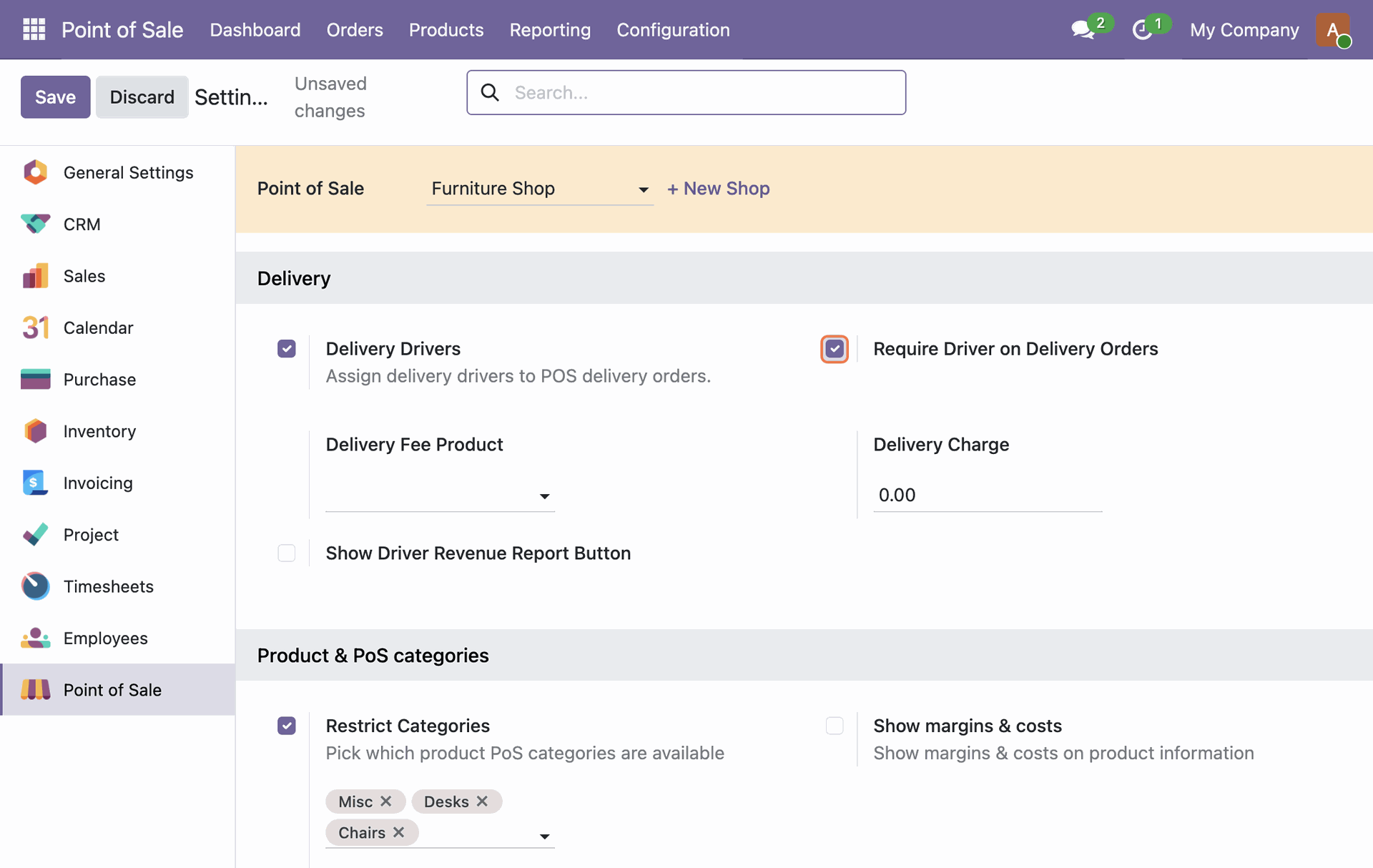
Go back to POS settings and enable Require Driver on Delivery Orders to make driver selection mandatory for delivery orders.
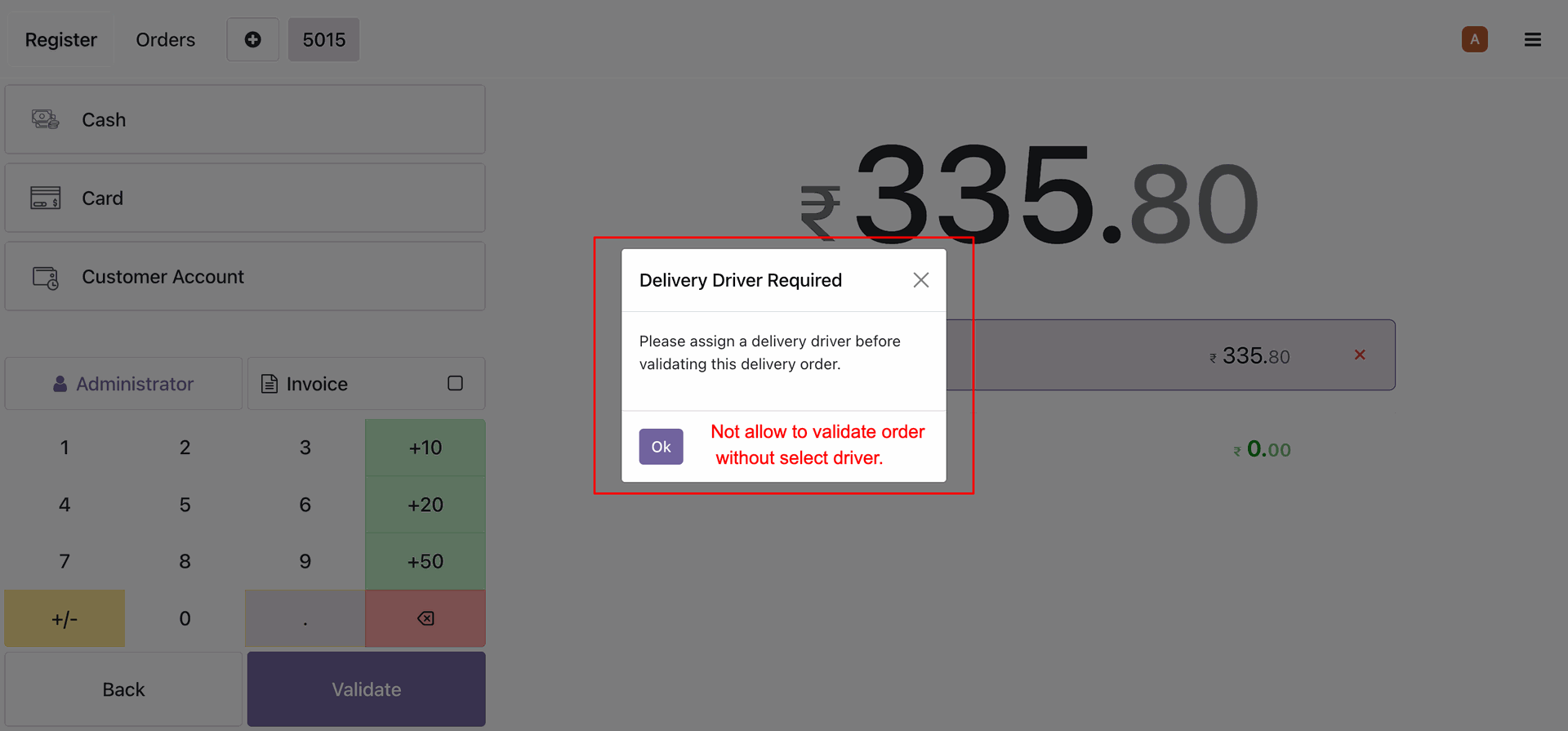
If a cashier tries to validate a delivery order without assigning a driver, the POS displays a Delivery Driver Required warning, blocking checkout.
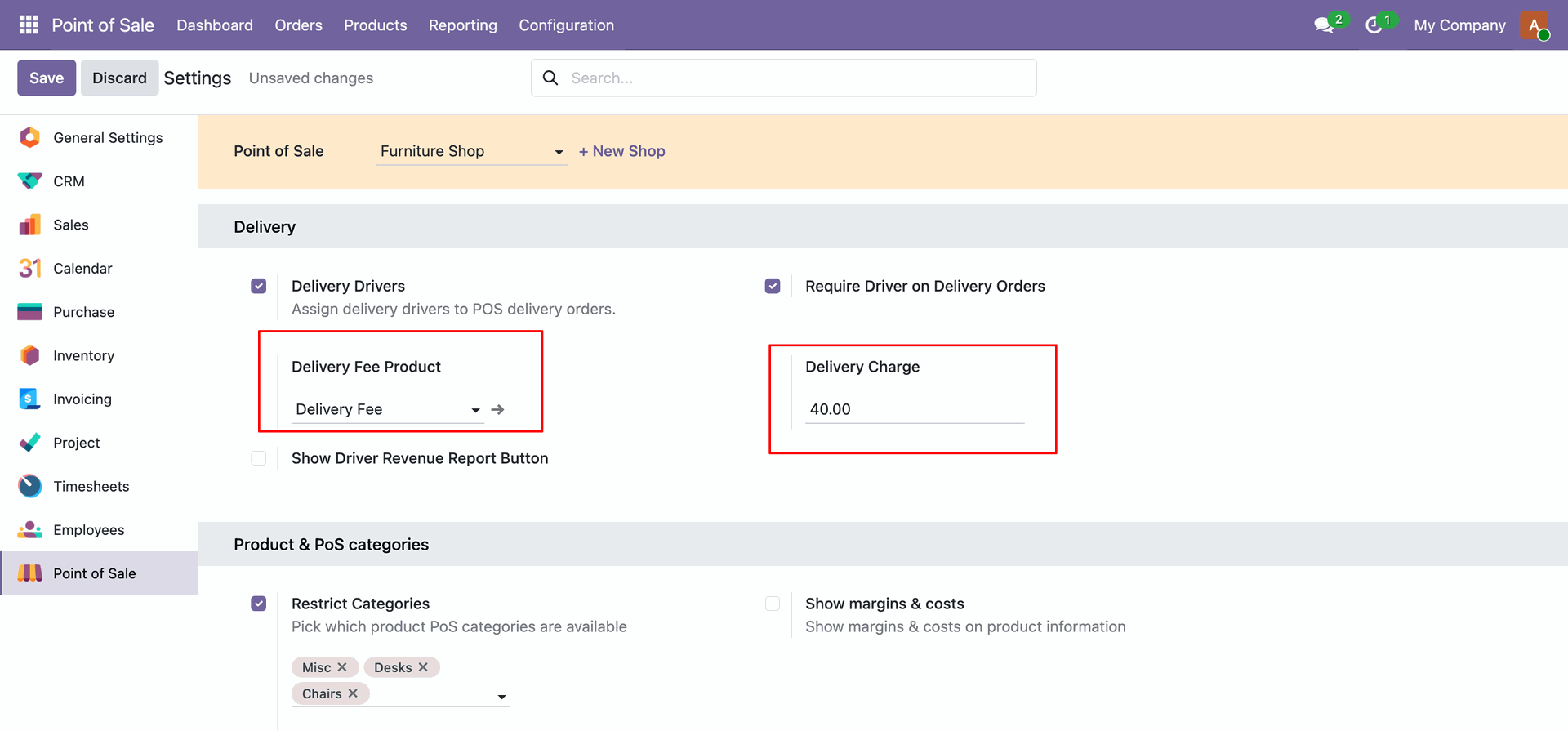
In POS settings, set a Delivery Fee Product and define a custom Delivery Charge amount.
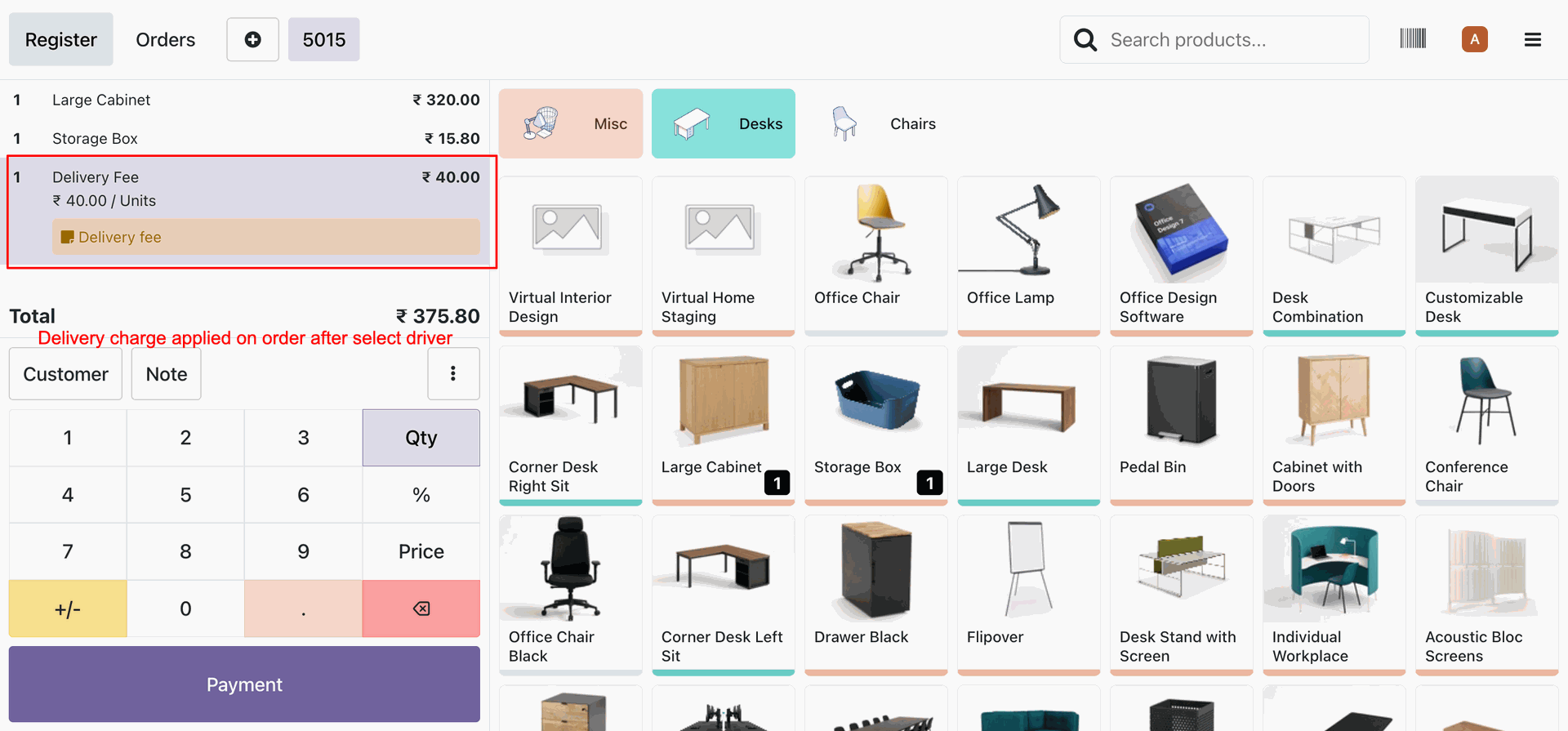
When a driver is assigned, the configured delivery fee product is automatically added to the cart with the designated delivery charge.
Navigate to Point of Sale -> Reporting and select the Driver Performance menu to analyze delivery analytics.
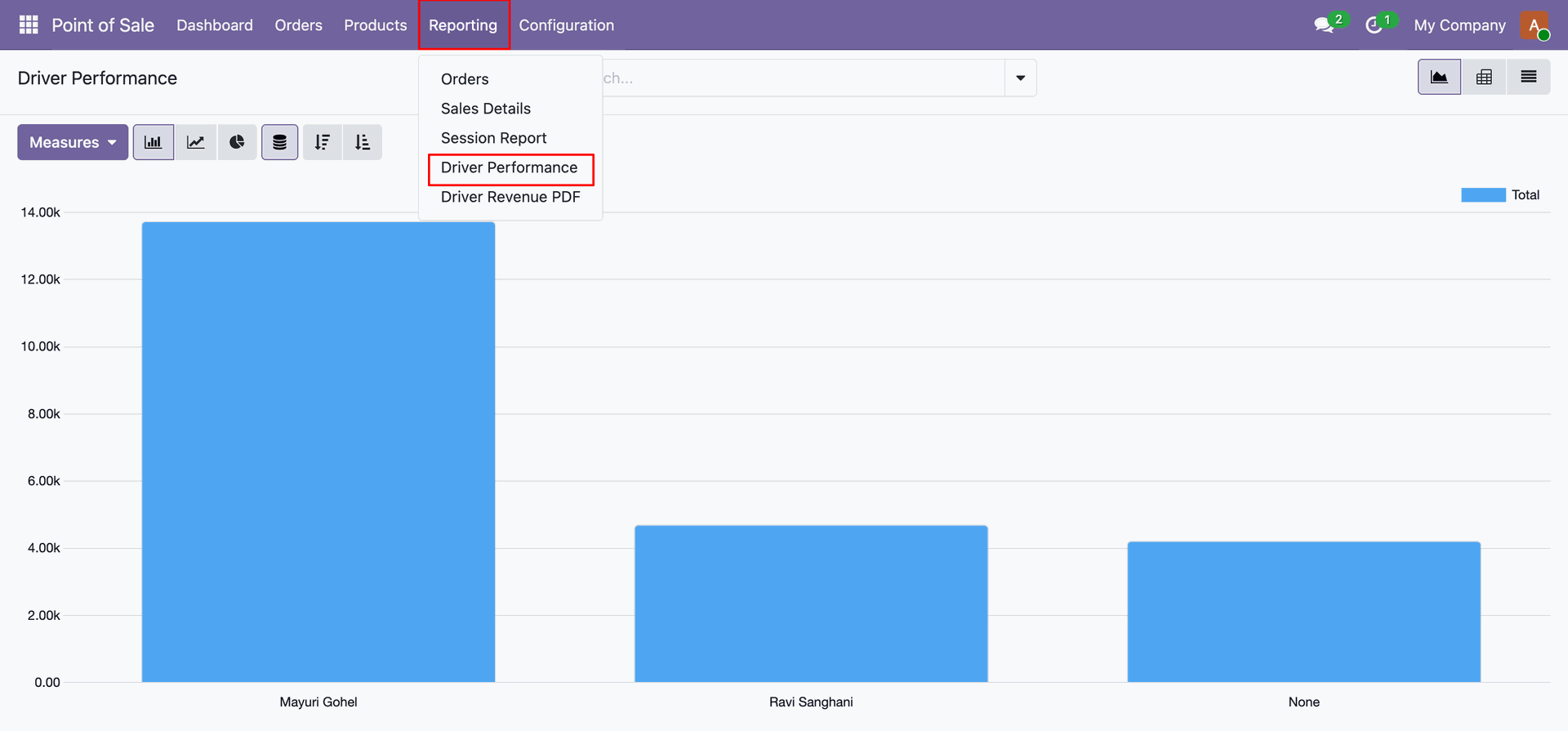
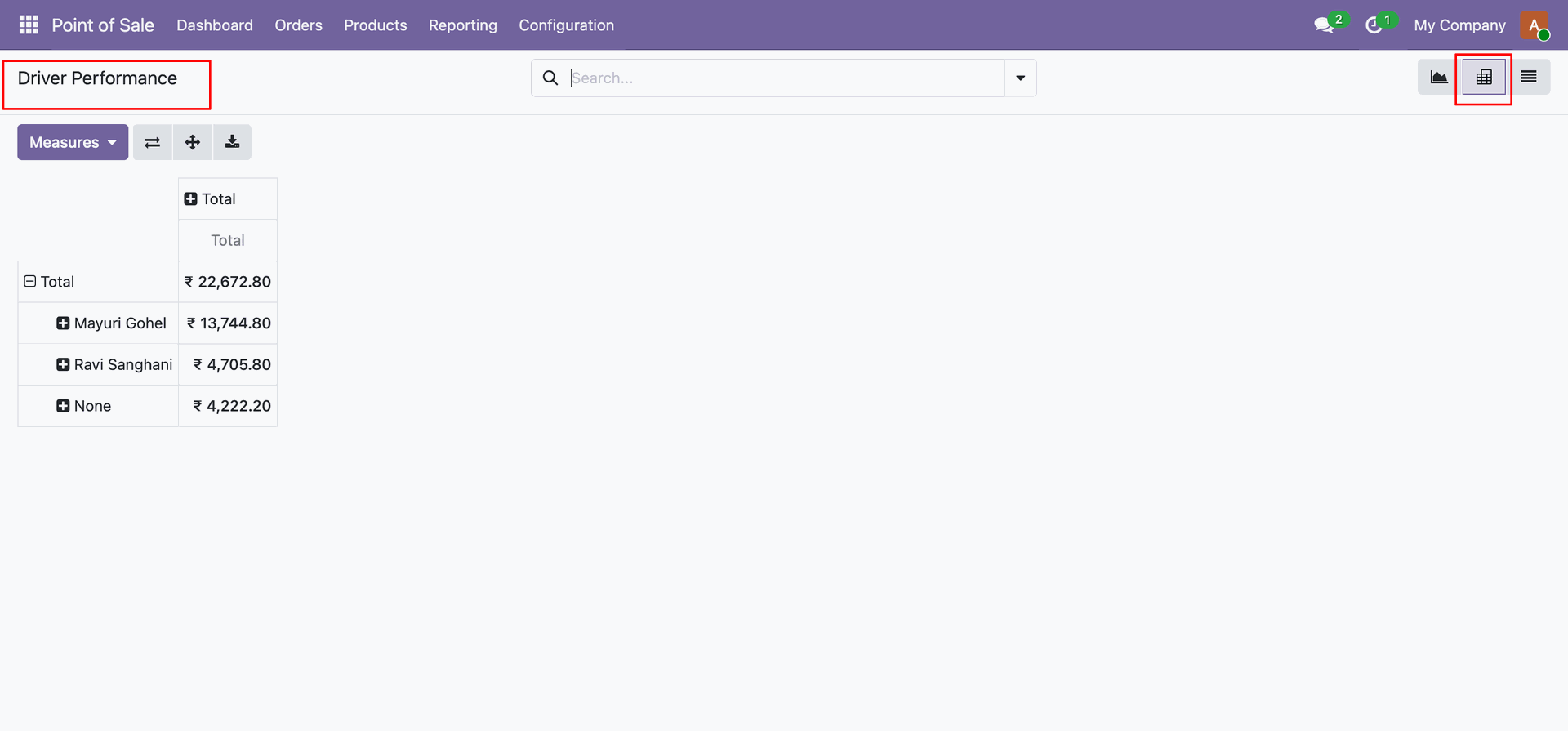
Analyze order statistics and revenue metrics for each delivery driver in the reporting Pivot View.
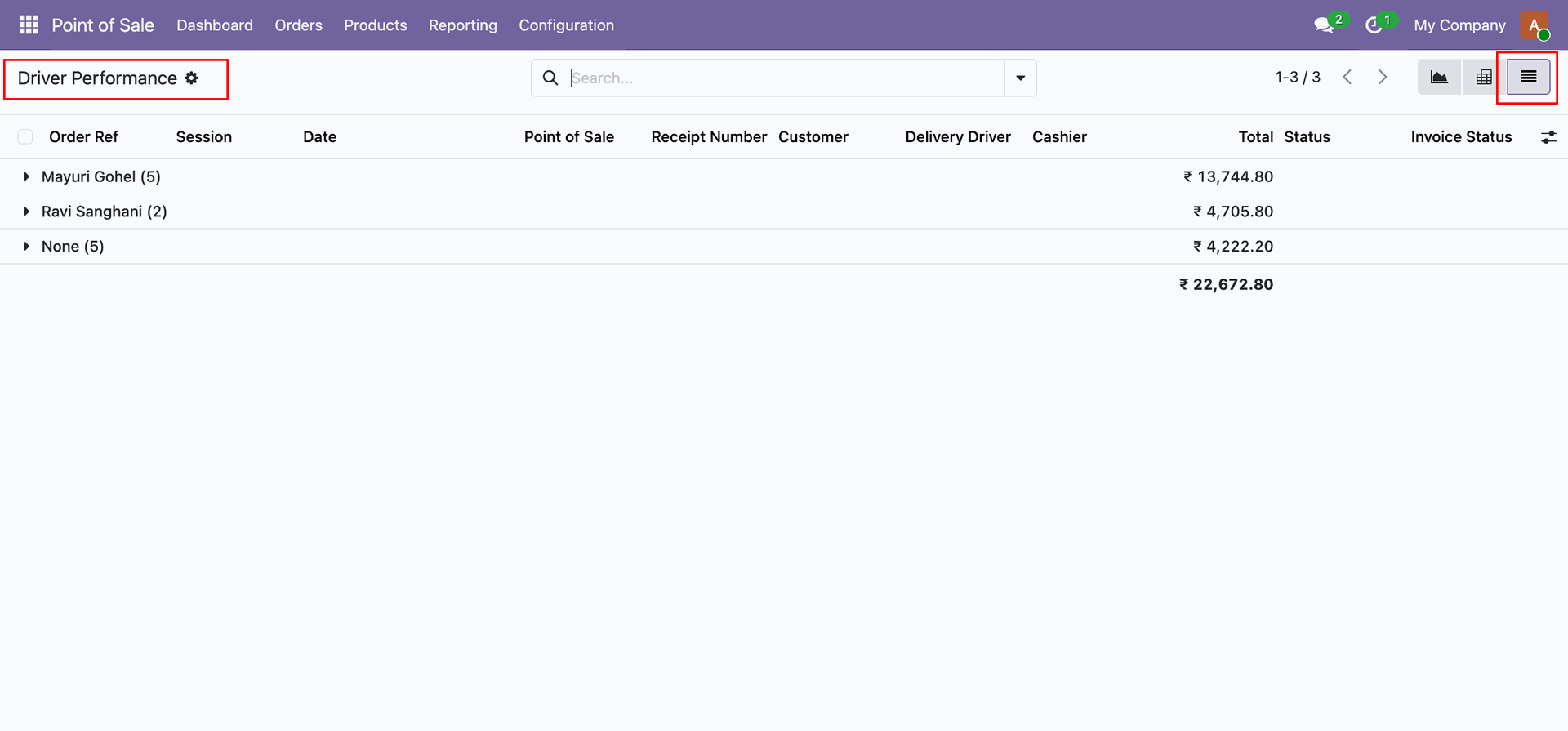
View POS orders grouped by their assigned delivery drivers in the reporting List View.
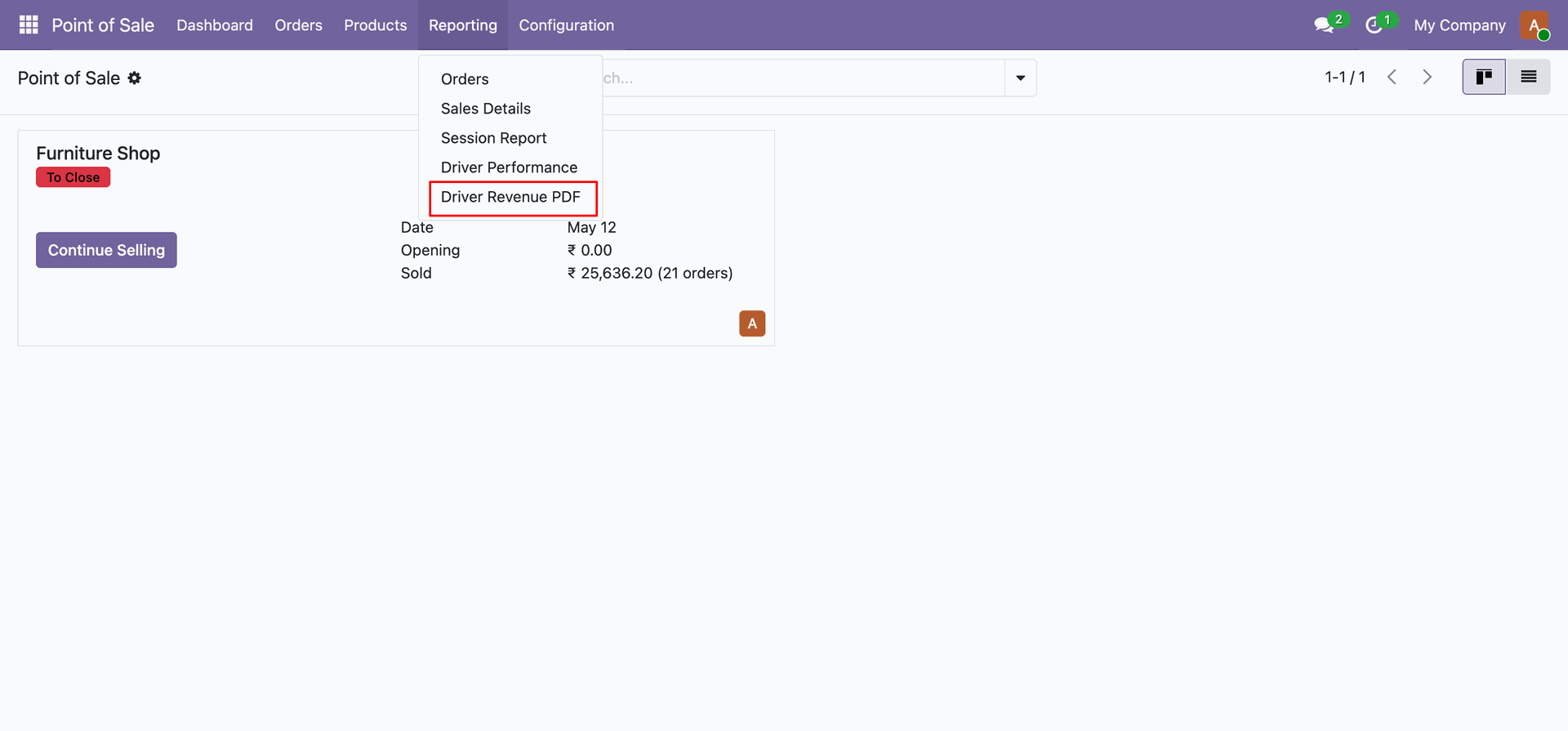
In Point of Sale -> Reporting, select the Driver Revenue PDF menu to print historical driver revenue reports.
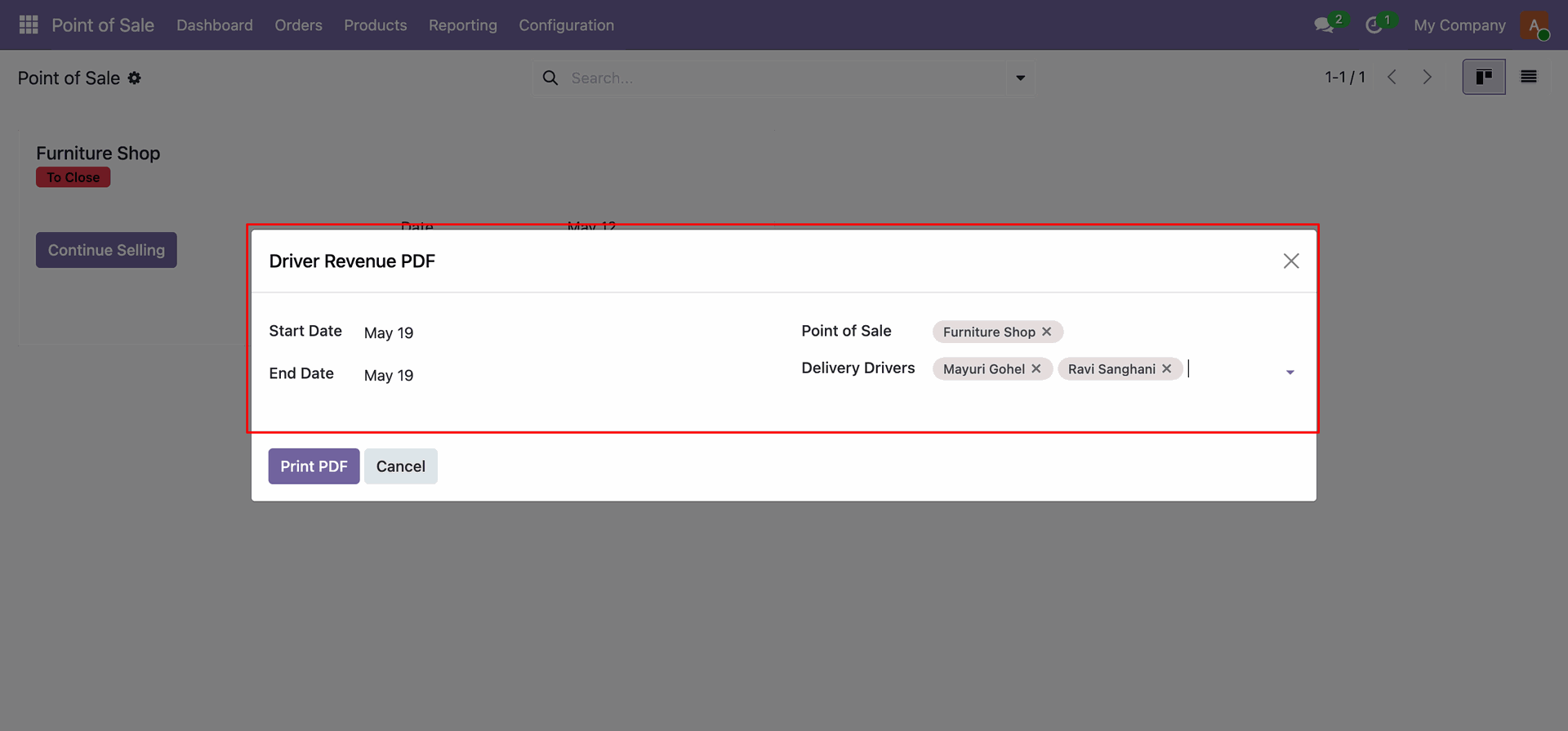
The backend Driver Revenue PDF wizard opens, allowing you to filter by date range, POS configurations, and specific drivers.
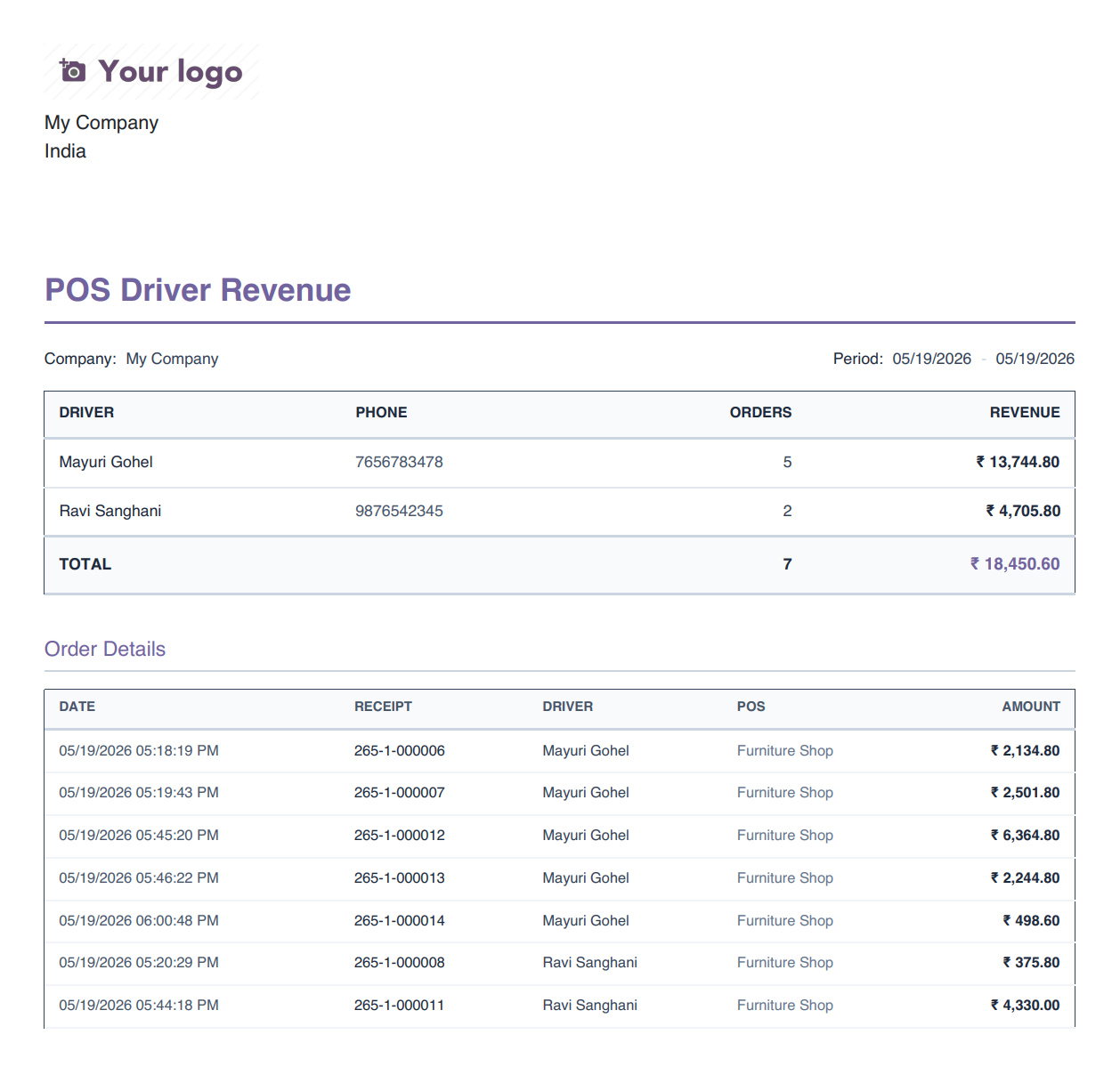
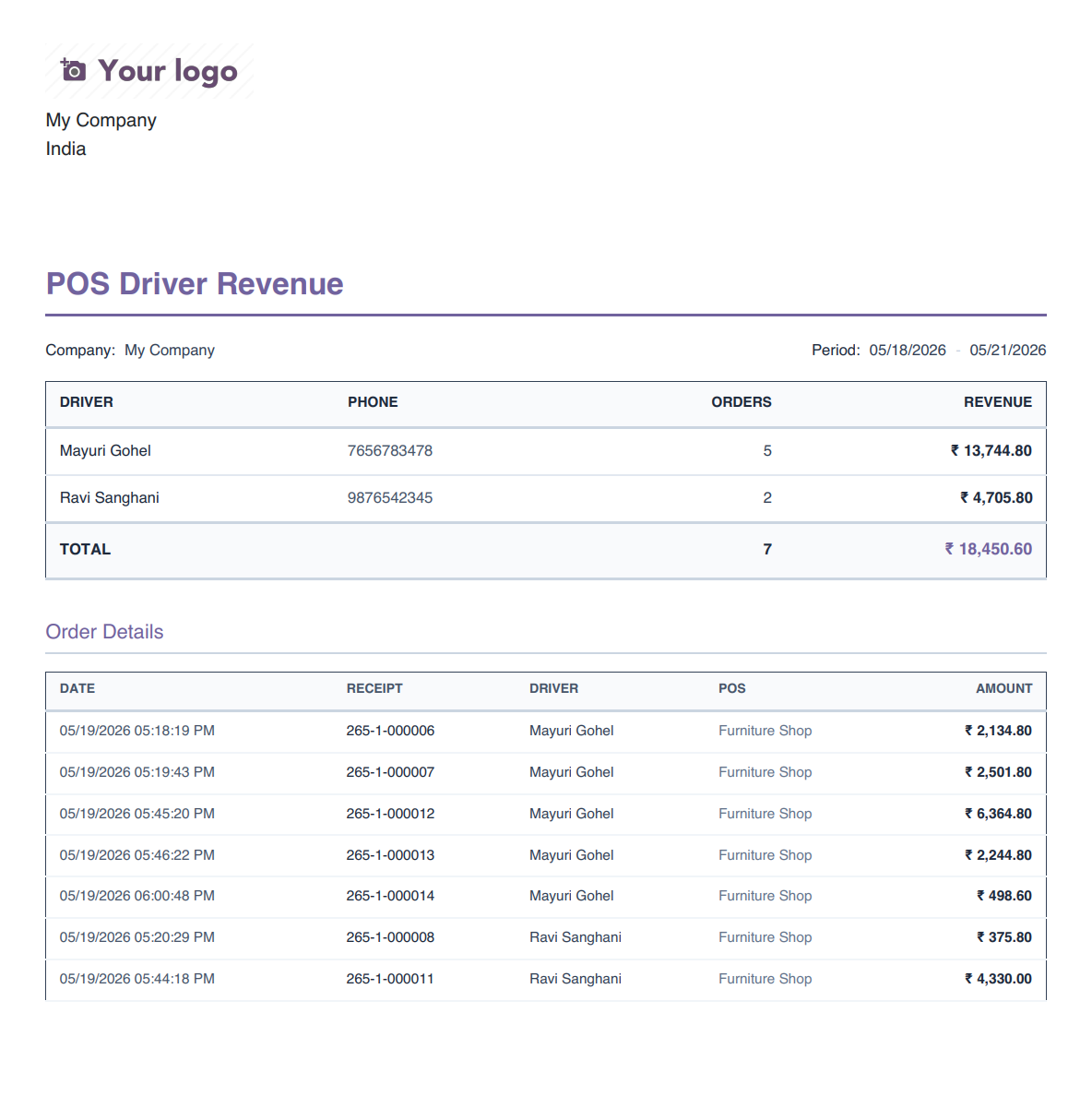
Generate a professional POS Driver Revenue PDF report displaying summary performance table and granular order details.
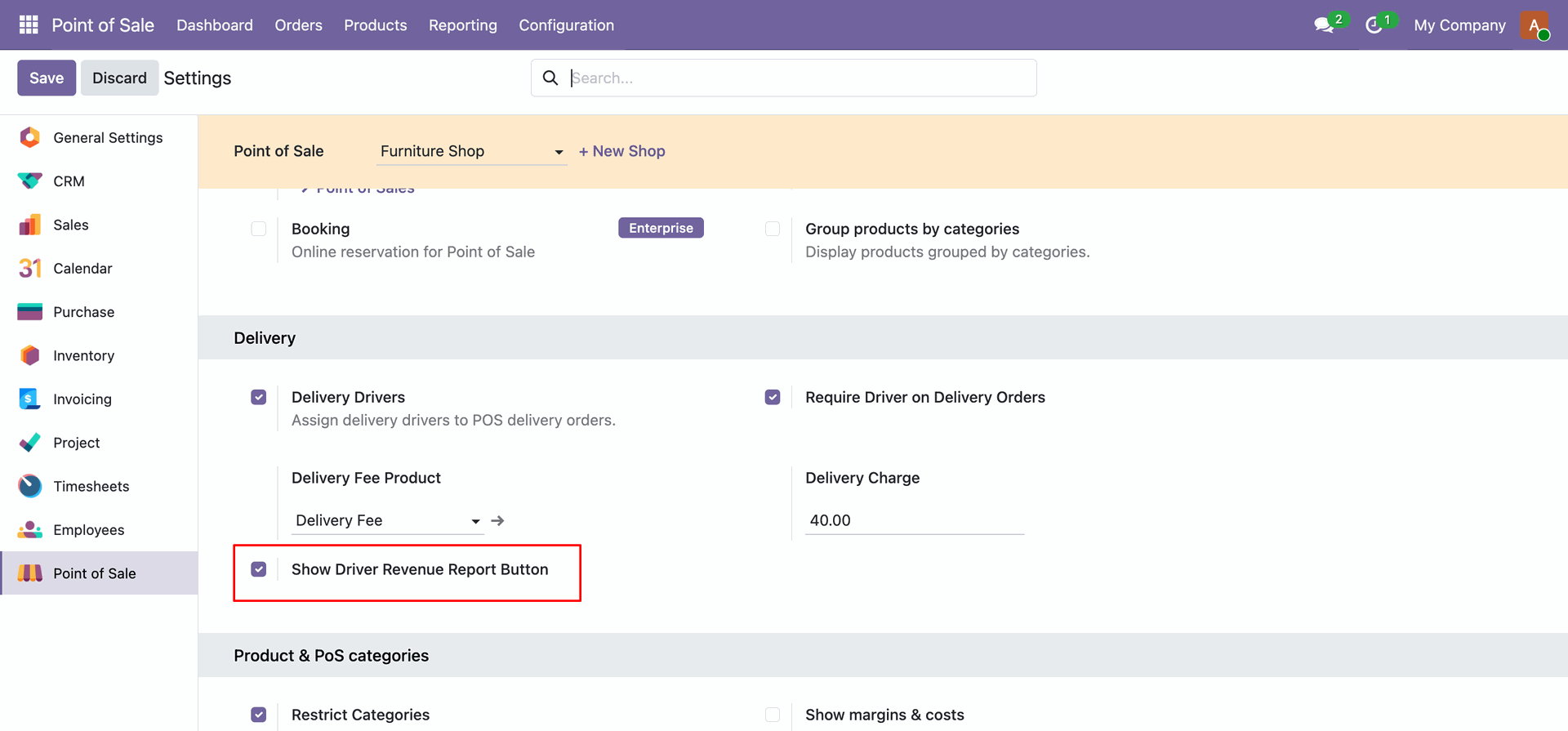
Enable the Show Driver Revenue Report Button option in POS settings to allow cashiers to print reports from the POS UI.
In the active POS session cart view, click the More Actions (three dots) button.
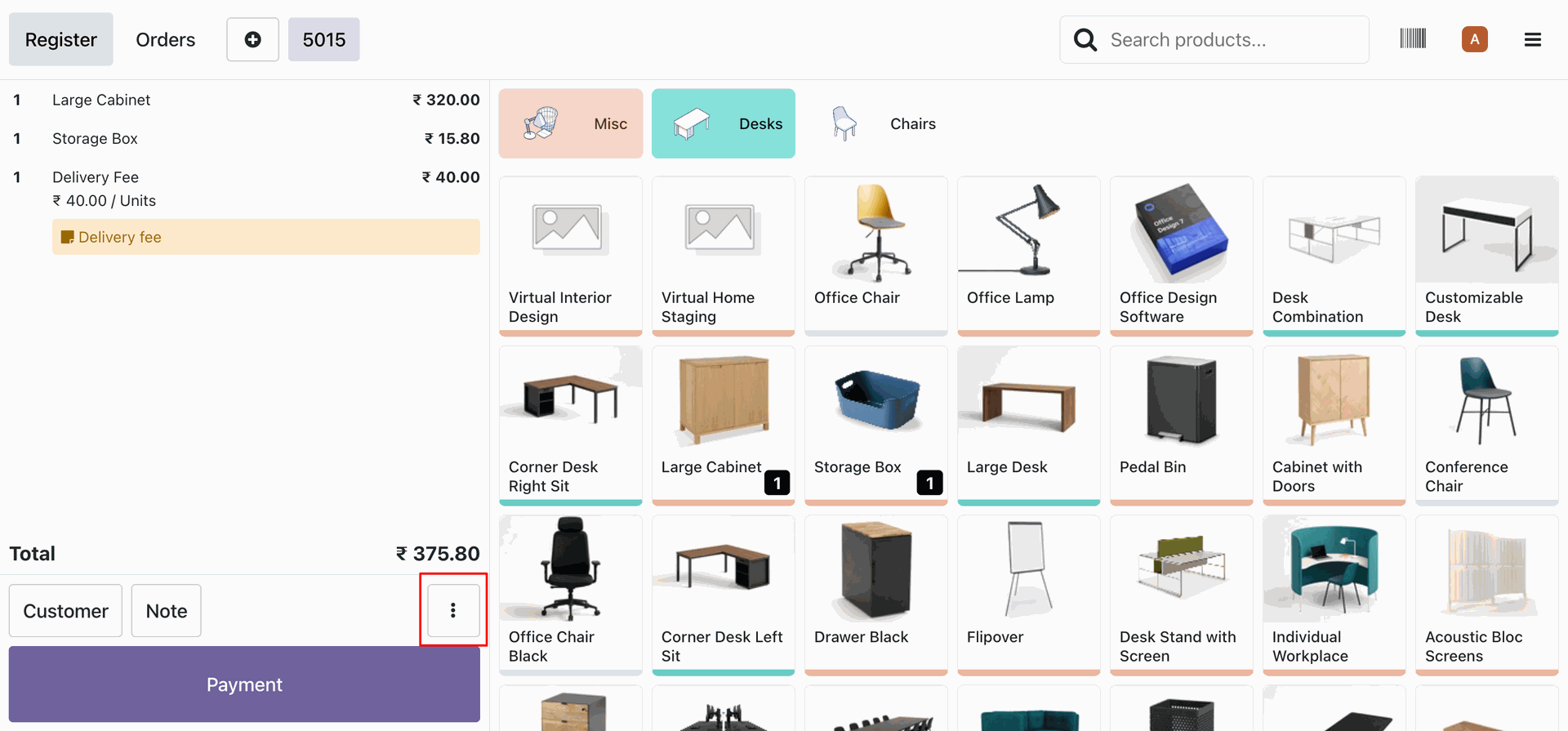
Click the Driver Revenue PDF button in the actions popup inside the POS session.
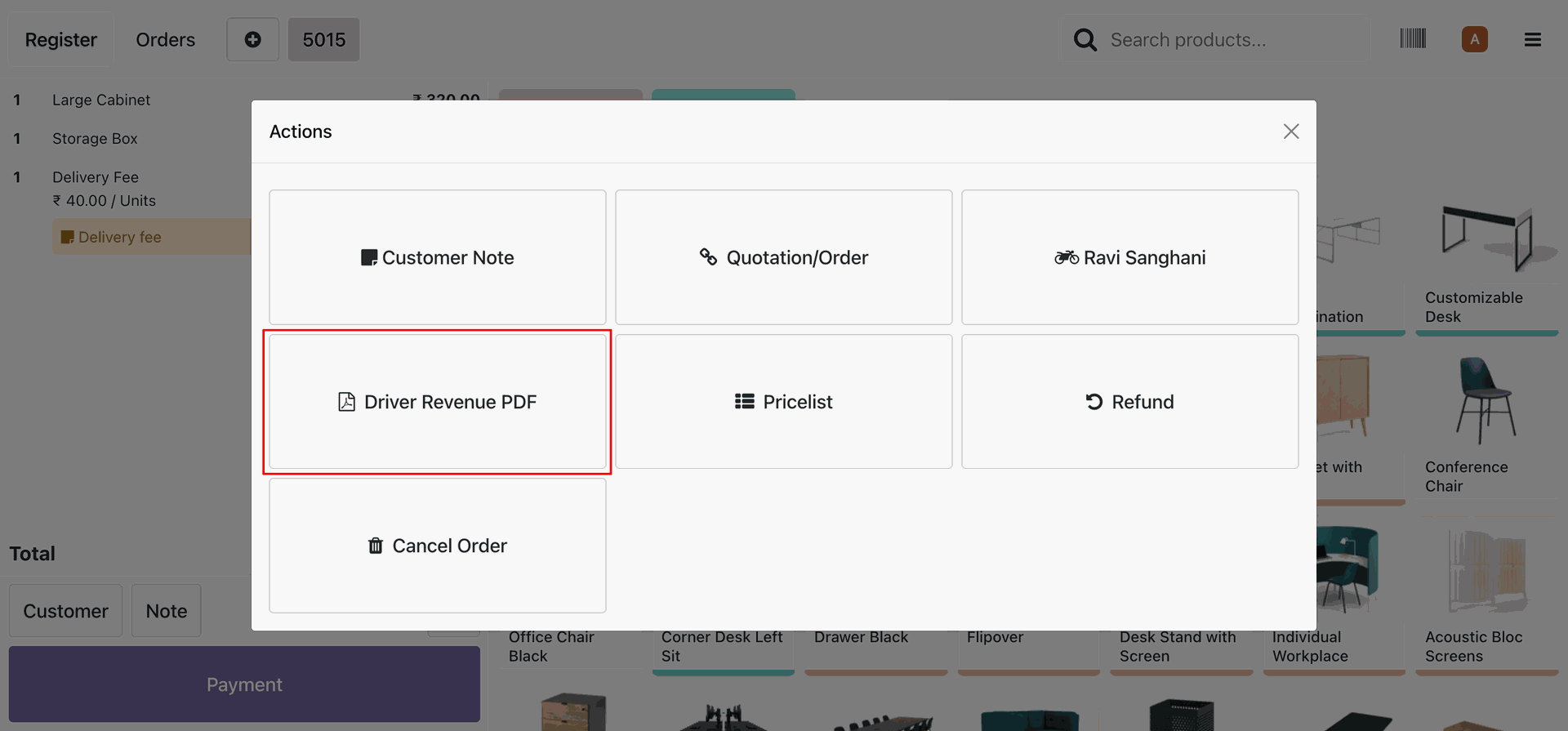
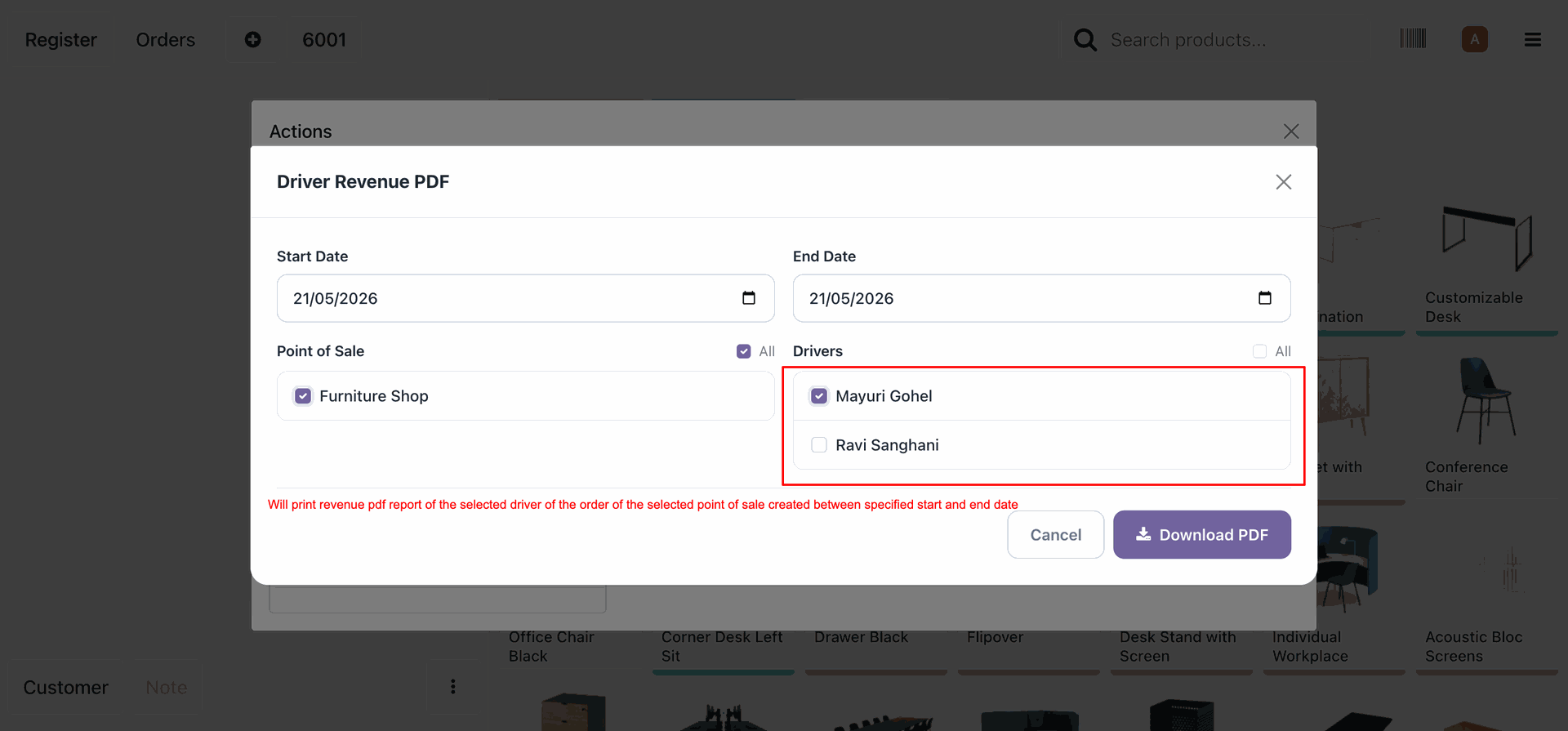
Select the date range, POS configurations, and drivers to print the revenue report directly from the active session.
The printed POS Driver Revenue PDF report generated directly from the POS interface showing order details and revenues.
Version 19.0.1.0.0 | Released on : 18th August 2026
- Yes, this app works perfectly with Odoo Enterprise (Odoo.sh & Premise) as well as Community.
- No, this application is not compatible with odoo.com(odoo saas/Odoo Online)
- Yes, to test this module, please contact us at sales@softhealer.com.
- Please contact us at sales@softhealer.com to request customization.
- Yes, we provide free support for 365 days from the date of purchase.
- Yes, you will receive lifetime free updates for the version of the module you purchased.
- No, there is no need to install any additional libraries.
- Yes, for version 12 and above, you need to purchase the module separately for each version you intend to use.
- No, exchanges or refunds are not allowed. Please make sure to select the correct version before purchasing.
- You can contact us at support@softhealer.com for language translation support. We use Google Translator tools to provide translations in multiple languages, so the accuracy may vary. We welcome your suggestions to help improve translations.
Discover Our Latest Apps