












POS Lot Serial Selection

This module helps to add products to a cart by using Lots/Serial numbers. You can display product lot/serial numbers in the receipt. Also, we provide a feature to select quantity by single or in slot. You can set lot/serial numbers using barcodes as well. Usually, Default odoo doesn't provide a feature of lot selection at the point of sale.

Features
- You can add products to the cart using lots/serial.
- When the user scans the product barcode, it automatically adds a quantity of lot/serial.
- We provide 2 options to set quantity: 1) By One and 2) Full slot.
- You can display lot/serial numbers in the receipt.
-
You can
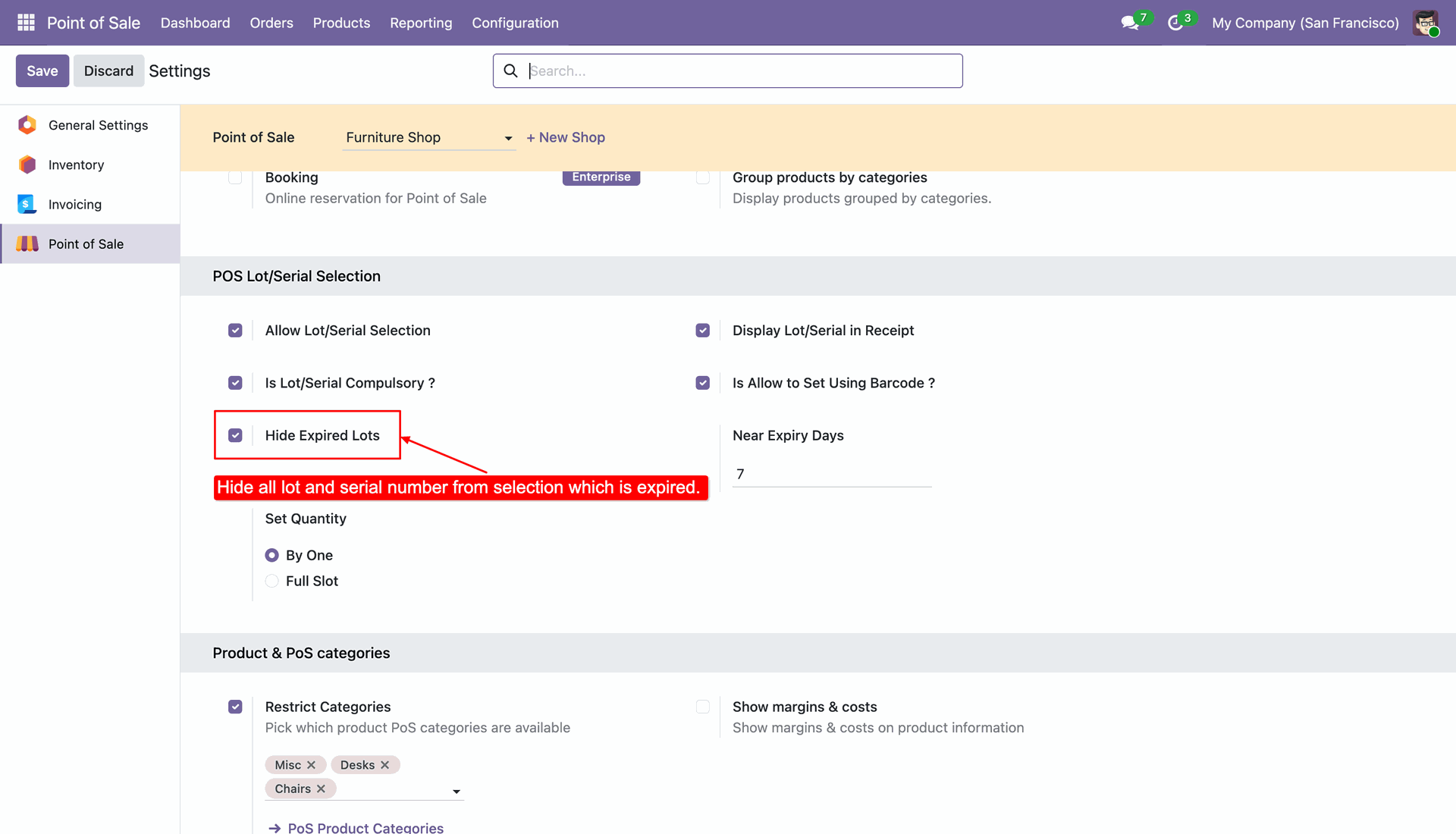
hide expired lot numbers from selection fields to prevent accidental usage.

-
You can
view and manage all expired lot and serial numbers from a dedicated screen.

Go to POS settings and tick 'Allow lot/Serial Selection'.
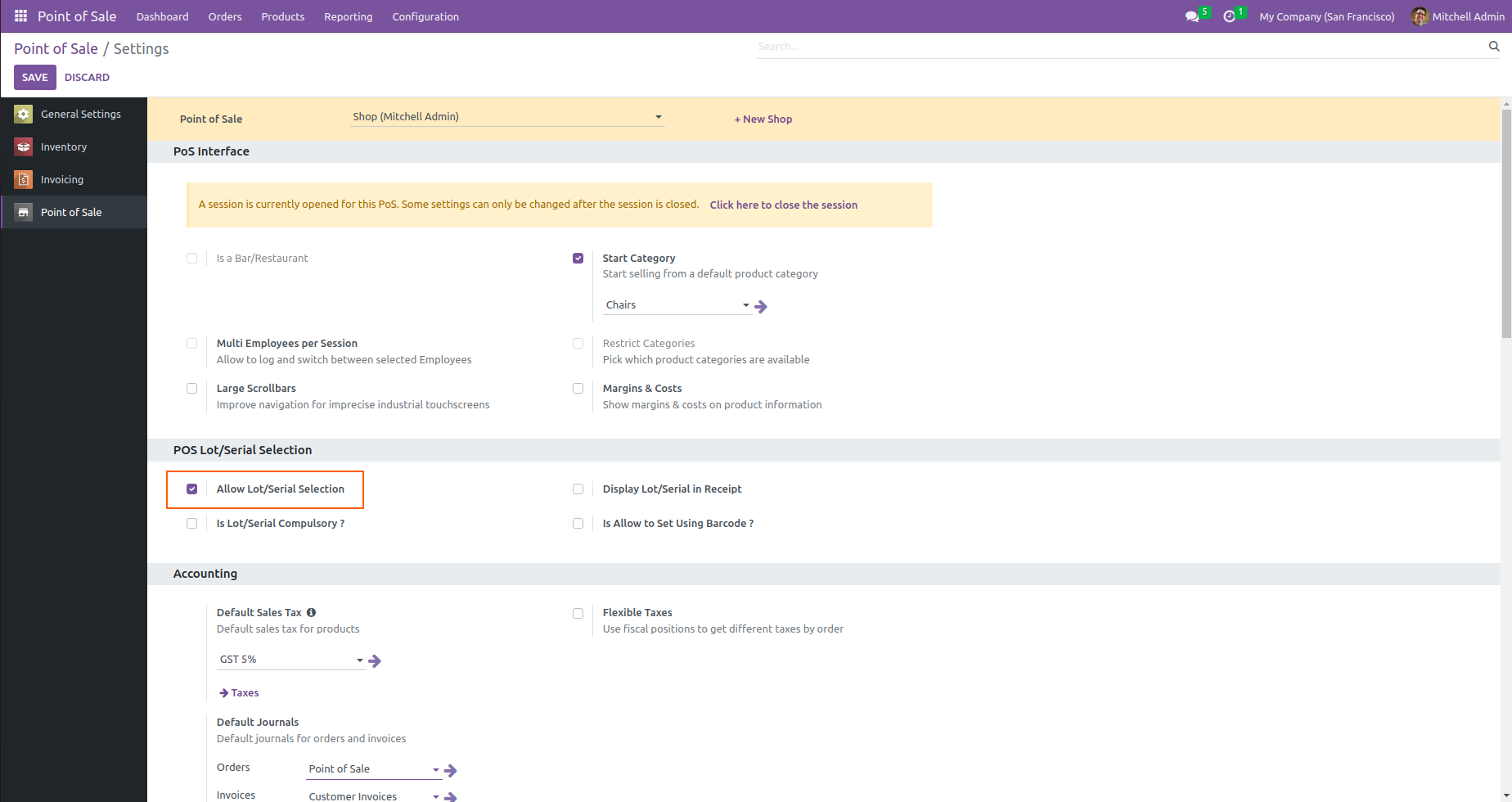
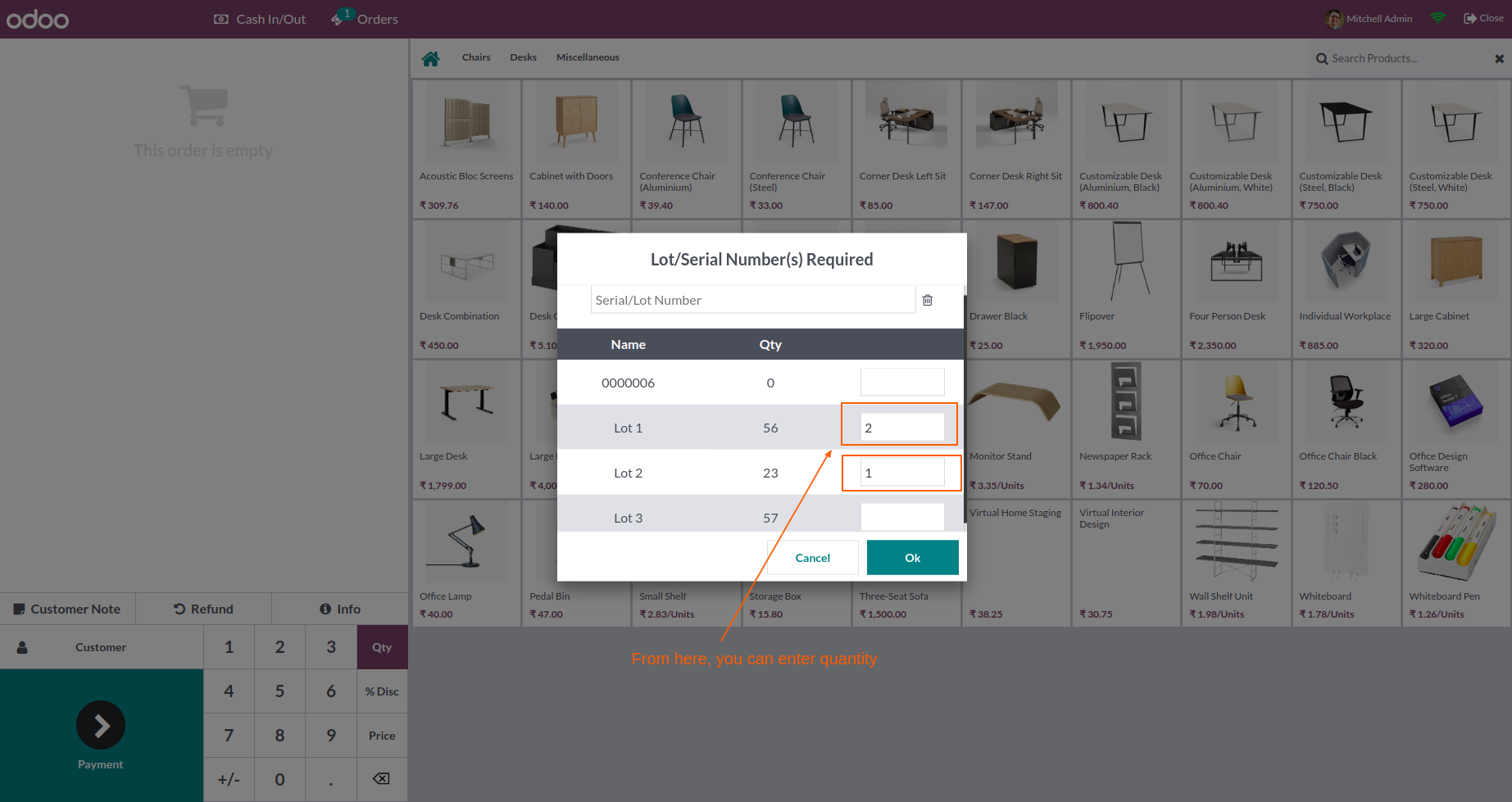
Select a product from pos and add the quantity based on the lot number.
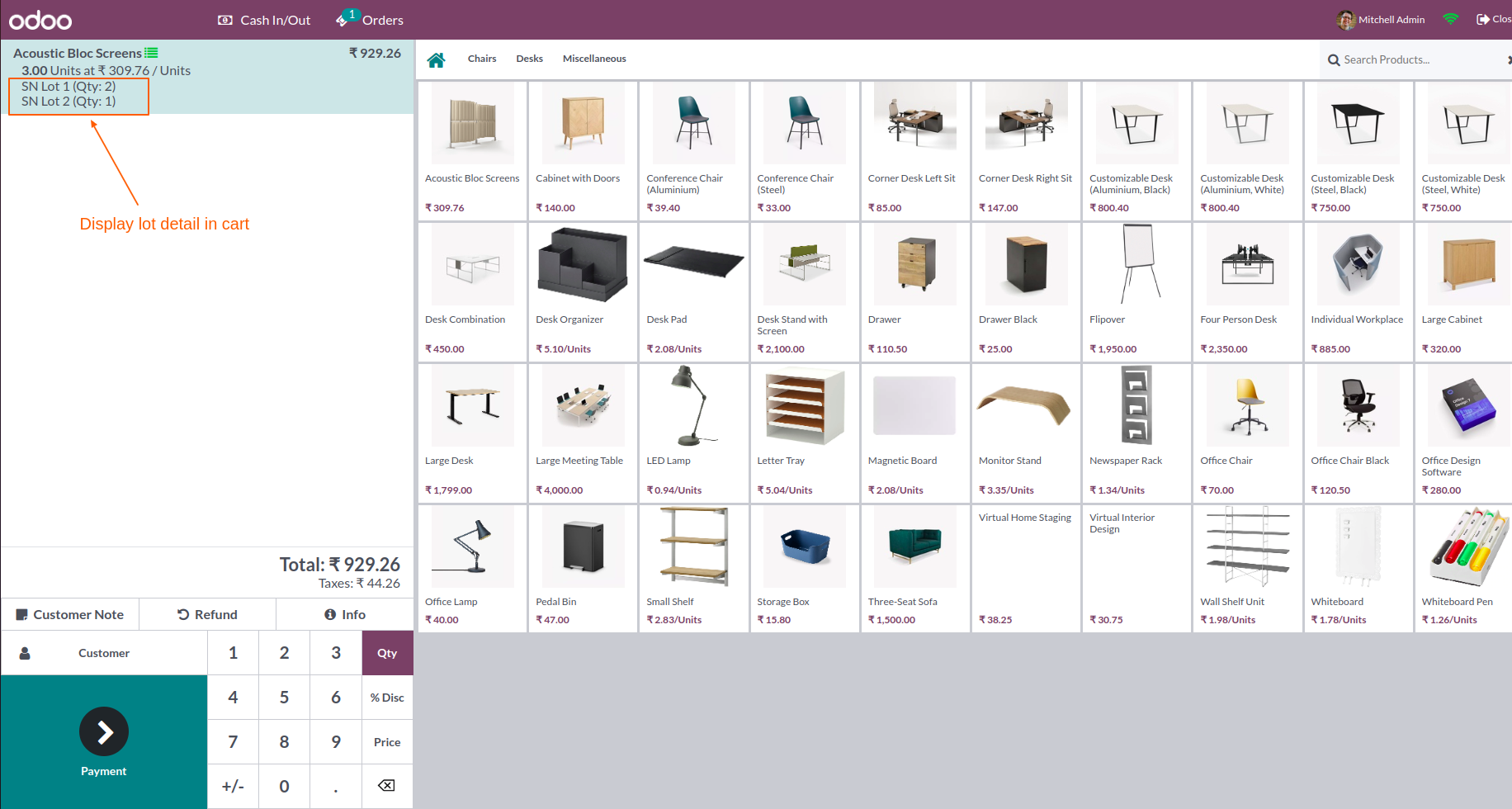
It will display quantity with lot/serial numbers in the cart in the pos session.
Users can also check the lot/serial numbers with quantities in orders directly from the POS backend.
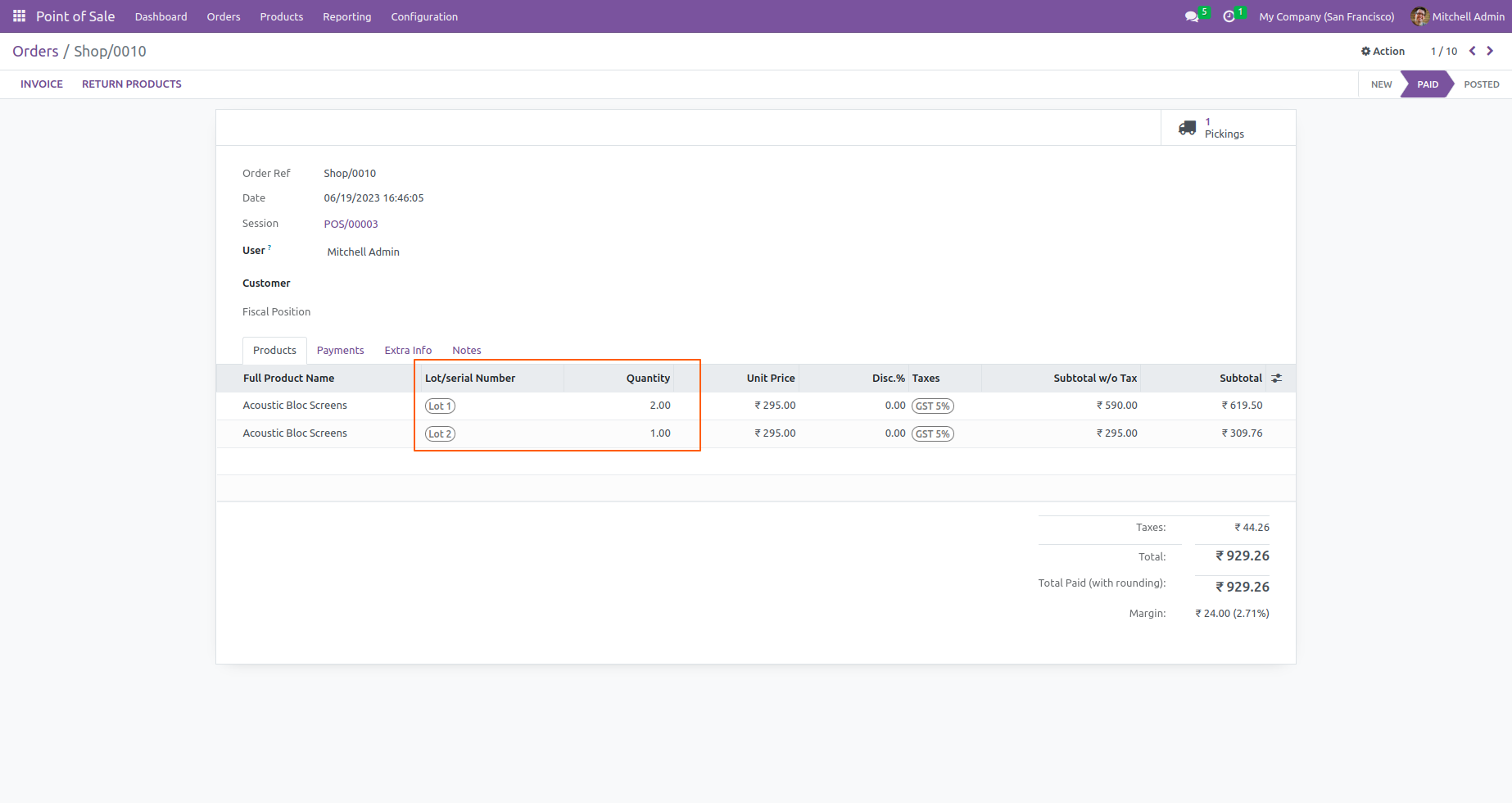
From POS settings and tick the 'Allow Display Lot/Serial In Receipt'.
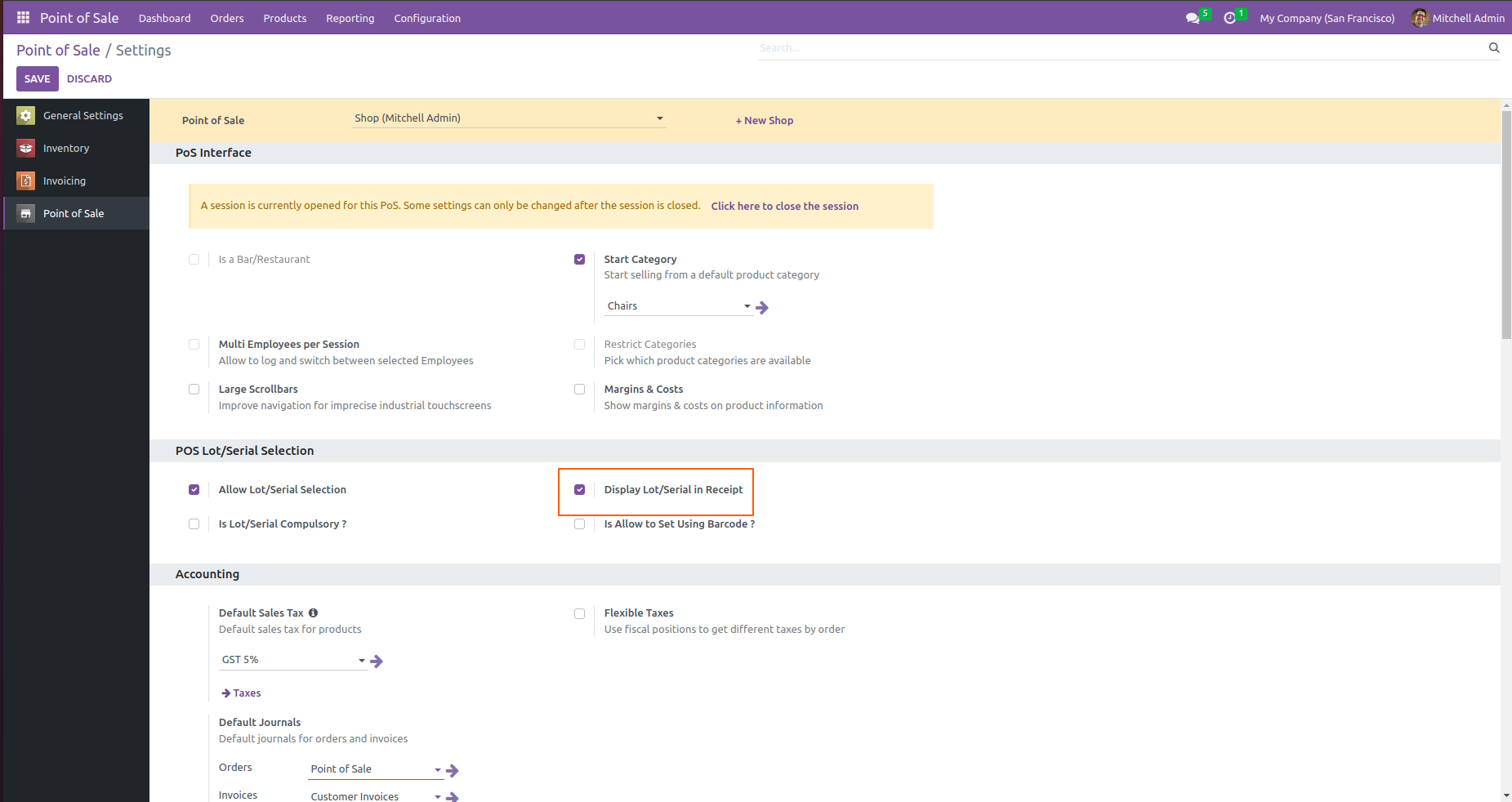
The lot/serial numbers with quantity in POS orders receipt.
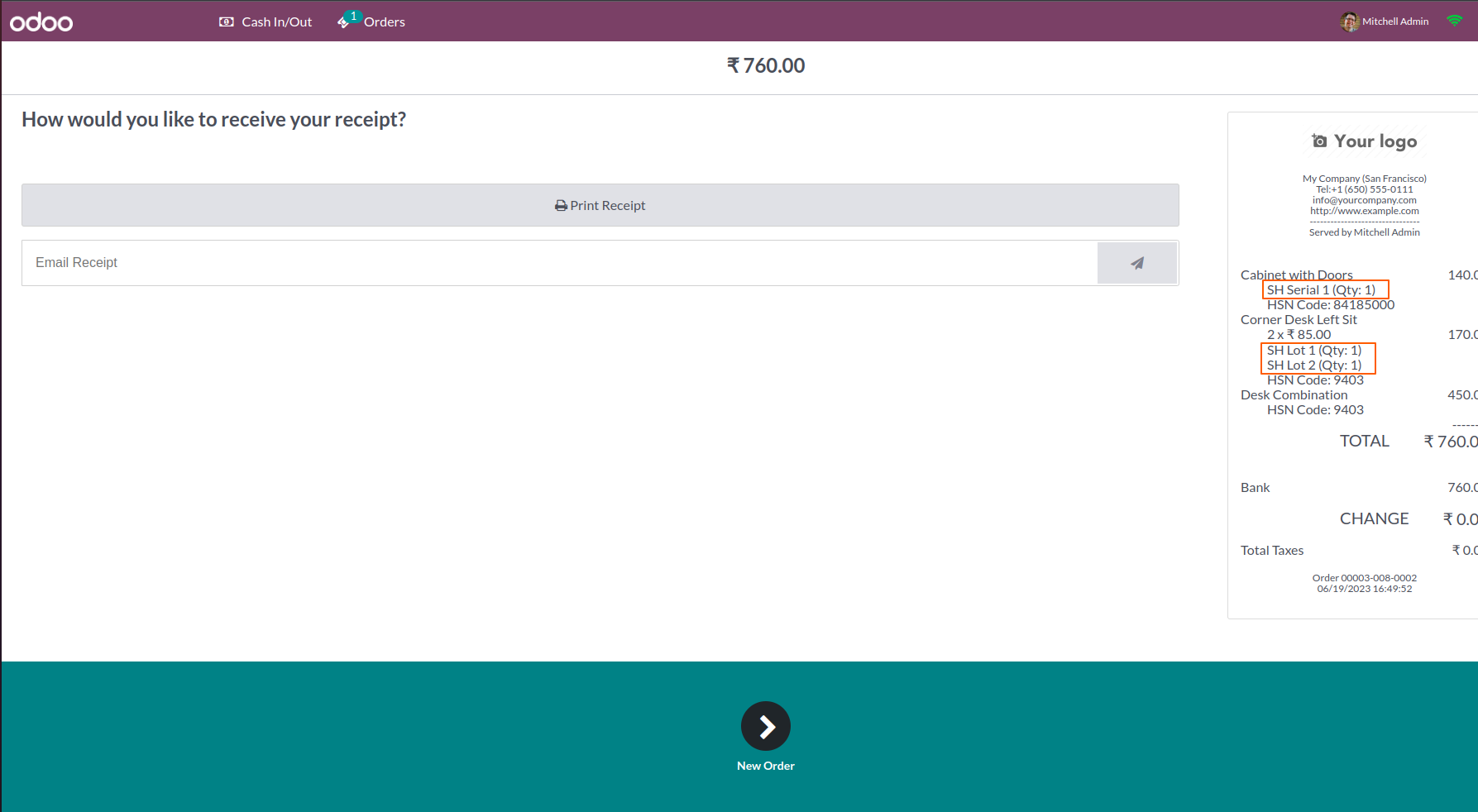
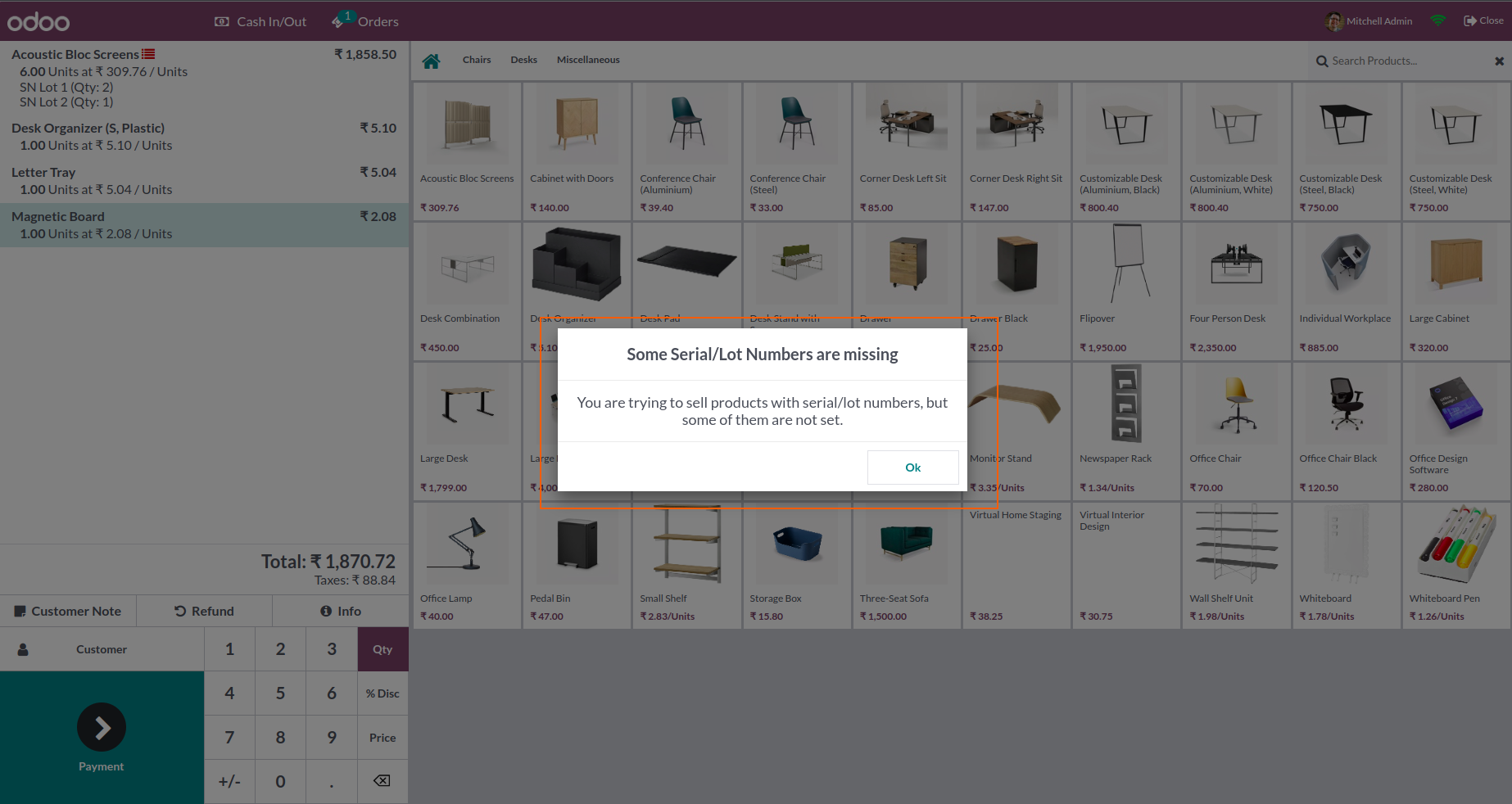
From POS settings enable 'Allow Is lot/Serial Compulsory?' option.
If the user does not add the lot/serial number then the warning popup will appears.
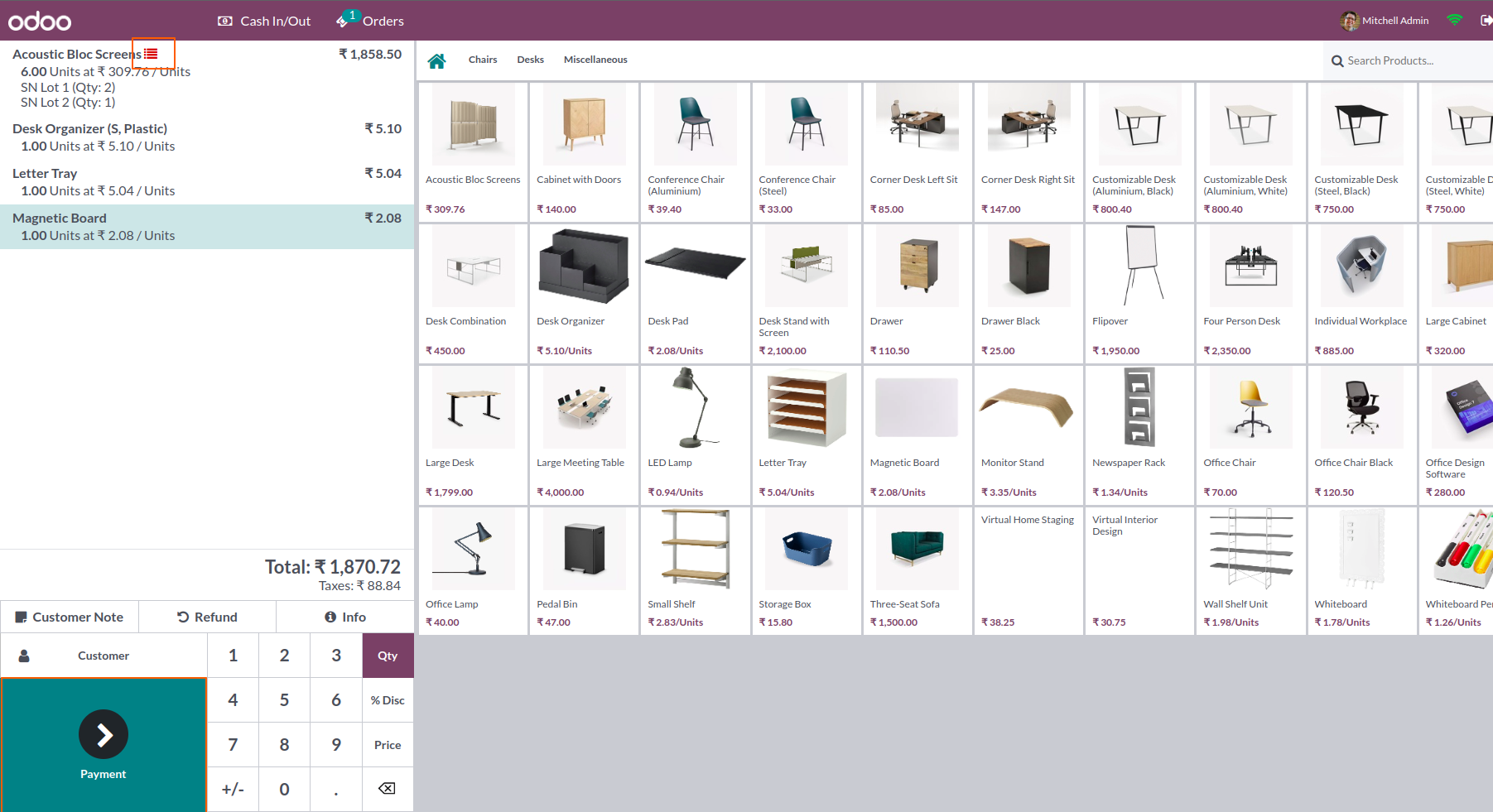
Users can set lot/serial numbers from the 3 lines option.
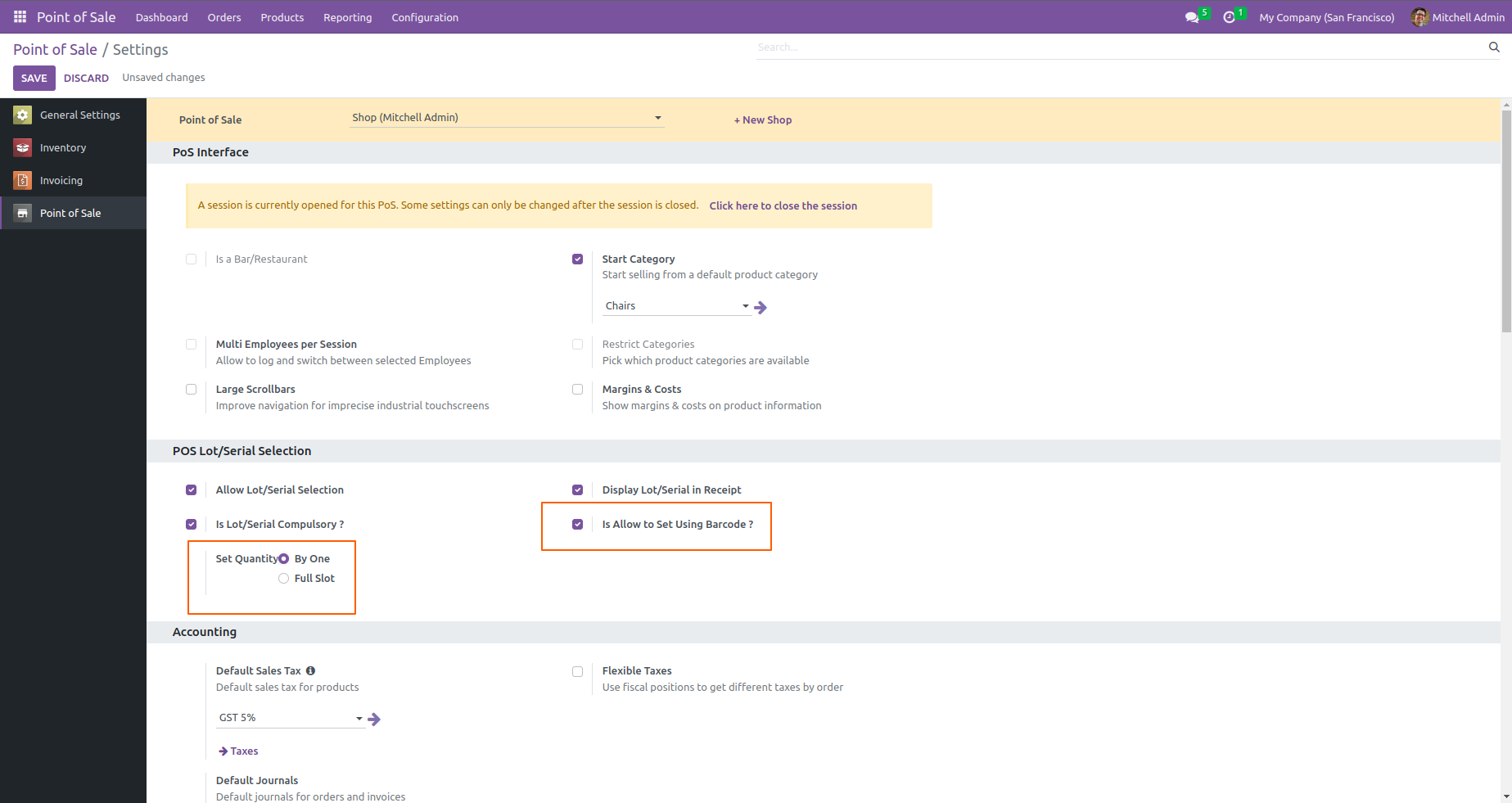
go to the POS settings and enable the allow to set using a barcode and set quantity by one.
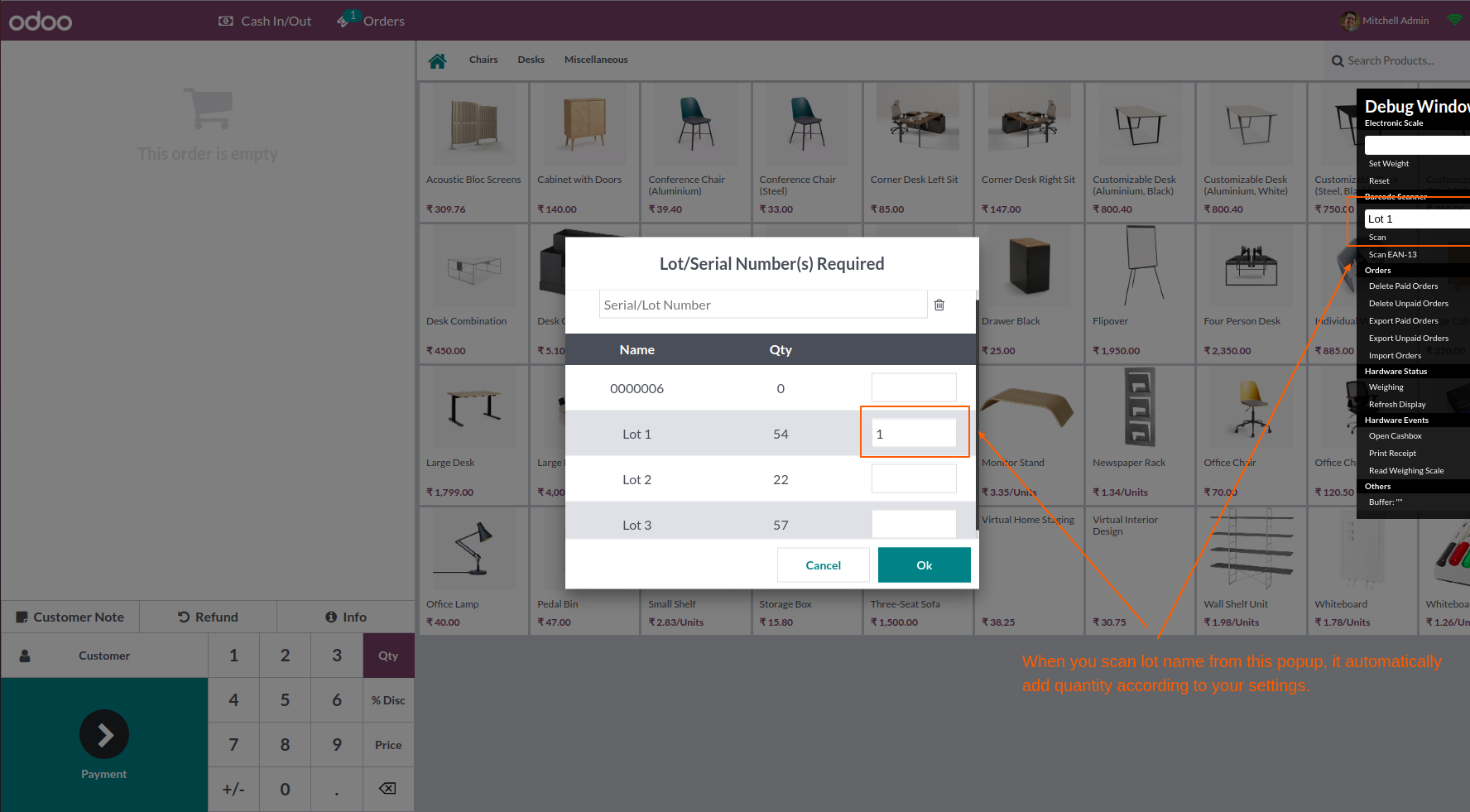
When the user scans product barcode from the debug window, it automatically adds one(1) quantity according to settings.
From POS settings set quantity by Full slot.
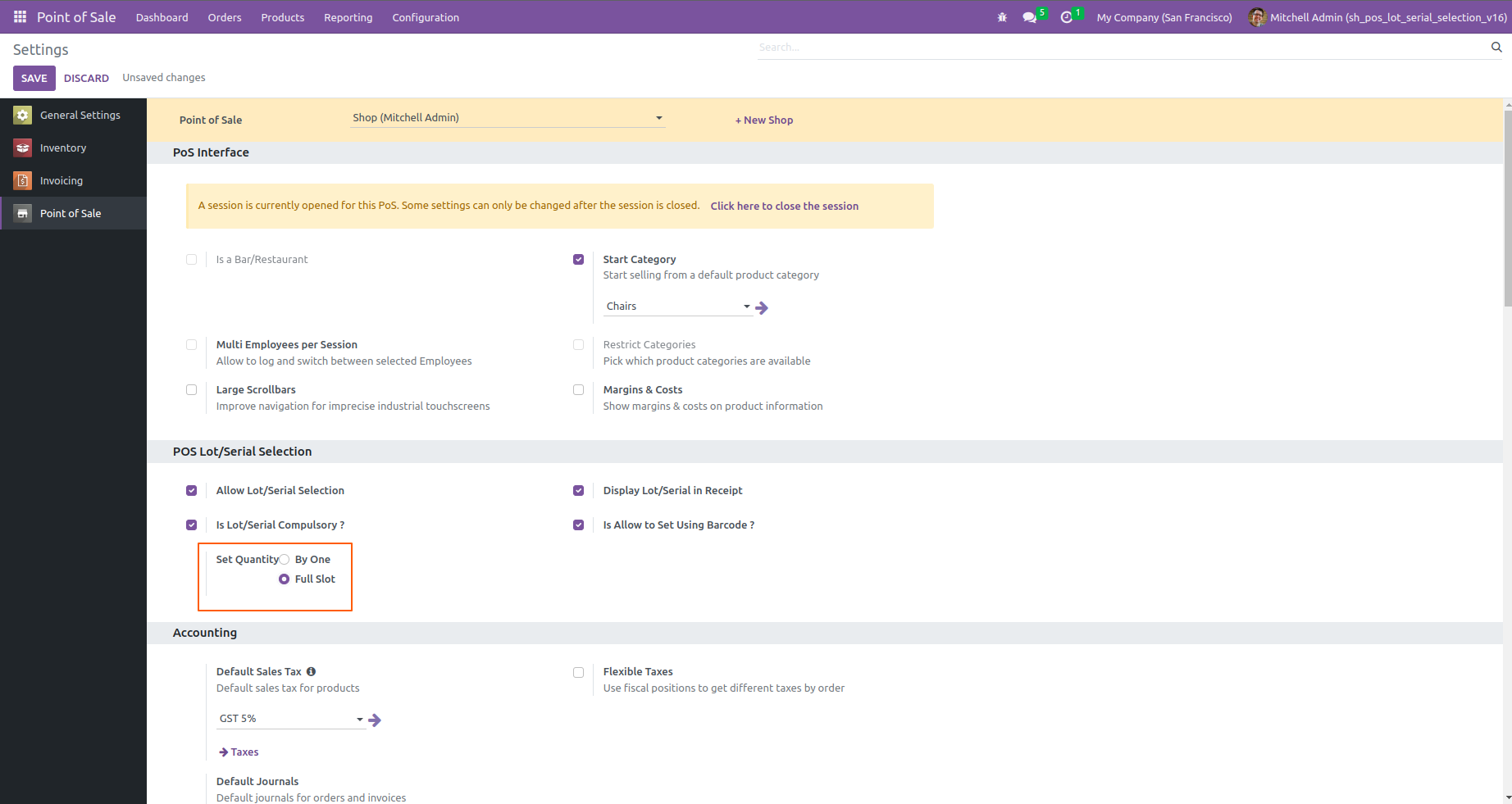
When the user scans product barcode from the debug window, it automatically adds full quantity according to settings.
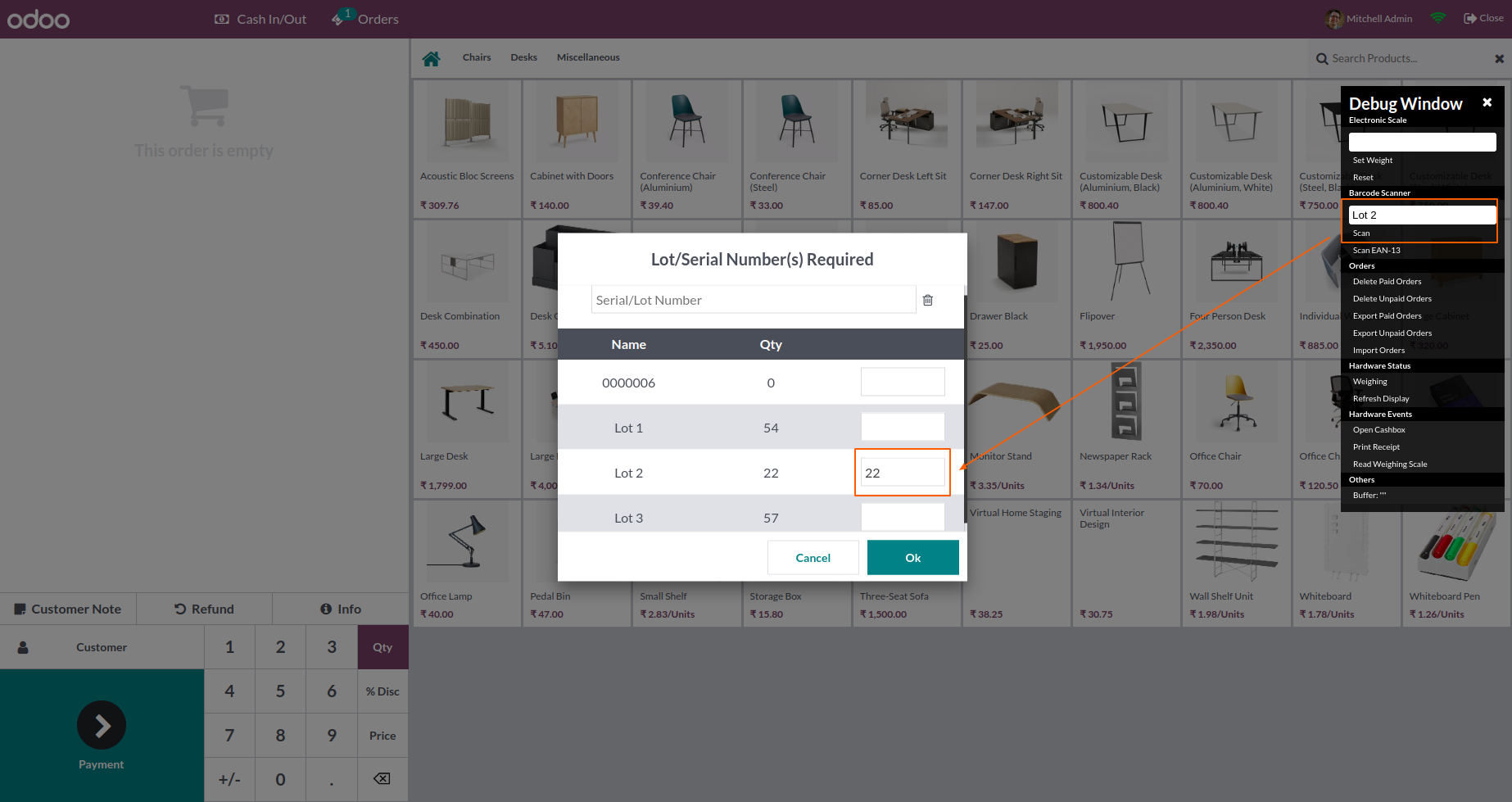
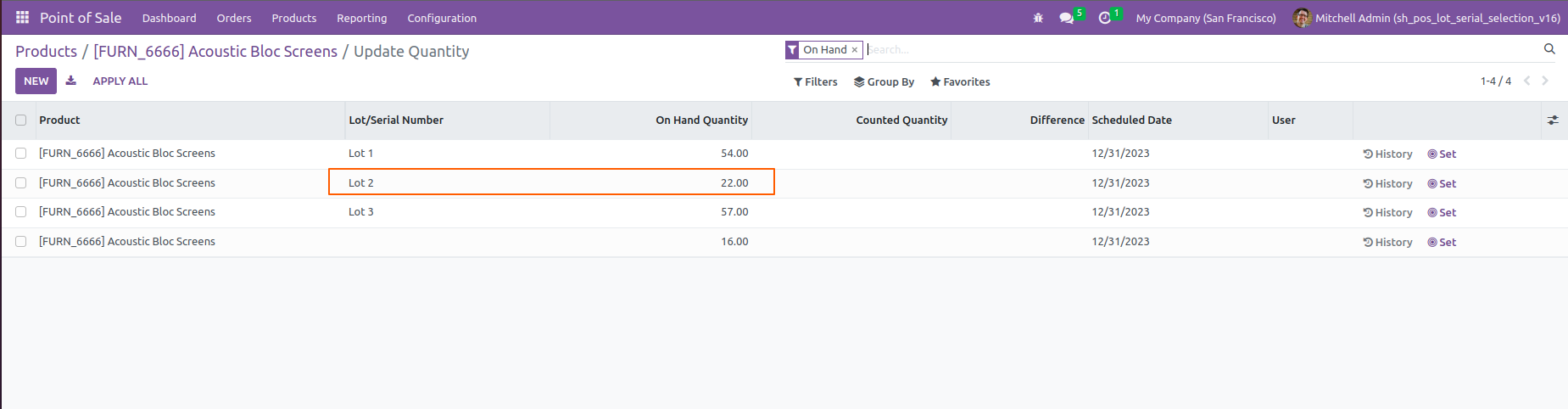
User can check updated quantity in backend from product menu.
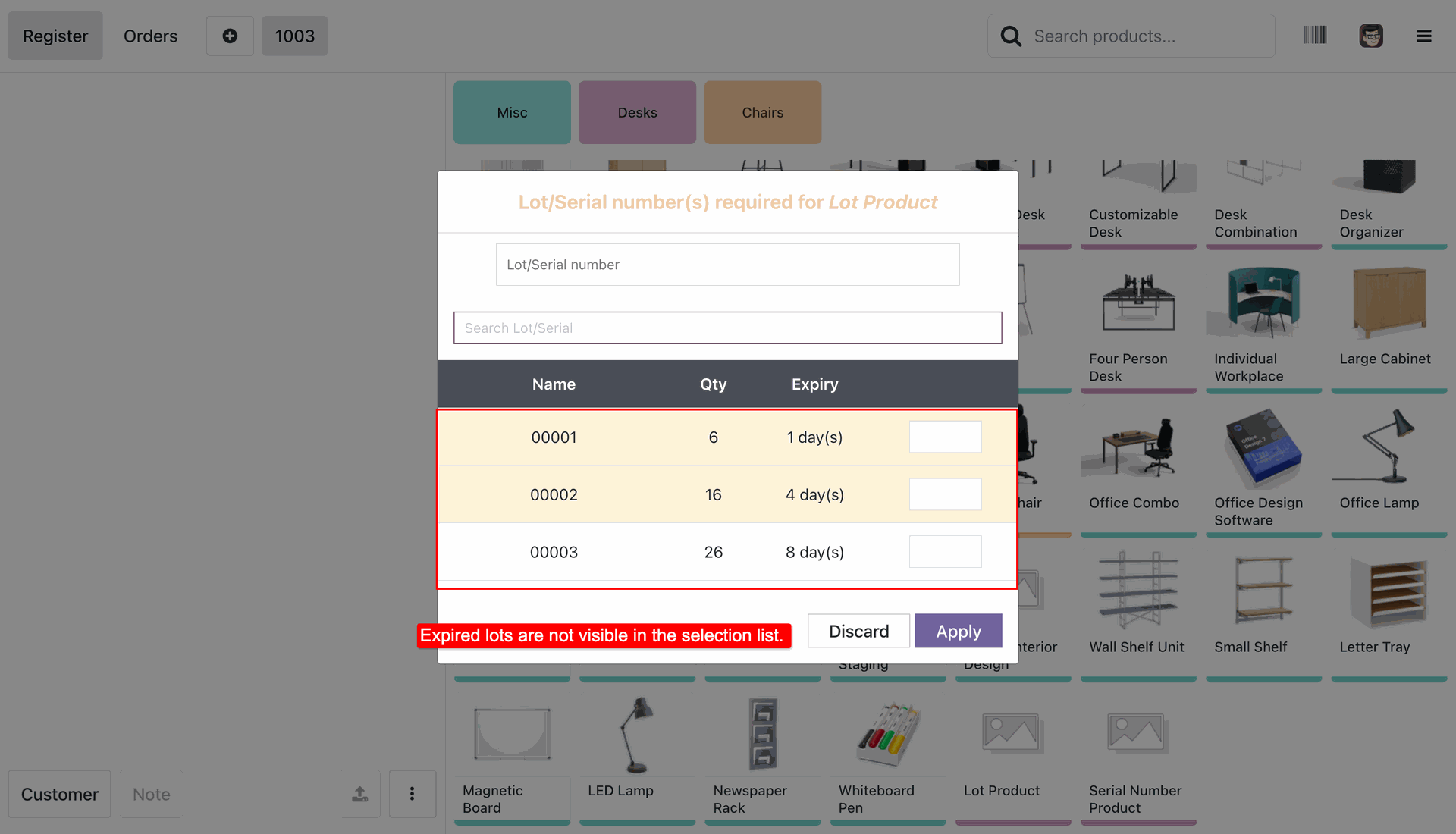
Go to the POS settings and enable hide expired lots option.
Expired product lot.
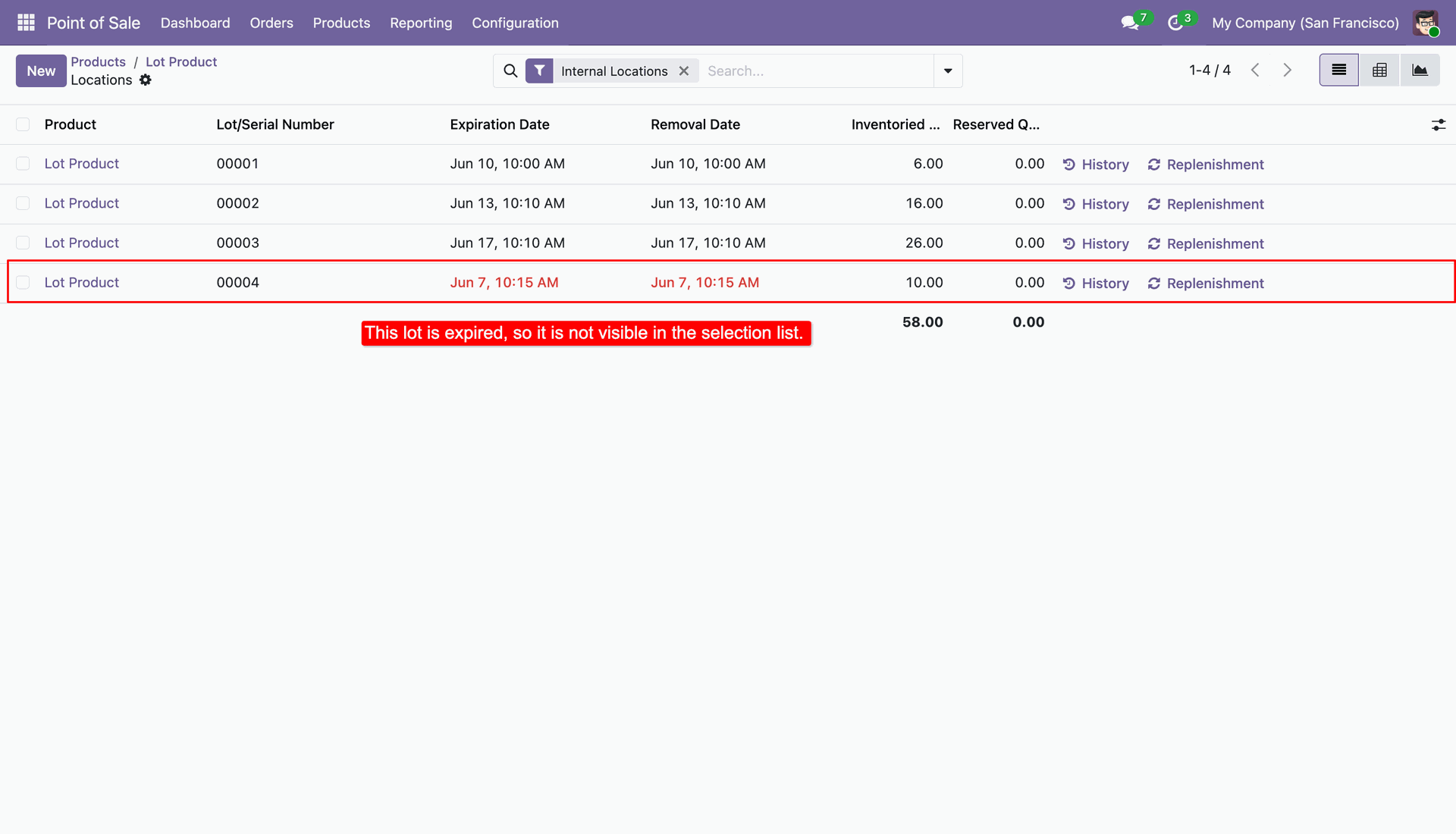
Go to the POS screen and select a product that has expired lots. The expired lot will not be displayed in the Lot/Serial Number selection.
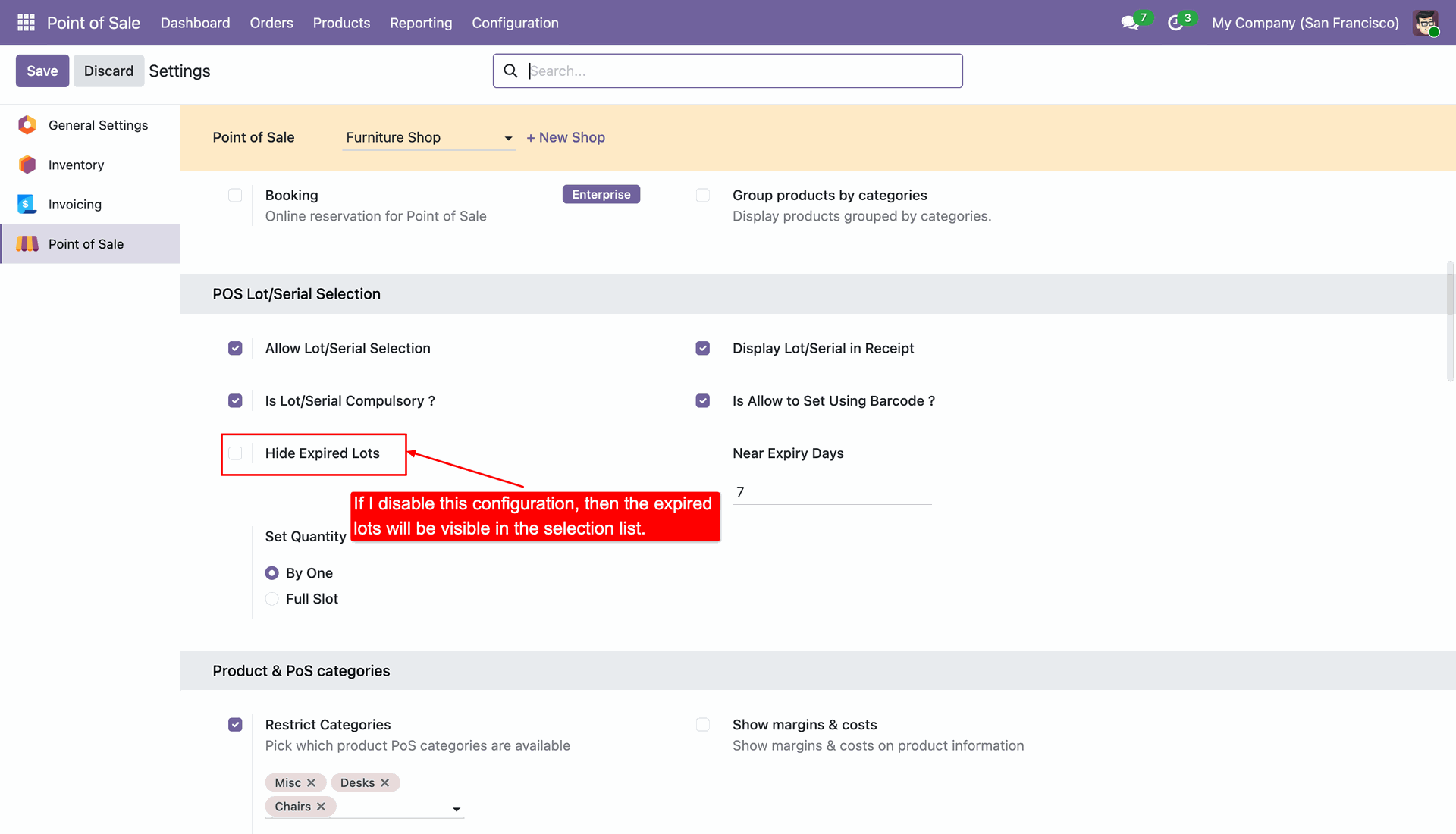
Disable hide expired lots option from the POS settings.
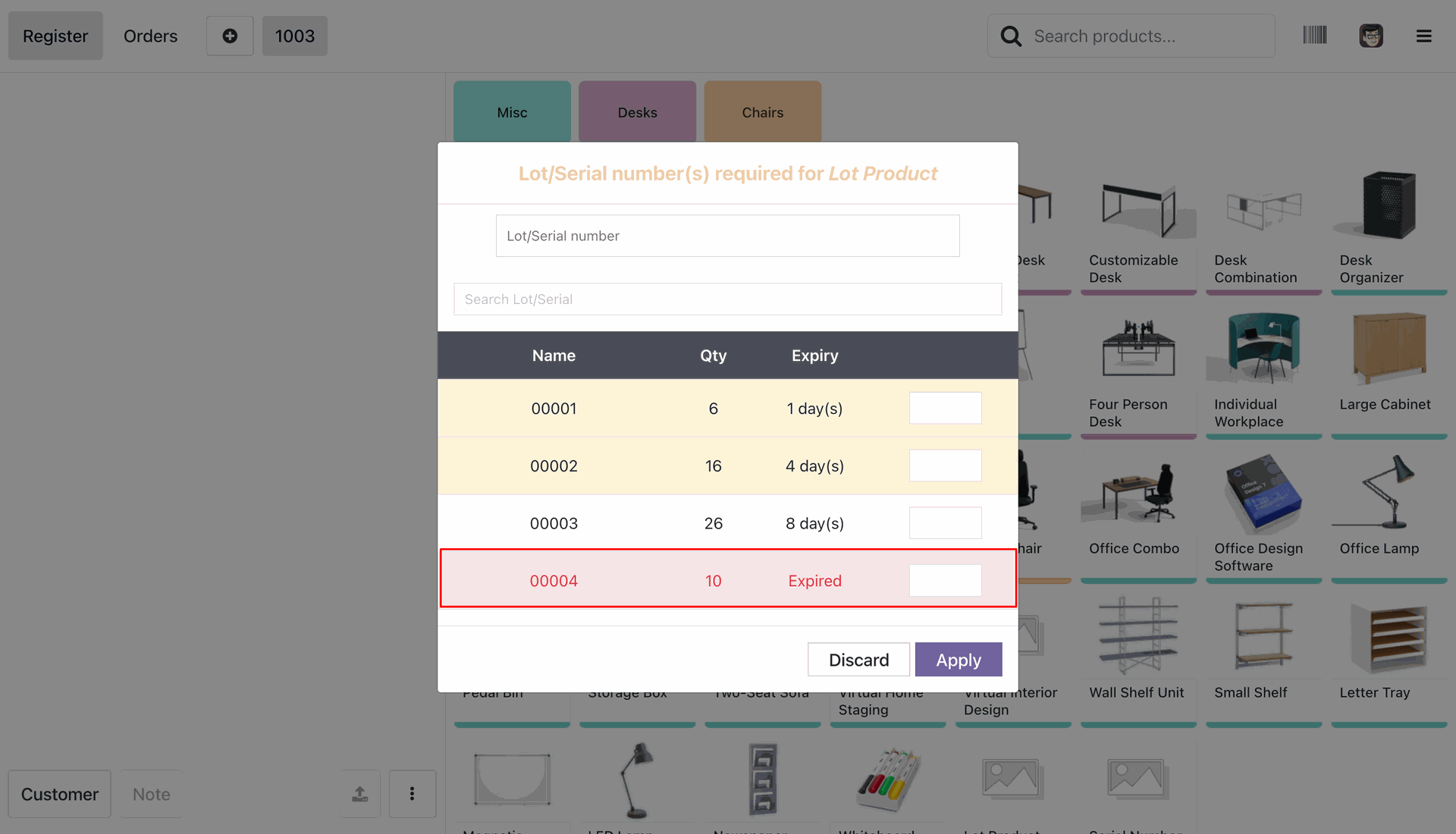
Go to the POS screen and select a product that has expired lots. The expired lots will be displayed in the Lot/Serial Number selection.
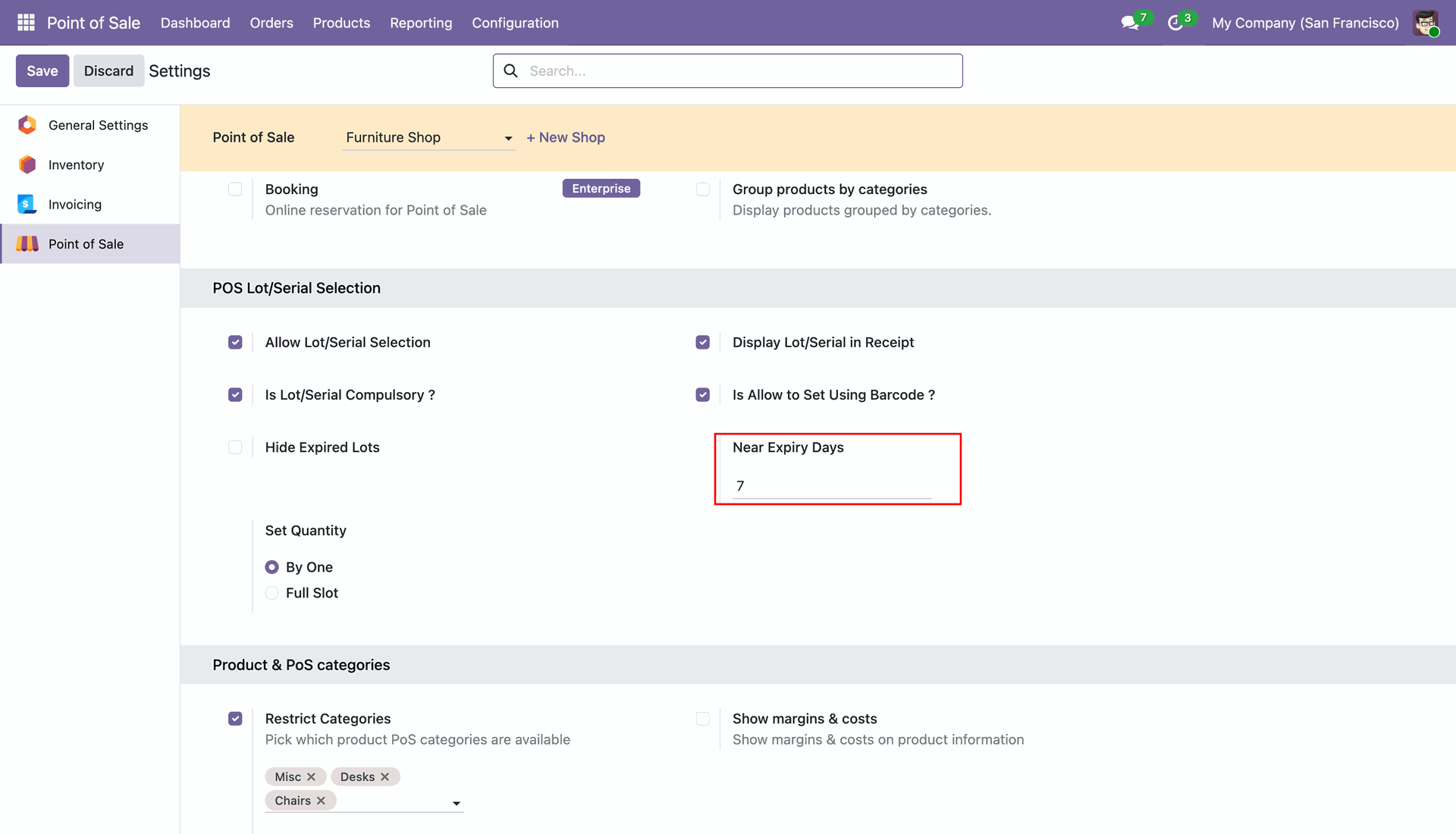
Go to the POS Settings and configure the Near Expiry Days value to define how many days before expiration a lot/serial number should be considered near expiry.
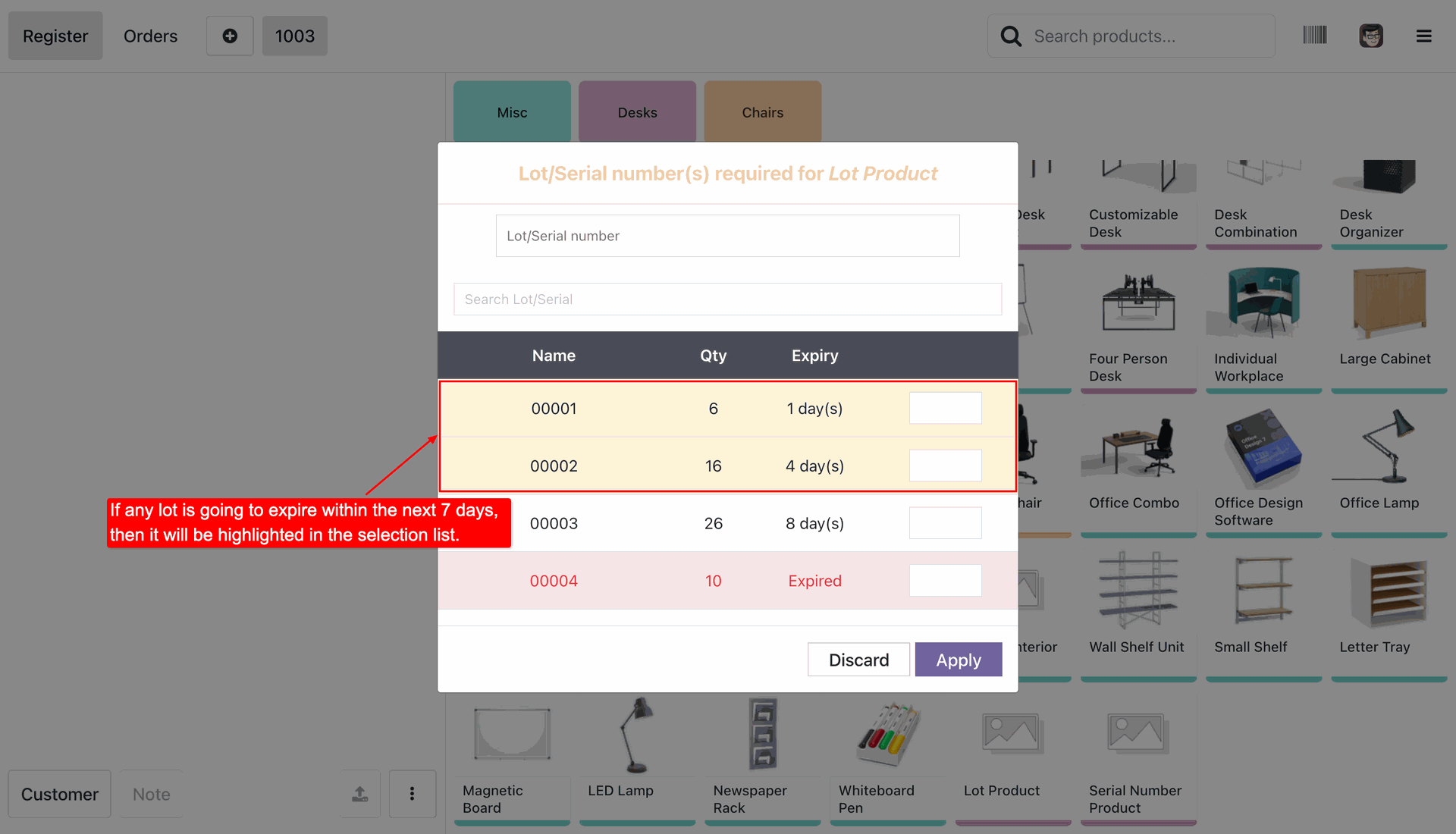
If a lot/serial number is approaching its expiry date based on the configured Near Expiry Days, it will be highlighted in the Lot/Serial Number selection list.
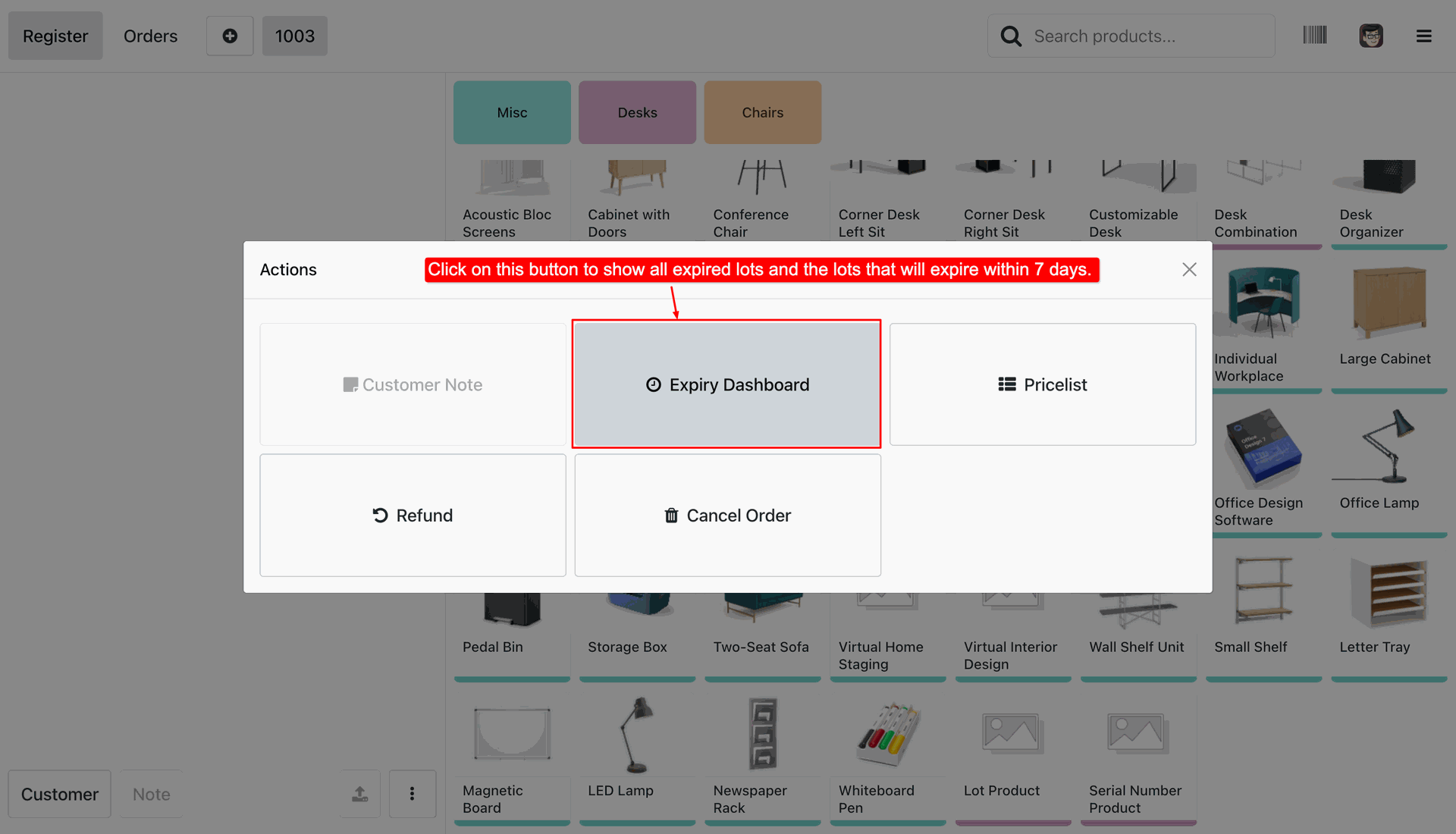
On the POS screen, click the Actions button and select Expiry Dashboard to view products with expired and near-expiry lots/serial numbers.
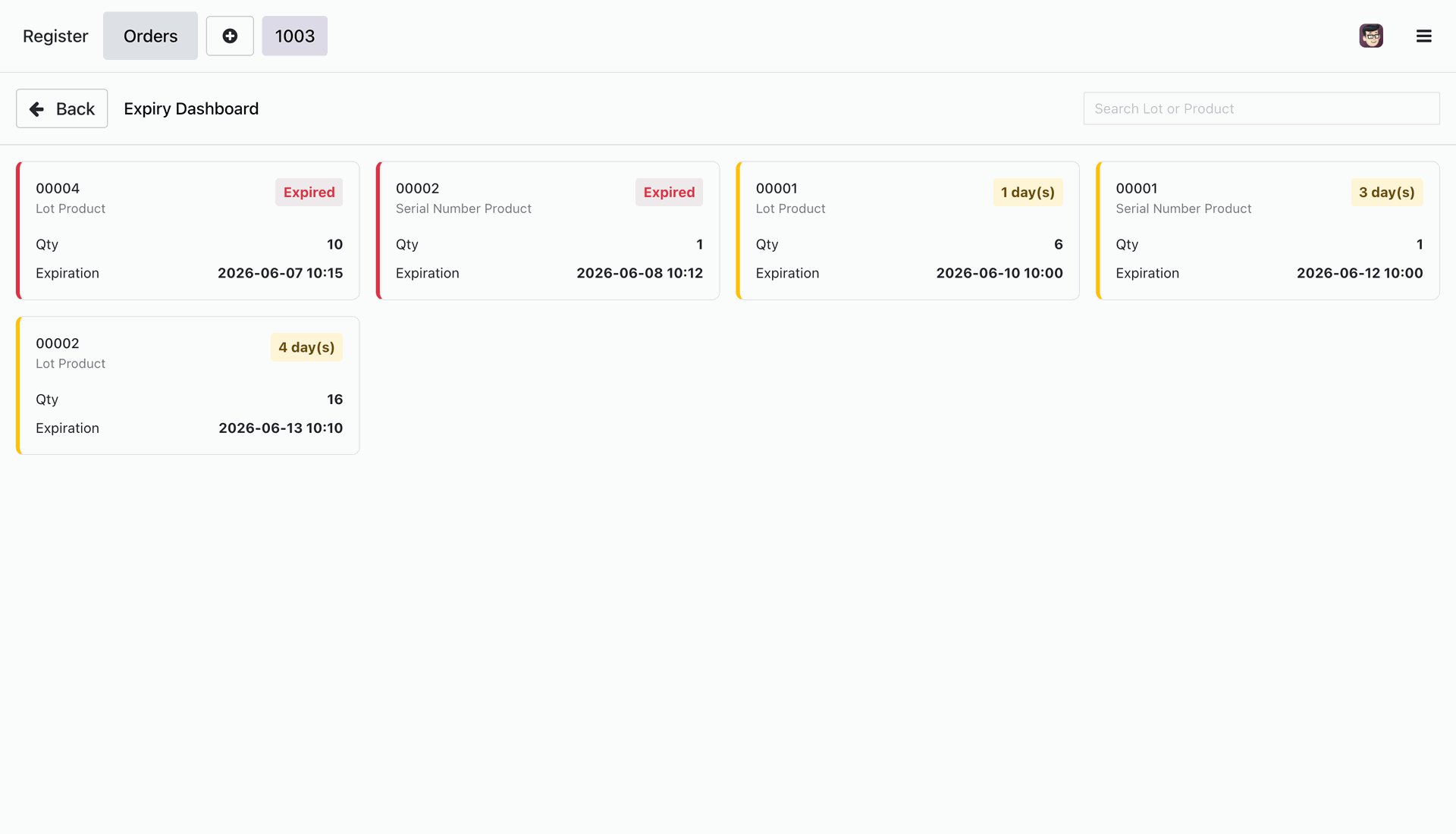
Expiry Dashboard provides a comprehensive view of all expired and near-expiry lots/serial numbers.
Version 18.0.2.0.0 | Released on : 28th July 2026
Version 18.0.1.0.0 | Released on : 04th August 2025
- Yes, this app works perfectly with Odoo Enterprise (Odoo.sh & Premise) as well as Community.
- No, this application is not compatible with odoo.com(odoo saas/Odoo Online)
- Yes, to test this module, please contact us at sales@softhealer.com.
- Please contact us at sales@softhealer.com to request customization.
- Yes, we provide free lifetime support for the version you purchased.
- Yes, you will receive lifetime free updates for the version of the module you purchased.
- No, there is no need to install any additional libraries.
- Yes, for version 12 and above, you need to purchase the module separately for each version you intend to use.
- No, exchanges or refunds are not allowed. Please make sure to select the correct version before purchasing.
- You can contact us at support@softhealer.com for language translation support. We use Google Translator tools to provide translations in multiple languages, so the accuracy may vary. We welcome your suggestions to help improve translations.
Discover Our Latest Apps