












POS Invoice and Register Payment

Streamline your checkout process by allowing customers to settle their past dues directly at the Point of
Sale. With the POS Invoice Register Payment module, your cashiers can instantly view a list of customers'
due invoices and accept payments without ever leaving the POS interface. Whether it's a full payment or a
percentage-wise payment made easy with customizable percentage presets, the system handles the
transaction seamlessly, updates the invoice status in real-time, and generates a payment receipt on the
spot. This integration simplifies your workflow, saves time, and provides a convenient, one-stop payment
solution for your clients.

Features
Pay Due Invoices from POS
Allows cashiers to view and settle customers' due invoices directly from the Point of Sale interface without switching to the backend.
Real-Time Status Updates
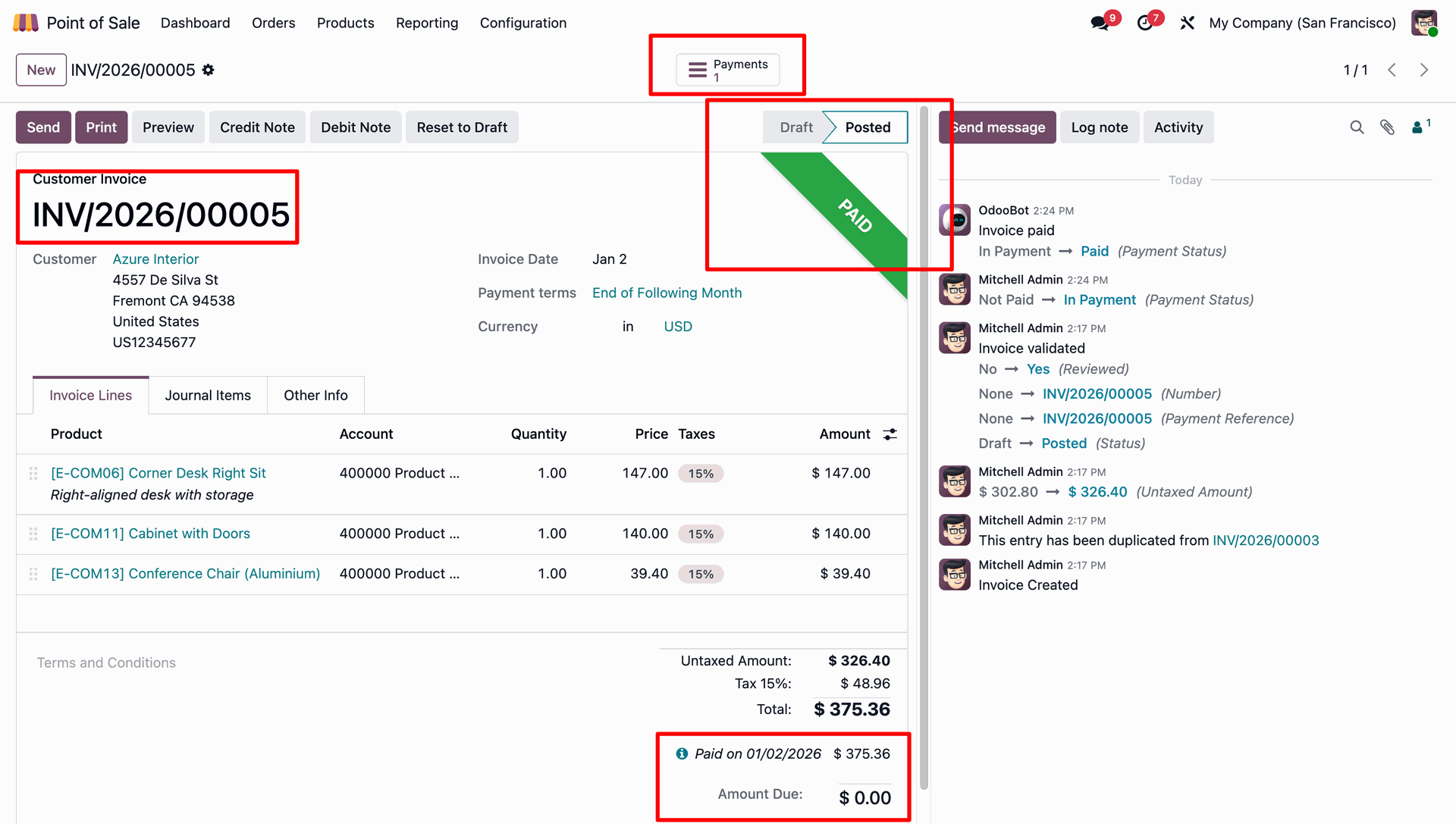
Instantly updates the invoice status (e.g., from 'Not Paid' to 'Paid' or 'Partially Paid') in the backend as soon as the payment is registered.

Receipt Generation
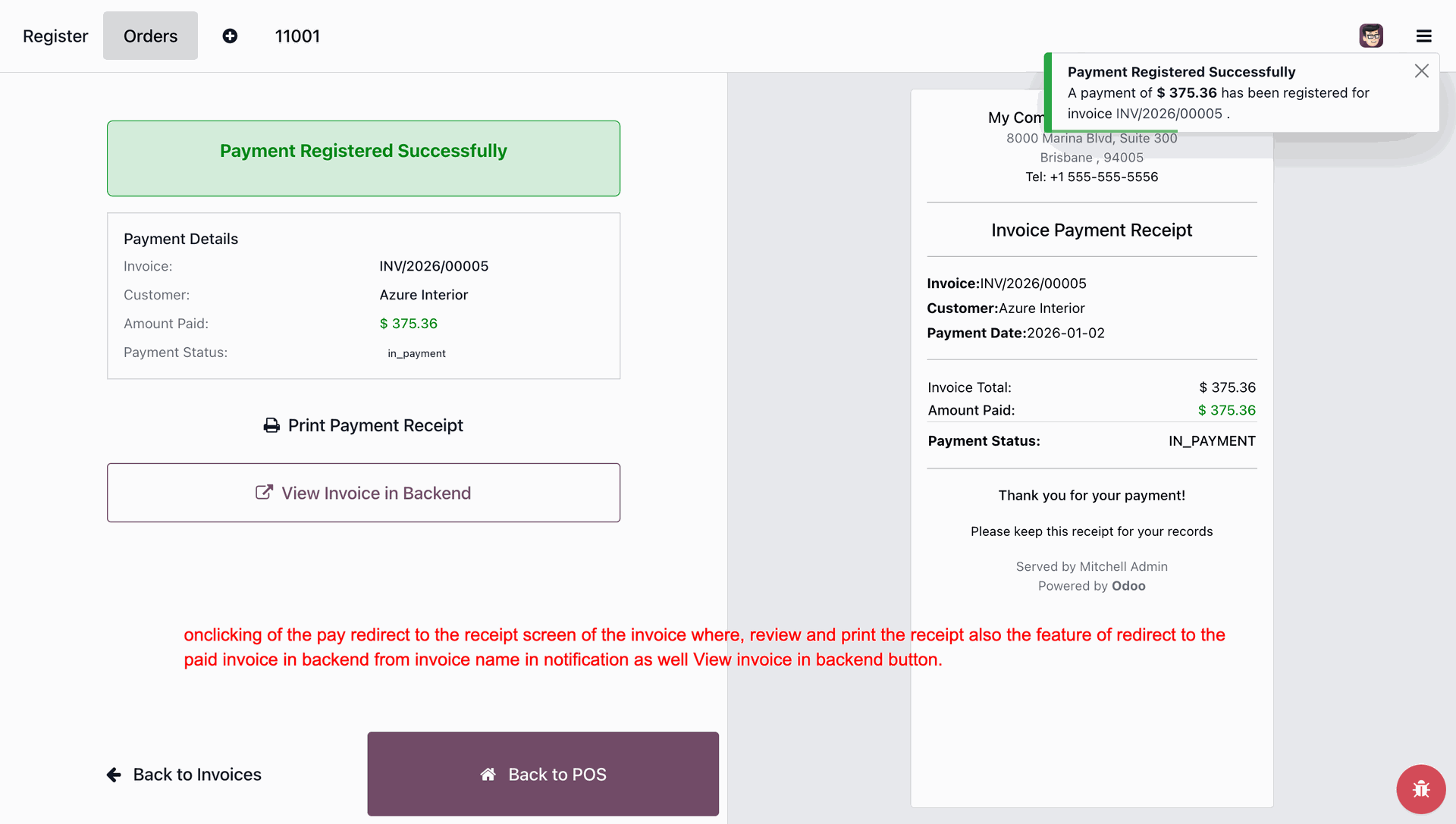
Automatically generate and print a detailed payment receipt immediately after the transaction is confirmed.
Smart Search
Easily find specific invoices by searching for the Customer Name.

Live Refresh
Includes a refresh button to reload the invoice list and fetch the latest data from the backend.
Flexible Payment Options
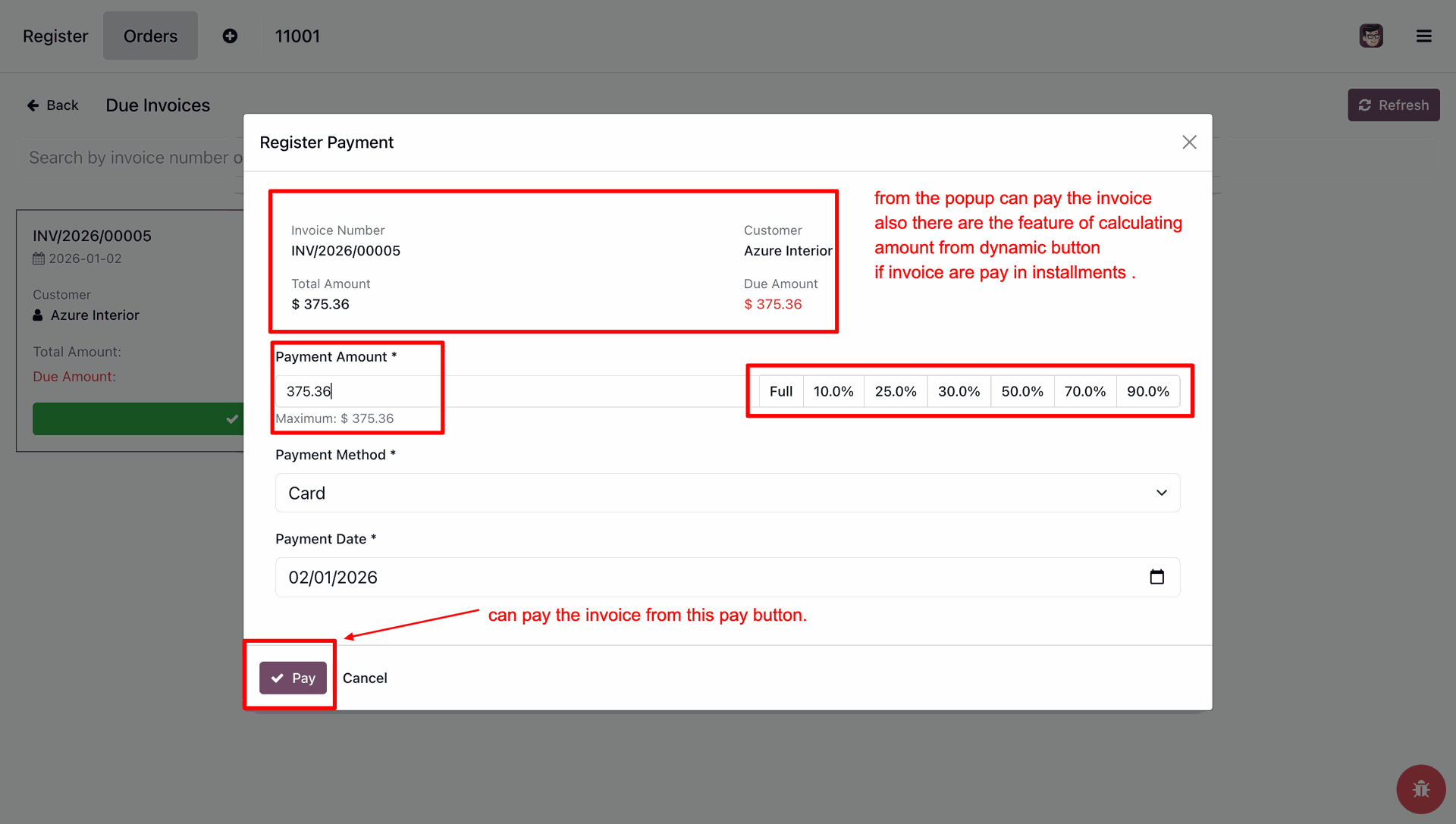
Supports both Full Payments and Percentage-wise Payments, giving customers flexibility in settling their dues.

Smart Notifications
Display smart notifications with clickable links to instantly view the created payment or invoice in the backend.

Automatic Calculation
Simply click a percentage button, and the system automatically calculates the exact payment amount based on the invoice's residual balance.
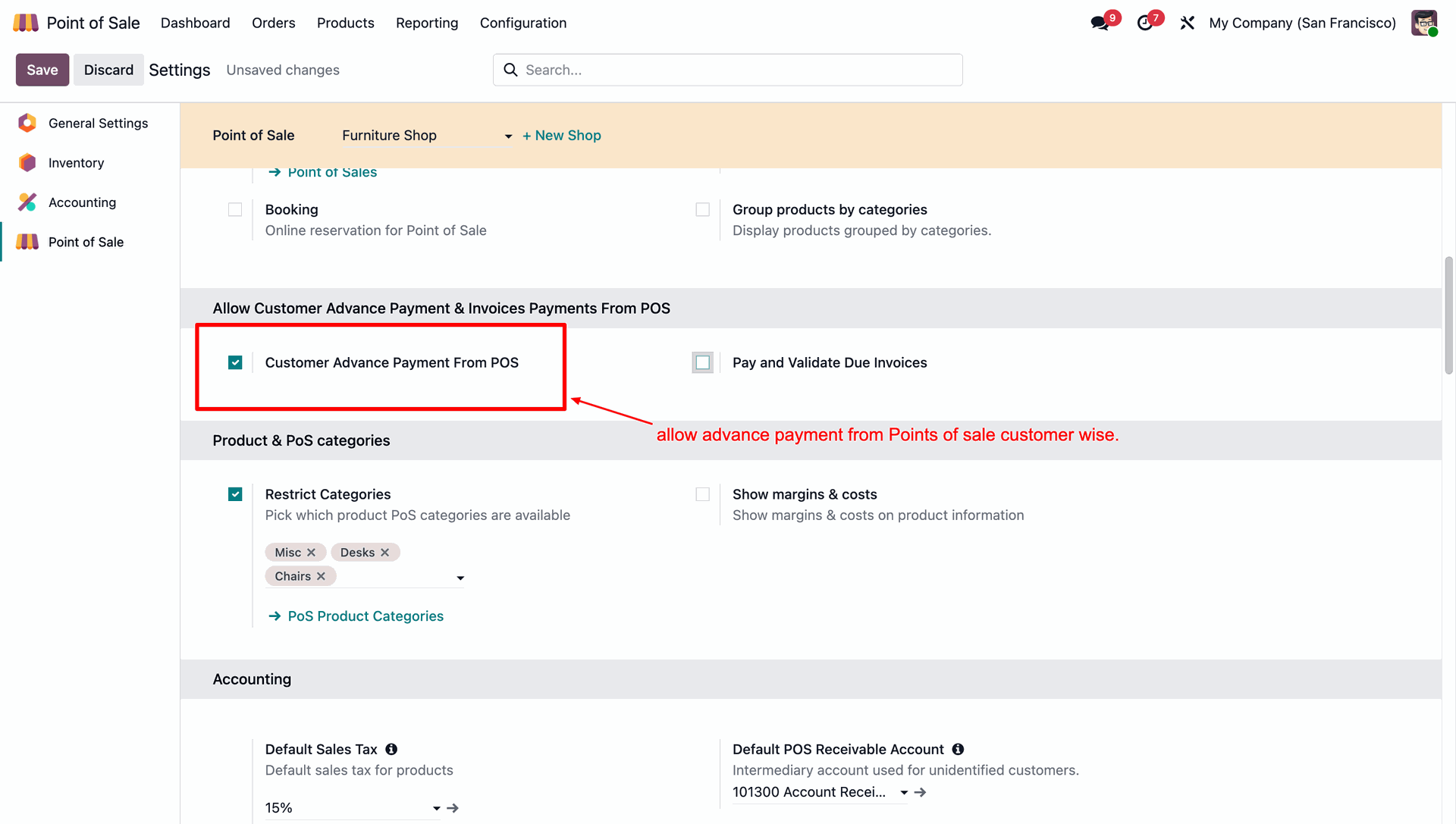
In the POS settings, enable Customer Advance Payment From POS to allow advance payments to be recorded at the point of sale.
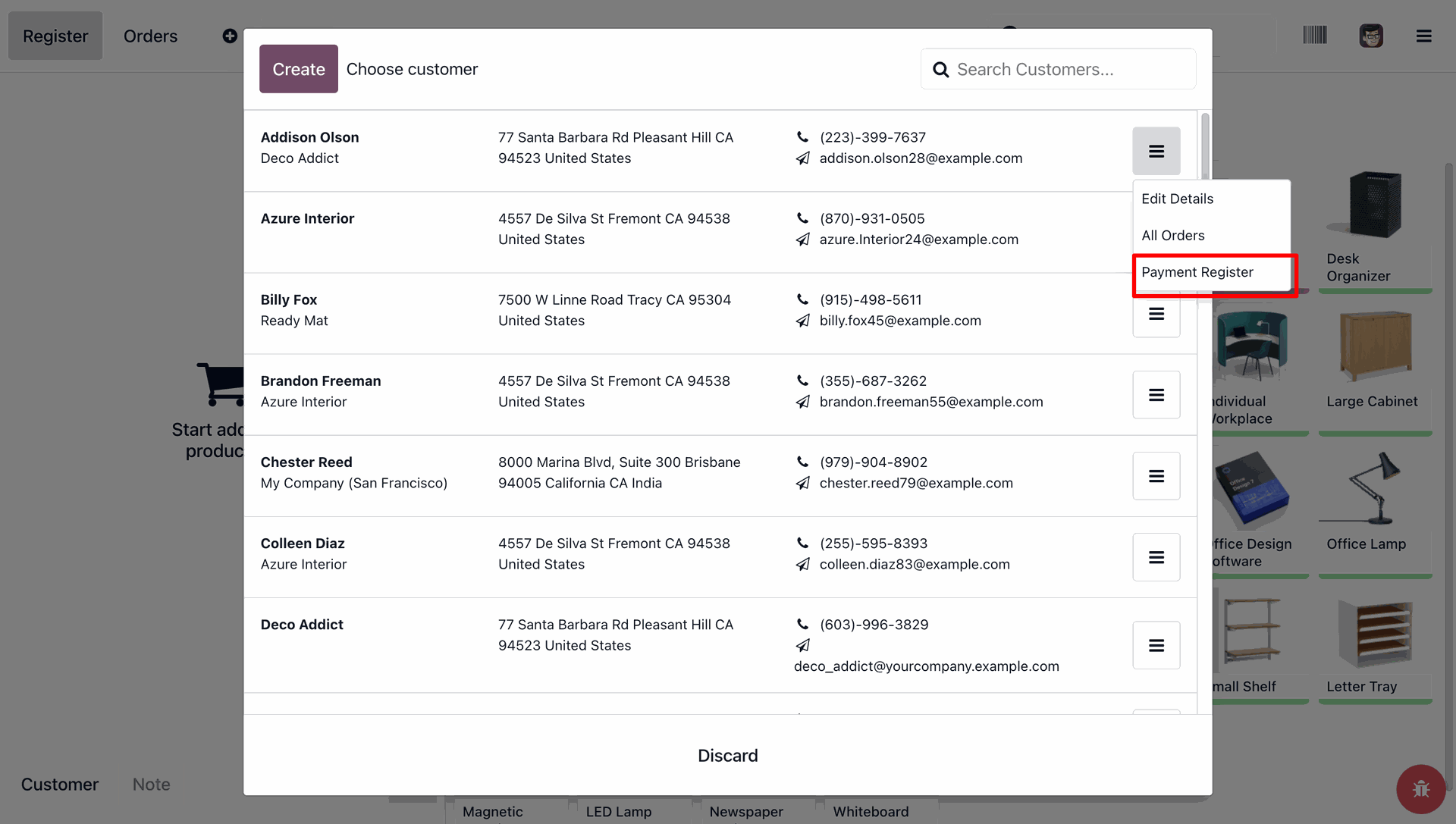
Open the customer options menu and select Payment Register to record a payment for that specific client.
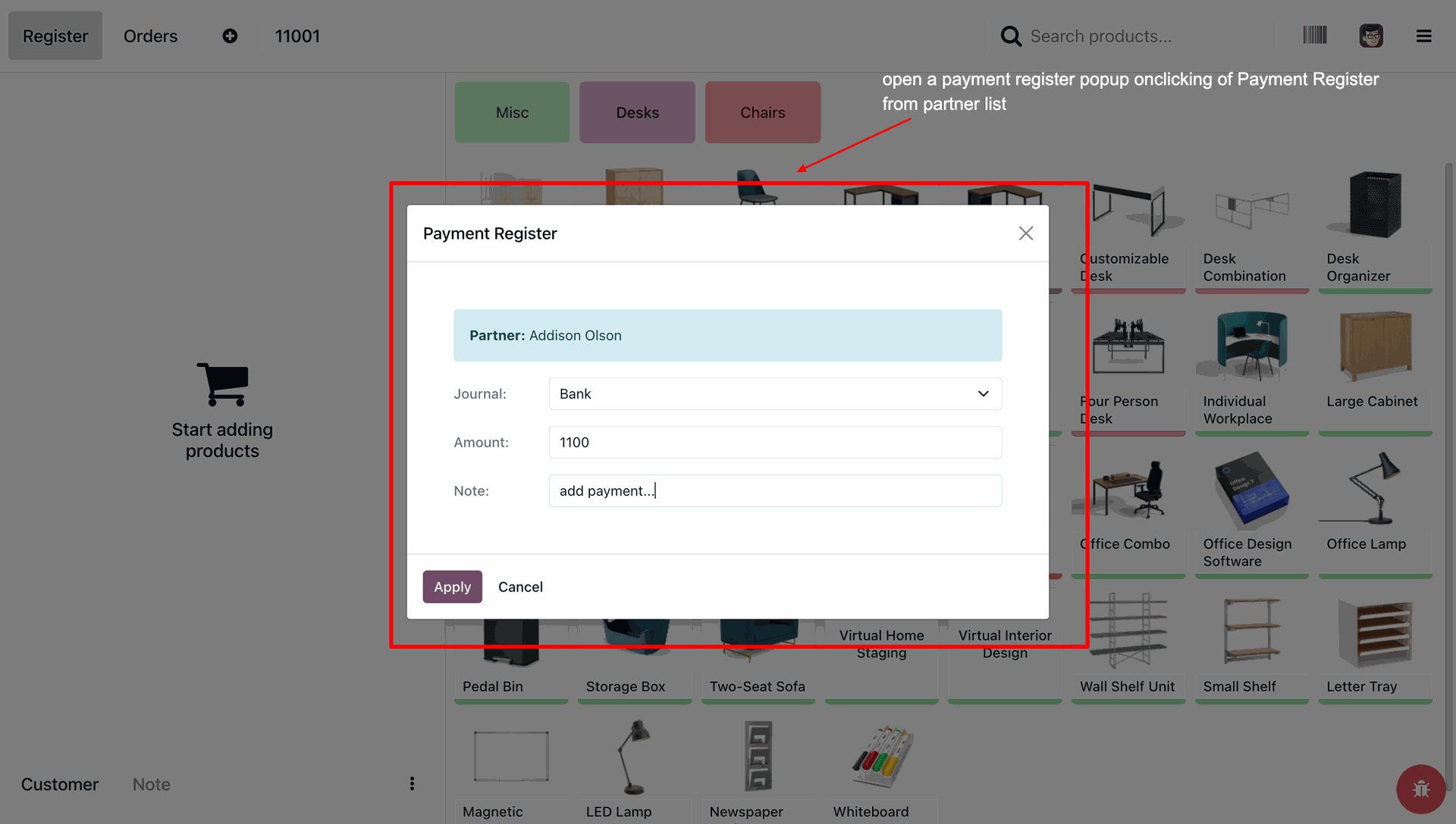
Fill in the Journal, Amount, and Note fields within the pop-up, then click Apply to successfully register the customer's payment.
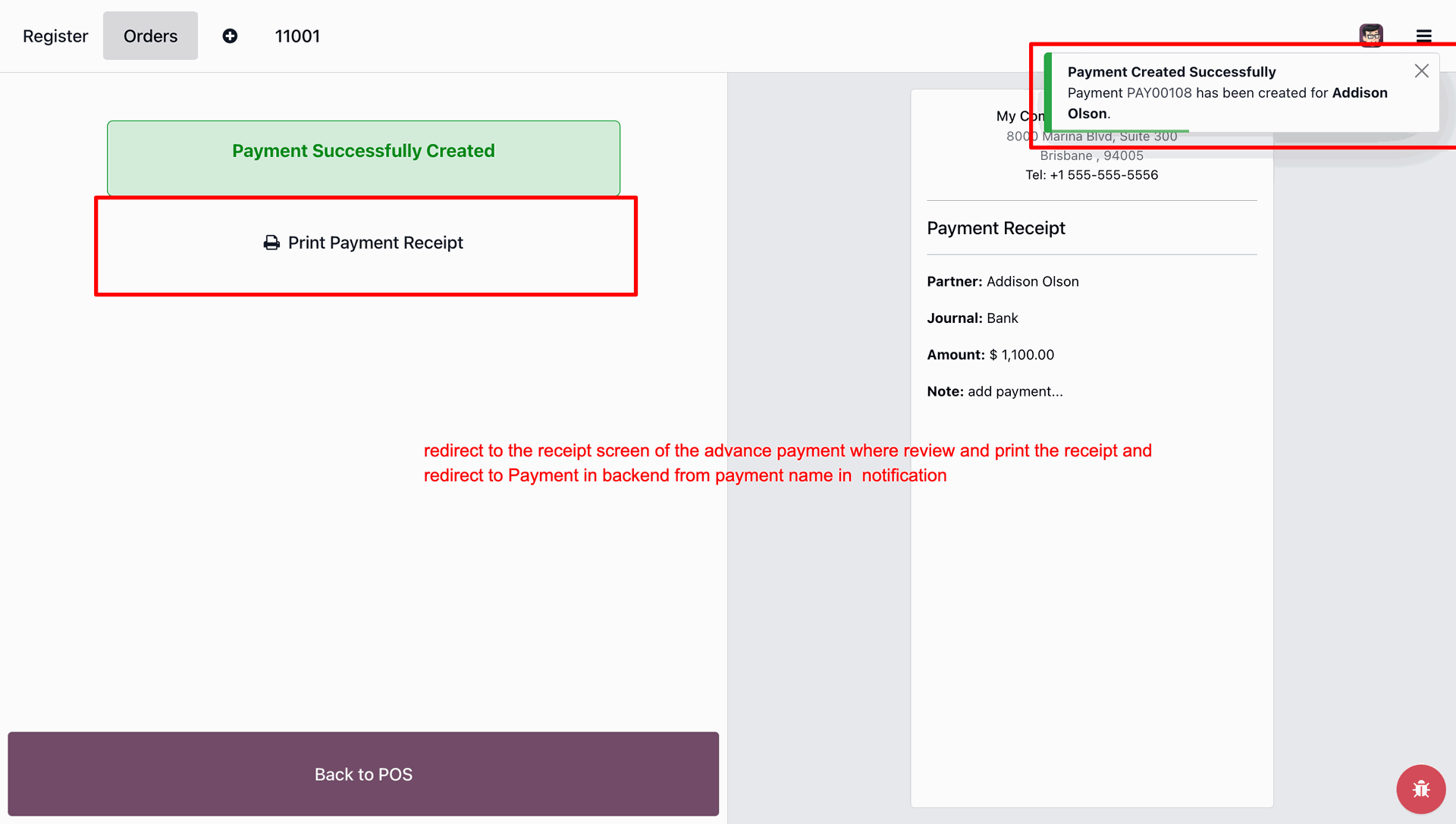
The system confirms the transaction with a success notification and provides options to print Payment Receipt or navigate to the backend payment record via the pop-up alert.
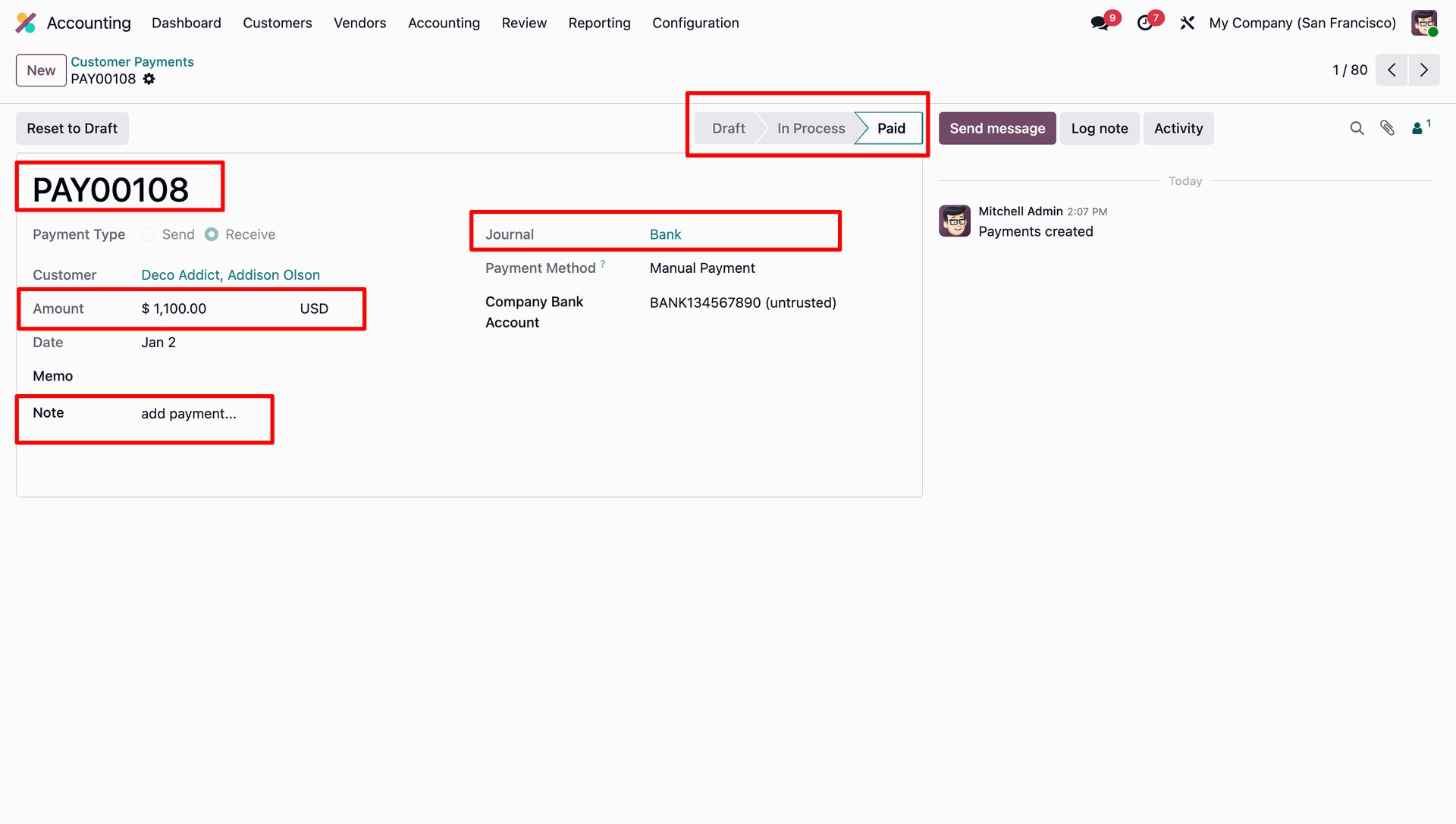
The backend view confirms that payment is recorded as Paid, displaying the correct amount, journal, and notes from the transaction.
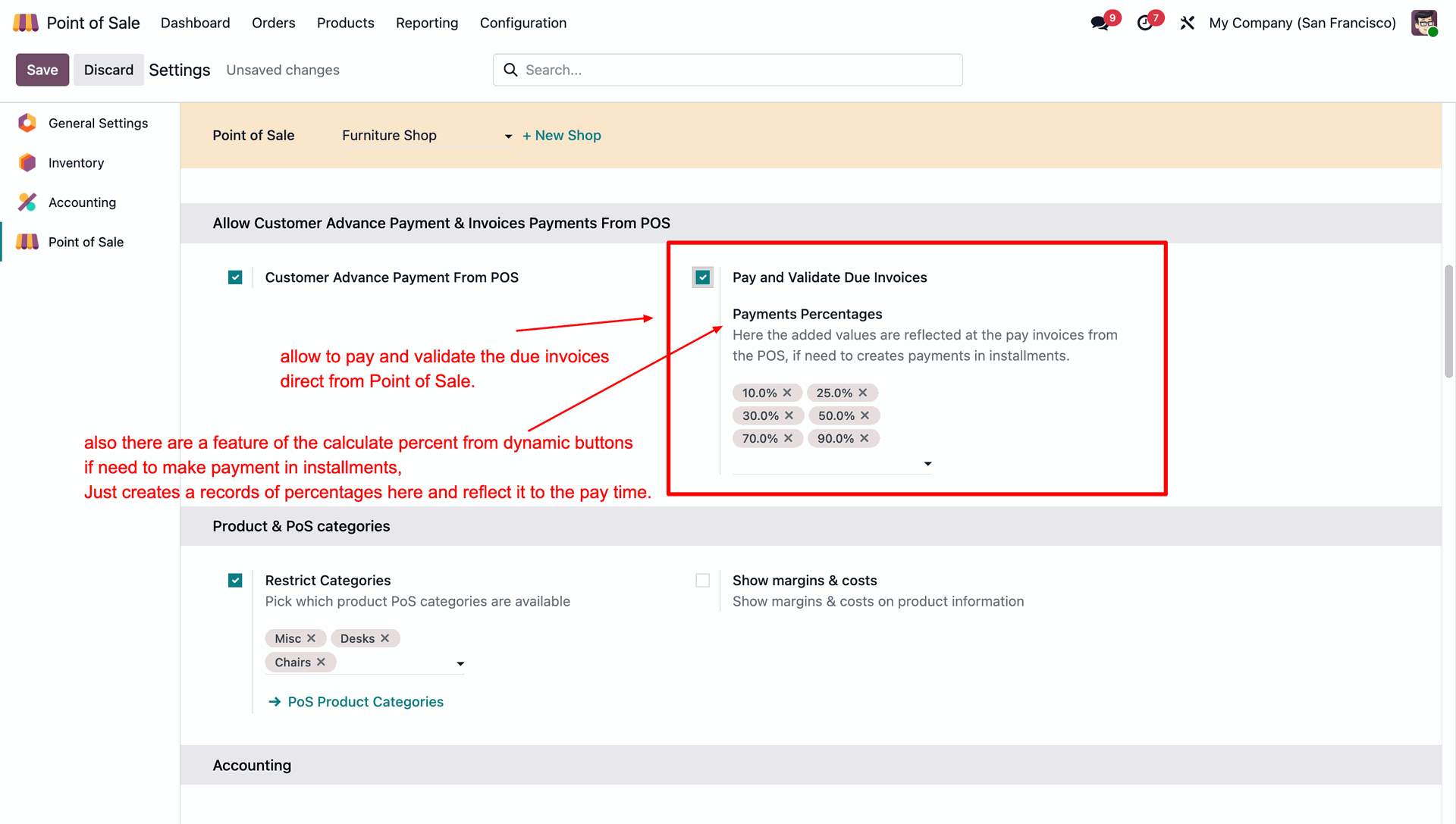
Enable Pay and Validate Due Invoices to settle bills in POS, and configure Payment Percentages to create quick-action buttons for installment payments.
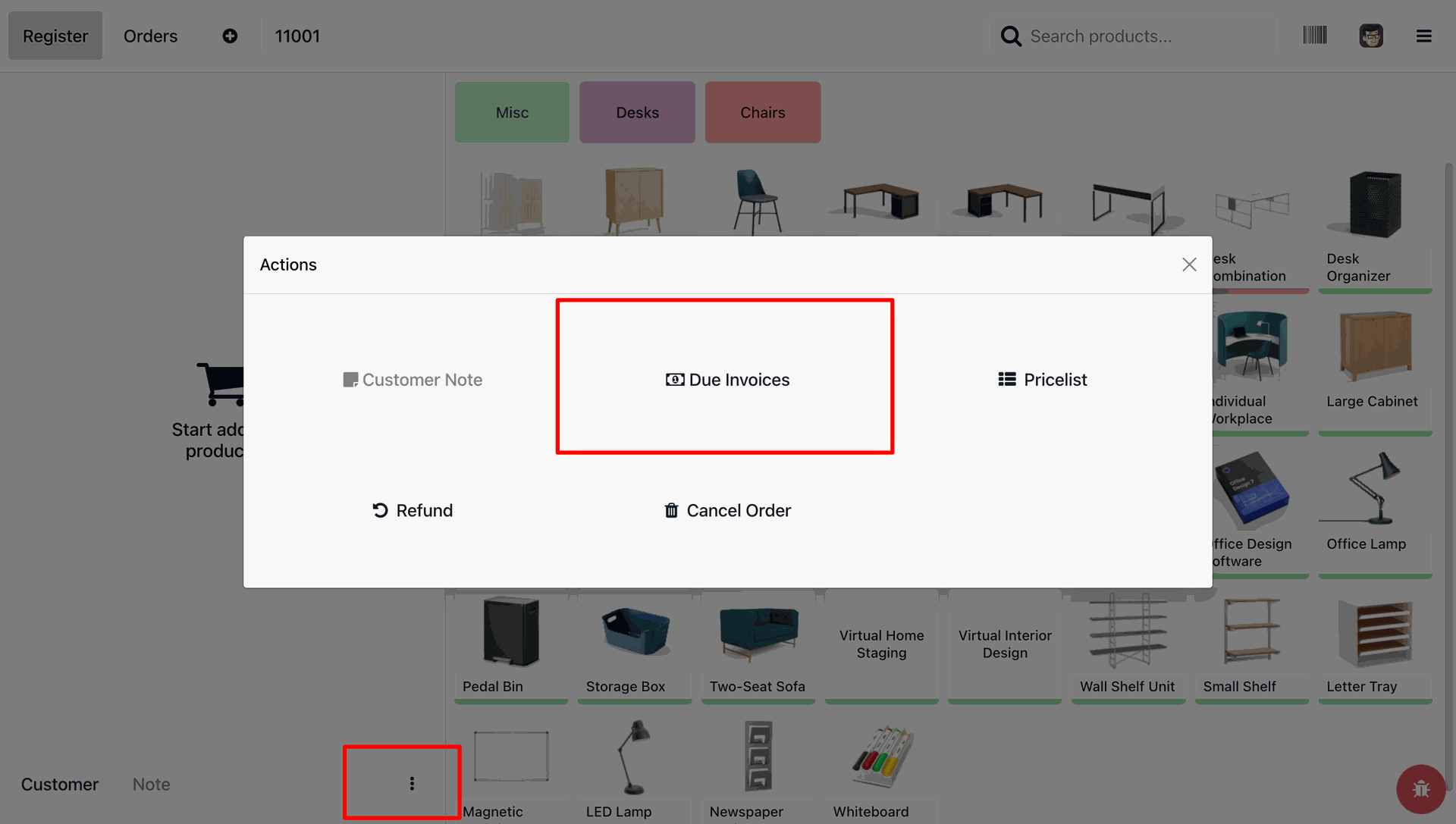
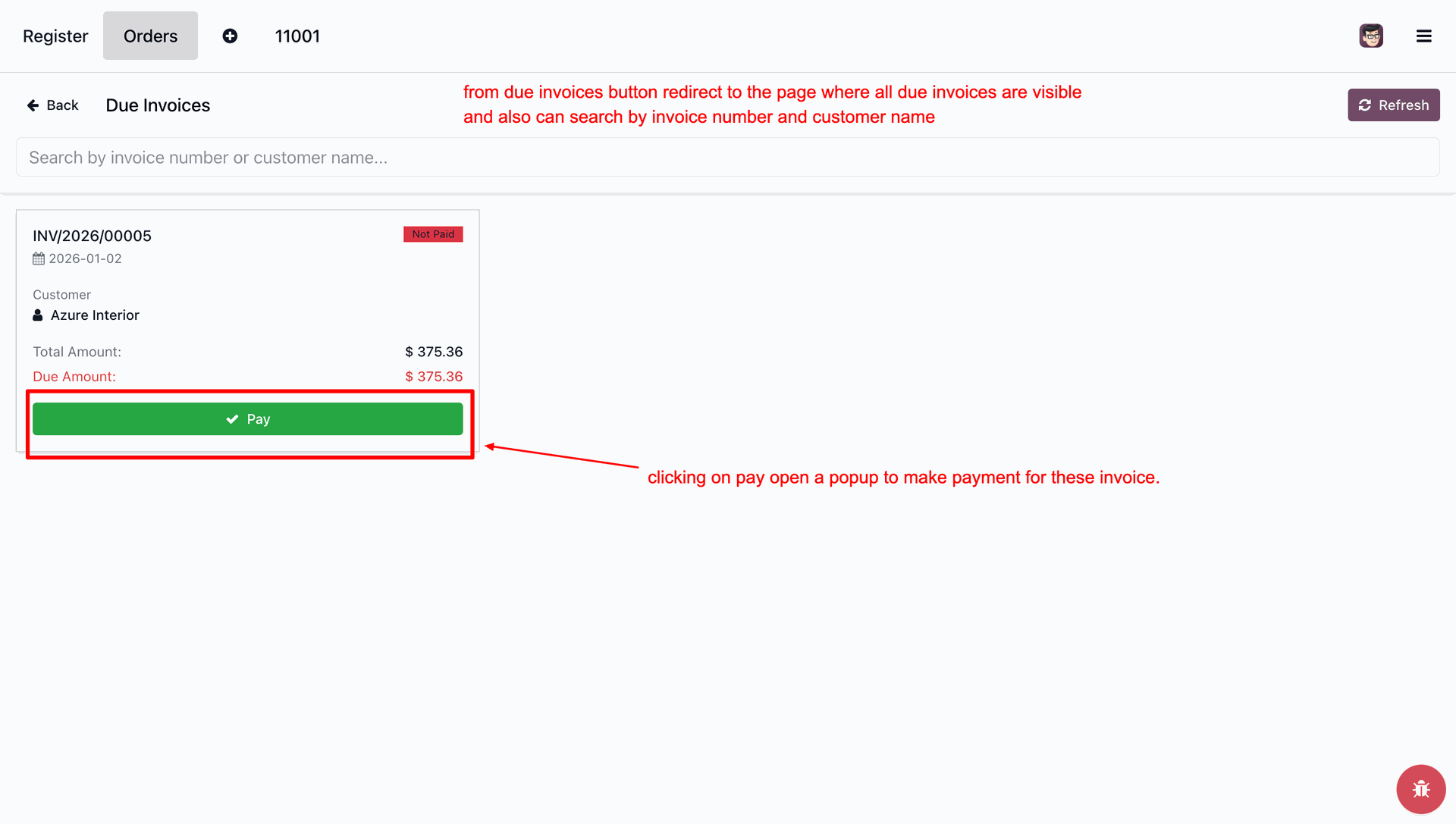
Open the Actions menu via the options button and select Due Invoices to view outstanding bills.
The Due Invoices screen lists unpaid bills and allows you to search for specific records; click the green Pay button on any invoice to initiate the payment process.
Use the Register Payment pop-up to settle invoices; utilize the percentage buttons for quick installment calculations, and click Pay to finalize.
The success screen confirms the payment registration and provides direct links to print the receipt, view the invoice in the backend, or return to the POS.
The backend view confirms the invoice is fully PAID, displaying a zero amount due, the payment date, and a Payments smart button to access the transaction record.
Version 19.0.1 | Released on : 9th January 2026
- Yes, this app works perfectly with Odoo Enterprise (Odoo.sh & Premise) as well as Community.
- No, this application is not compatible with odoo.com(odoo saas/Odoo Online)
- Yes, to test this module, please contact us at sales@softhealer.com.
- Please contact us at sales@softhealer.comto request customization.
- Yes, we provide free support for 365 days from the date of purchase.
- Yes, you will receive lifetime free updates for the version of the module you purchased.
- No, there is no need to install any additional libraries.
- Yes, for version 12 and above, you need to purchase the module separately for each version you intend to use.
- No, exchanges or refunds are not allowed. Please make sure to select the correct version before purchasing.
- You can contact us at support@softhealer.com for language translation support. We use Google Translator tools to provide translations in multiple languages, so the accuracy may vary. We welcome your suggestions to help improve translations.
Discover Our Latest Apps