











Customer Wallet Management - POS

Are you looking for a module that enables wallet payments in POS? Look no further, this module is the perfect solution. It allows you to manage customer wallet balances directly from the Point of Sale interface. You can easily recharge, refund, and track wallet transactions. Customers can make payments using their wallet balance, and you can generate detailed wallet reports in both PDF and Excel formats. Additional features include wallet creation, filtering customers by wallet balance status.

Related Modules
Features

Wallet Creation & Management
Create a customer wallet instantly from the POS interface.

Easy Wallet Refund
Refund amounts directly to the customers wallet with immediate balance updates.

Advanced Wallet Reporting
Generate detailed wallet reports for selected customers in PDF and Excel formats.

Easy Wallet Recharge
Add funds to the wallet with remark for easy reference.

Wallet-Based Payments in POS
Wallet balance update instantly and displayed in real-time during POS transactions.

Smart Customer Filtering
Easily filter customers with or without wallet balances.
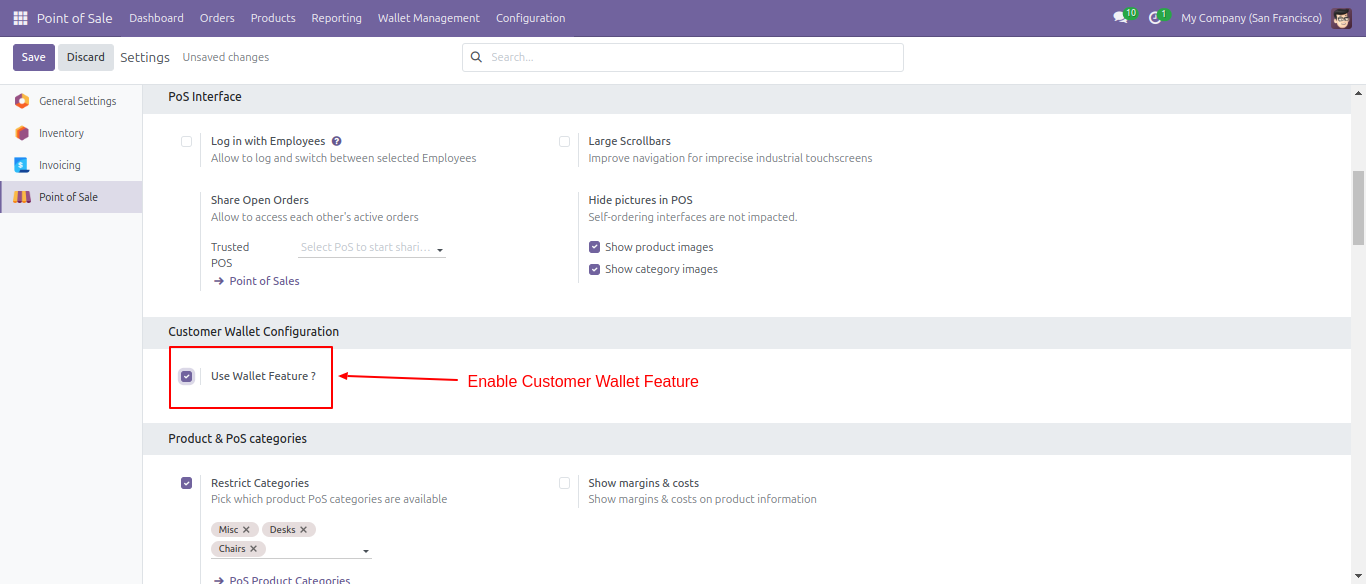
Go to the POS => settings and enable 'Use Wallet Feature'.
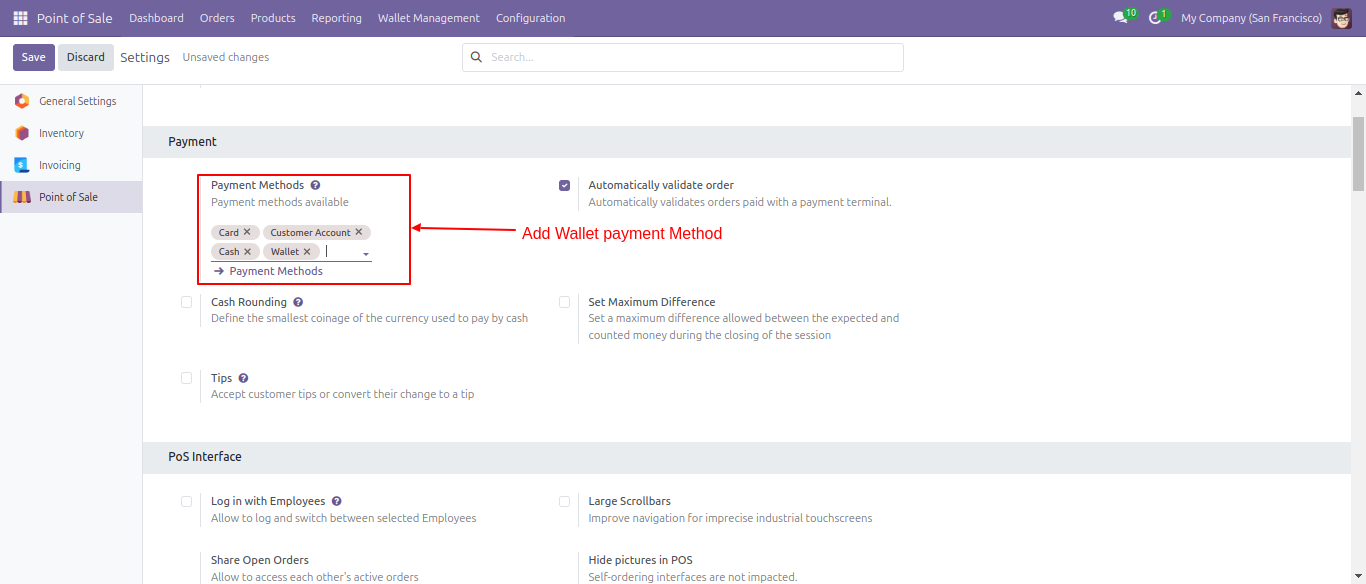
Select the payment methods.
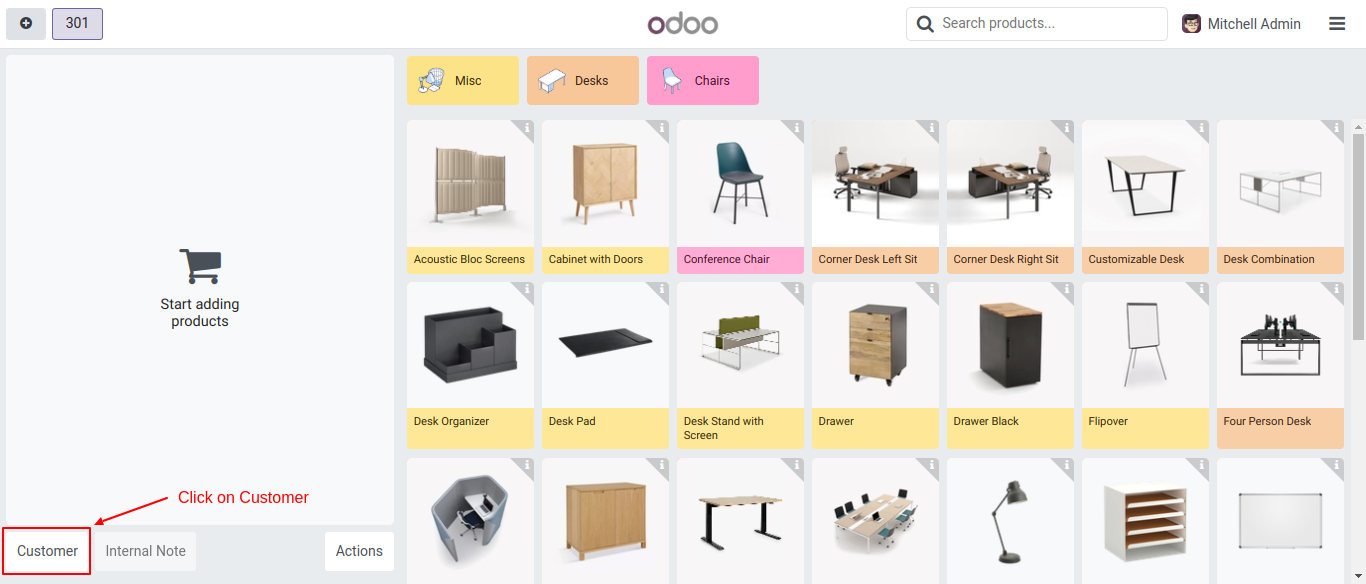
On the POS screen, click on the customer.
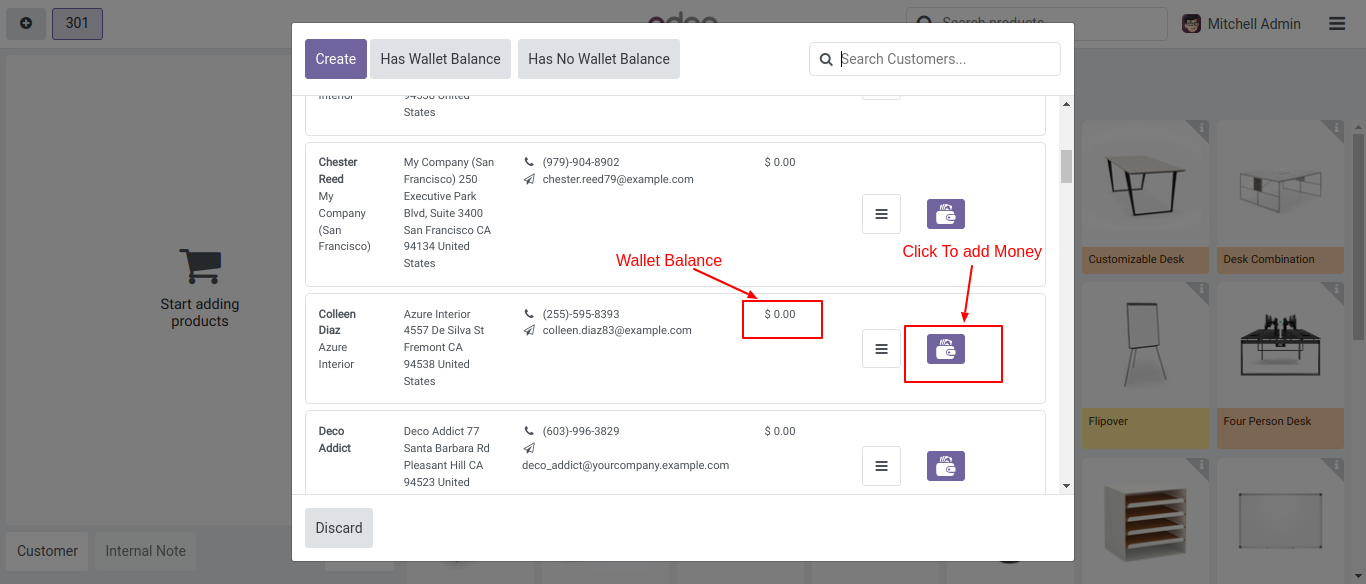
Then, a wizard will appear displaying the customer's wallet balance.
To add money, simply click on the wallet icon.
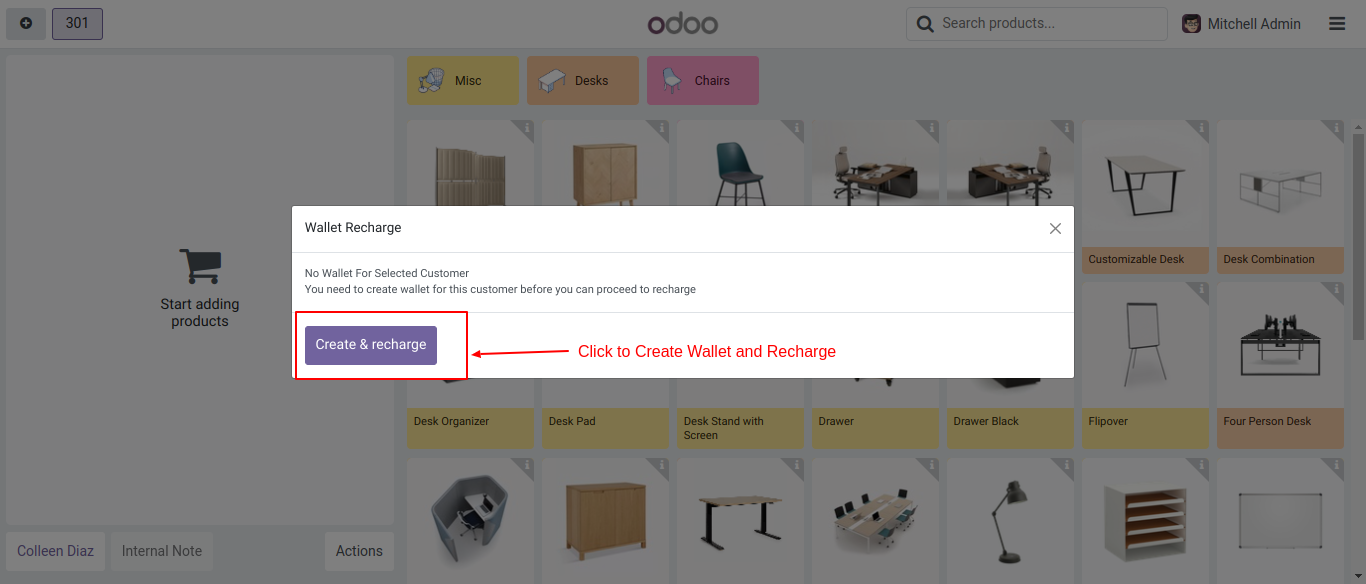
If a wallet has not been created for the selected customer, a wizard will appear.
Click on the 'Create & Recharge' button to proceed.
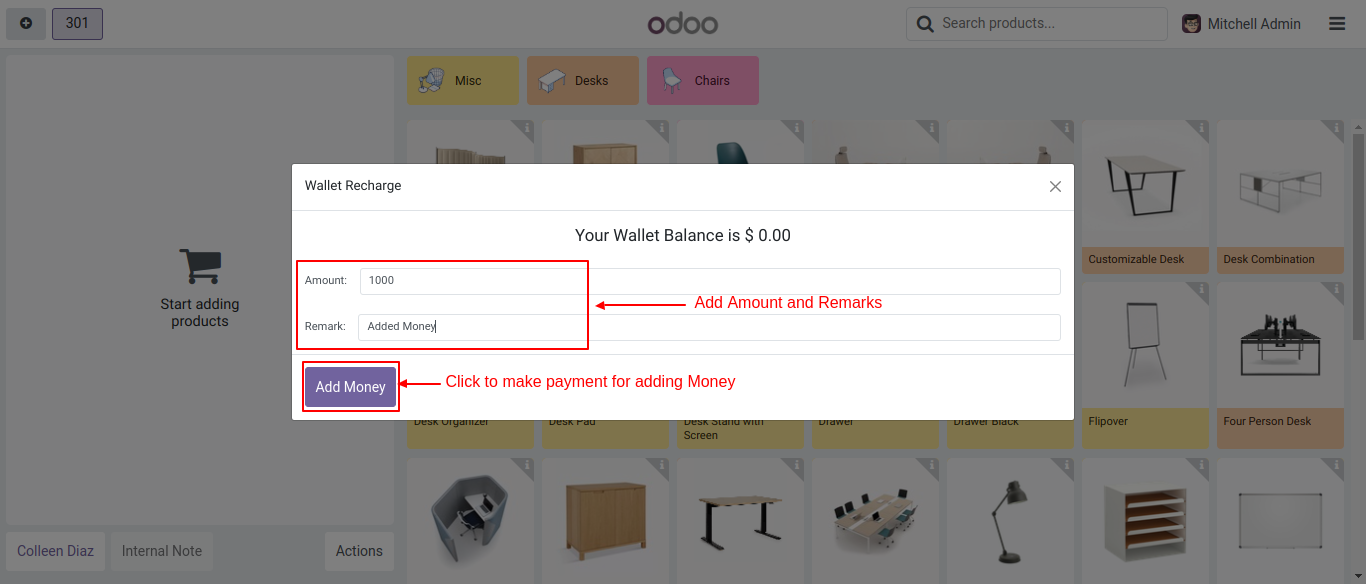
After that, the 'Wallet Recharge' wizard will appear.
Enter the amount and a remark, then click on the 'Add Money' button.
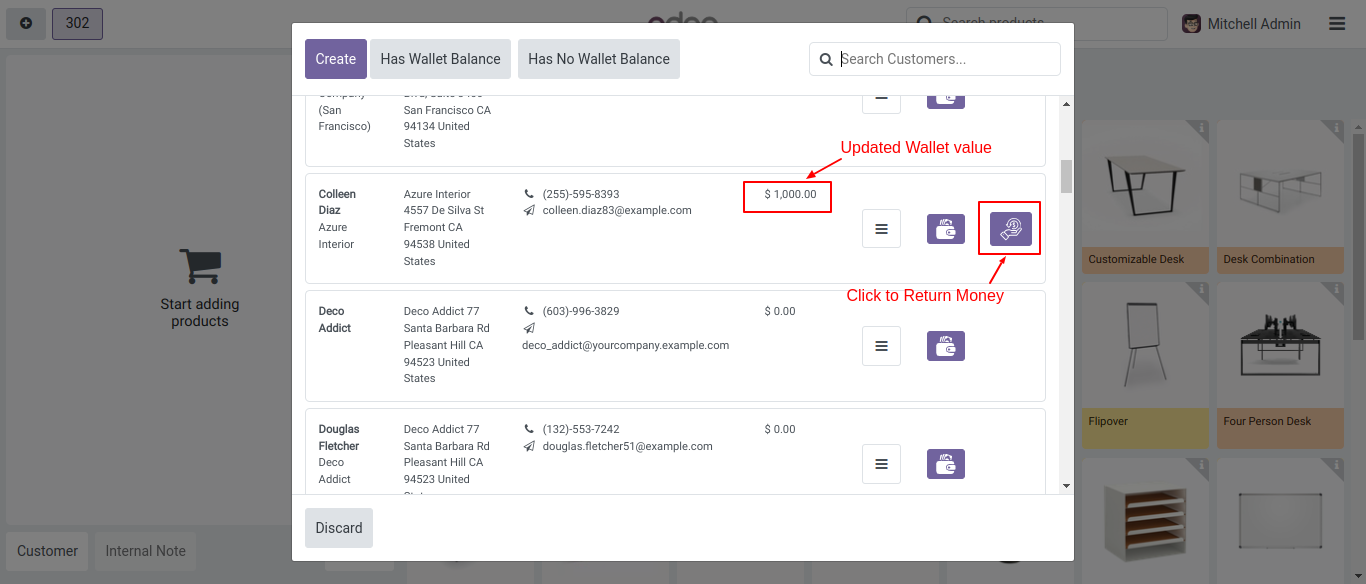
The added amount will now be visible.
To return money, click on the 'Return Money' icon.
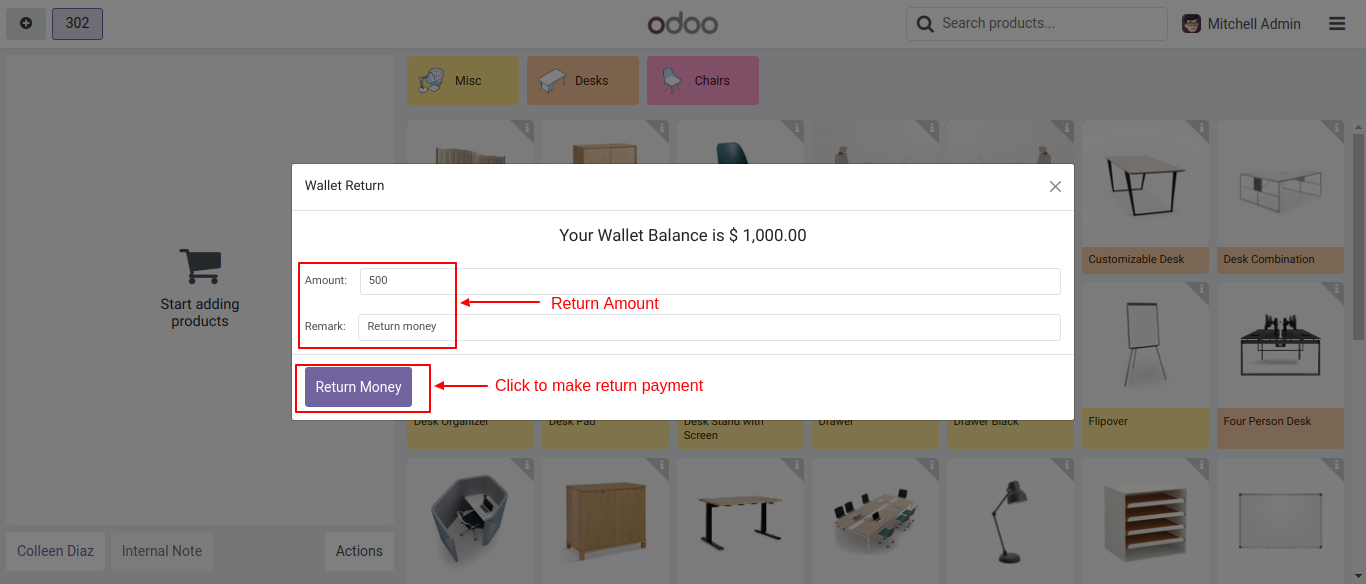
After that, the 'Wallet Return' wizard will appear.
Enter the amount and a remark, then click on the 'Return Money' button.
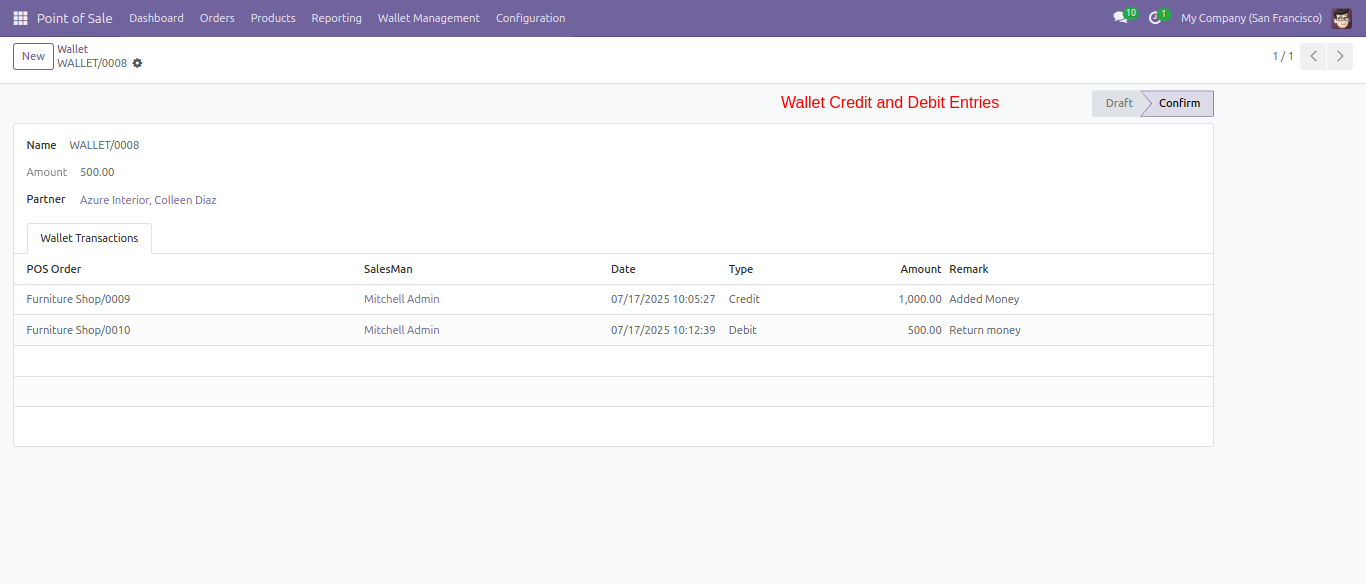
Go to the wallet from the wallet management menu.
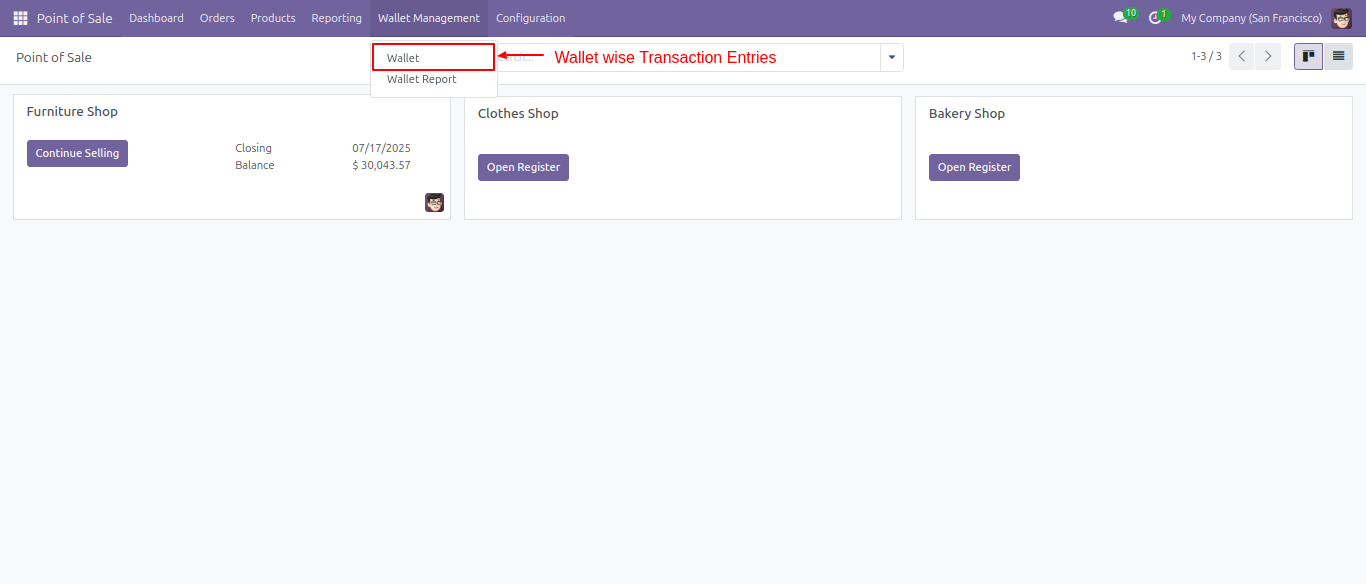
Form view of the wallet.
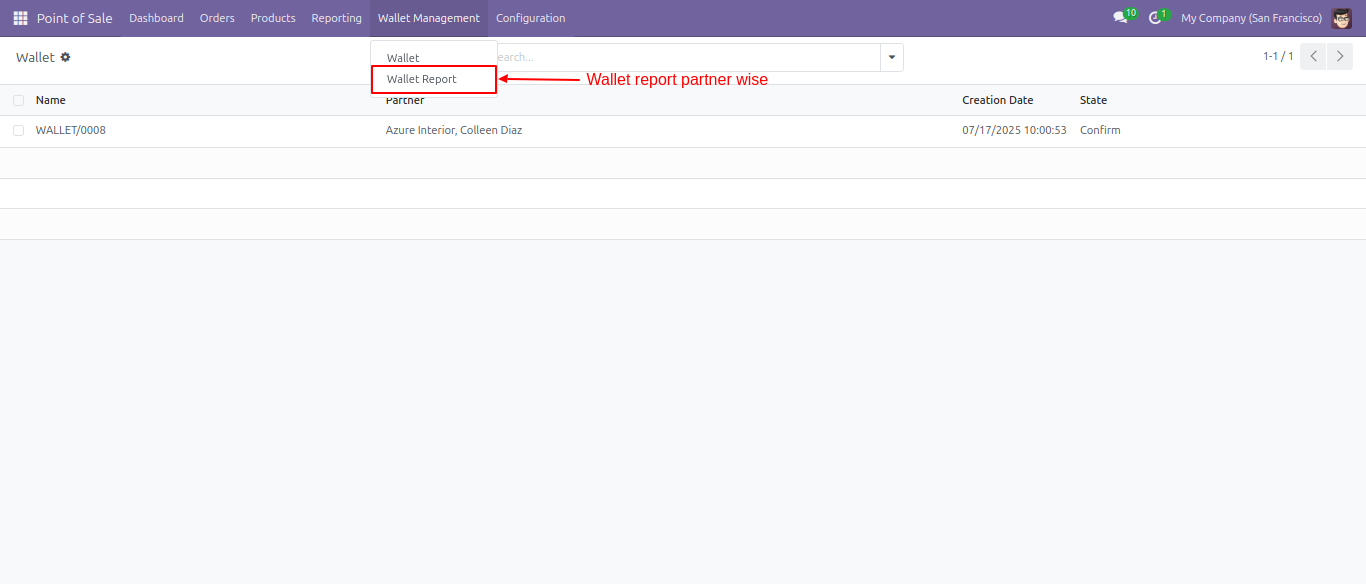
Go to the Wallet Management ==> 'Wallet Report' to access the wallet records.
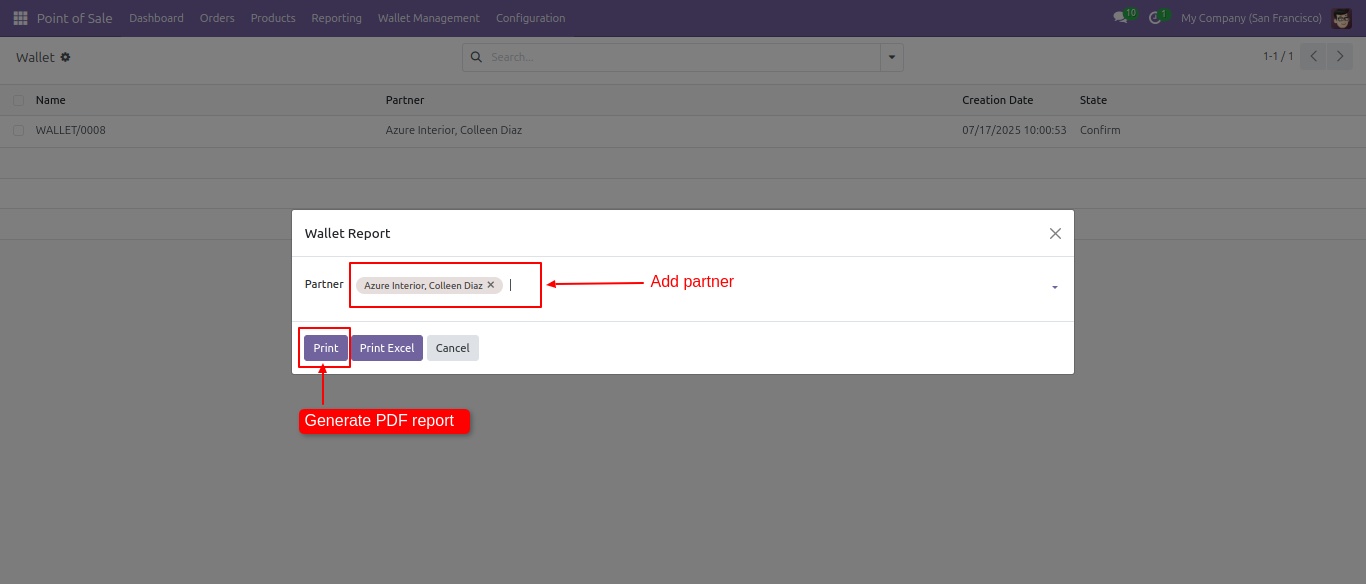
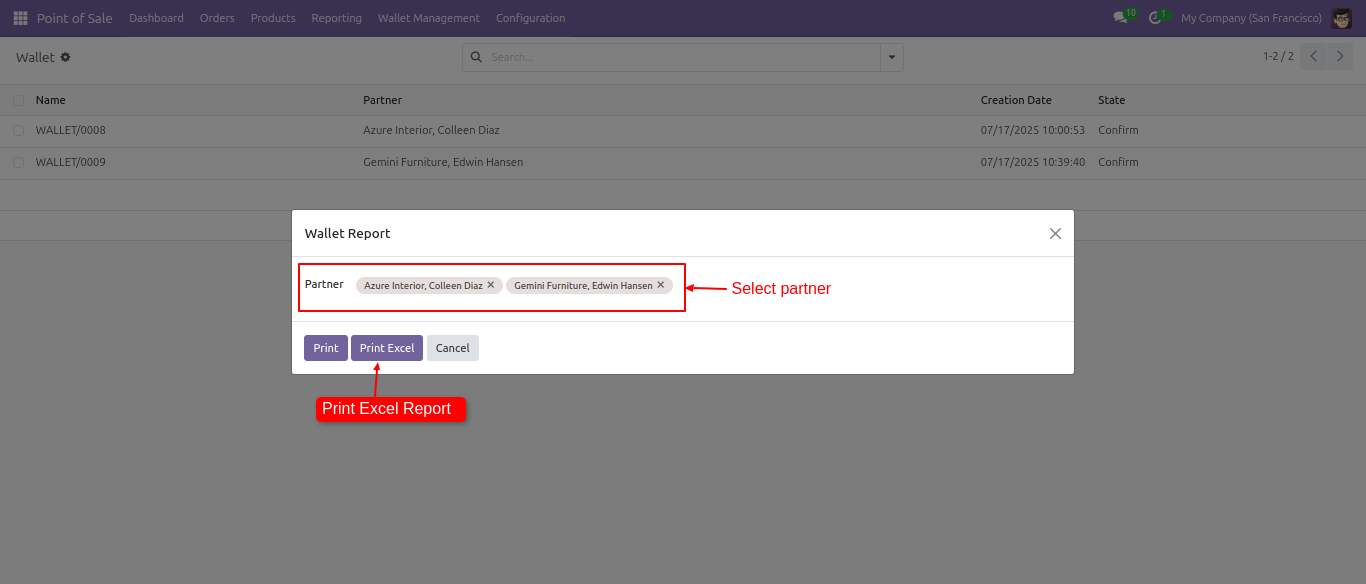
Select a partner and click on the 'Print' button.
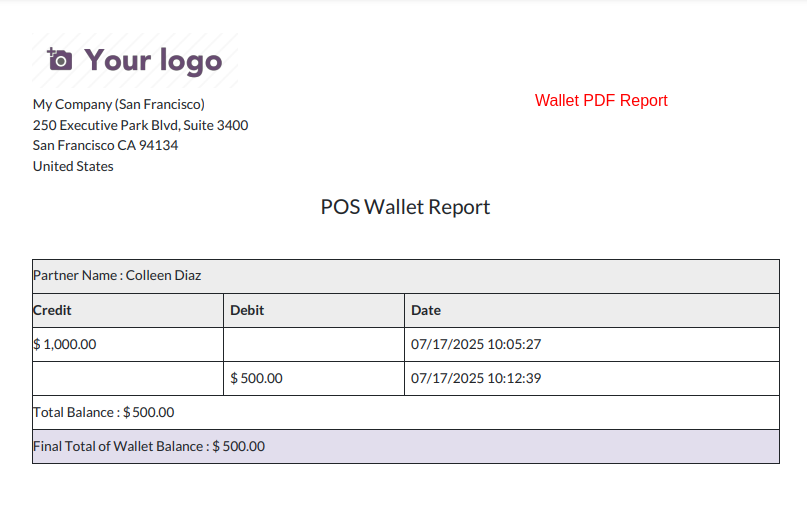
PDF report looks like below.
Select a partner and click on the 'Print Excel' button.
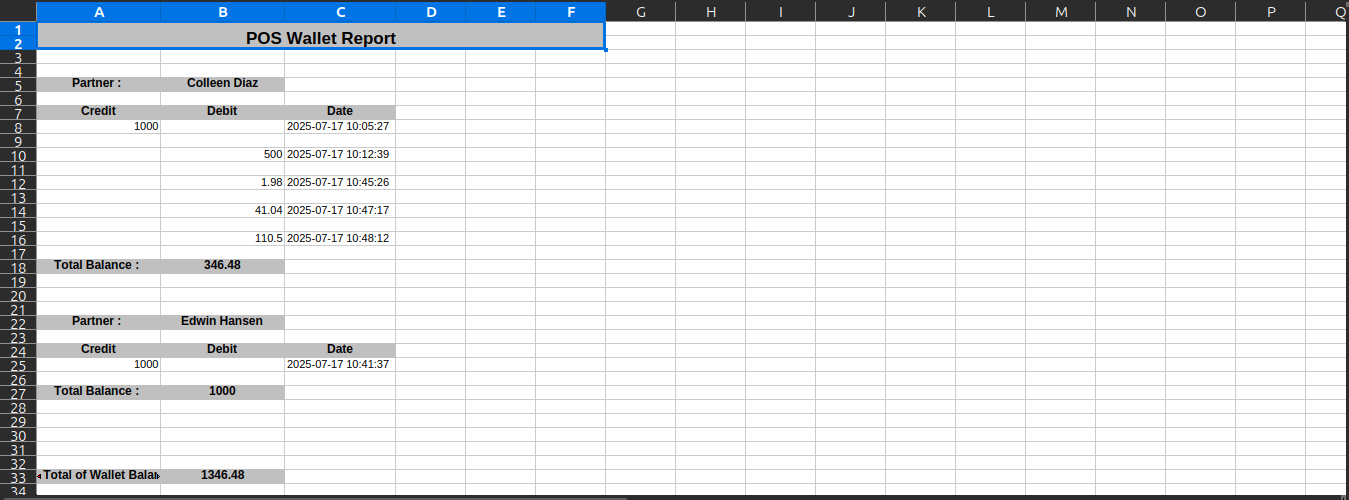
Excel report looks like below.
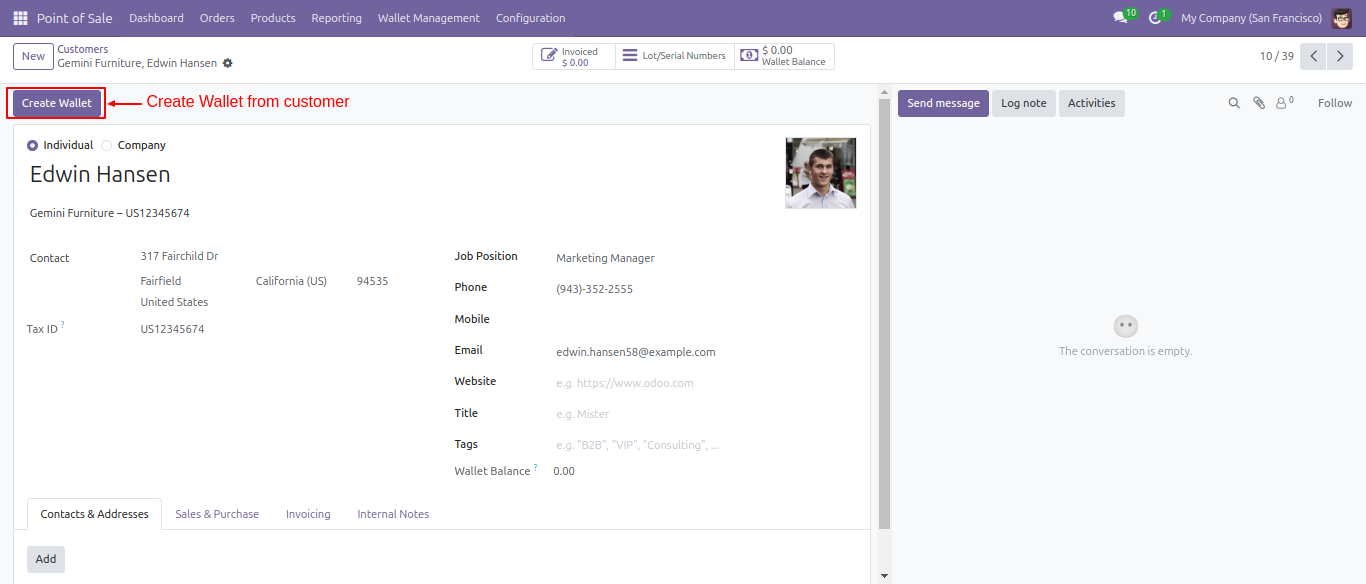
In the customer form view, click on the 'Customer Wallet' button.
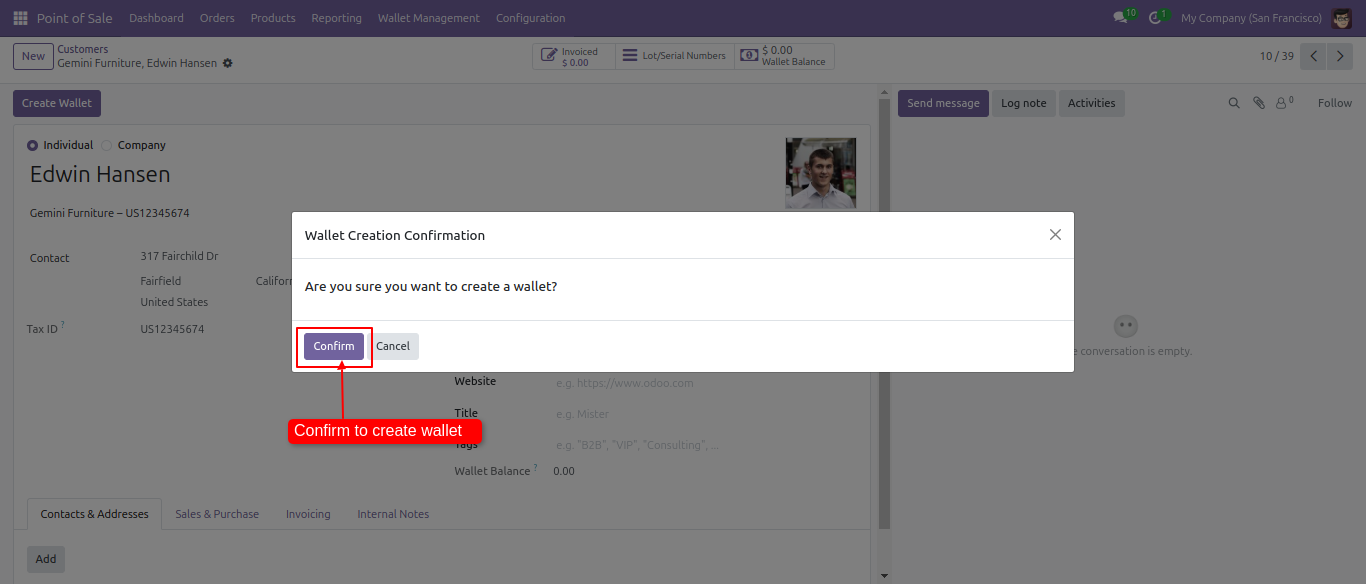
After that, a confirmation wizard will appear. Click on the 'Confirm' button to proceed.
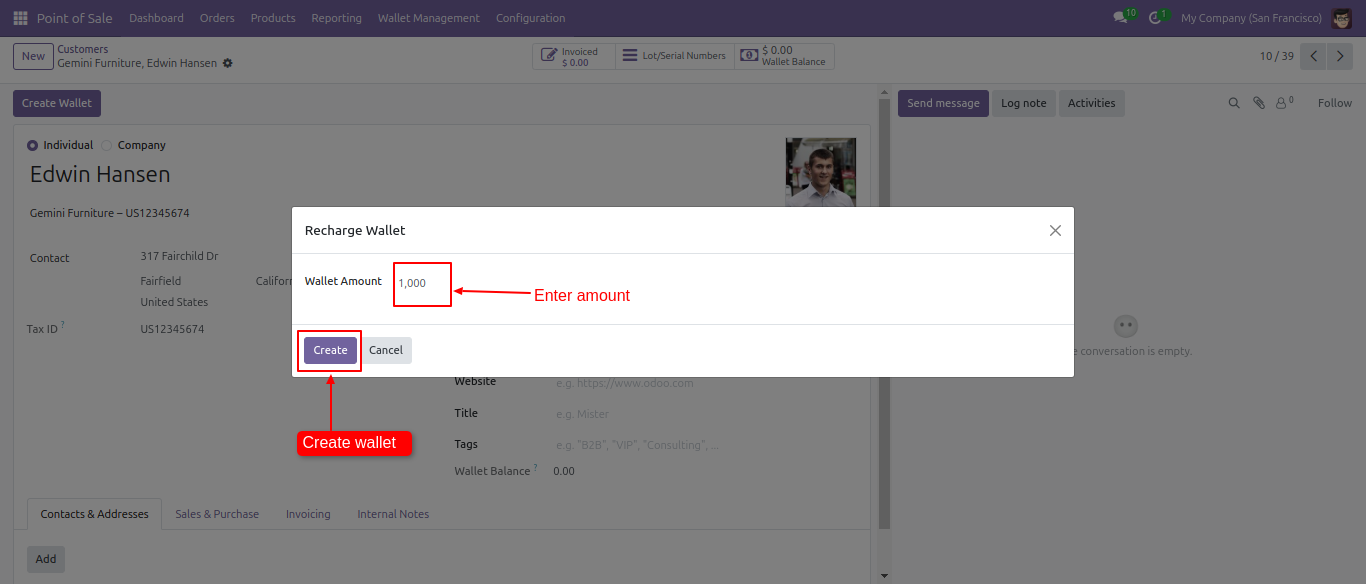
Enter the wallet amount, then click on the 'Create' button.
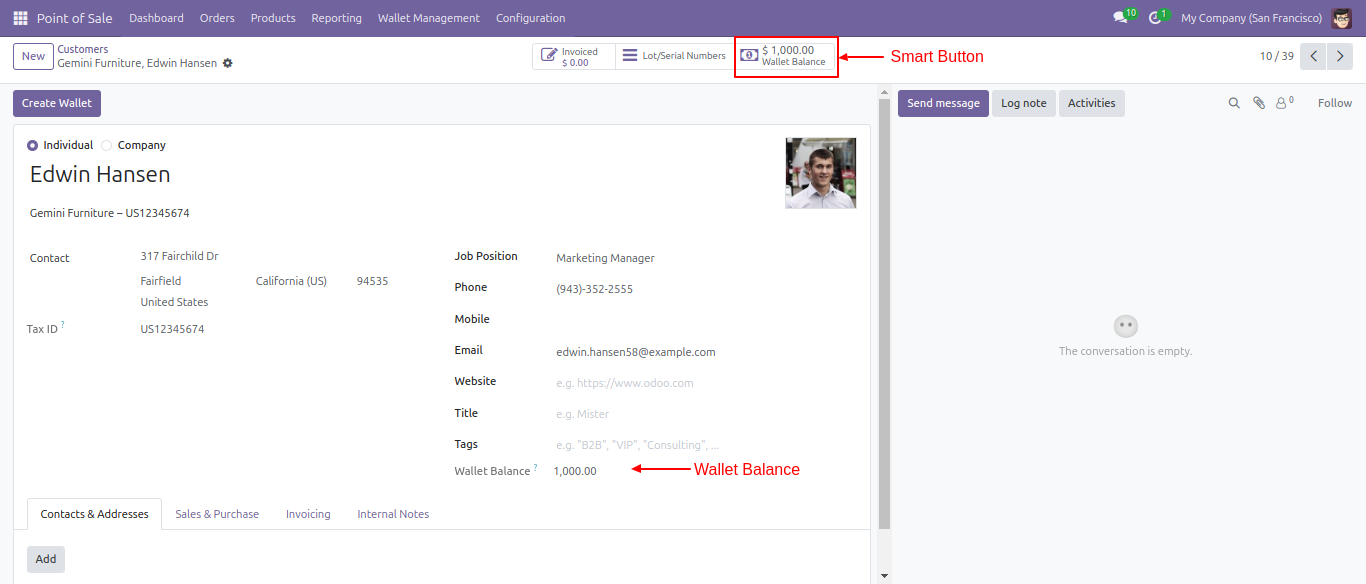
The 'Wallet Balance' smart button will now be visible.
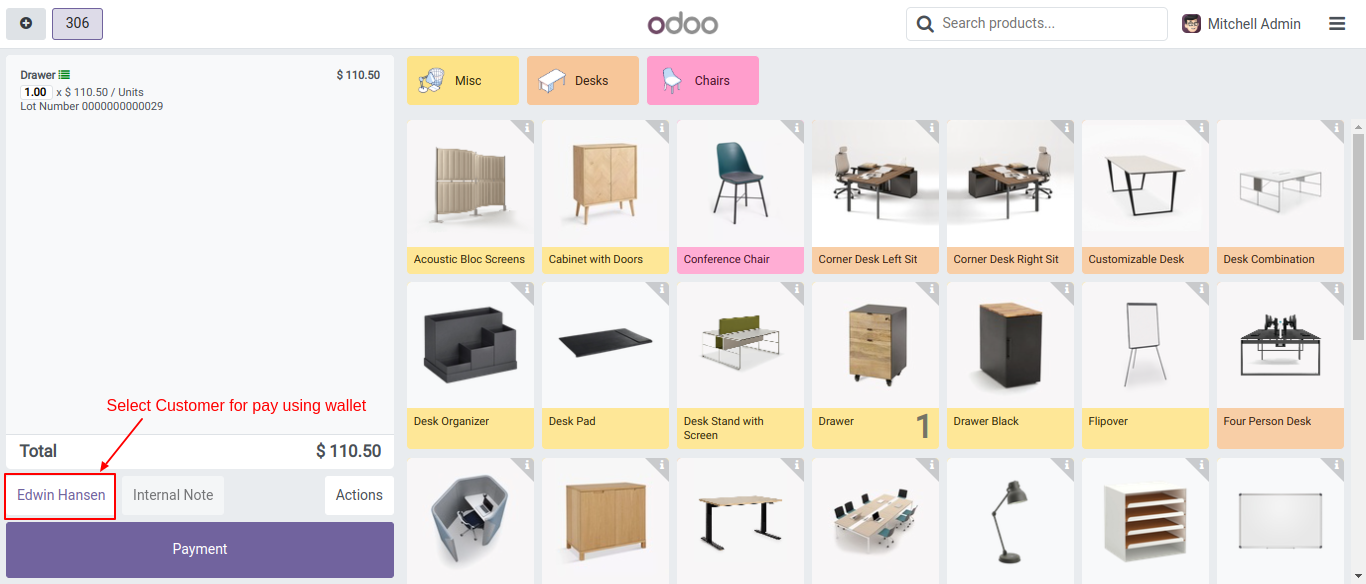
On the POS screen, select the customer.
To make a payment using the wallet, enable the 'Use Wallet Payment' option.
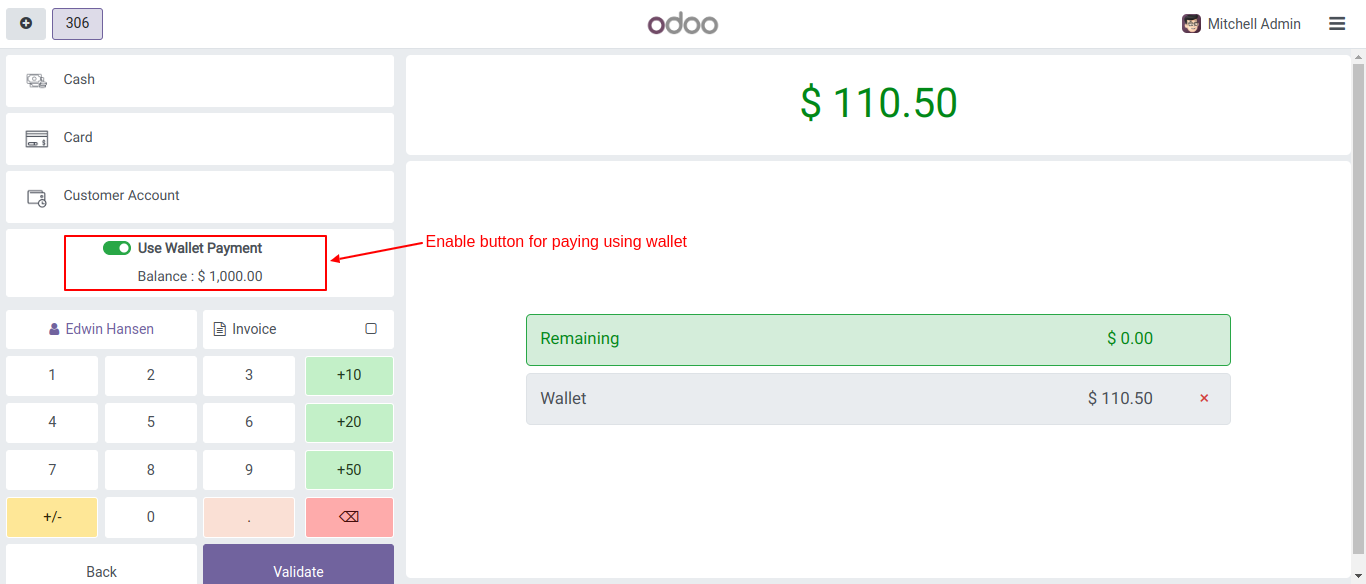
You can now see the updated wallet balance amount.
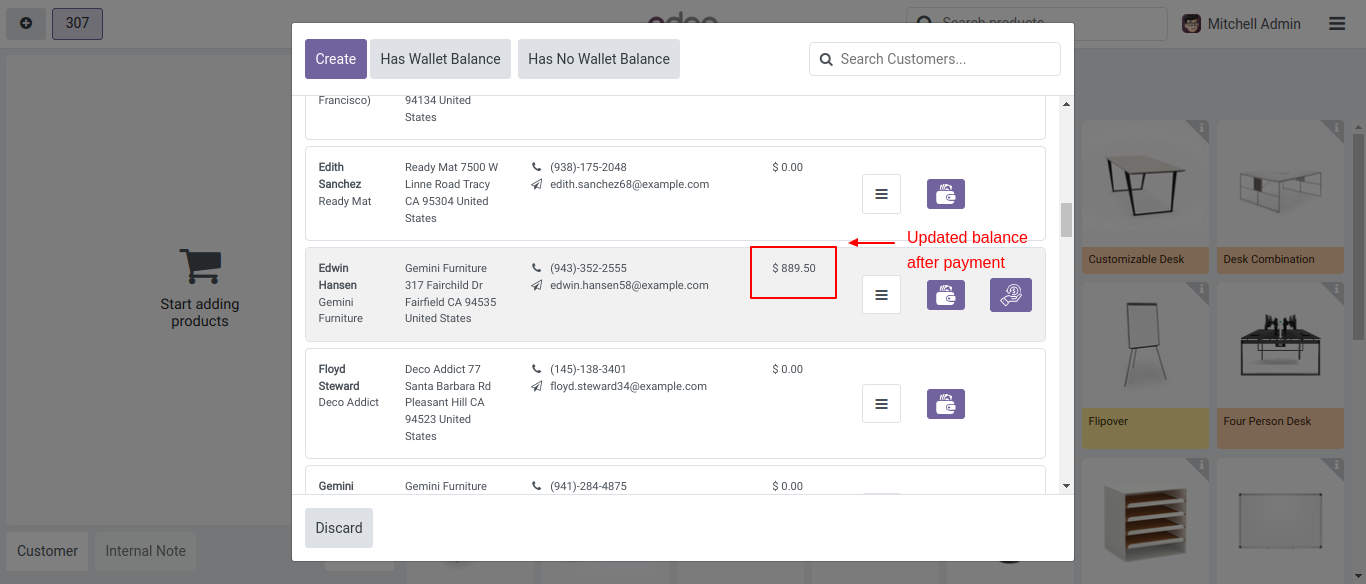
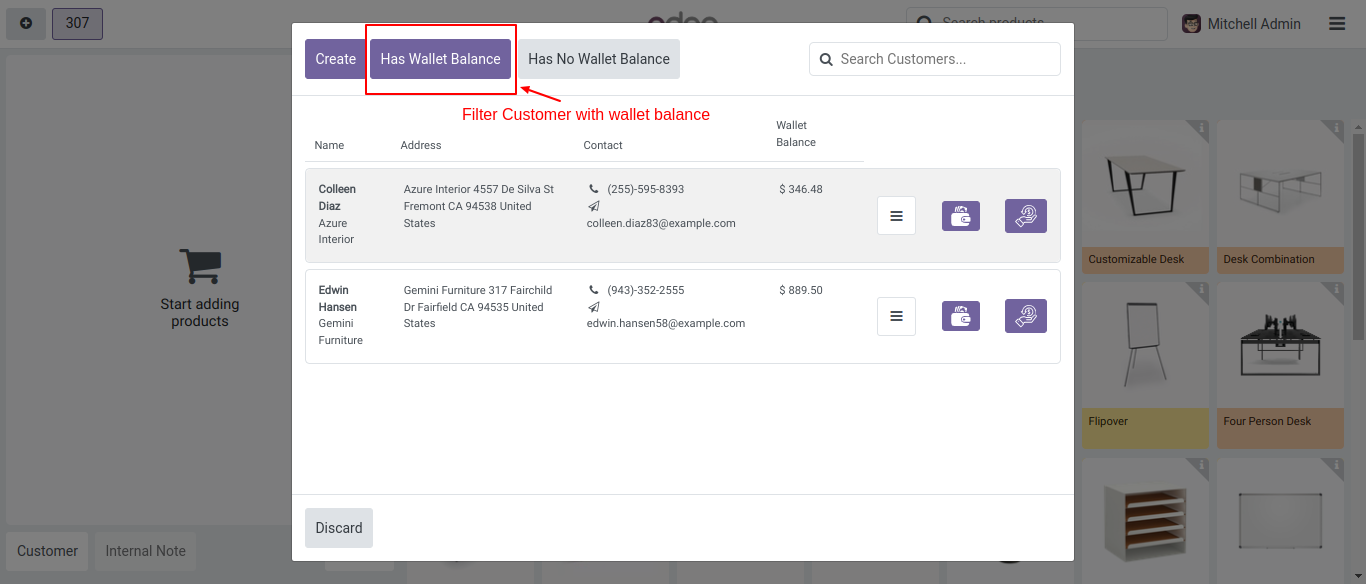
You can filter customers with a wallet balance by clicking on the 'Has Wallet Balance' button.
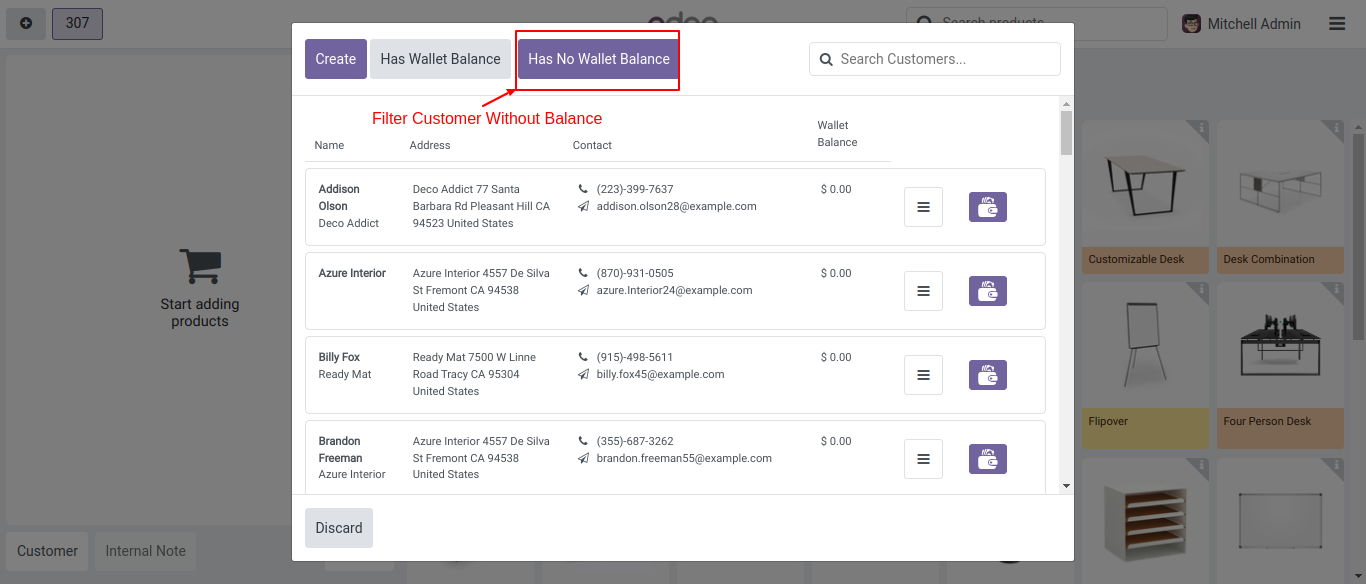
You can filter customers without a wallet balance by clicking on the 'Has No Wallet Balance' button.
Version 17.0.1.0.0 | Released on : 7th January 2026
- No, this application is not compatible with odoo.com(odoo saas).
- Yes, this app works perfectly with Odoo Enterprise (Odoo.sh & Premise) as well as Community.
- Please Contact Us at sales@softhealer.comto request customization.
- Yes, we provide free support for 365 days.
- Yes, you will get free update for lifetime.
- No, you don't need to install addition libraries.
- Yes, You have to download module for each version (13,14,15) except in version 12 or lower.
- No, We do not provide any kind of exchange.
