












Portal Leaves

Currently, in odoo, you can't manage the leave at the portal. Using this module you can create leave from the website portal. You can create the leave by custom time based on leave type. You can create, cancel, and view leaves using "Action". You can sort by leave by newest and name. We have provided a filter leave option so easy to filter the leave by last month, last week, last year, this month, this quarter, today, this week & this year. You can easily group by the leave by their type. Using a search bar you can search leave easily. When leave create that will put it in the 'Draft' state by default and then after admin can move in approve or cancel state. The admin can approve or cancel the leave from the portal and that changes automatically saved in backend. The admin can review and confirm the leave from the portal. It shows a notification after create, reset, update & delete the leave. You can chat/message or share attachments inside the leave chatter.

Features
- Easy to create, cancel, and view leaves at the website portal.
- Easy to create the leave by custom time based on leave type.
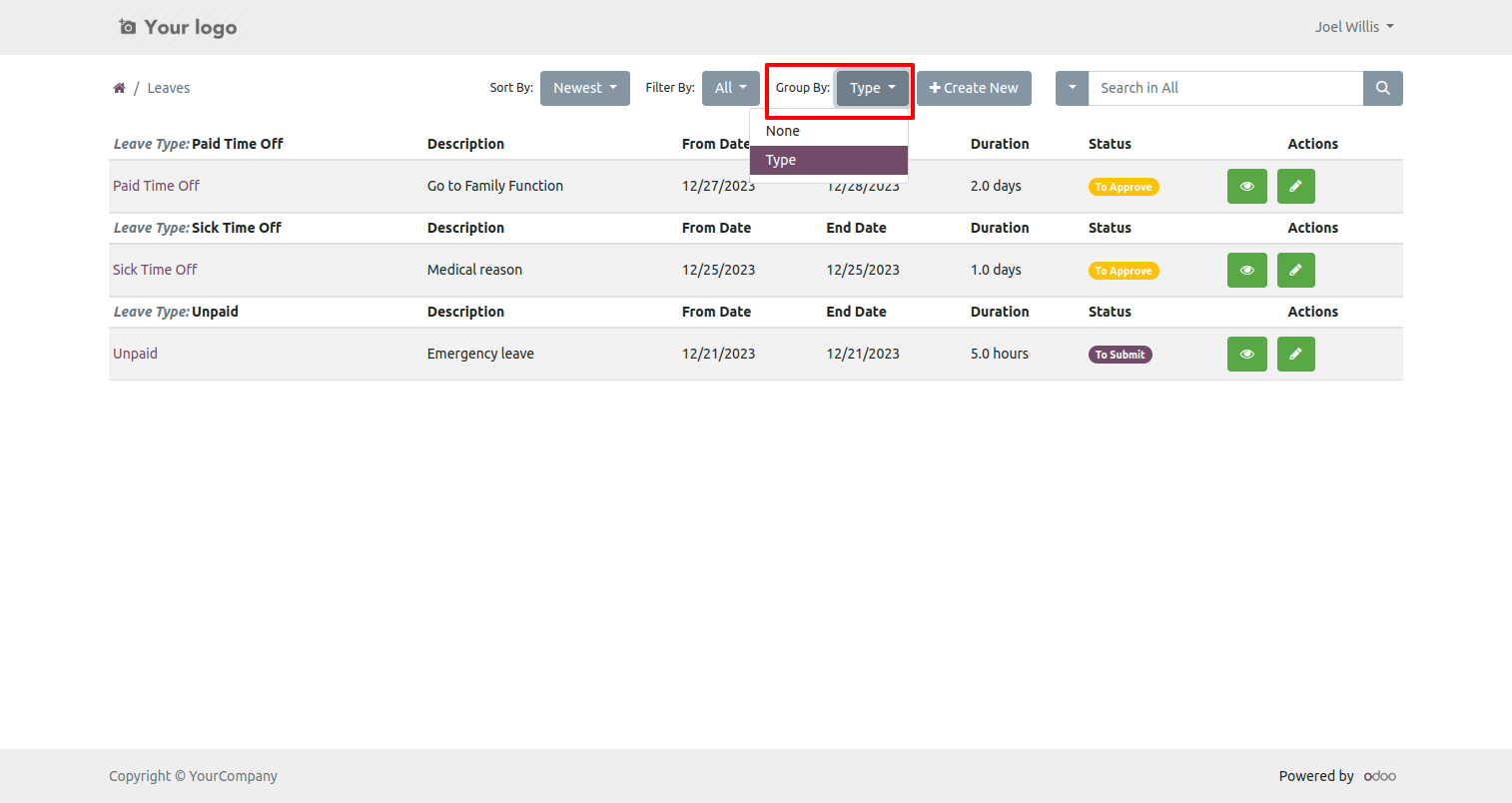
- You can easily group by the leave by their type.
- Easy to sort by leave by newest and name.
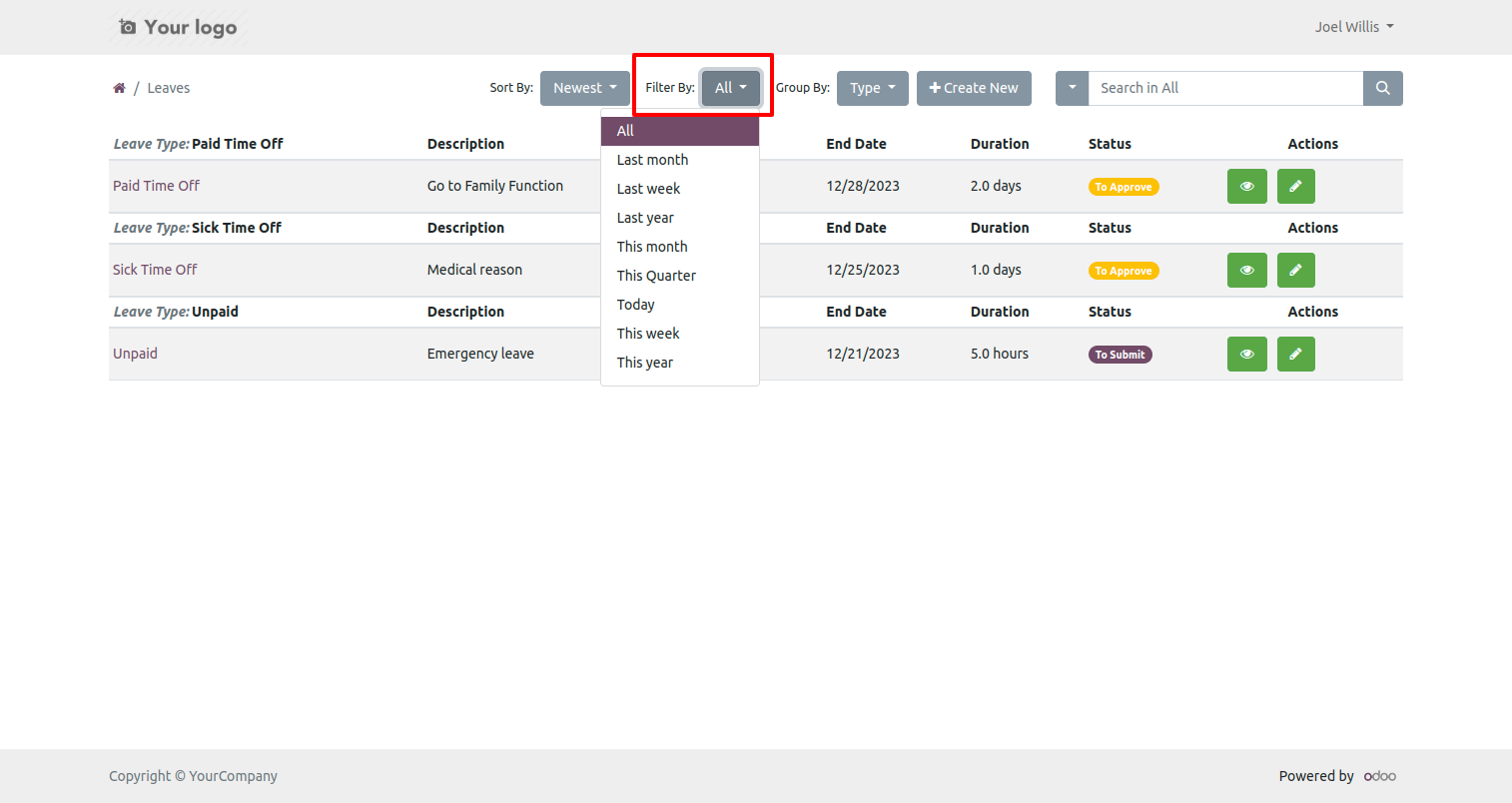
- Easy to filter the leave by last month, last week, last year, this month, this quarter, today, this week & this year at the portal.
- Easy to search leave using the search bar.
- The notification comes after create, reset, update & delete the leave.
- The leave creates then it will put it in the 'Draft' state by default.
- You can write comments, send messages, and attach files in the chatter.
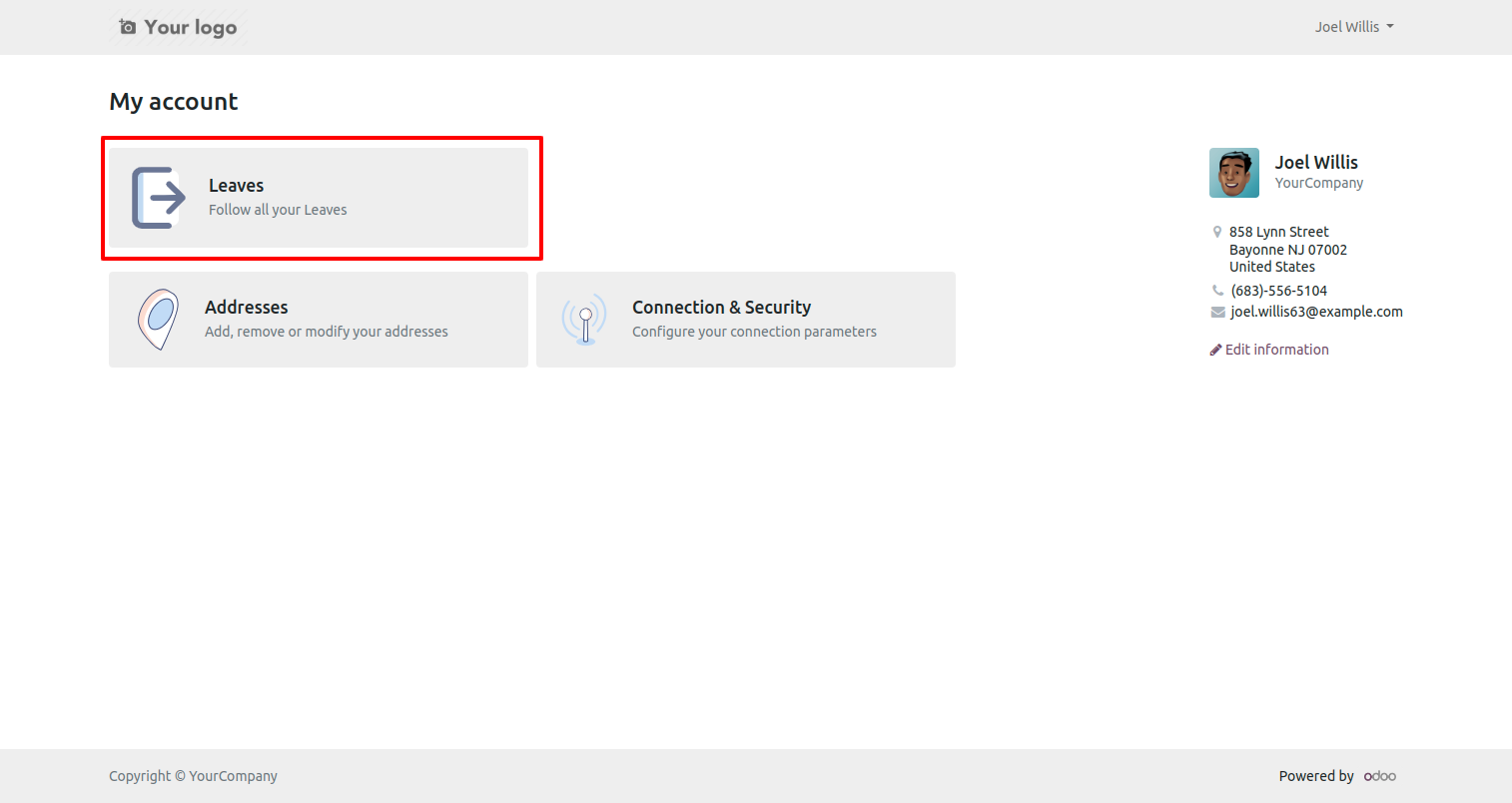
In my account(portal) go to 'Leaves'.
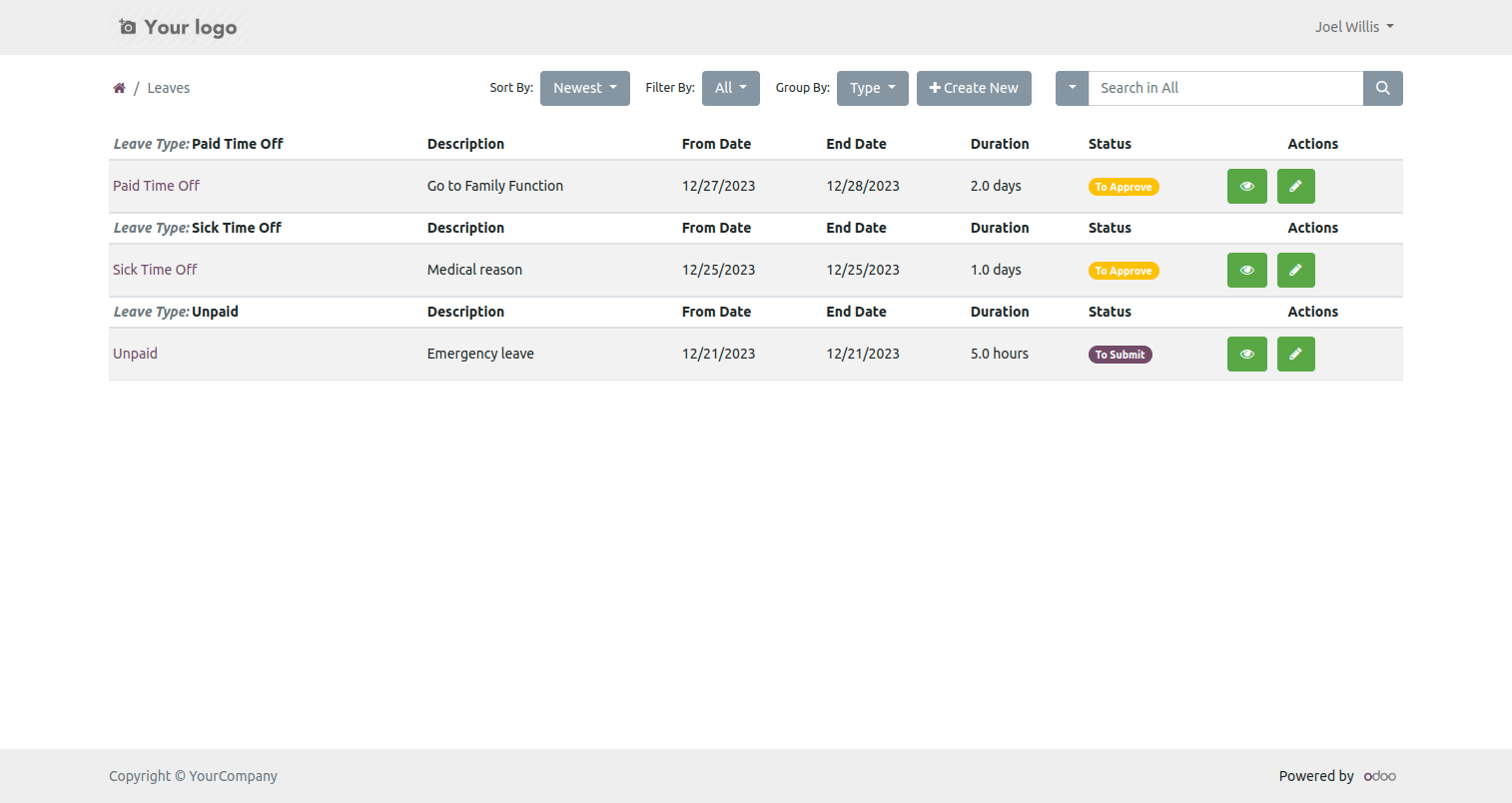
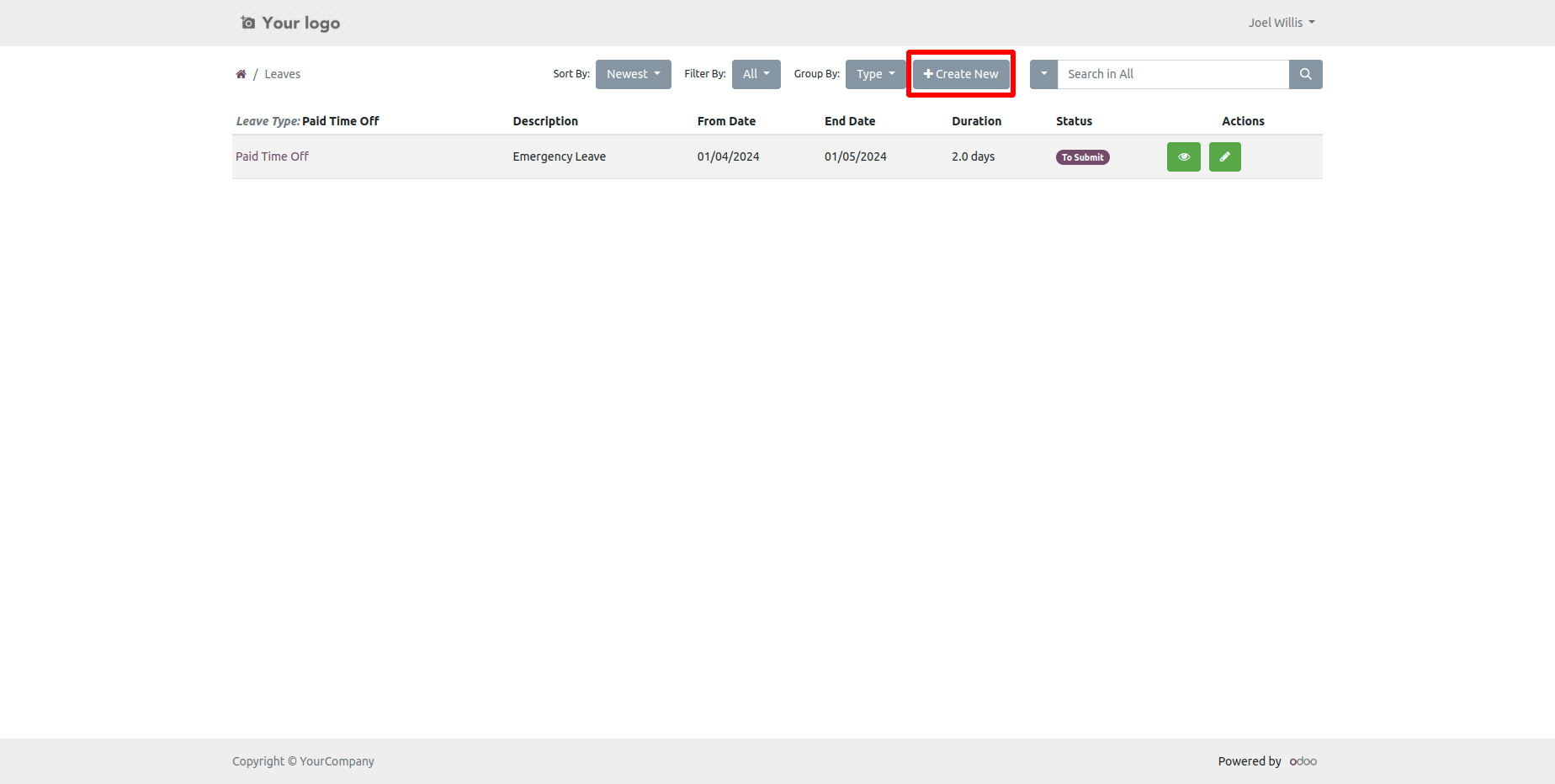
You can create a new leave from the 'Create New' button.
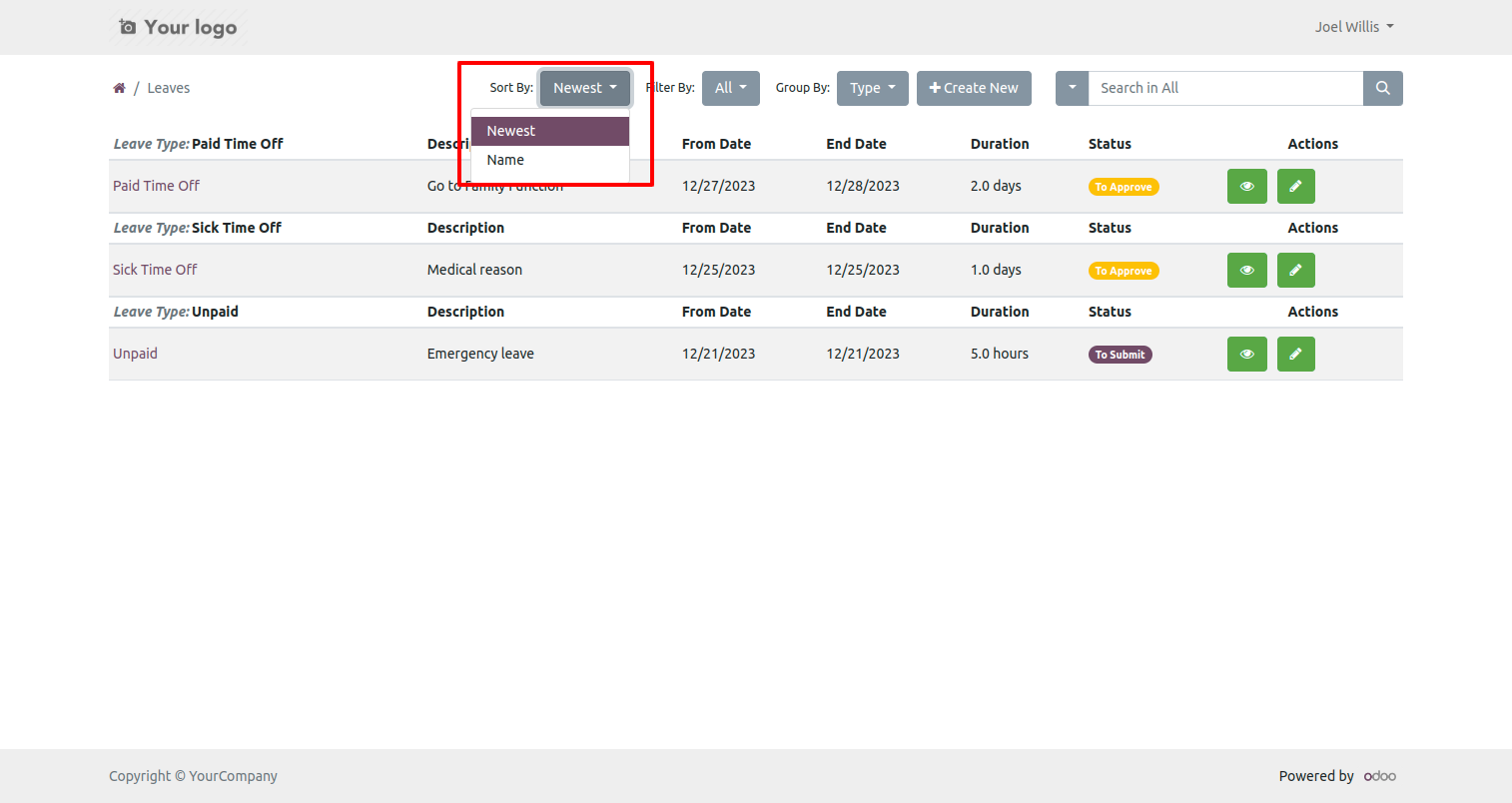
You can sort by leave by newest and name.
You can filter leaves using any of the provided custom filter list.
The 'Type' list view of the group by looks like below.
You can create a new leave from the 'Create New' button.
After that one wizard opens fill details and press the 'Create' button.
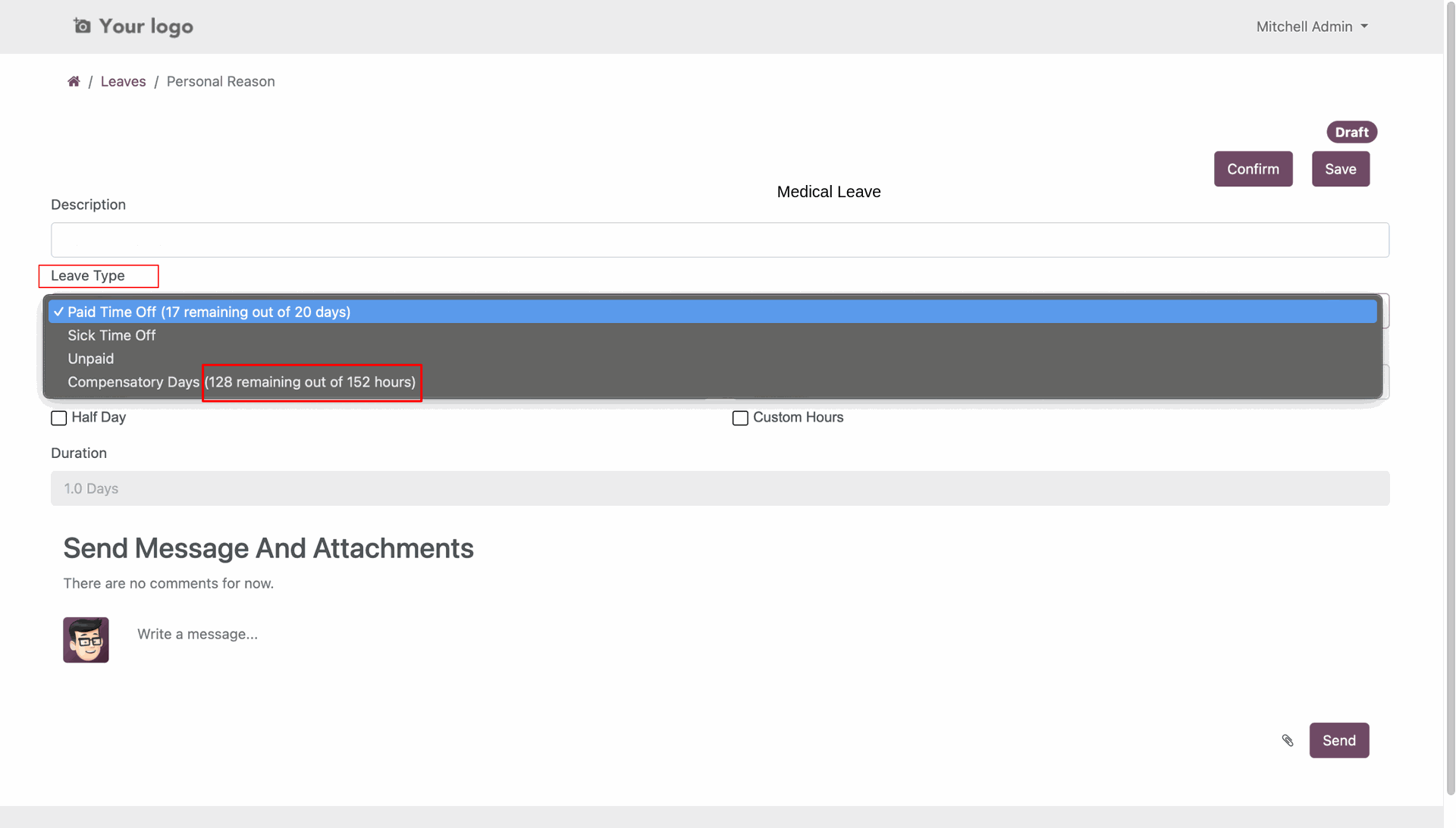
Select leave type.
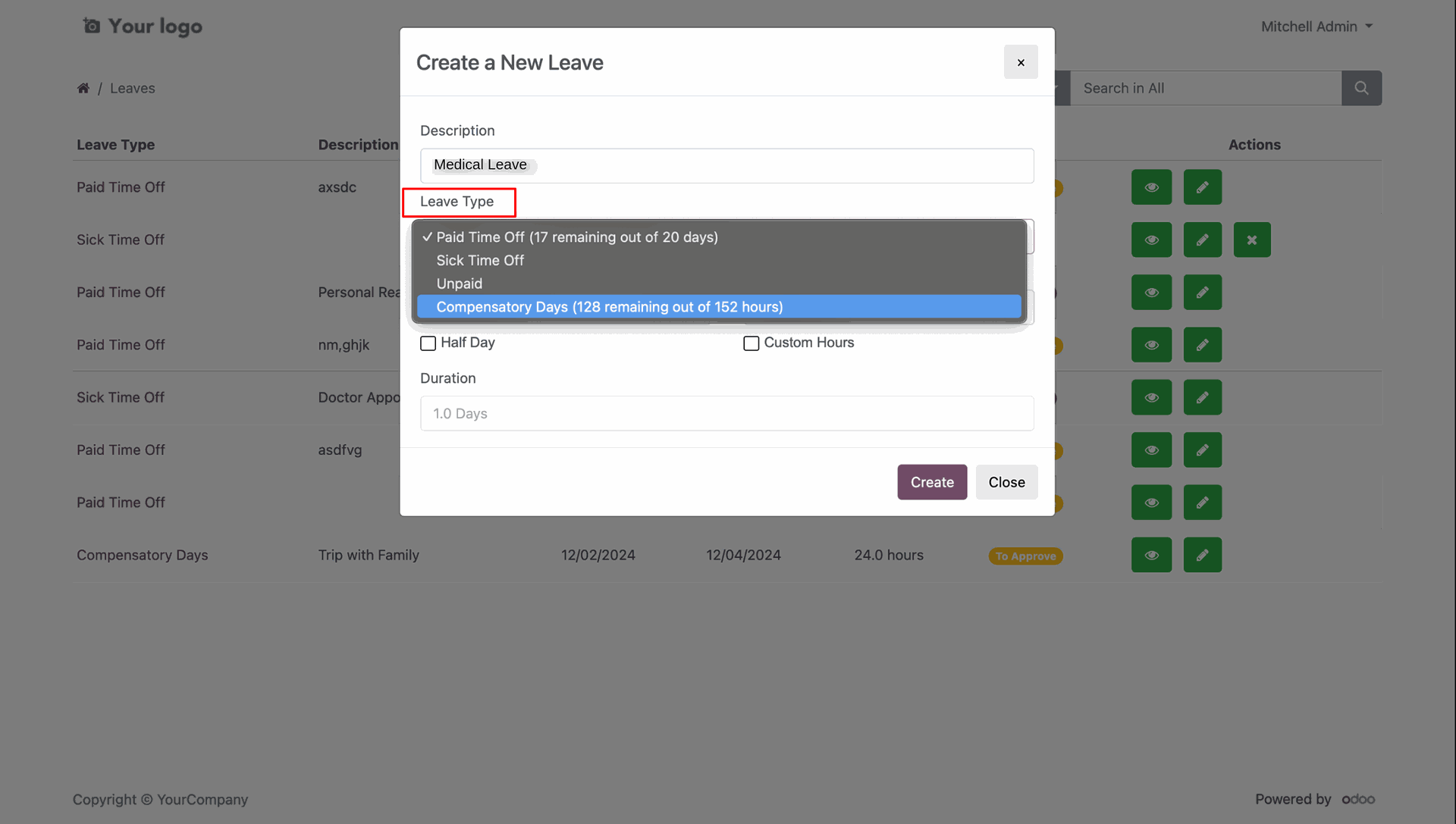
Here you can view the remaining compensatory hours.
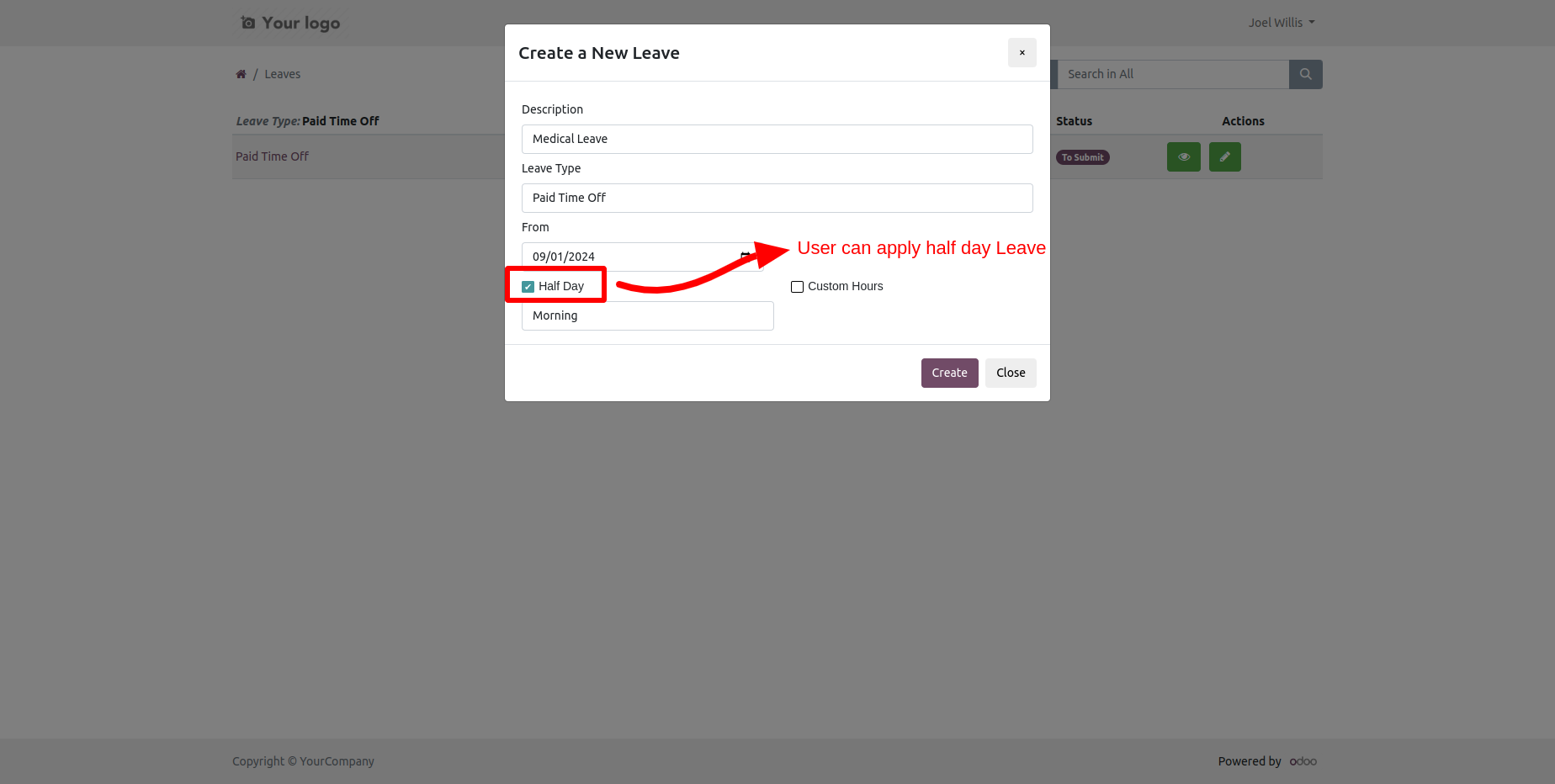
You can create half-day leave, so tick that checkbox and select time like morning & afternoon.
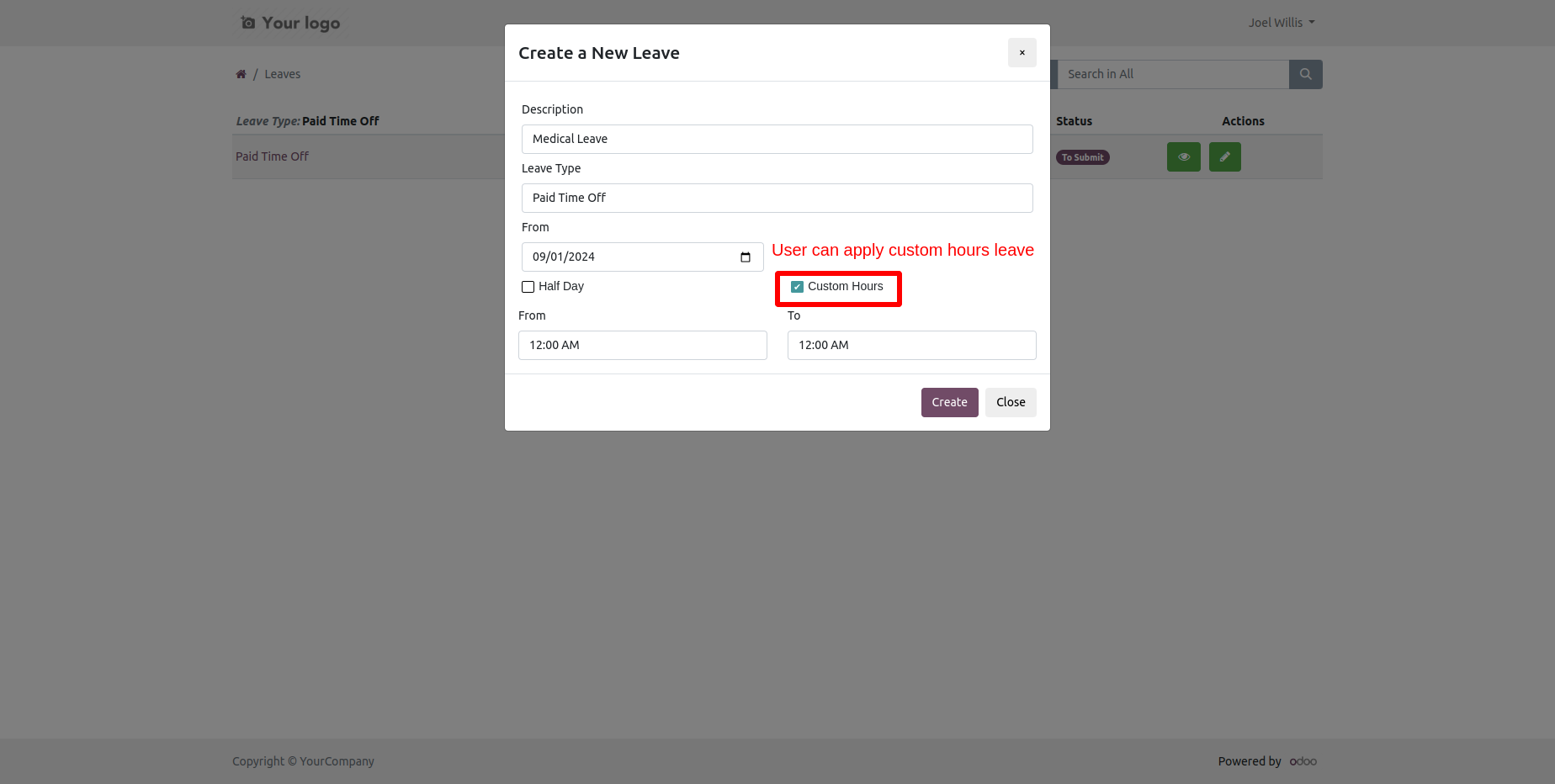
You can create custom hour's leave.
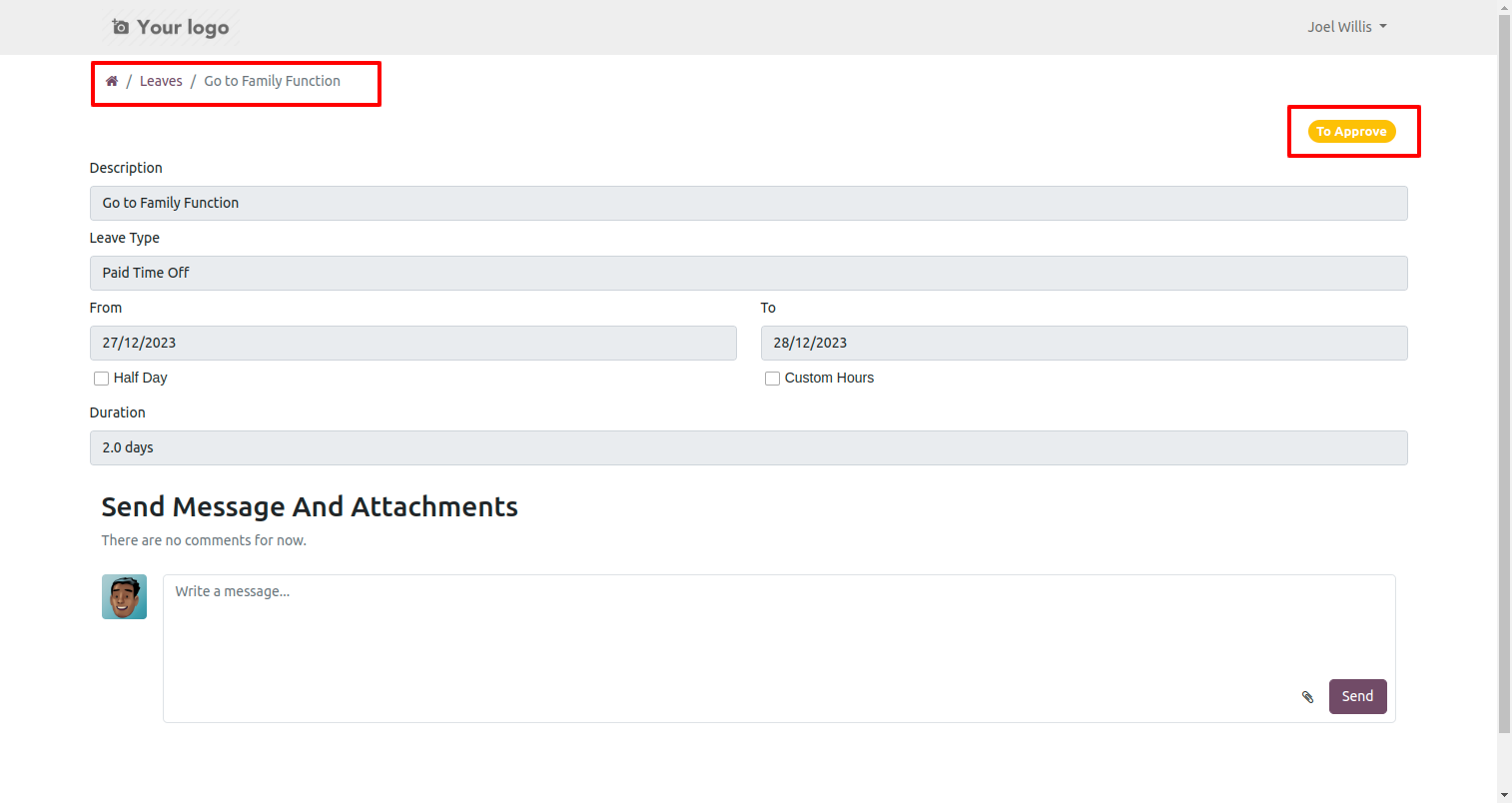
Press the view button to see leave from the portal.
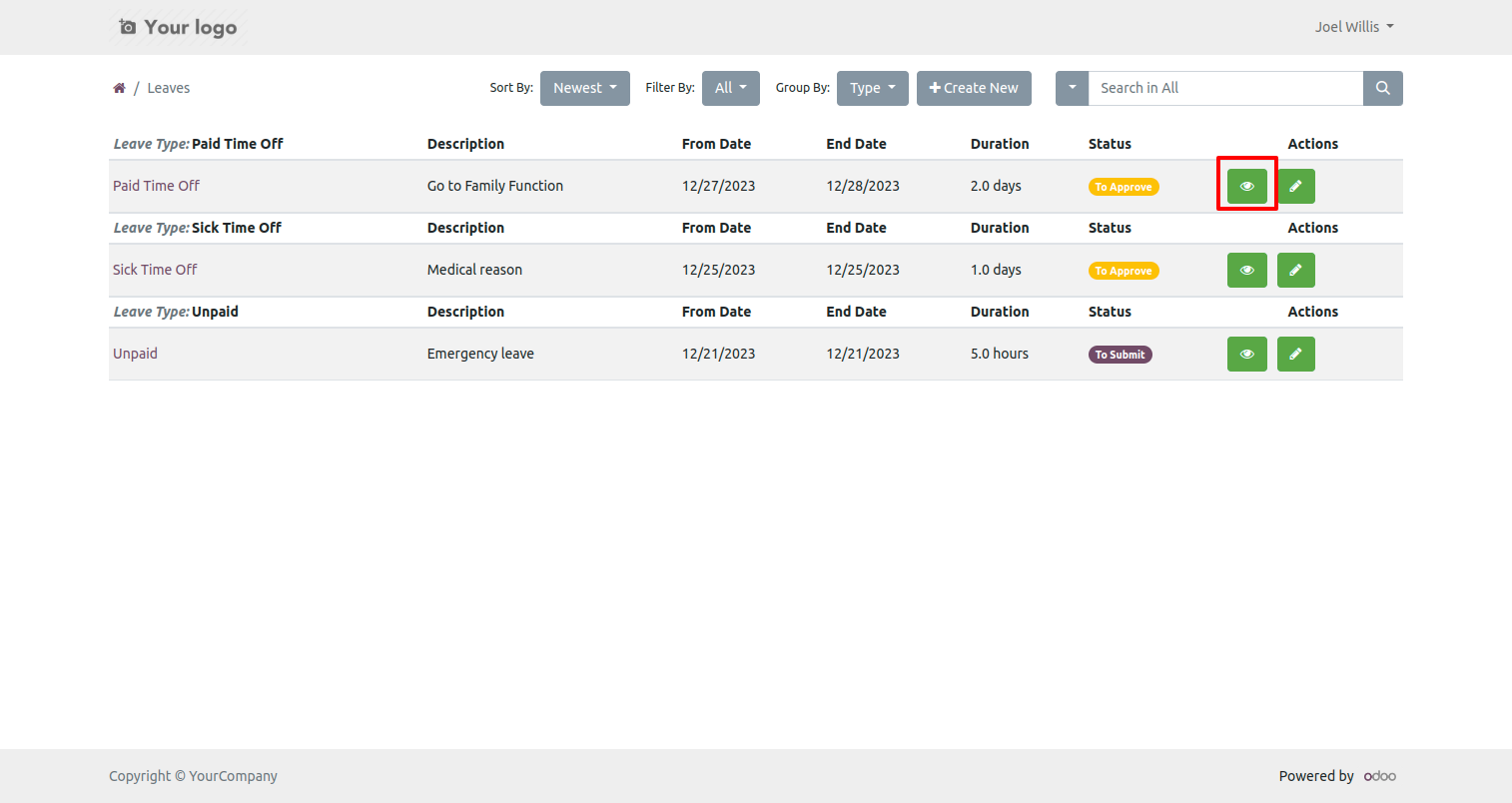
Now the leave is in to 'To approve' stage.
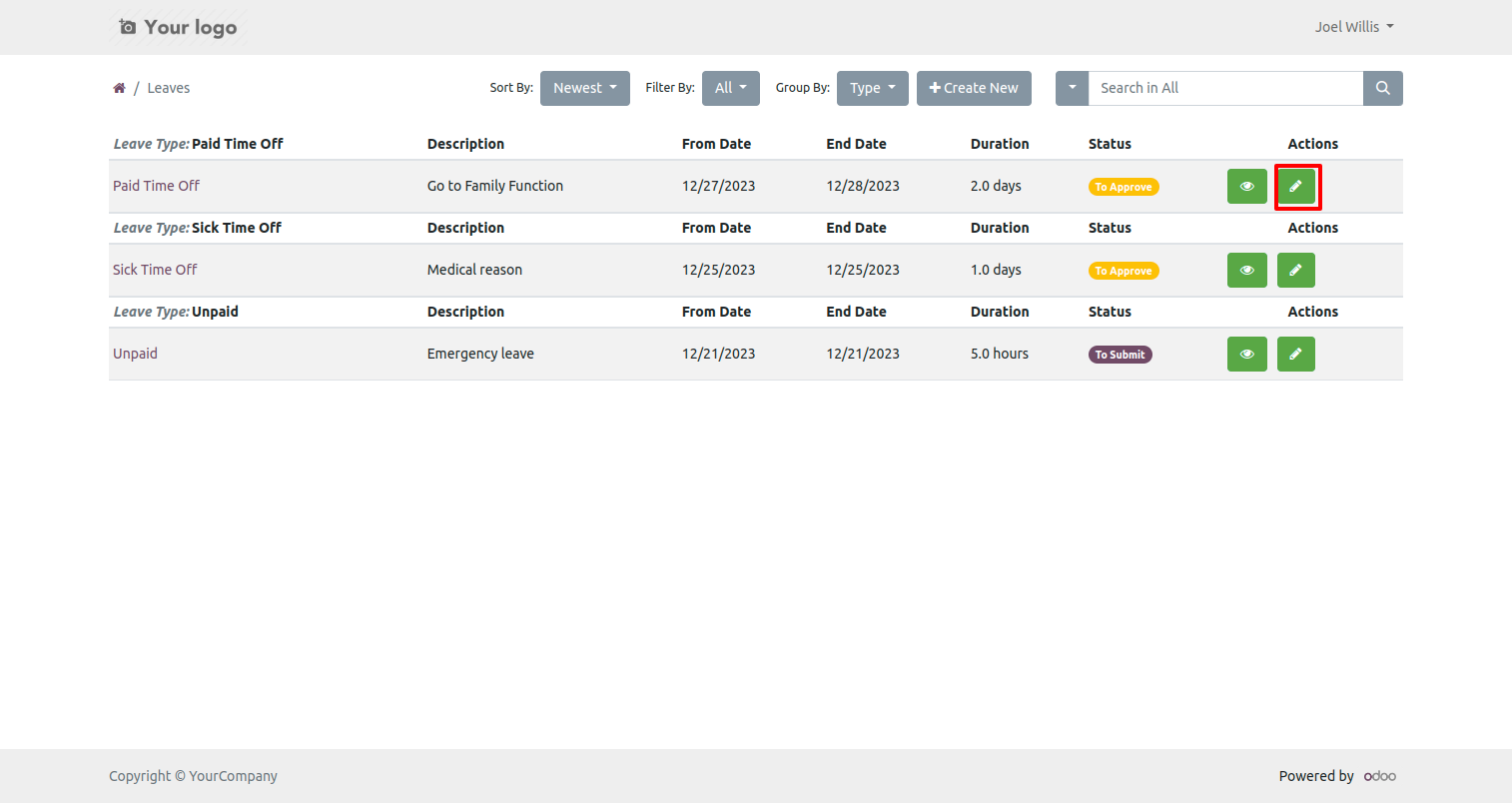
Press the edit button to edit the leave from the portal.
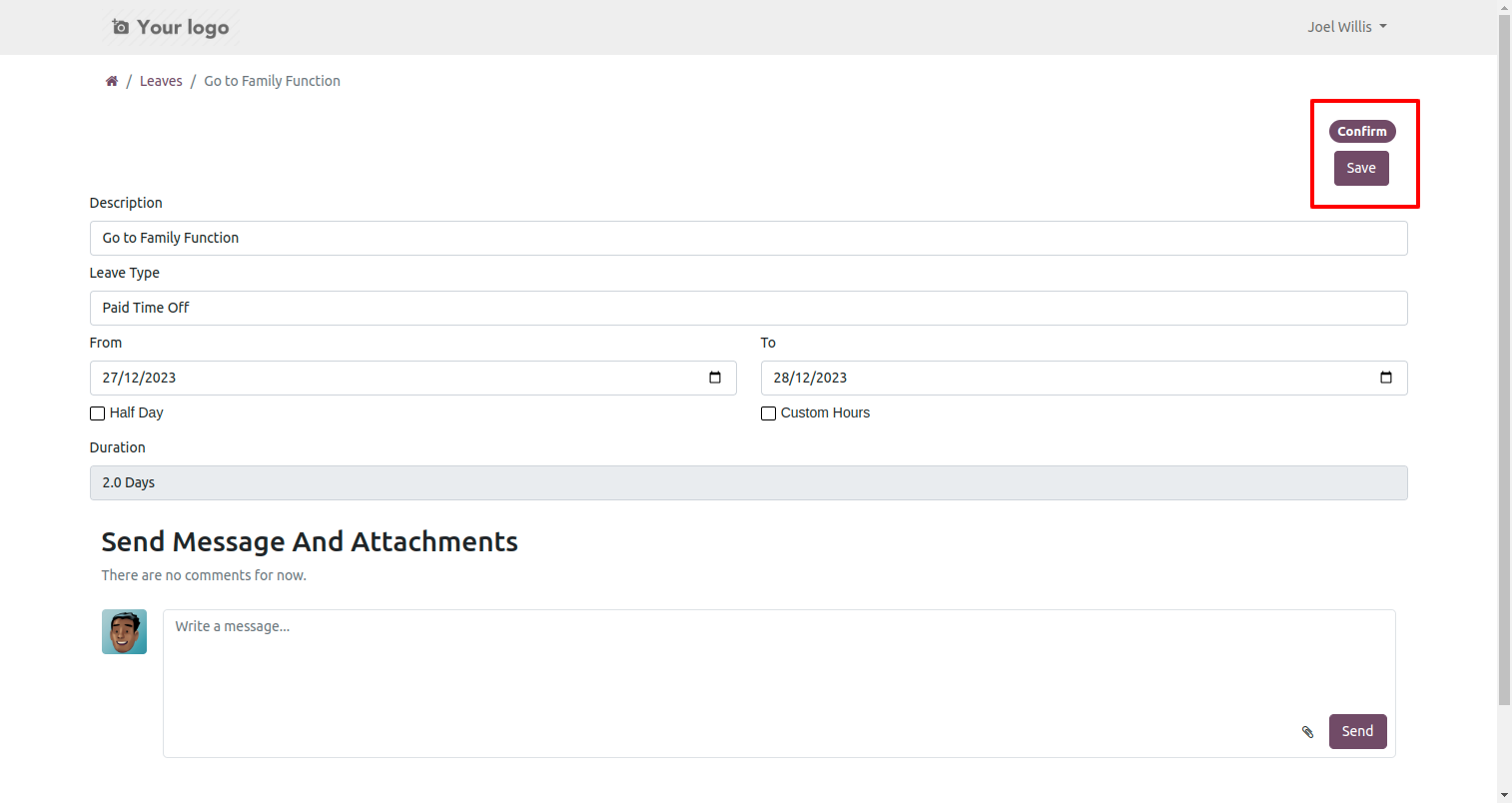
After that save and confirm the leave.
Your leave is in draft stage.
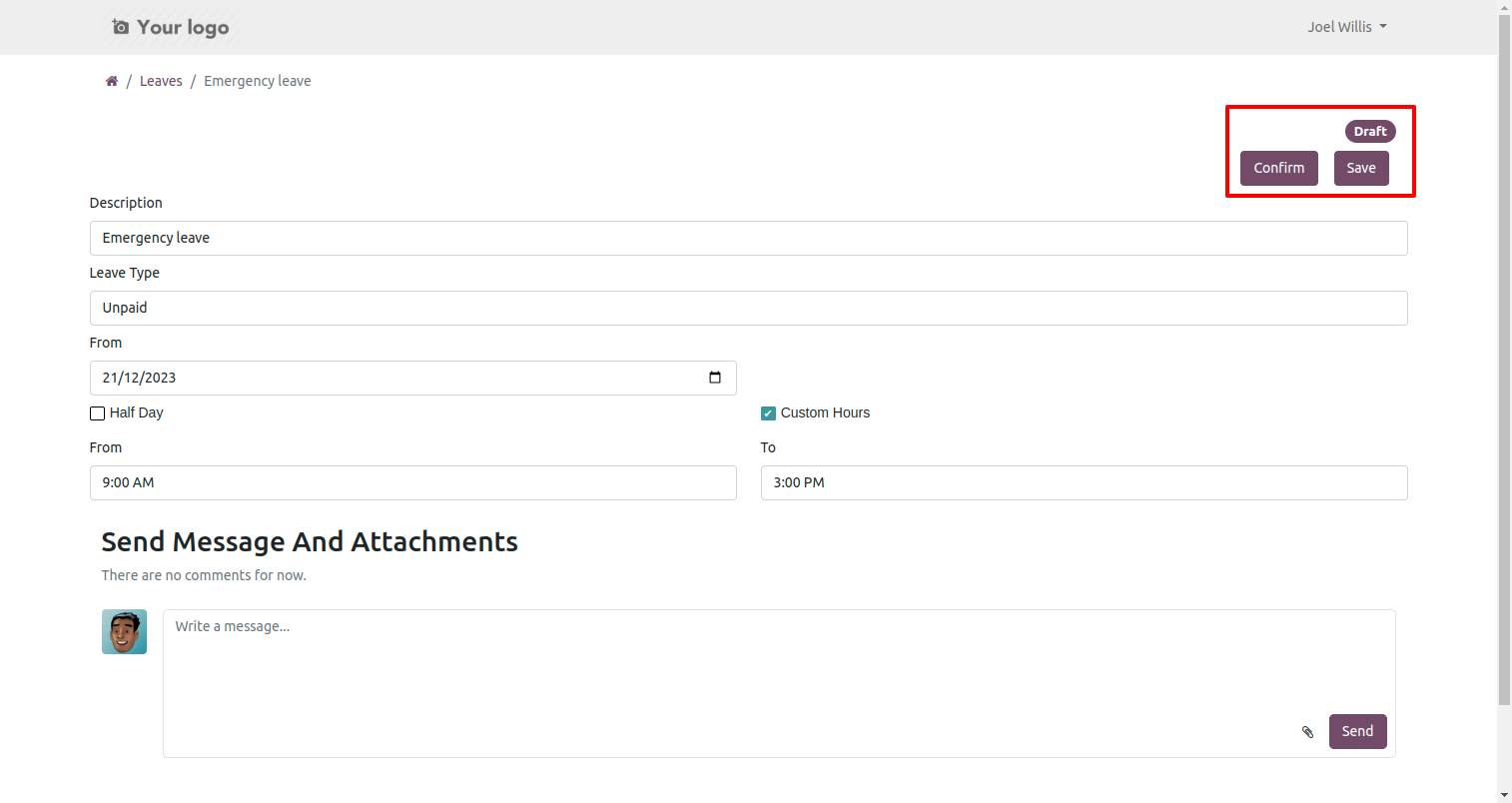
1st approval user approve the leave by clicking on the 'Confirm' button.
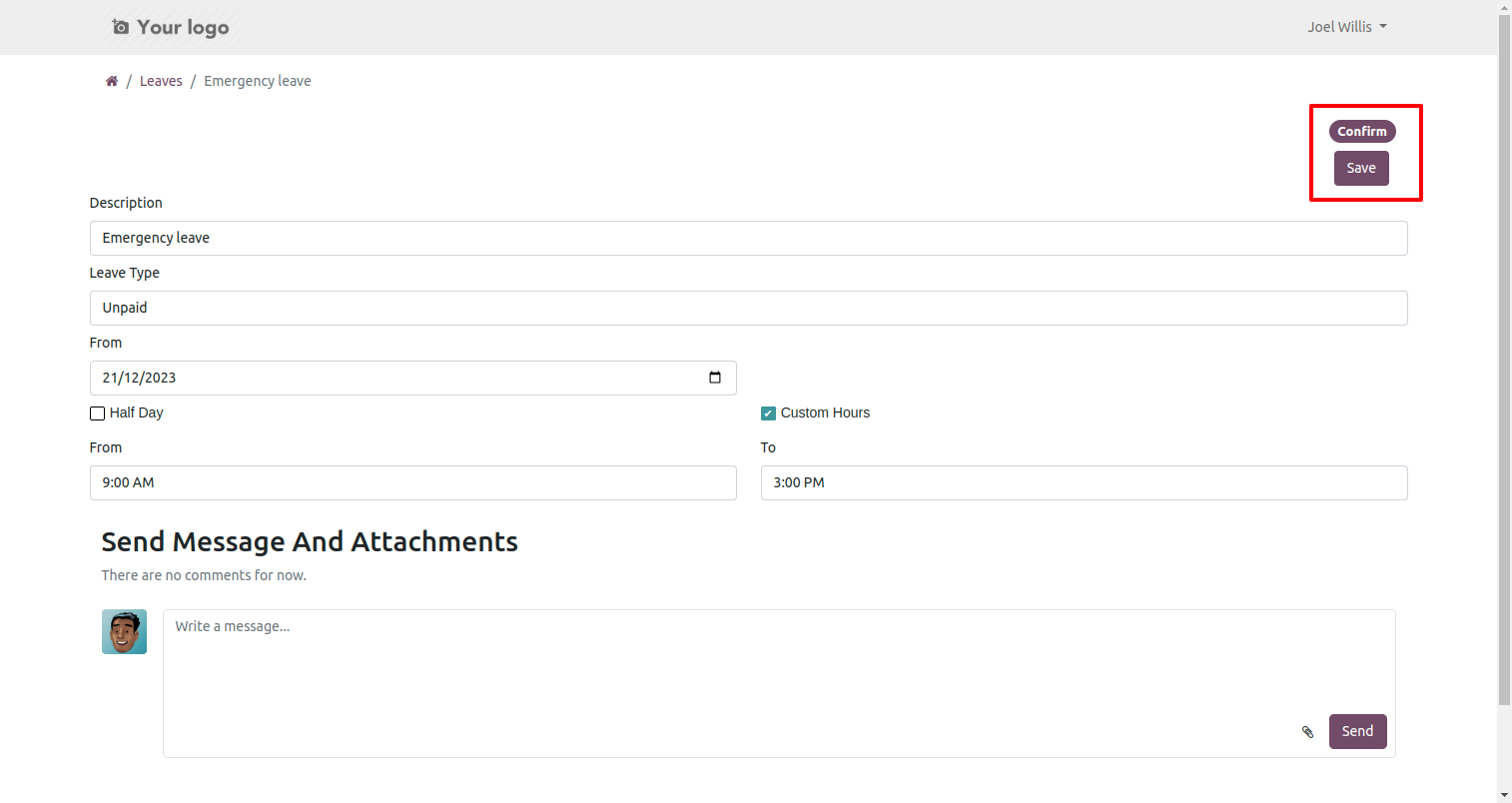
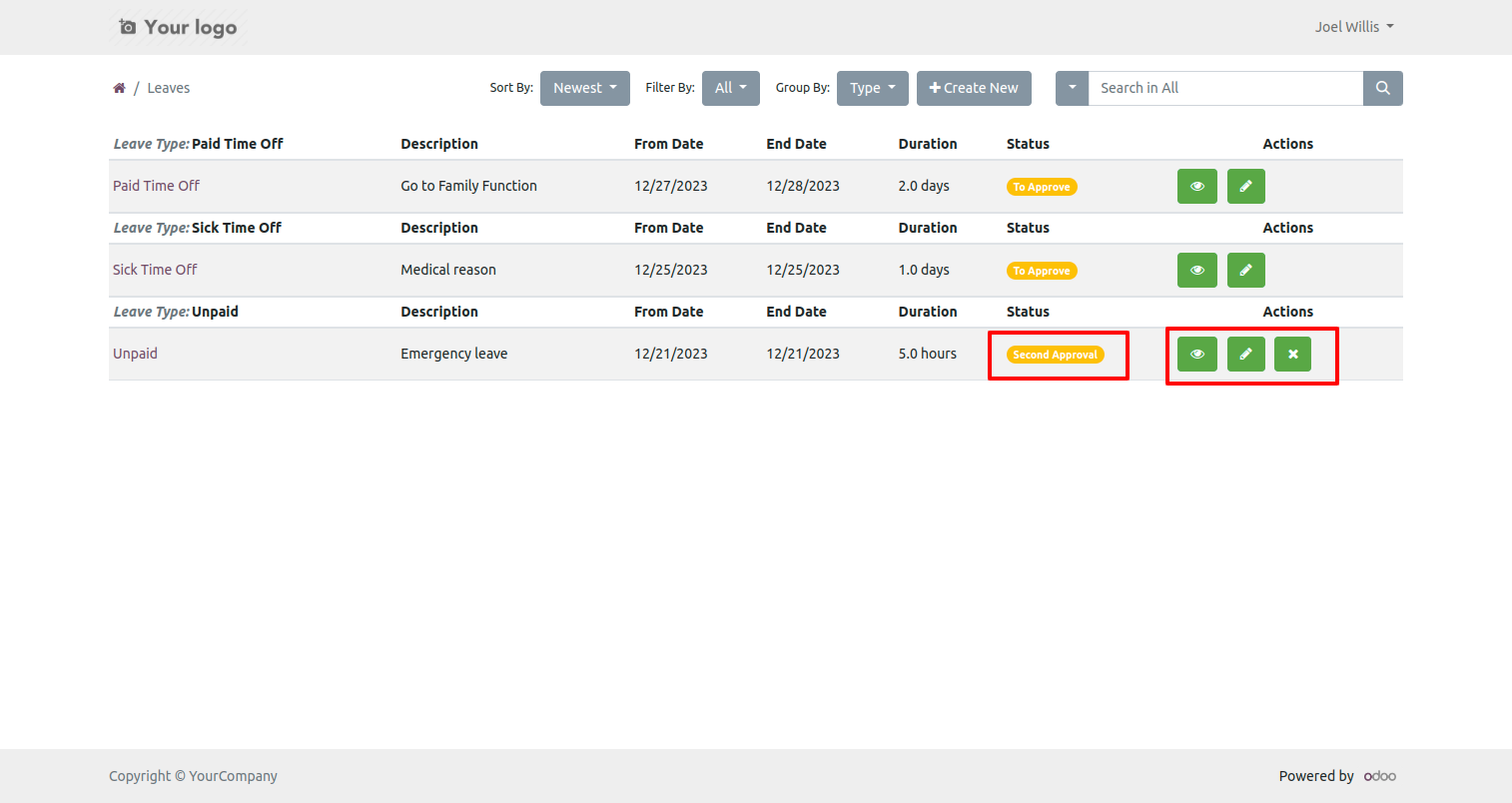
After that, the leave is transferred to the second approval user. They will view, edit, and cancel the leave request.
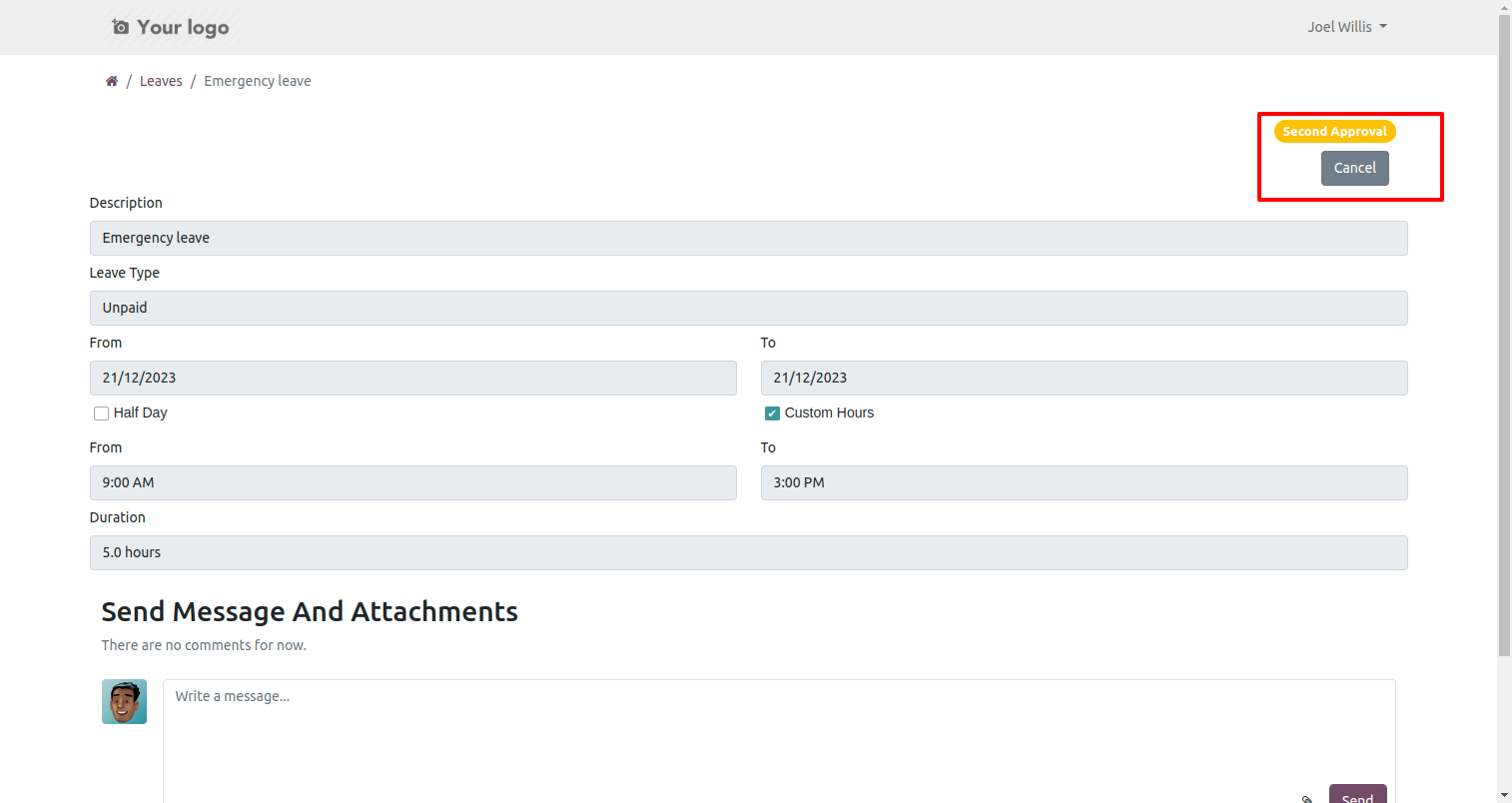
Form view of the leave. To cancel the leave, click on the 'Cancel' button.
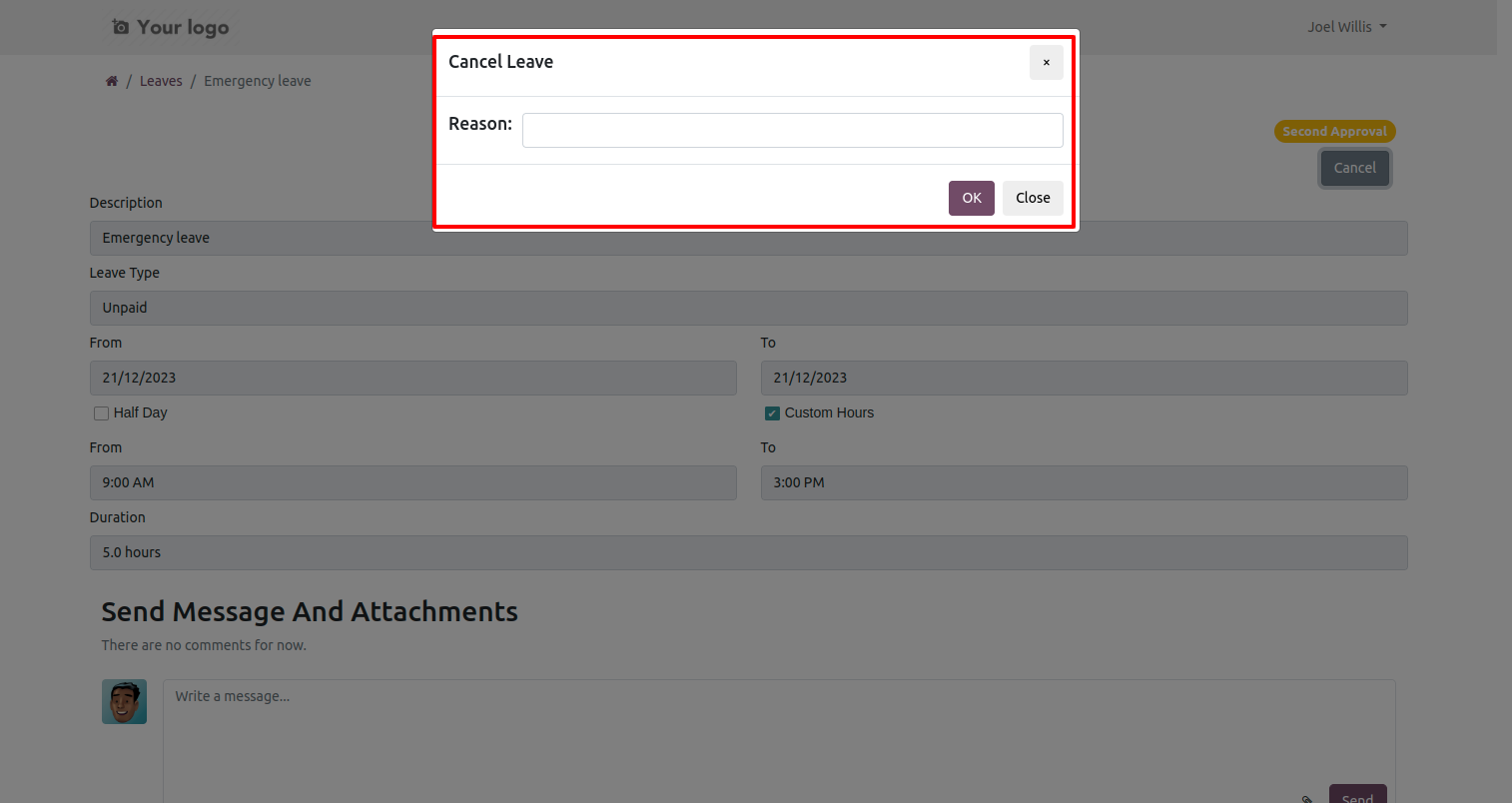
After that alert message comes press 'Ok' to delete leave from the portal.
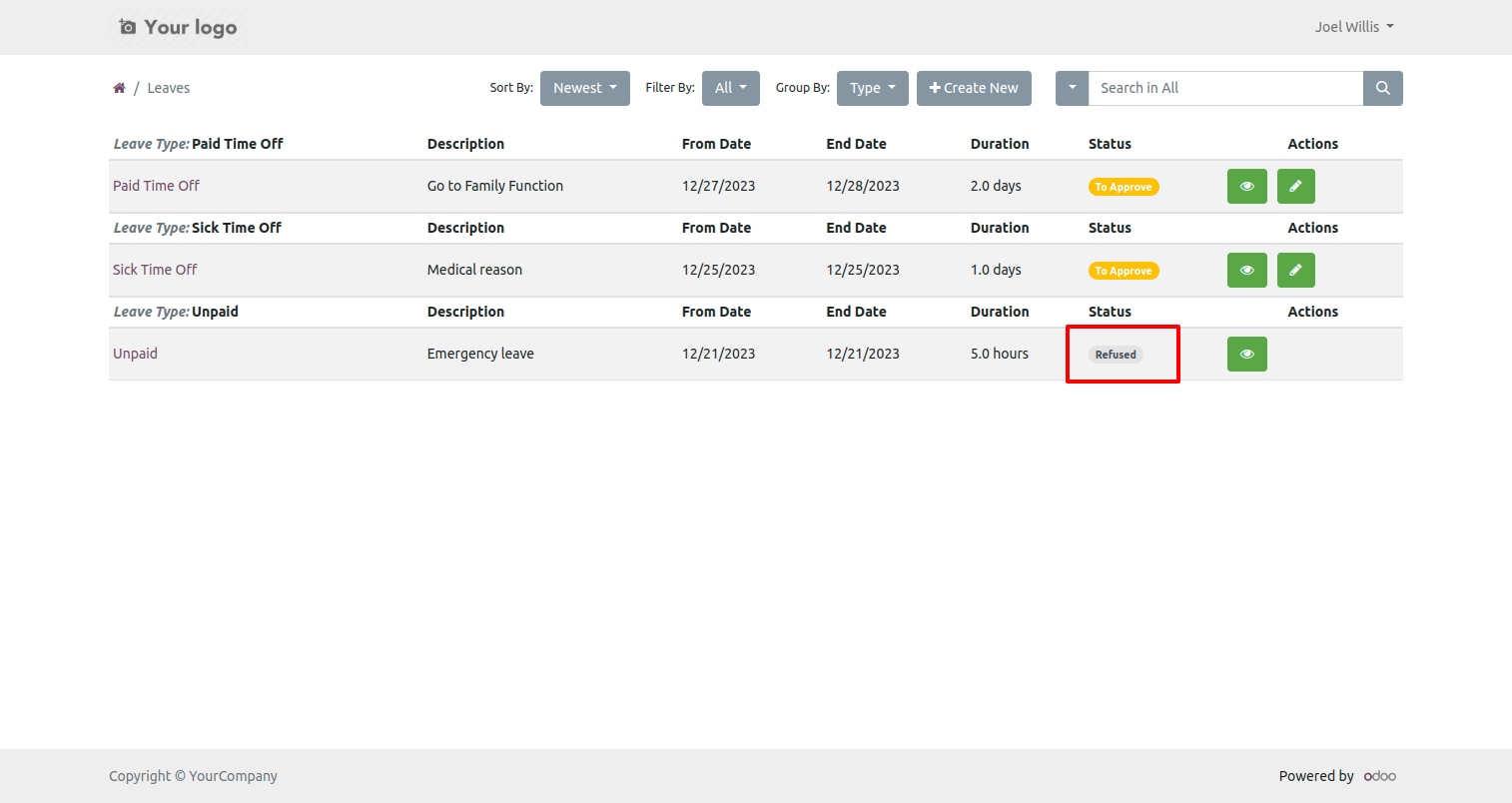
Here you can see the leave is refused.
Version 20.0.1.0.0 | Released on : 17th August 2026
- Yes, this app works perfectly with Odoo Enterprise (Odoo.sh & Premise) as well as Community.
- No, this application is not compatible with odoo.com(odoo saas/Odoo Online)
- Yes, to test this module, please contact us at sales@softhealer.com.
- Please contact us at sales@softhealer.com to request customization.
- Yes, we provide free support for 365 days from the date of purchase.
- Yes, you will receive lifetime free updates for the version of the module you purchased.
- No, there is no need to install any additional libraries.
- Yes, for version 12 and above, you need to purchase the module separately for each version you intend to use.
- No, exchanges or refunds are not allowed. Please make sure to select the correct version before purchasing.
- You can contact us at support@softhealer.com for language translation support. We use Google Translator tools to provide translations in multiple languages, so the accuracy may vary. We welcome your suggestions to help improve translations.
Discover Our Latest Apps