












POS Stock in Odoo | Restrict Out Stock Product

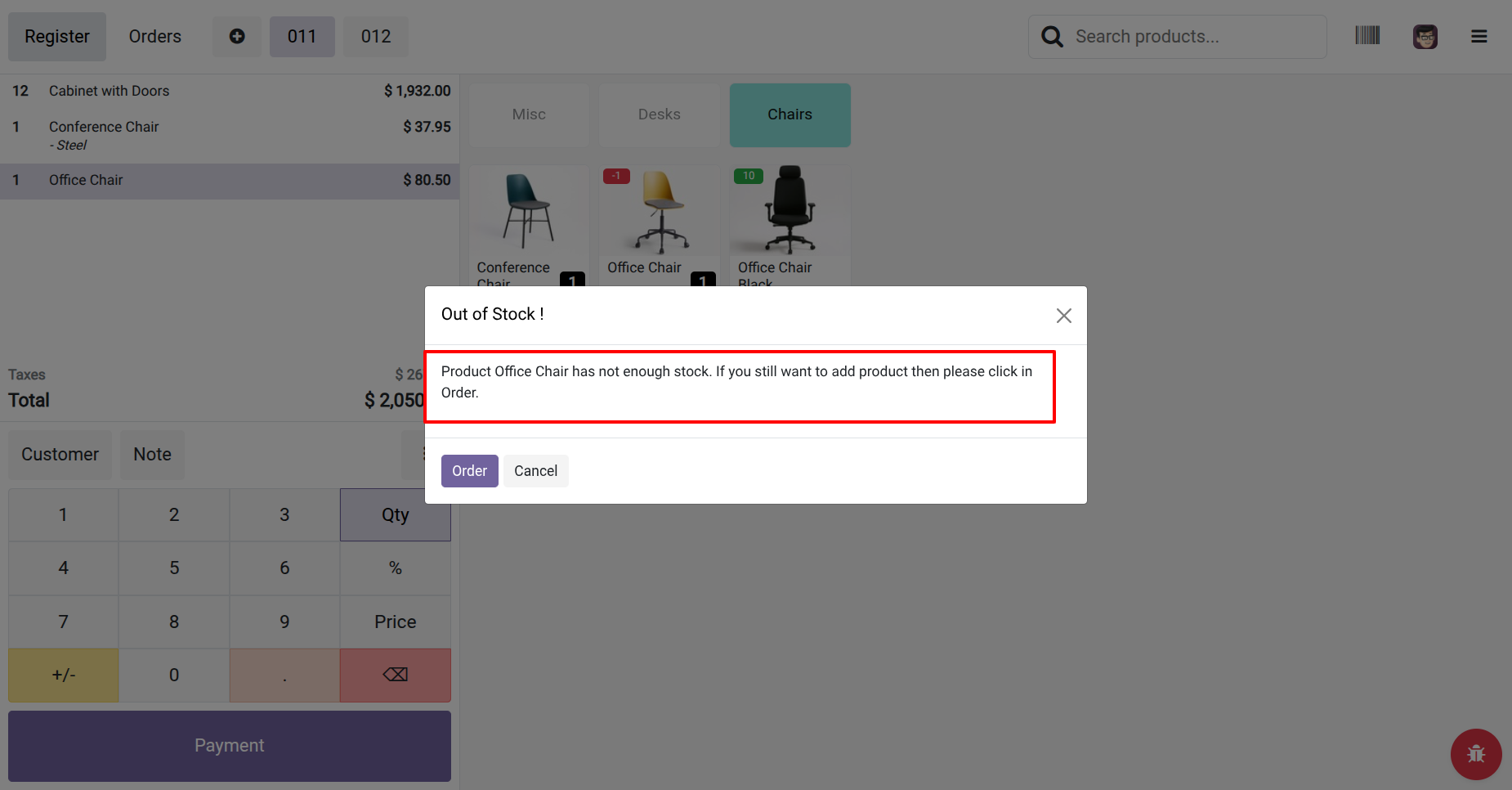
Currently, in odoo, there is no feature for restrict product out-of-stock in the point of sale. In this module when you make an order if there is not enough product quantity in stock then it raises a warning, however, the POS user can still place new orders for items that are out of stock or not in stock.

Features

Out of Stock Product Restriction
Prevents cashiers from adding products with zero or negative stock quantities to POS orders.
Real-time Stock Validation
Automatically checks product availability against current inventory levels during checkout.

Display Current Stock in POS
Shows real-time product stock quantities directly within the POS session interface.

On-hand Quantity Display
Displays the actual physical quantity available in the warehouse for each product.

Access Group Control
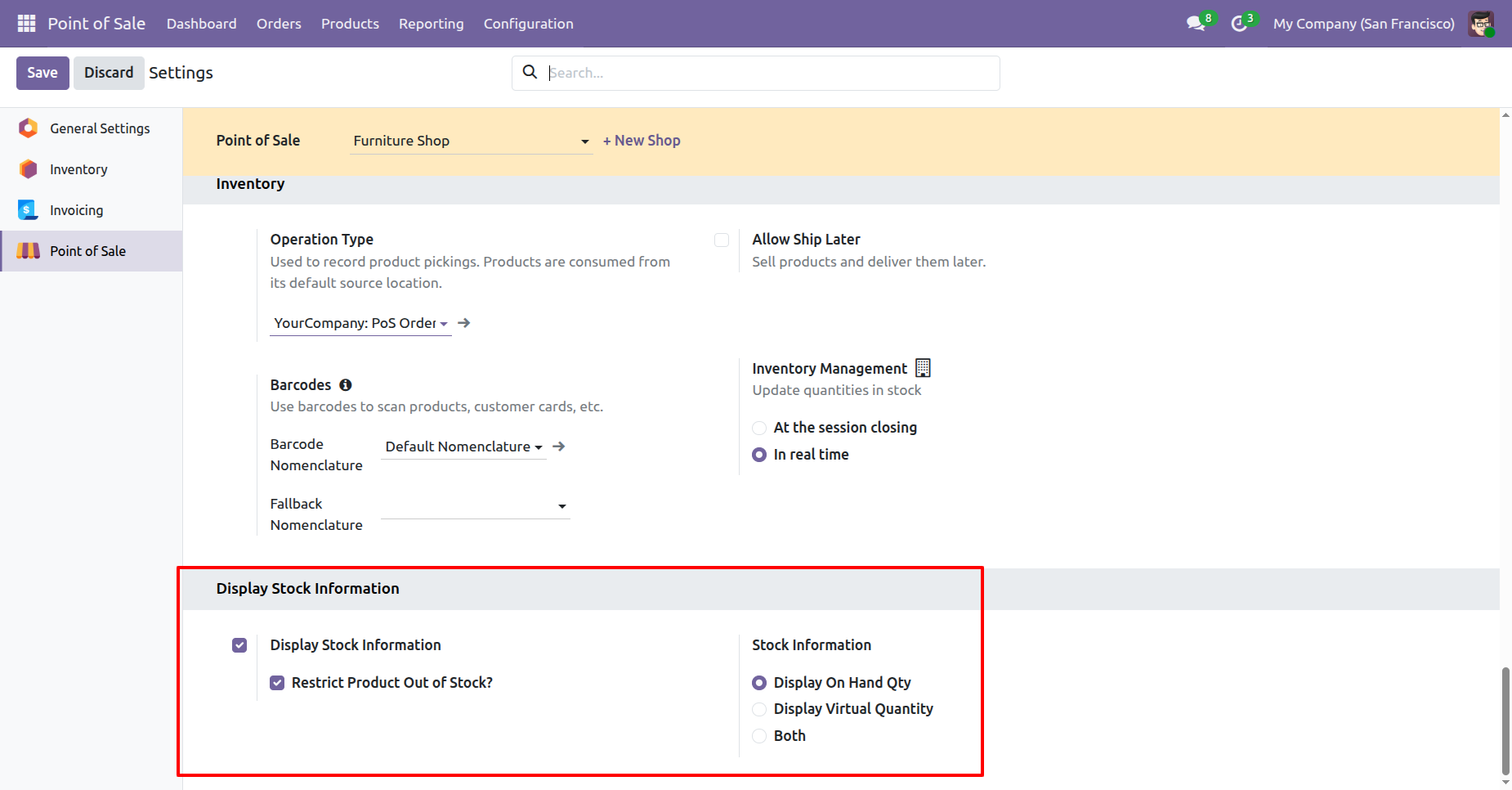
Enables or disables stock visibility through a dedicated "Display Stock Information" user group setting.

POS Minimum Quantity Restriction
Dynamically restricts Point of Sale orders when the entered quantity exceeds the minimum quantity configured.

Forecasted Quantity Display
Shows the virtual/available quantity including planned incoming and outgoing stock movements.
Dual Quantity View
Enables displaying both on-hand and forecasted quantities simultaneously on product cards.

Sub-location Stock Visibility
Shows stock quantities across all sub-locations within the selected warehouse location.

Default Source Location Selection
Allows configuration of the primary warehouse location for stock information display.
Dynamic Stock Position With Configurable Font & Background Colors
Stock position & font/background colors update dynamically based on configuration settings.
Low Stock Product List in POS
Display a list of low-quantity products directly in the POS to help users monitor stock availability during sales.
Enable the "Restrict Product Out Of Stock" group.
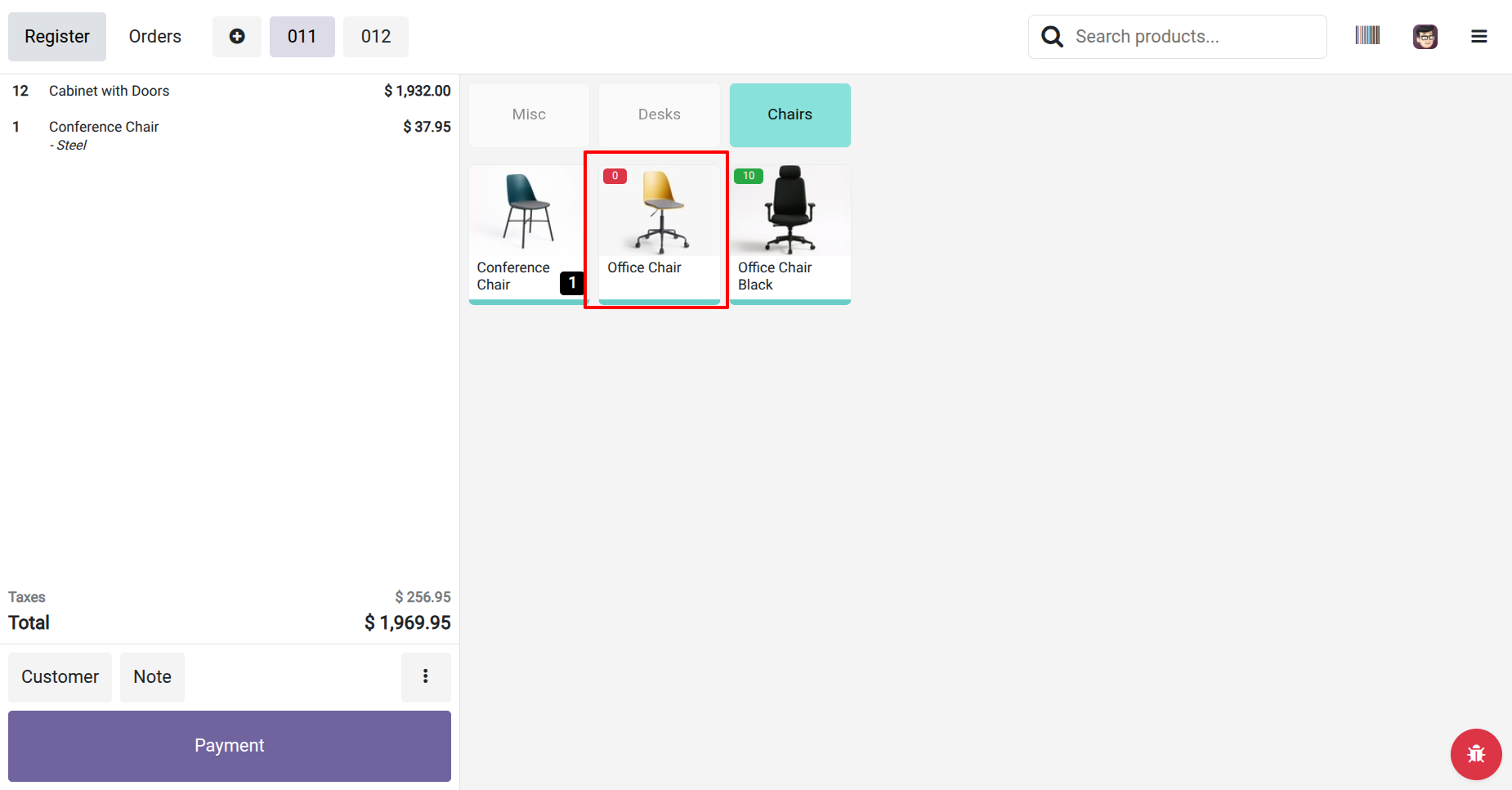
It displays product stock quantity in red color which items are not in stock.
The warning popup looks like this.

Go to the POS settings and enable the 'Display Stock Information'
option.
Set the color in the 'Background Color Selection' and 'Font Color
Selection'.
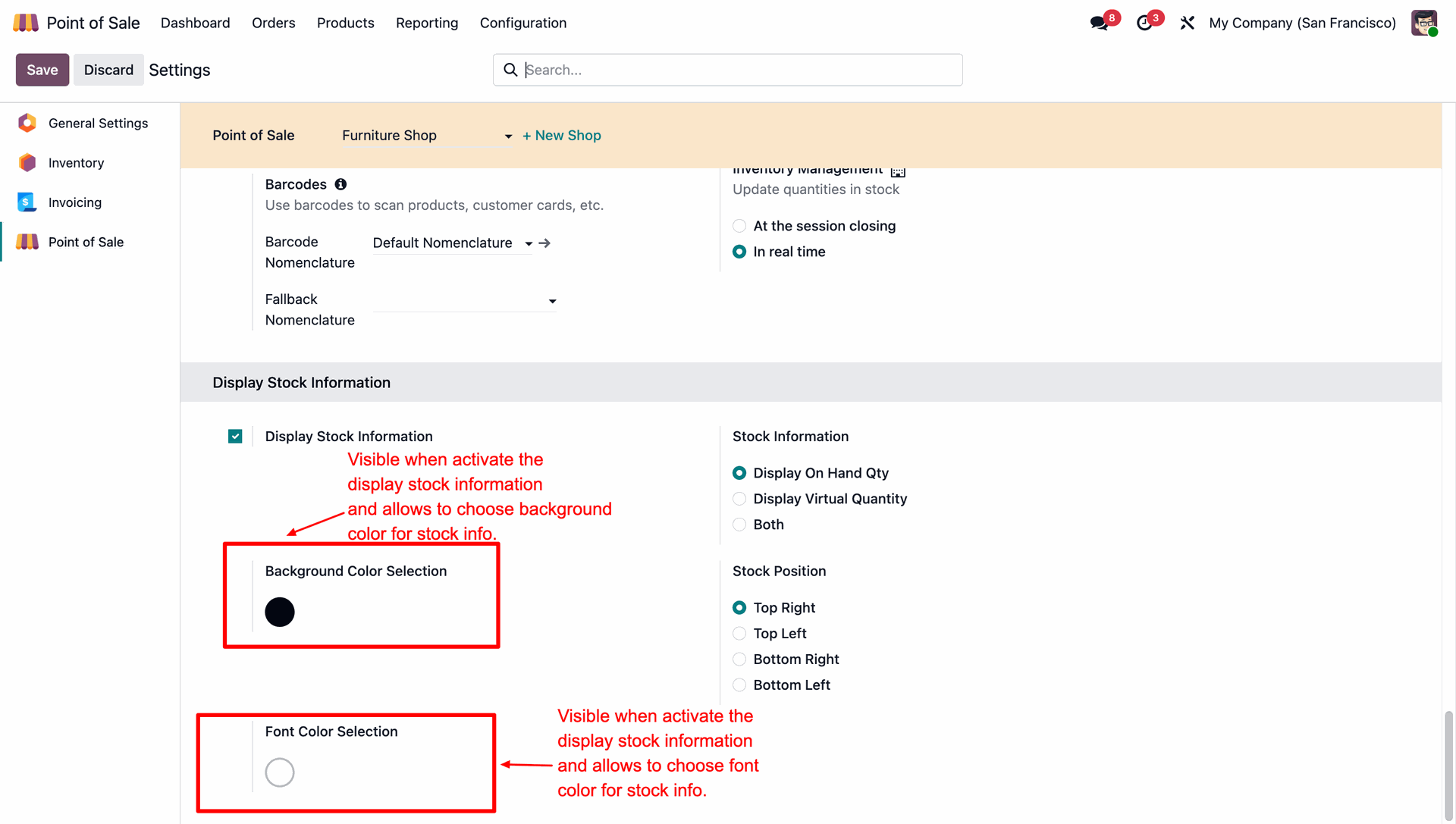
Here you can see that the stock background and font colors have been updated according to the configuration settings.
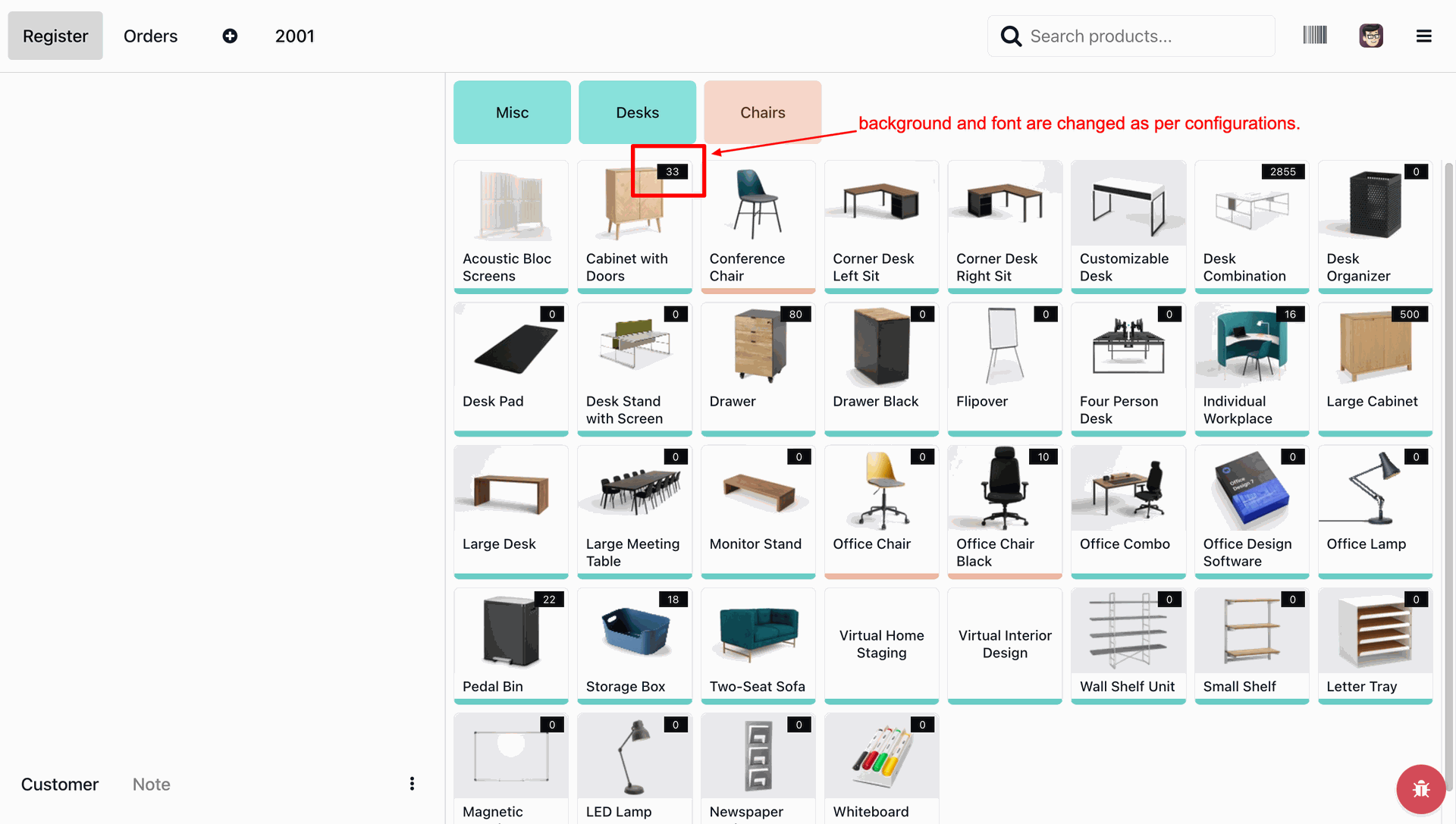
Here we select the stock possition: Top Left.
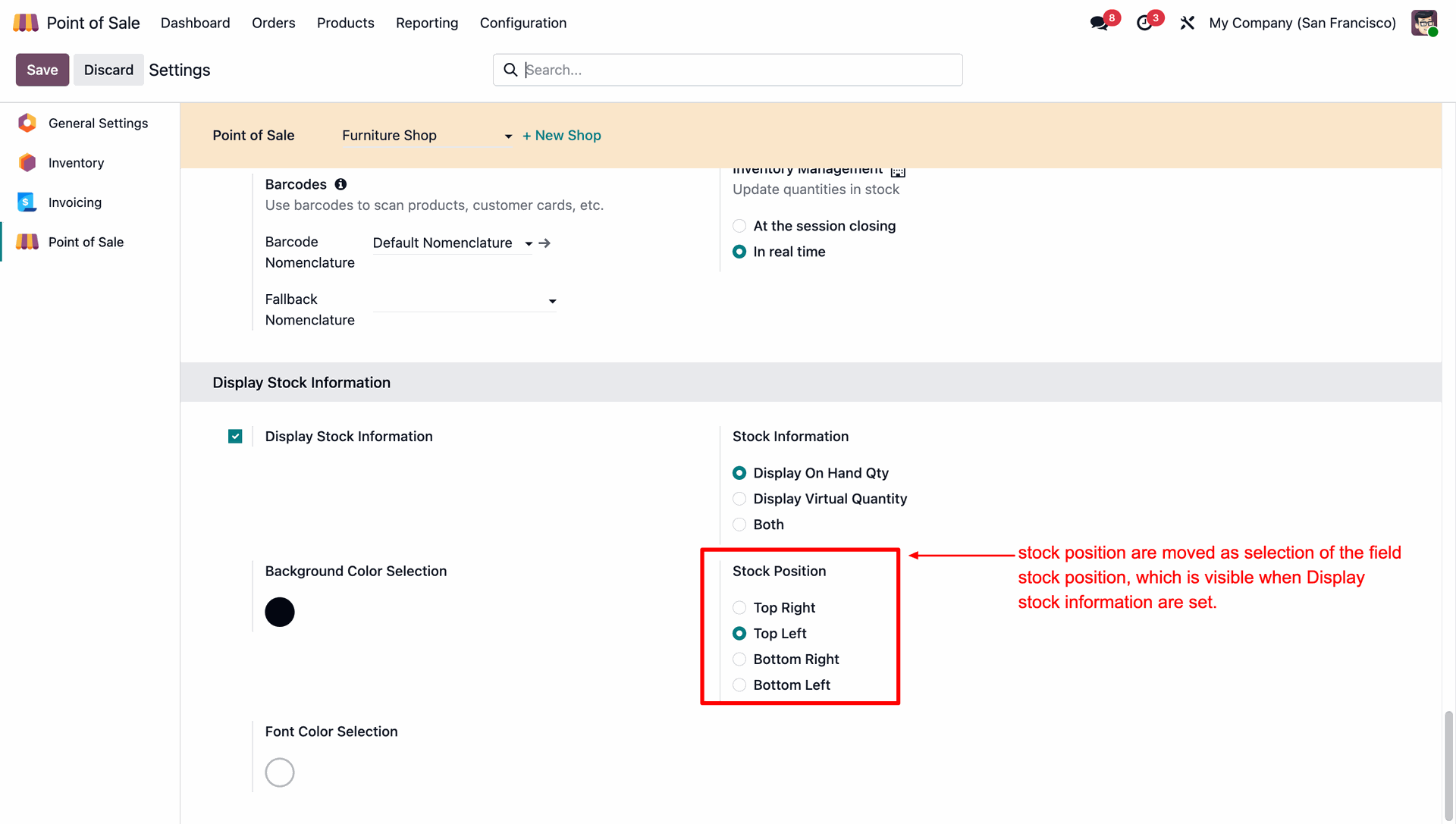
Here you can see that the stock position has been updated according to the configuration settings.
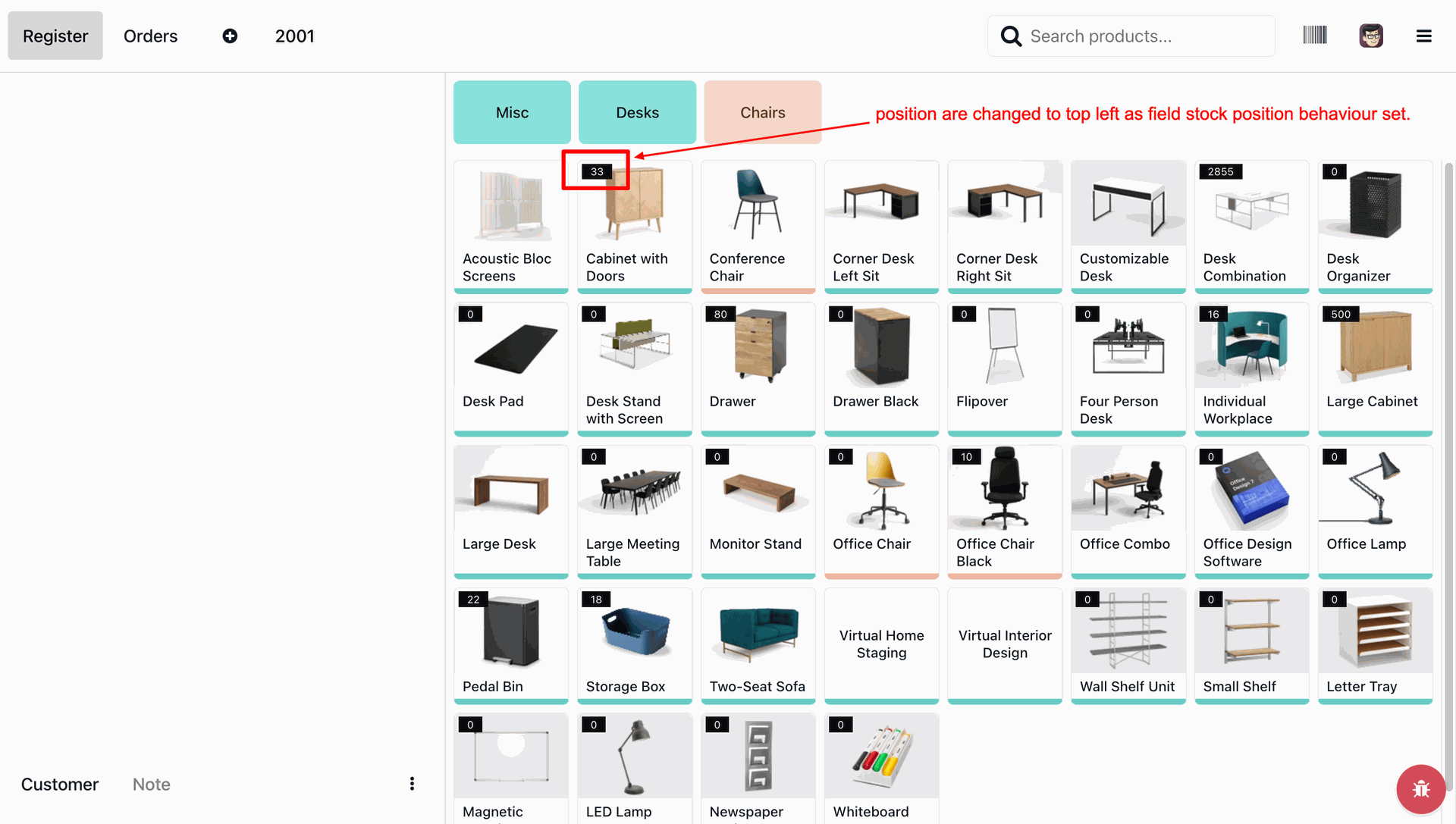
Go to the POS settings and enable the 'Display Stock Information'
option.
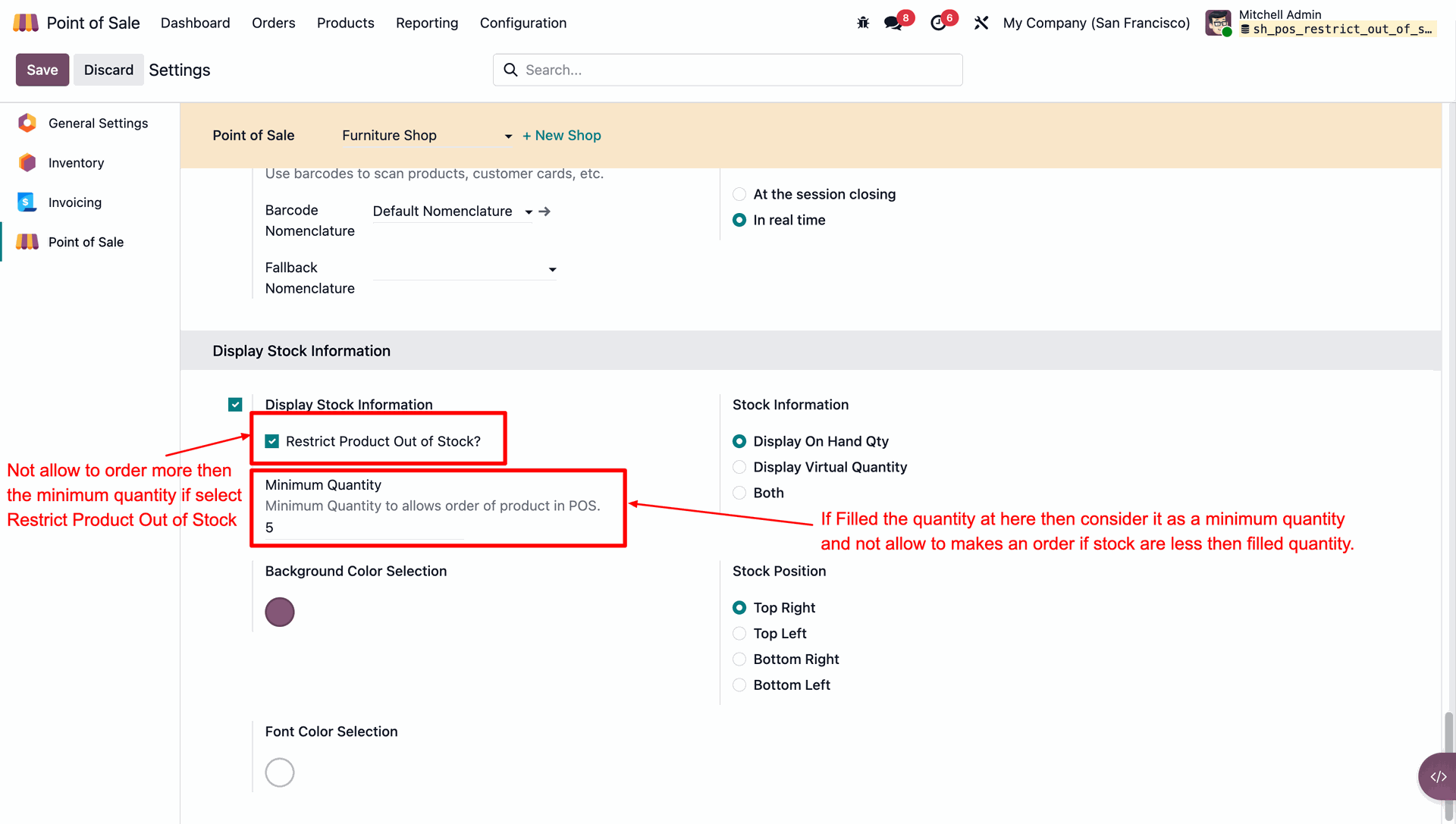
After that, the 'Restrict Product Out of Stock' option is shown. tick
that option and
add minimum quantity. Here we add a 5 quantity.
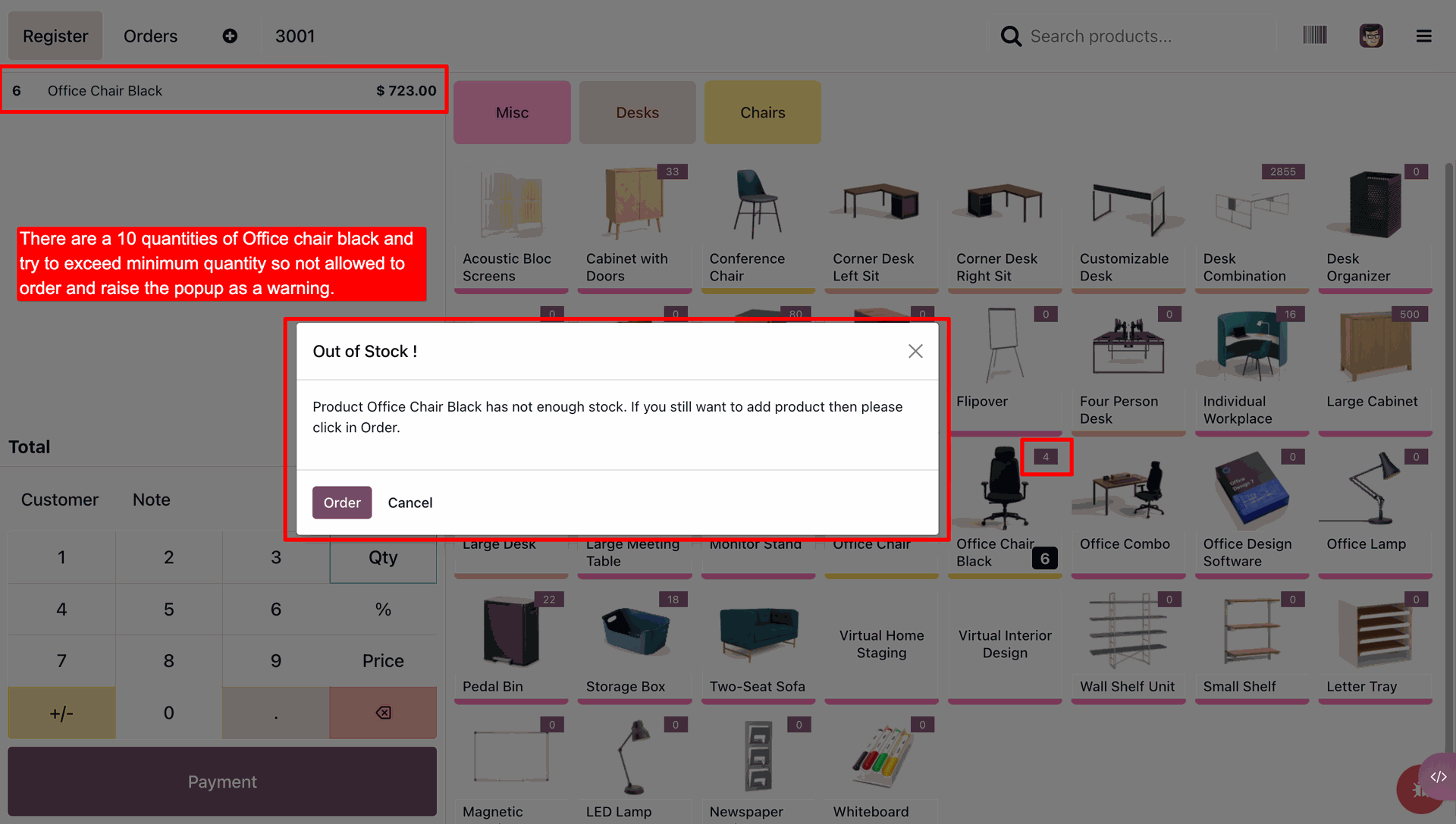
This warning pop-up appears when a you tries to exceed the minimum quantity set in the configuration.
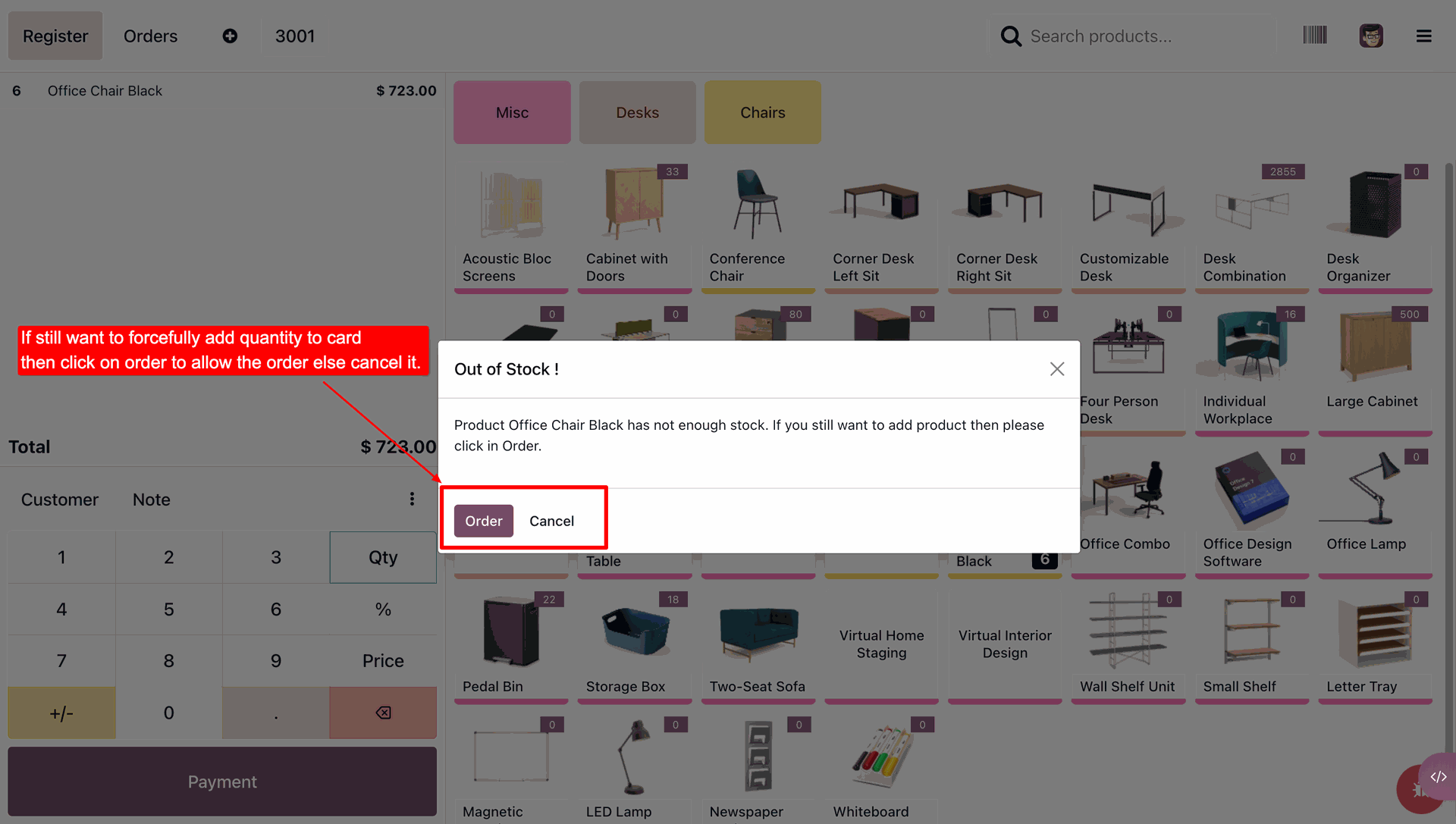
If you still want to forcefully add the quantity to the cart, click on the 'Order' button to proceed otherwise, cancel the action.
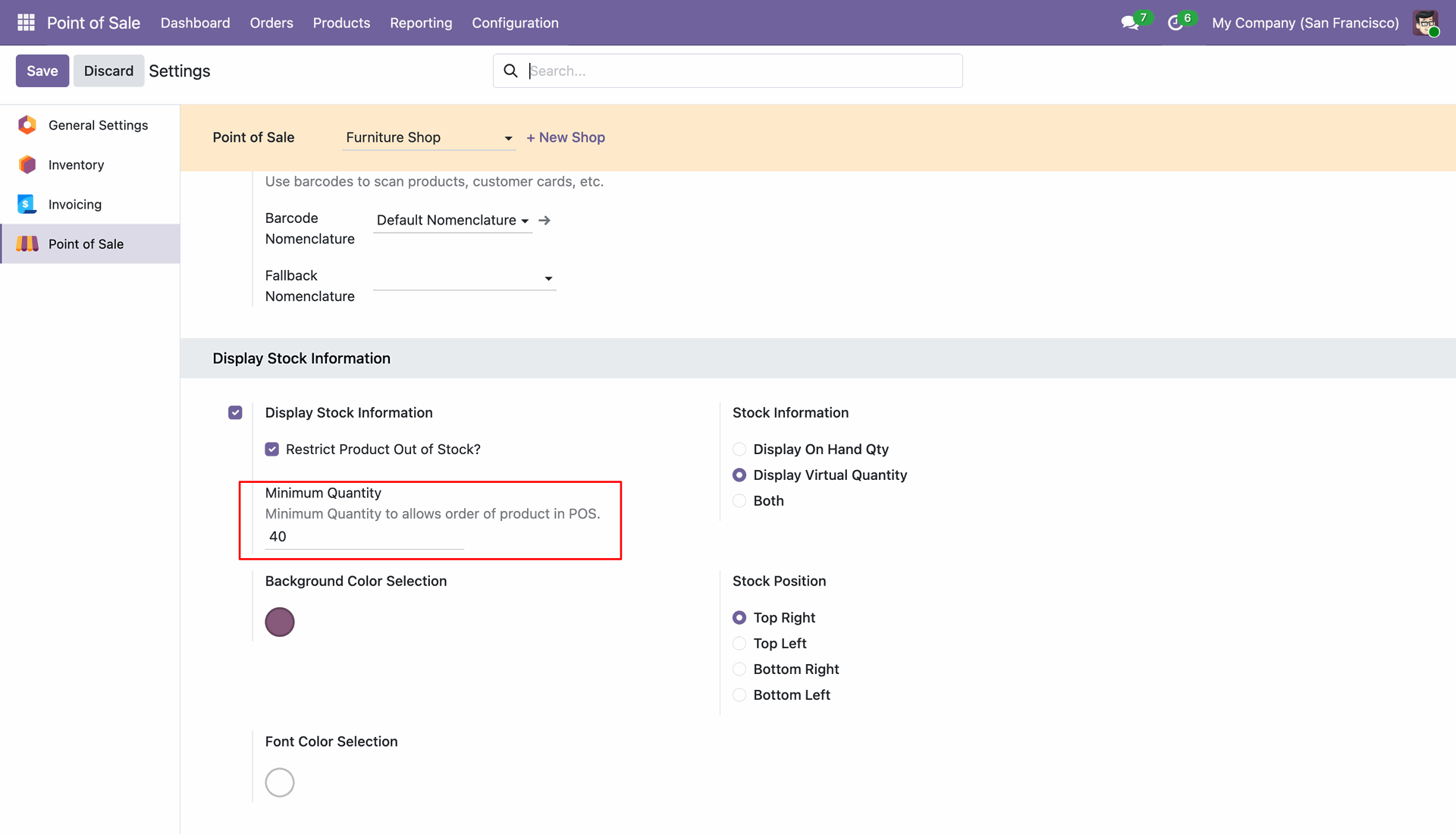
Go to the POS settings and enable the 'Display Stock Information'
option.
After that, the 'Restrict Product Out of Stock' option is shown. tick
that option and
add minimum quantity. Here we add a 40 quantity.
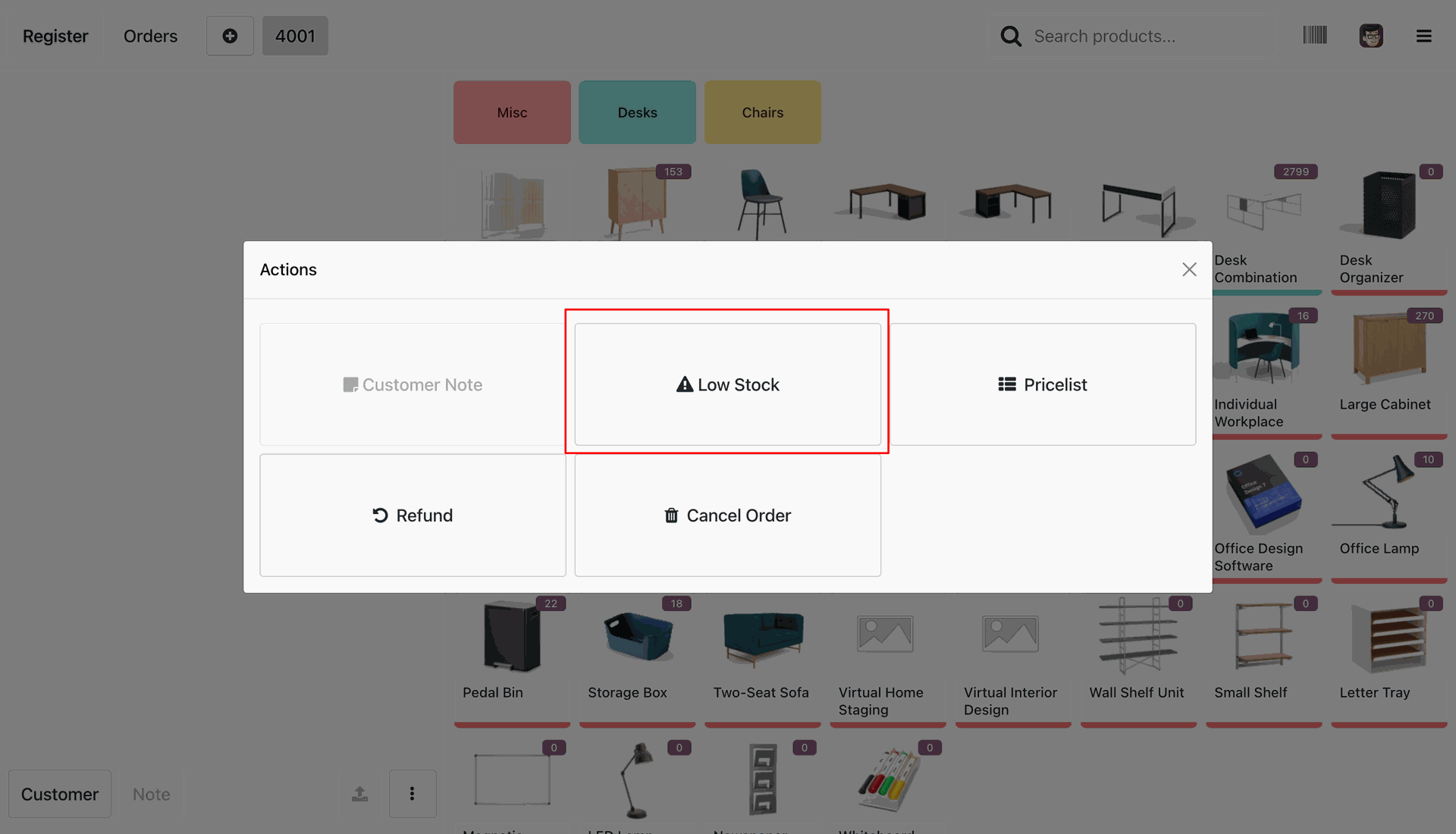
Go to the POS interface and click the Actions button. Users can see the Low Stock option in the Actions menu to quickly view products with low stock availability.
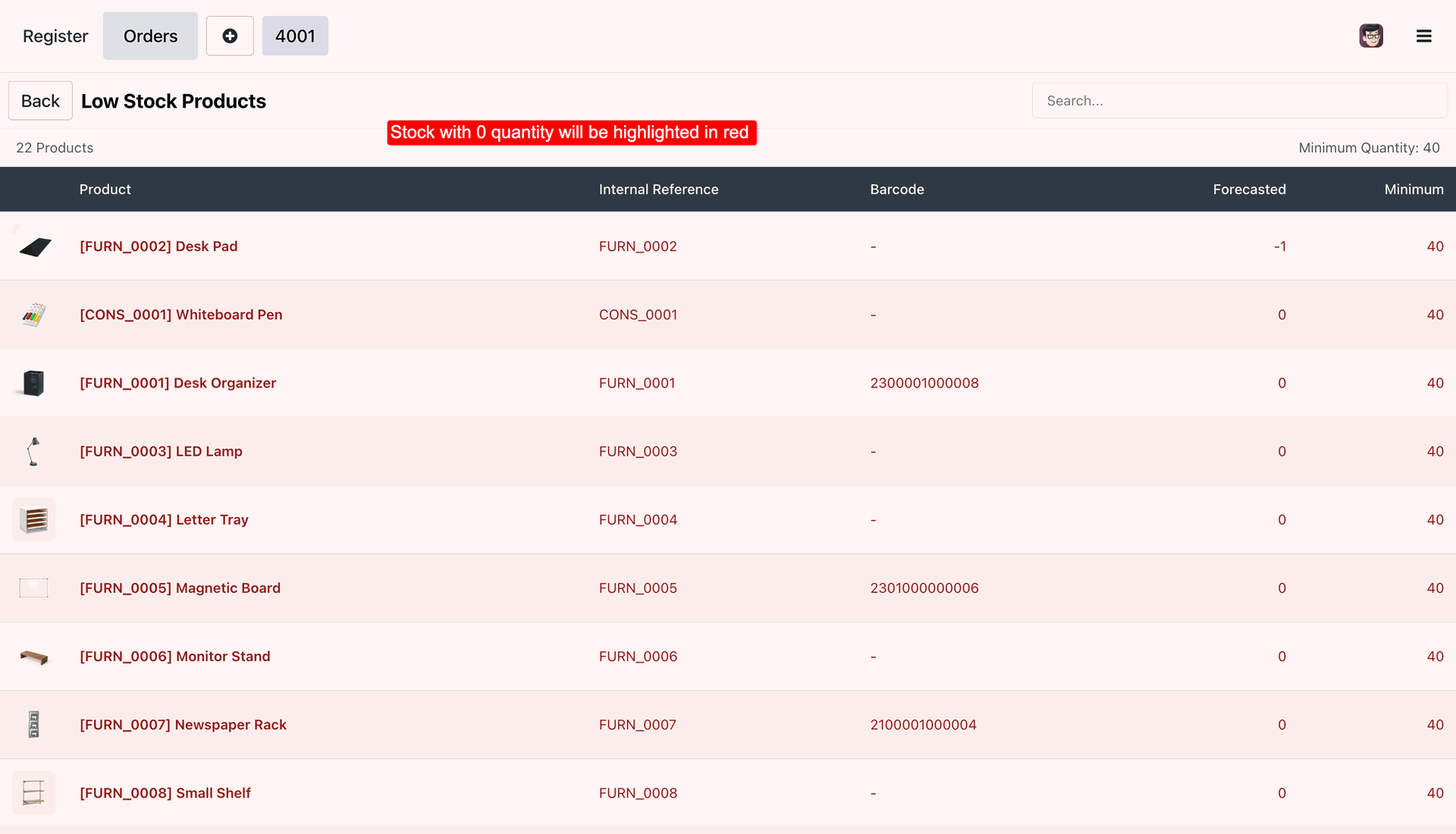
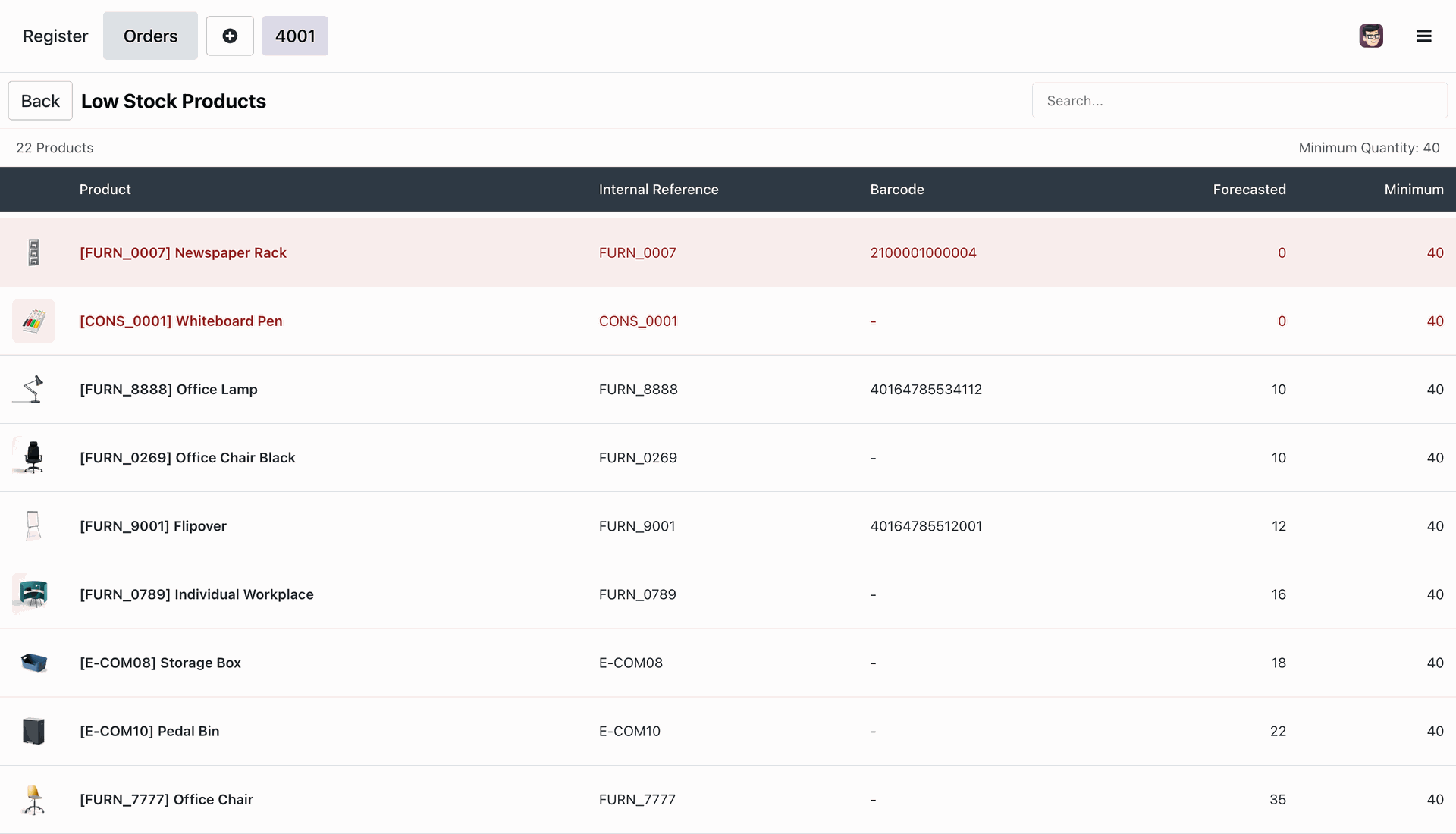
Clicking the Low Stock option opens a wizard displaying all products with low stock. Products whose available quantity is less than or equal to the minimum quantity are listed in the wizard, while products with an available quantity of zero or a negative value are highlighted in red for quick identification.
Version 20.0.1.0.0 | Released on : 15th September 2026
- Yes, this app works perfectly with Odoo Enterprise (Odoo.sh & Premise) as well as Community.
- No, this application is not compatible with odoo.com(odoo saas/Odoo Online)
- Yes, to test this module, please contact us at sales@softhealer.com.
- Please contact us at sales@softhealer.comto request customization.
- Yes, we provide free lifetime support for the version you purchased.
- Yes, you will receive lifetime free updates for the version of the module you purchased.
- No, there is no need to install any additional libraries.
- Yes, for version 12 and above, you need to purchase the module separately for each version you intend to use.
- No, exchanges or refunds are not allowed. Please make sure to select the correct version before purchasing.
- You can contact us at support@softhealer.com for language translation support. We use Google Translator tools to provide translations in multiple languages, so the accuracy may vary. We welcome your suggestions to help improve translations.
Discover Our Latest Apps