



Complete AI Automation Suite
FLAT 30% OFF
AI Insight Assistant
Talk to your data. Get instant answers
AI Live Chatbot
24/7 customer support, always on
AI Dashboard Studio
 Beautiful dashboards, zero effort
MCP Integration
Seamless multi-channel connections
And Many More Features
Complete AI Automation Suite — FLAT 30% OFF

Point of Sale Retail Shop| POS Retail Shop| All In One POS Retail| POS All In One| Point of sales All In One| POS Resposnive| POS Order History| POS Order List| POS Bundle| POS Signature| POS Keyboard Shortcut| POS Direct Login. Point of Sale Retail Shop| POS Retail Shop| All In One POS Retail| POS All In One| Point of sales All In One| POS Responsive| POS Order History| POS Order List| POS Bundle| POS Signature| POS Keyboard Shortcut| POS Direct Login v18

  • Home
  • Blogs
  • Point of Sale Retail Shop| POS Retail Shop| All In One POS Retail| POS All In One| Point of sales All In One| POS Resposnive| POS Order History| POS Order List| POS Bundle| POS Signature| POS Keyboard Shortcut| POS Direct Login. Point of Sale Retail Shop| POS Retail Shop| All In One POS Retail| POS All In One| Point of sales All In One| POS Responsive| POS Order History| POS Order List| POS Bundle| POS Signature| POS Keyboard Shortcut| POS Direct Login v18
logo
Free Support
Life Time
Counter box img
Custom Apps
1500+
counter box img
top seller of odoo marketplace
counter box img
Happy Customer
10K+
counter box img
Year Of Experience
11+
counter box img
countries
100+
counter box img
Talented healers
150+
counter box img
Industries Served
45+
counter box img
Odoo Community Implementation
350+
counter box img
Odoo Enterprise Implementation
150+
counter box img
Best partner Nominee
2024
counter box img
Global Presence
counter box img

Free Demo
Email: sales@softhealer.com
Lifetime Free Support
Contact: support@softhealer.com
Customization
Sales: sales@softhealer.com


logo
Community Enterprise Odoo.sh
Odoo Retail POS and Odoo POS Software interface
Transform Your POS User Interface
Odoo Retail POS and Odoo POS Software interface

Complete Odoo POS Solution for Retail Stores

Our Odoo Point of Sale Module is a complete Retail POS System and Odoo Retail POS platform designed for fast, reliable store operations. As powerful Odoo POS Software, it combines Odoo POS Inventory Management, an advanced Odoo POS Theme, Odoo POS Barcode scanning, Odoo POS Sales Report tools, and flexible Odoo POS Receipt options to simplify everyday retail workflows.

Manage customers with Odoo POS Customer Management, process Odoo POS Return and Exchange transactions, and run your Odoo POS for Retail Stores with a unified Odoo Retail Management System. Whether you need Point of Sale Software, POS Software, a scalable Point of Sale System, or reliable Retail POS Software, this solution supports efficient checkout and Retail Billing Software requirements.

The Odoo POS Module also supports broader Store Management Software requirements and a flexible Multi Store POS System for growing businesses. Extend your workflow with WhatsApp Integration and connected Purchase Management capabilities for a more complete retail operation.

Analysis Reports For Your Retail
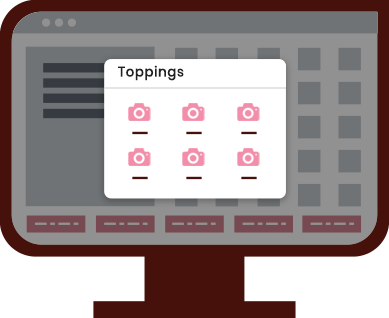
You can manage products with topping products.
You can add multiple toppings in the cart product as well as print toppings on receipt.
You can specify types of POS orders.
POS users can choose different order types for different orders as well you can set the default order type for all orders.
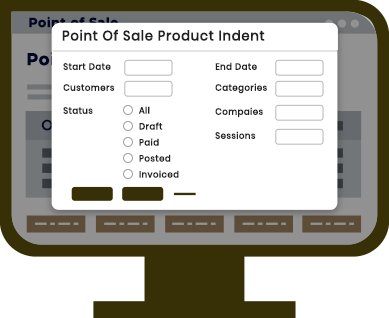
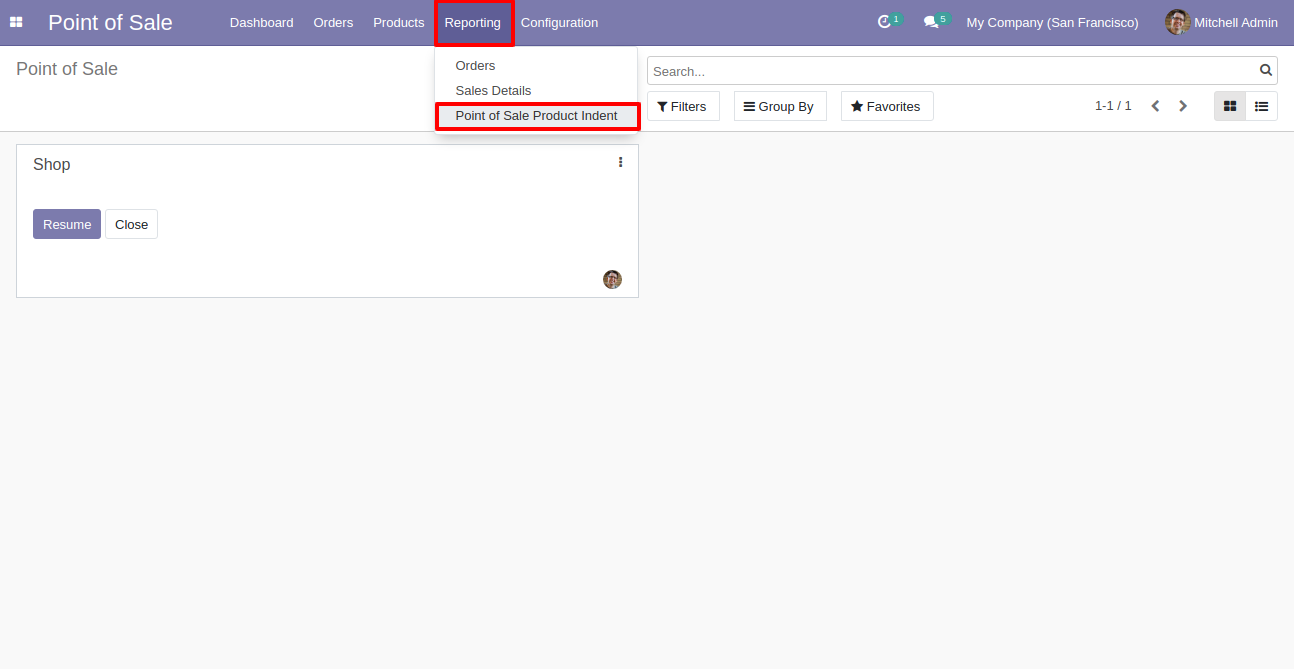
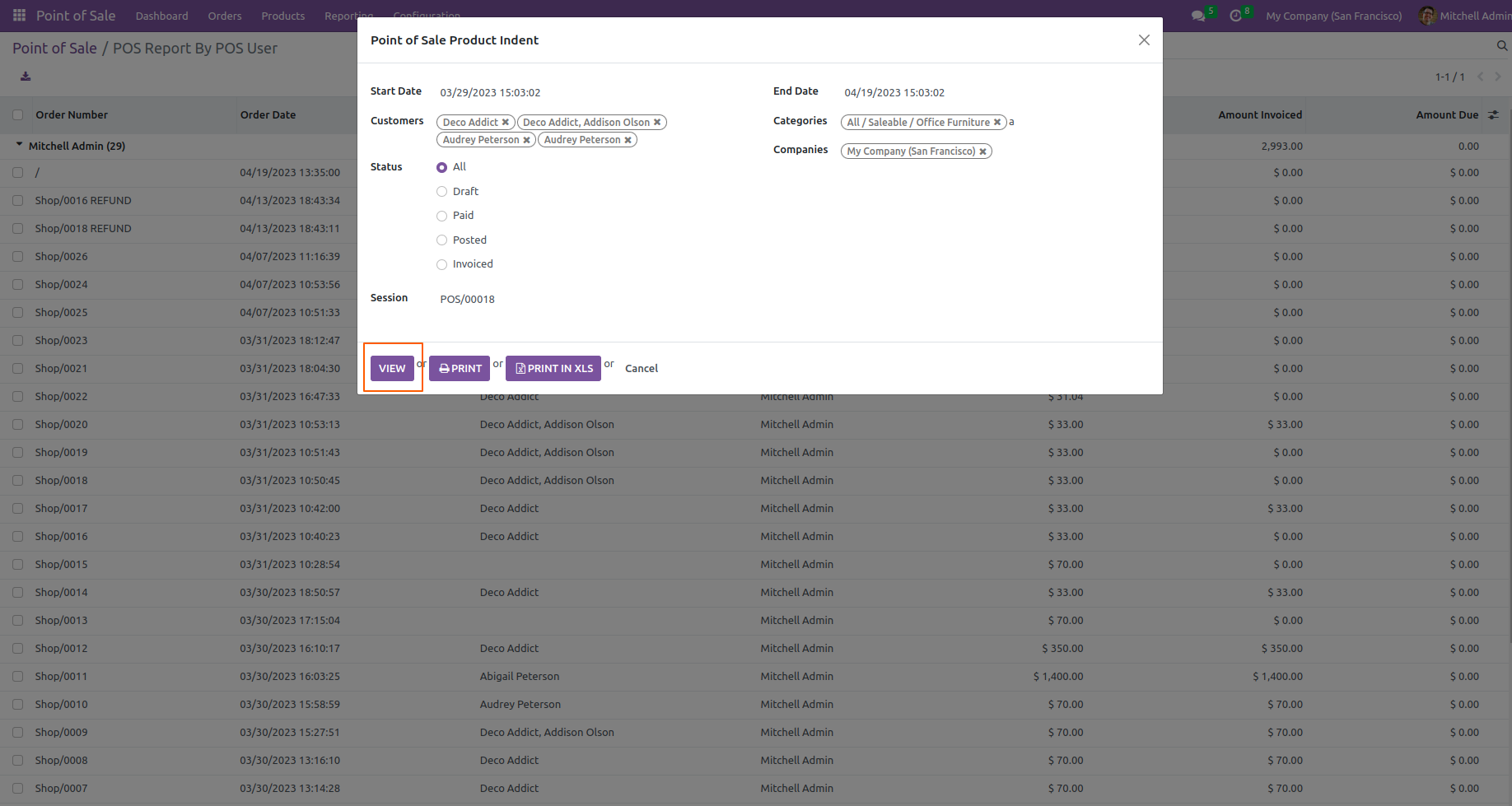
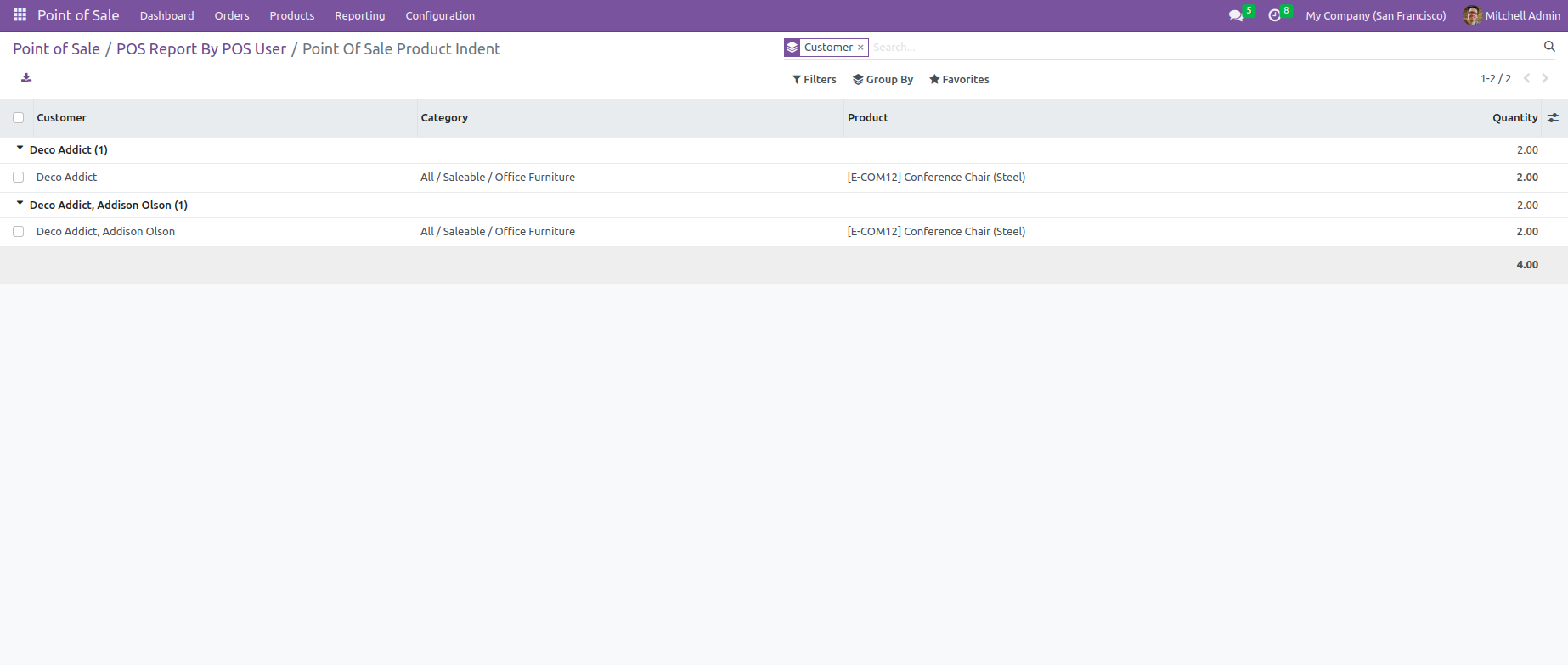
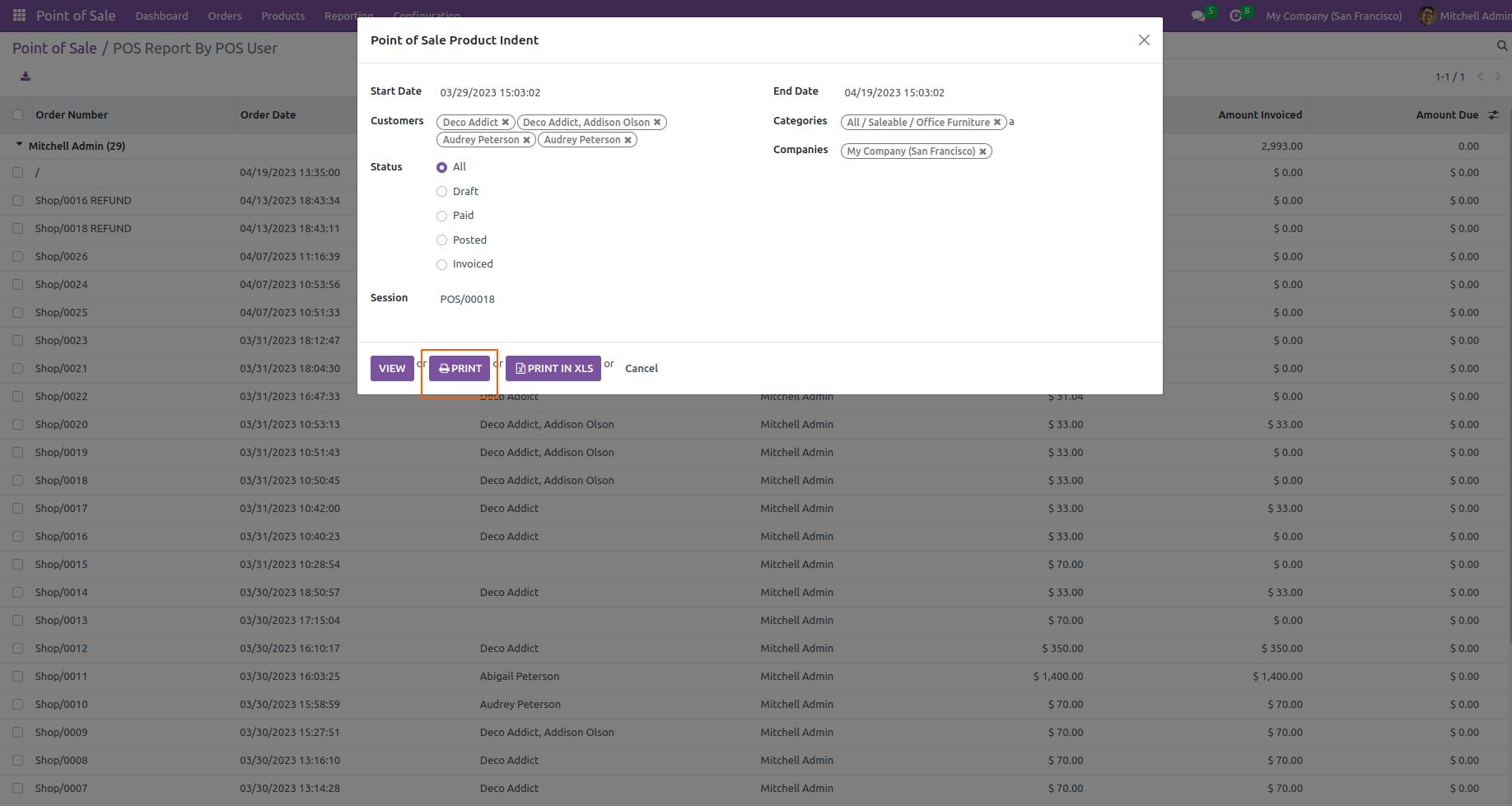
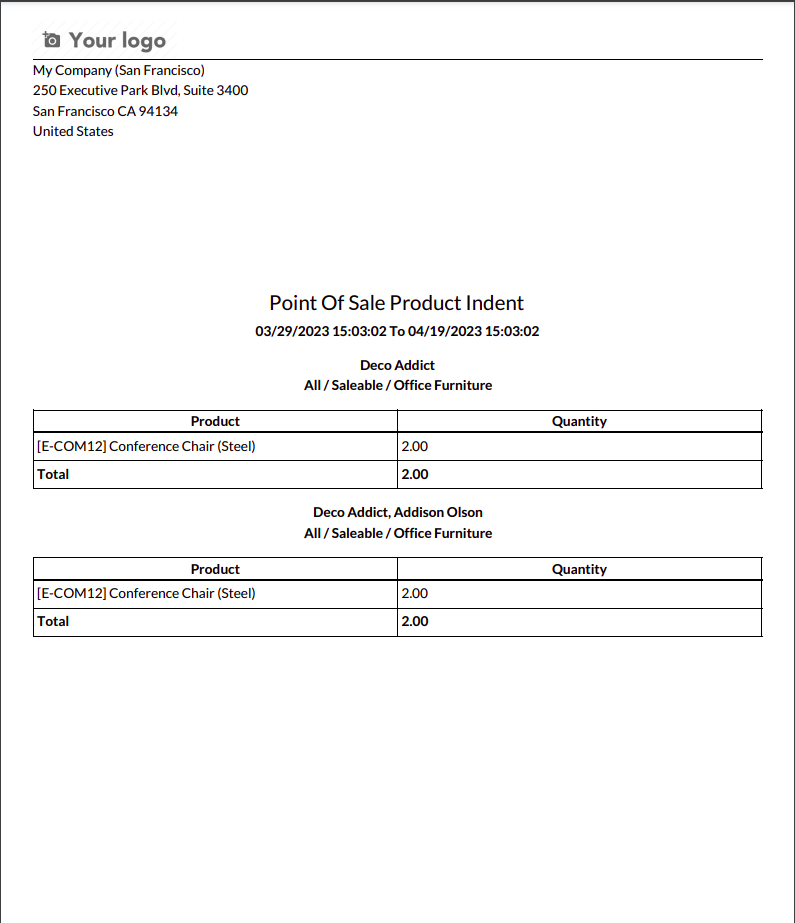
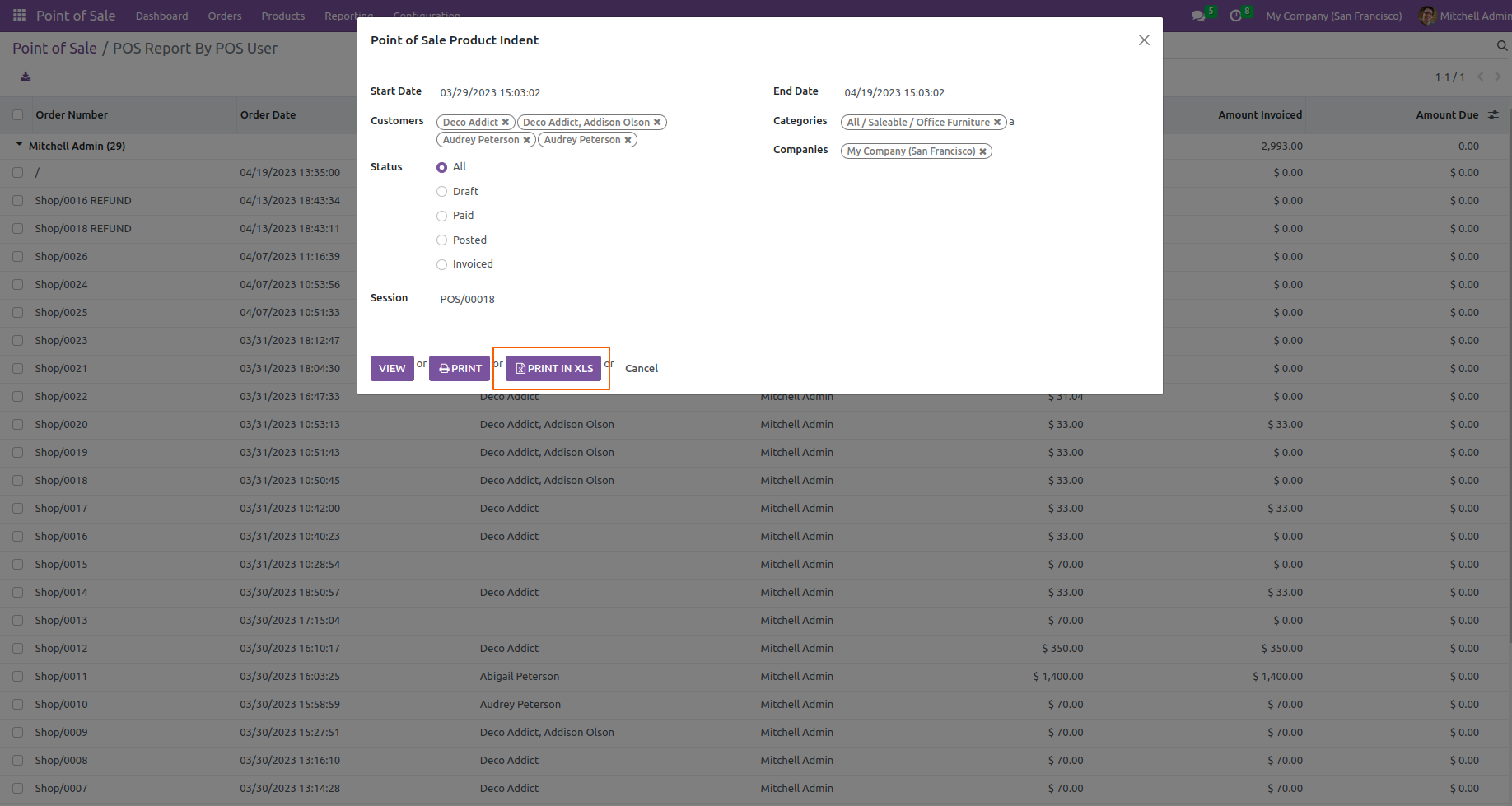
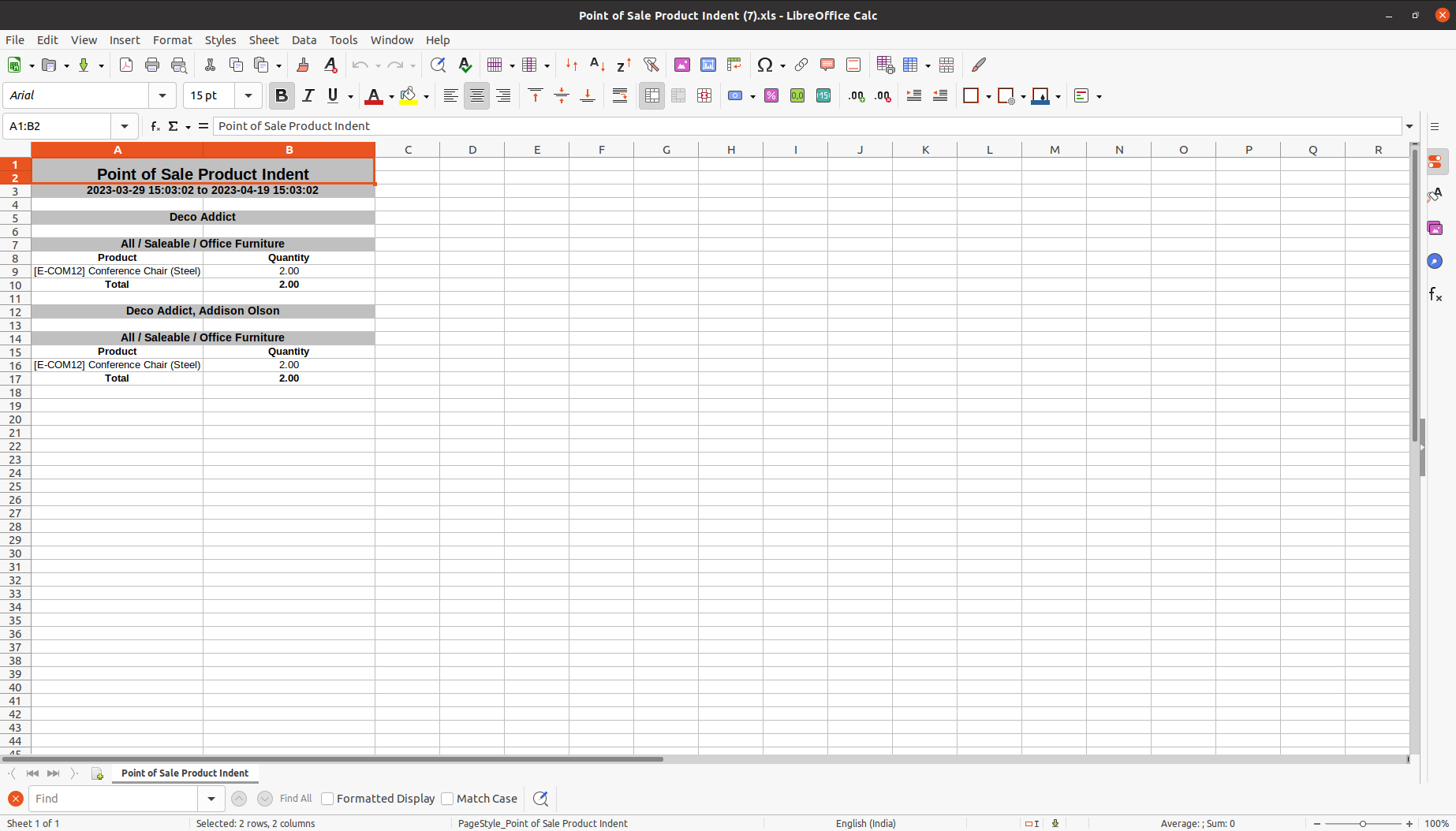
POS product indent report.
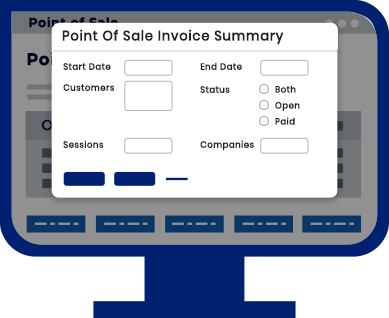
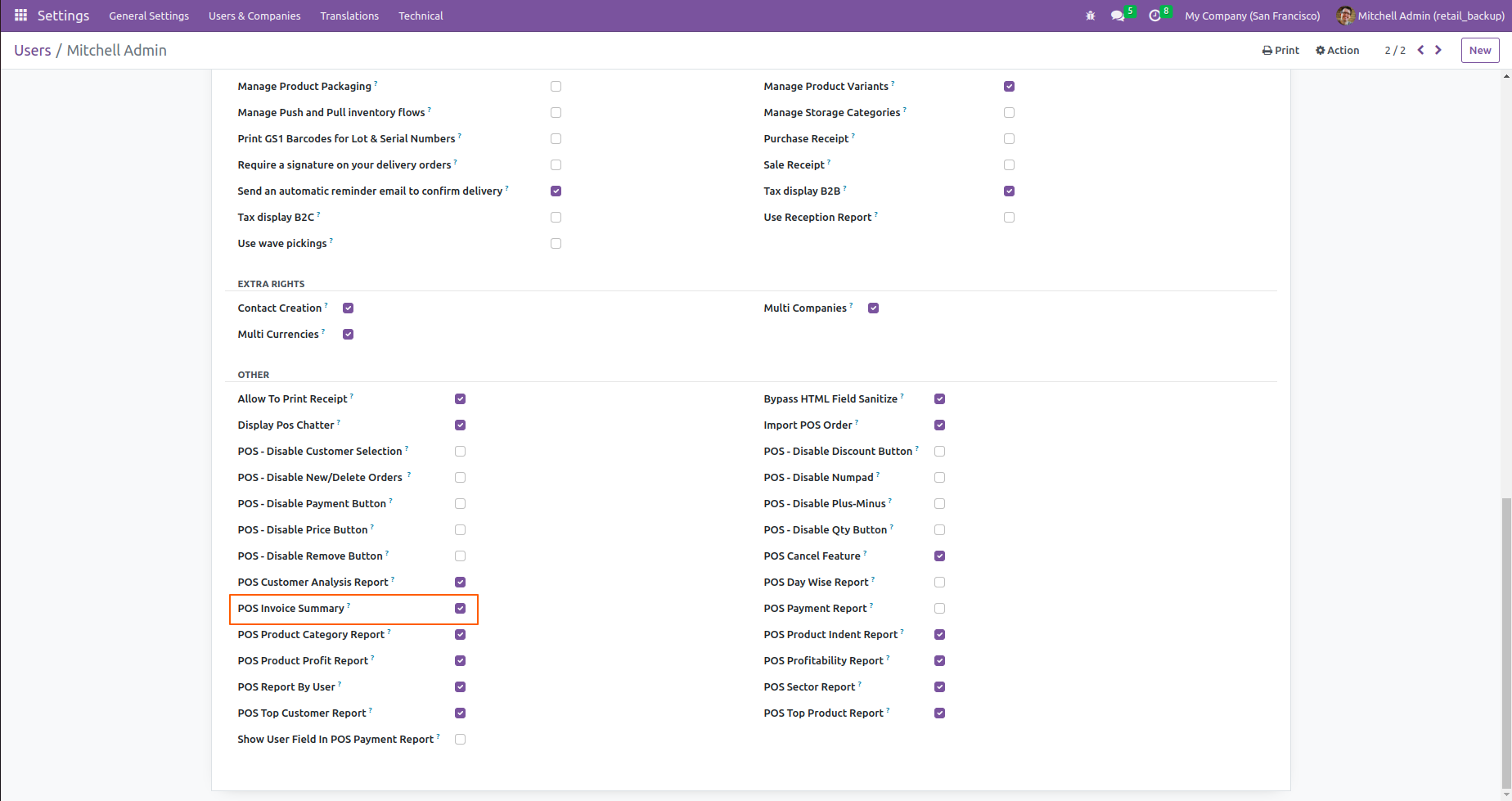
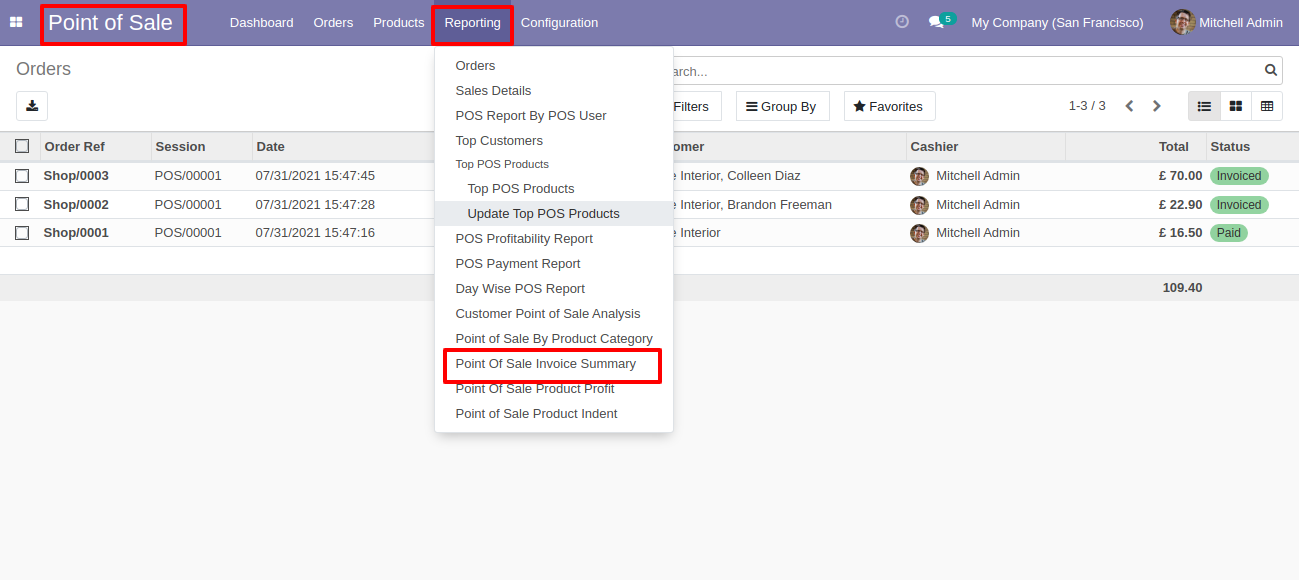
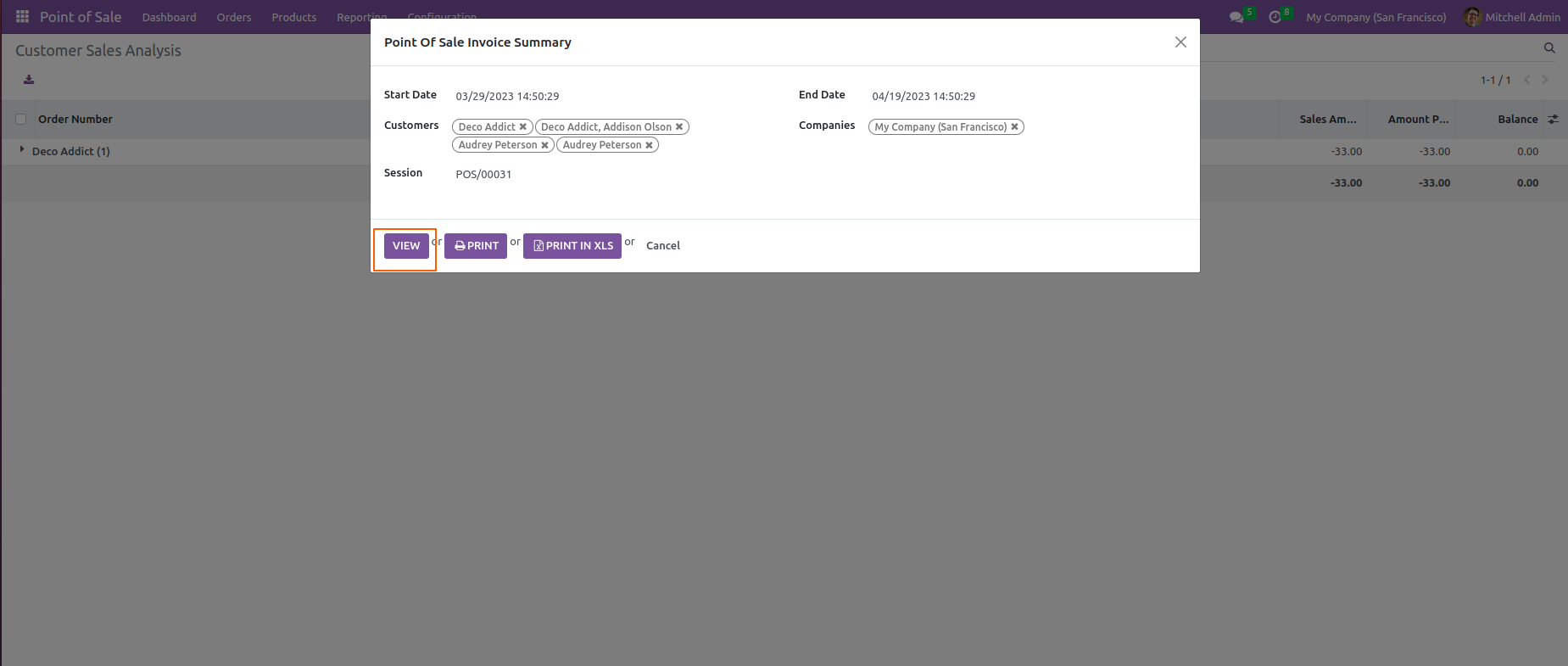
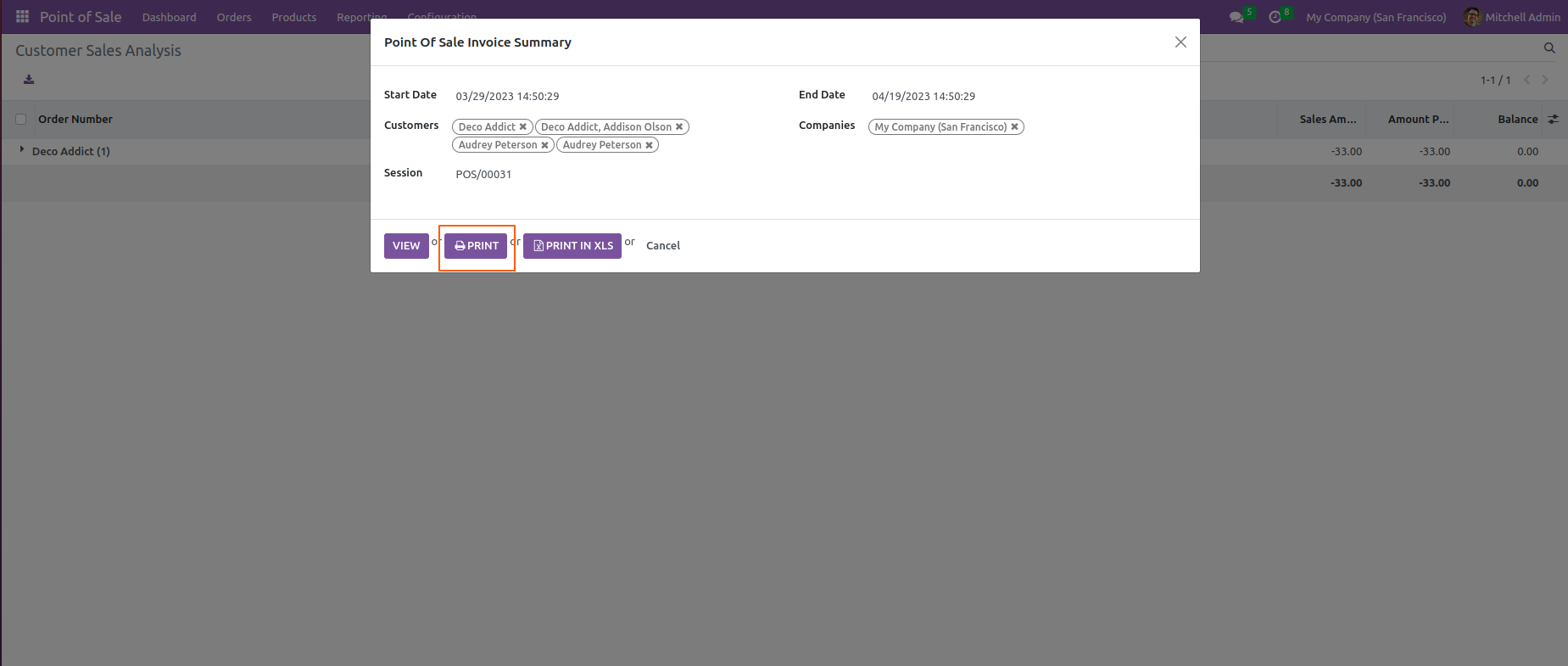
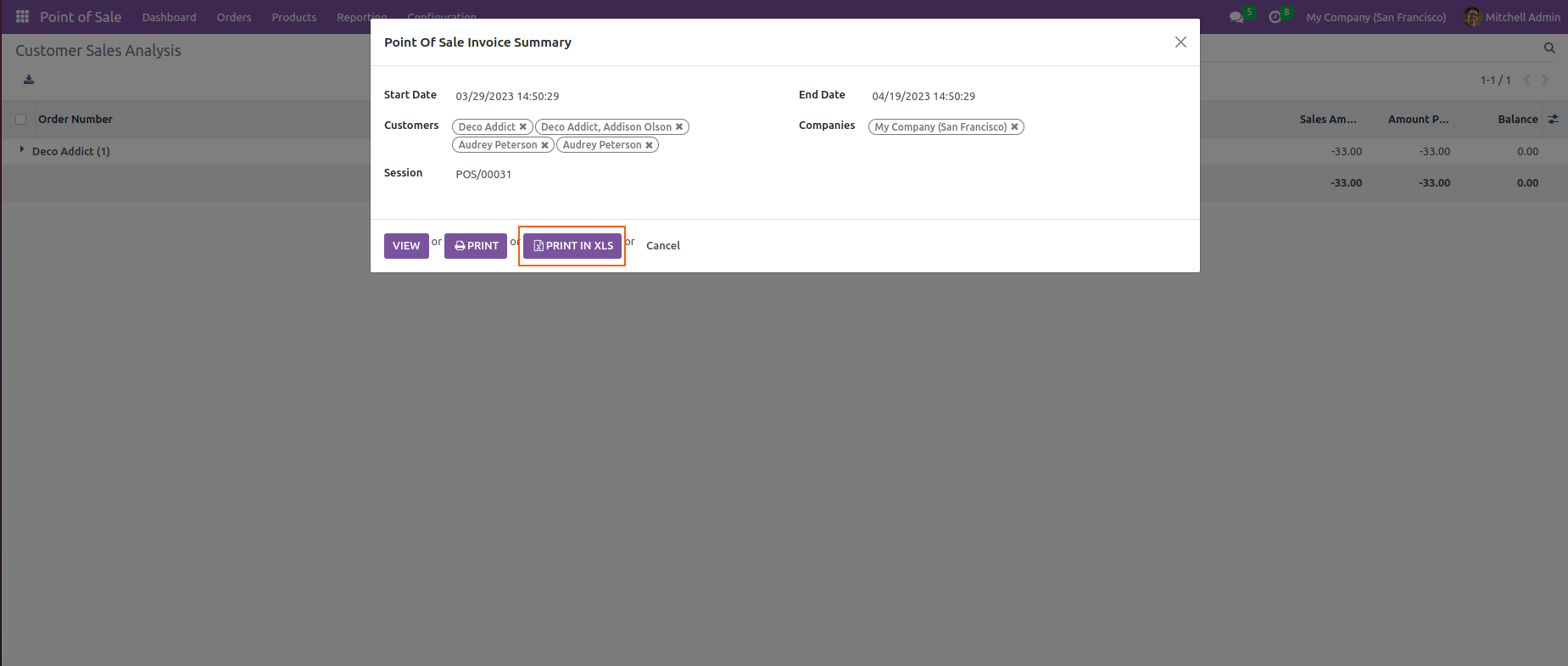
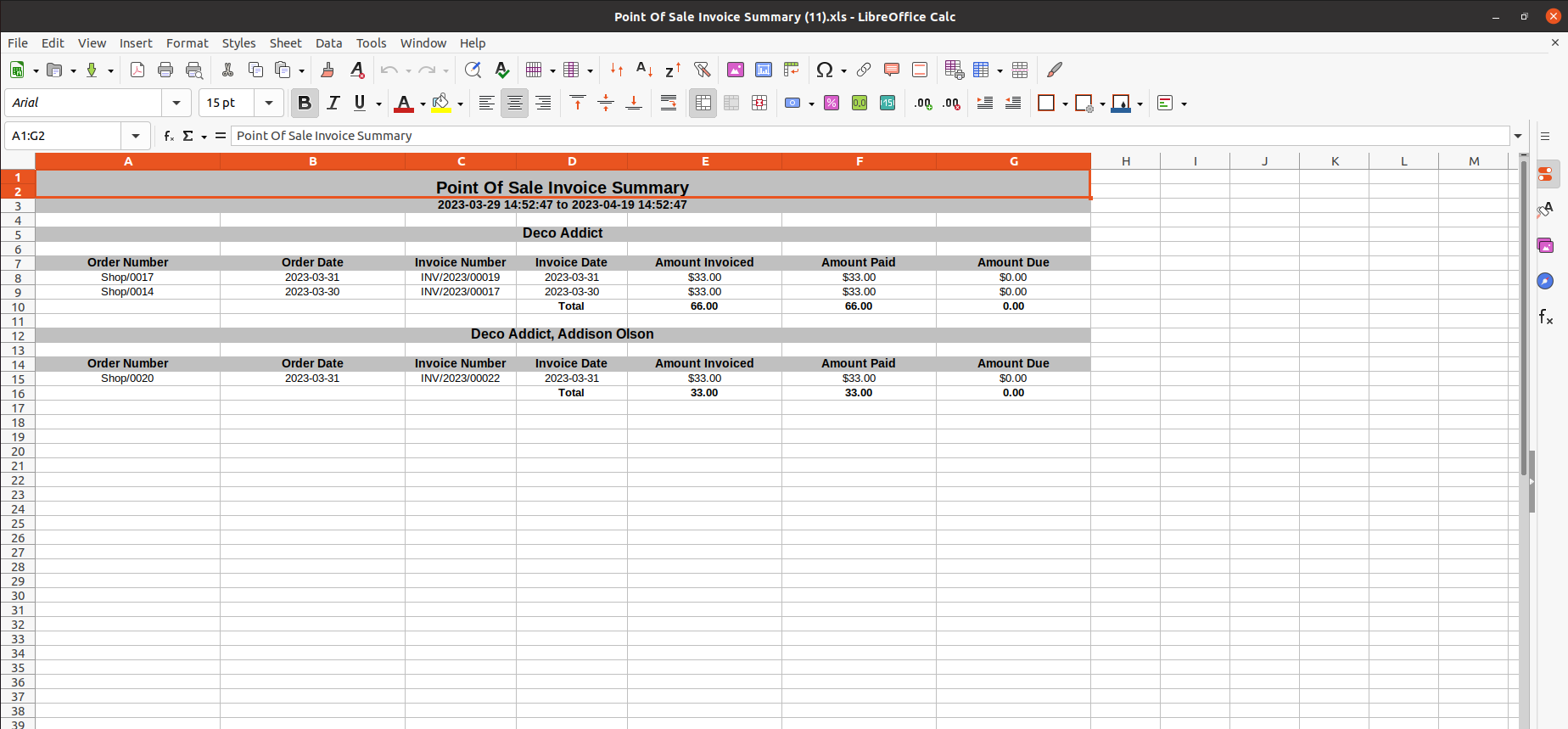
POS invoice summary.
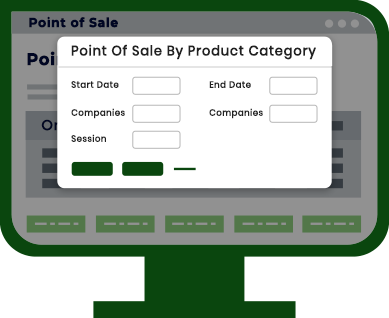
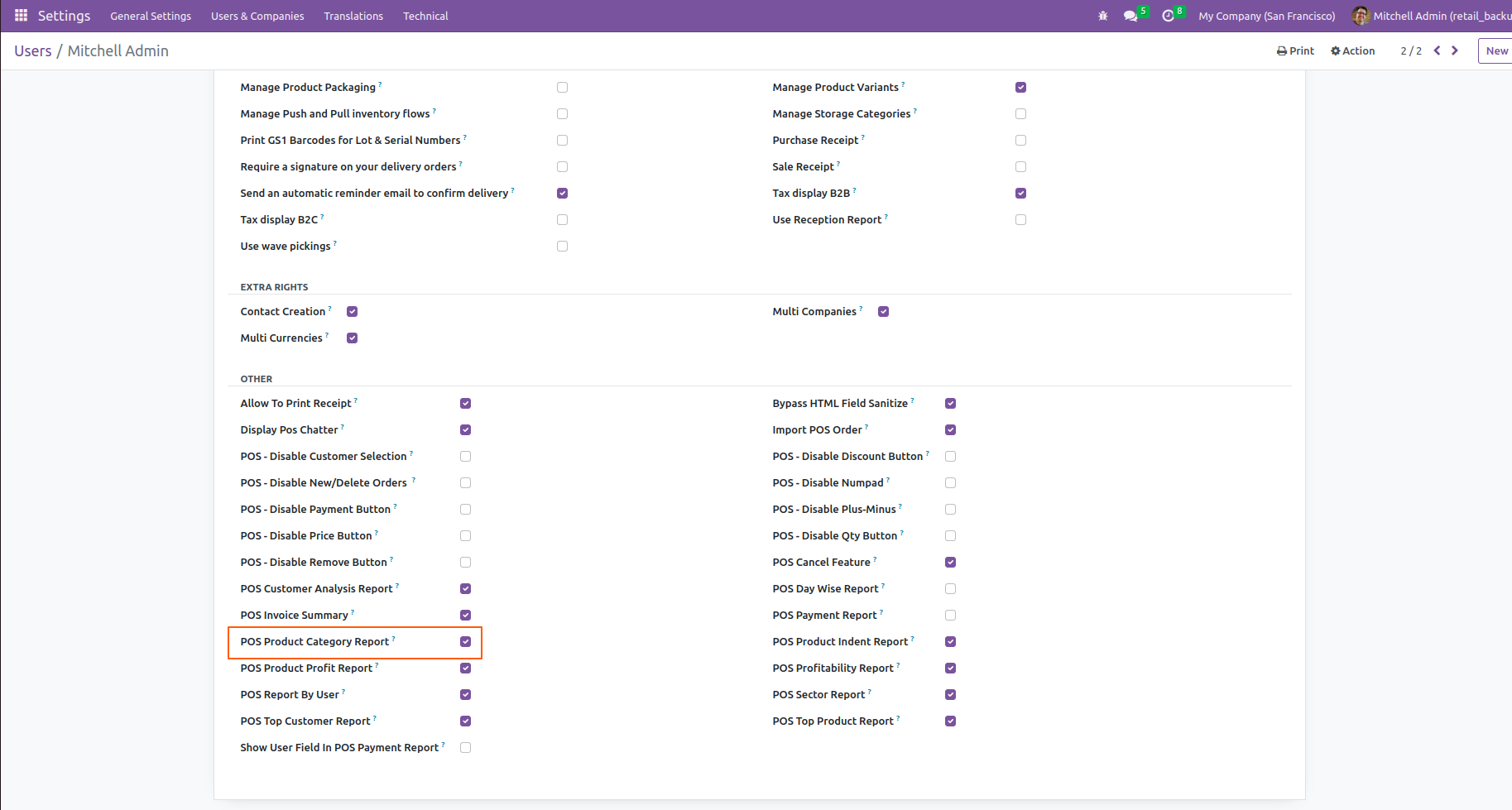
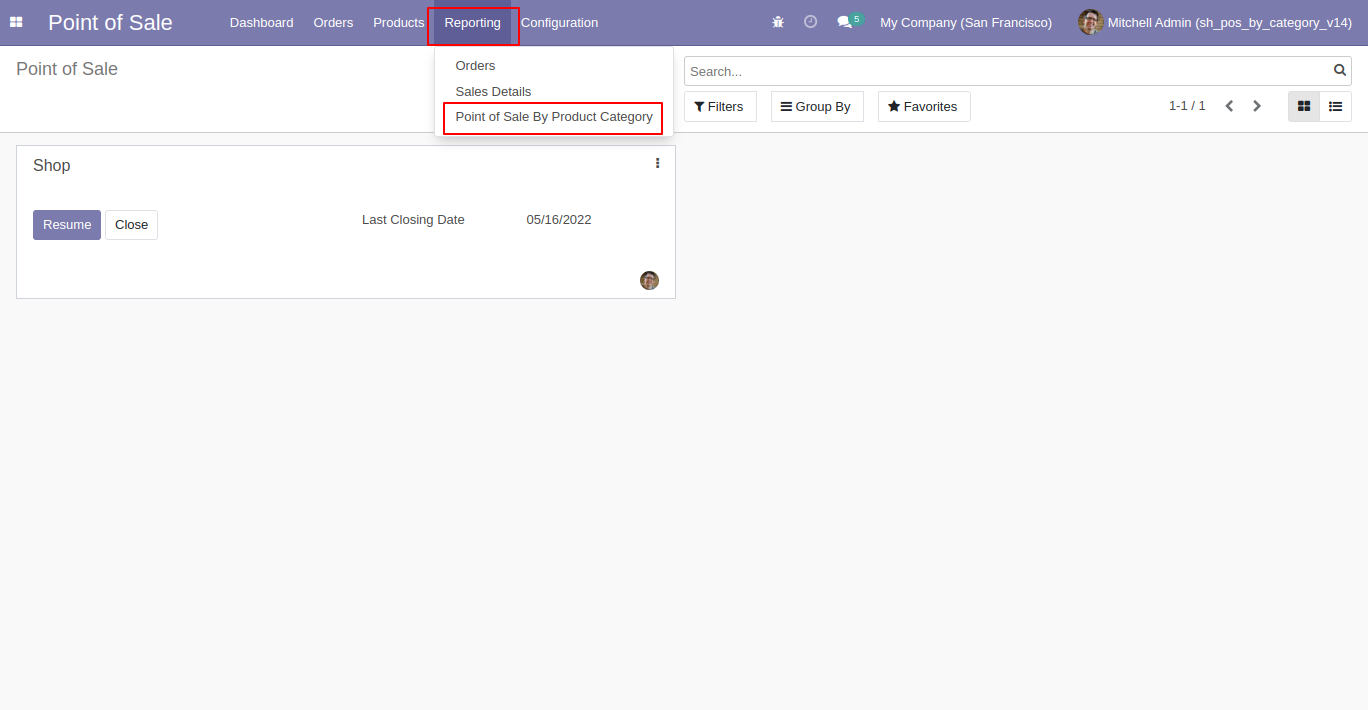
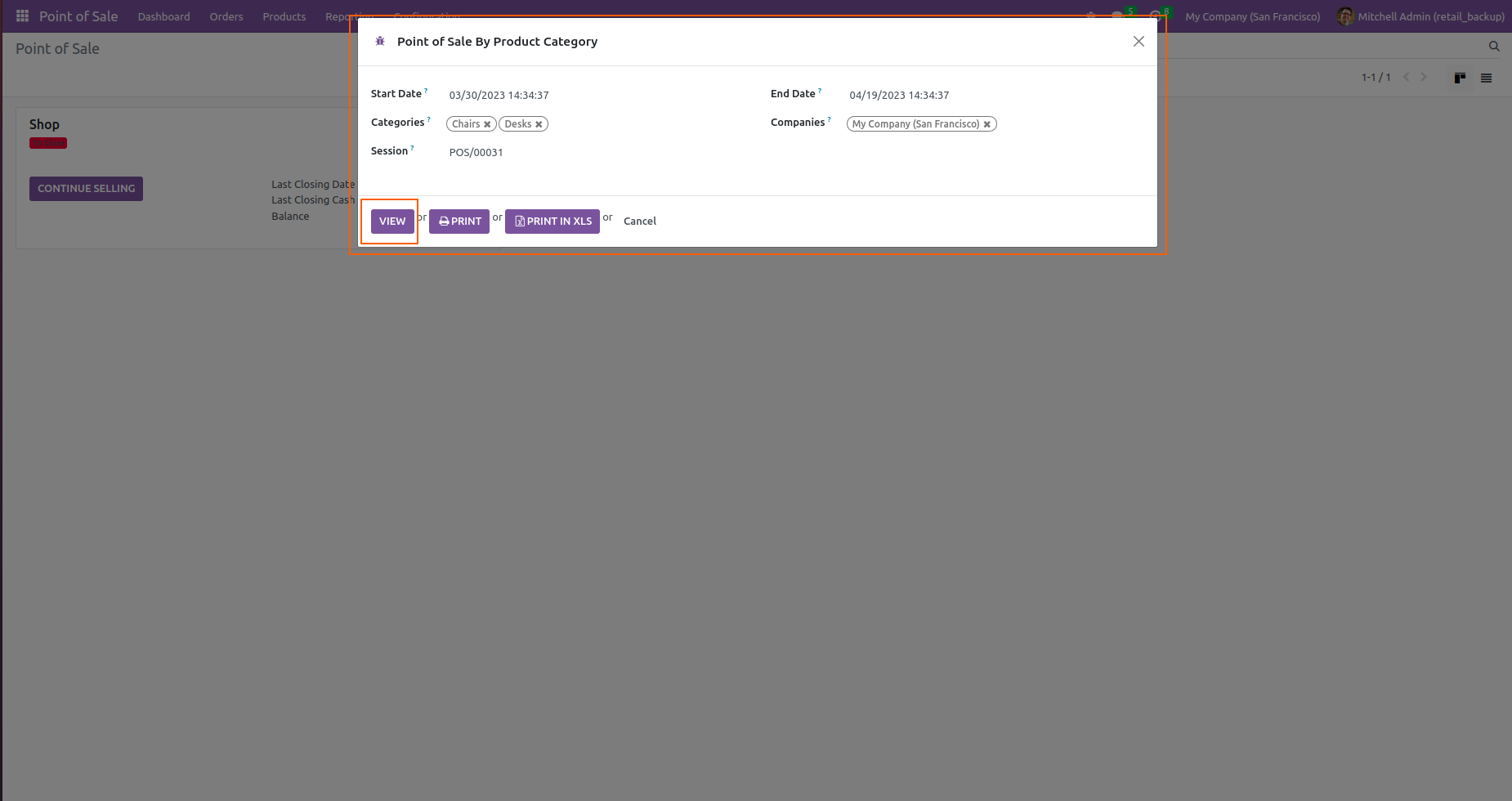
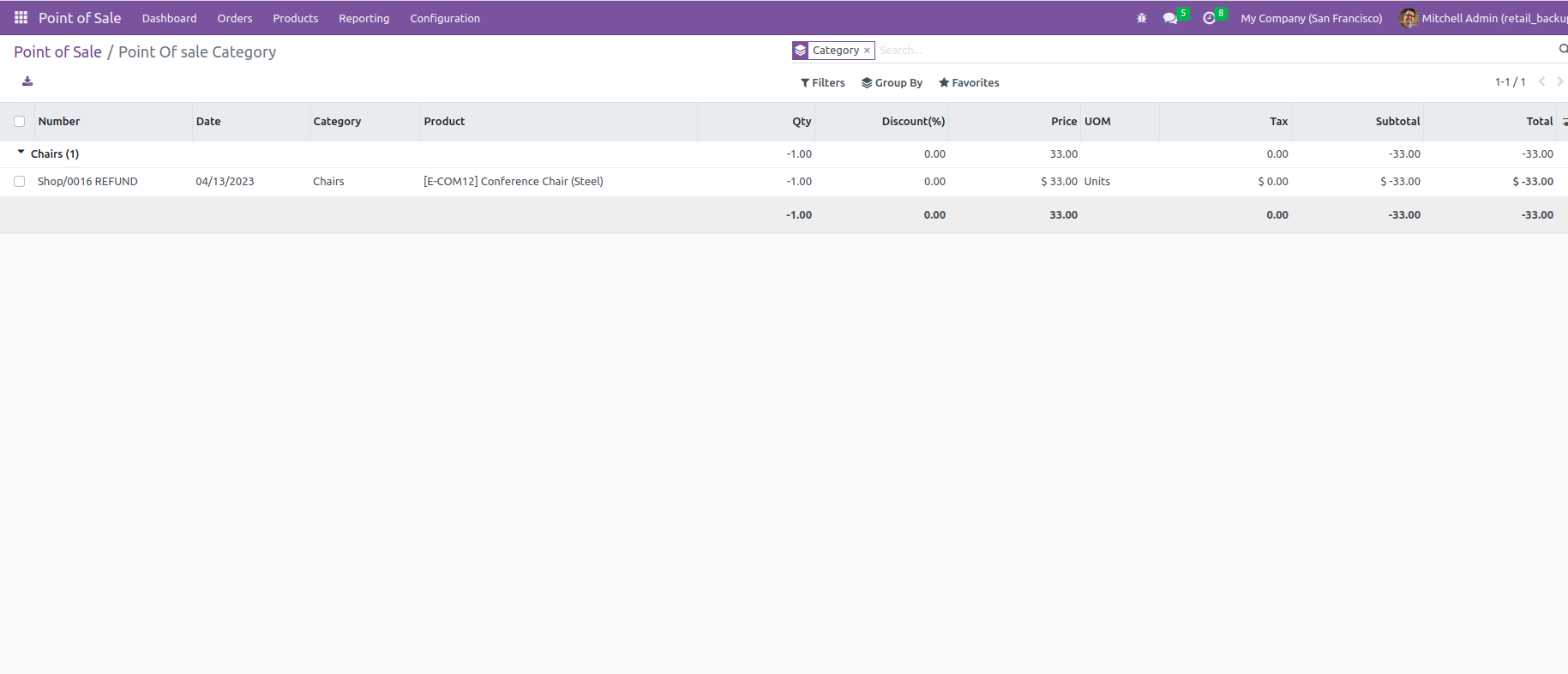
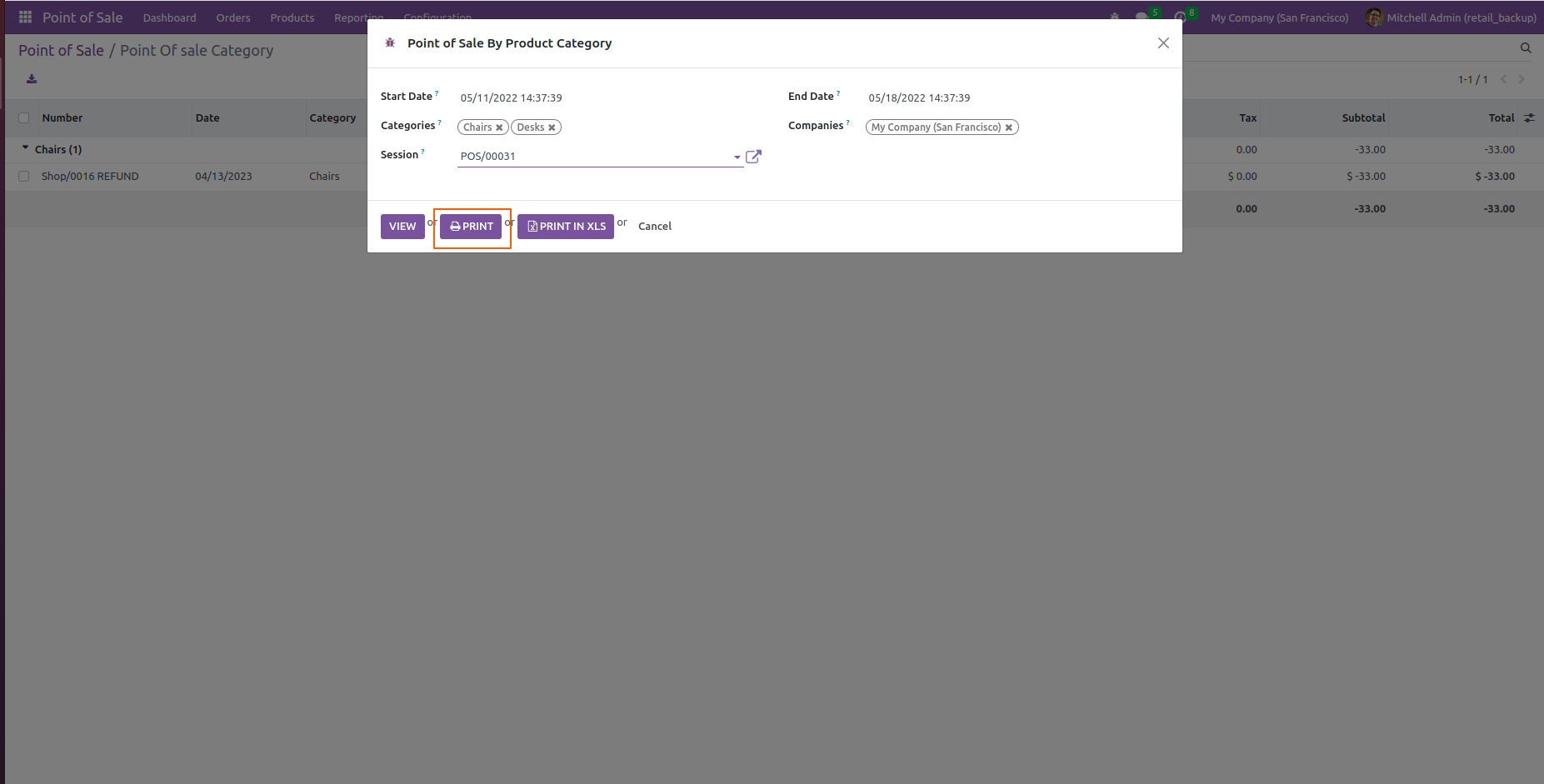
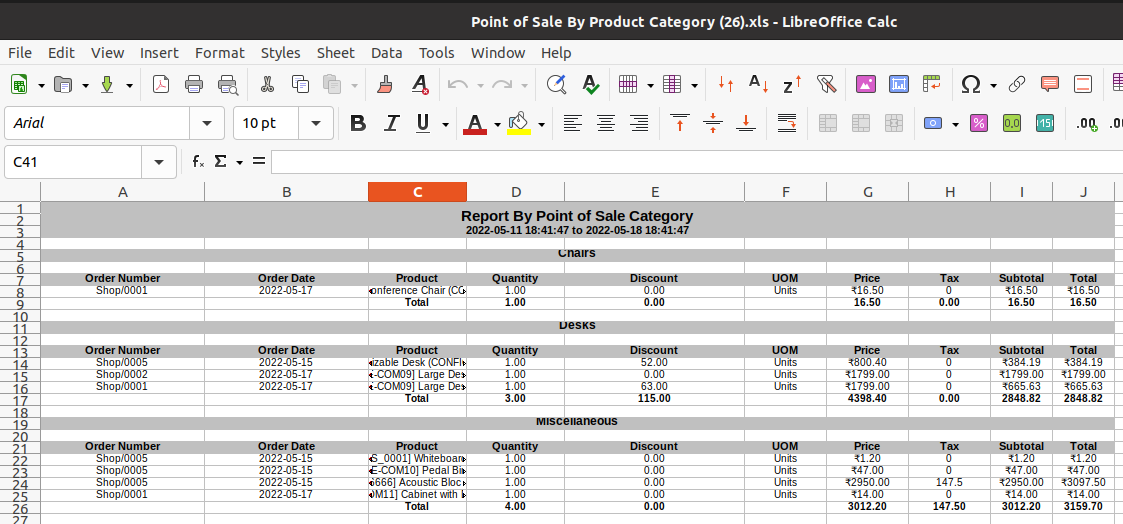
POS by product category report.
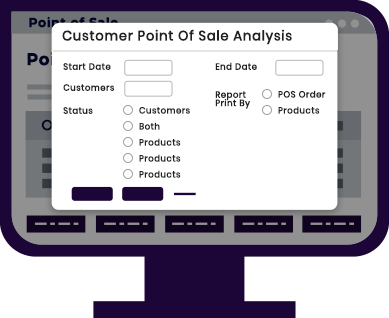
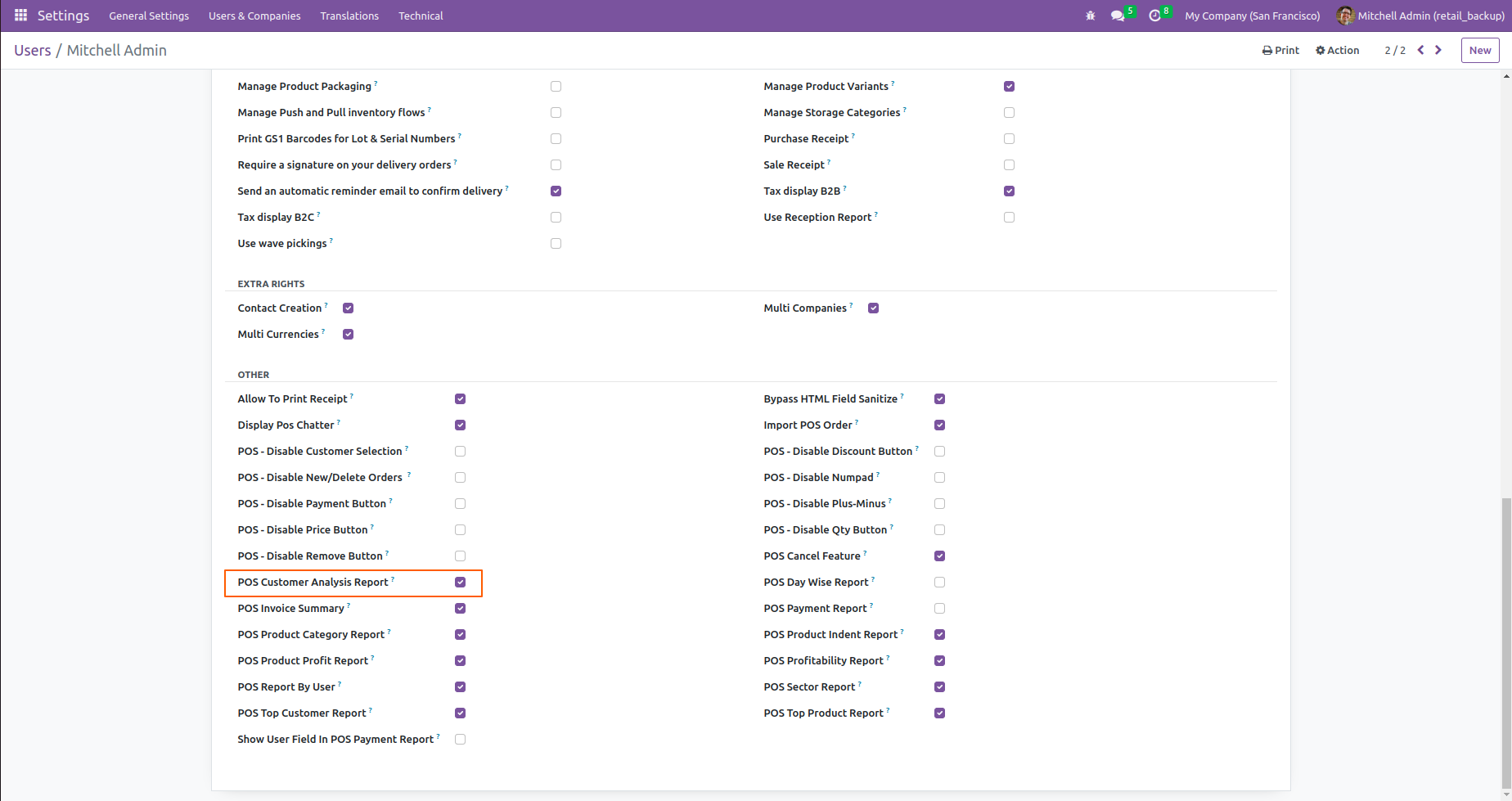
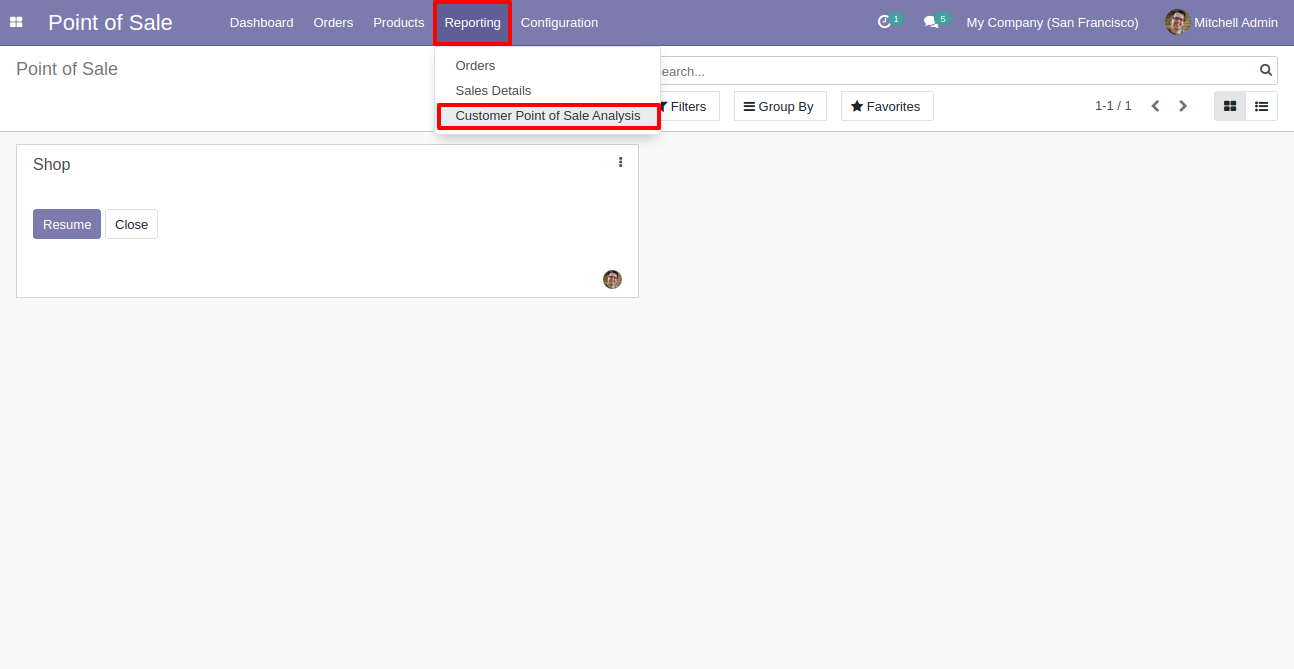
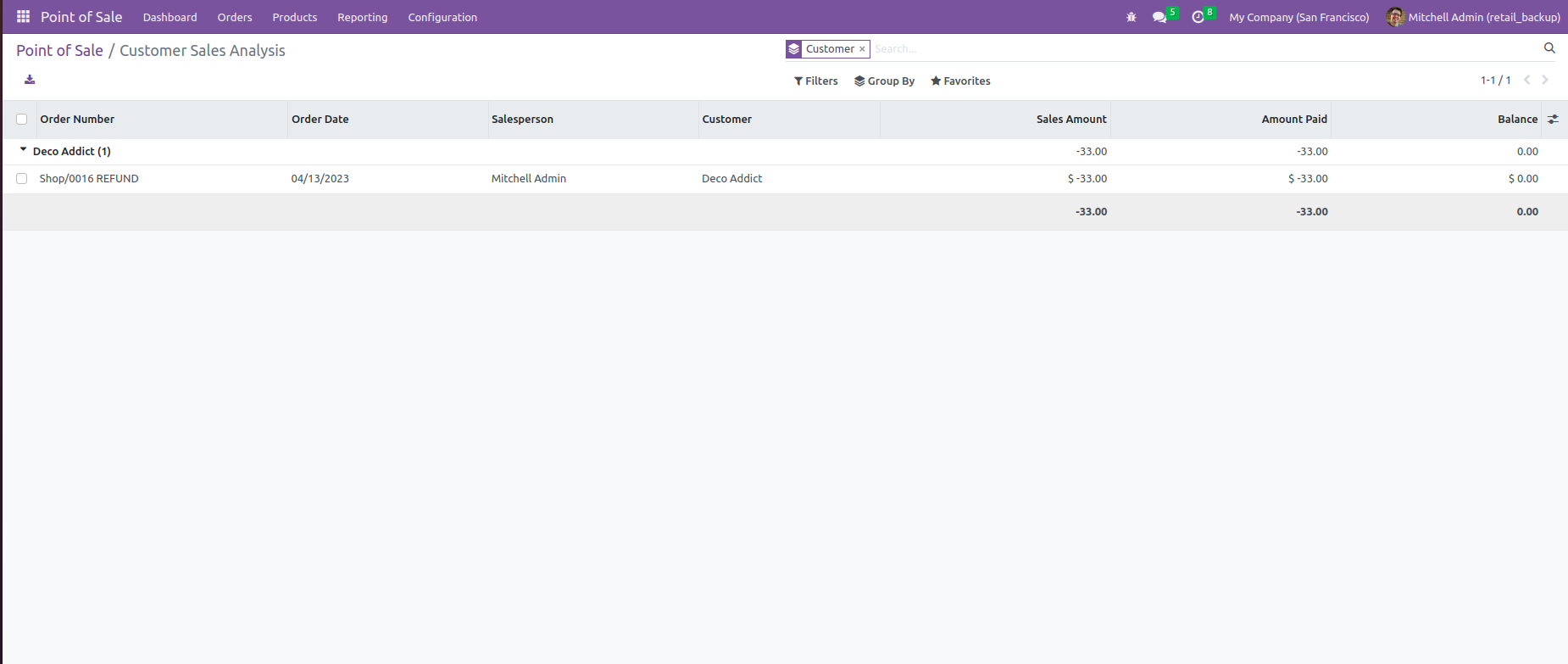
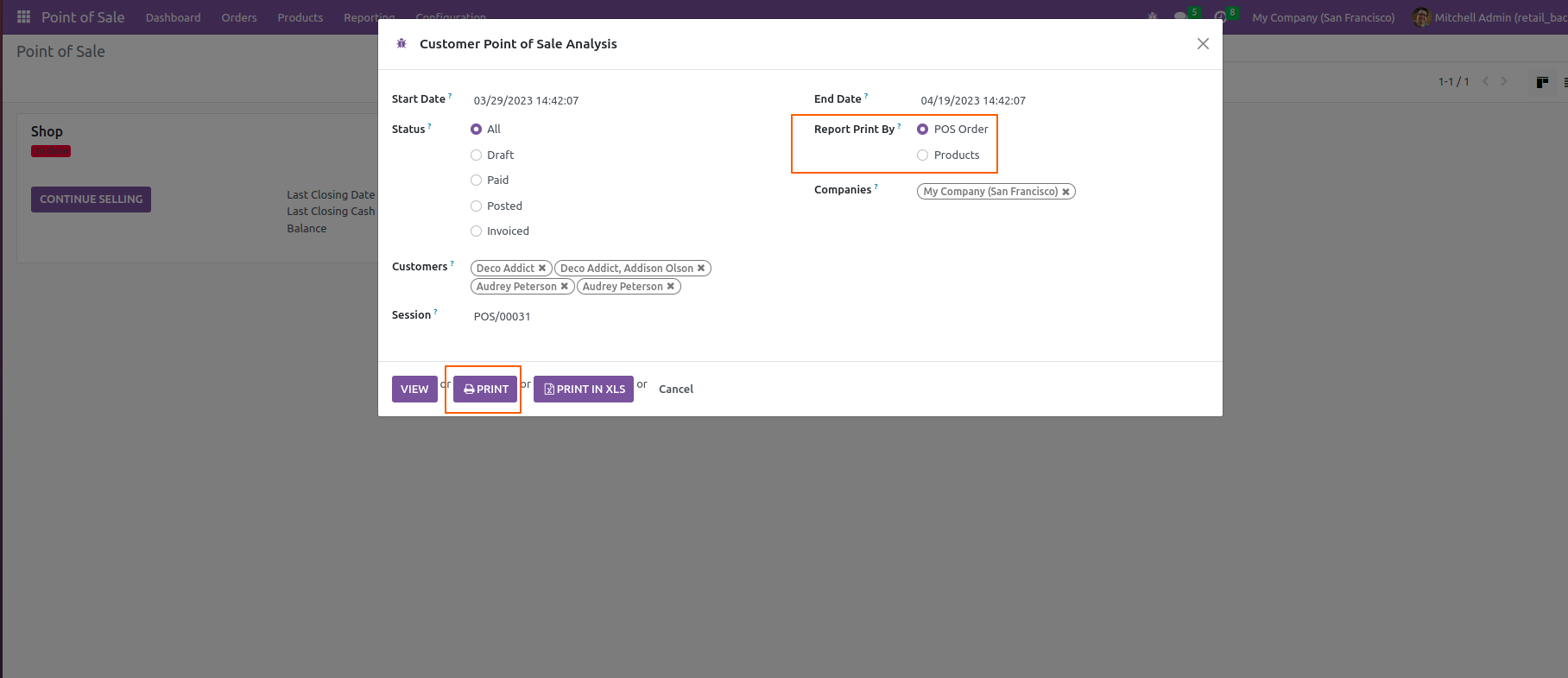
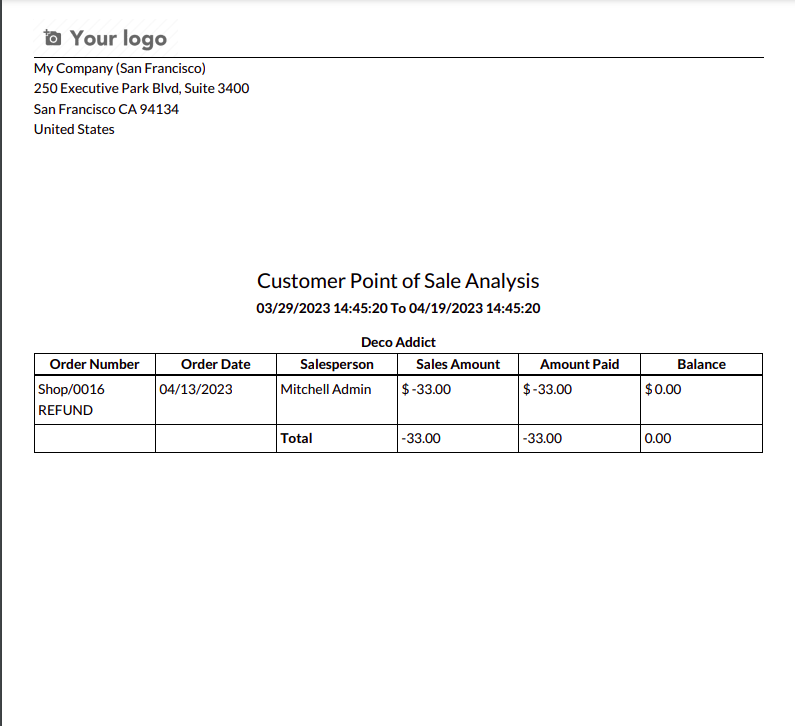
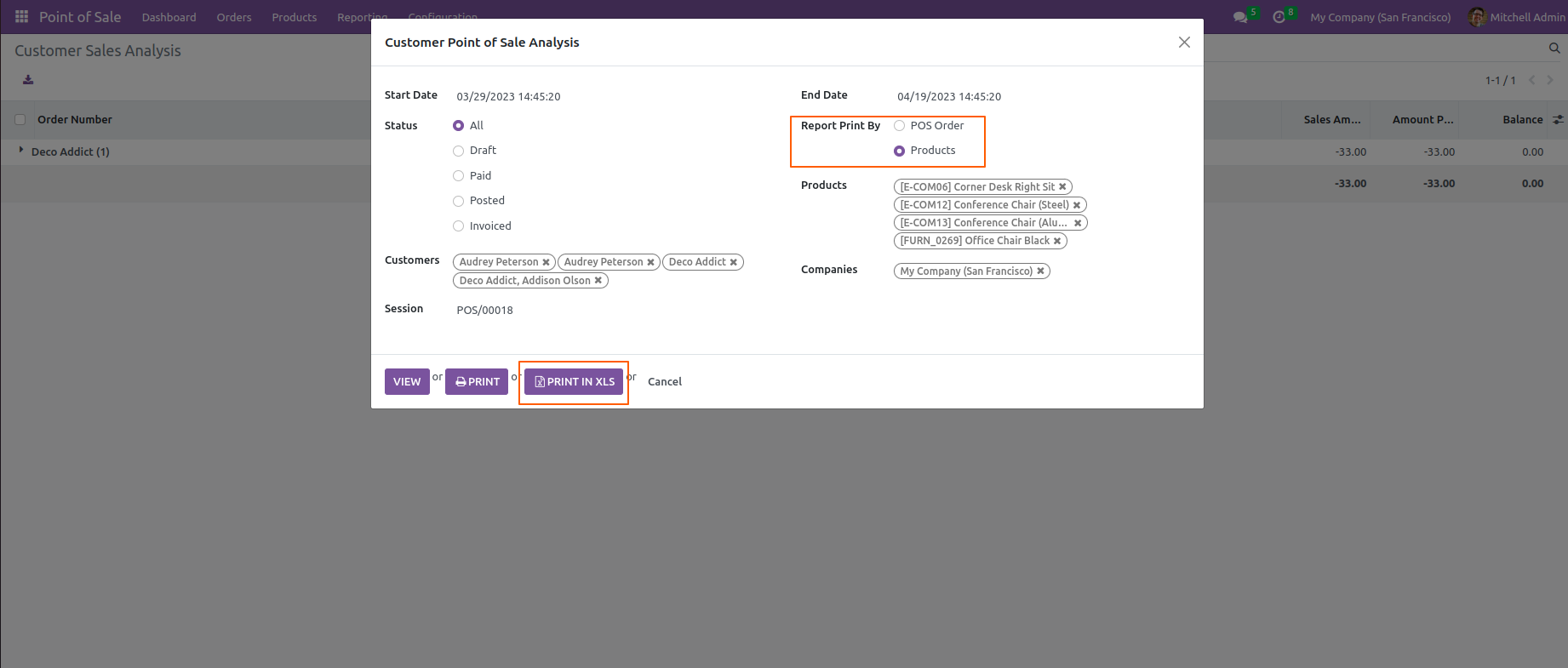
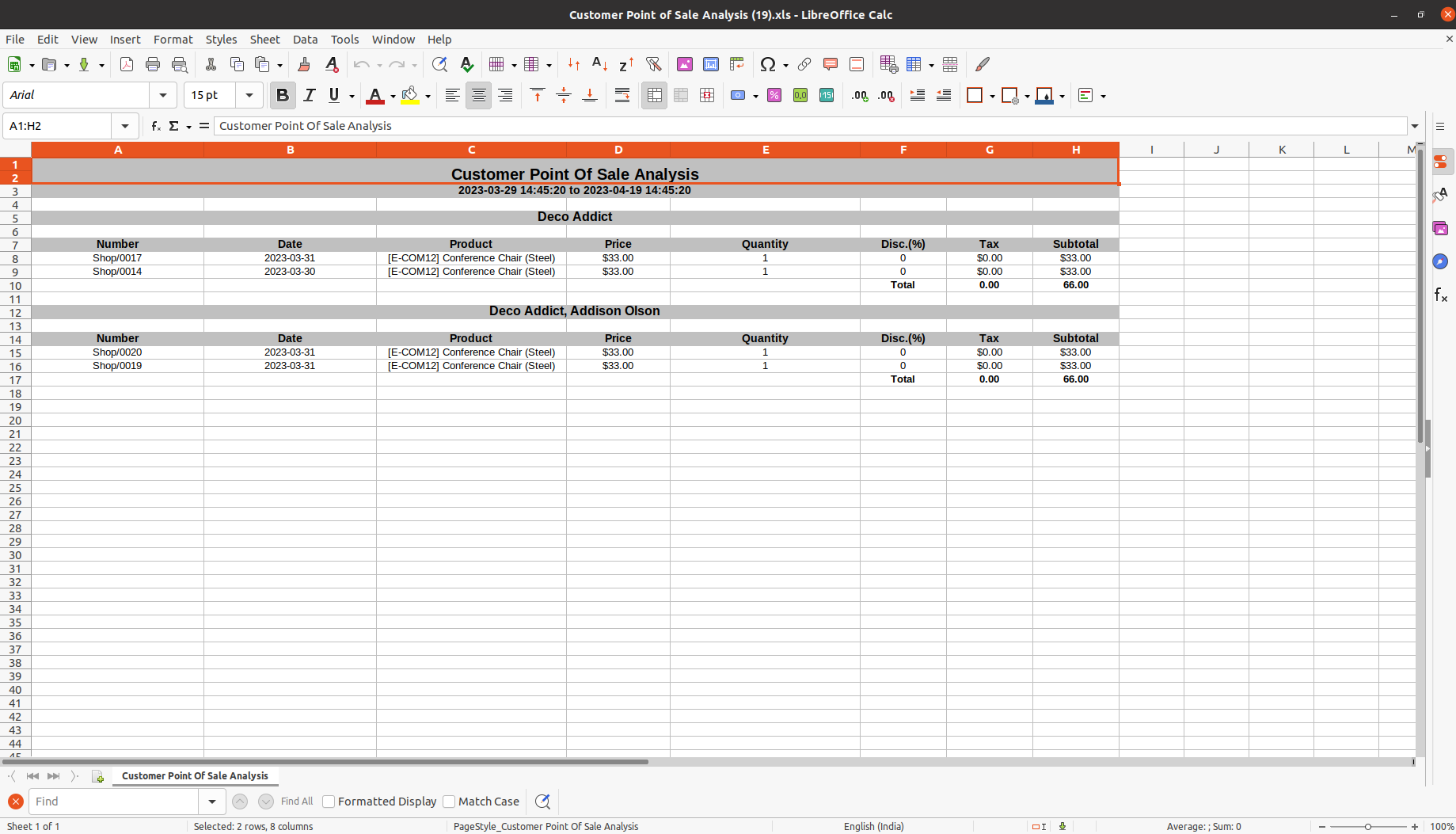
POS customer sales analysis report
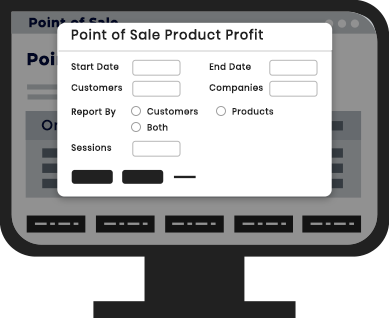
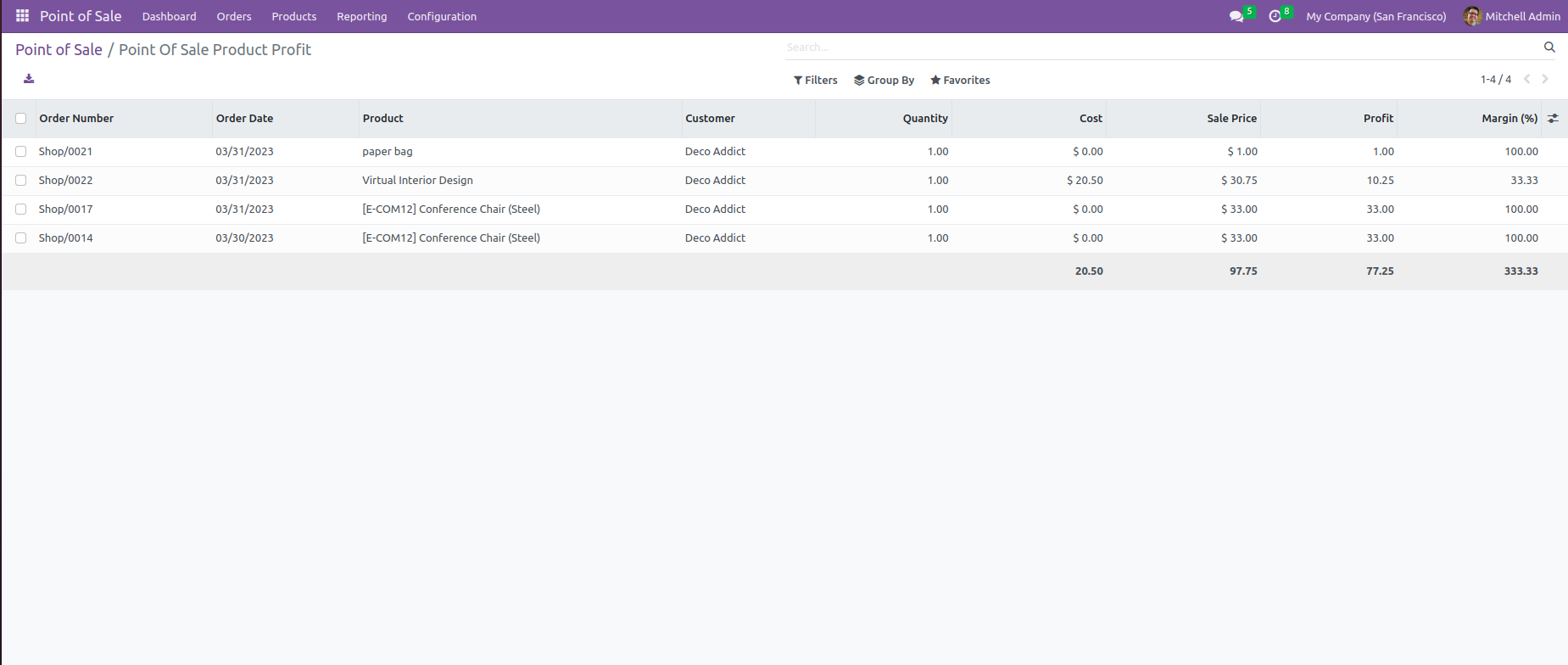
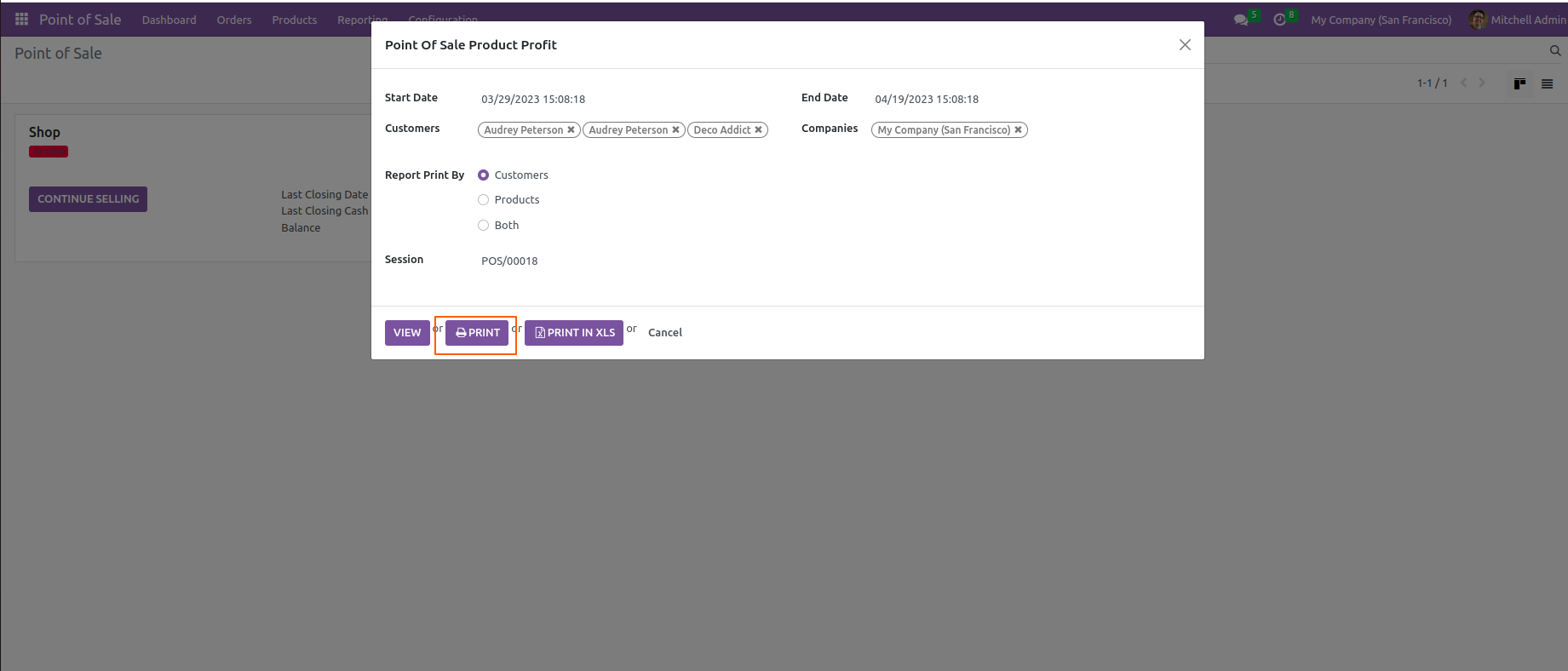
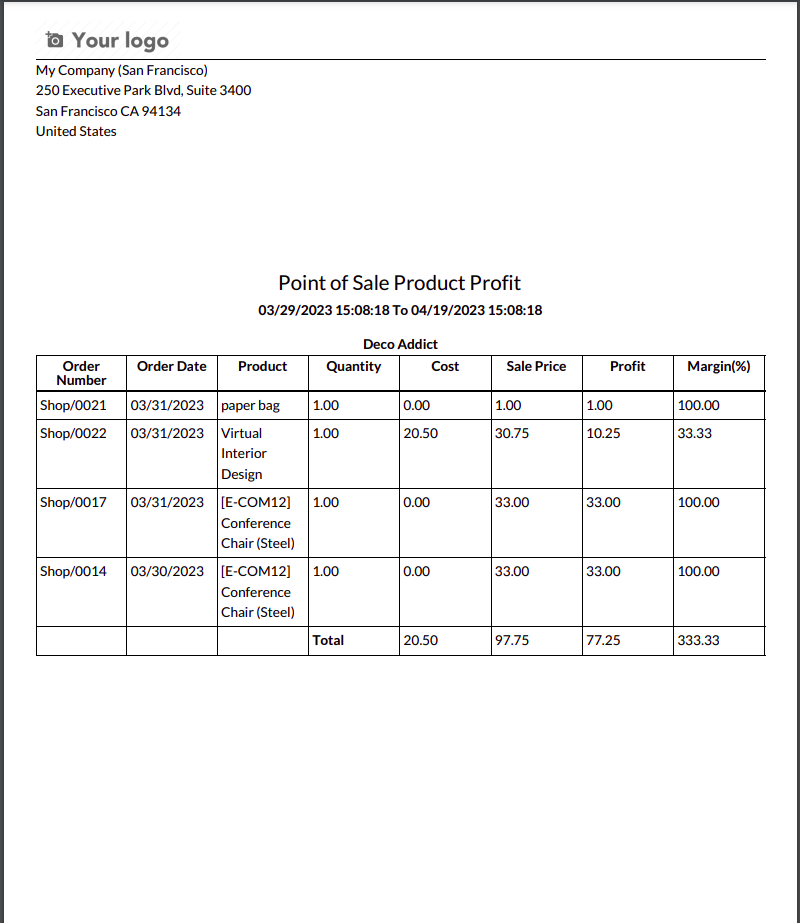
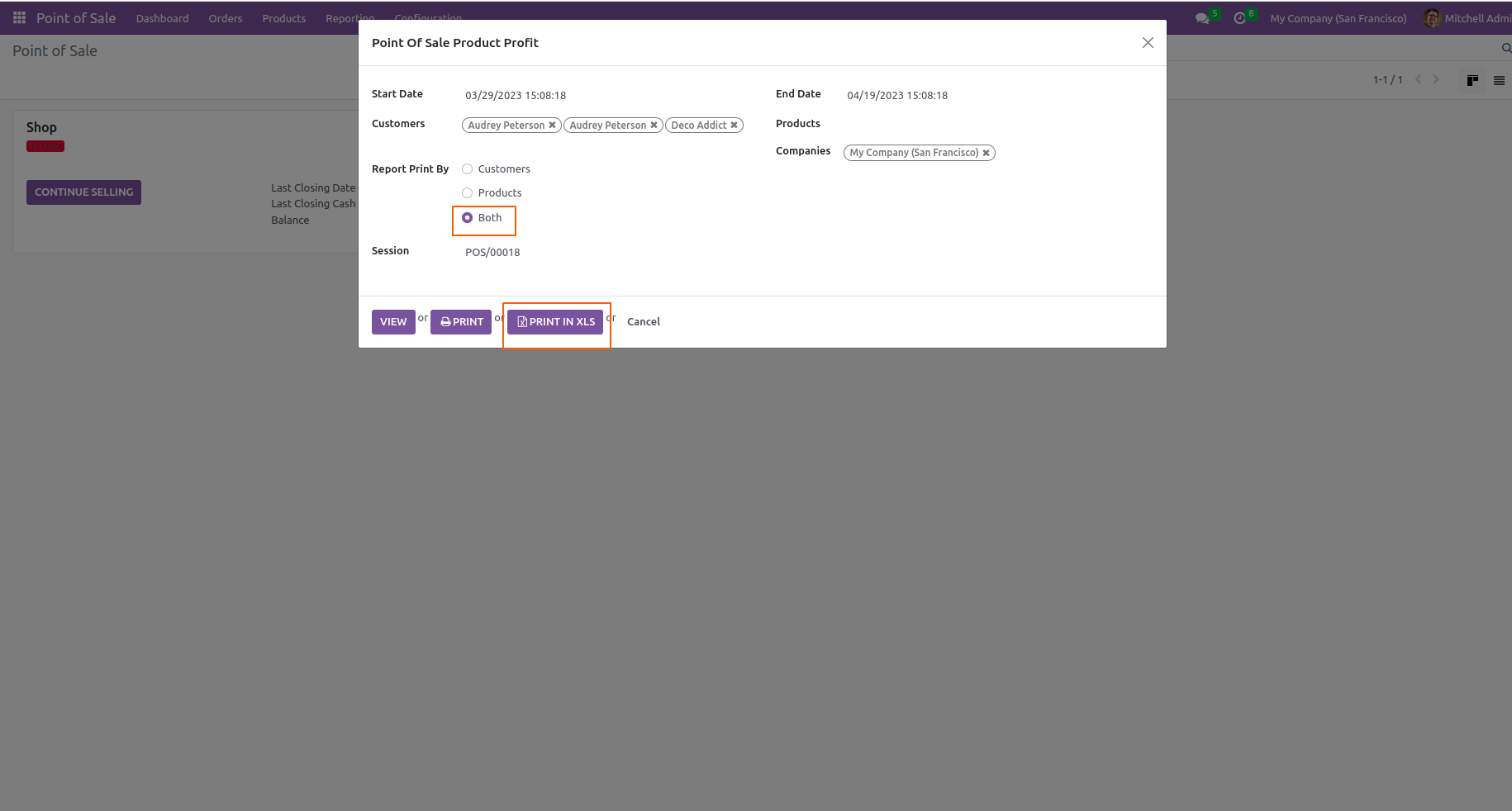
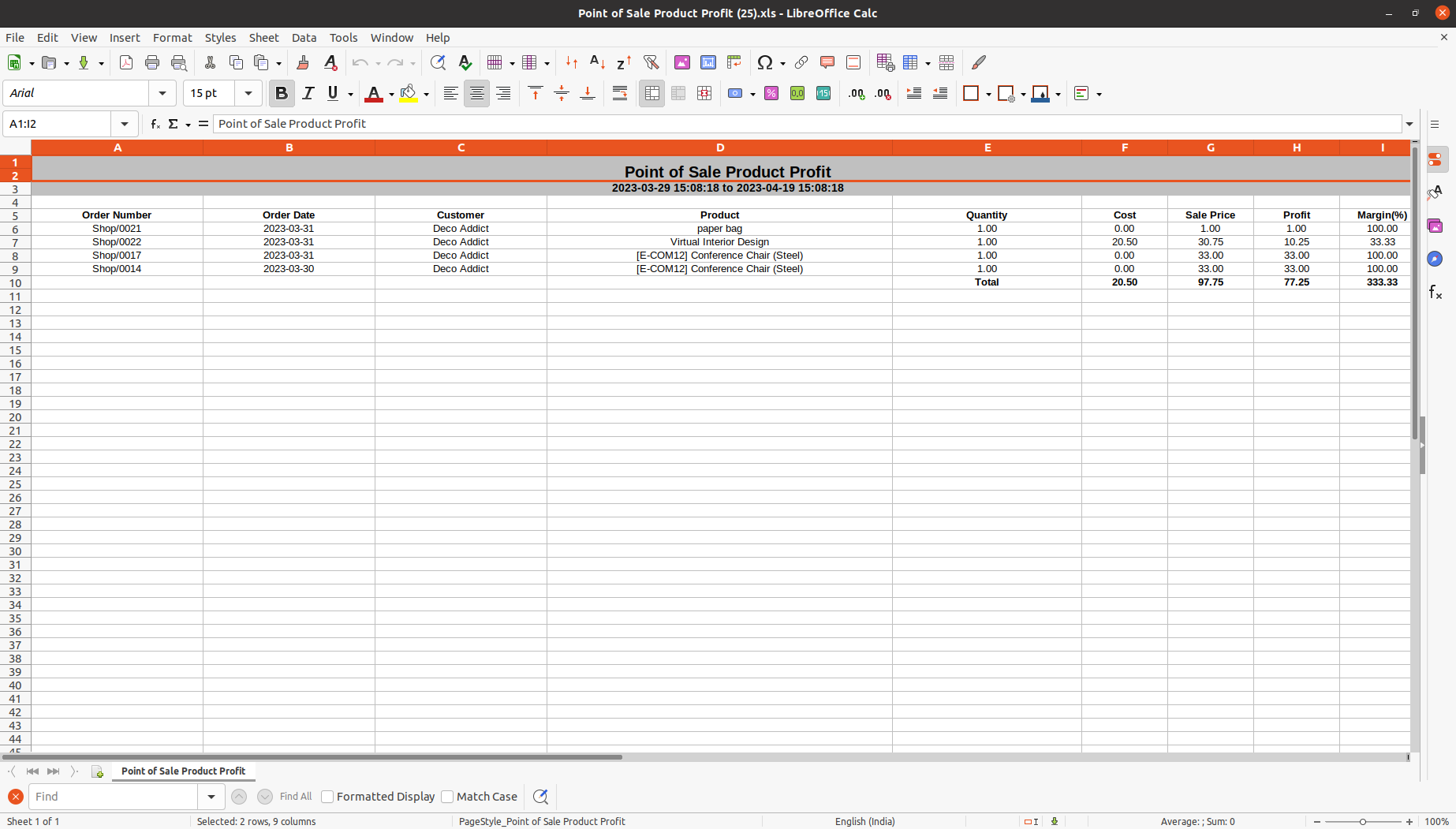
POS product profit report
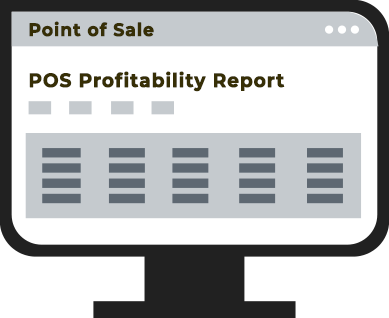
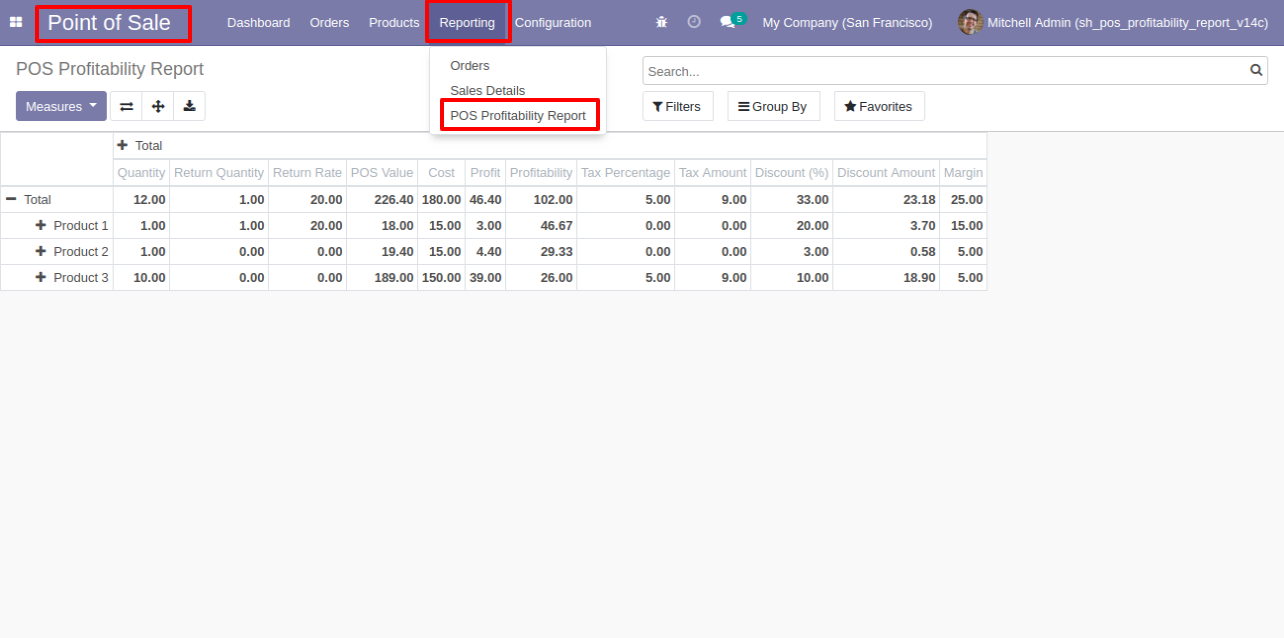
POS product profitability.
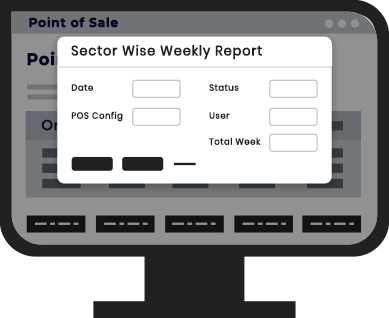
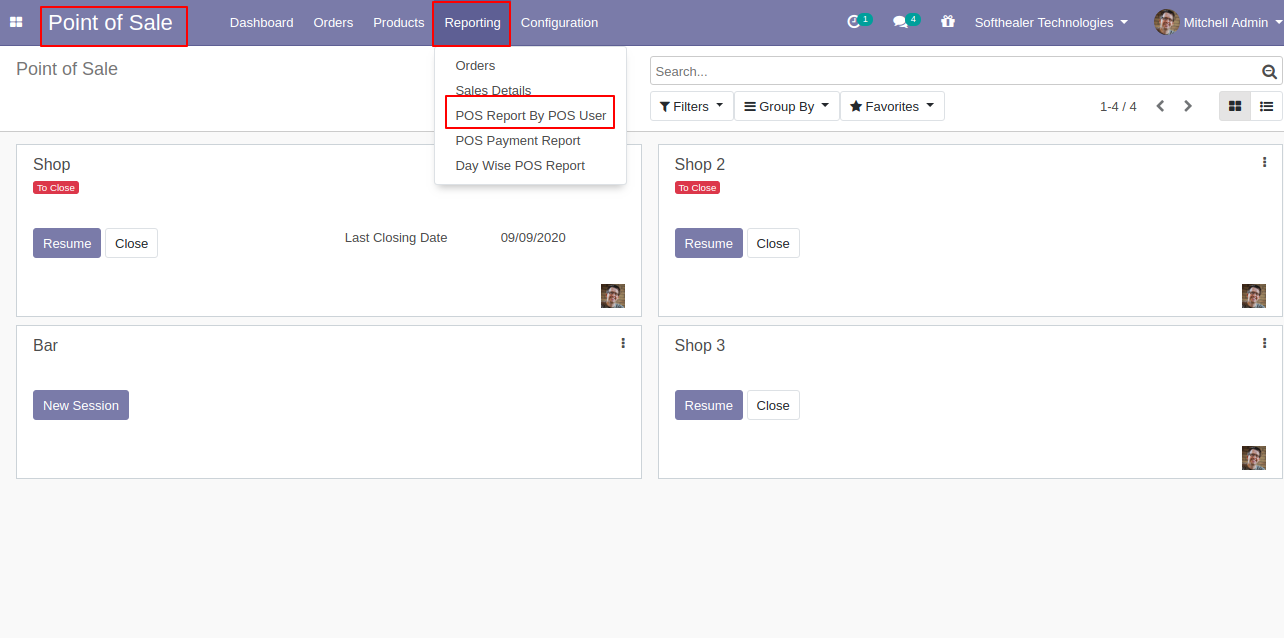
POS order report by sales person.
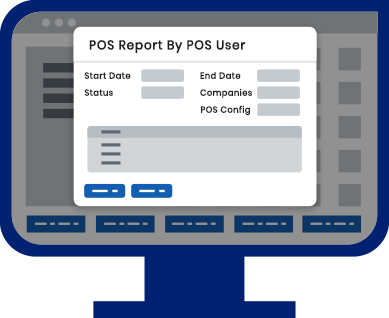
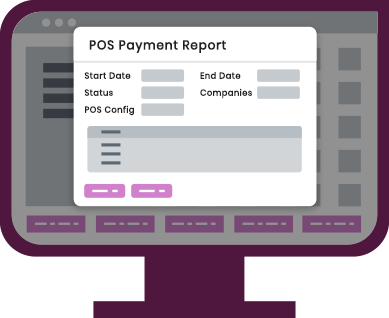
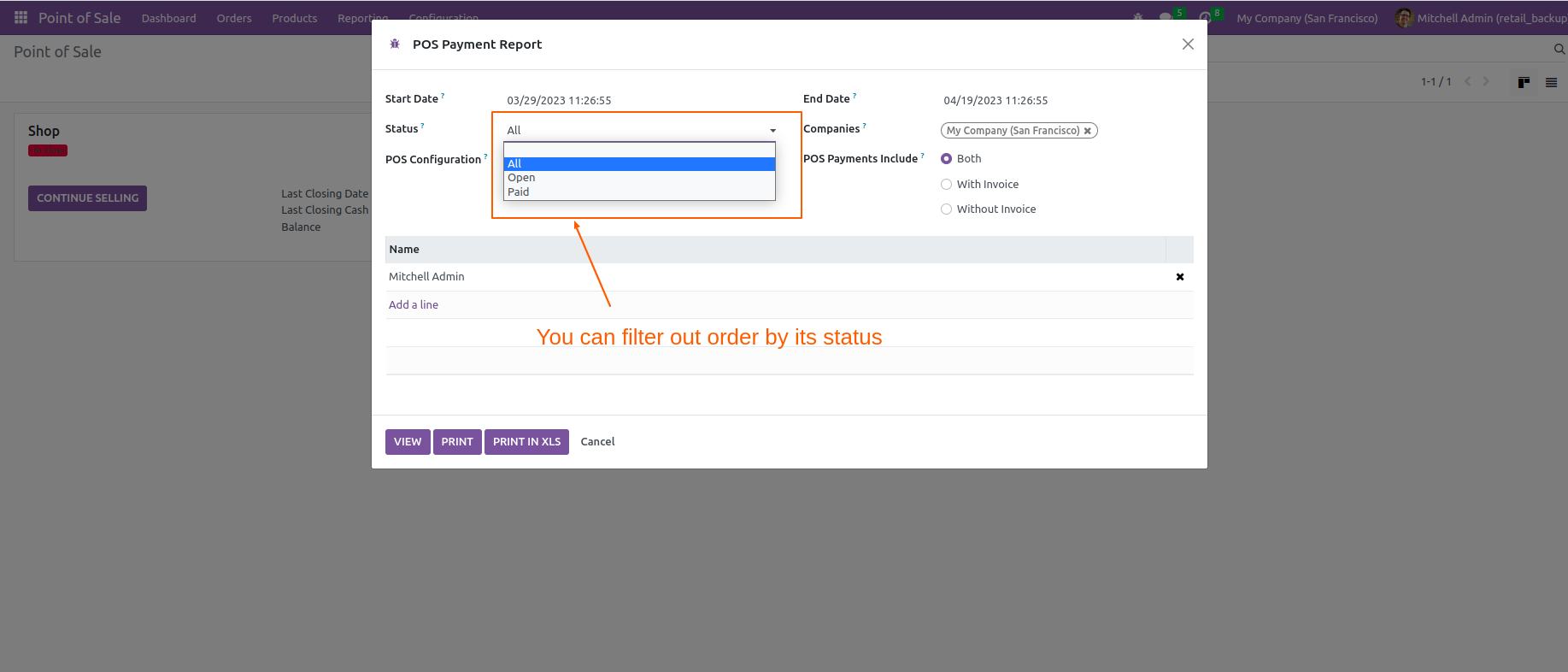
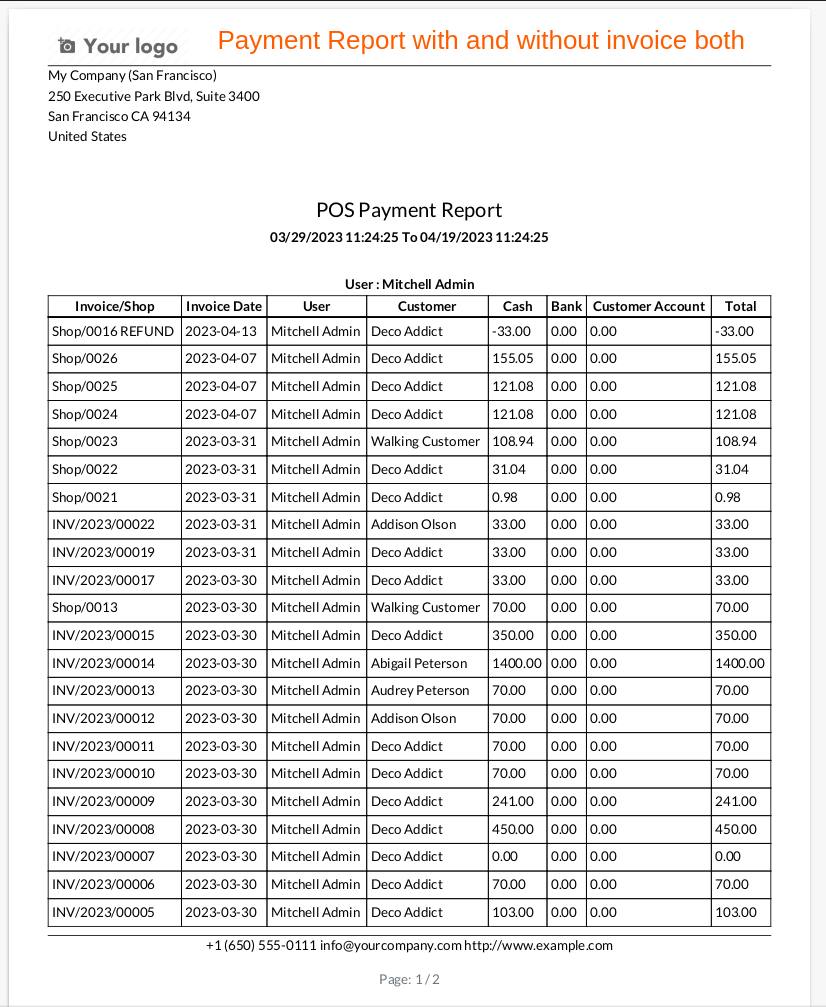
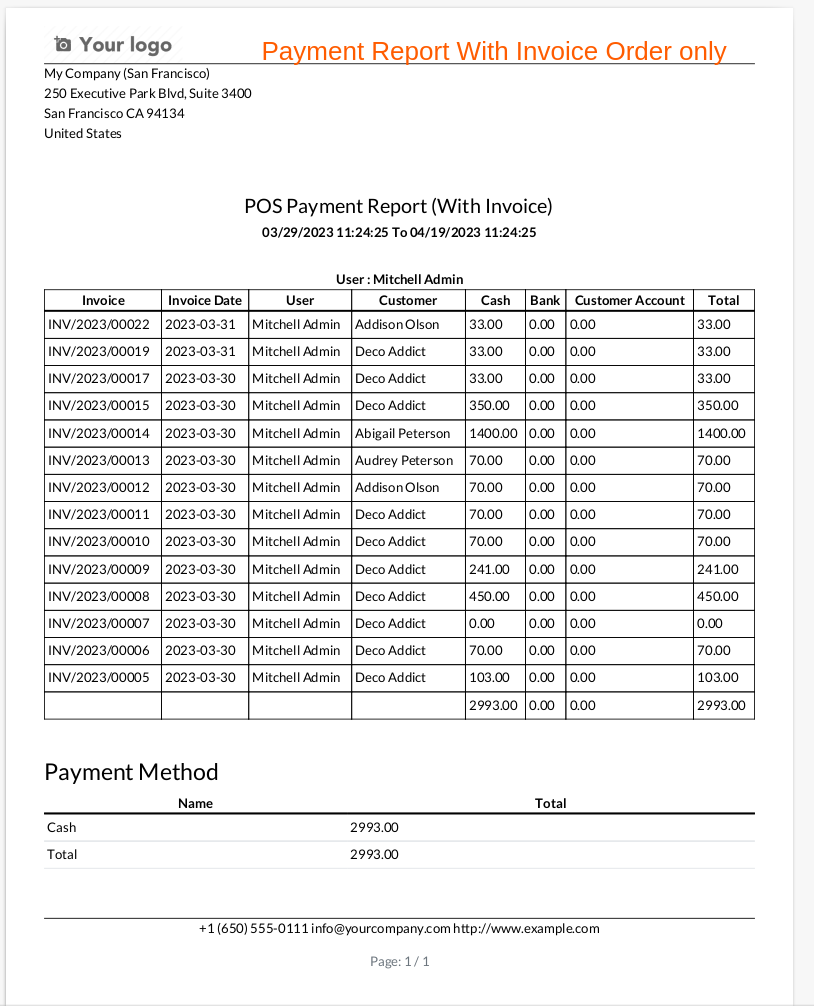
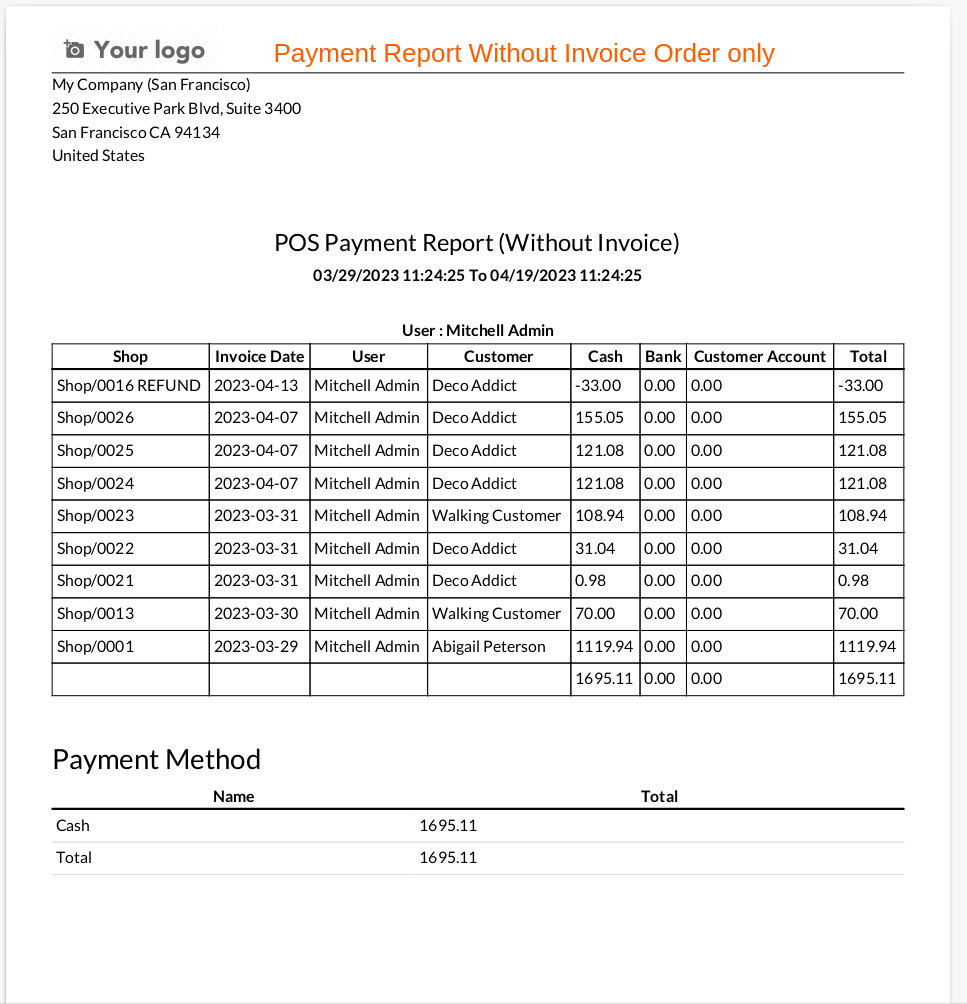
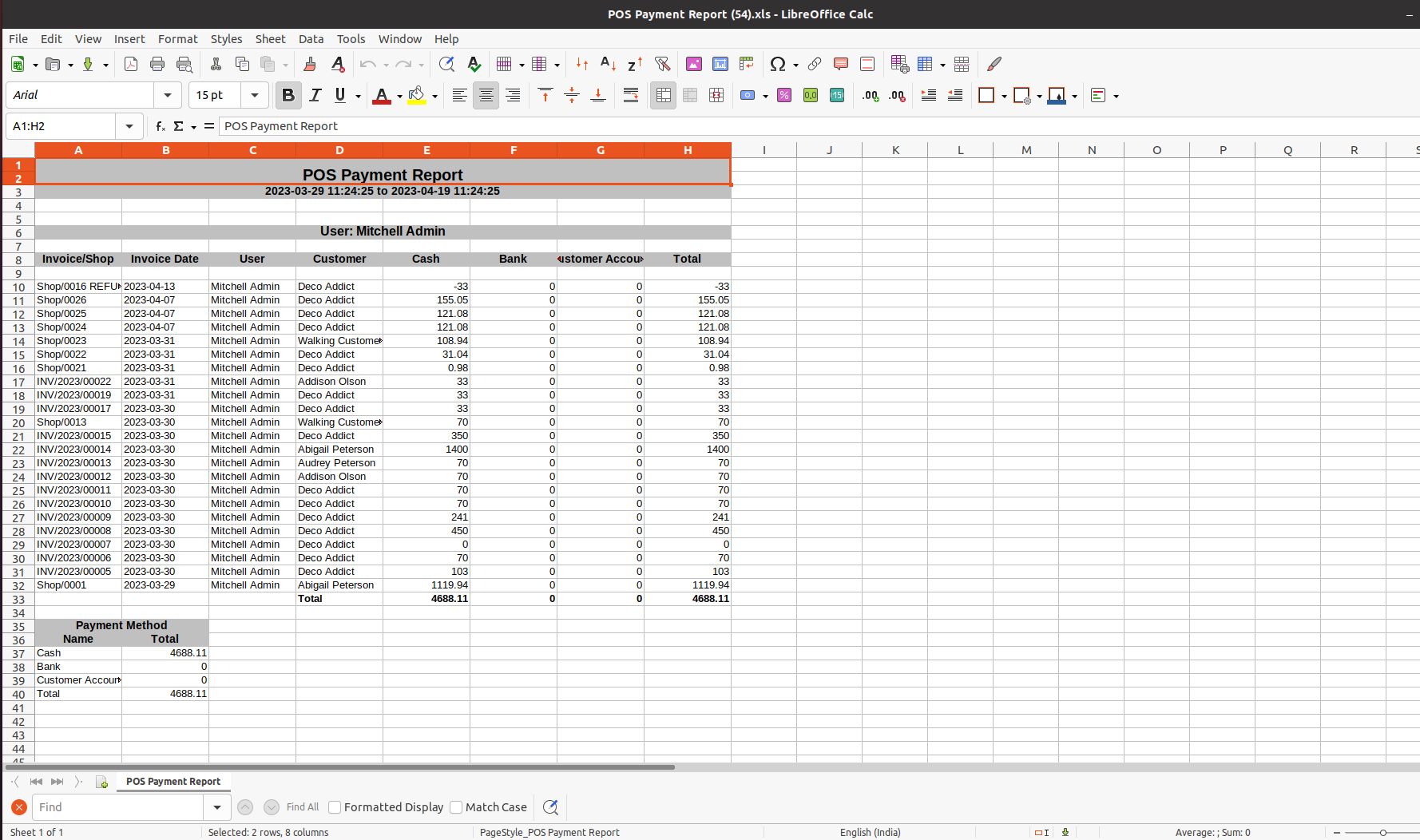
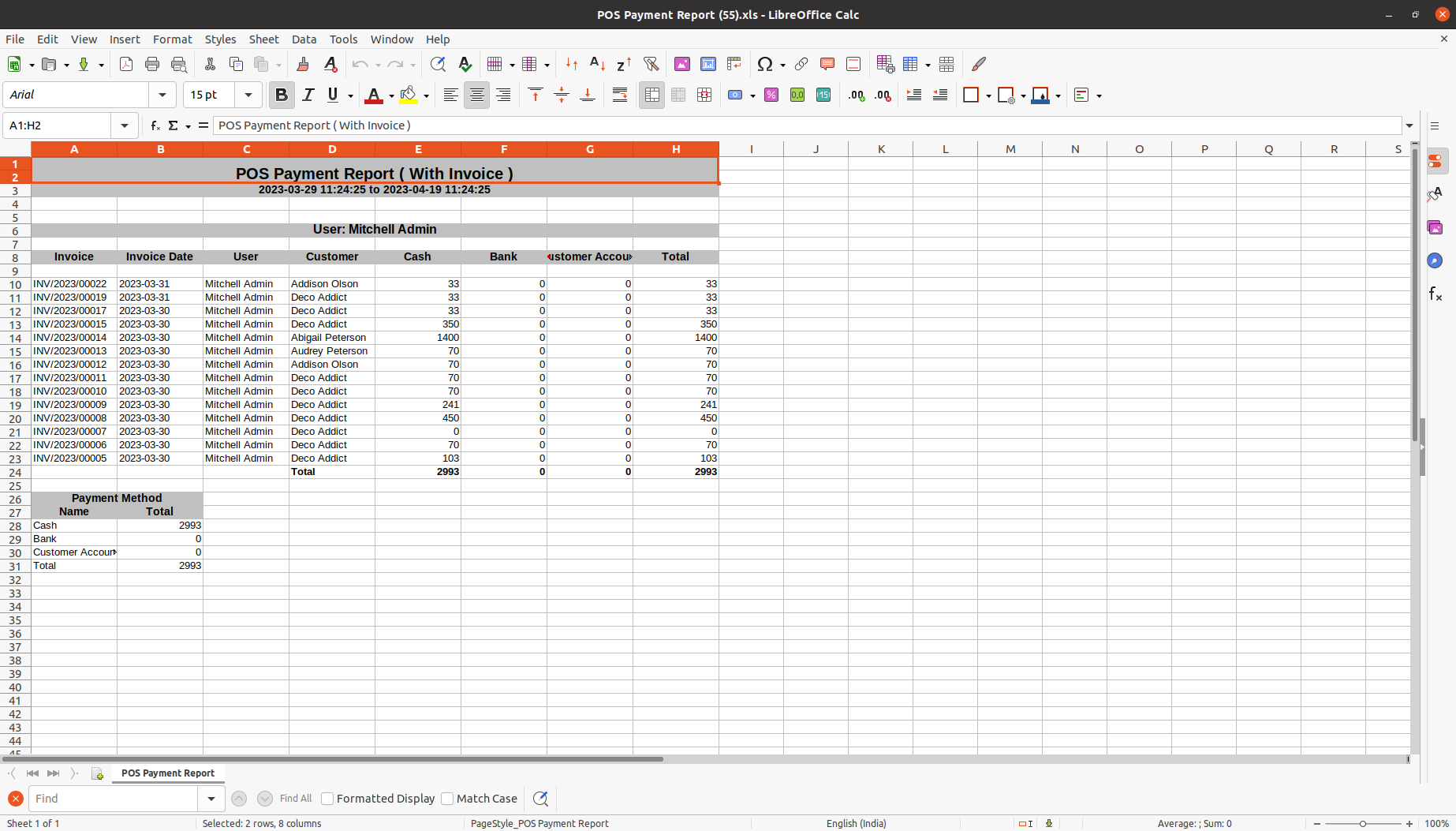
POS payment report.
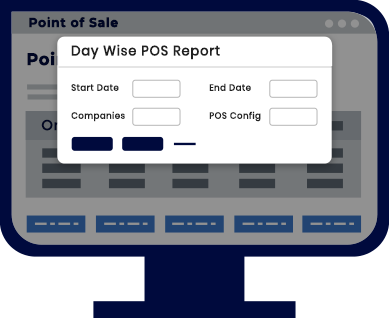
POS day wise product sale report.
Customer Maximum Discount
Partial Payment.
Frontend cancel.
Create a purchase order from the pos.
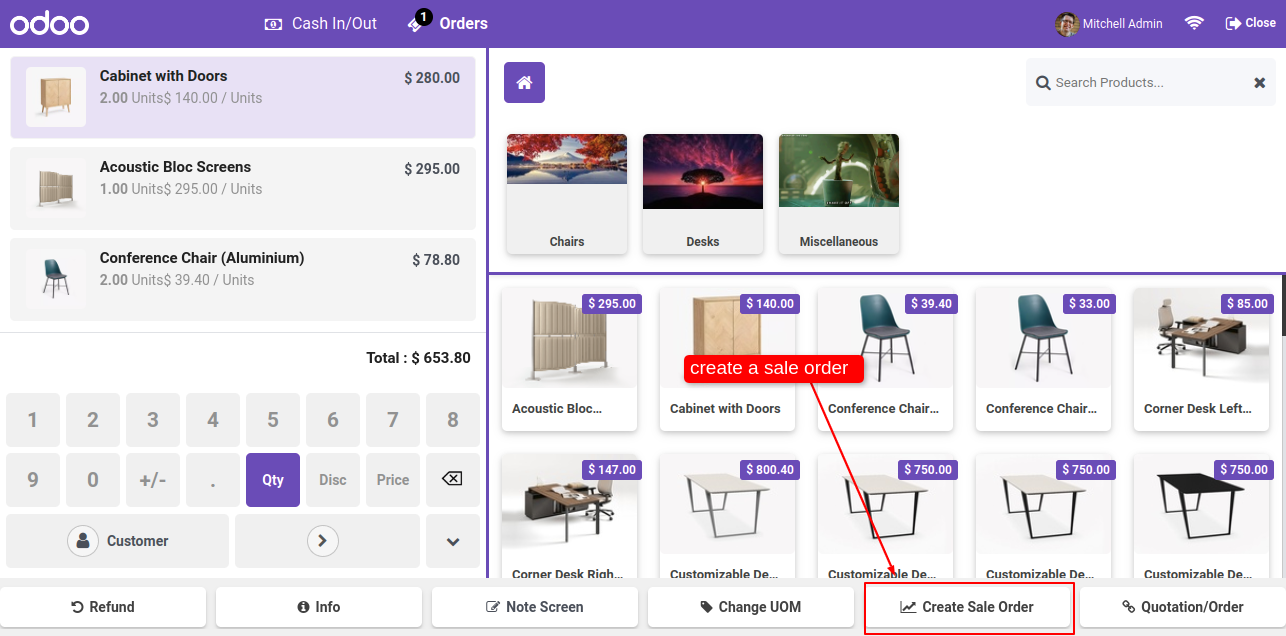
Easy to create sale order/sale quotation from the pos order.
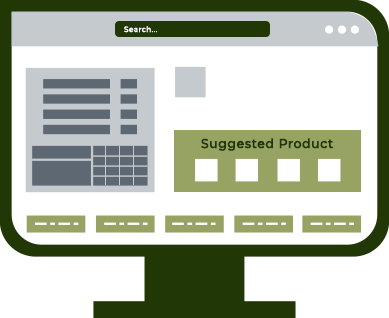
Easy to enable/disable feature 'Product Suggestion in POS'
Define suggestion related product in POS.
Easy to add chatter in the POS at the portal.
Scheduled activity inside the chatter.
Set auto-lock pos screen.
We provide a carry bag option in the POS orders.
POS users can take the carry bag charges according to bags.
Here provide a separate option to enable "Enable Bag Charges" to add a carry bag to the POS session.
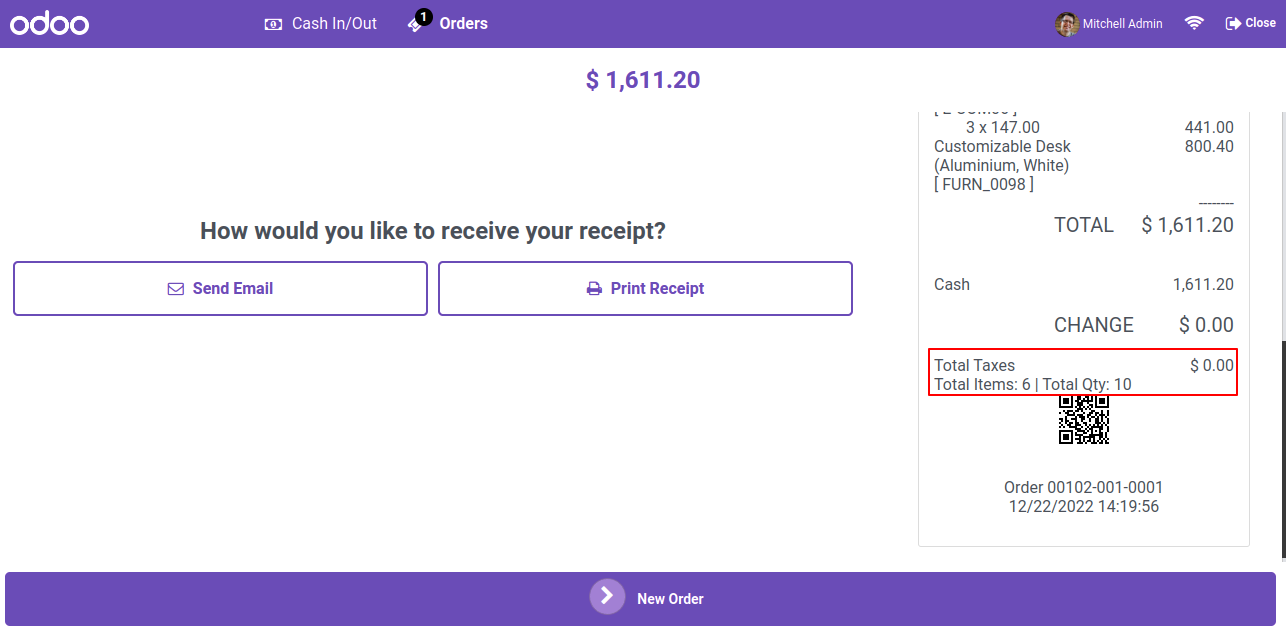
Display the total number of items added in the POS cart as well in receipt.
Easy to reprint orders.
Create different keyboard shortcuts for POS.
POS users can work faster using shortcuts.
Just enable the "Enable Shortcut Key" group to create and use the shortcut keys.
Apply a different pricelist for the different order line.
Set multiple barcodes for a single product in POS.
Easy to add products in the cart using barcode.
Generates an alert popup for wrong/unknown barcode.
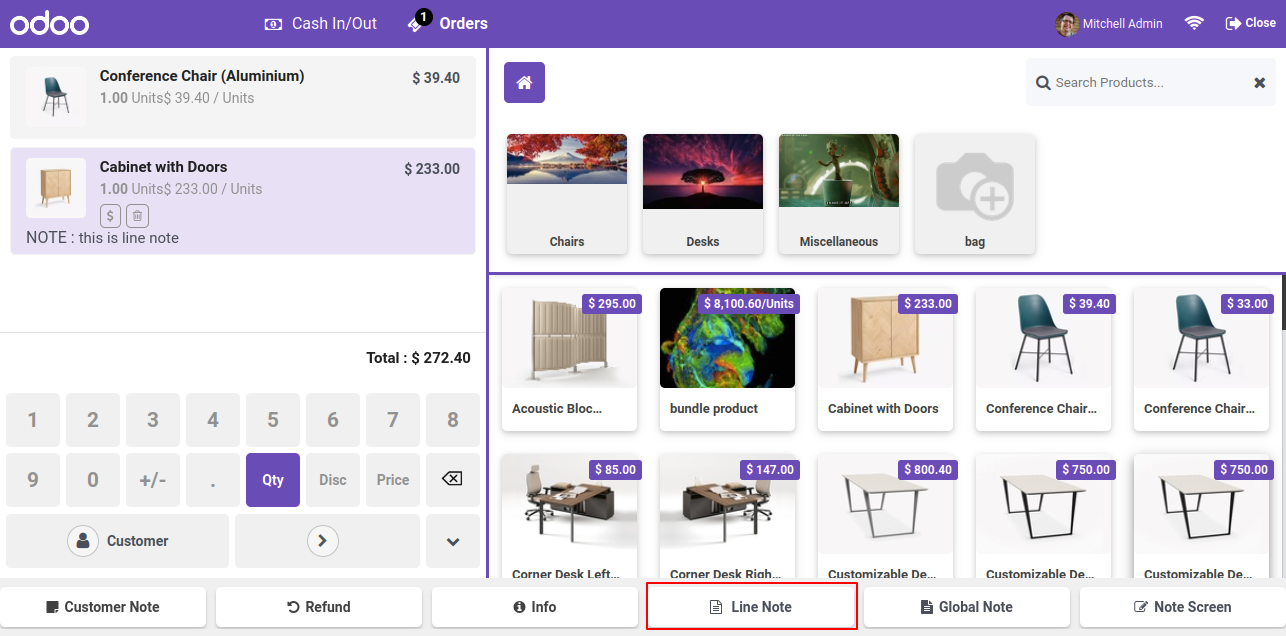
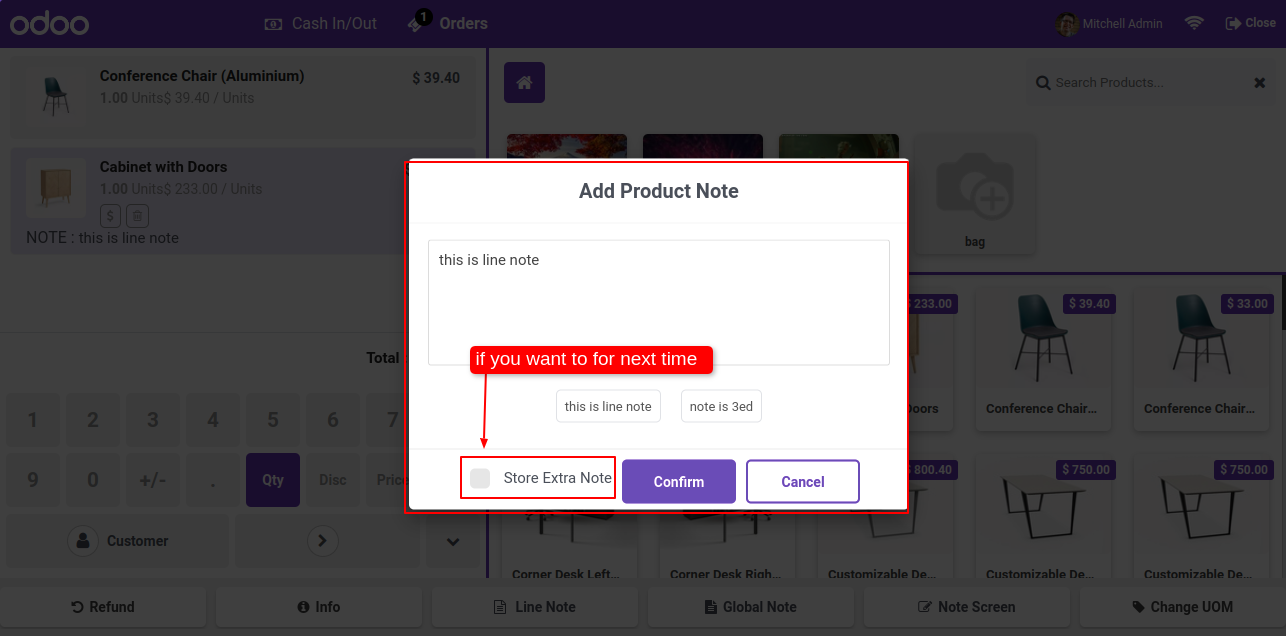
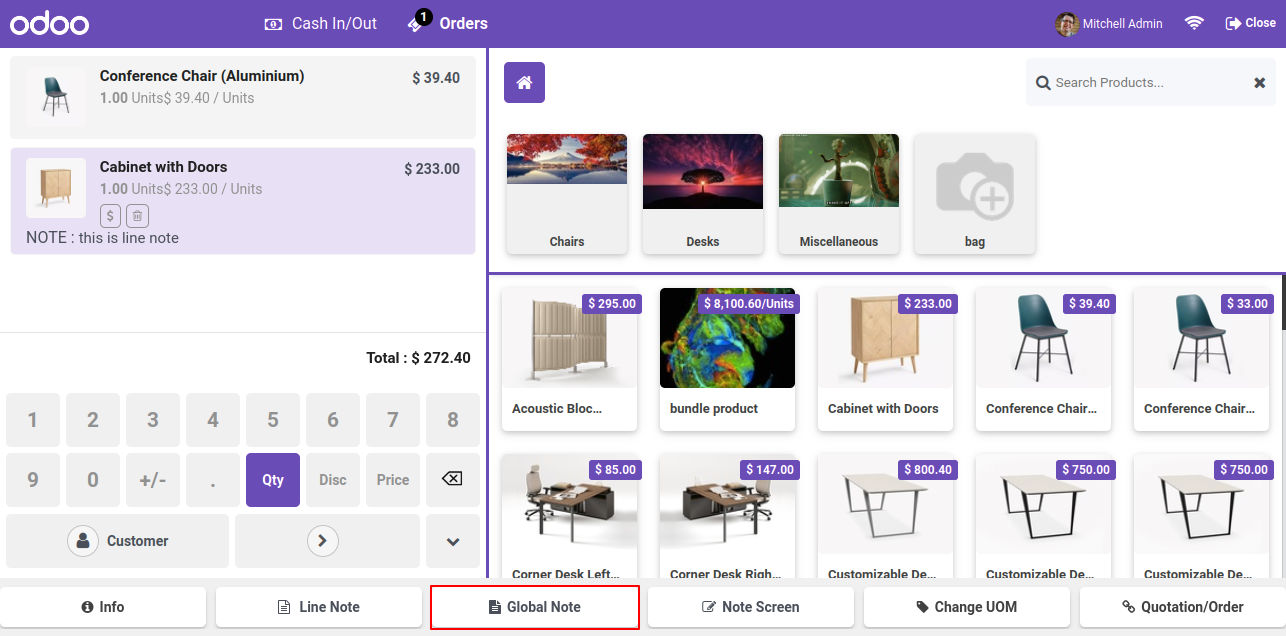
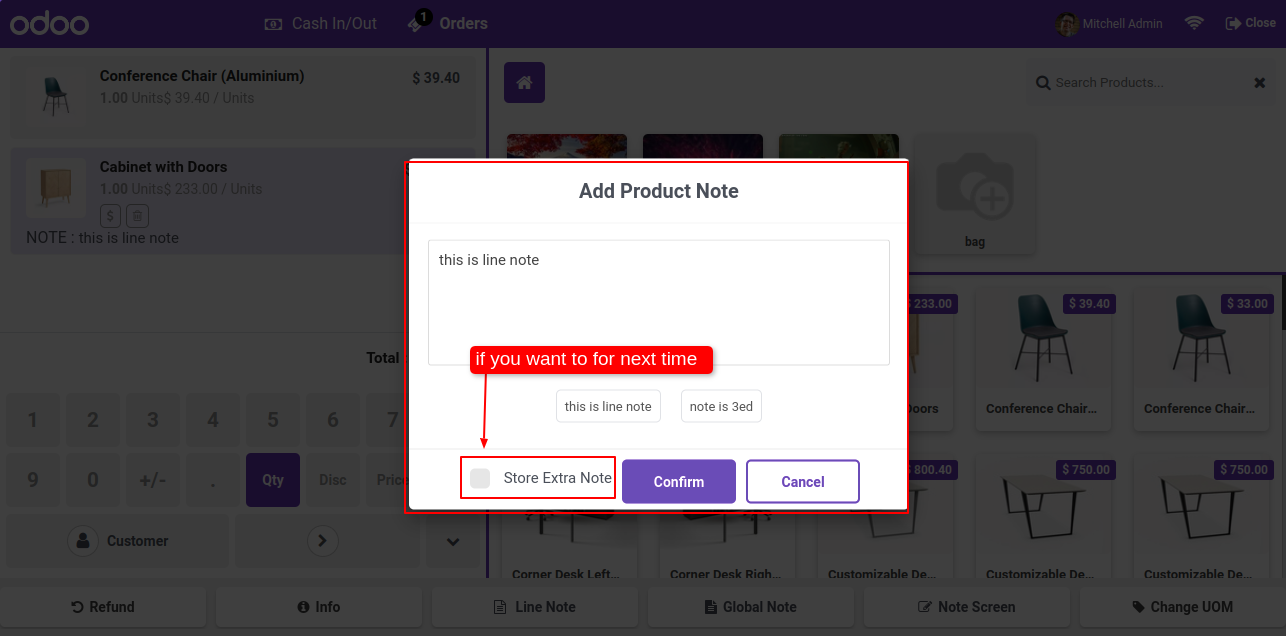
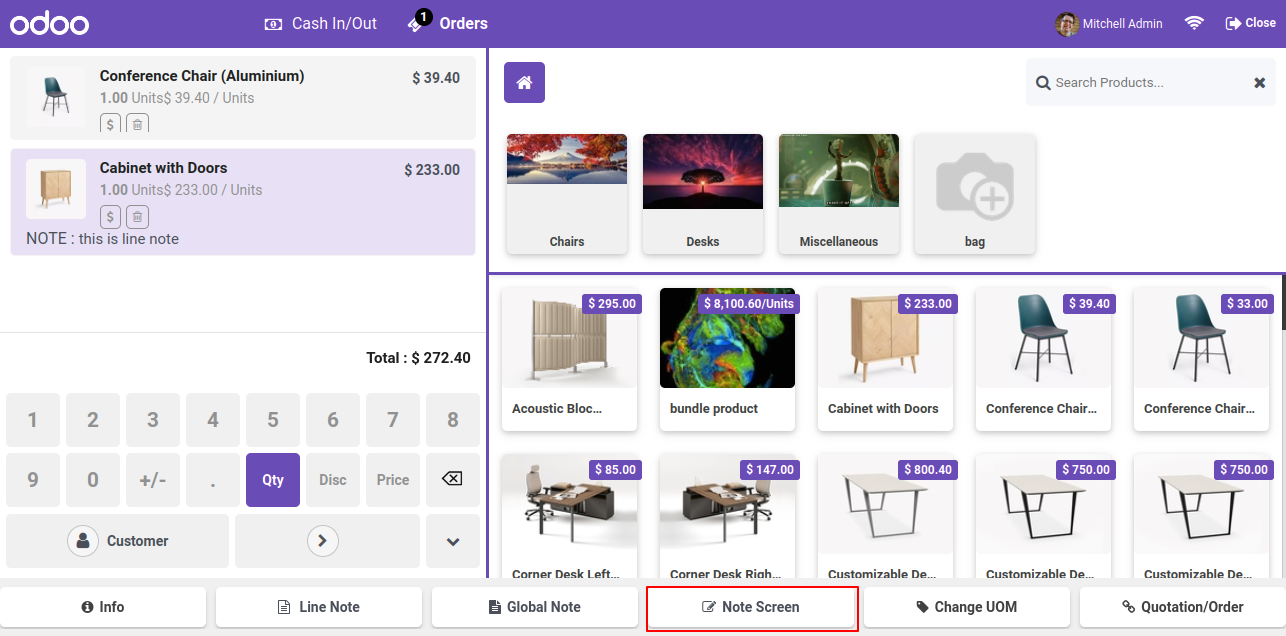
Add POS order notes and POS order line notes.
Global Note: This configuration is useful for define global notes in order.
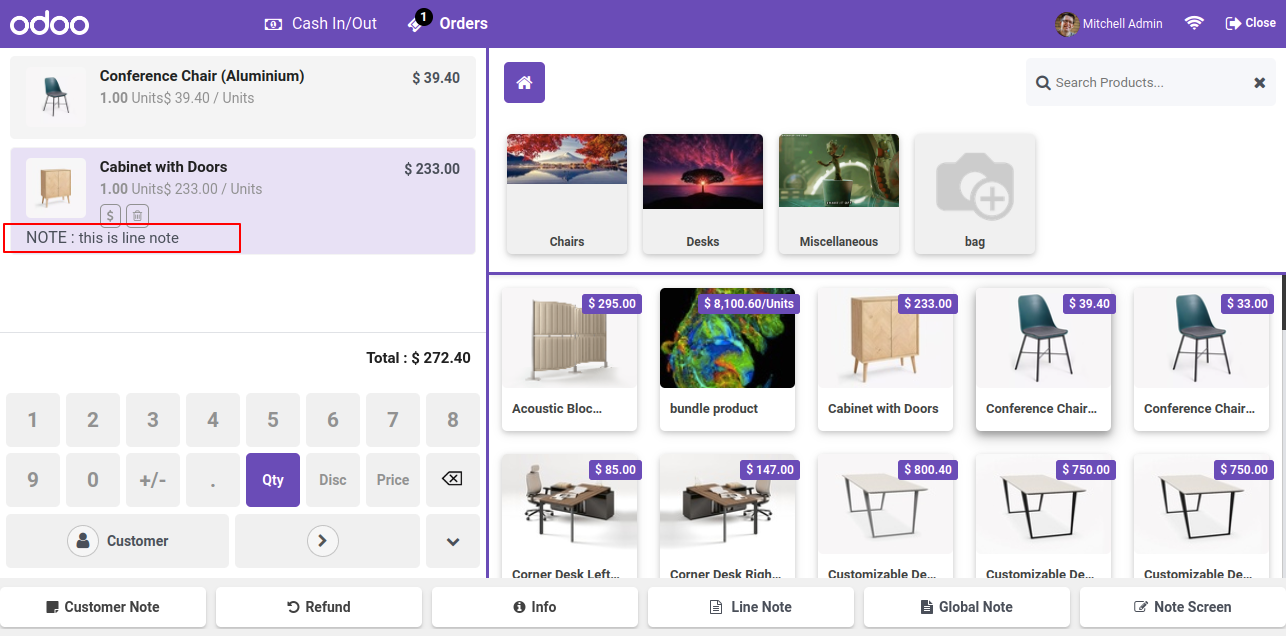
Order Line Note: This configuration is useful for define notes in each order line in pos cart.
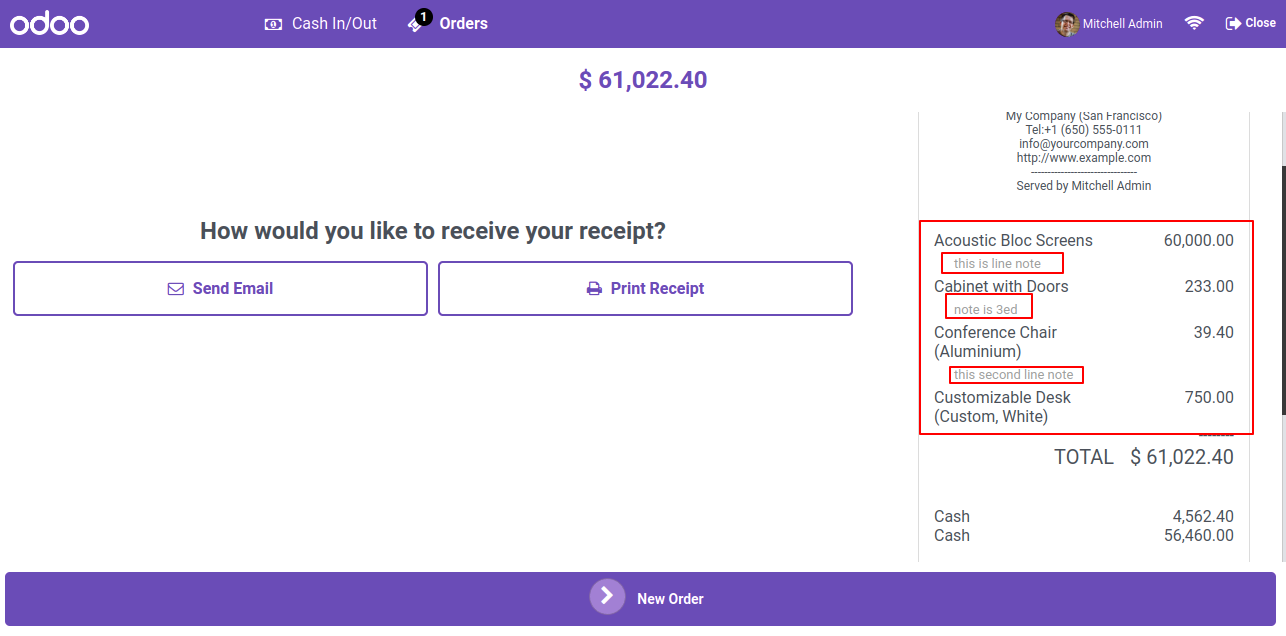
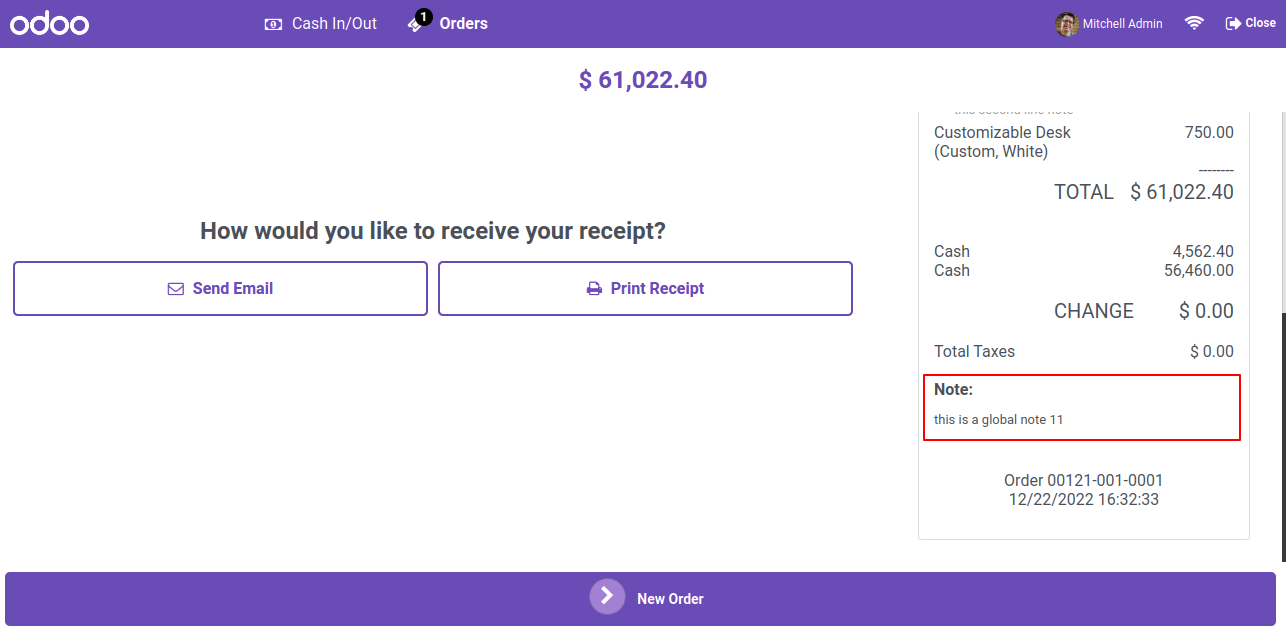
Display global notes and line notes in pos receipts.
Order list on POS Main screen and restaurant order list.
Search Order by date, name and number also.
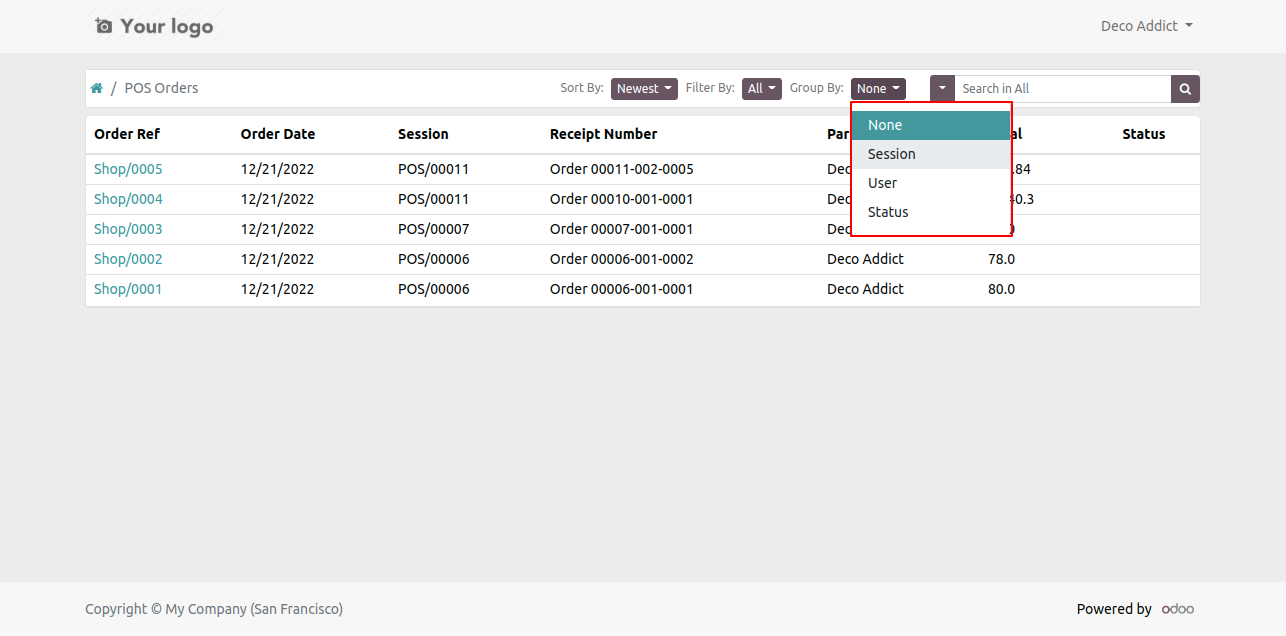
Display orders session wise with current session and number of previous sessions, also day wise like last number of days.
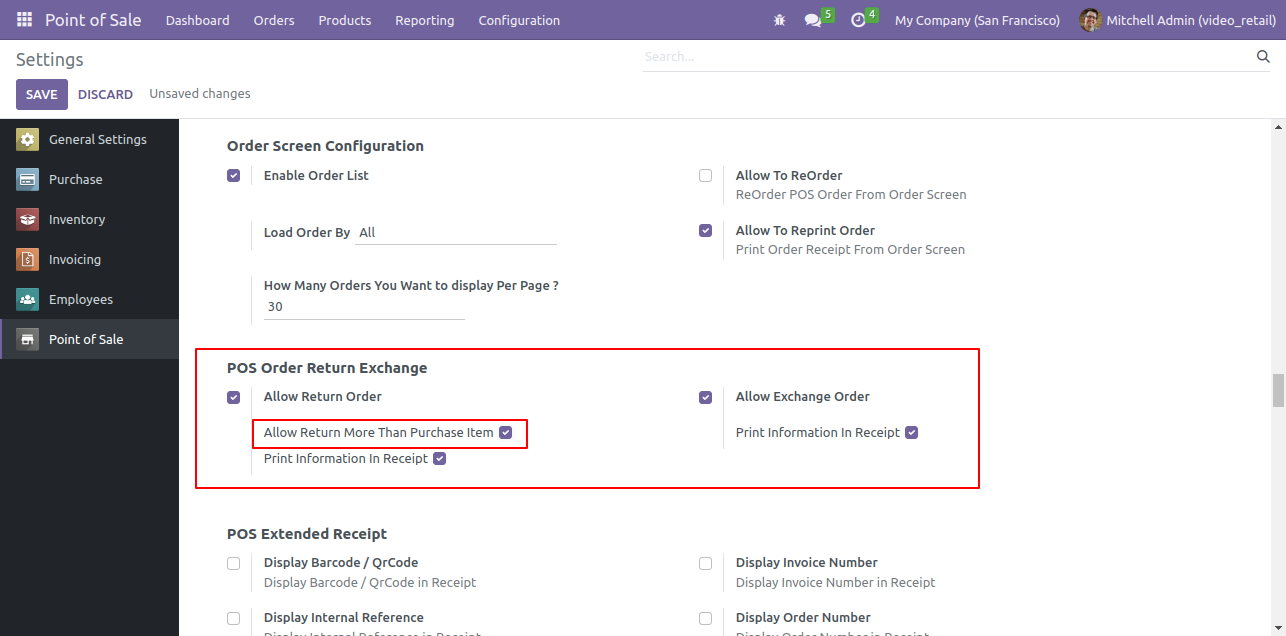
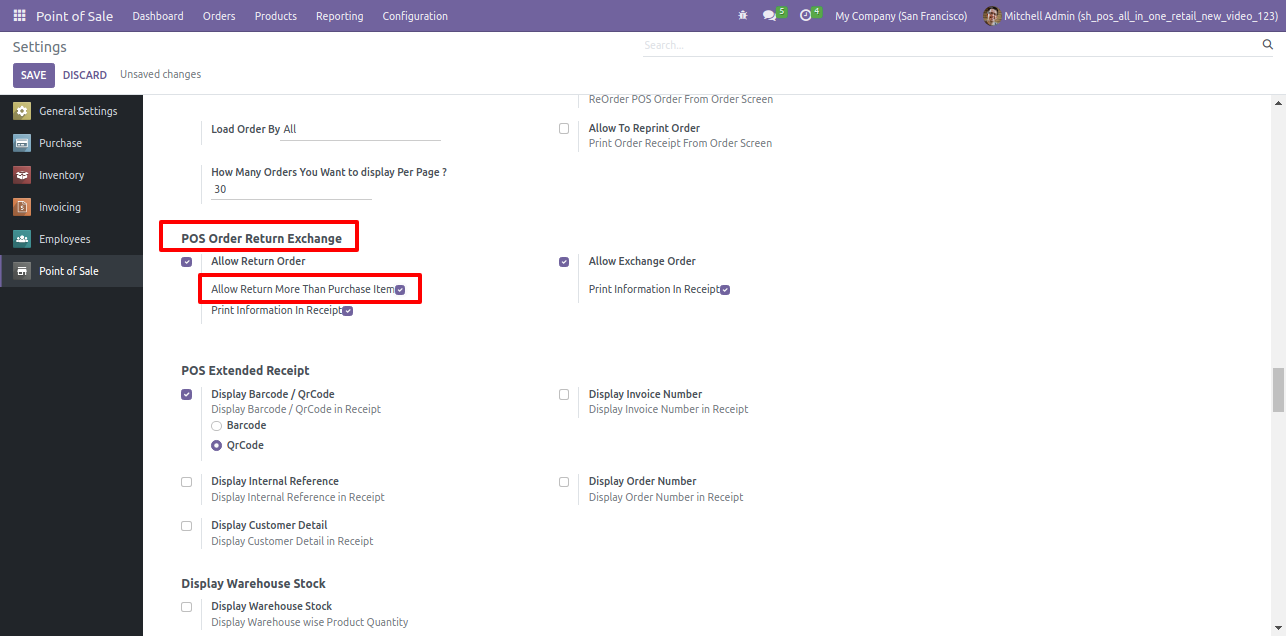
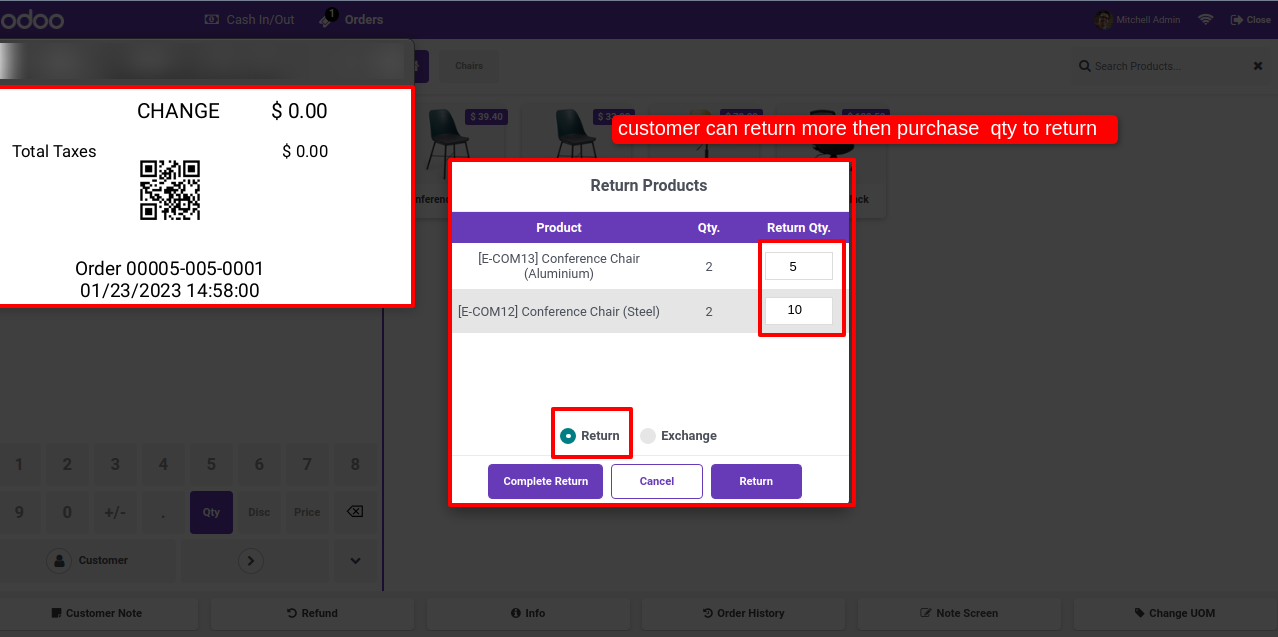
User can be return products more than the order number. (* You have to enable 'Allow Return More Than Purchase Item').
Easy to print return and exchange order information on order receipts.
Easy to manage return and exchange orders from the backend side.
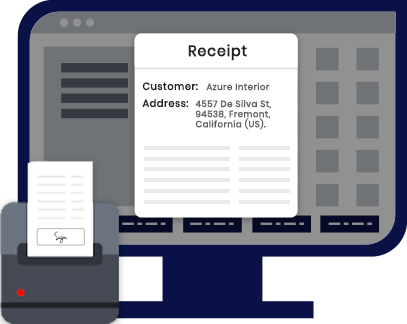
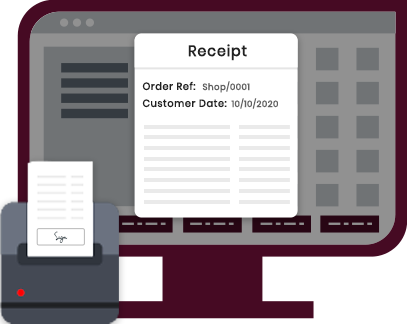
Easy to take customer signature on the POS order with the customer name and date.
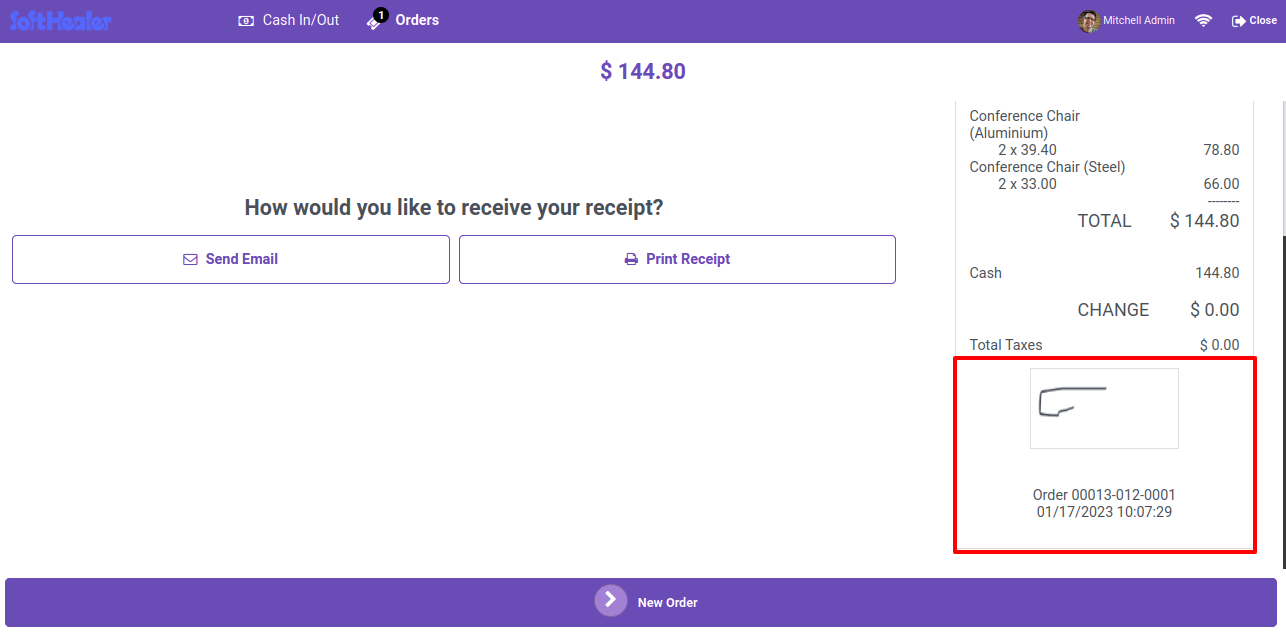
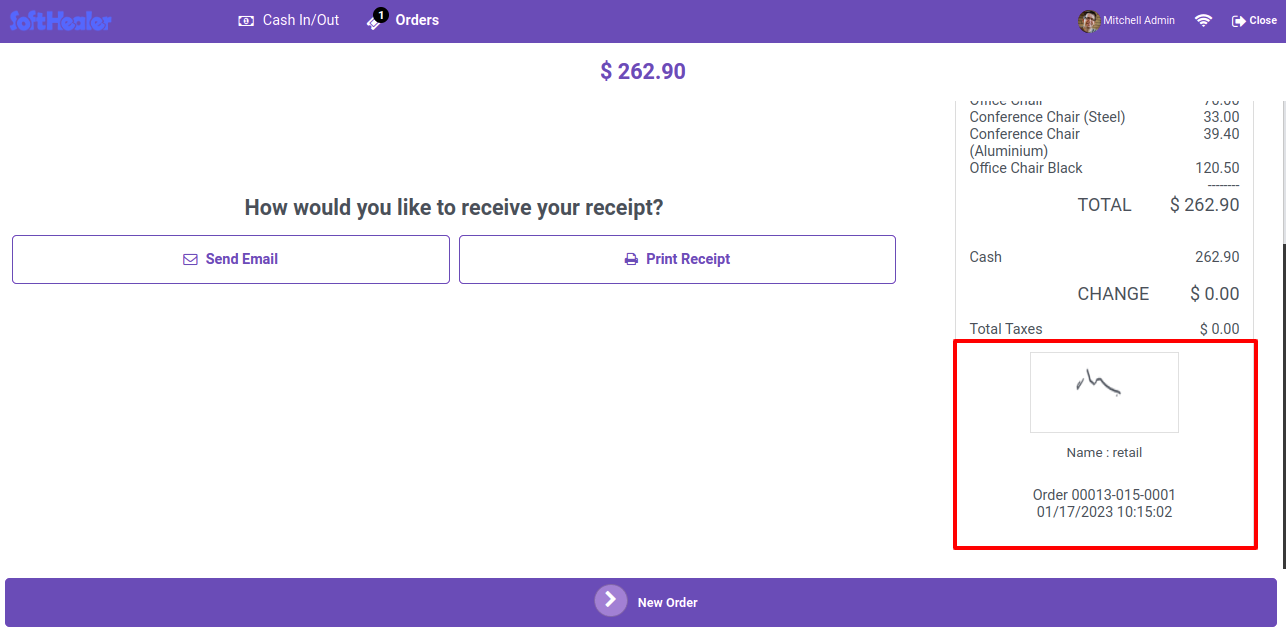
Customer signature will print on receipt as well with name and date.
Easy to enable or disable this signature features.
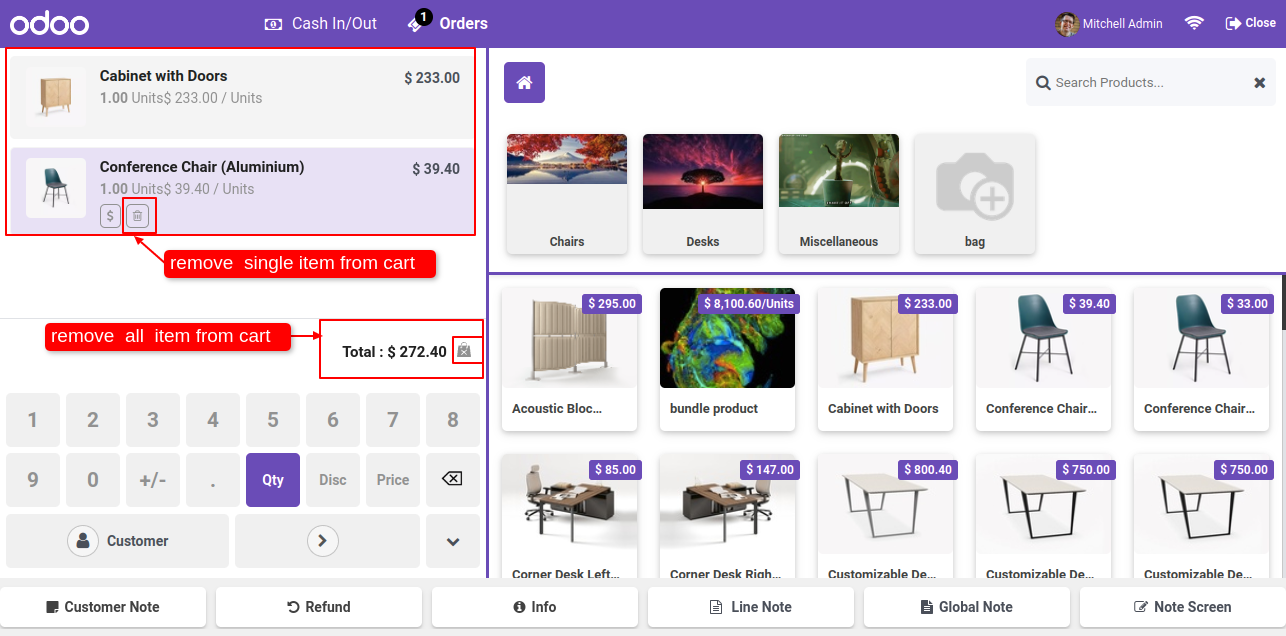
Clear the cart on the single click. Remove products one by one.
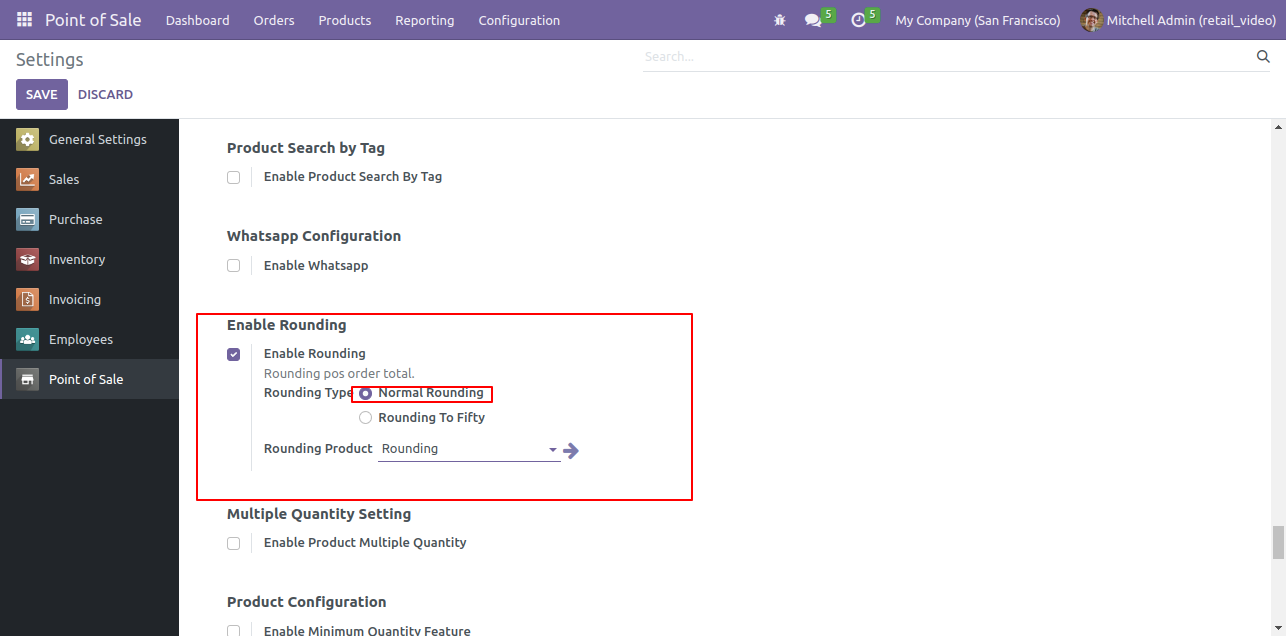
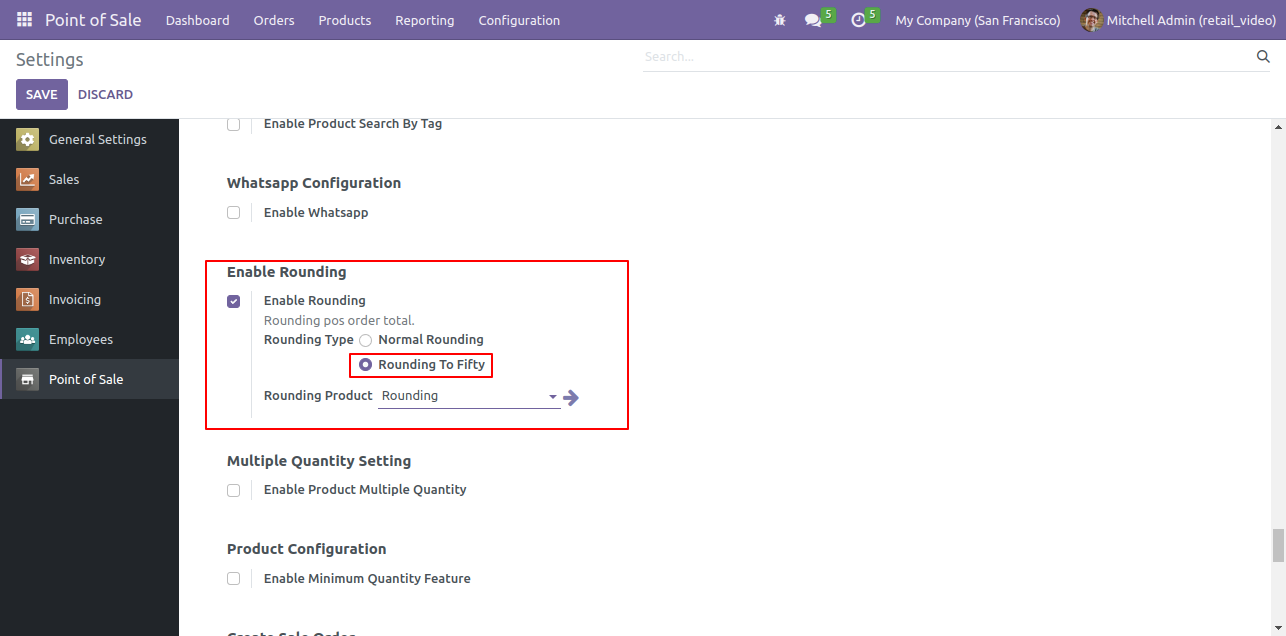
Make a rounding amount total with 2 options, "Normal Rounding" & "Rounding To Fifty".
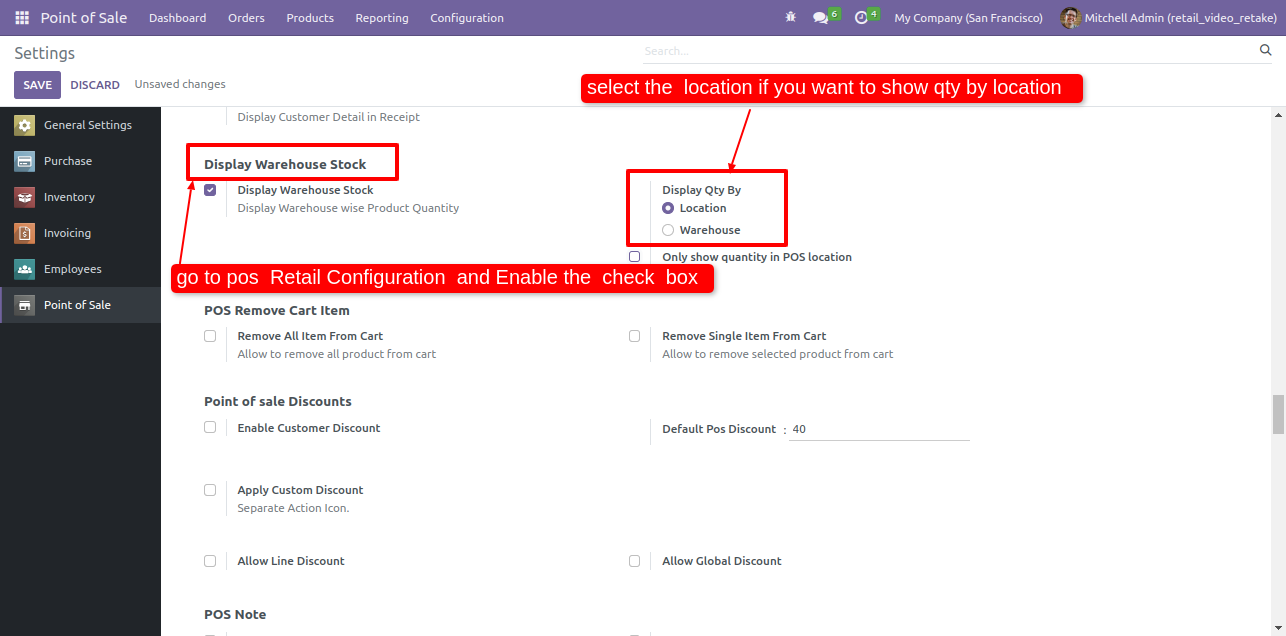
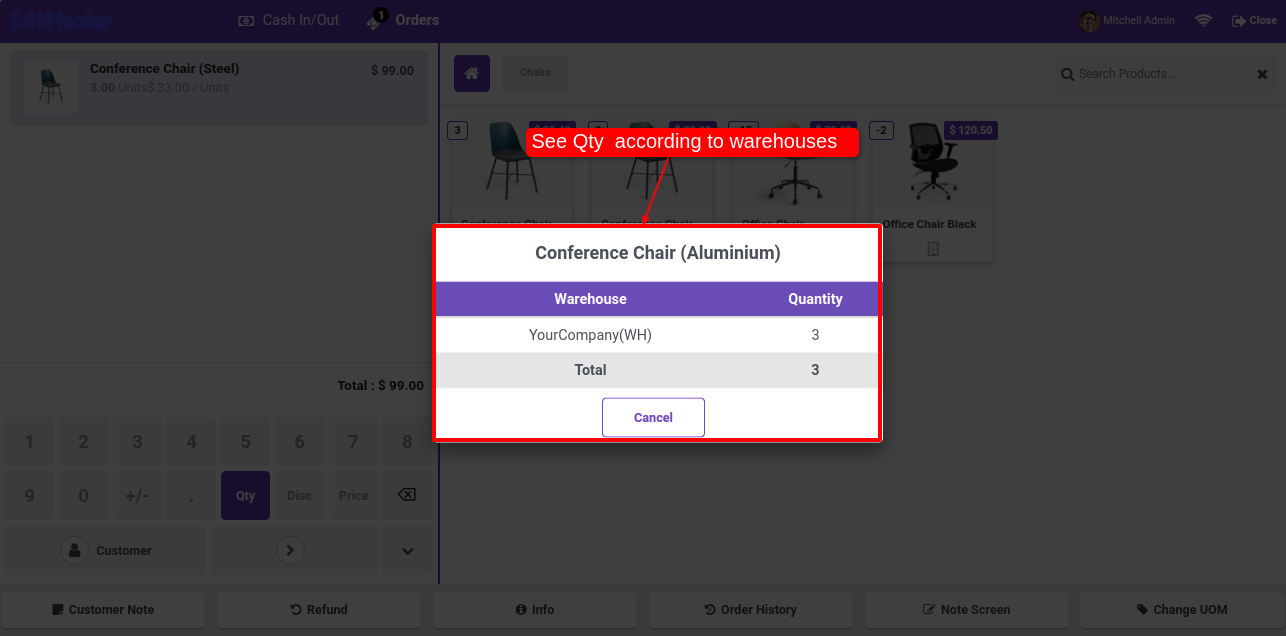
Display product stocks using the selected location wise or warehouse.
POS Information in Message - It will Display Only POS Information in Message.
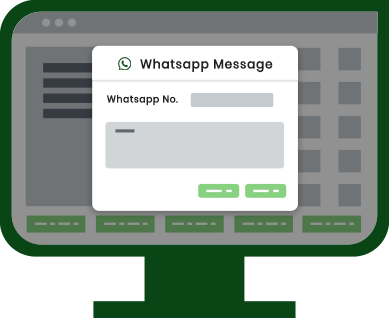
Send By WhatsApp - If you want to change anything in the message, also you can select more than one customer.
Send By WhatsApp Direct - If you don't want to change anything in message. (For only one customer).
Is Signature Part In Receipt: If you enable this feature then you can print the signature in receipt.
Easy to load product template in POS Screen.
Easily load different products template/pack/package/plan.
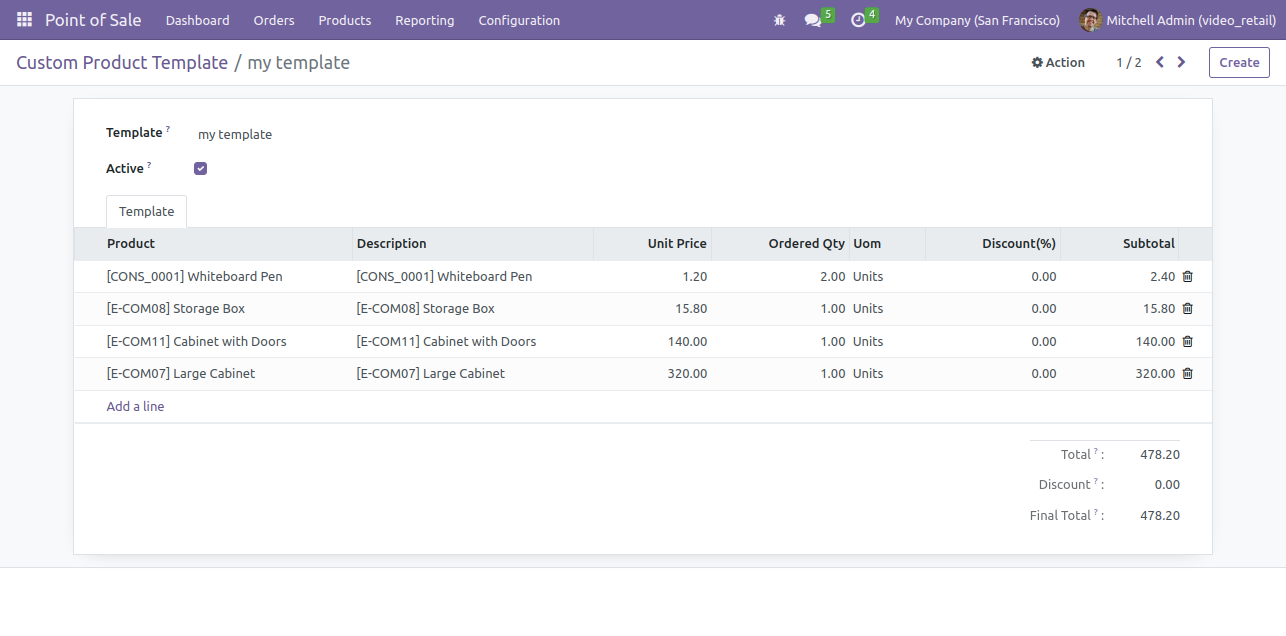
Easy to create a product template with different products and product unit price, qty, discount, etc.
Easy to import point of sale product using CSV/Excel.
Easy to import bulk POS order.
You can import product using the name, reference number & barcode.
If there is no customer created than it will create a customer.
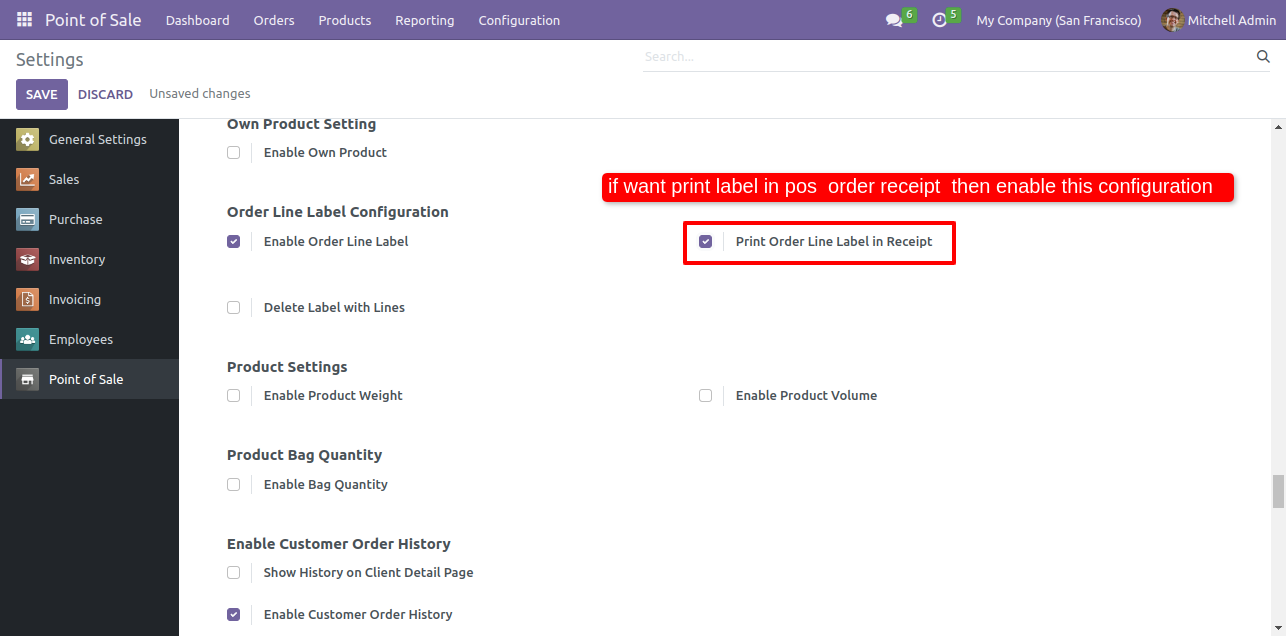
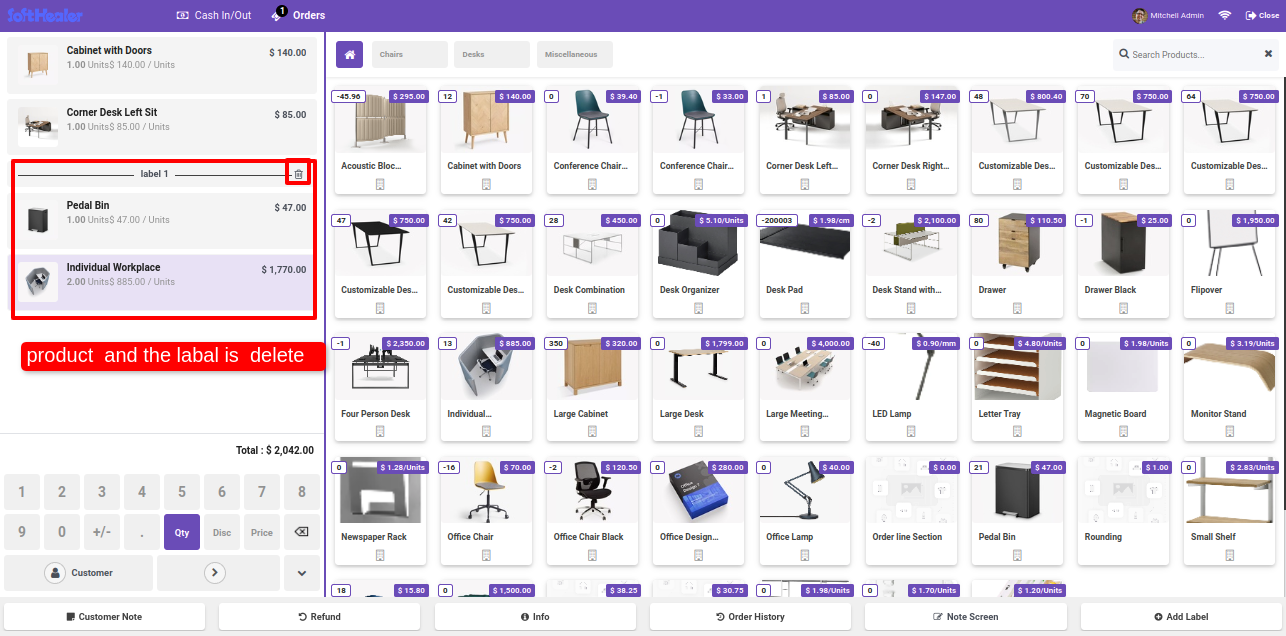
Enable Order Line Label: If you enable this option then you can add a label in the order line otherwise you can't add a label.
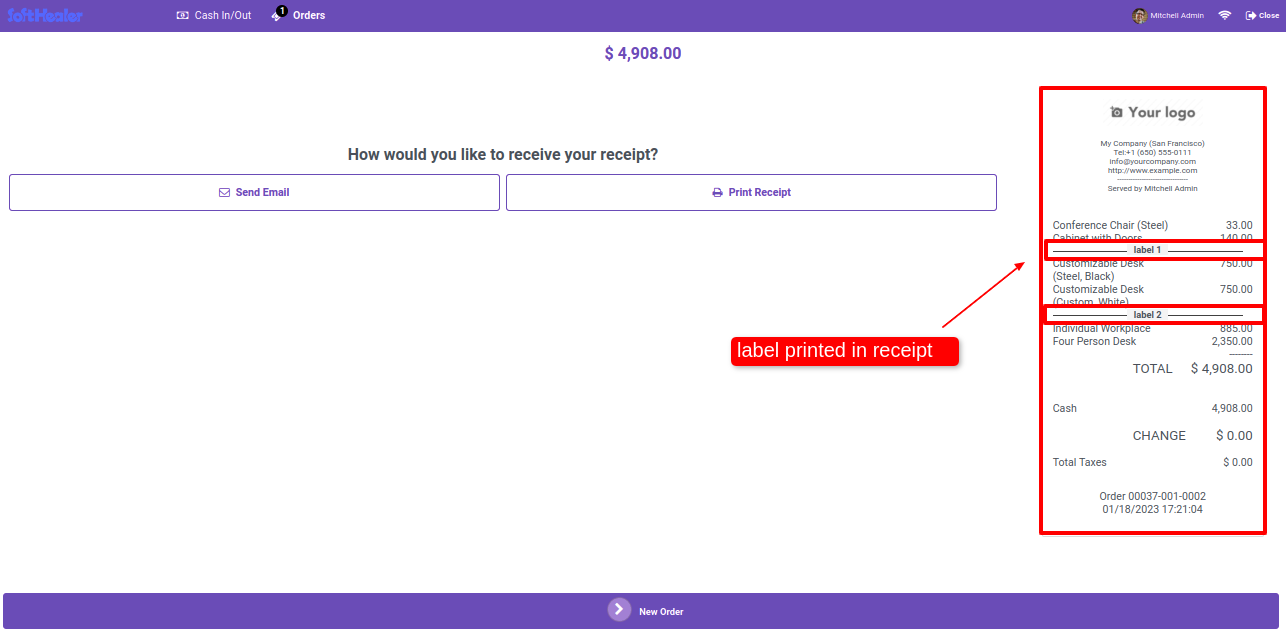
Print Order Line Label In Receipt: If you enable this option then you can print POS receipts with order line labels.
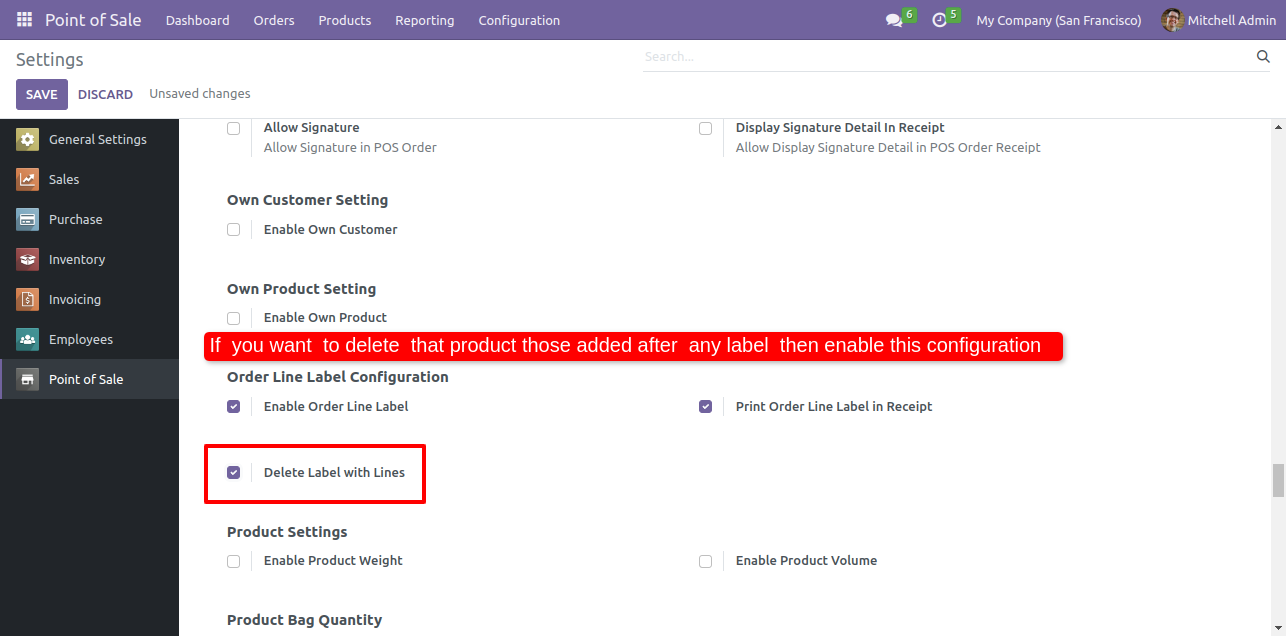
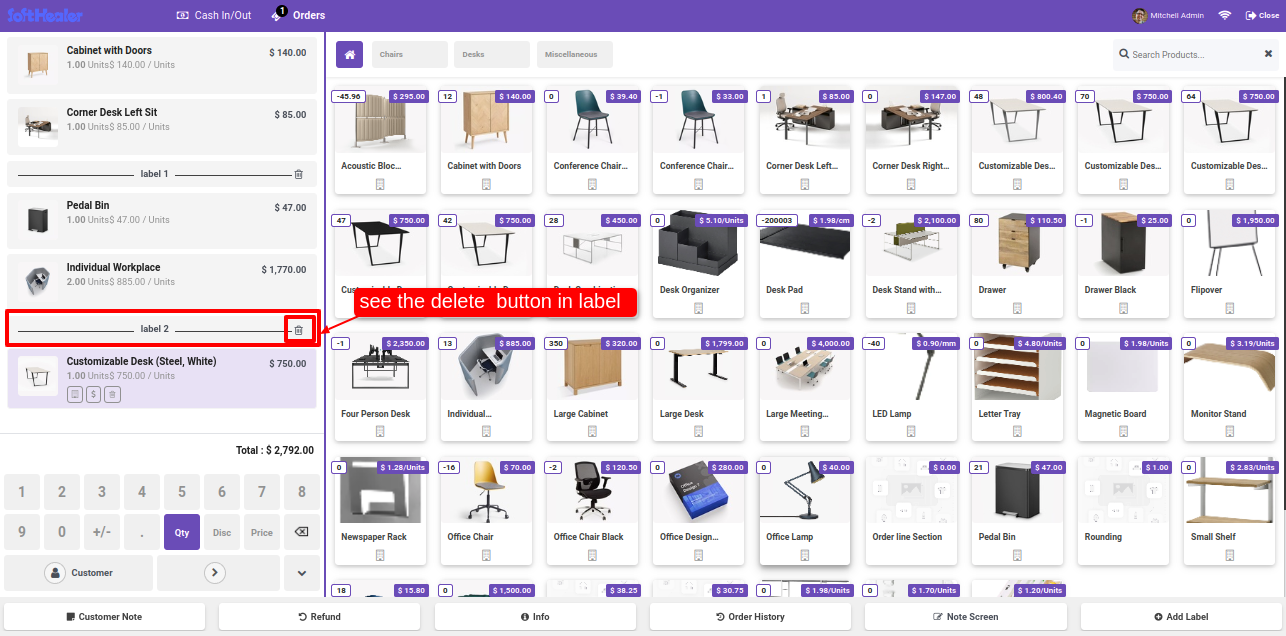
Delete Label With Lines: Here if you enable this option then you can delete product labels with order lines.
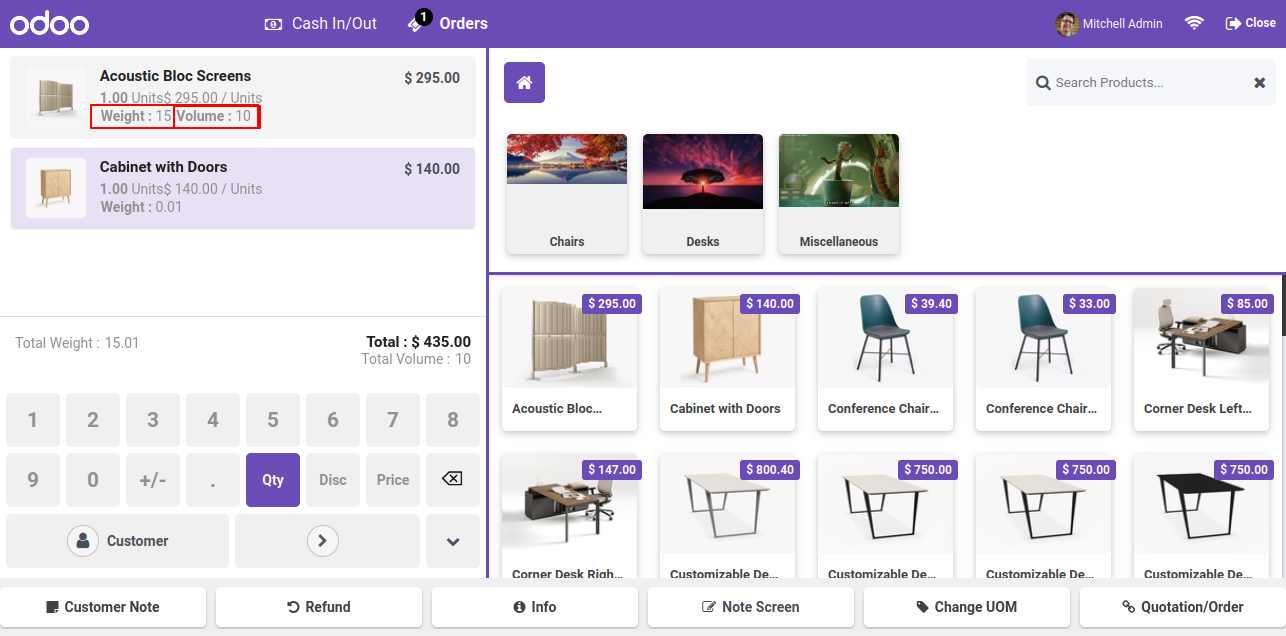
Easy to know the total weight and volume of the point of sale order products.
You can display the product's total weight and volume in the POS cart.
You can display the individual product's weight and volume as well as total weight and volume at the end.
When you select a product, the weight and volume will auto-fill.
You can see the weight and volume in the backend also.
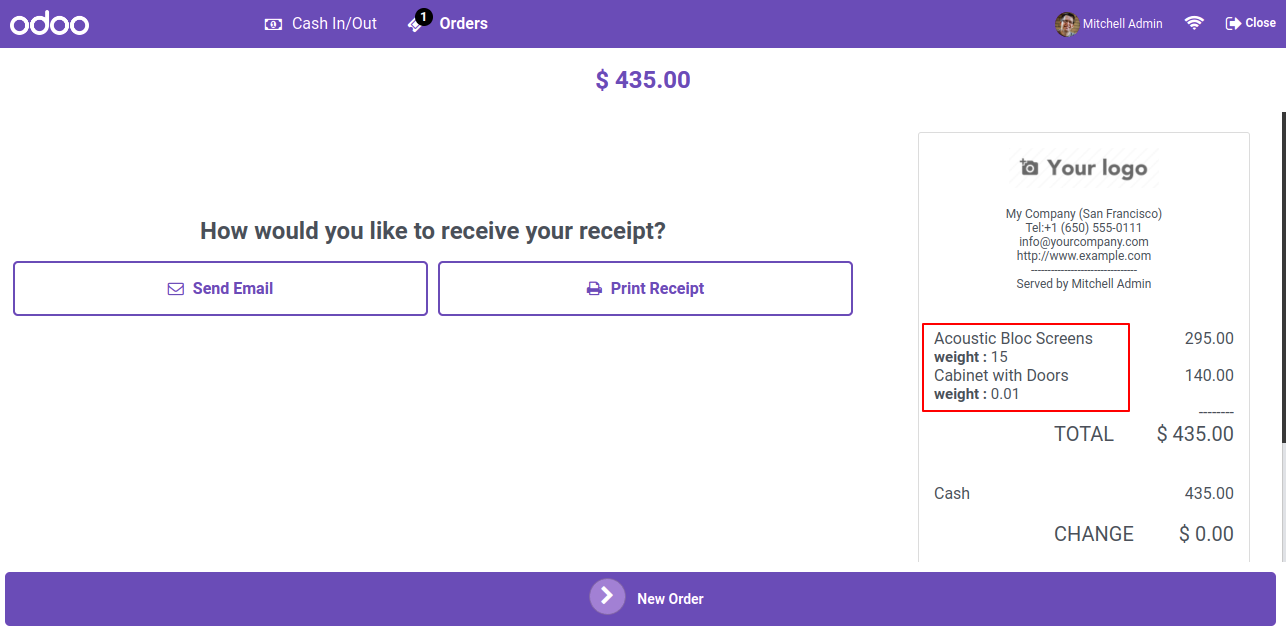
You can print product weight and volume in the receipts.
POS Manager Validation enhances security at the point of sale.
You can set barcodes, passwords or PINs as validation methods.
You can select multiple managers to whom you want to give authorized access.
You can validate Changes in price by choosing the validation method.
You can validate Payments and Payment methods by choosing the validation method.
You can use the virtual keyboard to validate all operations.
You can quickly select product & add it to the cart, close the screen, and change the cashier (available when employee login is enabled).
Easily set expiration dates for products tracked by lot number.
Get alerts for products that are about to expire or already expired.
Keep track of expiration dates with lot.
Import discounts, payment methods, and payment amounts directly from Excel or CSV files while creating POS orders.
Automatically set imported POS orders to New, Paid, or Invoice state based on payment details & state selection during import.
Manage customer advance payments and generate invoices directly from the POS for streamlined payment processing. new_tag
Quickly search and add products in POS using package names or package barcodes. new_tag
Quickly access Category Selection, Cash In/Out, Create Product, Refund Order, and Select Pricelist using keyboard shortcuts in POS. new_tag

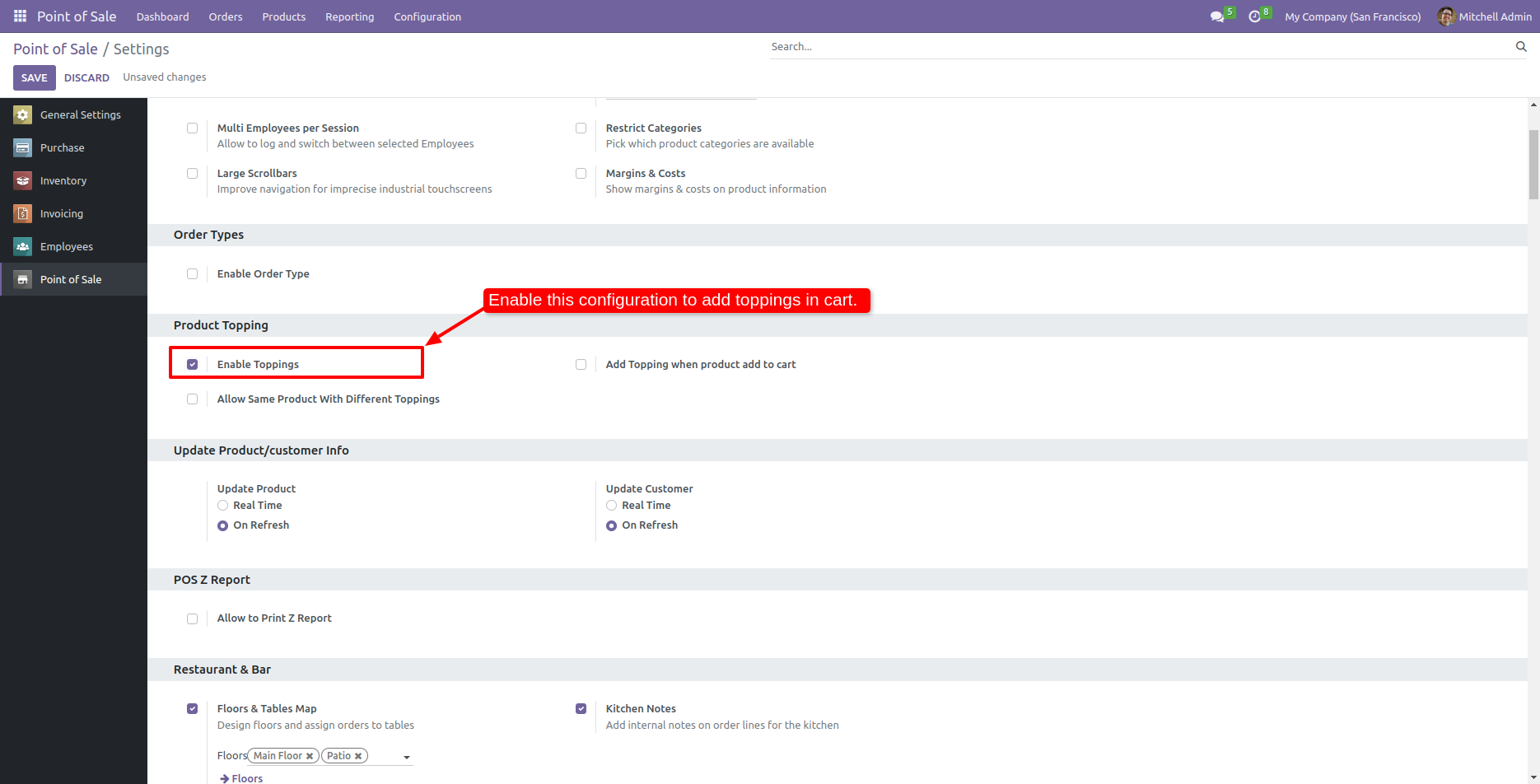
Go to the point of sale setting and tick 'Enable toppings'.

Enable Toppings setting

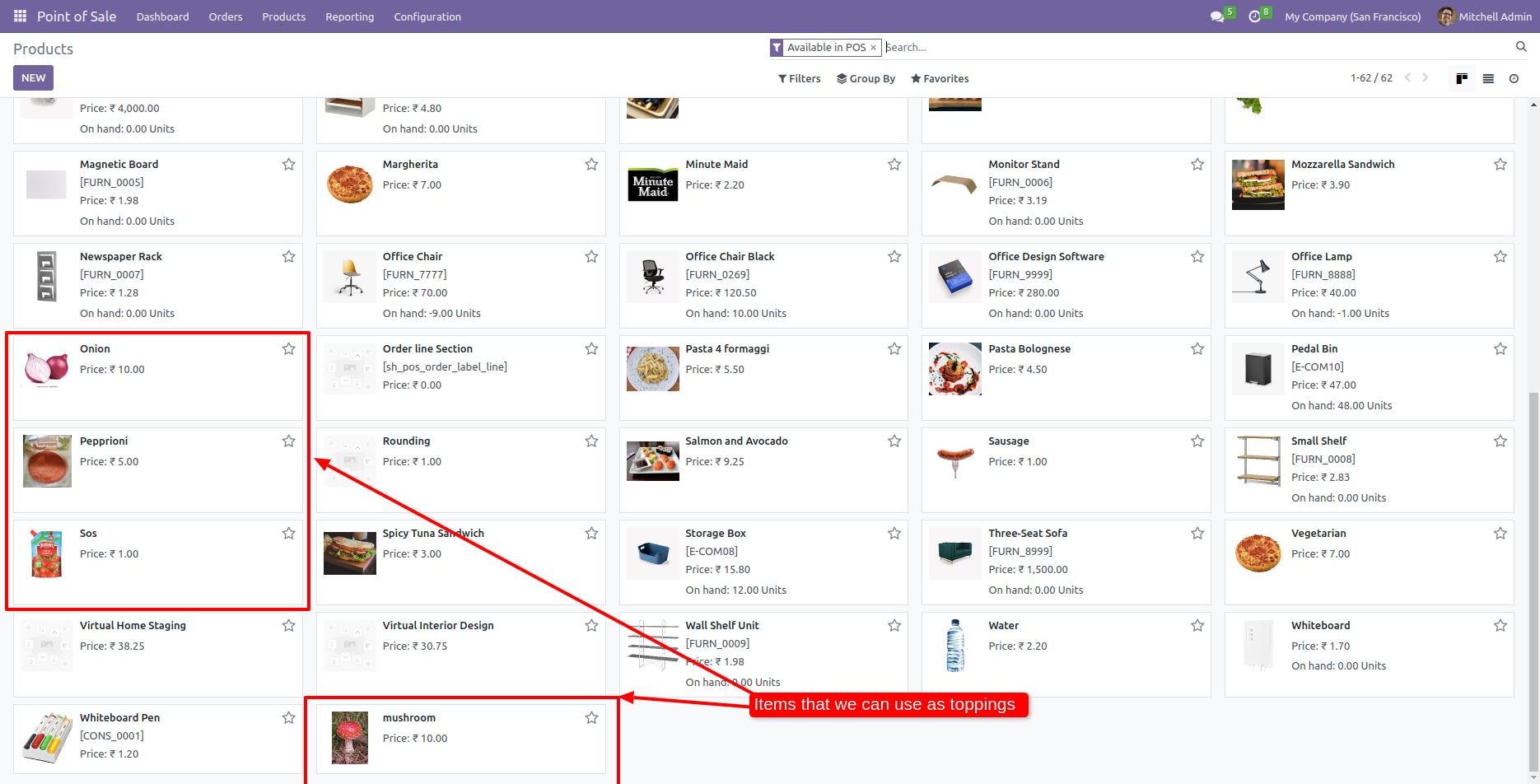
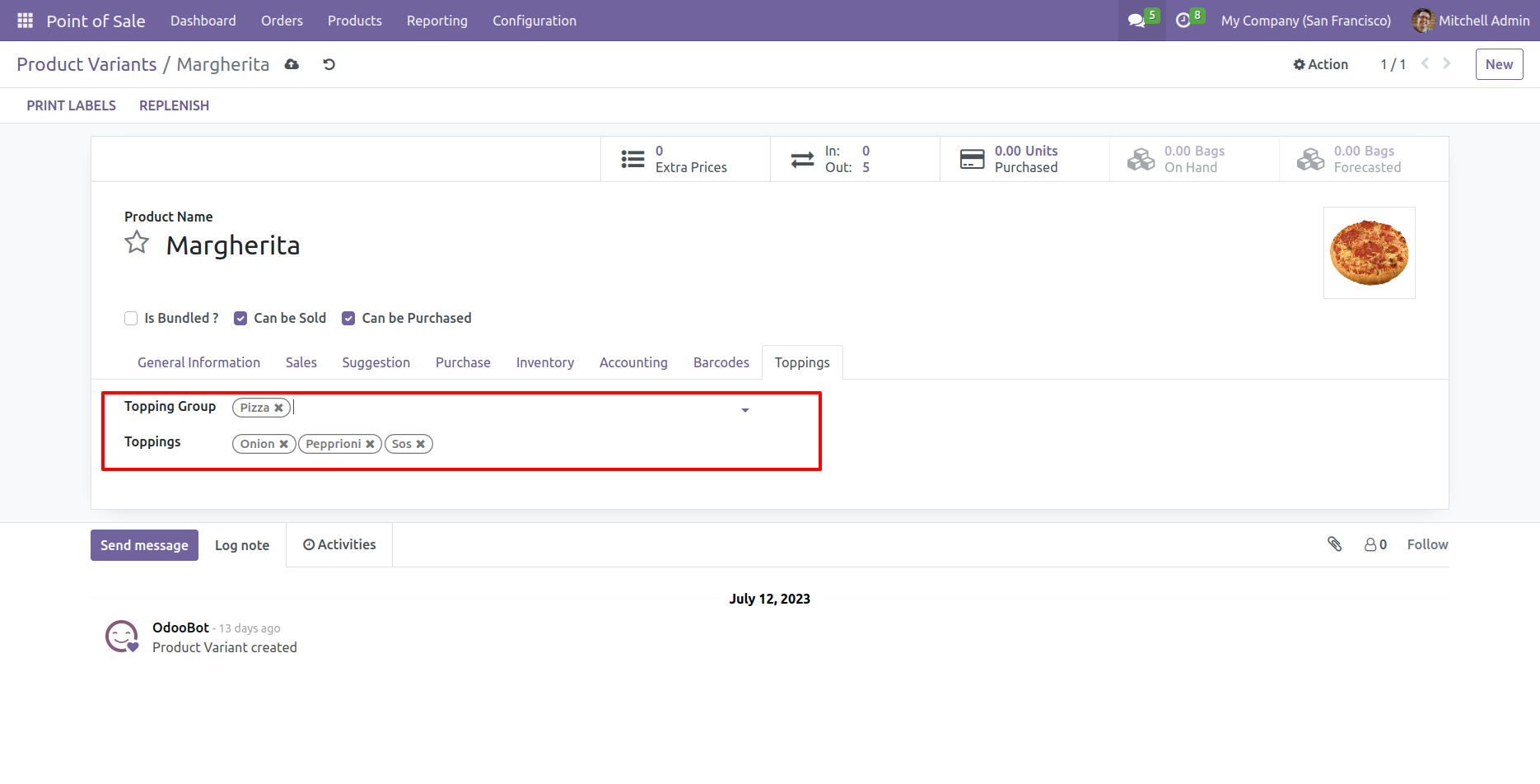
You can see the product which we add as a topping.

Products marked as toppings

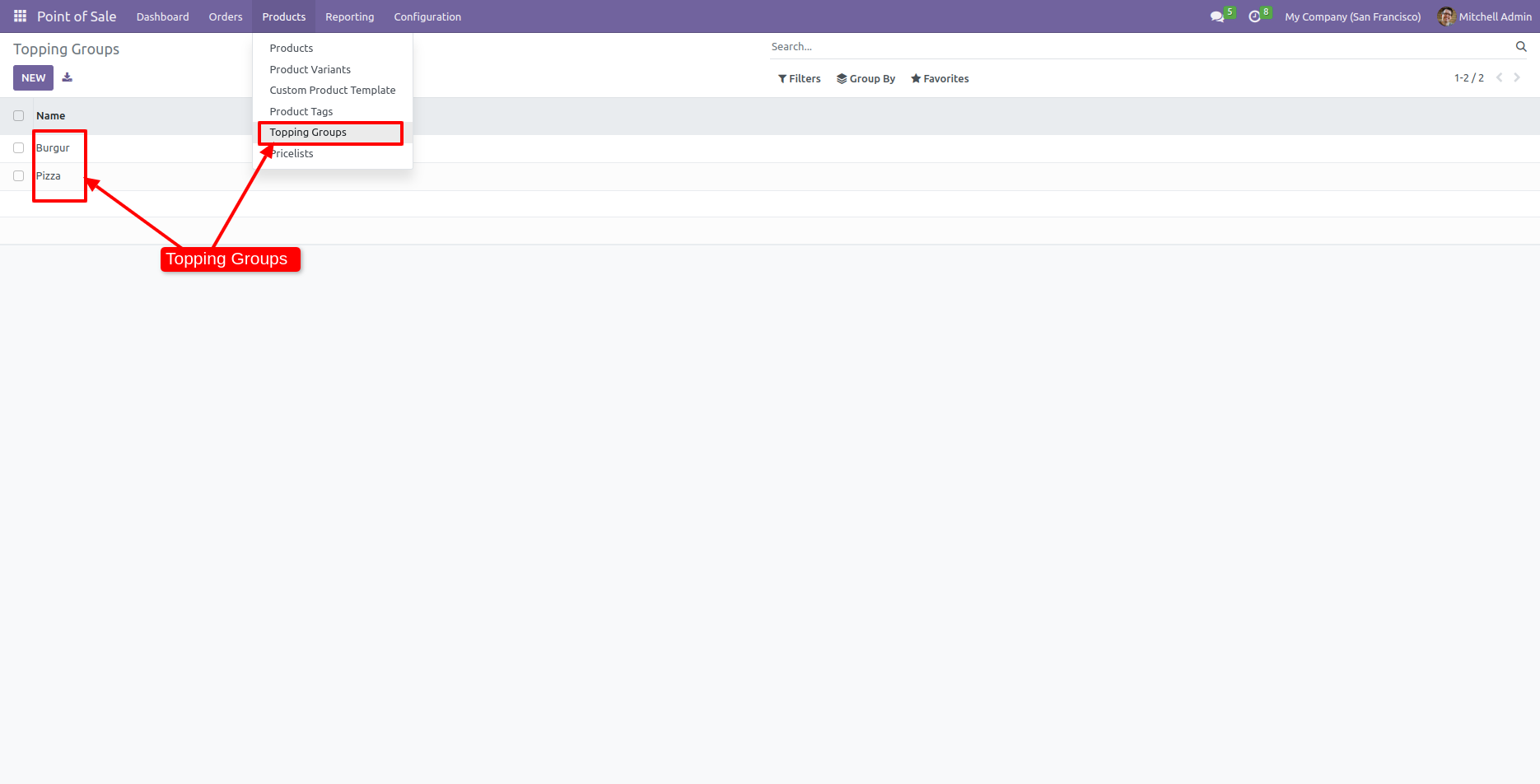
Tree view of the topping groups.

Tree view of topping groups

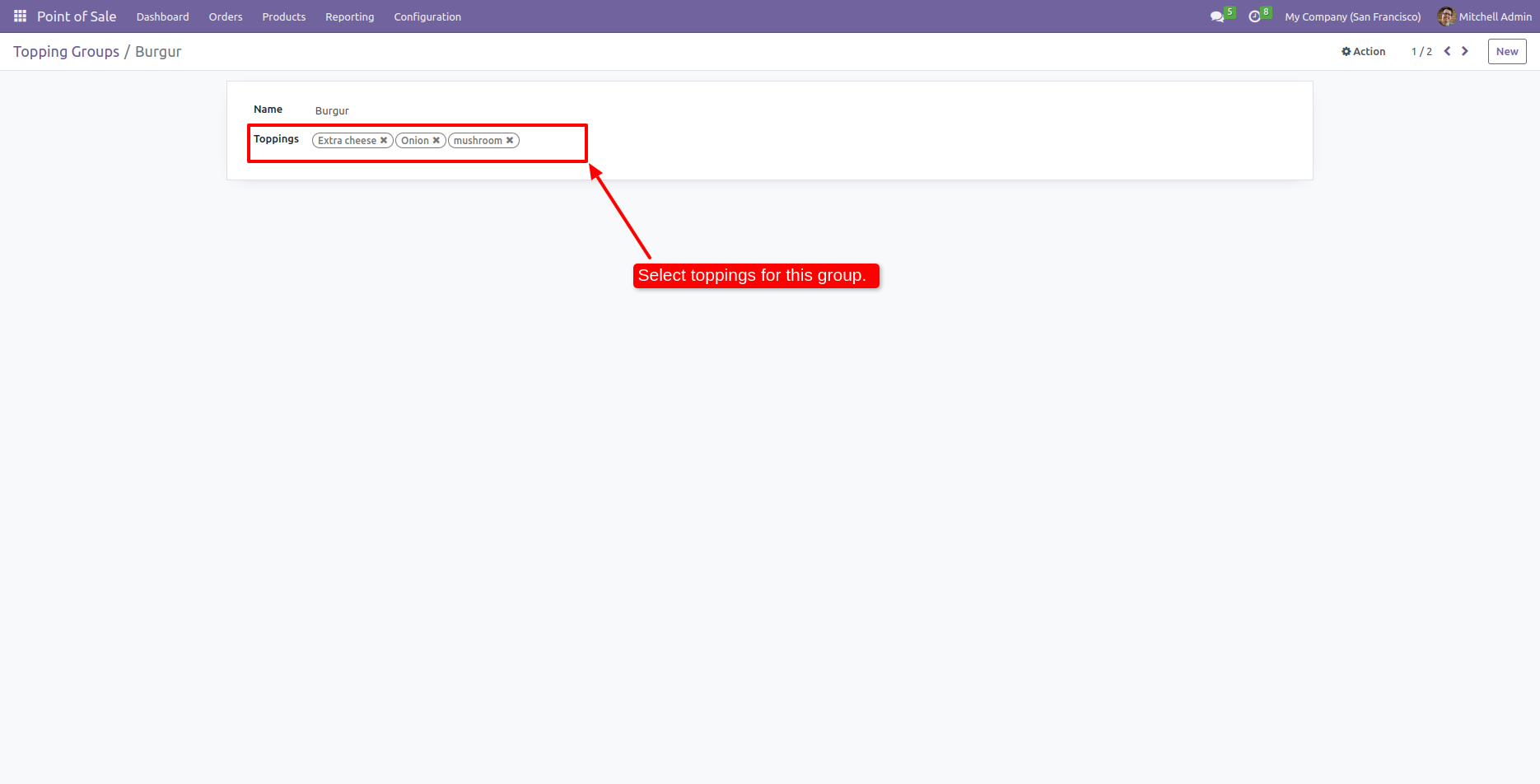
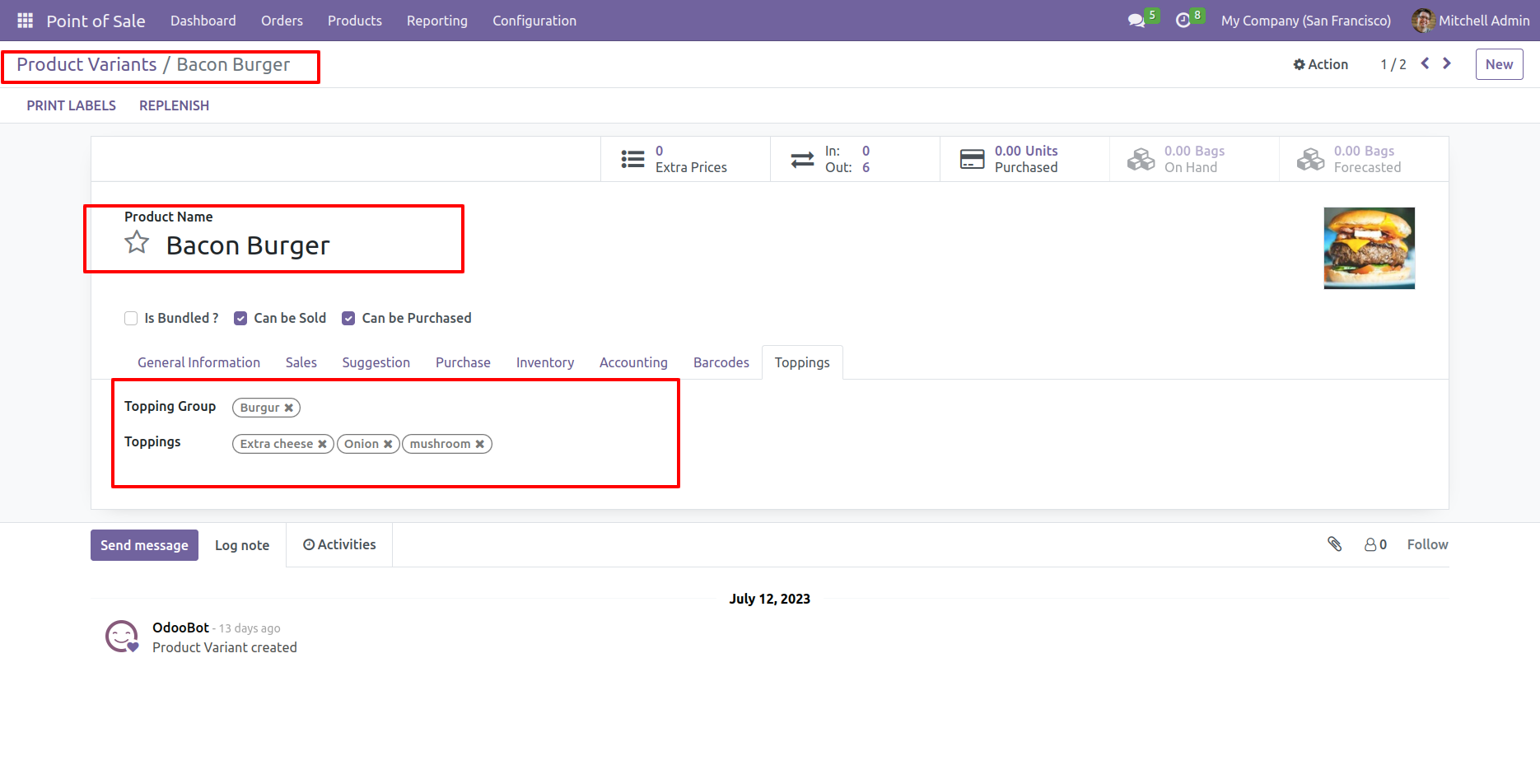
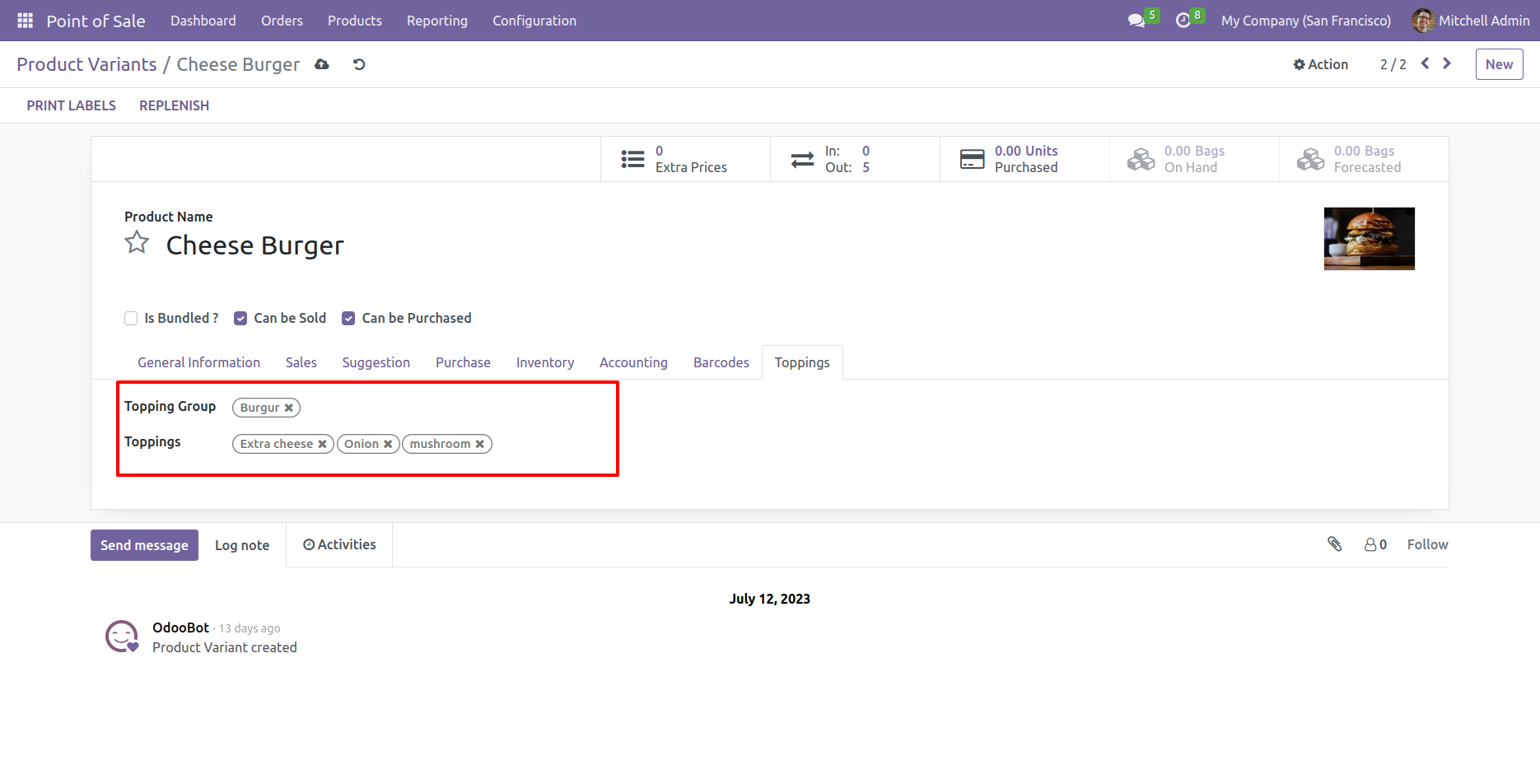
You can see the selected toppings in the form view of the topping groups.

Selected toppings in topping group form
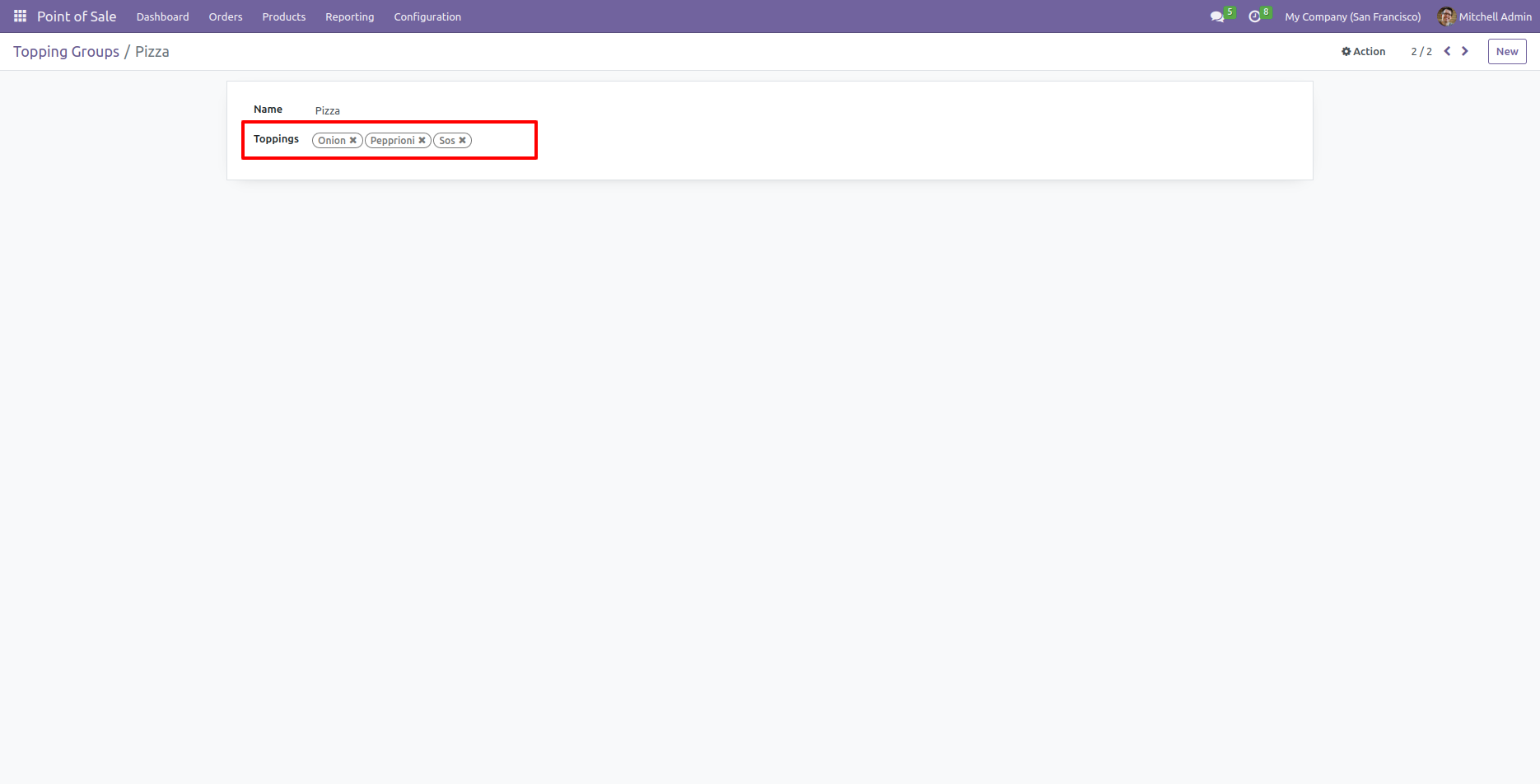
Toppings assigned to Pizza group

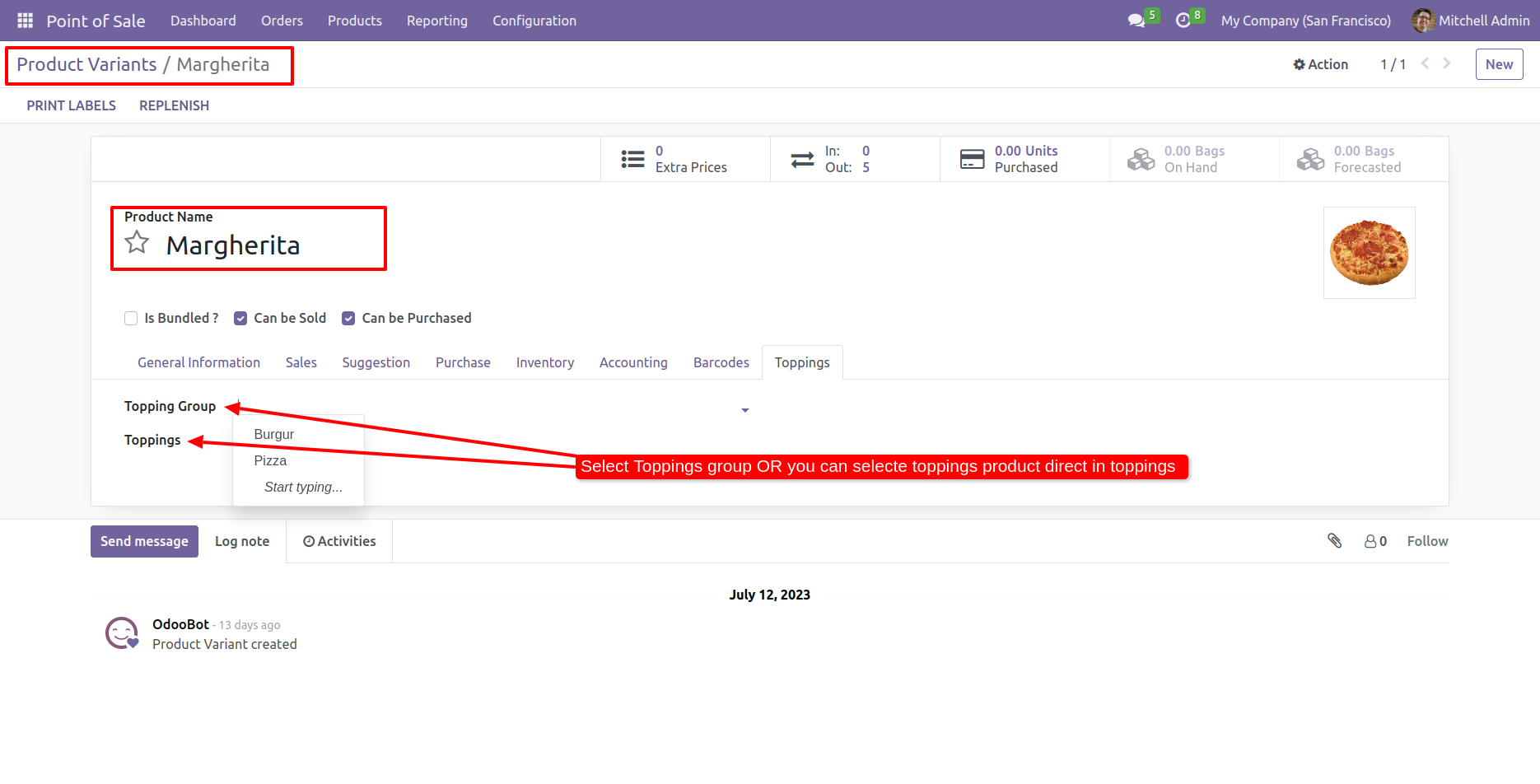
Here, you can select the topping product directly or you can also select the topping group.

Select topping product or group Margherita topping group and toppings

Select the topping product and topping group.

topping product and group selection

Select the topping product and topping group.

topping product and group selection

You can also select the product directly from toppings.

Select product directly as topping

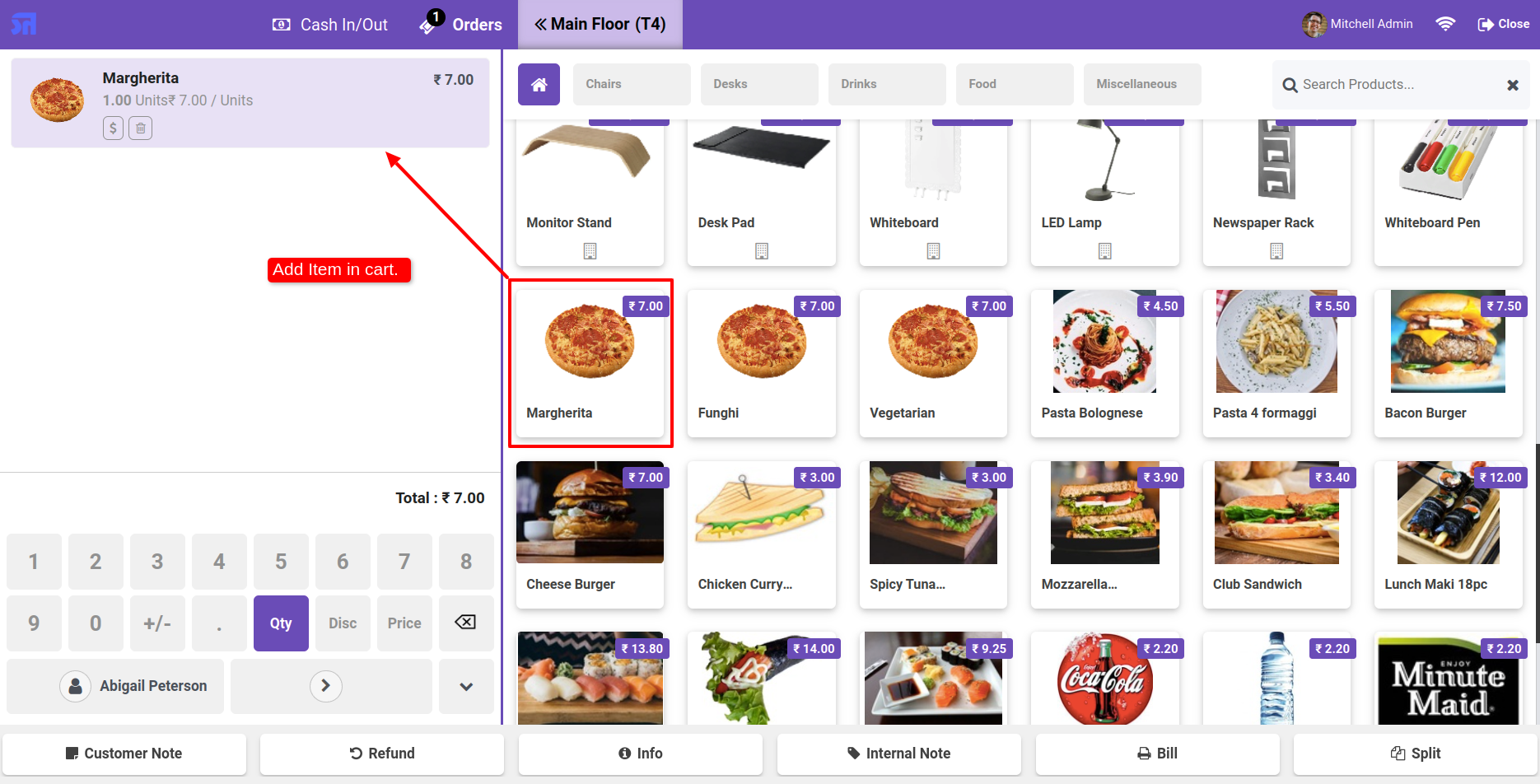
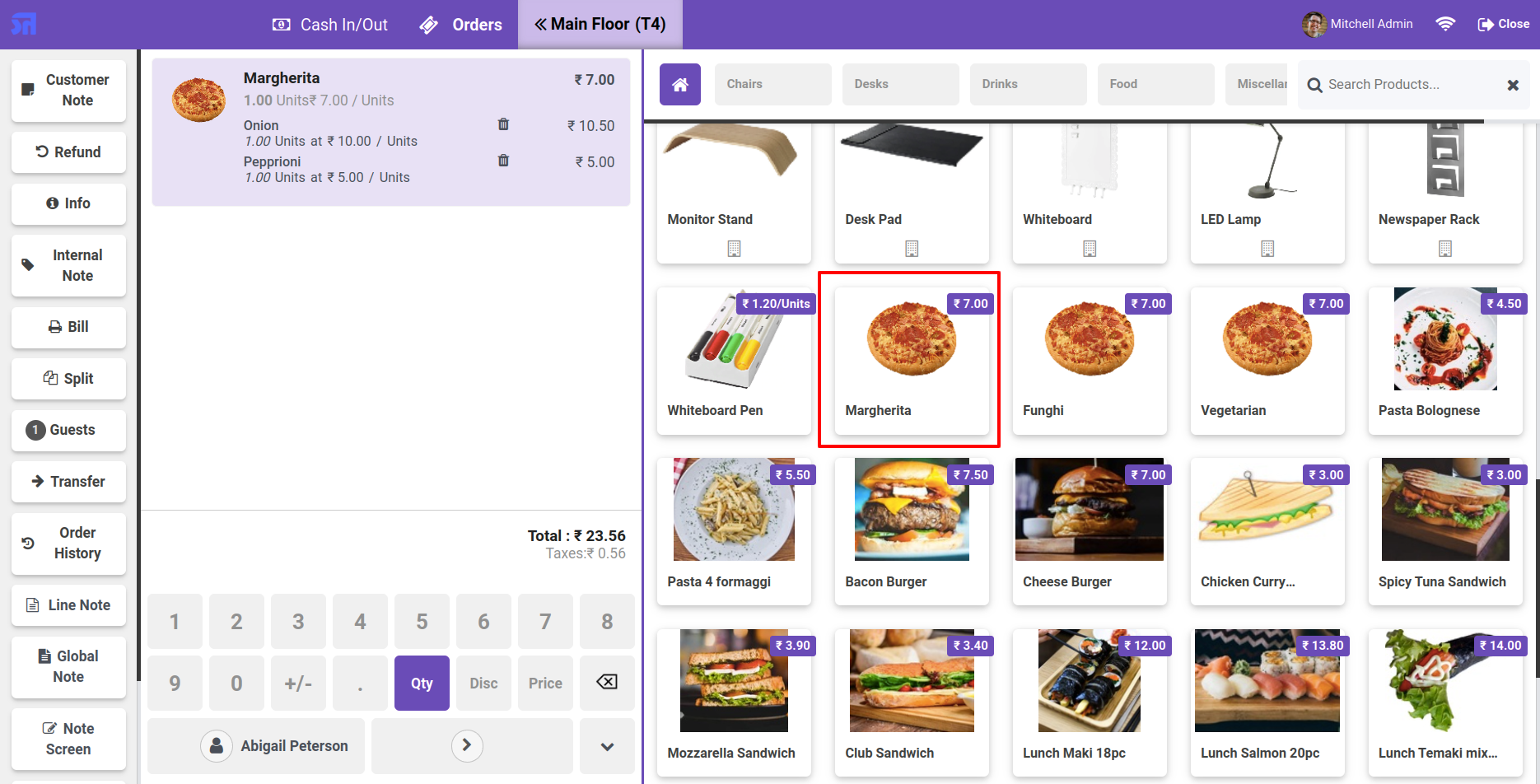
Add the product to the cart.

Add product to cart

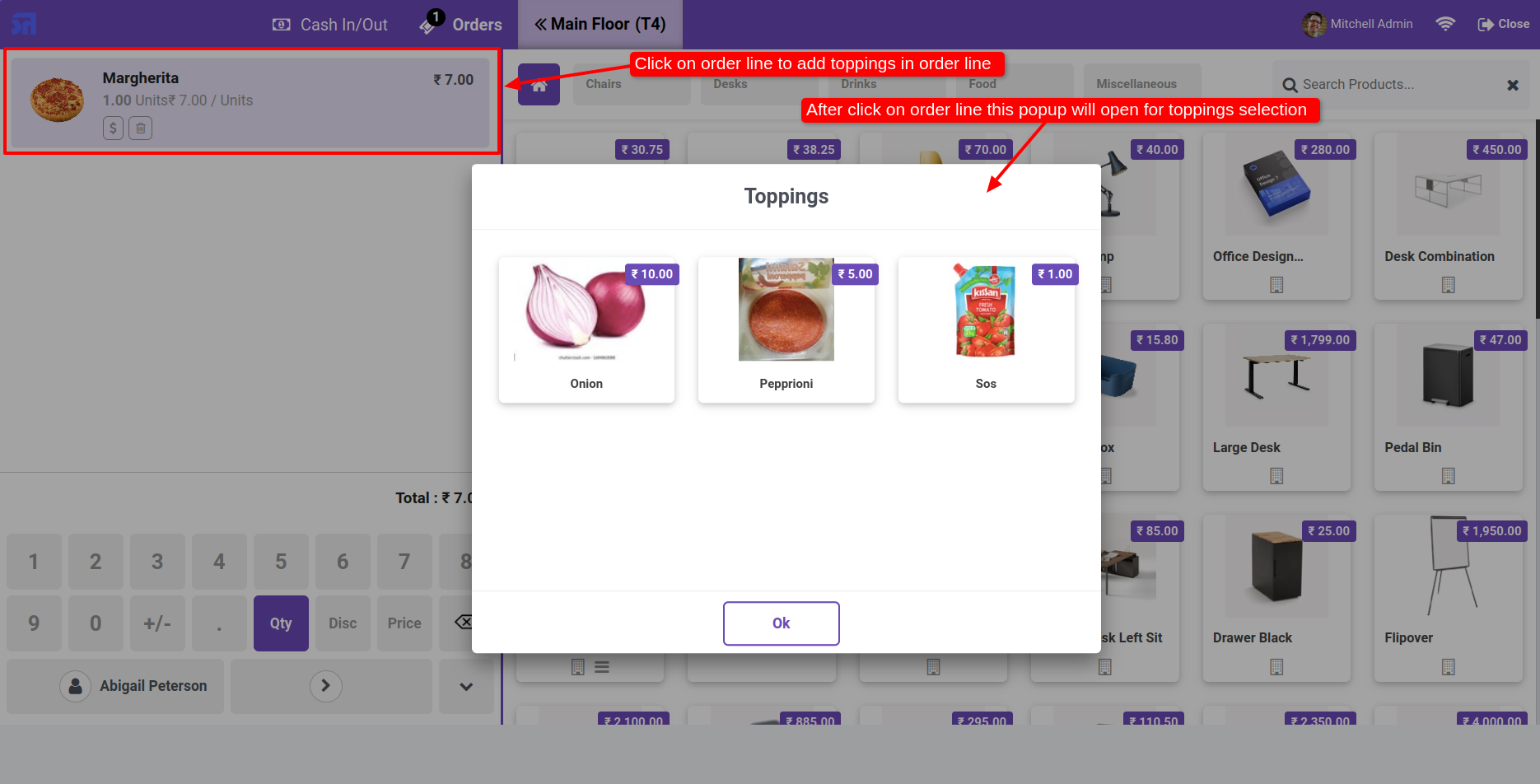
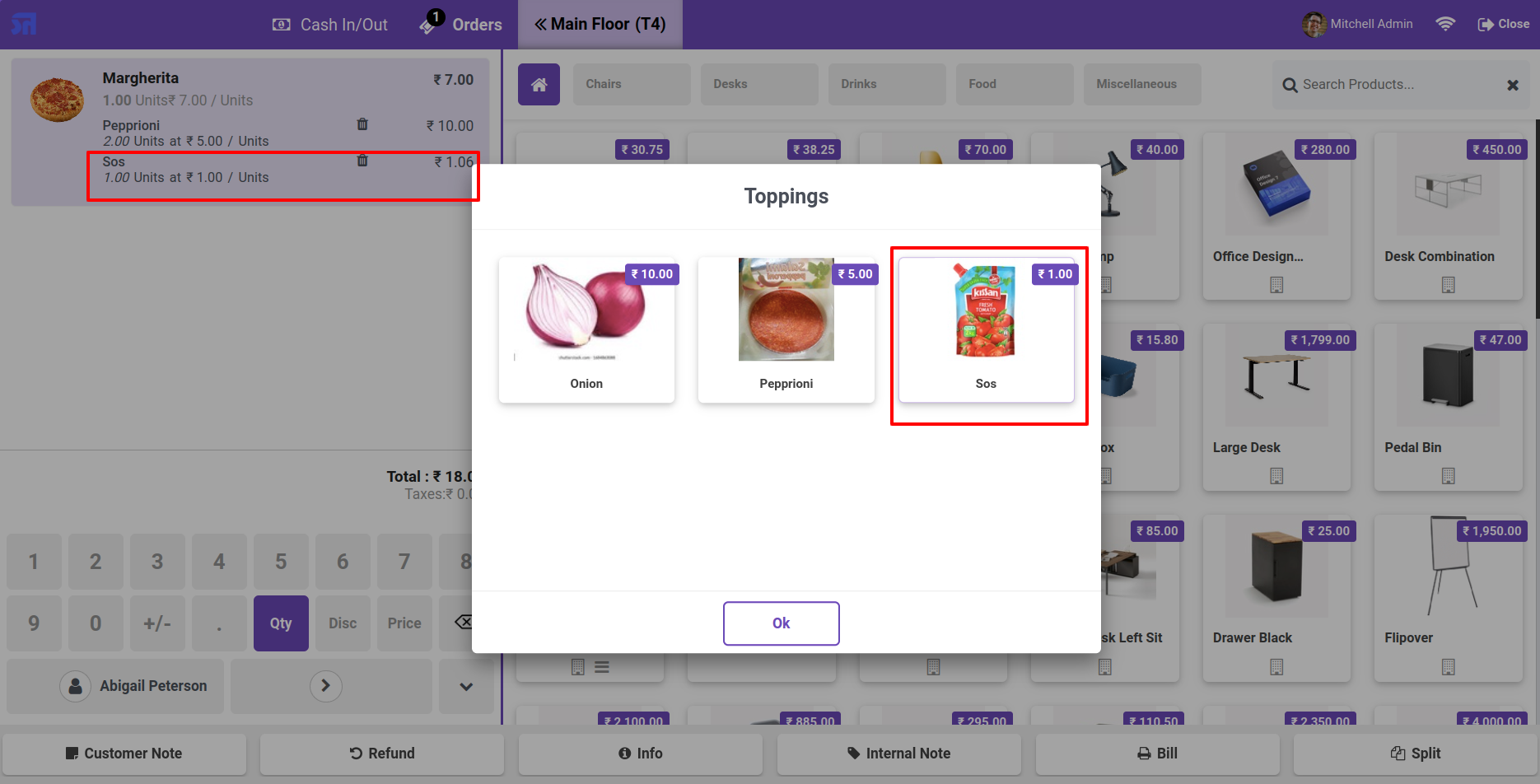
To add a topping, click on the order line. Topping wizard looks like below.

Topping wizard popup

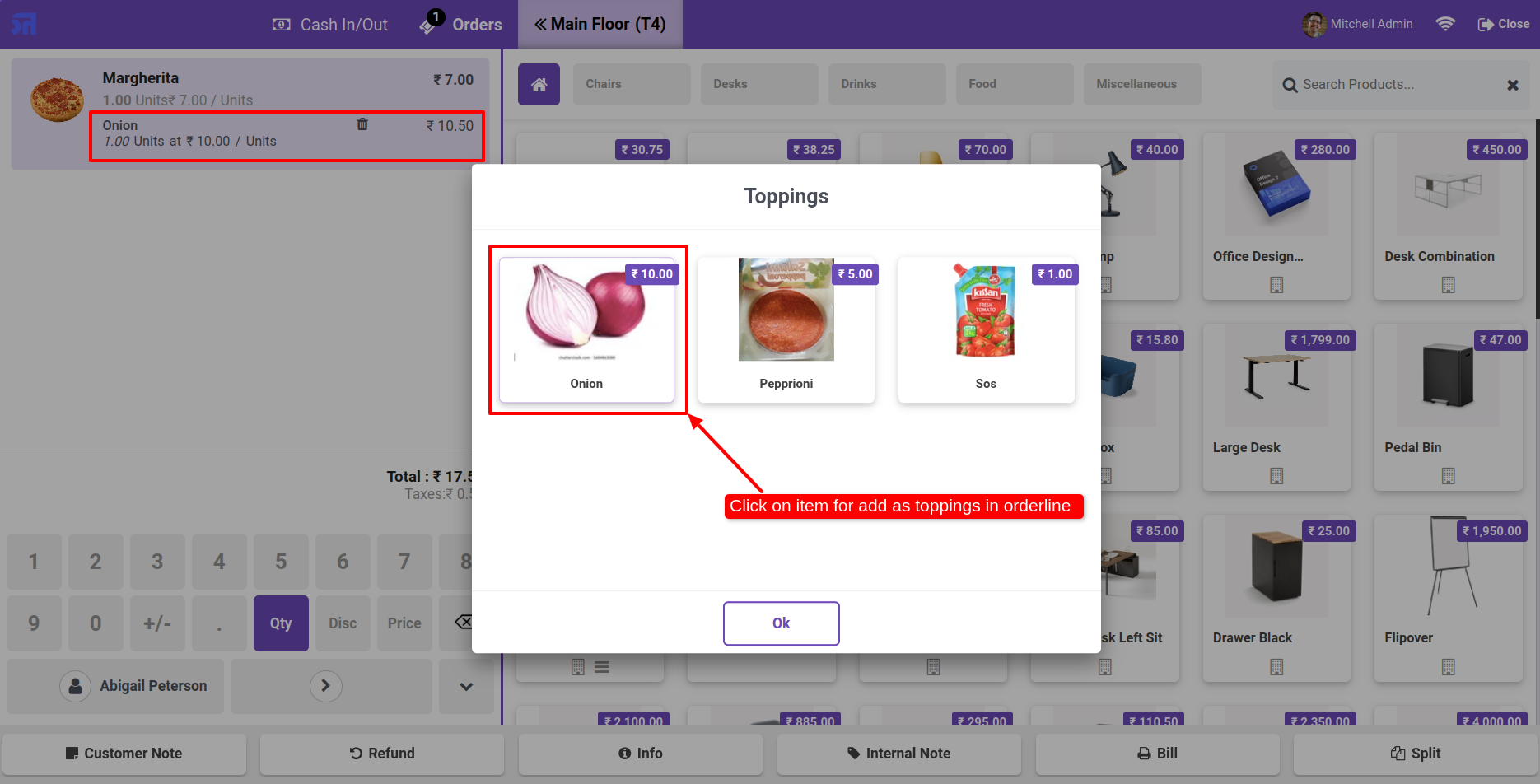
Select the topping products in the topping wizard.

Select toppings in wizard

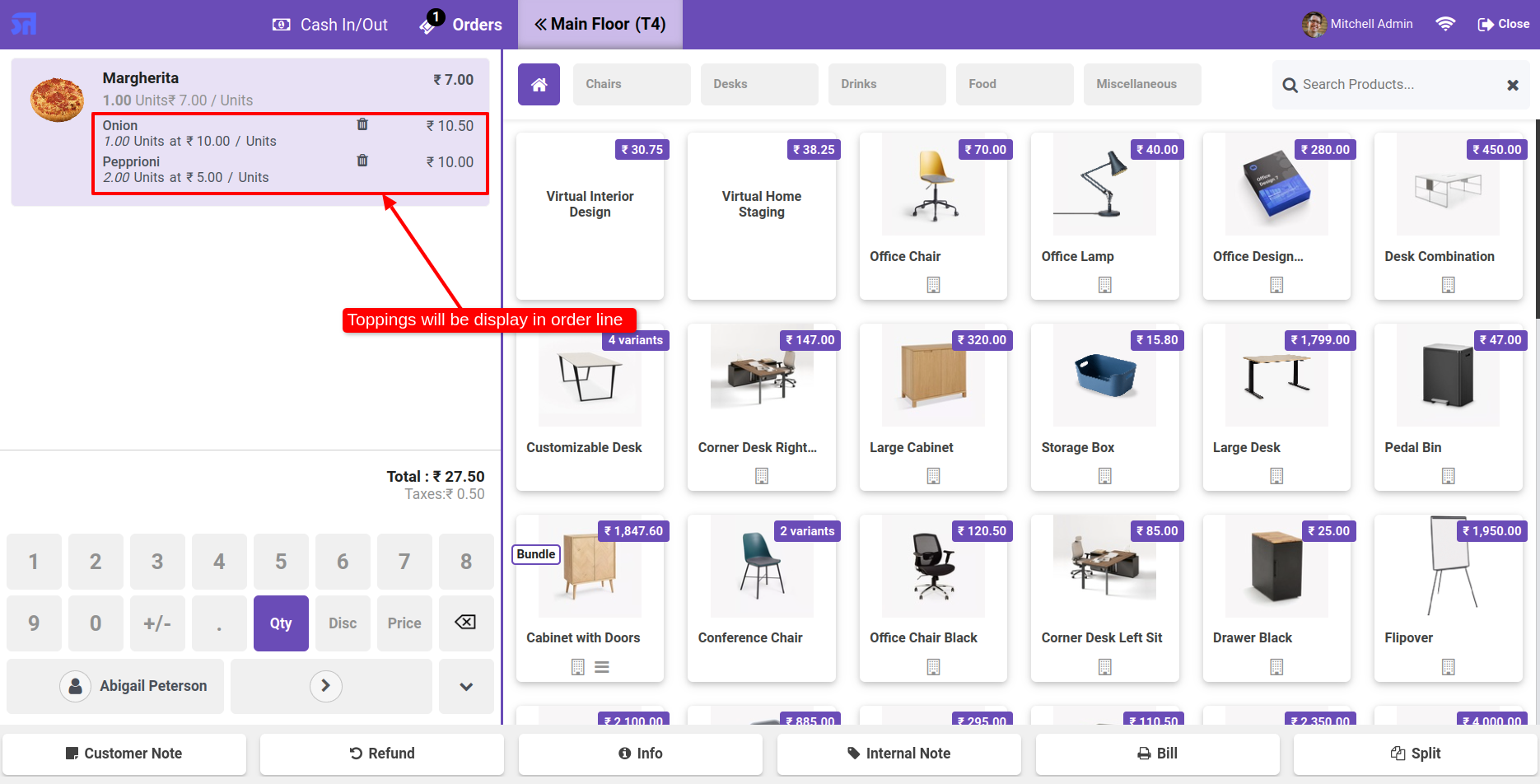
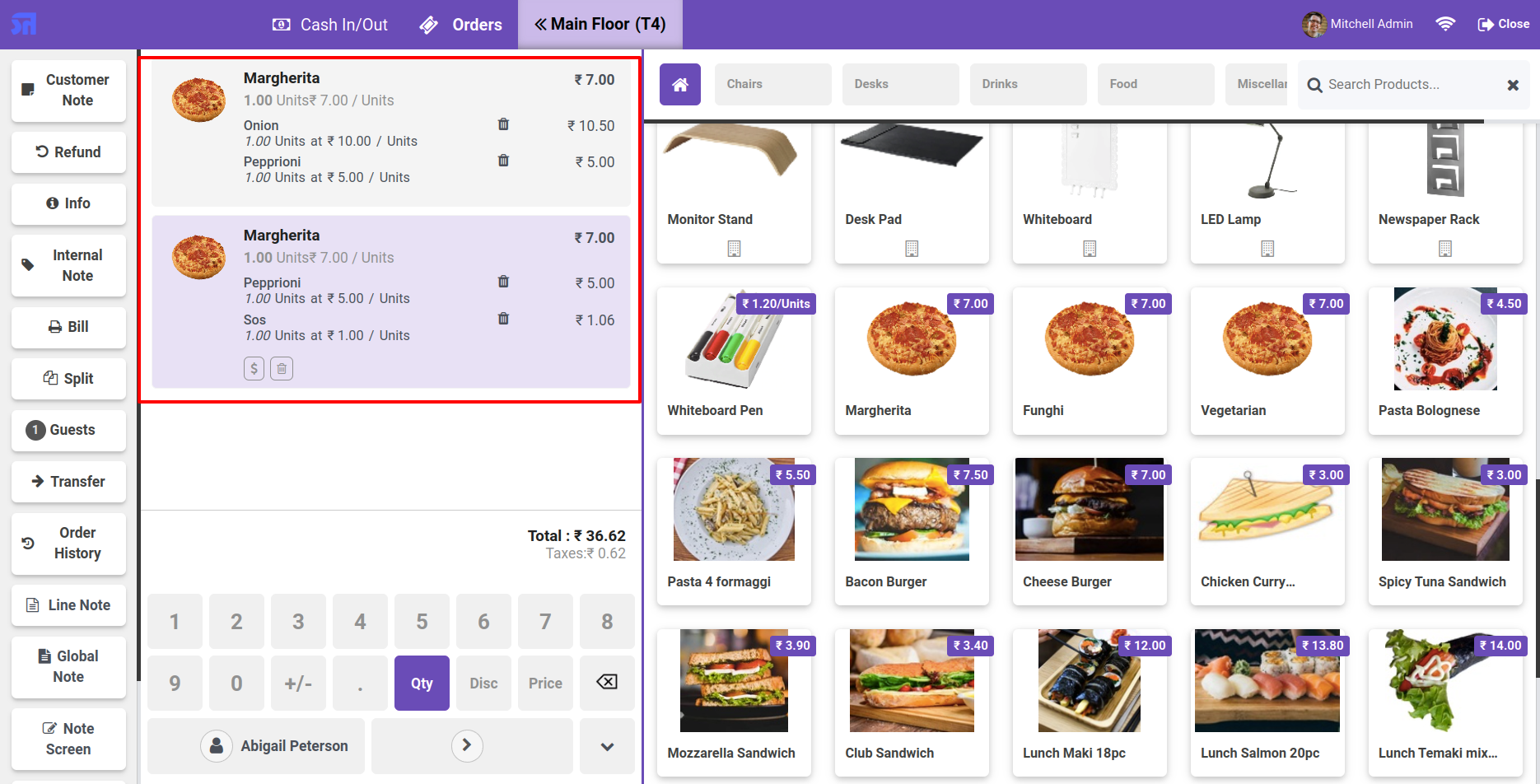
The topping will be displayed in the order line.

Toppings displayed on order line

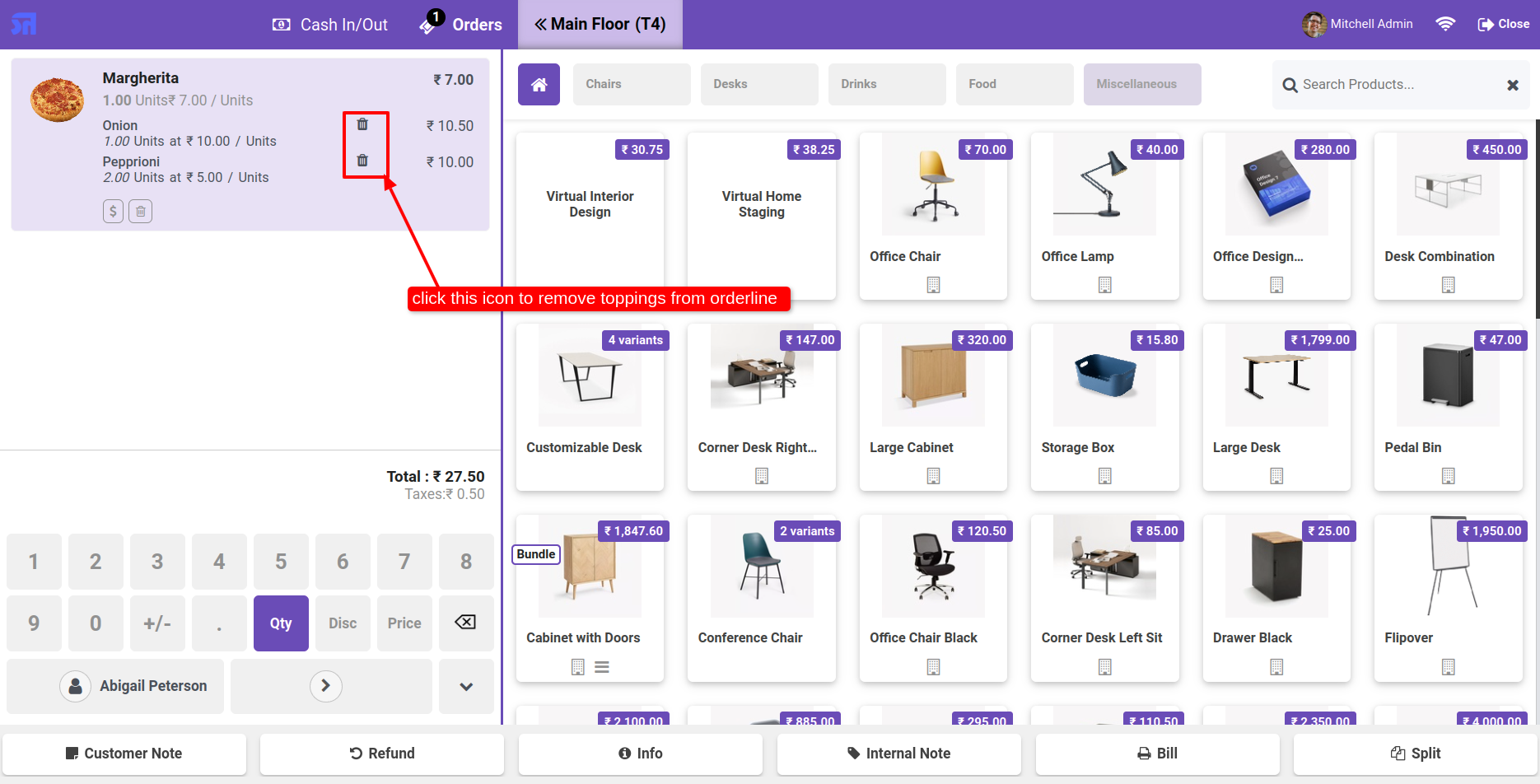
If you want to remove the toppings from the order line use the remove icon.

Remove topping from order line

The one topping is removed from the order line.

Topping removed from order line

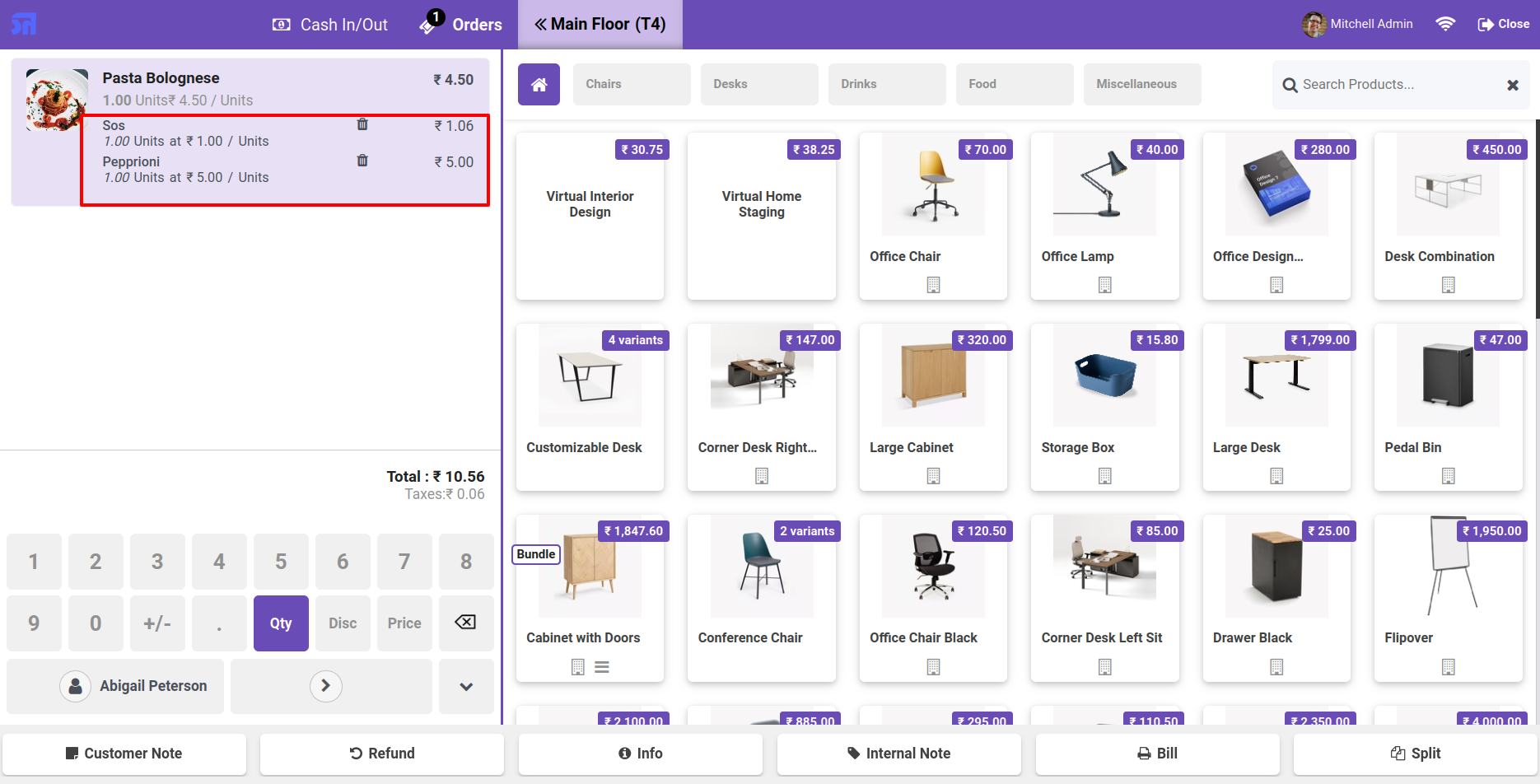
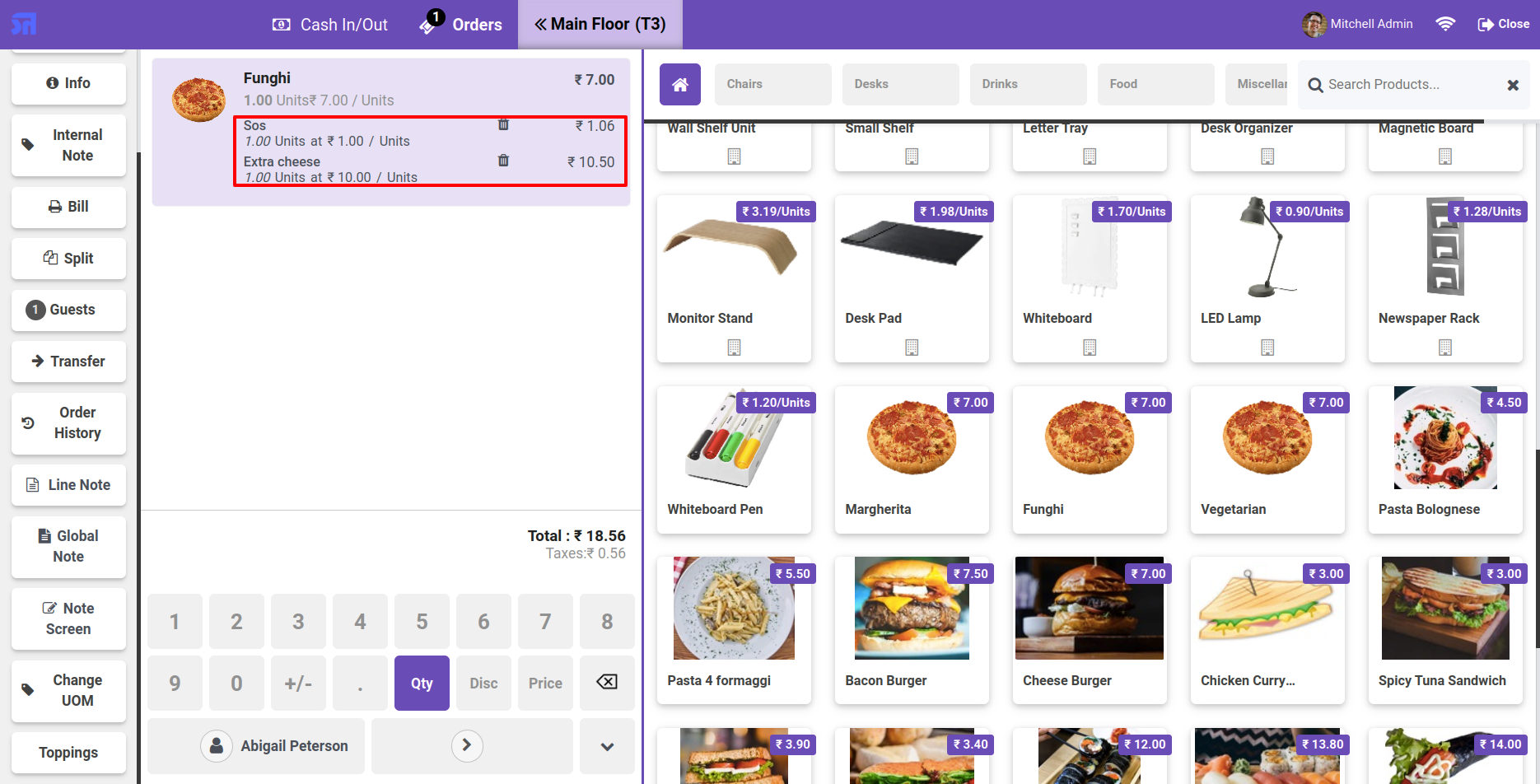
Add SOS topping product.

Add topping product

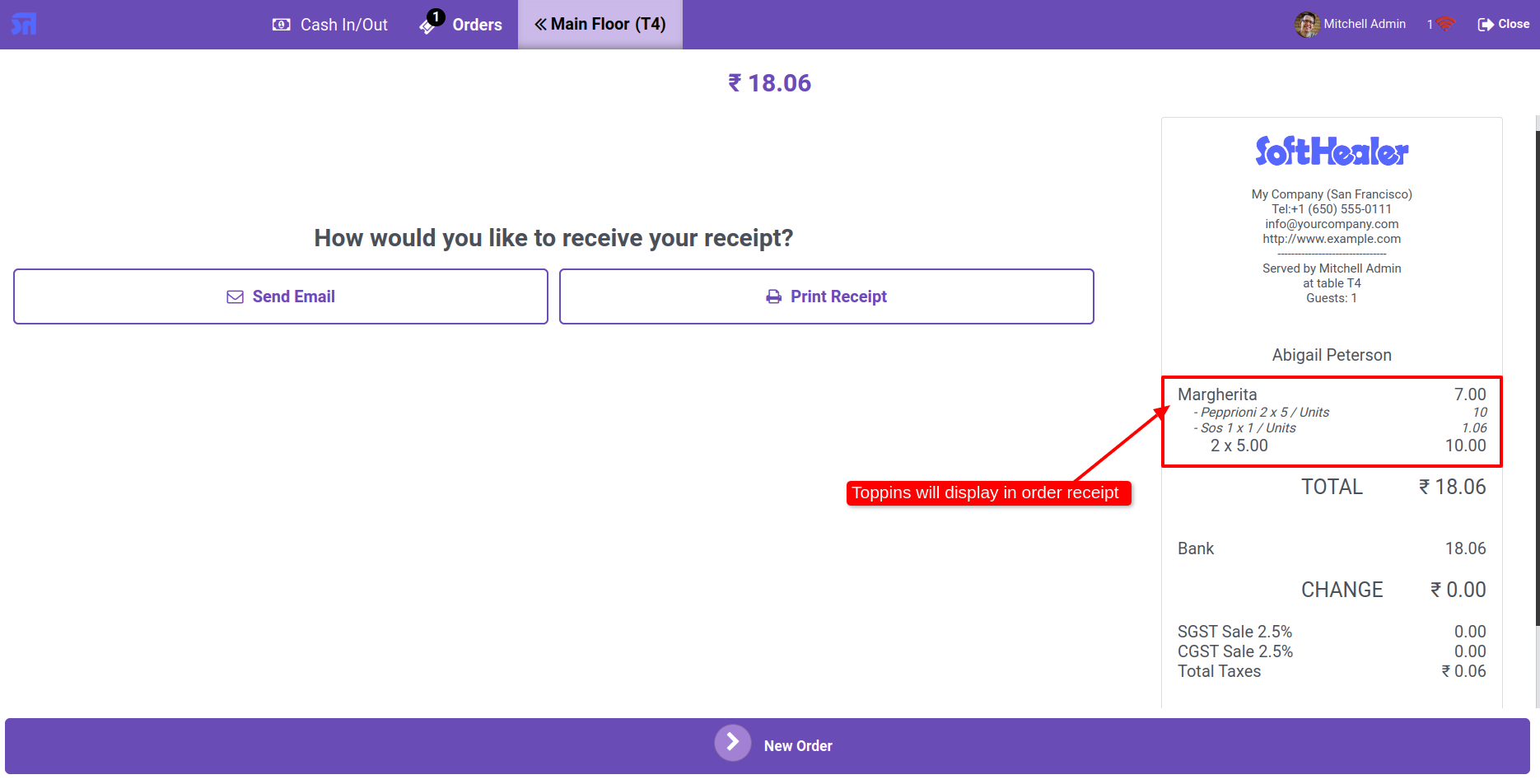
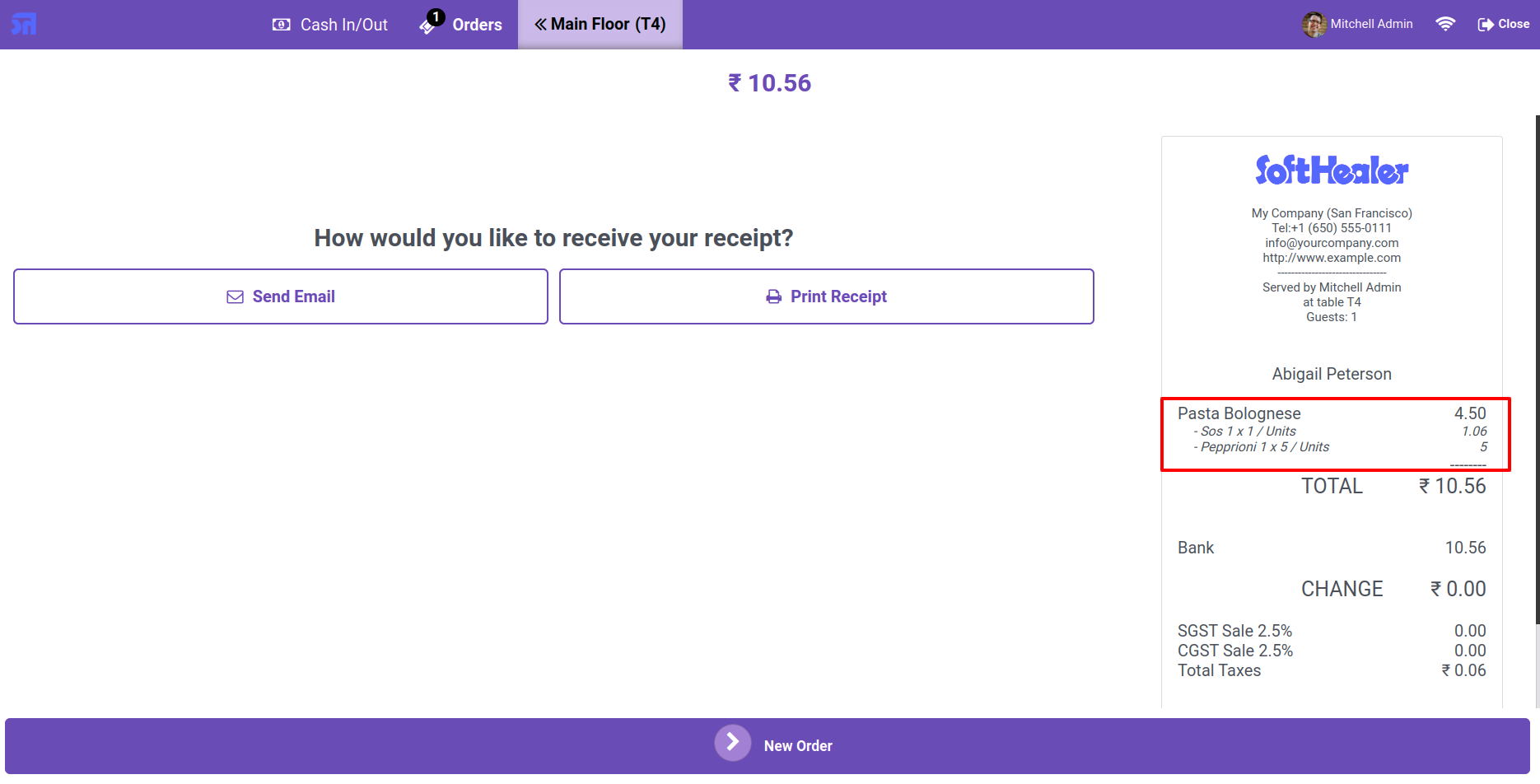
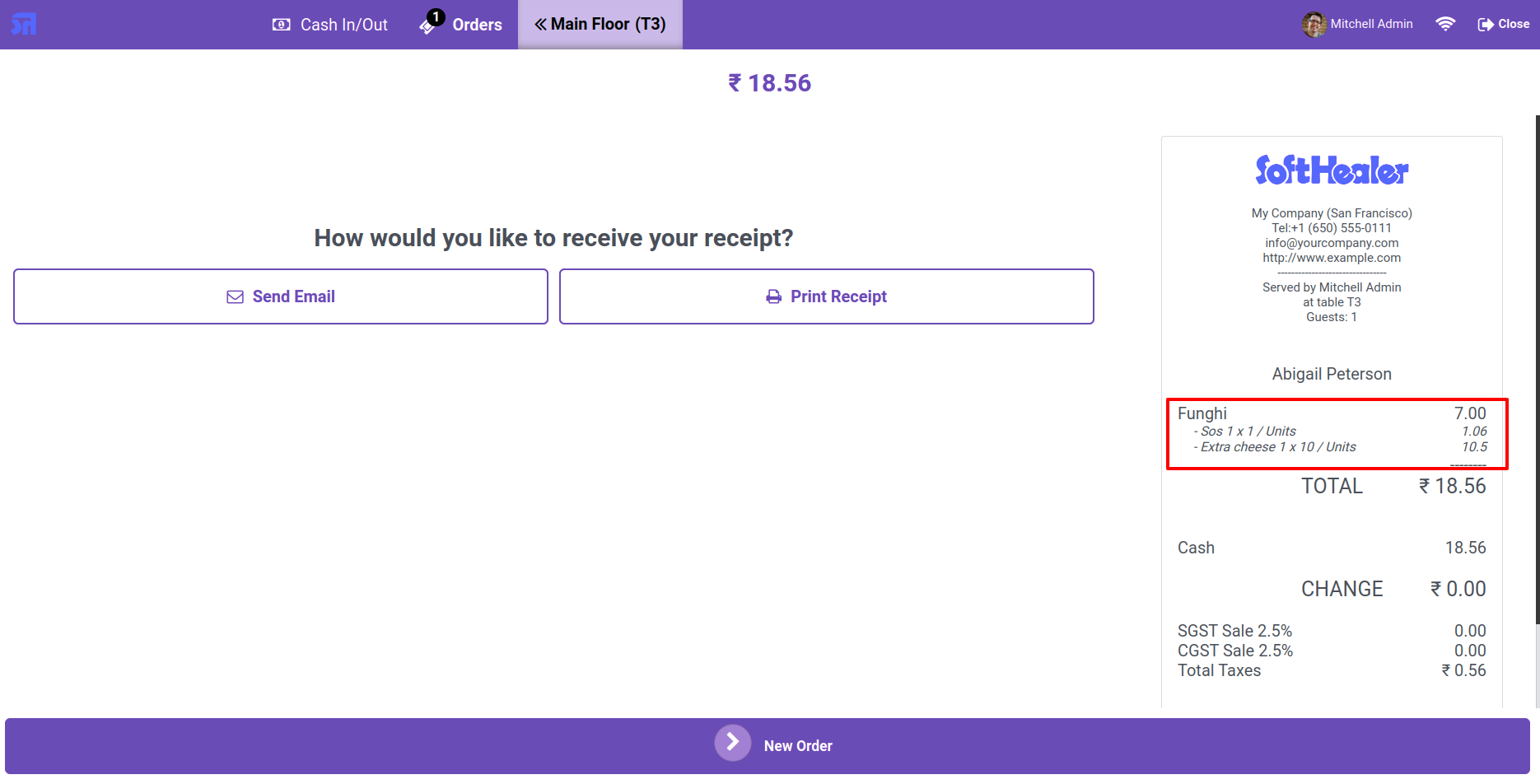
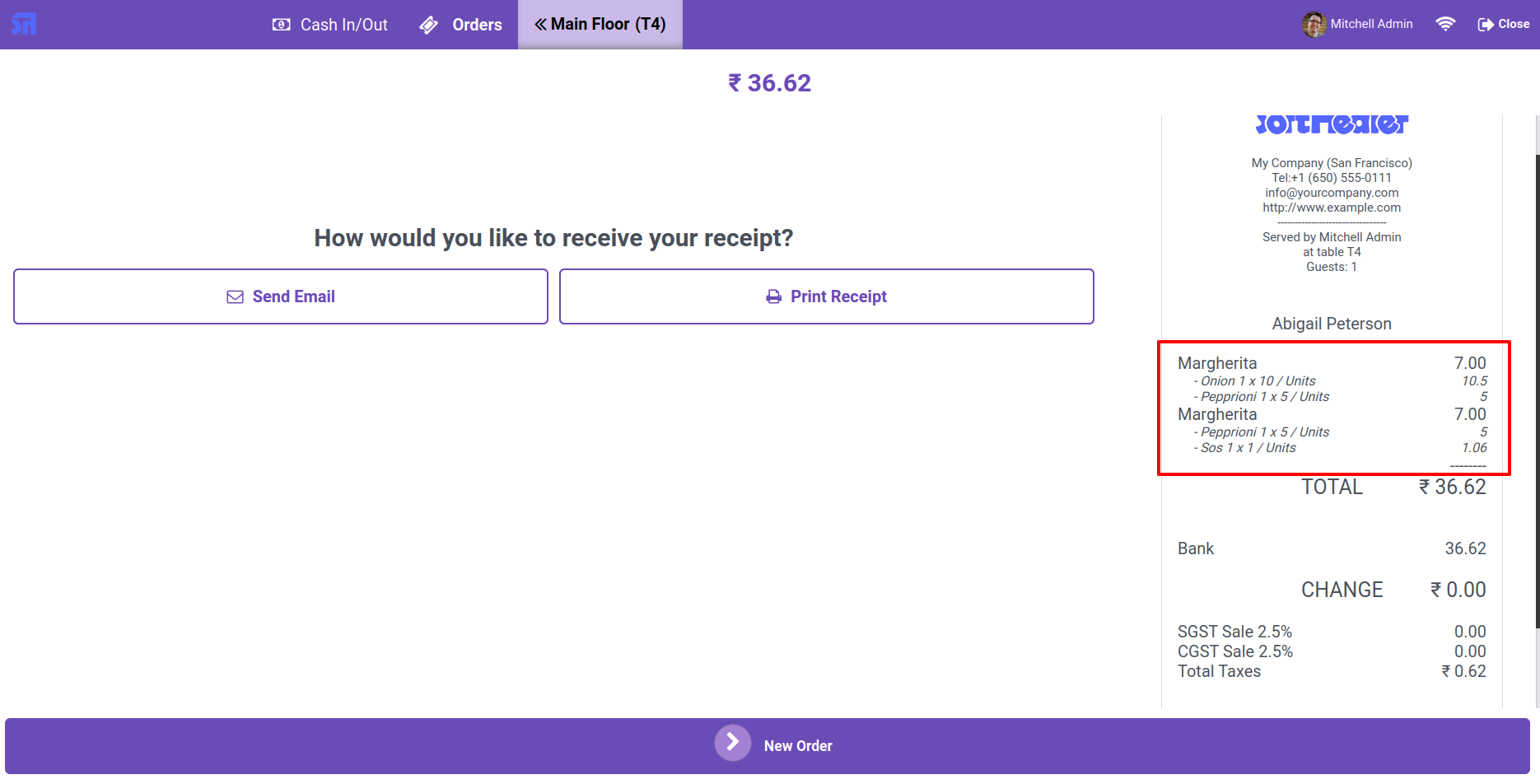
The topping products are also displayed on the receipt.

Toppings displayed on receipt

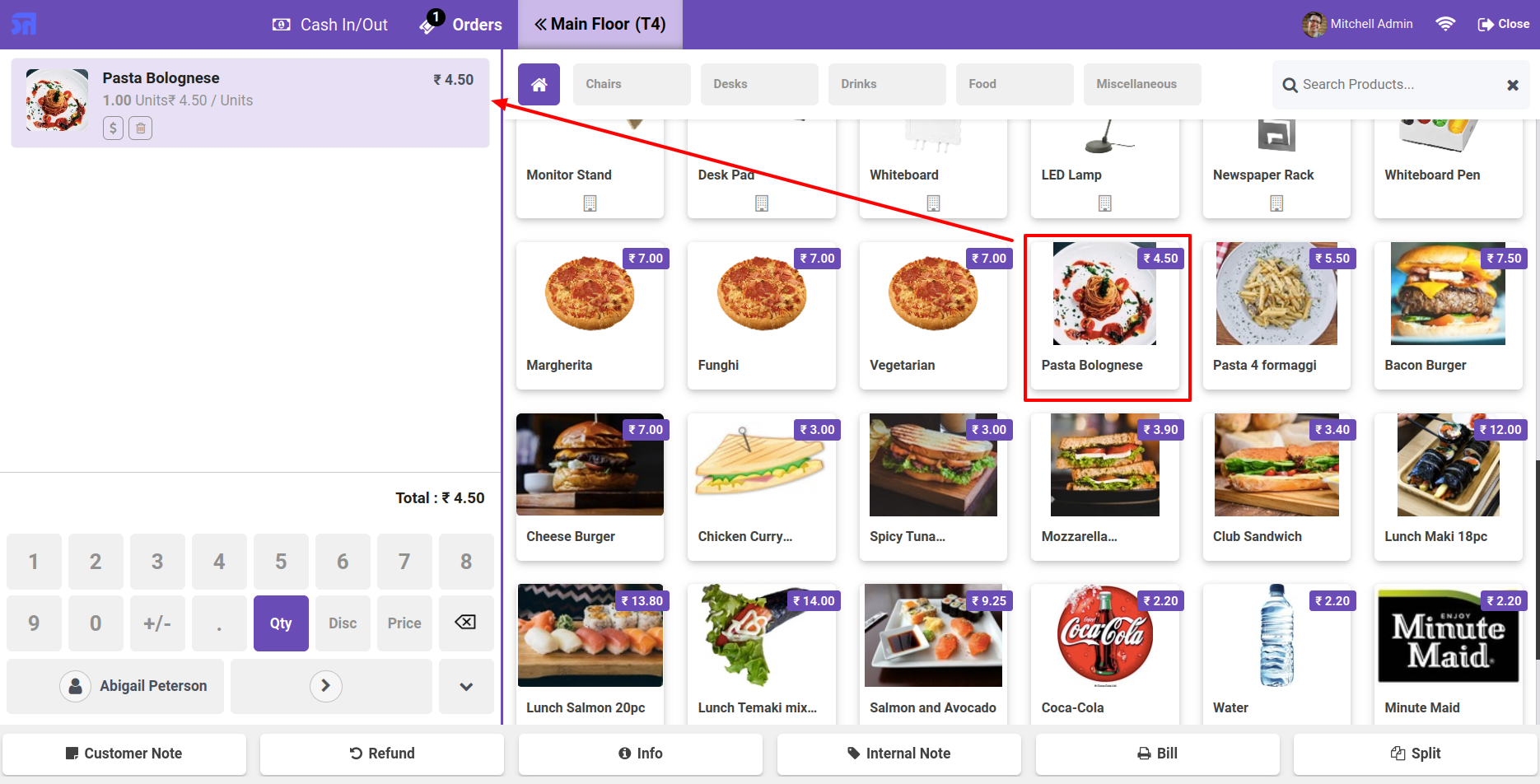
Add the product to the cart.

Add product to cart

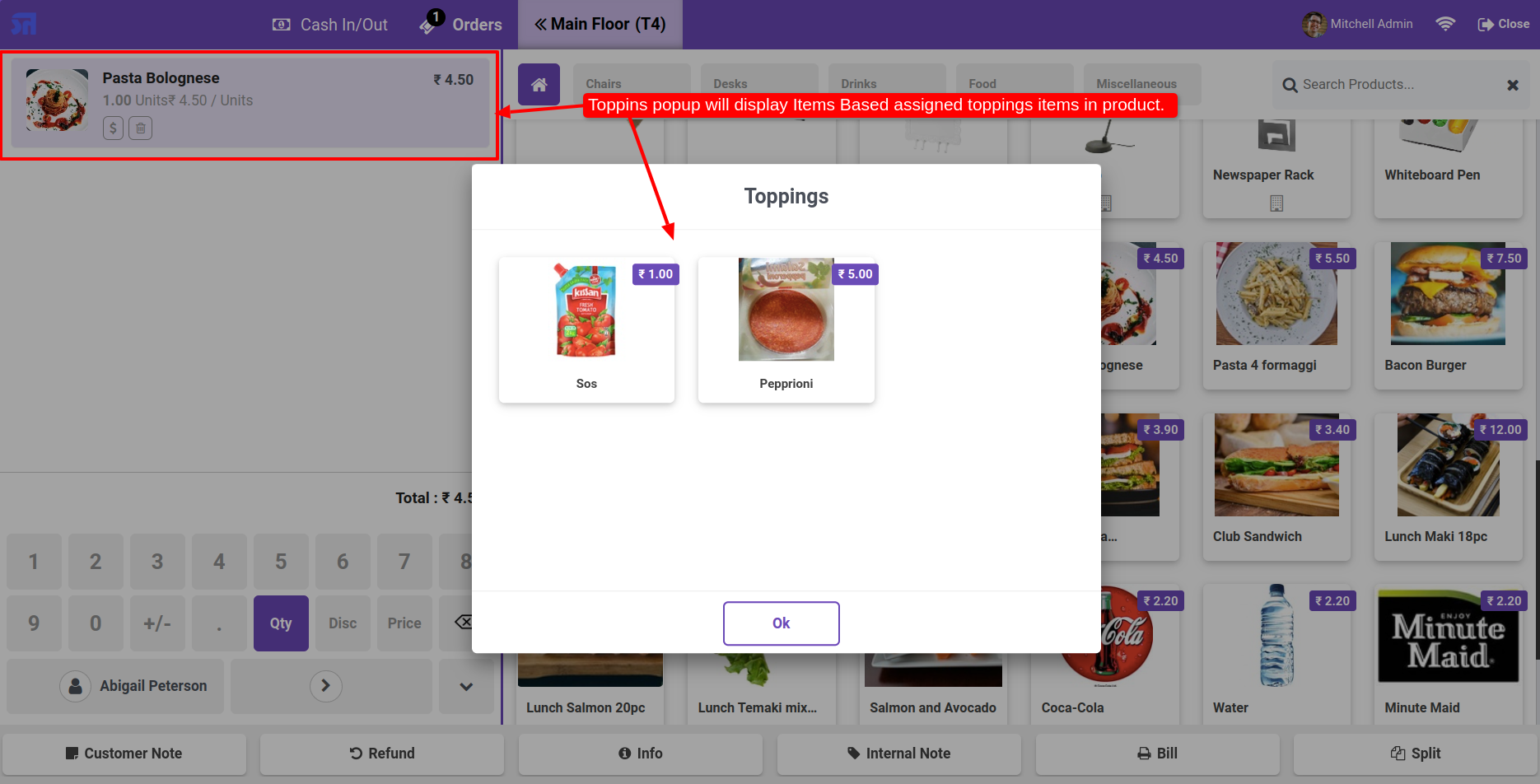
On the topping popup, only display the based assigned topping item in the product.

Assigned toppings shown in popup

The topping product is displayed in the order line.

Topping product on order line

The topping products are also displayed on the receipt.

Toppings displayed on receipt

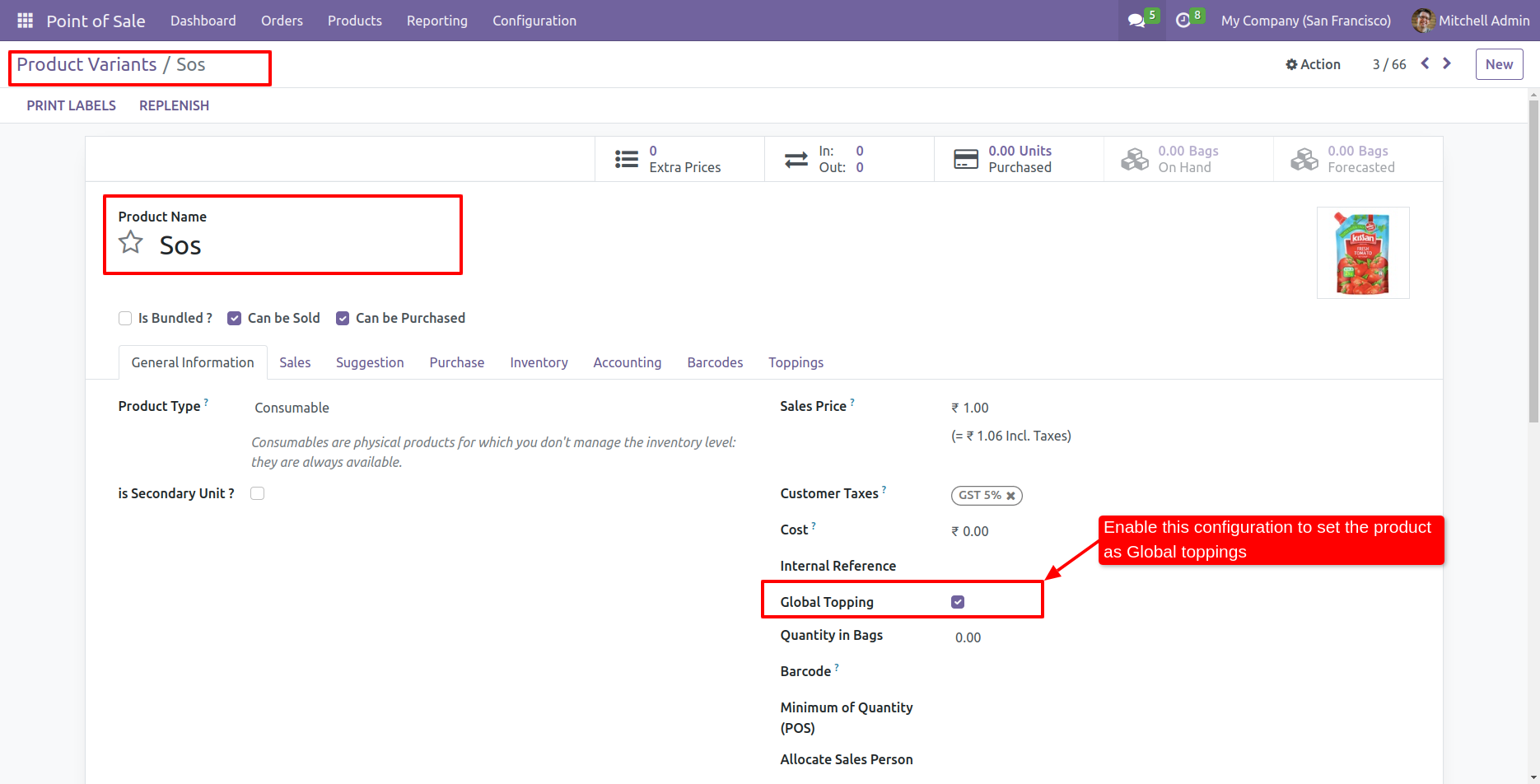
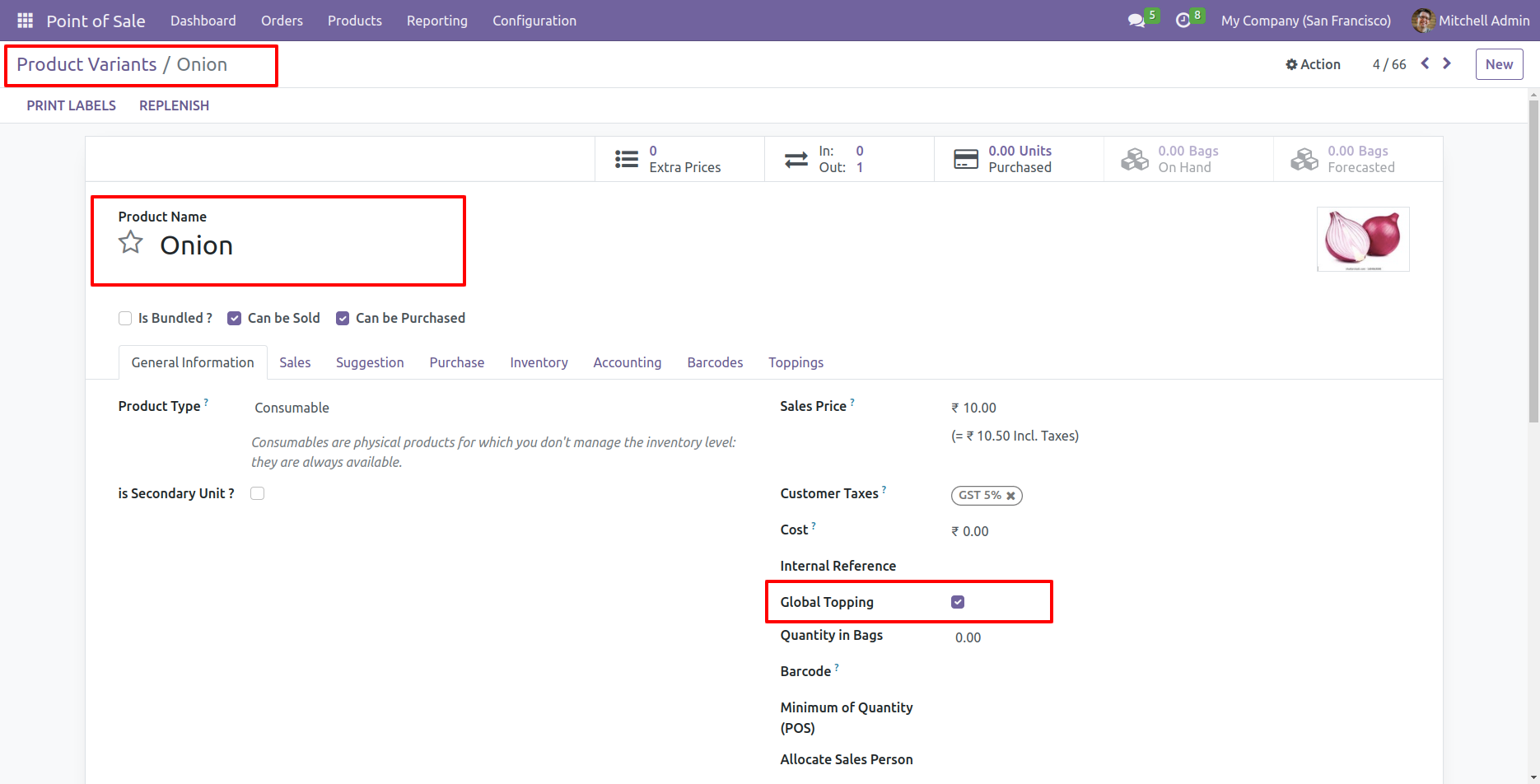
If you want to set a product as a global topping then enable the 'Global Topping' in the product variant.

Enable Global Topping on product

Enable the 'Global Topping' feature.

Enable Global Topping feature

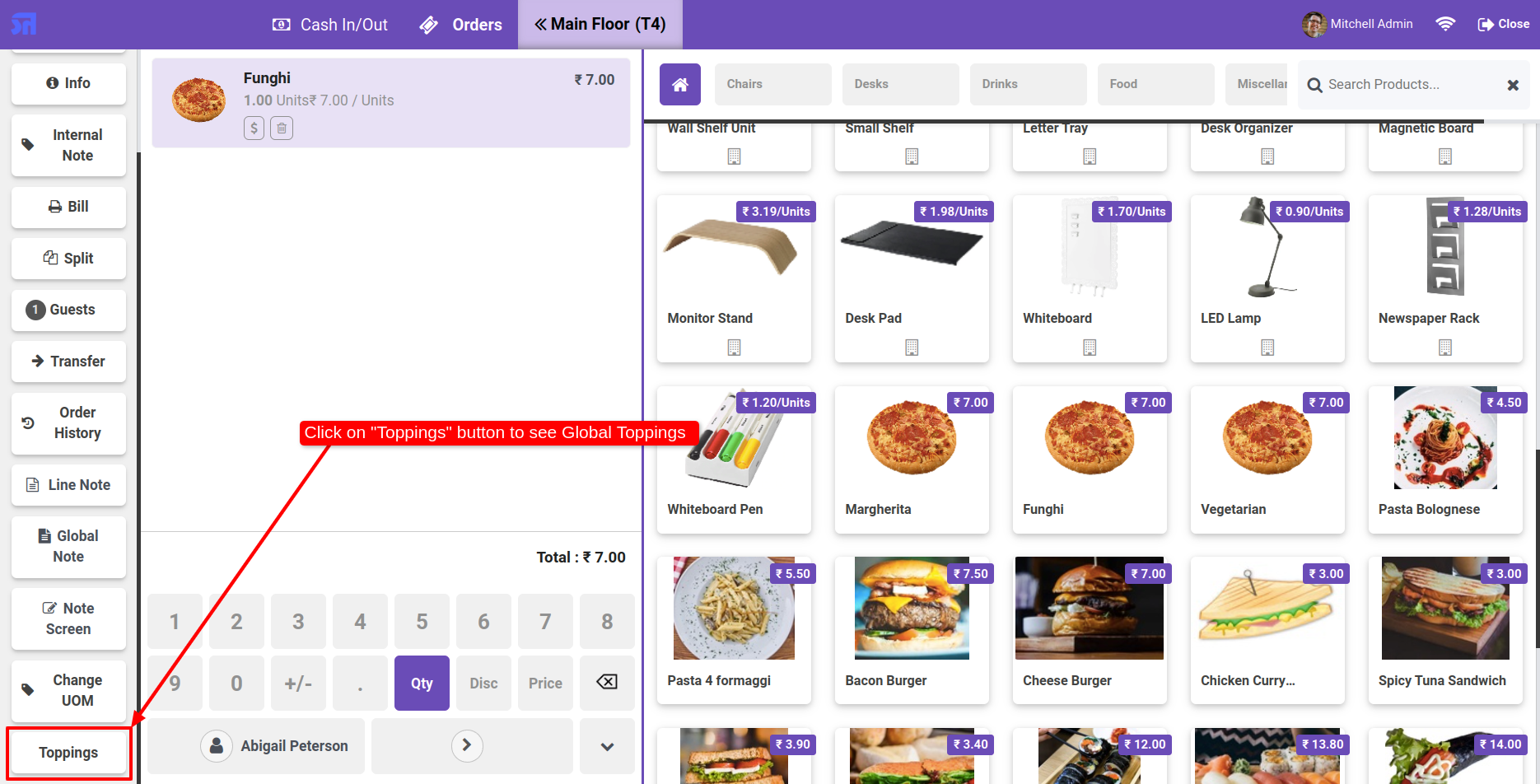
Click on the 'Topping' button to view the global toppings.

Click Toppings button for global toppings

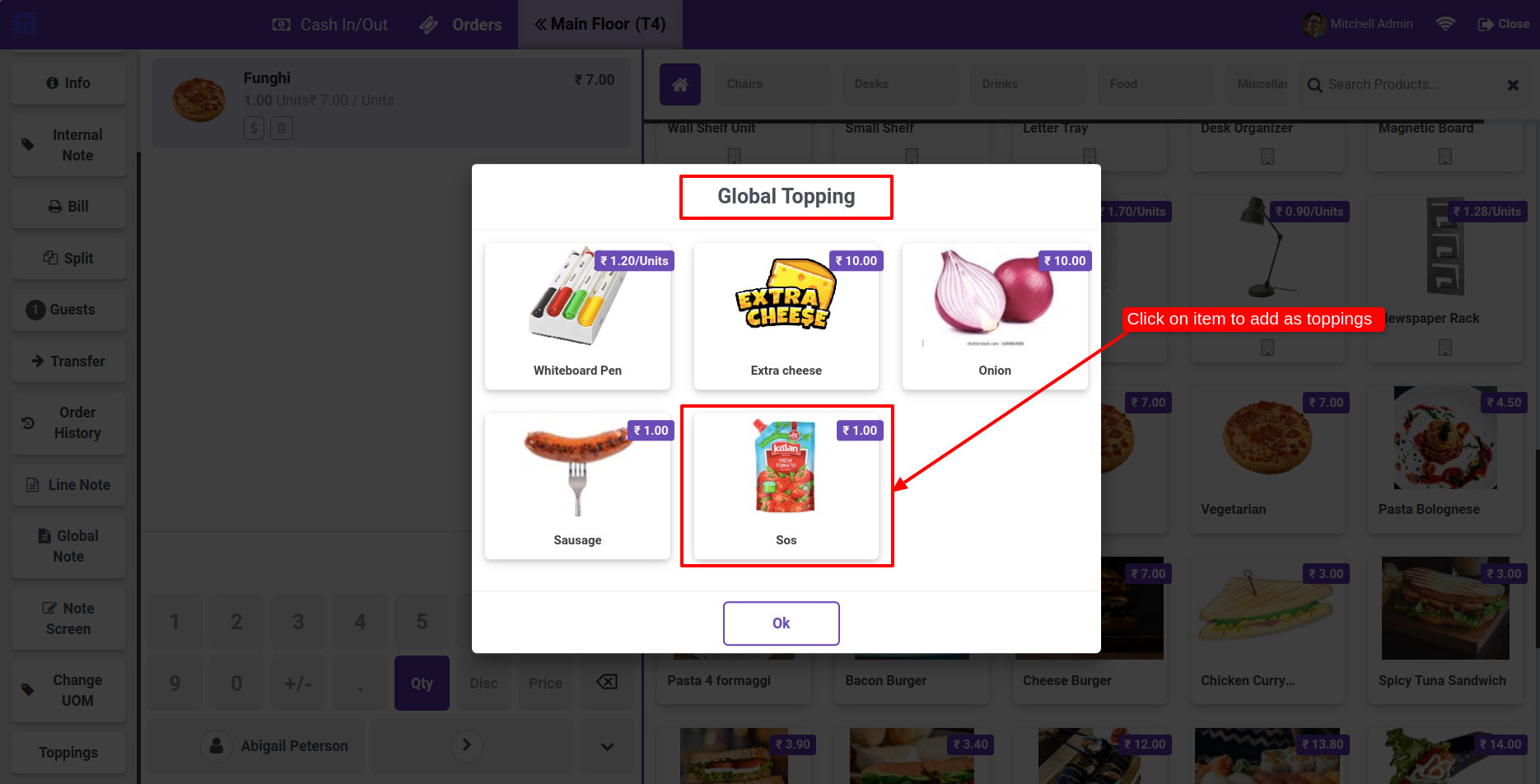
Click on the product to add it as a topping.

Add product as global topping

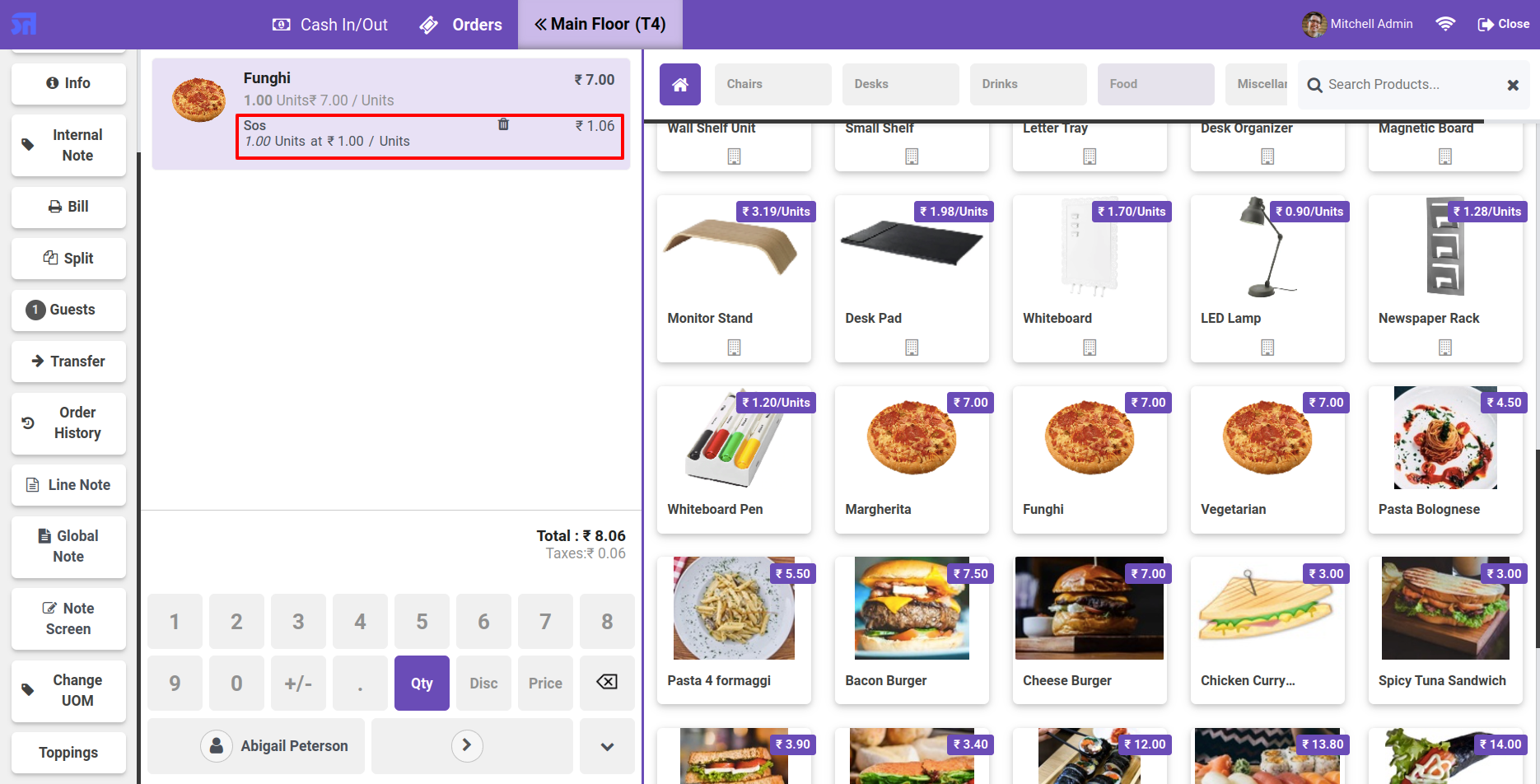
The topping product is added to the order line.

Topping added to order line

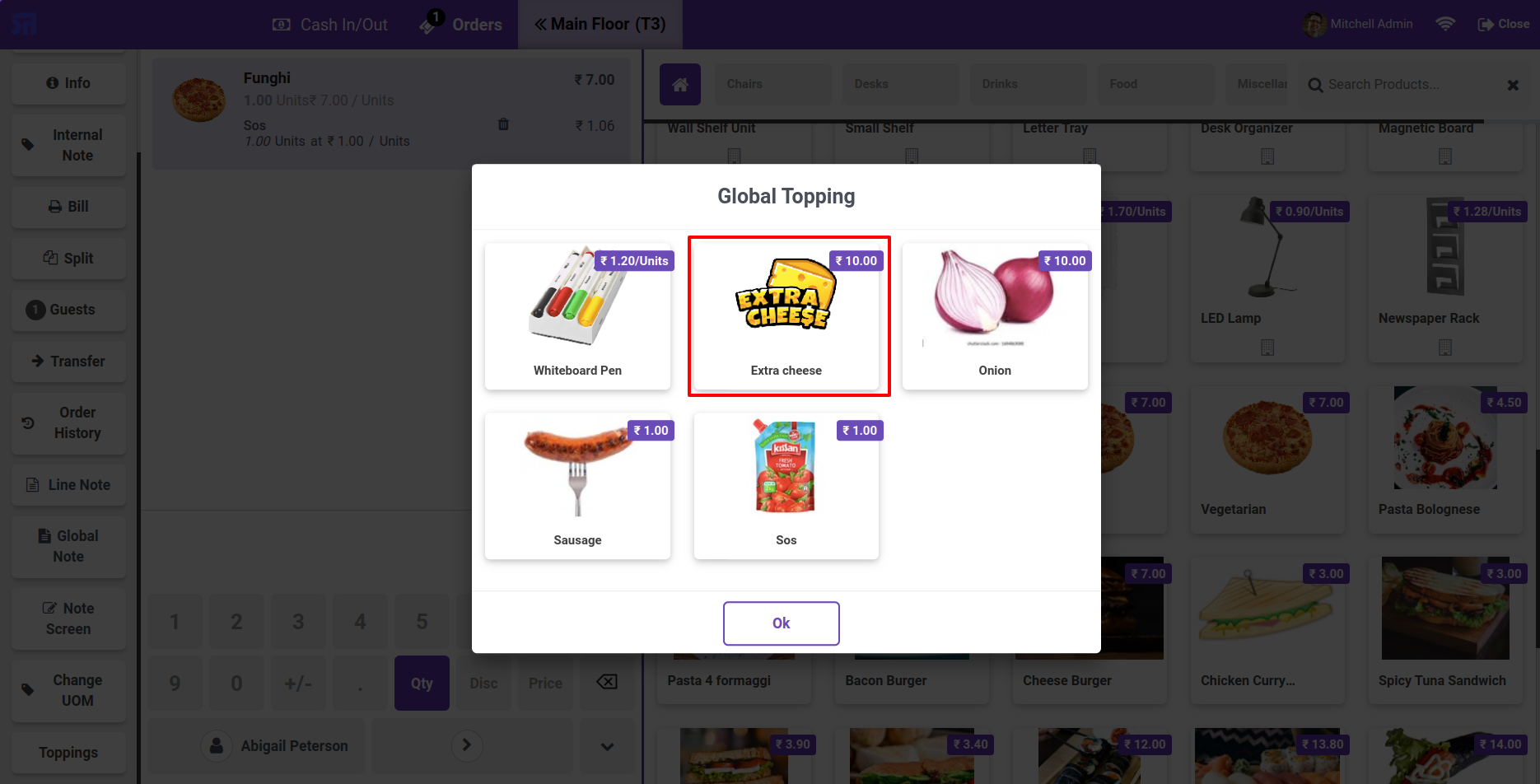
Add a product as a topping.

Add product as topping

The topping product is added to the order line.

Topping added to order line

The topping products are displayed on the receipt.

Toppings shown on receipt

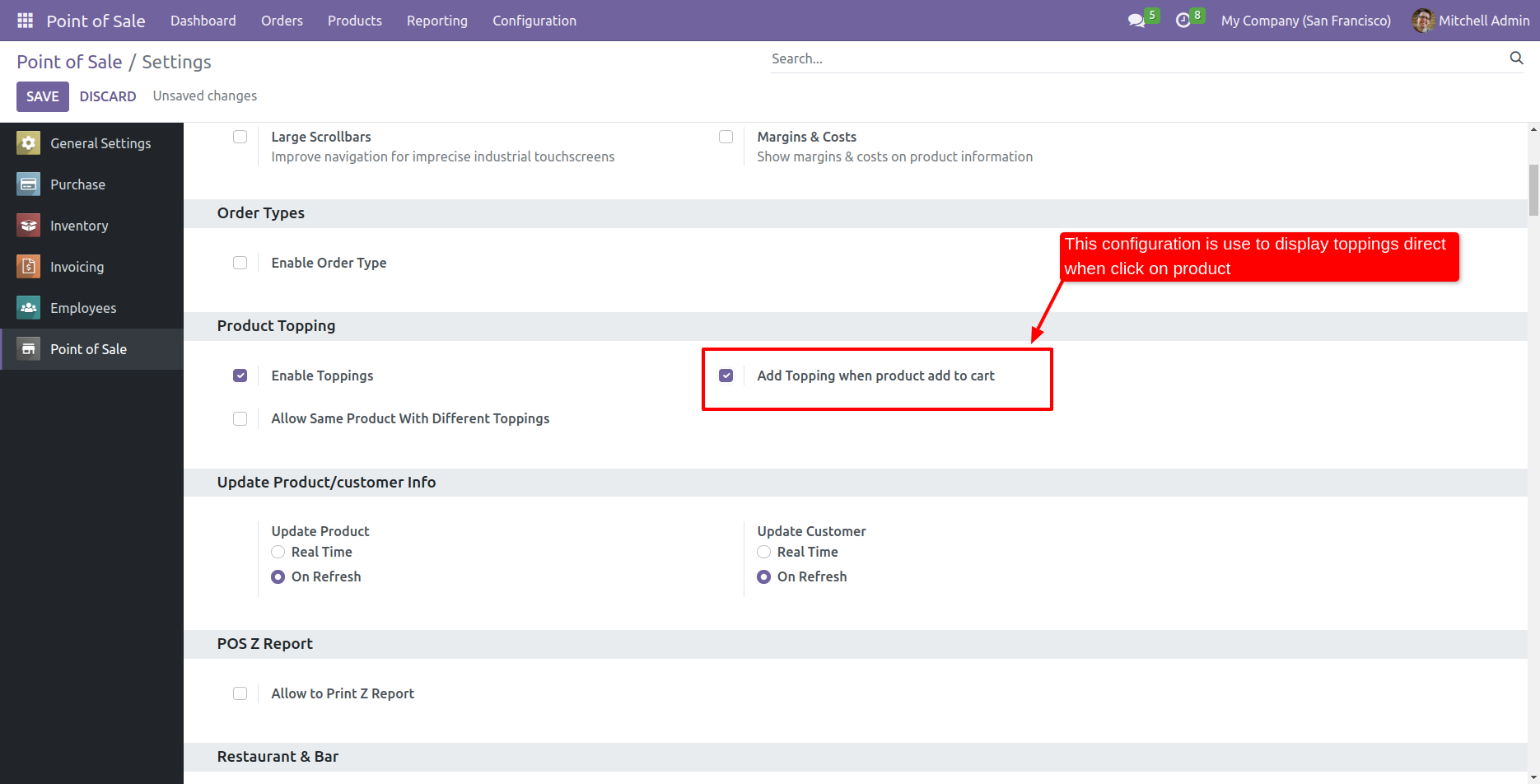
Go to the pos setting and enable the 'Add topping when a product adds to cart' feature.

Enable Add Topping on Product Add to Cart

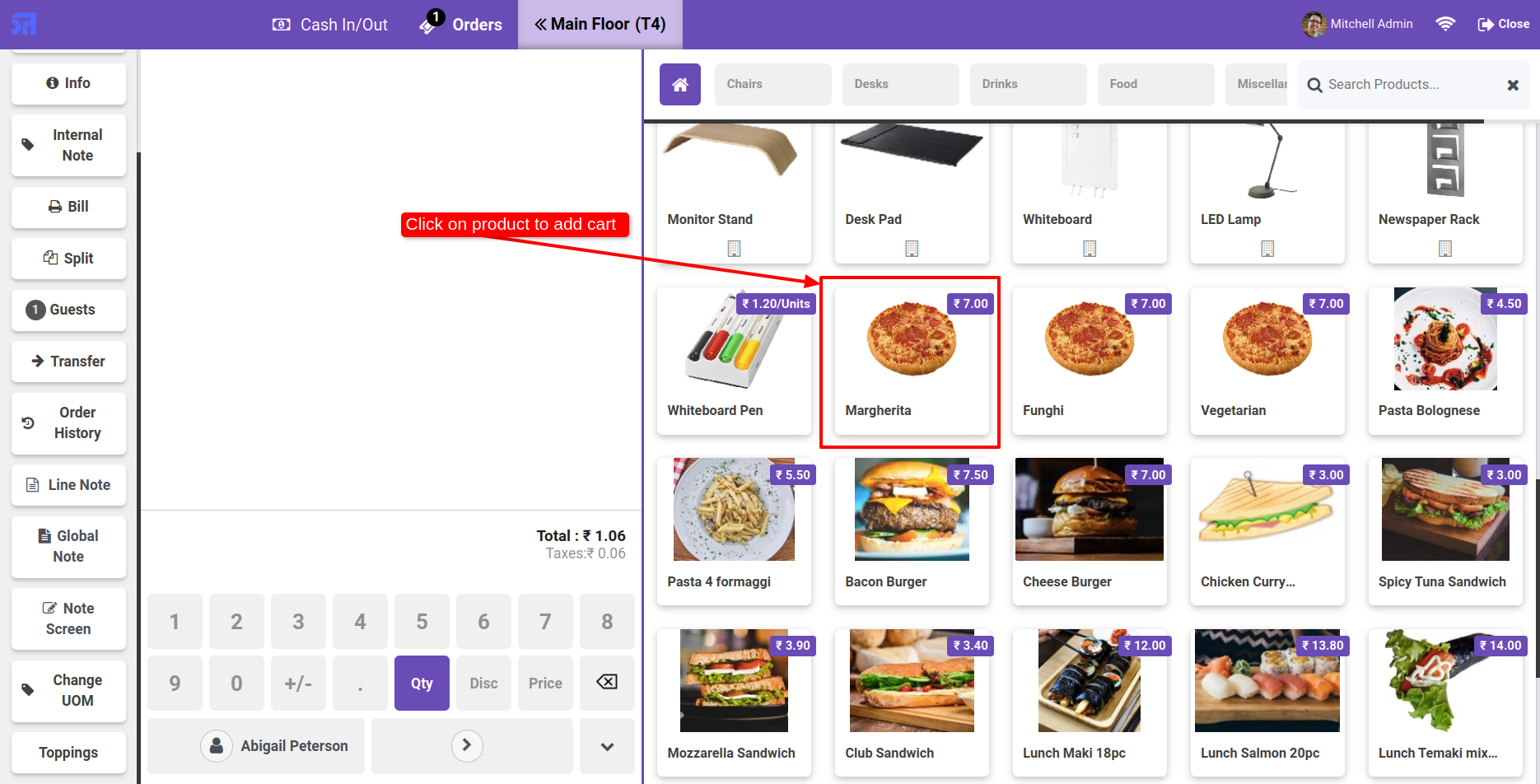
Add a product to the cart.

Add product to cart

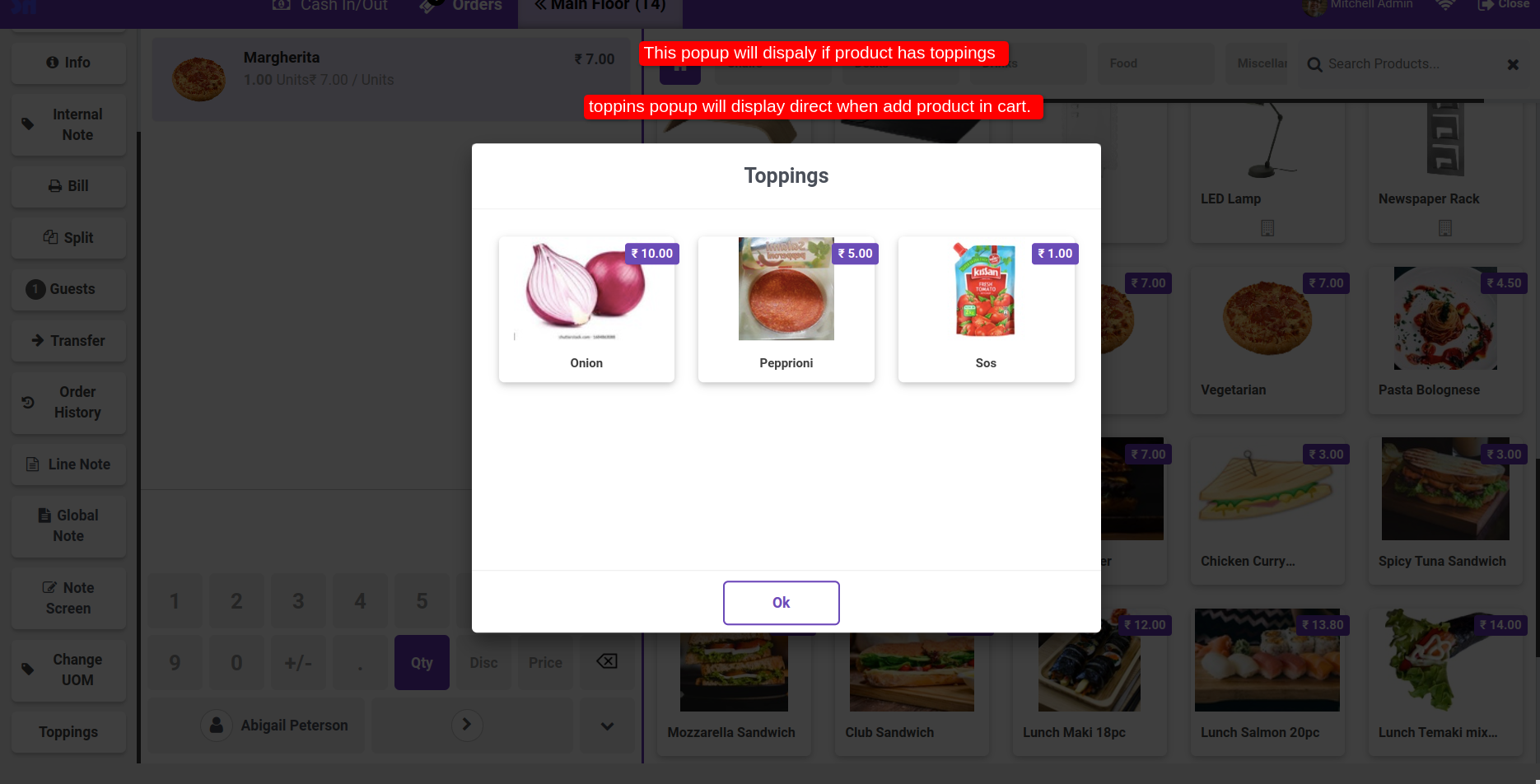
When you add the product to the cart, the topping wizard will appear.
Note: The topping wizard will appear if the product has a topping.

Topping wizard appears on add

The topping product is added to the order line.

Topping added to order line

The topping products are displayed on the receipt.

Toppings shown on receipt

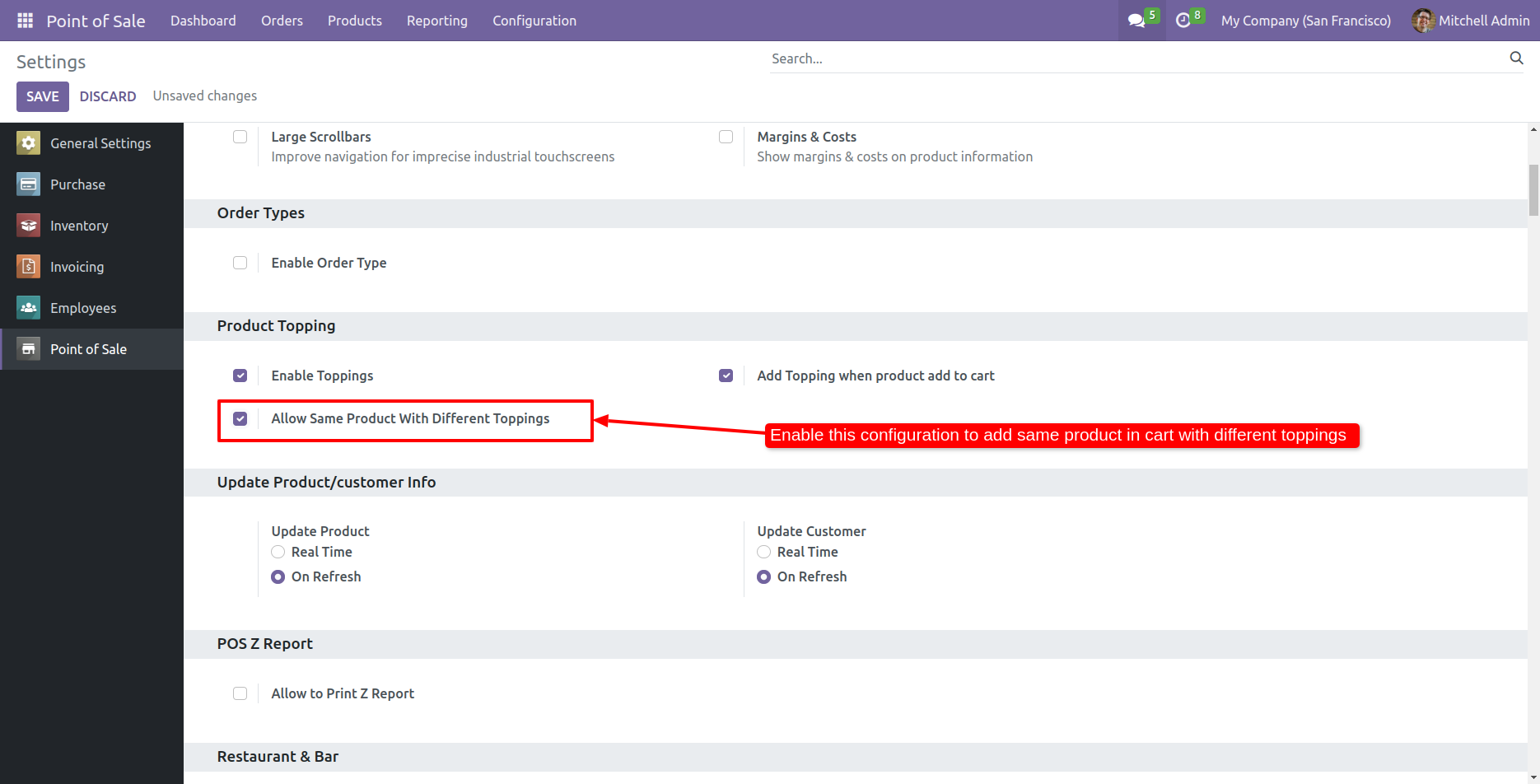
Go to the pos setting and enable the 'Allow same product with different toppings' feature.

Enable Allow Same Product with Different Toppings

Add product to cart.

Add product to cart

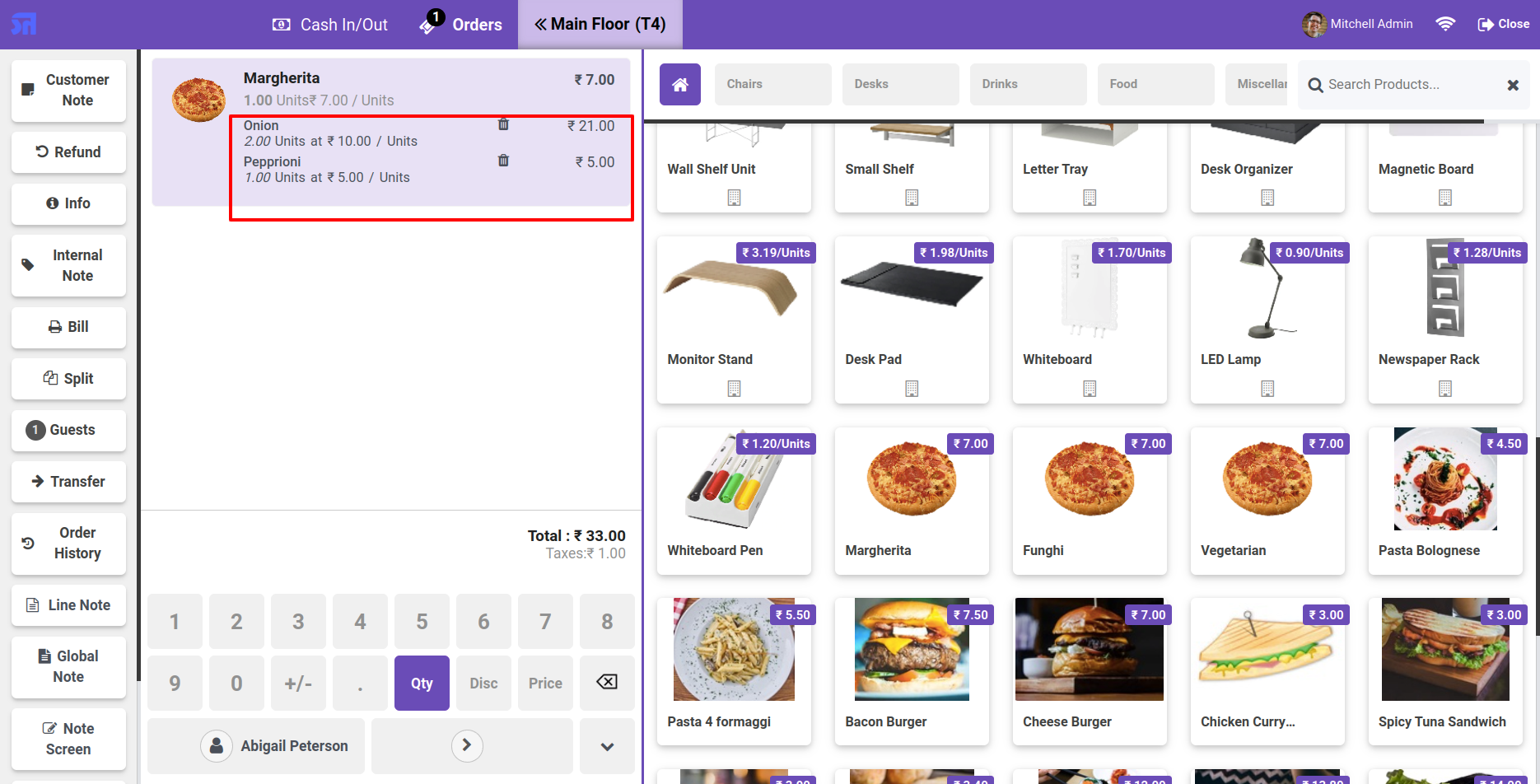
Add product to cart with different toppings.

Add same product with different toppings

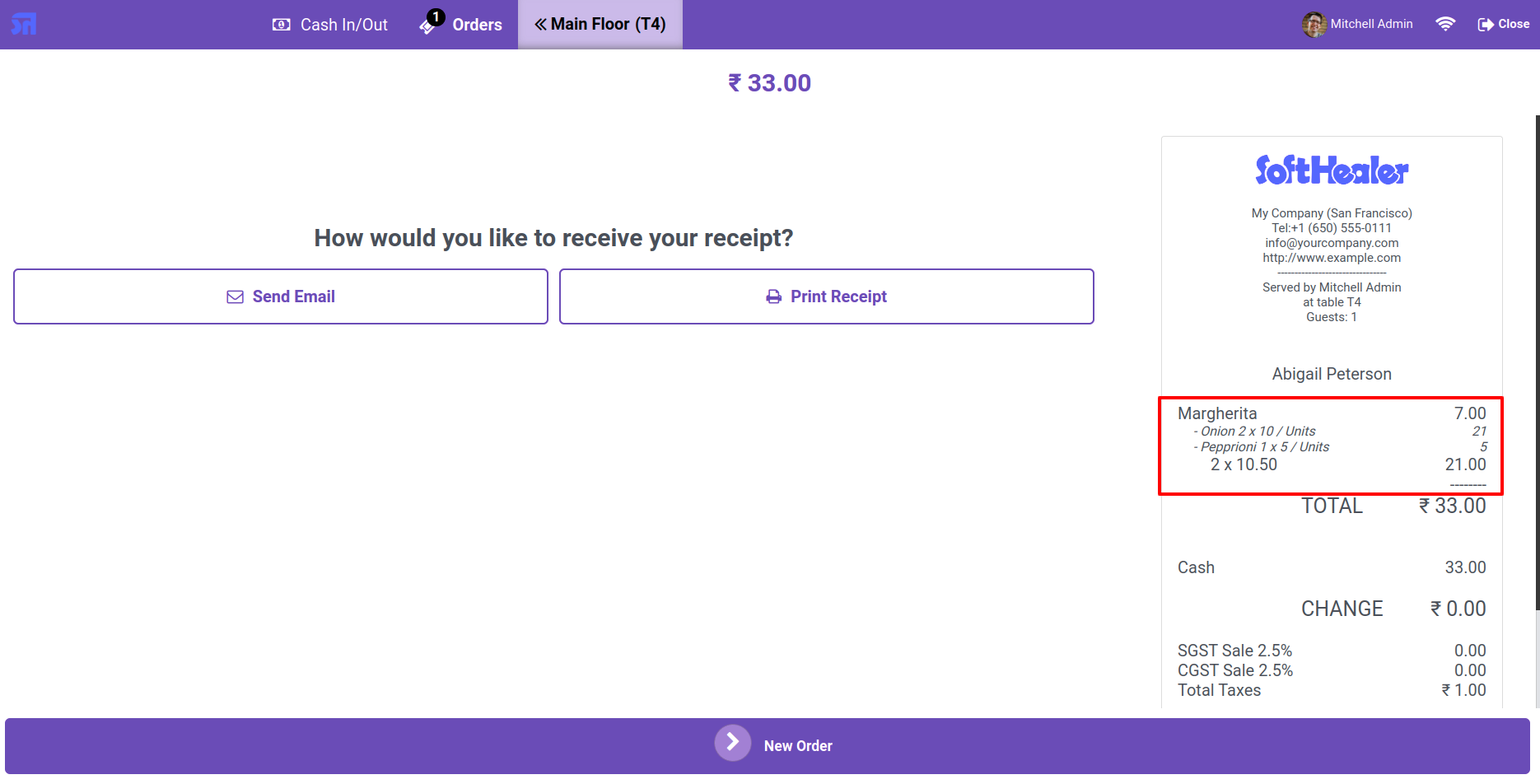
The products displayed on the receipt with different-different toppings.

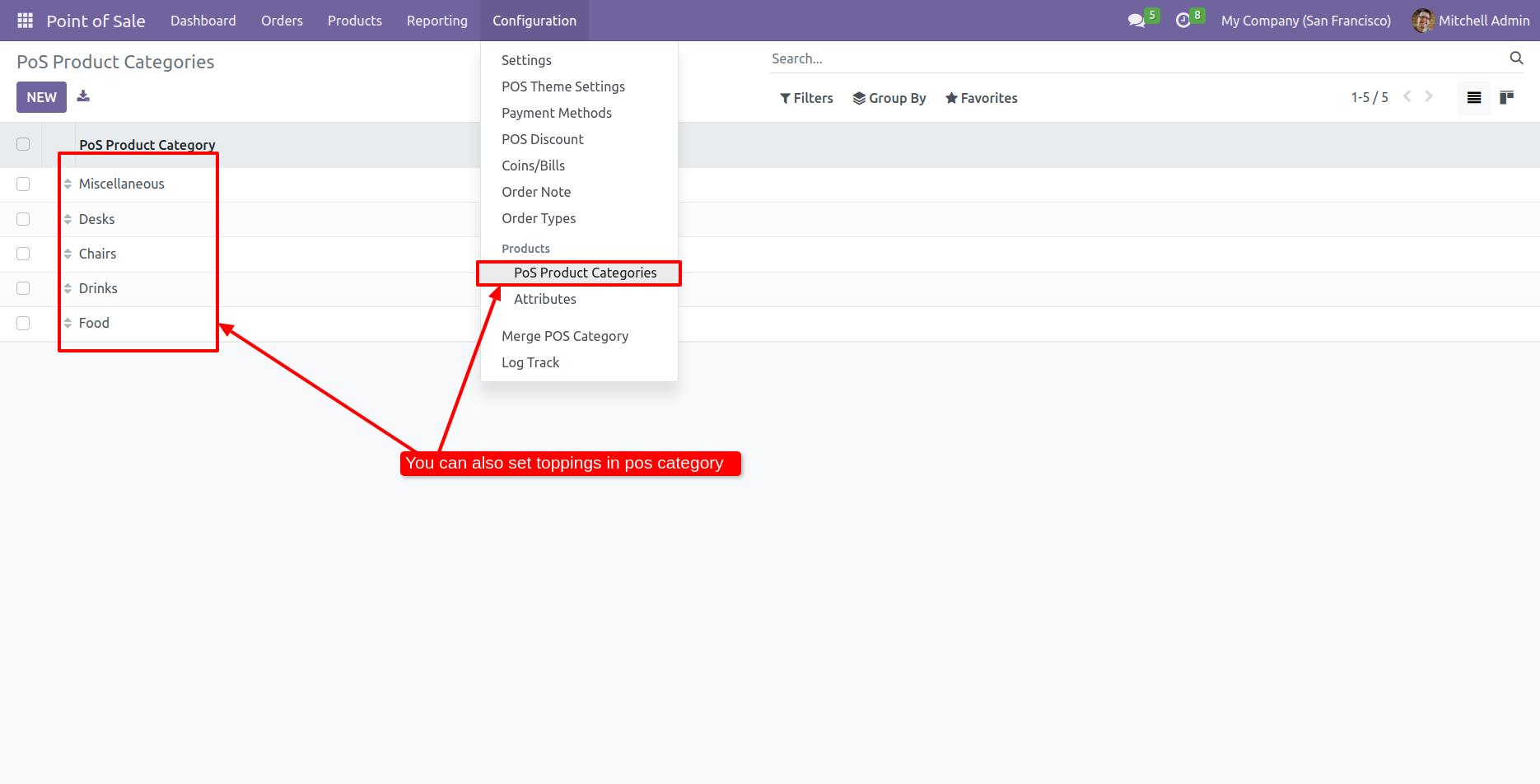
Add toppings in POS product category

Tree view of the pos product categories.

Food products showing category toppings

You can also add toppings in the pos product categories form view.

Toppings form view

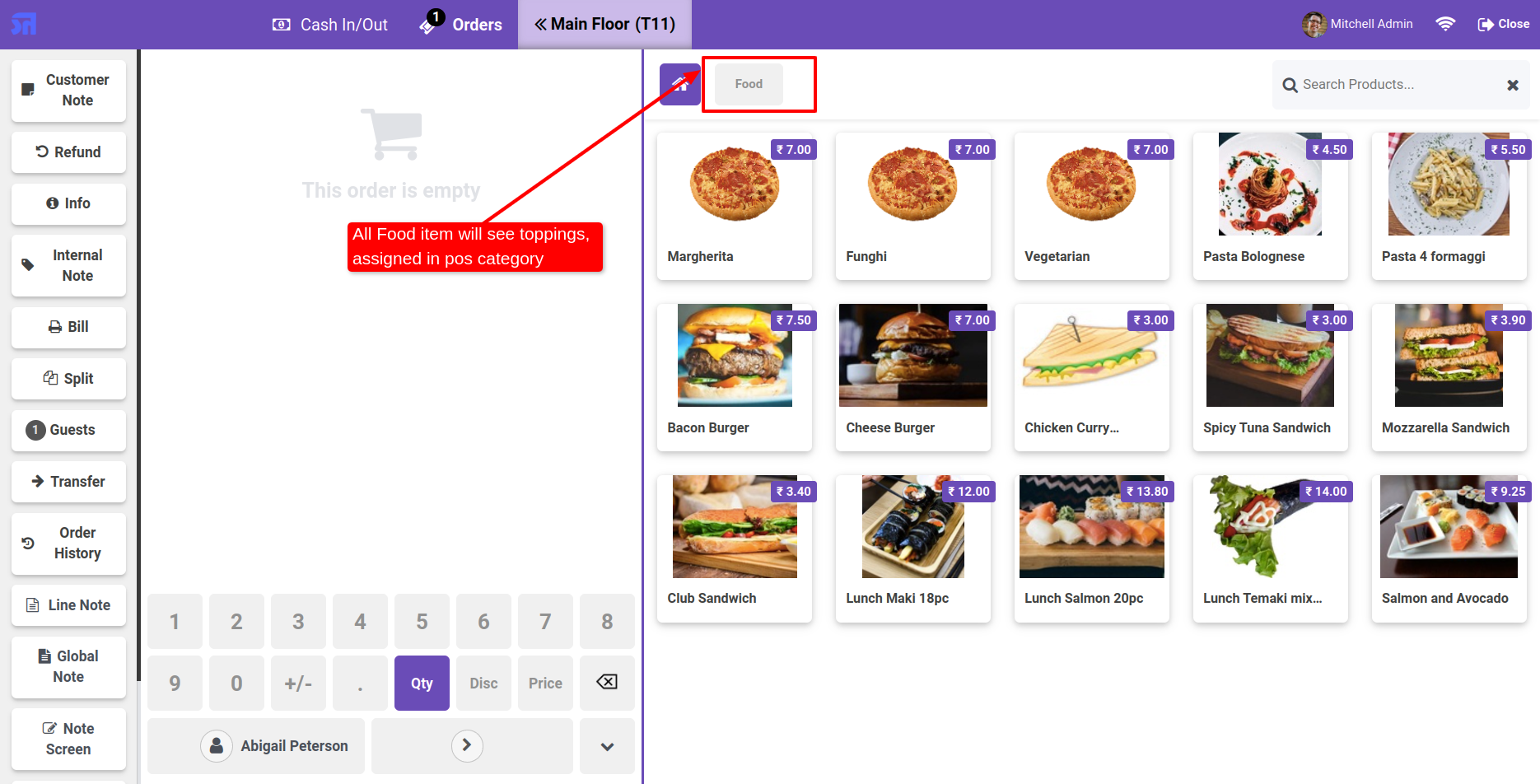
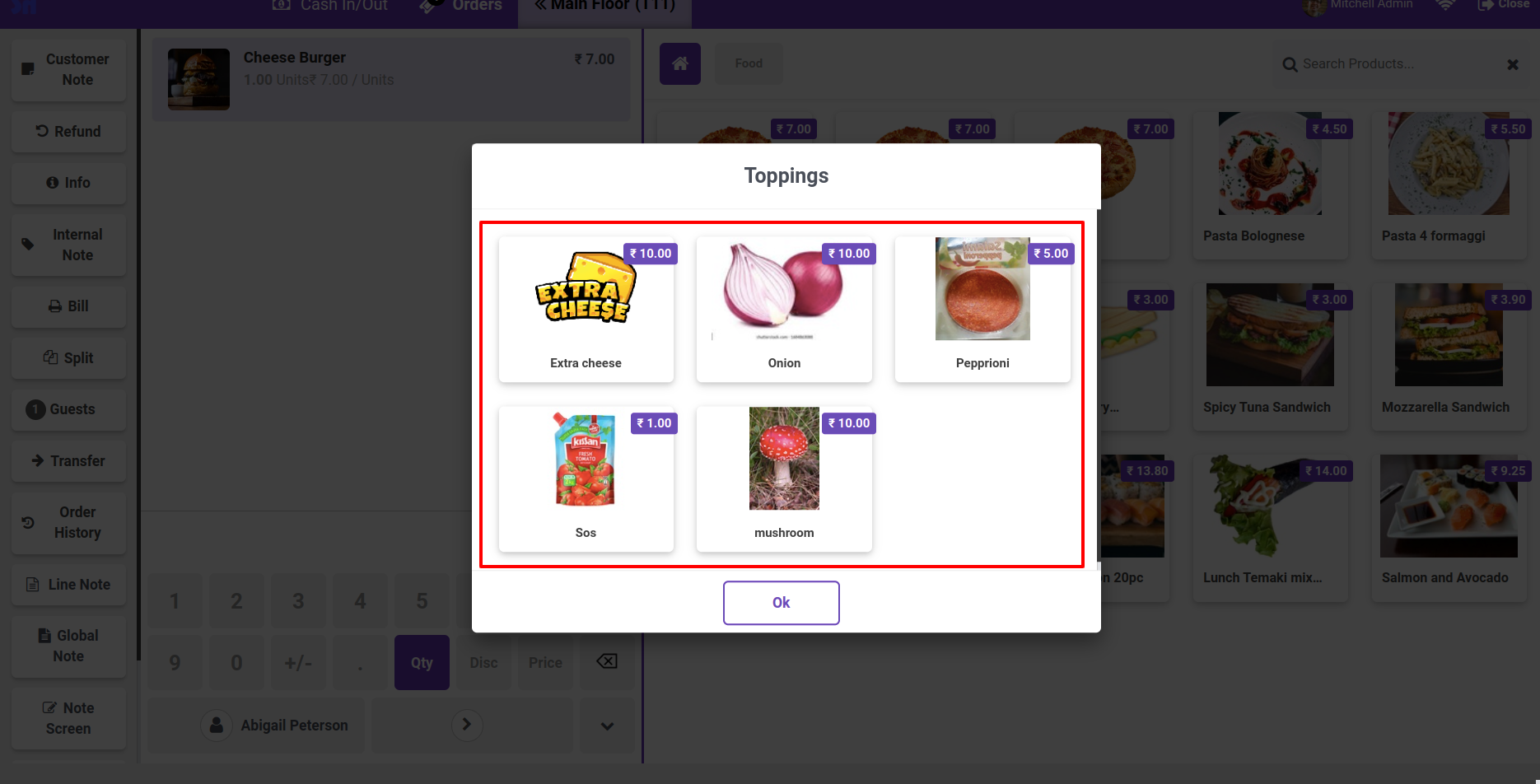
All the food products will see the toppings assigned in pos categories.

 All the food products will see the toppings

Form view of the toppings.

Form view of the toppings

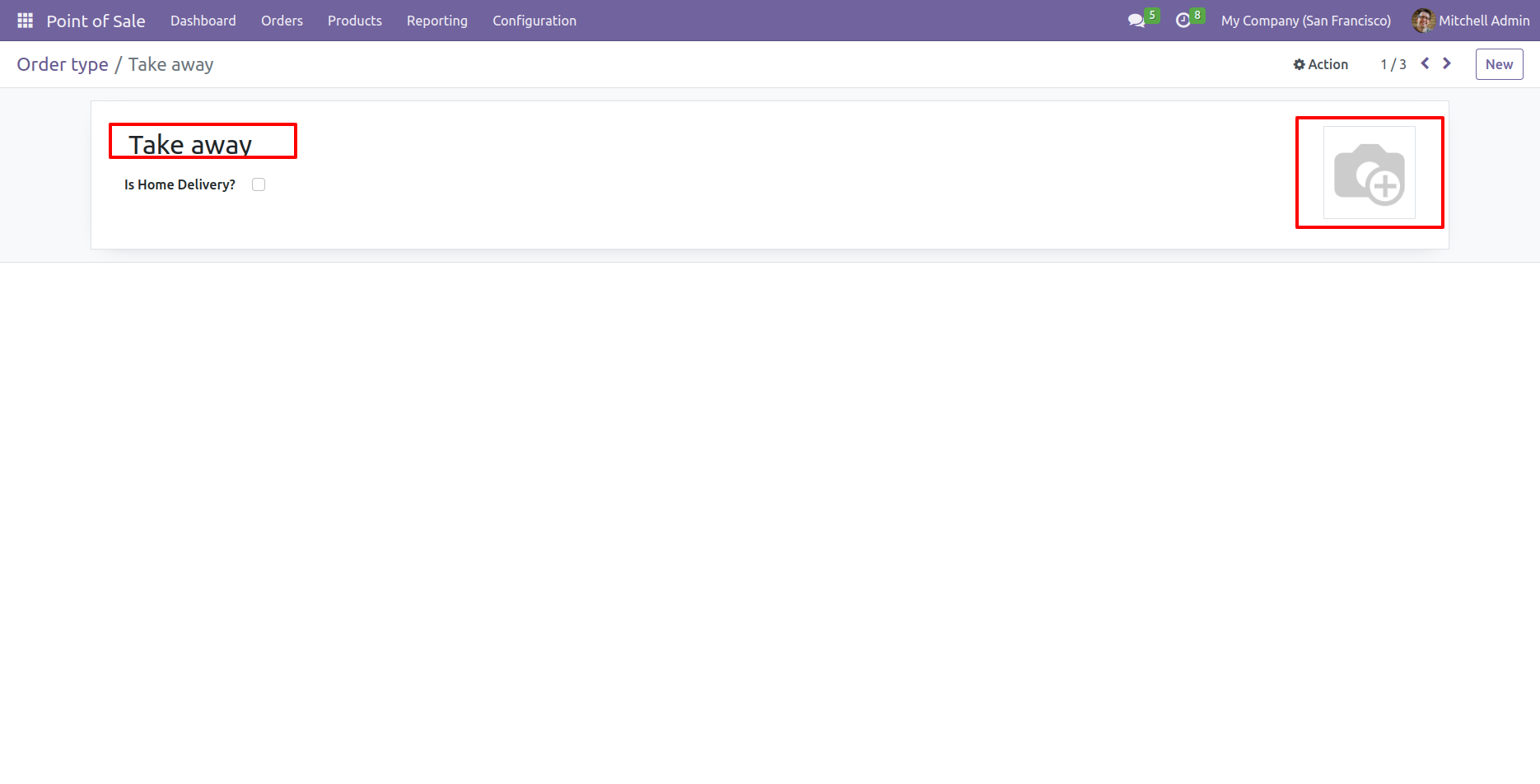
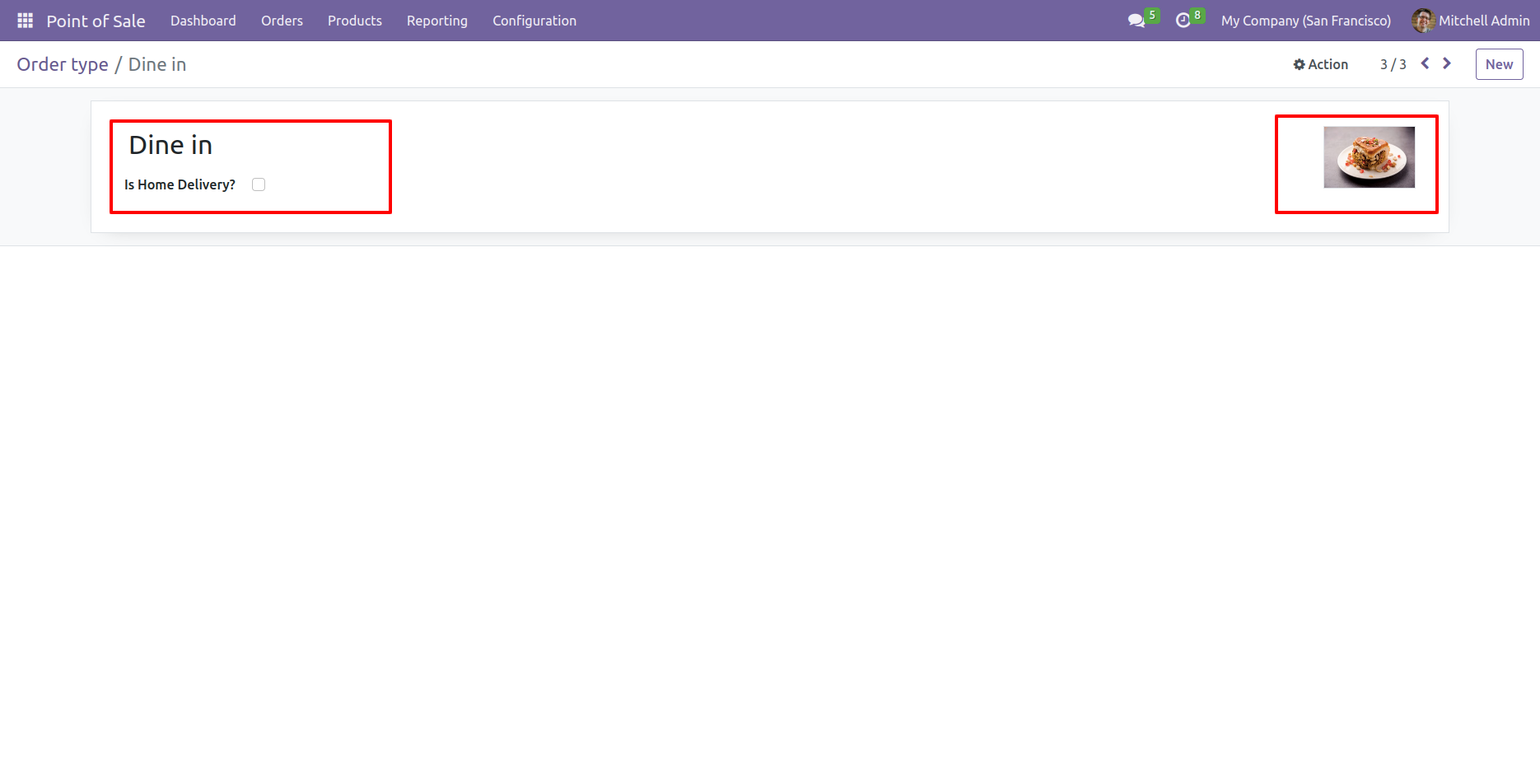
Open order types from the configuration menu. From there, you will find a list of existing order types, and also, you can create a new order type by clicking on the 'New' button.

In the form view of the order type, you have the option to specify the image for the respective order type.

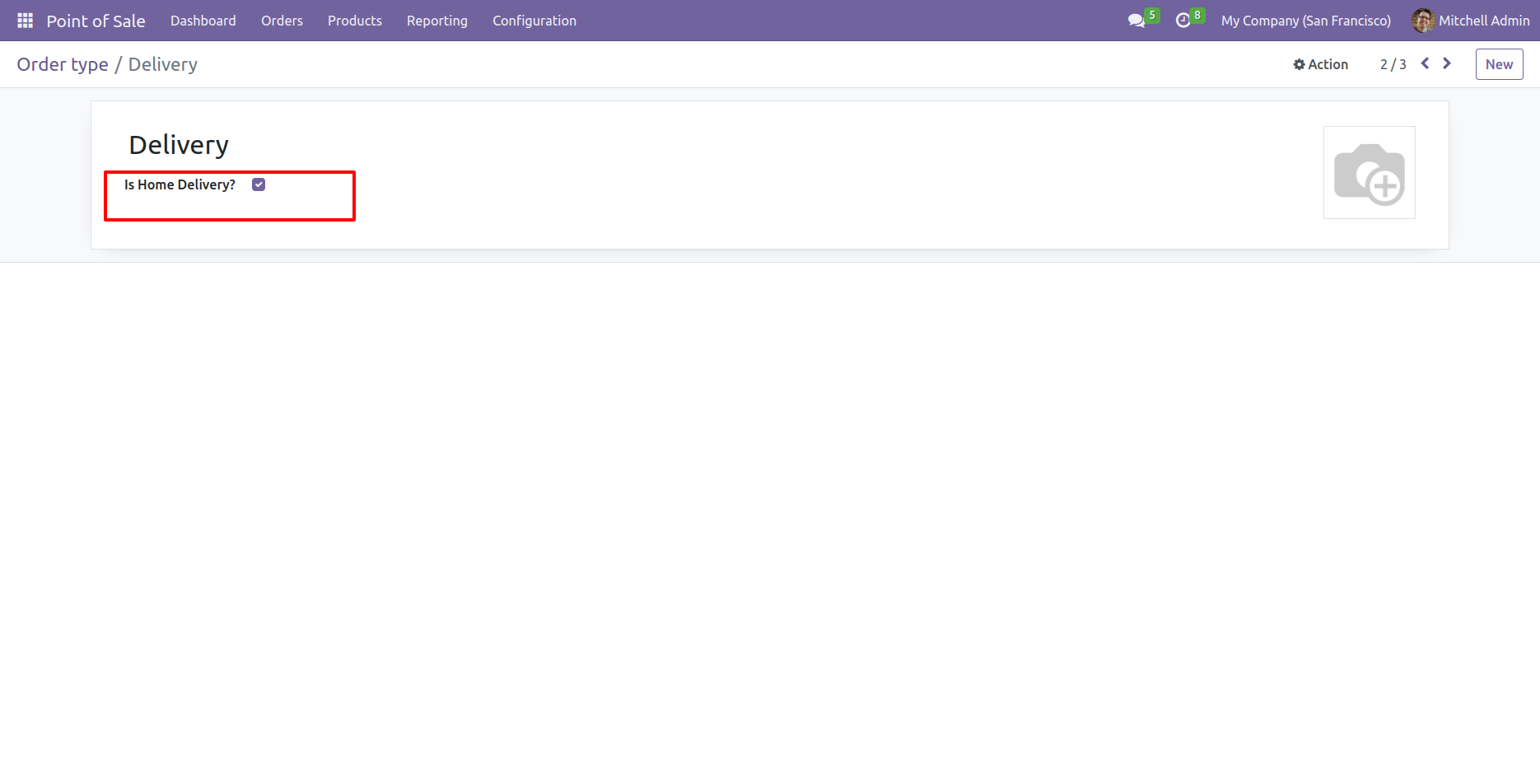
Tick home delivery option.

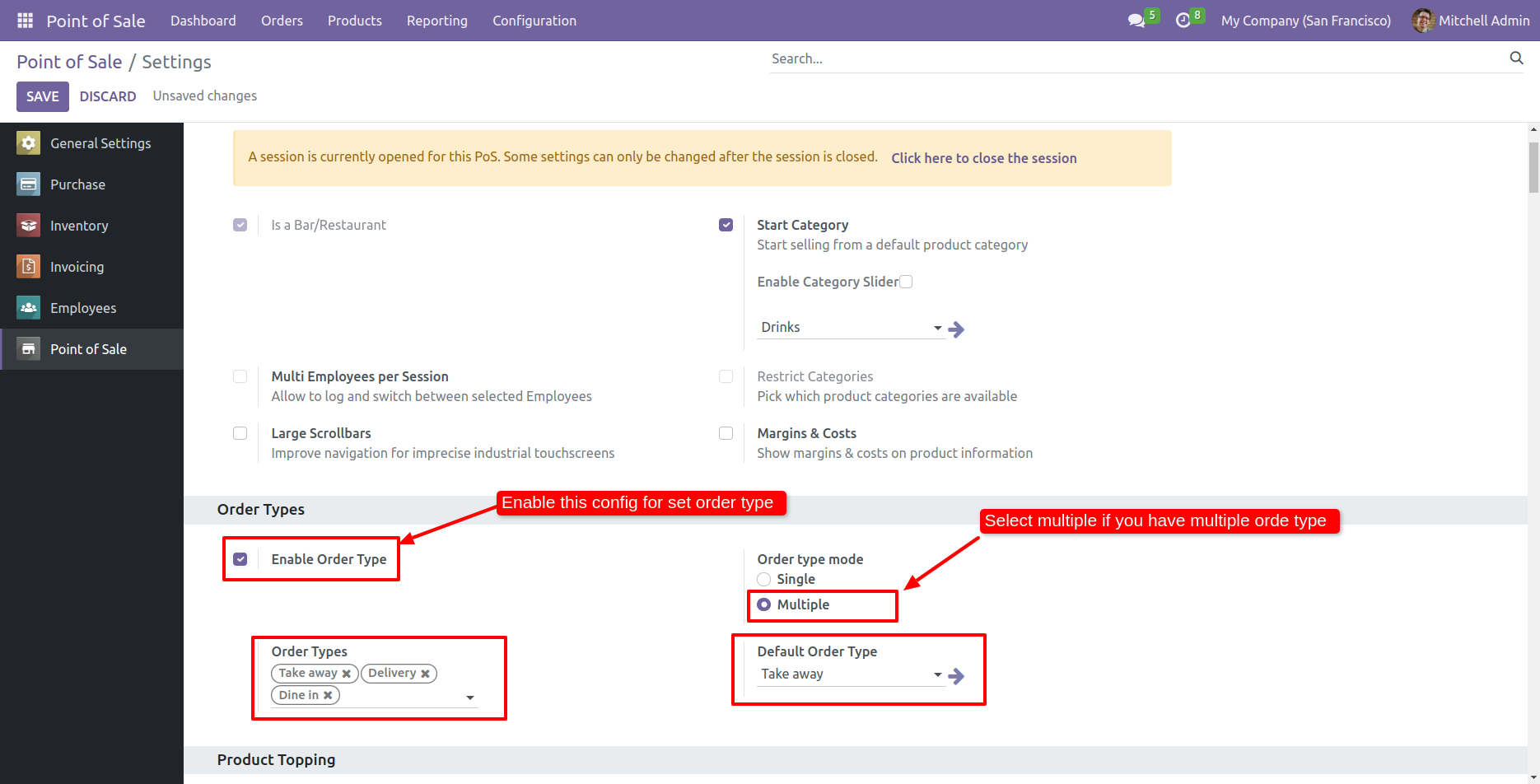
Go to the POS setting and enable 'Enable Order Type' and Select multiple order types, if you have more than one order type.
Add the list of the order types and also set the default order type 'Take away'.

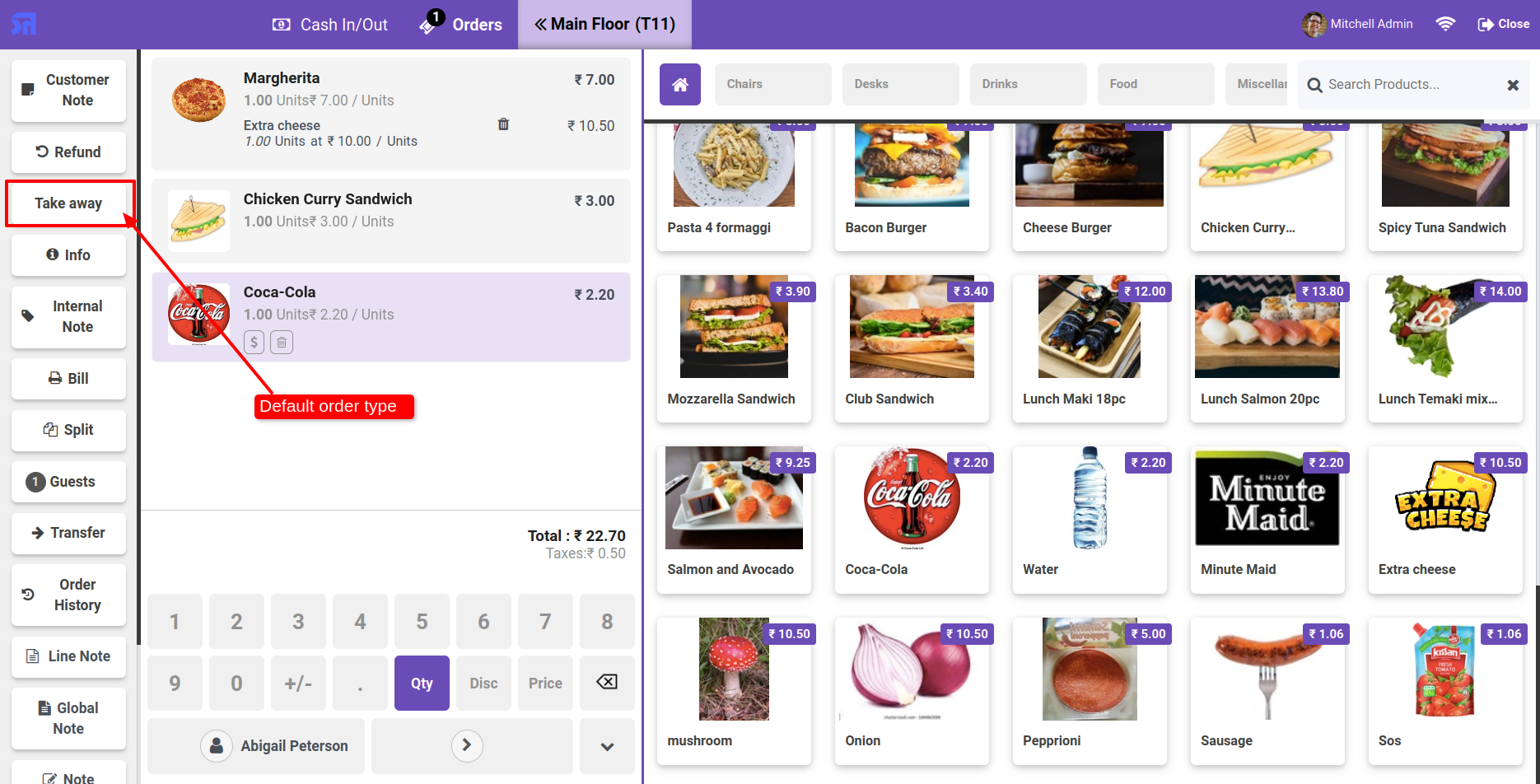
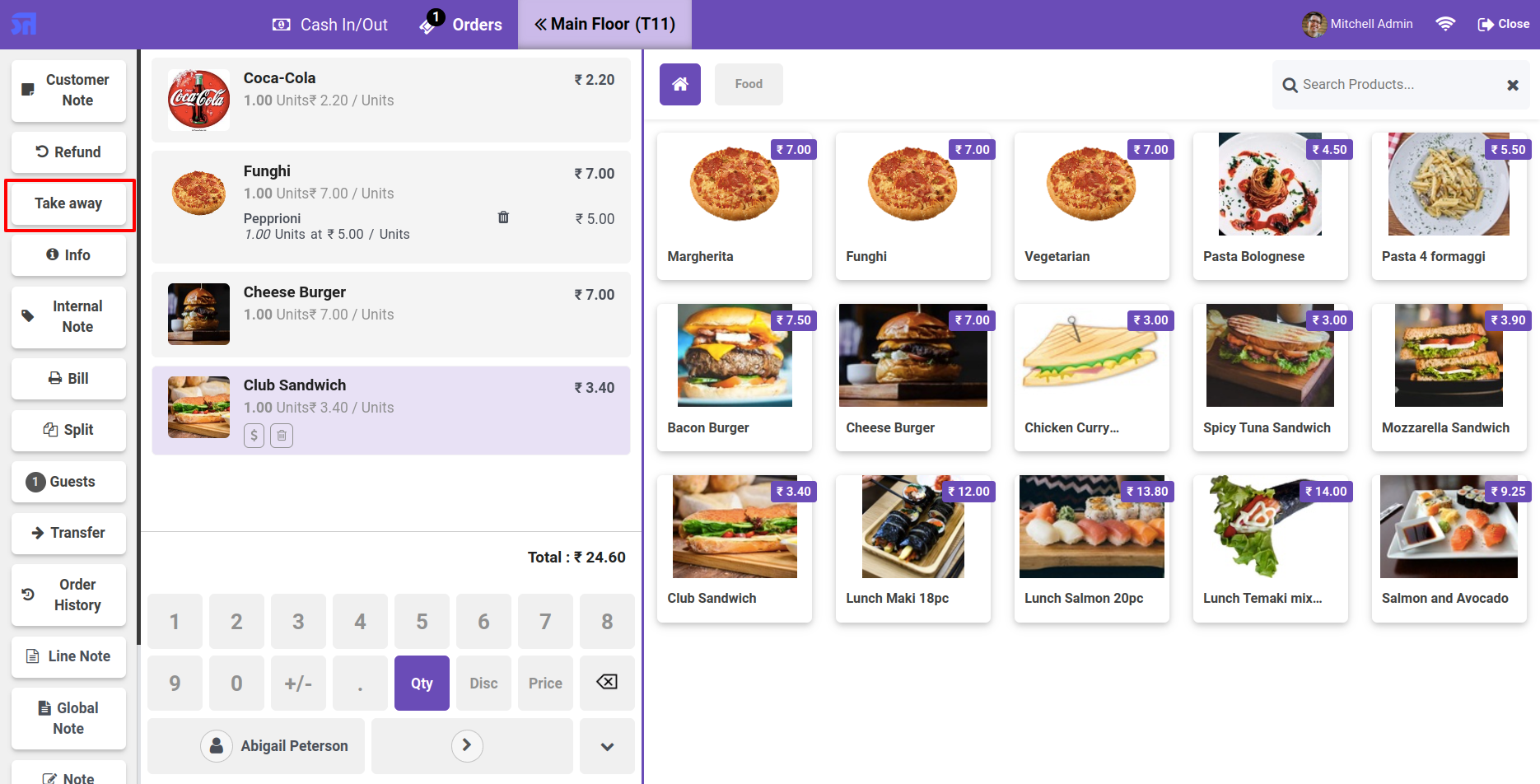
By default, the order type 'Take Away' is automatically selected.

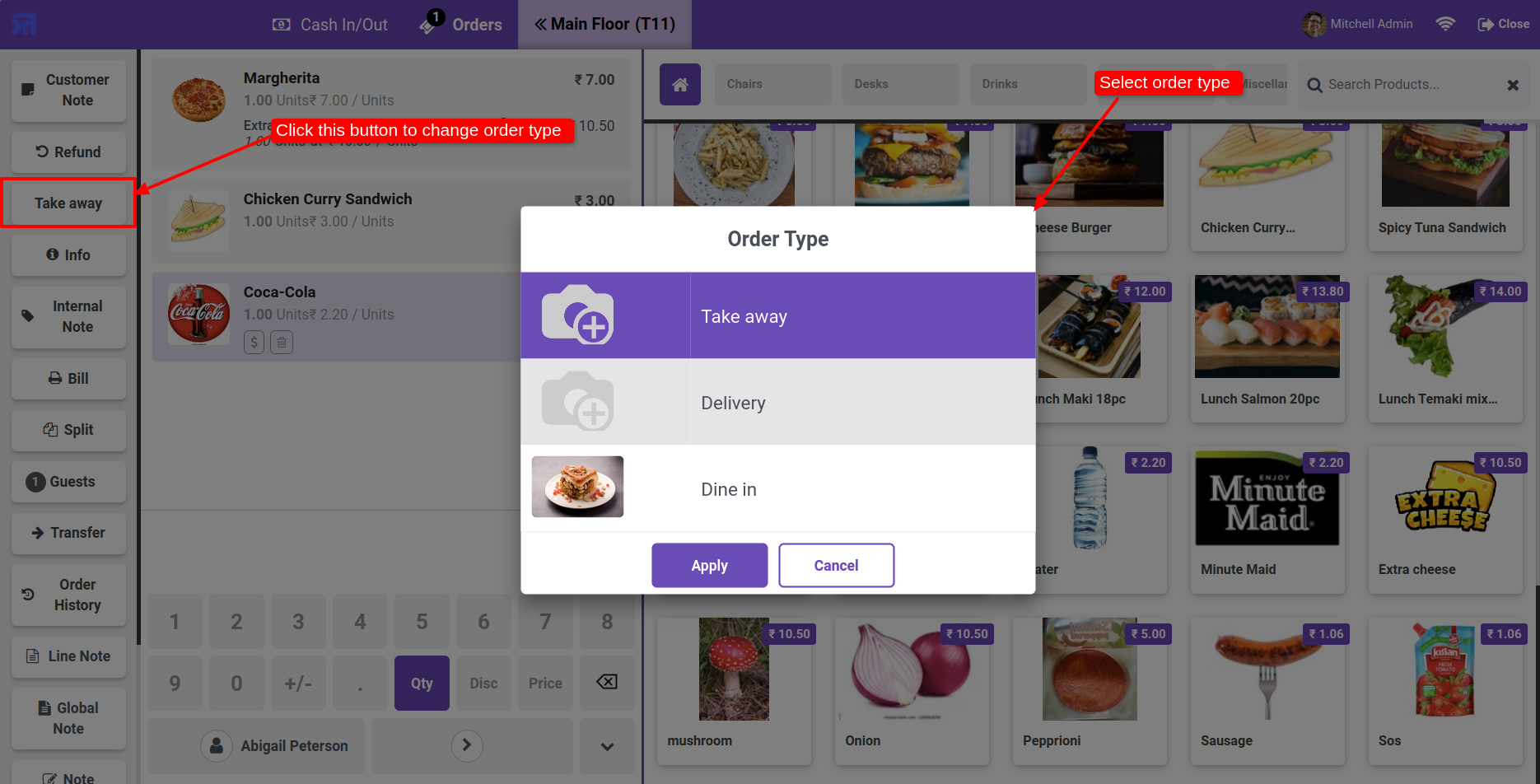
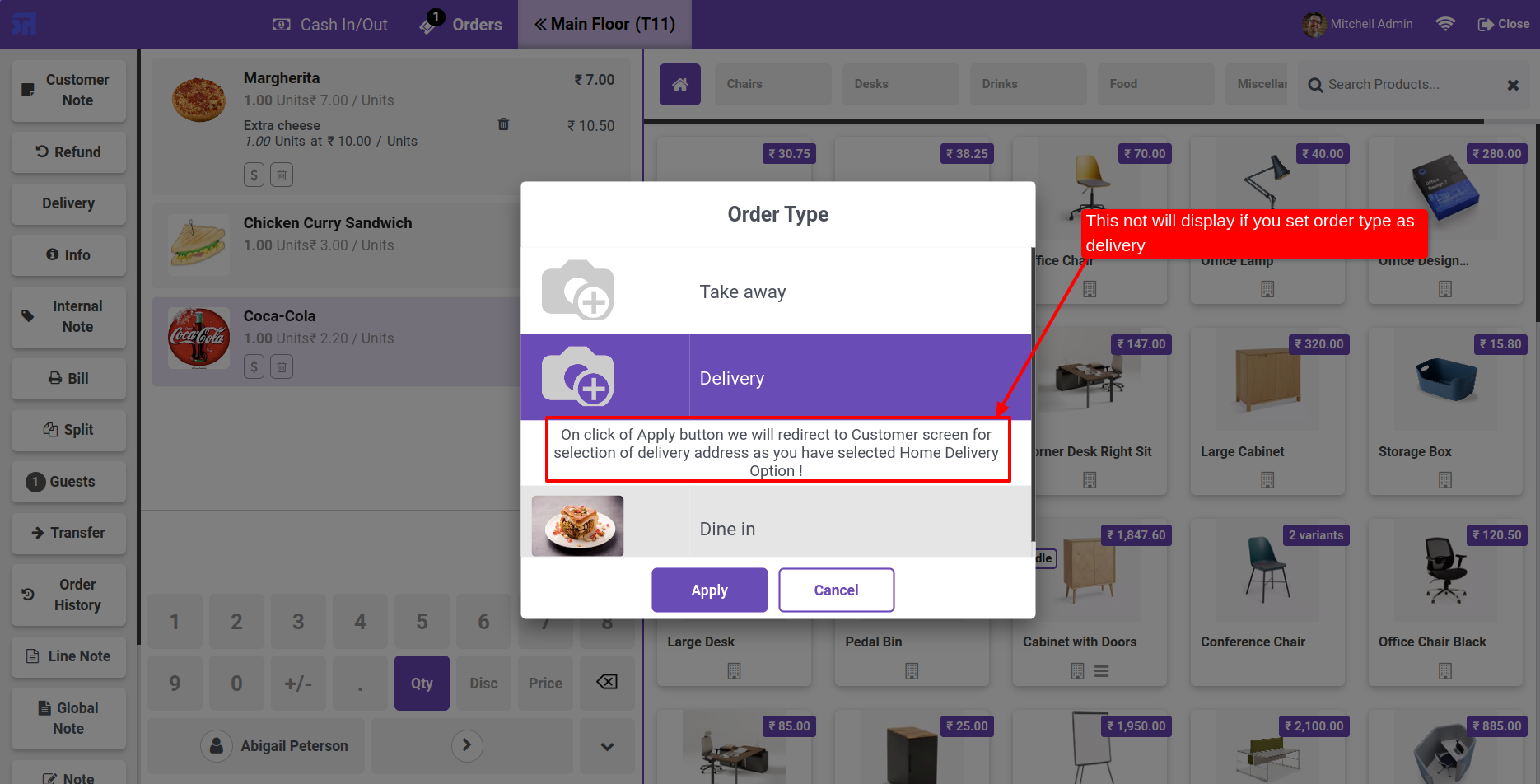
If you want to change the order type then click on the 'Take Away' button.

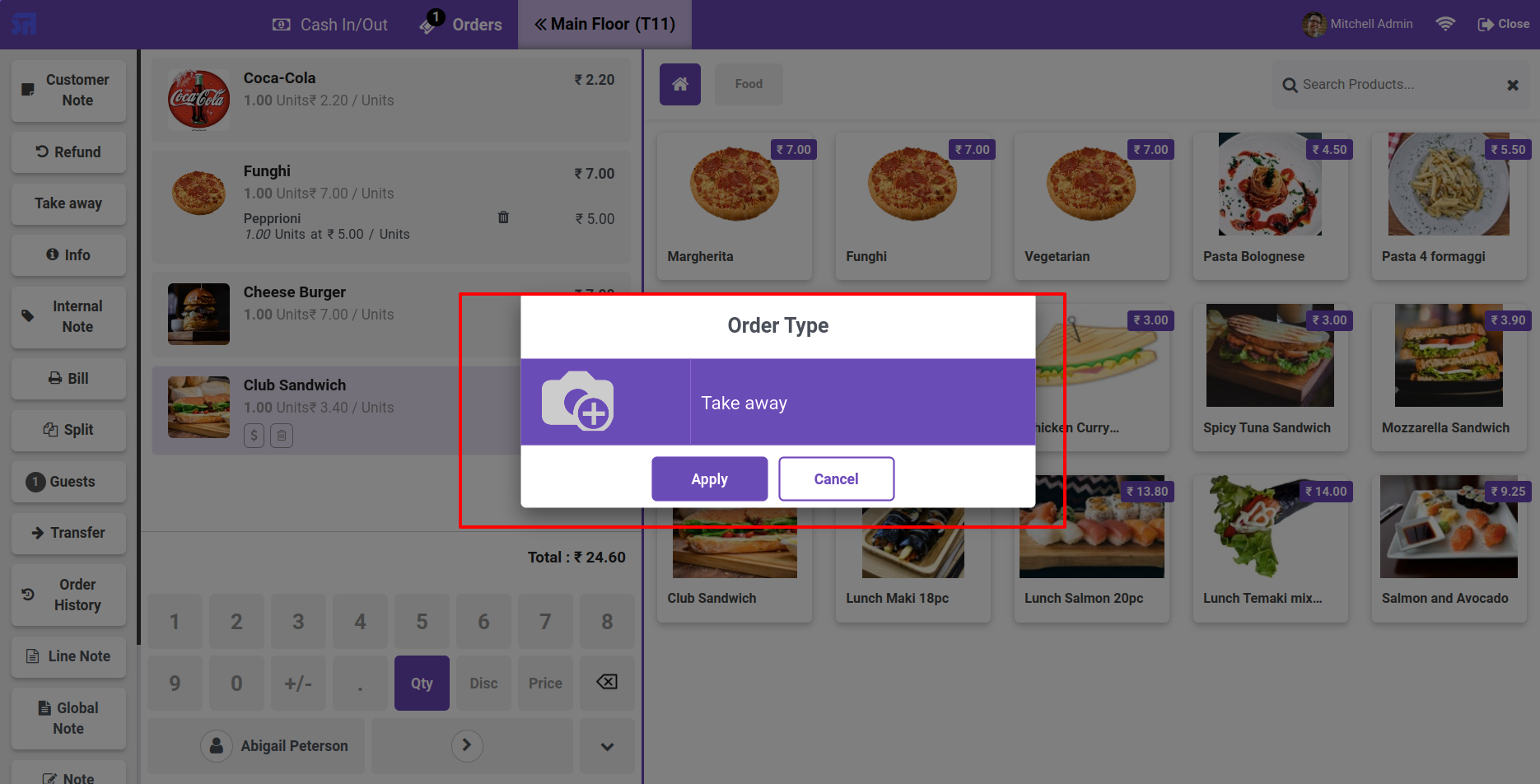
Select the desired order type on the order type wizard.

If you select the delivery order type, this selection option will not be displayed.

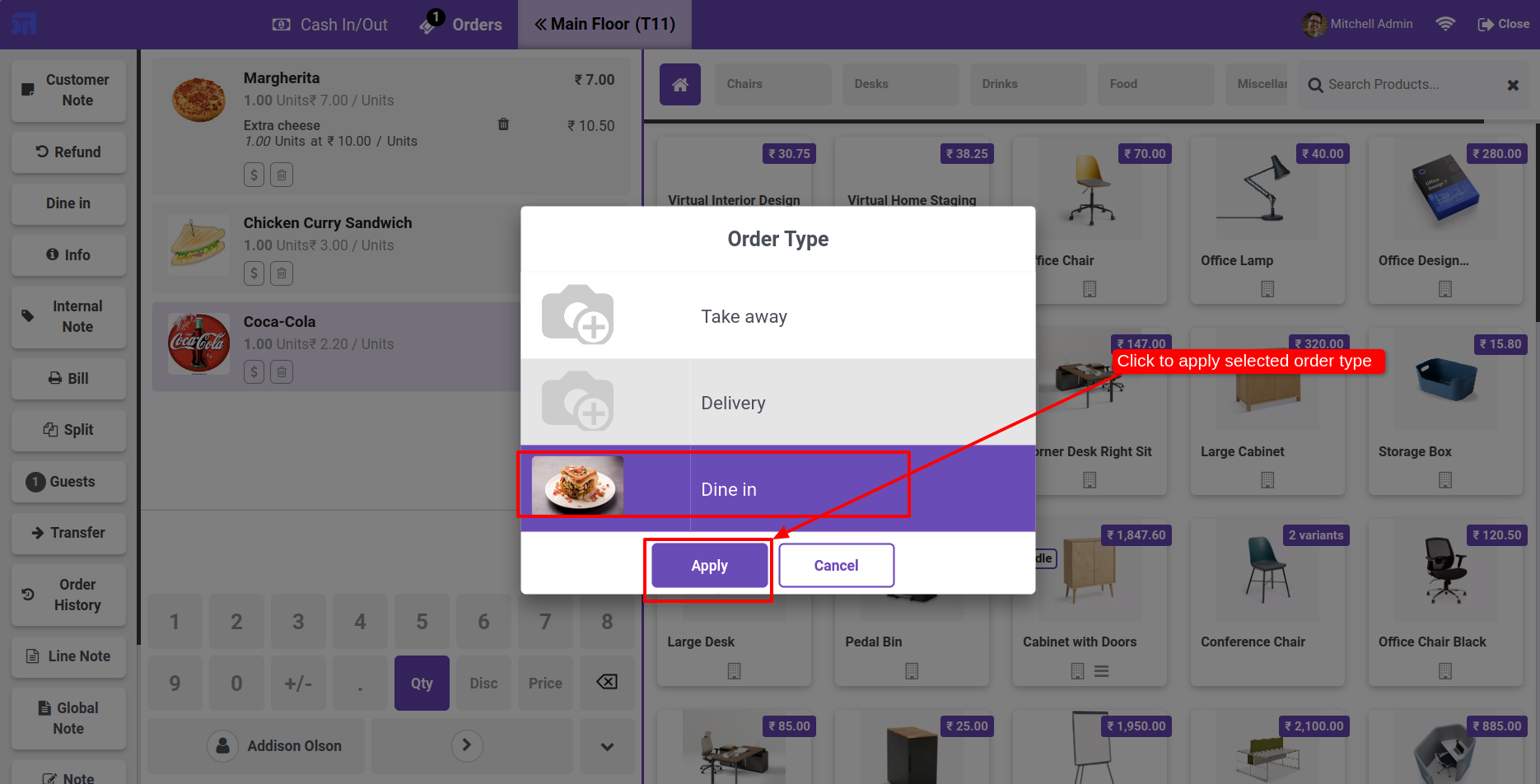
Select the 'Dine In' order type and click on the 'Apply' button.

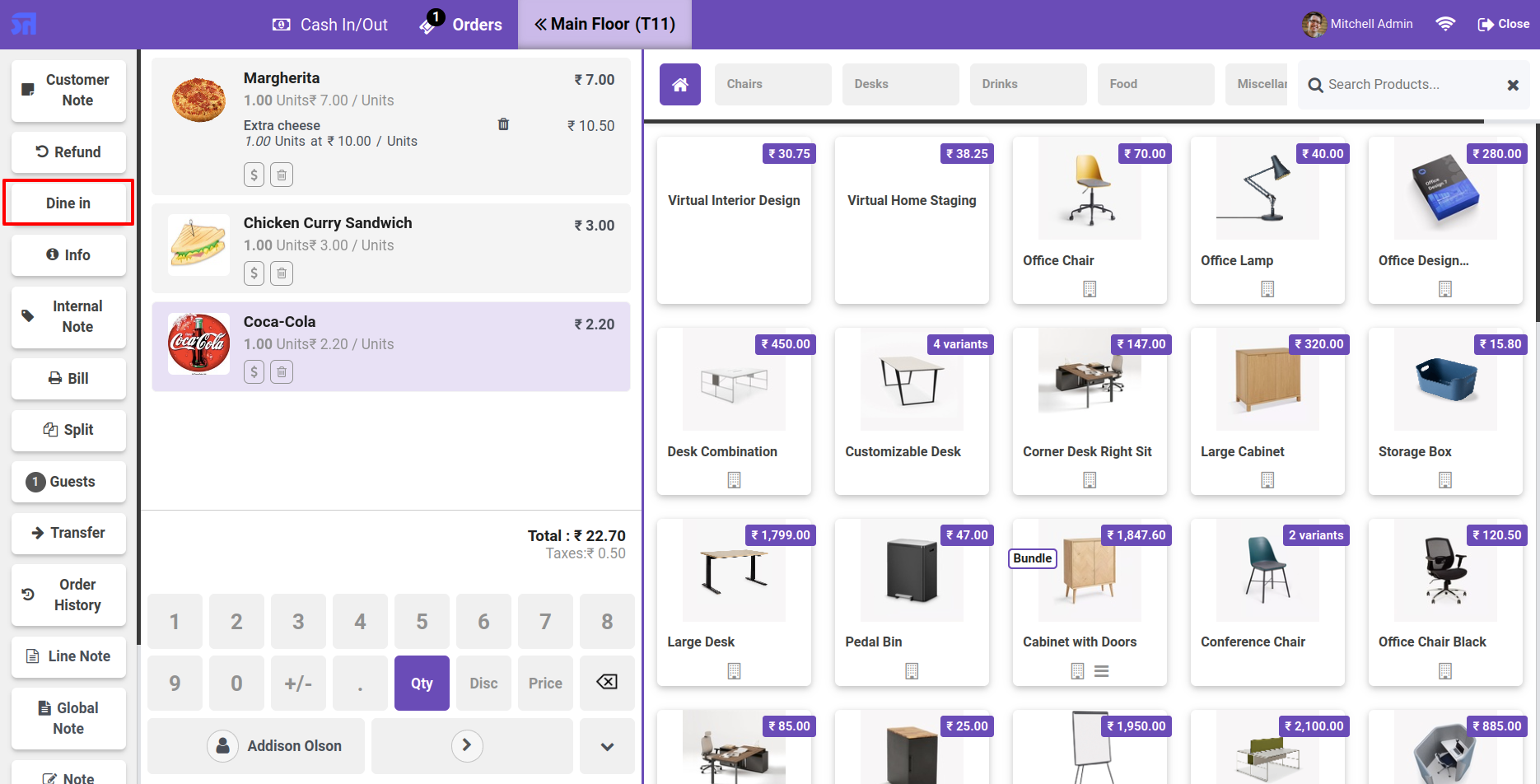
The order type is changed to 'Dine In'.

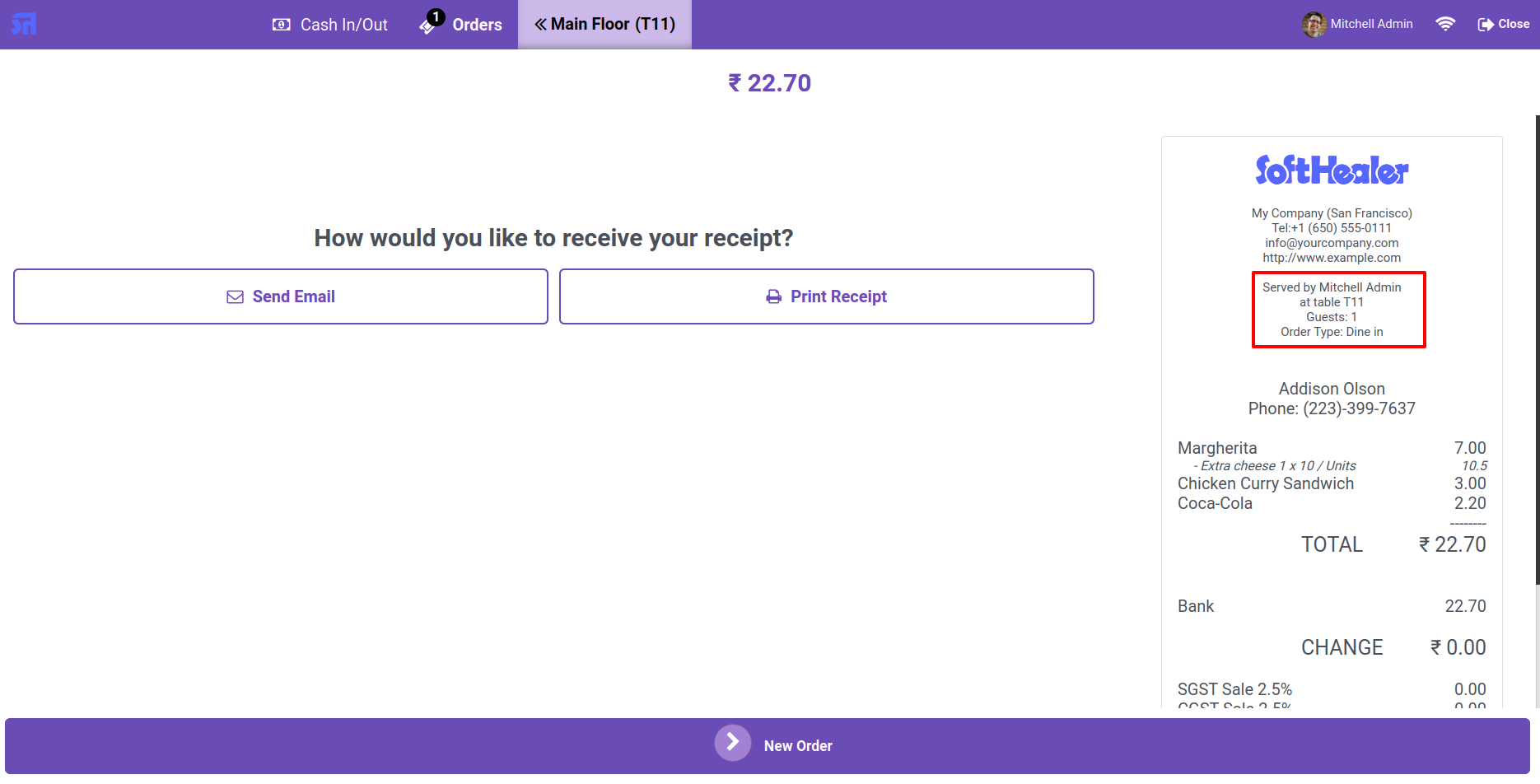
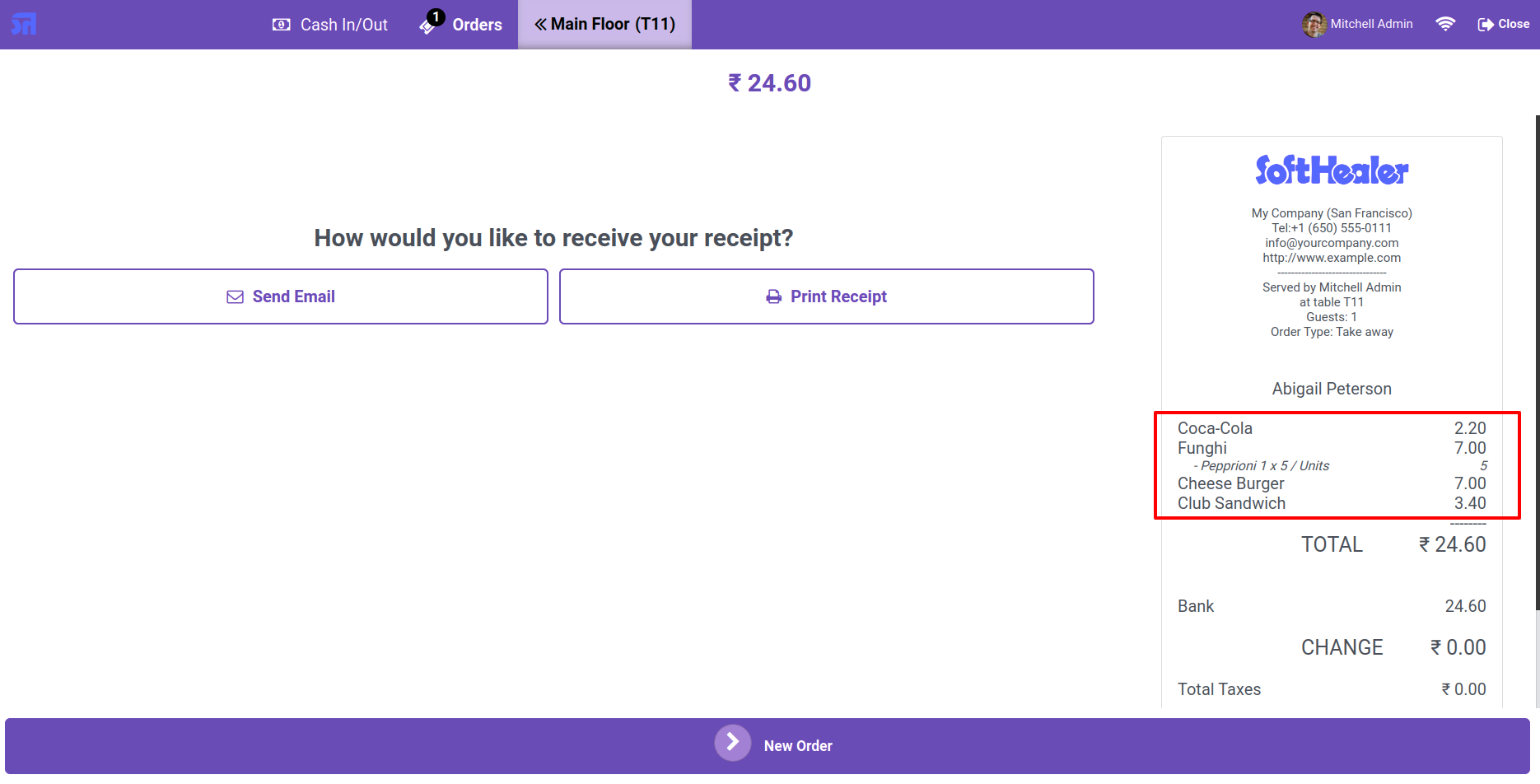
The order type is also visible on the receipt.

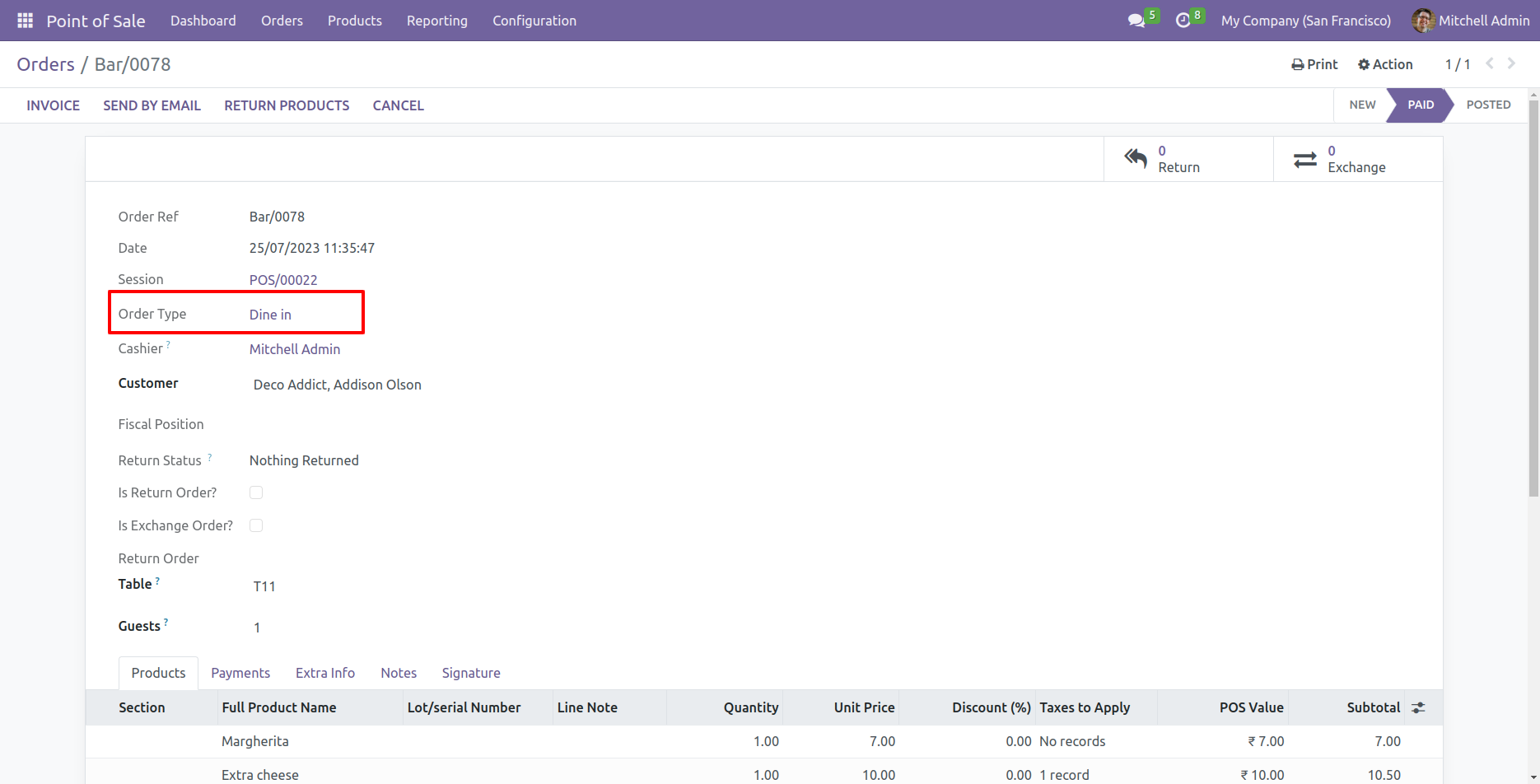
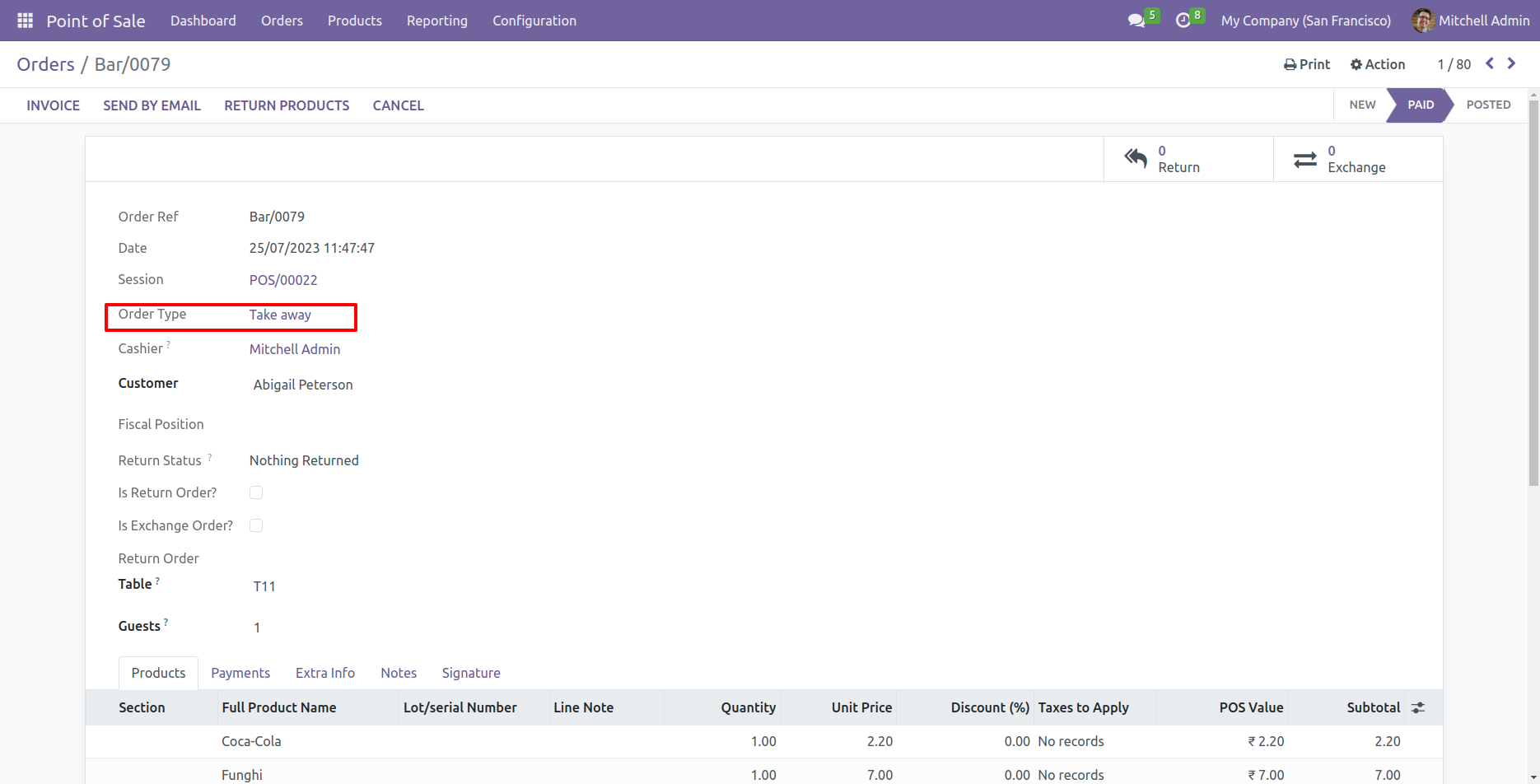
The order type is also visible in the order form view.

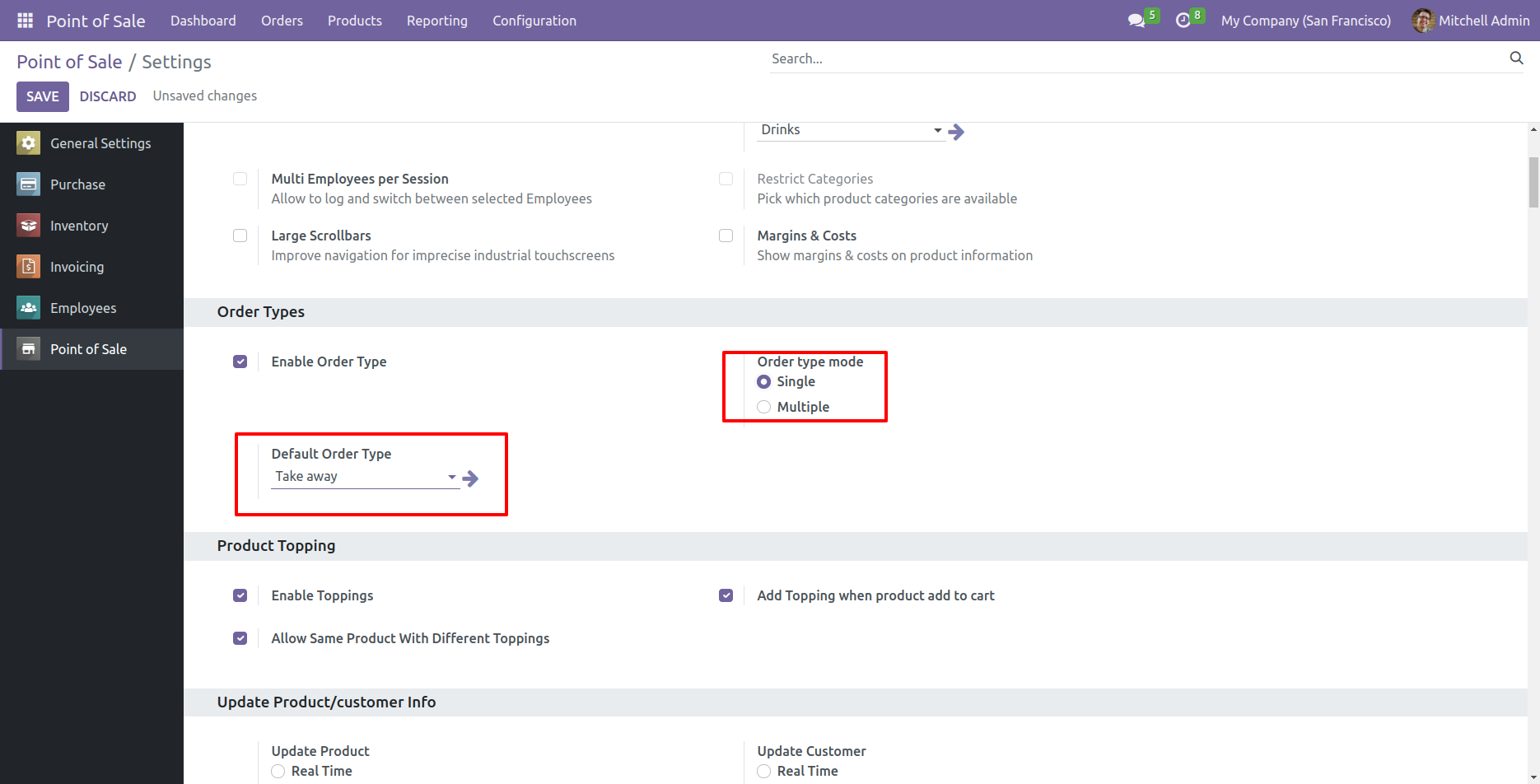
Go to the point of sale setting and select the default order type 'Take Away' and select the 'single' order type mode.

The order type is automatically selected.

In the order type wizard, you will only see the order type that you previously selected in the pos settings.

The order type is not visible on the receipt.

The order type is also visible in the form view of the order.

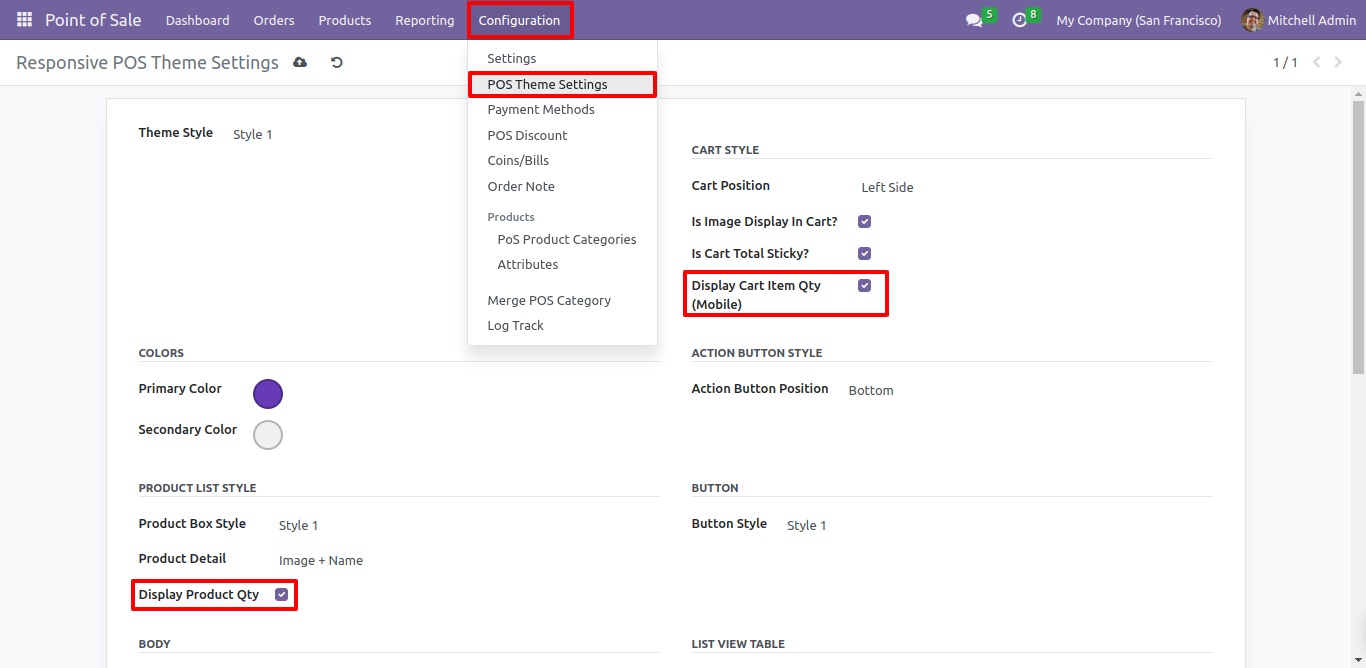
Enable these configurations.

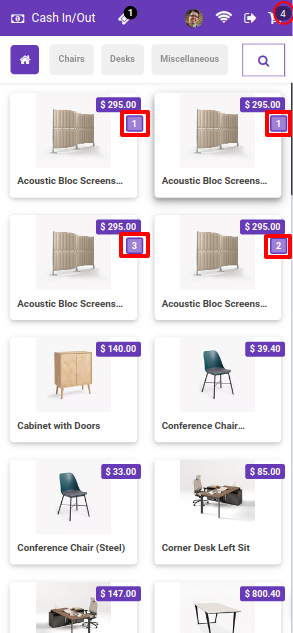
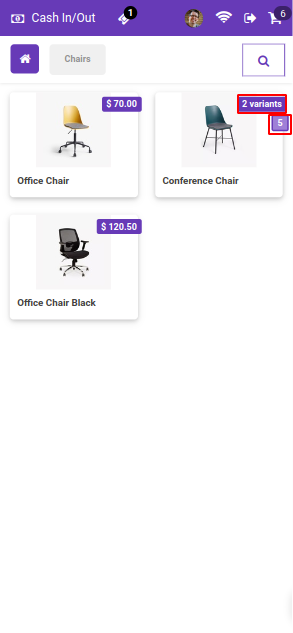
Counter increase when a product adds to a cart.

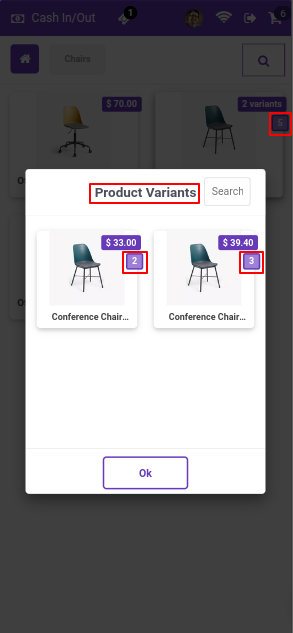
Variants with the product counter.

All counter in variant.

CSV/Excel file with discount, payment method, and payment amount fields.

CSV file with discount and payment columns
Excel file with discount and payment columns

Import order with state selection.

Import POS Order wizard with state selection

Success message for import.

Order imported success message with discount note

Order imported with a discount.

Imported order with payment method and amount

Order imported with payment method and payment amount.

Order payment details with card information

If payment is insufficient, it stays in the 'New' stage.

Insufficient payment order in New stage

Import order from POS.

Import POS Order file selection wizard

Imported successfully.

Records imported successfully with product list

Imported order with data.

Imported order with product data and totals

Enable these configurations.

Counter increase when a product adds to a cart.

Variants with the product counter.

All counter in variant.

Goto pos config setting and enable 'Enable Global Discount' option.

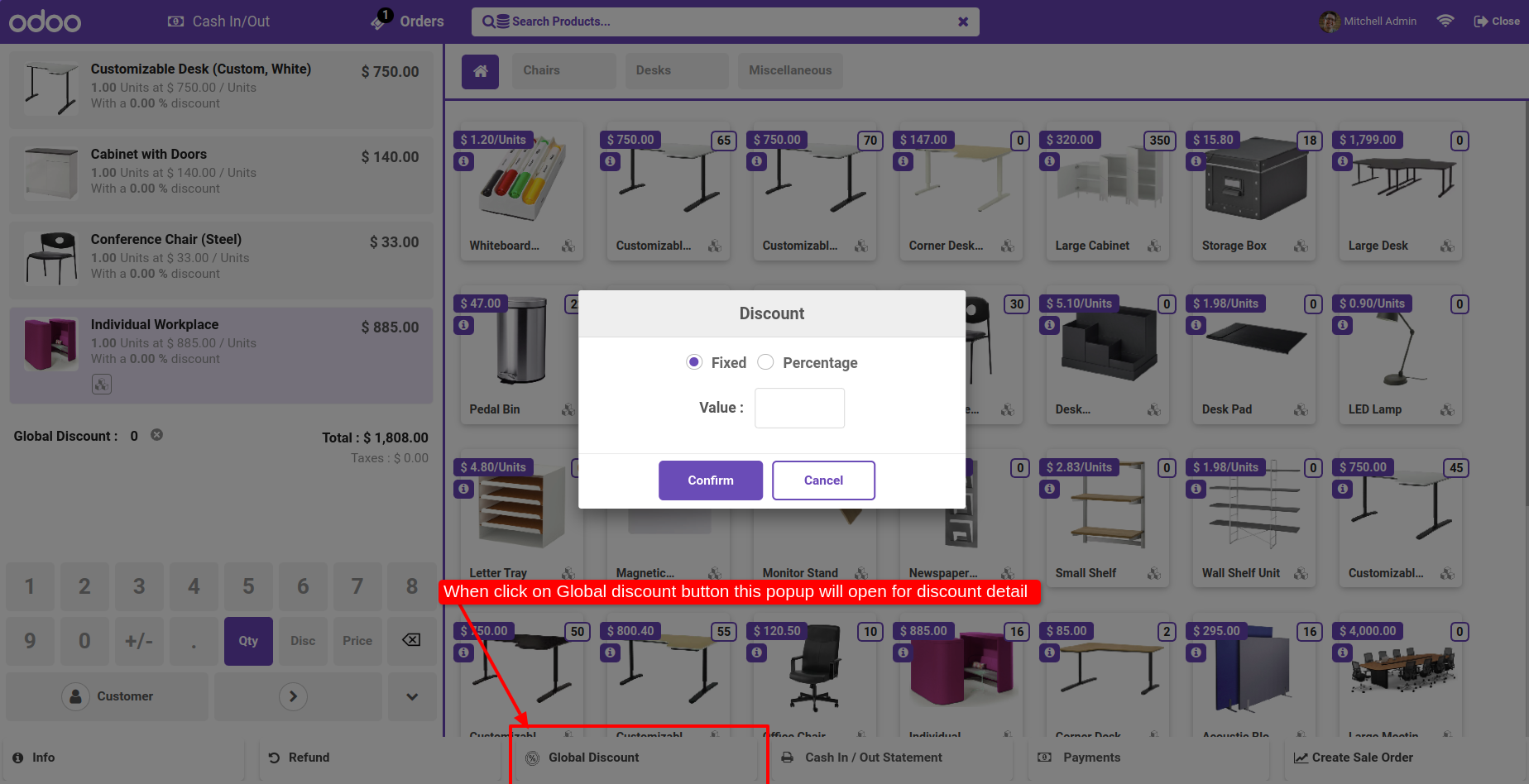
After enabling this option, the global discount button is visible. Add the product to the card and click on the 'Global Discount' button.

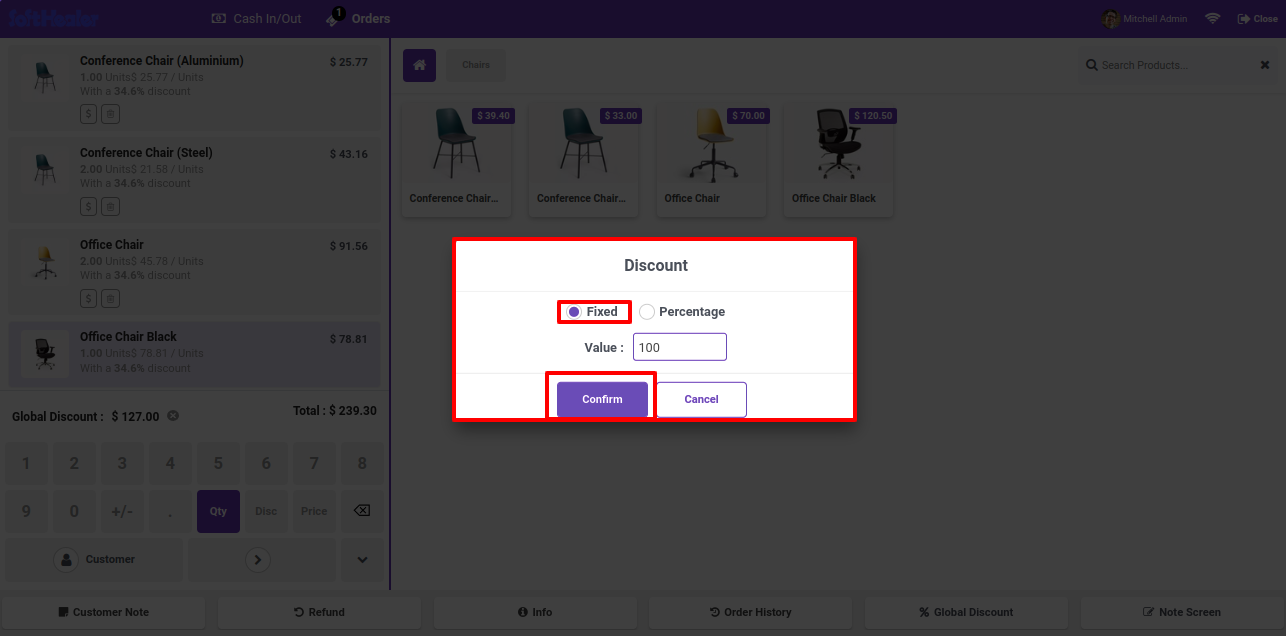
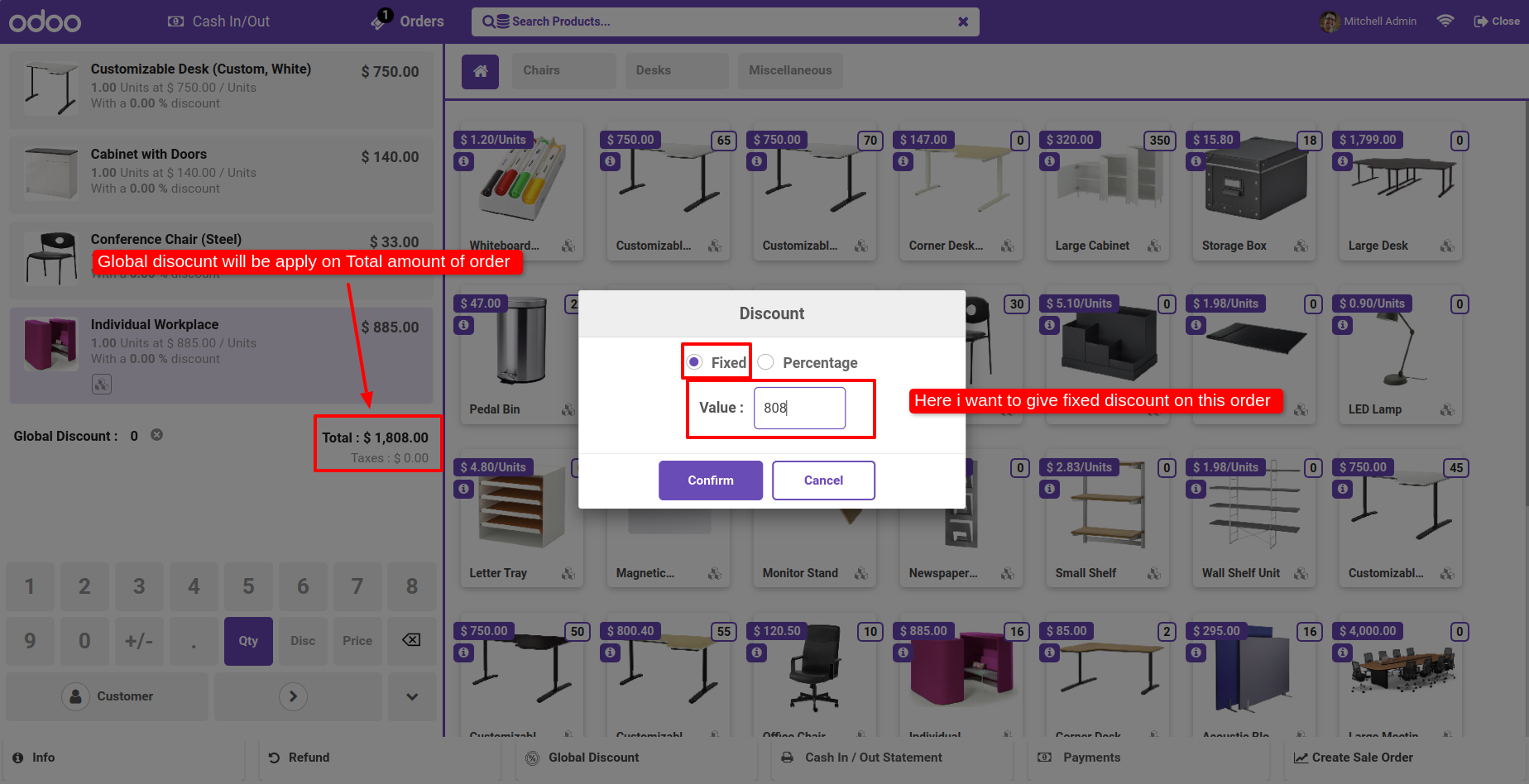
The discount wizard is looks like this. Select the discount type fixed and add the value. Confirm it.

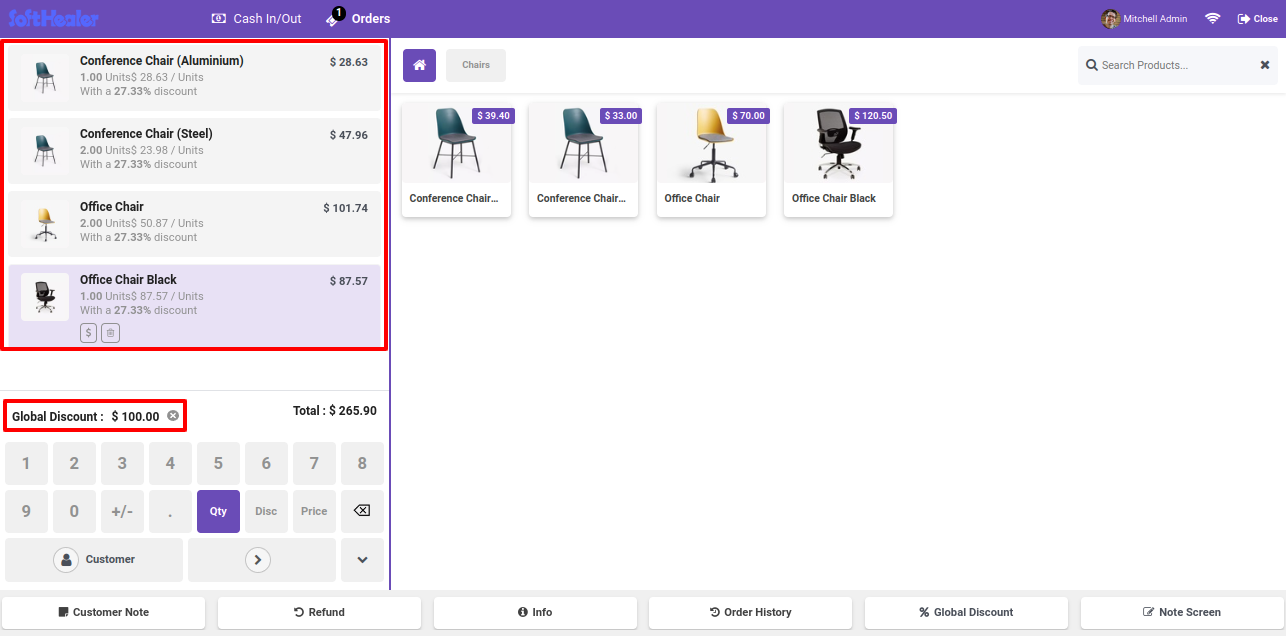
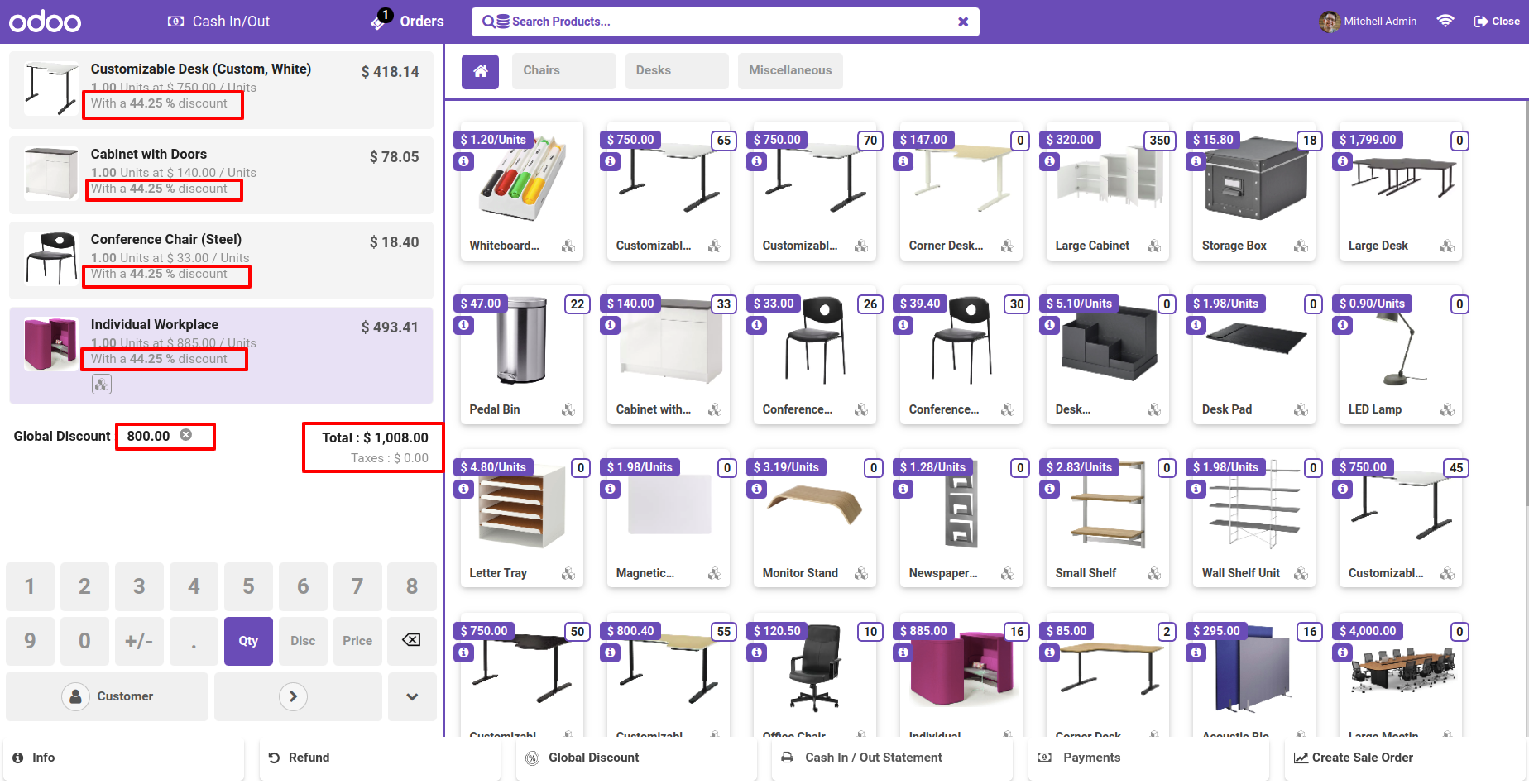
Fix discount automatically add and display amount in global discount

Fix discount automatically add in particular product.

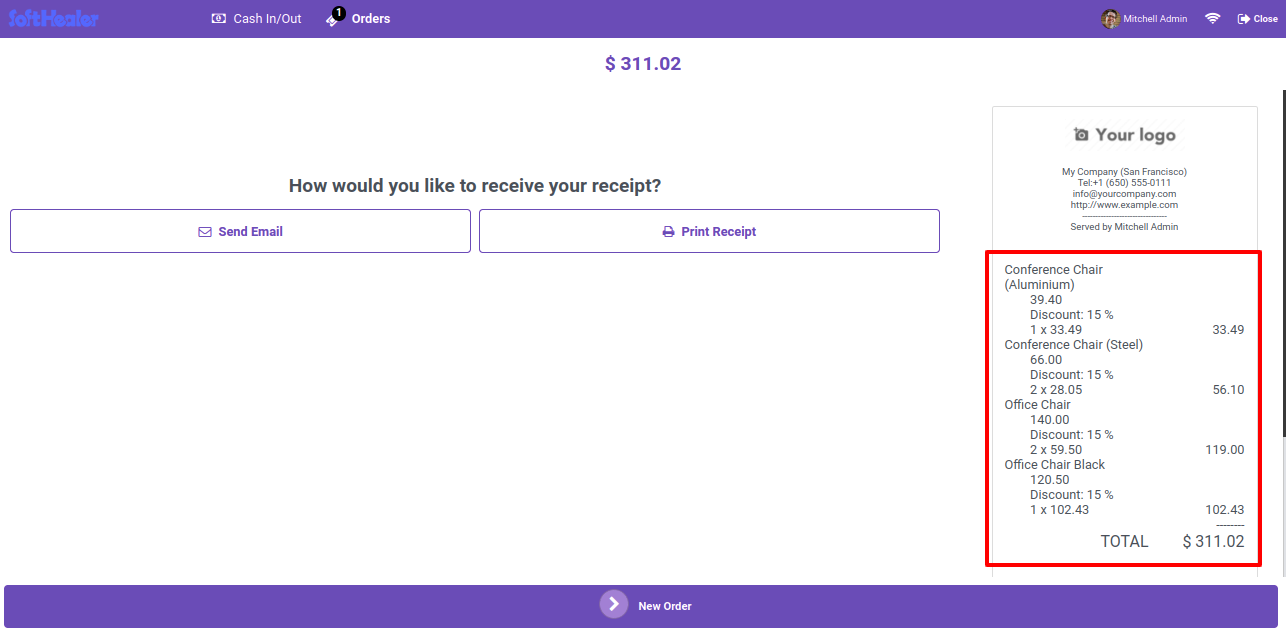
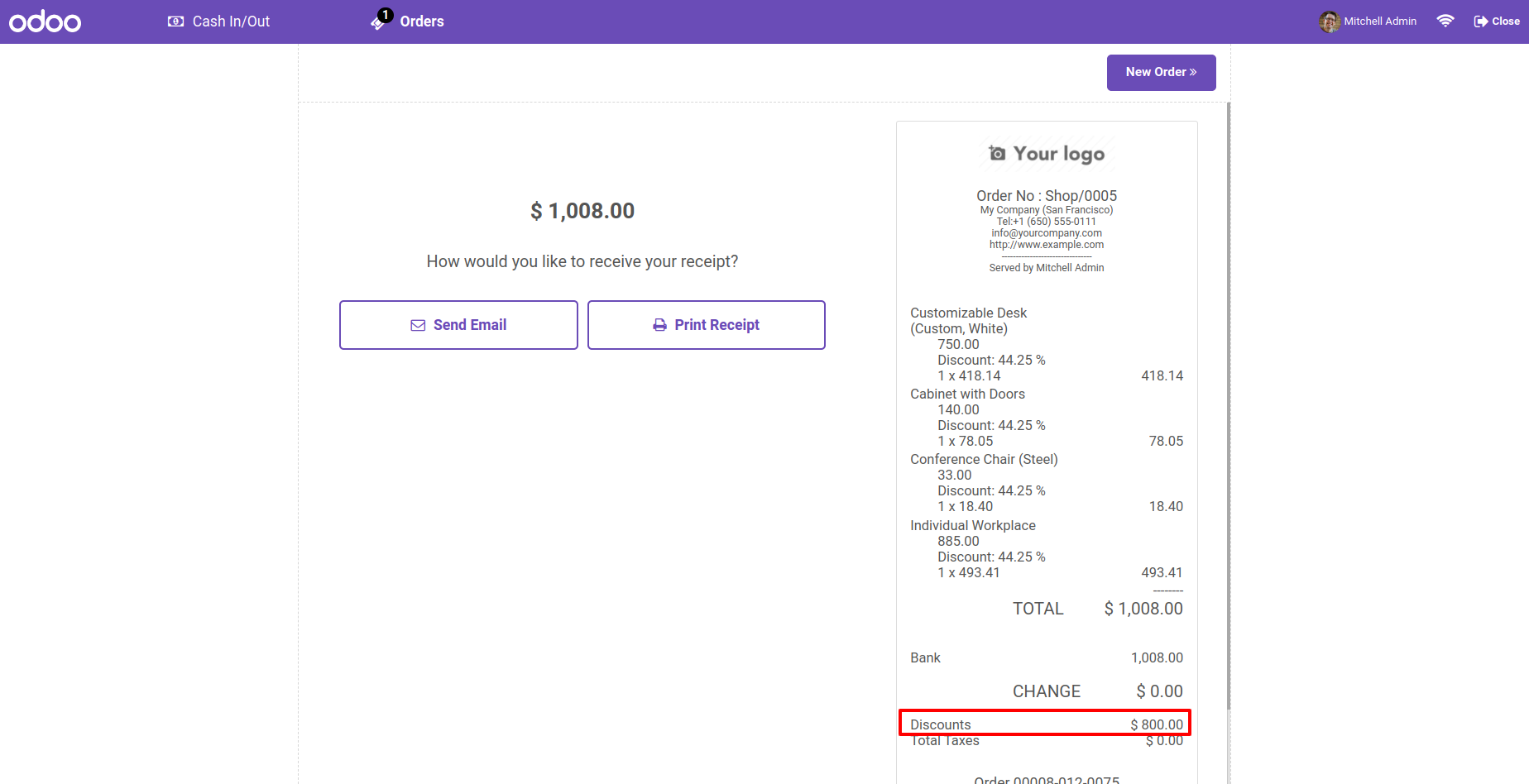
The global discount percentage is also displayed in the receipt.

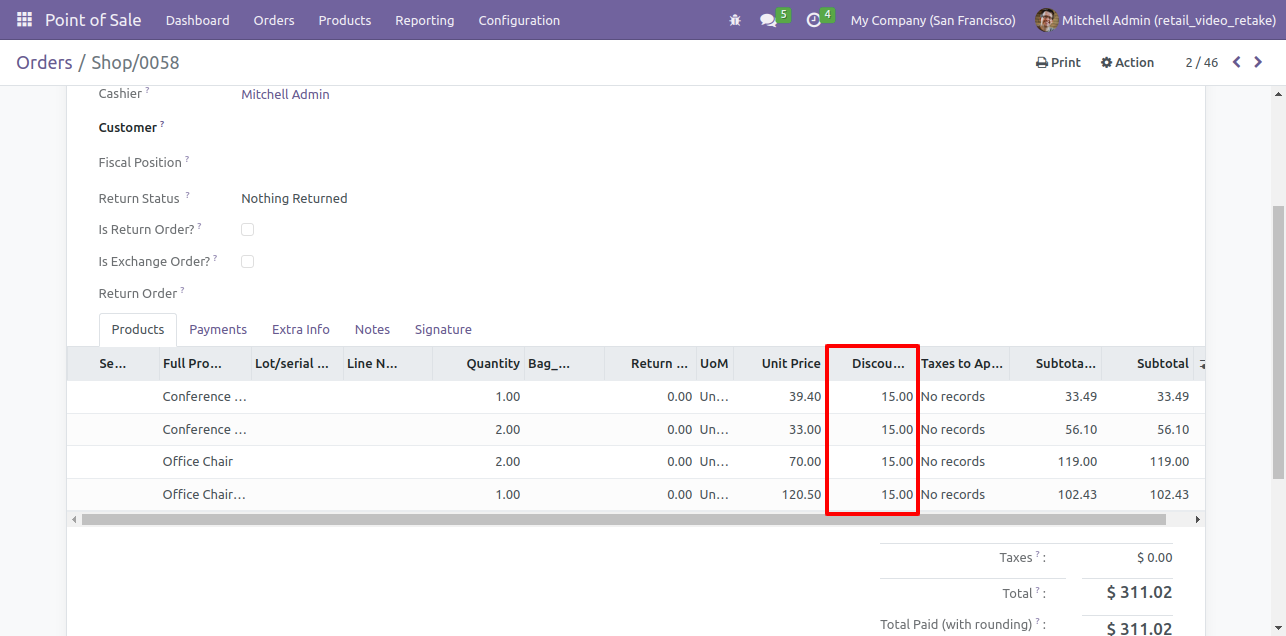
Here you can see the discount value in the product tab.

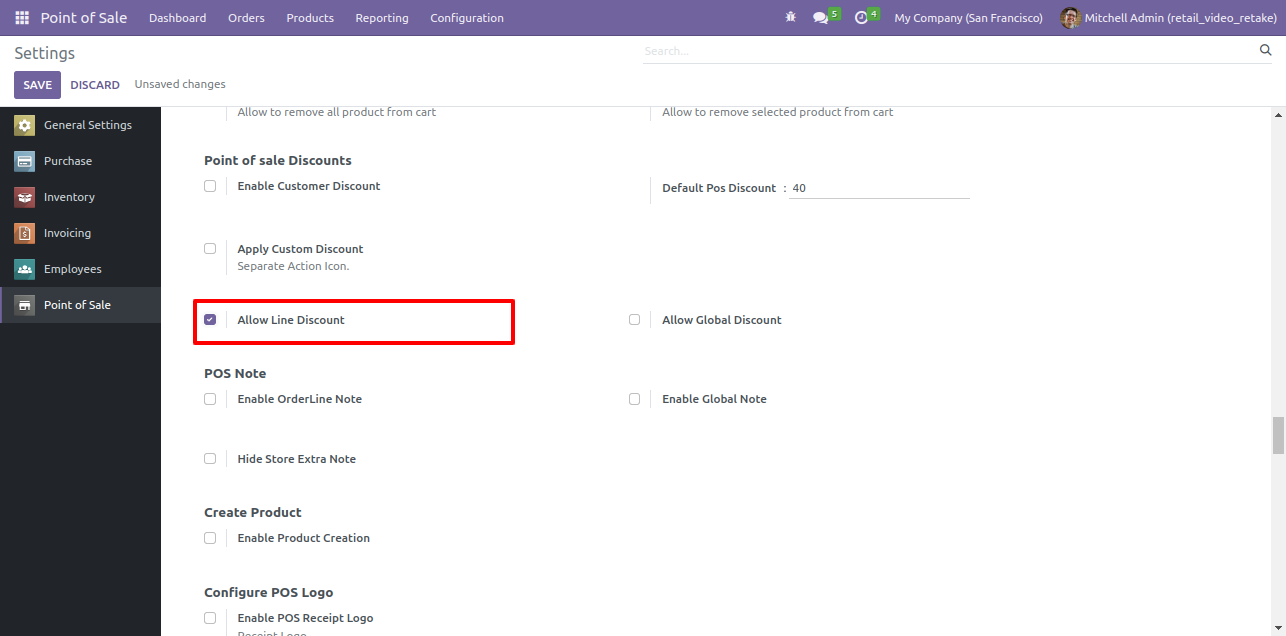
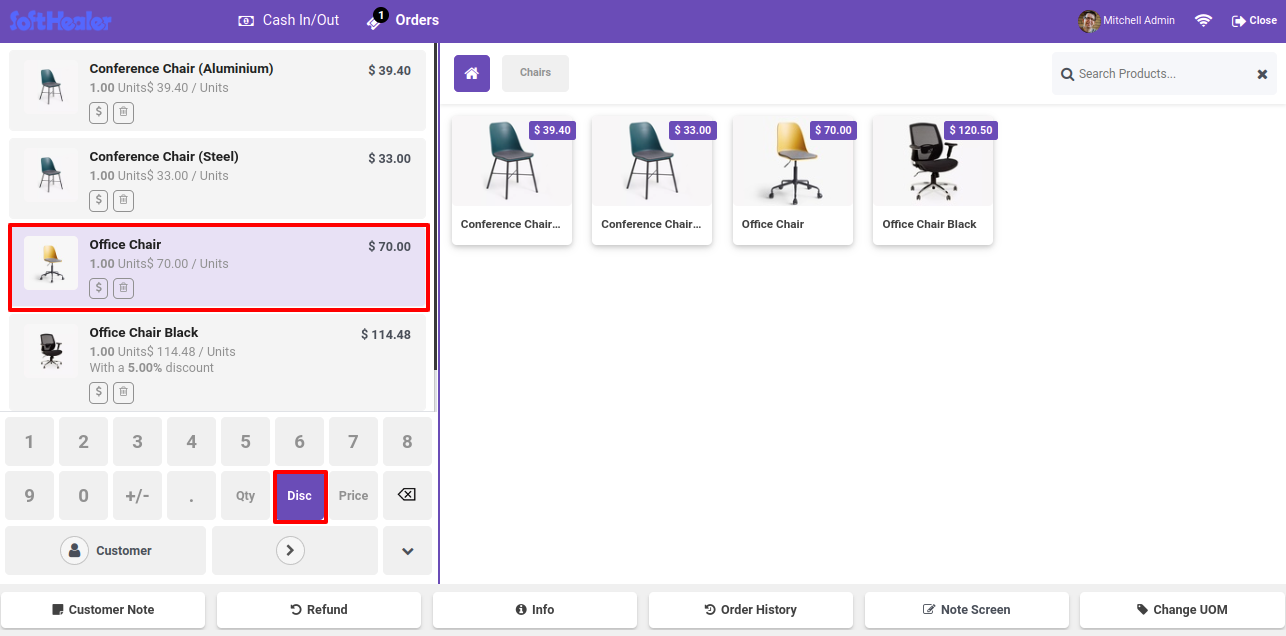
Goto pos config setting and enable 'Enable Line Discount' option.

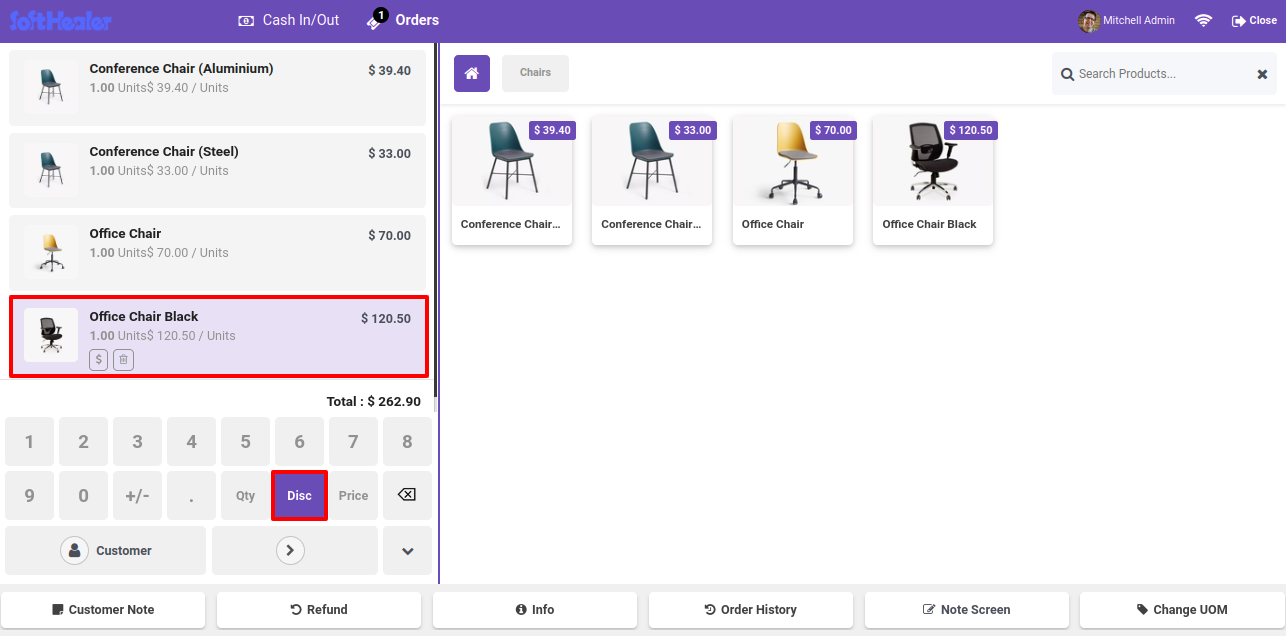
After enabling this option, the disc. button is visible. Add the product to the card and click on the 'disc.' button.

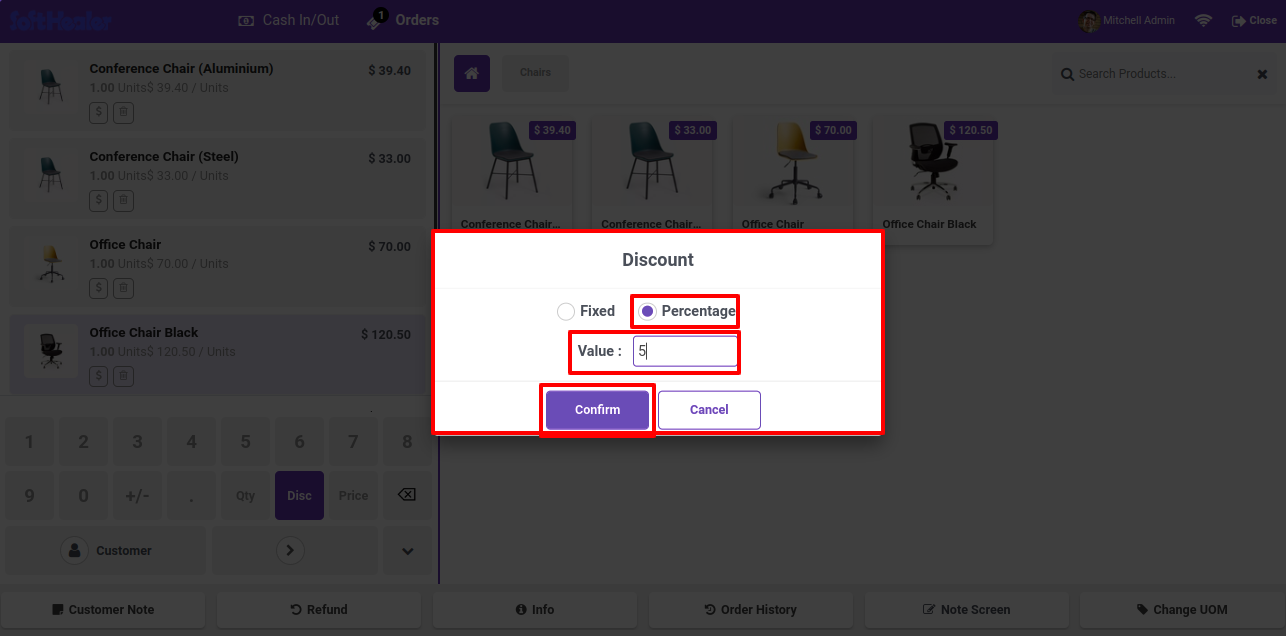
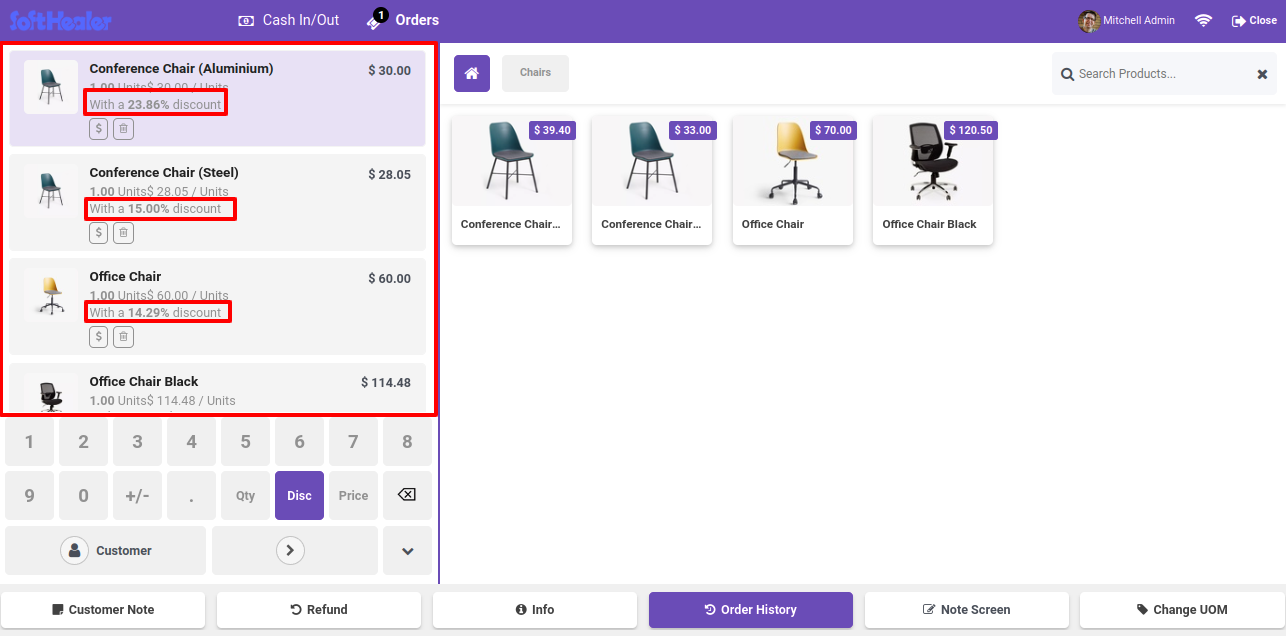
Select the discount type percentage. Add the value and confirm it.

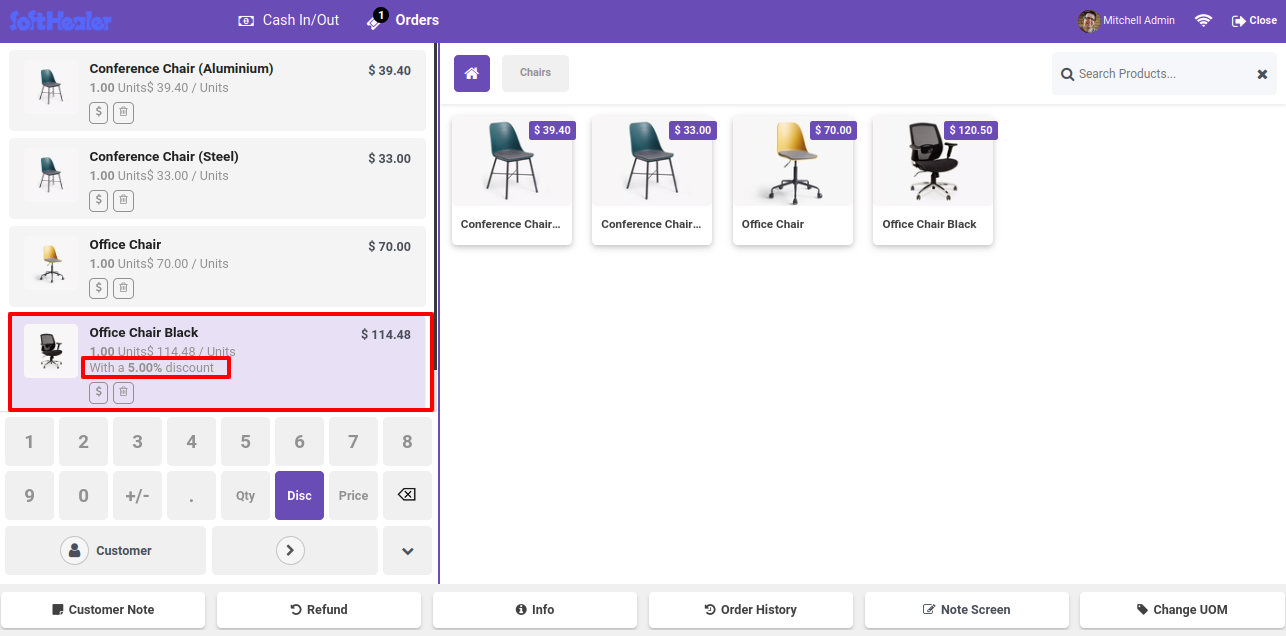
Percentage discount automatically add in line.

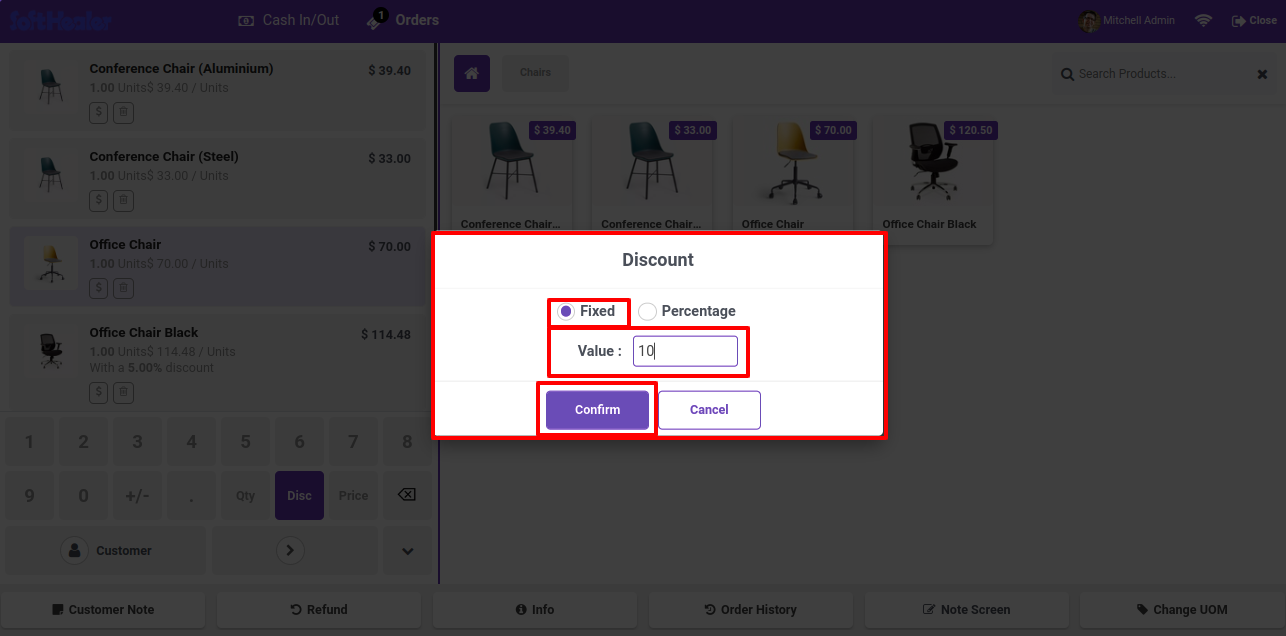
Add the product to the card and click on the 'disc.' button.

Select the discount type fixed. Add the value and confirm it.

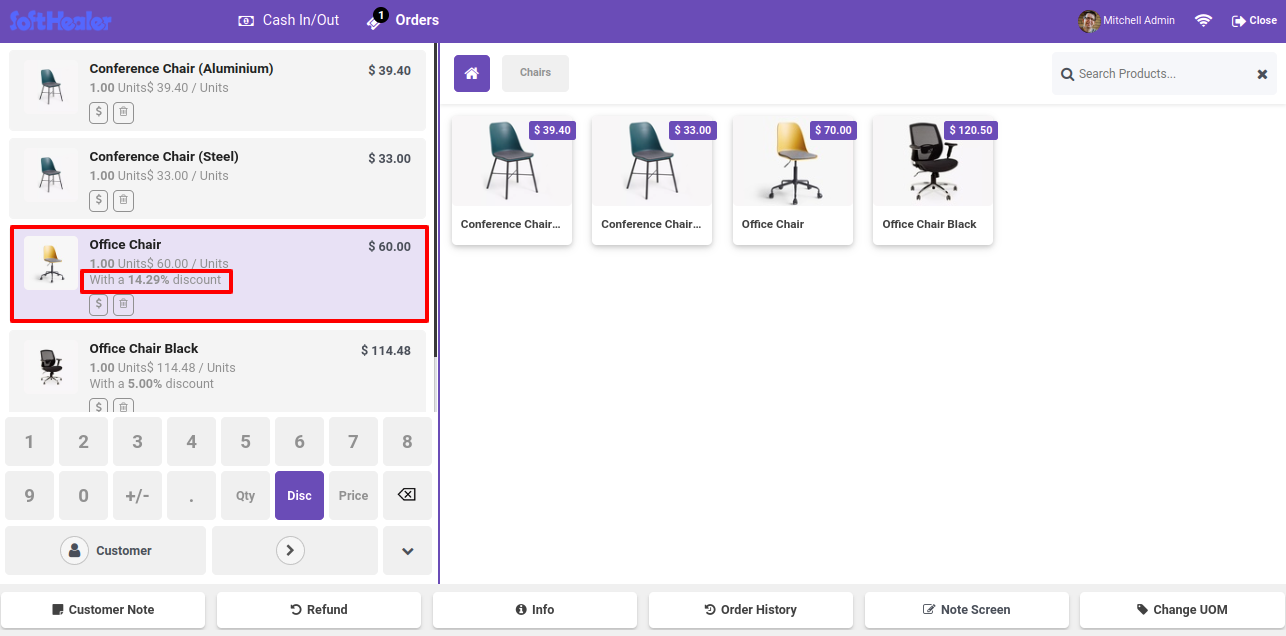
Fix discount automatically add in line.

Fix discount automatically add in line.

Discount Printed in Receipt Also.

Here you can see the discount value in product tab.

Go to the Point of Sale General Settings and enable the Customer Advance Payment from POS option.

Enable customer advance payment setting

Go to the Customers list from the POS screen and select the Register Payment option.

Register payment option in customer list

By clicking the Register Payment option, a wizard will open where you can select the Journal, enter the Amount, and add a Note if required. Once the details are entered, click Apply to register the payment.

Payment register wizard with journal and amount

By clicking Apply, an advance payment will be created for the selected customer, and the user will receive a confirmation notification.

Payment created confirmation with receipt

Backend users can view the customer advance payment as Paid.

Advance payment shown as paid in backend

Go to the Point of Sale General Settings, enable the Pay and Validate Due Invoices option, and configure the desired Payment Percentage(s).

Pay and validate due invoices setting

Go to the POS Shop and click on Actions. A wizard will open displaying all available actions. Select Due Invoices to proceed with managing outstanding customer invoices.

Due invoices list in POS actions

By clicking Due Invoices from the Actions menu, a list of all outstanding invoices for all customers will be displayed.
Click the Pay button next to an invoice to process the payment directly from the POS.

Outstanding invoices list with Pay button

By clicking the Pay button, the Register Payment wizard will open. Select the desired Payment Percentage and click Pay to process the invoice payment.

Register Payment wizard with payment percentage

The payment has been successfully processed. Users will receive a confirmation notification and can view or print the Due Payment Receipt.

Payment registered successfully with receipt

Backend users can view the invoice as Paid after the payment has been successfully processed through the POS.

Invoice marked Paid in backend after payment

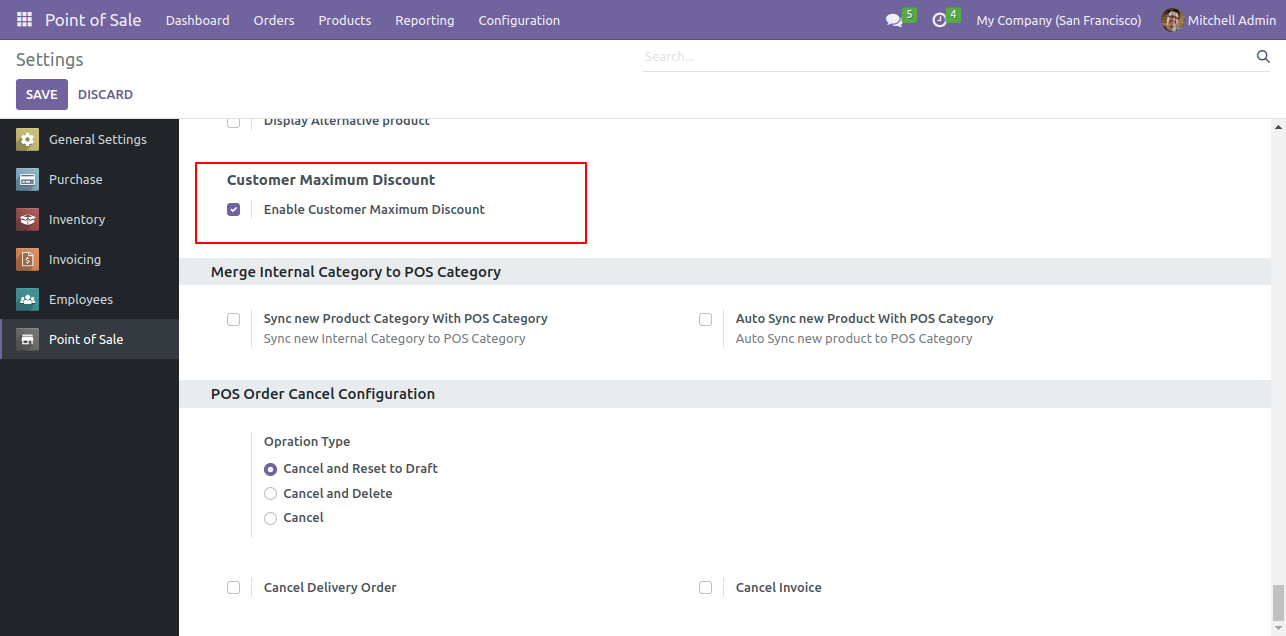
Goto pos config setting and enable 'Enable customer Maximum Discount' option.

Enable Customer Maximum Discount setting

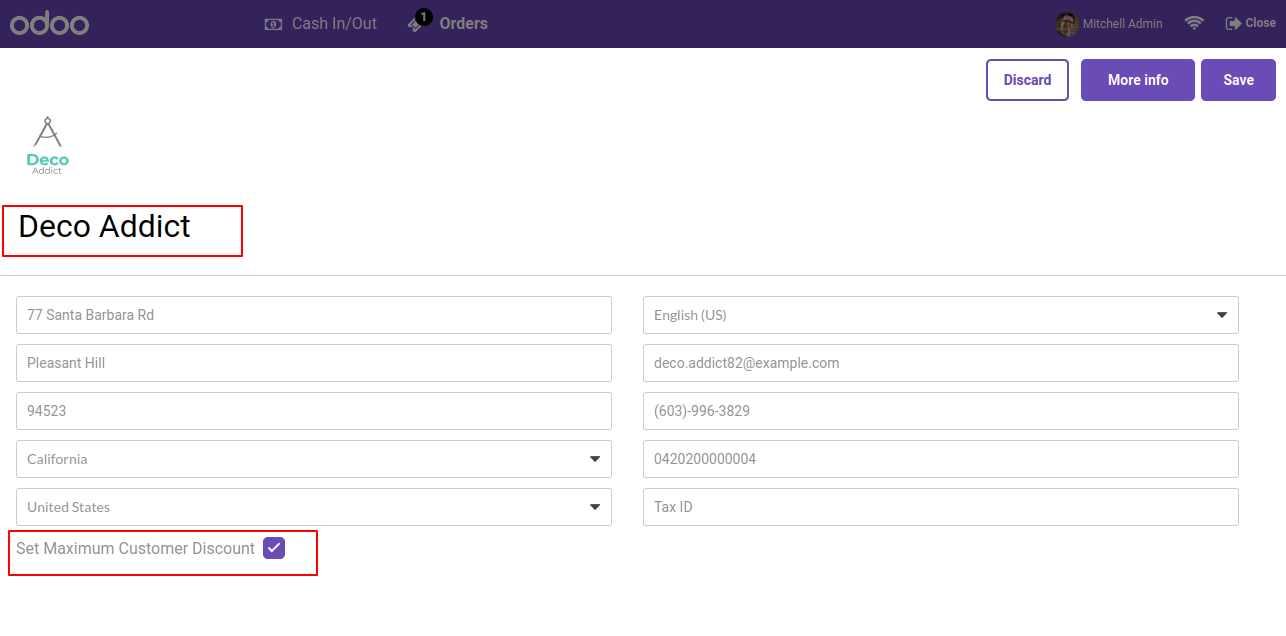
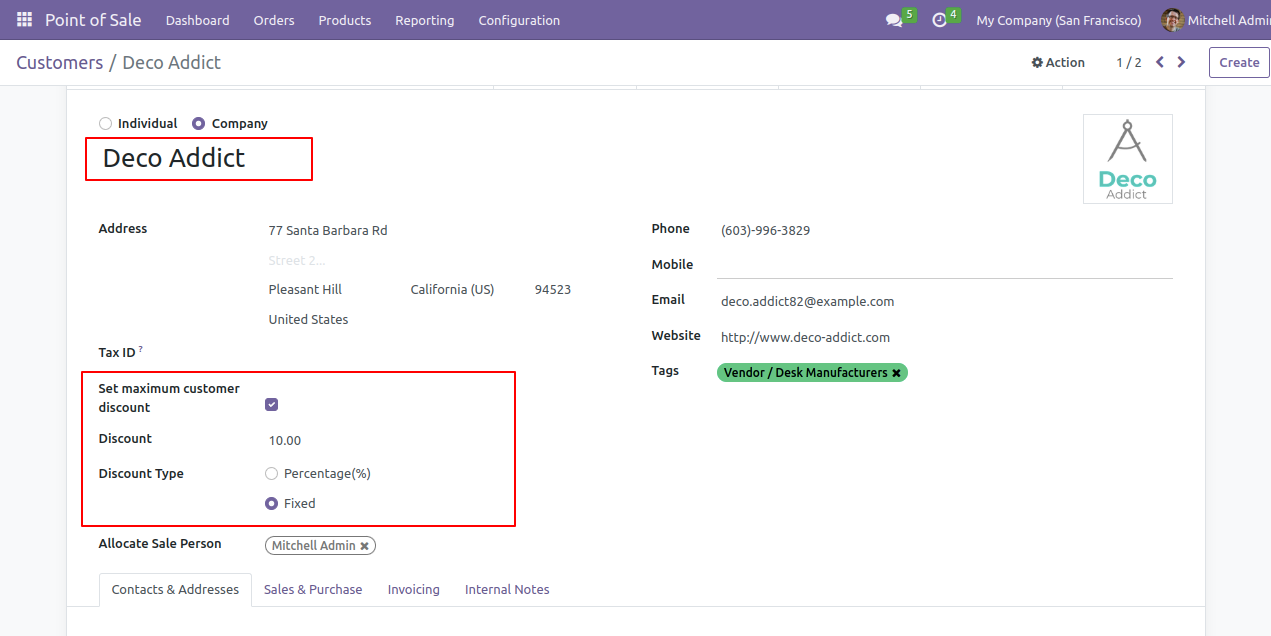
Form view of the customer. Tick 'Set Maximum customer Discount' option.

Enable Set Maximum Customer Discount on customer

In Customer see the option set Maximum Customer Discount. Select the 'Fixed' discount type.

Select Fixed discount type on customer

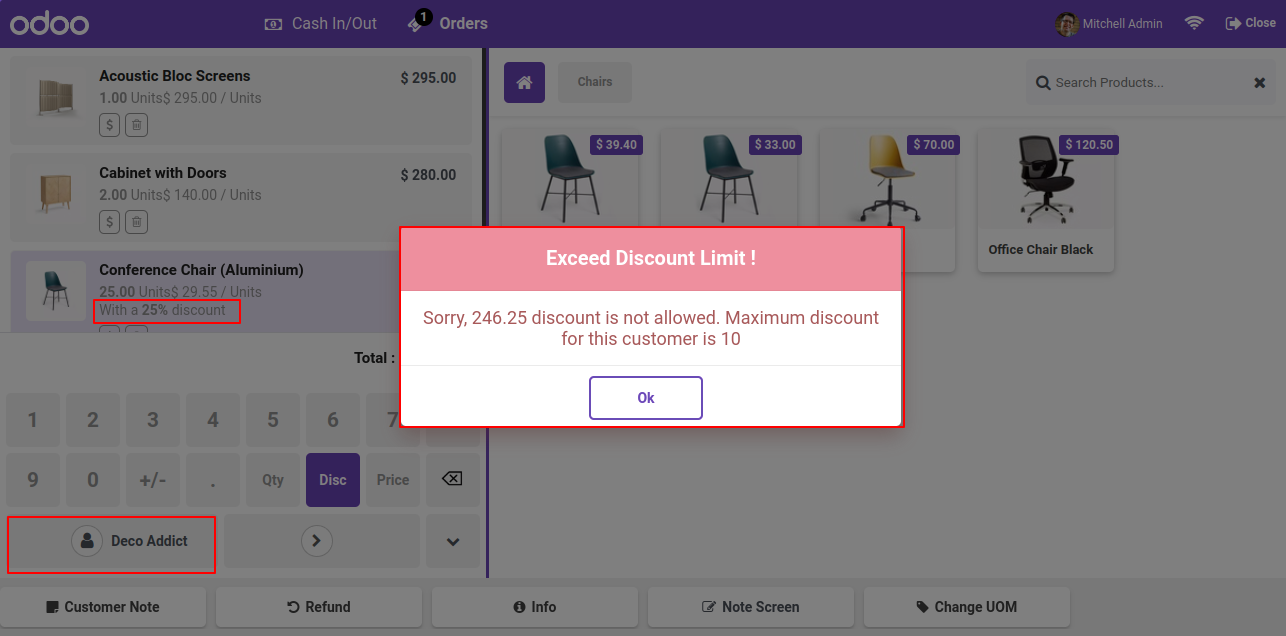
The Warring message Popup shows max Discount of Product.

Warning popup for exceeding fixed discount

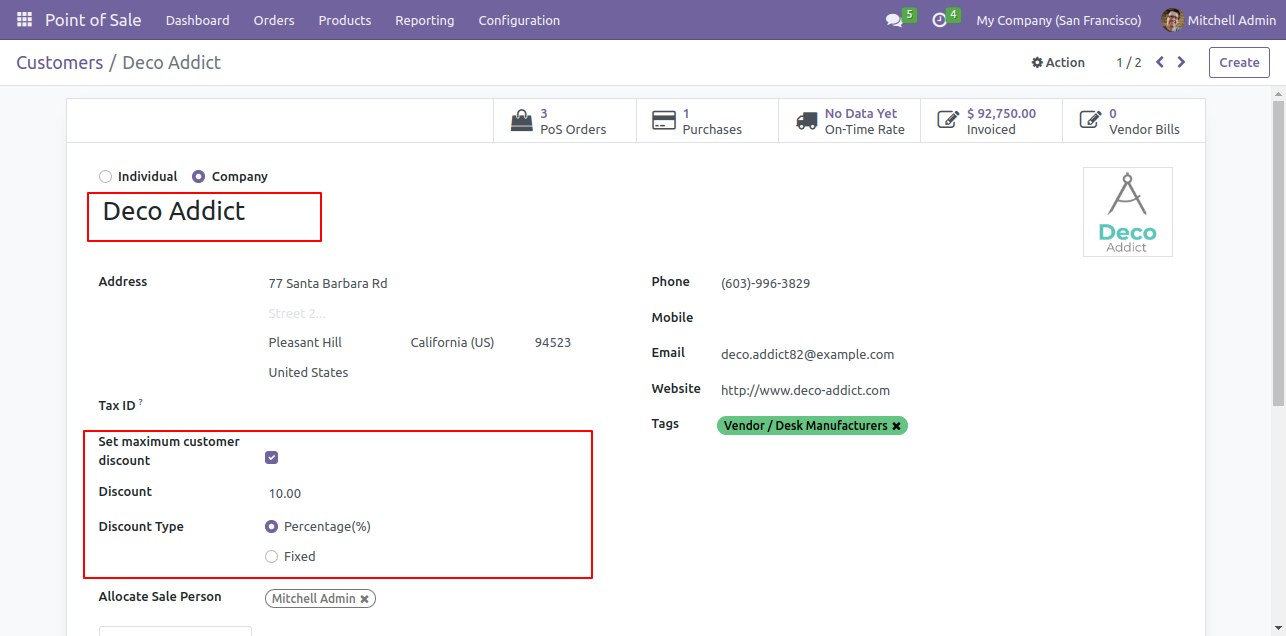
In Customer see the option set maximum Discount. Select the 'Percentage' discount type.

Select Percentage discount type on customer

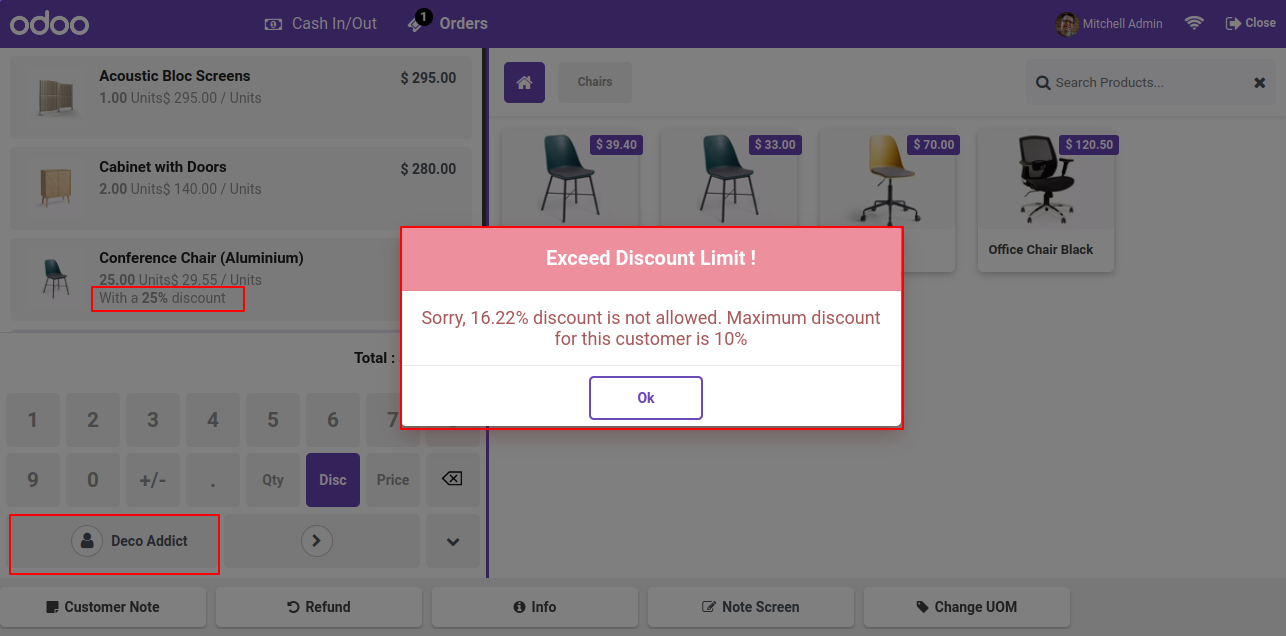
The Warring message Popup shows max Discount of Product.

Warning popup for exceeding percentage discount

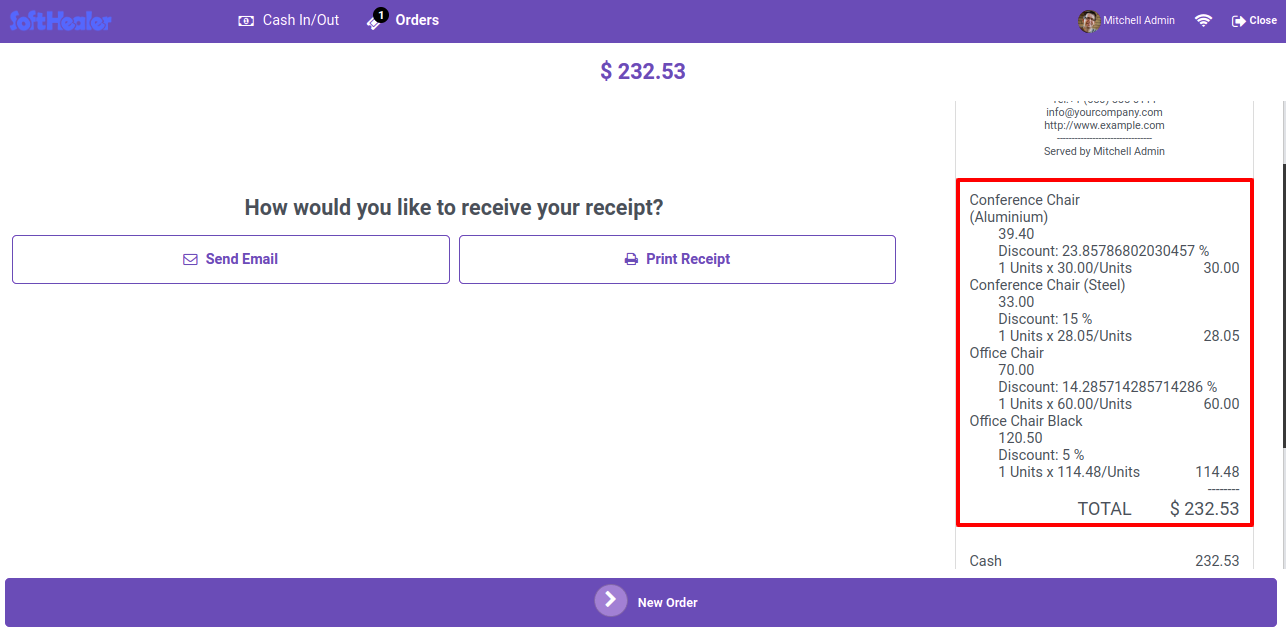
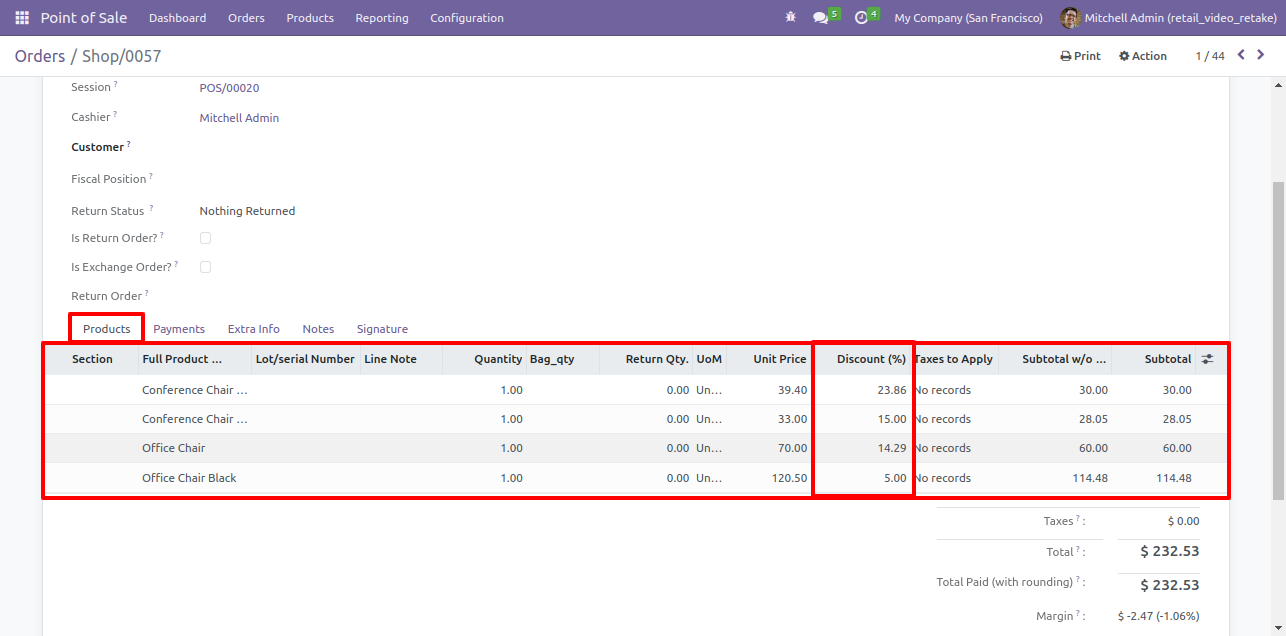
if the amount is lower then set amount then apply discount.

Warning popup for exceeding percentage discount

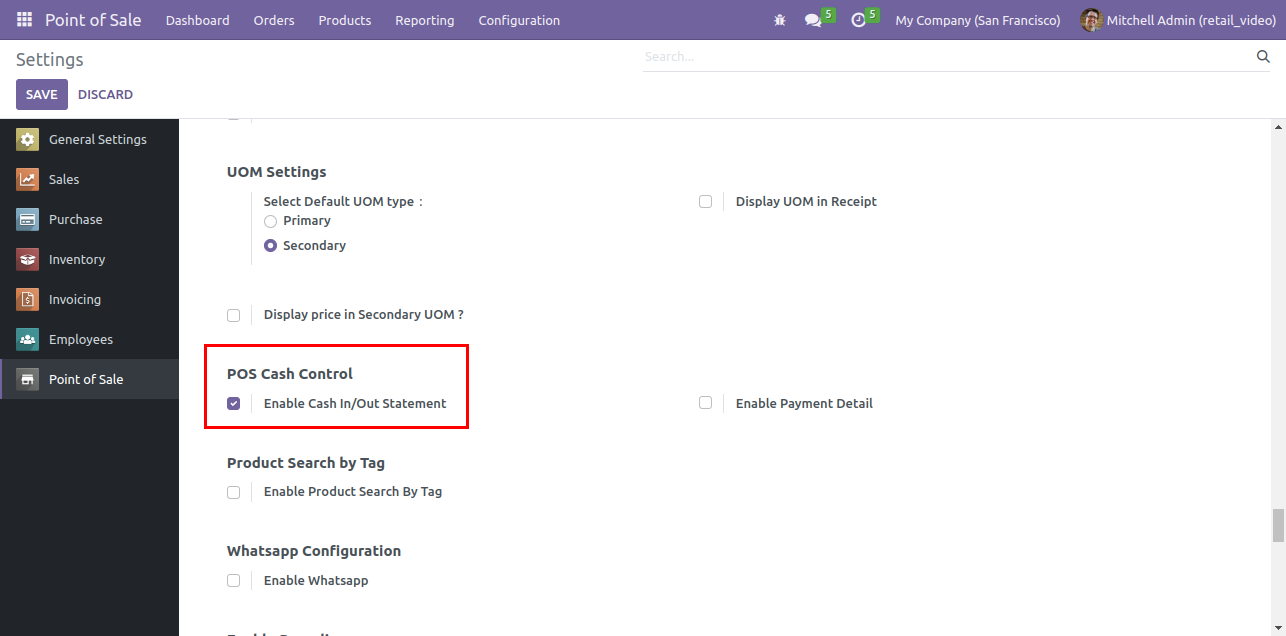
Enable the configuration for allow to generate cash In/Out statement from POS.

Enable Cash In Out Statement Setting

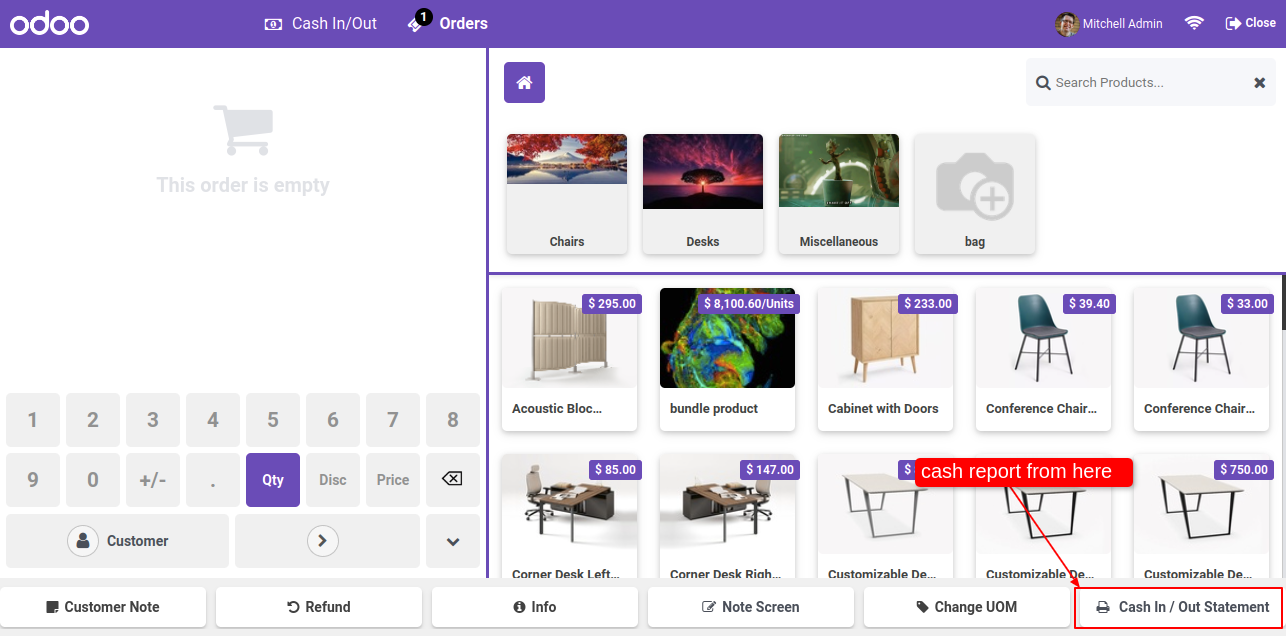
Press "Cash In/Out statement" to print the transaction statement of the current session or between two dates.

POS Screen with Cash In Out Button

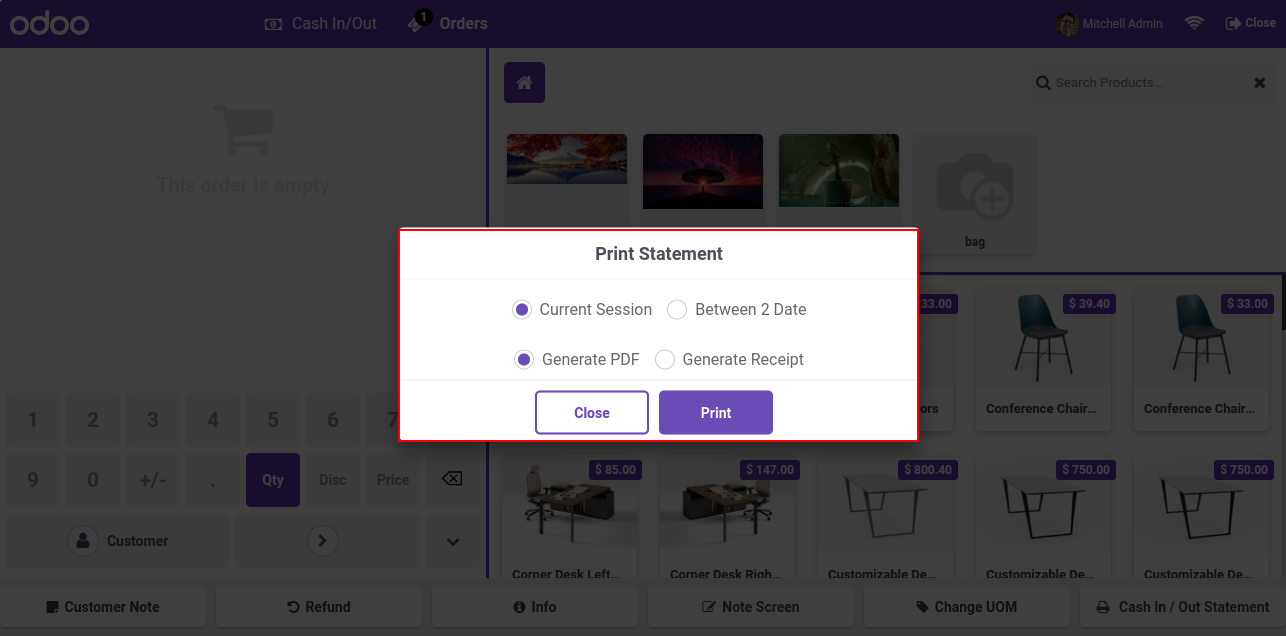
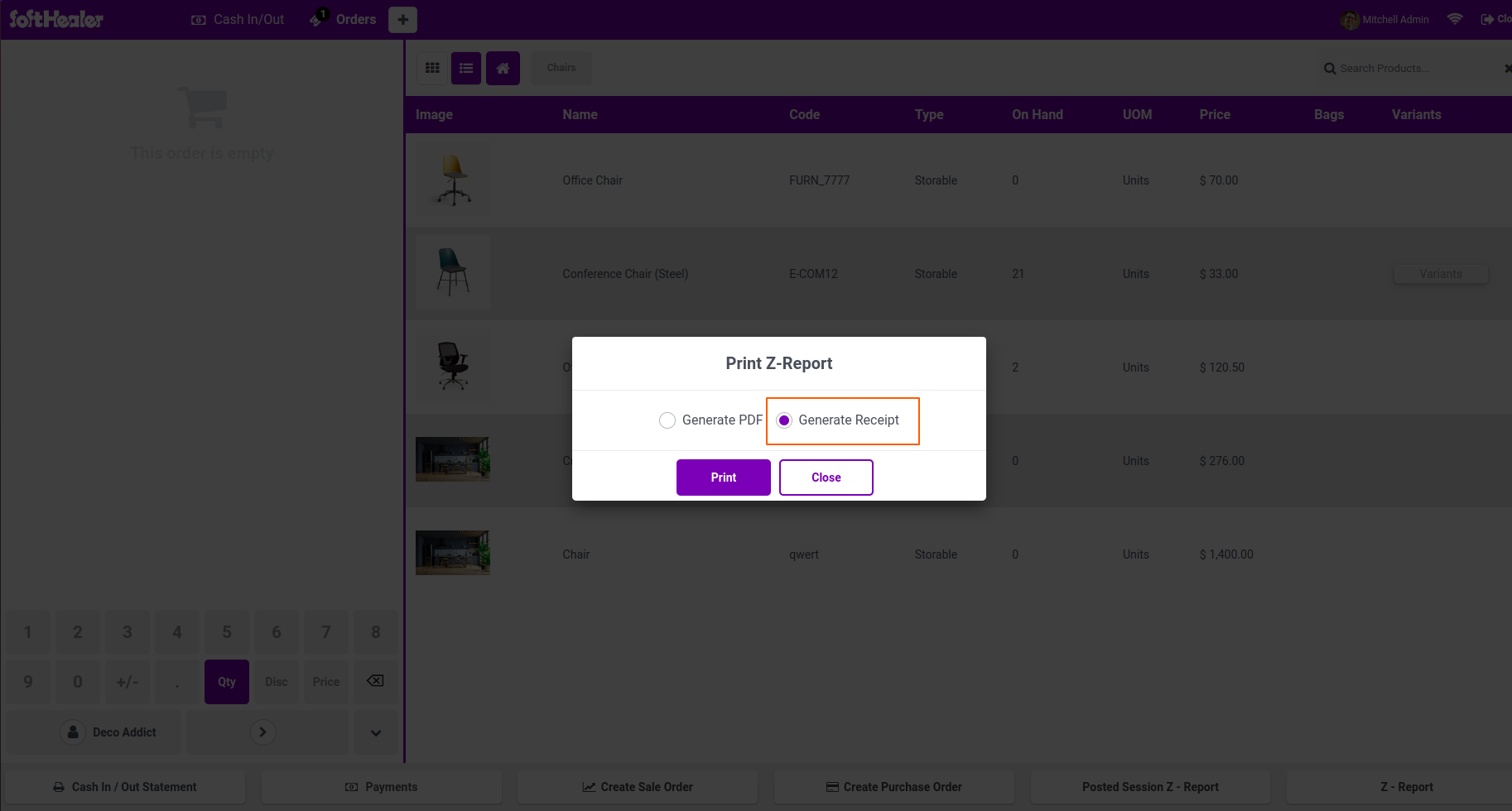
We provide 2 options in print transaction statement, 1) Generate PDF & 2) Generate Receipt.

Print Statement Popup with Options

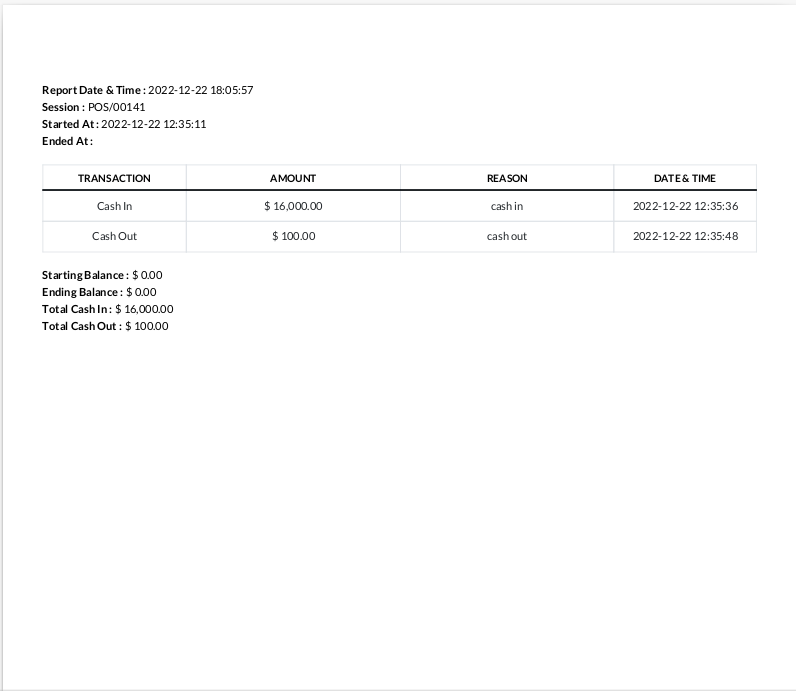
The transaction statement PDF report looks like this.

Cash Transaction Statement Report

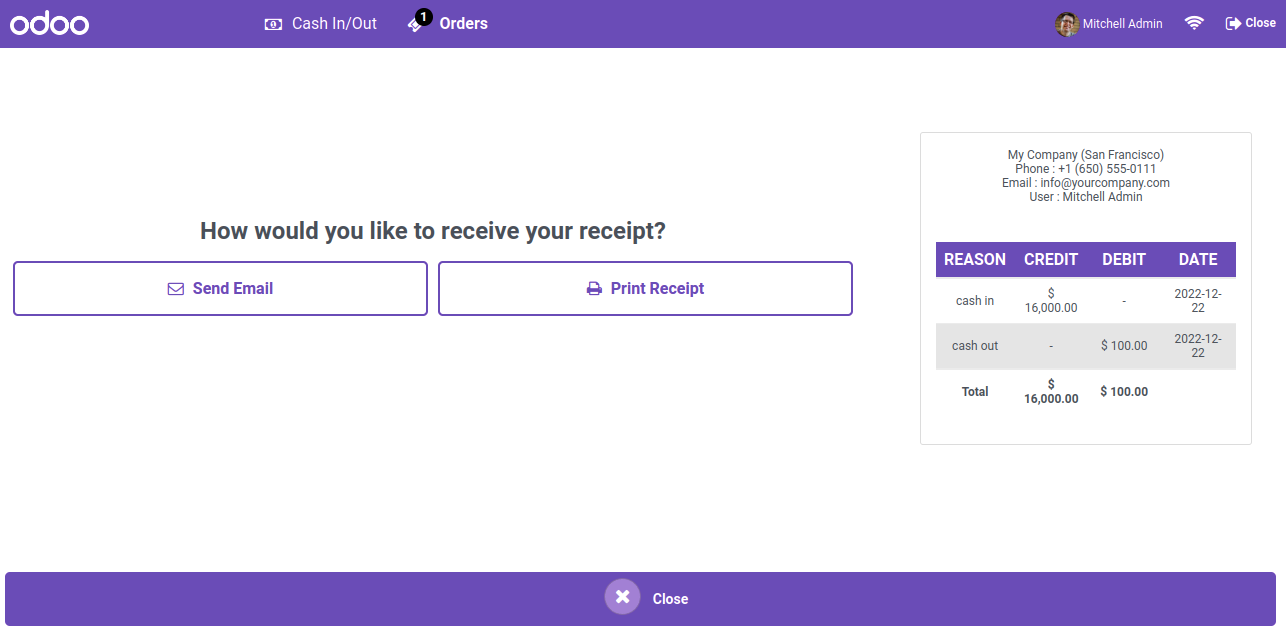
The transaction statement receipt looks like this.

Receipt with Transaction Statement Print

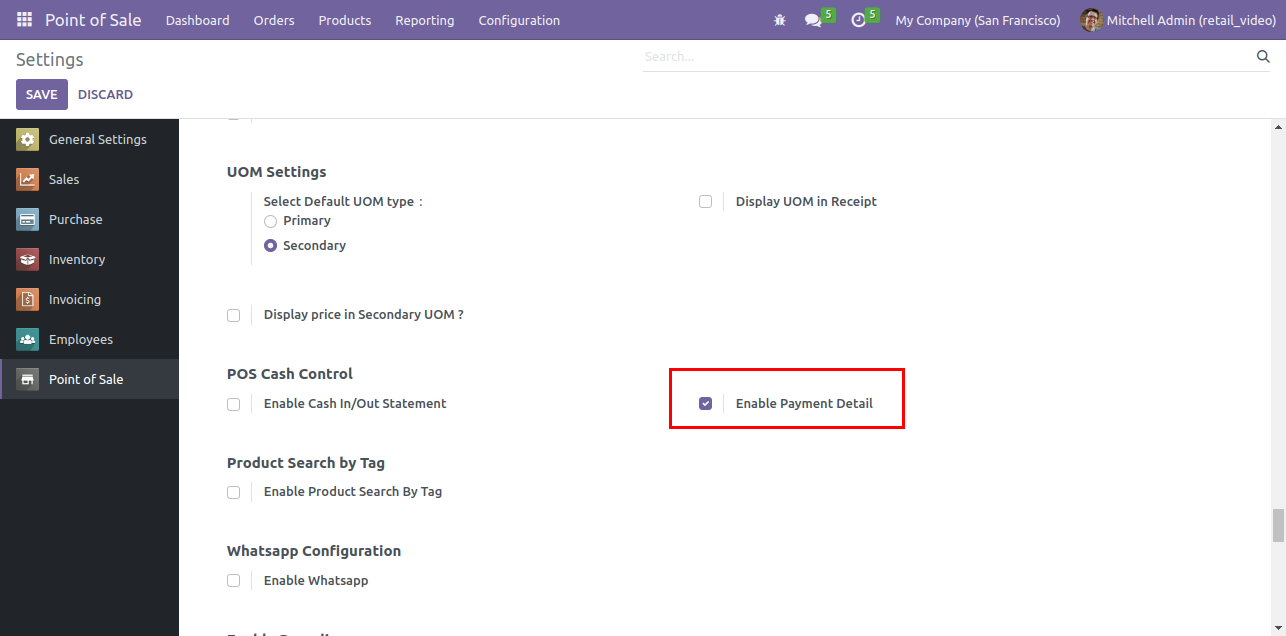
Enable the configuration to see transaction details.

Enable Payment Detail Configuration Setting

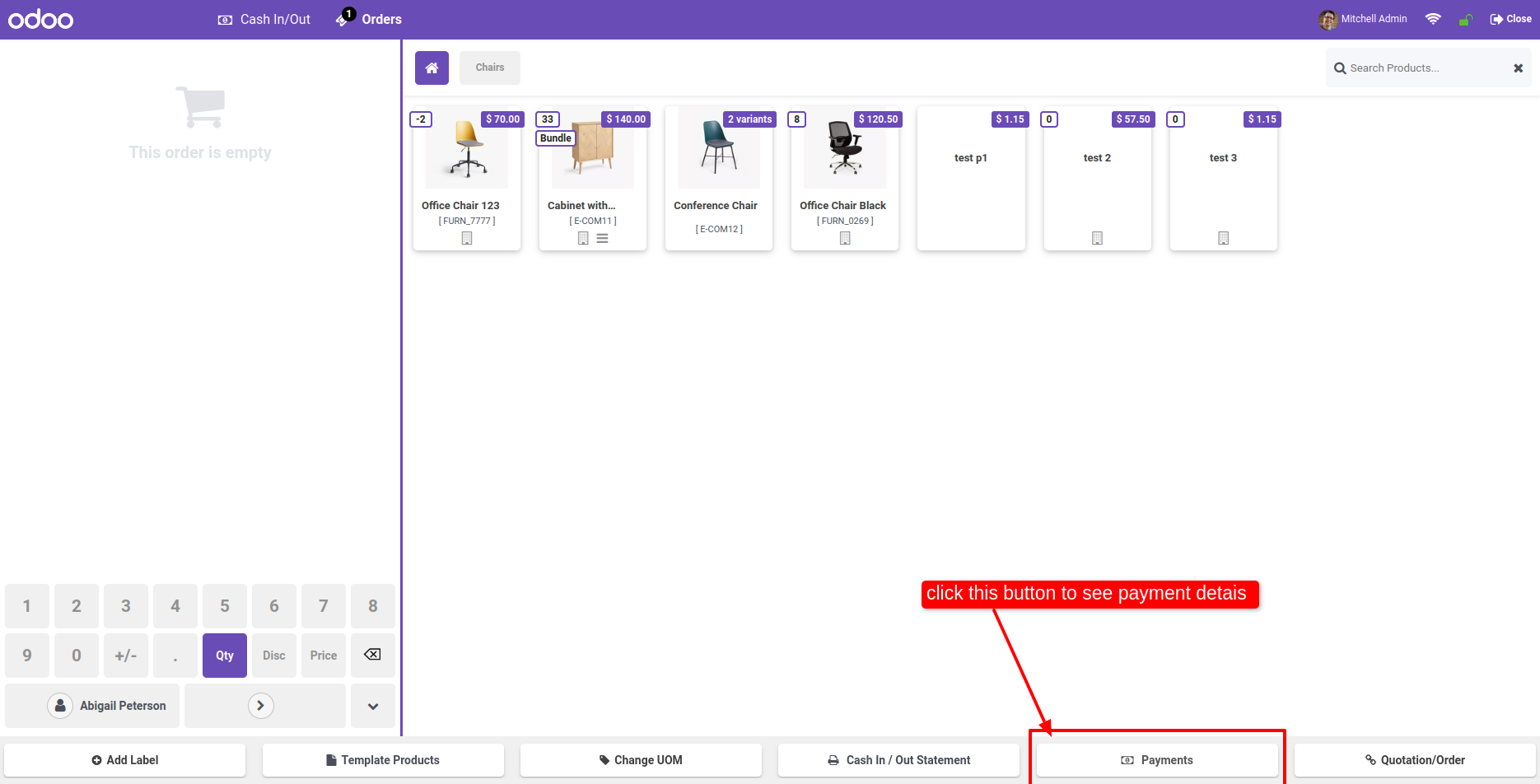
Click on the "Payments" to see total transactions.

POS Screen with Payments Button

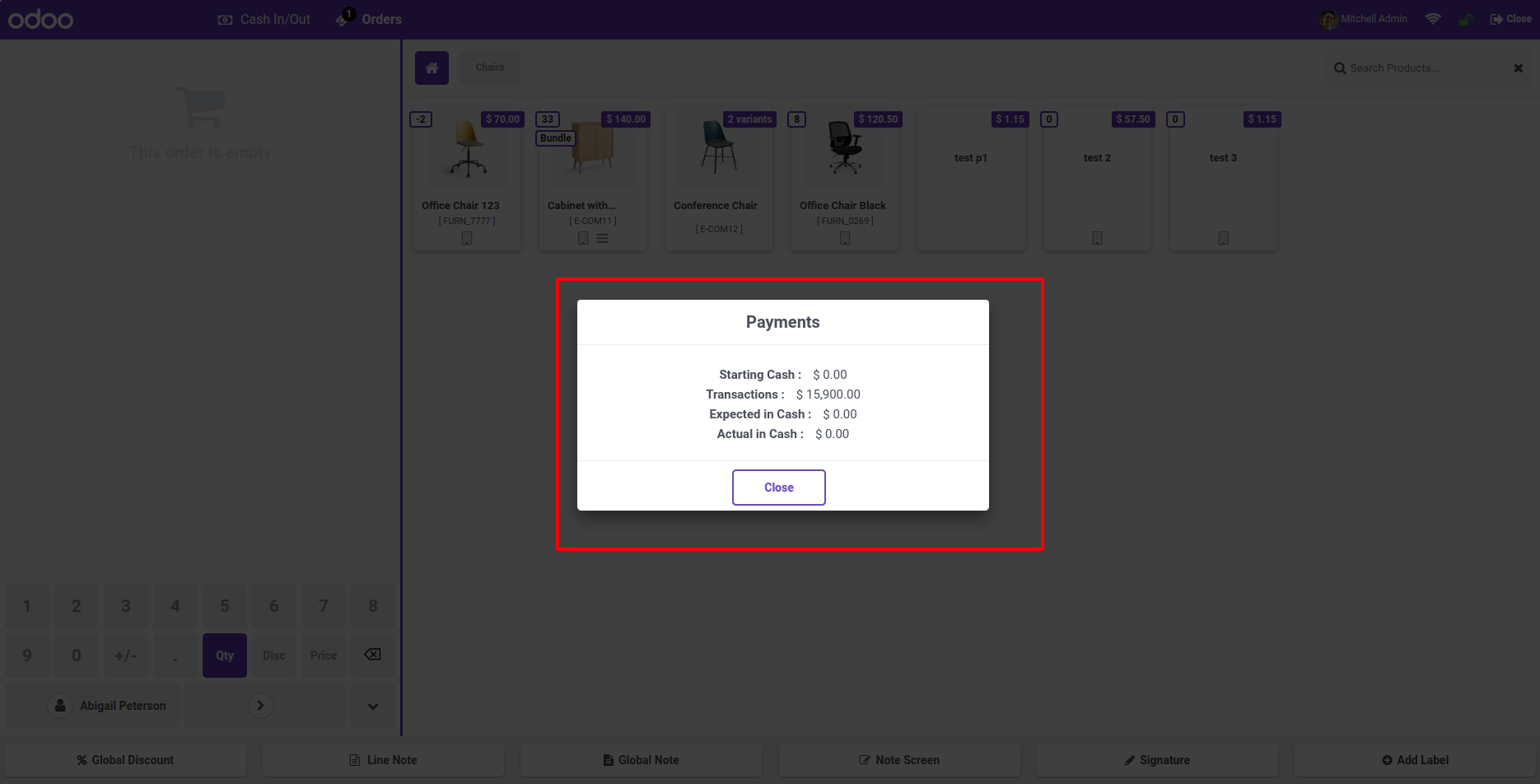
When you click on the payments, you can see all transactions.

Payments Popup with Total Transactions

Goto pos config setting and enable 'Allow Partial Payment'.

Enable Allow Partial Payment Setting

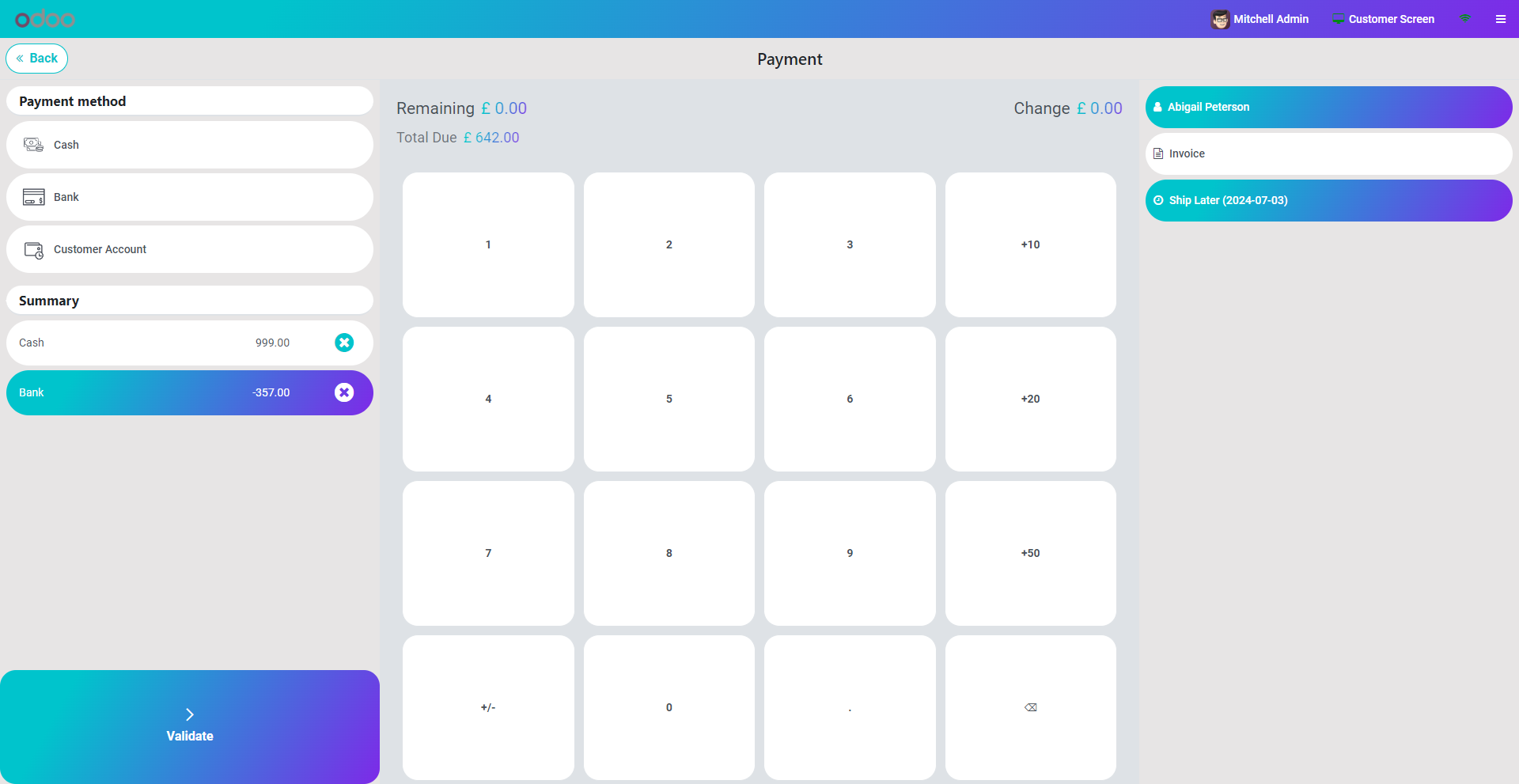
Now go to pos and make payment of one order, Here you can see the Remaining amount.(* Invoice Compulsary, Without invoice you can not make partial payment *)

Payment Screen with Remaining Balance


As you can see the partial payment details in backend order master view.

Order Form with Partial Payment Details

Goto invoice here you can see the 'Partially PAID' ribbon.

Invoice with Partially Paid Ribbon

Also you can restrict particular customer for partial payment. Just goto the customer master view and enable 'Not Allowed Partially Payment'

Customer Form with Not Allowed Partial Payment


While you make partial payment with the restricted customer, system will show the alert message.

Alert Message for Restricted Customer


For make payment of partially paid orders from the pos. Just enable 'Allow to pay order'.

Enable Allow to Pay Order Setting


After that you can see the payment button in order list view in pos.

Order List with Payment Button


After click on that you will redirect to the payment screen. And make payment.

Payment Screen with Remaining Due


After payment successfully placed, backedn order due amount updated.

Order Form with Updated Due Amount


After payment successfully placed, you can see the paid lable in backend invoice master view.

Invoice with Paid Label in Backend


You can also filter partially paid order from pos order list.

Order List Filtered by Partially Paid


Invoice is mandatory for making a partial payment.

Payment Screen Blocking Partial Payment

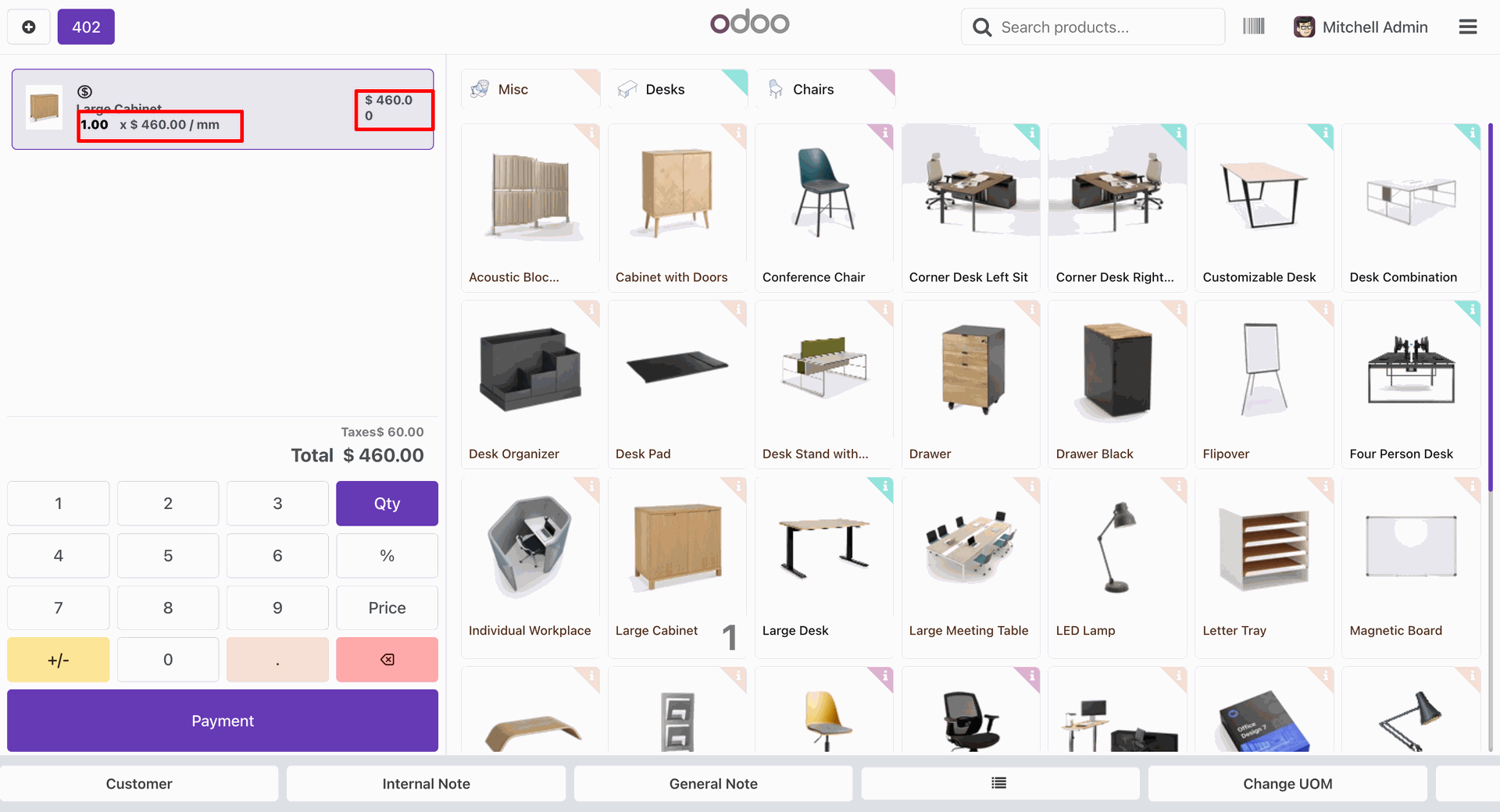
Tick the 'Is Secondary Unit' boolean and add a 'Seconday UOM' in the product form view.

Go to the POS settings, select the "Select Default UOM Type: Primary".


Here you can see that it takes the primary UOM by default.
Click on the "Change UOM" button.

Select the UOM.

Here you can see that the UOM has been updated.


The UOM is also shown in the order form view.


Go to the POS settings and tick 'Display UOM in Receipt'.


Add a product with UOM.


The UOM is displayed in the receipt.

Go to the point of sale settings and enable the 'POS Manager Validation' option. Select the users as a validation manager.

enable the 'POS Manager Validation' option

Select the user from settings and set the barcode, password, and pin for the manager in the point of sale tab.

Set manager barcode password and pin

Enable the 'Order Deletion' option from the POS setting.

Enable the 'Order Deletion' option

Open the POS cart screen and apply validation to the removed order.

apply validation to the removed order

Select the barcode validation method from the popup.
scan the badge.

Select barcode validation method

If you scan the wrong barcode the 'Incorrect Barcode' alert is displayed.

wrong barcode the 'Incorrect Barcode' alert

If you enter the correct password, then the order is successfully deleted.

correct password, then the order is successfully Delete

Go to the point of sale setting and select the validation type: Password.
Tick the 'Price Change' option.

 Tick the 'Price Change'

Add the product to the cart and click on the price button to change the price. It will open a pop-up to enter a password.

click on the price button to change the price

If you enter an incorrect password, it will open a warning indicating the password is incorrect.

warning indicating the password is incorrect

Again click on the price button.

 click on the price button

Enter the password.

Enter the password

If you enter the correct password then the price mode is set.

correct password

Change the price as per your requirement. You can see in the cart, that price is changed.

price is changed

Enable the Open Virtual Keyboard
Enable Order Line Deletion options from the pos setting.

Enable the Open Virtual Keyboard

When you click on the order line, the virtual keyboard is visible to enter a password for validation.

click on the order line

If you enter the correct password, then the order line is successfully removed from the cart.

Order line is successfully removed from the cart

Enable the Apply Discount option and select the validation type: Only Pin from the pos setting.

Enable the Apply Discount option and select the validation type

Add the product to the cart click on the discount button and enter the pin.

click on the discount button

If you enter the correct PIN then the discount mode is set.

discount mode is set

You can see the applied discount.

applied discount

Enable the On Decrease Quantity option and select the validation type: Pin and Password from the pos setting.

Enable the On Decrease Quantity option

When you click on the Qty button and decrease qty it will ask you to select the validation method.

click on the Qty button

If you enter the correct PIN/Password then the quantity will decrease.

quantity will decrease

Enable the 'Payment' option and select the validation type: PIN and Barcode from the pos setting.

Enable the 'Payment' option

When you click on the payment, it will ask you to select the validation method. Select the barcode for the payment validation.

select the validation method

Click on the payment button and scan the barcode.

Click on the payment button

Scan the correct barcode, you will be redirected to the payment page.

 redirected to the payment page

Go to the POS setting, Enable the Validation On Payment Method option. When you enable this, the type of payment will shown. Select the payment types in which you want to set the validation.

Enable the Validation On Payment Method option

Select the Cash payment method and select the PIN validation method.

Select the Cash payment method and select the PIN validation method

Enter the correct PIN, you can see the cash in the summary.

cash in the summary

Enable the Refund option and select the validation type: Password and Barcode from the pos settings.

Enable the Refund option and select the validation type

Click on the refund button in the POS screen and select the password validation method.

Click on the refund button

Enter a password and confirm it.

Enter a password

If you enter the correct password then a refund is set.

refund is set

Enable the On Cash Move option and validation type: Only the Barcode from the pos settings.

Enable the On Cash Move option

Click on the Cash In/Out option and scan the barcode.

Cash In/Out option and scan the barcode

If you scan the correct barcode. it will ask you to enter the case in/out the amount and for a reason.

enter the case in/out the amount

Go to the pos settings and enable the One Time Password An Order, Paymemnt and Apply Discount options and select validation type: All.

enable the One Time Password An Order, Paymemnt and Apply Discount options

Select the validation method pin.

Select the validation method pin

If you enter the correct pin, the discount method mode is set.

discount method mode is set

You can see the applied discount.

see the applied discount

You set the one-time password and you enter the correct password to validate the discount then you do not need to enter the password again for payment.
The payment mode is automatically set. Click on the payment.

The payment mode is automatically set

After that, you will be redirected to the payment page without validation.

redirected to the payment page

Quick Keyboard Shortcuts Feature.
Shortcut To Quickly Select Product & Add It To The Cart, Close Button, Change The Cashier (Available When Employee Login Is Enabled).


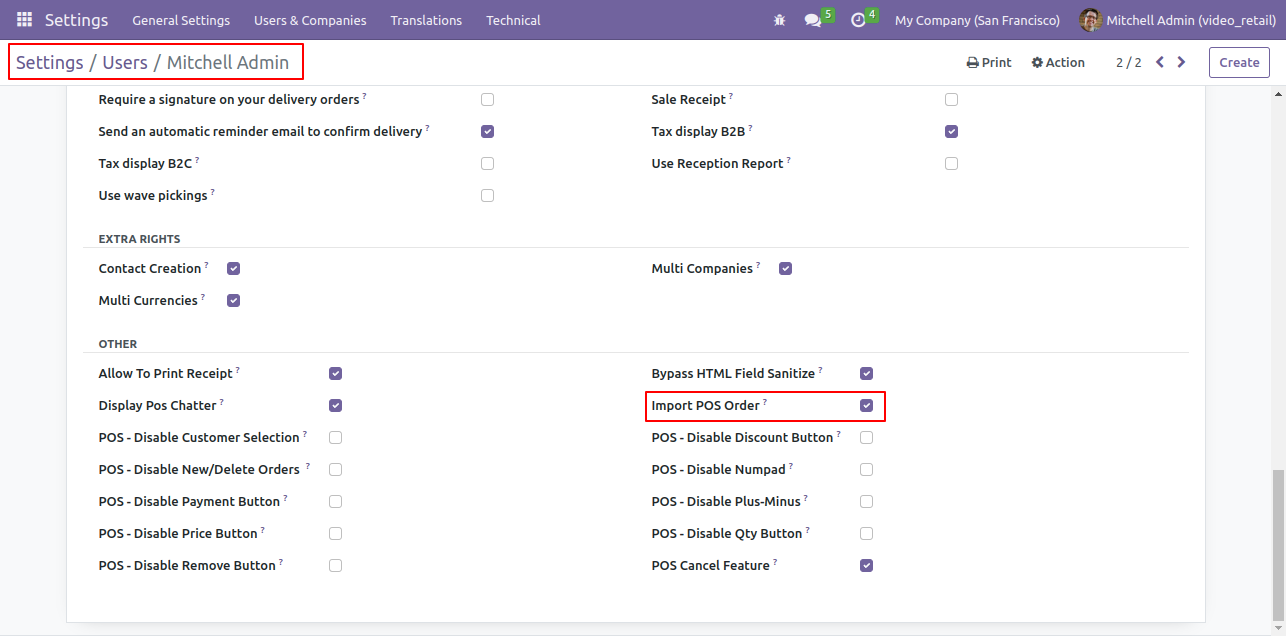
First, you need to tick the "Import POS Order" to import product.

Enable Import POS Order access right

Import Sample files in CSV. and XLS format.

Sample Files Sample Files

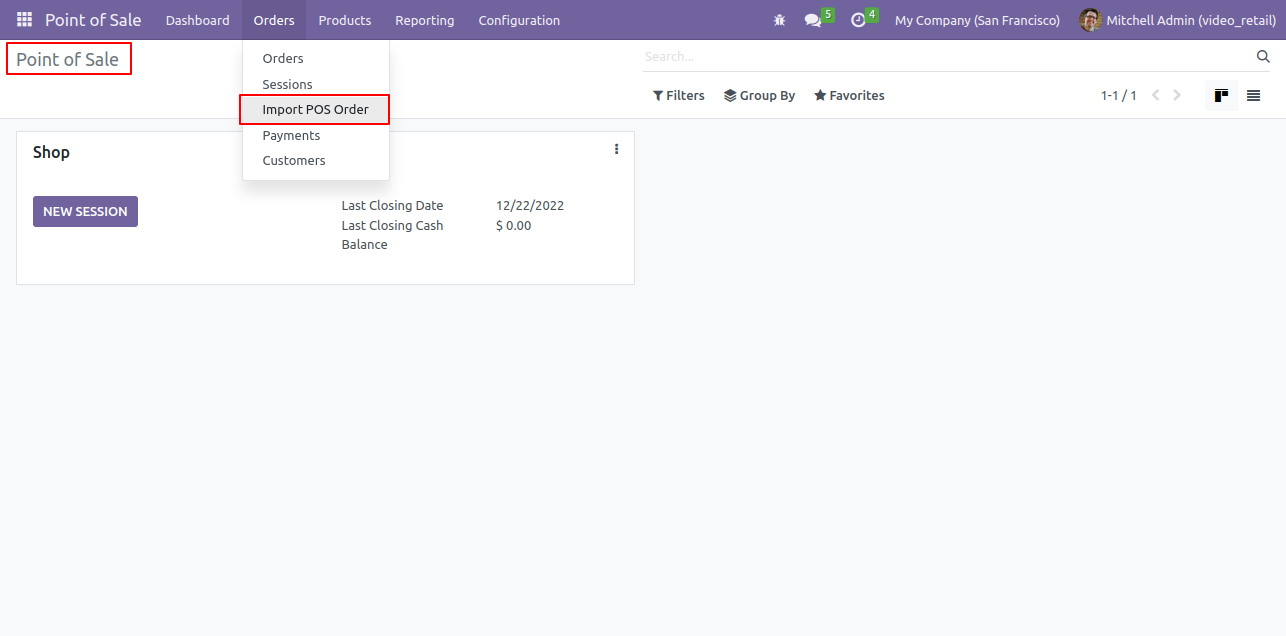
"Import POS Order" menu in orders.

Import POS Order menu in Orders

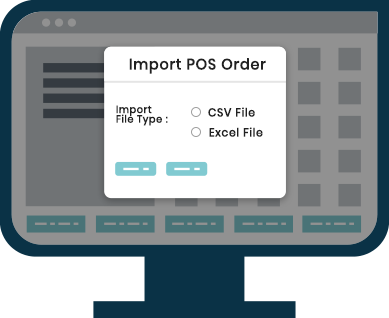
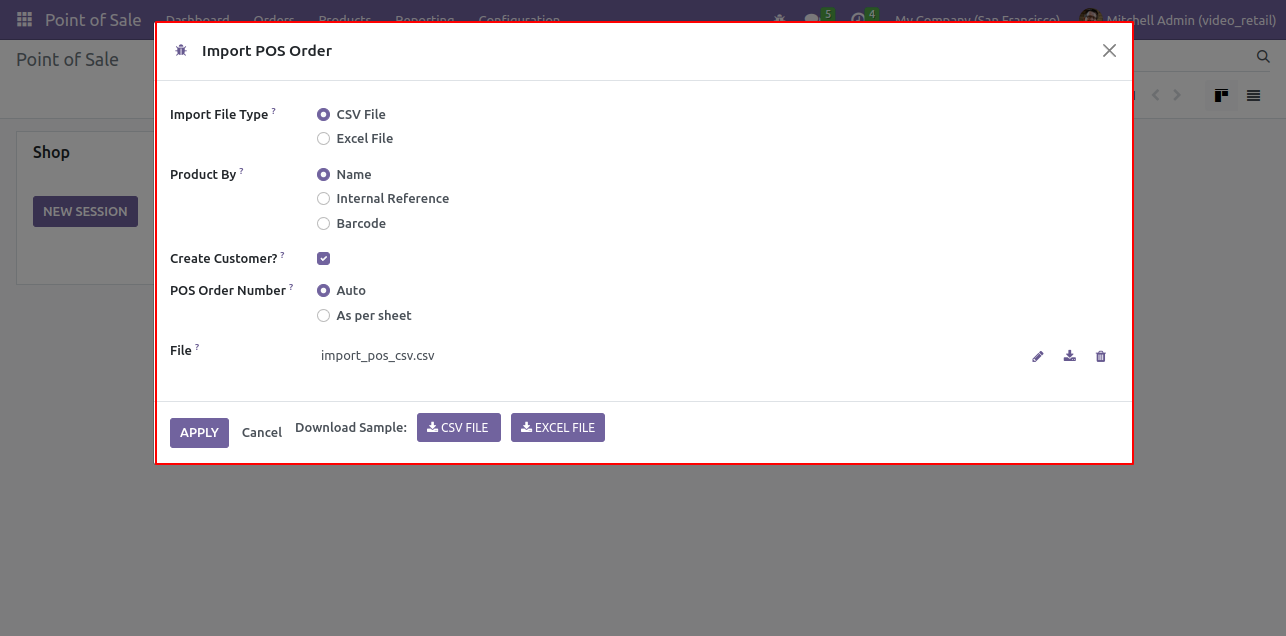
Import POS Order wizard looks like below, Select CSV. File in import file type and upload CSV file.

Import POS Order wizard

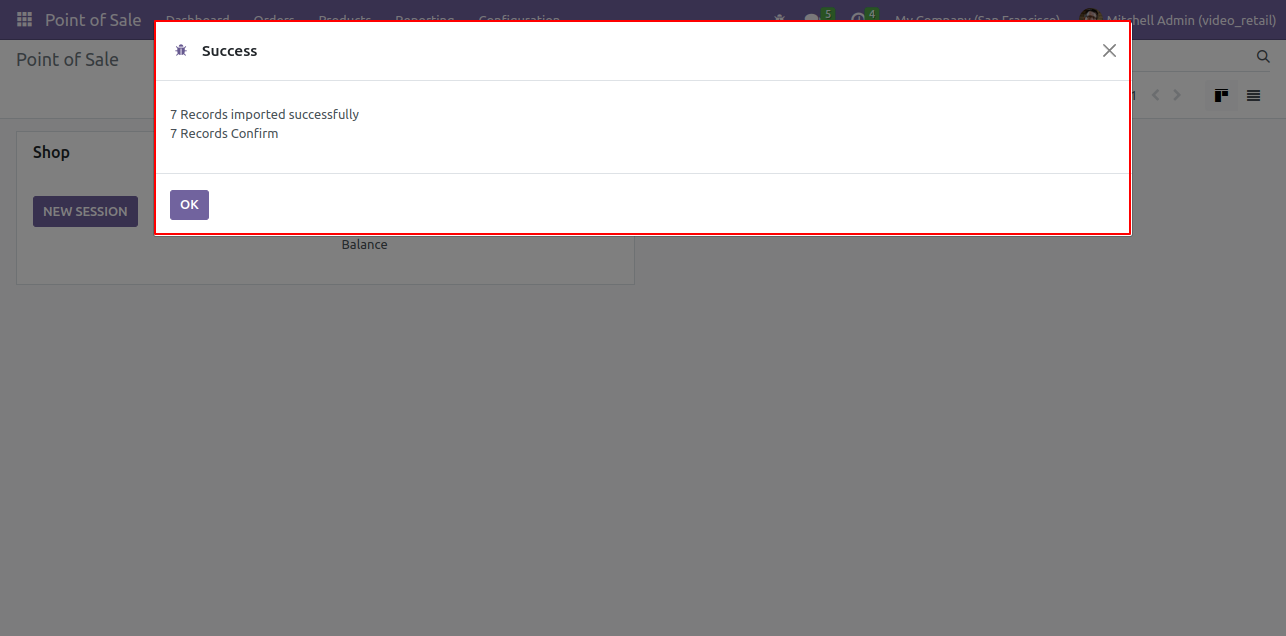
Success message looks like below it shows successfully imported records.

Success message after import

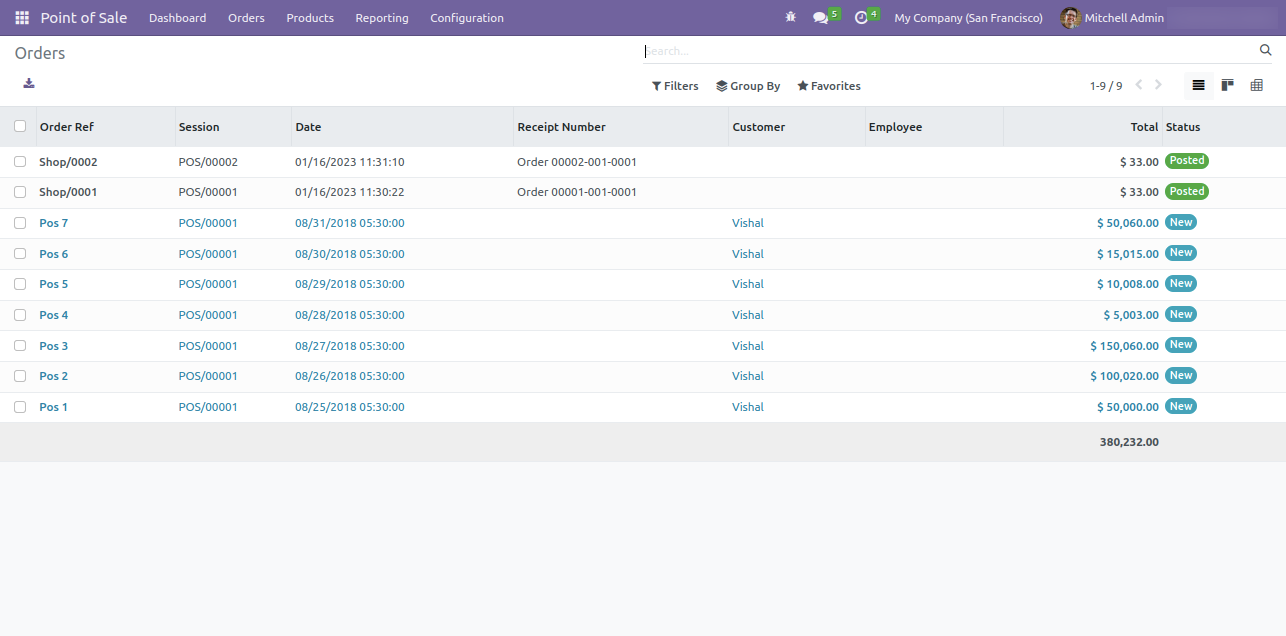
List view of the orders.

List view of imported orders

Success message looks like below it shows successfully imported records and also provides a list of unimported records with row number in sheet and relative details of product invalidation.

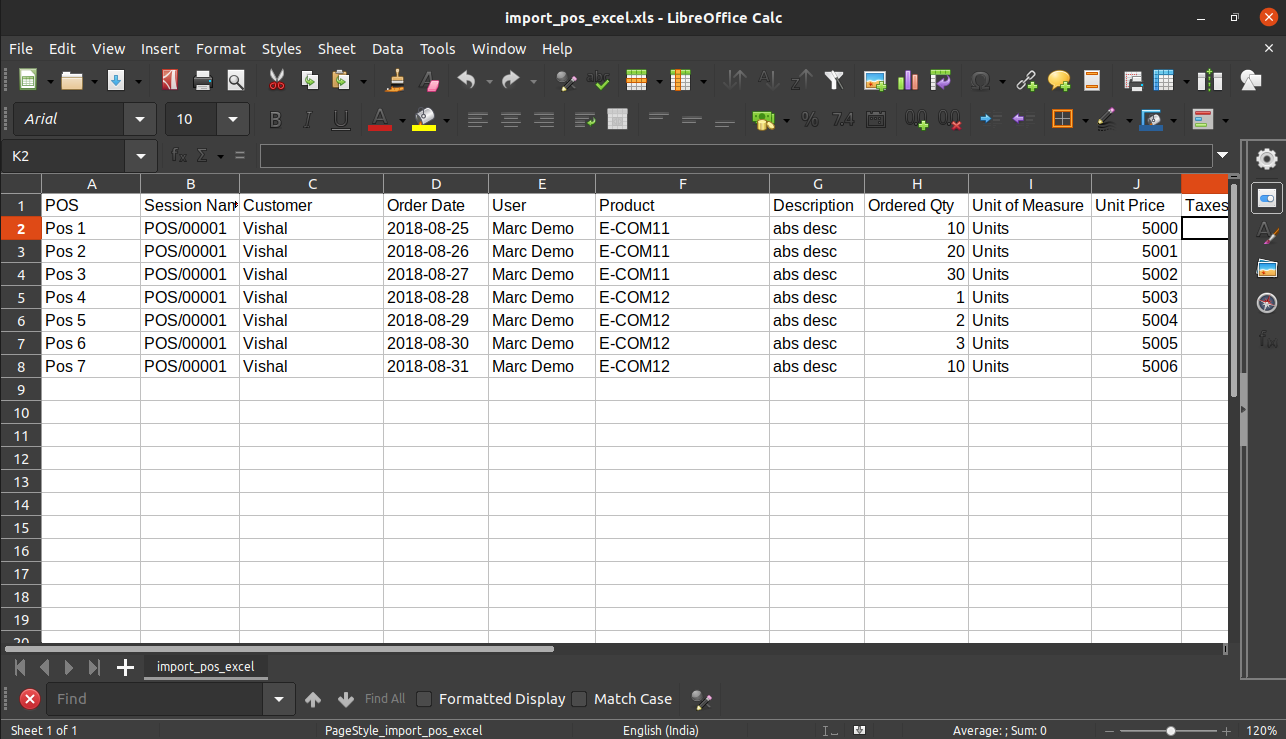
Excel file format for import

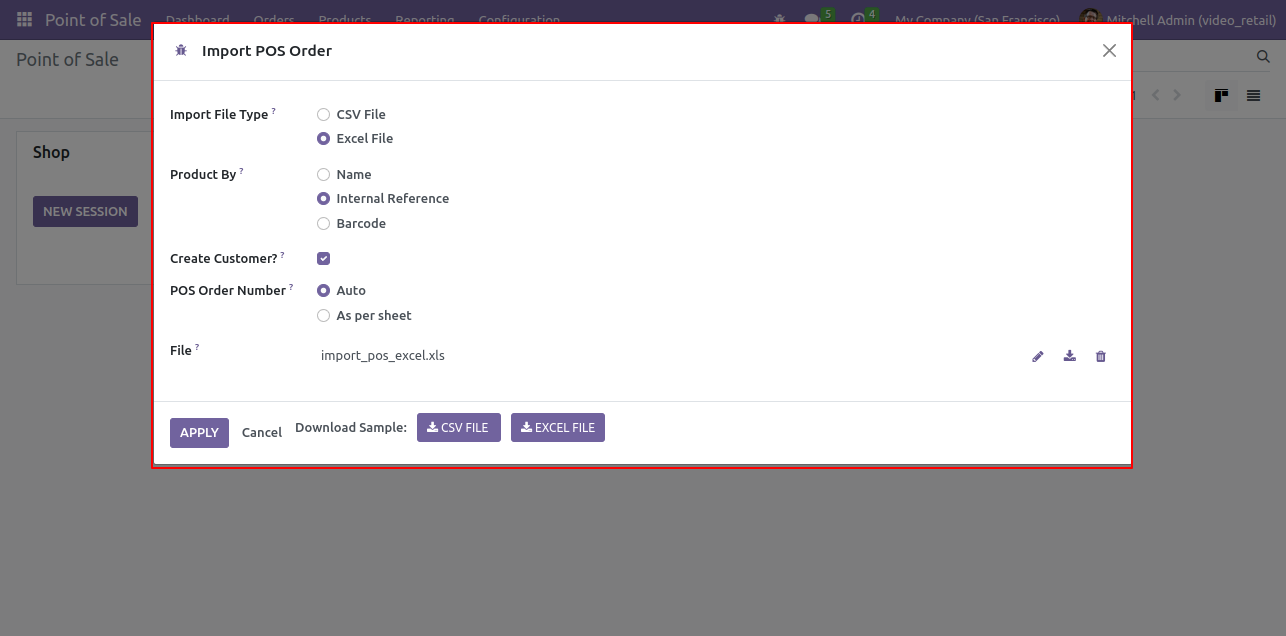
Import POS Order wizard looks like below, Select Excel File in import file type and upload excel file.

Import POS Order wizard

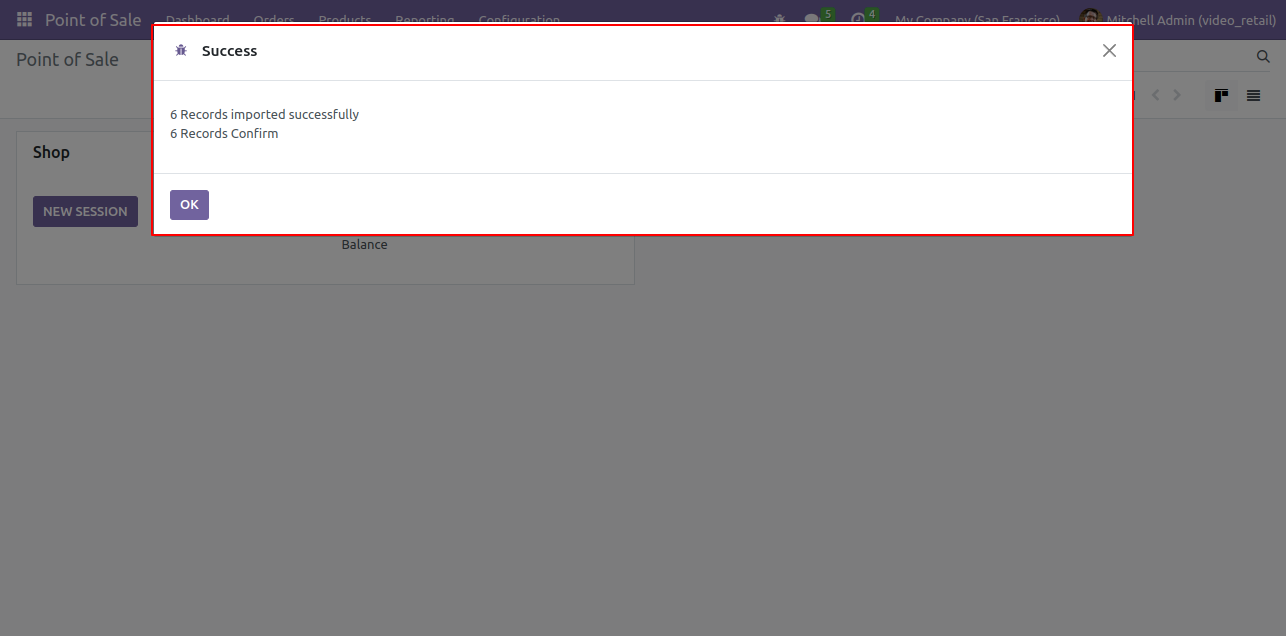
Success message looks like below.

Success message after import

List view of the orders.

List view of imported orders

Go to POS screen, click on the import POS order button.

import POS order button

Import POS Order wizard looks like below, Select CSV File in import file type and upload CSV file.

Import POS Order wizard Select CSV

Success message looks like below.

Success message after import

List view of the orders.

List view of imported orders

Import POS Order wizard looks like below, Select Excel File in import file type and upload excel file.

Import POS Order wizard Select Excel

Success message looks like below.

Success message after import

List view of the orders.

List view of imported orders

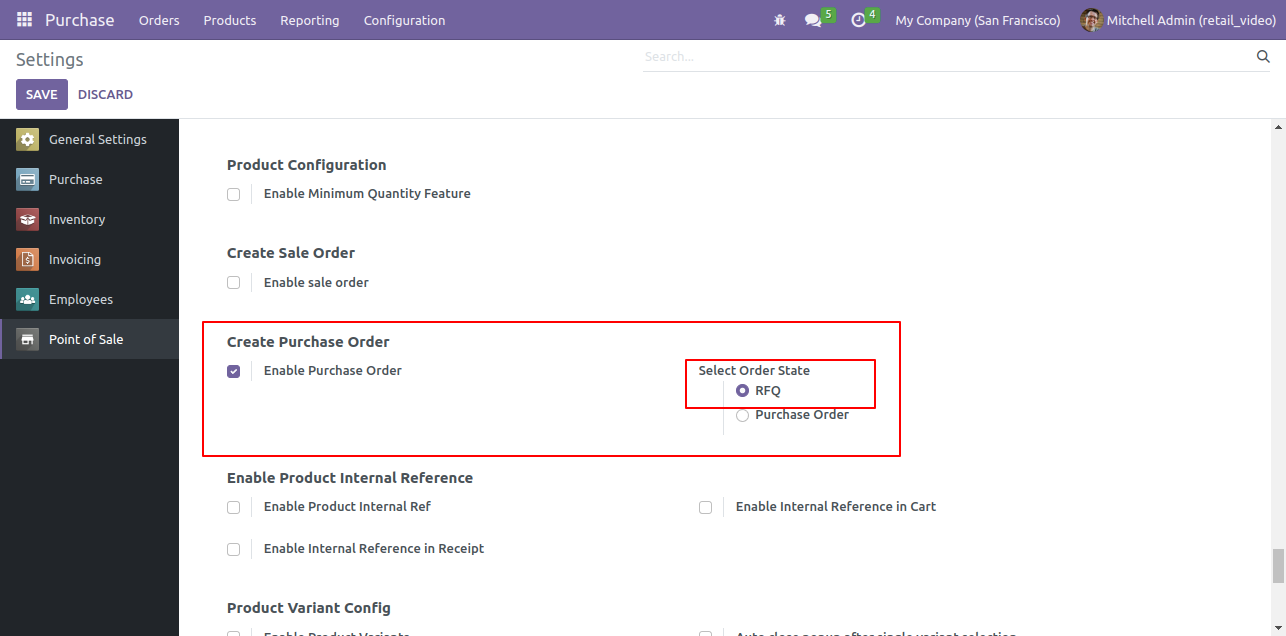
Enable 'Create Purchase Order' from pos setting. Select 'RFQ' order state.

Enable Create Purchase Order Setting

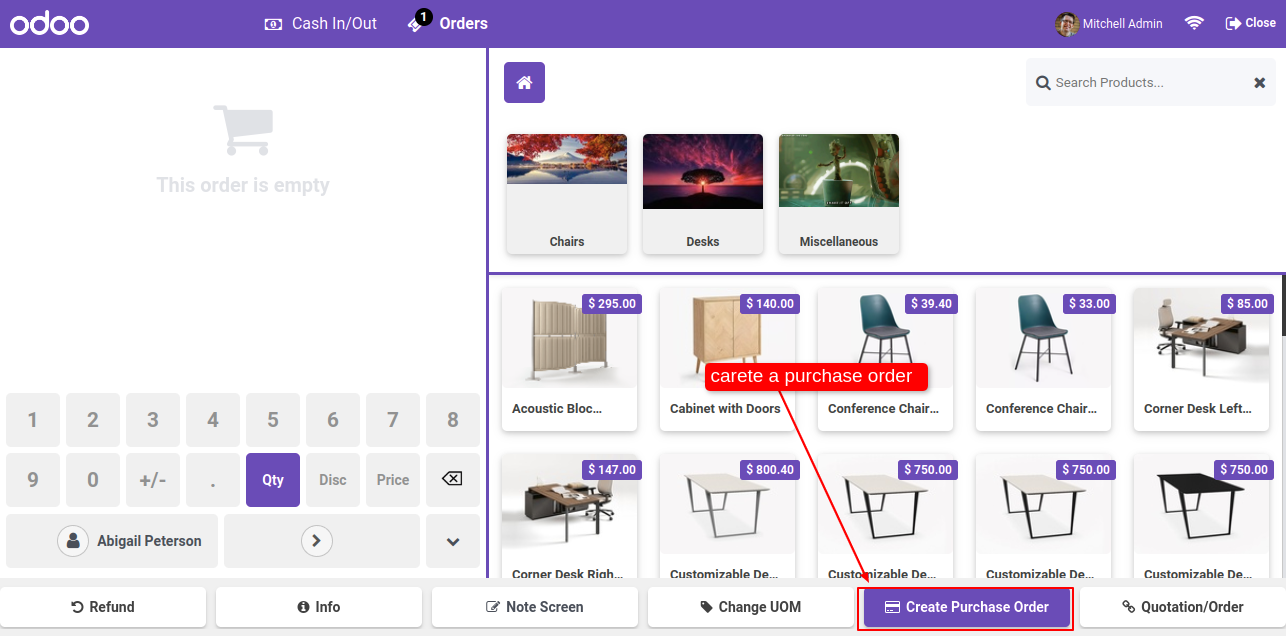
In pos screen you have one button 'Create Purchase Order'.

Create Purchase Order Button in POS

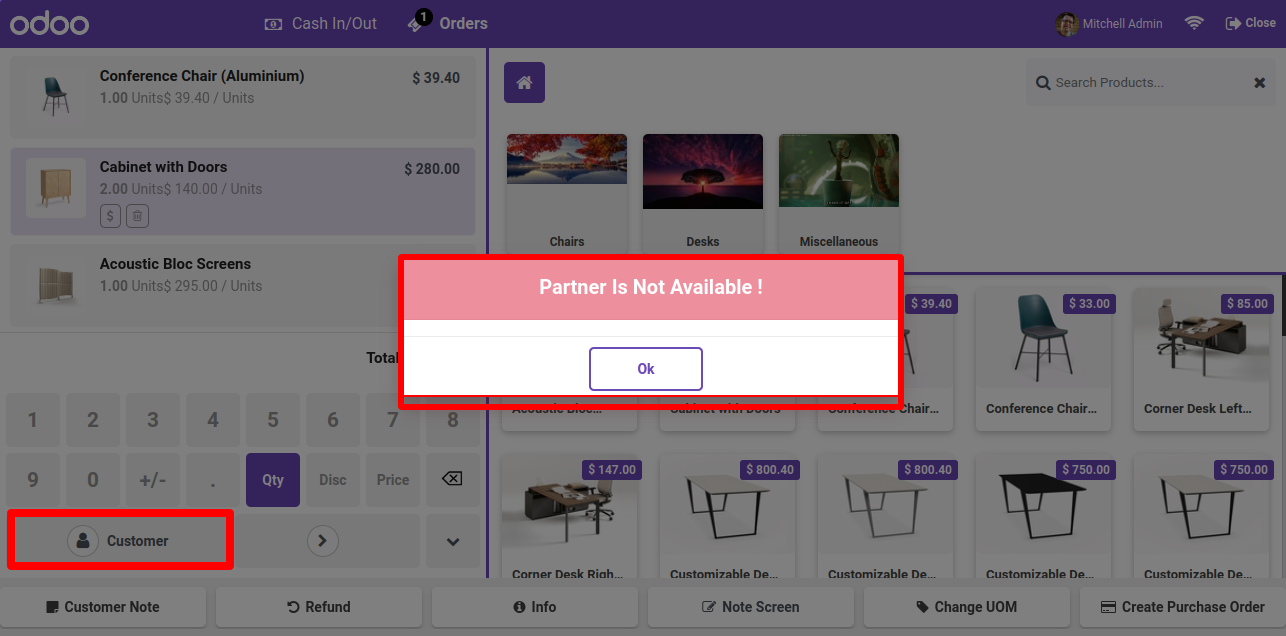
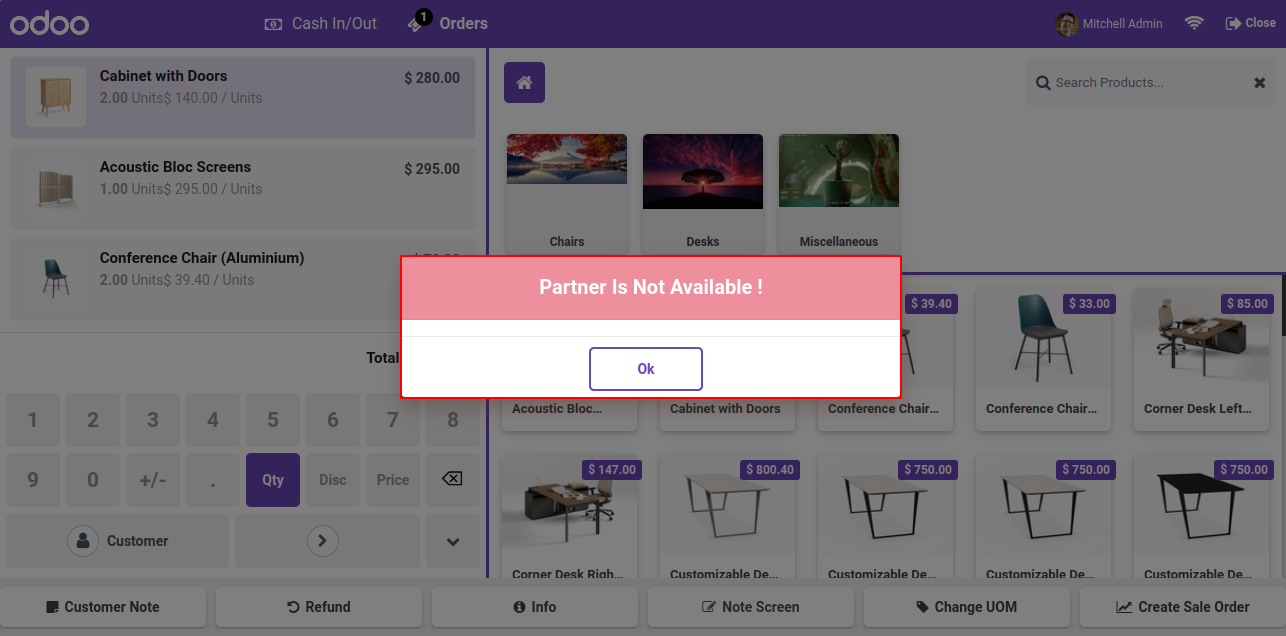
Ther error message pop-up looks like below.
Note: If you make a purchase order without selecting a customer at thet time this r pop-up will appear.

Purchase Order Error Without Customer Selected

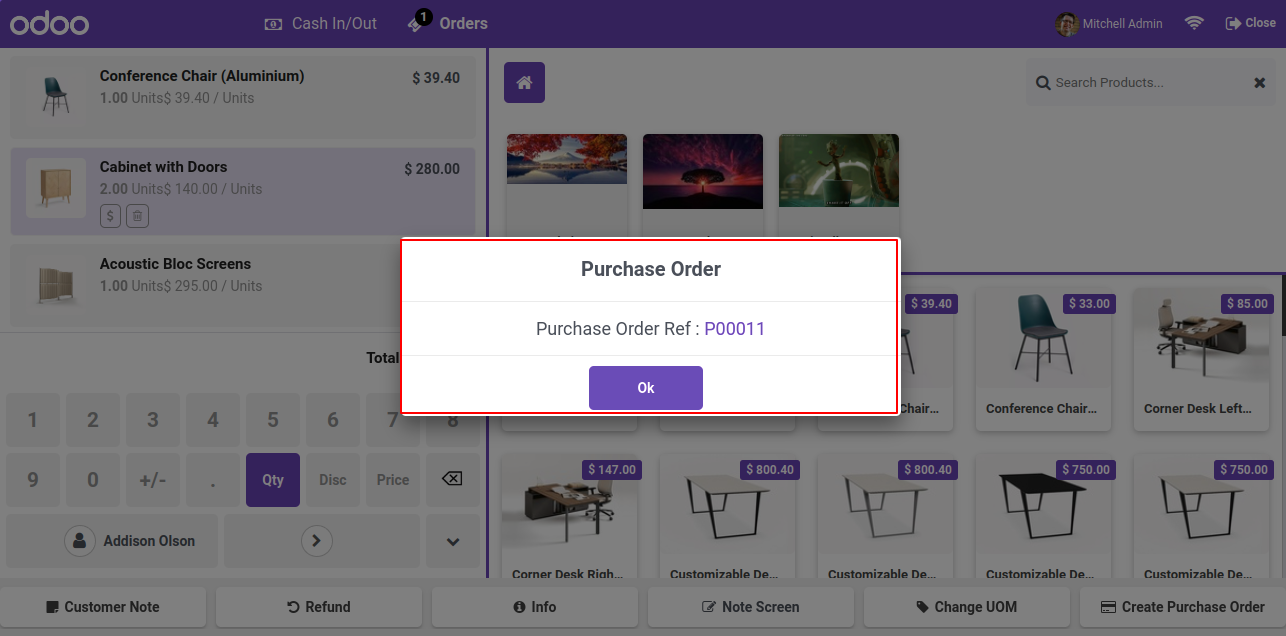
After click on 'Create Purchase Order' button, it will create a puchase rfq, in this popup you can see the purchase rfq number.

Purchase Order RFQ Number Popup

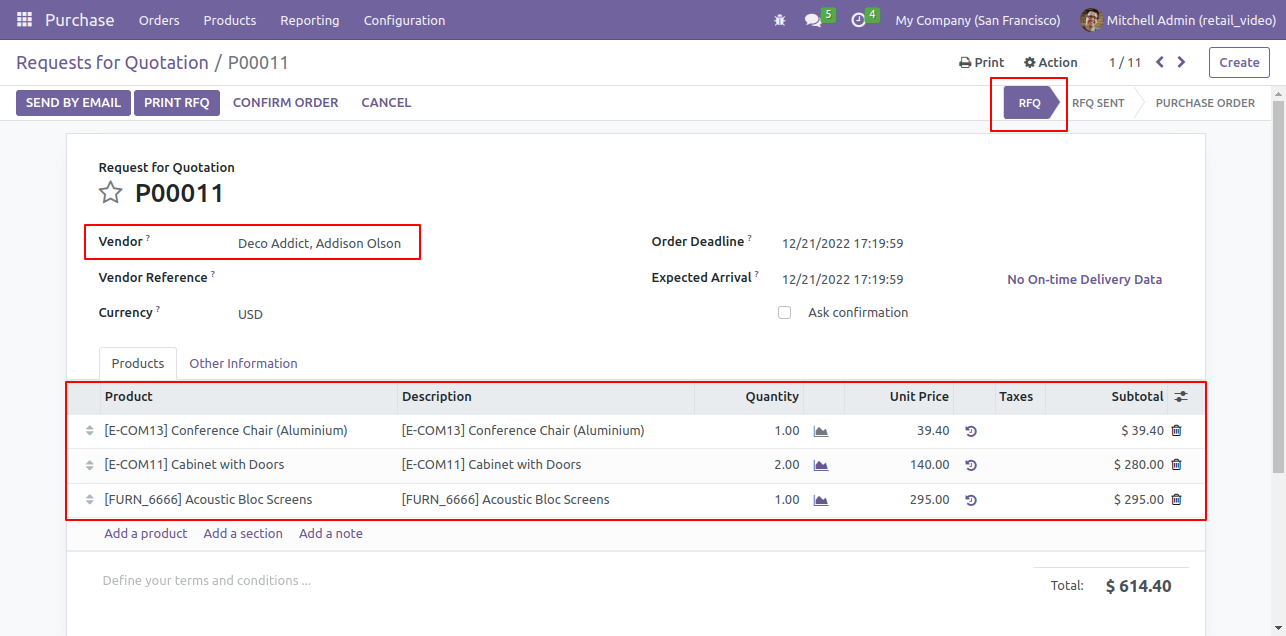
Purchase rfq created in backend.

Purchase RFQ Created in Backend

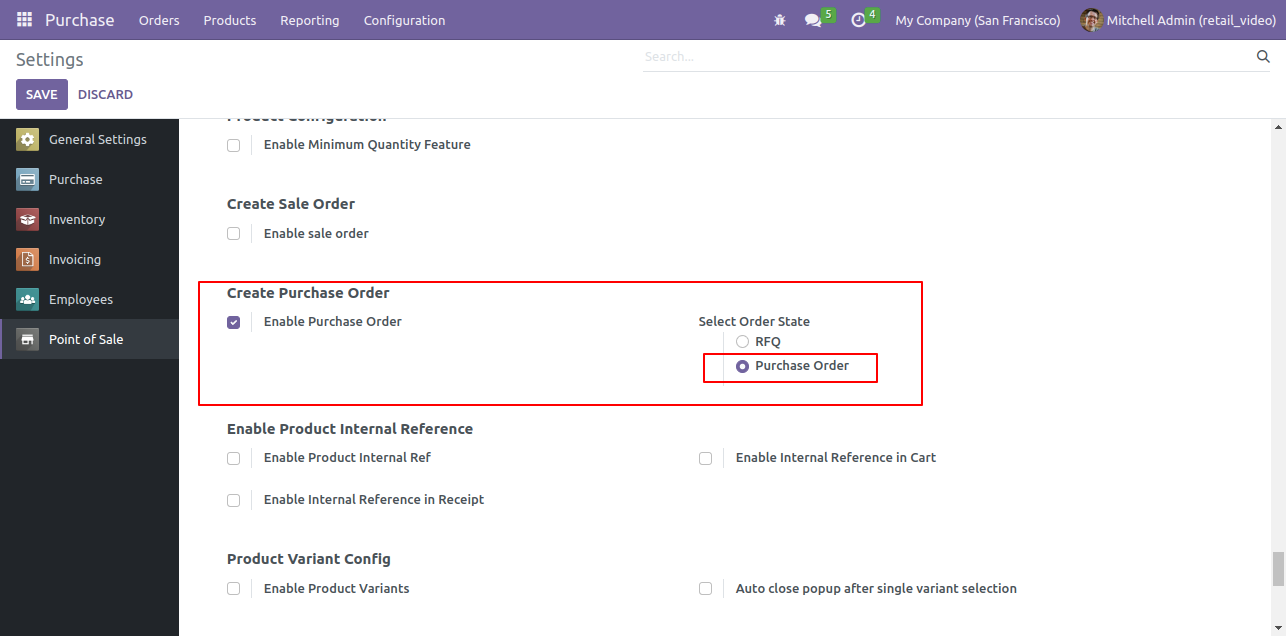
Simply Select 'Purchase Order' as the order state if you wish to create a direct purchase order.

Select Purchase Order as Order State

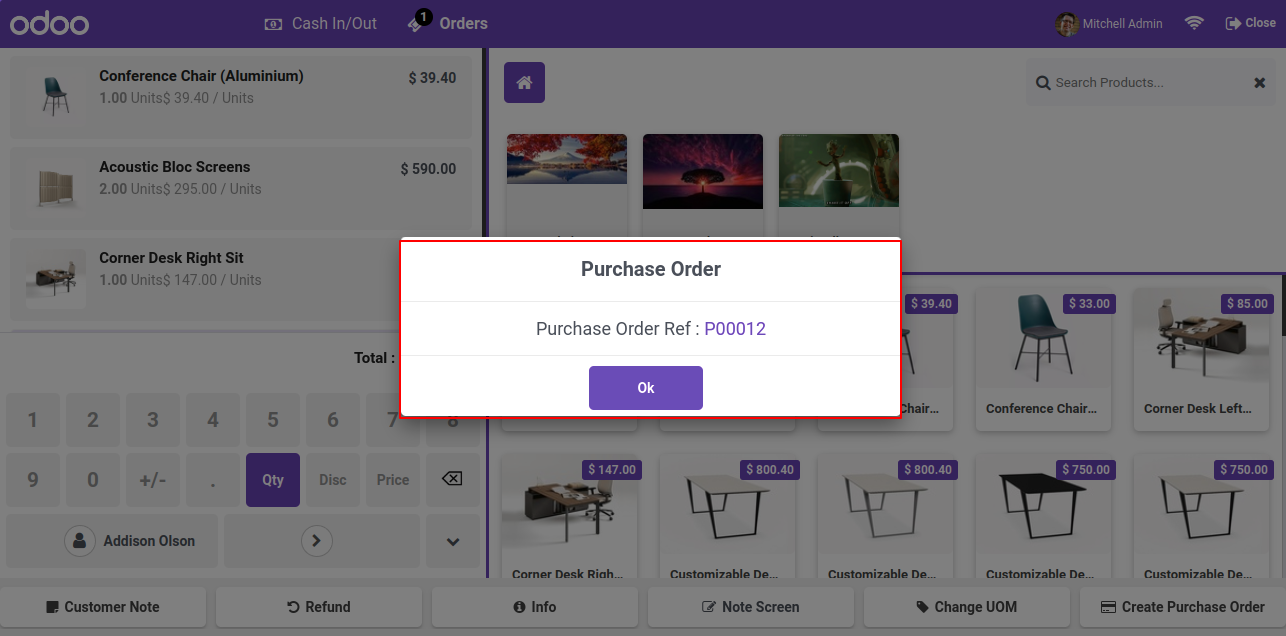
Now just add some products in cart, select customer and click on 'Create Purchase Order'. After that popup will appear, here you can see the purchase order number.

Purchase Order Reference Number Popup

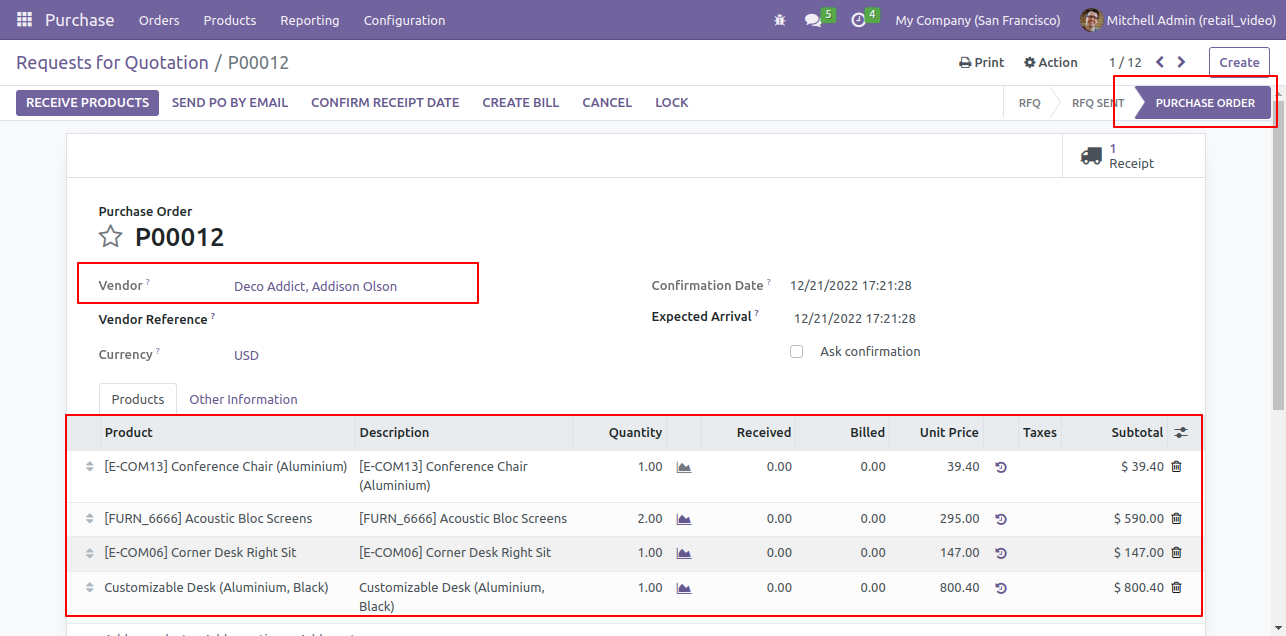
Purchase Order is created in backend.

Purchase Order Confirmed with Vendor Details

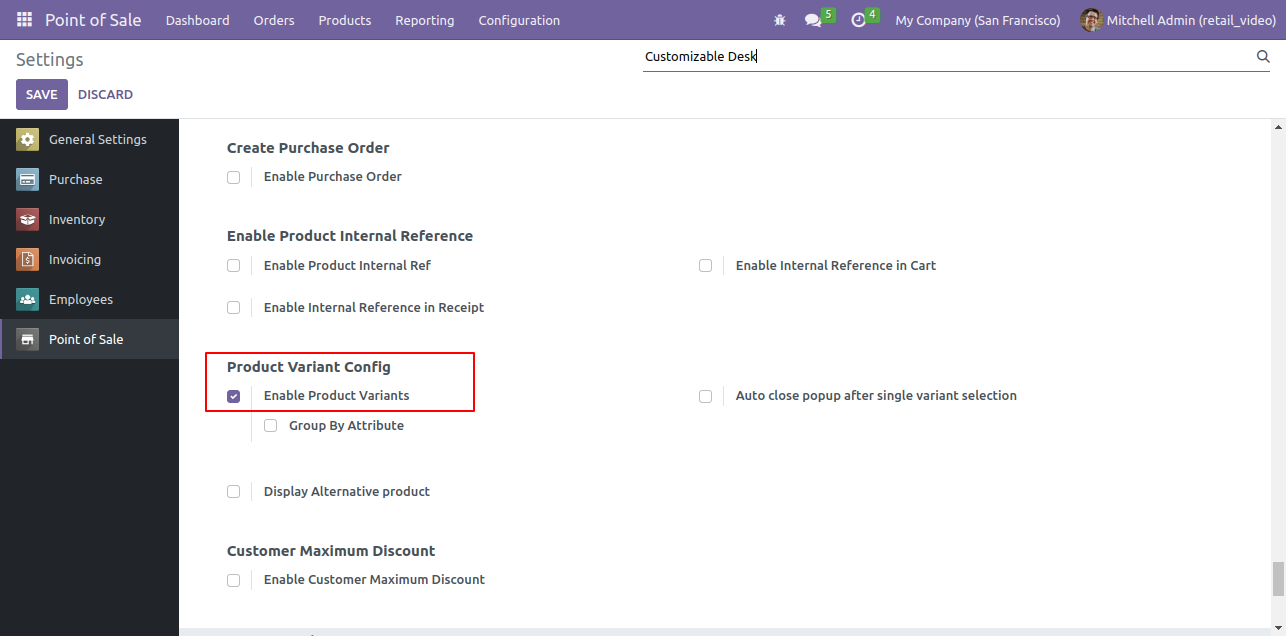
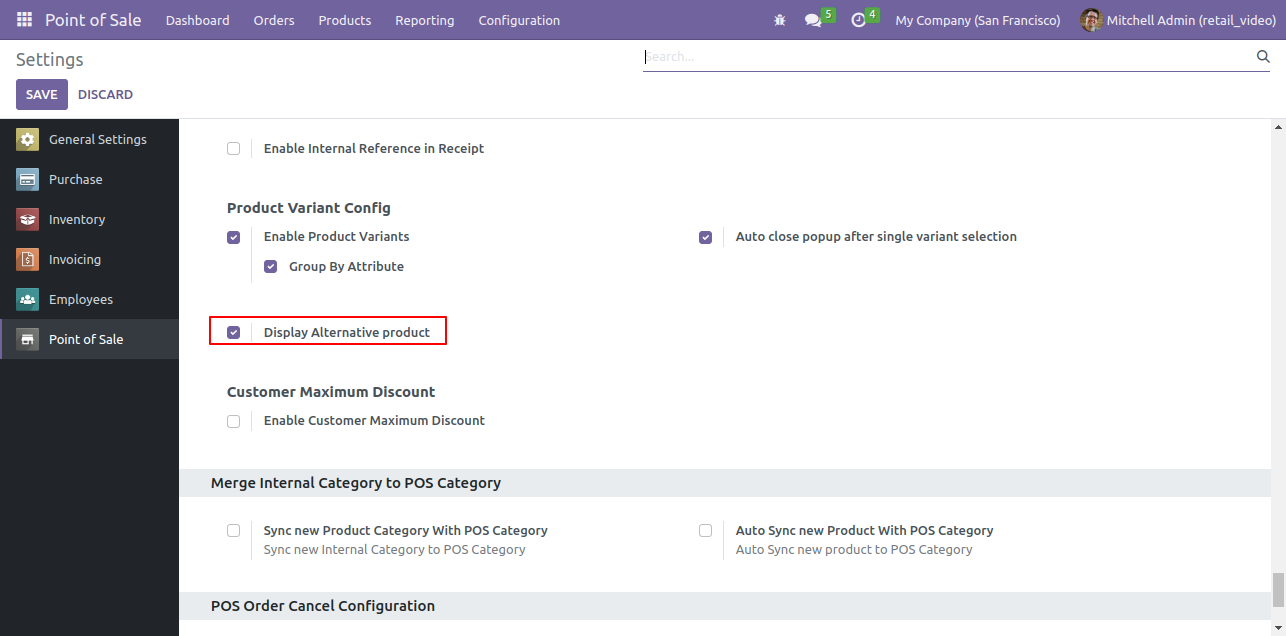
Goto pos setting and enable 'Enable Product Variants' feature. Upon enabling that, three options will appear. 1. Group by Attributes 2. Auto close popup after single variants select 3. Display Alternative product select the option as per your requirement.

Enable Product Variants setting

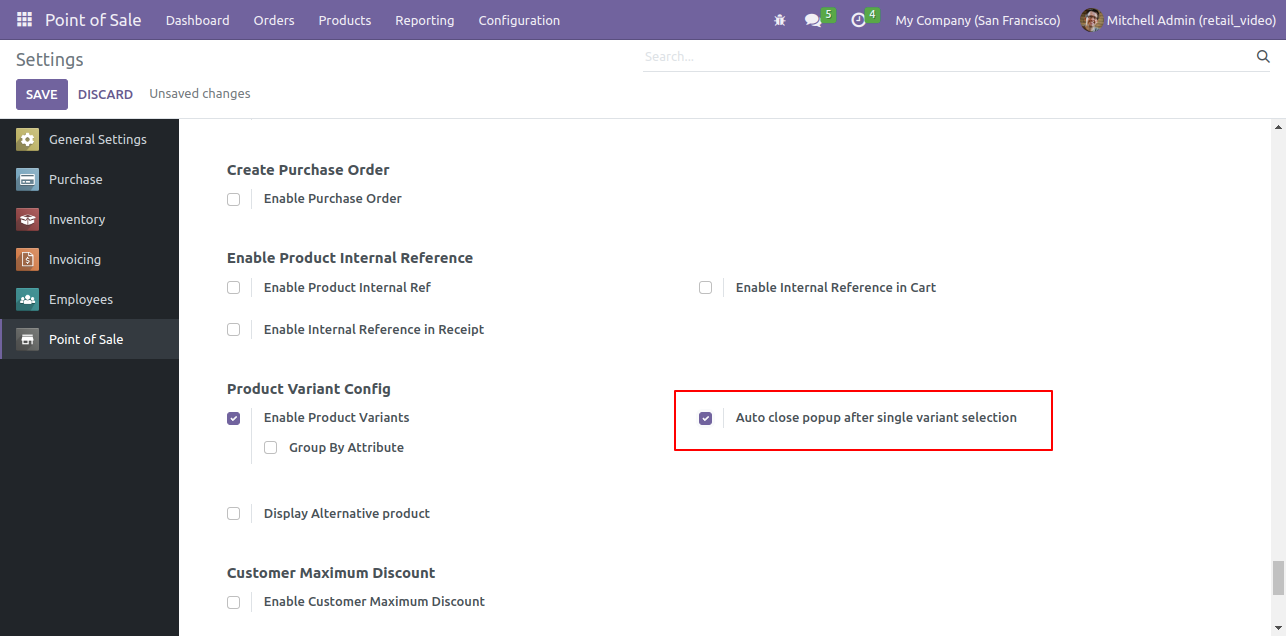
Goto pos setting and enable 'Auto Close Popup After Single Variants Select' feature.

Enable Auto Close Popup for Single Variant

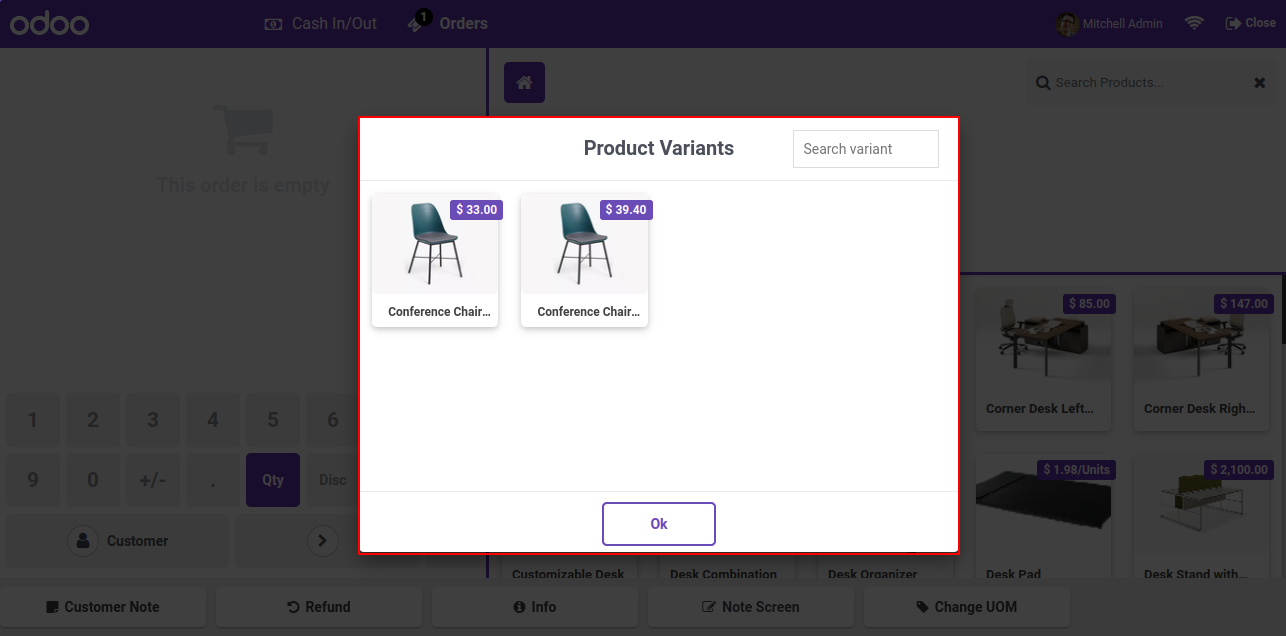
In popup you can search the variants also. click on the 'Ok' button.

Search variants in product popup

Goto pos setting and enable 'Auto Close Popup After Single Variants Select' feature.

Enable Auto Close Popup After Single Variant Select

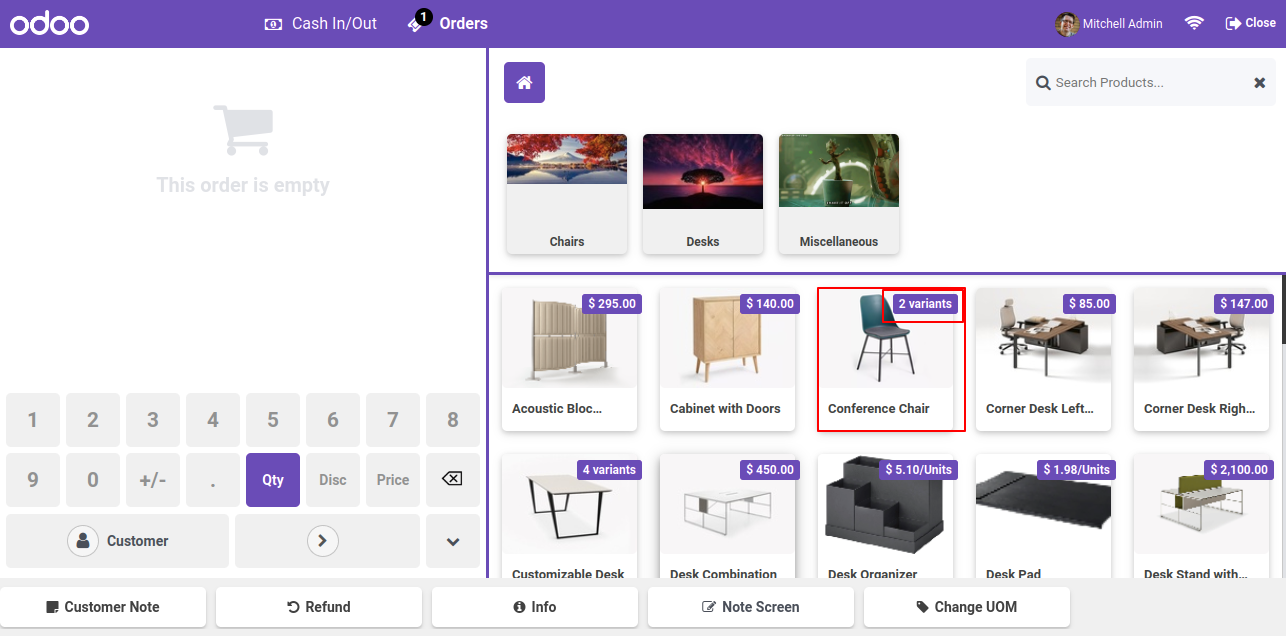
Click on any particular product.

Click on a product with variants

In popup you can search the variants also. click on the 'Ok' button.

Search variants and click Ok

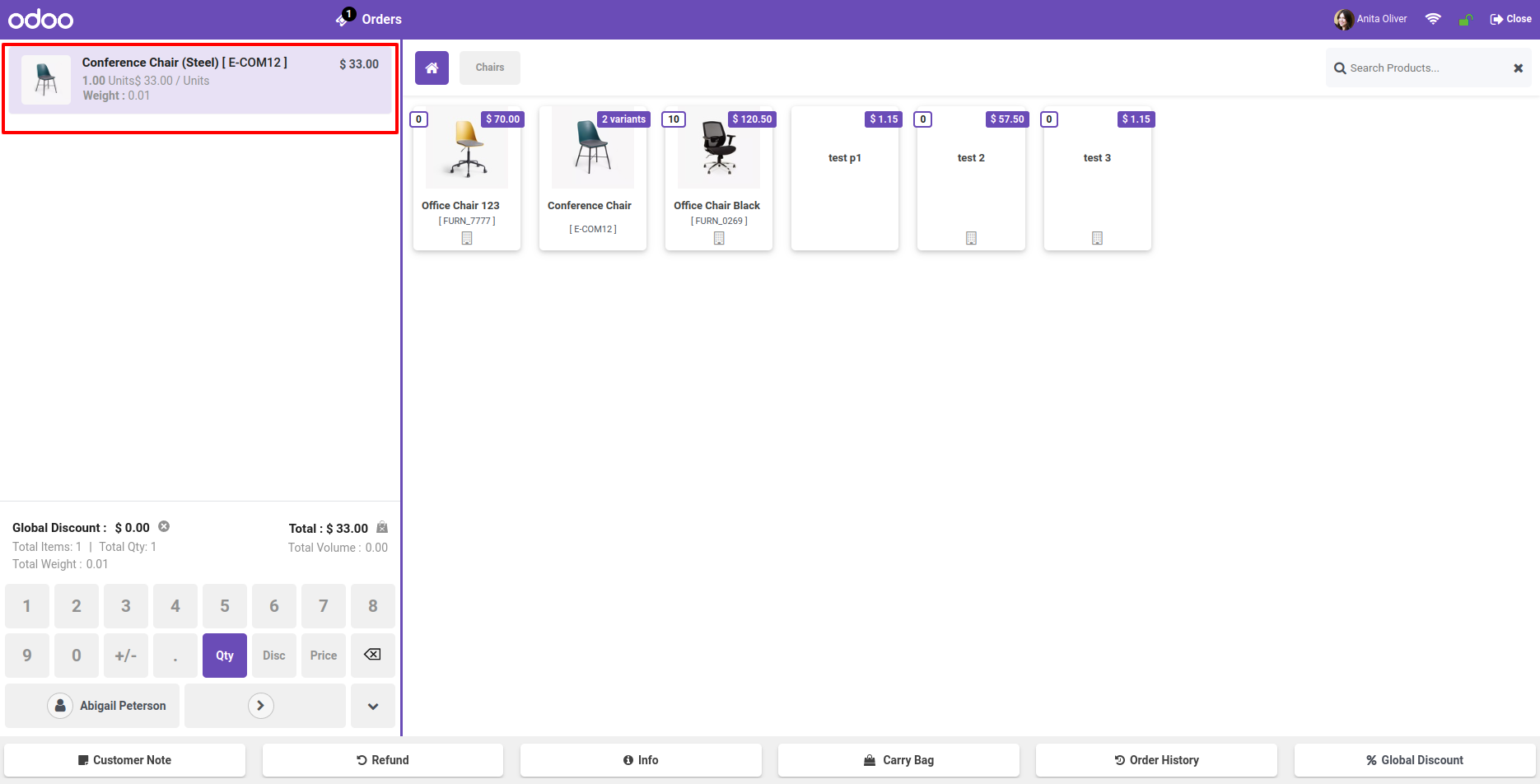
When you click on the ok button the pop-up will automatically closed.

Popup closes automatically on Ok

click on variant to add order line.

Click variant to add order line

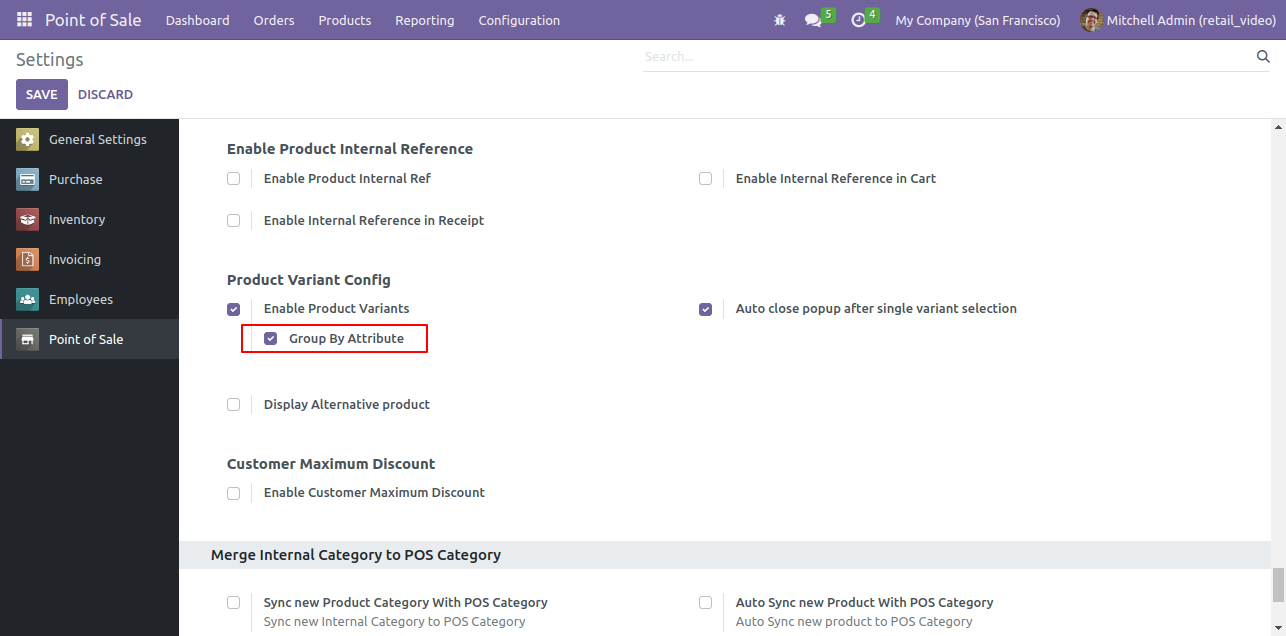
Goto pos setting and enable ' Group By Attributes' feature.

Enable Group By Attributes setting

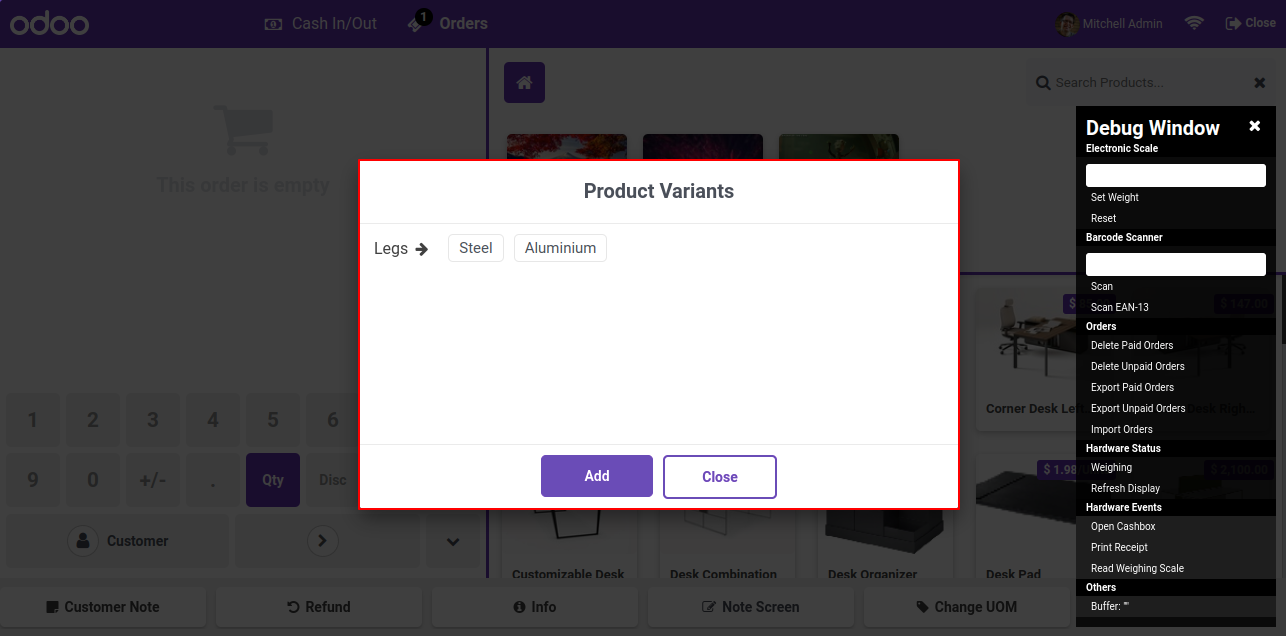
In pos screen product variants popup, here you can see the product variants with attribute group by.

Product variants grouped by attribute

Now enable 'Display Alternative Products'.

Enable Display Alternative Products

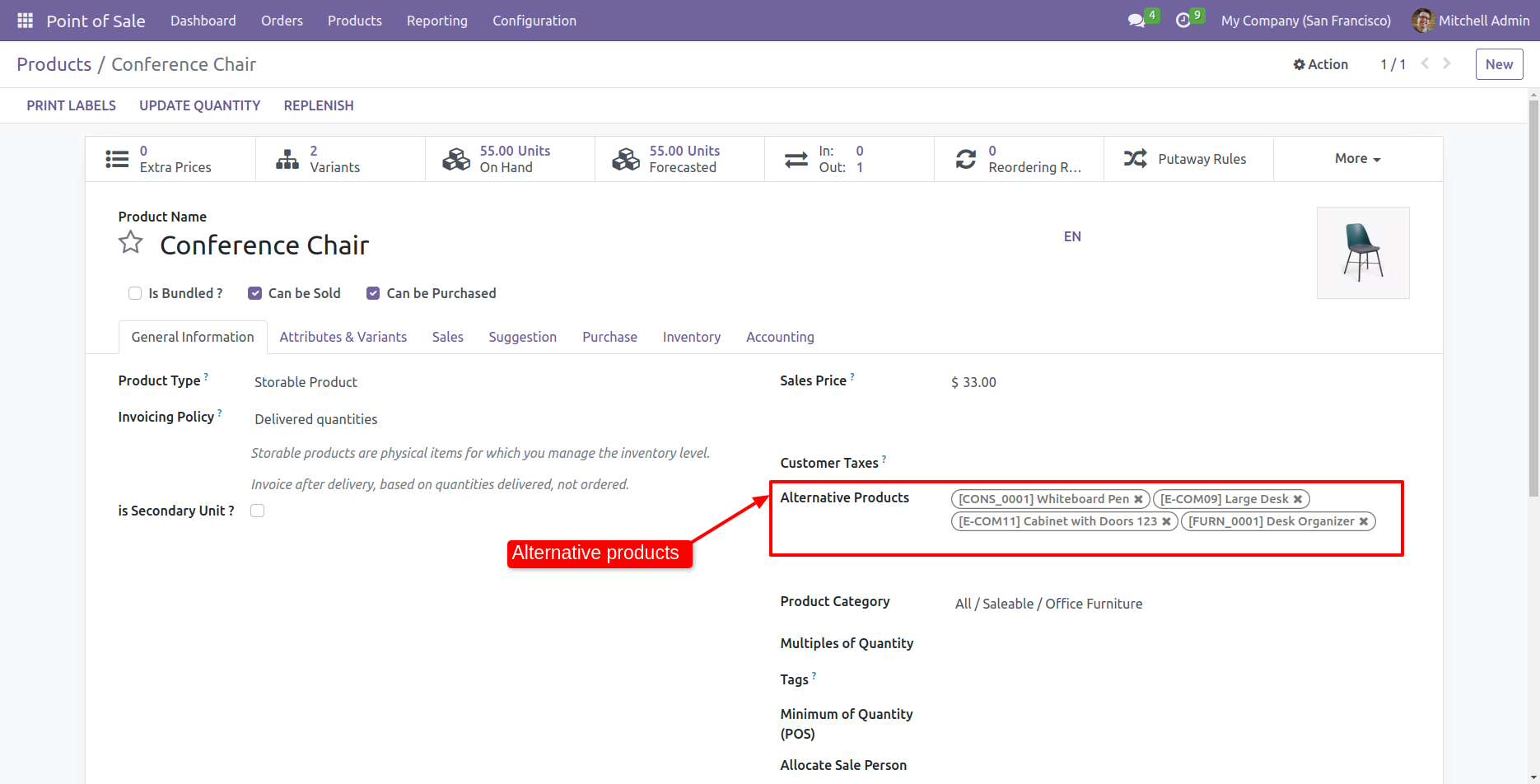
form view of the product. Select the alternative products here.

Set alternative products on product form

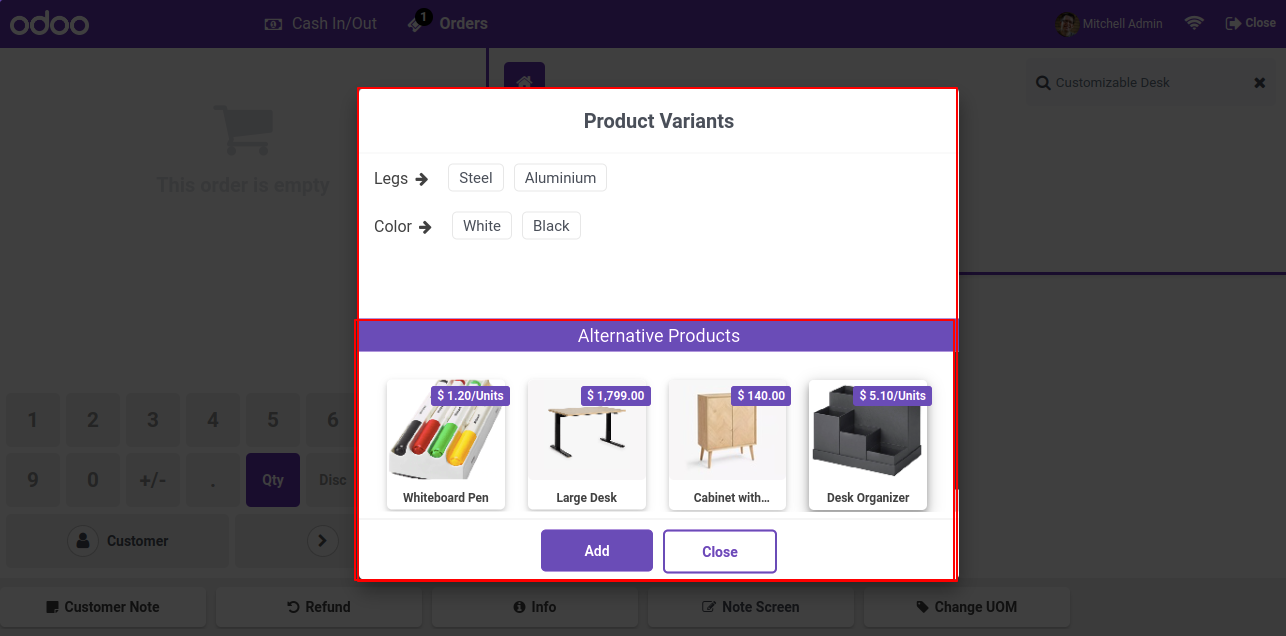
In pos, you can see the alternative products in the variants popups.

Alternative products in variants popup

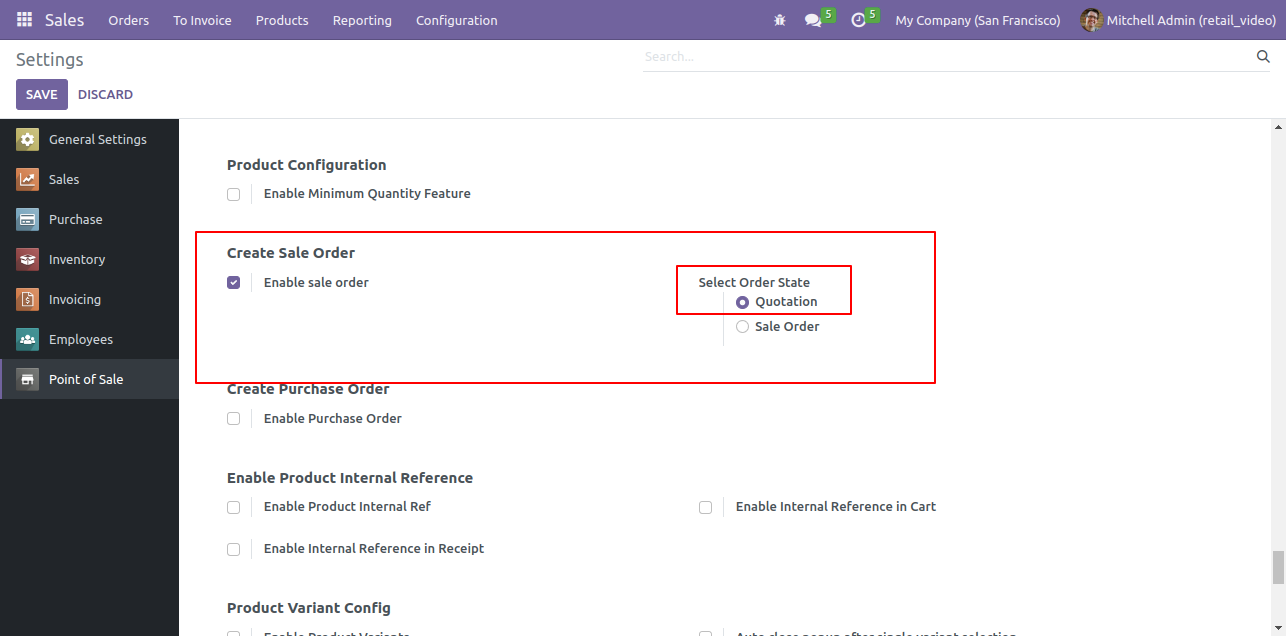
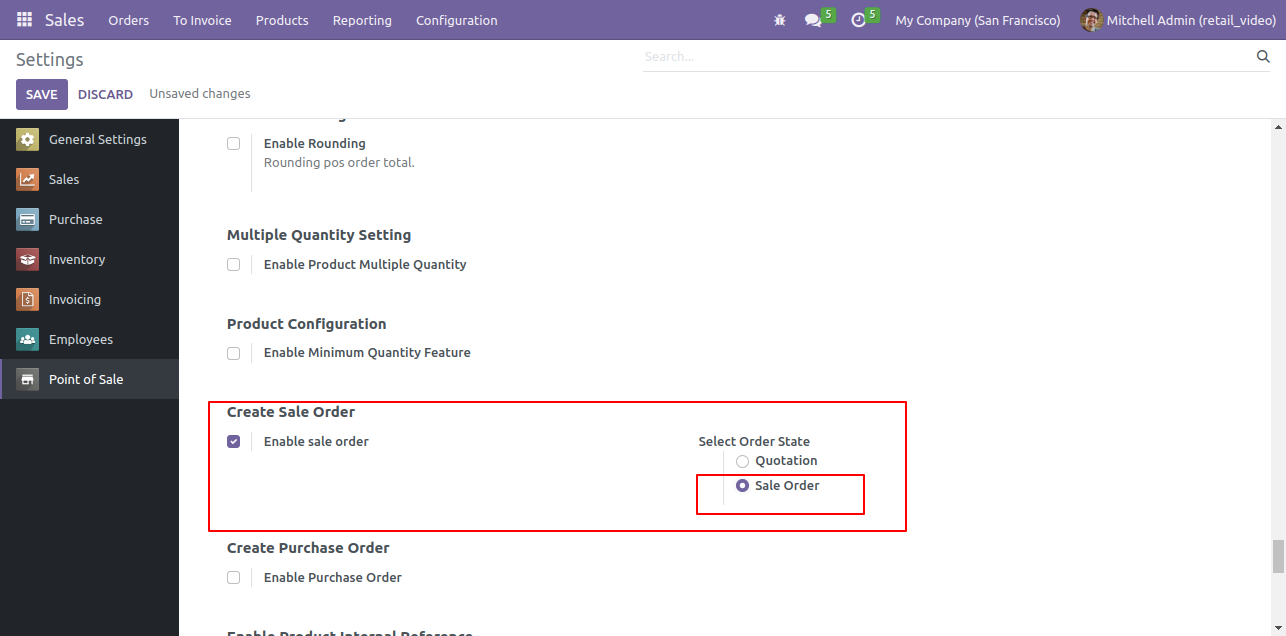
Goto pos setting and enable 'Enable Sale Order' feature. Upon enabling that, two options will appear. 1. Quotation 2. Sale Order . Select as per your requirement.


Enable Sale Order Quotation Feature in Odoo POS

Make one order in pos and click on the 'Create Sale Order'.


Odoo POS Order with Create Sale Order Option

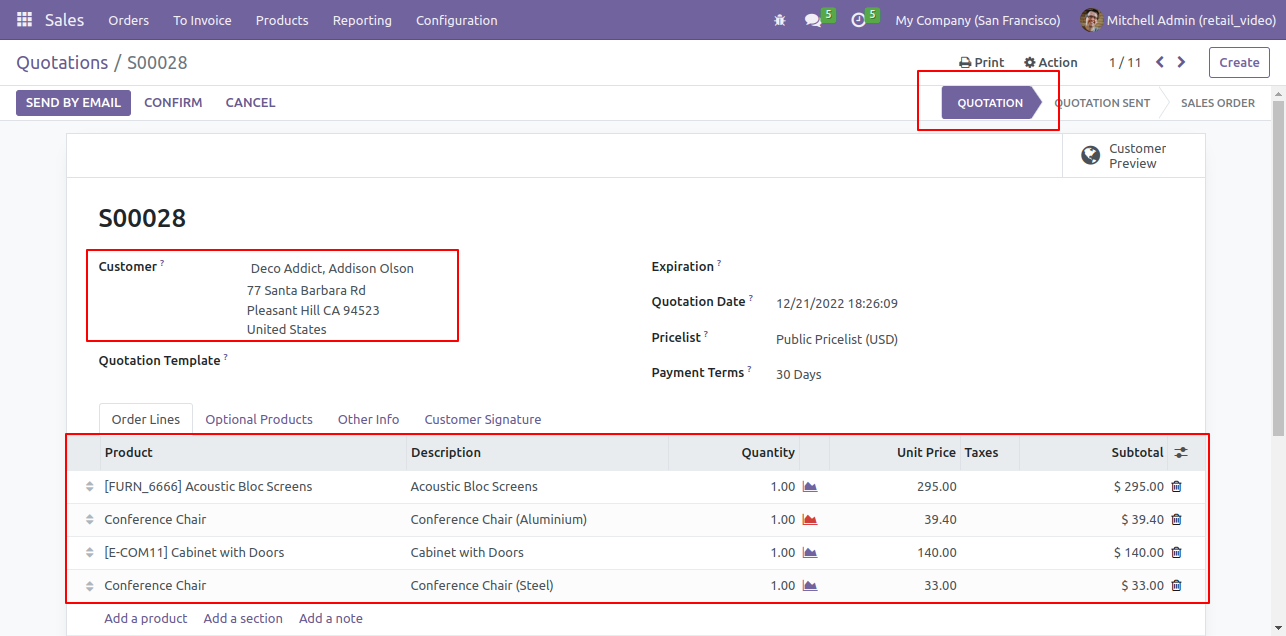
After click on that button, it will create a quotation, in this popup you can see the quotation number.


Created Quotation Refence Number pop up

After that it will create quotation in sales.


Create a Quotation in Sales

Select Sale Order option from the POS general settings to create sale order direct in sale order state.


Enable Sale Order Sales Order Feature in Odoo POS

For creating a sale order, select 'Sale Order'.


Odoo POS Order with Create Sale Order Option

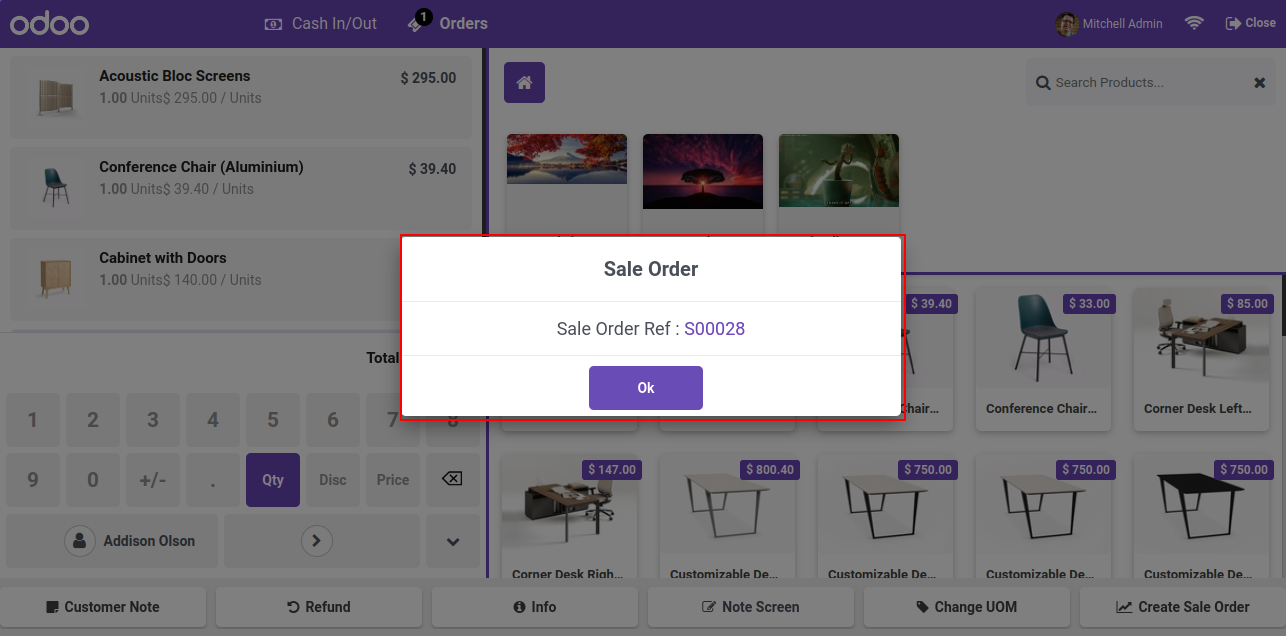
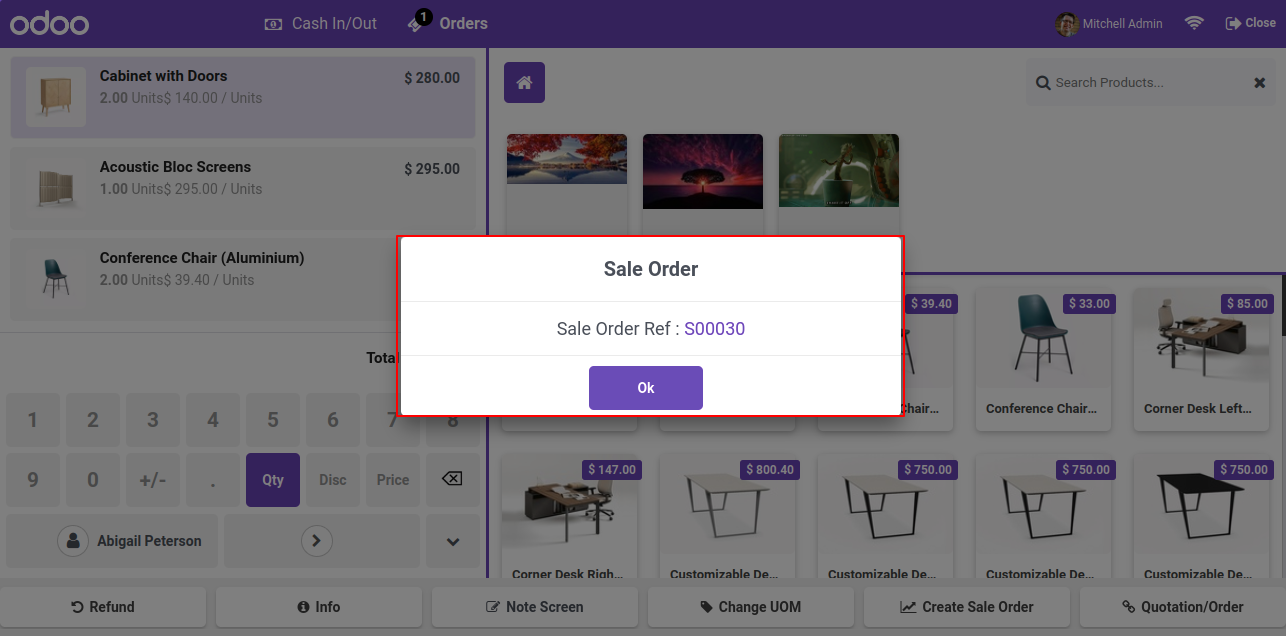
After click on that button, it will create a sale order, in this popup you can see the sale order number.


Created Sale Order Refence Number pop up

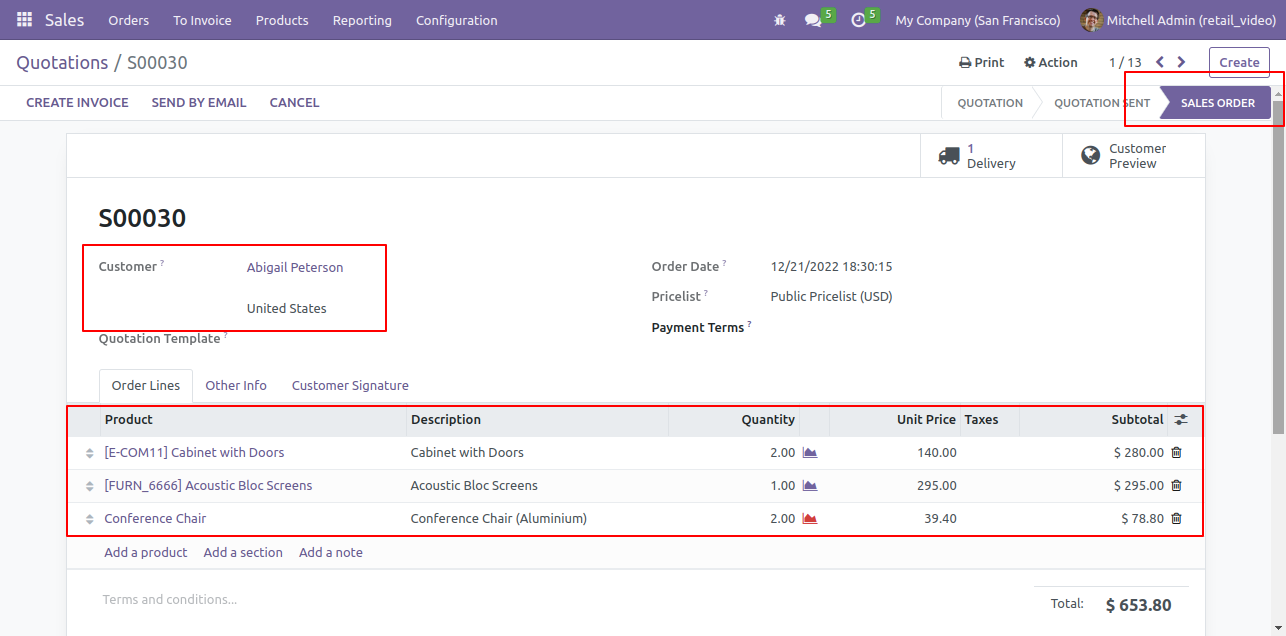
After that it will create sale order in sales.


Sale order created in sale

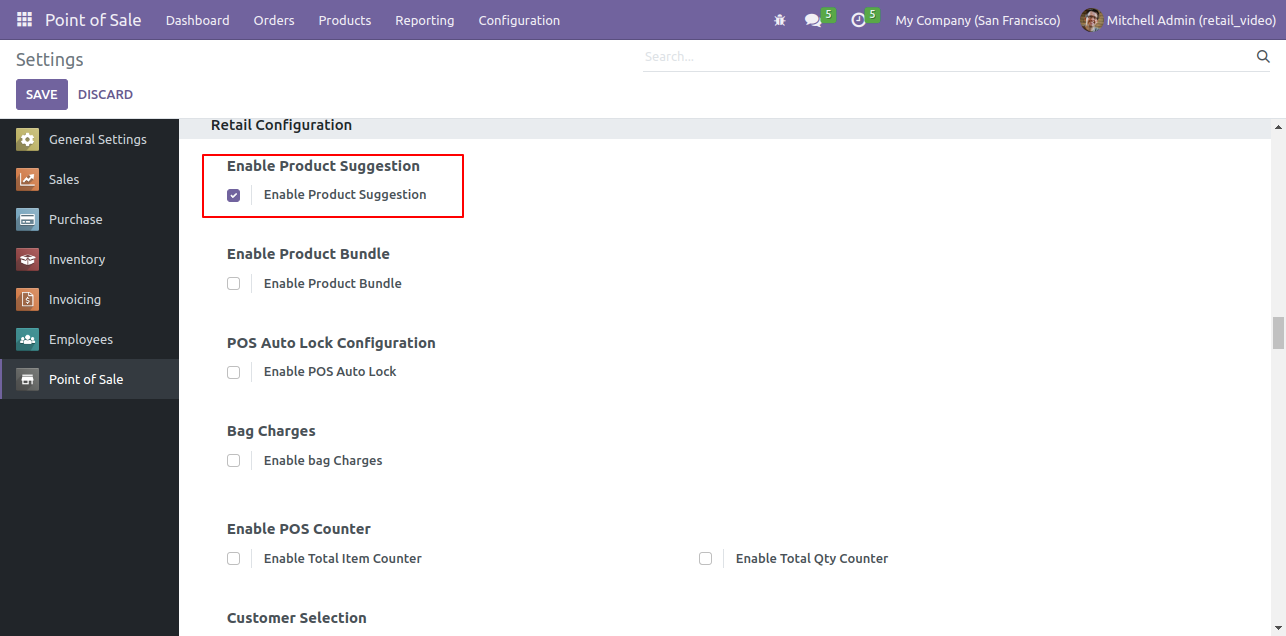
Goto pos setting and enable 'Enable Product Suggestion' option.

Enable Product Suggestion setting

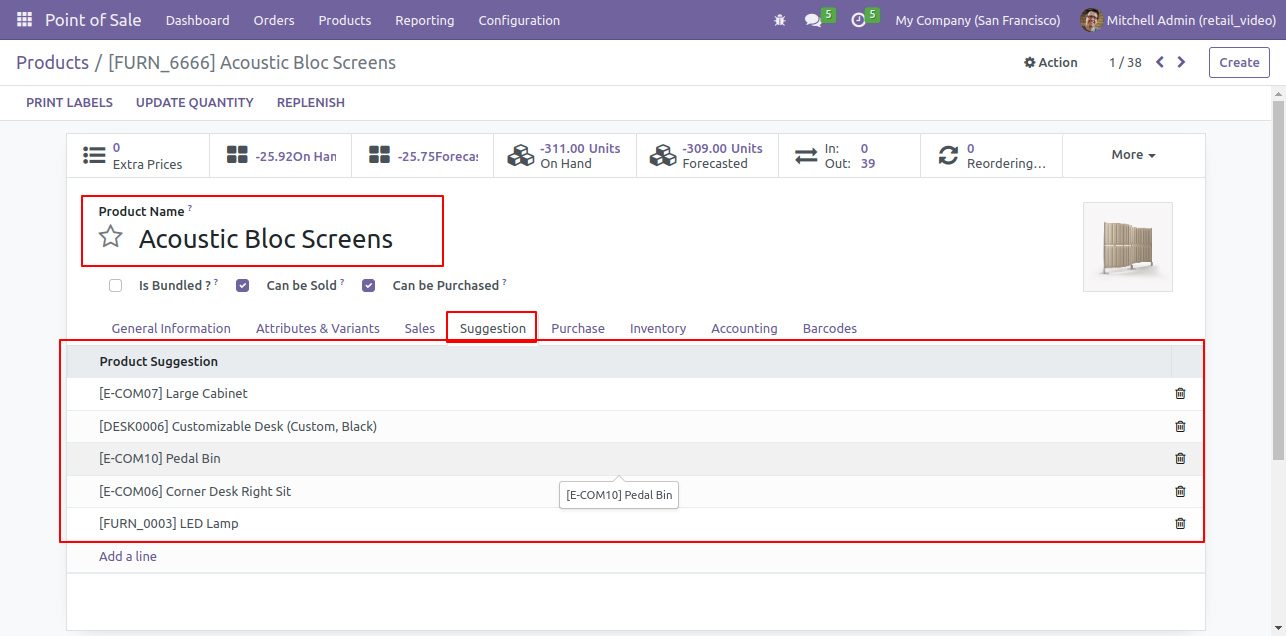
First you have to define the suggestion products in the particular products.

Define suggestion products on product form

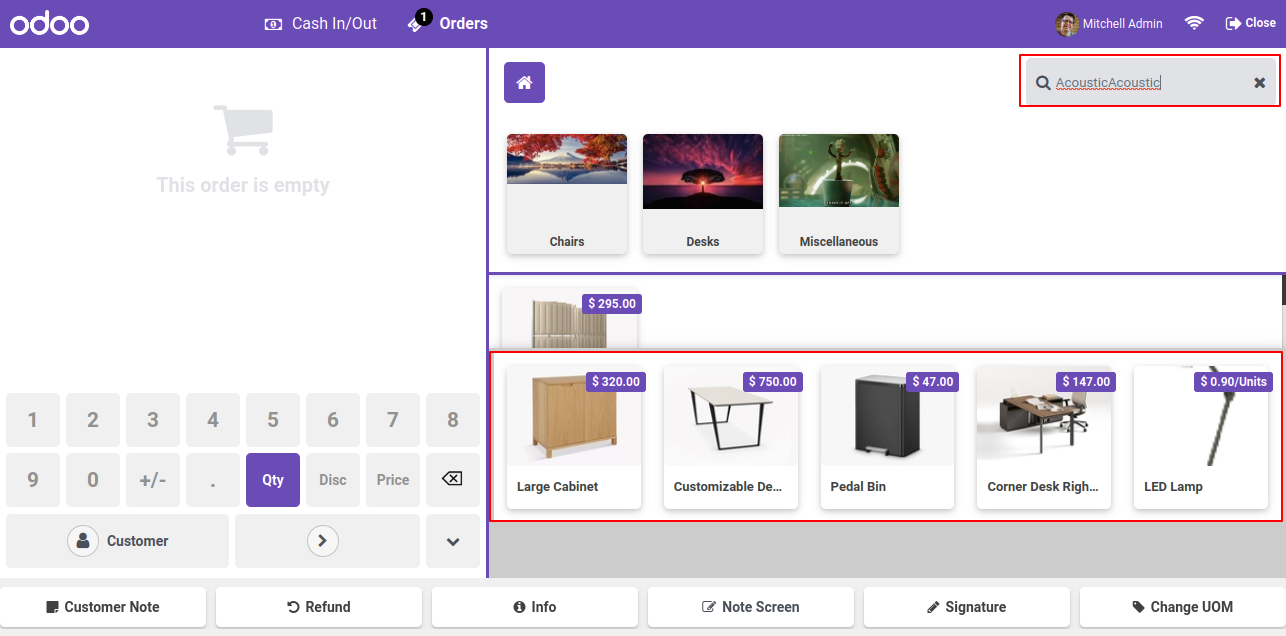
After that, when you find the particular product, at that time you can see the suggested product.

Suggested products shown on POS screen

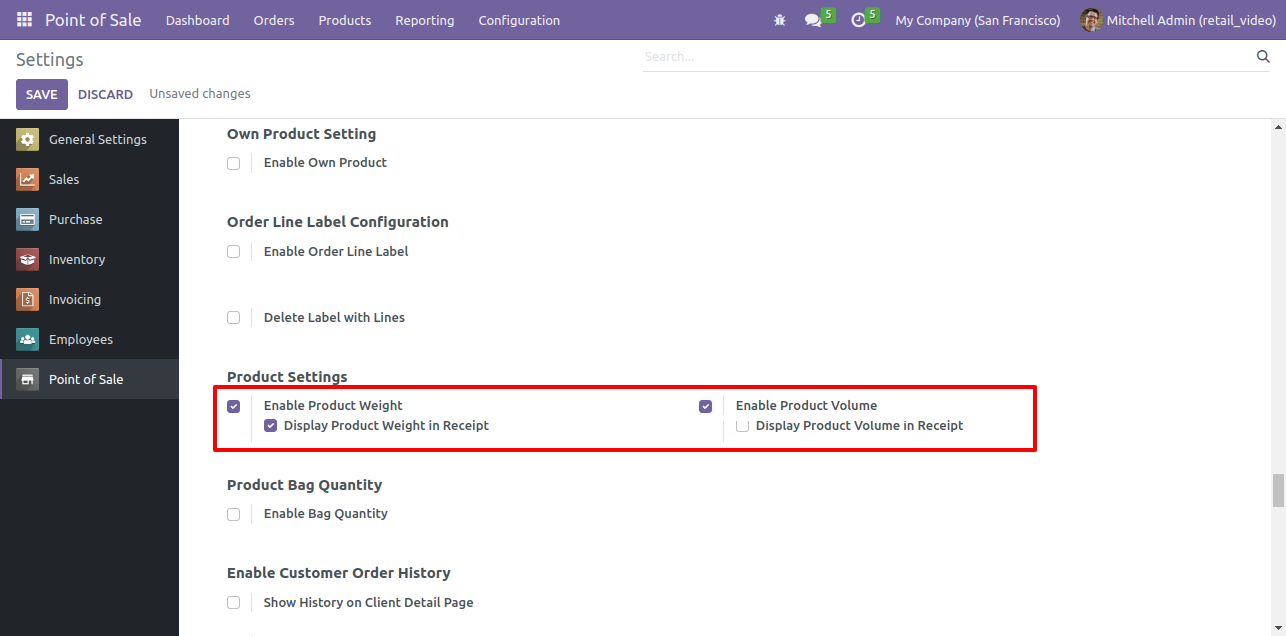
Goto pos setting and enable product weight and volume feature. Upon enabling that, two options will appear. 'Display Product Weight In receipt' & 'Display Product Volume In receipt'. Tick 'Display Product Weight In receipt' option.

Enable Product Weight and Volume settings

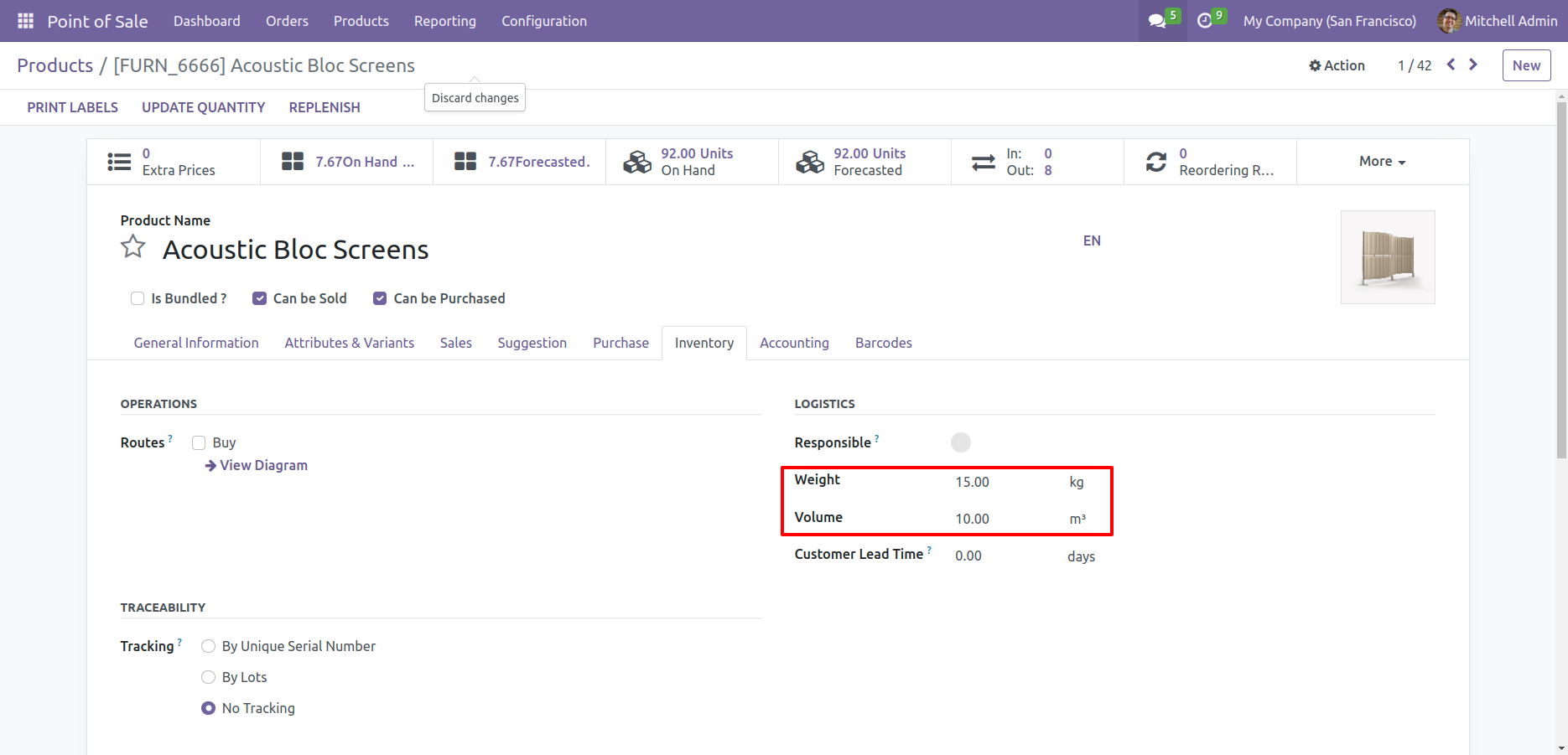
set weight and volume information in products.

Set weight and volume on product

Now you can see the products weight and volume information in the pos cart.

Weight and volume shown in cart

Products weight information in the receipts as well.

Weight information shown on receipt

Products weight information in the receipts as well.
Note: The volume information is note added in the receipts because the 'Display Product Volume In receipt' option is unable.

Not Enabled Display Product Volume in Receipt

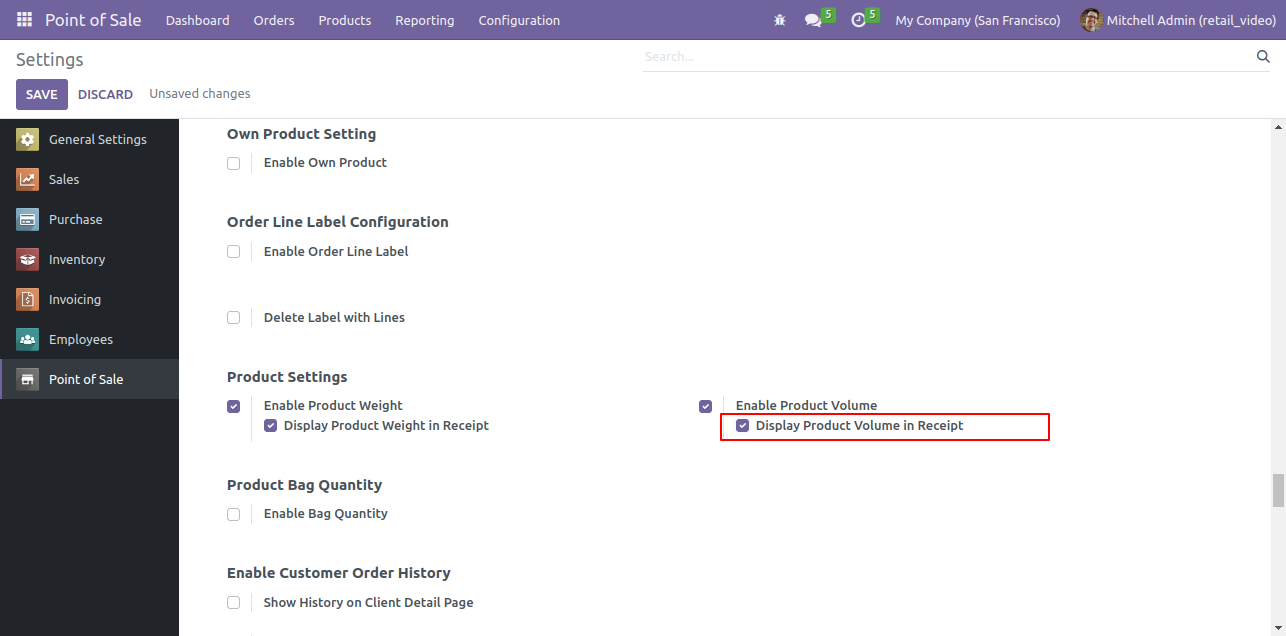
Goto pos setting and tick 'Display Product Volume In receipt' option.

Enable Display Product Volume in Receipt setting

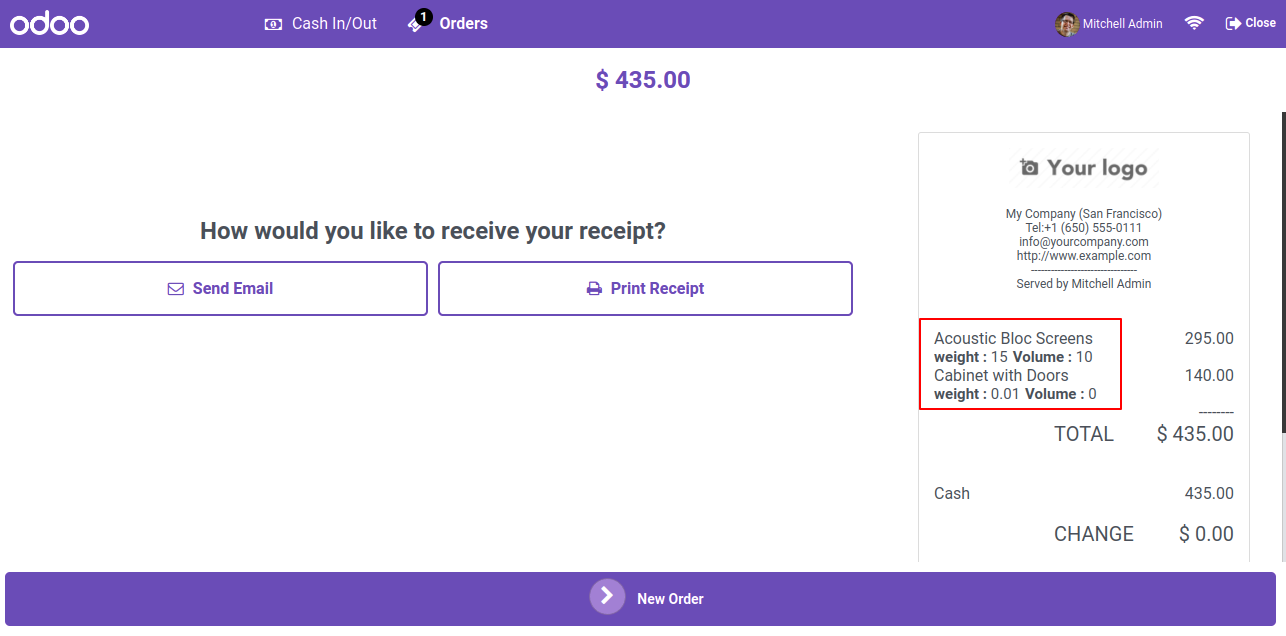
Products weight and volume information in the receipts as well.

EWeight and volume shown on receipt

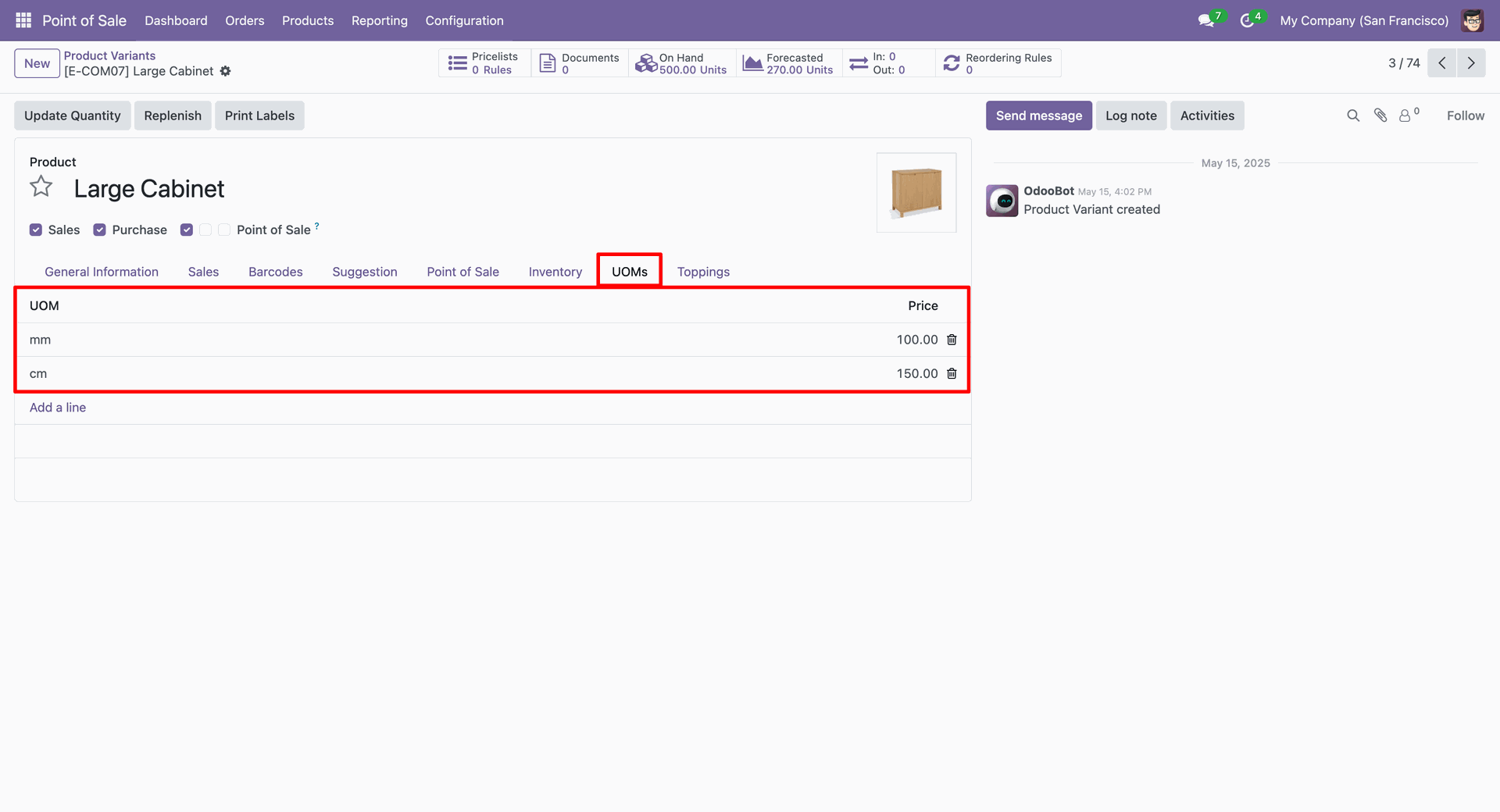
Set UOM in the 'UOMs' tab.

Set UOM in UOMs tab


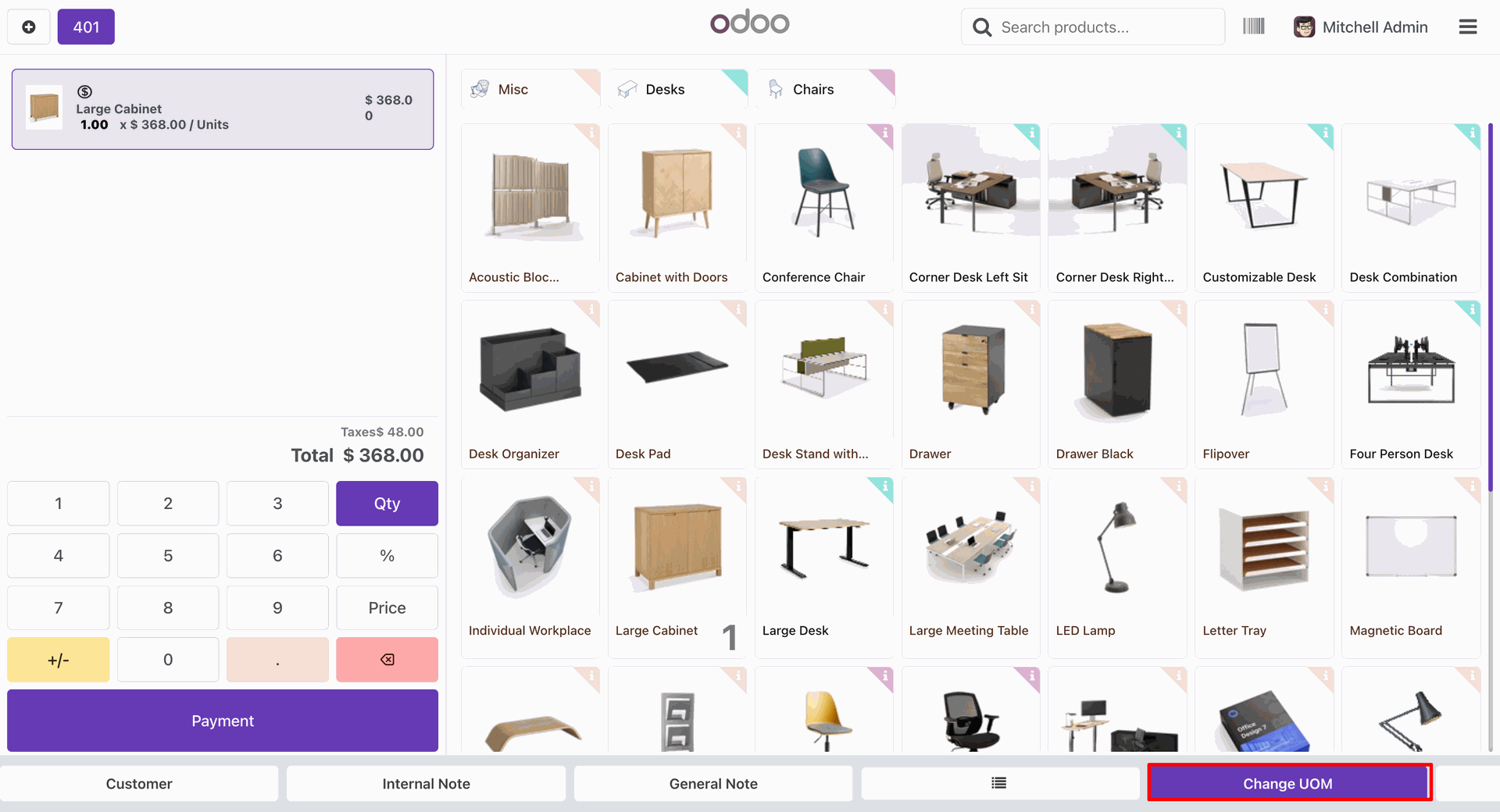
You can also set/change the uom by clicking on the 'Change UOM' button.

Change UOM using Change UOM button

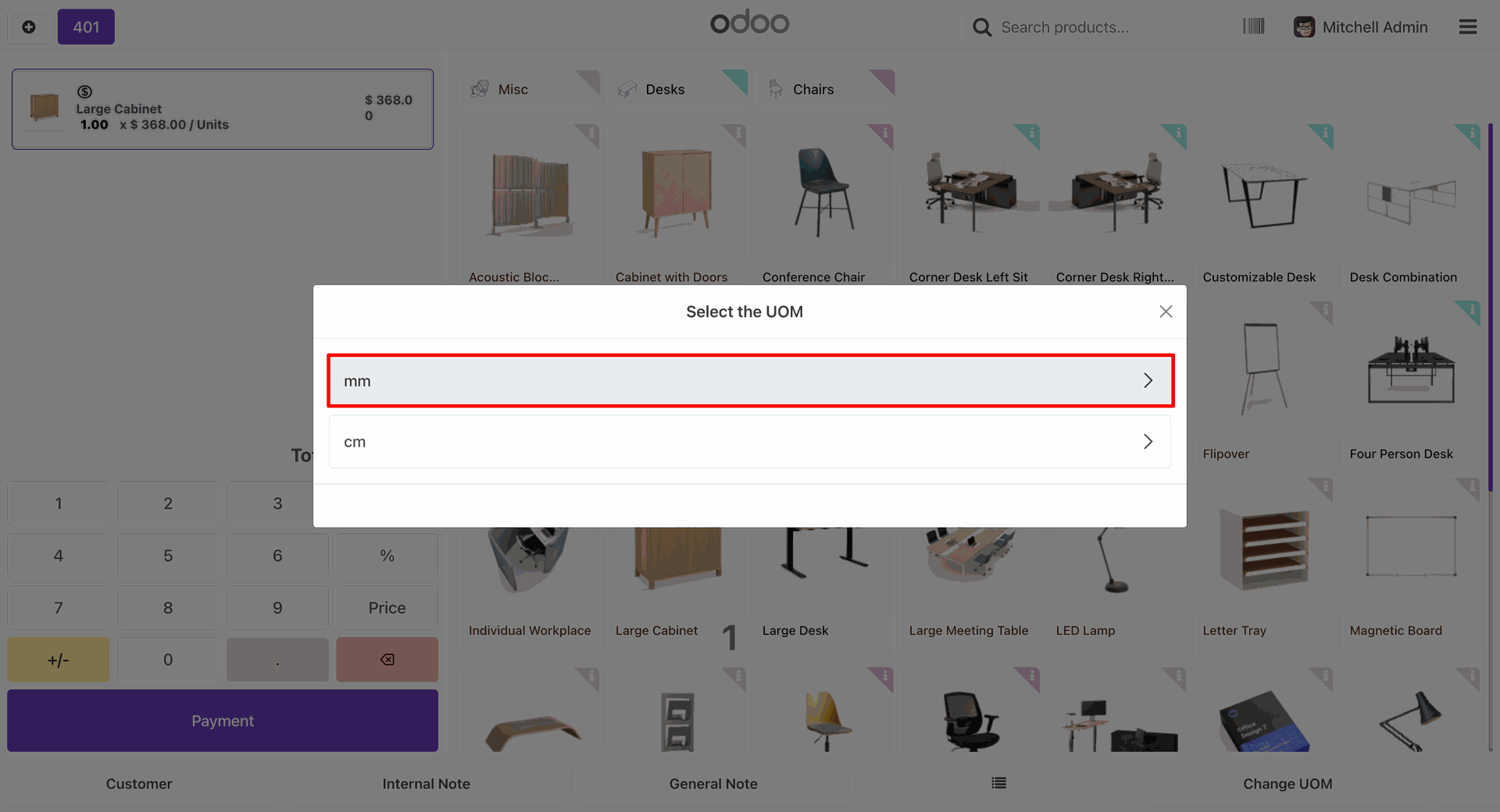
After that, select UOM wizard will appear. Select the unit.

Select UOM wizard popup

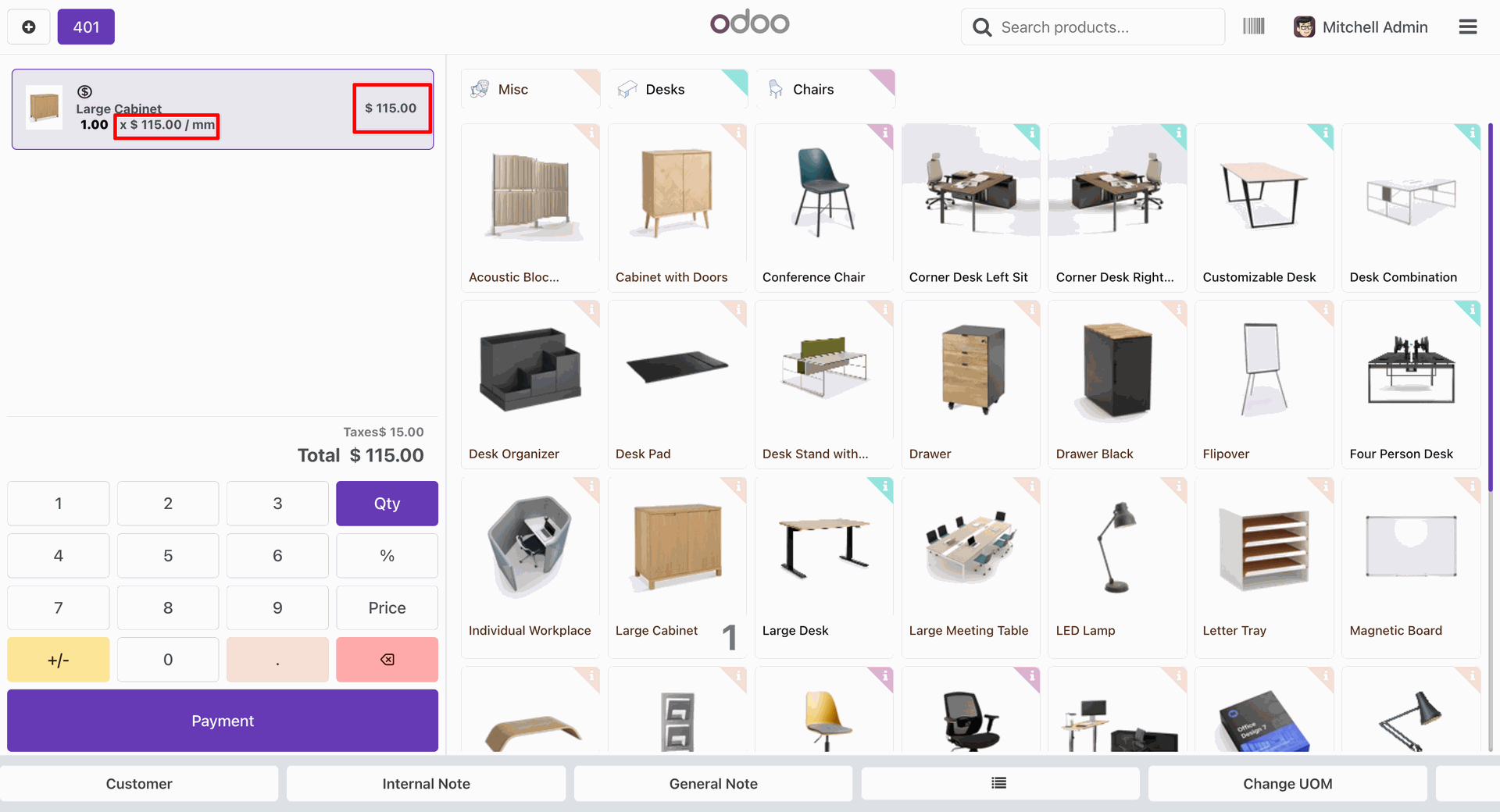
Here, you can see the changed uom.

Changed UOM shown in cart

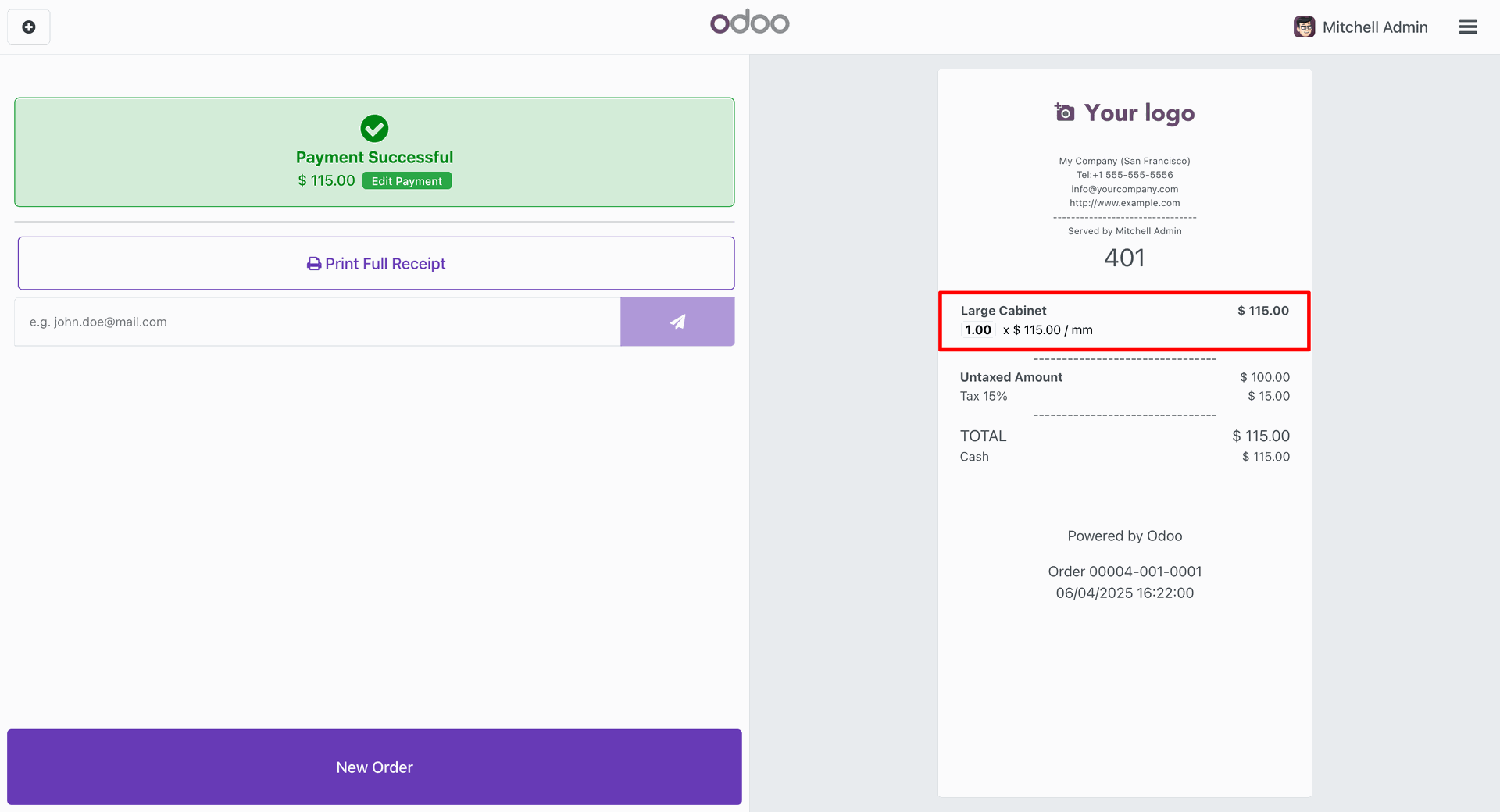
Unit of Measure details in receipt.

UOM details on receipt

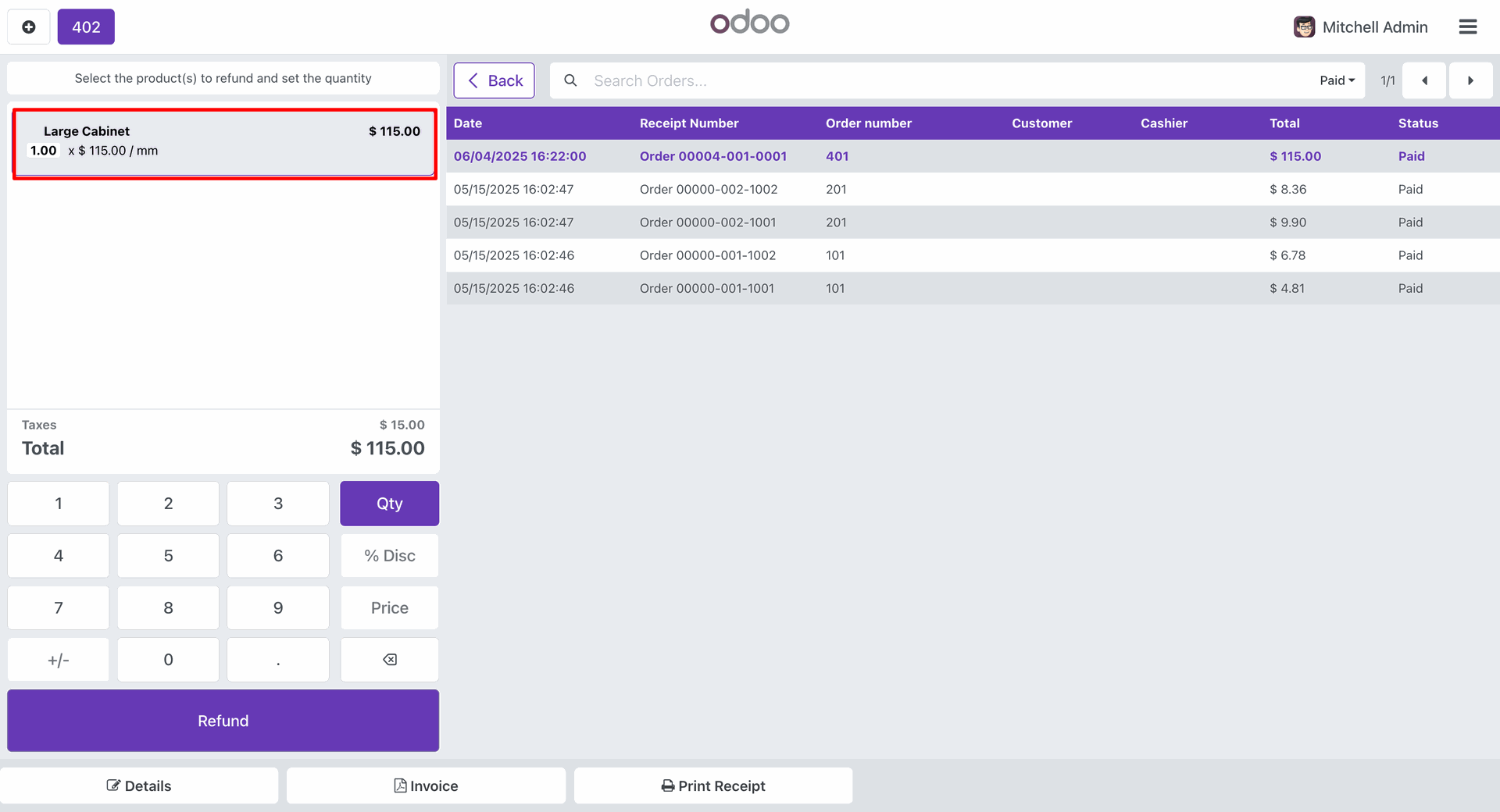
Unit of Measure details is also visible in the refund page.

UOM details on refund page

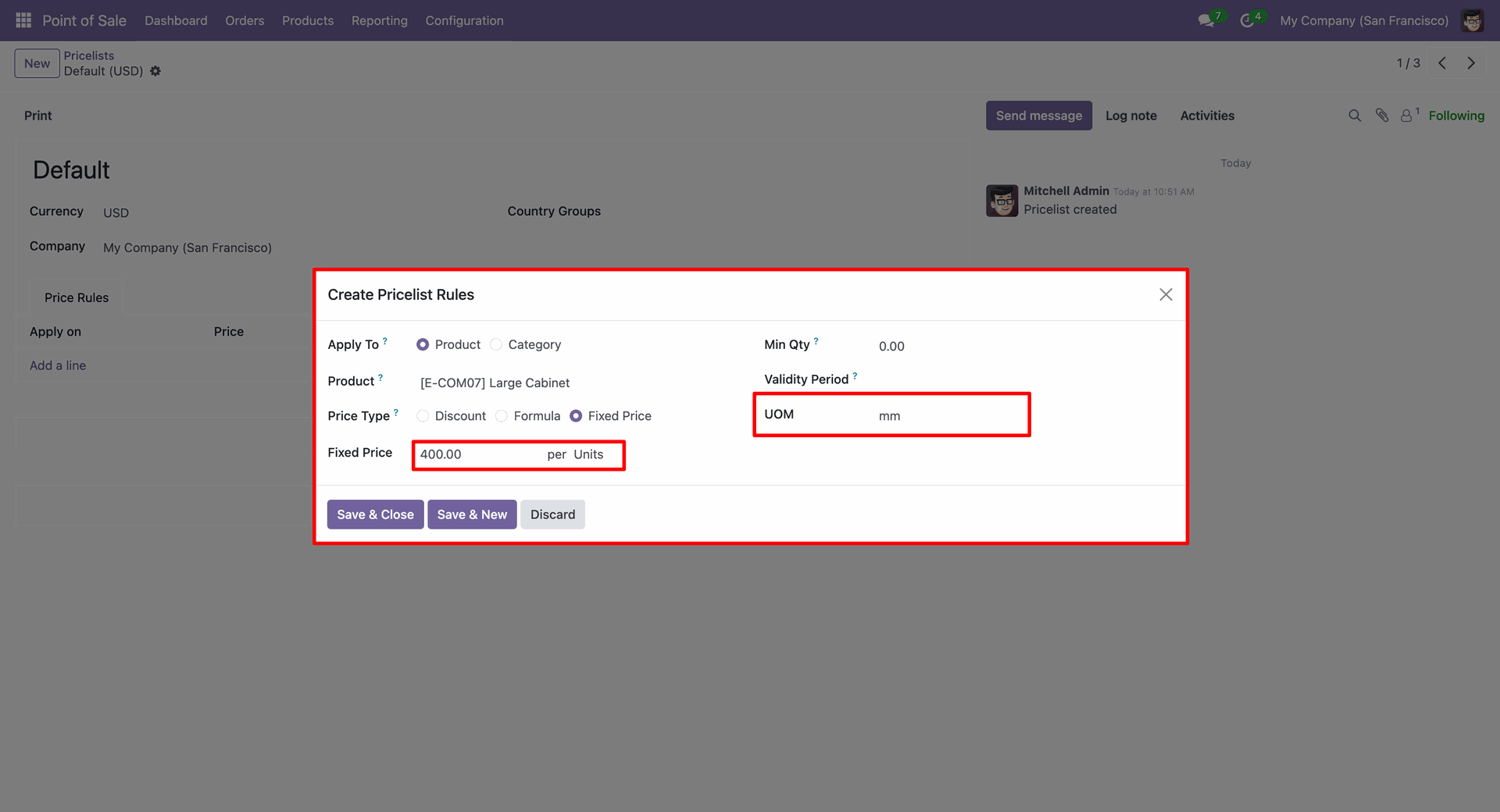
In the Pricelist form view, go to the Price Rules tab and click on the 'Add a line'.
This will open the Create Pricelist Rule wizard. Set the UOM and then click on the 'Save & Close.

Set UOM in pricelist rule


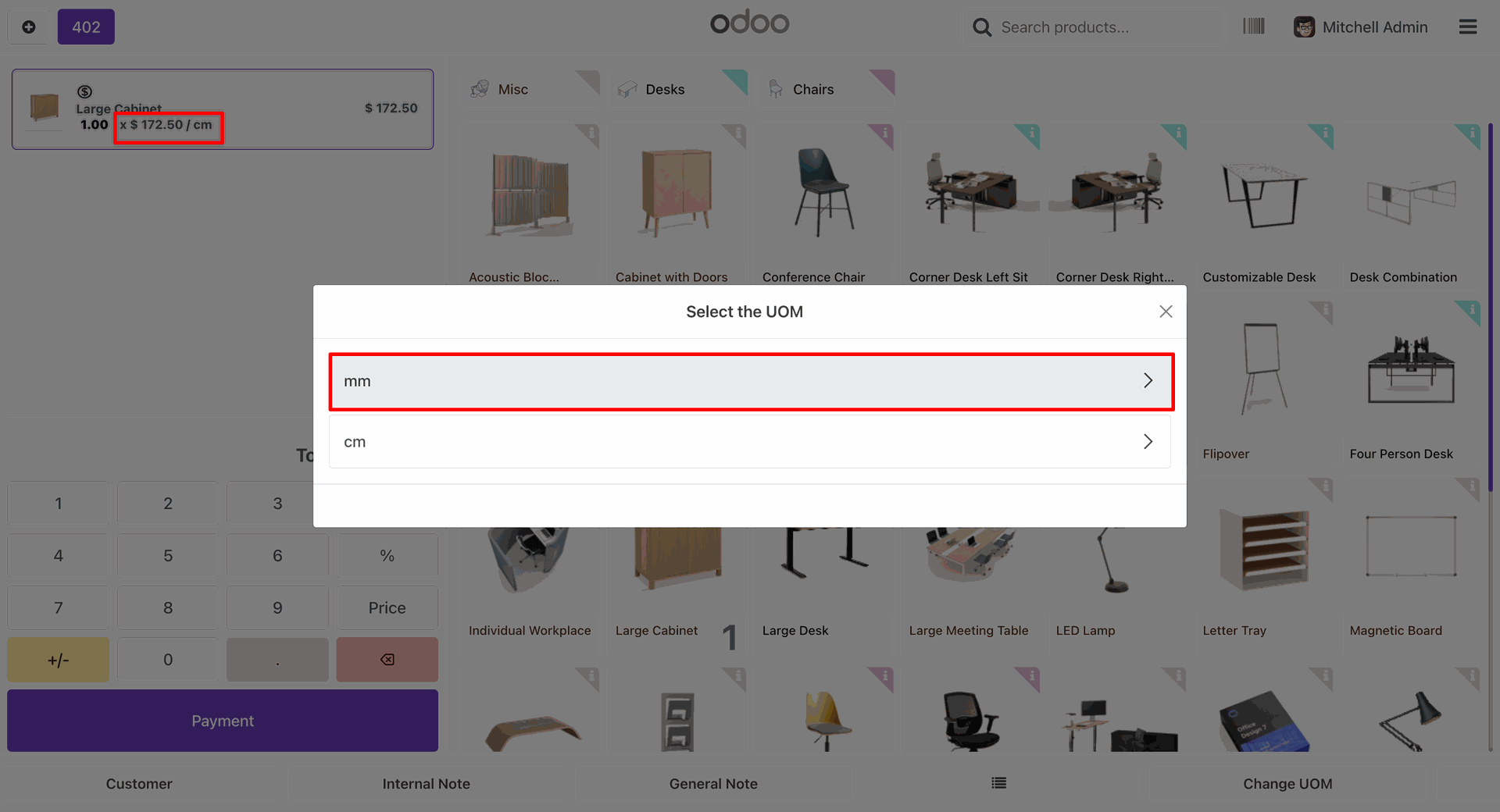
After that, select UOM wizard will appear. Select the unit.

Select UOM wizard popup

Here, you can see the changed uom.

Changed UOM shown in cart

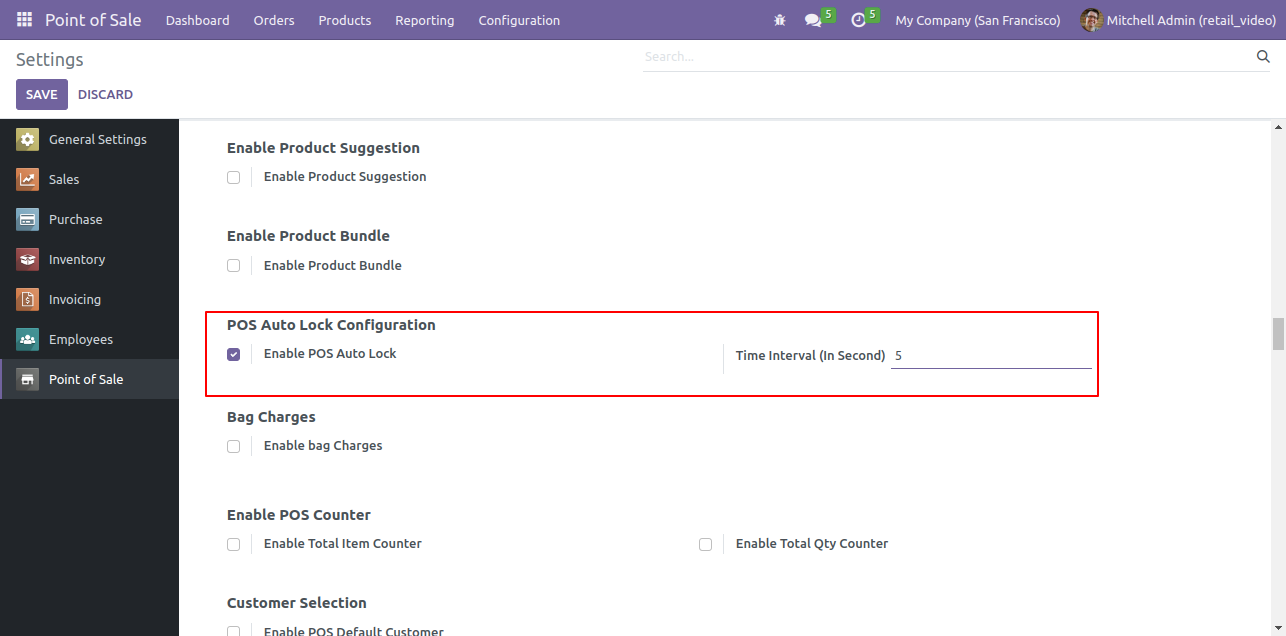
Goto pos config setting and Enable Auto Lock and set auto lock apply after delay time.


Configure POS Auto Lock settings

Go to POS -> Configuration -> Settings, and add an Employee under the Login with Employee (Advanced Rights) setting to grant advanced POS access and permissions for that employee.


Assign employee for POS Auto Lock

Open the Employee form view and add a PIN Code for the employee.


Set employee PIN for POS access

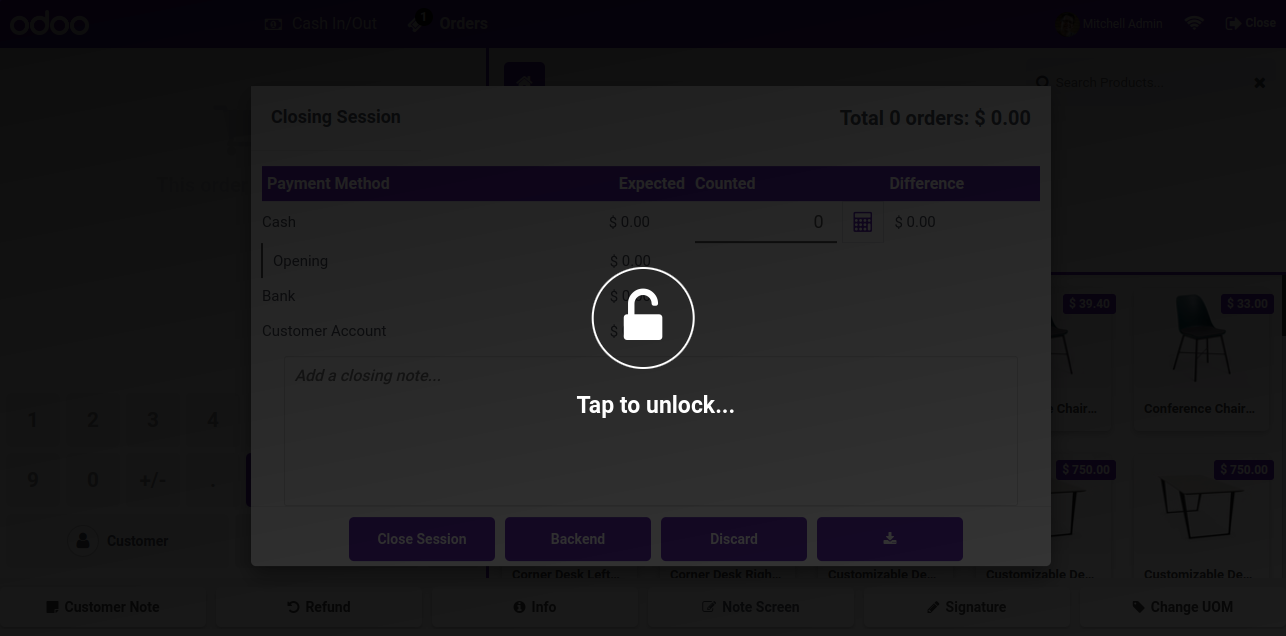
The POS screen is automatically locked after the configured inactivity interval


POS Auto Lock after inactivity

Click on the locked POS screen, select the employee.


Select employee to unlock POS

Enter the assigned PIN Code to unlock the POS and resume operations.


Enter PIN to unlock POS

The POS screen is successfully unlocked, allowing the employee to continue normal POS operations.


POS unlocked after PIN verification

If the entered PIN Code is incorrect, the system displays a warning message indicating that the PIN is incorrect and prevents the cashier switch until the correct PIN is entered.


Incorrect PIN warning in POS

The POS screen remains locked due to incorrect pin code.


POS remains locked after invalid PIN

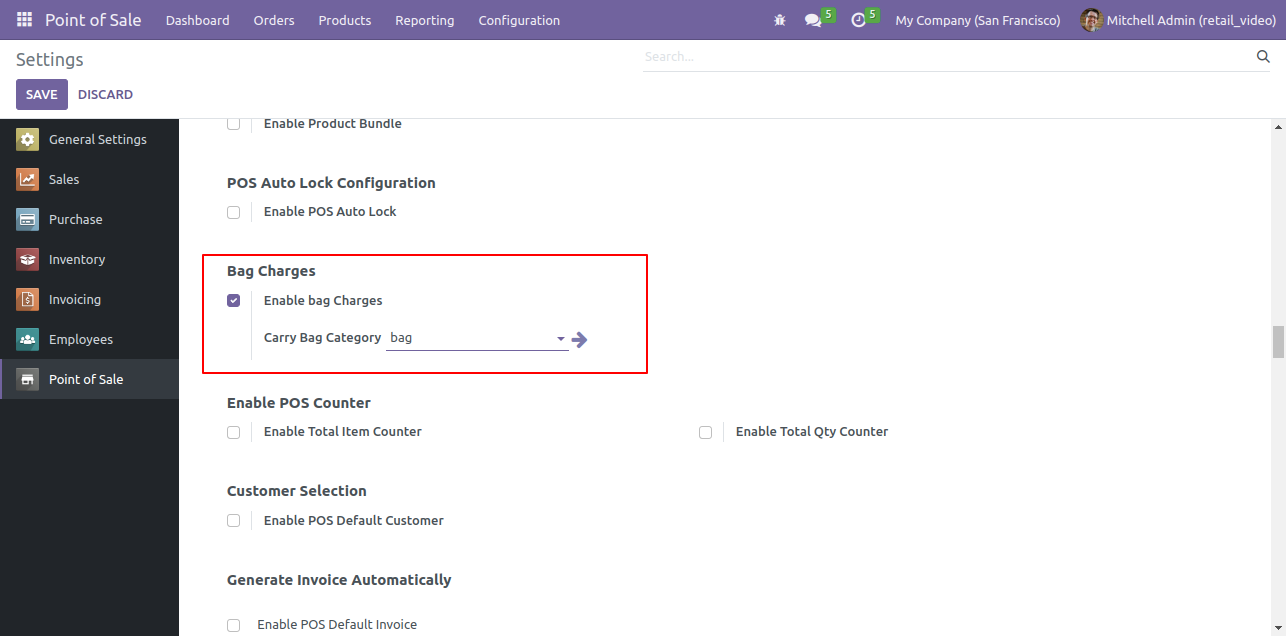
Goto pos setting and Enable bag charges and add Carry bag category.

Enable Bag Charges setting

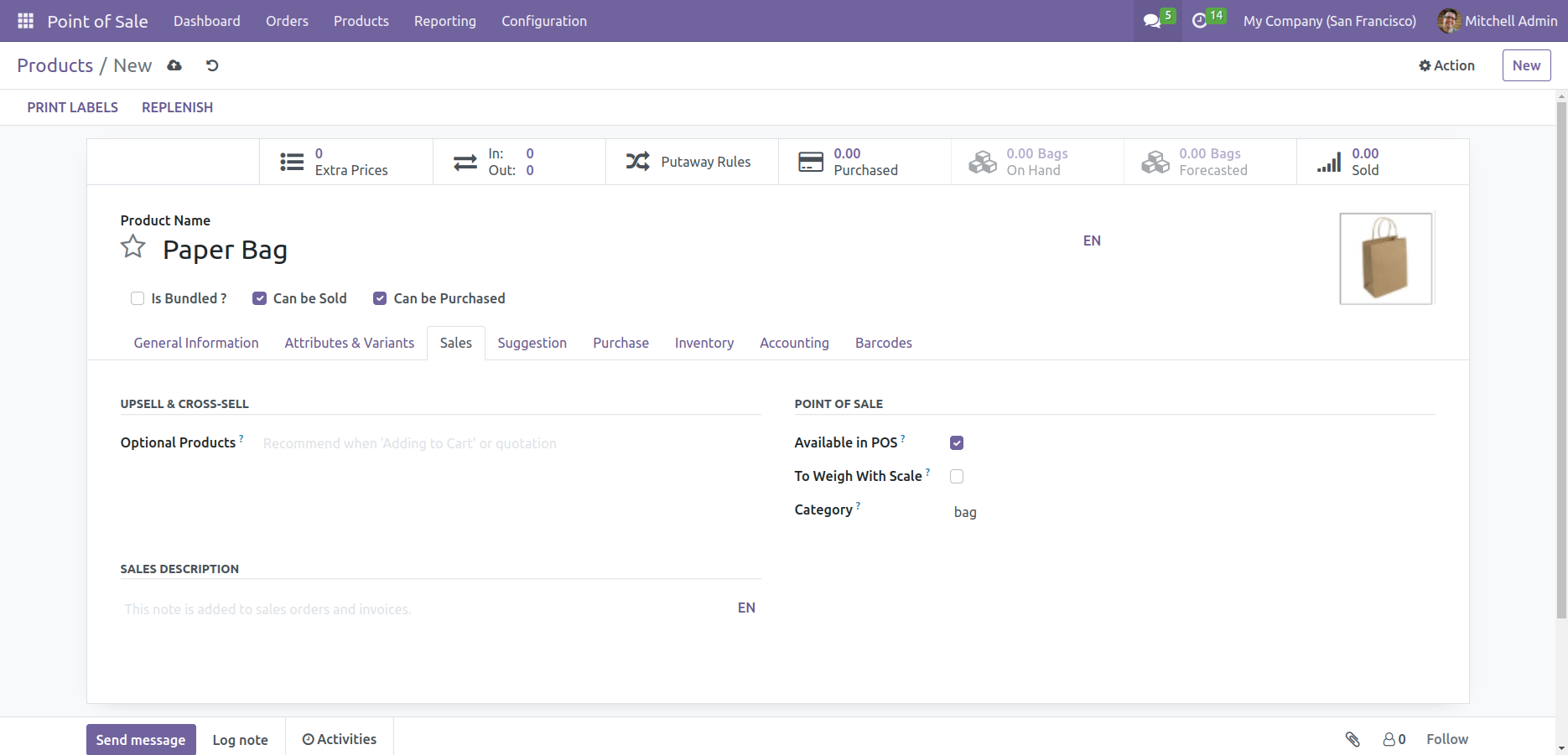
Set pos category 'bag' and set available in pos.

Set product category to Bag


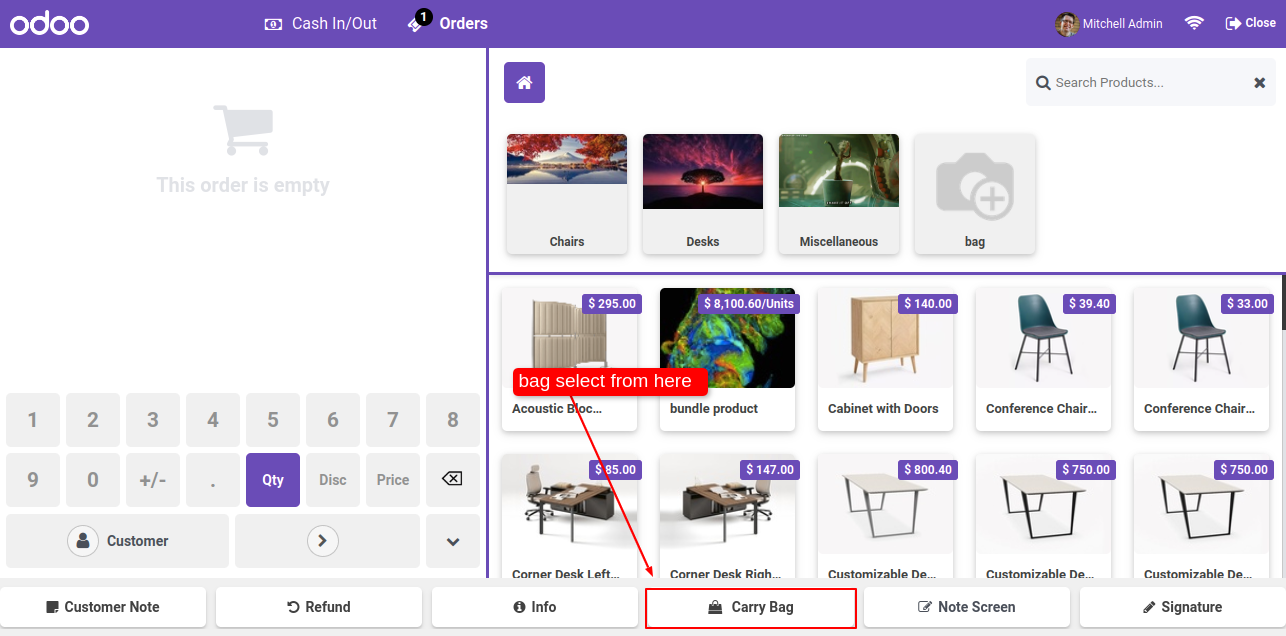
Here in pos, Carry Bag button is visible. Click on the Carry Bag button.

Click Carry Bag button


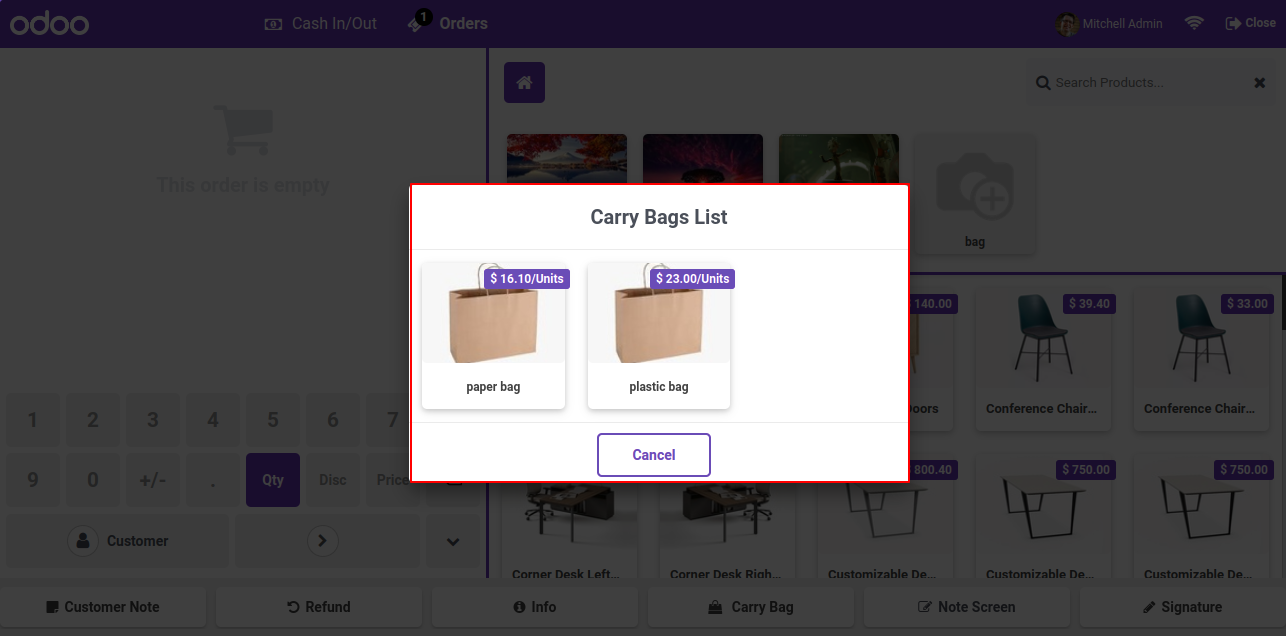
After click on that button, this wizard will popout, here you have to select one or more bag products.

Select bag product from Carry Bags list


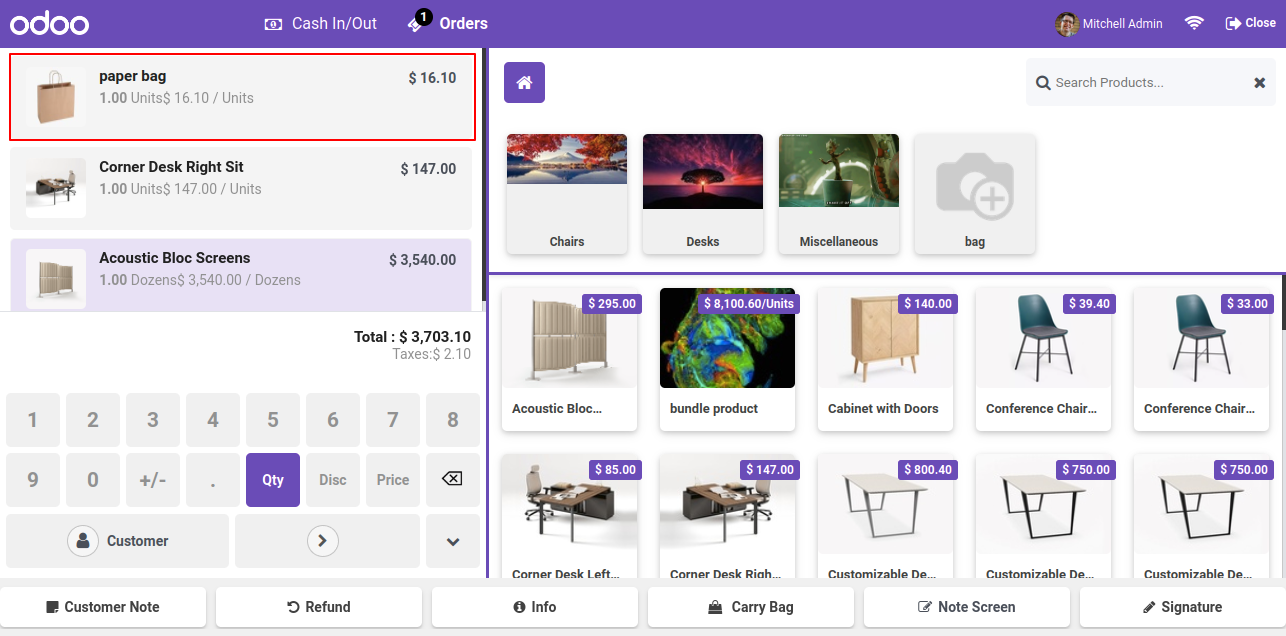
Bag will added in pos cart.

Bag added to cart


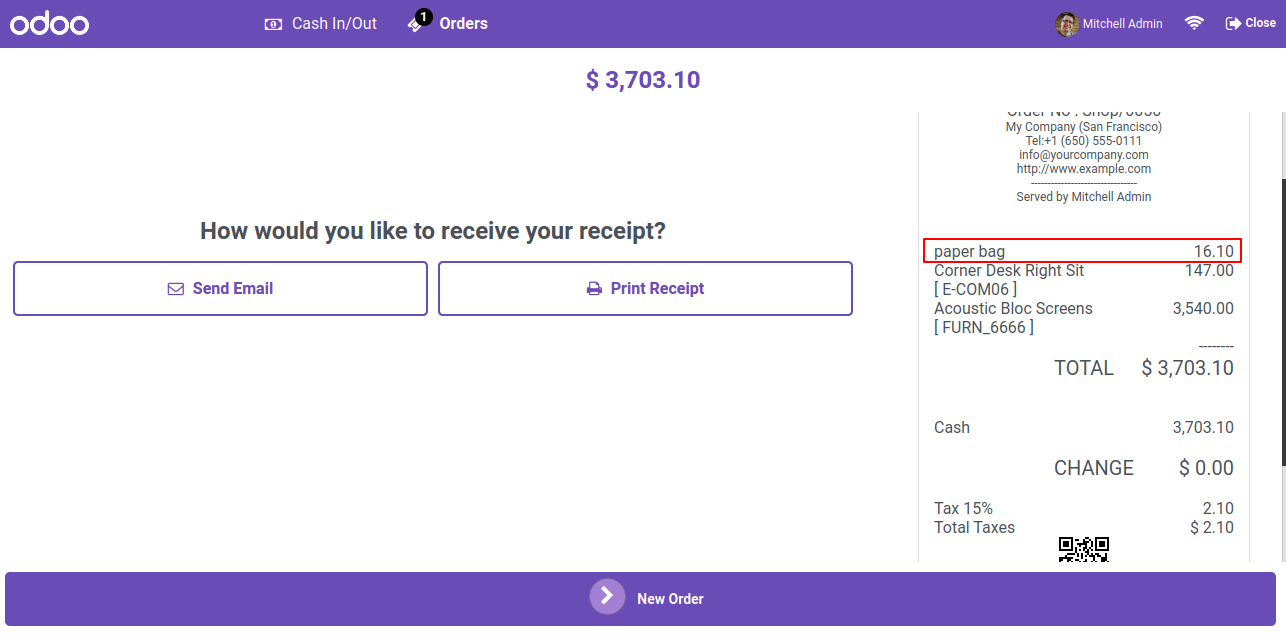
Bag charges applied, see this info on pos receipt.

Bag charges shown on receipt

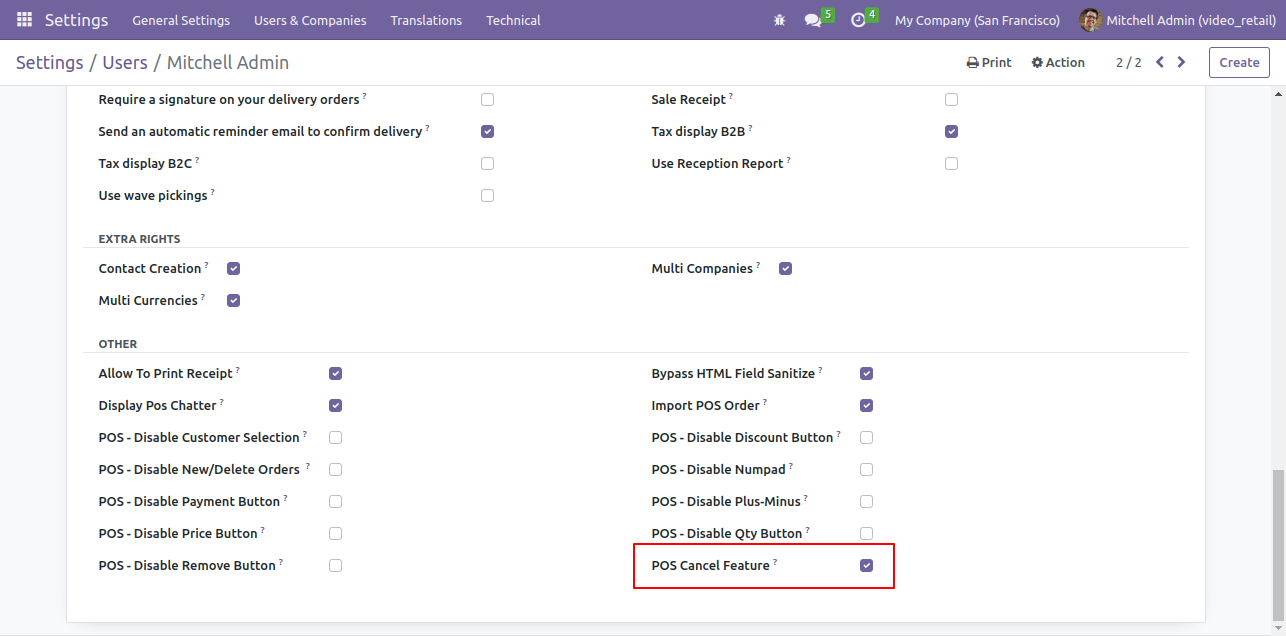
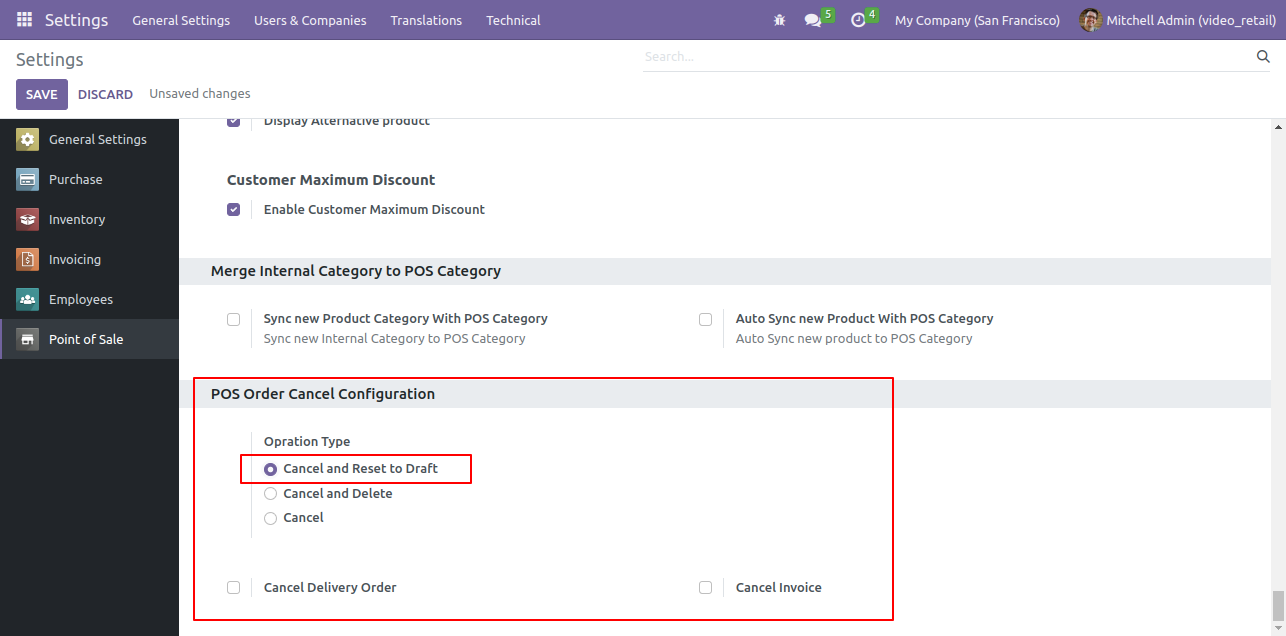
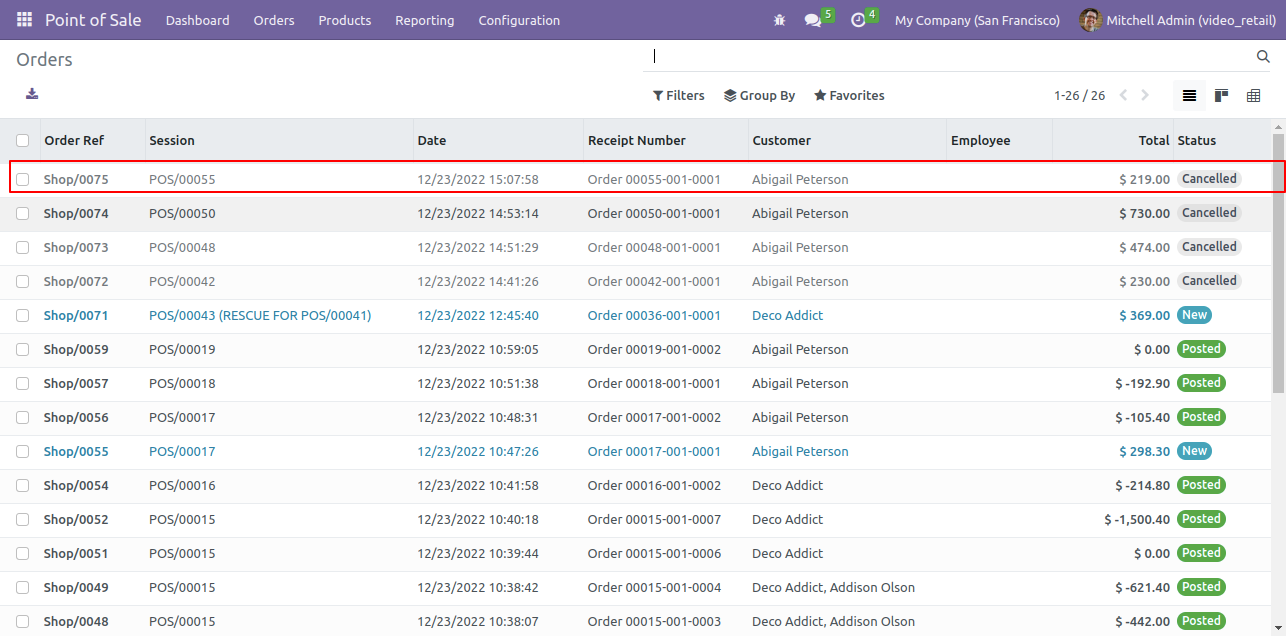
Goto user setting and enable 'POS Cancel Features'.


Enable POS Cancel Feature in User Setting

Now goto point of sale setting and enable 'Cancel and Reset Draft' option.


POS Order Cancel and Reset Draft Setting

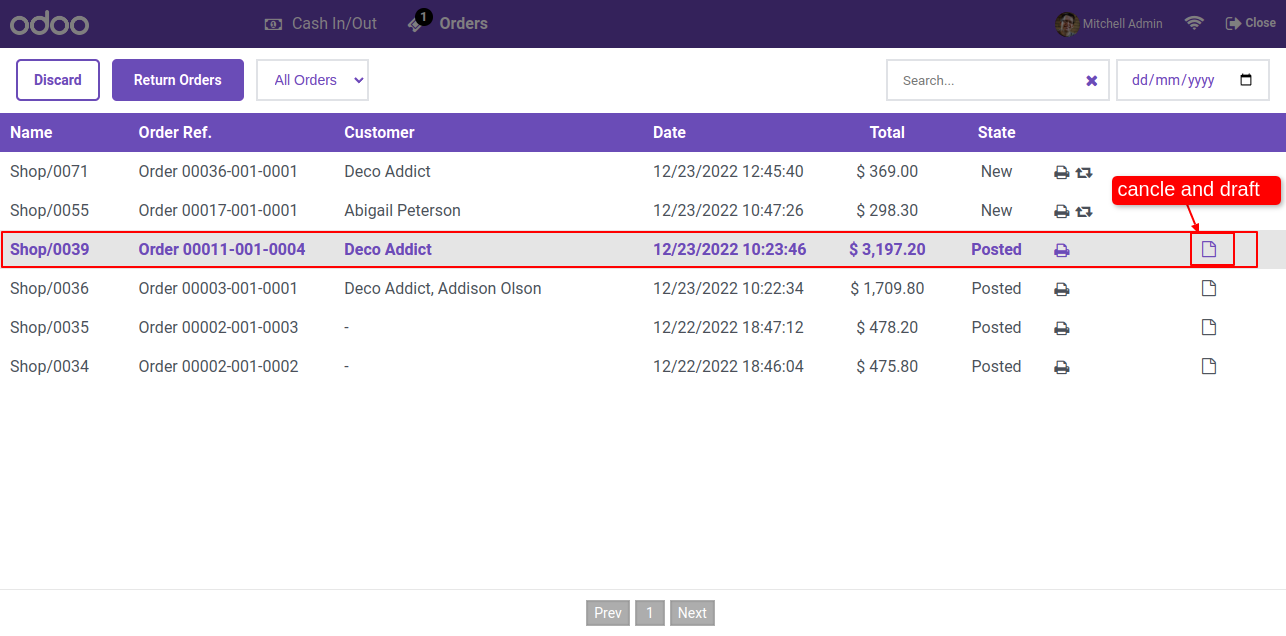
The cancel & draft icon is visible in pos order list view. Now click on 'cancel'.


Order List with Cancel and Draft Icon

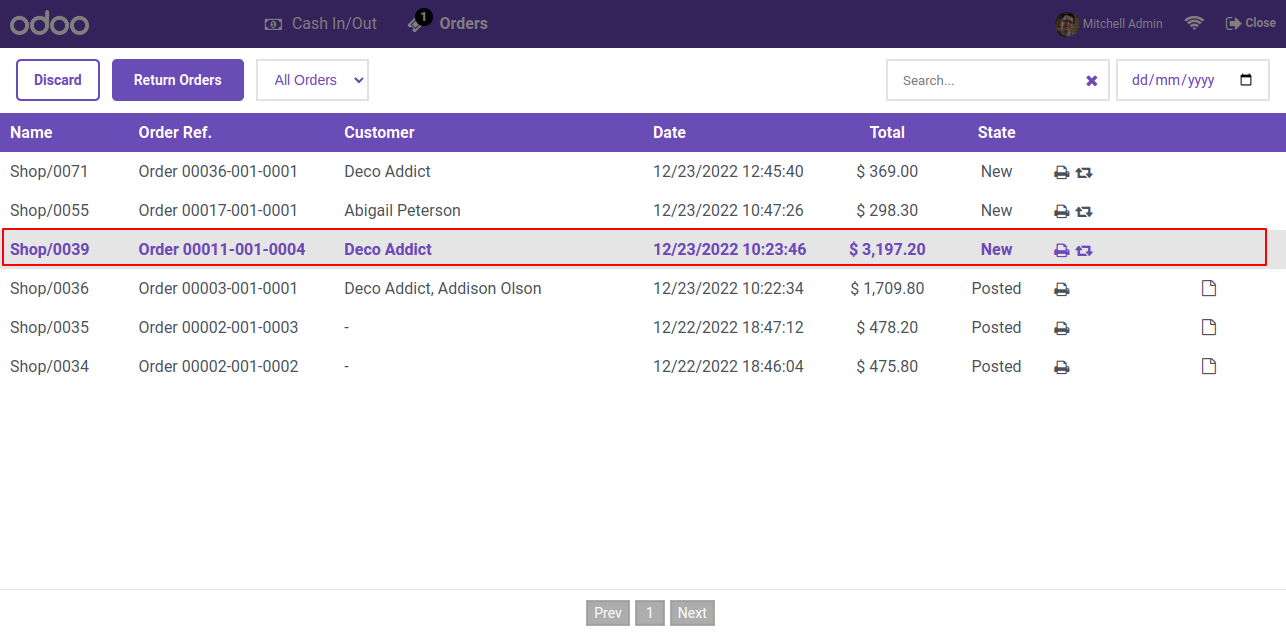
After click on the cancel button order set on draft/new stage.


Order List Showing Draft New Stage

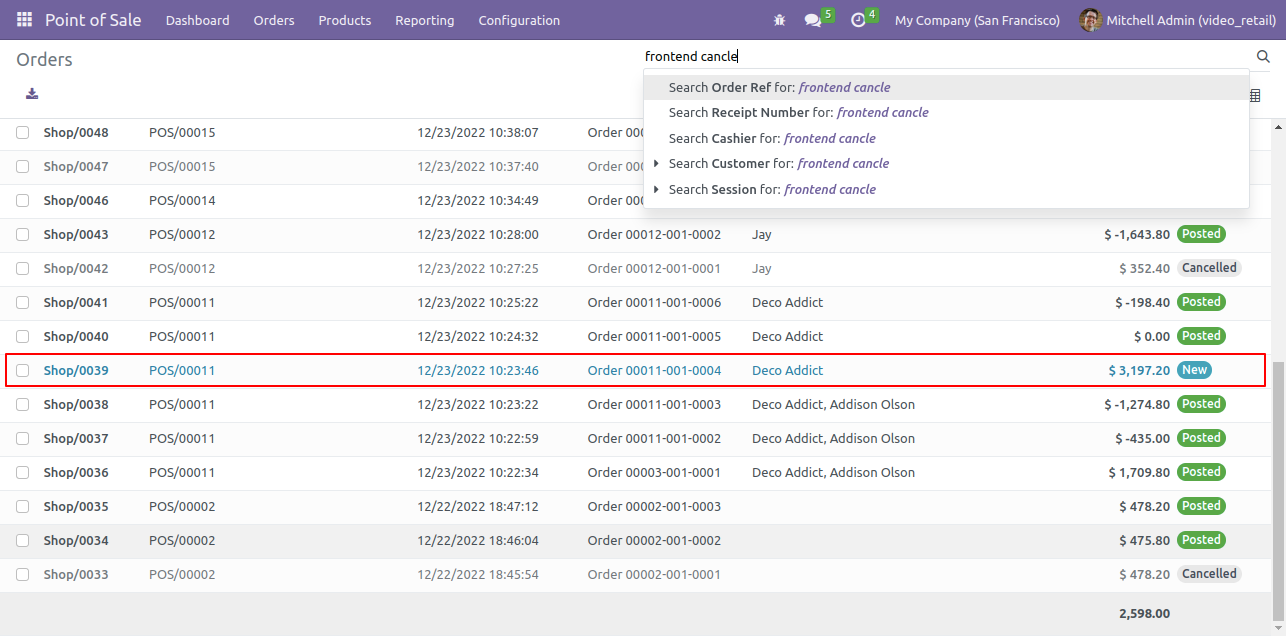
After click on the cancel button order set on draft/new stage.


Orders List Showing Cancelled Status

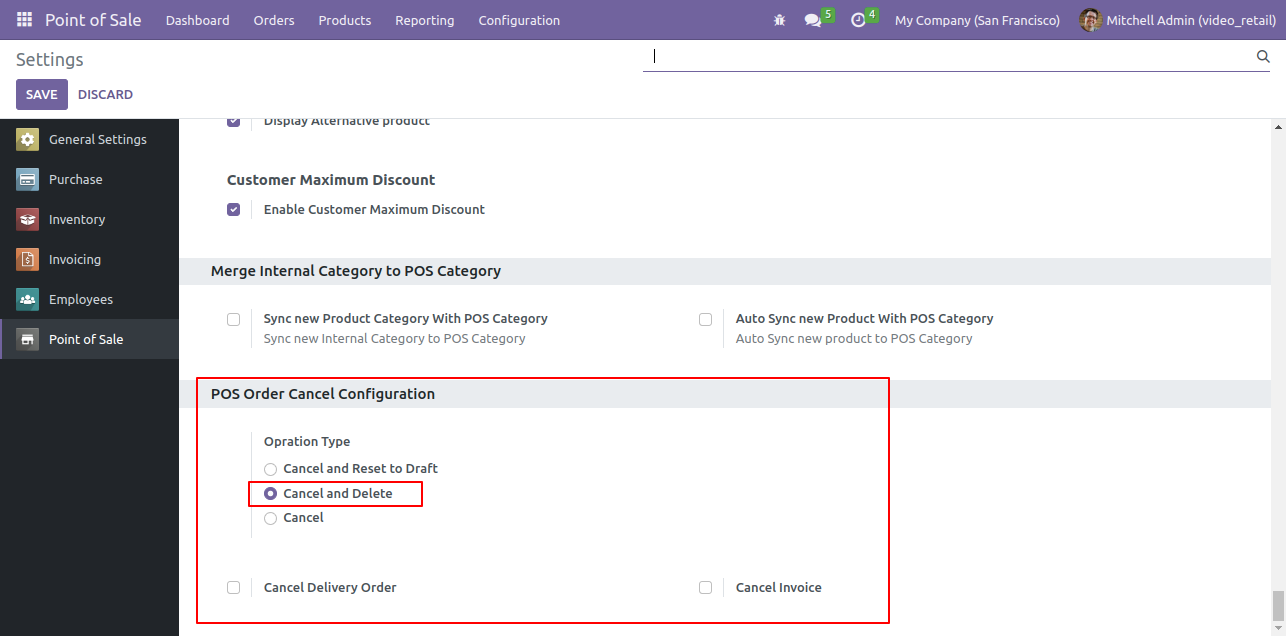
Now goto point of sale setting and enable 'Cancel and Delete'.


Enable Cancel and Delete Setting

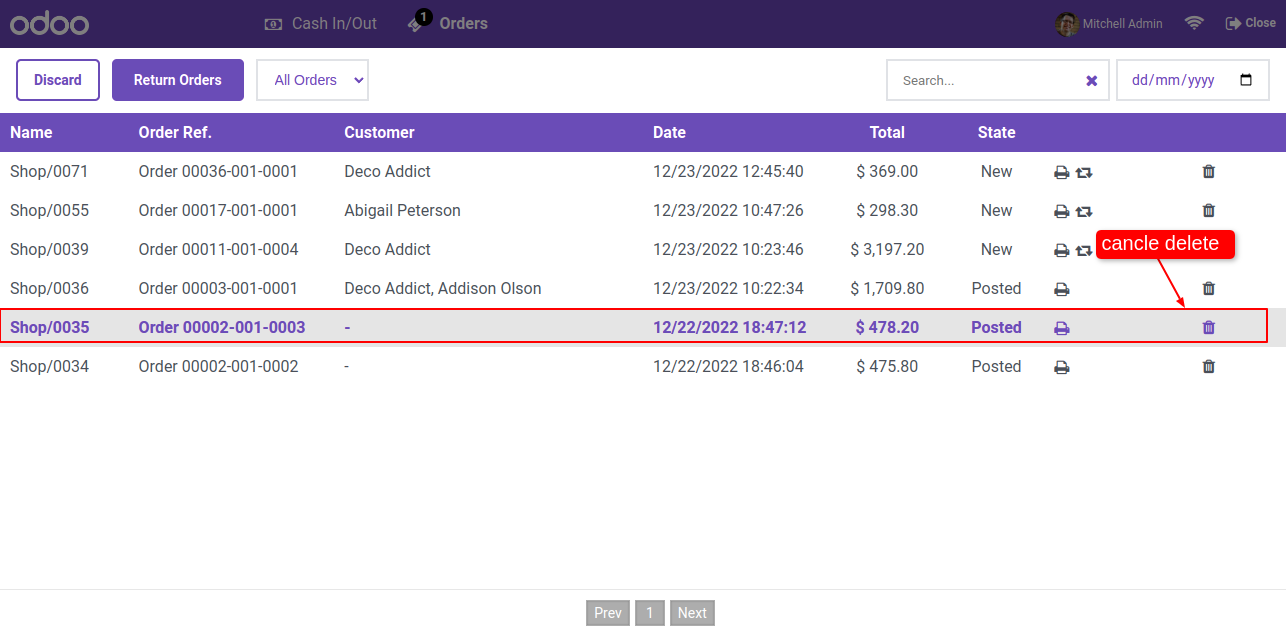
The cancel & delete icon is visible in pos order list view. Click on the cancel button.


Order List with Cancel Delete Icon

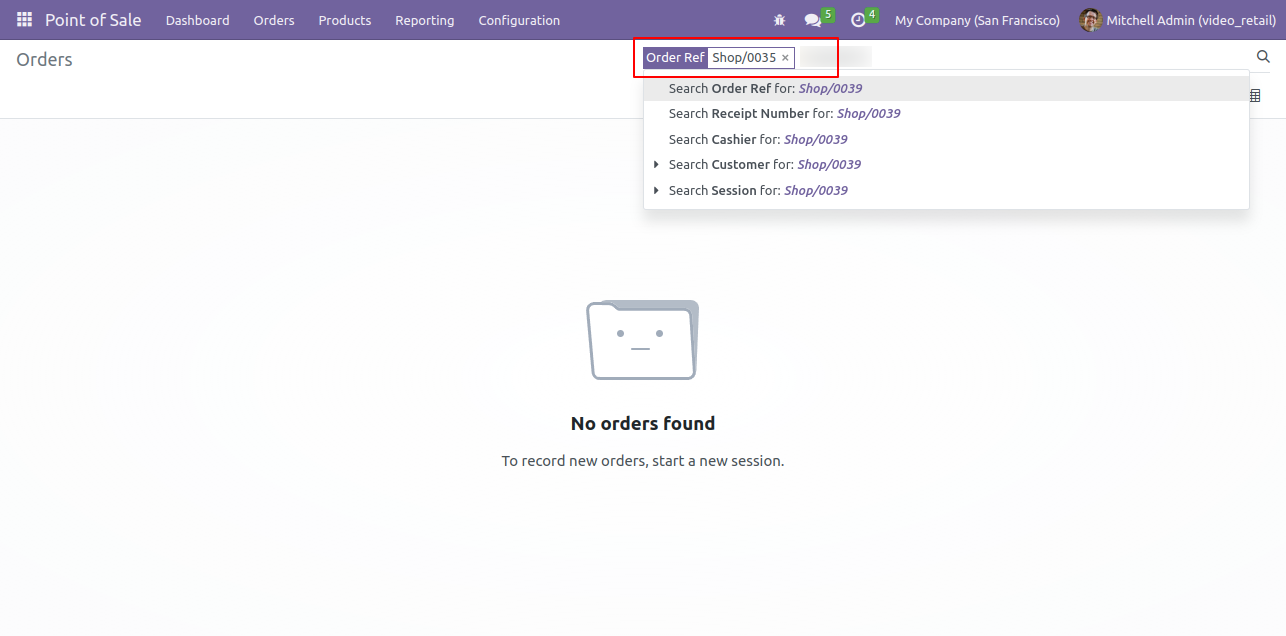
After click on the cancel button, the order is deleted.


No Orders Found After Order Deleted

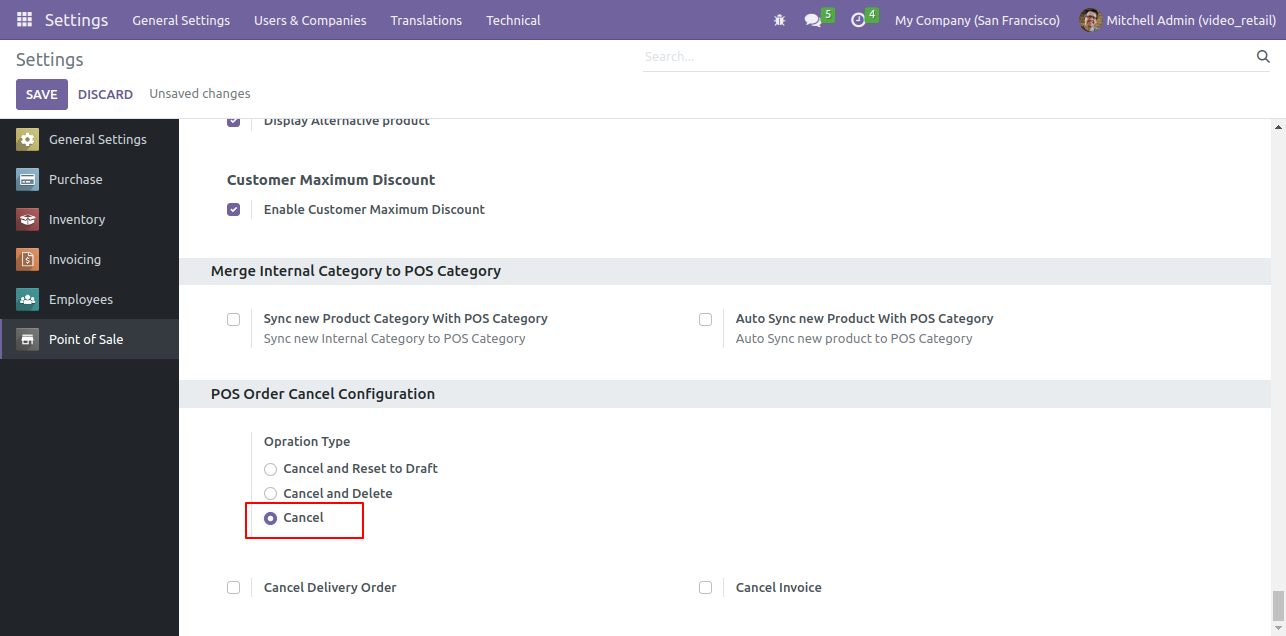
Now goto point of sale setting and enable 'Cancel'.


Enable Cancel Setting in Configuration

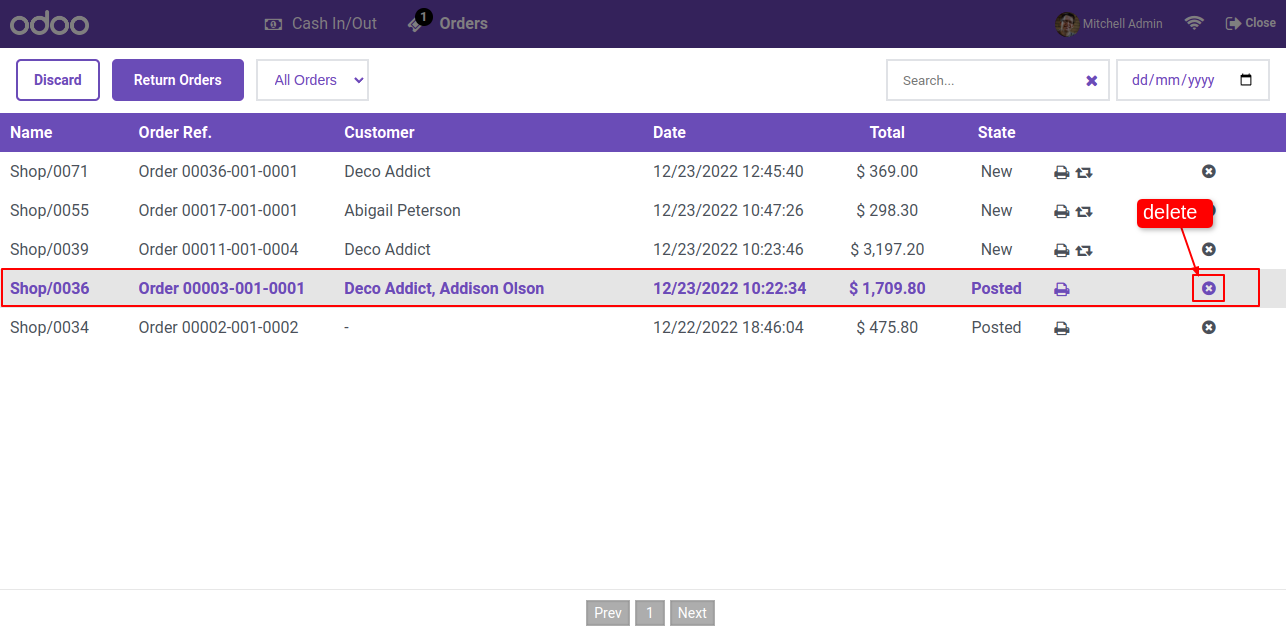
The cancel icon is visible in pos order list view. Click on the cancel button.


Order List with Cancel Icon Option

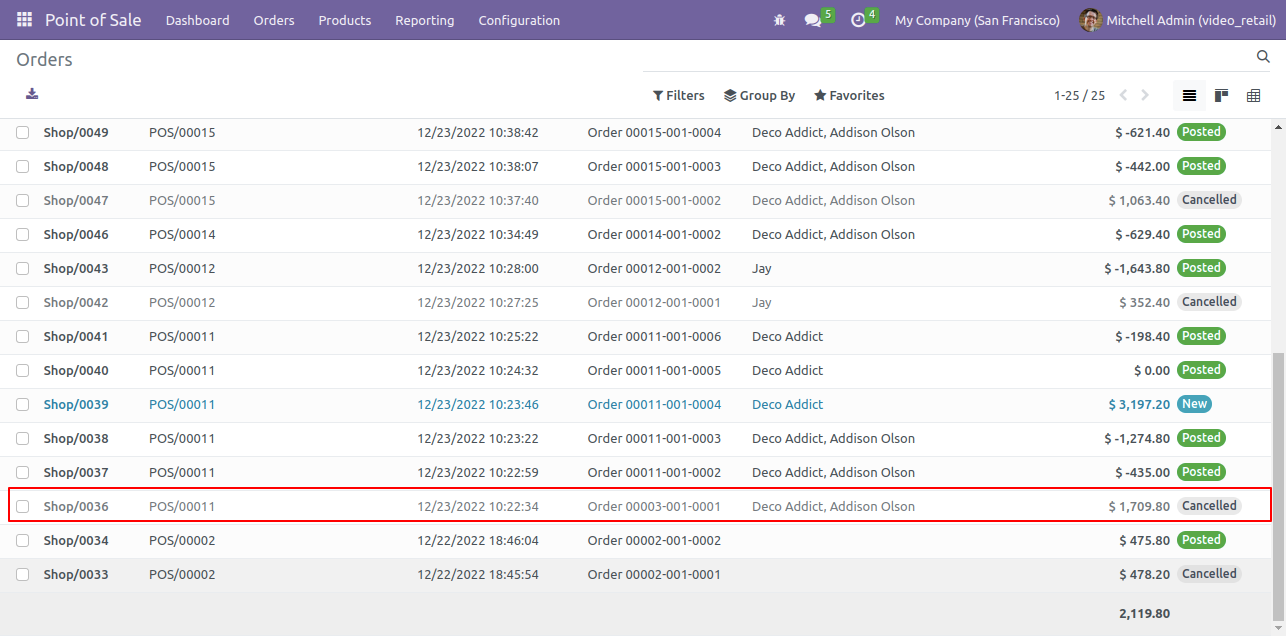
After click on the cancel button, the order is Canceled.


Orders List with Cancelled Order Status

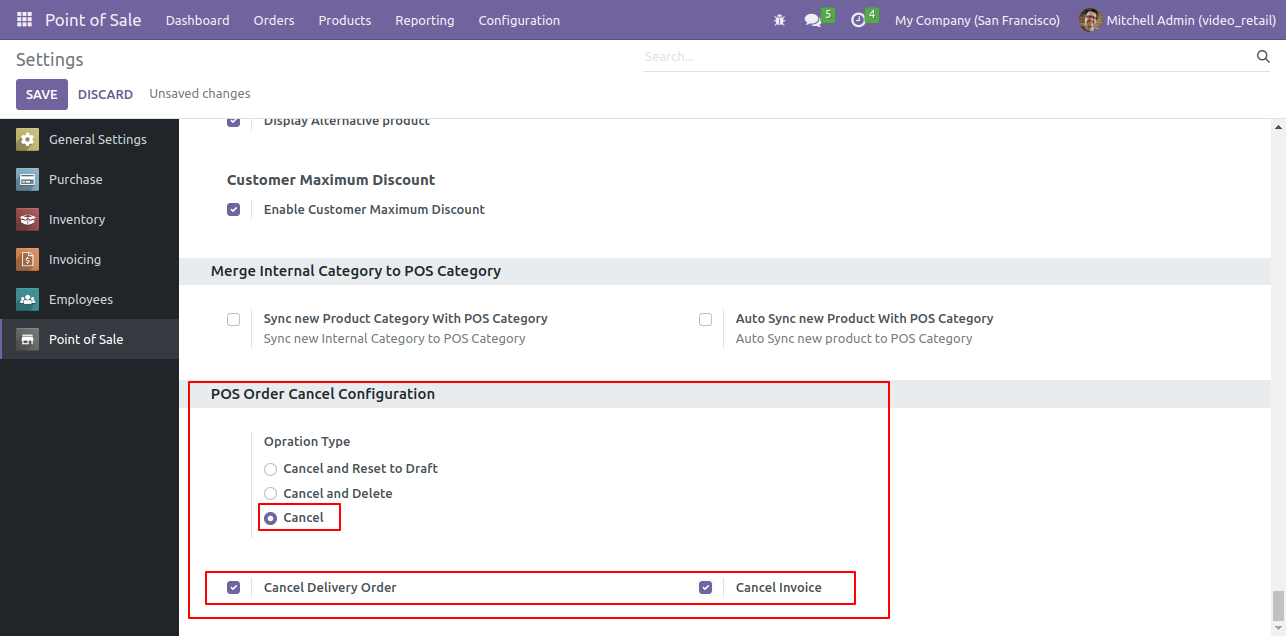
Now goto point of sale setting and enable 'Cancel'. Also enable the 'Cancel Delivery Order' & 'Cancel Invoice' option.


Enable Cancel Delivery and Invoice Setting

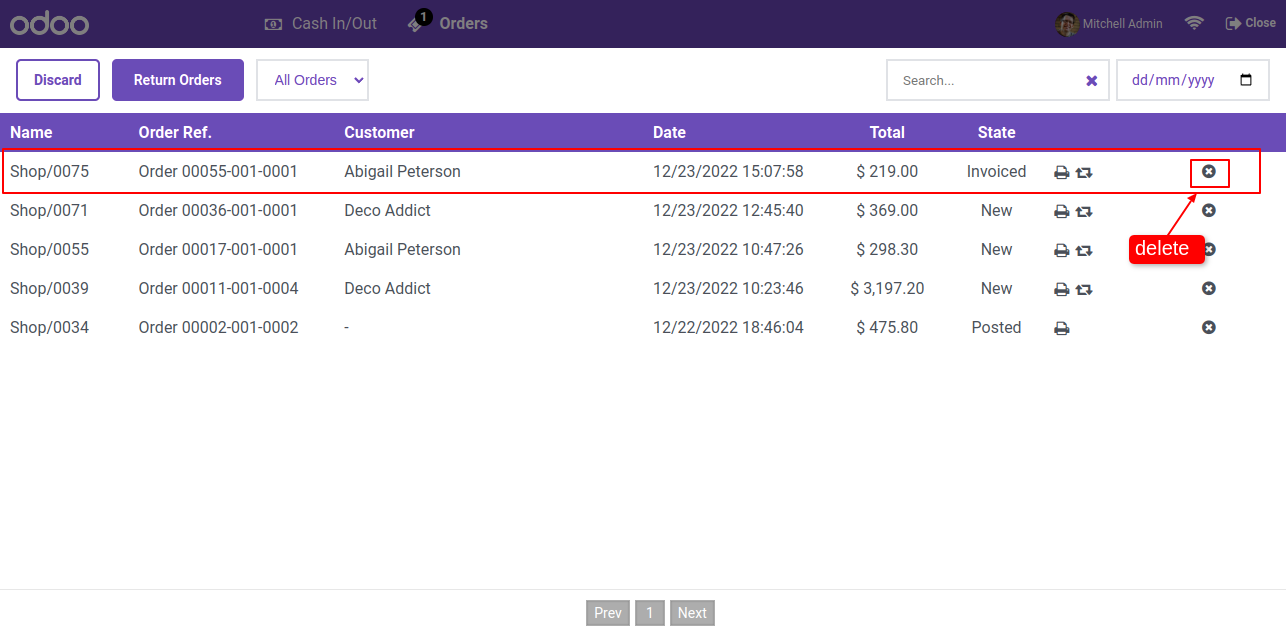
Now, click on the cancel button.


Order List with Cancel Button Highlighted

After click on the cancel button, the order is Canceled.


Orders List with Cancelled Order Status

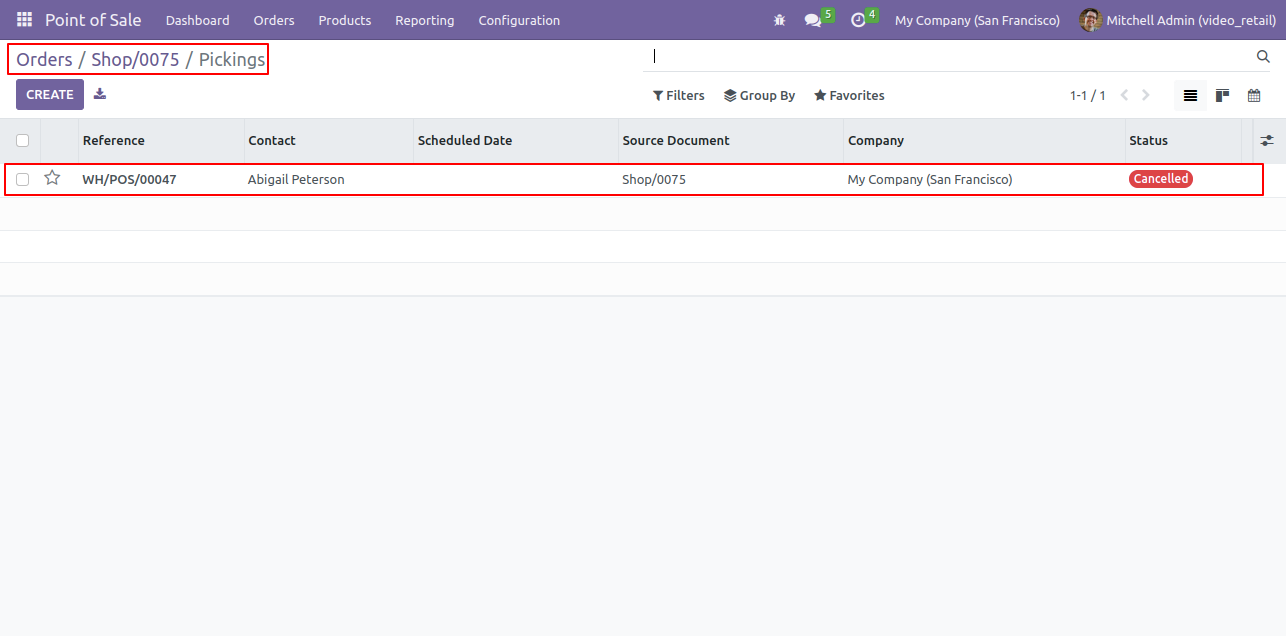
The picking order is Canceled.


Picking Order with Cancelled Status

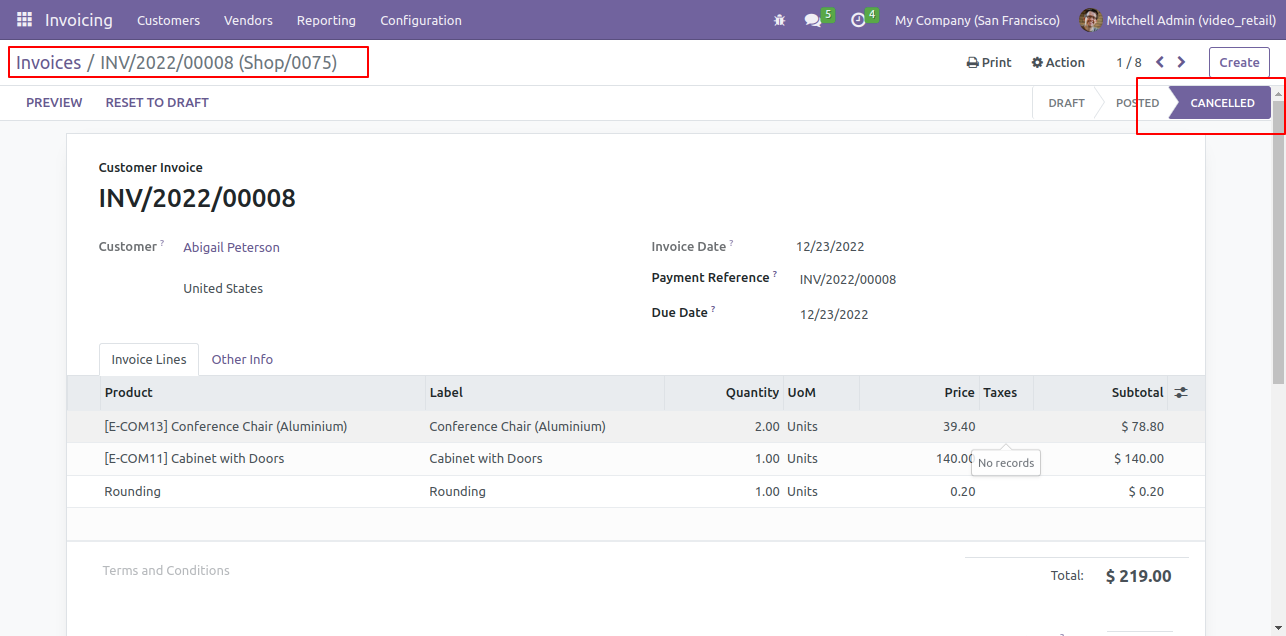
The invoice is also Canceled.


Cancelled Invoice Showing Reset to Draft

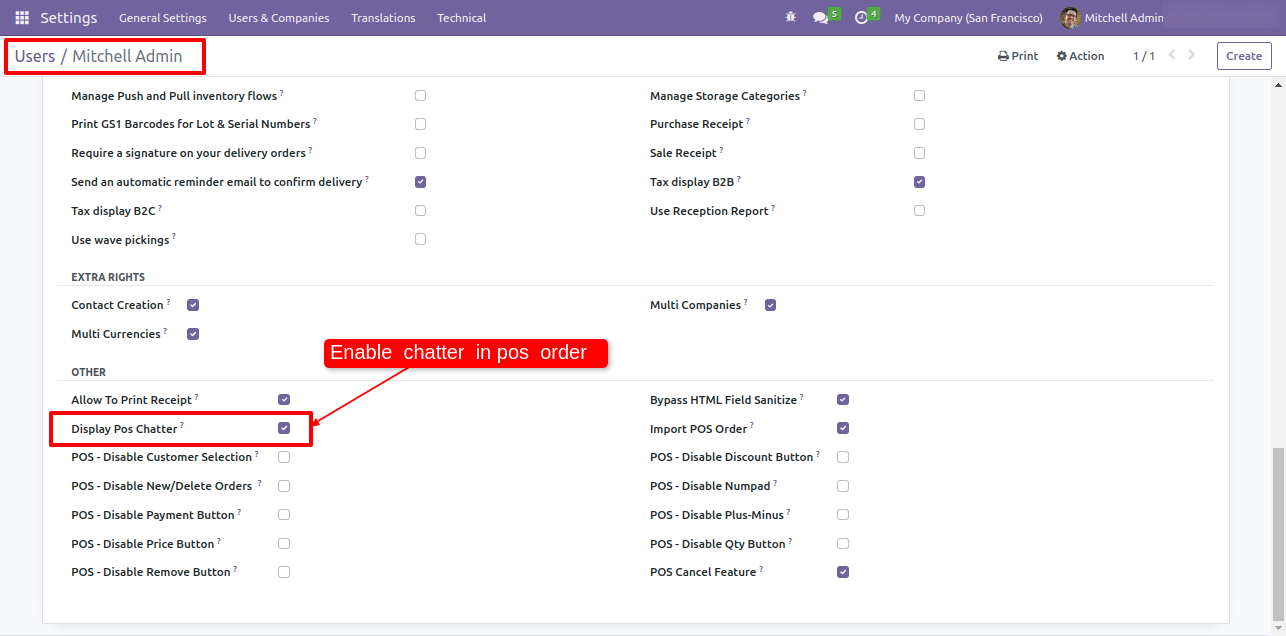
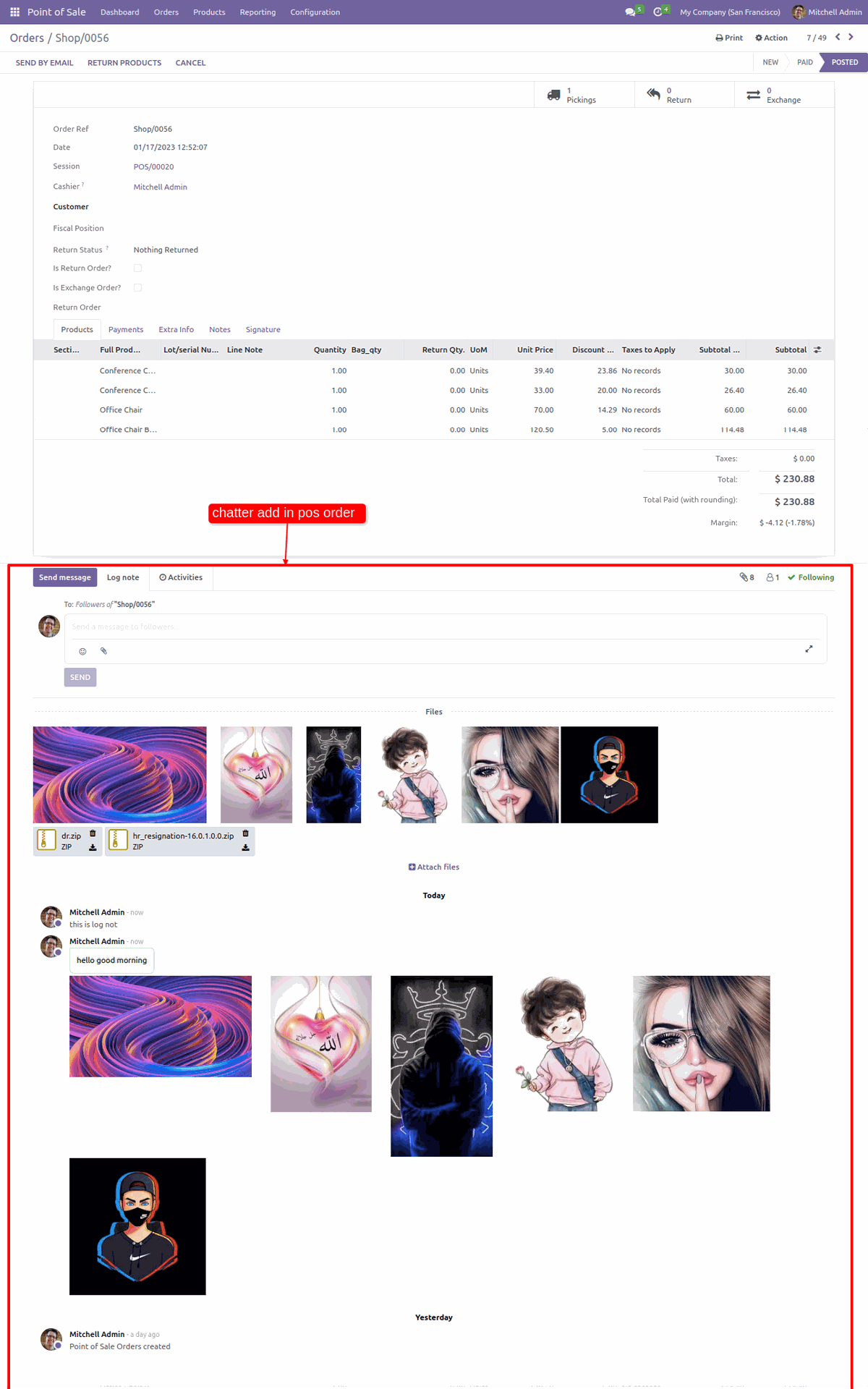
Goto user setting and tick 'Display Pos Chatter'.

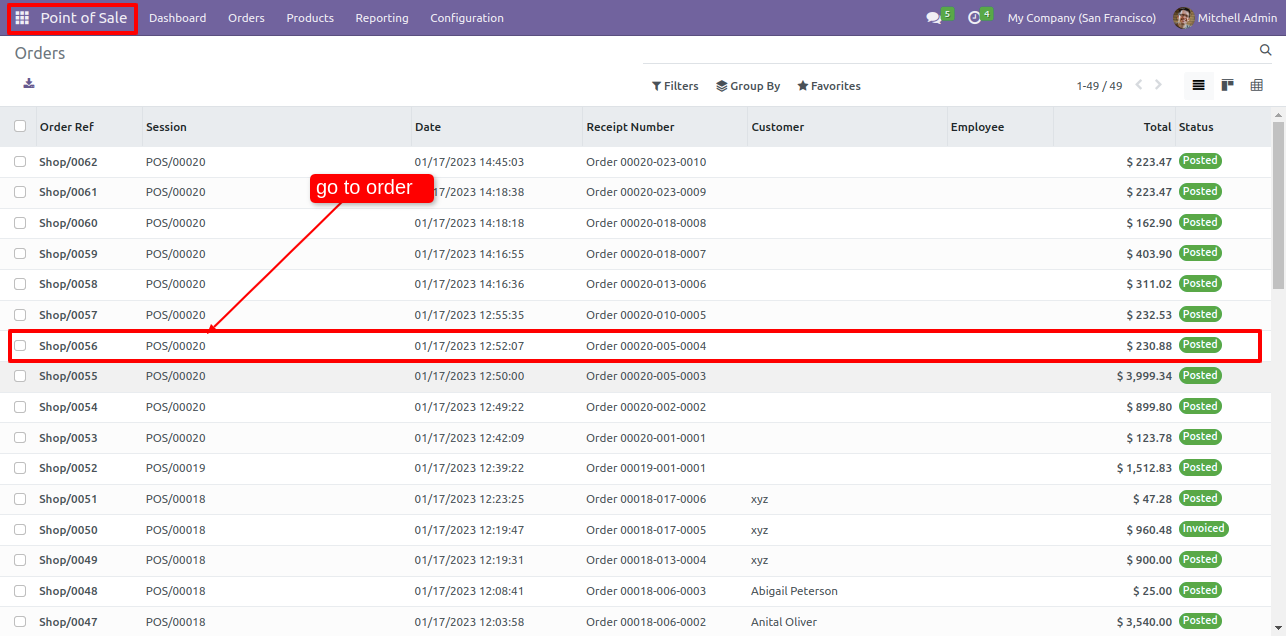
Open orders in pos.

List view of the orders. Open any one order.

you can see the chatter is added in the pos order.


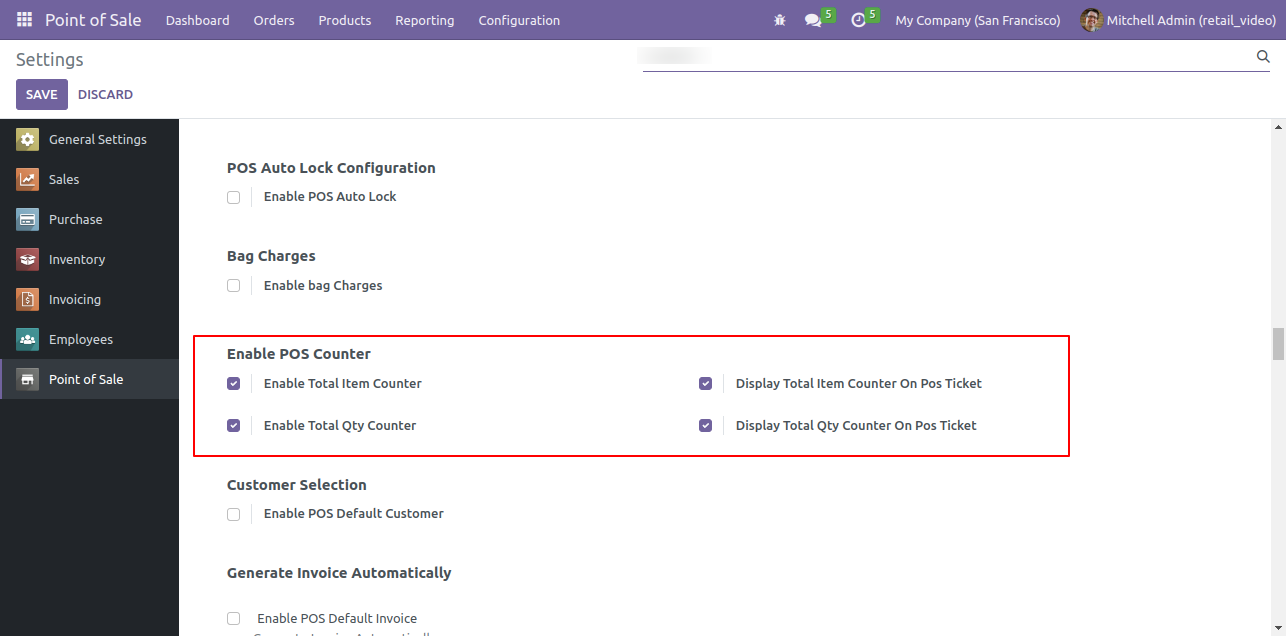
Goto pos setting and enable 'Enable Pos Counter'. and enable appropriate options.

Enable POS Counter setting


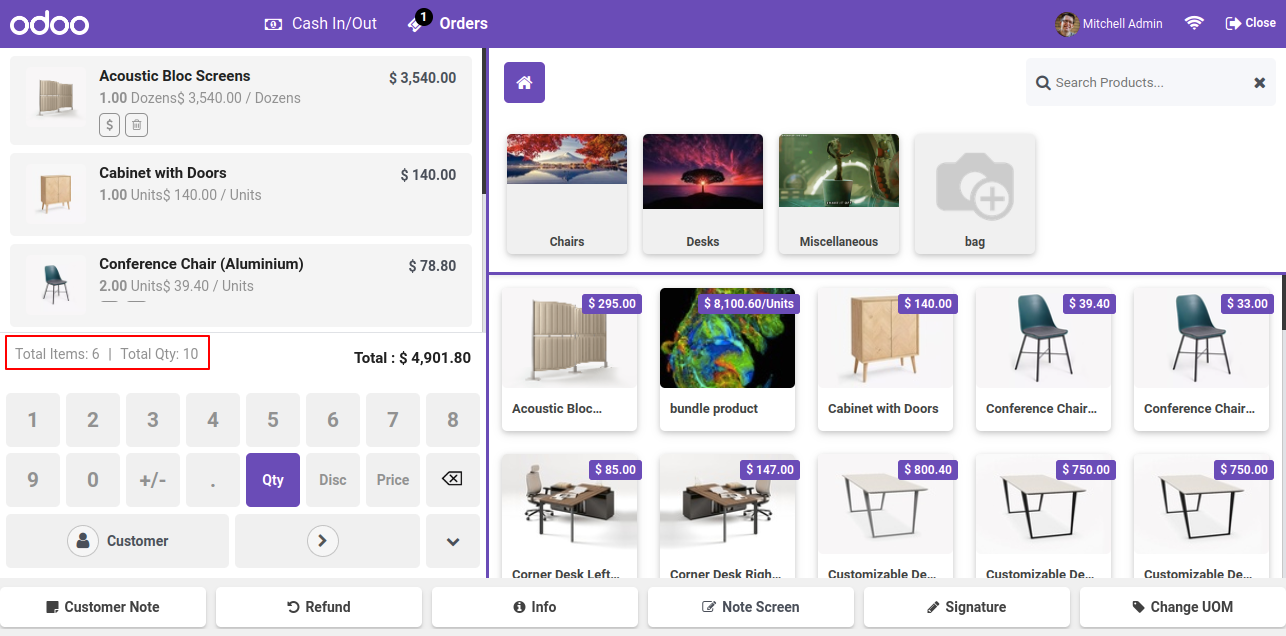
You can see the counter in pos cart.

Item counter visible in cart


product counter details in pos receipts

Item counter shown on receipt

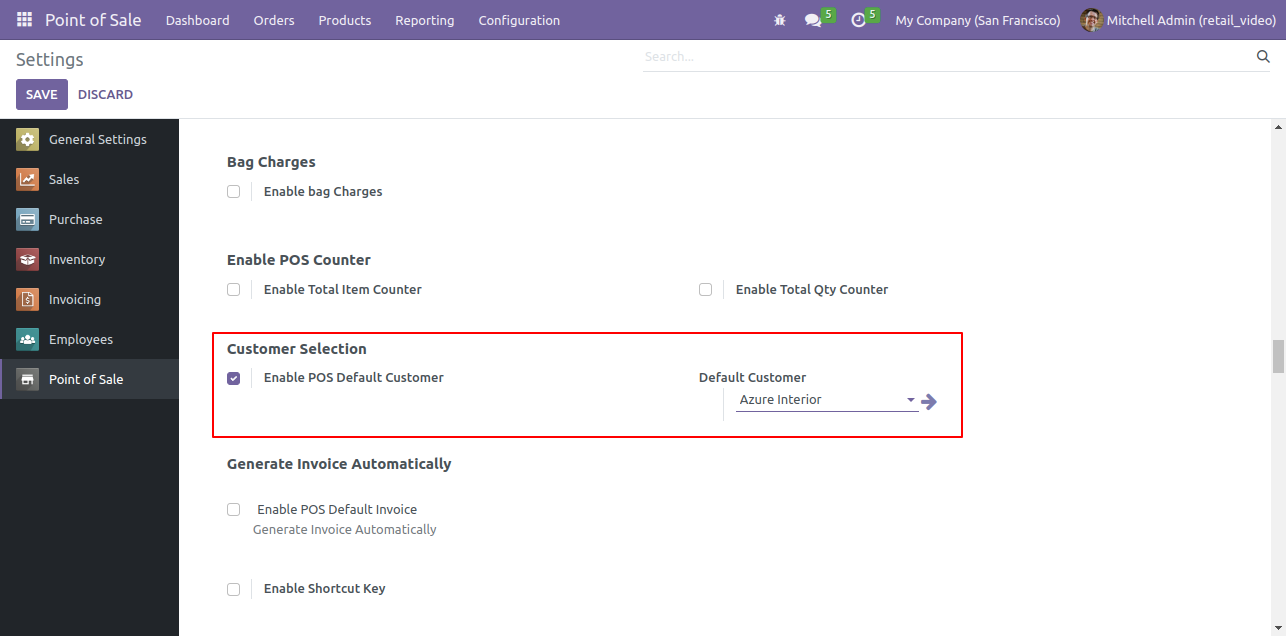
Goto pos setting enable 'Enable Default Pos Customer' Feature and set default customer.


Enable Default Customer Setting in Configuration

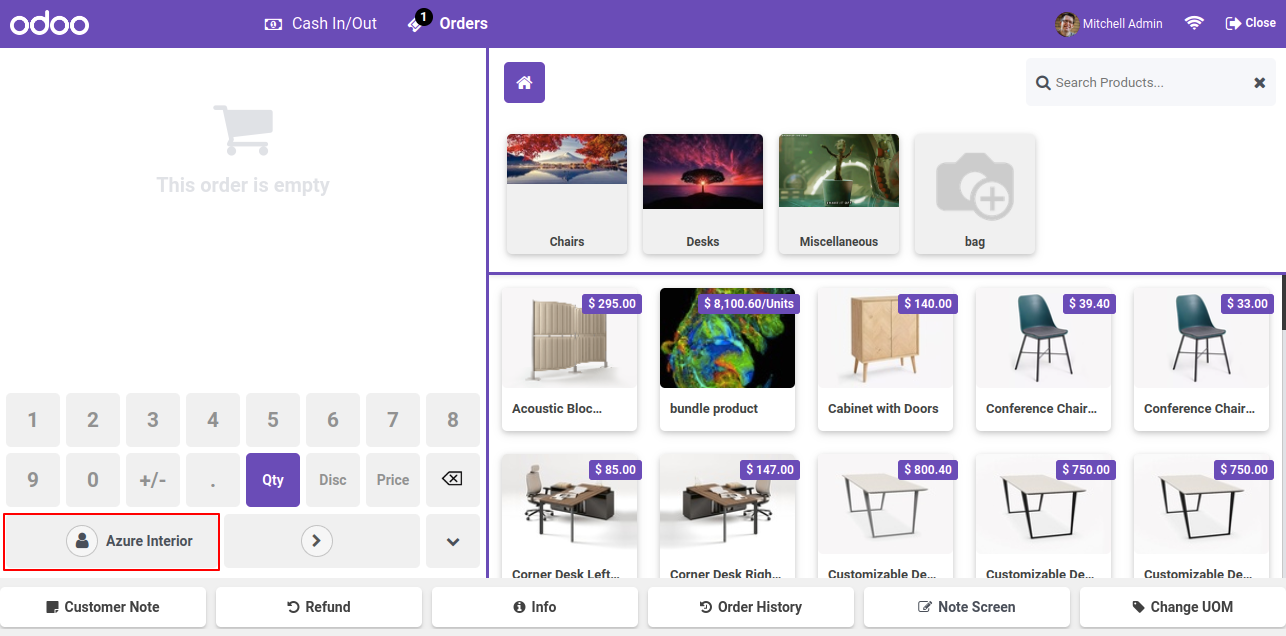
Goto POS Screen set Default Pos Customer auto add added.


POS Screen with Default Customer Applied

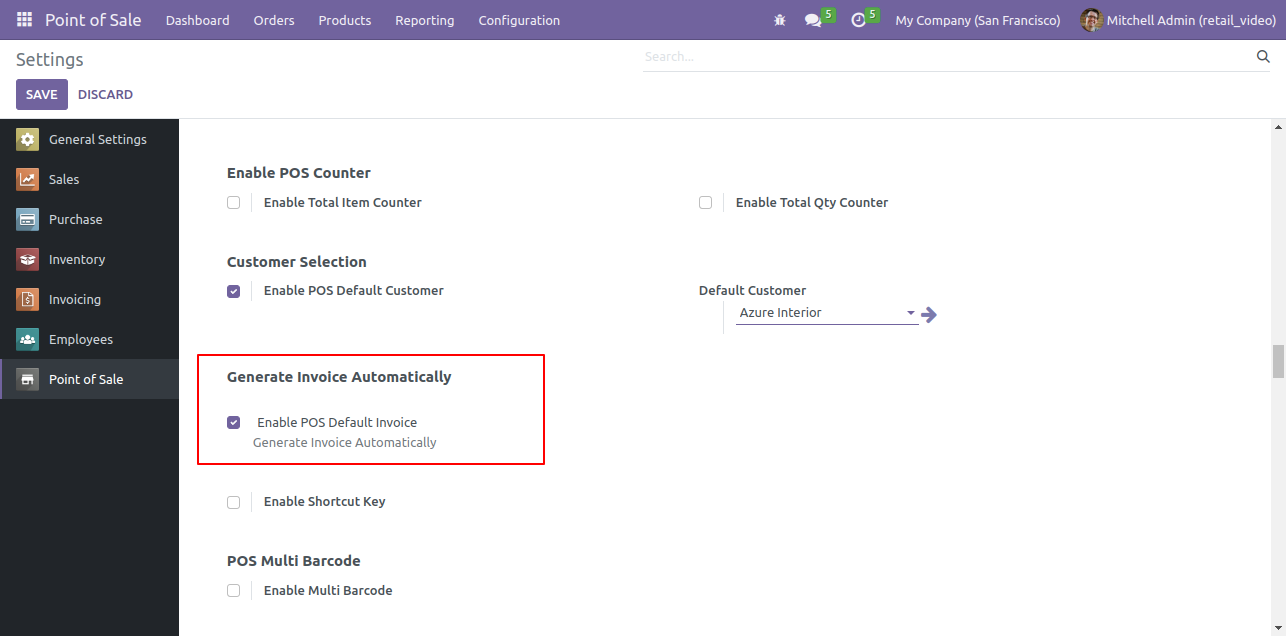
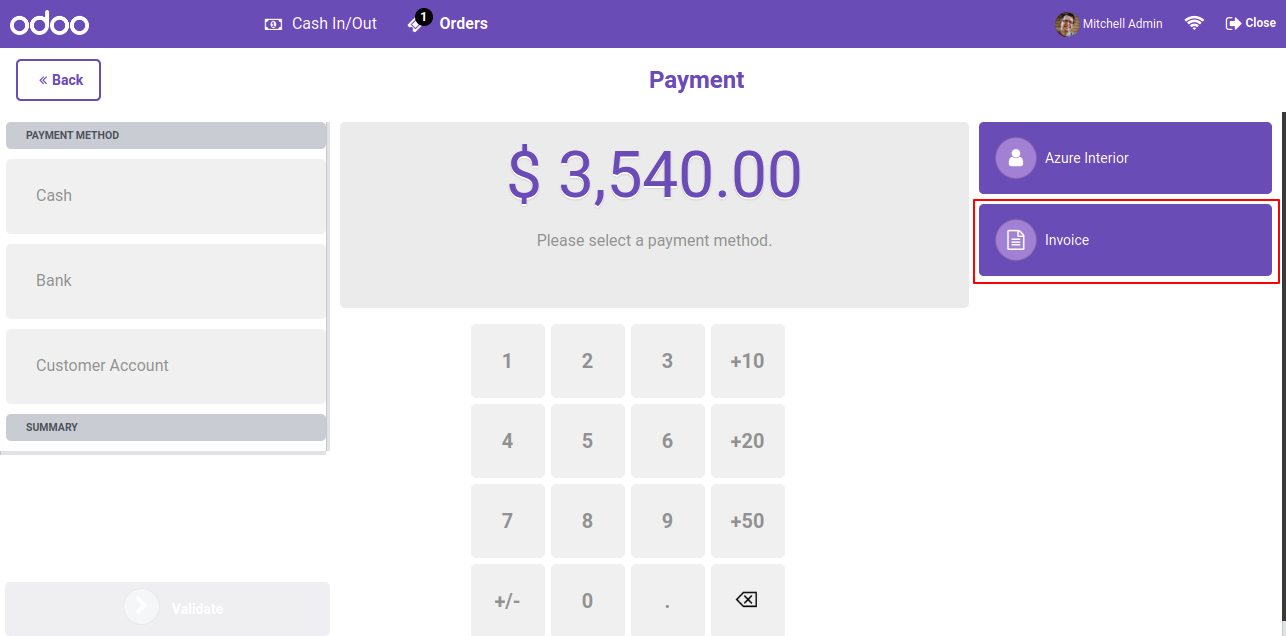
Goto pos setting and enable 'Enable Pos Default Invoice'.


Enable Default Invoice Generation Setting

Goto POS Payment Screen Default Invoice is visible.


Payment Screen with Invoice Method Selected

Invoice is also linked with the POS order in backend.


POS order linked with backend invoice

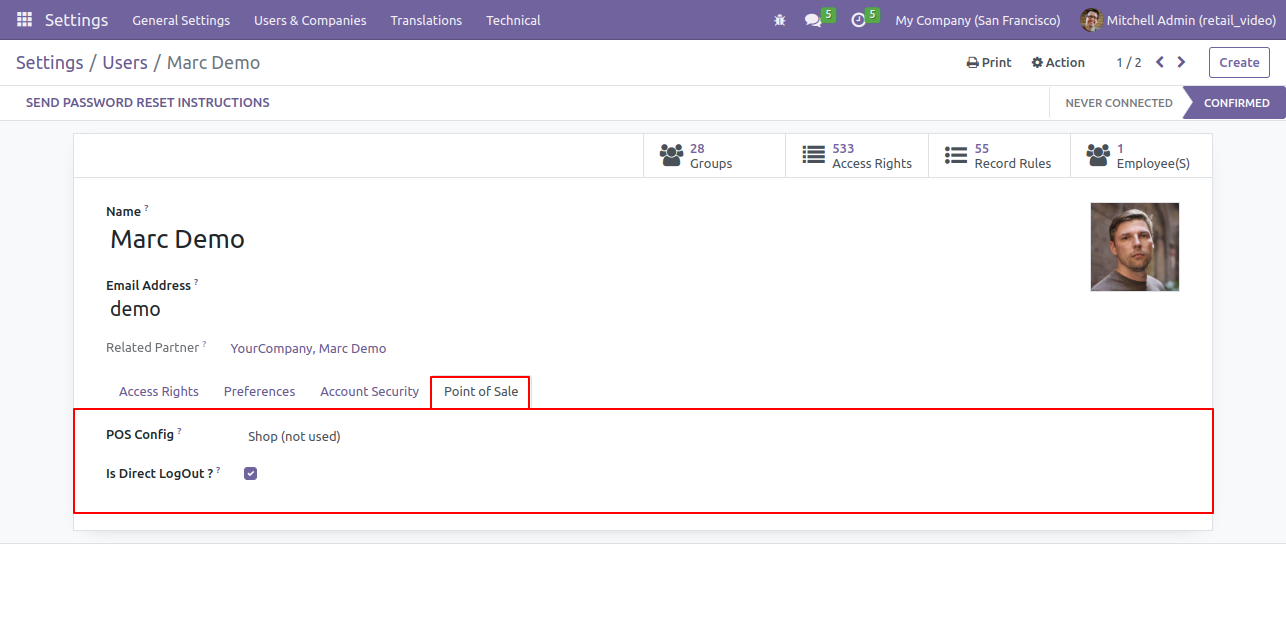
Goto user setting : Goto pos tab and enable direct logout and set default pos config.

Enable Direct Logout in User Settings

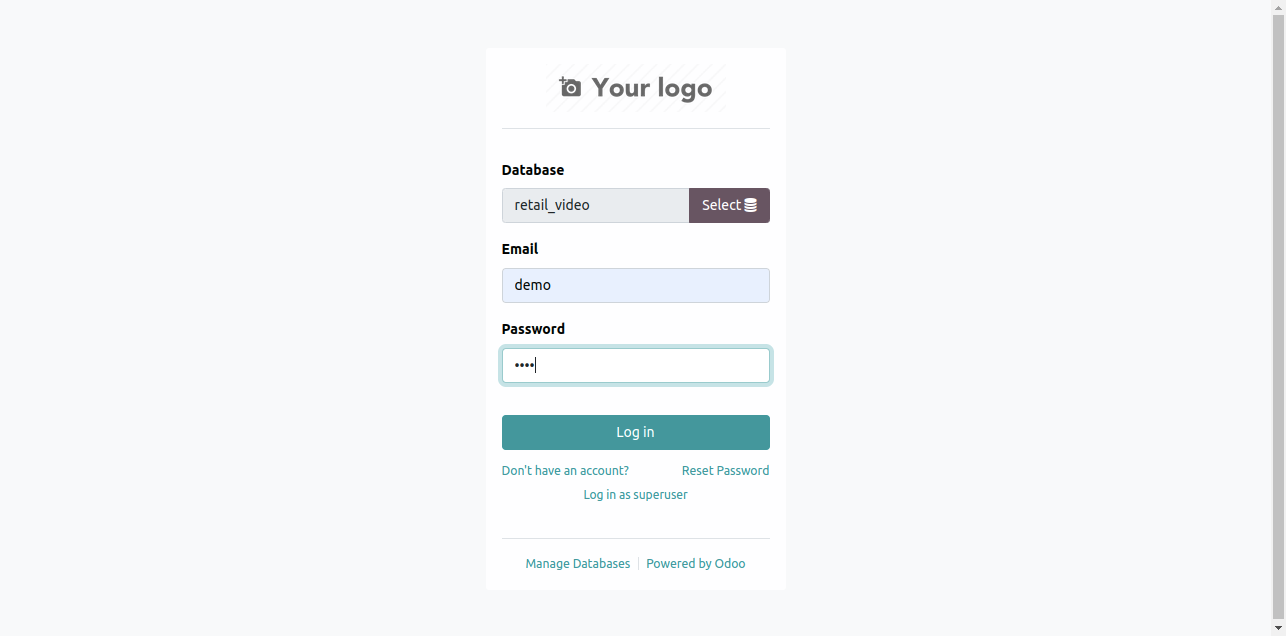
Login with the user.

POS Login Screen with Credentials

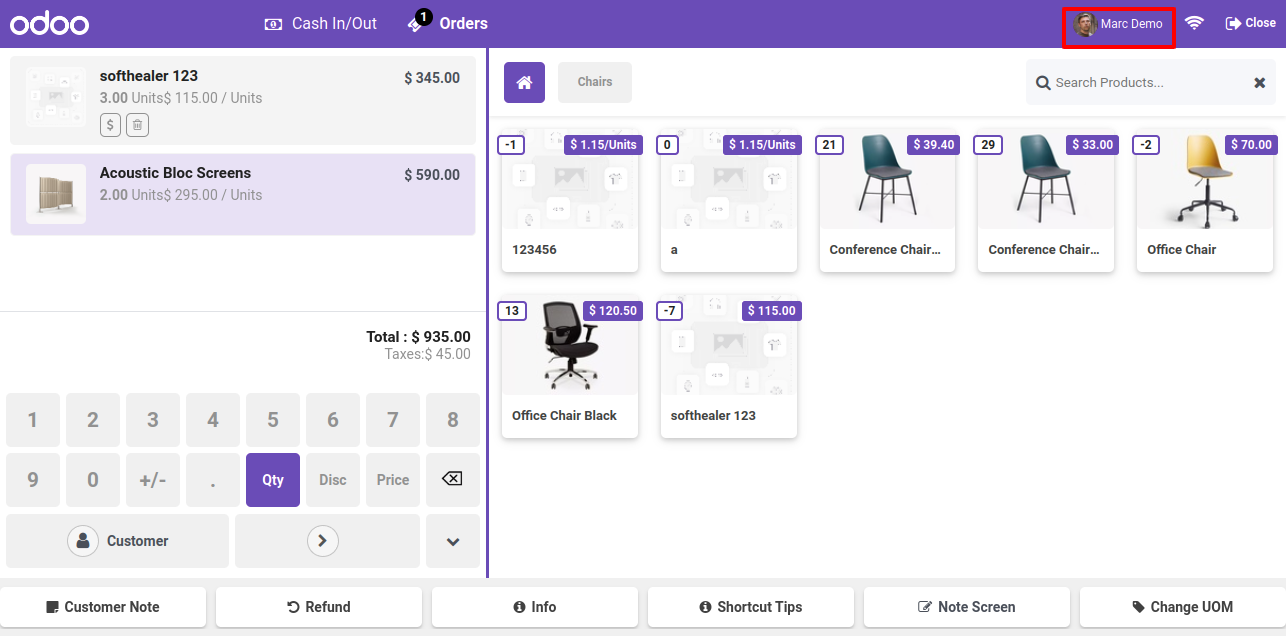
Here, you can see direct login screen.

POS Screen Showing Direct Login Screen

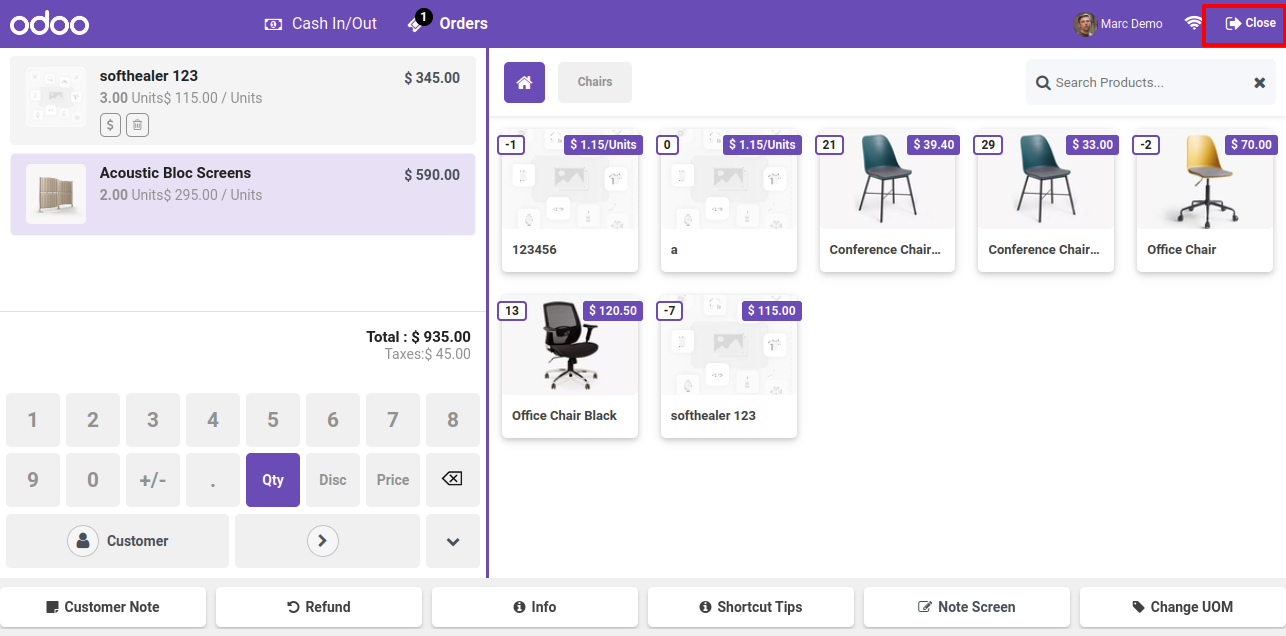
You can close the session using 'Close' button.

POS Screen with Close Session Button

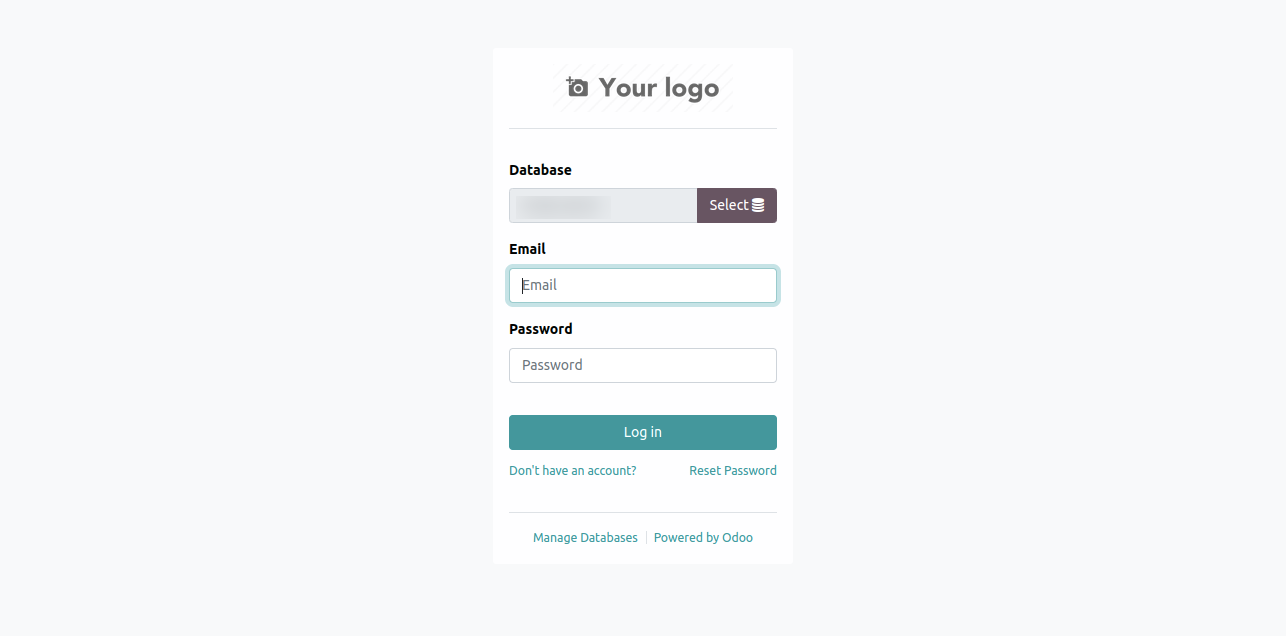
After closing the session, login page is displayed.

Login Page After Closing POS Session

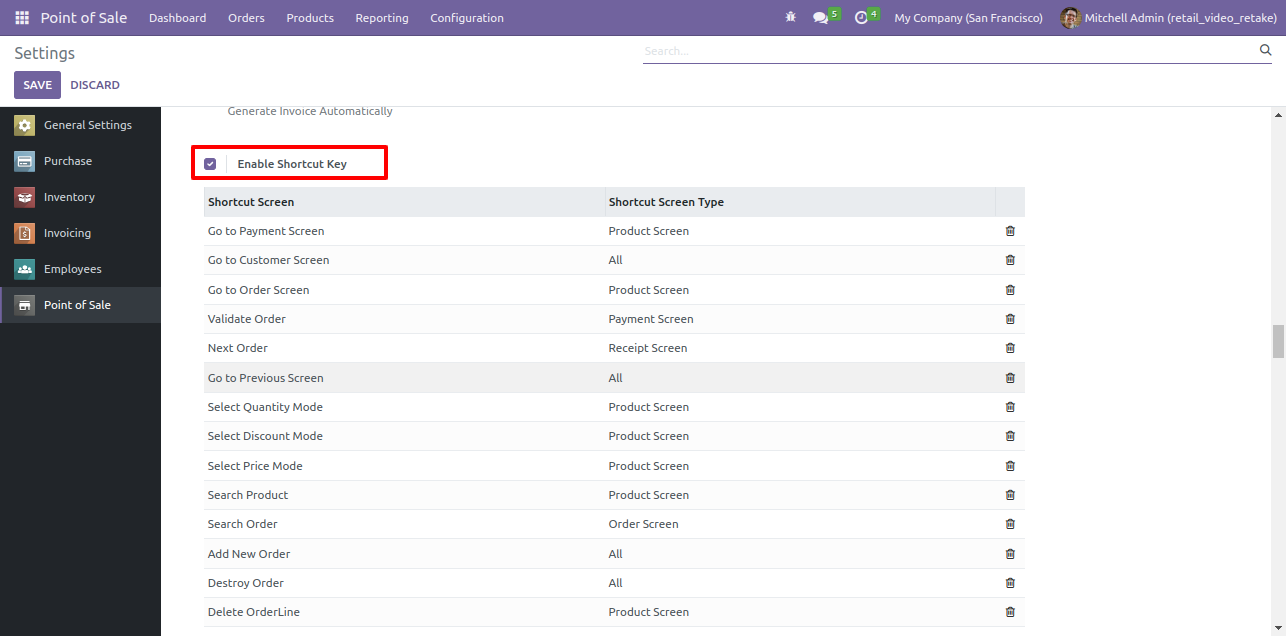
Goto pos setting and enable 'Enable Shortcut Key' and config them as per your requirement.

Enable Shortcut Key Configuration Setting

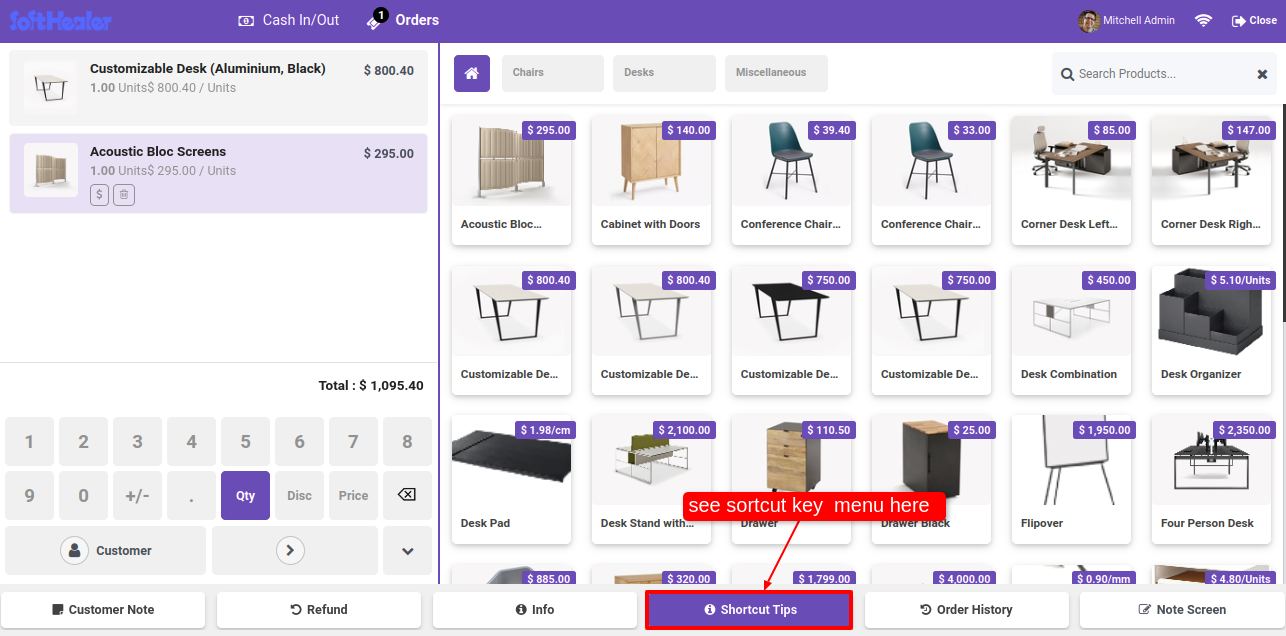
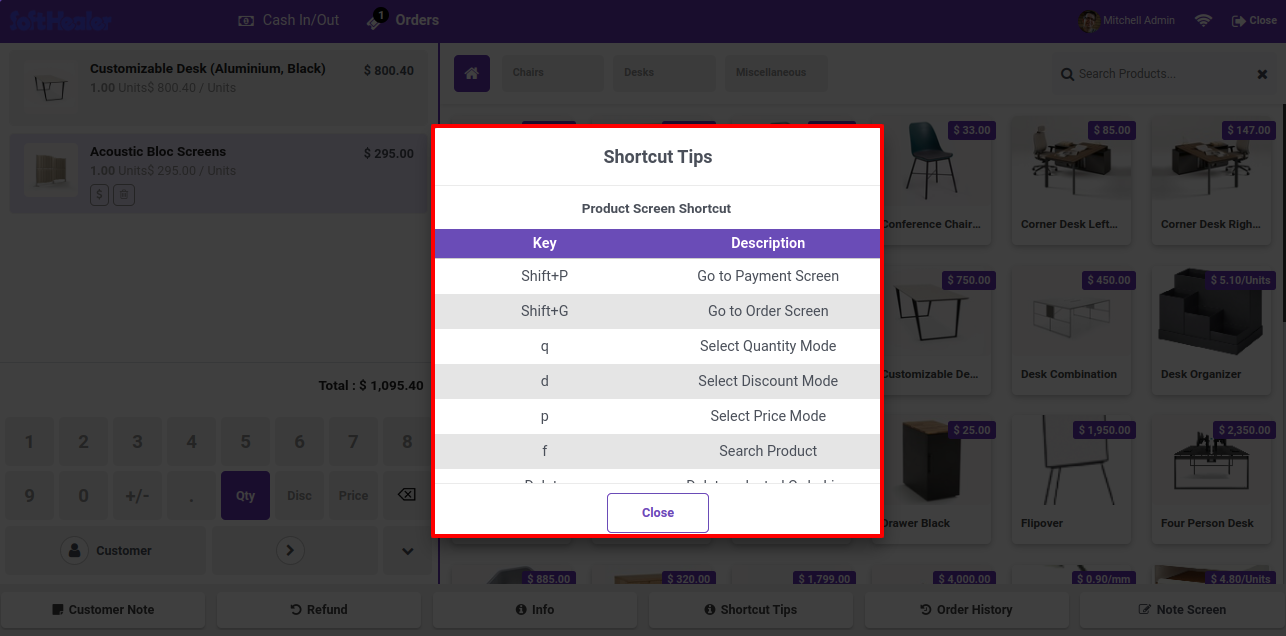
Here in pos, 'Shortcut Tips' menu visible.

POS Screen with Shortcut Tips Button

After click on that menu, Shortcut Tips wizard will be appear.

Shortcut Tips Wizard with Key List

You can edit or add the product screen shortcut.

Shortcut Tips Popup Editable Key List

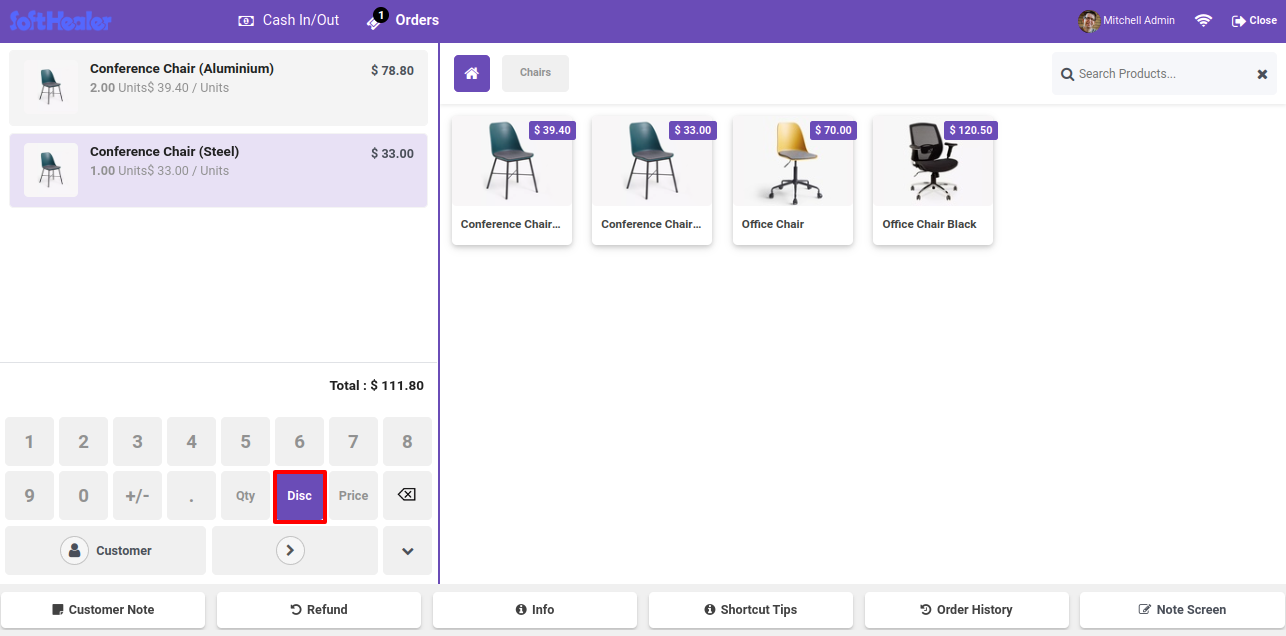
Click on the Disc button.

POS Screen with Disc Button Selected

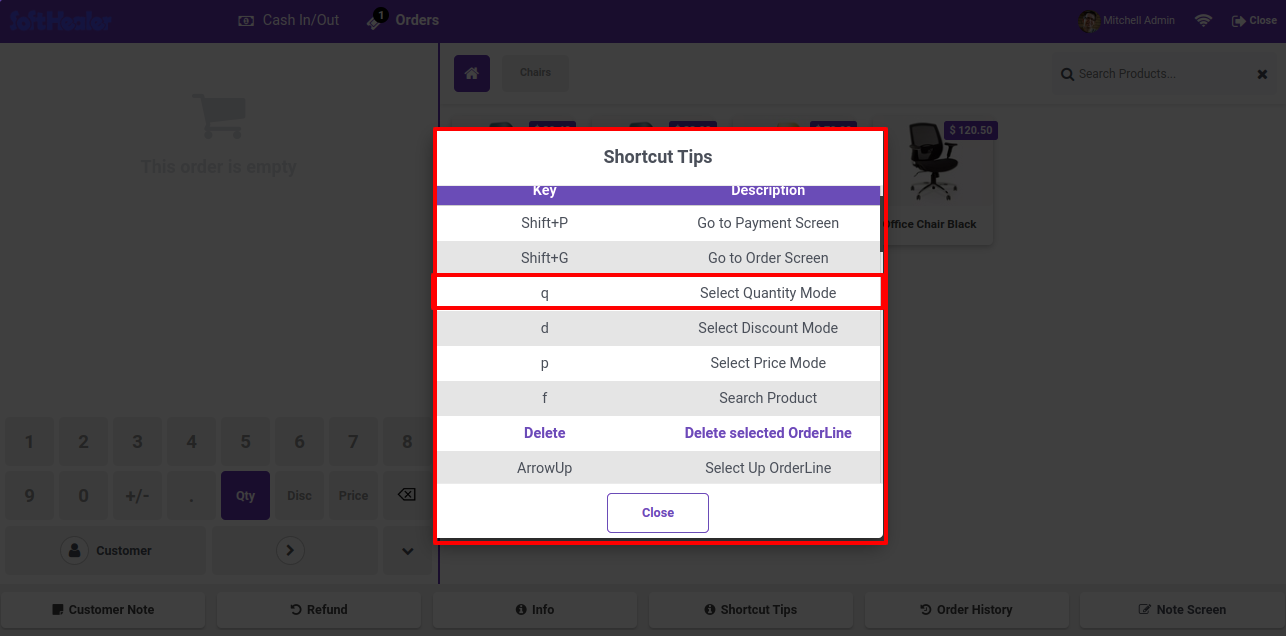
After that, Shortcut Tips wizard will be appear.

Shortcut Tips Wizard with Extra Keys

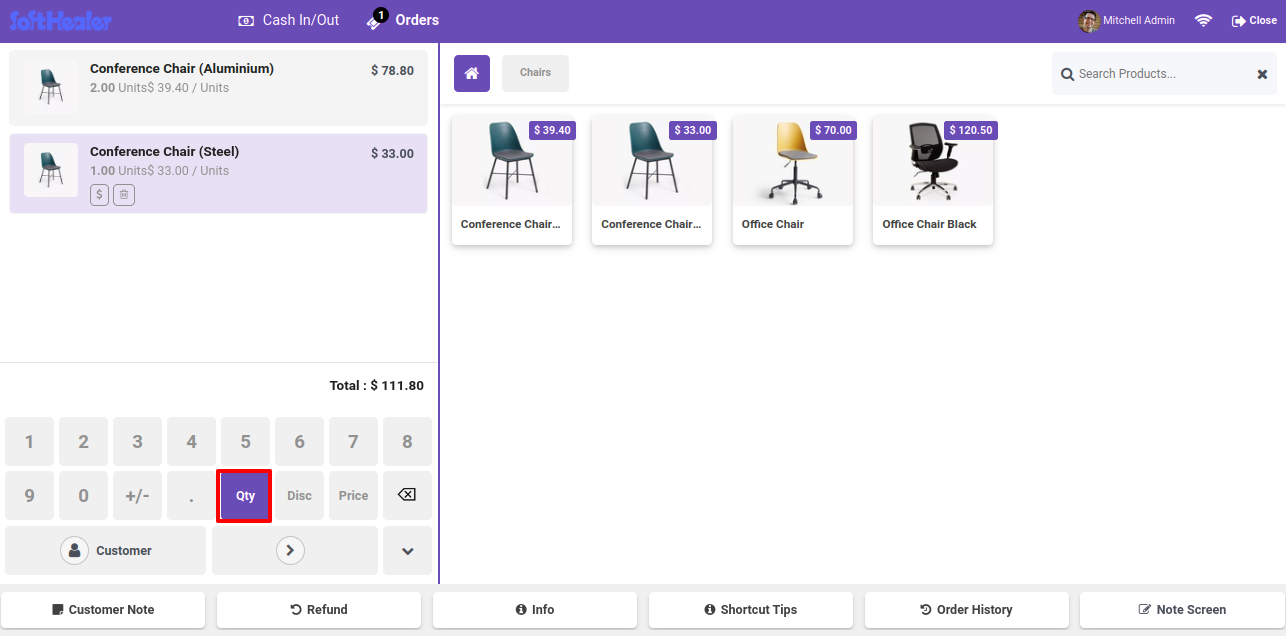
Click on the Qty button.

POS Screen with Qty Button Selected

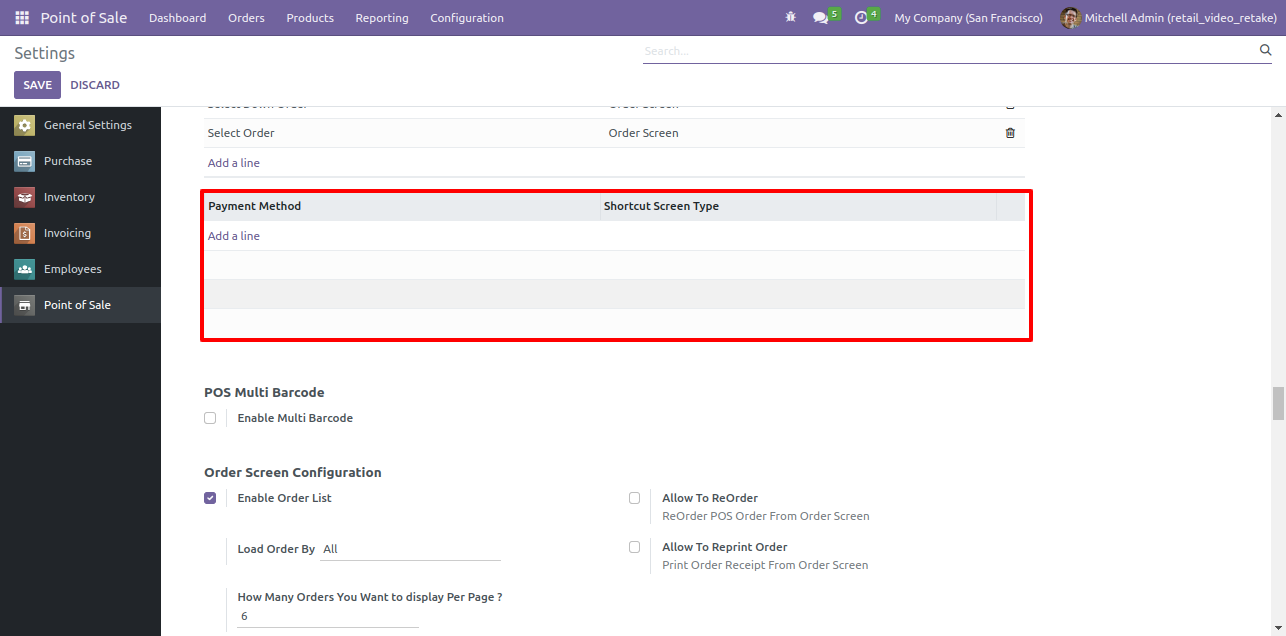
After that, you will be redirect to the payment method section within the setting. To add the payment method shortcut key, click on the add line.

Payment Method Section with Add Line

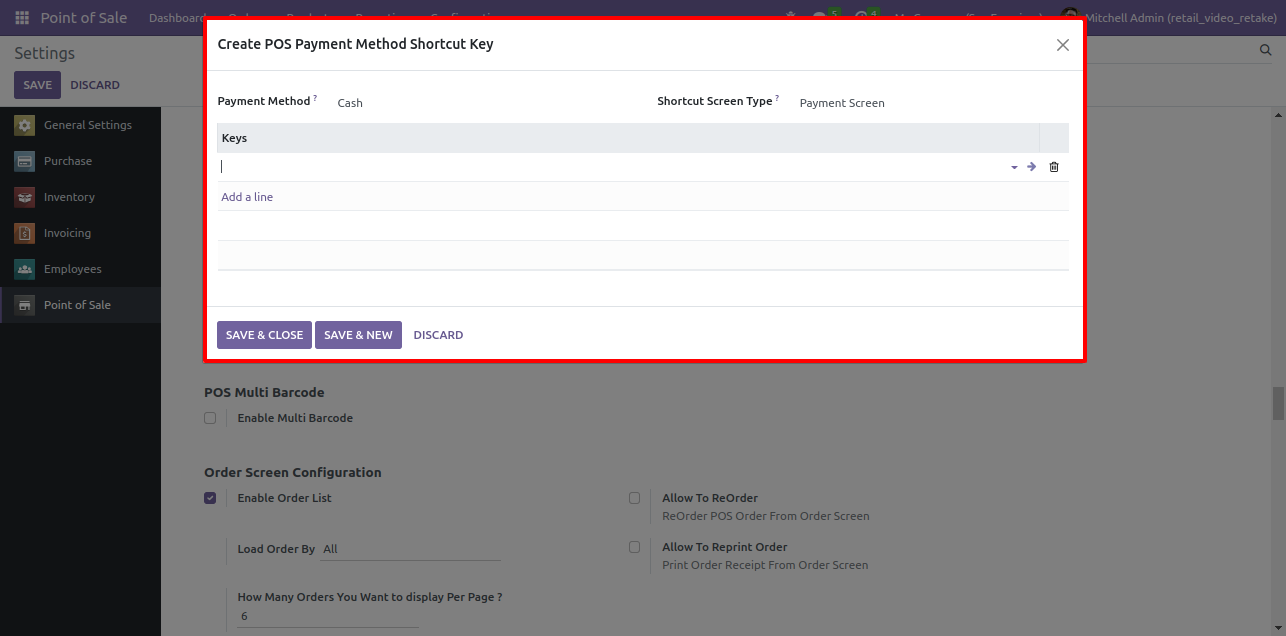
The Create post payment shortcut key wizard will be appear. Add the method and keys here and save.

Create Payment Method Shortcut Key Popup

Here, you can see the payment method is added with the shortcut screen type.

Payment Method with Shortcut Screen Type

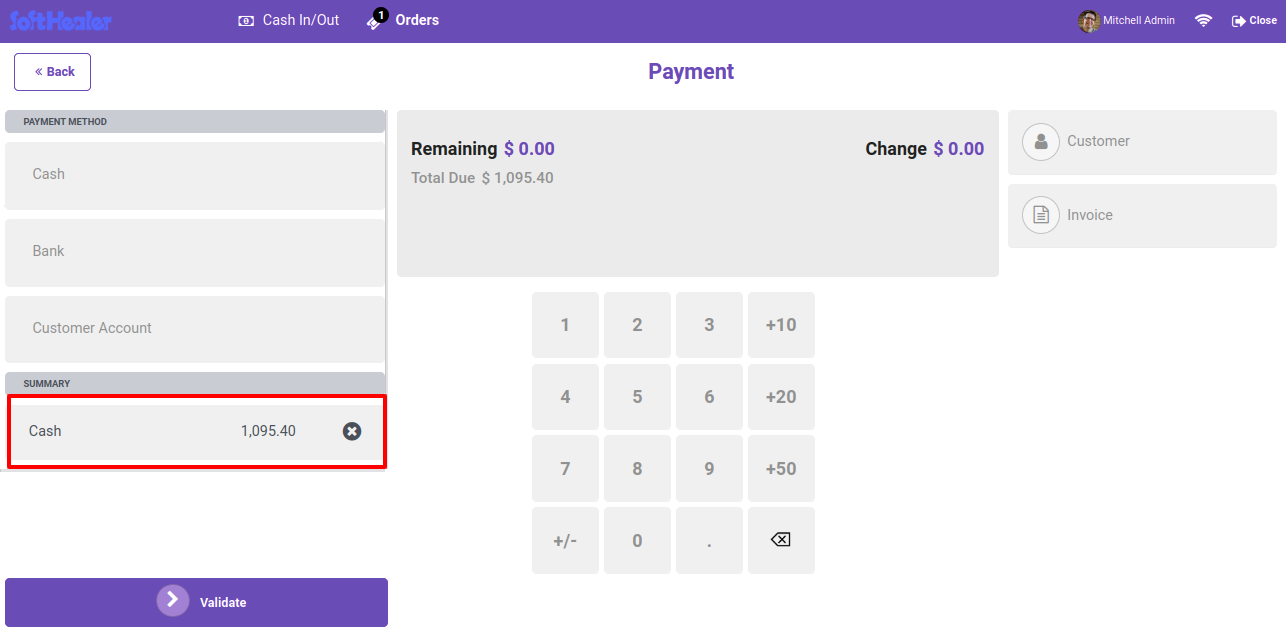
The payment method is visible in payment page.

Payment Screen with Shortcut Method Visible

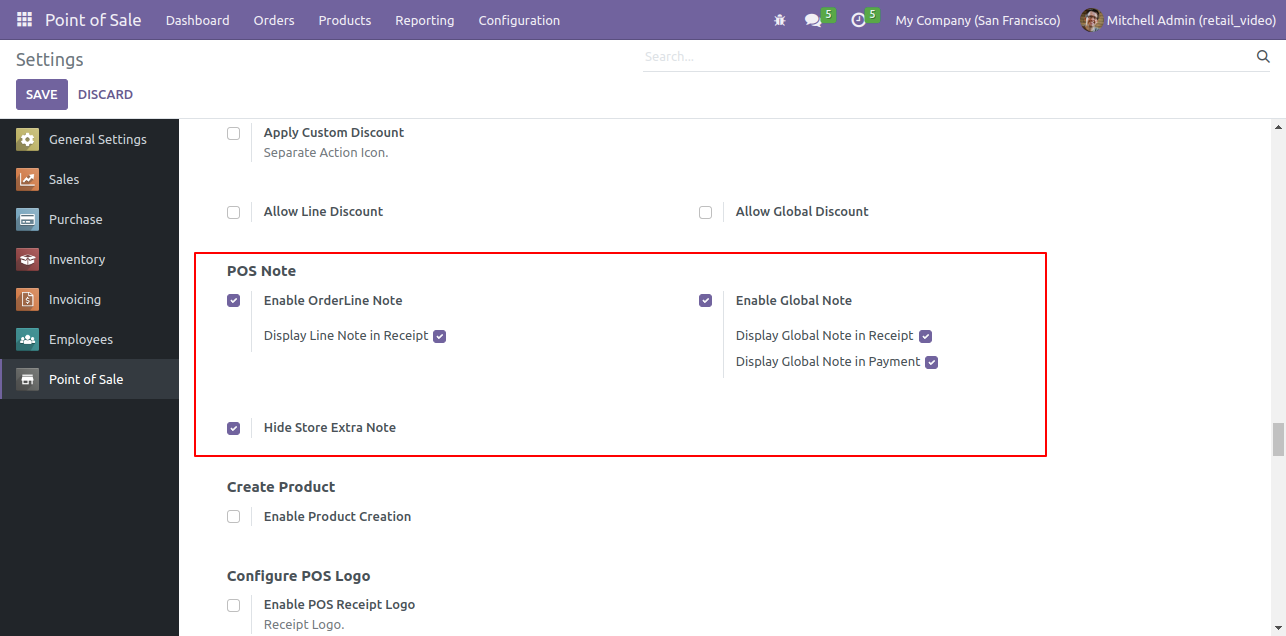
Go to the POS settings and enable the POS note configuration options.

Enable POS note configuration settings

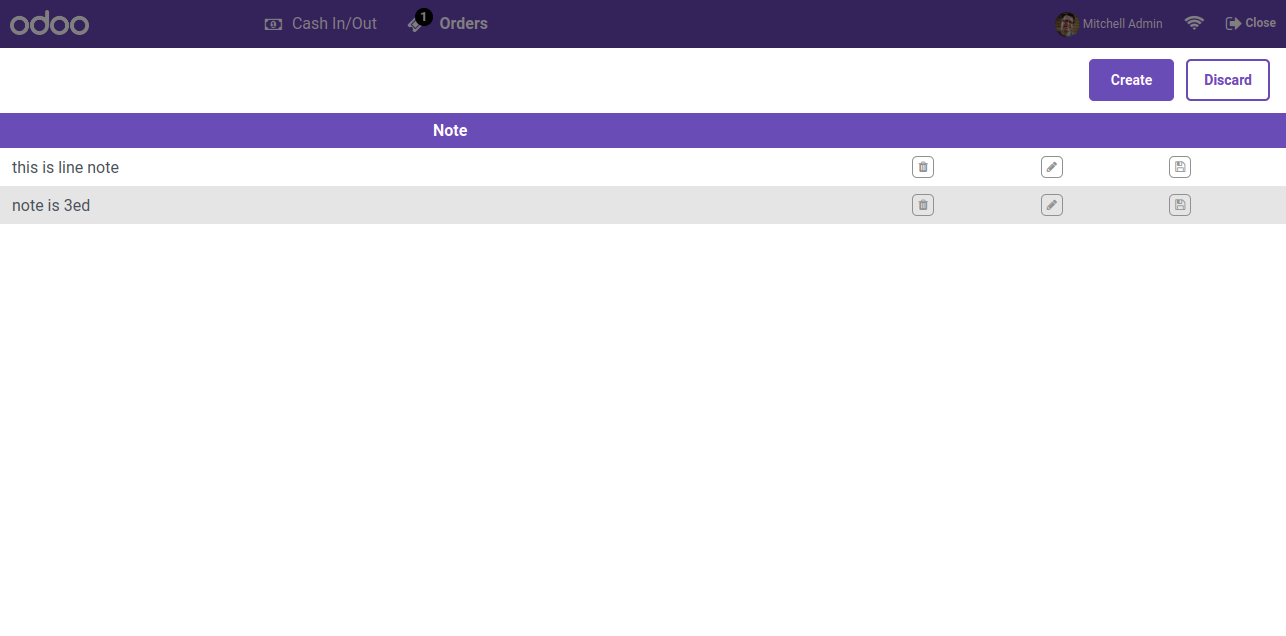
Go to the "Note Models" menu to view the stored notes.

Select General Note from action wizard

Click on the "General Note" Button from the POS. After that, the "General Note" wizard will open. Add general notes here and click on the "Apply" button.

Add general note and apply

Selected general note will be visible in the POS cart screen.

Add internal notes wizard

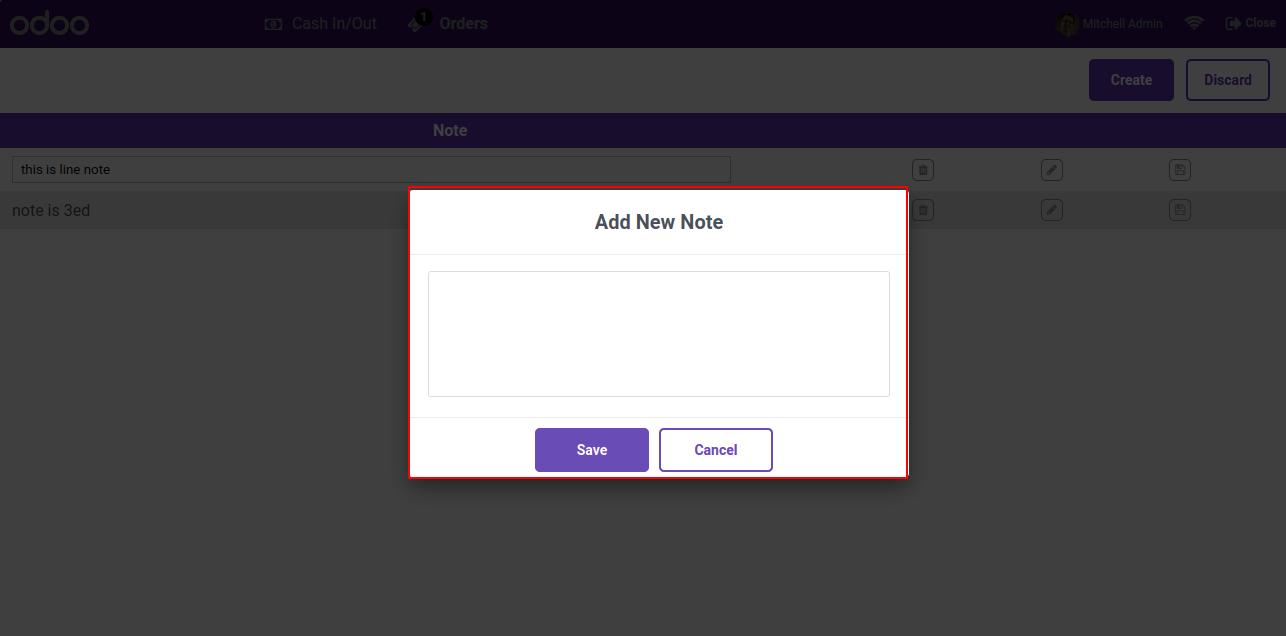
User can create extra note directly in POS interface and also store by enabling the store extra note option from the wizard.

Open Note Models menu

Stored extra note will be visible under Notes Models menu.

Create new note button

Enable Display General Note in Payment option from the POS general settings.

Save new note entry

General Note will be visible in the Payment screen.

View predefined notes via smart button

Enable Hide Store Extra Note option from the POS genearl settings.

Create note from backend list view

On the POS interface General Notes Wizard 'Store Extra Note' option will be hidden.

Create predefined note wizard

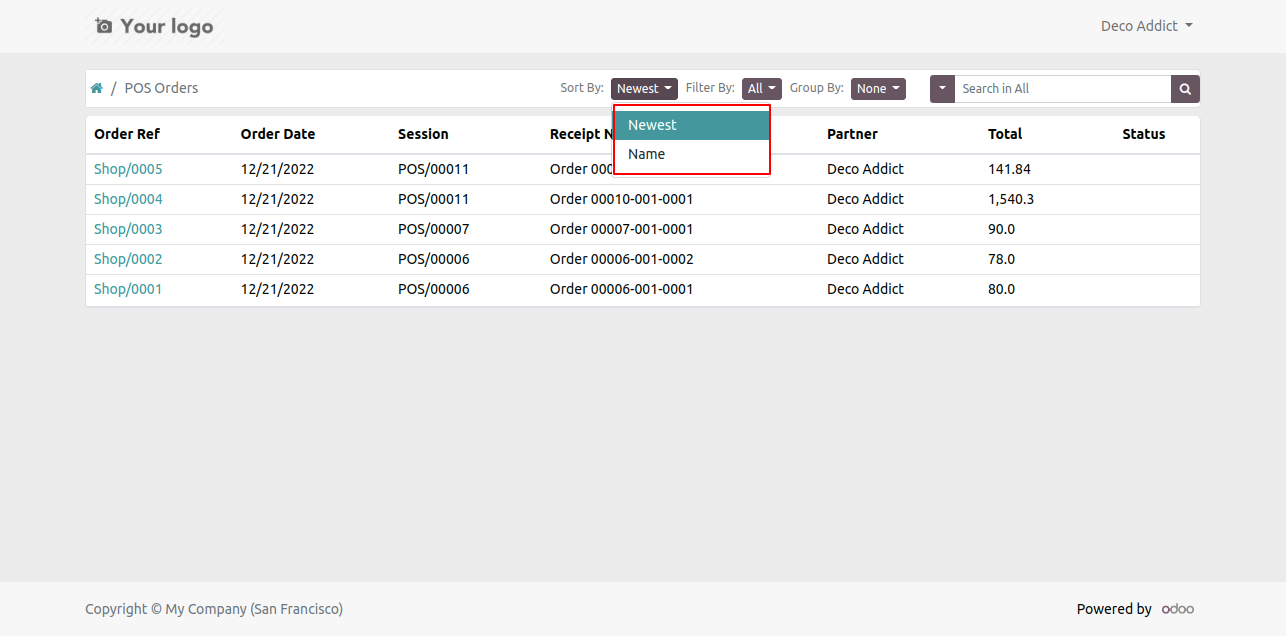
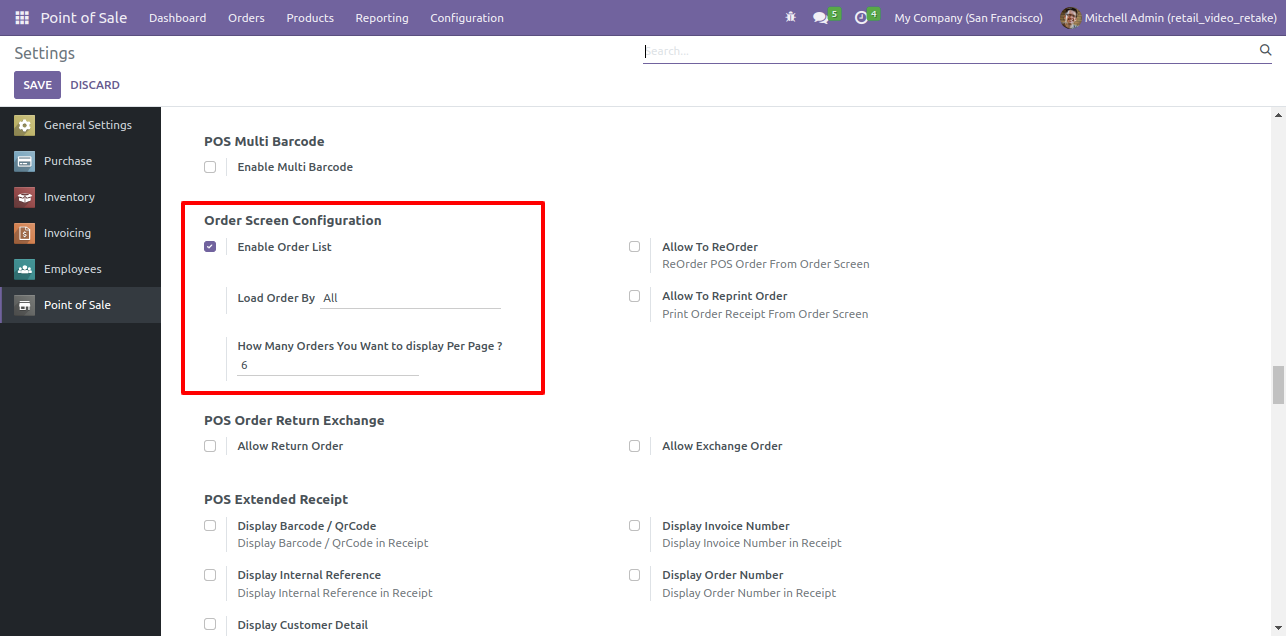
Goto pos setting and enable 'Enable Order List'. After enable that feature, there you can see many options. You can load orders by all, session wise, day wise. Easy to define the number of order in one page.

Enable Order List Configuration Setting


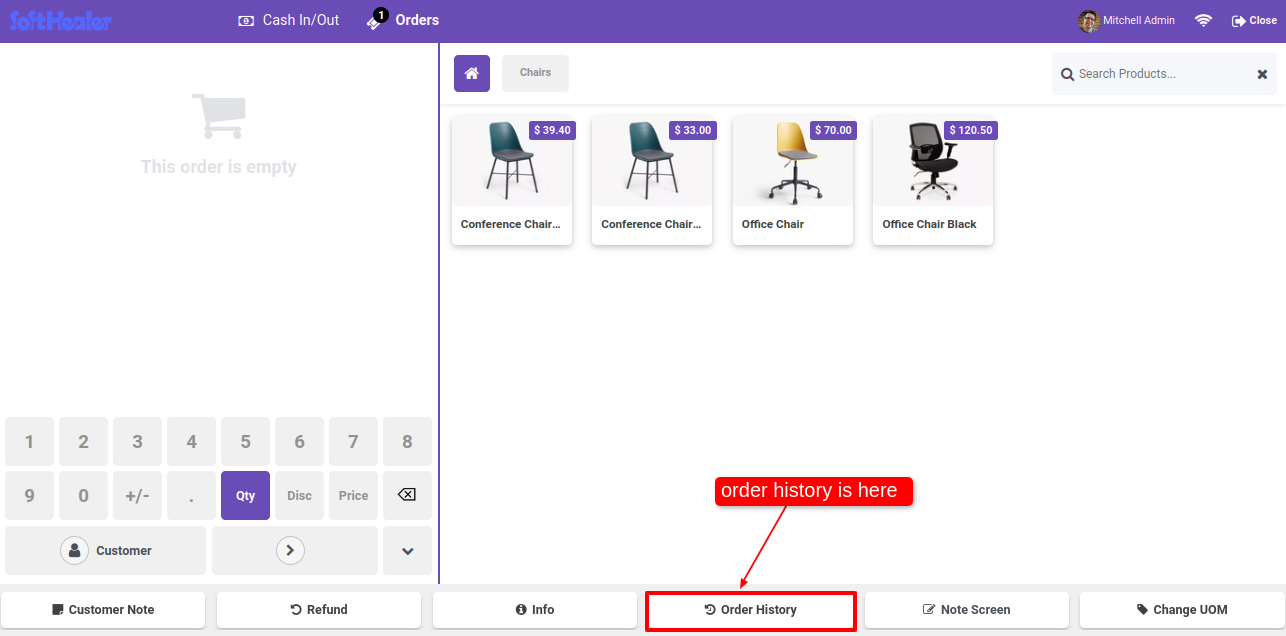
After enabling order list option you can see the 'Order History' button in the pos screen. Using this button you can see the history of the orders. Click on that button.

POS Screen with Order History Button


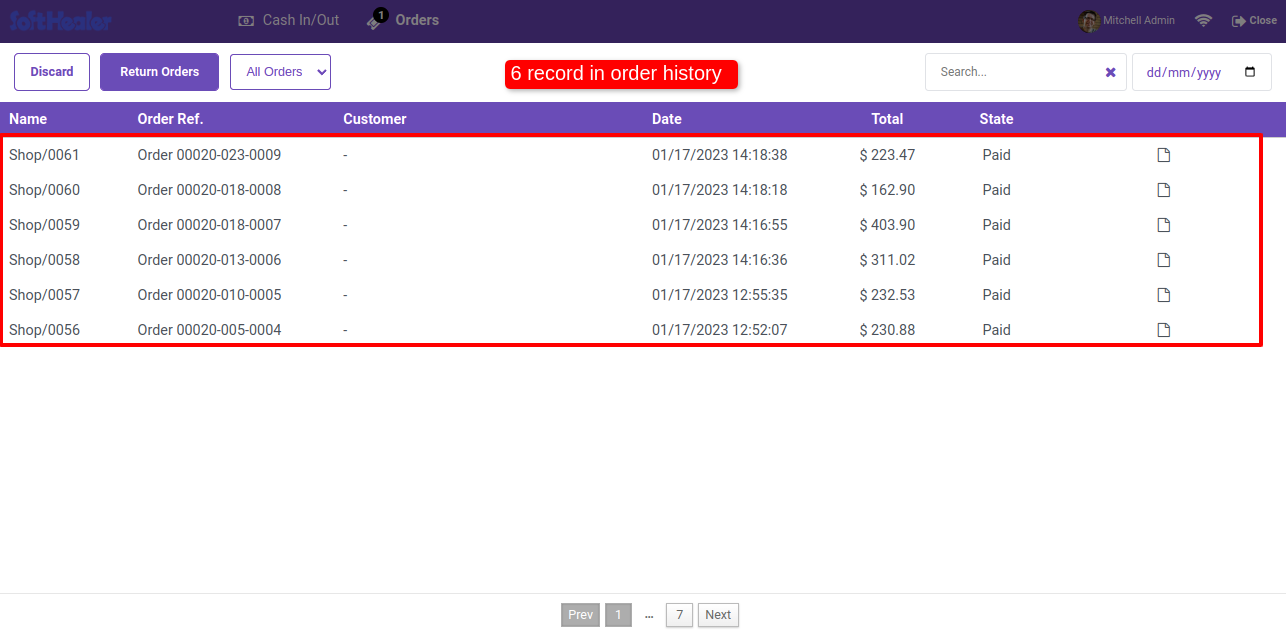
Here, you can see the order history.

Order History List with Records


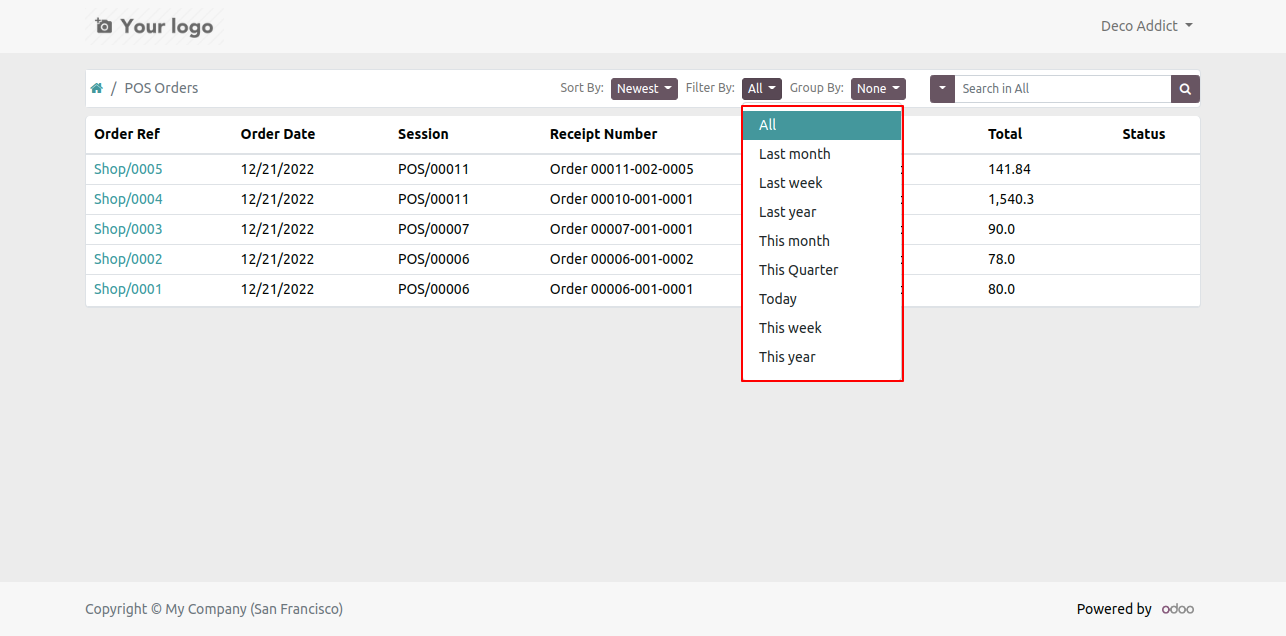
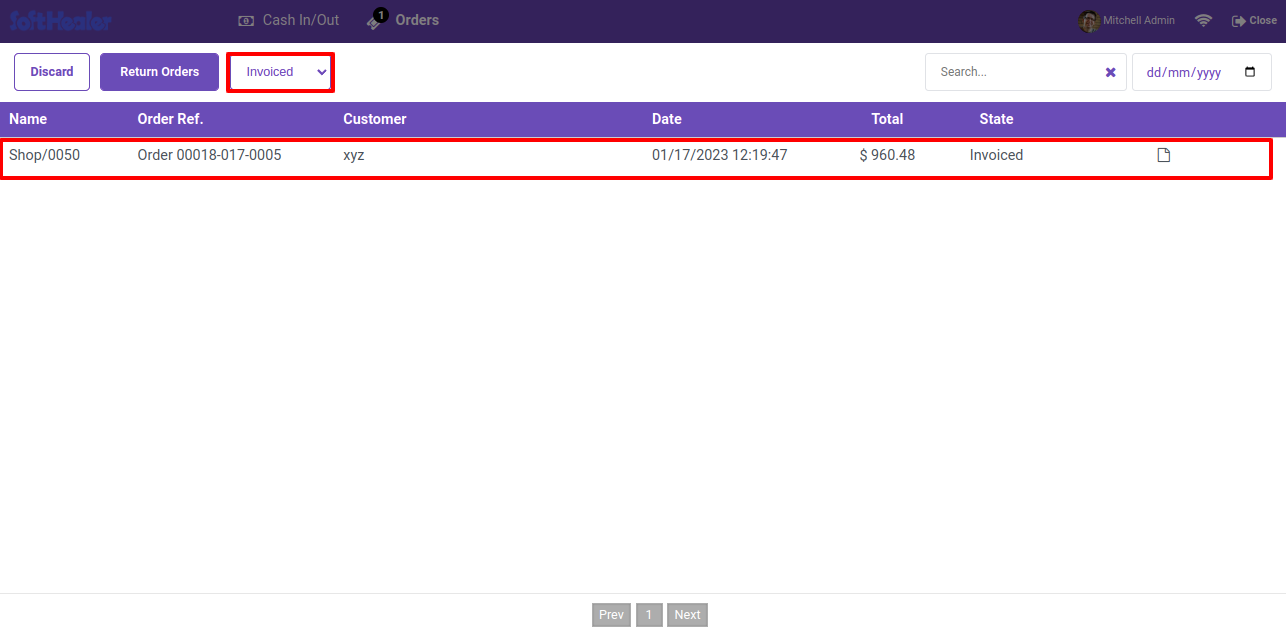
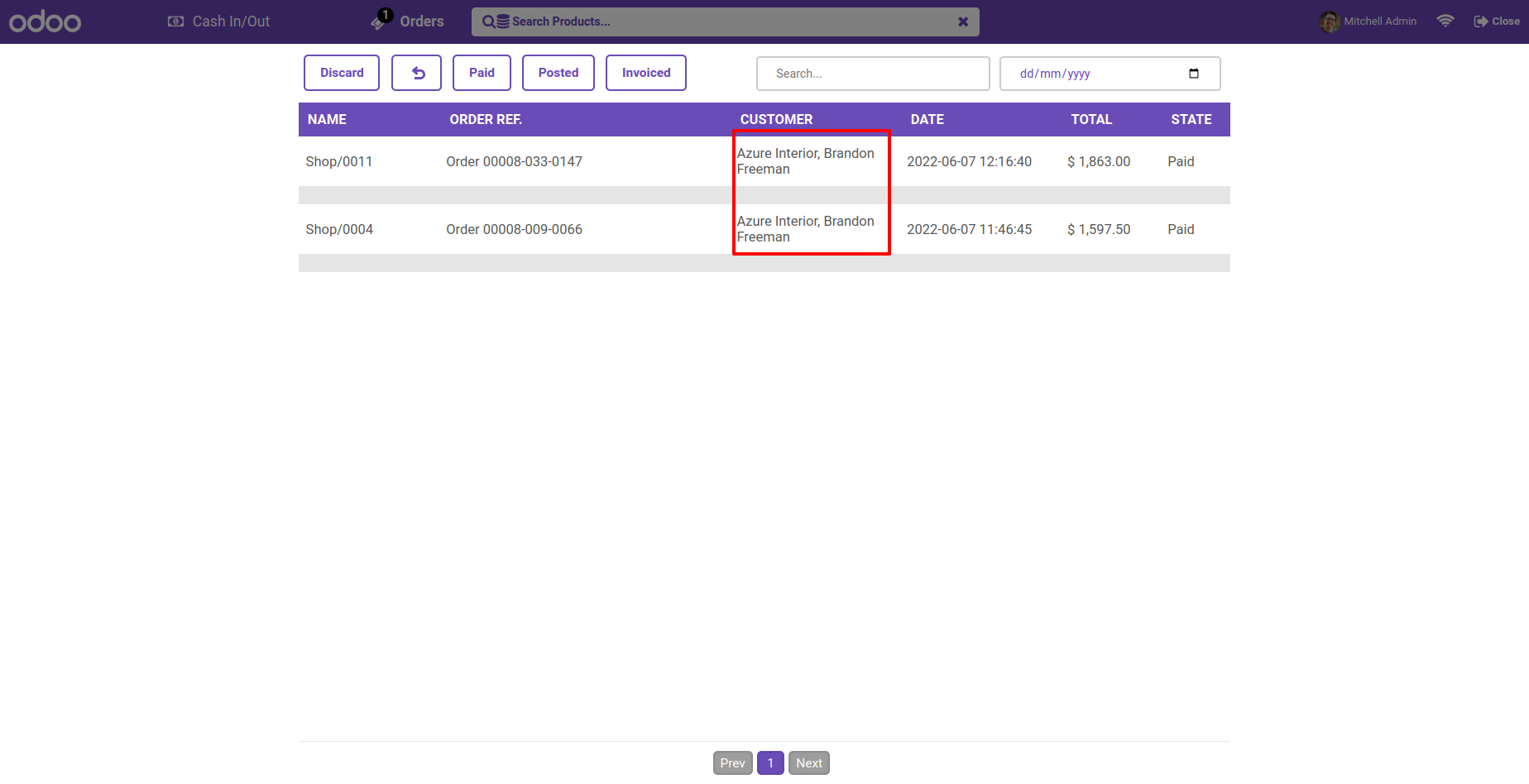
You can filter the order history. Filter the order history list by invoiced.

Order History Filtered by Invoiced


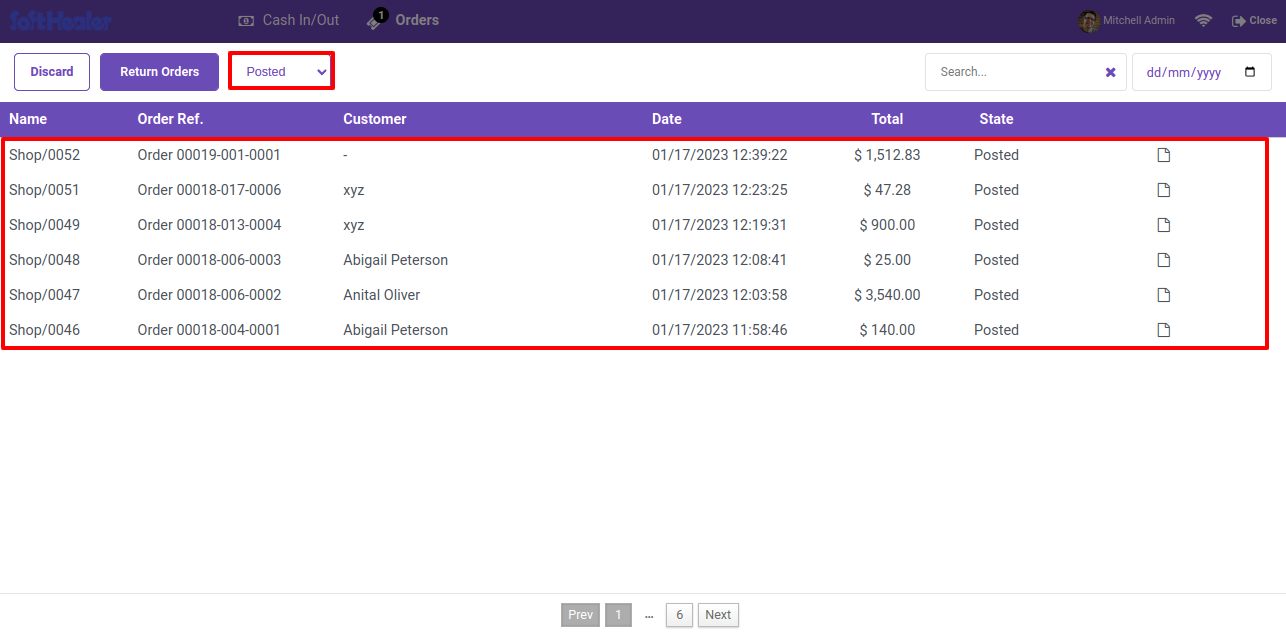
Filter the order history list by posted.

Order History Filtered by Posted

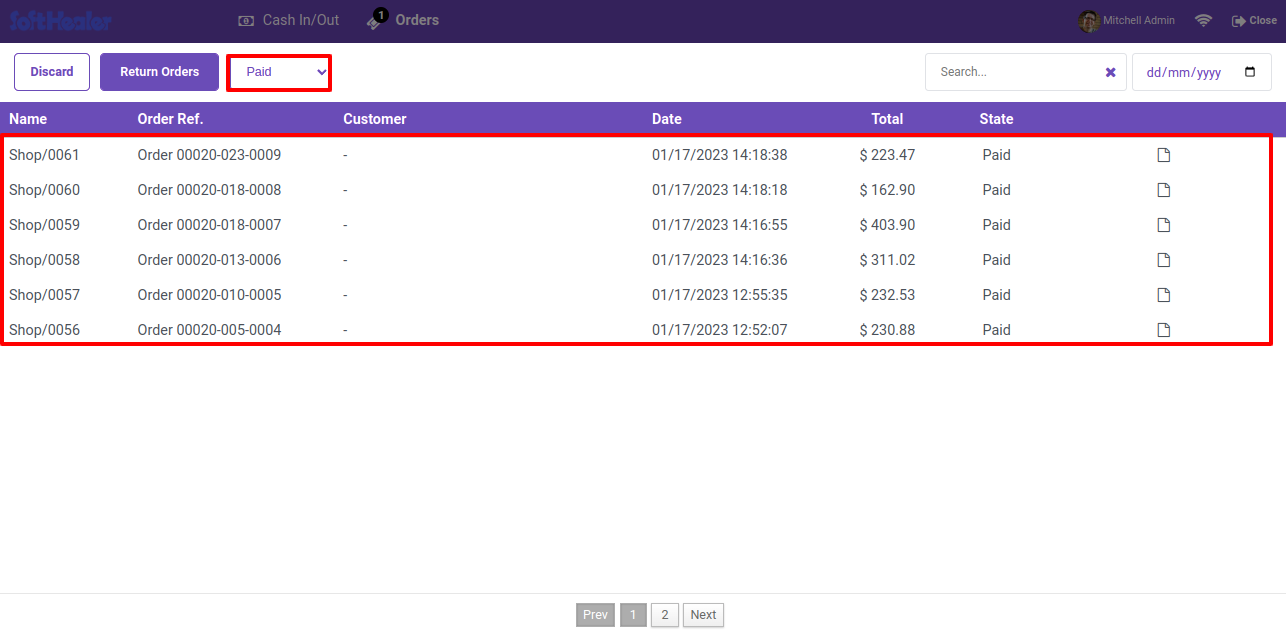
Filter the order history list by paid.

Order History Filtered by Paid


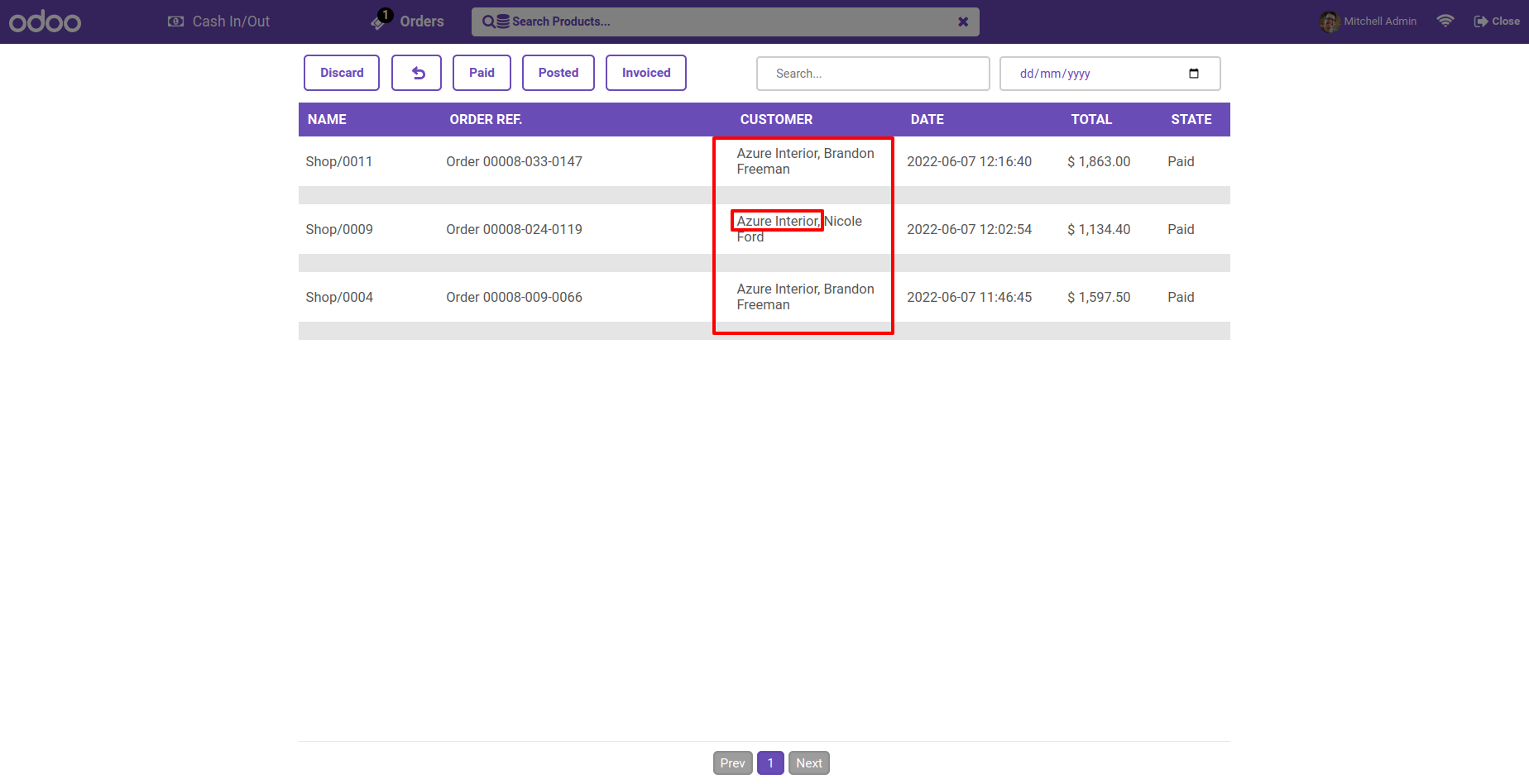
Filter the order history list by all orders.

Order History Filtered by All Orders


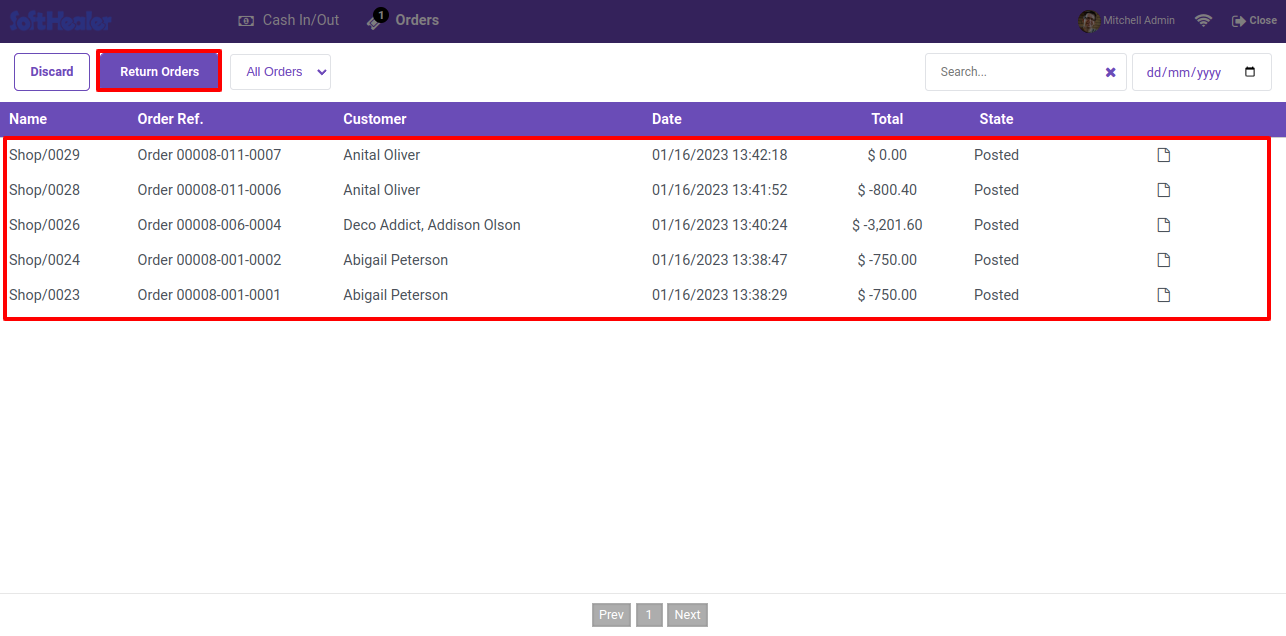
Filter the order history list by return orders.

Order History Filtered by Return Order


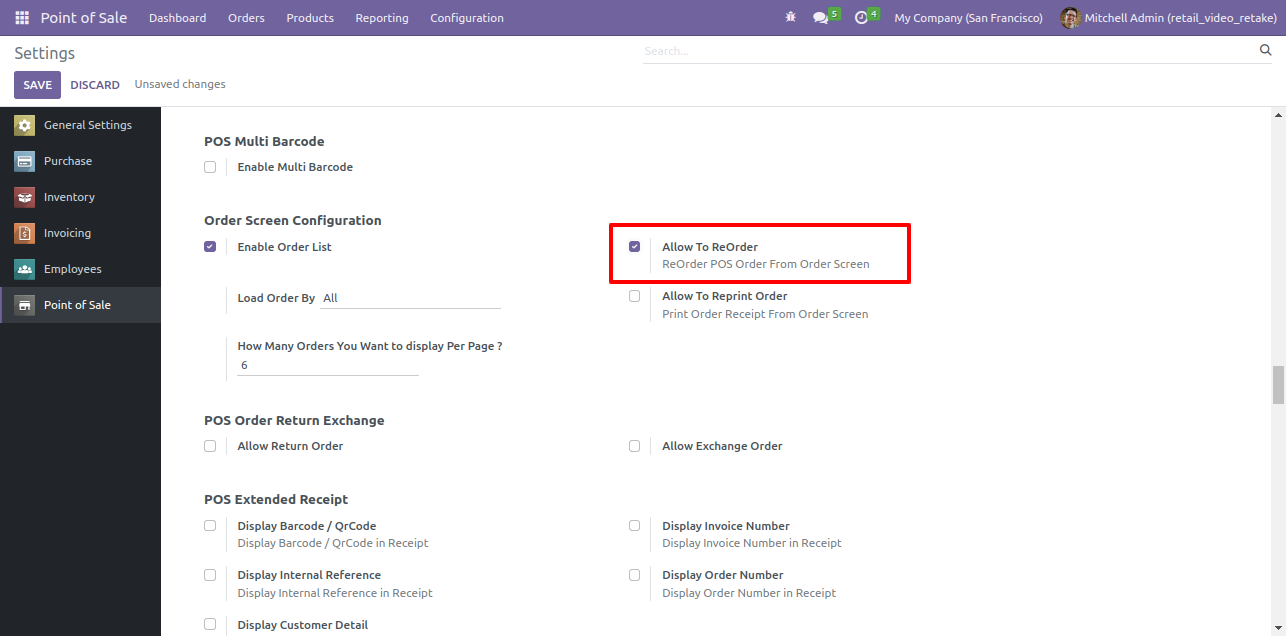
Goto the pos setting and tick the 'Allow To Reorder' feature.

Enable Allow to Reorder Setting

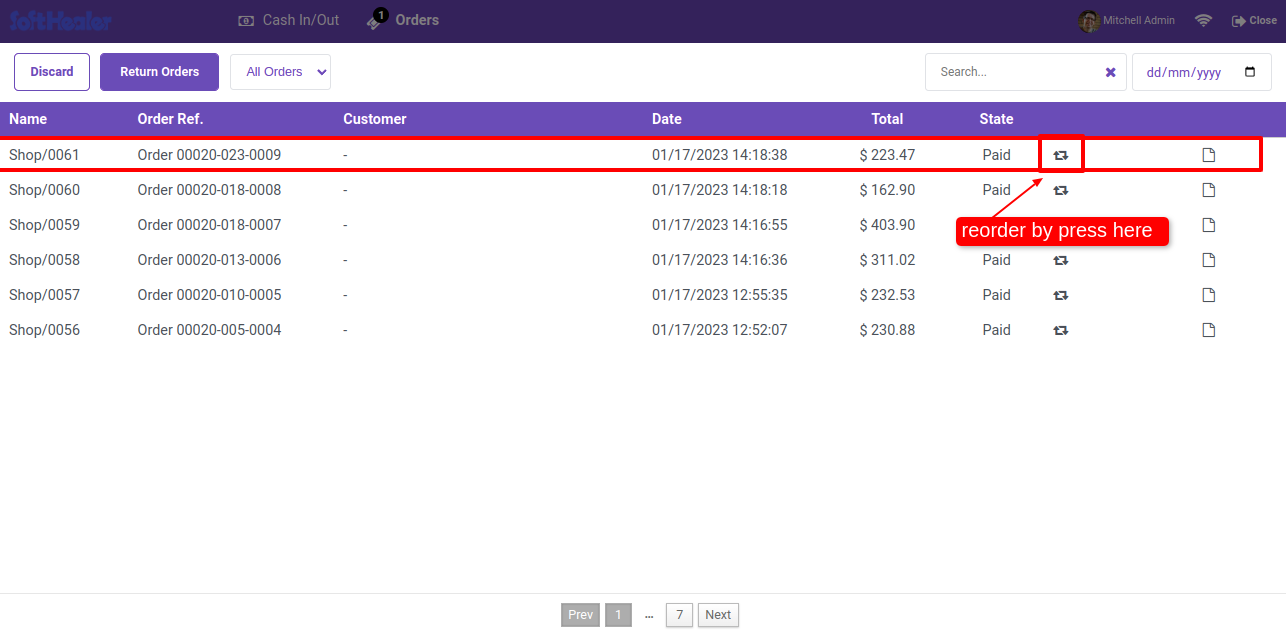
After enabling this feature you can see the reorder button. To reorder, click on the 'Reorder' button.

Order List with Reorder Button


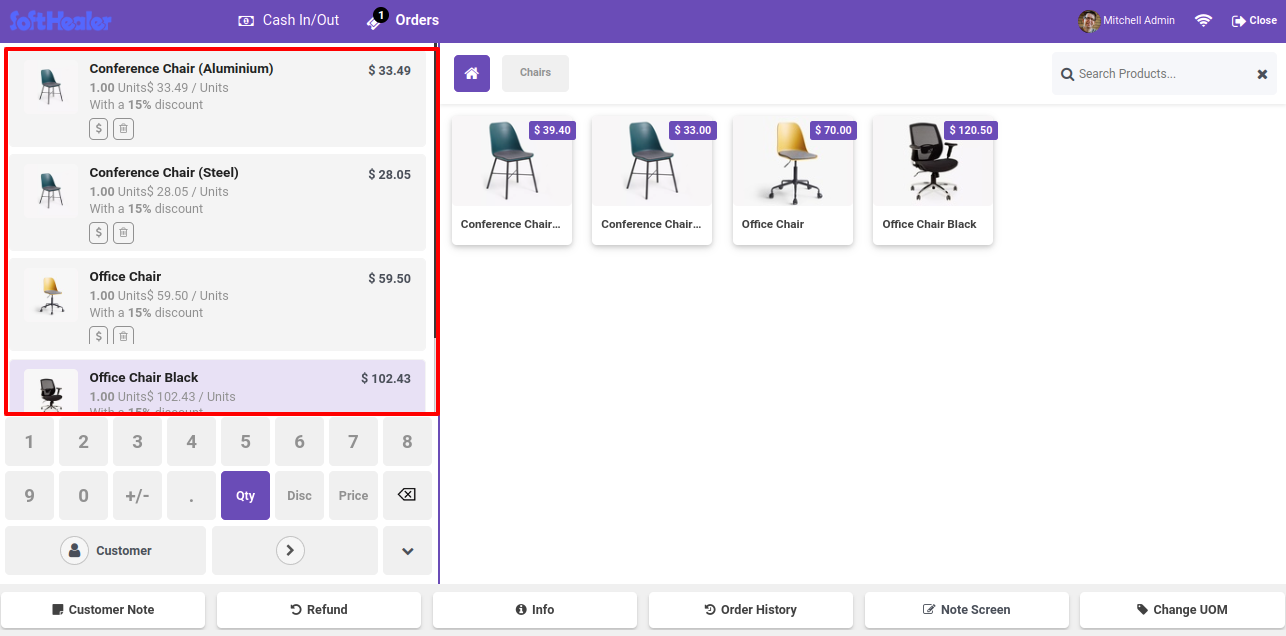
After clicking on this, you will be redirect to the pos screen.
The product that was previously ordered will be automatically selected.

POS Screen with Reordered Products


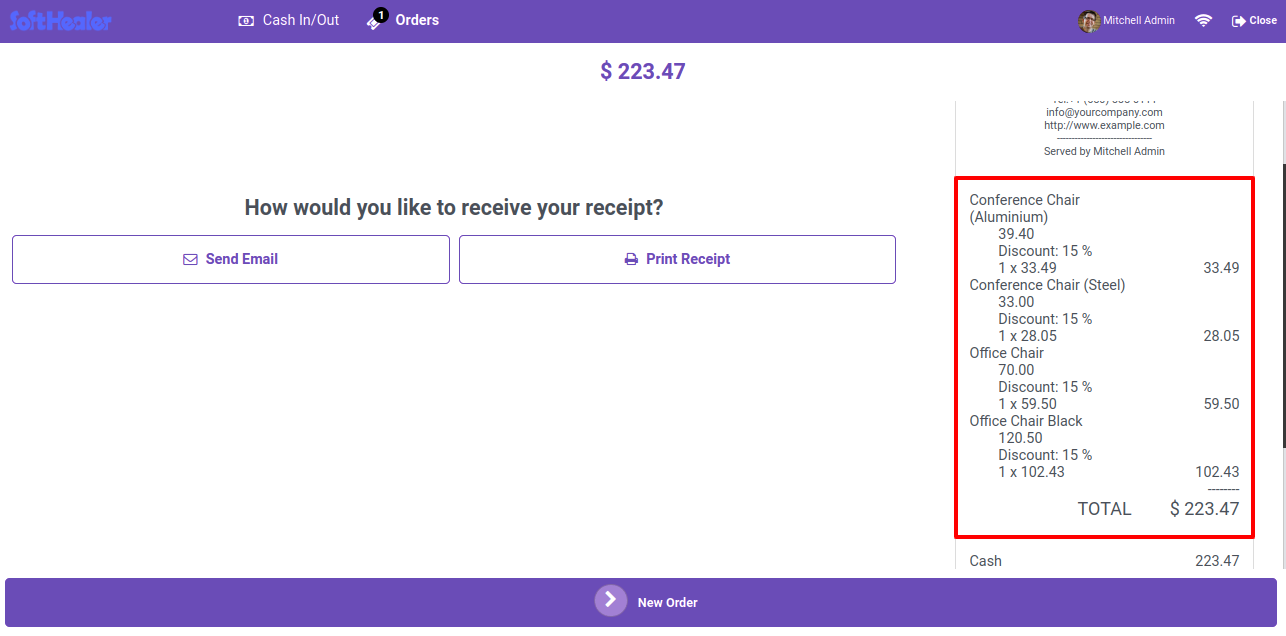
All the product is visible on receipt.

Receipt Showing Reordered Products


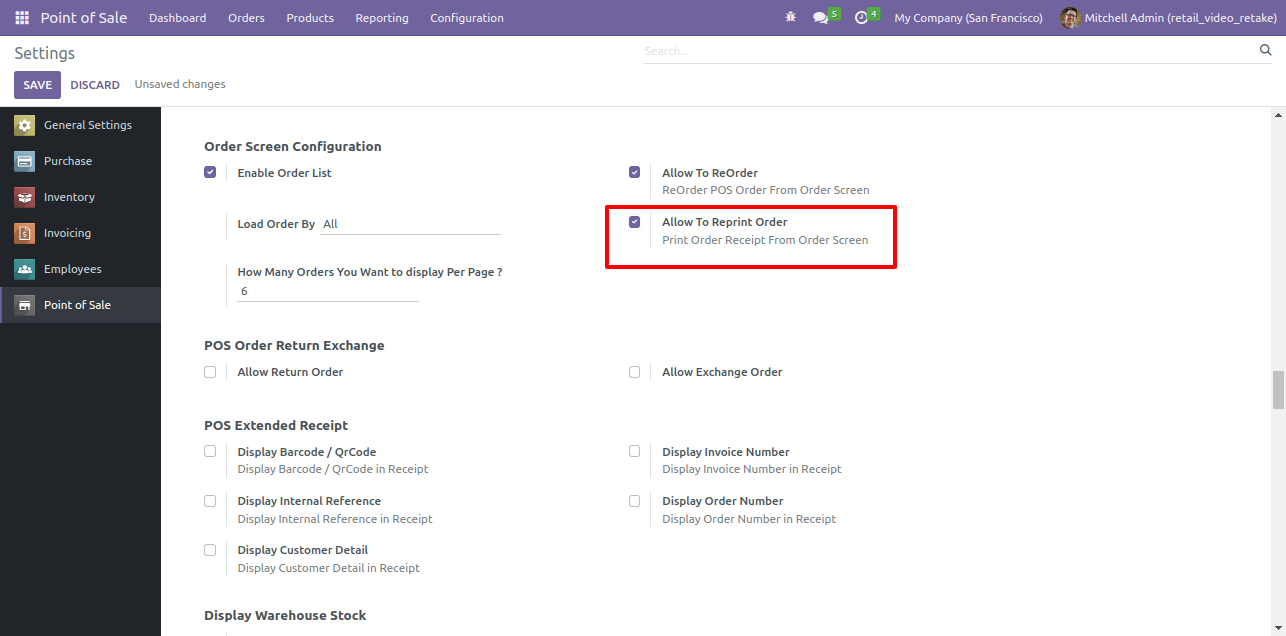
Goto pos setting and enable 'Allow To Reprint Order'.

Receipt Screen with Print Option


All the product is visible on receipt.

Enable Allow to Reprint Order Setting


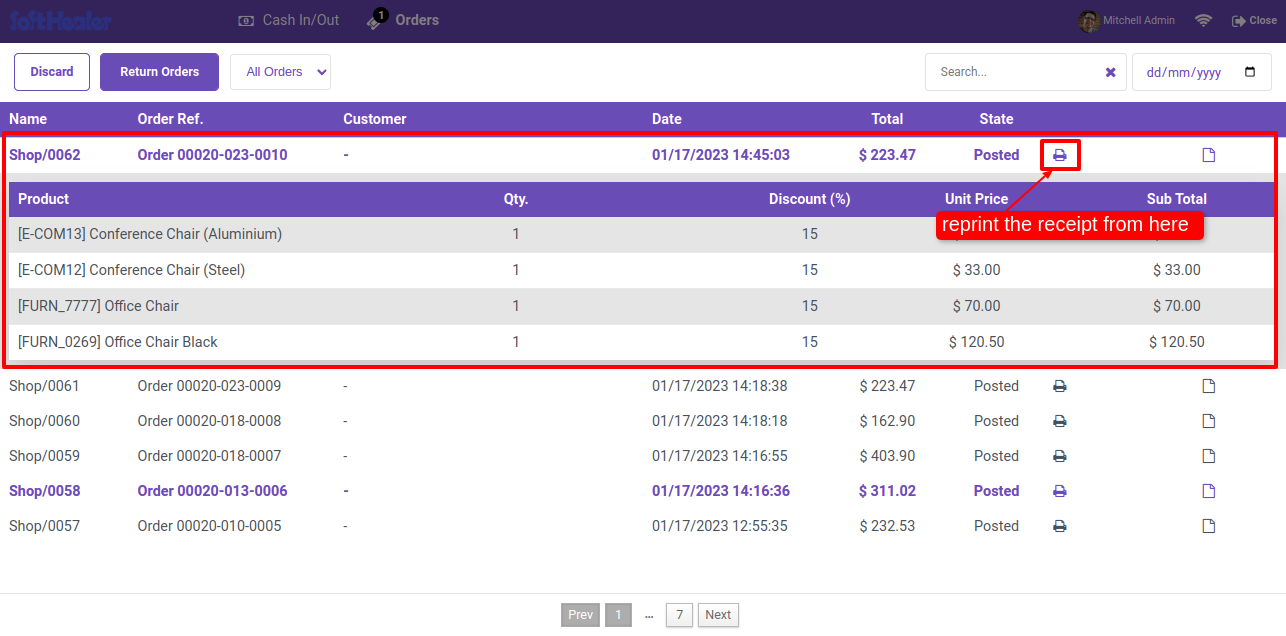
After enabling this feature you can see the reprint button. To reprint the receipt, click on the 'Reprint' button.

Order List with Reprint Receipt Button


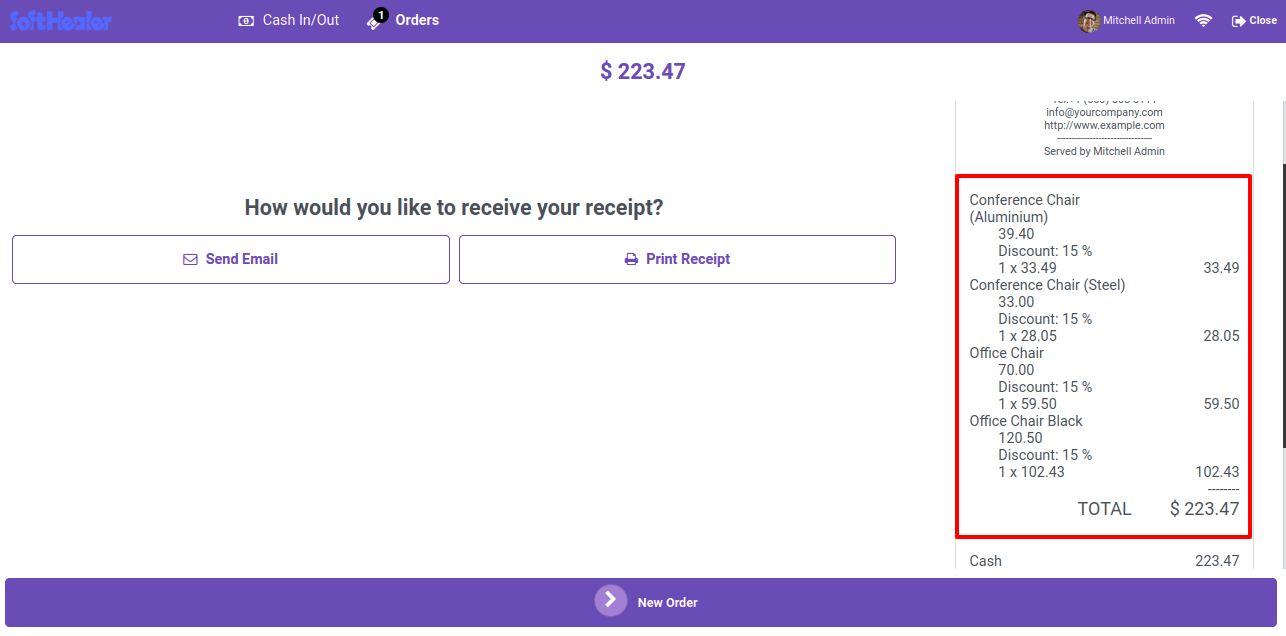
Printed receipt.

Printed Receipt with Order Details

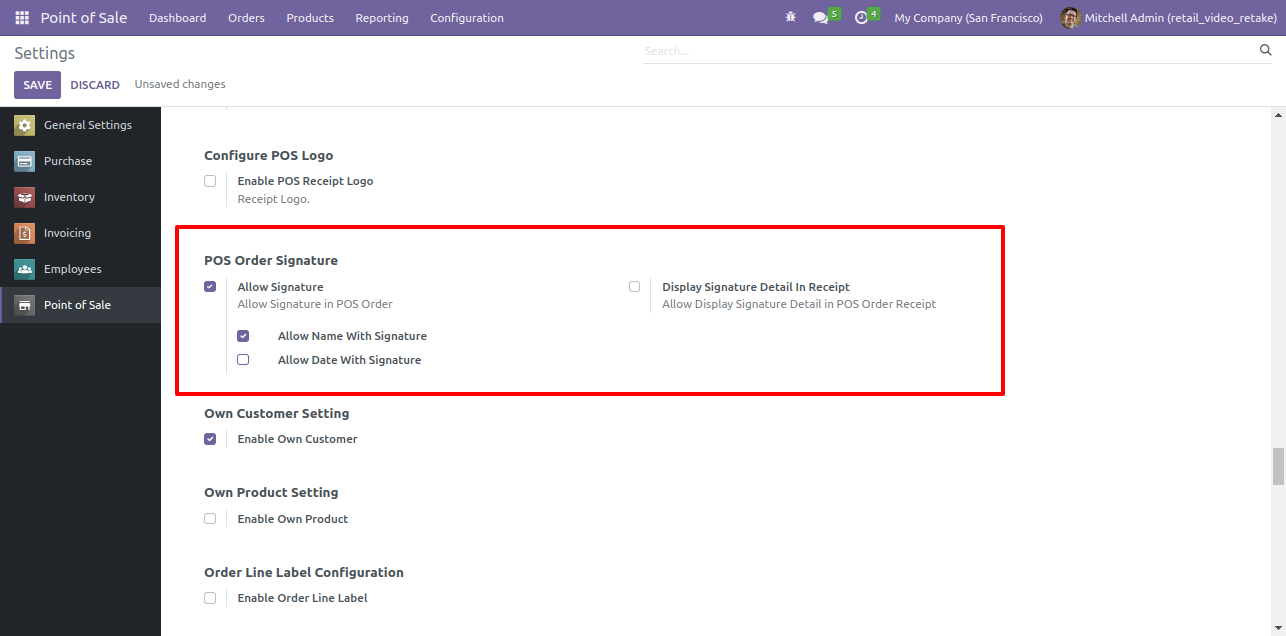
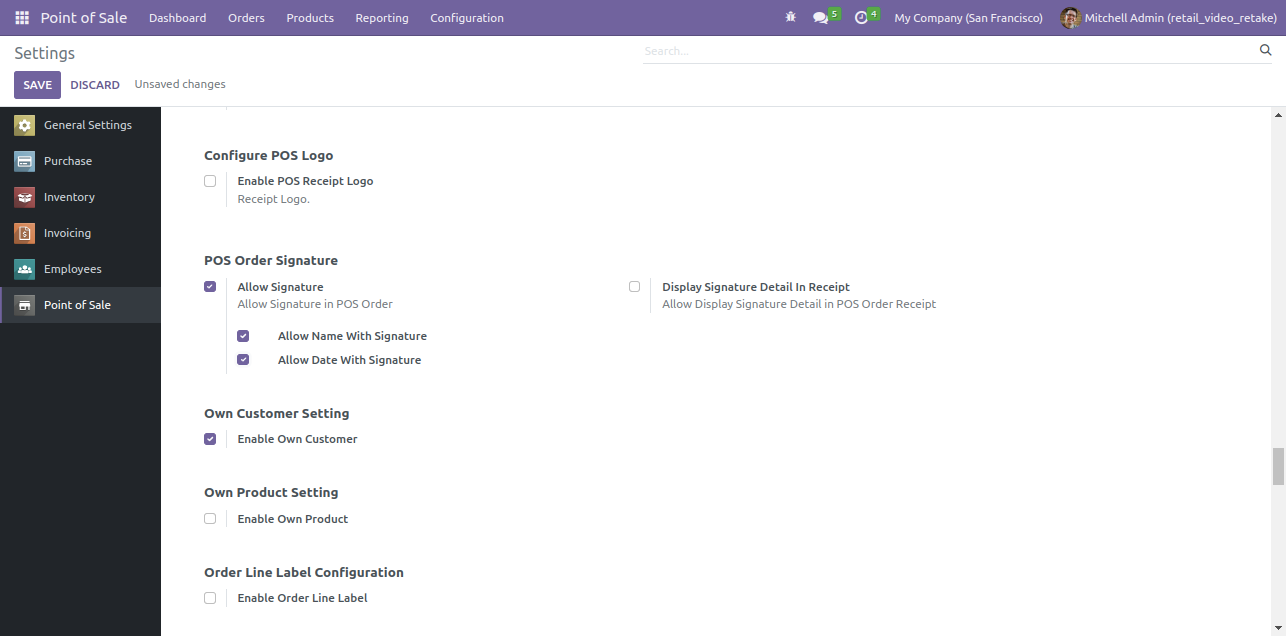
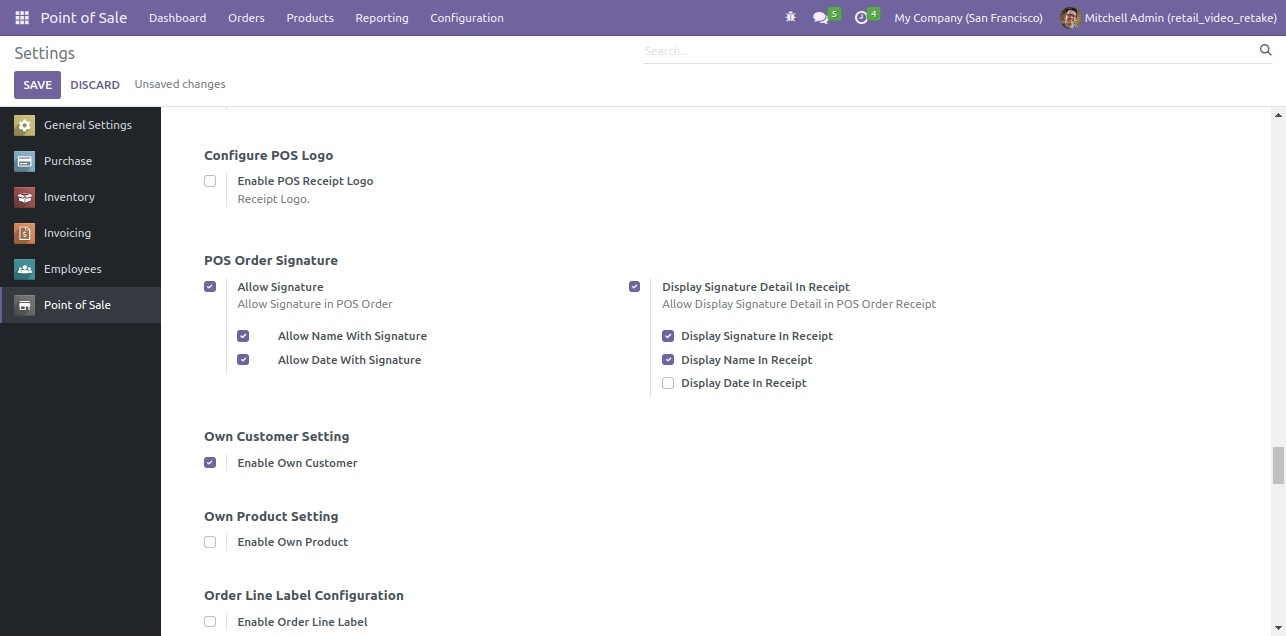
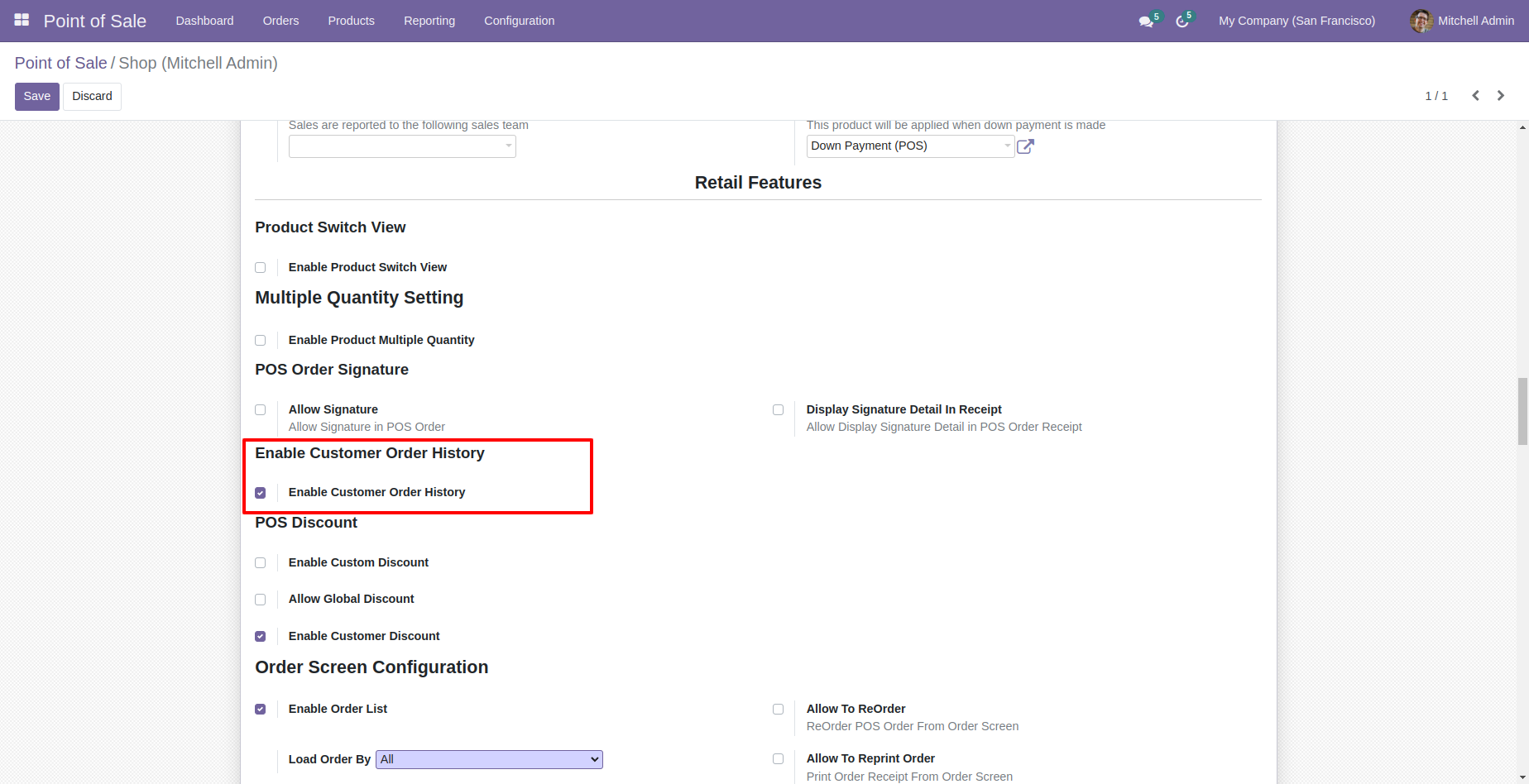
Goto pos setting and enable "Allow Signature" also enable allow name with signature.

Enable Allow Signature Configuration Setting


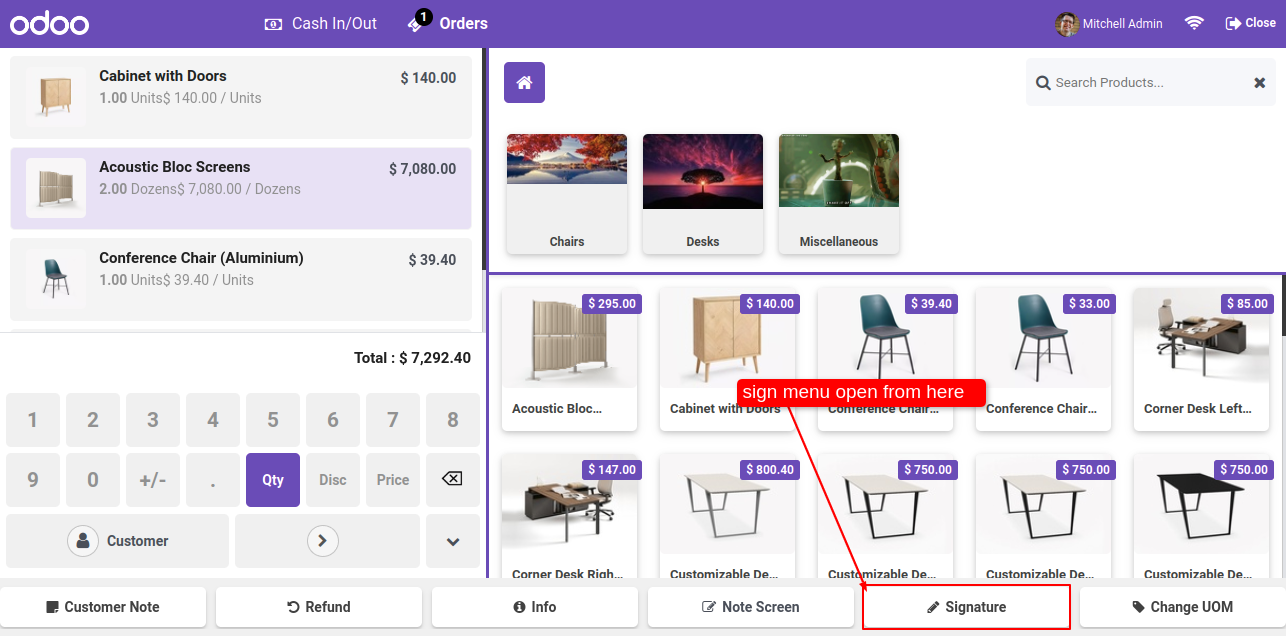
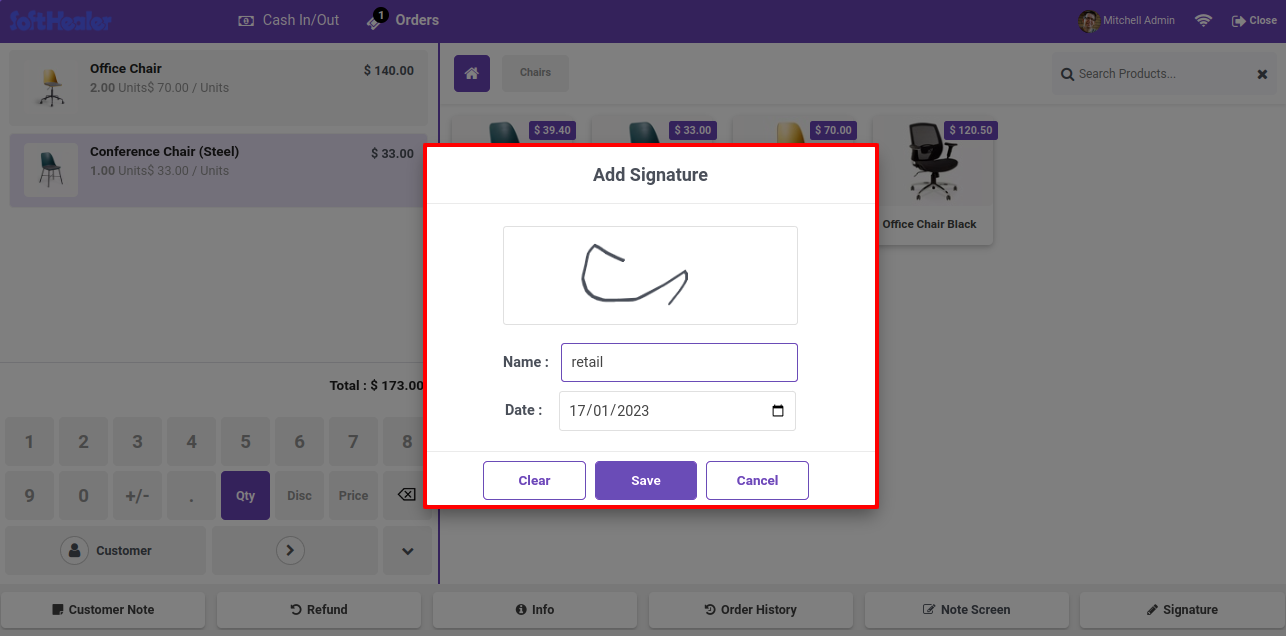
Goto pos screen and click on 'Signature'.

POS Screen with Signature Button


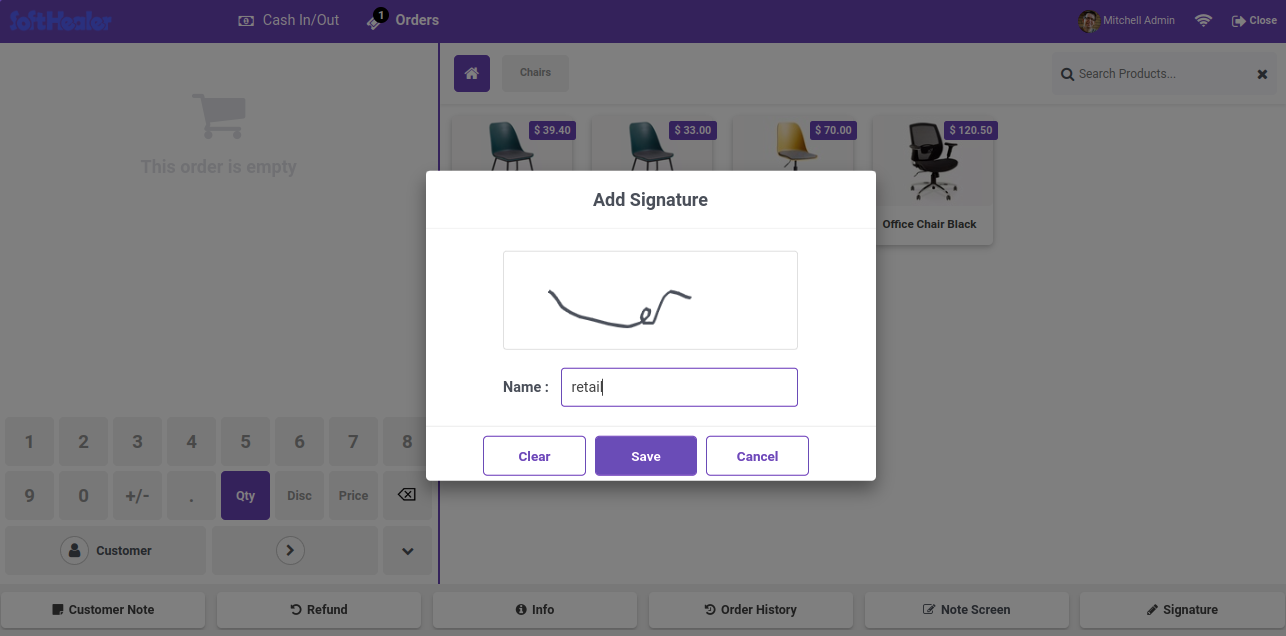
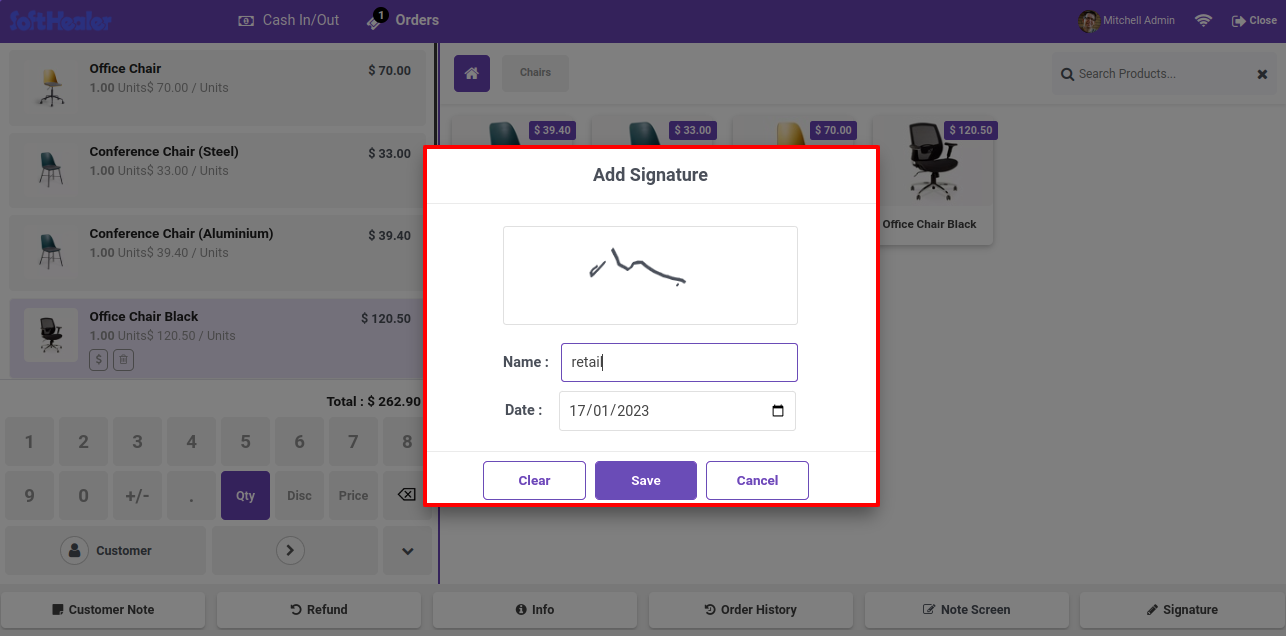
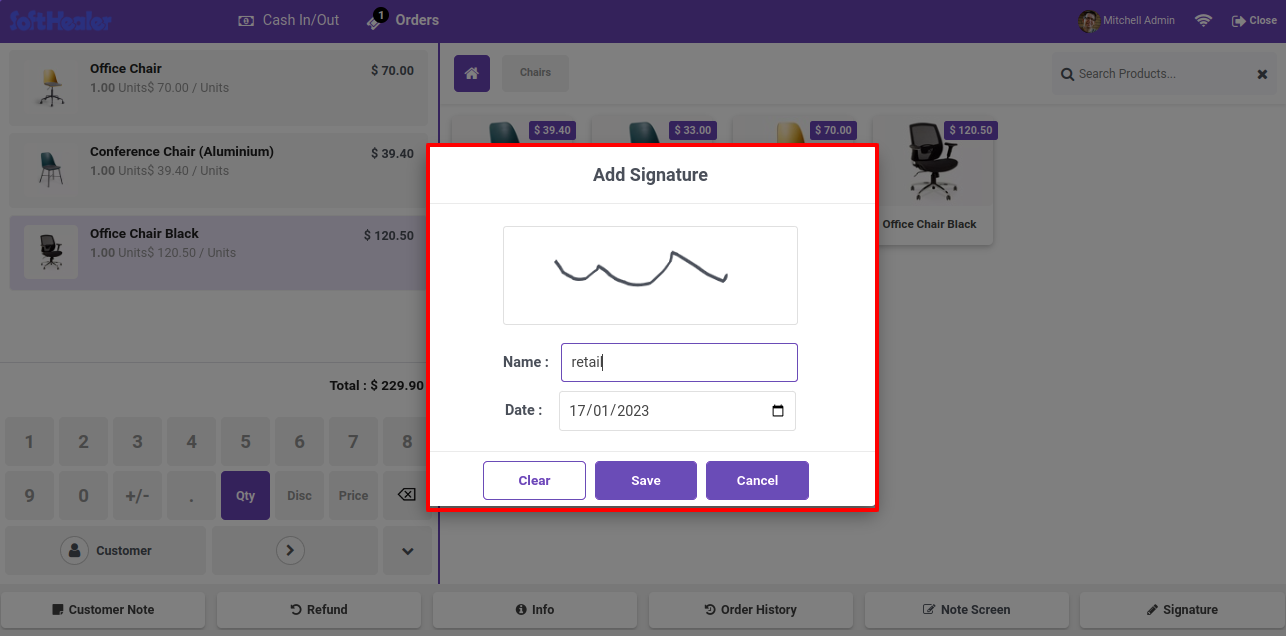
After that this wizard will popout, here draw your signature, add name and click on the Save.

Add Signature Popup with Name Field

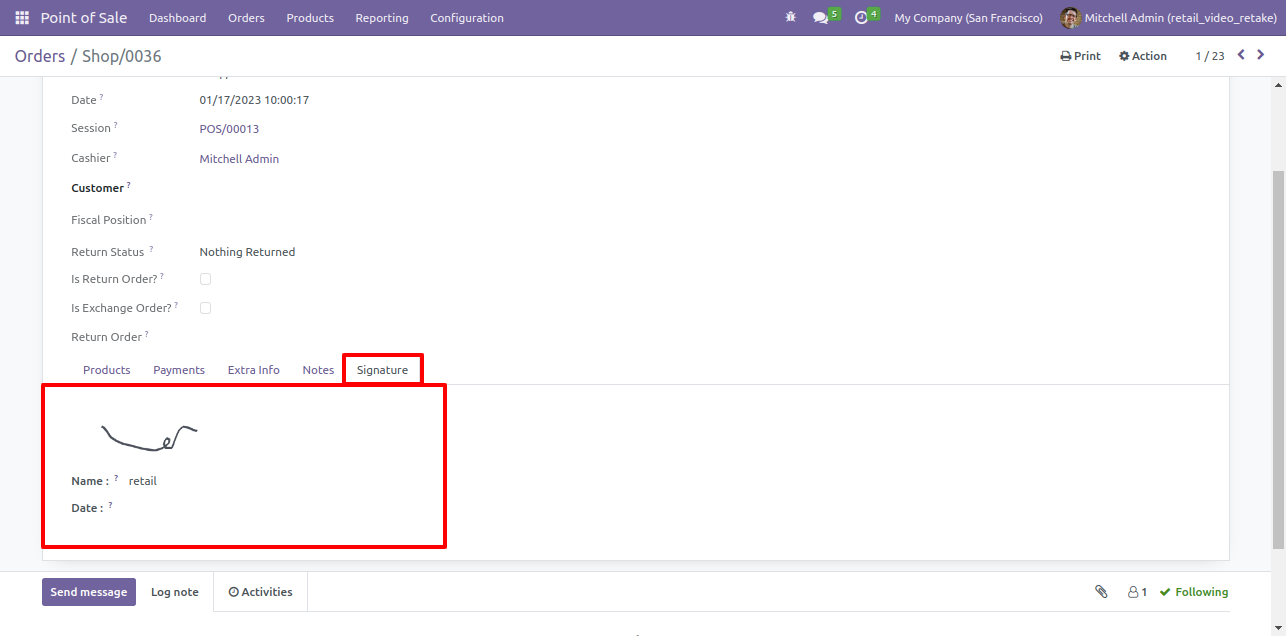
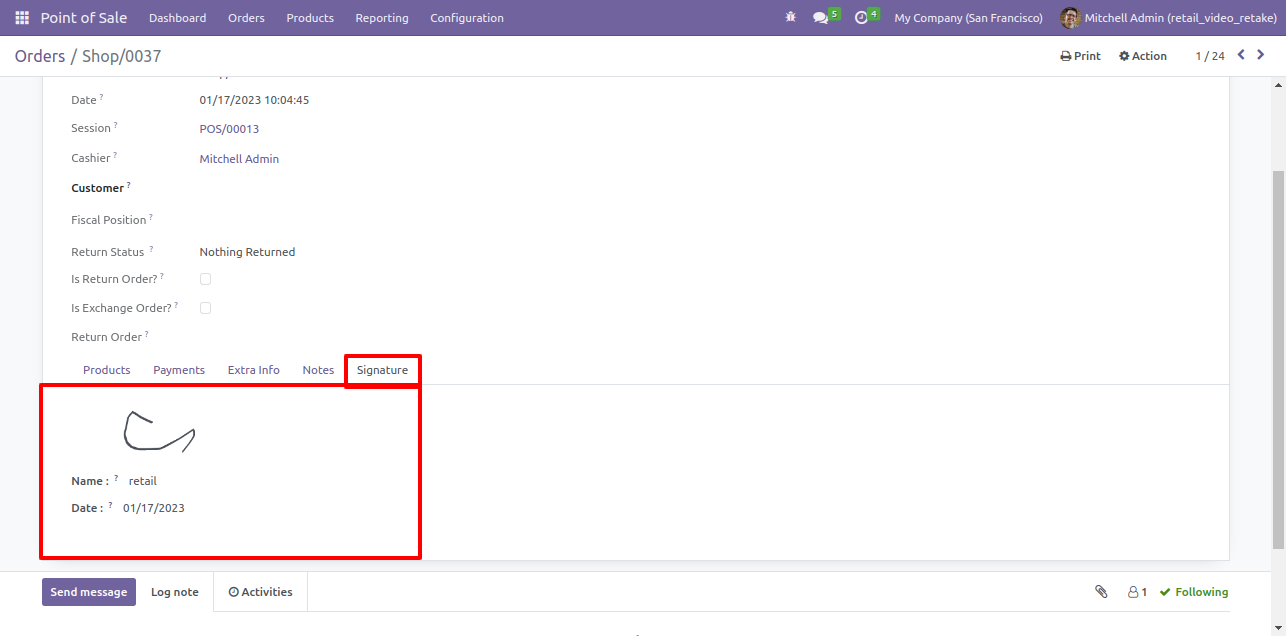
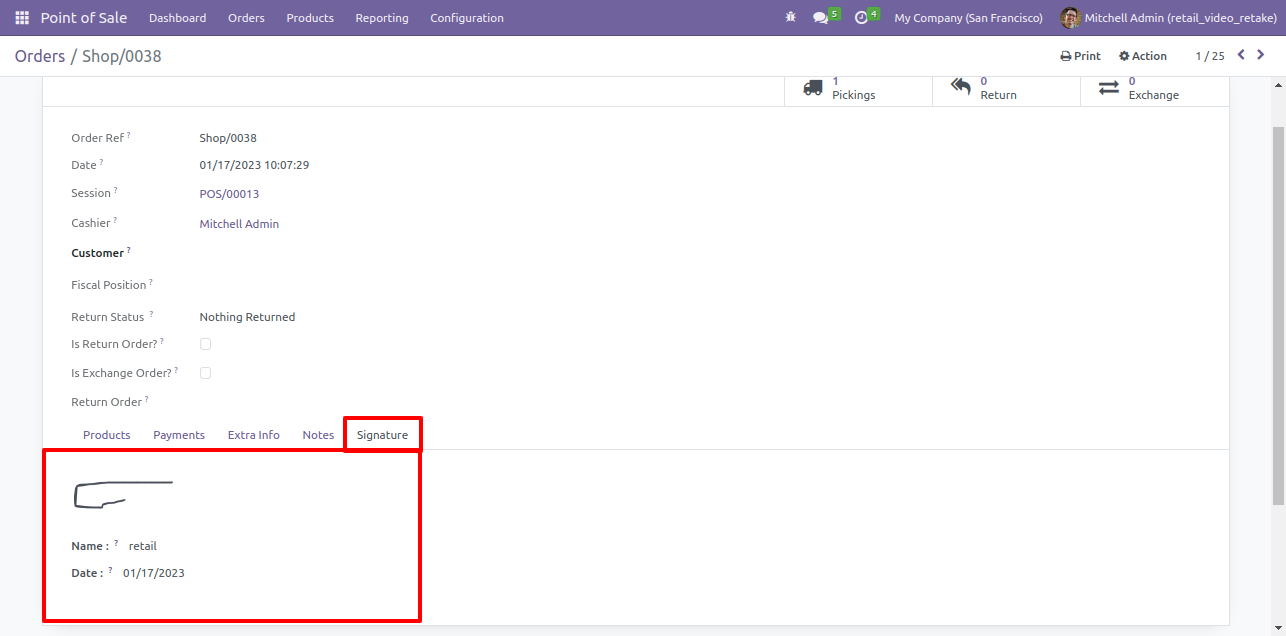
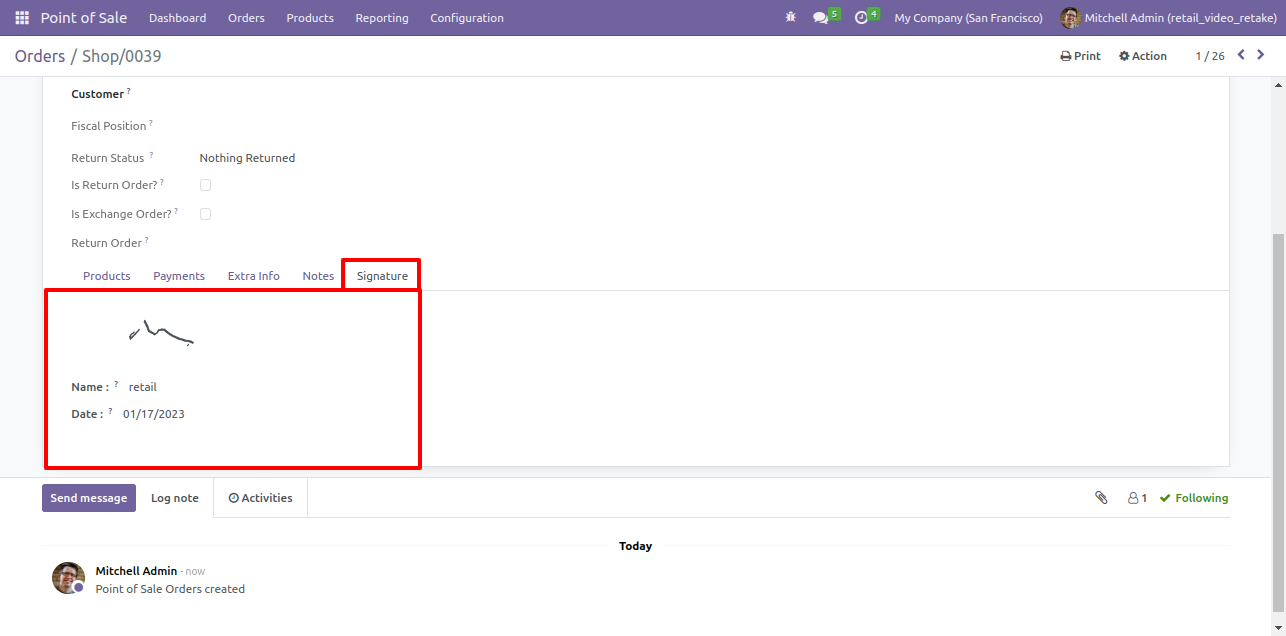
Signature will display on pos order form view with name.

Order Form with Signature and Name


Goto pos setting and also enable allow date with signature.

Enable Date with Signature Setting


Goto pos screen and click on 'Signature'.

POS Screen with Signature Button

After that this wizard will popout, here draw your signature, add name and date and click on the Save.

Add Signature Popup with Name and Date


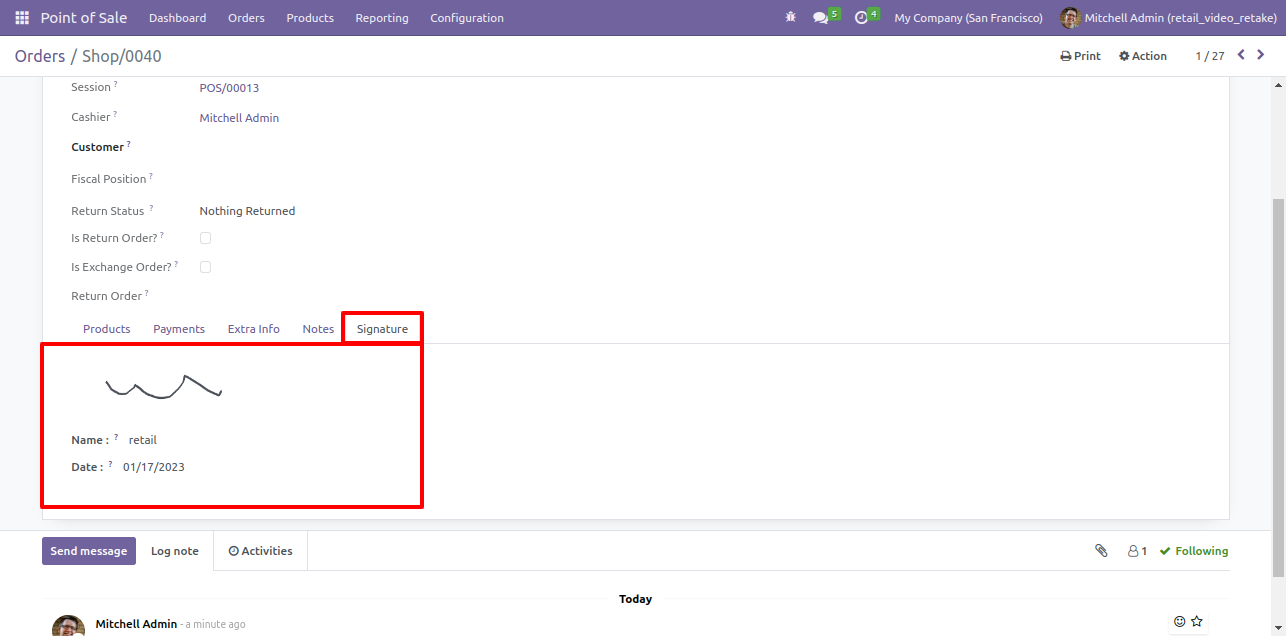
Signature will display on pos order form view with name and date.

Order Form with Signature and Date


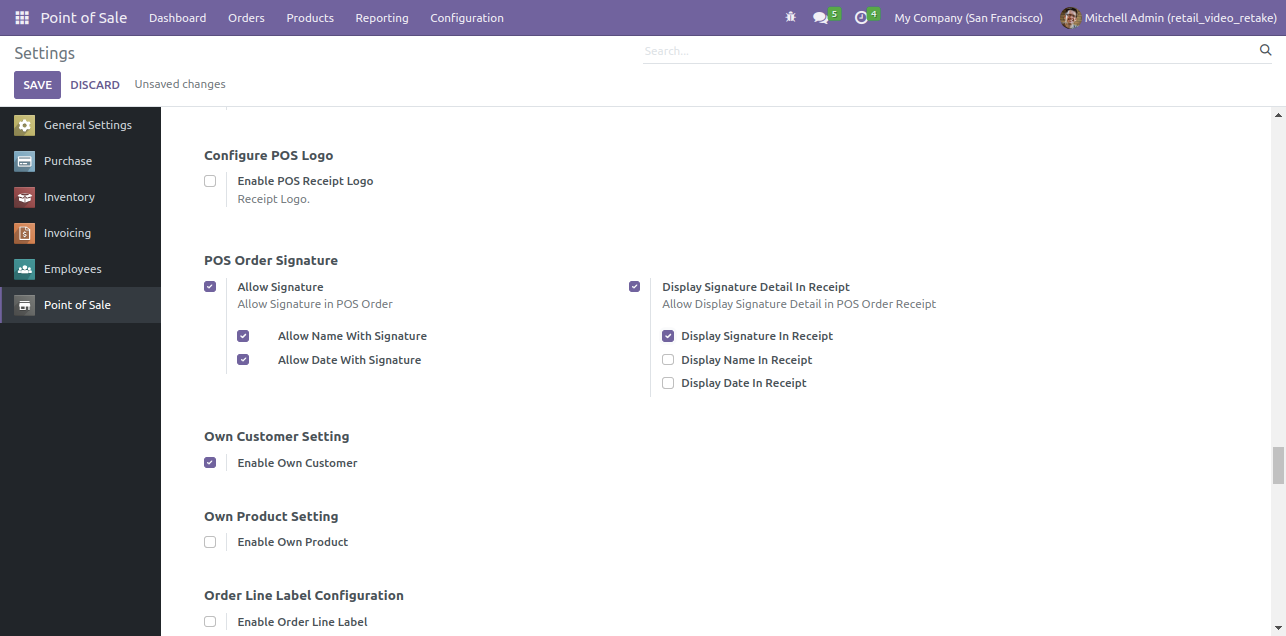
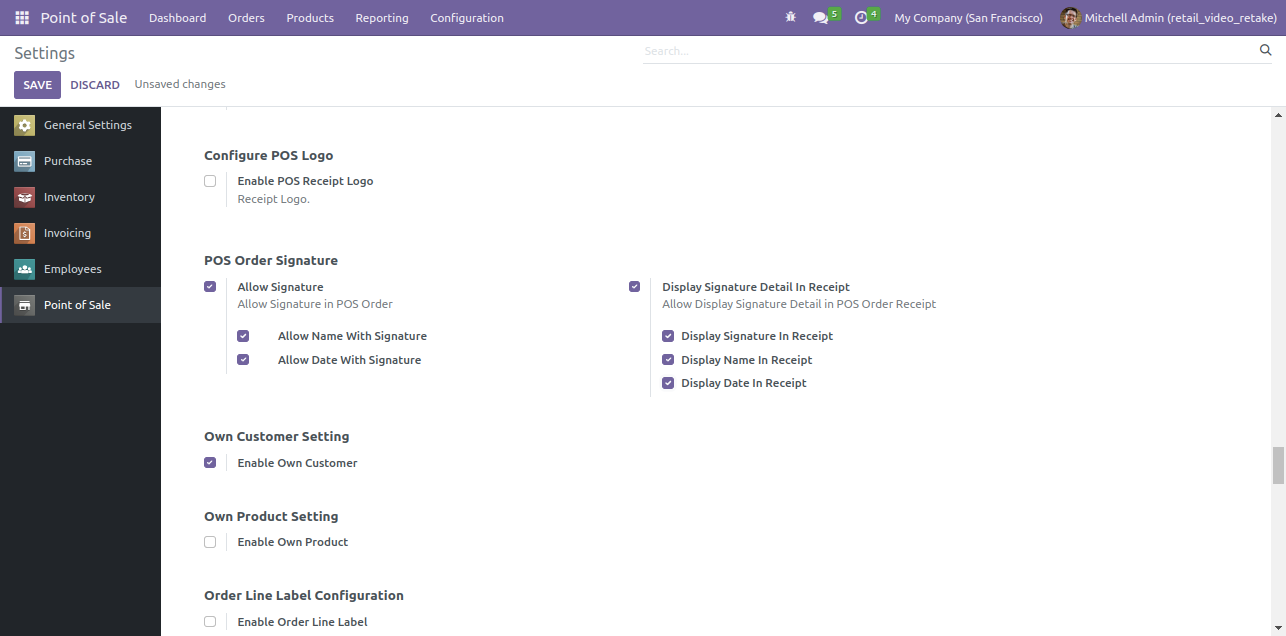
Goto pos setting and enable "Display Signature Details In Receipt" also enable display signature in receipt.

Enable Signature Details in Receipt Setting


Goto pos screen and click on 'Signature'.

POS Screen with Signature Button

Goto pos setting and enable "Allow POS Signature" also enable appropriate options.

Add Signature Popup with Options


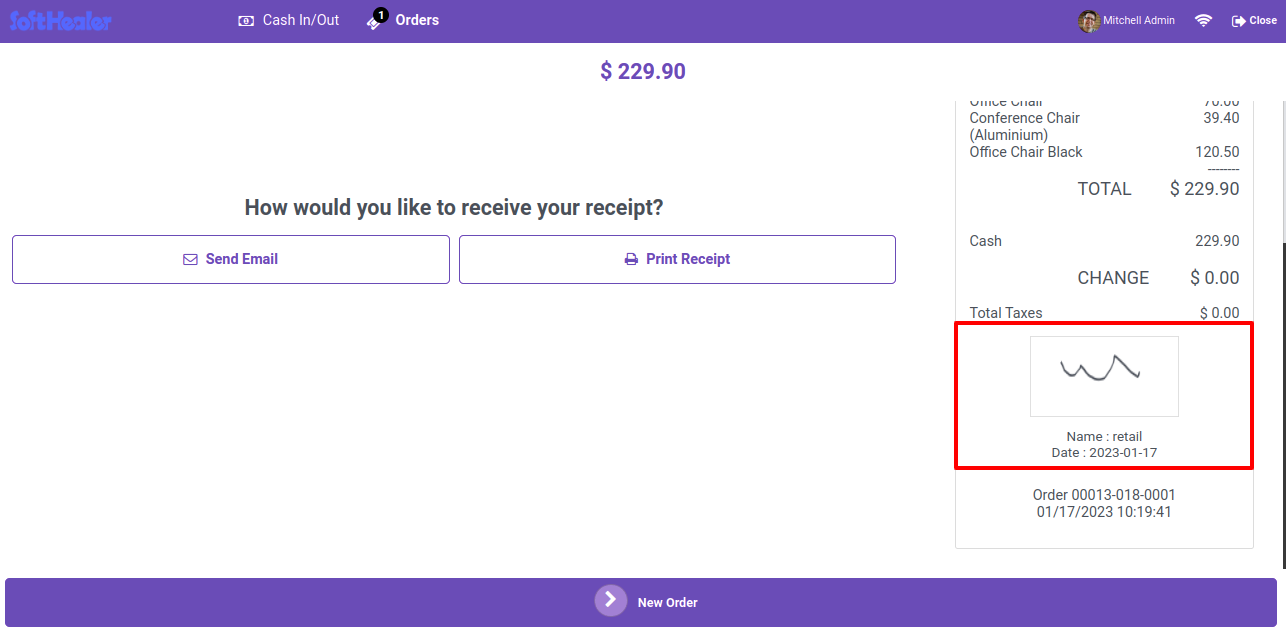
Signature will display on pos receipt.

Receipt with Signature Displayed


Signature will display on pos order form view with name.

Order Form with Signature and Name

Goto pos setting and enable "Display Signature Details In Receipt" also enable display name in receipt.

Enable Display Signature Details Setting


Goto pos screen and click on 'Signature'.

POS Screen with Signature Button


After that this wizard will popout, here draw your signature, add name and date and click on the Save.

Add Signature Popup with Name and Date


Signature will display on pos receipt with name.

Receipt with Signature and Name


Signature will display on pos receipt with name and date.

Order Form with Signature and Date


Goto pos setting and enable "Display Signature Details In Receipt" also enable display date in receipt.

Enable Display Date in Receipt Setting


After that this wizard will popout, here draw your signature, add name and date and click on the Save.

Add Signature Popup with Name and Date


Signature will display on pos receipt with name & date.

Receipt with Signature Name and Date


Signature will display on pos receipt with name and date.

Order Form with Signature Name and Date

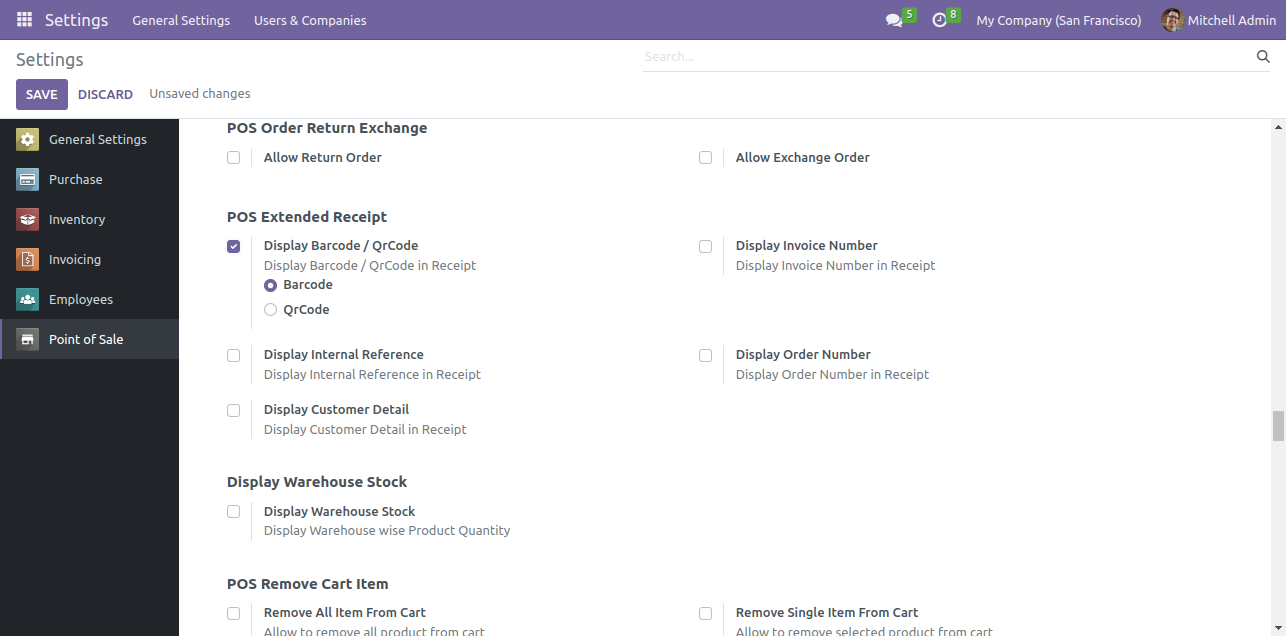
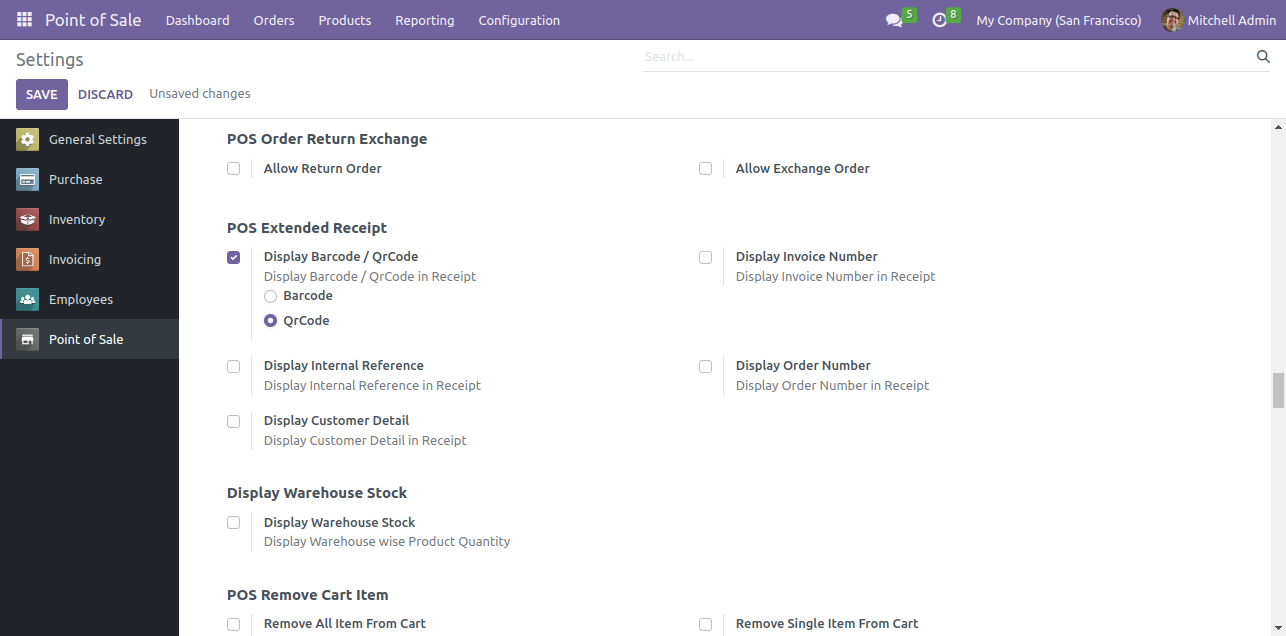
Goto pos setting and enable display barcode/QRcode option. here you have several options like display barcode, QR code on receipt. Select barcode option.

Enable Display Barcode option


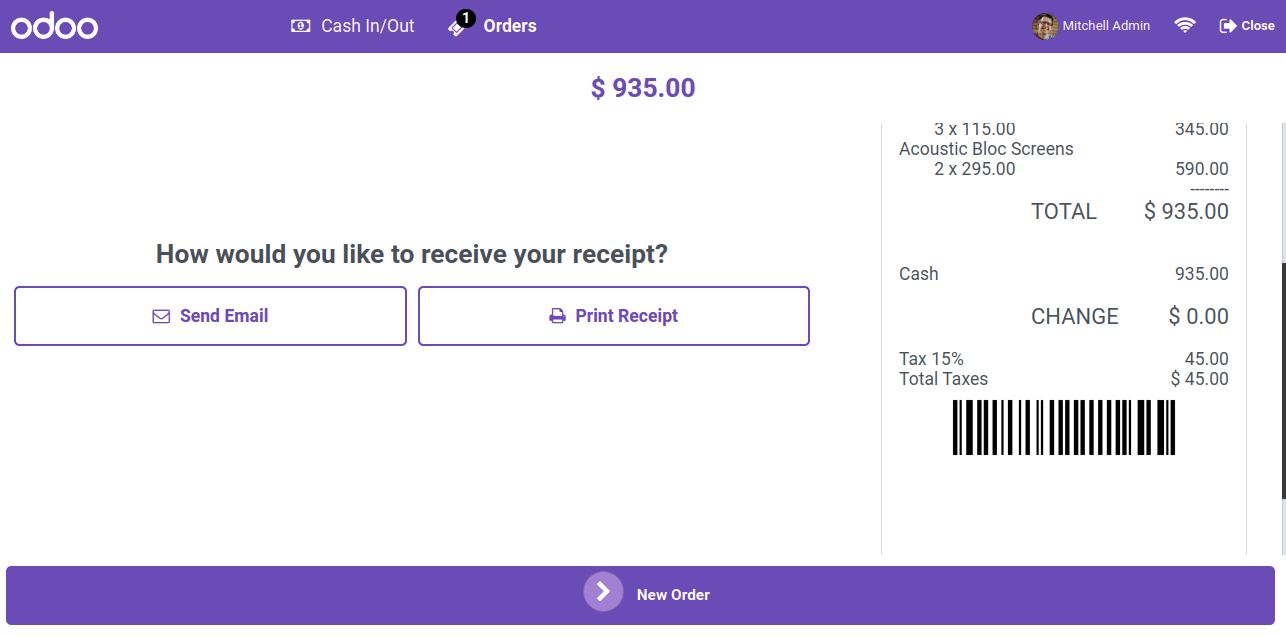
The barcode will be displayed on the receipt.

Barcode shown on receipt

Select QRcode option.

Select QR Code option


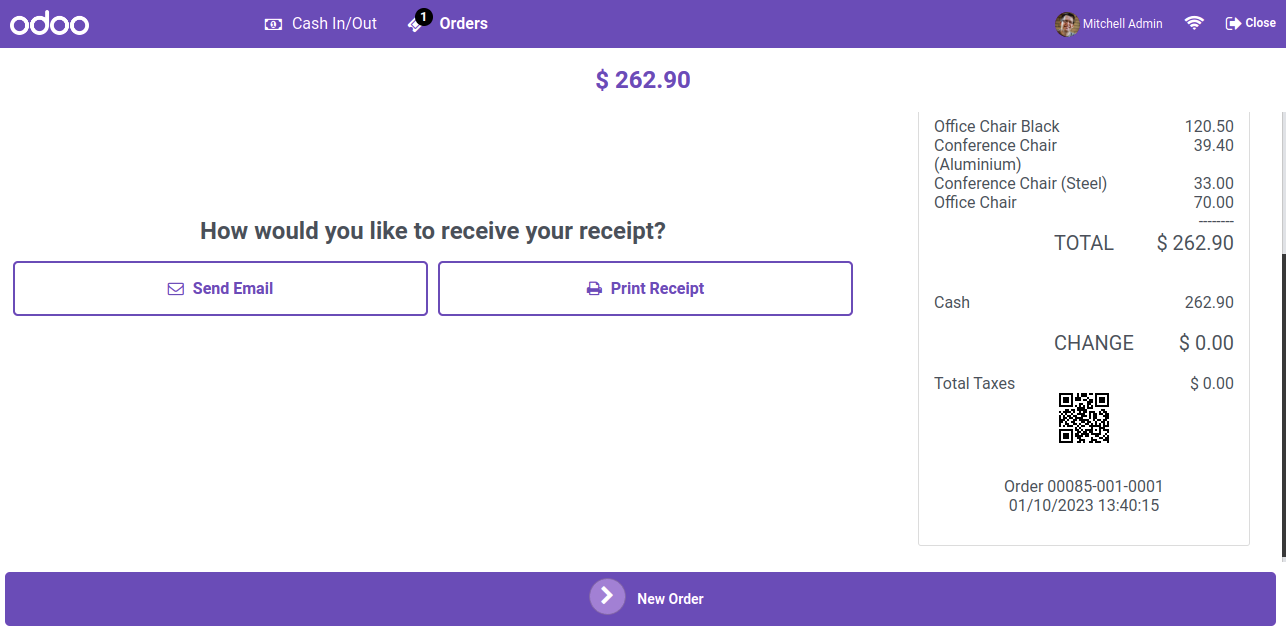
The QRcode will be displayed on the receipt.

QR code shown on receipt

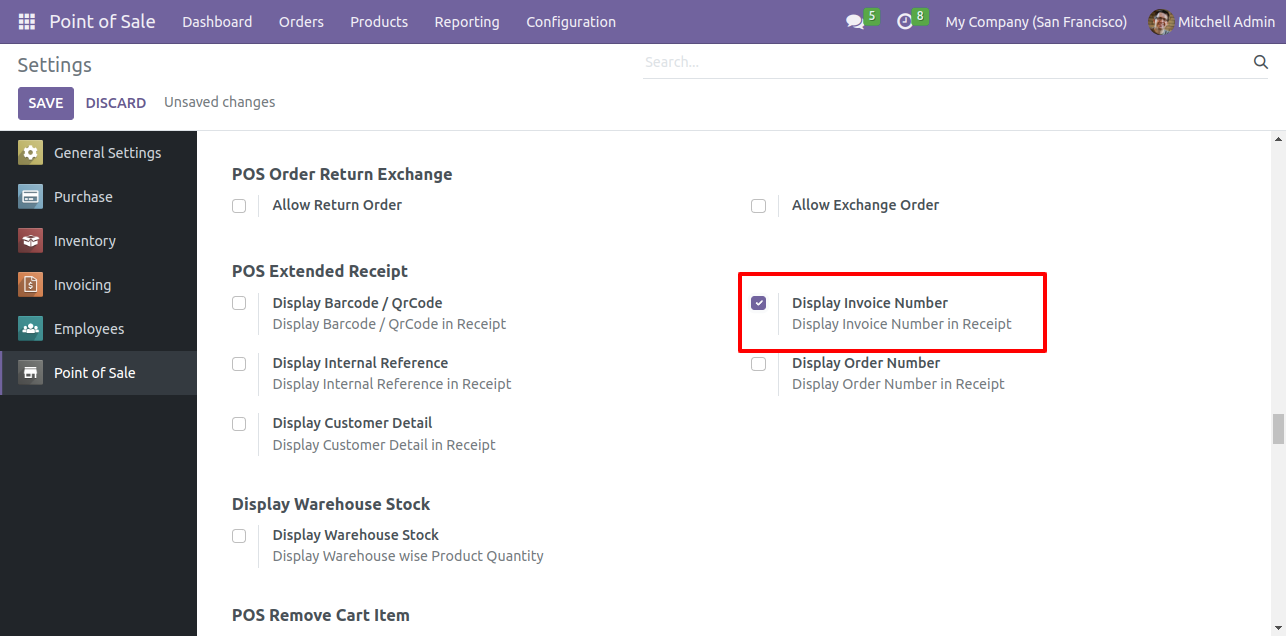
Goto pos setting and enable display invoice number option.

Enable Display Invoice Number setting


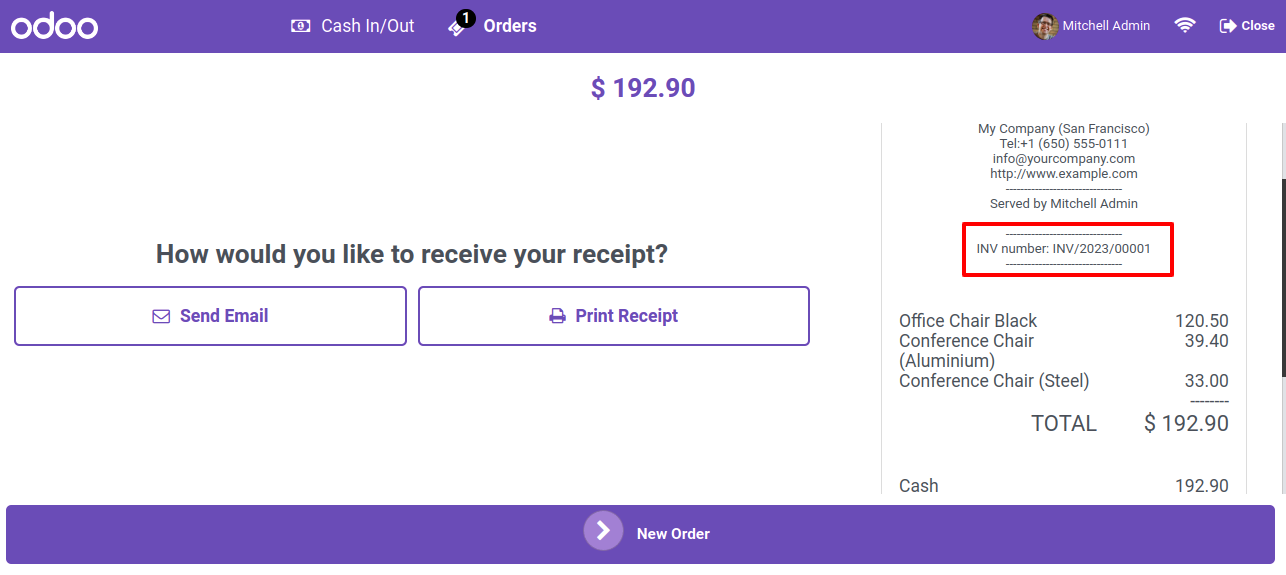
The invoice number will be displayed on the receipt.

Invoice number shown on receipt

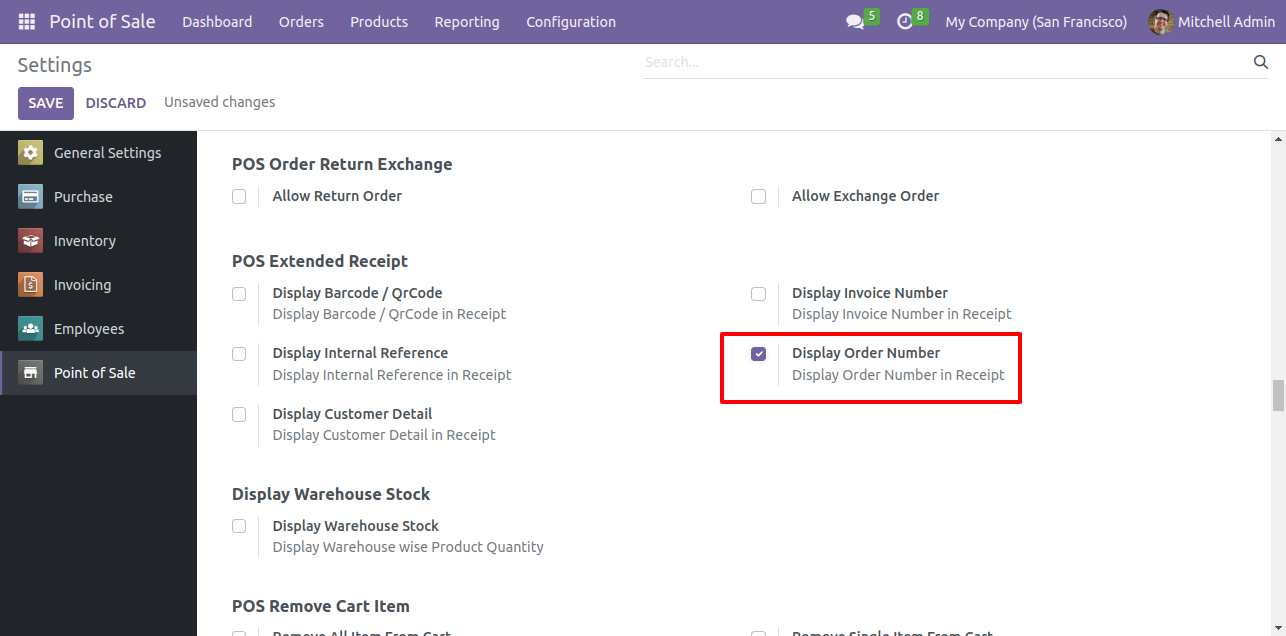
Goto pos setting and enable display order number option.

Enable Display Order Number setting


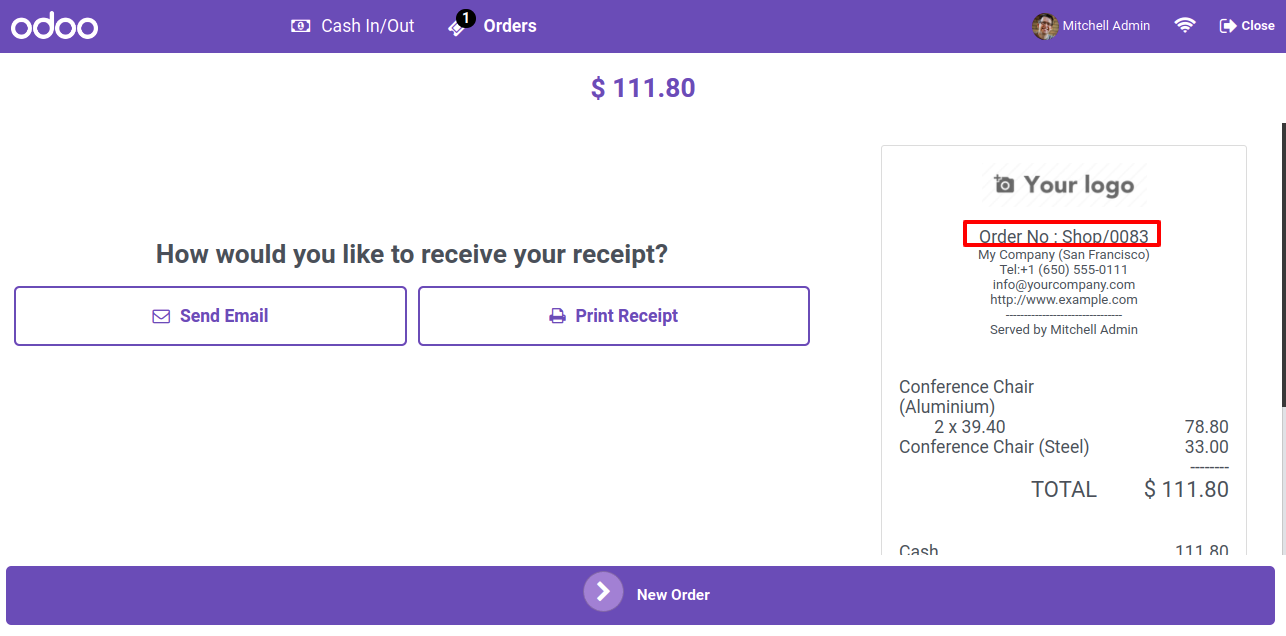
The order number will be displayed on the receipt.

Order number shown on receipt

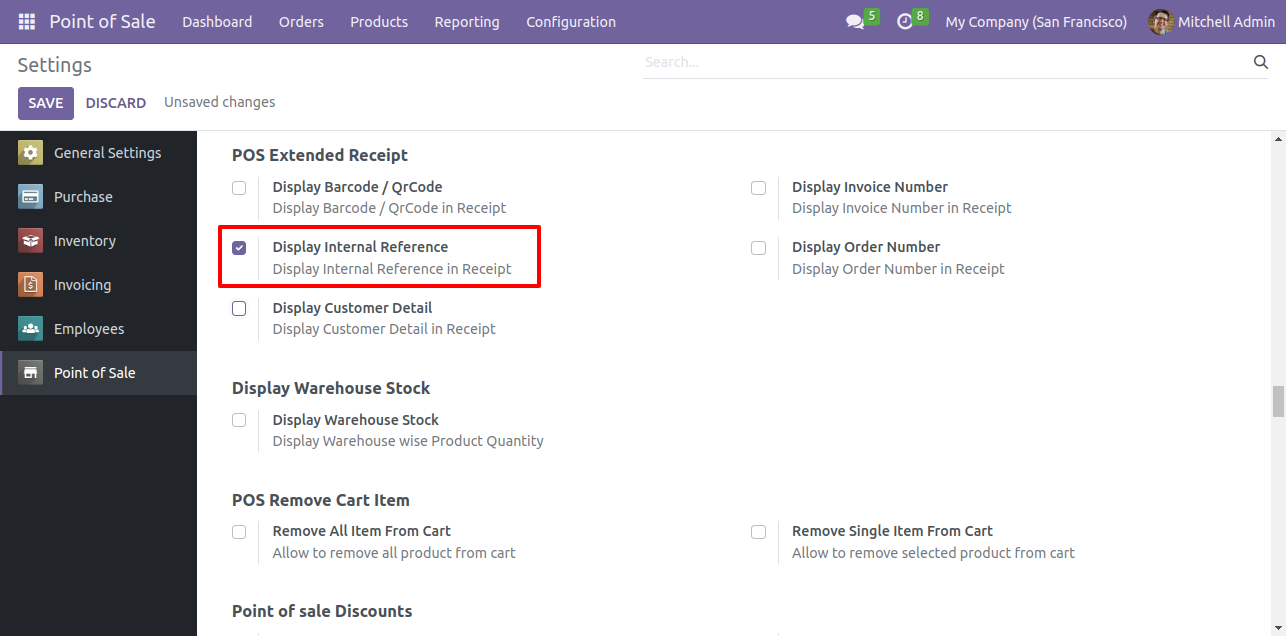
Goto pos setting and enable display internal reference option.

Enable Display Internal Reference setting


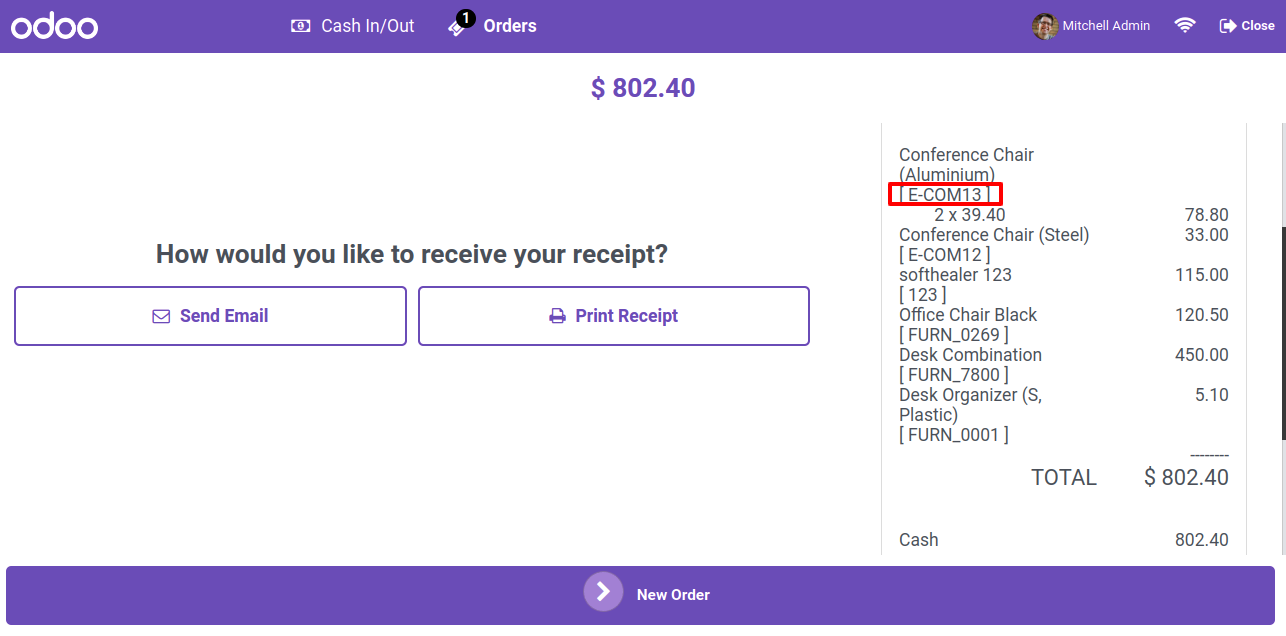
The internal reference code will be displayed on the receipt.

Internal reference shown on receipt

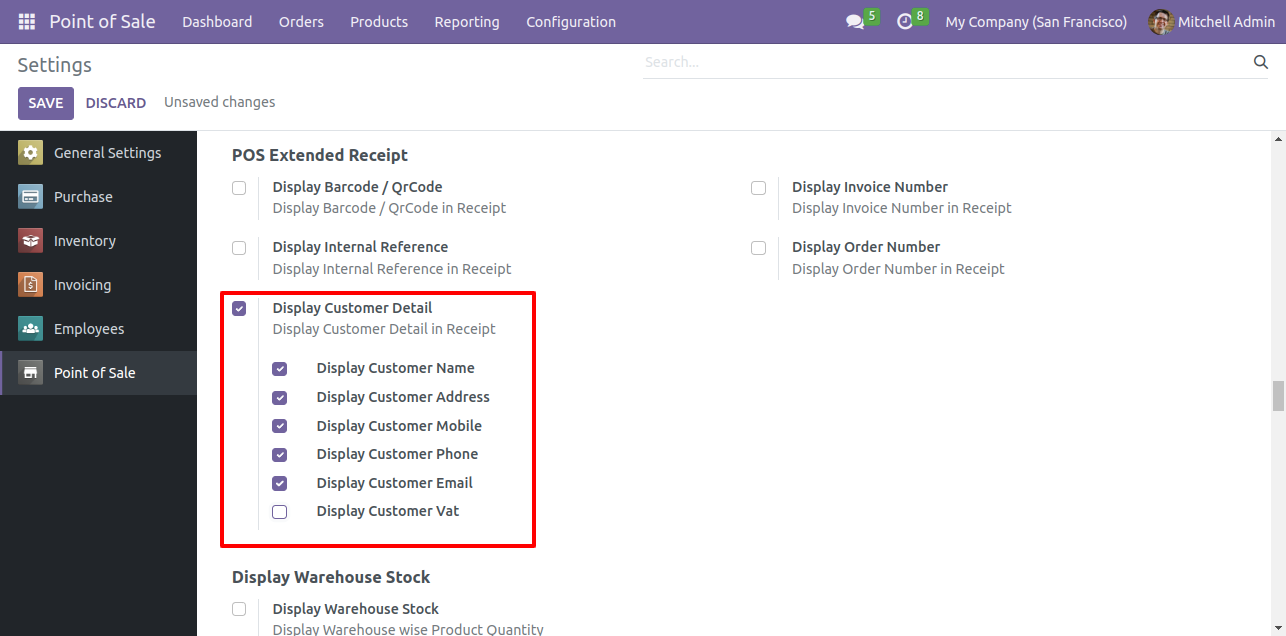
Goto pos setting and enable display customer detail option. here you have several options like display the customer name, address, mobile, phone, and email options. Enable all the options.

Enable Display Customer Detail options


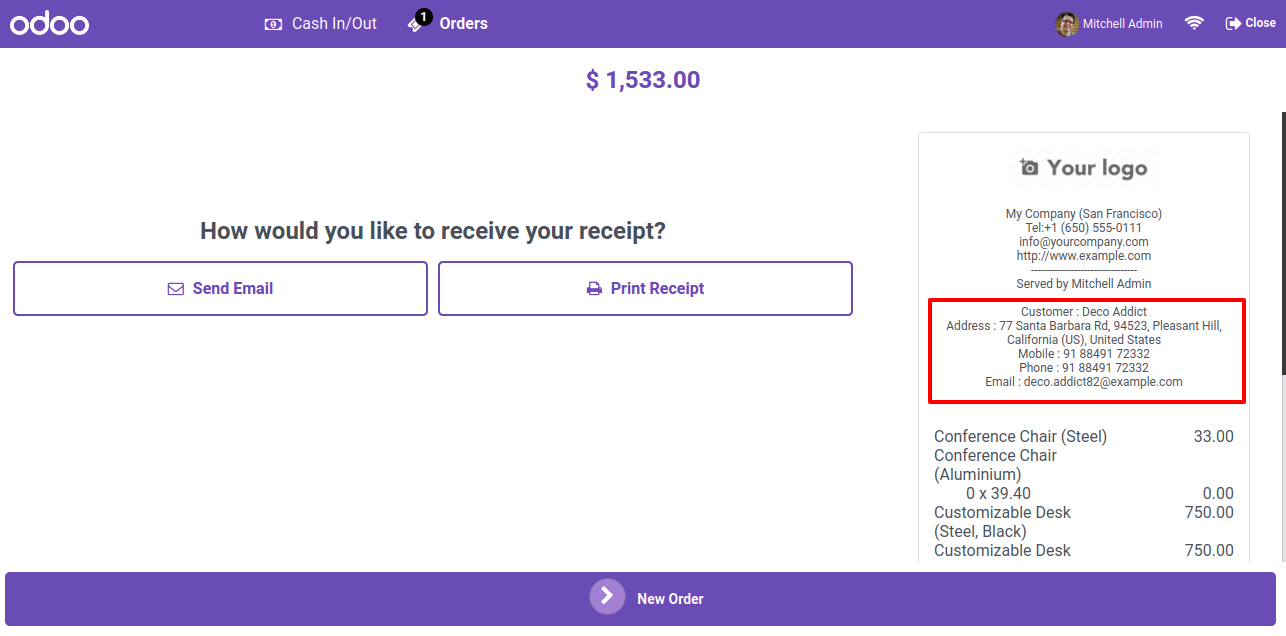
The customer details will be displayed on the receipt.

Customer details shown on receipt

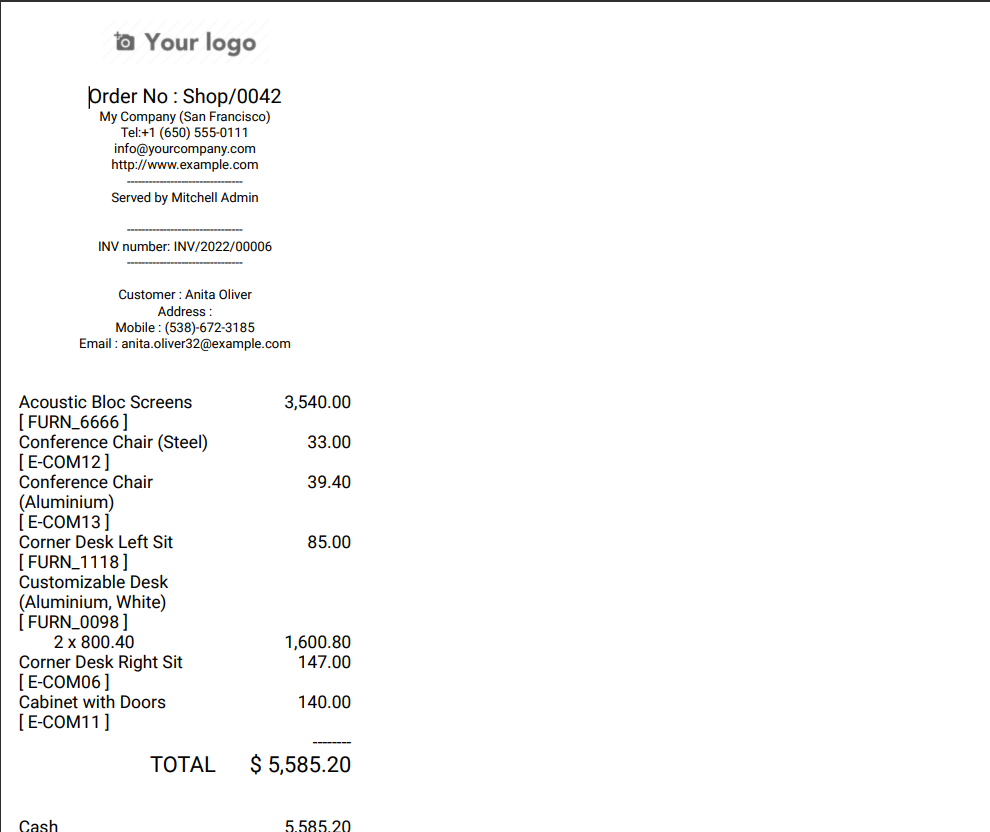
PDF view.

Receipt PDF view

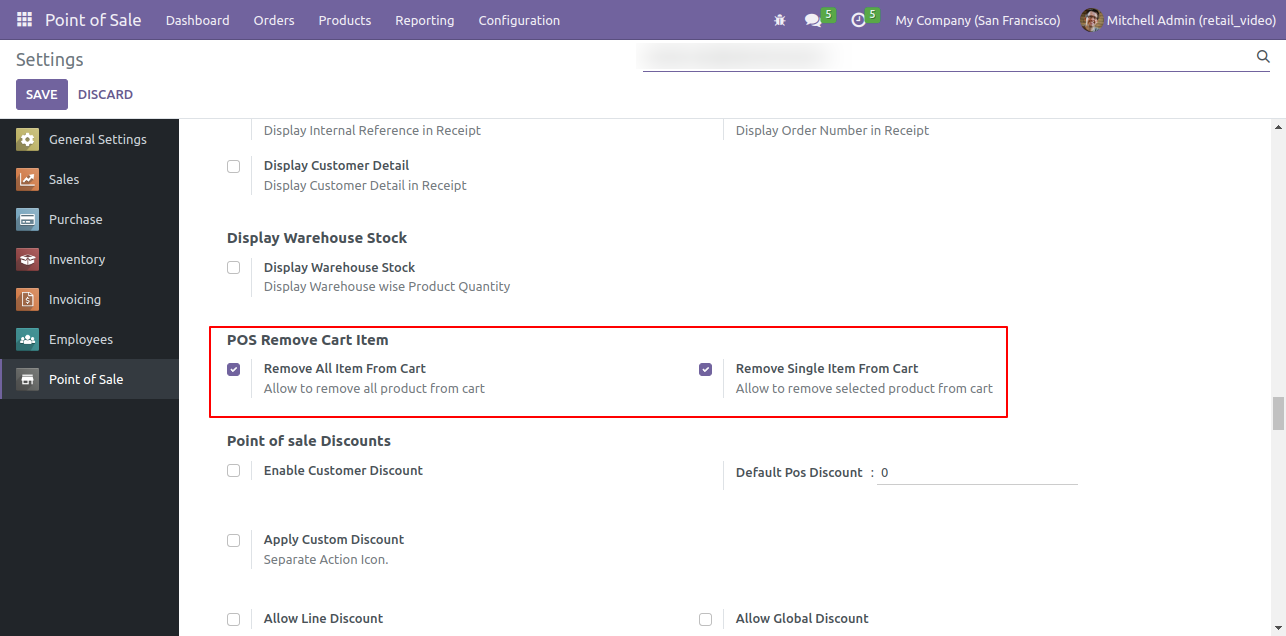
Goto pos setting ==> Here, you have two different options for pos remove cart item like Remove all item from cart and Remove single item from cart.
Enable Remove All Item from Cart option.


Enable Remove Cart Item settings


Here, you can see the Remove all item button is visible on the POS interface.


Remove all item button

Goto pos setting ==> Enable 'Ask for confirmation to remove all item' option under Remove All Item from Cart option.


Enable Ask for confirmation to remove all item Setting


By clicking on Remove All Item button from POS screen, confirmation wizard will open befor removing the item.
Click on OK button from the wizard.


confirmation
                                                wizard will open befor removing the item

On confirmation, all items will be removed from the POS cart.


all items will be removed

Goto pos setting ==> Enable Remove single item from cart.


Enable Remove single item

Here, you can see the Delete icon is visible on each order line in the cart.


Delete icon is visible on each order line


By clicking on delete icon, single item will be removed from the cart.


single item will be removed

Goto pos setting ==> Enable 'Ask for confirmation to remove single item' option under Remove Single Item from Cart option.


Enable Ask for confirmation to remove single item


By clicking on delete icon from order line, confirmation wizard will open befor removing the item.
Click on OK button from the wizard.


confirmation wizard will
                                                open befor removing the item


On confirmation, item will be removed from the cart.


Single item will be removed


Goto pos setting and enable 'Rounding' features. also there are two different options one for rounding product and another for Rounding type. Select normal rounding type.

Enable Rounding setting with Normal type


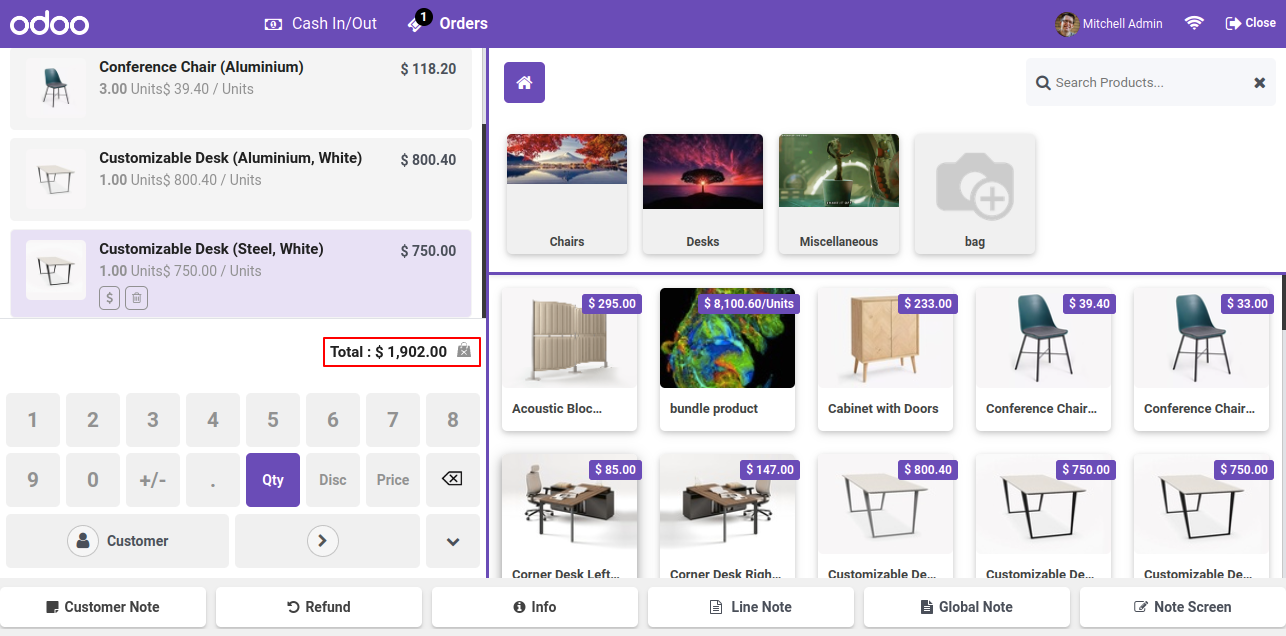
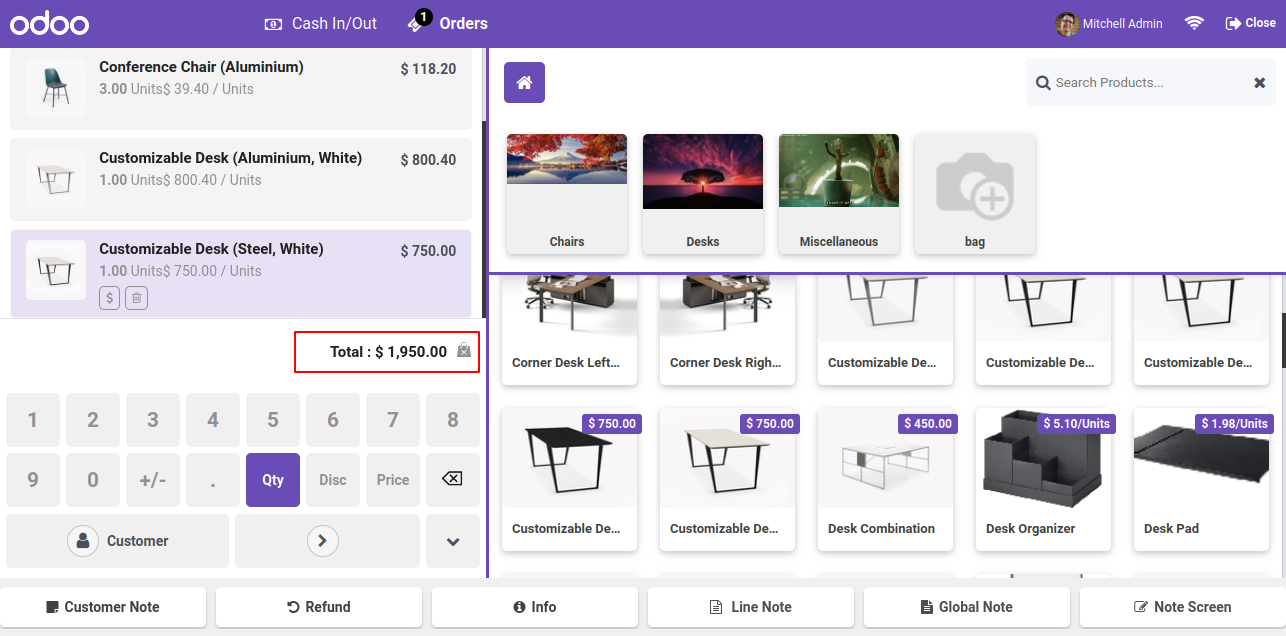
Normal rounding in pos cart with rounding product.

Normal rounding in POS cart


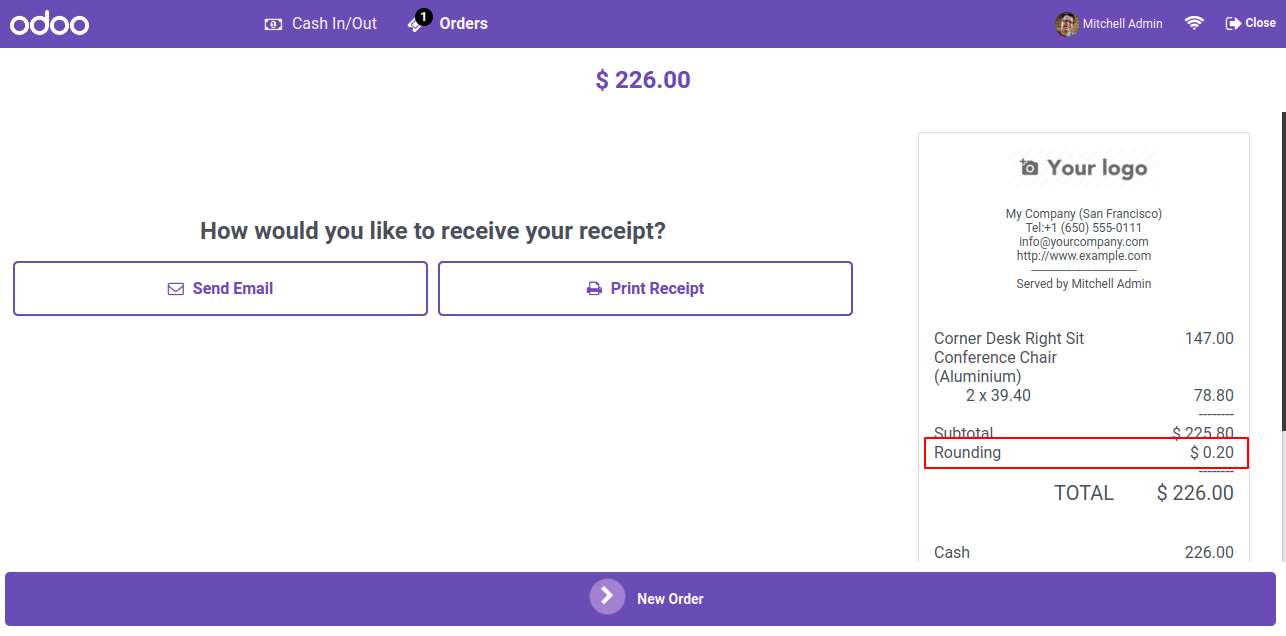
Enable rounding toggle on the payment screen.


Rounding amount shown on receipt


Disable rounding toggle on the payment screen.


Select Rounding To Fifty option


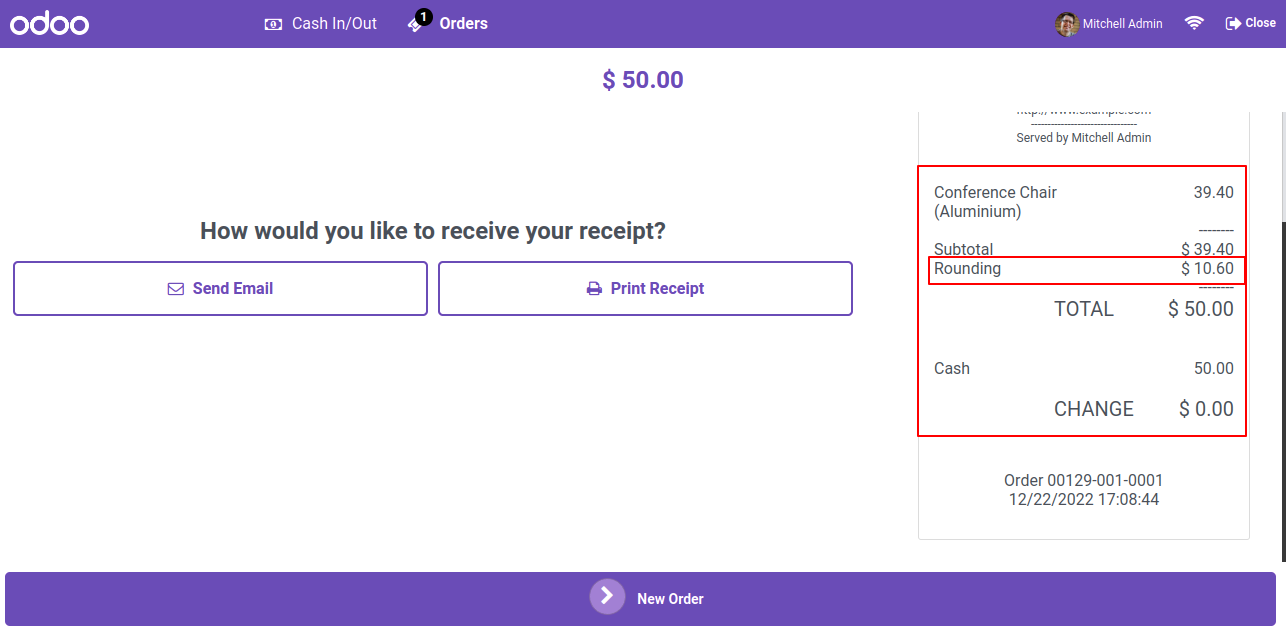
Rounding details on receipt.


Rounding to Fifty applied in cart


Set rounding to fifty in rounding type from POS general settings.


Rounding to Fifty shown on receipt


Rounding to fifty in pos cart with rounding product.


Rounding to fifty


Enable rounding toggle on the payment screen.


Enable rounding toggle on the payment screen


Disable rounding toggle on the payment screen.


Disable rounding toggle on the payment screen


Rounding details on receipt.


Rounding details on receipt

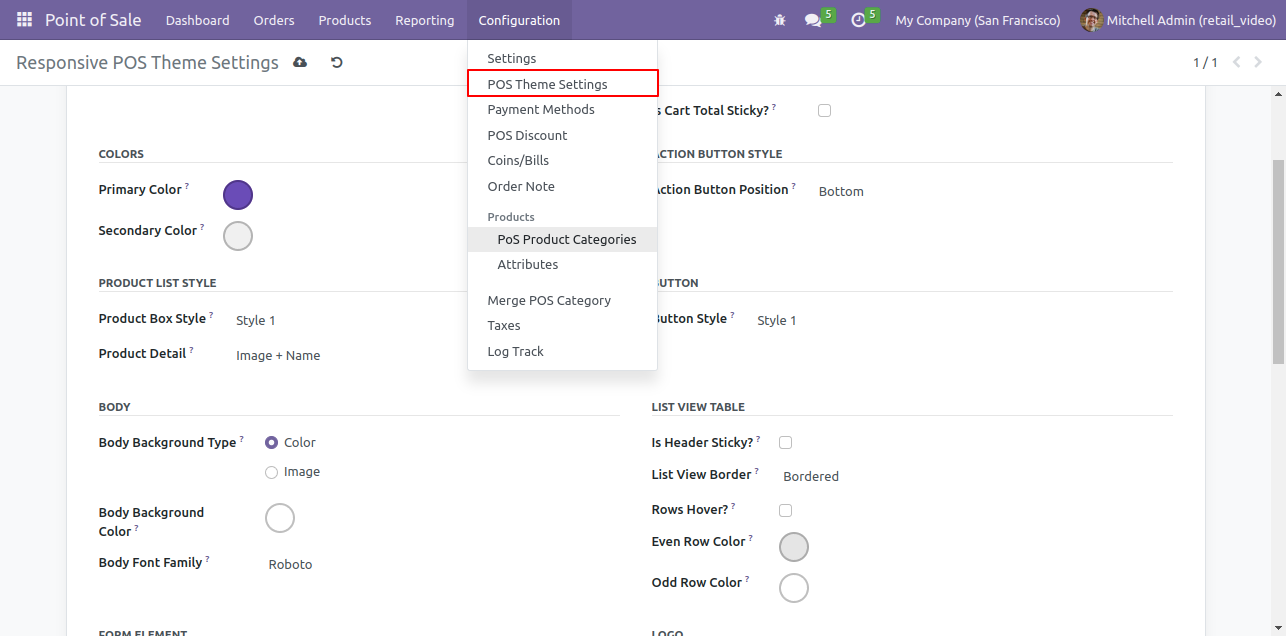
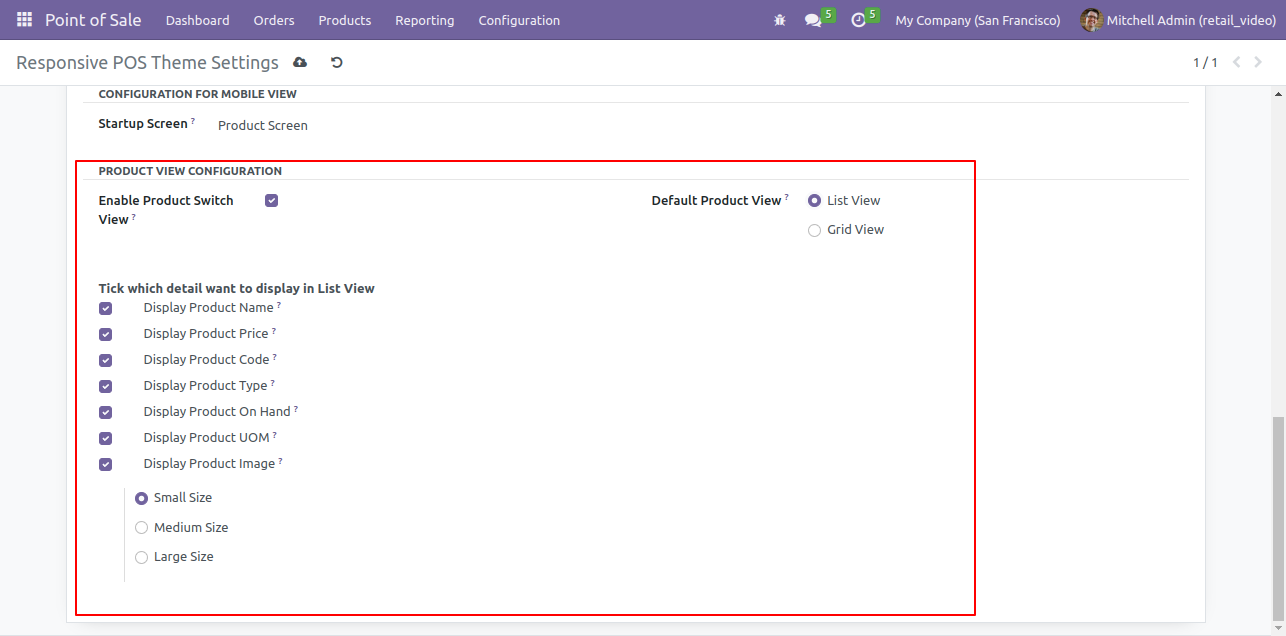
Goto the pos theme setting from the pos config.

POS Theme Settings menu


Enable 'Enable Product Switch View'. There are several options to display product in list or grid view, with lots of products details as well.
Select all the features and also select the image size small.
Enable Product Switch View settings

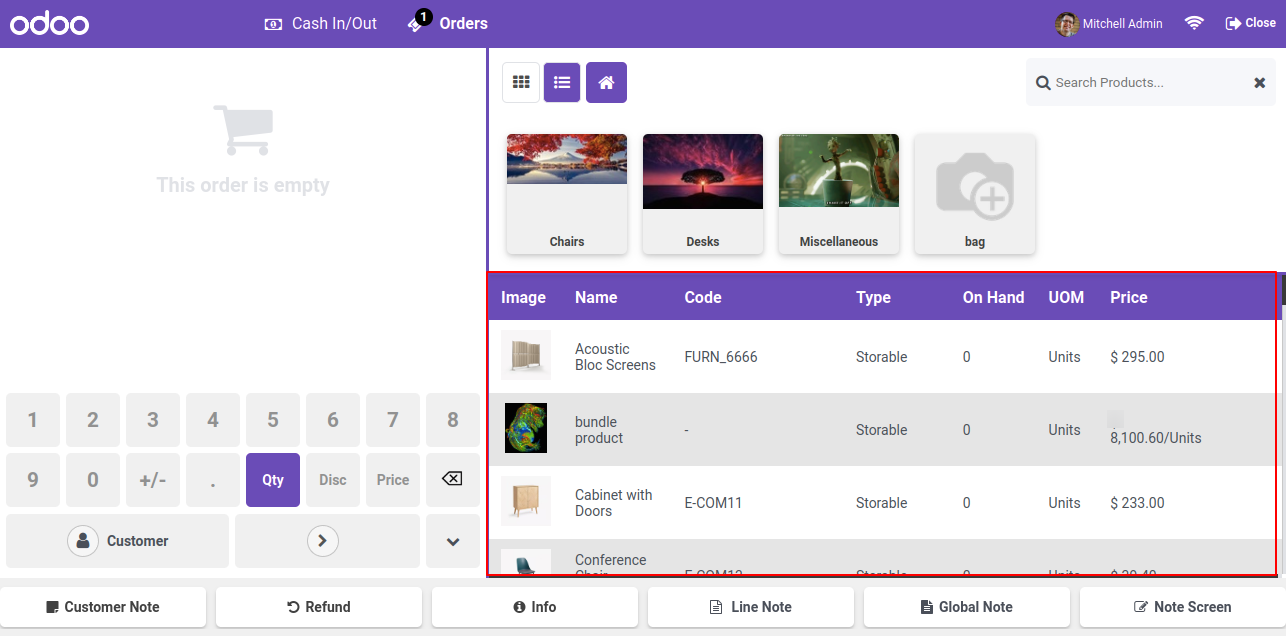
In the pos screen, you can see all the enabled details of the product and the size of the image is small.

List view with product details on POS


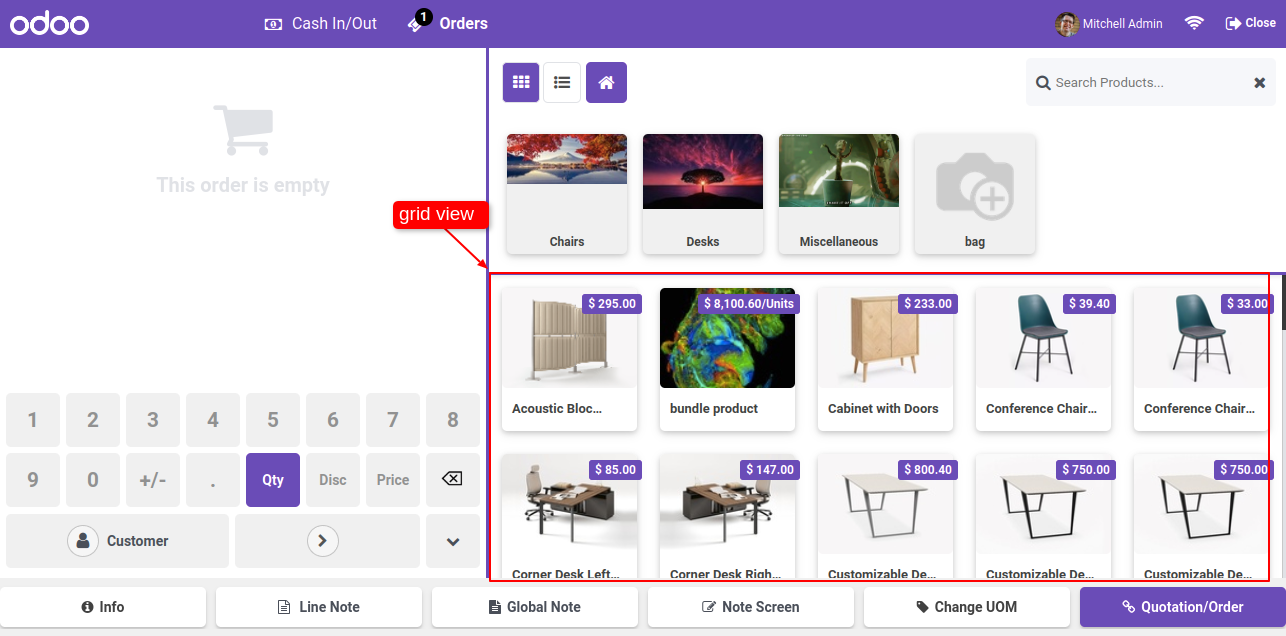
Grid view looks like this.

Grid view on POS screen

Goto pos setting -> Product Stock Configurations and enable the 'Display warehouse stock ' option and select the display qty by 'Location'.

Enable Display Warehouse Stock by Location


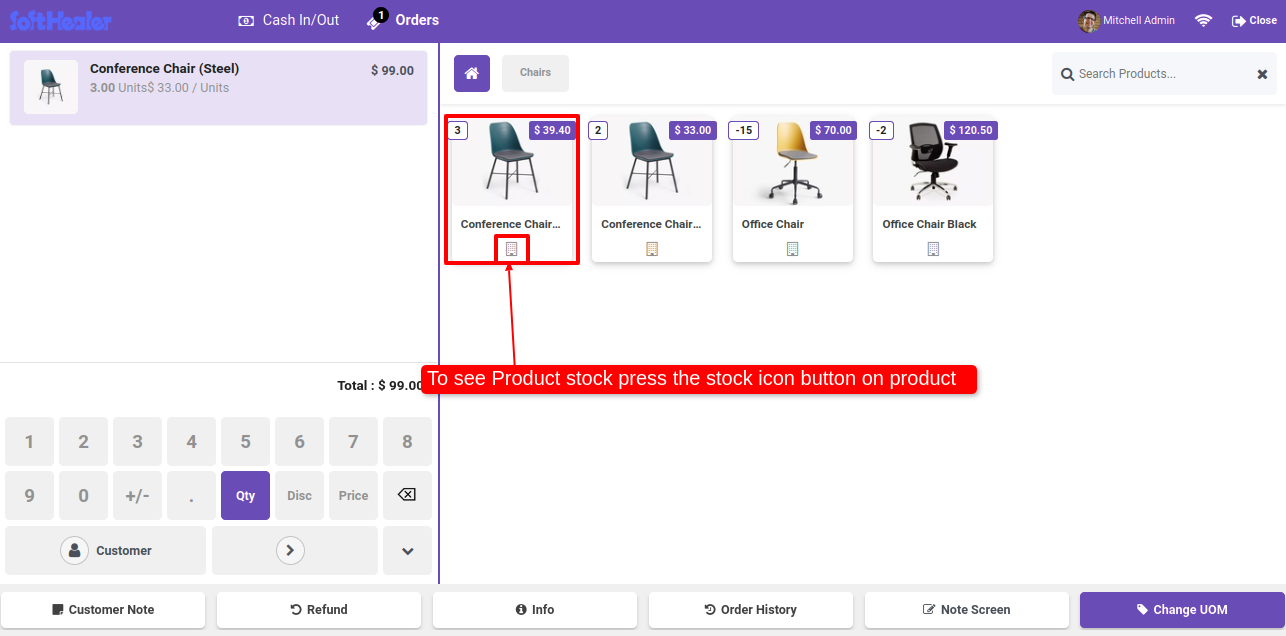
To see the product stock, press the stock icon button on product on pos screen.

Click stock icon on product


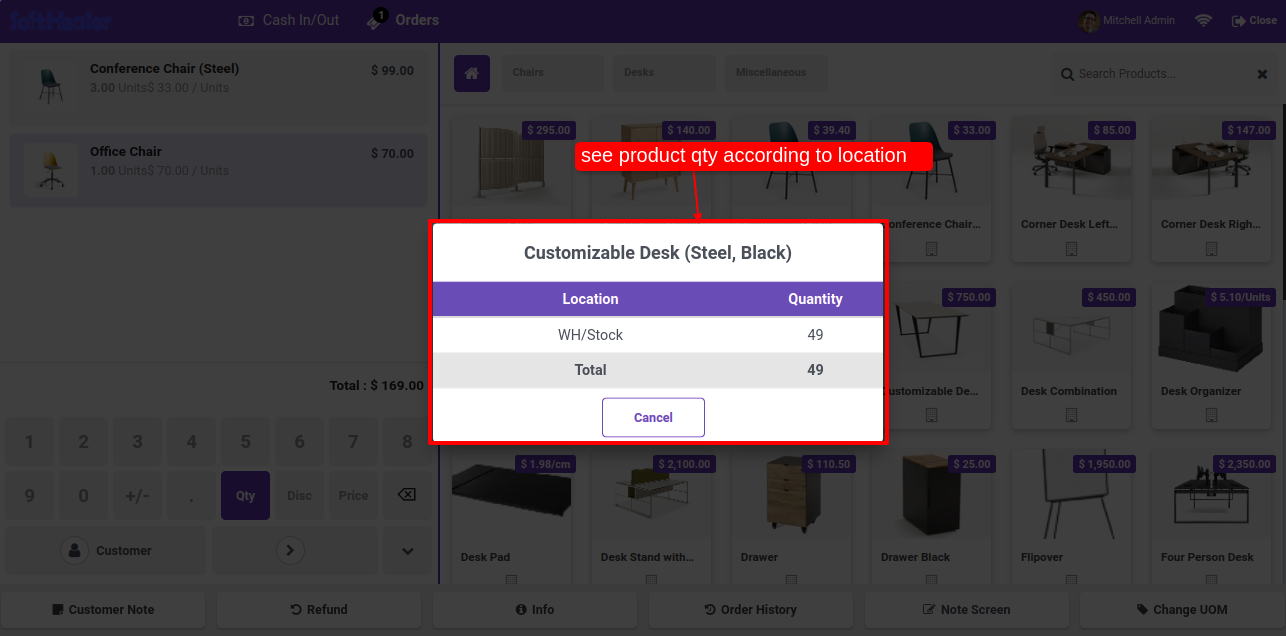
Here you can see the product qty according to location.

Product quantity by location


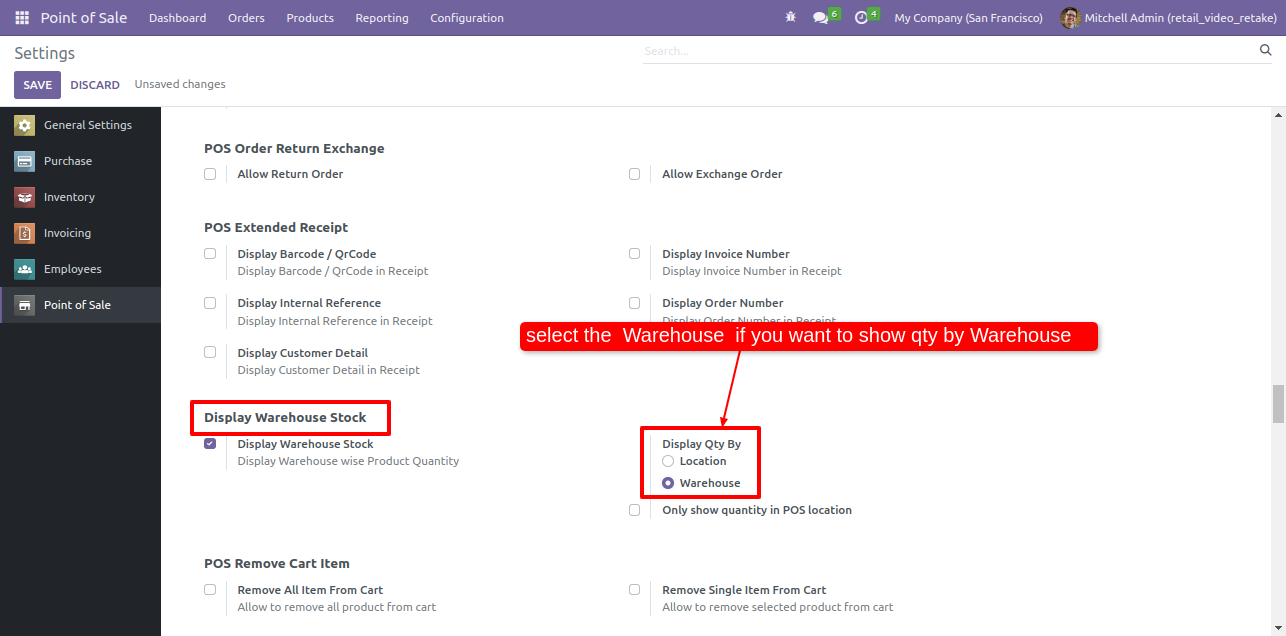
Goto pos setting and select the display qty by 'Warehouse'.

Select Display Qty by Warehouse


To see the product stock, press the stock icon button on product on pos screen.

Click stock icon on product


Here you can see the product qty according to warehouse.

Product quantity by warehouse


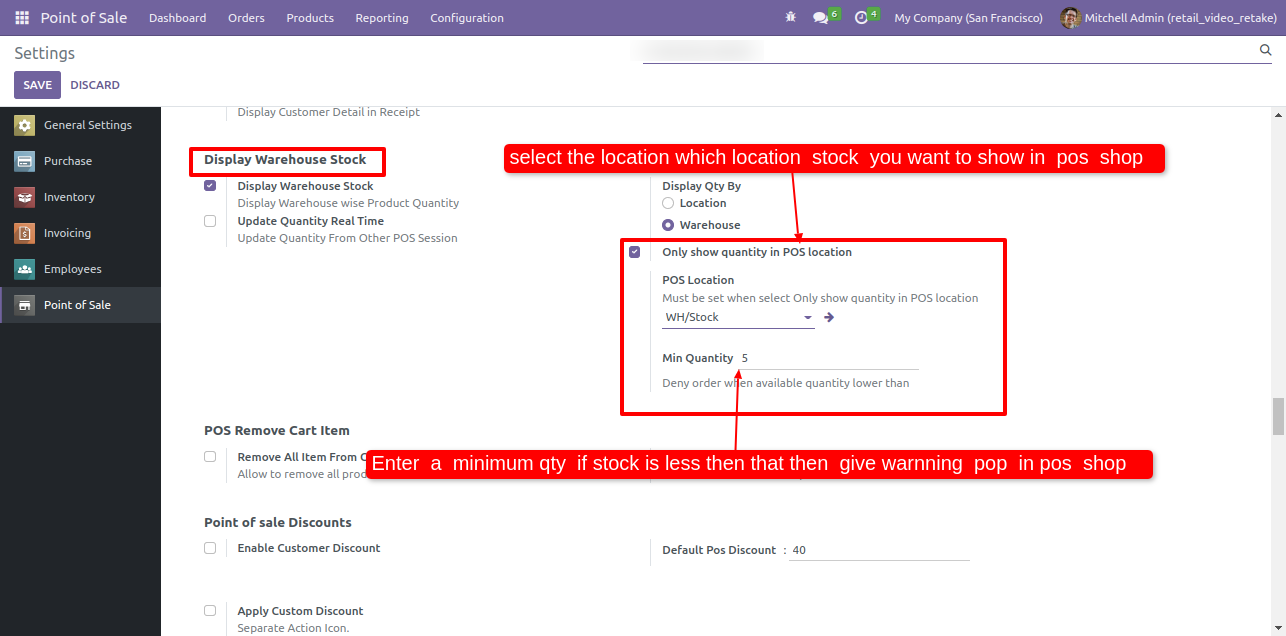
Goto pos setting and enable the 'Display Warehouse Stock' & 'Only Show Quantity In Pos Location' options and Select the location which location stock you want to show in pos shop.

Enable Warehouse Stock Location settings & Only Show
                                                Quantity In Pos Location


Here you can see the product qty according to the set location.

Click stock icon on product


Goto pos setting and enable the 'Display Warehouse Stock' & 'Only Show Quantity In Pos Location' options and set the Min Quantity.

Enable Only Show
                                                Quantity In Pos Location & Set Min QTY


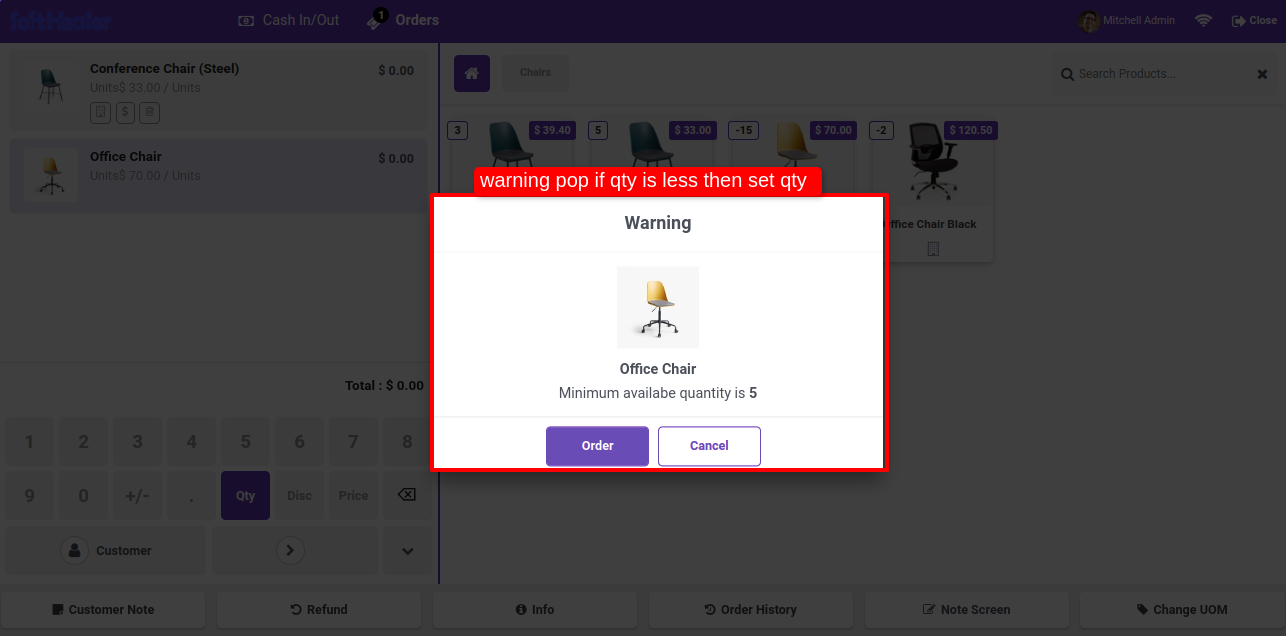
If the quantity is available lower than min qty and make order on POS system will deny to order.

Warning popup for low stock quantity

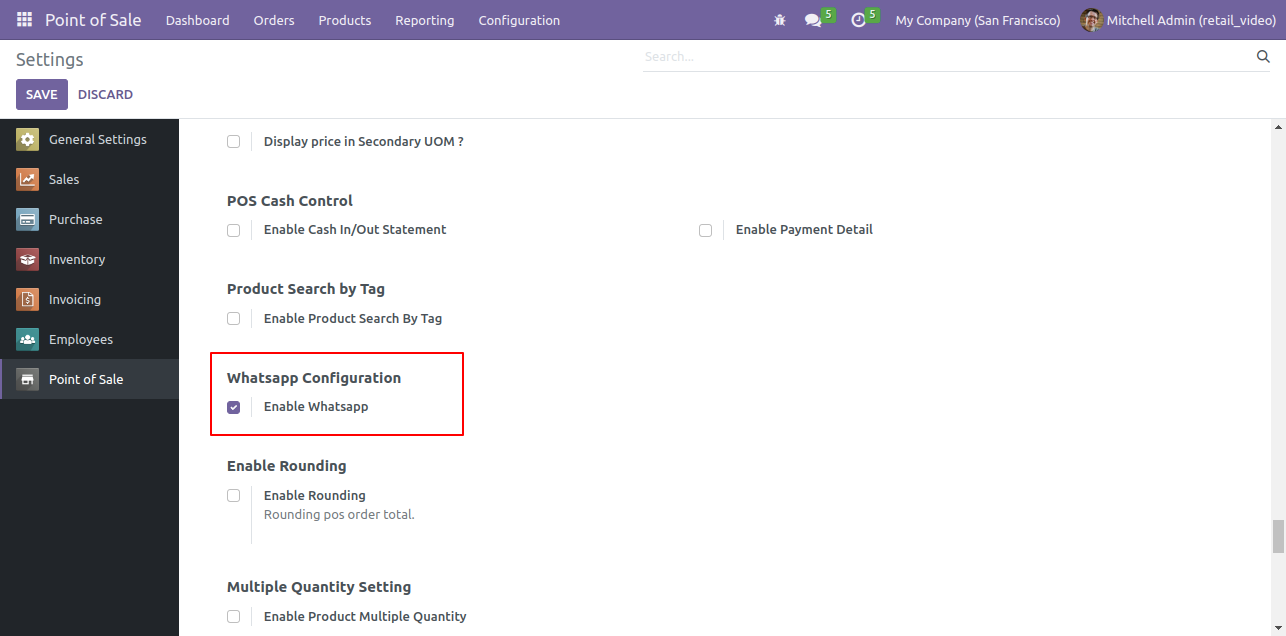
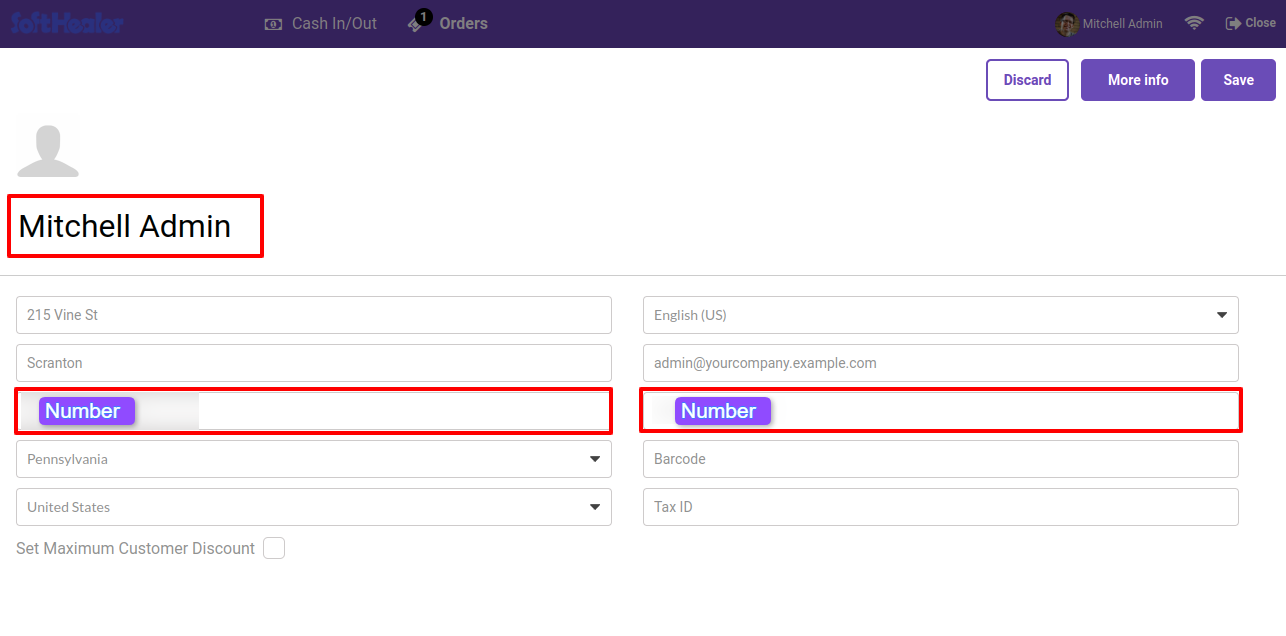
Goto pos setting and enable Whatsapp Features.

Enable WhatsApp Configuration setting


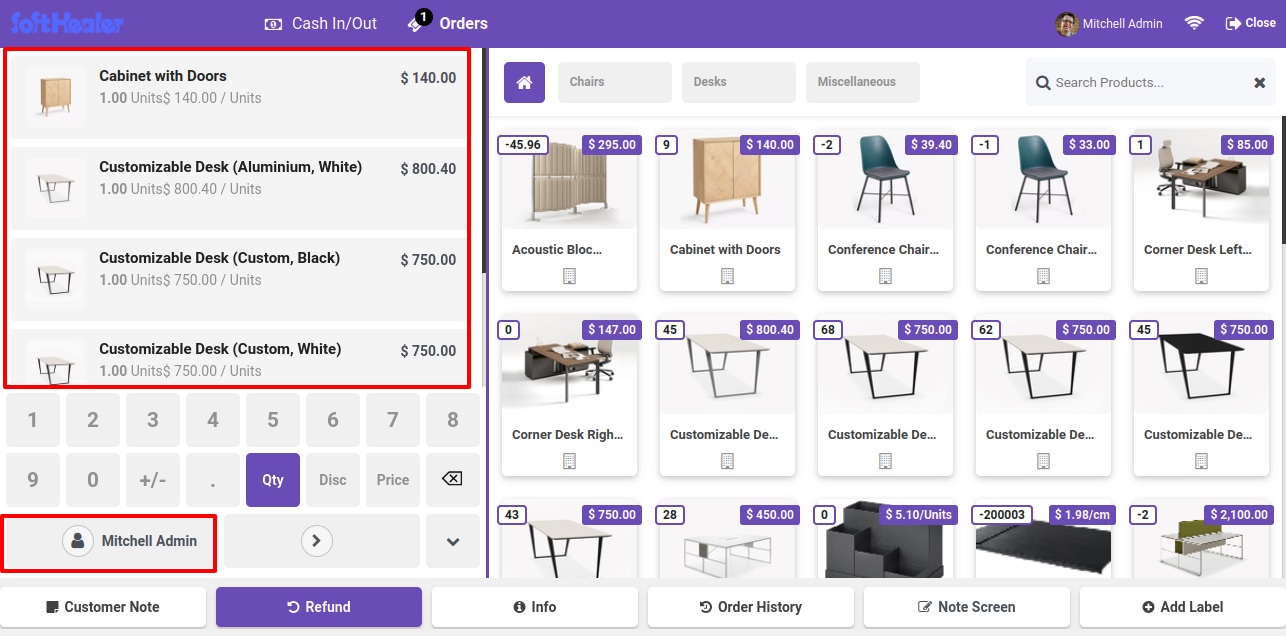
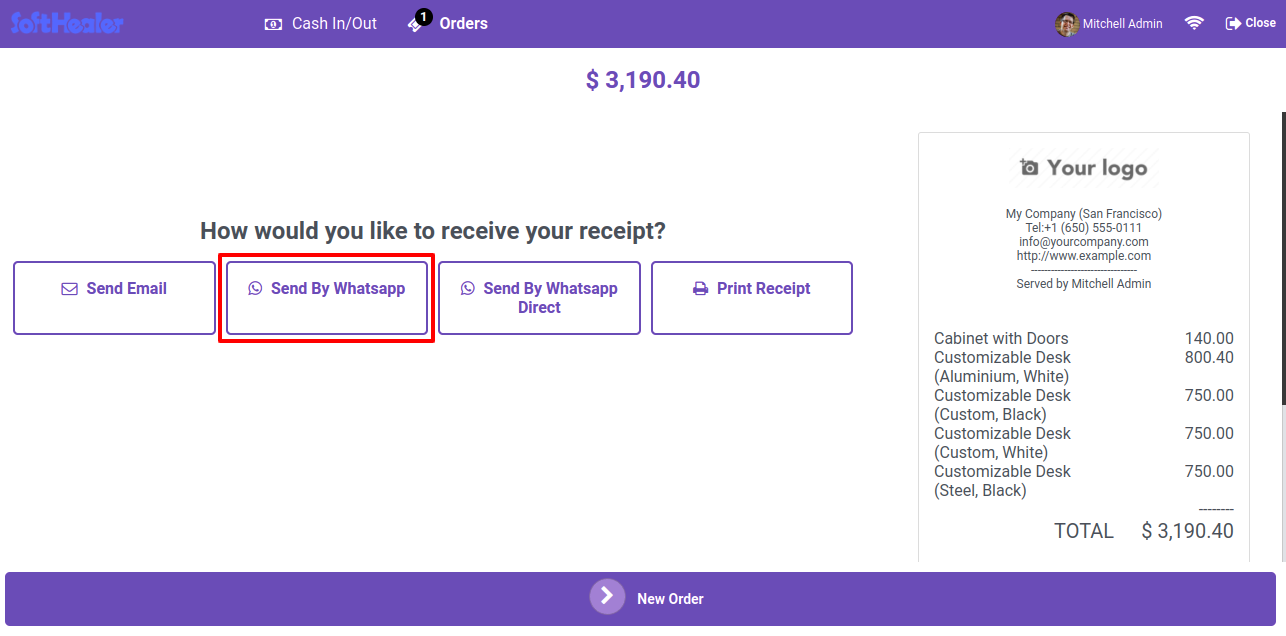
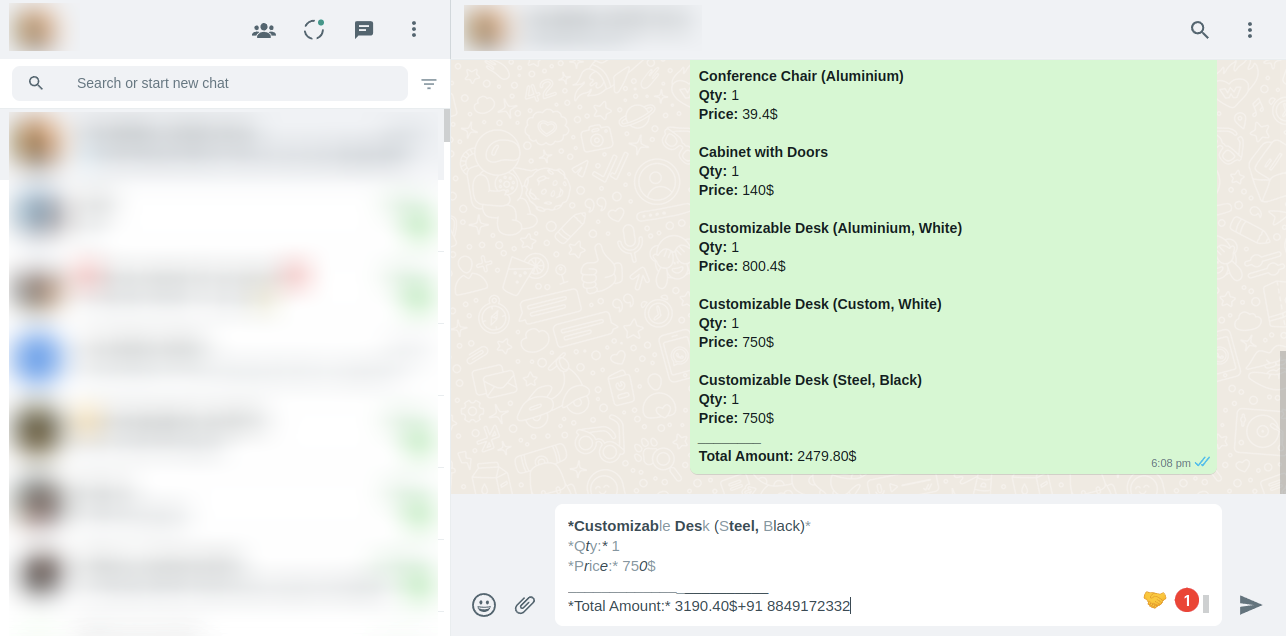
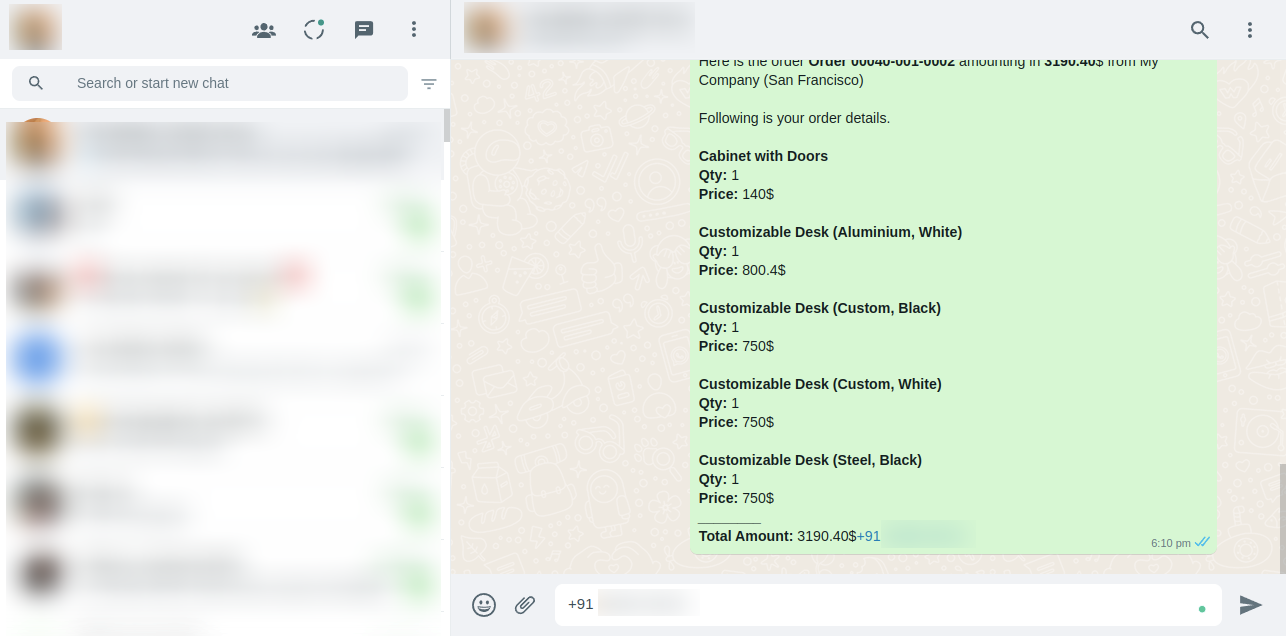
Make order and create receipt, here you have two options to send on whatsapp. 1. Customise message and then send, 2. Send direct (Without message customize)
Click on 'Send By Whatsapp'.

Click Send By WhatsApp option


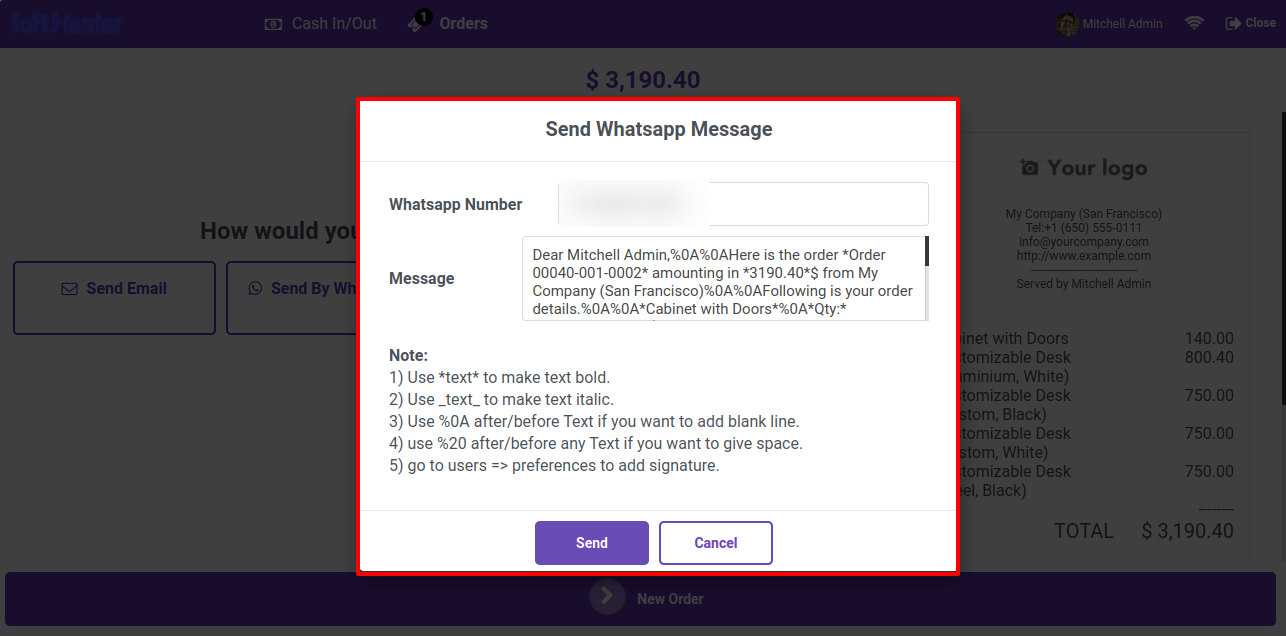
After that, send whatsapp message wizard will appear. Here you can edit your message.

Send WhatsApp message wizard


Message Sent.

WhatsApp message sent confirmation


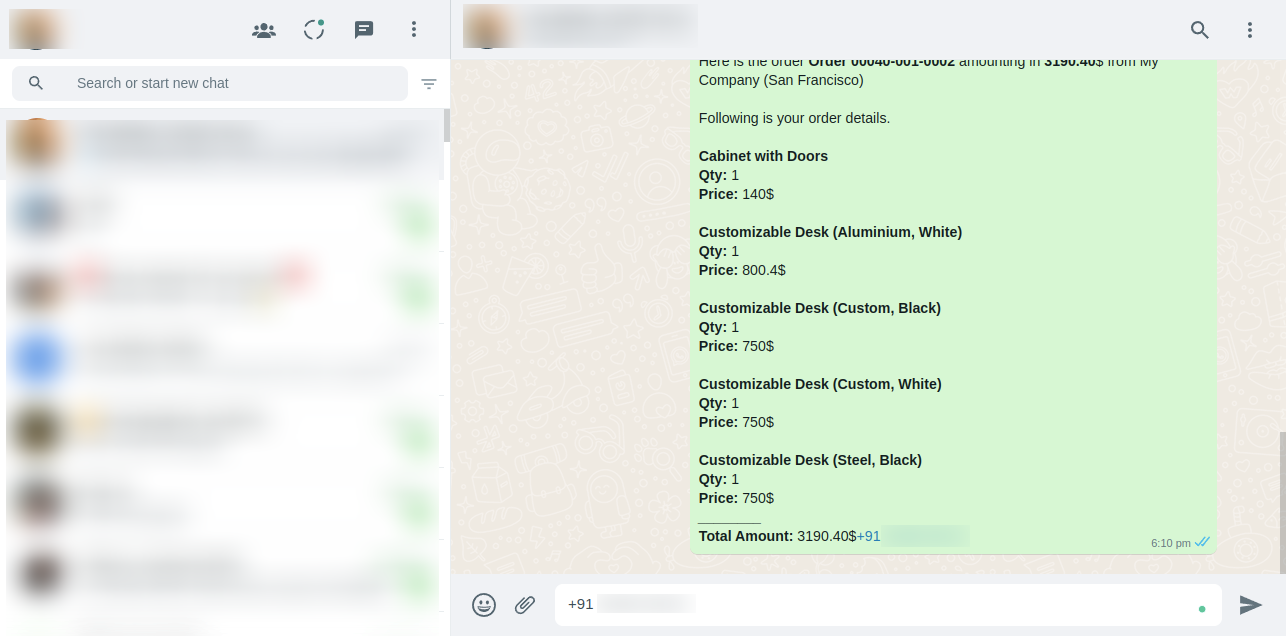
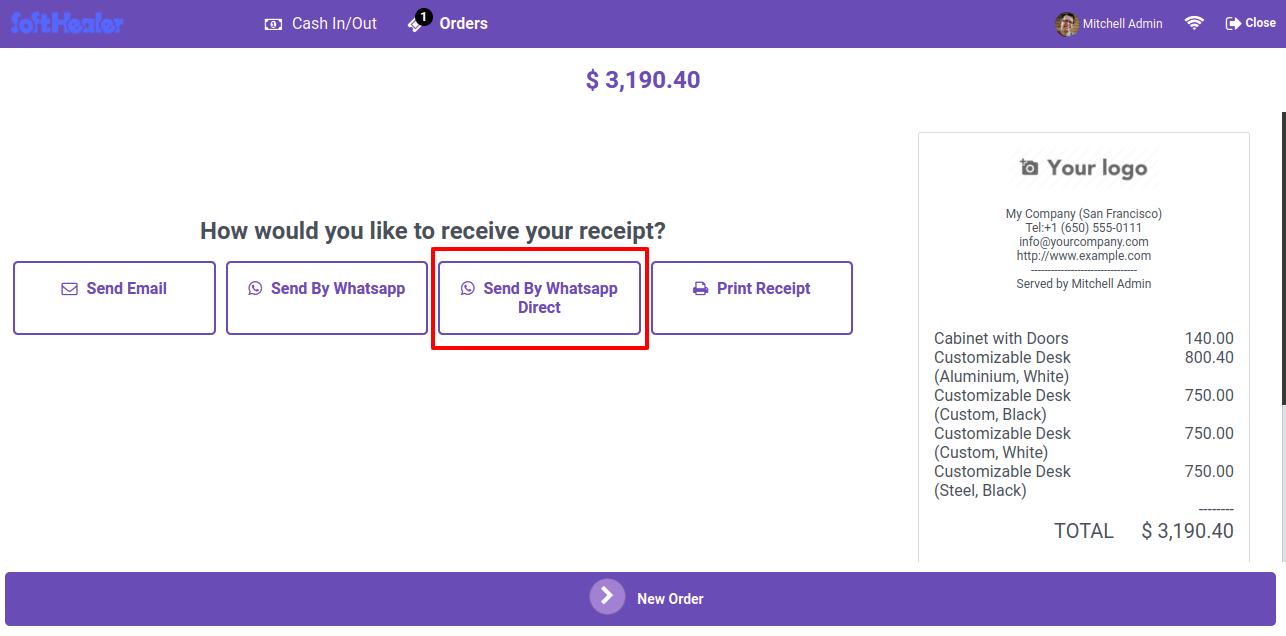
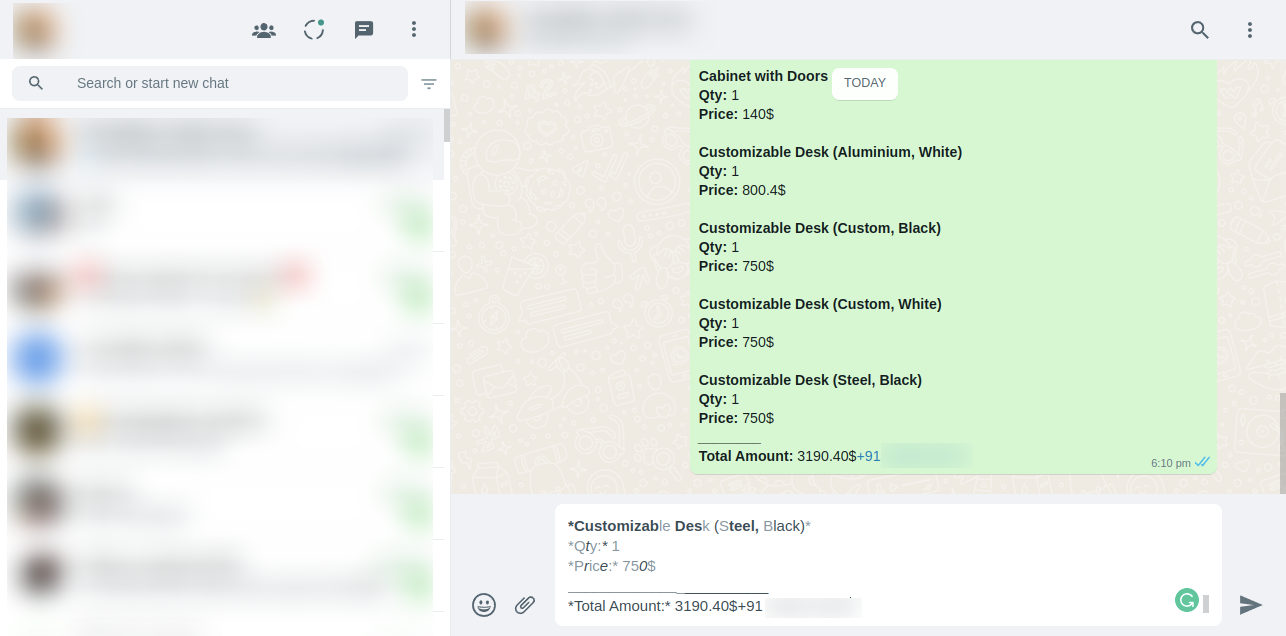
Make order and create receipt and click on send by whatsapp direct option.

Click Send By WhatsApp Direct


Message Sent.

WhatsApp message sent confirmation


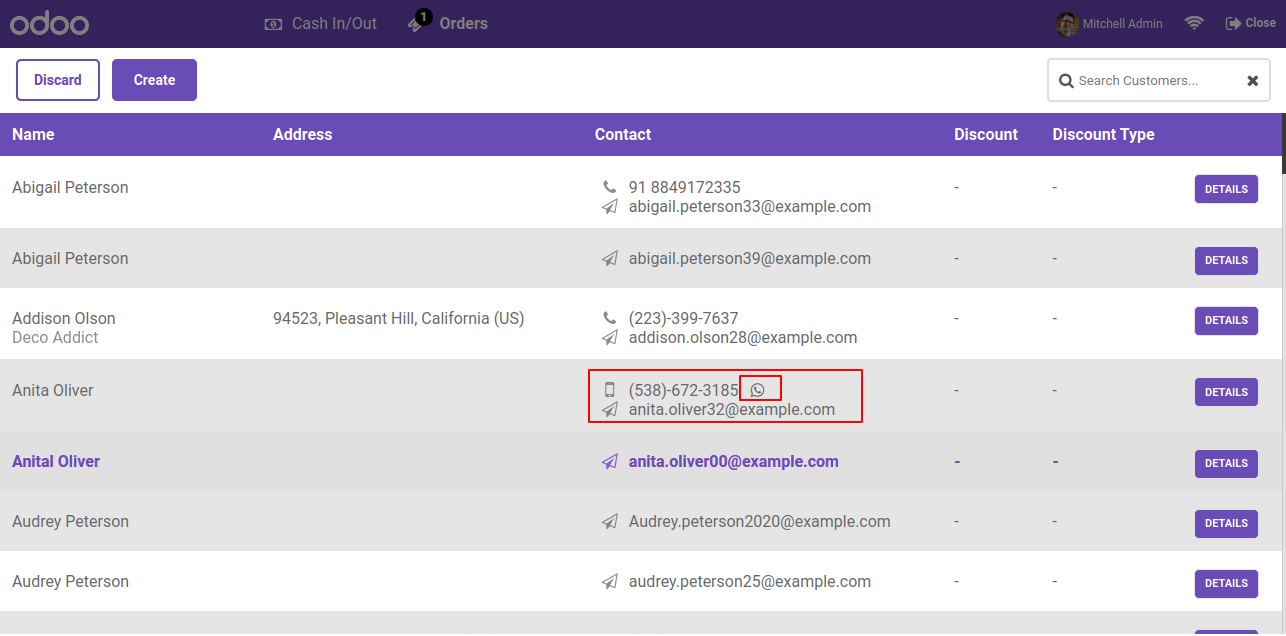
Click on the whatsapp icon.

Click WhatsApp icon on customer


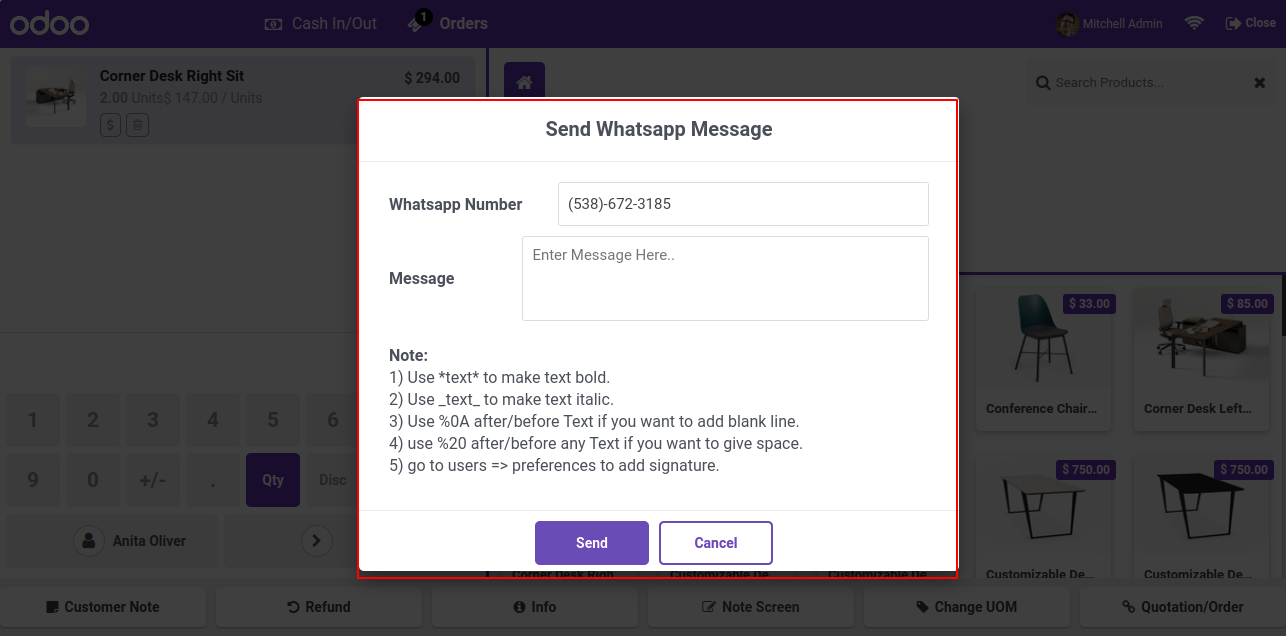
After that Send Whatsapp Message Wizard will open, here user can enter custom message.
Click on send button.

Send WhatsApp Message popup


Message Sent.

WhatsApp message sent to customer

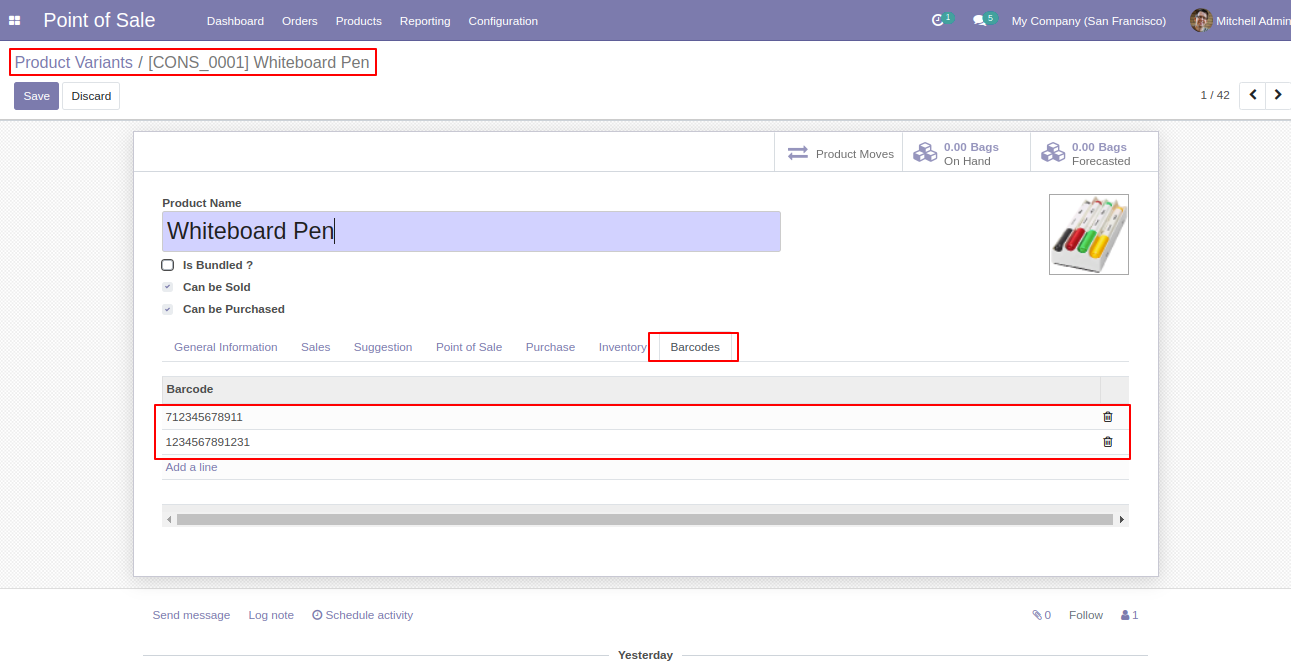
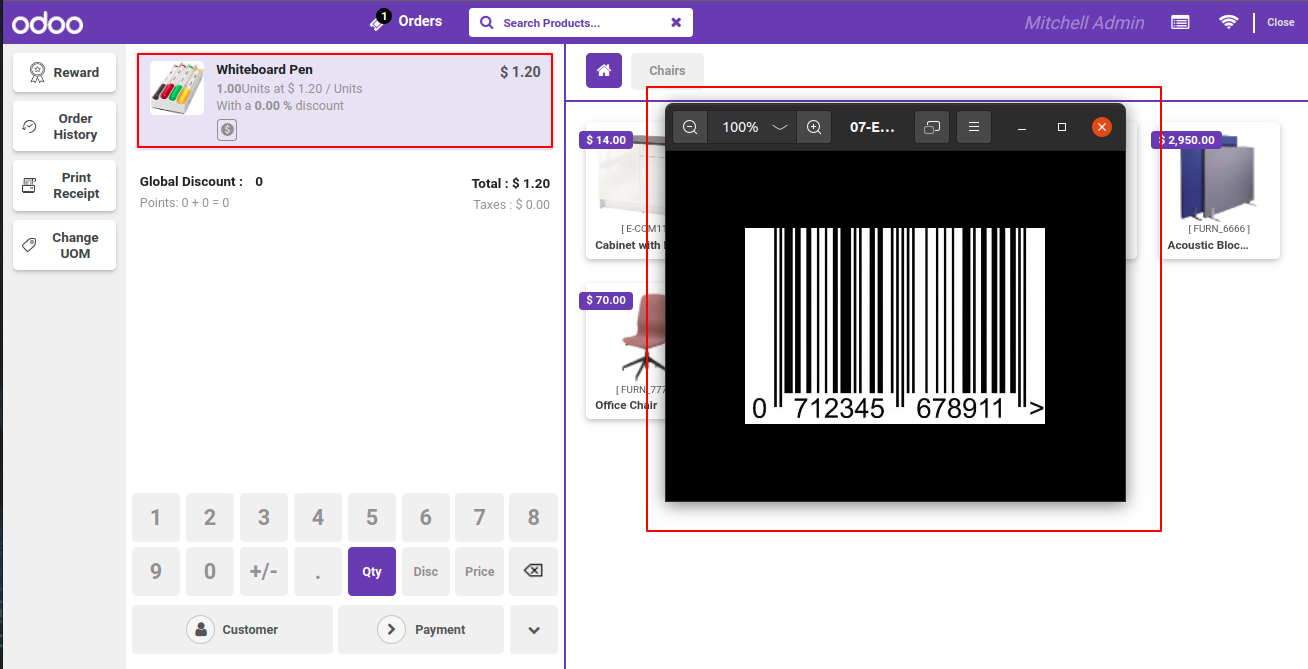
See Tab In Barcode In Product Variant. Add Barcode in Whiteboard pen.

Add barcode to Whiteboard Pen variant

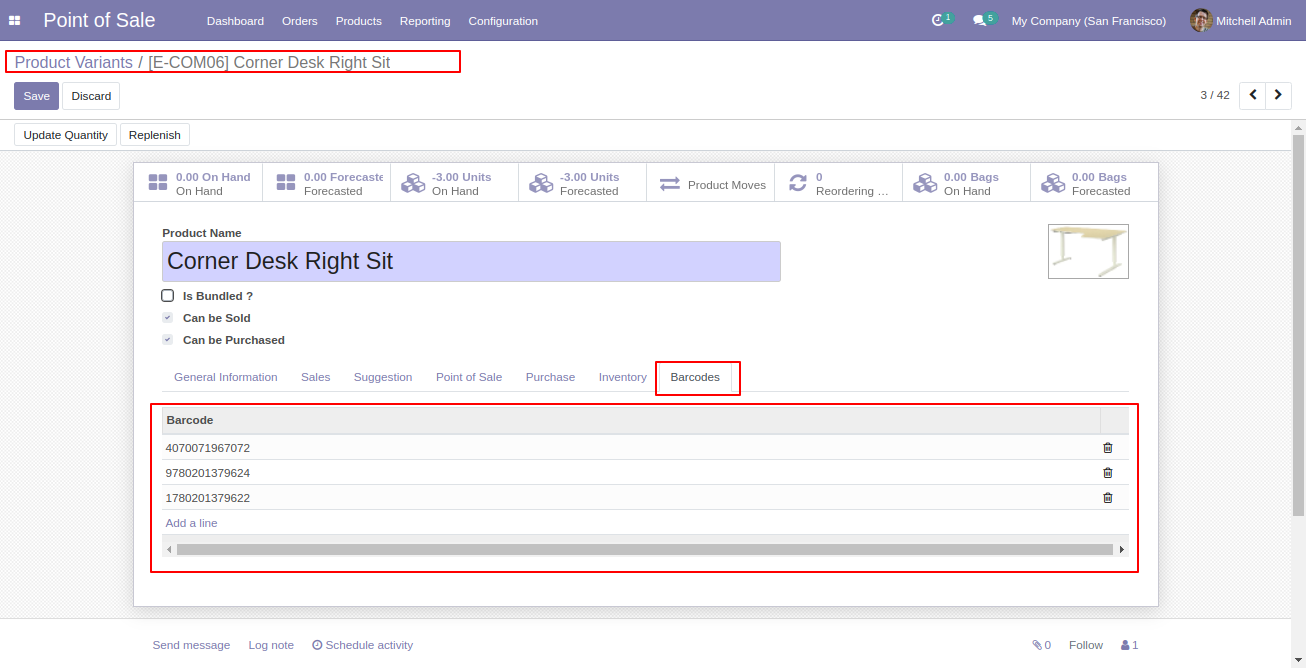
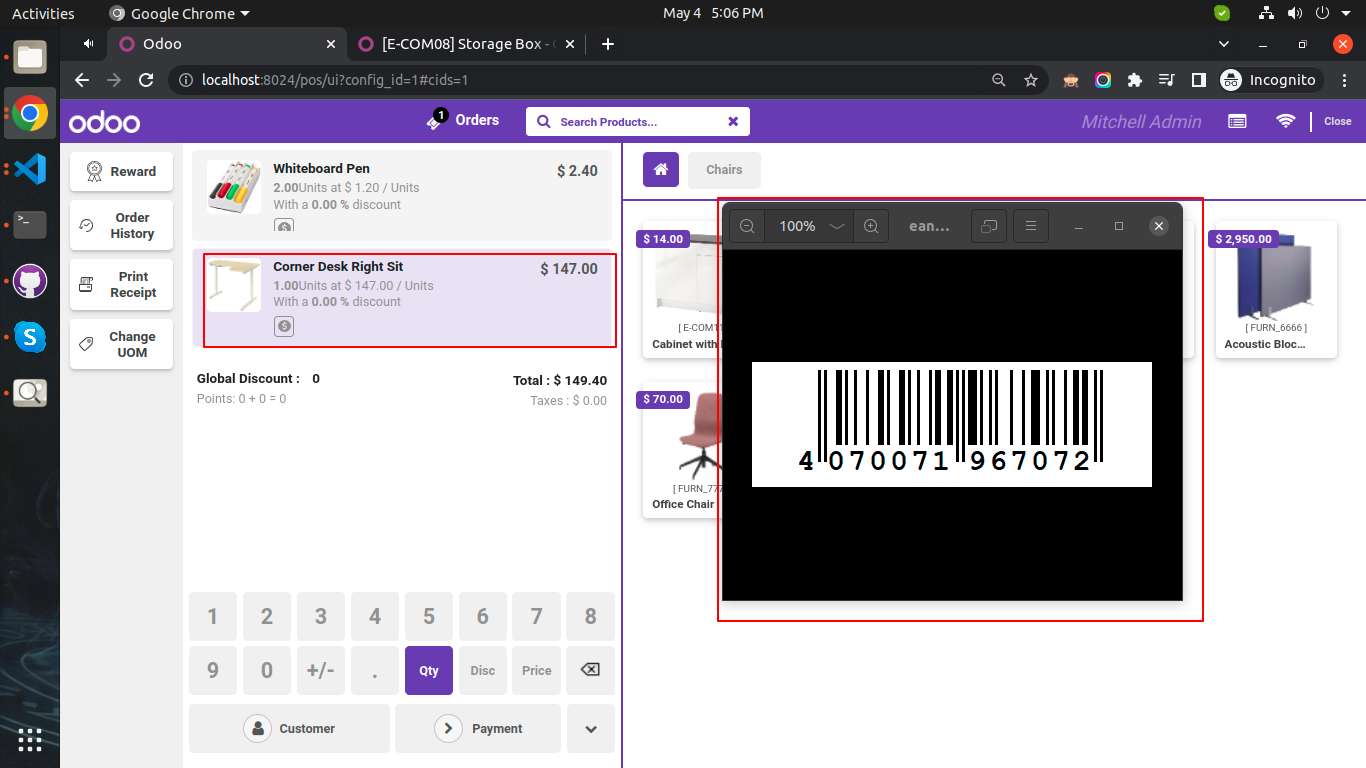
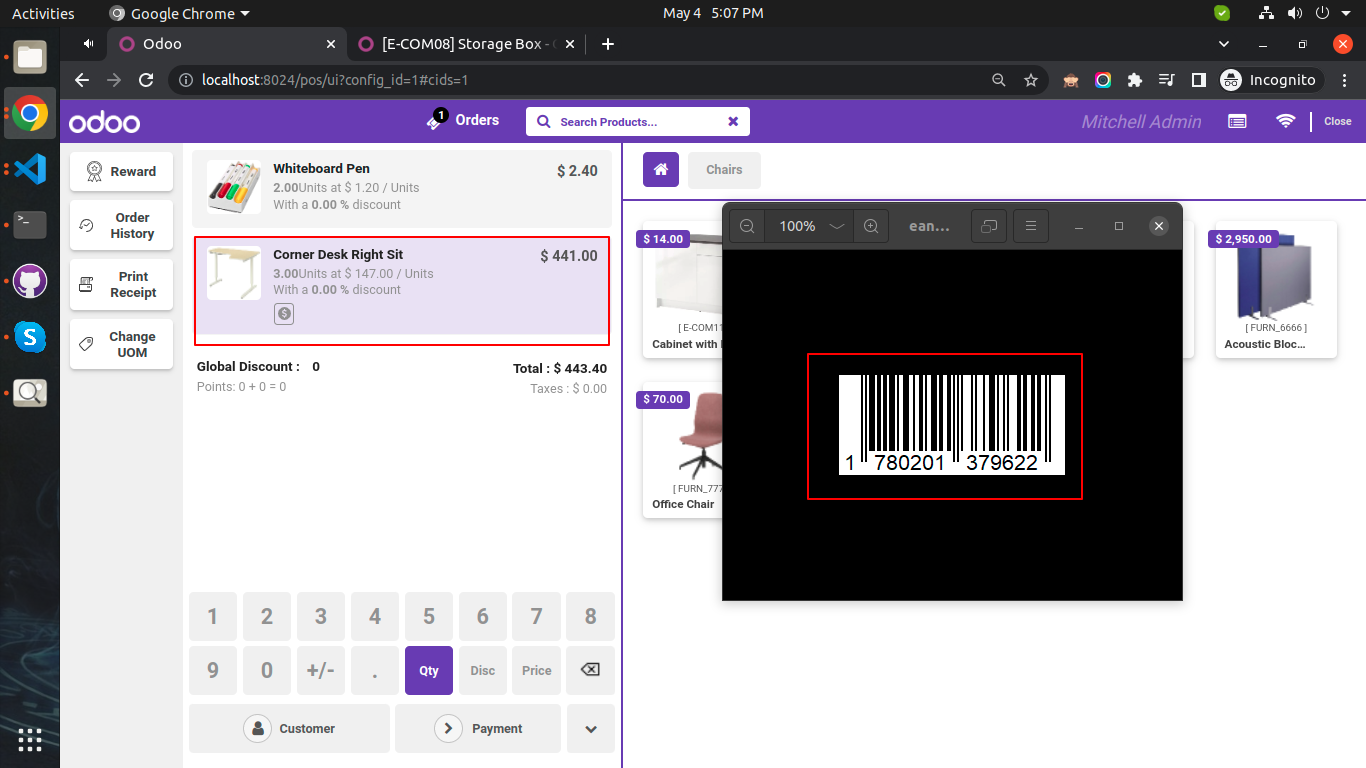
Add multiple Barcode In Corner Desk Right Sit.

Add multiple barcodes to Corner Desk Right

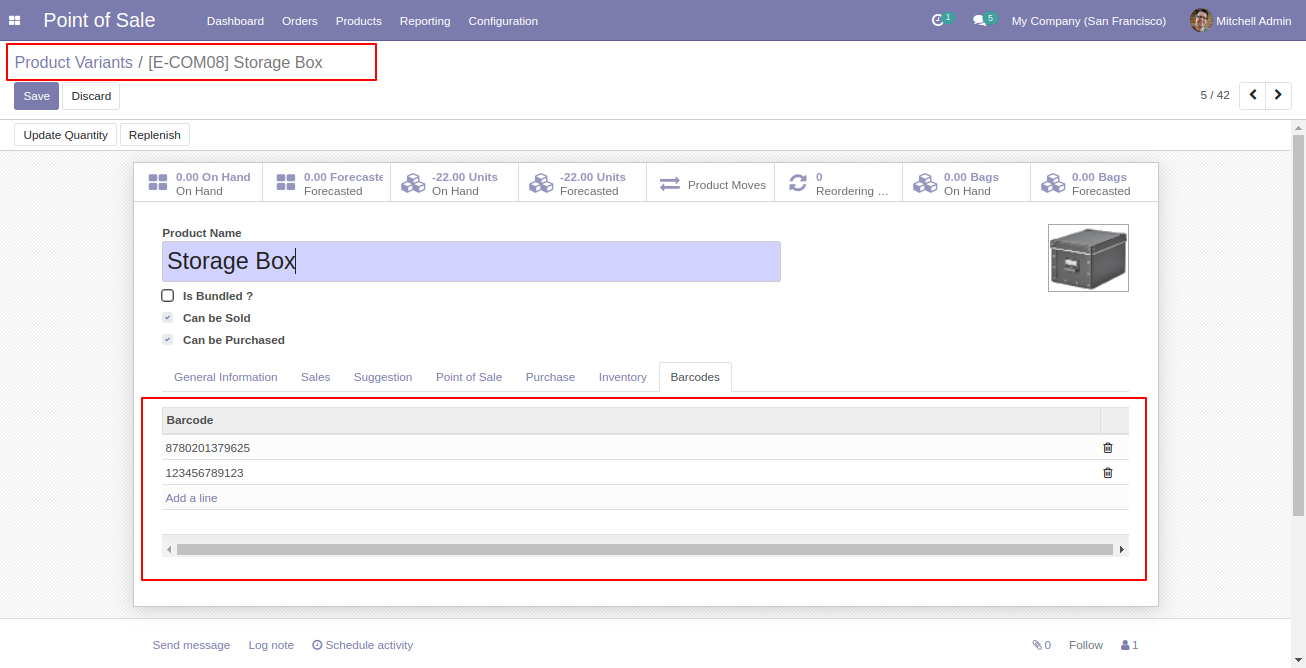
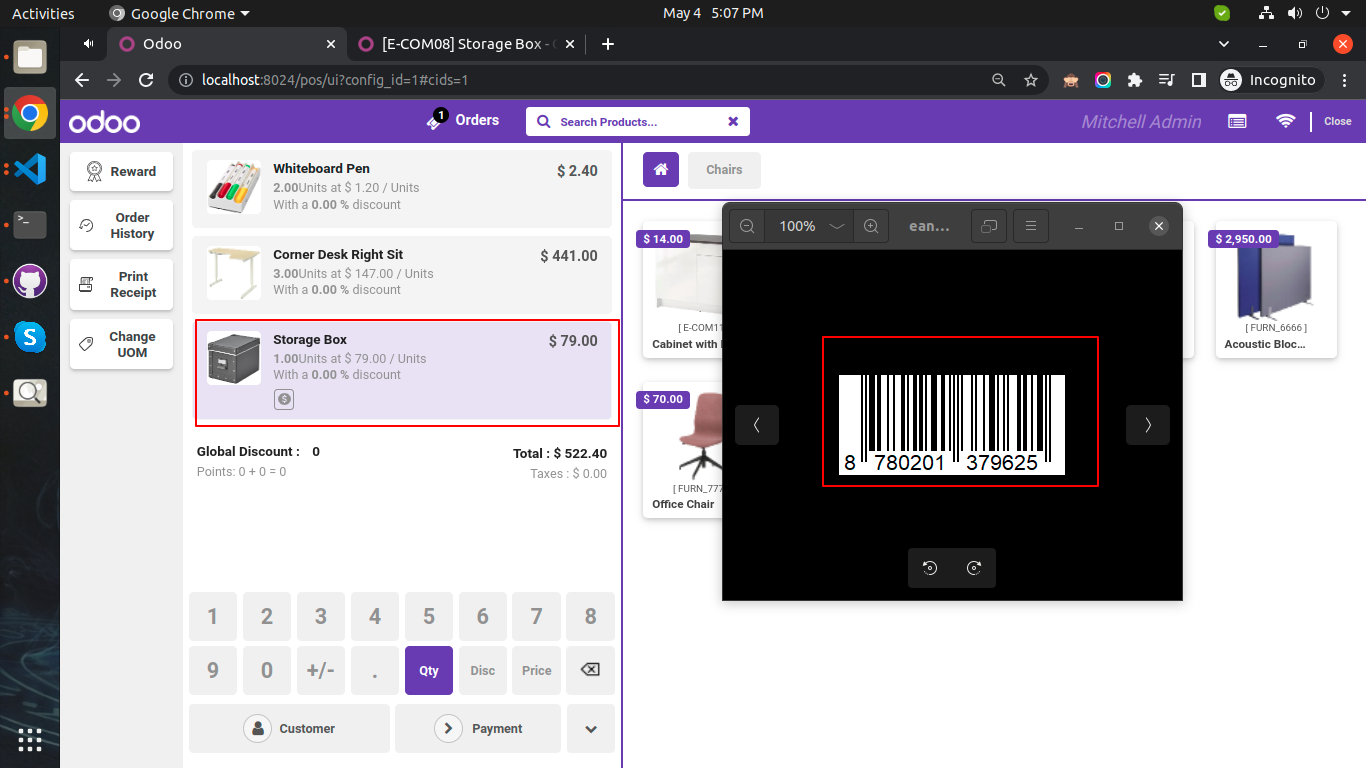
Add multiple Barcode In Storage Box.

Add multiple barcodes to Storage Box

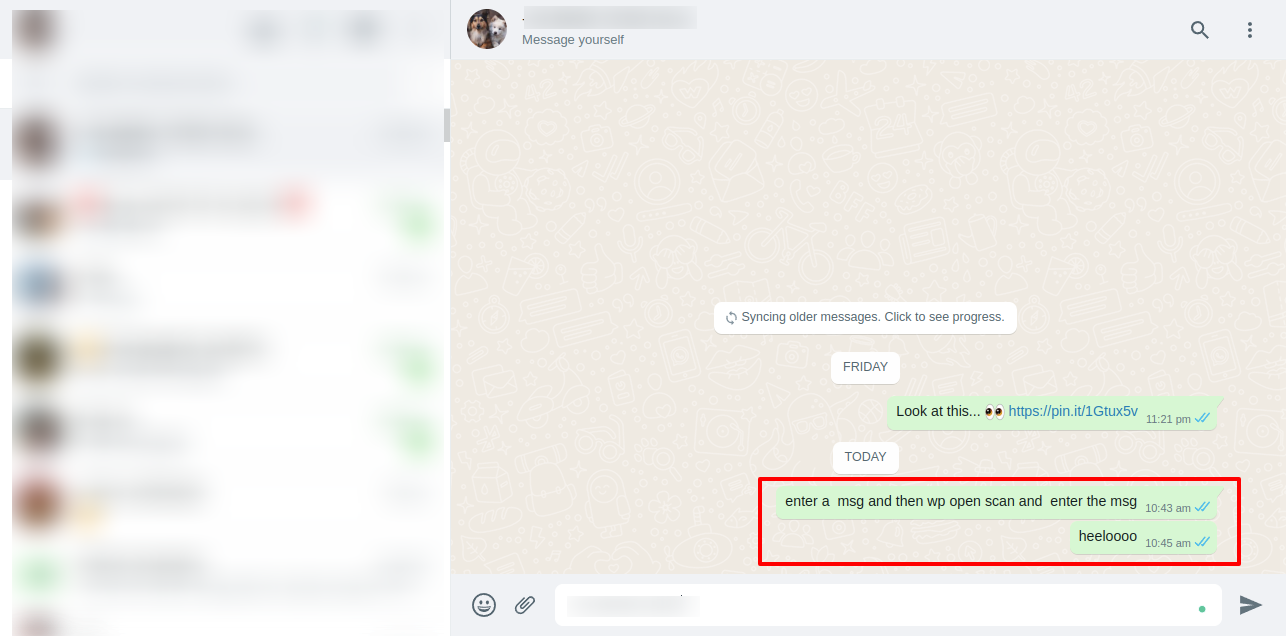
Scan 1 Barcode It will Automatically Add in Cart.

Scan barcode to add product to cart

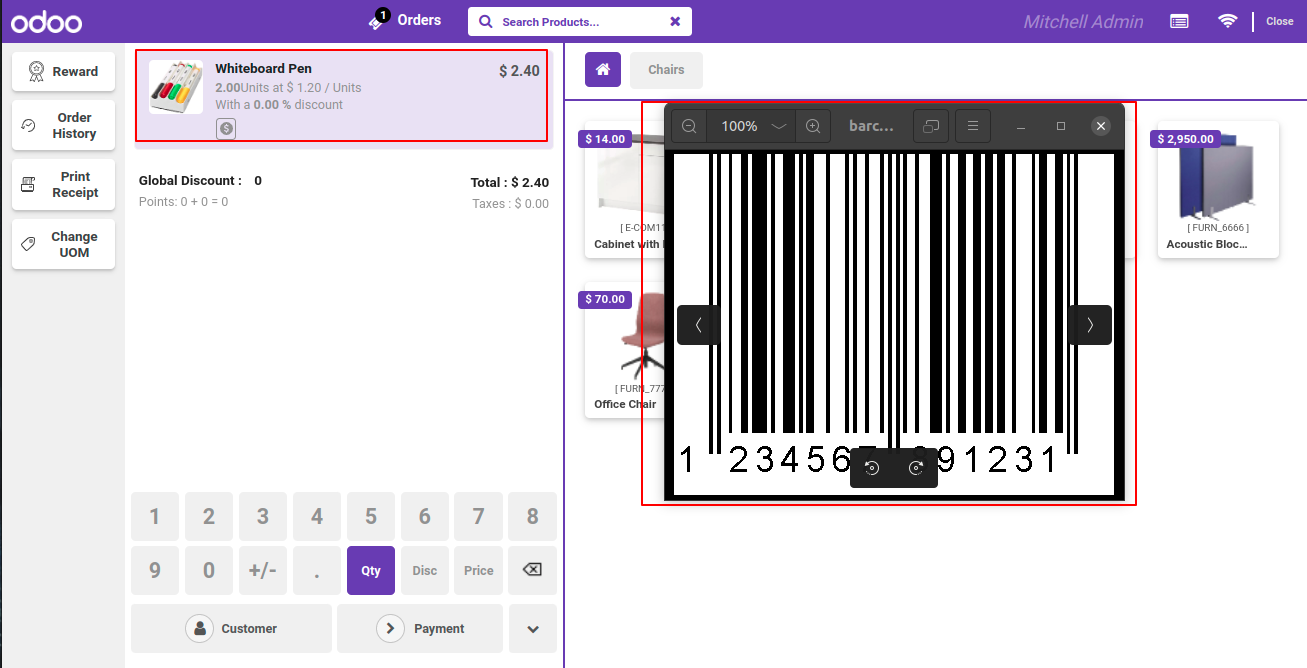
Scan 2 Barcode It will Automatically Update Qty in Cart.

Scan barcode to update product quantity

Scan barcode It Will Add one Product In Cart.

Scan barcode to add another product

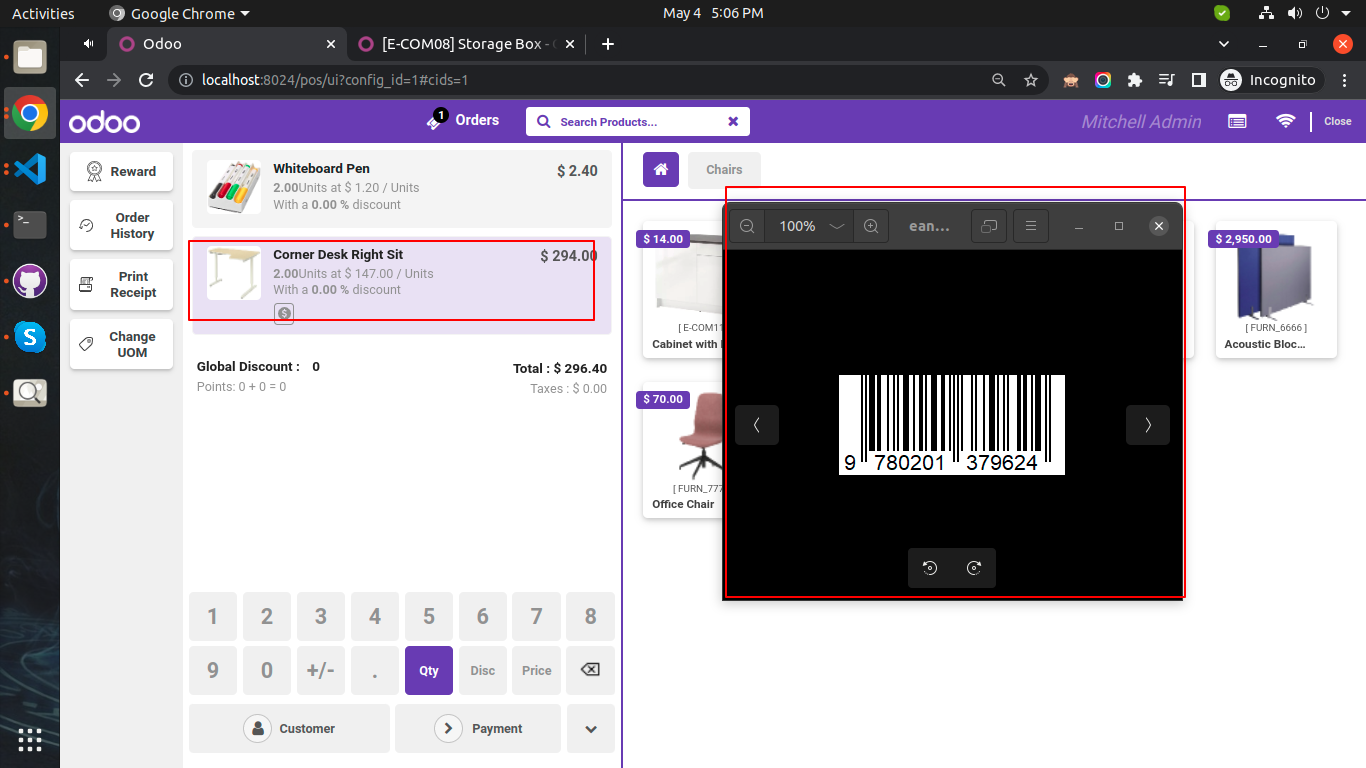
Scan 2 barcode It Will update qty of Product In Cart.

Scan barcode to update product quantity

Scan 3 barcode It Will update qty of Product In Cart.

Scan barcode to update quantity again

Scan barcode It Will Add one Product In Cart.

Scan barcode to add new product

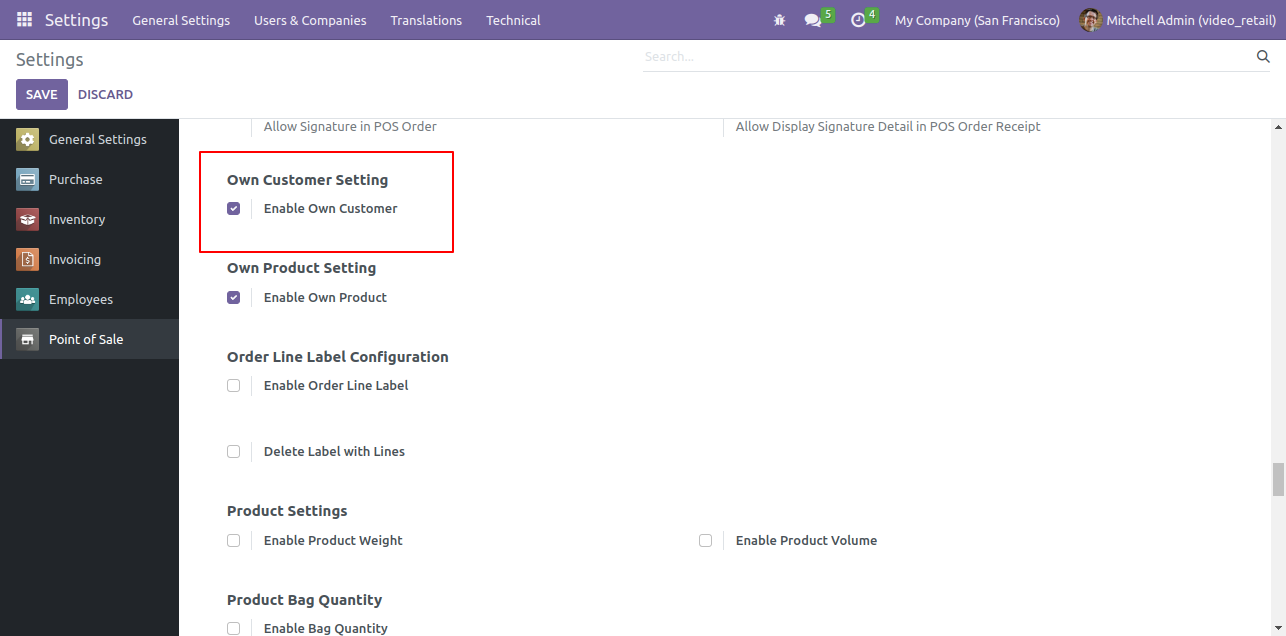
Goto pos setting and enable 'Enable Own Customer' feature.

Enable Own Customer Configuration Setting

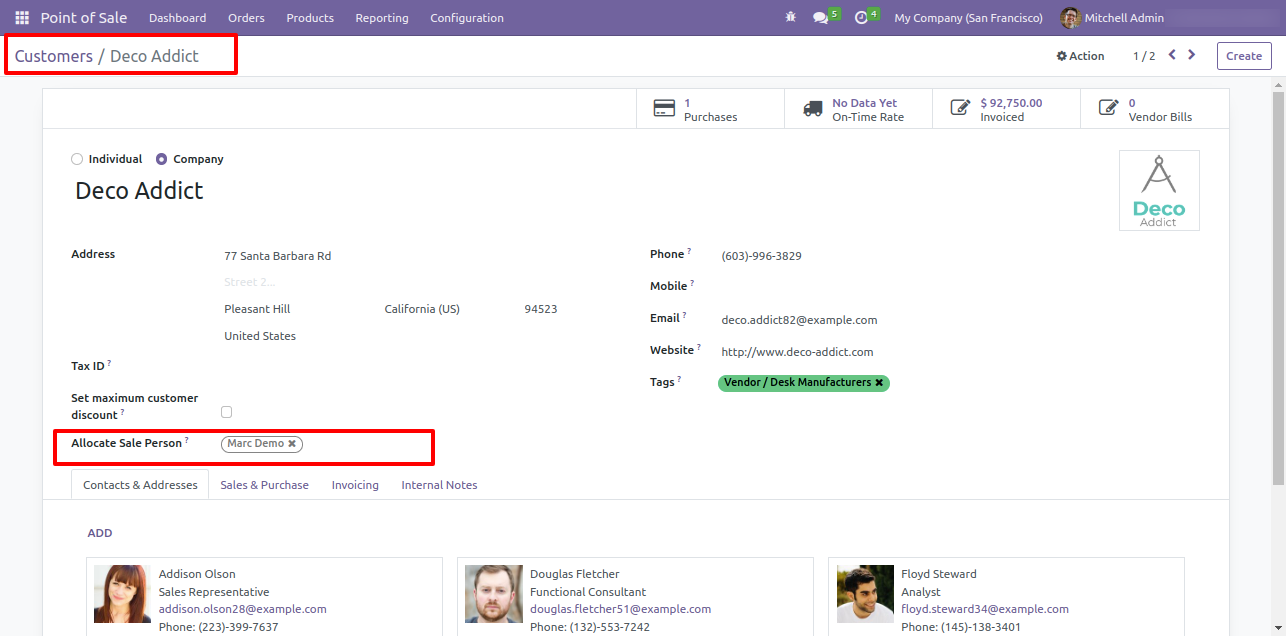
Now goto customer form view and set 'Allocated Sales Person'.

Customer Form with Allocated Sales Person

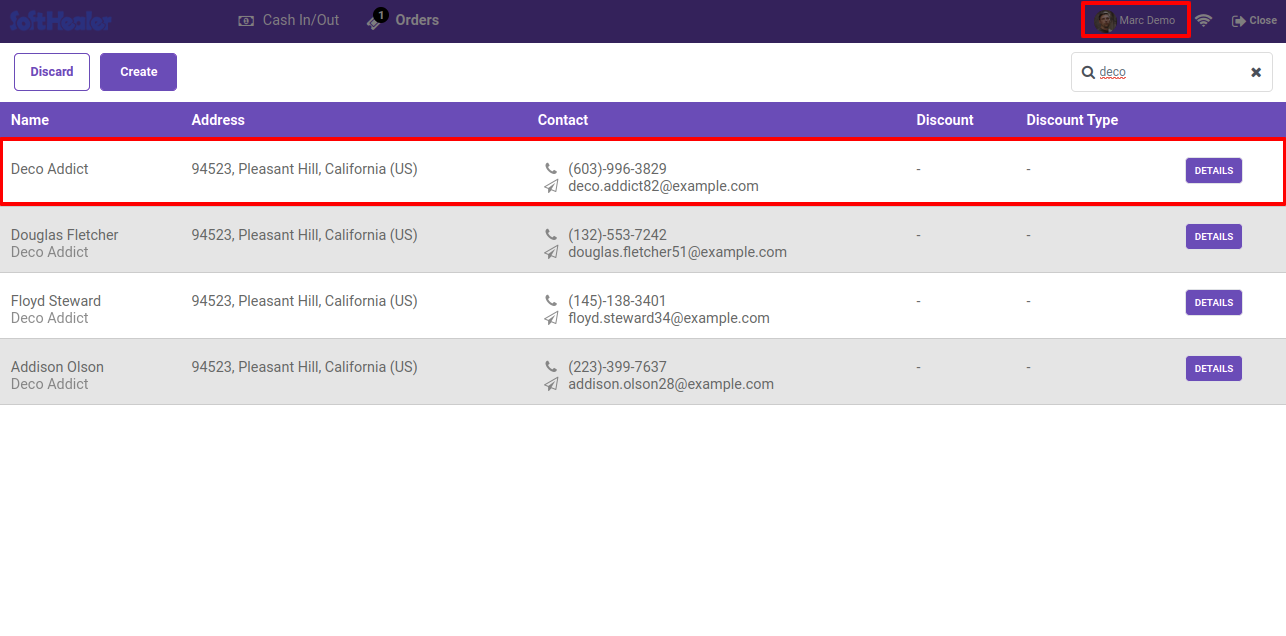
That salesperson can see those customers only.

Customer List for Assigned Salesperson

Goto pos setting and enable 'Enable Own Products' feature.

Enable Own Products Configuration Setting

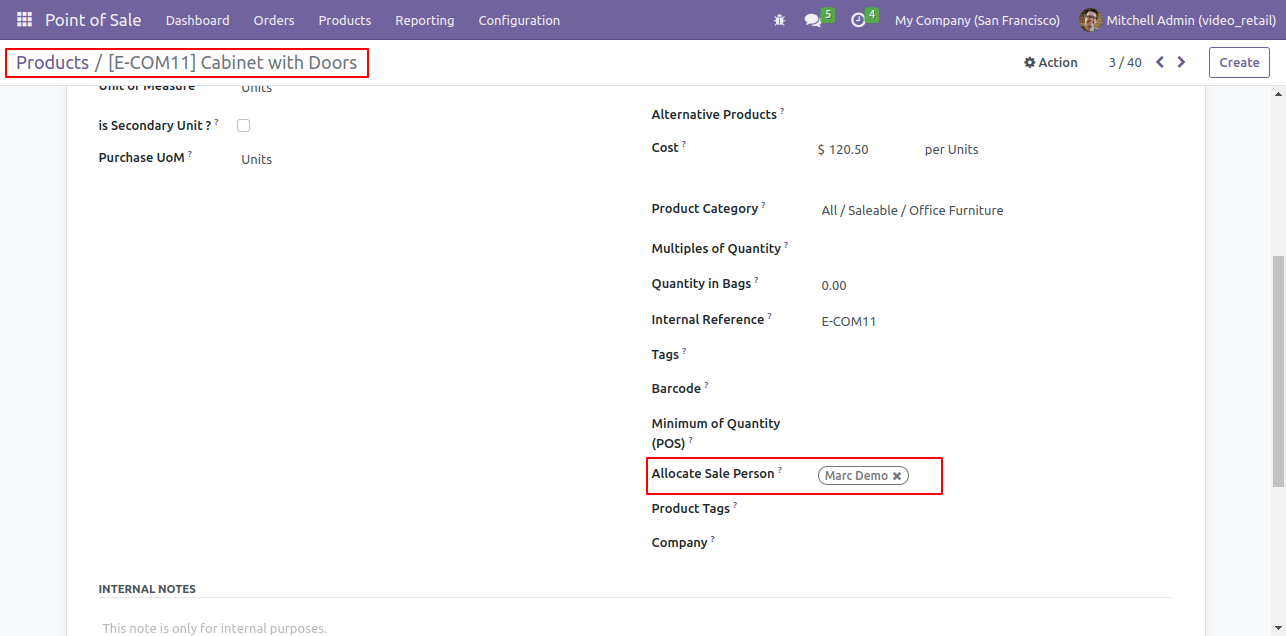
Now goto product form view and set 'Allocated Sales Person'.

Product Form with Allocated Sales Person

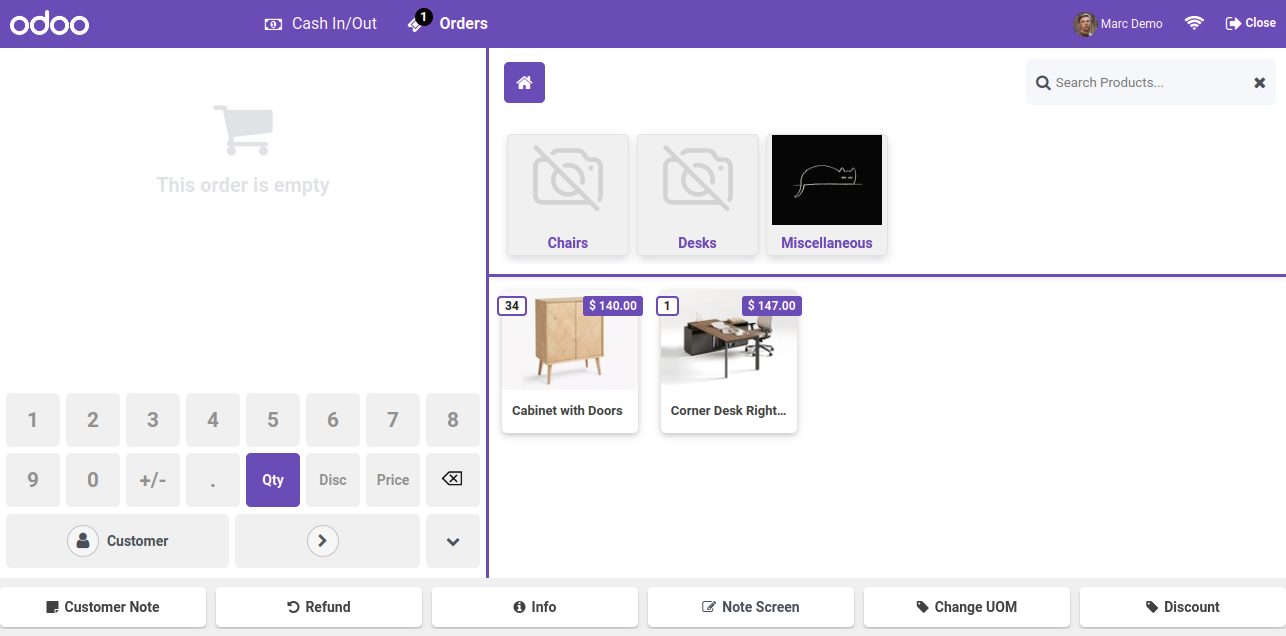
That salesperson can see those products only.

POS Screen with Salesperson Products Only

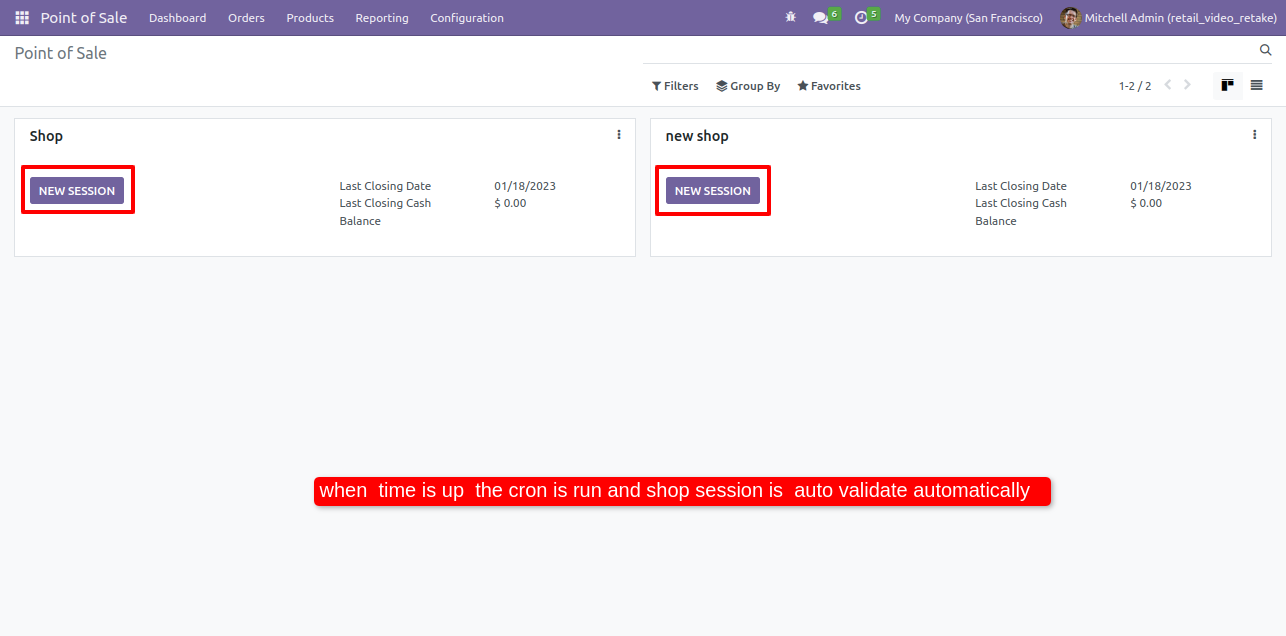
Goto point of sale. Here, you can see the new shop & new shop both shop session is in progress.

POS Shop Sessions Currently in Progress

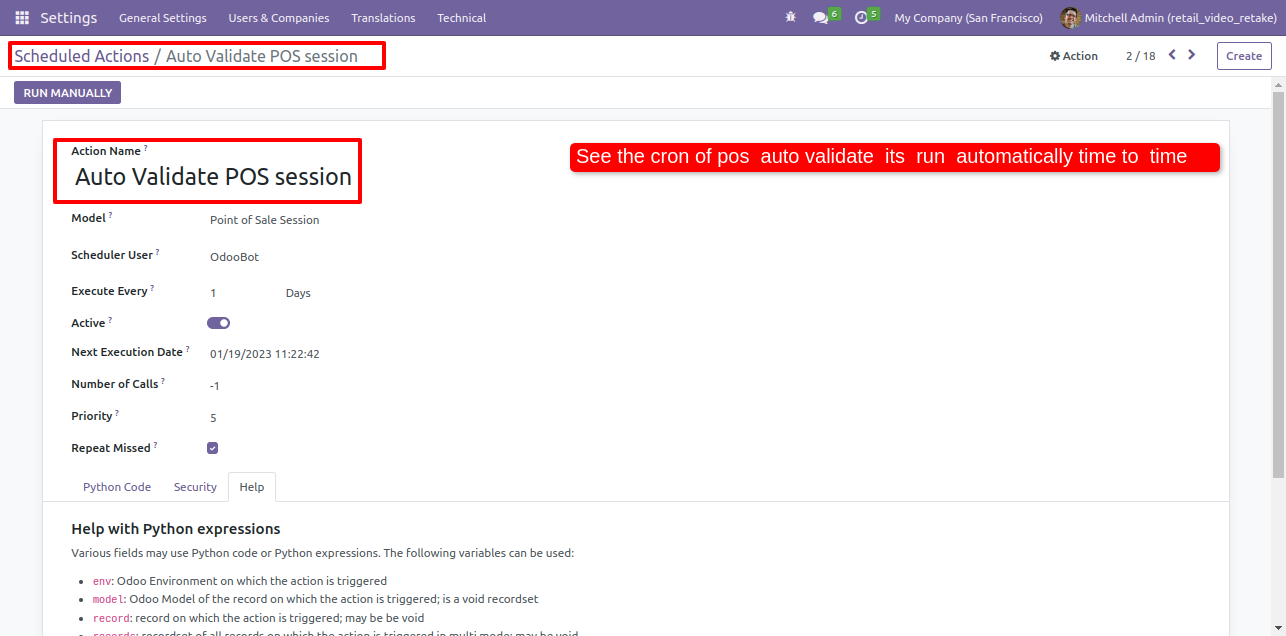
Form view of the scheduled action of the auto validate POS session.
Here, you can see the cron of the auto validate POS, it's run automatically time to time.

Auto Validate POS Session Cron Setting

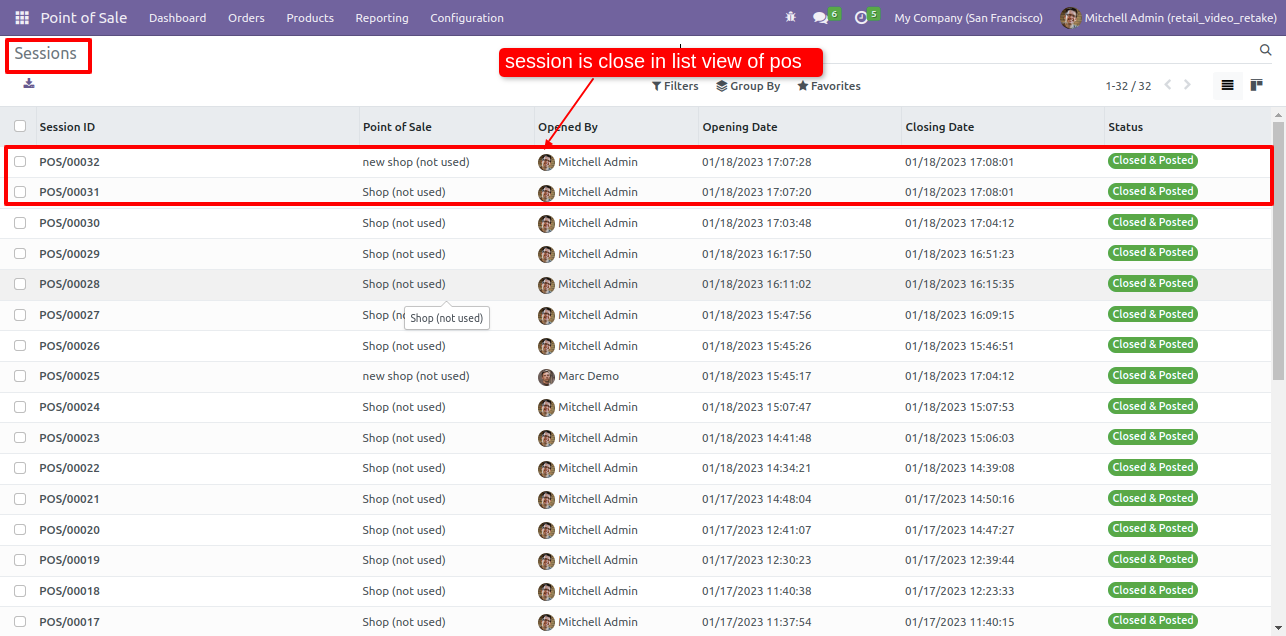
When the time is up the cron is automatically run and the session is auto validate.

POS Session Auto Validated by Cron

In the list view of the session you can see the session is close&posted.

Session List with Closed and Posted Status

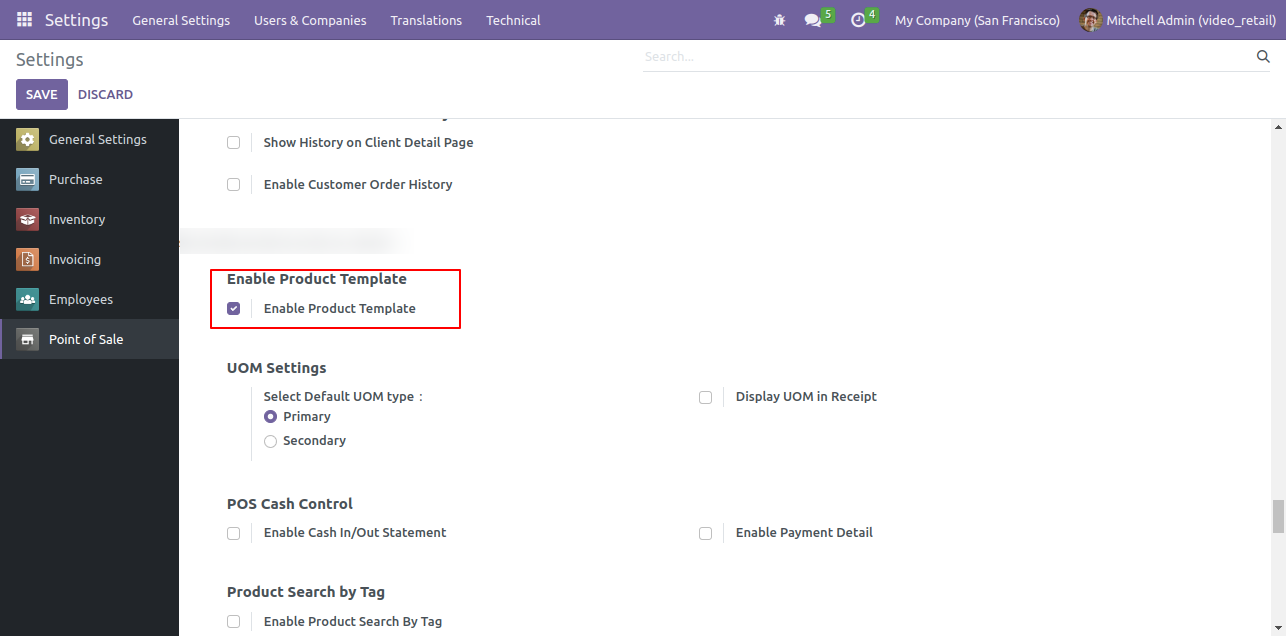
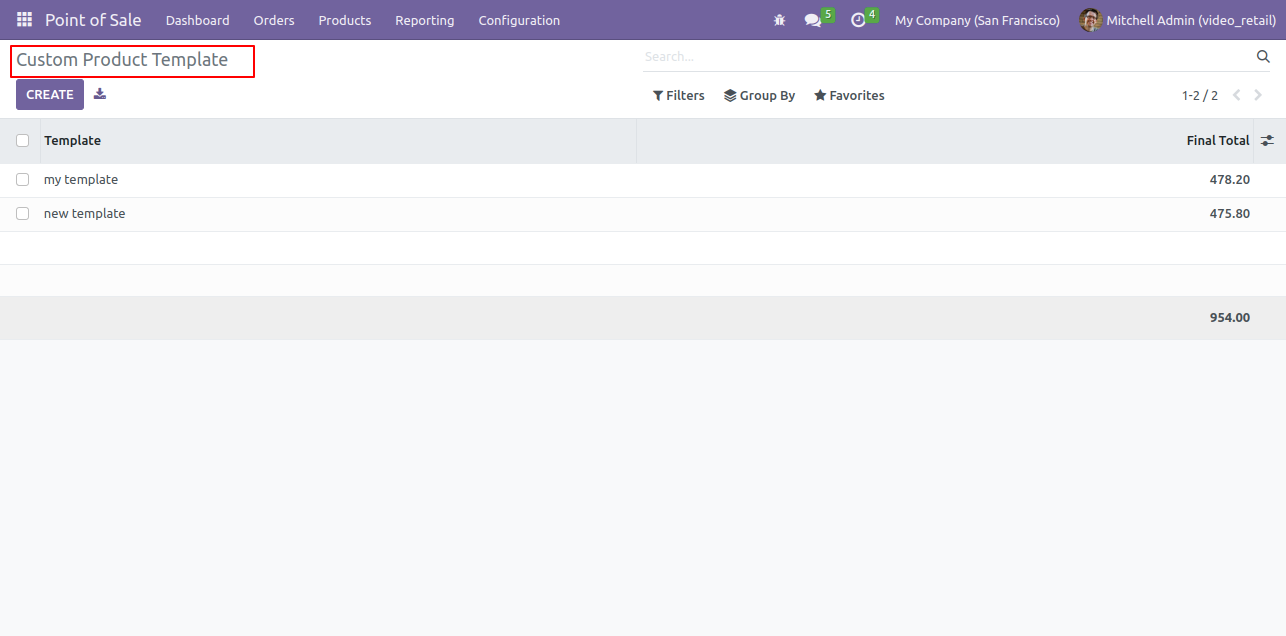
Enable Product Template.

Enable Product Template setting

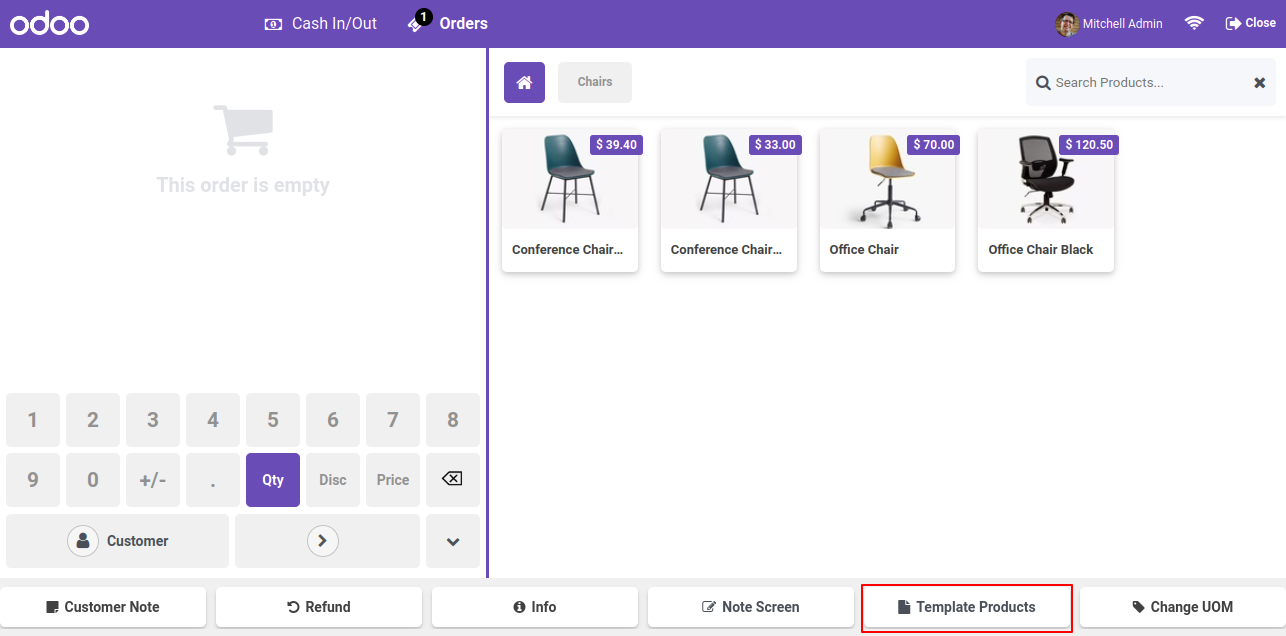
"Template Product" Button in the POS Screen.

Template Products button on POS screen

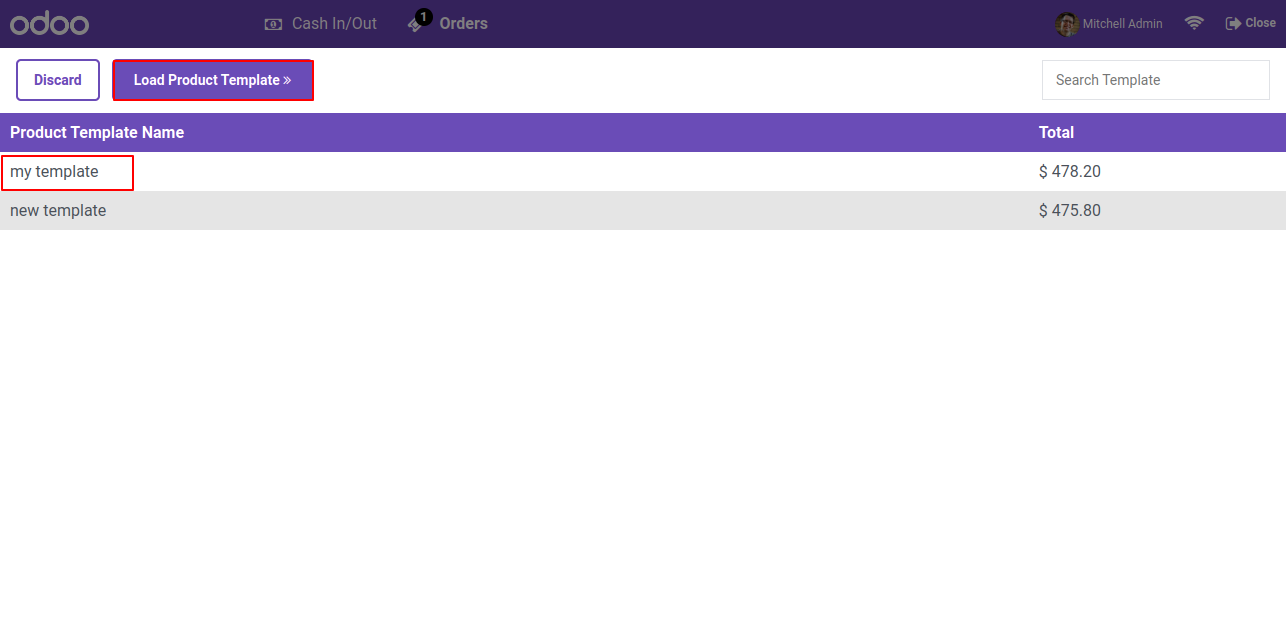
You can see the list of Product Template, a select product which you want to load in pos order and click "Load Product Template" Button.

Load Product Template list

After Click "Load Product Template" you can see all product which in the template.

Product list after loading template

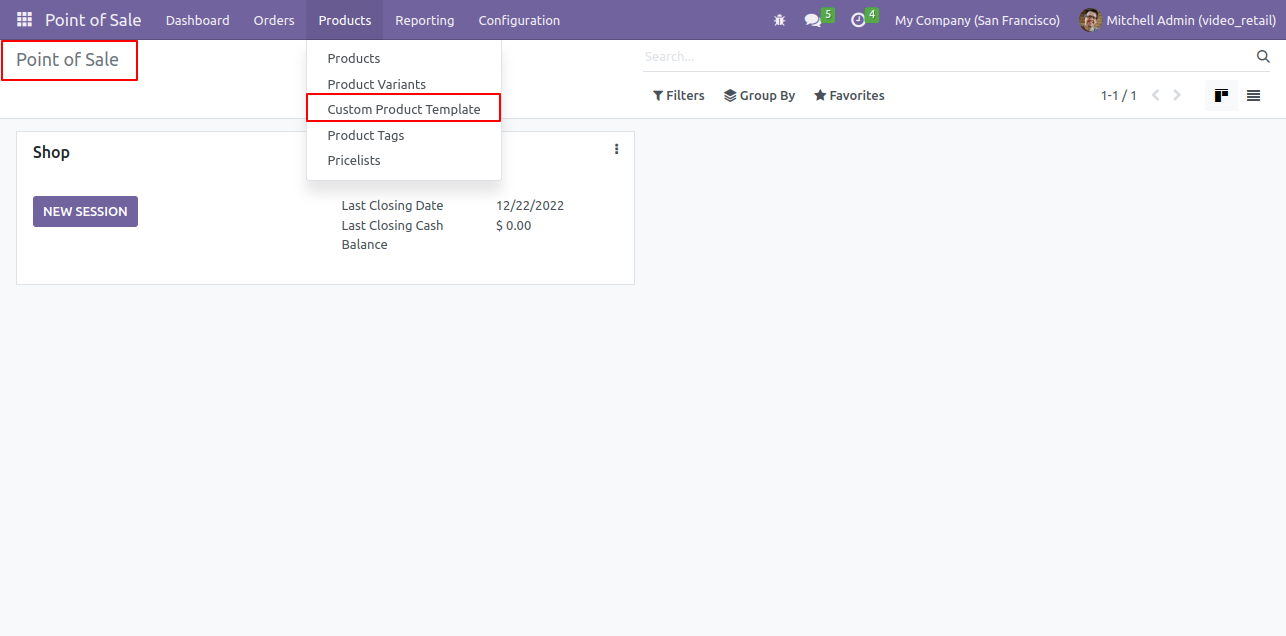
User can search Product Template by its name.

Open Custom Product Template menu

"Custom Product Template" sub menu in Product Menu.

Custom Product Template detail view

Product Templates that is set Active, available in Sales.

Product Template available in Sales

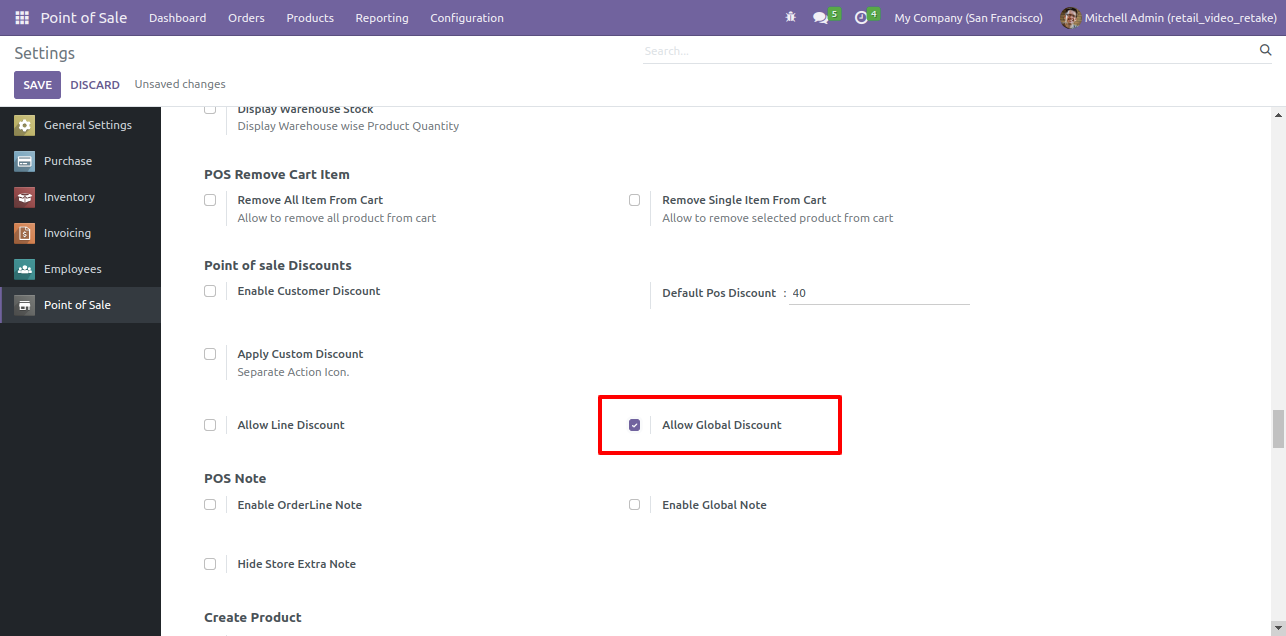
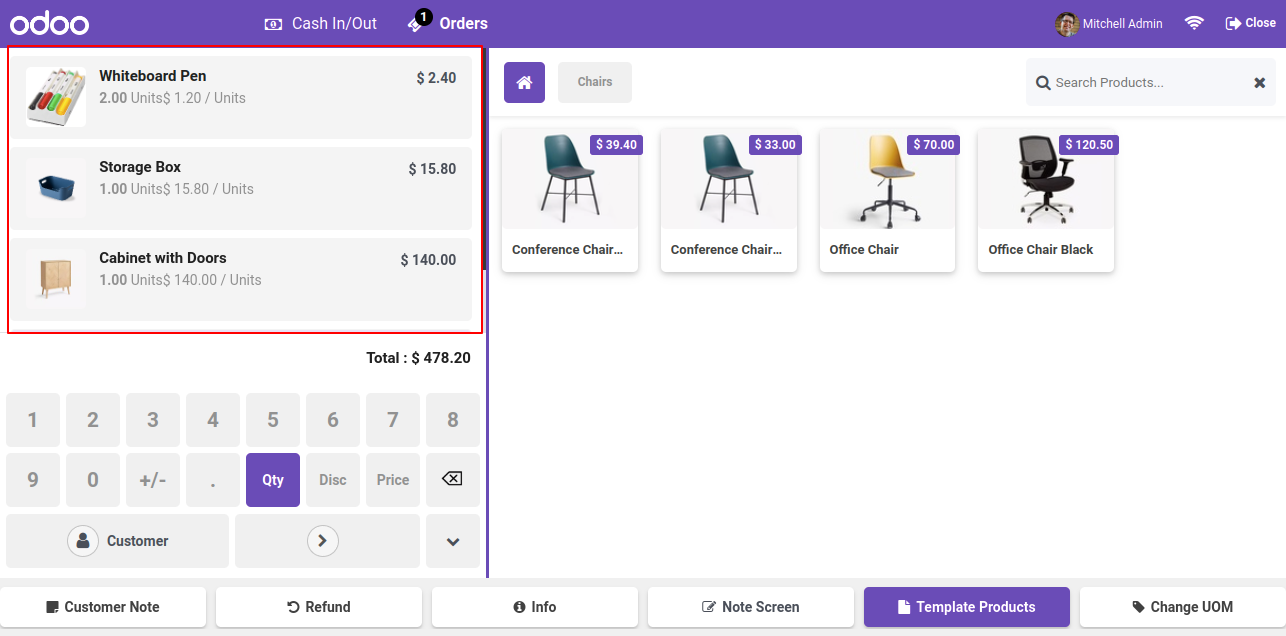
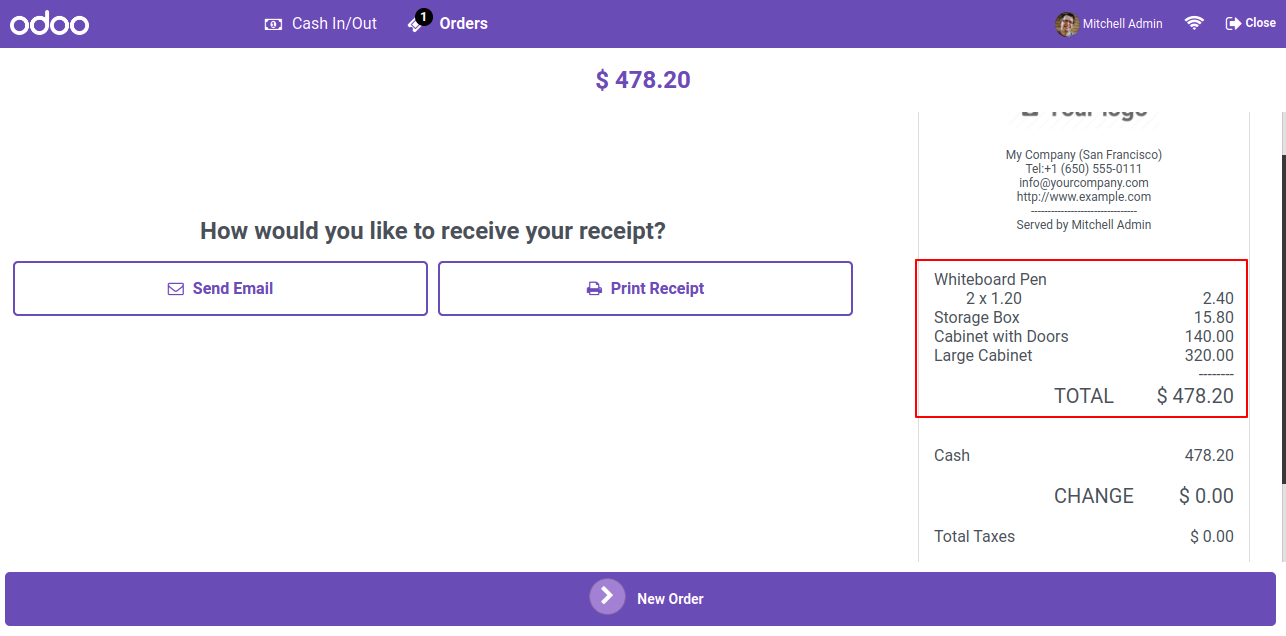
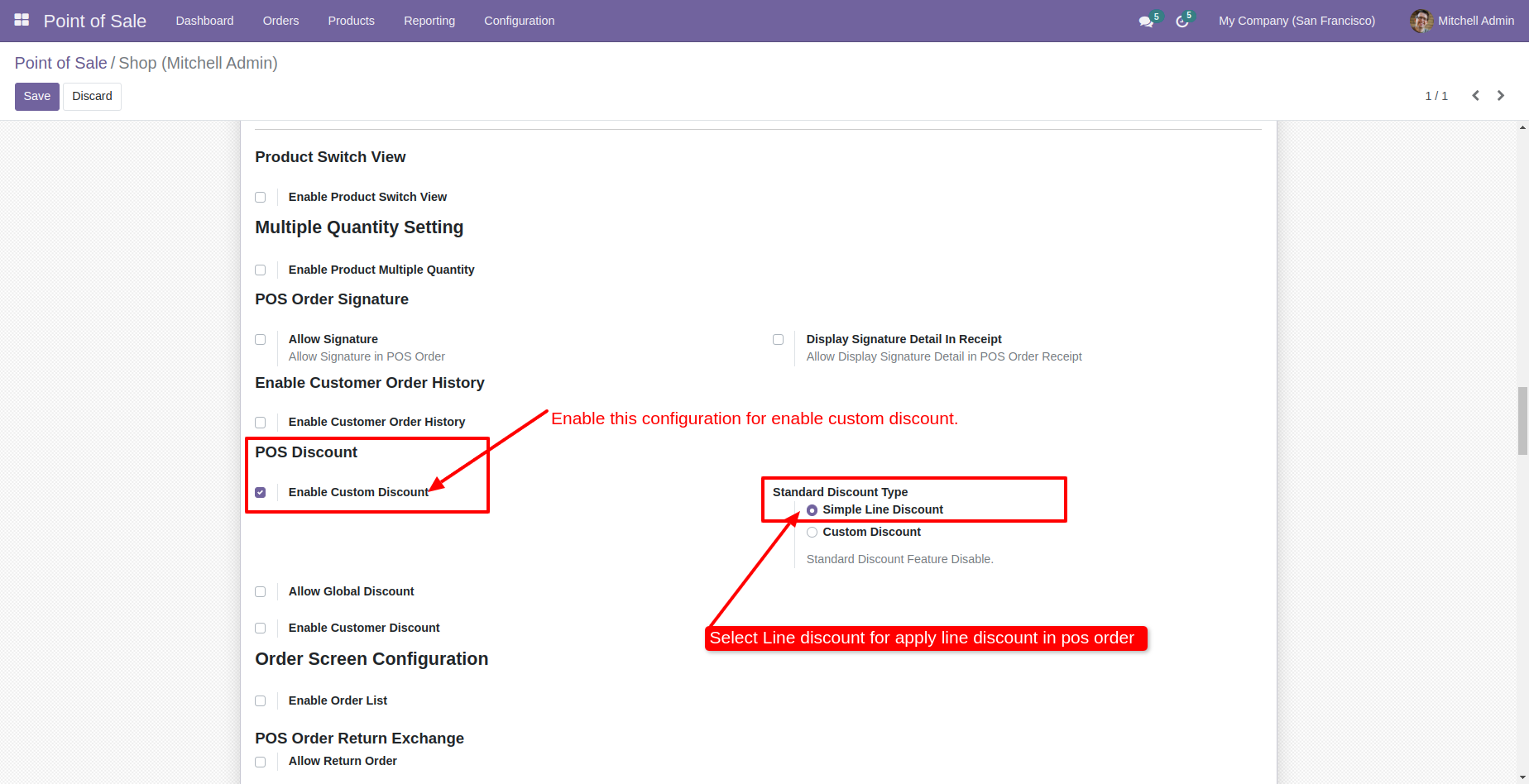
Enable The Feature Customer Discount and Also Use Standard discount.

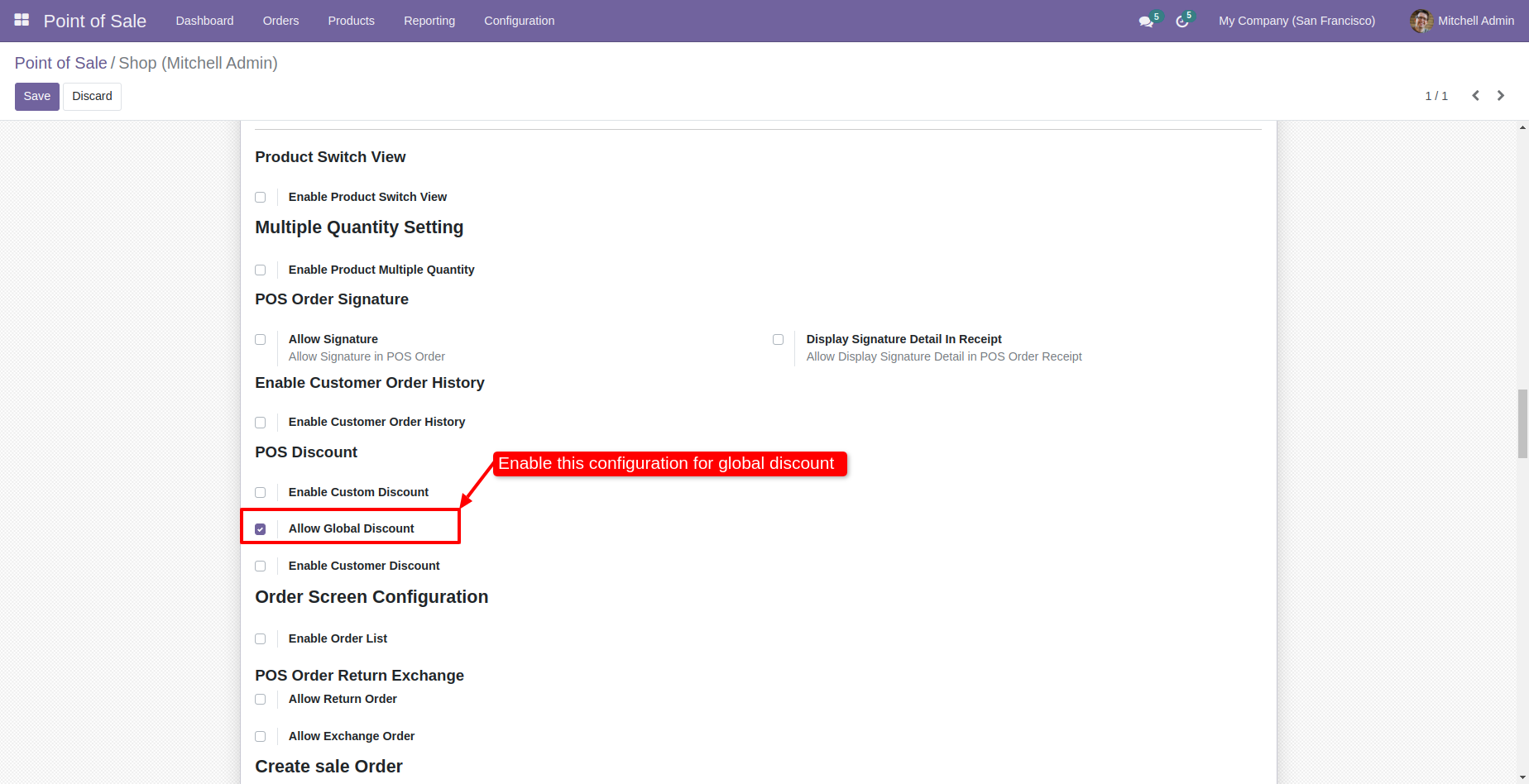
Enable Allow Global Discount setting

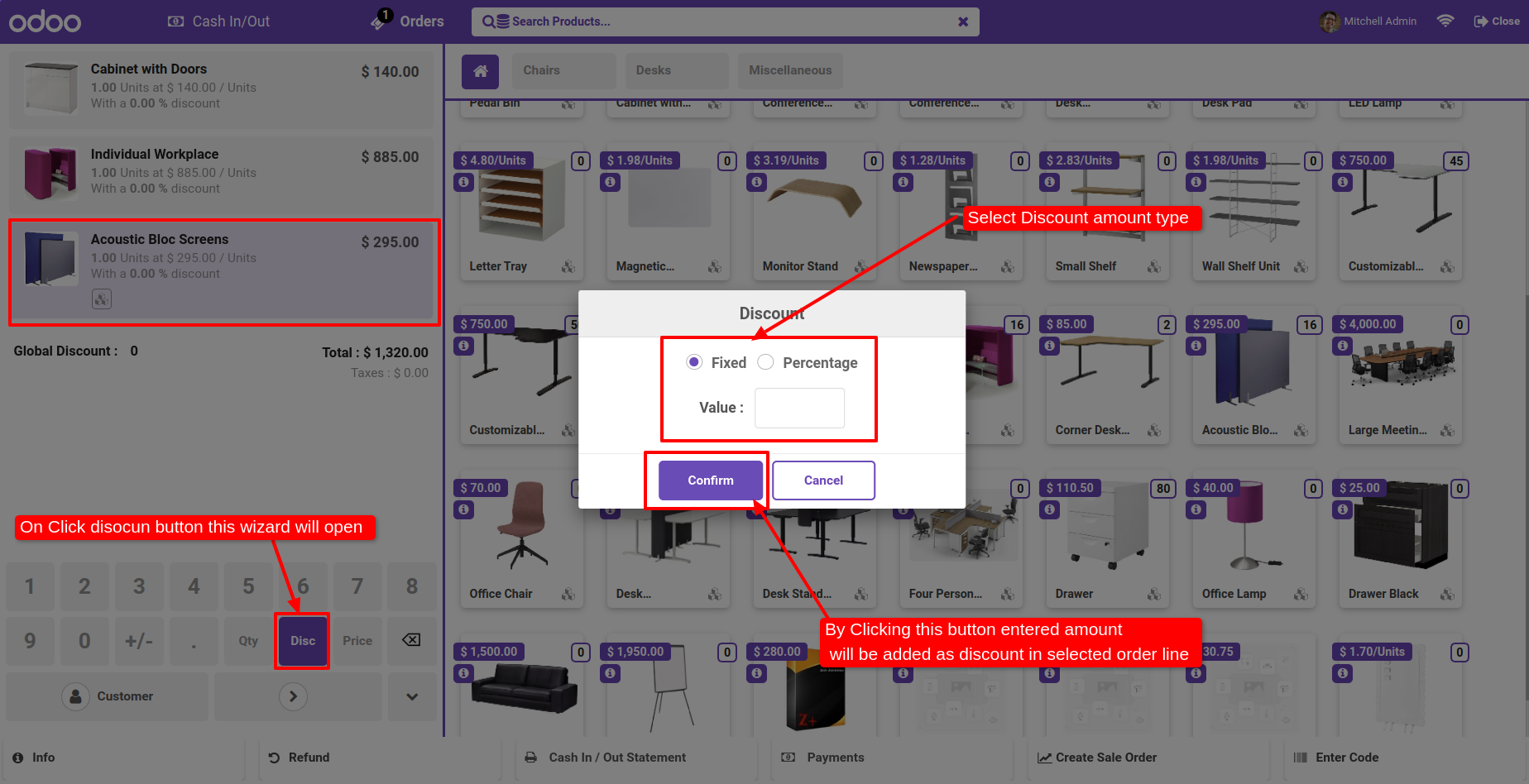
When Click The Discount Button One Wizred iS Open Add Discount Fix Or Percentage Wise By Press Confirm You Can Add Discount In Selected Line.

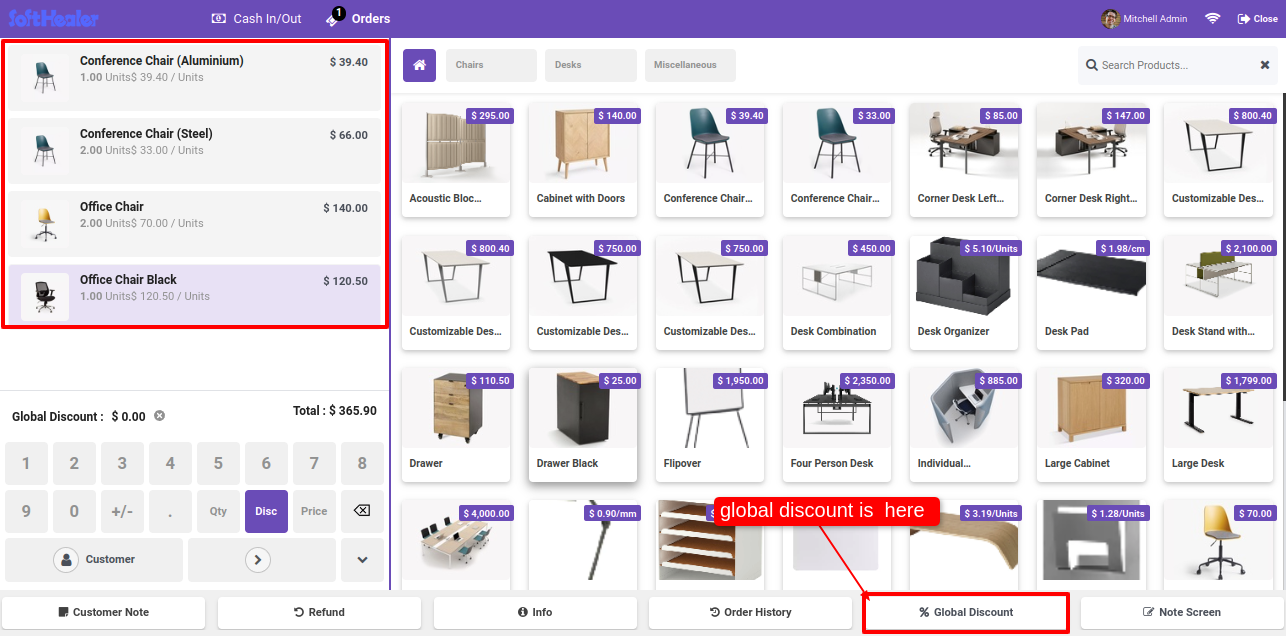
Global Discount button in POS cart

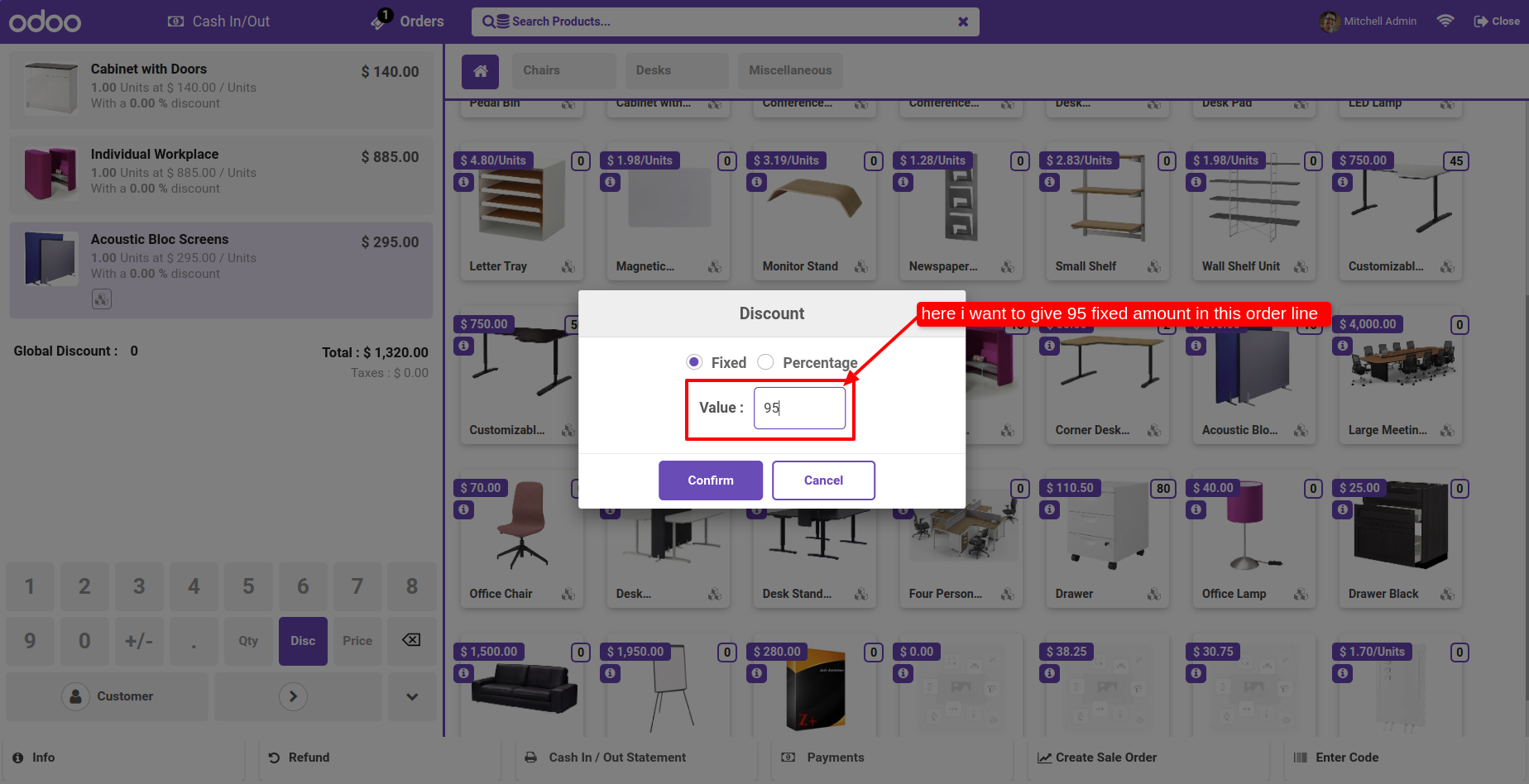
Select Fix and Add amount Press Confirm.

Apply fixed amount discount popup

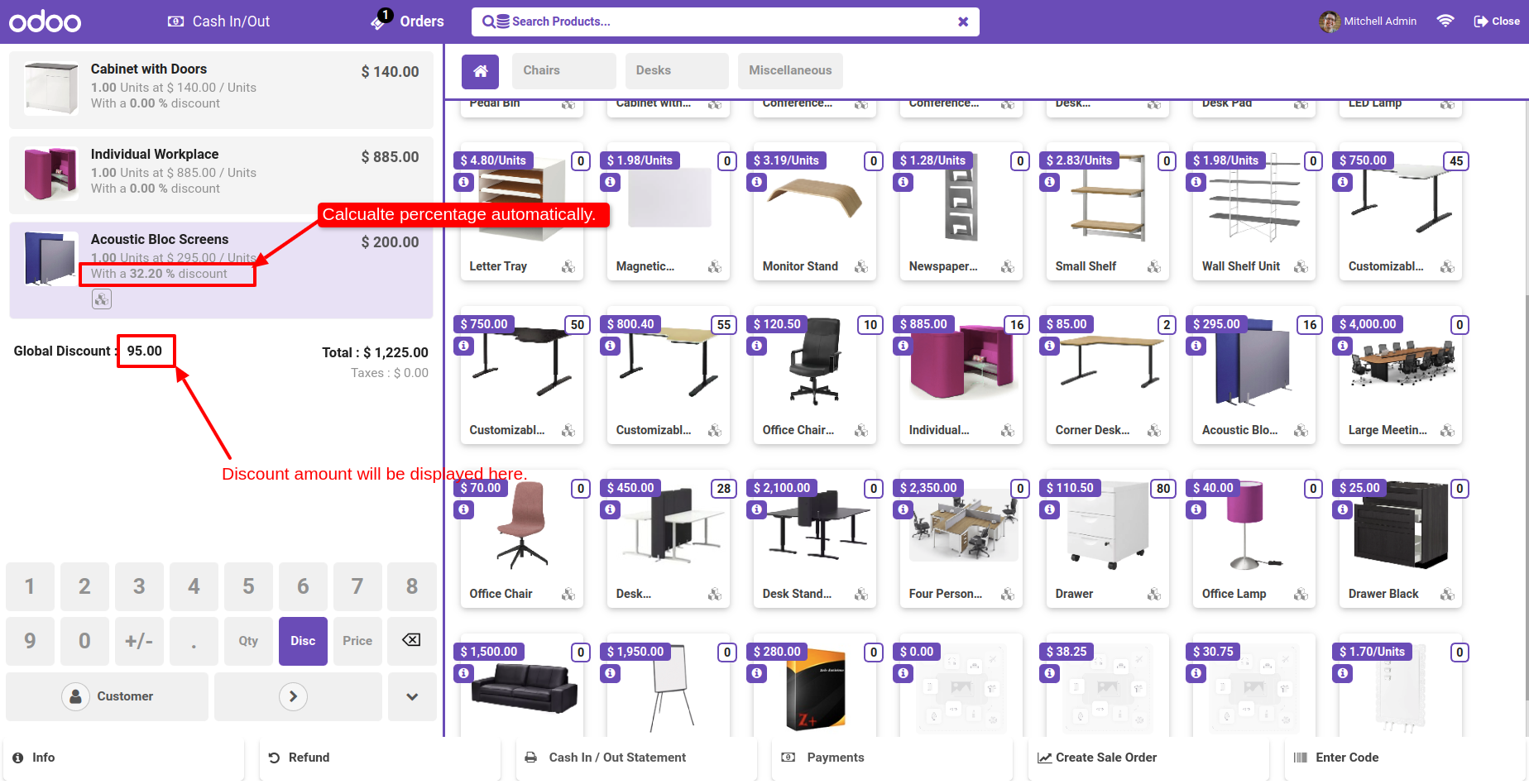
Fix Discount Automatically Add In Line And Display Amount in Global Discount.

Order total after fixed discount applied

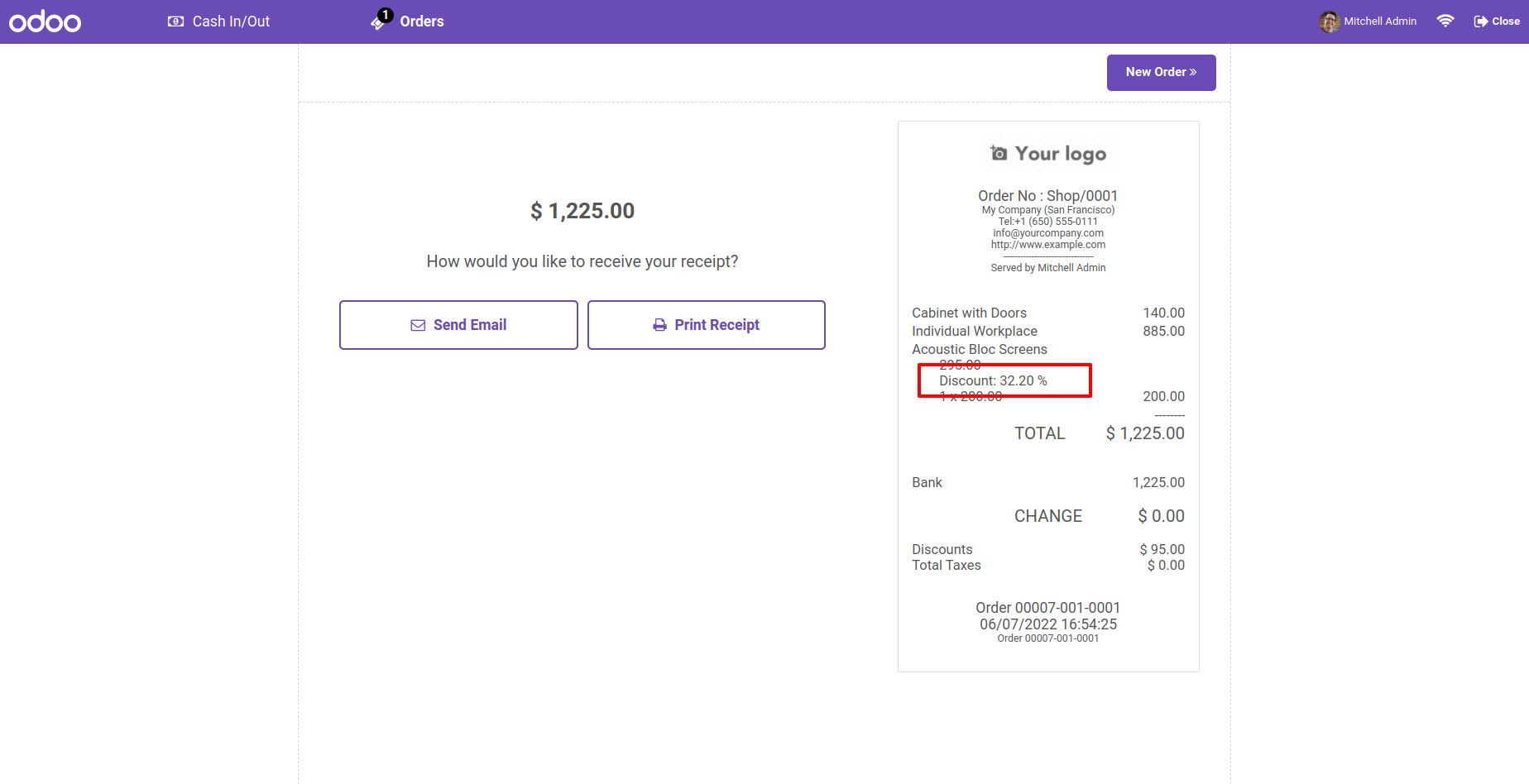
Discount Printed in Receipt Also.

Apply percentage global discount

Select "Allow Global Discount" In POS Shop Configuration.

Enter percentage value in discount popup

Global Discount Button Visible In POS.

Disc button applies standard discount flow

Discount Apply On Total Amount of Order. Select Fix and Add Amount.

Receipt with applied discount

Discount will Apply in every Product of Order Equally.

Enable Allow Line Discount setting

Discount will See In Receipt.

Disc button opens discount popup

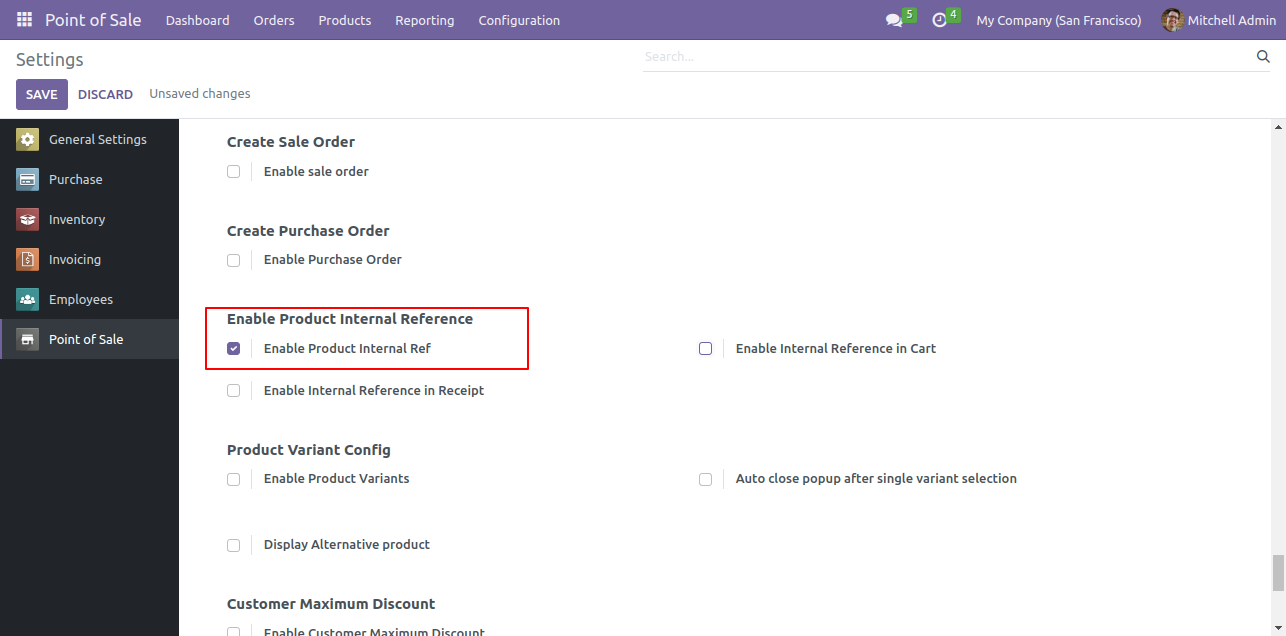
Goto pos setting and enable 'Enable Product internal Ref'.

Enable Product Internal Reference setting

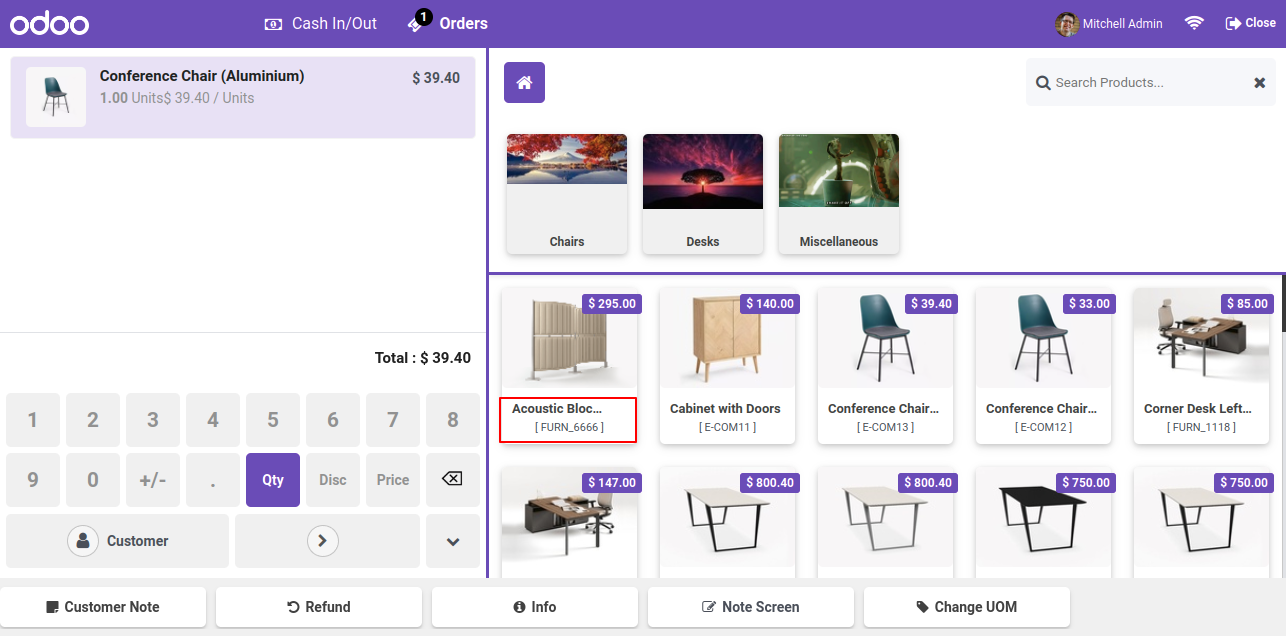
After that, the product internal reference is visible on pos screen.

EInternal reference visible on product screen

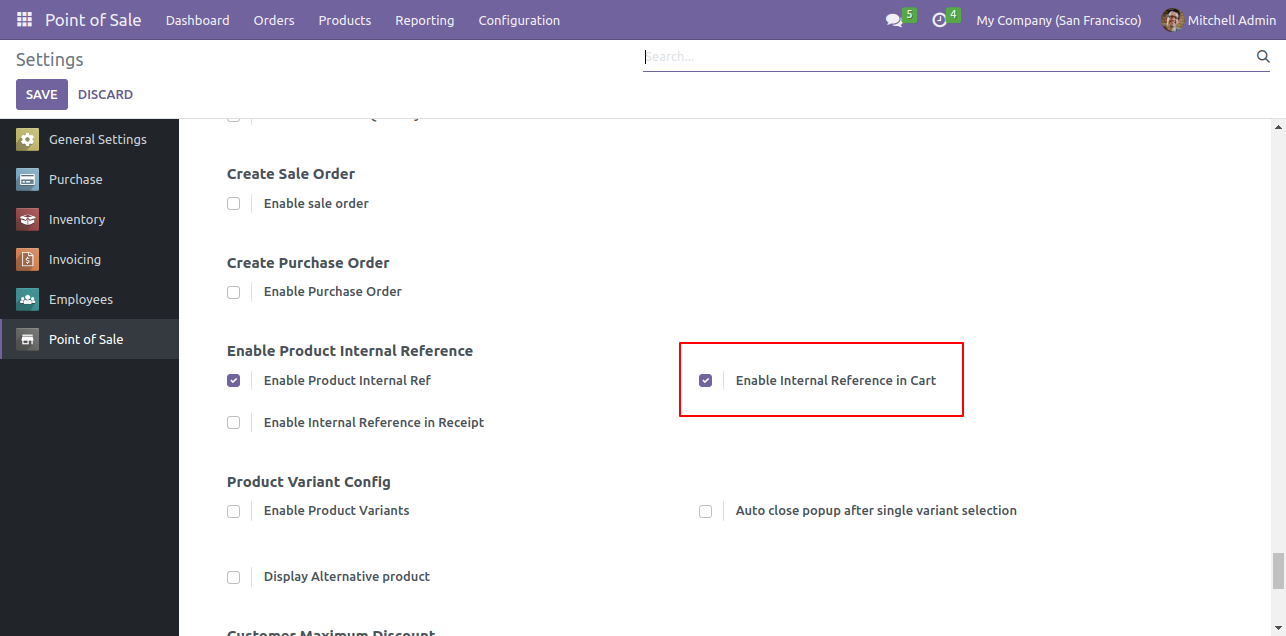
Goto pos setting na enable 'Enale internal Reference In Cart'.

Enable Internal Reference in Cart setting

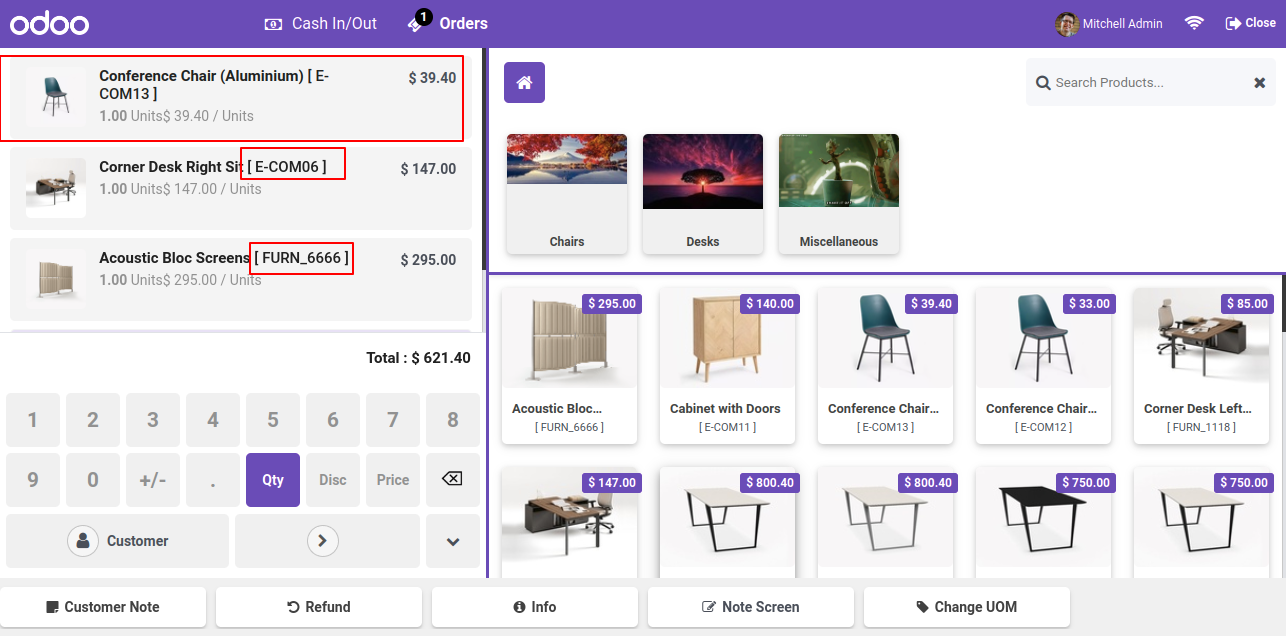
After enabling this, the product internal reference in cart is visible on pos screen.

Internal reference visible in cart

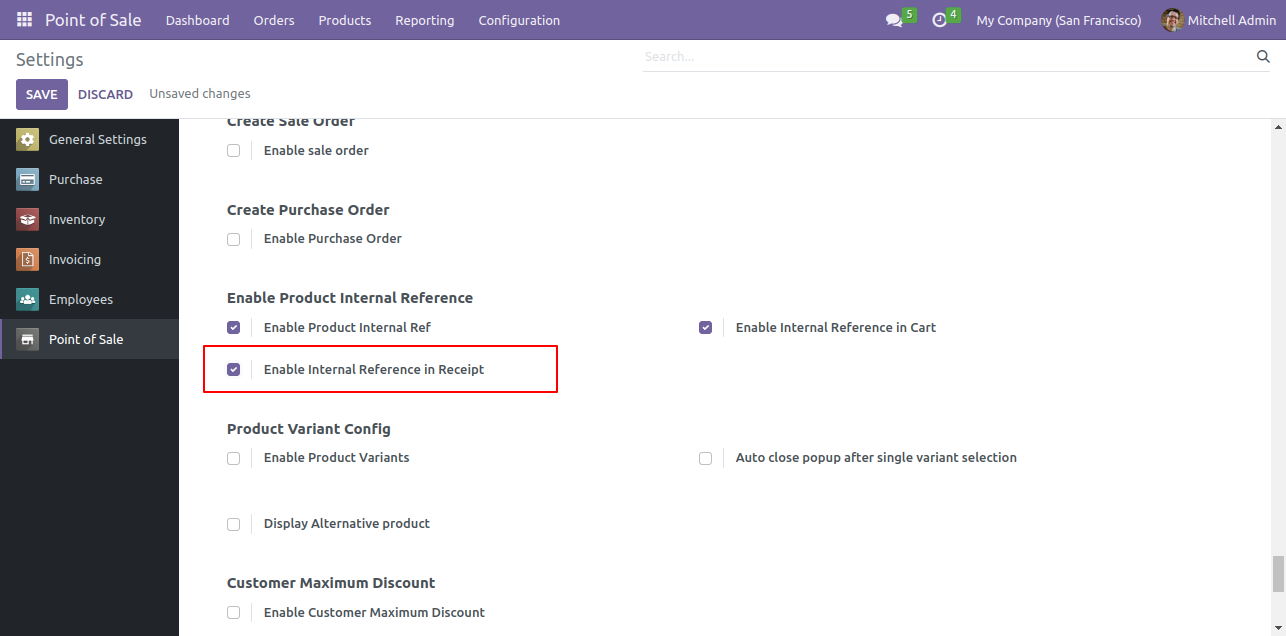
Goto pos setting na enablee 'Enable internal Reference In Receipt'.

Enable Internal Reference in Receipt setting

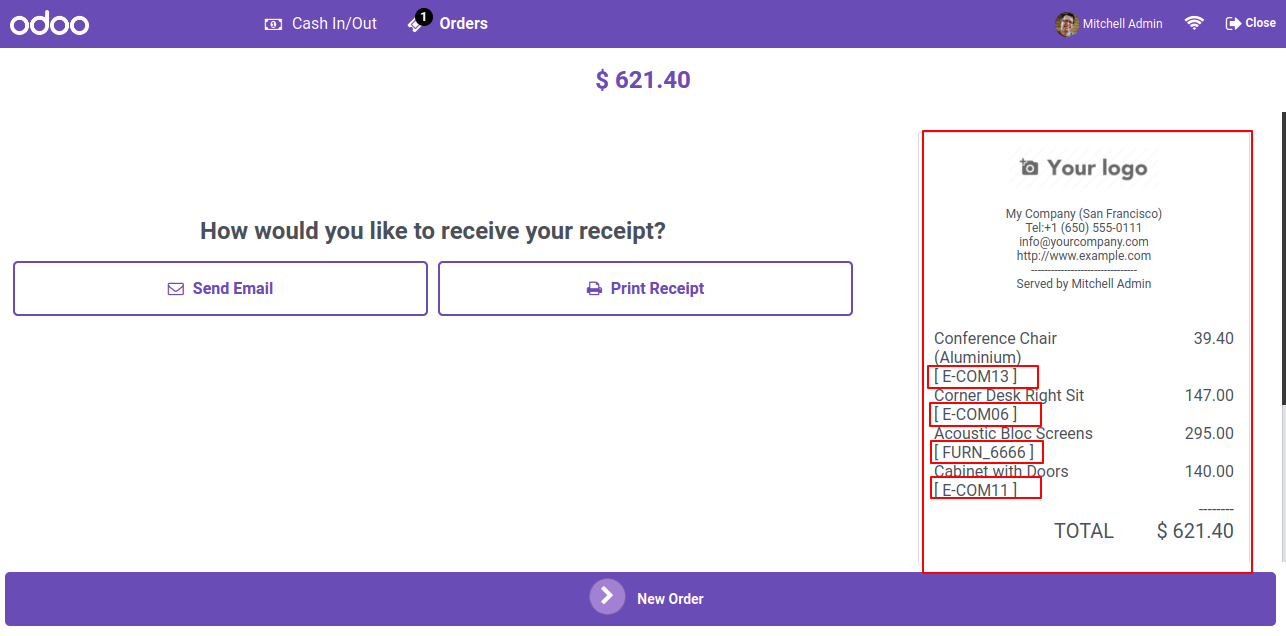
After enabling this, the product internal reference in Receipt is visible on pos screen.

Internal reference visible on receipt

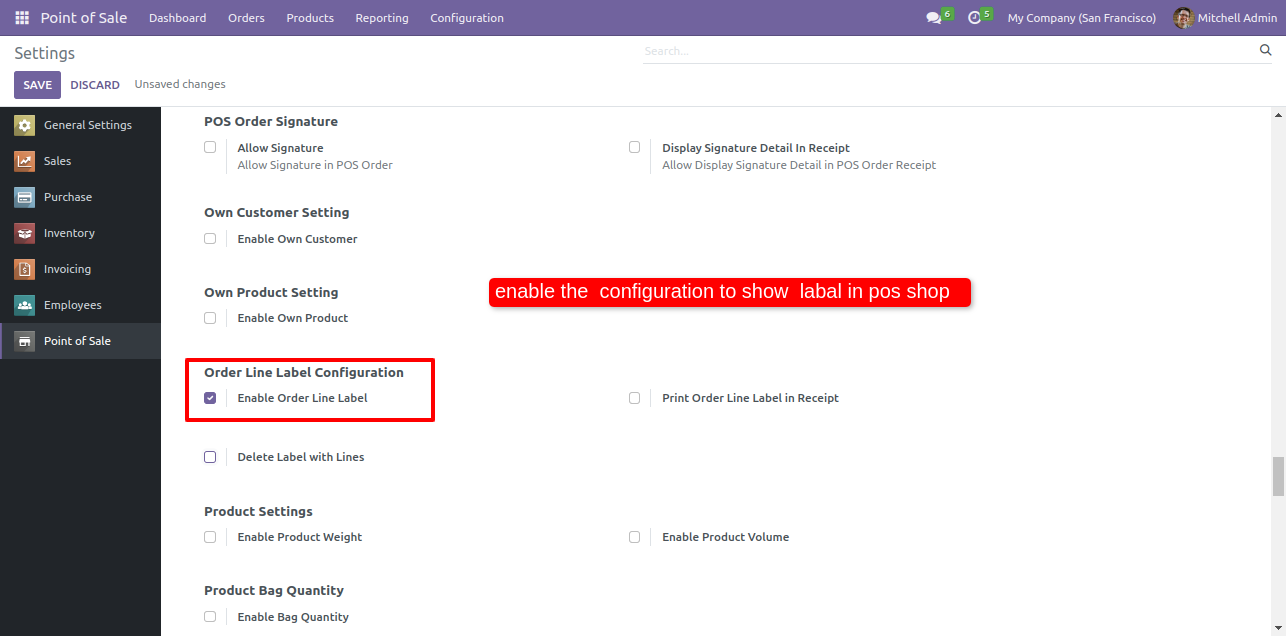
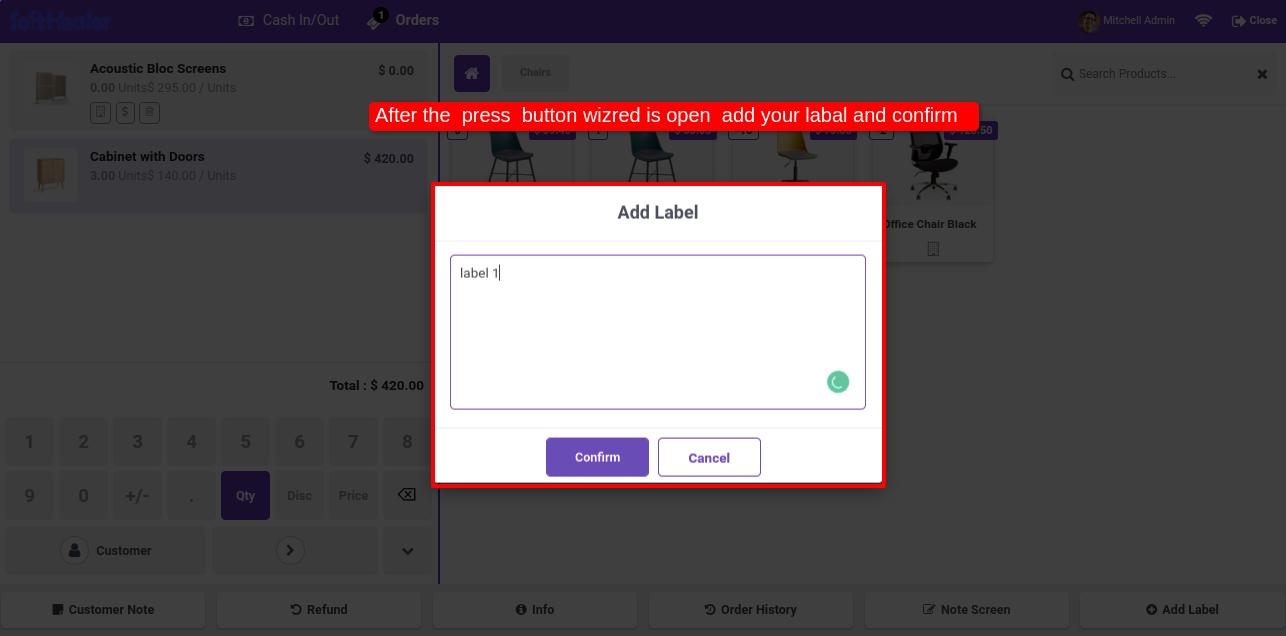
Enable the 'Order Line Label' group to add a label in the order line and enable the 'Print Order Line Label In Receipt' group to print POS receipts with order line labels.

Enable Order Line Label settings

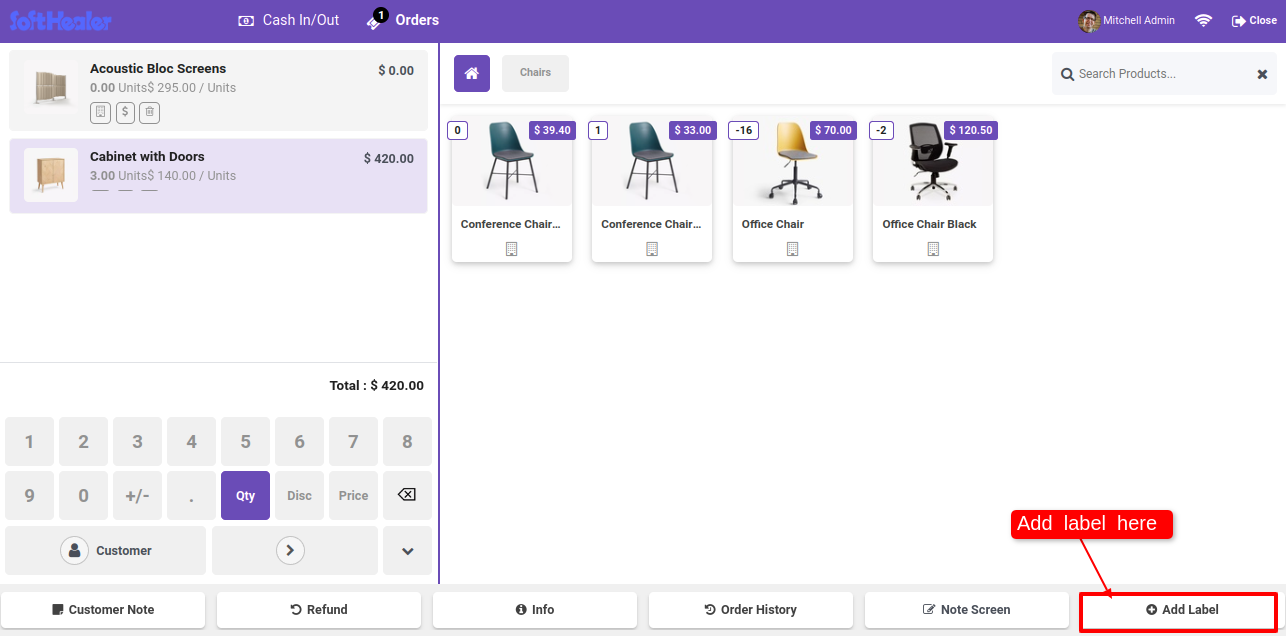
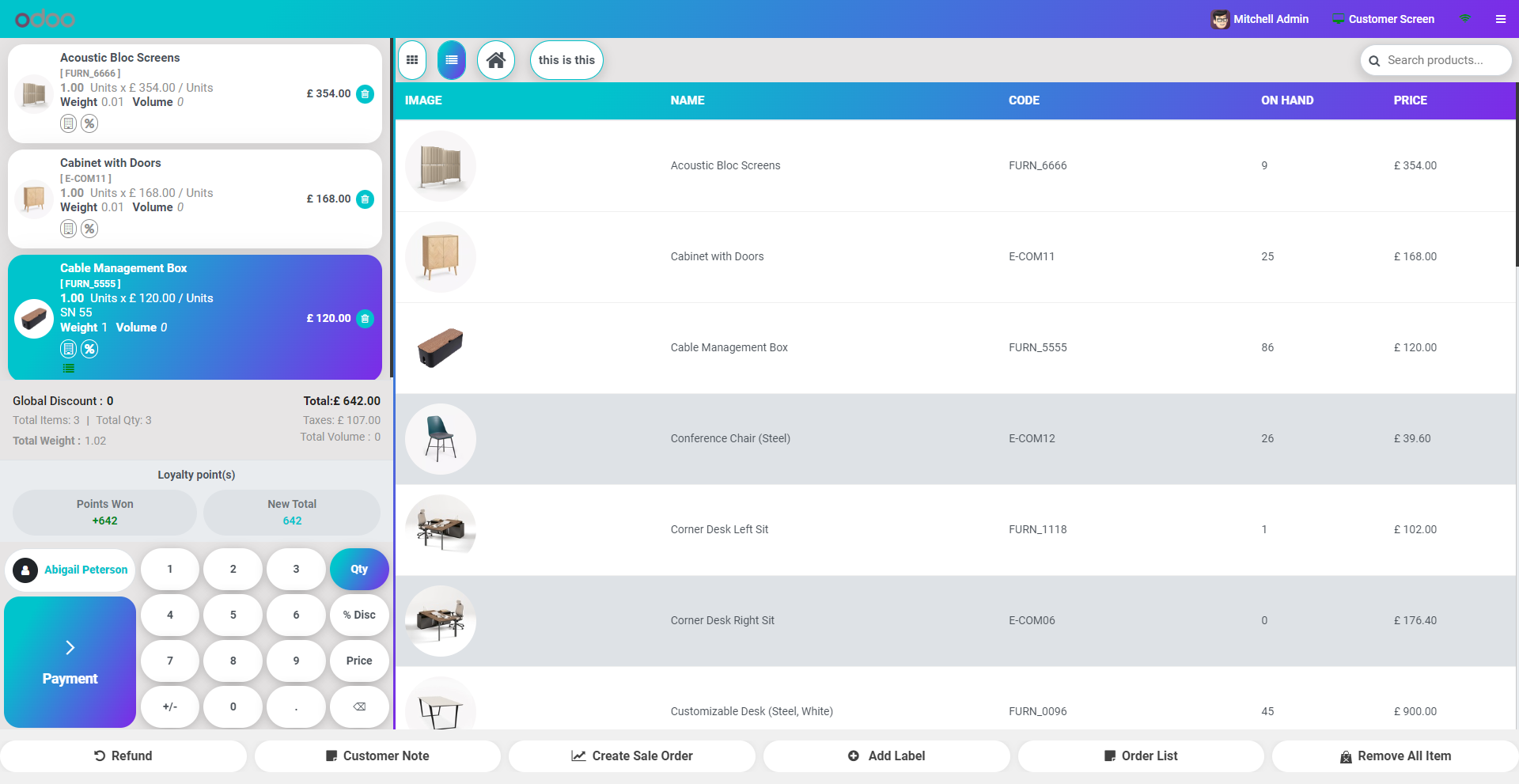
Press the 'Add Label' button to add a label in the order line.
After that, this popup opens, enter the label name and press 'Apply'.

Select Add Label from action menu

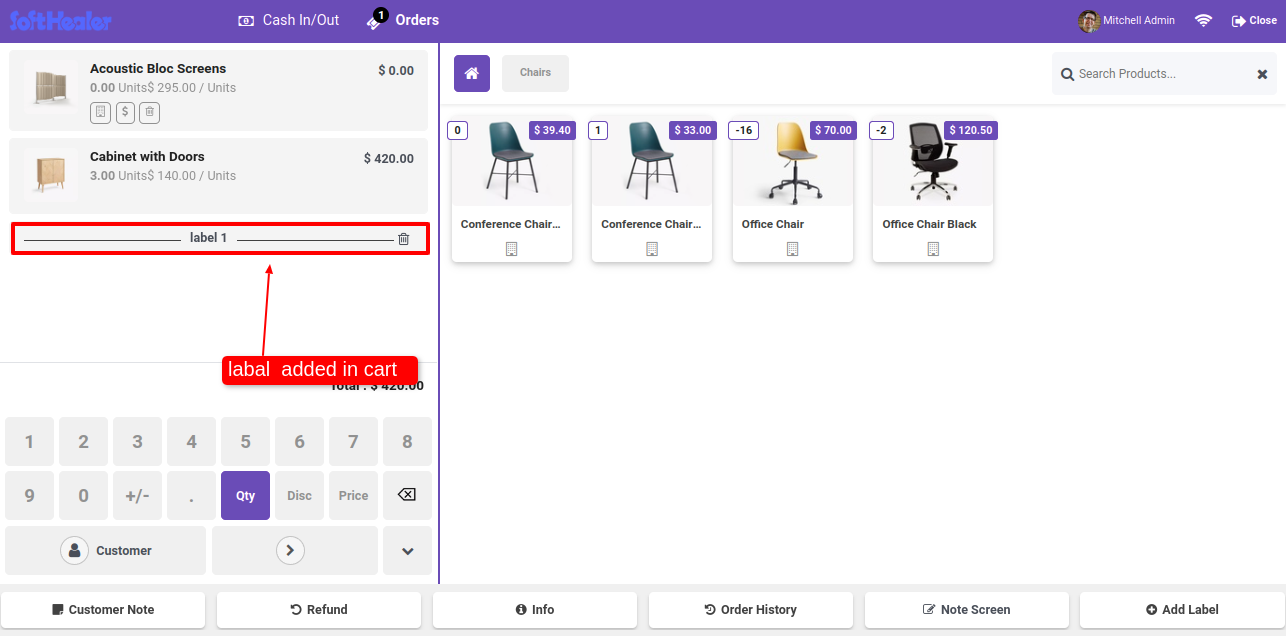
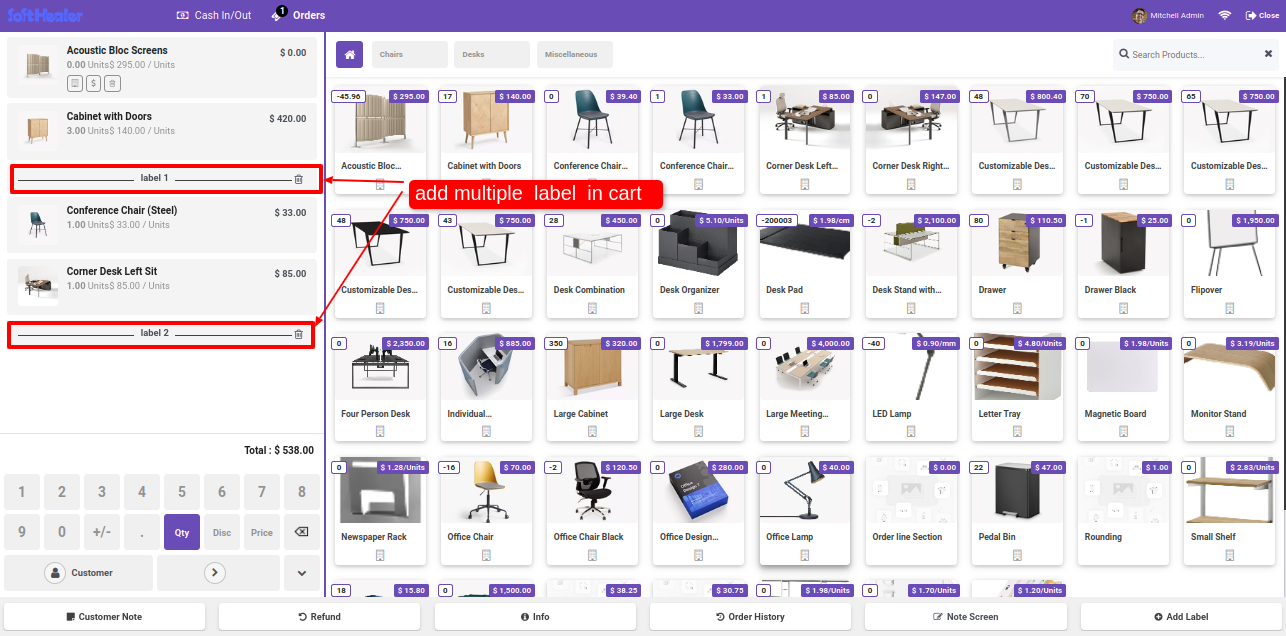
A label is added.

Enter label name and apply

A label is also added to the POS order in backend.

Label added to order line

If you enable the 'Print Order Line Label In Receipt' group then you can print POS receipts with order line labels.

Order line label printed on receipt

Printed Order label in the POS receipt.

Enable Delete Label With Lines setting

Enable the 'Delete Label With Lines' group.

Delete label icon on order line

You can delete the label 'Take Away' by clicking on the delete icon.

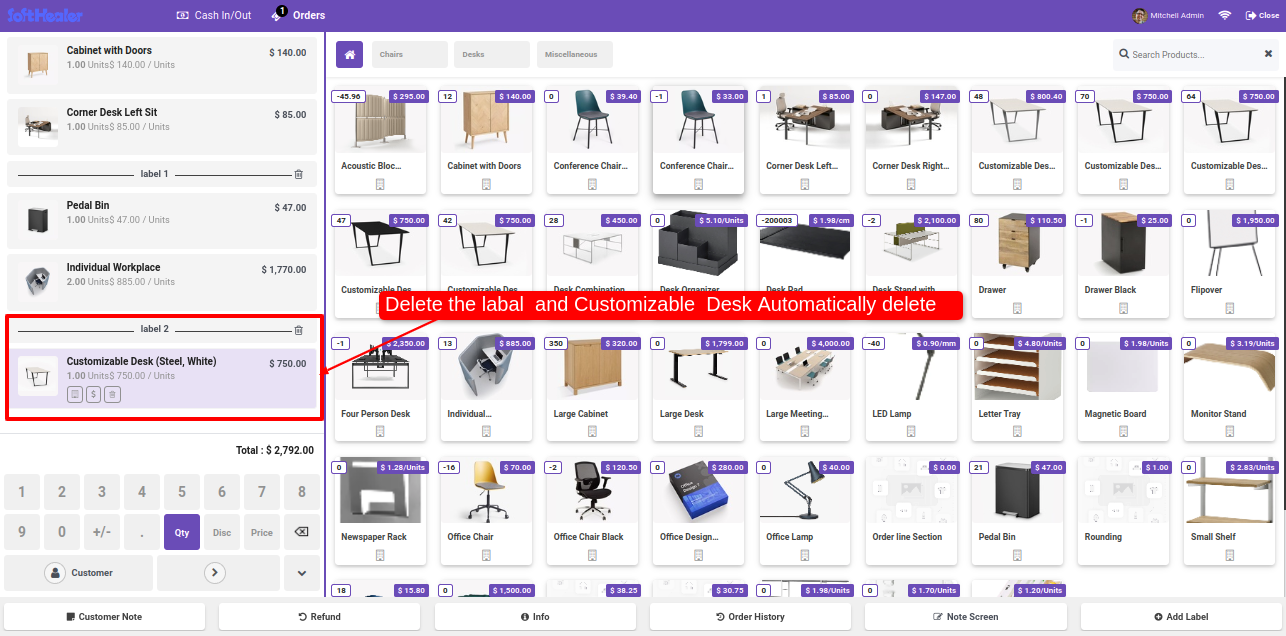
Order line remains after label deleted

When delete label, it will remove the products which is belong to that label.

Enable Delete Label With Lines group

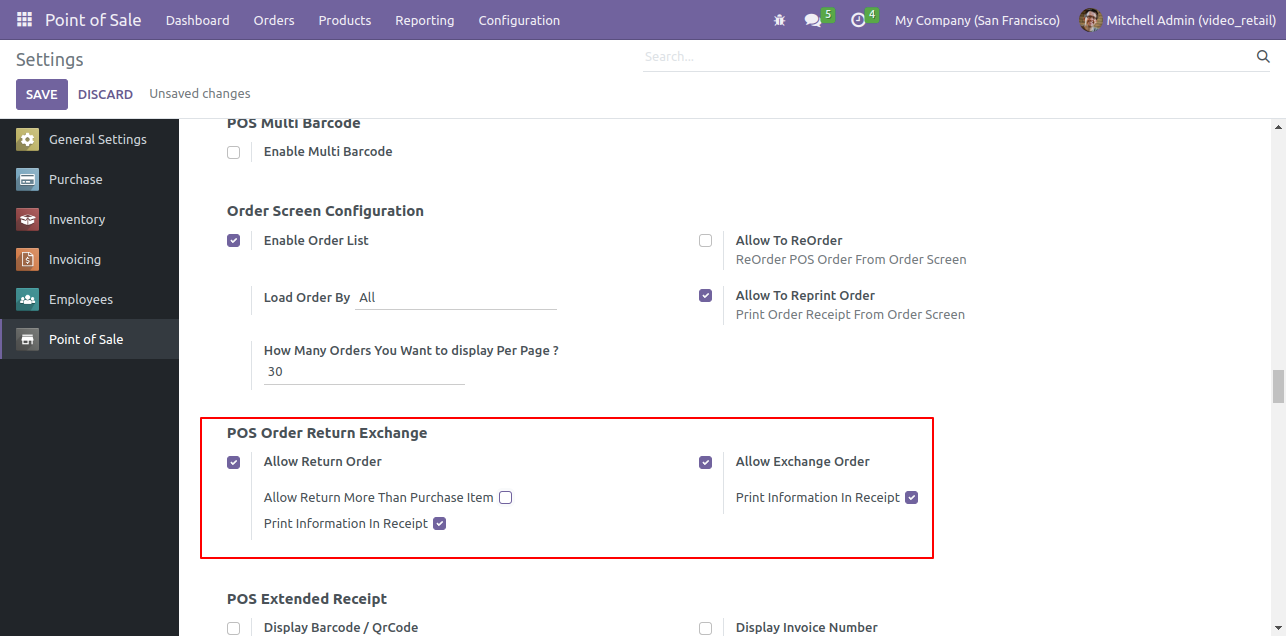
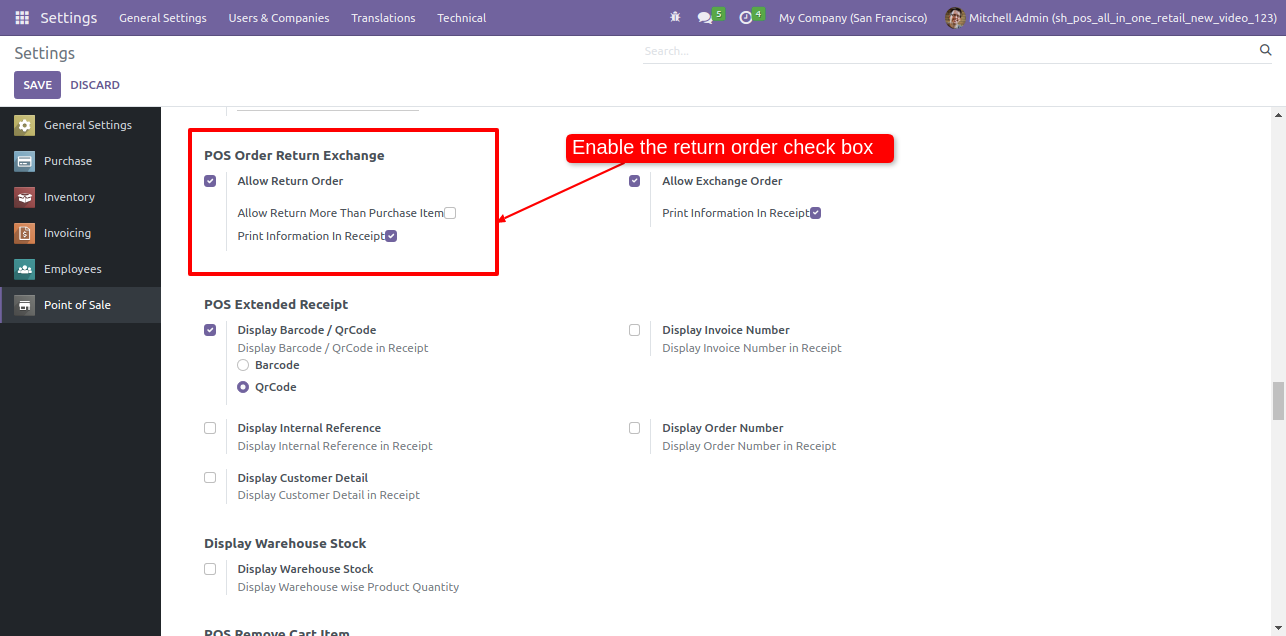
Goto pos setting ==> Enable 'Allow return order' & 'Allow exchange order' options. Also tick the print information im receipt option.

Enable Return and Exchange Order Setting


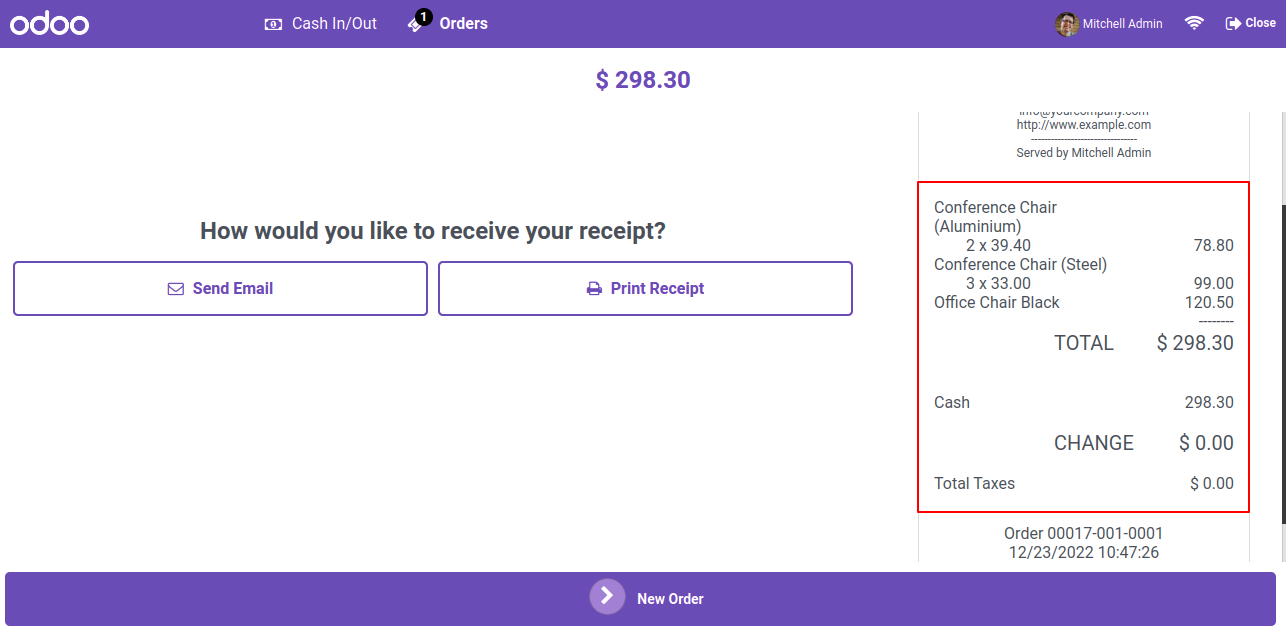
Receipt view.

Receipt Screen Showing Order Total


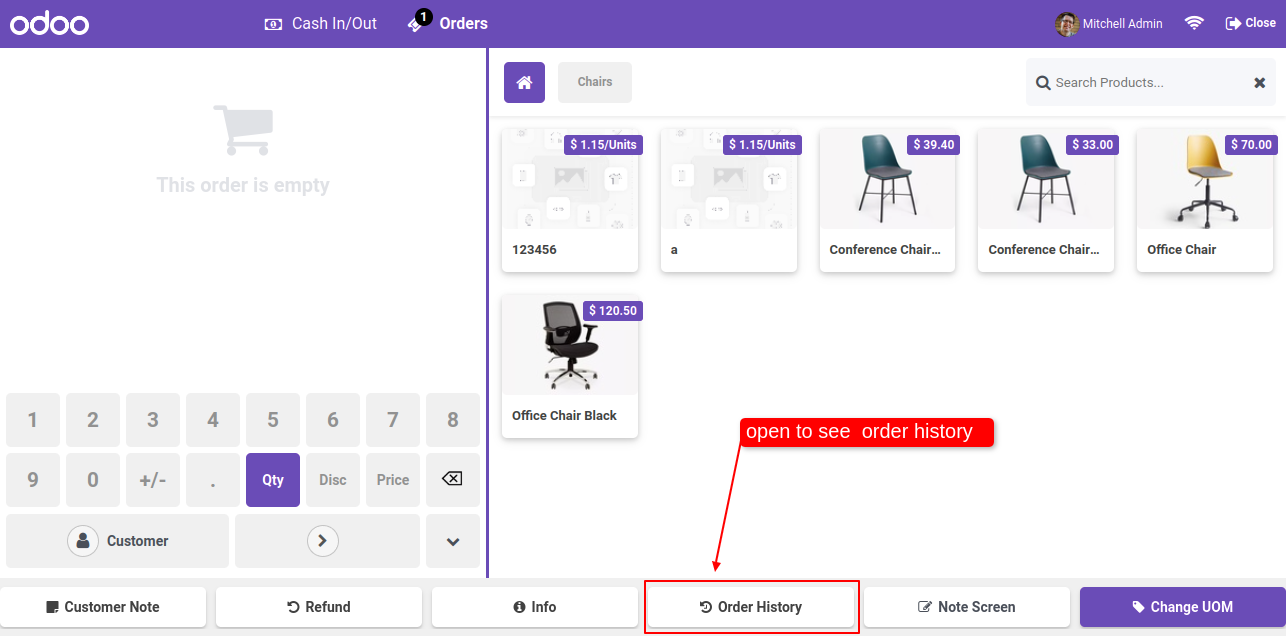
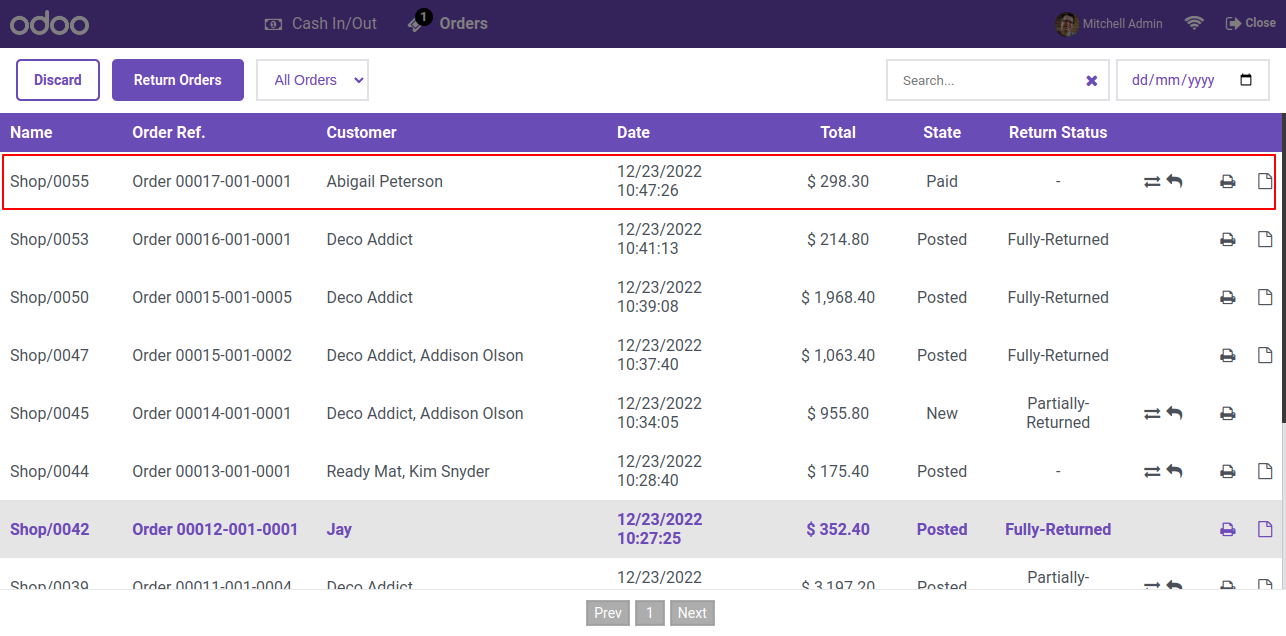
Click on the order history button to see the order history.

POS Screen with Order History Button


Tree view of the order history.

Order History Tree View with Records


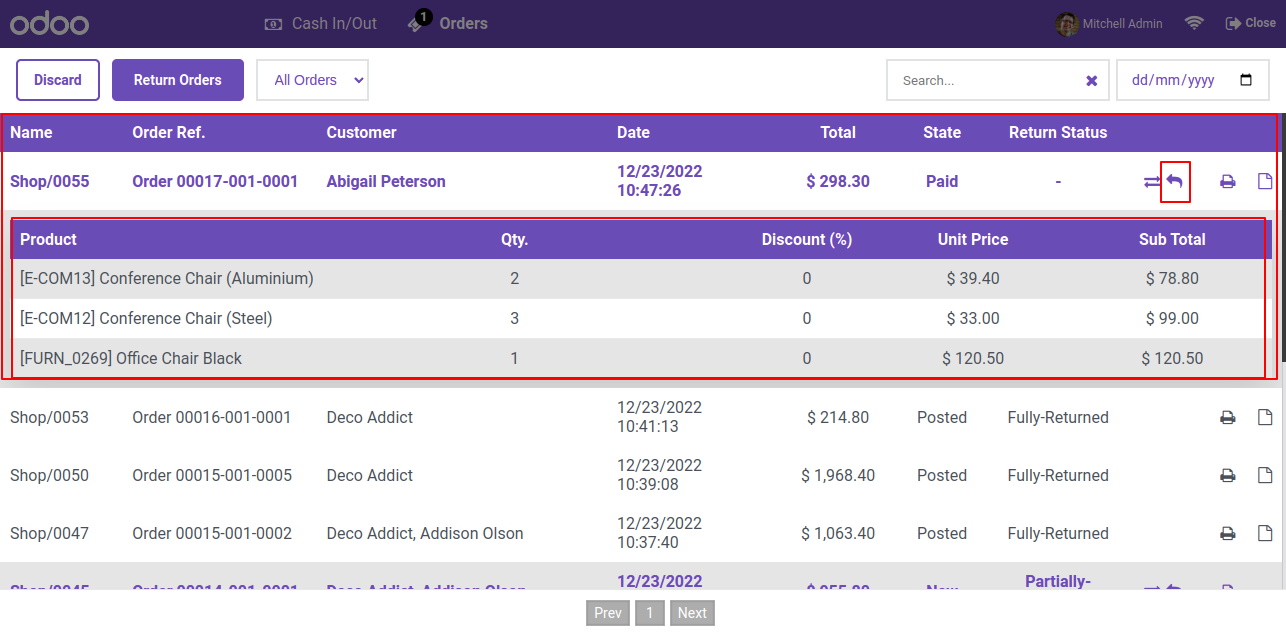
In the POS 'Order History' you can see the details of orders. To return the product, click on the return order button.

Order History with Return Order Button


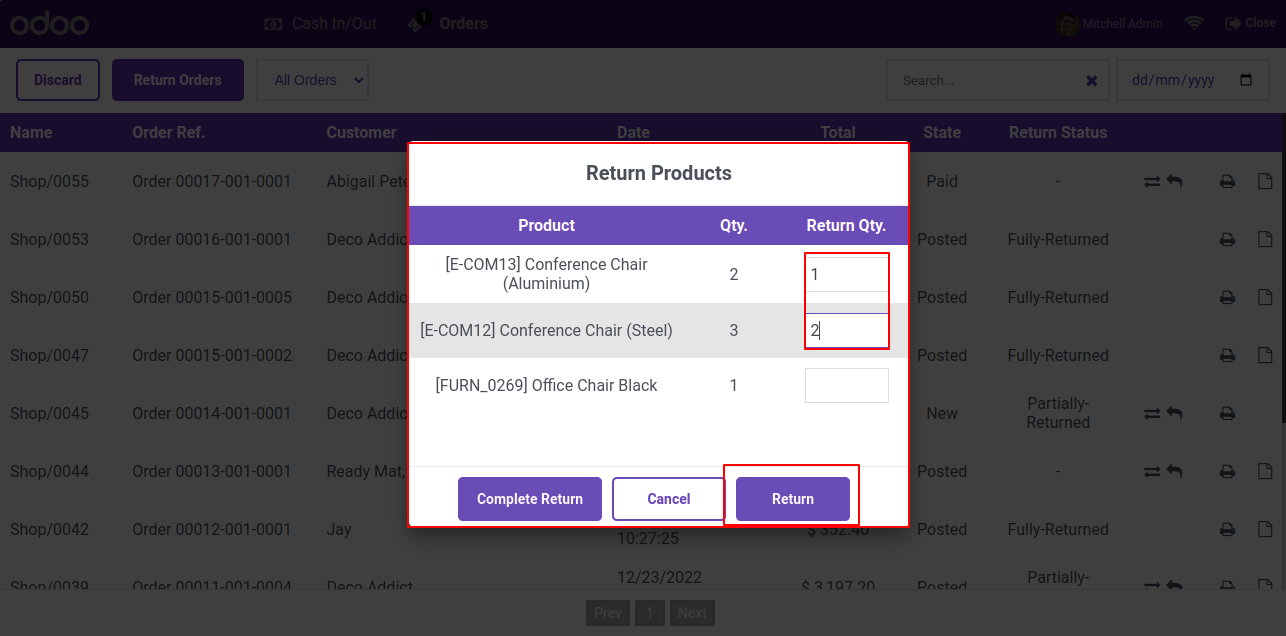
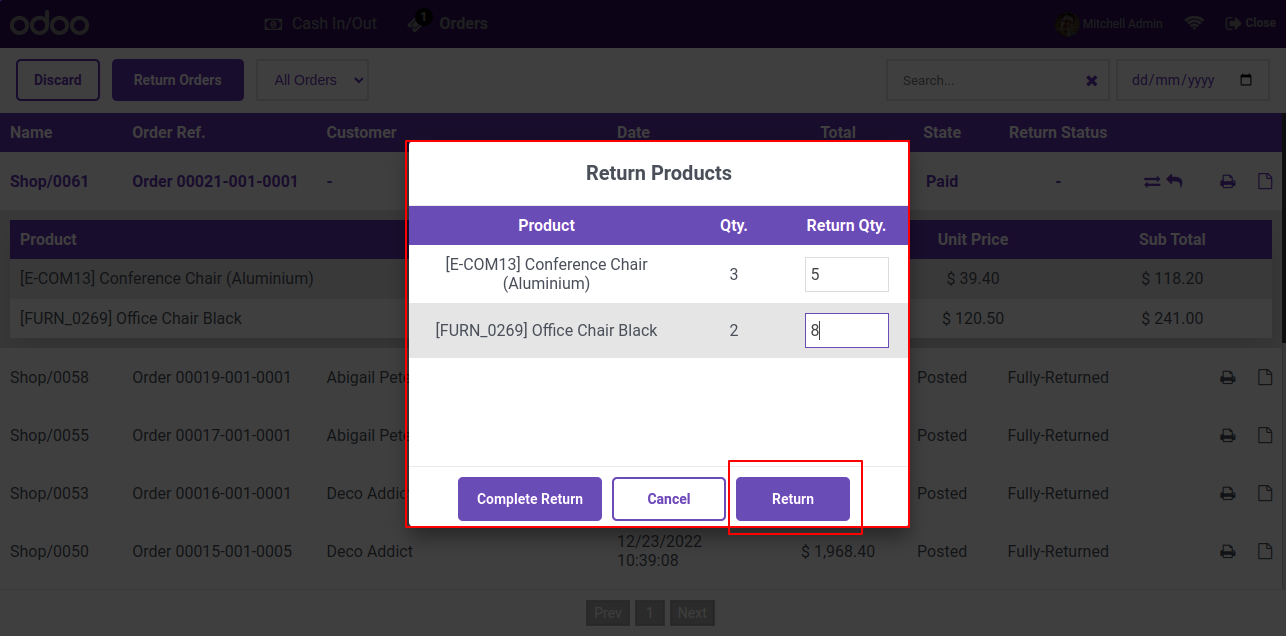
After that, a return product wizard will appear. Her, You can return the specific product quantity and also return the whole order.

Return Product Quantity Wizard


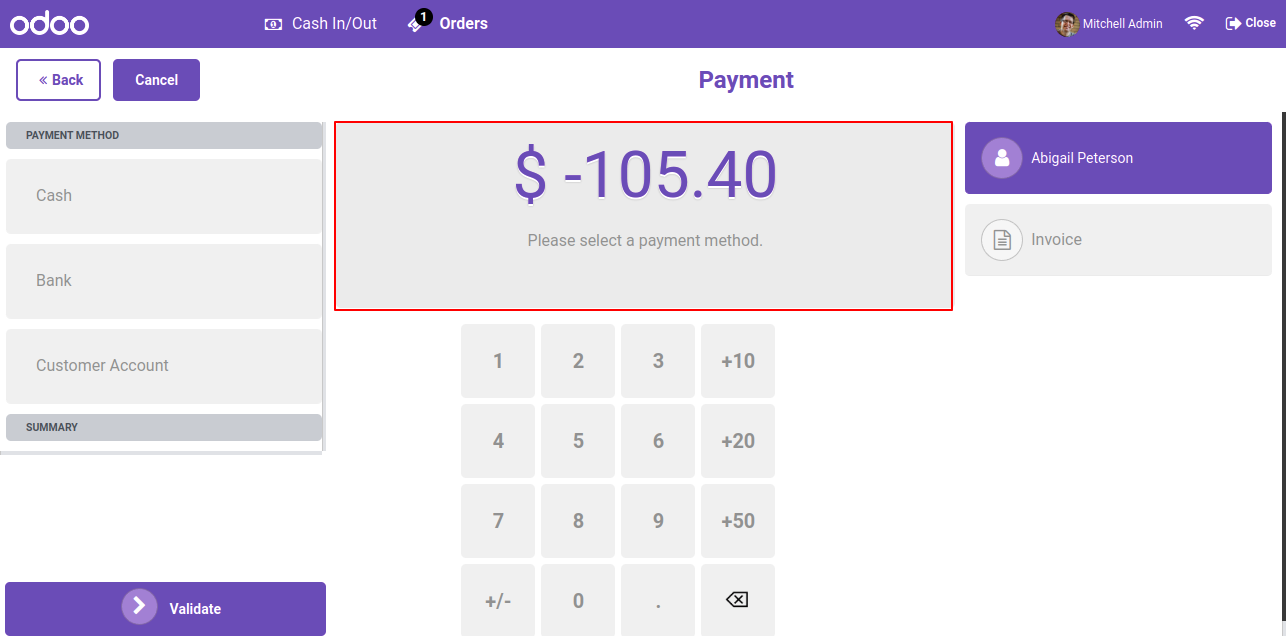
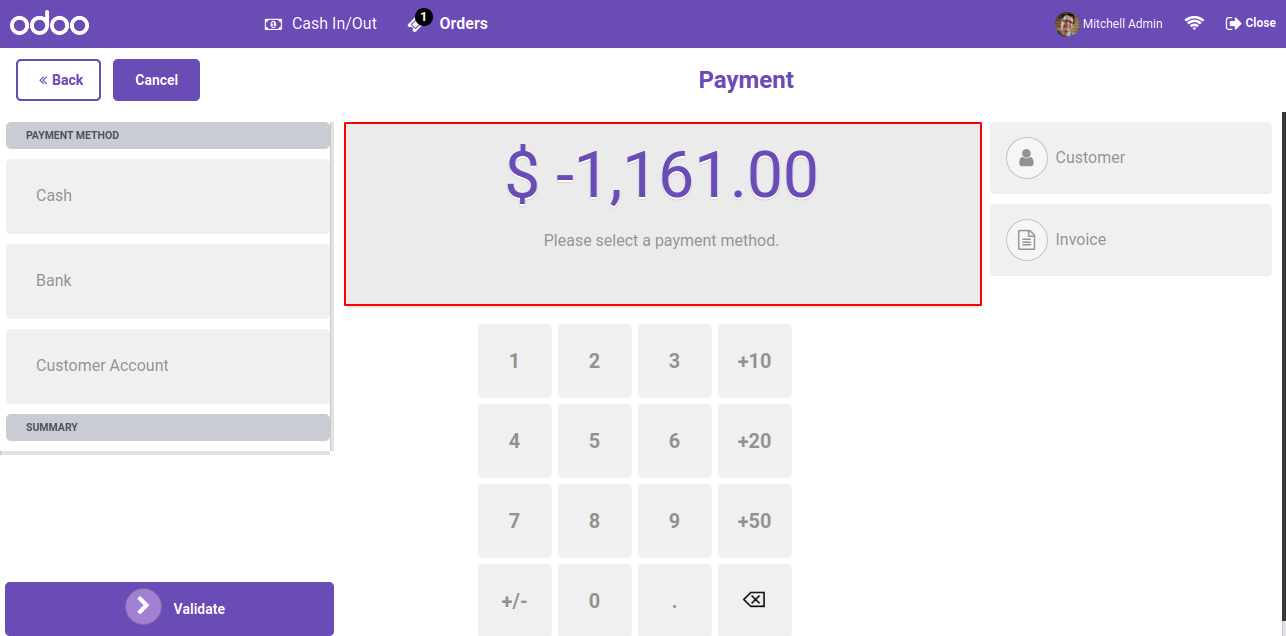
after clicking on the return button you will redirect to the payment page. Select the payment method like Cash, Bank or Custome account.

Payment Screen for Return Order


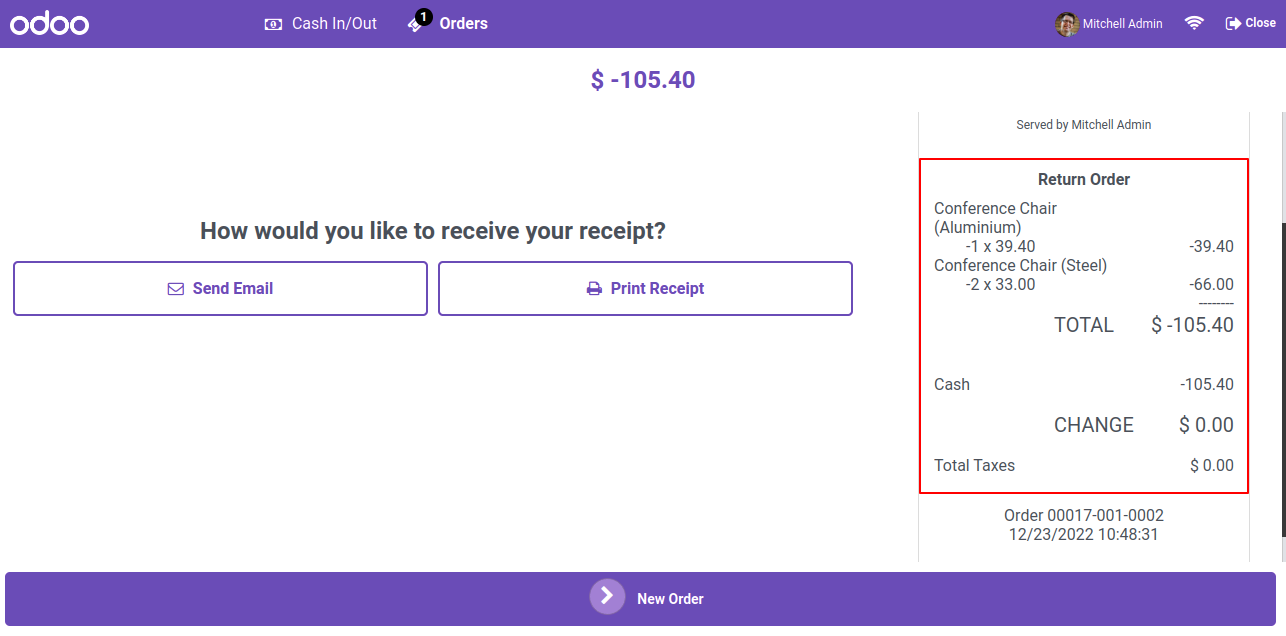
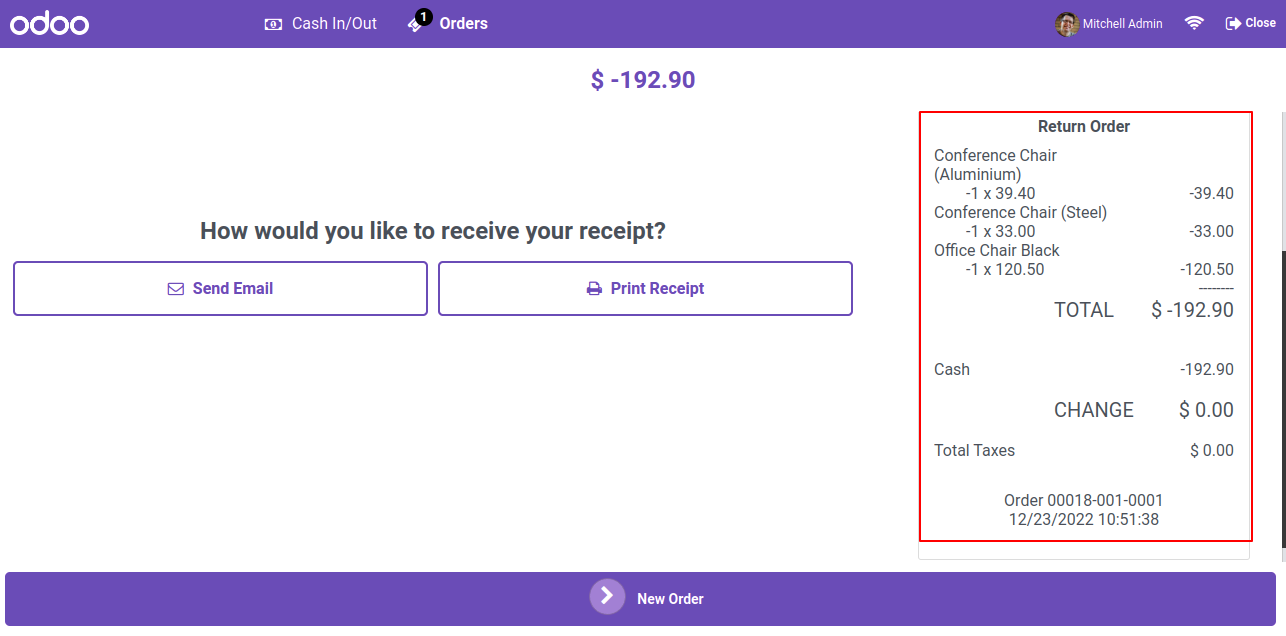
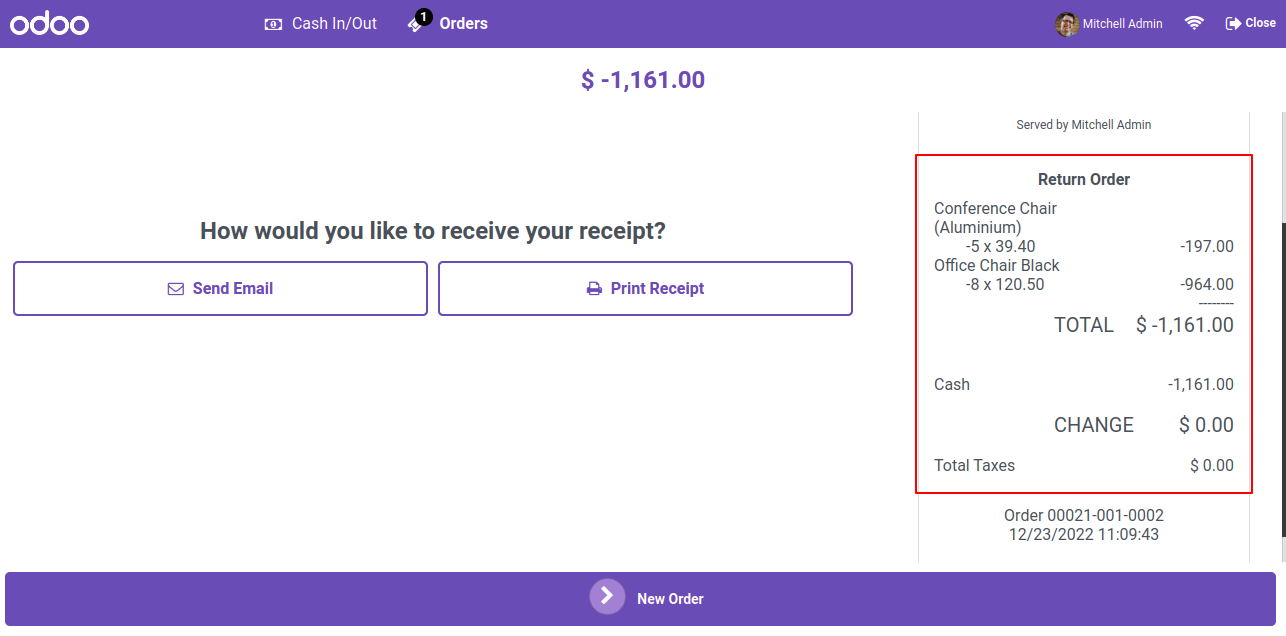
In the receipt you can see the return order history.

Receipt with Return Order History


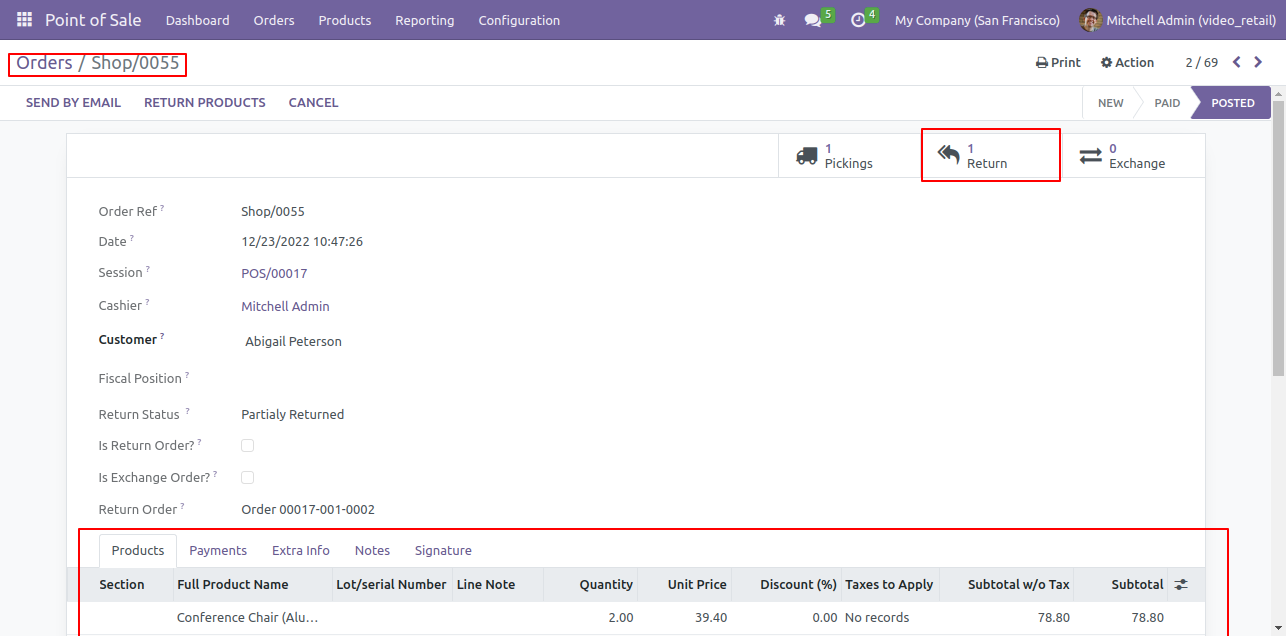
In the order form view, you can see the return order button. To view the return order, click on the return order smart button.

Order Form with Return Order Button


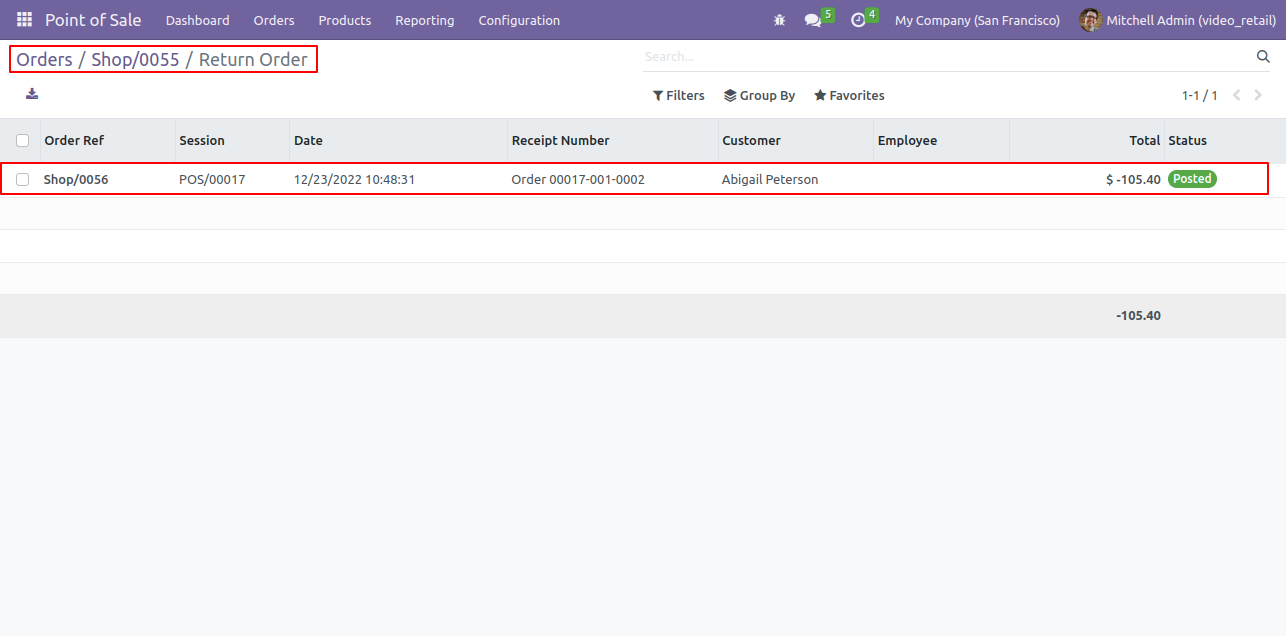
Trr view of the return order. You can also see the order details by clicking on that order.

Return Order List with Order Details


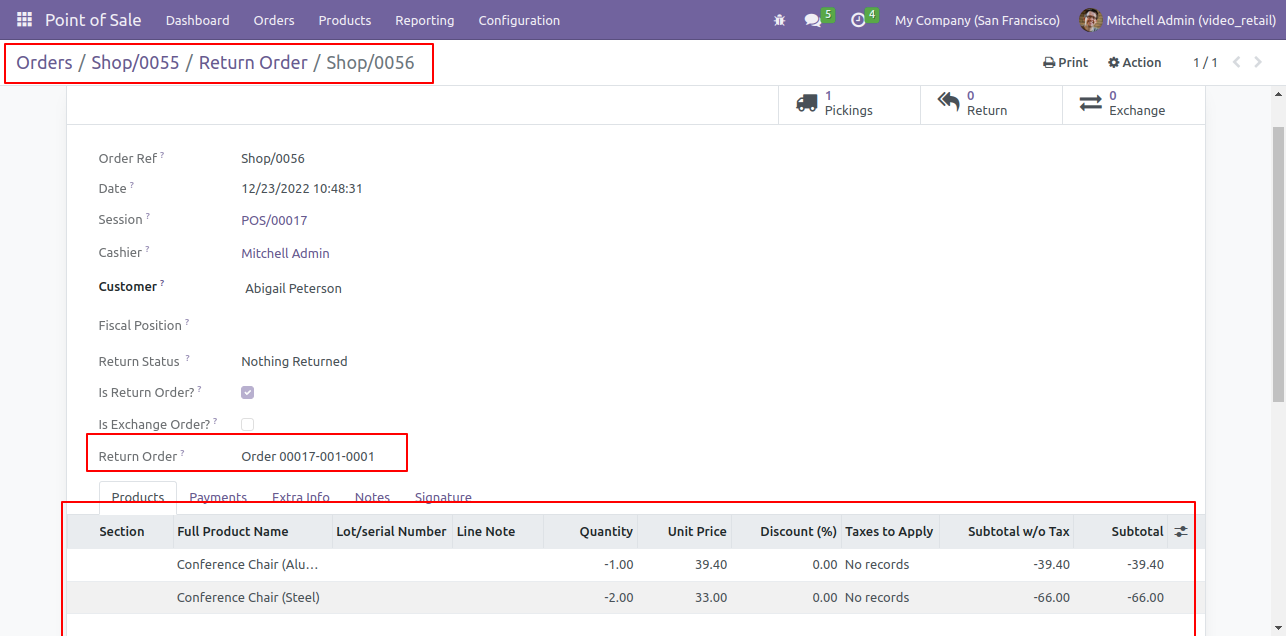
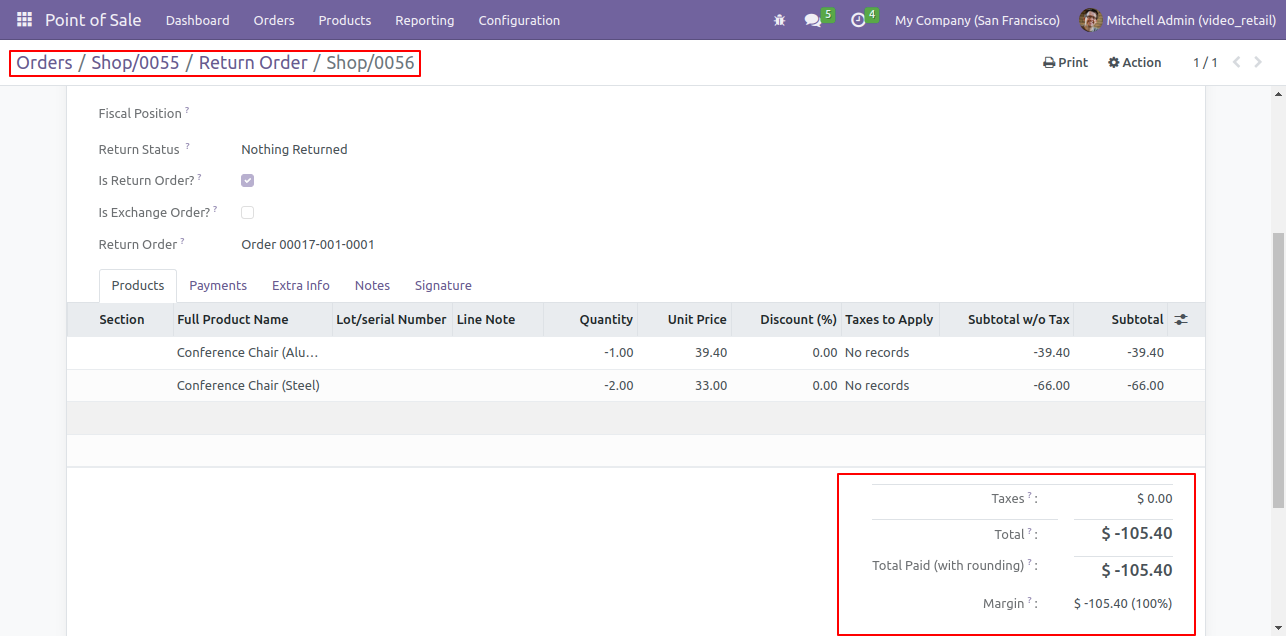
Return order form view.

Return Order Form View


Here you can see the payment details.

Return Order Payment Details View


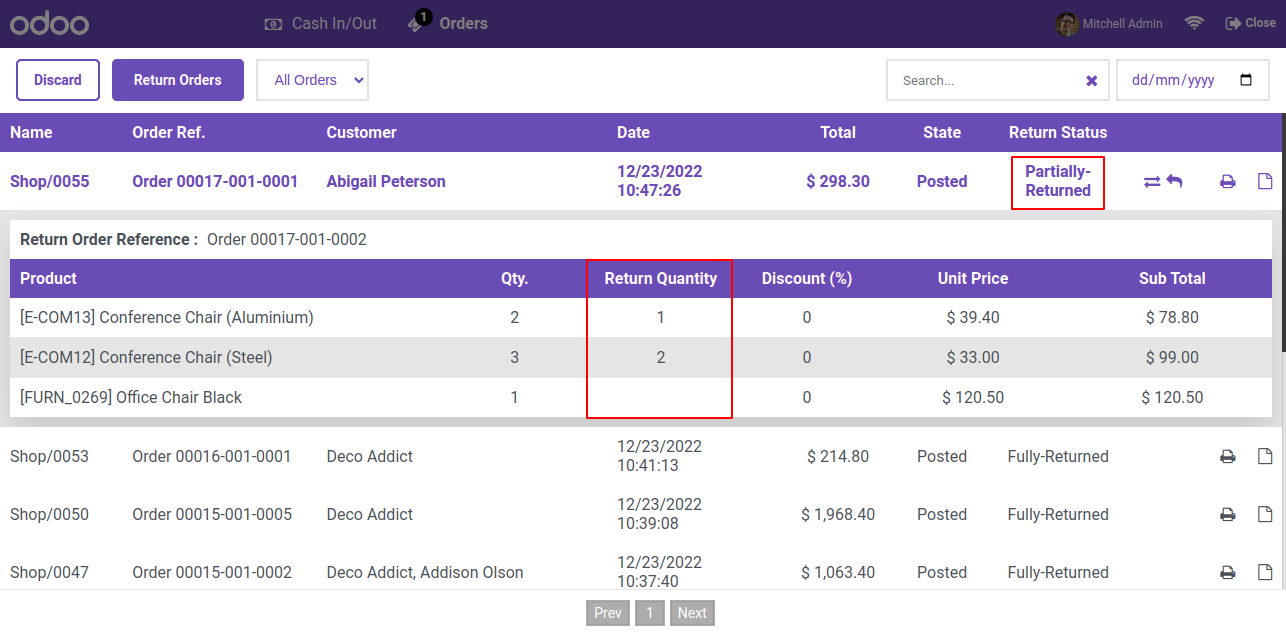
You can see the return order status is currently labeled as "Partially Returned," and the return quantity is also displayed.

Order List with Partially Returned Status


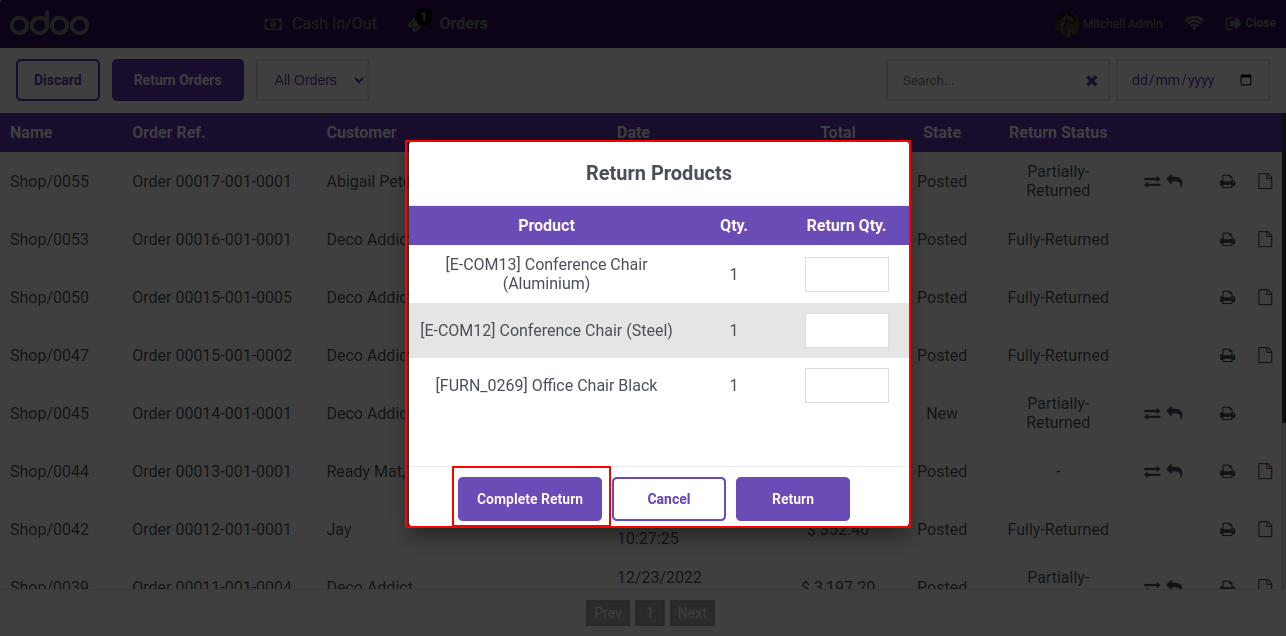
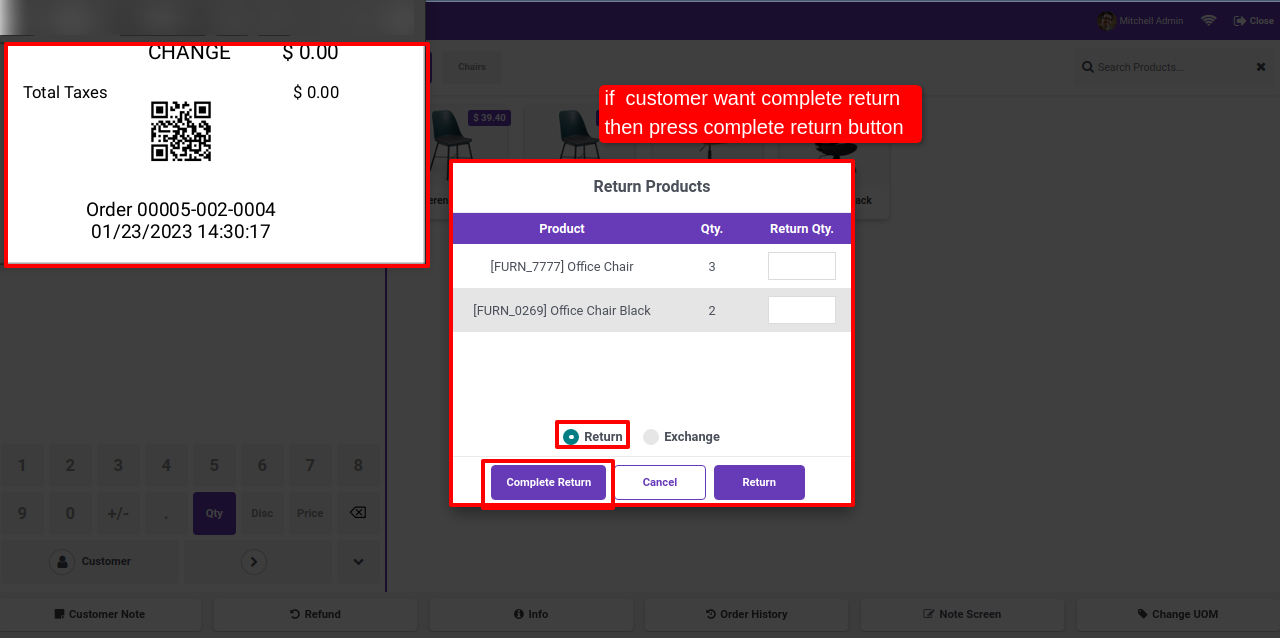
To complete the return process, click on the 'Complete Return' button within the product Return wizard.

Return Products Wizard with Complete Return


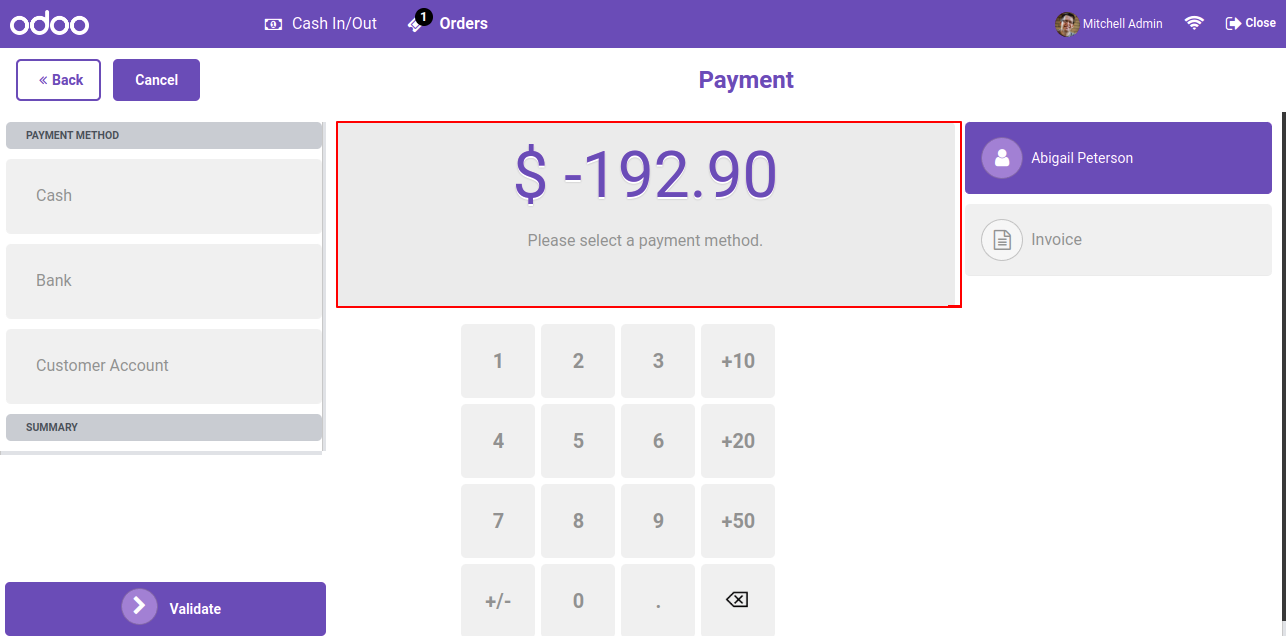
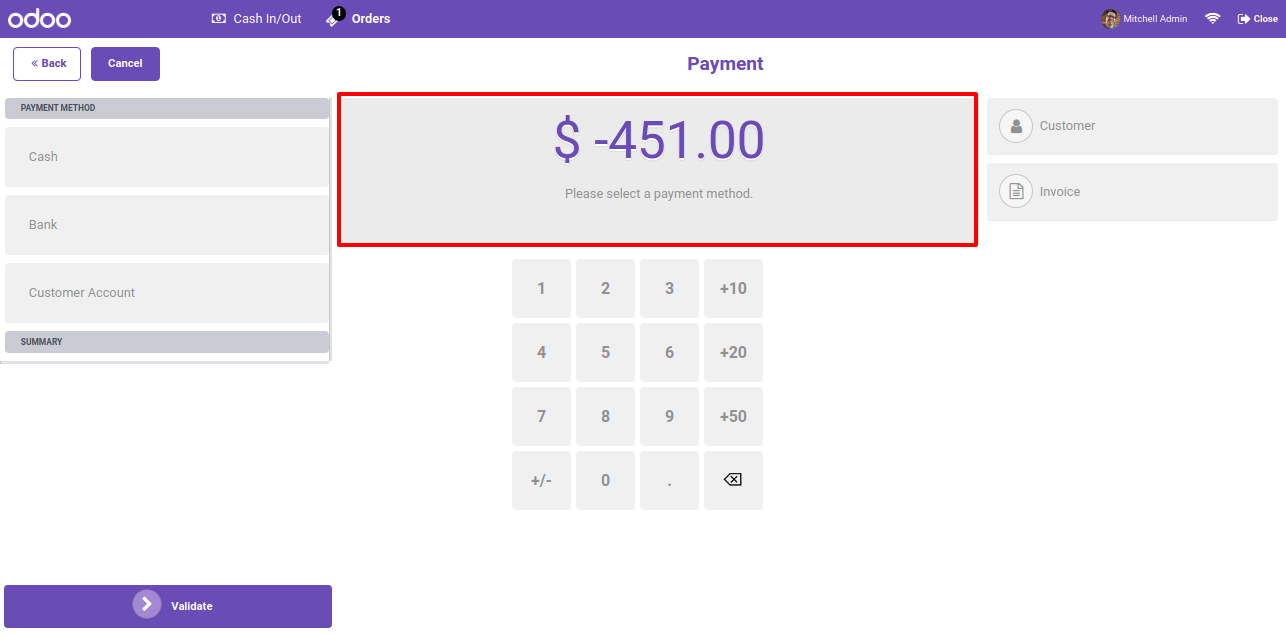
Select the payment method and make a payment.

Payment Screen for Return Order


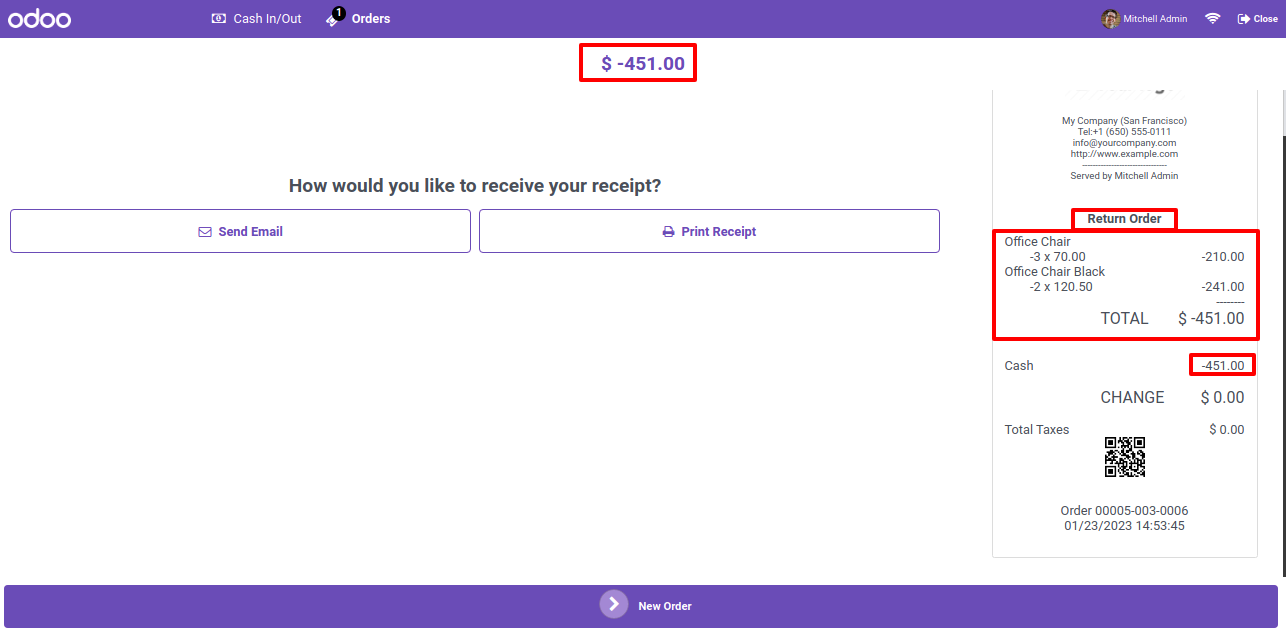
The return order history can be visible within the receipt.

Receipt with Return Order Details


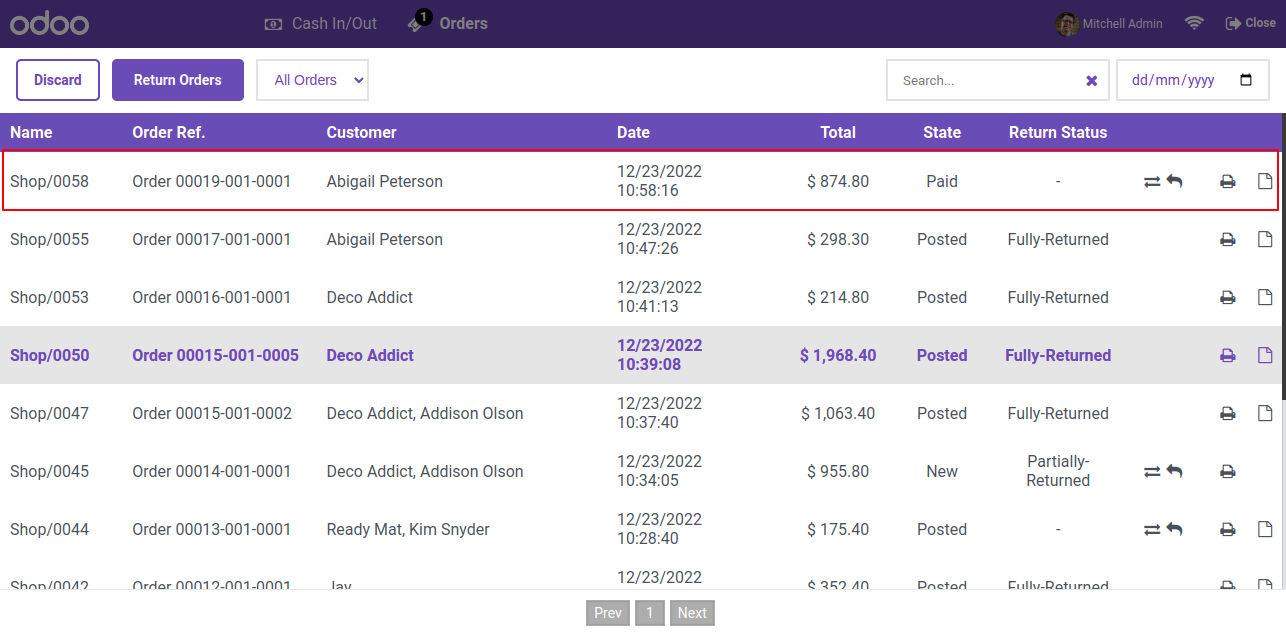
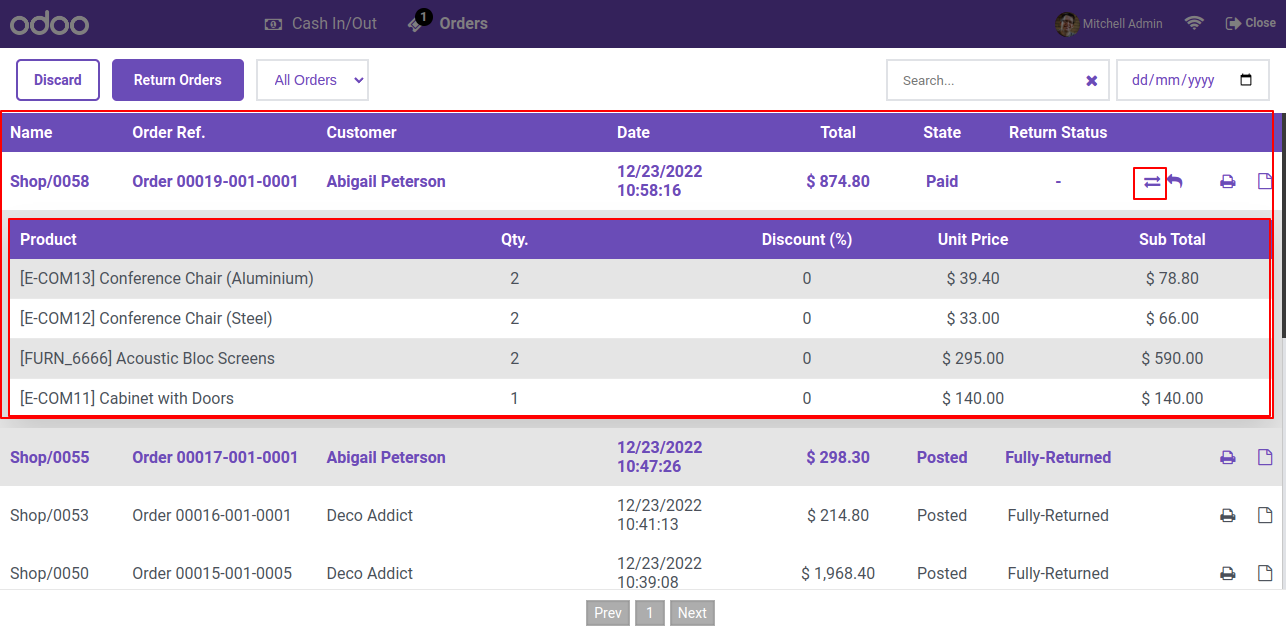
Tree view of the order history. To proceed with exchanging the product, click on the 'Exchange' button.

Order History Tree with Exchange Button


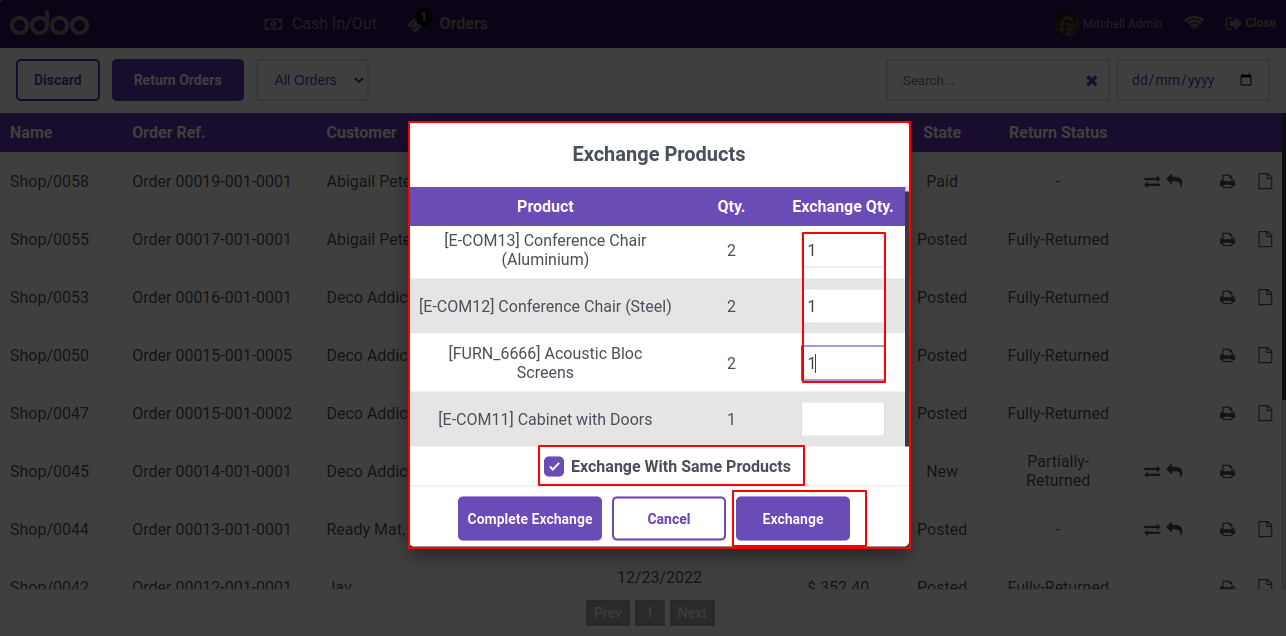
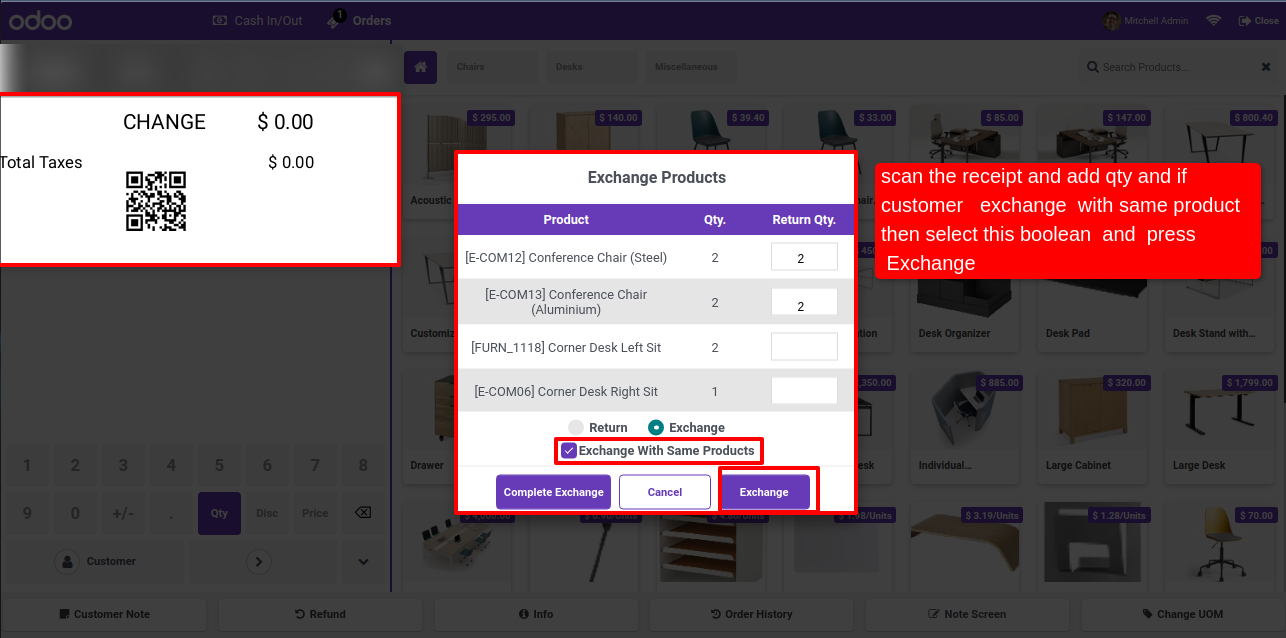
After that, exchange wizard will appear. You can exchange the specific product quantity and also exchange the whole order. Enable the 'Exchange will same product' option and click on the 'Exchange' button.

Order History with Exchange Wizard Button


Make exchange order and proceed it. If you want to exchange with same products just tick 'Exchange With Same Product'.

Exchange Products with Same Product Option


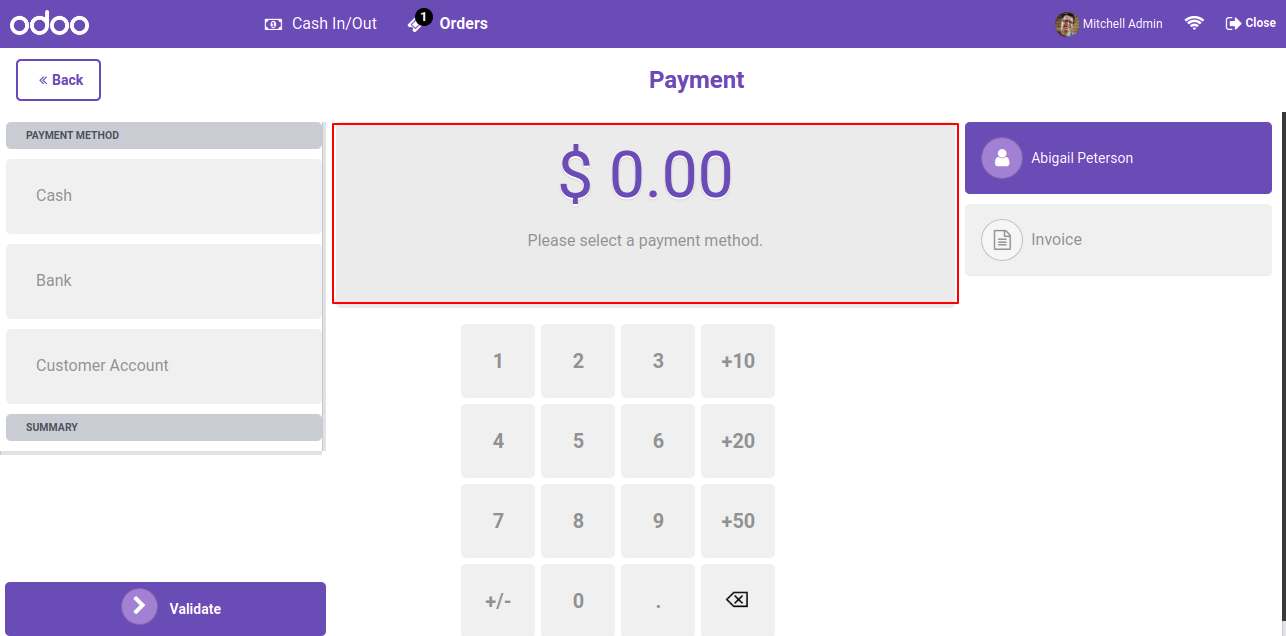
Here, you can see the payment value is zero.

POS Screen with Zero Payment Value


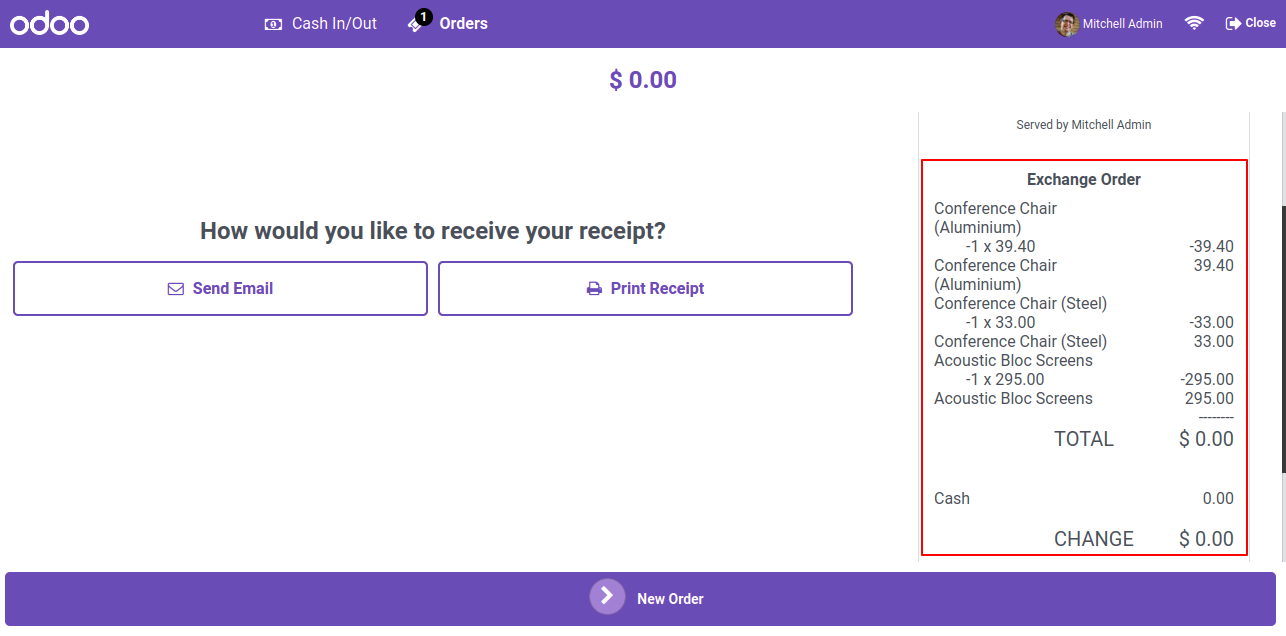
The exchange order history will be displayed in receipt.

Payment Screen with Zero Amount


The exchange order details is displayed in receipt.

Receipt with Exchange Order Details


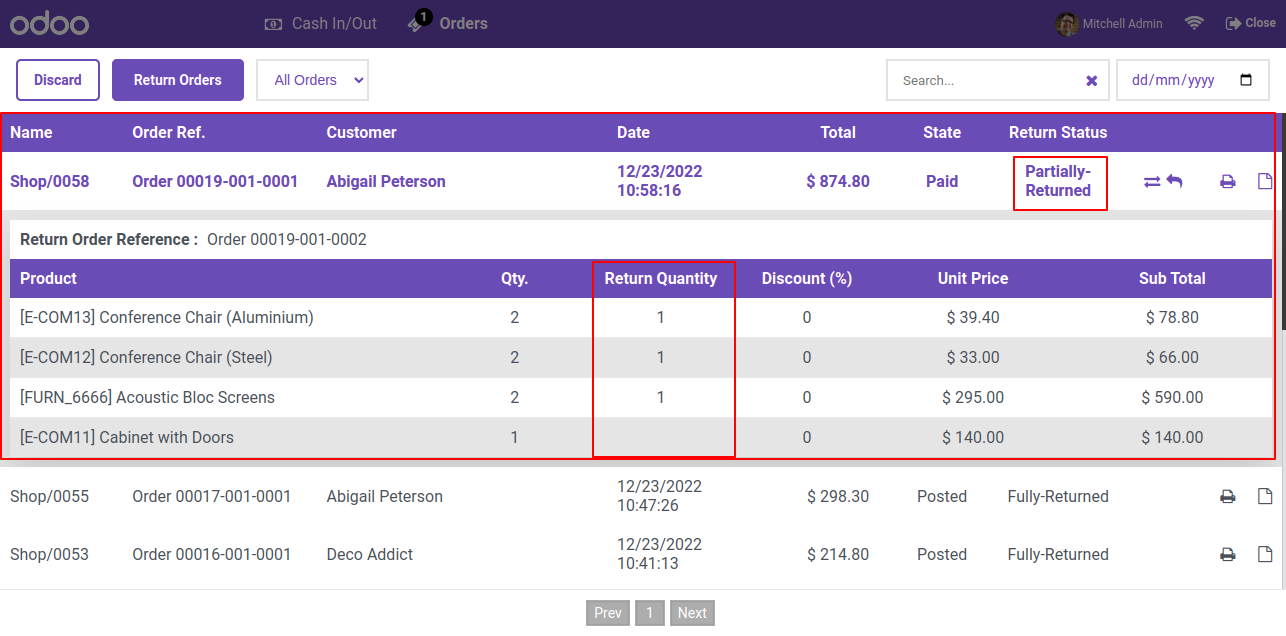
You can see the exchange order status is currently labeled as "Partially Returned," and the return quantity is also displayed.

Order List with Partially Returned Status


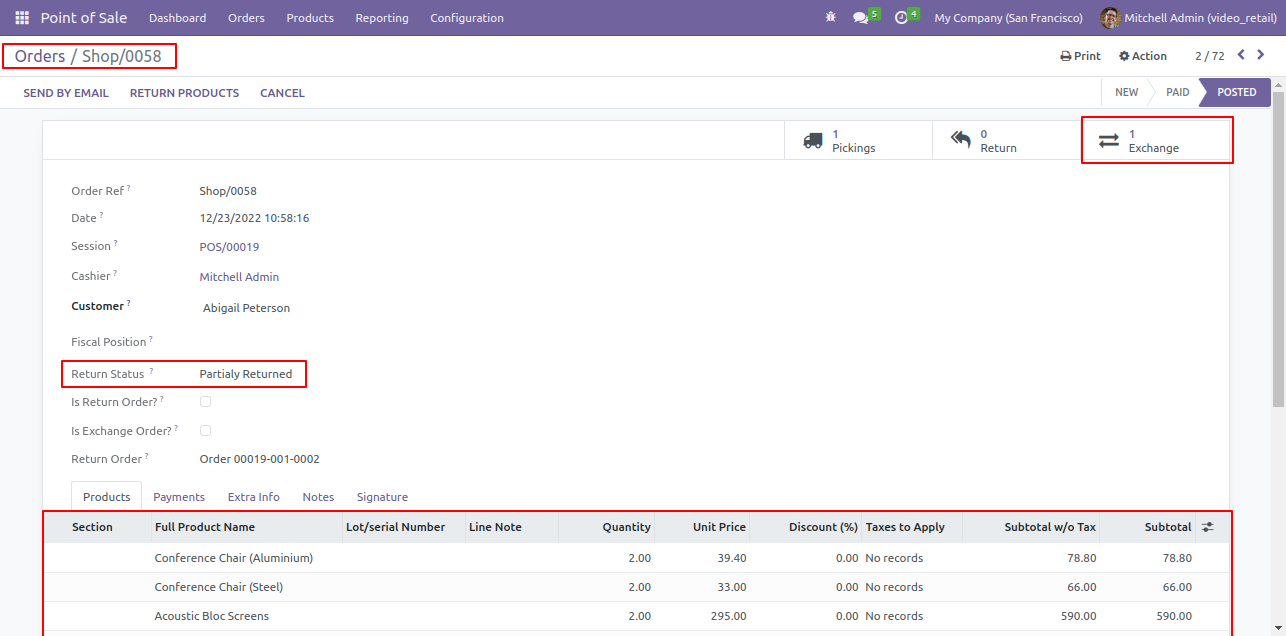
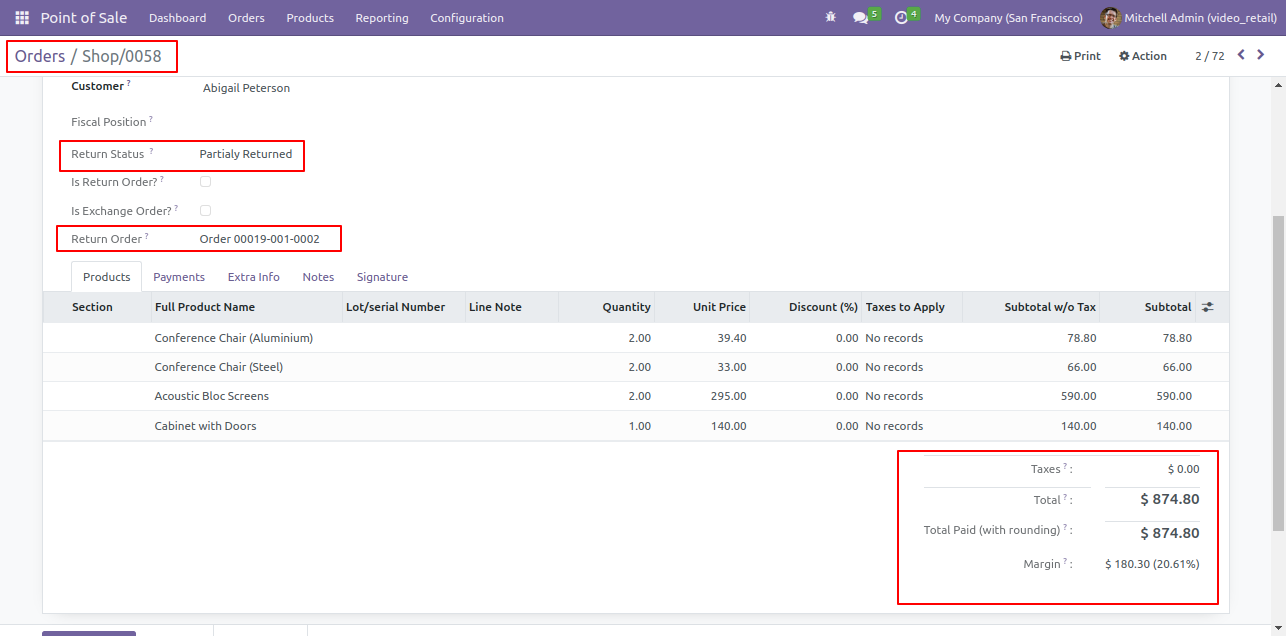
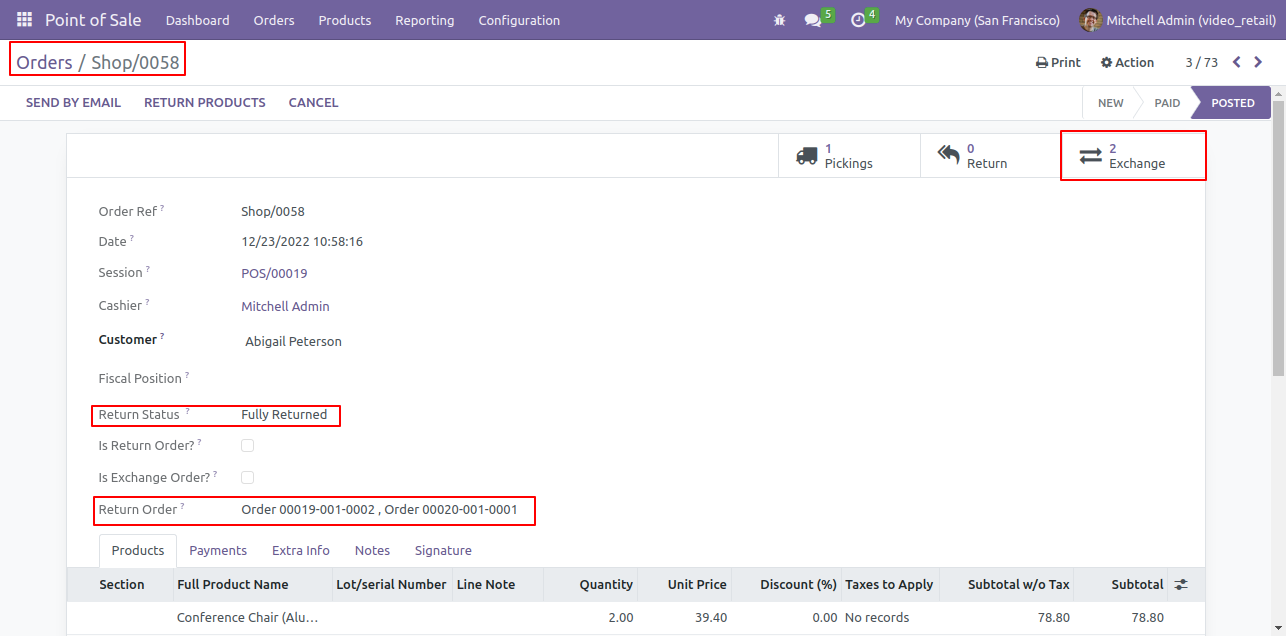
In backend pos order form view, Here you can see the order details first thing first, if you exchange products means you have to return some products, so here it will create return order.

Backend Order Form with Exchange Button


Here you can see the payment details. Now click on 'Exchange' smart button, it will redirect you to exchange order.

Order Form with Exchange Smart Button


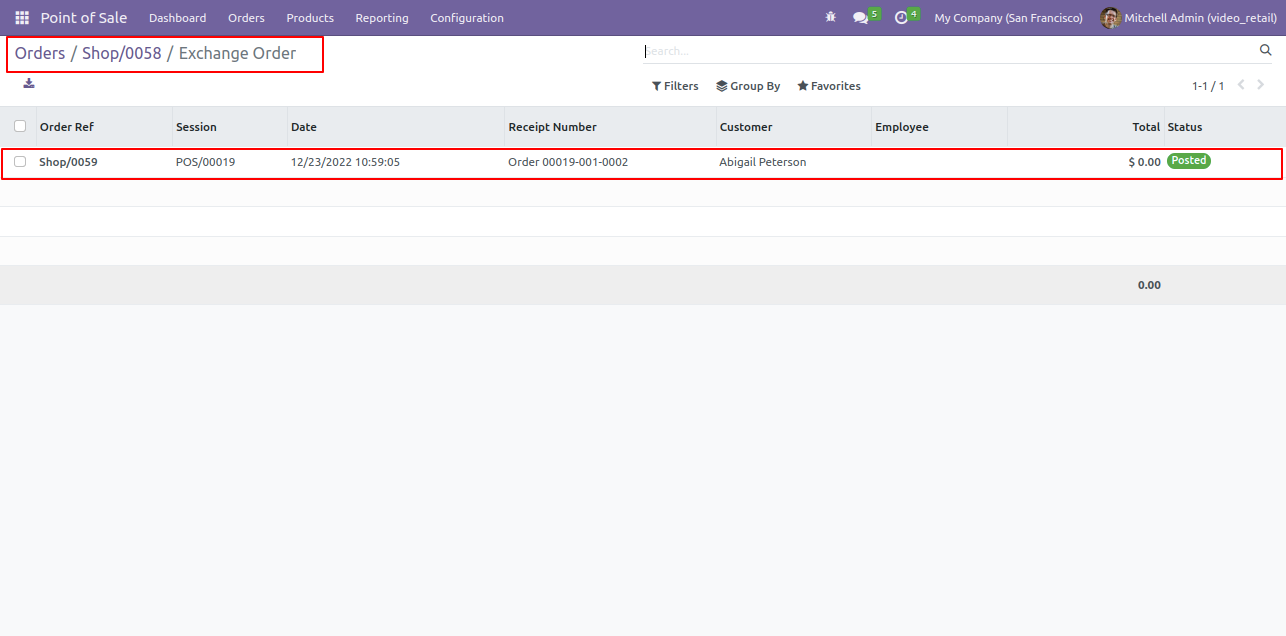
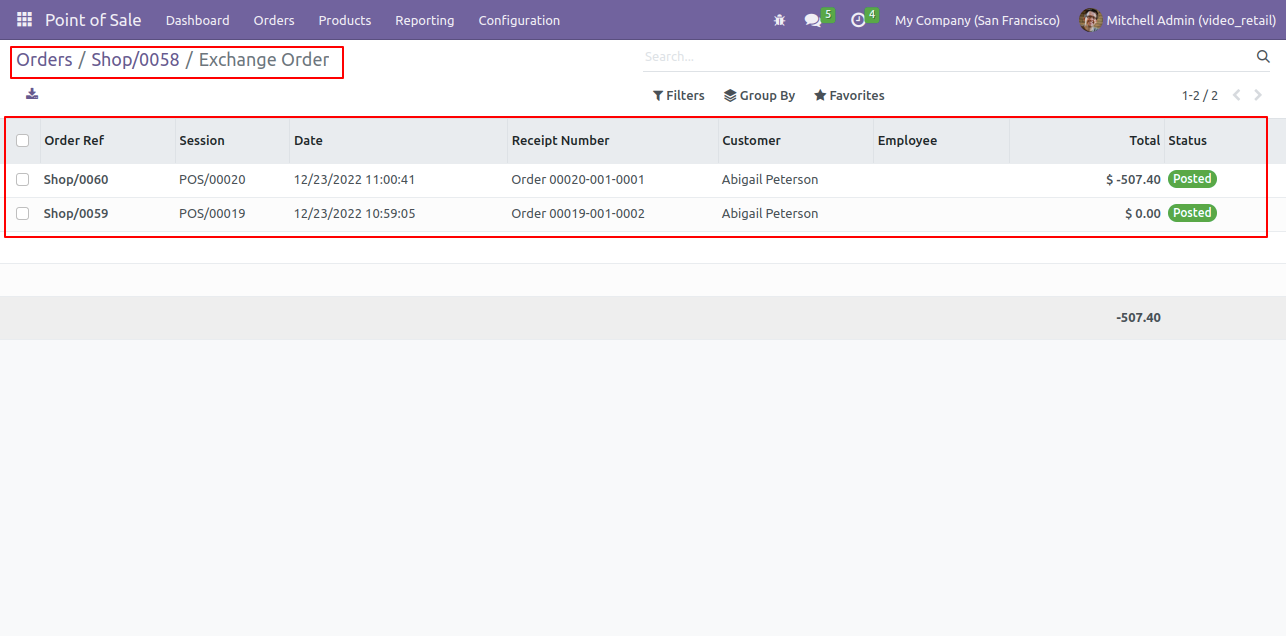
Exchange Order list view.

Exchange Order List View


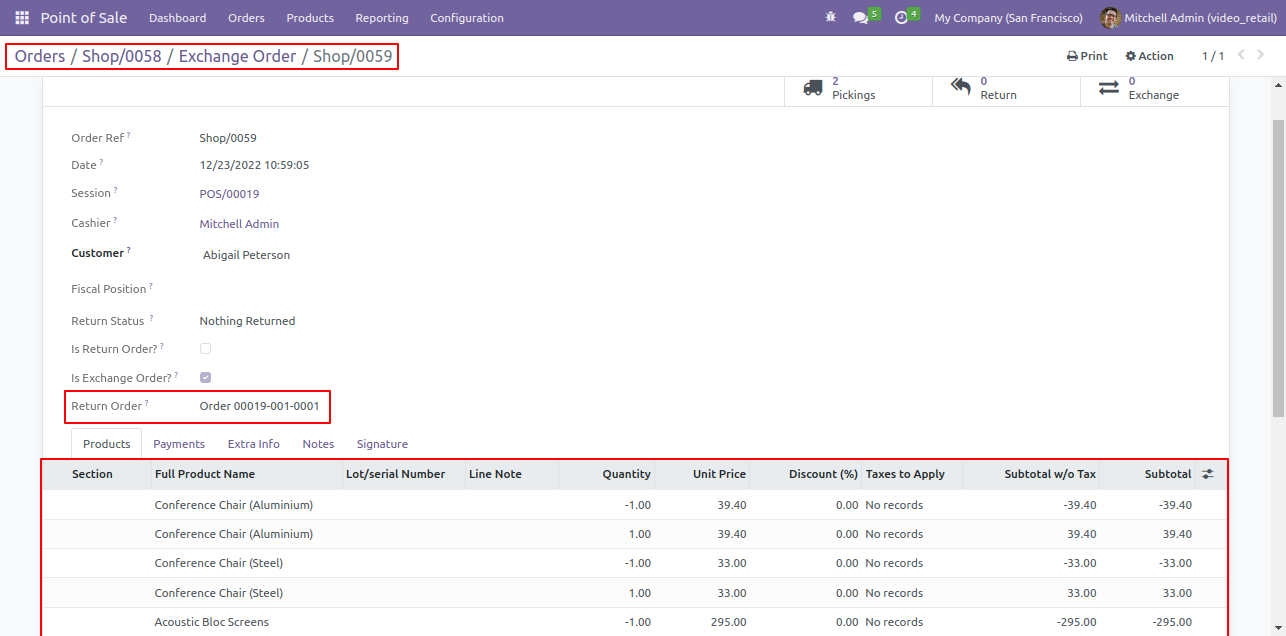
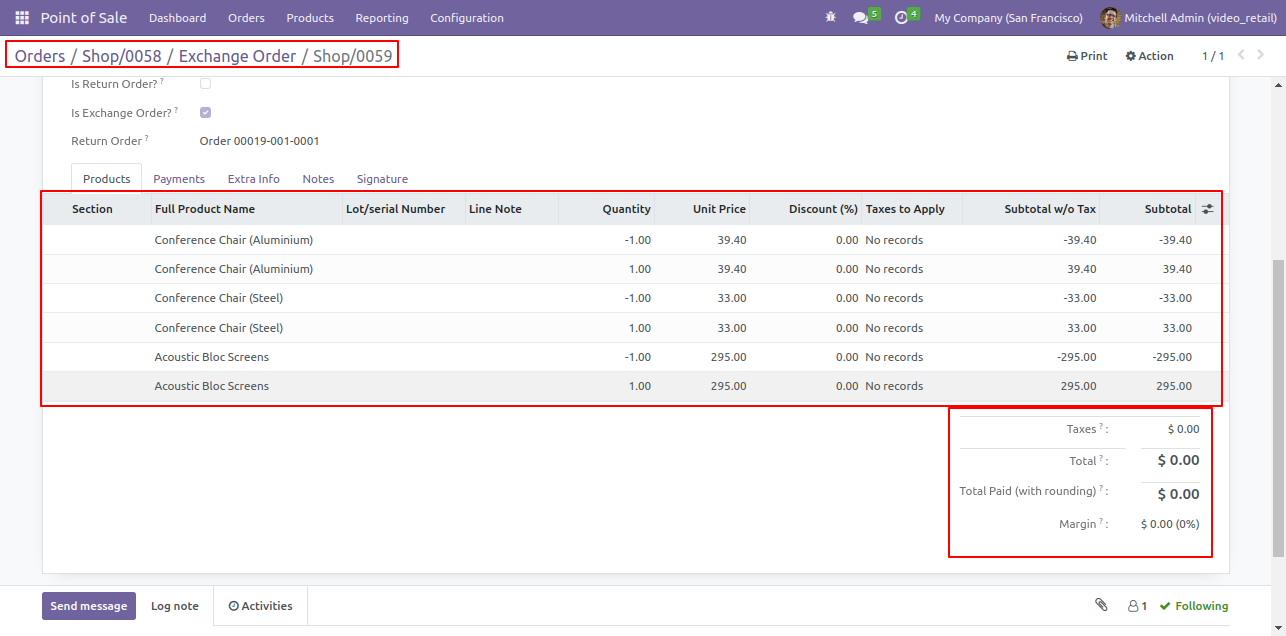
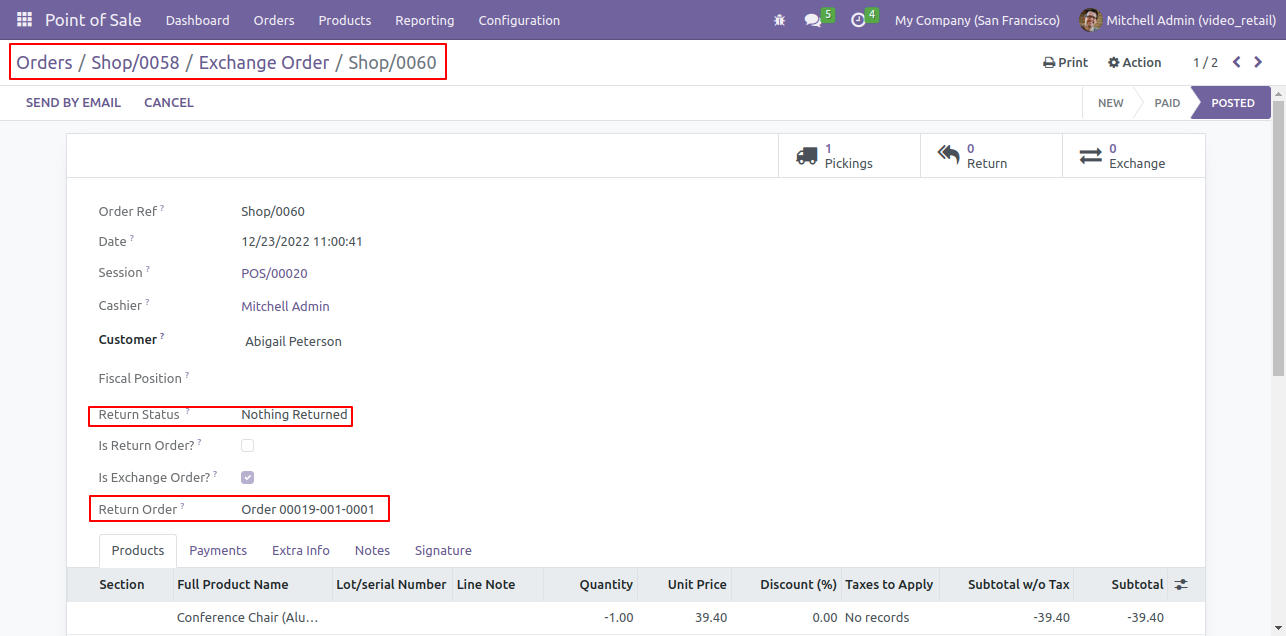
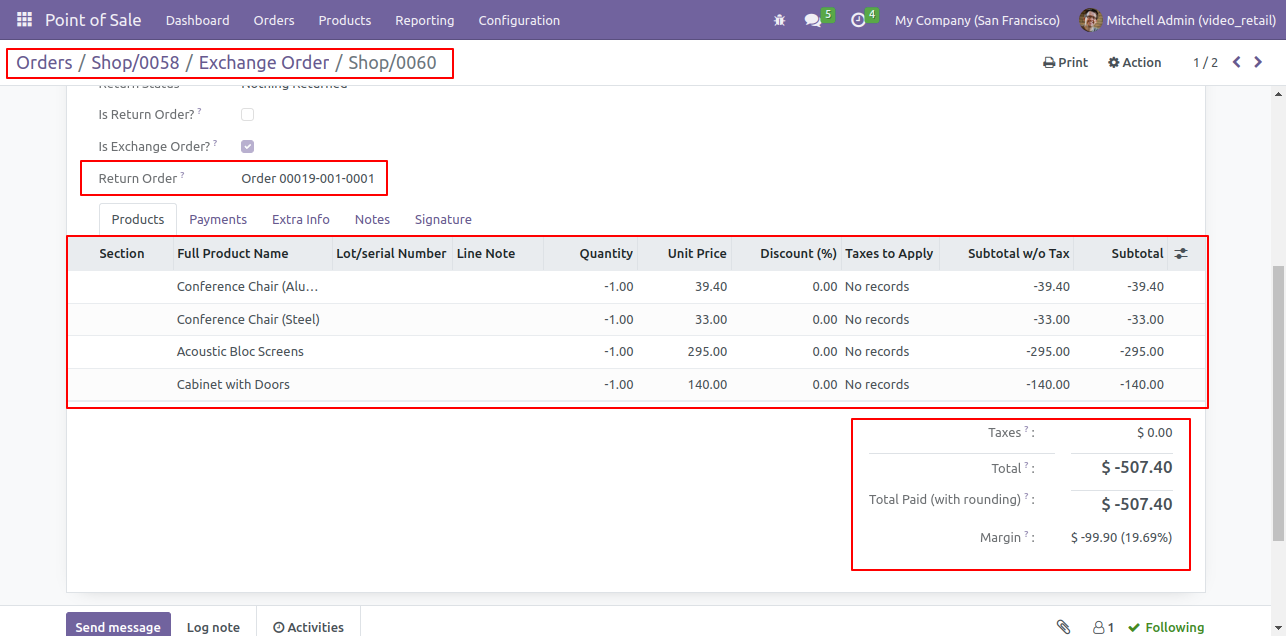
Exchange Order form view, here you can see the 'Is Exchange Order' true, 'Return Order' Reference number. In Product line you can see which product you exchange.

Exchange Order Form with Reference Number


Here you can see the payment details.

Exchange Order Form Payment Details


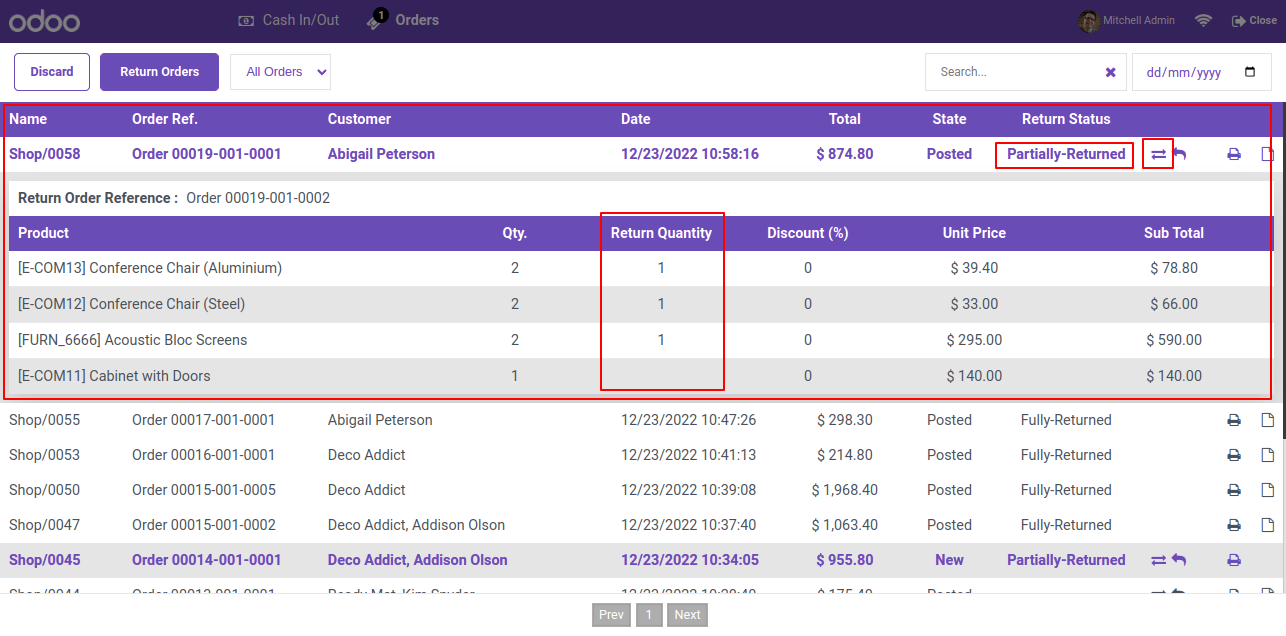
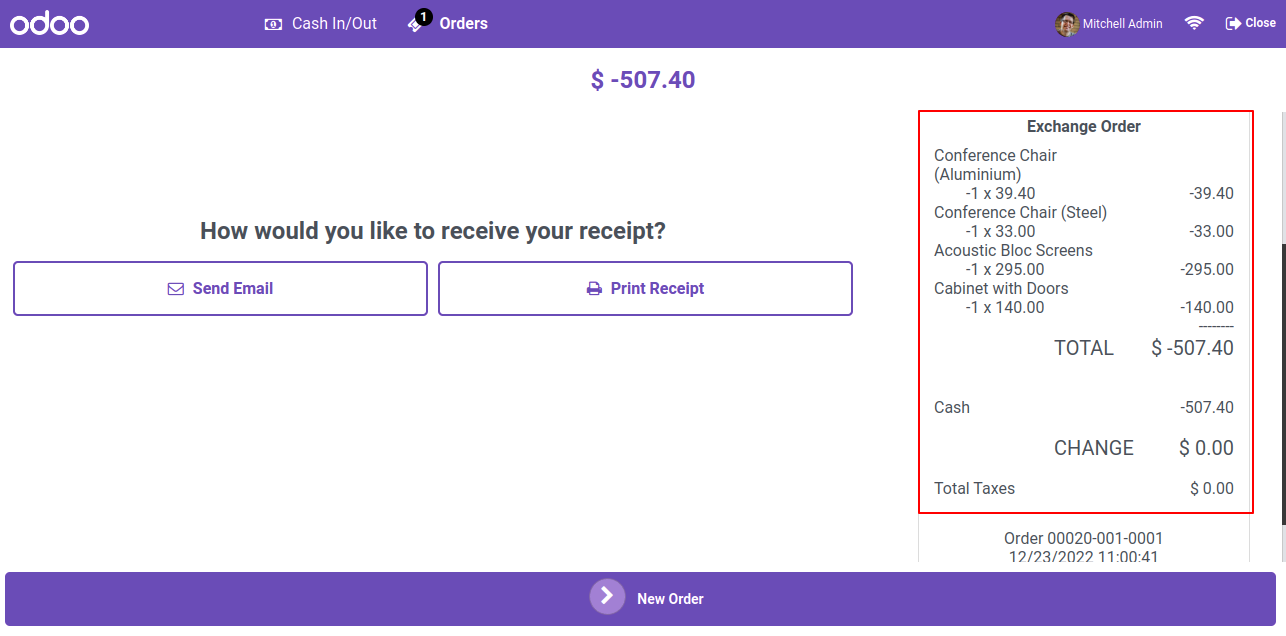
Click on 'Return Order', Here you can see the exchange order history. In PoS 'Return Order' you can see the details of exchange order with 'Return Order Reference' number. Now click on the exchange icon.

Order History with Return Order Reference


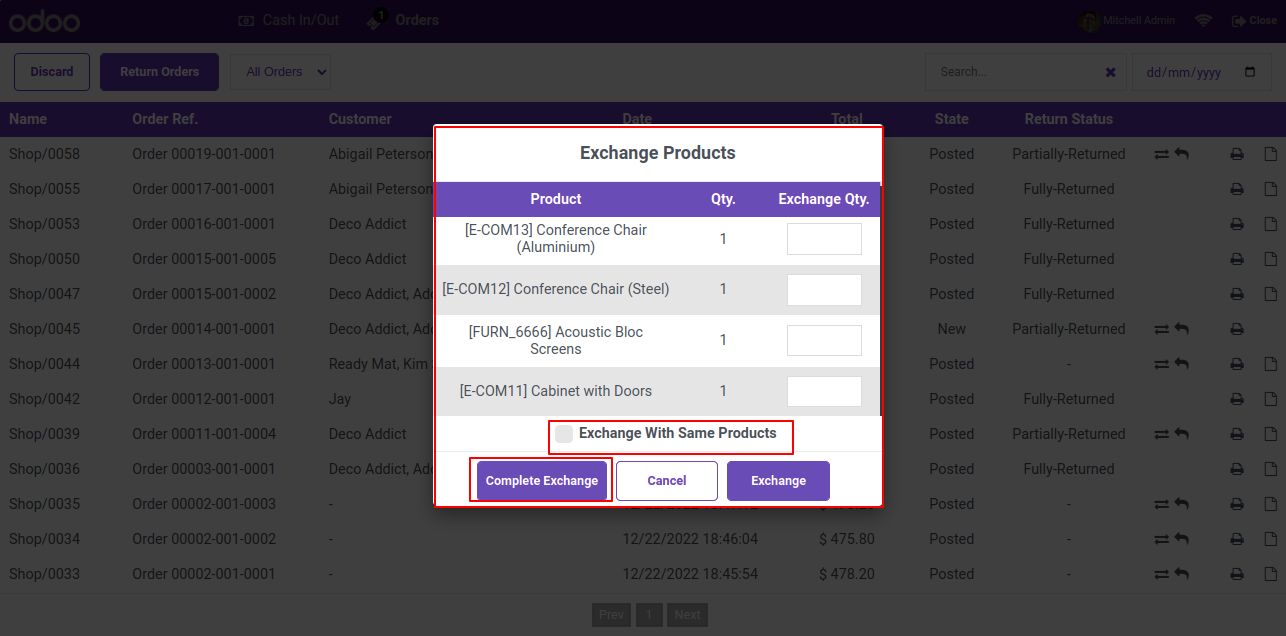
Make exchange order and proceed it. Untick 'Exchange with same order' option.

Exchange Products Same Product Option


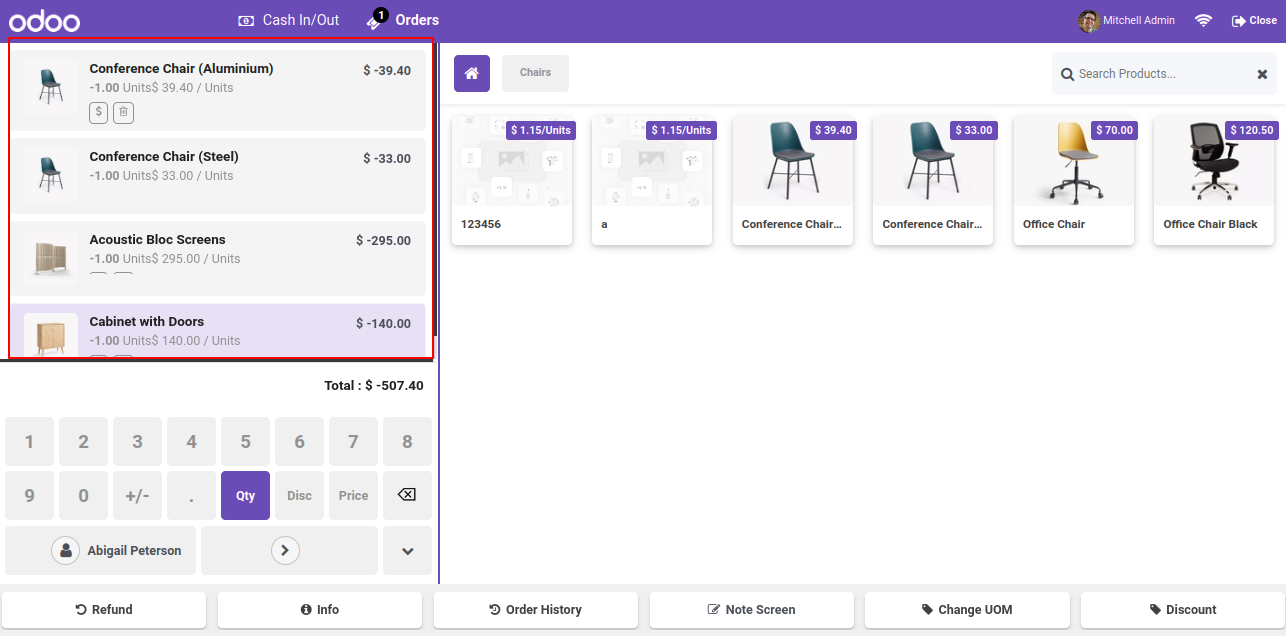
After click on 'Exchange' it will redirect to shop page, Here you can see the added quantity of exchange.

POS Screen with Exchange Quantity Added


Payment view.

Payment Screen for Exchange Order


As you can see the details of Exchange order on order receipts.

Receipt with Exchange Order Details


In backend pos order form view, Here you can see the order details first thing first, if you exchange products means you have to return some products, so here it will create return order. Now click on 'Exchange' smart button, it will redirect you to exchange order.

Backend Order Form with Exchange Button


Exchange Order list view.

Exchange Order List View


Exchange Order form view, here you can see the 'Is Exchange Order' true, 'Return Order' reference number. In Product line you can see which product you exchange.

Exchange Order Form with Reference Number


Here you can see the payment details.

Exchange Order Form Payment Details


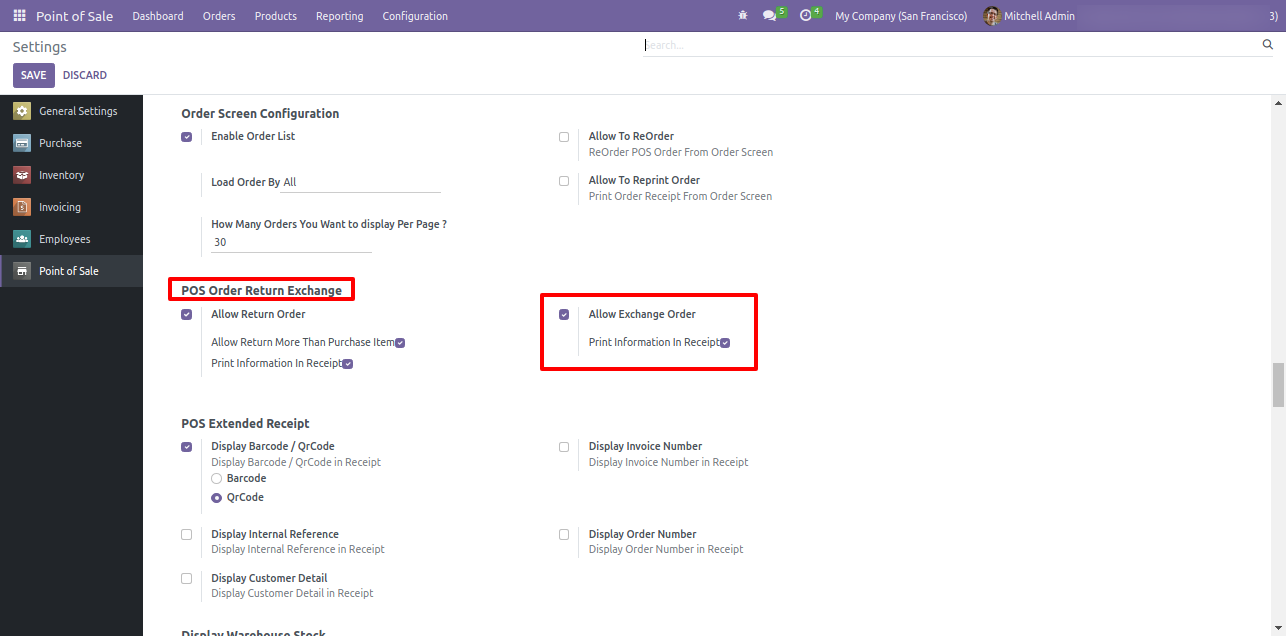
Goto pos setting and enable 'Allow return more then purchase item'.

Enable Return More Than Purchase Setting


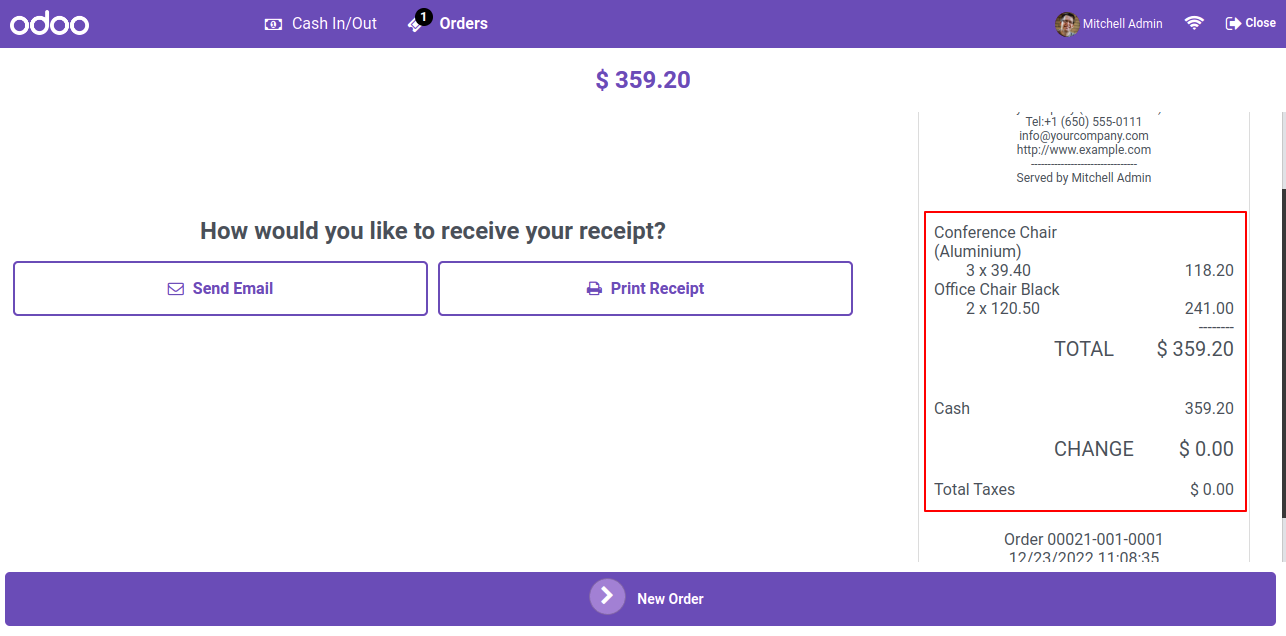
Receipt view.

Receipt with Order Total Details


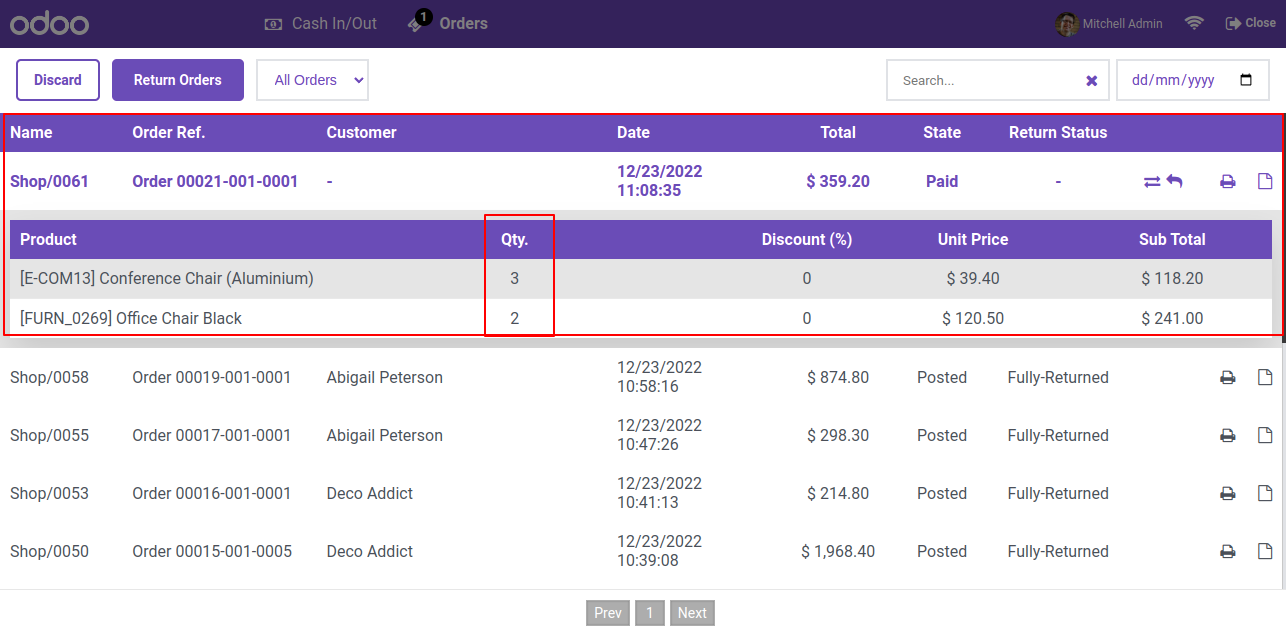
Click on 'Return Order' then you can see the order qty. Now click on the return icon.

Order List with Return Order Icon


Make return order. Add the return qty more then the purchase qty and proceed it.

Return Order Wizard with Extra Quantity


Payment view.

Payment Screen for Return Order


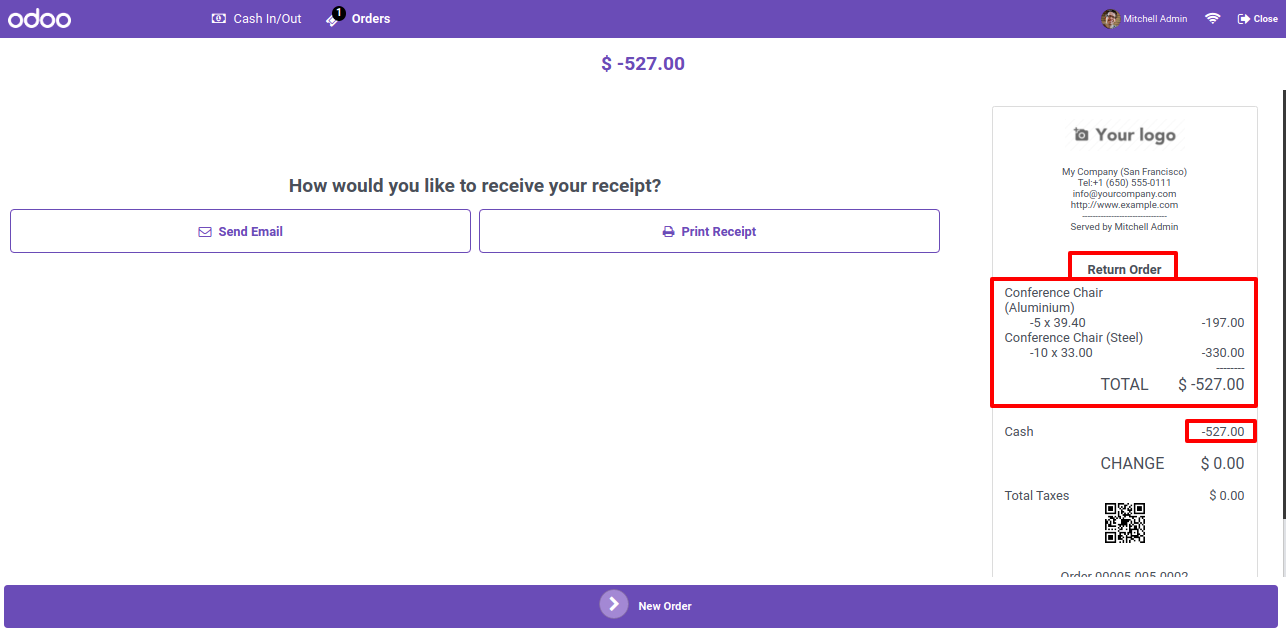
As you can see the details of return order on order receipts.

Receipt with Return Order Total

Goto pos setting ==> Enable 'Allow return order' option. Also tick the print information in receipt option.


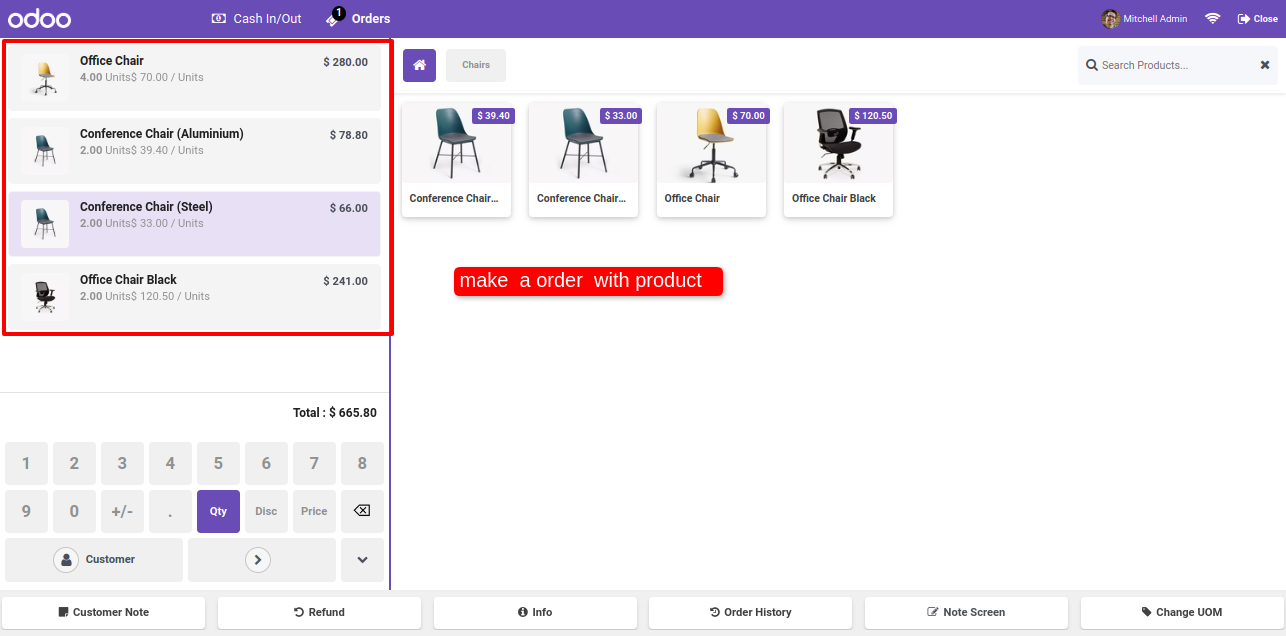
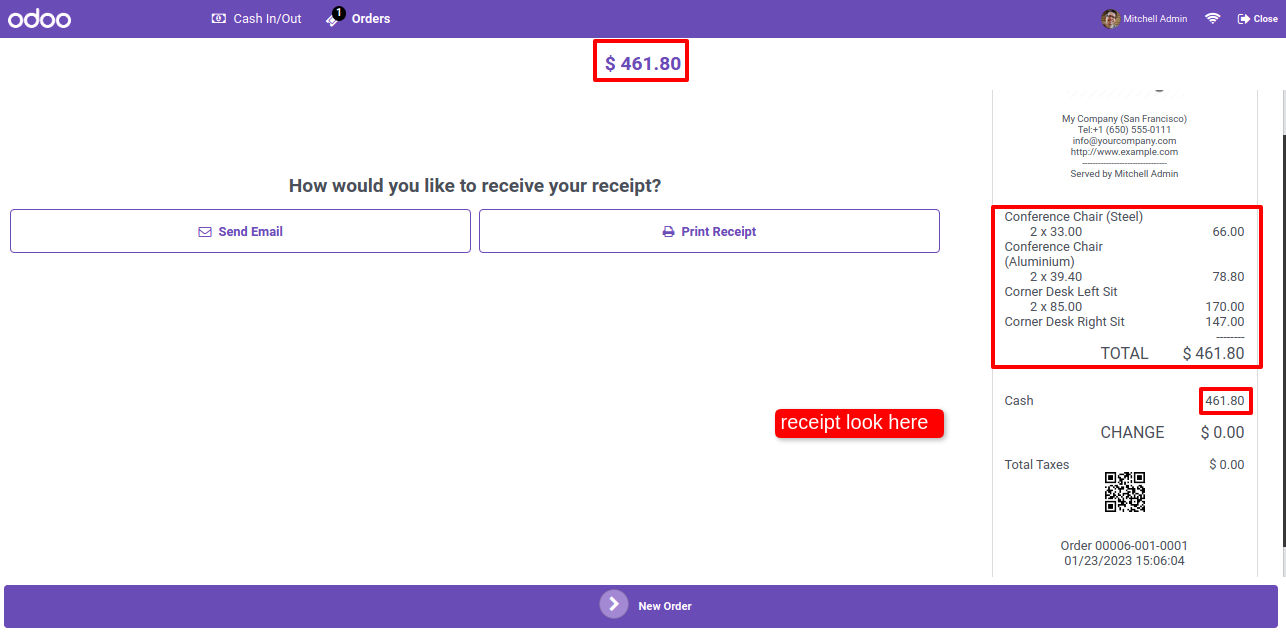
Make a order with product.


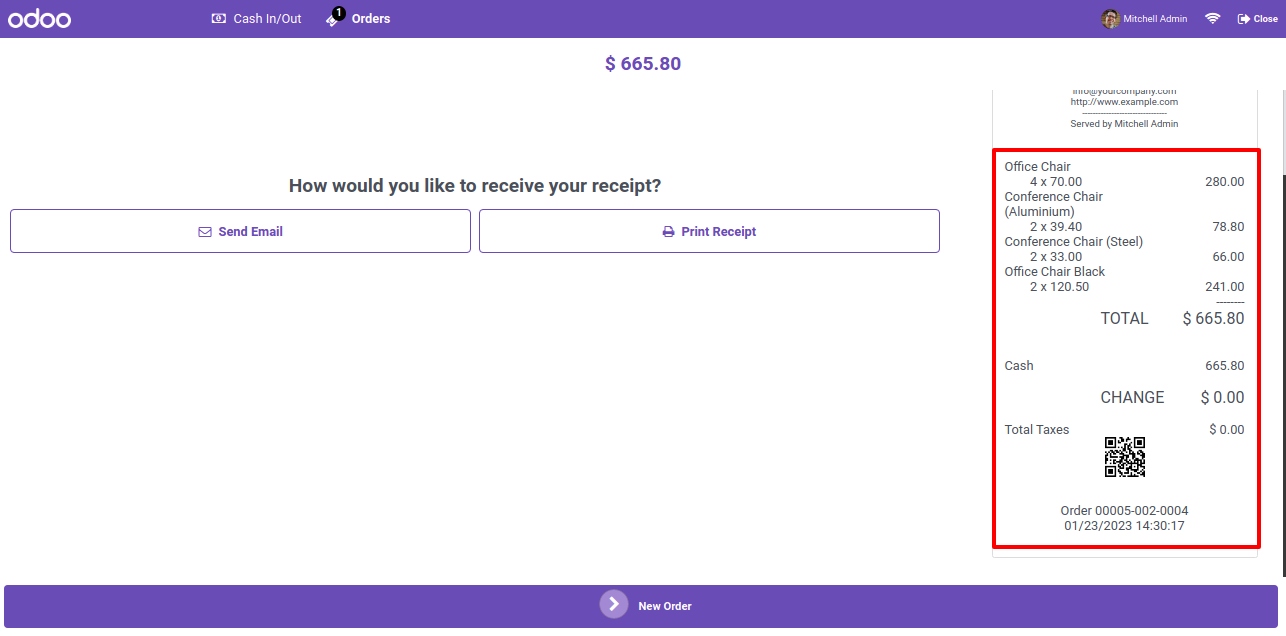
In the receipt you can see the order history.


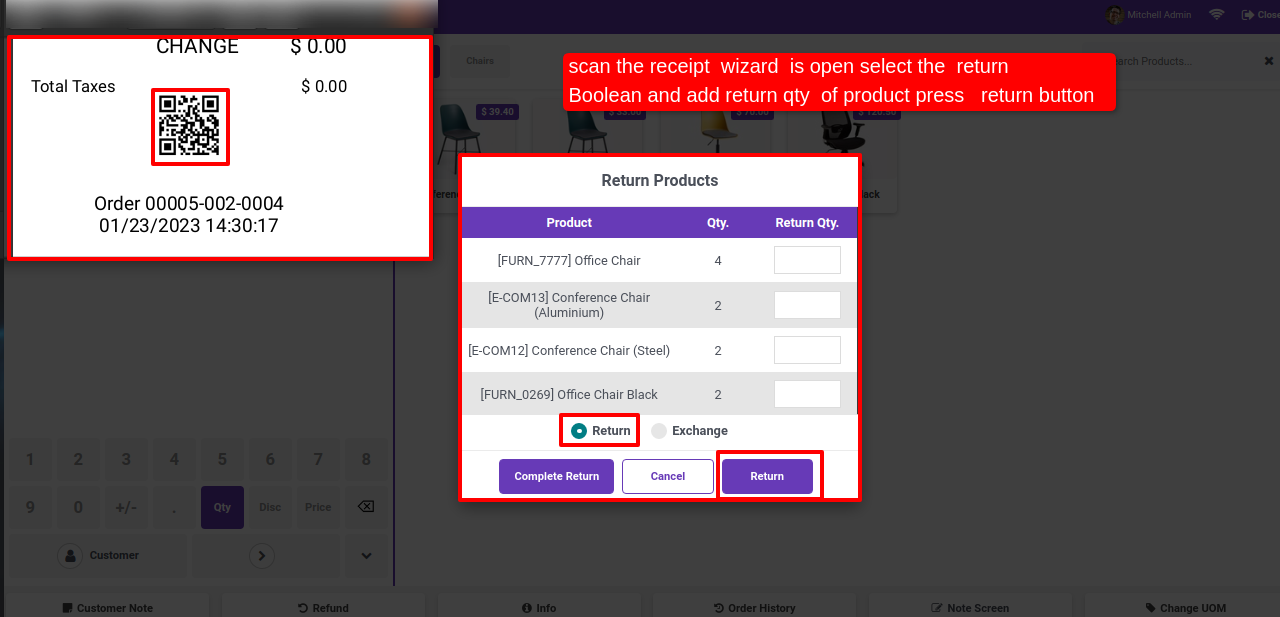
Now we scan the barcode, so this return - exchange popup opens. Select the return option and add return qty of products and press return button.


After clicking on the return button you will redirect to the payment page. To validate the payment, Click on the validate button.


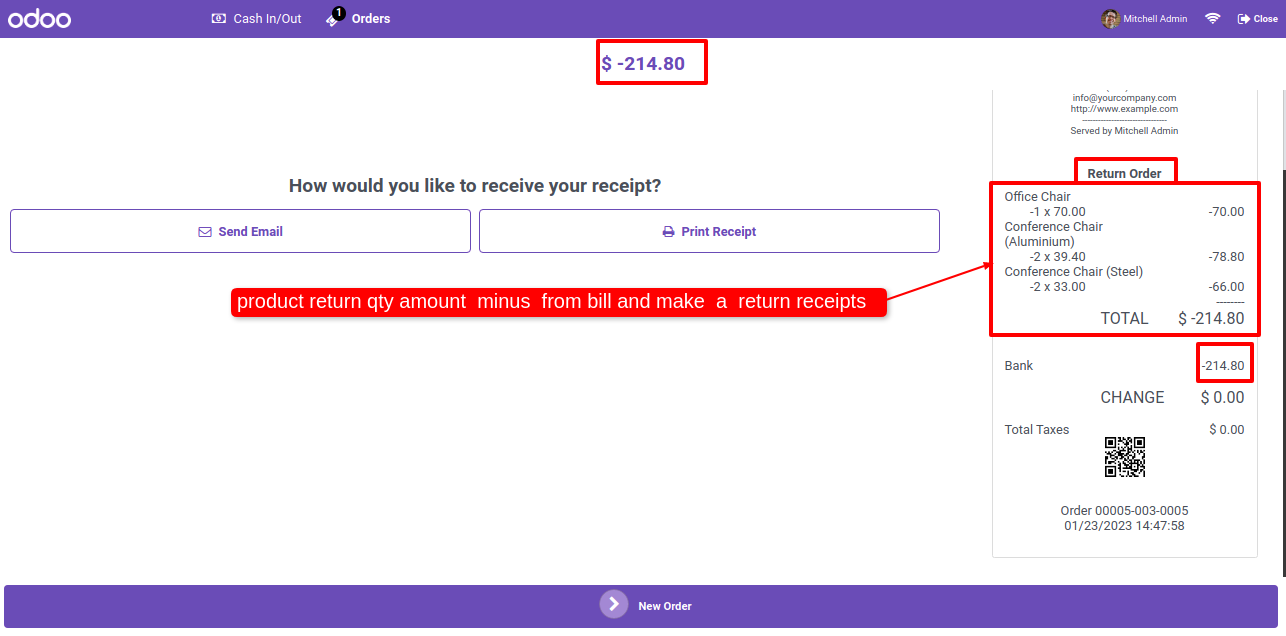
Here, you can see that the amount of the quantity of returned products as a minus value on the bill and make a return receipt.


If customer wants a complete return scan the barcode again and click on complete return button.


After clicking on the return button you will redirect to the payment page. To validate the payment, Click on the validate button.


Here, you can see the return order history. The amount of the quantity of returned products as a minus value on the bill and make a return receipt.


Goto pos setting and enable 'Allow return more then purchase item'.


Now we scan the barcode, so this return - exchange popup opens. Select the return option and add return qty more then the purchase qty and press return button.


Here, you can see the return order history. The amount of the quantity of returned products as a minus value on the bill and make a return receipt.


Goto pos setting ==> Enable 'Allow exchabge order' option.


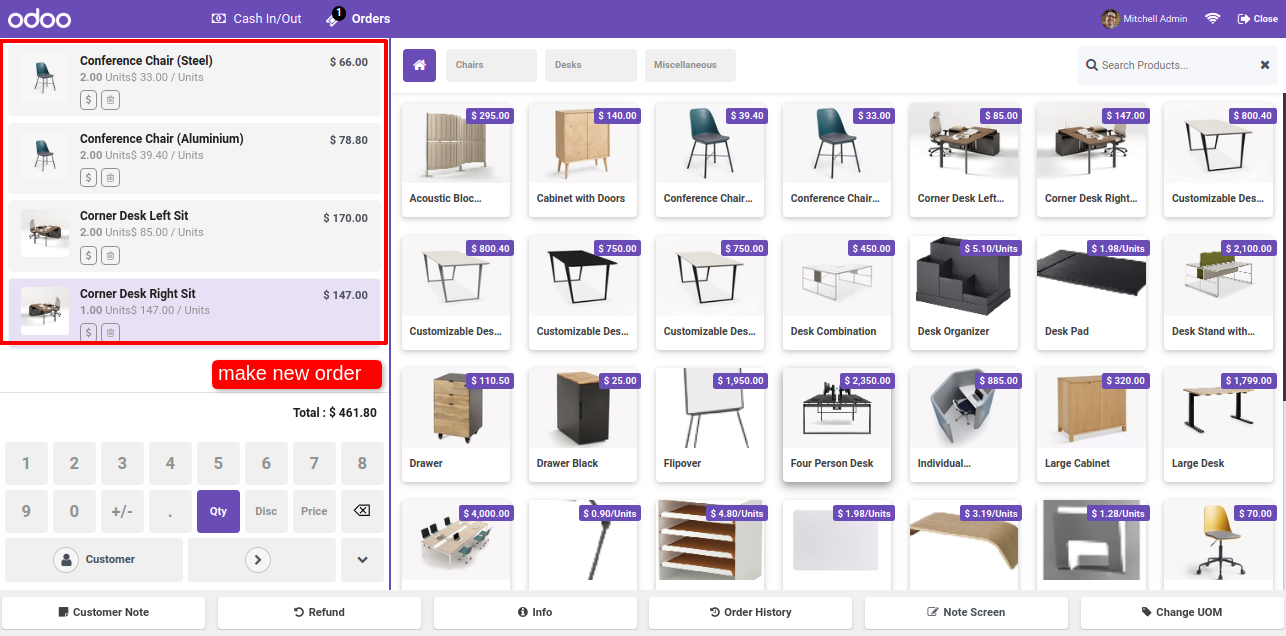
Make a new order.


The purchase order receipt looks like below.


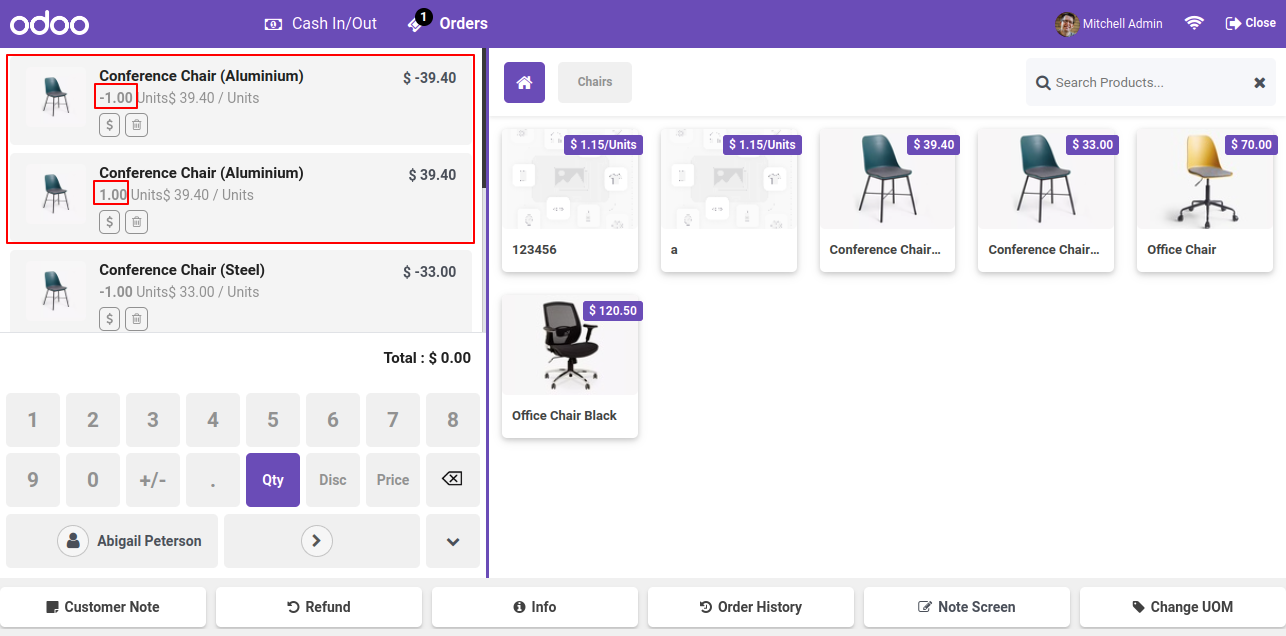
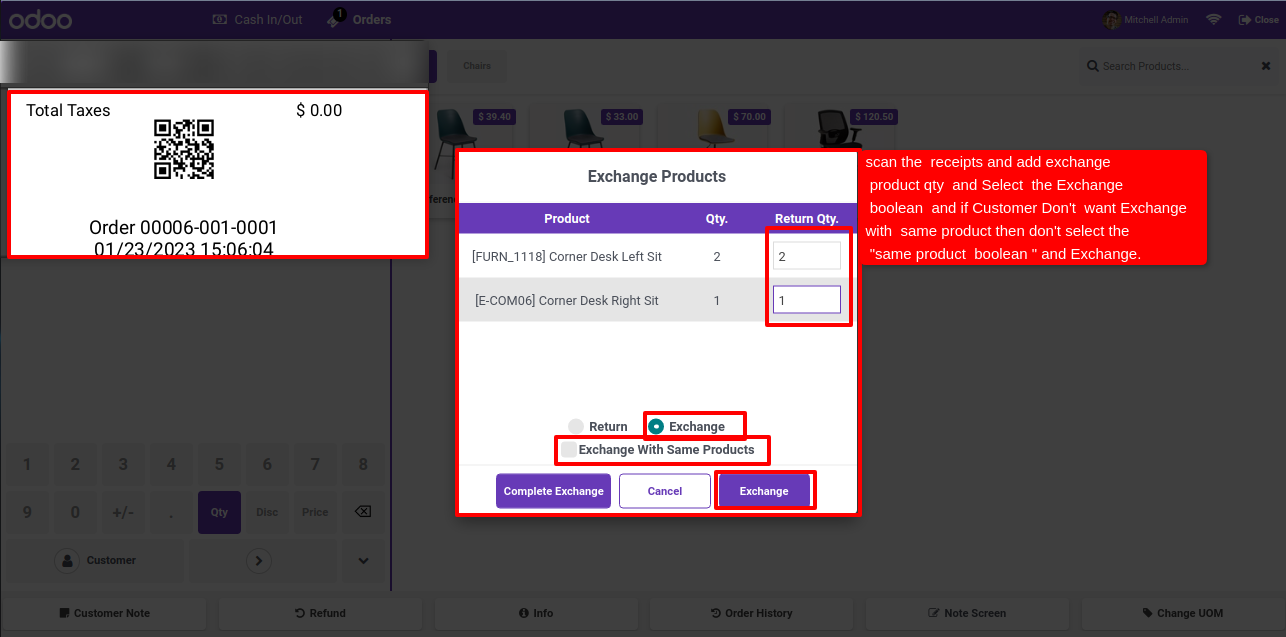
Now we scan the barcode, so this return - exchange popup opens. Select the exchange option and add exchange qty of products and press exchange button. If you want to exchange with same products just select the 'Exchange With Same Product' boolean.


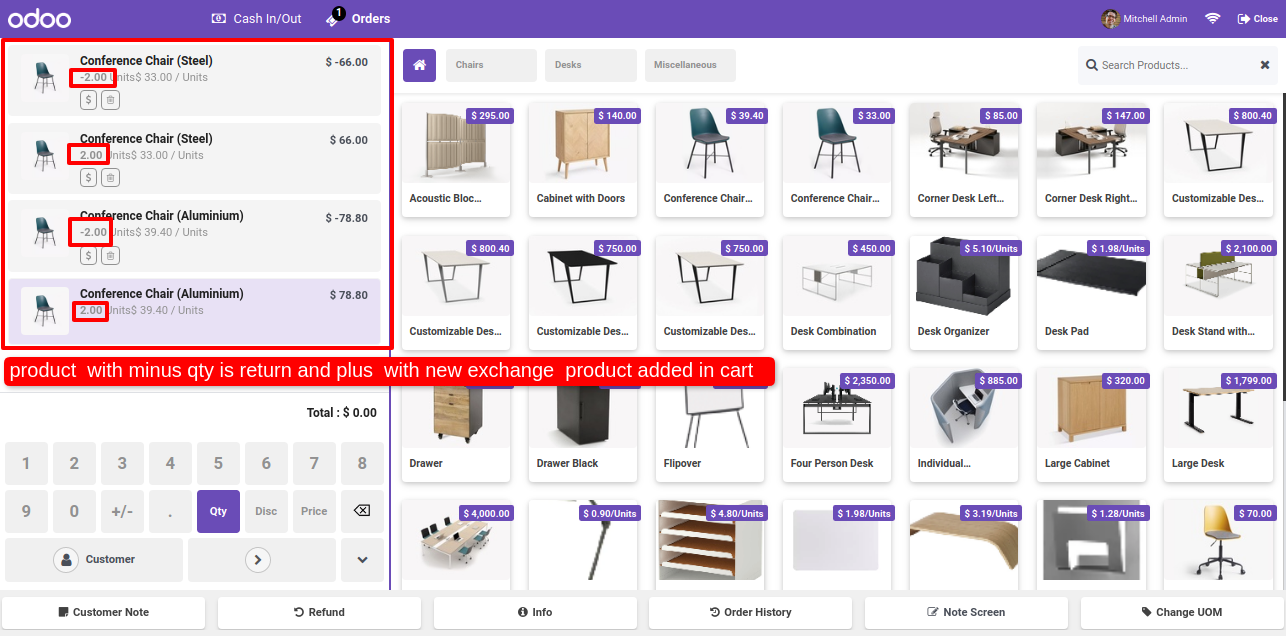
Here you can see the product with minus qty is return and plus with new exchange product added in cart.


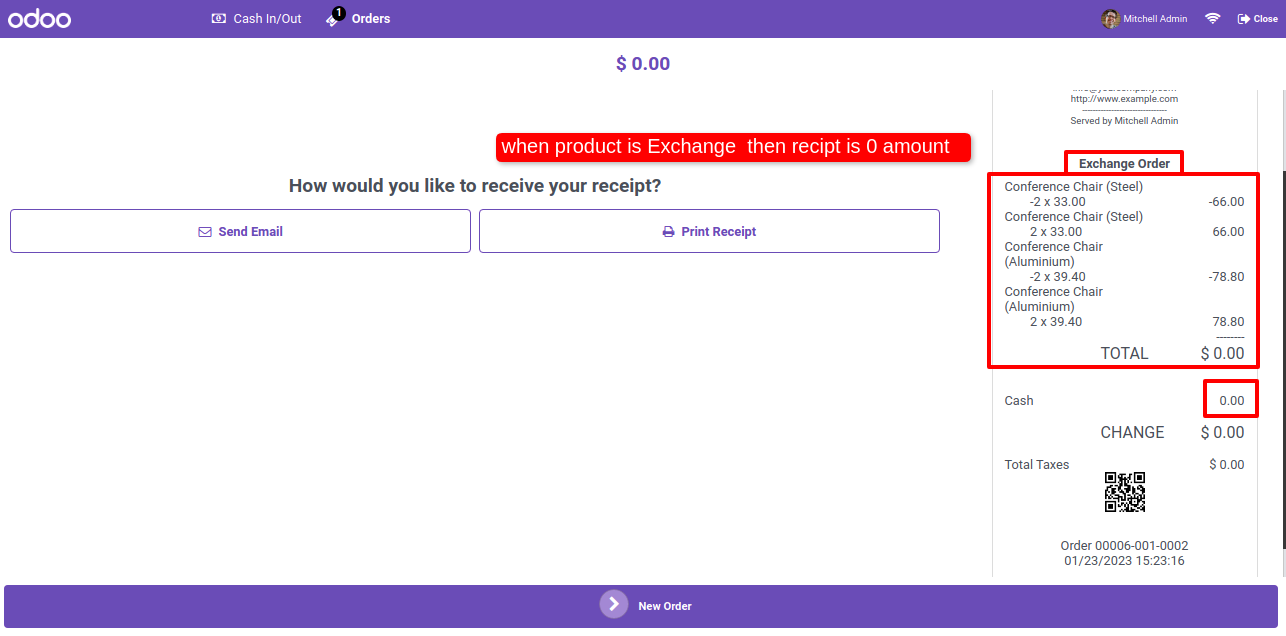
When product will exchange then the receipt amount is zero.


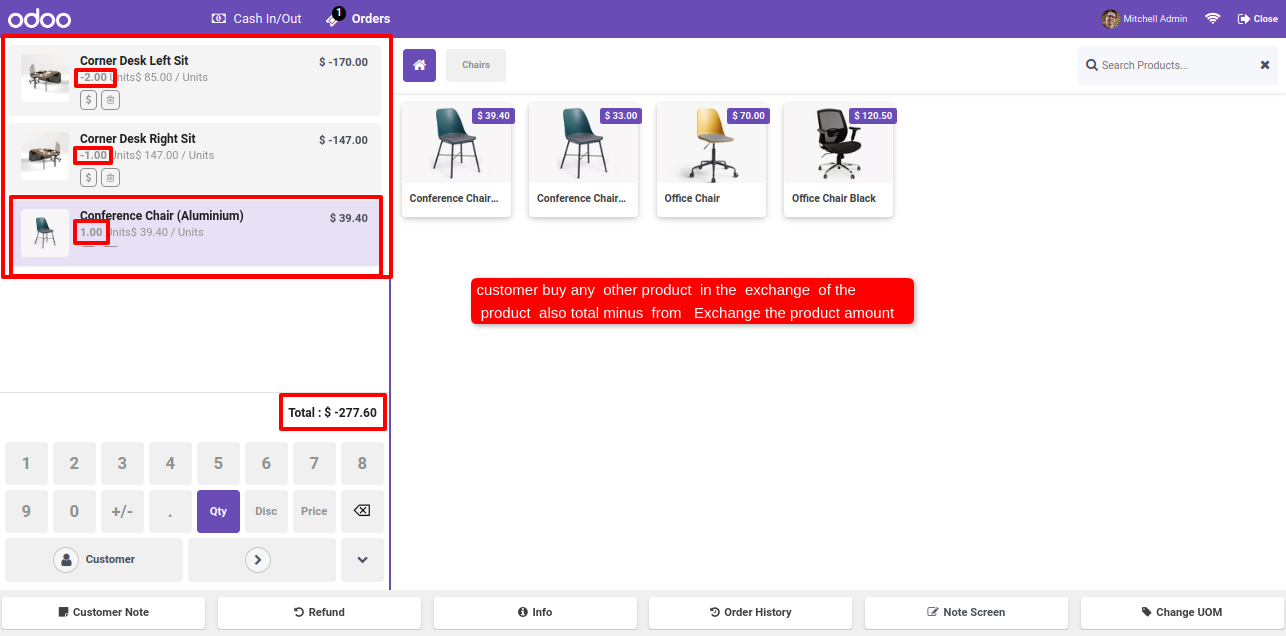
Now we scan the barcode, so this return - exchange popup opens. Select the exchange option and add exchange qty of products and press exchange button. If you want to exchange with another products then no need to select the 'Exchange With Same Product' boolean.


The customer has the option to purchase another product in the exchange of the product, The total amount is deducted from the exchanged product's amount.


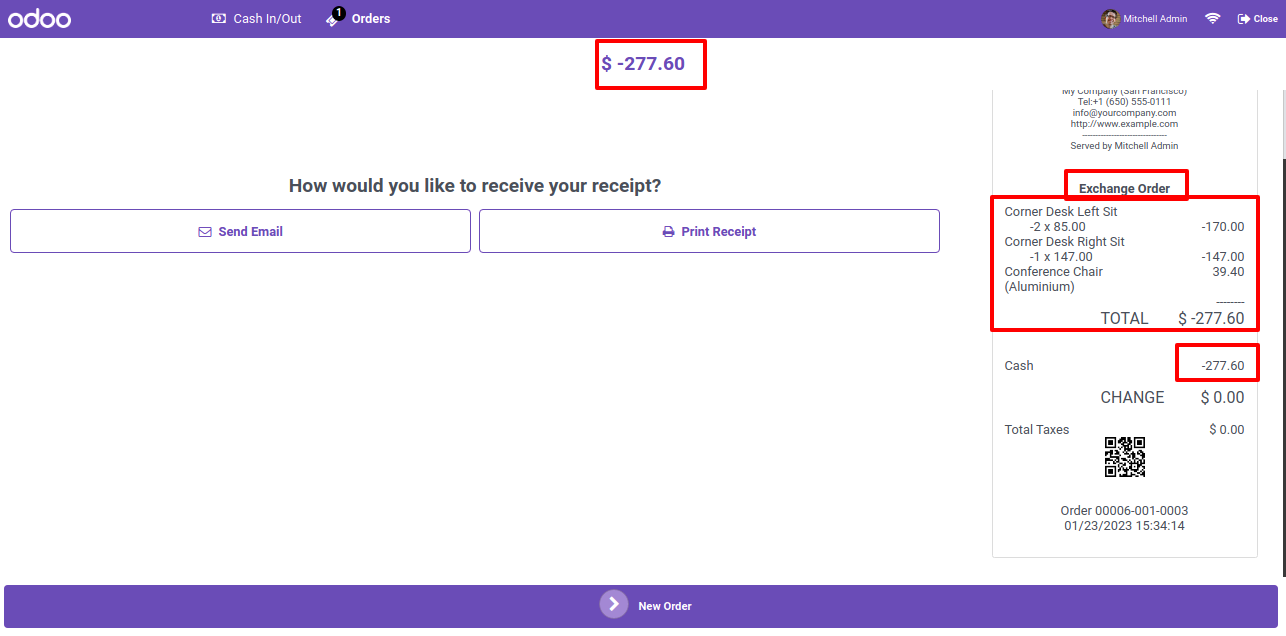
Here, you can see that the amount of the quantity of returned products as a minus value on the bill and make a return receipt.


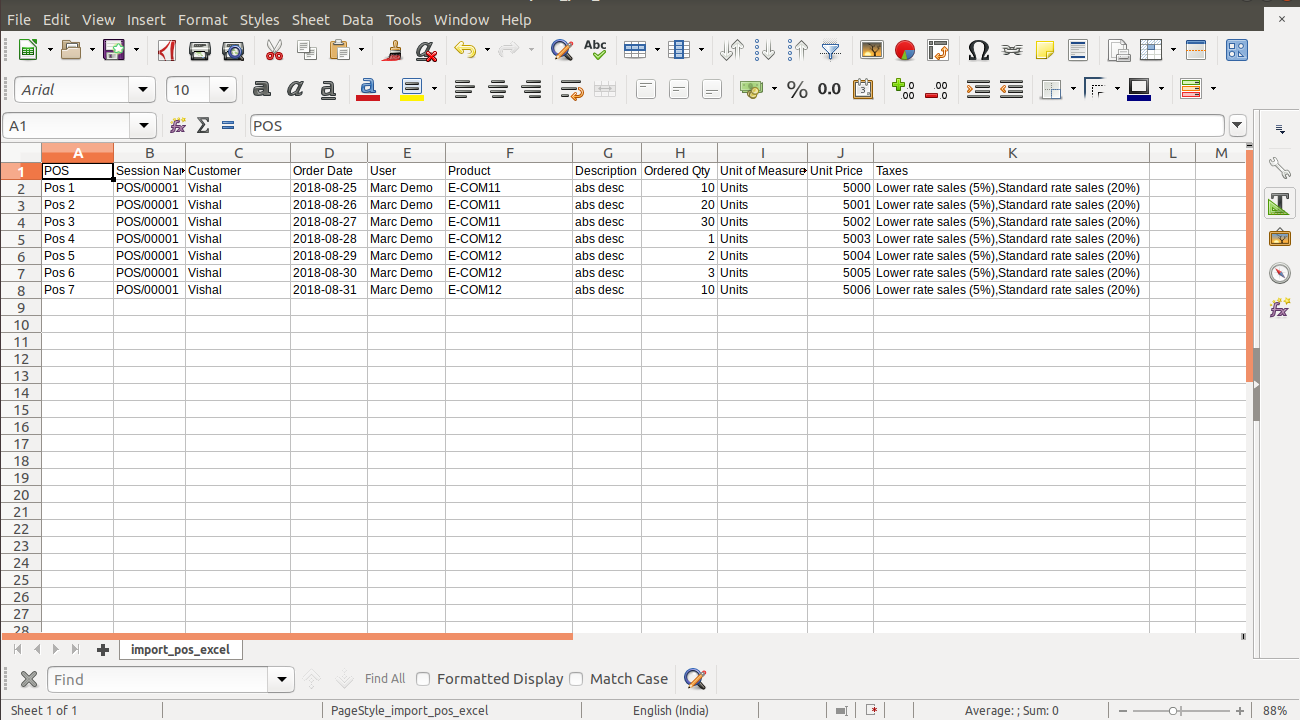
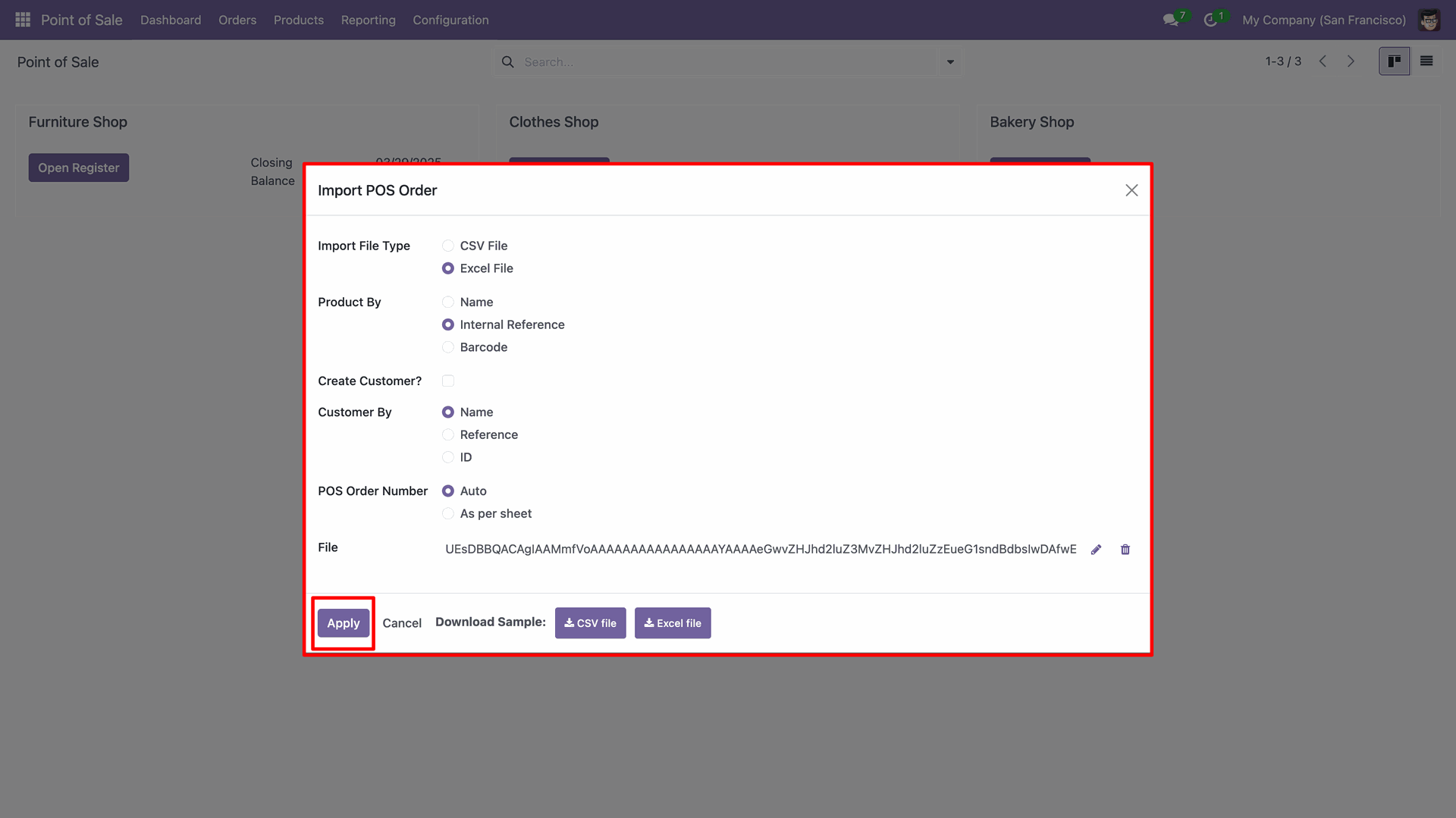
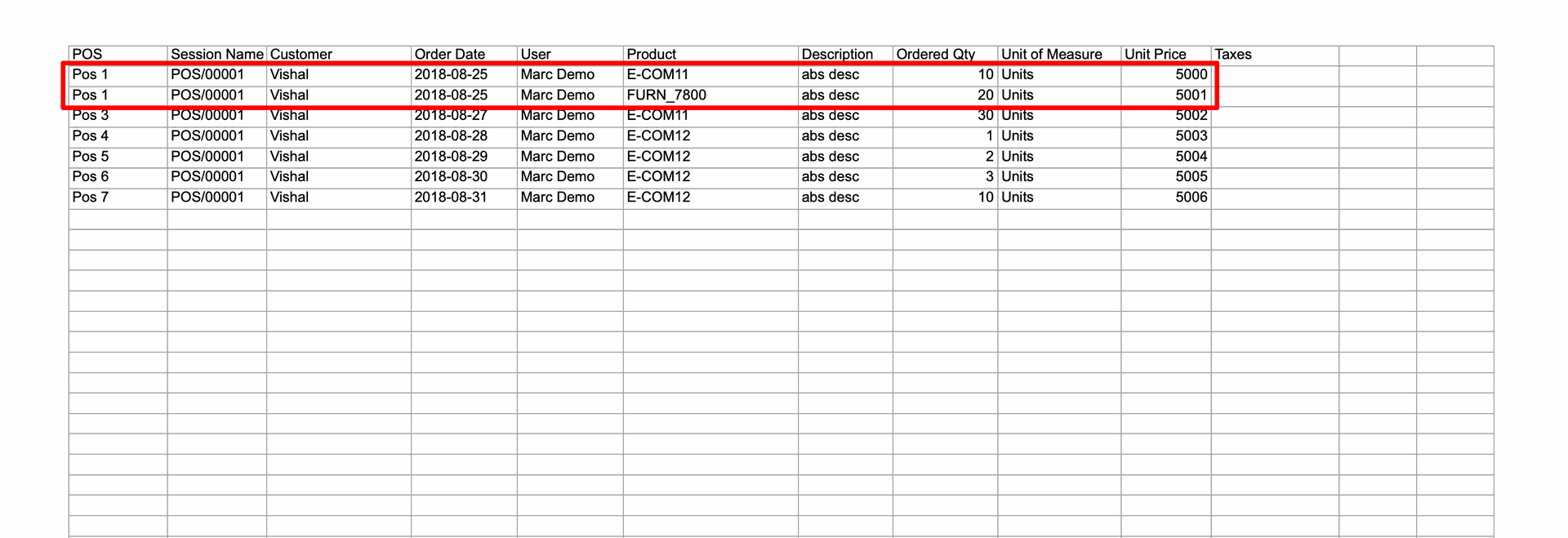
Add details in the 'Import POS Order' wizard.


Your Excel file format must match like below.


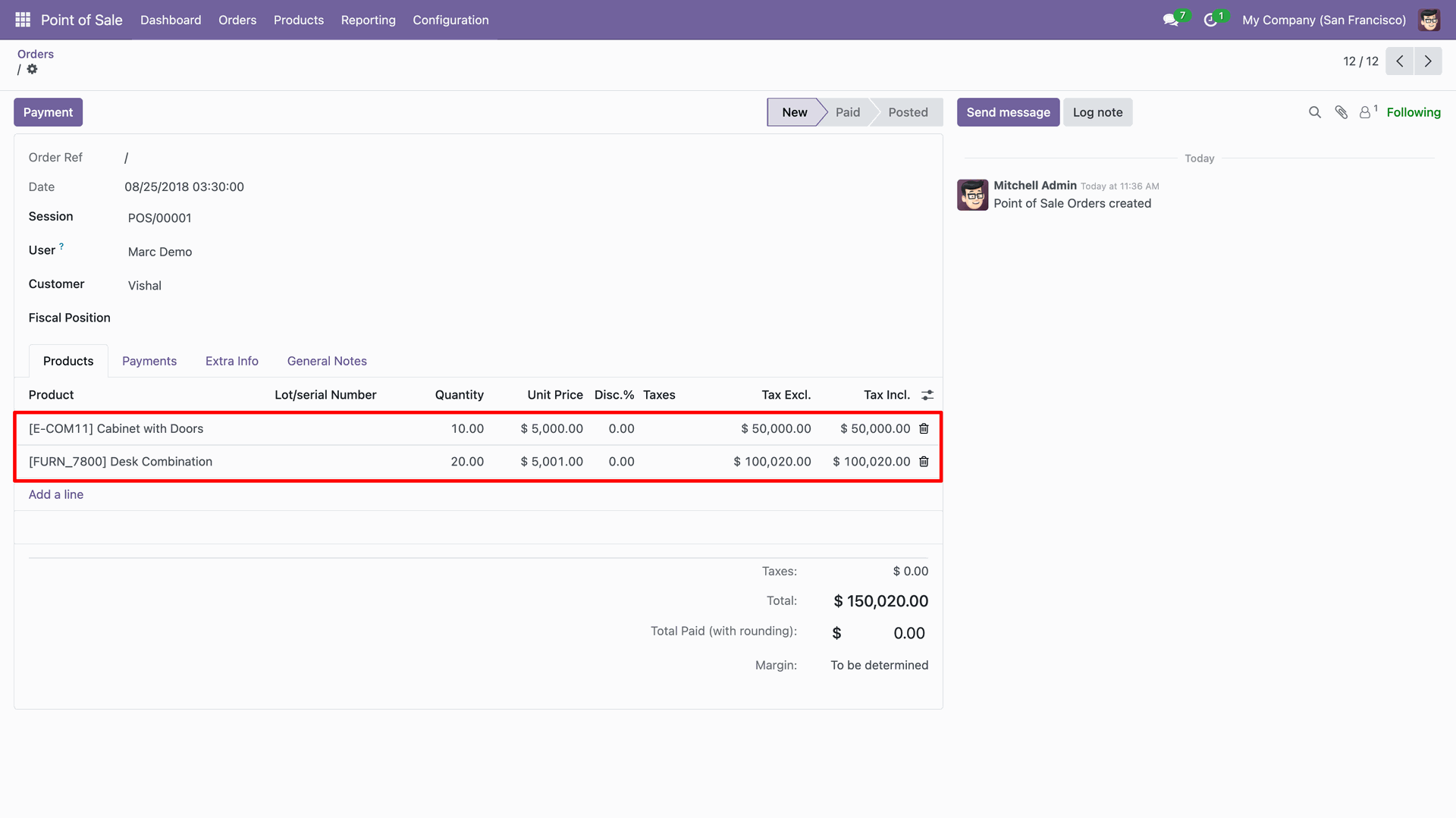
Here you can see the multiple products to be imported simultaneously.


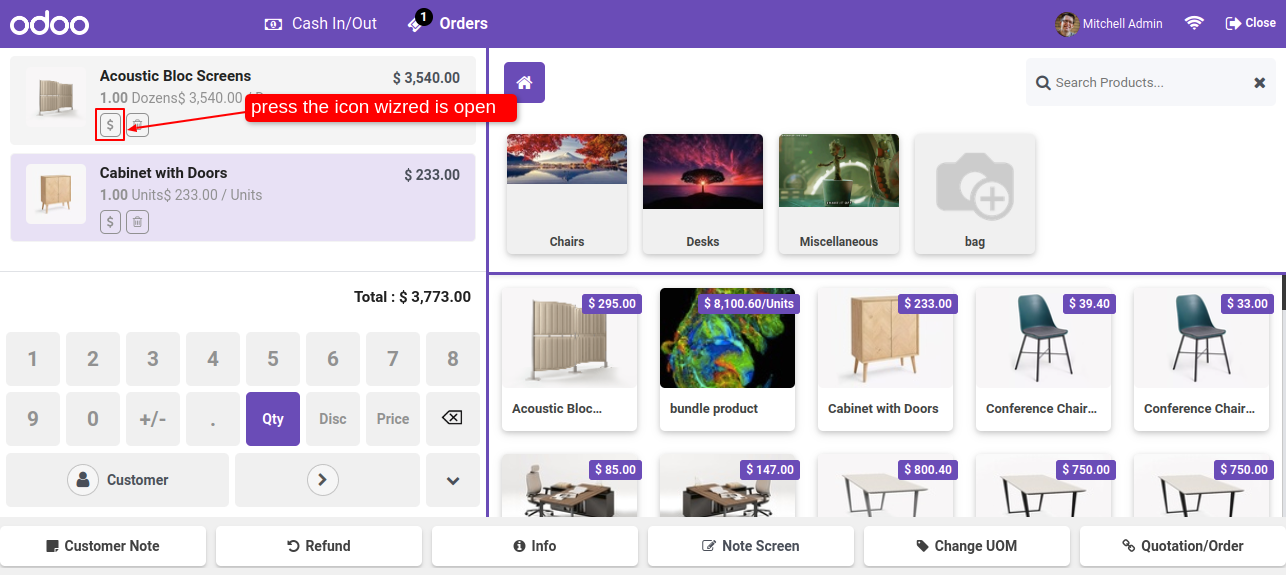
Choose the pricelist for the pos order line.

Choose pricelist for POS order line

When you click on that icon, it opens a pricelist popup.
After that, pricelist popup will appear, you can choose the pricelist for the order line, code pricelist gives the price in the encoded format that is not clickable.

Pricelist popup on order line

If you change the pricelist then the order line price will be changed according to the selected pricelist.

Order price updated per pricelist

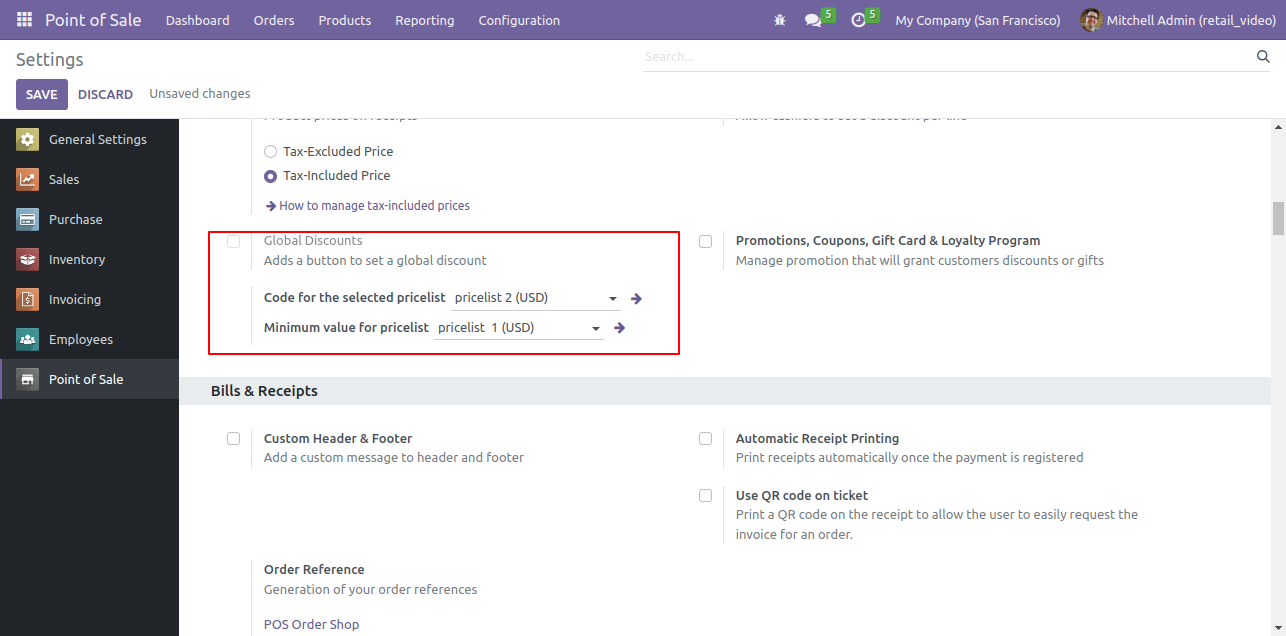
You can set the pricelist in an encoded format using the code pricelist.

Set pricelist in encoded code format

Code pricelist will display in the code in the pricelist popup.

Code pricelist shown in popup

You can set the minimum pricelist for the order line.

Set minimum pricelist for order line

If your pricelist price is less than the minimum pricelist then it shows an alert.

Alert for price below minimum pricelist

System will not allow to set price below minimum pricelist amount.

Mobile responsive pricelist view

Go to Inventory ==> Configuration and enable the 'Expiration Dates' option to allow setting expiration dates on lot number products.

Enable Expiration Dates on lot numbers

Go to POS ==> Configuration and activate the 'Display Alert Warning' option.

Enable Display Alert Warning and Restrict Expiry Lot

In the form view of the product variant, set the Tracking option to By Lot.

Set Tracking option to By Lot

Enable the 'Expiration Date' option and configure the Alert Date under the Inventory tab.

Enable Expiration Date in Inventory tab

Add expiration date in lot.

Add expiration date in lot

Add expiration date in lot.

Select product on POS screen

On pos screen, select the product. After that, the Lot/Serial Number wizard will appear. Enter the lot number and click on the 'Apply' button.

Enter lot number and apply

The warning message will appear based on the expiration date set for the product.
Click on the 'Okay' button to continue.

Product displayed with lot number

Here, the product is displayed along with its lot number.

Select product and enter lot number

Select the product.
After that, the Lot/Serial Number wizard will appear. Enter the lot number and click on the 'Apply' button.

Expiration alert warning popup

Here, the product is displayed along with its lot number.

Product displayed with lot number in cart

Go to POS ==> Configuration and activate the 'Display Alert Warning' and 'Restrict Expiry Lot' options.

Enable Display Alert Warning & Restrict Expiry Lot

Expired Lot.

Expiried Lot

On pos screen, select the product. After that, the Lot/Serial Number wizard will appear. Enter the lot number and click on the 'Apply' button.

Enter lot number and apply

If you try to add an expired product, a warning message will appear.

Expiry warning for expired product

The user navigates to the Inventory app, opens the Configuration menu, and selects Product Packages sub menu.

Open Product Packages menu

The user defines the whiteboard pen package, specifying 10 units of [CONS_0001] Whiteboard Pen and the barcode 123456.

Define whiteboard pen package details

The user clicks the Products menu and selects Pricelists, to view the available pricing configurations.

Open Pricelists menu

The user configures the price by selecting the whiteboard pen package for the Whiteboard Pen product and setting a fixed price of 500.00.
Configure pricelist rule for product package

The user enables Flexible Pricelists in the Pricing settings and selects Default (USD) and pos pricelist (USD) as available options.
Enable Flexible Pricelists setting

The user selects the Whiteboard Pen from the product grid in the POS interface for Order 4001.

Select Whiteboard Pen from product grid

The user selects the whiteboard pen package from the Packages, where the red box highlights the Quantity : 10 and the calculated total Price of 12.00.

Select package quantity and price

The user verifies the order line for Whiteboard Pen, where the red box highlights the quantity of 10, the total of $ 13.80, and the note '1 whiteboard pen package at $ 1.20 / Units'.

Verify order line for Whiteboard Pen

The user selects the pos pricelist (USD) option from the Actions, to apply the specific pricing rules to the current order.

Select pos pricelist from actions

The user selects the whiteboard pen package in the Packages, where red boxes highlight the updated unit price of $ 500.00 and the total calculated Price of 5000.00.

Package price updated to new rate

The user verifies the Whiteboard Pen order line, where the red box highlights the new total of $ 5,750.00 and the confirmation note '1 whiteboard pen package at $ 500.00 / Units'.

Verify updated order line total

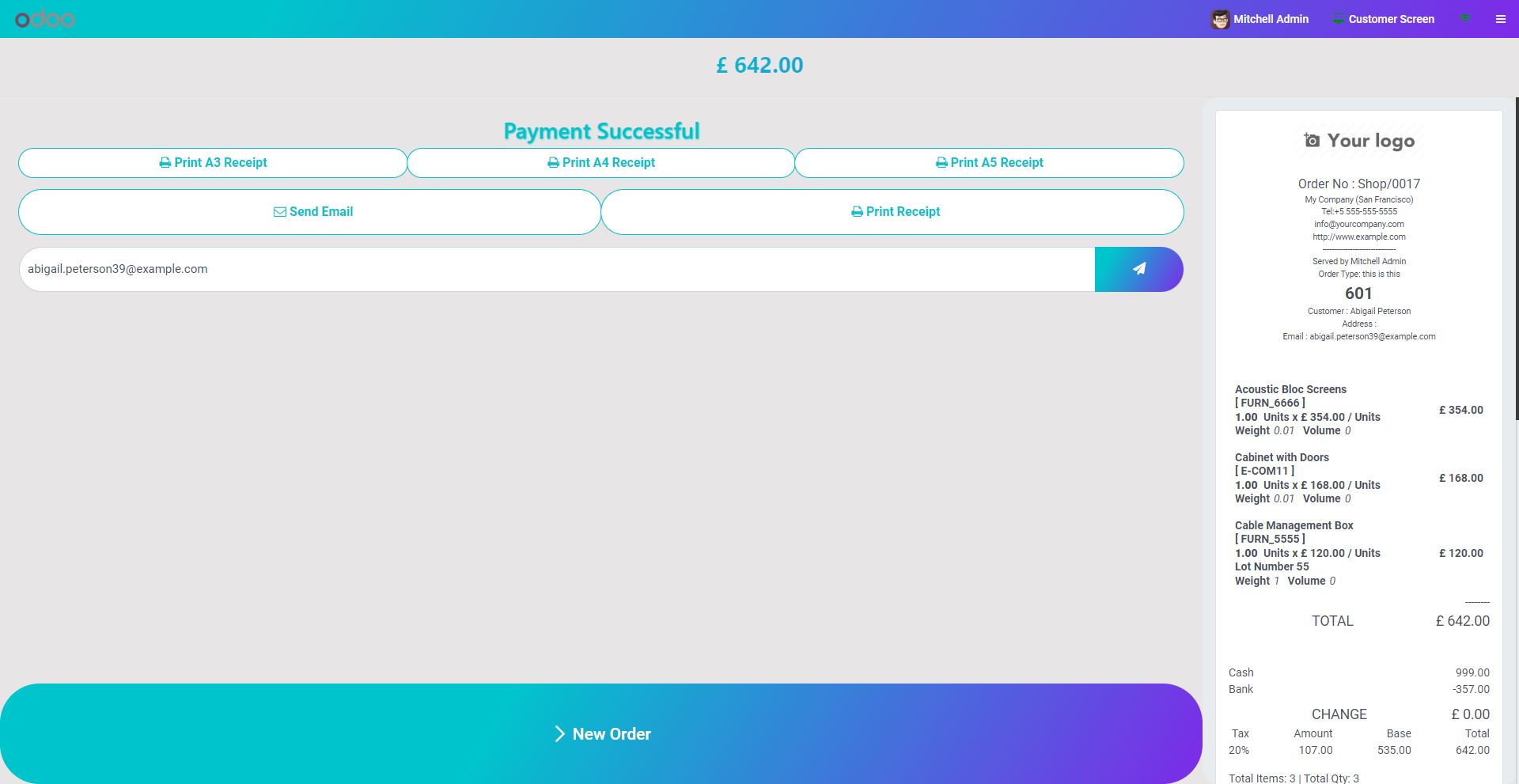
The user reviews the receipt on the Payment Successful screen, where a red box and annotation highlight the printed package details: '1 whiteboard pen package at $ 1.20 / Units'.

Package details shown on receipt

Go to the POS settings ==> Enable 'Replace Logo' option and select the 'Company Name'.

Enable Replace Logo with Company Name

In the receipt, you can view the company name.

Company name shown on receipt

Now, select 'Free Text' and enter the desired content.

Select Free Text and enter content

In the receipt, you can view the content added in the settings.

Free text shown on receipt

Go to the POS settings ==> Enable 'Remove Line Spacing' option.

Enable Remove Line Spacing option

The receipt appears as shown below after enabling the 'Remove Line Spacing' option.

Receipt after removing line spacing

Go to the POS settings ==> Enable 'Font Size Receipt in px' option and enter the font size.

Enable Font Size Receipt in px option

Here, you can see that the receipt's font size has been updated as per the configuration.

Receipt font size updated

Enable Default Receipt A3 Size from the POS settings.

Enable Default Receipt A3

Here, you can see the receipt size is set to A3.

Dafult Receipt size is A3

Enable Default Receipt A4 Size from the POS settings.

Enable Default Receipt A4

Here, you can see the receipt size is set to A4.

Dafult Receipt size is A4

Enable Default Receipt A5 Size from the POS settings.

Enable Default Receipt A5

Here, you can see the receipt size is set to A5.

Dafult Receipt size is A5

Go to the POS settings ==> Enable 'Hide Tracking Number' option.

Enable Hide Tracking Number option

The tracking number is hidden on the receipt after enabling the 'Hide Tracking Number' option.

Tracking number hidden on receipt

Go to the POS settings ==> Enable 'Display Amount in Words' option.

Enable Display Amount in Words option

Here, you can see the amount displayed in words on the receipt.

Amount displayed in words on receipt

Enable A3 receipts from the POS settings.

Enable A3 receipts

Click on the Print A3 Receipt button from POS Interface.

Print A3 Receipt button

Here, you can see the receipt size is set to A3.

Receipt size is set to A3

Enable A4 receipts from the POS settings.

Enable A4 receipts

Click on the Print A4 Receipt button from POS Interface.

Print A4 Receipt button

Here, you can see the receipt size is set to A4.

Receipt size is set to A4

Enable A5 receipts from the POS settings.

Enable A5 receipts

Click on the Print A5 Receipt button from POS Interface.

Print A5 Receipt button

Here, you can see the receipt size is set to A5.

Receipt size is set to A5

Go to Inventory -> Configuration -> Product Packages to create, manage, and configure product packaging details and barcode.

Product Packages configuration with barcode field

Go to the POS Screen and enter the Package Name in the search bar to quickly find and add the corresponding product package.

Search product package by name in POS

Users can also search for a product by entering the Package Barcode in the POS search bar.

Search product package by barcode in POS

Go to user settings => Tick Allow to Generate Z-Report.
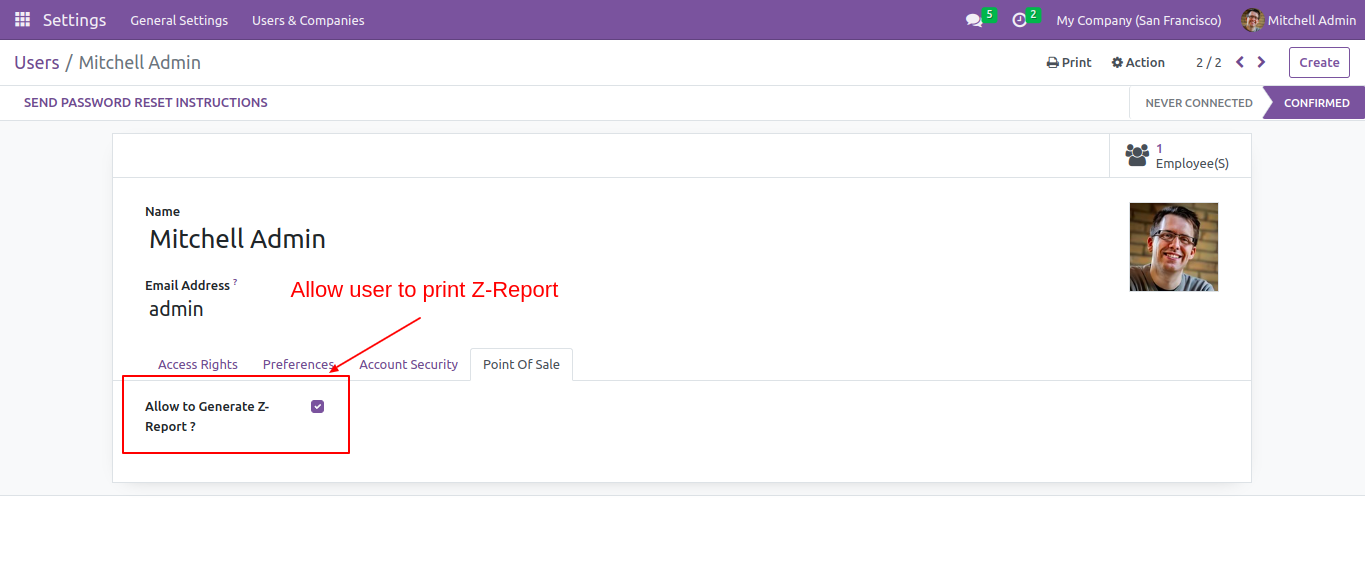

Allow Generate Z-Report user access

Go to POS settings => Tick Allow to Print Z-Report.
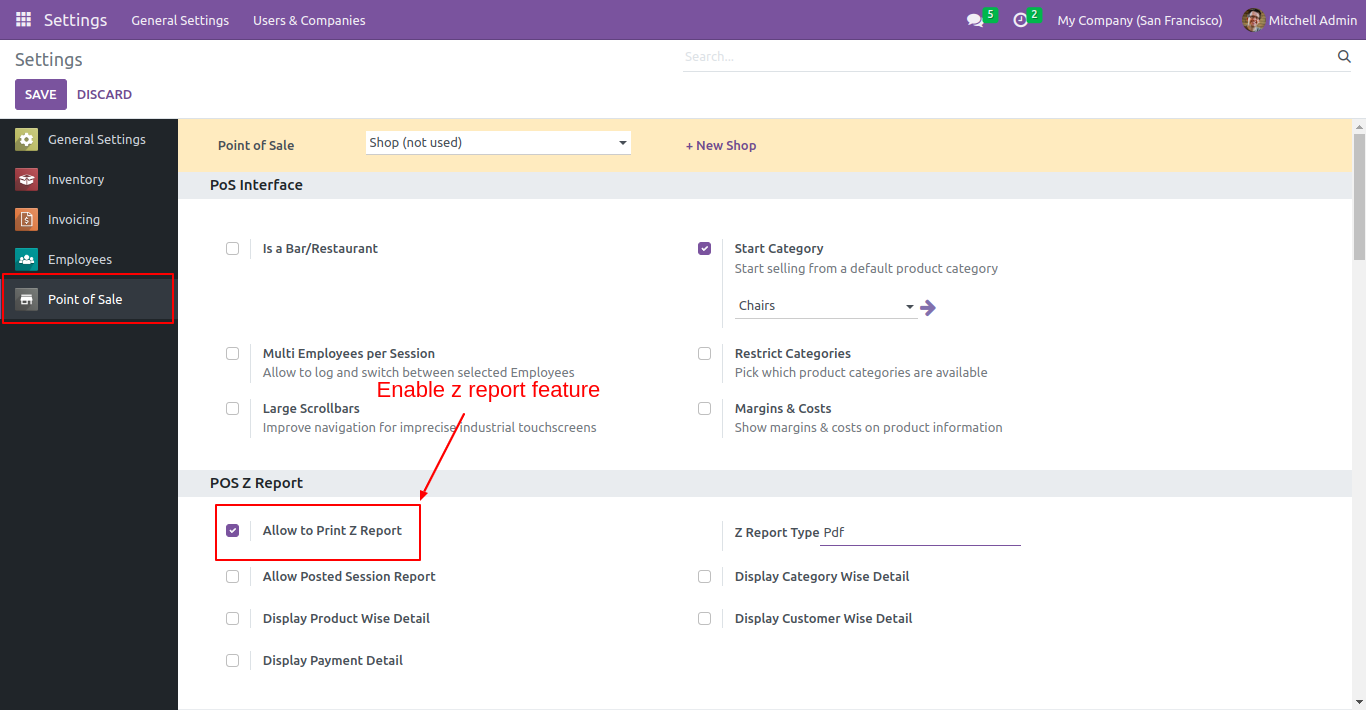

Enable Z-Report feature in settings

Select the format in which you want to print report.
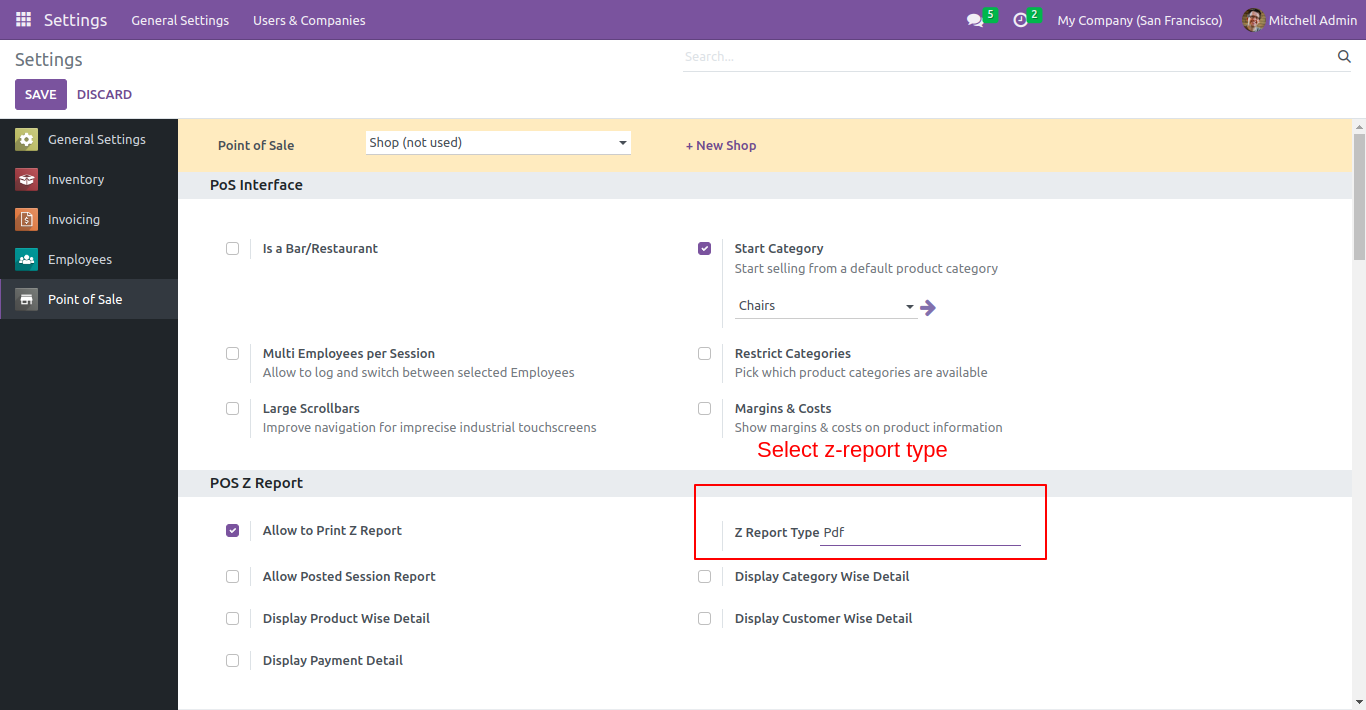

Select Z-Report format type

Z-Report button will be available on POS screen. Click on that button to print report in selected format.
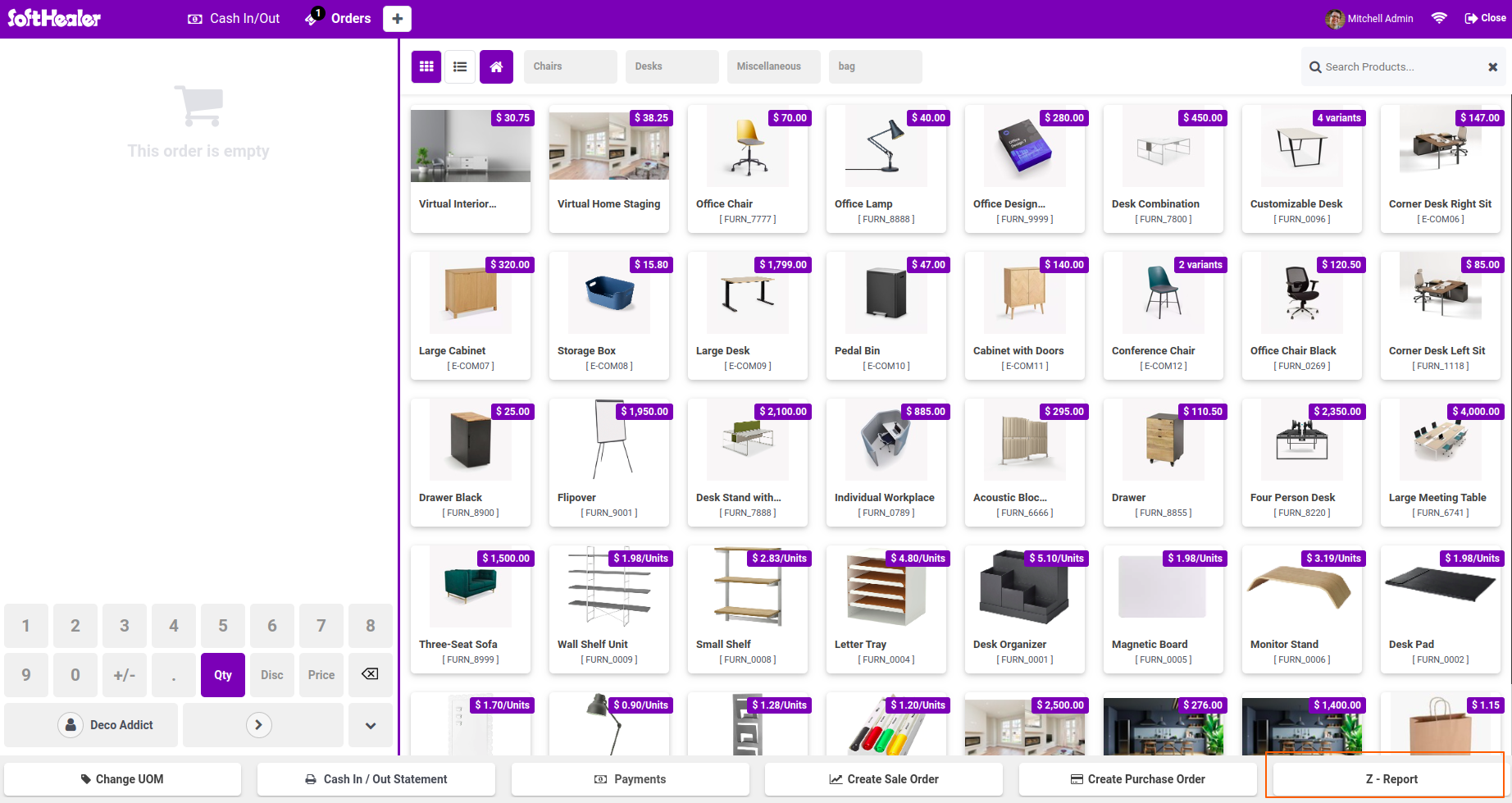

Z-Report button on POS screen

Z-Report for current session will look like below image.
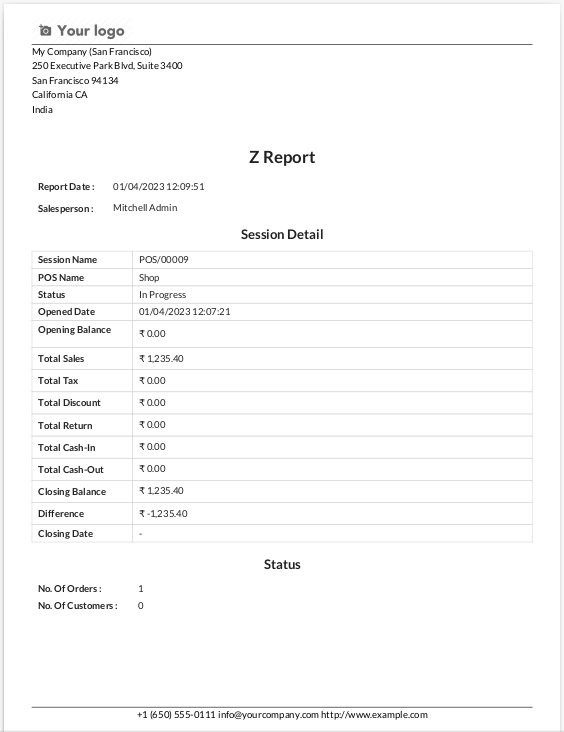

Z-Report sample document

If you want to print the report category wise then go to pos setting and Tick "Display Category wise detail".
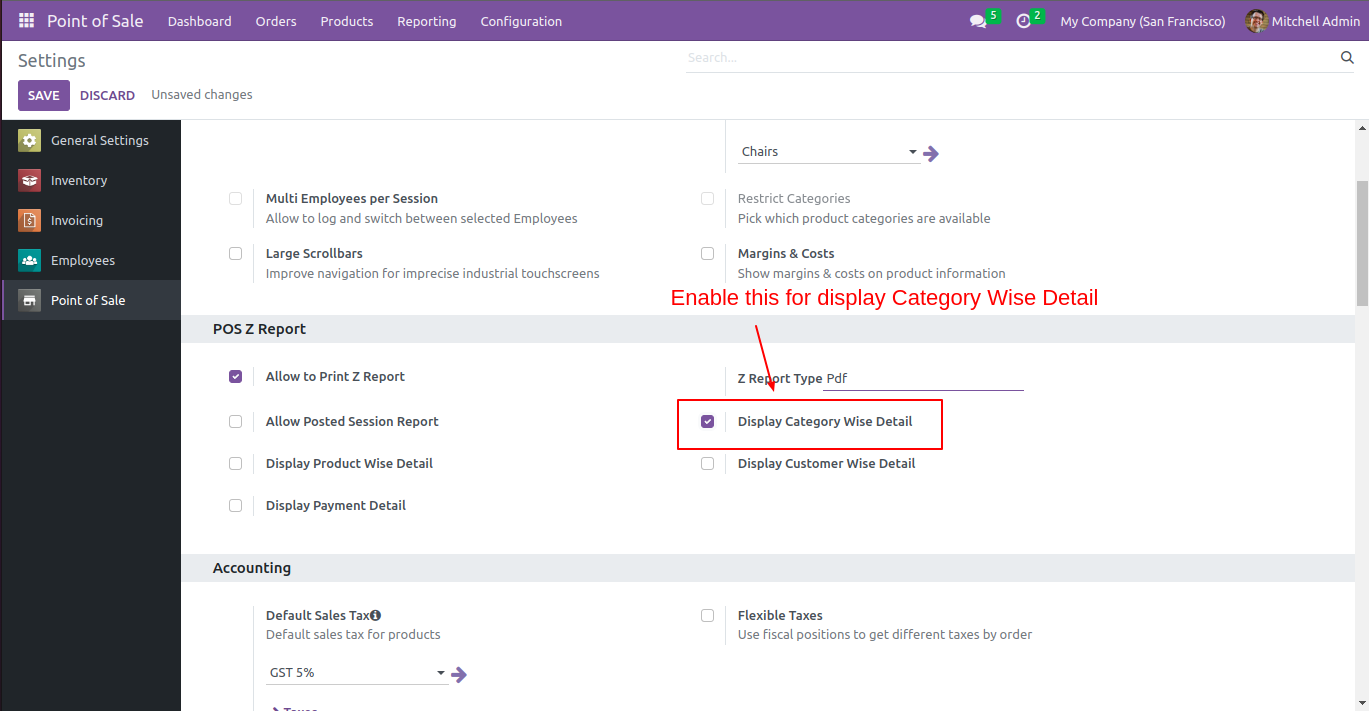

Enable Display Category Wise Detail

Category wise Z-Report looks like below.
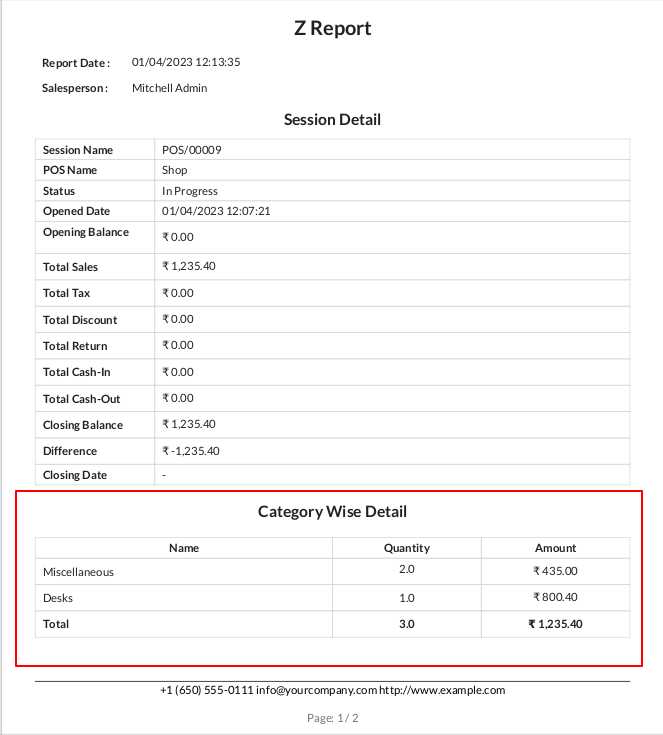

Category wise Z-Report sample

If you want to print the report product wise then go to pos setting and Tick "Display Product wise detail".
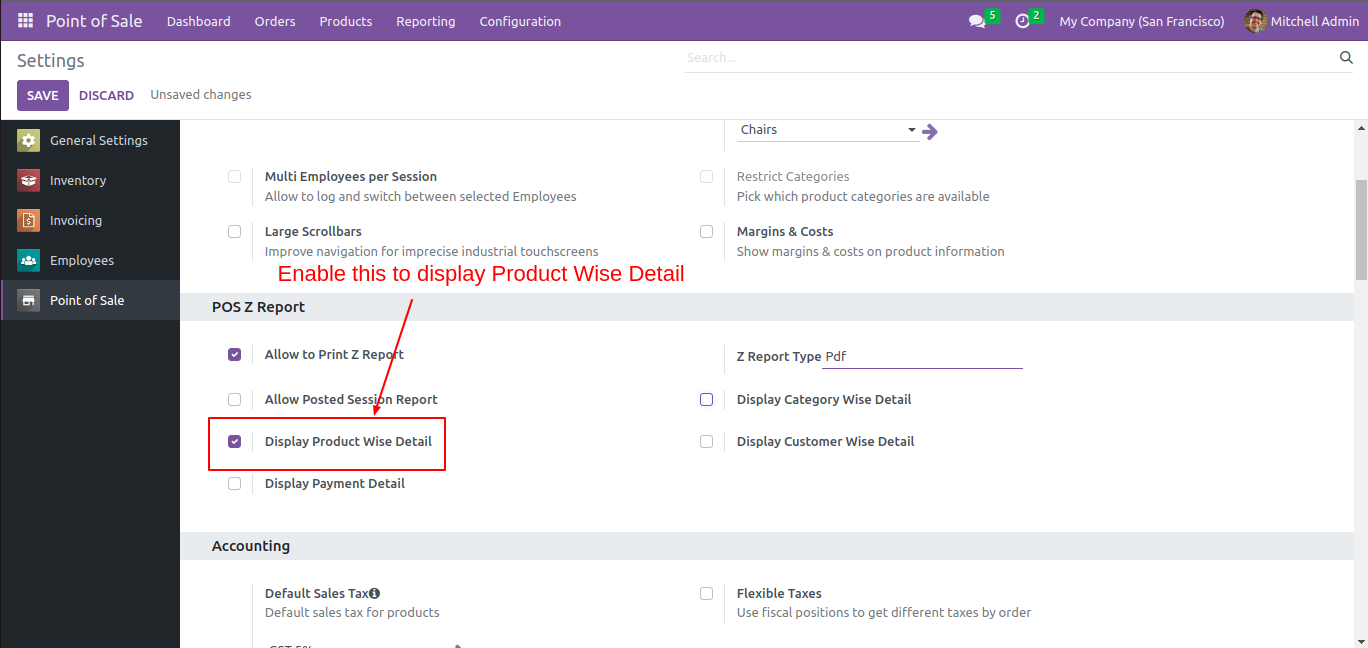

Enable Display Product Wise Detail

Product wise Z-Report looks like below.
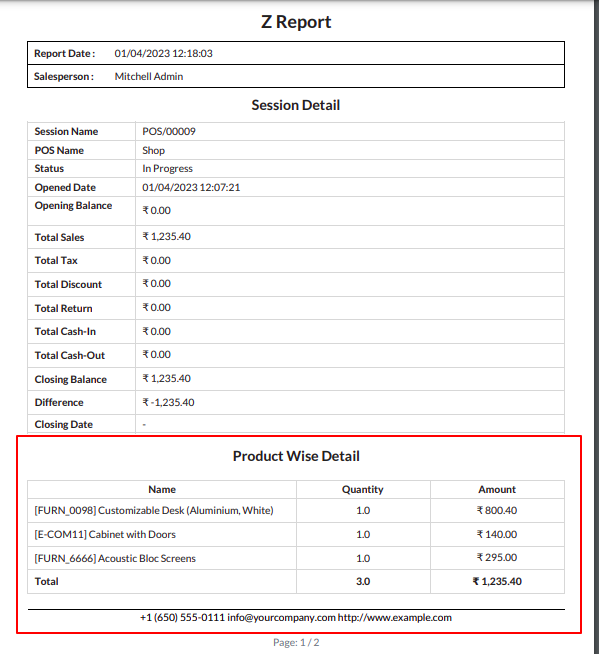

Product wise Z-Report sample

If you want to print the report customer wise then go to pos setting and Tick "Display Customer wise detail".
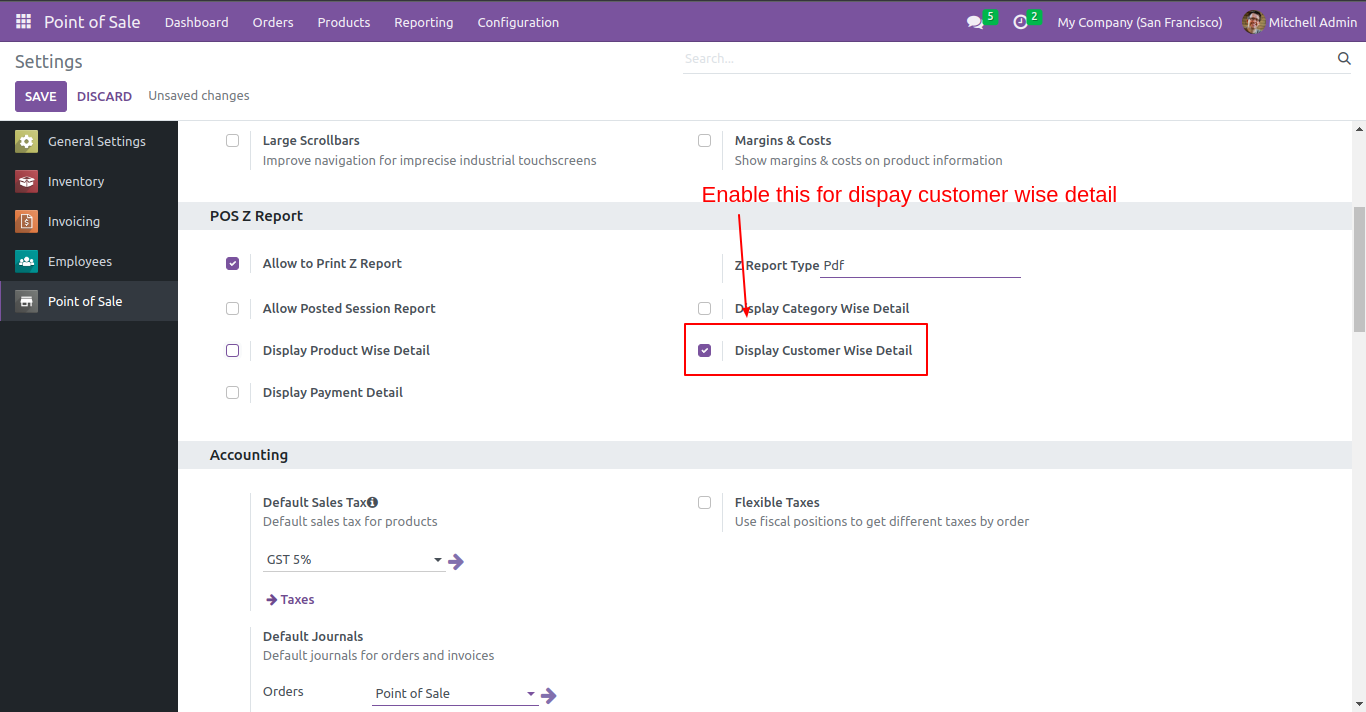

Enable Display Customer Wise Detail

Customer wise Z-Report looks like below.
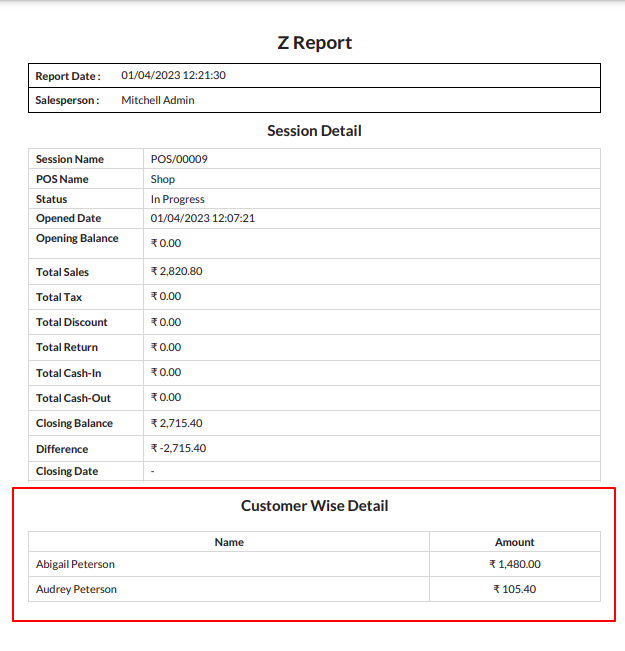

Customer wise Z-Report sample

If you want to print the payment details of session then go to pos setting and Tick "Display Payment detail".
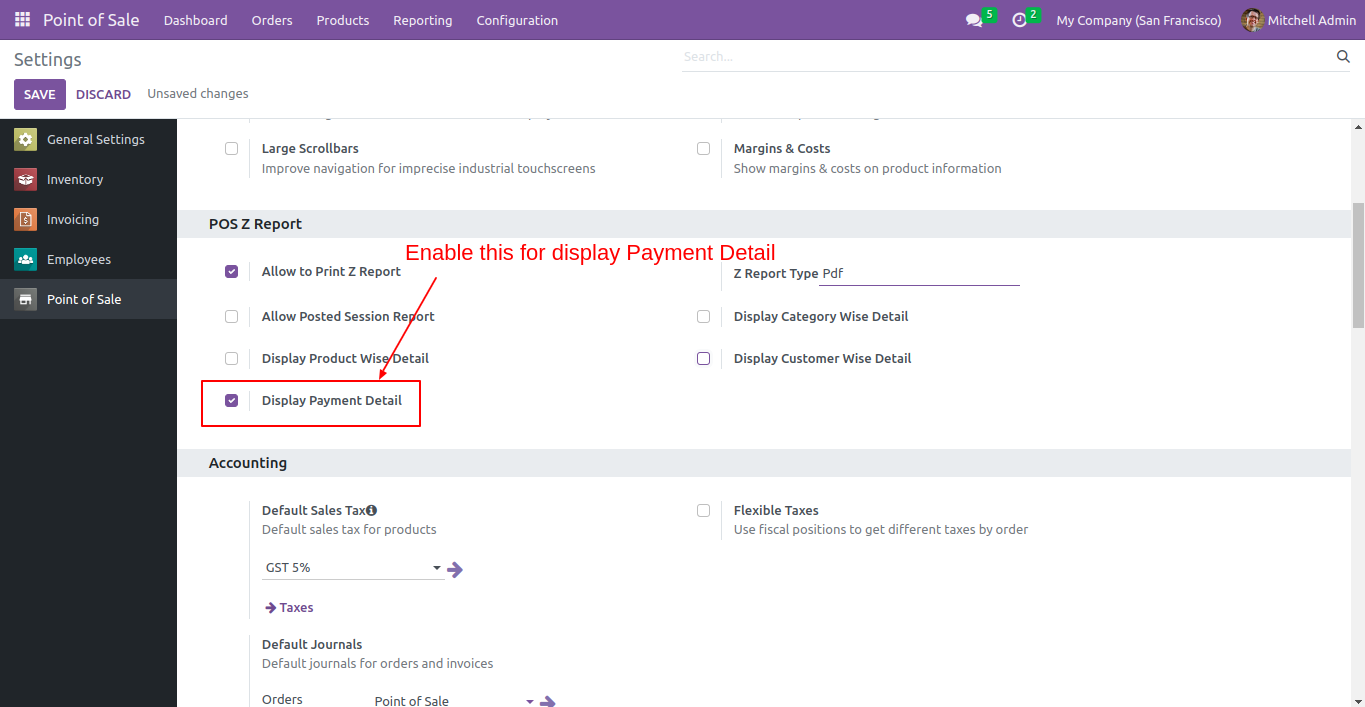

Enable Display Payment Detail

The Z-Report with Payment detail looks like below.
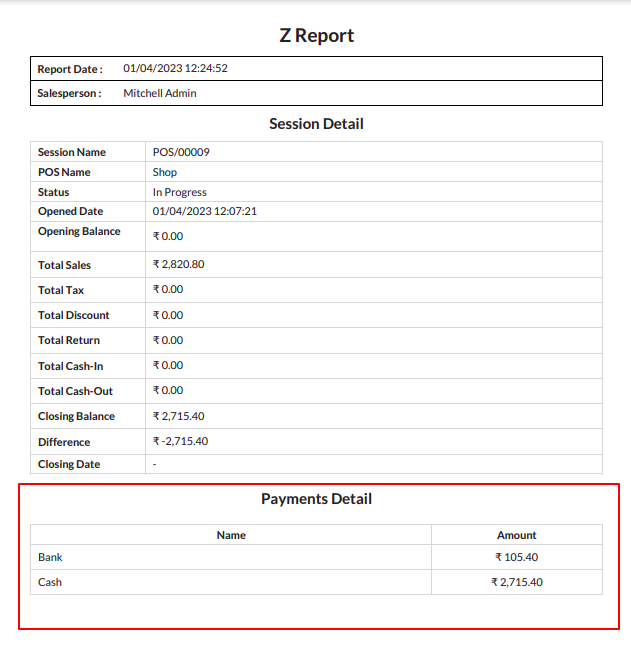

Z-Report with payment detail

Now select the report type to receipt.


Select report method to receipt

As Shown in image the report is printed in receipt format.
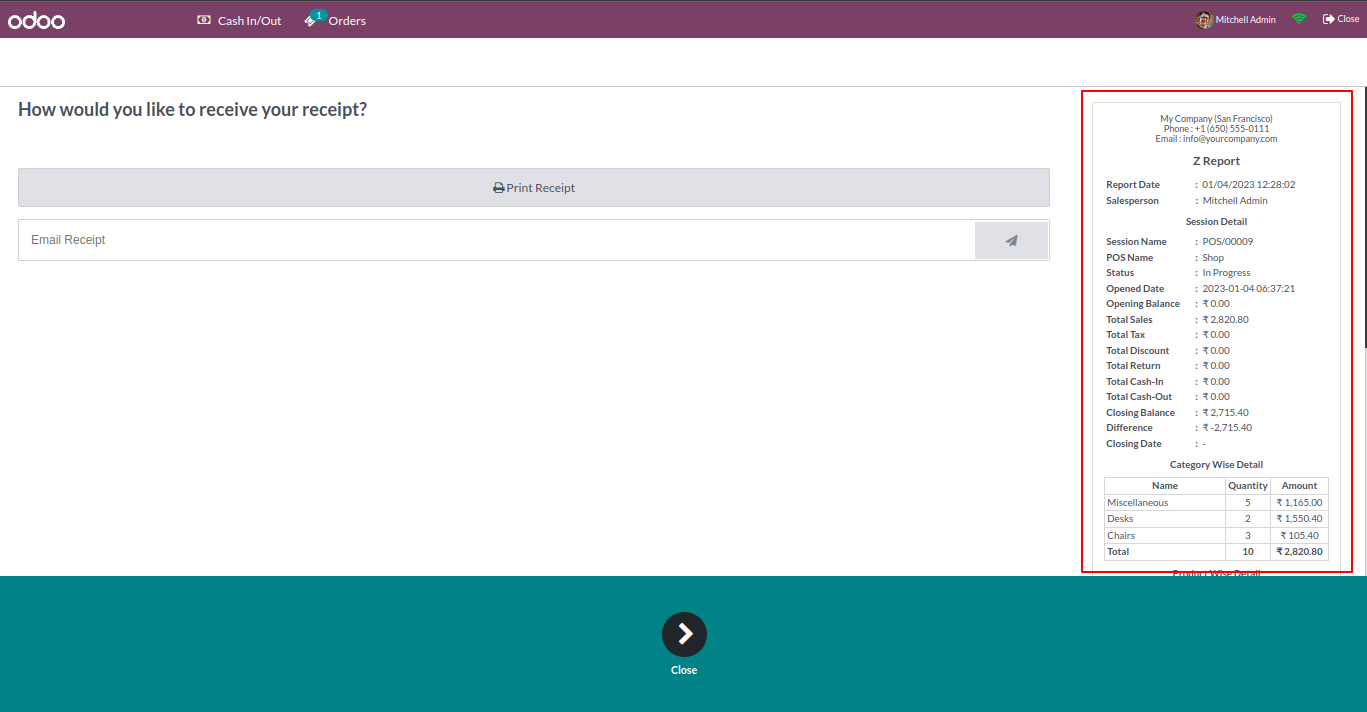

Report printed in receipt format

All details selected in Configuration are printed in receipt.
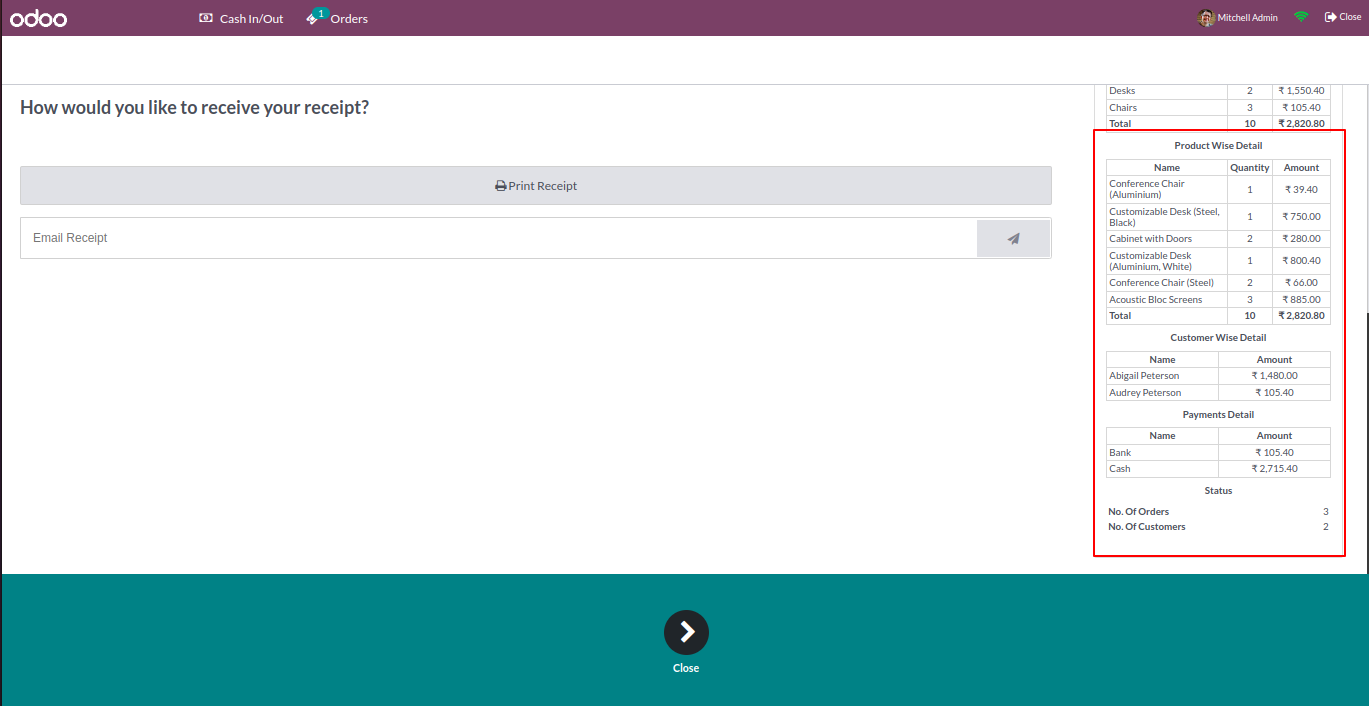

Selected details printed on receipt

Now change the report type to "Both".


Change format to Both

Now when the user click on Z-Report one wizard will open with 2 format options. Select "Generate PDF" option
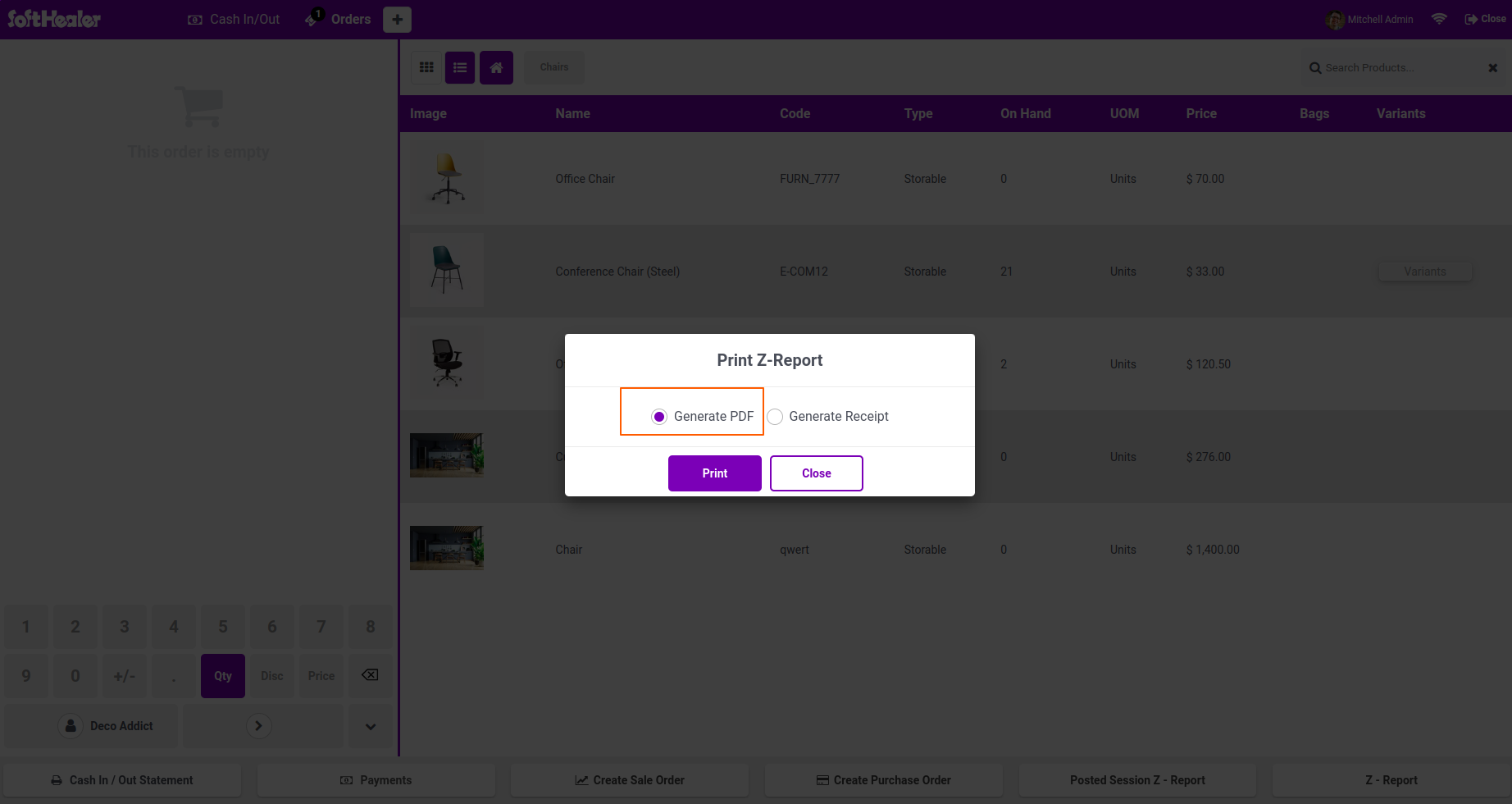

Select Generate PDF option

The report will be printed in PDF format.
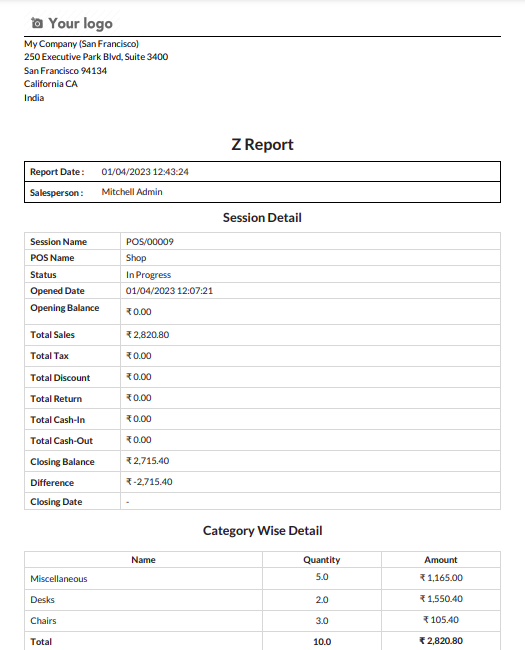

Z-Report printed in PDF

All the details selected in configuration will be printed in pdf.
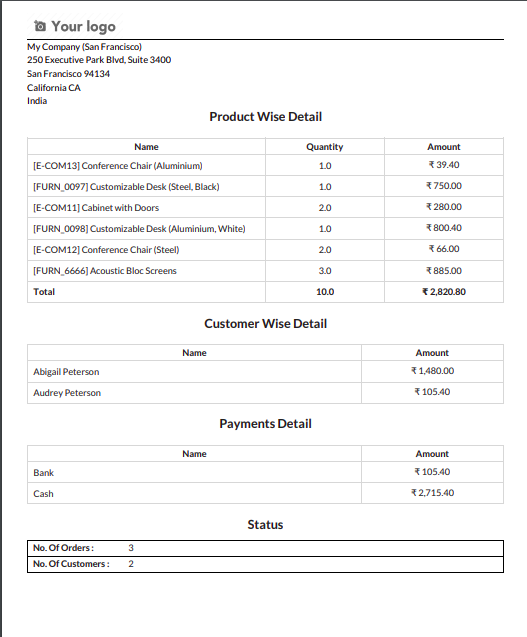

Configured details printed in PDF

Now select "Generate Receipt".


Select Generate Receipt option

The report will be printed in receipt format.
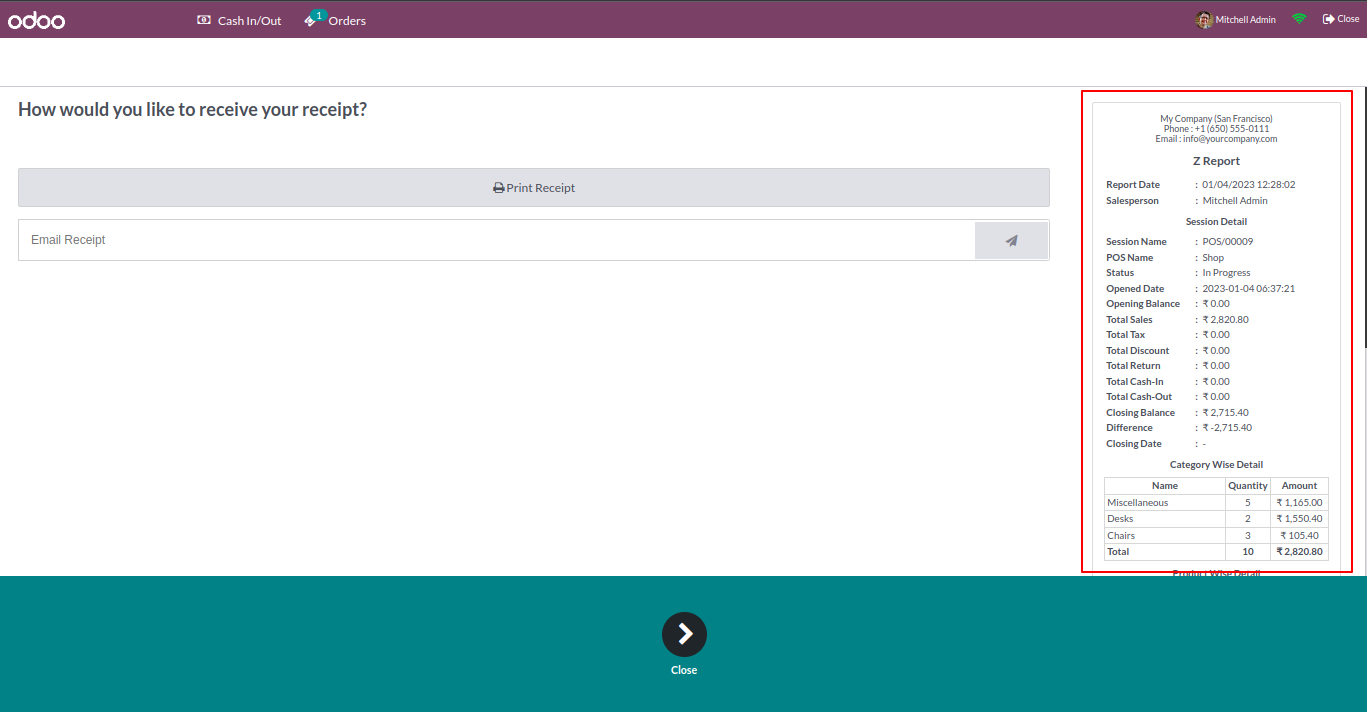

Report printed in receipt format

All the details selected in configuration will be printed in receipt.
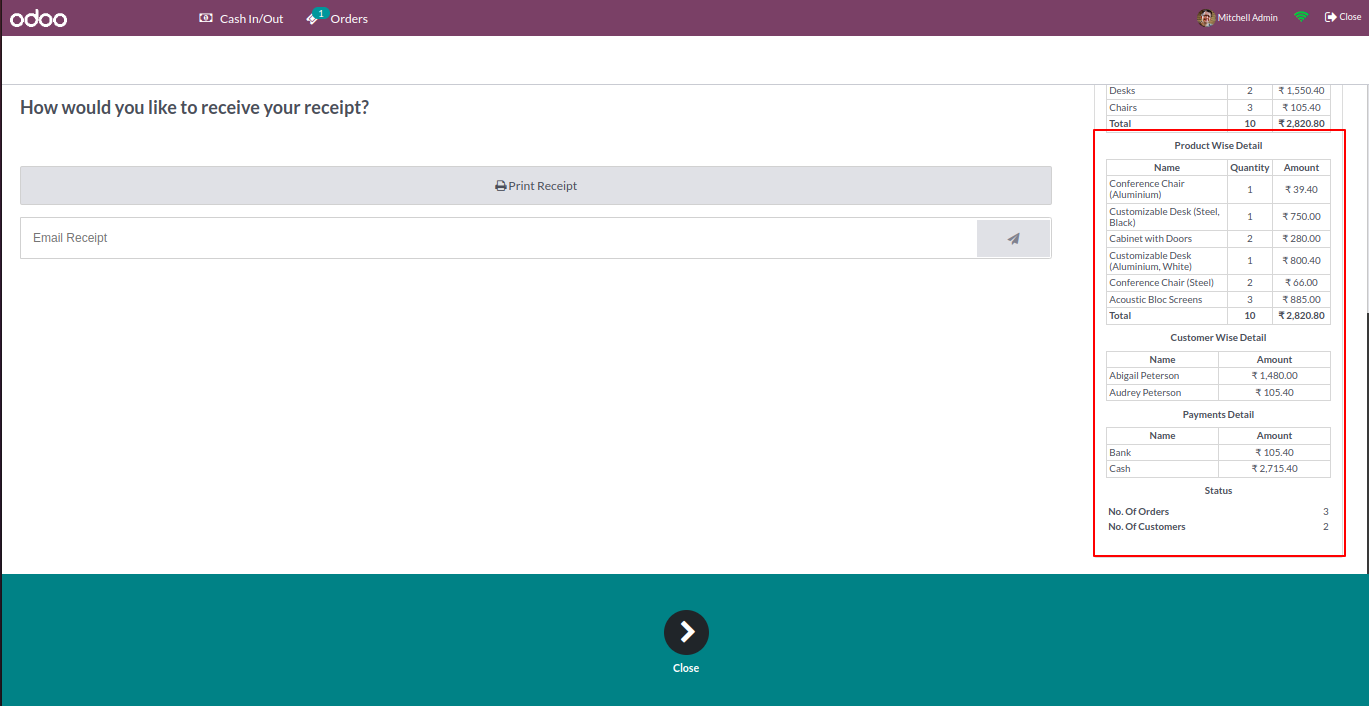

Configured details printed on receipt

Go to POS setting and Tick Allow Posted Session Report. This will allow you to Generate and print Z-Report for posted sessions.
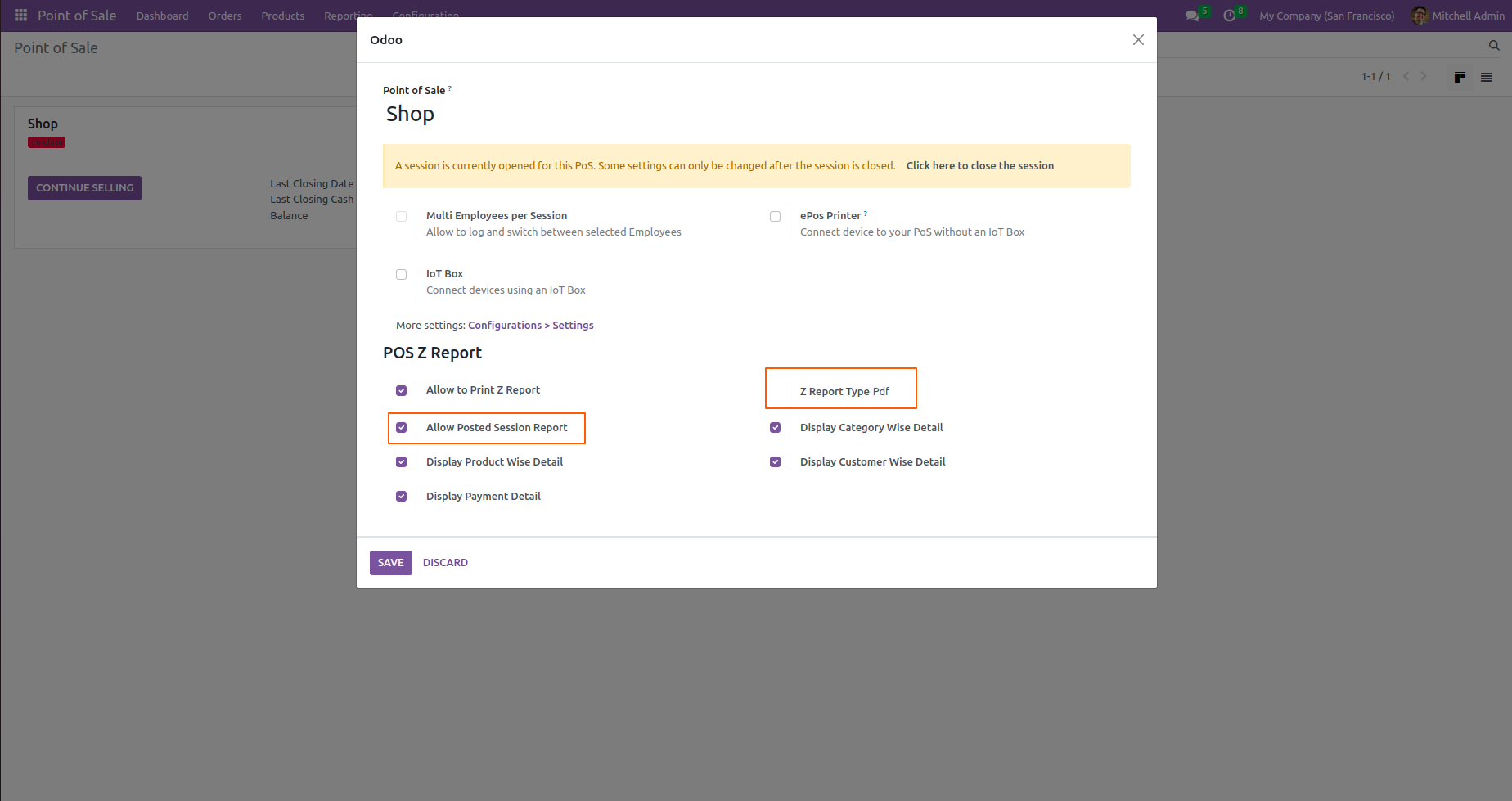
Select report type PDF.


Enable Allow Posted Session Report

"Posted session Z-Report" button will be available on POS screen.
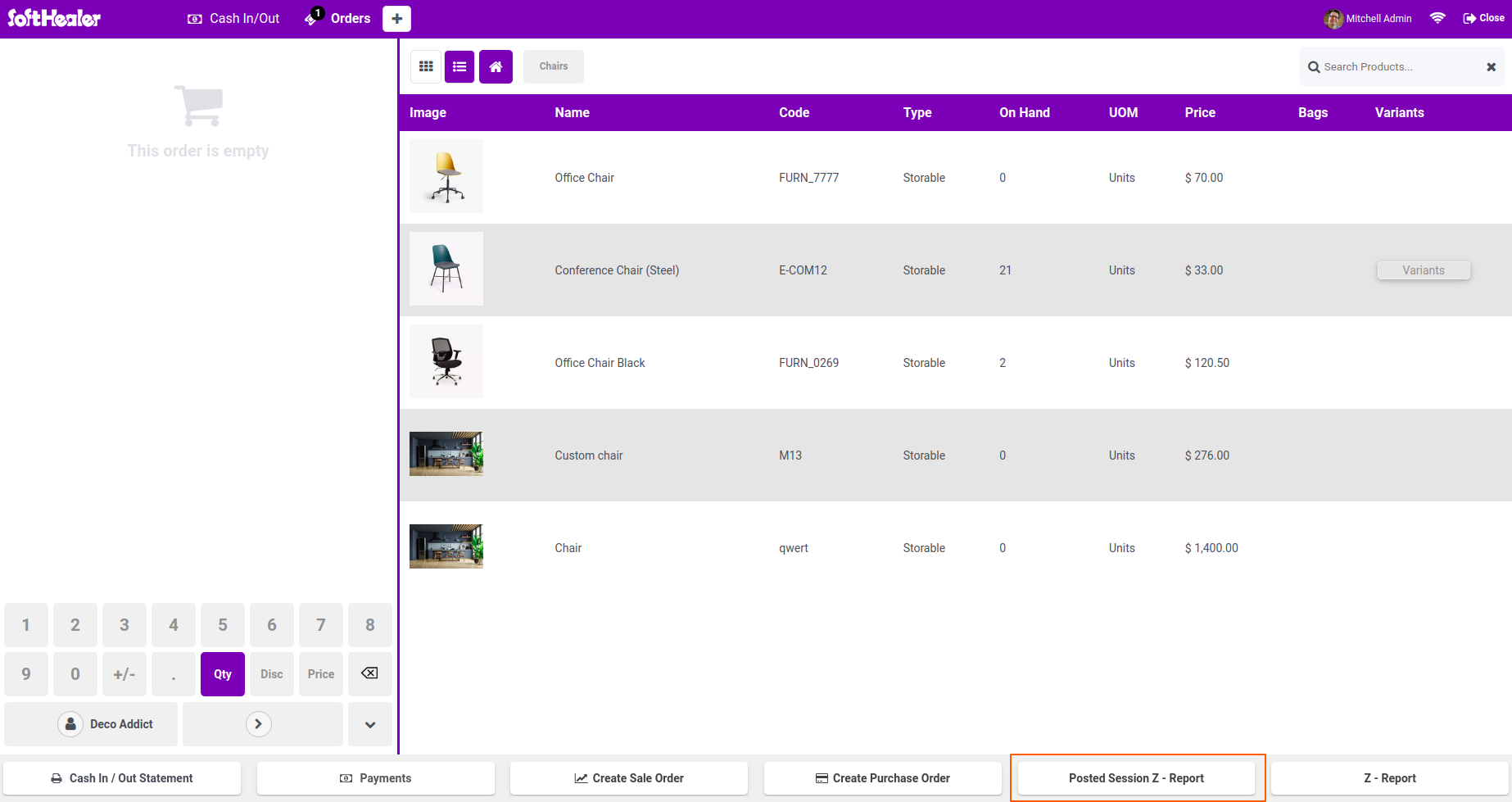
On clicking the button wizard will open. Select posted session of the current user.
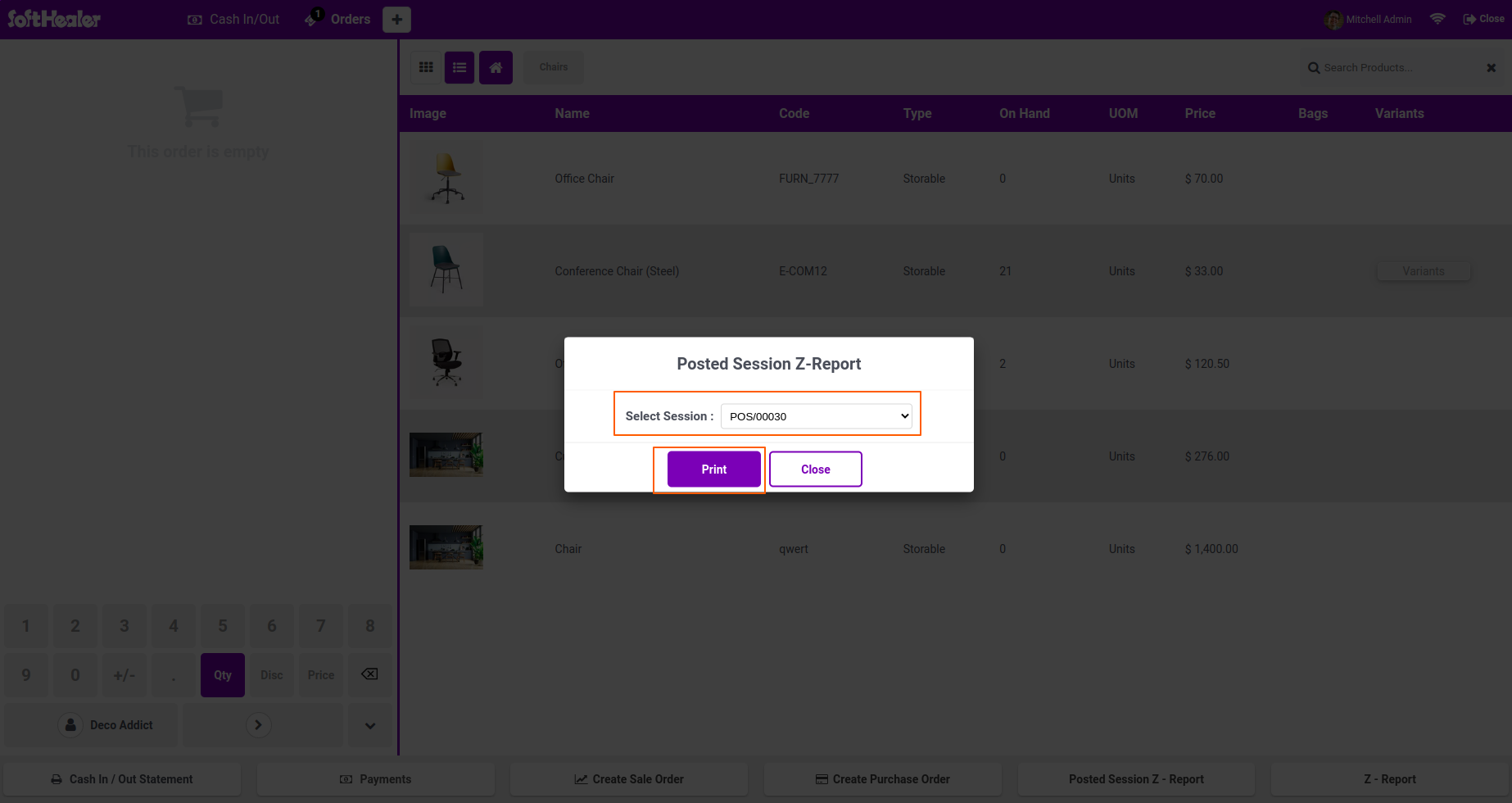

Posted Session Z-Report button on POS

Z-Report for selected session will be printed in pdf format.
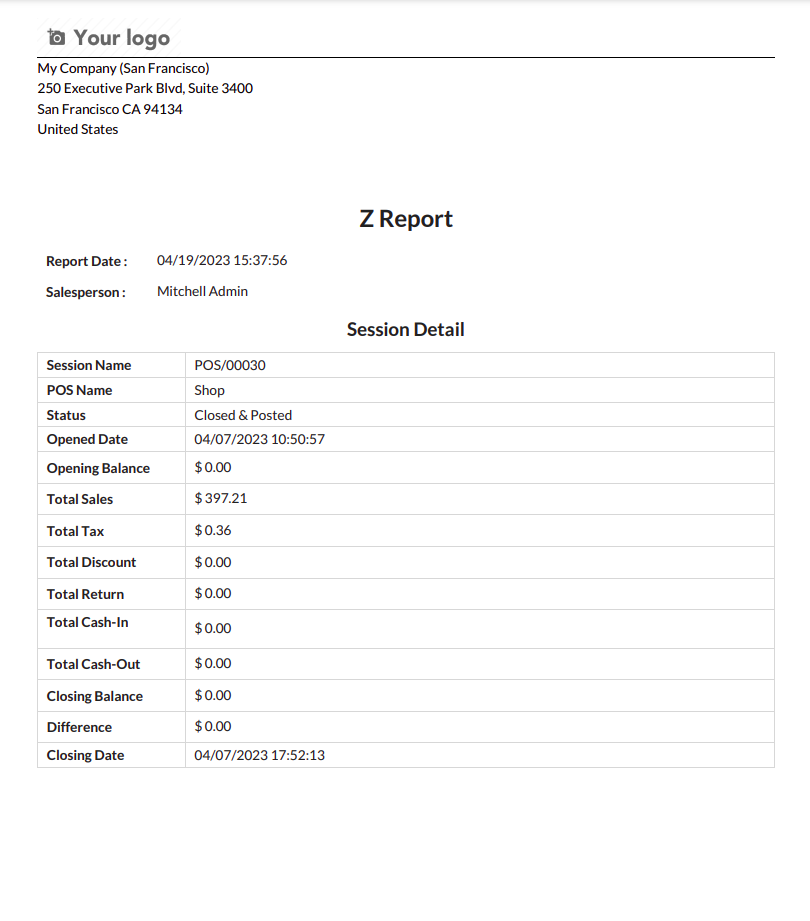

Select posted session wizard

Go to POS setting and change the format to receipt.
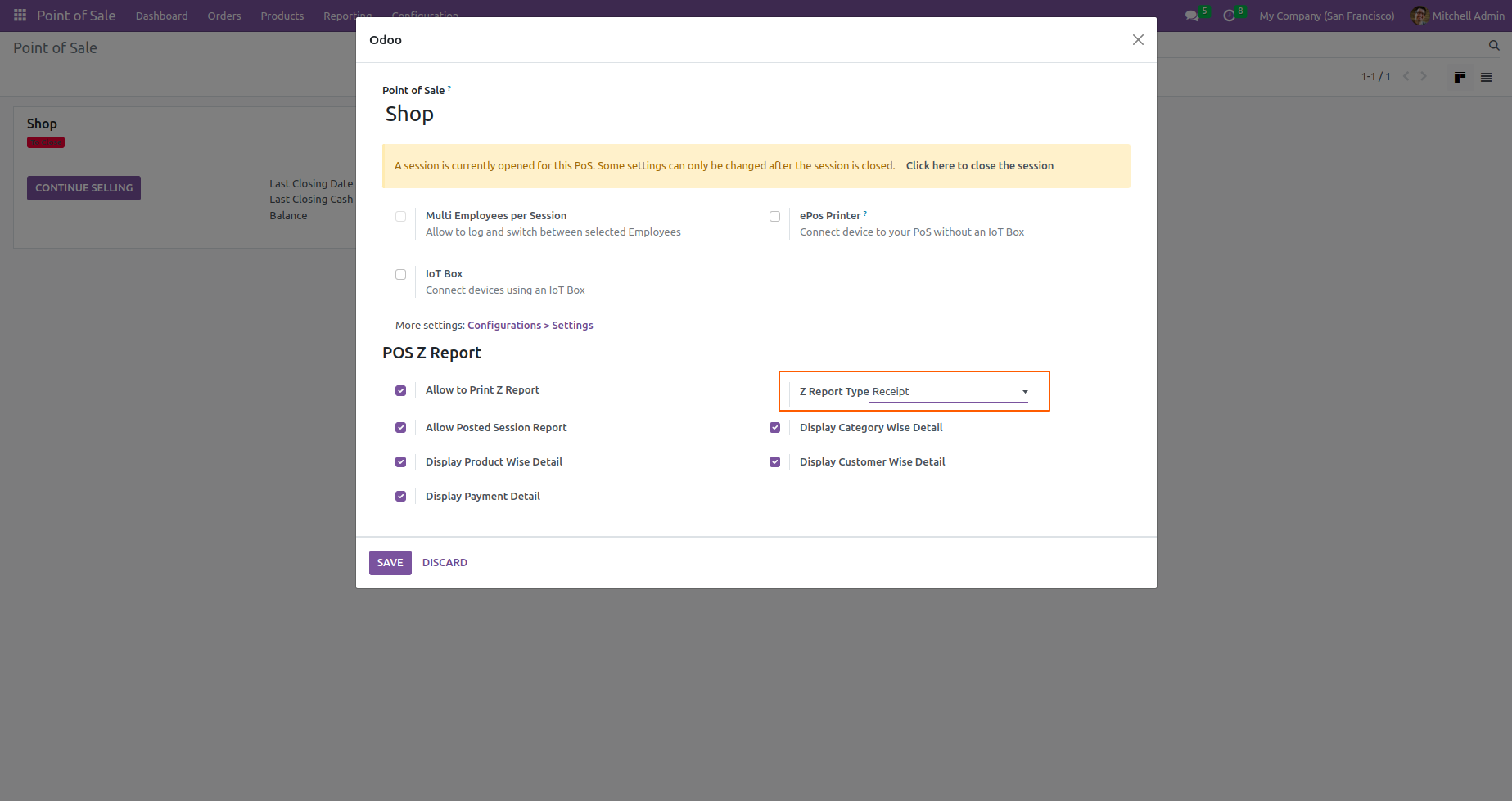

Z-Report for session in PDF

Z-Report for selected session will be printed in receipt format.
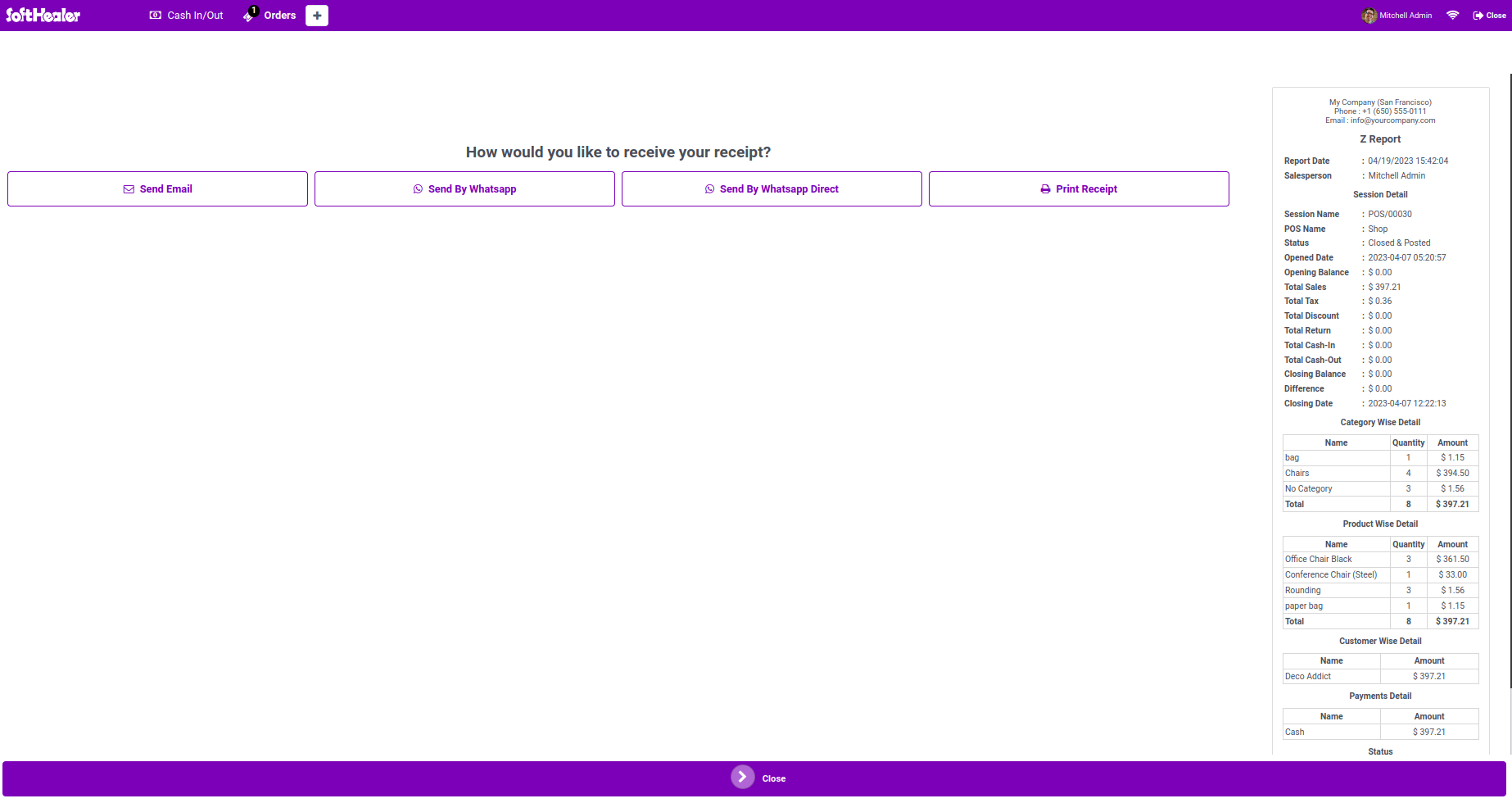

Change report format to receipt

You can also find the Z-Report under Reporting menu of POS.
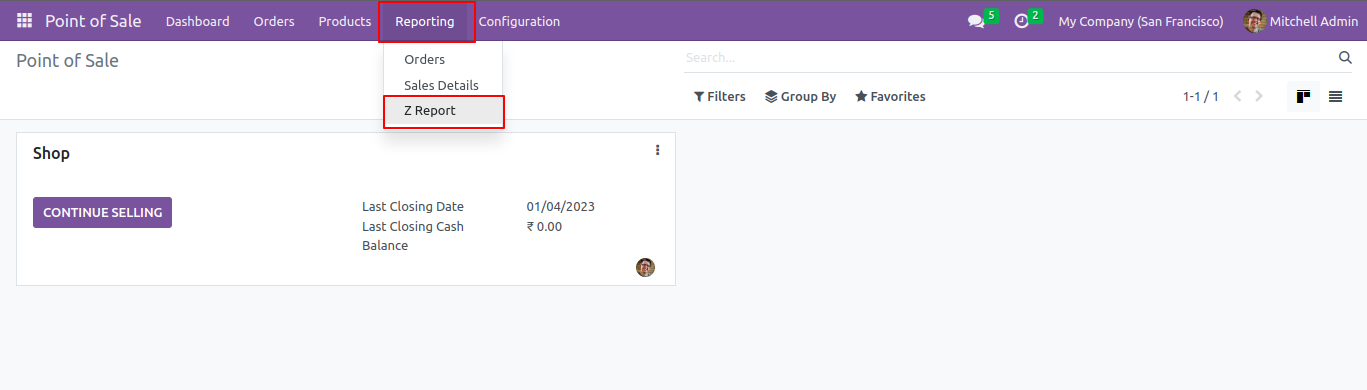

Z-Report printed in receipt format

You can select multiple session and the details want in Z-Report.
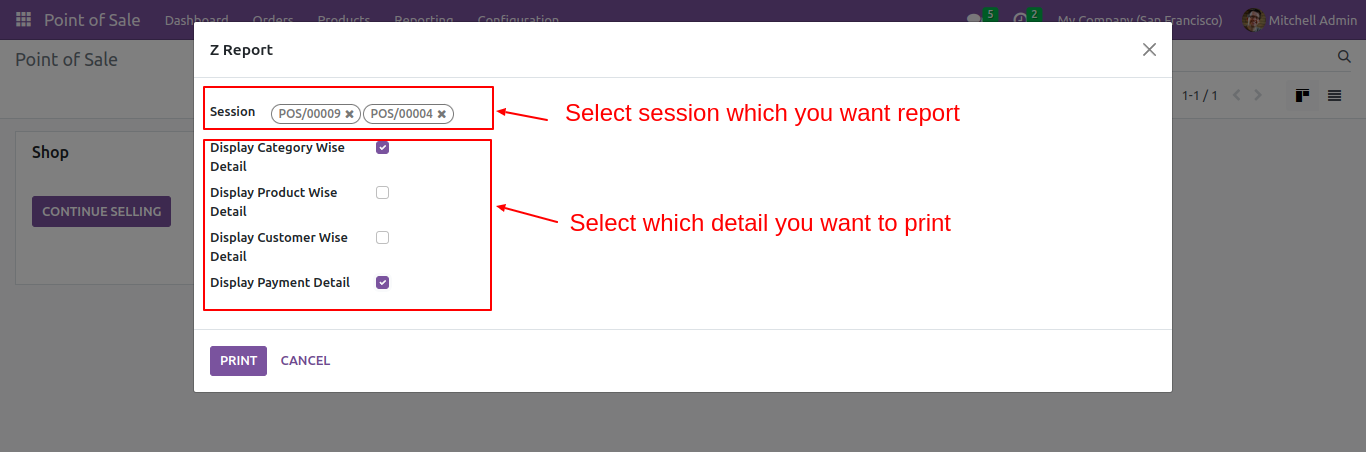

Z-Report under POS Reporting menu

The Z-Report looks like below.


Select session and detail options

Z-Report for both sessions will be printed.
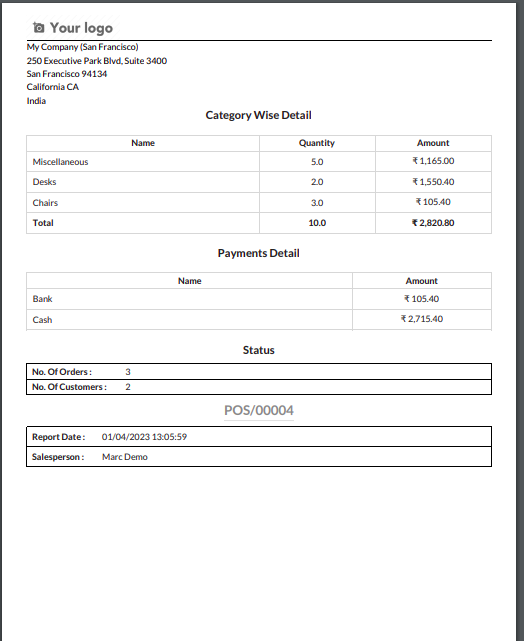

Z-Report for multiple sessions

The selected details will be printed in Z-Report.
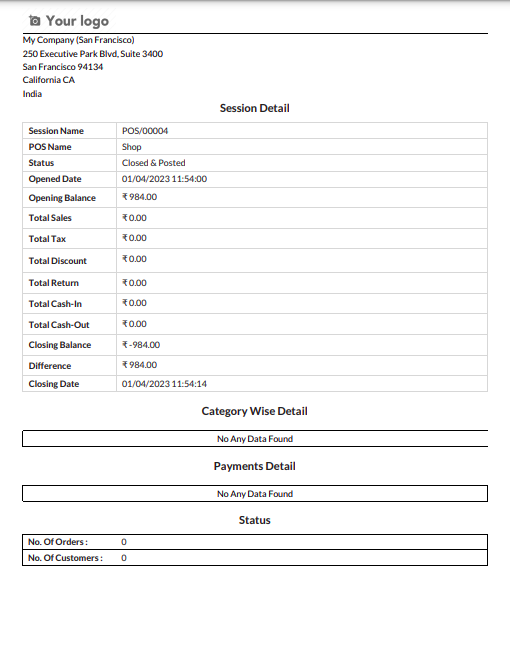

Selected details printed in Z-Report

Enable "POS Day Wise Report".

Enable POS Day Wise Report access

Go to "Day Wise POS Report".

Go to Day Wise POS Report menu

Set the date range for the PDF/Excel Report and fill the details. Press "View".
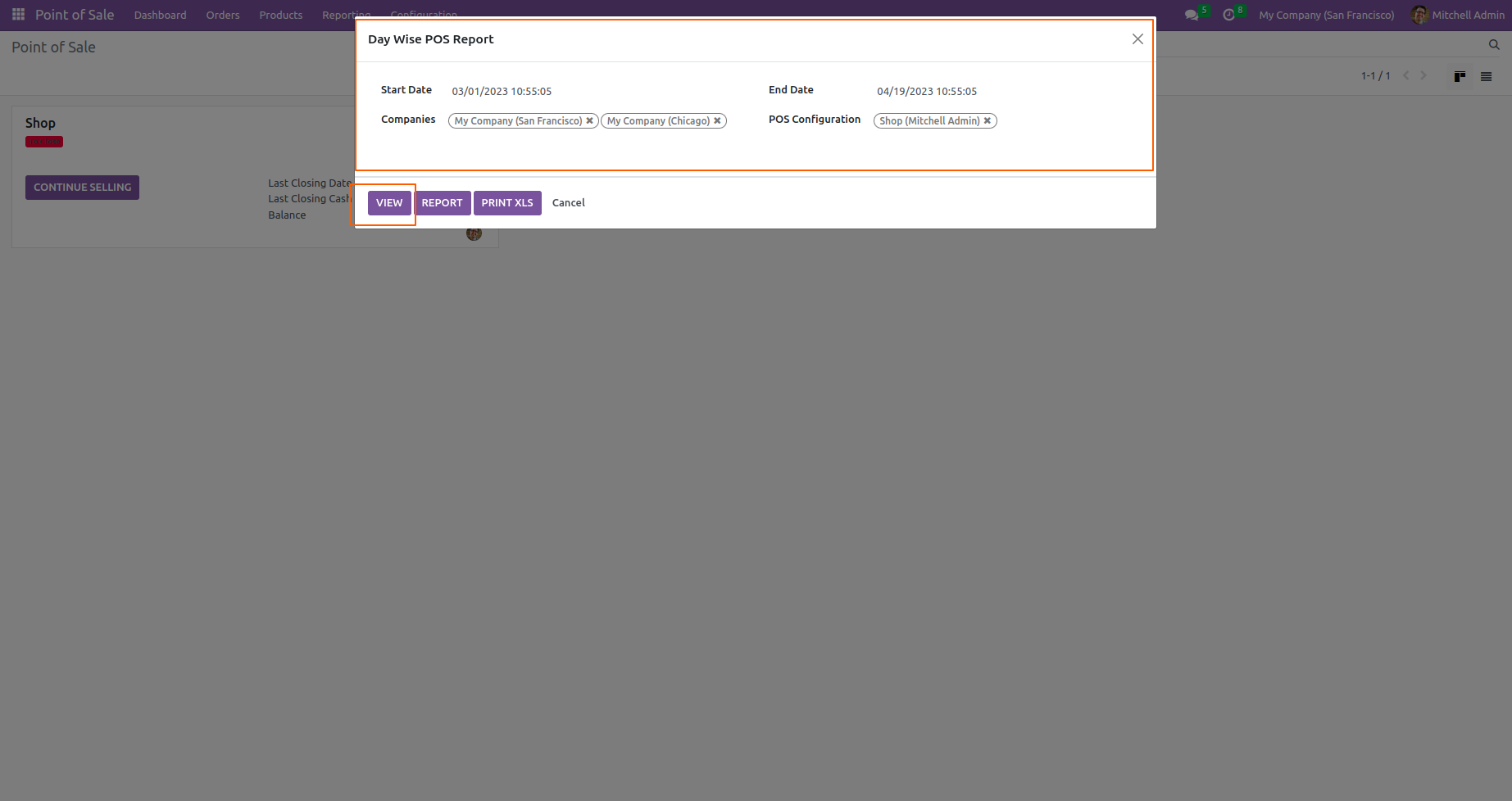
Set date range for report

POS products day wise report for the given date range.
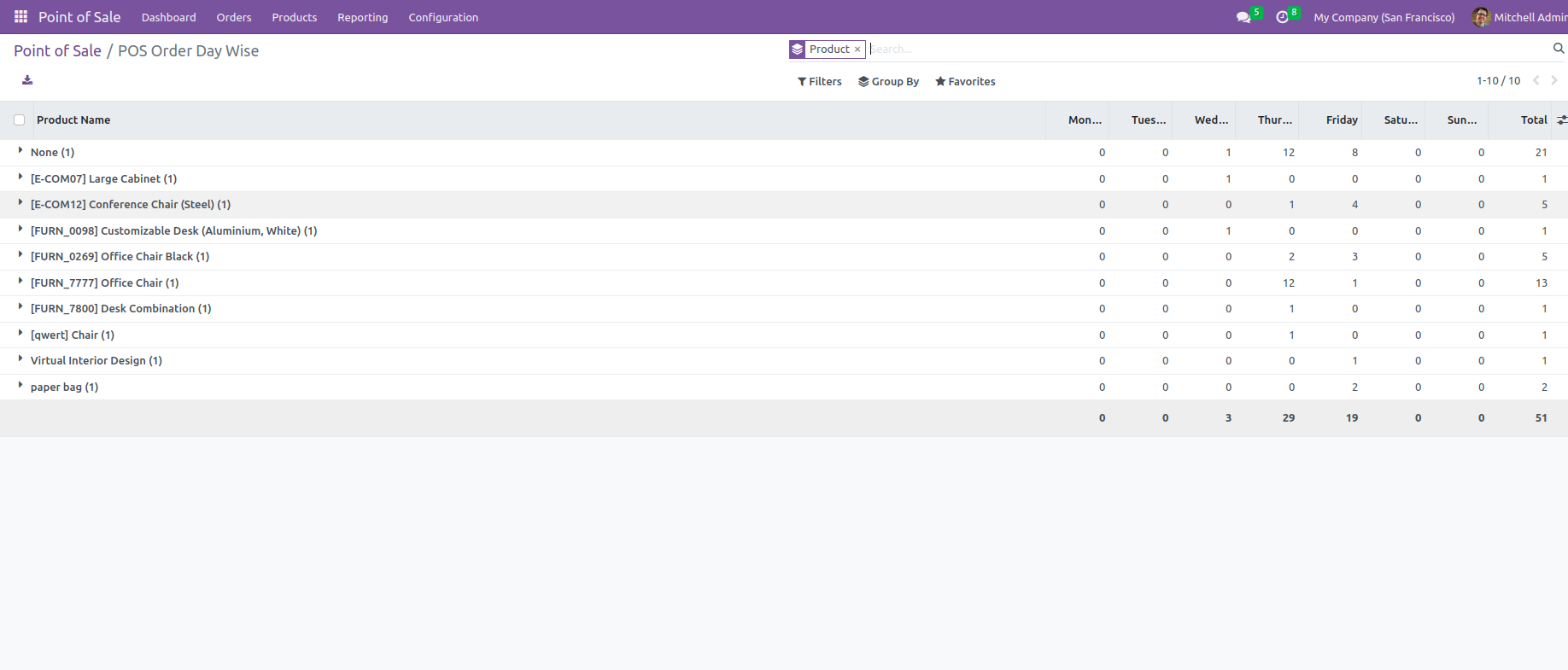
Day wise product report list view

Set the date range for the PDF/Excel Report and fill the details. Press "Report".
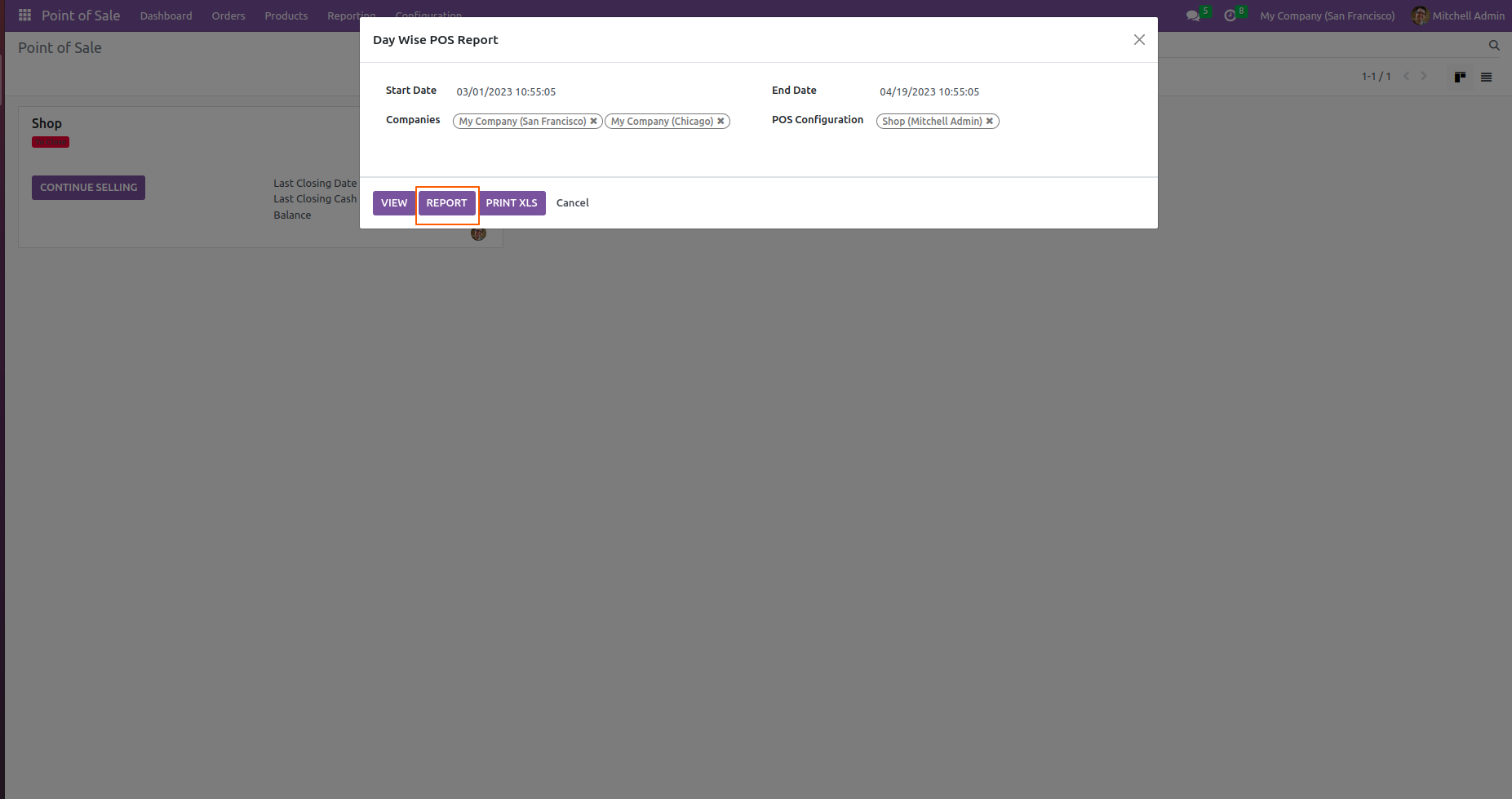
Set date range and press Report

POS products day wise report for the given date range in PDF Report.
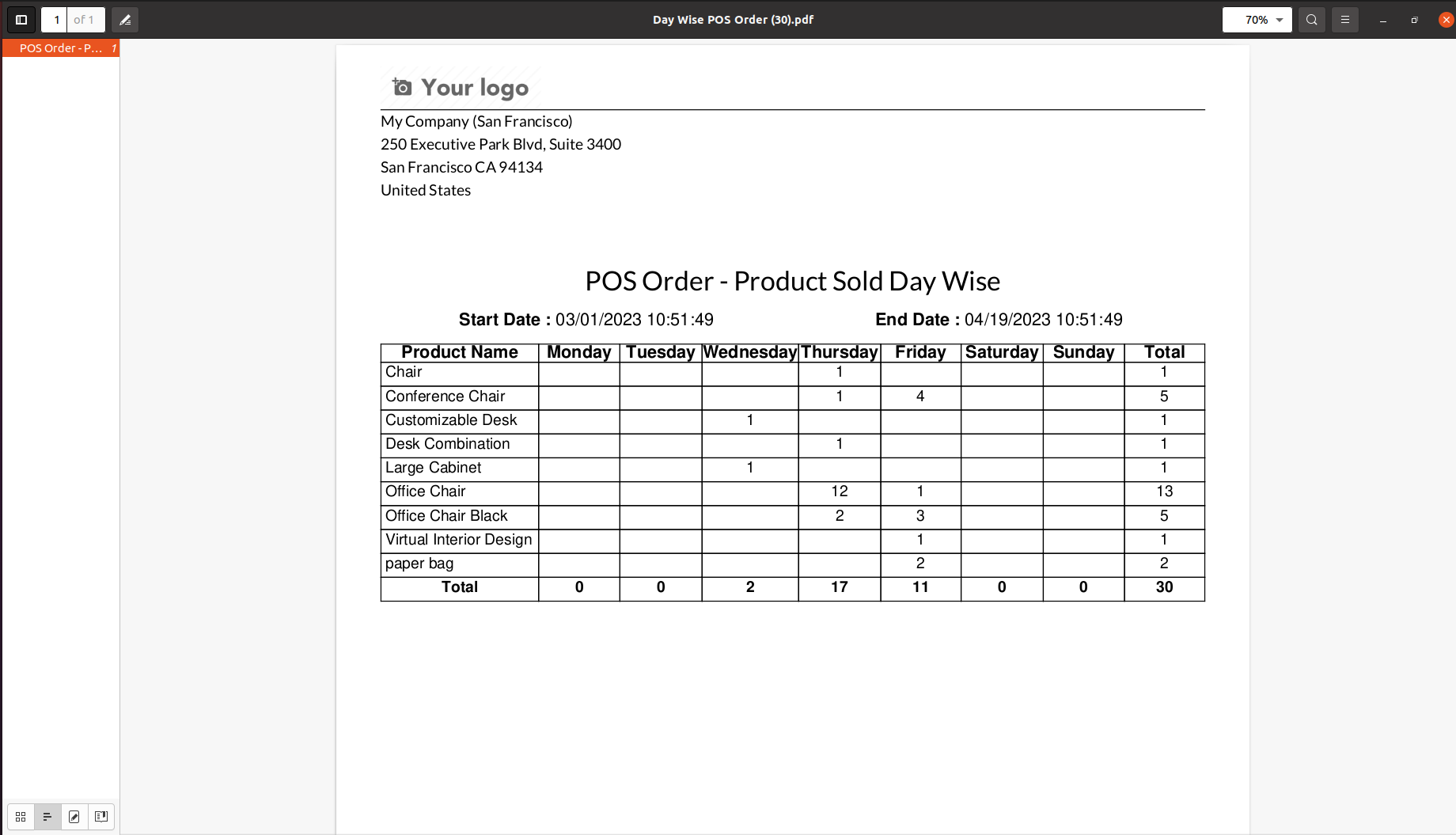
Day wise product report in PDF

Set the date range for the PDF/Excel Report and fill the details. Press "Print XLS".
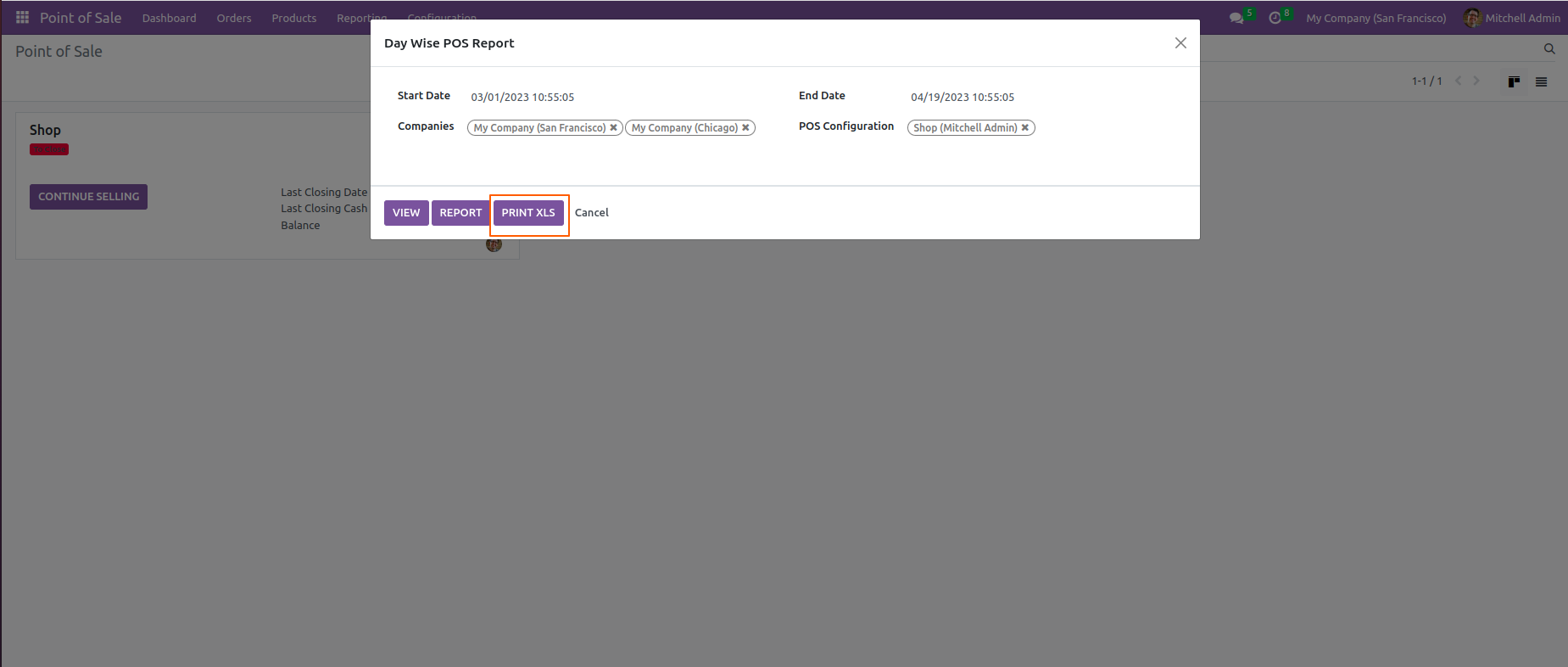
Set date range and press Print XLS

POS products day wise report with for the given date range in the excel report.
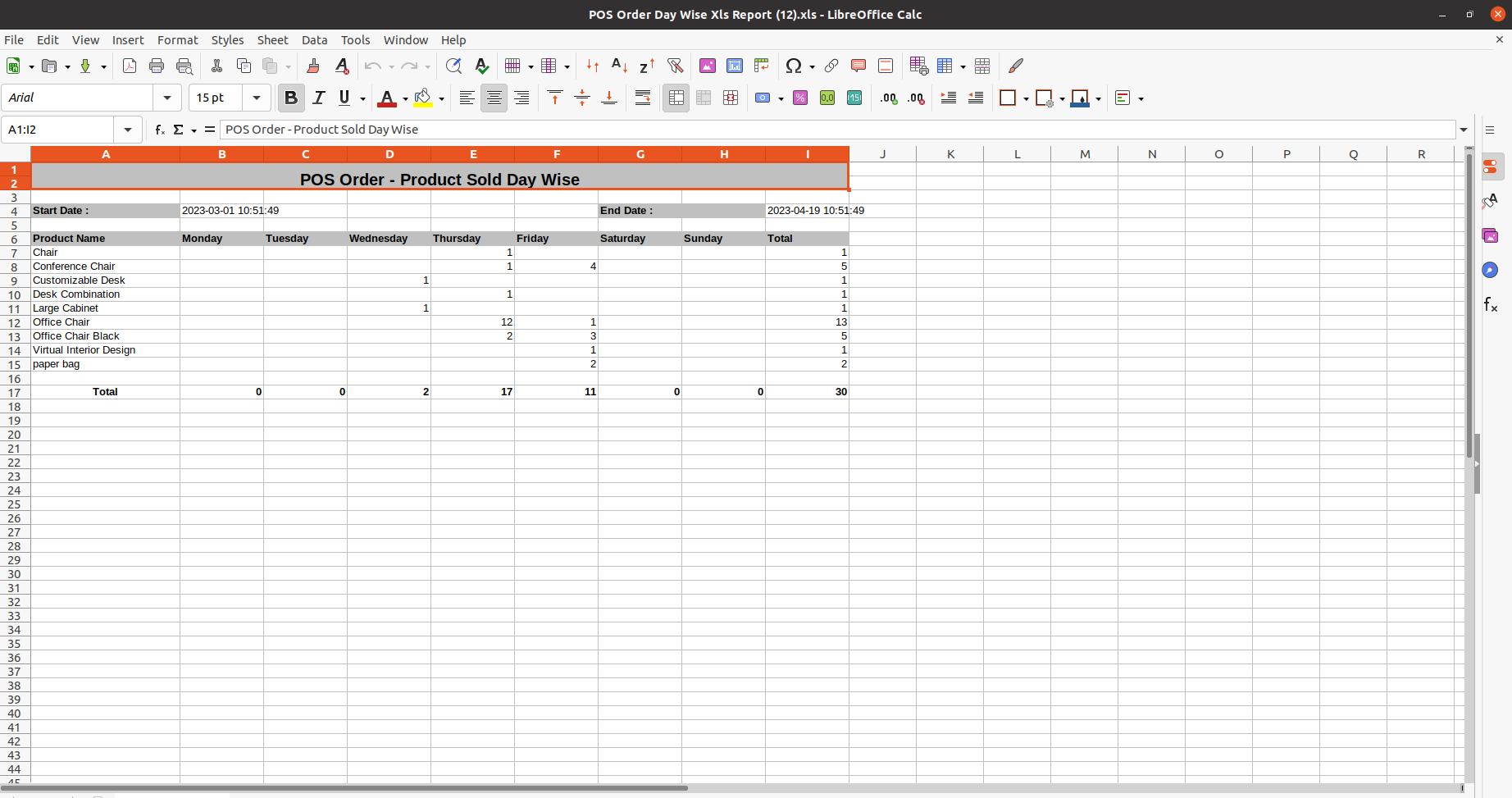
Day wise product report in Excel

Go to user setting >> Enable the "Show User Field In POS Payment Report" and "POS Payment Report".
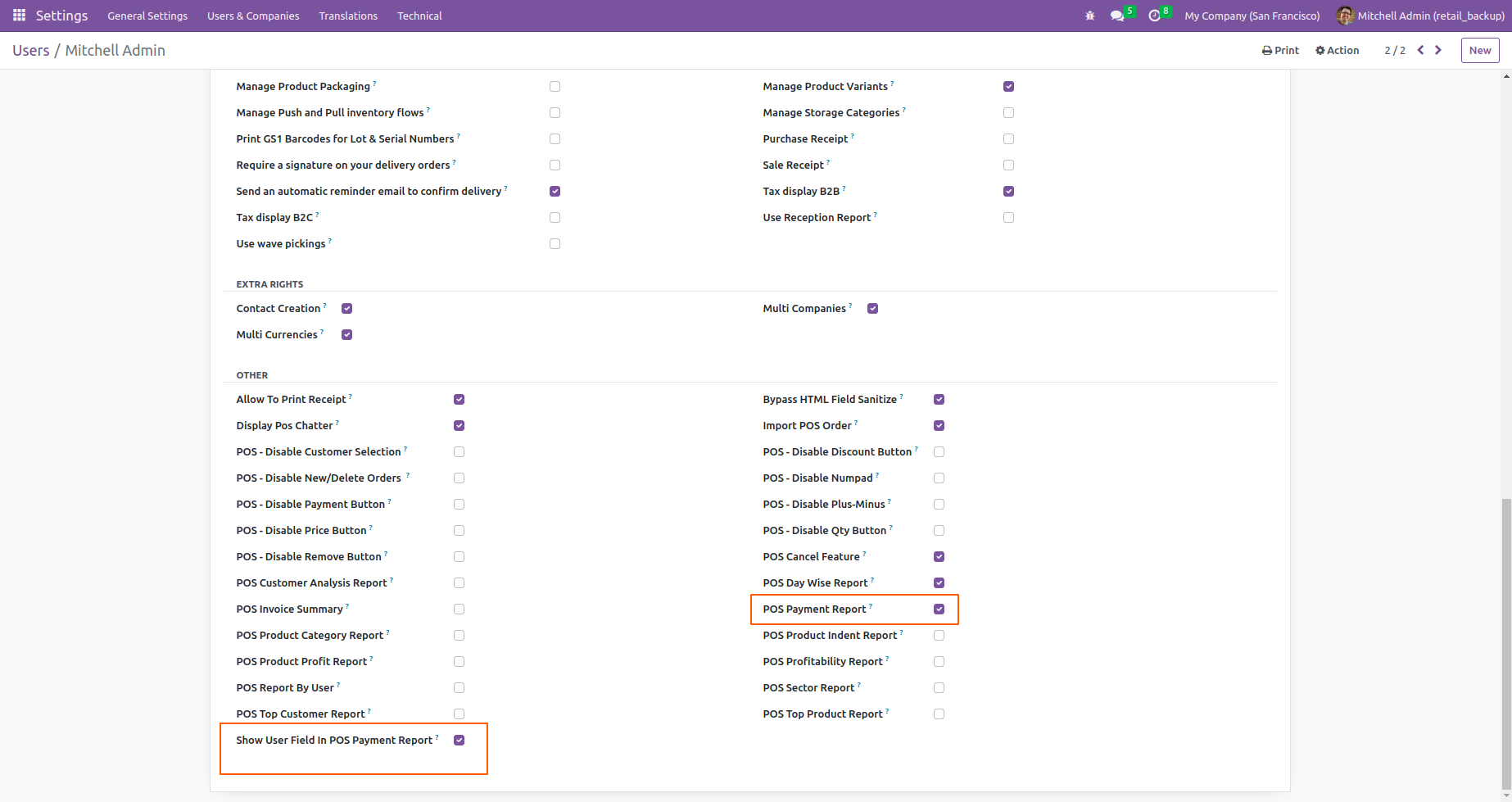
Enable Show User Field in Payment Report

Go to "POS Payment Report".

Go to POS Payment Report menu

After that "POS Payment Report" wizard will be appear.
Here, You can select any of the "POS Payments Includ" options. This will allow you to choose between payments with an invoice, without an invoice, or both.
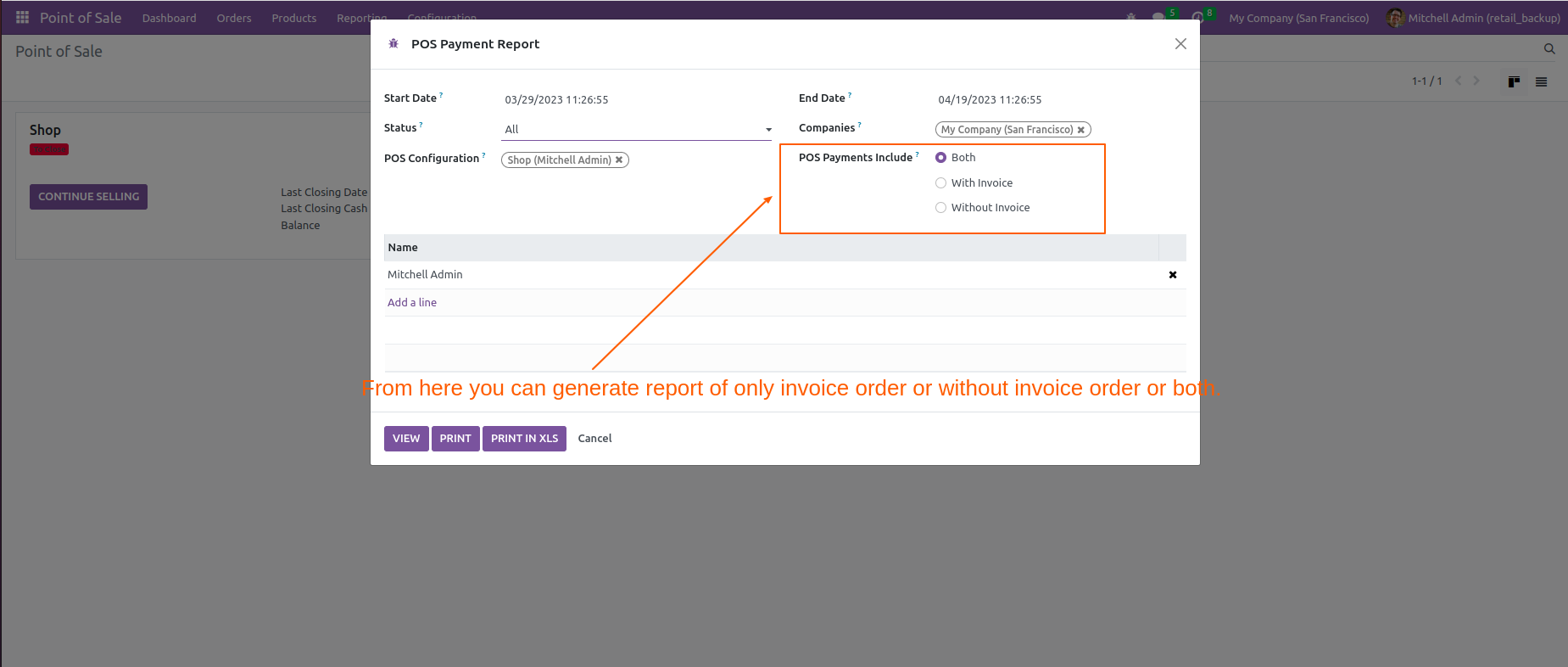
For printing the PDF, Click on the "PRINT" button.

Select POS Payments Include option

PDF File.

Select order status filter

If you want to print the report in XLS file formate then, click on the "PRINT IN XLS" button.

Click View button in filter

XLS File.

List view of POS Payment report

If you want to see the the selected POS Payment report list then click on the "VIEW" button.
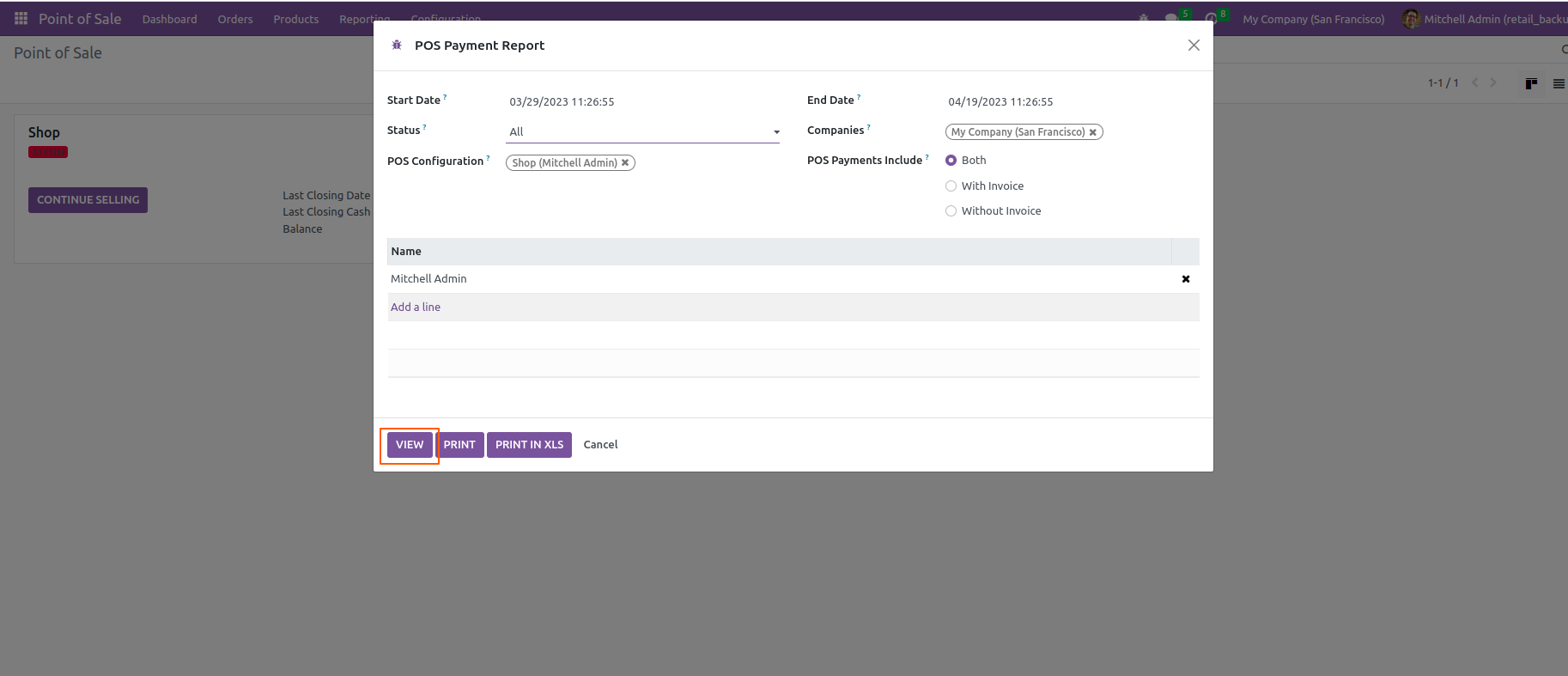
Click Print button in filter

Here, you can see the list view of the POS Payment report.
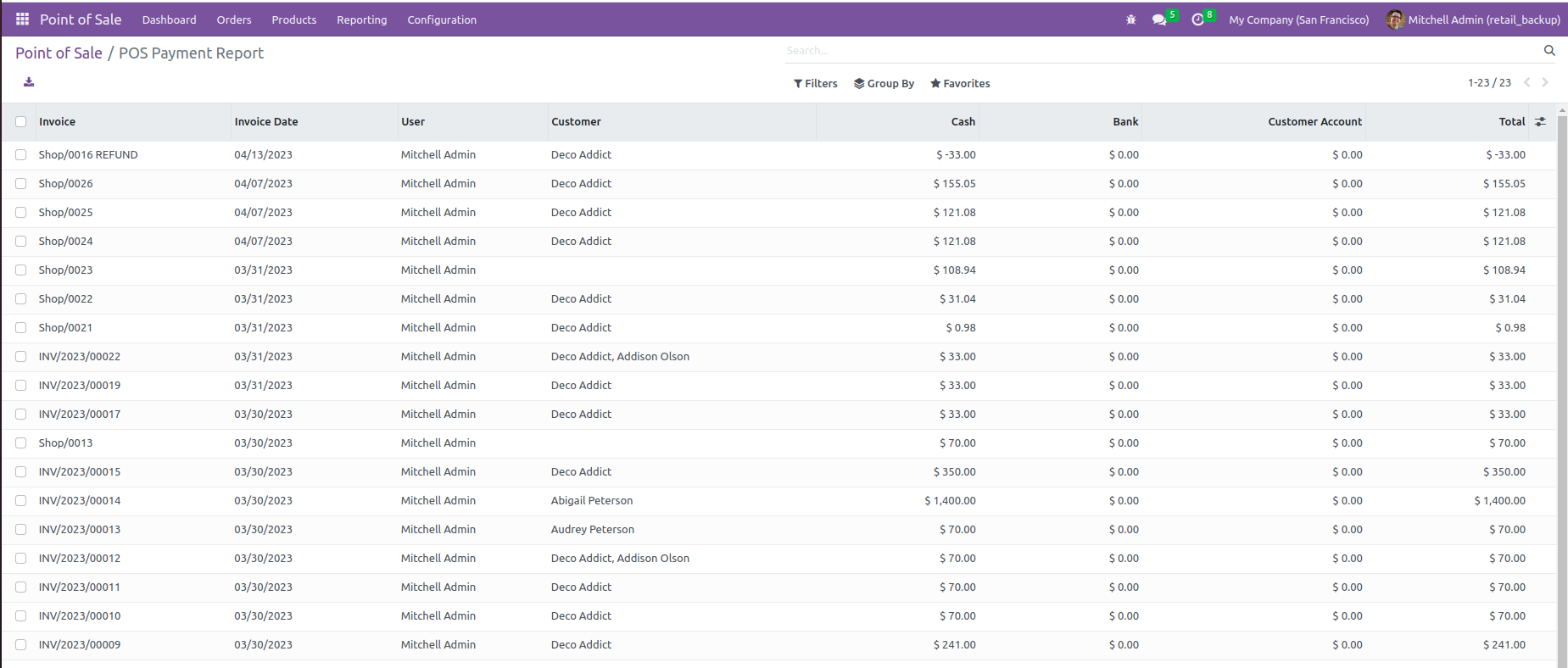
Payment report with and without invoice PDF

Go to user setting >> Enable the "POS Report By User".

Enable POS Report by User access

Go to "POS Report By POS User".

Go to POS Report by POS User menu

After that "POS Report By POS User" wizard will appear. Fill-up details.
If you want to see the the selected POS report by POS user list then click on the "VIEW" button.

Click View button in filter

Here, you can see the list view of the POS report by POS user.

List view of report by POS user

For printing the PDF, Click on the "PRINT" button.
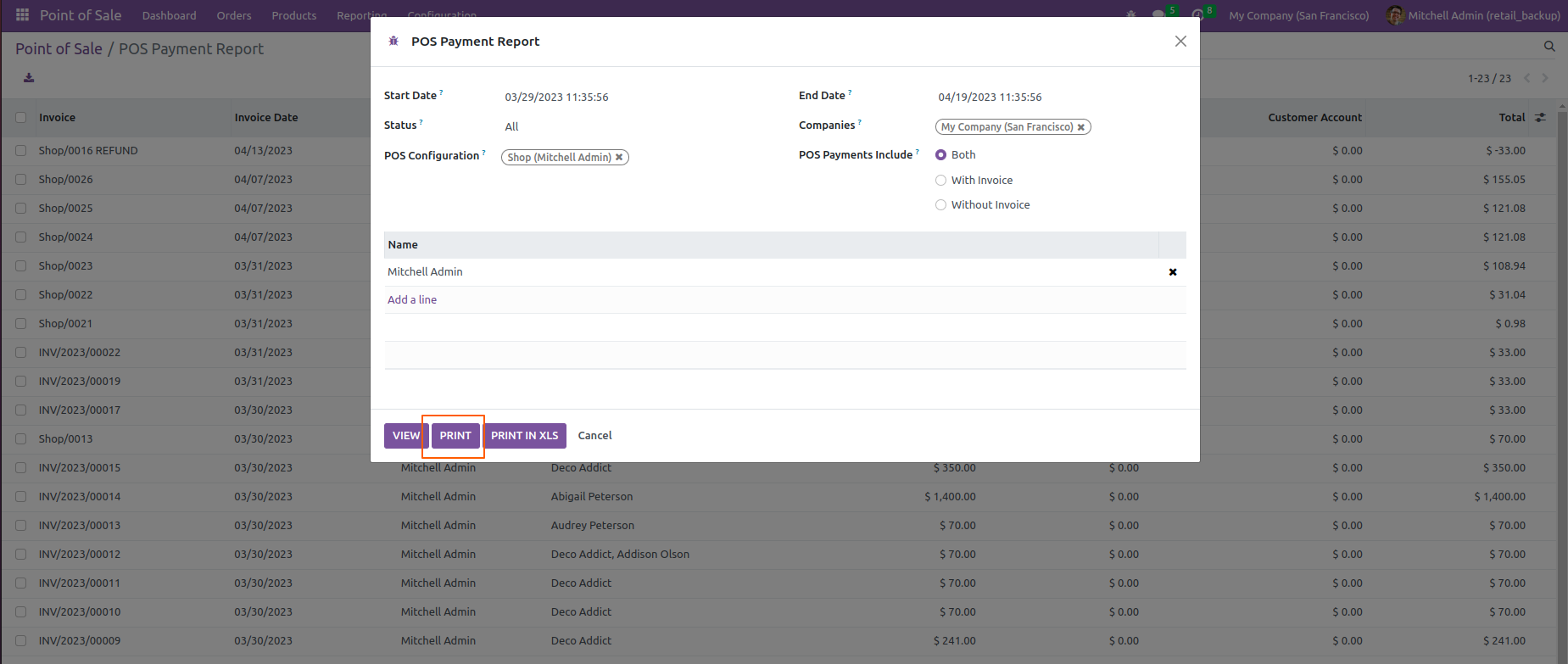
Click Print button in filter

PDF File.

POS Report by User PDF file

If you want to print the report in XLS file formate then, click on the "PRINT IN XLS" button.
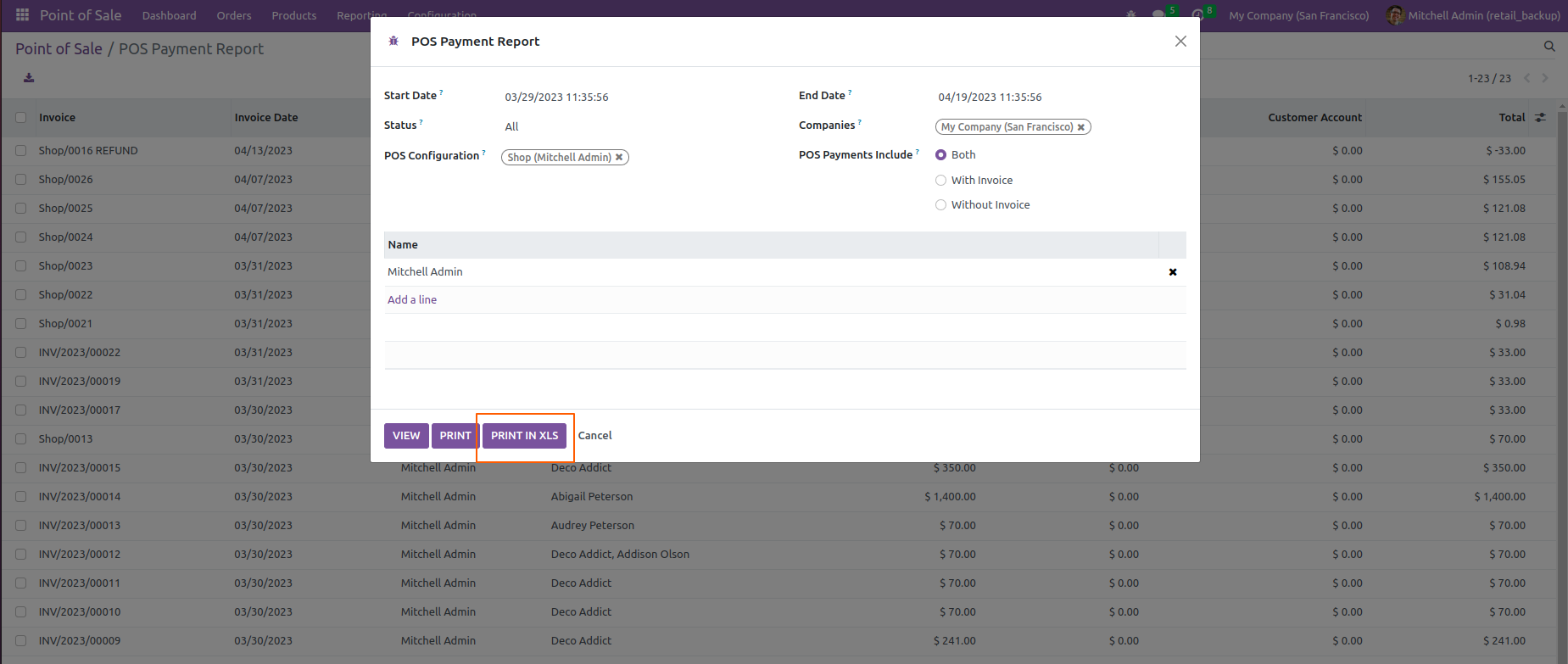
Click Print in XLS button

XLS File.

POS Report by User XLS file

Go to "Top POS Product".

Enable POS Top Product Report access

After that "Top POS Product" wizard will appear.
Select the report type= "Basic".
Click on the "View" button.

Go to Update Top POS Products menu

Here, you can see a list of top POS products only.
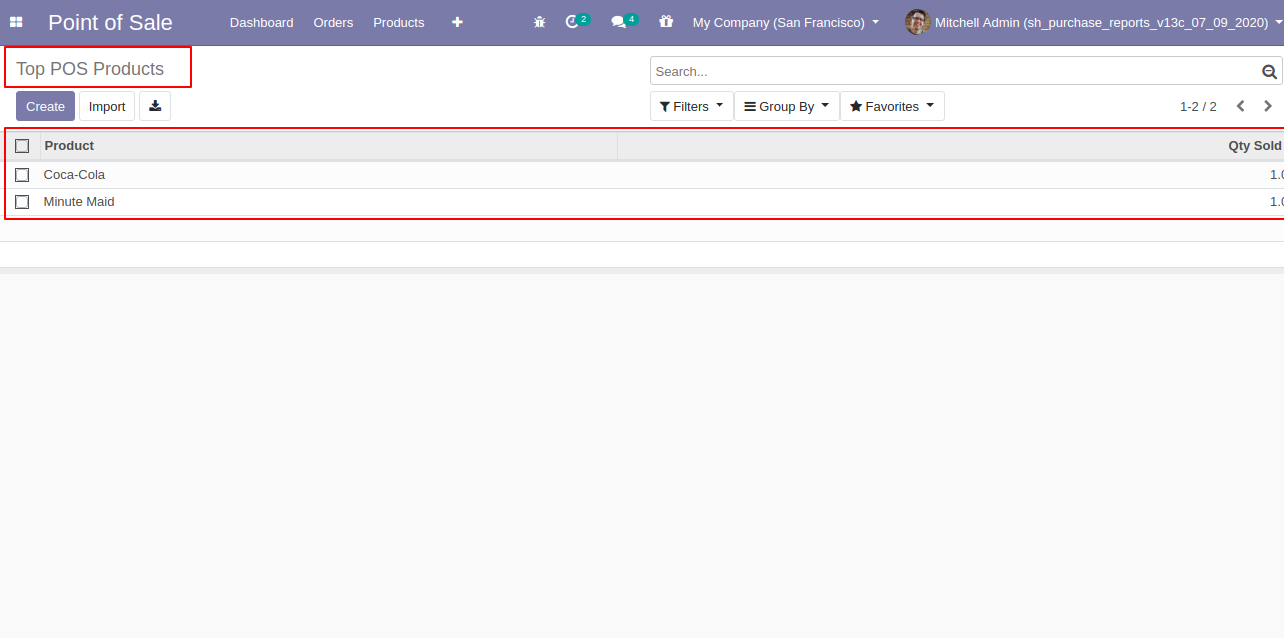
Top POS Products filter wizard

Select the report type= "Basic".
Click on the "PRINT REPORT" button.
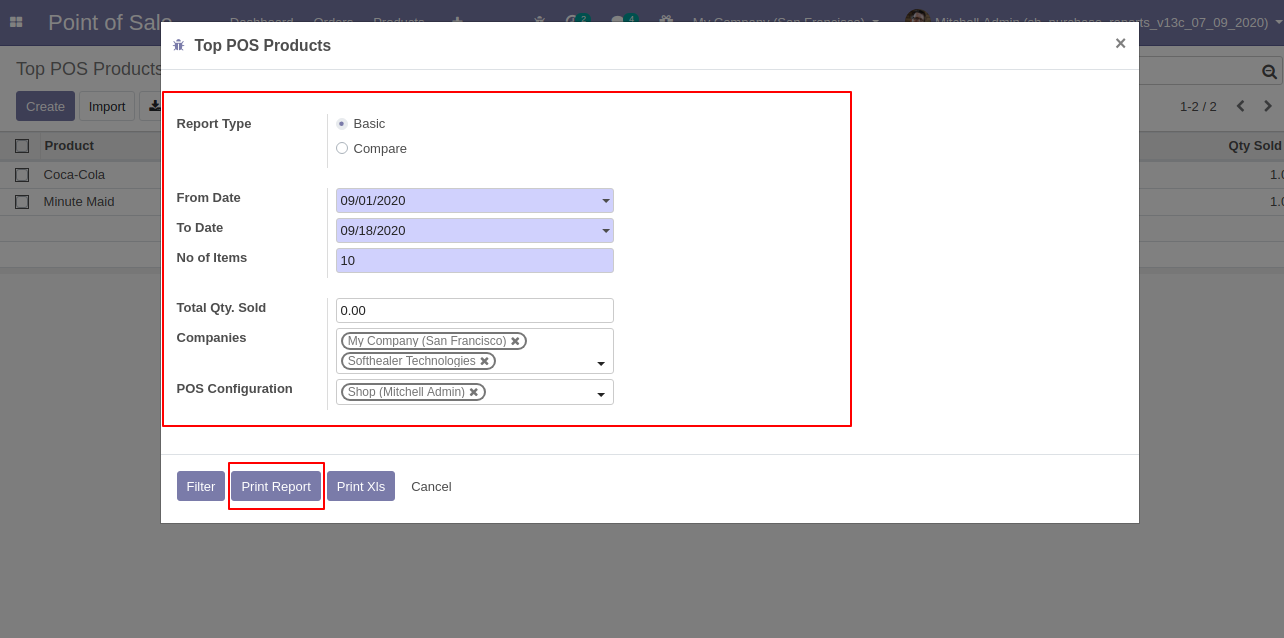
List view of Top POS Products

PDF File.

Select Basic report type

Select the report type= "Basic".
Click on the "PRINT XLS" button.

Top POS Products basic report PDF

XLS File.

Select Compare report type

Select the report type= "Compare".
Click on the "PRINT REPORT" button.
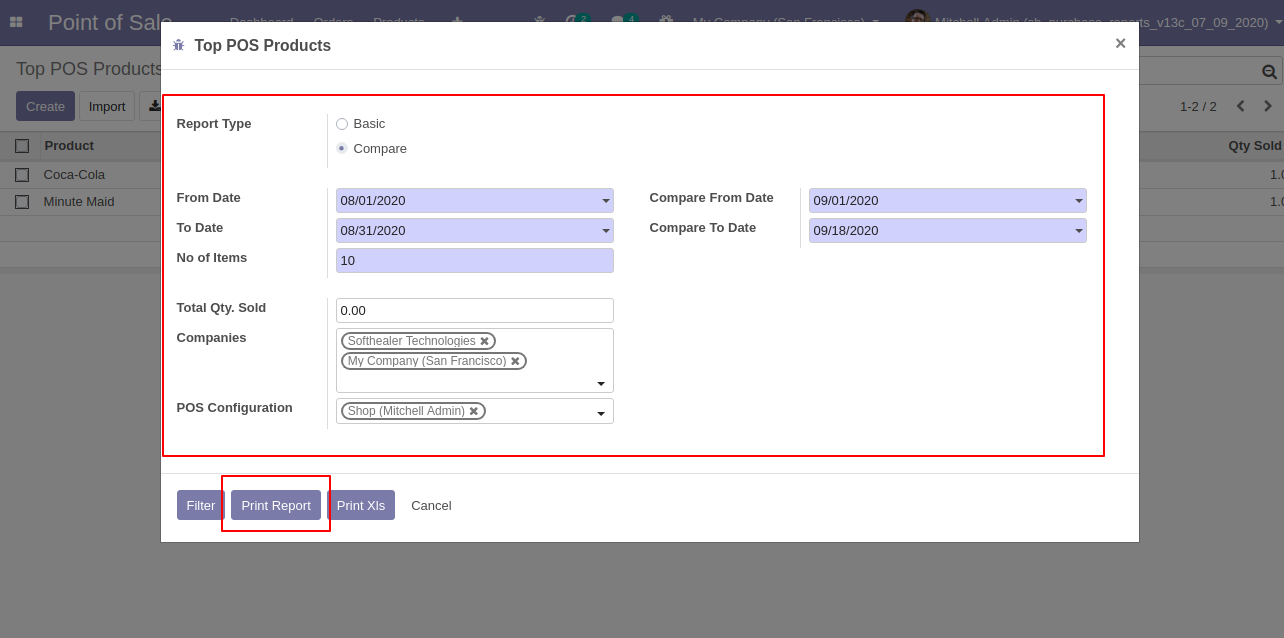
Top POS Products compare report PDF

PDF File.

Click Print XLS button

Select the report type= "Compare".
Click on the "PRINT XLS" button.

Top POS Product XLSX popup

XLS File.

Top POS Products basic report XLS

Go to "Top Customer".

Enable Top Customer Report setting

After that "Top Customer" wizard will apoear.
Select the report type=Basic".
For viewing the Top customer list. Click on the "VIEW" button.

Open Top Customer menu

Here, you can see the list view of Top POS Customer.

Top Customer wizard with Basic type

Select the report type= "Basic".
Click on the "PRINT" button.

Top Customer list view

PDF File.

Print report in Basic type

Select the report type=Basic".
Click on the "PRINT XLS" button.
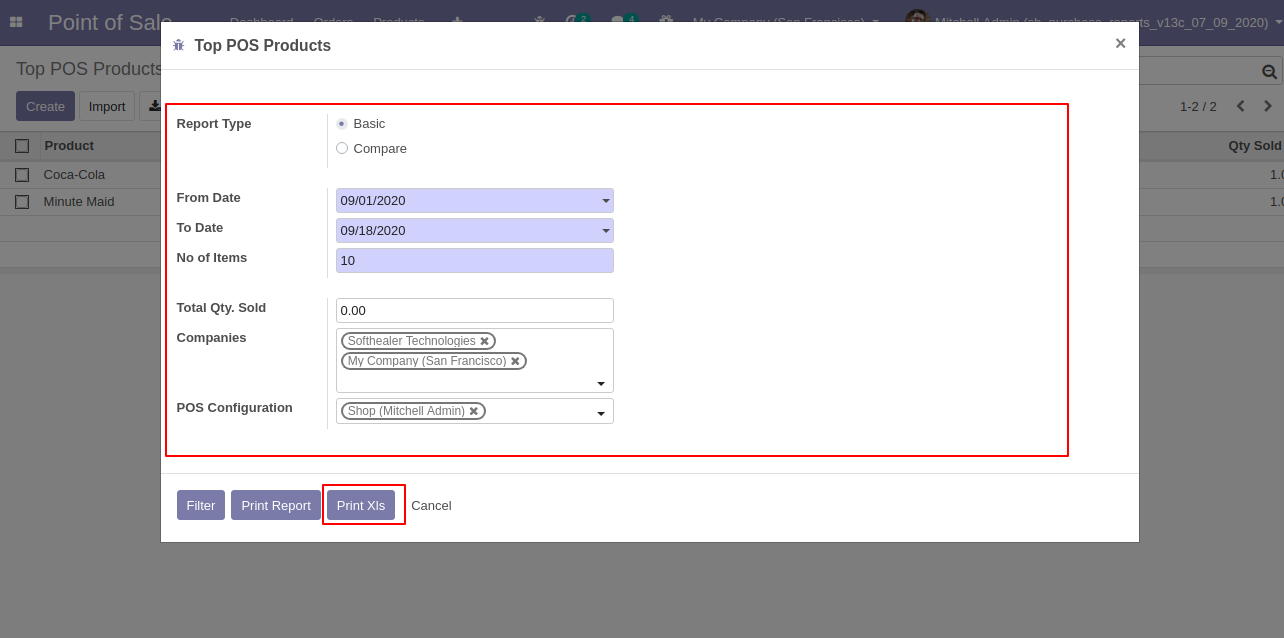
Top Customers PDF output

XLS File.

Print XLS in Basic type

Select the report type= "Compare".
Click on the "PRINT" button.

Top Customers XLS output

PDF File.

Select Compare report type

Select the report type= "Compare".
Click on the "PRINT XLS" button.
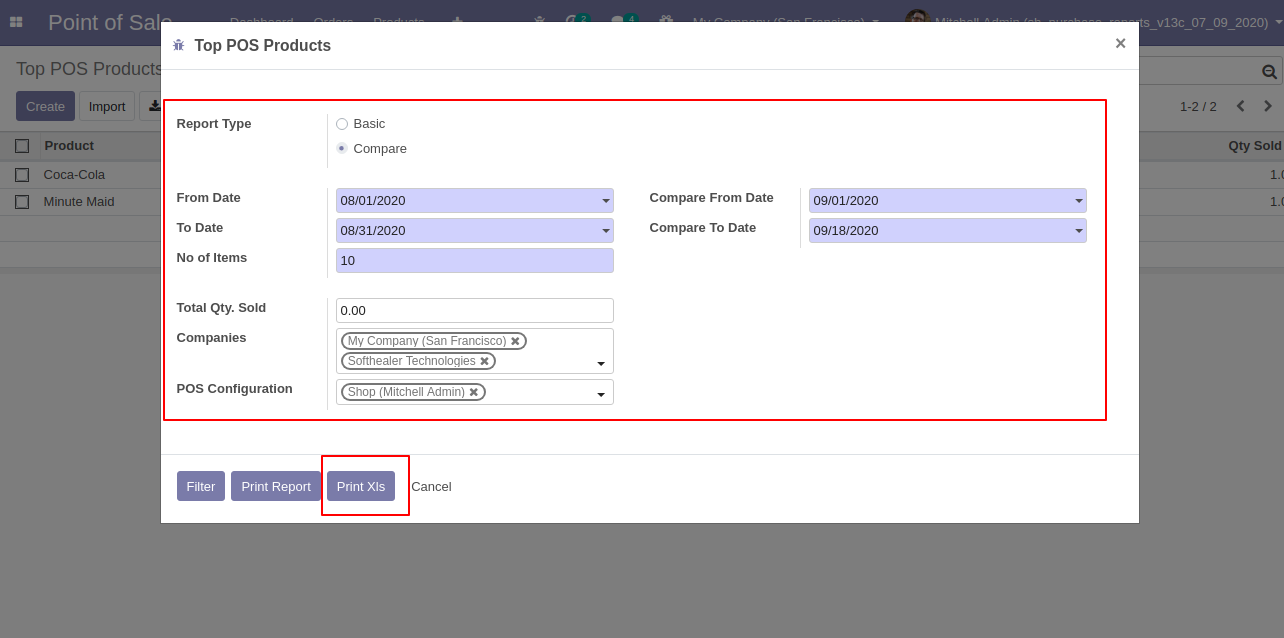
Top Customers PDF compare output

XLS File.

Print XLS in Compare type

Go to user setting >> Enable the "POS Product Profitability Report".
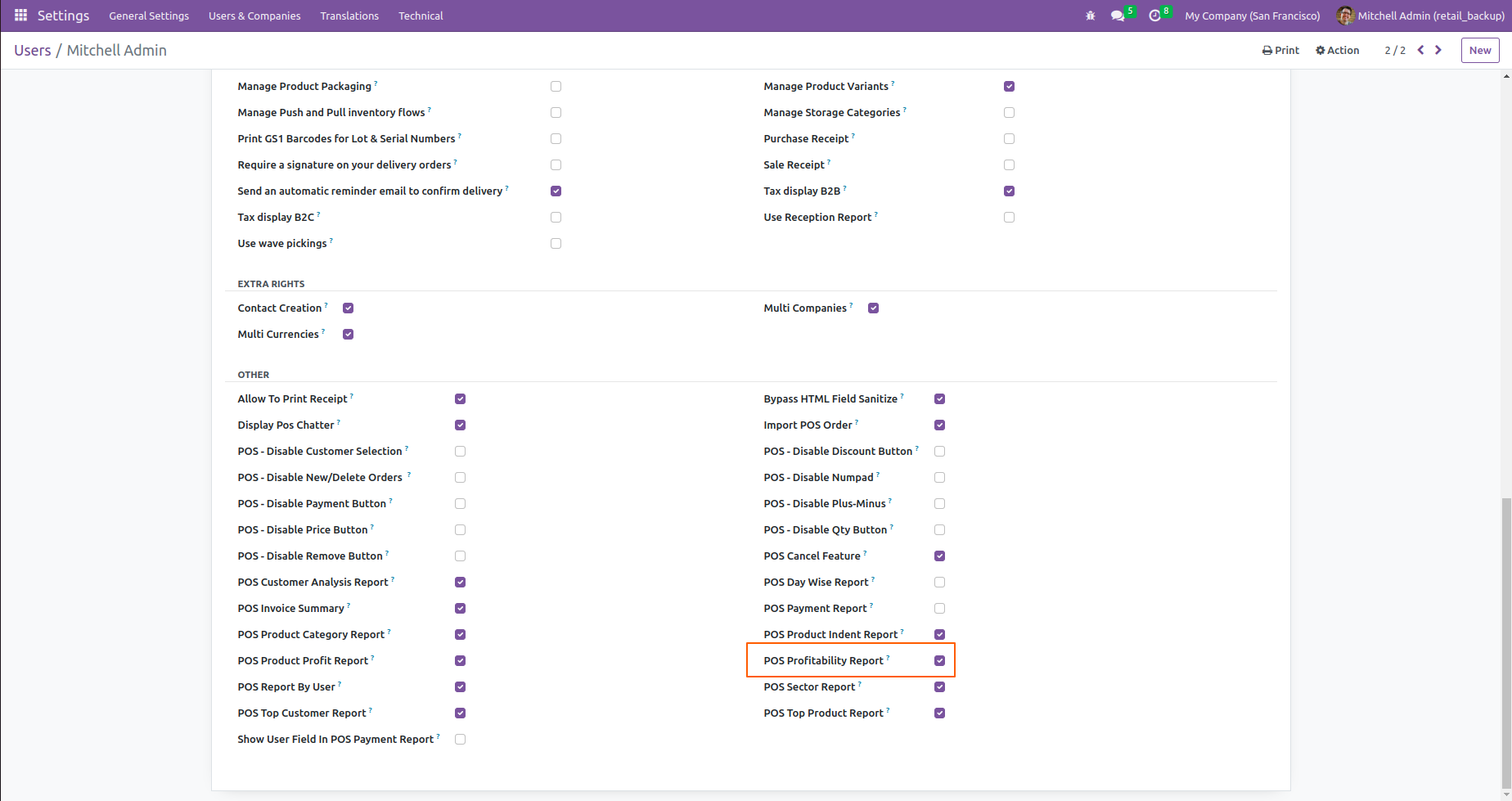
Enable POS Product Profitability Report setting

Go to "POS Profitability Report".

Open POS Profitability Report menu

Here, you can see the POS Profitability Report.
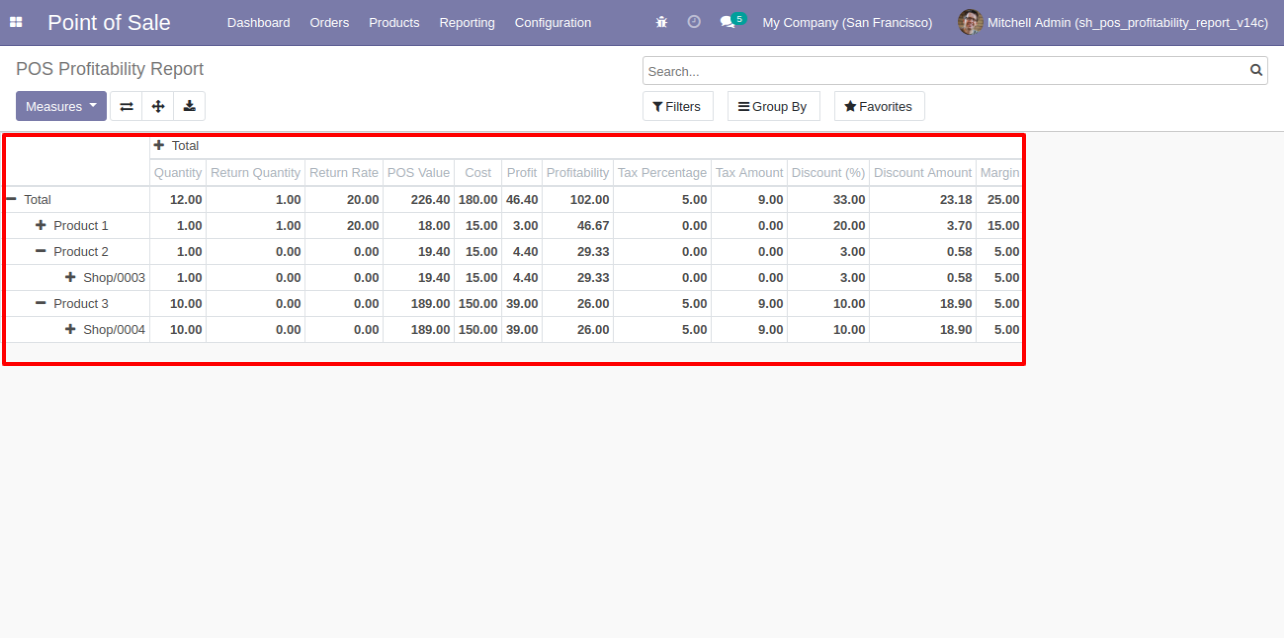
POS Profitability Report table view

Go to "Sectors".

Enable POS Sector Report setting

Here, You can see the sector form view.
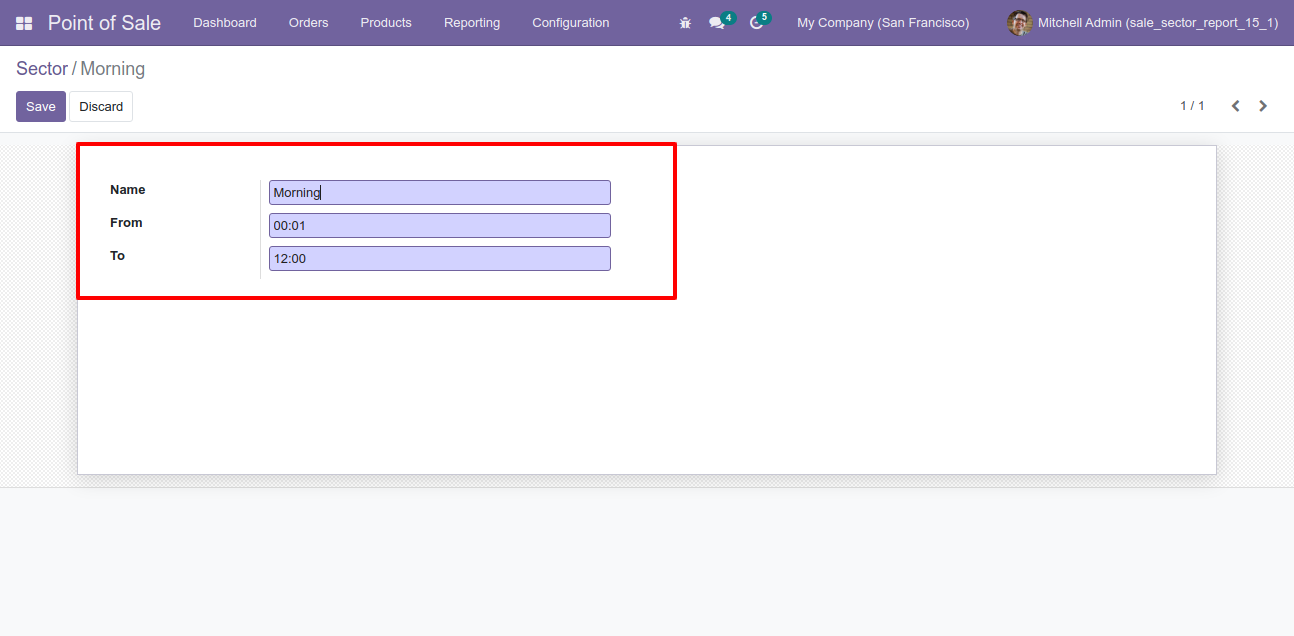
Open Sectors menu

Sector list view.

Sector form view

Go to "Sectors Wise Weekly Report".

Sector list view

After that "Sectors Wise Weekly Report" wizard will appear.
Click on the "Print Report" button.
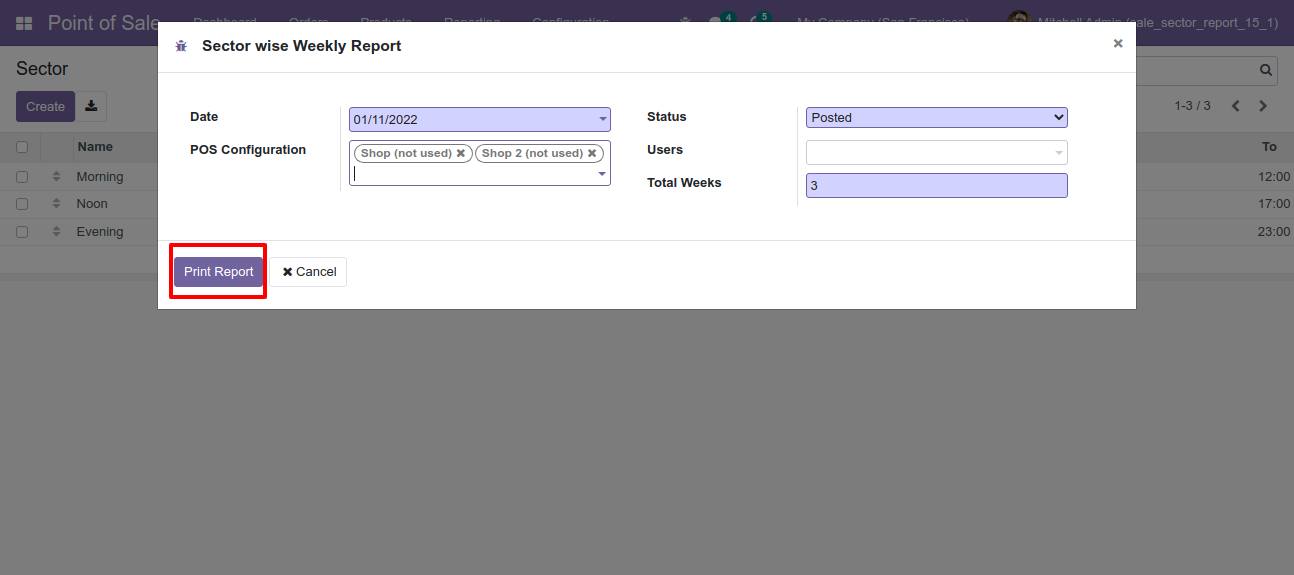
Open Sectors Wise Weekly Report menu

Report File.

Print Sector Wise Weekly Report wizard

Go to "Point Of Sale Product Profit".
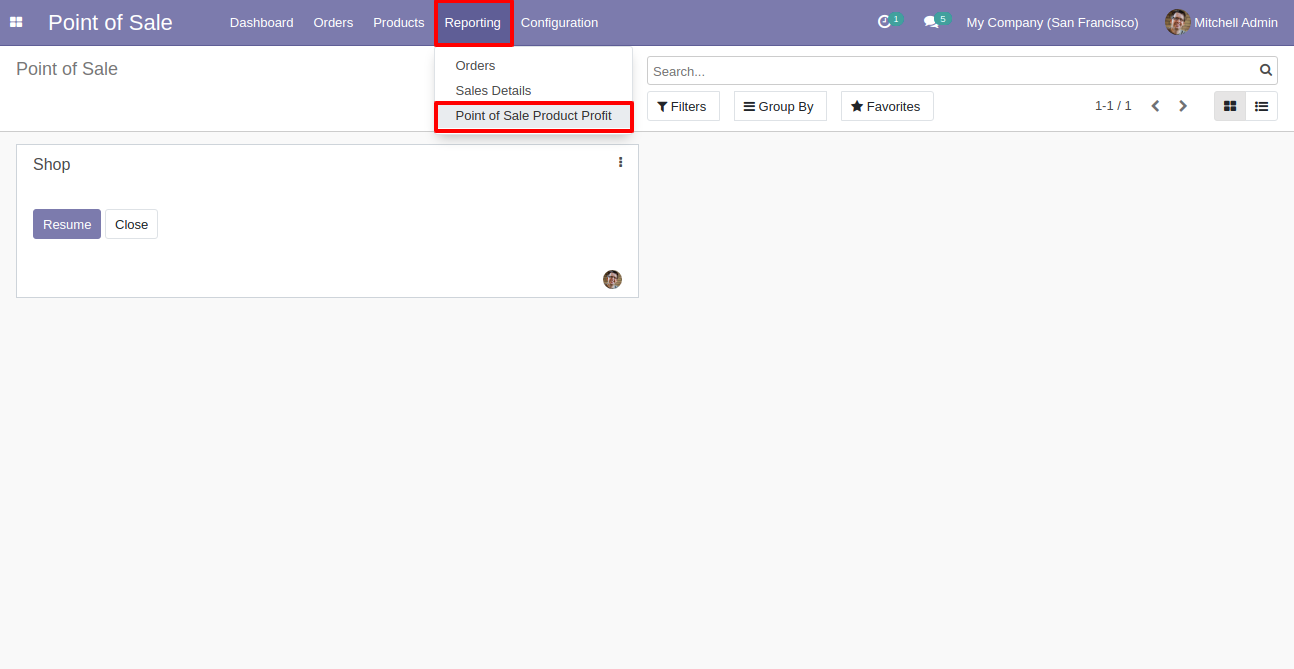
Enable POS Product Profit Report setting

After that "Point Of Sale Product Profit" wizard will appear.
Select Report Print By = "Both".
Click on the "VIEW" button.

Open Point of Sale Product Profit menu

Here, you can see the list view of the point of sale product profit.

Point of Sale Product Profit wizard

Select Report Print By = "Customers".
Click on the "PRINT" button.

Point of Sale Product Profit list view

PDF File.

Print report by Customers

Select Report Print By = "Products".
Click on the "PRINT IN XLS" button.

Point of Sale Product Profit PDF output

Excel File.

Print report by Both in XLS

Go to user setting >> Enable the "POS Customer Analysis Report".

Enable POS Customer Analysis Report setting

Go to "Customer Point Of Sale Analysis".

Open Customer Point of Sale Analysis menu

After that "Customer Point Of Sale Analysis" wizard will appear.
Select Status = "All".
Click on the "VIEW" button.

Customer Point of Sale Analysis wizard

Here, you can see the list view of the customers sales analysis.

Customer Sales Analysis list view

Select Report Print By = "POS Order".
Click on the "PRINT" button.

Print report by POS Order

PDF File.

Customer Point of Sale Analysis PDF output

Select Report Print By = "Product".
Click on the "PRINT IN XLS" button.

Print report by Product in XLS

XLS File.

Customer Point of Sale Analysis XLS output

Go to user setting >> Enable the "POS Product Category Report".

Enable Product Category Report setting

Go to "Point Of Sale By Product Category".

Open Point of Sale By Product Category menu

After that "Point Of Sale By Product Category" wizard will appear.
Click on the "VIEW" button.
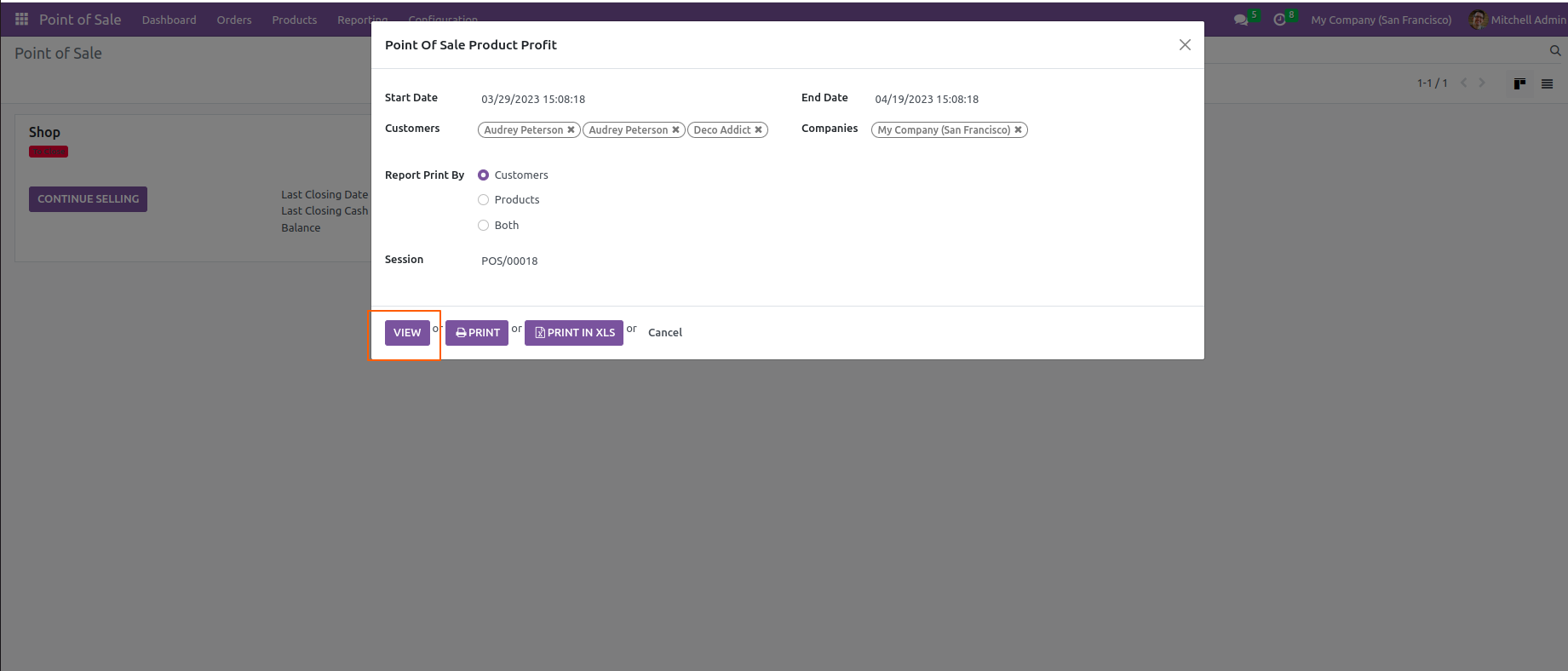
Point of Sale By Product Category wizard

Here, you can see the list view of the point of sale category.

Point of Sale Category list view

For printing Point Of Sale By Product Category report, Click on the "PRINT" button.

Print Point of Sale By Product Category report

PDF File.

Report By Point of Sale Category PDF output

For printing Point Of Sale By Product Category report in XLS formate, Click on the "PRINT IN XLS" button.

Print Product Category report in XLS

XLS File.

Report By Point of Sale Category XLS output

Go to "Point Of Sale Invoice Summary".

Enable Invoice Summary setting

After that "Point Of Sale Invoice Summary" wizard will appear.
Click on the "VIEW" button.

Open Point of Sale Invoice Summary menu

Here, you can see the list view of the Point Of Sale Invoice Summary.

Point of Sale Invoice Summary wizard

For printing Point Of Sale Invoice Summary report, Click on the "PRINT" button.

Point of Sale Invoice Summary list view

PDF File.

Print Invoice Summary report

For printing Point Of Sale Invoice Summary report in XLS formate, Click on the "PRINT IN XLS" button.

Point of Sale Invoice Summary PDF output

XLS File.

Print Invoice Summary report in XLS

Go to "Point Of Sale Product Indent".

Enable Product Indent Report setting

After that "Point Of Sale Product Indent" wizard will appear.
Select Status = "All".
Click on the "VIEW" button.
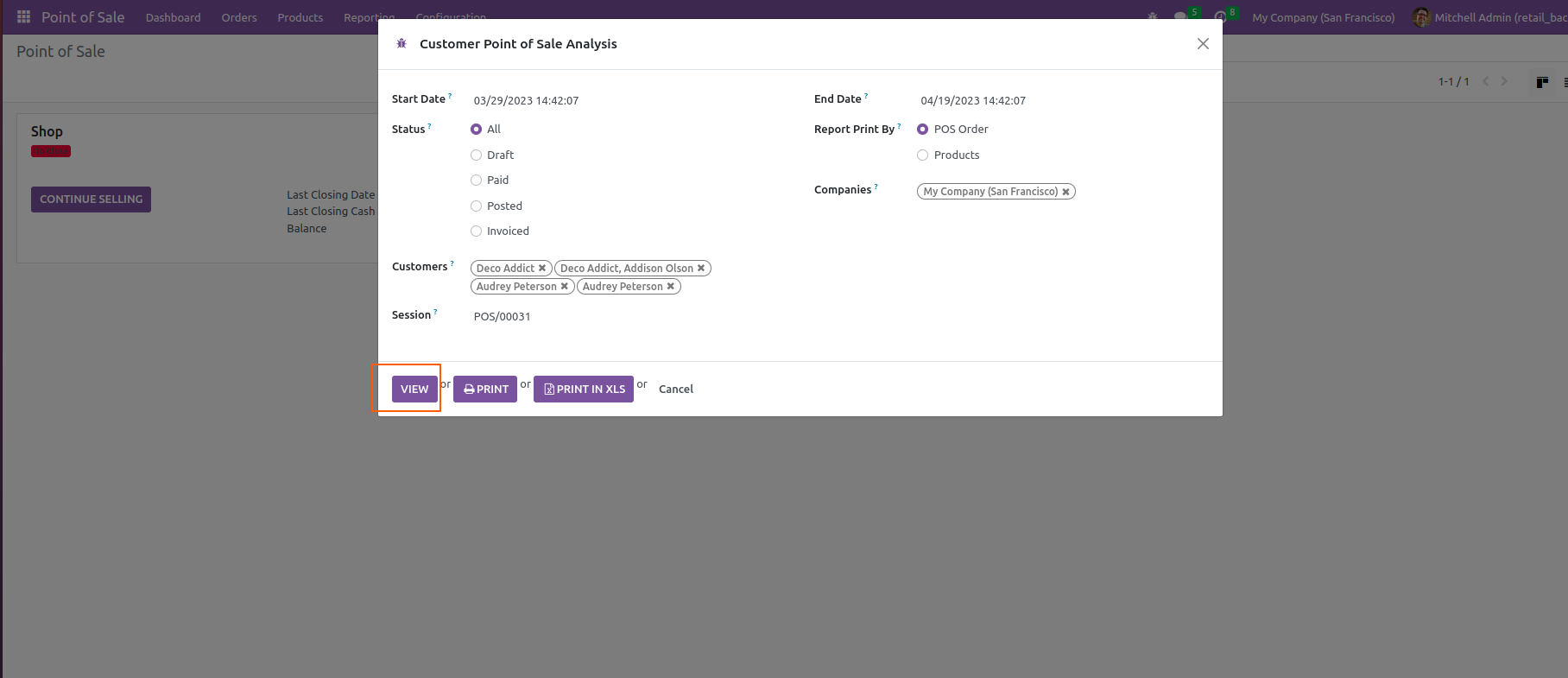
Open Point of Sale Product Indent menu

Here, you can see the list view of the Point Of Sale Product Indent.

Point of Sale Product Indent wizard

For printing Point Of Sale Product Indent report, Click on the "PRINT" button.

Point of Sale Product Indent list view

PDF file.

Print Product Indent report

For printing Point Of Sale Product Indent report in XLS formate, Click on the "PRINT IN XLS" button.
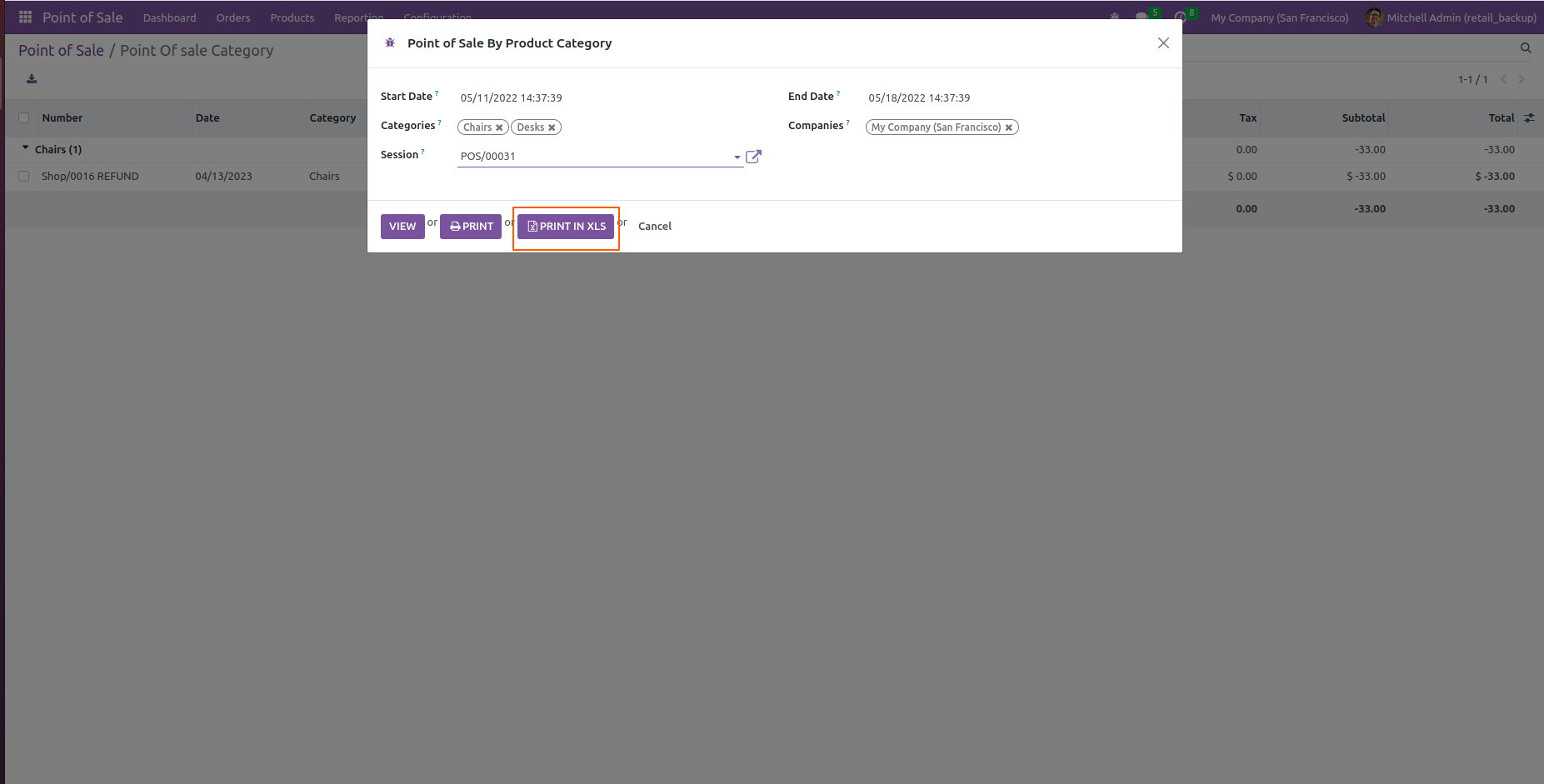
Point of Sale Product Indent PDF output

XLS File.

Print Product Indent report in XLS

Version 18.0.20.0.0 | Released on : 14th August 2026

New Added POS Quick Action Shortcut for Category Selection, Cash In/Out, Create Product, Refund Order, and Pricelist.

Version 18.0.19.0.0 | Released on : 25th June 2026

New Product Search by Package & Barcode Feature Added.

Version 18.0.18.0.0 | Released on : 22nd June 2026

New Customer Advance Payment and Invoice Management from POS Feature Added.

Version 18.0.17.0.0 | Released on : 26th May 2026

New Added Discount, Payment Amount & Payment Method Fields in CSV/Excel files.
New Added Order State Selection (New, Paid & Invoice) in the Import Order Wizard.

Version 18.0.16.0.0 | Released on : 3rd April 2026

New POS Receipt Extend Feature Added.

Version 18.0.15.0.0 | Released on : 27th March 2026

New POS Product Package Pricelist Feature Added.

Version 18.0.14.0.0 | Released on : 19th February 2026

New POS Expiry Lot Restriction Feature Added.

Version 18.0.13.0.0 | Released on : 29th January 2026

New Quick Keyboard Shortcuts Feature Added.
Shortcut To Quickly Select A Product & Add It To The Cart, Close Button, Change The Cashier (Available When Employee Login Is Enabled).

Version 18.0.12.0.0 | Released on : 17th December 2025

New POS Manager Validation Feature Added.

Version 18.0.11.0.0 | Released on : 3rd December 2025

New Product Secondar UOM Feature Added.

Retail Phase 3

Version 18.0.10.0.0 | Released on : 10th September 2025

New Partial Payment Feature Added.

Version 18.0.9.0.0 | Released on : 18th June 2025

New Change UOM Feature Added.

Version 18.0.8.0.0 | Released on : 3rd April 2025

New Allow To Add Multiple Product In Single Order Added.

Version 18.0.7.0.0 | Released on : 25th March 2025

FIXED Minor bug fixed.

Version 18.0.6.0.0 | Released on : 27th January 2025

New POS Product Topping Feature Added.
New POS Rounding Feature Added.

Version 18.0.5.0.0 | Released on : 15th January 2025

New POS Import Order Feature Added.
New POS Direct Login Feature Added.
New POS Product Template Feature Added.
New POS Line Pricelist Feature Added.
New POS Bag Charges Feature Added.

Retail Phase 2

Version 18.0.4.0.0 | Released on : 20th December 2024

New POS Order Label Feature Added.
New POS WhatsApp Integration Feature Added.
New POS Reports Feature Added.
New POS Keyboard Shortcut Feature Added.
New POS Order Customer Maximum Discount Feature Added.
New POS Order - Exchange & Return Feature Added.
New POS Receipt Report - Odoo Backend Feature Added.
New POS Note Feature Added.

Retail Phase 1

Version 18.0.3.0.0 | Released on : 28th November 2024

New POS Signature Order Feature Added.
New POS Weight & Volume Feature Added.

Version 18.0.2.0.0 | Released on : 23rd November 2024

New POS Fronted Cancel Feature Added.

Version 18.0.1.0.0 | Released on : 28th October 2024

Initial Initial Release.
  • Yes, this app works perfectly with Odoo Enterprise (Odoo.sh & Premise) as well as Community.
  • Yes, we provide free lifetime support for the version you purchased.
  • Yes, you will get free update for lifetime.
  • Yes, You have to download module for each version (13,14,15,16) except in version 12 or lower.
  • No, this application is not compatible with odoo.com(odoo saas).

Theme style 4
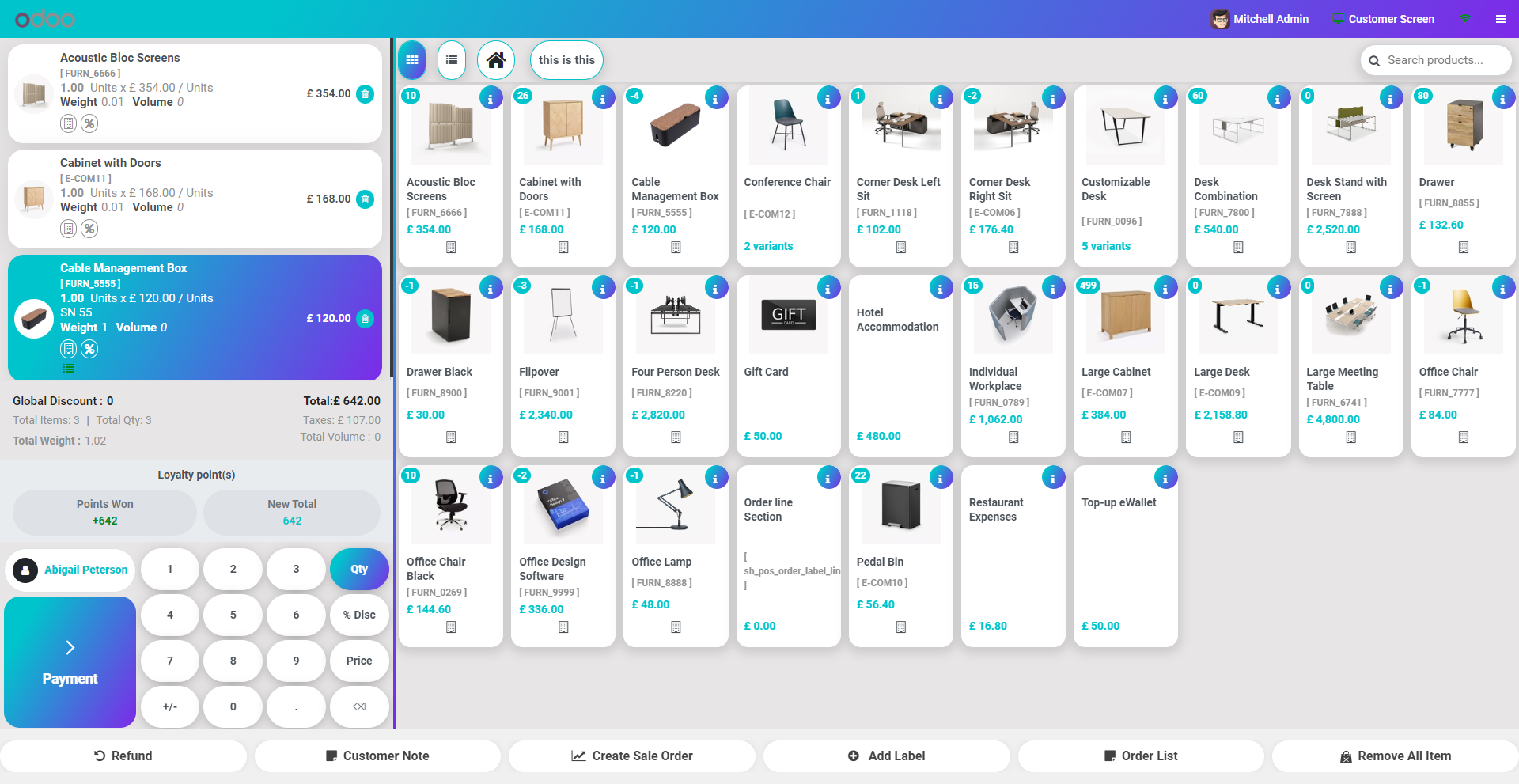
Discover Our Latest Apps

heading
NEW

Odoo Direct Print

  • Print Any Odoo PDF
  • Access From Anywhere
  • No IoT Required
And many more powerful features..

NEW

AI Insight Assistant

  • Dedicated AI Chat Interface
  • Instant Response Engine
  • Intelligent Data Understanding
And many more powerful features..

NEW

Knowledge Base System

  • Smart Dashboard
  • User & Manager Roles
  • Portal View
And many more powerful features..

Responsive POS Theme v18

Transforming Businesses with Next-Gen Solutions

Our next-generation solutions are built to transform businesses and drive growth in the digital era.

Find Us

530, West Gate 2,
Ayodhya Chowk, 150 Feet Ring Road Rajkot, Gujarat 360006.

Find Us

131 South End, Croydon CRO 1BJ,
United Kingdom

Contact No.

HR : +91 90232 46069
Sales : +91 93288 25451
Support : +91 63571 93747

Contact No.

Sales : +44 7562 893296

Reach Us Read Blog Contact Us Submit Support Ticket Watch Video Tutorial
whatsapp-support-store whatsapp-support-store
Click to Chat