












POS Order List

Currently, in odoo there is well designed and precisely managed POS system available. But one thing that everyone wanted in pos is the current session order list on POS Main Screen. The main reason behind this feature is you can easy to see previous orders, easy to do re-order, re-print orders without closing the current session.
POS Order List on Restaurant
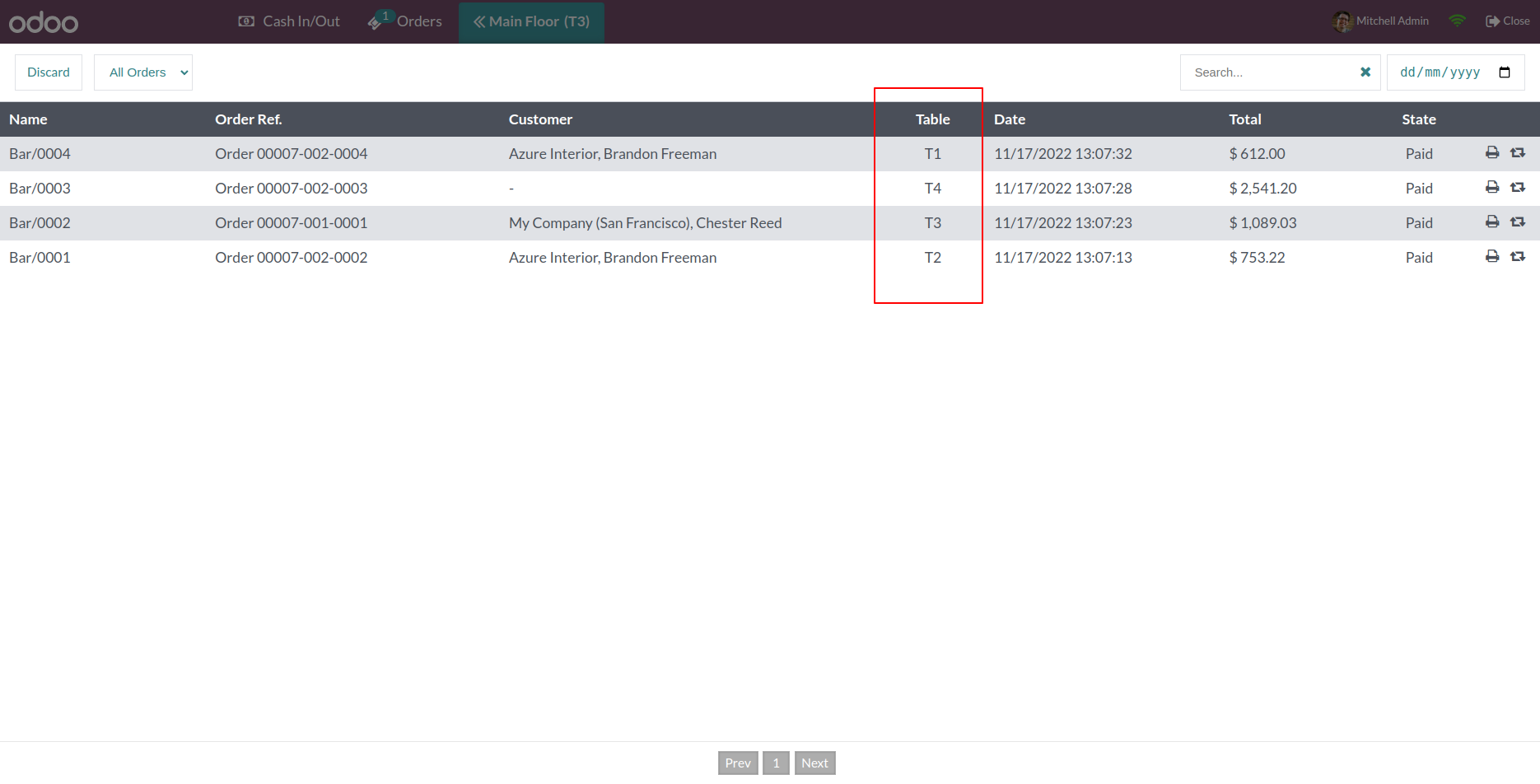
Here in this module, We provide an amazing feature for the restaurant is order list in a restaurant. You can see the restaurant order list with the table number. So it easy to identify your orders table-wise.

Related Modules
Hot Features
Features
- We have added pagination in the order list, If you are in online mode then it will help to make the speed faster.
- We have given a configuration option to choose you pos is an offline mode or online mode. if you have good internet speed then please always use online mode to get faster speed. if you have not good internet then choose the offline mode, loading speed will depend on records and configurations of pos.
- Order list on POS Main screen.
- Order list on restaurant order list.
- Search Order by date, name and number also.
- Easy to enable/disable this feature.
- Display orders session wise with current session and number of previous sessions, also day wise like last number of days.
- You can Re-Order of any previous order.
- Easy to reprint orders.
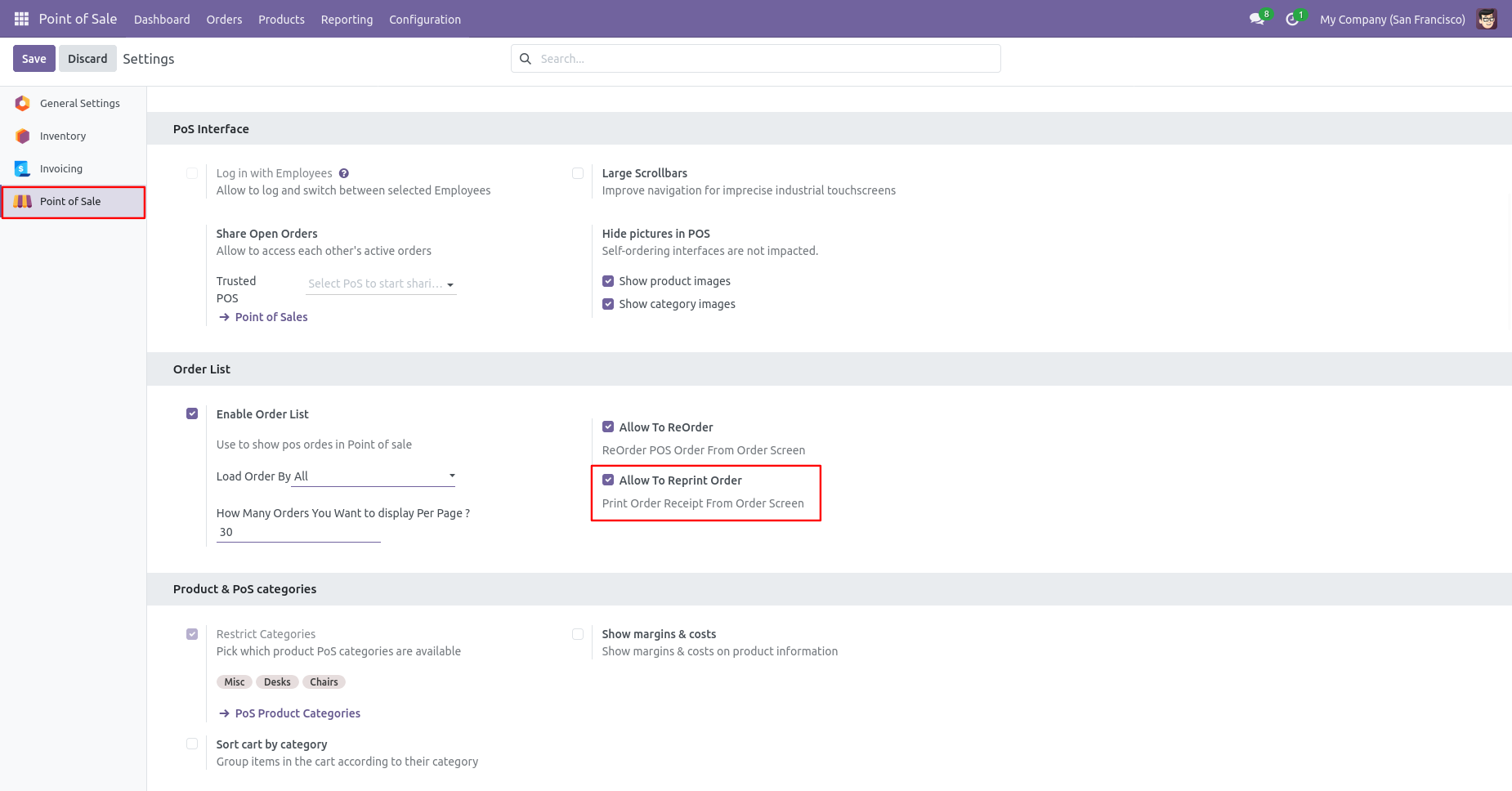
Go to the pos config settings => Enable Order Screen Configuration.
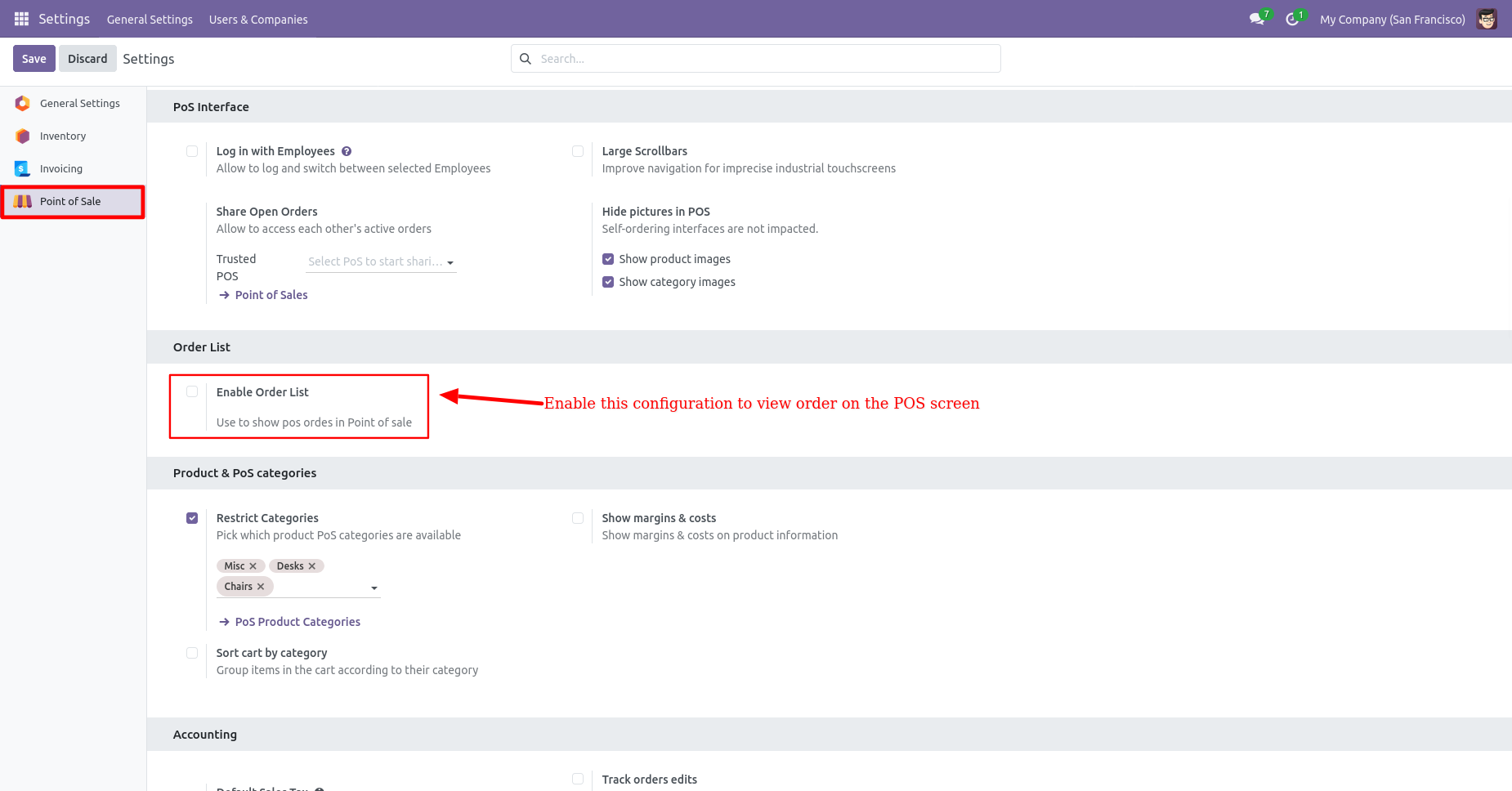
After enable that feature you can see the various options like Allow to Reprint Order, Allow to Reorder and Load Order By.
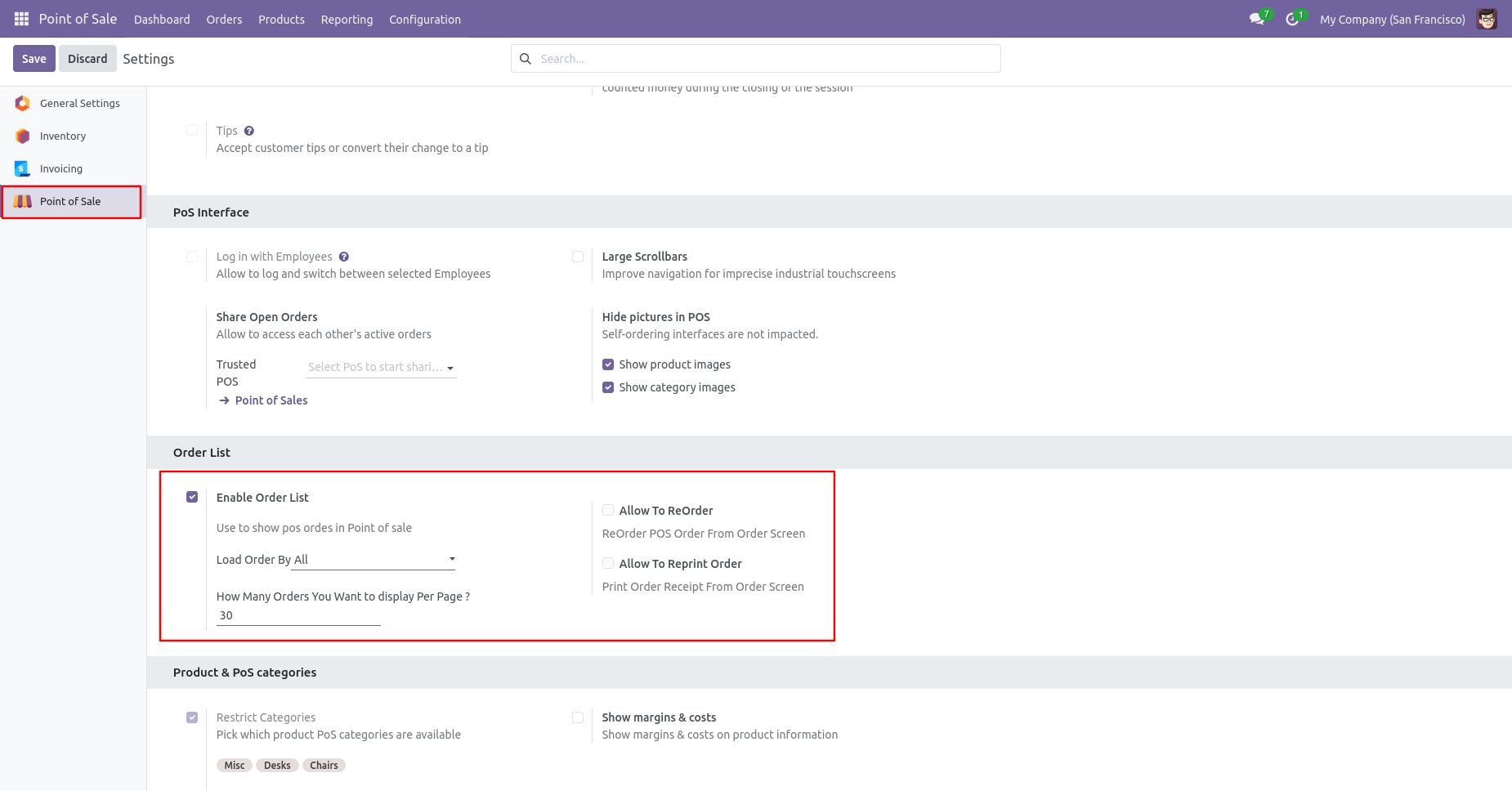
Click on the 'Action' button and then click on the 'Order List'.
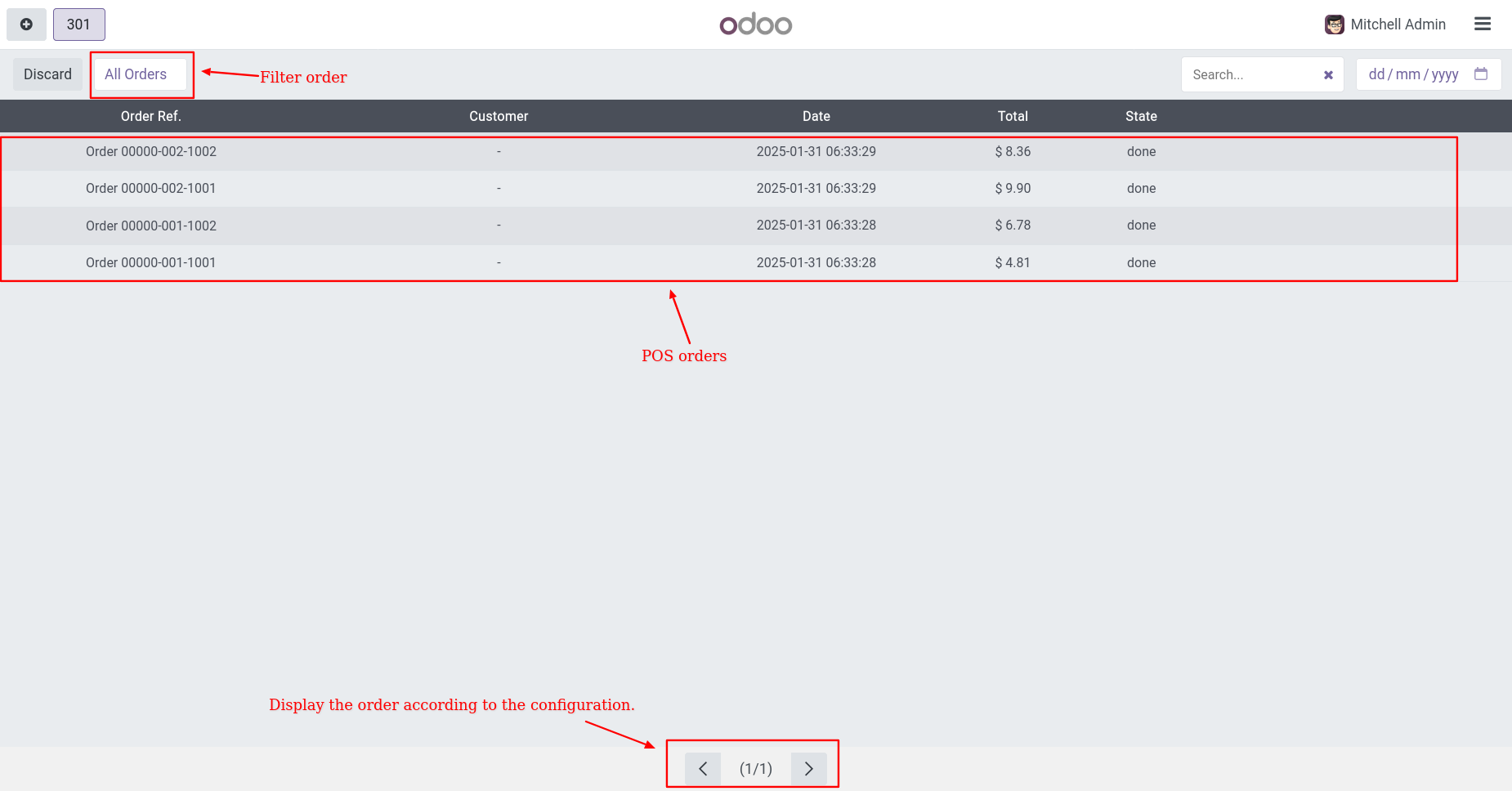
After click on 'Order List' you can see the list of whole orders(*select 'Load Order By => All').
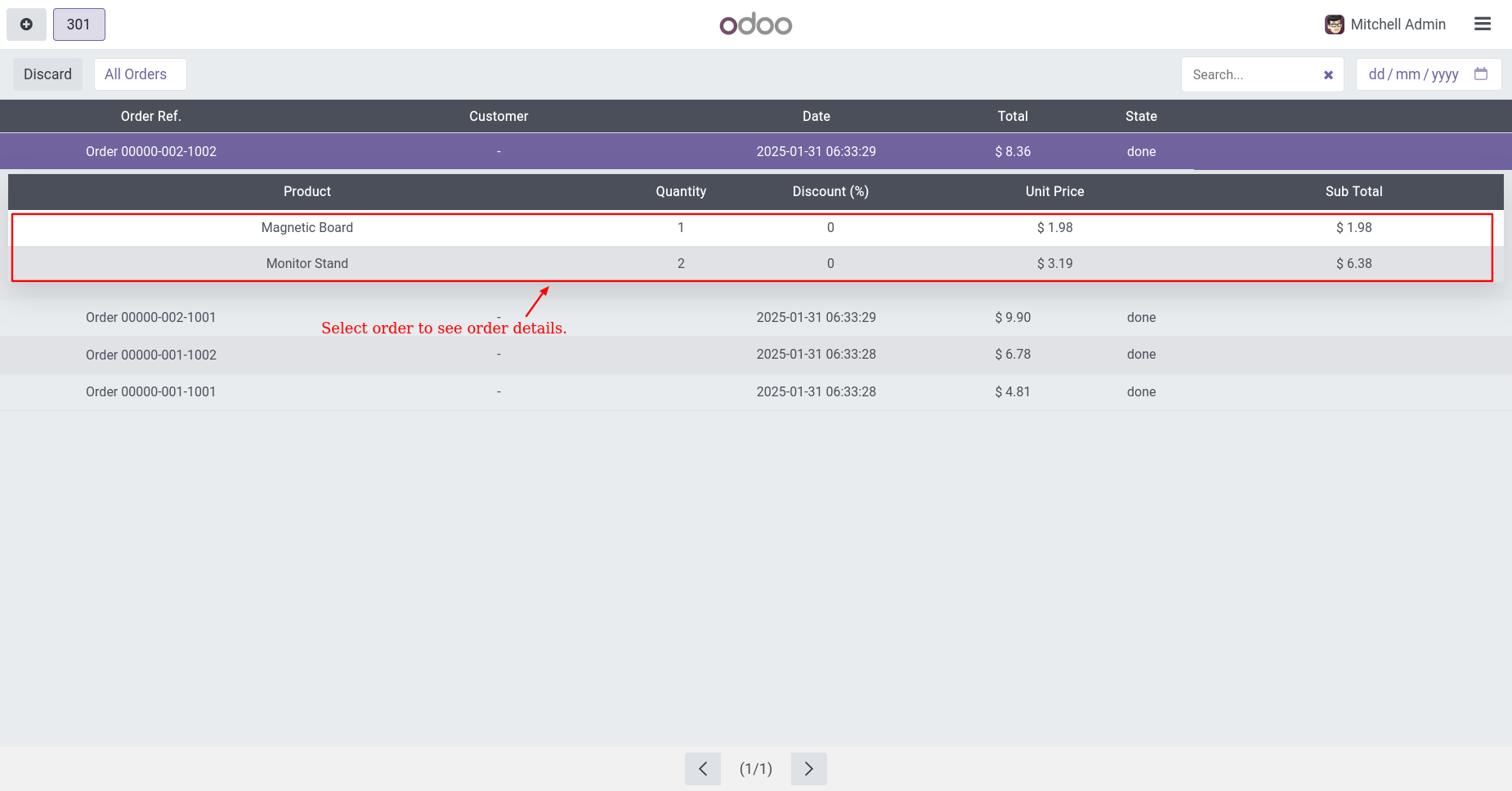
Click on any order in the list you can see the details of that order.
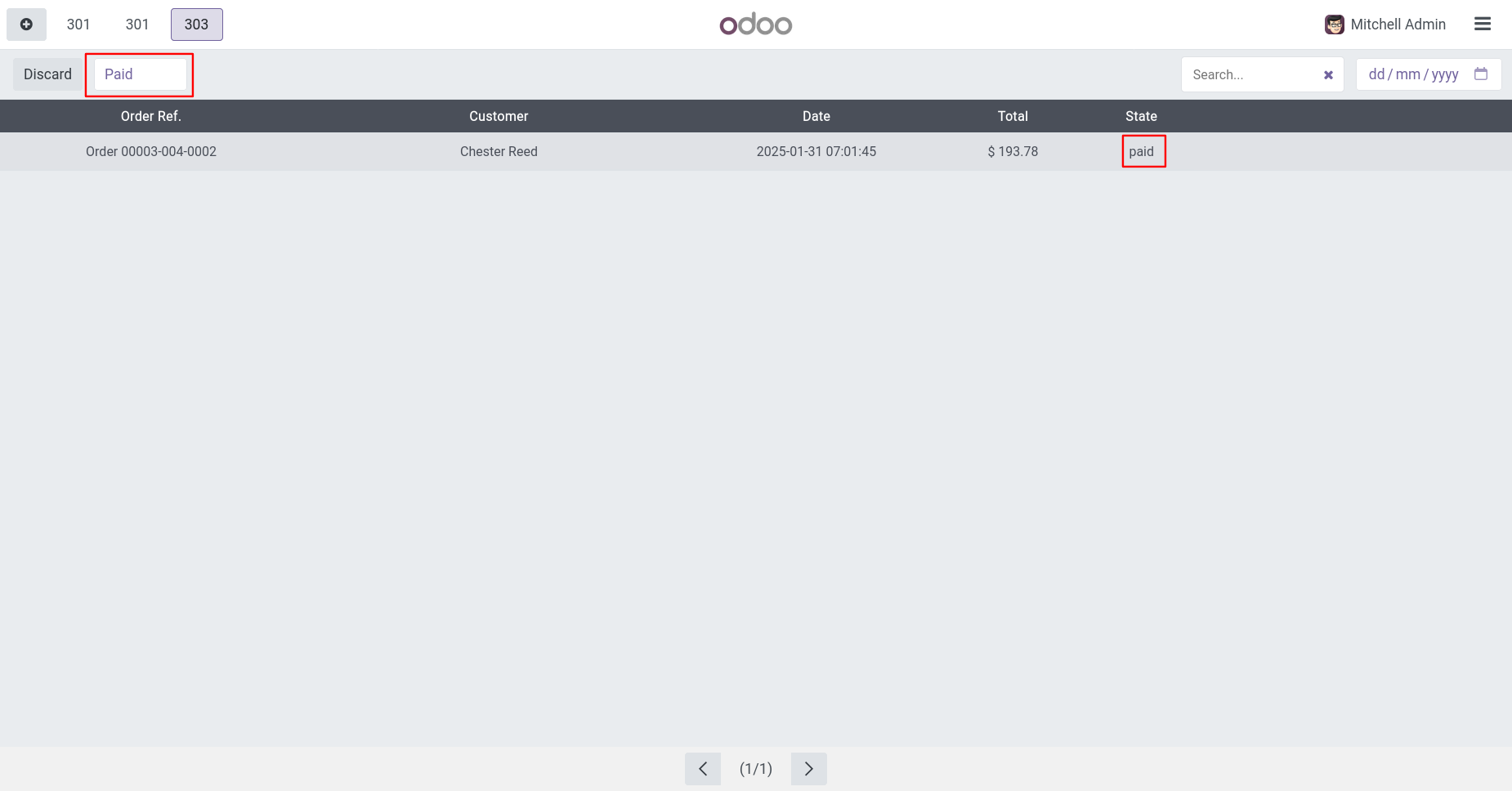
Easy to filter order list. Filter : Paid It display paid orders.
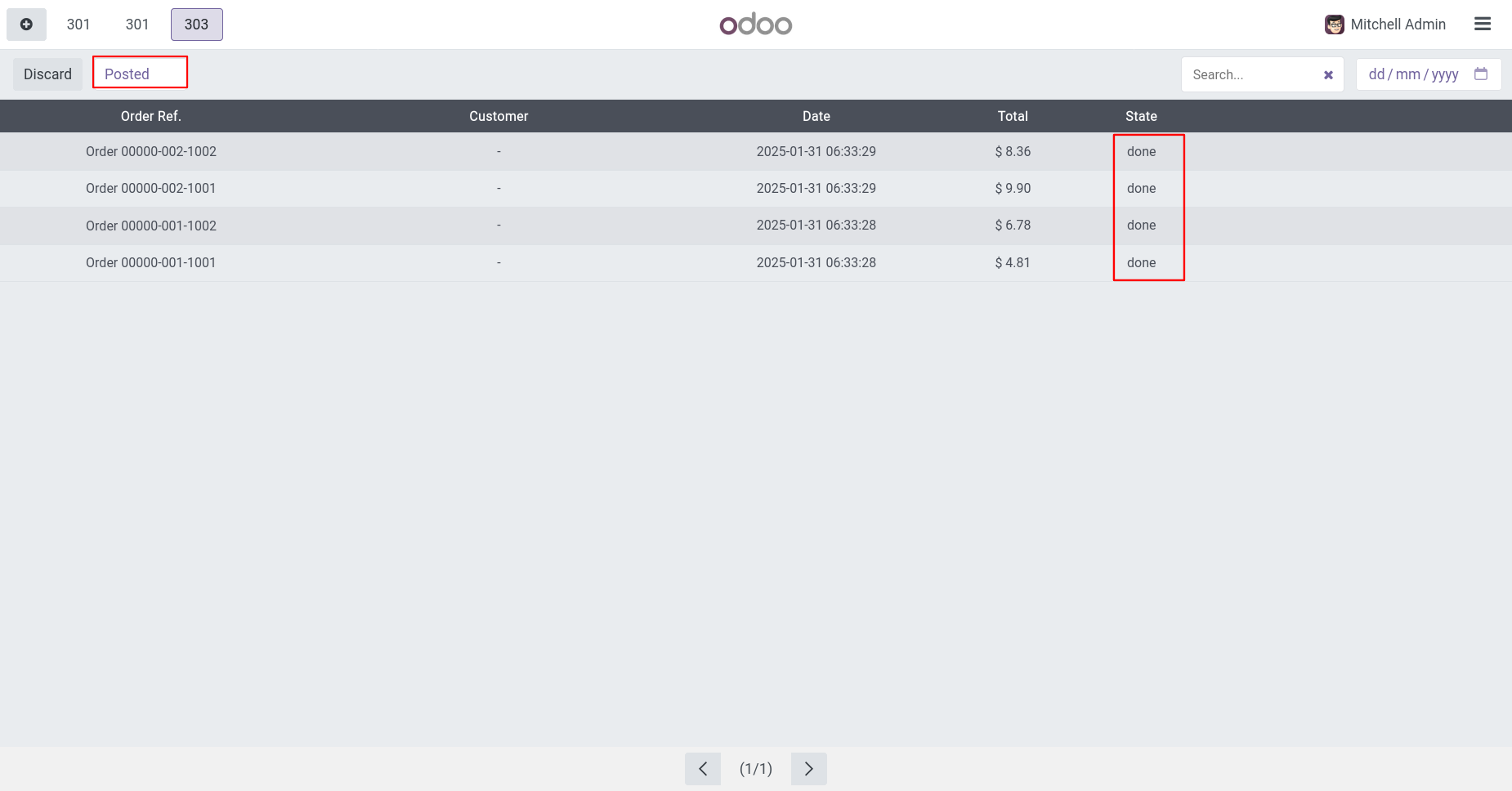
Filter : Posted It display done orders.
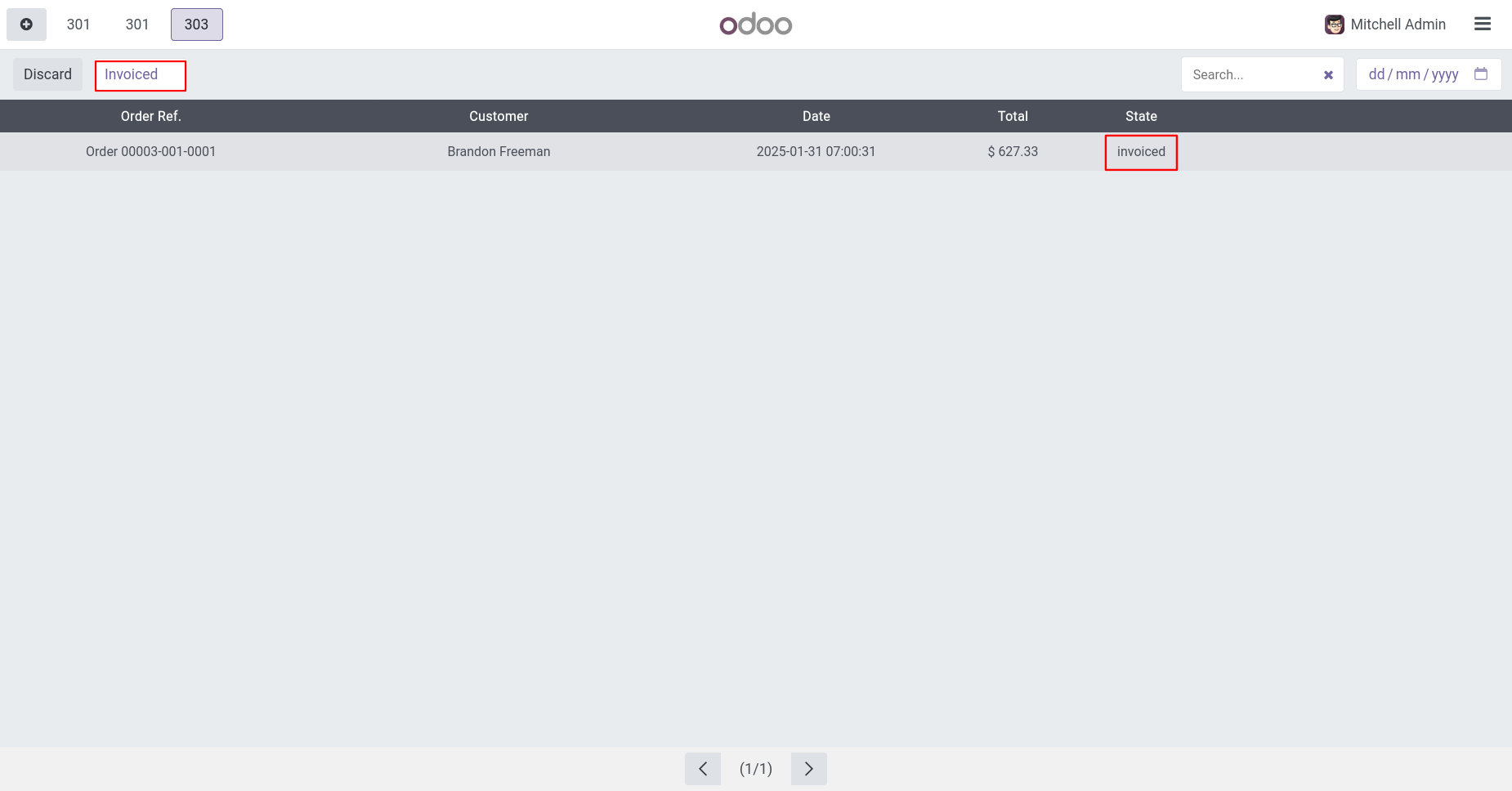
Filter : Invoiced It display Invoiced orders.
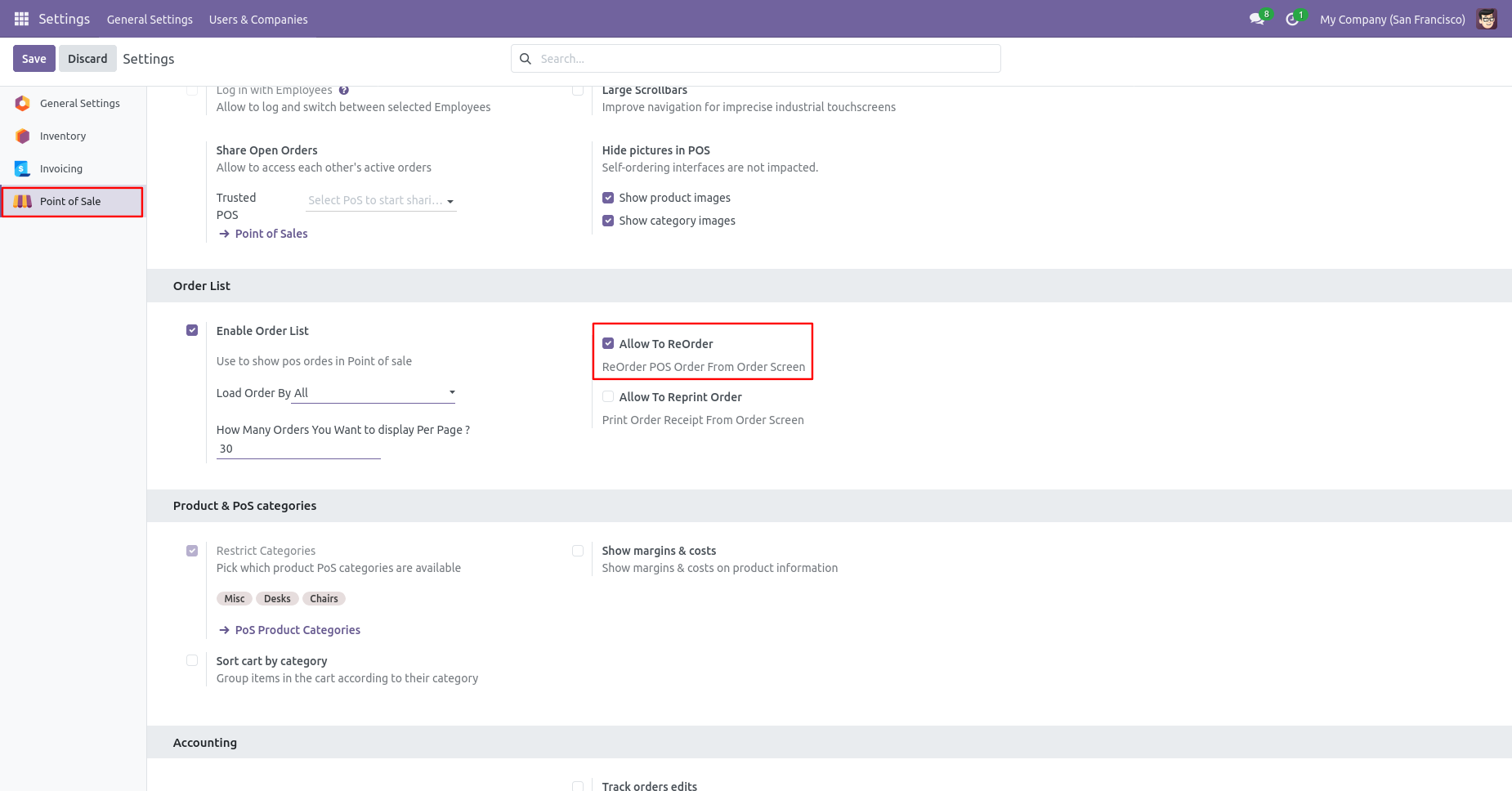
Select 'Allow to Re-Order'. This will enable the feature to reorder the order.
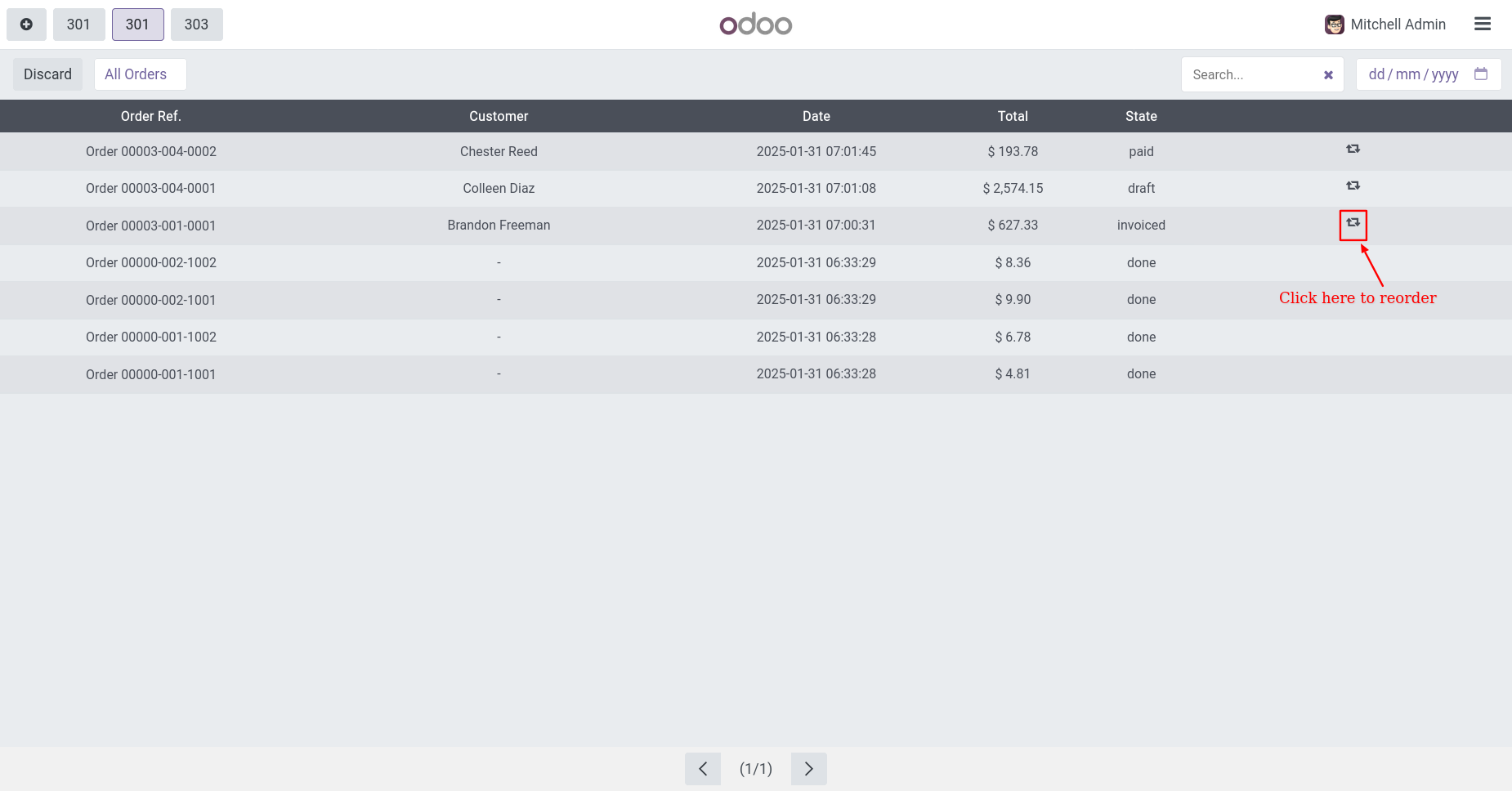
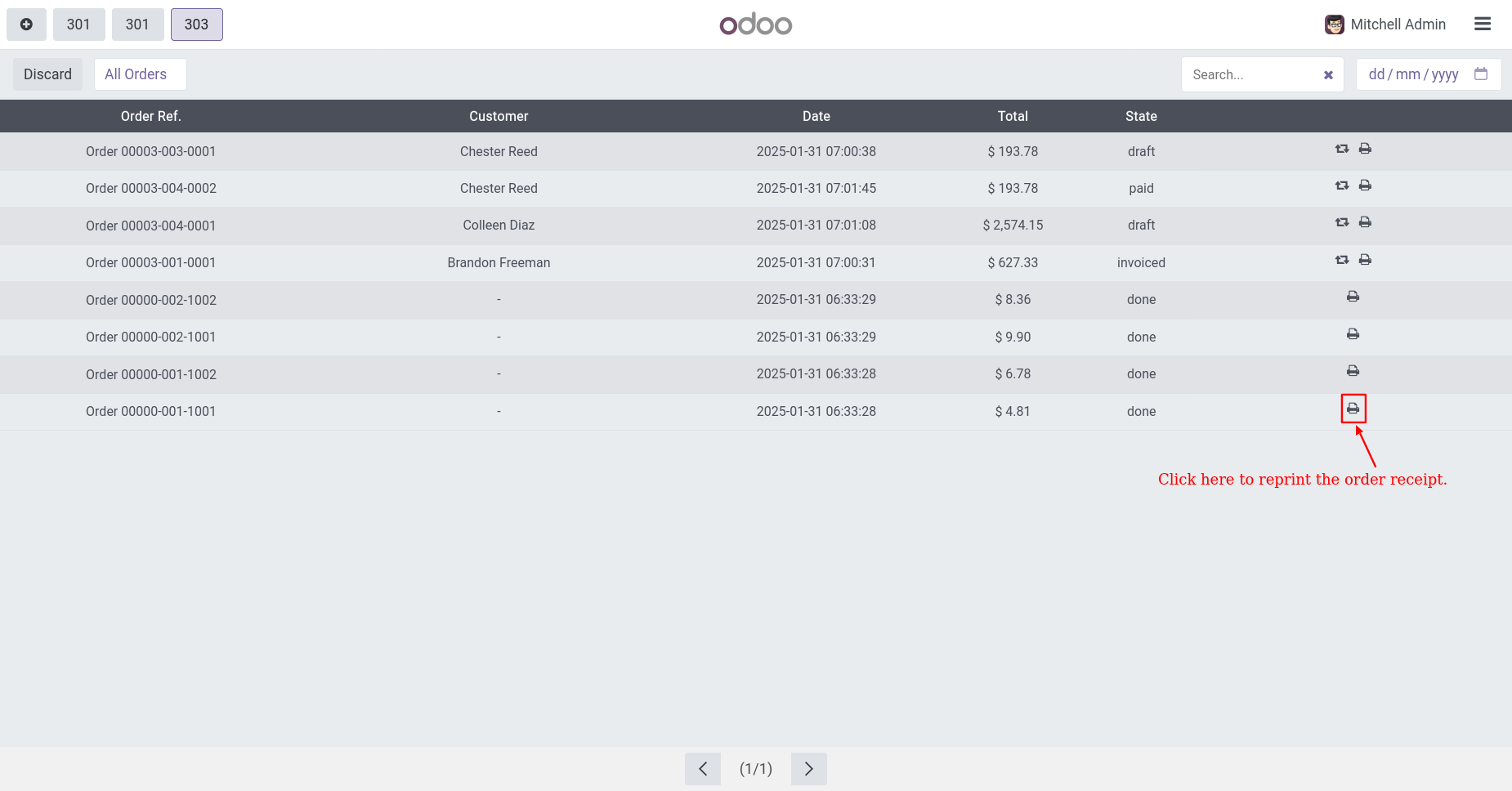
After enable 'Reorder' you can see the button in the order list where you can reorder the order.
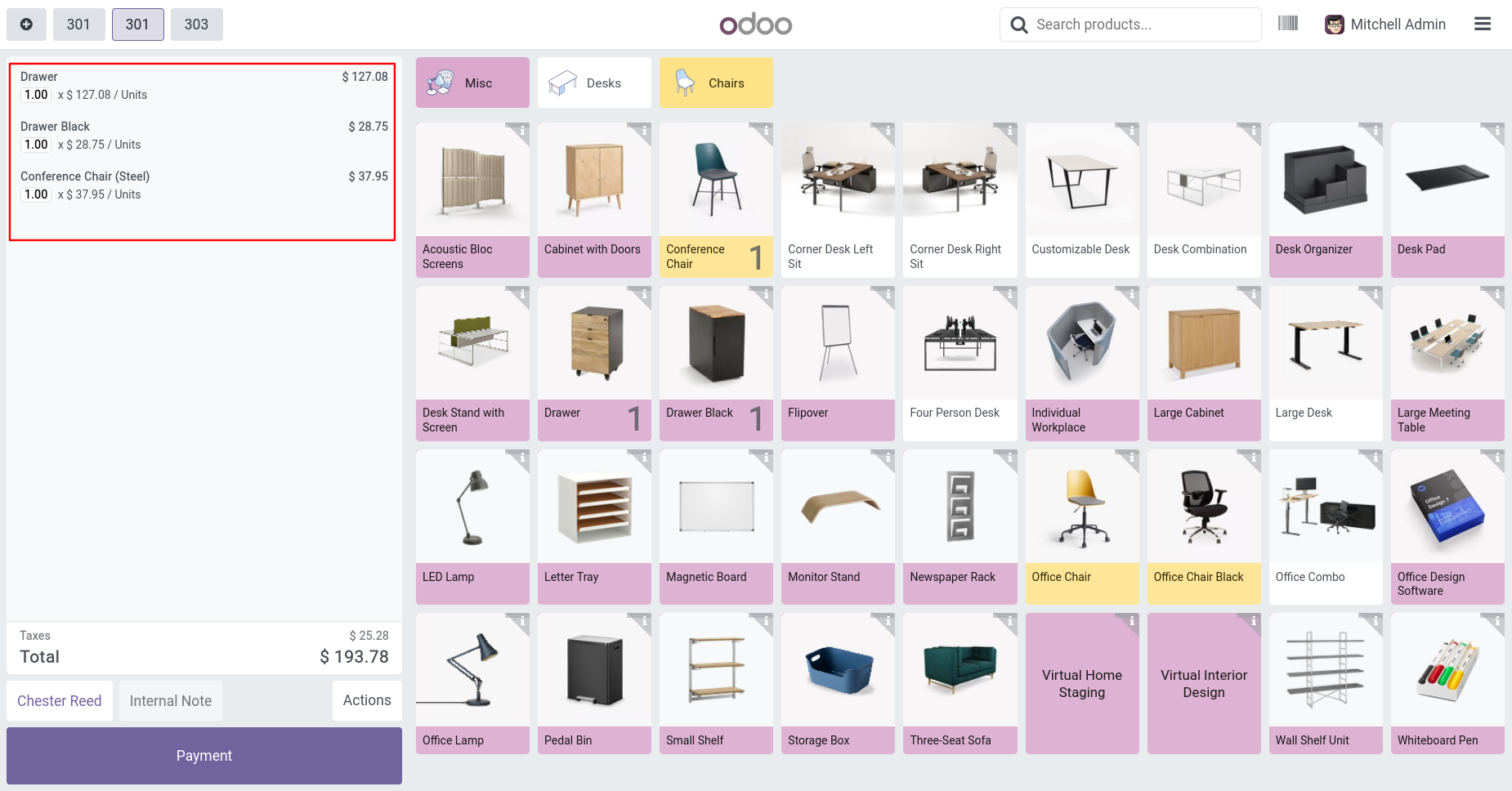
After click on 'Reorder' button you will redirect to POS Order Screen with order products.
Enable 'Allow to Reprint Order'. This feature allows you to reprint previous orders.
After enable 'Allow to Reprint Order' you can see the 'Print' button on order list.
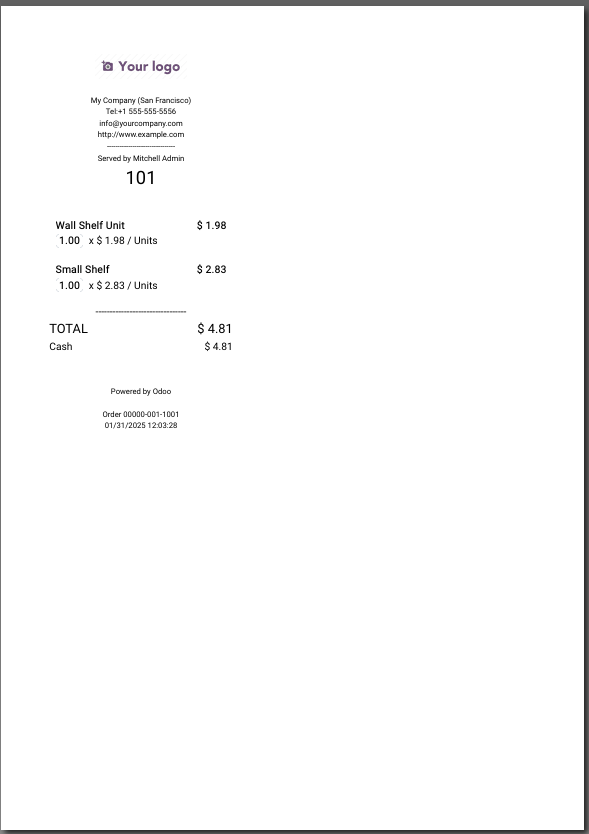
Printed order looks like below.
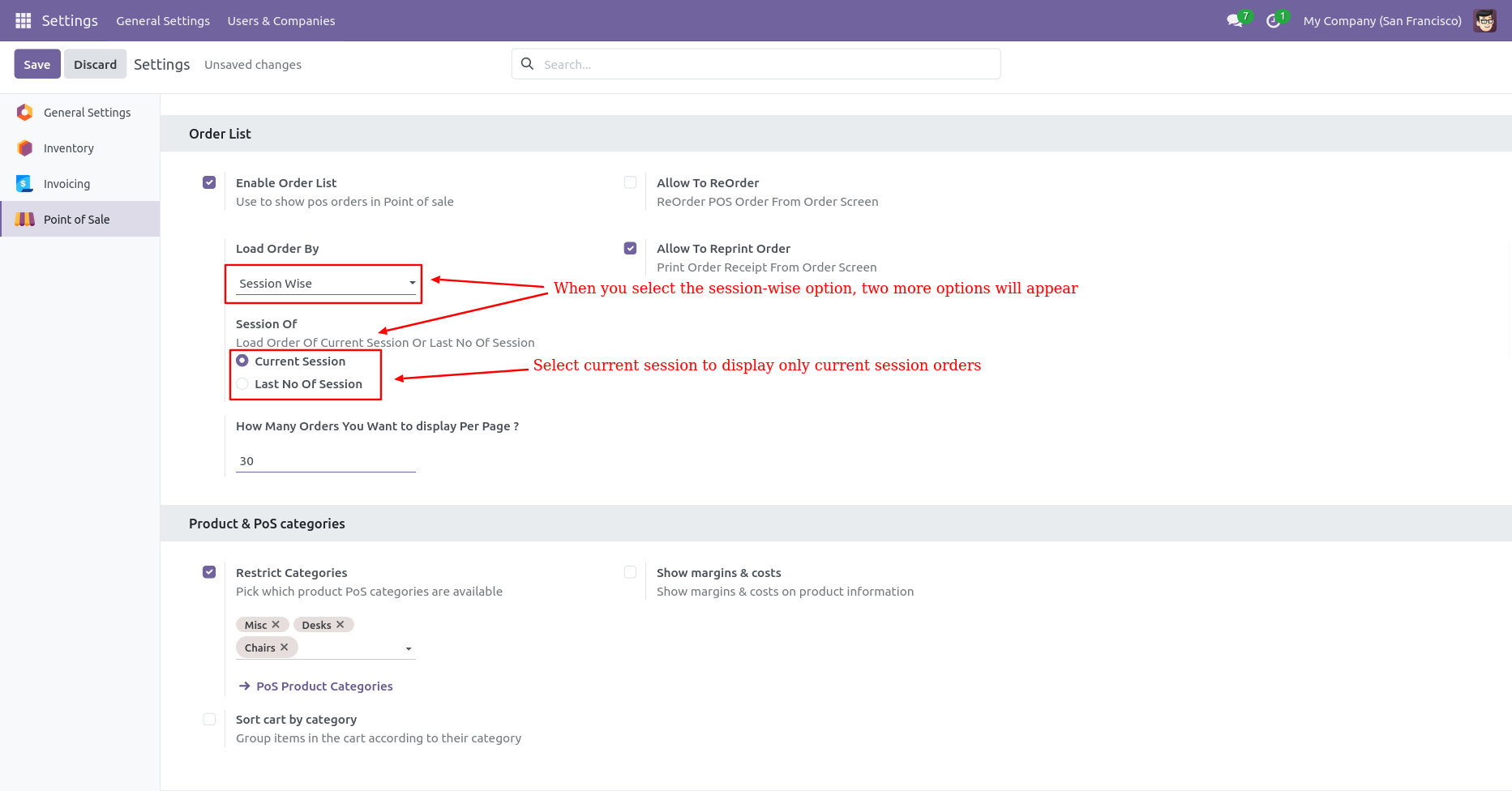
In Pos Order Configuration, If you want orders based on session so select 'Load Order By -
Session Wise'. Here you have two options 1. Current Session and 2. Last No of
Session.
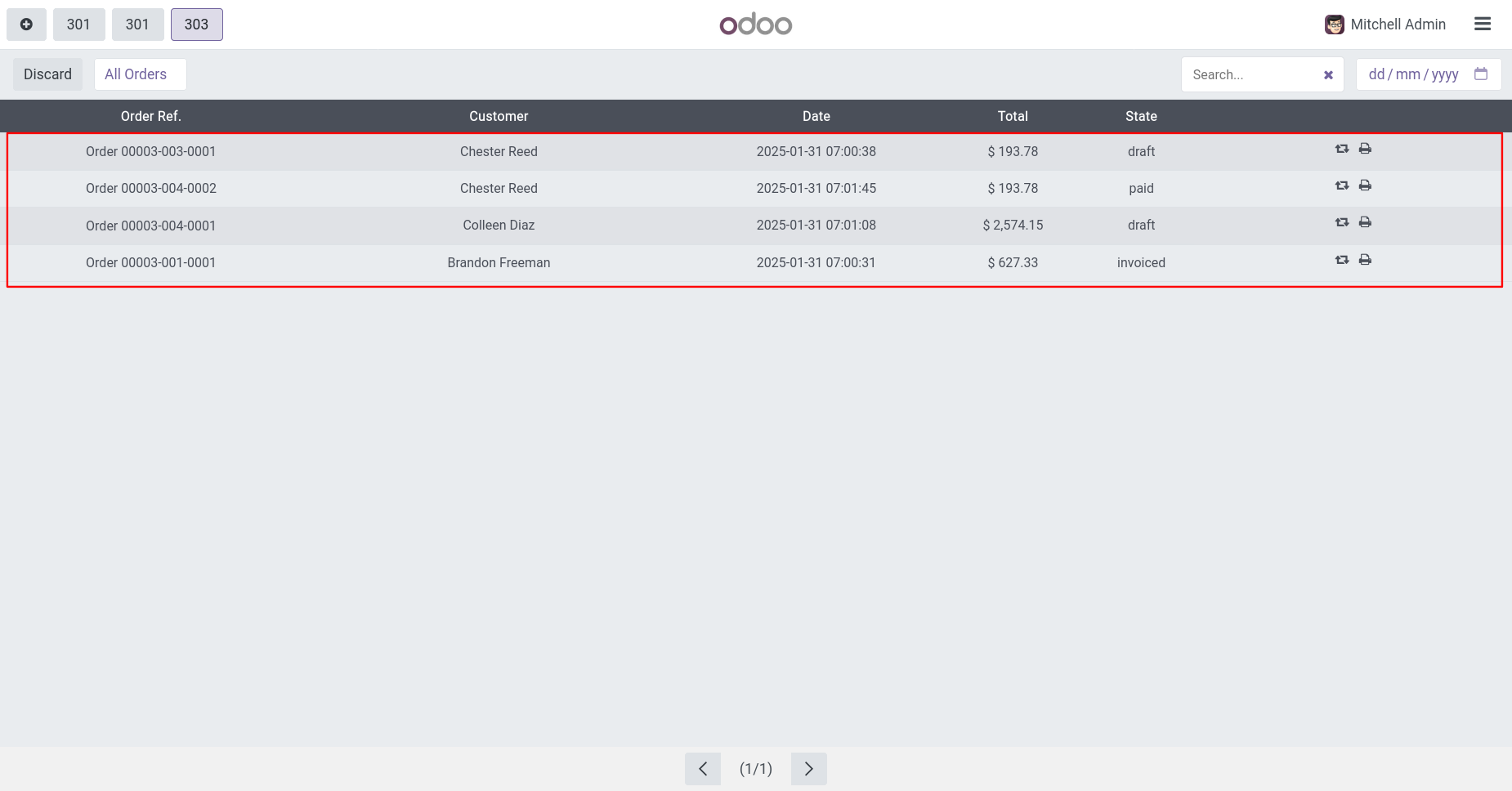
1. Current Day --> You can see only current session orders list.
Here you can see the list of the current session's orders.
2. Last No of Days --> Here you have to define number of last days like 1,2,3 etc...
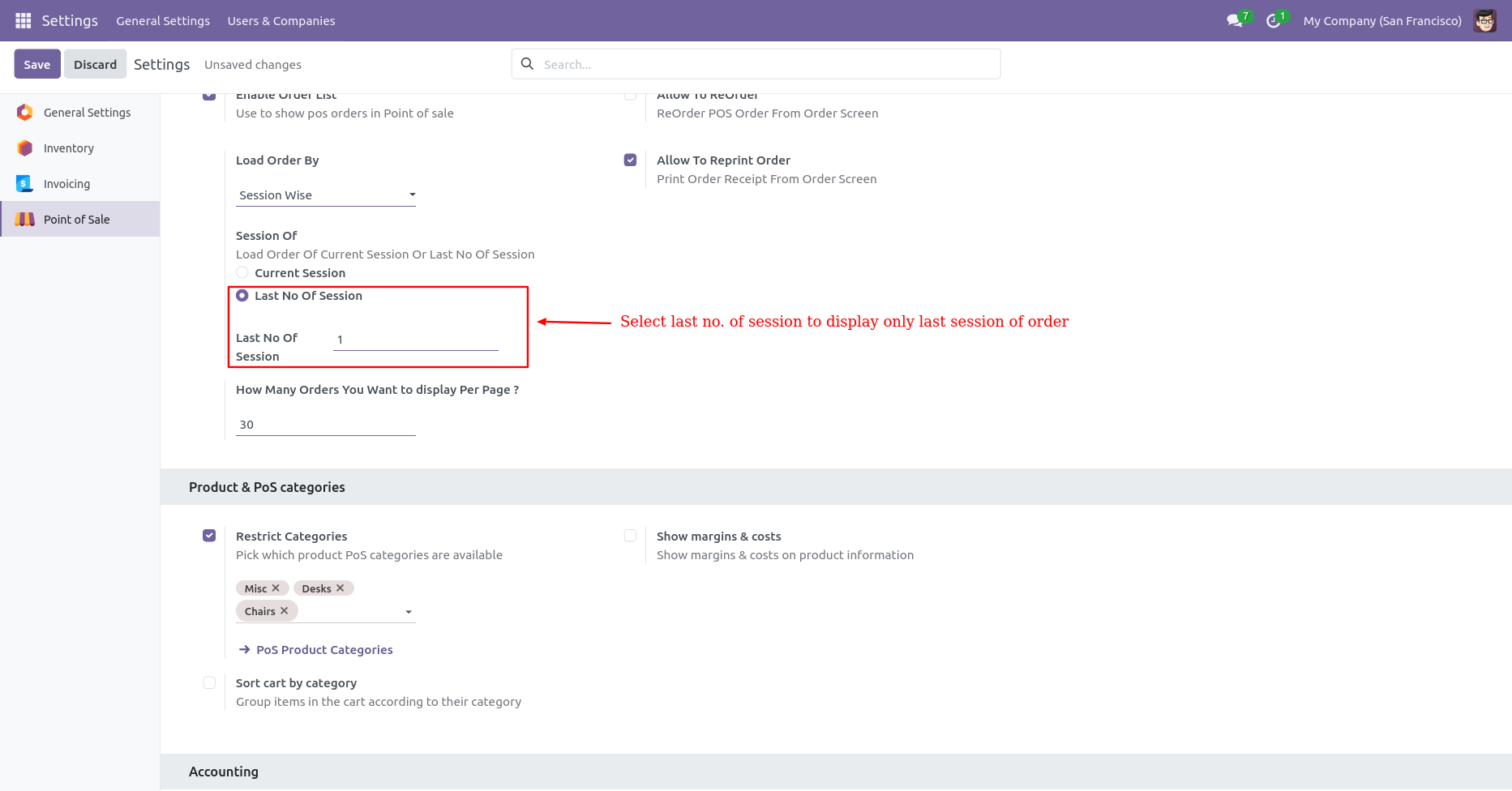
Here you can see the list of the last session's orders.
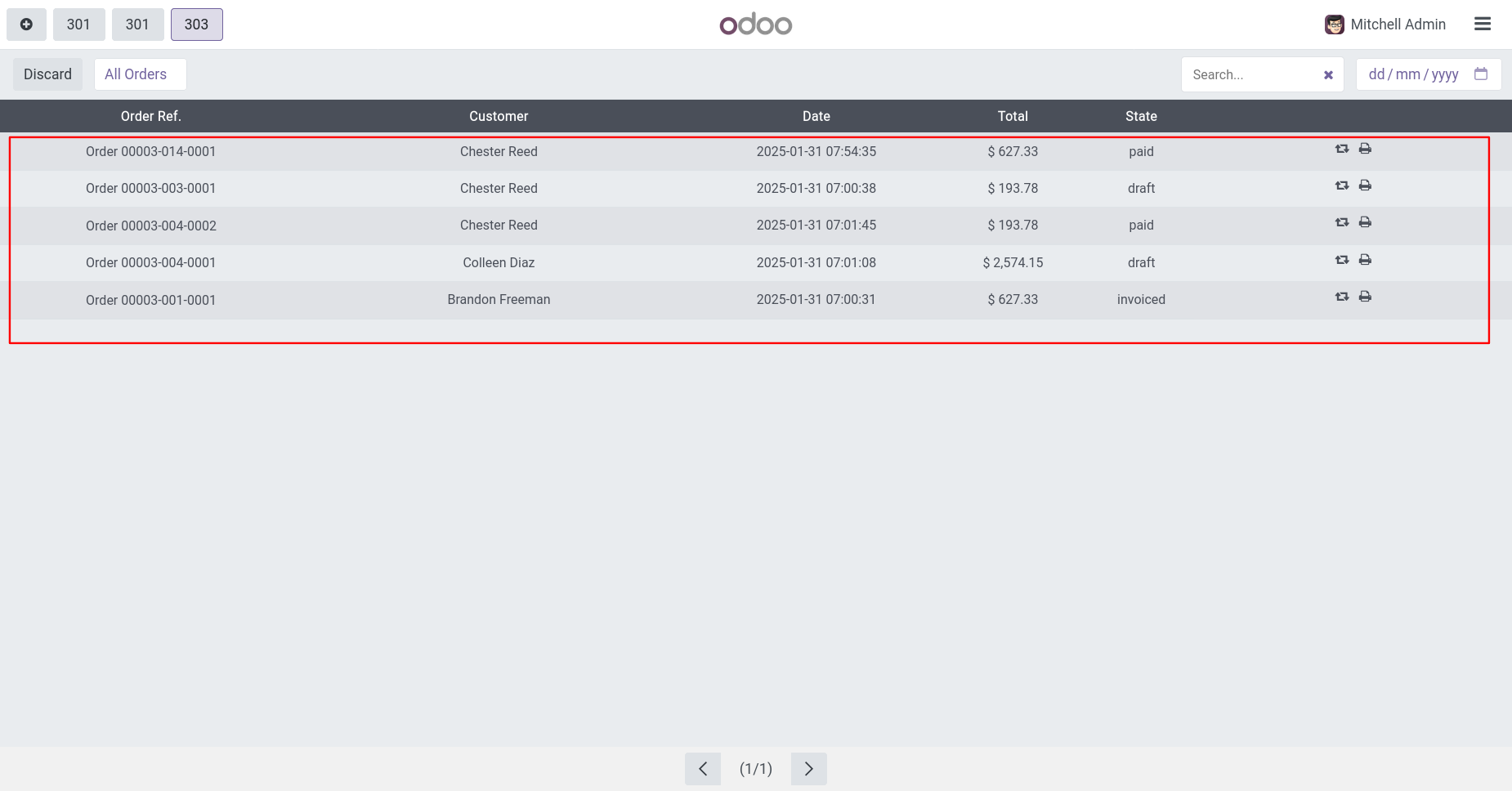
In Pos Order Configuration, If you want orders based on days so select 'Load Order By - Day
Wise'.
Here you have two options 1. Current Session and 2. Last No of Session.
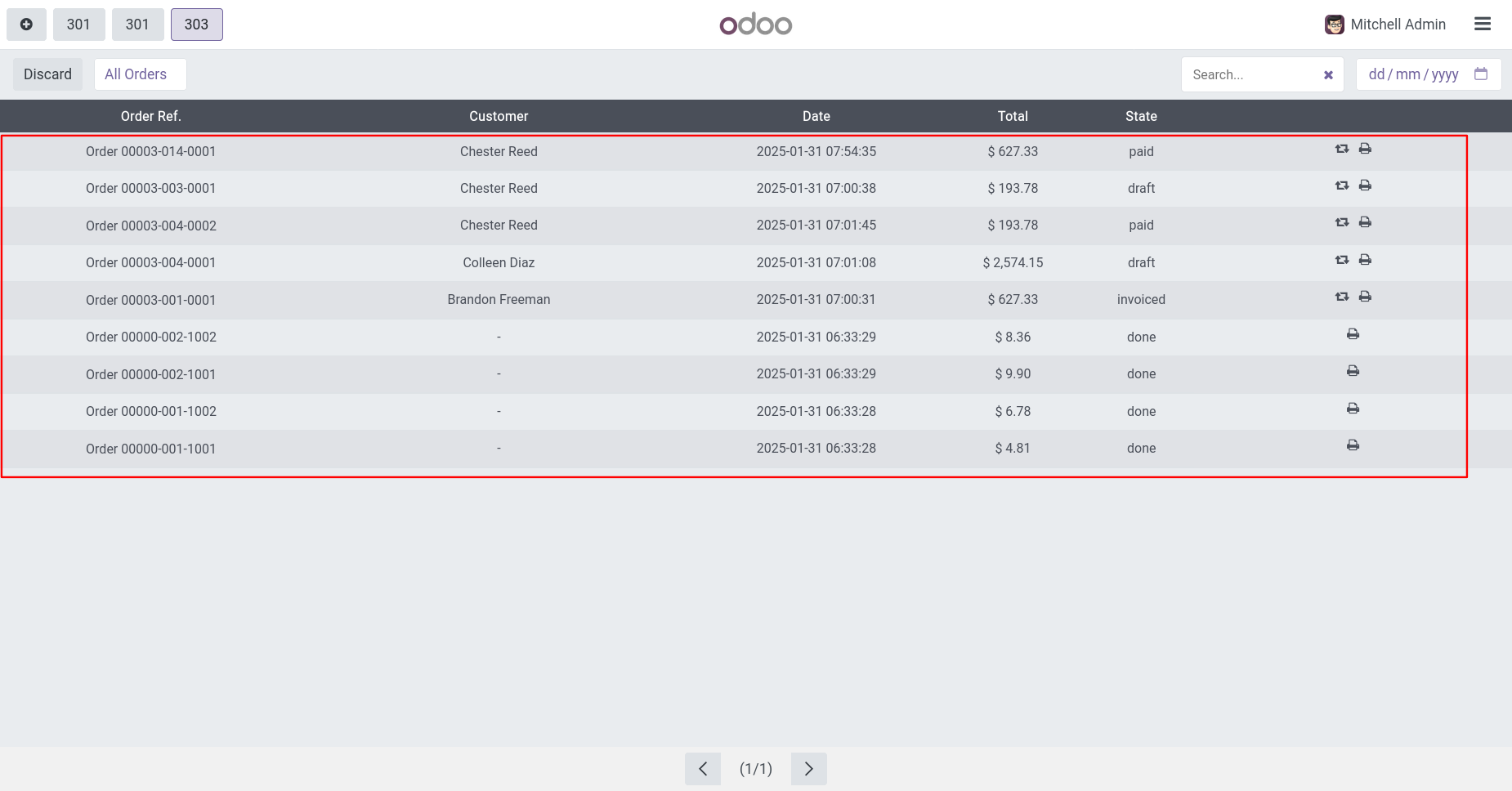
1. Current Session --> You will see the orders of current days only.
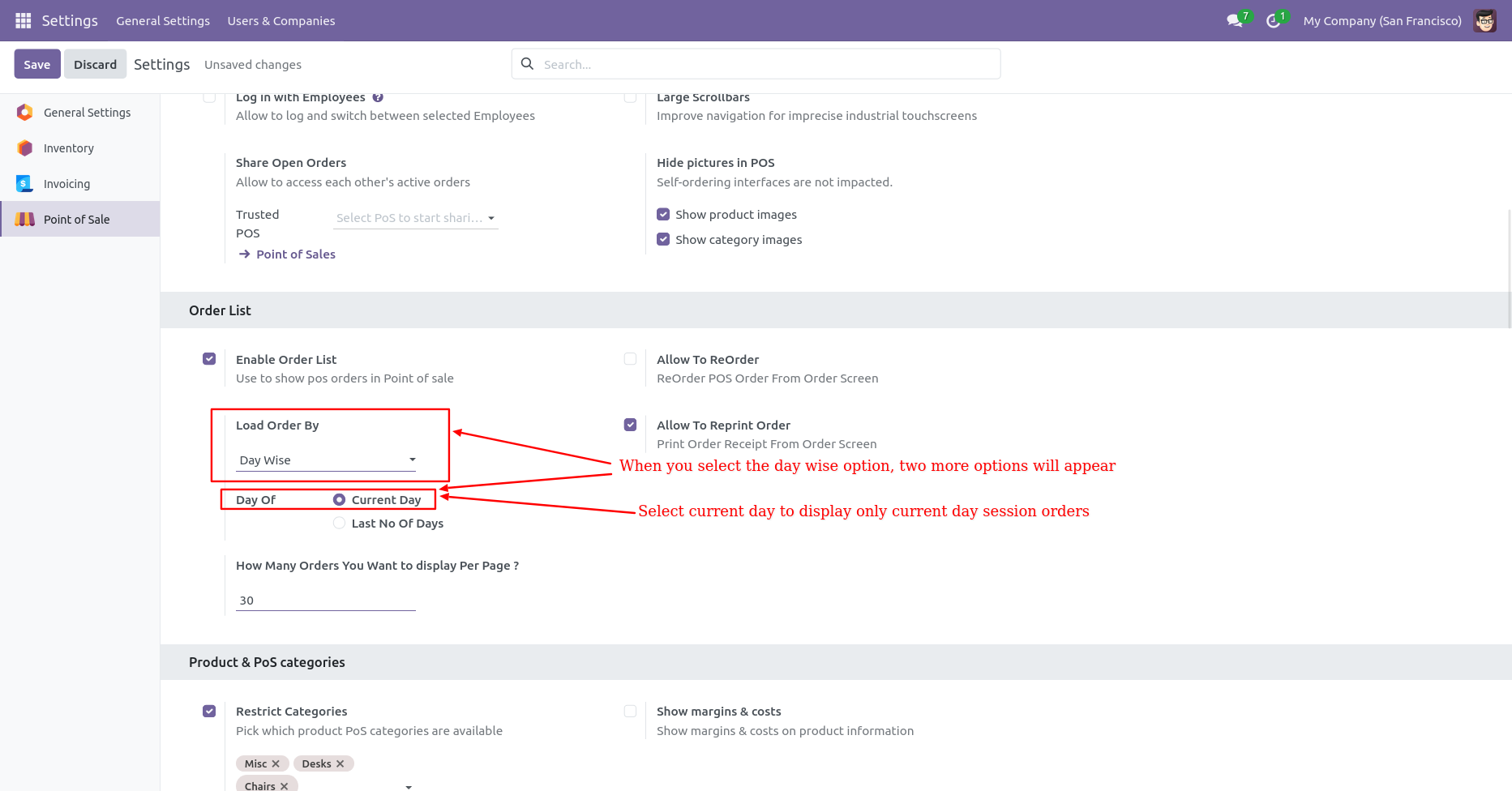
Here you can see the list of the current days orders.
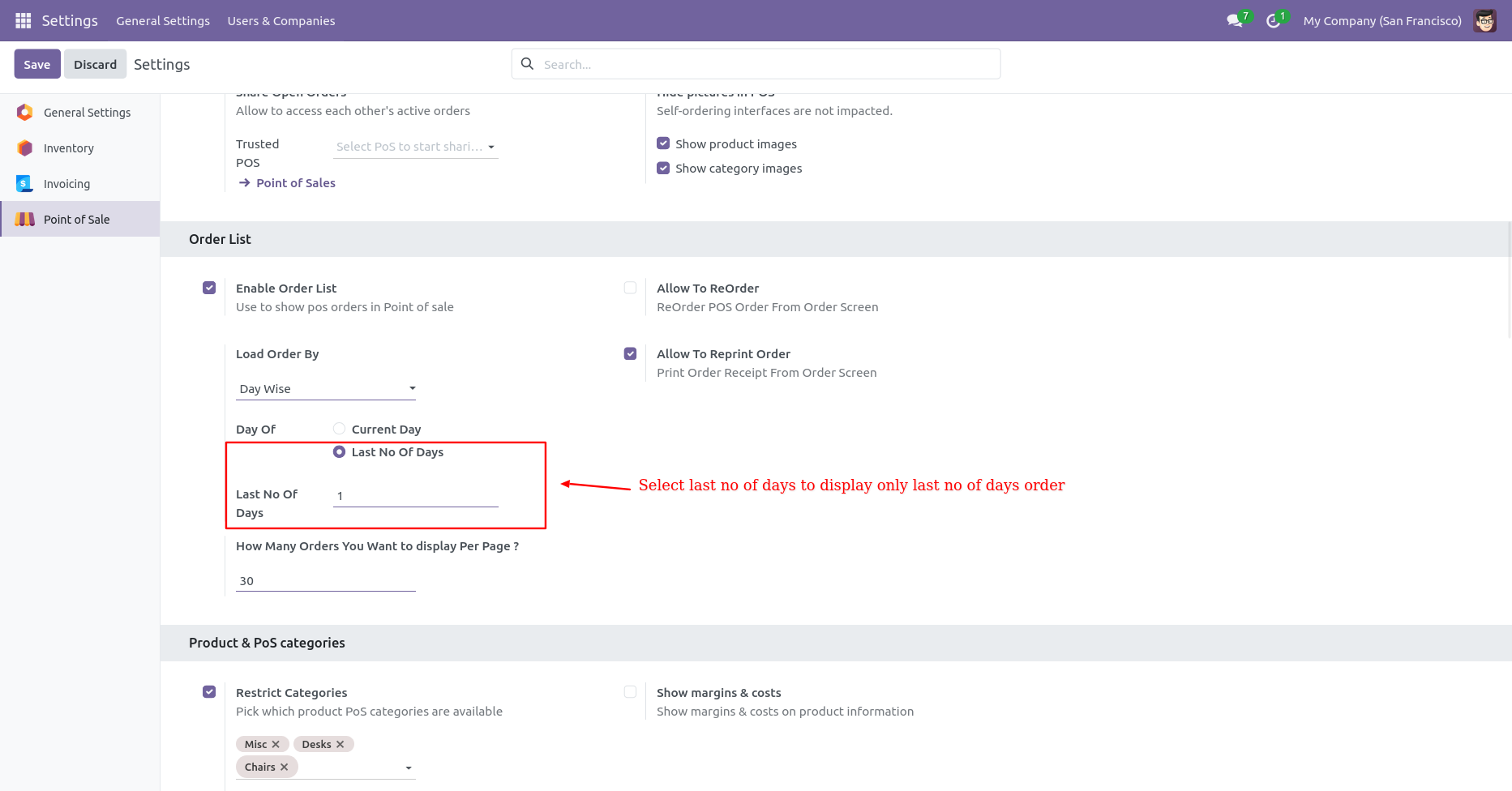
2. Last No of Days --> Here you have to define number of last days like 1,2,3 etc...
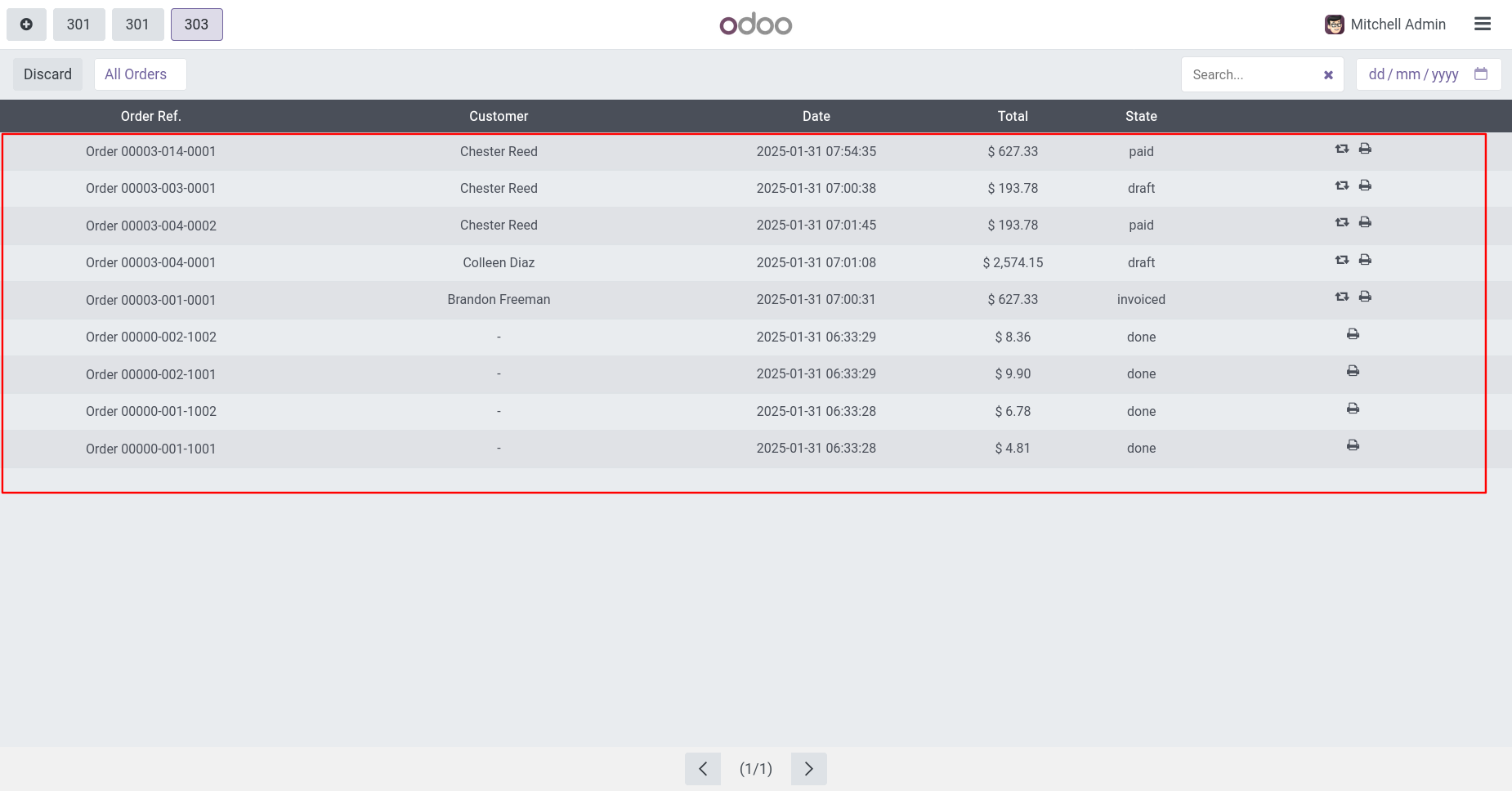
Here you can see the list of the last days's orders.
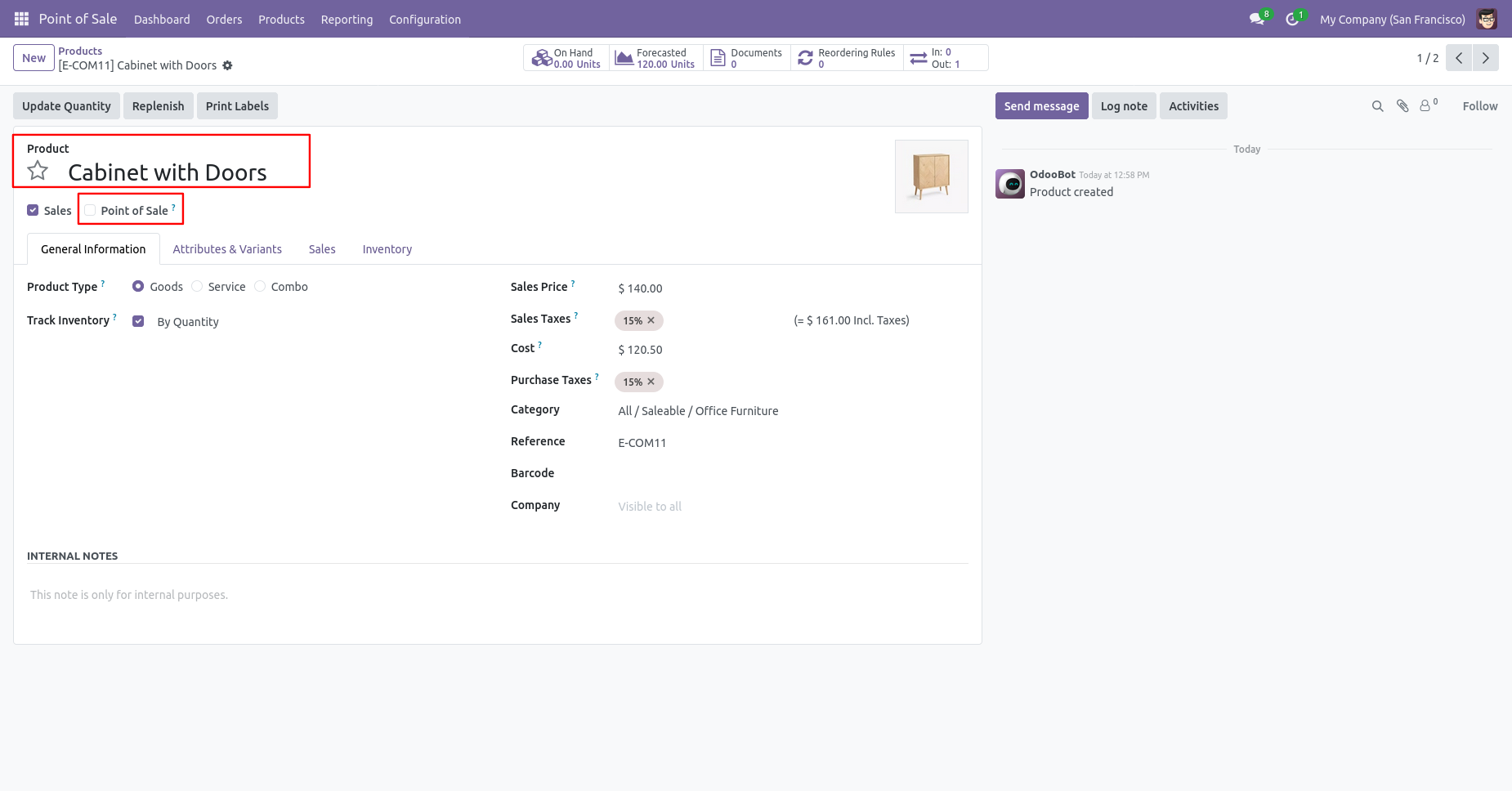
Go to the product and unable 'Point of Sale' boolean.
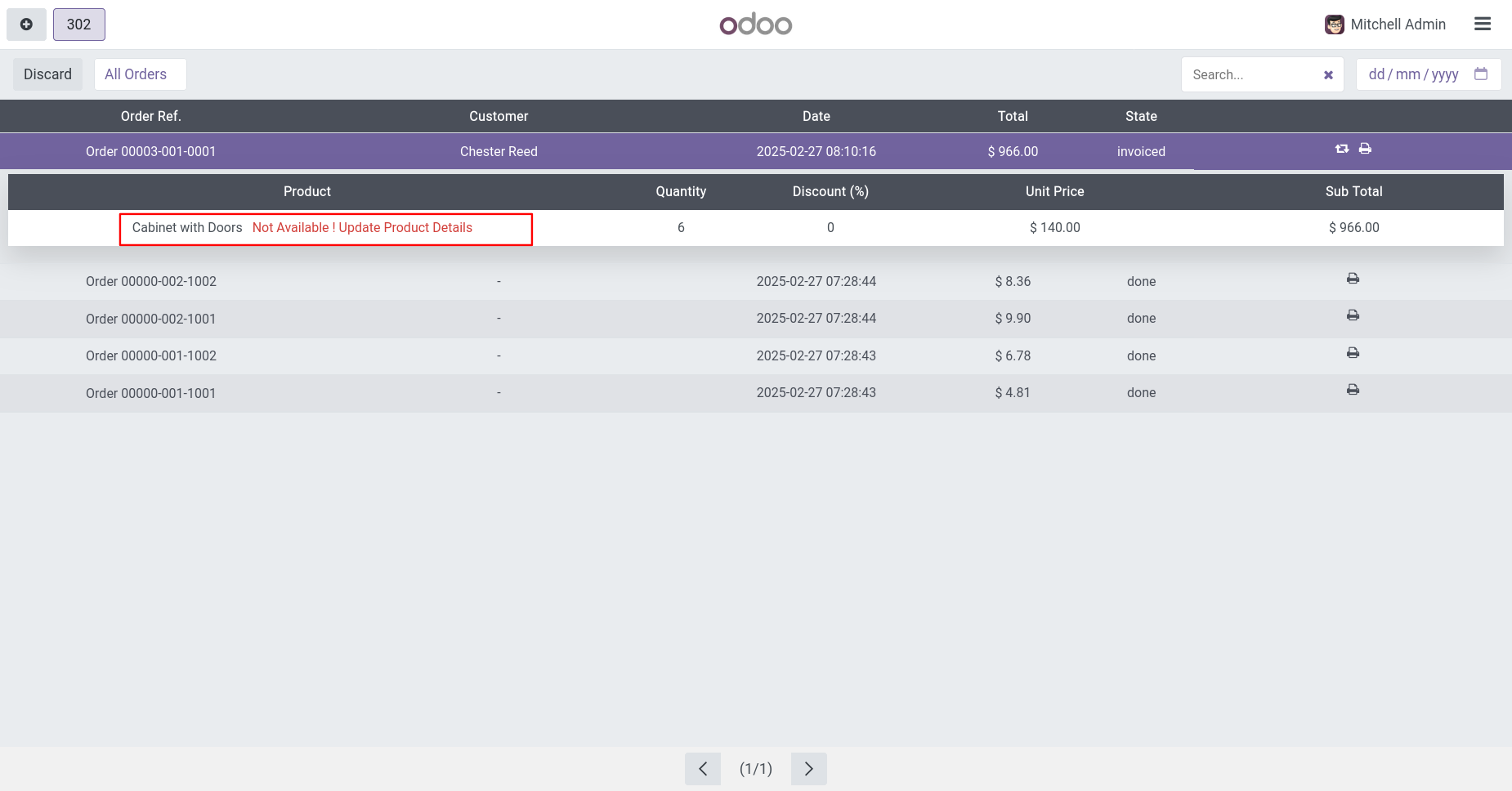
If an order is created in past and currently that product is not available then it displays the message like below in the order screen.
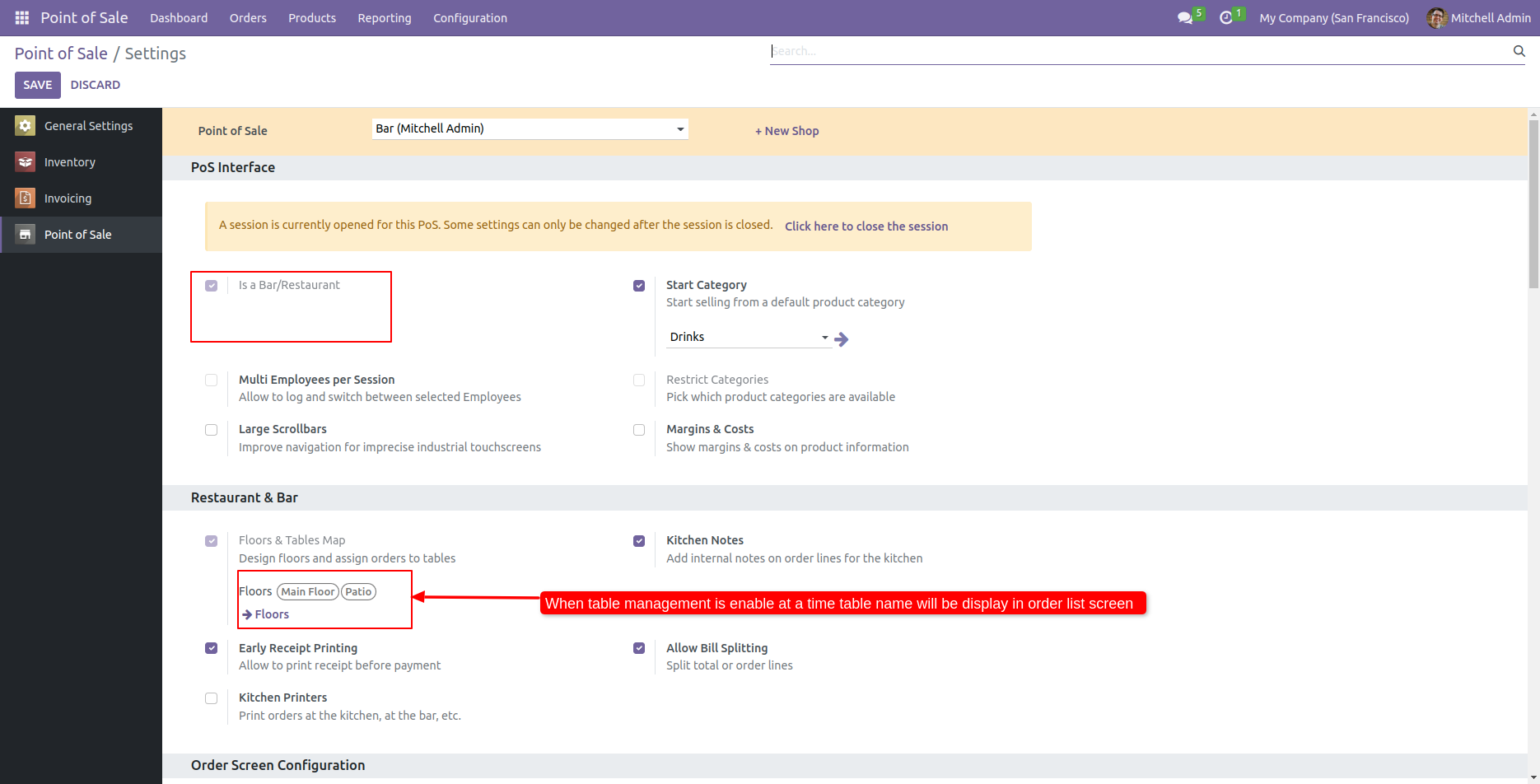
Go to the pos shop setting => Enable Table Management.
'Order History' button in Restaurant POS Order Screen.
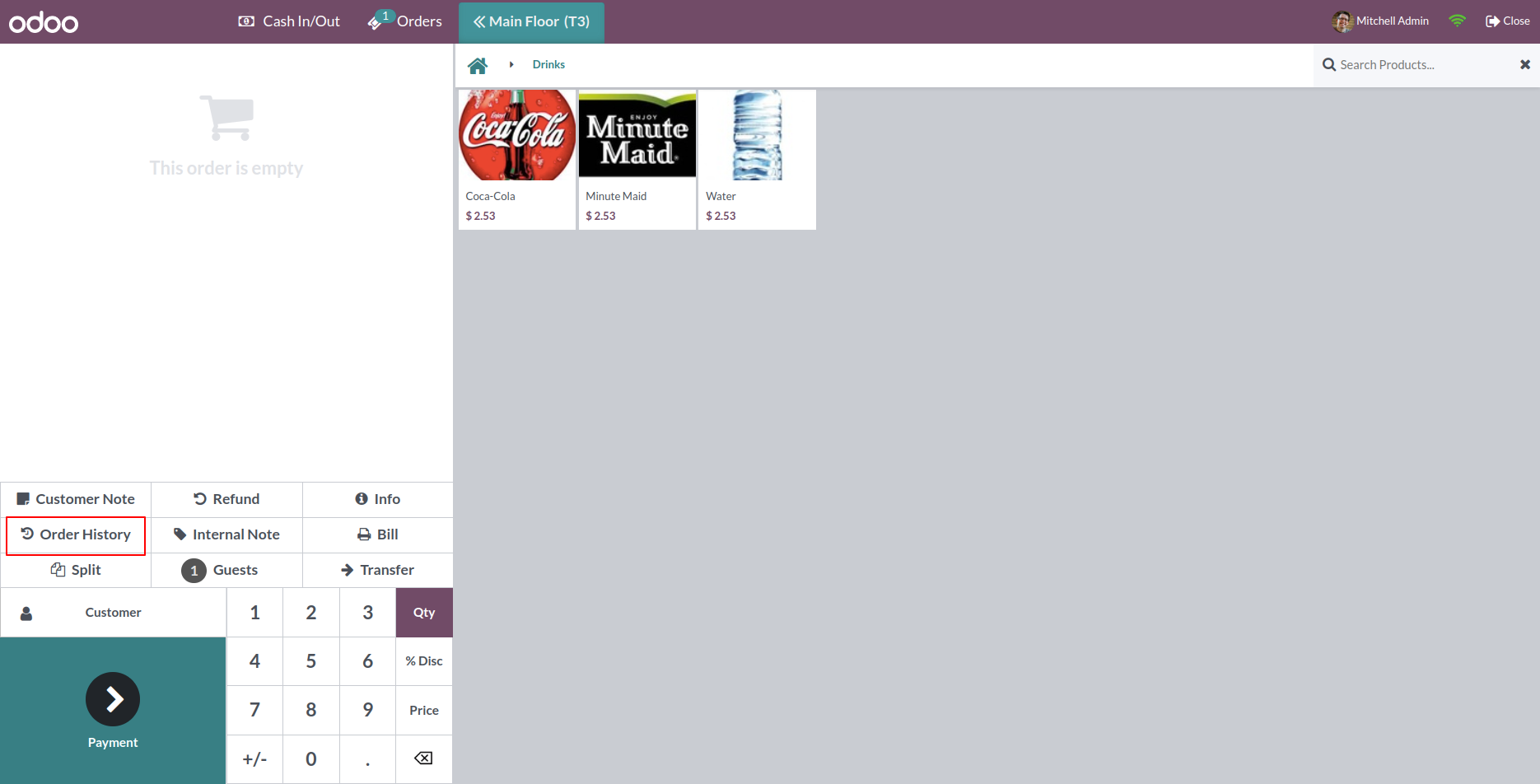
Table number in order.
Version 20.0.1.0.0 | Released on : 15th September 2026
- Yes, this app works perfectly with Odoo Enterprise (Odoo.sh & Premise) as well as Community.
- No, this application is not compatible with odoo.com(odoo saas/Odoo Online)
- Yes, this app works perfectly when pos offline.
- Yes, to test this module, please contact us at sales@softhealer.com.
- Please contact us at sales@softhealer.comto request customization.
- Yes, we provide free support for 365 days from the date of purchase.
- Yes, you will receive lifetime free updates for the version of the module you purchased.
- No, there is no need to install any additional libraries.
- Yes, for version 12 and above, you need to purchase the module separately for each version you intend to use.
- No, exchanges or refunds are not allowed. Please make sure to select the correct version before purchasing.
- You can contact us at support@softhealer.com for language translation support. We use Google Translator tools to provide translations in multiple languages, so the accuracy may vary. We welcome your suggestions to help improve translations.
Discover Our Latest Apps