












POS Merge Orders

The Point of Sale Merge Order module streamlines your POS operations by allowing you to merge multiple
orders into a single order with ease. From the backend, users can select multiple POS orders and combine
them in just one click, automatically merging all products and payments into one order. The module offers
flexible options to either create a brand-new order or merge selected orders into an existing one, while
safely removing old records to maintain accurate inventory levels and accounting data.

Features

Merge Multiple POS Orders
Quickly merge two or more POS orders into a single order from the POS interface or backend with just a few clicks.

Create a New Order & Cancel Originals
Create a new POS order with all products and payments, while original orders are automatically cancelled for audit and tracking.
Smart Merge Validation
Built-in validation prevents refund orders from being merged with regular sales orders, ensuring data accuracy.

Merge into an Existing Master Order
Merge selected orders into a chosen master order and delete remaining orders to keep only one final POS order.

Merge into Master Order & Cancel Others
Select a master order and merge all orders into it while cancelling remaining orders to preserve history.

Automatic Inventory & Accounting Updates
Inventory quantities and accounting entries are updated automatically whenever orders are merged, cancelled, or deleted.

Create New Order & Delete Originals
Create a new merged order and permanently remove original orders to keep the database clean and optimized.

Flexible Merge Methods
Choose how orders are merged and decide whether original orders are cancelled or deleted.

Merge Orders with Different Customers
Merge POS orders from the same or different customers with full control over the final customer assignment.

Automatic Merge of Order Details
All products, quantities, and payment details are automatically consolidated into the final merged POS order.
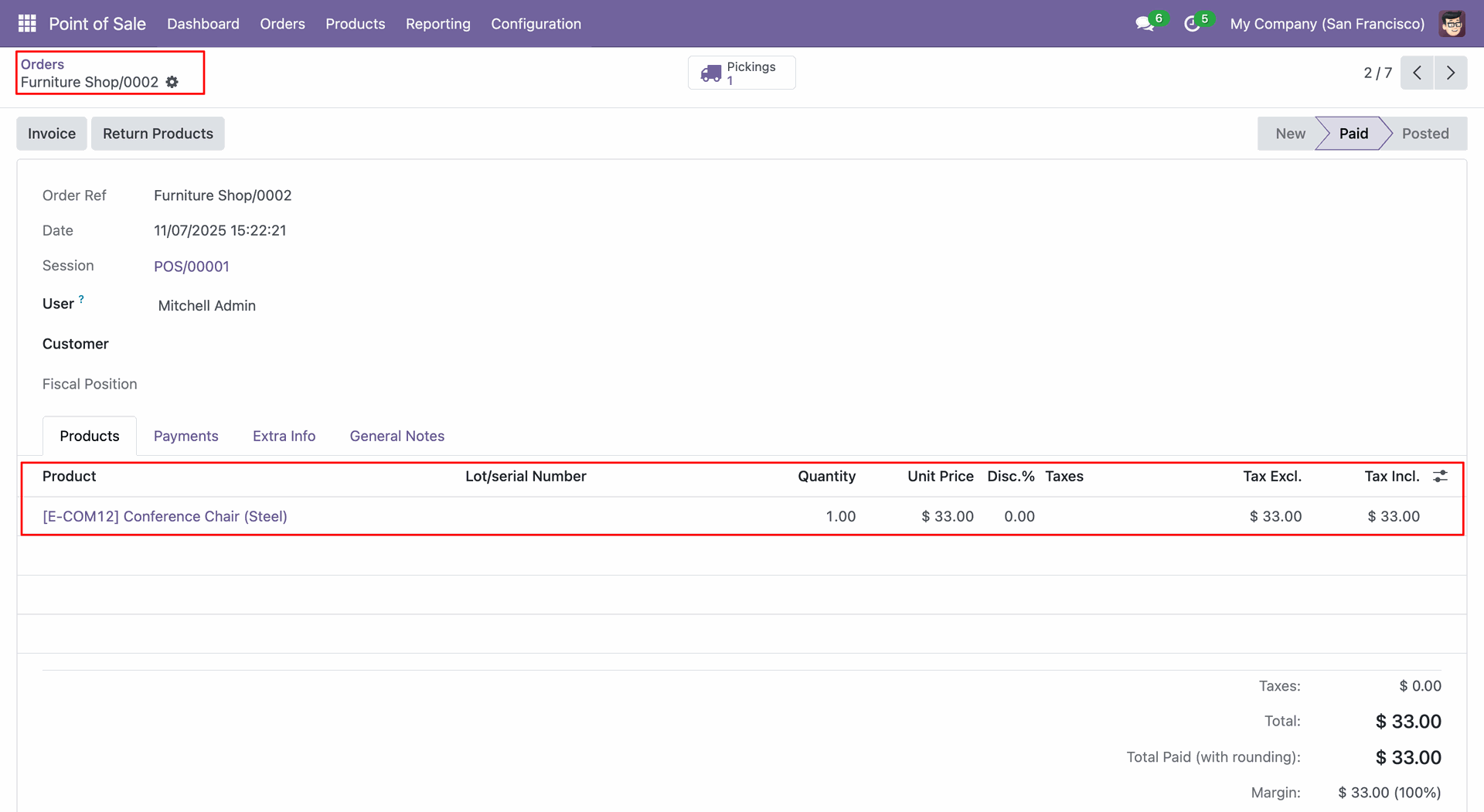
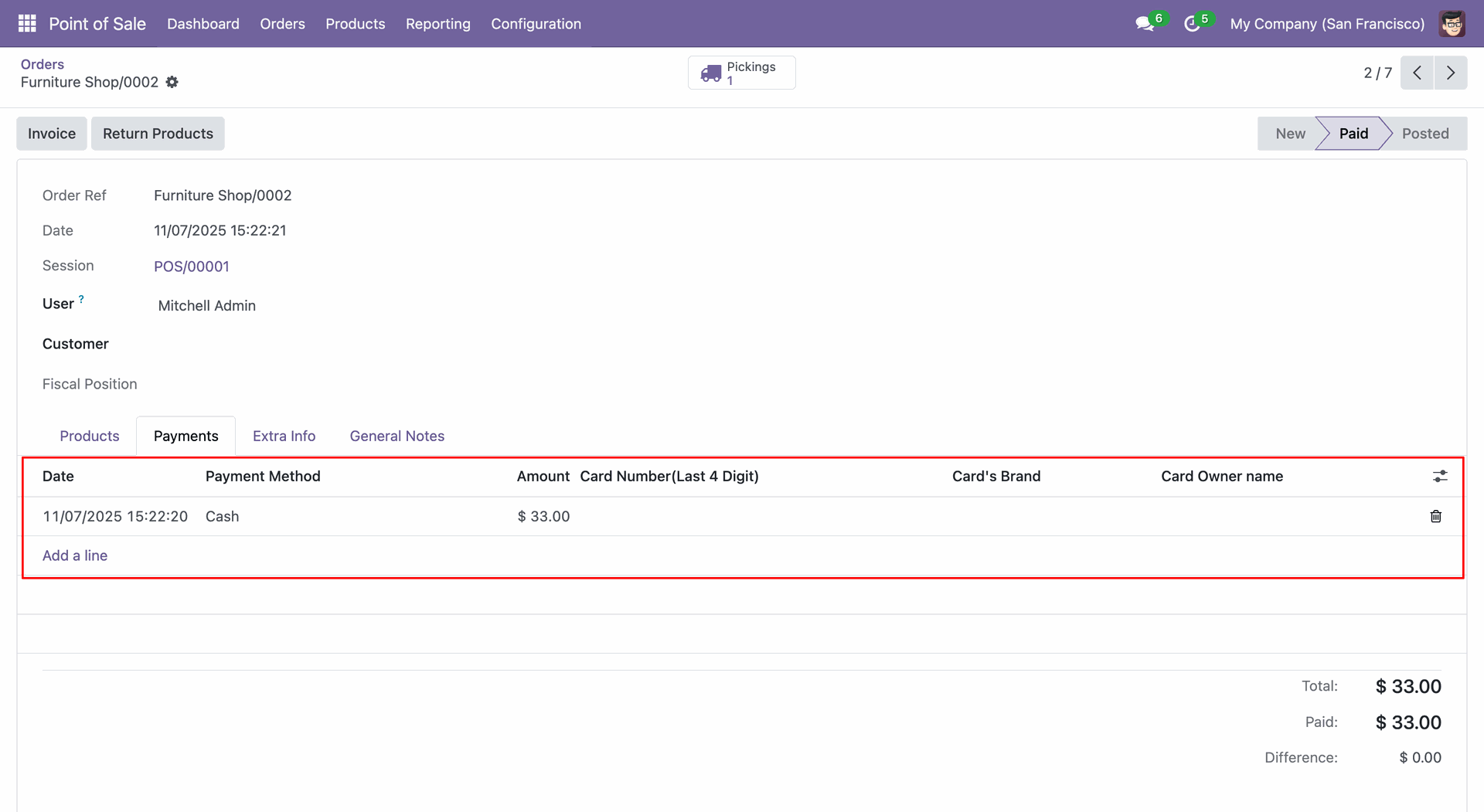
Create a POS order (0002).
Create a POS order (0003).
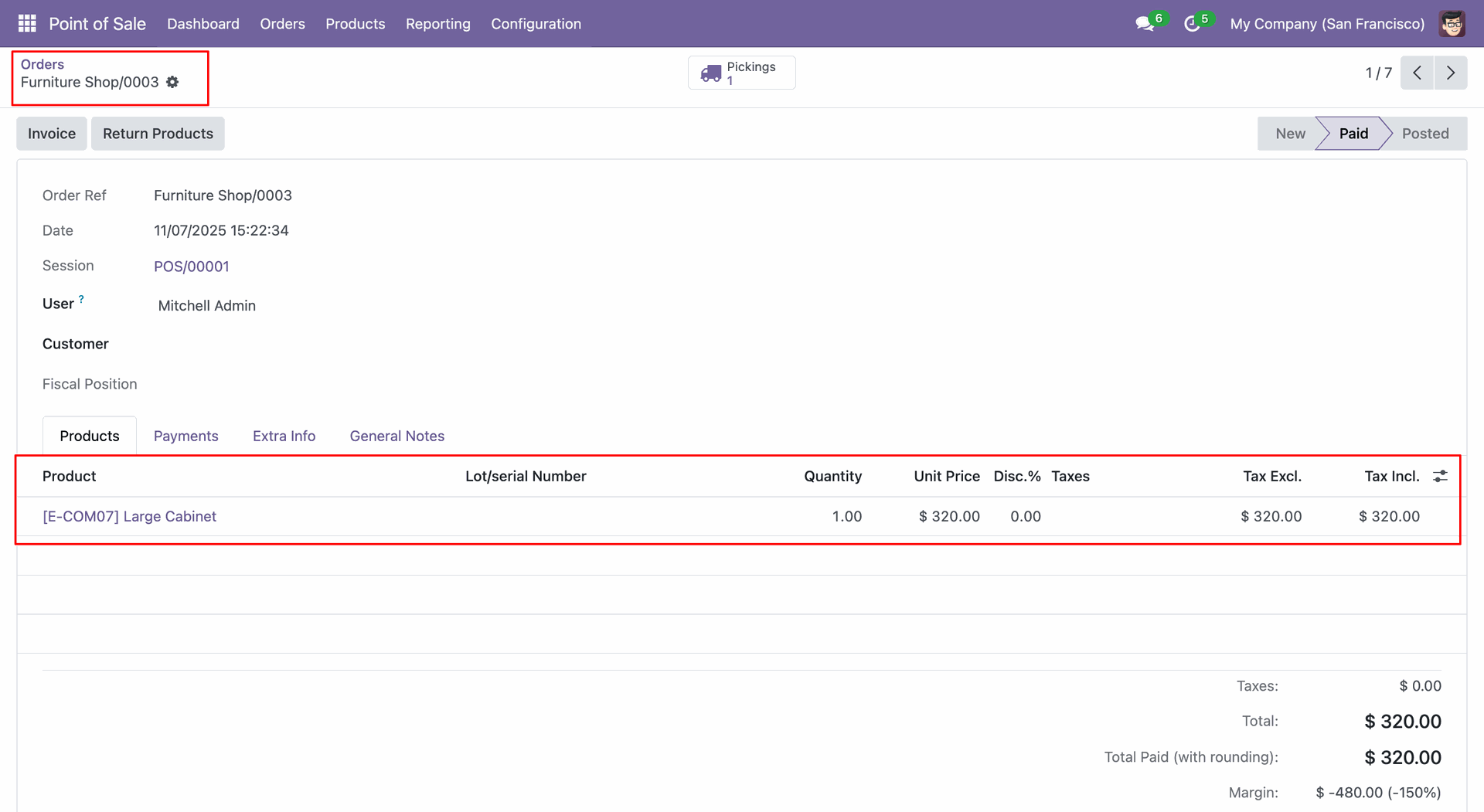
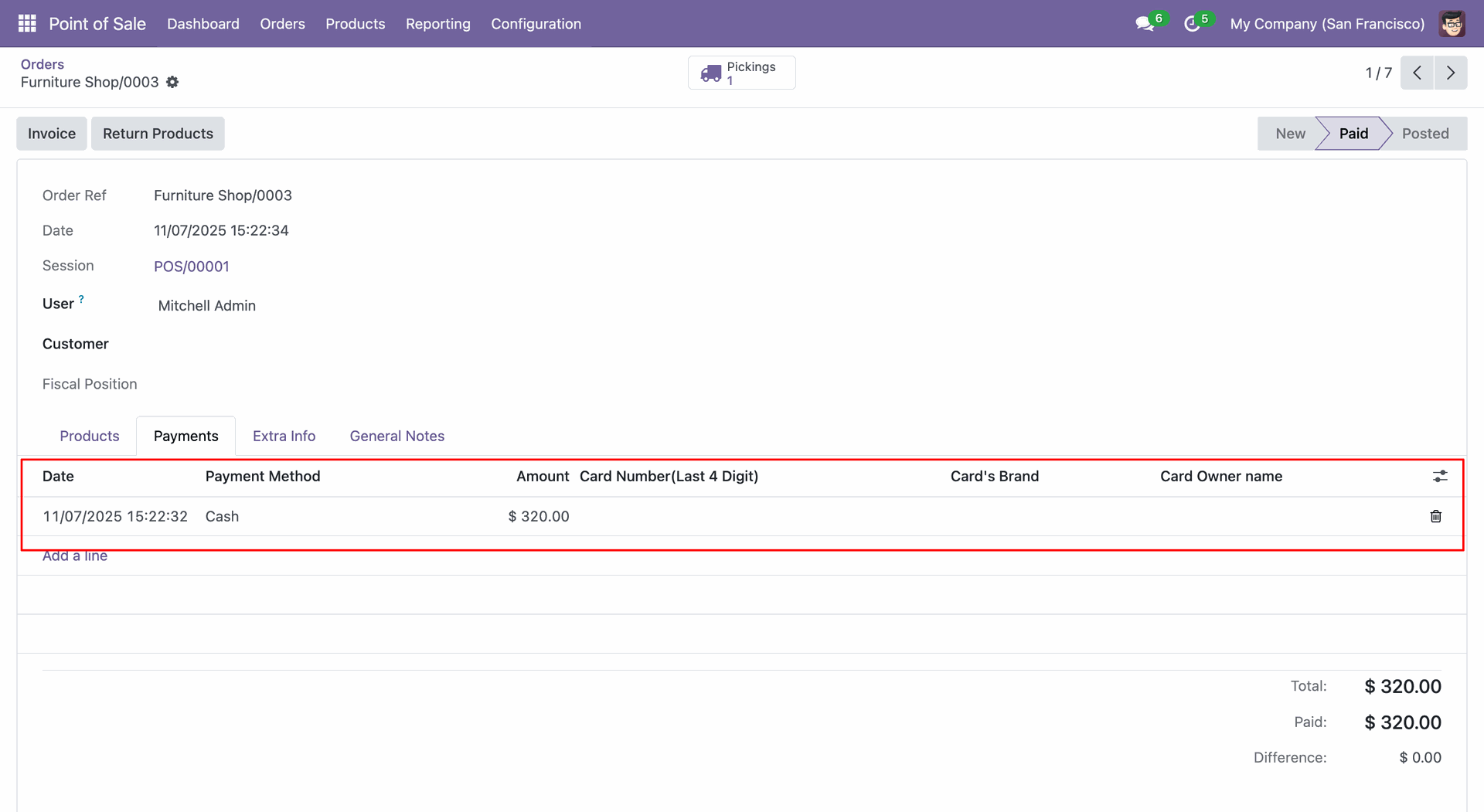
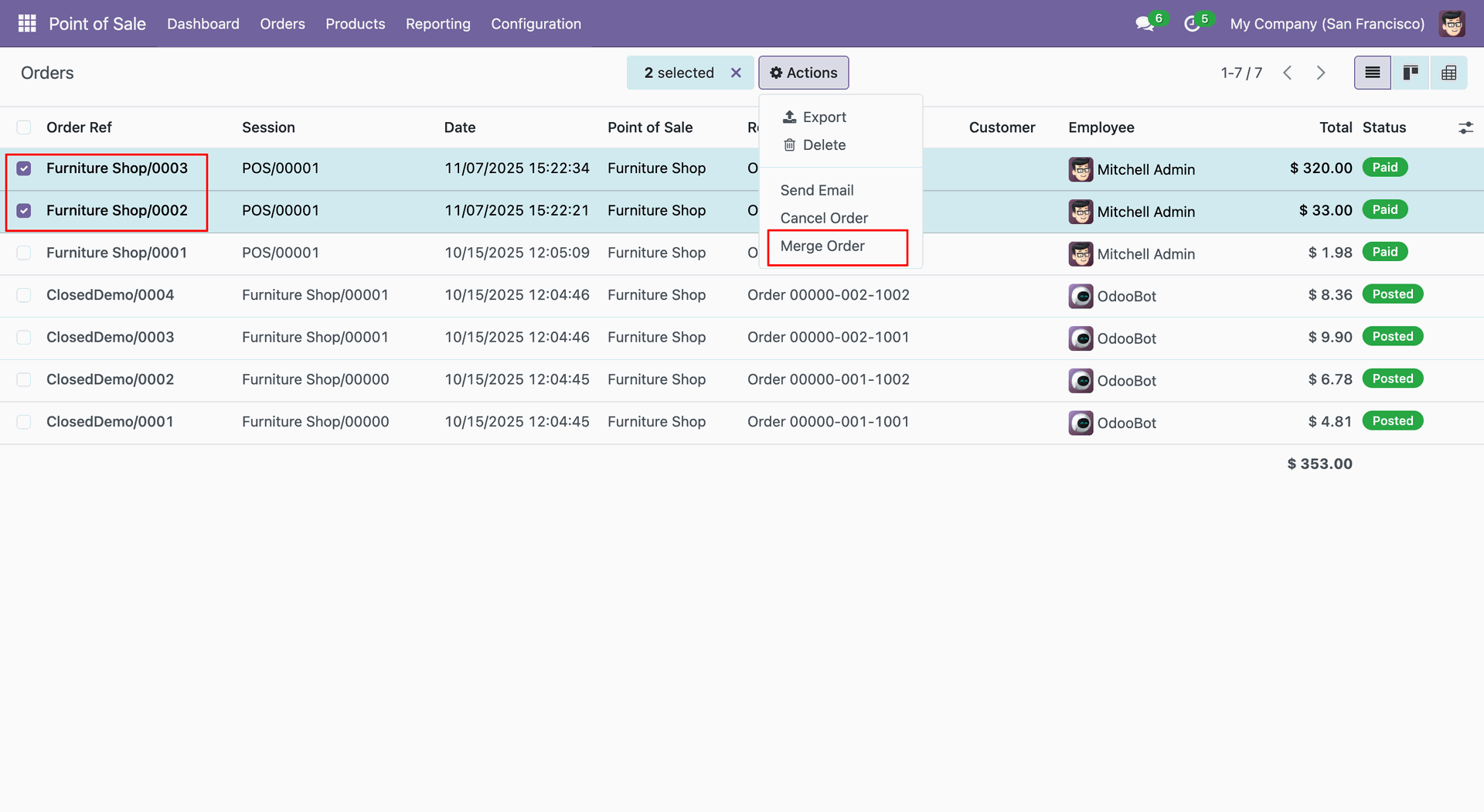
Select the POS orders you want to merge, then click on "Merge Order" from the Action.
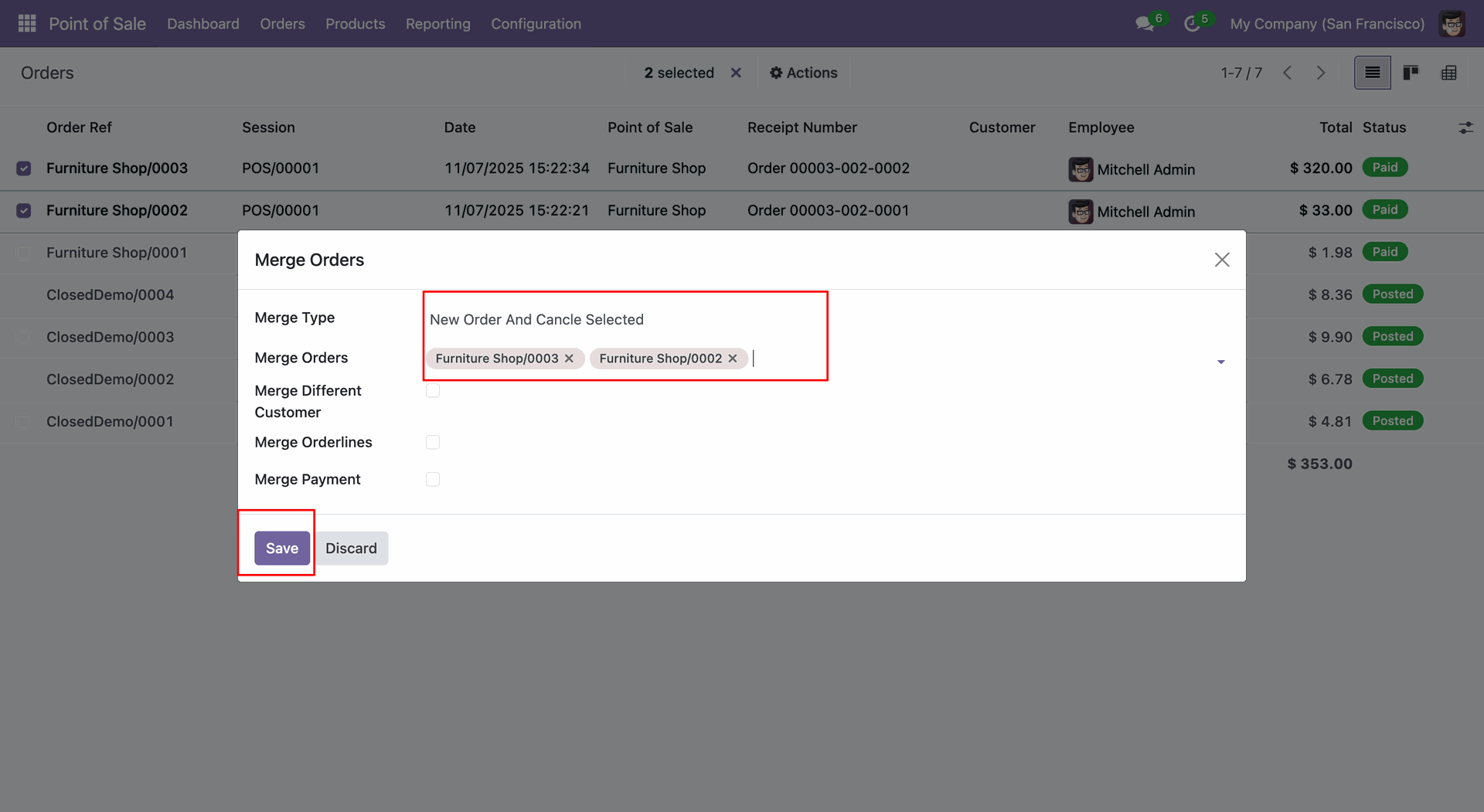
Add details and click on the "Save" button.
Here, you can see that the selected orders are cancelled and a new one has been created.
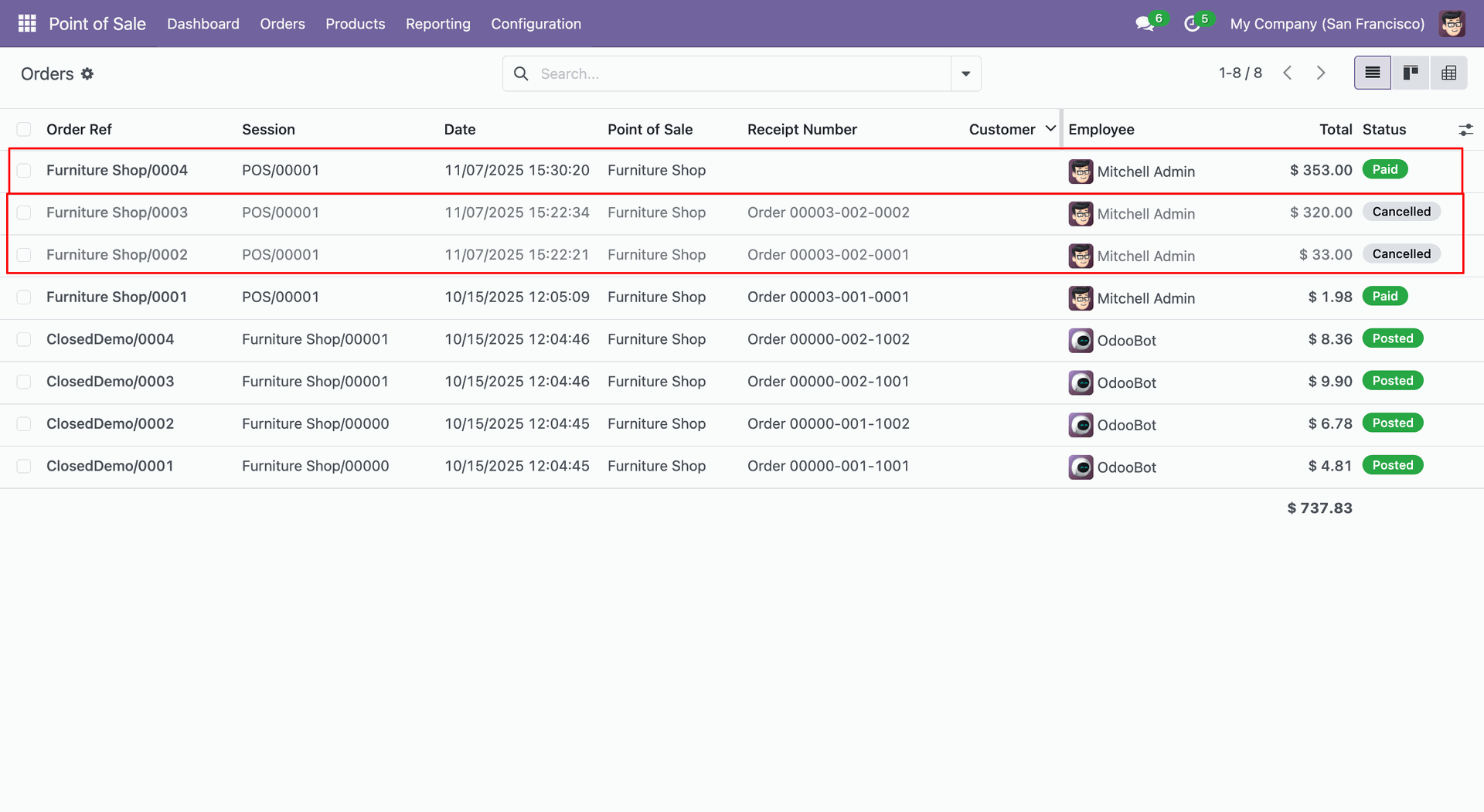
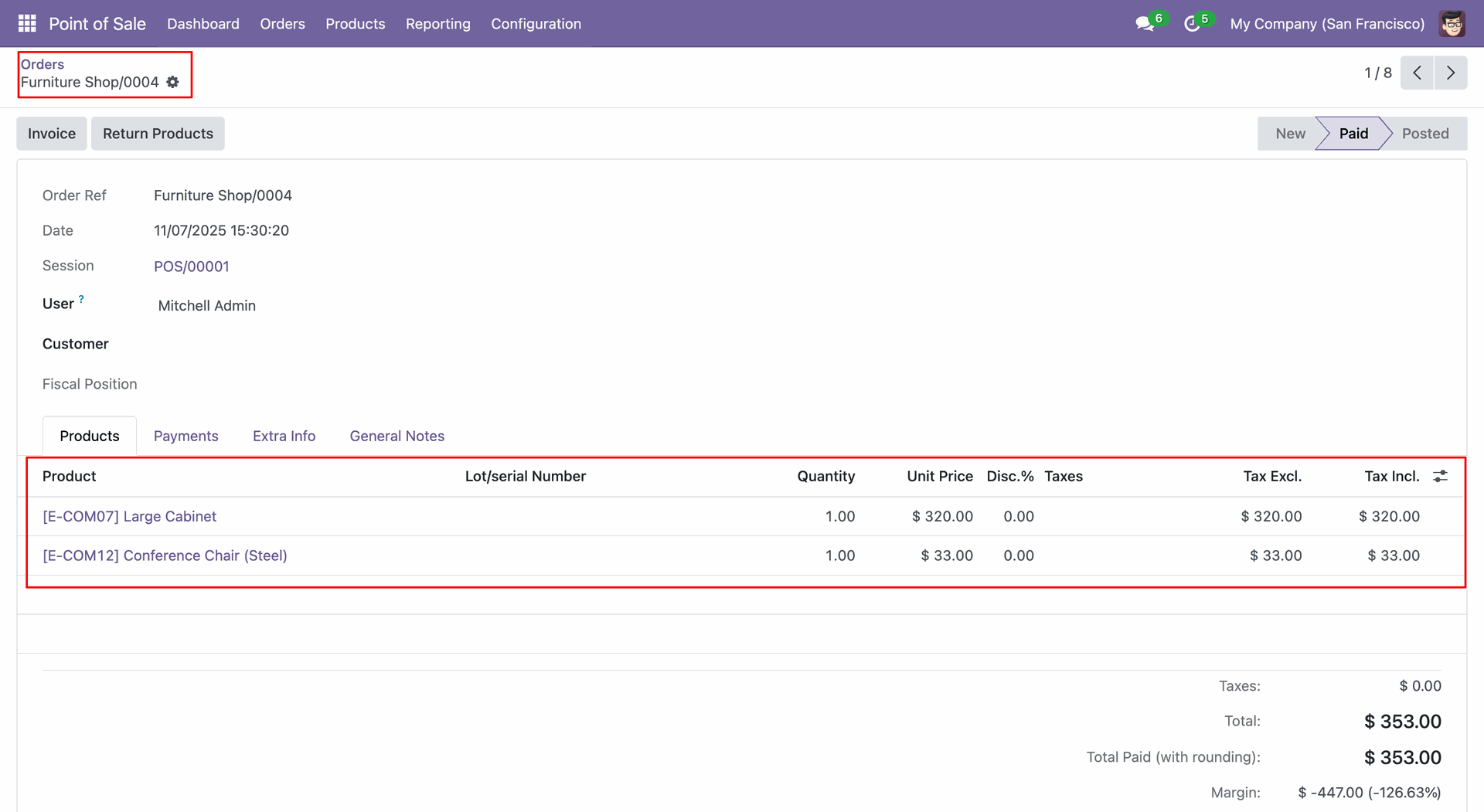
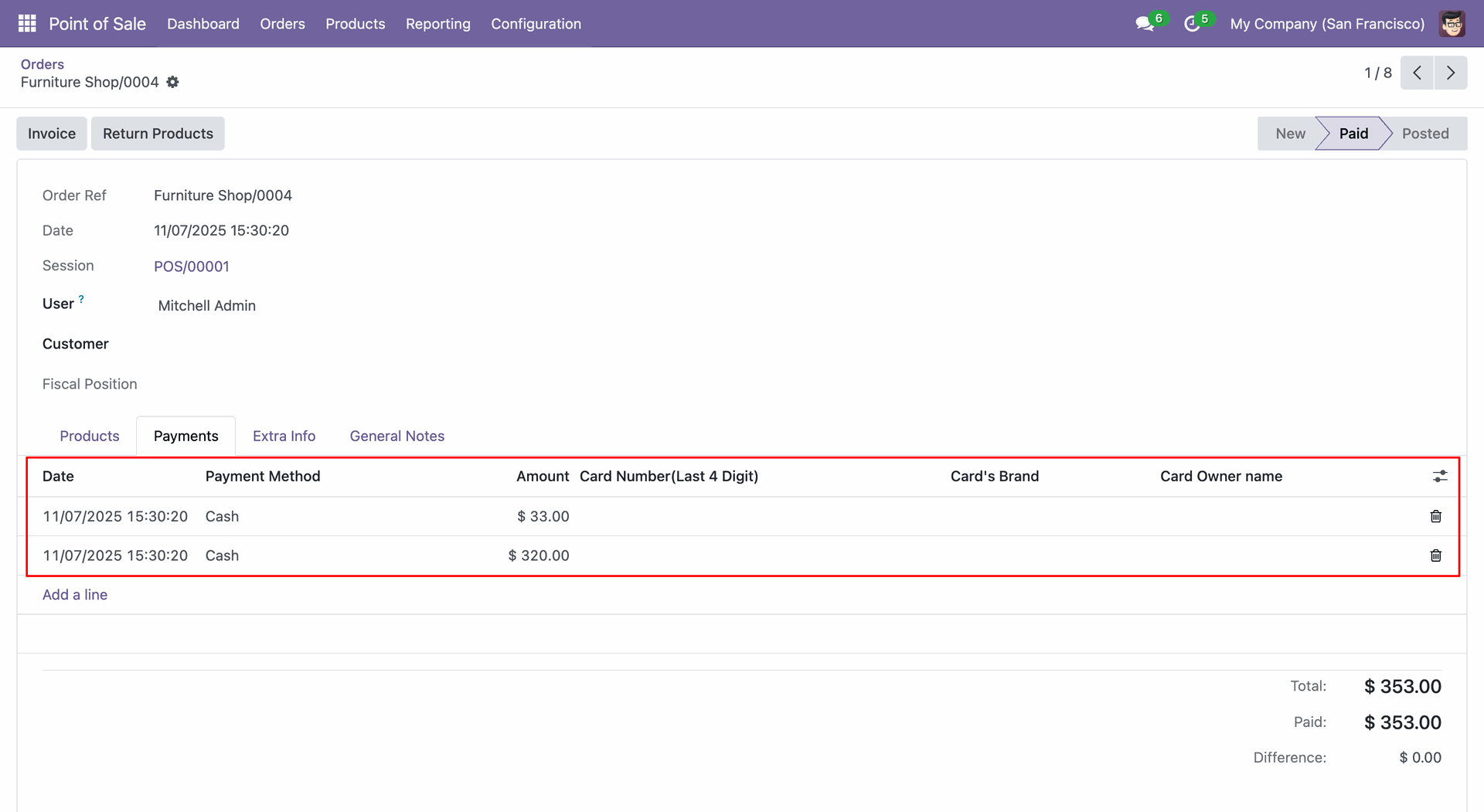
In the form view, you can see the products that were added from the merged orders.
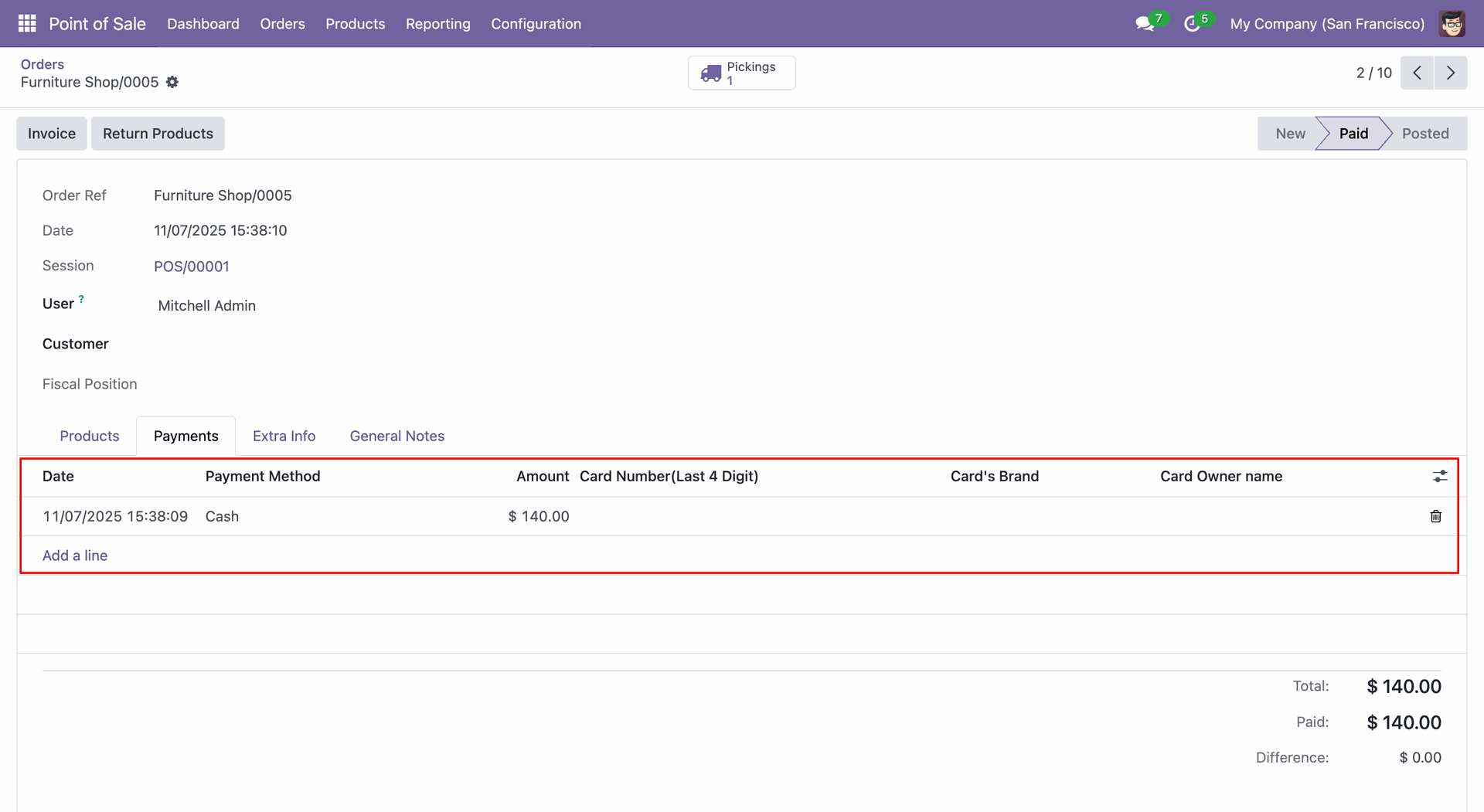
Create a POS order (0005).
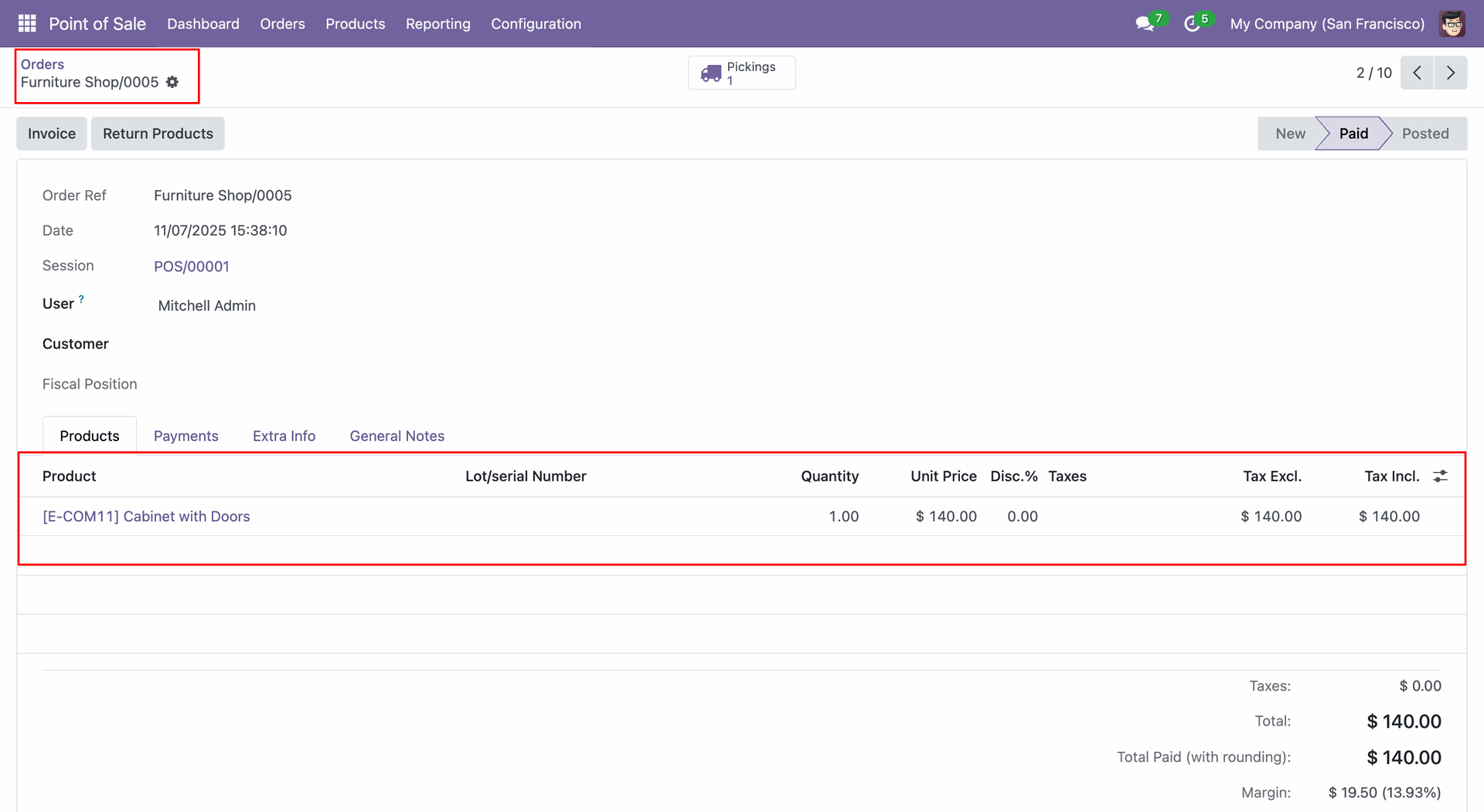
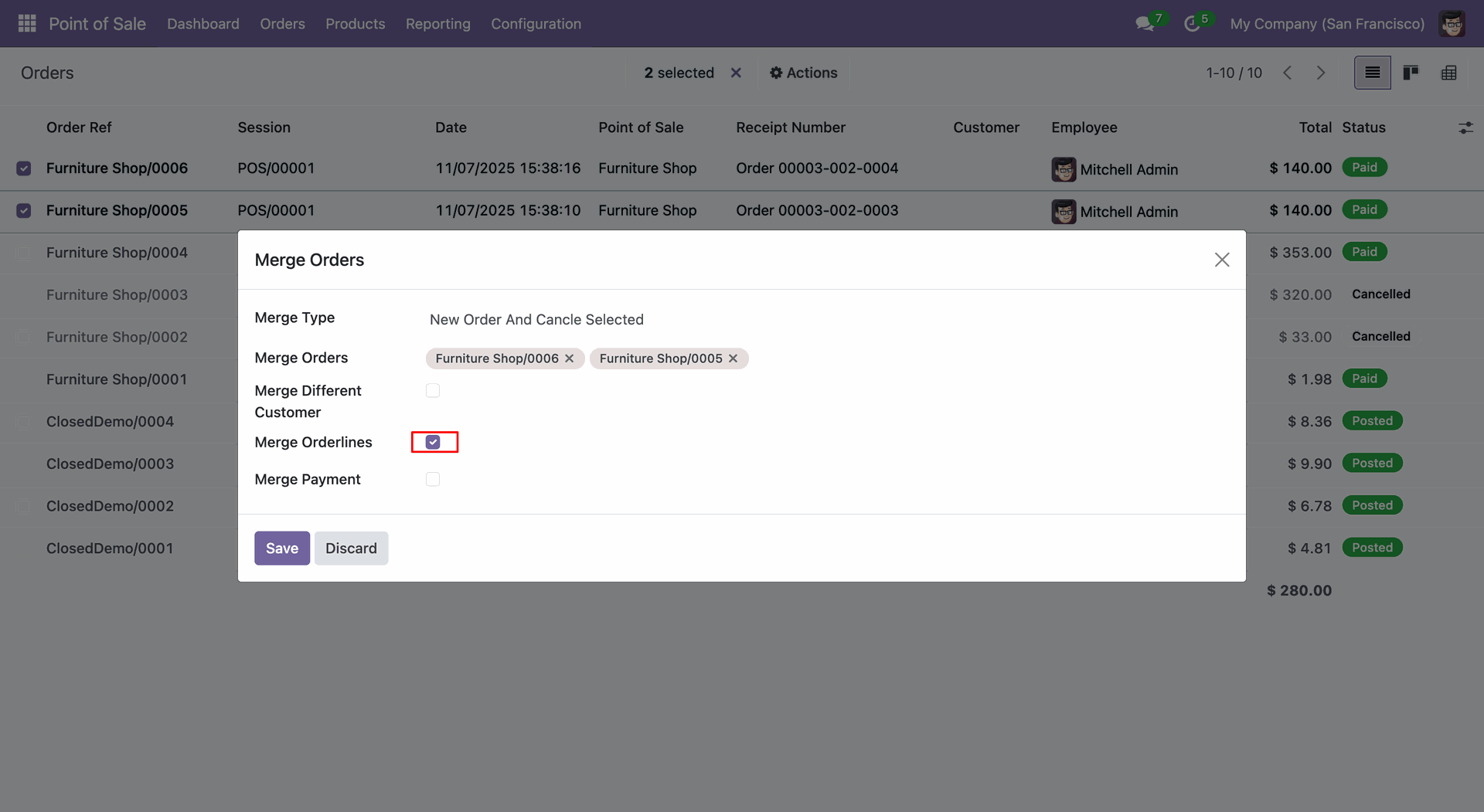
Tick the "Merge Orderlines" boolean and click on the "Save" button.
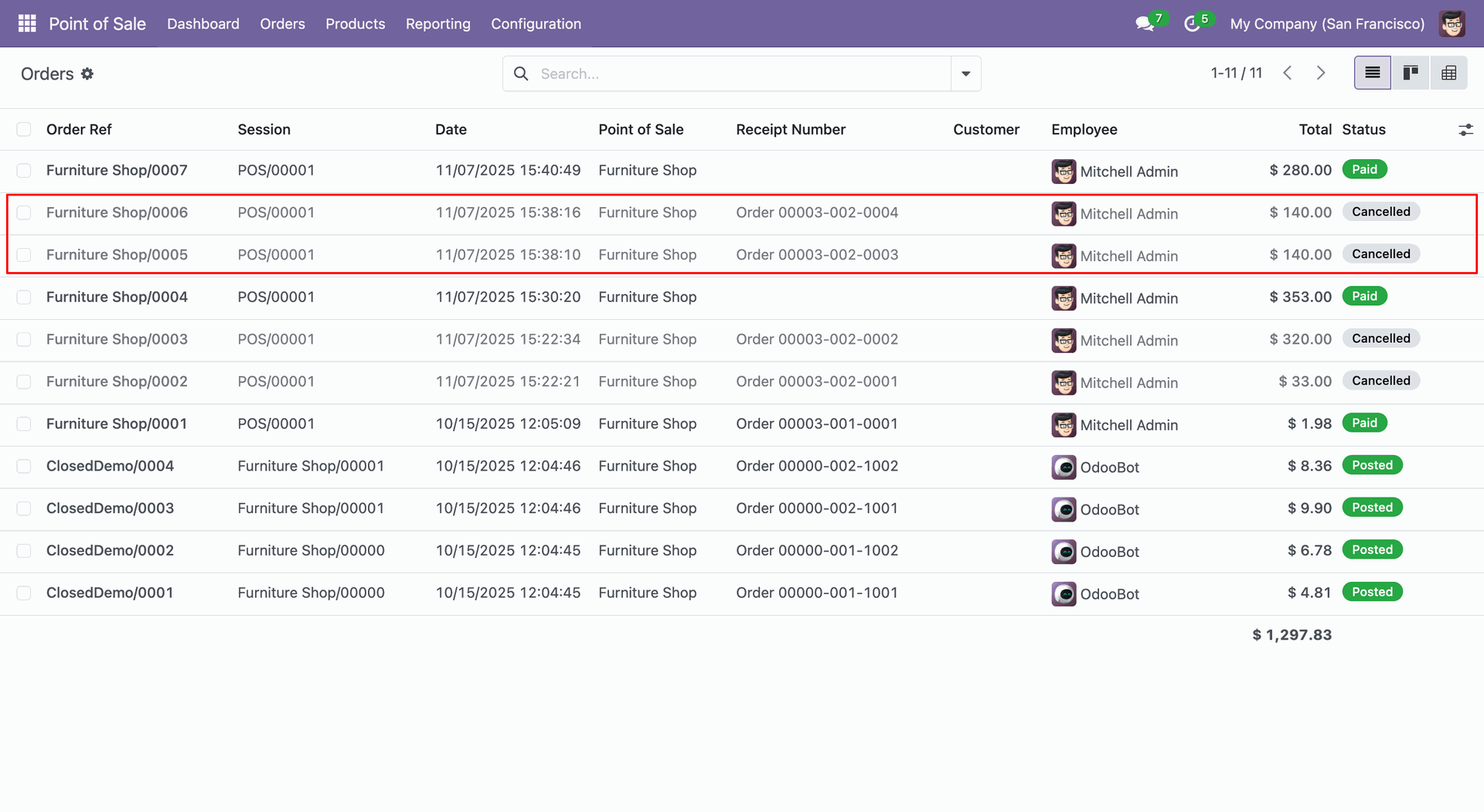
Here, you can see that the selected orders are cancelled and a new one has been created.
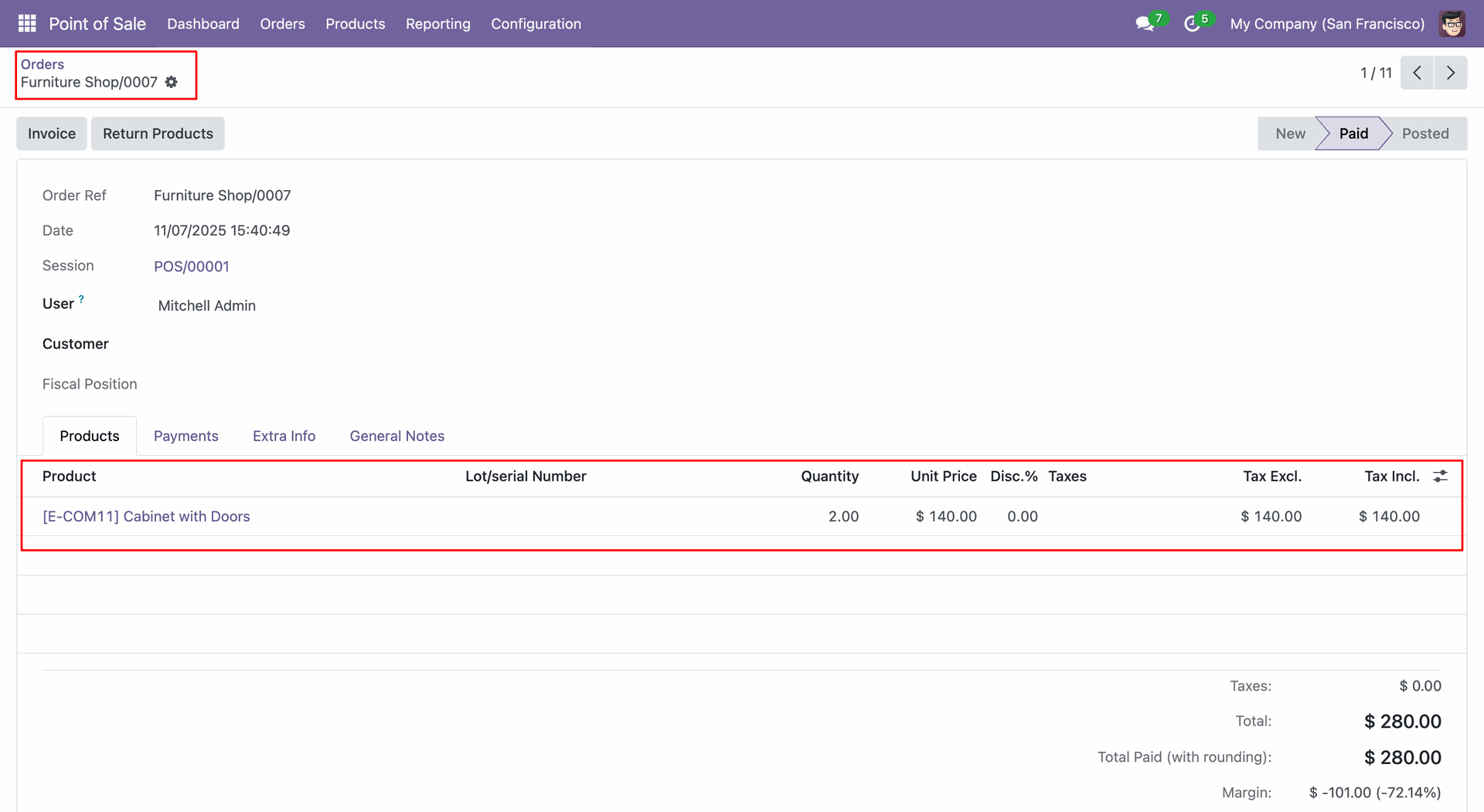
Form view of the newly generated order.
Create a new order (008).
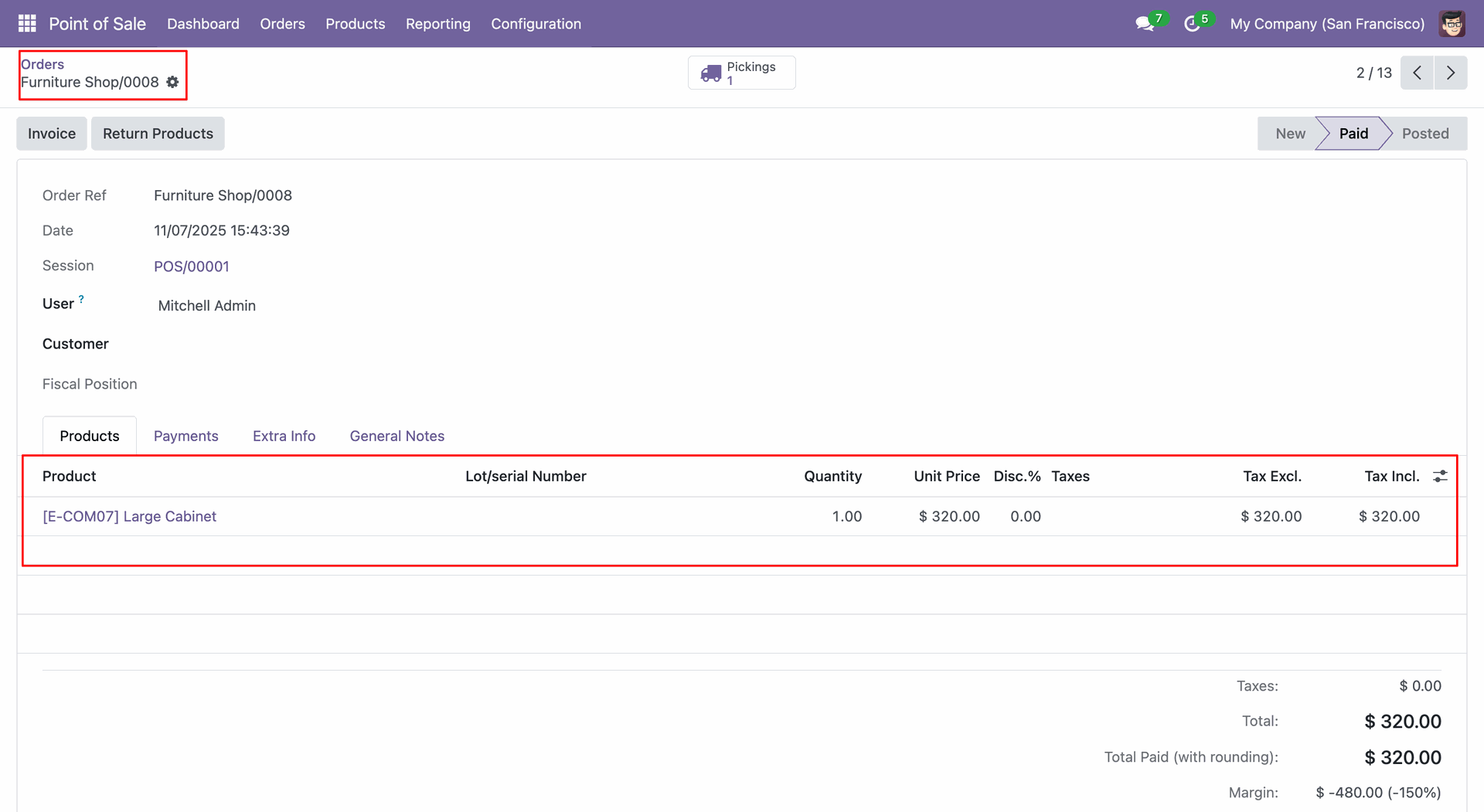
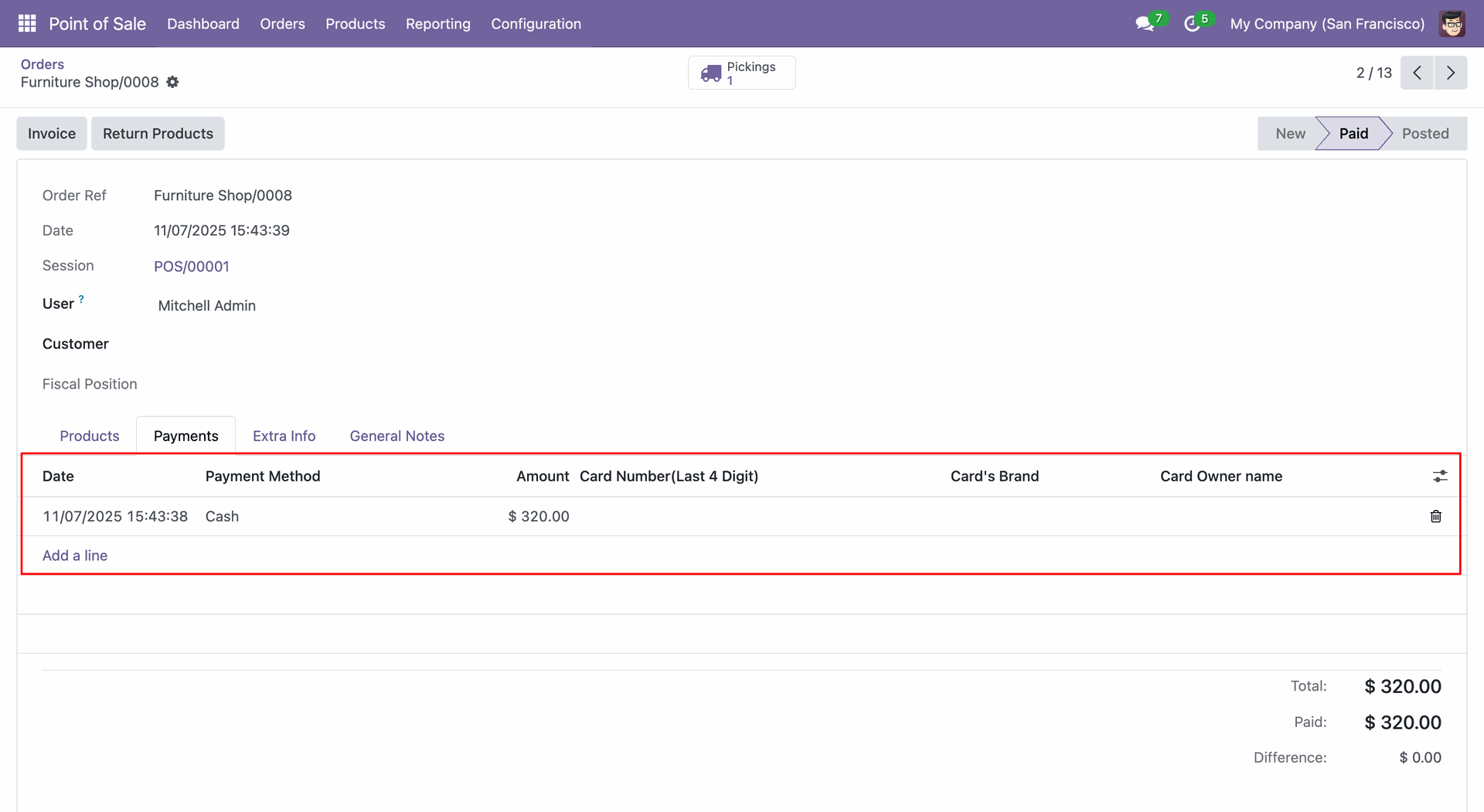
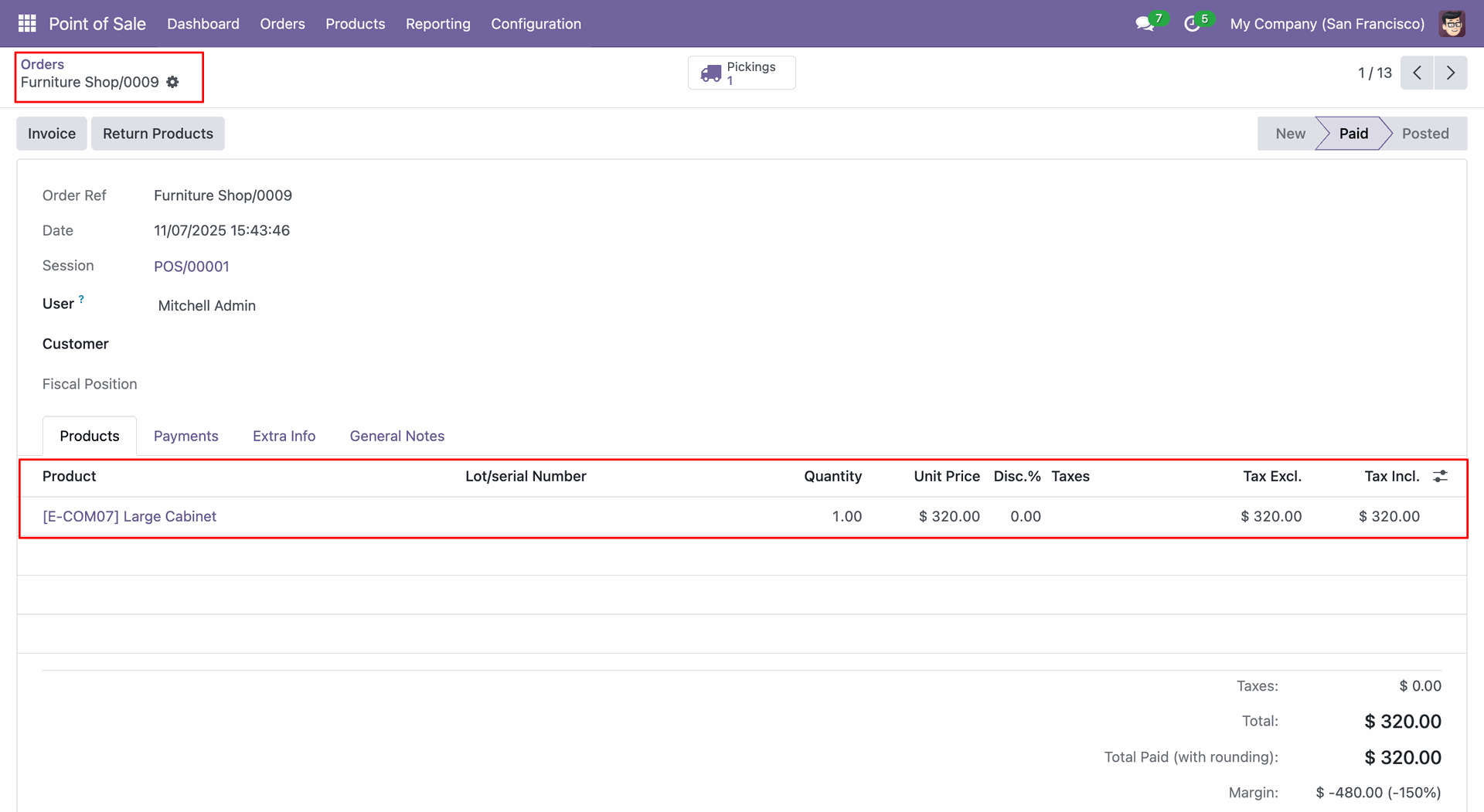
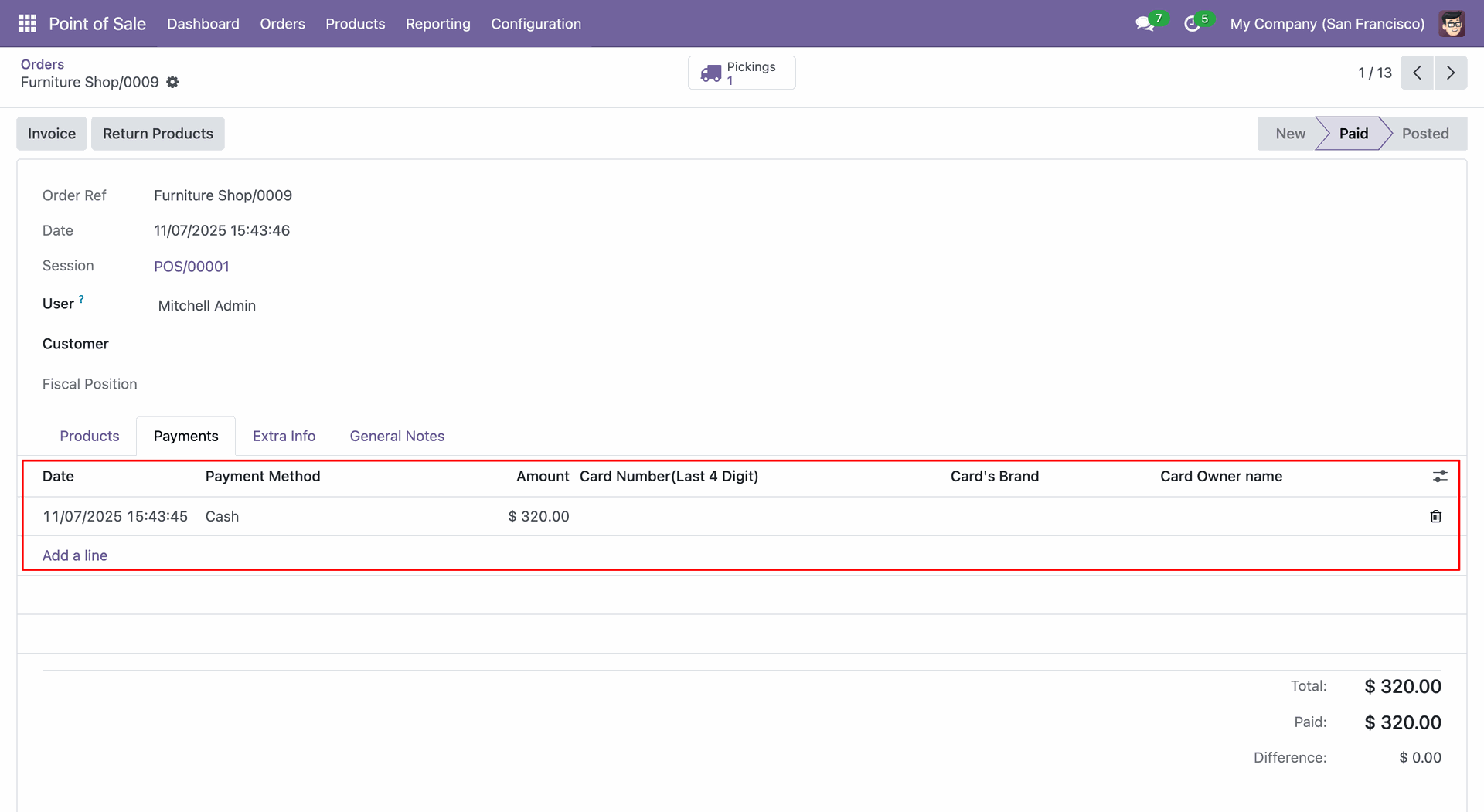
Create a new order (009).
Tick the "Merge Orderlines" and "Merge Payment" checkboxes and click on the "Save" button.
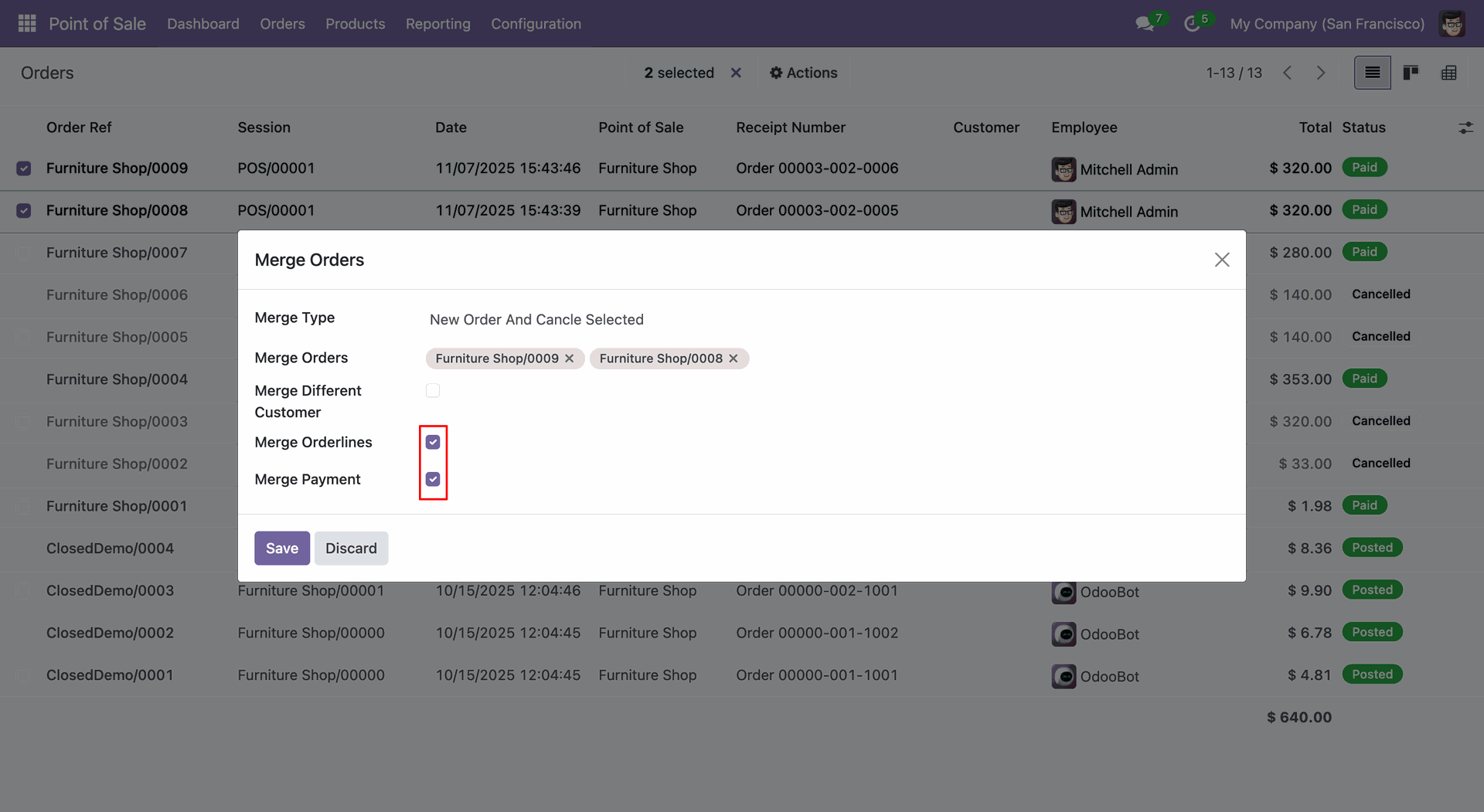
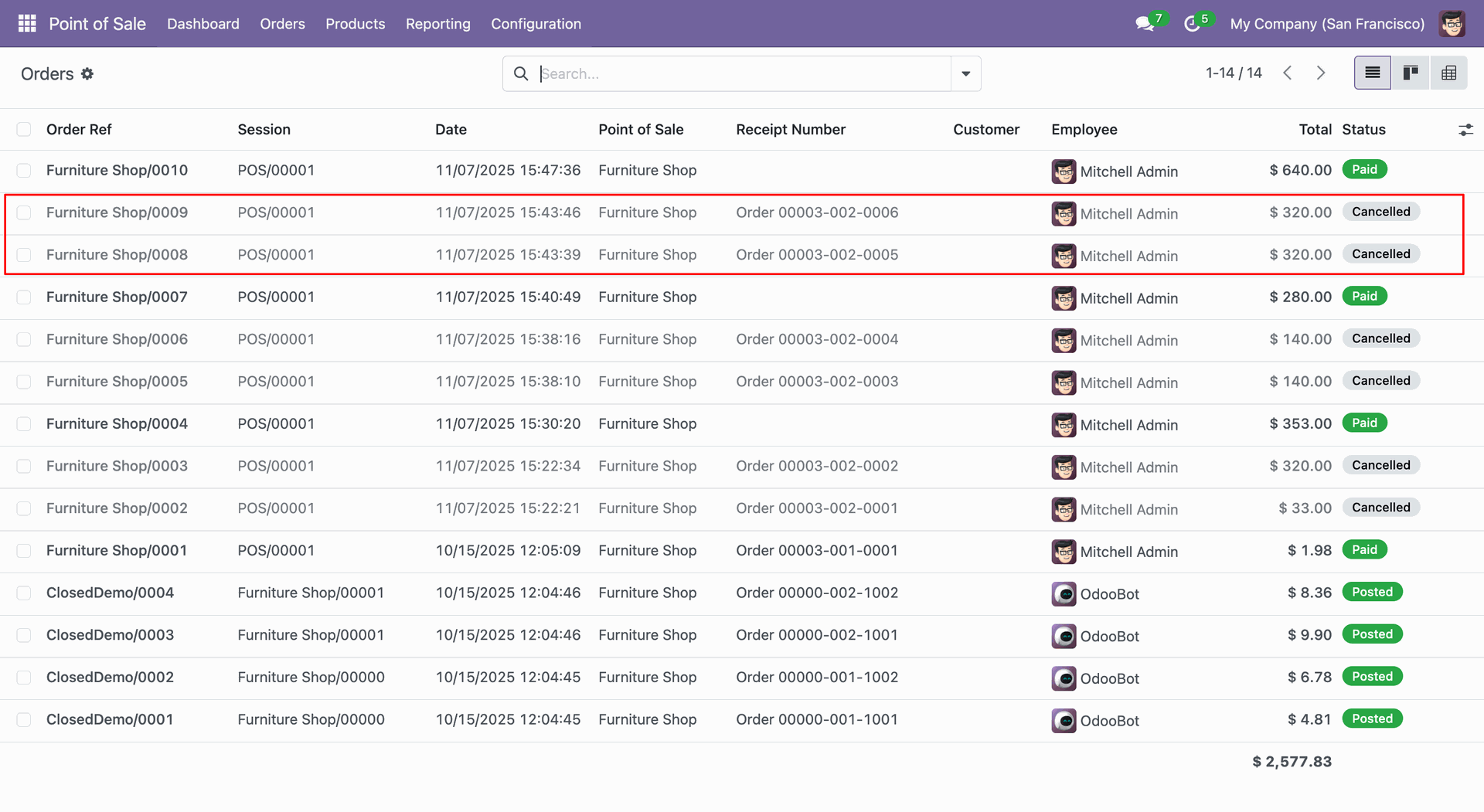
Here, you can see that the selected orders are cancelled and a new one has been created.
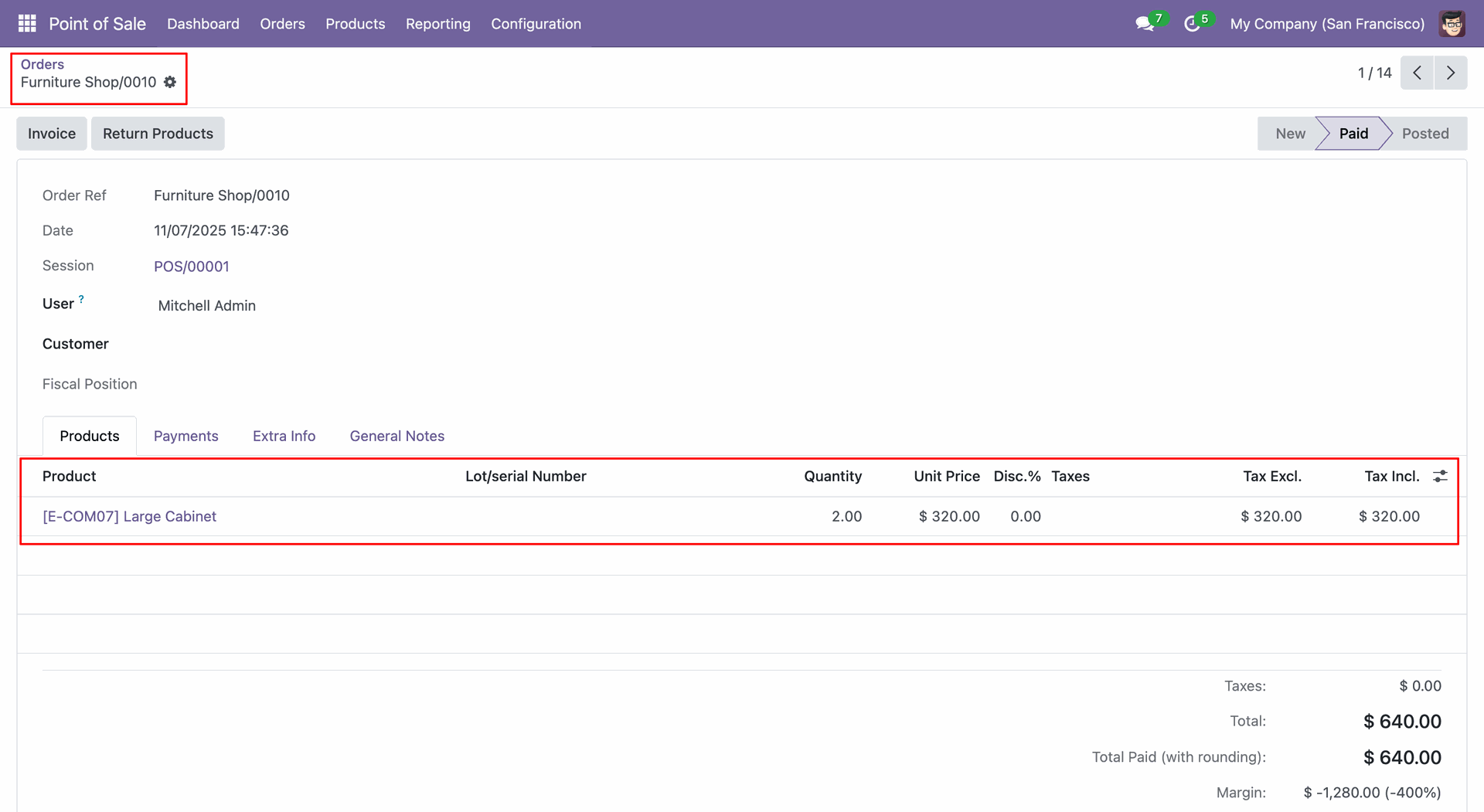
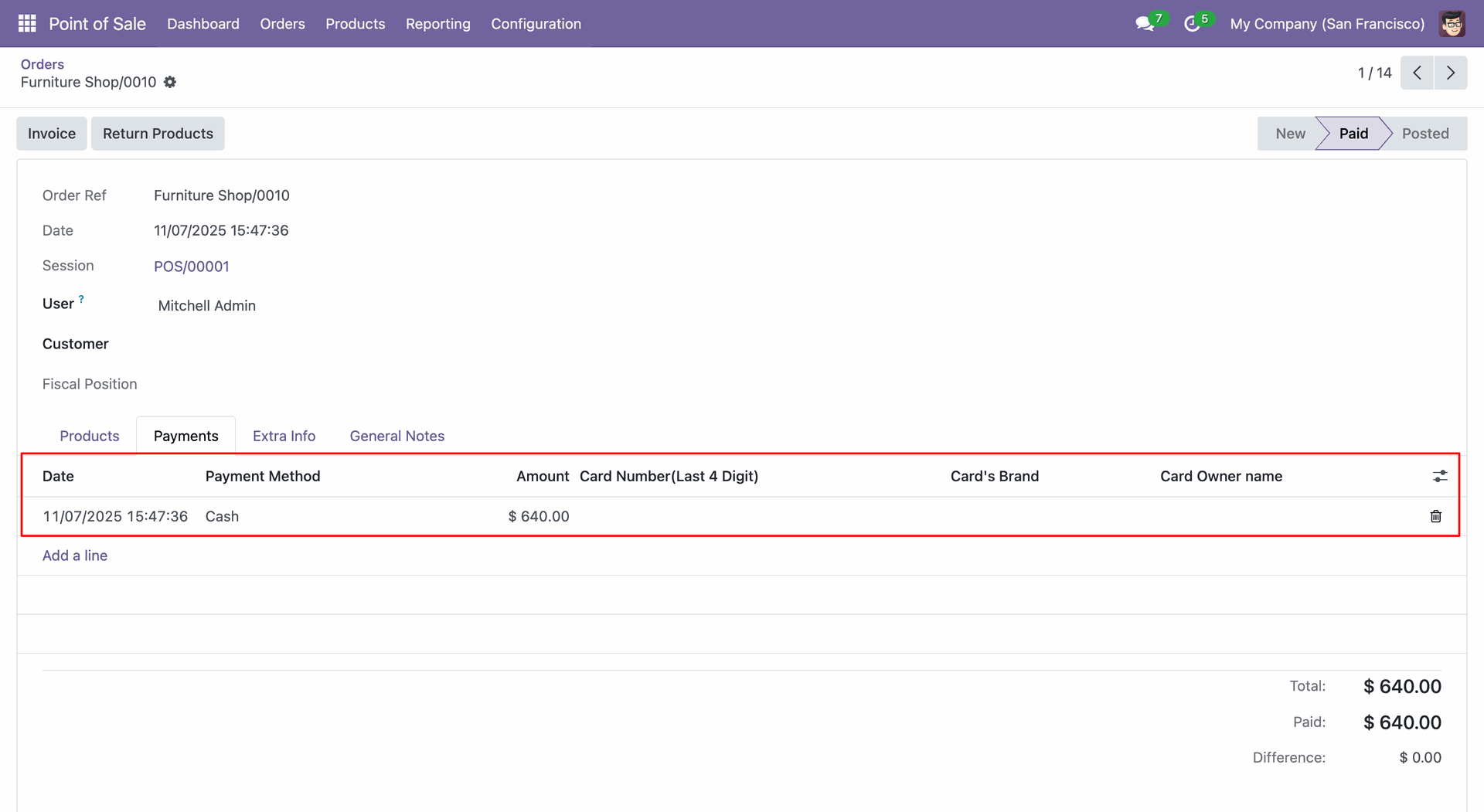
Form view of the newly generated order.
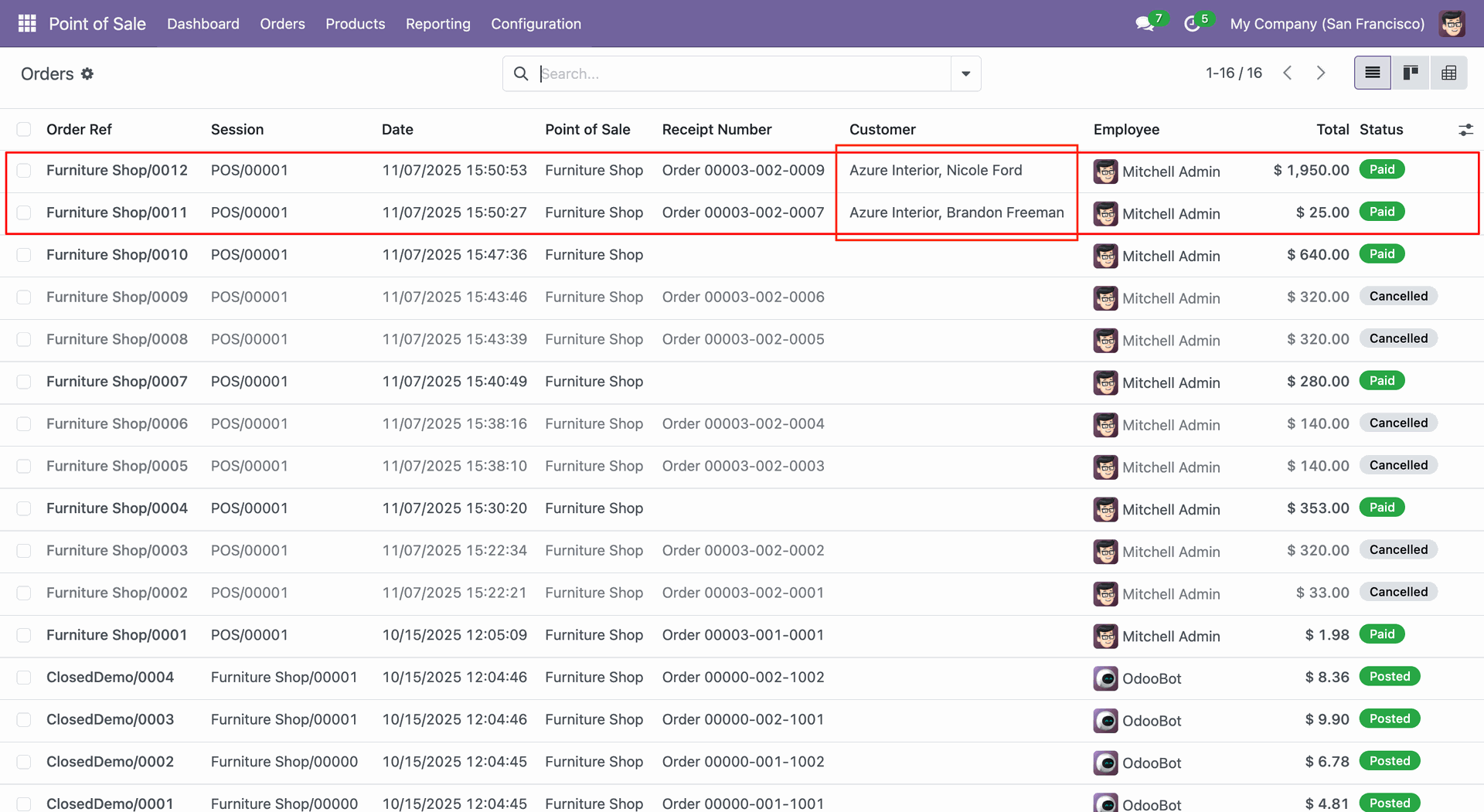
Select different customers, then click on "Merge Order" from the Action.
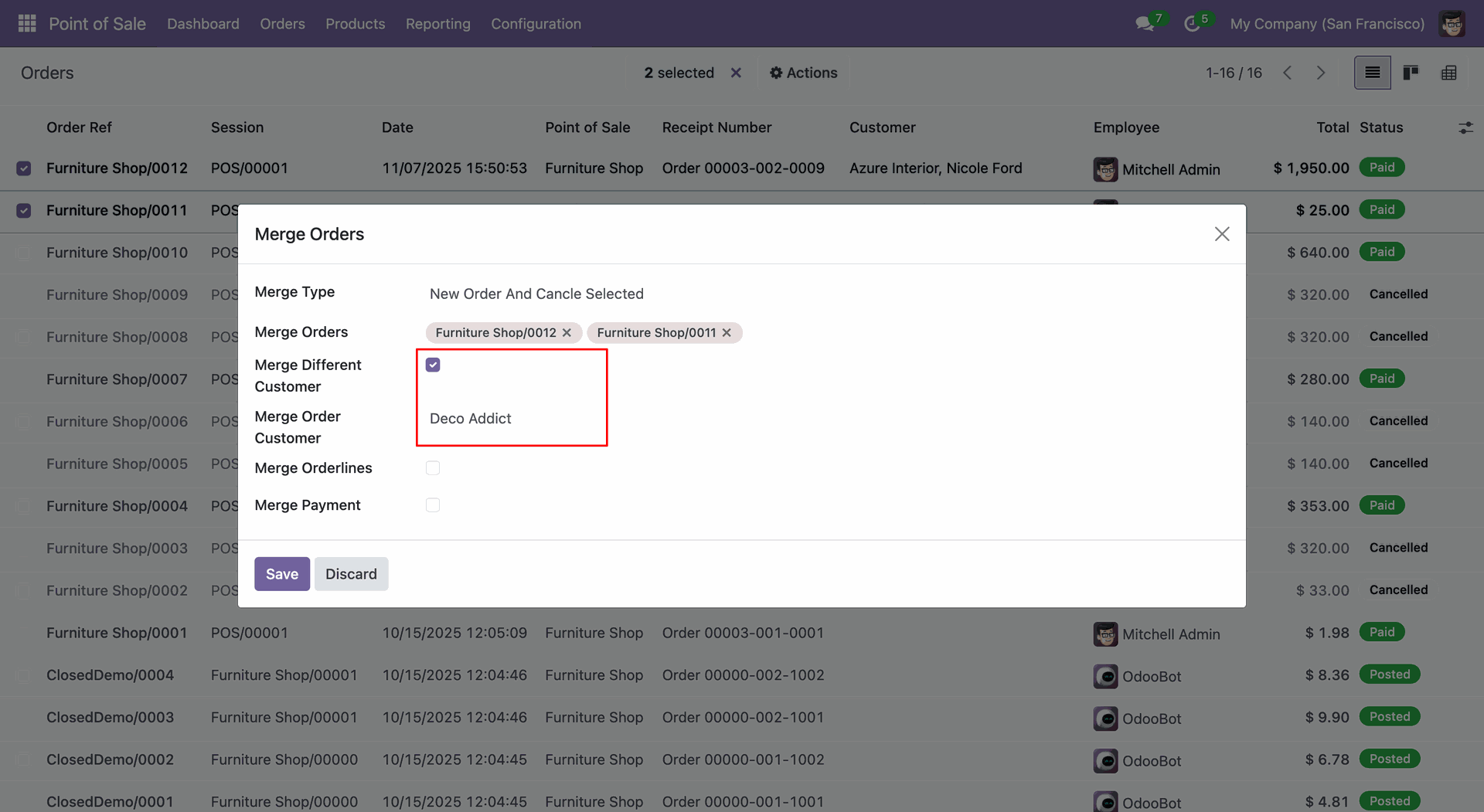
Tick the "Merge Different Customer" boolean, add a customer name, and click on the "Save" button.
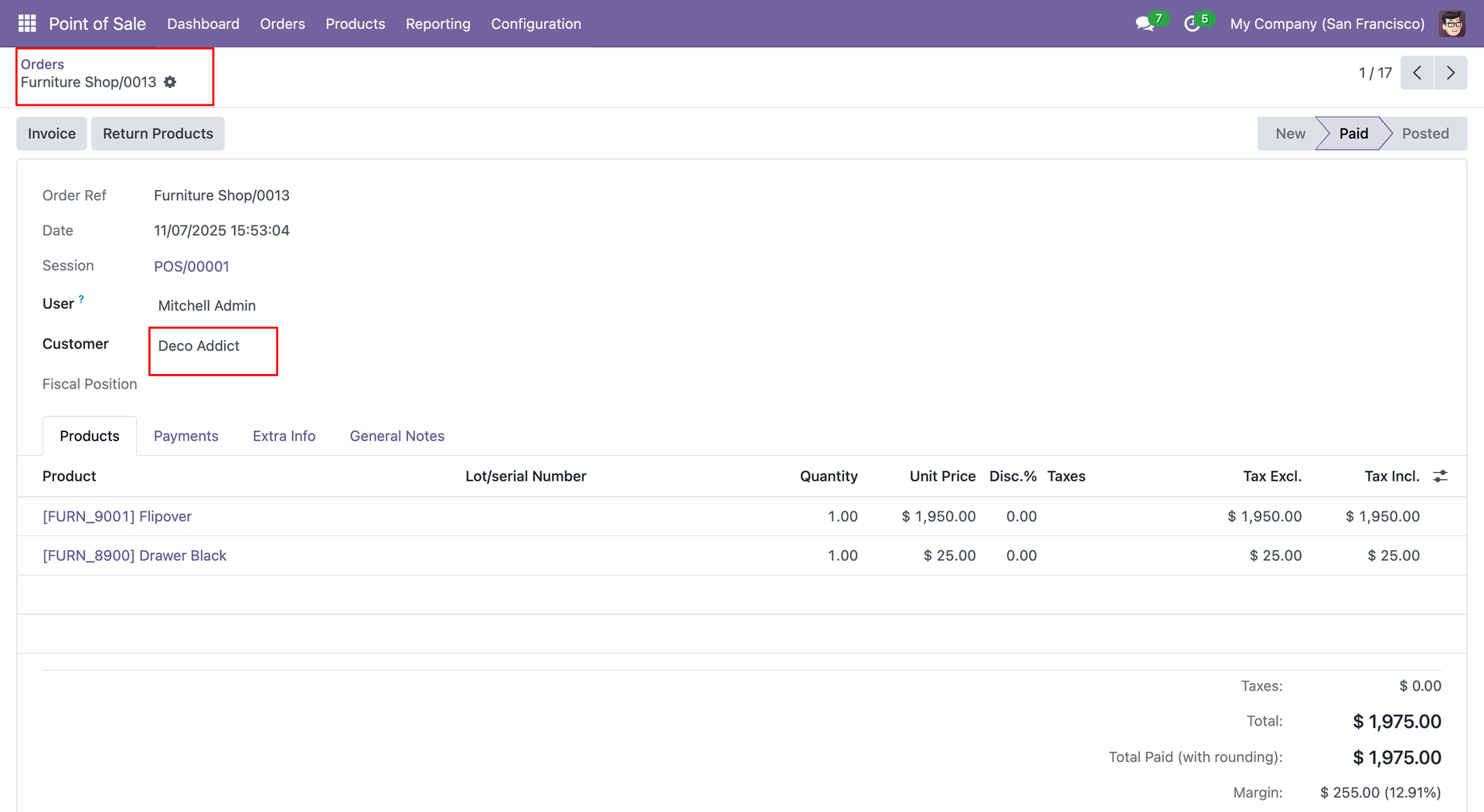
Form view of the newly generated order.
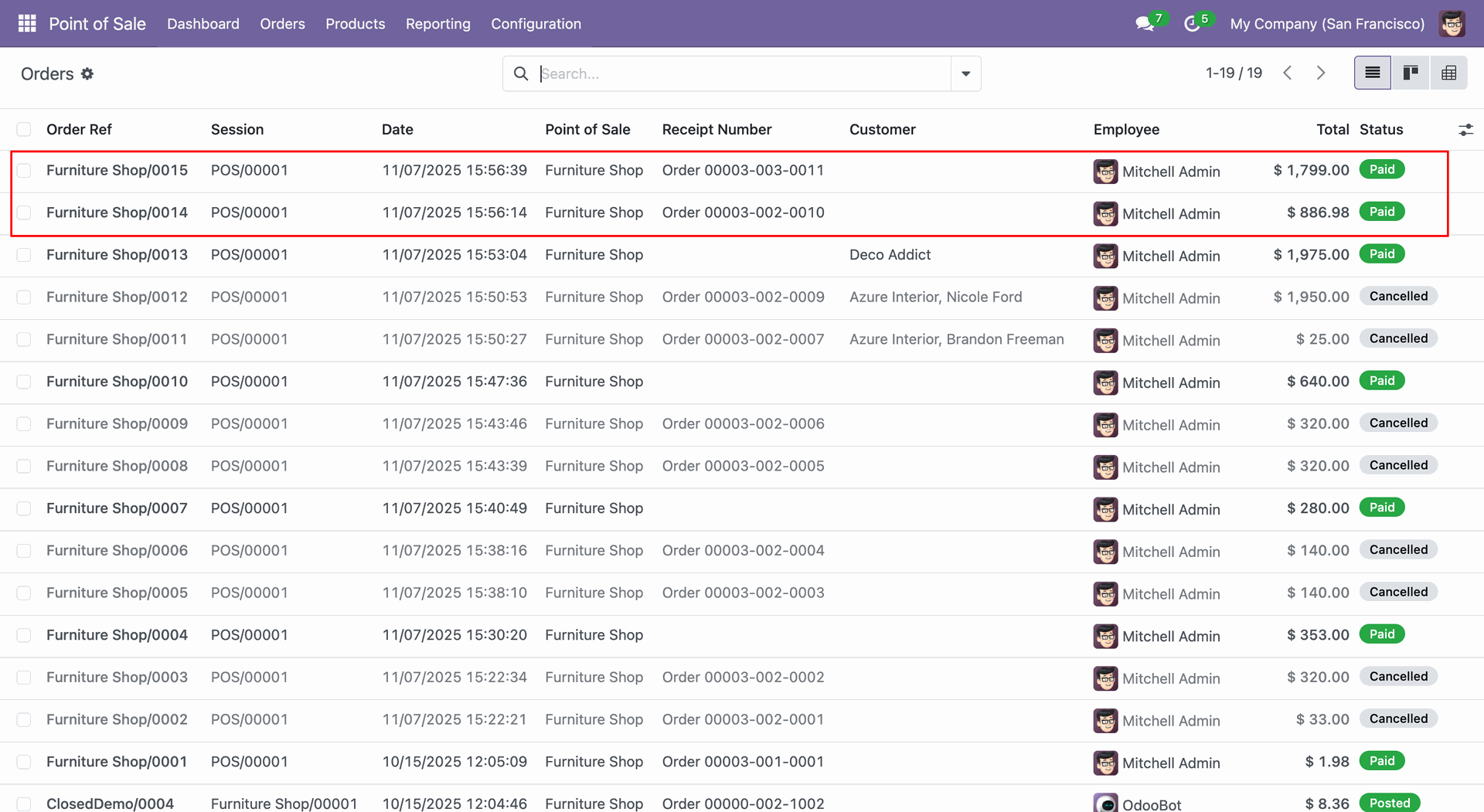
Now we merge the orders (0015 and 0014).
Select the Merge Type: New Order and Delete Selected, and click on the "Save" button.

Here, you can see that the selected orders are deleted and a new one (0016) has been created.
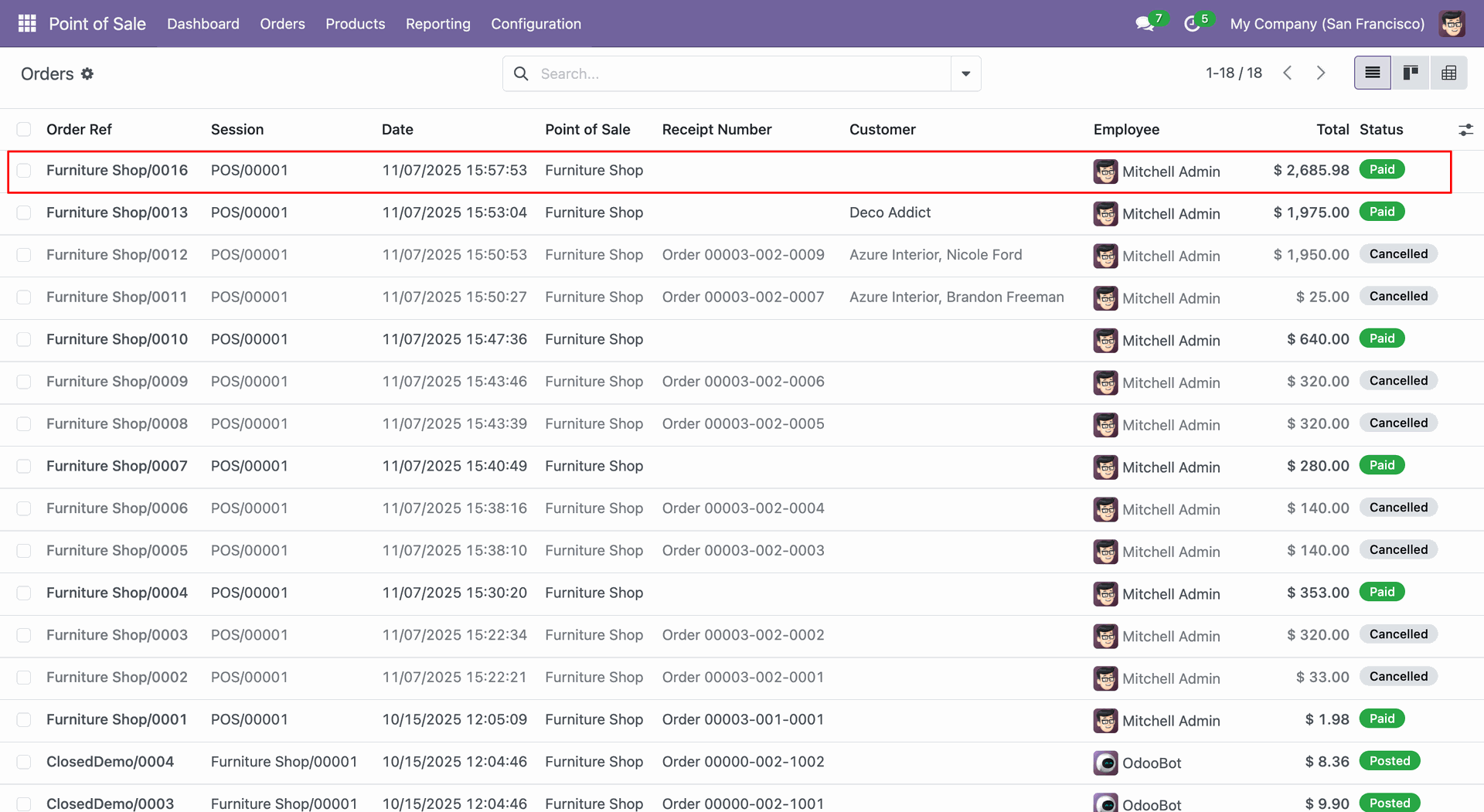
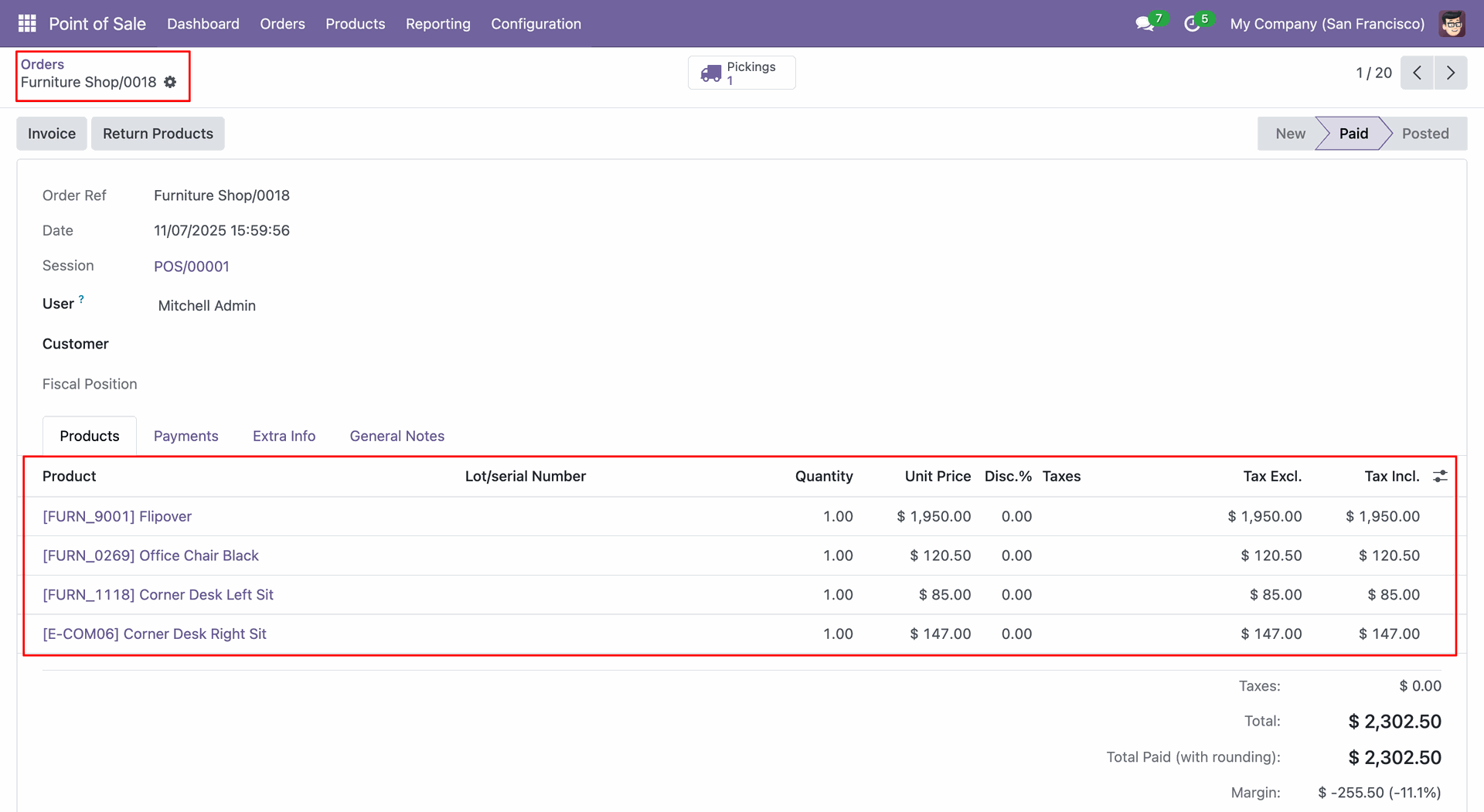
Create a new order (0017).
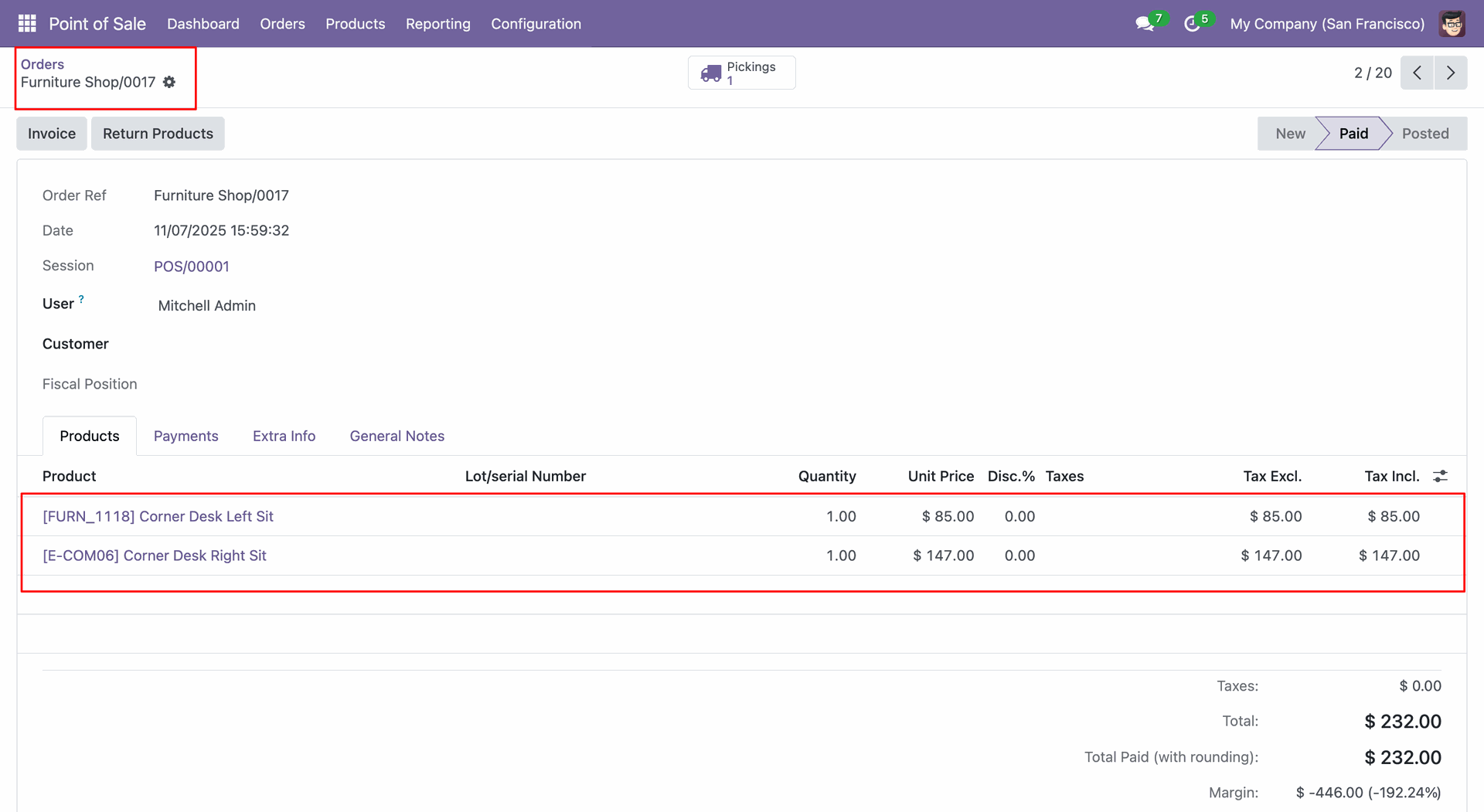
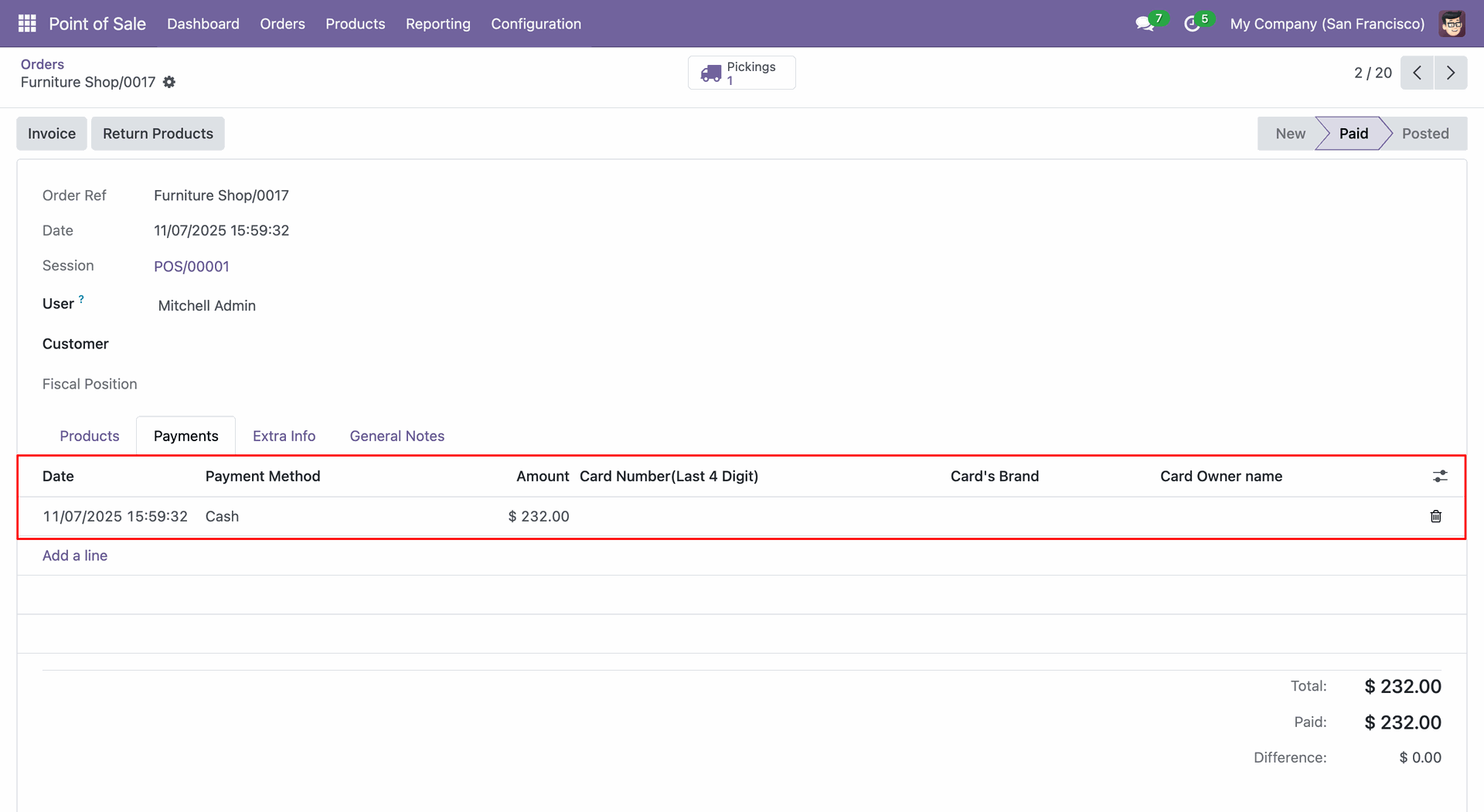
Create a new order (0018).
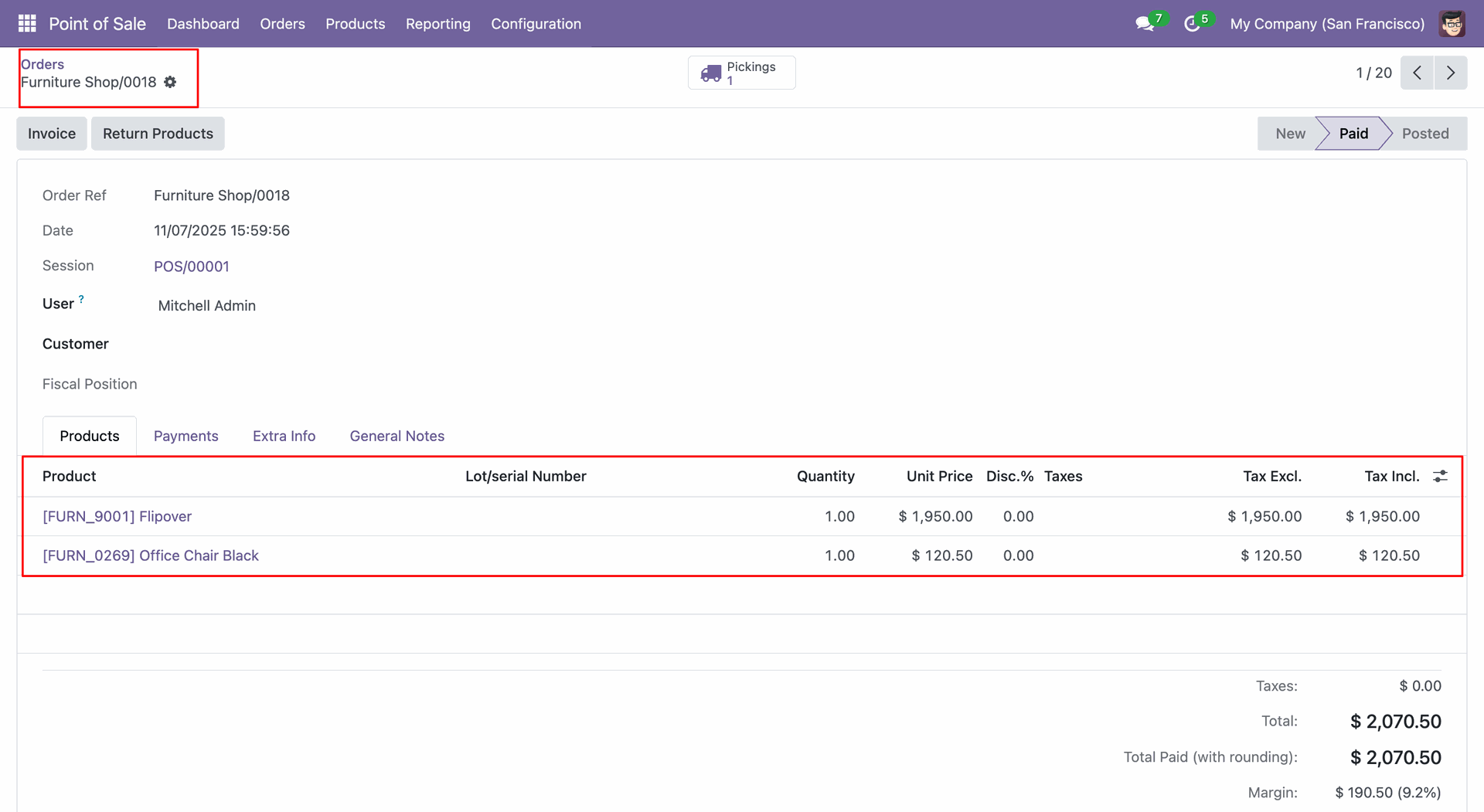
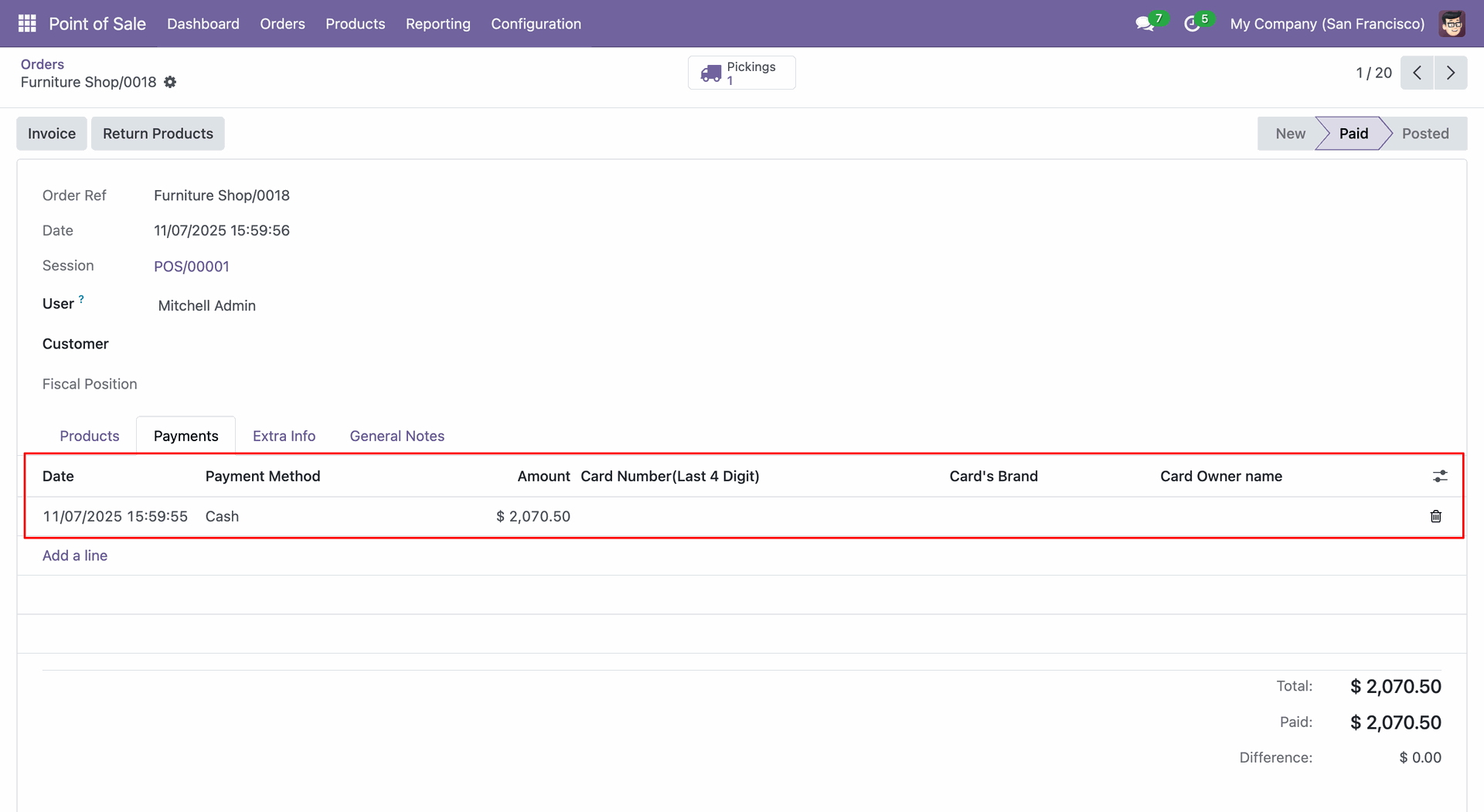
Select the Merge Type: Merge Order On Existing Selected Order and Cancel Other, and add Merge Order with: 0018, and click on the "Save" button.
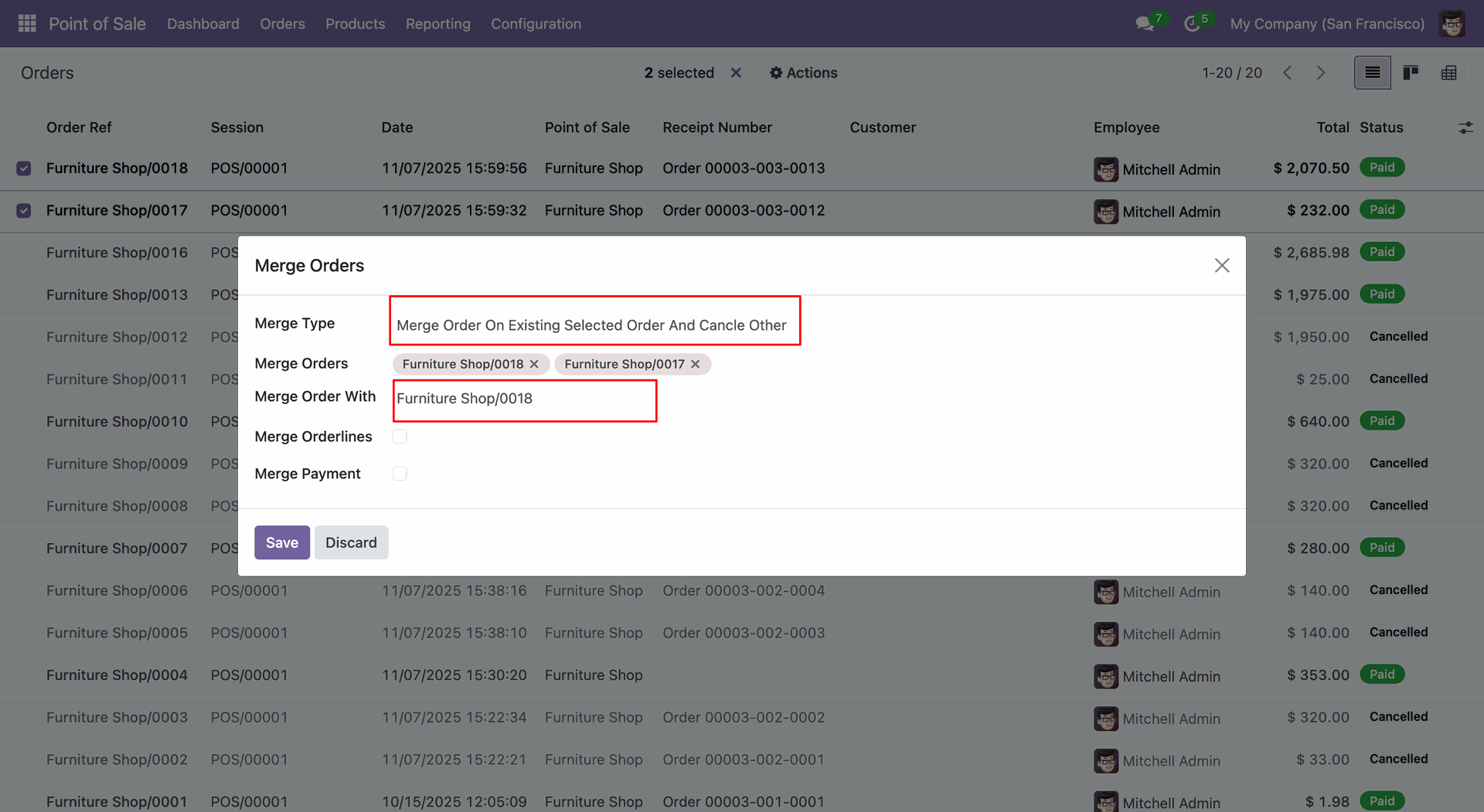
Here, you can see that the order has been merged with 0018, and the 0017 order has been cancelled.
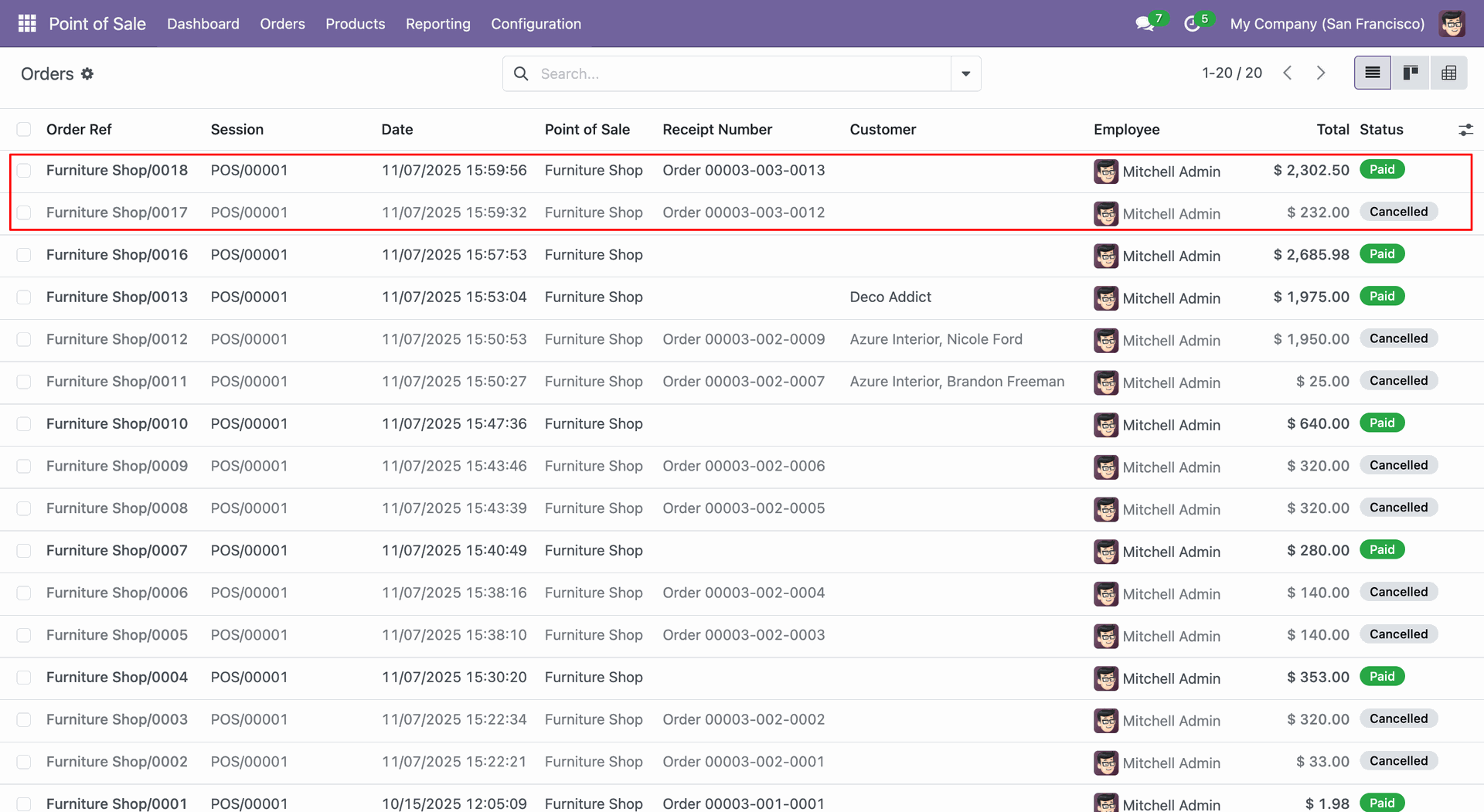
Form view of the merged order.
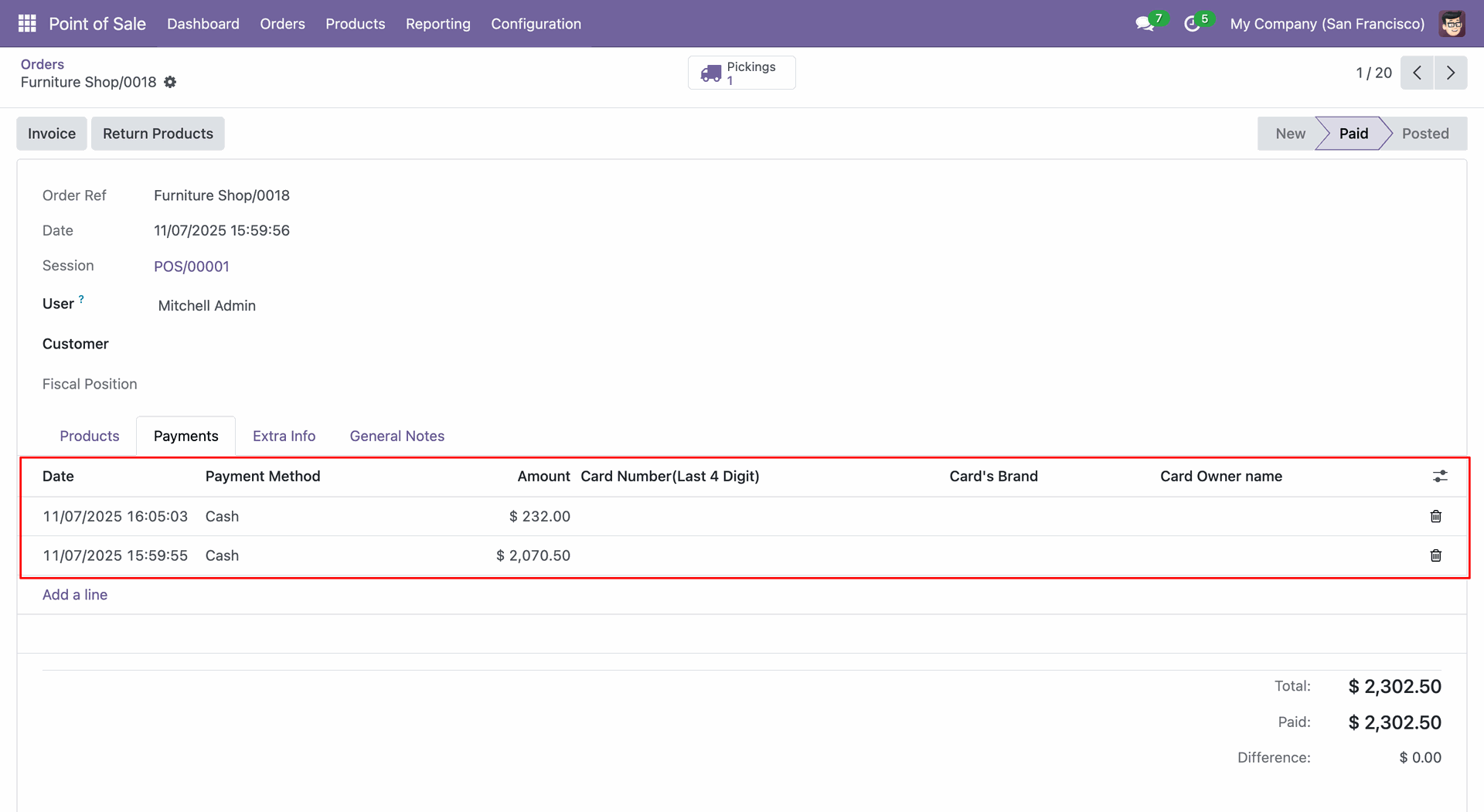
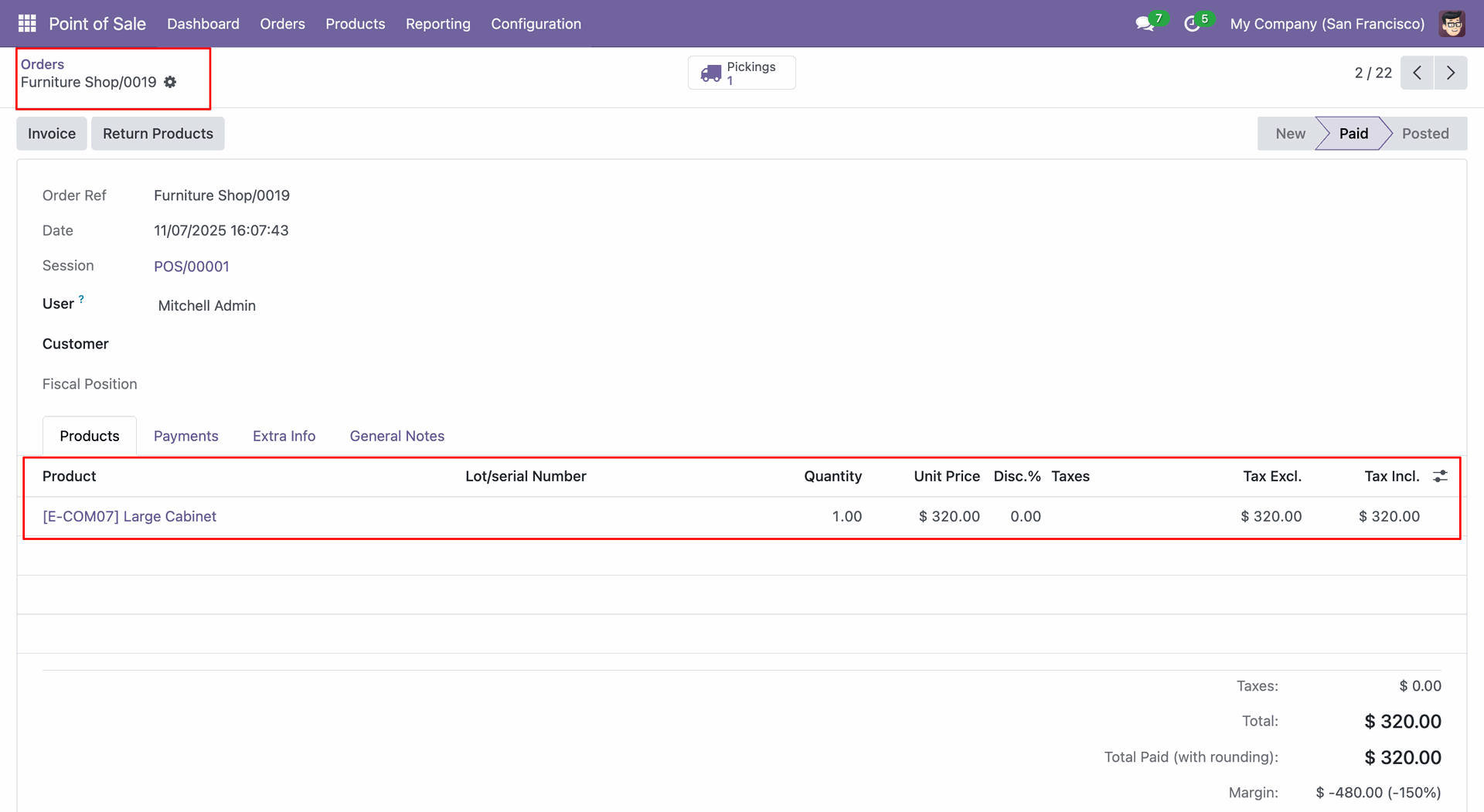
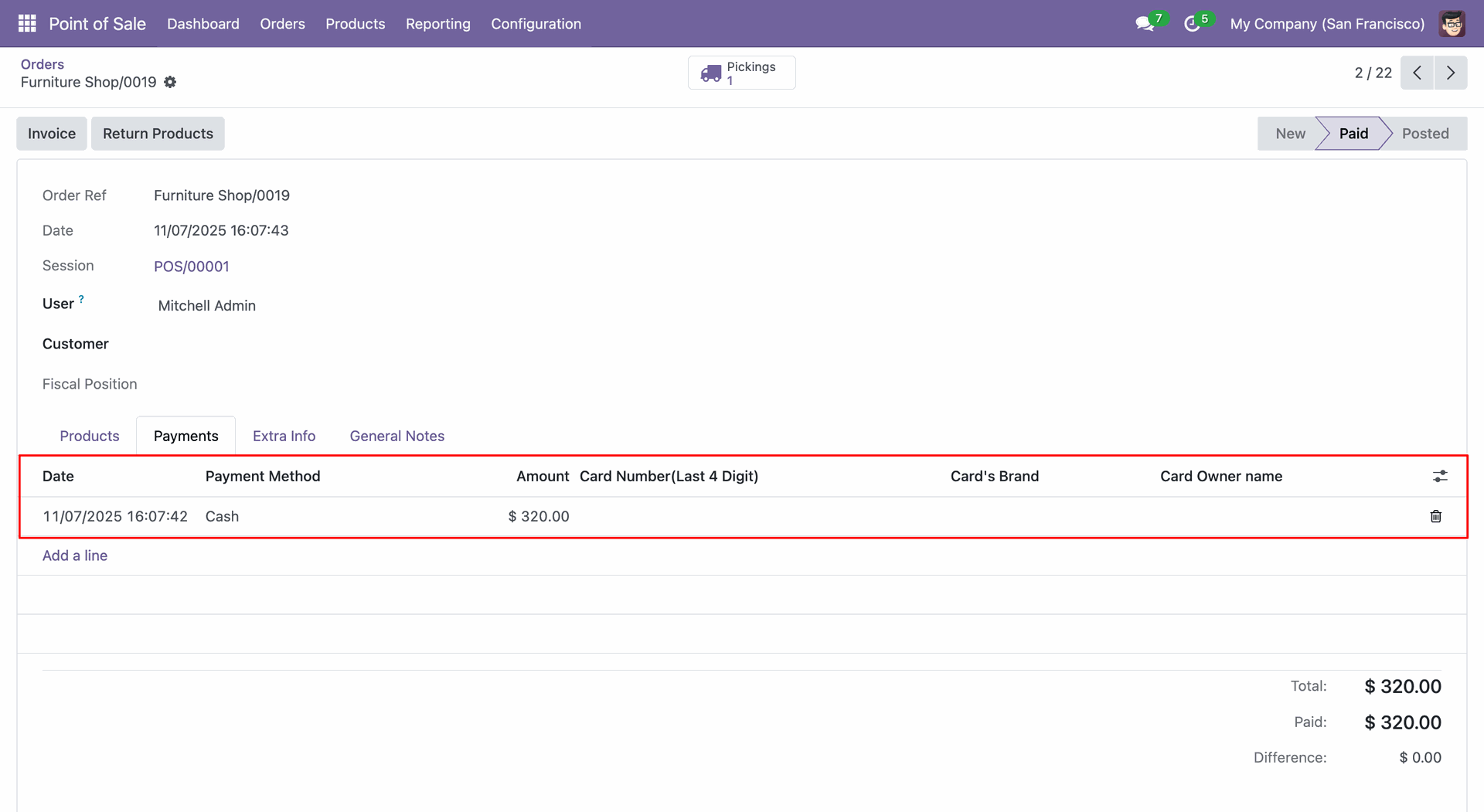
Create a new order (0019).
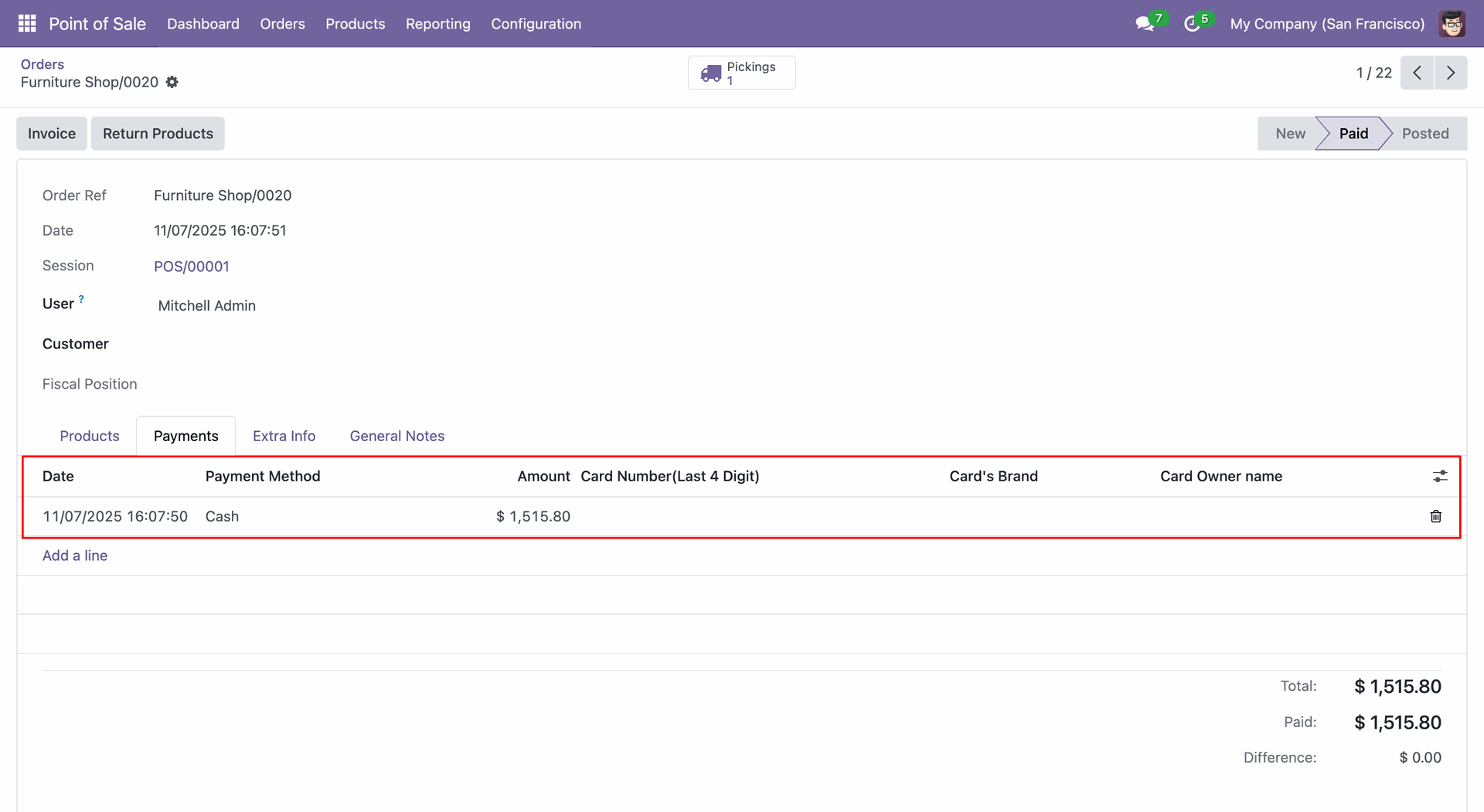
Create a new order (0020).
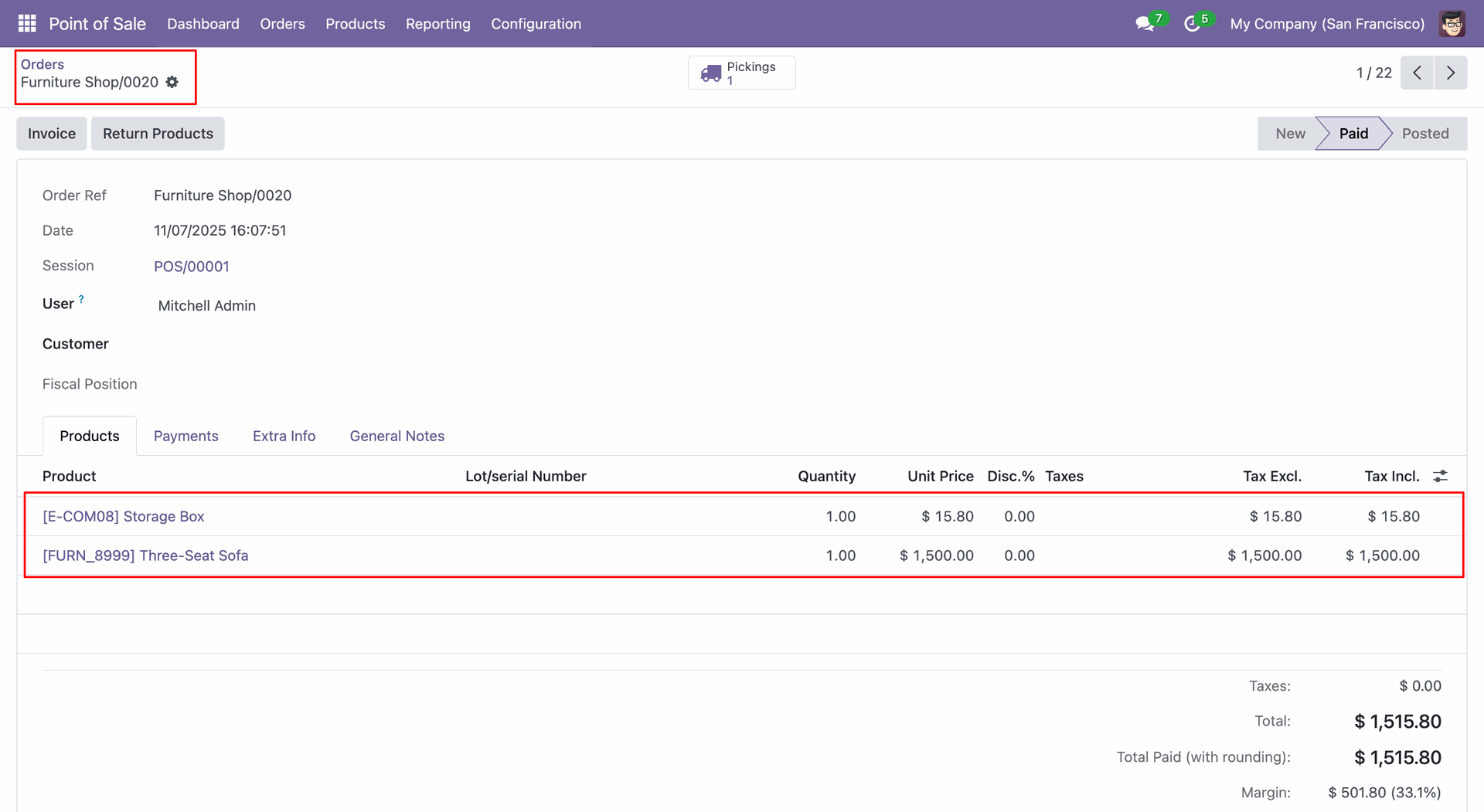
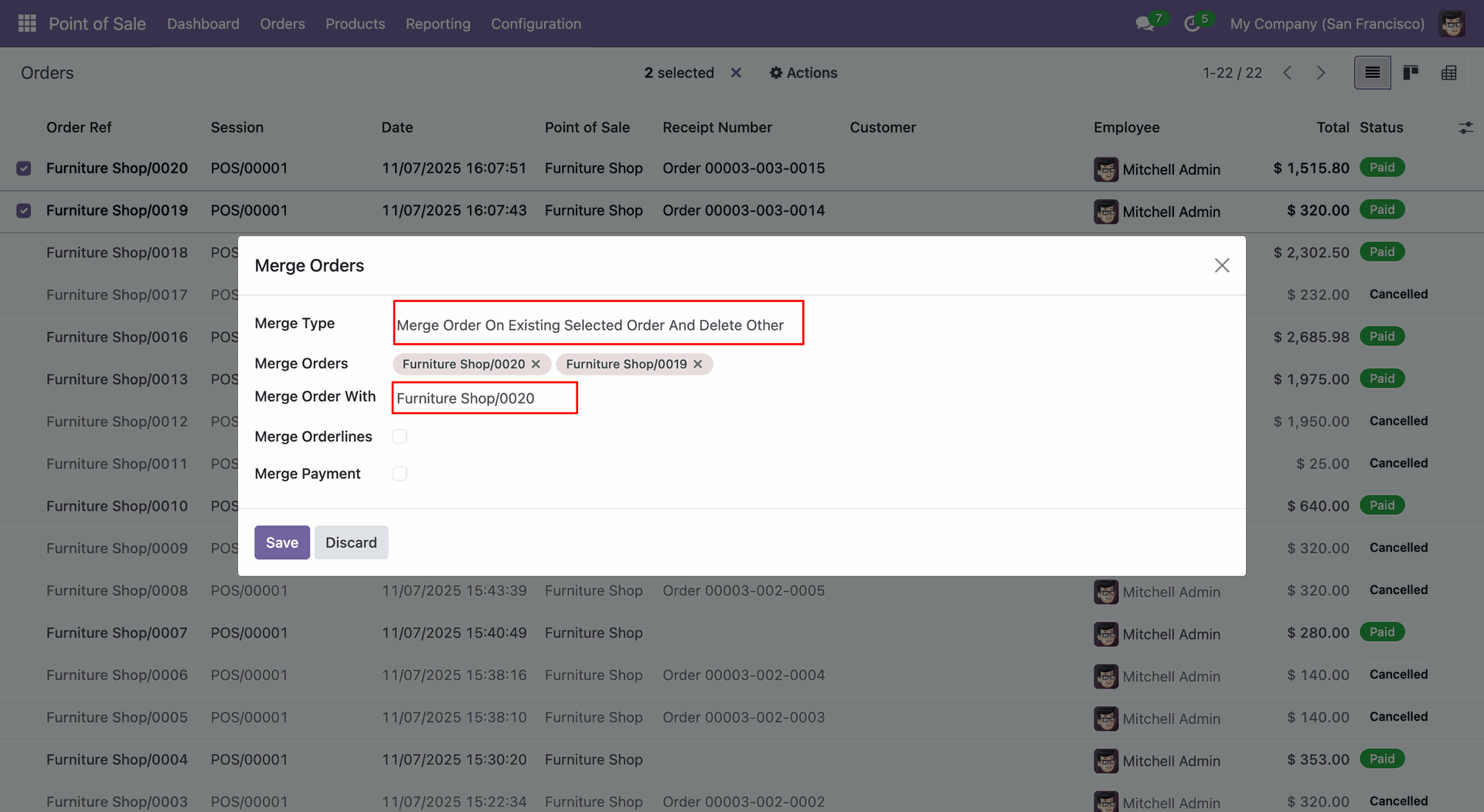
Select the Merge Type: Merge Order On Existing Selected Order and Delete Other, and add Merge Order with: 0020, and click on the "Save" button.
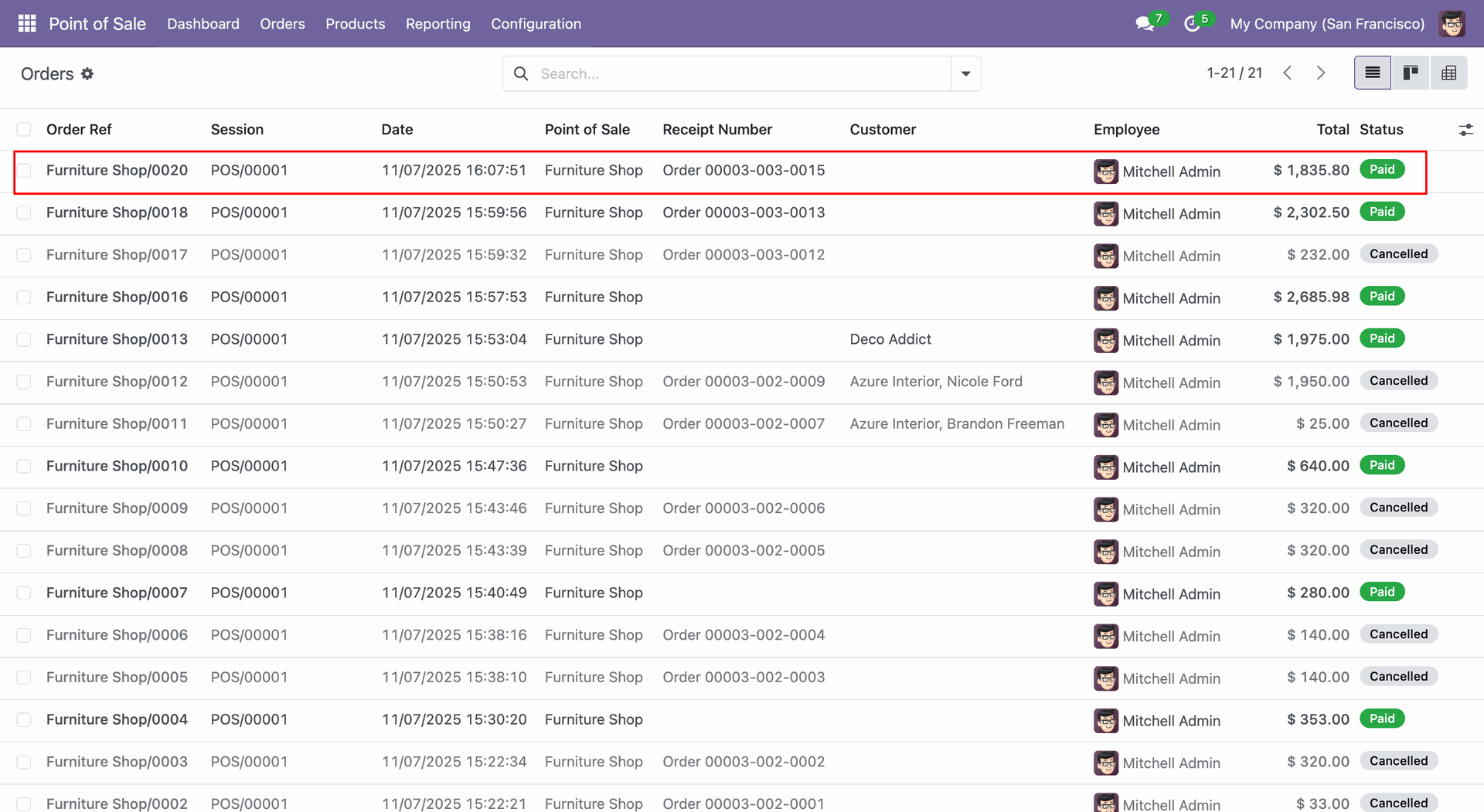
Here, you can see that the order has been merged with 0020, and the 0019 order has been deleted.
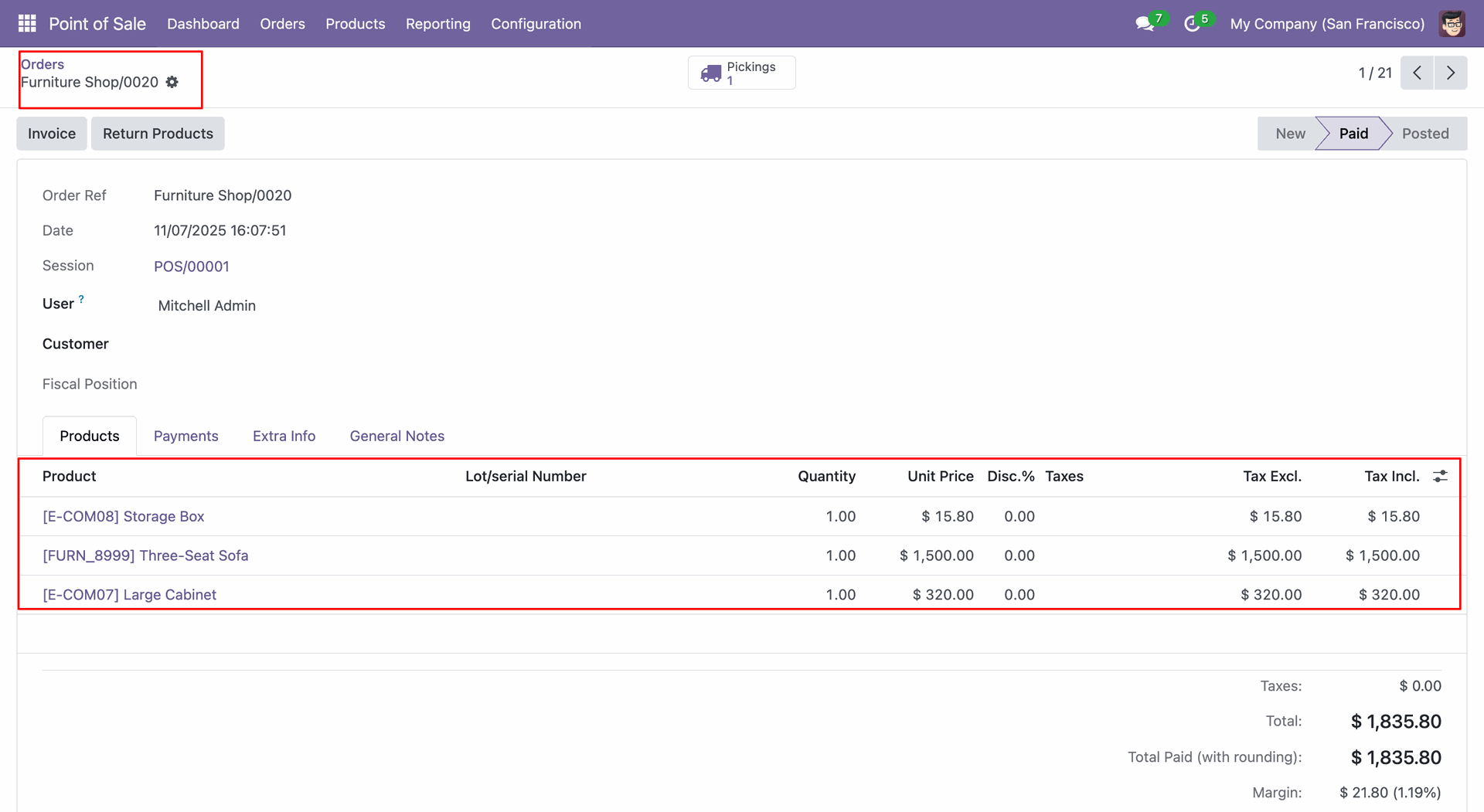
Form view of the merged order.
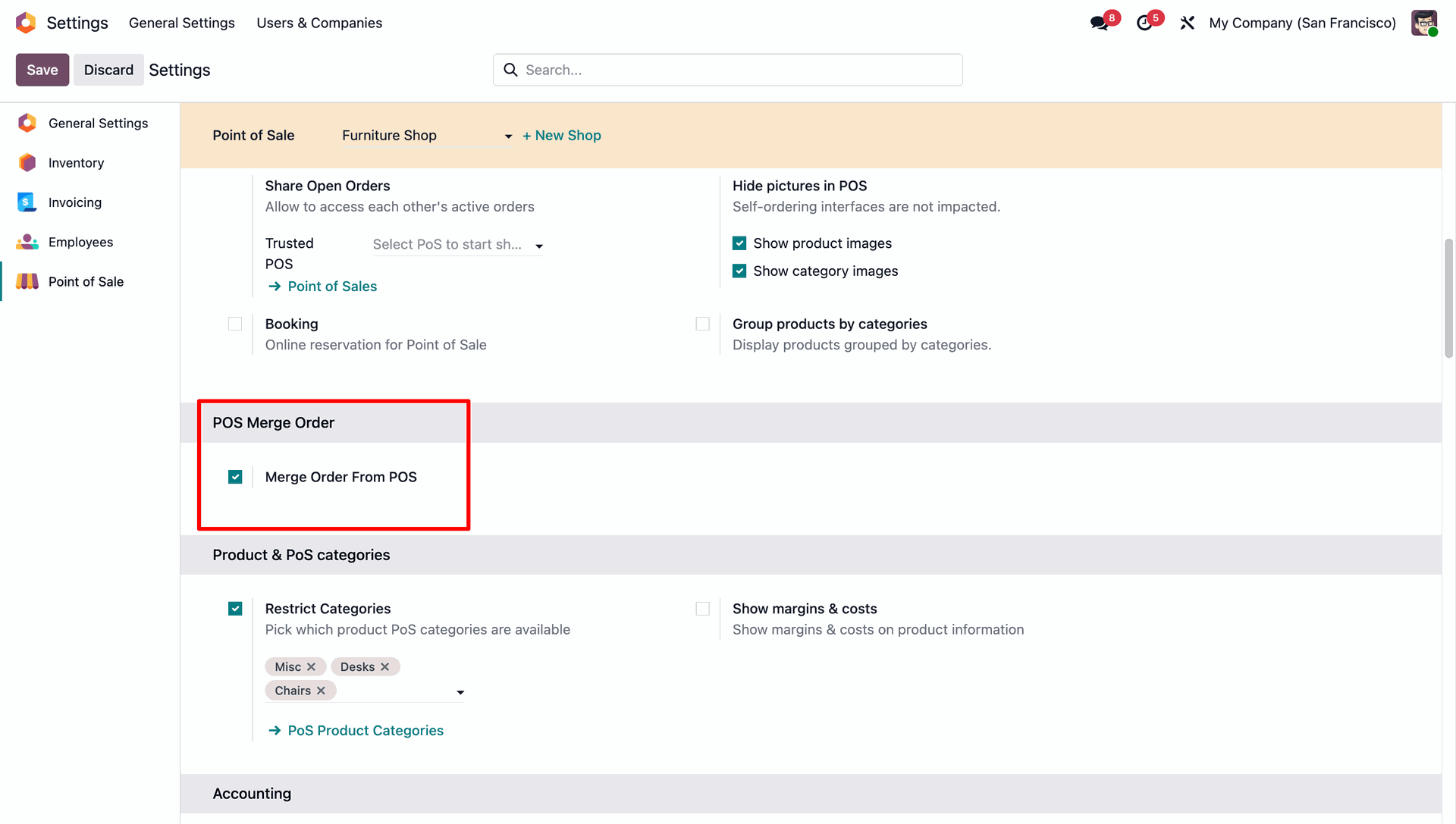
The user enables the Merge Order From POS setting, which is highlighted under the POS Merge Order section.
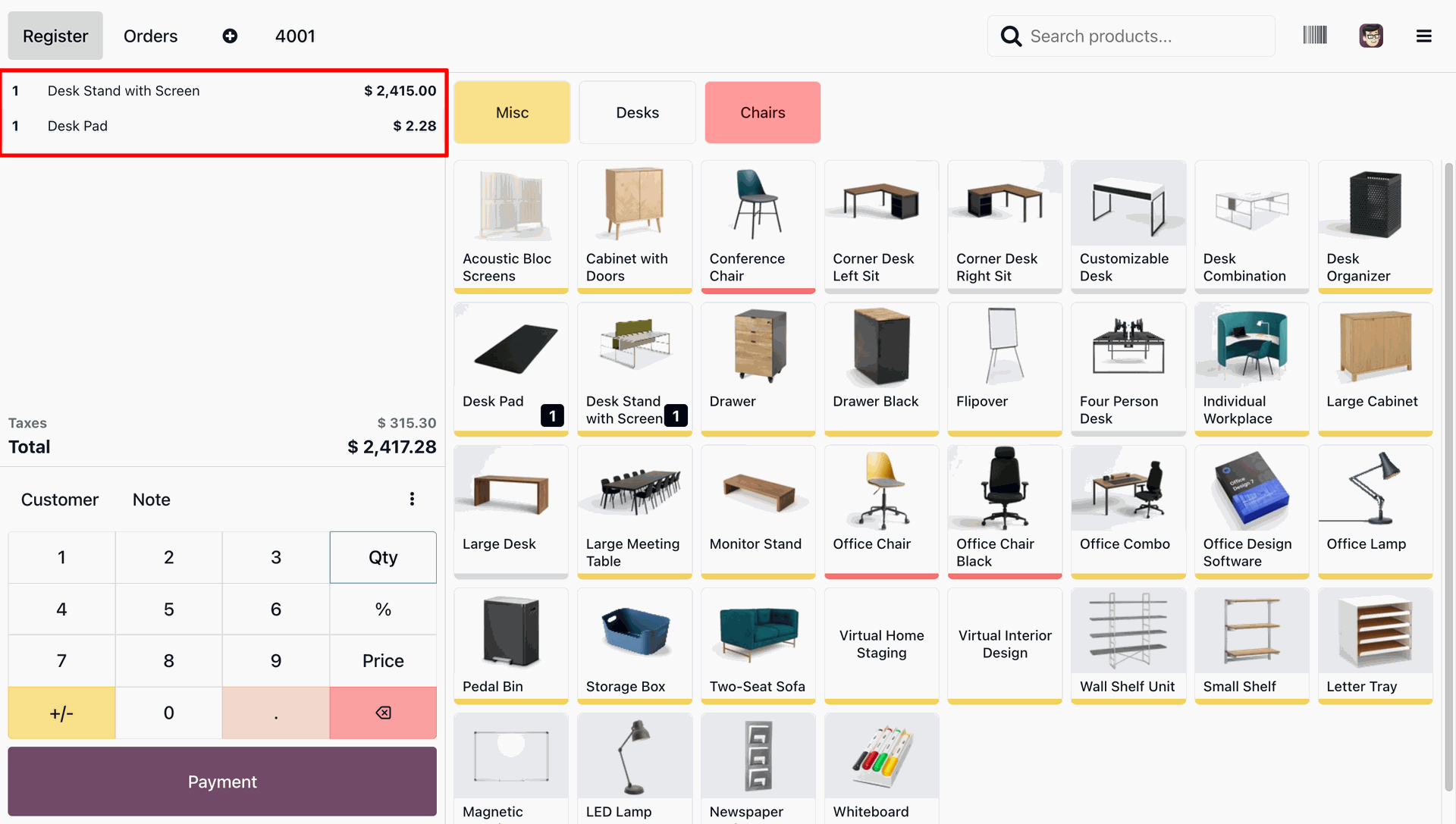
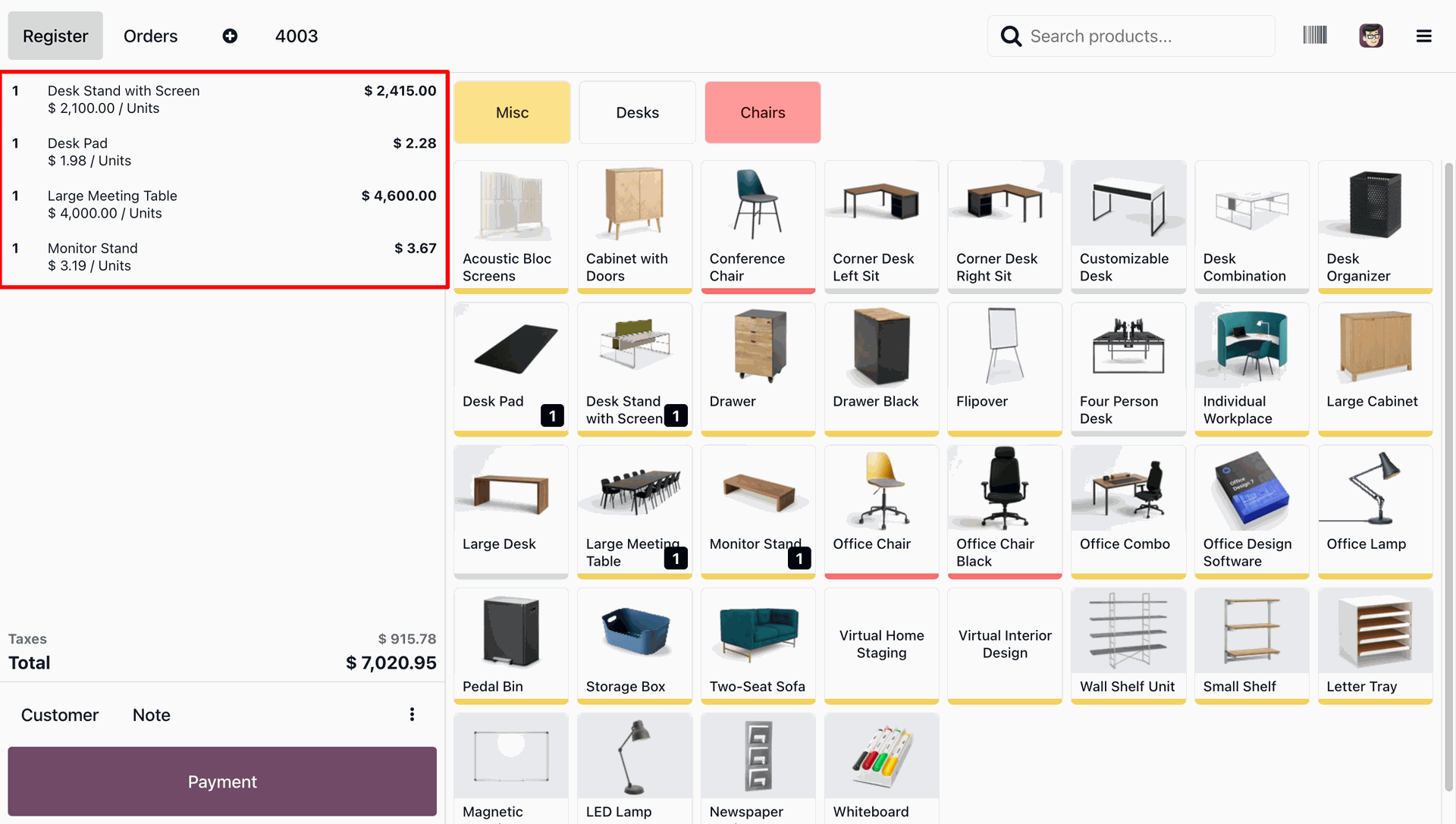
The user views the active order list for Order 4001, which highlights the added items: a Desk Stand with Screen and a Desk Pad.
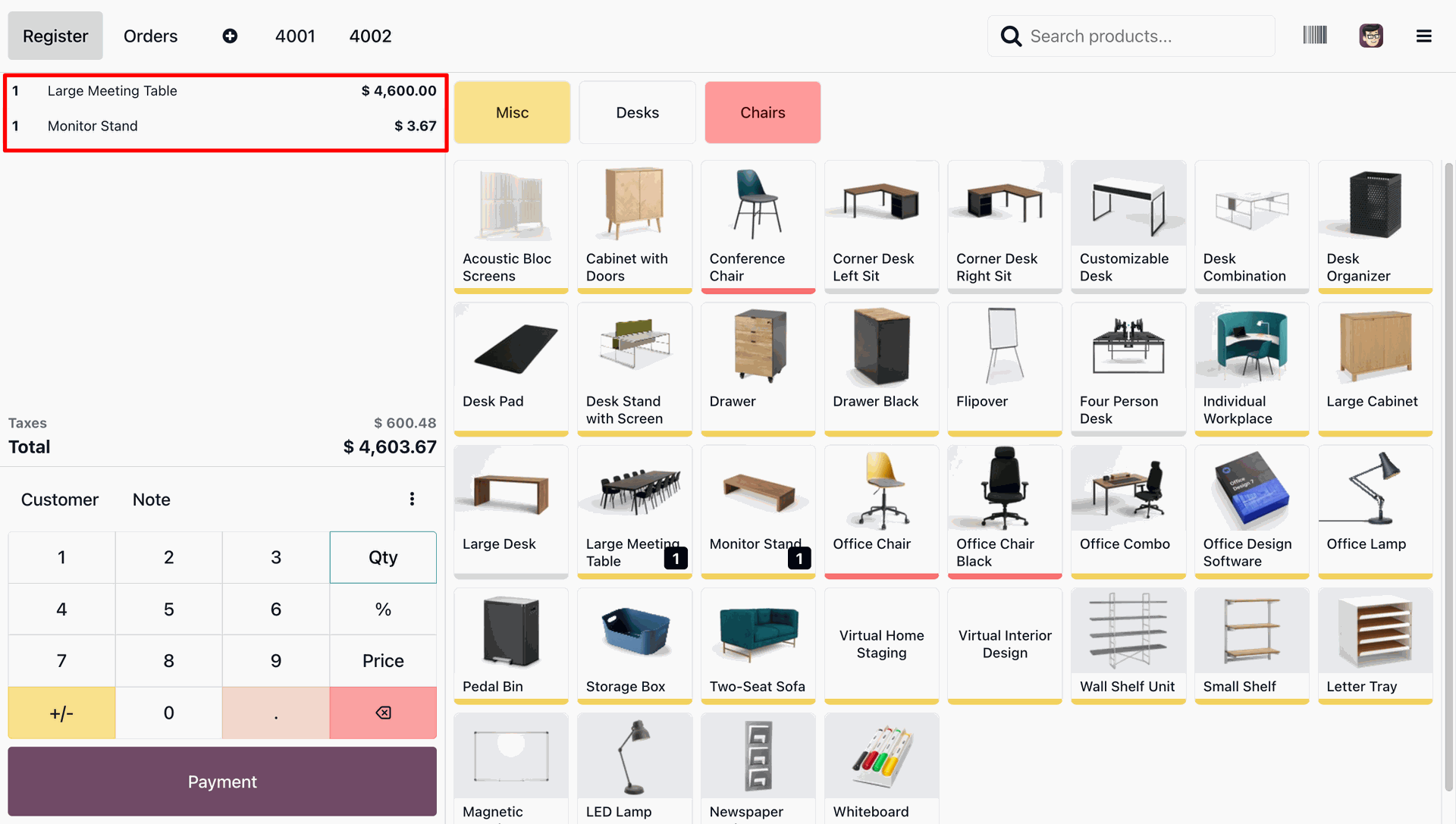
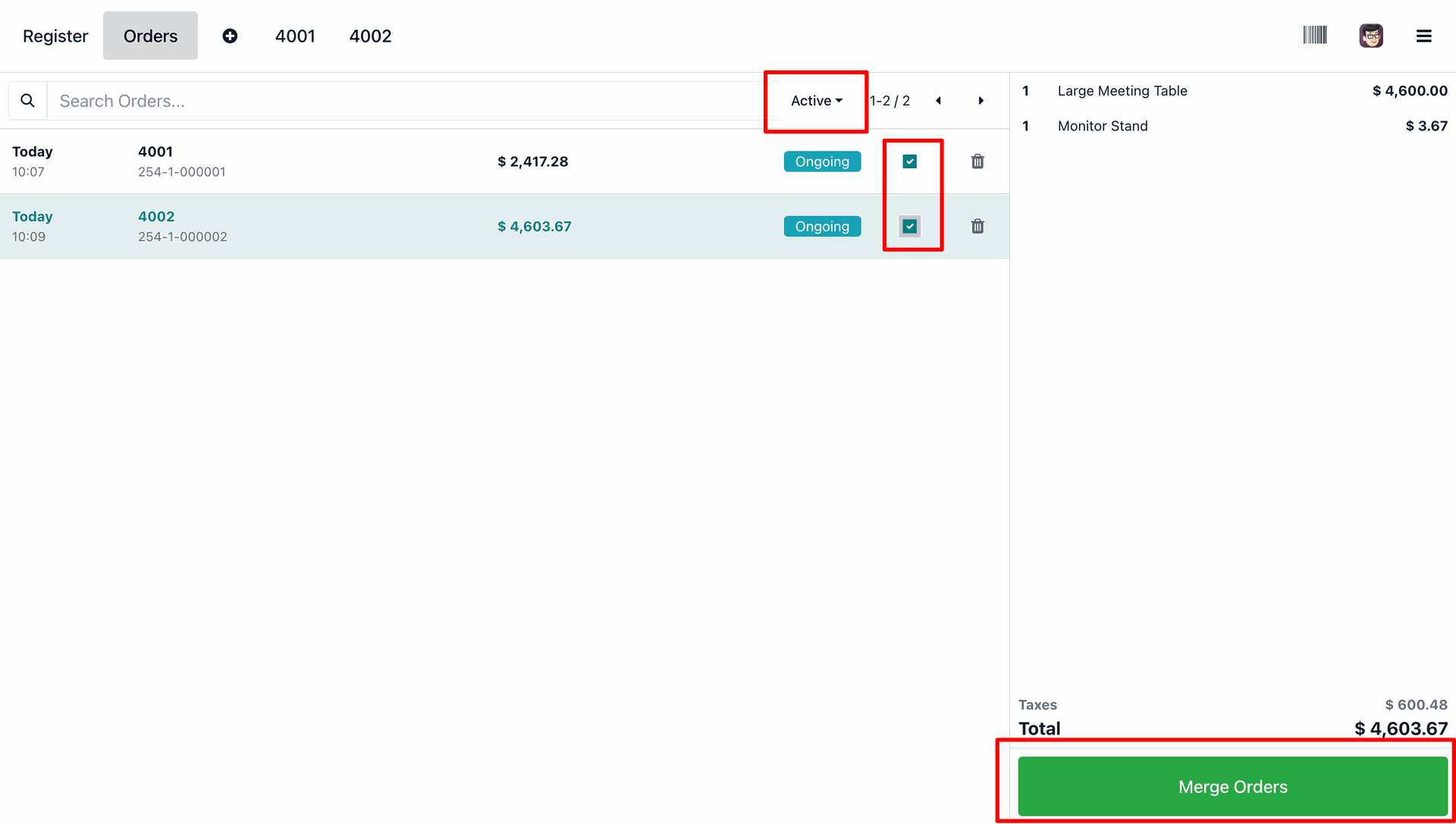
The user populates the second order, 4002, where a box highlights the newly added items: a Large Meeting Table and a Monitor Stand.
The user selects the active orders 4001 and 4002 using the highlighted checkboxes and clicks the green Merge Orders button to combine them into a single transaction.
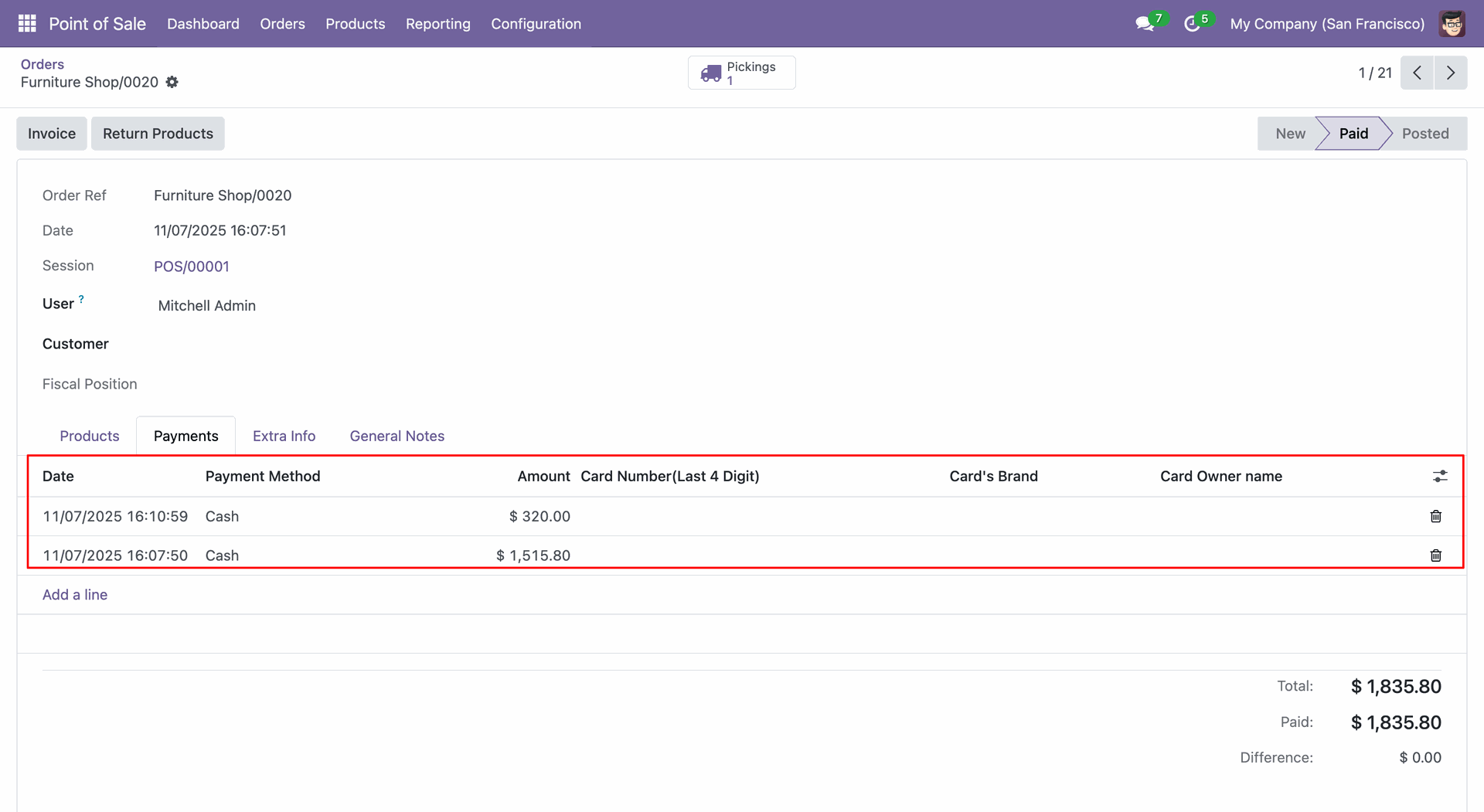
The user verifies the merged transaction in order 4003, where the box highlights the combined items from the previous orders, resulting in a new total of $ 7,020.95.
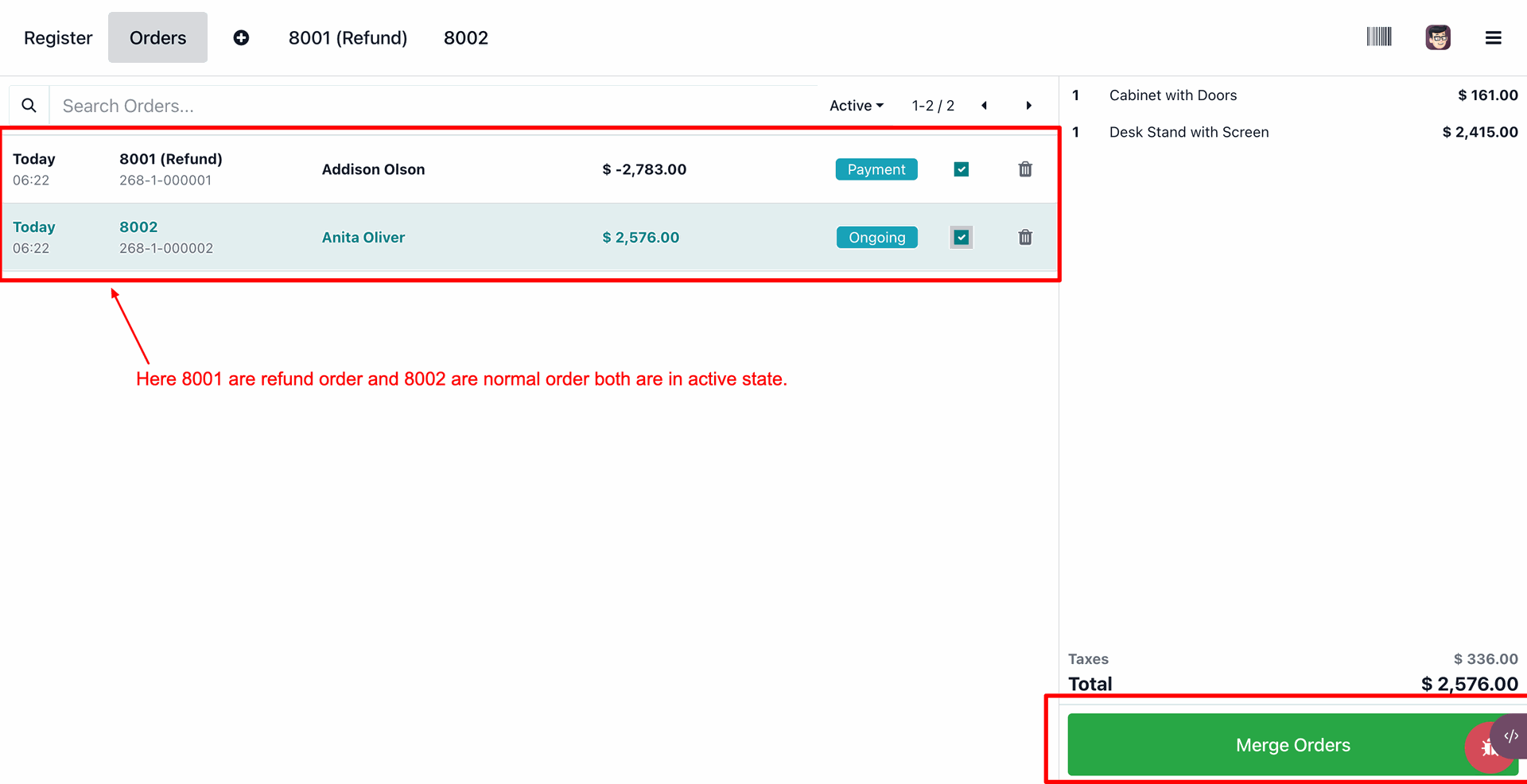
The user selects a refund order (8001) and a normal order (8002) and attempts to combine them by clicking the Merge Orders button.
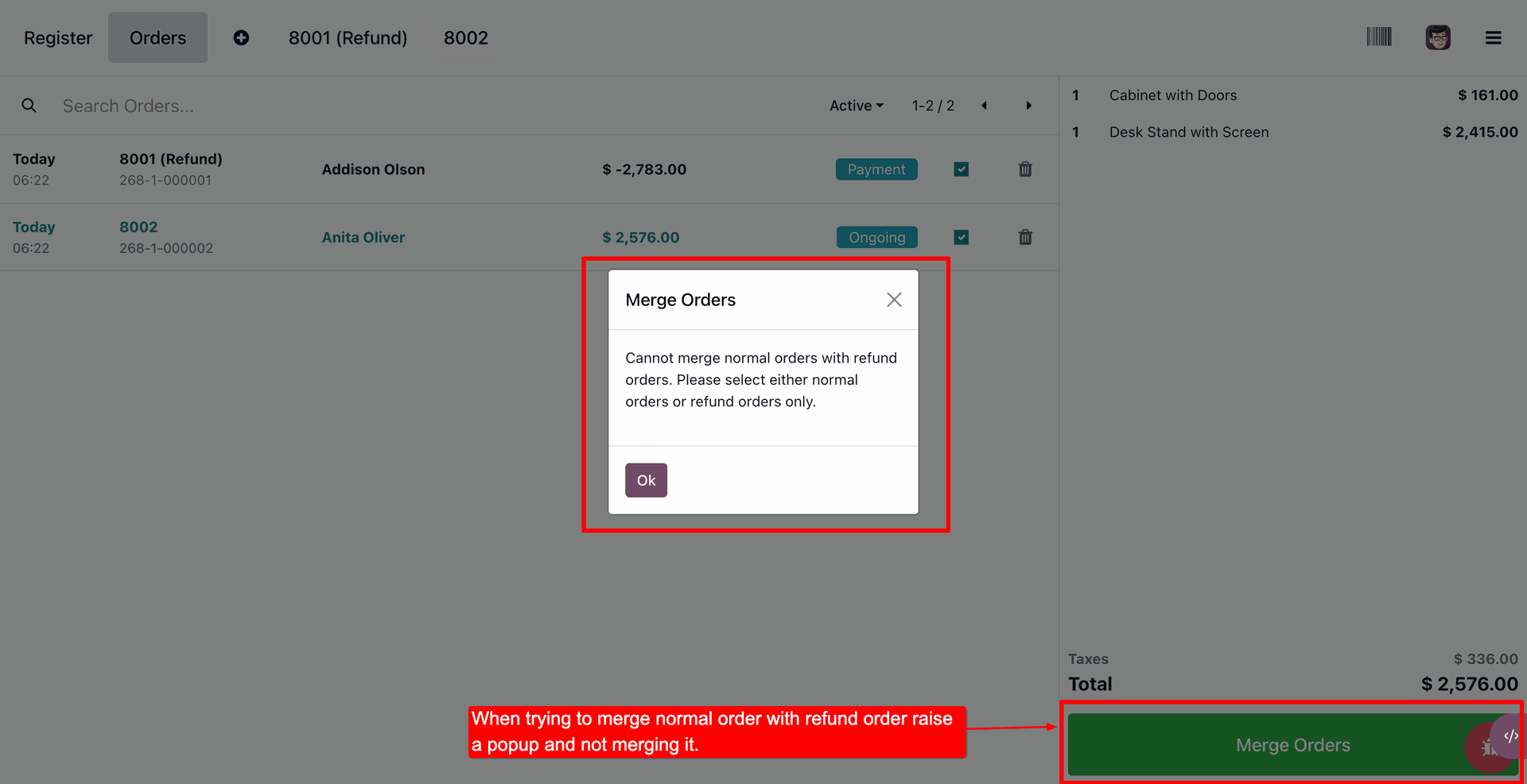
The user receives a Merge Orders warning pop-up which prevents merging normal orders with refund orders.
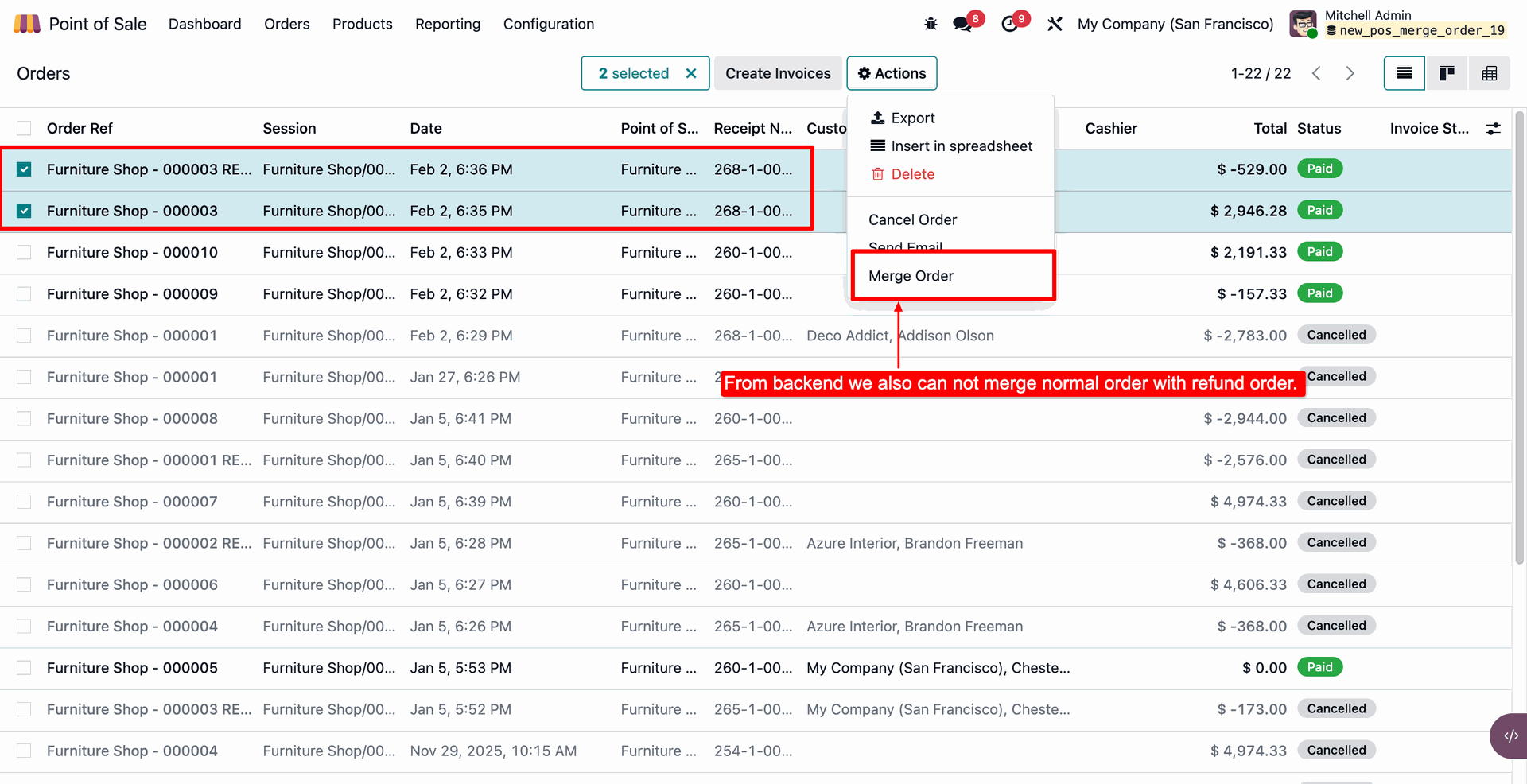
The user selects a refund and a normal order in the backend Orders list and attempts to use the Merge Order action, where an annotation confirms the operation is restricted.
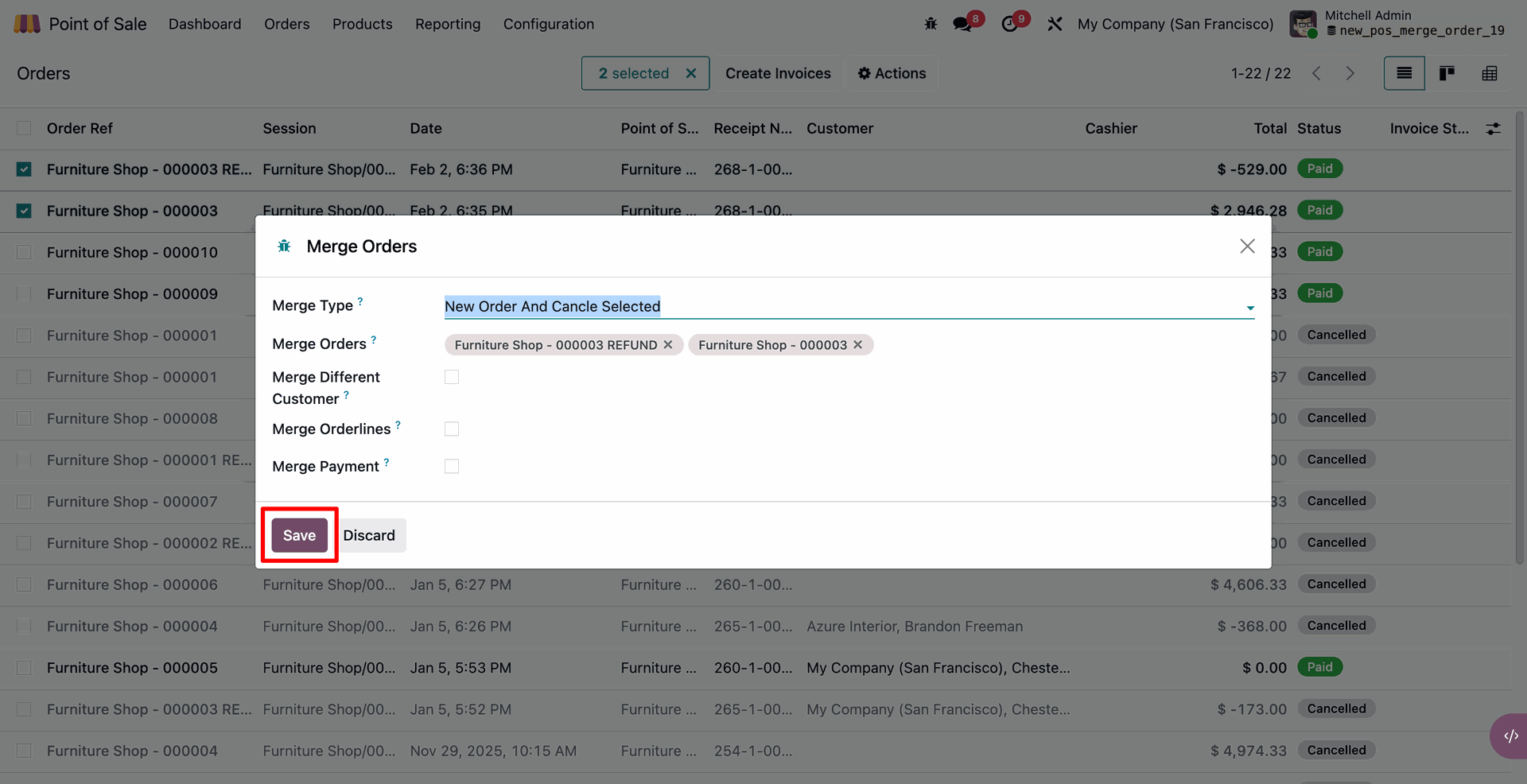
The user clicks the Save button in the Merge Orders modal to attempt merging the selected normal and refund orders with the New Order and Cancel Selected type.
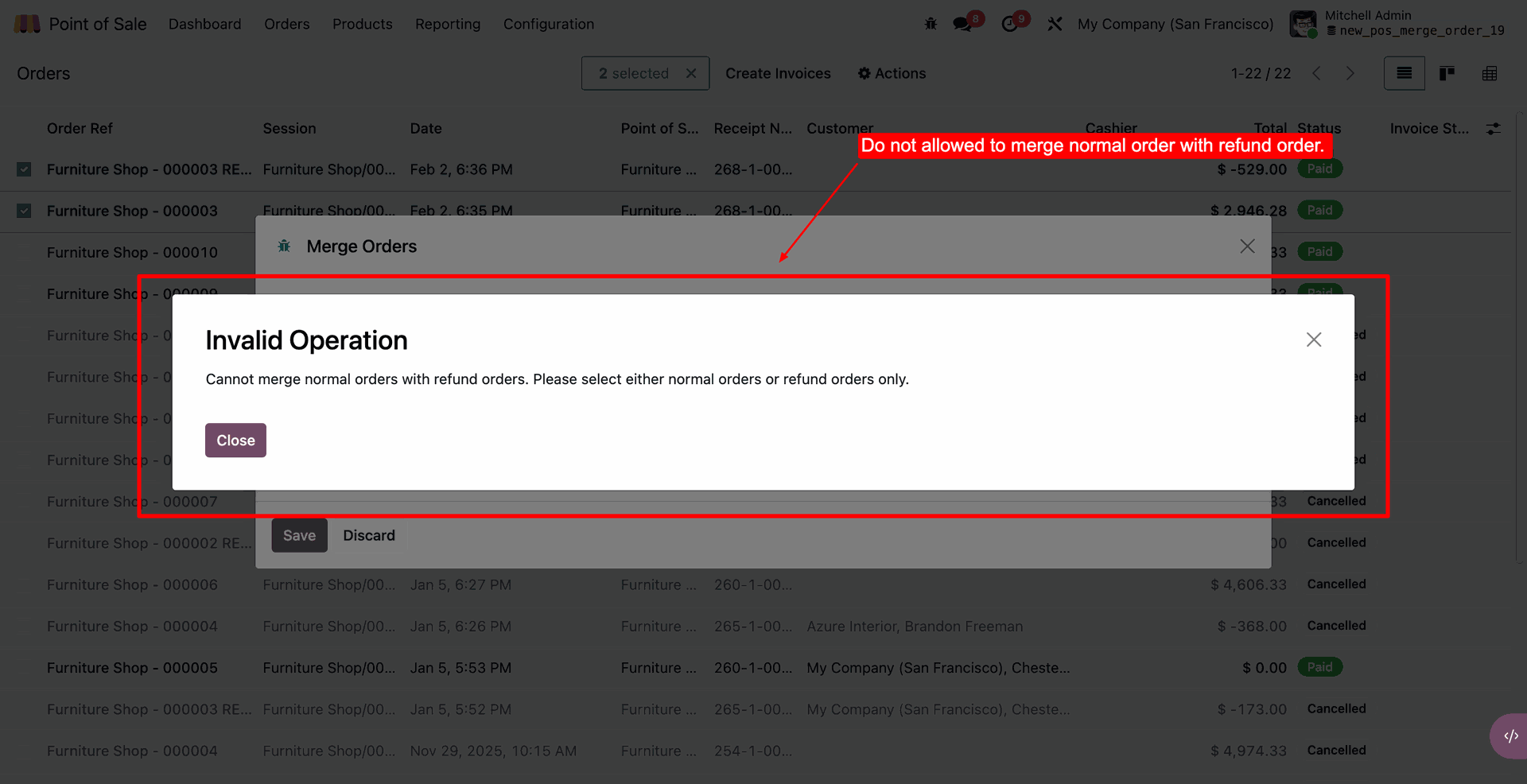
The system blocks the backend merge with an Invalid Operation pop-up, which explains that normal orders and refund orders cannot be combined.
Version 19.0.1 | Released on : 11th November 2025
- Yes, this app works perfectly with Odoo Enterprise (Odoo.sh & Premise) as well as Community.
- No, this application is not compatible with odoo.com(odoo saas/Odoo Online)
- Yes, to test this module, please contact us at sales@softhealer.com.
- Please contact us at sales@softhealer.comto request customization.
- Yes, we provide free support for 365 days from the date of purchase.
- Yes, you will receive lifetime free updates for the version of the module you purchased.
- No, there is no need to install any additional libraries.
- Yes, for version 12 and above, you need to purchase the module separately for each version you intend to use.
- No, exchanges or refunds are not allowed. Please make sure to select the correct version before purchasing.
- You can contact us at support@softhealer.com for language translation support. We use Google Translator tools to provide translations in multiple languages, so the accuracy may vary. We welcome your suggestions to help improve translations.
Discover Our Latest Apps