












Point Of Sale Low Stock Notification

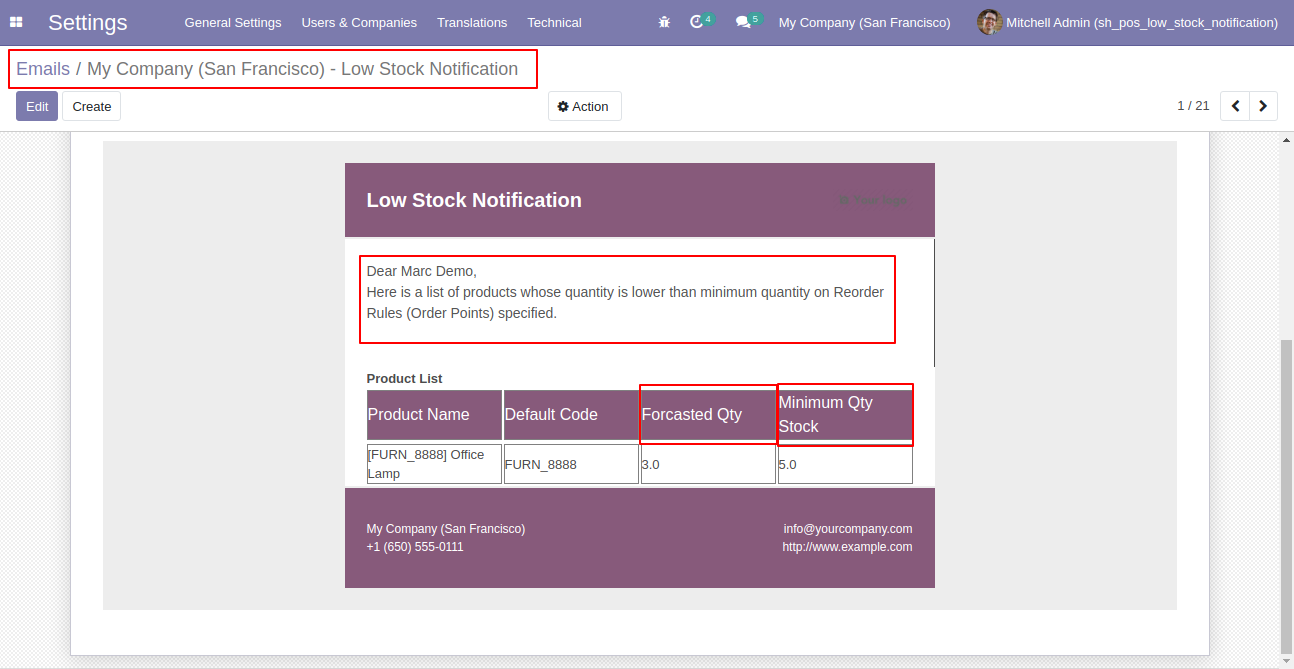
This module is very useful to give an email notification to the user regarding the low stock of the product in the point of sale. In the email, a list of the product appears with current stock evaluations. You can define low stock level global for all products or individual product low stock level (qty). Based on forecasted or on-hand product quantity, you can send product low stock notifications.

Related Modules
Hot Features
Features
- You can send the product low stock notification in POS.
- You can send the product low stock notification by email.
- You can send email notifications by product on-hand or forecasted quantity.
- You can set low stock notification by defining product minimum quantity (global quantity, individual quantity & reorder rules (order point)).
- Well, format email received with product information.
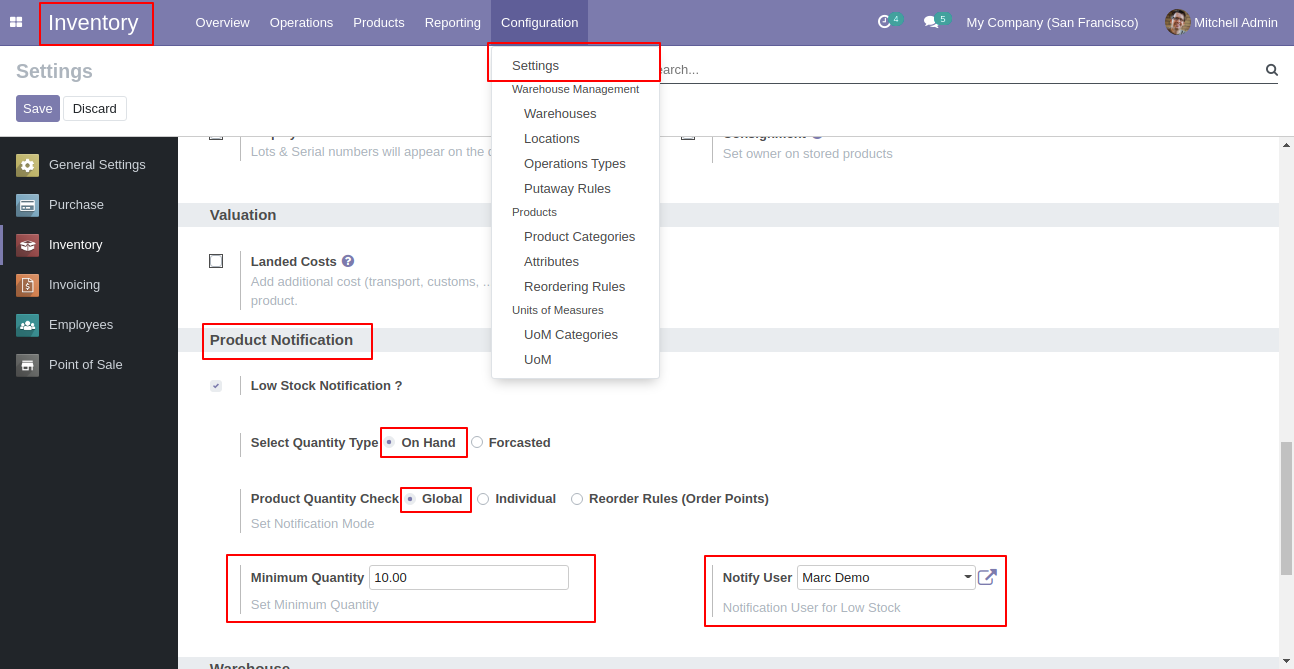
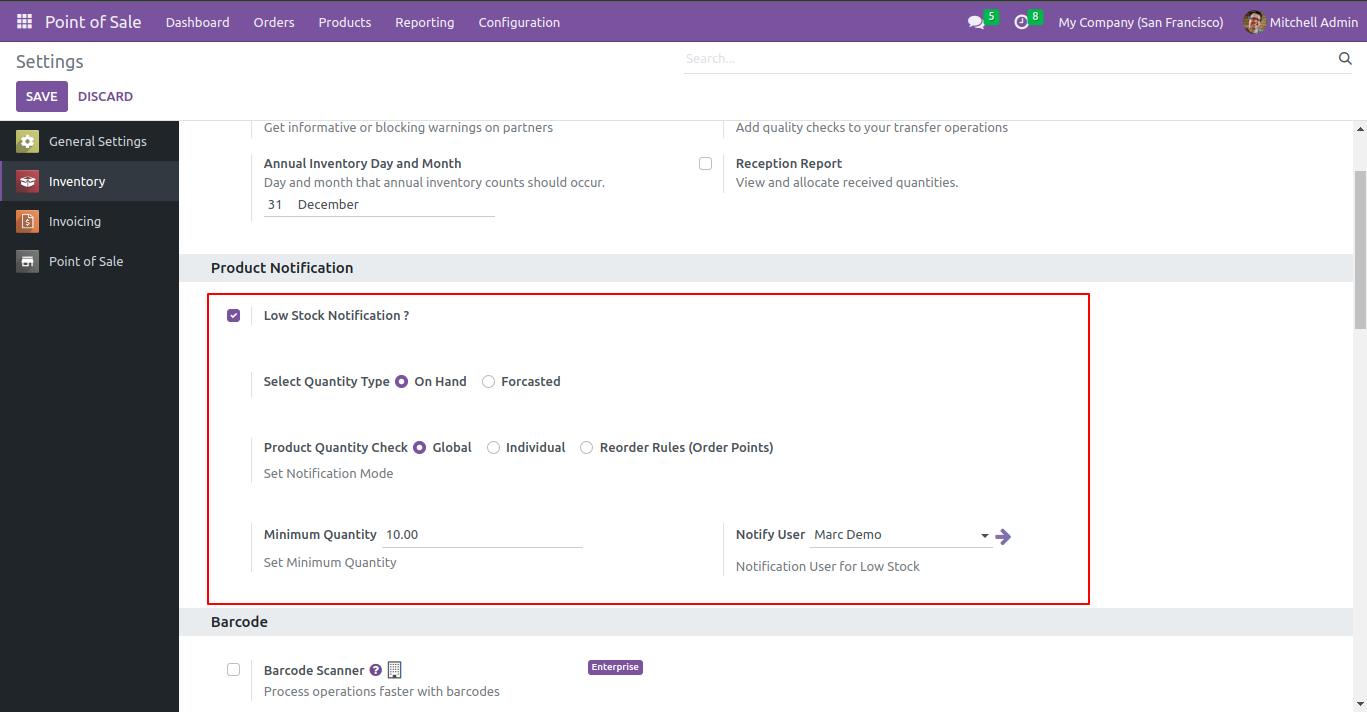
Set "Low Stock Notification?" to "True" for the company to allow notification
email. Set "Notify User", an email will send to that user.
If "Product Quantity Check" is set "Globally" & "Quantity Type" is set "On
Hand" then defines "Minimum Quantity". Notification Email will be sent to that
user for all product variants whose "On Hand" product quantity is lower than
the defined global minimum quantity.
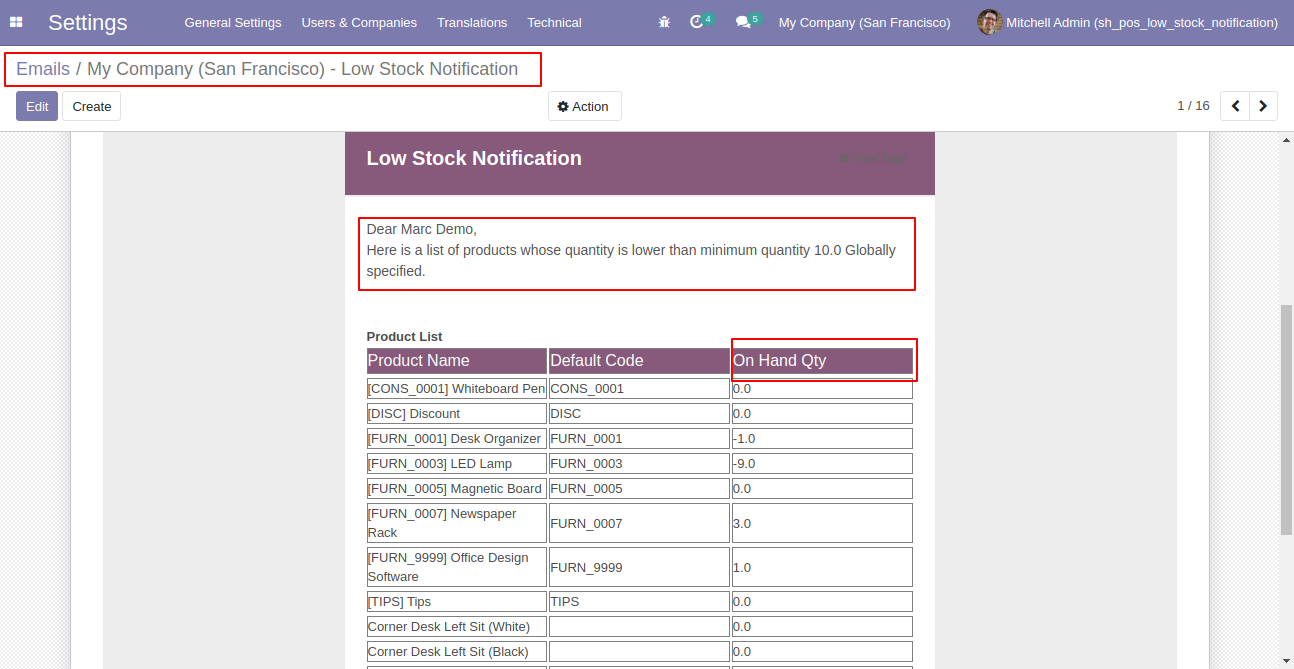
Email notification sent to the selected user based on configuration.
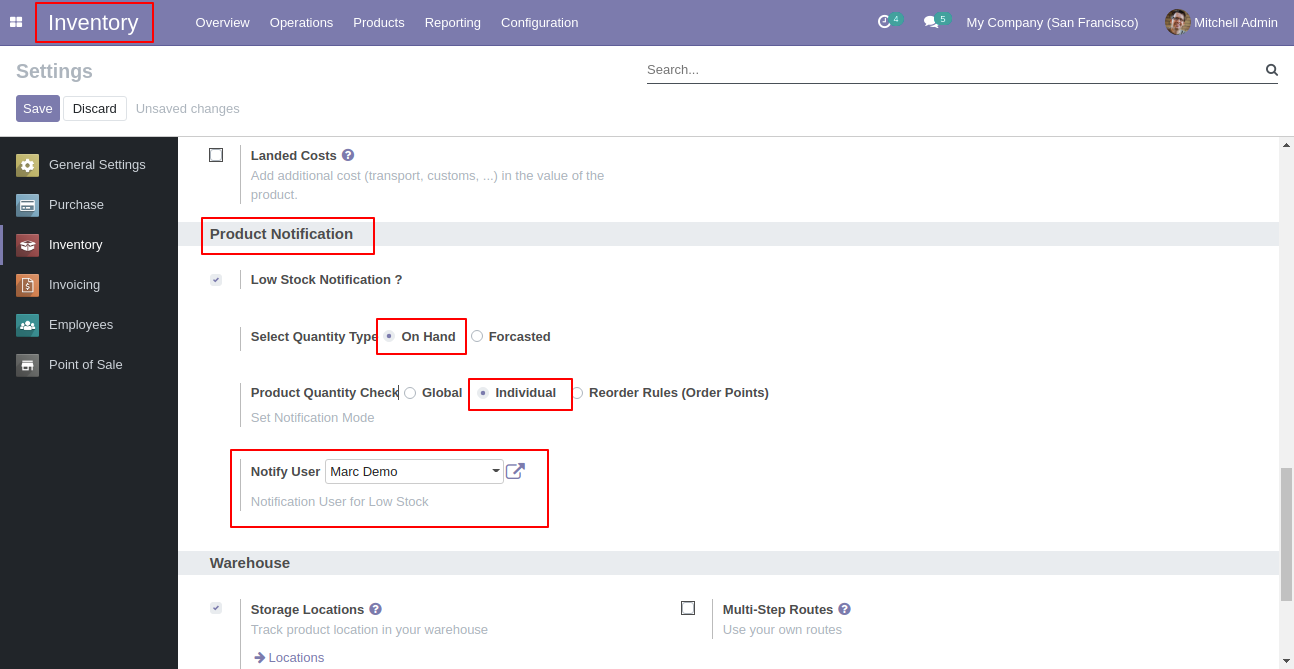
Set "Low Stock Notification?" to "True" for the company to allow notification
email. Set "Notify User", an email will send to that user.
If "Product Quantity Check" is set "Individual" & "Quantity Type" is set "On
Hand" than Notification Email will be sent to that user for all product
variants whose "On Hand" product quantity is lower than the product's "Minimum
Quantity" defined inside the product itself.
In Product varient set min quantity. This quantity will be considered only when the option "Individual" is selected.
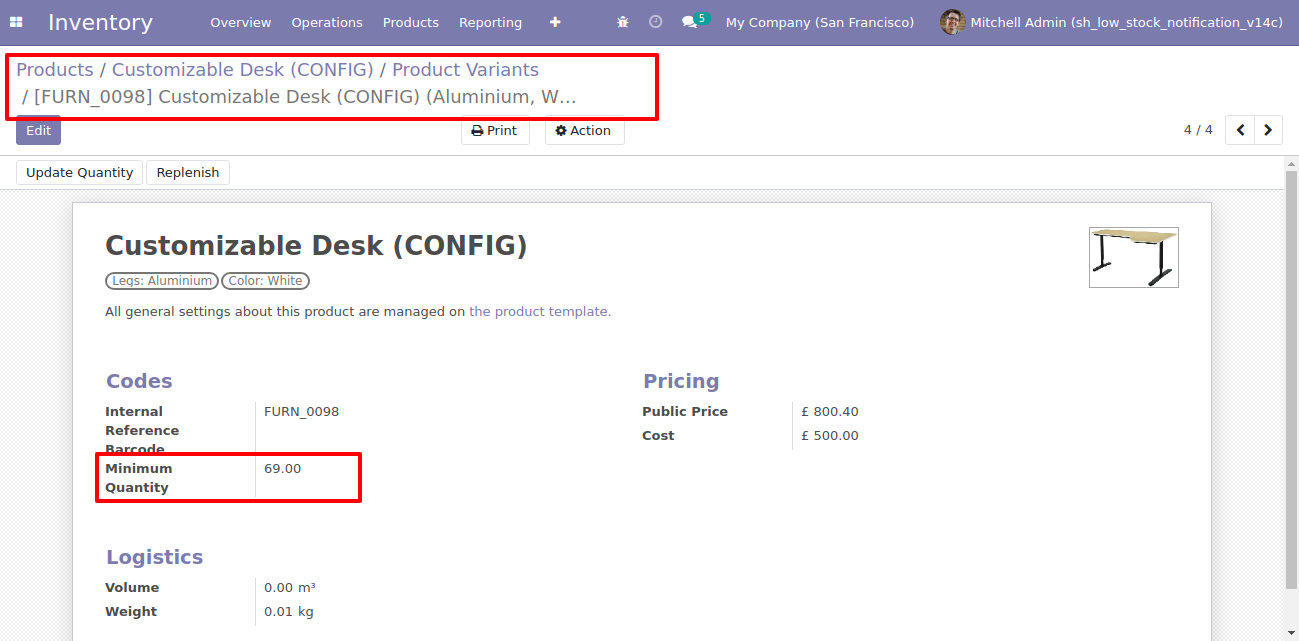
In Product varient set min quantity.
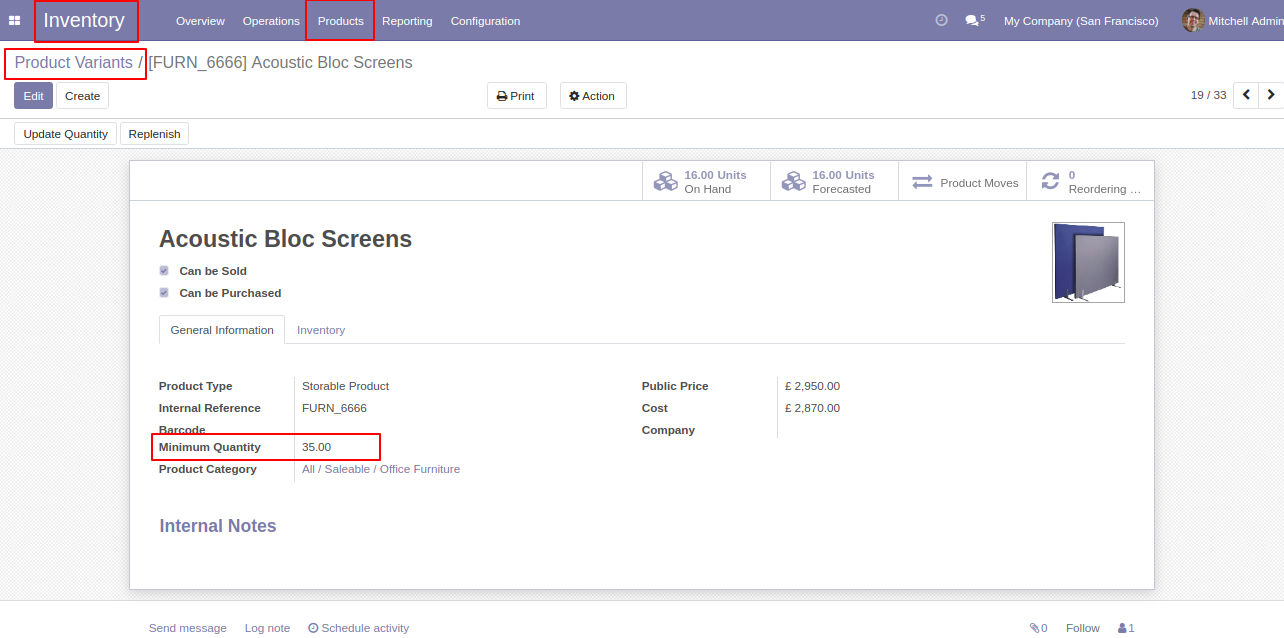
Email notification sent to the selected user based on configuration.
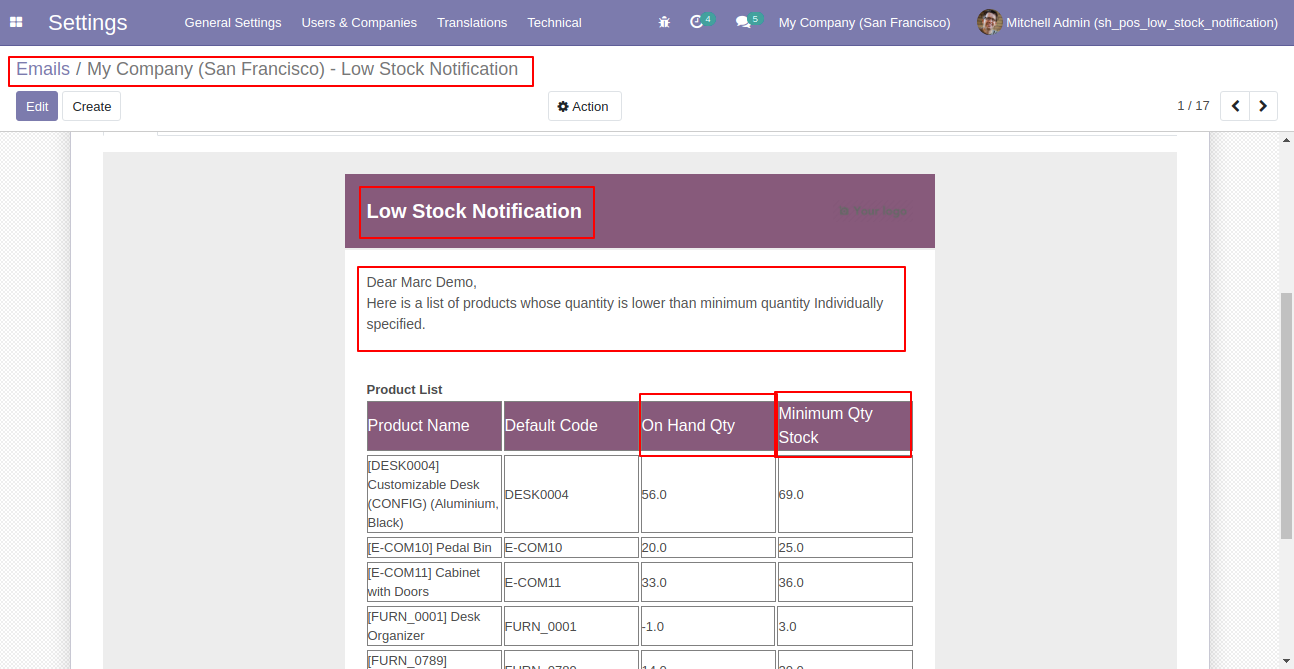
Set "Low Stock Notification?" to "True" for the company to allow notification
email. Set "Notify User", an email will send to that user.
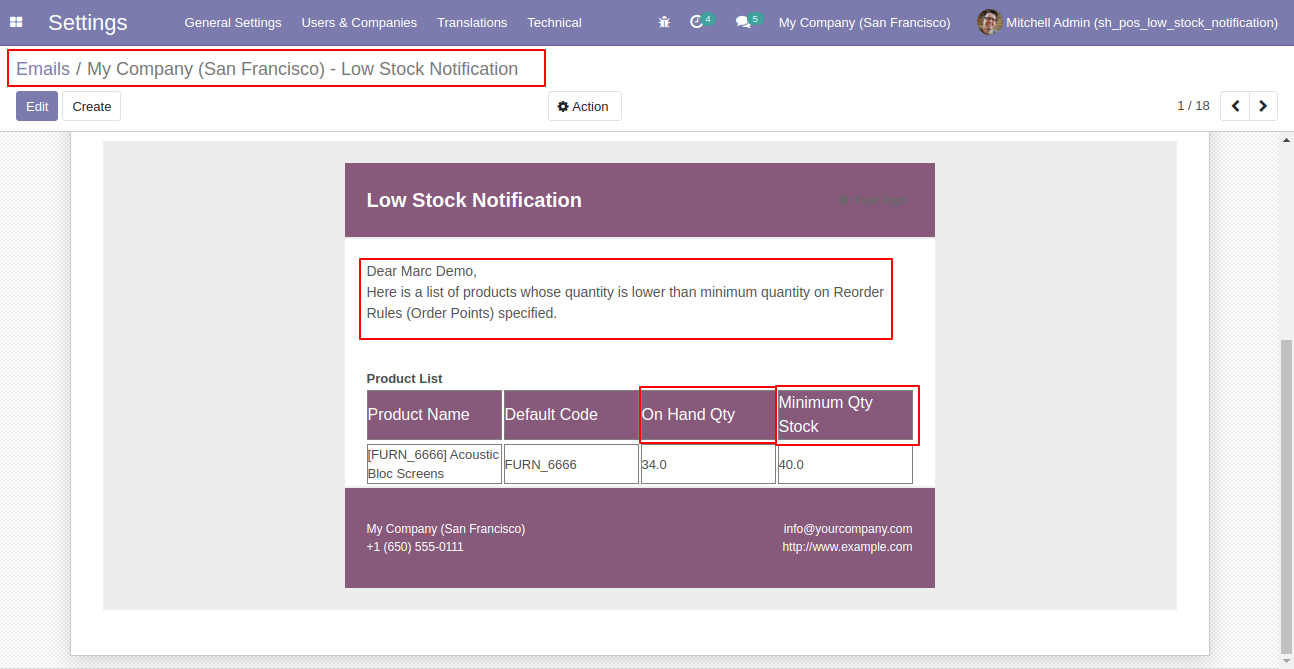
If "Product Quantity Check" is set "Reorder Rules (Order Point)" & "Quantity
Type" is set "On Hand" than Notification Email will be sent to that user for
all product variants whose "On Hand" quantity is lower than product's all
reordered rules minimum quantity defined.
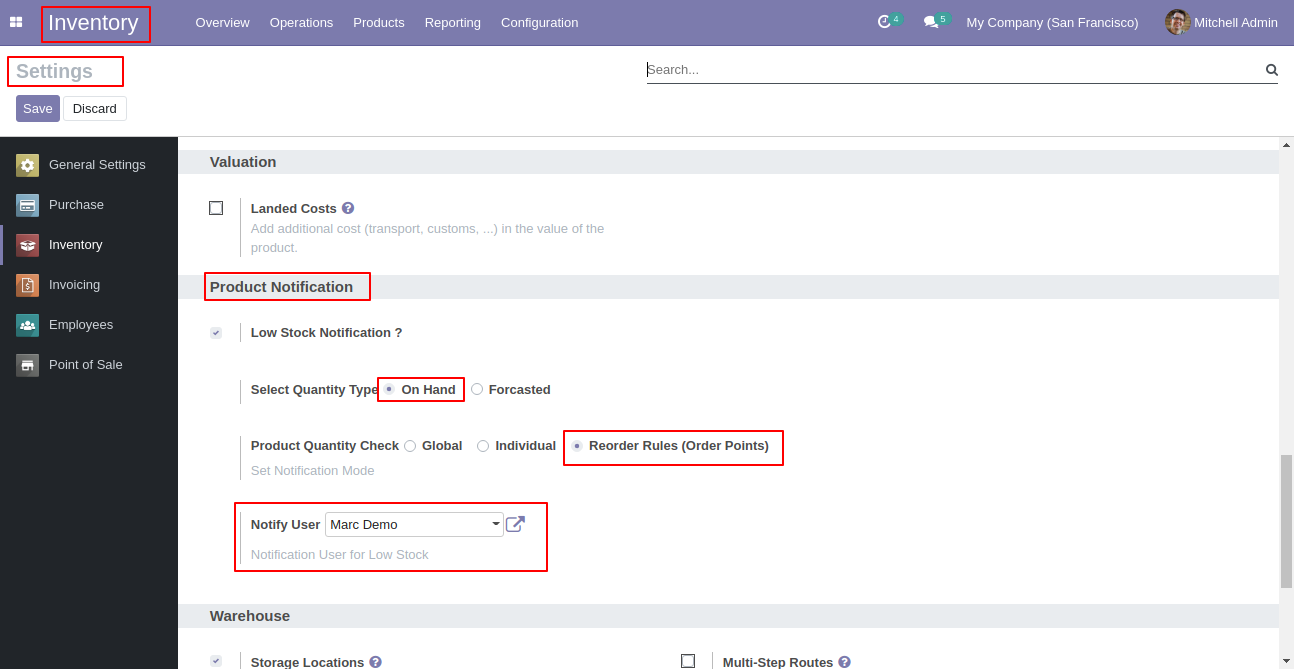
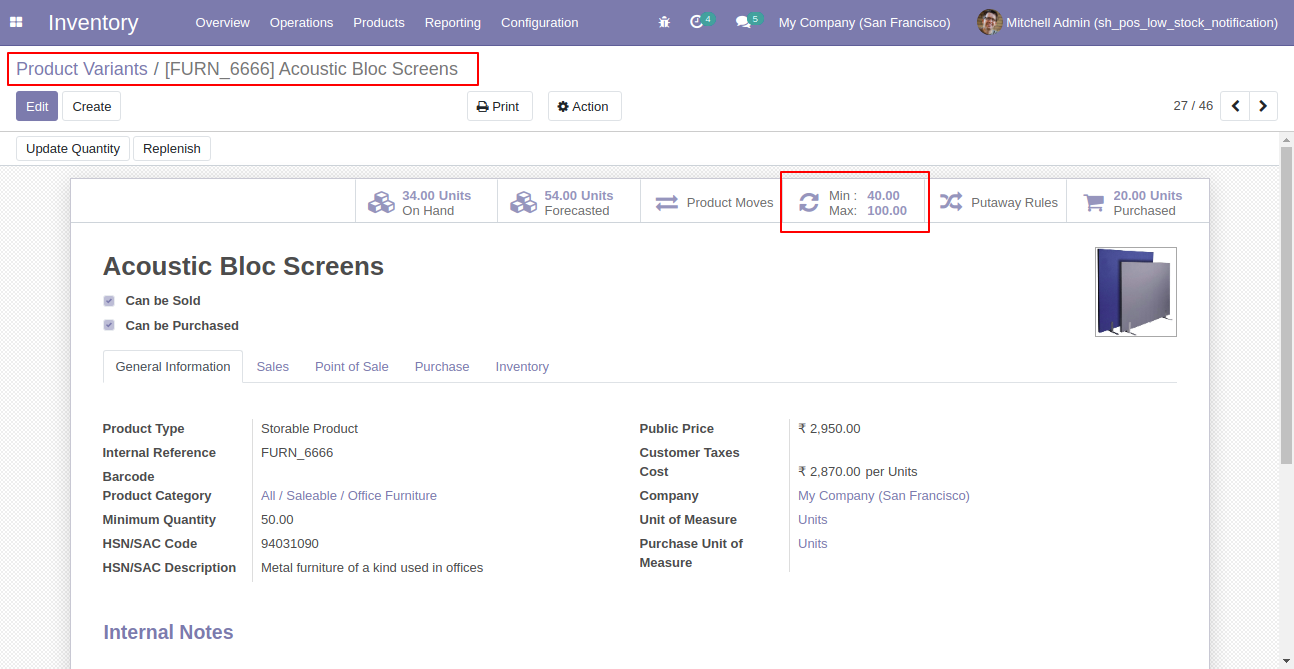
In product set min quantity and max quantity. This quantity will be considered only when the option "Reorder Rules (Order Point)" is selected.
Email notification sent to the selected user based on configuration.
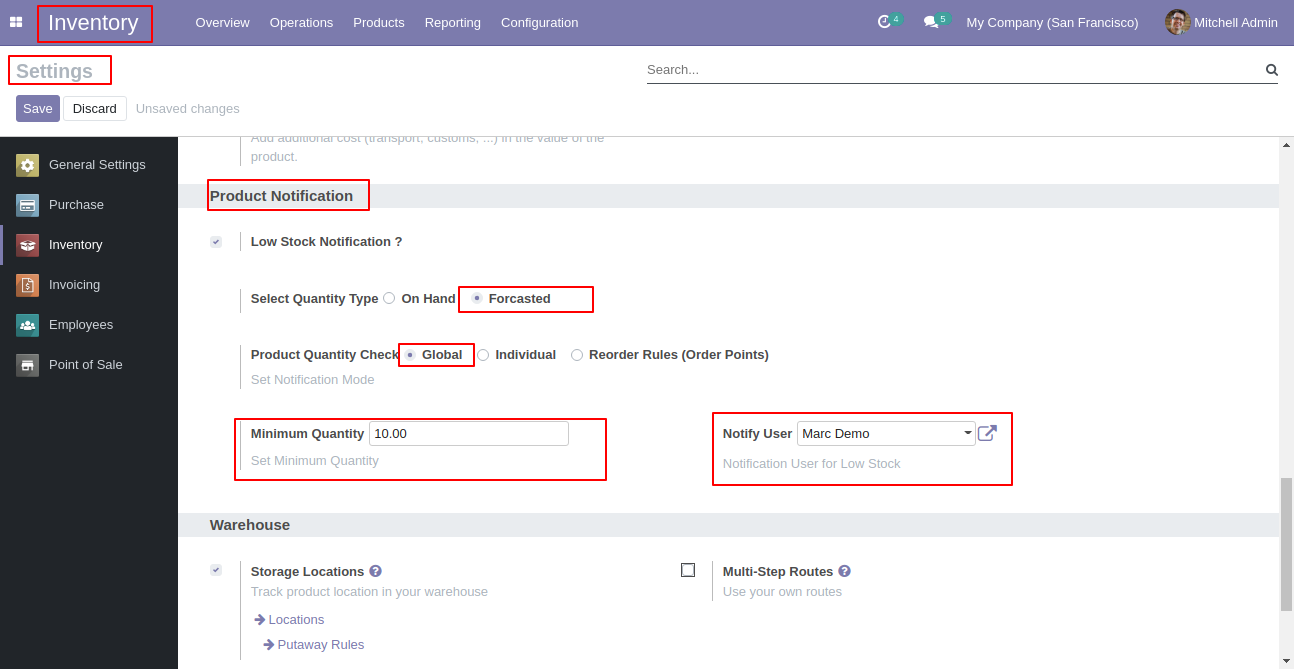
Set "Low Stock Notification?" to "True" for the company to allow notification
email. Set "Notify User", an email will send to that user.
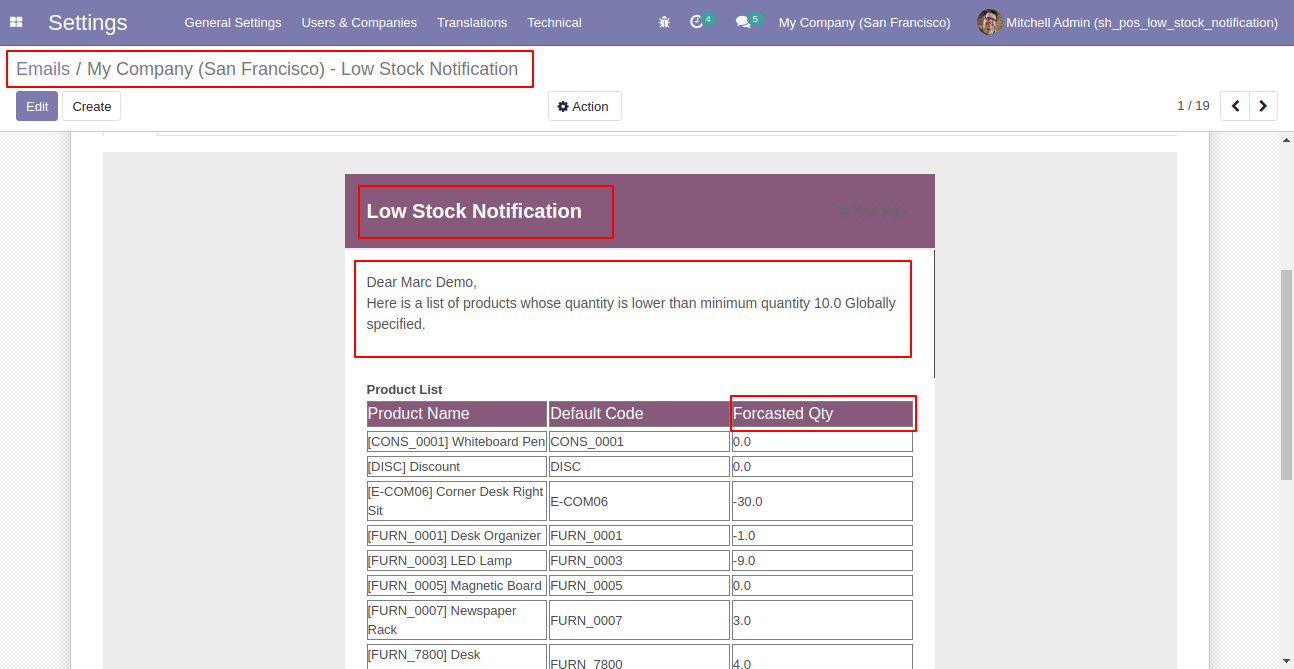
If "Product Quantity Check" is set "Globally" & "Quantity Type" is set
"Forecasted" then defines "Minimum Quantity". Notification Email will be sent
to that user for all product variants whose "Forecasted" product quantity is
lower than the defined global minimum quantity.
Email notification sent to the selected user based on configuration.
Set "Low Stock Notification?" to "True" for the company to allow notification
email. Set "Notify User", an email will send to that user.
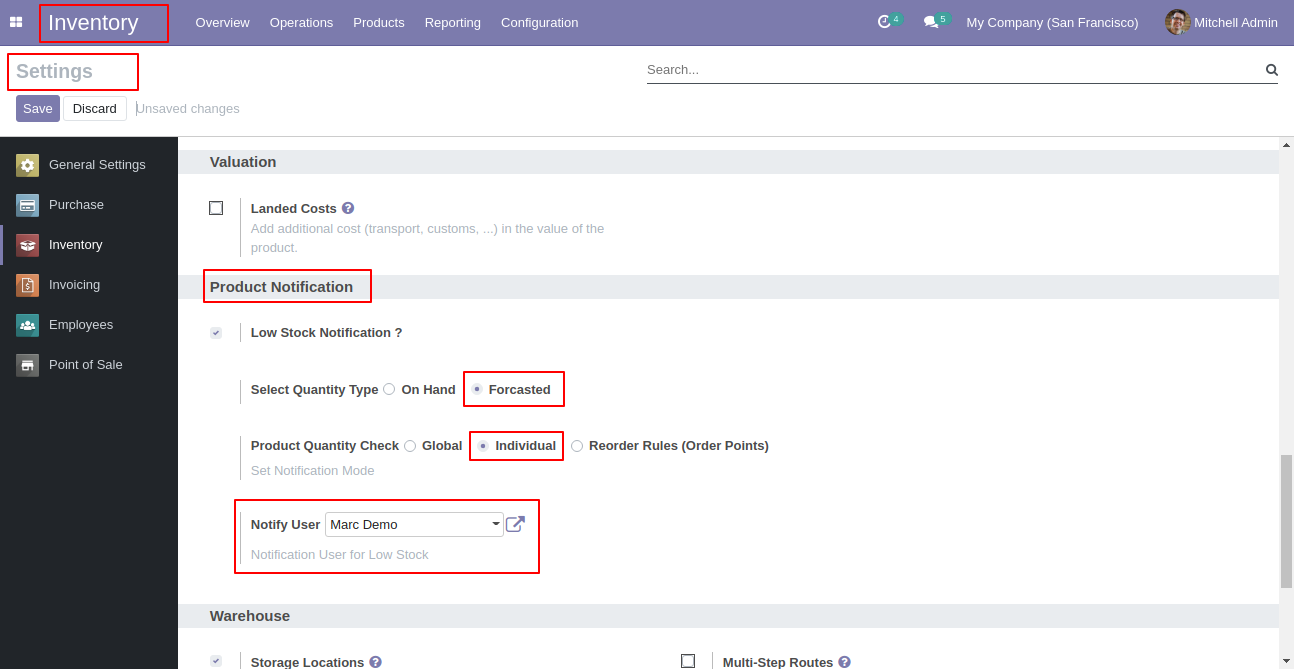
If "Product Quantity Check" is set "Individual" & "Quantity Type" is set
"Forecasted" than Notification Email will be sent to that user for all product
variants whose "Forecasted" product quantity is lower than the product's
"Minimum Quantity" defined inside the product itself.
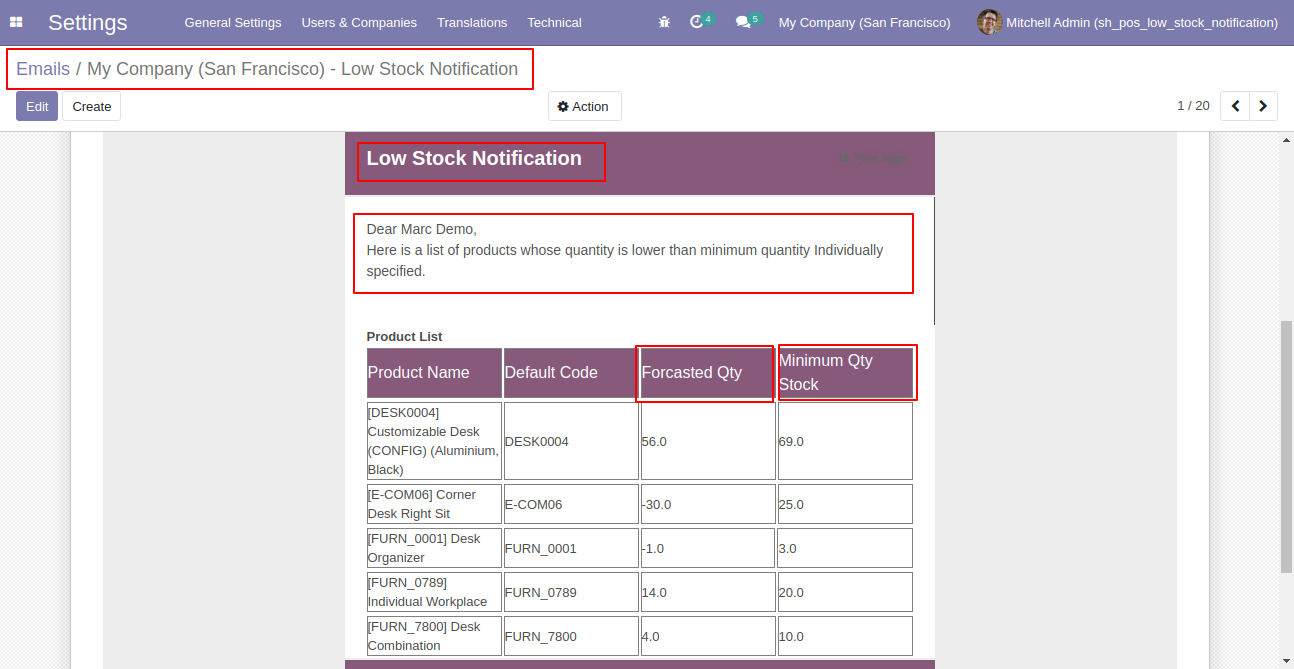
Email send to the notify user.
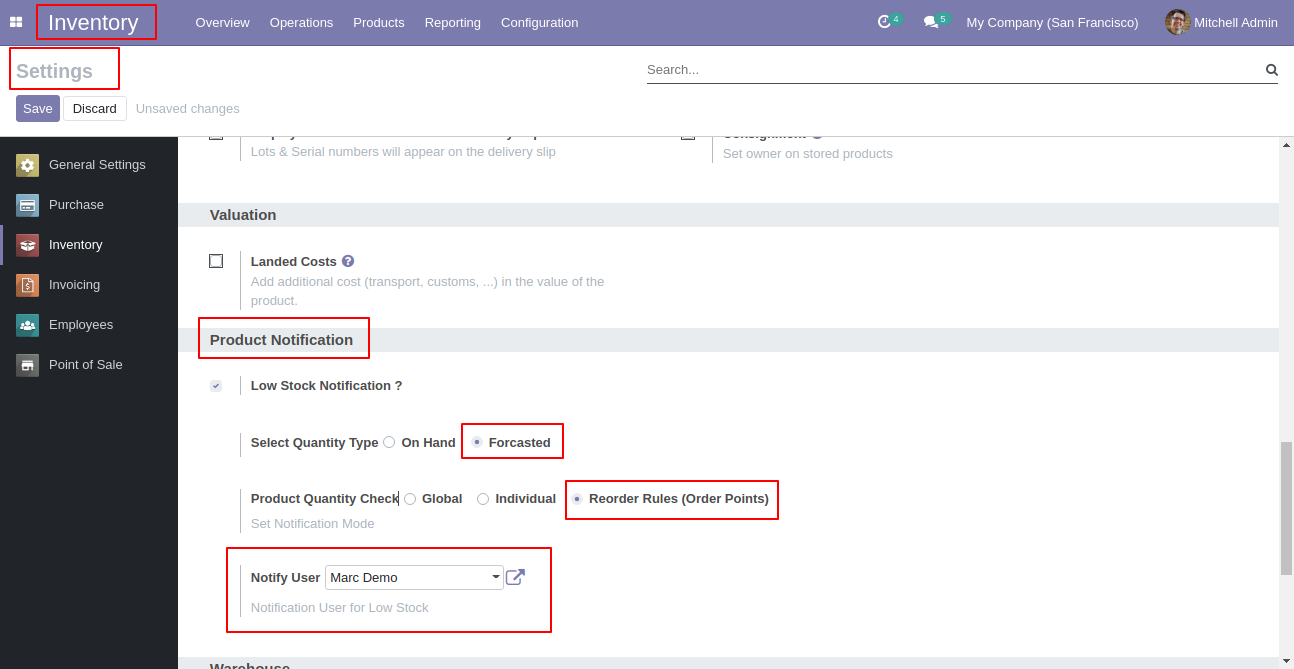
Set "Low Stock Notification?" to "True" for the company to allow notification
email. Set "Notify User", an email will send to that user.
If "Product Quantity Check" is set "Reorder Rules (Order Point)" & "Quantity
Type" is set "Forecasted" than Notification Email will be sent to that user
for all product variants whose "Forecasted" quantity is lower than product's
all reordered rules minimum quantity defined.
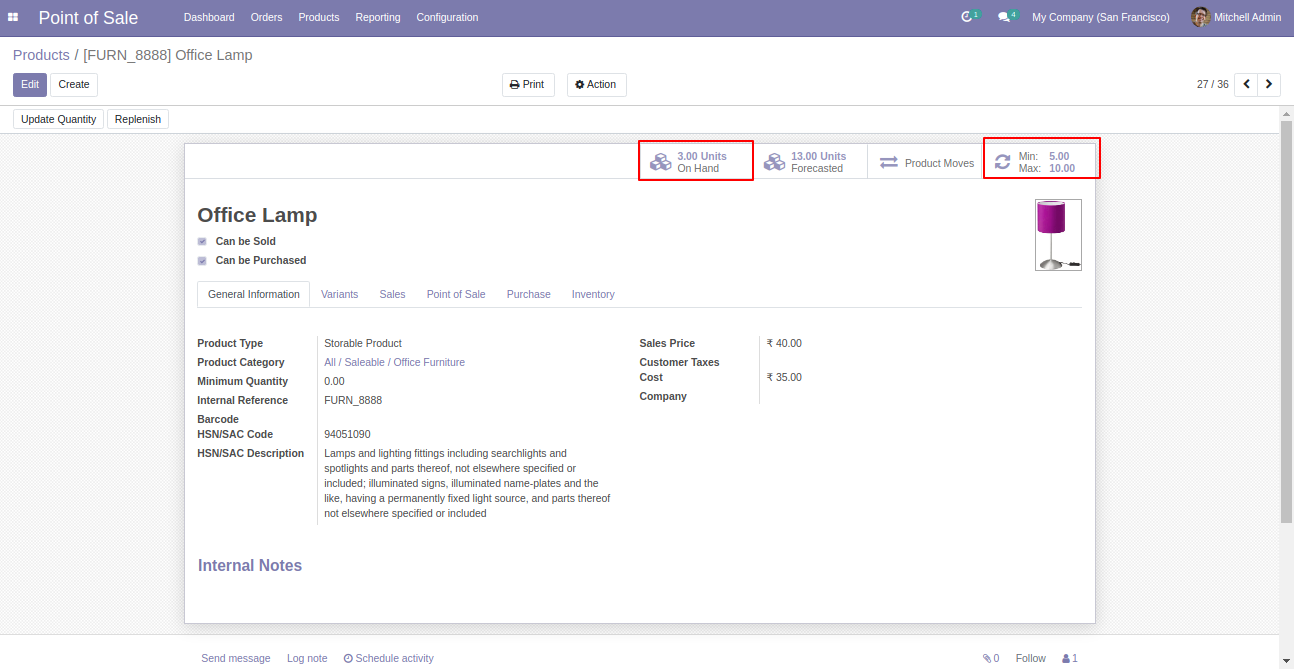
In product set min quantity and max quantity. This quantity will be considered only when the option "Reorder Rules (Order Point)" is selected.
Email notification sent to the selected user based on configuration.
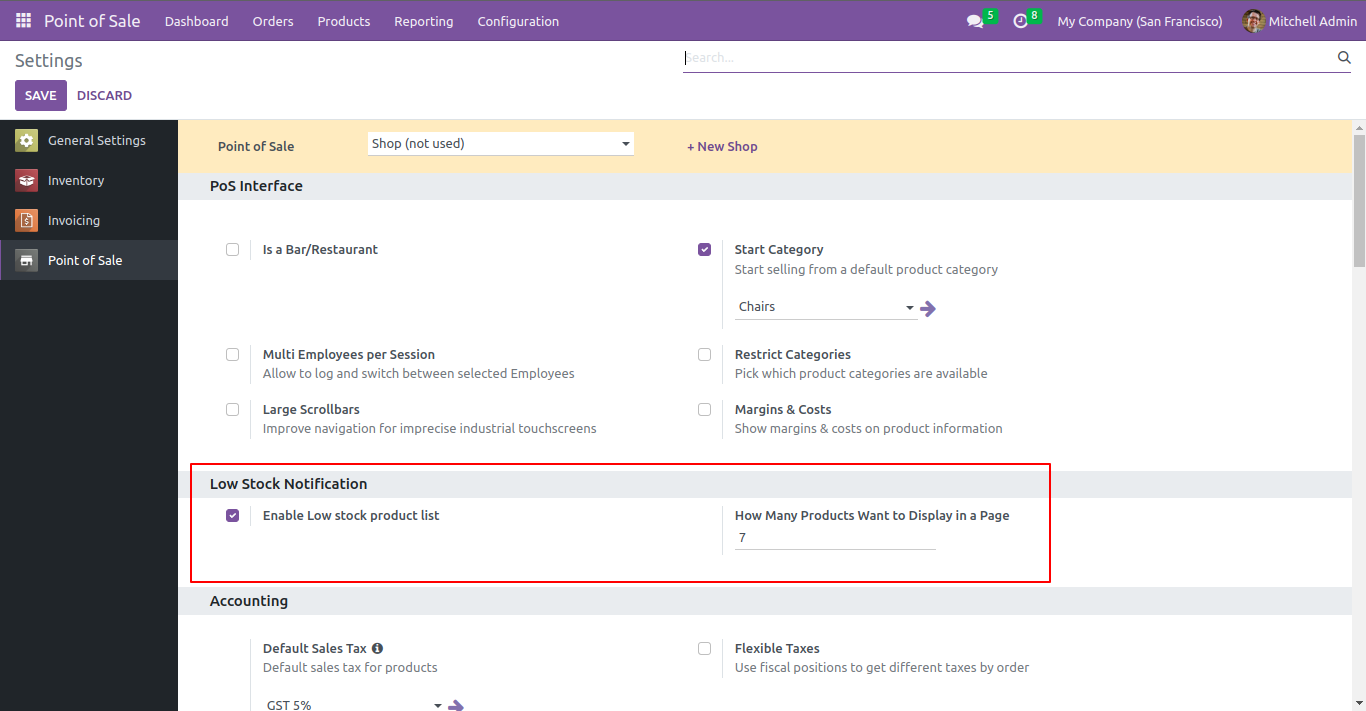
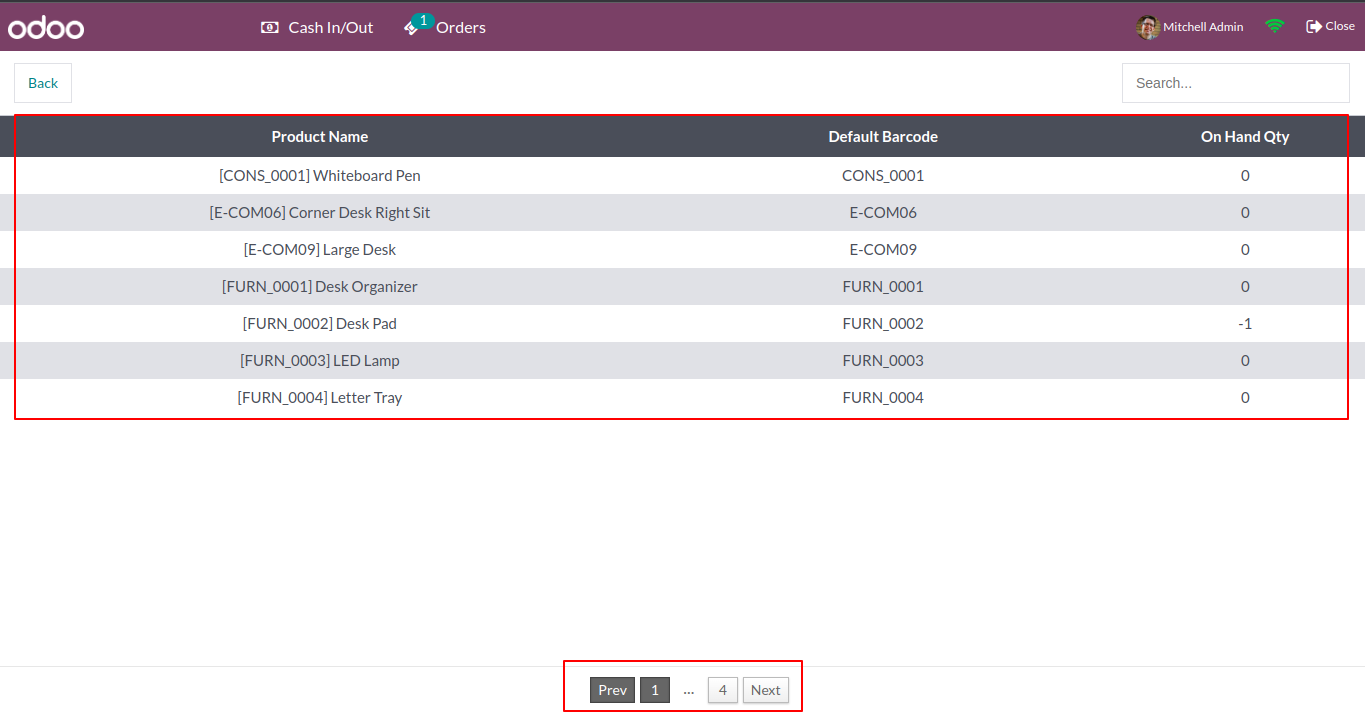
Tick "Enable Low Stock Product List" to enable low stock notification in the point of sale. Set how many products display per page.
Now go to the settings, and configure as per requirement.
Click the "Low Stock Product List" button to get low stock products list based on configuration.
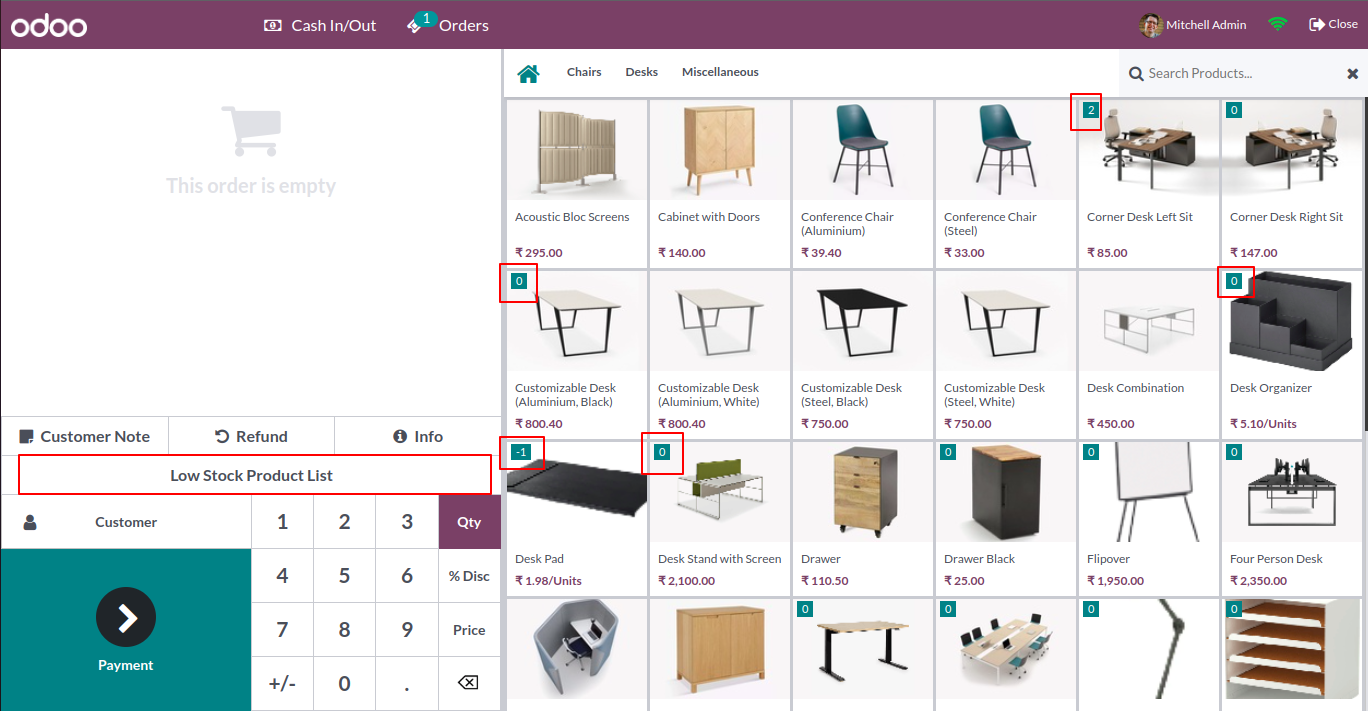
Low stock products list as per settings.
Version 19.0.1 | Released on : 29th September 2025
- Yes, this app works perfectly with Odoo Enterprise (Odoo.sh & Premise) as well as Community.
- No, this application is not compatible with odoo.com(odoo saas/Odoo Online)
- Yes, to test this module, please contact us at sales@softhealer.com.
- Please contact us at sales@softhealer.com to request customization.
- Yes, we provide free support for 365 days from the date of purchase.
- Yes, you will receive lifetime free updates for the version of the module you purchased.
- No, there is no need to install any additional libraries.
- Yes, for version 12 and above, you need to purchase the module separately for each version you intend to use.
- No, exchanges or refunds are not allowed. Please make sure to select the correct version before purchasing.
- You can contact us at support@softhealer.com for language translation support. We use Google Translator tools to provide translations in multiple languages, so the accuracy may vary. We welcome your suggestions to help improve translations.
Discover Our Latest Apps