












Point Of Sale Keyboard Shortcut

Do you want to enhance POS with keyboard shortcuts? Using this module you can manage keyboard shortcuts for point of sale. You can create various keyboard shortcuts and use them in the running session of the POS. So POS users can perform operations effectively and quickly using keyboard shortcuts.

Related Modules
Features

POS Keyboard Shortcut Management
Create and manage custom keyboard shortcuts for various POS operations to improve efficiency.
Faster POS Operations with Shortcuts
Enable POS users to perform actions quickly using keyboard shortcuts instead of manual navigation.

Category Selection Shortcut
Configure keyboard shortcuts for quick product category selection in POS operations.

Cash In/Out Shortcut
Assign shortcuts to perform cash in and cash out operations quickly from the POS screen.

Create Product Shortcut
Create new products instantly using configurable keyboard shortcuts.

Shortcut Access Control Group
Enable the "Enable Shortcut Key" user group to create, manage, and use keyboard shortcuts.

Quick Product Selection & Cart Actions
Quickly select products, add them to the cart, close screens, and change cashiers using keyboard shortcuts.

Refund Order Shortcut
Process order refunds quickly using dedicated keyboard shortcuts.

Pricelist Selection Shortcut
Switch and select pricelists efficiently using configurable keyboard shortcuts.
Shortcut Conflict Detection
Automatically detect and prevent assigning the same shortcut to multiple actions on the same screen.

Quick Payment Shortcut 
Add a shortcut to quickly access and process payments from the relevant screen.
Click on the "Edit" option.
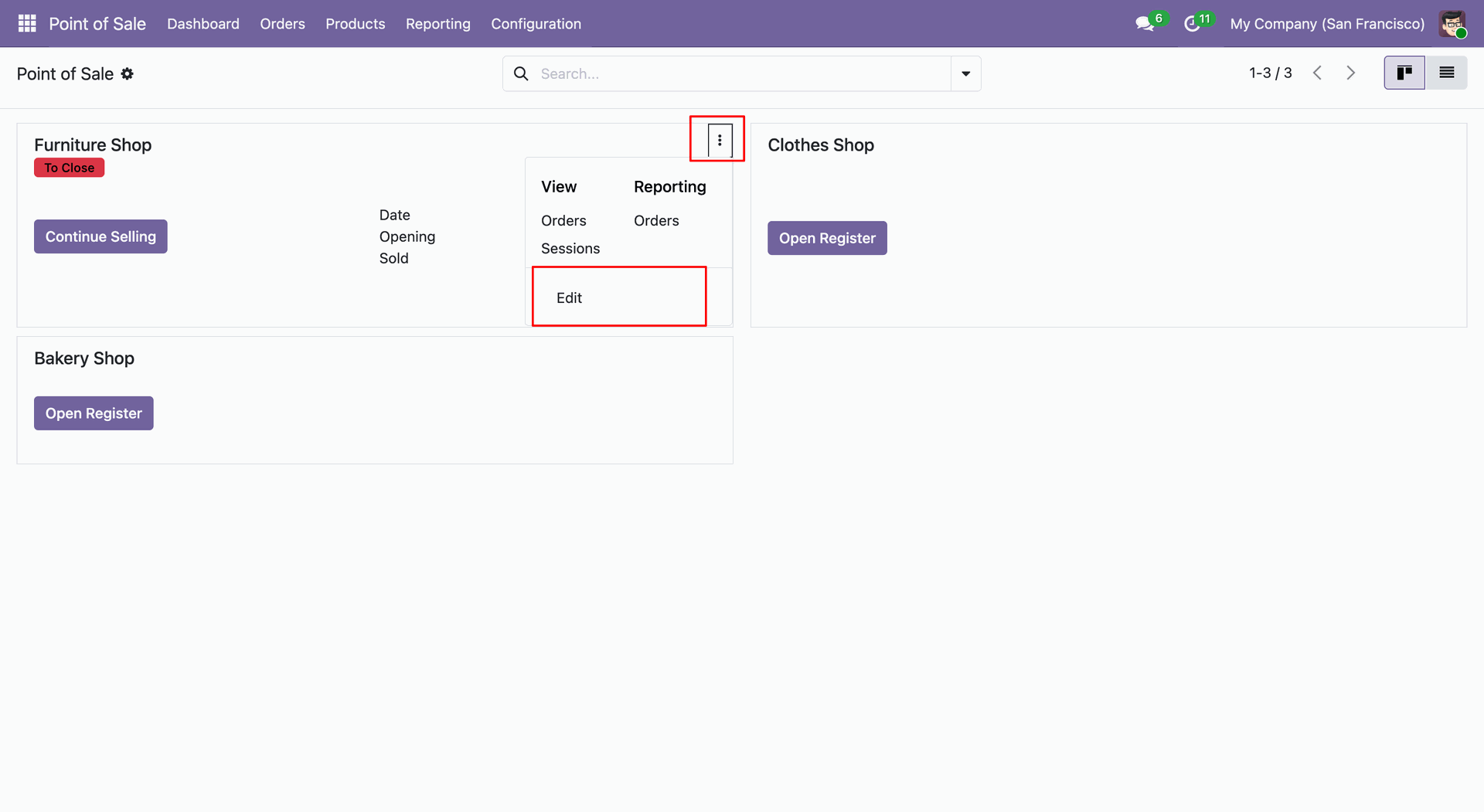
We provide below shortcut keys by default.
Screen Type: Product Screen
| No | Key | Description |
|---|---|---|
| 1 | Shift + p | Go to payment screen |
| 2 | q | Select Quantity Mode |
| 3 | d | Select Discount Mode |
| 4 | r | Select Price Mode |
| 5 | f | Search Product |
| 6 | Delete | Delete Orderline |
| 7 | Arrow Up | Select up orderline |
| 8 | Arrow Down | Select down orderline |
Screen Type: Payment Screen
| No | Key | Description |
|---|---|---|
| 1 | v | Validate Order |
| 2 | Shift + Delete | Delete paymentline |
| 3 | Arrow Up | Select up paymentline |
| 4 | Arrow Down | Select down paymentline |
| 5 | F10 | +f10 |
| 6 | F2 | +f20 |
| 7 | F5 | +f50 |
| 8 | C | Cash payment method |
| 9 | B | Bank payment method |
Screen Type: Receipt Screen
| No | Key | Description |
|---|---|---|
| 1 | n | Next Order |
Screen Type: Customer Screen
| No | Key | Description |
|---|---|---|
| 1 | f | Search Customer |
| 2 | Arrow Up | Select up customer |
| 3 | Arrow Down | Select down customer |
| 4 | Enter | Set customer |
| 5 | e | Edit customer |
| 6 | s | Save Customer |
| 7 | + | Create Customer |
Screen Type: Order Screen
| No | Key | Description |
|---|---|---|
| 1 | Shift + G | Go to Order Screen |
| 2 | f | Search Order |
| 3 | Arrow Up | Select Up Order |
| 4 | Arrow Down | Select Down Order |
| 5 | Enter | Select Order |
Screen Type: All
| No | Key | Description |
|---|---|---|
| 1 | Control + c | Go to customer screen |
| 2 | Escape | Go to Previous Screen |
| 3 | Insert | Add New order |
| 4 | Control + Delete | Destroy Current Order |
Enable the "Enable Shortcut Key" boolean.
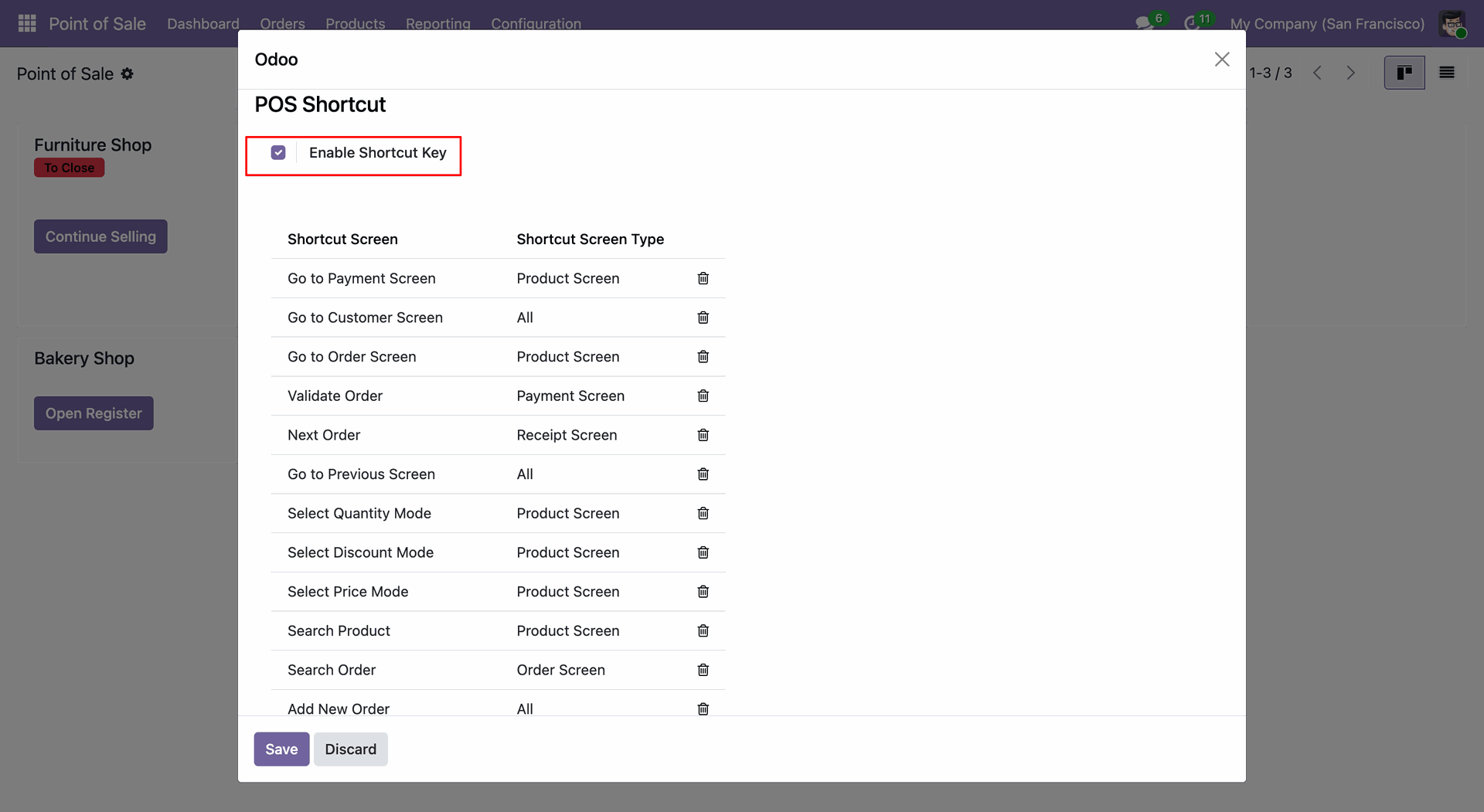
You can create a shortcut key from here.
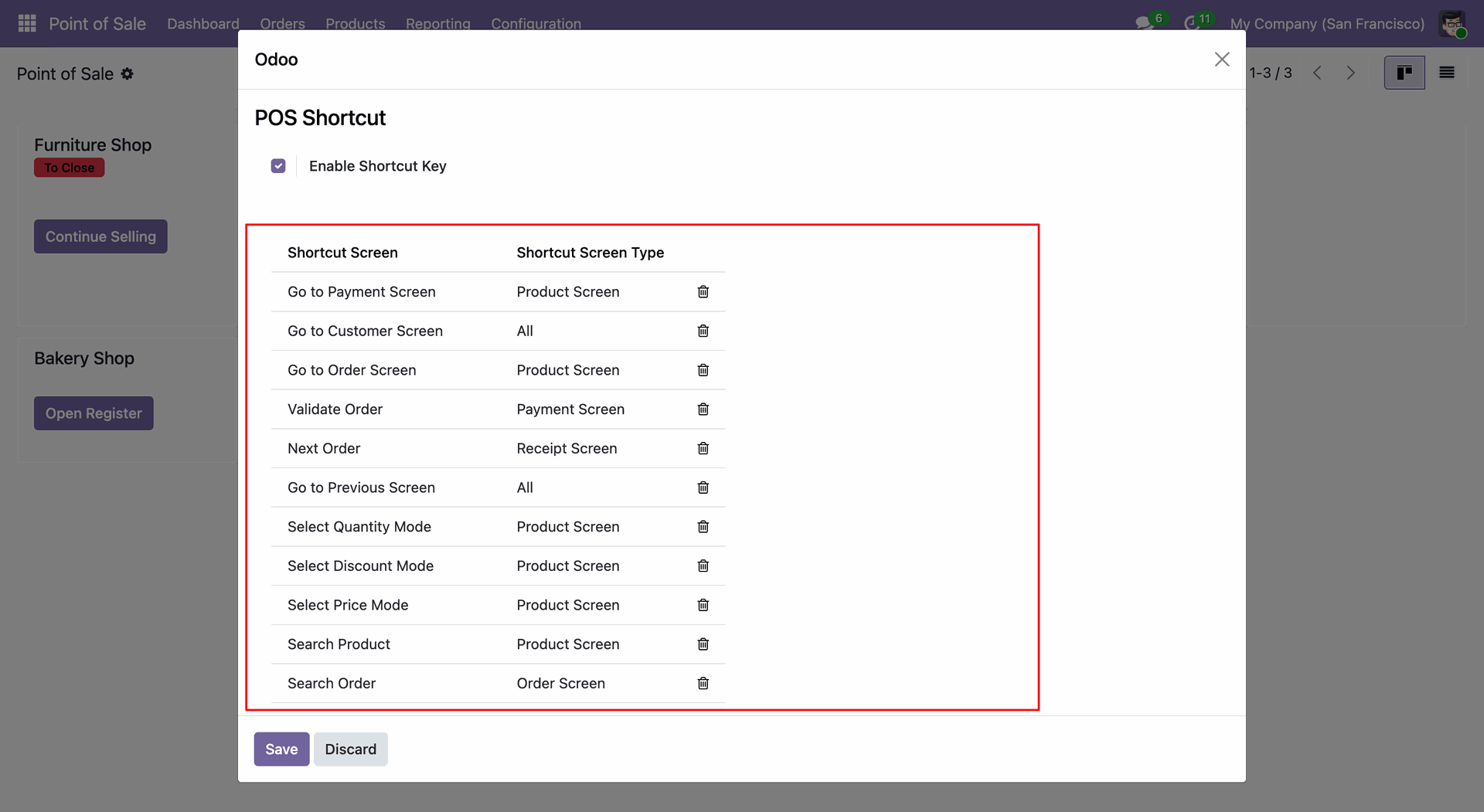
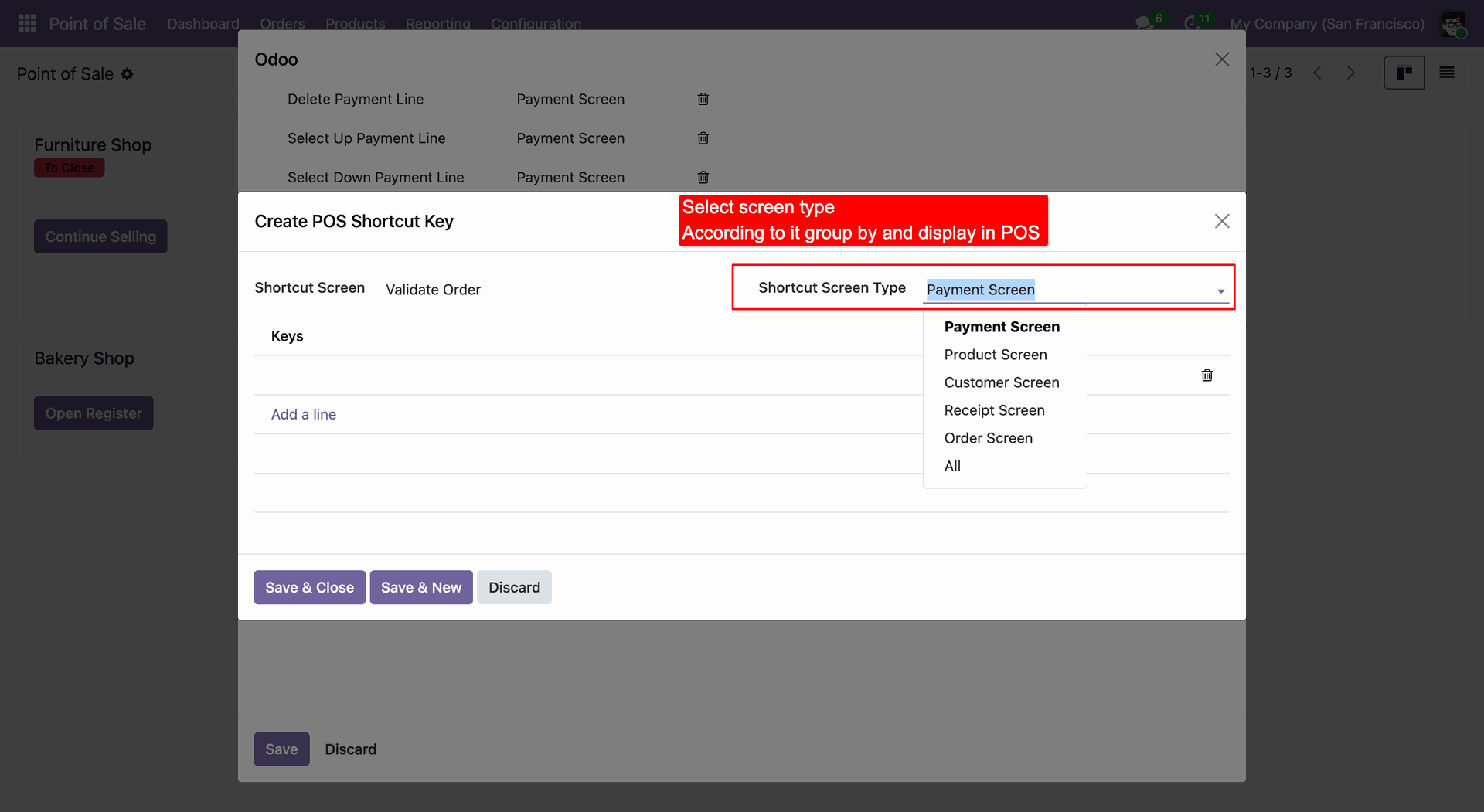
When you click on "Add a line" this wizard opens, you can create shortcut keys as per requirement.
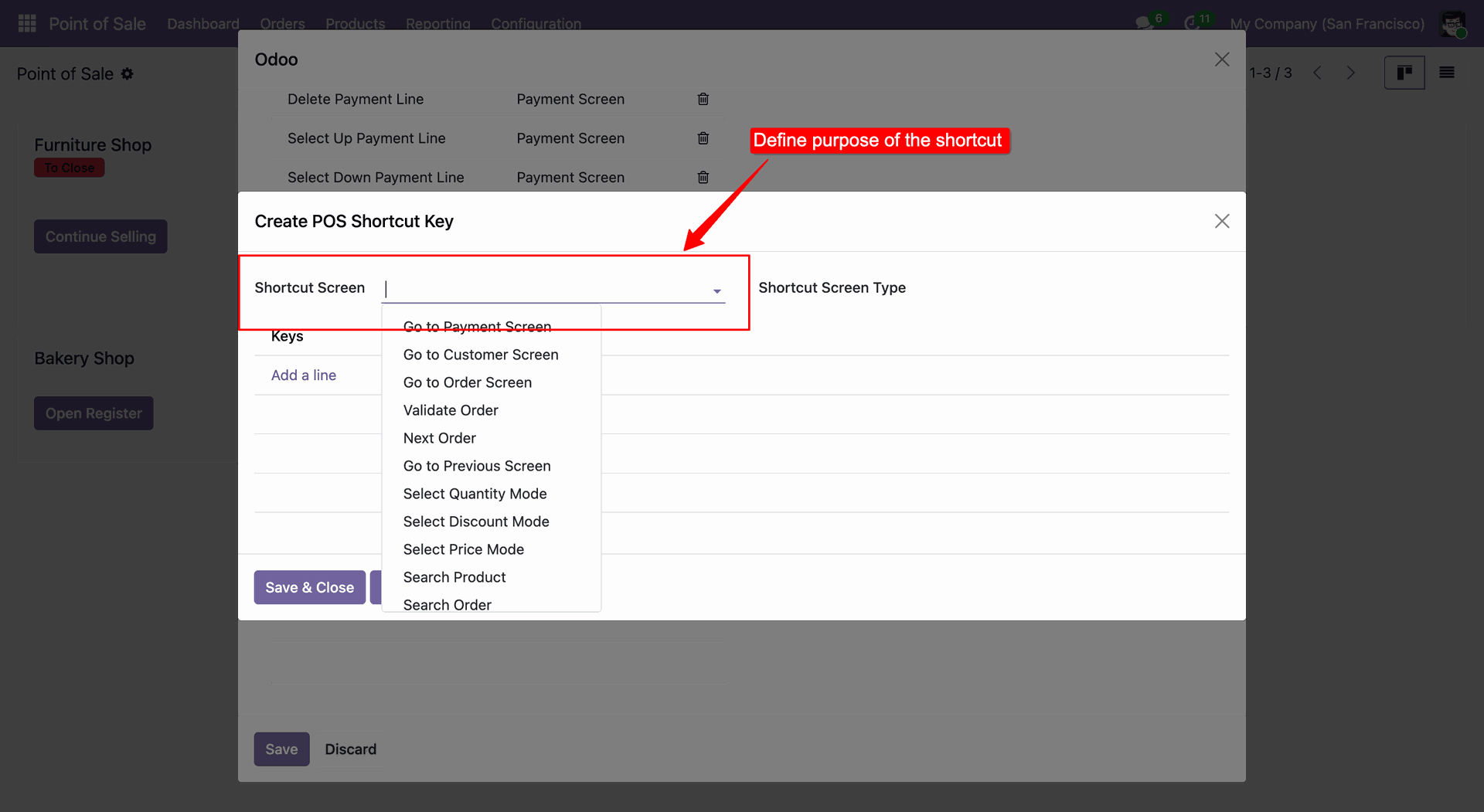
You can choose the shortcut screen type from here.
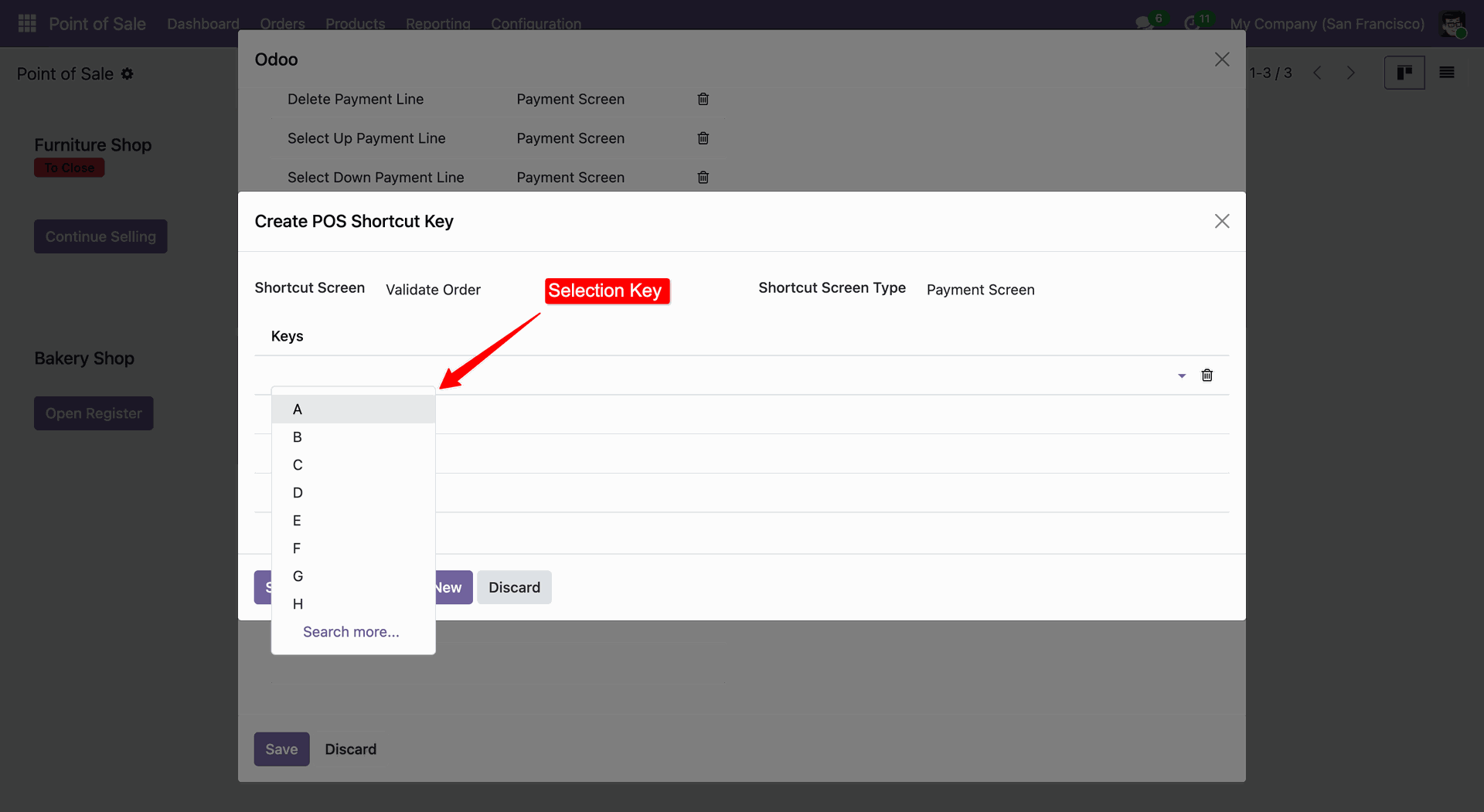
You can choose a key and define a shortcut key for that key from here.
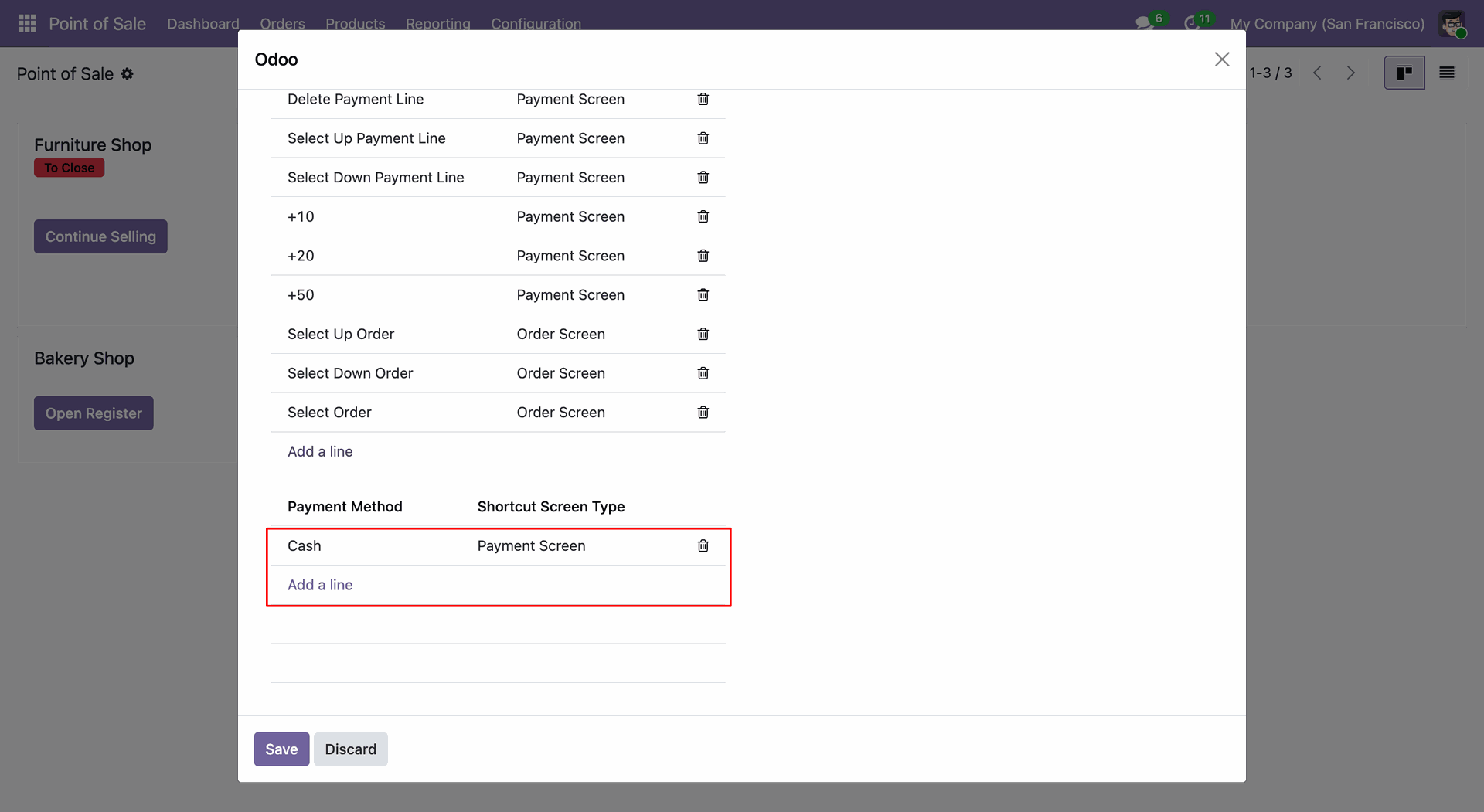
You can choose a shortcut key for the payment method as per need.
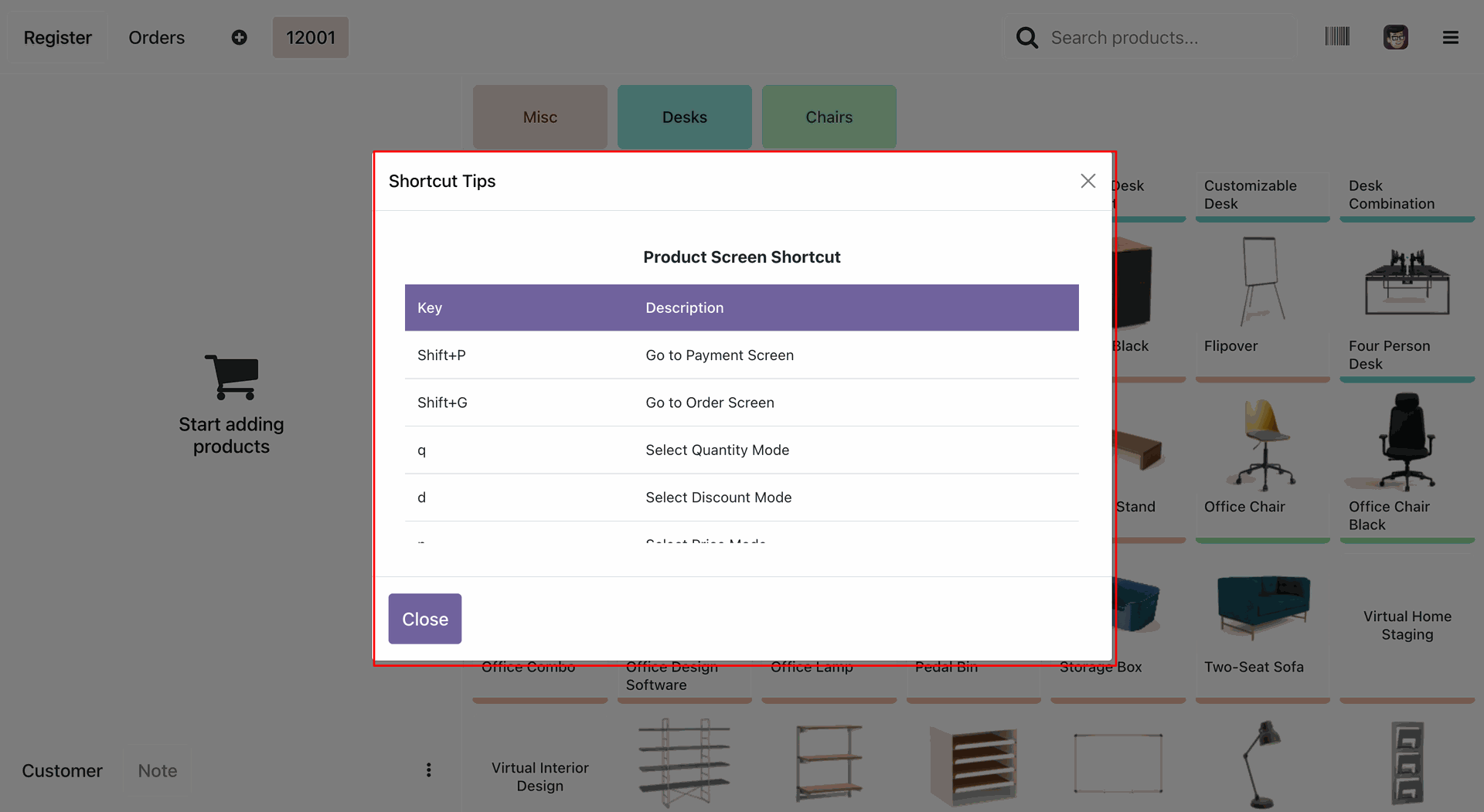
Click on the "Shortcut Tips" from the action.
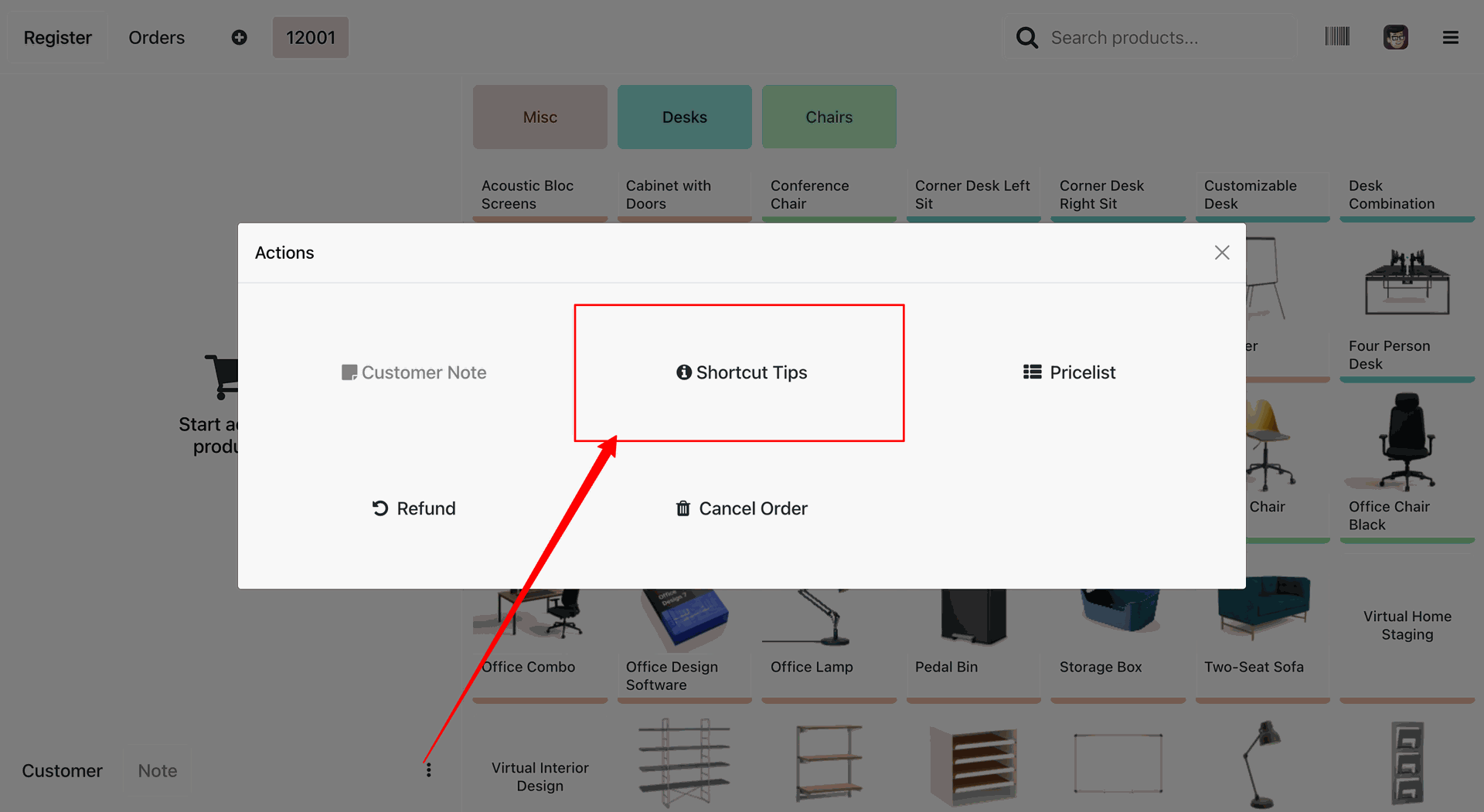
Here you can see the list of the shortcut tips.
Quick Keyboard Shortcuts Feature.
Shortcut To Quickly Select Product & Add It To The Cart, Close Button, Change The
Cashier
(Available When Employee Login Is Enabled).
Configure keyboard shortcuts for Category Selection, Cash In/Out, Create Product, Refund Order, and Pricelist Selection, with conflict detection to prevent duplicate shortcut assignments on the same screen.
Version 20.0.2.0.0 | Released on : 28th September 2026
Version 20.0.1.0.0 | Released on : 2nd September 2026
- Yes, this app works perfectly with Odoo Enterprise (Odoo.sh & Premise) as well as Community.
- No, this application is not compatible with odoo.com(odoo saas/Odoo Online)
- Yes, to test this module, please contact us at sales@softhealer.com.
- Please contact us at sales@softhealer.comto request customization.
- Yes, we provide free lifetime support for the version you purchased.
- Yes, you will receive lifetime free updates for the version of the module you purchased.
- No, there is no need to install any additional libraries.
- Yes, for version 12 and above, you need to purchase the module separately for each version you intend to use.
- No, exchanges or refunds are not allowed. Please make sure to select the correct version before purchasing.
- You can contact us at support@softhealer.com for language translation support. We use Google Translator tools to provide translations in multiple languages, so the accuracy may vary. We welcome your suggestions to help improve translations.
Discover Our Latest Apps